Microsoft Word 2003
ExcelFormulas and
Functions
Presenter: RAJIV KUMAR
INTERNET JUNCTION
CHIRKUNDA
This Guide will teach you how to work with math functions and
formulas.
2.
Math and more…
Mathand more…
You can use formulas to:
Solve mathematical problems
Complete statistical and financial functions
Return numerical and text values based on other
cells
Add and format text in cells
3.
Formula
Formula
Mathematical Equation
All formulasbegin with an equal (=) sign
Data that is stored in the worksheet and that
needs to be used in a formula is referenced using
the cell’s address
=A1+A2/(A3-A4)
4.
An example ofa simple
An example of a simple
formula
formula
Error Messages (Cell
ErrorMessages (Cell
Reference)
Reference)
######### Column not wide enough
#VALUE! Wrong Argument or Reference
#DIV/0! Dividing by zero
#Name? Excel doesn’t recognize text in formula
#N/A!
Missing data or wrong value for lookup
function
#REF
Cell reference not valid (Deleted cell,
pasted over)
#NUM! Invalid numeric value
#NULL! Specified cells do not intersect
13.
How to CopyFormulas?
How to Copy Formulas?
AutoFill is a command you can use when you
want to copy the same formula across a range of
adjacent cells.
AutoFill will automatically change cell addresses
depending on where the new formula is being
copied.
14.
An example ofa
An example of a
and a
and a
Complex
Complex
formula
formula
Simple
Simple
Formula
Formula
16.
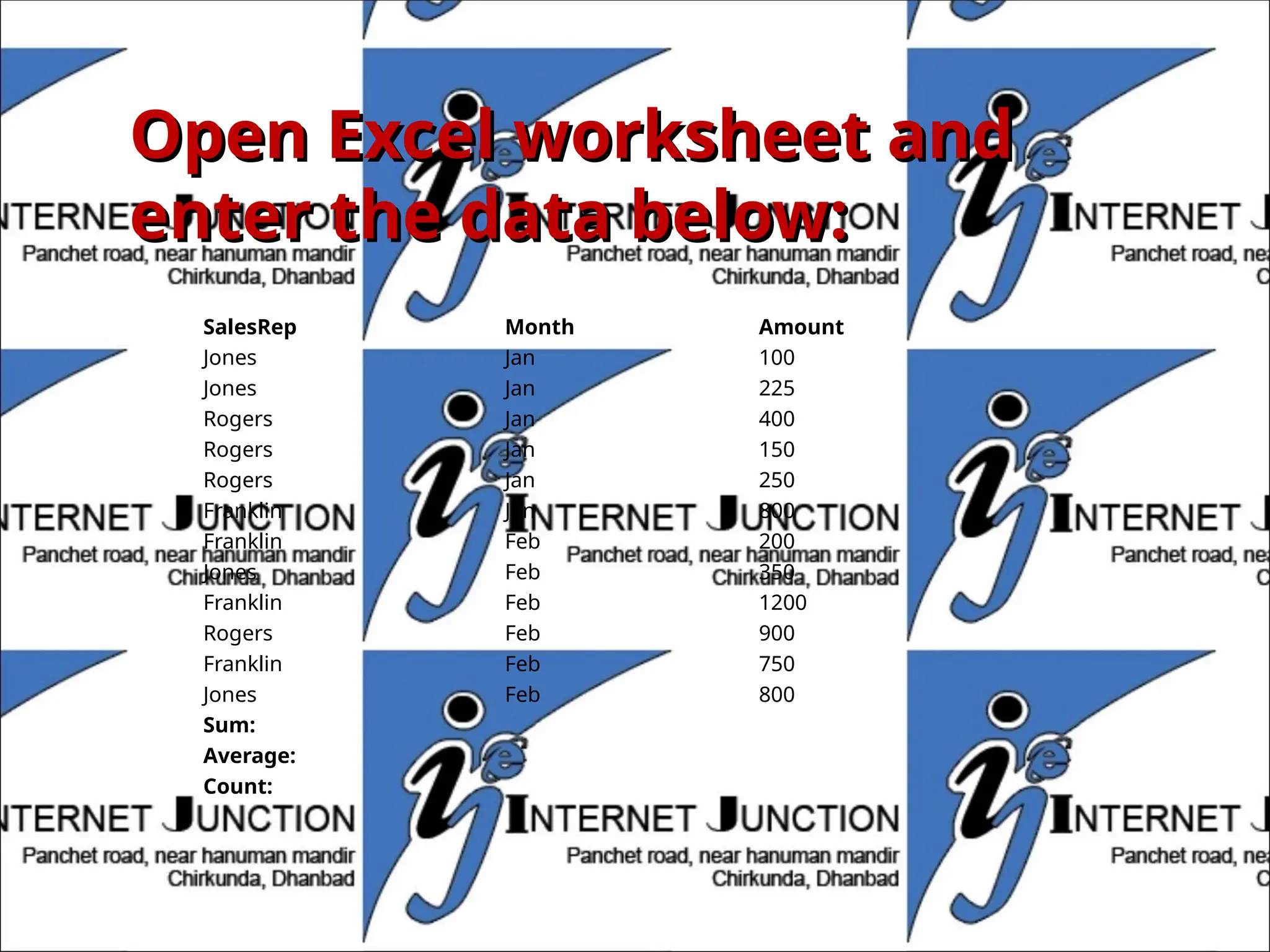
Open Excel worksheetand
Open Excel worksheet and
enter the data below:
enter the data below:
SalesRep Month Amount
Jones Jan 100
Jones Jan 225
Rogers Jan 400
Rogers Jan 150
Rogers Jan 250
Franklin Jan 800
Franklin Feb 200
Jones Feb 350
Franklin Feb 1200
Rogers Feb 900
Franklin Feb 750
Jones Feb 800
Sum:
Average:
Count:
17.
Add values
Add values
Withina certain range:
=SUM(C2:C13)
For an entire range:
=SUM(C:C) Note: Insert this function in another column.
18.
Count values
Count values
Countvalues in a range and it the entire range:
=COUNT(C2:C13)
=COUNT(C:C)
Conditional Counting:
=COUNTIF(A2:A13, “Jones”) or
=COUNTIF(A2:A13, “=Jones”) – equal
=COUNTIF(A2:A13, “<> Jones”) – not equal
19.
Cont…
Cont…
Count the Numberof Sales Greater than a Target
Value:
=COUNTIF(C2:C13, “>”&D1)
Note: the concatenation operator (&) is used to
join the grater than symbol (>) with the cell
reference.
Count the Number of Sales Greater than the Sales
Average:
=COUNTIF(C2:C13, “>”&AVERAGE(C2:C13))
20.
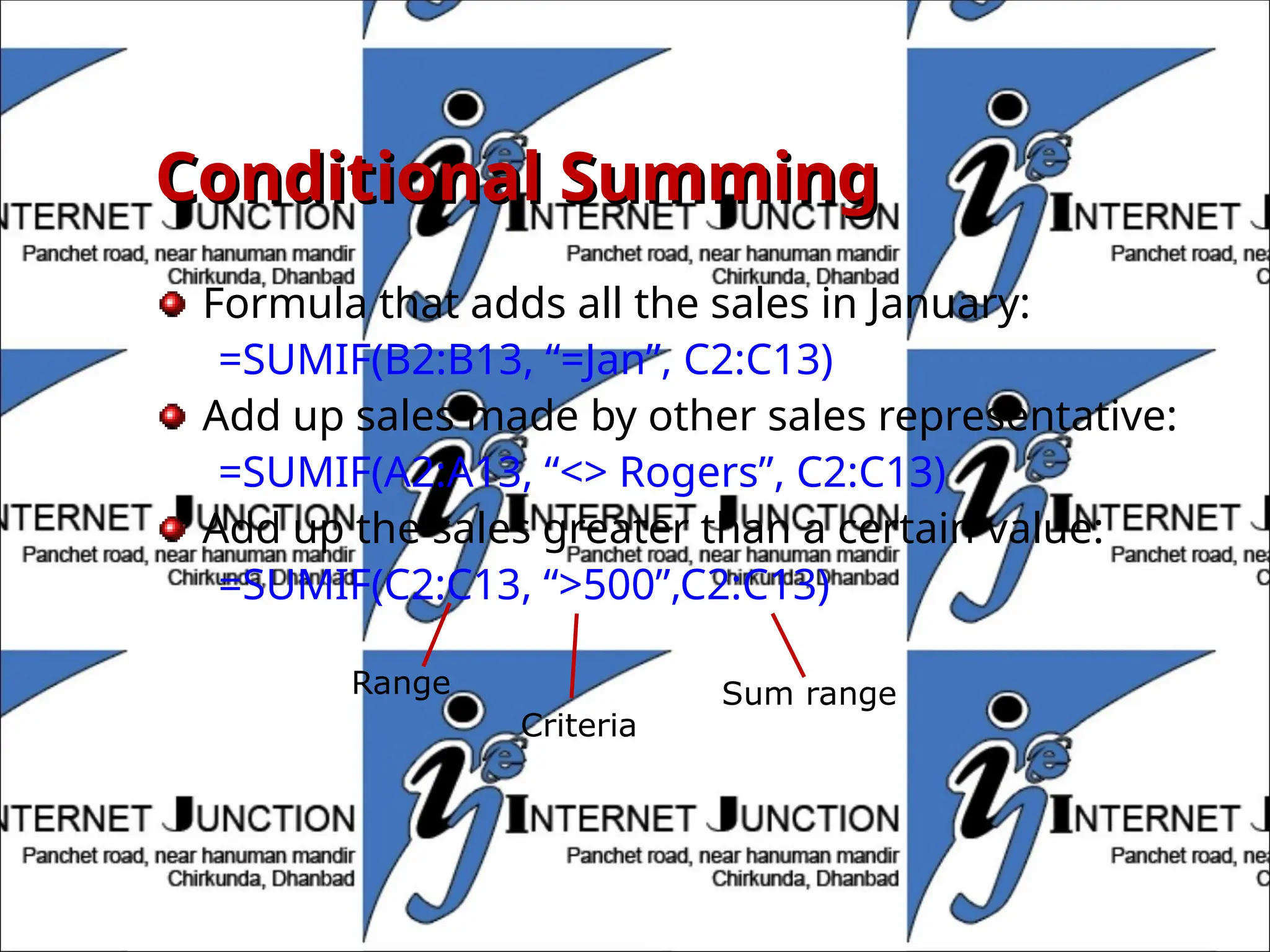
Conditional Summing
Conditional Summing
Formulathat adds all the sales in January:
=SUMIF(B2:B13, “=Jan”, C2:C13)
Add up sales made by other sales representative:
=SUMIF(A2:A13, “<> Rogers”, C2:C13)
Add up the sales greater than a certain value:
=SUMIF(C2:C13, “>500”,C2:C13)
Range
Criteria
Sum range
21.
Using the IFFunction
Using the IF Function
Display a value that depends on criteria you set
Returns a value if one condition is true and returns
another value if the condition is false
=IF(logical_test,value_if_true,value_if_false)
22.
PMT function
PMT function
Functionused to calculate a loan payment amount
using principal, interest rate and number of
payment periods.
=PMT(rate, nper,pv)
=PMT( .09/12,4*12,24000)
23.
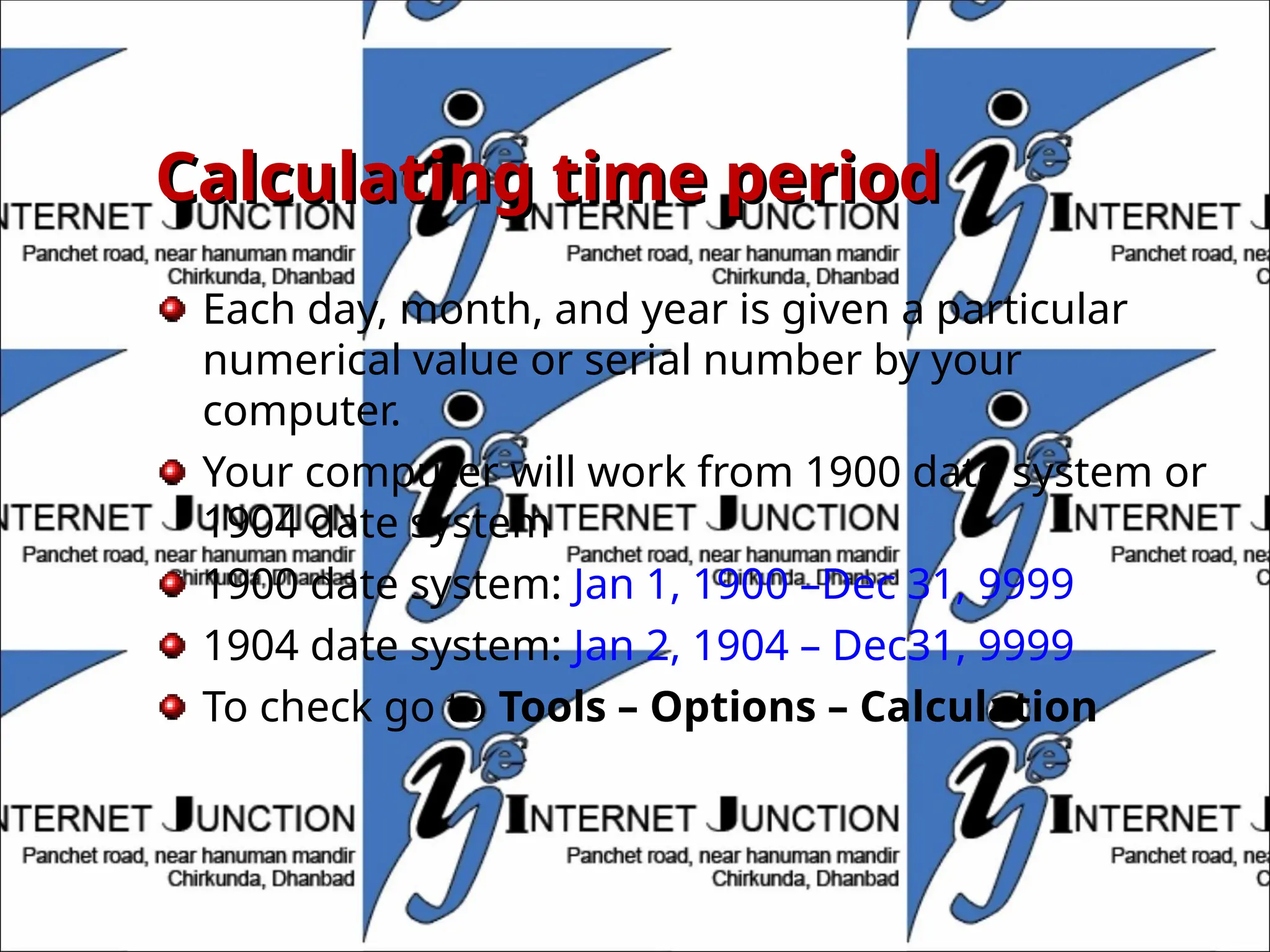
Calculating time period
Calculatingtime period
Each day, month, and year is given a particular
numerical value or serial number by your
computer.
Your computer will work from 1900 date system or
1904 date system
1900 date system: Jan 1, 1900 –Dec 31, 9999
1904 date system: Jan 2, 1904 – Dec31, 9999
To check go to Tools – Options – Calculation
Editor's Notes
#21 The IF worksheet function
Suppose that your company determines sales bonuses on a sliding scale, awarding either 10 percent or 15 percent, based on the invoice amount. To determine which one of two values to use, based on a condition that is either true or false, use the IF worksheet function.
The IF worksheet function returns a bonus of either 10% or 15%, based on the invoice amount.
The IF worksheet function checks a condition that must be either true or false. If the condition is true, the function returns one value; if the condition is false, the function returns another value. The function has three arguments: the condition you want to check, the value to return if the condition is true, and the value to return if the condition is false.
=IF(logical_test,value_if_true,value_if_false)
=iF(b4<10000,10%,15%)
For Suyama's $8,000 invoice, the function (in cell C4) looks like this:
=IF(B4<10000,10%,15%)
Other possibilities:
=IF(b2>300, “Good”, “Try again…”)
=IF(B10>90, “A”,if(B10>80, “B”,if (B10>70, “C”,if (B10>60, “D”, “F”))))
If the invoice amount is less than $10,000 (the logical_test argument), the bonus is 10 percent (the value_if_true argument). If the invoice amount is $10,000 or greater, the bonus is 15 percent (the value _if_false argument).