ExamView Test Player
User Guide
9.0
ExamView Test Player 2
© 2015 Turning Technologies, LLC. All rights reserved.
Portions Responsive Innovations, LLC, Microsoft Corporation
No part of this document may be reproduced or transmitted in any form or by any means, electronic or mechanical, for any purpose,
without the express written permission of Turning Technologies, LLC. All rights reserved.
Turning Technologies, LLC, 255 West Federal Street, Youngstown, OH 44503 USA.
TurningPoint® is a registered trademark of Turning Technologies, LLC. Other trademarked product names mentioned in this manual
are owned by their respective companies.
The following regulatory statements apply to radio frequency and infrared transmitters and receivers mentioned in this manual,
including the ResponseCard RF, ResponseCard RF LCD, ResponseCard IR, ResponseCard XR, ResponseCard NXT, QT Device,
CPS IR, CPS Pulse, CPS Spark, Gen 2, PRS RF, PRS IR, DualBoard, Touch Board, Touch Board Plus, MeetingBoard, SchoolBoard,
iPannel, Mobi, MobiView, MobiKWIK, Mobi Learner, Mobi 360 and their respective receivers.
FCC Statement
This device complies with part 15 of the FCC Rules. Operation is subject to the following two conditions: (1) This device may not
cause harmful interference, and (2) this device must accept any interference received, including interference that may cause
undesired operation.
Changes or modifications not expressly approved by the party responsible for compliance could void the user’s authority to operate
the equipment.
IC Statement
This device complies with Industry Canada licence-exempt RSS standard(s). Operation is subject to the following two conditions: (1)
this device may not cause interference, and (2) this device must accept any interference, including interference that may cause
undesired operation of the device.
Le présent appareil est conforme aux CNR d'Industrie Canada applicables aux appareils radio exempts de licence. L'exploitation est
autorisée aux deux conditions suivantes : (1) l'appareil ne doit pas produire de brouillage, et (2) l'utilisateur de l'appareil doit accepter
tout brouillage radioélectrique subi, même si le brouillage est susceptible d'en compromettre le fonctionnement.
turningtechnologies.com/user-guides
ExamView Test Player 3
Table of Contents
TABLE OF CONTENTS 3
USING EXAMVIEW TEST PLAYER 4
Getting Started with the ExamView Test Player 4
Taking a Test with the Test Player 4
Navigating the Test 5
Test Player Button Controls 5
Going to a Specific Question/Checking for Unanswered Questions 7
Checking a Response 7
Playing a Multimedia Link 7
Answering Multiple Choice, True/False, Yes/No or Matching Questions 8
Answering Modified True/False Questions 8
Answering Multiple Response Questions 8
Answering Numeric Response Questions 9
Answering Completion Questions 9
Answering Short Answer, Problem, Essay, Case or Other Questions 9
Closing the Program 10
KEYBOARD SHORTCUTS 11
French 11
German 12
Haitian-Creole 13
Spanish 13
TROUBLESHOOTING TIPS 14
CONTACT US 15
turningtechnologies.com/user-guides
ExamView Test Player 4
Using ExamView Test Player
This chapter covers the following topics:
Getting Started with the ExamView Test Player
Taking a Test with the Test Player
Navigating the Test
Test Player Button Controls
Going to a Specific Question/Checking for Unanswered Questions
Checking a Response
Playing a Multimedia Link
Answering Multiple Choice, True/False, Yes/No or Matching Questions
Answering Modified True/False Questions
Answering Multiple Response Questions
Answering Numeric Response Questions
Answering Completion Questions
Answering Short Answer, Problem, Essay, Case or Other Questions
Closing the Program
Getting Started with the ExamView Test Player
1 Enter your name and ID, and click Next.
Verify that you entered the information correctly or the test you wish to take may not appear in the list of available tests.
If you do not know your ID number, consult your instructor.
2 Select a test and click Next.
If no tests appear in the list, click the Folder button and identify where the tests are located. Ask your instructor if you
need assistance with this step.
3 If prompted, enter a password.
If you do not know your password, consult your instructor.
4 Review the summary information and click Start when you are ready to begin.
NOTE
If you are resuming a test you had started in a previous session, you will automatically
continue where you left off. Answers and timer settings are automatically loaded with the
test.
Taking a Test with the Test Player
1 Answer the first question.
The method for answering questions will vary depending on the question type.
turningtechnologies.com/user-guides
ExamView Test Player 5
2 Move to the next question and answer it.
Repeat this step to answer all of the remaining questions. You can skip a question and come back to it later if
necessary. Use the Go To Question button to see which questions you have not answered.
NOTE
You may be able to check your work depending on how your instructor configured the test. If
a question has a multimedia link, you can play a movie, watch an animation, or listen to an
audio segment.
3 When you are finished with the test, click Test from the menu bar and select End Test, or click End.
Depending on how your instructor configured the test, you may be given the option to save your answers and complete
the test at a later time. Select the appropriate option and click OK.
4 Depending on how your instructor configured the test, you may be shown an end-of-test report. To print the report, click
File from the menu bar and select Print, click Print, or use the keyboard shortcut Ctrl+P (PC) or Cmd+P (Mac).
ExamView Test Player prints the complete report or selected pages. The information on the report varies based on the
instructor’s configurations. Also, your instructor may choose to disable the print option.
5 To take another test, click File from the menu bar and select New or click New.
Once you complete a test, you can choose to take another test or you can close the program. If you choose to take
another test, you must register again.
6 To close the program, click File from the menu bar and select Exit (PC) or click the ExamView Test Player menu and
select Quit ExamView Test Player (Mac) or click Exit.
Navigating the Test
1 Depending on the length of a question, you may not be able to see the entire question in the display window. Using the
mouse, click the scroll bar to scroll the question. Using the keyboard, press the (Down Arrow) or (Up Arrow) to view the
entire question.
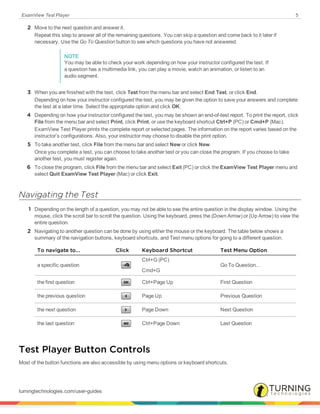
2 Navigating to another question can be done by using either the mouse or the keyboard. The table below shows a
summary of the navigation buttons, keyboard shortcuts, and Test menu options for going to a different question.
To navigate to... Click Keyboard Shortcut Test Menu Option
a specific question
Ctrl+G (PC)
Cmd+G
Go To Question...
the first question Ctrl+Page Up First Question
the previous question Page Up Previous Question
the next question Page Down Next Question
the last question Ctrl+Page Down Last Question
Test Player Button Controls
Most of the button functions are also accessible by using menu options or keyboard shortcuts.
turningtechnologies.com/user-guides
ExamView Test Player 6
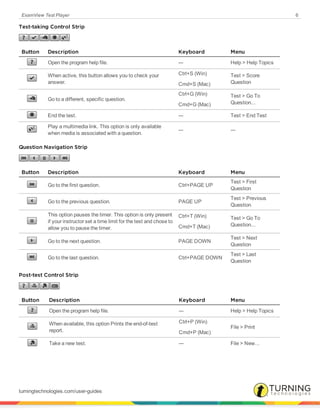
Test-taking Control Strip
Button Description Keyboard Menu
Open the program help file. --- Help > Help Topics
When active, this button allows you to check your
answer.
Ctrl+S (Win)
Cmd+S (Mac)
Test > Score
Question
Go to a different, specific question.
Ctrl+G (Win)
Cmd+G (Mac)
Test > Go To
Question...
End the test. --- Test > End Test
Play a multimedia link. This option is only available
when media is associated with a question.
--- ---
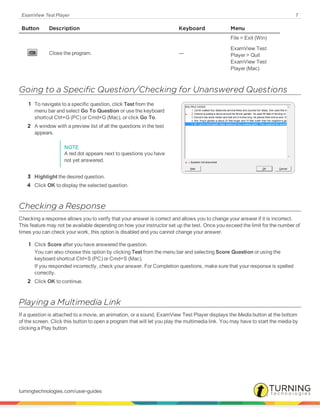
Question Navigation Strip
Button Description Keyboard Menu
Go to the first question. Ctrl+PAGE UP
Test > First
Question
Go to the previous question. PAGE UP
Test > Previous
Question
This option pauses the timer. This option is only present
if your instructor set a time limit for the test and chose to
allow you to pause the timer.
Ctrl+T (Win)
Cmd+T (Mac)
Test > Go To
Question...
Go to the next question. PAGE DOWN
Test > Next
Question
Go to the last question. Ctrl+PAGE DOWN
Test > Last
Question
Post-test Control Strip
Button Description Keyboard Menu
Open the program help file. --- Help > Help Topics
When available, this option Prints the end-of-test
report.
Ctrl+P (Win)
Cmd+P (Mac)
File > Print
Take a new test. --- File > New...
turningtechnologies.com/user-guides
ExamView Test Player 7
Button Description Keyboard Menu
Close the program. ---
File > Exit (Win)
ExamView Test
Player > Quit
ExamView Test
Player (Mac)
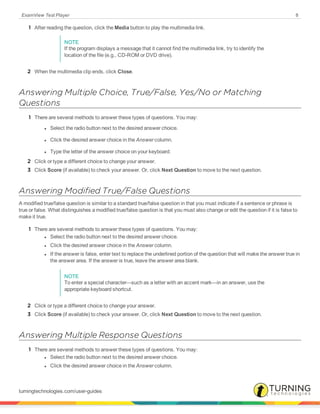
Going to a Specific Question/Checking for Unanswered Questions
1 To navigate to a specific question, click Test from the
menu bar and select Go To Question or use the keyboard
shortcut Ctrl+G (PC) or Cmd+G (Mac), or click Go To.
2 A window with a preview list of all the questions in the test
appears.
NOTE
A red dot appears next to questions you have
not yet answered.
3 Highlight the desired question.
4 Click OK to display the selected question.
Checking a Response
Checking a response allows you to verify that your answer is correct and allows you to change your answer if it is incorrect.
This feature may not be available depending on how your instructor set up the test. Once you exceed the limit for the number of
times you can check your work, this option is disabled and you cannot change your answer.
1 Click Score after you have answered the question.
You can also choose this option by clicking Test from the menu bar and selecting Score Question or using the
keyboard shortcut Ctrl+S (PC) or Cmd+S (Mac).
If you responded incorrectly, check your answer. For Completion questions, make sure that your response is spelled
correctly.
2 Click OK to continue.
Playing a Multimedia Link
If a question is attached to a movie, an animation, or a sound, ExamView Test Player displays the Media button at the bottom
of the screen. Click this button to open a program that will let you play the multimedia link. You may have to start the media by
clicking a Play button.
turningtechnologies.com/user-guides
ExamView Test Player 8
1 After reading the question, click the Media button to play the multimedia link.
NOTE
If the program displays a message that it cannot find the multimedia link, try to identify the
location of the file (e.g., CD-ROM or DVD drive).
2 When the multimedia clip ends, click Close.
Answering Multiple Choice, True/False, Yes/No or Matching
Questions
1 There are several methods to answer these types of questions. You may:
l Select the radio button next to the desired answer choice.
l Click the desired answer choice in the Answer column.
l Type the letter of the answer choice on your keyboard.
2 Click or type a different choice to change your answer.
3 Click Score (if available) to check your answer. Or, click Next Question to move to the next question.
Answering Modified True/False Questions
A modified true/false question is similar to a standard true/false question in that you must indicate if a sentence or phrase is
true or false. What distinguishes a modified true/false question is that you must also change or edit the question if it is false to
make it true.
1 There are several methods to answer these types of questions. You may:
l Select the radio button next to the desired answer choice.
l Click the desired answer choice in the Answer column.
l If the answer is false, enter text to replace the underlined portion of the question that will make the answer true in
the answer area. If the answer is true, leave the answer area blank.
NOTE
To enter a special character—such as a letter with an accent mark—in an answer, use the
appropriate keyboard shortcut.
2 Click or type a different choice to change your answer.
3 Click Score (if available) to check your answer. Or, click Next Question to move to the next question.
Answering Multiple Response Questions
1 There are several methods to answer these types of questions. You may:
l Select the radio button next to the desired answer choice.
l Click the desired answer choice in the Answer column.
turningtechnologies.com/user-guides
ExamView Test Player 9
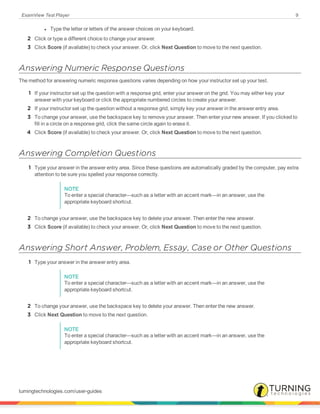
l Type the letter or letters of the answer choices on your keyboard.
2 Click or type a different choice to change your answer.
3 Click Score (if available) to check your answer. Or, click Next Question to move to the next question.
Answering Numeric Response Questions
The method for answering numeric response questions varies depending on how your instructor set up your test.
1 If your instructor set up the question with a response grid, enter your answer on the grid. You may either key your
answer with your keyboard or click the appropriate numbered circles to create your answer.
2 If your instructor set up the question without a response grid, simply key your answer in the answer entry area.
3 To change your answer, use the backspace key to remove your answer. Then enter your new answer. If you clicked to
fill in a circle on a response grid, click the same circle again to erase it.
4 Click Score (if available) to check your answer. Or, click Next Question to move to the next question.
Answering Completion Questions
1 Type your answer in the answer entry area. Since these questions are automatically graded by the computer, pay extra
attention to be sure you spelled your response correctly.
NOTE
To enter a special character—such as a letter with an accent mark—in an answer, use the
appropriate keyboard shortcut.
2 To change your answer, use the backspace key to delete your answer. Then enter the new answer.
3 Click Score (if available) to check your answer. Or, click Next Question to move to the next question.
Answering Short Answer, Problem, Essay, Case or Other Questions
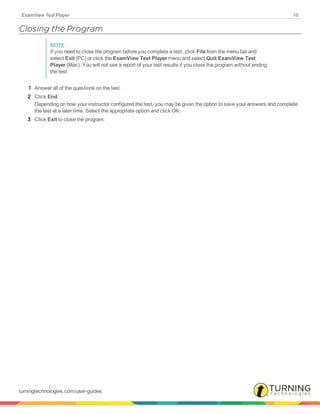
1 Type your answer in the answer entry area.
NOTE
To enter a special character—such as a letter with an accent mark—in an answer, use the
appropriate keyboard shortcut.
2 To change your answer, use the backspace key to delete your answer. Then enter the new answer.
3 Click Next Question to move to the next question.
NOTE
To enter a special character—such as a letter with an accent mark—in an answer, use the
appropriate keyboard shortcut.
turningtechnologies.com/user-guides
ExamView Test Player 10
Closing the Program
NOTE
If you need to close the program before you complete a test, click File from the menu bar and
select Exit (PC) or click the ExamView Test Player menu and select Quit ExamView Test
Player (Mac). You will not see a report of your test results if you close the program without ending
the test.
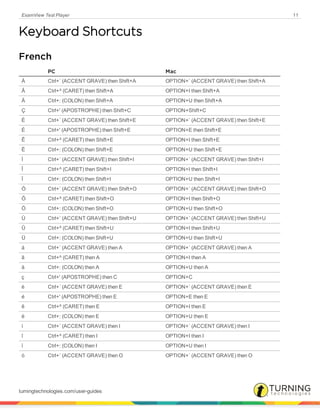
1 Answer all of the questions on the test.
2 Click End.
Depending on how your instructor configured the test, you may be given the option to save your answers and complete
the test at a later time. Select the appropriate option and click OK.
3 Click Exit to close the program.
turningtechnologies.com/user-guides
ExamView Test Player 11
Keyboard Shortcuts
French
PC Mac
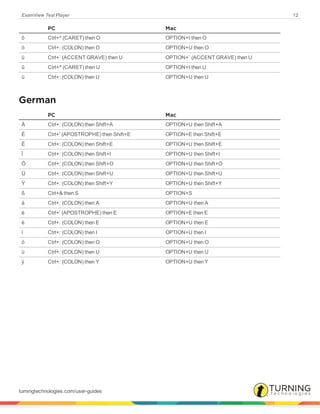
À Ctrl+` (ACCENT GRAVE) then Shift+A OPTION+` (ACCENT GRAVE) then Shift+A
 Ctrl+^ (CARET) then Shift+A OPTION+I then Shift+A
Ä Ctrl+: (COLON) then Shift+A OPTION+U then Shift+A
Ç Ctrl+' (APOSTROPHE) then Shift+C OPTION+Shift+C
È Ctrl+` (ACCENT GRAVE) then Shift+E OPTION+` (ACCENT GRAVE) then Shift+E
É Ctrl+' (APOSTROPHE) then Shift+E OPTION+E then Shift+E
Ê Ctrl+^ (CARET) then Shift+E OPTION+I then Shift+E
Ë Ctrl+: (COLON) then Shift+E OPTION+U then Shift+E
Ì Ctrl+` (ACCENT GRAVE) then Shift+I OPTION+` (ACCENT GRAVE) then Shift+I
Î Ctrl+^ (CARET) then Shift+I OPTION+I then Shift+I
Ï Ctrl+: (COLON) then Shift+I OPTION+U then Shift+I
Ò Ctrl+` (ACCENT GRAVE) then Shift+O OPTION+` (ACCENT GRAVE) then Shift+O
Ô Ctrl+^ (CARET) then Shift+O OPTION+I then Shift+O
Ö Ctrl+: (COLON) then Shift+O OPTION+U then Shift+O
Ù Ctrl+` (ACCENT GRAVE) then Shift+U OPTION+` (ACCENT GRAVE) then Shift+U
Û Ctrl+^ (CARET) then Shift+U OPTION+I then Shift+U
Ü Ctrl+: (COLON) then Shift+U OPTION+U then Shift+U
á Ctrl+` (ACCENT GRAVE) then A OPTION+` (ACCENT GRAVE) then A
â Ctrl+^ (CARET) then A OPTION+I then A
ä Ctrl+: (COLON) then A OPTION+U then A
ç Ctrl+' (APOSTROPHE) then C OPTION+C
è Ctrl+` (ACCENT GRAVE) then E OPTION+` (ACCENT GRAVE) then E
é Ctrl+' (APOSTROPHE) then E OPTION+E then E
ê Ctrl+^ (CARET) then E OPTION+I then E
ë Ctrl+: (COLON) then E OPTION+U then E
ì Ctrl+` (ACCENT GRAVE) then I OPTION+` (ACCENT GRAVE) then I
î Ctrl+^ (CARET) then I OPTION+I then I
ï Ctrl+: (COLON) then I OPTION+U then I
ò Ctrl+` (ACCENT GRAVE) then O OPTION+` (ACCENT GRAVE) then O
turningtechnologies.com/user-guides
ExamView Test Player 12
PC Mac
ô Ctrl+^ (CARET) then O OPTION+I then O
ö Ctrl+: (COLON) then O OPTION+U then O
ù Ctrl+` (ACCENT GRAVE) then U OPTION+` (ACCENT GRAVE) then U
û Ctrl+^ (CARET) then U OPTION+I then U
ü Ctrl+: (COLON) then U OPTION+U then U
German
PC Mac
Ä Ctrl+: (COLON) then Shift+A OPTION+U then Shift+A
É Ctrl+' (APOSTROPHE) then Shift+E OPTION+E then Shift+E
Ë Ctrl+: (COLON) then Shift+E OPTION+U then Shift+E
Ï Ctrl+: (COLON) then Shift+I OPTION+U then Shift+I
Ö Ctrl+: (COLON) then Shift+O OPTION+U then Shift+O
Ü Ctrl+: (COLON) then Shift+U OPTION+U then Shift+U
Ÿ Ctrl+: (COLON) then Shift+Y OPTION+U then Shift+Y
ß Ctrl+& then S OPTION+S
ä Ctrl+: (COLON) then A OPTION+U then A
é Ctrl+' (APOSTROPHE) then E OPTION+E then E
ë Ctrl+: (COLON) then E OPTION+U then E
ï Ctrl+: (COLON) then I OPTION+U then I
ö Ctrl+: (COLON) then O OPTION+U then O
ü Ctrl+: (COLON) then U OPTION+U then U
ÿ Ctrl+: (COLON) then Y OPTION+U then Y
turningtechnologies.com/user-guides
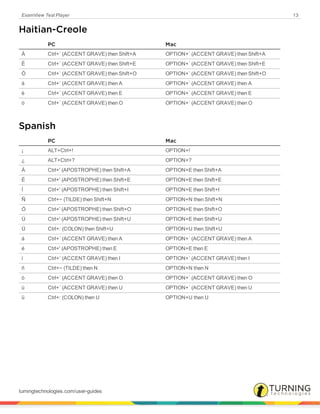
ExamView Test Player 13
Haitian-Creole
PC Mac
À Ctrl+` (ACCENT GRAVE) then Shift+A OPTION+` (ACCENT GRAVE) then Shift+A
È Ctrl+` (ACCENT GRAVE) then Shift+E OPTION+` (ACCENT GRAVE) then Shift+E
Ò Ctrl+` (ACCENT GRAVE) then Shift+O OPTION+` (ACCENT GRAVE) then Shift+O
á Ctrl+` (ACCENT GRAVE) then A OPTION+` (ACCENT GRAVE) then A
è Ctrl+` (ACCENT GRAVE) then E OPTION+` (ACCENT GRAVE) then E
ò Ctrl+` (ACCENT GRAVE) then O OPTION+` (ACCENT GRAVE) then O
Spanish
PC Mac
¡ ALT+Ctrl+! OPTION+!
¿ ALT+Ctrl+? OPTION+?
Á Ctrl+' (APOSTROPHE) then Shift+A OPTION+E then Shift+A
É Ctrl+' (APOSTROPHE) then Shift+E OPTION+E then Shift+E
Í Ctrl+' (APOSTROPHE) then Shift+I OPTION+E then Shift+I
Ñ Ctrl+~ (TILDE) then Shift+N OPTION+N then Shift+N
Ó Ctrl+' (APOSTROPHE) then Shift+O OPTION+E then Shift+O
Ú Ctrl+' (APOSTROPHE) then Shift+U OPTION+E then Shift+U
Ü Ctrl+: (COLON) then Shift+U OPTION+U then Shift+U
á Ctrl+` (ACCENT GRAVE) then A OPTION+` (ACCENT GRAVE) then A
é Ctrl+' (APOSTROPHE) then E OPTION+E then E
ì Ctrl+` (ACCENT GRAVE) then I OPTION+` (ACCENT GRAVE) then I
ñ Ctrl+~ (TILDE) then N OPTION+N then N
ò Ctrl+` (ACCENT GRAVE) then O OPTION+` (ACCENT GRAVE) then O
ù Ctrl+` (ACCENT GRAVE) then U OPTION+` (ACCENT GRAVE) then U
ü Ctrl+: (COLON) then U OPTION+U then U
turningtechnologies.com/user-guides
ExamView Test Player 14
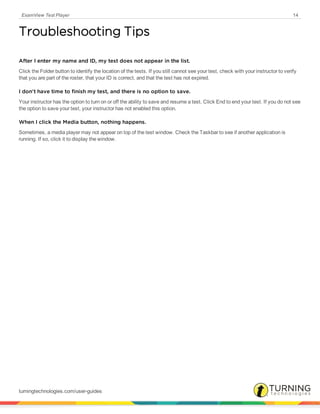
Troubleshooting Tips
After I enter my name and ID, my test does not appear in the list.
Click the Folder button to identify the location of the tests. If you still cannot see your test, check with your instructor to verify
that you are part of the roster, that your ID is correct, and that the test has not expired.
I don't have time to finish my test, and there is no option to save.
Your instructor has the option to turn on or off the ability to save and resume a test. Click End to end your test. If you do not see
the option to save your test, your instructor has not enabled this option.
When I click the Media button, nothing happens.
Sometimes, a media player may not appear on top of the test window. Check the Taskbar to see if another application is
running. If so, click it to display the window.
turningtechnologies.com/user-guides
ExamView Test Player 15
Contact Us
For additional help, contact Turning Technologies Technical Support.
Technical Support is available from 7 a.m. - 9 p.m. EST.
From within the contiguous United States, you can reach Technical Support toll-free by calling 866.746.3015. If you are calling
from outside of the United States, please call +1 330.746.3015.
Technical Support may also be reached via e-mail at support@turningtechnologies.com or support@einstruction.com, a brand
of Turning Technologies.
We want to hear from you! To submit a product enhancement request, visit us at
http://www.turningtechnologies.com/product-enhancement-request-form.
Office Locations
Ohio
255 West Federal Street
Youngstown, Ohio 44503
Toll-Free: 866.746.3015
Direct: 330.746.3015
International: +1 330.746.3015
Belfast
19 Colvin House
Inspire Business Park
Carrowreagh Road
Belfast BT16 1QT
United Kingdom
Direct: +44 (0)28 9048 7898
Paris
26/36 rue Alfred Nobel
93600 Aulnay-sous-Bois
France
Direct/Support: +33 (0)1 58 31 10 60
Amsterdam
Keizersgracht 75, Garden
1015 CE, Amsterdam
The Netherlands
Direct: +31 (0)85 4011 040
turningtechnologies.com/user-guides

Examvieew testplayer userguide

  • 1.
  • 2.
    ExamView Test Player2 © 2015 Turning Technologies, LLC. All rights reserved. Portions Responsive Innovations, LLC, Microsoft Corporation No part of this document may be reproduced or transmitted in any form or by any means, electronic or mechanical, for any purpose, without the express written permission of Turning Technologies, LLC. All rights reserved. Turning Technologies, LLC, 255 West Federal Street, Youngstown, OH 44503 USA. TurningPoint® is a registered trademark of Turning Technologies, LLC. Other trademarked product names mentioned in this manual are owned by their respective companies. The following regulatory statements apply to radio frequency and infrared transmitters and receivers mentioned in this manual, including the ResponseCard RF, ResponseCard RF LCD, ResponseCard IR, ResponseCard XR, ResponseCard NXT, QT Device, CPS IR, CPS Pulse, CPS Spark, Gen 2, PRS RF, PRS IR, DualBoard, Touch Board, Touch Board Plus, MeetingBoard, SchoolBoard, iPannel, Mobi, MobiView, MobiKWIK, Mobi Learner, Mobi 360 and their respective receivers. FCC Statement This device complies with part 15 of the FCC Rules. Operation is subject to the following two conditions: (1) This device may not cause harmful interference, and (2) this device must accept any interference received, including interference that may cause undesired operation. Changes or modifications not expressly approved by the party responsible for compliance could void the user’s authority to operate the equipment. IC Statement This device complies with Industry Canada licence-exempt RSS standard(s). Operation is subject to the following two conditions: (1) this device may not cause interference, and (2) this device must accept any interference, including interference that may cause undesired operation of the device. Le présent appareil est conforme aux CNR d'Industrie Canada applicables aux appareils radio exempts de licence. L'exploitation est autorisée aux deux conditions suivantes : (1) l'appareil ne doit pas produire de brouillage, et (2) l'utilisateur de l'appareil doit accepter tout brouillage radioélectrique subi, même si le brouillage est susceptible d'en compromettre le fonctionnement. turningtechnologies.com/user-guides
  • 3.
    ExamView Test Player3 Table of Contents TABLE OF CONTENTS 3 USING EXAMVIEW TEST PLAYER 4 Getting Started with the ExamView Test Player 4 Taking a Test with the Test Player 4 Navigating the Test 5 Test Player Button Controls 5 Going to a Specific Question/Checking for Unanswered Questions 7 Checking a Response 7 Playing a Multimedia Link 7 Answering Multiple Choice, True/False, Yes/No or Matching Questions 8 Answering Modified True/False Questions 8 Answering Multiple Response Questions 8 Answering Numeric Response Questions 9 Answering Completion Questions 9 Answering Short Answer, Problem, Essay, Case or Other Questions 9 Closing the Program 10 KEYBOARD SHORTCUTS 11 French 11 German 12 Haitian-Creole 13 Spanish 13 TROUBLESHOOTING TIPS 14 CONTACT US 15 turningtechnologies.com/user-guides
  • 4.
    ExamView Test Player4 Using ExamView Test Player This chapter covers the following topics: Getting Started with the ExamView Test Player Taking a Test with the Test Player Navigating the Test Test Player Button Controls Going to a Specific Question/Checking for Unanswered Questions Checking a Response Playing a Multimedia Link Answering Multiple Choice, True/False, Yes/No or Matching Questions Answering Modified True/False Questions Answering Multiple Response Questions Answering Numeric Response Questions Answering Completion Questions Answering Short Answer, Problem, Essay, Case or Other Questions Closing the Program Getting Started with the ExamView Test Player 1 Enter your name and ID, and click Next. Verify that you entered the information correctly or the test you wish to take may not appear in the list of available tests. If you do not know your ID number, consult your instructor. 2 Select a test and click Next. If no tests appear in the list, click the Folder button and identify where the tests are located. Ask your instructor if you need assistance with this step. 3 If prompted, enter a password. If you do not know your password, consult your instructor. 4 Review the summary information and click Start when you are ready to begin. NOTE If you are resuming a test you had started in a previous session, you will automatically continue where you left off. Answers and timer settings are automatically loaded with the test. Taking a Test with the Test Player 1 Answer the first question. The method for answering questions will vary depending on the question type. turningtechnologies.com/user-guides
  • 5.
    ExamView Test Player5 2 Move to the next question and answer it. Repeat this step to answer all of the remaining questions. You can skip a question and come back to it later if necessary. Use the Go To Question button to see which questions you have not answered. NOTE You may be able to check your work depending on how your instructor configured the test. If a question has a multimedia link, you can play a movie, watch an animation, or listen to an audio segment. 3 When you are finished with the test, click Test from the menu bar and select End Test, or click End. Depending on how your instructor configured the test, you may be given the option to save your answers and complete the test at a later time. Select the appropriate option and click OK. 4 Depending on how your instructor configured the test, you may be shown an end-of-test report. To print the report, click File from the menu bar and select Print, click Print, or use the keyboard shortcut Ctrl+P (PC) or Cmd+P (Mac). ExamView Test Player prints the complete report or selected pages. The information on the report varies based on the instructor’s configurations. Also, your instructor may choose to disable the print option. 5 To take another test, click File from the menu bar and select New or click New. Once you complete a test, you can choose to take another test or you can close the program. If you choose to take another test, you must register again. 6 To close the program, click File from the menu bar and select Exit (PC) or click the ExamView Test Player menu and select Quit ExamView Test Player (Mac) or click Exit. Navigating the Test 1 Depending on the length of a question, you may not be able to see the entire question in the display window. Using the mouse, click the scroll bar to scroll the question. Using the keyboard, press the (Down Arrow) or (Up Arrow) to view the entire question. 2 Navigating to another question can be done by using either the mouse or the keyboard. The table below shows a summary of the navigation buttons, keyboard shortcuts, and Test menu options for going to a different question. To navigate to... Click Keyboard Shortcut Test Menu Option a specific question Ctrl+G (PC) Cmd+G Go To Question... the first question Ctrl+Page Up First Question the previous question Page Up Previous Question the next question Page Down Next Question the last question Ctrl+Page Down Last Question Test Player Button Controls Most of the button functions are also accessible by using menu options or keyboard shortcuts. turningtechnologies.com/user-guides
  • 6.
    ExamView Test Player6 Test-taking Control Strip Button Description Keyboard Menu Open the program help file. --- Help > Help Topics When active, this button allows you to check your answer. Ctrl+S (Win) Cmd+S (Mac) Test > Score Question Go to a different, specific question. Ctrl+G (Win) Cmd+G (Mac) Test > Go To Question... End the test. --- Test > End Test Play a multimedia link. This option is only available when media is associated with a question. --- --- Question Navigation Strip Button Description Keyboard Menu Go to the first question. Ctrl+PAGE UP Test > First Question Go to the previous question. PAGE UP Test > Previous Question This option pauses the timer. This option is only present if your instructor set a time limit for the test and chose to allow you to pause the timer. Ctrl+T (Win) Cmd+T (Mac) Test > Go To Question... Go to the next question. PAGE DOWN Test > Next Question Go to the last question. Ctrl+PAGE DOWN Test > Last Question Post-test Control Strip Button Description Keyboard Menu Open the program help file. --- Help > Help Topics When available, this option Prints the end-of-test report. Ctrl+P (Win) Cmd+P (Mac) File > Print Take a new test. --- File > New... turningtechnologies.com/user-guides
  • 7.
    ExamView Test Player7 Button Description Keyboard Menu Close the program. --- File > Exit (Win) ExamView Test Player > Quit ExamView Test Player (Mac) Going to a Specific Question/Checking for Unanswered Questions 1 To navigate to a specific question, click Test from the menu bar and select Go To Question or use the keyboard shortcut Ctrl+G (PC) or Cmd+G (Mac), or click Go To. 2 A window with a preview list of all the questions in the test appears. NOTE A red dot appears next to questions you have not yet answered. 3 Highlight the desired question. 4 Click OK to display the selected question. Checking a Response Checking a response allows you to verify that your answer is correct and allows you to change your answer if it is incorrect. This feature may not be available depending on how your instructor set up the test. Once you exceed the limit for the number of times you can check your work, this option is disabled and you cannot change your answer. 1 Click Score after you have answered the question. You can also choose this option by clicking Test from the menu bar and selecting Score Question or using the keyboard shortcut Ctrl+S (PC) or Cmd+S (Mac). If you responded incorrectly, check your answer. For Completion questions, make sure that your response is spelled correctly. 2 Click OK to continue. Playing a Multimedia Link If a question is attached to a movie, an animation, or a sound, ExamView Test Player displays the Media button at the bottom of the screen. Click this button to open a program that will let you play the multimedia link. You may have to start the media by clicking a Play button. turningtechnologies.com/user-guides
  • 8.
    ExamView Test Player8 1 After reading the question, click the Media button to play the multimedia link. NOTE If the program displays a message that it cannot find the multimedia link, try to identify the location of the file (e.g., CD-ROM or DVD drive). 2 When the multimedia clip ends, click Close. Answering Multiple Choice, True/False, Yes/No or Matching Questions 1 There are several methods to answer these types of questions. You may: l Select the radio button next to the desired answer choice. l Click the desired answer choice in the Answer column. l Type the letter of the answer choice on your keyboard. 2 Click or type a different choice to change your answer. 3 Click Score (if available) to check your answer. Or, click Next Question to move to the next question. Answering Modified True/False Questions A modified true/false question is similar to a standard true/false question in that you must indicate if a sentence or phrase is true or false. What distinguishes a modified true/false question is that you must also change or edit the question if it is false to make it true. 1 There are several methods to answer these types of questions. You may: l Select the radio button next to the desired answer choice. l Click the desired answer choice in the Answer column. l If the answer is false, enter text to replace the underlined portion of the question that will make the answer true in the answer area. If the answer is true, leave the answer area blank. NOTE To enter a special character—such as a letter with an accent mark—in an answer, use the appropriate keyboard shortcut. 2 Click or type a different choice to change your answer. 3 Click Score (if available) to check your answer. Or, click Next Question to move to the next question. Answering Multiple Response Questions 1 There are several methods to answer these types of questions. You may: l Select the radio button next to the desired answer choice. l Click the desired answer choice in the Answer column. turningtechnologies.com/user-guides
  • 9.
    ExamView Test Player9 l Type the letter or letters of the answer choices on your keyboard. 2 Click or type a different choice to change your answer. 3 Click Score (if available) to check your answer. Or, click Next Question to move to the next question. Answering Numeric Response Questions The method for answering numeric response questions varies depending on how your instructor set up your test. 1 If your instructor set up the question with a response grid, enter your answer on the grid. You may either key your answer with your keyboard or click the appropriate numbered circles to create your answer. 2 If your instructor set up the question without a response grid, simply key your answer in the answer entry area. 3 To change your answer, use the backspace key to remove your answer. Then enter your new answer. If you clicked to fill in a circle on a response grid, click the same circle again to erase it. 4 Click Score (if available) to check your answer. Or, click Next Question to move to the next question. Answering Completion Questions 1 Type your answer in the answer entry area. Since these questions are automatically graded by the computer, pay extra attention to be sure you spelled your response correctly. NOTE To enter a special character—such as a letter with an accent mark—in an answer, use the appropriate keyboard shortcut. 2 To change your answer, use the backspace key to delete your answer. Then enter the new answer. 3 Click Score (if available) to check your answer. Or, click Next Question to move to the next question. Answering Short Answer, Problem, Essay, Case or Other Questions 1 Type your answer in the answer entry area. NOTE To enter a special character—such as a letter with an accent mark—in an answer, use the appropriate keyboard shortcut. 2 To change your answer, use the backspace key to delete your answer. Then enter the new answer. 3 Click Next Question to move to the next question. NOTE To enter a special character—such as a letter with an accent mark—in an answer, use the appropriate keyboard shortcut. turningtechnologies.com/user-guides
  • 10.
    ExamView Test Player10 Closing the Program NOTE If you need to close the program before you complete a test, click File from the menu bar and select Exit (PC) or click the ExamView Test Player menu and select Quit ExamView Test Player (Mac). You will not see a report of your test results if you close the program without ending the test. 1 Answer all of the questions on the test. 2 Click End. Depending on how your instructor configured the test, you may be given the option to save your answers and complete the test at a later time. Select the appropriate option and click OK. 3 Click Exit to close the program. turningtechnologies.com/user-guides
  • 11.
    ExamView Test Player11 Keyboard Shortcuts French PC Mac À Ctrl+` (ACCENT GRAVE) then Shift+A OPTION+` (ACCENT GRAVE) then Shift+A Â Ctrl+^ (CARET) then Shift+A OPTION+I then Shift+A Ä Ctrl+: (COLON) then Shift+A OPTION+U then Shift+A Ç Ctrl+' (APOSTROPHE) then Shift+C OPTION+Shift+C È Ctrl+` (ACCENT GRAVE) then Shift+E OPTION+` (ACCENT GRAVE) then Shift+E É Ctrl+' (APOSTROPHE) then Shift+E OPTION+E then Shift+E Ê Ctrl+^ (CARET) then Shift+E OPTION+I then Shift+E Ë Ctrl+: (COLON) then Shift+E OPTION+U then Shift+E Ì Ctrl+` (ACCENT GRAVE) then Shift+I OPTION+` (ACCENT GRAVE) then Shift+I Î Ctrl+^ (CARET) then Shift+I OPTION+I then Shift+I Ï Ctrl+: (COLON) then Shift+I OPTION+U then Shift+I Ò Ctrl+` (ACCENT GRAVE) then Shift+O OPTION+` (ACCENT GRAVE) then Shift+O Ô Ctrl+^ (CARET) then Shift+O OPTION+I then Shift+O Ö Ctrl+: (COLON) then Shift+O OPTION+U then Shift+O Ù Ctrl+` (ACCENT GRAVE) then Shift+U OPTION+` (ACCENT GRAVE) then Shift+U Û Ctrl+^ (CARET) then Shift+U OPTION+I then Shift+U Ü Ctrl+: (COLON) then Shift+U OPTION+U then Shift+U á Ctrl+` (ACCENT GRAVE) then A OPTION+` (ACCENT GRAVE) then A â Ctrl+^ (CARET) then A OPTION+I then A ä Ctrl+: (COLON) then A OPTION+U then A ç Ctrl+' (APOSTROPHE) then C OPTION+C è Ctrl+` (ACCENT GRAVE) then E OPTION+` (ACCENT GRAVE) then E é Ctrl+' (APOSTROPHE) then E OPTION+E then E ê Ctrl+^ (CARET) then E OPTION+I then E ë Ctrl+: (COLON) then E OPTION+U then E ì Ctrl+` (ACCENT GRAVE) then I OPTION+` (ACCENT GRAVE) then I î Ctrl+^ (CARET) then I OPTION+I then I ï Ctrl+: (COLON) then I OPTION+U then I ò Ctrl+` (ACCENT GRAVE) then O OPTION+` (ACCENT GRAVE) then O turningtechnologies.com/user-guides
  • 12.
    ExamView Test Player12 PC Mac ô Ctrl+^ (CARET) then O OPTION+I then O ö Ctrl+: (COLON) then O OPTION+U then O ù Ctrl+` (ACCENT GRAVE) then U OPTION+` (ACCENT GRAVE) then U û Ctrl+^ (CARET) then U OPTION+I then U ü Ctrl+: (COLON) then U OPTION+U then U German PC Mac Ä Ctrl+: (COLON) then Shift+A OPTION+U then Shift+A É Ctrl+' (APOSTROPHE) then Shift+E OPTION+E then Shift+E Ë Ctrl+: (COLON) then Shift+E OPTION+U then Shift+E Ï Ctrl+: (COLON) then Shift+I OPTION+U then Shift+I Ö Ctrl+: (COLON) then Shift+O OPTION+U then Shift+O Ü Ctrl+: (COLON) then Shift+U OPTION+U then Shift+U Ÿ Ctrl+: (COLON) then Shift+Y OPTION+U then Shift+Y ß Ctrl+& then S OPTION+S ä Ctrl+: (COLON) then A OPTION+U then A é Ctrl+' (APOSTROPHE) then E OPTION+E then E ë Ctrl+: (COLON) then E OPTION+U then E ï Ctrl+: (COLON) then I OPTION+U then I ö Ctrl+: (COLON) then O OPTION+U then O ü Ctrl+: (COLON) then U OPTION+U then U ÿ Ctrl+: (COLON) then Y OPTION+U then Y turningtechnologies.com/user-guides
  • 13.
    ExamView Test Player13 Haitian-Creole PC Mac À Ctrl+` (ACCENT GRAVE) then Shift+A OPTION+` (ACCENT GRAVE) then Shift+A È Ctrl+` (ACCENT GRAVE) then Shift+E OPTION+` (ACCENT GRAVE) then Shift+E Ò Ctrl+` (ACCENT GRAVE) then Shift+O OPTION+` (ACCENT GRAVE) then Shift+O á Ctrl+` (ACCENT GRAVE) then A OPTION+` (ACCENT GRAVE) then A è Ctrl+` (ACCENT GRAVE) then E OPTION+` (ACCENT GRAVE) then E ò Ctrl+` (ACCENT GRAVE) then O OPTION+` (ACCENT GRAVE) then O Spanish PC Mac ¡ ALT+Ctrl+! OPTION+! ¿ ALT+Ctrl+? OPTION+? Á Ctrl+' (APOSTROPHE) then Shift+A OPTION+E then Shift+A É Ctrl+' (APOSTROPHE) then Shift+E OPTION+E then Shift+E Í Ctrl+' (APOSTROPHE) then Shift+I OPTION+E then Shift+I Ñ Ctrl+~ (TILDE) then Shift+N OPTION+N then Shift+N Ó Ctrl+' (APOSTROPHE) then Shift+O OPTION+E then Shift+O Ú Ctrl+' (APOSTROPHE) then Shift+U OPTION+E then Shift+U Ü Ctrl+: (COLON) then Shift+U OPTION+U then Shift+U á Ctrl+` (ACCENT GRAVE) then A OPTION+` (ACCENT GRAVE) then A é Ctrl+' (APOSTROPHE) then E OPTION+E then E ì Ctrl+` (ACCENT GRAVE) then I OPTION+` (ACCENT GRAVE) then I ñ Ctrl+~ (TILDE) then N OPTION+N then N ò Ctrl+` (ACCENT GRAVE) then O OPTION+` (ACCENT GRAVE) then O ù Ctrl+` (ACCENT GRAVE) then U OPTION+` (ACCENT GRAVE) then U ü Ctrl+: (COLON) then U OPTION+U then U turningtechnologies.com/user-guides
  • 14.
    ExamView Test Player14 Troubleshooting Tips After I enter my name and ID, my test does not appear in the list. Click the Folder button to identify the location of the tests. If you still cannot see your test, check with your instructor to verify that you are part of the roster, that your ID is correct, and that the test has not expired. I don't have time to finish my test, and there is no option to save. Your instructor has the option to turn on or off the ability to save and resume a test. Click End to end your test. If you do not see the option to save your test, your instructor has not enabled this option. When I click the Media button, nothing happens. Sometimes, a media player may not appear on top of the test window. Check the Taskbar to see if another application is running. If so, click it to display the window. turningtechnologies.com/user-guides
  • 15.
    ExamView Test Player15 Contact Us For additional help, contact Turning Technologies Technical Support. Technical Support is available from 7 a.m. - 9 p.m. EST. From within the contiguous United States, you can reach Technical Support toll-free by calling 866.746.3015. If you are calling from outside of the United States, please call +1 330.746.3015. Technical Support may also be reached via e-mail at support@turningtechnologies.com or support@einstruction.com, a brand of Turning Technologies. We want to hear from you! To submit a product enhancement request, visit us at http://www.turningtechnologies.com/product-enhancement-request-form. Office Locations Ohio 255 West Federal Street Youngstown, Ohio 44503 Toll-Free: 866.746.3015 Direct: 330.746.3015 International: +1 330.746.3015 Belfast 19 Colvin House Inspire Business Park Carrowreagh Road Belfast BT16 1QT United Kingdom Direct: +44 (0)28 9048 7898 Paris 26/36 rue Alfred Nobel 93600 Aulnay-sous-Bois France Direct/Support: +33 (0)1 58 31 10 60 Amsterdam Keizersgracht 75, Garden 1015 CE, Amsterdam The Netherlands Direct: +31 (0)85 4011 040 turningtechnologies.com/user-guides