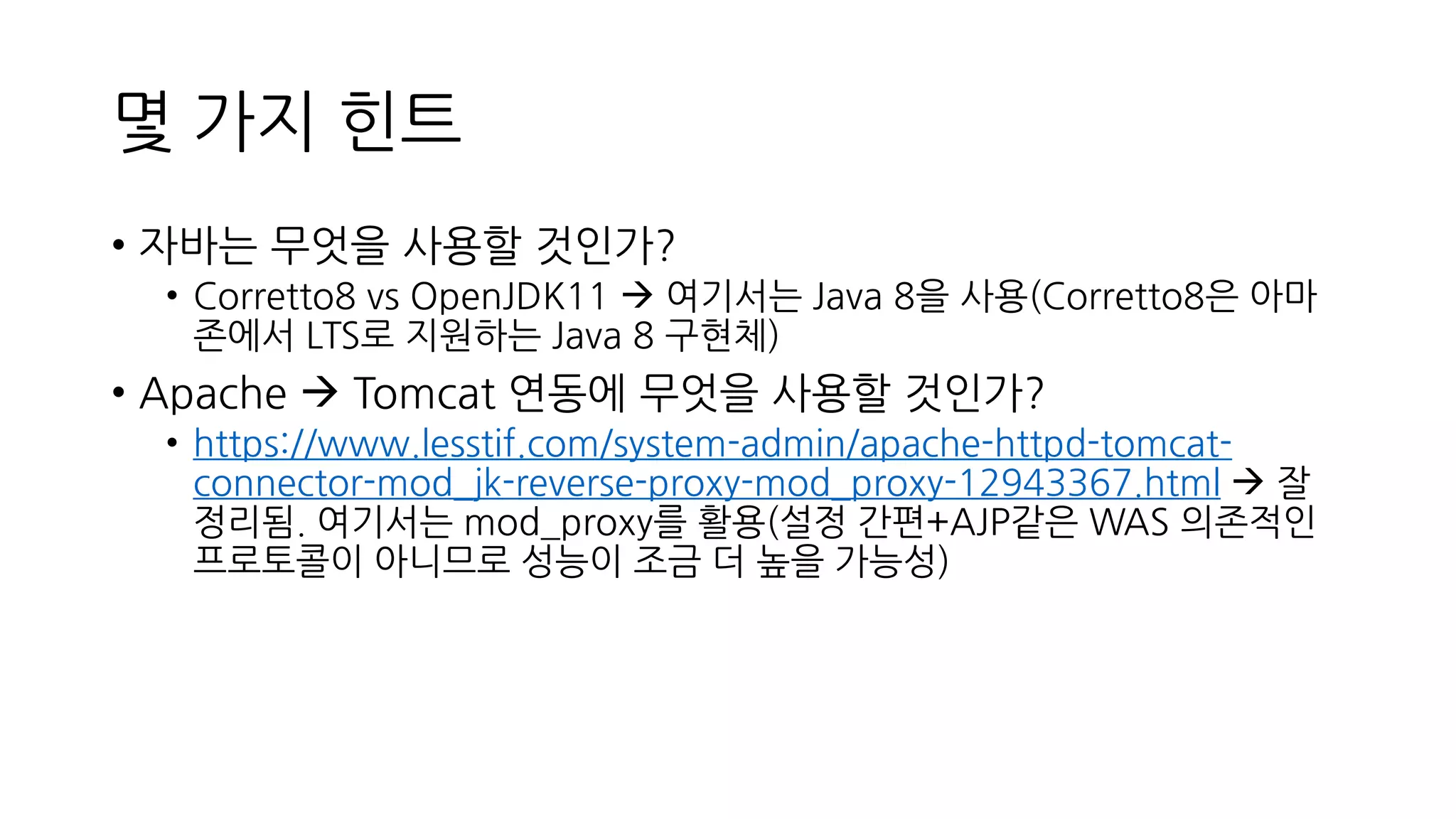
몇 가지 힌트
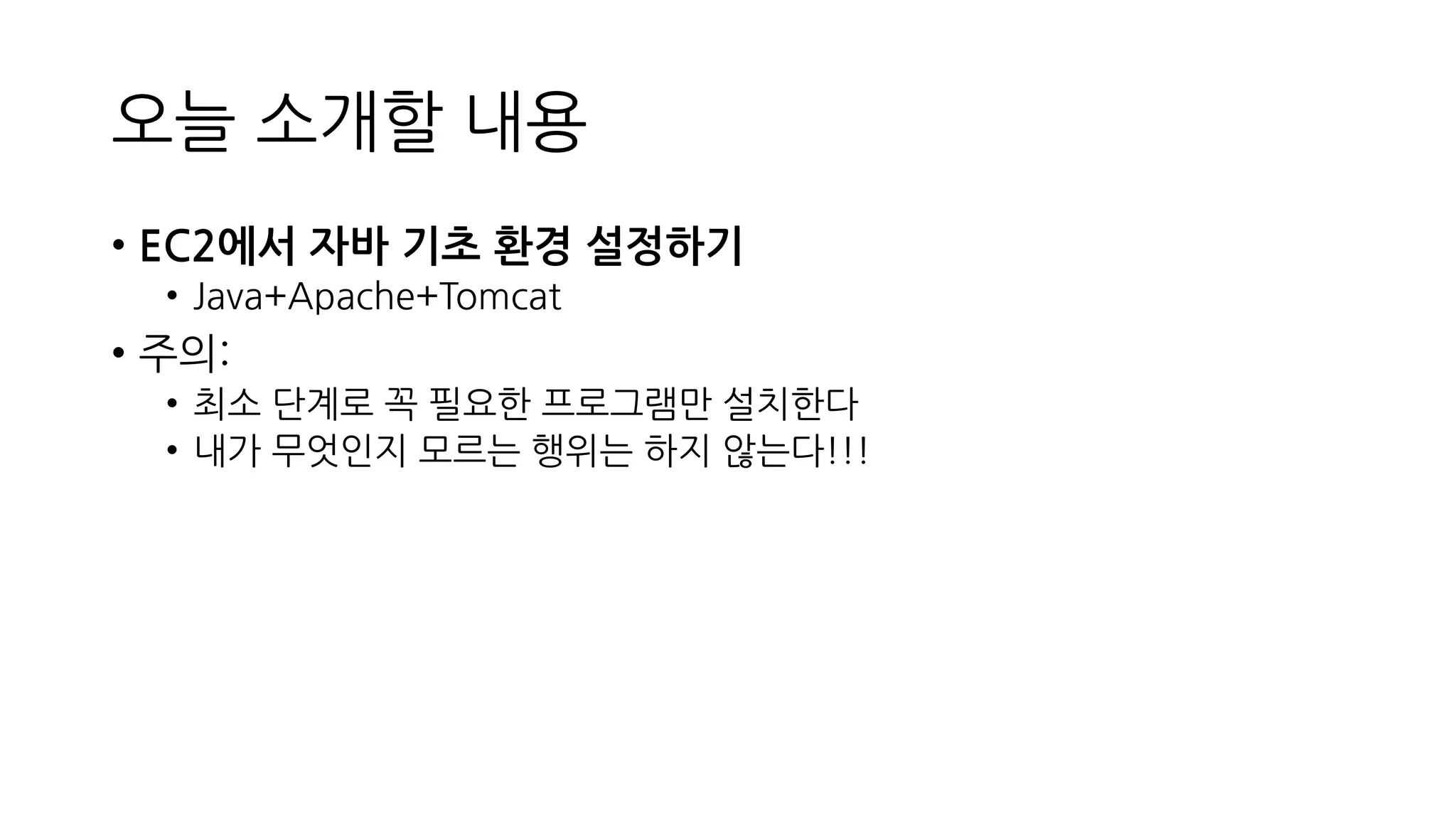
•자바는 무엇을 사용할 것인가?
• Corretto8 vs OpenJDK11 → 여기서는 Java 8을 사용(Corretto8은 아마
존에서 LTS로 지원하는 Java 8 구현체)
• Apache → Tomcat 연동에 무엇을 사용할 것인가?
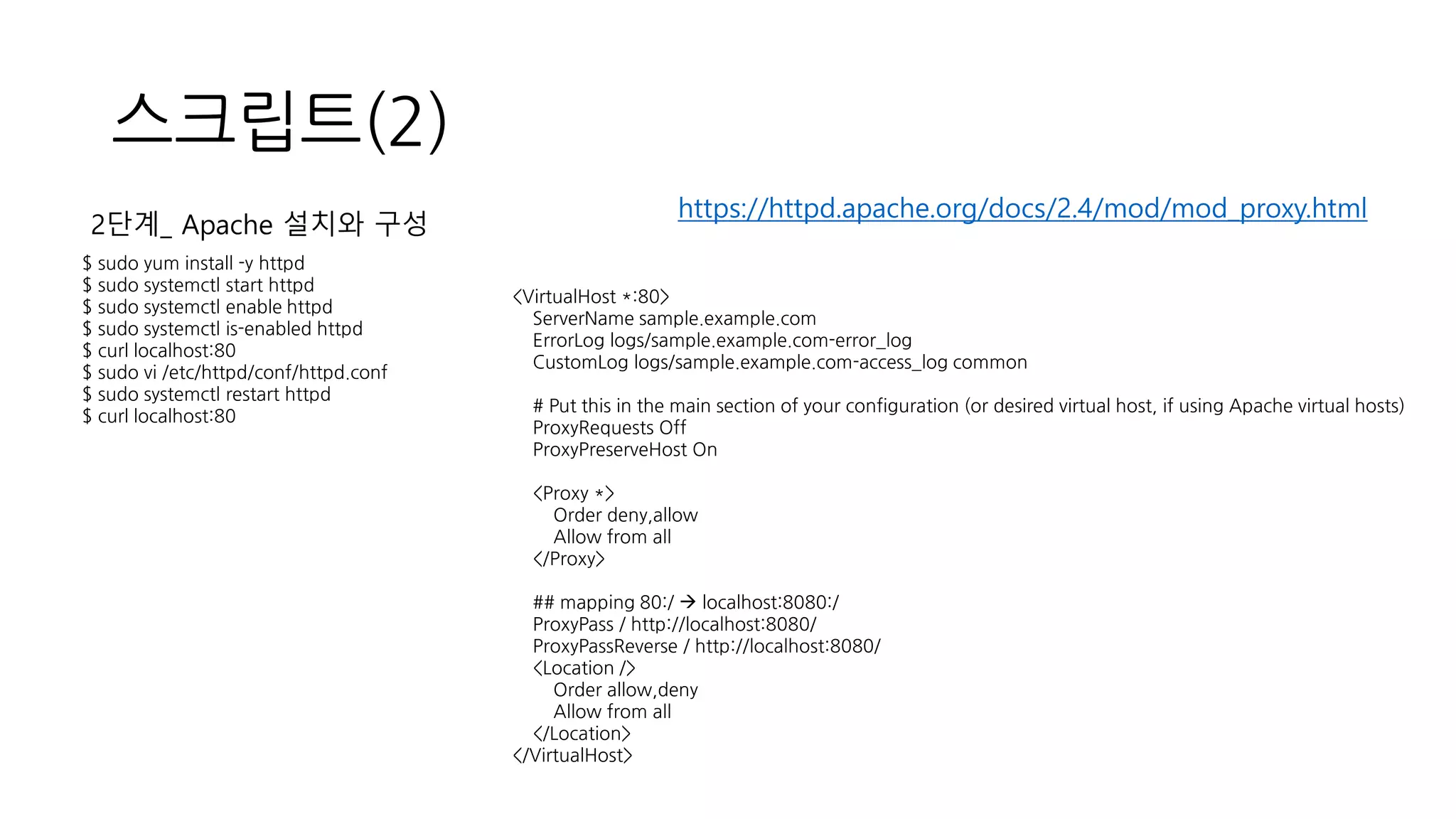
• https://www.lesstif.com/system-admin/apache-httpd-tomcat-
connector-mod_jk-reverse-proxy-mod_proxy-12943367.html → 잘
정리됨. 여기서는 mod_proxy를 활용(설정 간편+AJP같은 WAS 의존적인
프로토콜이 아니므로 성능이 조금 더 높을 가능성)
![[설치의 정석]
EC2에서 Java-Apache-Tomcat
설치하기
박재호(jrogue@gmail.com)](https://image.slidesharecdn.com/installationjava-apache-tomcatinstallationforec2-200606130809/75/EC2-Java-Apache-Tomcat-1-2048.jpg)

![[설치의 정석] EC2에서 워드프레스 설치하기](https://cdn.slidesharecdn.com/ss_thumbnails/installationwpinstallationforec2-200523231346-thumbnail.jpg?width=640&height=640&fit=bounds)
![[5분 따라하기] 3차원 도넛을 콘솔에 그리기](https://cdn.slidesharecdn.com/ss_thumbnails/5min3ddonutdisplay-200725130527-thumbnail.jpg?width=640&height=640&fit=bounds)


![[5분 따라하기] git으로 undo하기(remote편)](https://cdn.slidesharecdn.com/ss_thumbnails/5mingitundoremote-200516222456-thumbnail.jpg?width=640&height=640&fit=bounds)
![[5분 따라하기] git으로 undo하기(local편)](https://cdn.slidesharecdn.com/ss_thumbnails/5mingitundo-200509134938-thumbnail.jpg?width=640&height=640&fit=bounds)

![[5분 따라하기] bash에서 파일 확장자 변경](https://cdn.slidesharecdn.com/ss_thumbnails/5minbashchangefileextension-200425225118-thumbnail.jpg?width=640&height=640&fit=bounds)

![[5분 따라하기] 3차원 지구본을 콘솔에 그리기](https://cdn.slidesharecdn.com/ss_thumbnails/5min3dglobedisplay-200815230337-thumbnail.jpg?width=640&height=640&fit=bounds)


![[5분 따라하기] EC2 키 분실 후 대응 방법](https://cdn.slidesharecdn.com/ss_thumbnails/5minec2missingprivatekey-200719230032-thumbnail.jpg?width=640&height=640&fit=bounds)
![[5분 따라하기] 전화번호와 이메일 정규표현식](https://cdn.slidesharecdn.com/ss_thumbnails/5minregexforphoneandemail-200404115610-thumbnail.jpg?width=640&height=640&fit=bounds)


![[5분 따라하기] git 다중 사용자 신원 설정 방법](https://cdn.slidesharecdn.com/ss_thumbnails/5mingitmultiuseridentity-200329113929-thumbnail.jpg?width=640&height=640&fit=bounds)


![[5분 따라하기] bash 타임아웃 패턴](https://cdn.slidesharecdn.com/ss_thumbnails/5minbashtimeoutpattern-200412005810-thumbnail.jpg?width=640&height=640&fit=bounds)


![[오픈소스컨설팅]Tomcat6&7 How To](https://cdn.slidesharecdn.com/ss_thumbnails/tomcat67-130206051107-phpapp02-thumbnail.jpg?width=640&height=640&fit=bounds)


![[오픈소스컨설팅] 아파치톰캣 운영가이드 v1.3](https://cdn.slidesharecdn.com/ss_thumbnails/opensourceconsultingtomcatoperationguidev1-181113020525-thumbnail.jpg?width=640&height=640&fit=bounds)
![[오픈소스컨설팅] Configuring JBoss EWS(Tomcat) with IIS Web Server](https://cdn.slidesharecdn.com/ss_thumbnails/opensourceconsultingiisjbosswebtomcatconnectv1-130502063321-phpapp01-thumbnail.jpg?width=640&height=640&fit=bounds)


![[독서광] 모던 소프트웨어 엔지니어링 - 소프트웨어 개발의 복잡함과 난해함 속에서 길을 찾으려는 엔지니어를 위한...](https://cdn.slidesharecdn.com/ss_thumbnails/20254-250408132937-ef889d44-thumbnail.jpg?width=640&height=640&fit=bounds)


![[독서광] 코드 넘어 회사보다 오래 남을 개발자](https://cdn.slidesharecdn.com/ss_thumbnails/20257-250718133302-ef51bede-thumbnail.jpg?width=640&height=640&fit=bounds)


