Design an API Specification
With MuleSoft’s no-code API Designer
MuleSoft Developer Advocate
@ Salesforce
alexandra.martinez@salesforce.com
alexmartinez.ca
Alex Martinez
You need to create a To-Do app to manage tasks.
The first step is to design the API Specification. An API specification is usually
created using either RAML or OAS. However, because you are on a time crunch
and are not very familiar with these languages, you decide to use MuleSoft for
this.
MuleSoft provides a graphical user interface (GUI) in Anypoint Platform to
complete this specification using clicks, not code.
The use case
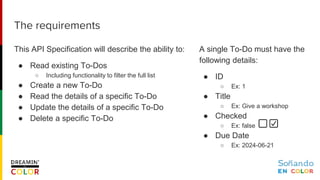
A single To-Do must have the
following details:
● ID
○ Ex: 1
● Title
○ Ex: Give a workshop
● Checked
○ Ex: false
● Due Date
○ Ex: 2024-06-21
This API Specification will describe the ability to:
● Read existing To-Dos
○ Including functionality to filter the full list
● Create a new To-Do
● Read the details of a specific To-Do
● Update the details of a specific To-Do
● Delete a specific To-Do
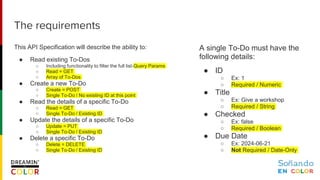
The requirements
A single To-Do must have the
following details:
● ID
○ Ex: 1
○ Required / Numeric
● Title
○ Ex: Give a workshop
○ Required / String
● Checked
○ Ex: false
○ Required / Boolean
● Due Date
○ Ex: 2024-06-21
○ Not Required / Date-Only
This API Specification will describe the ability to:
● Read existing To-Dos
○ Including functionality to filter the full list-Query Params
○ Read = GET
○ Array of To-Dos
● Create a new To-Do
○ Create = POST
○ Single To-Do / No existing ID at this point
● Read the details of a specific To-Do
○ Read = GET
○ Single To-Do / Existing ID
● Update the details of a specific To-Do
○ Update = PUT
○ Single To-Do / Existing ID
● Delete a specific To-Do
○ Delete = DELETE
○ Single To-Do / Existing ID
The requirements
A single To-Do must have the
following details:
● ID
○ Ex: 1
○ Required / Numeric
● Title
○ Ex: Give a workshop
○ Required / String
● Checked
○ Ex: false
○ Required / Boolean
● Due Date
○ Ex: 2024-06-21
○ Not Required / Date-Only
This API Specification will describe the ability to:
● Read existing To-Dos
○ Including functionality to filter the full list-Query Params
○ Read = GET
○ Array of To-Dos
● Create a new To-Do
○ Create = POST
○ Single To-Do / No existing ID at this point
● Read the details of a specific To-Do
○ Read = GET
○ Single To-Do / Existing ID
● Update the details of a specific To-Do
○ Update = PUT
○ Single To-Do / Existing ID
● Delete a specific To-Do
○ Delete = DELETE
○ Single To-Do / Existing ID
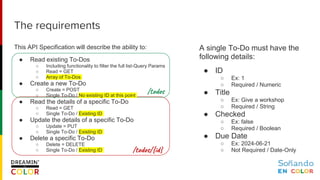
The requirements
/todos
/todos/{id}
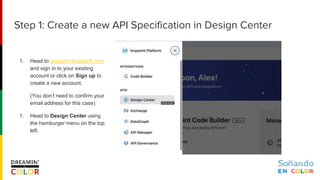
1. Head to anypoint.mulesoft.com
and sign in to your existing
account or click on Sign up to
create a new account.
(You don’t need to confirm your
email address for this case)
1. Head to Design Center using
the hamburger menu on the top
left.
Step 1: Create a new API Specification in Design Center
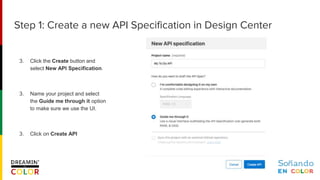
3. Click the Create button and
select New API Specification.
3. Name your project and select
the Guide me through it option
to make sure we use the UI.
3. Click on Create API
Step 1: Create a new API Specification in Design Center
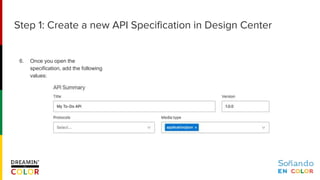
6. Once you open the
specification, add the following
values:
Step 1: Create a new API Specification in Design Center
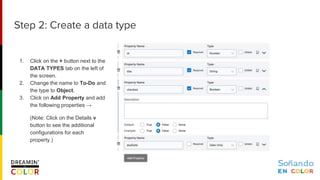
1. Click on the + button next to the
DATA TYPES tab on the left of
the screen.
2. Change the name to To-Do and
the type to Object.
3. Click on Add Property and add
the following properties →
(Note: Click on the Details v
button to see the additional
configurations for each
property.)
Step 2: Create a data type
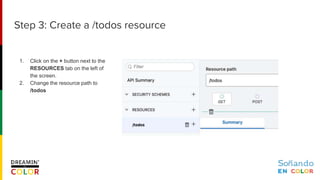
1. Click on the + button next to the
RESOURCES tab on the left of
the screen.
2. Change the resource path to
/todos
Step 3: Create a /todos resource
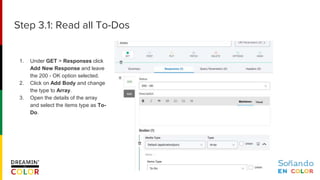
1. Under GET > Responses click
Add New Response and leave
the 200 - OK option selected.
2. Click on Add Body and change
the type to Array.
3. Open the details of the array
and select the items type as To-
Do.
Step 3.1: Read all To-Dos
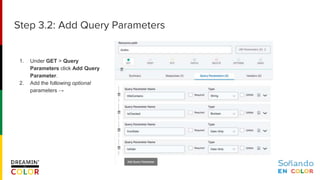
1. Under GET > Query
Parameters click Add Query
Parameter.
2. Add the following optional
parameters →
Step 3.2: Add Query Parameters
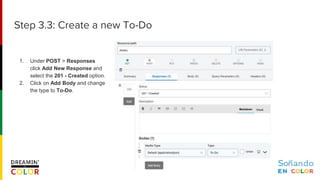
1. Under POST > Responses
click Add New Response and
select the 201 - Created option.
2. Click on Add Body and change
the type to To-Do.
Step 3.3: Create a new To-Do
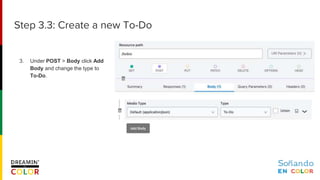
3. Under POST > Body click Add
Body and change the type to
To-Do.
Step 3.3: Create a new To-Do
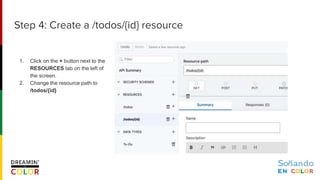
1. Click on the + button next to the
RESOURCES tab on the left of
the screen.
2. Change the resource path to
/todos/{id}
Step 4: Create a /todos/{id} resource
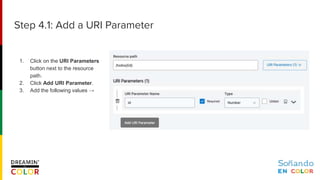
1. Click on the URI Parameters
button next to the resource
path.
2. Click Add URI Parameter.
3. Add the following values →
Step 4.1: Add a URI Parameter
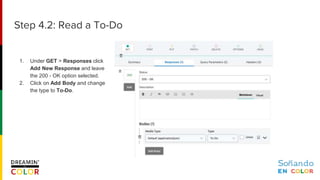
1. Under GET > Responses click
Add New Response and leave
the 200 - OK option selected.
2. Click on Add Body and change
the type to To-Do.
Step 4.2: Read a To-Do
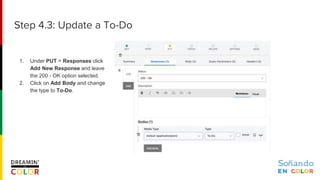
1. Under PUT > Responses click
Add New Response and leave
the 200 - OK option selected.
2. Click on Add Body and change
the type to To-Do.
Step 4.3: Update a To-Do
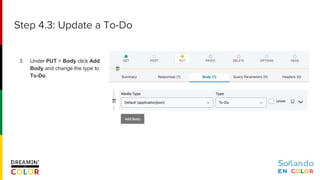
3. Under PUT > Body click Add
Body and change the type to
To-Do.
Step 4.3: Update a To-Do
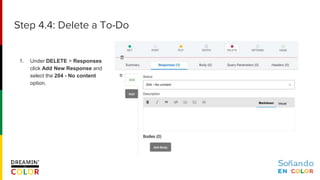
1. Under DELETE > Responses
click Add New Response and
select the 204 - No content
option.
Step 4.4: Delete a To-Do
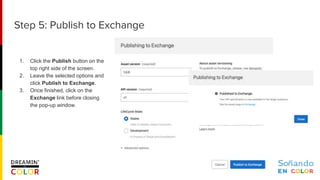
1. Click the Publish button on the
top right side of the screen.
2. Leave the selected options and
click Publish to Exchange.
3. Once finished, click on the
Exchange link before closing
the pop-up window.
Step 5: Publish to Exchange
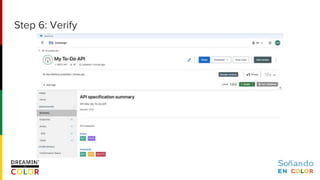
Step 6: Verify
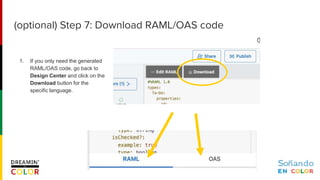
(optional) Step 7: Download RAML/OAS code
1. If you only need the generated
RAML/OAS code, go back to
Design Center and click on the
Download button for the
specific language.
You did it!
Congratulations! You were able to create the needed RAML/OAS specification on
time and you didn’t have to code at all!
More resources
● github.com/alexandramartinez/to-do-api-spec
Questions?
Thank you!

Dreamin in Color '24 - (Workshop) Design an API Specification with MuleSoft's no-code API Designer

  • 1.
    Design an APISpecification With MuleSoft’s no-code API Designer
  • 3.
    MuleSoft Developer Advocate @Salesforce alexandra.martinez@salesforce.com alexmartinez.ca Alex Martinez
  • 4.
    You need tocreate a To-Do app to manage tasks. The first step is to design the API Specification. An API specification is usually created using either RAML or OAS. However, because you are on a time crunch and are not very familiar with these languages, you decide to use MuleSoft for this. MuleSoft provides a graphical user interface (GUI) in Anypoint Platform to complete this specification using clicks, not code. The use case
  • 5.
    A single To-Domust have the following details: ● ID ○ Ex: 1 ● Title ○ Ex: Give a workshop ● Checked ○ Ex: false ● Due Date ○ Ex: 2024-06-21 This API Specification will describe the ability to: ● Read existing To-Dos ○ Including functionality to filter the full list ● Create a new To-Do ● Read the details of a specific To-Do ● Update the details of a specific To-Do ● Delete a specific To-Do The requirements
  • 6.
    A single To-Domust have the following details: ● ID ○ Ex: 1 ○ Required / Numeric ● Title ○ Ex: Give a workshop ○ Required / String ● Checked ○ Ex: false ○ Required / Boolean ● Due Date ○ Ex: 2024-06-21 ○ Not Required / Date-Only This API Specification will describe the ability to: ● Read existing To-Dos ○ Including functionality to filter the full list-Query Params ○ Read = GET ○ Array of To-Dos ● Create a new To-Do ○ Create = POST ○ Single To-Do / No existing ID at this point ● Read the details of a specific To-Do ○ Read = GET ○ Single To-Do / Existing ID ● Update the details of a specific To-Do ○ Update = PUT ○ Single To-Do / Existing ID ● Delete a specific To-Do ○ Delete = DELETE ○ Single To-Do / Existing ID The requirements
  • 7.
    A single To-Domust have the following details: ● ID ○ Ex: 1 ○ Required / Numeric ● Title ○ Ex: Give a workshop ○ Required / String ● Checked ○ Ex: false ○ Required / Boolean ● Due Date ○ Ex: 2024-06-21 ○ Not Required / Date-Only This API Specification will describe the ability to: ● Read existing To-Dos ○ Including functionality to filter the full list-Query Params ○ Read = GET ○ Array of To-Dos ● Create a new To-Do ○ Create = POST ○ Single To-Do / No existing ID at this point ● Read the details of a specific To-Do ○ Read = GET ○ Single To-Do / Existing ID ● Update the details of a specific To-Do ○ Update = PUT ○ Single To-Do / Existing ID ● Delete a specific To-Do ○ Delete = DELETE ○ Single To-Do / Existing ID The requirements /todos /todos/{id}
  • 8.
    1. Head toanypoint.mulesoft.com and sign in to your existing account or click on Sign up to create a new account. (You don’t need to confirm your email address for this case) 1. Head to Design Center using the hamburger menu on the top left. Step 1: Create a new API Specification in Design Center
  • 9.
    3. Click theCreate button and select New API Specification. 3. Name your project and select the Guide me through it option to make sure we use the UI. 3. Click on Create API Step 1: Create a new API Specification in Design Center
  • 10.
    6. Once youopen the specification, add the following values: Step 1: Create a new API Specification in Design Center
  • 11.
    1. Click onthe + button next to the DATA TYPES tab on the left of the screen. 2. Change the name to To-Do and the type to Object. 3. Click on Add Property and add the following properties → (Note: Click on the Details v button to see the additional configurations for each property.) Step 2: Create a data type
  • 12.
    1. Click onthe + button next to the RESOURCES tab on the left of the screen. 2. Change the resource path to /todos Step 3: Create a /todos resource
  • 13.
    1. Under GET> Responses click Add New Response and leave the 200 - OK option selected. 2. Click on Add Body and change the type to Array. 3. Open the details of the array and select the items type as To- Do. Step 3.1: Read all To-Dos
  • 14.
    1. Under GET> Query Parameters click Add Query Parameter. 2. Add the following optional parameters → Step 3.2: Add Query Parameters
  • 15.
    1. Under POST> Responses click Add New Response and select the 201 - Created option. 2. Click on Add Body and change the type to To-Do. Step 3.3: Create a new To-Do
  • 16.
    3. Under POST> Body click Add Body and change the type to To-Do. Step 3.3: Create a new To-Do
  • 17.
    1. Click onthe + button next to the RESOURCES tab on the left of the screen. 2. Change the resource path to /todos/{id} Step 4: Create a /todos/{id} resource
  • 18.
    1. Click onthe URI Parameters button next to the resource path. 2. Click Add URI Parameter. 3. Add the following values → Step 4.1: Add a URI Parameter
  • 19.
    1. Under GET> Responses click Add New Response and leave the 200 - OK option selected. 2. Click on Add Body and change the type to To-Do. Step 4.2: Read a To-Do
  • 20.
    1. Under PUT> Responses click Add New Response and leave the 200 - OK option selected. 2. Click on Add Body and change the type to To-Do. Step 4.3: Update a To-Do
  • 21.
    3. Under PUT> Body click Add Body and change the type to To-Do. Step 4.3: Update a To-Do
  • 22.
    1. Under DELETE> Responses click Add New Response and select the 204 - No content option. Step 4.4: Delete a To-Do
  • 23.
    1. Click thePublish button on the top right side of the screen. 2. Leave the selected options and click Publish to Exchange. 3. Once finished, click on the Exchange link before closing the pop-up window. Step 5: Publish to Exchange
  • 24.
  • 25.
    (optional) Step 7:Download RAML/OAS code 1. If you only need the generated RAML/OAS code, go back to Design Center and click on the Download button for the specific language.
  • 26.
    You did it! Congratulations!You were able to create the needed RAML/OAS specification on time and you didn’t have to code at all! More resources ● github.com/alexandramartinez/to-do-api-spec
  • 27.
  • 28.