NAVY
BUPERS 3
CIMS HOW TO:
Documenting CDB’s in CIMS
NAVY
BUPERS 3
Documenting CDB’s in CIMS
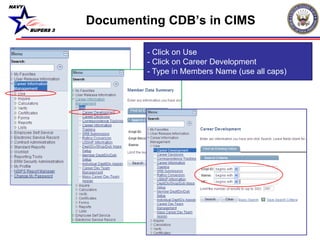
- Click on Use
- Click on Career Development
- Type in Members Name (use all caps)
NAVY
BUPERS 3
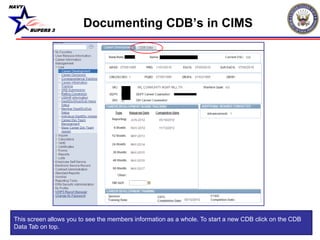
This screen allows you to see the members information as a whole. To start a new CDB click on the CDB
Data Tab on top.
Documenting CDB’s in CIMS
NAVY
BUPERS 3
Documenting CDB’s in CIMS
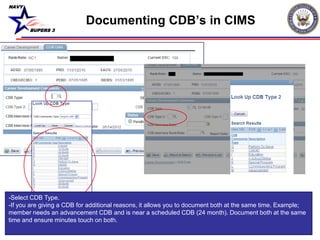
-Select CDB Type.
-If you are giving a CDB for additional reasons, it allows you to document both at the same time. Example;
member needs an advancement CDB and is near a scheduled CDB (24 month). Document both at the same
time and ensure minutes touch on both.
NAVY
BUPERS 3
Documenting CDB’s in CIMS
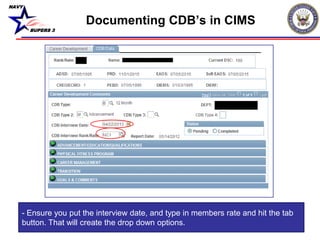
- Ensure you put the interview date, and type in members rate and hit the tab
button. That will create the drop down options.
NAVY
BUPERS 3
Documenting CDB’s in CIMS
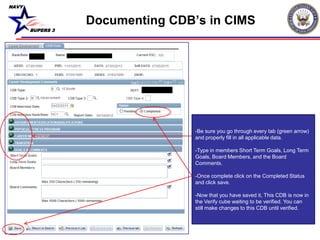
-Be sure you go through every tab (green arrow)
and properly fill in all applicable data.
-Type in members Short Term Goals, Long Term
Goals, Board Members, and the Board
Comments.
-Once complete click on the Completed Status
and click save.
-Now that you have saved it, This CDB is now in
the Verify cube waiting to be verified. You can
still make changes to this CDB until verified.
NAVY
BUPERS 3
Documenting CDB’s in CIMS
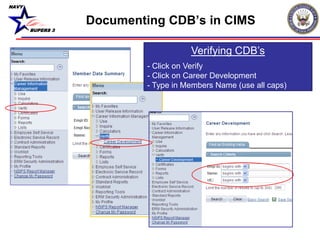
Verifying CDB’s
- Click on Verify
- Click on Career Development
- Type in Members Name (use all caps)
NAVY
BUPERS 3
Documenting CDB’s in CIMS
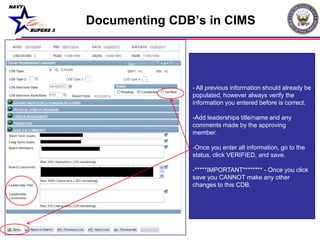
- All previous information should already be
populated, however always verify the
information you entered before is correct.
-Add leaderships title/name and any
comments made by the approving
member.
-Once you enter all information, go to the
status, click VERIFIED, and save.
-*****IMPORTANT******** - Once you click
save you CANNOT make any other
changes to this CDB.
NAVY
BUPERS 3
• Questions please call NCC(SW/AW) Chris Kinstle-
901-874-2533 or email christopher.kinstle@navy.mil
Documenting CDB’s in CIMS

Documenting cdb's in cims

  • 1.
    NAVY BUPERS 3 CIMS HOWTO: Documenting CDB’s in CIMS
  • 2.
    NAVY BUPERS 3 Documenting CDB’sin CIMS - Click on Use - Click on Career Development - Type in Members Name (use all caps)
  • 3.
    NAVY BUPERS 3 This screenallows you to see the members information as a whole. To start a new CDB click on the CDB Data Tab on top. Documenting CDB’s in CIMS
  • 4.
    NAVY BUPERS 3 Documenting CDB’sin CIMS -Select CDB Type. -If you are giving a CDB for additional reasons, it allows you to document both at the same time. Example; member needs an advancement CDB and is near a scheduled CDB (24 month). Document both at the same time and ensure minutes touch on both.
  • 5.
    NAVY BUPERS 3 Documenting CDB’sin CIMS - Ensure you put the interview date, and type in members rate and hit the tab button. That will create the drop down options.
  • 6.
    NAVY BUPERS 3 Documenting CDB’sin CIMS -Be sure you go through every tab (green arrow) and properly fill in all applicable data. -Type in members Short Term Goals, Long Term Goals, Board Members, and the Board Comments. -Once complete click on the Completed Status and click save. -Now that you have saved it, This CDB is now in the Verify cube waiting to be verified. You can still make changes to this CDB until verified.
  • 7.
    NAVY BUPERS 3 Documenting CDB’sin CIMS Verifying CDB’s - Click on Verify - Click on Career Development - Type in Members Name (use all caps)
  • 8.
    NAVY BUPERS 3 Documenting CDB’sin CIMS - All previous information should already be populated, however always verify the information you entered before is correct. -Add leaderships title/name and any comments made by the approving member. -Once you enter all information, go to the status, click VERIFIED, and save. -*****IMPORTANT******** - Once you click save you CANNOT make any other changes to this CDB.
  • 9.
    NAVY BUPERS 3 • Questionsplease call NCC(SW/AW) Chris Kinstle- 901-874-2533 or email christopher.kinstle@navy.mil Documenting CDB’s in CIMS