Ian Miell
Aidan Hobson Sayers
SECOND EDITION
M A N N I N G
IN PRACTICE
Praise for the First Edition
A deluge of practical advice about applying Docker to problems you have right now.
—From the Foreword to the first edition by Ben Firshman, Docker, Inc.
Filled with 4-star recipes!
—Chad Davis, SolidFire
You'll love Docker after reading this book.
—José San Leandro, OSOCO
Packed with Docker tricks of the developer trade.
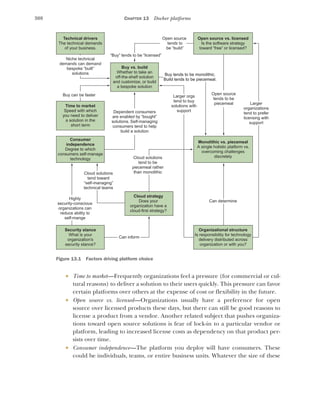
—Kirk Brattkus, Net Effect Technologies
Extremely good sets of tips for using docker. Really useful and pragmatic and
addresses real world docker issues.
—Amazon customer
Easy to read and follow. I have a much better understanding of the internal working
of Docker after reading this book.
—Amazon customer
Docker in Practice
SECOND EDITION
IAN MIELL
AIDAN HOBSON SAYERS
M A N N I N G
Shelter Island
For online information and ordering of this and other Manning books, please visit
www.manning.com. The publisher offers discounts on this book when ordered in quantity.
For more information, please contact
Special Sales Department
Manning Publications Co.
20 Baldwin Road
PO Box 761
Shelter Island, NY 11964
Email: orders@manning.com
©2019 by Manning Publications Co. All rights reserved.
No part of this publication may be reproduced, stored in a retrieval system, or transmitted, in
any form or by means electronic, mechanical, photocopying, or otherwise, without prior written
permission of the publisher.
Many of the designations used by manufacturers and sellers to distinguish their products are
claimed as trademarks. Where those designations appear in the book, and Manning
Publications was aware of a trademark claim, the designations have been printed in initial caps
or all caps.
Recognizing the importance of preserving what has been written, it is Manning’s policy to have
the books we publish printed on acid-free paper, and we exert our best efforts to that end.
Recognizing also our responsibility to conserve the resources of our planet, Manning books are
printed on paper that is at least 15 percent recycled and processed without the use of elemental
chlorine.
Manning Publications Co. Development editor: Jenny Stout
20 Baldwin Road Review editor: Ivan Martinović
PO Box 761 Project manager: Vincent Nordhaus
Shelter Island, NY 11964 Copyeditor: Andy Carroll
Proofreader: Keri Hales
Technical proofreader: Jose San Leandro
Typesetter: Gordan Salinovic
Cover designer: Marija Tudor
ISBN 9781617294808
Printed in the United States of America
1 2 3 4 5 6 7 8 9 10 – SP – 24 23 22 21 20 19
v
contents
preface xiii
acknowledgments xv
about this book xvi
about the cover illustration xix
PART 1 DOCKER FUNDAMENTALS ..........................................1
1 Discovering Docker 3
1.1 The what and why of Docker 4
What is Docker? 5 ■
What is Docker good for? 7 ■
Key concepts 8
1.2 Building a Docker application 10
Ways to create a new Docker image 11 ■
Writing a Dockerfile 12
Building a Docker image 13 ■
Running a Docker container 14
Docker layering 16
2 Understanding Docker: Inside the engine room 19
2.1 Docker’s architecture 20
2.2 The Docker daemon 21
TECHNIQUE 1 Open your Docker daemon to the world 22
TECHNIQUE 2 Running containers as daemons 24
TECHNIQUE 3 Moving Docker to a different partition 27
CONTENTS
vi
2.3 The Docker client 28
TECHNIQUE 4 Using socat to monitor Docker API traffic 28
TECHNIQUE 5 Using Docker in your browser 32
TECHNIQUE 6 Using ports to connect to containers 34
TECHNIQUE 7 Allowing container communication 35
TECHNIQUE 8 Linking containers for port isolation 37
2.4 Docker registries 39
TECHNIQUE 9 Setting up a local Docker registry 40
2.5 The Docker Hub 41
TECHNIQUE 10 Finding and running a Docker image 42
PART 2 DOCKER AND DEVELOPMENT ...................................45
3 Using Docker as a lightweight virtual machine 47
3.1 From VM to container 48
TECHNIQUE 11 Converting your VM to a container 48
TECHNIQUE 12 A host-like container 51
TECHNIQUE 13 Splitting a system into microservice containers 54
TECHNIQUE 14 Managing the startup of your container’s
services 57
3.2 Saving and restoring your work 59
TECHNIQUE 15 The “save game” approach: Cheap source
control 60
TECHNIQUE 16 Docker tagging 62
TECHNIQUE 17 Sharing images on the Docker Hub 65
TECHNIQUE 18 Referring to a specific image in builds 67
3.3 Environments as processes 68
TECHNIQUE 19 The “save game” approach: Winning at 2048 68
4 Building images 71
4.1 Building images 71
TECHNIQUE 20 Injecting files into your image using ADD 72
TECHNIQUE 21 Rebuilding without the cache 75
TECHNIQUE 22 Busting the cache 76
TECHNIQUE 23 Intelligent cache-busting using build-args 78
TECHNIQUE 24 Intelligent cache-busting using the ADD
directive 81
TECHNIQUE 25 Setting the right time zone in your containers 84
TECHNIQUE 26 Locale management 86
TECHNIQUE 27 Stepping through layers with the image-stepper 90
TECHNIQUE 28 Onbuild and golang 94
CONTENTS vii
5 Running containers 97
5.1 Running containers 97
TECHNIQUE 29 Running GUIs within Docker 98
TECHNIQUE 30 Inspecting containers 100
TECHNIQUE 31 Cleanly killing containers 101
TECHNIQUE 32 Using Docker Machine to provision Docker
hosts 103
TECHNIQUE 33 Wildcard DNS 107
5.2 Volumes—a persistent problem 108
TECHNIQUE 34 Docker volumes: Problems of persistence 108
TECHNIQUE 35 Distributed volumes with Resilio Sync 110
TECHNIQUE 36 Retaining your container’s bash history 112
TECHNIQUE 37 Data containers 114
TECHNIQUE 38 Remote volume mounting using SSHFS 116
TECHNIQUE 39 Sharing data over NFS 119
TECHNIQUE 40 Dev tools container 121
6 Day-to-day Docker 124
6.1 Staying ship-shape 124
TECHNIQUE 41 Running Docker without sudo 125
TECHNIQUE 42 Housekeeping containers 125
TECHNIQUE 43 Housekeeping volumes 127
TECHNIQUE 44 Detaching containers without stopping them 129
TECHNIQUE 45 Using Portainer to manage your Docker
daemon 130
TECHNIQUE 46 Generating a dependency graph of your Docker
images 131
TECHNIQUE 47 Direct action: Executing commands on your
container 133
TECHNIQUE 48 Are you in a Docker container? 134
7 Configuration management: Getting your house in order 137
7.1 Configuration management and Dockerfiles 138
TECHNIQUE 49 Creating reliable bespoke tools with
ENTRYPOINT 138
TECHNIQUE 50 Avoiding package drift by specifying versions 140
TECHNIQUE 51 Replacing text with perl -p -i -e 142
TECHNIQUE 52 Flattening images 143
TECHNIQUE 53 Managing foreign packages with Alien 145
7.2 Traditional configuration management tools with Docker 148
TECHNIQUE 54 Traditional: Using make with Docker 148
TECHNIQUE 55 Building images with Chef Solo 151
CONTENTS
viii
7.3 Small is beautiful 155
TECHNIQUE 56 Tricks for making an image smaller 155
TECHNIQUE 57 Tiny Docker images with BusyBox and Alpine 157
TECHNIQUE 58 The Go model of minimal containers 159
TECHNIQUE 59 Using inotifywait to slim containers 162
TECHNIQUE 60 Big can be beautiful 164
PART 3 DOCKER AND DEVOPS .........................................167
8 Continuous integration: Speeding up your development
pipeline 169
8.1 Docker Hub automated builds 170
TECHNIQUE 61 Using the Docker Hub workflow 170
8.2 More efficient builds 173
TECHNIQUE 62 Speeding up I/O-intensive builds with
eatmydata 173
TECHNIQUE 63 Setting up a package cache for faster builds 175
TECHNIQUE 64 Headless Chrome in a container 178
TECHNIQUE 65 Running Selenium tests inside Docker 180
8.3 Containerizing your CI process 185
TECHNIQUE 66 Running the Jenkins master within a Docker
container 185
TECHNIQUE 67 Containing a complex development
environment 188
TECHNIQUE 68 Scaling your CI with Jenkins’ Swarm plugin 192
TECHNIQUE 69 Upgrading your containerized Jenkins server
safely 195
9 Continuous delivery: A perfect fit for Docker principles 200
9.1 Interacting with other teams in the CD pipeline 201
TECHNIQUE 70 The Docker contract: Reducing friction 201
9.2 Facilitating deployment of Docker images 204
TECHNIQUE 71 Manually mirroring registry images 204
TECHNIQUE 72 Delivering images over constrained
connections 206
TECHNIQUE 73 Sharing Docker objects as TAR files 208
9.3 Configuring your images for environments 210
TECHNIQUE 74 Informing your containers with etcd 210
9.4 Upgrading running containers 214
TECHNIQUE 75 Using confd to enable zero-downtime
switchovers 214
CONTENTS ix
10 Network simulation: Realistic environment testing without
the pain 220
10.1 Container communication: Beyond manual linking 221
TECHNIQUE 76 A simple Docker Compose cluster 221
TECHNIQUE 77 A SQLite server using Docker Compose 225
10.2 Using Docker to simulate real-world networking 229
TECHNIQUE 78 Simulating troublesome networks with
Comcast 230
TECHNIQUE 79 Simulating troublesome networks with
Blockade 233
10.3 Docker and virtual networks 237
TECHNIQUE 80 Creating another Docker virtual network 238
TECHNIQUE 81 Setting up a substrate network with Weave 241
PART 4 ORCHESTRATION FROM A SINGLE MACHINE TO
THE CLOUD ........................................................247
11 A primer on container orchestration 249
11.1 Simple single-host Docker 251
TECHNIQUE 82 Managing your host’s containers with
systemd 251
TECHNIQUE 83 Orchestrating the startup of your host’s
containers 254
11.2 Manual multi-host Docker 257
TECHNIQUE 84 Manual multi-host Docker with Helios 257
11.3 Service discovery: What have we here? 263
TECHNIQUE 85 Using Consul to discover services 264
TECHNIQUE 86 Automatic service registration with
Registrator 271
12 The data center as an OS with Docker 275
12.1 Multi-host Docker 276
TECHNIQUE 87 A seamless Docker cluster with swarm mode 276
TECHNIQUE 88 Using a Kubernetes cluster 280
TECHNIQUE 89 Accessing the Kubernetes API from within a
pod 285
TECHNIQUE 90 Using OpenShift to run AWS APIs locally 289
TECHNIQUE 91 Building a framework on Mesos 294
TECHNIQUE 92 Micromanaging Mesos with Marathon 302
CONTENTS
x
13 Docker platforms 306
13.1 Organizational choice factors 307
Time to market 310 ■
Buy vs. build 310 ■
Monolithic vs.
piecemeal 311 ■
Open source vs. licensed 312 ■
Security
stance 312 ■
Consumer independence 313 ■
Cloud
strategy 313 ■
Organizational structure 313 ■
Multiple
platforms? 314 ■
Organizational factors conclusion 314
13.2 Areas to consider when adopting Docker 314
Security and control 315 ■
Building and shipping images 321
Running containers 324
13.3 Vendors, organizations, and products 327
The Cloud Native Computing Foundation (CNCF) 327
Docker, Inc. 328 ■
Google 329 ■
Microsoft 329
Amazon 330 ■
Red Hat 330
PART 5 DOCKER IN PRODUCTION .....................................333
14 Docker and security 335
14.1 Docker access and what it means 336
Do you care? 336
14.2 Security measures in Docker 337
TECHNIQUE 93 Constraining capabilities 337
TECHNIQUE 94 A “bad” Docker image to scan 341
14.3 Securing access to Docker 343
TECHNIQUE 95 HTTP auth on your Docker instance 343
TECHNIQUE 96 Securing your Docker API 346
14.4 Security from outside Docker 350
TECHNIQUE 97 Reducing a container’s attack surface with
DockerSlim 350
TECHNIQUE 98 Removing secrets added during a build 356
TECHNIQUE 99 OpenShift: An application platform as a service 360
TECHNIQUE 100 Using security options 368
15 Plain sailing: Running Docker in production 376
15.1 Monitoring 377
TECHNIQUE 101 Logging your containers to the host’s syslog 377
TECHNIQUE 102 Logging your Docker logs output 380
TECHNIQUE 103 Monitoring containers with cAdvisor 382
CONTENTS xi
15.2 Resource control 383
TECHNIQUE 104 Restricting the cores a container can
execute on 383
TECHNIQUE 105 Giving important containers more CPU 384
TECHNIQUE 106 Limiting the memory usage of a container 386
15.3 Sysadmin use cases for Docker 388
TECHNIQUE 107 Using Docker to run cron jobs 388
TECHNIQUE 108 The “save game” approach to backups 391
16 Docker in production: Dealing with challenges 394
16.1 Performance: You can’t ignore the tin 395
TECHNIQUE 109 Accessing host resources from the container 395
TECHNIQUE 110 Disabling the OOM killer 399
16.2 When containers leak—debugging Docker 401
TECHNIQUE 111 Debugging a container’s network with nsenter 401
TECHNIQUE 112 Using tcpflow to debug in flight without
reconfiguring 404
TECHNIQUE 113 Debugging containers that fail on specific hosts 405
TECHNIQUE 114 Extracting a file from an image 409
appendix A Installing and using Docker 413
appendix B Docker configuration 418
appendix C Vagrant 421
index 423
xiii
preface
In September 2013, while browsing Hacker News, I stumbled across an article in Wired
about a new technology called “Docker.”1
As I read it, I became increasingly excited as
I realized Docker’s revolutionary potential.
The company I’d worked at for over a decade was struggling to deliver software
quickly enough. Provisioning environments was a costly, time-consuming, manual,
and inelegant affair. Continuous integration was barely existent, and setting up devel-
opment environments was an exercise in patience. As my job title included the words
“DevOps Manager,” I was peculiarly motivated to solve these problems!
I recruited a couple of motivated coworkers (one of them now my coauthor) via a
company mailing list, and together our skunkworks team labored to turn a beta tool
into a business advantage, reducing the high costs of VMs and enabling new ways of
thinking about building and deploying software. We even built and open sourced an
automation tool (ShutIt) to suit our organization’s delivery needs.
Docker gave us a packaged and maintained tool that solved many problems that
would have been effectively insuperable had we taken it upon ourselves to solve them.
This was open source at its best, empowering us to take on a challenge using our spare
time, overcoming technical debt, and learning lessons daily. Lessons not only about
Docker, but about continuous integration, continuous delivery, packaging, automa-
tion, and how people respond to speedy and disruptive technological change.
1
http://www.wired.com/2013/09/docker/
PREFACE
xiv
For us, Docker is a remarkably broad tool. Wherever you run software using Linux,
Docker can impact it. This makes writing a book on the subject challenging, as the
landscape is as broad as software itself. The task is made more onerous by the extraor-
dinary rate at which the Docker ecosystem is producing solutions to meet the needs
that emerge from such a fundamental change in software production. Over time, the
shape of problems and solutions became familiar to us, and in this book, we’ve
endeavored to pass on this experience. This will enable you to figure out solutions to
your specific technical and business constraints.
Giving talks at meetups we’re struck by how quickly Docker has become effective
within organizations willing to embrace it. This book mirrors how we used Docker,
going from our desktops, through the DevOps pipeline, all the way to production.
Consequently, this book is sometimes unorthodox, but as engineers we believe that
purity must sometimes give way to practicality, especially when it comes to saving
money! Everything in this book is based on real lessons from the field, and we hope
you benefit from our hard-won experience.
—IAN MIELL
xv
acknowledgments
This book couldn’t have been written without the support, sacrifice, and patience of
those closest to us. Special mention is due to Stephen Hazleton, whose tireless efforts
with us to make Docker useful for our customers informed much of the book’s contents.
Several Docker contributors and staff were kind enough to review the book at dif-
ferent stages and provided much useful feedback, including the following people who
read the book in manuscript form: Benoit Benedetti, Burkhard Nestmann, Chad
Davis, David Moravec, Ernesto Cárdenas Cangahuala, Fernando Rodrigues, Kirk Brat-
tkus, Pethuru Raj, Scott Bates, Steven Lembark, Stuart Woodward, Ticean Bennett,
Valmiky Arquissandas, and Wil Moore III. José San Leandro acted as our technical
proofreader and we are grateful for his sharp eye.
Finally, this book also owes a great deal to the Manning editorial team, who went
out of their way to push us into making the book not just good enough, but the best it
could be. We hope the pride they took in their work rubbed off on us.
IAN MIELL To Sarah, Isaac, and Rachel for putting up with the late-night coding, a
father glued to a laptop screen, and the eternal “Docker this, Docker that, Docker
blah, blah,” and to my parents for encouraging me from an early age to question the
status quo. And for buying me that Spectrum.
AIDAN HOBSON SAYERS To Mona for the support and encouragement, my parents for
their wisdom and motivating words, and my coauthor for that fateful “Has anyone
tried this Docker thing?” e-mail.
xvi
about this book
Docker is arguably the fastest-growing software project ever. Open-sourced in March
2013, by 2018 it had gained nearly 50,000 GitHub stars and over 14,000 forks. It has
accepted significant numbers of pull requests from the likes of Red Hat, IBM, Micro-
soft, Google, Cisco, and VMWare.
Docker has hit this critical mass by responding to a vital need for many software
organizations: the ability to build software in an open and flexible way and then
deploy it reliably and consistently in different contexts. You don’t need to learn a new
programming language, buy expensive hardware, or do much in the way of installa-
tion or configuration to build, ship, and run applications portably with Docker.
Docker in Practice, second edition, takes you through real-world examples of Docker
usage using techniques we’ve employed in various contexts. Where possible, we’ve
tried to elucidate these techniques without requiring knowledge of other technolo-
gies before reading. We’ve assumed readers have an understanding of basic develop-
ment techniques and concepts, such as the ability to develop some structured code,
and some awareness of software development and deployment processes. In addition,
we’ve assumed a knowledge of core source-control ideas, and a basic understanding of
network fundamentals such as TCP/IP, HTTP, and ports. Anything less mainstream
will be explained as we go.
Starting with a rundown of Docker fundamentals in part 1, in part 2 we focus on using
Docker in development on a single machine. In part 3 we move on to Docker use within
a DevOps pipeline, covering continuous integration, continuous delivery, and testing.
Part 4 looks at how to run Docker containers in a scalable way with orchestration. The
ABOUT THIS BOOK xvii
last part covers running Docker in production, focusing on the options for standard pro-
duction operations, as well as what can go wrong and how to deal with it.
Docker is such a broad, flexible, and dynamic tool that keeping up with its fast-
evolving landscape is not for the faint-hearted. We’ve endeavored to give you an
understanding of critical concepts through real-world applications and examples,
with the aim of giving you the power to critically evaluate future tools and technolo-
gies within the Docker ecosystem with confidence. We’ve tried to make the book an
enjoyable tour of the many ways we’ve seen Docker make our lives easier and even
fun. Immersing ourselves in Docker has introduced us to many interesting software
techniques spanning the entire software lifecycle in a stimulating way, and we hope
that this is an experience you’ll share.
Roadmap
This book consists of 16 chapters divided into 5 parts.
Part 1 lays down the groundwork for the rest of the book, introducing Docker and
getting you to run some basic Docker commands. Chapter 2 spends some time on get-
ting you familiar with Docker’s client-server architecture and how to debug it, which
can be useful for identifying issues with unconventional Docker setups.
Part 2 focuses on familiarizing you with Docker and getting the most out of Docker
on your own machine. An analogy with a concept you may be familiar with, virtual
machines, is used as the basis for chapter 3, to give you an easier route into getting
started using Docker for real. Chapters 4, 5, and 6 then detail several Docker tech-
niques we’ve found ourselves using on a daily basis to build images, run images, and
manage Docker itself. The final chapter in this part explores the topic of building
images in more depth by looking at configuration management techniques.
Part 3 begins looking at uses of Docker in a DevOps context, from using it for auto-
mation of software builds and tests to moving your built software to different places.
This part concludes with a chapter on the Docker virtual network, which introduces
Docker Compose and covers some more advanced networking topics, like network
simulation and Docker network plugins.
Part 4 examines the topic of orchestrating containers. We’ll take you on a journey
from a single container on a single host to a Docker-based platform running on a
“data center as an operating system.” Chapter 13 is an extended discussion of the
areas that must be considered when choosing a Docker-based platform, and it doubles
as a guide to what enterprise architects think about when implementing technologies
like this.
Part 5 covers a number of topics for using Docker effectively in a production envi-
ronment. Chapter 14 addresses the important topic of security, explaining how to lock
down processes running inside a container and how to restrict access to an externally
exposed Docker daemon. The final two chapters go into detail on some key practical
information for running Docker in production. Chapter 15 demonstrates how to
apply classic sysadmin knowledge in the context of containers, from logging to
ABOUT THIS BOOK
xviii
resource limits, and chapter 16 looks at some problems you may encounter and pro-
vides some steps for debugging and resolution.
The appendixes contain details for installing, using, and configuring Docker in
different ways, including inside a virtual machine and on Windows.
About the code
The source code for all tools, applications, and Docker images we’ve created for use in
this book is available on GitHub under the “docker-in-practice” organization: https://
github.com/docker-in-practice/. Images on the Docker Hub under the “dockerin-
practice” user https://hub.docker.com/u/dockerinpractice/ are typically automated
builds from one of the GitHub repositories. Where we’ve felt the reader may be inter-
ested in further study of some source code behind a technique, a link to the relevant
repository has been included in the technique discussion. The source code is also
available from the publisher’s website at www.manning.com/books/docker-in-prac-
tice-second-edition.
A significant number of the code listings in the book illustrate a terminal session
for the reader to follow, along with corresponding output from commands. There are
a couple of things to note about these sessions:
■
Long terminal commands may use the shell line-continuation character, (), to
split a command over multiple lines. Although this will work in your shell if you
type it out, you may also omit it and type the command on one line.
■
Where a section of output doesn’t provide extra useful information for the dis-
cussion, it may be omitted and an ellipsis inserted ([…]) in its place.
Book Forum
Purchase of Docker in Practice, Second Edition includes free access to a private web forum
run by Manning Publications where you can make comments about the book, ask
technical questions, and receive help from the author and other users. To access the
forum, go to www.manning.com/books/docker-in-practice-second-edition. You can
also learn more about Manning’s forums and the rules of conduct at https://
forums.manning.com/forums/about.
Manning’s commitment to its readers is to provide a venue where a meaningful
dialog between individual readers and between readers and the author can take place.
It is not a commitment to any specific amount of participation on the part of the
author, whose contributions to the forum remain voluntary (and unpaid). We suggest
you ask the author challenging questions, lest his interest stray.
xix
about the cover illustration
The figure on the cover of Docker in Practice, Second Edition, is captioned “Man from
Selce, Croatia.” The illustration is taken from a reproduction of an album of Croatian
trad itional costumes from the mid-nineteenth century by Nikola Arsenovic, pub-
lished by the Ethnographic Museum in Split, Croatia, in 2003. The illustrations were
obtained from a helpful librarian at the Ethnographic Museum in Split, itself situated
in the Roman core of the medieval center of the town: the ruins of Emperor Diocle-
tian’s retirement palace from around AD 304. The book includes finely colored illus-
trations of figures from different regions of Croatia, accompanied by descriptions of
the costumes and of everyday life.
Dress codes and lifestyles have changed over the last 200 years, and the diversity by
region, so rich at the time, has faded away. It’s now hard to tell apart the inhabitants of
different continents, let alone of different hamlets or towns separated by only a few
miles. Perhaps we have traded cultural diversity for a more varied personal life—cer-
tainly for a more varied and fast-paced technological life.
Manning celebrates the inventiveness and initiative of the computer business with
book covers based on the rich diversity of regional life of two centuries ago, brought
back to life by illustrations from old books and collections like this one.
Part 1
Docker fundamentals
P
art 1 of this book consists of chapters 1 and 2, which get you started using
Docker and cover its fundamentals.
Chapter 1 explains the origin of Docker along with its core concepts, such as
images, containers, and layering. Finally, you’ll get your hands dirty by creating
your first image with a Dockerfile.
Chapter 2 introduces some useful techniques to give you a deeper under-
standing of Docker’s architecture. Taking each major component in turn, we’ll
cover the relationship between the Docker daemon and its client, the Docker
registry, and the Docker Hub.
By the end of part 1 you’ll be comfortable with core Docker concepts and will
be able to demonstrate some useful techniques, laying a firm foundation for the
remainder of the book.
3
Discovering Docker
Docker is a platform that allows you to “build, ship, and run any app, anywhere.” It
has come a long way in an incredibly short time and is now considered a standard
way of solving one of the costliest aspects of software: deployment.
Before Docker came along, the development pipeline typically involved combi-
nations of various technologies for managing the movement of software, such as
virtual machines, configuration management tools, package management systems,
and complex webs of library dependencies. All these tools needed to be managed
and maintained by specialist engineers, and most had their own unique ways of
being configured.
This chapter covers
 What Docker is
 The uses of Docker and how it can save you
time and money
 The differences between containers and images
 Docker’s layering feature
 Building and running a to-do application using
Docker
4 CHAPTER 1 Discovering Docker
Docker has changed all of this, allowing different engineers involved in this process to
effectively speak one language, making working together a breeze. Everything goes
through a common pipeline to a single output that can be used on any target—there’s
no need to continue maintaining a bewildering array of tool configurations, as shown
in figure 1.1.
At the same time, there’s no need to throw away your existing software stack if it
works for you—you can package it up in a Docker container as-is, for others to con-
sume. As a bonus, you can see how these containers were built, so if you need to dig
into the details, you can.
This book is aimed at intermediate developers with some knowledge of Docker. If
you’re OK with the basics, feel free to skip to the later chapters. The goal of this book
is to expose the real-world challenges that Docker brings and to show how they can be
overcome. But first we’re going to provide a quick refresher on Docker itself. If you
want a more thorough treatment of Docker’s basics, take a look at Docker in Action by
Jeff Nickoloff (Manning, 2016).
In chapter 2 you’ll be introduced to Docker’s architecture more deeply, with the
aid of some techniques that demonstrate its power. In this chapter you’re going to
learn what Docker is, see why it’s important, and start using it.
1.1 The what and why of Docker
Before we get our hands dirty, we’ll discuss Docker a little so that you understand its
context, where the name “Docker” came from, and why we’re using it at all!
Configuration
Life before Docker
Code Configuration
Life with Docker
Code
Vagrant Chef
Jenkins Docker build
Development Live
Test Development Release
to live
Testing
Inputs to the system requiring manual maintenance—fewer inputs here mean less of a maintenance burden.
Stages of software development requiring an environment to run in
Tools that use the inputs to create environments for software development
Figure 1.1 How Docker has eased the tool maintenance burden
5
The what and why of Docker
1.1.1 What is Docker?
To get an understanding of what Docker is, it’s easier to start with a metaphor than a
technical explanation, and the Docker metaphor is a powerful one. A docker was a
laborer who moved commercial goods into and out of ships when they docked at
ports. There were boxes and items of differing sizes and shapes, and experienced
dockers were prized for their ability to fit goods into ships by hand in cost-effective
ways (see figure 1.2). Hiring people to move stuff around wasn’t cheap, but there was
no alternative.
Figure 1.2 Shipping before and after standardized containers
Ship on which the
items were loaded
Teams of dockers required
to load differently shaped
items onto ship
Single container with different items in it. It
doesn't matter to the carrier what's inside
the container. The carrier can be loaded
up elsewhere, reducing the bottleneck
of loading at port.
Only one docker needed to
operate machines designed
to move containers.
Ship can be designed to carry,
load, and unload predictably
shaped items more efficiently.
6 CHAPTER 1 Discovering Docker
This should sound familiar to anyone working in software. Much time and intellectual
energy is spent getting metaphorically odd-shaped software into differently-sized meta-
phorical ships full of other odd-shaped software, so they can be sold to users or busi-
nesses elsewhere.
Figure 1.3 shows how time and money can be saved with the Docker concept.
Before Docker, deploying software to different environments required significant
effort. Even if you weren’t hand-running scripts to provision software on different
machines (and plenty of people do exactly that), you’d still have to wrestle with con-
figuration management tools that manage state on what are increasingly fast-moving
environments starved of resources. Even when these efforts were encapsulated in
VMs, a lot of time was spent managing the deployment of these VMs, waiting for them
to boot, and managing the overhead of resource use they created.
With Docker, the configuration effort is separated from the resource management,
and the deployment effort is trivial: run docker run, and the environment’s image is
pulled down and ready to run, consuming fewer resources and contained so that it
doesn’t interfere with other environments.
You don’t need to worry about whether your container is going to be shipped to a
Red Hat machine, an Ubuntu machine, or a CentOS VM image; as long as it has
Docker on it, it’ll be good to go.
Three times the
effort to manage
deployment
A single effort
to manage
deployment
Dev laptop Live server
Test server
Life before Docker
Install, configure,
and maintain complex
application
Install, configure,
and maintain complex
application
Install, configure,
and maintain complex
application
Docker image
Dev laptop
Test server
Live server
Life with Docker
Install, configure,
and maintain complex
application
docker run
docker run
docker run
Figure 1.3 Software delivery before and after Docker
7
The what and why of Docker
1.1.2 What is Docker good for?
Some crucial practical questions arise: why would you use Docker, and for what? The
short answer to the “why” is that for a modicum of effort, Docker can save your business
a lot of money quickly. Some of these ways (and by no means all) are discussed in the
following subsections. We’ve seen all of these benefits firsthand in real working contexts.
REPLACING VIRTUAL MACHINES (VMS)
Docker can be used to replace VMs in many situations. If you only care about the
application, not the operating system, Docker can replace the VM, and you can leave
worrying about the OS to someone else. Not only is Docker quicker than a VM to spin
up, it’s more lightweight to move around, and due to its layered filesystem, you can
more easily and quickly share changes with others. It’s also firmly rooted in the com-
mand line and is eminently scriptable.
PROTOTYPING SOFTWARE
If you want to quickly experiment with software without either disrupting your exist-
ing setup or going through the hassle of provisioning a VM, Docker can give you a
sandbox environment in milliseconds. The liberating effect of this is difficult to grasp
until you experience it for yourself.
PACKAGING SOFTWARE
Because a Docker image has effectively no dependencies for a Linux user, it’s a great
way to package software. You can build your image and be sure that it can run on any
modern Linux machine—think Java, without the need for a JVM.
ENABLING A MICROSERVICES ARCHITECTURE
Docker facilitates the decomposition of a complex system to a series of composable
parts, which allows you to reason about your services in a more discrete way. This can
allow you to restructure your software to make its parts more manageable and plug-
gable without affecting the whole.
MODELING NETWORKS
Because you can spin up hundreds (even thousands) of isolated containers on one
machine, modeling a network is a breeze. This can be great for testing real-world
scenarios without breaking the bank.
ENABLING FULL-STACK PRODUCTIVITY WHEN OFFLINE
Because you can bundle all the parts of your system into Docker containers, you can
orchestrate these to run on your laptop and work on the move, even when offline.
REDUCING DEBUGGING OVERHEAD
Complex negotiations between different teams about software delivered is a common-
place within the industry. We’ve personally experienced countless discussions about bro-
ken libraries; problematic dependencies; updates applied wrongly, or in the wrong
order, or even not performed at all; unreproducible bugs; and so on. It’s likely you have
too. Docker allows you to state clearly (even in script form) the steps for debugging a
problem on a system with known properties, making bug and environment reproduction
a much simpler affair, and one normally separated from the host environment provided.
8 CHAPTER 1 Discovering Docker
DOCUMENTING SOFTWARE DEPENDENCIES AND TOUCHPOINTS
By building your images in a structured way, ready to be moved to different environ-
ments, Docker forces you to document your software dependencies explicitly from a
base starting point. Even if you decide not to use Docker everywhere, this documenta-
tion can help you install your software in other places.
ENABLING CONTINUOUS DELIVERY
Continuous delivery (CD) is a paradigm for software delivery based on a pipeline that
rebuilds the system on every change and then delivers to production (or “live”)
through an automated (or partly automated) process.
Because you can control the build environment’s state more exactly, Docker builds
are more reproducible and replicable than traditional software building methods.
This makes implementing CD much easier. Standard CD techniques, such as
Blue/Green deployment (where “live” and “last” deployments are maintained on live)
and Phoenix deployment (where whole systems are rebuilt on each release), are made
trivial by implementing a reproducible Docker-centric build process.
You now know a bit about how Docker can help you. Before we dive into a real
example, let’s go over a couple of core concepts.
1.1.3 Key concepts
In this section we’re going to cover some key Docker concepts, which are illustrated in
figure 1.4.
Figure 1.4 Core Docker concepts
Layers: A layer is a
collection of changes
to files. The differences
between v1 and v2 of
MyApplication are
stored in this layer.
Images: An image is a
collection of filesystem
layers and some metadata.
Taken together, they can be
spun up as Docker
containers.
Containers: A container is a
running instance of an image.
You can have multiple containers
running from the same image.
Docker host machine
Debian layer:
/bin
/boot
…
/tmp
/var
MyApplication
code layer
MyApplication
v2 layer
MyApplication
container (v1) 1
Stored
on disk
Running
processes
MyApplication
container (v1) 2
MyApplication
container (v1) 3
MyApplication
container (v2) 1
9
The what and why of Docker
It’s most useful to get the concepts of images, containers, and layers clear in your
mind before you start running Docker commands. In short, containers are running sys-
tems defined by images. These images are made up of one or more layers (or sets of
diffs) plus some metadata for Docker.
Let’s look at some of the core Docker commands. We’ll turn images into contain-
ers, change them, and add layers to new images that we’ll commit. Don’t worry if all of
this sounds confusing. By the end of the chapter it will all be much clearer.
KEY DOCKER COMMANDS
Docker’s central function is to build, ship, and run software in any location that has
Docker. To the end user, Docker is a command-line program that they run. Like git
(or any source control tool), this program has subcommands that perform different
operations. The principal Docker subcommands you’ll use on your host are listed in
table 1.1.
IMAGES AND CONTAINERS
If you’re unfamiliar with Docker, this may be the first time you’ve come across the
words “container” and “image” in this context. They’re probably the most important
concepts in Docker, so it’s worth spending a bit of time to make sure the difference is
clear. In figure 1.5 you’ll see an illustration of these concepts, with three containers
started up from one base image.
One way to look at images and containers is to see them as analogous to programs
and processes. In the same way a process can be seen as an “application being exe-
cuted,” a Docker container can be viewed as a Docker image in execution.
If you’re familiar with object-oriented principles, another way to look at images
and containers is to view images as classes and containers as objects. In the same way
that objects are concrete instances of classes, containers are instances of images. You
can create multiple containers from a single image, and they are all isolated from one
another in the same way objects are. Whatever you change in the object, it won’t affect
the class definition—they’re fundamentally different things.
Table 1.1 Docker subcommands
Command Purpose
docker build Build a Docker image
docker run Run a Docker image as a container
docker commit Commit a Docker container as an image
docker tag Tag a Docker image
10 CHAPTER 1 Discovering Docker
1.2 Building a Docker application
We’re going to get our hands dirty now by building a simple to-do application (todoapp)
image with Docker. In the process, you’ll see some key Docker features like Docker-
files, image re-use, port exposure, and build automation. Here’s what you’ll learn in the
next 10 minutes:
 How to create a Docker image using a Dockerfile
 How to tag a Docker image for easy reference
 How to run your new Docker image
A to-do app is one that helps you keep track of things you want to get done. The app
we build will store and display short strings of information that can be marked as
done, presented in a simple web interface. Figure 1.6 shows what we’ll achieve by
doing this.
The details of the application are unimportant. We’re going to demonstrate that
from the single short Dockerfile we’re about to give you, you can reliably build, run,
Containers are created from images, inherit
their filesystems, and use their metadata to
determine their startup configurations.
Containers are separate but can be configured
to communicate with each other.
Changes to files are stored
within the container in a
copy-on-write mechanism.
The base image cannot be
affected by a container.
Docker image: Ubuntu
Files:
/bin/bash
/bin/bunzip2
/bin/bzcat
[…]
/var/spool/rsyslog
/var/tmp
Metadata:
Port mappings
Environment variables
Ubuntu container 1
Process: nodejs
Diffs from Ubuntu image:
MODIFIED: /opt/app/nodejs.log
Ubuntu container 2
Process: mysql
Diffs from Ubuntu image:
DELETE: /etc/nologin
Ubuntu container 3
Process: apache
Diffs from Ubuntu image:
ADDED: //var/log/apache/apache.log
The metadata has
information on
environment variables,
port mappings, volumes,
and other details we'll
discuss later.
A Docker image consists
of files and metadata.
This is the base image for
the containers below.
Image files take up most of the space.
Because of the isolation each container
provides, they must have their own
copy of any required tools, including
language environments or libraries.
Containers run one
process on startup.
When this process
completes, the
container stops.
This startup process
can spawn others.
Figure 1.5 Docker images and containers
11
Building a Docker application
stop, and start an application in the same way on both your host and ours without
needing to worry about application installations or dependencies. This is a key part of
what Docker offers—reliably reproduced and easily managed and shared develop-
ment environments. This means no more complex or ambiguous installation instruc-
tions to follow and potentially get lost in.
NOTE This to-do application will be used a few times throughout the book,
and it’s quite a useful one to play with and demonstrate, so it’s worth familiar-
izing yourself with it.
1.2.1 Ways to create a new Docker image
There are four standard ways to create Docker images. Table 1.2 itemizes these methods.
Table 1.2 Options for creating Docker images
Method Description See technique
Docker commands / “By hand” Fire up a container with docker run and input the
commands to create your image on the command
line. Create a new image with docker commit.
See technique 15
Dockerfile Build from a known base image, and specify the
build with a limited set of simple commands.
Discussed shortly
Dockerfile and configuration
management (CM) tool
Same as Dockerfile, but you hand over control of
the build to a more sophisticated CM tool.
See technique 55
Scratch image and import a
set of files
From an empty image, import a TAR file with the
required files.
See technique 11
ToDoApp
Docker image
ToDoApp
Dockerfile
Build
My
server
ToDoApp
Docker image
Build
Your
server
Git
repository
Figure 1.6 Building a Docker application
12 CHAPTER 1 Discovering Docker
The first “by hand” option is fine if you’re doing proofs of concept to see whether
your installation process works. At the same time, you should keep notes about the
steps you’re taking so that you can return to the same point if you need to.
At some point you’re going to want to define the steps for creating your image.
This is the Dockerfile option (and the one we’ll use here).
For more complex builds, you may want to go for the third option, particularly
when the Dockerfile features aren’t sophisticated enough for your image’s needs.
The final option builds from a null image by overlaying the set of files required to
run the image. This is useful if you want to import a set of self-contained files created
elsewhere, but this method is rarely seen in mainstream use.
We’ll look at the Dockerfile method now; the other methods will be covered later
in the book.
1.2.2 Writing a Dockerfile
A Dockerfile is a text file with a series of commands in it. Listing 1.1 is the Dockerfile
we’ll use for this example. Create a new folder, move into it, and create a file called
“Dockerfile” with these contents.
FROM node
LABEL maintainer ian.miell@gmail.com
RUN git clone -q https://github.com/docker-in-practice/todo.git
WORKDIR todo
RUN npm install > /dev/null
EXPOSE 8000
CMD ["npm","start"]
You begin the Dockerfile by defining the base image with the FROM command. This
example uses a Node.js image so you have access to the Node.js binaries. The official
Node.js image is called node.
Next, you declare the maintainer with the LABEL command. In this case, we’re
using one of our email addresses, but you can replace this with your own reference
because it’s your Dockerfile now. This line isn’t required to make a working Docker
image, but it’s good practice to include it. At this point, the build has inherited the
state of the node container, and you’re ready to work on top of it.
Next, you clone the todoapp code with a RUN command. This uses the specified
command to retrieve the code for the application, running git within the container.
Git is installed inside the base node image in this case, but you can’t take this kind of
thing for granted.
Listing 1.1 The todoapp Dockerfile
Defines the base image
Declares the maintainer Clones the
todoapp code
Moves to the new cloned directory
Runs the node package manager’s
install command (npm)
Specifies that containers from the
built image should listen on this port
Specifies which command
will be run on startup
13
Building a Docker application
Now you move to the new cloned directory with a WORKDIR command. Not only
does this change directories within the build context, but the last WORKDIR command
determines which directory you’re in by default when you start up your container
from your built image.
Next, you run the node package manager’s install command (npm). This will set up
the dependencies for your application. You aren’t interested in the output in this
example, so you redirect it to /dev/null.
Because port 8000 is used by the application, you use the EXPOSE command to tell
Docker that containers from the built image should listen on this port.
Finally, you use the CMD command to tell Docker which command will be run when
the container is started up.
This simple example illustrates several key features of Docker and Dockerfiles. A
Dockerfile is a simple sequence of a limited set of commands run in strict order. It
affects the files and metadata of the resulting image. Here the RUN command affects
the filesystem by checking out and installing appli-
cations, and the EXPOSE, CMD, and WORKDIR com-
mands affect the metadata of the image.
1.2.3 Building a Docker image
You’ve defined your Dockerfile’s build steps. Now
you’re going to build the Docker image from it by
typing the command in figure 1.7. The output will
look similar to this:
Sending build context to Docker daemon 2.048kB
Step 1/7 : FROM node
---> 2ca756a6578b
Step 2/7 : LABEL maintainer ian.miell@gmail.com
---> Running in bf73f87c88d6
---> 5383857304fc
Removing intermediate container bf73f87c88d6
Step 3/7 : RUN git clone -q https://github.com/docker-in-practice/todo.git
---> Running in 761baf524cc1
---> 4350cb1c977c
Removing intermediate container 761baf524cc1
Step 4/7 : WORKDIR todo
---> a1b24710f458
Removing intermediate container 0f8cd22fbe83
Step 5/7 : RUN npm install > /dev/null
---> Running in 92a8f9ba530a
npm info it worked if it ends with ok
[...]
npm info ok
Docker uploads the files and
directories under the path supplied
to the docker build command.
Each build step is
numbered sequentially
from 1 and is output
with the command.
Each command results in a
new image being created,
and the image ID is output.
To save space, each
intermediate container is
removed before continuing.
Debug of the build is
output here (and edited
out of this listing).
docker build .
The docker
command
Path to the
Dockerfile file
The docker build subcommand
Figure 1.7 Docker build command
14 CHAPTER 1 Discovering Docker
---> 6ee4d7bba544
Removing intermediate container 92a8f9ba530a
Step 6/7 : EXPOSE 8000
---> Running in 8e33c1ded161
---> 3ea44544f13c
Removing intermediate container 8e33c1ded161
Step 7/7 : CMD npm start
---> Running in ccc076ee38fe
---> 66c76cea05bb
Removing intermediate container ccc076ee38fe
Successfully built 66c76cea05bb
You now have a Docker image with an image
ID (“66c76cea05bb” in the preceding exam-
ple, but your ID will be different). It can be
cumbersome to keep referring to this ID, so
you can tag it for easier reference, as shown
in figure 1.8.
Type the preceding command, replacing
the 66c76cea05bb with whatever image ID
was generated for you.
You can now build your own copy of a
Docker image from a Dockerfile, reproducing
an environment defined by someone else!
1.2.4 Running a Docker container
You’ve built and tagged your Docker image. Now you can run it as a container:
$ docker run -i -t -p 8000:8000 --name example1 todoapp
npm install
npm info it worked if it ends with ok
npm info using npm@2.14.4
npm info using node@v4.1.1
npm info prestart todomvc-swarm@0.0.1
> todomvc-swarm@0.0.1 prestart /todo
> make all
npm install
npm info it worked if it ends with ok
npm info using npm@2.14.4
npm info using node@v4.1.1
npm WARN package.json todomvc-swarm@0.0.1 No repository field.
npm WARN package.json todomvc-swarm@0.0.1 license should be a valid SPDX
➥ license expression
npm info preinstall todomvc-swarm@0.0.1
npm info package.json statics@0.1.0 license should be a valid SPDX license
➥ expression
Listing 1.2 docker run output for todoapp
The final image ID for
this build, ready to tag
The docker run subcommand starts the
container, -p maps the container’s port
8000 to the port 8000 on the host machine,
--name gives the container a unique name,
and the last argument is the image.
The output of the container’s
starting process is sent to the
terminal.
docker tag 66c76cea05bb todoapp
The docker
command
The image
ID to tag
The docker tag
subcommand
Tag name
for image
Figure 1.8 Docker tag subcommand
15
Building a Docker application
npm info package.json react-tools@0.11.2 No license field.
npm info package.json react@0.11.2 No license field.
npm info package.json node-
jsx@0.11.0 license should be a valid SPDX license expression
npm info package.json ws@0.4.32 No license field.
npm info build /todo
npm info linkStuff todomvc-swarm@0.0.1
npm info install todomvc-swarm@0.0.1
npm info postinstall todomvc-swarm@0.0.1
npm info prepublish todomvc-swarm@0.0.1
npm info ok
if [ ! -e dist/ ]; then mkdir dist; fi
cp node_modules/react/dist/react.min.js dist/react.min.js
LocalTodoApp.js:9: // TODO: default english version
LocalTodoApp.js:84: fwdList = this.host.get('/TodoList#'+listId);
// TODO fn+id sig
TodoApp.js:117: // TODO scroll into view
TodoApp.js:176: if (i>=list.length()) { i=list.length()-1; } // TODO
➥ .length
local.html:30: <!-- TODO 2-split, 3-split -->
model/TodoList.js:29: // TODO one op - repeated spec? long spec?
view/Footer.jsx:61: // TODO: show the entry's metadata
view/Footer.jsx:80: todoList.addObject(new TodoItem()); // TODO
➥ create default
view/Header.jsx:25: // TODO list some meaningful header (apart from the
➥ id)
npm info start todomvc-swarm@0.0.1
> todomvc-swarm@0.0.1 start /todo
> node TodoAppServer.js
Swarm server started port 8000
^Cshutting down http-server...
closing swarm host...
swarm host closed
npm info lifecycle todomvc-swarm@0.0.1~poststart: todomvc-swarm@0.0.1
npm info ok
$ docker ps -a
CONTAINER ID IMAGE COMMAND CREATED STATUS PORTS NAMES
b9db5ada0461 todoapp "npm start" 2 minutes ago Exited (0) 2 minutes ago
➥ example1
$ docker start example1
example1
$ docker ps
CONTAINER ID IMAGE COMMAND CREATED STATUS
➥ PORTS NAMES
b9db5ada0461 todoapp "npm start" 8 minutes ago Up 10 seconds
➥ 0.0.0.0:8000->8000/tcp example1
$ docker diff example1
C /root
C /root/.npm
C /root/.npm/_locks
C /root/.npm/anonymous-cli-metrics.json
Press Ctrl-C here to terminate the
process and the container.
Run this command to see containers that
have been started and removed, along
with an ID and status (like a process).
Restart the container, this
time in the background.
Run the ps command again
to see the changed status.
The docker diff subcommand shows you
what files have been affected since the
image was instantiated as a container.
16 CHAPTER 1 Discovering Docker
C /todo
A /todo/.swarm
A /todo/.swarm/_log
A /todo/dist
A /todo/dist/LocalTodoApp.app.js
A /todo/dist/TodoApp.app.js
A /todo/dist/react.min.js
C /todo/node_modules
The docker run subcommand starts up the container. The -p flag maps the
container’s port 8000 to the port 8000 on the host machine, so you should now be
able to navigate with your browser to http://localhost:8000 to view the application.
The --name flag gives the container a unique name you can refer to later for
convenience. The last argument is the image name.
Once the container has been started, you can press Ctrl-C to terminate the process
and the container. You can run the ps command to see the containers that have been
started but not removed. Note that each container has its own container ID and status,
analogous to a process. Its status is Exited, but you can restart it. After you do, notice
how the status has changed to Up and the port mapping from container to host
machine is now displayed.
The docker diff subcommand shows you which files have been affected since the
image was instantiated as a container. In this case, the todo directory has been
changed (C), and the other listed files have been added (A). No files have been
deleted (D), which is the other possibility.
As you can see, the fact that Docker “contains” your environment means that you
can treat it as an entity on which actions can be predictably performed. This gives
Docker its breadth of power—you can affect the software lifecycle from development
to production and maintenance. These changes are what this book will cover, showing
you in practical terms what can be done with Docker.
Next you’re going to learn about layering, another key concept in Docker.
1.2.5 Docker layering
Docker layering helps you manage a big problem that arises when you use containers
at scale. Imagine what would happen if you started up hundreds—or even thousands—
of the to-do app, and each of those required a copy of the files to be stored somewhere.
As you can imagine, disk space would run out pretty quickly! By default, Docker
internally uses a copy-on-write mechanism to reduce the amount of disk space required
(see figure 1.9). Whenever a running container needs to write to a file, it records the
change by copying the item to a new area of disk. When a Docker commit is performed,
this new area of disk is frozen and recorded as a layer with its own identifier.
This partly explains how Docker containers can start up so quickly—they have
nothing to copy because all the data has already been stored as the image.
The /todo directory has
been changed (C).
The /todo/.swarm directory
has been added (A).
17
Building a Docker application
TIP Copy-on-write is a standard optimization strategy used in computing.
When you create a new object (of any type) from a template, rather than
copying the entire set of data required, you only copy data over when it’s
changed. Depending on the use case, this can save considerable resources.
Figure 1.10 illustrates that the to-do app you’ve built has three layers you’re interested
in. The layers are static, so if you need to change anything in a higher layer, you can
just build on top of the image you wish to take as a reference. In the to-do app, you
built from the publicly available node image and layered changes on top.
A non-layered application
with nine copies made on disk
for nine running instances.
Each block represents a running
container’s file differences from
the original ToDoApp’s image.
This uses much less disk space.
Copy-on-startup
ToDoApp ToDoApp ToDoApp
Copy-on-write layers
ToDoApp
Figure 1.9 Docker filesystem layers
The base Ubuntu layer
contains standard base
packages for the
distribution.
Node binaries and files
are added in this layer.
Your to-do app’s
files on top
Three layers together
make the to-do image.
Image IDs are unique
references for images.
Name: todoapp
Image ID: bd0921d1
Size: 600k
Name: node
Image ID: efc12dea
Size: 1.5M
Name: Ubuntu
Image ID: abcf13de
Size: 89M
Figure 1.10 The todoapp’s filesystem layering in Docker
18 CHAPTER 1 Discovering Docker
All three layers can be shared across multiple running containers, much as a shared
library can be shared in memory across multiple running processes. This is a vital fea-
ture for operations, allowing you to run numerous containers based on different
images on host machines without running out of disk space.
Imagine that you’re running the to-do app as a live service for paying customers.
You can scale up your offering to a large number of users. If you’re developing, you
can spin up many different environments on your local machine at once. If you’re
moving through test, you can run many more tests simultaneously, and far more
quickly than before. All these things are made possible by layering.
By building and running an application with Docker, you’ve begun to see the
power that Docker can bring to your workflow. Reproducing and sharing specific envi-
ronments and being able to land these in various places gives you both flexibility and
control over development.
Summary
 Docker is an attempt to do for software what containerization did for the ship-
ping industry: reducing the cost of local differences through standardization.
 Some of the uses for Docker include prototyping software, packaging software,
reducing the cost of testing and debugging environments, and enabling
DevOps practices such as continuous delivery (CD).
 You can build and run a Docker application from a Dockerfile using the com-
mands docker build and docker run.
 A Docker image is the template for a running container. This is similar to the
difference between a program executable and a running process.
 Changes to running containers can be committed and tagged as new images.
 Images are created from a layered filesystem, which reduces the space used by
Docker images on your host.
19
Understanding Docker:
Inside the engine room
Grasping Docker’s architecture is key to understanding Docker more fully. In this
chapter you’ll get an overview of Docker’s major components on your machine and on
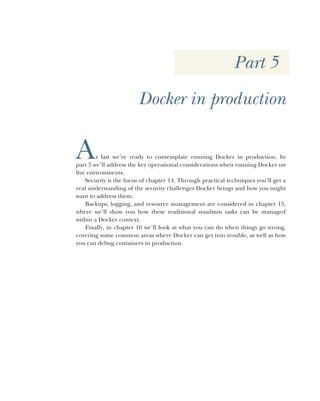
the network, and you’ll learn some techniques that will develop this understanding.
In the process, you’ll learn some nifty tricks that will help you use Docker (and
Linux) more effectively. Many of the later and more advanced techniques in this
book will be based on what you see here, so pay special attention to what follows.
This chapter covers
 Docker’s architecture
 Tracing the internals of Docker on your host
 Using the Docker Hub to find and download
images
 Setting up your own Docker registry
 Getting containers to communicate with each
other
20 CHAPTER 2 Understanding Docker: Inside the engine room
2.1 Docker’s architecture
Figure 2.1 lays out Docker’s architecture, and that will be the centerpiece of this chap-
ter. We’re going to start with a high-level look and then focus on each part, with tech-
niques designed to cement your understanding.
Docker on your host machine is (at the time of writing) split into two parts—a dae-
mon with a RESTful API and a client that talks to the daemon. Figure 2.1 shows your
host machine running the Docker client and daemon.
TIP A RESTful API uses standard HTTP request types such as GET, POST,
DELETE, and others to represent resources and operations on them. In this
case images, containers, volumes, and the like are the represented resources.
You invoke the Docker client to get information from or give instructions to the
daemon; the daemon is a server that receives requests and returns responses from the
client using the HTTP protocol. In turn, it will make requests to other services to send
and receive images, also using the HTTP protocol. The server will accept requests from
the command-line client or anyone else authorized to connect. The daemon is also
Your host machine, on which you’ve
installed Docker. The host machine
will typically sit on a private network.
Private network
Your host machine
Internet
Docker client
Docker daemon
HTTP
Private Docker
registry
Docker Hub
Another public
Docker registry
HTTP HTTP
HTTP
You invoke the
Docker client
program to get
information from or
give instructions to
the Docker daemon.
The Docker
Hub is a public
registry run by
Docker, Inc.
Other public
registries can
also exist on
the internet.
The Docker daemon
receives requests
and returns
responses from the
Docker client using
the HTTP protocol.
The private
Docker registry
stores Docker
images.
Figure 2.1 Overview of Docker’s architecture
21
The Docker daemon
responsible for taking care of your images and containers behind the scenes, whereas
the client acts as the intermediary between you and the RESTful API.
The private Docker registry is a service that stores Docker images. These can be
requested from any Docker daemon that has the relevant access. This registry is on an
internal network and isn’t publicly accessible, so it’s considered private.
Your host machine will typically sit on a private network. The Docker daemon will
call out to the internet to retrieve images if requested.
The Docker Hub is a public registry run by Docker Inc. Other public registries can
also exist on the internet, and your Docker daemon can interact with them.
In the first chapter we said that Docker containers can be shipped to anywhere you
can run Docker—this isn’t strictly true. In fact, containers will run on the machine
only if the daemon can be installed.
The key point to take from figure 2.1 is that when you run Docker on your
machine, you may be interacting with other processes on your machine, or even ser-
vices running on your network or the internet.
Now that you have a picture of how Docker is laid out, we’ll introduce various tech-
niques relating to the different parts of the figure.
2.2 The Docker daemon
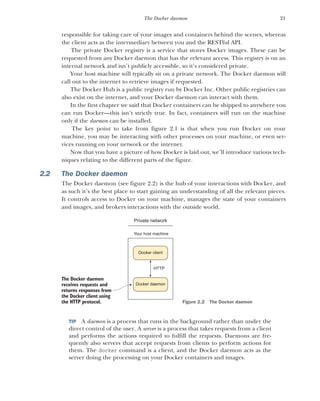
The Docker daemon (see figure 2.2) is the hub of your interactions with Docker, and
as such it’s the best place to start gaining an understanding of all the relevant pieces.
It controls access to Docker on your machine, manages the state of your containers
and images, and brokers interactions with the outside world.
TIP A daemon is a process that runs in the background rather than under the
direct control of the user. A server is a process that takes requests from a client
and performs the actions required to fulfill the requests. Daemons are fre-
quently also servers that accept requests from clients to perform actions for
them. The docker command is a client, and the Docker daemon acts as the
server doing the processing on your Docker containers and images.
The Docker daemon
receives requests and
returns responses from
the Docker client using
the HTTP protocol.
Docker client
Docker daemon
HTTP
Private network
Your host machine
Figure 2.2 The Docker daemon
22 CHAPTER 2 Understanding Docker: Inside the engine room
Let’s look at a couple of techniques that illustrate how Docker effectively runs as a
daemon, and how your interactions with it using the docker command are limited to
simple requests to perform actions, much like interactions with a web server. The first
technique allows others to connect to your Docker daemon and perform the same
actions you might on your host machine, and the second illustrates that Docker con-
tainers are managed by the daemon, not your shell session.
TECHNIQUE 1 Open your Docker daemon to the world
Although by default your Docker daemon is accessible only on your host, there can be
good reason to allow others to access it. You might have a problem that you want
someone to debug remotely, or you may want to allow another part of your DevOps
workflow to kick off a process on a host machine.
WARNING Although this can be a powerful and useful technique, it’s consid-
ered insecure. A Docker socket can be exploited by anyone with access
(including containers with a mounted Docker socket) to get root privileges.
PROBLEM
You want to open your Docker server up for others to access.
SOLUTION
Start the Docker daemon with an open TCP address.
Figure 2.3 gives an overview of how this technique works.
Figure 2.3 Docker accessibility: normal and opened up
Jenkins
server
Docker
daemon
/var/run/docker.sock
Docker
client
Docker
daemon
tcp://0.0.0.0:2375
Colleague’s
host
Docker
client
The default Docker configuration,
where access is restricted via the
/var/run/docker.sock domain socket.
Processes external to the host can't
gain access to Docker.
Using this technique's open access
to the Docker daemon, access is
gained through TCP socket 2375,
available to all who can connect to
your host (which is very insecure!).
Third parties can access the Docker
daemon. The Jenkins server and
colleague's host connect to the
host's IP address on port 2375 and
can read and write requests and
responses using that channel.
23
TECHNIQUE 1 Open your Docker daemon to the world
Before you open up the Docker daemon, you must first shut the running one down. How
you do this will vary depending on your operating system (non-Linux users should see
appendix A). If you’re not sure how to do this, start with this command:
$ sudo service docker stop
If you get a message that looks like this,
The service command supports only basic LSB actions (start, stop, restart,
try-restart, reload, force-reload, status). For other actions, please try
to use systemctl.
then you have a systemctl-based startup system. Try this command:
$ systemctl stop docker
If that works, you shouldn’t see any output from this command:
$ ps -ef | grep -E 'docker(d| -d| daemon)b' | grep -v grep
Once the Docker daemon has been stopped, you can restart it manually and open it
up to outside users with the following command:
$ sudo docker daemon -H tcp://0.0.0.0:2375
This command starts as a daemon (docker daemon), defines the host server with the
-H flag, uses the TCP protocol, opens up all IP interfaces (with 0.0.0.0), and opens
up the standard Docker server port (2375).
You can connect from outside with the following command:
$ docker -H tcp://<your host's ip>:2375 <subcommand>
Or you can export the DOCKER_HOST environment variable (this won’t work if you have to
use sudo to run Docker—see technique 41 to find out how to remove this requirement):
$ export DOCKER_HOST=tcp://<your host's ip>:2375
$ docker <subcommand>
Note that you’ll also need to do one of these from inside your local machine as well,
because Docker is no longer listening in the default location.
If you want to make this change permanent on your host, you’ll need to configure
your startup system. See appendix B for information on how to do this.
WARNING If you use this technique to make your Docker daemon listen on a
port, be aware that specifying the IP as 0.0.0.0 gives access to users on all
network interfaces (both public and private), which is generally considered
insecure.
24 CHAPTER 2 Understanding Docker: Inside the engine room
DISCUSSION
This is a great technique if you have a powerful machine dedicated to Docker inside a
secure private local network, because everyone on the network can easily point
Docker tools to the right place—DOCKER_HOST is a well-known environment variable
that will inform most programs that access Docker where to look.
As an alternative to the somewhat cumbersome process of stopping the Docker ser-
vice and running it manually, you could combine mounting the Docker socket as a
volume (from technique 45) with using the socat tool to forward traffic from an exter-
nal port—simply run docker run -p 2375:2375 -v /var/run/docker.sock:/var/
run/docker.sock sequenceid/socat.
You’ll see a specific example of something this technique allows later in the chap-
ter, in technique 5.
TECHNIQUE 2 Running containers as daemons
As you get familiar with Docker (and if you’re anything like us), you’ll start to think of
other use cases for Docker, and one of the first of these is to run Docker containers as
background services.
Running Docker containers as services with predictable behavior through software
isolation is one of the principal use cases for Docker. This technique will allow you to
manage services in a way that works for your operation.
PROBLEM
You want to run a Docker container in the background as a service.
SOLUTION
Use the -d flag to the docker run command, and use related container-management
flags to define the service characteristics.
Docker containers—like most processes—will run by default in the foreground.
The most obvious way to run a Docker container in the background is to use the stan-
dard & control operator. Although this works, you can run into problems if you log
out of your terminal session, necessitating that you use the nohup flag, which creates a
file in your local directory with output that you have to manage… You get the idea: it’s
far neater to use the Docker daemon’s functionality for this.
To do this, you use the -d flag.
$ docker run -d -i -p 1234:1234 --name daemon ubuntu:14.04 nc -l 1234
The -d flag, when used with docker run, runs the container as a daemon. The -i flag
gives this container the ability to interact with your Telnet session. With -p you publish
the 1234 port from the container to the host. The --name flag lets you give the con-
tainer a name so you can refer to it later. Finally, you run a simple listening echo
server on port 1234 with netcat (nc).
You can now connect to it and send messages with Telnet. You’ll see that the con-
tainer has received the message by using the docker logs command, as shown in the
following listing.
25
TECHNIQUE 2 Running containers as daemons
$ telnet localhost 1234
Trying ::1...
Connected to localhost.
Escape character is '^]'.
hello daemon
^]
telnet> q
Connection closed.
$ docker logs daemon
hello daemon
$ docker rm daemon
daemon
$
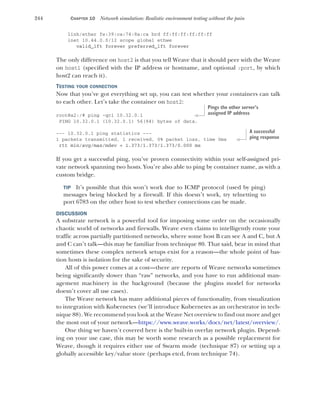
You can see that running a container as a daemon is simple enough, but operationally
some questions remain to be answered:
 What happens to the service if it fails?
 What happens to the service when it terminates?
 What happens if the service keeps failing over and over?
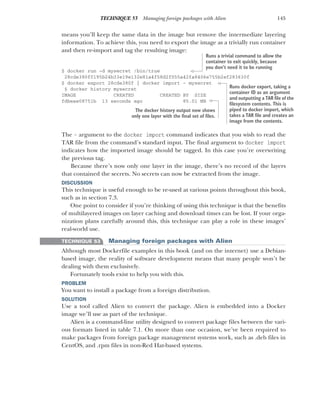
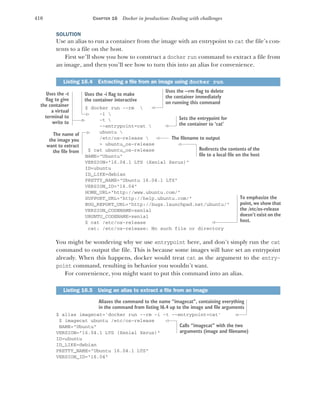
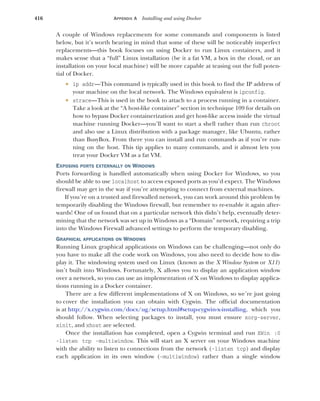
Fortunately Docker provides flags for each of these questions!
NOTE Although restart flags are used most often with the daemon flag (-d),
it’s not a requirement to run these flags with -d.
The docker run--restart flag allows you to apply a set of rules to be followed
(a so-called “restart policy”) when the container terminates (see table 2.1).
The no policy is simple: when the container exits, it isn’t restarted. This is the default.
The always policy is also simple, but it’s worth discussing briefly:
$ docker run -d --restart=always ubuntu echo done
Listing 2.1 Connecting to the container netcat server with Telnet
Table 2.1 Docker restart flag options
Policy Description
no Don’t restart when the container exits
always Always restart when the container exits
unless-stopped Always restart, but remember explicitly stopping
on-failure[:max-retry] Restart only on failure
Connects to the container’s netcat
server with the telnet command
Inputs a line
of text to
send to the
netcat server Presses Ctrl-] followed by the Return
key to quit the Telnet session
Types q and
then the Return
key to quit the
Telnet program
Runs the docker logs command
to see the container’s output
Cleans up the container
with the rm command
26 CHAPTER 2 Understanding Docker: Inside the engine room
This command runs the container as a daemon (-d) and always restarts the container
on termination (--restart=always). It issues a simple echo command that completes
quickly, exiting the container.
If you run the preceding command and then run a docker ps command, you’ll
see output similar to this:
$ docker ps
CONTAINER ID IMAGE COMMAND CREATED
➥ STATUS PORTS NAMES
69828b118ec3 ubuntu:14.04 "echo done" 4 seconds ago
➥ Restarting (0) Less than a second ago sick_brattain
The docker ps command lists all the running containers and information about them,
including the following:
 When the container was created (CREATED).
 The current status of the container—usually this will be Restarting, because it
will only run for a short time (STATUS).
 The exit code of the container’s previous run (also under STATUS). 0 means the
run was successful.
 The container name. By default, Docker names containers by concatenating
two random words. Sometimes this produces odd results (which is why we typi-
cally recommend giving them a meaningful name).
Note that the STATUS column also informed us that the container exited less than a
second ago and is restarting. This is because the echo done command exits immedi-
ately, and Docker must continually restart the container.
It’s important to note that Docker reuses the container ID. It doesn’t change on
restart, and there will only ever be one entry in the ps table for this Docker invocation.
Specifying unless-stopped is almost the same as always—both will cease restart-
ing if you run docker stop on a container, but unless-stopped will make sure that
this stopped status is remembered if the daemon restarts (perhaps if you restart your
computer), whereas always will bring the container back up again.
Finally, the on-failure policy restarts only when the container returns a non-zero
exit code (which normally means failing) from its main process:
$ docker run -d --restart=on-failure:10 ubuntu /bin/false
This command runs the container as a daemon (-d) and sets a limit on the number of
restart attempts (--restart=on-failure:10), exiting if this is exceeded. It runs a sim-
ple command (/bin/false) that completes quickly and will definitely fail.
If you run the preceding command and wait a minute, and then run docker ps -a,
you’ll see output similar to this:
27
TECHNIQUE 3 Moving Docker to a different partition
$ docker ps -a
CONTAINER ID IMAGE COMMAND CREATED
➥ STATUS PORTS NAMES
b0f40c410fe3 ubuntu:14.04 "/bin/false" 2 minutes ago
➥ Exited (1) 25 seconds ago loving_rosalind
DISCUSSION
Creating services to run in the background often comes with the difficulty of making
sure the background service won’t crash in unusual environments. Because it’s not
immediately visible, users may not notice that something isn’t working correctly.
This technique lets you stop thinking about the incidental complexity of your ser-
vice, caused by the environment and handling restarts. You can focus your thinking
on the core functionality.
As a concrete example, you and your team might use this technique to run mul-
tiple databases on the same machine and avoid having to write instructions for setting
them up or to have terminals open to keep them running.
TECHNIQUE 3 Moving Docker to a different partition
Docker stores all the data relating to your containers and images under a folder.
Because it can store a potentially large number of different images, this folder can get
big fast!
If your host machine has different partitions (as is common in enterprise Linux
workstations), you may encounter space limitations more quickly. In these cases, you
may want to move the directory from which Docker operates.
PROBLEM
You want to move where Docker stores its data.
SOLUTION
Stop and start the Docker daemon, specifying the new location with the -g flag.
Imagine you want to run Docker from /home/dockeruser/mydocker. First, stop
your Docker daemon (see appendix B for a discussion on how to do this). Then run
this command:
$ dockerd -g /home/dockeruser/mydocker
A new set of folders and files will be created in this directory. These folders are inter-
nal to Docker, so play with them at your peril (as we’ve discovered!).
You should be aware that this command will appear to wipe the containers and
images from your previous Docker daemon. Don’t despair. If you kill the Docker pro-
cess you just ran, and restart your Docker service, your Docker client will be pointed
back at its original location, and your containers and images will be returned to you. If
you want to make this move permanent, you’ll need to configure your host system’s
startup process accordingly.
28 CHAPTER 2 Understanding Docker: Inside the engine room
DISCUSSION
Aside from the obvious use case for this (reclaiming space on disks with limited disk
space), you could also use this technique if you wanted to strictly partition sets of
images and containers. For example, if you have access to multiple private Docker
registries with different owners, it might
be worth the extra effort to make sure
you don’t accidentally give private data
to the wrong person.
2.3 The Docker client
The Docker client (see figure 2.4) is the
simplest component in the Docker archi-
tecture. It’s what you run when you type
commands like docker run or docker
pull on your machine. Its job is to com-
municate with the Docker daemon via
HTTP requests.
In this section you’re going to see how you can snoop on messages between the
Docker client and server. You’ll also see a way of using your browser as a Docker client
and a few basic techniques related to port mapping that represent baby steps toward
orchestration, discussed in part 4 of this book.
TECHNIQUE 4 Using socat to monitor Docker API traffic
Occasionally the docker command may not work as you expect. Most often, some
aspect of the command-line arguments hasn’t been understood, but occasionally
there are more serious setup problems, such as the Docker binary being out of date.
In order to diagnose the problem, it can be useful to view the flow of data to and from
the Docker daemon you’re communicating with.
NOTE Don’t panic! The presence of this technique doesn’t indicate that
Docker needs to be debugged often, or that it’s in any way unstable! This
technique is here primarily as a tool for understanding Docker’s architecture,
and also to introduce you to socat, a powerful tool. If, like us, you use Docker
in a lot of different locations, there will be differences in the Docker versions
you use. As with any software, different versions will have different features
and flags, which can catch you out.
PROBLEM
You want to debug a problem with a Docker command.
SOLUTION
Use a traffic snooper to inspect the API calls and craft your own.
In this technique you’ll insert a proxy Unix domain socket between your request
and the server’s socket to see what passes through it (as shown in figure 2.5). Note
that you’ll need root or sudo privileges to make this work.
You invoke the Docker
client program to get
information from or
give instructions to
the Docker daemon.
Docker client
Docker daemon
HTTP
Private network
Your host machine
Figure 2.4 The Docker client
29
TECHNIQUE 4 Using socat to monitor Docker API traffic
To create this proxy, you’ll use socat.
TIP socat is a powerful command that allows you to relay data between two
data channels of almost any type. If you’re familiar with netcat, you can think
of it as netcat on steroids. To install it, use the standard package manager for
your system.
$ socat -v UNIX-LISTEN:/tmp/dockerapi.sock,fork 
UNIX-CONNECT:/var/run/docker.sock &
In this command, -v makes the output readable, with indications of the flow of data.
The UNIX-LISTEN part tells socat to listen on a Unix socket, fork ensures that socat
doesn’t exit after the first request, and UNIX-CONNECT tells socat to connect to
Docker’s Unix socket. The & specifies that the command runs in the background.
If you usually run the Docker client with sudo, you’ll need to do the same thing here
as well.
The new route that your requests to the daemon will travel can be seen in figure 2.6.
All traffic traveling in each direction will be seen by socat and logged to your terminal,
in addition to any output that the Docker client provides.
Docker
client
Docker
server
Unix domain
socket
HTTP request/response HTTP request/response
When you issue Docker commands on
the command line, an HTTP request is
made to the Docker server on your local
machine. The Docker server carries out
the command and returns an HTTP
response, which is interpreted
by your Docker command.
The Docker server is a standard
application server written in Go
that returns an HTTP response.
Communication happens via a Unix domain socket.
It functions here as a file you can write to and read
from, as you could with a TCP socket. You can use HTTP
to communicate with another process without assigning
a port, and use the filesystem directory structure.
Figure 2.5 Docker’s client/server architecture on your host
30 CHAPTER 2 Understanding Docker: Inside the engine room
The output of a simple docker command will now look similar to this:
$ docker -H unix:///tmp/dockerapi.sock ps -a
> 2017/05/15 16:01:51.163427 length=83 from=0 to=82
GET /_ping HTTP/1.1r
Host: dockerr
User-Agent: Docker-Client/17.04.0-ce (linux)r
r
< 2017/05/15 16:01:51.164132 length=215 from=0 to=214
HTTP/1.1 200 OKr
Api-Version: 1.28r
Docker-Experimental: falser
Ostype: linuxr
Server: Docker/17.04.0-ce (linux)r
Date: Mon, 15 May 2017 15:01:51 GMTr
Content-Length: 2r
Content-Type: text/plain; charset=utf-8r
r
OK> 2017/05/15 16:01:51.165175 length=105 from=83 to=187
GET /v1.28/containers/json?all=1 HTTP/1.1r
Host: dockerr
User-Agent: Docker-Client/17.04.0-ce (linux)r
r
< 2017/05/15 16:01:51.165819 length=886 from=215 to=1100
HTTP/1.1 200 OKr
Api-Version: 1.28r
Content-Type: application/jsonr
Docker-Experimental: falser
Ostype: linuxr
Server: Docker/17.04.0-ce (linux)r
Date: Mon, 15 May 2017 15:01:51 GMTr
Content-Length: 680r
r
[{"Id":"1d0d5b5a7b506417949653a59deac030ccbcbb816842a63ba68401708d55383e",
➥ "Names":["/example1"],"Image":"todoapp","ImageID":
Docker
client
API request/response
output to terminal
Unix domain
socket
(proxy)
HTTP request/response HTTP request/response
Text
Docker
server
Unix domain
socket
(Docker)
HTTP request/response
Figure 2.6 Docker client and server with socat inserted as a proxy
The command you issue
to see the request and
response
The HTTP request
begins here, with
the right angle
bracket on the left.
The HTTP response
begins here, with
the left angle
bracket on the left.
31
TECHNIQUE 4 Using socat to monitor Docker API traffic
➥ "sha256:ccdda5b6b021f7d12bd2c16dbcd2f195ff20d10a660921db0ac5bff5ecd92bc2",
➥ "Command":"npm start","Created":1494857777,"Ports":[],"Labels":{},
➥ "State":"exited","Status":"Exited (0) 45 minutes ago","HostConfig":
➥ {"NetworkMode":"default"},"NetworkSettings":{"Networks":{"bridge":
➥ {"IPAMConfig":null,"Links":null,"Aliases":null,"NetworkID":
➥ "6f327d67a38b57379afa7525ea63829797fd31a948b316fdf2ae0365faeed632",
➥ "EndpointID":"","Gateway":"","IPAddress":"","IPPrefixLen":0,
➥ "IPv6Gateway":"","GlobalIPv6Address":"","GlobalIPv6PrefixLen":0,
➥ "MacAddress":""}}},"Mounts":[]}]
CONTAINER ID IMAGE COMMAND CREATED
➥ STATUS PORTS NAMES
1d0d5b5a7b50 todoapp "npm start" 45 minutes ago
➥ Exited (0) 45 minutes ago example1
The specifics of the preceding output will change with the Docker API’s growth and
development. When you run the preceding command, you’ll see later version num-
bers and different JSON output. You can check your client and server versions of the
API by running the docker version command.
WARNING If you ran socat as root in the previous example, you’ll need to use
sudo to run the docker -H command. This is because the dockerapi.sock file
is owned by root.
Using socat is a powerful way to debug not only Docker, but any other network ser-
vices you might come across in the course of your work.
DISCUSSION
It’s possible to come up with a number of other use cases for this technique:
 Socat is quite a Swiss Army knife and can handle quite a number of different
protocols. The preceding example shows it listening on a Unix socket, but you
could also make it listen on an external port with TCP-LISTEN:2375,fork
instead of the UNIX-LISTEN:… argument. This acts as a simpler version of tech-
nique 1. With this approach there’s no need to restart the Docker daemon
(which would kill any running containers). You can just bring the socat listener
up and down as you desire.
 Because the preceding point is so simple to set up and is temporary, you can use
it in combination with technique 47 to join a colleague’s running container
remotely and help them debug an issue. You can also employ the little-used
docker attach command to join the same terminal they started with docker
run, allowing you to collaborate directly.
 If you have a shared Docker server (perhaps set up with technique 1) you could
use the ability to expose externals and set up socat as the broker between the
outside world and the Docker socket to make it act as a primitive audit log,
recording where all requests are coming from and what they’re doing.
The JSON content of the
response from the
Docker server
The output as normally seen by the
user, interpreted by the Docker
client from the preceding JSON
32 CHAPTER 2 Understanding Docker: Inside the engine room
TECHNIQUE 5 Using Docker in your browser
It can be difficult to sell new technologies, so simple and effective demonstrations are
invaluable. Making the demo hands-on is even better, which is why we’ve found that
creating a web page that allows users to interact with a container in a browser is a
great technique. It gives newcomers their first taste of Docker in an easily accessible
way, allowing them to create a container, use a container terminal in a browser, attach
to someone else’s terminal, and share control. The significant “wow” factor doesn’t
hurt either!
PROBLEM
You want to demonstrate the power of Docker without requiring users to install it
themselves or run commands they don’t understand.
SOLUTION
Start the Docker daemon with an open port and Cross-Origin-Resource Sharing (CORS)
enabled, and then serve the docker-terminal repository in your web server of choice.
The most common use of a REST API is to expose it on a server and use JavaScript
on a web page to make calls to it. Because Docker happens to perform all interaction
via a REST API, you should be able to control Docker in the same way. Although it
may initially seem surprising, this control extends all the way to being able to interact
with a container via a terminal in your browser.
We’ve already discussed how to start the daemon on port 2375 in technique 1, so
we won’t go into any detail on that. Additionally, CORS is too much to go into here.
If you’re unfamiliar with it, refer to CORS in Action by Monsur Hossain (Manning,
2014). In short, CORS is a mechanism that carefully bypasses the usual restriction of
JavaScript that limits you to only accessing the current domain. In this case, CORS
allows the daemon to listen on a different port from where you serve your Docker ter-
minal page. To enable CORS, you need to start the Docker daemon with the option
--api-enable-cors alongside the option to make it listen on a port.
Now that the prerequisites are sorted, let’s get this running. First, you need to get
the code:
git clone https://github.com/aidanhs/Docker-Terminal.git
cd Docker-Terminal
Then you need to serve the files:
python2 -m SimpleHTTPServer 8000
The preceding command uses a module built into Python to serve static files from a
directory. Feel free to use any equivalent you prefer. Now visit http://localhost:8000
in your browser and start a container.
Figure 2.7 shows how the Docker terminal connects up. The page is hosted on
your local computer and connects to the Docker daemon on your local computer to
perform any operations.
33
TECHNIQUE 5 Using Docker in your browser
It’s worth being aware of the following points if you want to give this link to other
people:
 The other person must not be using a proxy of any kind. This is the most com-
mon source of errors we’ve seen—Docker terminal uses WebSockets, which
don’t currently work through proxies.
 Giving a link to localhost obviously won’t work—you’ll need to give out the
external IP address.
 Docker terminal needs to know where to find the Docker API—it should do this
automatically based on the address you’re visiting in the browser, but it’s some-
thing to be aware of.
TIP If you’re more experienced with Docker, you might wonder why we
didn’t use a Docker image in this technique. The reason is that we’re still
introducing Docker and didn’t want to add to the complexity for readers new
to Docker. Dockerizing this technique is left as an exercise for the reader.
Docker
terminal
page
Your computer
Docker
daemon
Browser
You open your
browser and
navigate to the
Docker terminal
page.
You refresh the
images list, select
one, and click start.
The Docker terminal
page identifies which
image has been selected
and where to find the
Docker daemon.
The Docker terminal
page acts as an
intermediary and
requests the Docker
daemon to start a
container and run bash.
The Docker daemon
starts the container
and gives the Docker
terminal page a
connection to the
container.
Using the connection to
the container, the Docker
terminal page creates a
virtual terminal and shows
it in the browser.
You can now type into
the virtual terminal to
interact directly with
the container.
Figure 2.7 How the Docker terminal works
34 CHAPTER 2 Understanding Docker: Inside the engine room
DISCUSSION
Although we originally used this technique as an exciting demo for Docker (having
multiple people easily share a terminal on disposable machines can be difficult to set
up, even with terminal multiplexers), we’ve found some interesting applications in
some unrelated areas. One example is using it to monitor a small group of trainees in
some task at the command line. There’s no need for you or them to install anything;
just open your browser and you can connect to their terminal to jump in and give
them a hand at any time!
On a similar note, this has some strengths in collaboration. In the past, when we’ve
wanted to share a bug with a coworker, we’ve reproduced the bug in a Docker con-
tainer so we can track it down together. With this technique, there’s no need to go
through a possible “but why do I want Docker?” discussion beforehand.
TECHNIQUE 6 Using ports to connect to containers
Docker containers have been designed from the outset to run services. In the majority
of cases, these will be HTTP services of one kind or another. A significant proportion
of these will be web services accessible through the browser.
This leads to a problem. If you have multiple Docker containers running on port 80
in their internal environment, they can’t all be accessible on port 80 on your host
machine. This technique shows how you can manage this common scenario by expos-
ing and mapping a port from your container.
PROBLEM
You want to make multiple Docker container services available on a port from your
host machine.
SOLUTION
Use Docker’s -p flag to map a container’s port to your host machine.
In this example we’re going to use the tutum-wordpress image. Let’s say you want
to run two of these on your host machine to serve different blogs.
Because a number of people have wanted to do this before, someone has prepared
an image that anyone can acquire and start up. To obtain images from external loca-
tions, you can use the docker pull command. By default, images will be downloaded
from the Docker Hub:
$ docker pull tutum/wordpress
Images will also be retrieved automatically when you try to run them if they’re not
already present on your machine.
To run the first blog, use the following command:
$ docker run -d -p 10001:80 --name blog1 tutum/wordpress
This docker run command runs the container as a daemon (-d) with the publish flag
(-p). It identifies the host port (10001) to map to the container port (80) and gives
the container a name to identify it (--name blog1 tutum/wordpress).
35
TECHNIQUE 7 Allowing container communication
You can do the same for the second blog:
$ docker run -d -p 10002:80 --name blog2 tutum/wordpress
If you now run this command,
$ docker ps | grep blog
you’ll see the two blog containers listed, with their port mappings, looking something
like this:
$ docker ps | grep blog
9afb95ad3617 tutum/wordpress:latest "/run.sh" 9 seconds ago
➥ Up 9 seconds 3306/tcp, 0.0.0.0:10001->80/tcp blog1
31ddc8a7a2fd tutum/wordpress:latest "/run.sh" 17 seconds ago
➥ Up 16 seconds 3306/tcp, 0.0.0.0:10002->80/tcp blog2
You’ll now be able to access your containers by navigating to http://localhost:10001
and http://localhost:10002.
To remove the containers when you’re finished (assuming you don’t want to keep
them—we’ll make use of them in the next technique), run this command:
$ docker rm -f blog1 blog2
You should now be able to run multiple identical images and services on your host by
managing the port allocations yourself, if necessary.
TIP It can be easy to forget which port is the host’s and which port is the con-
tainer’s when using the -p flag. We think of it as being like reading a sentence
from left to right. The user connects to the host (-p) and that host port is
passed to the container port (host_port:container_port). It’s also the same
format as SSH’s port-forwarding commands, if you’re familiar with them.
DISCUSSION
Exposing ports is an incredibly important part of many use cases of Docker, and you’ll
come across it a number of times throughout this book, especially in part 4, where
containers talking to each other is part of everyday life.
In technique 80 we’ll introduce you to virtual networks and explain what they do
behind the scenes and how they direct the host ports to the right container.
TECHNIQUE 7 Allowing container communication
The last technique showed how you can open up your containers to the host network
by exposing ports. You won’t always want to expose your services to the host machine
or the outside world, but you will want to connect containers to one another.
This technique shows how you can achieve this with Docker’s user-defined net-
works feature, ensuring outsiders can’t access your internal services.
36 CHAPTER 2 Understanding Docker: Inside the engine room
PROBLEM
You want to allow communication between containers for internal purposes.
SOLUTION
Employ user-defined networks to enable containers to communicate with each other.
User-defined networks are simple and flexible. We have a couple of WordPress
blogs running in containers from the previous technique, so let’s take a look at how
we can reach them from another container (rather than from the outside world,
which you’ve seen already).
First you’ll need to create a user-defined network:
$ docker network create my_network
0c3386c9db5bb1d457c8af79a62808f78b42b3a8178e75cc8a252fac6fdc09e4
This command creates a new virtual network living on your machine that you can use
to manage container communication. By default, all containers that you connect to
this network will be able to see each other by their names.
Next, assuming that you still have the blog1 and blog2 containers running from
the previous technique, you can connect one of them to your new network on the fly.
$ docker network connect my_network blog1
Finally, you can start up a new container, explicitly specifying the network, and see if
you can retrieve the first five lines of HTML from the landing page of the blog.
$ docker run -it --network my_network ubuntu:16.04 bash
root@06d6282d32a5:/# apt update && apt install -y curl
[...]
root@06d6282d32a5:/# curl -sSL blog1 | head -n5
<!DOCTYPE html>
<html xmlns="http://www.w3.org/1999/xhtml" lang="en-US" xml:lang="en-US">
<head>
<meta name="viewport" content="width=device-width" />
<meta http-equiv="Content-Type" content="text/html; charset=utf-8" />
root@06d6282d32a5:/# curl -sSL blog2
curl: (6) Could not resolve host: blog2
TIP Giving containers names is very useful for assigning memorable host-
names you can later refer to, but it’s not strictly necessary—if connections are
only outgoing, then you probably won’t need to look up the container. If you
find you do want to look up the host and haven’t assigned a name, you can
resort to using the short image ID as listed in the terminal prompt (unless it
has been overridden with a hostname) or in the docker ps output.
Our new container was successfully able to access the blog we connected to my_network,
displaying some of the HTML of the page we’d see if we visited it in the browser. On the
other hand, our new container couldn’t see the second blog. Because we never con-
nected it to my_network, this makes sense.
37
TECHNIQUE 8 Linking containers for port isolation
DISCUSSION
You can use this technique to set up any number of containers in a cluster on their
own private network, only requiring that the containers have some way of discovering
each other’s names. In technique 80 you’ll see a method of doing this that integrates
well with Docker networks. Meanwhile, the next technique will start much smaller,
demonstrating some benefits of being able to make an explicit connection between a
single container and the service it provides.
One additional point of note is the interesting final state of the blog1 container.
All containers are connected to the Docker bridge network by default, so when we
asked for it to join my_network, it did so in addition to the network it was already on. In
technique 80 we’ll look at this in more detail to see how network straddling can be used
as a model for some real-world situations.
TECHNIQUE 8 Linking containers for port isolation
In the previous technique you saw how to get containers to communicate with user-
defined networks. But there’s an older method of declaring container communication—
Docker’s link flag. This isn’t the recommended way of working anymore, but it has been
part of Docker for a long time, and it’s worth being aware of in case you encounter it in
the wild.
PROBLEM
Youwanttoallowcommunicationbetweencontainerswithoutusinguser-definednetworks.
SOLUTION
UseDocker’slinkingfunctionalitytoallowthecontainerstocommunicatewitheachother.
Taking up the torch of the WordPress example, we’re going to separate the MySQL
database tier from the WordPress container, and link these to each other without port
configuration or creating a network. Figure 2.8 gives an overview of the final state.
Figure 2.8 WordPress setup with linked containers
An example of linking and port exposure.
The WordPress container serves requests
on port 80 and calls out using TCP to
a host called “mysql.” These links are
formed by the docker run command.
Network calls to MySQL are directed to the
container named mysql-wp within Docker.
Port 80 is exposed to port 10003 on the host.
mysql-wp
WordPress
Calls
to MySQL
Port 80
HTTP
requests
Port 10003
38 CHAPTER 2 Understanding Docker: Inside the engine room
NOTE Why bother with linking if you can already expose ports to the host
and use that? Linking allows you to encapsulate and define the relationships
between containers without exposing services to the host’s network (and
potentially, to the outside world). You might want to do this for security rea-
sons, for example.
Run your containers in the following order, pausing for about a minute between the
first and second commands:
$ docker run --name wp-mysql 
-e MYSQL_ROOT_PASSWORD=yoursecretpassword -d mysql
$ docker run --name wordpress 
--link wp-mysql:mysql -p 10003:80 -d wordpress
First you give the MySQL container the name wp-mysql so you can refer to it later. You
also must supply an environment variable so the MySQL container can initialize the
database (-e MYSQL_ROOT_PASSWORD=yoursecretpassword). You run both containers
as daemons (-d) and use the Docker Hub reference for the official MySQL image.
In the second command you give the WordPress image the name wordpress in
case you want to refer to it later. You also link the wp-mysql container to the WordPress
container (--link wp-mysql:mysql). References to a mysql server within the Word-
Press container will be sent to the container named wp-mysql. You also use a local
port mapping (-p 10003:80), as discussed in technique 6, and add the Docker Hub
reference for the official WordPress image (wordpress). Be aware that links won’t wait
for services in linked containers to start; hence the instruction to pause between com-
mands. A more precise way of doing this is to look for “mysqid: ready for connections”
in the output of docker logs wp-mysql before running the WordPress container.
If you now navigate to http://localhost:10003, you’ll see the introductory Word-
Press screen and you can set up your WordPress instance.
The meat of this example is the --link flag in the second command. This flag sets
up the container’s host file so that the WordPress container can refer to a MySQL
server, and this will be routed to whatever container has the name wp-mysql. This has
the significant benefit that different MySQL containers can be swapped in without
requiring any change at all to the WordPress container, making configuration man-
agement of these different services much easier.
NOTE The containers must be started up in the correct order so that the
mapping can take place on container names that are already in existence.
Dynamic resolution of links is not (at the time of writing) a feature of Docker.
In order for containers to be linked in this way, their ports must be specified as
exposed when building the images. This is achieved using the EXPOSE command
within the image build’s Dockerfile. The ports listed in EXPOSE directives in Docker-
files are also used when using the -P flag (“publish all ports.” rather than -p, which
publishes as a specific port) to the docker run command.
39
Docker registries
By starting up different containers in a specific order, you’ve seen a simple exam-
ple of Docker orchestration. Docker orchestration is any process that coordinates the
running of Docker containers. It’s a large and important subject that we’ll cover in
depth in part 4 of this book.
By splitting your workload into separate containers, you’ve taken a step toward cre-
ating a microservices architecture for your application. In this case you could perform
work on the MySQL container while leaving the WordPress container untouched, or
vice versa. This fine-grained control over running services is one of the key opera-
tional benefits of a microservices architecture.
DISCUSSION
This kind of precise control over a set of containers is not often needed, but it can be
useful as a very straightforward and easy-to-reason-about way to swap out containers.
Using the example from this technique, you might want to test a different MySQL
version—the WordPress image doesn’t need to know anything about this, because it
just looks for the mysql link.
2.4 Docker registries
Once you’ve created your images, you may want to share them with other users. This is
where the concept of the Docker registry comes in.
The three registries in figure 2.9 differ in their accessibility. One is on a private net-
work, one is open on a public network, and another is public but accessible only to those
registered with Docker. They all perform the same function with the same API, and this
is how the Docker daemon knows how to communicate with them interchangeably.
Figure 2.9 A Docker registry
Private network Internet
Other public
registries can
also exist on
the internet.
Your host machine
Docker client
Docker daemon
HTTP
Private Docker
registry
Docker Hub
Another public
Docker registry
HTTP HTTP
HTTP
The Docker Hub
is a public
registry run by
Docker Inc.
The private
Docker registry
stores Docker
images.
40 CHAPTER 2 Understanding Docker: Inside the engine room
A Docker registry allows multiple users to push and pull images from a central store
using a RESTful API.
The registry code is, like Docker itself, open source. Many companies (such as
ours) set up private registries to store and share their proprietary images internally.
This is what we’ll discuss before we look more closely at Docker Inc.’s registry.
TECHNIQUE 9 Setting up a local Docker registry
You’ve seen that Docker Inc. has a service where people can share their images pub-
licly (and you can pay if you want to do it privately). But there are a number of reasons
you may want to share images without going via the Hub—some businesses like to
keep as much in-house as possible, maybe your images are large and transferring
them over the internet will be too slow, or perhaps you want to keep your images pri-
vate while you experiment and don’t want to commit to paying. Whatever the reason,
there’s a simple solution.
PROBLEM
You want a way to host your images locally.
SOLUTION
Set up a registry server on your local network. Simply issue the following command on
a machine with plenty of disk space:
$ docker run -d -p 5000:5000 -v $HOME/registry:/var/lib/registry registry:2
This command makes the registry available on port 5000 of the Docker host
(-p 5000:5000). With the -v flag, it makes the registry folder on your host
(/var/lib/registry) available in the container as $HOME/registry. The registry’s files
will therefore be stored on the host in the /var/lib/registry folder.
On all of the machines that you want to access this registry, add the following to
your daemon options (where HOSTNAME is the hostname or IP address of your new reg-
istry server): --insecure-registry HOSTNAME (see appendix B for details on how to
do this). You can now issue the following command: docker push HOSTNAME:5000/
image:tag.
As you can see, the most basic level of configuration for a local registry, with all data
stored in the $HOME/registry directory, is simple. If you wanted to scale up or make it
more robust, the repository on GitHub (https://github.com/docker/distribution/
blob/v2.2.1/docs/storagedrivers.md) outlines some options, like storing data in
Amazon S3.
You may be wondering about the --insecure-registry option. In order to help
users remain secure, Docker will only allow you to pull from registries with a signed
HTTPS certificate. We’ve overridden this because we’re fairly comfortable that we can
trust our local network. It goes without saying, though, that you should be much more
cautious about doing this over the internet.
41
The Docker Hub
DISCUSSION
With registries being so easy to set up, a number of possibilities arise. If your company
has a number of teams, you might suggest that everyone start up and maintain a regis-
try on a spare machine to permit some fluidity in storing images and moving them
around.
This works particularly well if you have an internal IP address range—the --insecure
-registry command will accept CIDR notation, like 10.1.0.0/16, for specifying a
range of IP addresses that are permitted to be insecure. If you’re not familiar with this,
we highly recommend you get in touch with your network administrator.
2.5 The Docker Hub
The Docker Hub (see figure 2.10) is a registry maintained by Docker Inc. It has tens
of thousands of images on it ready to download and run. Any Docker user can set up a
free account and store public Docker images there. In addition to user-supplied
images, official images are maintained for reference purposes.
Your images are protected by user authentication, and there’s a starring system for
popularity, similar to GitHub’s. The official images can be representations of Linux
distributions like Ubuntu or CentOS, preinstalled software packages like Node.js, or
whole software stacks like WordPress.
Private network Internet
The Docker Hub
is a public registry
run by Docker Inc.
Your host machine
Docker client
Docker daemon
HTTP
Private Docker
registry
Docker Hub
Another public
Docker registry
HTTP HTTP
HTTP
Figure 2.10 The Docker Hub
42 CHAPTER 2 Understanding Docker: Inside the engine room
TECHNIQUE 10 Finding and running a Docker image
Docker registries enable a social coding culture similar to GitHub’s. If you’re interested
in trying out a new software application, or looking for a new one that serves a particular
purpose, Docker images can be an easy way to experiment without interfering with your
host machine, provisioning a VM, or having to worry about installation steps.
PROBLEM
You want to find an application or tool as a Docker image and try it out.
SOLUTION
Use the docker search command to find the image to pull, and then run it.
Let’s say you’re interested in playing with Node.js. In the following example we
searched for images matching “node” with the docker search command:
$ docker search node
NAME DESCRIPTION
➥ STARS OFFICIAL AUTOMATED
node Node.js is a JavaScript-based platform for...
➥ 3935 [OK]
nodered/node-red-docker Node-RED Docker images.
➥ 57 [OK]
strongloop/node StrongLoop, Node.js, and tools.
➥ 38 [OK]
kkarczmarczyk/node-yarn Node docker image with yarn package manage...
➥ 25 [OK]
bitnami/node Bitnami Node.js Docker Image
➥ 19 [OK]
siomiz/node-opencv _/node + node-opencv
➥ 10 [OK]
dahlb/alpine-node small node for gitlab ci runner
➥ 8 [OK]
cusspvz/node Super small Node.js container (~15MB) ba...
➥ 7 [OK]
anigeo/node-forever Daily build node.js with forever
➥ 4 [OK]
seegno/node A node docker base image.
➥ 3 [OK]
starefossen/ruby-node Docker Image with Ruby and Node.js installed
➥ 3 [OK]
urbanmassage/node Some handy (read, better) docker node images
➥ 1 [OK]
xataz/node very light node image
➥ 1 [OK]
centralping/node Bare bones CentOS 7 NodeJS container.
➥ 1 [OK]
joxit/node Slim node docker with some utils for dev
➥ 1 [OK]
bigtruedata/node Docker image providing Node.js & NPM
➥ 1 [OK]
The output of docker
search is ordered by
the number of stars.
The description is the uploader’s
explanation of the purpose of the
image.
Official images are
those trusted by
Docker Hub.
Automated images are
those built using Docker
Hub’s automated build
feature.
43
TECHNIQUE 10 Finding and running a Docker image
1science/node Node.js Docker images based on Alpine Linux
➥ 1 [OK]
domandtom/node Docker image for Node.js including Yarn an...
➥ 0 [OK]
makeomatic/node various alpine + node based containers
➥ 0 [OK]
c4tech/node NodeJS images, aimed at generated single-p...
➥ 0 [OK]
instructure/node Instructure node images
➥ 0 [OK]
octoblu/node Docker images for node
➥ 0 [OK]
edvisor/node Automated build of Node.js with commonly u...
➥ 0 [OK]
watsco/node node:7
➥ 0 [OK]
codexsystems/node Node.js for Development and Production
➥ 0 [OK]
Once you’ve chosen an image, you can download it by performing a docker pull
command on the name:
$ docker pull node
Using default tag: latest
latest: Pulling from library/node
5040bd298390: Already exists
fce5728aad85: Pull complete
76610ec20bf5: Pull complete
9c1bc3c30371: Pull complete
33d67d70af20: Pull complete
da053401c2b1: Pull complete
05b24114aa8d: Pull complete
Digest:
➥ sha256:ea65cf88ed7d97f0b43bcc5deed67cfd13c70e20a66f8b2b4fd4b7955de92297
Status: Downloaded newer image for node:latest
Then you can run it interactively using the -t and -i flags. The -t flag creates a TTY
device (a terminal) for you, and the-i flag specifies that this Docker session is interactive:
$ docker run -t -i node /bin/bash
root@c267ae999646:/# node
> process.version
'v7.6.0'
>
TIP You can save keystrokes by replacing -t -i with -ti or -it in the preced-
ing call to docker run. You’ll see this throughout the book from here on.
Often there will be specific advice from the image maintainers about how the image
should be run. Searching for the image on the http://hub.docker.com website will take
you to the page for the image. The Description tab may give you more information.
Pulls the image
named node from
the Docker Hub
This message is seen if Docker has pulled a new image (as
opposed to identifying that there’s no newer image than
the one you already have). Your output may be different.
44 CHAPTER 2 Understanding Docker: Inside the engine room
WARNING If you download an image and run it, you’re running code that you
may not be able to fully verify. Although there is relative safety in using
trusted images, nothing can guarantee 100% security when downloading and
running software over the internet.
Armed with this knowledge and experience, you can now tap the enormous resources
available on Docker Hub. With literally tens of thousands of images to try out, there’s
much to learn. Enjoy!
DISCUSSION
Docker Hub is an excellent resource, but sometimes it can be slow—it’s worth pausing
to decide how to best construct your Docker search command to get the best results.
The ability to do searches without opening your browser offers you quick insight into
possible items of interest in the ecosystem, so you can better target the documentation
for images that are likely to fulfill your needs.
When you’re rebuilding images, it can also be good to run a search every now and
again to see if a stars count suggests that the Docker community has begun to gather
around a different image than the one you’re currently using.
Summary
 You can open up the Docker daemon API to outsiders, and all they need is
some way to make a HTTP request—a web browser is enough.
 Containers don’t have to take over your terminal. You can start them up in the
background and come back to them later.
 You can make containers communicate, either with user-defined networks (the
recommended approach), or with links to very explicitly control inter-container
communication.
 Because the Docker daemon API is over HTTP, it’s fairly easy to debug it with
network monitoring tools if you’re having issues.
 One particularly useful tool for debugging and tracing network calls is socat.
 Setting up registries isn’t just the domain of Docker Inc.; you can set up your
own on a local network for free private image storage.
 Docker Hub is a great place to go to find and download ready-made images,
particularly ones provided officially by Docker Inc.
Part 2
Docker and development
In part 1, you learned Docker’s core concepts and architecture by example.
Part 2 will take you from this base and demonstrate ways Docker can be used in
development.
Chapter 3 covers using Docker as a lightweight virtual machine. This is a con-
troversial area. Although there are critical differences between virtual machines
and Docker containers, development can be sped up considerably in many cases
by using Docker. It’s also an effective means of getting familiar with Docker
before we move into more advanced Docker usage.
Chapters 4, 5, and 6 cover over 20 techniques to make building, running,
and managing Docker containers more effective and efficient. In addition to
building and running containers, you’ll learn about persisting data with volumes
and keeping your Docker host in order.
Chapter 7 covers the important area of configuration management. You’ll
use Dockerfiles and traditional configuration management tools to get control
of your Docker builds. We’ll also cover the creation and curation of minimal
Docker images to reduce image bloat. By the end of this part you’ll have a wealth
of useful techniques for single-use Docker and be ready to take Docker into a
DevOps context.
47
Using Docker as a
lightweight virtual machine
Virtual machines (VMs) have become ubiquitous in software development and
deployment since the turn of the century. The abstraction of machines to software
has made the movement and control of software and services in the internet age
easier and cheaper.
TIP A virtual machine is an application that emulates a computer, usually
to run an operating system and applications. It can be placed on any (com-
patible) physical resources that are available. The end user experiences the
software as though it were on a physical machine, but those managing the
hardware can focus on larger-scale resource allocation.
This chapter covers
 Converting a virtual machine to a Docker image
 Managing the startup of your container’s services
 Saving your work as you go
 Managing Docker images on your machine
 Sharing images on the Docker Hub
 Playing—and winning—at 2048 with Docker
48 CHAPTER 3 Using Docker as a lightweight virtual machine
Docker isn’t a VM technology. It doesn’t simulate a machine’s hardware and it doesn’t
include an operating system. A Docker container is not, by default, constrained to spe-
cific hardware limits. If Docker virtualizes anything, it virtualizes the environment in
which services run, not the machine. Moreover, Docker can’t easily run Windows soft-
ware (or even that written for other Unix-derived operating systems).
From some standpoints, though, Docker can be used much as a VM. For developers
and testers in the internet age, the fact that there’s no init process or direct hardware
interaction is not usually of great significance. And there are significant commonalities,
such as its isolation from the surrounding hardware and its amenability to more fine-
grained approaches to software delivery.
This chapter will take you through the scenarios in which you could use Docker as
you previously might have used a VM. Using Docker won’t give you any obvious func-
tional advantages over a VM, but the speed and convenience Docker brings to the
movement and tracking of environments can be a game-changer for your develop-
ment pipeline.
3.1 From VM to container
In an ideal world, moving from VMs to containers would be a simple matter of run-
ning configuration management scripts against a Docker image from a distribution
similar to the VM’s. For those of us who aren’t in that happy state of affairs, this sec-
tion will show how you can convert a VM to a container—or containers.
TECHNIQUE 11 Converting your VM to a container
The Docker Hub doesn’t have all possible base images, so for some niche Linux distri-
butions and use cases, people need to create their own. For example, if you have an
existing application state in a VM, you may want to put that state inside a Docker
image so that you can iterate further on that, or to benefit from the Docker ecosystem
by using tooling and related technology that exists there.
Ideally you’d want to build an equivalent of your VM from scratch using standard
Docker techniques, such as Dockerfiles combined with standard configuration man-
agement tools (see chapter 7). The reality, though, is that many VMs aren’t carefully
configuration-managed. This might happen because a VM has grown organically as
people have used it, and the investment needed to recreate it in a more structured
way isn’t worth it.
PROBLEM
You have a VM you want to convert to a Docker image.
SOLUTION
Archive and copy the filesystem of the VM and package it into a Docker image.
First we’re going to divide VMs into two broad groups:
 Local VM—VM disk image lives on and VM execution happens on your
computer.
 Remote VM—VM disk image storage and VM execution happen somewhere else.
49
TECHNIQUE 11 Converting your VM to a container
The principle for both groups of VMs (and anything else you want to create a Docker
image from) is the same—you get a TAR of the filesystem and ADD the TAR file to / of
the scratch image.
TIP The ADD Dockerfile command (unlike its sibling command COPY)
unpacks TAR files (as well as gzipped files and other similar file types) when
they’re placed in an image like this.
TIP The scratch image is a zero-byte pseudo-image you can build on top of.
Typically it’s used in cases like this where you want to copy (or add) a com-
plete filesystem using a Dockerfile.
We’ll now look at a case where you have a local VirtualBox VM.
Before you get started, you need to do the following:
1 Install the qemu-nbd tool (available as part of the qemu-utils package on
Ubuntu).
2 Identify the path to your VM disk image.
3 Shut down your VM.
If your VM disk image is in the .vdi or .vmdk format, this technique should work well.
Other formats may experience mixed success. The following code demonstrates how
you can turn your VM file into a virtual disk, which allows you to copy all the files from it.
$ VMDISK="$HOME/VirtualBox VMs/myvm/myvm.vdi"
$ sudo modprobe nbd
$ sudo qemu-nbd -c /dev/nbd0 -r $VMDISK3((CO1-3))
$ ls /dev/nbd0p*
/dev/nbd0p1 /dev/nbd0p2
$ sudo mount /dev/nbd0p2 /mnt
$ sudo tar cf img.tar -C /mnt .
$ sudo umount /mnt && sudo qemu-nbd -d /dev/nbd0
NOTE To choose which partition to mount, run sudo cfdisk /dev/nbd0 to
see what’s available. Note that if you see LVM anywhere, your disk has a non-
trivial partitioning scheme—you’ll need to do some additional research into
how to mount LVM partitions.
If your VM is kept remotely, you have a choice: either shut down the VM and ask your
operations team to perform a dump of the partition you want, or create a TAR of your
VM while it’s still running.
Listing 3.1 Extracting the filesystem of a VM image
Sets up a variable pointing
to your VM disk image
Initializes a kernel
module required
by qemu-nbd
Connects the VM
disk to a virtual
device node
Lists the partition
numbers available to
mount on this disk
Mounts the selected
partition at /mnt
with qemu-nbd
Creates a TAR file
called img.tar
from /mnt
Unmounts and cleans
up after qemu-nbd
50 CHAPTER 3 Using Docker as a lightweight virtual machine
If you get a partition dump, you can mount this fairly easily and then turn it into a
TAR file as follows:
$ sudo mount -o loop partition.dump /mnt
$ sudo tar cf $(pwd)/img.tar -C /mnt .
$ sudo umount /mnt
Alternatively, you can create a TAR file from a running system. This is quite simple
after logging into the system:
$ cd /
$ sudo tar cf /img.tar --exclude=/img.tar --one-file-system /
You now have a TAR of the filesystem image that you can transfer to a different
machine with scp.
WARNING Creating a TAR from a running system may seem like the easiest
option (no shutdowns, installing software, or making requests to other
teams), but it has a severe downside—you could copy a file in an inconsistent
state and hit strange problems when trying to use your new Docker image. If
you must go this route, first stop as many applications and services as possible.
Once you’ve got the TAR of your filesystem, you can add it to your image. This is the
easiest step of the process and consists of a two-line Dockerfile.
FROM scratch
ADD img.tar /
You can now run docker build . and you have your image!
NOTE Docker provides an alternative to ADD in the form of the docker import
command, which you can use with cat img.tar | docker import - new_image
_name. But building on top of the image with additional instructions will
require you to create a Dockerfile anyway, so it may be simpler to go the
ADD route, so you can easily see the history of your image.
You now have an image in Docker, and you can start experimenting with it. In this
case, you might start by creating a new Dockerfile based on your new image, to exper-
iment with stripping out files and packages.
Listing 3.2 Extracting a partition
Listing 3.3 Extracting the filesystem of a running VM
Listing 3.4 Adding an archive to a Docker image
51
TECHNIQUE 12 A host-like container
Once you’ve done this and are happy with your results, you can use docker export
on a running container to export a new, slimmer TAR that you can use as the basis for
a newer image, and repeat the process until you get an image you’re happy with.
The flow chart in figure 3.1 demonstrates this process.
DISCUSSION
This technique demonstrates a few fundamental principles and techniques that are
useful in contexts other than converting a VM to a Docker image.
Most broadly, it shows that a Docker image is essentially a set of files and some
metadata: the scratch image is an empty filesystem over which a TAR file can be laid.
We’ll return to this theme when we look at slim Docker images.
More specifically, you’ve seen how you can ADD a TAR file to a Docker image, and
how you can use the qemu-nbd tool.
Once you have your image, you might need to know how to run it like a more tra-
ditional host. Because Docker containers typically run one application process only,
this is somewhat against the grain, and it’s covered in the next technique.
TECHNIQUE 12 A host-like container
We’ll now move on to one of the more contentious areas of discussion within the
Docker community—running a host-like image, with multiple processes running from
the start.
Route taken
Got TAR
Make image Strip image
Export image
Image can be
stripped more
Image cannot be stripped
more or is small enough
Use image to
save money!
Figure 3.1 Image-stripping flowchart
52 CHAPTER 3 Using Docker as a lightweight virtual machine
This is considered bad form in parts of the Docker community. Containers are not
virtual machines—there are significant differences—and pretending there aren’t can
cause confusion and issues down the line.
For good or ill, this technique will show you how to run a host-like image and dis-
cuss some of the issues around doing this.
NOTE Running a host-like image can be a good way to persuade Docker
refuseniks that Docker is useful. As they use it more, they’ll understand the
paradigm better and the microservices approach will make more sense to
them. At the company we introduced Docker into, we found that this mono-
lithic approach was a great way to move people from developing on dev serv-
ers and laptops to a more contained and manageable environment. From
there, moving Docker into testing, continuous integration, escrow, and
DevOps workflows was trivial.
PROBLEM
You want a normal host-like environment for your container with multiple processes
and services set up.
SOLUTION
Use a base container designed to run multiple processes.
For this technique you’re going to use an image designed to simulate a host, and
provision it with the applications you need. The base image will be the phusion/
baseimage Docker image, an image designed to run multiple processes.
The first steps are to start the image and jump into it with docker exec.
user@docker-host$ docker run -d phusion/baseimage
3c3f8e3fb05d795edf9d791969b21f7f73e99eb1926a6e3d5ed9e1e52d0b446e
user@docker-host$ docker exec -i -t 3c3f8e3fb05d795 /bin/bash
root@3c3f8e3fb05d:/#
Listing 3.5 Running the phusion base image
Differences between VMs and Docker containers
These are a few of the differences between VMs and Docker containers:
 Docker is application-oriented, whereas VMs are operating-system oriented.
 Docker containers share an operating system with other Docker containers. In
contrast, VMs each have their own operating system managed by a hypervisor.
 Docker containers are designed to run one principal process, not manage mul-
tiple sets of processes.
Starts the image in
the background
Returns the
ID of the new
container
Passes the container ID to
docker exec and allocates
an interactive terminal
The prompt to
the started
container
terminal
53
TECHNIQUE 12 A host-like container
In this code, docker run will start the image in the background, starting the default
command for the image and returning the ID of the newly created container.
You then pass this container ID to docker exec, which is a command that starts a
new process inside an already running container. The -i flag allows you to interact
with the new process, and -t indicates that you want to set up a TTY to allow you to
start a terminal (/bin/bash) inside the container.
If you wait a minute and then look at the processes table, your output will look
something like the following.
root@3c3f8e3fb05d:/# ps -ef
UID PID PPID C STIME TTY TIME CMD
root 1 0 0 13:33 ? 00:00:00 /usr/bin/python3 -u /sbin/my_init
root 7 0 0 13:33 ? 00:00:00 /bin/bash
root 111 1 0 13:33 ? 00:00:00 /usr/bin/runsvdir -P /etc/service
root 112 111 0 13:33 ? 00:00:00 runsv cron
root 113 111 0 13:33 ? 00:00:00 runsv sshd
root 114 111 0 13:33 ? 00:00:00 runsv syslog-ng
root 115 112 0 13:33 ? 00:00:00 /usr/sbin/cron -f
root 116 114 0 13:33 ? 00:00:00 syslog-ng -F -p /var/run/syslog-ng.pid
➥ --no-caps
root 117 113 0 13:33 ? 00:00:00 /usr/sbin/sshd -D
root 125 7 0 13:38 ? 00:00:00 ps -ef
You can see that the container starts up much like a host, initializing services such as
cron and sshd that make it appear similar to a standard Linux host.
DISCUSSION
Although this can be useful in initial demos for engineers new to Docker or genuinely
useful for your particular circumstances, it’s worth being aware that it’s a somewhat
controversial idea.
The history of container use has tended toward using them to isolate workloads to
“one service per container.” Proponents of the host-like image approach argue that
this doesn’t violate that principle, because the container can still fulfill a single dis-
crete function for the system within which it runs.
More recently, the growing popularity of both the Kubernetes’ pod and docker-
compose concepts has made the host-like container relatively redundant—separate
containers can be conjoined into a single entity at a higher level, rather than manag-
ing multiple processes using a traditional init service.
Listing 3.6 Processes running in a host-like container
Runs a ps command to list
all the running processes A simple init process
designed to run all
the other services
The bash process started
by docker exec and acting
as your shell
runsvdir runs the services
defined in the passed-in
/etc/service directory.
The three standard services (cron, sshd,
and syslog) are started here with the
runsv command.
The ps command
currently being run
54 CHAPTER 3 Using Docker as a lightweight virtual machine
The next technique looks at how you can break up such a monolithic application
into microservice-style containers.
TECHNIQUE 13 Splitting a system into microservice containers
We’ve explored how to use a container as a monolithic entity (like a classical server)
and explained that it can be a great way to quickly move a system architecture onto
Docker. In the Docker world, however, it’s generally considered a best practice to split
up your system as much as possible until you have one service running per container
and have all containers connected by networks.
The primary reason for using one service per container is the easier separation of
concerns through the single-responsibility principle. If you have one container doing
one job, it’s easier to put that container through the software development lifecycle of
development, test, and production while worrying less about its interactions with
other components. This makes for more agile deliveries and more scalable software
projects. It does create management overhead, though, so it’s good to consider
whether it’s worth it for your use case.
Putting aside the discussion of which approach is better for you right now, the best-
practice approach has one clear advantage—experimentation and rebuilds are much
faster when using Dockerfiles, as you’ll see.
PROBLEM
You want to break your application up into distinct and more manageable services.
SOLUTION
Create a container for each discrete service process.
As we’ve touched upon already, there’s some debate within the Docker community
about how strictly the “one service per container” rule should be followed, with part of
this stemming from a disagreement over the definitions—is it a single process, or a
collection of processes that combine to fulfill a need? It often boils down to a state-
ment that, given the ability to redesign a system from scratch, microservices is the
route most would chose. But sometimes practicality beats idealism—when evaluating
Docker for our organization, we found ourselves in the position of having to go the
monolithic route in order get Docker working as quickly and easily as possible.
Let’s take a look at one of the concrete disadvantages of using monoliths inside
Docker. First, the following listing shows you how you’d build a monolith with a data-
base, application, and web server.
NOTE These examples are for explanation purposes and have been simpli-
fied accordingly. Trying to run them directly won’t necessarily work.
FROM ubuntu:14.04
RUN apt-get update && apt-get install postgresql nodejs npm nginx
WORKDIR /opt
COPY . /opt/ # {*}
Listing 3.7 Setting up a simple PostgreSQL, NodeJS, and Nginx application
55
TECHNIQUE 13 Splitting a system into microservice containers
RUN service postgresql start && 
cat db/schema.sql | psql && 
service postgresql stop
RUN cd app && npm install
RUN cp conf/mysite /etc/nginx/sites-available/ && 
cd /etc/nginx/sites-enabled && 
ln -s ../sites-available/mysite
TIP Each Dockerfile command creates a single new layer on top of the previ-
ous one, but using && in your RUN statements effectively ensures that several
commands get run as one command. This is useful because it can keep your
images small. If you run a package update command like apt-get update
with an install command in this way, you ensure that whenever the packages
are installed, they’ll be from an updated package cache.
The preceding example is a conceptually simple Dockerfile that installs everything you
need inside the container and then sets up the database, application, and web server.
Unfortunately, there’s a problem if you want to quickly rebuild your container—any
change to any file under your repository will rebuild everything starting from the {*}
onwards, because the cache can’t be reused. If you have some slow steps (database cre-
ation or npm install), you could be waiting for a while for the container to rebuild.
The solution to this is to split up the COPY . /opt/ instruction into the individual
aspects of the application (database, app, and web setup).
FROM ubuntu:14.04
RUN apt-get update && apt-get install postgresql nodejs npm nginx
WORKDIR /opt
COPY db /opt/db -+
RUN service postgresql start &&  |- db setup
cat db/schema.sql | psql &&  |
service postgresql stop -+
COPY app /opt/app -+
RUN cd app && npm install |- app setup
RUN cd app && ./minify_static.sh -+
COPY conf /opt/conf -+
RUN cp conf/mysite /etc/nginx/sites-available/ &&  +
cd /etc/nginx/sites-enabled &&  |- web setup
ln -s ../sites-available/mysite -+
In the preceding code, the COPY command is split into two separate instructions. This
means the database won’t be rebuilt every time code changes, as the cache can be
reused for the unchanged files delivered before the code. Unfortunately, because the
caching functionality is fairly simple, the container still has to be completely rebuilt
every time a change is made to the schema scripts. The only way to resolve this is to
move away from sequential setup steps and create multiple Dockerfiles, as shown in
listings 3.9 through 3.11.
Listing 3.8 Dockerfile for a monolithic application
56 CHAPTER 3 Using Docker as a lightweight virtual machine
FROM ubuntu:14.04
RUN apt-get update && apt-get install postgresql
WORKDIR /opt
COPY db /opt/db
RUN service postgresql start && 
cat db/schema.sql | psql && 
service postgresql stop
FROM ubuntu:14.04
RUN apt-get update && apt-get install nodejs npm
WORKDIR /opt
COPY app /opt/app
RUN cd app && npm install
RUN cd app && ./minify_static.sh
FROM ubuntu:14.04
RUN apt-get update && apt-get install nginx
WORKDIR /opt
COPY conf /opt/conf
RUN cp conf/mysite /etc/nginx/sites-available/ && 
cd /etc/nginx/sites-enabled && 
ln -s ../sites-available/mysite
Whenever one of the db, app, or conf folders changes, only one container will need to
be rebuilt. This is particularly useful when you have many more than three containers
or there are time-intensive setup steps. With some care, you can add the bare minimum
of files necessary for each step and get more useful Dockerfile caching as a result.
In the app Dockerfile (listing 3.10), the operation of npm install is defined by a
single file, package.json, so you can alter your Dockerfile to take advantage of
Dockerfile layer caching and only rebuild the slow npm install step when necessary,
as follows.
FROM ubuntu:14.04
RUN apt-get update && apt-get install nodejs npm
WORKDIR /opt
COPY app/package.json /opt/app/package.json
RUN cd app && npm install
COPY app /opt/app
RUN cd app && ./minify_static.sh
Now you have three discrete, separate Dockerfiles where formerly you had one.
Listing 3.9 Dockerfile for the postgres service
Listing 3.10 Dockerfile for the nodejs service
Listing 3.11 Dockerfile for the nginx service
Listing 3.12 Faster Dockerfile for the nginx service
57
TECHNIQUE 14 Managing the startup of your container’s services
DISCUSSION
Unfortunately, there’s no such thing as a free lunch—you’ve traded a single simple
Dockerfile for multiple Dockerfiles with duplication. You can address this partially by
adding another Dockerfile to act as your base image, but some duplication is not
uncommon. Additionally, there’s now some complexity in starting your image—in
addition to EXPOSE steps making appropriate ports available for linking and altering
of Postgres configuration, you need to be sure to link the containers every time they
start up. Fortunately there’s tooling for this called Docker Compose, which we’ll cover in
technique 76.
So far in this section you’ve taken a VM, turned it into a Docker image, run a host-
like container, and broken a monolith into separate Docker images.
If, after reading this book, you still want to run multiple processes from within a con-
tainer, there are specific tools that can help you do that. One of these—Supervisord—
is treated in the next technique.
TECHNIQUE 14 Managing the startup of your container’s services
As is made clear throughout the Docker literature, a Docker container is not a VM.
One of the key differences between a Docker container and a VM is that a container is
designed to run one process. When that process finishes, the container exits. This is
different from a Linux VM (or any Linux OS) in that it doesn’t have an init process.
The init process runs on a Linux OS with a process ID of 1 and a parent process
ID of 0. This init process might be called “init” or “systemd.” Whatever it’s called, its
job is to manage the housekeeping for all other processes running on that operating
system.
If you start to experiment with Docker, you may find that you want to start multiple
processes. You might want to run cron jobs to tidy up your local application log files,
for example, or set up an internal memcached server within the container. If you take
this path, you may end up writing shell scripts to manage the startup of these sub-
processes. In effect, you’ll be emulating the work of the init process. Don’t do that!
The many problems arising from process management have been encountered by
others before and have been solved in prepackaged systems.
Whatever your reason for running multiple processes inside a container, it’s
important to avoid reinventing the wheel.
PROBLEM
You want to manage multiple processes within a container.
SOLUTION
Use Supervisor to manage the processes in your container.
We’ll show you how to provision a container running both Tomcat and an Apache
web server, and have it start up and run in a managed way, with the Supervisor applica-
tion (http://supervisord.org/) managing process startup for you.
First, create your Dockerfile in a new and empty directory, as the following listing
shows.
58 CHAPTER 3 Using Docker as a lightweight virtual machine
FROM ubuntu:14.04
ENV DEBIAN_FRONTEND noninteractive
RUN apt-get update && apt-get install -y python-pip apache2 tomcat7
RUN pip install supervisor
RUN mkdir -p /var/lock/apache2
RUN mkdir -p /var/run/apache2
RUN mkdir -p /var/log/tomcat
RUN echo_supervisord_conf > /etc/supervisord.conf
ADD ./supervisord_add.conf /tmp/supervisord_add.conf
RUN cat /tmp/supervisord_add.conf >> /etc/supervisord.conf
RUN rm /tmp/supervisord_add.conf
CMD ["supervisord","-c","/etc/supervisord.conf"]
You’ll also need configuration for Supervisor, to specify what applications it needs to
start up, as shown in the next listing.
[supervisord]
nodaemon=true
# apache
[program:apache2]
command=/bin/bash -c "source /etc/apache2/envvars && exec /usr/sbin/apache2
➥ -DFOREGROUND"
# tomcat
[program:tomcat]
command=service start tomcat
redirect_stderr=true
stdout_logfile=/var/log/tomcat/supervisor.log
stderr_logfile=/var/log/tomcat/supervisor.error_log
You build the image using the standard single-command Docker process because
you’re using a Dockerfile. Run this command to perform the build:
docker build -t supervised .
You can now run your image!
Listing 3.13 Example Supervisor Dockerfile
Listing 3.14 supervisord_add.conf
Starts from ubuntu:14.04
Sets an environment
variable to indicate that this
session is non-interactive
Installs python-pip (to install
Supervisor), apache2, and tomcat7
Installs
Supervisor
with pip
Creates housekeeping
directories needed to
run the applications
Creates a default
supervisord configura-
tion file with the
echo_supervisord
_conf utility
Copies the
Apache and
Tomcat
supervisord
configuration
settings into
the image,
ready to add
to the default
configuration
Appends the Apache and Tomcat
supervisord configuration settings to
the supervisord configuration file
Removes the file you
uploaded, as it’s no
longer needed
You only need to run Supervisor
now on container startup
Declares the global configuration
section for supervisord
Doesn’t daemonize the
Supervisor process, as it’s
the foreground process
for the container
Section declaration
for a new program
Commands to start up the programs declared in the section
Section declaration for a new program
Commands to start up the
programs declared in the section
Configuration
pertaining to logging
59
Saving and restoring your work
$ docker run -p 9000:80 --name supervised supervised
2015-02-06 10:42:20,336 CRIT Supervisor running as root (no user in config
➥ file)
2015-02-06 10:42:20,344 INFO RPC interface 'supervisor' initialized
2015-02-06 10:42:20,344 CRIT Server 'unix_http_server' running without any
➥ HTTP authentication checking
2015-02-06 10:42:20,344 INFO supervisord started with pid 1
2015-02-06 10:42:21,346 INFO spawned: 'tomcat' with pid 12
2015-02-06 10:42:21,348 INFO spawned: 'apache2' with pid 13
2015-02-06 10:42:21,368 INFO reaped unknown pid 29
2015-02-06 10:42:21,403 INFO reaped unknown pid 30
2015-02-06 10:42:22,404 INFO success: tomcat entered RUNNING state, process
➥ has stayed up for > than 1 seconds (startsecs)
2015-02-06 10:42:22,404 INFO success: apache2 entered RUNNING state, process
➥ has stayed up for > than 1 seconds (startsecs)
If you navigate to http://localhost:9000, you should see the default page of the
Apache server you started up.
To clean up the container, run the following command:
docker rm -f supervised
DISCUSSION
This technique used Supervisor to manage multiple processes in your Docker
container.
If you’re interested in alternatives to Supervisor, there’s also runit, which was used
by the phusion base image covered in technique 12.
3.2 Saving and restoring your work
Some people say that code isn’t written until it’s committed to source control—it
doesn’t always hurt to have the same attitude about containers. It’s possible to save
state with VMs by using snapshots, but Docker takes a much more active approach in
encouraging the saving and reusing of your existing work.
We’ll cover the “save game” approach to development, the niceties of tagging,
using the Docker Hub, and referring to specific images in your builds. Because these
operations are considered so fundamental, Docker makes them relatively simple and
quick. Nonetheless, this can still be a confusing topic for Docker newbies, so in the
next section we’ll take you through the steps to a fuller understanding of this subject.
Listing 3.15 Run the supervised container
Maps the container’s port 80 to the host’s port
9000, gives the container a name, and specifies
the image name you’re running, as tagged with
the build command previously
Starts up the
Supervisor
process
Starts up the
Supervisor
process
Starts up the
managed processes
Managed processes have been deemed by
Supervisor to have successfully started.
60 CHAPTER 3 Using Docker as a lightweight virtual machine
TECHNIQUE 15 The “save game” approach: Cheap source control
If you’ve ever developed any kind of software, you’ve likely exclaimed, “I’m sure it was
working before!” at least once. Perhaps your language was not as sober as this. The
inability to restore a system to a known good (or maybe only “better”) state when you’re
hurriedly hacking away at code to hit a deadline or fix a bug is the cause of many bro-
ken keyboards.
Source control has helped significantly with this, but there are two problems in
this particular case:
 The source may not reflect the state of your “working” environment’s filesystem.
 You may not be willing to commit the code yet.
The first problem is more significant than the second. Although modern source con-
trol tools like Git can easily create local throwaway branches, capturing the state of
your entire development filesystem isn’t the purpose of source control.
Docker provides a cheap and quick way to store the state of your container’s devel-
opment filesystem through its commit functionality, and that’s what we’re going to
explore here.
PROBLEM
You want to save the state of your development environment.
SOLUTION
Regularly commit your container so you can recover state at that point.
Let’s imagine you want to make a change to your to-do application from chapter 1.
The CEO of ToDoCorp isn’t happy and wants the title of the browser to show
“ToDoCorp’s ToDo App” instead of “Swarm+React - TodoMVC.”
You’re not sure how to achieve this, so you probably want to fire up your applica-
tion and experiment by changing files to see what happens.
$ docker run -d -p 8000:8000 --name todobug1 dockerinpractice/todoapp
3c3d5d3ffd70d17e7e47e90801af7d12d6fc0b8b14a8b33131fc708423ee4372
$ docker exec -i -t todobug1 /bin/bash 2((CO7-2))
The docker run command starts the to-do application in a container in the back-
ground (-d), mapping the container’s port 8000 to port 8000 on the host
(-p 8000:8000), naming it todobug1 (--name todobug1) for easy reference, and
returning the container ID. The command started in the container will be the default
command specified when the dockerinpractice/todoapp image was built. We’ve
built it for you and made it available on the Docker Hub.
The second command will start /bin/bash in the running container. The name
todobug1 is used, but you can also use the container ID. The -i makes this exec run
interactively, and -t makes sure that the exec will work as a terminal would.
Listing 3.16 Debugging the application in a terminal
61
TECHNIQUE 15 The “save game” approach: Cheap source control
Now you’re in the container, so the first step in experimenting is to install an edi-
tor. We prefer vim, so we used these commands:
apt-get update
apt-get install vim
After a little effort, you realize that the file you need to change is local.html. You
therefore change line 5 in that file as follows:
<title>ToDoCorp's ToDo App</title>
Then word comes through that the CEO might want the title to be in lowercase, as
she’s heard that it looks more modern. You want to be ready either way, so you commit
what you have at the moment. In another terminal you run the following command.
$ docker commit todobug1
ca76b45144f2cb31fda6a31e55f784c93df8c9d4c96bbeacd73cad9cd55d2970
You’ve now committed your container to an image that you can run from later.
NOTE Committing a container only stores the state of the filesystem at the
time of the commit, not the processes. Docker containers aren’t VMs, remem-
ber! If your environment’s state depends on the state of running processes
that aren’t recoverable through standard files, this technique won’t store the
state as you need it. In this case, you’ll probably want to look at making your
development processes recoverable.
Next, you change local.html to the other possible required value:
<title>todocorp's todo app</title>
Commit again:
$ docker commit todobug1
071f6a36c23a19801285b82eafc99333c76f63ea0aa0b44902c6bae482a6e036
You now have two image IDs that represent the two options (ca76b45144f2 cb31f
da6a31e55f784c93df8c9d4c96bbeacd73cad9cd55d2970 and 071f6a36c23a19801285
b82eafc99333c76f63ea0aa0b44902c6bae482a6e036 in our example, but yours will be
different). When the CEO comes in to evaluate which one she wants, you can run up
either image and let her decide which one to commit.
Listing 3.17 Committing container state
Turns the container you
created earlier into an image
The new image ID of the
container you’ve committed
62 CHAPTER 3 Using Docker as a lightweight virtual machine
You do this by opening up new terminals and running the following commands.
$ docker run -p 8001:8000 
ca76b45144f2cb31fda6a31e55f784c93df8c9d4c96bbeacd73cad9cd55d2970
$ docker run -p 8002:8000 
071f6a36c23a19801285b82eafc99333c76f63ea0aa0b44902c6bae482a6e036
In this way you can present the uppercase option as available on http://localhost
:8001 and the lowercase option on http://localhost:8002.
NOTE Any dependencies external to the container (such as databases,
Docker volumes, or other services called) aren’t stored on commit. This tech-
nique doesn’t have any external dependencies so you don’t need to worry
about that.
DISCUSSION
This technique demonstrated docker commit’s functionality, and how it might be used
in a development workflow. Docker users tend to be directed toward using docker
commit only as part of a formal commit-tag-push workflow, so it’s good to remember
that it has other uses too.
We find this to be a useful technique when we’ve negotiated a tricky sequence of
commands to set up an application. Committing the container, once successful, also
records your bash session history, meaning that a set of steps for regaining the state
of your system is available. This can save a lot of time! It’s also useful when you’re
experimenting with a new feature and are unsure whether you’re finished, or when
you’ve recreated a bug and want to be as sure as possible that you can return to the
broken state.
You may well be wondering whether there’s a better way to reference images than
with long random strings of characters. The next technique will look at giving these
containers names you can more easily reference.
TECHNIQUE 16 Docker tagging
You’ve now saved the state of your container by committing, and you have a random
string as the ID of your image. It’s obviously difficult to remember and manage the
large numbers of these image IDs. It would be helpful to use Docker’s tagging func-
tionality to give readable names (and tags) to your images and remind you what they
were created for.
Mastering this technique will allow you to see what your images are for at a glance,
making image management on your machine far simpler.
Listing 3.18 Running up both committed images as containers
Maps the container’s port 8000 to the host’s
port 8001 and specifies the lowercase image ID
Maps the container’s port 8000 to the host’s port
8002 and specifies the uppercase image ID
63
TECHNIQUE 16 Docker tagging
PROBLEM
You want to conveniently reference and store a Docker commit.
SOLUTION
Use the docker tag command to name your commits.
In its basic form, tagging a Docker image is simple.
$ docker tag 
071f6a36c23a19801285b82eafc99333c76f63ea0aa0b44902c6bae482a6e036 
imagename
This gives your image a name that you can refer to, like so:
docker run imagename
This is much easier than remembering random strings of letters and numbers!
If you want to share your images with others, there’s more to tagging than this,
though. Unfortunately, the terminology around tags can be rather confusing. Terms
such as image name and repository are used interchangeably. Table 3.1 provides some
definitions.
Perhaps the most confusing terms in this table are “image” and “repository.” We’ve
been using the term image loosely to mean a collection of layers that we spawn a con-
tainer from, but technically an image is a single layer that refers to its parent layer
recursively. A repository is hosted, meaning that it’s stored somewhere (either on your
Docker daemon or on a registry). In addition, a repository is a collection of tagged
images that make up the filesystem for a container.
An analogy with Git can be helpful here. When cloning a Git repository, you check
out the state of the files at the point you requested. This is analogous to an image. The
repository is the entire history of the files at each commit, going back to the initial
Listing 3.19 A simple docker tag command
Table 3.1 Docker tagging terms
Term Meaning
Image A read-only layer.
Name The name of your image, such as “todoapp.”
Tag As a verb, it refers to giving an image a name. As a
noun, it’s a modifier for your image name.
Repository A hosted collection of tagged images that together
create the filesystem for a container.
The docker
tag command
The image ID you want
to give a name to
The name you want
to give your image
64 CHAPTER 3 Using Docker as a lightweight virtual machine
commit. You therefore check out the repository at the head’s “layer.” The other
“layers” (or commits) are all there in the repository you’ve cloned.
In practice, the terms “image” and “repository” are used more or less interchange-
ably, so don’t worry too much about this. But be aware that these terms exist and are
used similarly.
What you’ve seen so far is how to give an image ID a name. Confusingly, this name
isn’t the image’s “tag,” although people often refer to it as that. We distinguish
between the action “to tag” (verb) and the “tag” (noun) you can give to the image
name. This tag (noun) allows you to name a specific version of the image. You might
add a tag to manage references to different versions of the same image. For example,
you could tag an image with a version name or the date of commit.
A good example of a repository with multiple tags is the Ubuntu image. If you pull
the Ubuntu image and then run docker images, you’ll get output similar to the fol-
lowing listing.
$ docker images
REPOSITORY TAG IMAGE ID CREATED VIRTUAL SIZE
ubuntu trusty 8eaa4ff06b53 4 weeks ago 192.7 MB
ubuntu 14.04 8eaa4ff06b53 4 weeks ago 192.7 MB
ubuntu 14.04.1 8eaa4ff06b53 4 weeks ago 192.7 MB
ubuntu latest 8eaa4ff06b53 4 weeks ago 192.7 MB
The Repository column lists the hosted collection of layers called “ubuntu”. Often
this is referred to as the “image.” The Tag column here lists four different names
(trusty, 14.04, 14.04.1, and latest). The Image ID column lists identical image IDs.
This is because these differently tagged images are identical.
This shows that you can have a repository with multiple tags from the same image
ID. In theory, though, these tags could later point to different image IDs. If “trusty”
gets a security update, for example, the image ID may be changed with a new commit
by the maintainers and tagged with “trusty”, “14.04.2”, and “latest”.
The default is to give your image a tag of “latest” if no tag is specified.
NOTE The “latest” tag has no special significance in Docker—it’s a default for
tagging and pulling. It doesn’t necessarily mean that this was the last tag set for
this image. The “latest” tag of your image may be an old version of the image,
as versions built later may have been tagged with a specific tag like “v1.2.3”.
DISCUSSION
In this section we covered Docker image tagging. In itself, this technique is relatively
simple. The real challenge we’ve found—and focused on here—is navigating the
loose use of terminology among Docker users. It’s worth re-emphasizing that when
people talk about an image, they might be referring to a tagged image, or even a
Listing 3.20 An image with multiple tags
65
TECHNIQUE 17 Sharing images on the Docker Hub
repository. Another particularly common mistake is referring to an image as a con-
tainer: “Just download the container and run it.” Colleagues at work who have been
using Docker for a while still frequently ask us, “What’s the difference between a con-
tainer and an image?”
In the next technique you’ll learn how to share your now-tagged image with others
using a Docker image hub.
TECHNIQUE 17 Sharing images on the Docker Hub
Tagging images with descriptive names would be even more helpful if you could share
these names (and images) with other people. To satisfy this need, Docker comes with
the ability to easily move images to other places, and Docker Inc. created the Docker
Hub as a free service to encourage this sharing.
NOTE To follow this technique, you’ll need a Docker Hub account that you
have logged into previously by running docker login on your host machine.
If you haven’t set one up, you can do so at http://hub.docker.com. Just follow
the instructions to register.
PROBLEM
You want to share a Docker image publicly.
SOLUTION
Use the Docker Hub registry to share your image.
As with tagging, the terminology around registries can be confusing. Table 3.2
should help you understand how the terms are used.
As you’ve seen previously, it’s possible to tag an image as many times as you like. This
is useful for “copying over” an image so that you have control of it.
Let’s say your username on the Docker Hub is “adev”. The following three com-
mands show how to copy the “debian:wheezy” image from the Docker Hub to be
under your own account.
Table 3.2 Docker registry terms
Term Meaning
Username Your Docker registry username.
Registry Registries hold images. A registry is a store you can upload images
to or download them from. Registries can be public or private.
Registry host The host on which the Docker registry runs.
Docker Hub The default public registry hosted at https://hub.docker.com.
Index The same as a registry host. It appears to be a deprecated term.
66 CHAPTER 3 Using Docker as a lightweight virtual machine
docker pull debian:wheezy
docker tag debian:wheezy adev/debian:mywheezy1
docker push adev/debian:mywheezy1
You now have a reference to the Debian wheezy image you downloaded that you can
maintain, refer to, and build on.
If you have a private repository to push to, the process is identical, except that you
must specify the address of the registry before the tag. Let’s say you have a repository
that’s served from http://mycorp.private.dockerregistry. The following listing will tag
and push the image.
docker pull debian
docker tag debian:wheezy 
mycorp.private.dockerregistry/adev/debian:mywheezy1
docker push mycorp.private.dockerregistry/adev/debian:mywheezy1
The preceding commands won’t push the image to the public Docker Hub but will
push it to the private repository, so that anyone with access to resources on that service
can pull it.
DISCUSSION
You now have the ability to share your images with others. This is a great way to share
work, ideas, or even issues you’re facing with other engineers.
Just as GitHub isn’t the only publicly available Git server, Docker Hub isn’t the only
publicly available Docker registry. But like GitHub, it’s the most popular. For example,
RedHat has a hub at https://access.redhat.com/containers.
Again, like Git servers, public and private Docker registries might have different
features and characteristics that make one or the other appeal to you. If you’re evalu-
ating them, you might want to think about things like cost (to buy, subscribe to, or
maintain), adherence to APIs, security features, and performance.
In the next technique, we’ll look at how specific images can be referenced to help
avoid issues that arise when the image reference you’re using is unspecific.
Listing 3.21 Copying a public image and pushing to adev’s Docker Hub account
Listing 3.22 Copying a public image and pushing to adev’s private registry
Pulls the Debian image
from the Docker Hub Tags the wheezy image with
your own username (adev)
and tag (mywheezy1)
Pushes the newly
created tag
Pulls the Debian image
from the Docker Hub
Tags the wheezy image
with your registry
(mycorp.private.dockerregistry),
username (adev), and tag
(mywheezy1)
Pushes the newly created tag to the private registry. Note that the
private registry server’s address is required both when tagging and
pushing, so that Docker can be sure it’s pushing to the right place.
67
TECHNIQUE 18 Referring to a specific image in builds
Most of the time you’ll be referring to generic image names in your builds, such as
“node” or “ubuntu” and will proceed without problem.
If you refer to an image name, it’s possible that the image can change while the tag
remains the same, as paradoxical as it sounds. The repository name is only a refer-
ence, and it may be altered to point to a different underlying image. Specifying a tag
with the colon notation (such as ubuntu:trusty) doesn’t remove this risk either, as
security updates can use the same tag to automatically rebuild vulnerable images.
Most of the time you’ll want this—the maintainers of the image may have found an
improvement, and patching security holes is generally a good thing. Occasionally,
though, this can cause you pain. And this is not merely a theoretical risk: this has hap-
pened to us on a number of occasions, breaking continuous delivery builds in a way
that’s difficult to debug. In the early days of Docker, packages would be added to and
removed from the most popular images regularly (including, on one memorable
occasion, the disappearance of the passwd command!), making builds that previously
worked suddenly break.
PROBLEM
You want to be sure that your build is from a specific and unchanging image.
SOLUTION
To be absolutely certain that you’re building against a given set of files, specify a specific
image ID in your Dockerfile.
Here’s an example (which will likely not work for you):
FROM 8eaa4ff06b53
RUN echo "Built from image id:" > /etc/buildinfo
RUN echo "8eaa4ff06b53" >> /etc/buildinfo
RUN echo "an ubuntu 14.4.01 image" >> /etc/buildinfo
CMD ["echo","/etc/buildinfo"]
To build from a specific image (or layer) ID like this, the image ID and its data must
be stored locally on your Docker daemon. The Docker registry won’t perform any
kind of lookup to find the image ID in layers of images available to you on the Docker
Hub, or in any other registry you may be configured to use.
Note that the image you refer to need not be tagged—it could be any layer you
have locally. You can begin your build from any layer you wish. This might be useful
for certain surgical or experimental procedures you want to perform for Dockerfile
build analysis.
Listing 3.23 Dockerfile with a specific image ID
Builds from a specific
image (or layer) ID Runs commands within this
image to record the image
you built from within a file
in the new image
The built image will by default output the
information you recorded in the /etc/buildinfo file.
68 CHAPTER 3 Using Docker as a lightweight virtual machine
If you want to persist the image remotely, it’s best to tag and push the image to a
repository that’s under your control in a remote registry.
WARNING It’s worth pointing out that almost the opposite problem can occur
when a Docker image that was previously working suddenly does not. Usually
this is because something on the network has changed. One memorable
example of this was when our builds failed to apt-get update one morning.
We assumed it was a problem with our local deb cache and tried debugging
without success until a friendly sysadmin pointed out that the particular ver-
sion of Ubuntu we were building from was no longer supported. This meant
that the network calls to apt-get update were returning an HTTP error.
DISCUSSION
Although it might sound a little theoretical, it’s important to understand the advan-
tages and disadvantages of being more specific about the image you want to build
or run.
Being more specific makes the result of your action more predictable and debug-
gable, as there’s less ambiguity about which Docker image is or was downloaded. The
disadvantage is that your image may not be the latest available, and you may therefore
miss out on critical updates. Which state of affairs you prefer will depend on your par-
ticular use case and what you need to prioritize in your Docker environment.
In the next section, you’ll apply what you’ve learned to a somewhat playful real-
world scenario: winning at 2048.
3.3 Environments as processes
One way of viewing Docker is to see it as turning environments into processes. VMs
can be treated in the same way, but Docker makes this much more convenient and
efficient.
To illustrate this, we’ll show you how the speedy spin-up, storage, and recreation of
container state can allow you to do something otherwise (almost) impossible—
winning at 2048!
TECHNIQUE 19 The “save game” approach: Winning at 2048
This technique is designed to provide you with a little light relief while showing you
how Docker can be used to revert state easily. If you’re not familiar with 2048, it’s an
addictive game where you push numbers around a board. The original version is avail-
able online at http://gabrielecirulli.github.io/2048 if you want to get acquainted with
it first.
PROBLEM
You want to save container state regularly in order to revert to a known state if necessary.
SOLUTION
Use docker commit to “save game” whenever you are unsure whether you will survive
in 2048.
69
TECHNIQUE 19 The “save game” approach: Winning at 2048
We’ve created a monolithic image on which you can play 2048 within a Docker
container that contains a VNC server and Firefox.
To use this image you’ll need to install a VNC client. Popular implementations
include TigerVNC and VNC Viewer. If you don’t have one, a quick search for “vnc
client” on the package manager on your host should yield useful results.
To start up the container, run the following commands.
$ docker run -d -p 5901:5901 -p 6080:6080 --name win2048 imiell/win2048
$ vncviewer localhost:1
First you run a container from the imiell/win2048 image that we’ve prepared for you.
You start this in the background and specify that it should open two ports (5901
and 6080) to the host. These ports will be used by the VNC server started automatically
inside the container. You also give the container a name for easy use later: win2048.
You can now run your VNC viewer (the executable may differ depending on what
you have installed) and instruct it to connect to your local computer. Because the
appropriate ports have been exposed from the container, connecting to localhost will
actually connect to the container. The :1 after localhost is appropriate if you have
no X displays on your host, other than a standard desktop—if you do, you may need
to choose a different number and look at the documentation for your VNC viewer to
manually specify the VNC port as 5901.
Once you’re connected to the VNC server, you’ll be prompted for a password. The
password for VNC on this image is “vncpass”. You’ll then see a window with a Firefox
tab and a 2048 table preloaded. Click on it to give it focus, and play until you’re ready
to save the game.
To save the game, you tag the named container after committing it:
$ docker commit win2048 1((CO14-1))
4ba15c8d337a0a4648884c691919b29891cbbe26cb709c0fde74db832a942083
$ docker tag 4ba15c8d337 my2048tag:$(date +%s)
An image ID was generated by committing the win2048 container, and now you want
to give it a unique name (because you may be creating a number of these images). To
do this, you can use the output of date +%s as part of the image name. This outputs
Listing 3.24 Start the 2048 container
Listing 3.25 Commit and tag the game state
Run the imiell/win2048
image as a daemon
Use VNC to get GUI access
to the container
Commits the
win2048 container The tag that references
your commit
Tags the commit with the
current time as an integer
70 CHAPTER 3 Using Docker as a lightweight virtual machine
the number of seconds since the first day of 1970, providing a unique (for our pur-
poses), constantly increasing value. The $(command) syntax just substitutes the output
of command at that position. If you prefer, you can run date +%s manually and paste the
output as part of the image name instead.
You can then continue playing until you lose. Now comes the magic! You can
return to your save point with the following commands.
$ docker rm -f win2048
$ docker run -d -p 5901:5901 -p 6080:6080 --name win2048 my2048tag:$mytag
$mytag is a tag selected from the docker images command. Repeat the tag, rm, and
run steps until you complete 2048.
DISCUSSION
We hope that was fun. This example is more fun than practical, but we have used—
and seen other developers use—this technique to great effect, especially when their
environments are complex and the work they’re doing is somewhat forensic and
tricky.
Summary
 You can create a Docker container that looks like a “normal” host. Some consider
this to be bad practice, but it may benefit your business or fit your use case.
 It’s relatively easy to convert a VM to a Docker image to make the initial move
to Docker.
 You can supervise services on your containers to mimic their previous VM-like
operation.
 Committing is the correct way to save your work as you go.
 You can specify a particular Docker image to build from by using its build ID.
 You can name your images and share them with the world on the Docker Hub
for free.
 You can even use Docker’s commit capability to win at games like 2048!
Listing 3.26 Return to the saved game
71
Building images
To get beyond the basics of using Docker, you’ll want to start creating your own
building blocks (images) to pull together in interesting ways. This chapter will
cover some of the important parts of image creation, looking at practicalities that
you might otherwise stumble over.
4.1 Building images
Although the simplicity of Dockerfiles makes them a powerful time-saving tool, there
are some subtleties that can cause confusion. We’ll take you over a few time-saving
This chapter covers
 Some basics of image creation
 Manipulating the Docker build cache for fast and
reliable builds
 Configuring timezones as part of an image build
 Running commands directly on your containers from
the host
 Drilling down into the layers created by an image build
 Using the more advanced ONBUILD feature when
building and using images
72 CHAPTER 4 Building images
features and their details, starting with the ADD instruction. Then we’ll cover the Docker
build cache, how it can let you down, and how you can manipulate it to your advantage.
Remember to refer to the official Docker documentation for complete Dockerfile
instructions at https://docs.docker.com.
TECHNIQUE 20 Injecting files into your image using ADD
Although it’s possible to add files within a Dockerfile using the RUN command and
basic shell primitives, this can quickly become unmanageable. The ADD command was
added to the list of Dockerfile commands to address the need to put large numbers of
files into an image without fuss.
PROBLEM
You want to download and unpack a tarball into your image in a concise way.
SOLUTION
Tar and compress your files, and use the ADD directive in your Dockerfile.
Create a fresh environment for this Docker build with mkdir add_example && cd
add_example. Then retrieve a tarball and give it a name you can reference later.
$ curl 
https://www.flamingspork.com/projects/libeatmydata/
➥ libeatmydata-105.tar.gz > my.tar.gz
In this case we’ve used a TAR file from another technique, but it could be any tarball
you like.
FROM debian
RUN mkdir -p /opt/libeatmydata
ADD my.tar.gz /opt/libeatmydata/
RUN ls -lRt /opt/libeatmydata
Build this Dockerfile with docker build --no-cache . and the output should look
like this:
$ docker build --no-cache .
Sending build context to Docker daemon 422.9 kB
Sending build context to Docker daemon
Step 0 : FROM debian
---> c90d655b99b2
Step 1 : RUN mkdir -p /opt/libeatmydata
---> Running in fe04bac7df74
---> c0ab8c88bb46
Removing intermediate container fe04bac7df74
Listing 4.1 Downloading a TAR file
Listing 4.2 Adding a TAR file to an image
Listing 4.3 Building an image with a TAR file
73
TECHNIQUE 20 Injecting files into your image using ADD
Step 2 : ADD my.tar.gz /opt/libeatmydata/
---> 06dcd7a88eb7
Removing intermediate container 3f093a1f9e33
Step 3 : RUN ls -lRt /opt/libeatmydata
---> Running in e3283848ad65
/opt/libeatmydata:
total 4
drwxr-xr-x 7 1000 1000 4096 Oct 29 23:02 libeatmydata-105
/opt/libeatmydata/libeatmydata-105:
total 880
drwxr-xr-x 2 1000 1000 4096 Oct 29 23:02 config
drwxr-xr-x 3 1000 1000 4096 Oct 29 23:02 debian
drwxr-xr-x 2 1000 1000 4096 Oct 29 23:02 docs
drwxr-xr-x 3 1000 1000 4096 Oct 29 23:02 libeatmydata
drwxr-xr-x 2 1000 1000 4096 Oct 29 23:02 m4
-rw-r--r-- 1 1000 1000 9803 Oct 29 23:01 config.h.in
[...edited...]
-rw-r--r-- 1 1000 1000 1824 Jun 18 2012 pandora_have_better_malloc.m4
-rw-r--r-- 1 1000 1000 742 Jun 18 2012 pandora_header_assert.m4
-rw-r--r-- 1 1000 1000 431 Jun 18 2012 pandora_version.m4
---> 2ee9b4c8059f
Removing intermediate container e3283848ad65
Successfully built 2ee9b4c8059f
You can see from this output that the tarball has been unpacked into the target direc-
tory by the Docker daemon (the extended output of all the files has been edited).
Docker will unpack tarfiles of most standard types (.gz, .bz2, .xz, .tar).
It’s worth observing that although you can download tarballs from URLs, they’ll
only be unpacked automatically if they’re stored in the local filesystem. This can lead
to confusion.
If you repeat the preceding process with the following Dockerfile, you’ll notice
that the file is downloaded but not unpacked.
FROM debian
RUN mkdir -p /opt/libeatmydata
ADD 
https://www.flamingspork.com/projects/libeatmydata/libeatmydata-105.tar.gz 
/opt/libeatmydata/
RUN ls -lRt /opt/libeatmydata
Here’s the resulting build output:
Sending build context to Docker daemon 422.9 kB
Sending build context to Docker daemon
Step 0 : FROM debian
---> c90d655b99b2
Listing 4.4 Directly adding of the TAR file from the URL
The file is retrieved from
the internet using a URL.
The destination directory is indicated by the directory
name and a trailing slash. Without the trailing slash,
the argument is treated as a filename for the
downloaded file.
74 CHAPTER 4 Building images
Step 1 : RUN mkdir -p /opt/libeatmydata
---> Running in 6ac454c52962
---> bdd948e413c1
Removing intermediate container 6ac454c52962
Step 2 : ADD 
https://www.flamingspork.com/projects/libeatmydata/libeatmydata-105.tar.gz
➥ /opt/libeatmydata/
Downloading [==================================================>] 
419.4 kB/419.4 kB
---> 9d8758e90b64
Removing intermediate container 02545663f13f
Step 3 : RUN ls -lRt /opt/libeatmydata
---> Running in a947eaa04b8e
/opt/libeatmydata:
total 412
-rw------- 1 root root 419427 Jan 1 1970 
libeatmydata-105.tar.gz
---> f18886c2418a
Removing intermediate container a947eaa04b8e
Successfully built f18886c2418a
Note that without the trailing slash in the ADD line in the previous Dockerfile, the file
would be downloaded and saved with that filename. The trailing slash indicates that
the file should be downloaded and placed in the directory specified.
All new files and directories are owned by root (or whoever has group or user IDs
of 0 within the container).
DISCUSSION
The ADD Dockerfile instruction is quite a workhorse, with a number of different pieces
of functionality you can take advantage of. If you’re going to write more than a couple
of Dockerfiles (which you likely will as you go through this book), it’s worth reading
the official Dockerfile instructions documentation—there aren’t many (18 instruc-
tions are listed in the documentation at the time of writing at https://docs.docker
.com/engine/reference/builder) and you’ll only use a few of them regularly.
People often ask about adding compressed files without extracting them. For this
you should use the COPY command, which looks exactly like the ADD command but
doesn’t unpack any files and won’t download over the internet.
The libeatmydata-105.tar.gz file has
been downloaded and placed in the
/opt/libeatmydata directory without
being unpacked.
Whitespace in filenames
If your filenames have whitespace in them, you’ll need to use the quoted form of ADD
(or COPY):
ADD "space file.txt" "/tmp/space file.txt"
75
TECHNIQUE 21 Rebuilding without the cache
Building with Dockerfiles takes advantage of a useful caching feature: steps that have
already been built are only rebuilt if the commands have changed. The next listing
shows the output of a rebuild of the to-do app from chapter 1.
$ docker build .
Sending build context to Docker daemon 2.56 kB
Sending build context to Docker daemon
Step 0 : FROM node
---> 91cbcf796c2c
Step 1 : MAINTAINER ian.miell@gmail.com
---> Using cache
---> 8f5a8a3d9240
Step 2 : RUN git clone -q https://github.com/docker-in-practice/todo.git
---> Using cache
---> 48db97331aa2
Step 3 : WORKDIR todo
---> Using cache
---> c5c85db751d6
Step 4 : RUN npm install > /dev/null
---> Using cache
---> be943c45c55b
Step 5 : EXPOSE 8000
---> Using cache
---> 805b18d28a65
Step 6 : CMD npm start
---> Using cache
---> 19525d4ec794
Successfully built 19525d4ec794
As useful and time-saving as this is, it’s not always the behavior you want.
Taking the preceding Dockerfile as an example, imagine you’d changed your
source code and pushed it to the Git repository. The new code wouldn’t be checked
out, because the git clone command hasn’t changed. As far as the Docker build is
concerned, it’s the same, so the cached image can be reused.
In these cases, you’ll want to rebuild your image without using the cache.
PROBLEM
You want to rebuild your Dockerfile without using the cache.
SOLUTION
To force a rebuild without using the image cache, run your docker build with the
--no-cache flag. The following listing runs the previous build with --no-cache.
$ docker build --no-cache .
Sending build context to Docker daemon 2.56 kB
Sending build context to Docker daemon
Listing 4.5 Rebuilding with the cache
Listing 4.6 Forcing a rebuild without using the cache
Indicates you’re
using the cache
Specifies the cached
image/layer ID
The final image is “rebuilt,” but
in reality nothing has changed.
Rebuilds the Docker image,
ignoring cached layers with
the --no-cache flag
76 CHAPTER 4 Building images
Step 0 : FROM node
---> 91cbcf796c2c
Step 1 : MAINTAINER ian.miell@gmail.com
---> Running in ca243b77f6a1
---> 602f1294d7f1
Removing intermediate container ca243b77f6a1
Step 2 : RUN git clone -q https://github.com/docker-in-practice/todo.git
---> Running in f2c0ac021247
---> 04ee24faaf18
Removing intermediate container f2c0ac021247
Step 3 : WORKDIR todo
---> Running in c2d9cd32c182
---> 4e0029de9074
Removing intermediate container c2d9cd32c182
Step 4 : RUN npm install > /dev/null
---> Running in 79122dbf9e52
npm WARN package.json todomvc-swarm@0.0.1 No repository field.
---> 9b6531f2036a
Removing intermediate container 79122dbf9e52
Step 5 : EXPOSE 8000
---> Running in d1d58e1c4b15
---> f7c1b9151108
Removing intermediate container d1d58e1c4b15
Step 6 : CMD npm start
---> Running in 697713ebb185
---> 74f9ad384859
Removing intermediate container 697713ebb185
Successfully built 74f9ad384859
The output shows no mention of caching, and each intervening layer ID is different
from the output in listing 4.5.
Similar problems can occur in other situations. We were flummoxed early on using
Dockerfiles when a network blip meant that a command didn’t retrieve something
properly from the network, but the command didn’t error. We kept calling docker
build, but the resulting bug wouldn’t go away! This was because a “bad” image had
found its way into the cache, and we didn’t understand the way Docker caching
worked. Eventually we figured it out.
DISCUSSION
Removing caching can be a useful sanity check once you’ve got your final Dockerfile,
to make sure it works from top to bottom, particularly when you’re using internal web
resources in your company that you may have changed while iterating on the Docker-
file. This situation doesn’t occur if you’re using ADD, because Docker will download
the file every time to check if it has changed, but that behavior can be tiresome if
you’re pretty sure it’s going to stay the same and you just want to get going with writ-
ing the rest of the Dockerfile.
TECHNIQUE 22 Busting the cache
Using the --no-cache flag is often enough to get around any problems with the
cache, but sometimes you’ll want a more fine-grained solution. If you have a build that
No mention of caching this time
Intervening images have
a different ID than in the
previous listing.
A new image is built.
77
TECHNIQUE 22 Busting the cache
takes a long time, for example, you may want to use the cache up to a certain point,
and then invalidate it to rerun a command and create a new image.
PROBLEM
You want to invalidate the Docker build cache from a specific point in the Dockerfile
build.
SOLUTION
Add a benign comment after the command to invalidate the cache.
Starting with the Dockerfile in https://github.com/docker-in-practice/todo
(which corresponds to the Step lines in the following output), we’ve done a build and
then added a comment in the Dockerfile on the line with CMD. You can see the output
of doing docker build again here:
$ docker build .
Sending build context to Docker daemon 2.56 kB
Sending build context to Docker daemon
Step 0 : FROM node
---> 91cbcf796c2c
Step 1 : MAINTAINER ian.miell@gmail.com
---> Using cache
---> 8f5a8a3d9240
Step 2 : RUN git clone -q https://github.com/docker-in-practice/todo.git
---> Using cache
---> 48db97331aa2
Step 3 : WORKDIR todo
---> Using cache
---> c5c85db751d6
Step 4 : RUN npm install
---> Using cache
---> be943c45c55b
Step 5 : EXPOSE 8000
---> Using cache
---> 805b18d28a65
Step 6 : CMD ["npm","start"] #bust the cache
---> Running in fc6c4cd487ce
---> d66d9572115e
Removing intermediate container fc6c4cd487ce
Successfully built d66d9572115e
The reason this trick works is because Docker treats the non-whitespace change to the
line as though it were a new command, so the cached layer is not re-used.
You may be wondering (as we did when we first looked at Docker) whether you can
move Docker layers from image to image, merging them at will as though they were
change sets in Git. This isn’t possible at present within Docker. A layer is defined as a
change set from a given image only. Because of this, once the cache has been broken,
it can’t be re-applied for commands re-used later in the build. For this reason, you’re
advised to put commands that are less likely to change nearer the top of the Docker-
file if possible.
A “normal”
docker build
Cache is used
up to here. Cache has been invalidated,
but the command is effectively
unchanged.
A new image has
been created.
78 CHAPTER 4 Building images
DISCUSSION
For the initial iteration on a Dockerfile, splitting up every single command into a
separate layer is excellent for speed of iteration, because you can selectively rerun parts
of the process, as shown in the previous listing, but it’s not so great for producing a
small final image. It’s not unheard-of for builds with a reasonable amount of complexity
to approach the hard limit of 42 layers. To mitigate this, once you have a working build
you’re happy with, you should look at the steps in technique 56 for creating a
production-ready image.
TECHNIQUE 23 Intelligent cache-busting using build-args
In the previous technique you saw how the cache can be busted mid-build by chang-
ing the relevant line.
In this technique we’re going to take things a step further by controlling whether
or not the cache is busted from the build command.
PROBLEM
You want to bust the cache on demand when performing a build, without editing the
Dockerfile.
SOLUTION
Use the ARG directive in your Dockerfile to enable surgical cache-busting.
To demonstrate this, you’re again going to use the Dockerfile at https://github
.com/docker-in-practice/todo, but make a minor change to it.
What you want to do is control the busting of the cache before the npm install.
Why would you want to do this? As you’ve learned, by default Docker will only break
the cache if the command in the Dockerfile changes. But let’s imagine that updated
npm packages are available, and you want to make sure you get them. One option is
to manually change the line (as you saw in the previous technique), but a more ele-
gant way to achieve the same thing involves using the Docker ARGS directive and a
bash trick.
Add the ARG line to the Dockerfile as follows.
WORKDIR todo
ARG CACHEBUST=no
RUN npm install
In this example, you use the ARG directive to set the CACHEBUST environment variable
and default it to no if it’s not set by the docker build command.
Now build that Dockerfile “normally”:
$ docker build .
Sending build context to Docker daemon 2.56kB
Step 1/7 : FROM node
latest: Pulling from library/node
aa18ad1a0d33: Pull complete
Listing 4.7 Simple Dockerfile with bustable cache
The ARG directive sets an
environment variable for the build.
79
TECHNIQUE 23 Intelligent cache-busting using build-args
15a33158a136: Pull complete
f67323742a64: Pull complete
c4b45e832c38: Pull complete
f83e14495c19: Pull complete
41fea39113bf: Pull complete
f617216d7379: Pull complete
cbb91377826f: Pull complete
Digest: sha256:
➥ a8918e06476bef51ab83991aea7c199bb50bfb131668c9739e6aa7984da1c1f6
Status: Downloaded newer image for node:latest
---> 9ea1c3e33a0b
Step 2/7 : MAINTAINER ian.miell@gmail.com
---> Running in 03dba6770157
---> a5b55873d2d8
Removing intermediate container 03dba6770157
Step 3/7 : RUN git clone https://github.com/docker-in-practice/todo.git
---> Running in 23336fd5991f
Cloning into 'todo'...
---> 8ba06824d184
Removing intermediate container 23336fd5991f
Step 4/7 : WORKDIR todo
---> f322e2dbeb85
Removing intermediate container 2aa5ae19fa63
Step 5/7 : ARG CACHEBUST=no
---> Running in 9b4917f2e38b
---> f7e86497dd72
Removing intermediate container 9b4917f2e38b
Step 6/7 : RUN npm install
---> Running in a48e38987b04
npm info it worked if it ends with ok
[...]
added 249 packages in 49.418s
npm info ok
---> 324ba92563fd
Removing intermediate container a48e38987b04
Step 7/7 : CMD npm start
---> Running in ae76fa693697
---> b84dbc4bf5f1
Removing intermediate container ae76fa693697
Successfully built b84dbc4bf5f1
If you build it again with exactly the same docker build command, you’ll observe that
the Docker build cache is used, and no changes are made to the resulting image.
$ docker build .
Sending build context to Docker daemon 2.56kB
Step 1/7 : FROM node
---> 9ea1c3e33a0b
Step 2/7 : MAINTAINER ian.miell@gmail.com
---> Using cache
---> a5b55873d2d8
Step 3/7 : RUN git clone https://github.com/docker-in-practice/todo.git
---> Using cache
---> 8ba06824d184
80 CHAPTER 4 Building images
Step 4/7 : WORKDIR todo
---> Using cache
---> f322e2dbeb85
Step 5/7 : ARG CACHEBUST=no
---> Using cache
---> f7e86497dd72
Step 6/7 : RUN npm install
---> Using cache
---> 324ba92563fd
Step 7/7 : CMD npm start
---> Using cache
---> b84dbc4bf5f1
Successfully built b84dbc4bf5f1
At this point you decide that you want to force the npm packages to be rebuilt. Per-
haps a bug has been fixed, or you want to be sure you’re up to date. This is where the
ARG variable you added to the Dockerfile in listing 4.7 comes in. If this ARG variable is
set to a value never used before on your host, the cache will be busted from that point.
This is where you use the build-arg flag to docker build, along with a bash trick
to force a fresh value:
$ docker build --build-arg CACHEBUST=${RANDOM} .
Sending build context to Docker daemon 4.096 kB
Step 1/9 : FROM node
---> 53d4d5f3b46e
Step 2/9 : MAINTAINER ian.miell@gmail.com
---> Using cache
---> 3a252318543d
Step 3/9 : RUN git clone https://github.com/docker-in-practice/todo.git
---> Using cache
---> c0f682653a4a
Step 4/9 : WORKDIR todo
---> Using cache
---> bd54f5d70700
Step 5/9 : ARG CACHEBUST=no
---> Using cache
---> 3229d52b7c33
Step 6/9 : RUN npm install
---> Running in 42f9b1f37a50
npm info it worked if it ends with ok
npm info using npm@4.1.2
npm info using node@v7.7.2
npm info attempt registry request try #1 at 11:25:55 AM
npm http request GET https://registry.npmjs.org/compression
npm info attempt registry request try #1 at 11:25:55 AM
[...]
Step 9/9 : CMD npm start
---> Running in 19219fe5307b
---> 129bab5e908a
Removing intermediate container 19219fe5307b
Successfully built 129bab5e908a
Run docker build with the build-
arg flag, setting the CACHEBUST
argument to a pseudo-random
value generated by bash
Because the ARG CACHEBUST=no
line itself has not changed, the
cache is used here.
Because the CACHEBUST arg was
set to a previously unset value,
the cache is busted, and the npm
install command is run again.
81
TECHNIQUE 24 Intelligent cache-busting using the ADD directive
Note that the cache is busted on the line following the ARG line, not the ARG line itself.
This can be a little confusing. The key thing to look out for is the “Running in”
phrase—this means that a new container has been created to run the build line in.
The use of the ${RANDOM} argument is worth explaining. Bash provides you with
this reserved variable name to give you an easy way of getting a value between one and
five digits long:
$ echo ${RANDOM}
19856
$ echo ${RANDOM}
26429
$ echo ${RANDOM}
2856
This can come in handy, such as when you want a probably unique value to create files
just for a specific run of a script.
You can even produce a much longer random number if you’re concerned about
clashes:
$ echo ${RANDOM}${RANDOM}
434320509
$ echo ${RANDOM}${RANDOM}
1327340
Note that if you’re not using bash (or a shell that has this RANDOM variable available),
this technique won’t work. In that case, you could use the date command instead to
produce a fresh value:
$ docker build --build-arg CACHEBUST=$(date +%s) .
DISCUSSION
This technique has demonstrated a few things that will come in handy when using
Docker. You’ve learned about using the --build-args flag to pass in a value to
the Dockerfile and bust the cache on demand, creating a fresh build without chang-
ing the Dockerfile.
If you use bash, you’ve also learned about the RANDOM variable, and how it can be
useful in other contexts than just Docker builds.
TECHNIQUE 24 Intelligent cache-busting using the ADD directive
In the previous technique you saw how the cache could be busted mid-build at a time
of your choosing, which was itself a level up from using the --no-cache flag to ignore
the cache completely.
Now you’re going to take it to the next level, so that you can automatically bust the
cache only when it’s necessary to. This can save you a lot of time and compute—and
therefore money!
82 CHAPTER 4 Building images
PROBLEM
You want to bust the cache when a remote resource has changed.
SOLUTION
Use the Dockerfile ADD directive to only bust the cache when the response from a
URL changes.
One of the early criticisms of Dockerfiles was that their claim of producing reliable
build results was misleading. Indeed, we took this very subject up with the creator of
Docker back in 2013 (http://mng.bz/B8E4).
Specifically, if you make a call to the network with a directive in your Dockerfile
like this,
RUN git clone https://github.com/nodejs/node
then by default the Docker build will perform this once per Docker daemon. The
code on GitHub could change substantially, but as far as your Docker daemon is con-
cerned, the build is up to date. Years could pass, and the same Docker daemon will
still be using the cache.
This may sound like a theoretical concern, but it’s a very real one for many users.
We’ve seen this happen many times at work, causing confusion. You’ve already seen
some solutions to this, but for many complex or large builds, those solutions are not
granular enough.
THE SMART CACHE-BUSTING PATTERN
Imagine you have a Dockerfile that looks like the following listing (note that it won’t
work! It’s just a Dockerfile pattern to show the principle).
FROM ubuntu:16.04
RUN apt-get install -y git and many other packages
RUN git clone https://github.com/nodejs/node
WORKDIR node
RUN make && make install
This Dockerfile presents some challenges to creating an efficient build process. If
you want to build everything from scratch each time, the solution is simple: use the
--no-cache argument to docker build. The problem with this is that each time you
run a build you’re repeating the package installation in the second line, which is
(mostly) unnecessary.
This challenge can be solved by busting the cache just before the git clone
(demonstrated in the last technique). This raises another challenge, however: what if
the Git repository hasn’t changed? Then you’re doing a potentially costly network
transfer, followed by a potentially costly make command. Network, compute, and disk
resources are all being used unnecessarily.
Listing 4.8 An example Dockerfile
Installs a series of packages as a prerequisite
Clones a regularly changing
repository (nodejs is just an
example)
Runs a make and install command,
which builds the project
83
TECHNIQUE 24 Intelligent cache-busting using the ADD directive
One way to get around this is to use technique 23, where you pass in a build argu-
ment with a new value every time you know that the remote repository has changed.
But this still requires manual investigation to determine whether there has been a
change, and intervention.
What you need is a command that can determine whether the resource has
changed since the last build, and only then bust the cache.
THE ADD DIRECTIVE—UNEXPECTED BENEFITS
Enter the ADD directive!
You’re already familiar with ADD, as it’s a basic Dockerfile directive. Normally it’s
used to add a file to the resulting image, but there are two useful features of ADD that
you can use to your advantage in this context: it caches the contents of the file it refers
to, and it can take a network resource as an argument. This means that you can bust
the cache whenever the output of a web request changes.
How can you take advantage of this when cloning a repository? Well, that depends
on the nature of the resource you’re referencing over the network. Many resources
will have a page that changes when the repository itself changes, but these will vary
from resource type to resource type. Here we’ll focus on GitHub repos, because that’s
a common use case.
The GitHub API provides a useful resource that can help here. It has URLs for
each repository that return JSON for the most recent commits. When a new commit is
made, the content of the response changes.
FROM ubuntu:16.04
ADD https://api.github.com/repos/nodejs/node/commits
➥ /dev/null
RUN git clone https://github.com/nodejs/node
[...]
The result of the preceding listing is that the cache is busted only when a commit has
been made to the repo since the last build. No human intervention is required, and
no manual checking.
If you want to test this mechanism with a frequently changing repo, try using the
Linux kernel.
FROM ubuntu:16.04
ADD https://api.github.com/repos/torvalds/linux/commits /dev/null
RUN echo "Built at: $(date)" >> /build_time
Listing 4.9 Using ADD to trigger a cache bust
Listing 4.10 Adding the Linux kernel code to an image
The URL that changes
when a new commit is
made
It doesn’t matter where the output of
the file goes, so we send it to /dev/null.
The git clone will take place
only when a change is made.
The ADD command, this time using the Linux repository
Outputs the system date into the built
image, which will show when the last
cache-busting build took place
84 CHAPTER 4 Building images
If you create a folder and put the preceding code into a Dockerfile, and then run the
following command regularly (every hour, for example), the output date will change
only when the Linux Git repo changes.
$ docker build -t linux_last_updated .
$ docker run linux_last_updated cat /build_time
DISCUSSION
This technique demonstrated a valuable automated technique for ensuring builds
only take place when necessary.
It also demonstrated some of the details of how the ADD command works. You saw
that the “file” could be a network resource, and that if the contents of the file (or net-
work resource) change from a previous build, a cache bust takes place.
In addition, you also saw that network resources have related resources that can
indicate whether the resource you’re referencing has changed. Although you could,
for example, reference the main GitHub page to see if there are any changes there,
it’s likely that the page changes more frequently than the last commit (such as if the
time of the web response is buried in the page source, or if there’s a unique reference
string in each response).
In the case of GitHub, you can reference the API, as you saw. Other services, such
as BitBucket, offer similar resources. The Kubernetes project, for example, offers this
URL to indicate which release is stable: https://storage.googleapis.com/kubernetes-
release/release/stable.txt. If you were building a Kubernetes-based project, you might
put an ADD line in your Dockerfile to bust the cache whenever this response changes.
TECHNIQUE 25 Setting the right time zone in your containers
If you’ve ever installed a full operating system, you’ll know that setting the time zone is
part of the process of setting it up. Even though a container isn’t an operating system
(or a virtual machine), it contains the files that tell programs how to interpret the
time for the configured timezone.
PROBLEM
You want to set the time zone correctly for your containers.
SOLUTION
Replace the container’s localtime file with a link to the time zone you want.
The following listing demonstrates the problem. It doesn’t matter where in the
world you run this, the container will show the same time zone.
Listing 4.11 Building a Linux code image
Builds the image and gives it
the name linux_last_updated Outputs the contents of
the /build_time file from
the resulting image
85
TECHNIQUE 25 Setting the right time zone in your containers
$ date +%Z
GMT
$ docker run centos:7 date +%Z
UTC
The container contains the files that determine which time zone is used by the con-
tainer to interpret the time value it gets. The actual time used is, of course, tracked by
the host operating system.
The next listing shows how you can set the time zone to the one you want.
FROM centos:7
RUN rm -rf /etc/localtime
RUN ln -s /usr/share/zoneinfo/GMT /etc/localtime
CMD date +%Z
In listing 4.13 the key file is /etc/localtime. This points to the file that tells the con-
tainer which time zone to use when it’s asked for the time. The default time given is in
the UTC time standard, which is used if the file doesn’t exist (the minimal BusyBox
image, for example, doesn’t have it).
The following listing shows the output of building the preceding Dockerfile.
$ docker build -t timezone_change .
Sending build context to Docker daemon 62.98 kB
Step 1 : FROM centos:7
7: Pulling from library/centos
45a2e645736c: Pull complete
Digest: sha256:
➥ c577af3197aacedf79c5a204cd7f493c8e07ffbce7f88f7600bf19c688c38799
Status: Downloaded newer image for centos:7
---> 67591570dd29
Step 2 : RUN rm -rf /etc/localtime
---> Running in fb52293849db
---> 0deda41be8e3
Removing intermediate container fb52293849db
Step 3 : RUN ln -s /usr/share/zoneinfo/GMT /etc/localtime
---> Running in 47bf21053b53
Listing 4.12 Container starting with wrong time zone
Listing 4.13 Dockerfile for replacing the centos:7 default time zone
Listing 4.14 Building a time-zone-replacing Dockerfile
Runs a command to display
the time zone on the host
The time
zone on the
host is GMT.
Runs a container and
outputs the date from
within that
The time zone in
the container
is GMT.
Starts from the centos
image we just looked at
Removes
the existing
localtime
symlink file
Replaces the
/etc/localtime link
with a link to the
time zone you want
Shows the time zone of your
container as the default
command to run
Builds the container
86 CHAPTER 4 Building images
---> 5b5cb1197183
Removing intermediate container 47bf21053b53
Step 4 : CMD date +%Z
---> Running in 1e481eda8579
---> 9477cdaa73ac
Removing intermediate container 1e481eda8579
Successfully built 9477cdaa73ac
$ docker run timezone_change
GMT
In this way you can specify the time zone to use within—and only within—your con-
tainer. Many applications depend on this setting, so it comes up not infrequently if
you’re running a Docker service.
There’s another problem that this container-level time granularity can solve. If
you’re working for a multinational organization and run many different applications
on servers based in data centers around the world, the ability to change the time zone
in your image and trust that it will report the right time wherever it lands is a useful
trick to have to hand.
DISCUSSION
Because the point of Docker images is explicitly to provide a consistent experience no
matter where you run your container, there are a number of things you may stumble
across if you do want varied results depending on where an image is deployed.
As an example, if you’re automatically producing CSV spreadsheets of data for
users in different locations, they may have certain expectations of the data format.
American users might expect dates in the mm/dd format, whereas Europeans might
expect dates in dd/mm format, and Chinese users might expect dates in their own
character set.
In the next technique we’ll consider locale settings, which affect how dates and
times are printed in the local format, among other things.
TECHNIQUE 26 Locale management
In addition to time zones, locales are another aspect of Docker images that can be rel-
evant when building images or running containers.
NOTE A locale defines which language and country settings your programs
should use. Typically a locale will be set in the environment through the LANG,
LANGUAGE, and locale-gen variables, and through variables beginning with
LC_, such as LC_TIME, whose setting determines how the time is displayed to
the user.
NOTE An encoding (in this context) is the means by which text is stored as bytes
on a computer. A good introduction to this subject is available from W3C here:
https://www.w3.org/International/questions/qa-what-is-encoding. It’s worth
taking the time to understand this subject, as it comes up in all sorts of contexts.
Runs the container
Outputs the specified time zone
87
TECHNIQUE 26 Locale management
PROBLEM
You’re seeing encoding errors in your application builds or deployments.
SOLUTION
Ensure the langugage-specific environment variables are correctly set in your Dockerfile.
Encoding issues aren’t always obvious to all users, but they can be fatal when build-
ing applications.
Here are a couple of examples of typical encoding errors when building applica-
tions in Docker.
MyFileDialog:66: error: unmappable character for encoding ASCII
UnicodeEncodeError: 'ascii' codec can't encode character u'xa0' in
➥ position 20: ordinal not in range(128)
These errors can kill a build or an application stone dead.
TIP A non-exhaustive list of key words to look out for in the error are “encod-
ing,” “ascii,” “unicode,” “UTF-8,” “character,” and “codec.” If you see these
words, chances are you’re dealing with an encoding issue.
WHAT DOES THIS HAVE TO DO WITH DOCKER?
When you set up a full-blown operating system, you’re typically guided through a
setup process that asks you to confirm your preferred time zone, language, keyboard
layout, and so on.
Docker containers, as you know by now, aren’t full-blown operating systems set up
for general use. Rather they’re (increasingly) minimal environments for running
applications. By default, therefore, they may not come with all the setup you’re used
to with an operating system.
In particular, Debian removed their dependency on the locales package in 2011,
which means that, by default, there’s no locale setup in a container based on a Debian
image. For example, the following listing shows a Debian-derived Ubuntu image’s
default environment.
$ docker run -ti ubuntu bash
root@d17673300830:/# env
HOSTNAME=d17673300830
TERM=xterm
LS_COLORS=rs=0 [...]
HIST_FILE=/root/.bash_history
PATH=/usr/local/sbin:/usr/local/bin:/usr/sbin:/usr/bin:/sbin:/bin
PWD=/
SHLVL=1
HOME=/root
_=/usr/bin/envj
Listing 4.15 Typical encoding errors
Listing 4.16 Default environment on an Ubuntu container
88 CHAPTER 4 Building images
There are no LANG or similar LC_ settings available in the image by default.
Our Docker host is shown in the next listing.
$ env | grep LANG
LANG=en_GB.UTF-8
There’s a LANG setting in our shell that informs applications that the preferred encod-
ing in our terminal is British English, with text encoded in UTF-8.
To demonstrate an encoding issue, we’ll create a file locally that contains a UTF-8-
encoded UK currency symbol (the UK’s pound sign), and then show how the inter-
pretation of that file changes depending on the terminal’s encoding.
$ env | grep LANG
LANG=en_GB.UTF-8
$ echo -e "xc2xa3" > /tmp/encoding_demo
$ cat /tmp/encoding_demo
£
In UTF-8, a pound sign is represented by two bytes. We output these two bytes using
echo -e and the x notation and redirect output into a file. When we cat the file, the
terminal reads the two bytes and knows to interpret the output as a pound sign.
Now if we change our terminal’s encoding to use the Western (ISO Latin 1) encod-
ing (which sets up our local LANG also) and output the file, it looks quite different:
$ env | grep LANG
LANG=en_GB.ISO8859-1
$ cat /tmp/encoding_demo
£
The xc2 byte is interpreted as a capital A with a circumflex on top, and the xa3 byte
is interpreted as a UK pound sign!
NOTE We say “we” rather than “you” above deliberately! Debugging and
controlling encodings is a tricky affair, which can depend on a combination
of the running application’s state, the environment variables you have set up,
the running application, and all of the preceding factors that create the data
you’re examining!
Listing 4.17 LANG setting on Docker host OS
Listing 4.18 Creating and showing a UTF-8-encoded UK currency symbol
Listing 4.19 Demonstrating the encoding problem with the UK currency symbol
Uses echo with the -e flag to output
two bytes into a file, which represent
a UK pound sign
Cats the file; we’ll
see a pound sign.
The LANG environment variable is now set to
Western (ISO Latin 1), which is set by the terminal.
The two bytes are interpreted differently, as two
separate characters that are displayed to us.
89
TECHNIQUE 26 Locale management
As you’ve seen, encodings can be affected by the encoding set in the terminal. Getting
back to Docker, we noted that no encoding environment variables were set by default
in our Ubuntu container. Because of this, you can get different results when running
the same commands on your host or in a container. If you see errors that seem to
relate to encodings, you may need to set them in your Dockerfile.
SETTING UP ENCODINGS IN A DOCKERFILE
We’ll now look at how you can control the encoding of a Debian-based image. We’ve
chosen this image because it’s likely to be one of the more common contexts. This
example will set up a simple image that just outputs its default environment variables.
FROM ubuntu:16.04
RUN apt-get update && apt-get install -y locales
RUN locale-gen en_US.UTF-8
ENV LANG en_US.UTF-8
ENV LANGUAGE en_US:en
CMD env
You may be wondering what the differences between the LANG and LANGUAGE variables
are. Briefly, LANG is the default setting for the preferred language and encoding set-
tings. It also provides a default when applications look for the more specific LC_*
settings. LANGUAGE is used to provide an ordered list of languages preferred by applica-
tions if the principal one isn’t available. More information can be found by running
man locale.
Now you can build the image, and run it to see what’s changed.
$ docker build -t encoding .
[...]
$ docker run encoding
no_proxy=*.local, 169.254/16
LANGUAGE=en_US:en
HOSTNAME=aa9d6c8a3ff5
HOME=/root
HIST_FILE=/root/.bash_history
PATH=/usr/local/sbin:/usr/local/bin:/usr/sbin:/usr/bin:/sbin:/bin
LANG=en_US.UTF-8
PWD=/
Listing 4.20 Setting up a Dockerfile example
Listing 4.21 Building and running the encoding image
Uses a Debian-
derived base
image
Updates the package index
and installs the locales
package
Generates the locale for US
English, encoded with UTF-8
Sets the LANG
environment
variable
Sets the LANGUAGE
environment variable
The default command env will
display the environment setup
for the container.
Builds the encoding Docker image
Runs the built Docker image
The LANGUAGE variable is
set in the environment
The LANG variable is
set in the environment
90 CHAPTER 4 Building images
DISCUSSION
Like the previous time zone technique, this technique illustrates an issue that catches
people out on a regular basis. Like many of the more irritating issues we come across,
these don’t always make themselves obvious when the image is being built, which
makes the time wasted debugging these issues very frustrating. For this reason,
it’s worth keeping these settings in mind when supporting others who are using
Docker images.
TECHNIQUE 27 Stepping through layers with the image-stepper
If you’ve built an image that has a number of steps, you can often find yourself in the
position of wanting to know where a particular file was introduced, or what state it was
in at a particular point in the build. Combing through each image layer can be labori-
ous, because you’ll have to determine the order of layers, retrieve each ID, and start
each one up using that ID.
This technique shows you a one-liner that tags each layer of the build in order,
meaning you only have to increment a number to work through the images and find
out whatever it is you need to know.
PROBLEM
You want to easily refer to each step of your build.
SOLUTION
Use the docker-in-practice/image-stepper image to order the tags for your image.
To illustrate this technique, we’ll first show you a script that achieves this result so
you understand how it works. Then we’ll give you a constructed image to make achiev-
ing the result easier.
Here’s a simple script that tags every layer in a given image (myimage) in the order
of creation.
The Dockerfile for myimage follows.
FROM debian
RUN touch /file1
RUN touch /file2
RUN touch /file3
RUN touch /file4
RUN touch /file5
RUN touch /file6
RUN touch /file7
RUN touch /file8
RUN touch /file9
RUN touch /file10
CMD ["cat","/file1"]
This is a simple enough Dockerfile, but it’s one where it will be clear which stage you
are at in the build.
Listing 4.22 Dockerfile for image with multiple layers
Uses debian as a base image
Creates 10 files in
separate layers
Runs a bespoke command
that cats the first file
91
TECHNIQUE 27 Stepping through layers with the image-stepper
Build this docker image with the following command.
$ docker build -t myimage -q .
sha256:b21d1e1da994952d8e309281d6a3e3d14c376f9a02b0dd2ecbe6cabffea95288
Once the image is built, you can run the following script.
#!/bin/bash
x=1
for id in $(docker history -q "myimage:latest" |
➥ grep -vw missing
➥ | tac)
do
docker tag "${id}" "myimage:latest_step_${x}"
((x++))
done
If you save the preceding file as tag.sh and run it, the image will be tagged in layer order.
NOTE This tagging method technique will only work on images built locally.
See the note in technique 16 for more information.
$ ./tag.sh
$ docker images | grep latest_step
myimage latest_step_12 1bfca0ef799d 3 minutes ago 123.1 MB
myimage latest_step_11 4d7f66939a4c 3 minutes ago 123.1 MB
myimage latest_step_10 78d31766b5cb 3 minutes ago 123.1 MB
myimage latest_step_9 f7b4dcbdd74f 3 minutes ago 123.1 MB
myimage latest_step_8 69b2fa0ce520 3 minutes ago 123.1 MB
myimage latest_step_7 b949d71fb58a 3 minutes ago 123.1 MB
myimage latest_step_6 8af3bbf1e7a8 3 minutes ago 123.1 MB
myimage latest_step_5 ce3dfbdfed74 3 minutes ago 123.1 MB
myimage latest_step_4 598ed62cabb9 3 minutes ago 123.1 MB
myimage latest_step_3 6b290f68d4d5 3 minutes ago 123.1 MB
myimage latest_step_2 586da987f40f 3 minutes ago 123.1 MB
myimage latest_step_1 19134a8202e7 7 days ago 123.1 MB
Listing 4.23 Building the myimage image
Listing 4.24 Tagging each layer of myimage in numerical order
Listing 4.25 Tagging and showing the layers
Builds the image with the quiet (-q)
flag, tagging it as myimage
The image identifier
is the only output.
Initializes the counter
variable (x) to 1
Runs a for loop to
retrieve the history
of the image
Doesn’t consider
the remotely built
layers, which are
marked as
missing (see the
note below)
Uses the tac utility to reverse the order of image
IDs the docker history command outputs
In each iteration of the loop, tags
the image appropriately with the
incrementing number
Increments the step counter
Runs the script from listing 4.24 Runs a docker images
command with a simple grep
to see the tagged layers
The steps to build the
myimage image
The original (and older) base image has
also been tagged as latest_step_1.
92 CHAPTER 4 Building images
Now that you’ve seen the principle, we’ll demonstrate how to dockerize this one-off
script and make it work for the general case.
NOTE The code for this technique is available at https://github.com/docker-
in-practice/image-stepper.
First, turn the previous script into a script that can take arguments.
#!/bin/bash
IMAGE_NAME=$1
IMAGE_TAG=$2
if [[ $IMAGE_NAME = '' ]]
then
echo "Usage: $0 IMAGE_NAME [ TAG ]"
exit 1
fi
if [[ $IMAGE_TAG = '' ]]
then
IMAGE_TAG=latest
fi
x=1
for id in $(docker history -q "${IMAGE_NAME}:${IMAGE_TAG}" |
➥ grep -vw missing | tac)
do
docker tag "${id}" "${IMAGE_NAME}:${IMAGE_TAG}_step_$x"
((x++))
done
You can then embed the script in listing 4.26 into a Docker image that you place into
a Dockerfile and run as the default ENTRYPOINT.
FROM ubuntu:16.04
RUN apt-get update -y && apt-get install -y docker.io
ADD image_stepper /usr/local/bin/image_stepper
ENTRYPOINT ["/usr/local/bin/image_stepper"]
The Dockerfile in listing 4.27 creates an image that runs the script in listing 4.26. The
command in listing 4.28 runs this image, giving myimage as an argument.
This image, when run against another Docker image built on your host, will then
create the tags for each step, allowing you to easily look at the layers in order.
The version of the client binary installed by the docker.io package must be compat-
ible with the version of the Docker daemon on your host machine, typically meaning
the client must not be newer.
Listing 4.26 Generic tagging script for the image-stepper image
Listing 4.27 Dockerfile for image-stepper image
Defines a bash script that can take two
arguments: the image name to process,
and the tag you want to step up to
The script from
listing 4.24, with
the arguments
substituted in
Uses Ubuntu as a base layer Installs docker.io to get
the Docker client binary
Adds the
script from
listing 4.26 to
the image
Runs the image_stepper
script by default
93
TECHNIQUE 27 Stepping through layers with the image-stepper
$ docker run --rm
➥ -v /var/run/docker.sock:/var/run/docker.sock
➥ dockerinpractice/image-stepper
➥ myimage
Unable to find image 'dockerinpractice/image-stepper:latest' locally
latest: Pulling from dockerinpractice/image-stepper
b3e1c725a85f: Pull complete
4daad8bdde31: Pull complete
63fe8c0068a8: Pull complete
4a70713c436f: Pull complete
bd842a2105a8: Pull complete
1a3a96204b4b: Pull complete
d3959cd7b55e: Pull complete
Digest: sha256:
➥ 65e22f8a82f2221c846c92f72923927402766b3c1f7d0ca851ad418fb998a753
Status: Downloaded newer image for dockerinpractice/image-stepper:latest
$ docker images | grep myimage
myimage latest 2c182dabe85c 24 minutes ago 123 MB
myimage latest_step_12 2c182dabe85c 24 minutes ago 123 MB
myimage latest_step_11 e0ff97533768 24 minutes ago 123 MB
myimage latest_step_10 f46947065166 24 minutes ago 123 MB
myimage latest_step_9 8a9805a19984 24 minutes ago 123 MB
myimage latest_step_8 88e42bed92ce 24 minutes ago 123 MB
myimage latest_step_7 5e638f955e4a 24 minutes ago 123 MB
myimage latest_step_6 f66b1d9e9cbd 24 minutes ago 123 MB
myimage latest_step_5 bd07d425bd0d 24 minutes ago 123 MB
myimage latest_step_4 ba913e75a0b1 24 minutes ago 123 MB
myimage latest_step_3 2ebcda8cd503 24 minutes ago 123 MB
myimage latest_step_2 58f4ed4fe9dd 24 minutes ago 123 MB
myimage latest_step_1 19134a8202e7 2 weeks ago 123 MB
$ docker run myimage:latest_step_8 ls / | grep file
file1
file2
file3
file4
file5
file6
file7
NOTE On non-Linux OSs (such as Mac and Windows) you may need to spec-
ify the folder in which Docker runs in your Docker preferences as a file shar-
ing setting.
Listing 4.28 Running image-stepper against another image
Runs the image-stepper image as a container,
and removes the container when done
Mounts the host’s docker
socket, so you can use
the Docker client
installed in listing 4.27 Downloads the image-
stepper image from
the Docker Hub
Tags the myimage created previously
The output of
the docker run
command
Runs docker images and greps out
the images you’ve just tagged
The images
are tagged.
Picks a step at random and
lists the files in the root
directory, grep-ing out the
ones created in the
Dockerfile from listing 4.27
The files shown are
those created up to
that step.
94 CHAPTER 4 Building images
This technique is useful for seeing where a particular file was added within a build, or
what state a file was in at a particular point in the build. When debugging a build, this
can be invaluable!
DISCUSSION
This technique is used in technique 52 to demonstrate that a deleted secret is accessi-
ble within a layer within an image.
TECHNIQUE 28 Onbuild and golang
The ONBUILD directive can cause a lot of confusion for new Docker users. This tech-
nique demonstrates its use in a real-world context by building and running a Go appli-
cation with a two-line Dockerfile.
PROBLEM
You want to reduce the steps in building an image required for an application.
SOLUTION
Use the ONBUILD command to automate and encapsulate the building of an image.
First you’ll run the process through, and then we’ll explain what’s going on. The
example we’ll use is the outyet project, which is an example in the golang GitHub
repository. All it does is set up a web service that returns a page telling you whether Go
1.4 is available yet.
Build the image as follows.
$ git clone https://github.com/golang/example
$ cd example/outyet
$ docker build -t outyet .
Run a container from the resulting image, and retrieve the served web page.
$ docker run
➥ --publish 8080:8080
➥ --name outyet1 -d outyet
$ curl localhost:8080
<!DOCTYPE html><html><body><center>
<h2>Is Go 1.4 out yet?</h2>
<h1>
<a href="https://go.googlesource.com/go/+/go1.4">YES!</a>
</h1>
</center></body></html>
That’s it—a simple application that returns a web page that tells you whether Go 1.4 is
out yet or not.
Listing 4.29 Building the outyet image
Listing 4.30 Running and validating the outyet image
Clones the Git repository
Navigates to
the outyet
folder Builds the outyet image
The --publish flag tells Docker
to publish the container’s port
8080 on the external port 6060.
The --name flag gives your
container a predictable
name to make it easier to
work with.
Runs the container in the background
Curls the output container’s port
The
webpage
that the
container
serves
95
TECHNIQUE 28 Onbuild and golang
If you look around the cloned repository, you’ll see the Dockerfile is just two lines!
FROM golang:onbuild
EXPOSE 8080
Confused yet? OK, it may make more sense when you look at the Dockerfile for the
golang:onbuild image.
FROM golang:1.7
RUN mkdir -p /go/src/app
WORKDIR /go/src/app
CMD ["go-wrapper", "run"]
ONBUILD COPY . /go/src/app
ONBUILD RUN go-wrapper download
ONBUILD RUN go-wrapper install
The golang:onbuild image defines what happens when the image is used in the FROM
directive in any other Dockerfile. The result is that when a Dockerfile uses this image
as a base, the ONBUILD commands will fire as soon as the FROM image is downloaded, and
(if not overridden) the CMD will be run when the resulting image is run as a container.
Now the output of the docker build command in the next listing may make more
sense.
Step 1 : FROM golang:onbuild
onbuild: Pulling from library/golang
6d827a3ef358: Pull complete
2726297beaf1: Pull complete
7d27bd3d7fec: Pull complete
62ace0d726fe: Pull complete
af8d7704cf0d: Pull complete
6d8851391f39: Pull complete
988b98d9451c: Pull complete
5bbc96f59ddc: Pull complete
Digest: sha256:
➥ 886a63b8de95d5767e779dee4ce5ce3c0437fa48524aedd93199fb12526f15e0
Status: Downloaded newer image for golang:onbuild
# Executing 3 build triggers...
Step 1 : COPY . /go/src/app
Step 1 : RUN go-wrapper download
---> Running in c51f9b0c4da8
Listing 4.31 The onyet Dockerfile
Listing 4.32 The golang:onbuild Dockerfile
Starts the build from the
golang:onbuild image
Exposes port 8080
Uses the golang:1.7 image as a base
Makes a folder to store
the application in
Moves into that folder
Sets the
resulting image’s
command to call
the go-wrapper
to run the go app
The first ONBUILD command
copies the code in the context of
the Dockerfile into the image.
The second ONBUILD command
downloads any dependencies, again
using the go-wrapper command.
The third ONBUILD
The FROM directive
is run, and the
golang:onbuild
image is
The Docker
build signals its
intention to run
the ONBUILD
directives.
The first ONBUILD directive copies
the Go code in the Dockerfile’s
context into the build.
The second
ONBUILD
directive is
fired, which
downloads.
96 CHAPTER 4 Building images
+ exec go get -v -d
Step 1 : RUN go-wrapper install
---> Running in adaa8f561320
+ exec go install -v
app
---> 6bdbbeb8360f
Removing intermediate container 47c446aa70e3
Removing intermediate container c51f9b0c4da8
Removing intermediate container adaa8f561320
Step 2 : EXPOSE 8080
---> Running in 564d4a34a34b
---> 5bf1767318e5
Removing intermediate container 564d4a34a34b
Successfully built 5bf1767318e5
The result of this technique is that you have an easy way to build an image that only
contains the code required to run it, and no more. Leaving the build tools lying
around in the image not only makes it larger than it needs to be, but also increases the
security attack surface of the running container.
DISCUSSION
Because Docker and Go are fashionable technologies currently often seen together,
we’ve used this to demonstrate how ONBUILD can be used to build a Go binary.
Other examples of ONBUILD images exist. There are node:onbuild and
python:onbuild images available on Docker Hub.
It’s hoped that this might inspire you to construct your own ONBUILD image that
could help your organization with common patterns of building. This standardization
can help reduce impedance mismatch between different teams even further.
Summary
 You can insert files from your local machine and from the internet into images.
 The cache is a crucial part of building images, but it can be a fickle friend and
occasionally needs prompting to do what you want.
 You can “bust” the cache using build arguments or using the ADD directive, or
you can ignore the cache completely with the no-cache option.
 The ADD directive is generally used to inject local files and folders into the built
image.
 System configuration may still be relevant inside Docker, and image build time
is a great time to do it.
 You can debug your build process using the “image-stepper” technique (tech-
nique 27), which tags each stage of the build for you.
 The time zone setting is the most common “gotcha” when configuring contain-
ers, especially when you are a non-U.S. or multinational company.
 Images with ONBUILD are very easy to use, because you might not need to cus-
tomize the build at all.
The go-wrapper call triggers
a shell call to go get. The third ONBUILD
directive is fired, which
installs the application.
The go-
wrapper call
triggers a
shell call to
go install.
The three containers built
as a result of the ONBUILD
command are removed.
The EXPOSE
directive in
the second
line of the
Dockerfile
is run.
97
Running containers
You can’t get very far without running containers when using Docker, and there’s a
lot to understand if you want to use the full power they make available.
This chapter will look at some of the details involved in running containers,
examine some concrete use cases, and provide a thorough treatment of the possi-
bilities enabled by volumes along the way.
5.1 Running containers
Although much of this book is about running containers, there are some practical
techniques related to running containers on your host that may not be immediately
This chapter covers
 Using GUI applications within Docker
 Retrieving information about containers
 The different ways you can terminate containers
 Starting containers on a remote machine
 Using and managing Docker volumes for
persistent shared data
 Learning your first Docker patterns: the data and
dev tools containers
98 CHAPTER 5 Running containers
obvious. We’ll look at how you can get GUI applications working, start a container on
a remote machine, inspect the state of containers and their source images, shut down
containers, manage Docker daemons on remote machines, and use a wildcard DNS
service to make testing easier.
TECHNIQUE 29 Running GUIs within Docker
You’ve already seen a GUI served from within a Docker container using a VNC server
in technique 19. That’s one way to view applications within your Docker container,
and it’s self-contained, requiring only a VNC client to use.
Fortunately there’s a more lightweight and well-integrated way to run GUIs on your
desktop, but it requires more setup on your part. It mounts the directory on the host
that manages communications with the X server, so that it’s accessible to the container.
PROBLEM
You want to run GUIs in a container as though they were normal desktop apps.
SOLUTION
Create an image with your user credentials and the program, and bind mount your
X server to it.
Figure 5.1 shows how the final setup will work.
Firefox
program
X server
GUI container
Your host
The Firefox window
displayed by the X server
The volume mounted from within
the container bound to the host’s
running X server directory
The X server
directory on
the host
The running X
server process
on the host
The GUI container
you’ll create
The host on which your
container is run, with
a running X server
/tmp/.X11 /tmp/.X11
Firefox window
Figure 5.1 Communicating with the host’s X server
99
TECHNIQUE 29 Running GUIs within Docker
The container is linked to the host via the mount of the host’s /tmp/.X11 directory,
and this is how the container can perform actions on the host’s desktop.
First make a new directory somewhere convenient, and determine your user and
group IDs with the id command, as shown in the following listing.
$ mkdir dockergui
$ cd dockergui
$ id
uid=1000(dockerinpractice) 
gid=1000(dockerinpractice) 
groups=1000(dockerinpractice),10(wheel),989(vboxusers),990(docker)
Now create a file called Dockerfile as follows.
FROM ubuntu:14.04
RUN apt-get update
RUN apt-get install -y firefox
RUN groupadd -g GID USERNAME
RUN useradd -d /home/USERNAME -s /bin/bash 
-m USERNAME -u UID -g GID
USER USERNAME
ENV HOME /home/USERNAME
CMD /usr/bin/firefox
Now you can build from that Dockerfile and tag the result as “gui”:
$ docker build -t gui .
Run it as follows:
docker run -v /tmp/.X11-unix:/tmp/.X11-unix 
-h $HOSTNAME -v $HOME/.Xauthority:/home/$USER/.Xauthority 
-e DISPLAY=$DISPLAY gui
You’ll see a Firefox window pop up!
Listing 5.1 Setting up a directory and finding out your user details
Listing 5.2 Firefox in a Dockerfile
Gets information about
your user that you’ll need
for the Dockerfile
Note your user ID
(uid). In this case,
it’s 1000. Note your group ID
(gid). In this case, it’s
1000.
Installs Firefox as the GUI app.
You can change this to whatever
application(s) you may want.
Adds your host’s group
to the image. Replace
GID with your group ID
and USERNAME with
your username.
Adds your user account to the
image. Replace USERNAME
with your username, UID with
your user ID, and GID with
your group ID.
The image should
run as the user
you’ve created.
Replace
USERNAME with
your username.
Sets the HOME variable.
Replace USERNAME with
your username.
Runs Firefox on
startup by default
Bind mounts the X server
directory to the container
Sets the DISPLAY variable in the
container to be the same as that
used in the host, so the program
knows which X server to talk to
Gives the container the
appropriate credentials
100 CHAPTER 5 Running containers
DISCUSSION
You can use this technique to avoid mixing up your desktop work with your develop-
ment work. With Firefox, for example, you might want to see how your application
behaves with no web cache, bookmarks, or search history in a repeatable way for test-
ing purposes. If you see error messages about being unable to open a display when try-
ing to start the image and run Firefox, see technique 65 for other ways to allow
containers to start graphical applications that are displayed on the host.
We understand that some people run almost all their applications inside Docker,
including games! Although we don’t go quite that far, it’s useful to know that some-
body has probably already encountered any problems you see.
TECHNIQUE 30 Inspecting containers
Although the Docker commands give you access to information about images and
containers, sometimes you’ll want to know more about the internal metadata of these
Docker objects.
PROBLEM
You want to find out a container’s IP address.
SOLUTION
Use the docker inspect command.
The docker inspect command gives you access to Docker’s internal metadata in
JSON format, including the IP address. This command produces a lot of output, so
only a brief snippet of an image’s metadata is shown here.
$ docker inspect ubuntu | head
[{
"Architecture": "amd64",
"Author": "",
"Comment": "",
"Config": {
"AttachStderr": false,
"AttachStdin": false,
"AttachStdout": false,
"Cmd": [
"/bin/bash"
$
You can inspect images and containers by name or ID. Obviously, their metadata will
differ—for example, a container will have runtime fields such as “State” that the
image will lack (an image has no state).
In this case, you want to find out a container’s IP address on your host. To do this,
you can use the docker inspect command with the format flag.
Listing 5.3 Raw inspect output on an image
101
TECHNIQUE 31 Cleanly killing containers
docker inspect 
--format '{{.NetworkSettings.IPAddress}}' 
0808ef13d450
This technique can be useful for automation, as the interface is likely to be more
stable than that of other Docker commands.
The following command gives you the IP addresses of all running containers and
pings them.
$ docker ps -q | 
xargs docker inspect --format='{{.NetworkSettings.IPAddress}}' | 
xargs -l1 ping -c1
PING 172.17.0.5 (172.17.0.5) 56(84) bytes of data.
64 bytes from 172.17.0.5: icmp_seq=1 ttl=64 time=0.095 ms
--- 172.17.0.5 ping statistics ---
1 packets transmitted, 1 received, 0% packet loss, time 0ms
rtt min/avg/max/mdev = 0.095/0.095/0.095/0.000 ms
Note that because ping only accepts one IP address, we had to pass an additional argu-
ment to xargs telling it to run the command for each individual line.
TIP If you have no running containers, run this command to get one going:
docker run -d ubuntu sleep 1000.
DISCUSSION
Inspecting containers and the method of jumping into containers in technique 47 are
likely the two most important tools in your inventory for debugging why containers
aren’t working. Inspect shines most when you believe you’ve started a container con-
figured in a particular way but it behaves unexpectedly—your first step should be to
inspect the container to verify that Docker agrees with your expectation of the port
and volume mappings of the container, among other things.
TECHNIQUE 31 Cleanly killing containers
If the state of a container is important to you when it terminates, you may want to
understand the distinction between docker kill and docker stop. This distinction
can also be important if you need your applications to close gracefully in order to save
data.
Listing 5.4 Determining a container’s IP address
Listing 5.5 Getting IP addresses of running containers and pinging each in turn
The docker
inspect command
The format flag. This uses Go templates
(not covered here) to format the
output. Here, the IPAddress field is
taken from the NetworkSettings field
in the inspect output.
The ID of the Docker item
you want to inspect
Gets the container IDs of
all running containers Runs the inspect command against all
container IDs to get their IP addresses
Takes each IP address
and runs ping against
each in turn
102 CHAPTER 5 Running containers
PROBLEM
You want to cleanly terminate a container.
SOLUTION
Use docker stop rather than docker kill to cleanly terminate the container.
The crucial point to understand is that docker kill doesn’t behave in the same
way as the standard command-line kill program.
The kill program works by sending a TERM (a.k.a. signal value 15) signal to the
process specified, unless directed otherwise. This signal indicates to the program that
it should terminate, but it doesn’t force the program. Most programs will perform
some kind of cleanup when this signal is handled, but the program can do what it
likes—including ignoring the signal.
A KILL signal (a.k.a. signal value 9), by contrast, forces the specified program to
terminate.
Confusingly, docker kill uses a KILL signal on the running process, giving the
processes within it no chance to handle the termination. This means that stray files,
such as files containing running process IDs, may be left in the filesystem. Depending
on the application’s ability to manage state, this may or may not cause problems for
you if you start up the container again.
Even more confusingly, the docker stop command acts like the standard kill
command, sending a TERM signal (see table 5.1), except it will wait for 10 seconds and
then send the KILL signal if the container hasn’t stopped.
In summary, don’t use docker kill as you’d use kill. You’re probably best off getting
into the habit of using docker stop.
DISCUSSION
Although we recommend docker stop for everyday use, docker kill has some addi-
tional configurability that allows you to choose the signal sent to the container via the
--signal argument. As discussed, the default is KILL, but you can also send TERM or
one of the less common Unix signals.
If you’re writing your own application that you’ll start in a container, the USR1 sig-
nal may be of interest. This is explicitly reserved for applications to do whatever they
want with it, and in some places it’s used as an indication to print out progress infor-
mation, or the equivalent—you could use it for whatever you see fit. HUP is another
popular one, conventionally interpreted by servers and other long-running applica-
tions to trigger the reloading of configuration files and a “soft” restart. Of course,
Table 5.1 Stopping and killing
Command Default signal Default signal value
kill TERM 15
docker kill KILL 9
docker stop TERM 15
103
TECHNIQUE 32 Using Docker Machine to provision Docker hosts
make sure you check the documentation of the application you’re running before you
start sending random signals to it!
TECHNIQUE 32 Using Docker Machine to provision Docker hosts
Setting up Docker on your local machine was probably not too difficult—there’s a
script you can use for convenience, or you can use a few commands to add the appro-
priate sources for your package manager. But this can get tedious when you’re trying
to manage Docker installs on other hosts.
PROBLEM
You want to spin up containers on a separate Docker host from your machine.
SOLUTION
Docker Machine is the official solution for managing Docker installs on remote
machines.
This technique will be useful if you need to run Docker containers on multiple
external hosts. You may want this for a number of reasons: to test networking between
Docker containers by provisioning a VM to run within your own physical host; to pro-
vision containers on a more powerful machine through a VPS provider; to risk trash-
ing a host with some kind of crazy experiment; to have the choice of running on
multiple cloud providers. Whatever the reason, Docker Machine is probably the
answer for you. It’s also the gateway to more sophisticated orchestration tools like
Docker Swarm.
WHAT DOCKER MACHINE IS
Docker Machine is mainly a convenience program. It wraps a lot of potentially tortu-
ous instructions around provisioning external hosts and turns them into a few easy-to-
use commands. If you’re familiar with Vagrant, it has a similar feel: provisioning and
managing other machine environments is made simpler with a consistent interface. If
you cast your mind back to our architecture overview in chapter 2, one way of viewing
Docker Machine is to imagine that it’s facilitating the management of different
Docker daemons from one client (see figure 5.2).
Docker
client
MS Azure
OpenStack
Rackspace
VirtualBox
VM
Google Compute
Engine
VMware
vSphere
AWS DigitalOcean
Figure 5.2 Docker Machine
as a client of external hosts
104 CHAPTER 5 Running containers
The list of Docker host providers in figure 5.2 isn’t exhaustive, and it’s likely to grow.
At the time of writing, the following drivers are available, which allow you to provision
the given host provider:
The options that must be specified to provision a machine will vary greatly depending
on the functionality provided by the driver. At one end, provisioning an Oracle
VirtualBox VM on your machine has only 3 flags available to create, compared with
OpenStack’s 17.
NOTE It’s worth clarifying that Docker Machine is not any kind of clustering
solution for Docker. Other tools, such as Docker Swarm, fulfill that function,
and we’ll look at them later.
INSTALLATION
Installation involves a straightforward binary. Download links and installation instruc-
tions for different architectures are available here: https://github.com/docker/
machine/releases.
NOTE You may want to move the binary to a standard location, like /usr/bin,
and ensure it’s renamed or symlinked to docker-machine before continuing,
as the downloaded file may have a longer name suffixed with the binary’s
architecture.
USING DOCKER MACHINE
To demonstrate Docker Machine’s use, you can start by creating a VM with a Docker
daemon on it that you can work with.
NOTE You’ll need to have Oracle’s VirtualBox installed for this to work. It’s
widely available in most package managers.
$ docker-machine create --driver virtualbox host1
INFO[0000] Creating CA: /home/imiell/.docker/machine/certs/ca.pem
INFO[0000] Creating client certificate:
➥ /home/imiell/.docker/machine/certs/cert.pem
INFO[0002] Downloading boot2docker.iso to /home/imiell/.docker/machine/cache/
➥ boot2docker.iso...
INFO[0011] Creating VirtualBox VM...
INFO[0023] Starting VirtualBox VM...
INFO[0025] Waiting for VM to start...
 Amazon Web Services  Microsoft Azure  Rackspace
 DigitalOcean  Microsoft Hyper-V  VMware Fusion
 Google Compute Engine  OpenStack  VMware vCloud Air
 IBM SoftLayer  Oracle VirtualBox  VMware vSphere
Use docker-machine’s create
subcommand to create a new
host and specify its type with
the --driver flag. The host has
been named host1.
105
TECHNIQUE 32 Using Docker Machine to provision Docker hosts
INFO[0043] "host1" has been created and is now the active machine.
INFO[0043] To point your Docker client at it, run this in your shell:
➥ $(docker-machine env host1)
Vagrant users will feel right at home here. By running these commands, you’ve cre-
ated a machine that you can now manage Docker on. If you follow the instructions
given in the output, you can SSH directly to the new VM:
$ eval $(docker-machine env host1)
$ env | grep DOCKER
DOCKER_HOST=tcp://192.168.99.101:2376
DOCKER_TLS_VERIFY=yes
DOCKER_CERT_PATH=/home/imiell/.docker/machine/machines/host1
DOCKER_MACHINE_NAME=host1
$ docker ps -a
CONTAINER ID IMAGE COMMAND CREATED STATUS PORTS NAMES
$ docker-machine ssh host1
## .
## ## ## ==
## ## ## ## ===
/""""""""""""""""___/ ===
~~~ {~~ ~~~~ ~~~ ~~~~ ~~ ~ / ===- ~~~
______ o __/
  __/
__________/
_ _ ____ _ _
| |__ ___ ___ | |_|___  __| | ___ ___| | _____ _ __
| '_  / _  / _ | __| __) / _` |/ _  / __| |/ / _  '__|
| |_) | (_) | (_) | |_ / __/ (_| | (_) | (__| < __/ |
|_.__/ ___/ ___/ __|_______,_|___/ ___|_|____|_|
Boot2Docker version 1.5.0, build master : a66bce5 -
Tue Feb 10 23:31:27 UTC 2015
Docker version 1.5.0, build a8a31ef
docker@host1:~$
MANAGING HOSTS
Managing multiple Docker hosts from one client machine can make it difficult to
track what’s going on. Docker Machine comes with various management commands
to make this simpler, as shown in table 5.2.
Your machine is
now created.
Run this command to set the
DOCKER_HOST environment variable,
which sets the default host that
Docker commands will be run on
The $() takes the output
of the docker-machine env
command and applies it to your
environment. docker-machine env
outputs a set of commands that
you can use to set the default
host for Docker commands.
The environment
variable names
are all prefixed
with DOCKER_.
The
DOCKER_HOST
variable is the
endpoint of the
Docker daemon
on the VM.
Thesevariables
handle the
security side of
connections to
the new host.
The docker command is now
pointed at the VM host you’ve
created, not at your previously
used host machine. You’ve
created no containers on the
new VM, so there’s no output.
The ssh subcommand will take you
directly to the new VM itself.
106 CHAPTER 5 Running containers
The following example lists two machines. The active machine is listed with an
asterisk, and it has a state associated with it, analogous to the state of containers or
processes:
$ docker-machine ls
NAME ACTIVE DRIVER STATE URL SWARM
host1 virtualbox Running tcp://192.168.99.102:2376
host2 * virtualbox Running tcp://192.168.99.103:2376
TIP You may be wondering how to switch back to your original host machine
Docker instance. At the time of writing we haven’t found a simple way to do
this. You can either docker-machine rm all the machines, or if that’s not an
option you can manually unset the environment variables previously set with
unset DOCKER_HOST DOCKER_TLS_VERIFY DOCKER_CERT_PATH.
DISCUSSION
You can look at this as turning machines into processes, much like Docker itself can
be seen as turning environments into processes.
It may be tempting to use a Docker Machine setup to manually manage containers
across multiple hosts, but if you find yourself manually taking down containers,
rebuilding them, and starting them back up again on code changes, we encourage
you to look at part 4 of this book. Tedious tasks like this can be done by computers
perfectly well. Technique 87 covers the official solution from Docker Inc. for creating
an automatic cluster of containers. Technique 84 may be appealing if you like the idea
Table 5.2 List of docker-machine commands
Subcommand Action
create Creates a new machine
ls Lists the Docker host machines
stop Stops the machine
start Starts a machine
restart Stops and starts a machine
rm Destroys a machine
kill Kills a machine off
inspect Returns a JSON representation of the machine’s metadata
config Returns the configuration required to connect to the machine
ip Returns the IP address of the machine
url Returns a URL for the Docker daemon on the machine
upgrade Upgrades the Docker version on the host to the latest
107
TECHNIQUE 33 Wildcard DNS
of the unified view of a cluster, but also prefer to retain ultimate control over where
your containers end up running.
TECHNIQUE 33 Wildcard DNS
When working with Docker, it’s very common to have many containers running that
need to refer to a central or external service. When testing or developing such sys-
tems, it’s normal to use a static IP address for these services. But for many Docker-
based systems, such as OpenShift, an IP address isn’t sufficient. Such applications
demand that there’s a DNS lookup.
The usual solution to this is to edit your /etc/hosts file on the hosts you’re run-
ning your services on. But this isn’t always possible. For example, you might not have
access to edit the file. Neither is it always practical. You might have too many hosts to
maintain, or other bespoke DNS lookup caches might get in the way.
In these cases, there’s a solution that uses “real” DNS servers.
PROBLEM
You need a DNS-resolvable URL for a specific IP address.
SOLUTION
Use the NIP.IO web service to resolve an IP address to a DNS-resolvable URL without
any DNS setup.
This one is really simple. NIP.IO is a web-based service that turns an IP address into
a URL automatically for you. You just need to replace the “IP” section of the URL
“http://IP.nip.io” with your desired IP address.
Let’s say the IP address you want a URL to resolve to is “10.0.0.1”. Your URL could
look like this,
http://myappname.10.0.0.1.nip.io
where myappname refers to your preferred name for your application, 10.0.0.1 refers
to the IP address you want the URL to resolve to, and nip.io is the “real” domain on
the internet that manages this DNS lookup service.
The myappname. part is optional, so this URL would resolve to the same IP address:
http://10.0.0.1.nip.io
DISCUSSION
This technique is handy in all sorts of contexts, not just when using Docker-based
services.
It should be obvious that this technique isn’t suitable for production or proper
UAT environments, because it submits DNS requests to a third party and reveals infor-
mation about your internal IP address layout. But it can be a very handy tool for devel-
opment work.
If you’re using this service with HTTPS, make sure that the URL (or a suitable
wildcard) is baked into the certificate you use.
108 CHAPTER 5 Running containers
5.2 Volumes—a persistent problem
Containers are a powerful concept, but sometimes not everything you want to access is
ready to be encapsulated. You may have a reference Oracle database stored on a large
cluster that you want to connect to for testing. Or maybe you have a large legacy server
already set up with binaries that can’t easily be reproduced.
When you begin working with Docker, most of the things you’ll want to access will
likely be data and programs external to your container. We’ll take you from the
straightforward mounting of files from your host to more sophisticated container pat-
terns: the data container and the dev tools container. We’ll also demonstrate a prag-
matic favorite of ours for remote mounting across a network that requires only an SSH
connection to work, and we’ll look at a means of sharing data with other users via the
BitTorrent protocol.
Volumes are a core part of Docker, and the issue of external data reference is yet
another fast-changing area of the Docker ecosystem.
TECHNIQUE 34 Docker volumes: Problems of persistence
Much of the power of containers comes from the fact that they encapsulate as much
of the state of the environment’s filesystem as is useful.
Sometimes, though, you don’t want to put files into a container. You might have
some large files that you want to share across containers or manage separately. The
classic example is a large centralized database that you want your container to access,
but you also want other (perhaps more traditional) clients to access alongside your
newfangled containers.
The solution is volumes, Docker’s mechanism for managing files outside the life-
cycle of the container. Although this goes against the philosophy of containers being
“deployed anywhere” (you won’t be able to deploy your database-dependent con-
tainer where there’s no compatible database available to mount, for example), it’s a
useful feature for real-world Docker use.
PROBLEM
You want to access files on the host from within a container.
SOLUTION
Use Docker’s volume flag to access host files from within the container. Figure 5.3
illustrates the use of a volume flag to interact with the host’s filesystem.
The following command shows the host’s /var/db/tables directory being
mounted on /var/data1, and it could be run to start the container in figure 5.3.
$ docker run -v /var/db/tables:/var/data1 -it debian bash
The -v flag (--volume in longhand) indicates that a volume external to the container
is required. The subsequent argument gives the volume specification in the form of
two directories separated by a colon, instructing Docker to map the external /var/
db/tables directory to the container’s /var/data1 directory. Both the external and
container directories will be created if they don’t exist.
109
TECHNIQUE 34 Docker volumes: Problems of persistence
Beware of mapping over existing directories. The container’s directory will be
mapped even if it already exists in the image. This means that the directory you’re
mapping to within the container will effectively disappear. Fun things happen if you
try to map a key directory! Try mounting an empty directory over /bin, for example.
Also note that volumes are assumed not to persist in Dockerfiles. If you add a vol-
ume and then make changes to that folder within a Dockerfile, the changes won’t be
persisted to the resulting image.
WARNING You may run into difficulties if your host runs SELinux. If SELinux
policy is enforced, the container may not be able to write to the
/var/db/tables directory. You’ll see a “permission denied” error. If you need
to work around this, you’ll have to talk to your sysadmin (if you have one) or
switch off SELinux (for development purposes only). See technique 113 for
more on SELinux.
DISCUSSION
Exposing files from the host in a container is one of the most common operations we
perform when experimenting with individual containers—containers are intended to
be ephemeral, and it’s all too easy to blow one away after spending a significant
amount of time working on some files within one. Better to be confident that the files
are safe, come what may.
There’s also the advantage that the normal overhead of copying files into contain-
ers with the method in technique 114 is simply not present. Databases like the one in
technique 77 are the obvious beneficiary if they grow large.
MySQL
process
Host
The container running on
the host maps /var/db/tables
from the host's filesystem to
/var/data1 in the container.
A MySQL process
affects data on the
same directory.
The /var/db/tables
directory sits on the
host filesystem.
Container
/var/data1
/var/db/tables
Figure 5.3 A volume inside a container
110 CHAPTER 5 Running containers
Finally, you’ll see a number of techniques that use -v /var/run/docker.sock:/
var/run/docker.sock, one of the many being technique 45. This exposes the special
Unix socket file to the container and demonstrates an important capability of this
technique—you aren’t limited to so-called “regular” files—you can also permit more
unusual filesystem-based use cases. But if you encounter permissions issues with device
nodes (for example), you may need to refer to technique 93 to get a handle on what
the --privileged flag does.
TECHNIQUE 35 Distributed volumes with Resilio Sync
When experimenting with Docker in a team, you may want to share large quantities of
data among team members, but you may not be allocated the resources for a shared
server with sufficient capacity. The lazy solution to this is copying the latest files from
other team members when you need them—this quickly gets out of hand for a larger
team.
The solution is to use a decentralized tool for sharing files—no dedicated resource
required.
PROBLEM
You want to share volumes across hosts over the internet.
SOLUTION
Use a technology called Resilio to share volumes over the internet.
Figure 5.4 illustrates the setup you’re aiming for.
On another host in a separate network, the Resilio
client uses the key generated by the Resilio server
to access the shared data via the BitTorrent protocol.
Resilio server
Shared by
secret key
Container
Resilio client Container
Container
Host 1 Host 2
The Resilio server
is a Docker
container that
owns the /data
volume to be
shared.
A container is set
up on the same
host that mounts
the volumes from
the Resilio server.
The Resilio client owns the local /data
volume and synchronizes it with the first
host’s Resilio server.
Containers mount the
volumes from the
Resilio client.
Figure 5.4 Using Resilio
111
TECHNIQUE 35 Distributed volumes with Resilio Sync
The end result is a volume (/data) conveniently synchronized over the internet with-
out requiring any complicated setup.
On your primary server, run the following commands to set up the containers on
the first host:
[host1]$ docker run -d -p 8888:8888 -p 55555:55555 
--name resilio ctlc/btsync
$ docker logs resilio
Starting btsync with secret: 
ALSVEUABQQ5ILRS2OQJKAOKCU5SIIP6A3
By using this application, you agree to our Privacy Policy and Terms.
http://www.bittorrent.com/legal/privacy
http://www.bittorrent.com/legal/terms-of-use
total physical memory 536870912 max disk cache 2097152
Using IP address 172.17.4.121
[host1]$ docker run -i -t --volumes-from resilio 
ubuntu /bin/bash
$ touch /data/shared_from_server_one
$ ls /data
shared_from_server_one
On the second server, open up a terminal and run these commands to synchronize
the volume:
[host2]$ docker run -d --name resilio-client -p 8888:8888 
-p 55555:55555 
ctlc/btsync ALSVEUABQQ5ILRS2OQJKAOKCU5SIIP6A3
[host2]$ docker run -i -t --volumes-from resilio-client 
ubuntu bash
$ ls /data
shared_from_server_one
$ touch /data/shared_from_server_two
$ ls /data
shared_from_server_one shared_from_server_two
Back on host1’s running container, you should see that the file has been synchronized
between the hosts exactly as the first file was:
[host1]$ ls /data
shared_from_server_one shared_from_server_two
DISCUSSION
The synchronization of files comes with no timing guarantees, so you may have to wait
for the data to sync. This is particularly the case for larger files.
Runs the published ctlc/btsync image as a
daemon container, calls the btsync binary,
and opens the required ports
Gets the output of the resilio container
so you can make a note of the key
Make a
note of this
key—it will
be different
for your run.
Starts up an interactive
container with the volumes
from the resilio server
Adds a file
to the /data
volume
Starts a resilio client
container as a daemon
with the key generated
by the daemon run on
host1
Starts an interactive container
that mounts the volumes from
your client daemon
The file created on host1 has
been transferred to host2.
Creates a second file on host2
112 CHAPTER 5 Running containers
WARNING Because the data may be sent over the internet and is processed by
a protocol over which you have no control, you shouldn’t rely on this
technique if you have any meaningful security, scalability, or performance
constraints.
We’ve only demonstrated that this technique works between two containers, as men-
tioned at the beginning, but it should also work across many members of a team. Aside
from the obvious use case of large files that don’t fit in version control, candidates for
distribution include backups and possibly Docker images themselves, particularly if this
technique is used in combination with an efficient compression mechanism like the
one shown in technique 72. To avoid conflicts, make sure that images are always going
in one direction (for example, from a build machine to many servers), or follow an
agreed-upon process for performing updates.
TECHNIQUE 36 Retaining your container’s bash history
Experimenting inside a container, knowing that you can wipe everything out when
you’re done, can be a liberating experience. But there are some conveniences that
you lose when doing this. One that we’ve hit many times is forgetting a sequence of
commands we’ve run inside a container.
PROBLEM
You want to share your container’s bash history with your host’s history.
SOLUTION
Use the -e flag, Docker mounts, and a bash alias to automatically share your con-
tainer’s bash history with the host’s.
To understand this problem, we’ll show you a simple scenario where losing this his-
tory is plain annoying.
Imagine you’re experimenting in Docker containers, and in the midst of your
work you do something interesting and reusable. We’ll use a simple echo command
for this example, but it could be a long and complex concatenation of programs that
results in useful output:
$ docker run -ti --rm ubuntu /bin/bash
$ echo my amazing command
$ exit
After some time, you want to recall the incredible echo command you ran earlier.
Unfortunately you can’t remember it, and you no longer have the terminal session on
your screen to scroll to. Out of habit, you try looking through your bash history on the
host:
$ history | grep amazing
Nothing comes back, because the bash history is kept within the now-removed con-
tainer and not the host you were returned to.
113
TECHNIQUE 36 Retaining your container’s bash history
To share your bash history with the host, you can use a volume mount when run-
ning your Docker images. Here’s an example:
$ docker run -e HIST_FILE=/root/.bash_history 
-v=$HOME/.bash_history:/root/.bash_history 
-ti ubuntu /bin/bash
TIP You may want to separate the container’s bash history from your host’s.
One way to do this is to change the value for the first part of the preceding -v
argument.
This is quite a handful to type every time, so to make this more user-friendly you can
set up an alias by putting this into your ~/.bashrc file:
$ alias dockbash='docker run -e HIST_FILE=/root/.bash_history 
-v=$HOME/.bash_history:/root/.bash_history
This still isn’t seamless, because you have to remember to type dockbash if you want to
perform a docker run command. For a more seamless experience, you can add these
to your ~/.bashrc file:
function basher() {
if [[ $1 = 'run' ]]
then
shift
/usr/bin/docker run 
-e HIST_FILE=/root/.bash_history 
-v $HOME/.bash_history:/root/.bash_history "$@"
else
/usr/bin/docker "$@"
fi
}
alias docker=basher
DISCUSSION
Now, when you next open a bash shell and run any docker run command, the com-
mands that are run within that container will be added to your host’s bash history.
Make sure the path to Docker is correct. It might be located in /bin/docker, for
example.
Listing 5.6 Function alias to auto-mount host bash history
Sets the environment variable
picked up by bash. This ensures
the bash history file used is the
one you mount.
Maps the container’s root’s
bash history file to the host’s
Creates a bash function called
basher that will handle the
docker command
Determines
whether the
first argument
to basher/docker
is “run”
Removes that
argument from the
list of arguments
you’ve passed in
Runs the docker run command you
ran earlier, invoking the absolute
path to the Docker runtime to avoid
confusion with the following docker
alias. The absolute path is discovered
by running the “which docker”
command on your host before
implementing this solution.
Passes the arguments
after “run” to the
Docker runtime
Runs the docker
command with
the original
arguments intact
Aliases the docker command when it’s invoked on the
command line to the basher function you’ve created.
This ensures that the call to docker is caught before
bash finds the docker binary on the path.
114 CHAPTER 5 Running containers
NOTE You’ll need to log out of your host’s original bash session for the history
file to be updated. This is due to a subtlety of bash and how it updates the bash
history it keeps in memory. If in doubt, exit all bash sessions you’re aware of, and
then start one up to ensure your history is as up-to-date as possible.
A number of command-line tools with prompts also store history, SQLite being one
example (storing history in a .sqlite_history file). If you don’t want to use the inte-
grated logging solutions available in Docker described in technique 102, you could
use a similar practice to make your application write to a file that ends up outside the
container. Be aware that the complexities of logging, such as log rotation, mean that it
may be simpler to use a log directory volume rather than just a file.
TECHNIQUE 37 Data containers
If you use volumes a lot on a host, managing the container’s startup can get tricky. You
may also want the data to be managed by Docker exclusively, and not be generally
accessible on the host. One way to manage these things more cleanly is to use the
data-only container design pattern.
PROBLEM
You want to use an external volume within a container, but you only want Docker to
access the files.
SOLUTION
Start up a data container and use the --volumes-from flag when running other
containers.
Figure 5.5 shows the structure of the data container pattern and explains how it
works. The key thing to note is that in the second host, the containers don’t need to
know where the data is located on disk. All they need to know is the name of the
data container, and they’re good to go. This can make the operation of containers
more portable.
Another benefit of this approach over the straightforward mapping of host direc-
tories is that access to these files is managed by Docker, which means that a non-
Docker process is less likely to affect the contents.
NOTE People are commonly confused about whether the data-only container
needs to run. It doesn’t! It merely needs to exist, to have been run on the
host, and not been deleted.
Let’s go through a simple example so you can get a feel for how to use this technique.
First you run your data container:
$ docker run -v /shared-data --name dc busybox 
touch /shared-data/somefile
The -v argument doesn’t map the volume to a host directory, so it creates the direc-
tory within the scope of this container’s responsibility. This directory is populated with
a single file with touch, and the container immediately exists—a data container need
115
TECHNIQUE 37 Data containers
not be running to be used. We’ve used the small but functional busybox image to
reduce the amount of extra baggage our data container needs.
Then you run up another container to access the file you just created:
docker run -t -i --volumes-from dc busybox /bin/sh
/ # ls /shared-data
somefile
Host 1
This host is running three containers, each pointed at the
host’s /var/db/tables directory with the --volume/-v flag.
No data container exists here.
Each container has mounted the directory separately, so if
the location of the folder changes or the mount needs to
be moved, each container has to be reconfigured.
This host is running four containers. The three containers
from the previous host are run with the --volumes-from
flags all pointing at the data container.
Container A Container B Container C
/var/db/tables
-v /var/db/tables:/db -v /var/db/tables:/db -v /var/db/tables:/db
Host 2
This single data container mounts the host’s
volume, creating a single point of responsibility
for data mounts on the host.
Container A Container B Container C
Data container (dc)
/var/db/tables
--volumes-from dc --volumes-from dc --volumes-from dc
Figure 5.5 The data container pattern
116 CHAPTER 5 Running containers
DISCUSSION
The --volumes-from flag allows you to reference the files from the data container by
mounting them in the current container—you just need to pass it the ID of a con-
tainer with volumes defined. The busybox image doesn’t have bash, so you need to
start up a simpler shell to verify that the /shared-data folder from the dc container is
available to you.
You can start up any number of containers, all reading from and writing to the
specified data container’s volumes.
You don’t need to use this pattern in order to use volumes—you may find this
approach harder to manage than a straightforward mount of a host directory. If, how-
ever, you like to cleanly delegate responsibility for managing data to a single point
managed within Docker and uncontaminated by other host processes, data containers
may be useful for you.
WARNING If your application is logging from multiple containers to the same
data container, it’s important to ensure that each container log file writes to a
unique file path. If you don’t, different containers might overwrite or trun-
cate the file, resulting in lost data, or they might write interleaved data, which
is less easy to analyze. Similarly, if you invoke --volumes-from from a data
container, you allow that container to potentially overlay directories over
yours, so be careful of name clashes here.
It’s important to understand that this pattern can result in heavy disk usage that can
be relatively difficult to debug. Because Docker manages the volume within the data-
only container and doesn’t delete the volume when the last container referencing it
has exited, any data on a volume will persist. This is to prevent undesired data loss. For
advice on managing this, see technique 43.
TECHNIQUE 38 Remote volume mounting using SSHFS
We’ve discussed mounting local files, but soon the question of how to mount remote
filesystems arises. Perhaps you want to share a reference database on a remote server
and treat it as if it were local, for example.
Although it’s theoretically possible to set up NFS on your host system and the
server, and then access the filesystem by mounting that directory, there’s a quicker
and simpler way for most users that requires no setup on the server side (as long as
there is SSH access).
NOTE You’ll need root privileges for this technique to work, and you’ll need
FUSE (Linux’s “Filesystem in Userspace” kernel module) installed. You can
determine whether you have the latter by running ls /dev/fuse in a termi-
nal to see whether the file exists.
PROBLEM
You want to mount a remote filesystem without requiring any server-side configuration.
117
TECHNIQUE 38 Remote volume mounting using SSHFS
SOLUTION
Use a technology called SSHFS to mount the remote filesystem so that it appears to be
local to your machine.
This technique works by using a FUSE kernel module with SSH to give you a stan-
dard interface to a filesystem, while in the background doing all communications via
SSH. SSHFS also provides various behind-the-scenes features (such as remote file read-
ahead) to facilitate the illusion that the files are local. The upshot is that once a user is
logged into the remote server, they’ll see the files as if they were local. Figure 5.6 helps
explain this.
SSHFS
process
bash
Can
access
Local host
Exposes
The bash process running separately
from the SSHFS process can access the
files locally without any awareness of
the SSHFS mount. It appears as a
local file to bash.
The local directory
/var/remote_db is
effectively a mount of
the /var/db directory
on the remote host.
The host machine
runs a Linux kernel
with a FUSE kernel
module loaded.
The remote server
is a standard one
running an SSH
server.
Local mount:
/var/remote_db
Remote host
SSH
server
/var/db
FUSE kernel module
The SSHFS process
running within the
Docker container logs
on to the remote
server and exposes a
local directory that
maps to the server
directory via the FUSE
kernel module.
The FUSE kernel
module allows a
filesystem to be
exposed and managed
by a process running
outside the kernel.
The SSHFS client and the
server communicate via the
remote server’s SSH server
process. This access allows
the client to read data from
the remote directory.
The /var/db directory on the
remote server is accessed by the
SSH server.
Figure 5.6 Mounting a remote filesystem with SSHFS
118 CHAPTER 5 Running containers
WARNING Although this technique doesn’t use the Docker volumes function-
ality, and the files are visible through the filesystem, this technique doesn’t
give you any container-level persistence. Any changes made take place on the
remote server’s filesystem only.
You can get started by running the following commands, adjusted for your environment.
The first step is to start up a container with --privileged on your host machine:
$ docker run -t -i --privileged debian /bin/bash
Then, when it’s started up, run apt-get update && apt-get install sshfs from
within the container to install SSHFS.
When SSHFS is successfully installed, log on to the remote host as follows:
$ LOCALPATH=/path/to/local/directory
$ mkdir $LOCALPATH
$ sshfs user@host:/path/to/remote/directory $LOCALPATH
You’ll now see the contents of the path on the remote server in the folder you’ve just
created.
TIP It’s simplest to mount to a directory that you’ve newly created, but it’s
also possible to mount a pre-existing directory with files already present if you
use the -o nonempty option. See the SSHFS man page for more information.
To cleanly unmount the files, use the fusermount command as follows, replacing the
path as appropriate:
fusermount -u /path/to/local/directory
DISCUSSION
This is a great way to quickly get remote mounts working from within containers (and
on standard Linux machines) with minimal effort.
Although we’ve only talked about SSHFS in this technique, successfully managing
this opens up the wonderful (and sometimes weird) world of FUSE filesystems inside
Docker. From storing your data inside Gmail to the distributed GlusterFS filesystem
for storing petabytes of data across many machines, a number of opportunities open
up to you.
Choose a directory to mount
the remote location into Create the local
directory to
mount into
Replace the values here with your
remote host username, remote host
address, and remote path
119
TECHNIQUE 39 Sharing data over NFS
In a larger company, NFS shared directories will likely already be in use—NFS is a well-
proven option for serving files out of a central location. For Docker to get traction, it’s
usually fairly important to be able to get access to these shared files.
Docker doesn’t support NFS out of the box, and installing an NFS client on every
container so you can mount the remote folders isn’t considered a best practice.
Instead, the suggested approach is to have one container act as a translator from NFS
to a more Docker-friendly concept: volumes.
PROBLEM
You want seamless access to a remote filesystem over NFS.
SOLUTION
Use an infrastructure data container to broker access to your remote NFS filesystem.
This technique builds on technique 37, where we created a data container to man-
age data in a running system.
Figure 5.7 shows the idea of this technique in the abstract. The NFS server exposes
the internal directory as the /export folder, which is bind-mounted on the host. The
Docker host then mounts this folder using the NFS protocol to its /mnt folder. Then a
so-called “infrastructure container” is created, which binds the mount folder.
This may seem a little over-engineered at first glance, but the benefit is that it pro-
vides a level of indirection as far as the Docker containers are concerned: all they
need to do is mount the volumes from a pre-agreed infrastructure container, and who-
ever is responsible for the infrastructure can worry about the internal plumbing, avail-
ability, network, and so on.
NFS server Docker host
Infrastructure container
mounts the NFS-mounted
/mnt directory as a volume.
Docker
nfs_client
container
Docker
application
container
Docker
application
container
Docker
application
container
/export /mnt
/opt/test/db
Bind mounts
NFS
mounts
Figure 5.7 An infrastructure container that brokers NFS access
120 CHAPTER 5 Running containers
A thorough treatment of NFS is beyond the scope of this book. In this technique,
we’re just going to go through the steps of setting up such a share on a single host by
having the NFS server’s components on the same host as the Docker containers. This
has been tested on Ubuntu 14.04.
Suppose you want to share the contents of your host’s /opt/test/db folder, which
contains the file mybigdb.db.
As root, install the NFS server and create an export directory with open permissions:
# apt-get install nfs-kernel-server
# mkdir /export
# chmod 777 /export
NOTE We’ve created the NFS share with open permissions, which is not a
secure way to proceed for a production system. We’ve taken this approach in
the interest of simplifying this tutorial. NFS security is a complicated and var-
ied topic, which is beyond the scope of this book. For more on Docker and
security, see chapter 14.
Now bind mount the db directory to your export directory:
# mount --bind /opt/test/db /export
You should now be able to see the contents of the /opt/test/db directory in /export:
TIP If you want this to persist following a reboot, add this line to your
/etc/fstab file: /opt/test/db /export none bind 0 0
Now add this line to your /etc/exports file:
/export 127.0.0.1(ro,fsid=0,insecure,no_subtree_check,async)
For this proof of concept example, we’re mounting locally on 127.0.0.1, which
defeats the object a little. In a real-world scenario, you’d lock this down to a class of IP
addresses such as 192.168.1.0/24. If you like playing with fire, you can open it up to
the world with * instead of 127.0.0.1. For safety, we’re mounting read-only (ro) here,
but you can mount read-write by replacing ro with rw. Remember that if you do this,
you’ll need to add a no_root_squash flag after the async flag there, but think about
security before going outside this sandpit.
Mount the directory over NFS to the /mnt directory, export the filesystems you
specified previously in /etc/exports, and then restart the NFS service to pick up the
changes:
# mount -t nfs 127.0.0.1:/export /mnt
# exportfs -a
# service nfs-kernel-server restart
121
TECHNIQUE 40 Dev tools container
Now you’re ready to run your infrastructure container:
# docker run -ti --name nfs_client --privileged
➥ -v /mnt:/mnt busybox /bin/true
And now you can run—without privileges, or knowledge of the underlying implemen-
tation—the directory you want to access:
# docker run -ti --volumes-from nfs_client debian /bin/bash
root@079d70f79d84:/# ls /mnt
myb
root@079d70f79d84:/# cd /mnt
root@079d70f79d84:/mnt# touch asd
touch: cannot touch `asd': Read-only file system
DISCUSSION
This pattern of centrally mounting a shared resource with privileged access for use by
others in multiple containers is a powerful one that can make development workflows
much simpler.
TIP If you have a lot of these containers to manage, you can make this easier
to manage by having a naming convention such as --name nfs_client_opt
_database_live for a container that exposes the /opt/database/live path.
TIP Remember that this technique only provides security through obscurity
(which is no security at all). As you’ll see later, anyone who can run the
Docker executable effectively has root privileges on the host.
Infrastructure containers for brokering access and abstracting away details are in
some ways an equivalent of service-discovery tools for networking—the precise details
of how the service runs or where it lives aren’t important. You just need to know its
name.
As it happens, you’ve seen --volumes-from being used before in technique 35.
The details are a little different because the access is being brokered to infrastructure
running inside the container rather than on the host, but the principle of using names
to refer to available volumes remains. You could even swap out that container for the
one in this technique and, if configured correctly, applications wouldn’t notice a dif-
ference in where they look to retrieve their files.
TECHNIQUE 40 Dev tools container
If you’re an engineer who often finds yourself on others’ machines, struggling without
the programs or configuration you have on your beautiful unique-as-a-snowflake
development environment, this technique may be for you. Similarly, if you want to
share your pimped-up dev environment with others, Docker can make this easy.
PROBLEM
You want to access your development environment on others’ machines.
122 CHAPTER 5 Running containers
SOLUTION
Create a Docker image with your setup on it, and place it on a registry.
As a demonstration, we’re going to use one of our dev tools images. You can down-
load it by running docker pull dockerinpractice/docker-dev-tools-image. The
repo is available at https://github.com/docker-in-practice/docker-dev-tools-image if
you want to inspect the Dockerfile.
Running up the container is simple—a straightforward docker run -t -i docker-
inpractice/docker-dev-tools-image will give you a shell in our dev environment. You
can root around our dotfiles and maybe send us some advice about the setup.
The real power of this technique can be seen when it’s combined with others. In
the following listing you can see a dev tools container used to display a GUI on the
host’s network and IPDC stacks and to mount the host’s code.
docker run -t -i 
-v /var/run/docker.sock:/var/run/docker.sock 
-v /tmp/.X11-unix:/tmp/.X11-unix 
-e DISPLAY=$DISPLAY 
--net=host --ipc=host 
-v /opt/workspace:/home/dockerinpractice 
dockerinpractice/docker-dev-tools-image
The preceding command gives you an environment with access to the host’s
resources:
 Network
 Docker daemon (to run normal Docker commands as though on the host)
 Interprocess communication (IPC) files
 X server to start GUI-based apps, if needed
NOTE As always when mounting host directories, be careful not to mount any
vital directories, as you could do damage. Mounting any host directory under
root is generally best avoided.
DISCUSSION
We mentioned that you have access to the X server, so it’s worth looking at tech-
nique 29 for a reminder of some of the possibilities.
For some more invasive dev tools, perhaps for inspecting processes on the host,
you may need to look at technique 109 to understand how to grant permission to view
some (by default) restricted parts of your system. Technique 93 is also an important
Listing 5.7 Running dev-tools image with a GUI
Mounts the
Docker socket
to give access
to the host’s
Docker daemon
Mounts the X server Unix domain
socket to allow you to start up GUI-
based applications (see technique 29)
Sets an
environment
variable
instructing the
container to use
the host display
These arguments bypass the
container’s network bridge and
allow you access to the host’s
interprocess communication
files (see technique 109).
Mounts the work area to the
container’s home directory
123
Dev tools container
read—just because a container can see parts of your system doesn’t necessarily mean it
has permission to alter them.
Summary
 You should reach for volumes if you need to get at external data from inside a
container.
 SSHFS is a simple way to access data on other machines with no extra setup.
 Running GUI applications in Docker requires only a small amount of prepara-
tion of your image.
 You can use data containers to abstract away the location of your data.
124
Day-to-day Docker
As with any moderately complex software project, Docker has a lot of nooks and
crannies that are important to know about if you want to keep your experience as
smooth as possible.
This chapter’s techniques will show you some of the more important of these, as
well as introduce some external tools built by third parties to scratch their own
itches. Think of it as your Docker toolbox.
6.1 Staying ship-shape
If you’re anything like us (and if you’re following this book studiously), your grow-
ing Docker addiction will mean that you start up numerous containers on, and
download a variety of images to, your chosen host.
This chapter covers
 Keeping a handle on your container and volume
space usage
 Detaching from containers without stopping them
 Visualizing your Docker image lineage in a graph
 Running commands directly on your containers
from the host
125
TECHNIQUE 42 Housekeeping containers
As time goes on, Docker will take up more and more resources, and some house-
keeping of containers and volumes will be required. We’ll show you the how and why
of this. We’ll also introduce some visual tools for keeping your Docker environment
clean and tidy, in case you want an escape from the command line.
Running containers is all very well, but you’ll fairly quickly find yourself wanting to
do more than just start a single command in the foreground. We’ll take a look at
escaping a running container without killing it, and at executing commands inside a
running container.
TECHNIQUE 41 Running Docker without sudo
The Docker daemon runs in the background of your machine as the root user, giving
it a significant amount of power, which it exposes to you, the user. Needing to use
sudo is a result of this, but it can be inconvenient and make some third-party Docker
tools impossible to use.
PROBLEM
You want to be able to run the docker command without having to use sudo.
SOLUTION
The official solution is to add yourself to the docker group.
Docker manages permissions around the Docker Unix domain socket through a
user group. For security reasons, distributions don’t make you part of that group by
default, as it effectively grants full root access to the system.
By adding yourself to this group, you’ll be able to use the docker command as
yourself:
$ sudo addgroup -a username docker
Restart Docker and fully log out and in again, or reboot your machine if that’s easier.
Now you don’t need to remember to type sudo or set up an alias to run Docker as
yourself.
DISCUSSION
This is an extremely important technique for a number of tools used later in the book.
In general, anything that wants to talk to Docker (without being started in a con-
tainer) will need access to the Docker socket, requiring either sudo or the setup
described in this technique. Docker Compose, introduced in technique 76, is an offi-
cial tool from Docker Inc. and is an example of such a tool.
TECHNIQUE 42 Housekeeping containers
A frequent gripe of new Docker users is that in a short space of time you can end up
with many containers on your system in various states, and there are no standard tools
for managing this on the command line.
PROBLEM
You want to prune the containers on your system.
126 CHAPTER 6 Day-to-day Docker
SOLUTION
Set up aliases to run the commands that tidy up old containers.
The simplest approach here is to delete all containers. Obviously, this is something
of a nuclear option that should only be used if you’re certain it’s what you want.
The following command will remove all containers on your host machine.
$ docker ps -a -q | 
xargs --no-run-if-empty docker rm -f
To briefly explain xargs, it takes each line of the input and passes them all as
arguments to the subsequent command. We’ve passed an additional argument here,
--no-run-if-empty, which avoids running the command at all if there’s no output
from the previous command, in order to avoid an error.
If you have containers running that you may want to keep, but you want to remove
all those that have exited, you can filter the items returned by the docker ps command:
docker ps -a -q --filter status=exited | 
xargs --no-run-if-empty docker rm
In fact, removing all stopped containers is such a common use case that Docker added
a command specifically for it: docker container prune. However, this command is
limited to just that use case, and you’ll need to refer back to the commands in this
technique for any more complex manipulation of containers.
As an example of a more advanced use case, the following command will list all
containers with a nonzero error code. You may need this if you have many containers
on your system and you want to automate the examination and removal of any con-
tainers that exited unexpectedly:
comm -3 
<(docker ps -a -q --filter=status=exited | sort) 
<(docker ps -a -q --filter=exited=0 | sort) | 
xargs --no-run-if-empty docker inspect > error_containers
Get a list of all container IDs, both running
and stopped, and pass them to…
…the docker rm -f command,
which will remove any containers
passed, even if they’re running.
The --filter flag tells the docker ps command which containers you
want returned. In this case you’re restricting it to containers that
have exited. Other options are running and restarting.
This time you don’t force the removal of
containers because they shouldn’t be
running, based on the filter you’ve given.
Runs the comm command to compare
the contents of two files. The -3 argument
suppresses lines that appear in both files
(in this example, those with a zero exit
code) and outputs any others.
Finds exited
container IDs,
sorts them, and
passes them as a
file to comm
Finds containers
with an exit code
of 0, sorts them,
and passes them
as a file to comm
Runs docker inspect against containers with a
nonzero exit code (as piped in by comm) and
saves the output to the error_containers file
127
TECHNIQUE 43 Housekeeping volumes
TIP If you’ve not seen it before, the <(command) syntax is called process substi-
tution. It allows you to treat the output of a command as a file and pass it to
another command, which can be useful where piping output isn’t possible.
The preceding example is rather complicated, but it shows the power you can get
from combining different utilities. It outputs all stopped container IDs, and then
picks just those that have a nonzero exit code (those that exited in an unexpected
way). If you’re struggling to follow this, running each command separately and under-
standing them that way first can be helpful in learning the building blocks.
Such a command could be useful for gathering container information on produc-
tion. You may want to adapt it to run a cron to clear out containers that exited in
expected ways.
DISCUSSION
Many of the techniques in this book end up creating containers, particularly when
introducing Docker Compose in technique 76 and in the chapters devoted to
orchestration—after all, orchestration is all about managing multiple containers. You
may find the commands discussed here useful for cleaning up your machines (local or
remote) to get a fresh start when you finish each technique.
TECHNIQUE 43 Housekeeping volumes
Although volumes are a powerful feature of Docker, they come with a significant oper-
ational downside. Because volumes can be shared between different containers, they
can’t be deleted when a container that mounted them is deleted. Imagine the sce-
nario outlined in figure 6.1.
“Easy!” you might think. “Delete the volume when the last-referencing container is
removed!” Indeed, Docker could have taken that option, and this approach is the one
Make these one-liners available as commands
You can add commands as aliases so that they’re more easily run whenever you log
in to your host. To do this, add lines like the following to the end of your ~/.bashrc
file:
alias dockernuke='docker ps -a -q | 
xargs --no-run-if-empty docker rm -f'
When you next log in, running dockernuke from the command line will delete any
Docker containers found on your system.
We’ve found that this saves a surprising amount of time. But be careful! It’s all too
easy to remove production containers this way, as we can attest. And even if you’re
careful enough not to remove running containers, you still might remove non-running
but still useful data-only containers.
128 CHAPTER 6 Day-to-day Docker
that garbage-collected programming languages take when they remove objects from
memory: when no other object references it, it can be deleted.
But Docker judged that this could leave people open to losing valuable data acci-
dentally and preferred to make it a user decision as to whether a volume should be
deleted on removal of the container. An unfortunate side effect of this is that, by
default, volumes remain on your Docker daemon’s host disk until they’re removed
manually. If these volumes are full of data, your disk can fill up, so it’s useful to be
aware of ways to manage these orphaned volumes.
PROBLEM
You’re using too much disk space because orphaned Docker mounts exist in your
host.
SOLUTION
Use the -v flag when calling docker rm, or use the docker volume subcommands to
destroy them if you forget.
In the scenario in figure 6.1, you can ensure that /var/db is deleted if you always
call docker rm with the -v flag. The -v flag removes any associated volumes if no
other container still has it mounted. Fortunately, Docker is smart enough to know
whether any other container has the volume mounted, so there are no nasty surprises.
The simplest approach is to get into the habit of typing -v whenever you remove a
container. That way you retain control of whether volumes are removed. But the prob-
lem with this approach is that you might not want to always delete volumes. If you’re
writing a lot of data to these volumes, it’s quite likely that you won’t want to lose the
data. Additionally, if you get into such a habit, it’s likely to become automatic, and
you’ll only realize you’ve deleted something important when it’s too late.
In these scenarios you can use a command that was added to Docker after much
griping and many third-party solutions: docker volume prune. This will remove any
unused volumes:
Container 1 mounts
/var/db
Container 2 mounts
volumes from /var/db
Container 1 mounts
/var/db
Container 2 mounts
volumes from /var/db
Container 1 mounts
/var/db
Container 2 mounts
volumes from /var/db
A normal setup where container 1 has been
started with a -v /var/db argument, and
container 2 has mounted the volumes from
container 1. Container 2 can access
container 1’s /var/db/ volume.
Container 1 is removed. /var/db in
container 2 persists, managed by the
Docker daemon.
Container 2 is removed. /var/db remains on
the filesystem.
Figure 6.1 What happens to /var/db when containers are removed?
129
TECHNIQUE 44 Detaching containers without stopping them
$ docker volume ls
DRIVER VOLUME NAME
local 80a40d34a2322f505d67472f8301c16dc75f4209b231bb08faa8ae48f
➥ 36c033f
local b40a19d89fe89f60d30b3324a6ea423796828a1ec5b613693a740b33
➥ 77fd6a7b
local bceef6294fb5b62c9453fcbba4b7100fc4a0c918d11d580f362b09eb
➥ 58503014
$ docker volume prune
WARNING! This will remove all volumes not used by at least one container.
Are you sure you want to continue? [y/N] y
Deleted Volumes:
80a40d34a2322f505d67472f8301c16dc75f4209b231bb08faa8ae48f36c033f
b40a19d89fe89f60d30b3324a6ea423796828a1ec5b613693a740b3377fd6a7b
Total reclaimed space: 230.7MB
If you want to skip the confirmation prompt, perhaps for an automated script, you can
pass -f to docker volume prune to skip it.
TIP If you want to recover data from an undeleted volume that’s no longer ref-
erenced by any containers, you can use docker volume inspect to discover the
directory a volume lives in (likely under /var/lib/docker/volumes/). You can
then browse it as the root user.
DISCUSSION
Deleting volumes is likely not something you’ll need to do very often, as large files in a
container are usually mounted from the host machine and don’t get stored in the
Docker data directory. But it’s worth doing a cleanup every week or so, to avoid them
piling up, particularly if you’re using data containers from technique 37.
TECHNIQUE 44 Detaching containers without stopping them
When working with Docker, you’ll often find yourself in a position where you have an
interactive shell, but exiting from the shell would terminate the container, as it’s the
container’s principal process. Fortunately there’s a way to detach from a container
(and, if you want, you can use docker attach to connect to the container again).
PROBLEM
You want to detach from a container interaction without stopping it.
SOLUTION
Use the built-in key combination in Docker to escape from the container.
Docker has helpfully implemented a key sequence that’s unlikely to be needed by
any other application and that’s also unlikely to be pressed by accident.
Let’s say you started up a container with docker run -t -i -p 9005:80 ubuntu
/bin/bash, and then apt-get installed an Nginx web server. You want to test that it’s
accessible from your host with a quick curl command to localhost:9005.
Runs the command to
list the volumes Docker
is aware of
Volumes that exist on the
machine, whether or not
they’re in use
Runs the command to delete unused volumes
Confirms the deletion of volumes
Volumes that have been deleted
130 CHAPTER 6 Day-to-day Docker
Press Ctrl-P and then Ctrl-Q. Note that it’s not all three keys pressed at once.
NOTE If you’re running with --rm and detach, the container will still be
removed once it terminates, either because the command finishes or you stop
it manually.
DISCUSSION
This technique is useful if you’ve started a container but perhaps forgot to start it in
the background, as shown in technique 2. It also allows you to freely attach and detach
from containers if you want to check how they’re doing or provide some input.
TECHNIQUE 45 Using Portainer to manage your Docker daemon
When demonstrating Docker, it can be difficult to demonstrate how containers and
images differ—lines on a terminal aren’t visual. In addition, the Docker command-
line tools can be unfriendly if you want to kill and remove specific containers out of
many. This problem has been solved with the creation of a point-and-click tool for
managing the images and containers on your host.
PROBLEM
You want to manage containers and images on your host without using the CLI.
SOLUTION
Use Portainer, a tool created by one of the core contributors to Docker.
Portainer started out life as DockerUI, and you can read about it and find the
source at https://github.com/portainer/portainer. Because there are no prerequi-
sites, you can jump straight to running it:
$ docker run -d -p 9000:9000 
-v /var/run/docker.sock:/var/run/docker.sock 
portainer/portainer -H unix:///var/run/docker.sock
This will start the portainer container in the background. If you now visit http://
localhost:9000, you’ll see the dashboard giving you at-a-glance information for Docker
on your computer.
Container management functionality is probably one of the most useful pieces of
functionality here—go to the Containers page, and you’ll see your running containers
listed (including the portainer container), with an option to display all containers.
From here you can perform bulk operations on containers (such as killing them) or
click on a container name to dive into more detail about the container and perform
individual operations relevant to that container. For example, you’ll be shown the
option to remove a running container.
The Images page looks fairly similar to the Containers page and also allows you to
select multiple images and perform bulk operations on them. Clicking on the image
ID offers some interesting options, such as creating a container from the image and
tagging the image.
131
TECHNIQUE 46 Generating a dependency graph of your Docker images
Remember that Portainer may lag behind official Docker functionality—if you
want to use the latest and greatest functionality, you may be forced to resort to the
command line.
DISCUSSION
Portainer is one of many interfaces available for Docker, and it’s one of the most pop-
ular, with many features and active development. As one example, you can use it to man-
age remote machines, perhaps after starting containers on them with technique 32.
TECHNIQUE 46 Generating a dependency graph of your Docker images
The file-layering system in Docker is an immensely powerful idea that can save space
and make building software much quicker. But once you start using a lot of images, it
can be difficult to understand how your images are related. The docker images -a
command will return a list of all the layers on your system, but this isn’t a user-friendly
way to comprehend these relationships—it’s much easier to visualize the relationships
between your images by creating a tree of them as an image using Graphviz.
This is also a demonstration of Docker’s power to make complicated tasks simpler.
Installing all the components to produce the image on a host machine would previ-
ously have involved a long series of error-prone steps, but with Docker it can be turned
into a single portable command that’s far less likely to fail.
PROBLEM
You want to visualize a tree of the images stored on your host.
SOLUTION
Use an image that we’ve created (based on one by CenturyLink Labs) with this func-
tionality to output a PNG or get a web view. This image contains scripts that use
Graphviz to generate the PNG image file.
This technique uses the Docker image at dockerinpractice/docker-image-
graph. This image may go out of date over time and stop working, so you may want to
run the following commands to ensure it’s up to date.
$ git clone https://github.com/docker-in-practice/docker-image-graph
$ cd docker-image-graph
$ docker build -t dockerinpractice/docker-image-graph
All you need to do in your run command is mount the Docker server socket and
you’re good to go, as the next listing shows.
$ docker run --rm 
-v /var/run/docker.sock:/var/run/docker.sock 
dockerinpractice/docker-image-graph > docker_images.png
Listing 6.1 Building an up-to-date docker-image-graph image (optional)
Listing 6.2 Generating an image of your layer tree
Removes the container when
the image is produced
Mounts the Docker server’s Unix domain socket so
you can access the Docker server from within the
container. If you’ve changed the default for the Docker
daemon, this won’t work.
Specifies an
image and
produces a PNG
as an artifact
132 CHAPTER 6 Day-to-day Docker
Figure 6.2 shows a PNG of an image tree from one of our machines. You can see
from this figure that the node and golang:1.3 images share a common root, and that
the golang:runtime only shares the global root with the golang:1.3 image. Similarly,
the mesosphere image is built from the same root as the ubuntu-upstart image.
511136ea3c5a
27d47432a69b 16386e29a1f4 3b363fd9d7da 3188629f3bf3
d8851364eca8
607c5d1cca71
835c4d274060
5f92234dcf1e
51a9c7c1f8bb fa047ea9115 22c23ce0a90c f62feddc05dc 0f7fc680470c
40a64d46e672
8eaa4ff06b53
b03b60b200e6
c8e506fcb72c
5ba9dab47459
8ef01f2b8ea8
79e54ef4b28a
ef0150f3c7f9
c29702339e23
e5c107aa8b3d
68becff8496c
1c6d19de19e8
59bbf1420810
0a466963dbdd
91cbcf796c2c
node: 0.10
node: 0.10.35
node: latest
node: 0
57d659e6dc87
mesosphere:latest
ef701a3b8b5a
golang: 1.3
golang: 1.3.3
cc5568b383b0
ubuntu-upstart: trusty
ubuntu-upstart: 14.04
ubuntu-upstart: latest
3a12b987ad87
google/golang-runtime: latest
ae91598e8a53
imiell/docker-image-graph: latest
882fbbe5aad9 e5f108015860
9f58950a4f83 3e54d00a4c92
53dae4a08f31 3317fcfac735
500f3bb0cd48 79a8a788466d
a9cae484c490 a9b37a182a35
46c3f54a0542 d3436d137db4d 21caacb06f6e
dc080c3e0a99
e5c4145a245a
d003a990b2c2
eaab51298db4
bd49bb7feba9
b0fc60f5a210
46f4a09f73a6
5753b8f6c47f
a25fe21a520b c780e5c74d43
812ed464f7ed
05ff1bc2f9a8
4f6e5458eacd
710447e205ab
4429510d2f69
40320f7b3489
1a5435622121
a029b1918d1a
d5f8db78a731
Figure 6.2 Image tree diagram
133
TECHNIQUE 47 Direct action: Executing commands on your container
You may be wondering what the global root node on the tree is. This is the scratch
pseudo-image, which is exactly 0 bytes in size.
DISCUSSION
When you start building more Docker images, perhaps as part of continuous delivery
in chapter 9, it can be overwhelming to keep track of the history of an image and what
it’s built on. This can be particularly important if you’re trying to speed up your deliv-
ery by sharing more layers to optimize for size. Periodically pulling all your images
and generating a graph can be a great way to keep track.
TECHNIQUE 47 Direct action: Executing commands on your container
In the early days of Docker, many users added SSH servers to their images so that they
could access them with a shell from outside. This was frowned upon by Docker, as it
treated the container as a VM (and we know that containers aren’t VMs) and added
process overhead to a system that shouldn’t need it. Many objected that once started,
there was no easy way to get into a container. As a result, Docker introduced the exec
command, which was a much neater solution to the problem of affecting and inspect-
ing the internals of containers once started. It’s this command that we’ll discuss here.
PROBLEM
You want to perform commands on a running container.
SOLUTION
Use the docker exec command.
The following command starts a container in the background (with -d) and tells it
to sleep forever (do nothing). We’ll name this command sleeper.
docker run -d --name sleeper debian sleep infinity
Now that you’ve started a container, you can perform various actions on it using
Docker’s exec command. The command can be viewed as having three basic modes,
listed in table 6.1.
First we’ll cover the basic mode. The following command runs an echo command
inside our sleeper container.
$ docker exec sleeper echo "hello host from container"
hello host from container
Table 6.1 Docker exec modes
Mode Description
Basic Runs the command in the container synchronously on the command line
Daemon Runs the command in the background on the container
Interactive Runs the command and allows the user to interact with it
134 CHAPTER 6 Day-to-day Docker
Note that the structure of this command is very similar to the docker run command,
but instead of the ID of an image, we give it the ID of a running container. The echo
command refers to the echo binary within the container, not outside.
Daemon mode runs the command in the background; you won’t see the output in
your terminal. This might be useful for regular housekeeping tasks, where you want to
fire the command and forget, such as cleaning up log files:
$ docker exec -d sleeper 
find / -ctime 7 -name '*log' -exec rm {} ;
$
Finally, we have interactive mode. This allows you to run whatever commands you like
from within the container. To enable this, you’ll usually want to specify that the shell
should run interactively, which in the following code is bash:
$ docker exec -i -t sleeper /bin/bash
root@d46dc042480f:/#
The -i and -t arguments do the same thing you’re familiar with from docker run—
they make the command interactive and set up a TTY device so shells will function
correctly. After running this, you’ll have a prompt running inside the container.
DISCUSSION
Jumping into a container is an essential debugging step when something is going
wrong, or if you want to figure out what a container is doing. It’s often not possible to
use the attach and detach method enabled by technique 44 because processes in con-
tainers are typically run in the foreground, making it impossible to get access to a shell
prompt. Because exec allows you to specify the binary you want to run, this isn’t an
issue … as long as the container filesystem actually has the binary you want to run.
In particular, if you’ve used technique 58 to create a container with a single binary,
you won’t be able to start a shell. In this case you may want to stick with technique 57
as a low-overhead way to permit exec.
TECHNIQUE 48 Are you in a Docker container?
When creating containers, it’s common to put logic inside shell scripts rather than try-
ing to directly write the script in a Dockerfile. Or you may have assorted scripts for use
while the container is running. Either way, the tasks these perform are often carefully
customized for use inside a container and can be damaging to run on a “normal”
machine. In situations like this, it’s useful to have some safety rails to prevent acciden-
tal execution outside a container.
PROBLEM
Your code needs to know whether you’re operating from within a Docker container.
The -d flag runs the command as a daemon
in the background, like with docker run. Removes all files that are
unchanged in the last seven
days and that end with “log”
Returns immediately, regardless of
how long it will take to complete
135
TECHNIQUE 48 Are you in a Docker container?
SOLUTION
Check for the existence of the /.dockerenv file. If it exists, you’re likely in a Docker
container.
Note that this isn’t a cast-iron guarantee—if anyone, or anything, removed the
/.dockerenv file, this check could give misleading results. These scenarios are unlikely,
but at worst you’ll get a false positive with no ill effects; you’ll think you’re not in a
Docker container and at worst won’t run a potentially destructive piece of code.
A more realistic scenario is that this undocumented behavior of Docker has been
altered or removed in a newer version of Docker (or you’re using a version from
before the behavior was first implemented).
The code might be part of a startup bash script, as in the following listing, followed
by the remainder of your startup script code.
#!/bin/bash
if ! [ -f /.dockerenv ]
then
echo 'Not in a Docker container, exiting.'
exit 1
fi
Of course, the opposite logic could be used to determine that you are not running
within a container, if that’s your need:
#!/bin/bash
if [ -f /.dockerenv ]
then
echo 'In a Docker container, exiting.'
exit 1
fi
This example uses bash to determine the existence of the file, but the vast majority of
programming languages will have their own ways to determine the existence of files
on the container (or host) filesystem.
DISCUSSION
You may be wondering how often this situation arises. It happens often enough for it
to be a regular discussion point on Docker forums, where somewhat religious argu-
ments flare up about whether this is a valid use case, or whether something else in
your application’s design is amiss.
Leaving these discussions aside, you can easily end up in a situation where you need
to switch your code path depending on whether you’re in a Docker container or not.
One such example we’ve experienced is when using a Makefile to build a container.
Listing 6.3 Shell script fails if it’s run outside a container
Listing 6.4 Shell script fails if it’s run inside a container
136 CHAPTER 6 Day-to-day Docker
Summary
 You can configure your machine to let you run Docker without sudo.
 Use the built-in Docker commands to clean up unused containers and volumes.
 External tools can be used to expose information about your containers in
new ways.
 The docker exec command is the correct way to get inside a running
container—resist installing SSH.
137
Configuration
management: Getting
your house in order
Configuration management is the art of managing your environments so that
they’re stable and predictable. Tools such as Chef and Puppet have attempted to
alleviate the sysadmin burden of managing multiple machines. To an extent,
Docker also reduces this burden by making the software environment isolated and
portable. Even so, configuration management techniques are required to produce
Docker images, and it’s an important topic to recognize.
This chapter covers
 Managing the building of images using Dockerfiles
 Building images using traditional configuration
management tools
 Managing the secret information required to build
images
 Reducing the size of your images for faster, lighter,
and safer delivery
138 CHAPTER 7 Configuration management: Getting your house in order
By the end of the chapter, you’ll know how to integrate your existing tools with
Docker, solve some Docker-specific problems like removing secrets from layers, and
follow the best practice of minimizing your final image. As you get more experience
with Docker, these techniques will give you the ability to build images for whatever
configuration needs you’re trying to satisfy.
7.1 Configuration management and Dockerfiles
Dockerfiles are considered to be the standard way of building Docker images. Docker-
files are often confusing in terms of what they mean for configuration management.
You may have many questions (particularly if you have experience with other configu-
ration management tools), such as
 What happens if the base image changes?
 What happens if the packages I’m installing change and I rebuild?
 Does this replace Chef/Puppet/Ansible?
In fact, Dockerfiles are quite simple: starting from a given image, a Dockerfile speci-
fies a series of shell commands and meta-instructions to Docker, which will produce
the desired final image.
Dockerfiles provide a common, simple, and universal language for provisioning
Docker images. Within them, you can use anything you like to reach the desired end
state. You could call out to Puppet, copy in another script, or copy in an entire filesystem!
First we’ll consider how you can deal with some minor challenges that Dockerfiles
bring with them. Then we’ll move on to the meatier issues we just outlined.
TECHNIQUE 49 Creating reliable bespoke tools with ENTRYPOINT
Docker’s potential for allowing you to run commands anywhere means that complex
bespoke instructions or scripts that are run on the command line can be preconfig-
ured and wrapped up into a packaged tool.
The easily misunderstood ENTRYPOINT instruction is a vital part of this. You’re going
to see how it enables you to create Docker images as tools that are well-encapsulated,
clearly defined, and flexible enough to be useful.
PROBLEM
You want to define the command the container will run, but leave the command’s
arguments up to the user.
SOLUTION
Use the Dockerfile ENTRYPOINT instruction.
As a demonstration, we’ll imagine a simple scenario in a corporation where a regu-
lar admin task is to clean up old log files. Often this is prone to error, and people acci-
dentally delete the wrong things, so we’re going to use a Docker image to reduce the
risk of problems arising.
The following script (which you should name “clean_log” when you save it) deletes
logs over a certain number of days old, where the number of days is passed in as a
139
TECHNIQUE 49 Creating reliable bespoke tools with ENTRYPOINT
command-line option. Create a new folder anywhere with any name you like, move
into it, and place clean_log within it.
#!/bin/bash
echo "Cleaning logs over $1 days old"
find /log_dir -ctime "$1" -name '*log' -exec rm {} ;
Note that the log cleaning takes place on the /log_dir folder. This folder will only
exist when you mount it at runtime. You may have also noticed that there’s no check
for whether an argument has been passed in to the script. The reason for this will be
revealed as we go through the technique.
Now let’s create a Dockerfile in the same directory to create an image, with the
script running as the defined command, or entrypoint.
FROM ubuntu:17.04
ADD clean_log /usr/bin/clean_log
RUN chmod +x /usr/bin/clean_log
ENTRYPOINT ["/usr/bin/clean_log"]
CMD ["7"]
TIP You’ll observe that we generally prefer the array form for CMD and
ENTRYPOINT (for example, CMD ["/usr/bin/command"]) over the shell form
(CMD /usr/bin/command). This is because the shell form automatically pre-
pends a /bin/bash -c command to the command you supply, which can
result in unexpected behavior. Sometimes, however, the shell form is more
useful (see technique 55).
The difference between ENTRYPOINT and CMD often confuses people. The key point to
understand is that an entrypoint will always be run when the image is started, even if a
command is supplied to the docker run invocation. If you try to supply a command, it
will add that as an argument to the entrypoint, replacing the default defined in the
CMD instruction. You can only override the entrypoint if you explicitly pass in an
--entrypoint flag to the docker run command. This means that running the image
with a /bin/bash command won’t give you a shell; rather, it will supply /bin/bash as
an argument to the clean_log script.
The fact that a default argument is defined by the CMD instruction means that the
argument supplied need not be checked. Here’s how you might build and invoke this
tool:
docker build -t log-cleaner .
docker run -v /var/log/myapplogs:/log_dir log-cleaner 365
Listing 7.1 clean_log shell script
Listing 7.2 Creating an image with the clean_log script
Adds the previous corporate
clean_log script to the image
Defines the entrypoint for this image
as being the clean_log script
Defines the default argument for
the entrypoint command (7 days)
140 CHAPTER 7 Configuration management: Getting your house in order
After building the image, the image is invoked by mounting /var/log/myapplogs into
the directory the script will use and passing 365 to remove log files over a year old,
rather than a week.
If someone tries to use the image incorrectly by not specifying a number of days,
they’ll be given an error message:
$ docker run -ti log-cleaner /bin/bash
Cleaning logs over /bin/bash days old
find: invalid argument `-name' to `-ctime'
DISCUSSION
This example was quite trivial, but you can imagine that a corporation could apply it
to centrally manage scripts used across its estate, such that they could be maintained
and distributed safely with a private registry.
You can view and use the image we created in this technique at dockerinpractice/
log-cleaner on the Docker Hub.
TECHNIQUE 50 Avoiding package drift by specifying versions
Dockerfiles have simple syntax and limited functionality, they can help greatly to clar-
ify your build’s requirements, and they can aid the stability of image production, but
they can’t guarantee repeatable builds. We’re going to explore one of the numerous
approaches to solving this problem and reducing the risk of nasty surprises when the
underlying package management dependencies change.
This technique is helpful for avoiding those “it worked yesterday” moments, and it
may be familiar if you’ve used classic configuration management tools. Building
Docker images is fundamentally quite different from maintaining a server, but some
hard-learned lessons are still applicable.
NOTE This technique will only work for Debian-based images, such as
Ubuntu. Yum users could find analogous techniques to make it work under
their package manager.
PROBLEM
You want to ensure that your deb packages are the versions you expect.
SOLUTION
Run a script to capture the versions of all dependent packages on a system that’s set
up as you desire. Then install the specific versions in your Dockerfile, to ensure the
versions are exactly as you expect.
A basic check for versions can be performed with an apt-cache call on a system
you’ve verified as OK:
$ apt-cache show nginx | grep ^Version:
Version: 1.4.6-1ubuntu3
You can then specify the version in your Dockerfile like this:
RUN apt-get -y install nginx=1.4.6-1ubuntu3
141
TECHNIQUE 50 Avoiding package drift by specifying versions
This may be enough for your needs. What this doesn’t do is guarantee that all depen-
dencies from this version of nginx have the same versions that you originally verified.
You can get information about all of those dependencies by adding a --recurse
flag to the argument:
apt-cache --recurse depends nginx
The output of this command is intimidatingly large, so getting a list of version require-
ments is tricky. Fortunately, we maintain a Docker image (what else?) to make this eas-
ier for you. It outputs the RUN line you need to put into your Dockerfile to ensure that
the versions of all the dependencies are correct.
$ docker run -ti dockerinpractice/get-versions vim
RUN apt-get install -y 
vim=2:7.4.052-1ubuntu3 vim-common=2:7.4.052-1ubuntu3 
vim-runtime=2:7.4.052-1ubuntu3 libacl1:amd64=2.2.52-1 
libc6:amd64=2.19-0ubuntu6.5 libc6:amd64=2.19-0ubuntu6.5 
libgpm2:amd64=1.20.4-6.1 libpython2.7:amd64=2.7.6-8 
libselinux1:amd64=2.2.2-1ubuntu0.1 libselinux1:amd64=2.2.2-1ubuntu0.1 
libtinfo5:amd64=5.9+20140118-1ubuntu1 libattr1:amd64=1:2.4.47-1ubuntu1 
libgcc1:amd64=1:4.9.1-0ubuntu1 libgcc1:amd64=1:4.9.1-0ubuntu1 
libpython2.7-stdlib:amd64=2.7.6-8 zlib1g:amd64=1:1.2.8.dfsg-1ubuntu1 
libpcre3:amd64=1:8.31-2ubuntu2 gcc-4.9-base:amd64=4.9.1-0ubuntu1 
gcc-4.9-base:amd64=4.9.1-0ubuntu1 libpython2.7-minimal:amd64=2.7.6-8 
mime-support=3.54ubuntu1.1 mime-support=3.54ubuntu1.1 
libbz2-1.0:amd64=1.0.6-5 libdb5.3:amd64=5.3.28-3ubuntu3 
libexpat1:amd64=2.1.0-4ubuntu1 libffi6:amd64=3.1~rc1+r3.0.13-12 
libncursesw5:amd64=5.9+20140118-1ubuntu1 libreadline6:amd64=6.3-4ubuntu2 
libsqlite3-0:amd64=3.8.2-1ubuntu2 libssl1.0.0:amd64=1.0.1f-1ubuntu2.8 
libssl1.0.0:amd64=1.0.1f-1ubuntu2.8 readline-common=6.3-4ubuntu2 
debconf=1.5.51ubuntu2 dpkg=1.17.5ubuntu5.3 dpkg=1.17.5ubuntu5.3 
libnewt0.52:amd64=0.52.15-2ubuntu5 libslang2:amd64=2.2.4-15ubuntu1 
vim=2:7.4.052-1ubuntu3
At some point your build will fail because a version is no longer available. When this
happens, you’ll be able to see which package has changed and review the change to
determine whether it’s OK for your particular image’s needs.
This example assumes that you’re using ubuntu:14.04. If you’re using a different
flavor of Debian, fork the repo and change the Dockerfile’s FROM instruction and build
it. The repo is available here: https://github.com/docker-in-practice/get-versions.git.
Although this technique can help you with the stability of your build, it does noth-
ing in terms of security, because you’re still downloading packages from a repository
you have no direct control over.
DISCUSSION
This technique may seem like a lot of effort to ensure that a text editor is exactly as
you expect it to be. In the field, though, package drift can result in bugs that are
incredibly difficult to pin down. Libraries and applications can move in subtle ways in
builds from one day to the next, and figuring out what happened can ruin your day.
142 CHAPTER 7 Configuration management: Getting your house in order
By pinning down the versions as tightly as possible within your Dockerfile, you
ensure that one of two things happens. Either the build succeeds and your software
will behave the same way as it did yesterday, or it fails to build because a piece of soft-
ware has changed, and you’ll need to retest your development pipeline. In the second
case, you’re aware of what’s changed, and you can narrow down any failures that
ensue to that specific change.
The point is that when you’re doing continuing builds and integrations, reducing
the number of variables that change reduces the time spent debugging. That trans-
lates to money for your business.
TECHNIQUE 51 Replacing text with perl -p -i -e
It’s not uncommon when building images with Dockerfiles that you’ll need to replace
specific items of text across multiple files. Numerous solutions for this exist, but we’ll
introduce a somewhat unusual favorite that’s particularly handy in Dockerfiles.
PROBLEM
You want to alter specific lines in files during a build.
SOLUTION
Use the perl -p -i -e command.
We recommend this command for a few reasons:
 Unlike sed -i (a command with a similar syntax and effect), this command
works on multiple files out of the box, even if it encounters a problem with one
of the files. This means you can run it across a directory with a '*' glob pattern
without fear that it will suddenly break when a directory is added in a later revi-
sion of the package.
 As with sed, you can replace the forward slashes in the search and replace com-
mands with other characters.
 It’s easy to remember (we refer to it as the “perl pie” command).
NOTE This technique assumes an understanding of regular expressions. If
you’re not familiar with regular expressions, there are plenty of websites avail-
able to help you.
Here’s a typical example of this command’s use:
perl -p -i -e 's/127.0.0.1/0.0.0.0/g' *
In this command, the -p flag asks Perl to assume a loop while it processes all the lines
seen. The -i flag asks Perl to update the matched lines in place, and the -e flag asks Perl
to treat the supplied string as a Perl program. The s is an instruction to Perl to search
and replace strings as they’re matched in the input. Here 127.0.0.1 is replaced
with 0.0.0.0. The g modifier ensures that all matches are updated, not just the first on
any given line. Finally, the asterisk (*) applies the update to all files in this directory.
143
TECHNIQUE 52 Flattening images
The preceding command performs a fairly common action for Docker containers.
It replaces the standard localhost IP address (127.0.0.1) with one that indicates
“any” IPv4 address (0.0.0.0) when used as an address to listen on. Many applications
restrict access to the localhost IP by only listening on that address, and frequently
you’ll want to change this in their config files to the “any” address because you’ll be
accessing the application from your host, which appears to the container to be an
external machine.
TIP If an application within a Docker container appears not to be accessible
to you from the host machine, despite the port being open, it can be worth
trying to update the addresses to listen on to 0.0.0.0 in the application config
file and restarting. It may be that the application is rejecting you because
you’re not coming from its localhost. Using --net=host (covered later in
technique 109) when running your image can help confirm this hypothesis.
Another nice feature of perl -p -i -e (and sed) is that you can use other characters
to replace the forward slashes if escaping the slashes gets awkward. Here’s a real-world
example from one of our scripts that adds some directives to the default Apache site
file. This awkward command,
perl -p -i -e 's//usr/share/www//var/www/html/g' /etc/apache2/*
becomes this:
perl -p -i -e 's@/usr/share/www@/var/www/html/@g' /etc/apache2/*
In the rare cases that you want to match or replace both the / and @ characters, you
can try other characters such as | or #.
DISCUSSION
This is one of those tips that applies beyond the world of Docker as much as within it.
It’s a useful tool to have in your armory.
We find this technique particularly useful because of its broad application beyond
use in Dockerfiles, combined with the ease with which it’s remembered: it’s “easy as
pie,” if you’ll forgive the pun.
TECHNIQUE 52 Flattening images
A consequence of the design of Dockerfiles and their production of Docker images is
that the final image contains the data state at each step in the Dockerfile. In the
course of building your images, secrets may need to be copied in to ensure the build
can work. These secrets may be SSH keys, certificates, or password files. Deleting these
secrets before committing your image doesn’t provide you with any real protection, as
they’ll be present in higher layers of the final image. A malicious user could easily
extract them from the image.
144 CHAPTER 7 Configuration management: Getting your house in order
One way of handling this problem is to flatten the resulting image.
PROBLEM
You want to remove secret information from the layer history of your image.
SOLUTION
Instantiate a container with the image, export it, import it, and then tag it with the
original image ID.
To demonstrate a scenario where this could be useful, let’s create a simple Docker-
file in a new directory that contains a Big Secret. Run mkdir secrets && cd secrets
and then create a Dockerfile in that folder with the following contents.
FROM debian
RUN echo "My Big Secret" >> /tmp/secret_key
RUN cat /tmp/secret_key
RUN rm /tmp/secret_key
Now run docker build -t mysecret . to build and tag that Dockerfile.
Once it’s built, you can examine the layers of the resulting Docker image with the
docker history command:
$ docker history mysecret
IMAGE CREATED CREATED BY SIZE
55f3c131a35d 3 days ago /bin/sh -c rm /tmp/secret_key
5b376ff3d7cd 3 days ago /bin/sh -c cat /tmp/secret_key 0 B
5e39caf7560f 3 days ago /bin/sh -c echo "My Big Secret" >> /tmp/se 14 B
c90d655b99b2 6 days ago /bin/sh -c #(nop) CMD [/bin/bash] 0 B
30d39e59ffe2 6 days ago /bin/sh -c #(nop) ADD file:3f1a40df75bc567 85.01 MB
511136ea3c5a 20 months ago 0 B
Now imagine that you’ve downloaded this image from a public registry. You could
inspect the layer history and then run the following command to reveal the secret
information:
$ docker run 5b376ff3d7cd cat /tmp/secret_key
My Big Secret
Here we’ve run a specific layer and instructed it to cat the secret key we removed at a
higher layer. As you can see, the file is accessible.
Now you have a “dangerous” container with a secret inside that you’ve seen can be
hacked to reveal its secrets. To make this image safe, you’ll need to flatten it. This
Listing 7.3 A Dockerfile that copies in and deletes a secret
Place a file with some secret
information within your build.
Do something with the secret file. This Dockerfile
only cats the file, but yours might SSH to another
server or encrypt that secret within the image.
Remove the secret file.
Runs the docker history command against
the name of the image you created The layer where you
removed the secret key
The layer where you
added the secret key
The layer that added the Debian filesystem. Note
that this layer is the largest one in the history.
The scratch (empty) layer
145
TECHNIQUE 53 Managing foreign packages with Alien
means you’ll keep the same data in the image but remove the intermediate layering
information. To achieve this, you need to export the image as a trivially run container
and then re-import and tag the resulting image:
$ docker run -d mysecret /bin/true
28cde380f0195b24b33e19e132e81a4f58d2f055a42fa8406e755b2ef283630f
$ docker export 28cde380f | docker import - mysecret
$ docker history mysecret
IMAGE CREATED CREATED BY SIZE
fdbeae08751b 13 seconds ago 85.01 MB
The - argument to the docker import command indicates that you wish to read the
TAR file from the command’s standard input. The final argument to docker import
indicates how the imported image should be tagged. In this case you’re overwriting
the previous tag.
Because there’s now only one layer in the image, there’s no record of the layers
that contained the secrets. No secrets can now be extracted from the image.
DISCUSSION
This technique is useful enough to be re-used at various points throughout this book,
such as in section 7.3.
One point to consider if you’re thinking of using this technique is that the benefits
of multilayered images on layer caching and download times can be lost. If your orga-
nization plans carefully around this, this technique can play a role in these images’
real-world use.
TECHNIQUE 53 Managing foreign packages with Alien
Although most Dockerfile examples in this book (and on the internet) use a Debian-
based image, the reality of software development means that many people won’t be
dealing with them exclusively.
Fortunately tools exist to help you with this.
PROBLEM
You want to install a package from a foreign distribution.
SOLUTION
Use a tool called Alien to convert the package. Alien is embedded into a Docker
image we’ll use as part of the technique.
Alien is a command-line utility designed to convert package files between the vari-
ous formats listed in table 7.1. On more than one occasion, we’ve been required to
make packages from foreign package management systems work, such as .deb files in
CentOS, and .rpm files in non-Red Hat-based systems.
Runs a trivial command to allow the
container to exit quickly, because
you don’t need it to be running
Runs docker export, taking a
container ID as an argument
and outputting a TAR file of the
filesystem contents. This is
piped to docker import, which
takes a TAR file and creates an
image from the contents.
The docker history output now shows
only one layer with the final set of files.
146 CHAPTER 7 Configuration management: Getting your house in order
NOTE For the purposes of this technique, Solaris and Stampede packages
aren’t fully covered. Solaris requires software peculiar to Solaris, and Stam-
pede is an abandoned project.
Researching this book, we discovered that it could be a little fiddly to install Alien on
non-Debian-based distributions. This being a Docker book, we’ve naturally decided to
provide a conversion tool in the format of a Docker image. As a bonus, this tool uses
the ENTRYPOINT command from technique 49 to make using the tools simpler.
As an example, let’s download and convert (with Alien) the eatmydata package,
which will be used in technique 62.
$ mkdir tmp && cd tmp
$ wget 
http://mirrors.kernel.org/ubuntu/pool/main/libe/libeatmydata
➥ /eatmydata_26-2_i386.deb
$ docker run -v $(pwd):/io dockerinpractice/alienate
Examining eatmydata_26-2_i386.deb from /io
eatmydata_26-2_i386.deb appears to be a Debian package
eatmydata-26-3.i386.rpm generated
eatmydata-26.slp generated
eatmydata-26.tgz generated
================================================
/io now contains:
eatmydata-26-3.i386.rpm
eatmydata-26.slp
eatmydata-26.tgz
eatmydata_26-2_i386.deb
================================================
$ ls -1
eatmydata_26-2_i386.deb
eatmydata-26-3.i386.rpm
eatmydata-26.slp
eatmydata-26.tgz
Alternatively, you can pass the URL of a package to be downloaded and converted
directly to the docker run command:
Table 7.1 Package formats supported by Alien
Extension Description
.deb Debian package
.rpm Red Hat package management
.tgz Slackware gzipped TAR file
.pkg Solaris PKG package
.slp Stampede package
Creates an
empty directory
to work in
Retrieves the
package files you
want to convert
Runs the dockerinpractice/alienate
image, mounting the current
directory to the container’s /io
path. The container will examine
that directory and try to convert
any valid files it finds.
The container informs you
of its actions as it runs its
Alien wrapper script.
The files have been converted to RPM,
Slackware TGZ, and Stampede files.
147
TECHNIQUE 53 Managing foreign packages with Alien
$ mkdir tmp && cd tmp
$ docker run -v $(pwd):/io dockerinpractice/alienate 
http://mirrors.kernel.org/ubuntu/pool/main/libe/libeatmydata
➥ /eatmydata_26-2_i386.deb
wgetting http://mirrors.kernel.org/ubuntu/pool/main/libe/libeatmydata
➥ /eatmydata_26-2_i386.deb
--2015-02-26 10:57:28-- http://mirrors.kernel.org/ubuntu/pool/main/libe
➥ /libeatmydata/eatmydata_26-2_i386.deb
Resolving mirrors.kernel.org (mirrors.kernel.org)... 198.145.20.143,
➥ 149.20.37.36, 2001:4f8:4:6f:0:1994:3:14, ...
Connecting to mirrors.kernel.org (mirrors.kernel.org)|198.145.20.143|:80...
➥ connected.
HTTP request sent, awaiting response... 200 OK
Length: 7782 (7.6K) [application/octet-stream]
Saving to: 'eatmydata_26-2_i386.deb'
0K ....... 100% 2.58M=0.003s
2015-02-26 10:57:28 (2.58 MB/s) - 'eatmydata_26-2_i386.deb' saved
➥ [7782/7782]
Examining eatmydata_26-2_i386.deb from /io
eatmydata_26-2_i386.deb appears to be a Debian package
eatmydata-26-3.i386.rpm generated
eatmydata-26.slp generated
eatmydata-26.tgz generated
=========================================================
/io now contains:
eatmydata-26-3.i386.rpm
eatmydata-26.slp
eatmydata-26.tgz
eatmydata_26-2_i386.deb
=========================================================
$ ls -1
eatmydata_26-2_i386.deb
eatmydata-26-3.i386.rpm
eatmydata-26.slp
eatmydata-26.tgz
If you want to run Alien in a container yourself, you can start up the container with this:
docker run -ti --entrypoint /bin/bash dockerinpractice/alienate
WARNING Alien is a best-effort tool, and it’s not guaranteed to work with the
packages you give it.
DISCUSSION
Docker use has brought into sharp focus the “distro wars” that lay dormant for some
time. Most organizations had settled into simply being Red Hat or Debian shops that
didn’t need to be concerned with other packaging systems. Now, it’s not uncommon
to receive requests for the introduction of Docker images that are based on “alien”
distributions within an organization.
148 CHAPTER 7 Configuration management: Getting your house in order
That’s where this technique can help, as “foreign” packages can be converted to a
more friendly format. This topic will be revisited in chapter 14, where we’ll discuss
security.
7.2 Traditional configuration management tools with Docker
Now we’ll move on to how Dockerfiles can work alongside more traditional configura-
tion management tools.
We’ll look here at traditional configuration management with make, show you how
you can use your existing Chef scripts to provision your images with Chef Solo, and
look at a shell script framework built to help non-Docker experts build images.
TECHNIQUE 54 Traditional: Using make with Docker
At some point you might find that having a bunch of Dockerfiles is limiting your build
process. For example, it’s impossible to produce any output files if you limit yourself to
running docker build, and there’s no way to have variables in Dockerfiles.
This requirement for additional tooling can be addressed by a number of tools
(including plain shell scripts). In this technique we’ll look at how you can twist the
venerable make tool to work with Docker.
PROBLEM
You want to add additional tasks around docker build execution.
SOLUTION
Use an ancient (in computing terms) tool called make.
In case you haven’t used it before, make is a tool that takes one or more input files
and produces an output file, but it can also be used as a task runner. Here’s a simple
example (note that all indents must be tabs):
.PHONY: default createfile catfile
default: createfile
createfile: x.y.z
catfile:
cat x.y.z
x.y.z:
echo "About to create the file x.y.z"
echo abc > x.y.z
WARNING All indents in a Makefile must be tabs, and each command in a tar-
get is run in a different shell (so environment variables won’t be carried
across).
Listing 7.4 A simple Makefile
By default, make assumes that all targets are filenames
that will be created by the task. The .PHONY indicates
for which task names this is not true.
By convention, the first target in a
Makefile is “default”. When run
without an explicit target, make
will choose the first in the file. You
can see that “default” will execute
“createfile” as its only dependency.
createfile is a
phony task that
depends on the
x.y.z task.
catfile is a phony
task that runs a
single command.
x.y.z is a file task that runs
two commands and creates
the target x.y.z file.
149
TECHNIQUE 54 Traditional: Using make with Docker
Once you have the preceding content in a file called Makefile, you can invoke any tar-
get with a command like make createfile.
Now let’s look at some useful patterns in a Makefile—the rest of the targets we’ll
talk about will be phony, as it’s difficult (although possible) to use file-change tracking
to trigger Docker builds automatically. Dockerfiles use a cache of layers, so builds tend
to be fast.
The first step is to run a Dockerfile. Because a Makefile consists of shell com-
mands, this is easy.
base:
docker build -t corp/base .
Normal variations of this work as you’d expect (such as piping the file to docker
build to remove the context, or using -f to use a differently named Dockerfile), and
you can use the dependencies feature of make to automatically build base images
(used in FROM) where necessary. For example, if you checked out a number of reposi-
tories into a subdirectory called repos (also easily doable with make), you could add a
target, as in the following listing.
app1: base
cd repos/app1 && docker build -t corp/app1 .
The downside of this is that every time your base image needs rebuilding, Docker will
upload a build context that includes all of your repos. You can fix this by explicitly
passing a build context TAR file to Docker.
base:
tar -cvf - file1 file2 Dockerfile | docker build -t corp/base -
This explicit statement of dependencies will provide a significant speed increase if
your directory contains a large number of files that are irrelevant to the build. You can
slightly modify this target if you want to keep all your build dependencies in a differ-
ent directory.
base:
tar --transform 's/^deps///' -cf - deps/* Dockerfile | 
docker build -t corp/base -
Listing 7.5 Makefile for building an image
Listing 7.6 Makefile for building an image in a subdirectory
Listing 7.7 Makefile for building an image with a specific set of files
Listing 7.8 Makefile for building an image with a specific set of files with renamed paths
150 CHAPTER 7 Configuration management: Getting your house in order
Here you add everything in the deps directory to the build context, and use the
--transform option of tar (available in recent tar versions on Linux) to strip any
leading “deps/” from filenames. In this particular case, a better approach would have
been to put the deps and Dockerfile in a directory of their own to permit a normal
docker build, but it’s useful to be aware of this advanced use as it can come in handy
in the most unlikely places. Always think carefully before using it, though, as it adds
complexity to your build process.
Simple variable substitution is a relatively simple matter, but (as with --transform
previously) think carefully before you use it—Dockerfiles deliberately don’t support
variables in order to keep builds easily reproducible.
Here we’re going to use variables passed to make and substitute using sed, but you
can pass and substitute however you like.
VAR1 ?= defaultvalue
base:
cp Dockerfile.in Dockerfile
sed -i 's/{VAR1}/$(VAR1)/' Dockerfile
docker build -t corp/base .
The Dockerfile will be regenerated every time the base target is run, and you can add
more variable substitutions by adding more sed -i lines. To override the default value
of VAR1, you run make VAR1=newvalue base. If your variables include slashes, you may
needtochooseadifferentsedseparator,likesed -i 's#{VAR1}#$(VAR1)#' Dockerfile.
Finally, if you’ve been using Docker as a build tool, you need to know how to get
files back out of Docker. We’ll present a couple of different possibilities, depending
on your use case.
singlefile: base
docker run --rm corp/base cat /path/to/myfile > outfile
multifile: base
docker run --rm -v $(pwd)/outdir:/out corp/base sh 
-c "cp -r /path/to/dir/* /out/"
Here, singlefile runs cat on a file and pipes the output to a new file. This approach
has the advantage of automatically setting the correct owner of the file, but it becomes
cumbersome for more than one file. The multifile approach mounts a volume in
the container and copies all files from a directory to the volume. You can follow this
up with a chown command to set the correct owner on the files, but bear in mind that
you’ll probably need to invoke it with sudo.
The Docker project itself uses the volume-mounting approach when building
Docker from source.
Listing 7.9 Makefile for building an image with basic Dockerfile variable substitution
Listing 7.10 Makefile for copying files out of an image
151
TECHNIQUE 55 Building images with Chef Solo
DISCUSSION
It might seem a little odd for a tool as old as make to appear within a book about a rel-
atively new technology like Docker. Why not use a newer build technology like Ant, or
Maven, or any of the many other general build tools available.
The answer is that, for all its faults, make is a tool that is
 Unlikely to go away any time soon
 Well-documented
 Highly flexible
 Widely available
Having spent many hours fighting bugs or poorly documented (or undocumented)
limitations of new build technologies, or trying to install dependencies of these sys-
tems, make’s features have saved us many times. It’s also more likely that make will be
available in five years’ time when other tools are gone, or have fallen out of mainte-
nance by their owners.
TECHNIQUE 55 Building images with Chef Solo
One of the things that confuses newcomers to Docker is whether Dockerfiles are the
only supported configuration management tool, and whether existing configuration
management tools should be ported to Dockerfiles. Neither of these is true.
Although Dockerfiles are designed to be a simple and portable means of provision-
ing images, they’re also flexible enough to allow any other configuration manage-
ment tool to take over. In short, if you can run it in a terminal, you can run it in a
Dockerfile.
As a demonstration of this, we’ll show you how to get up and running with Chef,
arguably the most established configuration management tool, in a Dockerfile. Using
a tool like Chef can reduce the amount of work required for you to configure images.
NOTE Although familiarity with Chef isn’t required to follow this technique,
some familiarity will be required to follow it the first time with ease. Covering
a whole configuration management tool is a book in itself. With careful study
and some research, this technique can be used to get a good understanding
of Chef basics.
PROBLEM
You want to reduce configuration effort by using Chef.
SOLUTION
Install Chef in your container, and run recipes using Chef Solo within that container
to provision it, all within your Dockerfile.
What you’re going to provision is a simple Hello World Apache website. This will
give you a taste of what Chef can do for your configuration.
Chef Solo requires no external Chef server setup. If you’re already familiar with
Chef, this example can easily be adapted to enable your pre-existing scripts to contact
your Chef server if you wish.
152 CHAPTER 7 Configuration management: Getting your house in order
We’re going to walk through the creation of this Chef example, but if you want to
download the working code, it’s available as a Git repository. To download it, run this
command:
git clone https://github.com/docker-in-practice/docker-chef-solo-example.git
We’ll begin with the simple aim of setting up a web server with Apache that outputs
“Hello World!” (what else?) when you hit it. The site will be served from mysite.com,
and a mysiteuser user will be set up on the image.
To begin, create a directory and set it up with the files you’ll need for Chef config-
uration.
$ mkdir chef_example
$ cd chef_example
$ touch attributes.json
$ touch config.rb
$ touch Dockerfile
$ mkdir -p cookbooks/mysite/recipes
$ touch cookbooks/mysite/recipes/default.rb
$ mkdir -p cookbooks/mysite/templates/default
$ touch cookbooks/mysite/templates/default/message.erb
First we’ll fill out attributes.json.
{
"run_list": [
"recipe[apache2::default]",
"recipe[mysite::default]"
]
}
This file sets out the recipes you’re going to run. The apache2 recipes will be retrieved
from a public repository; the mysite recipes will be written here.
Next, populate your config.rb with some basic information, as shown in the next
listing.
base_dir "/chef/"
file_cache_path base_dir + "cache/"
Listing 7.11 Creating the necessary files for a Chef configuration
Listing 7.12 attributes.json
Listing 7.13 config.rb
The Chef attributes file, which defines the variables for this
image (or node, in Chef parlance), will contain the recipes
in the run-list for this image, and other information.
The Chef config file, which sets
some base variables for the
Chef configuration
The Dockerfile
that will build
the image
Creates the default recipe folder, which stores
the Chef instructions for building the image
Creates the
templates for
the dynamically
configured
content
153
TECHNIQUE 55 Building images with Chef Solo
cookbook_path base_dir + "cookbooks/"
verify_api_cert true
This file sets up basic information about the location and adds the configuration set-
ting verify_api_cert to suppress an irrelevant error.
Now we get to the meat of the work: the image’s Chef recipe. Each stanza termi-
nated by an end in the code block defines a Chef resource.
user "mysiteuser" do
comment "mysite user"
home "/home/mysiteuser"
shell "/bin/bash"
end
directory "/var/www/html/mysite" do
owner "mysiteuser"
group "mysiteuser"
mode 0755
action :create
end
template "/var/www/html/mysite/index.html" do
source "message.erb"
variables(
:message => "Hello World!"
)
user "mysiteuser"
group "mysiteuser"
mode 0755
end
web_app "mysite" do
server_name "mysite.com"
server_aliases ["www.mysite.com","mysite.com"]
docroot "/var/www/html/mysite"
cookbook 'apache2'
end
The content of the website is contained within the template file. It contains one line,
which Chef will read, substituting in the “Hello World!” message from config.rb. Chef
will then write the substituted file out to the template target (/var/www/html/mysite/
index.html). This uses a templating language that we’re not going to cover here.
<%= @message %>
Listing 7.14 cookbooks/mysite/recipes/default.rb
Listing 7.15 cookbooks/mysite/templates/default/message.erb
Creates a user
Creates a directory
for the web content
Defines a file that will be placed
in the web folder. This file will be
created from a template defined
in the “source” attribute.
Defines a web app for apache2
In a real scenario you’d have to
change references from mysite
to your website’s name. If
you’re accessing or testing from
your host, this doesn’t matter.
154 CHAPTER 7 Configuration management: Getting your house in order
Finally, you put everything together with the Dockerfile, which sets up the Chef pre-
requisites and runs Chef to configure the image, as shown in the following listing.
FROM ubuntu:14.04
RUN apt-get update && apt-get install -y git curl
RUN curl -L 
https://opscode-omnibus-packages.s3.amazonaws.com/ubuntu/12.04/x86_64
➥ /chefdk_0.3.5-1_amd64.deb 
-o chef.deb
RUN dpkg -i chef.deb && rm chef.deb
COPY . /chef
WORKDIR /chef/cookbooks
RUN knife cookbook site download apache2
RUN knife cookbook site download iptables
RUN knife cookbook site download logrotate
RUN /bin/bash -c 'for f in $(ls *gz); do tar -zxf $f; rm $f; done'
RUN chef-solo -c /chef/config.rb -j /chef/attributes.json
CMD /usr/sbin/service apache2 start && sleep infinity
You’re now ready to build and run the image:
docker build -t chef-example .
docker run -ti -p 8080:80 chef-example
If you now navigate to http://localhost:8080, you should see your “Hello World!”
message.
WARNING If your Chef build takes a long time and you’re using the Docker
Hub workflow, the build can time out. If this happens, you can perform the
build on a machine you control, pay for a supported service, or break the
build steps into smaller chunks so that each individual step in the Dockerfile
takes less time to return.
Although this is a trivial example, the benefits of using this approach should be clear.
With relatively straightforward configuration files, the details of getting the image into
Listing 7.16 Dockerfile
Downloads and installs Chef. If this download doesn’t work for you,
check the latest code in docker-chef-solo-example mentioned earlier
in this discussion, as a later version of Chef may now be required.
Copies the contents of the
working folder into the /chef
folder on the image
Moves to the cookbooks folder
and downloads the apache2
cookbook and its dependencies as
tarballs using Chef’s knife utility
Extracts the
downloaded
tarballs and
removes them
Runs the chef
command to
configure your
image. Supplies
it with the
attributes and
config files you
already created.
Defines the default command for the
image. The sleep infinity command ensures
that the container doesn’t exit as soon as
the service command has finished its work.
155
TECHNIQUE 56 Tricks for making an image smaller
a desired state are taken care of by the configuration management tool. This doesn’t
mean that you can forget about the details of configuration; changing the values will
require you to understand the semantics to ensure you don’t break anything. But this
approach can save you much time and effort, particularly in projects where you don’t
need to get into the details too much.
DISCUSSION
The purpose of this technique is to correct a common confusion about the Dockerfile
concept, specifically that it’s a competitor to other configuration management tools
like Chef and Ansible.
What Docker really is (as we say elsewhere in the book) is a packaging tool. It allows
you to present the results of a build process in a predictable and packaged way. How
you choose to build it is up to you. You can use Chef, Puppet, Ansible, Makefiles, shell
scripts, or sculpt them by hand.
The reason most people don’t use Chef, Puppet, and the like to build images is pri-
marily because Docker images tend to be built as single-purpose and single-process
tools. But if you already have configuration scripts to hand, why not re-use them?
7.3 Small is beautiful
If you’re creating lots of images and sending them hither and thither, the issue of
image size will be more likely to arise. Although Docker’s use of image layering can
help with this, you may have such a panoply of images on your estate that this isn’t
practical to manage.
In these cases, it can be helpful to have some best practices in your organization
related to reducing images to as small a size as possible. In this section we’ll show you
some of these, and even how a standard utility image can be reduced by an order of
magnitude—a much smaller object to fling around your network.
TECHNIQUE 56 Tricks for making an image smaller
Let’s say you’ve been given an image by a third party, and you want to make the image
smaller. The simplest approach is to start with an image that works and remove the
unnecessary files.
Classic configuration management tools tend not to remove things unless explic-
itly instructed to do so—instead, they start from a non-working state and add new con-
figurations and files. This leads to snowflake systems crafted for a particular purpose,
which may look very different from what you’d get if you ran your configuration man-
agement tool against a fresh server, especially if the configuration has evolved over
time. Courtesy of layering and lightweight images in Docker, you can perform the
reverse of this process and experiment with removing things.
PROBLEM
You want to make your images smaller.
SOLUTION
Follow these steps to reduce the size of an image by removing unnecessary packages
and doc files:
156 CHAPTER 7 Configuration management: Getting your house in order
1 Run the image.
2 Enter the container.
3 Remove unnecessary files.
4 Commit the container as a new image (see technique 15).
5 Flatten the image (see technique 52).
The last two steps have been covered earlier in the book, so we’re only going to cover
the first three here.
To illustrate how to do this, we’re going to take the image created in technique 49
and try to make that image smaller.
First, run up the image as a container:
docker run -ti --name smaller --entrypoint /bin/bash 
dockerinpractice/log-cleaner
Because this is a Debian-based image, you can start by seeing which packages you
might not need and removing them. Run dpkg -l | awk '{print $2}' and you’ll
get a list of installed packages on the system.
You can then go through those packages running apt-get purge -y package_name
on them. If there’s a scary message warning you that “You are about to do something
potentially harmful,” press Return to continue.
Once you’ve removed all the packages that can safely be removed, you can run
these commands to clean up the apt cache:
apt-get autoremove
apt-get clean
This is a relatively safe way to reduce space in your images.
Further significant savings can be made by removing docs. For example, running
rm -rf /usr/share/doc/* /usr/share/man/* /usr/share/info/* will often remove
sizable files you’ll probably never need. You can take this to the next level by manually
running rm on binaries and libraries you don’t need.
Another area for rich pickings is the /var folder, which should contain temporary
data, or data not essential to the running of programs.
This command will get rid of all files with the .log suffix:
find /var | grep '.log$' | xargs rm -v
Now you’ll have a much smaller image than you previously had, ready to commit.
DISCUSSION
Using this somewhat manual process, you can get the original dockerinpractice/
log-cleaner image down to a few dozen MB quite easily, and even make it smaller if
you have the motivation. Remember that due to Docker’s layering, you’ll need to
export and import the image as explained in technique 52; otherwise the image’s
overall size will include the deleted files.
157
TECHNIQUE 57 Tiny Docker images with BusyBox and Alpine
Technique 59 will show you a much more effective (but risky) way to significantly
reduce the size of your images.
TIP An example of the commands described here is maintained at https://
github.com/docker-in-practice/log-cleaner-purged, and it can be pulled with
Docker from dockerinpractice/log-cleaner-purged.
TECHNIQUE 57 Tiny Docker images with BusyBox and Alpine
Small, usable OSs that can be embedded onto a low-power or cheap computer have
existed since Linux began. Fortunately, the efforts of these projects have been repur-
posed to produce small Docker images for use where image size is important.
PROBLEM
You want a small, functional image.
SOLUTION
Use a small base image, like BusyBox or Alpine, when building your own images.
This is another area where the state of the art is fast changing. The two popular
choices for minimal Linux base images are BusyBox and Alpine, and each has differ-
ent characteristics.
If lean but useful is your aim, BusyBox may fit the bill. If you start up a BusyBox
image with the following command, something surprising happens:
$ docker run -ti busybox /bin/bash
exec: "/bin/bash": stat /bin/bash: no such file or directory2015/02/23 >
09:55:38 Error response from daemon: Cannot start container >
73f45e34145647cd1996ae29d8028e7b06d514d0d32dec9a68ce9428446faa19: exec: >
"/bin/bash": stat /bin/bash: no such file or directory
BusyBox is so lean it has no bash! Instead it uses ash, which is a posix-compliant
shell—effectively a limited version of more advanced shells such as bash and ksh.
$ docker run -ti busybox /bin/ash
/ #
As the result of many decisions like this, the BusyBox image weighs in at under 2.5 MB.
WARNING BusyBox can contain some other nasty surprises. The tar version,
for example, will have difficulty untarring TAR files created with GNU tar.
This is great if you want to write a small script that only requires simple tools, but if
you want to run anything else you’ll have to install it yourself. BusyBox comes with no
package management.
Other maintainers have added package management functionality to BusyBox. For
example, progrium/busybox might not be the smallest BusyBox container (it’s cur-
rently a little under 5 MB), but it has opkg, which means you can easily install other
common packages while keeping the image size to an absolute minimum. If you’re
missing bash, for example, you can install it like this:
158 CHAPTER 7 Configuration management: Getting your house in order
$ docker run -ti progrium/busybox /bin/ash
/ # opkg-install bash > /dev/null
/ # bash
bash-4.3#
When committed, this results in a 6 MB image.
Another interesting Docker image (which has become a Docker standard for small
images) is gliderlabs/alpine. It’s similar to BusyBox but has a more extensive range of
packages that you can browse at https://pkgs.alpinelinux.org/packages.
The packages are designed to be lean on install. To take a concrete example,
here’s a Dockerfile that results in an image that’s just over a quarter of a gigabyte.
FROM ubuntu:14.04
RUN apt-get update -q 
&& DEBIAN_FRONTEND=noninteractive apt-get install -qy mysql-client 
&& apt-get clean && rm -rf /var/lib/apt
ENTRYPOINT ["mysql"]
TIP The DEBIAN_FRONTEND=noninteractive before the apt-get install
ensures that the install doesn’t prompt for any input during the install. As you
can’t easily engineer responses to questions when running commands, this is
often useful in Dockerfiles.
By contrast, the following listing results in an image that’s a little over 36 MB.
FROM gliderlabs/alpine:3.6
RUN apk-install mysql-client
ENTRYPOINT ["mysql"]
DISCUSSION
This is an area in which there’s been much development over the past couple of years.
The Alpine base image has edged out BusyBox to become something of a Docker
standard, with the help of some backing from Docker Inc. itself.
In addition, the other more “standard” base images have been on diets themselves.
The Debian image stands at roughly 100 MB as we prepare the second edition of this
book—much less than it originally was.
One point worth referring to here is that there’s a lot of discussion around reduc-
ing the size of images, or using smaller base images, when this is not something that
needs to be addressed. Remember that it’s often best to spend time and effort over-
coming existing bottlenecks than achieving theoretical benefits that may turn out to
give little bang for your buck.
Listing 7.17 Ubuntu plus mysql-client
Listing 7.18 Alpine plus mysql-client
159
TECHNIQUE 58 The Go model of minimal containers
Although it can be illuminating to winnow down your working containers by remov-
ing redundant files, there’s another option—compiling minimal binaries without
dependencies.
Doing this radically simplifies the task of configuration management—if there’s
only one file to deploy and no packages are required, a significant amount of configu-
ration management tooling becomes redundant.
PROBLEM
You want to build binary Docker images with no external dependencies.
SOLUTION
Build a statically linked binary—one that will not try to load any system libraries when
it starts running.
To demonstrate how this can be useful, we’ll first create a small Hello World image
with a small C program. Then we’ll go on to show you how to do something equivalent
for a more useful application.
A MINIMAL HELLO WORLD BINARY
To create the minimal Hello World binary, first create a new directory and a Docker-
file, as shown in the following listing.
FROM gcc
RUN echo 'int main() { puts("Hello world!"); }' > hi.c
RUN gcc -static hi.c -w -o hi
The preceding Dockerfile compiles a simple Hello World program without dependen-
cies. You can now build it and extract that binary from the container, as shown in the
next listing.
$ docker build -t hello_build .
$ docker run --name hello hello_build /bin/true
$ docker cp hello:/hi hi
$ docker rm hello
hello
$ docker rmi hello_build
Deleted: 6afcbf3a650d9d3a67c8d67c05a383e7602baecc9986854ef3e5b9c0069ae9f2
$ mkdir -p new_folder
Listing 7.19 Hello Dockerfile
Listing 7.20 Extracting the binary from the image
The gcc image is an image
designed for compiling. Creates a simple
one-line C program
Compiles the program with the -static
flag, and suppresses warnings with -w
Builds the image
containing the statically
linked “hi” binary Runs the image with a
trivial command in order
to copy out the binary
Copies the “hi” binary
using the docker cp
command
Cleanup: you don’t
need these anymore
Makes a new folder called “new_folder”
160 CHAPTER 7 Configuration management: Getting your house in order
$ mv hi new_folder
$ cd new_folder
You now have a statically built binary in a fresh directory and have moved into it.
Now create another Dockerfile, as shown in the next listing.
FROM scratch
ADD hi /hi
CMD ["/hi"]
Build and run it as shown in the following listing.
$ docker build -t hello_world .
Sending build context to Docker daemon 931.3 kB
Sending build context to Docker daemon
Step 0 : FROM scratch
--->
Step 1 : ADD hi /hi
---> 2fe834f724f8
Removing intermediate container 01f73ea277fb
Step 2 : ENTRYPOINT /hi
---> Running in 045e32673c7f
---> 5f8802ae5443
Removing intermediate container 045e32673c7f
Successfully built 5f8802ae5443
$ docker run hello_world
Hello world!
$ docker images | grep hello_world
hello_world latest 5f8802ae5443 24 seconds ago 928.3 kB
The image builds, runs, and weighs in at under 1 MB.
A MINIMAL GO WEB SERVER IMAGE
That was a relatively trivial example, but you can apply the same principle to programs
built in Go. An interesting feature of the Go language is that it’s relatively easy to build
such static binaries.
To demonstrate this ability, we created a simple web server in Go whose code is
available at https://github.com/docker-in-practice/go-web-server.
The Dockerfile for building this simple web server is shown in the following listing.
Listing 7.21 Minimal Hello Dockerfile
Listing 7.22 Creating the minimal container
Moves the “hi” binary into this folder
Changes directory into this new folder
Uses the zero-byte scratch image
Adds the “hi” binary to the image
Defaults the image to run the “hi” binary
161
TECHNIQUE 58 The Go model of minimal containers
FROM golang:1.4.2
RUN CGO_ENABLED=0 go get 
-a -ldflags '-s' -installsuffix cgo 
github.com/docker-in-practice/go-web-server
CMD ["cat","/go/bin/go-web-server"]
If you save this Dockerfile into an empty directory and build it, you’ll now have an
image containing the program. Because you specified the default command of the
image to output the executable content, you now just need to run the image and send
the output to a file on your host, as the following listing shows.
$ docker build -t go-web-server .
$ mkdir -p go-web-server && cd go-web-server
$ docker run go-web-server > go-web-server
$ chmod +x go-web-server
$ echo Hi > page.html
Now, as with the “hi” binary, you have a binary with no library dependencies or need
to access the filesystem. We’re therefore going to create a Dockerfile from the zero-
byte scratch image and add the binary to it, as before.
FROM scratch
ADD go-web-server /go-web-server
ADD page.html /page.html
ENTRYPOINT ["/go-web-server"]
Now build it and run the image. The resulting image is a little over 4 MB in size.
$ docker build -t go-web-server .
$ docker images | grep go-web-server
go-web-server latest de1187ee87f3 3 seconds ago 4.156 MB
$ docker run -p 8080:8080 go-web-server -port 8080
Listing 7.23 Dockerfile to statically compile a Go web server
Listing 7.24 Getting the Go web server from the image
Listing 7.25 Go web server Dockerfile
Listing 7.26 Building and running the Go web server image
This build is known to work against this version
number of the golang image; if the build fails, it
may be that this version is no longer available.
“go get” retrieves the source code from
the URL provided and compiles it locally.
The CGO_ENABLED environment variable
is set to 0 to prevent cross-compilation.
Sets a number of
miscellaneous flags to the
Go compiler to ensure static
compilation and reduce size
The Go web server
source code repository
Defaults the resulting image
to output the executable
Builds and tags the image Makes and moves into a fresh
directory to deposit the binary
Runs the image and redirects
the binary output to a file
Makes the binary
executable
Creates a web page for
the server to serve
Adds the static
binary to the image Adds a page to serve
from the web server
Makes the binary the default
program run by the image
162 CHAPTER 7 Configuration management: Getting your house in order
You can access it on http://localhost:8080. If the port is already in use, you can
replace the 8080s in the preceding code with a port of your choice.
DISCUSSION
If you can bundle applications into one binary, why bother with Docker at all? You can
move the binary around, run multiple copies, and so on.
You can do so if you want, but you’d lose the following:
 All the container management tools in the Docker ecosystem
 The metadata within the Docker images that document significant application
information, such as ports, volumes, and labels
 The isolation that gives Docker its operational power
As a concrete example, etcd is a static binary by default, but when we examine it in
technique 74 we’ll demonstrate it inside a container to make it easier to see how the
same process would work across multiple machines and ease deployment.
TECHNIQUE 59 Using inotifywait to slim containers
We’re now going to take slimming our containers to the next level by using a nifty tool
that tells us what files are being referenced when we run a container.
This could be called the nuclear option, as it can be quite risky to implement on
production. But it can be an instructive means of learning about your system, even if
you don’t follow through with using it for real—a crucial part of configuration man-
agement is understanding what your application requires to operate correctly.
PROBLEM
You want to reduce your container to the smallest possible set of files and permissions.
SOLUTION
Monitor which files are accessed by your program with inotify, and then remove any
that seem unused.
At a high level, you need to know what files are being accessed when you run a
command in a container. If you remove all the other files on the container filesystem,
you’ll theoretically still have everything you need.
In this walkthrough, we’re going to use the log-cleaner-purged image from tech-
nique 56. You’ll install inotify-tools, and then run inotifywait to get a report on
which files were accessed. You’ll then run a simulation of the image’s entrypoint (the
log_clean script). Then, using the file report generated, you’ll remove any file that
hasn’t been accessed.
[host]$ docker run -ti --entrypoint /bin/bash 
--name reduce dockerinpractice/log-cleaner-purged
$ apt-get update && apt-get install -y inotify-tools
$ inotifywait -r -d -o /tmp/inotifywaitout.txt 
Listing 7.27 Performing manual install steps while monitoring with inotifywait
Overrides the default entrypoint for this image Gives the container a name
you can refer to later
Installs the inotify-tools package
Runs inotifywait in recursive
(-r) and daemon (-d) modes
to get a list of accessed files
in the outfile (specified with
the -o flag)
163
TECHNIQUE 59 Using inotifywait to slim containers
/bin /etc /lib /sbin /var
inotifywait[115]: Setting up watches. Beware: since -r was given, this >
may take a while!
inotifywait[115]: Watches established.
$ inotifywait -r -d -o /tmp/inotifywaitout.txt /usr/bin /usr/games 
/usr/include /usr/lib /usr/local /usr/sbin /usr/share /usr/src
inotifywait[118]: Setting up watches. Beware: since -r was given, this >
may take a while!
inotifywait[118]: Watches established.
$ sleep 5
$ cp /usr/bin/clean_log /tmp/clean_log
$ rm /tmp/clean_log
$ bash
$ echo "Cleaning logs over 0 days old"
$ find /log_dir -ctime "0" -name '*log' -exec rm {} ;
$ awk '{print $1$3}' /tmp/inotifywaitout.txt | sort -u > 
/tmp/inotify.txt
$ comm -2 -3 
<(find /bin /etc /lib /sbin /var /usr -type f | sort) 
<(cat /tmp/inotify.txt) > /tmp/candidates.txt
$ cat /tmp/candidates.txt | xargs rm
$ exit
$ exit
At this point you’ve
 Placed a watch on files to see what files are being accessed
 Run all the commands to simulate the running of the script
 Run commands to ensure you access the script you’ll definitely need, and the
rm utility
 Gained a list of all files not accessed during the run
 Removed all the non-accessed files
Now you can flatten this container (see technique 52) to create a new image and test
that it still works.
$ ID=$(docker export reduce | docker import -)
$ docker tag $ID smaller
$ docker images | grep smaller
Listing 7.28 Flattening the image and running it
Specifies the folders you’re interested in
watching. Note that you don’t watch /tmp
because /tmp/inotifywaitout.txt would cause
an infinite loop if it were itself watched.
Calls inotifywait again on subfolders of the
/usr folder. There are too many files in the
/usr folder for inotifywait to handle, so you
need to specify each one separately.
Sleeps
to give
inotifywait
a decent
amount of
time to
start up
Accesses the script file you’ll need to use, as
well as the rm command, to make sure they’re
marked as being used.
Starts a bash shell,
as the script does,
and runs the
commands the script
would. Note that this
will fail, because we
didn’t mount any
actual log folder
from the host.
Uses the awk utility to
generate a list of
filenames from the
output of the inotifywait
log, and turns it into a
unique and sorted list
Uses the comm utility
to output a list of files
on the filesystem that
were not accessed
Removes all files
not accessed
Exits the bash shell you started
and then the container itself
Flattens the image and puts
the ID into the variable “ID”
Tags the newly flattened
image as “smaller”
164 CHAPTER 7 Configuration management: Getting your house in order
smaller latest 2af3bde3836a 18 minutes ago 6.378 MB
$ mkdir -p /tmp/tmp
$ touch /tmp/tmp/a.log
$ docker run -v /tmp/tmp:/log_dir smaller 
/usr/bin/clean_log 0
Cleaning logs over 0 days old
$ ls /tmp/tmp/a.log
ls: cannot access /tmp/tmp/a.log: No such file or directory
We reduced the size of this image from 96 MB to around 6.5 MB, and it still appears to
work. Quite a saving!
WARNING This technique, like overclocking your CPU, is not an optimization
for the unwary. This particular example works well because it’s an application
that’s quite limited in scope, but your mission-critical business application is
likely to be more complex and dynamic in how it accesses files. You could eas-
ily remove a file that wasn’t accessed on your run, but that is needed at some
other point.
If you’re a little nervous of potentially breaking your image by removing files you’ll
need later, you can use the /tmp/candidates.txt file to get a list of the biggest files that
were untouched, like this:
cat /tmp/candidates.txt | xargs wc -c | sort -n | tail
You can then remove the larger files that you’re sure won’t be needed by your applica-
tion. There can be big wins here too.
DISCUSSION
Although this technique has been presented as a Docker technique, it falls into the
category of “generally useful” techniques that can be applied in other contexts. It’s
particularly useful when debugging processes where you don’t know quite what’s hap-
pening, and you want to see which files are being referenced. strace is another
option for doing this, but inotifywait is in some ways an easier tool to use for this
purpose.
This general approach is also used as one avenue of attack in technique 97 in the
context of reducing the attack surface of a container.
TECHNIQUE 60 Big can be beautiful
Although this section is about keeping images small, it’s worth remembering that
small is not necessarily better. As we’ll discuss, a relatively large monolithic image can
be more efficient than a small one.
The image is now
less than 10% of
its previous size.
Creates a new folder and file to
simulate a log directory for testing
Runs the newly created image over the test directory
and checks that the file created has been removed
165
TECHNIQUE 60 Big can be beautiful
PROBLEM
You want to reduce disk space use and network bandwidth due to Docker images.
SOLUTION
Create a universal, large, monolithic base image for your organization.
It’s paradoxical, but a large monolithic image could save you disk space and net-
work bandwidth.
Recall that Docker uses a copy-on-write mechanism when its containers are run-
ning. This means that you could have hundreds of Ubuntu containers running, but
only a small amount of additional disk space is used for each container started.
If you have lots of different, smaller images on your Docker server, as in figure 7.1,
more disk space may be used than if you have one larger monolithic image with every-
thing you need in it.
The various images
duplicate effectively
identical core applications,
wasting space and network
bandwidth as they’re
moved around and stored.
Example server with
heterogeneous images used
as project images.
Example server with small bespoke images for special
cases and a monolithic corporate image. The total
space and bandwidth used is significantly lower.
BusyBox
(2.5 MB)
Ubuntu: 14.04
(200 MB)
Node
(700 MB)
Corporate image
(500 MB)
BusyBox
(2.5 MB)
Small layer delta for
project-specific needs
Small layer delta for
project-specific needs
Small layer delta for
project-specific needs
Ubuntu: 12.04
(200 MB)
Debian
(80 MB)
Figure 7.1 Many small base images vs. fewer large base images
166 CHAPTER 7 Configuration management: Getting your house in order
You may be reminded of the principle of a shared library. A shared library can be
loaded by multiple applications at once, reducing the amount of disk and memory
needed to run the required programs. In the same way, a shared base image for your
organization can save space, as it only needs to be downloaded once and should con-
tain everything you need. Programs and libraries previously required in multiple
images are now only required once.
In addition, there can be other benefits of sharing a monolithic, centrally man-
aged image across teams. The maintenance of this image can be centralized, improve-
ments can be shared, and issues with the build need only be solved once.
If you’re going to adopt this technique, here are some things to watch out for:
 The base image should be reliable first. If it doesn’t behave consistently, the
users will avoid using it.
 Changes to the base image must be tracked somewhere that’s visible so that
users can debug problems themselves.
 Regression tests are essential to reduce confusion when updating the vanilla
image.
 Be careful about what you add to the base—once it’s in the base image, it’s hard
to remove, and the image can bloat fast.
DISCUSSION
We used this technique to great effect in our 600-strong development company. A
monthly build of core applications was bundled into a large image and published on
the internal Docker registry. Teams would build on the so-called “vanilla” corporate
image by default, and create bespoke layers if necessary on top of that.
It’s worth taking a look at technique 12 for some additional details on monolithic
containers—particularly for the mention of the phusion/base image Docker image,
an image designed with running multiple processes in mind.
Summary
 ENTRYPOINT is another way to start Docker containers that allows runtime
parameters to be configured.
 Flattening images can be used to prevent the leakage of secrets from your build
via your image’s layers.
 Packages foreign to your chosen base image’s distribution can be integrated
using Alien.
 Traditional build tools such as make, as well as modern ones like Chef, still have
their place in the Docker world.
 Docker images can be reduced using smaller base images, using languages
appropriate to the task, or removing unnecessary files.
 It’s worth considering whether the size of your image is the most important
challenge to tackle.
Part 3
Docker and DevOps
Now you’re ready to take Docker beyond your development environment
and start using it in other phases of software delivery. Build and testing automa-
tion are cornerstones of the DevOps movement. We’ll demonstrate Docker’s
power through automation of the software delivery lifecycle, deployments, and
realistic environment testing.
Chapter 8 will show various techniques for delivering and improving continu-
ous integration, making your software deliveries both more reliable and scalable.
Chapter 9 focuses on continuous delivery. We’ll explain what continuous
delivery is, and look at ways in which Docker can be used to improve this aspect
of your development pipeline.
Chapter 10 shows how you can harness Docker’s networking model to full
effect, creating multicontainer services, simulating realistic networks, and creat-
ing networks on demand.
This part takes you from development all the way to the point where you can
think about running Docker in production.
169
Continuous integration:
Speeding up your
development pipeline
In this chapter we’re going to look at various techniques that will use Docker to
enable and improve your continuous integration (CI) efforts.
By now you should understand how Docker is well suited to being used for auto-
mation. Its lightweight nature, and the power it gives you to port environments from
one place to another, can make it a key enabler of CI. We’ve found the techniques
in this chapter to be invaluable in making a CI process feasible within a business.
This chapter covers
 Using the Docker Hub workflow as a CI tool
 Speeding up your I/O-heavy builds
 Using Selenium for automated testing
 Running Jenkins within Docker
 Using Docker as a Jenkins slave
 Scaling your available compute with your dev team
170 CHAPTER 8 Continuous integration: Speeding up your development pipeline
By the end of this chapter you’ll understand how Docker can make the process of
CI faster, more stable, and reproducible. By using test tools such as Selenium, and
expanding your build capacity with the Jenkins Swarm plugin, you’ll see how Docker
can help you get even more out of your CI process.
NOTE In case you don’t know, continuous integration is a software lifecycle
strategy used to speed up the development pipeline. By automatically rerun-
ning tests every time a significant change is made to the codebase, you get
faster and more stable deliveries because there’s a base level of stability in the
software being delivered.
8.1 Docker Hub automated builds
The Docker Hub automated build feature was mentioned in technique 10, though we
didn’t go into any detail on it. In short, if you point to a Git repository containing a
Dockerfile, the Docker Hub will handle the process of building the image and making
it available to download. An image rebuild will be triggered on any changes in the Git
repository, making this quite useful as part of a CI process.
TECHNIQUE 61 Using the Docker Hub workflow
This technique will introduce you to the Docker Hub workflow, which enables you to
trigger rebuilds of your images
NOTE For this section, you’ll need an account on docker.com linked to either
a GitHub or a Bitbucket account. If you don’t already have these set up and
linked, instructions are available from the homepages of github.com and
bitbucket.org.
PROBLEM
You want to automatically test and push changes to your image when the code
changes.
SOLUTION
Set up a Docker Hub repository and link it to your code.
Although the Docker Hub build isn’t complicated, a number of steps are required:
1 Create your repository on GitHub or BitBucket.
2 Clone the new Git repository.
3 Add code to your Git repository.
4 Commit the source.
5 Push the Git repository.
6 Create a new repository on the Docker Hub.
7 Link the Docker Hub repository to the Git repository.
8 Wait for the Docker Hub build to complete.
9 Commit and push a change to the source.
10 Wait for the second Docker Hub build to complete.
171
TECHNIQUE 61 Using the Docker Hub workflow
NOTE Both Git and Docker use the term “repository” to refer to a project.
This can confuse people. A Git repository and a Docker repository are not the
same thing, even though here we’re linking the two types of repositories.
CREATE YOUR REPOSITORY ON GITHUB OR BITBUCKET
Create a new repository on GitHub or Bitbucket. You can give it any name you want.
CLONE THE NEW GIT REPOSITORY
Clone your new Git repository to your host machine. The command for this will be
available from the Git project’s homepage.
Change directory into this repository.
ADD CODE TO YOUR GIT REPOSITORY
Now you need to add code to the project.
You can add any Dockerfile you like, but the following listing shows an example
known to work. It consists of two files representing a simple dev tools environment. It
installs some preferred utilities and outputs the bash version you have.
FROM ubuntu:14.04
ENV DEBIAN_FRONTEND noninteractive
RUN apt-get update
RUN apt-get install -y curl
RUN apt-get install -y nmap
RUN apt-get install -y socat
RUN apt-get install -y openssh-client
RUN apt-get install -y openssl
RUN apt-get install -y iotop
RUN apt-get install -y strace
RUN apt-get install -y tcpdump
RUN apt-get install -y lsof
RUN apt-get install -y inotify-tools
RUN apt-get install -y sysstat
RUN apt-get install -y build-essential
RUN echo "source /root/bash_extra" >> /root/.bashrc
ADD bash_extra /root/bash_extra
CMD ["/bin/bash"]
Now you’ll need to add the bash_extra file you referenced and give it the following
content:
bash --version
This file is just for illustration. It shows that you can create a bash file that’s sourced on
startup. In this case it displays the version of bash you’re using in your shell, but it
could contain all manner of things that set up your shell to your preferred state.
Listing 8.1 Dockerfile—simple dev tools container Dockerfile
Installs useful
packages
Adds a line to the
root’s bashrc to
source bash_extra
Adds bash_extra from the
source to the container
172 CHAPTER 8 Continuous integration: Speeding up your development pipeline
COMMIT THE SOURCE
To commit your source code source, use this command:
git commit -am "Initial commit"
PUSH THE GIT REPOSITORY
Now you can push the source to the Git server with this command:
git push origin master
CREATE A NEW REPOSITORY ON THE DOCKER HUB
Next you need to create a repository for this project on the Docker Hub. Go to
https://hub.docker.com and ensure you’re logged in. Then click on Create and
choose Create Automated Build.
For the first time only, you’ll need to go through the account-linking process.
You’ll see a prompt to link your account to a hosted Git service. Select your service
and follow the instructions to link your account. You may be offered the choice to give
full or more limited access to Docker Inc. for the integration. If you opt for the more
limited access, you should read the official documentation for your specific service to
identify what extra work you might need to do during the rest of the steps.
LINK THE DOCKER HUB REPOSITORY TO THE GIT REPOSITORY
You’ll see a screen with a choice of Git services. Pick the source code service you use
(GitHub or Bitbucket) and select your new repository from the provided list.
You’ll see a page with options for the build configuration. You can leave the
defaults and click Create Repository at the bottom.
WAIT FOR THE DOCKER HUB BUILD TO COMPLETE
You’ll see a page with a message explaining that the link worked. Click on the Build
Details link.
Next, you’ll see a page that shows the details of the builds. Under Builds History,
there will be an entry for this first build. If you don’t see anything listed, you may need
to click the button to trigger the build manually. The Status field next to the build ID
will show Pending, Finished, Building, or Error. If all is well, you’ll see one of the first
three. If you see Error, something has gone wrong and you’ll need to click on the
build ID to see what the error was.
NOTE It can take a while for the build to start, so seeing Pending for some
time while waiting is perfectly normal.
Click Refresh periodically until you see that the build has completed. Once it’s com-
plete, you can pull the image with the docker pull command listed on the top of the
same page.
173
TECHNIQUE 62 Speeding up I/O-intensive builds with eatmydata
COMMIT AND PUSH A CHANGE TO THE SOURCE
Now you decide that you want more information about your environment when you
log in, so you want to output the details of the distribution you’re running in. To
achieve this, add these lines to your bash_extra file so that it now looks like this:
bash --version
cat /etc/issue
Then commit and push as in steps 4 and 5.
WAIT FOR THE SECOND DOCKER HUB BUILD TO COMPLETE
If you return to the build page, a new line should show up under the Builds History
section, and you can follow this build as in step 8.
TIP You’ll be emailed if there’s an error with your build (no email if all is
OK), so once you’re used to this workflow, you’ll only need to check up on it
if you receive an email.
You can now use the Docker Hub workflow. You’ll quickly get used to this framework
and find it invaluable for keeping your builds up to date and reducing the cognitive
load of rebuilding Dockerfiles by hand.
DISCUSSION
Because the Docker Hub is the canonical source of images, pushing there during your
CI process can make some things more straightforward (distributing images to third
parties, for one). Not having to run the build process yourself is easier and gives you
some additional benefits, like a checkmark against the listing on the Docker Hub indi-
cating that the build was performed on a trusted server.
Having this additional confidence in your builds helps you comply with the Docker
contract in technique 70—in technique 113 we’ll look at how specific machines can
sometimes affect Docker builds, so using a completely independent system is good for
increasing confidence in the final results.
8.2 More efficient builds
CI implies a more frequent rebuilding of your software and tests. Although Docker
makes delivering CI easier, the next problem you may bump into is the resulting
increased load on your compute resources.
We’ll look at ways to alleviate this pressure in terms of disk I/O, network band-
width, and automated testing.
TECHNIQUE 62 Speeding up I/O-intensive builds with eatmydata
Because Docker is a great fit for automated building, you’ll likely perform a lot of
disk-I/O-intensive builds as time goes on. Jenkins jobs, database rebuild scripts, and
large code checkouts will all hit your disks hard. In these cases, you’ll be grateful for
any speed increases you can get, both to save time and to minimize the many over-
heads that result from resource contention.
174 CHAPTER 8 Continuous integration: Speeding up your development pipeline
This technique has been shown to give up to a 1:3 speed increase, and our experi-
ence backs this up. This is not to be sniffed at!
PROBLEM
You want to speed up your I/O-intensive builds.
SOLUTION
eatmydata is a program that takes your system calls to write data and makes them
super-fast by bypassing work required to persist those changes. This entails some lack
of safety, so it’s not recommended for normal use, but it’s quite useful for environ-
ments not designed to persist, such as in testing.
INSTALLING EATMYDATA
To install eatmydata in your container, you have a number of options:
 If you’re running a deb-based distribution, you can apt-get install it.
 If you’re running an rpm-based distribution, you’ll be able to rpm --install it
by searching for it on the web and downloading it. Websites such as rpmfind.net
are a good place to start.
 As a last resort, and if you have a compiler installed, you can download and
compile it directly as shown in the next listing.
$ url=https://www.flamingspork.com/projects/libeatmydata
➥ /libeatmydata-105.tar.gz
$ wget -qO- $url | tar -zxf - && cd libeatmydata-105
$ ./configure --prefix=/usr
$ make
$ sudo make install
USING EATMYDATA
Once libeatmydata is installed on your image (either from a package or from source),
run the eatmydata wrapper script before any command, to take advantage of it:
docker run -d mybuildautomation eatmydata /run_tests.sh
Figure 8.1 shows at a high level how eatmydata saves you processing time.
WARNING eatmydata skips the steps to guarantee that data is safely written to
disk, so there’s a risk that data will not yet be on disk when the program
thinks it is. For test runs, this usually doesn’t matter, because the data is dis-
posable, but don’t use eatmydata to speed up any kind of environment where
the data matters!
Listing 8.2 Compiling and installing eatmydata
Flamingspork.com
is the website of
the maintainer.
If this version doesn’t download, check
on the website to see whether it’s been
updated to a number later than 105.
Change the prefix directory if you want
the eatmydata executable to be installed
somewhere other than /usr/bin.
Builds the
eatmydata
executable Installs the software; this
step requires root privileges
175
TECHNIQUE 63 Setting up a package cache for faster builds
Be aware that running eatmydata docker run … to start a Docker container, perhaps
after installing eatmydata on your host or mounting the Docker socket, will not have
the effect you may expect due to the Docker client/server architecture outlined in
chapter 2. Instead, you need to install eatmydata inside each individual container you
want to use it in.
DISCUSSION
Although precise use cases will vary, one place you should immediately be able to
apply this is in technique 68. It’s very rare for the data integrity on a CI job to matter—
you’re usually just interested in success or failure, and the logs in the case of failure.
One other relevant technique is technique 77. A database is one place where data
integrity really does matter a lot (any popular one will be designed to not lose data in
the case of machine power loss), but if you’re just running some tests or experiments,
it’s overhead that you don’t need.
TECHNIQUE 63 Setting up a package cache for faster builds
As Docker lends itself to frequent rebuilding of services for development, testing, and
production, you can quickly get to a point where you’re repeatedly hitting the net-
work a lot. One major cause is downloading package files from the internet. This can
be a slow (and costly) overhead, even on a single machine. This technique shows you
how to set up a local cache for your package downloads, covering apt and yum.
PROBLEM
You want to speed up your builds by reducing network I/O.
Normally there are two ways to ensure
a file written by an application is stored
on the disk. First, tell the OS that a
write has to be made; it will cache the
data until it’s ready to write to disk.
Second, force the write to disk using
various system call combinations; the
command won’t return until the file is
stored. Applications that care about
data integrity tend to use the forcing
system calls.
eatmydata ensures that forcing system
calls do nothing. Applications that use
these calls will then run more quickly,
as they don’t have to stop and wait for
the write to disk. If there’s a crash,
data may be in an inconsistent state
and unrecoverable.
Buffers
(libc, OS)
fsync and related
system calls
Application
writes file
Disk
Buffers
(libc, OS)
fsync and related system
calls do nothing
Application
writes file
Disk
Figure 8.1 Application writes to disk without (top) and with (bottom) eatmydata
176 CHAPTER 8 Continuous integration: Speeding up your development pipeline
SOLUTION
Install a Squid proxy for your package manager. Figure 8.2 illustrates how this tech-
nique works.
Because the calls for packages go to the local Squid proxy first, and are only
requested over the internet the first time, there should only be one request over the
internet for each package. If you have hundreds of containers all pulling down the
same large packages from the internet, this can save you a lot of time and money.
NOTE You may have network configuration issues when setting this up on
your host. Advice is given in the following sections to determine whether this
is the case, but if you’re unsure how to proceed, you may need to seek help
from a friendly network admin.
DEBIAN
For Debian (otherwise known as apt or .deb) packages, the setup is simpler because
there is a prepackaged version.
On your Debian-based host run this command:
sudo apt-get install squid-deb-proxy
Ensure that the service is started by telneting to port 8000:
$ telnet localhost 8000
Trying ::1...
Connected to localhost.
Escape character is '^]'.
A software package is normally
retrieved over the internet.
A Squid proxy running on the
host. (The proxy could be run
within a Docker container with a
mounted volume, or on another
server entirely.)
Container 1 makes a request for a
particular package through the
Squid proxy. At the first request,
the proxy will request the
package from the source server
and store it locally.
The three containers all
make requests for packages.
If the other two containers later make
the same request, the Squid proxy
serves them the cached version. The
network request to the package source
server is made only once.
Squid
proxy
Package
source server
Host
Container 1 Container 2 Container 3
Figure 8.2 Using a Squid proxy to cache packages
177
TECHNIQUE 63 Setting up a package cache for faster builds
Press Ctrl-] followed by Ctrl-d to quit if you see the preceding output. If you don’t see
this output, then Squid has either not installed properly or it has installed on a non-
standard port.
To set up your container to use this proxy, we’ve provided the following example
Dockerfile. Bear in mind that the IP address of the host, from the point of view of the
container, may change from run to run. For this reason, you may want to convert this
Dockerfile to a script to be run from within the container before installing new software.
FROM debian
RUN apt-get update -y && apt-get install net-tools
RUN echo "Acquire::http::Proxy "http://$( 
route -n | awk '/^0.0.0.0/ {print $2}' 
):8000";" 
> /etc/apt/apt.conf.d/30proxy
RUN echo "Acquire::http::Proxy::ppa.launchpad.net DIRECT;" >> 
/etc/apt/apt.conf.d/30proxy
CMD ["/bin/bash"]
YUM
On the host, ensure Squid is installed by installing the squid package with your pack-
age manager.
Then you’ll need to change the Squid configuration to create a larger cache space.
Open up the /etc/squid/squid.conf file and replace the commented line beginning
with #cache_dir ufs /var/spool/squid with this: cache_dir ufs /var/spool/squid
10000 16 256. This creates a space of 10,000 MB, which should be sufficient.
Ensure the service is started by telneting to port 3128:
$ telnet localhost 3128
Trying ::1...
Connected to localhost.
Escape character is '^]'.
Press Ctrl-] followed by Ctrl-d to quit if you see the preceding output. If you don’t see
this output, then Squid has either not installed properly or has installed on a nonstan-
dard port.
To set up your container to use this proxy, we’ve provided the following example
Dockerfile. Bear in mind that the IP address of the host, from the point of view of the
container, may change from run to run. You may want to convert this Dockerfile to a
script to be run from within the container before installing new software.
Listing 8.3 Configuring a Debian image to use an apt proxy
Ensures the
route tool is
installed
To determine the host’s IP address from the point of view of the
container, runs the route command and uses awk to extract the
relevant IP address from the output (see technique 67).
Port 8000 is used
to connect to the
Squid proxy on the
host machine. The echoed lines with the appropriate
IP address and configuration are added
to apt’s proxy configuration file.
178 CHAPTER 8 Continuous integration: Speeding up your development pipeline
FROM centos:centos7
RUN yum update -y && yum install -y net-tools
RUN echo "proxy=http://$(route -n | 
awk '/^0.0.0.0/ {print $2}'):3128" >> /etc/yum.conf
RUN sed -i 's/^mirrorlist/#mirrorlist/' 
/etc/yum.repos.d/CentOS-Base.repo
RUN sed -i 's/^#baseurl/baseurl/' 
/etc/yum.repos.d/CentOS-Base.repo
RUN rm -f /etc/yum/pluginconf.d/fastestmirror.conf
RUN yum update -y
CMD ["/bin/bash"]
If you set up two containers this way and install the same large package on both, one
after the other, you should notice that the second installation downloads its prerequi-
sites much quicker than the first.
DISCUSSION
You may have observed that you can run the Squid proxy on a container rather than
on the host. That option wasn’t shown here to keep the explanation simple (in some
cases, more steps are required to make Squid work within a container). You can read
more about this, along with how to make containers automatically use the proxy, at
https://github.com/jpetazzo/squid-in-a-can.
TECHNIQUE 64 Headless Chrome in a container
Running tests is a crucial part of CI, and most unit test frameworks will run within
Docker without any issues. But sometimes more involved testing is called for, from
making sure multiple microservices cooperate correctly to ensuring that website fron-
tend functionality still works. Visiting a website frontend requires a browser of some
kind, so to solve this problem we need a way to start a browser inside a container, and
then to control it programmatically.
PROBLEM
You want to test against the Chrome browser within a container, without needing
a GUI.
SOLUTION
Use the Puppeteer Node.js library in an image to automate Chrome actions.
This library is maintained by the Google Chrome development team, and it allows
you to write scripts against Chrome for testing purposes. It’s “headless,” which means
you don’t need a GUI to work against it.
Listing 8.4 Configuring a CentOS image to use a yum proxy
Ensures the
route tool is
installed
To determine the host’s IP address from the point of
view of the container, runs the route command and uses
awk to extract the relevant IP address from the output
Port 3128 is used
to connect to the
Squid proxy on
the host machine.
To avoid cache misses where possible,
removes the mirror lists and uses the base
URLs only. This ensures you only hit one
set of URLs to fetch packages, and you’re
therefore more likely to hit the cached file.
Removes the
fastestmirror
plugin, as it’s no
longer required. Ensures the mirrors are checked. When
running yum update, the mirrors listed in
the config files may have out-of-date
information, so the first update will be slow.
179
TECHNIQUE 64 Headless Chrome in a container
NOTE This image is also maintained by us on GitHub at https://github.com/
docker-in-practice/docker-puppeteer. It’s also accessible as a Docker image
with docker pull dockerinpractice/docker-puppeteer.
The following listing shows a Dockerfile that will create an image containing all you
need to get started with Puppeteer.
FROM ubuntu:16.04
RUN apt-get update -y && apt-get install -y 
npm python-software-properties curl git 
libpangocairo-1.0-0 libx11-xcb1 
libxcomposite1 libxcursor1 libxdamage1 
libxi6 libxtst6 libnss3 libcups2 libxss1 
libxrandr2 libgconf-2-4 libasound2 
libatk1.0-0 libgtk-3-0 vim gconf-service 
libappindicator1 libc6 libcairo2 libcups2 
libdbus-1-3 libexpat1 libfontconfig1 libgcc1 
libgdk-pixbuf2.0-0 libglib2.0-0 libnspr4 
libpango-1.0-0 libstdc++6 libx11-6 libxcb1 
libxext6 libxfixes3 libxrender1 libxtst6 
ca-certificates fonts-liberation lsb-release 
xdg-utils wget
RUN curl -sL https://deb.nodesource.com/setup_8.x | bash -
RUN apt-get install -y nodejs
RUN useradd -m puser
USER puser
RUN mkdir -p /home/puser/node_modules
ENV NODE_PATH /home/puppeteer/node_modules
WORKDIR /home/puser/node_modules
RUN npm i webpack
RUN git clone https://github.com/GoogleChrome/puppeteer
WORKDIR /home/puser/node_modules/puppeteer
RUN npm i .
WORKDIR /home/puser/node_modules/puppeteer/examples
RUN perl -p -i -e 
"s/puppeteer.launch()/puppeteer.launch({args: ['--no-sandbox']})/" *
CMD echo 'eg: node pdf.js' && bash
Build and run this Dockerfile with this command:
$ docker build -t puppeteer .
Then run it:
$ docker run -ti puppeteer
eg: node pdf.js
puser@03b9be05e81d:~/node_modules/puppeteer/examples$
Listing 8.5 Puppeteer Dockerfile
Starts with an
Ubuntu base image
Installs all the software required.
This is most of the display
libraries required to get Chrome
to operate within a container.
Sets up
the latest
nodejs
version
Installs the Ubuntu
nodejs package
Creates a non-root
user, “puser”
(which the library
requires to run)
Creates a node modules folder
Sets the NODE_PATH
environment
variable to the
node_module folder
Sets the current
working directory to
the node module path
Installs
webpack
(a dependency
of Puppeteer)
Clones the
Puppeteer
module
code
Goes to the Puppeteer code folder
Installs the
Puppeteer
NodeJS
library
Goes to the Puppeteer examples folder
Adds a no-sandbox argument to the
Puppeteer launch arguments, to
overcome a security setting when
running within a container
Starts the container with bash,
adding a helpful echo command
180 CHAPTER 8 Continuous integration: Speeding up your development pipeline
You’ll be presented with a terminal and the suggestion to run node pdf.js.
The pdf.js file contains a simple script that serves as an example of what can be
done with the Puppeteer library.
'use strict';
const puppeteer = require('puppeteer');
(async() => {
const browser = await puppeteer.launch();
const page = await browser.newPage();
await page.goto(
'https://news.ycombinator.com', {waitUntil: 'networkidle'}
);
await page.pdf({
path: 'hn.pdf',
format: 'letter'
});
await browser.close();
})();
A host of options are available to the Puppeteer user beyond this simple example. It’s
beyond the scope of this technique to explain the Puppeteer API in detail. If you want
to look in more depth at the API and adapt this technique, take a look at the Puppeteer
API documentation on GitHub: https://github.com/GoogleChrome/puppeteer/
blob/master/docs/api.md.
DISCUSSION
This technique shows you how Docker can be used to test against a specific browser.
The next technique broadens this one in two ways: by using Selenium, a popular
testing tool that can work against multiple browsers, and combining this with some
exploration of X11 to allow you to see a browser running in an graphical window
rather than in the headless fashion used in this technique.
TECHNIQUE 65 Running Selenium tests inside Docker
One Docker use case we haven’t yet examined in much detail is running graphical
applications. In chapter 3, VNC was used to connect to containers during the “save
game” approach to development (technique 19), but this can be clunky—windows are
contained inside the VNC viewer window, and desktop interaction can be a little lim-
ited. We’ll explore an alternative to this by demonstrating how you can write graphical
tests using Selenium. We’ll also show you how this image can be used to run the tests
as part of your CI workflow.
Listing 8.6 pdf.js
Runs the Javascript interpreter in strict
mode, which catches commonly seen
unsafe actions that are technically allowed
Imports the
Puppeteer library
Creates an
async block
in which the
code will run
A browser is run up using the
puppeteer.launch function.
The code pauses while the
launching completes, with
the await keyword
Uses the newPage
function to make
the browser wait
for a page
(equivalent to a
browser tab) to
be available
Opens the HackerNews website with the
page.goto function, and waits until there
is no network traffic before continuing
Uses the page.pdf function to create
a PDF of the current tab in the letter
format, and calls the file hn.pdf
Closes the browser and waits
until termination is complete
Calls the function returned
by the async block
181
TECHNIQUE 65 Running Selenium tests inside Docker
PROBLEM
You want to be able to run graphical programs in your CI process while having the
option to display those same graphical programs on your own screen.
SOLUTION
Share your X11 server socket to view the programs on your own screen, and use xvfb
in your CI process.
No matter what other things you need to do to start your container, you must have
the Unix socket that X11 uses to display your windows mounted as a volume inside the
container, and you need to indicate which display your windows should be shown on.
You can double-check whether these two things are set to their defaults by running
the following commands on your host:
~ $ ls /tmp/.X11-unix/
X0
~ $ echo $DISPLAY
:0
The first command checks that the X11 server Unix socket is running in the location
assumed for the rest of the technique. The second command checks the environment
variable applications use to find the X11 socket. If your output for these commands
doesn’t match the output here, you may need to alter some arguments to the com-
mands in this technique.
Now that you’ve checked your machine setup, you need to get the applications
running inside a container to be seamlessly displayed outside the container. The main
problem you need to overcome is the security that your computer puts in place to pre-
vent other people from connecting to your machine, taking over your display, and
potentially recording your keystrokes. In technique 29 you briefly saw how to do this,
but we didn’t talk about how it worked or look at any alternatives.
X11 has multiple ways of authenticating a container to use your X socket. First
we’ll look at the .Xauthority file—it should be present in your home directory. It con-
tains hostnames along with the “secret cookie” each host must use to connect. By giv-
ing your Docker container the same hostname as your machine and using the same
username as outside the container, you can use your existing .Xauthority file.
$ ls $HOME/.Xauthority
/home/myuser/.Xauthority
$ docker run -e DISPLAY=$DISPLAY -v /tmp/.X11-unix:/tmp/.X11-unix 
--hostname=$HOSTNAME -v $HOME/.Xauthority:$HOME/.Xauthority 
-it -e EXTUSER=$USER ubuntu:16.04 bash -c 'useradd $USER && exec bash'
The second method of allowing Docker to access the socket is a much blunter instru-
ment and it has security issues, because it disables all the protection X gives you. If
nobody has access to your computer, this may be an acceptable solution, but you
Listing 8.7 Starting a container with an Xauthority-enabled display
182 CHAPTER 8 Continuous integration: Speeding up your development pipeline
should always try to use the .Xauthority file first. You can secure yourself again after
you try the following steps by running xhost - (though this will lock out your Docker
container):
$ xhost +
access control disabled, clients can connect from any host
$ docker run -e DISPLAY=$DISPLAY -v /tmp/.X11-unix:/tmp/.X11-unix 
-it ubuntu:16.04 bash
The first line in the preceding listing disables all access control to X, and the second
runs the container. Note that you don’t have to set the hostname or mount anything
apart from the X socket.
Once you’ve started up your container, it’s time to check that it works. You can do
this by running the following commands if going the .Xauthority route:
root@myhost:/# apt-get update && apt-get install -y x11-apps
[...]
root@myhost:/# su - $EXTUSER -c "xeyes"
Alternatively you can use these slightly different commands if you’re going the xhost
route, because you don’t need to run the command as a specific user:
root@ef351febcee4:/# apt-get update && apt-get install -y x11-apps
[...]
root@ef351febcee4:/# xeyes
This will start up a classic application that tests whether X is working—xeyes. You
should see the eyes follow your cursor as you move it around the screen. Note that
(unlike VNC) the application is integrated into your desktop—if you were to start
xeyes multiple times, you’d see multiple windows.
It’s time to get started with Selenium. If you’ve never used it before, it’s a tool with
the ability to automate browser actions, and it’s commonly used to test website code—
it needs a graphical display for the browser to run in. Although it’s most commonly
used with Java, we’re going to use Python to allow more interactivity.
The following listing first installs Python, Firefox, and a Python package manager,
and then it uses the Python package manager to install the Selenium Python package.
It also downloads the “driver” binary that Selenium uses to control Firefox. A Python
REPL is then started, and the Selenium library is used to create a Firefox instance.
For simplicity, this will only cover the xhost route—to go the Xauthority route,
you’ll need to create a home directory for the user so Firefox has somewhere to save
its profile settings.
Listing 8.8 Starting a container with xhost-enabled display
183
TECHNIQUE 65 Running Selenium tests inside Docker
root@myhost:/# apt-get install -y python2.7 python-pip firefox wget
[...]
root@myhost:/# pip install selenium
Collecting selenium
[...]
Successfully installed selenium-3.5.0
root@myhost:/# url=https://github.com/mozilla/geckodriver/releases/download
➥ /v0.18.0/geckodriver-v0.18.0-linux64.tar.gz
root@myhost:/# wget -qO- $url | tar -C /usr/bin -zxf -
root@myhost:/# python
Python 2.7.6 (default, Mar 22 2014, 22:59:56)
[GCC 4.8.2] on linux2
Type "help", "copyright", "credits" or "license" for more information.
>>> from selenium import webdriver
>>> b = webdriver.Firefox()
As you may have noticed, Firefox has launched and appeared on your screen.
You can now experiment with Selenium. An example session running against
GitHub follows—you’ll need a basic understanding of CSS selectors to understand
what’s going on here. Note that websites frequently change, so this particular snippet
may need modifying to work correctly:
>>> b.get('https://github.com/search')
>>> searchselector = '#search_form input[type="text"]'
>>> searchbox = b.find_element_by_css_selector(searchselector)
>>> searchbox.send_keys('docker-in-practice')
>>> searchbox.submit()
>>> import time
>>> time.sleep(2) # wait for page JS to run
>>> usersxpath = '//nav//a[contains(text(), "Users")]'
>>> userslink = b.find_element_by_xpath(usersxpath)
>>> userslink.click()
>>> dlinkselector = '.user-list-info a'
>>> dlink = b.find_elements_by_css_selector(dlinkselector)[0]
>>> dlink.click()
>>> mlinkselector = '.meta-item a'
>>> mlink = b.find_element_by_css_selector(mlinkselector)
>>> mlink.click()
The details here aren’t important, though you can get an idea of what’s going on by
switching to Firefox between commands—we’re navigating to the docker-in-practice
organization on GitHub, and clicking the organization link. The main takeaway is that
we’re writing commands in Python in our container and seeing them take effect in
the Firefox window running inside the container, but visible on the desktop.
This is great for debugging tests you write, but how would you integrate them into
a CI pipeline with the same Docker image? A CI server typically doesn’t have a graphi-
cal display, so you need to make this work without mounting your own X server socket.
But Firefox still needs an X server to run on.
Listing 8.9 Installing the Selenium requirements and starting a browser
184 CHAPTER 8 Continuous integration: Speeding up your development pipeline
There’s a useful tool created for situations like this called xvfb, which pretends to
have an X server running for applications to use, but it doesn’t require a monitor.
To see how this works, we’ll install xvfb, commit the container, tag it as selenium,
and create a test script:
>>> exit()
root@myhost:/# apt-get install -y xvfb
[...]
root@myhost:/# exit
$ docker commit ef351febcee4 selenium
d1cbfbc76790cae5f4ae95805a8ca4fc4cd1353c72d7a90b90ccfb79de4f2f9b
$ cat > myscript.py << EOF
from selenium import webdriver
b = webdriver.Firefox()
print 'Visiting github'
b.get('https://github.com/search')
print 'Performing search'
searchselector = '#search_form input[type="text"]'
searchbox = b.find_element_by_css_selector(searchselector)
searchbox.send_keys('docker-in-practice')
searchbox.submit()
print 'Switching to user search'
import time
time.sleep(2) # wait for page JS to run
usersxpath = '//nav//a[contains(text(), "Users")]'
userslink = b.find_element_by_xpath(usersxpath)
userslink.click()
print 'Opening docker in practice user page'
dlinkselector = '.user-list-info a'
dlink = b.find_elements_by_css_selector(dlinkselector)[99]
dlink.click()
print 'Visiting docker in practice site'
mlinkselector = '.meta-item a'
mlink = b.find_element_by_css_selector(mlinkselector)
mlink.click()
print 'Done!'
EOF
Note the subtle difference in the assignment of the dlink variable (indexing to posi-
tion 99 rather than 0). By attempting to get the hundredth result containing the text
“Docker in Practice”, you’ll trigger an error, which will cause the Docker container to
exit with a nonzero status and trigger failures in the CI pipeline.
Time to try it out:
$ docker run --rm -v $(pwd):/mnt selenium sh -c 
"xvfb-run -s '-screen 0 1024x768x24 -extension RANDR'
python /mnt/myscript.py"
Visiting github
Performing search
Switching to user search
Listing 8.10 Creating a Selenium test script
185
TECHNIQUE 66 Running the Jenkins master within a Docker container
Opening docker in practice user page
Traceback (most recent call last):
File "myscript.py", line 15, in <module>
dlink = b.find_elements_by_css_selector(dlinkselector)[99]
IndexError: list index out of range
$ echo $?
1
You’ve run a self-removing container that executes the Python test script running
under a virtual X server. As expected, it failed and returned a nonzero exit code.
NOTE The sh -c "command string here" is an unfortunate result of how Docker
treats CMD values by default. If you built this image with a Dockerfile, you’d be
able to remove the sh -c and make xvfb-run -s '-screen 0 1024x768x24
-extension RANDR' the entrypoint, allowing you to pass the test command as
image arguments.
DISCUSSION
Docker is a flexible tool and can be put to some initially surprising uses (graphical
apps in this case). Some people run all of their graphical apps inside Docker, includ-
ing games!
We wouldn’t go that far (technique 40 does look at doing this for at least your
developer tools) but we’ve found that re-examining assumptions about Docker can
lead to some surprising use cases. For example, appendix A talks about running
graphical Linux applications on Windows after installing Docker for Windows.
8.3 Containerizing your CI process
Once you have a consistent development process across teams, it’s important to also
have a consistent build process. Randomly failing builds defeat the point of Docker.
As a result, it makes sense to containerize your entire CI process. This not only
makes sure your builds are repeatable, it allows you to move your CI process anywhere
without fear of leaving some vital piece of configuration behind (likely discovered
with much frustration later).
In these techniques, we’ll use Jenkins (as this is the most widely used CI tool), but
the same techniques should apply to other CI tools. We don’t assume a great deal of
familiarity with Jenkins here, but we won’t cover setting up standard tests and builds.
That information isn’t essential to the techniques here.
TECHNIQUE 66 Running the Jenkins master within a Docker container
Putting the Jenkins master inside a container doesn’t have as many benefits as doing
the same for a slave (see the next technique), but it does give you the normal Docker
win of immutable images. We’ve found that being able to commit known-good master
configurations and plugins eases the burden of experimentation significantly.
PROBLEM
You want a portable Jenkins server.
186 CHAPTER 8 Continuous integration: Speeding up your development pipeline
SOLUTION
Use the official Jenkins Docker image to run your server.
Running Jenkins within a Docker container gives you some advantages over a
straightforward host install. Cries of “Don’t touch my Jenkins server configuration!”
or, even worse, “Who touched my Jenkins server?” aren’t unheard of in our office, and
being able to clone the state of a Jenkins server with a docker export of the running
container to experiment with upgrades and changes helps silence these complaints.
Similarly, backups and porting become easier.
In this technique, we’ll take the official Jenkins Docker image and make a few
changes to facilitate some later techniques that require the ability to access the
Docker socket, like doing a Docker build from Jenkins.
NOTE The Jenkins-related examples from this book are available on GitHub:
git clone https://github.com/docker-in-practice/jenkins.git.
NOTE This Jenkins image and its run command will be used as the server in
Jenkins-related techniques in this book.
BUILDING THE SERVER
We’ll first prepare a list of plugins we want for the server and place it in a file called
jenkins_plugins.txt:
swarm:3.4
This very short list consists of the Jenkins’ Swarm plugin (no relation to Docker
Swarm), which we’ll use in a later technique.
The following listing shows the Dockerfile for building the Jenkins server.
FROM jenkins
COPY jenkins_plugins.txt /tmp/jenkins_plugins.txt
RUN /usr/local/bin/plugins.sh /tmp/jenkins_plugins.txt
USER root
RUN rm /tmp/jenkins_plugins.txt
RUN groupadd -g 999 docker
RUN addgroup -a jenkins docker
USER jenkins
No CMD or ENTRYPOINT instruction is given because we want to inherit the startup com-
mand defined in the official Jenkins image.
The group ID for Docker may be different on your host machine. To see what the
ID is for you, run this command to see the local group ID:
Listing 8.11 Jenkins server build
Uses the official Jenkins
image as a base
Copies a list
of plugins
to install
Runs the plugins
into the server
Switches to the root user and
removes the plugins file
Adds the Docker group to the container with
the same group ID as your host machine (the
number may differ for you)
Switches back to the Jenkins
user in the container
187
TECHNIQUE 66 Running the Jenkins master within a Docker container
$ grep -w ^docker /etc/group
docker:x:999:imiell
Replace the value if it differs from 999.
WARNING The group ID must match on the Jenkins server environment and
your slave environment if you plan to run Docker from within the Jenkins
Docker container. There will also be a potential portability issue if you choose
to move the server (you’d encounter the same issue on a native server install).
Environment variables won’t help here by themselves, as the group needs to
be set up at build time rather than being dynamically configured.
To build the image in this scenario, run this command:
docker build -t jenkins_server .
RUNNING THE SERVER
Now you can run the server under Docker with this command:
docker run --name jenkins_server -p 8080:8080 
-p 50000:50000 
-v /var/run/docker.sock:/var/run/docker.sock 
-v /tmp:/var/jenkins_home 
-d 
jenkins_server
If you access http://localhost:8080, you’ll see the Jenkins configuration interface—
follow the process to your linking, probably using docker exec (described in tech-
nique 12) to retrieve the password you’ll be prompted for at the first step.
Once complete, your Jenkins server will be ready to go, with your plugins already
installed (along with some others, depending on the options you selected during the
setup process). To check this, go to Manage Jenkins > Manage Plugins > Installed, and
look for Swarm to verify that it’s installed.
DISCUSSION
You’ll see that we’ve mounted the Docker socket with this Jenkins master as we did in
technique 45, providing access to the Docker daemon. This allows you to perform
Docker builds with the built-in master slave by running the containers on the host.
NOTE The code for this technique and related ones is available on GitHub at
https://github.com/docker-in-practice/jenkins.
Opens up the Jenkins
server port to the
host’s port 8080
If you want to attach Jenkins “build slave” servers,
port 50000 needs to be open on the container.
Mounts the
Docker socket so
you can interact
with the Docker
daemon from
within the
container
Mounts the Jenkins application data to the
host machine /tmp so that you don’t get file
permission errors. If you’re using this in
production, look at running it mounting a
folder that’s writeable by any user.
Runs the server as a daemon
188 CHAPTER 8 Continuous integration: Speeding up your development pipeline
TECHNIQUE 67 Containing a complex development environment
Docker’s portability and lightweight nature make it an obvious choice for a CI slave (a
machine the CI master connects to in order to carry out builds). A Docker CI slave is a
step change from a VM slave (and is even more of a leap from bare-metal build
machines). It allows you to perform builds on a multitude of environments with a single
host, to quickly tear down and bring up clean environments to ensure uncontaminated
builds, and to use all your familiar Docker tooling to manage your build environments.
Being able to treat the CI slave as just another Docker container is particularly
interesting. Do you have mysterious build failures on one of your Docker CI slaves?
Pull the image and try the build yourself.
PROBLEM
You want to scale and modify your Jenkins slave.
SOLUTION
Use Docker to encapsulate the configuration of your slave in a Docker image, and
deploy.
Many organizations set up a heavyweight Jenkins slave (often on the same host as the
server), maintained by a central IT function, that serves a useful purpose for a time. As
time goes on, and teams grow their codebases and diverge, requirements grow for more
and more software to be installed, updated, or altered so that the jobs will run.
Figure 8.3 shows a simplified version of this scenario. Imagine hundreds of soft-
ware packages and multiple new requests all giving an overworked infrastructure team
headaches.
Team A
Kernel 3.16.0
Python 3
Python 2
Host maintained by infrastructure
Java 1.7
Team B
Java 1.8
Jenkins server
and slave
Team C
Postgres 7
Figure 8.3 An overloaded Jenkins server
189
TECHNIQUE 67 Containing a complex development environment
NOTE This technique has been constructed to show you the essentials of run-
ning a Jenkins slave in a container. This makes the result less portable but the
lesson easier to grasp. Once you understand all the techniques in this chap-
ter, you’ll be able to make a more portable setup.
Stalemate has been known to ensue, because sysadmins may be reluctant to update
their configuration management scripts for one group of people as they fear breaking
another’s build, and teams get increasingly frustrated over the slowness of change.
Docker (naturally) offers a solution by allowing multiple teams to use a base image
for their own personal Jenkins slave, while using the same hardware as before. You can
create an image with the required shared tooling on it, and allow teams to alter it to
meet their own needs.
Some contributors have uploaded their own reference slaves on the Docker Hub;
you can find them by searching for “jenkins slave” on the Docker Hub. The following
listing is a minimal Jenkins slave Dockerfile.
FROM ubuntu:16.04
ENV DEBIAN_FRONTEND noninteractive
RUN groupadd -g 1000 jenkins_slave
RUN useradd -d /home/jenkins_slave -s /bin/bash 
-m jenkins_slave -u 1000 -g jenkins_slave
RUN echo jenkins_slave:jpass | chpasswd
RUN apt-get update && apt-get install -y 
openssh-server openjdk-8-jre wget iproute2
RUN mkdir -p /var/run/sshd
CMD ip route | grep "default via" 
| awk '{print $3}' && /usr/sbin/sshd -D
Build the slave image, tagging it as jenkins_slave:
$ docker build -t jenkins_slave .
Run it with this command:
$ docker run --name jenkins_slave -ti -p 2222:22 jenkins_slave
172.17.0.1
Listing 8.12 Bare-bones Jenkins slave Dockerfile
Creates the
Jenkins slave
user and group
Sets the Jenkins user password to “jpass”. In a more sophisticated
setup, you’d likely want to use other authentication methods.
Installs the required
software to function
as a Jenkins slave.
On startup, outputs the IP address of the host machine from
the point of view of the container, and starts the SSH server
Jenkins server needs to be running
If you don’t have a Jenkins server already running on your host, set one up using the
previous technique. If you’re in a hurry, run this command:
190 CHAPTER 8 Continuous integration: Speeding up your development pipeline
If you navigate to the Jenkins server, you’ll be greeted with the page in figure 8.4.
You can add a slave by clicking on Build Executor Status > New Node and adding the
node name as a Permanent Agent, as shown in figure 8.5. Call it mydockerslave.
(continued)
$ docker run --name jenkins_server -p 8080:8080 -p 50000:50000 
dockerinpractice/jenkins:server
This will make the Jenkins server available at http://localhost:8080 if you’ve run it
on your local machine. You’ll need to go through the setup process before using it.
Figure 8.4 The Jenkins homepage
Figure 8.5 Naming a new node page
191
TECHNIQUE 67 Containing a complex development environment
Click OK and configure it with these settings, as shown in figure 8.6:
 Set Remote Root Directory to /home/jenkins_slave.
 Give it a Label of “dockerslave”.
 Make sure the Launch Slave Agents Via SSH option is selected.
 Set the host to the route IP address seen from within the container (output with
the docker run command earlier).
 Click Add to add credentials, and set the username to “jenkins_slave” and the
password to “jpass”. Now select those credentials from the drop-down list.
 Set Host Key Verification Strategy to either Manually Trusted Key Verification
Strategy, which will accept the SSH key on first connect, or Non Verifying Verifi-
cation Strategy, which will perform no SSH host key checking.
 Click Advanced to expose the Port field, and set it to 2222.
 Click Save.
Now click through to the new slave, and click Launch Slave Agent (assuming this
doesn’t happen automatically). After a minute you should see that the slave agent is
marked as online.
Go back to the homepage by clicking on Jenkins at the top left, and click on New
Item. Create a Freestyle Project called “test”, and under the Build section, click Add
Build Step > Execute Shell, with the command echo done. Scroll up, and select
Restrict Where Project Can Be Run and enter the Label Expression “dockerslave”. You
should see that Slaves In Label is set as 1, meaning the job is now linked to the Docker
slave. Click Save to create the job.
Figure 8.6 The Jenkins node settings page
192 CHAPTER 8 Continuous integration: Speeding up your development pipeline
Click Build Now, and then click the build “#1” link that appears below on the left.
Then click Console Output, and you should see output like this in the main window:
Started by user admin
Building remotely on mydockerslave (dockerslave)
➥ in workspace /home/jenkins_slave/workspace/test
[test] $ /bin/sh -xe /tmp/jenkins5620917016462917386.sh
+ echo done
done
Finished: SUCCESS
Well done! You’ve successfully created your own Jenkins slave.
Now if you want to create your own bespoke slave, all you need to do is alter the
slave image’s Dockerfile to your taste, and run that instead of the example one.
NOTE The code for this technique and related ones is available on GitHub at
https://github.com/docker-in-practice/jenkins.
DISCUSSION
This technique walks you down the road of creating a container to act like a virtual
machine, much like technique 12 but with the added complexity of Jenkins integra-
tion. One particularly useful strategy is to also mount the Docker socket inside the
container and install the Docker client binary so you can perform Docker builds. See
technique 45 for information on mounting the Docker socket (for a different pur-
pose) and appendix A for installation details.
TECHNIQUE 68 Scaling your CI with Jenkins’ Swarm plugin
Being able to reproduce environments is a big win, but your build capacity is still con-
strained by the number of dedicated build machines you have available. If you want to
do experiments on different environments with the newfound flexibility of Docker
slaves, this may become frustrating. Capacity can also become a problem for more
mundane reasons—the growth of your team!
PROBLEM
You want your CI compute to scale up with your development work rate.
SOLUTION
Use Jenkins’ Swarm plugin and a Docker Swarm slave to dynamically provision Jenkins
slaves.
NOTE It’s been mentioned before, but it’s worth repeating here: the Jenkins’
Swarm plugin is not at all related to Docker’s Swarm technology. They are two
entirely unrelated things that happen to use the same word. The fact that they
can be used together here is pure coincidence.
Many small- to medium-sized businesses have a model for CI where one or more Jen-
kins servers are devoted to supplying the resources required to run Jenkins jobs. This
is illustrated in figure 8.7.
193
TECHNIQUE 68 Scaling your CI with Jenkins’ Swarm plugin
This works fine for a time, but as the CI processes become more embedded, capacity lim-
its are often reached. Most Jenkins workloads are triggered by check-ins to source con-
trol, so as more developers check in, the workload increases. The number of complaints
to the ops team then explodes as busy developers impatiently wait for their build results.
One neat solution is to have as many Jenkins slaves as there are people checking in
code, as illustrated in figure 8.8.
Figure 8.7 Before:
Jenkins server—OK
with one dev, but
doesn’t scale
Dev laptop
Check-in 1
Dev laptop
Check-in 2
Dev laptop
Check-in 3
Check-in 4
Developers checking in
code triggering CI build jobs
(check-in triggers job ).
Dev laptops used
to push code
A high-spec Jenkins
server on which jobs
are run when needed.
Jenkins server
Job 1
Job 2
Job 3
Job 4
N N
Figure8.8 After:
compute scales
with team
Dev laptop
Check-in 1
Dev laptop
Check-in 2
Dev laptop
Check-in 3
Check-in 4
Developers checking
in code triggering CI
build jobs (check-in
triggers job ).
Dev laptops used to
push code and run
Jenkins jobs as
dynamic slaves.
Jobs are sent to the
Jenkins Swarm clients
registered with the
Jenkins server.
A Jenkins server with
the Jenkins Swarm
plugin installed.
Jenkins server
Job 1,
Job 4
Job 3
Job 2
N
N
194 CHAPTER 8 Continuous integration: Speeding up your development pipeline
The Dockerfile shown in listing 8.13 creates an image with the Jenkins Swarm client
plugin installed, allowing a Jenkins master with the appropriate Jenkins Swarm server
plugin to connect and run jobs. It begins in the same way as the normal Jenkins slave
Dockerfile in the last technique.
FROM ubuntu:16.04
ENV DEBIAN_FRONTEND noninteractive
RUN groupadd -g 1000 jenkins_slave
RUN useradd -d /home/jenkins_slave -s /bin/bash 
-m jenkins_slave -u 1000 -g jenkins_slave
RUN echo jenkins_slave:jpass | chpasswd
RUN apt-get update && apt-get install -y 
openssh-server openjdk-8-jre wget iproute2
RUN wget -O /home/jenkins_slave/swarm-client-3.4.jar 
https://repo.jenkins-ci.org/releases/org/jenkins-ci/plugins/swarm-client
➥ /3.4/swarm-client-3.4.jar
COPY startup.sh /usr/bin/startup.sh
RUN chmod +x /usr/bin/startup.sh
ENTRYPOINT ["/usr/bin/startup.sh"]
The following listing is the startup script copied into the preceding Dockerfile.
#!/bin/bash
export HOST_IP=$(ip route | grep ^default | awk '{print $3}')
export JENKINS_IP=${JENKINS_IP:-$HOST_IP}
export JENKINS_PORT=${JENKINS_PORT:-8080}
export JENKINS_LABELS=${JENKINS_LABELS:-swarm}
export JENKINS_HOME=${JENKINS_HOME:-$HOME}
echo "Starting up swarm client with args:"
echo "$@"
echo "and env:"
echo "$(env)"
set -x
java -jar 
/home/jenkins_slave/swarm-client-3.4.jar 
-sslFingerprints '[]' 
-fsroot "$JENKINS_HOME" 
-labels "$JENKINS_LABELS" 
-master http://$JENKINS_IP:$JENKINS_PORT "$@"
Most of the preceding script sets up and outputs the environment for the Java call at
the end. The Java call runs the Swarm client, which turns the machine on which it’s
Listing 8.13 Dockerfile
Listing 8.14 startup.sh
Retrieves the Jenkins
Swarm plugin
Copies the startup
script to the container
Marks the startup script as executable
Makes the startup script the
default command run
Determines the IP
address of the host
Uses the host IP as the Jenkins server IP, unless JENKINS_IP
was set in the environment of the call to this script
Sets the
Jenkins
port to
8080 by
default
Sets the
Jenkins label
for this slave
to “swarm”
Sets the Jenkins home
directory to the
jenkins_slave user’s
home by default
Logs the commands run
from here as part of the
output of the script
Runs the Jenkins
Swarm client
Sets the root directory
to the Jenkins home
directory
Sets the label
to identify the
client for jobs
Sets the Jenkins
server to point
the slave at
195
TECHNIQUE 69 Upgrading your containerized Jenkins server safely
run into a dynamic Jenkins slave rooted in the directory specified in the -fsroot flag,
running jobs labeled with the -labels flag and pointed at the Jenkins server specified
with the -master flag. The lines with echo just provide some debugging information
about the arguments and environment setup.
Building and running the container is a simple matter of running what should be
the now-familiar pattern:
$ docker build -t jenkins_swarm_slave .
$ docker run -d --name 
jenkins_swarm_slave jenkins_swarm_slave 
-username admin -password adminpassword
The username and password should be an account on your Jenkins instance with per-
mission to create slaves—the admin account will work, but you can also create another
account for this purpose.
Now that you have a slave set up on this machine, you can run Jenkins jobs on it.
Set up a Jenkins job as normal, but add swarm as a label expression in the Restrict
Where This Project Can Be Run section (see technique 67).
WARNING Jenkins jobs can be onerous processes, and it’s quite possible that
their running will negatively affect the laptop. If the job is a heavy one, you
can set the labels on jobs and Swarm clients appropriately. For example, you
might set a label on a job as 4CPU8G and match it to Swarm containers run
on 4CPU machines with 8 GB of memory.
This technique gives some indication of the Docker concept. A predictable and porta-
ble environment can be placed on multiple hosts, reducing the load on an expensive
server and reducing the configuration required to a minimum.
Although this isn’t a technique that can be rolled out without considering perfor-
mance, we think there’s a lot of scope here to turn contributing developers’ computer
resources into a form of game, increasing efficiency in a development organization
without needing expensive new hardware.
DISCUSSION
You can automate this process by setting it up as a supervised system service on all of
your estate’s PCs (see technique 82).
NOTE The code for this technique and related ones is available on GitHub at
https://github.com/docker-in-practice/jenkins.
TECHNIQUE 69 Upgrading your containerized Jenkins server safely
If you’ve used Jenkins for a while in production, you’ll be aware that Jenkins fre-
quently publishes updates to its server for security and functionality changes.
On a dedicated, non-dockerized host, this is generally managed for you through
package management. With Docker, it can get slightly more complicated to reason
about upgrades, as you’ve likely separated out the context of the server from its data.
196 CHAPTER 8 Continuous integration: Speeding up your development pipeline
PROBLEM
You want to reliably upgrade your Jenkins server.
SOLUTION
Run a Jenkins updater image that will handle the upgrade of a Jenkins server.
This technique is delivered as a Docker image composed of a number of parts.
First we’ll outline the Dockerfile that builds the image. This Dockerfile draws from
the library Docker image (which contains a Docker client) and adds a script that man-
ages the upgrade.
The image is run in a Docker command that mounts the Docker items on the host,
giving it the ability to manage any required Jenkins upgrade.
DOCKERFILE
We start with the Dockerfile.
FROM docker
ADD jenkins_updater.sh /jenkins_updater.sh
RUN chmod +x /jenkins_updater.sh
ENTRYPOINT /jenkins_updater.sh
The preceding Dockerfile encapsulates the requirements to back up Jenkins in a run-
nable Docker image. It uses the docker standard library image to get a Docker client
to run within a container. This container will run the script in listing 8.16 to manage
any required upgrade of Jenkins on the host.
NOTE If your docker daemon version differs from the version in the docker
Docker image, you may run into problems. Try to use the same version.
JENKINS_UPDATER.SH
This is the shell script that manages the upgrade within the container.
#!/bin/sh
set -e
set -x
if ! docker pull jenkins | grep up.to.date
then
docker stop jenkins
docker rename jenkins jenkins.bak.$(date +%Y%m%d%H%M)
Listing 8.15 Dockerfile for Jenkins updater
Listing 8.16 Shell script to back up and restart Jenkins
Uses the docker
standard library image
Adds in the jenkins_updater.sh
script (discussed next)
Ensures that the jenkins_updater.sh
script is runnable
Sets the default entrypoint for the image
to be the jenkins_updater.sh script
This script uses the sh shell (not the
/bin/bash shell) because only sh is
available on the Docker image
Ensures the script will fail if any
of the commands within it fail
Logs all the commands run in
the script to standard output
Only fires if
“docker pull
jenkins” does
not output
“up to date”
When upgrading,
begins by
stopping the
jenkins container
Once stopped, renames
the jenkins container to
“jenkins.bak.” followed by
the time to the minute
197
TECHNIQUE 69 Upgrading your containerized Jenkins server safely
cp -r /var/docker/mounts/jenkins_home 
/var/docker/mounts/jenkins_home.bak.$(date +%Y%m%d%H%M)
docker run -d 
--restart always 
-v /var/docker/mounts/jenkins_home:/var/jenkins_home 
--name jenkins 
-p 8080:8080 
jenkins
fi
The preceding script tries to pull jenkins from the Docker Hub with the docker pull
command. If the output contains the phrase “up to date”, the docker pull | grep …
command returns true. But you only want to upgrade when you don’t see “up to date”
in the output. This is why the if statement is negated with a ! sign after the if.
The result is that the code in the if block is only fired if you downloaded a new
version of the “latest” Jenkins image. Within this block, the running Jenkins container
is stopped and renamed. You rename it rather than delete it in case the upgrade
doesn’t work and you need to reinstate the previous version. Further to this rollback
strategy, the mount folder on the host containing Jenkins’ state is also backed up.
Finally, the latest-downloaded Jenkins image is started up using the docker run
command.
NOTE You may want to change the host mount folder or the name of the
running Jenkins container based on personal preference.
You might be wondering how this Jenkins image is connected to the host’s Docker
daemon. To achieve this, the image is run using the method seen in technique 66.
THE JENKINS-UPDATER IMAGE INVOCATION
The following command will perform a Jenkins upgrade, using the image (with shell
script inside it) that was created earlier:
docker run
--rm 
-d 
-v /var/lib/docker:/var/lib/docker 
-v /var/run/docker.sock:/var/run/docker.sock 
Listing 8.17 Docker command to run the Jenkins updater
Copies the Jenkins container
image state folder to a backup
Runs the Docker
command to
start up Jenkins,
and runs it as a
daemon
Sets the jenkins container to always restart
Mounts the jenkins state
volume to a host folder Gives the container the name
“jenkins” to prevent multiples
of these containers running
simultaneously by accident
Publishes the 8080 port in the
container to the 8080 port on the host
Finally, gives the jenkins image name
to be run to the docker command
The docker run command
Removes the container when
it has completed its job
Runs the
container in the
background
Mounts the host’s
docker daemon folder
to the container
Mounts the host’s docker socket to the container so
the docker command will work within the container
198 CHAPTER 8 Continuous integration: Speeding up your development pipeline
-v /var/docker/mounts:/var/docker/mounts
dockerinpractice/jenkins-updater
AUTOMATING THE UPGRADE
The following one-liner makes it easy to run within a crontab. We run this on our
home servers.
0 * * * * docker run --rm -d -v /var/lib/docker:/var/lib/docker -v
➥ /var/run/docker.sock:/var/run/docker.sock -v
➥ /var/docker/mounts:/var/docker/mounts dockerinpractice/jenkins-updater
NOTE The preceding command is all on one line because crontab does not
ignore newlines if there is a backslash in front in the way that shell scripts do.
The end result is that a single crontab entry can safely manage the upgrade of your
Jenkins instance without you having to worry about it.
The task of automating the cleanup of old backed-up containers and volume
mounts is left as an exercise for the reader.
DISCUSSION
This technique exemplifies a few things we come across throughout the book, which
can be applied in similar contexts to situations other than Jenkins.
First, it uses the core docker image to communicate with the Docker daemon on
the host. Other portable scripts might be written to manage Docker daemons in other
ways. For example, you might want to write scripts to remove old volumes, or to report
on the activity on your daemon.
More specifically, the if block pattern could be used to update and restart other
images when a new one is available. It’s not uncommon for images to be updated for
security reasons or to make minor upgrades.
If you’re concerned with difficulties in upgrading versions, it’s also worth pointing
out that you need not take the “latest” image tag (which this technique does). Many
images have different tags that track different version numbers. For example, your
image exampleimage might have an exampleimage:latest tag, as well as example-
image:v1.1 and exampleimage:v1 tags. Any of these might be updated at any time,
but the :v1.1 tag is less likely to move to a new version than the :latest tag. The
:latest tag could move to the same version as a new :v1.2 tag (which might require
steps to upgrade) or even a :v2.1 tag, where the new major version 2 indicates a
change more likely to be disruptive to any upgrade process.
This technique also outlines a rollback strategy for Docker upgrades. The separa-
tion of container and data (using volume mounts) can create tension about the stabil-
ity of any upgrade. By retaining the old container and a copy of the old data at the
point where the service was working, it’s easier to recover from failure.
Mounts the host’s docker mount folder
where the Jenkins data is stored, so that the
jenkins_updater.sh script can copy the files
Specifies that the
dockerinpractice/
jenkins-updater
image is the
image to be run
199
Upgrading your containerized Jenkins server safely
DATABASE UPGRADES AND DOCKER
Database upgrades are a particular context in which stability concerns are germane. If
you want to upgrade your database to a new version, you have to consider whether the
upgrade requires a change to the data structures and storage of the database’s data.
It’s not enough to run the new version’s image as a container and expect it to work. It
gets a bit more complicated if the database is smart enough to know which version of
the data it’s seeing and can perform the upgrade itself accordingly. In these cases, you
might be more comfortable upgrading.
Many factors feed into your upgrade strategy. Your app might tolerate an optimis-
tic approach (as you see here in the Jenkins example) that assumes everything will be
OK, and prepares for failure when (not if) it occurs. On the other hand, you might
demand 100% uptime and not tolerate failure of any kind. In such cases, a fully tested
upgrade plan and a deeper knowledge of the platform than running docker pull is
generally desired (with or without the involvement of Docker).
Although Docker doesn’t eliminate the upgrade problem, the immutability of ver-
sioned images can make it simpler to reason about them. Docker can also help you pre-
pare for failure in two ways: backing up state in host volumes, and making testing
predictable state easier. The hit you take in managing and understanding what Docker
is doing can give you more control over and certainty about the upgrade process.
Summary
 You can use the Docker Hub workflow to automatically trigger builds on code
changes.
 Builds can be sped up significantly by using eatmydata and package caches.
 Builds can also be sped up by using proxy caches for external artifacts such as
system packages.
 You can run GUI tests (like Selenium) inside Docker.
 Your CI platform (such as Jenkins) can itself be run from a container.
 A Docker CI slave lets you keep complete control over your environment.
 You can farm out build processes to your whole team using Docker and Jenkins’
Swarm plugin.
200
Continuous delivery:
A perfect fit for
Docker principles
Once you’re confident that all of your builds are being quality-checked with a con-
sistent CI process, the logical next step is to start looking at deploying every good
build to your users. This goal is known as continuous delivery (CD).
This chapter covers
 The Docker contract between dev and ops
 Taking manual control over build availability
across environments
 Moving builds between environments over low-
bandwidth connections
 Centrally configuring all containers in an
environment
 Achieving zero-downtime deployment with Docker
201
TECHNIQUE 70 The Docker contract: Reducing friction
In this chapter we’ll refer to your “CD pipeline”—the process your build goes through
after it comes out of your “CI pipeline.” The dividing line can sometimes be blurred,
but think of the CD pipeline as starting when you have a final image that has passed
your initial tests during the build process. Figure 9.1 demonstrates how the image
might progress through a CD pipeline until it (hopefully) reaches production.
It’s worth repeating that last point—the image that comes out of CI should be final
and unmodified throughout your CD process! Docker makes this easy to enforce with
immutable images and encapsulation of state, so using Docker takes you one step
down the CD road already.
When this chapter is done, you’ll fully understand why Docker’s immutability
makes it a perfect partner for your CD strategy. In this way, Docker can be a key
enabler for any DevOps strategy in any organization.
9.1 Interacting with other teams in the CD pipeline
First we’re going to take a little step back and look at how Docker changes the rela-
tionship between development and operations.
Some of the biggest challenges in software development aren’t technical—splitting
people up into teams based on their roles and expertise is a common practice, yet this
can result in communication barriers and insularity. Having a successful CD pipeline
requires involvement from the teams at all stages of the process, from development to
testing to production. Having a single reference point for all teams can help ease this
interaction by providing structure.
TECHNIQUE 70 The Docker contract: Reducing friction
One of Docker’s aims is to allow easy expression of inputs and outputs as they relate to
a container that contains a single application. This can provide clarity when working
CI Image
Test pass
Test fail
Stage
Pre-prod
Prod
Image progress only
as far as tests pass
Figure 9.1 A typical CD pipeline
202 CHAPTER 9 Continuous delivery: A perfect fit for Docker principles
with other people—communication is a vital part of collaboration, and understanding
how Docker can ease things by providing a single reference point can help you win
over Docker unbelievers.
PROBLEM
You want cooperating teams’ deliverables to be clean and unambiguous, reducing fric-
tion in your delivery pipeline.
SOLUTION
Use the Docker contract to facilitate clean deliverables between teams.
As companies scale, they frequently find that the flat, lean organization they once
had, in which key individuals “knew the whole system,” gives way to a more structured
organization within which different teams have different responsibilities and compe-
tencies. We’ve seen this firsthand in the organizations we’ve worked at.
If technical investment isn’t made, friction can arise as growing teams deliver to
each other. Complaints of increasing complexity, “throwing the release over the wall,”
and buggy upgrades all become familiar. Cries of “Well, it works on our machine!”
will increasingly be heard, to the frustration of all concerned. Figure 9.2 gives a simpli-
fied but representative view of this scenario.
Test server VM
Live server VM
Deliver release Consumes
Dev team
Deliver release
Deliver RPM
Ops team
Test team
A development team
delivers a release to
a test server.
The ops team receives a
release RPM from the dev
team once it has passed
testing. They deploy it to live.
The live server VM has RPMs released
to it by the ops team. It was built
some time ago and is now in a
non-reproducible state.
The test server VM was built
some time ago and is in a
non-reproducible state.
The test team validates
releases made to the
test server VM.
Figure 9.2 Before: a typical software workflow
203
TECHNIQUE 70 The Docker contract: Reducing friction
The workflow in figure 9.2 has a number of problems that may well look familiar to
you. They all boil down to the difficulties of managing state. The test team might test
something on a machine that differs from what the operations team has set up. In the-
ory, changes to all environments should be carefully documented, rolled back when
problems are seen, and kept consistent. Unfortunately, the realities of commercial
pressure and human behavior routinely conspire against this goal, and environmental
drift is seen.
Existing solutions to this problem include VMs and RPMs. VMs can be used to
reduce the surface area of environmental risk by delivering complete machine repre-
sentations to other teams. The downside is that VMs are relatively monolithic entities
that are difficult for teams to manipulate efficiently. At the other end, RPMs offer a
standard way of packaging applications that helps define dependencies when rolling
out software. This doesn’t eliminate configuration management issues, though, and
rolling out RPMs created by fellow teams is far more error-prone than using RPMs
that have been battle-tested across the internet.
THE DOCKER CONTRACT
What Docker can do is give you a clean line of separation between teams, where the
Docker image is both the borderline and the unit of exchange. We call this the Docker
contract, illustrated in figure 9.3.
With Docker, the reference point for all teams becomes much cleaner. Rather than
dealing with sprawling monolithic virtual (or real) machines in unreproducible states,
all teams are talking about the same code, whether it’s on test, live, or development.
In addition, there’s a clean separation of data from code, which makes it easier to rea-
son about whether problems are caused by variations in data or code.
Docker image
Dev team
Ops team
Test team
All three teams now refer to
a single reference point: the
versioned Docker image.
Figure 9.3 After: the Docker contract
204 CHAPTER 9 Continuous delivery: A perfect fit for Docker principles
Because Docker uses the remarkably stable Linux API as its environment, teams that
deliver software have far more freedom to build software and services in whatever
fashion they like, safe in the knowledge that it will run predictably in various environ-
ments. This doesn’t mean that you can ignore the context in which it runs, but it does
reduce the risk of environmental differences causing issues.
Various operational efficiencies result from having this single reference touch-
point. Bug reproduction becomes much easier, as all teams are able to describe and
reproduce issues from a known starting point. Upgrades become the responsibility of
the team delivering the change. In short, state is managed by those making the
change. All these benefits greatly reduce the communications overhead and allow
teams to get on with their jobs. This reduced communications overhead can also help
encourage moves toward a microservices architecture.
This is no merely theoretical benefit: we’ve seen this improvement firsthand in a
company of over 500 developers, and it’s a frequent topic of discussion at Docker
technical meetups.
DISCUSSION
This technique outlines a strategy, useful to keep in mind as you continue throughout
the book, to identify how other techniques fit into this new world. For example,
technique 76 describes a way to run a microservices-based application in the same cross-
container way it would be run on production systems, eliminating a source of
configuration file tweaking. When you do find yourself with external URLs or other
unchanging factors on different environments, technique 85 will step up with
information about service discovery—a good way to turn a sprawl of configuration files
into a single source of truth.
9.2 Facilitating deployment of Docker images
The first problem when trying to implement CD is moving the outputs of your build
process to the appropriate location. If you’re able to use a single registry for all stages
of your CD pipeline, it may seem like this problem has been solved. But it doesn’t
cover a key aspect of CD.
One of the key ideas behind CD is build promotion: each stage of a pipeline (user
acceptance tests, integration tests, and performance tests) can only trigger the next
stage if the previous one has been successful. With multiple registries you can ensure
that only promoted builds are used by only making them available in the next registry
when a build stage passes.
We’ll look at a few ways of moving your images between registries, and even at a
way of sharing Docker objects without a registry.
TECHNIQUE 71 Manually mirroring registry images
The simplest image-mirroring scenario is when you have a machine with a high-
bandwidth connection to both registries. This permits the use of normal Docker
functionality to perform the image copy.
205
TECHNIQUE 71 Manually mirroring registry images
PROBLEM
You want to copy an image between two registries.
SOLUTION
Manually use the standard pulling and pushing commands in Docker to transfer the
image.
The solution for this involves:
 Pulling the image from the registry
 Retagging the image
 Pushing the retagged image
If you have an image at test-registry.company.com and you want to move it to stage-
registry.company.com, the process is simple.
$ IMAGE=mygroup/myimage:mytag
$ OLDREG=test-registry.company.com
$ NEWREG=stage-registry.company.com
$ docker pull $OLDREG/$MYIMAGE
[...]
$ docker tag -f $OLDREG/$MYIMAGE $NEWREG/$MYIMAGE
$ docker push $NEWREG/$MYIMAGE
$ docker rmi $OLDREG/$MYIMAGE
$ docker image prune -f
There are three important points to note about this process:
1 The new image has been force tagged. This means that any older image with
the same name on the machine (left there for layer-caching purposes) will lose
the image name, so the new image can be tagged with the desired name.
2 All dangling images have been removed. Although layer caching is extremely
useful for speeding up deployment, leaving unused image layers around can
quickly use up disk space. In general, old layers are less likely to be used as time
passes and they become more out-of-date.
3 You may need to log into your new registry with docker login.
The image is now available in the new registry for use in subsequent stages of your CD
pipeline.
DISCUSSION
This technique illustrates a simple point about Docker tagging: the tag itself contains
information about the registry it belongs to.
Most of the time this is hidden from users because they normally pull from the
default registry (the Docker Hub at docker.io). When you’re starting to work with reg-
istries, this issue comes to the fore because you have to explicitly tag the registry with
the registry location in order to push it to the correct endpoint.
Listing 9.1 Transferring an image from a test to a staging registry
206 CHAPTER 9 Continuous delivery: A perfect fit for Docker principles
TECHNIQUE 72 Delivering images over constrained connections
Even with layering, pushing and pulling Docker images can be a bandwidth-hungry
process. In a world of free large-bandwidth connections, this wouldn’t be a problem,
but sometimes reality forces us to deal with low-bandwidth connections or costly band-
width metering between data centers. In this situation you need to find a more effi-
cient way of transferring differences, or the CD ideal of being able to run your
pipeline multiple times a day will remain out of reach.
The ideal solution is a tool that will reduce the average size of an image so it’s even
smaller than classic compression methods can manage.
PROBLEM
You want to copy an image between two machines with a low-bandwidth connection
between them.
SOLUTION
Export the image, split it up, transfer the chunks, and import the recombined image
on the other end.
To do all this, we must first introduce a new tool: bup. It was created as a backup
tool with extremely efficient deduplication—deduplication being the ability to recog-
nize where data is used repeatedly and only store it once. It works particularly well on
archives containing a number of similar files, which is conveniently a format Docker
allows you to export images as.
For this technique we’ve created an image called dbup (short for “Docker bup”),
which makes it easier to use bup to deduplicate images. You can find the code behind
it at https://github.com/docker-in-practice/dbup.
As a demonstration, let’s see how much bandwidth we could save when upgrading
from the ubuntu:14.04.1 image to ubuntu:14.04.2. Bear in mind that in practice you’d
have a number of layers on top of each of these, which Docker would want to com-
pletely retransfer after a lower layer change. By contrast, this technique would recog-
nize the significant similarities and give you much greater savings than you’ll see in
the following example.
The first step is to pull both of those images so we can see how much is transferred
over the network.
$ docker pull ubuntu:14.04.1 && docker pull ubuntu:14.04.2
[...]
$ docker history ubuntu:14.04.1
IMAGE CREATED CREATED BY SIZE
ab1bd63e0321 2 years ago /bin/sh -c #(nop) CMD [/bin/bash] 0B
<missing> 2 years ago /bin/sh -c sed -i 's/^#s*(deb.*universe... 1.9kB
<missing> 2 years ago /bin/sh -c echo '#!/bin/sh' > /usr/sbin/po... 195kB
<missing> 2 years ago /bin/sh -c #(nop) ADD file:62400a49cced0d7... 188MB
<missing> 4 years ago 0B
$ docker history ubuntu:14.04.2
Listing 9.2 Examining and saving two Ubuntu images
207
TECHNIQUE 72 Delivering images over constrained connections
IMAGE CREATED CREATED BY SIZE
44ae5d2a191e 2 years ago /bin/sh -c #(nop) CMD ["/bin/bash"] 0B
<missing> 2 years ago /bin/sh -c sed -i 's/^#s*(deb.*universe... 1.9kB
<missing> 2 years ago /bin/sh -c echo '#!/bin/sh' > /usr/sbin/po... 195kB
<missing> 2 years ago /bin/sh -c #(nop) ADD file:0a5fd3a659be172... 188MB
$ docker save ubuntu:14.04.1 | gzip | wc -c
65973497
$ docker save ubuntu:14.04.2 | gzip | wc -c
65994838
The bottom layer on each image (the ADD) is the majority of the size, and you can see
that the file being added is different, so you can treat the whole image size as the
amount that would be transferred when pushing the new image. Also note that the
Docker registry uses gzip compression to transfer layers, so we’ve included that in our
measurement (instead of taking the size from docker history). About 65 MB is being
transferred in both the initial deployment and the subsequent deployment.
In order to get started, you’ll need two things—a directory to store the pool of data
bup uses as storage, and the dockerinpractice/dbup image. You can then go ahead
and add your image to the bup data pool.
$ mkdir bup_pool
$ alias dbup="docker run --rm 
-v $(pwd)/bup_pool:/pool -v /var/run/docker.sock:/var/run/docker.sock 
dockerinpractice/dbup"
$ dbup save ubuntu:14.04.1
Saving image!
Done!
$ du -sh bup_pool
74M bup_pool
$ dbup save ubuntu:14.04.2
Saving image!
Done!
$ du -sh bup_pool
96M bup_pool
Adding the second image to the bup data pool has only increased the size by about 20
MB. Assuming you synced the folder to another machine (possibly with rsync) after
adding ubuntu:14.04.1, syncing the folder again will only transfer 20 MB (as opposed
to the 65 MB before).
You then need to load the image at the other end.
$ dbup load ubuntu:14.04.1
Loading image!
Done!
Listing 9.3 Saving two Ubuntu images into the bup data pool
Listing 9.4 Loading an image from the bup data pool
208 CHAPTER 9 Continuous delivery: A perfect fit for Docker principles
The process for transferring between registries would look something like this:
1 docker pull on host1
2 dbup save on host1
3 rsync from host1 to host2
4 dbup load on host2
5 docker push on host2
This technique opens up a number of possibilities that may not have been possible pre-
viously. For example, you can now rearrange and consolidate layers without having to
worry about how long it will take to transfer all of the new layers over the low-bandwidth
connection.
DISCUSSION
Even when following best practices and adding your application code as the last stage,
bup may be able to help—it will recognize that most of the code is unchanged and
only add the difference to the data pool.
The data pools can be very large, such as database files, and bup will likely perform
very well (which is useful if you’ve decided to use technique 77 with the database
inside the container, meaning there’s no volume). This is actually somewhat
unusual—database exports and backups are typically very efficient to incrementally
transfer, but the actual on-disk storage of databases can vary significantly and occa-
sionally defeat tools like rsync. On top of this, dbup puts a full history of your images
at your fingertips—there’s no need to store three full copies of images to roll back to.
You can pull them out of the pool at your leisure. Unfortunately there’s currently no
way to clean the pool of images you don’t want any more, so you’ll probably need to
clear the pool every now and again.
Although you may not see an immediate need for dbup, keep it in mind, in case
your bandwidth bills start growing.
TECHNIQUE 73 Sharing Docker objects as TAR files
TAR files are a classic method of moving files around on Linux. Docker allows you to
create TAR files and ship them around manually when there’s no registry available
and no possibility of setting one up. Here we’re going to show you the ins and outs of
these commands.
PROBLEM
You want to share images and containers with others, with no available registry.
SOLUTION
Use docker export or docker save to create TAR file artifacts, and then consume
them with docker import or docker load over SSH.
The distinctions between the commands can be difficult to grasp if you’re using
them casually, so let’s take a moment to quickly go over what they do. Table 9.1 out-
lines the inputs and outputs of the commands.
209
TECHNIQUE 73 Sharing Docker objects as TAR files
The first two commands work with flat filesystems. The command docker export out-
puts a TAR file of the files that make up the state of the container. As always with Docker,
the state of running processes isn’t stored—only the files. The command docker import
creates a Docker image—with no history or metadata—from a TAR file.
These commands aren’t symmetrical—you can’t create a container from an existing
container using only import and export. This asymmetry can be useful because it
allows you to docker export an image to a TAR file, and then docker import it to “lose”
all the layer history and metadata. This is the image-flattening approach described in
technique 52.
If you’re exporting or saving to a TAR file, the file is sent to stdout by default, so
make sure you save it to a file like this:
docker pull debian:7:3
[...]
docker save debian:7.3 > debian7_3.tar
A TAR file like the one just created can be flung around the network safely (though
you may want to compress it with gzip first), and other people can use them to import
images intact. They can be sent by email or scp if you have access:
$ scp debian7_3.tar example.com:/tmp/debian7_3.tar
You can take this one step further and deliver images to other users’ Docker daemons
directly—assuming you have the permission.
docker save debian:7.3 | 
ssh example.com 
docker load -
If you want to discard the history of the image, you can use import instead of load.
Table 9.1 Export and import vs. save and load
Command Creates? Of what? From what?
export TAR file Container filesystem Container
import Docker image Flat filesystem TAR file
save TAR file Docker image (with history) Image
load Docker image Docker image (with history) TAR file
Listing 9.5 Sending an image directly over SSH
Extracts the Debian version 7.3 image
and pipes it to the ssh command Runs a command on
a remote machine,
example.com
Takes the TAR file it’s given and creates an image
with all the history. The dash indicates that the
TAR file is being delivered over standard input.
210 CHAPTER 9 Continuous delivery: A perfect fit for Docker principles
docker export $(docker run -d debian:7.3 true) | 
ssh example.com docker import
NOTE Unlike docker import, docker load doesn’t require a dash at the end
to indicate that the TAR file is being delivered through standard input.
DISCUSSION
You may remember the export and import process from technique 52, where you saw
how flattening images can be used to remove secrets that may be hidden in lower
layers. The fact that secrets may be accessible in lower layers is worth bearing in mind
if you’re transferring images to other people—realizing that you deleted your public
key on the top image layer but that it’s available lower down can be a real hassle,
because you should then treat it as compromised and change it everywhere.
If you find yourself doing the image transfer in this technique a lot, it may be
worth putting a little time into technique 9 to set up your own registry and make
things less ad hoc.
9.3 Configuring your images for environments
As mentioned in the introduction to this chapter, one of the keystones of CD is the
concept of “doing the same thing everywhere.” Without Docker, this would mean
building a deployment artifact once and using the same one everywhere. In a Docker-
ized world, this means using the same image everywhere.
But environments aren’t all the same—there may be different URLs for external
services, for example. For “normal” applications you’d be able to use environment
variables to solve this problem (with the caveat that they’re not easy to apply to numer-
ous machines). The same solution can work for Docker (explicitly passing the vari-
ables in), but there’s a better way of doing it with Docker that comes with some
additional benefits.
TECHNIQUE 74 Informing your containers with etcd
Docker images are designed so they can be deployed anywhere, but you’ll often want
to add some extra information after deployment to affect the behavior of the applica-
tion while it’s running. In addition, machines running Docker may need to remain
unaltered, so you may need an external source of information (making environment
variables less suitable).
PROBLEM
You need an external source of configuration when running containers.
SOLUTION
Set up etcd, a distributed key/value store, to hold your container configuration.
etcd holds pieces of information and can be part of a multinode cluster for resil-
iency. In this technique you’ll create an etcd cluster to hold your configuration and
use an etcd proxy to access it.
Listing 9.6 Transferring a Docker image directly over SSH, discarding layers
211
TECHNIQUE 74 Informing your containers with etcd
NOTE Each value held by etcd should be kept small—under 512 KB is a good
rule of thumb; past this point you should consider doing benchmarking to
verify that etcd is still performing as you’d expect. This limit is not unique to
etcd. You should bear it in mind for other key/value stores like Zookeeper
and Consul.
Because etcd cluster nodes need to talk to each other, the first step is to identify your
external IP address. If you were going to run the nodes on different machines, you’d
need the external IP for each of them.
$ ip addr | grep 'inet ' | grep -v 'lo$|docker0$'
inet 192.168.1.123/24 brd 192.168.1.255 scope global dynamic wlp3s0
inet 172.18.0.1/16 scope global br-0c3386c9db5b
Here we’ve looked for all IPv4 interfaces and excluded LoopBack and Docker. The
top line (the first IP address on that line) is the one you need, and it represents the
machine on the local network—try pinging it from another machine if you’re not
sure.
We can now get started with the three-node cluster, all running on the same
machine. Be careful with the following arguments—the ports being exposed and
advertised change on each line, as do the names of the cluster nodes and containers.
$ IMG=quay.io/coreos/etcd:v3.2.7
$ docker pull $IMG
[...]
$ HTTPIP=http://192.168.1.123
$ CLUSTER="etcd0=$HTTPIP:2380,etcd1=$HTTPIP:2480,etcd2=$HTTPIP:2580"
$ ARGS="etcd"
$ ARGS="$ARGS -listen-client-urls http://0.0.0.0:2379"
$ ARGS="$ARGS -listen-peer-urls http://0.0.0.0:2380"
$ ARGS="$ARGS -initial-cluster-state new"
$ ARGS="$ARGS -initial-cluster $CLUSTER"
$ docker run -d -p 2379:2379 -p 2380:2380 --name etcd0 $IMG 
$ARGS -name etcd0 -advertise-client-urls $HTTPIP:2379 
-initial-advertise-peer-urls $HTTPIP:2380
912390c041f8e9e71cf4cc1e51fba2a02d3cd4857d9ccd90149e21d9a5d3685b
$ docker run -d -p 2479:2379 -p 2480:2380 --name etcd1 $IMG 
$ARGS -name etcd1 -advertise-client-urls $HTTPIP:2479 
-initial-advertise-peer-urls $HTTPIP:2480
446b7584a4ec747e960fe2555a9aaa2b3e2c7870097b5babe65d65cffa175dec
$ docker run -d -p 2579:2379 -p 2580:2380 --name etcd2 $IMG 
$ARGS -name etcd2 -advertise-client-urls $HTTPIP:2579 
-initial-advertise-peer-urls $HTTPIP:2580
3089063b6b2ba0868e0f903a3d5b22e617a240cec22ad080dd1b497ddf4736be
Listing 9.7 Identifying IP addresses of the local machine
Listing 9.8 Setting up a three-node etcd cluster
The external IP address
of your machine
Uses the external IP address of the machine in
the cluster definition, giving the nodes a way to
communicate with others. Because all nodes
will be on the same host, the cluster ports (for
connecting to other nodes) must be different.
The port for
handling requests
from clients
The port to
listen on for
talking to
other nodes in
the cluster,
corresponding
to the ports
specified in
$CLUSTER
212 CHAPTER 9 Continuous delivery: A perfect fit for Docker principles
$ curl -L $HTTPIP:2579/version
{"etcdserver":"3.2.7","etcdcluster":"3.2.0"}
$ curl -sSL $HTTPIP:2579/v2/members | python -m json.tool | grep etcd
"name": "etcd0",
"name": "etcd1",
"name": "etcd2",
You’ve now started up the cluster and have a response from one node. In the preced-
ing commands, anything referring to “peer” is controlling how the etcd nodes find
and talk to each other, and anything referring to “client” defines how other applica-
tions can connect to etcd.
Let’s see the distributed nature of etcd in action.
$ curl -L $HTTPIP:2579/v2/keys/mykey -XPUT -d value="test key"
{"action":"set","node": >
{"key":"/mykey","value":"test key","modifiedIndex":7,"createdIndex":7}}
$ sleep 5
$ docker kill etcd2
etcd2
$ curl -L $HTTPIP:2579/v2/keys/mykey
curl: (7) couldn't connect to host
$ curl -L $HTTPIP:2379/v2/keys/mykey
{"action":"get","node": >
{"key":"/mykey","value":"test key","modifiedIndex":7,"createdIndex":7}}
In the preceding code, you add a key to your etcd2 node and then kill it. But etcd has
automatically replicated the information to the other nodes and is able to provide you
with the information anyway. Although the preceding code paused for five seconds,
etcd will typically replicate in under a second (even across different machines). Feel
free to docker start etcd2 now to make it available again—any changes you’ve
made in the meantime will replicate back to it.
You can see that the data is still available, but it’s a little unfriendly to have to man-
ually choose another node to connect to. Fortunately etcd has a solution for this—you
can start a node in “proxy” mode, which means it doesn’t replicate any data; rather, it
forwards the requests to the other nodes.
$ docker run -d -p 8080:8080 --restart always --name etcd-proxy $IMG 
etcd -proxy on -listen-client-urls http://0.0.0.0:8080 
-initial-cluster $CLUSTER
037c3c3dba04826a76c1d4506c922267885edbfa690e3de6188ac6b6380717ef
$ curl -L $HTTPIP:8080/v2/keys/mykey2 -XPUT -d value="t"
{"action":"set","node": >
{"key":"/mykey2","value":"t","modifiedIndex":12,"createdIndex":12}}
$ docker kill etcd1 etcd2
$ curl -L $HTTPIP:8080/v2/keys/mykey2
Listing 9.9 Testing the resilience of an etcd cluster
Listing 9.10 Using an etcd proxy
Currently connected
nodes in the cluster
213
TECHNIQUE 74 Informing your containers with etcd
{"action":"get","node": >
{"key":"/mykey2","value":"t","modifiedIndex":12,"createdIndex":12}}
This now gives you some freedom to experiment with how etcd behaves when over
half the nodes are offline.
$ curl -L $HTTPIP:8080/v2/keys/mykey3 -XPUT -d value="t"
{"errorCode":300,"message":"Raft Internal Error", >
"cause":"etcdserver: request timed out","index":0}
$ docker start etcd2
etcd2
$ curl -L $HTTPIP:8080/v2/keys/mykey3 -XPUT -d value="t"
{"action":"set","node": >
{"key":"/mykey3","value":"t","modifiedIndex":16,"createdIndex":16}}
Etcd permits reading but prevents writing when half or more of the nodes are not
available.
You can now see that it would be possible to start an etcd proxy on each node in a
cluster to act as an “ambassador container” for retrieving centralized configuration, as
follows.
$ docker run -it --rm --link etcd-proxy:etcd ubuntu:14.04.2 bash
root@8df11eaae71e:/# apt-get install -y wget
root@8df11eaae71e:/# wget -q -O- http://etcd:8080/v2/keys/mykey3
{"action":"get","node": >
{"key":"/mykey3","value":"t","modifiedIndex":16,"createdIndex":16}}
TIP An ambassador is a so-called “Docker pattern” that has some currency
among Docker users. An ambassador container is placed between your appli-
cation container and some external service and handles the request. It’s simi-
lar to a proxy, but it has some intelligence baked into it to handle the specific
requirements of the situation—much like a real-life ambassador.
Once you have an etcd running in all environments, creating a machine in an
environment is just a matter of starting it up with a link to an etcd-proxy container—
all CD builds to the machine will then use the correct configuration for the
environment. The next technique shows how to use etcd-provided configuration to
drive zero-downtime upgrades.
DISCUSSION
The ambassador container shown in the previous section draws on the link flag intro-
duced in technique 8. As noted there, linking has fallen somewhat out of favor in the
Docker world, and a more idiomatic way to achieve the same thing now is with named
containers on a virtual network, covered in technique 80.
Listing 9.11 Using etcd with more than half the nodes down
Listing 9.12 Using an etcd proxy inside an ambassador container
214 CHAPTER 9 Continuous delivery: A perfect fit for Docker principles
Having a cluster of key/value servers providing a consistent view of the world is a
big step forward from managing configuration files on many machines, and it helps
you push toward fulfilling the Docker contract described in technique 70.
9.4 Upgrading running containers
In order to achieve the ideal of multiple deployments to production every day, it’s
important to reduce downtime during the final step of the deployment process—turn-
ing off the old applications and starting up the new ones. There’s no point deploying
four times a day if the switchover is an hour-long process each time!
Because containers provide an isolated environment, a number of problems are
already mitigated. For example, you don’t need to worry about two versions of an
application using the same working directory and conflicting with each other, or
about rereading some configuration files and picking up new values without restarting
using the new code.
Unfortunately there are some downsides to this—it’s no longer simple to change
files in-place, so soft-restarts (required to pick up configuration file changes) become
harder to achieve. As a result, we’ve found it a best practice to always perform the
same upgrade process regardless of whether you’re changing a few configuration files
or thousands of lines of code.
Let’s look at an upgrade process that will achieve the gold standard of zero-downtime
deployment for web-facing applications.
TECHNIQUE 75 Using confd to enable zero-downtime switchovers
Because containers can exist side by side on a host, the simple switchover approach of
removing a container and starting a new one can be performed in as little as a few sec-
onds (and it permits a similarly fast rollback).
For most applications, this may well be fast enough, but applications with a long
startup time or high availability requirements need an alternative approach. Sometimes
this is an unavoidably complex process requiring special handling with the application
itself, but web-facing applications have an option you may wish to consider first.
PROBLEM
You need to be able to upgrade web-facing applications with zero downtime.
SOLUTION
Use confd with nginx on your host to perform a two-stage switchover.
Nginx is an extremely popular web server with a crucial built-in ability—it can
reload configuration files without dropping connections to the server. By combining
this with confd, a tool that can retrieve information from a central datastore (like
etcd) and alter configuration files accordingly, you can update etcd with the latest set-
tings and watch everything else be handled for you.
NOTE The Apache HTTP server and HAProxy both also offer zero-downtime
reloading and can be used instead of nginx if you have existing configuration
expertise.
215
TECHNIQUE 75 Using confd to enable zero-downtime switchovers
The first step is to start an application that will serve as an old application that you’ll
eventually update. Python comes with Ubuntu and has a built-in web server, so we’ll
use it as an example.
$ ip addr | grep 'inet ' | grep -v 'lo$|docker0$'
inet 10.194.12.221/20 brd 10.194.15.255 scope global eth0
$ HTTPIP=http://10.194.12.221
$ docker run -d --name py1 -p 80 ubuntu:14.04.2 
sh -c 'cd / && python3 -m http.server 80'
e6b769ec3efa563a959ce771164de8337140d910de67e1df54d4960fdff74544
$ docker inspect -f '{{.NetworkSettings.Ports}}' py1
map[80/tcp:[{0.0.0.0 32768}]]
$ curl -s localhost:32768 | tail | head -n 5
<li><a href="sbin/">sbin/</a></li>
<li><a href="srv/">srv/</a></li>
<li><a href="sys/">sys/</a></li>
<li><a href="tmp/">tmp/</a></li>
<li><a href="usr/">usr/</a></li>
The HTTP server has started successfully, and we used the filter option of the inspect
command to pull out information about what port on the host is mapped to point
inside the container.
Now make sure you have etcd running—this technique assumes you’re still in the
same working environment as the previous technique. This time you’re going to use
etcdctl (short for “etcd controller”) to interact with etcd (rather than curling etcd
directly) for simplicity.
$ IMG=dockerinpractice/etcdctl
$ docker pull dockerinpractice/etcdctl
[...]
$ alias etcdctl="docker run --rm $IMG -C "$HTTPIP:8080""
$ etcdctl set /test value
value
$ etcdctl ls
/test
This has downloaded an etcdctl Docker image that we prepared, and it has set up an
alias to always connect the etcd cluster set up previously. Now start up nginx.
$ IMG=dockerinpractice/confd-nginx
$ docker pull $IMG
[...]
$ docker run -d --name nginx -p 8000:80 $IMG $HTTPIP:8080
ebdf3faa1979f729327fa3e00d2c8158b35a49acdc4f764f0492032fa5241b29
Listing 9.13 Starting a simple fileserver in a container
Listing 9.14 Download and use the etcdctl Docker image
Listing 9.15 Start an nginx + confd container
216 CHAPTER 9 Continuous delivery: A perfect fit for Docker principles
This is an image we prepared earlier, which uses confd to retrieve information from
etcd and automatically update configuration files. The parameter that we pass tells the
container where it can connect to the etcd cluster. Unfortunately we haven’t told it
where it can find our apps yet, so the logs are filled with errors.
Let’s add the appropriate information to etcd.
$ docker logs nginx
Using http://10.194.12.221:8080 as backend
2015-05-18T13:09:56Z ebdf3faa1979 confd[14]: >
ERROR 100: Key not found (/app) [14]
2015-05-18T13:10:06Z ebdf3faa1979 confd[14]: >
ERROR 100: Key not found (/app) [14]
$ echo $HTTPIP
http://10.194.12.221
$ etcdctl set /app/upstream/py1 10.194.12.221:32768
10.194.12.221:32768
$ sleep 10
$ docker logs nginx
Using http://10.194.12.221:8080 as backend
2015-05-18T13:09:56Z ebdf3faa1979 confd[14]: >
ERROR 100: Key not found (/app) [14]
2015-05-18T13:10:06Z ebdf3faa1979 confd[14]: >
ERROR 100: Key not found (/app) [14]
2015-05-18T13:10:16Z ebdf3faa1979 confd[14]: >
ERROR 100: Key not found (/app) [14]
2015-05-18T13:10:26Z ebdf3faa1979 confd[14]: >
INFO Target config /etc/nginx/conf.d/app.conf out of sync
2015-05-18T13:10:26Z ebdf3faa1979 confd[14]: >
INFO Target config /etc/nginx/conf.d/app.conf has been updated
$ curl -s localhost:8000 | tail | head -n5
<li><a href="sbin/">sbin/</a></li>
<li><a href="srv/">srv/</a></li>
<li><a href="sys/">sys/</a></li>
<li><a href="tmp/">tmp/</a></li>
<li><a href="usr/">usr/</a></li>
The update to etcd has been read by confd and applied to the nginx configuration
file, allowing you to visit your simple file server. The sleep command is included
because confd has been configured to check for updates every 10 seconds. Behind the
scenes, a confd daemon running in the confd-nginx container polls for changes in the
etcd cluster, using a template within the container to regenerate the nginx configura-
tion only when changes are detected.
Let’s say we’ve decided we want to serve /etc rather than /. We’ll now start up our
second application and add it to etcd. Because we’ll then have two backends, we’ll end
up getting responses from each of them.
Listing 9.16 Demonstrating the auto-configuration of the nginx container
217
TECHNIQUE 75 Using confd to enable zero-downtime switchovers
$ docker run -d --name py2 -p 80 ubuntu:14.04.2 
sh -c 'cd /etc && python3 -m http.server 80'
9b5355b9b188427abaf367a51a88c1afa2186e6179ab46830715a20eacc33660
$ docker inspect -f '{{.NetworkSettings.Ports}}' py2
map[80/tcp:[{0.0.0.0 32769}]]
$ curl -s $HTTPIP:32769 | tail | head -n 5
<li><a href="udev/">udev/</a></li>
<li><a href="update-motd.d/">update-motd.d/</a></li>
<li><a href="upstart-xsessions">upstart-xsessions</a></li>
<li><a href="vim/">vim/</a></li>
<li><a href="vtrgb">vtrgb@</a></li>
$ echo $HTTPIP
http://10.194.12.221
$ etcdctl set /app/upstream/py2 10.194.12.221:32769
10.194.12.221:32769
$ etcdctl ls /app/upstream
/app/upstream/py1
/app/upstream/py2
$ curl -s localhost:8000 | tail | head -n 5
<li><a href="sbin/">sbin/</a></li>
<li><a href="srv/">srv/</a></li>
<li><a href="sys/">sys/</a></li>
<li><a href="tmp/">tmp/</a></li>
<li><a href="usr/">usr/</a></li>
$ curl -s localhost:8000 | tail | head -n 5
<li><a href="udev/">udev/</a></li>
<li><a href="update-motd.d/">update-motd.d/</a></li>
<li><a href="upstart-xsessions">upstart-xsessions</a></li>
<li><a href="vim/">vim/</a></li>
<li><a href="vtrgb">vtrgb@</a></li>
In the preceding process, we checked that the new container came up correctly
before adding it to etcd (see figure 9.4). We could have performed the process in one
step by overwriting the /app/upstream/py1 key in etcd—this is also useful if you need
only one backend to be accessible at a time.
With the two-stage switchover, the second stage is to remove the old backend and
container.
$ etcdctl rm /app/upstream/py1
PrevNode.Value: 192.168.1.123:32768
$ etcdctl ls /app/upstream
/app/upstream/py2
$ docker rm -f py1
py1
The new application is up and running by itself! At no point has the application been
inaccessible to users, and there has been no need to manually connect to web server
machines to reload nginx.
Listing 9.17 Using confd to set up two backend web services for nginx
Listing 9.18 Removing the old upstream address
218 CHAPTER 9 Continuous delivery: A perfect fit for Docker principles
DISCUSSION
The uses of confd extend to more than configuring web servers: if you have any file
containing text that needs updating based on external values, confd is there to step
in—a useful connector between configuration files stored on disk and a single-point-
of-truth etcd cluster.
As noted in the previous technique, etcd is not designed for storing large values.
There’s also no reason you must use etcd with confd—there are a number of integra-
tions available for the most popular key/value stores, so you might not need to add
another moving part if you’ve already got something that works for you.
Later on, in technique 86, when we look at using Docker in production, you’ll see
a method that avoids having to manually alter etcd at all if you want to update the
backend servers for a service.
Summary
 Docker provides a great basis for a contract between development and opera-
tions teams.
 Moving images between registries can be a good way to control how far builds
progress through your CD pipeline.
etcd confd
nginx
py2 container
py1 container
nginx container
Configs
New backend
added
Update
check
Update
configs
nginx reload
triggered
Configs
read
Requests begin being
forwarded to py2
(not via links)
Figure 9.4 Adding the py2 container to etcd
219
Using confd to enable zero-downtime switchovers
 Bup is good at squeezing image transfers even more than layers can.
 Docker images can be moved and shared as TAR files.
 etcd can act as a central configuration store for an environment.
 Zero-downtime deployment can be achieved by combining etcd, confd, and
nginx.
220
Network simulation:
Realistic environment
testing without the pain
As part of your DevOps workflow, you’ll likely need to use the network in some way.
Whether you’re trying to find out where the local memcache container is, connect-
ing to the outside world, or plumbing together Docker containers running on dif-
ferent hosts, you’re likely to want to reach out to the wider network sooner or later.
After reading this chapter you’ll know how to manage containers as a unit using
Docker Compose, and simulate and manage networks by using Docker’s virtual
This chapter covers
 Coming to grips with Docker Compose
 Testing your applications on troublesome
networks
 Taking a first look at Docker network drivers
 Creating a substrate network for seamless
communications across Docker hosts
221
TECHNIQUE 76 A simple Docker Compose cluster
network tooling. This chapter is a small first step toward orchestration and service
discovery—subjects we’ll take a deeper dive into in part 4 of this book.
10.1 Container communication: Beyond manual linking
In technique 8 you saw how to connect containers with links, and we mentioned the
advantages provided by a clear statement of container dependencies. Unfortunately,
links have a number of disadvantages. Links have to be manually specified when start-
ing each container, containers have to be started in the correct order, loops in links
are forbidden, and there’s no way to replace a link (if a container dies, every depen-
dent container must be restarted to recreate the links). On top of everything else,
they’re deprecated!
Docker Compose is currently the most popular replacement for anything that pre-
viously involved a complex links setup, and we’ll take a look at it now.
TECHNIQUE 76 A simple Docker Compose cluster
Docker Compose started life as fig, a now-deprecated independent effort to ease the
pain of starting multiple containers with appropriate arguments for linking, volumes,
and ports. Docker Inc. liked this so much that they acquired it, gave it a makeover, and
released it with a new name.
This technique introduces you to Docker Compose using a simple example of
Docker container orchestration.
PROBLEM
You want to coordinate connected containers on your host machine.
SOLUTION
Use Docker Compose, a tool for defining and running multicontainer Docker
applications.
The central idea is that rather than wiring up container startup commands with
complex shell scripts or Makefiles, you declare the application’s startup configuration,
and then bring the application up with a single, simple command.
NOTE We assume you have Docker Compose installed—refer to the official
instructions (http://docs.docker.com/compose/install) for the latest advice.
In this technique we’re going to keep things as simple as possible with an echo server
and client. The client sends the familiar “Hello world!” message every five seconds to
the echo server, and then receives the message back.
TIP The source code for this technique is available at https://github.com/
docker-in-practice/docker-compose-echo.
The following commands create a directory for you to work in while creating the
server image:
$ mkdir server
$ cd server
222 CHAPTER 10 Network simulation: Realistic environment testing without the pain
Create the server Dockerfile with the code shown in the following listing.
.FROM debian
RUN apt-get update && apt-get install -y nmap
CMD ncat -l 2000 -k --exec /bin/cat
The -l 2000 arguments instruct ncat to listen on port 2000, and -k tells it to accept
multiple client connections simultaneously and to continue running after clients close
their connections so more clients can connect. The final arguments, --exec
/bin/cat, will make ncat run /bin/cat for any incoming connections and forward
any data coming over the connection to the running program.
Next, build the Dockerfile with this command:
$ docker build -t server .
Now you can set up the client image that sends messages to the server. Create a new
directory and place the client.py file and Dockerfile in there:
$ cd ..
$ mkdir client
$ cd client
We’ll use a simple Python program as the echo server client in the next listing.
import socket, time, sys
while True:
s = socket.socket(socket.AF_INET, socket.SOCK_STREAM)
s.connect(('talkto',2000))
s.send('Hello, worldn')
data = s.recv(1024)
print 'Received:', data
sys.stdout.flush()
s.close()
time.sleep(5)
The Dockerfile for the client is straightforward. It installs Python, adds the client.py
file, and then defaults it to run on startup, as shown in the following listing.
Listing 10.1 Dockerfile—a simple echo server
Listing 10.2 client.py—a simple echo client
Installs the nmap package, which
provides the ncat program used here
Runs the ncat program by
default when starting the
image
Imports the Python
packages needed
Creates a socket object
Uses the socket
to connect to the
‘talkto’ server on
port 2000
Sends a string with a newline
character to the socket
Creates a buffer of 1024 bytes to receive
data, and places the data into the data
variable when a message is received
Prints the
received data
to standard out
Flushes the standard
out buffer so you can
see messages as they
come in Closes the socket object Waits 5 seconds and repeats
223
TECHNIQUE 76 A simple Docker Compose cluster
FROM debian
RUN apt-get update && apt-get install -y python
ADD client.py /client.py
CMD ["/usr/bin/python","/client.py"]
Build the client with this command:
docker build -t client .
To demonstrate the value of Docker Compose, we’ll first run these containers by
hand:
docker run --name echo-server -d server
docker run --name client --link echo-server:talkto client
When you’re finished, Ctrl-C out of the client, and remove the containers:
docker rm -f client echo-server
Many things can go wrong even in this trivial example: starting the client first will result
in the failure of the application to start; forgetting to remove the containers will result in
problems when you try to restart; and naming containers incorrectly will result
in failure. These kinds of orchestration problems will only increase as your containers
and their architecture get more sophisticated.
Compose helps with this by encapsulating the orchestration of these containers’
startup and configuration within a simple text file, managing the nuts and bolts of the
startup and shutdown commands for you.
Compose takes a YAML file. You create this in a new directory:
cd ..
mkdir docker-compose
cd docker-compose
The YAML file’s contents are shown in the following listing.
version: "3"
services:
echo-server:
image: server
expose:
- "2000"
client:
Listing 10.3 Dockerfile—a simple echo client
Listing 10.4 docker-compose.yml—Docker Compose echo server and client YAML file
This Docker Compose file follows
version 3 of the specification.
Each section must define the image used:
the client and server images, in this case.
Exposes the echo-server’s
port 2000 to other services
The reference
names of the
running services
are their identifiers:
echo-server and
client, in this case.
224 CHAPTER 10 Network simulation: Realistic environment testing without the pain
image: client
links:
- echo-server:talkto
The syntax of docker-compose.yml is fairly easy to grasp: each service is named under
the services key, and configuration is stated in an indented section underneath.
Each item of configuration has a colon after its name, and attributes of these items are
stated either on the same line or on the following lines, beginning with dashes at the
same level of indentation.
The key item of configuration to understand here is links within the client defini-
tion. This is created in the same way as the docker run command sets up links, except
Compose handles startup order for you. In fact, most of the Docker command-line
arguments have direct analogues in the docker-compose.yml syntax.
We used the image: statement in this example to define the image used for each
service, but you can also get docker-compose to rebuild the required image dynami-
cally by defining the path to the Dockerfile in a build: statement. Docker Compose
will perform the build for you.
TIP A YAML file is a text configuration file with a straightforward syntax. You
can read more about it at http://yaml.org.
Now that all the infrastructure is set up, running the application is easy:
$ docker-compose up
Creating dockercompose_server_1...
Creating dockercompose_client_1...
Attaching to dockercompose_server_1, dockercompose_client_1
client_1 | Received: Hello, world
client_1 |
client_1 | Received: Hello, world
client_1 |
TIP If you get an error when starting docker-compose that looks like
“Couldn’t connect to Docker daemon at http+unix://var/run/docker.sock—
is it running?” the issue may be that you need to run it with sudo.
When you’ve seen enough, press Ctrl-C a few times to exit the application. You can
bring it up again at will with the same command, without worrying about removing
containers. Note that it will output “Recreating” rather than “Creating” if you rerun it.
Each section must define the image used:
the client and server images, in this case.
Defines a link to the echo-server. References to
“talkto” within the client will be sent to the echo
server. The mapping is done by setting up the
/etc/hosts file dynamically in the running container.
225
TECHNIQUE 77 A SQLite server using Docker Compose
DISCUSSION
We mentioned a possible need for sudo in the previous section—you may want to
revisit technique 41 if this applies to you, as it makes using tools that interact with the
Docker daemon significantly easier.
Docker Inc. advertises Docker Compose as ready for use in production, either on a
single machine as shown here, or deploying it across multiple machines with swarm
mode—you’ll see how to do this in technique 87.
Now that you’ve come to grips with Docker Compose, we’ll move on to a more
complex and real-world scenario for docker-compose: using socat, volumes, and the
replacement for links to add server-like functionality to a SQLite instance running on
the host machine.
TECHNIQUE 77 A SQLite server using Docker Compose
SQLite doesn’t come with any concept of a TCP server by default. By building on pre-
vious techniques, this technique provides you with a means of achieving TCP server
functionality using Docker Compose.
Specifically, it builds on these previously covered tools and concepts:
 Volumes
 Proxying with socat
 Docker Compose
We’ll also introduce the replacement for links—networks.
NOTE This technique requires SQLite version 3 to be installed on your host.
We also suggest that you install rlwrap to make line editing friendlier when
interacting with your SQLite server (this is optional). These packages are
freely available from standard package managers.
The code for this technique is available for download here: https://github.com/
docker-in-practice/docker-compose-sqlite.
PROBLEM
You want to efficiently develop a complex application referencing external data on
your host using Docker.
SOLUTION
Use Docker Compose.
Figure 10.1 gives an overview of this technique’s architecture. At a high level there
are two running Docker containers: one responsible for executing SQLite clients, and
the other for proxying separate TCP connections to these clients. Note that the con-
tainer executing SQLite isn’t exposed to the host; the proxy container achieves that.
This kind of separation of responsibility into discrete units is a common feature of
microservices architectures.
226 CHAPTER 10 Network simulation: Realistic environment testing without the pain
We’re going to use the same image for all our nodes. Set up the Dockerfile in the next
listing.
FROM ubuntu:14.04
RUN apt-get update && apt-get install -y rlwrap sqlite3 socat
EXPOSE 12345
The following listing shows docker-compose.yml, which defines how the containers
should be started up.
version: "3"
services:
server:
command: socat TCP-L:12345,fork,reuseaddr >
EXEC:'sqlite3 /opt/sqlite/db',pty
build: .
volumes:
- /tmp/sqlitedbs/test:/opt/sqlite/db
networks:
Listing 10.5 All-in-one SQLite server, client, and proxy Dockerfile
Listing 10.6 SQLite server and proxy docker-compose.yml
Docker server container
sqlite /opt/sqlite/live
/tmp/sqlitedbs/live
Host machine
Docker multiplexing
proxy container
The Docker daemon manages a
private link between the client
and server.
The Docker proxy
container exposes
a TCP port.
Multiple clients can
connect over a
single TCP port.
The host SQLite database
file is mounted on the
server container.
Normal SQLite clients
run on the host via
telnet connections.
SQLite
client 2
SQLite
client 1
Figure 10.1 How the SQLite server works
Installs required applications
Exposes port 12345 so that the nodes can
communicate via the Docker daemon
The server and proxy
containers are defined
in this stanza. Creates a socat proxy
to link the output of a
SQLite call to a TCP port
Builds the image
on startup from
the Dockerfile
in the same
directory
Mounts the test SQLite db
file to /opt/sqlite/db within
the container
227
TECHNIQUE 77 A SQLite server using Docker Compose
- sqlnet
proxy:
command: socat TCP-L:12346,fork,reuseaddr TCP:server:12345
build: .
ports:
- 12346:12346
networks:
- sqlnet
networks:
sqlnet:
driver: bridge
The socat process in the server container will listen on port 12345 and permit mul-
tiple connections, as specified by the TCP-L:12345,fork,reuseaddr argument. The
part following EXEC: tells socat to run SQLite on the /opt/sqlite/db file for every
connection, assigning a pseudo-terminal to the process. The socat process in the cli-
ent container has the same listening behavior as the server container (except on a dif-
ferent port), but instead of running something in response to an incoming
connection, it will establish a TCP connection to the SQLite server.
One notable difference from the previous technique is the use of networks rather
than links—networks present a way to create new virtual networks inside Docker.
Docker Compose will always use a new “bridge” virtual network by default; it’s just
been named explicitly in the preceding Compose configuration. Because any new
bridge network allows access to containers using their service names, there’s no need
to use links (though you still can if you want aliases for services).
Although this functionality could be achieved in one container, the server/proxy
container setup allows the architecture of this system to grow more easily, as each con-
tainer is responsible for one job. The server is responsible for opening SQLite connec-
tions, and the proxy is responsible for exposing the service to the host machine.
The following listing (simplified from the original in the repository,
https://github.com/docker-in-practice/docker-compose-sqlite) creates two minimal
SQLite databases, test and live, on your host machine.
#!/bin/bash
echo "Creating directory"
SQLITEDIR=/tmp/sqlitedbs
rm -rf $SQLITEDIR
if [ -a $SQLITEDIR ]
then
echo "Failed to remove $SQLITEDIR"
exit 1
fi
Listing 10.7 setup_dbs.sh
Both services will
become part of the
sqlnet Docker network.
The server and
proxy containers
are defined in
this stanza.
Creates a socat proxy to pass
data from port 12346 to the
server container’s 12345 port
Builds the image on
startup from the
Dockerfile in the
same directory
Publishes port
12346 to the host
Both services
will become part
of the sqlnet
Docker network.
Defines a list of networks that containers
in this Docker Compose file can join
Removes any directory
from a previous run
Throws an error if the
directory still exists
228 CHAPTER 10 Network simulation: Realistic environment testing without the pain
mkdir -p $SQLITEDIR
cd $SQLITEDIR
echo "Creating DBs"
echo 'create table t1(c1 text);' | sqlite3 test
echo 'create table t1(c1 text);' | sqlite3 live
echo "Inserting data"
echo 'insert into t1 values ("test");' | sqlite3 test
echo 'insert into t1 values ("live");' | sqlite3 live
cd - > /dev/null 2>&1
echo "All done OK"
To run this example, set up the databases and call docker-compose up, as shown in
the following listing.
$ chmod +x setup_dbs.sh
$ ./setup_dbs.sh
$ docker-compose up
Creating network "tmpnwxqlnjvdn_sqlnet" with driver "bridge"
Building proxy
Step 1/3 : FROM ubuntu:14.04
14.04: Pulling from library/ubuntu
[...]
Successfully built bb347070723c
Successfully tagged tmpnwxqlnjvdn_proxy:latest
[...]
Successfully tagged tmpnwxqlnjvdn_server:latest
[...]
Creating tmpnwxqlnjvdn_server_1
Creating tmpnwxqlnjvdn_proxy_1 ... done
Attaching to tmpnwxqlnjvdn_server_1, tmpnwxqlnjvdn_proxy_1
Then, in one or more other terminals, you can run Telnet to create multiple sessions
against one SQLite database.
$ rlwrap telnet localhost 12346
Trying 127.0.0.1...
Connected to localhost.
Escape character is '^]'.
SQLite version 3.7.17
Enter ".help" for instructions
sqlite> select * from t1;
select * from t1;
test
sqlite>
Listing 10.8 Run up the Docker Compose cluster
Listing 10.9 Connecting to the SQLite server
Creates the test DB with one table Creates the live DB
with one table
Inserts one row with
the string “test” into
the table
Inserts one row with the
string “live” into the table
Returns to the previous directory
Makes a connection to the proxy using Telnet,
wrapped in rlwrap to gain the editing and
history functionality of a command line
Output of the
Telnet connection
Connects to SQLite here
Runs a SQL command
against the sqlite prompt
229
Using Docker to simulate real-world networking
If you want to switch the server to live, you can change the configuration by changing
the volumes line in docker-compose.yml from this,
- /tmp/sqlitedbs/test:/opt/sqlite/db
to this:
- /tmp/sqlitedbs/live:/opt/sqlite/db
Then rerun this command:
$ docker-compose up
WARNING Although we did some basic tests with this multiplexing of SQLite
clients, we make no guarantees about the data integrity or performance of
this server under any kind of load. The SQLite client wasn’t designed to work
in this way. The purpose of this technique is to demonstrate the general
approach of exposing a binary in this way.
This technique demonstrates how Docker Compose can take something relatively
tricky and complicated, and make it robust and straightforward. Here we’ve taken
SQLite and given it extra server-like functionality by wiring up containers to proxy
SQLite invocations to the data on the host. Managing the container complexity is
made significantly easier with Docker Compose’s YAML configuration, which turns
the tricky matter of orchestrating containers correctly from a manual, error-prone
process to a safer, automated one that can be put under source control. This is the
beginning of our journey into orchestration, which you’ll be hearing much more
about in part 4 of the book.
DISCUSSION
Using networks with the depends_on feature of Docker Compose allows you to effec-
tively emulate the functionality of links by controlling startup order. For a full treat-
ment of all possible options available to Docker Compose, we recommend you read
the official documentation at https://docs.docker.com/compose/compose-file/.
To find out more about Docker virtual networks, take a look at technique 80—it
goes into the details of what Docker Compose is doing behind the scenes to set up
your virtual networks.
10.2 Using Docker to simulate real-world networking
Most people who use the internet treat it as a black box that somehow retrieves infor-
mation from other places around the world and puts it on their screens. Sometimes
they experience slowness or connection drops, and it’s not uncommon to observe
cursing of the ISP as a result.
When you build images containing applications that need to be connected, you
likely have a much firmer grasp of which components need to connect to where, and
how the overall setup looks. But one thing remains constant: you can still experience
230 CHAPTER 10 Network simulation: Realistic environment testing without the pain
slowness and connection drops. Even large companies, with data centers they own and
operate, have observed unreliable networking and the issues it causes with applications.
We’ll look at a couple of ways you can experiment with flaky networks to help
determine what problems you may be facing in the real world.
TECHNIQUE 78 Simulating troublesome networks with Comcast
As much as we might wish for perfect network conditions when we distribute applica-
tions across many machines, the reality is much uglier—tales of packet loss, connection
drops, and network partitions abound, particularly on commodity cloud providers.
It’s prudent to test your stack before it encounters these situations in the real world
to see how it behaves—an application designed for high availability shouldn’t grind to
a halt if an external service starts experiencing significant additional latency.
PROBLEM
You want to be able to apply varying network conditions to individual containers.
SOLUTION
Use Comcast (the networking tool, not the ISP).
Comcast (https://github.com/tylertreat/Comcast) is a humorously named tool
for altering network interfaces on your Linux machine in order to apply unusual (or,
if you’re unfortunate, typical!) conditions to them.
Whenever Docker creates a container, it also creates virtual network interfaces—
this is how all your containers have different IP addresses and can ping each other.
Because these are standard network interfaces, you can use Comcast on them, as long
as you can find the network interface name. This is easier said than done.
The following listing shows a Docker image containing Comcast, all its prerequi-
sites, and some tweaks.
$ IMG=dockerinpractice/comcast
$ docker pull $IMG
latest: Pulling from dockerinpractice/comcast
[...]
Status: Downloaded newer image for dockerinpractice/comcast:latest
$ alias comcast="docker run --rm --pid=host --privileged 
-v /var/run/docker.sock:/var/run/docker.sock $IMG"
$ comcast -help
Usage of comcast:
-cont string
Container ID or name to get virtual interface of
-default-bw int
Default bandwidth limit in kbit/s (fast-lane) (default -1)
-device string
Interface (device) to use (defaults to eth0 where applicable)
-dry-run
Specifies whether or not to actually commit the rule changes
-latency int
Latency to add in ms (default -1)
Listing 10.10 Preparing to run the comcast image
231
TECHNIQUE 78 Simulating troublesome networks with Comcast
-packet-loss string
Packet loss percentage (e.g. 0.1%)
-stop
Stop packet controls
-target-addr string
Target addresses, (e.g. 10.0.0.1 or 10.0.0.0/24 or >
10.0.0.1,192.168.0.0/24 or 2001:db8:a::123)
-target-bw int
Target bandwidth limit in kbit/s (slow-lane) (default -1)
-target-port string
Target port(s) (e.g. 80 or 1:65535 or 22,80,443,1000:1010)
-target-proto string
Target protocol TCP/UDP (e.g. tcp or tcp,udp or icmp) (default >
"tcp,udp,icmp")
-version
Print Comcast's version
The tweaks we added here provide the -cont option, which allows you to refer to a
container rather than having to find the name of a virtual interface. Note that we’ve
had to add some special flags to the docker run command in order to give the con-
tainer more permissions—this is so Comcast is freely able to examine and apply
changes to network interfaces.
To see the difference Comcast can make, we’ll first find out what a normal network
connection looks like. Open a new terminal and run the following commands to set
your expectations for baseline network performance:
$ docker run -it --name c1 ubuntu:14.04.2 bash
root@0749a2e74a68:/# apt-get update && apt-get install -y wget
[...]
root@0749a2e74a68:/# ping -q -c 5 www.example.com
PING www.example.com (93.184.216.34) 56(84) bytes of data.
--- www.example.com ping statistics ---
5 packets transmitted, 5 received, 0% packet loss, >
time 4006ms
rtt min/avg/max/mdev = 86.397/86.804/88.229/0.805 ms
root@0749a2e74a68:/# time wget -o /dev/null https://www.example.com
real 0m0.379s
user 0m0.008s
sys 0m0.008s
root@0749a2e74a68:/#
Once you’ve done this, leave the container running and you can apply some network
conditions to it:
$ comcast -cont c1 -default-bw 50 -latency 100 -packet-loss 20%
Found interface veth62cc8bf for container 'c1'
sudo tc qdisc show | grep "netem"
sudo tc qdisc add dev veth62cc8bf handle 10: root htb default 1
The connection between this machine and www.example.com
seems to be reliable, with no packets lost.
The average round
trip time is about
100 ms for
www.example.com.
The total time taken to download the
HTML homepage of www.example.com
is about 0.7 s.
232 CHAPTER 10 Network simulation: Realistic environment testing without the pain
sudo tc class add dev veth62cc8bf parent 10: classid 10:1 htb rate 50kbit
sudo tc class add dev veth62cc8bf parent 10: classid 10:10 htb rate 1000000kb
➥ it
sudo tc qdisc add dev veth62cc8bf parent 10:10 handle 100: netem delay 100ms
➥ loss 20.00%
sudo iptables -A POSTROUTING -t mangle -j CLASSIFY --set-class 10:10 -p tcp
sudo iptables -A POSTROUTING -t mangle -j CLASSIFY --set-class 10:10 -p udp
sudo iptables -A POSTROUTING -t mangle -j CLASSIFY --set-class 10:10 -p icmp
sudo ip6tables -A POSTROUTING -t mangle -j CLASSIFY --set-class 10:10 -p tcp
sudo ip6tables -A POSTROUTING -t mangle -j CLASSIFY --set-class 10:10 -p udp
sudo ip6tables -A POSTROUTING -t mangle -j CLASSIFY --set-class 10:10 -p icmp
Packet rules setup...
Run `sudo tc -s qdisc` to double check
Run `comcast --device veth62cc8bf --stop` to reset
The preceding command applies three different conditions: 50 KBps bandwidth cap
for all destinations (to bring back memories of dial-up), an added latency of 100 ms
(on top of any inherent delay), and a packet loss percentage of 20%.
Comcast first identifies the appropriate virtual network interface for the container
and then invokes a number of standard Linux command-line networking utilities to
apply the traffic rules, listing what it’s doing as it goes along. Let’s see how our con-
tainer reacts to this:
root@0749a2e74a68:/# ping -q -c 5 www.example.com
PING www.example.com (93.184.216.34) 56(84) bytes of data.
--- www.example.com ping statistics ---
5 packets transmitted, 2 received, 60% packet loss, time 4001ms
rtt min/avg/max/mdev = 186.425/189.429/195.008/3.509 ms
root@0749a2e74a68:/# time wget -o /dev/null https://www.example.com
real 0m1.993s
user 0m0.011s
sys 0m0.011s
Success! An additional 100 ms of latency is reported by ping, and the timing from wget
shows a slightly greater than 5x slowdown, approximately as expected (the bandwidth
cap, latency addition, and packet loss will all impact on this time). But there’s some-
thing odd about the packet loss—it seems to be three times greater than expected. It’s
important to bear in mind that the ping is sending a few packets, and that packet loss
isn’t a precise “one in five” counter—if you increase the ping count to 50, you’ll find
that the resulting loss is much closer to what’s expected.
Note that the rules we’ve applied apply to all network connections via this network
interface. This includes connections to the host and other containers.
Let’s now instruct Comcast to remove the rules. Comcast is sadly not yet able to
add and remove individual conditions, so altering anything on a network interface
means completely removing and re-adding rules on the interface. You also need to
remove the rules if you want to get your normal container network operation back.
233
TECHNIQUE 79 Simulating troublesome networks with Blockade
Don’t worry about removing them if you exit the container, though—they’ll be auto-
matically deleted when Docker deletes the virtual network interface.
$ comcast -cont c1 -stop
Found interface veth62cc8bf for container 'c1'
[...]
Packet rules stopped...
Run `sudo tc -s qdisc` to double check
Run `comcast` to start
If you want to get your hands dirty, you can dig into Linux traffic control tools, possi-
bly using Comcast with -dry-run to generate example sets of commands to use. A full
treatment of the possibilities is outside the scope of the technique, but remember, if
you can put it in a container, and it hits the network, you can toy with it.
DISCUSSION
With some implementation effort, there’s no reason you can’t use Comcast for more
than just manual control of container bandwidth. For example, imagine you were
using a tool like btsync (technique 35) but wanted to limit the available bandwidth
so it doesn’t saturate your connection—download Comcast, put it in the container,
and use ENTRYPOINT (technique 49) to set up the bandwidth limits as part of con-
tainer startup.
To do this, you’ll need to install the dependencies of Comcast (listed for the alpine
image in our Dockerfile at https://github.com/docker-in-practice/docker-comcast/
blob/master/Dockerfile) and likely give at least network admin capabilities to the
container—you can read more about capabilities in technique 93.
TECHNIQUE 79 Simulating troublesome networks with Blockade
Comcast is an excellent tool with a number of applications, but there’s an important
use case it doesn’t solve—how can you apply network conditions to containers en
masse? Manually running Comcast against tens of containers would be painful, and
hundreds would be unthinkable! This is a particularly relevant problem for contain-
ers, because they’re so cheap to spin up—if you’re trying to run a large network simu-
lation on a single machine with hundreds of VMs rather than containers, you may find
you have bigger problems, like a lack of memory!
On the subject of simulating a network with many machines, there’s a particular
kind of network failure that becomes interesting at this scale—a network partition.
This is when a group of networked machines splits into two or more parts, such that
all machines in the same part can talk to each other, but different parts can’t commu-
nicate. Research indicates that this happens more than you might think, particularly
on consumer-grade clouds!
Going down the classic Docker microservices route brings these problems into
sharp relief, and having the tools to do experiments is crucial for understanding how
your service will deal with it.
234 CHAPTER 10 Network simulation: Realistic environment testing without the pain
PROBLEM
You want to orchestrate setting network conditions for large numbers of containers,
including creating network partitions.
SOLUTION
Use Blockade (https://github.com/worstcase/blockade)—an open source piece of
software originally from a team at Dell, created for “testing network failures and
partitions.”
Blockade works by reading a configuration file (blockade.yml) in your current
directory that defines how to start containers and what conditions to apply to them. In
order to apply conditions, it may download other images with required utilities
installed. The full configuration details are available in the Blockade documentation,
so we’ll only cover the essentials.
First you need to create a blockade.yml file.
containers:
server:
container_name: server
image: ubuntu:14.04.2
command: /bin/sleep infinity
client1:
image: ubuntu:14.04.2
command: sh -c "sleep 5 && ping server"
client2:
image: ubuntu:14.04.2
command: sh -c "sleep 5 && ping server"
network:
flaky: 50%
slow: 100ms
driver: udn
The containers in the preceding configuration are set up to represent a server being
connected to by two clients. In practice, this could be something like a database server
with client applications, and there’s no inherent reason you have to limit the number
of components you want to model. Chances are, if you can represent it in a compose
.yml file (see technique 76), you can probably model it in Blockade.
We’ve specified the network driver as udn here—this makes Blockade mimic the
behavior of Docker Compose in technique 77, creating a new virtual network so con-
tainers can ping each other by container name. To this end, we’ve had to explicitly
specify container_name for the server, as Blockade generates one itself by default. The
sleep 5 commands are to make sure the server is running before starting the clients—
if you prefer to use links with Blockade, they will ensure the containers are started up
Listing 10.11 The blockade.yml file
235
TECHNIQUE 79 Simulating troublesome networks with Blockade
in the correct order. Don’t worry about the network section for now; we’ll come back
to it shortly.
As usual, the first step in using Blockade is to pull the image:
$ IMG=dockerinpractice/blockade
$ docker pull $IMG
latest: Pulling from dockerinpractice/blockade
[...]
Status: Downloaded newer image for dockerinpractice/blockade:latest
$ alias blockade="docker run --rm -v $PWD:/blockade 
-v /var/run/docker.sock:/var/run/docker.sock $IMG"
You’ll notice that we’re missing a few arguments to docker run, compared to the pre-
vious technique (like --privileged and --pid=host). Blockade uses other containers
to perform the network manipulation, so it doesn’t need permissions itself. Also note
the argument to mount the current directory into the container, so that Blockade is
able to access blockade.yml and store state in a hidden folder.
NOTE If you’re running on a networked filesystem, you may encounter
strange permission issues when you start Blockade for the first time—this is
likely because Docker is trying to create the hidden state folder as root, but
the networked filesystem isn’t cooperating. The solution is to use a local disk.
Finally we come to the moment of truth—running Blockade. Make sure you’re in the
directory you’ve saved blockade.yml into:
$ blockade up
NODE CONTAINER ID STATUS IP NETWORK PARTITION
client1 613b5b1cdb7d UP 172.17.0.4 NORMAL
client2 2aeb2ed0dd45 UP 172.17.0.5 NORMAL
server 53a7fa4ce884 UP 172.17.0.3 NORMAL
NOTE On startup, Blockade may sometimes give cryptic errors about files in
/proc not existing. The first thing to check is whether a container has imme-
diately exited on startup, preventing Blockade from checking its network sta-
tus. Additionally, try to resist any temptation to use the Blockade -c option to
specify a custom path to the config file—only subdirectories of the current
directory are available inside the container.
All of the containers defined in our config file have been started, and we’ve been
given a bunch of helpful information about the started containers. Let’s now apply
some basic network conditions. Tail the logs of client1 in a new terminal (with docker
logs -f 613b5b1cdb7d) so you can see what happens as you change things:
$ blockade flaky --all
$ sleep 5
$ blockade slow client1
$ blockade status
Makes the network flaky (drops
packets) for all containers
Delays the next command to
give the previous one time to
take effect and log some output
Makes the
network slow
(adds a delay to
packets) for
container client1 Checks the status the
containers are in
236 CHAPTER 10 Network simulation: Realistic environment testing without the pain
NODE CONTAINER ID STATUS IP NETWORK PARTITION
client1 613b5b1cdb7d UP 172.17.0.4 SLOW
client2 2aeb2ed0dd45 UP 172.17.0.5 FLAKY
server 53a7fa4ce884 UP 172.17.0.3 FLAKY
$ blockade fast --all
The flaky and slow commands use the values defined in the network section of the
preceding configuration file (listing 10.11)—there’s no way to specify a limit on the
command line. If you want, it’s possible to edit blockade.yml while containers are run-
ning and then selectively apply the new limits to containers. Be aware that a container
can either be on a slow or flaky network, not both. These limitations aside, the conve-
nience of running this against hundreds of containers is fairly significant.
If you look back at your logs from client1, you should now be able to see when
the different commands took effect:
64 bytes from 172.17.0.3: icmp_seq=638 ttl=64 time=0.054 ms
64 bytes from 172.17.0.3: icmp_seq=639 ttl=64 time=0.098 ms
64 bytes from 172.17.0.3: icmp_seq=640 ttl=64 time=0.112 ms
64 bytes from 172.17.0.3: icmp_seq=645 ttl=64 time=0.112 ms
64 bytes from 172.17.0.3: icmp_seq=652 ttl=64 time=0.113 ms
64 bytes from 172.17.0.3: icmp_seq=654 ttl=64 time=0.115 ms
64 bytes from 172.17.0.3: icmp_seq=660 ttl=64 time=100 ms
64 bytes from 172.17.0.3: icmp_seq=661 ttl=64 time=100 ms
64 bytes from 172.17.0.3: icmp_seq=662 ttl=64 time=100 ms
64 bytes from 172.17.0.3: icmp_seq=663 ttl=64 time=100 ms
All this is useful, but it’s nothing we couldn’t have done already with some (likely pain-
ful) scripting on top of Comcast, so let’s take a look at the killer feature of Blockade—
network partitions:
$ blockade partition server client1,client2
$ blockade status
NODE CONTAINER ID STATUS IP NETWORK PARTITION
client1 613b5b1cdb7d UP 172.17.0.4 NORMAL 2
client2 2aeb2ed0dd45 UP 172.17.0.5 NORMAL 2
server 53a7fa4ce884 UP 172.17.0.3 NORMAL 1
This has put our three nodes in two boxes—the server in one and clients in the
other—with no way of communicating between them. You’ll see that the log for
client1 has stopped doing anything because all of the ping packets are being lost.
The clients can still talk to each other, though, and you can verify this by sending a few
ping packets between them:
$ docker exec 613b5b1cdb7d ping -qc 3 172.17.0.5
PING 172.17.0.5 (172.17.0.5) 56(84) bytes of data.
Reverts all the
containers to
normal
operation
icmp_seq is sequential (no
packets being dropped) and
time is low (a small delay).
icmp_seq starts skipping
numbers—the flaky
command has taken effect.
time has taken a
big jump—the slow
command has taken
effect.
237
Docker and virtual networks
--- 172.17.0.5 ping statistics ---
3 packets transmitted, 3 received, 0% packet loss, time 2030ms
rtt min/avg/max/mdev = 0.109/0.124/0.150/0.018 ms
No packet loss, low delay … looks like a good connection. Partitions and other net-
work conditions operate independently, so you can play with packet loss while your
apps are partitioned. There’s no limit to the number of partitions you can define, so
you can play with complex scenarios to your heart’s content.
DISCUSSION
If you need more power than Blockade and Comcast can individually provide, you can
combine the two. Blockade is excellent at creating partitions and doing the heavy lift-
ing of starting up containers; adding Comcast to the mix gives you fine-grained con-
trol over the network connections of each and every container.
It’s also worth looking into the complete help for Blockade—it offers other things
you may find useful, like “chaos” functionality to impact random containers with
assorted conditions and a --random argument to commands so you could (for exam-
ple) see how your application reacts when containers are killed at random. If you’ve
heard of Netflix’s Chaos Monkey, this is a way to mimic it on a smaller scale.
10.3 Docker and virtual networks
Docker’s core functionality is all about isolation. Previous chapters have shown some
of the benefits of process and filesystem isolation, and in this chapter you’ve seen net-
work isolation.
You could think of there being two aspects to network isolation:
 Individual sandbox—Each container has its own IP address and set of ports to lis-
ten on without stepping on the toes of other containers (or the host).
 Group sandbox—This is a logical extension of the individual sandbox—all of the
isolated containers are grouped together in a private network, allowing you to
play around without interfering with the network your machine lives on (and
incurring the wrath of your company network administrator!).
The previous two techniques provide some practical examples of these two aspects of
network isolation—Comcast manipulated individual sandboxes to apply rules to each
container, whereas partitioning in Blockade relied on the ability to have complete
oversight of the private container network to split it into pieces. Behind the scenes, it
looks a bit like figure 10.2.
The exact details of how the bridge works aren’t important. Suffice it to say that
the bridge creates a flat network between containers (it allows direct communication
with no intermediate steps) and it forwards requests to the outside world to your
external connection.
Docker Inc. then altered this model based on feedback from users to allow you to
create your own virtual networks with network drivers, a plugin system to extend the net-
working capabilities of Docker. These plugins are either built-in or provided by third
238 CHAPTER 10 Network simulation: Realistic environment testing without the pain
parties and should do all the necessary work to wire up the network, letting you get on
with using it.
New networks you create can be thought of as additional group sandboxes, typi-
cally providing access within the sandbox but not allowing cross-sandbox communica-
tion (though the precise details of the network behavior depend on the driver).
TECHNIQUE 80 Creating another Docker virtual network
When people first learn about the ability to create their own virtual networks, one
common response is to ask how they can create a copy of the default Docker bridge,
to allow sets of containers to communicate but be isolated from other containers.
Yoru external connection
may be named eth0 or
wlan0 for local wired or
wireless connections, or it
may have a more exotic
name on the cloud.
C4 is a container started
with --net=host. It’s not
given a virtual connection
and has the same view of
the system networking as
any process outside
containers.
When a container is created,
Docker also creates a virtual
interface pair (two virtual interfaces
that can initially only send packets
to each other). One of these is
inserted into the new container as
eth0. The other is added to the
bridge (with prefix “veth”).
The docker0 bridge (created when Docker is stared)
provides a place for container connections to route
through. If it’s taken down, containers will be unable
to access the network.
C4
C1
C2
C3
Host processes
docker0
(172.17.42.1)
(bridge)
eth0
(172.17.0.1)
lo
eth0
(172.17.0.2)
lo
eth0
(172.17.0.3)
lo
veth...
veth...
veth...
eth0
(A.B.C.D)
(external IP)
lo
(127.0.0.1)
(loopback)
docker.com
google.com
github.com
Figure 10.2 Internal Docker networking on a host machine
239
TECHNIQUE 80 Creating another Docker virtual network
Docker Inc. realized this would be a popular request, so it was implemented as one of
the first features of virtual networks in the initial experimental release.
PROBLEM
You want a solution supported by Docker Inc. for creating virtual networks.
SOLUTION
Use the set of Docker subcommands nested under docker network to create your
own virtual network.
The built-in “bridge” driver is probably the most commonly used driver—it’s offi-
cially supported and allows you to create fresh copies of the default built-in bridge.
There’s one important difference we’ll look at later in this technique, though—in
non-default bridges, you can ping containers by name.
You can see the list of built-in networks with the docker network ls command:
$ docker network ls
NETWORK ID NAME DRIVER SCOPE
100ce06cd9a8 bridge bridge local
d53919a3bfa1 host host local
2d7fcd86306c none null local
Here you can see the three networks that are always available for containers to join on
my machine. The bridge network is where containers end up by default, with the
ability to talk to other containers on the bridge. The host network specifies what
happens when you use --net=host when starting a container (the container sees the
network as any normal program running on your machine would), and none
corresponds to --net=none, a container that only has the loopback interface.
Let’s add a new bridge network, providing a new flat network for containers to
freely communicate in:
$ docker network create --driver=bridge mynet
770ffbc81166d54811ecf9839331ab10c586329e72cea2eb53a0229e53e8a37f
$ docker network ls | grep mynet
770ffbc81166 mynet bridge local
$ ip addr | grep br-
522: br-91b29e0d29d5: <NO-
CARRIER,BROADCAST,MULTICAST,UP> mtu 1500 qdisc noqueue state DOWN group
➥ default
inet 172.18.0.1/16 scope global br-91b29e0d29d5
$ ip addr | grep docker
5: docker0: <NO-
CARRIER,BROADCAST,MULTICAST,UP> mtu 1500 qdisc noqueue state DOWN group
➥ default
inet 172.17.0.1/16 scope global docker0
This has created a new network interface that will use a different IP address range
than the normal Docker bridge. For bridges, the new network interface name will cur-
rently begin with br-, but this may change in future.
240 CHAPTER 10 Network simulation: Realistic environment testing without the pain
Let’s now start up two containers attached to the network:
$ docker run -it -d --name c1 ubuntu:14.04.2 bash
87c67f4fb376f559976e4a975e3661148d622ae635fae4695747170c00513165
$ docker network connect mynet c1
$ docker run -it -d --name c2 
--net=mynet ubuntu:14.04.2 bash
0ee74a3e3444f27df9c2aa973a156f2827bcdd0852c6fd4ecfd5b152846dea5b
$ docker run -it -d --name c3 ubuntu:14.04.2 bash
The preceding commands demonstrate two different ways of connecting a container
to a network—starting the container and then attaching the service, and creating and
attaching in one step.
There’s a difference between these two. The first will join the default network on
startup (usually the Docker bridge, but this is customizable with an argument to the
Docker daemon), and then will add a new interface so it can access mynet as well. The
second will just join mynet—any containers on the normal Docker bridge will be
unable to access it.
Let’s do some connectivity checks. First we should take a look at the IP addresses of
our container:
$ docker exec c1 ip addr | grep 'inet.*eth'
inet 172.17.0.2/16 scope global eth0
inet 172.18.0.2/16 scope global eth1
$ docker exec c2 ip addr | grep 'inet.*eth'
inet 172.18.0.3/16 scope global eth0
$ docker exec c3 ip addr | grep 'inet.*eth'
inet 172.17.0.3/16 scope global eth0
Now we can do some connectivity tests:
$ docker exec c2 ping -qc1 c1
PING c1 (172.18.0.2) 56(84) bytes of data.
--- c1 ping statistics ---
1 packets transmitted, 1 received, 0% packet loss, time 0ms
rtt min/avg/max/mdev = 0.041/0.041/0.041/0.000 ms
$ docker exec c2 ping -qc1 c3
ping: unknown host c3
$ docker exec c2 ping -qc1 172.17.0.3
PING 172.17.0.3 (172.17.0.3) 56(84) bytes of data.
--- 172.17.0.3 ping statistics ---
1 packets transmitted, 0 received, 100% packet loss, time 0ms
$ docker exec c1 ping -qc1 c2
PING c2 (172.18.0.3) 56(84) bytes of data.
Starts a container with name
c1 (on the default bridge)
Connects
container c1 with
the mynet network
Creates a container named c2
inside the mynet network
Starts a container with name c3
(on the default bridge)
Lists the interfaces and IP
addresses for c1—one on the
default bridge, one in mynet
Lists the interface and IP
address for c2, inside mynet
Lists the interface and IP address
for c3, on the default bridge
Attempts to ping the name for container
1 from container 2 (success)
Attempts to ping the name
and IP address for container 3
from container 2 (failure)
Attempts to
ping the name
for container 2
from container 1
(success)
241
TECHNIQUE 81 Setting up a substrate network with Weave
--- c2 ping statistics ---
1 packets transmitted, 1 received, 0% packet loss, time 0ms
rtt min/avg/max/mdev = 0.047/0.047/0.047/0.000 ms
$ docker exec c1 ping -qc1 c3
ping: unknown host c3
$ docker exec c1 ping -qc1 172.17.0.3
PING 172.17.0.3 (172.17.0.3) 56(84) bytes of data.
--- 172.17.0.3 ping statistics ---
1 packets transmitted, 1 received, 0% packet loss, time 0ms
rtt min/avg/max/mdev = 0.095/0.095/0.095/0.000 ms
There’s a lot going on here! These are the key takeaways:
 On the new bridge, containers can ping each other with IP address and name.
 On the default bridge, containers can only ping each other by IP address.
 Containers straddling multiple bridges can access containers from any network
they’re a member of.
 Containers can’t access each other at all across bridges, even with an IP address.
DISCUSSION
This new bridge creation functionality was used in technique 77 with Docker Com-
pose and technique 79 with Blockade to provide the ability for containers to ping each
other by name. But you’ve also seen that this is a highly flexible piece of functionality
with the potential to model reasonably complex networks.
For example, you might want to experiment with a bastion host, a single locked-
down machine that provides access to another higher-value network. By putting your
application services in a new bridge and then only exposing services via a container
connected to both the default and new bridges, you can start running somewhat real-
istic penetration tests while staying isolated on your own machine.
TECHNIQUE 81 Setting up a substrate network with Weave
A substrate network is a software-level network layer built on top of another network.
In effect, you end up with a network that appears to be local, but under the hood it’s
communicating across other networks. This means that performance-wise, the net-
work will behave less reliably than a local network, but from a usability point of view it
can be a great convenience: you can communicate with nodes in completely different
locations as though they were in the same room.
This is particularly interesting for Docker containers—containers can be seam-
lessly connected across hosts in the same way as connecting hosts across networks.
Doing this removes any urgent need to plan how many containers you can fit on a
single host.
PROBLEM
You want to seamlessly communicate between containers across hosts.
Attempts to ping the name and
IP address for container 3 from
container 1 (failure, success)
242 CHAPTER 10 Network simulation: Realistic environment testing without the pain
SOLUTION
Use Weave Net (referred to as just “Weave” for the rest of this technique) to set up a net-
work that lets containers talk to each other as if they’re on a local network together.
We’re going to demonstrate the principle of a substrate network with Weave
(https://www.weave.works/oss/net/), a tool designed for this purpose. Figure 10.3
shows an overview of a typical Weave network.
In figure 10.3, host 1 has no access to host 3, but they can talk to each other over the
Weave network as though they were locally connected. The Weave network isn’t open
to the public—only to those containers started up under Weave. This makes the devel-
opment, testing, and deployment of code across different environments relatively
straightforward, because the network topology can be made the same in each case.
INSTALLING WEAVE
Weave is a single binary. You can find installation instructions at https://www.weave
.works/docs/net/latest/install/installing-weave/.
The instructions in the preceding link (and listed below for convenience) worked
for us. Weave needs to be installed on every host that you want to be part of your
Weave network:
$ sudo curl -L git.io/weave -o /usr/local/bin/weave
$ sudo chmod +x /usr/local/bin/weave
Weave service
Host 1
DB
Host 2 Host 3
Internet
client
Docker
container
Host 1 is a backend
host only accessible to
the Weave network on
port 6783, serving data
from a database.
Host 2 is another backend
server running the
application server tier.
Hosts are connected
over a private substrate
network layer.
Host 3 is the
public-facing
web tier.
Clients can access
the web tier through
ports 80 and 443.
Docker
container
Weave service
Docker
container
Weave service
Docker
container
Figure 10.3 A typical Weave network
243
TECHNIQUE 81 Setting up a substrate network with Weave
WARNING If you experience problems with this technique, there may already
be a Weave binary on your machine that’s part of another software package.
SETTING UP WEAVE
To follow this example, you’ll need two hosts. We’ll call them host1 and host2. Make
sure they can talk to each other by using ping. You’ll need the IP address of the first
host you start Weave on.
A quick way to get a host’s public IP address is by accessing https://ifconfig.co/
with a browser, or by running curl https://ifconfig.co, but be aware that you’ll
probably need to open firewalls for the two hosts to connect across the open internet.
You can also run Weave on a local network if you select the correct IP address.
TIP If you experience problems with this technique, it’s likely that the net-
work is firewalled in some way. If you’re not sure, talk to your network admin-
istrator. Specifically, you’ll need to have port 6783 open for both TCP and
UDP, and 6784 for UDP.
On the first host, you can run the first Weave router:
host1$ curl https://ifconfig.co
1.2.3.4
host1$ weave launch
[...]
host1$ eval $(weave env)
host1$ docker run -it --name a1 ubuntu:14.04 bash
root@34fdd53a01ab:/# ip addr show ethwe
43: ethwe@if44: <BROADCAST,MULTICAST,UP,LOWER_UP> mtu 1376 qdisc noqueue
➥ state UP group default
link/ether 72:94:41:e3:00:df brd ff:ff:ff:ff:ff:ff
inet 10.32.0.1/12 scope global ethwe
valid_lft forever preferred_lft forever
Weave takes care of inserting an additional interface into the container, ethwe, which
provides an IP address on the Weave network.
You can perform similar steps on host2, but telling Weave about the location of
host1:
host2$ sudo weave launch 1.2.3.4
host2$ eval $(weave env)
host2$ docker run -it --name a2 ubuntu:14.04 bash
root@a2:/# ip addr show ethwe
553: ethwe@if554: <BROADCAST,MULTICAST,UP,LOWER_UP> mtu 1376 qdisc noqueue
➥ state UP group default
Determines host1’s
IP address
Launches the Weave service on host1. This needs to be
done once on each host, and it will download and run
some Docker containers to run in the background to
manage the substrate network.
Sets up the docker command in this shell to use
Weave. If you close your shell or open a new
one, you’ll need to run this command again.
Starts the container
Retrieves the IP address of the
container on the Weave network
Launches the Weave service on host2 as root.
This time you add the first host’s public IP
address so it can attach to the other host. Sets up your environment
appropriately for Weave’s service
Continues as with host1
244 CHAPTER 10 Network simulation: Realistic environment testing without the pain
link/ether fe:39:ca:74:8a:ca brd ff:ff:ff:ff:ff:ff
inet 10.44.0.0/12 scope global ethwe
valid_lft forever preferred_lft forever
The only difference on host2 is that you tell Weave that it should peer with the Weave
on host1 (specified with the IP address or hostname, and optional :port, by which
host2 can reach it).
TESTING YOUR CONNECTION
Now that you’ve got everything set up, you can test whether your containers can talk
to each other. Let’s take the container on host2:
root@a2:/# ping -qc1 10.32.0.1
PING 10.32.0.1 (10.32.0.1) 56(84) bytes of data.
--- 10.32.0.1 ping statistics ---
1 packets transmitted, 1 received, 0% packet loss, time 0ms
rtt min/avg/max/mdev = 1.373/1.373/1.373/0.000 ms
If you get a successful ping, you’ve proven connectivity within your self-assigned pri-
vate network spanning two hosts. You’re also able to ping by container name, as with a
custom bridge.
TIP It’s possible that this won’t work due to ICMP protocol (used by ping)
messages being blocked by a firewall. If this doesn’t work, try telnetting to
port 6783 on the other host to test whether connections can be made.
DISCUSSION
A substrate network is a powerful tool for imposing some order on the occasionally
chaotic world of networks and firewalls. Weave even claims to intelligently route your
traffic across partially partitioned networks, where some host B can see A and C, but A
and C can’t talk—this may be familiar from technique 80. That said, bear in mind that
sometimes these complex network setups exist for a reason—the whole point of bas-
tion hosts is isolation for the sake of security.
All of this power comes at a cost—there are reports of Weave networks sometimes
being significantly slower than “raw” networks, and you have to run additional man-
agement machinery in the background (because the plugins model for networks
doesn’t cover all use cases).
The Weave network has many additional pieces of functionality, from visualization
to integration with Kubernetes (we’ll introduce Kubernetes as an orchestrator in tech-
nique 88). We recommend you look at the Weave Net overview to find out more and get
the most out of your network—https://www.weave.works/docs/net/latest/overview/.
One thing we haven’t covered here is the built-in overlay network plugin. Depend-
ing on your use case, this may be worth some research as a possible replacement for
Weave, though it requires either use of Swarm mode (technique 87) or setting up a
globally accessible key/value store (perhaps etcd, from technique 74).
Pings the other server’s
assigned IP address
A successful
ping response
245
Setting up a substrate network with Weave
Summary
 Docker Compose can be used to set up clusters of containers.
 Comcast and Blockade are both useful tools for testing containers in bad
networks.
 Docker virtual networks are an alternative to linking.
 You can manually model networks in Docker with virtual networks.
 Weave Net is useful for stringing containers together across hosts.
Part 4
Orchestration from a single
machine to the cloud
P
art 4 covers the essential area of orchestration. As soon as you run any num-
ber of containers in the same environment, you’ll need to think about how
they’re managed in a consistent and reliable way, so we’ll look at some of the
most popular tools currently available.
Chapter 11 explains the significance of orchestration, and builds up from
managing Docker based on a single host with systemd to using service discovery
on a network with Consul and Registrator.
Chapter 12 moves into clustered Docker environments, where we’ll briefly
cover Docker Swarm before going over Kubernetes, the most popular orchestra-
tor around. Then we’ll reverse things by showing you how to use Docker to simu-
late AWS services locally. Finally, we’ll cover the building of a Docker framework
on Mesos.
Chapter 13 is an extended discussion of the factors that might be considered
in choosing a Docker-based platform. The choices can be bewildering, but this
might help you structure your thoughts and make a better decision, should you
need to.
249
A primer on
container orchestration
The technology Docker is built on has existed for a while in different forms, but
Docker is the solution that’s managed to grab the interest of the technology indus-
try. This puts Docker in an enviable position—Docker’s mindshare did the initial
job of kickstarting an ecosystem of tools, which became a self-perpetuating cycle of
people being drawn into the ecosystem and contributing back to it.
This is particularly evident when it comes to orchestration. After seeing a list of
company names with offerings in this space, you’d be forgiven for thinking that every-
one has their own opinion on how to do things and has developed their own tool.
Although the ecosystem is a huge strength of Docker (and is why we’ve been
drawing from it so much in this book), the sheer quantity of possible orchestration
tools can be overwhelming to novices and veterans alike. This chapter will tour
This chapter covers
 Managing simple Docker services with systemd
 Managing multi-host Docker services with Helios
 Using Hashicorp’s Consul for service discovery
 Service registration using Registrator
250 CHAPTER 11 A primer on container orchestration
some of the most notable tools and give you a feel for the high-level offerings, so
you’re better informed when it comes to evaluating what you want a framework to do
for you.
There are many ways of arranging family trees of the orchestration tools. Figure 11.1
shows some of the tools we’re familiar with. At the root of the tree is docker run, the most
common way to start a container. Everything inspired by Docker is an offshoot of this.
On the left side are tools that treat groups of containers as a single entity. The middle
shows the tools focused on managing containers under the umbrella of systemd and ser-
vice files. Finally, the right side treats individual containers as just that. As you move
down the branches, the tools end up doing more for you, be it working across multiple
hosts or taking the tedium of manual container deployment away from you.
You’ll note two seemingly isolated areas on the diagram—Mesos and the Consul/
etcd/Zookeeper group. Mesos is an interesting case—it existed before Docker, and
the support it has for Docker is an added feature rather than core functionality. It
works very well, though, and should be evaluated carefully, if only to see what features
from it you might want in other tools. By contrast, Consul, etcd, and Zookeeper aren’t
orchestration tools at all. Instead, they provide the important complement to orches-
tration: service discovery.
This chapter and the next will navigate this orchestration ecosystem. In this chap-
ter we’ll introduce tools that give you more fine-grained control and may feel like less
of a jump coming from managing containers manually. We’ll look at managing
Docker containers on a single host and across multiple hosts, and then at saving and
docker run
Compose systemd Helios
Swarm
Mesos
Consul
Zookeeper
etcd
Fleet
Kubernetes
docker -H ... run
Figure 11.1 Orchestration tools in the Docker ecosystem
251
TECHNIQUE 82 Managing your host’s containers with systemd
retrieving information about where containers have been deployed. Then, in the next
chapter, we’ll look at more complete solutions that abstract away a lot of the detail.
As you read these two chapters, it might be helpful to take a step back as you come
to each orchestration tool and try to come up with a scenario the tool would be useful
in. This will help clarify whether a particular tool is relevant for you. We’ll offer some
examples along the way to get you started.
We’ll start slow by turning our gaze inward to a single computer.
11.1 Simple single-host Docker
Managing the containers on your local machine can be a painful experience. The fea-
tures provided by Docker for managing long-running containers are relatively primi-
tive, and starting up containers with links and shared volumes can be a frustratingly
manual process.
In chapter 10 we looked at using Docker Compose to make managing links easier,
so we’ll deal with the other pain point now and see how the management of long-
running containers on a single machine can be made more robust.
TECHNIQUE 82 Managing your host’s containers with systemd
In this technique we’ll take you through setting up a simple Docker service with sys-
temd. If you’re already familiar with systemd, this chapter will be relatively easy to fol-
low, but we assume no prior knowledge of the tool.
Using systemd to control Docker can be useful for a mature company with an oper-
ations team that prefers to stick to proven technologies that they already understand
and have the tooling for.
PROBLEM
You want to manage the running of Docker container services on your host.
SOLUTION
Use systemd to manage your container services.
systemd is a system-management daemon that replaced SysV init scripts in Fedora
some time ago. It manages services on your system—everything from mount points to
processes to one-shot scripts—as individual “units.” It’s growing in popularity as it
spreads to other distributions and operating systems, though some systems (Gentoo
being an example at the time of writing) may have problems installing and enabling
it. It’s worth looking around for experiences other people have had with systemd on a
setup similar to yours.
In this technique we’ll demonstrate how the startup of your containers can be
managed by systemd by running the to-do app from chapter 1.
INSTALLING SYSTEMD
If you don’t have systemd on your host system (you can check by running systemctl
status and seeing whether you get a coherent response), you can install it directly on
your host OS using your standard package manager.
252 CHAPTER 11 A primer on container orchestration
If you’re not comfortable interfering with your host system in this way, the recom-
mended way to play with it is to use Vagrant to provision a systemd-ready VM, as shown
in the following listing. We’ll cover it briefly here, but see appendix C for more advice
on installing Vagrant.
$ mkdir centos7_docker
$ cd centos7_docker
$ vagrant init jdiprizio/centos-docker-io
$ vagrant up )
$ vagrant ssh
NOTE At the time of writing, jdiprizio/centos-docker-io is a suitable and avail-
able VM image. If it’s no longer available when you’re reading this, you can
replace that string in the preceding listing with another image name. You can
search for one on HashiCorp’s “Discover Vagrant Boxes” page: https://app
.vagrantup.com/boxes/search (“box” is the terminology Vagrant uses to refer
to a VM image). To find this image, we searched for “docker centos”. You may
need to look up help for the command-line vagrant box add command to fig-
ure out how to download your new VM before attempting to start it.
SETTING UP A SIMPLE DOCKER APPLICATION UNDER SYSTEMD
Now that you have a machine with systemd and Docker on it, we’ll use it to run the
to-do application from chapter 1.
Systemd works by reading configuration files in the simple INI file format.
TIP INI files are simple text files with a basic structure composed of sections,
properties, and values.
First you need to create a service file as root in /etc/systemd/system/todo.service, as
shown in the next listing. In this file you tell systemd to run the Docker container with
the name “todo” on port 8000 on this host.
[Unit]
Description=Simple ToDo Application
After=docker.service
Requires=docker.service
[Service]
Restart=always
ExecStartPre=/bin/bash 
-c '/usr/bin/docker rm -f todo || /bin/true'
Listing 11.1 A Vagrant setup
Listing 11.2 /etc/systemd/system/todo.service
Creates and enters
a new folder
Initializes the folder for use
as a Vagrant environment,
specifying the Vagrant image
Brings up the VM
SSHes into the VM
The Unit section defines generic
information about the systemd object.
Starts this unit
after the
Docker service
is started
The Docker service needs
to be running for this unit
to successfully run.
The Service section
defines the
configuration
information
specific to systemd
service unit types.
If the service
terminates,
always restarts it.
If the service
termExecStartPre defines a
command that will be run
before the unit is started.
To ensure the container is
removed before you start
it, you remove it with
prejudice here.inates,
always restarts it.
253
TECHNIQUE 82 Managing your host’s containers with systemd
ExecStartPre=/usr/bin/docker pull dockerinpractice/todo
ExecStart=/usr/bin/docker run --name todo 
-p 8000:8000 dockerinpractice/todo
ExecStop=/usr/bin/docker rm -f todo
[Install]
WantedBy=multi-user.target
This configuration file should make it clear that systemd offers a simple declarative
schema for managing processes, leaving the details of dependency management up to
the systemd service. This doesn’t mean that you can ignore the details, but it does put
a lot of tools at your disposal for managing Docker (and other) processes.
NOTE Docker doesn’t set any container restart policies by default, but be
aware that any you set will conflict with most process managers. Don’t set
restart policies if you’re using a process manager.
Enabling a new unit is just a matter of invoking the systemctl enable command. If
you want this unit to start automatically when the system boots, you can also create a
symlink in the multi-user.target.wants systemd directory. Once done, you can start the
unit with systemctl start.
$ systemctl enable /etc/systemd/system/todo.service
$ ln -s '/etc/systemd/system/todo.service' 
'/etc/systemd/system/multi-user.target.wants/todo.service'
$ systemctl start todo.service
Then just wait for it to start. If there’s a problem, you’ll be informed.
To check that all is OK, use the systemctl status command. It will print out some
general information about the unit, such as how long it’s been running and the pro-
cess ID, followed by a number of log lines from the process. In this case, seeing Swarm
server started port 8000 is a good sign:
[root@centos system]# systemctl status todo.service
todo.service - Simple ToDo Application
Loaded: loaded (/etc/systemd/system/todo.service; enabled)
Active: active (running) since Wed 2015-03-04 19:57:19 UTC; 2min 13s ago
Process: 21266 ExecStartPre=/usr/bin/docker pull dockerinpractice/todo 
(code=exited, status=0/SUCCESS)
Process: 21255 ExecStartPre=/bin/bash -c /usr/bin/docker rm -f todo || 
/bin/true (code=exited, status=0/SUCCESS)
Process: 21246 ExecStartPre=/bin/bash -c /usr/bin/docker kill todo || 
/bin/true (code=exited, status=0/SUCCESS)
Main PID: 21275 (docker)
CGroup: /system.slice/todo.service
??21275 /usr/bin/docker run --name todo
➥ -p 8000:8000 dockerinpractice/todo
Makes sure the image is downloaded
before you run the container
ExecStart
defines the
command to
be run when
the service is
started.
ExecStop defines the
command to be run
when the service is
stopped.
The Install
section contains
information for
systemd when
enabling the unit. Informs systemd that you want this unit to be
started when it enters the multi-user target stage
254 CHAPTER 11 A primer on container orchestration
Mar 04 19:57:24 centos docker[21275]: TodoApp.js:117: 
// TODO scroll into view
Mar 04 19:57:24 centos docker[21275]: TodoApp.js:176: 
if (i>=list.length()) { i=list.length()-1; } // TODO .length
Mar 04 19:57:24 centos docker[21275]: local.html:30: 
<!-- TODO 2-split, 3-split -->
Mar 04 19:57:24 centos docker[21275]: model/TodoList.js:29: 
// TODO one op - repeated spec? long spec?
Mar 04 19:57:24 centos docker[21275]: view/Footer.jsx:61: 
// TODO: show the entry's metadata
Mar 04 19:57:24 centos docker[21275]: view/Footer.jsx:80: 
todoList.addObject(new TodoItem()); // TODO create default
Mar 04 19:57:24 centos docker[21275]: view/Header.jsx:25: 
// TODO list some meaningful header (apart from the id)
Mar 04 19:57:24 centos docker[21275]: > todomvc-swarm@0.0.1 start /todo
Mar 04 19:57:24 centos docker[21275]: > node TodoAppServer.js
Mar 04 19:57:25 centos docker[21275]: Swarm server started port 8000
You can now visit the server on port 8000.
DISCUSSION
The principles in this technique can be applied to more than just systemd—most pro-
cess managers, including other init systems, can be configured in a similar way. If
you’re interested, you could leverage this to replace existing services running on your
system (perhaps a PostgreSQL database) with dockerized ones.
In the next technique, we’ll take this further by implementing in systemd the
SQLite server we created in technique 77.
TECHNIQUE 83 Orchestrating the startup of your host’s containers
Unlike docker-compose (at the time of writing), systemd is a mature technology ready
for production. In this technique we’ll show you how to achieve local orchestration
functionality that’s similar to docker-compose using systemd.
NOTE If you run into trouble with this technique, you may need to upgrade
your version of Docker. Version 1.7.0 or greater should work fine.
PROBLEM
You want to manage more complex container orchestration on one host in production.
SOLUTION
Use systemd with dependent services to manage your containers.
To demonstrate the use of systemd for a more complex scenario, we’re going to re-
implement the SQLite TCP server example from technique 77 in systemd. Figure 11.2
illustrates the dependencies for our planned systemd service unit configuration.
This is a similar schema to what you saw with the Docker Compose example in
technique 77. A key difference here is that rather than the SQLite service being
treated as a single monolithic entity, each container is a discrete entity. In this sce-
nario, the SQLite proxy can be stopped independently of the SQLite server.
255
TECHNIQUE 83 Orchestrating the startup of your host’s containers
Here’s the listing for the SQLite server service. As before, it depends on the Docker
service, but it has a couple of differences from the to-do example in the previous
technique.
[Unit]
Description=SQLite Docker Server
After=docker.service
Requires=docker.service
[Service]
Restart=always
ExecStartPre=-/bin/touch /tmp/sqlitedbs/test
ExecStartPre=-/bin/touch /tmp/sqlitedbs/live
ExecStartPre=/bin/bash 
-c '/usr/bin/docker kill sqliteserver || /bin/true'
ExecStartPre=/bin/bash 
-c '/usr/bin/docker rm -f sqliteserver || /bin/true'
ExecStartPre=/usr/bin/docker 
pull dockerinpractice/docker-compose-sqlite
ExecStart=/usr/bin/docker run --name sqliteserver 
-v /tmp/sqlitedbs/test:/opt/sqlite/db 
dockerinpractice/docker-compose-sqlite /bin/bash -c 
'socat TCP-L:12345,fork,reuseaddr 
EXEC:"sqlite3 /opt/sqlite/db",pty'
ExecStop=/usr/bin/docker rm -f sqliteserver
[Install]
WantedBy=multi-user.target
Listing 11.3 /etc/systemd/system/sqliteserver.service
Docker
service unit
SQLite server
service unit
Todo
service unit
SQLite proxy
service unit
All the services ultimately
depend on the Docker
service unit. If it’s not
running, none of the other
services can run.
The SQLite service unit
depends on the Docker
service unit to run.
The todo service unit
depends only on the
Docker service unit.
The SQLite proxy service
depends on the SQLite
service unit to run.
Figure 11.2 systemd unit dependency graph
The Unit section defines generic
information about the systemd object.
Starts this unit
after the
Docker service
is started
The Docker service needs
to be running for this
unit to successfully run.
These lines ensure that
the SQLite database
files exist before the
service starts up. The
dash before the touch
command indicates to
systemd that startup
should fail if the
command returns an
error code.
ExecStartPre defines
a command that will
be run before the
unit is started. To
ensure the container
is removed before
you start it, you
remove it with
prejudice here.
Makes sure
the image is
downloaded
before you
run the
container
ExecStart defines the command to be run when the service is
started. Note that we’ve wrapped the socat command in a “/bin/bash
-c” call to avoid confusion, as the ExecStart line is run by systemd.
ExecStop defines the
command to be run
when the service is
stopped.
256 CHAPTER 11 A primer on container orchestration
TIP Paths must be absolute in systemd.
Now comes the listing for the SQLite proxy service. The key difference here is that the
proxy service depends on the server process you just defined, which in turn depends
on the Docker service.
[Unit]
Description=SQLite Docker Proxy
After=sqliteserver.service
Requires=sqliteserver.service
[Service]
Restart=always
ExecStartPre=/bin/bash -c '/usr/bin/docker kill sqliteproxy || /bin/true'
ExecStartPre=/bin/bash -c '/usr/bin/docker rm -f sqliteproxy || /bin/true'
ExecStartPre=/usr/bin/docker pull dockerinpractice/docker-compose-sqlite
ExecStart=/usr/bin/docker run --name sqliteproxy 
-p 12346:12346 --link sqliteserver:sqliteserver 
dockerinpractice/docker-compose-sqlite /bin/bash 
-c 'socat TCP-L:12346,fork,reuseaddr TCP:sqliteserver:12345'
ExecStop=/usr/bin/docker rm -f sqliteproxy
[Install]
WantedBy=multi-user.target
With these two configuration files, we’ve laid the groundwork for installing and run-
ning the SQLite service under systemd’s control. Now we can enable these services:
$ sudo systemctl enable /etc/systemd/system/sqliteserver.service
ln -s '/etc/systemd/system/sqliteserver.service' 
'/etc/systemd/system/multi-user.target.wants/sqliteserver.service'
$ sudo systemctl enable /etc/systemd/system/sqliteproxy.service
ln -s '/etc/systemd/system/sqliteproxy.service' 
'/etc/systemd/system/multi-user.target.wants/sqliteproxy.service'
And start them up:
$ sudo systemctl start sqliteproxy
$ telnet localhost 12346
[vagrant@centos ~]$ telnet localhost 12346
Trying ::1...
Connected to localhost.
Escape character is '^]'.
SQLite version 3.8.2 2013-12-06 14:53:30
Enter ".help" for instructions
Enter SQL statements terminated with a ";"
sqlite> select * from t1;
select * from t1;
test
Listing 11.4 /etc/systemd/system/sqliteproxy.service
The proxy unit must run after the
sqliteserver service defined previously.
The proxy requires that the server instance
be running before you start it up.
Runs the
container
257
TECHNIQUE 84 Manual multi-host Docker with Helios
Note that because the SQLite proxy service depends on the SQLite server service to
run, you only need to start the proxy—the dependencies get started automatically.
DISCUSSION
One of the challenges when administering a long-running application on a local
machine is the management of dependency services. For example, a web application
might expect to be running in the background as a service but might also depend on
a database and a web server. This may sound familiar—you covered a web-app-db
structure in technique 13.
Technique 76 showed how to set up this kind of structure with dependencies and
so on, but tools like systemd have been working on this problem for a while and may
offer flexibility that Docker Compose doesn’t. For example, once you’ve written your
service files, you can start any of them you want, and systemd will handle starting up
any dependent services, even starting the Docker daemon itself if necessary.
11.2 Manual multi-host Docker
Now that you’re comfortable with some fairly complicated arrangements of Docker
containers on a machine, it’s time to think bigger—let’s move on to the world of mul-
tiple hosts to enable us to use Docker on a larger scale.
In the rest of this chapter, you’re going to manually run a multi-host environment
with Helios to introduce you to multi-host Docker concepts. In the next chapter, you’ll
see more automated and sophisticated ways to achieve the same result and more.
TECHNIQUE 84 Manual multi-host Docker with Helios
It can be intimidating to hand over all control of provisioning a group of machines to
an application, so it doesn’t hurt to ease yourself in with a more manual approach.
Helios is ideal for companies that have mostly static infrastructures and are inter-
ested in using Docker for their critical services but (understandably) want human
oversight in the process.
PROBLEM
You want to be able to provision multiple Docker hosts with containers but retain
manual control over what runs where.
SOLUTION
Use the Helios tool from Spotify to precisely manage containers on other hosts.
Helios is the tool Spotify currently uses to manage their servers in production, and
it has the pleasing property of being both easy to get started with and stable (as you’d
hope). Helios allows you to manage the deployment of Docker containers across mul-
tiple hosts. It gives you a single command-line interface that you can use to specify
what you want to run and where to run it, as well as the ability to take a look at the cur-
rent state of play.
Because we’re just introducing Helios, we’re going to run everything on a single
node inside Docker for simplicity—don’t worry, anything relevant to running on mul-
tiple hosts will be clearly highlighted. The high-level architecture of Helios is outlined
in figure 11.3.
258 CHAPTER 11 A primer on container orchestration
As you can see, there’s only one additional service required when running Helios:
Zookeeper. Helios uses Zookeeper to track the state of all of your hosts and as a com-
munication channel between the masters and agents.
TIP Zookeeper is a lightweight distributed database written in Java that’s
optimized for storing configuration information. It’s part of the Apache suite
of open source software products. It’s similar in functionality to etcd (which
you learned about in chapter 9, and which you’ll see again in this chapter).
All you need to know for this technique is that Zookeeper stores data such that it can
be distributed across multiple nodes (for both scalability and reliability) by running
multiple Zookeeper instances. This may sound familiar to our description of etcd in
chapter 9—these two tools have significant overlap.
To start the single Zookeeper instance we’ll use in this technique, run the follow-
ing command:
$ docker run --name zookeeper -d jplock/zookeeper:3.4.6
cd0964d2ba18baac58b29081b227f15e05f11644adfa785c6e9fc5dd15b85910
$ docker inspect -f '{{.NetworkSettings.IPAddress}}' zookeeper
172.17.0.9
Users running
Helios
Helios masters
Host
Cluster of
Zookeeper nodes
...
...
Helios agents ...
Docker daemon
per host
Containers started/maintained
...
Runs on a host
Figure 11.3 A birds-eye view of a Helios installation
259
TECHNIQUE 84 Manual multi-host Docker with Helios
NOTE WhenstartingaZookeeperinstanceon itsownnode,you’llwanttoexpose
ports to make it accessible to other hosts and use volumes to persist data. Take a
look at the Dockerfile on the Docker Hub for details about which ports and
folders you should use (https://hub.docker.com/r/jplock/zookeeper/~/
dockerfile/). It’s also likely you’ll want to run Zookeeper on multiple nodes, but
configuring a Zookeeper cluster is beyond the scope of this technique.
You can inspect the data Zookeeper has stored by using the zkCli.sh tool, either inter-
actively or by piping input to it. The initial startup is quite chatty, but it’ll drop you
into an interactive prompt where you can run commands against the file-tree-like
structure Zookeeper stores data in.
$ docker exec -it zookeeper bin/zkCli.sh
Connecting to localhost:2181
2015-03-07 02:56:05,076 [myid:] - INFO [main:Environment@100] - Client >
environment:zookeeper.version=3.4.6-1569965, built on 02/20/2014 09:09 GMT
2015-03-07 02:56:05,079 [myid:] - INFO [main:Environment@100] - Client >
environment:host.name=917d0f8ac077
2015-03-07 02:56:05,079 [myid:] - INFO [main:Environment@100] - Client >
environment:java.version=1.7.0_65
2015-03-07 02:56:05,081 [myid:] - INFO [main:Environment@100] - Client >
environment:java.vendor=Oracle Corporation
[...]
2015-03-07 03:00:59,043 [myid:] - INFO
➥ [main-SendThread(localhost:2181):ClientCnxn$SendThread@1235] -
➥ Session establishment complete on server localhost/0:0:0:0:0:0:0:1:2181,
➥ sessionid = 0x14bf223e159000d, negotiated timeout = 30000
WATCHER::
WatchedEvent state:SyncConnected type:None path:null
[zk: localhost:2181(CONNECTED) 0] ls /
[zookeeper]
Nothing’s running against Zookeeper yet, so the only thing currently being stored is
some internal Zookeeper information. Leave this prompt open, and we’ll revisit it as
we progress.
Helios itself is split into three parts:
 The master—This is used as an interface for making changes in Zookeeper.
 The agent—This runs on every Docker host, starts and stops containers based on
Zookeeper, and reports state back.
 The command-line tools—These are used to make requests to the master.
Figure 11.4 shows how the final system is strung together when we perform an opera-
tion against it (the arrows indicate data flow).
260 CHAPTER 11 A primer on container orchestration
Now that Zookeeper is running, it’s time to start Helios. We need to run the master
while specifying the IP address of the Zookeeper node we started earlier:
$ IMG=dockerinpractice/docker-helios
$ docker run -d --name hmaster $IMG helios-master --zk 172.17.0.9
896bc963d899154436938e260b1d4e6fdb0a81e4a082df50043290569e5921ff
$ docker logs --tail=3 hmaster
03:20:14.460 helios[1]: INFO [MasterService STARTING] ContextHandler: >
Started i.d.j.MutableServletContextHandler@7b48d370{/,null,AVAILABLE}
03:20:14.465 helios[1]: INFO [MasterService STARTING] ServerConnector: >
Started application@2192bcac{HTTP/1.1}{0.0.0.0:5801}
03:20:14.466 helios[1]: INFO [MasterService STARTING] ServerConnector: >
Started admin@28a0d16c{HTTP/1.1}{0.0.0.0:5802}
$ docker inspect -f '{{.NetworkSettings.IPAddress}}' hmaster
172.17.0.11
Now let’s see what’s new in Zookeeper:
[zk: localhost:2181(CONNECTED) 1] ls /
[history, config, status, zookeeper]
[zk: localhost:2181(CONNECTED) 2] ls /status/masters
[896bc963d899]
[zk: localhost:2181(CONNECTED) 3] ls /status/hosts
[]
Docker
Helios master Zookeeper
Your host
Helios agent
Terminal
$ helios deploy …
Command
sends
deploy
request
to master
1
Master stores
deploy information
in Zookeeper
2
Agent picks up
info for deploy
from Zookeeper
3
Agent acts on info by
requesting that a new
container be created
4
Container
is created
5
Figure 11.4 Starting a container on a single-host Helios installation
261
TECHNIQUE 84 Manual multi-host Docker with Helios
It looks like the Helios master has created a bunch of new pieces of configuration,
including registering itself as a master. Unfortunately we don’t have any hosts yet.
Let’s solve this by starting up an agent that will use the current host’s Docker
socket to start containers on:
$ docker run -v /var/run/docker.sock:/var/run/docker.sock -d --name hagent 
dockerinpractice/docker-helios helios-agent --zk 172.17.0.9
5a4abcb271070d0171ca809ff2beafac5798e86131b72aeb201fe27df64b2698
$ docker logs --tail=3 hagent
03:30:53.344 helios[1]: INFO [AgentService STARTING] ContextHandler: >
Started i.d.j.MutableServletContextHandler@774c71b1{/,null,AVAILABLE}
03:30:53.375 helios[1]: INFO [AgentService STARTING] ServerConnector: >
Started application@7d9e6c27{HTTP/1.1}{0.0.0.0:5803}
03:30:53.376 helios[1]: INFO [AgentService STARTING] ServerConnector: >
Started admin@2bceb4df{HTTP/1.1}{0.0.0.0:5804}
$ docker inspect -f '{{.NetworkSettings.IPAddress}}' hagent
172.17.0.12
Again, let’s check back in Zookeeper:
[zk: localhost:2181(CONNECTED) 4] ls /status/hosts
[5a4abcb27107]
[zk: localhost:2181(CONNECTED) 5] ls /status/hosts/5a4abcb27107
[agentinfo, jobs, environment, hostinfo, up]
[zk: localhost:2181(CONNECTED) 6] get /status/hosts/5a4abcb27107/agentinfo
{"inputArguments":["-Dcom.sun.management.jmxremote.port=9203", [...]
[...]
You can see here that /status/hosts now contains one item. Descending into the
Zookeeper directory for the host reveals the internal information Helios stores about
the host.
NOTE When running on multiple hosts, you’ll want to pass --name $(host-
name -f) as an argument to both the Helios master and agent. You’ll also
need to expose ports 5801 and 5802 for the master and 5803 and 5804 for the
agent.
Let’s make it a bit easier to interact with Helios:
$ alias helios="docker run -i --rm dockerinpractice/docker-helios 
helios -z http://172.17.0.11:5801"
The preceding alias means that invoking helios will start a throwaway container to
perform the action you want, pointing at the correct Helios cluster to begin with.
Note that the command-line interface needs to be pointed at the Helios master rather
than Zookeeper.
Everything is now set up. We’re able to easily interact with our Helios cluster, so it’s
time to try an example.
262 CHAPTER 11 A primer on container orchestration
$ helios create -p nc=8080:8080 netcat:v1 ubuntu:14.04.2 -- 
sh -c 'echo hello | nc -l 8080'
Creating job: {"command":["sh","-c","echo hello | nc -l 8080"], >
"creatingUser":null,"env":{},"expires":null,"gracePeriod":null, >
"healthCheck":null,"id": >
"netcat:v1:2067d43fc2c6f004ea27d7bb7412aff502e3cdac", >
"image":"ubuntu:14.04.2","ports":{"nc":{"externalPort":8080, >
"internalPort":8080,"protocol":"tcp"}},"registration":{}, >
"registrationDomain":"","resources":null,"token":"","volumes":{}}
Done.
netcat:v1:2067d43fc2c6f004ea27d7bb7412aff502e3cdac
$ helios jobs
JOB ID NAME VERSION HOSTS COMMAND ENVIRONMENT
netcat:v1:2067d43 netcat v1 0 sh -c "echo hello | nc -l 8080"
Helios is built around the concept of jobs—everything to be executed must be expressed
as a job before it can be sent to a host to be executed. At a minimum, you need an image
with the basics Helios needs to know to start the container: a command to execute and
any port, volume, or environment options. You may also want a number of other
advanced options, including health checks, expiry dates, and service registration.
The previous command creates a job that will listen on port 8080, print “hello” to
the first thing that connects to the port, and then terminate.
You can use helios hosts to list hosts available for job deployment, and then actu-
ally perform the deployment with helios deploy. The helios status command then
shows us that the job has successfully started:
$ helios hosts
HOST STATUS DEPLOYED RUNNING CPUS MEM LOAD AVG MEM USAGE >
OS HELIOS DOCKER
5a4abcb27107.Up 19 minutes 0 0 4 7 gb 0.61 0.84 >
Linux 3.13.0-46-generic 0.8.213 1.3.1 (1.15)
$ helios deploy netcat:v1 5a4abcb27107
Deploying Deployment{jobId=netcat:v1: >
2067d43fc2c6f004ea27d7bb7412aff502e3cdac, goal=START, deployerUser=null} >
on [5a4abcb27107]
5a4abcb27107: done
$ helios status
JOB ID HOST GOAL STATE CONTAINER ID PORTS
netcat:v1:2067d43 5a4abcb27107.START RUNNING b1225bc nc=8080:8080
Of course, we now want to verify that the service works:
$ curl localhost:8080
hello
$ helios status
JOB ID HOST GOAL STATE CONTAINER ID PORTS
netcat:v1:2067d43 5a4abcb27107.START PULLING_IMAGE b1225bc nc=8080:8080
The result of curl clearly tells us that the service is working, but helios status is now
showing something interesting. When defining the job, we noted that after serving
263
Service discovery: What have we here?
“hello”, the job would terminate, but the preceding output shows a PULLING_IMAGE
status. This is down to how Helios manages jobs—once you’ve deployed to a host,
Helios will do its best to keep the job running. The status you can see here is Helios
going through the complete job startup process, which happens to involve ensuring
the image is pulled.
Finally, we need to clear up after ourselves.
$ helios undeploy -a --yes netcat:v1
Undeploying netcat:v1:2067d43fc2c6f004ea27d7bb7412aff502e3cdac from >
[5a4abcb27107]
5a4abcb27107: done
$ helios remove --yes netcat:v1
Removing job netcat:v1:2067d43fc2c6f004ea27d7bb7412aff502e3cdac
netcat:v1:2067d43fc2c6f004ea27d7bb7412aff502e3cdac: done
We asked for the job to be removed from all nodes (terminating it if necessary, and
stopping any more automatic restarts), and then we deleted the job itself, meaning it
can’t be deployed to any more nodes.
DISCUSSION
Helios is a simple and reliable way of deploying your containers to multiple hosts.
Unlike a number of techniques we’ll come to later on, there’s no magic going on
behind the scenes to determine appropriate locations—Helios starts containers
exactly where you want them with minimal fuss.
But this simplicity comes at a cost once you move to more advanced deployment
scenarios—features like resource limits, dynamic scaling, and so on are currently miss-
ing, so you may find yourself reinventing parts of tools like Kubernetes (technique 88)
to achieve the behavior you want in your deployment.
11.3 Service discovery: What have we here?
This chapter’s introduction referred to service discovery as the flip side of orches-
tration—being able to deploy your applications to hundreds of different machines is
fine, but if you can’t then find out which applications are located where, you won’t be
able to actually use them.
Although it’s not nearly as saturated an area as orchestration, the service-discovery
field still has a number of competitors. It doesn’t help that they all offer slightly differ-
ent feature sets.
There are two pieces of functionality that are typically desirable when it comes to
service discovery: a generic key/value store and a way of retrieving service endpoints
via some convenient interface (likely DNS). etcd and Zookeeper are examples of the
former, whereas SkyDNS (a tool we won’t go into) is an example of the latter. In fact,
SkyDNS uses etcd to store the information it needs.
264 CHAPTER 11 A primer on container orchestration
TECHNIQUE 85 Using Consul to discover services
etcd is a highly popular tool, but it does have one particular competitor that gets men-
tioned alongside it a lot: Consul. This is a little strange, because there are other tools
more similar to etcd (Zookeeper has a similar feature set to etcd but is implemented
in a different language), whereas Consul differentiates itself with some interesting
additional features, like service discovery and health checks. In fact, if you squint,
Consul might look a bit like etcd, SkyDNS, and Nagios all in one.
PROBLEM
You need to be able to distribute information to, discover services within, and monitor
a collection of containers.
SOLUTION
Start a container with Consul on each Docker host to provide a service directory and
configuration communication system.
Consul tries to be a generic tool for doing some important tasks required when
you need to coordinate a number of independent services. These tasks can be per-
formed by other tools, but configuring them in one place can be useful. From a high
level, Consul provides the following:
 Service configuration—A key/value store for storing and sharing small values, like
etcd and Zookeeper
 Service discovery—An API for registering services and a DNS endpoint for discov-
ering them, like SkyDNS
 Service monitoring—An API for registering health checks, like Nagios
You can use all, some, or one of these features, as there’s no tie-in. If you have existing
monitoring infrastructure, there’s no need to replace that with Consul.
This technique will cover the service-discovery and service-monitoring aspects of
Consul, but not key/value storage. The strong similarities between etcd and Consul in
this aspect make the two final techniques in chapter 9 (techniques 74 and 75) trans-
ferrable with some perusal of the Consul documentation.
Figure 11.5 shows a typical Consul setup.
The data stored in Consul is the responsibility of server agents. These are responsi-
ble for forming a consensus on the information stored—this concept is present in most
distributed data-storage systems. In short, if you lose under half of your server agents,
you’re guaranteed to be able to recover your data (see an example of this with etcd in
technique 74). Because these servers are so important and have greater resource
requirements, keeping them on dedicated machines is a typical choice.
NOTE Although the commands in this technique will leave the Consul data
directory (/data) inside the container, it’s generally a good idea to specify
this directory as a volume for at least the servers, so you can keep backups.
265
TECHNIQUE 85 Using Consul to discover services
It’s recommended that all machines under your control that may want to interact with
Consul should run a client agent. These agents forward requests on to the servers and
run health checks.
The first step in getting Consul running is to start a server agent:
c1 $ IMG=dockerinpractice/consul-server
c1 $ docker pull $IMG
[...]
c1 $ ip addr | grep 'inet ' | grep -v 'lo$|docker0$|vbox.*$'
inet 192.168.1.87/24 brd 192.168.1.255 scope global wlan0
c1 $ EXTIP1=192.168.1.87
c1 $ echo '{"ports": {"dns": 53}}' > dns.json
c1 $ docker run -d --name consul --net host 
-v $(pwd)/dns.json:/config/dns.json $IMG -bind $EXTIP1 -client $EXTIP1 
-recursor 8.8.8.8 -recursor 8.8.4.4 -bootstrap-expect 1
88d5cb48b8b1ef9ada754f97f024a9ba691279e1a863fa95fa196539555310c1
c1 $ docker logs consul
[...]
Client Addr: 192.168.1.87 (HTTP: 8500, HTTPS: -1, DNS: 53, RPC: 8400)
Cluster Addr: 192.168.1.87 (LAN: 8301, WAN: 8302)
[...]
==> Log data will now stream in as it occurs:
2015/08/14 12:35:41 [INFO] serf: EventMemberJoin: mylaptop 192.168.1.87
[...]
2015/08/14 12:35:43 [INFO] consul: member 'mylaptop' joined, marking >
health alive
2015/08/14 12:35:43 [INFO] agent: Synced service 'consul'
Containers retrieving
info from console
Client agent performing
health checks
Client
agent
Client agent
machines
Server agent
machines
Containers
exposing ports
Figure 11.5 A typical Consul setup
266 CHAPTER 11 A primer on container orchestration
Because we want to use Consul as a DNS server, we’ve inserted a file into the folder
Consul reads the configuration from to request it listen on port 53 (the registered
port for the DNS protocol). We’ve then used a command sequence you may recognize
from earlier techniques to try to find the external-facing IP address of the machine for
both communicating with other agents and listening for client requests.
NOTE The IP address 0.0.0.0 is typically used to indicate that an application
should listen on all available interfaces on the machine. We’ve deliberately
not done this, because some Linux distributions have a DNS-caching daemon
listening on 127.0.0.1, which disallows listening on 0.0.0.0:53.
There are three items of note in the preceding docker run command:
 We’ve used --net host. Although this can be seen as a faux pas in the Docker
world, the alternative is to expose up to eight ports on the command line—it’s a
matter of personal preference, but we feel it’s justified here. It also helps bypass
a potential issue with UDP communication. If you were to go the manual route,
there’d be no need to set the DNS port—you could expose the default Consul
DNS port (8600) as port 53 on the host.
 The two recursor arguments tell Consul what DNS servers to look at if a
requested address is unknown by Consul itself.
 The -bootstrap-expect 1 argument means the Consul cluster will start operat-
ing with only one agent, which is not robust. A typical setup would set this to 3
(or more) to make sure the cluster doesn’t start until the required number of
servers has joined. To start the additional server agents, add a -join argument,
as we’ll discuss when we start a client.
Now let’s go to a second machine, start a client agent, and add it to our cluster.
WARNING Because Consul expects to be able to listen on a particular set of
ports when communicating with other agents, it’s tricky to set up multiple
agents on a single machine while still demonstrating how it would work in the
real world. We’ll use a different host now—if you decide to use an IP alias,
ensure you pass a -node newAgent, because by default the hostname will be
used, which will conflict.
c2 $ IMG=dockerinpractice/consul-agent
c2 $ docker pull $IMG
[...]
c2 $ EXTIP1=192.168.1.87
c2 $ ip addr | grep docker0 | grep inet
inet 172.17.42.1/16 scope global docker0
c2 $ BRIDGEIP=172.17.42.1
c2 $ ip addr | grep 'inet ' | grep -v 'lo$|docker0$'
inet 192.168.1.80/24 brd 192.168.1.255 scope global wlan0
c2 $ EXTIP2=192.168.1.80
c2 $ echo '{"ports": {"dns": 53}}' > dns.json
c2 $ docker run -d --name consul-client --net host
267
TECHNIQUE 85 Using Consul to discover services
-v $(pwd)/dns.json:/config/dns.json $IMG -client $BRIDGEIP -bind $EXTIP2 
-join $EXTIP1 -recursor 8.8.8.8 -recursor 8.8.4.4
5454029b139cd28e8500922d1167286f7e4fb4b7220985ac932f8fd5b1cdef25
c2 $ docker logs consul-client
[...]
2015/08/14 19:40:20 [INFO] serf: EventMemberJoin: mylaptop2 192.168.1.80
[...]
2015/08/14 13:24:37 [INFO] consul: adding server mylaptop >
(Addr: 192.168.1.87:8300) (DC: dc1)
NOTE The images we’ve used are based on gliderlabs/consul-server:0.5 and
gliderlabs/consul-agent:0.5, and they come with a newer version of Consul to
avoid possible problems with UDP communication, indicated by the constant
logging of lines like “Refuting a suspect message.” When version 0.6 of the
images is released, you can switch back to the images from gliderlabs.
All client services (HTTP, DNS, and so on) have been configured to listen on the
Docker bridge IP address. This gives containers a known location from which they can
retrieve information from Consul, and it only exposes Consul internally on the
machine, forcing other machines to directly access the server agents rather than taking
a slower route via a client agent to a server agent. To ensure the bridge IP address is con-
sistent across all your hosts, you can look at the --bip argument to the Docker daemon.
As before, we’ve found the external IP address and bound cluster communication
to it. The -join argument tells Consul where to initially look to find the cluster. Don’t
worry about micromanaging the cluster formation—when two agents initially meet
each other, they’ll gossip, transferring information about finding the other agents in
the cluster. The final -recursor arguments tell Consul what upstream DNS servers to
use for DNS requests that aren’t trying to look up registered services.
Let’s verify that the agent has connected to the server with the HTTP API on the
client machine. The API call we’ll use will return a list of members the client agent
currently thinks are in the cluster. In large, quickly changing clusters, this may not
always match the members of the cluster—there’s another (slower) API call for that.
c2 $ curl -sSL $BRIDGEIP:8500/v1/agent/members | tr ',' 'n' | grep Name
[{"Name":"mylaptop2"
{"Name":"mylaptop"
Now that the Consul infrastructure is set up, it’s time to see how you can register and
discover services. The typical process for registration is to get your app to make an API
call against the local client agent after initializing, which prompts the client agent to
distribute the information to the server agents. For demonstration purposes, we’ll per-
form the registration step manually.
c2 $ docker run -d --name files -p 8000:80 ubuntu:14.04.2 
python3 -m http.server 80
96ee81148154a75bc5c8a83e3b3d11b73d738417974eed4e019b26027787e9d1
c2 $ docker inspect -f '{{.NetworkSettings.IPAddress}}' files
268 CHAPTER 11 A primer on container orchestration
172.17.0.16
c2 $ /bin/echo -e 'GET / HTTP/1.0rnrn' | nc -i1 172.17.0.16 80 
| head -n 1
HTTP/1.0 200 OK
c2 $ curl -X PUT --data-binary '{"Name": "files", "Port": 8000}' 
$BRIDGEIP:8500/v1/agent/service/register
c2 $ docker logs consul-client | tail -n 1
2015/08/15 03:44:30 [INFO] agent: Synced service 'files'
Here we’ve set up a simple HTTP server in a container, exposing it on port 8000 on
the host, and checked that it works. Then we used curl and the Consul HTTP API to
register a service definition. The only thing absolutely necessary here is the name of
the service—the port, along with the other fields listed in the Consul documentation,
are all optional. The ID field is worth a mention—it defaults to the name of the ser-
vice but must be unique across all services. If you want multiple instances of a service,
you’ll need to specify it.
The log line from Consul has told us that the service is synced, so we should be
able to retrieve the information about it from the service DNS interface. This informa-
tion comes from the server agents, so it acts as validation that the service has been
accepted into the Consul catalog. You can use the dig command to query service DNS
information and check that it’s present:
c2 $ EXTIP1=192.168.1.87
c2 $ dig @$EXTIP1 files.service.consul +short
192.168.1.80
c2 $ BRIDGEIP=172.17.42.1
c2 $ dig @$BRIDGEIP files.service.consul +short
192.168.1.80
c2 $ dig @$BRIDGEIP files.service.consul srv +short
1 1 8000 mylaptop2.node.dc1.consul.
c2 $ docker run -it --dns $BRIDGEIP ubuntu:14.04.2 bash
root@934e9c26bc7e:/# ping -c1 -q www.google.com
PING www.google.com (216.58.210.4) 56(84) bytes of data.
--- www.google.com ping statistics ---
1 packets transmitted, 1 received, 0% packet loss, time 0ms
rtt min/avg/max/mdev = 25.358/25.358/25.358/0.000 ms
root@934e9c26bc7e:/# ping -c1 -q files.service.consul
PING files.service.consul (192.168.1.80) 56(84) bytes of data.
--- files.service.consul ping statistics ---
1 packets transmitted, 1 received, 0% packet loss, time 0ms
rtt min/avg/max/mdev = 0.062/0.062/0.062/0.000 ms
Looks up the IP address of the files service from the server agent DNS.
This DNS service is available to arbitrary machines not in your Consul
cluster, allowing them to benefit from service discovery as well.
Looks up the IP
address of the files
service from the
client agent DNS. If
using $BRIDGEIP fails,
you may wish to try
with $EXTIP1.
Requests the SRV
record of the files
service from the
client agent DNS
Starts a container
configured to use
the local client
agent as the only
DNS server
Verifies that lookup of external
addresses still works
Verifies that
service lookup
works
automatically
inside the
container
269
TECHNIQUE 85 Using Consul to discover services
NOTE SRV records are a way of communicating service information by DNS,
including protocol, port, and other entries. In the preceding case, you can
see the port number in the response, and you’ve been given the canonical
hostname of the machine providing the service rather than the IP address.
Advanced users may want to avoid manually setting the --dns argument by configur-
ing the --dns and --bip arguments for the Docker daemon itself, but remember to over-
ride the defaults for the Consul agent, or you may end up with unexpected behavior.
The similarities between the Consul DNS service and the Docker virtual networks
in technique 80 are interesting—both allow you to discover containers by a human-
readable name, and Docker has the built-in ability to make this work across multiple
nodes with overlay networks. The key difference is that Consul exists outside Docker
and so may be easier to integrate into existing systems.
However, as mentioned at the beginning of this technique, Consul has another
interesting feature we’ll take a look at: health checks.
Health checking is a big topic, so we’ll leave the minutiae for the comprehensive
Consul documentation and look at one of the options for monitoring—a script check.
This runs a command and sets the health based on the return value, with 0 for suc-
cess, 1 for warning, and any other value for critical. You can register a health check
when initially defining the service, or in a separate API call, as we’ll do here.
c2 $ cat >check <<'EOF'
#!/bin/sh
set -o errexit
set -o pipefail
SVC_ID="$1"
SVC_PORT=
"$(wget -qO - 172.17.42.1:8500/v1/agent/services | jq ".$SVC_ID.Port")"
wget -qsO - "localhost:$SVC_PORT"
echo "Success!"
EOF
c2 $ cat check | docker exec -i consul-client sh -c 
'cat > /check && chmod +x /check'
c2 $ cat >health.json <<'EOF'
{
"Name": "filescheck",
"ServiceID": "files",
"Script": "/check files",
"Interval": "10s"
}
EOF
c2 $ curl -X PUT --data-binary @health.json 
172.17.42.1:8500/v1/agent/check/register
c2 $ sleep 300
c2 $ curl -sSL 172.17.42.1:8500/v1/health/service/files | 
python -m json.tool | head -n 13
[
{
"Checks": [
Creates a check script verifying that the HTTP
status code from the service is “200 OK”. The
service port is looked up from the service ID
passed to the script as an argument.
Copies the check script into
the Consul agent container
Creates a health check definition to send to the Consul
HTTP API. The service ID has to be specified in both
the ServiceID field and the script command line.
Submits the health check
JSON to the Consul agent
Waits for the check output
to be communicated to the
server agents
Retrieves health check information
for the check you’ve registered
270 CHAPTER 11 A primer on container orchestration
{
"CheckID": "filescheck",
"Name": "filescheck",
"Node": "mylaptop2",
"Notes": "",
"Output": "/check: line 6: jq: not 
foundnConnecting to 172.17.42.1:8500 (172.17.42.1:8500)n",
"ServiceID": "files",
"ServiceName": "files",
"Status": "critical"
},
c2 $ dig @$BRIDGEIP files.service.consul srv +short
c2 $
NOTE Because output from health checks can change on every execution (if
it includes timestamps, for example), Consul only synchronizes check output
with the server on a status change, or every five minutes (though this interval
is configurable). Because statuses start as critical, there’s no initial status
change in this case, so you’ll need to wait out the interval to get output.
We added a health check for the files service to be run every 10 seconds, but checking
it shows the service as having a critical status. Because of this, Consul has automatically
taken the failing endpoint out of the entries returned by DNS, leaving us with no serv-
ers. This is particularly helpful for automatically removing servers from a multiple-
backend service in production.
The root cause of the error we’ve hit is an important one to be aware of when run-
ning Consul inside a container. All checks are also run inside the container, so, as the
check script had to be copied into the container, you also need to make sure any com-
mands you need are installed in the container. In this particular case, we’re missing
the jq command (a helpful utility for extracting information from JSON), which we
can install manually, though the correct approach for production would be to add lay-
ers to the image.
c2 $ docker exec consul-client sh -c 'apk update && apk add jq'
fetch http://dl-4.alpinelinux.org/alpine/v3.2/main/x86_64/APKINDEX.tar.gz
v3.2.3 [http://dl-4.alpinelinux.org/alpine/v3.2/main]
OK: 5289 distinct packages available
(1/1) Installing jq (1.4-r0)
Executing busybox-1.23.2-r0.trigger
OK: 14 MiB in 28 packages
c2 $ docker exec consul-client sh -c 
'wget -qO - 172.17.42.1:8500/v1/agent/services | jq ".files.Port"'
8000
c2 $ sleep 15
c2 $ curl -sSL 172.17.42.1:8500/v1/health/service/files | 
python -m json.tool | head -n 13
[
{
"Checks": [
{
Attempts to look
up the files service,
with no results
271
TECHNIQUE 86 Automatic service registration with Registrator
"CheckID": "filescheck",
"Name": "filescheck",
"Node": "mylaptop2",
"Notes": "",
"Output": "Success!n",
"ServiceID": "files",
"ServiceName": "files",
"Status": "passing"
},
We’ve now installed jq onto the image using the Alpine Linux (see technique 57)
package manager, verified that it works by manually executing the line that was previ-
ously failing in the script, and then waited for the check to rerun. It’s now successful!
With script health checks, you now have a vital building block for constructing
monitoring around your application. If you can express a health check as a series of
commands you’d run in a terminal, you can get Consul to automatically run it—this
isn’t limited to HTTP status. If you find yourself wanting to check the status code
returned by an HTTP endpoint, you’re in luck, as this is such a common task that one
of the three types of health checking in Consul is dedicated to it, and you don’t need
to use a script health check (we did so above for illustrative purposes).
The final type of health check, time to live, requires a deeper integration with your
application. The status must be periodically set to healthy, or the check will automati-
cally be set to failing. Combining these three types of health check gives you the
power to build comprehensive monitoring on top of your system.
To round off this technique, we’ll look at the optional Consul web interface that
comes with the server agent image. It provides a helpful insight into the current state
of your cluster. You can visit this by going to port 8500 on the external IP address of a
server agent. In this case you’d want to visit $EXTIP1:8500. Remember that even if
you’re on a server agent host, localhost or 127.0.0.1 won’t work.
DISCUSSION
We’ve covered a lot in this technique—Consul is a big topic! Fortunately, just as the
knowledge you gained about utilizing key/value stores with etcd in technique 74 is
transferable to other key/value stores (like Consul), this service-discovery knowledge
is transferable to other tools offering DNS interfaces (SkyDNS being one you may
come across).
The subtleties we covered related to using the host network stack and using exter-
nal IP addresses are also transferable. Most containerized distributed tools requiring
discovery across multiple nodes may have similar problems, and it’s worth being aware
of these potential issues.
TECHNIQUE 86 Automatic service registration with Registrator
The obvious downside of Consul (and any service discovery tool) so far is the over-
head of having to manage the creation and deletion of service entries. If you integrate
this into your applications, you’ll have multiple implementations and multiple places
it could go wrong.
272 CHAPTER 11 A primer on container orchestration
Integration also doesn’t work for applications you don’t have complete control
over, so you’ll end up having to write wrapper scripts when starting up your database
and the like.
PROBLEM
You don’t want to manually manage service entries and health checks in Consul.
SOLUTION
Use Registrator.
This technique will build on top of the previous one and will assume you have a
two-part Consul cluster available, as described previously. We’ll also assume there are
no services in it, so you may want to recreate your containers to start from scratch.
Registrator (http://gliderlabs.com/registrator/latest/) takes away much of the
complexity of managing Consul services—it watches for containers to start and stop,
registering services based on exposed ports and container environment variables. The
easiest way to see this in action is to jump in.
Everything we do will be on the machine with the client agent. As discussed previ-
ously, no containers except the server agent should be running on the other machine.
The following commands are all you need to start up Registrator:
$ IMG=gliderlabs/registrator:v6
$ docker pull $IMG
[...]
$ ip addr | grep 'inet ' | grep -v 'lo$|docker0$'
inet 192.168.1.80/24 brd 192.168.1.255 scope global wlan0
$ EXTIP=192.168.1.80
$ ip addr | grep docker0 | grep inet
inet 172.17.42.1/16 scope global docker0
$ BRIDGEIP=172.17.42.1
$ docker run -d --name registrator -h $(hostname)-reg 
-v /var/run/docker.sock:/tmp/docker.sock $IMG -ip $EXTIP -resync 
60 consul://$BRIDGEIP:8500 # if this fails, $EXTIP is an alternative
b3c8a04b9dfaf588e46a255ddf4e35f14a9d51199fc6f39d47340df31b019b90
$ docker logs registrator
2015/08/14 20:05:57 Starting registrator v6 ...
2015/08/14 20:05:57 Forcing host IP to 192.168.1.80
2015/08/14 20:05:58 consul: current leader 192.168.1.87:8300
2015/08/14 20:05:58 Using consul adapter: consul://172.17.42.1:8500
2015/08/14 20:05:58 Listening for Docker events ...
2015/08/14 20:05:58 Syncing services on 2 containers
2015/08/14 20:05:58 ignored: b3c8a04b9dfa no published ports
2015/08/14 20:05:58 ignored: a633e58c66b3 no published ports
The first couple of commands here, for pulling the image and finding the external IP
address, should look familiar. This IP address is given to Registrator so it knows what
IP address to advertise for the services. The Docker socket is mounted to allow Regis-
trator to be automatically notified of container starts and stops as they happen. We’ve
also told Registrator how it can connect to a Consul agent, and that we want all con-
tainers to be refreshed every 60 seconds. Because Registrator should automatically be
273
TECHNIQUE 86 Automatic service registration with Registrator
notified of container changes, this final setting is helpful in mitigating the impact of
Registrator possibly missing updates.
Now that Registrator is running, it’s extremely easy to register a first service.
$ curl -sSL 172.17.42.1:8500/v1/catalog/services | python -m json.tool
{
"consul": []
}
$ docker run -d -e "SERVICE_NAME=files" -p 8000:80 ubuntu:14.04.2 python3 
-m http.server 80
3126a8668d7a058333d613f7995954f1919b314705589a9cd8b4e367d4092c9b
$ docker inspect 3126a8668d7a | grep 'Name.*/'
"Name": "/evil_hopper",
$ curl -sSL 172.17.42.1:8500/v1/catalog/services | python -m json.tool
{
"consul": [],
"files": []
}
$ curl -sSL 172.17.42.1:8500/v1/catalog/service/files | python -m json.tool
[
{
"Address": "192.168.1.80",
"Node": "mylaptop2",
"ServiceAddress": "192.168.1.80",
"ServiceID": "mylaptop2-reg:evil_hopper:80",
"ServiceName": "files",
"ServicePort": 8000,
"ServiceTags": null
}
]
The only effort we’ve had to put in when registering the service is passing an environ-
ment variable to tell Registrator what service name to use. By default, Registrator uses
a name based on the container name component after the slash and before the tag:
“mycorp.com/myteam/myimage:0.5” would have the name “myimage”. Whether this
is useful or you want to specify something manually will depend on your naming con-
ventions.
The rest of the values are pretty much as you’d hope. Registrator has discovered
the port being listened on, added it to Consul, and set a service ID that tries to give a
hint about where you can find the container (which is why the hostname was set in the
Registrator container).
DISCUSSION
Registrator is excellent at giving you a handle on a swiftly changing environment with
a high churn of containers, making sure you don’t need to worry about your service-
creation checks being created.
In addition to service details, Registrator will pick up a number of pieces of infor-
mation from environments if they’re present, including tags, service names per port
(if multiple), and using health checks (if you’re using Consul as the data storage). All
274 CHAPTER 11 A primer on container orchestration
three types of Consul health checks can be enabled by specifying the check details in
the environment in JSON—you can read more about this in the Consul section of the
“Registrator Backends” documentation at http://gliderlabs.com/registrator/latest/
user/backends/#consul, or revisit the previous technique to get a brief introduction
to Consul health checks themselves.
Summary
 systemd units are useful for controlling container execution on a single
machine.
 Dependencies can be expressed in systemd units to provide startup orchestration.
 Helios is a production-quality, simple, multi-host orchestration solution.
 Consul can hold information about your services, allowing dynamic service
discovery.
 Registrator can automatically register container-based services into Consul.
275
The data center
as an OS with Docker
If you look back at figure 11.1 in the previous chapter, we’re now going to con-
tinue moving down the branches of the tree and on to tools that take away some of
the detail to increase productivity. Most of these are designed with larger deploy-
ments across multiple machines in mind, but there’s no reason you can’t use them
on one machine.
As for the last chapter, we recommend trying to come up with a scenario for
each tool, to clarify possible use cases in your environment. We’ll continue to give
examples along the way as starting points.
This chapter covers
 How to use the official Docker solution for
orchestration
 The different ways Mesos can be used to manage
Docker containers
 Two heavyweights in the Docker orchestration
ecosystem, Kubernetes and OpenShift
276 CHAPTER 12 The data center as an OS with Docker
12.1 Multi-host Docker
The best process for moving Docker containers to target machines and starting them
up is a matter of much debate in the Docker world. A number of well-known compa-
nies have created their own ways of doing things and have released them to the world.
You can benefit massively from this, if you can decide what tools to use.
This is a fast moving topic—we’ve seen the birth and death of multiple orchestra-
tion tools for Docker, and we recommend caution when considering whether to move
over to a brand-new tool. As a result, we’ve tried to select tools with significant stability
or momentum (or both).
TECHNIQUE 87 A seamless Docker cluster with swarm mode
It’s great having complete control over your cluster, but sometimes the micromanage-
ment isn’t necessary. In fact, if you have a number of applications with no complex
requirements, you can take full advantage of the Docker promise of being able to run
anywhere—there’s no reason you shouldn’t be able to throw containers at a cluster
and let the cluster decide where to run them.
Swarm mode could be useful for a research lab if the lab were able to split up a
computationally intensive problem into bite-size chunks. This would allow them to
very easily run their problem on a cluster of machines.
PROBLEM
You have a number of hosts with Docker installed, and you want to be able to start
containers without needing to micromanage where they’ll run.
SOLUTION
Use swarm mode for Docker, a feature Docker itself has built in to tackle
orchestration.
Swarm mode for Docker is the official solution from Docker Inc. to treat a cluster
of hosts as a single Docker daemon and deploy services to them. It has a command
line quite similar to one you’re familiar with from docker run. Swarm mode evolved
from an official Docker tool that you’d use alongside Docker, and it was integrated
into the Docker daemon itself. If you see old references to “Docker Swarm” anywhere,
they may be referring to the older tool.
A Docker swarm consists of a number of nodes. Each node may be a manager or a
worker, and these roles are flexible and can be changed in the swarm at any time. A
manager coordinates the deployment of services to available nodes, whereas workers
will only run containers. By default, managers are available to run containers as well,
but you’ll see how to alter that as well.
When the manager is started, it initializes some state for the swarm and then listens
for incoming connections from additional nodes to add to the swarm.
NOTE All versions of Docker used in a swarm must be at least 1.12.0. Ideally
you should try to keep all versions exactly the same, or you may encounter
issues due to version incompatibilities.
277
TECHNIQUE 87 A seamless Docker cluster with swarm mode
First, let’s create a new swarm:
h1 $ ip addr show | grep 'inet ' | grep -v 'lo$|docker0$' # get external IP
inet 192.168.11.67/23 brd 192.168.11.255 scope global eth0
h1 $ docker swarm init --advertise-addr 192.168.11.67
Swarm initialized: current node (i5vtd3romfl9jg9g4bxtg0kis) is now a
manager.
To add a worker to this swarm, run the following command:
docker swarm join 
--token SWMTKN-1-4blo74l0m2bu5p8synq3w4239vxr1pyoa29cgkrjonx0tuid68
➥ -dhl9o1b62vrhhi0m817r6sxp2 
192.168.11.67:2377
To add a manager to this swarm, run 'docker swarm join-token manager' and
follow the instructions.
This has created a new swarm and set up the Docker daemon of the host h1 to be a
manager.
You can now inspect your newly created swarm:
h1 $ docker info
[...]
Swarm: active
NodeID: i5vtd3romfl9jg9g4bxtg0kis
Is Manager: true
ClusterID: sg6sfmsa96nir1fbwcf939us1
Managers: 1
Nodes: 1
Orchestration:
Task History Retention Limit: 5
Raft:
Snapshot Interval: 10000
Number of Old Snapshots to Retain: 0
Heartbeat Tick: 1
Election Tick: 3
Dispatcher:
Heartbeat Period: 5 seconds
CA Configuration:
Expiry Duration: 3 months
Node Address: 192.168.11.67
Manager Addresses:
192.168.11.67:2377
[...]
h1 $ docker node ls
$ docker node ls
ID HOSTNAME STATUS AVAILABILITY MANAGER STATUS
i5vtd3romfl9jg9g4bxtg0kis * h1 Ready Active Leader
You can now make a Docker daemon on a different host join as a worker by running
the command specified after the manager started:
278 CHAPTER 12 The data center as an OS with Docker
h2 $ docker swarm join 
--token SWMTKN-1-4blo74l0m2bu5p8synq3w4239vxr1pyoa29cgkrjonx0tuid68
➥ -dhl9o1b62vrhhi0m817r6sxp2 
192.168.11.67:2377
This node joined a swarm as a worker.
h2 has now been added to our cluster as a worker. Running docker info on either
host will reveal that the Nodes count has gone up to 2, and docker node ls will list
both nodes.
Finally, let’s start a container. In swarm mode, this is referred to as deploying a
service, because there are additional features that don’t make sense with a container.
Before deploying the service, we’ll mark the manager as having availability drain—by
default, all managers are available to run containers, but in this technique we want to
demonstrate remote machine scheduling capabilities, so we’ll constrain things to avoid
the manager. Drain will cause any containers already on the node to be redeployed
elsewhere, and no new services will be scheduled on the node.
h1 $ docker node update --availability drain i5vtd3romfl9jg9g4bxtg0kis
h1 $ docker service create --name server -d -p 8000:8000 ubuntu:14.04 
python3 -m http.server 8000
vp0fj8p9khzh72eheoye0y4bn
h1 $ docker service ls
ID NAME MODE REPLICAS IMAGE PORTS
vp0fj8p9khzh server replicated 1/1 ubuntu:14.04 *:8000->8000/tcp
There are a few things to note here. The most important is that the swarm has auto-
matically selected a machine to start the container on—if you had multiple workers,
the manager would choose one based on load balancing. You probably also recognize
some of the arguments to docker service create as familiar from docker run—a
number of arguments are shared, but it’s worth reading the documentation. For
example, the --volume argument to docker run has a different format in the --mount
argument that you should read the documentation for.
It’s now time to check and see if our service is up and running:
h1 $ docker service ps server
ID NAME IMAGE NODE DESIRED STATE CURRENT STATE
➥ ERROR PORTS
mixc9w3frple server.1 ubuntu:14.04 h2 Running Running 4
minutes ago
h1 $ docker node inspect --pretty h2 | grep Addr
Address: 192.168.11.50
h1 $ curl -sSL 192.168.11.50:8000 | head -n4
<!DOCTYPE HTML PUBLIC "-//W3C//DTD HTML 4.01//EN"
➥ "http://www.w3.org/TR/html4/strict.dtd">
<html>
<head>
<meta http-equiv="Content-Type" content="text/html; charset=ascii">
279
TECHNIQUE 87 A seamless Docker cluster with swarm mode
Swarm mode has a piece of additional functionality it enables by default, called the
routing mesh. This allows each node in the swarm to appear as if it can serve requests
for all services within the swarm that have published ports—any incoming connec-
tions are forwarded to an appropriate node.
For example, if you go back on the h1 manager node again (which we know isn’t
running the service, because it has availability drain), it will still respond on port 8000
to any requests:
h1 $ curl -sSL localhost:8000 | head -n4
<!DOCTYPE HTML PUBLIC "-//W3C//DTD HTML 4.01//EN"
➥ "http://www.w3.org/TR/html4/strict.dtd">
<html>
<head>
<meta http-equiv="Content-Type" content="text/html; charset=ascii">
This can be particularly useful for a simple kind of service discovery—as long as you
know the address of one node, you can access all your services very easily.
Once you’re finished with the swarm, you can shut down all services and delete the
cluster.
$ docker service rm server
server
$ docker swarm leave
Error response from daemon: You are attempting to leave the swarm on a >
node that is participating as a manager. Removing the last manager erases >
all current state of the swarm. Use `--force` to ignore this message.
$ docker swarm leave --force
Node left the swarm.
As you can see here, swarm mode will warn you if you’re shutting down the last man-
ager in a node, because all information on the swarm will be lost. You can override
this warning with --force. You’ll need to run docker swarm leave on all worker nodes
as well.
DISCUSSION
This has been a brief introduction to swarm mode in Docker, and there’s a lot we
haven’t covered here. For example, you may have noticed that the help text after we
initialized the swarm mentioned the ability to connect additional masters to the
swarm—this is useful for resilience. Additional subjects of interest are built-in pieces
of functionality that store service configuration information (as you did with etcd in
technique 74), using constraints to guide placement of containers, and information
on how to upgrade containers with rollbacks on failure. We recommend you refer to
the official documentation at https://docs.docker.com/engine/swarm/ for more
information.
280 CHAPTER 12 The data center as an OS with Docker
TECHNIQUE 88 Using a Kubernetes cluster
You’ve now seen two extremes in approaches to orchestration—the conservative
approach of Helios and the much more free-form approach of Docker swarm. But
some users and companies will expect a little more sophistication from their tooling.
This need for customizable orchestration can be fulfilled by many options, but
there are a few that are used and discussed more than the others. In one case, that’s
undoubtedly partially due to the company behind it, but one would hope that Google
knows how to build orchestration software.
PROBLEM
You want to manage Docker services across hosts.
SOLUTION
Use Kubernetes and its powerful abstractions to manage your fleet of containers.
Kubernetes, a tool created by Google, is for companies that prefer to have clear
guidance and best practices on how to arrange applications and state relationships
between them. It allows you to use specially designed tools to manage a dynamic infra-
structure based on a specified structure.
Before we get going with Kubernetes, let’s take a quick look at Kubernetes’ high-
level architecture in figure 12.1.
Container
Pod
Container
Pod
Container
Pod
Docker
Minion
Container
Pod
Container
Pod
Container
Pod
Docker
Minion
Container
Pod
Container
Pod
Container
Pod
Docker
Minion
Master
Figure 12.1 Kubernetes high-level view
281
TECHNIQUE 88 Using a Kubernetes cluster
Kubernetes has a master-minion architecture. Master nodes are responsible for receiv-
ing orders about what should be run on the cluster and orchestrating its resources.
Each minion has Docker installed on it, along with a kubelet service, which manages
the pods (sets of containers) running on each node. Information about the cluster is
maintained in etcd, a distributed key/value data store (see technique 74), and this is
the cluster’s source of truth.
TIP We’ll go over it again later in this technique, so don’t worry about it too
much now, but a pod is a grouping of related containers. The concept exists to
facilitate the management and maintenance of Docker containers.
The end goal of Kubernetes is to make running your containers at scale a simple mat-
ter of declaring what you want and letting Kubernetes ensure the cluster meets your
needs. In this technique you’ll see how to scale a simple service to a given size by run-
ning one command.
NOTE Kubernetes was originally developed by Google as a means for manag-
ing containers at scale. Google has been running containers for over a decade
at scale, and it decided to develop this container orchestration system when
Docker became popular. Kubernetes builds on the lessons learned from Goo-
gle’s extensive experience. Kubernetes is also known as “K8s.”
A full treatment of Kubernetes’ installation, setup, and features is a big and fast-
changing topic that’s beyond the scope of this book (and no doubt a book in itself,
before too long). Here we’re going to focus on Kubernetes’ core concepts and set
up a simple service so you can get a feel for it.
INSTALLING KUBERNETES
You can either install Kubernetes directly on your host via Minikube, which will give
you a single-minion cluster, or use Vagrant to install a multi-minion cluster managed
with VMs. In this technique we’ll focus on the first option—the latter is best achieved
with research to identify the correct option for the latest version of Kubernetes.
The recommended approach for getting started locally with Kubernetes is to
install a single-minion cluster on your host by following the official documentation for
Minikube at https://kubernetes.io/docs/tasks/tools/install-minikube/.
Minikube is a specialized tool from the Kubernetes project created to ease the pro-
cess of local development, but it’s currently a bit limited. If you want to stretch your-
self a bit more, we recommend searching for a guide to setting up a multi-node
Kubernetes cluster with Vagrant—this process tends to change with the Kubernetes
version, so we won’t give specific advice here (though, at time of writing, we found
https://github.com/Yolean/kubeadm-vagrant to be a reasonable starting point).
Once you have Kubernetes installed, you can follow along from here. The follow-
ing output will be based on a multi-node cluster. We’re going to start by creating a sin-
gle container and using Kubernetes to scale it up.
282 CHAPTER 12 The data center as an OS with Docker
SCALING A SINGLE CONTAINER
The command used to manage Kubernetes is kubectl. In this case you’re going to use
the run subcommand to run a given image as a container within a pod.
$ kubectl run todo --image=dockerinpractice/todo
$ kubectl get pods | egrep "(POD|todo)"
POD IP CONTAINER(S) IMAGE(S) HOST >
LABELS STATUS CREATED MESSAGE
todo-hmj8e 10.245.1.3/ >
run=todo Pending About a minute
Kubernetes picks a pod name by taking the name from the run command (todo in the
preceding example), adding a dash and adding a random string. This ensures it
doesn’t clash with other pod names.
After waiting a few minutes for the todo image to download, you’ll eventually see
that its status has changed to “Running”:
$ kubectl get pods | egrep "(POD|todo)"
POD IP CONTAINER(S) IMAGE(S) >
HOST LABELS STATUS CREATED MESSAGE
todo-hmj8e 10.246.1.3 >
10.245.1.3/10.245.1.3 run=todo Running 4 minutes
todo dockerinpractice/todo >
Running About a minute
This time the IP, CONTAINER(S), and IMAGE(S) columns are populated. The IP col-
umn gives the address of the pod (in this case 10.246.1.3), and the container column
has one row per container in the pod (in this case we have only one, todo).
You can test that the container (todo) is indeed up and running and serving
requests by hitting the IP address and port directly:
$ wget -qO- 10.246.1.3:8000
<html manifest="/todo.appcache">
[...]
At this point we haven’t seen much difference from running a Docker container
directly. To get your first taste of Kubernetes, you can scale up this service by running
a resize command:
$ kubectl resize --replicas=3 replicationController todo
resized
“todo” is the name for the resulting pod, and the image to
start is specified with the “--image” flag; here we’re using the
todo image from chapter 1.
The “get pods” subcommand to
kubectl lists all pods. We’re only
interested in the “todo” ones, so
we grep for those and the header.
“todo-hmj8e” is
the pod name.
Labels are name=value pairs associated with the pod, such as the “run” label
here. The status of the pod is “Pending”, which means Kubernetes is preparing
to run it, most likely because it’s downloading the image from the Docker Hub.
283
TECHNIQUE 88 Using a Kubernetes cluster
This command tells Kubernetes that you want the todo replication controller to
ensure that there are three instances of the todo app running across the cluster.
TIP A replication controller is a Kubernetes service that ensures that the
right number of pods is running across the cluster.
You can check that the additional instances of the todo app have been started with the
kubectl get pods command:
$ kubectl get pods | egrep "(POD|todo)"
POD IP CONTAINER(S) IMAGE(S) >
HOST LABELS STATUS CREATED MESSAGE
todo-2ip3n 10.246.2.2 >
10.245.1.4/10.245.1.4 run=todo Running 10 minutes
todo dockerinpractice/todo >
Running 8 minutes
todo-4os5b 10.246.1.3 >
10.245.1.3/10.245.1.3 run=todo Running 2 minutes
todo dockerinpractice/todo >
Running 48 seconds
todo-cuggp 10.246.2.3 >
10.245.1.4/10.245.1.4 run=todo Running 2 minutes
todo dockerinpractice/todo >
Running 2 minutes
Kubernetes has taken the resize instruction and the todo replication controller and
ensured that the right number of pods is started up. Notice that it placed two on one
host (10.245.1.4) and one on another (10.245.1.3). This is because Kubernetes’
default scheduler has an algorithm that spreads pods across nodes by default.
TIP A scheduler is a piece of software that decides where and when items of
work should be run. For example, the Linux kernel has a scheduler that
decides what task should be run next. Schedulers range from the stupidly sim-
ple to the incredibly complex.
You’ve started to see how Kubernetes can make managing containers easier across
multiple hosts. Next we’ll dive into the core Kubernetes concept of pods.
USING PODS
A pod is a collection of containers that are designed to work together in some way and
that share resources.
Each pod gets its own IP address and shares the same volumes and network port
range. Because a pod’s containers share a localhost, the containers can rely on the dif-
ferent services being available and visible wherever they’re deployed.
Figure 12.2 illustrates this with two containers that share a volume. In the figure,
container 1 might be a web server that reads data files from the shared volume, which
is in turn updated by container 2. Both containers are therefore stateless; state is
stored in the shared volume.
284 CHAPTER 12 The data center as an OS with Docker
This design of separated responsibilities facilitates a microservices approach by allow-
ing you to manage each part of your service separately. You can upgrade one con-
tainer within a pod without needing to be concerned with the others.
The following pod specification defines a complex pod with one container that
writes random data (simplewriter) to a file every 5 seconds, and another container
that reads from the same file. The file is shared via a volume (pod-disk).
{
"id": "complexpod",
"kind": "Pod",
"apiVersion": "v1beta1",
"desiredState": {
"manifest": {
"version": "v1beta1",
"id": "complexpod",
"containers": [{
"name": "simplereader",
"image": "dockerinpractice/simplereader",
"volumeMounts": [{
"mountPath": "/data",
"name": "pod-disk"
}]
},{
"name": "simplewriter",
"image": "dockerinpractice/simplewriter",
"volumeMounts": [{
"mountPath": "/data",
"name": "pod-disk"
}]
}],
"volumes": [{
"name": "pod-disk",
"emptydir": {}
}]
}
}
}
Listing 12.1 complexpod.json
Container 1
Kubernetes pod
Shared
volumes
Container 2
Figure 12.2 A two-container pod
Gives the entity a name
Specifies the type of object this is
Specifies to
Kubernetes the
version the JSON
is targeting
The meat of the pod’s specification is in the
“desiredState” and “manifest” attributes.
Gives the entity a name
Details of the containers
in the pod are stored in
this JSON array.
Each container has
a name for
reference, and the
Docker image is
specified in the
“image” attribute.
Volume mount points are
specified for each container.
The mount path is the path to
the volume mounted on the
filesystem of the container.
This could be set to a different
location for each container.
The volume mount
name refers to the
name in the pod
manifest’s “volumes”
definition.
Volume mount points are
specified for each container.
The mount path is the path to the
volume mounted on the filesystem of the
container. This could be set to a different
location for each container.
The volume mount name refers to the name in
the pod manifest’s “volumes” definition.
The “volumes” attribute
defines the volumes
created for this pod. The name of the volume is referred to in
the previous “volumeMounts” entries.
A temporary directory that shares a pod’s lifetime
285
TECHNIQUE 89 Accessing the Kubernetes API from within a pod
To load this pod specification, create a file with the preceding listing and run this
command:
$ kubectl create -f complexpod.json
pods/complexpod
After waiting a minute for the images to download, you’ll see the log output of the
container by running kubectl log and specifying first the pod and then the container
you’re interested in.
$ kubectl log complexpod simplereader
2015-08-04T21:03:36.535014550Z '? U
[2015-08-04T21:03:41.537370907Z] h(^3eSk4y
[2015-08-04T21:03:41.537370907Z] CM(@
[2015-08-04T21:03:46.542871125Z] qm>5
[2015-08-04T21:03:46.542871125Z] {Vv_
[2015-08-04T21:03:51.552111956Z] KH+74 f
[2015-08-04T21:03:56.556372427Z] j?p+!
DISCUSSION
We’ve only scratched the surface of Kubernetes’ capabilities and potential here, but
this should give you a sense of what can be done with it and how it can make orches-
trating Docker containers simpler.
The next technique looks at directly taking advantage of some more features of
Kubernetes. Kubernetes is also used behind the scenes as an orchestration engine by
OpenShift in techniques 90 and 99.
TECHNIQUE 89 Accessing the Kubernetes API from within a pod
Often it’s possible for pods to operate completely independently from each other, not
even knowing that they’re running as part of a Kubernetes cluster. But Kubernetes
does provide a rich API, and giving containers access to this opens the door to intro-
spection and adaptive behavior, as well as the ability for containers to manage the
Kubernetes cluster themselves.
PROBLEM
You want to access the Kubernetes API from within a pod.
SOLUTION
Use curl to access the Kubernetes API from within a container in a pod, using autho-
rization information made available to the container.
This is one of the shorter techniques in the book, but it contains a lot to unpack.
This is one of the reasons it’s a useful technique to study. Among other things, we’ll
cover
 The kubectl command
 Starting Kubernetes pods
 Accessing Kubernetes pods
 A Kubernetes anti-pattern
286 CHAPTER 12 The data center as an OS with Docker
 Bearer tokens
 Kubernetes secrets
 The Kubernetes “downwards API”
NO KUBERNETES CLUSTER?
If you don’t have access to a Kubernetes cluster, you have a few options. There are
many cloud providers that offer pay-as-you-go Kubernetes clusters. For the fewest
dependencies, though, we recommend using Minikube (mentioned in the last tech-
nique), which doesn’t require a credit card.
For information on how to install Minikube, see the documentation at
https://kubernetes.io/docs/tasks/tools/install-minikube/.
CREATING A POD
First you’re going to create a container within the fresh ubuntu pod using the kubectl
command, and then you’ll access a shell within that container on the command line.
(kubectl run currently imposes a 1-1 relationship between pods and containers,
though pods are more flexible than this in general.)
$ kubectl run -it ubuntu --image=ubuntu:16.04 --restart=Never
If you don't see a command prompt, try pressing enter.
root@ubuntu:/# apt-get update -y && apt-get install -y curl
[...]
root@ubuntu:/
You’re now in the container created by the kubectl command, and you’ve ensured
that curl is installed.
WARNING Accessing and modifying a pod from a shell is considered a Kuber-
netes anti-pattern. We use it here to demonstrate what is possible from within
a pod, rather than how pods should be used.
root@ubuntu:/# $ curl -k -X GET 
-H "Authorization: Bearer 
$(cat /var/run/secrets/kubernetes.io/serviceaccount/token)" <3> 
https://${KUBERNETES_PORT_443_TCP_ADDR}:${KUBERNETES_SERVICE_PORT_HTTPS}
{
Listing 12.2 Creating and setting up a container
Listing 12.3 Access the Kubernetes API from a pod
The kubectl command using the -ti flag, naming the pod “ubuntu”,
using the by-now familiar ubuntu:16.04 image, and telling
Kubernetes not to restart once the pod/container has exited
Kubectl helpfully tells
you that your terminal
may not show you the
prompt unless you
press Enter.
This is the prompt from within the container that
you’ll see if you press Enter, and we’re updating
the container’s package system and installing curl.
Once the install is complete,
the prompt is returned.
Uses the curl command to access the Kubernetes API. The -k flag allows
curl to work without certificates being deployed on the client, and the
HTTP method used to talk to the API is specified as GET by the -X flag.
The -H flag adds an
HTTP header to the
request. This is an
authentication token
discussed shortly.
The URL to contact is constructed from
environment variables available within the pod.
287
TECHNIQUE 89 Accessing the Kubernetes API from within a pod
"paths": [
"/api",
"/api/v1",
"/apis",
"/apis/apps",
"/apis/apps/v1beta1",
"/apis/authentication.k8s.io",
"/apis/authentication.k8s.io/v1",
"/apis/authentication.k8s.io/v1beta1",
"/apis/authorization.k8s.io",
"/apis/authorization.k8s.io/v1",
"/apis/authorization.k8s.io/v1beta1",
"/apis/autoscaling",
"/apis/autoscaling/v1",
"/apis/autoscaling/v2alpha1",
"/apis/batch",
"/apis/batch/v1",
"/apis/batch/v2alpha1",
"/apis/certificates.k8s.io",
"/apis/certificates.k8s.io/v1beta1",
"/apis/extensions",
"/apis/extensions/v1beta1",
"/apis/policy",
"/apis/policy/v1beta1",
"/apis/rbac.authorization.k8s.io",
"/apis/rbac.authorization.k8s.io/v1alpha1",
"/apis/rbac.authorization.k8s.io/v1beta1",
"/apis/settings.k8s.io",
"/apis/settings.k8s.io/v1alpha1",
"/apis/storage.k8s.io",
"/apis/storage.k8s.io/v1",
"/apis/storage.k8s.io/v1beta1",
"/healthz",
"/healthz/ping",
"/healthz/poststarthook/bootstrap-controller",
"/healthz/poststarthook/ca-registration",
"/healthz/poststarthook/extensions/third-party-resources",
"/logs",
"/metrics",
"/swaggerapi/",
"/ui/",
"/version"
]
}
root@ubuntu:/# curl -k -X GET -H "Authorization: Bearer $(cat
➥ /var/run/secrets/kubernetes.io/serviceaccount/token)"
➥ https://${KUBERNETES_PORT_443_TCP_ADDR}:
➥ ${KUBERNETES_SERVICE_ORT_HTTPS}/version
{
"major": "1",
"minor": "6",
"gitVersion": "v1.6.4",
"gitCommit": "d6f433224538d4f9ca2f7ae19b252e6fcb66a3ae",
"gitTreeState": "dirty",
"buildDate": "2017-06-22T04:31:09Z",
The default response for the API is to list
the paths it offers for consumption.
Another request is
made, this time to
the /version path.
The response to the
/version request is to
specify the version of
Kubernetes that’s
running.
288 CHAPTER 12 The data center as an OS with Docker
"goVersion": "go1.7.5",
"compiler": "gc",
"platform": "linux/amd64"
}
The preceding listing covered a lot of new material, but we hope it gives a flavor of
what can be done within Kubernetes pods dynamically, without any setup.
The key point to take from this listing is that information is made available to users
within the pod, allowing the pod to make contact with the Kubernetes API. These
items of information are collectively called the “downward API.” At present, the down-
ward API consists of two classes of data: environment variables, and files exposed to
the pod.
A file is used in the preceding example to provide an authentication token to the
Kubernetes API. This token is made available in the file /var/run/secrets/kuberne-
tes.io/serviceaccount/token. In listing 12.3, this file is run through cat, and the out-
put of the cat command is supplied as part of the Authorization: HTTP header.
This header specifies that the authorization used is of the Bearer type, and the bearer
token is the output of cat, so the -H argument to curl is as follows:
-H "Authorization: Bearer
➥ $(cat /var/run/secrets/kubernetes.io/serviceaccount/token)"
NOTE Bearer tokens are an authentication method that requires only that a
specified token is given—no identification is required beyond that (such as
username/password). Bearer shares operate on a similar principle, where the
bearer of the shares is the one who has the right to sell them. Cash money
works the same way—indeed on UK cash the notes have the phrase “I prom-
ise to pay the bearer on demand the sum of …”
The downward API items exposed are a form of Kubernetes “secret.” Any secret can
be created using the Kubernetes API and exposed via a file in a pod. This mechanism
allows for the separation of secrets from Docker images and Kubernetes pod or
deployment configuration, meaning that permissions can be handled separately from
those more open items.
DISCUSSION
It’s worth paying attention to this technique, as it covers a lot of ground. The key
point to grasp is that Kubernetes pods have information made available to them that
allows them to interact with the Kubernetes API. This allows applications to run within
Kubernetes that monitor and act on activities going on around the cluster. For exam-
ple, you might have an infrastructure pod that watches the API for newly sprung-up
pods, investigates their activities, and records that data somewhere else.
Although role-based access control (RBAC) is outside the scope of this book, it’s
worth mentioning that this has implications for security, as you don’t necessarily want
just any user of your cluster to have this level of access. Therefore, parts of the API will
require more than just a bearer token to gain access.
289
TECHNIQUE 90 Using OpenShift to run AWS APIs locally
These security-related considerations make this technique related half to Kuber-
netes and half to security. Either way, this is an important technique for anyone look-
ing to use Kubernetes “for real,” to help them understand how the API works and how
it potentially can be abused.
TECHNIQUE 90 Using OpenShift to run AWS APIs locally
One of the big challenges with local development is testing an application against
other services. Docker can help with this if the service can be put in a container, but
this leaves the large world of external third-party services unsolved.
A common solution is to have test API instances, but these often provide fake
responses—a more complete test of functionality isn’t possible if an application is
built around a service. For example, imagine you want to use AWS S3 as an upload
location for your application, where it then processes the uploads—testing this will
cost money.
PROBLEM
You want to have AWS-like APIs available locally to develop against.
SOLUTION
Set up LocalStack and use the available AWS service equivalents.
In this walkthrough you’re going to set up an OpenShift system using Minishift,
and then run LocalStack in a pod on it. OpenShift is a RedHat-sponsored wrapper
around Kubernetes that provides extra functionality more suited to enterprise pro-
duction deployments of Kubernetes.
In this technique we’ll cover
 The creation of routes in OpenShift
 Security context constraints
 Differences between OpenShift and Kubernetes
 Testing AWS services using public Docker images
NOTE To follow this technique you’ll need to install Minishift. Minishift is sim-
ilar to Minikube, which you saw in technique 89. The difference is that it con-
tains an installation of OpenShift (covered comprehensively in technique 99).
LOCALSTACK
LocalStack is a project that aims to give you as complete as possible a set of AWS APIs
to develop against without incurring any cost. This is great for testing or trying code
out before running it for real against AWS and potentially wasting time and money.
LocalStack spins up the following core Cloud APIs on your local machine:
 API Gateway at http://localhost:4567
 Kinesis at http://localhost:4568
 DynamoDB at http://localhost:4569
 DynamoDB Streams at http://localhost:4570
 Elasticsearch at http://localhost:4571
290 CHAPTER 12 The data center as an OS with Docker
 S3 at http://localhost:4572
 Firehose at http://localhost:4573
 Lambda at http://localhost:4574
 SNS at http://localhost:4575
 SQS at http://localhost:4576
 Redshift at http://localhost:4577
 ES (Elasticsearch Service) at http://localhost:4578
 SES at http://localhost:4579
 Route53 at http://localhost:4580
 CloudFormation at http://localhost:4581
 CloudWatch at http://localhost:4582
LocalStack supports running in a Docker container, or natively on a machine. It’s
built on Moto, which is a mocking framework in turn built on Boto, which is a Python
AWS SDK.
Running within an OpenShift cluster gives you the capability to run many of these
AWS API environments. You can then create distinct endpoints for each set of ser-
vices, and isolate them from one another. Also, you can worry less about resource
usage, as the cluster scheduler will take care of that. But LocalStack doesn’t run out of
the box, so we’ll guide you through what needs to be done to get it to work.
ENSURING MINISHIFT IS SET UP
At this point we assume you have Minishift set up—you should look at the official
documentation on getting started at https://docs.openshift.org/latest/minishift/
getting-started/index.html.
$ eval $(minishift oc-env)
$ oc get all
No resources found.
CHANGING THE DEFAULT SECURITY CONTEXT CONSTRAINTS
Security context constraints (SCCs) are an OpenShift concept that allows more granu-
lar control over Docker containers’ powers. They control SELinux contexts (see tech-
nique 100), can drop capabilities from running containers (see technique 93), can
determine which user the pod can run as, and so on.
To get this running, you’re going to change the default restricted SCC. You
could also create a separate SCC and apply it to a particular project, but you can try
that on your own.
To change the ‘restricted` SCC, you’ll need to become a cluster administrator:
$ oc login -u system:admin
Listing 12.4 Check Minishift is set up OK
291
TECHNIQUE 90 Using OpenShift to run AWS APIs locally
Then you need to edit the restricted SCC with the following command:
$ oc edit scc restricted
You’ll see the definition of the restricted SCC.
At this point you’re going to have to do two things:
 Allow containers to run as any user (in this case root)
 Prevent the SCC from restricting your capabilities to setuid and setgid
ALLOWING RUNASANY
The LocalStack container runs as root by default, but for security reasons, OpenShift
doesn’t allow containers to run as root by default. Instead it picks a UID within a very
high range, and runs as that UID. Note that UIDs are numbers, as opposed to user-
names, which are strings mapped to a UID.
To simplify matters, and to allow the LocalStack container to run as root, change
these lines,
runAsUser:
type: MustRunAsRange
to read as follows:
runAsUser:
type: RunAsAny
This allows containers to run as any user, and not within a range of UIDs.
ALLOWING SETUID AND SETGID CAPABILITIES
When LocalStack starts up, it needs to become another user to start ElastiCache. The
ElastiCache service doesn’t start up as the root user.
To get around this, LocalStack su’s the startup command to the LocalStack user in
the container. Because the restricted SCC explicitly disallows actions that change
your user or group ID, you need to remove these restrictions. Do this by deleting these
lines:
- SETUID
- SETGID
SAVING THE FILE
Once you’ve completed those two steps, save the file.
Make a note of the host. If you run this command,
$ minishift console --machine-readable | grep HOST | sed 's/^HOST=(.*)/1/'
you’ll get the host that the Minishift instance is accessible as from your machine. Note
this host, as you’ll need to substitute it in later.
292 CHAPTER 12 The data center as an OS with Docker
DEPLOYING THE POD
Deploying the LocalStack is as easy as running this command:
$ oc new-app localstack/localstack --name="localstack"
NOTE If you want to take a deeper look at the localstack image, it’s available
at https://github.com/localstack/localstack.
This takes the localstack/localstack image and creates an OpenShift application
around it for you, setting up internal services (based on the exposed ports in the
LocalStack Docker image’s Dockerfile), running the container in a pod, and perform-
ing various other management tasks.
CREATING THE ROUTES
If you want to access the services from outside, you need to create OpenShift routes,
which create an external address for accessing services within the OpenShift network.
For example, to create a route for the SQS service, create a file like the following,
called route.yaml:
apiVersion: v1
kind: Route
metadata:
name: sqs
spec:
host: sqs-test.HOST.nip.io
port:
targetPort: 4576-tcp
to:
kind: Service
name: localstack
Create the route by running this command,
$ oc create -f route.yaml
which creates the route from the yaml file you just created. This process is then
repeated for each service you want to set up.
Then run oc get all to see what you’ve created within your OpenShift project:
Listing 12.5 route.yaml
The Kubernetes API
version is specified at
the top of the yaml file.
The kind of object
being created is
specified as a
“Route”.
The metadata section contains
information about the route rather than
the specification of the route itself.
The route is given
a name here.
The spec section
specifies the details
of the route.
The host is the URL the route will
be mapped to, meaning the URL
the client hits.
The port section identifies which port the route will
go to on the service specified in the “to” section
The “to” section identifies where
requests will be routed to.
In this case, it’s rooted to
the LocalStack service.
293
TECHNIQUE 90 Using OpenShift to run AWS APIs locally
$ oc get all
NAME DOCKER REPO TAGS UPDATED
is/localstack 172.30.1.1:5000/myproject/localstack latest 15 hours ago
NAME REVISION DESIRED CURRENT TRIGGERED BY
dc/localstack 1 1 1 config,image(localstack:latest)
NAME DESIRED CURRENT READY AGE
rc/localstack-1 1 1 1 15
NAME HOST/PORT PATH SERVICES PORT TERMINATION WILDCARD
routes/sqs sqs-test.192.168.64.2.nip.io localstack 4576-tcp None
NAME CLUSTER-IP EXTERNAL-IP PORT(S) AGE
svc/localstack 172.30.187.65 4567/TCP,4568/TCP,4569/TCP,4570/TCP,4571/TCP,
➥ 4572/TCP,4573/TCP,4574/TCP,4575/TCP,4576/TCP,4577/TCP,4578/TCP,
➥ 4579/TCP,4580/TCP,4581/TCP,4582/TCP,8080/TCP 15h
NAME READY STATUS RESTARTS AGE
po/localstack-1-hnvpw 1/1 Running 0 15h
Although technically not all the objects available within your project, the oc get all
command shows the ones most significant to running applications.
The SQS-like AWS service is now accessible as a URL endpoint to test your code
against.
ACCESSING THE SERVICES
You can now hit the services from your host. Here’s an example of creating an SQS stream:
$ aws --endpoint-url=http://kinesis-test.192.168.64.2.nip.io kinesis
➥ list-streams
{
"StreamNames": []
}
$ aws --endpoint-url=http://kinesis-test.192.168.64.2.nip.io kinesis
➥ create-stream --stream-name teststream --shard-count 2
$ aws --endpoint-url=http://kinesis-test.192.168.64.2.nip.io kinesis
➥ list-streams
{
"StreamNames": [
"teststream"
]
}
NOTE The aws client is an install you’ll need to make this work. Alternatively,
you can curl the API endpoint directly, but we don’t advise this. It’s also
assumed you have run aws configure and specified your AWS keys and
default region. The actual values specified don’t matter to LocalStack, as it
doesn’t do authentication.
Returns the most significant
items in your OpenShift project
First listed are the image streams. These are objects
that track the state of local or remote images.
Next, the deployment
configs are listed, which
specify how a pod should
be rolled out to the cluster.
The third class is the replication
configs, which specify the replicated
characteristics of the running pods.
The fourth class is
the routes set up
in your project.
Services are the next class listed.
Here you see the ports exposed in
the Dockerfile result in exposed
ports for the service.
Finally, the pods in the
project are listed.
The aws client application is used to
hit the newly created endpoint, and
it asks kinesis to list its streams.
JSON output indicates
that no streams exist.
The aws client is called again to create an SQS
stream called “teststream” with a shard-count of 2.
Again, you ask for a list
of kinesis streams.
JSON output indicates
that a stream exists
called “teststream”.
294 CHAPTER 12 The data center as an OS with Docker
Here we’ve covered only one type of service, but this technique is easily extended to
the others listed at the beginning of this technique.
DISCUSSION
This technique has given you a sense of the power of OpenShift (and Kubernetes, on
which OpenShift is based). To get a useful application spun up with a usable endpoint
and all the internal wiring taken care of is in many ways the realization of the promise
of portability that Docker offers, scaled up to the data centre.
For example, this could be taken further, and multiple instances of LocalStack
could be spun up on the same OpenShift cluster. Tests against AWS APIs can be done
in parallel without necessarily costing more resources (depending on the size of your
OpenShift cluster and the demands of your tests, of course). Because this is all code,
continuous integration could be set up to dynamically spin up and spin down
LocalStack instances to talk to on each commit of your AWS codebase.
As well as pointing out various aspects of Kubernetes, this particular technique also
demonstrates that products such as OpenShift are building on top of Kubernetes to
extend its functionality. For example, security context constraints are an OpenShift
concept (although security contexts are also in Kubernetes) and “routes” was a con-
cept OpenShift created on top of Kubernetes that was eventually adapted for imple-
mentation in Kubernetes directly. Over time, features that have been developed for
OpenShift have been upstreamed to Kubernetes and have become part of its offering.
You’ll see OpenShift again in technique 99 where we’ll look at how it can serve as a
platform to securely let users run containers.
TECHNIQUE 91 Building a framework on Mesos
When discussing the multitude of orchestration possibilities, you’ll probably find one,
in particular, mentioned as an alternative to Kubernetes: Mesos. Typically this is fol-
lowed by opaque statements like “Mesos is a framework for a framework” and “Kuber-
netes can be run on top of Mesos.”
The most apt analogy we’ve come across is to think of Mesos as providing the ker-
nel for your data center. You can’t do anything useful with it alone—the value comes
when you combine it with an init system and applications.
For a low-tech explanation, imagine you have a monkey sitting in front of a panel
that controls of all of your machines and has the power to start and stop applications
at will. Naturally, you’ll need to give the monkey a very clear list of instructions about
what to do in particular situations, when to start an application up, and so on. You
could do it all yourself, but that’s time-consuming and monkeys are cheap.
Mesos is the monkey!
Mesos is ideal for a company with a highly dynamic and complex infrastructure,
likely with experience at rolling their own production orchestration solutions. If you
don’t meet these conditions, you may be better served by an off-the-shelf solution
rather than spending time tailoring Mesos.
295
TECHNIQUE 91 Building a framework on Mesos
PROBLEM
You have a number of rules for controlling the startup of applications and jobs, and
you want to enforce them without manually starting them on remote machines and
keeping track of their status.
SOLUTION
Use Mesos, a flexible and powerful tool that provides an abstraction of resource
management.
Mesos is a mature piece of software for providing an abstraction of resource man-
agement on multiple machines. It’s been battle-tested in production by companies
you’ve heard of, and, as a result, it’s stable and reliable.
NOTE You need Docker 1.6.2 or later for Mesos to be able to use the correct
Docker API version.
Figure 12.3 shows what a generic production Mesos setup looks like.
Figure 12.3 A generic production Mesos setup
Passive
Mesos masters
Zookeeper cluster
(leader election)
Host
Slaves
Executors
Tasks
Runs on a host
Passive
Active
Schedulers
1 4
5
6
7
2
3
. . .
. . .
. . .
296 CHAPTER 12 The data center as an OS with Docker
Referring to this figure, you can see what the basic Mesos lifecycle for starting a task
looks like:
A slave runs on a node, tracking resource availability and keeping the master
informed.
The master receives information from one or more slaves about available resources
and makes resource offers to schedulers.
A scheduler receives resource offers from the master, decides where it wants to run
tasks, and communicates this back to the master.
The master passes on the task information to the appropriate slaves.
Each slave passes the task information to an existing executor on the node or starts a
new one.
The executor reads the task information and starts the task on the node.
The task runs.
The Mesos project provides the master and slave, as well as a built-in shell executor.
It’s your job to provide a framework (or application), which consists of a scheduler (the
“list of instructions” in our monkey analogy) and optionally a custom executor.
Many third-party projects provide frameworks you can drop into Mesos (and we’ll
look at one in more detail in the next technique), but to get a better understanding of
how you can fully harness the power of Mesos with Docker, we’re going to build our
own framework consisting only of a scheduler. If you have highly complex logic for
starting applications, this may be your final chosen route.
NOTE You don’t have to use Docker with Mesos, but since that’s what the
book is about, we will. There’s a lot of detail we won’t go into because Mesos
is so flexible. We’re also going to be running Mesos on a single computer, but
we’ll try to keep it as realistic as possible and point out what you need to do to
go live.
We’ve not yet explained where Docker fits into the Mesos lifecycle—the final piece to
this puzzle is that Mesos provides support for containerizers, allowing you to isolate your
executors or tasks (or both). Docker isn’t the only tool that can be used here, but it’s
so popular that Mesos has some Docker-specific features to get you started.
Our example will only containerize the tasks we run, because we’re using the
default executor. If you had a custom executor only running a language environment,
where each task involves dynamically loading and executing some code, you might
want to consider containerizing the executor instead. As an example use case, you
might have a JVM running as an executor that loads and executes pieces of code on
the fly, avoiding JVM startup overhead for potentially very small tasks.
Figure 12.4 shows what will be going on behind the scenes in our example when a
new dockerized task is created.
B
c
d
e
f
g
h
297
TECHNIQUE 91 Building a framework on Mesos
Without any further ado, let’s get started. First you need to start up a master:
$ docker run -d --name mesmaster redjack/mesos:0.21.0 mesos-master 
--work_dir=/opt
24e277601260dcc6df35dc20a32a81f0336ae49531c46c2c8db84fe99ac1da35
$ docker inspect -f '{{.NetworkSettings.IPAddress}}' mesmaster
172.17.0.2
$ docker logs -f mesmaster
I0312 01:43:59.182916 1 main.cpp:167] Build: 2014-11-22 05:29:57 by root
I0312 01:43:59.183073 1 main.cpp:169] Version: 0.21.0
I0312 01:43:59.183084 1 main.cpp:172] Git tag: 0.21.0
[...]
The master startup is a little verbose, but you should find it stops logging quickly. Keep
this terminal open so you can see what happens when you start the other containers.
NOTE Usually a Mesos setup will have multiple Mesos masters (one active and sev-
eral backups), along with a Zookeeper cluster. Setting this up is documented on the
“MesosHigh-AvailabilityMode”pageon the Mesos site (http://mesos.apache.org/
documentation/latest/high-availability). You’d also need to expose port 5050 for
external communications and use the work_dir folder as a volume to save per-
sistent information.
Listing 12.6 Starting a master
Docker
Mesos master Mesos slave
Your host
Scheduler
4
Master sends task
and executor info
to selected slave
5
Executor started
in slave container
Executor (just a
shell command)
6
Executor requests Docker
daemon to run specified image
7
Container is created
8
Slave sends resource
info to master
2
Time passes
3
Master and slave
start up
1
Scheduler starts,
connects to master,
retrieves resource
info, decides which
offers to accept,
sends task and
executor info to
master
Figure 12.4 A single-host Mesos setup starting a container
298 CHAPTER 12 The data center as an OS with Docker
You also need a slave. Unfortunately this is a little fiddly. One of the defining charac-
teristics of Mesos is the ability to enforce resource limits on tasks, which requires the
slave to have the ability to freely inspect and manage processes. As a result, the
command to run the slave needs a number of outer system details to be exposed
inside the container.
$ docker run -d --name messlave --pid=host 
-v /var/run/docker.sock:/var/run/docker.sock -v /sys:/sys 
redjack/mesos:0.21.0 mesos-slave 
--master=172.17.0.2:5050 --executor_registration_timeout=5mins 
--isolation=cgroups/cpu,cgroups/mem --containerizers=docker,mesos 
--resources="ports(*):[8000-8100]"
1b88c414527f63e24241691a96e3e3251fbb24996f3bfba3ebba91d7a541a9f5
$ docker inspect -f '{{.NetworkSettings.IPAddress}}' messlave
172.17.0.3
$ docker logs -f messlave
I0312 01:46:43.341621 32398 main.cpp:142] Build: 2014-11-22 05:29:57 by root
I0312 01:46:43.341789 32398 main.cpp:144] Version: 0.21.0
I0312 01:46:43.341795 32398 main.cpp:147] Git tag: 0.21.0
[...]
I0312 01:46:43.554498 32429 slave.cpp:627] No credentials provided. >
Attempting to register without authentication
I0312 01:46:43.554633 32429 slave.cpp:638] Detecting new master
I0312 01:46:44.419646 32424 slave.cpp:756] Registered with master >
master@172.17.0.2:5050; given slave ID 20150312-014359-33558956-5050-1-S0
[...]
At this point you should also have seen some activity in the Mesos master terminal,
starting with a couple of lines like these:
I0312 01:46:44.332494 9 master.cpp:3068] Registering slave at >
slave(1)@172.17.0.3:5051 (8c6c63023050) with id >
20150312-014359-33558956-5050-1-S0
I0312 01:46:44.333772 8 registrar.cpp:445] Applied 1 operations in >
134310ns; attempting to update the 'registry'
The output of these two logs shows that your slave has started and is connected to the
master. If you don’t see these, stop and double-check your master IP address. It can be
frustrating later on to try and debug why a framework isn’t starting any tasks, when
there are no connected slaves to start them on.
Anyway, there’s a lot going on in the command in listing 12.7. The arguments after
run and before redjack/mesos:0.21.0 are all Docker arguments, and they mainly
consist of giving the slave container lots of information about the outside world. The
arguments after mesos-slave are more interesting. First, master tells your slave where
to find your master (or your Zookeeper cluster). The next three arguments, executor
_registration_timeout, isolation, and containerizers, are all tweaks to Mesos
settings that should always be applied when working with Docker. Last, but certainly
Listing 12.7 Starting a slave
299
TECHNIQUE 91 Building a framework on Mesos
not least, you need to let the Mesos slave know what ports are acceptable to hand out
as resources. By default, Mesos offers 31000–32000, but we want something a bit lower
and more memorable.
Now the easy steps are out of the way and we come to the final stage of setting up
Mesos—creating a scheduler.
Happily, we have an example framework ready for you to use. Let’s try it out, see
what it does, and then explore how it works. Keep your two docker logs -f commands
open on your master and slave containers so you can see the communication as it
happens.
The following commands will get the source repository for the example framework
from GitHub and start it up.
$ git clone https://github.com/docker-in-practice/mesos-nc.git
$ docker run -it --rm -v $(pwd)/mesos-nc:/opt redjack/mesos:0.21.0 bash
# apt-get update && apt-get install -y python
# cd /opt
# export PYTHONUSERBASE=/usr/local
# python myframework.py 172.17.0.2:5050
I0312 02:11:07.642227 182 sched.cpp:137] Version: 0.21.0
I0312 02:11:07.645598 176 sched.cpp:234] New master detected at >
master@172.17.0.2:5050
I0312 02:11:07.645800 176 sched.cpp:242] No credentials provided. >
Attempting to register without authentication
I0312 02:11:07.648449 176 sched.cpp:408] Framework registered with >
20150312-014359-33558956-5050-1-0000
Registered with framework ID 20150312-014359-33558956-5050-1-0000
Received offer 20150312-014359-33558956-5050-1-O0. cpus: 4.0, mem: 6686.0, >
ports: 8000-8100
Creating task 0
Task 0 is in state TASK_RUNNING
[...]
Received offer 20150312-014359-33558956-5050-1-O5. cpus: 3.5, mem: 6586.0, >
ports: 8005-8100
Creating task 5
Task 5 is in state TASK_RUNNING
Received offer 20150312-014359-33558956-5050-1-O6. cpus: 3.4, mem: 6566.0, >
ports: 8006-8100
Declining offer
You’ll note that we’ve mounted the Git repository inside the Mesos image. This is
because it contains all the Mesos libraries we need. Unfortunately, it can be a little
painful to install them otherwise.
Our mesos-nc framework is designed to run echo 'hello <task id>' | nc -l
<port> on all available hosts, on all available ports from 8000 to 8005. Because of how
netcat works, these “servers” will terminate as soon as you access them, be it by curl,
Telnet, nc, or your browser. You can verify this by running curl localhost:8003 in a
new terminal. It will return the expected response, and your Mesos logs will show the
Listing 12.8 Downloading and starting the example framework
300 CHAPTER 12 The data center as an OS with Docker
spawning of a task to replace the terminated one. You can also keep track of which
tasks are running with docker ps.
It’s worth pointing out here the evidence of Mesos keeping track of allocated
resources and marking them as available when a task terminates. In particular, when
you accessed localhost:8003 (feel free to try it again), take a close look at the
Received offer line—it shows two port ranges (as they’re not connected), including
the freshly freed one:
Received offer 20150312-014359-33558956-5050-1-O45. cpus: 3.5, mem: 6586.0, >
ports: 8006-8100,8003-8003
WARNING The Mesos slave names all the containers it starts with the prefix
“mesos-”, and it assumes anything like that can be freely managed by the slave.
Be careful with your container naming, or you might end up with the Mesos
slave killing itself.
The framework code (myframework.py) is well commented, in case you’re feeling
adventurous. We’ll go through some of the high-level design.
class TestScheduler
(mesos.interface.Scheduler):
[...]
def registered(self, driver, frameworkId, masterInfo):
[...]
def statusUpdate(self, driver, update):
[...]
def resourceOffers(self, driver, offers):
[...]
All Mesos schedulers subclass the base Mesos scheduler class, and they implement a
number of methods that Mesos will call at appropriate points to let your framework
react to events. Although we’ve implemented three in the preceding snippet, two of
those are optional and have been implemented to add extra logging for demonstra-
tion purposes. The only method you must implement is resourceOffers—there’s not
much point in a framework that doesn’t know when it can launch tasks. You’re free to
add any additional methods for your own purposes, such as init and _makeTask, as
long as they don’t conflict with any of the methods Mesos expects to use, so make sure
you read the documentation (http://mesos.apache.org/documentation/latest/
app-framework-development-guide/).
TIP If you end up writing your own framework, you’ll want to look at some
documentation of methods and structures. Unfortunately, at time of writing,
the only generated documentation is for Java methods. Readers looking for a
starting point for digging into the structures may wish to begin with the
include/mesos/mesos.proto file in the Mesos source code. Good luck!
Let’s look in a bit more detail at the main method of interest: resourceOffers. This is
where the decision happens to launch tasks or decline an offer. Figure 12.5 shows the
301
TECHNIQUE 91 Building a framework on Mesos
execution flow after resourceOffers in our framework is called by Mesos (usually
because some resources have become available for use by the framework).
resourceOffers is given a list of offers, where each offer corresponds to a single
Mesos slave. The offer contains details about the resources available to a task
launched on the slave, and a typical implementation will use this information to iden-
tify the most appropriate places to launch the tasks it wants to run. Launching a task
sends a message to the Mesos master, which then continues with the lifecycle outlined
in figure 12.3.
DISCUSSION
It’s important to note the flexibility of resourceOffers—your task-launching deci-
sions can depend on any criteria you choose, from health checks of external services
to the phase of the moon. This flexibility can be a burden, so premade frameworks
exist to take some of this low-level detail away and simplify Mesos usage. One of these
frameworks is covered in the next technique.
You may want to consult Roger Ignazio’s Mesos in Action (Manning, 2016) for more
details on what you can do with Mesos—we’ve only scratched the surface here, and
you’ve seen how easily Docker slots in.
Resources
.
.
.
.
.
.
.
.
.
Resources Resource
CPU: 0.5
MEM: 128
PORTS: 8000–8003
Offers Offer
Slave ID
ID
resourceOffers()
Sum resources
Are resources sufficient?
Accept offer
Next offer
Decline offer
Yes No
Message to Mesos master
Figure 12.5 Framework resourceOffers execution flow
302 CHAPTER 12 The data center as an OS with Docker
TECHNIQUE 92 Micromanaging Mesos with Marathon
By now you’ll have realized that there’s a lot you need to think about with Mesos, even
for an extremely simple framework. Being able to rely on applications being deployed
correctly is extremely important—the impact of a bug in a framework could range
from the inability to deploy new applications to a full service outage.
The stakes get higher as you scale up, and unless your team is used to writing reli-
able dynamic deployment code, you might want to consider a more battle-tested
approach—Mesos itself is very stable, but an in-house bespoke framework may not be
as reliable as you’d want.
Marathon is suitable for a company without in-house deployment tooling experi-
ence but that needs a well-supported and easy-to-use solution for deploying containers
in a somewhat dynamic environment.
PROBLEM
You need a reliable way to harness the power of Mesos without getting bogged down
in writing your own framework.
SOLUTION
Use Marathon, a layer on top of Mesos that provides a simpler interface to get you
productive faster.
Marathon is an Apache Mesos framework built by Mesosphere for managing long-
running applications. The marketing materials describe it as the init or upstart dae-
mon for your datacenter (where Mesos is the kernel). This is not an unreasonable
analogy.
Marathon makes it easy to get started by allowing you to start a single container
with a Mesos master, Mesos slave, and Marathon itself inside. This is useful for demos,
but it isn’t suitable for production Marathon deployments. To get a realistic Marathon
setup, you’ll need a Mesos master and slave (from the previous technique) as well as a
Zookeeper instance (from technique 84). Make sure you have all this running, and
we’ll get started by running the Marathon container.
$ docker inspect -f '{{.NetworkSettings.IPAddress}}' mesmaster
172.17.0.2
$ docker inspect -f '{{.NetworkSettings.IPAddress}}' messlave
172.17.0.3
$ docker inspect -f '{{.NetworkSettings.IPAddress}}' zookeeper
172.17.0.4
$ docker pull mesosphere/marathon:v0.8.2
[...]
$ docker run -d -h $(hostname) --name marathon -p 8080:8080 
mesosphere/marathon:v0.8.2 --master 172.17.0.2:5050 --local_port_min 8000 
--local_port_max 8100 --zk zk://172.17.0.4:2181/marathon
accd6de46cfab65572539ccffa5c2303009be7ec7dbfb49e3ab8f447453f2b93
$ docker logs -f marathon
MESOS_NATIVE_JAVA_LIBRARY is not set. Searching in /usr/lib /usr/local/lib.
MESOS_NATIVE_LIBRARY, MESOS_NATIVE_JAVA_LIBRARY set to >
'/usr/lib/libmesos.so'
303
TECHNIQUE 92 Micromanaging Mesos with Marathon
[2015-06-23 19:42:14,836] INFO Starting Marathon 0.8.2 >
(mesosphere.marathon.Main$:87)
[2015-06-23 19:42:16,270] INFO Connecting to Zookeeper... >
(mesosphere.marathon.Main$:37)
[...]
[2015-06-30 18:20:07,971] INFO started processing 1 offers, >
launching at most 1 tasks per offer and 1000 tasks in total
➥ (mesosphere.marathon.tasks.IterativeOfferMatcher$:124)
[2015-06-30 18:20:07,972] INFO Launched 0 tasks on 0 offers, >
declining 1 (mesosphere.marathon.tasks.IterativeOfferMatcher$:216)
Like Mesos itself, Marathon is fairly chatty, but (also like Mesos) it stops fairly quickly.
At this point, it will enter the loop you’re familiar with from writing your own
framework—considering resource offers and deciding what to do with them. Because
we haven’t launched anything yet, you should see no activity; hence the declining 1
in the preceding log.
Marathon comes with a nice-looking web interface, which is why we exposed port
8080 on the host—visit http://localhost:8080 in your browser to pull it up.
We’re going to dive straight into Marathon, so let’s create a new application. To
clarify a bit of terminology—an “app” in the Marathon world is a group of one or
more tasks with exactly the same definition.
Click the New App button at the top right to bring up a dialog box you can use to
define the app you want to start up. We’ll continue in the vein of the framework we
created ourselves by setting the ID to “marathon-nc”, leaving CPU, memory, and disk
space at their defaults (to match the resource limits imposed on our mesos-nc frame-
work), and setting the command to echo "hello $MESOS_TASK_ID" | nc -l $PORT0
(using environment variables available to the task—note, that’s the number zero). Set
the Ports field to 8000 as an indication of where you want to listen. For now we’re
going to skip over the other fields. Click Create.
Your newly defined application will now be listed on the web interface. The status
will briefly show as “Deploying” before showing as “Running.” Your app is now started!
If you click on the “/marathon-nc” entry in the Apps list, you’ll see the unique ID
of your app. You can get the full configuration from the REST API as shown in the fol-
lowing snippet and also verify that it’s running by curling the Mesos slave container on
the appropriate port. Make sure you save the full configuration returned by the REST
API, as it’ll come in handy later—it’s been saved to app.json in the following example.
$ curl http://localhost:8080/v2/apps/marathon-nc/versions
{"versions":["2015-06-30T19:52:44.649Z"]}
$ curl -s 
http://localhost:8080/v2/apps/marathon-nc/versions/2015-06-30T19:52:44.649Z 
> app.json
$ cat app.json
{"id":"/marathon-nc", >
"cmd":"echo "hello $MESOS_TASK_ID" | nc -l $PORT0",[...]
$ curl http://172.17.0.3:8000
hello marathon-nc.f56f140e-19e9-11e5-a44d-0242ac110012
304 CHAPTER 12 The data center as an OS with Docker
Note the text following “hello” in the output from curling the app—it should match
the unique ID in the interface. Be quick with checking, though—running that curl
command will make the app terminate, Marathon will relaunch it, and the unique ID
in the web interface will change. Once you’ve verified all this, go ahead and click the
Destroy App button to remove marathon-nc.
This works OK, but you may have noticed that we’ve not achieved what we set out
to do with Marathon—orchestrate Docker containers. Although our application is
within a container, it’s been launched in the Mesos slave container rather than in a
container of its own. Reading the Marathon documentation reveals that creating tasks
inside Docker containers requires a little more configuration (as it did when writing
our own framework).
Happily, the Mesos slave we started previously has both the required settings, so we
just need to alter some Marathon options—in particular, app options. By taking the
Marathon API response from before (saved in app.json), we can focus on adding the
Marathon settings that enable Docker usage. To perform the manipulation here, we’ll
use the handy jq tool, though it’s equally easy to do it via a text editor.
$ JQ=https://github.com/stedolan/jq/releases/download/jq-1.3/jq-linux-x86_64
$ curl -Os $JQ && mv jq-linux-x86_64 jq && chmod +x jq
$ cat >container.json <<EOF
{
"container": {
"type": "DOCKER",
"docker": {
"image": "ubuntu:14.04.2",
"network": "BRIDGE",
"portMappings": [{"hostPort": 8000, "containerPort": 8000}]
}
}
}
$ # merge the app and container details
$ cat app.json container.json | ./jq -s add > newapp.json
We can now send the new app definition to the API and see Marathon launch it:
$ curl -X POST -H 'Content-Type: application/json; charset=utf-8' 
--data-binary @newapp.json http://localhost:8080/v2/apps
{"id":"/marathon-nc", >
"cmd":"echo "hello $MESOS_TASK_ID" | nc -l $PORT0",[...]
$ sleep 10
$ docker ps --since=marathon
CONTAINER ID IMAGE COMMAND CREATED >
STATUS PORTS NAMES
284ced88246c ubuntu:14.04 ""/bin/sh -c 'echo About a minute ago >
Up About a minute 0.0.0.0:8000->8000/tcp mesos- >
1da85151-59c0-4469-9c50-2bfc34f1a987
$ curl localhost:8000
hello mesos-nc.675b2dc9-1f88-11e5-bc4d-0242ac11000e
$ docker ps --since=marathon
CONTAINER ID IMAGE COMMAND CREATED >
305
Micromanaging Mesos with Marathon
STATUS PORTS NAMES
851279a9292f ubuntu:14.04 ""/bin/sh -c 'echo 44 seconds ago >
Up 43 seconds 0.0.0.0:8000->8000/tcp mesos- >
37d84e5e-3908-405b-aa04-9524b59ba4f6
284ced88246c ubuntu:14.04 ""/bin/sh -c 'echo 24 minutes ago >
Exited (0) 45 seconds ago mesos-1da85151-59c0-
➥ 4469-9c50-2bfc34f1a987
As with our custom framework in the last technique, Mesos has launched a Docker
container for us with the application running. Running curl terminates the applica-
tion and container, and a new one is automatically launched.
DISCUSSION
There are some significant differences between the custom framework from the last
technique and Marathon. For example, in the custom framework we had extremely
fine-grained control over accepting resource offers, to the point where we could pick
and choose individual ports to listen on. In order to do a similar thing in Marathon,
you’d need to impose the setting on each individual slave.
By contrast, Marathon comes with a lot of built-in features that would be error-
prone to build yourself, including health checking, an event notification system, and a
REST API. These aren’t trivial things to implement, and using Marathon lets you
operate with the assurance that you aren’t the first one trying it. If nothing else, it’s a
lot easier to get support for Marathon than for a bespoke framework, and we’ve found
that the documentation for Marathon is more approachable than that for Mesos.
We’ve covered the basics of setting up and using Marathon, but there are many
more things to see and do. One of the more interesting suggestions we’ve seen is to
use Marathon to start up other Mesos frameworks, potentially including your own
bespoke one! We encourage you to explore—Mesos is a high-quality tool for orches-
tration, and Marathon provides a usable layer on top of it.
Summary
 You can start services on a cluster of machines with Docker swarm mode.
 Writing a custom framework for Mesos can give you fine-grained control over
your container scheduling.
 The Marathon framework on top of Mesos provides a simple way to harness
some of the power of Mesos.
 Kubernetes is a production-quality orchestration tool and has an API you can
leverage.
 OpenShift can be used to set up a local version of some AWS services.
306
Docker platforms
The title of this chapter might seem confusing. Did the previous chapter not cover
Docker platforms like Kubernetes and Mesos already?
Well, yes and no. Although Kubernetes and Mesos are arguably platforms on
which you can run Docker, in this book we’re taking a platform to mean a product
(or integrated set of technologies) that allows you to run and manage the opera-
tion of Docker containers in a structured way. You could think of this chapter as
being more infrastructural than purely technical.
As of the time of writing, there are several Docker platforms:
This chapter covers
 The factors that inform the choice of Docker
platform
 The areas of consideration needed when
adopting Docker
 The state of the Docker vendor landscape as
of 2018
 AWS Fargate  OpenShift
 AWS ECS (Elastic Container Service  Docker Datacenter
 AWS EKS (Elastic Kubernetes Service)  “Native” Kubernetes
 Azure AKS (Azure Kubernetes Service)
307
Organizational choice factors
NOTE “Native” Kubernetes means running and managing your own cluster on
whichever underlying infrastructure you prefer. You might want to run it on
dedicated hardware in your own data centre or on VMs on a cloud provider.
The hard part of platform adoption is deciding which platform to choose, and know-
ing what to consider when looking at Docker adoption across an organization. This
chapter will provide a map of the decisions that need to be made in order to make a
sensible choice of platform. It’ll help you understand why you might choose Open-
Shift over Kubernetes, or AWS ECS over Kubernetes, and so on.
This chapter is structured in three parts. The first part discusses the factors that
inform decisions about which technologies or solutions are appropriate to an organi-
zation looking to adopt Docker. The second part discusses the areas that need to be
considered when looking to adopt Docker. The third discusses the state of the vendor
landscape as of 2018.
We’ve deployed Docker in multiple organizations, and we’ve spoken about the
challenges of adoption at numerous conferences as well as within these organizations.
What these experiences have taught us is that although the combination of challenges
these organizations face are unique, there are patterns of decisions and classes of chal-
lenges that need to be understood before you go on the container journey.
13.1 Organizational choice factors
This section will outline some of the major factors within your organization that may
drive your platform choice for Docker. Figure 13.1 shows some of these factors and
their interrelations.
Before discussing these factors in detail, we’ll briefly define each and what is meant
by it. You may have considered all these factors before and understand what they are,
but different terminology within and between organizations can make the terminology
unclear, and some terms are more commonly used in some organizations than others.
 Buy vs. build—This refers to a difference in approach that organizations have
toward new software deployment. Some organizations prefer to buy solutions,
and others prefer to build and maintain them themselves. This in turn can
influence which platform (or platforms) are chosen.
 Technical drivers—Some businesses differentiate themselves on the specific char-
acteristics of their technology, such as high levels of performance or cost effi-
ciency of operation. What underpins these characteristics can be very niche,
and specific technical components may not be catered for by commodity ser-
vices or tooling. This can drive more bespoke solutions that drive a “build”
rather than “buy” approach.
 Monolithic vs. piecemeal—Again, this is a general cultural approach that organiza-
tions can take toward software solutions. Some prefer to centralize solutions in
a single monolithic entity (a centralized server or service), and others prefer to
tackle problems piece by piece. The latter approach can be seen as more flexi-
ble and adaptable, whereas the former can be more efficient at scale.
308 CHAPTER 13 Docker platforms
 Time to market—Frequently organizations feel a pressure (for commercial or cul-
tural reasons) to deliver a solution to their users quickly. This pressure can favor
certain platforms over others at the expense of cost or flexibility in the future.
 Open source vs. licensed—Organizations usually have a preference for open
source over licensed products these days, but there can still be good reasons to
license a product from a vendor. Another related subject that pushes organiza-
tions toward open source solutions is fear of lock-in to a particular vendor or
platform, leading to increased license costs as dependency on that product per-
sists over time.
 Consumer independence—The platform you deploy will have consumers. These
could be individuals, teams, or entire business units. Whatever the size of these
Technical drivers
The technical demands
of your business.
Open source vs. licensed
Is the software strategy
toward “free” or licensed?
Open source
tends to
be “build”
“Buy” tends to be “licensed”
Niche technical
demands can demand
bespoke “built”
solutions
Buy can be faster Larger orgs
tend to buy
solutions with
support
Dependent consumers
are enabled by “bought”
solutions. Self-managing
consumers tend to help
build a solution
Cloud solutions
tend to be
piecemeal rather
than monolithic
Cloud solutions
tend toward
“self-managing”
technical teams
Highly
security-conscious
organizations can
reduce ability to
self-mange
Larger
organizations
tend to prefer
licensing with
support
Monolithic vs. piecemeal
A single holistic platform vs.
overcoming challenges
discretely
Can determine
Can inform
Organizational structure
Is responsibility for technology
delivery distributed across
organization or with you?
Security stance
What is your
organization’s
security stance?
Consumer
independence
Degree to which
consumers self-manage
technology
Time to market
Speed with which
you need to deliver
a solution in the
short term
Cloud strategy
Does your
organization have a
cloud-first strategy?
Buy vs. build
Whether to take an
off-the-shelf solution
and customize, or build
a bespoke solution
Buy tends to be monolithic.
Build tends to be piecemeal.
Buy tends to be monolithic.
Build tends to be piecemeal.
Open source
tends to be
piecemeal
Figure 13.1 Factors driving platform choice
309
Organizational choice factors
consumers, they will have a culture and mode of operation. Key questions to ask
here are how technically self-managing are they in their operational context,
and how bespoke are their development needs? Answers to these questions may
determine the character of platform you decide to deploy.
 Cloud strategy—Few organizations have no position defined toward cloud com-
puting these days. Whether you’re looking to move workloads to the cloud
immediately or not, the degree to which a solution is cloud native can be a fac-
tor in your decision-making process. Even if you’ve decided to move to the
cloud, you’ll still need to consider whether the strategy is limited to one cloud
or is designed to be portable across clouds, and even back to the data center.
 Security stance—Increasingly, organizations are taking security more seriously as
part of their IT strategy. Whether it’s state-sponsored actors, amateur (or profes-
sional) hackers, industrial espionage, or plain theft, security is something that
everyone has a position on. The level of attention devoted to this area can vary,
so this can play a part in platform choice.
 Organizational structure—Many of the preceding definitions will potentially
mean more to you if you work for an enterprise organization than if you work
for the opposite kind of organization.
In this book we’ve defined enterprise broadly as an organization in which there’s a low
degree of independence between the separate functions within it. For example, if you
run a centralized IT function, can you deploy solutions without reference to any other
part of the business (such as security, development teams, dev tooling teams, finance,
operations/DevOps teams) without consequence? If so, we regard that as the opposite
of an enterprise organization. Enterprise organizations tend to be larger (so functions
are more discrete), and more regulated (internally and externally), which tends to
constrain their freedom to enact change with less consequence.
By contrast, a non-enterprise organization (in this book) is one in which functions
are free to deploy solutions as they see fit, through a process of self-determination. By
this definition, startups are often seen as non-enterprise organizations because they
can make decisions quickly and without reference to—or with speedier determination
of—others’ needs.
Although non-enterprise organizations tend to favor some strategies (such as build
over buy), it can still pay to think about the consequences of such decisions for the
business over the long term.
Let’s look more specifically at how the various factors interact to militate for or
against different platforms. Hopefully some of these will resonate with your experi-
ence or situation.
After this discussion, we’ll go on to look at the specific challenges that running a
Docker platform can bring. With these factors as context, you can come to an
informed decision about what technology best fits your organization’s needs.
310 CHAPTER 13 Docker platforms
13.1.1 Time to market
It may be helpful first to consider the simplest of the factors: time to market. Everyone
working within an organization feels some pressure to deliver solutions quickly, but
the extent to which this is negotiable or desirable can vary.
If a direct competitor has adopted a containerization strategy and is using this suc-
cessfully to drive down costs, then senior management can get interested in how long
your solution is taking to deliver.
Alternatively, if you work for a more conservative organization, a speedily delivered
solution might be seen to result in negative effects, such as lock-in to a hastily deliv-
ered or flavor-of-the-month platform that can’t move with changing needs.
Wiser heads may counsel you to resist the urge to adopt the first credible solution
in the face of these dangers.
In general, pressure to deliver quickly drives a move toward “buy” over “build” and
“monolithic” over “piecemeal” solutions to complex enterprise challenges. (These
choices will be discussed further in the next section.) These challenges can be met by
assigning responsibility for solving them to those vendors’ solutions. But this isn’t
always possible, especially if the product isn’t mature.
Pressure to deliver can also result in the hasty delivery of bespoke solutions that
fulfill the short term needs of the business. This is especially prevalent in organiza-
tions with a highly technical focus, and it can be very effective, providing an edge over
the competition through control over the core technologies and knowledge of their
workings. If technology isn’t a critical differentiator for your business, though, this can
result in white-elephant technology that becomes difficult to move away from later,
should the industry outpace your leading edge.
Similarly, adopting click-and-consume cloud technologies can reduce your time to
market significantly. The downside can be a consequent lock-in to that provider’s solu-
tion, driving up costs as you scale, and the cost of any future move away. It can also
reduce flexibility in technical features or solutions, making you dependent on the
growth and development of the cloud vendor’s product.
13.1.2 Buy vs. build
Buying a solution can be an effective strategy in a number of ways. As you’ve seen, it
can result in reducing time to market. If your organization is constrained in terms of
development staff, you can also leverage the product’s (presumably) expanding fea-
ture set to offer more to your customers with relatively little investment.
Buying can also take off the operational cost, if you choose to operate it off-premises,
as a service provided by the vendor. The degree to which you’re able to take this path
may be limited by your security stance: software may be considered safe to run only if
it’s on hardware owned and operated by the organization using it.
Building a platform yourself, either from scratch or from existing open source soft-
ware, may appeal to you, since you’re reading this book. You would undoubtedly learn
311
Organizational choice factors
a lot from the process, but there are numerous dangers in such an approach from a
business point of view.
First, you’ll likely need a highly skilled staff to continue to build and maintain this
product. It can be much harder than you think (especially if you’ve been surrounded
by computer scientists at work and at university) to source people who can program
and operate complex IT systems, especially in recent years when such skills have been
in high demand.
Second, as time goes on, the container platform world will mature, with established
players offering similar feature sets and commoditized skills around them. Against
these offerings, a bespoke solution built for a specific organization’s needs some years
ago can seem needlessly expensive where once it was a market differentiator.
One strategy that can be adopted is “build, then buy,” where an organization
builds a platform to meet its immediate needs, but looks to buy when the market has
settled on a product that looks to be a standard. Of course, there’s a danger that the
built platform becomes a “pet” that’s difficult to give up. As of the time of writing,
Kubernetes appears to have gained almost complete dominance as the basis of most
popular Docker platforms. Therefore, you might drop your bespoke solution in favor
of a Kubernetes one if you take the view that that’s a good bet for the future.
One platform that made two bets early was OpenShift, which embraced Docker
soon after it burst onto the tech scene. It rewrote its entire codebase around Docker
and Kubernetes. It’s currently a very popular option with enterprises as a result. By
contrast, Amazon used Mesos as the basis of its ECS solution, which increasingly
appeared niche as Kubernetes became more prevalent.
13.1.3 Monolithic vs. piecemeal
The question of whether to run a single “monolithic” platform for all your Docker
needs or to build functionality up from separate “piecemeal” solutions is closely
related to the “buy vs. build” question. When considering buying a monolithic solu-
tion from a vendor, time to market can be a compelling reason to throw your lot in
with them. Again, there are trade-offs with this approach.
The biggest danger is so-called lock-in. Some vendors charge for each machine the
solution is deployed on. If your Docker estate grows significantly over time, the licens-
ing costs can become prohibitive, and the platform can become a financial millstone
around your neck. Some vendors even refuse to support Docker containers delivered
by other vendors, which makes realistic adoption of them almost impossible.
Against this is the piecemeal approach. By piecemeal we mean that you can (for
example) have one solution for building containers, another for storing containers
(such as a Docker registry), another for scanning containers, and yet another for run-
ning containers (perhaps even multiple solutions for this or any of the preceding cat-
egories). We’ll go into more depth about what “pieces” might need solving for in the
next section of this chapter.
312 CHAPTER 13 Docker platforms
Again, if you’re a small (and perhaps cash-rich) operation that needs to move
quickly, the monolithic approach can deliver for you. The piecemeal approach allows
you to adopt different solutions for various pieces as the need arises, giving you more
flexibility and focus in your efforts.
13.1.4 Open source vs. licensed
Open source has come a long way in the last decade, so that it’s now a standard
requirement for vendored or supported solutions. This contains within it a danger
that’s not often obvious. Although many solutions are open source, lock-in isn’t neces-
sarily avoided. In theory, the intellectual property of the software is available to use if
you fall out with a supporting vendor, but often the skills required to manage and sup-
port the codebase are not.
As one conference speaker put it recently, “open source plus vendor support is the
new lock-in.” One could argue that this is a valid justification for the value the vendor
brings to your organization—if it takes a lot of rare skill to manage a required plat-
form, you’ll need to pay for it one way or another.
An interesting addition to this mix is cloud computing solutions, which could be
regarded as both open sourced and licensed. They’re often based on open source
software and open standards (such as Amazon’s EKS), but they can tie you in to their
particular implementation of those standards and technologies, and gain your lock-in
that way.
Another interesting mix is seen with platforms like OpenShift from Red Hat.
OpenShift is a vendor-supplied platform with licenses required to run it. But its code
is available on GitHub, and contributions from the community can be accepted into
the main line. What Red Hat supplies as a value-add is support, feature development,
and maintenance of the historical codebase. In theory, therefore, you can move off
their implementation if you feel you aren’t getting value from their offering.
13.1.5 Security stance
Security concerns can have a strong influence on platform choice. Enterprise vendors
such as Red Hat have a strong history of managing security, and OpenShift adds in
SELinux protection for container security on top of protections already supplied by
native Kubernetes.
The degree to which security matters to you can vary enormously. We have been
involved in companies where developers have full and trusted access to production
databases, as well as companies where paranoia about security is at its highest. These
different levels of concern drive very different behaviors in development and produc-
tion, and therefore in platform choices.
To take one simple example: do you trust your data and code to Amazon Web Ser-
vices’ (AWS’s) security standards and products? We aren’t singling out AWS here—as
far as we know and have experienced, their security standards are generally consid-
ered second to none in the cloud space. Moreover, do you trust your development
313
Organizational choice factors
teams to manage the responsibilities that necessarily lie with the application teams?
There have been enough stories of private data being exposed on AWS S3 buckets for
this to be a concern for many companies.
NOTE the responsibility for exposing data on S3 is firmly with the consumer
of AWS, and not with AWS itself. AWS gives you comprehensive tools to man-
age security, but they can’t manage your security requirements and opera-
tions for you.
13.1.6 Consumer independence
One factor that’s not often considered is the degree to which teams wish to self-manage.
In smaller organizations this tends to vary less than in larger organizations. In larger
organizations you can get development teams ranging from highly skilled ones that
demand cutting-edge technological platforms to less skilled ones that simply want a
curated way to deploy simple and stable web applications.
These differing demands can lead to different platform choices. For example,
we’ve seen environments where one business unit is happy with a centralized, curated,
and monolithic platform, whereas another business unit demands a high degree of
control and has specific technical requirements. Such users may push you toward a
more bespoke platform than the vendored ones. If those users are willing to help
build and maintain the platform, a productive partnership can ensue.
If you’re large enough, and your development community is heterogeneous
enough, you may even want to consider pursuing multiple options for your Docker
platforms.
13.1.7 Cloud strategy
Most companies that deal in IT have some kind of stance toward cloud platforms.
Some have embraced it wholeheartedly, and others are still starting their journey
toward it, are in the process of moving, or are even moving back to the old fashioned
data centre.
Whether your organization adopts a cloud Docker platform can be determined by
this stance. Factors to consider center around whether there’s a fear of so-called
“cloud vendor lock-in,” where moving your applications and data from the cloud ven-
dor’s data centers becomes too costly to countenance. This can be guarded against by
using open standards and products, or even by running existing products atop the
generic compute resources supplied by those cloud vendors (rather than using their
curated and sometimes cloud vendor–specific products).
13.1.8 Organizational structure
Organizational structure is a fundamental characteristic of any company, and it
informs all the other factors here. For example, if development teams are separated
from operations teams, this tends to argue for adopting a standardized platform that
both teams can manage and work against.
314 CHAPTER 13 Docker platforms
Similarly, if responsibility for different parts of the operation are atomized in dif-
ferent groups, this tends to support a piecemeal approach to platform delivery. One
example of this that we’ve seen is the management of Docker registries in larger orga-
nizations. If there’s already a centrally managed artifact store, it can make sense to
simply upgrade the existing one and use it as a Docker registry (assuming it supports
that use case). That way the management and operation of the store is cheaper than
building a separate solution for what is essentially the same challenge.
13.1.9 Multiple platforms?
One pattern that may be appropriate to mention at this point is that for large organi-
zations with divergent needs, another approach is possible. You may have some con-
sumers that prefer managed platforms they can use, and other consumers in the same
organization may demand more bespoke solutions.
In such cases, it can make sense to provide a highly opinionated and easier-
to-manage platform for the first set of users, and a more flexible and perhaps more
self-managed solution for others. In one case we’re aware of, three options are available:
a self-managed Nomad cluster, an AWS-managed solution, and an OpenShift option.
The obvious difficulty with this approach is the increased cost of management in
running multiple classes of platform and the challenges of communicating these
options effectively across the organization.
13.1.10Organizational factors conclusion
Hopefully that discussion resonated with you, and gave some idea of the complexities
of choosing an appropriate platform for Docker (or indeed any technology) within
organizations with differing needs. Although it may have seemed somewhat abstract,
the next section will be much less so, as we look at the specific challenges you may
need to consider when choosing solutions for your business. This discussion has
given us the appropriate lenses with which to evaluate those problems and their pos-
sible solutions.
13.2 Areas to consider when adopting Docker
Finally, we get to talking about the specific functional challenges that might need to
be addressed when implementing a Docker platform.
It’s divided into three sections:
 Security and control—Looks at items that will depend on your organization’s
security and control stance
 Building and shipping images—Looks at some of the things you’ll need to con-
sider regarding development and delivery of your images and workloads
 Running containers—Considers what needs to be thought about as you operate
your platform
13.1.10
315
Areas to consider when adopting Docker
Along the way we’ll consider specific current technologies. Mentioning a product in no
way implies our endorsement, nor will the products we mention be exhaustive. Soft-
ware products can improve and decline, and can be replaced or merged. They’re men-
tioned here only to illustrate the practical consequences of your platform choices.
If many of the items we discuss seem obscure, or irrelevant to your organization,
it’s likely you don’t operate under many constraints and therefore have greater free-
dom to do as you please. If so, you can consider this chapter as offering insight into
some of the challenges seen in large-scale and regulated enterprises.
13.2.1 Security and control
We’ll deal with security first, because in many ways your security and control stance
will fundamentally affect the way you approach all the other topics. Also, if your orga-
nization is less concerned with security than other organizations, you may be less con-
cerned with solving the problems outlined in this section.
NOTE By “control” we mean the systems of governance that are overlaid on
the development team’s and run team’s operations. This includes centrally
managed software development life cycles, license management, security
audits, general audits, and so on. Some organizations have a very light touch,
and others are more heavyweight.
IMAGE SCANNING
Wherever you store your images, you have a golden opportunity at the point of stor-
age to check that these images are as you wish them to be. What you might want to
check depends on your use case, but here are some examples of specific questions you
might want answered in more or less real time:
 Which images have a shellshock version of bash?
 Is there an out-of-date SSL library on any image?
 Which images are based on a now-suspect base image?
 Which images have nonstandard (or plain wrong) development libraries or
tools on them?
NOTE Shellshock was a particularly serious set of security flaws in bash discov-
ered in 2014. Security companies recorded millions of attacks and probes
related to the bug in the days following the disclosure of the first of a series
of related bugs.
Figure 13.2 shows the basic workflow for an image scan in the software development
lifecycle. The image is built and pushed to the registry, and this triggers an image
scan. The scanner can either inspect the image in place on the registry or download it
and work on it. Depending on the level of paranoia you have about images, you can
synchronously check the image and prevent it from being used until it’s got the OK,
or you can check the image asynchronously and provide a report to the submitting
316 CHAPTER 13 Docker platforms
user. Usually the paranoid approach is taken for images used in production, and the
asynchronous advisory approach is used in development.
In the world of image scanning, there are plenty of options, but they aren’t all
equal. The most important thing to understand is that scanners roughly divide into
two categories: those that focus on packages installed, and those that are primarily
designed for deep scanning the software in the image. Examples of the first are Clair
and OpenSCAP, and examples of the second are Black Duck Software, Twistlock,
Aqua Security, Docker Inc., and many others. There’s some overlap between the two
categories, but the principal dividing line is cost: it’s more expensive to maintain the
necessary databases of information to keep up with weaknesses in various types of
libraries or binaries, so the deep scanners tend to be far more costly.
This division might be relevant for your decision making. If your images are semi-
trusted, you might be able to assume that users aren’t being malicious and use a sim-
pler package scanner. This will give you metrics and information about standard pack-
ages and their appropriate level of risk without too much cost.
Although scanners can reduce the risk of malicious or unwanted software in your
images, they aren’t magic bullets. Our experience in evaluating them suggests that even
the best ones aren’t perfect, and that they tend to be better at identifying issues with
some types of binaries or libraries than others. For example, some might more success-
fully identify npm package issues than (say) ones written in C++, or vice versa. See tech-
nique 94 in chapter 14 for an image we’ve used to exercise and test these scanners.
Another thing to be aware of is that although scanners can work on immutable
images and examine the static content of those images, there’s still an outstanding
risk that containers can build and run malicious software at runtime. Static image
analysis can’t solve that problem, so you might need to consider runtime control also.
As with all the topics in this section, you must think about what you want to achieve
when choosing a scanner. You might want to
 Prevent malicious actors from inserting objects into your builds
 Enforce company-wide standards on software usage
 Quickly patch known and standard CVEs
Built image Run container
Docker
registry
Submitted to
scanner
Pushed Pulls image
Pass/fail
Image
scan
Figure 13.2 Image scanning workflow
317
Areas to consider when adopting Docker
NOTE A CVE is an identifier for a software vulnerability, to allow for common
and unambiguous identification of specific faults.
Finally, you might also want to consider the cost of integrating this tool into your
DevOps pipeline. If you find a scanner you’re happy with, and it’s well-integrated with
your platform (or other related DevOps tooling), that might be another factor in its
favor.
IMAGE INTEGRITY
Image integrity and image scanning are often confused, but they aren’t the same
thing. Whereas image scanning determines what’s in an image, image integrity ensures
that what’s retrieved from the Docker registry is the same as what was securely placed
there. (Image verification is another common way to describe this requirement.)
Imagine the following scenario: Alice places an image in a repository (image A),
and after it has gone through whatever mandated process exists to check that image,
Bob wishes to run that image on a server. Bob requests image A from the server, but
unknown to him, an attacker (Carol) has compromised the network, and placed a
proxy between Bob and the registry. When Bob downloads the image, he is actually
handed a malicious image (image C) that will run code that siphons off confidential
data to a third-party IP outside the network. (See figure 13.3.)
The question arises: when a Docker image is downloaded, how can you be sure it’s
the one you asked for? Being sure of this is what image integrity addresses.
Docker Inc. led the way here with their Content Trust product, also known as
Notary. This product signs image manifests with a privately held key that ensures that
when the content is decrypted with a public key, the content is the same as what was
Built
image
Downloaded
image
Malicious
image
Registry
Alice Actor
Carol
Alice places
image into
registry
Malicious
image
injected
Proxy
Figure 13.3 Image integrity compromise
318 CHAPTER 13 Docker platforms
uploaded to the registry. Content Trust offers further functionality around delegation
of key responsibility that we won’t go into here.
Outside of Docker’s offering, there’s not much to report as of 2018, which is some-
thing of a tribute to their engineering lead on this. Leading products like Kubernetes
and OpenShift offer very little in this area out of the box, so if you don’t buy Docker’s
products, you may have to integrate these yourself. For many organizations, such an
endeavor isn’t worth the effort, so they’ll rely on existing (likely perimeter) defenses.
If you do manage to implement an image integrity solution, you still must consider
how the keys will be managed within your organization. Organizations that care
enough to get this far will probably have policies and solutions in place for this.
THIRD-PARTY IMAGES
Keeping on the subject of images, another common challenge when providing a plat-
form is how you’re going to approach the subject of external images. Again, the basic
difficulty here is one of trust: if you have a vendor that wants to bring a Docker image
to your platform, how can you be sure that it’s safe to run? This is an especially signifi-
cant question in a multi-tenant environment, where different teams (who don’t neces-
sarily trust each other) must run containers on the same hosts.
One approach is simply to ban all third-party images, and only allow images to be
built from known and curated base images using code and artifacts stored within the
corporate network. Some vendor images can still be made to work within this regime.
If the vendor image is essentially a JAR (Java archive) file running under a standard
JVM, the image can be recreated and built within the network from that artifact and
run under an approved JVM image.
Inevitably, though, not all images or vendors will be amenable to this approach. If
the pressure to allow third-party images is strong enough (and in our experience it is),
you have several options:
 Trust your scanner
 Examine the image by eye
 Make the team bringing the image into the organization responsible for its
management
It’s unlikely you’ll entirely trust your scanner to give you sufficient certainty about the
safety of a third-party image without the image being fully embedded over time, so
responsibility will possibly need to rest somewhere else.
The second option, manually examining images, isn’t scalable and is prone to
error. The last option is the simplest and easiest to implement.
We’ve seen environments where all three approaches are taken, with the platform-
management team sanity-checking the image, but with final responsibility resting with
the application team bringing it. Often there’s an existing process for bringing virtual
machine images into the organization, so a simple approach is to copy this procedure
for Docker images. One key difference worth pointing out here is that although VMs
are multi-tenant in that they share a hypervisor with their fellow tenants, Docker
319
Areas to consider when adopting Docker
images share a fully featured operating system, which gives attacks a much larger sur-
face area (see chapter 14 on security for more about this).
A further option is to sandbox the running of images on their own hardware envi-
ronment, such as through labeling Kubernetes nodes on a cluster, or using separate
instances of cloud products like ECS, or running an entirely separate platform on sep-
arate hardware or even networks.
SECRETS
Somehow (and especially when you get to production), privileged information will
need to be managed in a secure way. Privileged information includes files or data
passed in to builds, such as
 SSL keys
 Username/password combinations
 Customer-identifying data
This passing of secret data into the software lifecycle can be done at several points.
One approach is to embed the secrets into your images at build time. This approach is
highly frowned upon, as it spreads the privileged data wherever the image goes.
A more approved method is to have the platform place the secrets into your con-
tainers at runtime. There are various ways to do this, but several questions that need to
be answered:
 Is the secret encrypted when stored?
 Is the secret encrypted in transit?
 Who has access to the secret (in the store or at runtime in the container)?
 How is the secret exposed within the container?
 Can you track or audit who saw or used the secret?
Kubernetes has a so-called “secrets” capability. What surprises many about this is that
it’s stored in plain text in the persistent store (an etcd database). Technically, it’s
base64-encoded, but from a security point of view, this is plain text (not encrypted,
and easily reversed). If someone were to walk off with a disk containing this informa-
tion, they could get access to these secrets without difficulty.
As it stands, there are proof-of-concept implementations of applications like
HashiCorp’s vault to integrate with Kubernetes. Docker Swarm has more secure
secrets support out of the box, but Docker Inc. appears to have thrown its lot in with
Kubernetes in late 2017.
AUDIT
When running in production (or any other sensitive environment) it can become key
to demonstrate that you have control over who ran what command and when. This is
something that can be non-obvious to developers, who aren’t so concerned with
recovering this information.
The reasons for this “root” problem are covered in chapter 14, but they can be
briefly covered here by saying that giving users access to the Docker socket effectively
320 CHAPTER 13 Docker platforms
gives them root control over the whole host. This is forbidden in many organizations,
so access to Docker usually needs to be traceable at the very least.
These are some of the questions you might be required to answer:
 Who (or what) is able to run the docker command?
 What control do you have over who runs it?
 What control do you have over what is run?
Solutions exist for this problem, but they’re relatively new and generally part of other
larger solutions. OpenShift, for example, has led the way by adding robust RBAC (role-
based access control) to Kubernetes. Kubernetes later added this to its core. Cloud pro-
viders usually have more cloud-native ways to achieve this kind of control through (in
the case of AWS) use of IAM roles or similar features embedded in ECS or EKS.
Container security tools provided by vendors such as Twistlock and Aqua Security
offer a means of managing which particular Docker subcommands and flags can be
run by whom, usually by adding an intermediary socket or other kind of proxy
between you and the Docker socket that can broker access to Docker commands.
In terms of recording who did what, native functionality has been slow in coming
in products like OpenShift, but it’s there now. If you look at other products, don’t
assume functionality like this has been fully implemented!
RUNTIME CONTROL
Runtime control can be considered as auditing at a higher level. Regulated enter-
prises are likely to want to be able to determine what’s running across their entire
estate and to report on this. The output of such reports can be compared with an
existing configuration management database (CMDB) to see whether there are any
anomalies or running workloads that can’t be accounted for.
At this level, these are the questions you may be asked to answer:
 How can you tell what’s running?
 Can you match that content up to your registry/registries and/or your CMDB?
 Have any containers changed critical files since startup?
Again, this comes with some other products that might form part of your Docker strat-
egy, so watch out for them. Or it may be a side-effect of your overall application
deployment strategy and network architecture. For example, if you build and run con-
tainers with an Amazon VPC, establishing and reporting what’s in them is a relatively
trivial problem to solve.
Another frequently seen selling point in this space is anomaly detection. Security
solutions offer fancy machine-learning solutions that claim to learn what a container
is supposed to do, and they alert you if it appears to do something out of the ordinary,
like connect to a foreign application port unrelated to the application.
This sounds great, but you need to think about how this will work operationally.
You can get a lot of false positives, and these may require a lot of curation—are you
resourced to handle that? Generally speaking, the larger and more security-conscious
an organization, the more likely they are to be concerned with this.
321
Areas to consider when adopting Docker
FORENSICS
Forensics is similar to auditing, but it’s much more focused. When a security incident
occurs, various parties will want to know what happened. In the old world of physicals
and VMs, there were a lot of safeguards in place to assist post-incident investigation.
Agents and watcher processes of all descriptions might have been running on the OS,
or taps could be placed at a network or even hardware level.
These are some of the questions that a forensic team might want answered follow-
ing a security incident:
 Can you tell who ran a container?
 Can you tell who built a container?
 Can you determine what a container did once it’s gone?
 Can you determine what a container might have done once it’s gone?
In this context you might want to mandate the use of specific logging solutions, to
ensure that information about system activity persists across container instantiations.
Sysdig and their Falco tool (which is open source) is another interesting and
promising product in this area. If you’re familiar with tcpdump, this tool looks very
similar, allowing you to query syscalls in flight. Here’s an example of such a rule:
container.id != host and proc.name = bash
It matches if a bash shell is run in a container.
Sysdig’s commercial offering goes beyond monitoring to allow you to take actions
based on the tracked behaviors against your defined rulesets.
13.2.2 Building and shipping images
With security covered, we come to building and shipping. This section looks at what
you might need to think about when constructing and distributing your images.
BUILDING IMAGES
When it comes to building images, there are a few areas you might want to consider.
First, although Dockerfiles are the standard, other methods of building images
exist (see chapter 7), so it might be desirable to mandate a standard if a variety of ways
might cause confusion or aren’t compatible with each other. You might also have a
strategic configuration management tool that you’ll want to integrate with your stan-
dard OS deployment.
Our real-world experience suggests that the Dockerfile approach is deeply
ingrained and popular with developers. The overhead of learning a more sophisticated
CM tool to conform to company standards for VMs is often not something developers
have time or inclination for. Methods like S2I or Chef/Puppet/Ansible are more gen-
erally used for convenience or code reuse. Supporting Dockerfiles will ensure that
you’ll get fewer questions and pushback from the development community.
Second, in sensitive environments, you may not want the building of images to be
open to all users, as images may be trusted by other teams internally or externally.
322 CHAPTER 13 Docker platforms
Building can be limited by appropriate tagging or promotion of images (see below),
or through role-based access control.
Third, it’s worth thinking about the developer experience. For security reasons, it’s
not always possible to give users open access to download Docker images from public
repositories, nor even the ability to run Docker tools in their local environment (see
chapter 14). If this is the case, there are several options you might want to pursue:
 Getting approval for the standard tooling. This can be costly and sometimes too
costly to achieve due to the security challenges and demands of the business.
 Creating a throwaway sandbox in which Docker images can be built. If the VM
is transient, locked down, and heavily audited, many security concerns are sig-
nificantly alleviated.
 Offering remote access to the above-mentioned sandbox via any Docker client
(but note that this does not necessarily significantly reduce many attack
surfaces).
Fourth, it’s also worth thinking about the consistency of the developer experience
when deploying the application. For example, if developers are using docker-compose
on their laptop or test environments, they might balk at switching to Kubernetes
deployments in production. (As time goes on, this last point is becoming increasingly
moot, as Kubernetes becomes a standard.)
REGISTRY
It should be obvious by now that you’ll need a registry. There’s an open source exam-
ple, Docker Distribution, but it is no longer the dominant choice, mainly because a
Docker registry is an implementation of a well-known API. There are now numerous
offerings out there to choose from if you want to pay for an enterprise registry, or if
you want to run an open source one yourself.
Docker Distribution comes as part of Docker’s Data Centre product, which has
some compelling features (such as Content Trust).
Whichever product you choose, there are some potentially less obvious points to
consider:
 Does this registry play nicely with your authentication system?
 Does it have role-based access control (RBAC)?
Authentication and authorization is a big deal for enterprises. A quick and cheap,
free-for-all registry solution will do the job in development, but if you have security or
RBAC standards to maintain, these requirements will come to the top of your list.
Some tools have less-fine-grained RBAC features, and this can be quite a hole to fill
if you suddenly find yourself audited and found wanting.
 Does it have a means of promoting images?—All images are not created equal. Some
are quick-and-dirty dev experiments where correctness isn’t a requirement,
whereas others are intended for bulletproof production usage. Your organiza-
tion’s workflows may require that you distinguish between the two, and a registry
323
Areas to consider when adopting Docker
can help you with this by managing a process via separate instances, or through
gates enforced by labels.
 Does it cohere well with your other artifact stores?—You likely already have an artifact
store for TAR files, internal packages, and the like. In an ideal world, your regis-
try would simply be a feature within that. If that’s not an option, integration or
management overhead will be a cost you should be aware of.
BASE IMAGES
If you’re thinking about standards, the base image (or images) that teams use might
need some consideration.
First, what root image do you want to use, and what should go into it? Usually orga-
nizations have a standard Linux distribution they prefer to use. If so, that one is likely
to be mandated as a base.
Second, how will you build and maintain these images? In the event of a vulnera-
bility being found, who (or what) is responsible for identifying whether you’re
affected or which images are affected? Who is responsible for patching the affected
estate?
Third, what should go into this base image? Is there a common set of tooling that
all users will want, or do you want to leave that to individual teams to decide? Do you
want to separate these requirements out into separate subimages?
Fourth, how will these images and subimages be rebuilt? Usually some sort of pipe-
line needs to be created. Typically this will use some kind of CI tool, such as Jenkins, to
automatically build the base image (and subsequently from that any subimages) when
some trigger is effected.
If you’re responsible for a base image, you may be challenged frequently about the
size of this image. It’s often argued that thin images are better. In some respects (such
as security) this might be argued, but this “problem” is more often imagined than
real, particularly with respect to performance. The paradoxical nature of this situation
is discussed in technique 60.
SOFTWARE DEVELOPMENT LIFECYCLE
A software development lifecycle (SDLC) is the defined process for how software is
procured, created, tested, deployed, and retired. In its ideal state, it exists to help
reduce inefficiencies by ensuring software is consistently evaluated, bought, and used
within a group with a common interest in pooling resources.
If you already have SDLC processes, how does Docker fit in? One can get into phil-
osophical discussions about whether a Docker container is a package (like an rpm) or
an entire Linux distribution (because its contents are arguably under the developer’s
control). Either way, the key point of contention is usually over ownership. Who is
responsible for what in the image? This is where Docker’s layered filesystem (see chap-
ter 1) comes into its own. Because who created what within the final image is com-
pletely auditable (assuming the content is trusted), then tracking back to who is
responsible for what part of the software stack is relatively straightforward.
324 CHAPTER 13 Docker platforms
Once responsibility is identified, you can consider how patches will be handled:
 How do you identify which images need updating?—A scanner can help here, or any
tool that can identify files in artifacts that may be of interest.
 How do you update them?—Some platforms allow you to trigger rebuilds and
deployments of containers (such as OpenShift, or possibly your hand-rolled
pipeline).
 How do you tell teams to update?—Is an email sufficient? Or do you need an iden-
tifiable person as an owner. Again, your corporate policy will likely be your
guide here. Existing policies should exist for more traditional software that’s
deployed.
The key point in this new world is that the number of teams responsible for containers
may be higher than in the past, and the number of containers to assess or update may
be significantly higher also. All this can place a high burden on your infrastructure
teams if you don’t have the processes in place to handle this uptick in software deliveries.
If push comes to shove, you may need to force users to update by adding layers to
their images if they don’t get in line. This is especially important if you run a shared
platform. You could even consider using your orchestration tools to put “naughty”
containers on specific isolated hosts to reduce risk. Usually these things are consid-
ered too late, and an answer must be improvised.
13.2.3 Running containers
Now we’ll look at the running of containers. In many respects, running containers is
little different from running individual processes, but the introduction of Docker can
bring its own challenges, and the changes of behavior that Docker enables can also
force you to think about other aspects of your infrastructure.
OPERATING SYSTEM
The operating system you run can become significant when running your Docker plat-
form. Enterprise operating systems can lag behind the latest and greatest kernel ver-
sions, and as you’ll see in chapter 16, the kernel version being run can be very
significant for your application.
Historically, Docker has been a very fast-moving codebase, and not all curated
OSes have been able to keep up (1.10 was a particularly painful transition for us, with
significant changes to the storage format of images). It’s worth checking which ver-
sions of Docker (and related technologies, such as Kubernetes) are available to you
in your package managers before you promise vendors their applications will run on
your Kubernetes cluster.
SHARED STORAGE
As soon as your users start deploying applications, one of the first things they’ll be
concerned about is where their data goes. Docker has in its core the use of volumes
(see chapter 5) that are independent of the running containers.
325
Areas to consider when adopting Docker
These volumes can be backed by numerous kinds of storage mounted locally or
remotely, but the key point is that the storage can be shared by multiple containers,
which makes it ideal for running databases that persist across container cycles.
 Is shared storage easy to provision?—Shared storage can be expensive to maintain
and provision, both in terms of the infrastructure required and the hourly cost.
In many organizations, provisioning storage is not simply a matter of calling an
API and waiting a few seconds, as it can be with cloud providers like AWS.
 Is shared storage support ready for increased demand?—Because it’s so easy to deploy
Docker containers and fresh environments for development or test, demand on
shared storage can increase dramatically. It’s worth considering whether you’re
ready for this.
 Is shared storage available across deployment locations?—You might have multiple
data centers or cloud providers, or even a mix of the two. Can all these locations
talk to each other seamlessly? Is it a requirement that they do? Or is it a require-
ment that they do not? Regulatory constraints and a desire to enable capabili-
ties to your developers can both create work for you.
NETWORKING
Regarding networking, there are a few things you might need to think about when
implementing a Docker platform.
As seen in chapter 10, by default each Docker container has its own IP address allo-
cated from a reserved set of IP addresses. If you’re bringing in a product that manages
the running of containers on your network, other sets of network addresses may be
reserved. For example, Kubernetes’ service layer uses a set of network addresses to
maintain and route to stable endpoints across its cluster of nodes.
Some organizations reserve IP ranges for their own purposes, so you need to be
wary of clashes. If an IP address range is reserved for a particular set of databases, for
example, applications that use the IP range within your cluster for their containers or
services may take over those IPs and prevent other applications within the cluster
from gaining access to that set of databases. Traffic intended for those databases
would end up being routed within the cluster to the container or service IPs.
Network performance can also become significant. If you have software-defined
networks (SDNs, such as Nuage or Calico) layered on top of your network already,
adding more SDNs for Docker platforms (such as OpenVSwitch or even another
Calico layer) can noticeably reduce performance.
Containers can also affect networking in ways you might not expect. Many applica-
tions have traditionally used a stable source IP address as part of authentication to
external services. In the container world, however, the source IP presented from the
container may be either the container IP or the IP of the host on which the container
runs (which performs network address translation [NAT] back to the container). Fur-
thermore, if it comes from a cluster of hosts, the IP that’s presented can’t be guaran-
teed to be stable. There are ways of ensuring the stability of IP presentation, but they
usually need some design and implementation effort.
326 CHAPTER 13 Docker platforms
Load balancing is another area that potentially requires a great deal of effort.
There’s so much to cover on this topic that it might well be the subject for another
book, but here’s a brief list:
 Which product is preferred/standard (for example, NGinx, F5s, HAProxy,
HTTPD)?
 How and where will you handle SSL termination?
 Do you need a mutual authentication TLS solution?
 How will certificates be generated and managed across your platform?
 Does your load balancer affect headers in a way that’s consistent with other
applications across the business (be prepared to do a lot of debugging here if
it doesn’t)?
Finally, if you’re using a cloud provider in addition to any data centers you already
own or use, you may need to consider whether and how users will connect back to on-
premises services from the cloud provider.
LOGGING
Pretty much every application will have log files associated with it. Most applications
will want to access those logs in a persistent way (especially in production), so some
kind of centralized logging service is usually required. Because containers are ephem-
eral (where VMs and dedicated servers are usually not), such logging data can be lost
if the container dies and logs are stored on its filesystem. Moving to the containerized
world might bring the logging challenge more to the fore for these reasons.
Because logging is such a core and common piece of application functionality, it
often makes sense to centralize and standardize it. Containers can provide an oppor-
tunity to do just that.
MONITORING
Most applications will need to be monitored to a greater or lesser extent, and there is
a bewildering array of vendors and products related to container monitoring. This is
still an emerging area.
One product that has a great deal of traction in the Docker space is Prometheus.
Originally developed by SoundCloud, it has grown in popularity over time, particu-
larly since it became part of the Cloud Native Computing Foundation.
Because containers aren’t the same as VMs or physical machines, traditional moni-
toring tools won’t necessarily work well inside containers, as sidecars, or on the host if
they’re not container-aware.
Having said that, if you’re running a cluster of hosts and need to maintain them,
traditional, established, mature monitoring tools will come in handy. Likely, they’ll be
relied on heavily as you try to squeeze the maximum performance out of your cluster
for the end users. That’s assuming the platform is a success. Our experience suggests
that demand often far exceeds supply.
327
Vendors, organizations, and products
13.3 Vendors, organizations, and products
There’s no shortage of companies and organizations looking to make money from
Docker. Here we’ll look at the biggest and most significant players as of 2018, and
we’ll attempt to describe where their efforts are focused and how their products might
work for you.
13.3.1 The Cloud Native Computing Foundation (CNCF)
The first of these organizations is different in that it’s not a company, but it’s probably
the most influential player in this space. The CNCF was set up in 2015 to promote
common standards in container technology. Founding members included
Its creation coincided with the release of Kubernetes 1.0, which was donated by
Google to the CNCF (although it had already been open sourced by Google some
time before).
The CNCF’s role in the container space is really that of kingmaker. Because the
collective might of the various players involved is so great, when the CNCF gets
behind a technology, you know two things about it: it’s going to have investment and
support behind it, and it’s unlikely that one vendor will be favored over another. The
latter factor is particularly important to the Docker platform consumer, as it means
that your technology choice is unlikely to be obsolete in the foreseeable future.
There’s a long (and growing) list of technologies that the CNCF has endorsed.
We’ll look at some of the most significant ones:
KUBERNETES
Kubernetes was the founding and most significant technology that’s part of the CNCF.
It was donated by Google to the community, first as open source, and then to the
CNCF.
Although it’s open source, its donation to the community is part of Google’s strat-
egy to commodify cloud technologies and make it easier for consumers to move away
from other cloud providers, the most dominant of which is AWS.
Kubernetes is the foundation technology of most Docker platforms, most notably
OpenShift, but also Rancher, and even Docker Inc.’s own Docker Datacenter, because
they support Kubernetes in addition to Swarm.
 Google  IBM
 Twitter  Docker
 Intel  VMWare
 Cisco
 Kubernetes  Envoy
 CNI  Notary
 Containerd  Prometheus
328 CHAPTER 13 Docker platforms
CNI
CNI stands for Container Network Interface. This project provides a standard inter-
face for managing network interfaces for containers. As you saw in chapter 10, net-
working can be a complex area for container management, and this project is an
attempt to help simplify its management.
Here’s a (very) simple example that defines a loopback interface:
{
"cniVersion": "0.2.0",
"type": "loopback"
}
This file might be placed into /etc/cni/net.d/99-loopback.conf and used to config-
ure the loopback network interface.
More complex examples are available at the Git repository here: https://github
.com/containernetworking/cni.
CONTAINERD
Containerd is the community version of the Docker daemon. It manages containers’
life cycles. Runc is its sister project, which is the runtime responsible for running the
container itself.
ENVOY
Originally built at Lyft to move their architecture away from a monolithic to a micro-
services architecture, Envoy is a high-performance open source edge and service
proxy that makes the network transparent to applications.
It allows straightforward management of key networking and integration chal-
lenges such as load balancing, proxying, and distributed tracing.
NOTARY
Notary is the tool originally designed and built by Docker Inc. to sign and verify the
integrity of container images. (Please refer to page 317, “Image integrity.”)
PROMETHEUS
Prometheus is a monitoring tool that operates nicely with containers. It’s gaining cur-
rency in the community, with (for example) Red Hat switching from Hawkular to Pro-
metheus in their OpenShift platform.
13.3.2 Docker, Inc.
Docker, Inc. is the commercial entity that seeks to profit from the open source Docker
project.
NOTE The open source Docker project has been renamed Moby by Docker
Inc. in an attempt to reserve the Docker name for profit-making purposes. So
far this name hasn’t caught on, so you won’t see much mention of Moby in
this book.
329
Vendors, organizations, and products
Docker Inc. was an early leader in the Docker product space, as you might expect.
They put together several of their products into a monolithic product called Docker
Datacenter. This included support, integration, and features for Notary, the registry,
Swarm, and several other projects that Docker had open sourced. Latterly, Kubernetes
support has been forthcoming.
Because Docker was early to the party and its technical reputation was strong in
the early days of Docker, their product was very compelling on the “getting to produc-
tion quickly” metric. Over time Docker’s product has lost ground as others have
caught up. Docker’s business model has been difficult to sell internally due to its “take
it all or leave it” strategy, and to its cost-per server model, which opens up customers to
a strong dependency on one vendor that could hold them to ransom for their entire
Docker platform.
13.3.3 Google
Kubernetes was created by Google in 2014 after Docker blew up in popularity. It was
intended to bring the principles behind Google’s internal container platform (Borg)
to a wider audience.
At around the same time, the Google Cloud service came into being. The promotion
of Kubernetes was part of their cloud strategy. (Please refer to page 327, “Kubernetes.”)
Google has a paid service for managing Kubernetes clusters called Google Kuber-
netes Engine (GKE), similar to AWS’s EKS.
Google’s cloud offering is a key business priority for them, and Kubernetes sup-
port and encouragement is a central part of that strategy.
13.3.4 Microsoft
Microsoft has been involved with Docker on several fronts, all with a view to expand-
ing its Azure cloud offering.
First, Microsoft has implemented the Docker API to containers natively on the
Windows platform from Windows 10 onward. This allows Windows containers to be
built and run. Kubernetes support for Windows nodes is planned, but at the time of
writing it’s still in the early stages.
Second, Microsoft has worked on an offering of its .NET platform, called Dotnet
Core (or .NET Core if you prefer), that provides support for .NET codebases on
Linux. Not all .NET libraries are supported, so moving your Windows application is
far from trivial (so far), but many organizations will be interested in the possibility of
running their Windows code on a Linux platform, and even in the possibility of build-
ing from the ground up to run on either platform.
Third, an Azure offering exists for Kubernetes (AKS), also similar to AWS’s EKS
and Google Cloud’s GKE.
All these efforts can be seen as designed to encourage users to move to the Azure
cloud. The ability to run similar workloads on Windows or Linux (or even the same
on both) is attractive to many organizations. This is especially true if the data already
330 CHAPTER 13 Docker platforms
sits on their data centers. In addition, Microsoft is in a good position to offer attractive
license bundles to organizations already heavily invested in Microsoft technologies
looking to go to the cloud.
13.3.5 Amazon
Amazon now has several container offerings but arguably was somewhat late to the
party. Its first offering was the Elastic Container Service (ECS) which used Mesos
under the hood to manage the deployment of containers and their hosts.
This had some initial traction but was soon overtaken in the industry by the popu-
larity of Kubernetes. Amazon responded in late 2017 by announcing the Elastic
Kubernetes Service (EKS), which (like the GKE and AKS services mentioned previ-
ously) is a curated Kubernetes service. ECS is still supported, but it seems only natu-
ral to think that EKS will be the more strategic service for them. Also announced in
late 2017 was Fargate, a service that runs containers natively without the need to man-
age any EC2 instances.
All of these services offer tight integration with other AWS services, which is very
convenient if you see AWS as a long-term platform for your software. Obviously, AWS’s
commercial aim is to ensure you want to continue to pay for their services, but their
broad support for the Kubernetes API can give consumers some comfort that the ties
to the AWS platform can be looser than with other services.
13.3.6 Red Hat
Red Hat’s commercial strategy is to curate, support, and manage core software for
their customers, the so-called “open source sommelier” strategy. Red Hat is different
from the other commercial players in that they don’t have a generic cloud service to
offer consumers (though OpenShift online can be viewed as a cloud offering because
it’s an externally hosted service).
Red Hat’s container focus is in two areas. The first is OpenShift, which is a product
wrapping around Kubernetes that can be run and supported in multiple environ-
ments, such as on-prem with the cloud providers mentioned here (as well as some
others), and as a service with Red Hat’s OpenShift Online service.
OpenShift development has introduced various enterprise features (such as
RBAC, built-in image storage, and pod deployment triggers), which have found their
way into core Kubernetes.
Summary
 Some of the major determining factors that inform your choice of Docker plat-
form might include your “buy” versus “build” stance, your security stance, your
cloud strategy, and whether your organization tends to solve technical chal-
lenges with “monolithic” or “piecemeal” products.
331
Vendors, organizations, and products
 These factors can in turn be affected by the technical drivers of your software,
time-to-market demands, the level of consumer independence, your open
source strategy, and your organizational structure.
 In a larger organization, a multiplatform approach can make sense, but care
might need to be taken to ensure consistency of approach across these plat-
forms to reduce later organizational inefficiencies.
 The major functional areas that might be considered when implementing a
Docker platform include how images will be built, image scanning and integ-
rity, secrets management, image registries, and the underlying OS.
 The significant players in the Docker platform space include Docker Inc., the
three big cloud providers (AWS, Google Cloud Platform, and Microsoft Azure),
and the Cloud Native Computing Foundation (CNCF).
 The CNCF is a highly influential organization that incubates and supports the
key open source technical components of Docker platforms. Full acceptance by
the CNCF is a signal that the technology will be sustainable.
Part 5
Docker in production
At last we’re ready to contemplate running Docker in production. In
part 5 we’ll address the key operational considerations when running Docker on
live environments.
Security is the focus of chapter 14. Through practical techniques you’ll get a
real understanding of the security challenges Docker brings and how you might
want to address them.
Backups, logging, and resource management are considered in chapter 15,
where we’ll show you how these traditional sysadmin tasks can be managed
within a Docker context.
Finally, in chapter 16 we’ll look at what you can do when things go wrong,
covering some common areas where Docker can get into trouble, as well as how
you can debug containers in production.
335
Docker and security
As Docker makes clear in its documentation, access to the Docker API implies
access to root privileges, which is why Docker must often be run with sudo, or the
user must be added to a user group (which might be called “docker”, or “docker-
root”) that allows access to the Docker API.
In this chapter we’re going to look at the issue of security in Docker.
This chapter covers
 The security Docker offers out of the box
 What Docker has done to help make it more
secure
 What other parties are doing about it
 What other steps can be taken to ameliorate
security concerns
 How to manage user Docker permissions with an
aPaaS, potentially in a multi-tenant environment
336 CHAPTER 14 Docker and security
14.1 Docker access and what it means
You may be wondering what sort of damage a user can do if they can run Docker. As a
simple example, the following command (don’t run it!) would delete all the binaries
in /sbin on your host machine (if you took out the bogus --donotrunme flag):
docker run --donotrunme -v /sbin:/sbin busybox rm -rf /sbin
It’s worth pointing out that this is true even if you’re a non-root user.
The following command will show you the contents of the secure shadow password
file from the host system:
docker run -v /etc/shadow:/etc/shadow busybox cat /etc/shadow
Docker’s insecurity is often misunderstood, partly due to a misunderstanding of the
benefits of namespaces in the kernel. Linux namespaces provide isolation from other
parts of the system, but the level of isolation you have in Docker is at your discretion
(as seen in the preceding docker run examples). Furthermore, not all parts of the
Linux OS have the ability to be namespaced. Devices and kernel modules are two
examples of core Linux features that aren’t namespaced.
TIP Linux namespaces were developed to allow processes to have a different
view of the system than other processes have. For example, process namespacing
means that containers can only see processes associated with that container—
other processes running on the same host are effectively invisible to them.
Network namespacing means that containers appear to have their own network
stack available to them. Namespaces have been part of the Linux kernel for a
number of years.
Also, because you have the ability to interact with the kernel as root from within the con-
tainer through syscalls, any kernel vulnerability could be exploited by root within the
Docker container. Of course, VMs have a similar attack possible through access to the
hypervisor, because hypervisors also have security vulnerabilities reported against them.
Another way to understand the risks here is to think of running a Docker con-
tainer as being no different (from a security perspective) from being able to install
any package via a package manager. Your requirement for security when running
Docker containers should be the same as for installing packages. If you have Docker,
you can install software as root. This is partly why some argue that Docker is best
understood as a software packaging system.
TIP Work is underway to remove this risk through user namespacing, which
maps root in the container to a non-privileged user on the host.
14.1.1 Do you care?
Given that access to the Docker API is equivalent to root access, the next question is
“do you care?” Although this might seem an odd line to take, security is all about trust,
337
TECHNIQUE 93 Constraining capabilities
and if you trust your users to install software in the environment in which they oper-
ate, there should be no barrier to them running Docker containers there. Security dif-
ficulties primarily arise when considering multi-tenant environments. Because the
root user inside your container is in key respects the same as root outside your con-
tainer, having lots of different users being root on your system is potentially worrying.
TIP A multi-tenant environment is one in which many different users share
the same resources. For example, two teams might share the same server with
two different VMs. Multi-tenancy offers cost savings through sharing hard-
ware rather than provisioning hardware for specific applications. But it can
bring other challenges related to service reliability and security isolation that
can offset the cost savings.
Some organizations take the approach of running Docker on a dedicated VM for each
user. The VM can be used for security, operational, or resource isolation. Within the
VM trust boundary, users run Docker containers for the performance and operational
benefits they bring. This is the approach taken by Google Compute Engine, which
places a VM between the user’s container and the underlying infrastructure for an
added level of security and some operational benefits. Google has more than a little
compute resources at their disposal, so they don’t mind the overhead of doing this.
14.2 Security measures in Docker
Various measures have already been taken by the Docker maintainers to reduce the
security risks of running containers. For example,
 Certain core mount points (such as /proc and /sys) are now mounted as read-
only.
 Default Linux capabilities have been reduced.
 Support for third-party security systems like SELinux and AppArmor now exists.
In this section, we’ll look more deeply at these and at some of the measures you can
take to reduce the risks of running containers on your system.
TECHNIQUE 93 Constraining capabilities
As we’ve already mentioned, the root user on the container is the same user as root on
the host. But not all root users are created equal. Linux provides you with the ability
to assign more fine-grained privileges to the root user within a process.
These fine-grained privileges are called capabilities, and they allow you to limit the
damage a user can do, even if they’re root. This technique shows you how to manipu-
late these capabilities when running Docker containers, particularly if you don’t fully
trust their contents.
PROBLEM
You want to reduce the ability of containers to perform damaging actions on your host
machine.
338 CHAPTER 14 Docker and security
SOLUTION
Drop the capabilities available to the container by using the --drop-cap flag.
THE UNIX TRUST MODEL
To understand what “dropping capabilities” means and does, a little bit of background
is required. When the Unix system was designed, the trust model wasn’t sophisticated.
You had admins who were trusted (root users) and users who weren’t. Root users
could do anything, whereas standard users could only affect their own files. Because
the system was typically used in a university lab and was small, this model made sense.
As the Unix model grew and the internet arrived, this model made less and less
sense. Programs like web servers needed root permissions to serve content on port 80,
but they were also acting effectively as proxies for running commands on the host.
Standard patterns were established to handle this, such as binding to port 80 and
dropping the effective user ID to a non-root user. Users performing all sorts of roles,
from sysadmins to database administrators through to application support engineers
and developers, could all potentially need fine-grained access to different resources
on a system. Unix groups alleviated this to some degree, but modeling these privilege
requirements—as any systems admin will tell you—is a nontrivial problem.
LINUX CAPABILITIES
In an attempt to support a more fine-grained approach to privileged user manage-
ment, the Linux kernel engineers developed capabilities. This was an attempt to break
down the monolithic root privilege into slices of functionality that could be granted
discretely. You can read about them in more detail by running man 7 capabilities
(assuming you have the man page installed).
Docker has helpfully switched off certain capabilities by default. This means that
even if you have root in the container, there are things you won’t be able to do. For
example, the CAP_NET_ADMIN capability, which allows you to affect the network stack
of the host, is disabled by default.
Table 14.1 lists Linux capabilities, gives a brief description of what they allow, and
indicates whether they’re permitted by default in Docker containers.
Table 14.1 Linux capabilities in Docker containers
Capability Description Switched on?
CHOWN Make ownership changes to any files Y
DAC_OVERRIDE Override read, write, and execution checks Y
FSETID Don’t clear suid and guid bits when modifying files Y
FOWNER Override ownership checks when saving files Y
KILL Bypass permission checks on signals Y
MKNOD Make special files with mknod Y
339
TECHNIQUE 93 Constraining capabilities
NET_RAW Use raw and packet sockets, and bind to ports for trans-
parent proxying
Y
SETGID Make changes to group ownership of processes Y
SETUID Make changes to user ownership of processes Y
SETFCAP Set file capabilities Y
SETPCAP If file capabilities aren’t supported, apply capability limits
to and from other processes
Y
NET_BIND_SERVICE Bind sockets to ports under 1024 Y
SYS_CHROOT Use chroot Y
AUDIT_WRITE Write to kernel logs Y
AUDIT_CONTROL Enable/disable kernel logging N
BLOCK_SUSPEND Employ features that block the ability of the system to suspend N
DAC_READ_SEARCH Bypass file permission checks on reading files and directories N
IPC_LOCK Lock memory N
IPC_OWNER Bypass permissions on interprocess communication objects N
LEASE Establish leases (watches on attempts to open or truncate)
on ordinary files
N
LINUX_IMMUTABLE Set the FS_APPEND_FL and FS_IMMUTABLE_FL i-node
flags
N
MAC_ADMIN Override mandatory access control (related to the Smack
Linux Security Module (SLM))
N
MAC_OVERRIDE Mandatory access control changes (related to SLM) N
NET_ADMIN Various network-related operations, including IP firewall
changes and interface configuration
N
NET_BROADCAST Unused N
SYS_ADMIN A range of administrative functions—see man
capabilities for more information
N
SYS_BOOT Rebooting N
SYS_MODULE Load/unload kernel modules N
SYS_NICE Manipulate nice priority of processes N
SYS_PACCT Turn on or off process accounting N
SYS_PTRACE Trace processes’ system calls and other process manipula-
tion capabilities
N
Table 14.1 Linux capabilities in Docker containers (continued)
Capability Description Switched on?
340 CHAPTER 14 Docker and security
NOTE If you aren’t using Docker’s default container engine (libcontainer),
these capabilities may be different on your installation. If you have a sysadmin
and want to be sure, ask them.
Unfortunately the kernel maintainers only allocated 32 capabilities within the system,
so capabilities have grown in scope as more and more fine-grained root privileges
have been carved out of the kernel. Most notably, the vaguely named CAP_SYS_ADMIN
capability covers actions as varied as changing the host’s domain name to exceeding
the system-wide limit on the number of open files.
One extreme approach is to remove all the capabilities that are switched on in
Docker by default from the container, and see what stops working. Here we start up a
bash shell with the capabilities that are enabled by default removed:
$ docker run -ti --cap-drop=CHOWN --cap-drop=DAC_OVERRIDE 
--cap-drop=FSETID --cap-drop=FOWNER --cap-drop=KILL --cap-drop=MKNOD 
--cap-drop=NET_RAW --cap-drop=SETGID --cap-drop=SETUID 
--cap-drop=SETFCAP --cap-drop=SETPCAP --cap-drop=NET_BIND_SERVICE 
--cap-drop=SYS_CHROOT --cap-drop=AUDIT_WRITE debian /bin/bash
If you run your application from this shell, you can see where it fails to work as desired,
and re-add the required capabilities. For example, you may need the capability to
change file ownership, so you’ll need to lose the dropping of the FOWNER capability
in the preceding code to run your application:
$ docker run -ti --cap-drop=CHOWN --cap-drop=DAC_OVERRIDE 
--cap-drop=FSETID --cap-drop=KILL --cap-drop=MKNOD 
--cap-drop=NET_RAW --cap-drop=SETGID --cap-drop=SETUID 
--cap-drop=SETFCAP --cap-drop=SETPCAP --cap-drop=NET_BIND_SERVICE 
--cap-drop=SYS_CHROOT --cap-drop=AUDIT_WRITE debian /bin/bash
TIP If you want to enable or disable all capabilities, you can use all instead
of a specific capability, such as docker run -ti --cap-drop=all ubuntu bash.
DISCUSSION
If you run a few basic commands in the bash shell with all capabilities disabled, you’ll
see that it’s quite usable. Your mileage may vary when running more complex applica-
tions, though.
SYS_RAWIO Perform I/O on various core parts of the system, such as
memory and SCSI device commands
N
SYS_RESOURCE Control and override various resource limits N
SYS_TIME Set the system clock N
SYS_TTY_CONFIG Privileged operations on virtual terminals N
Table 14.1 Linux capabilities in Docker containers (continued)
Capability Description Switched on?
341
TECHNIQUE 94 A “bad” Docker image to scan
WARNING It’s worth making clear that many of these capabilities relate to the
root capabilities to affect other users’ objects on the system, not root’s own
objects. A root user could still chown root’s files on the host if they were host
in the container and had access to the host’s files through a volume mount,
for example. Therefore, it’s still worth ensuring that applications drop to a
non-root user as soon as possible to protect the system, even if all these capa-
bilities are switched off.
This ability to fine-tune the capabilities of your container means that using the
--privileged flag to docker run should be unnecessary. Processes that require capa-
bilities will be auditable and under the control of the administrator of the host.
TECHNIQUE 94 A “bad” Docker image to scan
One issue quickly recognized in the Docker ecosystem was that of vulnerabilities—if
you have an unchanging image, you also won’t get any security fixes. This may not be
a problem if you’re following the Docker best practices of image minimalism, but it
can be hard to tell.
Image scanners were created as a solution to this problem—a way to identify issues
with an image—but that still leaves open the question of how to evaluate them.
PROBLEM
You want to determine how effective an image scanner is.
SOLUTION
Create a “known-bad” image to test your scanners on.
We were faced with this problem while at work. Plenty of Docker image scanners
exist (such as Clair), but commercial offerings claim to go deeper into the image to
determine any potential issues lurking within it.
But no image existed that contained known and documented vulnerabilities that
we could use to test the efficacy of these scanners. Hardly surprising, as most images
don’t advertise their own insecurity!
We therefore invented a known bad image. The image is available to download:
$ docker pull imiell/bad-dockerfile
The principle is simple: create a Dockerfile to build an image riddled with docu-
mented vulnerabilities, and point that image at your candidate scanner.
The latest version of the Dockerfile is available at https://github.com/ianmiell/
bad-dockerfile. It’s still in flux, so it’s not printed here. The form of it is, however,
quite simple:
FROM <base image>
RUN <install 'bad' software>
COPY <copy 'bad' software in>
[...]
CMD echo 'Vulnerable image' && /bin/false
The reference bad-dockerfile
repository uses a centos image, but
you might want to replace this with
one closer to your base image.
Various RUN/COPY/ADD commands install software
to the image that are known to be vulnerable.
The CMD directive for the image
tries its best never to allow itself
to be run, for obvious reasons.
342 CHAPTER 14 Docker and security
Theimagecontainsaspectrumofvulnerabilitiesdesignedtoexerciseascannertoitslimits.
At its simplest, the image installs software known to be vulnerable using the pack-
age manager. Within each category, the Docker image attempts to contain vulnerabili-
ties of varying degrees of severity.
More sophisticated placement of vulnerabilities is performed by (for example)
COPYing vulnerable JavaScript, using language-specific package managers (such as
npm for JavaScript, gem for Ruby, and pip for Python) to install vulnerable code, and
even compiling a specific version of bash (one with the infamous Shellshock bug) and
placing it in an unexpected location to avoid many scanning techniques.
DISCUSSION
You might think that the best scanning solution is one that catches the most CVEs. But
this isn’t necessarily the case. Obviously, it’s good if a scanner can spot that an image
has a vulnerability within it. Beyond this, however, scanning for vulnerabilities can
become more of an art than a science.
TIP A Common Vulnerability Exposure (CVE) is an identifier for a specific vul-
nerability discovered in generally available software. An example of a CVE
might be CVE-2001-0067, where the first four-digit number is the year of dis-
covery, and the second is the count of the identified vulnerability for that year.
For example, a vulnerability might be very severe (such as gaining root on your host
server), but extremely difficult to exploit (such as requiring the resources of a nation-
state). You (or the organization you’re responsible for) might be less worried about
this than about a vulnerability that’s less severe, but easy to exploit. If, for example,
there’s a DoS attack on your system, there’s no risk of data leakage or infiltration, but
you could be put out of business by it, so you’d be more concerned about patching
that than some obscure cipher attack requiring tens of thousands of dollars’ worth of
computing power.
WHAT IS A DOS ATTACK? DoS stands for “denial of service.” This means an
attack that results in a reduction in the ability of your system to cope with
demand. A denial of service attack could overwhelm your web server to the
point where it can’t respond to legitimate users.
It’s also worth considering whether the vulnerability is actually available on the run-
ning container. An old version of the Apache web server may exist on the image, but if
it’s never actually run by the container, the vulnerability is effectively ignorable. This
happens often. Package managers regularly bring in dependencies that aren’t really
needed just because it makes managing dependencies simpler.
If security is a big concern, this can be another reason to have small images (see
chapter 7)—even if a piece of software is unused, it can still show up on a security
scan, wasting time as your organization tries to work out whether it needs patching.
This technique hopefully gave you food for thought when considering which scan-
ner is right for you. As always, it’s a balance between cost, what you need, and how
much you’re willing to work to get the right solution.
343
TECHNIQUE 95 HTTP auth on your Docker instance
14.3 Securing access to Docker
The best way to prevent insecure use of a Docker daemon is to prevent any use at all.
You probably first encountered restricted access when you installed Docker and
needed to use sudo to run Docker itself. Technique 41 describes how to selectively
permit users on the local machine to use Docker without this restriction.
But this doesn’t help you if you have users connecting to a Docker daemon from
another machine. We’ll look at a couple of ways to provide a bit more security in those
situations.
TECHNIQUE 95 HTTP auth on your Docker instance
In technique 1 you saw how to open up access to your daemon to the network, and in
technique 4 you saw how to snoop the Docker API using socat.
This technique combines those two: you’ll be able to access your daemon remotely
and view the responses. Access is restricted to those with a username/password combi-
nation, so it’s slightly safer. As a bonus, you don’t have to restart your Docker daemon
to achieve it—start up a container daemon.
PROBLEM
You’d like basic authentication with network access available on your Docker daemon.
SOLUTION
Use HTTP authentication to share your Docker daemon with others temporarily.
Figure 14.1 lays out the final architecture of this technique.
NOTE This discussion assumes your Docker daemon is using Docker’s default
Unix socket method of access in /var/run/docker.sock.
The code in this technique is available at https://github.com/docker-in-practice/
docker-authenticate. The following listing shows the contents of the Dockerfile in this
repository, used to create the image for this technique.
FROM debian
RUN apt-get update && apt-get install -y 
nginx apache2-utils
RUN htpasswd -c /etc/nginx/.htpasswd username
RUN htpasswd -b /etc/nginx/.htpasswd username password
RUN sed -i 's/user .*;/user root;/' 
/etc/nginx/nginx.conf
ADD etc/nginx/sites-enabled/docker 
/etc/nginx/sites-enabled/docker
CMD service nginx start && sleep infinity
Listing 14.1 Dockerfile
Ensures the required
software is updated
and installed
Creates a
password file
for the user
called username
Sets the password
for the user called
username to
“password”
Nginx will need to run as
root to access the Docker
Unix socket, so you
replace the user line with
the “root” user details.
Copies in Docker’s nginx
site file (listing 14.8)
By default, starts
the nginx service
and waits
indefinitely
344 CHAPTER 14 Docker and security
The .htpasswd file set up with the htpasswd command contains the credentials to be
checked before allowing (or rejecting) access to the Docker socket. If you’re building
this image yourself, you’ll probably want to alter username and password in those two
steps to customize the credentials with access to the Docker socket.
WARNING Be careful not to share this image, as it will contain the password
you’ve set!
The nginx site file for Docker is shown in the following listing.
upstream docker {
server unix:/var/run/docker.sock;
}
server {
listen 2375 default_server;
Listing 14.2 /etc/nginx/sites-enabled/docker
Docker
daemon
Docker
container
HTTP port 2375
Docker daemon host
nginx
/var/run/docker.sock
External host
curl
The Docker daemon
socket communicates
with both the Docker
daemon process and
the nginx server.
The web client connects to the
opened nginx Docker proxy.
The nginx Docker container runs
the nginx proxy process listening
on port 2375.
Figure 14.1 The architecture of a Docker daemon with basic authentication
Defines the docker
location in nginx as
pointing to Docker’s
domain socket
Listens on
port 2375
(the standard
Docker port)
345
TECHNIQUE 95 HTTP auth on your Docker instance
location / {
proxy_pass http://docker;
auth_basic_user_file /etc/nginx/.htpasswd;
auth_basic "Access restricted";
}
}
Now run the image as a daemon container, mapping the required resources from the
host machine:
$ docker run -d --name docker-authenticate -p 2375:2375 
-v /var/run:/var/run dockerinpractice/docker-authenticate
This will run the container in the background with the name docker-authenticate
so you can refer to it later. Port 2375 of the container is exposed on the host, and the
container is given access to the Docker daemon by mounting the default directory
containing the Docker socket as a volume. If you’re using a custom-built image with
your own username and password, you’ll need to replace the image name here with
your own.
The web service will now be up and running. If you curl the service with the user-
name and password you set, you should see an API response:
$ curl http://username:password@localhost:2375/info
{"Containers":115,"Debug":0, >
"DockerRootDir":"/var/lib/docker","Driver":"aufs", >
"DriverStatus":[["Root Dir","/var/lib/docker/aufs"], >
["Backing Filesystem","extfs"],["Dirs","1033"]], >
"ExecutionDriver":"native-0.2", >
"ID":"QSCJ:NLPA:CRS7:WCOI:K23J:6Y2V:G35M:BF55:OA2W:MV3E:RG47:DG23", >
"IPv4Forwarding":1,"Images":792, >
"IndexServerAddress":"https://index.docker.io/v1/", >
"InitPath":"/usr/bin/docker","InitSha1":"", >
"KernelVersion":"3.13.0-45-generic", >
"Labels":null,"MemTotal":5939630080,"MemoryLimit":1, >
"NCPU":4,"NEventsListener":0,"NFd":31,"NGoroutines":30, >
"Name":"rothko","OperatingSystem":"Ubuntu 14.04.2 LTS", >
"RegistryConfig":{"IndexConfigs":{"docker.io": >
{"Mirrors":null,"Name":"docker.io", >
"Official":true,"Secure":true}}, >
"InsecureRegistryCIDRs":["127.0.0.0/8"]},"SwapLimit":0}
When you’re done, remove the container with this command:
$ docker rm -f docker-authenticate
Access is now revoked.
Proxies these
requests to and
from the
docker location
defined earlier
Defines the
password file to use
Restricts access
by password
Puts the username:
password in the URL to
curl, and the address
after the @ sign. This
request is to the /info
endpoint of the Docker
daemon’s API.
The JSON response from
the Docker daemon
346 CHAPTER 14 Docker and security
USING THE DOCKER COMMAND?
Readers may be wondering whether other users will be able to connect with the
docker command—for example, with something like this:
docker -H tcp://username:password@localhost:2375 ps
At the time of writing, authentication functionality isn’t built into Docker itself. But
we have created an image that will handle the authentication and allow Docker to
connect to a daemon. Simply use the image as follows:
$ docker run -d --name docker-authenticate-client 
-p 127.0.0.1:12375:12375 
dockerinpractice/docker-authenticate-client 
192.168.1.74:2375 username:password
Note that localhost or 127.0.0.1 won’t work for specifying the other end of the
authenticated connection—if you want to try it out on one host, you must use ip addr
to identify an external IP address for your machine.
You can now use the authenticated connection with the following command:
docker -H localhost:12375 ps
Be aware that interactive Docker commands (run and exec with the -i argument)
won’t work over this connection due to some implementation limitations.
DISCUSSION
In this technique we showed you how to set up basic authentication for your Docker
server in a trusted network. In the next technique we’ll look at encrypting the traffic
so snoopers can’t take a peek at what you’re up to, or even inject evil data or code.
WARNING This technique gives you a basic level of authentication, but it
doesn’t give you a serious level of security (in particular, someone able to lis-
ten to your network traffic could intercept your username and password). Set-
ting up a server secured with TLS is rather more involved and is covered in
the next technique.
TECHNIQUE 96 Securing your Docker API
In this technique we’ll show how you can open up your Docker server to others over a
TCP port while at the same time ensuring that only trusted clients can connect. This is
achieved by creating a secret key that only trusted hosts will be given. As long as that
trusted key remains a secret between the server and client machines, the Docker
server should remain secure.
Runs the client container
in the background and
gives it a name
Exposes a port to connect a Docker
daemon to, but only for connections
from the local machine
The image we’ve made to
allow authenticated
connections with Docker
The two arguments to the image: a specification of where the other end of
the authenticated connection should be, and the username and password
(both of these should be replaced as appropriate for your setup)
347
TECHNIQUE 96 Securing your Docker API
PROBLEM
You want your Docker API to be served securely over a port.
SOLUTION
Create a self-signed certificate, and run the Docker daemon with the --tls-verify
flag.
This method of security depends on so-called key files being created on the server.
These files are created using special tools that ensure they’re difficult to copy if you
don’t have the server key. Figure 14.2 gives an overview of this how this works.
TIP The server key is a file that holds a secret number known only to the
server, and which is required to read messages encrypted with the secret key
files given out by the owner of the server (the so-called client keys). Once the
keys have been created and distributed, they can be used to make the connec-
tion between client and server secure.
SETTING UP THE DOCKER SERVER CERTIFICATE
First you create the certificates and keys.
Generating keys requires the OpenSSL package, and you can check whether it’s
installed by running openssl in a terminal. If it’s not installed, you’ll need to install it
before generating the certificates and keys with the following code.
$ sudo su
$ read -s PASSWORD
$ read SERVER
$ mkdir -p /etc/docker
$ cd /etc/docker
$ openssl genrsa -aes256 -passout pass:$PASSWORD 
-out ca-key.pem 2048
$ openssl req -new -x509 -days 365 -key ca-key.pem -passin pass:$PASSWORD 
-sha256 -out ca.pem -subj "/C=NL/ST=./L=./O=./CN=$SERVER"
Listing 14.3 Creating certificates and keys with OpenSSL
Create files:
- ca.key.pem
- server-key.pem
- ca.pem
- server-cert.pem
- cert.pem
- key.pem
Host has keys:
- ca.pem
- cert.pem
- key.pem
Docker server host
Docker client request
without keys FAILS
Distribute key files:
- ca.pem
- cert.pem
- key.pem
Docker client request
with secure keys is OK
Docker client host
Figure 14.2 Key setup and distribution
Ensure you are root.
Type in your certificate password and the server
name you’ll use to connect to the Docker server.
Create the docker configuration directory
if it doesn’t exist, and move into it.
Generate certificate
authority (CA) .pem file
with 2048-bit security.
Sign the CA key with
your password and
address for a period
of one year.
348 CHAPTER 14 Docker and security
$ openssl genrsa -out server-key.pem 2048
$ openssl req -subj "/CN=$SERVER" -new -key server-key.pem 
-out server.csr
$ openssl x509 -req -days 365 -in server.csr -CA ca.pem -CAkey ca-key.pem
-passin "pass:$PASSWORD" -CAcreateserial 
-out server-cert.pem
$ openssl genrsa -out key.pem 2048
$ openssl req -subj '/CN=client' -new -key key.pem
-out client.csr
$ sh -c 'echo "extendedKeyUsage = clientAuth" > extfile.cnf'
$ openssl x509 -req -days 365 -in client.csr -CA ca.pem -CAkey ca-key.pem 
-passin "pass:$PASSWORD" -CAcreateserial -out cert.pem 
-extfile extfile.cnf
$ chmod 0400 ca-key.pem key.pem server-key.pem
$ chmod 0444 ca.pem server-cert.pem cert.pem
$ rm client.csr server.csr
TIP A script called CA.pl may be installed on your system that makes this pro-
cess simpler. Here we’ve exposed the raw openssl commands because they’re
more instructive.
SETTING UP THE DOCKER SERVER
Next you need to set the Docker opts in your Docker daemon config file to specify
which keys are used to encrypt the communications (see appendix B for advice on
how to configure and restart your Docker daemon).
DOCKER_OPTS="$DOCKER_OPTS --tlsverify"
DOCKER_OPTS="$DOCKER_OPTS 
--tlscacert=/etc/docker/ca.pem"
DOCKER_OPTS="$DOCKER_OPTS 
--tlscert=/etc/docker/server-cert.pem"
DOCKER_OPTS="$DOCKER_OPTS 
--tlskey=/etc/docker/server-key.pem"
DOCKER_OPTS="$DOCKER_OPTS -H tcp://0.0.0.0:2376"
DOCKER_OPTS="$DOCKER_OPTS 
-H unix:///var/run/docker.sock"
Listing 14.4 Docker options for using the new keys and certificates
Generate a server key
with 2048-bit security.
Process the server
key with the name
of your host.
Sign the key with
your password for a
period of one year.
Generate a client key
with 2048-bit security.
Process the key
as a client key.
Sign the key with your password
for a period of one year.
Change the permissions to read-
only by root for the server files.
Change the permissions of the client
files to read-only by everyone.
Remove
leftover files.
Tells the Docker daemon that
you want to use TLS security
to secure connections to it
Specifies the CA file for
the Docker server
Specifies the certificate
for the server
Specifies the private key
used by the server
Opens the Docker daemon
to external clients over TCP
on port 2376
Opens the Docker daemon locally
via a Unix socket in the normal way
349
TECHNIQUE 96 Securing your Docker API
DISTRIBUTING CLIENT KEYS
Next you need to send the keys to the client host so it can connect to the server and
exchange information. You don’t want to reveal your secret keys to anyone else, so
these need to be passed to the client securely. A relatively safe way to do this is to SCP
(secure copy) them direct from the server to the client. The SCP utility uses essentially
the same technique to secure the transmission of data that we’re demonstrating here,
only with different keys that will have already been set up.
On the client host, create the Docker configuration folder in /etc as you did earlier:
user@client:~$ sudo su
root@client:~$ mkdir -p /etc/docker
Then SCP the files from the server to the client. Make sure you replace “client” in the
following commands with the hostname of your client machine. Also make sure that
all the files are readable by the user that will run the docker command on the client.
user@server:~$ sudo su
root@server:~$ scp /etc/docker/ca.pem client:/etc/docker
root@server:~$ scp /etc/docker/cert.pem client:/etc/docker
root@server:~$ scp /etc/docker/key.pem client:/etc/docker
TESTING
To test your setup, first try making a request to the Docker server without any creden-
tials. You should be rejected:
root@client~: docker -H myserver.localdomain:2376 info
FATA[0000] Get http://myserver.localdomain:2376/v1.17/info: malformed HTTP >
response "x15x03x01x00x02x02". Are you trying to connect to a >
TLS-enabled daemon without TLS?
Then connect with the credentials, which should return useful output:
root@client~: docker --tlsverify --tlscacert=/etc/docker/ca.pem 
--tlscert=/etc/docker/cert.pem --tlskey=/etc/docker/key.pem 
-H myserver.localdomain:2376 info
243 info
Containers: 3
Images: 86
Storage Driver: aufs
Root Dir: /var/lib/docker/aufs
Backing Filesystem: extfs
Dirs: 92
Execution Driver: native-0.2
Kernel Version: 3.16.0-34-generic
Operating System: Ubuntu 14.04.2 LTS
CPUs: 4
Total Memory: 11.44 GiB
Name: rothko
ID: 4YQA:KK65:FXON:YVLT:BVVH:Y3KC:UATJ:I4GK:S3E2:UTA6:R43U:DX5T
WARNING: No swap limit support
350 CHAPTER 14 Docker and security
DISCUSSION
This technique gives you the best of both worlds—a Docker daemon open to others to
use, and one that’s only accessible to trusted users. Make sure you keep those keys safe!
Key management is a critical aspect of most larger organizations’ IT management
processes. It’s definitely a cost, so when it comes to implementing a Docker platform,
it can become one that’s brought into sharp focus. Deploying keys safely to containers
is a challenge that may well need to be considered in most Docker platform designs.
14.4 Security from outside Docker
Security on your host doesn’t stop with the docker command. In this section you’re
going to see some other approaches to securing your Docker containers, this time
from outside Docker.
We’ll start off with a couple of techniques that modify your image to reduce the
surface area for external attack once they’re up and running. The subsequent two
techniques consider how to run containers in a restricted way.
Of these latter two techniques, the first demonstrates the application platform as a
service (aPaaS) approach, which ensures Docker runs within a straightjacket set up
and controlled by the administrator. As an example, we’ll run an OpenShift Origin
server (an aPaaS that deploys Docker containers in a managed way) using Docker
commands. You’ll see that the end user’s powers can be limited and managed by the
administrator, and access to the Docker runtime can be removed.
The second approach goes beyond this level of security to further limit the free-
doms available within running containers using SELinux, a security technology that
gives you fine-grained control over who can do what.
TIP SELinux is a tool built and open-sourced by the United States’ National
Security Agency (NSA) that fulfills their need for strong access control. It has
been a security standard for some time now, and it’s very powerful. Unfortu-
nately, many people simply switch it off when they encounter problems with
it, rather than take the time to understand it. We hope the technique shown
here will help make that approach less tempting.
TECHNIQUE 97 Reducing a container’s attack surface with DockerSlim
In section 7.3 we discussed a few different ways to create a small image in response to
reasonable concern about the amount of data being moved around a network. But
there’s another reason to do this—if your image has less in it, there’s less for an
attacker to exploit. As one concrete example, there’s no way to get a shell in the con-
tainer if there’s no shell installed.
Building up an “expected behavior” profile for your container and then enforcing
that at runtime means that unexpected actions have a realistic chance of being
detected and prevented.
PROBLEM
You want to reduce an image to the bare essentials to reduce its attack surface.
351
TECHNIQUE 97 Reducing a container’s attack surface with DockerSlim
SOLUTION
Use the DockerSlim tool to analyze your image and modify it for a reduced attack
surface.
This tool is intended to take a Docker image and reduce it to its barest essentials.
It’s available at https://github.com/docker-slim/docker-slim.
DockerSlim reduces your Docker image in at least two distinct ways. First, it
reduces your image to only the required files and places these files in a single layer.
The end result is an image that’s significantly smaller than its original, fat counterpart.
Second, it provides you with a seccomp profile. This is achieved through dynamic
analysis of your running image. In lay terms, this means that it runs up your image and
tracks which files and system calls are used. While DockerSlim is analyzing your run-
ning container, you need to use the app as it would be by all typical users, to ensure
that the necessary files and system calls are picked up.
WARNING If you reduce your image using a dynamic analysis tool like this, be
absolutely sure you’ve exercised it enough in the analysis stage. This walk-
through uses a trivial image, but you may have a more complex image that’s
harder to exhaustively profile.
This technique will use a simple web example application to demonstrate the tech-
nique. You will
 Set up DockerSlim
 Build an image
 Run the image as a container with the DockerSlim tool
 Hit an endpoint of the application
 Run the slimmed image using the created seccomp profile
NOTE A seccomp profile is essentially a whitelist of which system calls can be
made from a container. When running the container, you can specify a sec-
comp profile with either reduced or raised permissions, depending on what
your application needs. The default seccomp profile disables around 45 sys-
tem calls out of over 300. Most applications need far fewer than this.
SETTING UP DOCKERSLIM
Run these commands to get the docker-slim binary downloaded and set up.
$ mkdir -p docker-slim/bin && cd docker-slim/bin
$ wget https://github.com/docker-slim/docker-slim/releases/download/1.18
➥ /dist_linux.zip
$ unzip dist_linux.zip
$ cd ..
Listing 14.5 Downloading docker-slim and installing it to a directory
Makes the docker-slim
folder and a bin subfolder
Gets the docker-slim zip
file from its release folder
Unzips the retrieved zip file
Moves to the parent directory, docker-slim
352 CHAPTER 14 Docker and security
NOTE This technique was tested against the preceding docker-slim version.
You may want to visit GitHub at https://github.com/docker-slim/docker-slim/
releases to see whether there have been any updates. This isn’t a fast-moving
project, so the updates shouldn’t be too important.
Now you have the docker-slim binary in a bin subfolder.
BUILDING THE FAT IMAGE
Next you’ll build a sample application that uses NodeJS. This is a trivial application
that simply serves a string of JSON on port 8000. The following command clones the
docker-slim repository, moves to the sample application code, and builds its Docker-
file into an image with the name sample-node-app.
$ git clone https://github.com/docker-slim/docker-slim.git
$ cd docker-slim && git checkout 1.18
$ cd sample/apps/node
$ docker build -t sample-node-app .
$ cd -
RUNNING THE FAT IMAGE
Now that you’ve created your fat image, the next step involves running it as a con-
tainer with the docker-slim wrapper. Once the application has initialized, you then hit
the application endpoint to exercise its code. Finally, bring the backgrounded docker-
slim application to the foreground and wait for it to terminate.
$ ./docker-slim build --http-probe sample-node-app &
$ sleep 10 && curl localhost:32770
{"status":"success","info":"yes!!!","service":"node"}
$ fg
./docker-slim build --http-probe sample-node-app
INFO[0014] docker-slim: HTTP probe started...
INFO[0014] docker-slim: http probe - GET http://127.0.0.1:32770/ => 200
INFO[0014] docker-slim: HTTP probe done.
INFO[0015] docker-slim: shutting down 'fat' container...
INFO[0015] docker-slim: processing instrumented 'fat' container info...
INFO[0015] docker-slim: generating AppArmor profile...
INFO[0015] docker-slim: building 'slim' image...
Listing 14.6 Building an example docker-slim application
Clones the docker-
slim repository,
which contains the
sample application
Checks out a known-
working version of the
docker-slim repository
Moves to the NodeJS
sample application folder
Builds the image, giving it the
name sample-node-app
Returns to the previous directory, where
the docker-slim binary is located
Runs the docker-slim binary against the sample-
node-app image. Backgrounds the process. http-
probe will call the application on all exposed ports.
Sleeps for 10 seconds
to allow the sample-
node-app process to
start, and then hits
the port the
application runs on
Sends the application’s
JSON response to the
terminal
Foregrounds the docker-slim process
and waits until it completes
The first section of output from
docker-slim shows its working logs.
353
TECHNIQUE 97 Reducing a container’s attack surface with DockerSlim
Step 1 : FROM scratch
--->
Step 2 : COPY files /
---> 0953a87c8e4f
Removing intermediate container 51e4e625017e
Step 3 : WORKDIR /opt/my/service
---> Running in a2851dce6df7
---> 2d82f368c130
Removing intermediate container a2851dce6df7
Step 4 : ENV PATH "/usr/local/sbin:/usr/local/bin:/usr/sbin:/usr/bin:/sbin:
➥ /bin"
---> Running in ae1d211f118e
---> 4ef6d57d3230
Removing intermediate container ae1d211f118e
Step 5 : EXPOSE 8000/tcp
---> Running in 36e2ced2a1b6
---> 2616067ec78d
Removing intermediate container 36e2ced2a1b6
Step 6 : ENTRYPOINT node /opt/my/service/server.js
---> Running in 16a35fd2fb1c
---> 7451554aa807
Removing intermediate container 16a35fd2fb1c
Successfully built 7451554aa807
INFO[0016] docker-slim: created new image: sample-node-app.slim
$
$
In this case “exercising the code” just involves hitting one URL and getting a
response. More sophisticated apps will need more varied and diverse types of poking
and prodding to ensure they’ve been completely exercised.
Note that according to the documents, we don’t need to hit the app on port 32770
ourselves because we’ve used the http-probe argument. If you enable the HTTP probe,
it will default to running an HTTP and HTTPS GET request on the root URL (“/”) on
every exposed port. We do the curl by hand simply for demonstration purposes.
At this point, you’ve created the sample-node-app.slim version of your image. If
you examine the output of docker images, you can see that its size has been drastically
reduced.
$ docker images
REPOSITORY TAG IMAGE ID CREATED SIZE
sample-node-app.slim latest 7451554aa807 About an hour ago 14.02 MB
sample-node-app latest 78776db92c2a About an hour ago 418.5 MB
If you compare the docker history output of the fat sample app with its slim counter-
part, you’ll see that they’re quite different in structure.
Docker-slim
builds the
“slim”
container.
When it completes, you may need
to press Return to get a prompt.
The sample-node-app.slim
image is just over 14 MB in size.
The original sample-node-app
image was over 400 MB in size.
354 CHAPTER 14 Docker and security
$ docker history sample-node-app
IMAGE CREATED CREATED BY SIZE
78776db92c2a 42 hours ago /bin/sh -c #(nop) ENTRYPOINT ["node" 0 B
0f044b6540cd 42 hours ago /bin/sh -c #(nop) EXPOSE 8000/tcp 0 B
555cf79f13e8 42 hours ago /bin/sh -c npm install 14.71 MB
6c62e6b40d47 42 hours ago /bin/sh -c #(nop) WORKDIR /opt/my/ser 0 B
7871fb6df03b 42 hours ago /bin/sh -c #(nop) COPY dir:298f558c6f2 656 B
618020744734 42 hours ago /bin/sh -c apt-get update && apt-get 215.8 MB
dea1945146b9 7 weeks ago /bin/sh -c #(nop) CMD ["/bin/bash"] 0 B
<missing> 7 weeks ago /bin/sh -c mkdir -p /run/systemd && ec 7 B
<missing> 7 weeks ago /bin/sh -c sed -i 's/^#s*(deb.*unive 2.753 kB
<missing> 7 weeks ago /bin/sh -c rm -rf /var/lib/apt/lists/* 0 B
<missing> 7 weeks ago /bin/sh -c set -xe && echo '#!/bin/s 194.6 kB
<missing> 7 weeks ago /bin/sh -c #(nop) ADD file:8f997234193 187.8 MB
$ docker history sample-node-app.slim
IMAGE CREATED CREATED BY SIZE
7451554aa807 42 hours ago /bin/sh -c #(nop) ENTRYPOINT ["node" 0 B
2616067ec78d 42 hours ago /bin/sh -c #(nop) EXPOSE 8000/tcp 0 B
4ef6d57d3230 42 hours ago /bin/sh -c #(nop) ENV PATH=/usr/local 0 B
2d82f368c130 42 hours ago /bin/sh -c #(nop) WORKDIR /opt/my/ser 0 B
0953a87c8e4f 42 hours ago /bin/sh -c #(nop) COPY dir:36323da1e97 14.02 MB
The preceding output gives a clue about part of what DockerSlim does. It manages to
reduce the image size to (effectively) a single 14 MB layer by taking the final filesystem
state, and copying that directory as the final layer of the image.
The other artifact produced by DockerSlim relates to its second purpose as
described at the beginning of this technique. A seccomp.json file is produced (in this
case, sample-node-app-seccomp.json), which can be used to limit the actions of the
running container.
Let’s take a look at this file’s contents (edited here, as it’s rather long).
$ SECCOMPFILE=$(ls $(pwd)/.images/*/artifacts/sample-node-app-seccomp.json)
$ cat ${SECCOMPFILE}
{
"defaultAction": "SCMP_ACT_ERRNO",
"architectures": [
"SCMP_ARCH_X86_64"
],
"syscalls": [
{
"name": "capset",
"action": "SCMP_ACT_ALLOW"
Listing 14.7 A seccomp profile
The docker history command is run
on the sample-node-app image.
The history of this image shows each
command as it was originally created.
The docker history command is run on
the sample-node-app.slim image.
The history of the slim container consists
of fewer commands, including a COPY
command not in the original fat image.
Captures the location of the seccomp
file in the variable SECCOMPFILE
Cats this file to view it
Specifies the exit code for the process
that tries to call any forbidden syscall
Specifies the hardware architectures
this profile should be applied on
The syscalls controlled are whitelisted here
by specifying the SCMP_ACT_ALLOW action
against them.
355
TECHNIQUE 97 Reducing a container’s attack surface with DockerSlim
},
{
"name": "rt_sigaction",
"action": "SCMP_ACT_ALLOW"
},
{
"name": "write",
"action": "SCMP_ACT_ALLOW"
},
[...]
{
"name": "execve",
"action": "SCMP_ACT_ALLOW"
},
{
"name": "getcwd",
"action": "SCMP_ACT_ALLOW"
}
]
}
Finally, you’re going to run up the slim image again with the seccomp profile and
check that it works as expected:
$ docker run -p32770:8000 -d 
--security-opt seccomp=/root/docker-slim-bin/.images/${IMAGEID}/artifacts
➥ /sample-node-app-seccomp.json sample-node-app.slim
4107409b61a03c3422e07973248e564f11c6dc248a6a5753a1db8b4c2902df55
$ sleep 10 && curl localhost:3277l
{"status":"success","info":"yes!!!","service":"node"}
DISCUSSION
This simple example has shown how an image can be reduced not just in size, but also
in the scope of the actions it can perform. This is achieved by removing inessential
files (also discussed in technique 59), and reducing the syscalls available to it to only
those that are needed to run the application.
The means of “exercising” the application here was simple (one curl request to
the default endpoint). For a real application, there are a number of approaches you
can take to ensure you’ve covered all the possibilities. One way is to develop a set of
tests against known endpoints, and another is to use a “fuzzer” to throw lots of
inputs at the application in an automated way (this is one way to find bugs and secu-
rity flaws in your software). The simplest way is to leave your application running for
a longer period of time in the expectation that all the needed files and system calls
will be referenced.
The syscalls controlled are whitelisted here
by specifying the SCMP_ACT_ALLOW action
against them.
Runs the slim image as a daemon, exposing the same
port that DockerSlim exposed in its analysis phase,
and applies the seccomp profile to it Outputs the container
ID to the terminal
Reruns the curl
command to confirm
the application still
works as before
The output is identical to the
fat image you’ve slimmed.
356 CHAPTER 14 Docker and security
Many enterprise Docker security tools work on this principle, but in a more auto-
mated way. Typically they allow an application to run for some time, and track which
syscalls are made, which files are accessed, and also (possibly) which operating system
capabilities are used. Based on this—and a configurable learning period—they can
determine what the expected behavior of an application is, and report any behavior
that seems to be out of line. For example, if an attacker gains access to a running con-
tainer and starts up the bash binary or opens unexpected ports, this might raise an
alarm on the system. DockerSlim allows you to take control over this process up-front,
reducing what an attacker might be capable of doing even if they got access.
Another way to consider slimming your application’s attack surface is to con-
strain its capabilities. This is covered in technique 93.
TECHNIQUE 98 Removing secrets added during a build
When you’re building images in a corporate environment, it’s often necessary to
use keys and credentials to retrieve data. If you’re using a Dockerfile to build an
application, these secrets will generally be present in the history, even if you delete it
after use.
This can be a security problem: if someone got hold of the image, they might also
get hold of the secret in the earlier layers.
PROBLEM
You want to remove a file from an image’s history.
SOLUTION
Use docker-squash to remove layers from the image.
There are simple ways to solve this problem that work in theory. For example, you
might delete the secret while it’s being used, as follows.
FROM ubuntu
RUN echo mysecret > secretfile && command_using_secret && rm secretfile
This approach suffers from a number of disadvantages. It requires the secret to be put
into code in the Dockerfile, so it may be in plain text in your source control.
To avoid this problem, you might add the file to your .gitignore (or similar) file in
your source control, and ADD it to the image while it’s being built. This adds the file in
a separate layer, which can’t easily be removed from the resulting image.
Finally, you could use environment variables to store secrets, but this also creates
security risks, with these variables being easily set in non-secure persistent stores like
Jenkins jobs. In any case, you may be presented with an image by a user and asked to
scrub the secret from it. First we’re going to demonstrate the problem with a simple
example, and then we’ll show you a way to remove the secret from the base layer.
Listing 14.8 Crude method of not leaving a secret within a layer
357
TECHNIQUE 98 Removing secrets added during a build
AN IMAGE WITH A SECRET
The following Dockerfile will create an image using the file called secret_file as a
placeholder for some secret data you’ve put in your image.
FROM ubuntu
CMD ls /
ADD /secret_file secret_file
RUN cat /secret_file
RUN rm /secret_file
Now you can build this image, calling the resulting image secret_build.
$ echo mysecret > secret_file
$ docker build -t secret_build .
Sending build context to Docker daemon 5.12 kB
Sending build context to Docker daemon
Step 0 : FROM ubuntu
---> 08881219da4a
Step 1 : CMD ls /
---> Running in 7864e2311699
---> 5b39a3cba0b0
Removing intermediate container 7864e2311699
Step 2 : ADD /secret_file secret_file
---> a00886ff1240
Removing intermediate container 4f279a2af398
Step 3 : RUN cat /secret_file
---> Running in 601fdf2659dd
My secret
---> 2a4238c53408
Removing intermediate container 601fdf2659dd
Step 4 : RUN rm /secret_file
---> Running in 240a4e57153b
---> b8a62a826ddf
Removing intermediate container 240a4e57153b
Successfully built b8a62a826ddf
Once the image is built, you can demonstrate that it has the secret file by using tech-
nique 27.
Listing 14.9 Simple Dockerfile with a secret
Listing 14.10 Building the simple Docker image with a secret
To save a bit of time, we override the default
command with a file listing command. This will
demonstrate whether the file is in the history.
Adds the secret file to the image build
(this must exist in your current working
directory along with the Dockerfile)
Uses the secret file as part of the build. In this case, we
use the trivial cat command to output the file, but this
could be a git clone or other more useful command.
Removes the secret file
358 CHAPTER 14 Docker and security
$ x=0; for id in $(docker history -q secret_build:latest);
➥ do ((x++)); docker tag $id secret_build:step_$x; done
$ docker run secret_build:step_3 cat /secret_file'
mysecret
SQUASHING IMAGES TO REMOVE SECRETS
You’ve seen that secrets can remain in the history of images even if they’re not in the
final one. This is where docker-squash comes in—it removes the intervening layers
but retains the Dockerfile commands (such as CMD, PORT, ENV, and so on) and the orig-
inal base layer in your history.
The following listing downloads, installs, and uses docker-squash to compare the
pre- and post-squashed images.
$ wget -qO- https://github.com/jwilder/docker-squash/releases/download
➥ /v0.2.0/docker-squash-linux-amd64-v0.2.0.tar.gz | 
tar -zxvf - && mv docker-squash /usr/local/bin
$ docker save secret_build:latest | 
docker-squash -t secret_build_squashed | 
docker load
$ docker history secret_build_squashed
IMAGE CREATED CREATED BY SIZE
ee41518cca25 2 seconds ago /bin/sh -c #(nop) CMD ["/bin/sh" " 0 B
b1c283b3b20a 2 seconds ago /bin/sh -c #(nop) CMD ["/bin/bash 0 B
f443d173e026 2 seconds ago /bin/sh -c #(squash) from 93c22f56 2.647 kB
93c22f563196 2 weeks ago /bin/sh -c #(nop) ADD file:7529d28 128.9 MB
$ docker history secret_build
IMAGE CREATED CREATED BY SIZE
b8a62a826ddf 3 seconds ago /bin/sh -c rm /secret_file 0 B
2a4238c53408 3 seconds ago /bin/sh -c cat /secret_file 0 B
a00886ff1240 9 seconds ago /bin/sh -c #(nop) ADD file:69e77f6 10 B
5b39a3cba0b0 9 seconds ago /bin/sh -c #(nop) CMD ["/bin/sh" " 0 B
08881219da4a 2 weeks ago /bin/sh -c #(nop) CMD ["/bin/bash 0 B
6a4ec4bddc58 2 weeks ago /bin/sh -c mkdir -p /run/systemd & 7 B
98697477f76a 2 weeks ago /bin/sh -c sed -i 's/^#s*(deb.*u 1.895 kB
495ec797e6ba 2 weeks ago /bin/sh -c rm -rf /var/lib/apt/lis 0 B
e3aa81f716f6 2 weeks ago /bin/sh -c set -xe && echo '#!/bin 745 B
93c22f563196 2 weeks ago /bin/sh -c #(nop) ADD file:7529d28 128.9 MB
$ docker run secret_build_squashed ls /secret_file
ls: cannot access '/secret_file': No such file or directory
$ docker run f443d173e026 ls /secret_file
ls: cannot access '/secret_file': No such file or directory
Listing 14.11 Tagging each step and demonstrating the layer with the secret
Listing 14.12 Using docker_squash to reduce layers of an image
Demonstrates that the
secret file is in this tag
of the image
Tags each step of the
build in numerical order
Installs docker-squash. (You may need to refer
to https://github.com/jwilder/docker-squash for
the latest installation instructions.)
Saves the image to a TAR file that docker-squash
operates on, and then loads the resulting image in,
tagging it as “secret_build_squashed”
The history of the squashed image
has no record of secret_file.
The origin image has the secret_file still in it.
Demonstrates that the secret_file
is not in the squashed image
Demonstrates that the secret_file is not in the
squashed image’s “squashed” layer
359
TECHNIQUE 98 Removing secrets added during a build
A NOTE ON “MISSING” IMAGE LAYERS
Docker changed the nature of layering in Docker 1.10. From that point on, images
downloaded show up as “<missing>” in the history. This is expected and is because of
changes made by Docker to improve the security of images’ histories.
You can still get the contents of layers you’ve downloaded by docker saveing the
image and then extracting the TAR files from within that TAR file. Here’s an example
session that does that for the already-downloaded Ubuntu image.
$ docker history ubuntu
IMAGE CREATED CREATED BY SIZE
104bec311bcd 2 weeks ago /bin/sh -c #(nop) CMD ["/bin/bash"] 0 B
<missing> 2 weeks ago /bin/sh -c mkdir -p /run/systemd && ech 7 B
<missing> 2 weeks ago /bin/sh -c sed -i 's/^#s*(deb.*univer 1.9 kB
<missing> 2 weeks ago /bin/sh -c rm -rf /var/lib/apt/lists/* 0 B
<missing> 2 weeks ago /bin/sh -c set -xe && echo '#!/bin/sh 745 B
<missing> 2 weeks ago /bin/sh -c #(nop) ADD file:7529d28035b4 129 MB
$ docker save ubuntu | tar -xf -
$ find . | grep tar$
./042e55060780206b2ceabe277a8beb9b10f48262a876fd21b495af318f2f2352/layer.tar
./1037e0a8442d212d5cc63d1bc706e0e82da0eaafd62a2033959cfc629f874b28/layer.tar
./25f649b30070b739bc2aa3dd877986bee4de30e43d6260b8872836cdf549fcfc/layer.tar
./3094e87864d918dfdb2502e3f5dc61ae40974cd957d5759b80f6df37e0e467e4/layer.tar
./41b8111724ab7cb6246c929857b0983a016f11346dcb25a551a778ef0cd8af20/layer.tar
./4c3b7294fe004590676fa2c27a9a952def0b71553cab4305aeed4d06c3b308ea/layer.tar
./5d1be8e6ec27a897e8b732c40911dcc799b6c043a8437149ab021ff713e1044f/layer.tar
./a594214bea5ead6d6774f7a09dbd7410d652f39cc4eba5c8571d5de3bcbe0057/layer.tar
./b18fcc335f7aeefd87c9d43db2888bf6ea0ac12645b7d2c33300744c770bcec7/layer.tar
./d899797a09bfcc6cb8e8a427bb358af546e7c2b18bf8e2f7b743ec36837b42f2/layer.tar
./ubuntu.tar
$ tar -tvf
➥ ./4c3b7294fe004590676fa2c27a9a952def0b71553cab4305aeed4d06c3b308ea
➥ /layer.tar
drwxr-xr-x 0 0 0 0 15 Dec 17:45 etc/
drwxr-xr-x 0 0 0 0 15 Dec 17:45 etc/apt/
-rw-r--r-- 0 0 0 1895 15 Dec 17:45 etc/apt/sources.list
DISCUSSION
Although somewhat similar in intent to technique 52, the use of a specialized tool has
some notable differences in the end result. In the preceding solution, you can see that
metadata layers like CMD have been preserved, whereas the previous technique on this
subject would discard them entirely, so you’d need to manually recreate those meta-
data layers through another Dockerfile.
Listing 14.13 “Missing” layers in downloaded images
Uses the docker history
command to show the layer
history of the Ubuntu image
Uses the docker save command to output a
TAR file of the image layers, which is piped
straight to tar and extracted
Demonstrates that the TAR files contain
only file changes within that layer
360 CHAPTER 14 Docker and security
This behavior means the docker-squash utility could be used to automatically clean
up images as they arrive in a registry, if you’re inclined not to trust your users to use
secret data correctly within image builds—they should all work normally.
That said, you should be wary of your users putting secrets in any metadata
layers—environment variables in particular are a threat and may well be preserved in
the final image.
TECHNIQUE 99 OpenShift: An application platform as a service
OpenShift is a product managed by Red Hat that allows an organization to run an
application platform as a service (aPaas). It offers application development teams a
platform on which to run code without needing to be concerned about hardware
details. Version 3 of the product was a ground-up rewrite in Go, with Docker as the
container technology and Kubernetes and etcd for orchestration. On top of this, Red
Hat has added enterprise features that enable it to be more easily deployed in a corpo-
rate and security-focused environment.
Although OpenShift has many features we could cover, we’ll use it here as a means
of managing security by taking away the user’s ability to run Docker directly, but
retaining the benefits of using Docker.
OpenShift is available both as an enterprise-supported product, and as an open
source project called Origin, maintained at https://github.com/openshift/origin.
PROBLEM
You want to manage the security risk of untrusted users invoking docker run.
SOLUTION
Use an aPaaS tool to manage and mediate the interaction with Docker via a proxying
interface.
An aPaaS has many benefits, but the one we’ll focus on here is its ability to manage
user permissions and run Docker containers on the user’s behalf, providing a secure
audit point for users running Docker containers.
Why is this important? The users using this aPaaS have no direct access to the
docker command, so they can’t do any damage without subverting the security that
OpenShift provides. For example, containers are deployed by non-root users by
default, and overcoming this requires permission to be granted by an administrator.
If you can’t trust your users, using an aPaaS is a effective way of giving them access
to Docker.
TIP An aPaaS provides users with the ability to spin up applications on
demand for development, testing, or production. Docker is a natural fit for
these services, as it provides a reliable and isolated application delivery for-
mat, allowing an operations team to take care of the details of deployment.
361
TECHNIQUE 99 OpenShift: An application platform as a service
In short, OpenShift builds on Kubernetes (see technique 88) but adds features to
deliver a full-fledged aPaaS. These additional features include
 User management
 Permissioning
 Quotas
 Security contexts
 Routing
INSTALLING OPENSHIFT
A complete overview of OpenShift installation is beyond the scope of this book. If you’d
like an automated install, using Vagrant, that we maintain, see https://github.com/
docker-in-practice/shutit-openshift-origin. If you need help installing Vagrant, see
appendix C.
Other options, such as a Docker-only installation (single-node only), or a full man-
ual build are available and documented on the OpenShift Origin codebase at https://
github.com/openshift/origin.git.
TIP OpenShift Origin is the upstream version of OpenShift. Upstream means
that it’s the codebase from which Red Hat takes changes for OpenShift, its
supported offering. Origin is open source and can be used and contributed
to by anyone, but Red Hat’s curated version of it is sold and supported as
OpenShift. An upstream version is usually more cutting edge but less stable.
AN OPENSHIFT APPLICATION
In this technique we’re going to show a simple example of creating, building, run-
ning, and accessing an application using the OpenShift web interface. The applica-
tion will be a basic NodeJS application that serves a simple web page.
The application will use Docker, Kubernetes, and S2I under the hood. Docker is
used to encapsulate the build and deployment environments. The Source to Image
(S2I) build method is a technique used by Red Hat in OpenShift to build the Docker
container, and Kubernetes is used to run the application on the OpenShift cluster.
LOGGING IN
To get started, run ./run.sh from the shutit-openshift-origin folder, and then navi-
gate to https://localhost:8443, bypassing all the security warnings. You’ll see the login
page shown in figure 14.3. Note that if you’re using the Vagrant install, you’ll need to
start up a web browser in your VM. (See appendix C for help on getting a GUI with
your VM.)
362 CHAPTER 14 Docker and security
Log in as hal-1 with any password.
BUILDING A NODEJS APP
You’re now logged into OpenShift as a developer (see figure 14.4).
Figure 14.3 The OpenShift login page
Figure 14.4 The OpenShift Projects page
363
TECHNIQUE 99 OpenShift: An application platform as a service
Create a project by clicking Create. Fill out the form, as shown in figure 14.5. Then
click Create again.
Once the project is set up, click Create again and input the suggested GitHub repo
(https://github.com/openshift/nodejs-ex), as shown in figure 14.6.
Figure 14.5 The OpenShift project-creation page
Figure 14.6 The OpenShift project source page
364 CHAPTER 14 Docker and security
Click Next, and you’ll be given a choice of builder images, as shown in figure 14.7.
The build image defines the context in which the code will be built. Choose the
NodeJS builder image.
Now fill out the form, as shown in figure 14.8. Click Create on NodeJS at the bottom
of the page as you scroll down the form.
Figure 14.7 The OpenShift builder-image selection page
Figure 14.8 The OpenShift NodeJS template form
365
TECHNIQUE 99 OpenShift: An application platform as a service
After a few minutes, you should see a screen like the one in figure 14.9.
In a few moments, if you scroll down, you’ll see that the build has started, as shown
in figure 14.10.
TIP In early versions of OpenShift, the build would sometimes not begin auto-
matically. If this is the case, click the Start Build button after a few minutes.
Figure 14.9 The OpenShift build-started page
Figure 14.10 The OpenShift build-information window
366 CHAPTER 14 Docker and security
After some time you’ll see that the app is running, as in figure 14.11.
By clicking Browse and Pods, you can see that the pod has been deployed, as in fig-
ure 14.12.
Figure 14.11 Application-running page
Figure 14.12 List of OpenShift pods
367
TECHNIQUE 99 OpenShift: An application platform as a service
TIP See technique 88 for an explanation of what a pod is.
How do you access your pod? If you look at the Services tab (see figure 14.13), you’ll
see an IP address and port number to access.
Point your browser at that address, and voila, you’ll have your NodeJS app, as in fig-
ure 14.14.
Figure 14.13 The OpenShift NodeJS application service details
Figure 14.14 The NodeJS application landing page
368 CHAPTER 14 Docker and security
DISCUSSION
Let’s recap what we’ve achieved here, and why it’s important for security.
From the point of view of the user, they logged into a web application and deployed
an application using Docker-based technologies without going near a Dockerfile or
the docker run command.
The administrator of OpenShift can
 Control user access
 Limit resource use by project
 Provision resources centrally
 Ensure code is run with non-privileged status by default
This is far more secure than giving users direct access to docker run.
If you want to build on this application and see how an aPaaS facilitates an iterative
approach, you can fork the Git repository, change the code in that forked repository,
and then create a new application. We’ve done that here: https://github.com/
docker-in-practice/nodejs-ex.
To read more about OpenShift, go to http://www.openshift.org.
TECHNIQUE 100 Using security options
You’ve already seen in previous techniques how, by default, you’re given root in the
Docker container, and that this user is the same root as the root user on the host. To
alleviate this, we’ve shown you how this user can have its capabilities as root reduced,
so that even if it escapes the container, there are still actions the kernel won’t allow
this user to perform.
But you can go further than this. By using Docker’s security-options flag you can
protect resources on the host from being affected by actions performed within a con-
tainer. This constrains the container to only affecting resources it has been given per-
mission to by the host.
PROBLEM
You want to secure your host against the actions of containers.
SOLUTION
Use SELinux to impose constraints on your containers.
Here we’re going to use SELinux as our kernel-supported mandatory access con-
trol (MAC) tool. SELinux is more or less the industry standard and is most likely to be
used by organizations that particularly care about security. It was originally developed
by the NSA to protect their systems and was subsequently open-sourced. It’s used in
Red Hat–based systems as a standard.
SELinux is a big subject, so we can’t cover it in depth in this book. We’re going to
show you how to write and enforce a simple policy so that you can get a feel for how it
works. You can take things further and experiment if you need to.
369
TECHNIQUE 100 Using security options
TIP Mandatory access control (MAC) tools in Linux enforce security rules
beyond the standard ones you may be used to. Put briefly, they ensure that
not only are the normal rules of read-write-execute on files and processes
enforced, but more fine-grained rules can be applied to processes at the ker-
nel level. For example, a MySQL process may only be allowed to write files
under specific directories, such as /var/lib/mysql. The equivalent standard
for Debian-based systems is AppArmor.
This technique assumes you have a SELinux-enabled host. This means you must first
install SELinux (assuming it’s not already installed). If you’re running Fedora or some
other Red Hat–based system, you likely have it already.
To determine whether you have SELinux enabled, run the command sestatus:
# sestatus
SELinux status: enabled
SELinuxfs mount: /sys/fs/selinux
SELinux root directory: /etc/selinux
Loaded policy name: targeted
Current mode: permissive
Mode from config file: permissive
Policy MLS status: enabled
Policy deny_unknown status: allowed
Max kernel policy version: 28
The first line of the output will tell you whether SELinux is enabled. If the command
isn’t available, you don’t have SELinux installed on your host.
You’ll also need to have the relevant SELinux policy-creation tools available. On a
yum-capable machine, for example, you’ll need to run yum -y install selinux-policy
-devel.
SELINUX ON A VAGRANT MACHINE
If you don’t have SELinux and want it to be built for you, you can use a ShutIt script to
build a VM inside your host machine, with Docker and SELinux preinstalled. What it
does is explained at a high level in figure 14.15.
Linux host machine
Ensure
VirtualBox
installed
Run ShutIt
script to set
up host
Start Vagrant CentOS Docker image to:
- Ensure SELinux state correct
- Install latest Docker
- Compile SELinux policy
- Start container with policy
Set up and
start, or restart,
Vagrant image
Figure 14.15 Script to
provision a SELinux VM
370 CHAPTER 14 Docker and security
TIP ShutIt is a generic shell automation tool that we created to overcome
some limitations of Dockerfiles. If you want to read more about it, see the
GitHub page: http://ianmiell.github.io/shutit.
Figure 14.5 identifies the steps required to get a policy set up. The script will do the
following:
1 Set up VirtualBox
2 Start an appropriate Vagrant image
3 Log into the VM
4 Ensure the state of SELinux is correct
5 Install the latest version of Docker
6 Install the SELinux policy development tools
7 Give you a shell
Here are the commands to set up and run it (tested on Debian and Red Hat–based
distributions):
sudo su -
apt-get install -y git python-pip docker.io || 
yum install -y git python-pip docker.io
pip install shutit
git clone https://github.com/ianmiell/docker-selinux.git
cd docker-selinux
shutit build --delivery bash 
-s io.dockerinpractice.docker_selinux.docker_selinux 
compile_policy no
After running this script, you should eventually see output like this:
Pause point:
Have a shell:
You can now type in commands and alter the state of the target.
Hit return to see the prompt
Hit CTRL and ] at the same time to continue with build
Hit CTRL and u to save the state
You now have a shell running inside a VM with SELinux on it. If you type sestatus,
you’ll see that SELinux is enabled in permissive mode (as shown in listing 14.14). To
return to your host’s shell, press Ctrl-].
Listing 14.14 Installing ShutIt
Ensures you are root
before starting the run
Ensures the
required
packages are
installed on
the host
Installs
ShutIt
Clones the SELinux ShutIt
script and enters its directory
Runs the ShutIt script. “--delivery bash” means
commands are executed in bash rather than via
SSH or in a Docker container.
Configures the script to not compile a
SELinux policy, as we’ll do this by hand
371
TECHNIQUE 100 Using security options
COMPILING AN SELINUX POLICY
Whether you used the ShutIt script or not, we assume you now have a host with SELi-
nux enabled. Type sestatus to get a status summary.
# sestatus
SELinux status: enabled
SELinuxfs mount: /sys/fs/selinux
SELinux root directory: /etc/selinux
Loaded policy name: targeted
Current mode: permissive
Mode from config file: permissive
Policy MLS status: enabled
Policy deny_unknown status: allowed
Max kernel policy version: 28
In this case, we’re in permissive mode, which means that SELinux is recording viola-
tions of security in logs, but isn’t enforcing them. This is good for safely testing new
policies without rendering your system unusable. To move your SELinux status to per-
missive, type setenforce Permissive as root. If you can’t do this on your host for
security reasons, don’t worry; there’s an option to set the policy as permissive outlined
in listing 14.15.
NOTE If you’re installing SELinux and Docker yourself on a host, ensure that
the Docker daemon has --selinux-enabled set as a flag. You can check this
with ps -ef | grep ’docker -d.*--selinux-enabled, which should return a
matching process on the output.
Create a folder for your policy and move to it. Then create a policy file with the follow-
ing content as root, named docker_apache.te. This policy file contains a policy we’ll
try to apply.
mkdir -p /root/httpd_selinux_policy && >
cd /root/httpd_selinux_policy
cat > docker_apache.te << END
policy_module(docker_apache,1.0)
virt_sandbox_domain_template(docker_apache)
allow docker_apache_t self: capability { chown dac_override kill setgid >
setuid net_bind_service sys_chroot sys_nice >
sys_tty_config } ;
Listing 14.15 SELinux status once installed and enabled
Listing 14.16 Creating a SELinux policy
Creates a folder to store the
policy files, and moves into it
Creates the policy file that will be
compiled as a “here” document
Creates the SELinux policy
module docker_apache with
the policy_module directive
Uses the provided template to create the docker_apache_t
SELinux type, which can be run as a Docker container. This
template gives the docker_apache SELinux domain the fewest
privileges required to run. We’ll add to these privileges to
make a useful container environment.
The Apache web server
requires these capabilities
to run; adds them here
with the allow directive.
372 CHAPTER 14 Docker and security
allow docker_apache_t self:tcp_socket >
create_stream_socket_perms;
allow docker_apache_t self:udp_socket >
create_socket_perms;
corenet_tcp_bind_all_nodes(docker_apache_t)
corenet_tcp_bind_http_port(docker_apache_t)
corenet_udp_bind_all_nodes(docker_apache_t)
corenet_udp_bind_http_port(docker_apache_t)
sysnet_dns_name_resolve(docker_apache_t)
#permissive docker_apache_t
END
TIP For more information about the preceding permissions, and to explore
others, you can install the selinux-policy-doc package and use a browser to
browse the documentation on file:///usr/share/doc-base/selinux-policy-doc/
html/index.html. The docs are also available online at http://oss.tresys.com/
docs/refpolicy/api/.
Now you’re going to compile this policy and see your application fail to start against
this policy in enforcing mode. Then you’ll restart it in permissive mode to check the
violations and correct it later:
$ make -f /usr/share/selinux/devel/Makefile 
docker_apache.te
Compiling targeted docker_apache module
/usr/bin/checkmodule: loading policy configuration from >
tmp/docker_apache.tmp
/usr/bin/checkmodule: policy configuration loaded
/usr/bin/checkmodule: writing binary representation (version 17) >
to tmp/docker_apache.mod
Creating targeted docker_apache.pp policy package
rm tmp/docker_apache.mod tmp/docker_apache.mod.fc
$ semodule -i docker_apache.pp
$ setenforce Enforcing
$ docker run -ti --name selinuxdock >
--security-opt label:type:docker_apache_t httpd
Unable to find image 'httpd:latest' locally
latest: Pulling from library/httpd
2a341c7141bd: Pull complete
[...]
Status: Downloaded newer image for httpd:latest
permission denied
Error response from daemon: Cannot start container >
650c446b20da6867e6e13bdd6ab53f3ba3c3c565abb56c4490b487b9e8868985: >
[8] System error: permission denied
$ docker rm -f selinuxdock
selinuxdock
These allow and
corenet rules give
permission for the
container to listen
to Apache ports on
the network.
Allows DNS server resolution
with the sysnet directive
Optionally makes the docker_apache_t type
permissive so this policy isn’t enforced even if
the host is enforcing SELinux. Use this if you
can’t set the SELinux mode of the host.
Terminates the “here”
document, which writes
it out to disk
Compiles the docker_apache.te
file to a binary SELinux module
with a .pp suffix
Installs the module
Sets the SELinux
mode to “enforcing”
Runs the httpd image as a daemon,
applying the security label type of
docker_apache_t you defined in the
SELinux module. This command
should fail because it violates the
SELinux security configuration.
Removes the newly created container
373
TECHNIQUE 100 Using security options
$ setenforce Permissive
$ docker run -d --name selinuxdock >
--security-opt label:type:docker_apache_t httpd
CHECKING FOR VIOLATIONS
Up to this point you’ve created a SELinux module and applied it to your host.
Because the enforcement mode of SELinux is set to permissive on this host, actions
that would be disallowed in enforcing mode are allowed with a log line in the audit
log. You can check these messages by running the following command:
$ grep -w denied /var/log/audit/audit.log
type=AVC msg=audit(1433073250.049:392): avc: >
denied { transition } for >
pid=2379 comm="docker" >
path="/usr/local/bin/httpd-foreground" dev="dm-1" ino=530204 >
scontext=system_u:system_r:init_t:s0 >
tcontext=system_u:system_r:docker_apache_t:s0:c740,c787 >
tclass=process
type=AVC msg=audit(1433073250.049:392): avc: denied { write } for >
pid=2379 comm="httpd-foregroun" path="pipe:[19550]" dev="pipefs" >
ino=19550 scontext=system_u:system_r:docker_apache_t:s0:c740,c787 >
tcontext=system_u:system_r:init_t:s0 tclass=fifo_file
type=AVC msg=audit(1433073250.236:394): avc: denied { append } for >
pid=2379 comm="httpd" dev="pipefs" ino=19551 >
scontext=system_u:system_r:docker_apache_t:s0:c740,c787 >
tcontext=system_u:system_r:init_t:s0 tclass=fifo_file
type=AVC msg=audit(1433073250.236:394): avc: denied { open } for >
pid=2379 comm="httpd" path="pipe:[19551]" dev="pipefs" ino=19551 >
scontext=system_u:system_r:docker_apache_t:s0:c740,c787 >
tcontext=system_u:system_r:init_t:s0 tclass=fifo_file
[...]
Phew! There’s a lot of jargon there, and we don’t have time to teach you everything you
might need to know about SELinux. If you want to find out more, a good place to start is
with Red Hat’s SELinux documentation: https://access.redhat.com/documentation/
en-US/Red_Hat_Enterprise_Linux/5/html/Deployment_Guide/ch-selinux.html.
For now, you need to check that the violations are nothing untoward. What might
look untoward? If an application tries to open a port or a file you didn’t expect, you
might think twice about doing what we’ll show you next: patch these violations with a
new SELinux module.
Sets the SELinux mode to
“permissive” to allow the
application to start up
Runs the httpd image as a daemon, applying the security
label type of docker_apache_t you defined in the SELinux
module. This command should run successfully.
The type of message in the audit log is always
AVC for SELinux violations, and timestamps are
given as the number of seconds since the epoch
(which is defined as 1st Jan 1970).
The type of action denied is
shown in the curly brackets.
The process ID and name of the
command that triggered the violation
The path, device, and
inode of the target file
The SELinux context of the target
The class of the target object
374 CHAPTER 14 Docker and security
In this case, we’re happy that the httpd can write pipes. We’ve worked out that this
is what SELinux was preventing because the “denied” actions mentioned are append,
write, and open for pipefs files on the VM.
PATCHING SELINUX VIOLATIONS
Once you’ve decided that the violations you’ve seen are acceptable, there are tools
that can automatically generate the policy file you need to apply, so you don’t need to
go through the pain and risk of writing one yourself. The following example uses the
audit2allow tool to achieve this.
mkdir -p /root/selinux_policy_httpd_auto
cd /root/selinux_policy_httpd_auto
audit2allow -a -w
audit2allow -a -M newmodname create policy
semodule -i newmodname.pp
It’s important to understand that this new SELinux module we’ve created “includes”
(or “requires”) and alters the one we created before by referencing and adding per-
missions to the docker_apache_t type. You can combine the two into a complete and
discrete policy in a single .te file if you choose.
TESTING YOUR NEW MODULE
Now that you have your new module installed, you can try re-enabling SELinux and
restarting the container.
TIP If you couldn’t set your host to permissive earlier (and you added the
hashed-out line to your original docker_apache.te file), then recompile and
reinstall the original docker_apache.te file (with the permissive line hashed-
out) before continuing.
docker rm -f selinuxdock
setenforce Enforcing
docker run -d --name selinuxdock 
--security-opt label:type:docker_apache_t httpd
docker logs selinuxdock
grep -w denied /var/log/audit/audit.log
There should be no new errors in the audit log. Your application has started within
the context of this SELinux regime.
Listing 14.17 Creating a new SELinux policy
Listing 14.18 Starting a container with SELinux restrictions
Creates a fresh folder to store
the new SELinux module
Uses the audit2allow tool to
display the policy that would be
generated from reading the audit
logs. Review this again to make
sure it looks sensible.
Creates your module with the -M flag and
a name for the module you’ve chosen
Installs the module from
the newly created .pp file
375
Using security options
DISCUSSION
SELinux has a reputation for being complex and hard to manage, with the most fre-
quently heard complaint being that it’s more often switched off than debugged.
That’s hardly secure at all. Although the finer points of SELinux do require serious
effort to master, we hope this technique has shown you how to create something that a
security expert can review—and ideally sign off on—if Docker isn’t acceptable out of
the box.
Summary
 You can granularly control the power of root within your containers with capa-
bilities.
 You can authenticate people using your Docker API via HTTP.
 Docker has built-in support for API encryption using certificates.
 SELinux is a well-tested way to reduce the danger of containers running as root.
 An application platform as a service (aPaaS) can be used to control access to
the Docker runtime.
376
Plain sailing:
Running Docker
in production
In this chapter we’re going to cover some of the subjects that come up when running
in production. Running Docker in production is a big subject, and production use
of Docker is still an evolving area. Many major tools are in the early stages of devel-
opment and were changing as we wrote this book’s first and second editions.
In this chapter we’ll focus on showing you some of the key things you should
consider when going from volatile environments to stable ones.
This chapter covers
 Your options for logging container output
 Monitoring your running containers
 Managing your containers’ resource usage
 Using Docker’s capabilities to help manage
traditional sysadmin tasks
377
TECHNIQUE 101 Logging your containers to the host’s syslog
15.1 Monitoring
When you run Docker in production, one of the first things you’ll want to consider is
how to track and measure what your containers are up to. In this section you’re going
to learn how you can get an operational view of both your live containers’ logging
activity and their performance.
This is still a developing aspect of the Docker ecosystem, but some tools and
techniques are emerging as more mainstream than others. We’ll look at redirecting
application logs to the host’s syslog, at redirecting the output of the docker logs com-
mand to a single place, and at Google’s container-oriented performance monitoring
tool, cAdvisor.
TECHNIQUE 101 Logging your containers to the host’s syslog
Linux distributions typically run a syslog daemon. This daemon is the server part of
the system-logging functionality—applications send messages to this daemon, along
with metadata like the importance of the message, and the daemon will decide where
to save the message (if at all). This functionality is used by a range of applications,
from network connection managers to the kernel itself dumping information if it
encounters an error.
Because it’s so reliable and widely used, it’s reasonable for applications you write
yourself to log to syslog. Unfortunately, this will stop working once you containerize
your application (because there’s no syslog daemon in containers, by default). If you
do decide to start a syslog daemon in all of your containers, you’ll need to go to each
individual container to retrieve the logs.
PROBLEM
You want to capture syslogs centrally on your Docker host.
SOLUTION
Run a service container that acts as the syslog daemon for Docker containers.
The basic idea of this technique is to run a service container that runs a syslog
daemon, and share the logging touchpoint (/dev/log) via the host’s filesystem. The
log itself can be retrieved by querying the syslog Docker container, and it’s stored in a
volume.
Figure 15.1 illustrates how /tmp/syslogdev on the host’s filesystem can be used as a
touchpoint for all syslogging taking place on containers on the host. The logging con-
tainers mount and write their syslog to that location, and the syslogger container col-
lates all those inputs.
TIP The syslog daemon is a process that runs on a server, collecting and man-
aging messages sent to a central file, which is normally a Unix domain socket.
It generally uses /dev/log as a file to receive log messages, and it logs out to
/var/log/syslog.
378 CHAPTER 15 Plain sailing: Running Docker in production
The syslogger container can be created with this straightforward Dockerfile.
FROM ubuntu:14.043
RUN apt-get update && apt-get install rsyslog
VOLUME /dev
VOLUME /var/log
CMD rsyslogd -n
Next, you build the container, tagging it with the syslogger tag, and run it:
docker build -t syslogger .
docker run --name syslogger -d -v /tmp/syslogdev:/dev syslogger
You bind-mounted the container’s /dev folder to the host’s /tmp/syslogdev folder so
you can mount a /dev/log socket into each container as a volume, as you’ll see
shortly. The container will continue running in the background, reading any mes-
sages from the /dev/log file and handling them.
On the host, you’ll now see that the /dev folder of the syslog container has been
mounted to the host’s /tmp/syslogdev folder:
$ ls -1 /tmp/syslogdev/
fd
full
fuse
kcore
Listing 15.1 Building a syslogger container
syslogger container
Logging containers
/tmp/syslogdev
The syslogger container runs
the syslog daemon, reading
from the /tmp/syslogdev/log
file that the other containers
write to.
The /tmp/syslogdev directory is
mounted from the syslogger
container from its /dev folder.
The log file that sits in that
folder will be the touchpoint
that the logging containers will
write to.
The logging containers write to
the /dev/log syslog file via the
bind-mounted host file in
/tmp/syslogdev/log, which
maps to /dev/log on the
syslogger container.
Figure 15.1 Overview of centralized syslogging of Docker containers
Installs the rsyslog package, which
makes the rsyslogd daemon program
available. The “r” stands for “reliable.”
Creates the /dev volume to
share with other containers
Creates the /var/log volume to
allow the syslog file to persist
Runs the rsyslogd process on startup
379
TECHNIQUE 101 Logging your containers to the host’s syslog
log
null
ptmx
random
stderr
stdin
stdout
tty
urandom
zero
For this demonstration, we’re going to start up 100 daemon containers that log their
own starting order from 0 to 100 to the syslog, using the logger command. Then
you’ll be able to see those messages by running a docker exec on the host to look at
the syslogger container’s syslog file.
First, start up the containers.
for d in {1..100}
do
docker run -d -v /tmp/syslogdev/log:/dev/log ubuntu logger hello_$d
done
The preceding volume mount links the container’s syslog endpoint (/dev/log) to the
host’s /tmp/syslogdev/log file, which in turn is mapped to the syslogger container’s
/dev/log file. With this wiring, all syslog outputs are sent to the same file.
When that’s complete, you’ll see something similar to this (edited) output:
$ docker exec -ti syslogger tail -f /var/log/syslog
May 25 11:51:25 f4fb5d829699 logger: hello
May 25 11:55:15 f4fb5d829699 logger: hello_1
May 25 11:55:15 f4fb5d829699 logger: hello_2
May 25 11:55:16 f4fb5d829699 logger: hello_3
[...]
May 25 11:57:38 f4fb5d829699 logger: hello_97
May 25 11:57:38 f4fb5d829699 logger: hello_98
May 25 11:57:39 f4fb5d829699 logger: hello_99
You can use a modified exec command to archive these syslogs if you wish. For exam-
ple, you could run the following command to get all logs for hour 11 on May 25th
archived to a compressed file:
$ docker exec syslogger bash -c "cat /var/log/syslog | 
grep '^May 25 11'" | xz - > /var/log/archive/May25_11.log.xz
NOTE For the messages to show up in the central syslog container, your pro-
grams need to log to syslog. We ensure this here by running the logger com-
mand, but your applications should do the same for this to work. Most
modern logging methods have a means to write to the locally visible syslog.
Listing 15.2 Starting up the logger containers
380 CHAPTER 15 Plain sailing: Running Docker in production
DISCUSSION
You may be wondering how you can distinguish between different containers’ log mes-
sages with this technique. Here you have a couple of options. You can change the
application’s logging to output the hostname of the container, or you can see the next
technique to have Docker do this heavy lifting for you.
NOTE This technique looks similar to the next one, which uses a Docker sys-
log driver, but it’s different. This technique keeps the output of containers’
running processes as the output of the docker logs command, whereas the
next one takes over the logs command, rendering this technique redundant.
TECHNIQUE 102 Logging your Docker logs output
As you’ve seen, Docker offers a basic logging system that captures the output of your
container’s start command. If you’re a system administrator running many services off
one host, it can be operationally tiresome to manually track and capture logs using
the docker logs command on each container in turn.
In this technique, we’re going to cover Docker’s log driver feature. This lets you
use the standard logging systems to track many services on a single host, or even
across multiple hosts.
PROBLEM
You want to capture docker logs output centrally on your Docker host.
SOLUTION
Use the --log-driver flag to redirect logs to the desired location.
By default, Docker logs are captured within the Docker daemon, and you can
access these with the docker logs command. As you’re probably aware, this shows
you the output of the container’s main process.
At the time of writing, Docker gives you several choices for redirecting this output
to multiple log drivers, including
 syslog
 journald
 json-file
The default is json-file, but others can be chosen with the --log-driver flag. The sys-
log and journald options send the log output to their respective daemons of the same
name. You can find the official documentation on all available log drivers at
https://docs.docker.com/engine/reference/logging/.
WARNING This technique requires Docker version 1.6.1 or higher.
The syslog daemon is a process that runs on a server, collecting and managing mes-
sages sent to a central file (normally a Unix domain socket). It generally uses
/dev/log as a file to receive log messages on, and logs out to /var/log/syslog.
381
TECHNIQUE 102 Logging your Docker logs output
Journald is a system service that collects and stores logging data. It creates and
maintains a structured index of logs received from a variety of sources. The logs can
be queried with the journalctl command.
LOGGING TO SYSLOG
To direct your output to the syslog, use the --log-driver flag:
$ docker run --log-driver=syslog ubuntu echo 'outputting to syslog'
outputting to syslog
This will record the output in the syslog file. If you have permission to access the file,
you can examine the logs using standard Unix tools:
$ grep 'outputting to syslog' /var/log/syslog
Jun 23 20:37:50 myhost docker/6239418882b6[2559]: outputting to syslog
LOGGING TO JOURNALD
Outputting to a journal daemon looks similar:
$ docker run --log-driver=journald ubuntu echo 'outputting to journald'
outputting to journald
$ journalctl | grep 'outputting to journald'
Jun 23 11:49:23 myhost docker[2993]: outputting to journald
WARNING Ensure you have a journal daemon running on your host before
running the preceding command.
APPLYING ACROSS ALL CONTAINERS
It can be laborious to apply this argument to all containers on your host, so you can
change your Docker daemon to log by default to these supported mechanisms.
Change the daemon /etc/default/docker, or /etc/sysconfig/docker, or whichever
Docker config file your distribution has set up, such that the DOCKER_OPTS="" line is
activated and includes the log-driver flag. For example, if the line was
DOCKER_OPTS="--dns 8.8.8.8 --dns 8.8.4.4"
change it to this:
DOCKER_OPTS="--dns 8.8.8.8 --dns 8.8.4.4 --log-driver syslog"
TIP See appendix B for details on how to change the Docker daemon’s con-
figuration on your host.
If you restart your Docker daemon, containers should then log to the relevant service.
DISCUSSION
Another common choice worth mentioning in this context (but not covered here) is
that you can use containers to implement an ELK (Elasticsearch, Logstash, Kibana)
logging infrastructure.
382 CHAPTER 15 Plain sailing: Running Docker in production
WARNING Changing this daemon setting to anything other than json-file
or journald will mean that the standard docker logs command will no lon-
ger work by default. Users of this Docker daemon may not appreciate this
change, especially because the /var/log/syslog file (used by the syslog
driver) is typically not accessible to non-root users.
TECHNIQUE 103 Monitoring containers with cAdvisor
Once you have a serious number of containers running in production, you’ll want to
monitor their resource usage and performance exactly as you do when you have mul-
tiple processes running on a host.
The sphere of monitoring (both generally, and with respect to Docker) is a wide
field with many candidates. cAdvisor has been chosen here as it’s a popular choice.
Open-sourced by Google, it has quickly gained in popularity. If you already use a tradi-
tional host-monitoring tool such as Zabbix or Sysdig, then it’s worth seeing whether it
already offers the functionality you need—many tools are adding container-aware
functionality as we write.
PROBLEM
You want to monitor the performance of your containers.
SOLUTION
Use cAdvisor as a monitoring tool.
cAdvisor is a tool developed by Google for monitoring containers. It’s open-
sourced on GitHub at https://github.com/google/cadvisor.
cAdvisor runs as a daemon that collects performance data on running containers.
Among other things, it tracks
 Resource isolation parameters
 Historical resource usage
 Network statistics
cAdvisor can be installed natively on the host or run as a Docker container.
$ docker run 
--volume /:/rootfs:ro 
--volume /var/run:/var/run:rw 
--volume /sys:/sys:ro 
--volume /var/lib/docker/:/var/lib/docker:ro 
-p 8080:8080 -d --name cadvisor 
--restart on-failure:10 google/cadvisor
Listing 15.3 Running cAdvisor
Gives cAdvisor read-only access
to the root filesystem so it can
track information about the host
Mounts the
/var/run folder
with read-write
access. At most,
one instance of
cAdvisor is
expected to run
per host.
Gives cAdvisor read-only access to the host’s
/sys folder, which contains information about
the kernel subsystems and devices attached
to the host
Gives cAdvisor read-
only access to Docker’s
host directory
cAdvisor’s web interface is served on port 8080 of the container, so
we publish it to the host on the same port. The standard Docker
arguments to run the container in the background and give the
container a name are also used.
Restarts the container on
failure, up to a maximum
of 10 times. The image is
stored on the Docker Hub
within Google’s account.
383
TECHNIQUE 104 Restricting the cores a container can execute on
Once you’ve started the image, you can visit http://localhost:8080 with your browser
to start examining the data output. There’s information about the host, but by click-
ing on the Docker Containers link at the top of the homepage, you’ll be able to exam-
ine graphs of CPU, memory, and other historical data. Just click on the running
containers listed under the Subcontainers heading.
The data is collected and retained in memory while the container runs. There is
documentation for persisting the data to an InfluxDB instance on the GitHub page.
The GitHub repository also has details about the REST API and a sample client writ-
ten in Go.
TIP InfluxDB is an open source database designed to handle the tracking of
time-series data. It’s therefore ideal for recording and analyzing monitoring
information that’s provided in real time.
DISCUSSION
Monitoring is a fast-evolving and splintering space, and cAdvisor is just one compo-
nent among many now. For example, Prometheus, the fast-emerging standard for
Docker, can receive and store data produced by cAdvisor rather than placing it
directly in InfluxDB.
Monitoring is also a subject that developers can get very passionate about. It can pay
to develop a strategy for monitoring that can be flexible to meet changing fashions.
15.2 Resource control
One of the central concerns of running services in production is the fair and func-
tional allocation of resources. Under the hood, Docker uses the core operating system
concept of cgroups to manage containers’ resource usage. By default, a simple and
equal-share algorithm is used when containers contend for resources, but sometimes
this isn’t enough. You might want to reserve or limit resources for a container, or class
of containers, for operational or service reasons.
In this section you’ll learn how to tune containers’ usage of CPU and memory.
TECHNIQUE 104 Restricting the cores a container can execute on
By default, Docker allows containers to execute on any cores on your machine. Con-
tainers with a single process and thread will obviously only be able to max out one
core, but multithreaded programs in a container (or multiple single-threaded pro-
grams) will be able to use all your CPU cores. You might want to change this behavior
if you have a container that’s more important than others—it’s not ideal for customer-
facing applications to have to fight for the CPU every time your internal daily reports
run. You could also use this technique to prevent runaway containers from locking
you out of SSH to a server.
PROBLEM
You want a container to have a minimum CPU allocation, have a hard limit on CPU
consumption, or otherwise want to restrict the cores a container can run on.
384 CHAPTER 15 Plain sailing: Running Docker in production
SOLUTION
Use the --cpuset-cpus option to reserve CPU cores for your container.
To properly explore the --cpuset-cpus option, you’ll need to follow this tech-
nique on a computer with multiple cores. This may not be the case if you’re using a
cloud machine.
TIP Older versions of Docker used the flag --cpuset, which is now depre-
cated. If you can’t get --cpuset-cpus to work, try using --cpuset instead.
To look at the effects of the --cpuset-cpus option, we’re going to use the htop com-
mand, which gives a useful graphical view of the core usage of your computer. Make
sure this is installed before continuing—it’s typically available as the htop package
from your system package manager. Alternatively, you can install it inside an Ubuntu
container started with the --pid=host option to expose process information from the
host to the container.
If you now run htop, you’ll probably see that none of your cores are busy. To simu-
late some load inside a couple of containers, run the following command in two dif-
ferent terminals:
docker run ubuntu:14.04 sh -c 'cat /dev/zero >/dev/null'
Looking back at htop, you should see that two of your cores now show 100% use. To
restrict this to one core, docker kill the previous containers and then run the follow-
ing command in two terminals:
docker run --cpuset-cpus=0 ubuntu:14.04 sh -c 'cat /dev/zero >/dev/null'
Now htop will show that only your first core is being used by these containers.
The --cpuset-cpus option permits multiple core specification as a comma-
separated list (0,1,2), a range (0-2), or a combination of the two (0-1,3). Reserving
a CPU for the host is therefore a matter of choosing a range for your containers that
excludes a core.
DISCUSSION
You can use this functionality in numerous ways. For example, you can reserve specific
CPUs for the host processes by consistently allocating the remaining CPUs to running
containers. Or you could restrict specific containers to run on their own dedicated
CPUs so they don’t interfere with the compute used by other containers.
In a multi-tenant environment, this can be a godsend for ensuring that workloads
don’t interfere with each other.
TECHNIQUE 105 Giving important containers more CPU
Containers on a host will normally share CPU usage equally when they compete for it.
You’ve seen how to make absolute guarantees or restrictions, but these can be a little
inflexible. If you want a process to be able to use more CPU than others, it’s a waste to
385
TECHNIQUE 105 Giving important containers more CPU
constantly reserve an entire core for it, and doing so can be limiting if you have a
small number of cores.
Docker facilitates multi-tenancy for users who want to bring their applications to a
shared server. This can result in the noisy neighbor problem well known to those experi-
enced with VMs, where one user eats up resources and affects another user’s VM that
happens to be running on the same hardware.
As a concrete example, while writing this book we had to use this functionality to
reduce the resource use of a particularly hungry Postgres application that ate CPU
cycles, robbing a web server on the machine of the ability to serve end users.
PROBLEM
You want to be able to give more important containers a bigger share of CPU or mark
some containers as less important.
SOLUTION
Use the -c/--cpu-shares argument to the docker run command to define the rela-
tive share of CPU usage.
When a container is started up, it’s given a number (1024 by default) of CPU shares.
When only one process is running, it will have access to 100% of the CPU if necessary,
no matter how many CPU shares it has access to. It’s only when competing with other
containers for CPU that the number is used.
Imagine we have three containers (A, B, and C) all trying to use all available CPU
resources:
 If they’ve all been given equal CPU shares, they will each be allocated one third
of the CPU.
 If A and B are given 512 and C is given 1024, C will get half of the CPU, and A
and B will get a quarter each.
 If A is given 10, B is given 100, and C is given 1000, A will get under 1% of the
available CPU resources and will only be able to do anything resource-hungry if
B and C are idle.
All of this assumes that your containers can use all cores on your machine (or that you
only have one core). Docker will spread the load from containers across all cores
where possible. If you have two containers running single-threaded applications on a
two-core machine, there’s obviously no way to apply relative weighting while maxi-
mally using the available resources. Each container will be given a core to execute on,
regardless of its weight.
If you want to try this out, run the following:
docker run --cpuset-cpus=0 -c 10000 ubuntu:14.04 
sh -c 'cat /dev/zero > /dev/null' &
docker run --cpuset-cpus=0 -c 1 -it ubuntu:14.04 bash
Listing 15.4 Starving a Docker shell of CPU
386 CHAPTER 15 Plain sailing: Running Docker in production
Now see how doing anything in the bash prompt is sluggish. Note that these numbers
are relative—you can multiply them all by 10 (for example) and they would mean
exactly the same thing. But the default granted is still 1024, so once you start changing
these numbers, it’s worth considering what will happen to processes that start without
a CPU share specified in the command and that run on the same CPU set.
TIP Finding the right CPU share levels for your use case is something of an
art. It’s worth looking at the output of programs such as top and vmstat to
determine what’s using CPU time. When using top, it’s particularly useful to
hit the “1” key to display what each CPU core is doing separately.
DISCUSSION
Although we haven’t seen this technique directly used in the real world very often,
and its use is generally seen on the underlying platform, it’s good to understand and
play with the underlying mechanism to know how it works when tenants are complain-
ing about lack of access (or apparent lack of access) to resources. This happens often
in real-world environments, especially if the tenants’ workloads are sensitive to fluctu-
ations in infrastructure availability.
TECHNIQUE 106 Limiting the memory usage of a container
When you run a container, Docker will allow it to allocate as much memory from the
host as possible. Usually this is desirable (and a big advantage over virtual machines,
which have an inflexible way of allocating memory). But sometimes applications can
go out of control, allocate too much memory, and bring a machine grinding to a halt
as it starts swapping. It’s annoying, and it’s happened to us many times in the past. We
want a way of limiting a container’s memory consumption to prevent this.
PROBLEM
You want to be able to limit the memory consumption of a container.
SOLUTION
Use the -m/--memory parameter to docker run.
If you’re running Ubuntu, chances are that you don’t have the memory-limiting
capability enabled by default. To check, run docker info. If one of the lines in the
output is a warning about No swap limit support, there’s unfortunately some setup
work you need to do. Be aware that making these changes can have performance
implications on your machine for all applications—see the Ubuntu installation docu-
mentation for more information (http://docs.docker.com/engine/installation/
ubuntulinux/#adjust-memory-and-swap-accounting).
In short, you need to indicate to the kernel at boot that you want these limits to be
available. To do this, you’ll need to alter /etc/default/grub as follows. If GRUB_CMDLINE
_LINUX already has values in it, add the new ones at the end:
-GRUB_CMDLINE_LINUX=""
+GRUB_CMDLINE_LINUX="cgroup_enable=memory swapaccount=1"
387
TECHNIQUE 106 Limiting the memory usage of a container
You now need to run sudo update-grub and restart your computer. Running docker
info should no longer give you the warning, and you’re now ready to proceed with
the main attraction.
First, let’s crudely demonstrate that the memory limit does work by using a limit
of 4 MB, the lowest possible.
$ docker run -it -m 4m ubuntu:14.04 bash
root@cffc126297e2:/# 
python3 -c 'open("/dev/zero").read(10*1024*1024)'
Killed
root@e9f13cacd42f:/# 
A=$(dd if=/dev/zero bs=1M count=10 | base64)
$
$ echo $?
137
There’s a gotcha with this kind of constraint. To demonstrate this, we’ll use the jess/
stress image, which contains stress, a tool designed for testing the limits of a system.
TIP Jess/stress is a helpful image for testing any resource limits you impose
on your container. Try out the previous techniques with this image if you
want to experiment more.
If you run the following command, you might be surprised to see that it doesn’t exit
immediately:
docker run -m 100m jess/stress --vm 1 --vm-bytes 150M --vm-hang 0
You’ve asked Docker to limit the container to 100 MB, and you’ve instructed stress
to take up 150 MB. You can verify that stress is operating as expected by running this
command:
docker top <container_id> -eo pid,size,args
The size column is in KB and shows that your container is indeed taking about 150
MB of memory, raising the question of why it hasn’t been killed. It turns out that
Docker double-reserves memory—half for physical memory and half to swap. If you
try the following command, the container will terminate immediately:
docker run -m 100m jess/stress --vm 1 --vm-bytes 250M --vm-hang 0
Listing 15.5 Setting the lowest-possible memory limit for a container
Runs the container with
a limit of 4 MB memory Tries to load
about 10 MB
into memory
The process
consumed too
much memory
and so was killed.
Tries to load 10
MB of memory
directly into bash
Bash was
killed, so the
container
exited.
Checks the exit code
The exit code is non-zero, indicating
the container exited with an error.
388 CHAPTER 15 Plain sailing: Running Docker in production
This double reservation is just a default and can be controlled with the --memory-swap
argument, which specifies the total virtual memory size (memory + swap). For example,
to completely eliminate swap usage, you should set --memory and --memory-swap to be
the same size. You can see more examples in the Docker run reference at https://
docs.docker.com/engine/reference/run/#user-memory-constraints.
DISCUSSION
Memory limits are one of the hottest topics of any operations (or DevOps) team run-
ning a Docker platform. Misconfigured or poorly configured containers run out of
assigned (or reserved) memory all the time (I’m looking at you Java developers!),
requiring the writing of FAQs and runbooks to direct users to when they cry foul.
Being aware of what’s going on here is a great help to supporting such platforms
and giving users the context of what’s going on.
15.3 Sysadmin use cases for Docker
In this section we’re going to take a look at some of the surprising uses to which
Docker can be put. Although it may seem strange at first glance, Docker can be used
to make your cron job management easier and can be used as a form of backup tool.
TIP A cron job is a timed, regular command that’s run by a daemon included
as a service with almost all Linux systems. Each user can specify their own
schedule of commands to be run. It’s heavily used by sysadmins to run peri-
odic tasks, such as cleaning up log files or running backups.
This is by no means an exhaustive list of potential uses, but it should give you a taste of
Docker’s flexibility and some insight into how its features can be used in unexpected ways.
TECHNIQUE 107 Using Docker to run cron jobs
If you’ve ever had to manage cron jobs across multiple hosts, you may have come across
the operational headache of having to deploy the same software to multiple places and
ensuring the crontab itself has the correct invocation of the program you want to run.
Although there are other solutions to this problem (such as using Chef, Puppet,
Ansible, or some other configuration management tool to manage the deployment of
software across hosts), one option can be to use a Docker registry to store the correct
invocation.
This isn’t always the best solution to the problem outlined, but it’s a striking illus-
tration of the benefits of having an isolated and portable store of your applications’
runtime configurations, and one that comes for free if you already use Docker.
PROBLEM
You want your cron jobs to be centrally managed and auto-updated.
SOLUTION
Pull and run your cron job scripts as Docker containers.
389
TECHNIQUE 107 Using Docker to run cron jobs
If you have a large estate of machines that need to run jobs regularly, you typically
will use crontabs and configure them by hand (yes, that still happens), or you’ll use a
configuration management tool such as Puppet or Chef. Updating their recipes will
ensure that when a machine’s config management controller next runs, the changes
are applied to the crontab, ready for the run following that.
TIP A crontab file is a special file maintained by a user that specifies the times
scripts should be run. Typically these will be maintenance tasks, like com-
pressing and archiving log files, but they could be business-critical applica-
tions, such as a credit card payment settler.
In this technique, we’ll show you how to replace this scheme with Docker images deliv-
ered from a registry with ‘docker pull’.
In the normal case, shown in figure 15.2, the maintainer updates the configuration
management tool, which is then delivered to the servers when the agent is run.
Meanwhile, the cron jobs are running with the old and new code while the systems
update.
In the Docker scenario, illustrated in figure 15.3, the servers pull the latest version of
the code before the cron jobs run.
User changes
CM script
CM
server
Server
2
Server
1
Server
3
Server
4
Figure 15.2 Each server updates cron scripts during a CM agent-scheduled run
390 CHAPTER 15 Plain sailing: Running Docker in production
At this point you may be wondering why it’s worth bothering with this, if you already
have a solution that works. Here are some advantages of using Docker as the delivery
mechanism:
 Whenever a job is run, the job will update itself to the latest version from the
central location.
 Your crontab files become much simpler, because the script and the code are
encapsulated in a Docker image.
 For larger or more complex changes, only the deltas of the Docker image need
be pulled, speeding up delivery and updates.
 You don’t have to maintain the code or binaries on the machine itself.
 You can combine Docker with other techniques, such as logging output to the sys-
log, to simplify and centralize the management of these administration services.
For this example we’re going to use the log_cleaner image we created in technique 49.
You’ll no doubt recall that this image encapsulated a script that cleaned up log files on
a server and took a parameter for the number of days of log files to clean up. A crontab
that uses Docker as a delivery mechanism would look something like the following listing.
0 0 * * * 
IMG=dockerinpractice/log_cleaner && 
docker pull $IMG && 
docker run -v /var/log/myapplogs:/log_dir $IMG 1
Listing 15.6 Log cleaner crontab entry
User changes
Docker image
Docker
registry
Server
2
Server
1
Server
3
Server
4
Figure 15.3 Each server pulls the latest image on every cron job run
Runs this at midnight every day
First pulls the latest
version of the image
Runs the log
cleaner over a
day’s worth of
log files
391
TECHNIQUE 108 The “save game” approach to backups
TIP If you’re not familiar with cron, you may want to know that to edit your
crontab you can run crontab -e. Each line specifies a command to be run at
a time specified by the five items at the start of the line. Find out more by
looking at the crontab man page.
If there’s a failure, the standard cron mechanism of sending an email should kick into
effect. If you don’t rely on this, add a command with an or operator. In the following
example, we assume your bespoke alerting command is my_alert_command.
0 0 * * * 
(IMG=dockerinpractice/log_cleaner && 
docker pull $IMG && 
docker run -v /var/log/myapplogs:/log_dir $IMG 1) 
|| my_alert_command 'log_cleaner failed'
TIP An or operator (in this case, the double pipe: ||) ensures that one of the
commands on either side will be run. If the first command fails (in this case,
either of the two commands within the parentheses after the cron specifica-
tion 0 0 * * * joined by the and operator, &&), then the second will be run.
The || operator ensures that if any part of the log-cleaning job run failed, the alert
command gets run.
DISCUSSION
We really like this technique for its simplicity and use of battle-tested technologies to
solve a problem in an original way.
Cron has been around for decades (since the late 1970s, according to Wikipedia)
and its augmentation by Docker image is a technique we use at home to manage regu-
lar jobs in a simple way.
TECHNIQUE 108 The “save game” approach to backups
If you’ve ever run a transactional system, you’ll know that when things go wrong, the
ability to infer the state of the system at the time of the problem is essential for a root-
cause analysis.
Usually this is done through a combination of means:
 Analysis of application logs
 Database forensics (determining the state of data at a given point in time)
 Build history analysis (working out what code and config was running on the
service at a given point in time)
 Live system analysis (for example, did anyone log onto the box and change
something?)
For such critical systems, it can pay to take the simple but effective approach of back-
ing up the Docker service containers. Although your database is likely to be separate
from your Docker infrastructure, the state of config, code, and logs can be stored in a
registry with a couple of simple commands.
Listing 15.7 Log cleaner crontab entry with alerting on error
392 CHAPTER 15 Plain sailing: Running Docker in production
PROBLEM
You want to keep backups of Docker containers.
SOLUTION
Commit the containers while running, and push the resulting image as a dedicated
Docker repository.
Following Docker best practices and taking advantage of some Docker features can
help you avoid the need to store container backups. As one example, using a logging
driver as described in technique 102 instead of logging to the container filesystem
means logs don’t need to be retrieved from the container backups.
But sometimes reality dictates that you can’t do everything the way you’d like, and
you really need to see what a container looked like. The following commands show
the entire process of committing and pushing a backup container.
DATE=$(date +%Y%m%d_%H%M%S)
TAG="your_log_registry:5000/live_pmt_svr_backup:$(hostname -s)_${DATE}"
docker commit -m="$DATE" -a="Backup Admin" live_pmt_svr $TAG
docker push $TAG
WARNING This technique will pause the container while it runs, effectively
taking it out of service. Your service should either tolerate outages, or you
should have other nodes running at the time that can service requests in a
load-balanced fashion.
If this is done in a staggered rotation across all your hosts, you’ll have an effective
backup system and a means to restore the state for support engineers with as little
ambiguity as possible. Figure 15.4 illustrates a simplified view of such a setup.
The backups only push the differences between the base image and the state of the
container at the time it’s backed up, and the backups are staggered to ensure that
the service stays up on at least one host. The registry server only stores one copy
of the base image and the diffs at each commit point, saving disk space.
DISCUSSION
You can take this technique one step further by combining this technique with a so-
called “Phoenix deployment” model. Phoenix deployment is a model for deployment
that emphasizes replacing as much of the system as possible rather than upgrading a
deployment in-place. It’s a central principle of many Docker tools.
Listing 15.8 Committing and pushing a backup container
Generates a timestamp to the granularity of a second Generates a tag that points to your registry URL
with a tag that includes the hostname and date
Commits the container with the date as a
message and “Backup Admin” as the author
Pushes the container to a registry
393
The “save game” approach to backups
In this case, rather than committing the container and letting it continue on after-
ward, you can do the following:
1 Pull a fresh copy of the latest image from your registry
2 Stop the running container
3 Start up a new container
4 Commit, tag, and push the old container to the registry
Combining these approaches gives you even more certainty that the live system hasn’t
drifted from the source image. One of us uses this approach to manage a live system
on a home server.
Summary
 You can direct logging from your containers to your host’s syslog daemon.
 Docker log output can be captured to a host-level service.
 cAdvisor can be used to monitor the performance of your containers.
 Container usage of CPU, core, and memory can be limited and controlled.
 Docker has some surprising uses, such as being a cron delivery tool and a
backup system.
Figure 15.4 Two-host backup of a service
Host 1
Registry server
Host 2
Base transaction
server image
Base transaction
server image
Host 1 logs and
changes layer
Host 2 logs and
changes layer
Logs and changes layer
Layer pushed
12:00
Layer pushed
13:00
Pulled and run
Pulled and run
Base transaction
server image
Logs and changes layer
394
Docker in production:
Dealing with challenges
In this chapter we’ll discuss what you can do when Docker’s abstractions aren’t
working for you. These topics necessarily involve getting under the hood of Docker
to understand why such solutions can be needed, and in the process we aim to pro-
vide you with a deeper awareness of what can go wrong when using Docker and
how to go about fixing it.
This chapter covers
 Bypassing Docker’s namespace functionality and
using the host’s resources directly
 Making sure your host OS doesn’t kill processes
in containers due to low memory
 Debugging a container’s network directly, using
your host’s tooling
 Tracing system calls to determine why a container
isn’t working on your host
395
TECHNIQUE 109 Accessing host resources from the container
16.1 Performance: You can’t ignore the tin
Although Docker seeks to abstract the application from the host it’s running on, one
can never completely ignore the host. In order to provide its abstractions, Docker
must add layers of indirection. These layers can have implications for your running
system, and they sometimes need to be understood in order for operational chal-
lenges to be fixed or worked around.
In this section we’ll look at how you can bypass some of these abstractions, ending
up with a Docker container that has little of Docker left in it. We’ll also show that
although Docker appears to abstract away the details of the storage you use, this can
sometimes come back to bite you.
TECHNIQUE 109 Accessing host resources from the container
We covered volumes, the most commonly used Docker abstraction bypass, in tech-
nique 34. They’re convenient for sharing files from the host and for keeping larger
files out of image layers. They can also be significantly faster for filesystem access than
the container filesystem, as some storage backends impose significant overheads for
certain workloads—this isn’t useful for all applications, but it’s crucial in some cases.
In addition to the overhead imposed by some storage backends, another perfor-
mance hit comes about as a result of the network interfaces Docker sets up to give
each container its own network. As with filesystem performance, network perfor-
mance is definitely not a bottleneck for everyone, but it’s something you may wish to
benchmark for yourself (although the fine details of network tuning are very much
outside the scope of this book). Alternatively, you may have other reasons to want to
bypass Docker networking entirely—a server that opens random ports to listen on
may not be well served by listening on port ranges with Docker, especially because
exposing a range of ports will allocate them on the host whether they’re in use or not.
Regardless of your reason, sometimes Docker abstractions get in the way, and
Docker does offer the ability to opt out if you need to.
PROBLEM
You want to allow access to the host’s resources from the container.
SOLUTION
Use the flags Docker offers for docker run to bypass the kernel namespace functional-
ity that Docker uses.
TIP Kernel namespaces are a service the kernel offers to programs, allow-
ing them to get views of global resources in such a way that they appear to
have their own separate instances of that resource. For example, a program
can request a network namespace that will give you what appears to be a
complete network stack. Docker uses and manages these namespaces to cre-
ate its containers.
Table 16.1 summarizes how Docker uses namespaces, and how you can effectively
switch them off.
396 CHAPTER 16 Docker in production: Dealing with challenges
NOTE If any of these flags aren’t available, it will likely be due to your version
of Docker being out of date.
If your application is a heavy user of shared memory, for example, and you want to
have your containers share this space with the host, you can use the --ipc=host flag
to achieve this. This use is relatively advanced, so we’ll focus on the other more com-
mon ones.
NETWORK AND HOSTNAME
To use the host’s network, you run your container with the --net flag set to host, like this:
user@yourhostname:/$ docker run -ti --net=host ubuntu /bin/bash
root@yourhostname:/#
You’ll notice that this immediately differs from a network-namespaced container in
that the hostname within the container is the same as the host’s. On a practical level,
this can cause confusion, as it’s not obvious that you’re in a container.
In a network-isolated container, a quick netstat will show that there are no con-
nections on startup:
host$ docker run -ti ubuntu
root@b1c4877a00cd:/# netstat
Active Internet connections (w/o servers)
Proto Recv-Q Send-Q Local Address Foreign Address State
Active UNIX domain sockets (w/o servers)
Proto RefCnt Flags Type State I-Node Path
root@b1c4877a00cd:/#
A similar run using the host’s network shows the usual network-busy host of a similarly
busy technical author:
$ docker run -ti --net=host ubuntu
root@host:/# netstat -nap | head
Active Internet connections (servers and established)
Table 16.1 Namespaces and Docker
Kernel namespace Description Used in Docker? “Switch off” option
Network The network subsystem Yes --net=host
IPC Inter-process communication:
shared memory, semaphores,
and so on
Yes --ipc=host
UTS Hostname and NIS domain Yes --uts=host
PID Process IDs Yes --pid=host
Mount Mount points Yes --volume, --device
User User and group IDs No N/A
397
TECHNIQUE 109 Accessing host resources from the container
Proto Recv-Q Send-Q Local Address Foreign Address State PID
➥ /Program name
tcp 0 0 127.0.0.1:47116 0.0.0.0:* LISTEN -
tcp 0 0 127.0.1.1:53 0.0.0.0:* LISTEN -
tcp 0 0 127.0.0.1:631 0.0.0.0:* LISTEN -
tcp 0 0 0.0.0.0:3000 0.0.0.0:* LISTEN -
tcp 0 0 127.0.0.1:54366 0.0.0.0:* LISTEN -
tcp 0 0 127.0.0.1:32888 127.0.0.1:47116 ESTABLISHED -
tcp 0 0 127.0.0.1:32889 127.0.0.1:47116 ESTABLISHED -
tcp 0 0 127.0.0.1:47116 127.0.0.1:32888 ESTABLISHED -
root@host:/#
NOTE netstat is a command that allows you to see information about net-
working on your local network stack. It’s used most commonly to determine
the state of network sockets.
The net=host flag is the most often used for a couple of reasons. First, it can make
connecting containers much easier. But you lose the benefits of port mapping for
your containers. If you have two containers that listen on port 80, for example, you
can’t run them on the same host in this way. The second reason is that network perfor-
mance is significantly improved over Docker’s when using this flag.
Figure 16.1 shows at a high level the layers of overhead a network packet must go
through in Docker versus a native network. Whereas the native network need only go
through the TCP/IP stack of the host to the
network interface card (NIC), Docker has
to additionally maintain a virtual Ethernet
pair (a “veth pair”—a virtual representation
of a physical connection via an Ethernet
cable), a network bridge between this veth
pair and the host network, and a layer of net-
work address translation (NAT). This over-
head can cause the Docker network to be
half the speed of a native host network in
normal use cases.
PID
The PID namespace flag is similar to the others:
imiell@host:/$ docker run ubuntu ps -p 1
PID TTY TIME CMD
1 ? 00:00:00 ps
imiell@host:/$ docker run --pid=host ubuntu ps -p 1
PID TTY TIME CMD
1 ? 00:00:27 systemd
Runs the ps command in a
containerized environment,
showing only the process
that has a PID of 1
The ps we’re running is the only process
in this container and is given the PID of 1.
Runs the same ps
command with the PID
namespace removed,
giving us a view of the
host’s processes
This time the PID of 1 is the systemd command, which is
the startup process of the host’s operating system. This
may differ for you, depending on your distribution.
TCP/IP
Native Docker NAT
NIC
TCP/IP
Veth pair
Bridge
NAT
NIC
Figure 16.1 Docker networking vs. native
networking
398 CHAPTER 16 Docker in production: Dealing with challenges
The preceding example demonstrates that the systemd process of the host has process
ID 1 in the container that has a view of the host PIDs, whereas without that view the
only process seen is the ps command itself.
MOUNT
If you want access to the host’s devices, use the --device flag to use a specific device,
or mount the entire host’s filesystem with the --volume flag:
docker run -ti --volume /:/host ubuntu /bin/bash
The preceding command mounts the host’s / directory to the container’s /host direc-
tory. You may be wondering why you can’t mount the host’s / directory to the con-
tainer’s / directory. This is explicitly disallowed by the docker command.
You may also be wondering whether you can use these flags to create a container
that’s virtually indistinguishable from the host. That leads us to the next section…
A HOST-LIKE CONTAINER
You can use the following flags to create a container that has an almost transparent
view of the host:
host:/$ docker run -ti --net=host --pid=host --ipc=host 
--volume /:/host 
busybox chroot /host
It’s ironic that Docker has been characterized as “chroot on steroids,” and here we’re
using something characterized as a framework to run chroot in a way that subverts
one of the principal purposes of chroot, which is to protect a host filesystem. It’s usu-
ally at this point that we try not to think about it too hard.
In any case, it’s hard to imagine a real-world use of that command (instructive as
it is). If you think of one, please drop us a line.
That said, you might want to use it as a basis for more useful commands like this:
$ docker run -ti --workdir /host 
--volume /:/host:ro ubuntu /bin/bash
In this example, --workdir /host sets the working directory on container startup
to be the root of the host’s filesystem, as mounted with the --volume argument. The
:ro part of the volume specification means the host filesystem will be mounted as
read-only.
With this command, you can give yourself a read-only view of the filesystem while
having an environment where you can install tools (with the standard Ubuntu pack-
age manager) to inspect it. For example, you could use an image that runs a nifty tool
Runs a container with
three host arguments
(net, pid, ipc)
Mounts the root filesystem of the host to a directory /host on
the container. Docker disallows the mounting of volumes to
the “/” folder, so you must specify the /host subfolder volume.
Starts up a BusyBox container. All you need is the chroot command,
and this is a small image that contains that. Chroot is executed to
make the mounted filesystem appear as the root to you.
399
TECHNIQUE 110 Disabling the OOM killer
that reports security problems on your host’s filesystem, without having to install it on
your host.
WARNING As the preceding discussion implies, using these flags opens you up
to more security risks. In security terms, using them should be considered
equivalent to running with the --privileged flag.
DISCUSSION
In this technique you’ve learned how to bypass Docker’s abstractions within the con-
tainer. Disabling these can give you speedups or other conveniences to make Docker
better serve your needs. One variant we’ve used in the past is to install networking
tools (perhaps like tcpflow, mentioned in technique 112) inside a container and
expose host network interfaces. This lets you experiment with different tools on a
temporary basis without having to install them.
The next technique looks at how you can bypass a restriction of Docker’s underly-
ing disk storage.
TECHNIQUE 110 Disabling the OOM killer
The “OOM killer” sounds like a bad horror film or severe disease, but it is in fact a
thread within the Linux operating system kernel that decides what to do when the
host is running out of memory. After the operating system has run out of hardware
memory, used up any available swap space, and removed any cached files out of mem-
ory, it invokes the OOM killer to decide which processes should be killed off.
PROBLEM
You want to prevent containers from being killed by the OOM killer.
SOLUTION
Use the --oom-kill-disable flag when starting your container.
Solving this challenge is as simple as adding a flag to your Docker container. But as
is often the case, the full story isn’t that simple.
The following listing shows how you disable the OOM killer for a container:
$ docker run -ti --oom-kill-disable ubuntu sleep 1
WARNING: Disabling the OOM killer on containers without setting a
➥ '-m/--memory' limit may be dangerous.
The warning you see is important. It tells you that running with this setting is danger-
ous, but it doesn’t tell you why. It’s dangerous to set this option because if your host
runs out of memory, the operating system will kill all other user processes before
yours.
Listing 16.1 --oom-kill-disable shows a warning
The --oom-kill-disable
flag is added to a normal
docker run command.
A warning is output regarding
another flag that might be set.
400 CHAPTER 16 Docker in production: Dealing with challenges
Sometimes that’s desirable, such as if you have a critical piece of infrastructure you
want to protect from failure—maybe an audit or logging process that runs across (or
for) all containers on the host. Even then, you’ll want to think twice about how disrup-
tive this will be to your environment. For example, your container might depend on
other running infrastructure on the same host. If you’re running on a container plat-
form like OpenShift, your container will survive even as key platform processes are
killed off. You’d likely want that key infrastructure to stay up before that container.
$ docker run -ti --oom-kill-disable --memory 4M ubuntu sleep 1
$
NOTE The minimum amount of memory you can allocate is 4M, where the
“M” stands for megabytes. You can also allocate by “G” for gigabytes.
You may be wondering how to tell whether your container was killed by the OOM
killer. This is easily done by using the docker inspect command:
$ docker inspect logger | grep OOMKilled
"OOMKilled": false,
This command outputs information about why the container was killed, including
whether the OOM killer killed it.
DISCUSSION
The OOM killer doesn’t require extended privileges to be set in a container, nor does
it require you to be the root user—all you need is access to the docker command. This
is yet another reason to be wary of giving unprivileged users access to the docker com-
mand without trusting them with root (see chapter 14 on security).
This is not only a security risk, but a stability risk too. If a user can run docker, they
could run a process that gradually leaks memory (common in many production envi-
ronments). If no boundaries are put on that memory, the operating system will step in
once its options are exhausted and kill off the user process with the largest memory
usage first (this is a simplification of the Linux OOM-killer algorithm, which has been
battle-tested and grown over years). If the container has been started with the OOM
killer disabled, however, it could trample over all containers on the host, causing far
more destruction and instability for its users.
For a more fine-grained approach to memory management, you can adjust the
container’s “OOM score” with the --oom-score-adj flag. Another approach that may
suit your purposes is to disable memory overcommit in the kernel. This has the effect
of switching off the OOM killer globally, as memory is only granted if it’s definitely
Listing 16.2 --oom-kill-disable without a warning
Listing 16.3 Determining whether your container was “OOM-killed”
The --memory flag is added to a
normal docker run command.
This time, no
warning is seen.
401
TECHNIQUE 111 Debugging a container’s network with nsenter
available. However, this could limit the number of containers that can run on your
hosts, which could also be undesirable.
As always, performance management is an art!
16.2 When containers leak—debugging Docker
In this section we’ll cover some techniques that will help you understand and fix issues
with applications running in Docker containers. We’ll cover how to jump into a con-
tainer’s network while using tools from your host to debug issues, and we’ll look at an
alternative that avoids container manipulation by monitoring network interfaces
directly.
Finally, we’ll demonstrate how the Docker abstraction can break down, leading to
containers working on one host and not another, and how to debug this on live systems.
TECHNIQUE 111 Debugging a container’s network with nsenter
In an ideal world, you’d be able to use socat (see technique 4) in an ambassador con-
tainer to diagnose issues with container communication. You’d start the extra con-
tainer and make sure connections go to this new container, which acts as a proxy. The
proxy allows you to diagnose and monitor the connections, and it then forwards them
to the right place. Unfortunately it’s not always convenient (or possible) to set up a
container like this only for debugging purposes.
TIP See technique 74 for a description of the ambassador pattern.
You’ve already read about docker exec in techniques 15 and 19. This technique dis-
cusses nsenter, a tool that looks similar but allows you to use tools from your machine
inside the container, rather than being limited to what the container has installed.
PROBLEM
You want to debug a network problem in a container, but the tools aren’t in the
container.
SOLUTION
Use nsenter to jump into the container’s network but retain your host’s tooling.
If you don’t already have nsenter available on your Docker host, you can build it
with the following command:
$ docker run -v /usr/local/bin:/target jpetazzo/nsenter
This will install nsenter in /usr/local/bin, and you’ll be able to use it immediately.
nsenter might also be available in your distro (in the util-linux package).
You may have noticed by now that the generally useful BusyBox image doesn’t
come with bash by default. As a demo of nsenter, we’re going to show how you can
enter a BusyBox container with your host’s bash program:
$ docker run -ti busybox /bin/bash
FATA[0000] Error response from daemon: Cannot start container >
a81e7e6b2c030c29565ef7adb94de20ad516a6697deeeb617604e652e979fda6: >
402 CHAPTER 16 Docker in production: Dealing with challenges
exec: "/bin/bash": stat /bin/bash: no such file or directory
$ CID=$(docker run -d busybox sleep 9999)
$ PID=$(docker inspect --format {{.State.Pid}} $CID)
$ sudo nsenter --target $PID 
--uts --ipc --net /bin/bash
root@781c1fed2b18:~#
See technique 109 for more detail on namespaces that nsenter understands. The criti-
cal point in the selection of namespaces is that you don’t use the --mount flag, which
would use the container’s filesystem, because bash wouldn’t be available. /bin/bash is
specified as the executable to start.
It should be pointed out that you don’t get direct access to the container’s filesys-
tem, but you do get all the tools your host has.
Something that we’ve needed before is a way to find out which veth interface
device on the host corresponds to which container. For example, sometimes it’s desir-
able to quickly knock a container off the network. An unprivileged container can’t
bring a network interface down, so you need to do it from the host by finding out the
veth interface name.
$ docker run -d --name offlinetest ubuntu:14.04.2 sleep infinity
fad037a77a2fc337b7b12bc484babb2145774fde7718d1b5b53fb7e9dc0ad7b3
$ docker exec offlinetest ping -q -c1 8.8.8.8
PING 8.8.8.8 (8.8.8.8) 56(84) bytes of data.
--- 8.8.8.8 ping statistics ---
1 packets transmitted, 1 received, 0% packet loss, time 0ms
rtt min/avg/max/mdev = 2.966/2.966/2.966/0.000 ms
$ docker exec offlinetest ifconfig eth0 down
SIOCSIFFLAGS: Operation not permitted
$ PID=$(docker inspect --format {{.State.Pid}} offlinetest)
$ nsenter --target $PID --net ethtool -S eth0
NIC statistics:
peer_ifindex: 53
$ ip addr | grep '^53'
53: veth2e7d114: <BROADCAST,MULTICAST,UP,LOWER_UP> mtu 1500 qdisc noqueue >
master docker0 state UP
$ sudo ifconfig veth2e7d114 down
$ docker exec offlinetest ping -q -c1 8.8.8.8
PING 8.8.8.8 (8.8.8.8) 56(84) bytes of data.
--- 8.8.8.8 ping statistics ---
1 packets transmitted, 0 received, 100% packet loss, time 0ms
Starts up a BusyBox container
and saves the container ID (CID)
Inspects the
container,
extracting the
process ID (PID)
(see technique 30)
Runs nsenter, specifying the container
to enter with the --target flag. The
“sudo” may not be required.
Specifies the namespaces of the container
to enter with the remaining flags
Verifies that attempting to ping from
inside a new container succeeds
We’re unable to bring an interface in the container
down. Note that your interface may not be eth0, so
if this doesn’t work, you may wish to use ip addr to
find out your principal interface name.
Enters into the network
space of the container,
using the ethtool
command from the host to
look up the peer interface
index—the other end of
the virtual interface
Looks through the list of interfaces on the host to
find the appropriate veth interface for the container
Brings down the virtual interface
Verifies that attempting
to ping from inside the
container fails
403
TECHNIQUE 111 Debugging a container’s network with nsenter
One final example of a program you might want to use from within a container is
tcpdump, a tool that records all TCP packets on a network interface. To use it, you
need to run nsenter with the --net command, allowing you to “see” the container’s
network from the host and therefore monitor the packets with tcpdump.
For example, the tcpdump command in the following code records all packets to
the /tmp/google.tcpdump file (we assume you’re still in the nsenter session you
started previously). Some network traffic is then triggered by retrieving a web page:
root@781c1fed2b18:/# tcpdump -XXs 0 -w /tmp/google.tcpdump &
root@781c1fed2b18:/# wget google.com
--2015-08-07 15:12:04-- http://google.com/
Resolving google.com (google.com)... 216.58.208.46, 2a00:1450:4009:80d::200e
Connecting to google.com (google.com)|216.58.208.46|:80... connected.
HTTP request sent, awaiting response... 302 Found
Location: http://www.google.co.uk/?gfe_rd=cr&ei=tLzEVcCXN7Lj8wepgarQAQ >
[following]
--2015-08-07 15:12:04-- >
http://www.google.co.uk/?gfe_rd=cr&ei=tLzEVcCXN7Lj8wepgarQAQ
Resolving www.google.co.uk (www.google.co.uk)... 216.58.208.67, >
2a00:1450:4009:80a::2003
Connecting to www.google.co.uk (www.google.co.uk)|216.58.208.67|:80... >
connected.
HTTP request sent, awaiting response... 200 OK
Length: unspecified [text/html]
Saving to: ‘index.html’
index.html [ <=> ] 18.28K --.-KB/s in 0.008s
2015-08-07 15:12:05 (2.18 MB/s) - ‘index.html’ saved [18720]
root@781c1fed2b18:# 15:12:04.839152 IP 172.17.0.26.52092 > >
google-public-dns-a.google.com.domain: 7950+ A? google.com. (28)
15:12:04.844754 IP 172.17.0.26.52092 > >
google-public-dns-a.google.com.domain: 18121+ AAAA? google.com. (28)
15:12:04.860430 IP google-public-dns-a.google.com.domain > >
172.17.0.26.52092: 7950 1/0/0 A 216.58.208.46 (44)
15:12:04.869571 IP google-public-dns-a.google.com.domain > >
172.17.0.26.52092: 18121 1/0/0 AAAA 2a00:1450:4009:80d::200e (56)
15:12:04.870246 IP 172.17.0.26.47834 > lhr08s07-in-f14.1e100.net.http: >
Flags [S], seq 2242275586, win 29200, options [mss 1460,sackOK,TS val >
49337583 ecr 0,nop,wscale 7], length 0
TIP Depending on your network setup, you may need to temporarily change
your resolv.conf file to allow the DNS lookup to work. If you get a “Temporary
failure in name resolution” error, try adding the line nameserver 8.8.8.8 to the
top of your /etc/resolv.conf file. Don’t forget to revert it when you’re finished.
DISCUSSION
This technique gives you a way to quickly alter the network behavior of containers
without having to settle down with any of the tools from chapter 10 (techniques 78
and 79) to simulate network breakage.
404 CHAPTER 16 Docker in production: Dealing with challenges
You’ve also seen a compelling use case for Docker—it’s much easier to debug net-
work issues in the isolated network environment Docker provides than to do it in an
uncontrolled environment. Trying to remember the correct arguments for tcpdump
to appropriately filter out irrelevant packets in the middle of the night is an error-
prone process. Using nsenter, you can forget about that and capture everything within
the container, without tcpdump being installed (or having to install it) on the image.
TECHNIQUE 112 Using tcpflow to debug in flight without reconfiguring
tcpdump is the de facto standard in network investigation, and it’s likely the first tool
most people reach for if asked to dive into debugging a network issue.
But tcpdump is typically used for displaying packet summaries and examining
packet headers and protocol information—it’s not quite as full featured for displaying
the application-level data flow between two programs. This can be quite important
when investigating issues with two applications communicating.
PROBLEM
You need to monitor the communication data of a containerized application.
SOLUTION
Use tcpflow to capture traffic crossing an interface.
tcpflow is similar to tcpdump (accepting the same pattern-matching expressions)
but it’s designed to give you better insight into application data flows. tcpflow may be
available from your system package manager, but, if not, we’ve prepared a Docker
image you can use which should be virtually identical in functionality to an equivalent
package manager install:
$ IMG=dockerinpractice/tcpflow
$ docker pull $IMG
$ alias tcpflow="docker run --rm --net host $IMG"
There are two ways you can use tcpflow with Docker: point it at the docker0 interface
and use a packet-filtering expression to retrieve only the packets you want, or use the
trick from the previous technique to find the veth interface for the container you’re
interested in, and capture on that.
TIP You may wish to refer to figure 10.2 in chapter 10 to refresh your mem-
ory on how network traffic flows inside Docker and see why capturing on
docker0 will capture container traffic.
Expression filtering is a powerful feature of tcpflow to use after attaching to an inter-
face, letting you drill down to the traffic you’re interested in. We’ll show a simple
example to get you started:
$ docker run -d --name tcpflowtest alpine:3.2 sleep 30d
fa95f9763ab56e24b3a8f0d9f86204704b770ffb0fd55d4fd37c59dc1601ed11
$ docker inspect -f '{{ .NetworkSettings.IPAddress }}' tcpflowtest
172.17.0.1
$ tcpflow -c -J -i docker0 'host 172.17.0.1 and port 80'
tcpflow: listening on docker0
405
TECHNIQUE 113 Debugging containers that fail on specific hosts
In the preceding example, you ask tcpflow to print a colorized stream of any traffic
going to or from your container with a source or destination port of 80 (generally
used for HTTP traffic). You can now try this by retrieving a web page in the container
in a new terminal:
$ docker exec tcpflowtest wget -O /dev/null http://www.example.com/
Connecting to www.example.com (93.184.216.34:80)
null 100% |*******************************| 1270 0:00:00 ETA
You’ll see colorized output in the tcpflow terminal. The cumulative output of the com-
mand so far will look something like this:
$ tcpflow -J -c -i docker0 'host 172.17.0.1 and (src or dst port 80)'
tcpflow: listening on docker0
172.017.000.001.36042-093.184.216.034.00080: >
GET / HTTP/1.1
Host: www.example.com
User-Agent: Wget
Connection: close
093.184.216.034.00080-172.017.000.001.36042: >
HTTP/1.0 200 OK
Accept-Ranges: bytes
Cache-Control: max-age=604800
Content-Type: text/html
Date: Mon, 17 Aug 2015 12:22:21 GMT
[...]
<!doctype html>
<html>
<head>
<title>Example Domain</title>
[...]
DISCUSSION
tcpflow is an excellent addition to your toolbox, given how unobtrusive it is. You can
start it against long-running containers to get a bit of insight into what they’re trans-
ferring right now, or use it alongside tcpdump (the previous technique) to get a more
complete picture of the kind of requests your application makes and what informa-
tion is transferred.
As well as tcpdump, the previous technique also covers using nsenter to monitor
traffic on just one container rather than all of them (which is what monitoring
docker0 will do).
TECHNIQUE 113 Debugging containers that fail on specific hosts
The previous two techniques have shown how you can start investigating issues caused
by the interaction between your containers and other locations (whether those “other
locations” are more containers, or third parties on the internet).
Blue coloring starts
Red coloring starts
406 CHAPTER 16 Docker in production: Dealing with challenges
If you’ve isolated a problem to one host, and you’re sure that external interaction
isn’t the cause, the next step should be to try reducing the number of moving parts
(removing volumes and ports) and to check the details of the host itself (free disk
space, number of open file descriptors, and so on). It’s probably also worth checking
that each host is on the latest version of Docker.
In some cases, none of the above will help—you’ve got an image you can run with
no arguments (such as docker run imagename) which should be perfectly contained,
yet it runs differently on different hosts.
PROBLEM
You want to determine why a particular action within a container isn’t working on a
particular host.
SOLUTION
Strace the process to see what system calls it’s making, and compare that to a working
system.
Although Docker’s stated aim is to allow users to “run any app anywhere,” the
means by which it tries to achieve this aren’t always foolproof.
Docker treats the Linux kernel API as its host (the environment in which it can
run). When they first learn how Docker works, many people ask how Docker handles
changes to the Linux API. As far as we’re aware, it doesn’t yet. Fortunately, the Linux
API is backwards-compatible, but it’s not difficult to imagine a scenario in the future
where a new Linux API call is created and used by a Dockerized application, and for
that app to then be deployed to a kernel recent enough to run Docker but old
enough to not support that particular API call.
NOTE You may think that the Linux kernel API changing is something of a
theoretical problem, but we came across this scenario while writing the first
edition of this book. A project we were working on used the memfd_create
Linux system call, which only exists on kernels versioned 3.17 and above.
Because some hosts we were working on had older kernels, our containers
failed on some systems and worked on others.
That scenario is not the only way in which the Docker abstraction can fail. Containers
can fail on particular kernels because assumptions may be made by the application
about files on the host. Although rare, it does happen, and it’s important to be alert to
that risk.
SELINUX INTERFERENCE WITH CONTAINERS
An example of where the Docker abstraction can break down is with anything that
interacts with SELinux. As discussed in chapter 14, SELinux is a layer of security
implemented in the kernel that works outside the normal user permissions.
Docker uses this layer to allow container security to be tightened up by managing
what actions can be performed from within a container. For example, if you’re root
407
TECHNIQUE 113 Debugging containers that fail on specific hosts
within a container, you’re the same user as root on the host. Although it’s hard to
break out of the container so you obtain root on the host, it’s not impossible; exploits
have been found, and others may exist that the community is unaware of. What
SELinux can do is provide another layer of protection so that even if a root user
breaks out of the container to the host, there are limits on what actions they can per-
form on the host.
So far so good, but the problem for Docker is that SELinux is implemented on the
host, and not within the container. This means that programs running in containers
that query the status of SELinux and find it enabled might make certain assumptions
about the environment in which they run, and fail in unexpected ways if these expec-
tations aren’t met.
In the following example, we’re running a CentOS 7 Vagrant machine with Docker
installed, and within that an Ubuntu 12.04 container. If we run a fairly straightforward
command to add a user, the exit code is 12, indicating an error, and indeed the user
has not been created:
[root@centos vagrant]# docker run -ti ubuntu:12.04
Unable to find image 'ubuntu:12.04' locally
Pulling repository ubuntu
78cef618c77e: Download complete
b5da78899d3a: Download complete
87183ecb6716: Download complete
82ed8e312318: Download complete
root@afade8b94d32:/# useradd -m -d /home/dockerinpractice dockerinpractice
root@afade8b94d32:/# echo $?
12
The same command run on an ubuntu:14.04 container works just fine. If you want to
try to reproduce this result, you’ll need a CentOS 7 machine (or similar). But for
learning purposes, following the rest of the technique with any command and con-
tainer will be sufficient.
TIP In bash, $? gives you the exit code of the last-run command. The mean-
ing of the exit code varies from command to command, but typically an exit
code of 0 means the call was successful, and a nonzero code indicates an error
or exceptional condition of some kind.
DEBUGGING LINUX API CALLS
Because we know that the likely difference between the containers is due to differ-
ences between the kernel APIs running on the hosts, strace can help you determine
the differences between calls to the kernel API.
strace is a tool that allows you to snoop on the calls made to the Linux API by a
process (a.k.a. system calls). It’s an extremely useful debugging and educational tool.
You can see how it works in figure 16.2.
408 CHAPTER 16 Docker in production: Dealing with challenges
First, you need to install strace on your container using the appropriate package man-
ager, and then run the command that differs, with the strace command prepended.
Here’s some example output for the failed useradd call:
# strace -f 
useradd -m -d /home/dockerinpractice dockerinpractice
execve("/usr/sbin/useradd", ["useradd", "-m", "-d", >
"/home/dockerinpractice", "dockerinpractice"], [/* 9 vars */]) = 0
[...]
open("/proc/self/task/39/attr/current", >
O_RDONLY) = 9
read(9, "system_u:system_r:svirt_lxc_net_"..., >
4095) = 46
close(9) = 0
[...]
open("/etc/selinux/config", O_RDONLY) = >
-1 ENOENT (No such file or directory)
open("/etc/selinux/targeted/contexts/files/ >
file_contexts.subs_dist", O_RDONLY) = -1 ENOENT (No such file or directory)
open("/etc/selinux/targeted/contexts/files/ >
file_contexts.subs", O_RDONLY) = -1 ENOENT (No such file or directory)
open("/etc/selinux/targeted/contexts/files/ >
file_contexts", O_RDONLY) = -1 ENOENT (No such file or directory)
[...]
exit_group(12)
open syscall
Storage
Networking
Misc devices
Kernel
User code
execution
syscall result
read syscall
syscall result
close syscall
syscall result
strace monitors these calls Figure 16.2 How strace works
Runs strace on the command with the -f
flag, which ensures that any process
spawned by your command and any of its
descendants are “followed” by strace
Appends the command
you want to debug to
the strace invocation
Each line of the strace
output starts with the
Linux API call. The execve
call here executes the
command you gave
strace. The 0 at the end
is the return value from
the call (successful).
The “open” system call opens a file
for reading. The return value (9) is
the file handle number used in
subsequent calls to work on the file.
In this case, the SELinux information
is retrieved from the /proc
filesystem, which holds information
about running processes.
The “read” system call works on
the previously opened file (with
file descriptor 9) and returns the
number of bytes read (46).
The “close” system call closes the file
referenced with the file descriptor number.
The program attempts to open the SELinux files it expects to
be there, but in each case fails. strace helpfully tells you what
the return value means: “No such file or directory.”
The process exits with the
value 12, which for useradd
means that the directory
couldn’t be created.
409
TECHNIQUE 114 Extracting a file from an image
The preceding output may seem confusing at first, but after a few times it becomes rel-
atively easy to read. Each line represents a call to the Linux kernel to perform some
action in what’s known as kernel space (as opposed to user space, where actions are per-
formed by programs without handing over responsibility to the kernel).
TIP If you want to learn more about a specific system call, you can run man 2
callname. You may need to install the man pages with apt-get install
manpages-dev or a similar command for your packaging system. Alternatively,
Googling “man 2 callname” will likely get you what you need.
This is an example of where Docker’s abstractions break down. In this case, the action
fails because the program expects SELinux files to be present, because SELinux
appears to be enabled on the container, but the details of enforcement are kept on
the host.
TIP It’s incredibly useful to read over the man 2 pages for all the system calls if
you’re serious about being a developer. At first they might seem full of jargon
you don’t understand, but as you read around the various subjects, you’ll learn
a great deal about fundamental Linux concepts. At some point, you’ll start to
see how most languages derive from this root, and some of their quirks and
oddities will make more sense. Be patient, though, as you won’t understand it
all immediately.
DISCUSSION
Although such situations are rare, the ability to debug and understand how your pro-
gram is interacting by using strace is an invaluable technique, not only with Docker
but for more general development.
If you have very minimal Docker images, perhaps created by leveraging tech-
nique 57, and would prefer not to install strace on your container, it’s possible to use
strace from your host. You’ll want to use docker top <container_id> to find the PID
of the process in the container, and the -p argument to strace to attach to a specific
running process. Don’t forget to use sudo. Attaching to a process potentially allows
you to read its secrets, so it requires extra permissions.
TECHNIQUE 114 Extracting a file from an image
Copying a file from a container is easily achieved using the docker cp command. Not
infrequently, you’ll want to extract a file from an image, but you don’t have a clean
container running to copy from. In these cases, you can artificially run a container of
the image, run docker cp, and then remove the container. This is already three com-
mands, and you may run into trouble if, for example, the image has a default entry-
point that demands a meaningful argument.
This technique gives you a single command alias that you can put into your shell
startup scripts to do all this with one command and two arguments.
PROBLEM
You want to copy a file from an image to your host.
410 CHAPTER 16 Docker in production: Dealing with challenges
SOLUTION
Use an alias to run a container from the image with an entrypoint to cat the file’s con-
tents to a file on the host.
First we’ll show you how to construct a docker run command to extract a file from
an image, and then you’ll see how to turn this into an alias for convenience.
$ docker run --rm 
-i 
-t 
--entrypoint=cat 
ubuntu 
/etc/os-release 
> ubuntu_os-release
$ cat ubuntu_os-release
NAME="Ubuntu"
VERSION="16.04.1 LTS (Xenial Xerus)"
ID=ubuntu
ID_LIKE=debian
PRETTY_NAME="Ubuntu 16.04.1 LTS"
VERSION_ID="16.04"
HOME_URL="http://www.ubuntu.com/"
SUPPORT_URL="http://help.ubuntu.com/"
BUG_REPORT_URL="http://bugs.launchpad.net/ubuntu/"
VERSION_CODENAME=xenial
UBUNTU_CODENAME=xenial
$ cat /etc/os-release
cat: /etc/os-release: No such file or directory
You might be wondering why we use entrypoint here, and don’t simply run the cat
command to output the file. This is because some images will have set an entrypoint
already. When this happens, docker would treat cat as the argument to the entry-
point command, resulting in behavior you wouldn’t want.
For convenience, you might want to put this command into an alias.
$ alias imagecat='docker run --rm -i -t --entrypoint=cat'
$ imagecat ubuntu /etc/os-release
NAME="Ubuntu"
VERSION="16.04.1 LTS (Xenial Xerus)"
ID=ubuntu
ID_LIKE=debian
PRETTY_NAME="Ubuntu 16.04.1 LTS"
VERSION_ID="16.04"
Listing 16.4 Extracting a file from an image using docker run
Listing 16.5 Using an alias to extract a file from an image
Uses the --rm flag to delete
the container immediately
on running this command
Uses the -i flag to make
the container interactive
Uses the -t
flag to give
the container
a virtual
terminal to
write to
Sets the entrypoint for
the container to ‘cat’
The name of
the image you
want to extract
the file from
The filename to output
Redirects the contents of the
file to a local file on the host
To emphasize the
point, we show that
the /etc/os-release
doesn’t exist on the
host.
Aliases the command to the name “imagecat”, containing everything
in the command from listing 16.4 up to the image and file arguments
Calls “imagecat” with the two
arguments (image and filename)
411
Extracting a file from an image
HOME_URL="http://www.ubuntu.com/"
SUPPORT_URL="http://help.ubuntu.com/"
BUG_REPORT_URL="http://bugs.launchpad.net/ubuntu/"
VERSION_CODENAME=xenial
UBUNTU_CODENAME=xenial
This technique assumes the presence of cat in your containers. If you’ve been build-
ing minimal containers with technique 58, this may not be the case, as only your
binary is present in the container—there are no standard Linux tools.
If that’s the case, you’ll want to consider using docker export from technique 73,
but rather than sending them to another machine, you can just extract the file you
want from them. Bear in mind that a container doesn’t need to successfully start for
you to export it—you can attempt to run it with a command that doesn’t exist inside
the container and then export the stopped container (or just use docker create,
which prepares a container for execution without starting it).
Summary
 You can pass arguments to Docker to disable different kinds of isolation, either
for greater flexibility of containers or for performance.
 You can disable the Linux OOM killer for individual containers to indicate that
Linux should never try to reclaim limited memory by killing this process.
 nsenter can be used to get access to the network context of a container from
the host.
 tcpflow allows you to monitor all traffic in and out of your containers without
needing to reconfigure or restart anything.
 strace is a vital tool for identifying why a Docker container isn’t working on a
specific host.
This concludes the book! We hope we’ve opened your eyes to some of the uses of
Docker and given you some ideas for integrating it in your company or personal proj-
ects. If you’d like to get in touch with us or give us some feedback, please create a
thread in the Manning Docker in Practice forum (https://forums.manning.com/
forums/docker-in-practice-second-edition) or raise an issue against one of the
“docker-in-practice” GitHub repositories.
413
appendix A
Installing
and using Docker
The techniques in this book sometimes require you to make files and clone reposi-
tories from GitHub. To avoid interference, we suggest you create a new empty
folder for each technique when you need some working space.
Linux users have it relatively easy when it comes to installing and using Docker,
though the fine details can vary significantly between different Linux distributions.
Rather than enumerating the different possibilities here, we suggest you check the
latest Docker documentation at https://docs.docker.com/installation/. The com-
munity edition (CE) of Docker is suitable for use with this book.
Although we assume that you’re using a Linux distribution (the containers you’ll
be looking at are Linux-based, so this keeps things simple), many users interested in
Docker work on either Windows- or macOS-based machines. For these users it’s
worth pointing out that the techniques in this book will still work, as Docker for
Linux is officially supported on those platforms. For those who don’t want to (or
can't) follow the instructions at the preceding link, you can use one of the following
approaches to set up the Docker daemon.
NOTE Microsoft is committed to supporting the Docker container paradigm
and management interface and has partnered with Docker Inc. to allow the
creation of Windows-based containers. Although there are a number of learn-
ings you can take to Windows containers after learning on Linux, there are
many things that differ due to the very different ecosystems and underlying
layers. We recommend getting started with the free ebook from Microsoft and
Docker if you’re interested, but be aware that the space is newer and may not
be as mature: https://blogs.msdn.microsoft.com/microsoft_press/2017/08/
30/free-ebook-introduction-to-windows-containers/.
414 APPENDIX A Installing and using Docker
The virtual machine approach
One approach to using Docker on Windows or macOS is to install a full Linux virtual
machine. Once that’s achieved, you can use the virtual machine exactly as you would
any native Linux machine.
The mostcommon way to achieve this is to install VirtualBox. See http://virtualbox.org
for more information and installation guides.
Docker client connected to an external Docker server
If you already have a Docker daemon set up as a server, you can install a client natively
on your Windows or macOS machine that talks to it. Be aware that exposed ports will
be exposed on the external Docker server, not on your local machine—you may need
to alter IP addresses in order to access the exposed services.
See technique 1 for the essentials of this more advanced approach and technique 96
for details on making it secure.
Native Docker client and virtual machine
A common (and officially recommended) approach is to have a minimal virtual
machine that runs Linux and Docker, and a Docker client that talks to Docker on that
virtual machine.
The currently recommended and supported way of doing this is
 Mac users should install Docker for Mac: https://docs.docker.com/docker-for
-mac/
 Windows users should install Docker for Windows: https://docs.docker.com/
docker-for-windows/
Unlike the virtual machine approach described previously, the VM created by the
Docker for Mac/Windows tools is very lightweight, as it only runs Docker, but it’s
worth being aware that you may still need to modify the memory of the VM in the set-
tings if you’re running resource-heavy programs.
Docker for Windows shouldn’t be confused with Windows Containers (though you
can use Windows Containers after installing Docker for Windows). Be aware that
Docker for Windows requires Windows 10 (but not Windows 10 Home Edition) due
to a dependency on recent Hyper-V functionality.
If you’re on Windows 10 Home or an older version of Windows, you may also want
to try installing the Docker Toolbox, an older take on the same approach. Docker Inc.
describes it as legacy, and we strongly recommend pursuing one of the alternative meth-
ods of using Docker if possible, as you’ll likely stumble across some oddities like these:
 Volumes need a double-slash at the beginning (https://github.com/docker/
docker/issues/12751).
 Because containers are running in a VM that isn’t well integrated into the system,
if you want to access an exposed port from the host, you’ll need to use docker-
machine ip default in a shell to find the IP of the VM in order to visit it.
415
Native Docker client and virtual machine
 If you want to expose ports to outside of the host, you’ll need to use a tool like
socat to forward the port.
If you’ve previously been using the Docker Toolbox and are looking to upgrade to the
newer tools, you can find migration instructions for both Mac and Windows on the
Docker website.
We won’t cover the Docker Toolbox beyond noting it as an alternative approach
above.
Docker on Windows
Because Windows is a very different operating system from Mac and Linux, we’ll
go into a bit more detail to highlight some common problems and solutions. You
should have installed Docker for Windows from https://docs.docker.com/docker-for
-windows/ and made sure not to check the Use Windows Containers Instead of Linux
Containers box. Starting the newly created Docker for Windows will begin loading
Docker, which may take a minute—it will notify you once it’s started, and you’ll be
ready to go!
You can check that it’s working by opening PowerShell and running docker run
hello-world. Docker will automatically pull the hello-world image from the Docker
Hub and run it. The output of this command gives a brief description of the steps just
taken regarding communication between the Docker client and daemon. Don’t worry
if it doesn’t make much sense—there’s more detail about what goes on behind the
scenes in chapter 2.
Be aware that there will be some unavoidable oddities on Windows because the
scripting used throughout this book assumes that you’re using bash (or a similar
shell) and have a number of utilities available, including git for downloading code
examples throughout the book. We recommend looking into Cygwin and the Win-
dows Subsystem for Linux (WSL) in order to fill this gap—both provide a Linux-like
environment with commands like socat, ssh, and perl, though you’ll likely find WSL
a more complete experience when it comes to very Linux-specific tools like strace
and ip (for ip addr).
TIP Cygwin, available at https://www.cygwin.com/, is a collection of tools
from Linux made available on Windows. If you want a Linux-like environment
to experiment with or want to obtain a Linux tool for use natively on Windows
(as a .exe), Cygwin should be top of your list. It comes with a package
manager, so you can browse available software. By contrast, WSL (described at
https://docs.microsoft.com/en-us/windows/wsl/install-win10) is an attempt
from Microsoft to provide a complete emulated Linux environment on
Windows, to the extent that you can copy executables from actual Linux
machines and run them in WSL. It’s not perfect yet (you can’t run the Docker
daemon, for example), but you can effectively treat it as a Linux machine for
most purposes. A complete treatment of each of these is beyond the scope of
this appendix.
416 APPENDIX A Installing and using Docker
A couple of Windows replacements for some commands and components is listed
below, but it’s worth bearing in mind that some of these will be noticeably imperfect
replacements—this book focuses on using Docker to run Linux containers, and it
makes sense that a “full” Linux installation (be it a fat VM, a box in the cloud, or an
installation on your local machine) will be more capable at teasing out the full poten-
tial of Docker.
 ip addr—This command is typically used in this book to find the IP address of
your machine on the local network. The Windows equivalent is ipconfig.
 strace—This is used in the book to attach to a process running in a container.
Take a look at the “A host-like container” section in technique 109 for details on
how to bypass Docker containerization and get host-like access inside the virtual
machine running Docker—you’ll want to start a shell rather than run chroot
and also use a Linux distribution with a package manager, like Ubuntu, rather
than BusyBox. From there you can install and run commands as if you’re run-
ning on the host. This tip applies to many commands, and it almost lets you
treat your Docker VM as a fat VM.
EXPOSING PORTS EXTERNALLY ON WINDOWS
Ports forwarding is handled automatically when using Docker for Windows, so you
should be able to use localhost to access exposed ports as you’d expect. The Windows
firewall may get in the way if you’re attempting to connect from external machines.
If you’re on a trusted and firewalled network, you can work around this problem by
temporarily disabling the Windows firewall, but remember to re-enable it again after-
wards! One of us found that on a particular network this didn’t help, eventually deter-
mining that the network was set up in Windows as a “Domain” network, requiring a trip
into the Windows Firewall advanced settings to perform the temporary disabling.
GRAPHICAL APPLICATIONS ON WINDOWS
Running Linux graphical applications on Windows can be challenging—not only do
you have to make all the code work on Windows, you also need to decide how to dis-
play it. The windowing system used on Linux (known as the X Window System or X11)
isn’t built into Windows. Fortunately, X allows you to display an application window
over a network, so you can use an implementation of X on Windows to display applica-
tions running in a Docker container.
There are a few different implementations of X on Windows, so we’re just going
to cover the installation you can obtain with Cygwin. The official documentation
is at http://x.cygwin.com/docs/ug/setup.html#setup-cygwin-x-installing, which you
should follow. When selecting packages to install, you must ensure xorg-server,
xinit, and xhost are selected.
Once the installation has completed, open a Cygwin terminal and run XWin :0
-listen tcp -multiwindow. This will start an X server on your Windows machine
with the ability to listen to connections from the network (-listen tcp) and display
each application in its own window (-multiwindow) rather than a single window
417
Getting help
acting as a virtual screen to display applications on. Once it’s started, you should see
an “X” icon in your system tray area.
NOTE Although this X server can listen to the network, it currently only trusts
the local machine. In all cases we’ve seen, this allows access from your Docker
VM, but if you see issues with authorization you may want to try running the
insecure xhost + command to permit access from all machines. If you do this,
be sure your firewall is configured to reject any connection attempts from the
network—under no circumstances run it with the Windows firewall disabled!
If you do run this command, remember to run xhost- later to resecure it.
It’s time to try out your X server. Find out the IP address of your local machine with
ipconfig. We generally have success when using the IP address on the external facing
adapter, be it a wireless or wired connection, as this seems to be where connections
from your containers look like they’re coming from. If you have multiple adapters like
this, you may need to try the IP address for each in turn.
Starting your first graphical application should be as simple as running docker
run -e DISPLAY=$MY_IP:0 --rm fr3nd/xeyes in PowerShell, where $MY_IP is the IP
address you’ve found.
If you’re not connected to a network, you can simplify matters by using the inse-
cure xhost + command to allow you to use the DockerNAT interface. As before,
remember to run xhost + when you’re done.
Getting help
If you run a non-Linux operating system and want to get further help or advice, the
Docker documentation (https://docs.docker.com/install/) has the latest officially
recommended advice for Windows and macOS users.
418
appendix B
Docker configuration
At various points in this book you’re advised to change your Docker configuration
to make changes permanent on starting up your Docker host machines. Appendix
B will advise you on the best practices to achieve this. The operating system distri-
bution you use will be significant in this context.
Configuring Docker
The location of the config files for most mainstream distributions is listed in
table B.1.
Note that some distributions keep the configuration to a single file, whereas others
use a directory and multiple files. For example, on Red Hat Enterprise License,
there’s a file called /etc/sysconfig/docker/docker-storage, which by convention
contains configuration relating to storage options for the Docker daemon.
If your distribution doesn’t have any files that match the names in table B.1, it’s
worth checking for an /etc/docker folder, as there may be relevant files in there.
Within these files, arguments to the Docker daemon’s startup command are
managed. For example, when edited, a line such as the following allows you to set
the starting arguments for the Docker daemon on your host.
DOCKER_OPTS=""
Table B.1 Docker configuration file locations
Distribution Configuration
Ubuntu, Debian, Gentoo /etc/default/docker
OpenSuse, CentOS, Red Hat /etc/sysconfg/docker
419
Restarting Docker
For example, if you want to change the location of Docker’s root directory from the
default (which is /var/lib/docker), you might change the preceding line as follows:
DOCKER_OPTS="-g /mnt/bigdisk/docker"
If your distribution uses systemd config files (as opposed to /etc), you can also search
for the ExecStart line in the docker file under the systemd folder, and change that if
you want. This file might be located at /usr/lib/systemd/system/service/docker or
/lib/systemd/system/docker.service, for example. Here’s an example file:
[Unit]
Description=Docker Application Container Engine
Documentation=http://docs.docker.io
After=network.target
[Service]
Type=notify
EnvironmentFile=-/etc/sysconfig/docker
ExecStart=/usr/bin/docker -d --selinux-enabled
Restart=on-failure
LimitNOFILE=1048576
LimitNPROC=1048576
[Install]
WantedBy=multi-user.target
The EnvironmentFile line refers the startup script to the file with the DOCKER_OPTS
entry we discussed earlier. If you change the systemctl file directly, you’ll need to run
systemctl daemon-reload to ensure that the change is picked up by the systemd
daemon.
Restarting Docker
Altering the configuration for the Docker daemon isn’t sufficient—in order to apply
the changes, the daemon must be restarted. Be aware that this will stop any running
containers and cancel any in-progress image downloads.
Restarting with systemctl
Most modern Linux distributions use systemd to manage the startup of services on the
machine. If you run systemctl on the command line and get pages of output, then
your host is running systemd. If you get a “command not found” message, go to the
next section.
If you want to make changes to your configuration, you can stop and start Docker
as follows:
$ systemctl stop docker
$ systemctl start docker
420 APPENDIX B Docker configuration
Or you can just restart:
$ systemctl restart docker
Check the progress by running these commands:
$ journalctl -u docker
$ journalctl -u docker -f
The first line here outputs available logs for the docker daemon process. The second
follows the logs for any new entries.
Restarting with service
If your system is running a System V-based set of init scripts, try running service
--status-all. If that returns a list of services, you can use service to restart Docker
with your new configuration.
$ service docker stop
$ service docker start
421
appendix C
Vagrant
At various points in this book we use virtual machines to demonstrate a technique
for Docker that requires a full machine representation, or even multiple virtual-
machine orchestration. Vagrant offers a simple way to start, provision, and manage
virtual machines from the command line, and it’s available on several platforms.
Setting up
Go to https://www.vagrantup.com and follow the instructions from there to get
set up.
GUIs
When running vagrant up to start up a virtual machine, Vagrant reads the local
file called Vagrantfile to determine the settings.
A useful setting that you can create or change within the section for your
provider is the gui one:
v.gui = true
For example, if your provider is VirtualBox, a typical config section might look like
this:
Vagrant.configure(2) do |config|
config.vm.box = "hashicorp/precise64"
config.vm.provider "virtualbox" do |v|
v.memory = 1024
v.cpus = 2
v.gui = false
end
end
422 APPENDIX C Vagrant
You could change the v.gui line’s false setting to true (or add it if it isn’t already
there) before running vagrant up to get a GUI for the running VM.
TIP A provider within Vagrant is the name of the program that provides the
VM environment. For most users, this will be virtualbox, but it might also be
libvirt, openstack, or vmware_fusion (among others).
Memory
Vagrant uses VMs to create its environments, and these can be very memory-hungry. If
you’re running a three-node cluster with each VM taking up 2 GB of memory, your
machine will require 6 GB of available memory. If your machine is struggling to run,
this lack of memory is most likely why—the only solution is to stop any non-essential
VMs or buy more memory. Being able to avoid this is one of the reasons Docker is
more powerful than a VM—you don’t need to preallocate resources to containers—
they’ll just consume what they need.
423
index
Symbols
@ sign 345
& control operator 24
A
ADD directive
cache-busting with 81–84
injecting files into images
72–74
unexpected benefits of 83–84
agent part, Helios 259
Alien tool 145–148
Alpine Linux 157–158, 271
always policy 25
Amazon 330
See also AWS APIs, running
locally
Amazon Web Services
(AWS) 312
ambassador container 401
Ansible 388
anti-patterns, Kubernetes 286
api-enable-cors option 32
AppArmor 337
applications
building 10–18
building images 13–14
creating images 11–12
in NodeJS 362–367
layering 16–18
running containers 14–16
writing Dockerfile 12–13
debugging 60
graphical 416–417
in OpenShift 361
setting up under
systemd 252–254
apt-get install manpages-dev
command 409
apt-get update command 68
Aqua Security 316
architecture
of Docker 20–21
of microservices, enabling 7
ARG directive 78
artifact stores 323
async flag 120
attack surfaces of containers,
reducing 350–356
building fat images 352
running fat images 352–355
setting up DockerSlim
351–352
AUDIT_CONTROL 339
AUDIT_WRITE 339
audit2allow tool 374
audits 319–320
authentication 346
authentication tokens 286
automating upgrades 198
AWS APIs, running locally
289–294
accessing services 293–294
allowing RunAsAny 291
allowing SETGID
capabilities 291
allowing SETUID
capabilities 291
changing default security con-
text constraints 290–291
creating routes 292–293
deploying pods 292
ensuring setup of
Minishift 290
LocalStack 289–290
saving files 291
aws configure command 293
B
backups 391–393
base images 323
bash function 113
bash history of containers
112–114
basher function 113
bastion host 241
Bearer tokens 288
--bip argument 267
Bitbucket service 171
Black Duck Softwar 316
BLOCK_SUSPEND 339
Blockade software 233–237
Blue/Green deployment 8
-bootstrap-expect 1
argument 266
bridge network 239
browsers
Docker in 32–34
headless Chrome 178–180
btsync tool 233
build promotion 204
build statement 224
INDEX
424
build-args 78–81
bup data pool 207
BusyBox software 157–158
buy vs. build 307
C
-c option, Blockade 235
CA (certificate authority) 347
cache-busting 76–78
patterns for 82–83
using ADD directive 81–84
using build-args 78–81
CACHEBUST variable 78
caches
rebuilding without 75–76
setting up package
caches 175–178
with Debian 176–177
with Yum 177–178
cAdvisor 382–383
Calico 325
CAP_NET_ADMIN
capability 338
CAP_SYS_ADMIN
capability 340
capabilities
constraining 337–341
Linux capabilities 338–340
Unix trust model 338
dropping 338
CD (continuous delivery)
configuring images for
environments 210–214
deploying images 204–210
delivering images over
constrained
connections 206–208
mirroring registry images
manually 204–205
sharing objects as TAR
files 208–210
enabling 8
interacting with other
teams 201–204
upgrading running
containers 214–218
CE (community edition),
Docker 413
certificate authority (CA) 347
certificates
creating 347
Docker options for 348
Chef Solo tool 151–155
Chef tool 152, 388
CHOWN 338
chown command 150
Chrome browser 178–180
chroot command 398
CI (continuous integration)
containerizing 185–199
containing complex
development
environments 188–192
running Jenkins master
within Docker
containers 185–187
scaling CI with Jenkins
Swarm plugin 192–195
upgrading containerized
Jenkins servers
195–199
Docker Hub automated
builds 170–173
efficient builds 173–185
headless Chrome in
containers 178–180
running Selenium
tests 180–185
setting up package
caches 175–178
speeding up I/O-intensive
builds with
eatmydata 173–175
CID (container ID) 402
Clair scanner 316
clean_log script 139
client keys 347, 349
clients 28–39, 414–417
allowing container communi-
cation with user-defined
networks 35–37
connecting containers using
ports 34–35
linking containers for port
isolation 37–39
monitoring Docker API
traffic using socat 28–31
using Docker in browsers
32–34
cloning Git repositories 171
close system call 408
cloud computing 309
Cloud Native Computing Foun-
dation. See CNCF (Cloud
Native Computing Founda-
tion)
clusters
in Kubernetes 280–285
installing Kubernetes 281
scaling single
containers 282–283
using pods 283–285
seamless, with swarm
mode 276–279
CM (configuration
management) 11
CMD command 13
CMDB (configuration
management database) 320
CNCF (Cloud Native Computing
Foundation) 327–328
CNI 328
Containerd 328
Envoy 328
Kubernetes 327
Notary 328
Prometheus 328
Comcast 230–233
command-line tools, Helios 259
commands 9, 133–134
commit functionality 60–62
committing
changes to sources 173
sources 172
Common Vulnerability
Exposure (CVE) 342
community edition (CE),
Docker 413
compiling SELinux
policies 371–373
confd management system
214–218
config command 106
configuration management 11
Dockerfile and 138–148
avoiding package drift by
specifying
versions 140–142
creating tools with
ENTRYPOINT
138–140
flattening images 143–145
managing foreign packages
with Alien 145–148
replacing text with
perl -p -i -e 142–143
image size 155–166
Go model of minimal
containers 159–162
making images
smaller 155–157
monolithic 164–166
INDEX 425
configuration management
(continued)
slimming containers with
inotifywait 162–164
tiny images with
Alpine 157–158
tiny images with
BusyBox 157–158
tools for 148–155
building images with Chef
Solo 151–155
make 148–151
configuration management
database (CMDB) 320
connections
constrained 206–208
testing 244
Consul 211, 264–271
consumers 308
-cont option 231
containerd runtime 328
containerizers 296
containers 9
accessing host resources
from 395–399
host-like containers
398–399
hostnames 396–397
mounting 398
networks 396–397
PID namespace 397–398
allowing communication
with user-defined networks
35–37
backup 392
communication
between 221–229
Docker Compose
clusters 221–225
SQLite servers using Docker
Compose 225–229
connecting using ports 34–35
converting VMs to 48–59
creating 286
data containers 114–116
debugging container networks
with nsenter 401–404
detaching without
stopping 129–130
dev tools containers 121–123
executing commands on
133–134
failing on specific hosts
405–409
giving more CPU to 384–386
headless Chrome in 178–180
host-like 51–54, 398–399
housekeeping of 125–127
informing with etcd 210–214
inspecting 100–101
killing cleanly 101–103
limiting memory usage
of 386–388
linking for port isolation
37–39
logging to host syslog
377–380
managing host containers
with systemd 251–254
installing systemd 251–252
setting up Docker
applications under
systemd 252–254
managing start of services
57–59
microservice containers
54–57
minimal 159–162
monitoring with
cAdvisor 382–383
operating from within
134–135
orchestrating
manual multi-host
Docker 257–263
service discovery 263–274
single-host Docker 251–257
orchestrating startup of host
containers with
systemd 254–257
overview 9
reducing attack surfaces of
with DockerSlim 350–356
building fat images 352
running fat images
352–355
setting up DockerSlim
351–352
restricting cores containers
can execute on 383–384
retaining container bash
history 112–114
running 14–16, 97–107, 314,
324–326
as daemons 24–27
logging 326
monitoring 326
networking 325–326
operating systems 324
provisioning hosts with
Docker Machine
103–107
running GUIs within
Docker 98–100
shared storage 324–325
wildcard DNS service 107
running Jenkins master
within 185–187
building servers 186–187
running servers 187
saving state 68–70
scaling 282–283
SELinux interference
with 406–407
setting memory limit 387
setting timezone in 84–86
slimming with
inotifywait 162–164
upgrading while
running 214–218
volumes 108–123
distributed volumes with
Resilio Sync 110–112
persistence problems
with 108–110
remote volume mounting
using SSHFS 116–118
sharing data over NFS
119–121
Content Trust 317
continuous delivery. See CD
continuous integration. See CI
control 315–321
audit 319–320
forensics 321
image integrity 317–318
image scanning 315–317
of resources
giving important contain-
ers more CPU 384–386
limiting memory usage of
containers 386–388
restricting cores containers
can execute on
383–384
runtime control 320
secrets 319
third-party images 318–319
control operator 24
COPY command 49, 74, 354
CPU shares 385
cpuset-cpus option 384
create command 106
INDEX
426
cron jobs 388–391
crontab file 389
curl command 286
CVE (Common Vulnerability
Exposure) 317, 342
Cygwin 415
D
DAC_OVERRIDE 338
DAC_READ_SEARCH 339
daemons 21–28
allowing access to 22–24
managing with
Portainer 130–131
moving Docker to different
partitions 27–28
running containers as 24–27
data container pattern 115
data directory, Consul 264
databases, upgrading 199
dbup (Docker bup) 206
deb-based distribution 174
Debian OS (operating
system) 176–177
debugging 401–411
container networks with
nsenter 401–404
containers failing on specific
hosts 405–409
extracting files from
images 409–411
Linux API calls 407–409
reducing overhead 7
without reconfiguring
404–405
deduplication 206
dependency graphs 131–133
depends_on feature 229
deploying
images 204–210
delivering images over
constrained
connections 206–208
mirroring registry images
manually 204–205
sharing objects as TAR
files 208–210
pods 292
detaching containers 129–130
dev tools containers 121–123
dev-tools image 122
device flag 398
dig command 268
discovering services 263–274
automatic service registration
with Registrator 271–274
with Consul 264–271
distributed volumes 110–112
dlink variable 184
--dns argument 269
Docker 328–329
advantages of using 7–8
documenting software
dependencies 8
documenting
touchpoints 8
enabling continuous
delivery 8
enabling full-stack produc-
tivity when offline 7
enabling microservices
architecture 7
modeling networks 7
packaging software 7
prototyping software 7
reducing debugging
overhead 7
replacing VMs (virtual
machines) 7
architecture of 20–21
clients connected to external
Docker servers 414
configuring 418–419
containers 9
contracts 203–204
getting help 417
images 9
in browsers 32–34
key commands 9
native Docker clients 414–417
on Windows 415–417
exposing ports externally
on Windows 416
graphical applications on
Windows 416–417
overview of 5–6, 8–9
restarting 419–420
with service 420
with systemctl 419–420
running without sudo 125
single-host Docker 251–257
managing host containers
with systemd 251–254
orchestrating startup of
host containers with
systemd 254–257
VMs (virtual machines)
414–417
See also multi-host Docker
Docker APIs, securing 346–350
distributing client keys 349
setting up Docker server
certificates 347–348
setting up Docker servers 348
testing 349
docker attach command 129
docker build command 9, 78
docker command 346
docker commit command 9, 62
Docker Compose
clusters 221–225
SQLite servers and 225–229
docker container prune
command 126
Docker contract 202
docker cp command 409
docker create command 411
docker daemon command 23
Docker Datacenter 327
docker diff command 16
Docker Distribution 322
docker exec command 133, 401
docker export command 411
docker history command 144
Docker Hub 41–44
automated builds 170–173
finding and running
images 42–44
repositories
creating 172
linking to Git
repositories 172
sharing images on 65–66
workflow 170–173
adding code to Git
repositories 171
cloning Git
repositories 171
committing changes to
sources 173
committing sources 172
creating repositories on
Bitbucket 171
creating repositories on
GitHub 171
pushing changes to
sources 173
pushing Git
repositories 172
INDEX 427
Docker Hub (continued)
waiting for Docker Hub
builds to complete 172
waiting for second Docker
Hub build to
complete 173
docker import command
50, 145
Docker Inc. 316
docker info command 278, 386
docker inspect command
100, 400
docker kill command 102
docker load command 210
docker login command 65
docker logs command
24, 377, 380
docker logs -f commands 299
docker logs wp-mysql
command 38
Docker Machine 104–105
installing 104
overview of 103–104
provisioning hosts with
103–107
docker network command 239
docker network ls
command 239
docker ps command 126
docker pull command
34, 197, 199
docker rm command 128
docker run command 9, 16,
224, 231, 250, 266
docker run hello-world
command 415
docker run imagename
command 406
docker run --restart flag 25
docker search command 42
docker service create
command 278
docker stop command 102
docker swarm leave
command 279
docker tag command 9, 63
Docker Toolbox 415
docker version command 31
docker volume command 128
docker volume inspect
command 129
DOCKER_HOST variable
23, 105
DOCKER_OPTS entry 419
docker-machine command 104
docker-squash command
356, 358
Dockerfiles 196
configuration management
and 138–148
avoiding package drift by
specifying
versions 140–142
creating tools with
ENTRYPOINT
138–140
flattening images 143–145
managing foreign packages
with Alien 145–148
replacing text with
perl -p -i -e 142–143
setting up encodings in 89
supporting 321
writing 12–13
DockerNAT interface 417
dockernuke command 127
DockerSlim tool 351
reducing attack surfaces of
containers with 350–356
building fat images 352
running fat images
352–355
setting up 351–352
donotrunme flag 336
Dotnet Core (.NET Core) 329
double pipe 391
drift 140–142
drop-cap flag 338
dropping capabilities 338
-dry-run command 233
E
eatmydata 174–175
installing 174
speeding up I/O-intensive
builds with 173–175
echo command 26, 112, 134
echo done command 26
ECS (Elastic Container
Service) 330
EKS (Elastic Kubernetes
Service) 330
ELK (Elasticsearch, Logstash,
Kibana) 381
encoding errors 87
encodings, setting up in
Dockerfile 89
enforcing mode, SELinux 372
ENTRYPOINT command
138–140
entrypoint command
139, 233, 410
environments
as processes 68–70
configuring images for
210–214
containing 188–192
Envoy service proxy 328
etcd cluster 212, 264
etcd key value 210–214
ethwe interface 243
exec command 379
ExecStart 253, 255, 419
ExecStartPre 252, 255
ExecStop 253, 255
exit code 407
export command 209
EXPOSE command 13
F
fastestmirror plugin 178
fat images
building 352
running 352–355
files
extracting from images
409–411
injecting into images 72–74
saving 291
synchronization of 111
Filesystem in Userspace
(FUSE) 116
Firefox 69, 100
flaky command 236
flattening images 143–145
foreign packages 145–148
forensics 321
FOWNER 338
frameworks on Mesos 294–301
FROM command 12
FSETID 338
full-stack productivity 7
FUSE (Filesystem in
Userspace) 116
fusermount command 118
G
get pods subcommand 282
git clone command 75
INDEX
428
Git control system, repositories
adding code to 171
cloning 171
linking to Docker Hub
repositories 172
pushing 172
GitHub website 171
GKE (Google Kubernetes
Engine) 329
Go language
minimal containers 159–162
web server images 160–162
golang 94–96
Google Kubernetes Engine
(GKE) 329
graphical applications 416–417
graphs of dependencies
131–133
Graphviz 131
group sandbox 237
GUIs (graphic user interfaces)
running within Docker
98–100
with Vagrant 421–422
H
HackerNews 180
HashiCorp vault 319
headless browsers 178–180
health checking 269, 271
Helios database management
system 257–263
helios deploy command 262
helios hosts command 262
helios status command 262
Helios tool, Spotify 257
host network 239
host syslog 377–380
host-like containers 51–54,
398–399
hostnames 396–397
hosts
accessing resources from
containers 395–399
host-like containers 398–
399
hostnames 396–397
mounting 398
networks 396–397
PID namespace 397–398
containers failing on
specific 405–409
managing 105–106
managing host containers
with systemd 251–254
installing systemd 251–252
setting up Docker
applications under
systemd 252–254
orchestrating startup of host
containers with
systemd 254–257
provisioning with Docker
Machine 103–107
htop package 384
htpasswd command 344
HTTP auth on instances
343–346
I
ICMP protocol 244
icmp_seq command 236
image name 63
image scanning 317
image statement 224
image verification 317
image-stepper 90–94
images 9
base images 323
building 13–14, 71–96, 314,
321–324
base images 323
cache-busting 76–78
cache-busting using ADD
directive 81–84
cache-busting using
build-args 78–81
golang 94–96
managing locales 86–90
ONBUILD 94–96
rebuilding without
caches 75–76
registries 322–323
setting timezone in
containers 84–86
stepping through layers
with image-stepper
90–94
with Chef Solo 151–155
configuring for
environments 210–214
creating 11–12
Debian-based 140
delivering over constrained
connections 206–208
deploying 204–210
extracting files from 409–411
fat images
building 352
running 352–355
finding and running 42–44
flattening 143–145
generating dependency
graphs of 131–133
in builds 67–68
injecting files into 72–74
integrity of 317–318
known bad 341
mirroring registry images
manually 204–205
missing layers 359
overview 9
post-squashed 358
pre-squashed 358
promoting 322
reducing layers on 358
scanning 315–317, 341–342
sharing on Docker Hub
65–66
shipping 321–324
size of 155–166
Go model of minimal
containers 159–162
making images
smaller 155–157
monolithic 164–166
slimming containers with
inotifywait 162–164
tiny images with
Alpine 157–158
tiny images with
BusyBox 157–158
squashing to remove
secrets 358
tagging 358
third-party 318–319
tiny images with Alpine
157–158
with secrets 357–358
import command 209
individual sandbox 237
InfluxDB 383
init method 300
inotifywait tool 162–164
insecure-registry command 41
inspect command 106
inspecting containers 100–101
installing
Docker Machine 104
eatmydata 174
Kubernetes 281
INDEX 429
installing (continued)
OpenShift 361
systemd 251–252
Weave 242–243
instances, HTTP auth on
343–346
integrity of images 317–318
interprocess communication
(IPC) 122
ip addr command 416
IP addresses 101
ip command 106
IPC (interprocess
communication) 122, 396
IPC_LOCK 339
IPC_OWNER 339
ipconfig command 416
isolating ports 37–39
J
JAR (Java archive) file 318
Jenkins 323
running master within Docker
containers 185–187
building servers 186–187
running servers 187
Swarm plugin 192–195
upgrading containerized
servers 195–199
automating upgrades 198
database upgrades 199
Dockerfile 196
jenkins_updater.sh
196–197
jenkins-updater image
invocation 197–198
jenkins_updater.sh 196–197
jenkins-updater 197–198
jobs, Helios and 262
-join argument 266–267
journalctl command 381
journald system service 381
jq command 270
K
kernel space 409
key files 347
keys
creating with OpenSSL 347
Docker options for 348
KILL capability 338
kill command 106
kinesis streams 293
known bad images 341
kubectl command 282, 285–286
kubectl get pods command 283
kubectl log command 285
kubelet service 281
Kubernetes platform 244, 263,
319, 327
accessing API from within
pods 285–289
creating pods 286–288
Minikube 286
clusters 280–285
scaling single
containers 282–283
using pods 283–285
installing 281
L
LABEL command 12
labels flag 195
LANG variable 89
LANGUAGE variable 86, 89
layering 16–18
layers 90–94
discarding 210
overview 9
LEASE 339
libcontainer 340
libvirt 422
licensed products 308
linking containers 37–39
Linux OS (operating system)
capabilities of 338–340
debugging calls 407–409
LINUX_IMMUTABLE 339
load command 209
local registries 40–41
local VM 48
locale-gen variable 86
locales 86–90
LocalStack cloud stack 289–290
lock-in 311
log drivers 380
log line, Consul 268
log-driver flag 380
logger command 379
logging 326
containers to host syslog
377–380
Docker logs output to host
logging systems 380–382
to journald 381
to syslog 381
logs command 380
ls command 106
M
MAC (mandatory access
control) tool 368
MAC_ADMIN 339
MAC_OVERRIDE 339
make tool 148–151
Makefile 148
makeTask method 300
mandatory access control
(MAC) tool 368
Marathon platform 302–305
master part, Helios 259
memory limit, setting for
containers 387
memory-swap argument 388
Mesos software 250
building frameworks on
294–301
micromanaging with
Marathon 302–305
mesos-nc framework 299
mesos-slave argument 298
microservices
enabling architecture 7
splitting systems into
containers 54–57
Microsoft, involvement
with 329–330
Minikube tool 281, 286, 289
minimal containers 159–162
Minishift tool 289–290
mirroring registry images
204–205
MKNOD 338
modeling networks 7
monitoring 326, 377–383
containers with cAdvisor
382–383
Docker API traffic using
socat 28–31
logging containers to the host
syslog 377–380
logging Docker logs output to
host logging systems
380–382
applying across all
containers 381
logging to journald 381
logging to syslog 381
INDEX
430
monolithic
images 164–166
piecemeal vs. 311–312
--mount argument 278
mounting 398
multi-host Docker 276–305
accessing Kubernetes API
from within pods 285–289
creating pods 286–288
Minikube 286
building frameworks on
Mesos 294–301
Kubernetes clusters 280–285
installing Kubernetes 281
scaling single
containers 282–283
using pods 283–285
manual 257–263
micromanaging Mesos with
Marathon 302–305
running AWS APIs locally with
OpenShift 289–294
accessing services 293–294
allowing RunAsAny 291
allowing SETGID
capabilities 291
allowing SETUID
capabilities 291
changing default security
context
constraints 290–291
creating routes 292–293
deploying pods 292
ensuring setup of
Minishift 290
LocalStack 289–290
saving files 291
seamless Docker clusters with
swarm mode 276–279
my_alert_command 391
N
namespaces, Linux 336
NAT (network address
translation) 325, 397
ncat program 222
net command 397, 403
.NET Core (Dotnet Core) 329
NET_ADMIN capability 339
NET_BIND_SERVICE 339
NET_BROADCAST
capability 339
NET_RAW 339
network address translation
(NAT) 325, 397
network drivers 237
Network File System 119–121
network interface card
(NIC) 397
network isolation 237
network namespacing 336
network straddling 37
networks 325–326, 396–397
modeling 7
simulations
container communication
221–229
Docker and virtual
networks 237–244
simulating real-world
networking 229–237
user-defined 35–37
See also substrate networks,
setting up; virtual networks
newPage function 180
NFS (Network File System)
119–121
Nginx application, setting up 54
nginx container 216
NIC (network interface
card) 397
no policy 25
node settings page, Jenkins 191
NodeJS environment
54, 362–367
Nodes count 278
nohup flag 24
noisy neighbor problem 385
Notary tool 317, 328
nsenter tool 401, 403–404
Nuage 325
O
objects, sharing as TAR
files 208–210
oc get all command 293
on-failure policy 26
ONBUILD command 94–96
OOM killer 399–401
oom-kill-disable flag 399
oom-score-adj flag 400
open source vs. licensed
products 308
open system call 408
OpenSCAP 316
OpenShift platform 360–368
applications in 361
building NodeJS apps
362–367
installing 361
logging in 361–362
running AWS APIs locally
with 289–294
accessing services 293–294
allowing RunAsAny 291
allowing SETGID
capabilities 291
allowing SETUID
capabilities 291
changing default security
context
constraints 290–291
creating routes 292–293
deploying pods 292
ensuring setup of
Minishift 290
LocalStack 289–290
saving files 291
openssl command 347
openstack 422
operating systems 324
or operator 391
P
packages
avoiding drift by specifying
versions 140–142
foreign 145–148
setting up package
caches 175–178
with Debian 176–177
with Yum 177–178
packaging software 7
packaging tools 155
partitions 27–28
pdf.js file 180
Pending status, pods 282
performance 395–401
accessing host resources from
containers 395–399
host-like containers
398–399
hostnames 396–397
mounting 398
networks 396–397
PID namespace 397–398
disabling OOM killer
399–401
perl -p -i -e 142–143
INDEX 431
perl command 415
Phoenix Deployment 8
PID namespace 397–398
ping messages 244
ping packets 236
pipefs files, VM 374
pipelines 201, 204
platforms 314–326
Amazon 330
building images 321–324
base images 323
registries 322–323
CNCF 327–328
CNI 328
Containerd 328
Envoy 328
Kubernetes 327
Notary 328
Prometheus 328
Docker, Inc. 328–329
Google 329
Microsoft 329–330
organizational choice
factors 307–314
buy vs. build 310–311
cloud strategy 313
consumer
independence 313
monolithic vs.
piecemeal 311–312
multiple platforms 314
open source vs.
licensed 312
organizational
structure 313–314
security, stance on 312–313
time to market 310
organizations 327–330
products 327–330
Red Hat 330
running containers 324–326
logging 326
monitoring 326
networking 325–326
operating systems 324
shared storage 324–325
security and control 315–321
audit 319–320
forensics 321
image integrity 317–318
image scanning 315–317
runtime control 320
secrets 319
third-party images 318–319
shipping images 321–324
vendors 327–330
pods 281, 283–285
accessing Kubernetes API
from within 285–289
creating 286–288
deploying 292
Portainer user interface
130–131
ports
connecting containers
using 34–35
exposing externally on
Windows 416
linking containers for
isolation of 37–39
PostgreSQL 54
privileged flag 341, 399
process substitution 127
processes, environments as
68–70
Prometheus toolkit 326, 328
prototyping software 7
providers, within Vagrant 422
provisioning hosts 103–107
ps command 397
PULLING_IMAGE status 263
Puppet 388
Puppeteer library 180
Q
qemu-nbd tool 49
qemu-utils package 49
R
${RANDOM} argument 81
raw networks 244
RBAC (role-based access
control) 288, 320
read system call 408
recursor arguments 266–267
Red Hat 312, 330
registering services 271–274
Registrator 271–274
registries 39–41, 322–323
registry images 204–205
remote VM (volume
monitoring) 48, 116–118
repositories 63
creating on Bitbucket 171
creating on Docker Hub 172
creating on GitHub 171
Docker Hub 172
Git
adding code to 171
cloning 171
linking to Docker Hub
repositories 172
pushing 172
Resilio Sync 110–112
resize command 282
resourceOffers method
300–301
resources
controlling
giving important contain-
ers more CPU 384–386
limiting memory usage of
containers 386–388
restricting cores containers
can execute on
383–384
of hosts 395–399
restart command 106
restarting Docker 419–420
with service 420
with systemctl 419–420
restoring 59–68
commit functionality 60–62
referring to specific images
in builds 67–68
sharing images on Docker
Hub 65–66
tagging 62–65
restricted SCC 290–291
rm command 106
role-based access control
(RBAC) 288, 320
routes 292–293
routing mesh 279
rpm-based distribution 174
RUN command 12, 72, 186
RunAsAny 291
runit 59
runtime control 320
S
S2I (Source to Image) 361
save command 209
saving 59–68
commit functionality 60–62
container state 68–70
referring to specific images in
builds 67–68
INDEX
432
saving (continued)
sharing images on Docker
Hub 65–66
tagging 62–65
scaling
CI with Jenkins Swarm
plugin 192–195
containers 282–283
scanning images 315–317,
341–342
SCMP_ACT_ALLOW
action 354–355
SCP utility 349
scratch image 49
scratch pseudo-image 133
SDNs (software-defined
networks) 325
seccomp profile 351
SECCOMPFILE variable 354
secrets 319
added during builds,
removing 356–360
images with 357–358
squashing images to
remove 358
security 309, 315–321, 346
accessing Docker 336–337
audit 319–320
constraining capabilities
337–341
Linux capabilities 338–340
Unix trust model 338
forensics 321
from outside Docker 350–375
OpenShift 360–368
reducing container attack
surface with
DockerSlim 350–356
removing secrets added
during builds 356–360
security options 368–375
image integrity 317–318
image scanning 315–317,
341–342
runtime control 320
secrets 319
securing access to
Docker 343–350
HTTP auth on
instances 343–346
securing Docker APIs 346–
350
stance of organization
on 312–313
third-party images 318–319
security context
constraints 290–291
sed command 142
Selenium framework
180, 183–185
SELinux (Security-Enhanced
Linux) 109, 337
interference with
containers 406–407
on Vagrant machine 369–370
patching violations 374
policies, compiling 371–373
SELinux ShutIt 370
server key 347
servers
building 186–187
external 414
running 187
setting up 348
setting up certificates
347–348
upgrading containerized
Jenkins servers 195–199
automating upgrades 198
database upgrades 199
Dockerfile 196
jenkins_updater.sh
196–197
jenkins-updater image
invocation 197–198
service configuration,
Consul 264
service discovery, Consul 264
service entries, Consul 272
service monitoring, Consul 264
service --status-all command 420
services
accessing 293–294
discovering 263–274
automatic service
registration with
Registrator 271–274
with Consul 264–271
registering automatically with
Registrator 271–274
restarting Docker with 420
services key 224
sestatus command 369
SETFCAP 339
SETGID 291, 339
SETPCAP 339
SETUID 291, 339
shares, CPU 385
shipping images 321–324
ShutIt, installing 370
simulating networks
container
communication 221–229
Docker and virtual
networks 237–244
with Blockade 233–237
with Comcast 230–233
single-host Docker 251–257
managing host containers
with systemd 251–254
installing systemd 251–252
setting up Docker
applications under
systemd 252–254
orchestrating startup of host
containers with
systemd 254–257
SkyDNS tool 263–264, 271
slaves, Mesos 298
sleep 5 commands 234
slow command 236
Smack Linux Security Module
(SLM) 339
snowflake systems 155
socat 28–31, 227, 415
socket method, Unix 343
software
development lifecycle of
323–324
documenting dependencies 8
packaging 7
prototyping 7
software-defined networks
(SDNs) 325
source attribute 153
Source to Image (S2I) 361
sources
committing 172
committing changes to 173
pushing changes to 173
Spotify 257
SQLite servers 225–229
Squid proxy 176
ssh command 415
SSHFS (SSH Filesystem)
116–118
start command 106
stop command 106
strace command 408, 416
substrate networks,
setting up 241–244
installing Weave 242–243
setting up Weave 243–244
testing connections 244
sudo command 225, 343
INDEX 433
sudo program 125
sudo update-grub
command 387
Supervisor application 57–58
swarm mode 276–279
Swarm plugin 192–195
switchovers 214–218
SYS_ADMIN capability 339
SYS_BOOT capability 339
SYS_CHROOT capability 339
SYS_MODULE capability 339
SYS_NICE capability 339
SYS_PACCT capability 339
SYS_PTRACE capability 339
SYS_RAWIO capability 340
SYS_RESOURCE capability 340
SYS_TIME capability 340
SYS_TTY_CONFIG
capability 340
Sysadmin, use-cases for
Docker 388–393
backups, approach to
391–393
running cron jobs 388–391
Sysdig 382
syslog 377, 381
syslogger containers 378
systemctl command 419
systemctl daemon-reload
command 419
systemctl enable command 253
systemctl status command
251, 253
systemctl utility 419–420
systemd software suite
installing 251–252
managing host containers
with 251–254
orchestrating startup of host
containers with 254–257
setting up Docker applications
under 252–254
T
tagging 62–65
TAR files 208–210
tcpdump command 403
tcpflow program 404–405
Telnet 228
testing 349
connections 244
modules 374
with Selenium 180–185
TestScheduler class 300
three-node etcd cluster 211
TigerVNC 69
time command 236
time zones 85
timezone 84–86
tls-verify flag 347
todo pod 282
tokens 288
touchpoints 8
transform option 150
Twistlock 316
two-container pod 283
U
ubuntu pod 286
Unix OS (operating system) 338
unless-stopped policy 26
upgrade command 106
upgrading
containerized Jenkins
servers 195–199
automating upgrades 198
database upgrades 199
Dockerfile 196
jenkins_updater.sh
196–197
jenkins-updater image
invocation 197–198
containers while
running 214–218
upstream version,
OpenShift 361
url command 106
user-defined networks 35–37
V
vagrant box add command 252
Vagrant tool
GUIs 421–422
memory 422
providers within 422
SELinux on 369–370
setting up 421
verify_api_cert 153
violations
checking for 373–374
in SELinux 374
virtual networks 237–244
creating 238–241
setting up substrate networks
with Weave 241–244
installing Weave 242–243
setting up Weave 243–244
testing connections 244
VirtualBox 414, 422
VMs (virtual machines)
414–417
converting to containers
48–59
host-like containers 51–54
managing startup of con-
tainer services 57–59
splitting systems
into microservice
containers 54–57
environments as
processes 68–70
replacing with Docker 7
saving and restoring work
59–68
commit functionality 60–62
referring to specific images
in builds 67–68
sharing images on Docker
Hub 65–66
tagging 62–65
vmware_fusion 422
VNC Viewer 69
--volume argument 278
volumes 108–123
data containers 114–116
dev tools containers 121–123
distributed volumes with
Resilio Sync 110–112
housekeeping of 127–129
persistence problems
with 108–110
remote volume mounting
using SSHFS 116–118
retaining container bash
history 112–114
sharing data over NFS
119–121
volumes-from flag 114
vulnerabilities 342
W
Weave 242
installing 242–243
setting up 243–244
setting up substrate networks
with 241–244
web interface, Consul 271
INDEX
434
wildcard DNS service 107
Windows OS (operating system)
Docker on 415–417
exposing ports externally
on 416
graphical applications
on 416–417
Windows Subsystem for Linux
(WSL) 415
WORKDIR command 13
worker nodes 279
WSL (Windows Subsystem for
Linux) 415
X
X11 (X Window System) 416
xargs argument 101, 126
Xauthority file 182
xhost - command 417
xhost + command 417
Y
YAML file 223–224
Yum tool 177–178
Z
Zabbix tool 382
zkCli.sh tool 259
Zookeeper 211, 258, 261
D
ocker’s simple idea—wrapping an application and its depen-
dencies into a single deployable container—created a buzz
in the software industry. Now, containers are essential to
enterprise infrastructure, and Docker is the undisputed industry
standard. So what do you do after you’ve mastered the basics?
To really streamline your applications and transform your dev
process, you need relevant examples and experts who can walk
you through them. You need this book.
Docker in Practice, Second Edition teaches you rock-solid, tested
Docker techniques, such as replacing VMs, enabling microser-
vices architecture, efficient network modeling, offline produc-
tivity, and establishing a container-driven continuous delivery
process. Following a cookbook-style problem/solution format,
you’ll explore real-world use cases and learn how to apply the
lessons to your own dev projects.
What’s Inside
Continuous integration and delivery
The Kubernetes orchestration tool
Streamlining your cloud workflow
Docker in swarm mode
Emerging best practices and techniques
Written for developers and engineers using Docker in
production.
Ian Miell and Aidan Hobson Sayers are seasoned infrastructure archi-
tects working in the UK. Together, they used Docker to trans-
form DevOps at one of the UK’s largest gaming companies.
To download their free eBook in PDF, ePub, and Kindle formats,
owners of this book should visit
manning.com/books/docker-in-practice-second-edition
$49.99 / Can $65.99 [INCLUDING eBOOK]
SOFTWARE DEVELOPMENT/ADMINISTRATION
M A N N I N G
“Must-have guide to
understanding, setting up,
and administering Docker!
The authors do a fantastic
job identifying and resolving
common problems.
”
—Alex Basile, Bloomberg
“Docker took the software
industry by storm, and this
book is what you need
to best navigate those
stormy waters.
”
—Yagiz Erkan
Whistler Technologies
“Not just a Docker book—
it also makes you an effective
DevOps person by teaching
how to use the command
line better.
”
—Ahmad Nazir Raja, Penneo
Miell Hobson Sayers
Docker IN PRACTICE Second Edition See first page

Docker in Practice-Manning Publications (2019).pdf

  • 1.
    Ian Miell Aidan HobsonSayers SECOND EDITION M A N N I N G IN PRACTICE
  • 2.
    Praise for theFirst Edition A deluge of practical advice about applying Docker to problems you have right now. —From the Foreword to the first edition by Ben Firshman, Docker, Inc. Filled with 4-star recipes! —Chad Davis, SolidFire You'll love Docker after reading this book. —José San Leandro, OSOCO Packed with Docker tricks of the developer trade. —Kirk Brattkus, Net Effect Technologies Extremely good sets of tips for using docker. Really useful and pragmatic and addresses real world docker issues. —Amazon customer Easy to read and follow. I have a much better understanding of the internal working of Docker after reading this book. —Amazon customer
  • 4.
    Docker in Practice SECONDEDITION IAN MIELL AIDAN HOBSON SAYERS M A N N I N G Shelter Island
  • 5.
    For online informationand ordering of this and other Manning books, please visit www.manning.com. The publisher offers discounts on this book when ordered in quantity. For more information, please contact Special Sales Department Manning Publications Co. 20 Baldwin Road PO Box 761 Shelter Island, NY 11964 Email: orders@manning.com ©2019 by Manning Publications Co. All rights reserved. No part of this publication may be reproduced, stored in a retrieval system, or transmitted, in any form or by means electronic, mechanical, photocopying, or otherwise, without prior written permission of the publisher. Many of the designations used by manufacturers and sellers to distinguish their products are claimed as trademarks. Where those designations appear in the book, and Manning Publications was aware of a trademark claim, the designations have been printed in initial caps or all caps. Recognizing the importance of preserving what has been written, it is Manning’s policy to have the books we publish printed on acid-free paper, and we exert our best efforts to that end. Recognizing also our responsibility to conserve the resources of our planet, Manning books are printed on paper that is at least 15 percent recycled and processed without the use of elemental chlorine. Manning Publications Co. Development editor: Jenny Stout 20 Baldwin Road Review editor: Ivan Martinović PO Box 761 Project manager: Vincent Nordhaus Shelter Island, NY 11964 Copyeditor: Andy Carroll Proofreader: Keri Hales Technical proofreader: Jose San Leandro Typesetter: Gordan Salinovic Cover designer: Marija Tudor ISBN 9781617294808 Printed in the United States of America 1 2 3 4 5 6 7 8 9 10 – SP – 24 23 22 21 20 19
  • 6.
    v contents preface xiii acknowledgments xv aboutthis book xvi about the cover illustration xix PART 1 DOCKER FUNDAMENTALS ..........................................1 1 Discovering Docker 3 1.1 The what and why of Docker 4 What is Docker? 5 ■ What is Docker good for? 7 ■ Key concepts 8 1.2 Building a Docker application 10 Ways to create a new Docker image 11 ■ Writing a Dockerfile 12 Building a Docker image 13 ■ Running a Docker container 14 Docker layering 16 2 Understanding Docker: Inside the engine room 19 2.1 Docker’s architecture 20 2.2 The Docker daemon 21 TECHNIQUE 1 Open your Docker daemon to the world 22 TECHNIQUE 2 Running containers as daemons 24 TECHNIQUE 3 Moving Docker to a different partition 27
  • 7.
    CONTENTS vi 2.3 The Dockerclient 28 TECHNIQUE 4 Using socat to monitor Docker API traffic 28 TECHNIQUE 5 Using Docker in your browser 32 TECHNIQUE 6 Using ports to connect to containers 34 TECHNIQUE 7 Allowing container communication 35 TECHNIQUE 8 Linking containers for port isolation 37 2.4 Docker registries 39 TECHNIQUE 9 Setting up a local Docker registry 40 2.5 The Docker Hub 41 TECHNIQUE 10 Finding and running a Docker image 42 PART 2 DOCKER AND DEVELOPMENT ...................................45 3 Using Docker as a lightweight virtual machine 47 3.1 From VM to container 48 TECHNIQUE 11 Converting your VM to a container 48 TECHNIQUE 12 A host-like container 51 TECHNIQUE 13 Splitting a system into microservice containers 54 TECHNIQUE 14 Managing the startup of your container’s services 57 3.2 Saving and restoring your work 59 TECHNIQUE 15 The “save game” approach: Cheap source control 60 TECHNIQUE 16 Docker tagging 62 TECHNIQUE 17 Sharing images on the Docker Hub 65 TECHNIQUE 18 Referring to a specific image in builds 67 3.3 Environments as processes 68 TECHNIQUE 19 The “save game” approach: Winning at 2048 68 4 Building images 71 4.1 Building images 71 TECHNIQUE 20 Injecting files into your image using ADD 72 TECHNIQUE 21 Rebuilding without the cache 75 TECHNIQUE 22 Busting the cache 76 TECHNIQUE 23 Intelligent cache-busting using build-args 78 TECHNIQUE 24 Intelligent cache-busting using the ADD directive 81 TECHNIQUE 25 Setting the right time zone in your containers 84 TECHNIQUE 26 Locale management 86 TECHNIQUE 27 Stepping through layers with the image-stepper 90 TECHNIQUE 28 Onbuild and golang 94
  • 8.
    CONTENTS vii 5 Runningcontainers 97 5.1 Running containers 97 TECHNIQUE 29 Running GUIs within Docker 98 TECHNIQUE 30 Inspecting containers 100 TECHNIQUE 31 Cleanly killing containers 101 TECHNIQUE 32 Using Docker Machine to provision Docker hosts 103 TECHNIQUE 33 Wildcard DNS 107 5.2 Volumes—a persistent problem 108 TECHNIQUE 34 Docker volumes: Problems of persistence 108 TECHNIQUE 35 Distributed volumes with Resilio Sync 110 TECHNIQUE 36 Retaining your container’s bash history 112 TECHNIQUE 37 Data containers 114 TECHNIQUE 38 Remote volume mounting using SSHFS 116 TECHNIQUE 39 Sharing data over NFS 119 TECHNIQUE 40 Dev tools container 121 6 Day-to-day Docker 124 6.1 Staying ship-shape 124 TECHNIQUE 41 Running Docker without sudo 125 TECHNIQUE 42 Housekeeping containers 125 TECHNIQUE 43 Housekeeping volumes 127 TECHNIQUE 44 Detaching containers without stopping them 129 TECHNIQUE 45 Using Portainer to manage your Docker daemon 130 TECHNIQUE 46 Generating a dependency graph of your Docker images 131 TECHNIQUE 47 Direct action: Executing commands on your container 133 TECHNIQUE 48 Are you in a Docker container? 134 7 Configuration management: Getting your house in order 137 7.1 Configuration management and Dockerfiles 138 TECHNIQUE 49 Creating reliable bespoke tools with ENTRYPOINT 138 TECHNIQUE 50 Avoiding package drift by specifying versions 140 TECHNIQUE 51 Replacing text with perl -p -i -e 142 TECHNIQUE 52 Flattening images 143 TECHNIQUE 53 Managing foreign packages with Alien 145 7.2 Traditional configuration management tools with Docker 148 TECHNIQUE 54 Traditional: Using make with Docker 148 TECHNIQUE 55 Building images with Chef Solo 151
  • 9.
    CONTENTS viii 7.3 Small isbeautiful 155 TECHNIQUE 56 Tricks for making an image smaller 155 TECHNIQUE 57 Tiny Docker images with BusyBox and Alpine 157 TECHNIQUE 58 The Go model of minimal containers 159 TECHNIQUE 59 Using inotifywait to slim containers 162 TECHNIQUE 60 Big can be beautiful 164 PART 3 DOCKER AND DEVOPS .........................................167 8 Continuous integration: Speeding up your development pipeline 169 8.1 Docker Hub automated builds 170 TECHNIQUE 61 Using the Docker Hub workflow 170 8.2 More efficient builds 173 TECHNIQUE 62 Speeding up I/O-intensive builds with eatmydata 173 TECHNIQUE 63 Setting up a package cache for faster builds 175 TECHNIQUE 64 Headless Chrome in a container 178 TECHNIQUE 65 Running Selenium tests inside Docker 180 8.3 Containerizing your CI process 185 TECHNIQUE 66 Running the Jenkins master within a Docker container 185 TECHNIQUE 67 Containing a complex development environment 188 TECHNIQUE 68 Scaling your CI with Jenkins’ Swarm plugin 192 TECHNIQUE 69 Upgrading your containerized Jenkins server safely 195 9 Continuous delivery: A perfect fit for Docker principles 200 9.1 Interacting with other teams in the CD pipeline 201 TECHNIQUE 70 The Docker contract: Reducing friction 201 9.2 Facilitating deployment of Docker images 204 TECHNIQUE 71 Manually mirroring registry images 204 TECHNIQUE 72 Delivering images over constrained connections 206 TECHNIQUE 73 Sharing Docker objects as TAR files 208 9.3 Configuring your images for environments 210 TECHNIQUE 74 Informing your containers with etcd 210 9.4 Upgrading running containers 214 TECHNIQUE 75 Using confd to enable zero-downtime switchovers 214
  • 10.
    CONTENTS ix 10 Networksimulation: Realistic environment testing without the pain 220 10.1 Container communication: Beyond manual linking 221 TECHNIQUE 76 A simple Docker Compose cluster 221 TECHNIQUE 77 A SQLite server using Docker Compose 225 10.2 Using Docker to simulate real-world networking 229 TECHNIQUE 78 Simulating troublesome networks with Comcast 230 TECHNIQUE 79 Simulating troublesome networks with Blockade 233 10.3 Docker and virtual networks 237 TECHNIQUE 80 Creating another Docker virtual network 238 TECHNIQUE 81 Setting up a substrate network with Weave 241 PART 4 ORCHESTRATION FROM A SINGLE MACHINE TO THE CLOUD ........................................................247 11 A primer on container orchestration 249 11.1 Simple single-host Docker 251 TECHNIQUE 82 Managing your host’s containers with systemd 251 TECHNIQUE 83 Orchestrating the startup of your host’s containers 254 11.2 Manual multi-host Docker 257 TECHNIQUE 84 Manual multi-host Docker with Helios 257 11.3 Service discovery: What have we here? 263 TECHNIQUE 85 Using Consul to discover services 264 TECHNIQUE 86 Automatic service registration with Registrator 271 12 The data center as an OS with Docker 275 12.1 Multi-host Docker 276 TECHNIQUE 87 A seamless Docker cluster with swarm mode 276 TECHNIQUE 88 Using a Kubernetes cluster 280 TECHNIQUE 89 Accessing the Kubernetes API from within a pod 285 TECHNIQUE 90 Using OpenShift to run AWS APIs locally 289 TECHNIQUE 91 Building a framework on Mesos 294 TECHNIQUE 92 Micromanaging Mesos with Marathon 302
  • 11.
    CONTENTS x 13 Docker platforms306 13.1 Organizational choice factors 307 Time to market 310 ■ Buy vs. build 310 ■ Monolithic vs. piecemeal 311 ■ Open source vs. licensed 312 ■ Security stance 312 ■ Consumer independence 313 ■ Cloud strategy 313 ■ Organizational structure 313 ■ Multiple platforms? 314 ■ Organizational factors conclusion 314 13.2 Areas to consider when adopting Docker 314 Security and control 315 ■ Building and shipping images 321 Running containers 324 13.3 Vendors, organizations, and products 327 The Cloud Native Computing Foundation (CNCF) 327 Docker, Inc. 328 ■ Google 329 ■ Microsoft 329 Amazon 330 ■ Red Hat 330 PART 5 DOCKER IN PRODUCTION .....................................333 14 Docker and security 335 14.1 Docker access and what it means 336 Do you care? 336 14.2 Security measures in Docker 337 TECHNIQUE 93 Constraining capabilities 337 TECHNIQUE 94 A “bad” Docker image to scan 341 14.3 Securing access to Docker 343 TECHNIQUE 95 HTTP auth on your Docker instance 343 TECHNIQUE 96 Securing your Docker API 346 14.4 Security from outside Docker 350 TECHNIQUE 97 Reducing a container’s attack surface with DockerSlim 350 TECHNIQUE 98 Removing secrets added during a build 356 TECHNIQUE 99 OpenShift: An application platform as a service 360 TECHNIQUE 100 Using security options 368 15 Plain sailing: Running Docker in production 376 15.1 Monitoring 377 TECHNIQUE 101 Logging your containers to the host’s syslog 377 TECHNIQUE 102 Logging your Docker logs output 380 TECHNIQUE 103 Monitoring containers with cAdvisor 382
  • 12.
    CONTENTS xi 15.2 Resourcecontrol 383 TECHNIQUE 104 Restricting the cores a container can execute on 383 TECHNIQUE 105 Giving important containers more CPU 384 TECHNIQUE 106 Limiting the memory usage of a container 386 15.3 Sysadmin use cases for Docker 388 TECHNIQUE 107 Using Docker to run cron jobs 388 TECHNIQUE 108 The “save game” approach to backups 391 16 Docker in production: Dealing with challenges 394 16.1 Performance: You can’t ignore the tin 395 TECHNIQUE 109 Accessing host resources from the container 395 TECHNIQUE 110 Disabling the OOM killer 399 16.2 When containers leak—debugging Docker 401 TECHNIQUE 111 Debugging a container’s network with nsenter 401 TECHNIQUE 112 Using tcpflow to debug in flight without reconfiguring 404 TECHNIQUE 113 Debugging containers that fail on specific hosts 405 TECHNIQUE 114 Extracting a file from an image 409 appendix A Installing and using Docker 413 appendix B Docker configuration 418 appendix C Vagrant 421 index 423
  • 14.
    xiii preface In September 2013,while browsing Hacker News, I stumbled across an article in Wired about a new technology called “Docker.”1 As I read it, I became increasingly excited as I realized Docker’s revolutionary potential. The company I’d worked at for over a decade was struggling to deliver software quickly enough. Provisioning environments was a costly, time-consuming, manual, and inelegant affair. Continuous integration was barely existent, and setting up devel- opment environments was an exercise in patience. As my job title included the words “DevOps Manager,” I was peculiarly motivated to solve these problems! I recruited a couple of motivated coworkers (one of them now my coauthor) via a company mailing list, and together our skunkworks team labored to turn a beta tool into a business advantage, reducing the high costs of VMs and enabling new ways of thinking about building and deploying software. We even built and open sourced an automation tool (ShutIt) to suit our organization’s delivery needs. Docker gave us a packaged and maintained tool that solved many problems that would have been effectively insuperable had we taken it upon ourselves to solve them. This was open source at its best, empowering us to take on a challenge using our spare time, overcoming technical debt, and learning lessons daily. Lessons not only about Docker, but about continuous integration, continuous delivery, packaging, automa- tion, and how people respond to speedy and disruptive technological change. 1 http://www.wired.com/2013/09/docker/
  • 15.
    PREFACE xiv For us, Dockeris a remarkably broad tool. Wherever you run software using Linux, Docker can impact it. This makes writing a book on the subject challenging, as the landscape is as broad as software itself. The task is made more onerous by the extraor- dinary rate at which the Docker ecosystem is producing solutions to meet the needs that emerge from such a fundamental change in software production. Over time, the shape of problems and solutions became familiar to us, and in this book, we’ve endeavored to pass on this experience. This will enable you to figure out solutions to your specific technical and business constraints. Giving talks at meetups we’re struck by how quickly Docker has become effective within organizations willing to embrace it. This book mirrors how we used Docker, going from our desktops, through the DevOps pipeline, all the way to production. Consequently, this book is sometimes unorthodox, but as engineers we believe that purity must sometimes give way to practicality, especially when it comes to saving money! Everything in this book is based on real lessons from the field, and we hope you benefit from our hard-won experience. —IAN MIELL
  • 16.
    xv acknowledgments This book couldn’thave been written without the support, sacrifice, and patience of those closest to us. Special mention is due to Stephen Hazleton, whose tireless efforts with us to make Docker useful for our customers informed much of the book’s contents. Several Docker contributors and staff were kind enough to review the book at dif- ferent stages and provided much useful feedback, including the following people who read the book in manuscript form: Benoit Benedetti, Burkhard Nestmann, Chad Davis, David Moravec, Ernesto Cárdenas Cangahuala, Fernando Rodrigues, Kirk Brat- tkus, Pethuru Raj, Scott Bates, Steven Lembark, Stuart Woodward, Ticean Bennett, Valmiky Arquissandas, and Wil Moore III. José San Leandro acted as our technical proofreader and we are grateful for his sharp eye. Finally, this book also owes a great deal to the Manning editorial team, who went out of their way to push us into making the book not just good enough, but the best it could be. We hope the pride they took in their work rubbed off on us. IAN MIELL To Sarah, Isaac, and Rachel for putting up with the late-night coding, a father glued to a laptop screen, and the eternal “Docker this, Docker that, Docker blah, blah,” and to my parents for encouraging me from an early age to question the status quo. And for buying me that Spectrum. AIDAN HOBSON SAYERS To Mona for the support and encouragement, my parents for their wisdom and motivating words, and my coauthor for that fateful “Has anyone tried this Docker thing?” e-mail.
  • 17.
    xvi about this book Dockeris arguably the fastest-growing software project ever. Open-sourced in March 2013, by 2018 it had gained nearly 50,000 GitHub stars and over 14,000 forks. It has accepted significant numbers of pull requests from the likes of Red Hat, IBM, Micro- soft, Google, Cisco, and VMWare. Docker has hit this critical mass by responding to a vital need for many software organizations: the ability to build software in an open and flexible way and then deploy it reliably and consistently in different contexts. You don’t need to learn a new programming language, buy expensive hardware, or do much in the way of installa- tion or configuration to build, ship, and run applications portably with Docker. Docker in Practice, second edition, takes you through real-world examples of Docker usage using techniques we’ve employed in various contexts. Where possible, we’ve tried to elucidate these techniques without requiring knowledge of other technolo- gies before reading. We’ve assumed readers have an understanding of basic develop- ment techniques and concepts, such as the ability to develop some structured code, and some awareness of software development and deployment processes. In addition, we’ve assumed a knowledge of core source-control ideas, and a basic understanding of network fundamentals such as TCP/IP, HTTP, and ports. Anything less mainstream will be explained as we go. Starting with a rundown of Docker fundamentals in part 1, in part 2 we focus on using Docker in development on a single machine. In part 3 we move on to Docker use within a DevOps pipeline, covering continuous integration, continuous delivery, and testing. Part 4 looks at how to run Docker containers in a scalable way with orchestration. The
  • 18.
    ABOUT THIS BOOKxvii last part covers running Docker in production, focusing on the options for standard pro- duction operations, as well as what can go wrong and how to deal with it. Docker is such a broad, flexible, and dynamic tool that keeping up with its fast- evolving landscape is not for the faint-hearted. We’ve endeavored to give you an understanding of critical concepts through real-world applications and examples, with the aim of giving you the power to critically evaluate future tools and technolo- gies within the Docker ecosystem with confidence. We’ve tried to make the book an enjoyable tour of the many ways we’ve seen Docker make our lives easier and even fun. Immersing ourselves in Docker has introduced us to many interesting software techniques spanning the entire software lifecycle in a stimulating way, and we hope that this is an experience you’ll share. Roadmap This book consists of 16 chapters divided into 5 parts. Part 1 lays down the groundwork for the rest of the book, introducing Docker and getting you to run some basic Docker commands. Chapter 2 spends some time on get- ting you familiar with Docker’s client-server architecture and how to debug it, which can be useful for identifying issues with unconventional Docker setups. Part 2 focuses on familiarizing you with Docker and getting the most out of Docker on your own machine. An analogy with a concept you may be familiar with, virtual machines, is used as the basis for chapter 3, to give you an easier route into getting started using Docker for real. Chapters 4, 5, and 6 then detail several Docker tech- niques we’ve found ourselves using on a daily basis to build images, run images, and manage Docker itself. The final chapter in this part explores the topic of building images in more depth by looking at configuration management techniques. Part 3 begins looking at uses of Docker in a DevOps context, from using it for auto- mation of software builds and tests to moving your built software to different places. This part concludes with a chapter on the Docker virtual network, which introduces Docker Compose and covers some more advanced networking topics, like network simulation and Docker network plugins. Part 4 examines the topic of orchestrating containers. We’ll take you on a journey from a single container on a single host to a Docker-based platform running on a “data center as an operating system.” Chapter 13 is an extended discussion of the areas that must be considered when choosing a Docker-based platform, and it doubles as a guide to what enterprise architects think about when implementing technologies like this. Part 5 covers a number of topics for using Docker effectively in a production envi- ronment. Chapter 14 addresses the important topic of security, explaining how to lock down processes running inside a container and how to restrict access to an externally exposed Docker daemon. The final two chapters go into detail on some key practical information for running Docker in production. Chapter 15 demonstrates how to apply classic sysadmin knowledge in the context of containers, from logging to
  • 19.
    ABOUT THIS BOOK xviii resourcelimits, and chapter 16 looks at some problems you may encounter and pro- vides some steps for debugging and resolution. The appendixes contain details for installing, using, and configuring Docker in different ways, including inside a virtual machine and on Windows. About the code The source code for all tools, applications, and Docker images we’ve created for use in this book is available on GitHub under the “docker-in-practice” organization: https:// github.com/docker-in-practice/. Images on the Docker Hub under the “dockerin- practice” user https://hub.docker.com/u/dockerinpractice/ are typically automated builds from one of the GitHub repositories. Where we’ve felt the reader may be inter- ested in further study of some source code behind a technique, a link to the relevant repository has been included in the technique discussion. The source code is also available from the publisher’s website at www.manning.com/books/docker-in-prac- tice-second-edition. A significant number of the code listings in the book illustrate a terminal session for the reader to follow, along with corresponding output from commands. There are a couple of things to note about these sessions: ■ Long terminal commands may use the shell line-continuation character, (), to split a command over multiple lines. Although this will work in your shell if you type it out, you may also omit it and type the command on one line. ■ Where a section of output doesn’t provide extra useful information for the dis- cussion, it may be omitted and an ellipsis inserted ([…]) in its place. Book Forum Purchase of Docker in Practice, Second Edition includes free access to a private web forum run by Manning Publications where you can make comments about the book, ask technical questions, and receive help from the author and other users. To access the forum, go to www.manning.com/books/docker-in-practice-second-edition. You can also learn more about Manning’s forums and the rules of conduct at https:// forums.manning.com/forums/about. Manning’s commitment to its readers is to provide a venue where a meaningful dialog between individual readers and between readers and the author can take place. It is not a commitment to any specific amount of participation on the part of the author, whose contributions to the forum remain voluntary (and unpaid). We suggest you ask the author challenging questions, lest his interest stray.
  • 20.
    xix about the coverillustration The figure on the cover of Docker in Practice, Second Edition, is captioned “Man from Selce, Croatia.” The illustration is taken from a reproduction of an album of Croatian trad itional costumes from the mid-nineteenth century by Nikola Arsenovic, pub- lished by the Ethnographic Museum in Split, Croatia, in 2003. The illustrations were obtained from a helpful librarian at the Ethnographic Museum in Split, itself situated in the Roman core of the medieval center of the town: the ruins of Emperor Diocle- tian’s retirement palace from around AD 304. The book includes finely colored illus- trations of figures from different regions of Croatia, accompanied by descriptions of the costumes and of everyday life. Dress codes and lifestyles have changed over the last 200 years, and the diversity by region, so rich at the time, has faded away. It’s now hard to tell apart the inhabitants of different continents, let alone of different hamlets or towns separated by only a few miles. Perhaps we have traded cultural diversity for a more varied personal life—cer- tainly for a more varied and fast-paced technological life. Manning celebrates the inventiveness and initiative of the computer business with book covers based on the rich diversity of regional life of two centuries ago, brought back to life by illustrations from old books and collections like this one.
  • 22.
    Part 1 Docker fundamentals P art1 of this book consists of chapters 1 and 2, which get you started using Docker and cover its fundamentals. Chapter 1 explains the origin of Docker along with its core concepts, such as images, containers, and layering. Finally, you’ll get your hands dirty by creating your first image with a Dockerfile. Chapter 2 introduces some useful techniques to give you a deeper under- standing of Docker’s architecture. Taking each major component in turn, we’ll cover the relationship between the Docker daemon and its client, the Docker registry, and the Docker Hub. By the end of part 1 you’ll be comfortable with core Docker concepts and will be able to demonstrate some useful techniques, laying a firm foundation for the remainder of the book.
  • 24.
    3 Discovering Docker Docker isa platform that allows you to “build, ship, and run any app, anywhere.” It has come a long way in an incredibly short time and is now considered a standard way of solving one of the costliest aspects of software: deployment. Before Docker came along, the development pipeline typically involved combi- nations of various technologies for managing the movement of software, such as virtual machines, configuration management tools, package management systems, and complex webs of library dependencies. All these tools needed to be managed and maintained by specialist engineers, and most had their own unique ways of being configured. This chapter covers  What Docker is  The uses of Docker and how it can save you time and money  The differences between containers and images  Docker’s layering feature  Building and running a to-do application using Docker
  • 25.
    4 CHAPTER 1Discovering Docker Docker has changed all of this, allowing different engineers involved in this process to effectively speak one language, making working together a breeze. Everything goes through a common pipeline to a single output that can be used on any target—there’s no need to continue maintaining a bewildering array of tool configurations, as shown in figure 1.1. At the same time, there’s no need to throw away your existing software stack if it works for you—you can package it up in a Docker container as-is, for others to con- sume. As a bonus, you can see how these containers were built, so if you need to dig into the details, you can. This book is aimed at intermediate developers with some knowledge of Docker. If you’re OK with the basics, feel free to skip to the later chapters. The goal of this book is to expose the real-world challenges that Docker brings and to show how they can be overcome. But first we’re going to provide a quick refresher on Docker itself. If you want a more thorough treatment of Docker’s basics, take a look at Docker in Action by Jeff Nickoloff (Manning, 2016). In chapter 2 you’ll be introduced to Docker’s architecture more deeply, with the aid of some techniques that demonstrate its power. In this chapter you’re going to learn what Docker is, see why it’s important, and start using it. 1.1 The what and why of Docker Before we get our hands dirty, we’ll discuss Docker a little so that you understand its context, where the name “Docker” came from, and why we’re using it at all! Configuration Life before Docker Code Configuration Life with Docker Code Vagrant Chef Jenkins Docker build Development Live Test Development Release to live Testing Inputs to the system requiring manual maintenance—fewer inputs here mean less of a maintenance burden. Stages of software development requiring an environment to run in Tools that use the inputs to create environments for software development Figure 1.1 How Docker has eased the tool maintenance burden
  • 26.
    5 The what andwhy of Docker 1.1.1 What is Docker? To get an understanding of what Docker is, it’s easier to start with a metaphor than a technical explanation, and the Docker metaphor is a powerful one. A docker was a laborer who moved commercial goods into and out of ships when they docked at ports. There were boxes and items of differing sizes and shapes, and experienced dockers were prized for their ability to fit goods into ships by hand in cost-effective ways (see figure 1.2). Hiring people to move stuff around wasn’t cheap, but there was no alternative. Figure 1.2 Shipping before and after standardized containers Ship on which the items were loaded Teams of dockers required to load differently shaped items onto ship Single container with different items in it. It doesn't matter to the carrier what's inside the container. The carrier can be loaded up elsewhere, reducing the bottleneck of loading at port. Only one docker needed to operate machines designed to move containers. Ship can be designed to carry, load, and unload predictably shaped items more efficiently.
  • 27.
    6 CHAPTER 1Discovering Docker This should sound familiar to anyone working in software. Much time and intellectual energy is spent getting metaphorically odd-shaped software into differently-sized meta- phorical ships full of other odd-shaped software, so they can be sold to users or busi- nesses elsewhere. Figure 1.3 shows how time and money can be saved with the Docker concept. Before Docker, deploying software to different environments required significant effort. Even if you weren’t hand-running scripts to provision software on different machines (and plenty of people do exactly that), you’d still have to wrestle with con- figuration management tools that manage state on what are increasingly fast-moving environments starved of resources. Even when these efforts were encapsulated in VMs, a lot of time was spent managing the deployment of these VMs, waiting for them to boot, and managing the overhead of resource use they created. With Docker, the configuration effort is separated from the resource management, and the deployment effort is trivial: run docker run, and the environment’s image is pulled down and ready to run, consuming fewer resources and contained so that it doesn’t interfere with other environments. You don’t need to worry about whether your container is going to be shipped to a Red Hat machine, an Ubuntu machine, or a CentOS VM image; as long as it has Docker on it, it’ll be good to go. Three times the effort to manage deployment A single effort to manage deployment Dev laptop Live server Test server Life before Docker Install, configure, and maintain complex application Install, configure, and maintain complex application Install, configure, and maintain complex application Docker image Dev laptop Test server Live server Life with Docker Install, configure, and maintain complex application docker run docker run docker run Figure 1.3 Software delivery before and after Docker
  • 28.
    7 The what andwhy of Docker 1.1.2 What is Docker good for? Some crucial practical questions arise: why would you use Docker, and for what? The short answer to the “why” is that for a modicum of effort, Docker can save your business a lot of money quickly. Some of these ways (and by no means all) are discussed in the following subsections. We’ve seen all of these benefits firsthand in real working contexts. REPLACING VIRTUAL MACHINES (VMS) Docker can be used to replace VMs in many situations. If you only care about the application, not the operating system, Docker can replace the VM, and you can leave worrying about the OS to someone else. Not only is Docker quicker than a VM to spin up, it’s more lightweight to move around, and due to its layered filesystem, you can more easily and quickly share changes with others. It’s also firmly rooted in the com- mand line and is eminently scriptable. PROTOTYPING SOFTWARE If you want to quickly experiment with software without either disrupting your exist- ing setup or going through the hassle of provisioning a VM, Docker can give you a sandbox environment in milliseconds. The liberating effect of this is difficult to grasp until you experience it for yourself. PACKAGING SOFTWARE Because a Docker image has effectively no dependencies for a Linux user, it’s a great way to package software. You can build your image and be sure that it can run on any modern Linux machine—think Java, without the need for a JVM. ENABLING A MICROSERVICES ARCHITECTURE Docker facilitates the decomposition of a complex system to a series of composable parts, which allows you to reason about your services in a more discrete way. This can allow you to restructure your software to make its parts more manageable and plug- gable without affecting the whole. MODELING NETWORKS Because you can spin up hundreds (even thousands) of isolated containers on one machine, modeling a network is a breeze. This can be great for testing real-world scenarios without breaking the bank. ENABLING FULL-STACK PRODUCTIVITY WHEN OFFLINE Because you can bundle all the parts of your system into Docker containers, you can orchestrate these to run on your laptop and work on the move, even when offline. REDUCING DEBUGGING OVERHEAD Complex negotiations between different teams about software delivered is a common- place within the industry. We’ve personally experienced countless discussions about bro- ken libraries; problematic dependencies; updates applied wrongly, or in the wrong order, or even not performed at all; unreproducible bugs; and so on. It’s likely you have too. Docker allows you to state clearly (even in script form) the steps for debugging a problem on a system with known properties, making bug and environment reproduction a much simpler affair, and one normally separated from the host environment provided.
  • 29.
    8 CHAPTER 1Discovering Docker DOCUMENTING SOFTWARE DEPENDENCIES AND TOUCHPOINTS By building your images in a structured way, ready to be moved to different environ- ments, Docker forces you to document your software dependencies explicitly from a base starting point. Even if you decide not to use Docker everywhere, this documenta- tion can help you install your software in other places. ENABLING CONTINUOUS DELIVERY Continuous delivery (CD) is a paradigm for software delivery based on a pipeline that rebuilds the system on every change and then delivers to production (or “live”) through an automated (or partly automated) process. Because you can control the build environment’s state more exactly, Docker builds are more reproducible and replicable than traditional software building methods. This makes implementing CD much easier. Standard CD techniques, such as Blue/Green deployment (where “live” and “last” deployments are maintained on live) and Phoenix deployment (where whole systems are rebuilt on each release), are made trivial by implementing a reproducible Docker-centric build process. You now know a bit about how Docker can help you. Before we dive into a real example, let’s go over a couple of core concepts. 1.1.3 Key concepts In this section we’re going to cover some key Docker concepts, which are illustrated in figure 1.4. Figure 1.4 Core Docker concepts Layers: A layer is a collection of changes to files. The differences between v1 and v2 of MyApplication are stored in this layer. Images: An image is a collection of filesystem layers and some metadata. Taken together, they can be spun up as Docker containers. Containers: A container is a running instance of an image. You can have multiple containers running from the same image. Docker host machine Debian layer: /bin /boot … /tmp /var MyApplication code layer MyApplication v2 layer MyApplication container (v1) 1 Stored on disk Running processes MyApplication container (v1) 2 MyApplication container (v1) 3 MyApplication container (v2) 1
  • 30.
    9 The what andwhy of Docker It’s most useful to get the concepts of images, containers, and layers clear in your mind before you start running Docker commands. In short, containers are running sys- tems defined by images. These images are made up of one or more layers (or sets of diffs) plus some metadata for Docker. Let’s look at some of the core Docker commands. We’ll turn images into contain- ers, change them, and add layers to new images that we’ll commit. Don’t worry if all of this sounds confusing. By the end of the chapter it will all be much clearer. KEY DOCKER COMMANDS Docker’s central function is to build, ship, and run software in any location that has Docker. To the end user, Docker is a command-line program that they run. Like git (or any source control tool), this program has subcommands that perform different operations. The principal Docker subcommands you’ll use on your host are listed in table 1.1. IMAGES AND CONTAINERS If you’re unfamiliar with Docker, this may be the first time you’ve come across the words “container” and “image” in this context. They’re probably the most important concepts in Docker, so it’s worth spending a bit of time to make sure the difference is clear. In figure 1.5 you’ll see an illustration of these concepts, with three containers started up from one base image. One way to look at images and containers is to see them as analogous to programs and processes. In the same way a process can be seen as an “application being exe- cuted,” a Docker container can be viewed as a Docker image in execution. If you’re familiar with object-oriented principles, another way to look at images and containers is to view images as classes and containers as objects. In the same way that objects are concrete instances of classes, containers are instances of images. You can create multiple containers from a single image, and they are all isolated from one another in the same way objects are. Whatever you change in the object, it won’t affect the class definition—they’re fundamentally different things. Table 1.1 Docker subcommands Command Purpose docker build Build a Docker image docker run Run a Docker image as a container docker commit Commit a Docker container as an image docker tag Tag a Docker image
  • 31.
    10 CHAPTER 1Discovering Docker 1.2 Building a Docker application We’re going to get our hands dirty now by building a simple to-do application (todoapp) image with Docker. In the process, you’ll see some key Docker features like Docker- files, image re-use, port exposure, and build automation. Here’s what you’ll learn in the next 10 minutes:  How to create a Docker image using a Dockerfile  How to tag a Docker image for easy reference  How to run your new Docker image A to-do app is one that helps you keep track of things you want to get done. The app we build will store and display short strings of information that can be marked as done, presented in a simple web interface. Figure 1.6 shows what we’ll achieve by doing this. The details of the application are unimportant. We’re going to demonstrate that from the single short Dockerfile we’re about to give you, you can reliably build, run, Containers are created from images, inherit their filesystems, and use their metadata to determine their startup configurations. Containers are separate but can be configured to communicate with each other. Changes to files are stored within the container in a copy-on-write mechanism. The base image cannot be affected by a container. Docker image: Ubuntu Files: /bin/bash /bin/bunzip2 /bin/bzcat […] /var/spool/rsyslog /var/tmp Metadata: Port mappings Environment variables Ubuntu container 1 Process: nodejs Diffs from Ubuntu image: MODIFIED: /opt/app/nodejs.log Ubuntu container 2 Process: mysql Diffs from Ubuntu image: DELETE: /etc/nologin Ubuntu container 3 Process: apache Diffs from Ubuntu image: ADDED: //var/log/apache/apache.log The metadata has information on environment variables, port mappings, volumes, and other details we'll discuss later. A Docker image consists of files and metadata. This is the base image for the containers below. Image files take up most of the space. Because of the isolation each container provides, they must have their own copy of any required tools, including language environments or libraries. Containers run one process on startup. When this process completes, the container stops. This startup process can spawn others. Figure 1.5 Docker images and containers
  • 32.
    11 Building a Dockerapplication stop, and start an application in the same way on both your host and ours without needing to worry about application installations or dependencies. This is a key part of what Docker offers—reliably reproduced and easily managed and shared develop- ment environments. This means no more complex or ambiguous installation instruc- tions to follow and potentially get lost in. NOTE This to-do application will be used a few times throughout the book, and it’s quite a useful one to play with and demonstrate, so it’s worth familiar- izing yourself with it. 1.2.1 Ways to create a new Docker image There are four standard ways to create Docker images. Table 1.2 itemizes these methods. Table 1.2 Options for creating Docker images Method Description See technique Docker commands / “By hand” Fire up a container with docker run and input the commands to create your image on the command line. Create a new image with docker commit. See technique 15 Dockerfile Build from a known base image, and specify the build with a limited set of simple commands. Discussed shortly Dockerfile and configuration management (CM) tool Same as Dockerfile, but you hand over control of the build to a more sophisticated CM tool. See technique 55 Scratch image and import a set of files From an empty image, import a TAR file with the required files. See technique 11 ToDoApp Docker image ToDoApp Dockerfile Build My server ToDoApp Docker image Build Your server Git repository Figure 1.6 Building a Docker application
  • 33.
    12 CHAPTER 1Discovering Docker The first “by hand” option is fine if you’re doing proofs of concept to see whether your installation process works. At the same time, you should keep notes about the steps you’re taking so that you can return to the same point if you need to. At some point you’re going to want to define the steps for creating your image. This is the Dockerfile option (and the one we’ll use here). For more complex builds, you may want to go for the third option, particularly when the Dockerfile features aren’t sophisticated enough for your image’s needs. The final option builds from a null image by overlaying the set of files required to run the image. This is useful if you want to import a set of self-contained files created elsewhere, but this method is rarely seen in mainstream use. We’ll look at the Dockerfile method now; the other methods will be covered later in the book. 1.2.2 Writing a Dockerfile A Dockerfile is a text file with a series of commands in it. Listing 1.1 is the Dockerfile we’ll use for this example. Create a new folder, move into it, and create a file called “Dockerfile” with these contents. FROM node LABEL maintainer ian.miell@gmail.com RUN git clone -q https://github.com/docker-in-practice/todo.git WORKDIR todo RUN npm install > /dev/null EXPOSE 8000 CMD ["npm","start"] You begin the Dockerfile by defining the base image with the FROM command. This example uses a Node.js image so you have access to the Node.js binaries. The official Node.js image is called node. Next, you declare the maintainer with the LABEL command. In this case, we’re using one of our email addresses, but you can replace this with your own reference because it’s your Dockerfile now. This line isn’t required to make a working Docker image, but it’s good practice to include it. At this point, the build has inherited the state of the node container, and you’re ready to work on top of it. Next, you clone the todoapp code with a RUN command. This uses the specified command to retrieve the code for the application, running git within the container. Git is installed inside the base node image in this case, but you can’t take this kind of thing for granted. Listing 1.1 The todoapp Dockerfile Defines the base image Declares the maintainer Clones the todoapp code Moves to the new cloned directory Runs the node package manager’s install command (npm) Specifies that containers from the built image should listen on this port Specifies which command will be run on startup
  • 34.
    13 Building a Dockerapplication Now you move to the new cloned directory with a WORKDIR command. Not only does this change directories within the build context, but the last WORKDIR command determines which directory you’re in by default when you start up your container from your built image. Next, you run the node package manager’s install command (npm). This will set up the dependencies for your application. You aren’t interested in the output in this example, so you redirect it to /dev/null. Because port 8000 is used by the application, you use the EXPOSE command to tell Docker that containers from the built image should listen on this port. Finally, you use the CMD command to tell Docker which command will be run when the container is started up. This simple example illustrates several key features of Docker and Dockerfiles. A Dockerfile is a simple sequence of a limited set of commands run in strict order. It affects the files and metadata of the resulting image. Here the RUN command affects the filesystem by checking out and installing appli- cations, and the EXPOSE, CMD, and WORKDIR com- mands affect the metadata of the image. 1.2.3 Building a Docker image You’ve defined your Dockerfile’s build steps. Now you’re going to build the Docker image from it by typing the command in figure 1.7. The output will look similar to this: Sending build context to Docker daemon 2.048kB Step 1/7 : FROM node ---> 2ca756a6578b Step 2/7 : LABEL maintainer ian.miell@gmail.com ---> Running in bf73f87c88d6 ---> 5383857304fc Removing intermediate container bf73f87c88d6 Step 3/7 : RUN git clone -q https://github.com/docker-in-practice/todo.git ---> Running in 761baf524cc1 ---> 4350cb1c977c Removing intermediate container 761baf524cc1 Step 4/7 : WORKDIR todo ---> a1b24710f458 Removing intermediate container 0f8cd22fbe83 Step 5/7 : RUN npm install > /dev/null ---> Running in 92a8f9ba530a npm info it worked if it ends with ok [...] npm info ok Docker uploads the files and directories under the path supplied to the docker build command. Each build step is numbered sequentially from 1 and is output with the command. Each command results in a new image being created, and the image ID is output. To save space, each intermediate container is removed before continuing. Debug of the build is output here (and edited out of this listing). docker build . The docker command Path to the Dockerfile file The docker build subcommand Figure 1.7 Docker build command
  • 35.
    14 CHAPTER 1Discovering Docker ---> 6ee4d7bba544 Removing intermediate container 92a8f9ba530a Step 6/7 : EXPOSE 8000 ---> Running in 8e33c1ded161 ---> 3ea44544f13c Removing intermediate container 8e33c1ded161 Step 7/7 : CMD npm start ---> Running in ccc076ee38fe ---> 66c76cea05bb Removing intermediate container ccc076ee38fe Successfully built 66c76cea05bb You now have a Docker image with an image ID (“66c76cea05bb” in the preceding exam- ple, but your ID will be different). It can be cumbersome to keep referring to this ID, so you can tag it for easier reference, as shown in figure 1.8. Type the preceding command, replacing the 66c76cea05bb with whatever image ID was generated for you. You can now build your own copy of a Docker image from a Dockerfile, reproducing an environment defined by someone else! 1.2.4 Running a Docker container You’ve built and tagged your Docker image. Now you can run it as a container: $ docker run -i -t -p 8000:8000 --name example1 todoapp npm install npm info it worked if it ends with ok npm info using npm@2.14.4 npm info using node@v4.1.1 npm info prestart todomvc-swarm@0.0.1 > todomvc-swarm@0.0.1 prestart /todo > make all npm install npm info it worked if it ends with ok npm info using npm@2.14.4 npm info using node@v4.1.1 npm WARN package.json todomvc-swarm@0.0.1 No repository field. npm WARN package.json todomvc-swarm@0.0.1 license should be a valid SPDX ➥ license expression npm info preinstall todomvc-swarm@0.0.1 npm info package.json statics@0.1.0 license should be a valid SPDX license ➥ expression Listing 1.2 docker run output for todoapp The final image ID for this build, ready to tag The docker run subcommand starts the container, -p maps the container’s port 8000 to the port 8000 on the host machine, --name gives the container a unique name, and the last argument is the image. The output of the container’s starting process is sent to the terminal. docker tag 66c76cea05bb todoapp The docker command The image ID to tag The docker tag subcommand Tag name for image Figure 1.8 Docker tag subcommand
  • 36.
    15 Building a Dockerapplication npm info package.json react-tools@0.11.2 No license field. npm info package.json react@0.11.2 No license field. npm info package.json node- jsx@0.11.0 license should be a valid SPDX license expression npm info package.json ws@0.4.32 No license field. npm info build /todo npm info linkStuff todomvc-swarm@0.0.1 npm info install todomvc-swarm@0.0.1 npm info postinstall todomvc-swarm@0.0.1 npm info prepublish todomvc-swarm@0.0.1 npm info ok if [ ! -e dist/ ]; then mkdir dist; fi cp node_modules/react/dist/react.min.js dist/react.min.js LocalTodoApp.js:9: // TODO: default english version LocalTodoApp.js:84: fwdList = this.host.get('/TodoList#'+listId); // TODO fn+id sig TodoApp.js:117: // TODO scroll into view TodoApp.js:176: if (i>=list.length()) { i=list.length()-1; } // TODO ➥ .length local.html:30: <!-- TODO 2-split, 3-split --> model/TodoList.js:29: // TODO one op - repeated spec? long spec? view/Footer.jsx:61: // TODO: show the entry's metadata view/Footer.jsx:80: todoList.addObject(new TodoItem()); // TODO ➥ create default view/Header.jsx:25: // TODO list some meaningful header (apart from the ➥ id) npm info start todomvc-swarm@0.0.1 > todomvc-swarm@0.0.1 start /todo > node TodoAppServer.js Swarm server started port 8000 ^Cshutting down http-server... closing swarm host... swarm host closed npm info lifecycle todomvc-swarm@0.0.1~poststart: todomvc-swarm@0.0.1 npm info ok $ docker ps -a CONTAINER ID IMAGE COMMAND CREATED STATUS PORTS NAMES b9db5ada0461 todoapp "npm start" 2 minutes ago Exited (0) 2 minutes ago ➥ example1 $ docker start example1 example1 $ docker ps CONTAINER ID IMAGE COMMAND CREATED STATUS ➥ PORTS NAMES b9db5ada0461 todoapp "npm start" 8 minutes ago Up 10 seconds ➥ 0.0.0.0:8000->8000/tcp example1 $ docker diff example1 C /root C /root/.npm C /root/.npm/_locks C /root/.npm/anonymous-cli-metrics.json Press Ctrl-C here to terminate the process and the container. Run this command to see containers that have been started and removed, along with an ID and status (like a process). Restart the container, this time in the background. Run the ps command again to see the changed status. The docker diff subcommand shows you what files have been affected since the image was instantiated as a container.
  • 37.
    16 CHAPTER 1Discovering Docker C /todo A /todo/.swarm A /todo/.swarm/_log A /todo/dist A /todo/dist/LocalTodoApp.app.js A /todo/dist/TodoApp.app.js A /todo/dist/react.min.js C /todo/node_modules The docker run subcommand starts up the container. The -p flag maps the container’s port 8000 to the port 8000 on the host machine, so you should now be able to navigate with your browser to http://localhost:8000 to view the application. The --name flag gives the container a unique name you can refer to later for convenience. The last argument is the image name. Once the container has been started, you can press Ctrl-C to terminate the process and the container. You can run the ps command to see the containers that have been started but not removed. Note that each container has its own container ID and status, analogous to a process. Its status is Exited, but you can restart it. After you do, notice how the status has changed to Up and the port mapping from container to host machine is now displayed. The docker diff subcommand shows you which files have been affected since the image was instantiated as a container. In this case, the todo directory has been changed (C), and the other listed files have been added (A). No files have been deleted (D), which is the other possibility. As you can see, the fact that Docker “contains” your environment means that you can treat it as an entity on which actions can be predictably performed. This gives Docker its breadth of power—you can affect the software lifecycle from development to production and maintenance. These changes are what this book will cover, showing you in practical terms what can be done with Docker. Next you’re going to learn about layering, another key concept in Docker. 1.2.5 Docker layering Docker layering helps you manage a big problem that arises when you use containers at scale. Imagine what would happen if you started up hundreds—or even thousands— of the to-do app, and each of those required a copy of the files to be stored somewhere. As you can imagine, disk space would run out pretty quickly! By default, Docker internally uses a copy-on-write mechanism to reduce the amount of disk space required (see figure 1.9). Whenever a running container needs to write to a file, it records the change by copying the item to a new area of disk. When a Docker commit is performed, this new area of disk is frozen and recorded as a layer with its own identifier. This partly explains how Docker containers can start up so quickly—they have nothing to copy because all the data has already been stored as the image. The /todo directory has been changed (C). The /todo/.swarm directory has been added (A).
  • 38.
    17 Building a Dockerapplication TIP Copy-on-write is a standard optimization strategy used in computing. When you create a new object (of any type) from a template, rather than copying the entire set of data required, you only copy data over when it’s changed. Depending on the use case, this can save considerable resources. Figure 1.10 illustrates that the to-do app you’ve built has three layers you’re interested in. The layers are static, so if you need to change anything in a higher layer, you can just build on top of the image you wish to take as a reference. In the to-do app, you built from the publicly available node image and layered changes on top. A non-layered application with nine copies made on disk for nine running instances. Each block represents a running container’s file differences from the original ToDoApp’s image. This uses much less disk space. Copy-on-startup ToDoApp ToDoApp ToDoApp ToDoApp ToDoApp ToDoApp ToDoApp ToDoApp ToDoApp Copy-on-write layers ToDoApp Figure 1.9 Docker filesystem layers The base Ubuntu layer contains standard base packages for the distribution. Node binaries and files are added in this layer. Your to-do app’s files on top Three layers together make the to-do image. Image IDs are unique references for images. Name: todoapp Image ID: bd0921d1 Size: 600k Name: node Image ID: efc12dea Size: 1.5M Name: Ubuntu Image ID: abcf13de Size: 89M Figure 1.10 The todoapp’s filesystem layering in Docker
  • 39.
    18 CHAPTER 1Discovering Docker All three layers can be shared across multiple running containers, much as a shared library can be shared in memory across multiple running processes. This is a vital fea- ture for operations, allowing you to run numerous containers based on different images on host machines without running out of disk space. Imagine that you’re running the to-do app as a live service for paying customers. You can scale up your offering to a large number of users. If you’re developing, you can spin up many different environments on your local machine at once. If you’re moving through test, you can run many more tests simultaneously, and far more quickly than before. All these things are made possible by layering. By building and running an application with Docker, you’ve begun to see the power that Docker can bring to your workflow. Reproducing and sharing specific envi- ronments and being able to land these in various places gives you both flexibility and control over development. Summary  Docker is an attempt to do for software what containerization did for the ship- ping industry: reducing the cost of local differences through standardization.  Some of the uses for Docker include prototyping software, packaging software, reducing the cost of testing and debugging environments, and enabling DevOps practices such as continuous delivery (CD).  You can build and run a Docker application from a Dockerfile using the com- mands docker build and docker run.  A Docker image is the template for a running container. This is similar to the difference between a program executable and a running process.  Changes to running containers can be committed and tagged as new images.  Images are created from a layered filesystem, which reduces the space used by Docker images on your host.
  • 40.
    19 Understanding Docker: Inside theengine room Grasping Docker’s architecture is key to understanding Docker more fully. In this chapter you’ll get an overview of Docker’s major components on your machine and on the network, and you’ll learn some techniques that will develop this understanding. In the process, you’ll learn some nifty tricks that will help you use Docker (and Linux) more effectively. Many of the later and more advanced techniques in this book will be based on what you see here, so pay special attention to what follows. This chapter covers  Docker’s architecture  Tracing the internals of Docker on your host  Using the Docker Hub to find and download images  Setting up your own Docker registry  Getting containers to communicate with each other
  • 41.
    20 CHAPTER 2Understanding Docker: Inside the engine room 2.1 Docker’s architecture Figure 2.1 lays out Docker’s architecture, and that will be the centerpiece of this chap- ter. We’re going to start with a high-level look and then focus on each part, with tech- niques designed to cement your understanding. Docker on your host machine is (at the time of writing) split into two parts—a dae- mon with a RESTful API and a client that talks to the daemon. Figure 2.1 shows your host machine running the Docker client and daemon. TIP A RESTful API uses standard HTTP request types such as GET, POST, DELETE, and others to represent resources and operations on them. In this case images, containers, volumes, and the like are the represented resources. You invoke the Docker client to get information from or give instructions to the daemon; the daemon is a server that receives requests and returns responses from the client using the HTTP protocol. In turn, it will make requests to other services to send and receive images, also using the HTTP protocol. The server will accept requests from the command-line client or anyone else authorized to connect. The daemon is also Your host machine, on which you’ve installed Docker. The host machine will typically sit on a private network. Private network Your host machine Internet Docker client Docker daemon HTTP Private Docker registry Docker Hub Another public Docker registry HTTP HTTP HTTP You invoke the Docker client program to get information from or give instructions to the Docker daemon. The Docker Hub is a public registry run by Docker, Inc. Other public registries can also exist on the internet. The Docker daemon receives requests and returns responses from the Docker client using the HTTP protocol. The private Docker registry stores Docker images. Figure 2.1 Overview of Docker’s architecture
  • 42.
    21 The Docker daemon responsiblefor taking care of your images and containers behind the scenes, whereas the client acts as the intermediary between you and the RESTful API. The private Docker registry is a service that stores Docker images. These can be requested from any Docker daemon that has the relevant access. This registry is on an internal network and isn’t publicly accessible, so it’s considered private. Your host machine will typically sit on a private network. The Docker daemon will call out to the internet to retrieve images if requested. The Docker Hub is a public registry run by Docker Inc. Other public registries can also exist on the internet, and your Docker daemon can interact with them. In the first chapter we said that Docker containers can be shipped to anywhere you can run Docker—this isn’t strictly true. In fact, containers will run on the machine only if the daemon can be installed. The key point to take from figure 2.1 is that when you run Docker on your machine, you may be interacting with other processes on your machine, or even ser- vices running on your network or the internet. Now that you have a picture of how Docker is laid out, we’ll introduce various tech- niques relating to the different parts of the figure. 2.2 The Docker daemon The Docker daemon (see figure 2.2) is the hub of your interactions with Docker, and as such it’s the best place to start gaining an understanding of all the relevant pieces. It controls access to Docker on your machine, manages the state of your containers and images, and brokers interactions with the outside world. TIP A daemon is a process that runs in the background rather than under the direct control of the user. A server is a process that takes requests from a client and performs the actions required to fulfill the requests. Daemons are fre- quently also servers that accept requests from clients to perform actions for them. The docker command is a client, and the Docker daemon acts as the server doing the processing on your Docker containers and images. The Docker daemon receives requests and returns responses from the Docker client using the HTTP protocol. Docker client Docker daemon HTTP Private network Your host machine Figure 2.2 The Docker daemon
  • 43.
    22 CHAPTER 2Understanding Docker: Inside the engine room Let’s look at a couple of techniques that illustrate how Docker effectively runs as a daemon, and how your interactions with it using the docker command are limited to simple requests to perform actions, much like interactions with a web server. The first technique allows others to connect to your Docker daemon and perform the same actions you might on your host machine, and the second illustrates that Docker con- tainers are managed by the daemon, not your shell session. TECHNIQUE 1 Open your Docker daemon to the world Although by default your Docker daemon is accessible only on your host, there can be good reason to allow others to access it. You might have a problem that you want someone to debug remotely, or you may want to allow another part of your DevOps workflow to kick off a process on a host machine. WARNING Although this can be a powerful and useful technique, it’s consid- ered insecure. A Docker socket can be exploited by anyone with access (including containers with a mounted Docker socket) to get root privileges. PROBLEM You want to open your Docker server up for others to access. SOLUTION Start the Docker daemon with an open TCP address. Figure 2.3 gives an overview of how this technique works. Figure 2.3 Docker accessibility: normal and opened up Jenkins server Docker daemon /var/run/docker.sock Docker client Docker daemon tcp://0.0.0.0:2375 Colleague’s host Docker client The default Docker configuration, where access is restricted via the /var/run/docker.sock domain socket. Processes external to the host can't gain access to Docker. Using this technique's open access to the Docker daemon, access is gained through TCP socket 2375, available to all who can connect to your host (which is very insecure!). Third parties can access the Docker daemon. The Jenkins server and colleague's host connect to the host's IP address on port 2375 and can read and write requests and responses using that channel.
  • 44.
    23 TECHNIQUE 1 Openyour Docker daemon to the world Before you open up the Docker daemon, you must first shut the running one down. How you do this will vary depending on your operating system (non-Linux users should see appendix A). If you’re not sure how to do this, start with this command: $ sudo service docker stop If you get a message that looks like this, The service command supports only basic LSB actions (start, stop, restart, try-restart, reload, force-reload, status). For other actions, please try to use systemctl. then you have a systemctl-based startup system. Try this command: $ systemctl stop docker If that works, you shouldn’t see any output from this command: $ ps -ef | grep -E 'docker(d| -d| daemon)b' | grep -v grep Once the Docker daemon has been stopped, you can restart it manually and open it up to outside users with the following command: $ sudo docker daemon -H tcp://0.0.0.0:2375 This command starts as a daemon (docker daemon), defines the host server with the -H flag, uses the TCP protocol, opens up all IP interfaces (with 0.0.0.0), and opens up the standard Docker server port (2375). You can connect from outside with the following command: $ docker -H tcp://<your host's ip>:2375 <subcommand> Or you can export the DOCKER_HOST environment variable (this won’t work if you have to use sudo to run Docker—see technique 41 to find out how to remove this requirement): $ export DOCKER_HOST=tcp://<your host's ip>:2375 $ docker <subcommand> Note that you’ll also need to do one of these from inside your local machine as well, because Docker is no longer listening in the default location. If you want to make this change permanent on your host, you’ll need to configure your startup system. See appendix B for information on how to do this. WARNING If you use this technique to make your Docker daemon listen on a port, be aware that specifying the IP as 0.0.0.0 gives access to users on all network interfaces (both public and private), which is generally considered insecure.
  • 45.
    24 CHAPTER 2Understanding Docker: Inside the engine room DISCUSSION This is a great technique if you have a powerful machine dedicated to Docker inside a secure private local network, because everyone on the network can easily point Docker tools to the right place—DOCKER_HOST is a well-known environment variable that will inform most programs that access Docker where to look. As an alternative to the somewhat cumbersome process of stopping the Docker ser- vice and running it manually, you could combine mounting the Docker socket as a volume (from technique 45) with using the socat tool to forward traffic from an exter- nal port—simply run docker run -p 2375:2375 -v /var/run/docker.sock:/var/ run/docker.sock sequenceid/socat. You’ll see a specific example of something this technique allows later in the chap- ter, in technique 5. TECHNIQUE 2 Running containers as daemons As you get familiar with Docker (and if you’re anything like us), you’ll start to think of other use cases for Docker, and one of the first of these is to run Docker containers as background services. Running Docker containers as services with predictable behavior through software isolation is one of the principal use cases for Docker. This technique will allow you to manage services in a way that works for your operation. PROBLEM You want to run a Docker container in the background as a service. SOLUTION Use the -d flag to the docker run command, and use related container-management flags to define the service characteristics. Docker containers—like most processes—will run by default in the foreground. The most obvious way to run a Docker container in the background is to use the stan- dard & control operator. Although this works, you can run into problems if you log out of your terminal session, necessitating that you use the nohup flag, which creates a file in your local directory with output that you have to manage… You get the idea: it’s far neater to use the Docker daemon’s functionality for this. To do this, you use the -d flag. $ docker run -d -i -p 1234:1234 --name daemon ubuntu:14.04 nc -l 1234 The -d flag, when used with docker run, runs the container as a daemon. The -i flag gives this container the ability to interact with your Telnet session. With -p you publish the 1234 port from the container to the host. The --name flag lets you give the con- tainer a name so you can refer to it later. Finally, you run a simple listening echo server on port 1234 with netcat (nc). You can now connect to it and send messages with Telnet. You’ll see that the con- tainer has received the message by using the docker logs command, as shown in the following listing.
  • 46.
    25 TECHNIQUE 2 Runningcontainers as daemons $ telnet localhost 1234 Trying ::1... Connected to localhost. Escape character is '^]'. hello daemon ^] telnet> q Connection closed. $ docker logs daemon hello daemon $ docker rm daemon daemon $ You can see that running a container as a daemon is simple enough, but operationally some questions remain to be answered:  What happens to the service if it fails?  What happens to the service when it terminates?  What happens if the service keeps failing over and over? Fortunately Docker provides flags for each of these questions! NOTE Although restart flags are used most often with the daemon flag (-d), it’s not a requirement to run these flags with -d. The docker run--restart flag allows you to apply a set of rules to be followed (a so-called “restart policy”) when the container terminates (see table 2.1). The no policy is simple: when the container exits, it isn’t restarted. This is the default. The always policy is also simple, but it’s worth discussing briefly: $ docker run -d --restart=always ubuntu echo done Listing 2.1 Connecting to the container netcat server with Telnet Table 2.1 Docker restart flag options Policy Description no Don’t restart when the container exits always Always restart when the container exits unless-stopped Always restart, but remember explicitly stopping on-failure[:max-retry] Restart only on failure Connects to the container’s netcat server with the telnet command Inputs a line of text to send to the netcat server Presses Ctrl-] followed by the Return key to quit the Telnet session Types q and then the Return key to quit the Telnet program Runs the docker logs command to see the container’s output Cleans up the container with the rm command
  • 47.
    26 CHAPTER 2Understanding Docker: Inside the engine room This command runs the container as a daemon (-d) and always restarts the container on termination (--restart=always). It issues a simple echo command that completes quickly, exiting the container. If you run the preceding command and then run a docker ps command, you’ll see output similar to this: $ docker ps CONTAINER ID IMAGE COMMAND CREATED ➥ STATUS PORTS NAMES 69828b118ec3 ubuntu:14.04 "echo done" 4 seconds ago ➥ Restarting (0) Less than a second ago sick_brattain The docker ps command lists all the running containers and information about them, including the following:  When the container was created (CREATED).  The current status of the container—usually this will be Restarting, because it will only run for a short time (STATUS).  The exit code of the container’s previous run (also under STATUS). 0 means the run was successful.  The container name. By default, Docker names containers by concatenating two random words. Sometimes this produces odd results (which is why we typi- cally recommend giving them a meaningful name). Note that the STATUS column also informed us that the container exited less than a second ago and is restarting. This is because the echo done command exits immedi- ately, and Docker must continually restart the container. It’s important to note that Docker reuses the container ID. It doesn’t change on restart, and there will only ever be one entry in the ps table for this Docker invocation. Specifying unless-stopped is almost the same as always—both will cease restart- ing if you run docker stop on a container, but unless-stopped will make sure that this stopped status is remembered if the daemon restarts (perhaps if you restart your computer), whereas always will bring the container back up again. Finally, the on-failure policy restarts only when the container returns a non-zero exit code (which normally means failing) from its main process: $ docker run -d --restart=on-failure:10 ubuntu /bin/false This command runs the container as a daemon (-d) and sets a limit on the number of restart attempts (--restart=on-failure:10), exiting if this is exceeded. It runs a sim- ple command (/bin/false) that completes quickly and will definitely fail. If you run the preceding command and wait a minute, and then run docker ps -a, you’ll see output similar to this:
  • 48.
    27 TECHNIQUE 3 MovingDocker to a different partition $ docker ps -a CONTAINER ID IMAGE COMMAND CREATED ➥ STATUS PORTS NAMES b0f40c410fe3 ubuntu:14.04 "/bin/false" 2 minutes ago ➥ Exited (1) 25 seconds ago loving_rosalind DISCUSSION Creating services to run in the background often comes with the difficulty of making sure the background service won’t crash in unusual environments. Because it’s not immediately visible, users may not notice that something isn’t working correctly. This technique lets you stop thinking about the incidental complexity of your ser- vice, caused by the environment and handling restarts. You can focus your thinking on the core functionality. As a concrete example, you and your team might use this technique to run mul- tiple databases on the same machine and avoid having to write instructions for setting them up or to have terminals open to keep them running. TECHNIQUE 3 Moving Docker to a different partition Docker stores all the data relating to your containers and images under a folder. Because it can store a potentially large number of different images, this folder can get big fast! If your host machine has different partitions (as is common in enterprise Linux workstations), you may encounter space limitations more quickly. In these cases, you may want to move the directory from which Docker operates. PROBLEM You want to move where Docker stores its data. SOLUTION Stop and start the Docker daemon, specifying the new location with the -g flag. Imagine you want to run Docker from /home/dockeruser/mydocker. First, stop your Docker daemon (see appendix B for a discussion on how to do this). Then run this command: $ dockerd -g /home/dockeruser/mydocker A new set of folders and files will be created in this directory. These folders are inter- nal to Docker, so play with them at your peril (as we’ve discovered!). You should be aware that this command will appear to wipe the containers and images from your previous Docker daemon. Don’t despair. If you kill the Docker pro- cess you just ran, and restart your Docker service, your Docker client will be pointed back at its original location, and your containers and images will be returned to you. If you want to make this move permanent, you’ll need to configure your host system’s startup process accordingly.
  • 49.
    28 CHAPTER 2Understanding Docker: Inside the engine room DISCUSSION Aside from the obvious use case for this (reclaiming space on disks with limited disk space), you could also use this technique if you wanted to strictly partition sets of images and containers. For example, if you have access to multiple private Docker registries with different owners, it might be worth the extra effort to make sure you don’t accidentally give private data to the wrong person. 2.3 The Docker client The Docker client (see figure 2.4) is the simplest component in the Docker archi- tecture. It’s what you run when you type commands like docker run or docker pull on your machine. Its job is to com- municate with the Docker daemon via HTTP requests. In this section you’re going to see how you can snoop on messages between the Docker client and server. You’ll also see a way of using your browser as a Docker client and a few basic techniques related to port mapping that represent baby steps toward orchestration, discussed in part 4 of this book. TECHNIQUE 4 Using socat to monitor Docker API traffic Occasionally the docker command may not work as you expect. Most often, some aspect of the command-line arguments hasn’t been understood, but occasionally there are more serious setup problems, such as the Docker binary being out of date. In order to diagnose the problem, it can be useful to view the flow of data to and from the Docker daemon you’re communicating with. NOTE Don’t panic! The presence of this technique doesn’t indicate that Docker needs to be debugged often, or that it’s in any way unstable! This technique is here primarily as a tool for understanding Docker’s architecture, and also to introduce you to socat, a powerful tool. If, like us, you use Docker in a lot of different locations, there will be differences in the Docker versions you use. As with any software, different versions will have different features and flags, which can catch you out. PROBLEM You want to debug a problem with a Docker command. SOLUTION Use a traffic snooper to inspect the API calls and craft your own. In this technique you’ll insert a proxy Unix domain socket between your request and the server’s socket to see what passes through it (as shown in figure 2.5). Note that you’ll need root or sudo privileges to make this work. You invoke the Docker client program to get information from or give instructions to the Docker daemon. Docker client Docker daemon HTTP Private network Your host machine Figure 2.4 The Docker client
  • 50.
    29 TECHNIQUE 4 Usingsocat to monitor Docker API traffic To create this proxy, you’ll use socat. TIP socat is a powerful command that allows you to relay data between two data channels of almost any type. If you’re familiar with netcat, you can think of it as netcat on steroids. To install it, use the standard package manager for your system. $ socat -v UNIX-LISTEN:/tmp/dockerapi.sock,fork UNIX-CONNECT:/var/run/docker.sock & In this command, -v makes the output readable, with indications of the flow of data. The UNIX-LISTEN part tells socat to listen on a Unix socket, fork ensures that socat doesn’t exit after the first request, and UNIX-CONNECT tells socat to connect to Docker’s Unix socket. The & specifies that the command runs in the background. If you usually run the Docker client with sudo, you’ll need to do the same thing here as well. The new route that your requests to the daemon will travel can be seen in figure 2.6. All traffic traveling in each direction will be seen by socat and logged to your terminal, in addition to any output that the Docker client provides. Docker client Docker server Unix domain socket HTTP request/response HTTP request/response When you issue Docker commands on the command line, an HTTP request is made to the Docker server on your local machine. The Docker server carries out the command and returns an HTTP response, which is interpreted by your Docker command. The Docker server is a standard application server written in Go that returns an HTTP response. Communication happens via a Unix domain socket. It functions here as a file you can write to and read from, as you could with a TCP socket. You can use HTTP to communicate with another process without assigning a port, and use the filesystem directory structure. Figure 2.5 Docker’s client/server architecture on your host
  • 51.
    30 CHAPTER 2Understanding Docker: Inside the engine room The output of a simple docker command will now look similar to this: $ docker -H unix:///tmp/dockerapi.sock ps -a > 2017/05/15 16:01:51.163427 length=83 from=0 to=82 GET /_ping HTTP/1.1r Host: dockerr User-Agent: Docker-Client/17.04.0-ce (linux)r r < 2017/05/15 16:01:51.164132 length=215 from=0 to=214 HTTP/1.1 200 OKr Api-Version: 1.28r Docker-Experimental: falser Ostype: linuxr Server: Docker/17.04.0-ce (linux)r Date: Mon, 15 May 2017 15:01:51 GMTr Content-Length: 2r Content-Type: text/plain; charset=utf-8r r OK> 2017/05/15 16:01:51.165175 length=105 from=83 to=187 GET /v1.28/containers/json?all=1 HTTP/1.1r Host: dockerr User-Agent: Docker-Client/17.04.0-ce (linux)r r < 2017/05/15 16:01:51.165819 length=886 from=215 to=1100 HTTP/1.1 200 OKr Api-Version: 1.28r Content-Type: application/jsonr Docker-Experimental: falser Ostype: linuxr Server: Docker/17.04.0-ce (linux)r Date: Mon, 15 May 2017 15:01:51 GMTr Content-Length: 680r r [{"Id":"1d0d5b5a7b506417949653a59deac030ccbcbb816842a63ba68401708d55383e", ➥ "Names":["/example1"],"Image":"todoapp","ImageID": Docker client API request/response output to terminal Unix domain socket (proxy) HTTP request/response HTTP request/response Text Docker server Unix domain socket (Docker) HTTP request/response Figure 2.6 Docker client and server with socat inserted as a proxy The command you issue to see the request and response The HTTP request begins here, with the right angle bracket on the left. The HTTP response begins here, with the left angle bracket on the left.
  • 52.
    31 TECHNIQUE 4 Usingsocat to monitor Docker API traffic ➥ "sha256:ccdda5b6b021f7d12bd2c16dbcd2f195ff20d10a660921db0ac5bff5ecd92bc2", ➥ "Command":"npm start","Created":1494857777,"Ports":[],"Labels":{}, ➥ "State":"exited","Status":"Exited (0) 45 minutes ago","HostConfig": ➥ {"NetworkMode":"default"},"NetworkSettings":{"Networks":{"bridge": ➥ {"IPAMConfig":null,"Links":null,"Aliases":null,"NetworkID": ➥ "6f327d67a38b57379afa7525ea63829797fd31a948b316fdf2ae0365faeed632", ➥ "EndpointID":"","Gateway":"","IPAddress":"","IPPrefixLen":0, ➥ "IPv6Gateway":"","GlobalIPv6Address":"","GlobalIPv6PrefixLen":0, ➥ "MacAddress":""}}},"Mounts":[]}] CONTAINER ID IMAGE COMMAND CREATED ➥ STATUS PORTS NAMES 1d0d5b5a7b50 todoapp "npm start" 45 minutes ago ➥ Exited (0) 45 minutes ago example1 The specifics of the preceding output will change with the Docker API’s growth and development. When you run the preceding command, you’ll see later version num- bers and different JSON output. You can check your client and server versions of the API by running the docker version command. WARNING If you ran socat as root in the previous example, you’ll need to use sudo to run the docker -H command. This is because the dockerapi.sock file is owned by root. Using socat is a powerful way to debug not only Docker, but any other network ser- vices you might come across in the course of your work. DISCUSSION It’s possible to come up with a number of other use cases for this technique:  Socat is quite a Swiss Army knife and can handle quite a number of different protocols. The preceding example shows it listening on a Unix socket, but you could also make it listen on an external port with TCP-LISTEN:2375,fork instead of the UNIX-LISTEN:… argument. This acts as a simpler version of tech- nique 1. With this approach there’s no need to restart the Docker daemon (which would kill any running containers). You can just bring the socat listener up and down as you desire.  Because the preceding point is so simple to set up and is temporary, you can use it in combination with technique 47 to join a colleague’s running container remotely and help them debug an issue. You can also employ the little-used docker attach command to join the same terminal they started with docker run, allowing you to collaborate directly.  If you have a shared Docker server (perhaps set up with technique 1) you could use the ability to expose externals and set up socat as the broker between the outside world and the Docker socket to make it act as a primitive audit log, recording where all requests are coming from and what they’re doing. The JSON content of the response from the Docker server The output as normally seen by the user, interpreted by the Docker client from the preceding JSON
  • 53.
    32 CHAPTER 2Understanding Docker: Inside the engine room TECHNIQUE 5 Using Docker in your browser It can be difficult to sell new technologies, so simple and effective demonstrations are invaluable. Making the demo hands-on is even better, which is why we’ve found that creating a web page that allows users to interact with a container in a browser is a great technique. It gives newcomers their first taste of Docker in an easily accessible way, allowing them to create a container, use a container terminal in a browser, attach to someone else’s terminal, and share control. The significant “wow” factor doesn’t hurt either! PROBLEM You want to demonstrate the power of Docker without requiring users to install it themselves or run commands they don’t understand. SOLUTION Start the Docker daemon with an open port and Cross-Origin-Resource Sharing (CORS) enabled, and then serve the docker-terminal repository in your web server of choice. The most common use of a REST API is to expose it on a server and use JavaScript on a web page to make calls to it. Because Docker happens to perform all interaction via a REST API, you should be able to control Docker in the same way. Although it may initially seem surprising, this control extends all the way to being able to interact with a container via a terminal in your browser. We’ve already discussed how to start the daemon on port 2375 in technique 1, so we won’t go into any detail on that. Additionally, CORS is too much to go into here. If you’re unfamiliar with it, refer to CORS in Action by Monsur Hossain (Manning, 2014). In short, CORS is a mechanism that carefully bypasses the usual restriction of JavaScript that limits you to only accessing the current domain. In this case, CORS allows the daemon to listen on a different port from where you serve your Docker ter- minal page. To enable CORS, you need to start the Docker daemon with the option --api-enable-cors alongside the option to make it listen on a port. Now that the prerequisites are sorted, let’s get this running. First, you need to get the code: git clone https://github.com/aidanhs/Docker-Terminal.git cd Docker-Terminal Then you need to serve the files: python2 -m SimpleHTTPServer 8000 The preceding command uses a module built into Python to serve static files from a directory. Feel free to use any equivalent you prefer. Now visit http://localhost:8000 in your browser and start a container. Figure 2.7 shows how the Docker terminal connects up. The page is hosted on your local computer and connects to the Docker daemon on your local computer to perform any operations.
  • 54.
    33 TECHNIQUE 5 UsingDocker in your browser It’s worth being aware of the following points if you want to give this link to other people:  The other person must not be using a proxy of any kind. This is the most com- mon source of errors we’ve seen—Docker terminal uses WebSockets, which don’t currently work through proxies.  Giving a link to localhost obviously won’t work—you’ll need to give out the external IP address.  Docker terminal needs to know where to find the Docker API—it should do this automatically based on the address you’re visiting in the browser, but it’s some- thing to be aware of. TIP If you’re more experienced with Docker, you might wonder why we didn’t use a Docker image in this technique. The reason is that we’re still introducing Docker and didn’t want to add to the complexity for readers new to Docker. Dockerizing this technique is left as an exercise for the reader. Docker terminal page Your computer Docker daemon Browser You open your browser and navigate to the Docker terminal page. You refresh the images list, select one, and click start. The Docker terminal page identifies which image has been selected and where to find the Docker daemon. The Docker terminal page acts as an intermediary and requests the Docker daemon to start a container and run bash. The Docker daemon starts the container and gives the Docker terminal page a connection to the container. Using the connection to the container, the Docker terminal page creates a virtual terminal and shows it in the browser. You can now type into the virtual terminal to interact directly with the container. Figure 2.7 How the Docker terminal works
  • 55.
    34 CHAPTER 2Understanding Docker: Inside the engine room DISCUSSION Although we originally used this technique as an exciting demo for Docker (having multiple people easily share a terminal on disposable machines can be difficult to set up, even with terminal multiplexers), we’ve found some interesting applications in some unrelated areas. One example is using it to monitor a small group of trainees in some task at the command line. There’s no need for you or them to install anything; just open your browser and you can connect to their terminal to jump in and give them a hand at any time! On a similar note, this has some strengths in collaboration. In the past, when we’ve wanted to share a bug with a coworker, we’ve reproduced the bug in a Docker con- tainer so we can track it down together. With this technique, there’s no need to go through a possible “but why do I want Docker?” discussion beforehand. TECHNIQUE 6 Using ports to connect to containers Docker containers have been designed from the outset to run services. In the majority of cases, these will be HTTP services of one kind or another. A significant proportion of these will be web services accessible through the browser. This leads to a problem. If you have multiple Docker containers running on port 80 in their internal environment, they can’t all be accessible on port 80 on your host machine. This technique shows how you can manage this common scenario by expos- ing and mapping a port from your container. PROBLEM You want to make multiple Docker container services available on a port from your host machine. SOLUTION Use Docker’s -p flag to map a container’s port to your host machine. In this example we’re going to use the tutum-wordpress image. Let’s say you want to run two of these on your host machine to serve different blogs. Because a number of people have wanted to do this before, someone has prepared an image that anyone can acquire and start up. To obtain images from external loca- tions, you can use the docker pull command. By default, images will be downloaded from the Docker Hub: $ docker pull tutum/wordpress Images will also be retrieved automatically when you try to run them if they’re not already present on your machine. To run the first blog, use the following command: $ docker run -d -p 10001:80 --name blog1 tutum/wordpress This docker run command runs the container as a daemon (-d) with the publish flag (-p). It identifies the host port (10001) to map to the container port (80) and gives the container a name to identify it (--name blog1 tutum/wordpress).
  • 56.
    35 TECHNIQUE 7 Allowingcontainer communication You can do the same for the second blog: $ docker run -d -p 10002:80 --name blog2 tutum/wordpress If you now run this command, $ docker ps | grep blog you’ll see the two blog containers listed, with their port mappings, looking something like this: $ docker ps | grep blog 9afb95ad3617 tutum/wordpress:latest "/run.sh" 9 seconds ago ➥ Up 9 seconds 3306/tcp, 0.0.0.0:10001->80/tcp blog1 31ddc8a7a2fd tutum/wordpress:latest "/run.sh" 17 seconds ago ➥ Up 16 seconds 3306/tcp, 0.0.0.0:10002->80/tcp blog2 You’ll now be able to access your containers by navigating to http://localhost:10001 and http://localhost:10002. To remove the containers when you’re finished (assuming you don’t want to keep them—we’ll make use of them in the next technique), run this command: $ docker rm -f blog1 blog2 You should now be able to run multiple identical images and services on your host by managing the port allocations yourself, if necessary. TIP It can be easy to forget which port is the host’s and which port is the con- tainer’s when using the -p flag. We think of it as being like reading a sentence from left to right. The user connects to the host (-p) and that host port is passed to the container port (host_port:container_port). It’s also the same format as SSH’s port-forwarding commands, if you’re familiar with them. DISCUSSION Exposing ports is an incredibly important part of many use cases of Docker, and you’ll come across it a number of times throughout this book, especially in part 4, where containers talking to each other is part of everyday life. In technique 80 we’ll introduce you to virtual networks and explain what they do behind the scenes and how they direct the host ports to the right container. TECHNIQUE 7 Allowing container communication The last technique showed how you can open up your containers to the host network by exposing ports. You won’t always want to expose your services to the host machine or the outside world, but you will want to connect containers to one another. This technique shows how you can achieve this with Docker’s user-defined net- works feature, ensuring outsiders can’t access your internal services.
  • 57.
    36 CHAPTER 2Understanding Docker: Inside the engine room PROBLEM You want to allow communication between containers for internal purposes. SOLUTION Employ user-defined networks to enable containers to communicate with each other. User-defined networks are simple and flexible. We have a couple of WordPress blogs running in containers from the previous technique, so let’s take a look at how we can reach them from another container (rather than from the outside world, which you’ve seen already). First you’ll need to create a user-defined network: $ docker network create my_network 0c3386c9db5bb1d457c8af79a62808f78b42b3a8178e75cc8a252fac6fdc09e4 This command creates a new virtual network living on your machine that you can use to manage container communication. By default, all containers that you connect to this network will be able to see each other by their names. Next, assuming that you still have the blog1 and blog2 containers running from the previous technique, you can connect one of them to your new network on the fly. $ docker network connect my_network blog1 Finally, you can start up a new container, explicitly specifying the network, and see if you can retrieve the first five lines of HTML from the landing page of the blog. $ docker run -it --network my_network ubuntu:16.04 bash root@06d6282d32a5:/# apt update && apt install -y curl [...] root@06d6282d32a5:/# curl -sSL blog1 | head -n5 <!DOCTYPE html> <html xmlns="http://www.w3.org/1999/xhtml" lang="en-US" xml:lang="en-US"> <head> <meta name="viewport" content="width=device-width" /> <meta http-equiv="Content-Type" content="text/html; charset=utf-8" /> root@06d6282d32a5:/# curl -sSL blog2 curl: (6) Could not resolve host: blog2 TIP Giving containers names is very useful for assigning memorable host- names you can later refer to, but it’s not strictly necessary—if connections are only outgoing, then you probably won’t need to look up the container. If you find you do want to look up the host and haven’t assigned a name, you can resort to using the short image ID as listed in the terminal prompt (unless it has been overridden with a hostname) or in the docker ps output. Our new container was successfully able to access the blog we connected to my_network, displaying some of the HTML of the page we’d see if we visited it in the browser. On the other hand, our new container couldn’t see the second blog. Because we never con- nected it to my_network, this makes sense.
  • 58.
    37 TECHNIQUE 8 Linkingcontainers for port isolation DISCUSSION You can use this technique to set up any number of containers in a cluster on their own private network, only requiring that the containers have some way of discovering each other’s names. In technique 80 you’ll see a method of doing this that integrates well with Docker networks. Meanwhile, the next technique will start much smaller, demonstrating some benefits of being able to make an explicit connection between a single container and the service it provides. One additional point of note is the interesting final state of the blog1 container. All containers are connected to the Docker bridge network by default, so when we asked for it to join my_network, it did so in addition to the network it was already on. In technique 80 we’ll look at this in more detail to see how network straddling can be used as a model for some real-world situations. TECHNIQUE 8 Linking containers for port isolation In the previous technique you saw how to get containers to communicate with user- defined networks. But there’s an older method of declaring container communication— Docker’s link flag. This isn’t the recommended way of working anymore, but it has been part of Docker for a long time, and it’s worth being aware of in case you encounter it in the wild. PROBLEM Youwanttoallowcommunicationbetweencontainerswithoutusinguser-definednetworks. SOLUTION UseDocker’slinkingfunctionalitytoallowthecontainerstocommunicatewitheachother. Taking up the torch of the WordPress example, we’re going to separate the MySQL database tier from the WordPress container, and link these to each other without port configuration or creating a network. Figure 2.8 gives an overview of the final state. Figure 2.8 WordPress setup with linked containers An example of linking and port exposure. The WordPress container serves requests on port 80 and calls out using TCP to a host called “mysql.” These links are formed by the docker run command. Network calls to MySQL are directed to the container named mysql-wp within Docker. Port 80 is exposed to port 10003 on the host. mysql-wp WordPress Calls to MySQL Port 80 HTTP requests Port 10003
  • 59.
    38 CHAPTER 2Understanding Docker: Inside the engine room NOTE Why bother with linking if you can already expose ports to the host and use that? Linking allows you to encapsulate and define the relationships between containers without exposing services to the host’s network (and potentially, to the outside world). You might want to do this for security rea- sons, for example. Run your containers in the following order, pausing for about a minute between the first and second commands: $ docker run --name wp-mysql -e MYSQL_ROOT_PASSWORD=yoursecretpassword -d mysql $ docker run --name wordpress --link wp-mysql:mysql -p 10003:80 -d wordpress First you give the MySQL container the name wp-mysql so you can refer to it later. You also must supply an environment variable so the MySQL container can initialize the database (-e MYSQL_ROOT_PASSWORD=yoursecretpassword). You run both containers as daemons (-d) and use the Docker Hub reference for the official MySQL image. In the second command you give the WordPress image the name wordpress in case you want to refer to it later. You also link the wp-mysql container to the WordPress container (--link wp-mysql:mysql). References to a mysql server within the Word- Press container will be sent to the container named wp-mysql. You also use a local port mapping (-p 10003:80), as discussed in technique 6, and add the Docker Hub reference for the official WordPress image (wordpress). Be aware that links won’t wait for services in linked containers to start; hence the instruction to pause between com- mands. A more precise way of doing this is to look for “mysqid: ready for connections” in the output of docker logs wp-mysql before running the WordPress container. If you now navigate to http://localhost:10003, you’ll see the introductory Word- Press screen and you can set up your WordPress instance. The meat of this example is the --link flag in the second command. This flag sets up the container’s host file so that the WordPress container can refer to a MySQL server, and this will be routed to whatever container has the name wp-mysql. This has the significant benefit that different MySQL containers can be swapped in without requiring any change at all to the WordPress container, making configuration man- agement of these different services much easier. NOTE The containers must be started up in the correct order so that the mapping can take place on container names that are already in existence. Dynamic resolution of links is not (at the time of writing) a feature of Docker. In order for containers to be linked in this way, their ports must be specified as exposed when building the images. This is achieved using the EXPOSE command within the image build’s Dockerfile. The ports listed in EXPOSE directives in Docker- files are also used when using the -P flag (“publish all ports.” rather than -p, which publishes as a specific port) to the docker run command.
  • 60.
    39 Docker registries By startingup different containers in a specific order, you’ve seen a simple exam- ple of Docker orchestration. Docker orchestration is any process that coordinates the running of Docker containers. It’s a large and important subject that we’ll cover in depth in part 4 of this book. By splitting your workload into separate containers, you’ve taken a step toward cre- ating a microservices architecture for your application. In this case you could perform work on the MySQL container while leaving the WordPress container untouched, or vice versa. This fine-grained control over running services is one of the key opera- tional benefits of a microservices architecture. DISCUSSION This kind of precise control over a set of containers is not often needed, but it can be useful as a very straightforward and easy-to-reason-about way to swap out containers. Using the example from this technique, you might want to test a different MySQL version—the WordPress image doesn’t need to know anything about this, because it just looks for the mysql link. 2.4 Docker registries Once you’ve created your images, you may want to share them with other users. This is where the concept of the Docker registry comes in. The three registries in figure 2.9 differ in their accessibility. One is on a private net- work, one is open on a public network, and another is public but accessible only to those registered with Docker. They all perform the same function with the same API, and this is how the Docker daemon knows how to communicate with them interchangeably. Figure 2.9 A Docker registry Private network Internet Other public registries can also exist on the internet. Your host machine Docker client Docker daemon HTTP Private Docker registry Docker Hub Another public Docker registry HTTP HTTP HTTP The Docker Hub is a public registry run by Docker Inc. The private Docker registry stores Docker images.
  • 61.
    40 CHAPTER 2Understanding Docker: Inside the engine room A Docker registry allows multiple users to push and pull images from a central store using a RESTful API. The registry code is, like Docker itself, open source. Many companies (such as ours) set up private registries to store and share their proprietary images internally. This is what we’ll discuss before we look more closely at Docker Inc.’s registry. TECHNIQUE 9 Setting up a local Docker registry You’ve seen that Docker Inc. has a service where people can share their images pub- licly (and you can pay if you want to do it privately). But there are a number of reasons you may want to share images without going via the Hub—some businesses like to keep as much in-house as possible, maybe your images are large and transferring them over the internet will be too slow, or perhaps you want to keep your images pri- vate while you experiment and don’t want to commit to paying. Whatever the reason, there’s a simple solution. PROBLEM You want a way to host your images locally. SOLUTION Set up a registry server on your local network. Simply issue the following command on a machine with plenty of disk space: $ docker run -d -p 5000:5000 -v $HOME/registry:/var/lib/registry registry:2 This command makes the registry available on port 5000 of the Docker host (-p 5000:5000). With the -v flag, it makes the registry folder on your host (/var/lib/registry) available in the container as $HOME/registry. The registry’s files will therefore be stored on the host in the /var/lib/registry folder. On all of the machines that you want to access this registry, add the following to your daemon options (where HOSTNAME is the hostname or IP address of your new reg- istry server): --insecure-registry HOSTNAME (see appendix B for details on how to do this). You can now issue the following command: docker push HOSTNAME:5000/ image:tag. As you can see, the most basic level of configuration for a local registry, with all data stored in the $HOME/registry directory, is simple. If you wanted to scale up or make it more robust, the repository on GitHub (https://github.com/docker/distribution/ blob/v2.2.1/docs/storagedrivers.md) outlines some options, like storing data in Amazon S3. You may be wondering about the --insecure-registry option. In order to help users remain secure, Docker will only allow you to pull from registries with a signed HTTPS certificate. We’ve overridden this because we’re fairly comfortable that we can trust our local network. It goes without saying, though, that you should be much more cautious about doing this over the internet.
  • 62.
    41 The Docker Hub DISCUSSION Withregistries being so easy to set up, a number of possibilities arise. If your company has a number of teams, you might suggest that everyone start up and maintain a regis- try on a spare machine to permit some fluidity in storing images and moving them around. This works particularly well if you have an internal IP address range—the --insecure -registry command will accept CIDR notation, like 10.1.0.0/16, for specifying a range of IP addresses that are permitted to be insecure. If you’re not familiar with this, we highly recommend you get in touch with your network administrator. 2.5 The Docker Hub The Docker Hub (see figure 2.10) is a registry maintained by Docker Inc. It has tens of thousands of images on it ready to download and run. Any Docker user can set up a free account and store public Docker images there. In addition to user-supplied images, official images are maintained for reference purposes. Your images are protected by user authentication, and there’s a starring system for popularity, similar to GitHub’s. The official images can be representations of Linux distributions like Ubuntu or CentOS, preinstalled software packages like Node.js, or whole software stacks like WordPress. Private network Internet The Docker Hub is a public registry run by Docker Inc. Your host machine Docker client Docker daemon HTTP Private Docker registry Docker Hub Another public Docker registry HTTP HTTP HTTP Figure 2.10 The Docker Hub
  • 63.
    42 CHAPTER 2Understanding Docker: Inside the engine room TECHNIQUE 10 Finding and running a Docker image Docker registries enable a social coding culture similar to GitHub’s. If you’re interested in trying out a new software application, or looking for a new one that serves a particular purpose, Docker images can be an easy way to experiment without interfering with your host machine, provisioning a VM, or having to worry about installation steps. PROBLEM You want to find an application or tool as a Docker image and try it out. SOLUTION Use the docker search command to find the image to pull, and then run it. Let’s say you’re interested in playing with Node.js. In the following example we searched for images matching “node” with the docker search command: $ docker search node NAME DESCRIPTION ➥ STARS OFFICIAL AUTOMATED node Node.js is a JavaScript-based platform for... ➥ 3935 [OK] nodered/node-red-docker Node-RED Docker images. ➥ 57 [OK] strongloop/node StrongLoop, Node.js, and tools. ➥ 38 [OK] kkarczmarczyk/node-yarn Node docker image with yarn package manage... ➥ 25 [OK] bitnami/node Bitnami Node.js Docker Image ➥ 19 [OK] siomiz/node-opencv _/node + node-opencv ➥ 10 [OK] dahlb/alpine-node small node for gitlab ci runner ➥ 8 [OK] cusspvz/node Super small Node.js container (~15MB) ba... ➥ 7 [OK] anigeo/node-forever Daily build node.js with forever ➥ 4 [OK] seegno/node A node docker base image. ➥ 3 [OK] starefossen/ruby-node Docker Image with Ruby and Node.js installed ➥ 3 [OK] urbanmassage/node Some handy (read, better) docker node images ➥ 1 [OK] xataz/node very light node image ➥ 1 [OK] centralping/node Bare bones CentOS 7 NodeJS container. ➥ 1 [OK] joxit/node Slim node docker with some utils for dev ➥ 1 [OK] bigtruedata/node Docker image providing Node.js & NPM ➥ 1 [OK] The output of docker search is ordered by the number of stars. The description is the uploader’s explanation of the purpose of the image. Official images are those trusted by Docker Hub. Automated images are those built using Docker Hub’s automated build feature.
  • 64.
    43 TECHNIQUE 10 Findingand running a Docker image 1science/node Node.js Docker images based on Alpine Linux ➥ 1 [OK] domandtom/node Docker image for Node.js including Yarn an... ➥ 0 [OK] makeomatic/node various alpine + node based containers ➥ 0 [OK] c4tech/node NodeJS images, aimed at generated single-p... ➥ 0 [OK] instructure/node Instructure node images ➥ 0 [OK] octoblu/node Docker images for node ➥ 0 [OK] edvisor/node Automated build of Node.js with commonly u... ➥ 0 [OK] watsco/node node:7 ➥ 0 [OK] codexsystems/node Node.js for Development and Production ➥ 0 [OK] Once you’ve chosen an image, you can download it by performing a docker pull command on the name: $ docker pull node Using default tag: latest latest: Pulling from library/node 5040bd298390: Already exists fce5728aad85: Pull complete 76610ec20bf5: Pull complete 9c1bc3c30371: Pull complete 33d67d70af20: Pull complete da053401c2b1: Pull complete 05b24114aa8d: Pull complete Digest: ➥ sha256:ea65cf88ed7d97f0b43bcc5deed67cfd13c70e20a66f8b2b4fd4b7955de92297 Status: Downloaded newer image for node:latest Then you can run it interactively using the -t and -i flags. The -t flag creates a TTY device (a terminal) for you, and the-i flag specifies that this Docker session is interactive: $ docker run -t -i node /bin/bash root@c267ae999646:/# node > process.version 'v7.6.0' > TIP You can save keystrokes by replacing -t -i with -ti or -it in the preced- ing call to docker run. You’ll see this throughout the book from here on. Often there will be specific advice from the image maintainers about how the image should be run. Searching for the image on the http://hub.docker.com website will take you to the page for the image. The Description tab may give you more information. Pulls the image named node from the Docker Hub This message is seen if Docker has pulled a new image (as opposed to identifying that there’s no newer image than the one you already have). Your output may be different.
  • 65.
    44 CHAPTER 2Understanding Docker: Inside the engine room WARNING If you download an image and run it, you’re running code that you may not be able to fully verify. Although there is relative safety in using trusted images, nothing can guarantee 100% security when downloading and running software over the internet. Armed with this knowledge and experience, you can now tap the enormous resources available on Docker Hub. With literally tens of thousands of images to try out, there’s much to learn. Enjoy! DISCUSSION Docker Hub is an excellent resource, but sometimes it can be slow—it’s worth pausing to decide how to best construct your Docker search command to get the best results. The ability to do searches without opening your browser offers you quick insight into possible items of interest in the ecosystem, so you can better target the documentation for images that are likely to fulfill your needs. When you’re rebuilding images, it can also be good to run a search every now and again to see if a stars count suggests that the Docker community has begun to gather around a different image than the one you’re currently using. Summary  You can open up the Docker daemon API to outsiders, and all they need is some way to make a HTTP request—a web browser is enough.  Containers don’t have to take over your terminal. You can start them up in the background and come back to them later.  You can make containers communicate, either with user-defined networks (the recommended approach), or with links to very explicitly control inter-container communication.  Because the Docker daemon API is over HTTP, it’s fairly easy to debug it with network monitoring tools if you’re having issues.  One particularly useful tool for debugging and tracing network calls is socat.  Setting up registries isn’t just the domain of Docker Inc.; you can set up your own on a local network for free private image storage.  Docker Hub is a great place to go to find and download ready-made images, particularly ones provided officially by Docker Inc.
  • 66.
    Part 2 Docker anddevelopment In part 1, you learned Docker’s core concepts and architecture by example. Part 2 will take you from this base and demonstrate ways Docker can be used in development. Chapter 3 covers using Docker as a lightweight virtual machine. This is a con- troversial area. Although there are critical differences between virtual machines and Docker containers, development can be sped up considerably in many cases by using Docker. It’s also an effective means of getting familiar with Docker before we move into more advanced Docker usage. Chapters 4, 5, and 6 cover over 20 techniques to make building, running, and managing Docker containers more effective and efficient. In addition to building and running containers, you’ll learn about persisting data with volumes and keeping your Docker host in order. Chapter 7 covers the important area of configuration management. You’ll use Dockerfiles and traditional configuration management tools to get control of your Docker builds. We’ll also cover the creation and curation of minimal Docker images to reduce image bloat. By the end of this part you’ll have a wealth of useful techniques for single-use Docker and be ready to take Docker into a DevOps context.
  • 68.
    47 Using Docker asa lightweight virtual machine Virtual machines (VMs) have become ubiquitous in software development and deployment since the turn of the century. The abstraction of machines to software has made the movement and control of software and services in the internet age easier and cheaper. TIP A virtual machine is an application that emulates a computer, usually to run an operating system and applications. It can be placed on any (com- patible) physical resources that are available. The end user experiences the software as though it were on a physical machine, but those managing the hardware can focus on larger-scale resource allocation. This chapter covers  Converting a virtual machine to a Docker image  Managing the startup of your container’s services  Saving your work as you go  Managing Docker images on your machine  Sharing images on the Docker Hub  Playing—and winning—at 2048 with Docker
  • 69.
    48 CHAPTER 3Using Docker as a lightweight virtual machine Docker isn’t a VM technology. It doesn’t simulate a machine’s hardware and it doesn’t include an operating system. A Docker container is not, by default, constrained to spe- cific hardware limits. If Docker virtualizes anything, it virtualizes the environment in which services run, not the machine. Moreover, Docker can’t easily run Windows soft- ware (or even that written for other Unix-derived operating systems). From some standpoints, though, Docker can be used much as a VM. For developers and testers in the internet age, the fact that there’s no init process or direct hardware interaction is not usually of great significance. And there are significant commonalities, such as its isolation from the surrounding hardware and its amenability to more fine- grained approaches to software delivery. This chapter will take you through the scenarios in which you could use Docker as you previously might have used a VM. Using Docker won’t give you any obvious func- tional advantages over a VM, but the speed and convenience Docker brings to the movement and tracking of environments can be a game-changer for your develop- ment pipeline. 3.1 From VM to container In an ideal world, moving from VMs to containers would be a simple matter of run- ning configuration management scripts against a Docker image from a distribution similar to the VM’s. For those of us who aren’t in that happy state of affairs, this sec- tion will show how you can convert a VM to a container—or containers. TECHNIQUE 11 Converting your VM to a container The Docker Hub doesn’t have all possible base images, so for some niche Linux distri- butions and use cases, people need to create their own. For example, if you have an existing application state in a VM, you may want to put that state inside a Docker image so that you can iterate further on that, or to benefit from the Docker ecosystem by using tooling and related technology that exists there. Ideally you’d want to build an equivalent of your VM from scratch using standard Docker techniques, such as Dockerfiles combined with standard configuration man- agement tools (see chapter 7). The reality, though, is that many VMs aren’t carefully configuration-managed. This might happen because a VM has grown organically as people have used it, and the investment needed to recreate it in a more structured way isn’t worth it. PROBLEM You have a VM you want to convert to a Docker image. SOLUTION Archive and copy the filesystem of the VM and package it into a Docker image. First we’re going to divide VMs into two broad groups:  Local VM—VM disk image lives on and VM execution happens on your computer.  Remote VM—VM disk image storage and VM execution happen somewhere else.
  • 70.
    49 TECHNIQUE 11 Convertingyour VM to a container The principle for both groups of VMs (and anything else you want to create a Docker image from) is the same—you get a TAR of the filesystem and ADD the TAR file to / of the scratch image. TIP The ADD Dockerfile command (unlike its sibling command COPY) unpacks TAR files (as well as gzipped files and other similar file types) when they’re placed in an image like this. TIP The scratch image is a zero-byte pseudo-image you can build on top of. Typically it’s used in cases like this where you want to copy (or add) a com- plete filesystem using a Dockerfile. We’ll now look at a case where you have a local VirtualBox VM. Before you get started, you need to do the following: 1 Install the qemu-nbd tool (available as part of the qemu-utils package on Ubuntu). 2 Identify the path to your VM disk image. 3 Shut down your VM. If your VM disk image is in the .vdi or .vmdk format, this technique should work well. Other formats may experience mixed success. The following code demonstrates how you can turn your VM file into a virtual disk, which allows you to copy all the files from it. $ VMDISK="$HOME/VirtualBox VMs/myvm/myvm.vdi" $ sudo modprobe nbd $ sudo qemu-nbd -c /dev/nbd0 -r $VMDISK3((CO1-3)) $ ls /dev/nbd0p* /dev/nbd0p1 /dev/nbd0p2 $ sudo mount /dev/nbd0p2 /mnt $ sudo tar cf img.tar -C /mnt . $ sudo umount /mnt && sudo qemu-nbd -d /dev/nbd0 NOTE To choose which partition to mount, run sudo cfdisk /dev/nbd0 to see what’s available. Note that if you see LVM anywhere, your disk has a non- trivial partitioning scheme—you’ll need to do some additional research into how to mount LVM partitions. If your VM is kept remotely, you have a choice: either shut down the VM and ask your operations team to perform a dump of the partition you want, or create a TAR of your VM while it’s still running. Listing 3.1 Extracting the filesystem of a VM image Sets up a variable pointing to your VM disk image Initializes a kernel module required by qemu-nbd Connects the VM disk to a virtual device node Lists the partition numbers available to mount on this disk Mounts the selected partition at /mnt with qemu-nbd Creates a TAR file called img.tar from /mnt Unmounts and cleans up after qemu-nbd
  • 71.
    50 CHAPTER 3Using Docker as a lightweight virtual machine If you get a partition dump, you can mount this fairly easily and then turn it into a TAR file as follows: $ sudo mount -o loop partition.dump /mnt $ sudo tar cf $(pwd)/img.tar -C /mnt . $ sudo umount /mnt Alternatively, you can create a TAR file from a running system. This is quite simple after logging into the system: $ cd / $ sudo tar cf /img.tar --exclude=/img.tar --one-file-system / You now have a TAR of the filesystem image that you can transfer to a different machine with scp. WARNING Creating a TAR from a running system may seem like the easiest option (no shutdowns, installing software, or making requests to other teams), but it has a severe downside—you could copy a file in an inconsistent state and hit strange problems when trying to use your new Docker image. If you must go this route, first stop as many applications and services as possible. Once you’ve got the TAR of your filesystem, you can add it to your image. This is the easiest step of the process and consists of a two-line Dockerfile. FROM scratch ADD img.tar / You can now run docker build . and you have your image! NOTE Docker provides an alternative to ADD in the form of the docker import command, which you can use with cat img.tar | docker import - new_image _name. But building on top of the image with additional instructions will require you to create a Dockerfile anyway, so it may be simpler to go the ADD route, so you can easily see the history of your image. You now have an image in Docker, and you can start experimenting with it. In this case, you might start by creating a new Dockerfile based on your new image, to exper- iment with stripping out files and packages. Listing 3.2 Extracting a partition Listing 3.3 Extracting the filesystem of a running VM Listing 3.4 Adding an archive to a Docker image
  • 72.
    51 TECHNIQUE 12 Ahost-like container Once you’ve done this and are happy with your results, you can use docker export on a running container to export a new, slimmer TAR that you can use as the basis for a newer image, and repeat the process until you get an image you’re happy with. The flow chart in figure 3.1 demonstrates this process. DISCUSSION This technique demonstrates a few fundamental principles and techniques that are useful in contexts other than converting a VM to a Docker image. Most broadly, it shows that a Docker image is essentially a set of files and some metadata: the scratch image is an empty filesystem over which a TAR file can be laid. We’ll return to this theme when we look at slim Docker images. More specifically, you’ve seen how you can ADD a TAR file to a Docker image, and how you can use the qemu-nbd tool. Once you have your image, you might need to know how to run it like a more tra- ditional host. Because Docker containers typically run one application process only, this is somewhat against the grain, and it’s covered in the next technique. TECHNIQUE 12 A host-like container We’ll now move on to one of the more contentious areas of discussion within the Docker community—running a host-like image, with multiple processes running from the start. Route taken Got TAR Make image Strip image Export image Image can be stripped more Image cannot be stripped more or is small enough Use image to save money! Figure 3.1 Image-stripping flowchart
  • 73.
    52 CHAPTER 3Using Docker as a lightweight virtual machine This is considered bad form in parts of the Docker community. Containers are not virtual machines—there are significant differences—and pretending there aren’t can cause confusion and issues down the line. For good or ill, this technique will show you how to run a host-like image and dis- cuss some of the issues around doing this. NOTE Running a host-like image can be a good way to persuade Docker refuseniks that Docker is useful. As they use it more, they’ll understand the paradigm better and the microservices approach will make more sense to them. At the company we introduced Docker into, we found that this mono- lithic approach was a great way to move people from developing on dev serv- ers and laptops to a more contained and manageable environment. From there, moving Docker into testing, continuous integration, escrow, and DevOps workflows was trivial. PROBLEM You want a normal host-like environment for your container with multiple processes and services set up. SOLUTION Use a base container designed to run multiple processes. For this technique you’re going to use an image designed to simulate a host, and provision it with the applications you need. The base image will be the phusion/ baseimage Docker image, an image designed to run multiple processes. The first steps are to start the image and jump into it with docker exec. user@docker-host$ docker run -d phusion/baseimage 3c3f8e3fb05d795edf9d791969b21f7f73e99eb1926a6e3d5ed9e1e52d0b446e user@docker-host$ docker exec -i -t 3c3f8e3fb05d795 /bin/bash root@3c3f8e3fb05d:/# Listing 3.5 Running the phusion base image Differences between VMs and Docker containers These are a few of the differences between VMs and Docker containers:  Docker is application-oriented, whereas VMs are operating-system oriented.  Docker containers share an operating system with other Docker containers. In contrast, VMs each have their own operating system managed by a hypervisor.  Docker containers are designed to run one principal process, not manage mul- tiple sets of processes. Starts the image in the background Returns the ID of the new container Passes the container ID to docker exec and allocates an interactive terminal The prompt to the started container terminal
  • 74.
    53 TECHNIQUE 12 Ahost-like container In this code, docker run will start the image in the background, starting the default command for the image and returning the ID of the newly created container. You then pass this container ID to docker exec, which is a command that starts a new process inside an already running container. The -i flag allows you to interact with the new process, and -t indicates that you want to set up a TTY to allow you to start a terminal (/bin/bash) inside the container. If you wait a minute and then look at the processes table, your output will look something like the following. root@3c3f8e3fb05d:/# ps -ef UID PID PPID C STIME TTY TIME CMD root 1 0 0 13:33 ? 00:00:00 /usr/bin/python3 -u /sbin/my_init root 7 0 0 13:33 ? 00:00:00 /bin/bash root 111 1 0 13:33 ? 00:00:00 /usr/bin/runsvdir -P /etc/service root 112 111 0 13:33 ? 00:00:00 runsv cron root 113 111 0 13:33 ? 00:00:00 runsv sshd root 114 111 0 13:33 ? 00:00:00 runsv syslog-ng root 115 112 0 13:33 ? 00:00:00 /usr/sbin/cron -f root 116 114 0 13:33 ? 00:00:00 syslog-ng -F -p /var/run/syslog-ng.pid ➥ --no-caps root 117 113 0 13:33 ? 00:00:00 /usr/sbin/sshd -D root 125 7 0 13:38 ? 00:00:00 ps -ef You can see that the container starts up much like a host, initializing services such as cron and sshd that make it appear similar to a standard Linux host. DISCUSSION Although this can be useful in initial demos for engineers new to Docker or genuinely useful for your particular circumstances, it’s worth being aware that it’s a somewhat controversial idea. The history of container use has tended toward using them to isolate workloads to “one service per container.” Proponents of the host-like image approach argue that this doesn’t violate that principle, because the container can still fulfill a single dis- crete function for the system within which it runs. More recently, the growing popularity of both the Kubernetes’ pod and docker- compose concepts has made the host-like container relatively redundant—separate containers can be conjoined into a single entity at a higher level, rather than manag- ing multiple processes using a traditional init service. Listing 3.6 Processes running in a host-like container Runs a ps command to list all the running processes A simple init process designed to run all the other services The bash process started by docker exec and acting as your shell runsvdir runs the services defined in the passed-in /etc/service directory. The three standard services (cron, sshd, and syslog) are started here with the runsv command. The ps command currently being run
  • 75.
    54 CHAPTER 3Using Docker as a lightweight virtual machine The next technique looks at how you can break up such a monolithic application into microservice-style containers. TECHNIQUE 13 Splitting a system into microservice containers We’ve explored how to use a container as a monolithic entity (like a classical server) and explained that it can be a great way to quickly move a system architecture onto Docker. In the Docker world, however, it’s generally considered a best practice to split up your system as much as possible until you have one service running per container and have all containers connected by networks. The primary reason for using one service per container is the easier separation of concerns through the single-responsibility principle. If you have one container doing one job, it’s easier to put that container through the software development lifecycle of development, test, and production while worrying less about its interactions with other components. This makes for more agile deliveries and more scalable software projects. It does create management overhead, though, so it’s good to consider whether it’s worth it for your use case. Putting aside the discussion of which approach is better for you right now, the best- practice approach has one clear advantage—experimentation and rebuilds are much faster when using Dockerfiles, as you’ll see. PROBLEM You want to break your application up into distinct and more manageable services. SOLUTION Create a container for each discrete service process. As we’ve touched upon already, there’s some debate within the Docker community about how strictly the “one service per container” rule should be followed, with part of this stemming from a disagreement over the definitions—is it a single process, or a collection of processes that combine to fulfill a need? It often boils down to a state- ment that, given the ability to redesign a system from scratch, microservices is the route most would chose. But sometimes practicality beats idealism—when evaluating Docker for our organization, we found ourselves in the position of having to go the monolithic route in order get Docker working as quickly and easily as possible. Let’s take a look at one of the concrete disadvantages of using monoliths inside Docker. First, the following listing shows you how you’d build a monolith with a data- base, application, and web server. NOTE These examples are for explanation purposes and have been simpli- fied accordingly. Trying to run them directly won’t necessarily work. FROM ubuntu:14.04 RUN apt-get update && apt-get install postgresql nodejs npm nginx WORKDIR /opt COPY . /opt/ # {*} Listing 3.7 Setting up a simple PostgreSQL, NodeJS, and Nginx application
  • 76.
    55 TECHNIQUE 13 Splittinga system into microservice containers RUN service postgresql start && cat db/schema.sql | psql && service postgresql stop RUN cd app && npm install RUN cp conf/mysite /etc/nginx/sites-available/ && cd /etc/nginx/sites-enabled && ln -s ../sites-available/mysite TIP Each Dockerfile command creates a single new layer on top of the previ- ous one, but using && in your RUN statements effectively ensures that several commands get run as one command. This is useful because it can keep your images small. If you run a package update command like apt-get update with an install command in this way, you ensure that whenever the packages are installed, they’ll be from an updated package cache. The preceding example is a conceptually simple Dockerfile that installs everything you need inside the container and then sets up the database, application, and web server. Unfortunately, there’s a problem if you want to quickly rebuild your container—any change to any file under your repository will rebuild everything starting from the {*} onwards, because the cache can’t be reused. If you have some slow steps (database cre- ation or npm install), you could be waiting for a while for the container to rebuild. The solution to this is to split up the COPY . /opt/ instruction into the individual aspects of the application (database, app, and web setup). FROM ubuntu:14.04 RUN apt-get update && apt-get install postgresql nodejs npm nginx WORKDIR /opt COPY db /opt/db -+ RUN service postgresql start && |- db setup cat db/schema.sql | psql && | service postgresql stop -+ COPY app /opt/app -+ RUN cd app && npm install |- app setup RUN cd app && ./minify_static.sh -+ COPY conf /opt/conf -+ RUN cp conf/mysite /etc/nginx/sites-available/ && + cd /etc/nginx/sites-enabled && |- web setup ln -s ../sites-available/mysite -+ In the preceding code, the COPY command is split into two separate instructions. This means the database won’t be rebuilt every time code changes, as the cache can be reused for the unchanged files delivered before the code. Unfortunately, because the caching functionality is fairly simple, the container still has to be completely rebuilt every time a change is made to the schema scripts. The only way to resolve this is to move away from sequential setup steps and create multiple Dockerfiles, as shown in listings 3.9 through 3.11. Listing 3.8 Dockerfile for a monolithic application
  • 77.
    56 CHAPTER 3Using Docker as a lightweight virtual machine FROM ubuntu:14.04 RUN apt-get update && apt-get install postgresql WORKDIR /opt COPY db /opt/db RUN service postgresql start && cat db/schema.sql | psql && service postgresql stop FROM ubuntu:14.04 RUN apt-get update && apt-get install nodejs npm WORKDIR /opt COPY app /opt/app RUN cd app && npm install RUN cd app && ./minify_static.sh FROM ubuntu:14.04 RUN apt-get update && apt-get install nginx WORKDIR /opt COPY conf /opt/conf RUN cp conf/mysite /etc/nginx/sites-available/ && cd /etc/nginx/sites-enabled && ln -s ../sites-available/mysite Whenever one of the db, app, or conf folders changes, only one container will need to be rebuilt. This is particularly useful when you have many more than three containers or there are time-intensive setup steps. With some care, you can add the bare minimum of files necessary for each step and get more useful Dockerfile caching as a result. In the app Dockerfile (listing 3.10), the operation of npm install is defined by a single file, package.json, so you can alter your Dockerfile to take advantage of Dockerfile layer caching and only rebuild the slow npm install step when necessary, as follows. FROM ubuntu:14.04 RUN apt-get update && apt-get install nodejs npm WORKDIR /opt COPY app/package.json /opt/app/package.json RUN cd app && npm install COPY app /opt/app RUN cd app && ./minify_static.sh Now you have three discrete, separate Dockerfiles where formerly you had one. Listing 3.9 Dockerfile for the postgres service Listing 3.10 Dockerfile for the nodejs service Listing 3.11 Dockerfile for the nginx service Listing 3.12 Faster Dockerfile for the nginx service
  • 78.
    57 TECHNIQUE 14 Managingthe startup of your container’s services DISCUSSION Unfortunately, there’s no such thing as a free lunch—you’ve traded a single simple Dockerfile for multiple Dockerfiles with duplication. You can address this partially by adding another Dockerfile to act as your base image, but some duplication is not uncommon. Additionally, there’s now some complexity in starting your image—in addition to EXPOSE steps making appropriate ports available for linking and altering of Postgres configuration, you need to be sure to link the containers every time they start up. Fortunately there’s tooling for this called Docker Compose, which we’ll cover in technique 76. So far in this section you’ve taken a VM, turned it into a Docker image, run a host- like container, and broken a monolith into separate Docker images. If, after reading this book, you still want to run multiple processes from within a con- tainer, there are specific tools that can help you do that. One of these—Supervisord— is treated in the next technique. TECHNIQUE 14 Managing the startup of your container’s services As is made clear throughout the Docker literature, a Docker container is not a VM. One of the key differences between a Docker container and a VM is that a container is designed to run one process. When that process finishes, the container exits. This is different from a Linux VM (or any Linux OS) in that it doesn’t have an init process. The init process runs on a Linux OS with a process ID of 1 and a parent process ID of 0. This init process might be called “init” or “systemd.” Whatever it’s called, its job is to manage the housekeeping for all other processes running on that operating system. If you start to experiment with Docker, you may find that you want to start multiple processes. You might want to run cron jobs to tidy up your local application log files, for example, or set up an internal memcached server within the container. If you take this path, you may end up writing shell scripts to manage the startup of these sub- processes. In effect, you’ll be emulating the work of the init process. Don’t do that! The many problems arising from process management have been encountered by others before and have been solved in prepackaged systems. Whatever your reason for running multiple processes inside a container, it’s important to avoid reinventing the wheel. PROBLEM You want to manage multiple processes within a container. SOLUTION Use Supervisor to manage the processes in your container. We’ll show you how to provision a container running both Tomcat and an Apache web server, and have it start up and run in a managed way, with the Supervisor applica- tion (http://supervisord.org/) managing process startup for you. First, create your Dockerfile in a new and empty directory, as the following listing shows.
  • 79.
    58 CHAPTER 3Using Docker as a lightweight virtual machine FROM ubuntu:14.04 ENV DEBIAN_FRONTEND noninteractive RUN apt-get update && apt-get install -y python-pip apache2 tomcat7 RUN pip install supervisor RUN mkdir -p /var/lock/apache2 RUN mkdir -p /var/run/apache2 RUN mkdir -p /var/log/tomcat RUN echo_supervisord_conf > /etc/supervisord.conf ADD ./supervisord_add.conf /tmp/supervisord_add.conf RUN cat /tmp/supervisord_add.conf >> /etc/supervisord.conf RUN rm /tmp/supervisord_add.conf CMD ["supervisord","-c","/etc/supervisord.conf"] You’ll also need configuration for Supervisor, to specify what applications it needs to start up, as shown in the next listing. [supervisord] nodaemon=true # apache [program:apache2] command=/bin/bash -c "source /etc/apache2/envvars && exec /usr/sbin/apache2 ➥ -DFOREGROUND" # tomcat [program:tomcat] command=service start tomcat redirect_stderr=true stdout_logfile=/var/log/tomcat/supervisor.log stderr_logfile=/var/log/tomcat/supervisor.error_log You build the image using the standard single-command Docker process because you’re using a Dockerfile. Run this command to perform the build: docker build -t supervised . You can now run your image! Listing 3.13 Example Supervisor Dockerfile Listing 3.14 supervisord_add.conf Starts from ubuntu:14.04 Sets an environment variable to indicate that this session is non-interactive Installs python-pip (to install Supervisor), apache2, and tomcat7 Installs Supervisor with pip Creates housekeeping directories needed to run the applications Creates a default supervisord configura- tion file with the echo_supervisord _conf utility Copies the Apache and Tomcat supervisord configuration settings into the image, ready to add to the default configuration Appends the Apache and Tomcat supervisord configuration settings to the supervisord configuration file Removes the file you uploaded, as it’s no longer needed You only need to run Supervisor now on container startup Declares the global configuration section for supervisord Doesn’t daemonize the Supervisor process, as it’s the foreground process for the container Section declaration for a new program Commands to start up the programs declared in the section Section declaration for a new program Commands to start up the programs declared in the section Configuration pertaining to logging
  • 80.
    59 Saving and restoringyour work $ docker run -p 9000:80 --name supervised supervised 2015-02-06 10:42:20,336 CRIT Supervisor running as root (no user in config ➥ file) 2015-02-06 10:42:20,344 INFO RPC interface 'supervisor' initialized 2015-02-06 10:42:20,344 CRIT Server 'unix_http_server' running without any ➥ HTTP authentication checking 2015-02-06 10:42:20,344 INFO supervisord started with pid 1 2015-02-06 10:42:21,346 INFO spawned: 'tomcat' with pid 12 2015-02-06 10:42:21,348 INFO spawned: 'apache2' with pid 13 2015-02-06 10:42:21,368 INFO reaped unknown pid 29 2015-02-06 10:42:21,403 INFO reaped unknown pid 30 2015-02-06 10:42:22,404 INFO success: tomcat entered RUNNING state, process ➥ has stayed up for > than 1 seconds (startsecs) 2015-02-06 10:42:22,404 INFO success: apache2 entered RUNNING state, process ➥ has stayed up for > than 1 seconds (startsecs) If you navigate to http://localhost:9000, you should see the default page of the Apache server you started up. To clean up the container, run the following command: docker rm -f supervised DISCUSSION This technique used Supervisor to manage multiple processes in your Docker container. If you’re interested in alternatives to Supervisor, there’s also runit, which was used by the phusion base image covered in technique 12. 3.2 Saving and restoring your work Some people say that code isn’t written until it’s committed to source control—it doesn’t always hurt to have the same attitude about containers. It’s possible to save state with VMs by using snapshots, but Docker takes a much more active approach in encouraging the saving and reusing of your existing work. We’ll cover the “save game” approach to development, the niceties of tagging, using the Docker Hub, and referring to specific images in your builds. Because these operations are considered so fundamental, Docker makes them relatively simple and quick. Nonetheless, this can still be a confusing topic for Docker newbies, so in the next section we’ll take you through the steps to a fuller understanding of this subject. Listing 3.15 Run the supervised container Maps the container’s port 80 to the host’s port 9000, gives the container a name, and specifies the image name you’re running, as tagged with the build command previously Starts up the Supervisor process Starts up the Supervisor process Starts up the managed processes Managed processes have been deemed by Supervisor to have successfully started.
  • 81.
    60 CHAPTER 3Using Docker as a lightweight virtual machine TECHNIQUE 15 The “save game” approach: Cheap source control If you’ve ever developed any kind of software, you’ve likely exclaimed, “I’m sure it was working before!” at least once. Perhaps your language was not as sober as this. The inability to restore a system to a known good (or maybe only “better”) state when you’re hurriedly hacking away at code to hit a deadline or fix a bug is the cause of many bro- ken keyboards. Source control has helped significantly with this, but there are two problems in this particular case:  The source may not reflect the state of your “working” environment’s filesystem.  You may not be willing to commit the code yet. The first problem is more significant than the second. Although modern source con- trol tools like Git can easily create local throwaway branches, capturing the state of your entire development filesystem isn’t the purpose of source control. Docker provides a cheap and quick way to store the state of your container’s devel- opment filesystem through its commit functionality, and that’s what we’re going to explore here. PROBLEM You want to save the state of your development environment. SOLUTION Regularly commit your container so you can recover state at that point. Let’s imagine you want to make a change to your to-do application from chapter 1. The CEO of ToDoCorp isn’t happy and wants the title of the browser to show “ToDoCorp’s ToDo App” instead of “Swarm+React - TodoMVC.” You’re not sure how to achieve this, so you probably want to fire up your applica- tion and experiment by changing files to see what happens. $ docker run -d -p 8000:8000 --name todobug1 dockerinpractice/todoapp 3c3d5d3ffd70d17e7e47e90801af7d12d6fc0b8b14a8b33131fc708423ee4372 $ docker exec -i -t todobug1 /bin/bash 2((CO7-2)) The docker run command starts the to-do application in a container in the back- ground (-d), mapping the container’s port 8000 to port 8000 on the host (-p 8000:8000), naming it todobug1 (--name todobug1) for easy reference, and returning the container ID. The command started in the container will be the default command specified when the dockerinpractice/todoapp image was built. We’ve built it for you and made it available on the Docker Hub. The second command will start /bin/bash in the running container. The name todobug1 is used, but you can also use the container ID. The -i makes this exec run interactively, and -t makes sure that the exec will work as a terminal would. Listing 3.16 Debugging the application in a terminal
  • 82.
    61 TECHNIQUE 15 The“save game” approach: Cheap source control Now you’re in the container, so the first step in experimenting is to install an edi- tor. We prefer vim, so we used these commands: apt-get update apt-get install vim After a little effort, you realize that the file you need to change is local.html. You therefore change line 5 in that file as follows: <title>ToDoCorp's ToDo App</title> Then word comes through that the CEO might want the title to be in lowercase, as she’s heard that it looks more modern. You want to be ready either way, so you commit what you have at the moment. In another terminal you run the following command. $ docker commit todobug1 ca76b45144f2cb31fda6a31e55f784c93df8c9d4c96bbeacd73cad9cd55d2970 You’ve now committed your container to an image that you can run from later. NOTE Committing a container only stores the state of the filesystem at the time of the commit, not the processes. Docker containers aren’t VMs, remem- ber! If your environment’s state depends on the state of running processes that aren’t recoverable through standard files, this technique won’t store the state as you need it. In this case, you’ll probably want to look at making your development processes recoverable. Next, you change local.html to the other possible required value: <title>todocorp's todo app</title> Commit again: $ docker commit todobug1 071f6a36c23a19801285b82eafc99333c76f63ea0aa0b44902c6bae482a6e036 You now have two image IDs that represent the two options (ca76b45144f2 cb31f da6a31e55f784c93df8c9d4c96bbeacd73cad9cd55d2970 and 071f6a36c23a19801285 b82eafc99333c76f63ea0aa0b44902c6bae482a6e036 in our example, but yours will be different). When the CEO comes in to evaluate which one she wants, you can run up either image and let her decide which one to commit. Listing 3.17 Committing container state Turns the container you created earlier into an image The new image ID of the container you’ve committed
  • 83.
    62 CHAPTER 3Using Docker as a lightweight virtual machine You do this by opening up new terminals and running the following commands. $ docker run -p 8001:8000 ca76b45144f2cb31fda6a31e55f784c93df8c9d4c96bbeacd73cad9cd55d2970 $ docker run -p 8002:8000 071f6a36c23a19801285b82eafc99333c76f63ea0aa0b44902c6bae482a6e036 In this way you can present the uppercase option as available on http://localhost :8001 and the lowercase option on http://localhost:8002. NOTE Any dependencies external to the container (such as databases, Docker volumes, or other services called) aren’t stored on commit. This tech- nique doesn’t have any external dependencies so you don’t need to worry about that. DISCUSSION This technique demonstrated docker commit’s functionality, and how it might be used in a development workflow. Docker users tend to be directed toward using docker commit only as part of a formal commit-tag-push workflow, so it’s good to remember that it has other uses too. We find this to be a useful technique when we’ve negotiated a tricky sequence of commands to set up an application. Committing the container, once successful, also records your bash session history, meaning that a set of steps for regaining the state of your system is available. This can save a lot of time! It’s also useful when you’re experimenting with a new feature and are unsure whether you’re finished, or when you’ve recreated a bug and want to be as sure as possible that you can return to the broken state. You may well be wondering whether there’s a better way to reference images than with long random strings of characters. The next technique will look at giving these containers names you can more easily reference. TECHNIQUE 16 Docker tagging You’ve now saved the state of your container by committing, and you have a random string as the ID of your image. It’s obviously difficult to remember and manage the large numbers of these image IDs. It would be helpful to use Docker’s tagging func- tionality to give readable names (and tags) to your images and remind you what they were created for. Mastering this technique will allow you to see what your images are for at a glance, making image management on your machine far simpler. Listing 3.18 Running up both committed images as containers Maps the container’s port 8000 to the host’s port 8001 and specifies the lowercase image ID Maps the container’s port 8000 to the host’s port 8002 and specifies the uppercase image ID
  • 84.
    63 TECHNIQUE 16 Dockertagging PROBLEM You want to conveniently reference and store a Docker commit. SOLUTION Use the docker tag command to name your commits. In its basic form, tagging a Docker image is simple. $ docker tag 071f6a36c23a19801285b82eafc99333c76f63ea0aa0b44902c6bae482a6e036 imagename This gives your image a name that you can refer to, like so: docker run imagename This is much easier than remembering random strings of letters and numbers! If you want to share your images with others, there’s more to tagging than this, though. Unfortunately, the terminology around tags can be rather confusing. Terms such as image name and repository are used interchangeably. Table 3.1 provides some definitions. Perhaps the most confusing terms in this table are “image” and “repository.” We’ve been using the term image loosely to mean a collection of layers that we spawn a con- tainer from, but technically an image is a single layer that refers to its parent layer recursively. A repository is hosted, meaning that it’s stored somewhere (either on your Docker daemon or on a registry). In addition, a repository is a collection of tagged images that make up the filesystem for a container. An analogy with Git can be helpful here. When cloning a Git repository, you check out the state of the files at the point you requested. This is analogous to an image. The repository is the entire history of the files at each commit, going back to the initial Listing 3.19 A simple docker tag command Table 3.1 Docker tagging terms Term Meaning Image A read-only layer. Name The name of your image, such as “todoapp.” Tag As a verb, it refers to giving an image a name. As a noun, it’s a modifier for your image name. Repository A hosted collection of tagged images that together create the filesystem for a container. The docker tag command The image ID you want to give a name to The name you want to give your image
  • 85.
    64 CHAPTER 3Using Docker as a lightweight virtual machine commit. You therefore check out the repository at the head’s “layer.” The other “layers” (or commits) are all there in the repository you’ve cloned. In practice, the terms “image” and “repository” are used more or less interchange- ably, so don’t worry too much about this. But be aware that these terms exist and are used similarly. What you’ve seen so far is how to give an image ID a name. Confusingly, this name isn’t the image’s “tag,” although people often refer to it as that. We distinguish between the action “to tag” (verb) and the “tag” (noun) you can give to the image name. This tag (noun) allows you to name a specific version of the image. You might add a tag to manage references to different versions of the same image. For example, you could tag an image with a version name or the date of commit. A good example of a repository with multiple tags is the Ubuntu image. If you pull the Ubuntu image and then run docker images, you’ll get output similar to the fol- lowing listing. $ docker images REPOSITORY TAG IMAGE ID CREATED VIRTUAL SIZE ubuntu trusty 8eaa4ff06b53 4 weeks ago 192.7 MB ubuntu 14.04 8eaa4ff06b53 4 weeks ago 192.7 MB ubuntu 14.04.1 8eaa4ff06b53 4 weeks ago 192.7 MB ubuntu latest 8eaa4ff06b53 4 weeks ago 192.7 MB The Repository column lists the hosted collection of layers called “ubuntu”. Often this is referred to as the “image.” The Tag column here lists four different names (trusty, 14.04, 14.04.1, and latest). The Image ID column lists identical image IDs. This is because these differently tagged images are identical. This shows that you can have a repository with multiple tags from the same image ID. In theory, though, these tags could later point to different image IDs. If “trusty” gets a security update, for example, the image ID may be changed with a new commit by the maintainers and tagged with “trusty”, “14.04.2”, and “latest”. The default is to give your image a tag of “latest” if no tag is specified. NOTE The “latest” tag has no special significance in Docker—it’s a default for tagging and pulling. It doesn’t necessarily mean that this was the last tag set for this image. The “latest” tag of your image may be an old version of the image, as versions built later may have been tagged with a specific tag like “v1.2.3”. DISCUSSION In this section we covered Docker image tagging. In itself, this technique is relatively simple. The real challenge we’ve found—and focused on here—is navigating the loose use of terminology among Docker users. It’s worth re-emphasizing that when people talk about an image, they might be referring to a tagged image, or even a Listing 3.20 An image with multiple tags
  • 86.
    65 TECHNIQUE 17 Sharingimages on the Docker Hub repository. Another particularly common mistake is referring to an image as a con- tainer: “Just download the container and run it.” Colleagues at work who have been using Docker for a while still frequently ask us, “What’s the difference between a con- tainer and an image?” In the next technique you’ll learn how to share your now-tagged image with others using a Docker image hub. TECHNIQUE 17 Sharing images on the Docker Hub Tagging images with descriptive names would be even more helpful if you could share these names (and images) with other people. To satisfy this need, Docker comes with the ability to easily move images to other places, and Docker Inc. created the Docker Hub as a free service to encourage this sharing. NOTE To follow this technique, you’ll need a Docker Hub account that you have logged into previously by running docker login on your host machine. If you haven’t set one up, you can do so at http://hub.docker.com. Just follow the instructions to register. PROBLEM You want to share a Docker image publicly. SOLUTION Use the Docker Hub registry to share your image. As with tagging, the terminology around registries can be confusing. Table 3.2 should help you understand how the terms are used. As you’ve seen previously, it’s possible to tag an image as many times as you like. This is useful for “copying over” an image so that you have control of it. Let’s say your username on the Docker Hub is “adev”. The following three com- mands show how to copy the “debian:wheezy” image from the Docker Hub to be under your own account. Table 3.2 Docker registry terms Term Meaning Username Your Docker registry username. Registry Registries hold images. A registry is a store you can upload images to or download them from. Registries can be public or private. Registry host The host on which the Docker registry runs. Docker Hub The default public registry hosted at https://hub.docker.com. Index The same as a registry host. It appears to be a deprecated term.
  • 87.
    66 CHAPTER 3Using Docker as a lightweight virtual machine docker pull debian:wheezy docker tag debian:wheezy adev/debian:mywheezy1 docker push adev/debian:mywheezy1 You now have a reference to the Debian wheezy image you downloaded that you can maintain, refer to, and build on. If you have a private repository to push to, the process is identical, except that you must specify the address of the registry before the tag. Let’s say you have a repository that’s served from http://mycorp.private.dockerregistry. The following listing will tag and push the image. docker pull debian docker tag debian:wheezy mycorp.private.dockerregistry/adev/debian:mywheezy1 docker push mycorp.private.dockerregistry/adev/debian:mywheezy1 The preceding commands won’t push the image to the public Docker Hub but will push it to the private repository, so that anyone with access to resources on that service can pull it. DISCUSSION You now have the ability to share your images with others. This is a great way to share work, ideas, or even issues you’re facing with other engineers. Just as GitHub isn’t the only publicly available Git server, Docker Hub isn’t the only publicly available Docker registry. But like GitHub, it’s the most popular. For example, RedHat has a hub at https://access.redhat.com/containers. Again, like Git servers, public and private Docker registries might have different features and characteristics that make one or the other appeal to you. If you’re evalu- ating them, you might want to think about things like cost (to buy, subscribe to, or maintain), adherence to APIs, security features, and performance. In the next technique, we’ll look at how specific images can be referenced to help avoid issues that arise when the image reference you’re using is unspecific. Listing 3.21 Copying a public image and pushing to adev’s Docker Hub account Listing 3.22 Copying a public image and pushing to adev’s private registry Pulls the Debian image from the Docker Hub Tags the wheezy image with your own username (adev) and tag (mywheezy1) Pushes the newly created tag Pulls the Debian image from the Docker Hub Tags the wheezy image with your registry (mycorp.private.dockerregistry), username (adev), and tag (mywheezy1) Pushes the newly created tag to the private registry. Note that the private registry server’s address is required both when tagging and pushing, so that Docker can be sure it’s pushing to the right place.
  • 88.
    67 TECHNIQUE 18 Referringto a specific image in builds TECHNIQUE 18 Referring to a specific image in builds Most of the time you’ll be referring to generic image names in your builds, such as “node” or “ubuntu” and will proceed without problem. If you refer to an image name, it’s possible that the image can change while the tag remains the same, as paradoxical as it sounds. The repository name is only a refer- ence, and it may be altered to point to a different underlying image. Specifying a tag with the colon notation (such as ubuntu:trusty) doesn’t remove this risk either, as security updates can use the same tag to automatically rebuild vulnerable images. Most of the time you’ll want this—the maintainers of the image may have found an improvement, and patching security holes is generally a good thing. Occasionally, though, this can cause you pain. And this is not merely a theoretical risk: this has hap- pened to us on a number of occasions, breaking continuous delivery builds in a way that’s difficult to debug. In the early days of Docker, packages would be added to and removed from the most popular images regularly (including, on one memorable occasion, the disappearance of the passwd command!), making builds that previously worked suddenly break. PROBLEM You want to be sure that your build is from a specific and unchanging image. SOLUTION To be absolutely certain that you’re building against a given set of files, specify a specific image ID in your Dockerfile. Here’s an example (which will likely not work for you): FROM 8eaa4ff06b53 RUN echo "Built from image id:" > /etc/buildinfo RUN echo "8eaa4ff06b53" >> /etc/buildinfo RUN echo "an ubuntu 14.4.01 image" >> /etc/buildinfo CMD ["echo","/etc/buildinfo"] To build from a specific image (or layer) ID like this, the image ID and its data must be stored locally on your Docker daemon. The Docker registry won’t perform any kind of lookup to find the image ID in layers of images available to you on the Docker Hub, or in any other registry you may be configured to use. Note that the image you refer to need not be tagged—it could be any layer you have locally. You can begin your build from any layer you wish. This might be useful for certain surgical or experimental procedures you want to perform for Dockerfile build analysis. Listing 3.23 Dockerfile with a specific image ID Builds from a specific image (or layer) ID Runs commands within this image to record the image you built from within a file in the new image The built image will by default output the information you recorded in the /etc/buildinfo file.
  • 89.
    68 CHAPTER 3Using Docker as a lightweight virtual machine If you want to persist the image remotely, it’s best to tag and push the image to a repository that’s under your control in a remote registry. WARNING It’s worth pointing out that almost the opposite problem can occur when a Docker image that was previously working suddenly does not. Usually this is because something on the network has changed. One memorable example of this was when our builds failed to apt-get update one morning. We assumed it was a problem with our local deb cache and tried debugging without success until a friendly sysadmin pointed out that the particular ver- sion of Ubuntu we were building from was no longer supported. This meant that the network calls to apt-get update were returning an HTTP error. DISCUSSION Although it might sound a little theoretical, it’s important to understand the advan- tages and disadvantages of being more specific about the image you want to build or run. Being more specific makes the result of your action more predictable and debug- gable, as there’s less ambiguity about which Docker image is or was downloaded. The disadvantage is that your image may not be the latest available, and you may therefore miss out on critical updates. Which state of affairs you prefer will depend on your par- ticular use case and what you need to prioritize in your Docker environment. In the next section, you’ll apply what you’ve learned to a somewhat playful real- world scenario: winning at 2048. 3.3 Environments as processes One way of viewing Docker is to see it as turning environments into processes. VMs can be treated in the same way, but Docker makes this much more convenient and efficient. To illustrate this, we’ll show you how the speedy spin-up, storage, and recreation of container state can allow you to do something otherwise (almost) impossible— winning at 2048! TECHNIQUE 19 The “save game” approach: Winning at 2048 This technique is designed to provide you with a little light relief while showing you how Docker can be used to revert state easily. If you’re not familiar with 2048, it’s an addictive game where you push numbers around a board. The original version is avail- able online at http://gabrielecirulli.github.io/2048 if you want to get acquainted with it first. PROBLEM You want to save container state regularly in order to revert to a known state if necessary. SOLUTION Use docker commit to “save game” whenever you are unsure whether you will survive in 2048.
  • 90.
    69 TECHNIQUE 19 The“save game” approach: Winning at 2048 We’ve created a monolithic image on which you can play 2048 within a Docker container that contains a VNC server and Firefox. To use this image you’ll need to install a VNC client. Popular implementations include TigerVNC and VNC Viewer. If you don’t have one, a quick search for “vnc client” on the package manager on your host should yield useful results. To start up the container, run the following commands. $ docker run -d -p 5901:5901 -p 6080:6080 --name win2048 imiell/win2048 $ vncviewer localhost:1 First you run a container from the imiell/win2048 image that we’ve prepared for you. You start this in the background and specify that it should open two ports (5901 and 6080) to the host. These ports will be used by the VNC server started automatically inside the container. You also give the container a name for easy use later: win2048. You can now run your VNC viewer (the executable may differ depending on what you have installed) and instruct it to connect to your local computer. Because the appropriate ports have been exposed from the container, connecting to localhost will actually connect to the container. The :1 after localhost is appropriate if you have no X displays on your host, other than a standard desktop—if you do, you may need to choose a different number and look at the documentation for your VNC viewer to manually specify the VNC port as 5901. Once you’re connected to the VNC server, you’ll be prompted for a password. The password for VNC on this image is “vncpass”. You’ll then see a window with a Firefox tab and a 2048 table preloaded. Click on it to give it focus, and play until you’re ready to save the game. To save the game, you tag the named container after committing it: $ docker commit win2048 1((CO14-1)) 4ba15c8d337a0a4648884c691919b29891cbbe26cb709c0fde74db832a942083 $ docker tag 4ba15c8d337 my2048tag:$(date +%s) An image ID was generated by committing the win2048 container, and now you want to give it a unique name (because you may be creating a number of these images). To do this, you can use the output of date +%s as part of the image name. This outputs Listing 3.24 Start the 2048 container Listing 3.25 Commit and tag the game state Run the imiell/win2048 image as a daemon Use VNC to get GUI access to the container Commits the win2048 container The tag that references your commit Tags the commit with the current time as an integer
  • 91.
    70 CHAPTER 3Using Docker as a lightweight virtual machine the number of seconds since the first day of 1970, providing a unique (for our pur- poses), constantly increasing value. The $(command) syntax just substitutes the output of command at that position. If you prefer, you can run date +%s manually and paste the output as part of the image name instead. You can then continue playing until you lose. Now comes the magic! You can return to your save point with the following commands. $ docker rm -f win2048 $ docker run -d -p 5901:5901 -p 6080:6080 --name win2048 my2048tag:$mytag $mytag is a tag selected from the docker images command. Repeat the tag, rm, and run steps until you complete 2048. DISCUSSION We hope that was fun. This example is more fun than practical, but we have used— and seen other developers use—this technique to great effect, especially when their environments are complex and the work they’re doing is somewhat forensic and tricky. Summary  You can create a Docker container that looks like a “normal” host. Some consider this to be bad practice, but it may benefit your business or fit your use case.  It’s relatively easy to convert a VM to a Docker image to make the initial move to Docker.  You can supervise services on your containers to mimic their previous VM-like operation.  Committing is the correct way to save your work as you go.  You can specify a particular Docker image to build from by using its build ID.  You can name your images and share them with the world on the Docker Hub for free.  You can even use Docker’s commit capability to win at games like 2048! Listing 3.26 Return to the saved game
  • 92.
    71 Building images To getbeyond the basics of using Docker, you’ll want to start creating your own building blocks (images) to pull together in interesting ways. This chapter will cover some of the important parts of image creation, looking at practicalities that you might otherwise stumble over. 4.1 Building images Although the simplicity of Dockerfiles makes them a powerful time-saving tool, there are some subtleties that can cause confusion. We’ll take you over a few time-saving This chapter covers  Some basics of image creation  Manipulating the Docker build cache for fast and reliable builds  Configuring timezones as part of an image build  Running commands directly on your containers from the host  Drilling down into the layers created by an image build  Using the more advanced ONBUILD feature when building and using images
  • 93.
    72 CHAPTER 4Building images features and their details, starting with the ADD instruction. Then we’ll cover the Docker build cache, how it can let you down, and how you can manipulate it to your advantage. Remember to refer to the official Docker documentation for complete Dockerfile instructions at https://docs.docker.com. TECHNIQUE 20 Injecting files into your image using ADD Although it’s possible to add files within a Dockerfile using the RUN command and basic shell primitives, this can quickly become unmanageable. The ADD command was added to the list of Dockerfile commands to address the need to put large numbers of files into an image without fuss. PROBLEM You want to download and unpack a tarball into your image in a concise way. SOLUTION Tar and compress your files, and use the ADD directive in your Dockerfile. Create a fresh environment for this Docker build with mkdir add_example && cd add_example. Then retrieve a tarball and give it a name you can reference later. $ curl https://www.flamingspork.com/projects/libeatmydata/ ➥ libeatmydata-105.tar.gz > my.tar.gz In this case we’ve used a TAR file from another technique, but it could be any tarball you like. FROM debian RUN mkdir -p /opt/libeatmydata ADD my.tar.gz /opt/libeatmydata/ RUN ls -lRt /opt/libeatmydata Build this Dockerfile with docker build --no-cache . and the output should look like this: $ docker build --no-cache . Sending build context to Docker daemon 422.9 kB Sending build context to Docker daemon Step 0 : FROM debian ---> c90d655b99b2 Step 1 : RUN mkdir -p /opt/libeatmydata ---> Running in fe04bac7df74 ---> c0ab8c88bb46 Removing intermediate container fe04bac7df74 Listing 4.1 Downloading a TAR file Listing 4.2 Adding a TAR file to an image Listing 4.3 Building an image with a TAR file
  • 94.
    73 TECHNIQUE 20 Injectingfiles into your image using ADD Step 2 : ADD my.tar.gz /opt/libeatmydata/ ---> 06dcd7a88eb7 Removing intermediate container 3f093a1f9e33 Step 3 : RUN ls -lRt /opt/libeatmydata ---> Running in e3283848ad65 /opt/libeatmydata: total 4 drwxr-xr-x 7 1000 1000 4096 Oct 29 23:02 libeatmydata-105 /opt/libeatmydata/libeatmydata-105: total 880 drwxr-xr-x 2 1000 1000 4096 Oct 29 23:02 config drwxr-xr-x 3 1000 1000 4096 Oct 29 23:02 debian drwxr-xr-x 2 1000 1000 4096 Oct 29 23:02 docs drwxr-xr-x 3 1000 1000 4096 Oct 29 23:02 libeatmydata drwxr-xr-x 2 1000 1000 4096 Oct 29 23:02 m4 -rw-r--r-- 1 1000 1000 9803 Oct 29 23:01 config.h.in [...edited...] -rw-r--r-- 1 1000 1000 1824 Jun 18 2012 pandora_have_better_malloc.m4 -rw-r--r-- 1 1000 1000 742 Jun 18 2012 pandora_header_assert.m4 -rw-r--r-- 1 1000 1000 431 Jun 18 2012 pandora_version.m4 ---> 2ee9b4c8059f Removing intermediate container e3283848ad65 Successfully built 2ee9b4c8059f You can see from this output that the tarball has been unpacked into the target direc- tory by the Docker daemon (the extended output of all the files has been edited). Docker will unpack tarfiles of most standard types (.gz, .bz2, .xz, .tar). It’s worth observing that although you can download tarballs from URLs, they’ll only be unpacked automatically if they’re stored in the local filesystem. This can lead to confusion. If you repeat the preceding process with the following Dockerfile, you’ll notice that the file is downloaded but not unpacked. FROM debian RUN mkdir -p /opt/libeatmydata ADD https://www.flamingspork.com/projects/libeatmydata/libeatmydata-105.tar.gz /opt/libeatmydata/ RUN ls -lRt /opt/libeatmydata Here’s the resulting build output: Sending build context to Docker daemon 422.9 kB Sending build context to Docker daemon Step 0 : FROM debian ---> c90d655b99b2 Listing 4.4 Directly adding of the TAR file from the URL The file is retrieved from the internet using a URL. The destination directory is indicated by the directory name and a trailing slash. Without the trailing slash, the argument is treated as a filename for the downloaded file.
  • 95.
    74 CHAPTER 4Building images Step 1 : RUN mkdir -p /opt/libeatmydata ---> Running in 6ac454c52962 ---> bdd948e413c1 Removing intermediate container 6ac454c52962 Step 2 : ADD https://www.flamingspork.com/projects/libeatmydata/libeatmydata-105.tar.gz ➥ /opt/libeatmydata/ Downloading [==================================================>] 419.4 kB/419.4 kB ---> 9d8758e90b64 Removing intermediate container 02545663f13f Step 3 : RUN ls -lRt /opt/libeatmydata ---> Running in a947eaa04b8e /opt/libeatmydata: total 412 -rw------- 1 root root 419427 Jan 1 1970 libeatmydata-105.tar.gz ---> f18886c2418a Removing intermediate container a947eaa04b8e Successfully built f18886c2418a Note that without the trailing slash in the ADD line in the previous Dockerfile, the file would be downloaded and saved with that filename. The trailing slash indicates that the file should be downloaded and placed in the directory specified. All new files and directories are owned by root (or whoever has group or user IDs of 0 within the container). DISCUSSION The ADD Dockerfile instruction is quite a workhorse, with a number of different pieces of functionality you can take advantage of. If you’re going to write more than a couple of Dockerfiles (which you likely will as you go through this book), it’s worth reading the official Dockerfile instructions documentation—there aren’t many (18 instruc- tions are listed in the documentation at the time of writing at https://docs.docker .com/engine/reference/builder) and you’ll only use a few of them regularly. People often ask about adding compressed files without extracting them. For this you should use the COPY command, which looks exactly like the ADD command but doesn’t unpack any files and won’t download over the internet. The libeatmydata-105.tar.gz file has been downloaded and placed in the /opt/libeatmydata directory without being unpacked. Whitespace in filenames If your filenames have whitespace in them, you’ll need to use the quoted form of ADD (or COPY): ADD "space file.txt" "/tmp/space file.txt"
  • 96.
    75 TECHNIQUE 21 Rebuildingwithout the cache TECHNIQUE 21 Rebuilding without the cache Building with Dockerfiles takes advantage of a useful caching feature: steps that have already been built are only rebuilt if the commands have changed. The next listing shows the output of a rebuild of the to-do app from chapter 1. $ docker build . Sending build context to Docker daemon 2.56 kB Sending build context to Docker daemon Step 0 : FROM node ---> 91cbcf796c2c Step 1 : MAINTAINER ian.miell@gmail.com ---> Using cache ---> 8f5a8a3d9240 Step 2 : RUN git clone -q https://github.com/docker-in-practice/todo.git ---> Using cache ---> 48db97331aa2 Step 3 : WORKDIR todo ---> Using cache ---> c5c85db751d6 Step 4 : RUN npm install > /dev/null ---> Using cache ---> be943c45c55b Step 5 : EXPOSE 8000 ---> Using cache ---> 805b18d28a65 Step 6 : CMD npm start ---> Using cache ---> 19525d4ec794 Successfully built 19525d4ec794 As useful and time-saving as this is, it’s not always the behavior you want. Taking the preceding Dockerfile as an example, imagine you’d changed your source code and pushed it to the Git repository. The new code wouldn’t be checked out, because the git clone command hasn’t changed. As far as the Docker build is concerned, it’s the same, so the cached image can be reused. In these cases, you’ll want to rebuild your image without using the cache. PROBLEM You want to rebuild your Dockerfile without using the cache. SOLUTION To force a rebuild without using the image cache, run your docker build with the --no-cache flag. The following listing runs the previous build with --no-cache. $ docker build --no-cache . Sending build context to Docker daemon 2.56 kB Sending build context to Docker daemon Listing 4.5 Rebuilding with the cache Listing 4.6 Forcing a rebuild without using the cache Indicates you’re using the cache Specifies the cached image/layer ID The final image is “rebuilt,” but in reality nothing has changed. Rebuilds the Docker image, ignoring cached layers with the --no-cache flag
  • 97.
    76 CHAPTER 4Building images Step 0 : FROM node ---> 91cbcf796c2c Step 1 : MAINTAINER ian.miell@gmail.com ---> Running in ca243b77f6a1 ---> 602f1294d7f1 Removing intermediate container ca243b77f6a1 Step 2 : RUN git clone -q https://github.com/docker-in-practice/todo.git ---> Running in f2c0ac021247 ---> 04ee24faaf18 Removing intermediate container f2c0ac021247 Step 3 : WORKDIR todo ---> Running in c2d9cd32c182 ---> 4e0029de9074 Removing intermediate container c2d9cd32c182 Step 4 : RUN npm install > /dev/null ---> Running in 79122dbf9e52 npm WARN package.json todomvc-swarm@0.0.1 No repository field. ---> 9b6531f2036a Removing intermediate container 79122dbf9e52 Step 5 : EXPOSE 8000 ---> Running in d1d58e1c4b15 ---> f7c1b9151108 Removing intermediate container d1d58e1c4b15 Step 6 : CMD npm start ---> Running in 697713ebb185 ---> 74f9ad384859 Removing intermediate container 697713ebb185 Successfully built 74f9ad384859 The output shows no mention of caching, and each intervening layer ID is different from the output in listing 4.5. Similar problems can occur in other situations. We were flummoxed early on using Dockerfiles when a network blip meant that a command didn’t retrieve something properly from the network, but the command didn’t error. We kept calling docker build, but the resulting bug wouldn’t go away! This was because a “bad” image had found its way into the cache, and we didn’t understand the way Docker caching worked. Eventually we figured it out. DISCUSSION Removing caching can be a useful sanity check once you’ve got your final Dockerfile, to make sure it works from top to bottom, particularly when you’re using internal web resources in your company that you may have changed while iterating on the Docker- file. This situation doesn’t occur if you’re using ADD, because Docker will download the file every time to check if it has changed, but that behavior can be tiresome if you’re pretty sure it’s going to stay the same and you just want to get going with writ- ing the rest of the Dockerfile. TECHNIQUE 22 Busting the cache Using the --no-cache flag is often enough to get around any problems with the cache, but sometimes you’ll want a more fine-grained solution. If you have a build that No mention of caching this time Intervening images have a different ID than in the previous listing. A new image is built.
  • 98.
    77 TECHNIQUE 22 Bustingthe cache takes a long time, for example, you may want to use the cache up to a certain point, and then invalidate it to rerun a command and create a new image. PROBLEM You want to invalidate the Docker build cache from a specific point in the Dockerfile build. SOLUTION Add a benign comment after the command to invalidate the cache. Starting with the Dockerfile in https://github.com/docker-in-practice/todo (which corresponds to the Step lines in the following output), we’ve done a build and then added a comment in the Dockerfile on the line with CMD. You can see the output of doing docker build again here: $ docker build . Sending build context to Docker daemon 2.56 kB Sending build context to Docker daemon Step 0 : FROM node ---> 91cbcf796c2c Step 1 : MAINTAINER ian.miell@gmail.com ---> Using cache ---> 8f5a8a3d9240 Step 2 : RUN git clone -q https://github.com/docker-in-practice/todo.git ---> Using cache ---> 48db97331aa2 Step 3 : WORKDIR todo ---> Using cache ---> c5c85db751d6 Step 4 : RUN npm install ---> Using cache ---> be943c45c55b Step 5 : EXPOSE 8000 ---> Using cache ---> 805b18d28a65 Step 6 : CMD ["npm","start"] #bust the cache ---> Running in fc6c4cd487ce ---> d66d9572115e Removing intermediate container fc6c4cd487ce Successfully built d66d9572115e The reason this trick works is because Docker treats the non-whitespace change to the line as though it were a new command, so the cached layer is not re-used. You may be wondering (as we did when we first looked at Docker) whether you can move Docker layers from image to image, merging them at will as though they were change sets in Git. This isn’t possible at present within Docker. A layer is defined as a change set from a given image only. Because of this, once the cache has been broken, it can’t be re-applied for commands re-used later in the build. For this reason, you’re advised to put commands that are less likely to change nearer the top of the Docker- file if possible. A “normal” docker build Cache is used up to here. Cache has been invalidated, but the command is effectively unchanged. A new image has been created.
  • 99.
    78 CHAPTER 4Building images DISCUSSION For the initial iteration on a Dockerfile, splitting up every single command into a separate layer is excellent for speed of iteration, because you can selectively rerun parts of the process, as shown in the previous listing, but it’s not so great for producing a small final image. It’s not unheard-of for builds with a reasonable amount of complexity to approach the hard limit of 42 layers. To mitigate this, once you have a working build you’re happy with, you should look at the steps in technique 56 for creating a production-ready image. TECHNIQUE 23 Intelligent cache-busting using build-args In the previous technique you saw how the cache can be busted mid-build by chang- ing the relevant line. In this technique we’re going to take things a step further by controlling whether or not the cache is busted from the build command. PROBLEM You want to bust the cache on demand when performing a build, without editing the Dockerfile. SOLUTION Use the ARG directive in your Dockerfile to enable surgical cache-busting. To demonstrate this, you’re again going to use the Dockerfile at https://github .com/docker-in-practice/todo, but make a minor change to it. What you want to do is control the busting of the cache before the npm install. Why would you want to do this? As you’ve learned, by default Docker will only break the cache if the command in the Dockerfile changes. But let’s imagine that updated npm packages are available, and you want to make sure you get them. One option is to manually change the line (as you saw in the previous technique), but a more ele- gant way to achieve the same thing involves using the Docker ARGS directive and a bash trick. Add the ARG line to the Dockerfile as follows. WORKDIR todo ARG CACHEBUST=no RUN npm install In this example, you use the ARG directive to set the CACHEBUST environment variable and default it to no if it’s not set by the docker build command. Now build that Dockerfile “normally”: $ docker build . Sending build context to Docker daemon 2.56kB Step 1/7 : FROM node latest: Pulling from library/node aa18ad1a0d33: Pull complete Listing 4.7 Simple Dockerfile with bustable cache The ARG directive sets an environment variable for the build.
  • 100.
    79 TECHNIQUE 23 Intelligentcache-busting using build-args 15a33158a136: Pull complete f67323742a64: Pull complete c4b45e832c38: Pull complete f83e14495c19: Pull complete 41fea39113bf: Pull complete f617216d7379: Pull complete cbb91377826f: Pull complete Digest: sha256: ➥ a8918e06476bef51ab83991aea7c199bb50bfb131668c9739e6aa7984da1c1f6 Status: Downloaded newer image for node:latest ---> 9ea1c3e33a0b Step 2/7 : MAINTAINER ian.miell@gmail.com ---> Running in 03dba6770157 ---> a5b55873d2d8 Removing intermediate container 03dba6770157 Step 3/7 : RUN git clone https://github.com/docker-in-practice/todo.git ---> Running in 23336fd5991f Cloning into 'todo'... ---> 8ba06824d184 Removing intermediate container 23336fd5991f Step 4/7 : WORKDIR todo ---> f322e2dbeb85 Removing intermediate container 2aa5ae19fa63 Step 5/7 : ARG CACHEBUST=no ---> Running in 9b4917f2e38b ---> f7e86497dd72 Removing intermediate container 9b4917f2e38b Step 6/7 : RUN npm install ---> Running in a48e38987b04 npm info it worked if it ends with ok [...] added 249 packages in 49.418s npm info ok ---> 324ba92563fd Removing intermediate container a48e38987b04 Step 7/7 : CMD npm start ---> Running in ae76fa693697 ---> b84dbc4bf5f1 Removing intermediate container ae76fa693697 Successfully built b84dbc4bf5f1 If you build it again with exactly the same docker build command, you’ll observe that the Docker build cache is used, and no changes are made to the resulting image. $ docker build . Sending build context to Docker daemon 2.56kB Step 1/7 : FROM node ---> 9ea1c3e33a0b Step 2/7 : MAINTAINER ian.miell@gmail.com ---> Using cache ---> a5b55873d2d8 Step 3/7 : RUN git clone https://github.com/docker-in-practice/todo.git ---> Using cache ---> 8ba06824d184
  • 101.
    80 CHAPTER 4Building images Step 4/7 : WORKDIR todo ---> Using cache ---> f322e2dbeb85 Step 5/7 : ARG CACHEBUST=no ---> Using cache ---> f7e86497dd72 Step 6/7 : RUN npm install ---> Using cache ---> 324ba92563fd Step 7/7 : CMD npm start ---> Using cache ---> b84dbc4bf5f1 Successfully built b84dbc4bf5f1 At this point you decide that you want to force the npm packages to be rebuilt. Per- haps a bug has been fixed, or you want to be sure you’re up to date. This is where the ARG variable you added to the Dockerfile in listing 4.7 comes in. If this ARG variable is set to a value never used before on your host, the cache will be busted from that point. This is where you use the build-arg flag to docker build, along with a bash trick to force a fresh value: $ docker build --build-arg CACHEBUST=${RANDOM} . Sending build context to Docker daemon 4.096 kB Step 1/9 : FROM node ---> 53d4d5f3b46e Step 2/9 : MAINTAINER ian.miell@gmail.com ---> Using cache ---> 3a252318543d Step 3/9 : RUN git clone https://github.com/docker-in-practice/todo.git ---> Using cache ---> c0f682653a4a Step 4/9 : WORKDIR todo ---> Using cache ---> bd54f5d70700 Step 5/9 : ARG CACHEBUST=no ---> Using cache ---> 3229d52b7c33 Step 6/9 : RUN npm install ---> Running in 42f9b1f37a50 npm info it worked if it ends with ok npm info using npm@4.1.2 npm info using node@v7.7.2 npm info attempt registry request try #1 at 11:25:55 AM npm http request GET https://registry.npmjs.org/compression npm info attempt registry request try #1 at 11:25:55 AM [...] Step 9/9 : CMD npm start ---> Running in 19219fe5307b ---> 129bab5e908a Removing intermediate container 19219fe5307b Successfully built 129bab5e908a Run docker build with the build- arg flag, setting the CACHEBUST argument to a pseudo-random value generated by bash Because the ARG CACHEBUST=no line itself has not changed, the cache is used here. Because the CACHEBUST arg was set to a previously unset value, the cache is busted, and the npm install command is run again.
  • 102.
    81 TECHNIQUE 24 Intelligentcache-busting using the ADD directive Note that the cache is busted on the line following the ARG line, not the ARG line itself. This can be a little confusing. The key thing to look out for is the “Running in” phrase—this means that a new container has been created to run the build line in. The use of the ${RANDOM} argument is worth explaining. Bash provides you with this reserved variable name to give you an easy way of getting a value between one and five digits long: $ echo ${RANDOM} 19856 $ echo ${RANDOM} 26429 $ echo ${RANDOM} 2856 This can come in handy, such as when you want a probably unique value to create files just for a specific run of a script. You can even produce a much longer random number if you’re concerned about clashes: $ echo ${RANDOM}${RANDOM} 434320509 $ echo ${RANDOM}${RANDOM} 1327340 Note that if you’re not using bash (or a shell that has this RANDOM variable available), this technique won’t work. In that case, you could use the date command instead to produce a fresh value: $ docker build --build-arg CACHEBUST=$(date +%s) . DISCUSSION This technique has demonstrated a few things that will come in handy when using Docker. You’ve learned about using the --build-args flag to pass in a value to the Dockerfile and bust the cache on demand, creating a fresh build without chang- ing the Dockerfile. If you use bash, you’ve also learned about the RANDOM variable, and how it can be useful in other contexts than just Docker builds. TECHNIQUE 24 Intelligent cache-busting using the ADD directive In the previous technique you saw how the cache could be busted mid-build at a time of your choosing, which was itself a level up from using the --no-cache flag to ignore the cache completely. Now you’re going to take it to the next level, so that you can automatically bust the cache only when it’s necessary to. This can save you a lot of time and compute—and therefore money!
  • 103.
    82 CHAPTER 4Building images PROBLEM You want to bust the cache when a remote resource has changed. SOLUTION Use the Dockerfile ADD directive to only bust the cache when the response from a URL changes. One of the early criticisms of Dockerfiles was that their claim of producing reliable build results was misleading. Indeed, we took this very subject up with the creator of Docker back in 2013 (http://mng.bz/B8E4). Specifically, if you make a call to the network with a directive in your Dockerfile like this, RUN git clone https://github.com/nodejs/node then by default the Docker build will perform this once per Docker daemon. The code on GitHub could change substantially, but as far as your Docker daemon is con- cerned, the build is up to date. Years could pass, and the same Docker daemon will still be using the cache. This may sound like a theoretical concern, but it’s a very real one for many users. We’ve seen this happen many times at work, causing confusion. You’ve already seen some solutions to this, but for many complex or large builds, those solutions are not granular enough. THE SMART CACHE-BUSTING PATTERN Imagine you have a Dockerfile that looks like the following listing (note that it won’t work! It’s just a Dockerfile pattern to show the principle). FROM ubuntu:16.04 RUN apt-get install -y git and many other packages RUN git clone https://github.com/nodejs/node WORKDIR node RUN make && make install This Dockerfile presents some challenges to creating an efficient build process. If you want to build everything from scratch each time, the solution is simple: use the --no-cache argument to docker build. The problem with this is that each time you run a build you’re repeating the package installation in the second line, which is (mostly) unnecessary. This challenge can be solved by busting the cache just before the git clone (demonstrated in the last technique). This raises another challenge, however: what if the Git repository hasn’t changed? Then you’re doing a potentially costly network transfer, followed by a potentially costly make command. Network, compute, and disk resources are all being used unnecessarily. Listing 4.8 An example Dockerfile Installs a series of packages as a prerequisite Clones a regularly changing repository (nodejs is just an example) Runs a make and install command, which builds the project
  • 104.
    83 TECHNIQUE 24 Intelligentcache-busting using the ADD directive One way to get around this is to use technique 23, where you pass in a build argu- ment with a new value every time you know that the remote repository has changed. But this still requires manual investigation to determine whether there has been a change, and intervention. What you need is a command that can determine whether the resource has changed since the last build, and only then bust the cache. THE ADD DIRECTIVE—UNEXPECTED BENEFITS Enter the ADD directive! You’re already familiar with ADD, as it’s a basic Dockerfile directive. Normally it’s used to add a file to the resulting image, but there are two useful features of ADD that you can use to your advantage in this context: it caches the contents of the file it refers to, and it can take a network resource as an argument. This means that you can bust the cache whenever the output of a web request changes. How can you take advantage of this when cloning a repository? Well, that depends on the nature of the resource you’re referencing over the network. Many resources will have a page that changes when the repository itself changes, but these will vary from resource type to resource type. Here we’ll focus on GitHub repos, because that’s a common use case. The GitHub API provides a useful resource that can help here. It has URLs for each repository that return JSON for the most recent commits. When a new commit is made, the content of the response changes. FROM ubuntu:16.04 ADD https://api.github.com/repos/nodejs/node/commits ➥ /dev/null RUN git clone https://github.com/nodejs/node [...] The result of the preceding listing is that the cache is busted only when a commit has been made to the repo since the last build. No human intervention is required, and no manual checking. If you want to test this mechanism with a frequently changing repo, try using the Linux kernel. FROM ubuntu:16.04 ADD https://api.github.com/repos/torvalds/linux/commits /dev/null RUN echo "Built at: $(date)" >> /build_time Listing 4.9 Using ADD to trigger a cache bust Listing 4.10 Adding the Linux kernel code to an image The URL that changes when a new commit is made It doesn’t matter where the output of the file goes, so we send it to /dev/null. The git clone will take place only when a change is made. The ADD command, this time using the Linux repository Outputs the system date into the built image, which will show when the last cache-busting build took place
  • 105.
    84 CHAPTER 4Building images If you create a folder and put the preceding code into a Dockerfile, and then run the following command regularly (every hour, for example), the output date will change only when the Linux Git repo changes. $ docker build -t linux_last_updated . $ docker run linux_last_updated cat /build_time DISCUSSION This technique demonstrated a valuable automated technique for ensuring builds only take place when necessary. It also demonstrated some of the details of how the ADD command works. You saw that the “file” could be a network resource, and that if the contents of the file (or net- work resource) change from a previous build, a cache bust takes place. In addition, you also saw that network resources have related resources that can indicate whether the resource you’re referencing has changed. Although you could, for example, reference the main GitHub page to see if there are any changes there, it’s likely that the page changes more frequently than the last commit (such as if the time of the web response is buried in the page source, or if there’s a unique reference string in each response). In the case of GitHub, you can reference the API, as you saw. Other services, such as BitBucket, offer similar resources. The Kubernetes project, for example, offers this URL to indicate which release is stable: https://storage.googleapis.com/kubernetes- release/release/stable.txt. If you were building a Kubernetes-based project, you might put an ADD line in your Dockerfile to bust the cache whenever this response changes. TECHNIQUE 25 Setting the right time zone in your containers If you’ve ever installed a full operating system, you’ll know that setting the time zone is part of the process of setting it up. Even though a container isn’t an operating system (or a virtual machine), it contains the files that tell programs how to interpret the time for the configured timezone. PROBLEM You want to set the time zone correctly for your containers. SOLUTION Replace the container’s localtime file with a link to the time zone you want. The following listing demonstrates the problem. It doesn’t matter where in the world you run this, the container will show the same time zone. Listing 4.11 Building a Linux code image Builds the image and gives it the name linux_last_updated Outputs the contents of the /build_time file from the resulting image
  • 106.
    85 TECHNIQUE 25 Settingthe right time zone in your containers $ date +%Z GMT $ docker run centos:7 date +%Z UTC The container contains the files that determine which time zone is used by the con- tainer to interpret the time value it gets. The actual time used is, of course, tracked by the host operating system. The next listing shows how you can set the time zone to the one you want. FROM centos:7 RUN rm -rf /etc/localtime RUN ln -s /usr/share/zoneinfo/GMT /etc/localtime CMD date +%Z In listing 4.13 the key file is /etc/localtime. This points to the file that tells the con- tainer which time zone to use when it’s asked for the time. The default time given is in the UTC time standard, which is used if the file doesn’t exist (the minimal BusyBox image, for example, doesn’t have it). The following listing shows the output of building the preceding Dockerfile. $ docker build -t timezone_change . Sending build context to Docker daemon 62.98 kB Step 1 : FROM centos:7 7: Pulling from library/centos 45a2e645736c: Pull complete Digest: sha256: ➥ c577af3197aacedf79c5a204cd7f493c8e07ffbce7f88f7600bf19c688c38799 Status: Downloaded newer image for centos:7 ---> 67591570dd29 Step 2 : RUN rm -rf /etc/localtime ---> Running in fb52293849db ---> 0deda41be8e3 Removing intermediate container fb52293849db Step 3 : RUN ln -s /usr/share/zoneinfo/GMT /etc/localtime ---> Running in 47bf21053b53 Listing 4.12 Container starting with wrong time zone Listing 4.13 Dockerfile for replacing the centos:7 default time zone Listing 4.14 Building a time-zone-replacing Dockerfile Runs a command to display the time zone on the host The time zone on the host is GMT. Runs a container and outputs the date from within that The time zone in the container is GMT. Starts from the centos image we just looked at Removes the existing localtime symlink file Replaces the /etc/localtime link with a link to the time zone you want Shows the time zone of your container as the default command to run Builds the container
  • 107.
    86 CHAPTER 4Building images ---> 5b5cb1197183 Removing intermediate container 47bf21053b53 Step 4 : CMD date +%Z ---> Running in 1e481eda8579 ---> 9477cdaa73ac Removing intermediate container 1e481eda8579 Successfully built 9477cdaa73ac $ docker run timezone_change GMT In this way you can specify the time zone to use within—and only within—your con- tainer. Many applications depend on this setting, so it comes up not infrequently if you’re running a Docker service. There’s another problem that this container-level time granularity can solve. If you’re working for a multinational organization and run many different applications on servers based in data centers around the world, the ability to change the time zone in your image and trust that it will report the right time wherever it lands is a useful trick to have to hand. DISCUSSION Because the point of Docker images is explicitly to provide a consistent experience no matter where you run your container, there are a number of things you may stumble across if you do want varied results depending on where an image is deployed. As an example, if you’re automatically producing CSV spreadsheets of data for users in different locations, they may have certain expectations of the data format. American users might expect dates in the mm/dd format, whereas Europeans might expect dates in dd/mm format, and Chinese users might expect dates in their own character set. In the next technique we’ll consider locale settings, which affect how dates and times are printed in the local format, among other things. TECHNIQUE 26 Locale management In addition to time zones, locales are another aspect of Docker images that can be rel- evant when building images or running containers. NOTE A locale defines which language and country settings your programs should use. Typically a locale will be set in the environment through the LANG, LANGUAGE, and locale-gen variables, and through variables beginning with LC_, such as LC_TIME, whose setting determines how the time is displayed to the user. NOTE An encoding (in this context) is the means by which text is stored as bytes on a computer. A good introduction to this subject is available from W3C here: https://www.w3.org/International/questions/qa-what-is-encoding. It’s worth taking the time to understand this subject, as it comes up in all sorts of contexts. Runs the container Outputs the specified time zone
  • 108.
    87 TECHNIQUE 26 Localemanagement PROBLEM You’re seeing encoding errors in your application builds or deployments. SOLUTION Ensure the langugage-specific environment variables are correctly set in your Dockerfile. Encoding issues aren’t always obvious to all users, but they can be fatal when build- ing applications. Here are a couple of examples of typical encoding errors when building applica- tions in Docker. MyFileDialog:66: error: unmappable character for encoding ASCII UnicodeEncodeError: 'ascii' codec can't encode character u'xa0' in ➥ position 20: ordinal not in range(128) These errors can kill a build or an application stone dead. TIP A non-exhaustive list of key words to look out for in the error are “encod- ing,” “ascii,” “unicode,” “UTF-8,” “character,” and “codec.” If you see these words, chances are you’re dealing with an encoding issue. WHAT DOES THIS HAVE TO DO WITH DOCKER? When you set up a full-blown operating system, you’re typically guided through a setup process that asks you to confirm your preferred time zone, language, keyboard layout, and so on. Docker containers, as you know by now, aren’t full-blown operating systems set up for general use. Rather they’re (increasingly) minimal environments for running applications. By default, therefore, they may not come with all the setup you’re used to with an operating system. In particular, Debian removed their dependency on the locales package in 2011, which means that, by default, there’s no locale setup in a container based on a Debian image. For example, the following listing shows a Debian-derived Ubuntu image’s default environment. $ docker run -ti ubuntu bash root@d17673300830:/# env HOSTNAME=d17673300830 TERM=xterm LS_COLORS=rs=0 [...] HIST_FILE=/root/.bash_history PATH=/usr/local/sbin:/usr/local/bin:/usr/sbin:/usr/bin:/sbin:/bin PWD=/ SHLVL=1 HOME=/root _=/usr/bin/envj Listing 4.15 Typical encoding errors Listing 4.16 Default environment on an Ubuntu container
  • 109.
    88 CHAPTER 4Building images There are no LANG or similar LC_ settings available in the image by default. Our Docker host is shown in the next listing. $ env | grep LANG LANG=en_GB.UTF-8 There’s a LANG setting in our shell that informs applications that the preferred encod- ing in our terminal is British English, with text encoded in UTF-8. To demonstrate an encoding issue, we’ll create a file locally that contains a UTF-8- encoded UK currency symbol (the UK’s pound sign), and then show how the inter- pretation of that file changes depending on the terminal’s encoding. $ env | grep LANG LANG=en_GB.UTF-8 $ echo -e "xc2xa3" > /tmp/encoding_demo $ cat /tmp/encoding_demo £ In UTF-8, a pound sign is represented by two bytes. We output these two bytes using echo -e and the x notation and redirect output into a file. When we cat the file, the terminal reads the two bytes and knows to interpret the output as a pound sign. Now if we change our terminal’s encoding to use the Western (ISO Latin 1) encod- ing (which sets up our local LANG also) and output the file, it looks quite different: $ env | grep LANG LANG=en_GB.ISO8859-1 $ cat /tmp/encoding_demo £ The xc2 byte is interpreted as a capital A with a circumflex on top, and the xa3 byte is interpreted as a UK pound sign! NOTE We say “we” rather than “you” above deliberately! Debugging and controlling encodings is a tricky affair, which can depend on a combination of the running application’s state, the environment variables you have set up, the running application, and all of the preceding factors that create the data you’re examining! Listing 4.17 LANG setting on Docker host OS Listing 4.18 Creating and showing a UTF-8-encoded UK currency symbol Listing 4.19 Demonstrating the encoding problem with the UK currency symbol Uses echo with the -e flag to output two bytes into a file, which represent a UK pound sign Cats the file; we’ll see a pound sign. The LANG environment variable is now set to Western (ISO Latin 1), which is set by the terminal. The two bytes are interpreted differently, as two separate characters that are displayed to us.
  • 110.
    89 TECHNIQUE 26 Localemanagement As you’ve seen, encodings can be affected by the encoding set in the terminal. Getting back to Docker, we noted that no encoding environment variables were set by default in our Ubuntu container. Because of this, you can get different results when running the same commands on your host or in a container. If you see errors that seem to relate to encodings, you may need to set them in your Dockerfile. SETTING UP ENCODINGS IN A DOCKERFILE We’ll now look at how you can control the encoding of a Debian-based image. We’ve chosen this image because it’s likely to be one of the more common contexts. This example will set up a simple image that just outputs its default environment variables. FROM ubuntu:16.04 RUN apt-get update && apt-get install -y locales RUN locale-gen en_US.UTF-8 ENV LANG en_US.UTF-8 ENV LANGUAGE en_US:en CMD env You may be wondering what the differences between the LANG and LANGUAGE variables are. Briefly, LANG is the default setting for the preferred language and encoding set- tings. It also provides a default when applications look for the more specific LC_* settings. LANGUAGE is used to provide an ordered list of languages preferred by applica- tions if the principal one isn’t available. More information can be found by running man locale. Now you can build the image, and run it to see what’s changed. $ docker build -t encoding . [...] $ docker run encoding no_proxy=*.local, 169.254/16 LANGUAGE=en_US:en HOSTNAME=aa9d6c8a3ff5 HOME=/root HIST_FILE=/root/.bash_history PATH=/usr/local/sbin:/usr/local/bin:/usr/sbin:/usr/bin:/sbin:/bin LANG=en_US.UTF-8 PWD=/ Listing 4.20 Setting up a Dockerfile example Listing 4.21 Building and running the encoding image Uses a Debian- derived base image Updates the package index and installs the locales package Generates the locale for US English, encoded with UTF-8 Sets the LANG environment variable Sets the LANGUAGE environment variable The default command env will display the environment setup for the container. Builds the encoding Docker image Runs the built Docker image The LANGUAGE variable is set in the environment The LANG variable is set in the environment
  • 111.
    90 CHAPTER 4Building images DISCUSSION Like the previous time zone technique, this technique illustrates an issue that catches people out on a regular basis. Like many of the more irritating issues we come across, these don’t always make themselves obvious when the image is being built, which makes the time wasted debugging these issues very frustrating. For this reason, it’s worth keeping these settings in mind when supporting others who are using Docker images. TECHNIQUE 27 Stepping through layers with the image-stepper If you’ve built an image that has a number of steps, you can often find yourself in the position of wanting to know where a particular file was introduced, or what state it was in at a particular point in the build. Combing through each image layer can be labori- ous, because you’ll have to determine the order of layers, retrieve each ID, and start each one up using that ID. This technique shows you a one-liner that tags each layer of the build in order, meaning you only have to increment a number to work through the images and find out whatever it is you need to know. PROBLEM You want to easily refer to each step of your build. SOLUTION Use the docker-in-practice/image-stepper image to order the tags for your image. To illustrate this technique, we’ll first show you a script that achieves this result so you understand how it works. Then we’ll give you a constructed image to make achiev- ing the result easier. Here’s a simple script that tags every layer in a given image (myimage) in the order of creation. The Dockerfile for myimage follows. FROM debian RUN touch /file1 RUN touch /file2 RUN touch /file3 RUN touch /file4 RUN touch /file5 RUN touch /file6 RUN touch /file7 RUN touch /file8 RUN touch /file9 RUN touch /file10 CMD ["cat","/file1"] This is a simple enough Dockerfile, but it’s one where it will be clear which stage you are at in the build. Listing 4.22 Dockerfile for image with multiple layers Uses debian as a base image Creates 10 files in separate layers Runs a bespoke command that cats the first file
  • 112.
    91 TECHNIQUE 27 Steppingthrough layers with the image-stepper Build this docker image with the following command. $ docker build -t myimage -q . sha256:b21d1e1da994952d8e309281d6a3e3d14c376f9a02b0dd2ecbe6cabffea95288 Once the image is built, you can run the following script. #!/bin/bash x=1 for id in $(docker history -q "myimage:latest" | ➥ grep -vw missing ➥ | tac) do docker tag "${id}" "myimage:latest_step_${x}" ((x++)) done If you save the preceding file as tag.sh and run it, the image will be tagged in layer order. NOTE This tagging method technique will only work on images built locally. See the note in technique 16 for more information. $ ./tag.sh $ docker images | grep latest_step myimage latest_step_12 1bfca0ef799d 3 minutes ago 123.1 MB myimage latest_step_11 4d7f66939a4c 3 minutes ago 123.1 MB myimage latest_step_10 78d31766b5cb 3 minutes ago 123.1 MB myimage latest_step_9 f7b4dcbdd74f 3 minutes ago 123.1 MB myimage latest_step_8 69b2fa0ce520 3 minutes ago 123.1 MB myimage latest_step_7 b949d71fb58a 3 minutes ago 123.1 MB myimage latest_step_6 8af3bbf1e7a8 3 minutes ago 123.1 MB myimage latest_step_5 ce3dfbdfed74 3 minutes ago 123.1 MB myimage latest_step_4 598ed62cabb9 3 minutes ago 123.1 MB myimage latest_step_3 6b290f68d4d5 3 minutes ago 123.1 MB myimage latest_step_2 586da987f40f 3 minutes ago 123.1 MB myimage latest_step_1 19134a8202e7 7 days ago 123.1 MB Listing 4.23 Building the myimage image Listing 4.24 Tagging each layer of myimage in numerical order Listing 4.25 Tagging and showing the layers Builds the image with the quiet (-q) flag, tagging it as myimage The image identifier is the only output. Initializes the counter variable (x) to 1 Runs a for loop to retrieve the history of the image Doesn’t consider the remotely built layers, which are marked as missing (see the note below) Uses the tac utility to reverse the order of image IDs the docker history command outputs In each iteration of the loop, tags the image appropriately with the incrementing number Increments the step counter Runs the script from listing 4.24 Runs a docker images command with a simple grep to see the tagged layers The steps to build the myimage image The original (and older) base image has also been tagged as latest_step_1.
  • 113.
    92 CHAPTER 4Building images Now that you’ve seen the principle, we’ll demonstrate how to dockerize this one-off script and make it work for the general case. NOTE The code for this technique is available at https://github.com/docker- in-practice/image-stepper. First, turn the previous script into a script that can take arguments. #!/bin/bash IMAGE_NAME=$1 IMAGE_TAG=$2 if [[ $IMAGE_NAME = '' ]] then echo "Usage: $0 IMAGE_NAME [ TAG ]" exit 1 fi if [[ $IMAGE_TAG = '' ]] then IMAGE_TAG=latest fi x=1 for id in $(docker history -q "${IMAGE_NAME}:${IMAGE_TAG}" | ➥ grep -vw missing | tac) do docker tag "${id}" "${IMAGE_NAME}:${IMAGE_TAG}_step_$x" ((x++)) done You can then embed the script in listing 4.26 into a Docker image that you place into a Dockerfile and run as the default ENTRYPOINT. FROM ubuntu:16.04 RUN apt-get update -y && apt-get install -y docker.io ADD image_stepper /usr/local/bin/image_stepper ENTRYPOINT ["/usr/local/bin/image_stepper"] The Dockerfile in listing 4.27 creates an image that runs the script in listing 4.26. The command in listing 4.28 runs this image, giving myimage as an argument. This image, when run against another Docker image built on your host, will then create the tags for each step, allowing you to easily look at the layers in order. The version of the client binary installed by the docker.io package must be compat- ible with the version of the Docker daemon on your host machine, typically meaning the client must not be newer. Listing 4.26 Generic tagging script for the image-stepper image Listing 4.27 Dockerfile for image-stepper image Defines a bash script that can take two arguments: the image name to process, and the tag you want to step up to The script from listing 4.24, with the arguments substituted in Uses Ubuntu as a base layer Installs docker.io to get the Docker client binary Adds the script from listing 4.26 to the image Runs the image_stepper script by default
  • 114.
    93 TECHNIQUE 27 Steppingthrough layers with the image-stepper $ docker run --rm ➥ -v /var/run/docker.sock:/var/run/docker.sock ➥ dockerinpractice/image-stepper ➥ myimage Unable to find image 'dockerinpractice/image-stepper:latest' locally latest: Pulling from dockerinpractice/image-stepper b3e1c725a85f: Pull complete 4daad8bdde31: Pull complete 63fe8c0068a8: Pull complete 4a70713c436f: Pull complete bd842a2105a8: Pull complete 1a3a96204b4b: Pull complete d3959cd7b55e: Pull complete Digest: sha256: ➥ 65e22f8a82f2221c846c92f72923927402766b3c1f7d0ca851ad418fb998a753 Status: Downloaded newer image for dockerinpractice/image-stepper:latest $ docker images | grep myimage myimage latest 2c182dabe85c 24 minutes ago 123 MB myimage latest_step_12 2c182dabe85c 24 minutes ago 123 MB myimage latest_step_11 e0ff97533768 24 minutes ago 123 MB myimage latest_step_10 f46947065166 24 minutes ago 123 MB myimage latest_step_9 8a9805a19984 24 minutes ago 123 MB myimage latest_step_8 88e42bed92ce 24 minutes ago 123 MB myimage latest_step_7 5e638f955e4a 24 minutes ago 123 MB myimage latest_step_6 f66b1d9e9cbd 24 minutes ago 123 MB myimage latest_step_5 bd07d425bd0d 24 minutes ago 123 MB myimage latest_step_4 ba913e75a0b1 24 minutes ago 123 MB myimage latest_step_3 2ebcda8cd503 24 minutes ago 123 MB myimage latest_step_2 58f4ed4fe9dd 24 minutes ago 123 MB myimage latest_step_1 19134a8202e7 2 weeks ago 123 MB $ docker run myimage:latest_step_8 ls / | grep file file1 file2 file3 file4 file5 file6 file7 NOTE On non-Linux OSs (such as Mac and Windows) you may need to spec- ify the folder in which Docker runs in your Docker preferences as a file shar- ing setting. Listing 4.28 Running image-stepper against another image Runs the image-stepper image as a container, and removes the container when done Mounts the host’s docker socket, so you can use the Docker client installed in listing 4.27 Downloads the image- stepper image from the Docker Hub Tags the myimage created previously The output of the docker run command Runs docker images and greps out the images you’ve just tagged The images are tagged. Picks a step at random and lists the files in the root directory, grep-ing out the ones created in the Dockerfile from listing 4.27 The files shown are those created up to that step.
  • 115.
    94 CHAPTER 4Building images This technique is useful for seeing where a particular file was added within a build, or what state a file was in at a particular point in the build. When debugging a build, this can be invaluable! DISCUSSION This technique is used in technique 52 to demonstrate that a deleted secret is accessi- ble within a layer within an image. TECHNIQUE 28 Onbuild and golang The ONBUILD directive can cause a lot of confusion for new Docker users. This tech- nique demonstrates its use in a real-world context by building and running a Go appli- cation with a two-line Dockerfile. PROBLEM You want to reduce the steps in building an image required for an application. SOLUTION Use the ONBUILD command to automate and encapsulate the building of an image. First you’ll run the process through, and then we’ll explain what’s going on. The example we’ll use is the outyet project, which is an example in the golang GitHub repository. All it does is set up a web service that returns a page telling you whether Go 1.4 is available yet. Build the image as follows. $ git clone https://github.com/golang/example $ cd example/outyet $ docker build -t outyet . Run a container from the resulting image, and retrieve the served web page. $ docker run ➥ --publish 8080:8080 ➥ --name outyet1 -d outyet $ curl localhost:8080 <!DOCTYPE html><html><body><center> <h2>Is Go 1.4 out yet?</h2> <h1> <a href="https://go.googlesource.com/go/+/go1.4">YES!</a> </h1> </center></body></html> That’s it—a simple application that returns a web page that tells you whether Go 1.4 is out yet or not. Listing 4.29 Building the outyet image Listing 4.30 Running and validating the outyet image Clones the Git repository Navigates to the outyet folder Builds the outyet image The --publish flag tells Docker to publish the container’s port 8080 on the external port 6060. The --name flag gives your container a predictable name to make it easier to work with. Runs the container in the background Curls the output container’s port The webpage that the container serves
  • 116.
    95 TECHNIQUE 28 Onbuildand golang If you look around the cloned repository, you’ll see the Dockerfile is just two lines! FROM golang:onbuild EXPOSE 8080 Confused yet? OK, it may make more sense when you look at the Dockerfile for the golang:onbuild image. FROM golang:1.7 RUN mkdir -p /go/src/app WORKDIR /go/src/app CMD ["go-wrapper", "run"] ONBUILD COPY . /go/src/app ONBUILD RUN go-wrapper download ONBUILD RUN go-wrapper install The golang:onbuild image defines what happens when the image is used in the FROM directive in any other Dockerfile. The result is that when a Dockerfile uses this image as a base, the ONBUILD commands will fire as soon as the FROM image is downloaded, and (if not overridden) the CMD will be run when the resulting image is run as a container. Now the output of the docker build command in the next listing may make more sense. Step 1 : FROM golang:onbuild onbuild: Pulling from library/golang 6d827a3ef358: Pull complete 2726297beaf1: Pull complete 7d27bd3d7fec: Pull complete 62ace0d726fe: Pull complete af8d7704cf0d: Pull complete 6d8851391f39: Pull complete 988b98d9451c: Pull complete 5bbc96f59ddc: Pull complete Digest: sha256: ➥ 886a63b8de95d5767e779dee4ce5ce3c0437fa48524aedd93199fb12526f15e0 Status: Downloaded newer image for golang:onbuild # Executing 3 build triggers... Step 1 : COPY . /go/src/app Step 1 : RUN go-wrapper download ---> Running in c51f9b0c4da8 Listing 4.31 The onyet Dockerfile Listing 4.32 The golang:onbuild Dockerfile Starts the build from the golang:onbuild image Exposes port 8080 Uses the golang:1.7 image as a base Makes a folder to store the application in Moves into that folder Sets the resulting image’s command to call the go-wrapper to run the go app The first ONBUILD command copies the code in the context of the Dockerfile into the image. The second ONBUILD command downloads any dependencies, again using the go-wrapper command. The third ONBUILD The FROM directive is run, and the golang:onbuild image is The Docker build signals its intention to run the ONBUILD directives. The first ONBUILD directive copies the Go code in the Dockerfile’s context into the build. The second ONBUILD directive is fired, which downloads.
  • 117.
    96 CHAPTER 4Building images + exec go get -v -d Step 1 : RUN go-wrapper install ---> Running in adaa8f561320 + exec go install -v app ---> 6bdbbeb8360f Removing intermediate container 47c446aa70e3 Removing intermediate container c51f9b0c4da8 Removing intermediate container adaa8f561320 Step 2 : EXPOSE 8080 ---> Running in 564d4a34a34b ---> 5bf1767318e5 Removing intermediate container 564d4a34a34b Successfully built 5bf1767318e5 The result of this technique is that you have an easy way to build an image that only contains the code required to run it, and no more. Leaving the build tools lying around in the image not only makes it larger than it needs to be, but also increases the security attack surface of the running container. DISCUSSION Because Docker and Go are fashionable technologies currently often seen together, we’ve used this to demonstrate how ONBUILD can be used to build a Go binary. Other examples of ONBUILD images exist. There are node:onbuild and python:onbuild images available on Docker Hub. It’s hoped that this might inspire you to construct your own ONBUILD image that could help your organization with common patterns of building. This standardization can help reduce impedance mismatch between different teams even further. Summary  You can insert files from your local machine and from the internet into images.  The cache is a crucial part of building images, but it can be a fickle friend and occasionally needs prompting to do what you want.  You can “bust” the cache using build arguments or using the ADD directive, or you can ignore the cache completely with the no-cache option.  The ADD directive is generally used to inject local files and folders into the built image.  System configuration may still be relevant inside Docker, and image build time is a great time to do it.  You can debug your build process using the “image-stepper” technique (tech- nique 27), which tags each stage of the build for you.  The time zone setting is the most common “gotcha” when configuring contain- ers, especially when you are a non-U.S. or multinational company.  Images with ONBUILD are very easy to use, because you might not need to cus- tomize the build at all. The go-wrapper call triggers a shell call to go get. The third ONBUILD directive is fired, which installs the application. The go- wrapper call triggers a shell call to go install. The three containers built as a result of the ONBUILD command are removed. The EXPOSE directive in the second line of the Dockerfile is run.
  • 118.
    97 Running containers You can’tget very far without running containers when using Docker, and there’s a lot to understand if you want to use the full power they make available. This chapter will look at some of the details involved in running containers, examine some concrete use cases, and provide a thorough treatment of the possi- bilities enabled by volumes along the way. 5.1 Running containers Although much of this book is about running containers, there are some practical techniques related to running containers on your host that may not be immediately This chapter covers  Using GUI applications within Docker  Retrieving information about containers  The different ways you can terminate containers  Starting containers on a remote machine  Using and managing Docker volumes for persistent shared data  Learning your first Docker patterns: the data and dev tools containers
  • 119.
    98 CHAPTER 5Running containers obvious. We’ll look at how you can get GUI applications working, start a container on a remote machine, inspect the state of containers and their source images, shut down containers, manage Docker daemons on remote machines, and use a wildcard DNS service to make testing easier. TECHNIQUE 29 Running GUIs within Docker You’ve already seen a GUI served from within a Docker container using a VNC server in technique 19. That’s one way to view applications within your Docker container, and it’s self-contained, requiring only a VNC client to use. Fortunately there’s a more lightweight and well-integrated way to run GUIs on your desktop, but it requires more setup on your part. It mounts the directory on the host that manages communications with the X server, so that it’s accessible to the container. PROBLEM You want to run GUIs in a container as though they were normal desktop apps. SOLUTION Create an image with your user credentials and the program, and bind mount your X server to it. Figure 5.1 shows how the final setup will work. Firefox program X server GUI container Your host The Firefox window displayed by the X server The volume mounted from within the container bound to the host’s running X server directory The X server directory on the host The running X server process on the host The GUI container you’ll create The host on which your container is run, with a running X server /tmp/.X11 /tmp/.X11 Firefox window Figure 5.1 Communicating with the host’s X server
  • 120.
    99 TECHNIQUE 29 RunningGUIs within Docker The container is linked to the host via the mount of the host’s /tmp/.X11 directory, and this is how the container can perform actions on the host’s desktop. First make a new directory somewhere convenient, and determine your user and group IDs with the id command, as shown in the following listing. $ mkdir dockergui $ cd dockergui $ id uid=1000(dockerinpractice) gid=1000(dockerinpractice) groups=1000(dockerinpractice),10(wheel),989(vboxusers),990(docker) Now create a file called Dockerfile as follows. FROM ubuntu:14.04 RUN apt-get update RUN apt-get install -y firefox RUN groupadd -g GID USERNAME RUN useradd -d /home/USERNAME -s /bin/bash -m USERNAME -u UID -g GID USER USERNAME ENV HOME /home/USERNAME CMD /usr/bin/firefox Now you can build from that Dockerfile and tag the result as “gui”: $ docker build -t gui . Run it as follows: docker run -v /tmp/.X11-unix:/tmp/.X11-unix -h $HOSTNAME -v $HOME/.Xauthority:/home/$USER/.Xauthority -e DISPLAY=$DISPLAY gui You’ll see a Firefox window pop up! Listing 5.1 Setting up a directory and finding out your user details Listing 5.2 Firefox in a Dockerfile Gets information about your user that you’ll need for the Dockerfile Note your user ID (uid). In this case, it’s 1000. Note your group ID (gid). In this case, it’s 1000. Installs Firefox as the GUI app. You can change this to whatever application(s) you may want. Adds your host’s group to the image. Replace GID with your group ID and USERNAME with your username. Adds your user account to the image. Replace USERNAME with your username, UID with your user ID, and GID with your group ID. The image should run as the user you’ve created. Replace USERNAME with your username. Sets the HOME variable. Replace USERNAME with your username. Runs Firefox on startup by default Bind mounts the X server directory to the container Sets the DISPLAY variable in the container to be the same as that used in the host, so the program knows which X server to talk to Gives the container the appropriate credentials
  • 121.
    100 CHAPTER 5Running containers DISCUSSION You can use this technique to avoid mixing up your desktop work with your develop- ment work. With Firefox, for example, you might want to see how your application behaves with no web cache, bookmarks, or search history in a repeatable way for test- ing purposes. If you see error messages about being unable to open a display when try- ing to start the image and run Firefox, see technique 65 for other ways to allow containers to start graphical applications that are displayed on the host. We understand that some people run almost all their applications inside Docker, including games! Although we don’t go quite that far, it’s useful to know that some- body has probably already encountered any problems you see. TECHNIQUE 30 Inspecting containers Although the Docker commands give you access to information about images and containers, sometimes you’ll want to know more about the internal metadata of these Docker objects. PROBLEM You want to find out a container’s IP address. SOLUTION Use the docker inspect command. The docker inspect command gives you access to Docker’s internal metadata in JSON format, including the IP address. This command produces a lot of output, so only a brief snippet of an image’s metadata is shown here. $ docker inspect ubuntu | head [{ "Architecture": "amd64", "Author": "", "Comment": "", "Config": { "AttachStderr": false, "AttachStdin": false, "AttachStdout": false, "Cmd": [ "/bin/bash" $ You can inspect images and containers by name or ID. Obviously, their metadata will differ—for example, a container will have runtime fields such as “State” that the image will lack (an image has no state). In this case, you want to find out a container’s IP address on your host. To do this, you can use the docker inspect command with the format flag. Listing 5.3 Raw inspect output on an image
  • 122.
    101 TECHNIQUE 31 Cleanlykilling containers docker inspect --format '{{.NetworkSettings.IPAddress}}' 0808ef13d450 This technique can be useful for automation, as the interface is likely to be more stable than that of other Docker commands. The following command gives you the IP addresses of all running containers and pings them. $ docker ps -q | xargs docker inspect --format='{{.NetworkSettings.IPAddress}}' | xargs -l1 ping -c1 PING 172.17.0.5 (172.17.0.5) 56(84) bytes of data. 64 bytes from 172.17.0.5: icmp_seq=1 ttl=64 time=0.095 ms --- 172.17.0.5 ping statistics --- 1 packets transmitted, 1 received, 0% packet loss, time 0ms rtt min/avg/max/mdev = 0.095/0.095/0.095/0.000 ms Note that because ping only accepts one IP address, we had to pass an additional argu- ment to xargs telling it to run the command for each individual line. TIP If you have no running containers, run this command to get one going: docker run -d ubuntu sleep 1000. DISCUSSION Inspecting containers and the method of jumping into containers in technique 47 are likely the two most important tools in your inventory for debugging why containers aren’t working. Inspect shines most when you believe you’ve started a container con- figured in a particular way but it behaves unexpectedly—your first step should be to inspect the container to verify that Docker agrees with your expectation of the port and volume mappings of the container, among other things. TECHNIQUE 31 Cleanly killing containers If the state of a container is important to you when it terminates, you may want to understand the distinction between docker kill and docker stop. This distinction can also be important if you need your applications to close gracefully in order to save data. Listing 5.4 Determining a container’s IP address Listing 5.5 Getting IP addresses of running containers and pinging each in turn The docker inspect command The format flag. This uses Go templates (not covered here) to format the output. Here, the IPAddress field is taken from the NetworkSettings field in the inspect output. The ID of the Docker item you want to inspect Gets the container IDs of all running containers Runs the inspect command against all container IDs to get their IP addresses Takes each IP address and runs ping against each in turn
  • 123.
    102 CHAPTER 5Running containers PROBLEM You want to cleanly terminate a container. SOLUTION Use docker stop rather than docker kill to cleanly terminate the container. The crucial point to understand is that docker kill doesn’t behave in the same way as the standard command-line kill program. The kill program works by sending a TERM (a.k.a. signal value 15) signal to the process specified, unless directed otherwise. This signal indicates to the program that it should terminate, but it doesn’t force the program. Most programs will perform some kind of cleanup when this signal is handled, but the program can do what it likes—including ignoring the signal. A KILL signal (a.k.a. signal value 9), by contrast, forces the specified program to terminate. Confusingly, docker kill uses a KILL signal on the running process, giving the processes within it no chance to handle the termination. This means that stray files, such as files containing running process IDs, may be left in the filesystem. Depending on the application’s ability to manage state, this may or may not cause problems for you if you start up the container again. Even more confusingly, the docker stop command acts like the standard kill command, sending a TERM signal (see table 5.1), except it will wait for 10 seconds and then send the KILL signal if the container hasn’t stopped. In summary, don’t use docker kill as you’d use kill. You’re probably best off getting into the habit of using docker stop. DISCUSSION Although we recommend docker stop for everyday use, docker kill has some addi- tional configurability that allows you to choose the signal sent to the container via the --signal argument. As discussed, the default is KILL, but you can also send TERM or one of the less common Unix signals. If you’re writing your own application that you’ll start in a container, the USR1 sig- nal may be of interest. This is explicitly reserved for applications to do whatever they want with it, and in some places it’s used as an indication to print out progress infor- mation, or the equivalent—you could use it for whatever you see fit. HUP is another popular one, conventionally interpreted by servers and other long-running applica- tions to trigger the reloading of configuration files and a “soft” restart. Of course, Table 5.1 Stopping and killing Command Default signal Default signal value kill TERM 15 docker kill KILL 9 docker stop TERM 15
  • 124.
    103 TECHNIQUE 32 UsingDocker Machine to provision Docker hosts make sure you check the documentation of the application you’re running before you start sending random signals to it! TECHNIQUE 32 Using Docker Machine to provision Docker hosts Setting up Docker on your local machine was probably not too difficult—there’s a script you can use for convenience, or you can use a few commands to add the appro- priate sources for your package manager. But this can get tedious when you’re trying to manage Docker installs on other hosts. PROBLEM You want to spin up containers on a separate Docker host from your machine. SOLUTION Docker Machine is the official solution for managing Docker installs on remote machines. This technique will be useful if you need to run Docker containers on multiple external hosts. You may want this for a number of reasons: to test networking between Docker containers by provisioning a VM to run within your own physical host; to pro- vision containers on a more powerful machine through a VPS provider; to risk trash- ing a host with some kind of crazy experiment; to have the choice of running on multiple cloud providers. Whatever the reason, Docker Machine is probably the answer for you. It’s also the gateway to more sophisticated orchestration tools like Docker Swarm. WHAT DOCKER MACHINE IS Docker Machine is mainly a convenience program. It wraps a lot of potentially tortu- ous instructions around provisioning external hosts and turns them into a few easy-to- use commands. If you’re familiar with Vagrant, it has a similar feel: provisioning and managing other machine environments is made simpler with a consistent interface. If you cast your mind back to our architecture overview in chapter 2, one way of viewing Docker Machine is to imagine that it’s facilitating the management of different Docker daemons from one client (see figure 5.2). Docker client MS Azure OpenStack Rackspace VirtualBox VM Google Compute Engine VMware vSphere AWS DigitalOcean Figure 5.2 Docker Machine as a client of external hosts
  • 125.
    104 CHAPTER 5Running containers The list of Docker host providers in figure 5.2 isn’t exhaustive, and it’s likely to grow. At the time of writing, the following drivers are available, which allow you to provision the given host provider: The options that must be specified to provision a machine will vary greatly depending on the functionality provided by the driver. At one end, provisioning an Oracle VirtualBox VM on your machine has only 3 flags available to create, compared with OpenStack’s 17. NOTE It’s worth clarifying that Docker Machine is not any kind of clustering solution for Docker. Other tools, such as Docker Swarm, fulfill that function, and we’ll look at them later. INSTALLATION Installation involves a straightforward binary. Download links and installation instruc- tions for different architectures are available here: https://github.com/docker/ machine/releases. NOTE You may want to move the binary to a standard location, like /usr/bin, and ensure it’s renamed or symlinked to docker-machine before continuing, as the downloaded file may have a longer name suffixed with the binary’s architecture. USING DOCKER MACHINE To demonstrate Docker Machine’s use, you can start by creating a VM with a Docker daemon on it that you can work with. NOTE You’ll need to have Oracle’s VirtualBox installed for this to work. It’s widely available in most package managers. $ docker-machine create --driver virtualbox host1 INFO[0000] Creating CA: /home/imiell/.docker/machine/certs/ca.pem INFO[0000] Creating client certificate: ➥ /home/imiell/.docker/machine/certs/cert.pem INFO[0002] Downloading boot2docker.iso to /home/imiell/.docker/machine/cache/ ➥ boot2docker.iso... INFO[0011] Creating VirtualBox VM... INFO[0023] Starting VirtualBox VM... INFO[0025] Waiting for VM to start...  Amazon Web Services  Microsoft Azure  Rackspace  DigitalOcean  Microsoft Hyper-V  VMware Fusion  Google Compute Engine  OpenStack  VMware vCloud Air  IBM SoftLayer  Oracle VirtualBox  VMware vSphere Use docker-machine’s create subcommand to create a new host and specify its type with the --driver flag. The host has been named host1.
  • 126.
    105 TECHNIQUE 32 UsingDocker Machine to provision Docker hosts INFO[0043] "host1" has been created and is now the active machine. INFO[0043] To point your Docker client at it, run this in your shell: ➥ $(docker-machine env host1) Vagrant users will feel right at home here. By running these commands, you’ve cre- ated a machine that you can now manage Docker on. If you follow the instructions given in the output, you can SSH directly to the new VM: $ eval $(docker-machine env host1) $ env | grep DOCKER DOCKER_HOST=tcp://192.168.99.101:2376 DOCKER_TLS_VERIFY=yes DOCKER_CERT_PATH=/home/imiell/.docker/machine/machines/host1 DOCKER_MACHINE_NAME=host1 $ docker ps -a CONTAINER ID IMAGE COMMAND CREATED STATUS PORTS NAMES $ docker-machine ssh host1 ## . ## ## ## == ## ## ## ## === /""""""""""""""""___/ === ~~~ {~~ ~~~~ ~~~ ~~~~ ~~ ~ / ===- ~~~ ______ o __/ __/ __________/ _ _ ____ _ _ | |__ ___ ___ | |_|___ __| | ___ ___| | _____ _ __ | '_ / _ / _ | __| __) / _` |/ _ / __| |/ / _ '__| | |_) | (_) | (_) | |_ / __/ (_| | (_) | (__| < __/ | |_.__/ ___/ ___/ __|_______,_|___/ ___|_|____|_| Boot2Docker version 1.5.0, build master : a66bce5 - Tue Feb 10 23:31:27 UTC 2015 Docker version 1.5.0, build a8a31ef docker@host1:~$ MANAGING HOSTS Managing multiple Docker hosts from one client machine can make it difficult to track what’s going on. Docker Machine comes with various management commands to make this simpler, as shown in table 5.2. Your machine is now created. Run this command to set the DOCKER_HOST environment variable, which sets the default host that Docker commands will be run on The $() takes the output of the docker-machine env command and applies it to your environment. docker-machine env outputs a set of commands that you can use to set the default host for Docker commands. The environment variable names are all prefixed with DOCKER_. The DOCKER_HOST variable is the endpoint of the Docker daemon on the VM. Thesevariables handle the security side of connections to the new host. The docker command is now pointed at the VM host you’ve created, not at your previously used host machine. You’ve created no containers on the new VM, so there’s no output. The ssh subcommand will take you directly to the new VM itself.
  • 127.
    106 CHAPTER 5Running containers The following example lists two machines. The active machine is listed with an asterisk, and it has a state associated with it, analogous to the state of containers or processes: $ docker-machine ls NAME ACTIVE DRIVER STATE URL SWARM host1 virtualbox Running tcp://192.168.99.102:2376 host2 * virtualbox Running tcp://192.168.99.103:2376 TIP You may be wondering how to switch back to your original host machine Docker instance. At the time of writing we haven’t found a simple way to do this. You can either docker-machine rm all the machines, or if that’s not an option you can manually unset the environment variables previously set with unset DOCKER_HOST DOCKER_TLS_VERIFY DOCKER_CERT_PATH. DISCUSSION You can look at this as turning machines into processes, much like Docker itself can be seen as turning environments into processes. It may be tempting to use a Docker Machine setup to manually manage containers across multiple hosts, but if you find yourself manually taking down containers, rebuilding them, and starting them back up again on code changes, we encourage you to look at part 4 of this book. Tedious tasks like this can be done by computers perfectly well. Technique 87 covers the official solution from Docker Inc. for creating an automatic cluster of containers. Technique 84 may be appealing if you like the idea Table 5.2 List of docker-machine commands Subcommand Action create Creates a new machine ls Lists the Docker host machines stop Stops the machine start Starts a machine restart Stops and starts a machine rm Destroys a machine kill Kills a machine off inspect Returns a JSON representation of the machine’s metadata config Returns the configuration required to connect to the machine ip Returns the IP address of the machine url Returns a URL for the Docker daemon on the machine upgrade Upgrades the Docker version on the host to the latest
  • 128.
    107 TECHNIQUE 33 WildcardDNS of the unified view of a cluster, but also prefer to retain ultimate control over where your containers end up running. TECHNIQUE 33 Wildcard DNS When working with Docker, it’s very common to have many containers running that need to refer to a central or external service. When testing or developing such sys- tems, it’s normal to use a static IP address for these services. But for many Docker- based systems, such as OpenShift, an IP address isn’t sufficient. Such applications demand that there’s a DNS lookup. The usual solution to this is to edit your /etc/hosts file on the hosts you’re run- ning your services on. But this isn’t always possible. For example, you might not have access to edit the file. Neither is it always practical. You might have too many hosts to maintain, or other bespoke DNS lookup caches might get in the way. In these cases, there’s a solution that uses “real” DNS servers. PROBLEM You need a DNS-resolvable URL for a specific IP address. SOLUTION Use the NIP.IO web service to resolve an IP address to a DNS-resolvable URL without any DNS setup. This one is really simple. NIP.IO is a web-based service that turns an IP address into a URL automatically for you. You just need to replace the “IP” section of the URL “http://IP.nip.io” with your desired IP address. Let’s say the IP address you want a URL to resolve to is “10.0.0.1”. Your URL could look like this, http://myappname.10.0.0.1.nip.io where myappname refers to your preferred name for your application, 10.0.0.1 refers to the IP address you want the URL to resolve to, and nip.io is the “real” domain on the internet that manages this DNS lookup service. The myappname. part is optional, so this URL would resolve to the same IP address: http://10.0.0.1.nip.io DISCUSSION This technique is handy in all sorts of contexts, not just when using Docker-based services. It should be obvious that this technique isn’t suitable for production or proper UAT environments, because it submits DNS requests to a third party and reveals infor- mation about your internal IP address layout. But it can be a very handy tool for devel- opment work. If you’re using this service with HTTPS, make sure that the URL (or a suitable wildcard) is baked into the certificate you use.
  • 129.
    108 CHAPTER 5Running containers 5.2 Volumes—a persistent problem Containers are a powerful concept, but sometimes not everything you want to access is ready to be encapsulated. You may have a reference Oracle database stored on a large cluster that you want to connect to for testing. Or maybe you have a large legacy server already set up with binaries that can’t easily be reproduced. When you begin working with Docker, most of the things you’ll want to access will likely be data and programs external to your container. We’ll take you from the straightforward mounting of files from your host to more sophisticated container pat- terns: the data container and the dev tools container. We’ll also demonstrate a prag- matic favorite of ours for remote mounting across a network that requires only an SSH connection to work, and we’ll look at a means of sharing data with other users via the BitTorrent protocol. Volumes are a core part of Docker, and the issue of external data reference is yet another fast-changing area of the Docker ecosystem. TECHNIQUE 34 Docker volumes: Problems of persistence Much of the power of containers comes from the fact that they encapsulate as much of the state of the environment’s filesystem as is useful. Sometimes, though, you don’t want to put files into a container. You might have some large files that you want to share across containers or manage separately. The classic example is a large centralized database that you want your container to access, but you also want other (perhaps more traditional) clients to access alongside your newfangled containers. The solution is volumes, Docker’s mechanism for managing files outside the life- cycle of the container. Although this goes against the philosophy of containers being “deployed anywhere” (you won’t be able to deploy your database-dependent con- tainer where there’s no compatible database available to mount, for example), it’s a useful feature for real-world Docker use. PROBLEM You want to access files on the host from within a container. SOLUTION Use Docker’s volume flag to access host files from within the container. Figure 5.3 illustrates the use of a volume flag to interact with the host’s filesystem. The following command shows the host’s /var/db/tables directory being mounted on /var/data1, and it could be run to start the container in figure 5.3. $ docker run -v /var/db/tables:/var/data1 -it debian bash The -v flag (--volume in longhand) indicates that a volume external to the container is required. The subsequent argument gives the volume specification in the form of two directories separated by a colon, instructing Docker to map the external /var/ db/tables directory to the container’s /var/data1 directory. Both the external and container directories will be created if they don’t exist.
  • 130.
    109 TECHNIQUE 34 Dockervolumes: Problems of persistence Beware of mapping over existing directories. The container’s directory will be mapped even if it already exists in the image. This means that the directory you’re mapping to within the container will effectively disappear. Fun things happen if you try to map a key directory! Try mounting an empty directory over /bin, for example. Also note that volumes are assumed not to persist in Dockerfiles. If you add a vol- ume and then make changes to that folder within a Dockerfile, the changes won’t be persisted to the resulting image. WARNING You may run into difficulties if your host runs SELinux. If SELinux policy is enforced, the container may not be able to write to the /var/db/tables directory. You’ll see a “permission denied” error. If you need to work around this, you’ll have to talk to your sysadmin (if you have one) or switch off SELinux (for development purposes only). See technique 113 for more on SELinux. DISCUSSION Exposing files from the host in a container is one of the most common operations we perform when experimenting with individual containers—containers are intended to be ephemeral, and it’s all too easy to blow one away after spending a significant amount of time working on some files within one. Better to be confident that the files are safe, come what may. There’s also the advantage that the normal overhead of copying files into contain- ers with the method in technique 114 is simply not present. Databases like the one in technique 77 are the obvious beneficiary if they grow large. MySQL process Host The container running on the host maps /var/db/tables from the host's filesystem to /var/data1 in the container. A MySQL process affects data on the same directory. The /var/db/tables directory sits on the host filesystem. Container /var/data1 /var/db/tables Figure 5.3 A volume inside a container
  • 131.
    110 CHAPTER 5Running containers Finally, you’ll see a number of techniques that use -v /var/run/docker.sock:/ var/run/docker.sock, one of the many being technique 45. This exposes the special Unix socket file to the container and demonstrates an important capability of this technique—you aren’t limited to so-called “regular” files—you can also permit more unusual filesystem-based use cases. But if you encounter permissions issues with device nodes (for example), you may need to refer to technique 93 to get a handle on what the --privileged flag does. TECHNIQUE 35 Distributed volumes with Resilio Sync When experimenting with Docker in a team, you may want to share large quantities of data among team members, but you may not be allocated the resources for a shared server with sufficient capacity. The lazy solution to this is copying the latest files from other team members when you need them—this quickly gets out of hand for a larger team. The solution is to use a decentralized tool for sharing files—no dedicated resource required. PROBLEM You want to share volumes across hosts over the internet. SOLUTION Use a technology called Resilio to share volumes over the internet. Figure 5.4 illustrates the setup you’re aiming for. On another host in a separate network, the Resilio client uses the key generated by the Resilio server to access the shared data via the BitTorrent protocol. Resilio server Shared by secret key Container Resilio client Container Container Host 1 Host 2 The Resilio server is a Docker container that owns the /data volume to be shared. A container is set up on the same host that mounts the volumes from the Resilio server. The Resilio client owns the local /data volume and synchronizes it with the first host’s Resilio server. Containers mount the volumes from the Resilio client. Figure 5.4 Using Resilio
  • 132.
    111 TECHNIQUE 35 Distributedvolumes with Resilio Sync The end result is a volume (/data) conveniently synchronized over the internet with- out requiring any complicated setup. On your primary server, run the following commands to set up the containers on the first host: [host1]$ docker run -d -p 8888:8888 -p 55555:55555 --name resilio ctlc/btsync $ docker logs resilio Starting btsync with secret: ALSVEUABQQ5ILRS2OQJKAOKCU5SIIP6A3 By using this application, you agree to our Privacy Policy and Terms. http://www.bittorrent.com/legal/privacy http://www.bittorrent.com/legal/terms-of-use total physical memory 536870912 max disk cache 2097152 Using IP address 172.17.4.121 [host1]$ docker run -i -t --volumes-from resilio ubuntu /bin/bash $ touch /data/shared_from_server_one $ ls /data shared_from_server_one On the second server, open up a terminal and run these commands to synchronize the volume: [host2]$ docker run -d --name resilio-client -p 8888:8888 -p 55555:55555 ctlc/btsync ALSVEUABQQ5ILRS2OQJKAOKCU5SIIP6A3 [host2]$ docker run -i -t --volumes-from resilio-client ubuntu bash $ ls /data shared_from_server_one $ touch /data/shared_from_server_two $ ls /data shared_from_server_one shared_from_server_two Back on host1’s running container, you should see that the file has been synchronized between the hosts exactly as the first file was: [host1]$ ls /data shared_from_server_one shared_from_server_two DISCUSSION The synchronization of files comes with no timing guarantees, so you may have to wait for the data to sync. This is particularly the case for larger files. Runs the published ctlc/btsync image as a daemon container, calls the btsync binary, and opens the required ports Gets the output of the resilio container so you can make a note of the key Make a note of this key—it will be different for your run. Starts up an interactive container with the volumes from the resilio server Adds a file to the /data volume Starts a resilio client container as a daemon with the key generated by the daemon run on host1 Starts an interactive container that mounts the volumes from your client daemon The file created on host1 has been transferred to host2. Creates a second file on host2
  • 133.
    112 CHAPTER 5Running containers WARNING Because the data may be sent over the internet and is processed by a protocol over which you have no control, you shouldn’t rely on this technique if you have any meaningful security, scalability, or performance constraints. We’ve only demonstrated that this technique works between two containers, as men- tioned at the beginning, but it should also work across many members of a team. Aside from the obvious use case of large files that don’t fit in version control, candidates for distribution include backups and possibly Docker images themselves, particularly if this technique is used in combination with an efficient compression mechanism like the one shown in technique 72. To avoid conflicts, make sure that images are always going in one direction (for example, from a build machine to many servers), or follow an agreed-upon process for performing updates. TECHNIQUE 36 Retaining your container’s bash history Experimenting inside a container, knowing that you can wipe everything out when you’re done, can be a liberating experience. But there are some conveniences that you lose when doing this. One that we’ve hit many times is forgetting a sequence of commands we’ve run inside a container. PROBLEM You want to share your container’s bash history with your host’s history. SOLUTION Use the -e flag, Docker mounts, and a bash alias to automatically share your con- tainer’s bash history with the host’s. To understand this problem, we’ll show you a simple scenario where losing this his- tory is plain annoying. Imagine you’re experimenting in Docker containers, and in the midst of your work you do something interesting and reusable. We’ll use a simple echo command for this example, but it could be a long and complex concatenation of programs that results in useful output: $ docker run -ti --rm ubuntu /bin/bash $ echo my amazing command $ exit After some time, you want to recall the incredible echo command you ran earlier. Unfortunately you can’t remember it, and you no longer have the terminal session on your screen to scroll to. Out of habit, you try looking through your bash history on the host: $ history | grep amazing Nothing comes back, because the bash history is kept within the now-removed con- tainer and not the host you were returned to.
  • 134.
    113 TECHNIQUE 36 Retainingyour container’s bash history To share your bash history with the host, you can use a volume mount when run- ning your Docker images. Here’s an example: $ docker run -e HIST_FILE=/root/.bash_history -v=$HOME/.bash_history:/root/.bash_history -ti ubuntu /bin/bash TIP You may want to separate the container’s bash history from your host’s. One way to do this is to change the value for the first part of the preceding -v argument. This is quite a handful to type every time, so to make this more user-friendly you can set up an alias by putting this into your ~/.bashrc file: $ alias dockbash='docker run -e HIST_FILE=/root/.bash_history -v=$HOME/.bash_history:/root/.bash_history This still isn’t seamless, because you have to remember to type dockbash if you want to perform a docker run command. For a more seamless experience, you can add these to your ~/.bashrc file: function basher() { if [[ $1 = 'run' ]] then shift /usr/bin/docker run -e HIST_FILE=/root/.bash_history -v $HOME/.bash_history:/root/.bash_history "$@" else /usr/bin/docker "$@" fi } alias docker=basher DISCUSSION Now, when you next open a bash shell and run any docker run command, the com- mands that are run within that container will be added to your host’s bash history. Make sure the path to Docker is correct. It might be located in /bin/docker, for example. Listing 5.6 Function alias to auto-mount host bash history Sets the environment variable picked up by bash. This ensures the bash history file used is the one you mount. Maps the container’s root’s bash history file to the host’s Creates a bash function called basher that will handle the docker command Determines whether the first argument to basher/docker is “run” Removes that argument from the list of arguments you’ve passed in Runs the docker run command you ran earlier, invoking the absolute path to the Docker runtime to avoid confusion with the following docker alias. The absolute path is discovered by running the “which docker” command on your host before implementing this solution. Passes the arguments after “run” to the Docker runtime Runs the docker command with the original arguments intact Aliases the docker command when it’s invoked on the command line to the basher function you’ve created. This ensures that the call to docker is caught before bash finds the docker binary on the path.
  • 135.
    114 CHAPTER 5Running containers NOTE You’ll need to log out of your host’s original bash session for the history file to be updated. This is due to a subtlety of bash and how it updates the bash history it keeps in memory. If in doubt, exit all bash sessions you’re aware of, and then start one up to ensure your history is as up-to-date as possible. A number of command-line tools with prompts also store history, SQLite being one example (storing history in a .sqlite_history file). If you don’t want to use the inte- grated logging solutions available in Docker described in technique 102, you could use a similar practice to make your application write to a file that ends up outside the container. Be aware that the complexities of logging, such as log rotation, mean that it may be simpler to use a log directory volume rather than just a file. TECHNIQUE 37 Data containers If you use volumes a lot on a host, managing the container’s startup can get tricky. You may also want the data to be managed by Docker exclusively, and not be generally accessible on the host. One way to manage these things more cleanly is to use the data-only container design pattern. PROBLEM You want to use an external volume within a container, but you only want Docker to access the files. SOLUTION Start up a data container and use the --volumes-from flag when running other containers. Figure 5.5 shows the structure of the data container pattern and explains how it works. The key thing to note is that in the second host, the containers don’t need to know where the data is located on disk. All they need to know is the name of the data container, and they’re good to go. This can make the operation of containers more portable. Another benefit of this approach over the straightforward mapping of host direc- tories is that access to these files is managed by Docker, which means that a non- Docker process is less likely to affect the contents. NOTE People are commonly confused about whether the data-only container needs to run. It doesn’t! It merely needs to exist, to have been run on the host, and not been deleted. Let’s go through a simple example so you can get a feel for how to use this technique. First you run your data container: $ docker run -v /shared-data --name dc busybox touch /shared-data/somefile The -v argument doesn’t map the volume to a host directory, so it creates the direc- tory within the scope of this container’s responsibility. This directory is populated with a single file with touch, and the container immediately exists—a data container need
  • 136.
    115 TECHNIQUE 37 Datacontainers not be running to be used. We’ve used the small but functional busybox image to reduce the amount of extra baggage our data container needs. Then you run up another container to access the file you just created: docker run -t -i --volumes-from dc busybox /bin/sh / # ls /shared-data somefile Host 1 This host is running three containers, each pointed at the host’s /var/db/tables directory with the --volume/-v flag. No data container exists here. Each container has mounted the directory separately, so if the location of the folder changes or the mount needs to be moved, each container has to be reconfigured. This host is running four containers. The three containers from the previous host are run with the --volumes-from flags all pointing at the data container. Container A Container B Container C /var/db/tables -v /var/db/tables:/db -v /var/db/tables:/db -v /var/db/tables:/db Host 2 This single data container mounts the host’s volume, creating a single point of responsibility for data mounts on the host. Container A Container B Container C Data container (dc) /var/db/tables --volumes-from dc --volumes-from dc --volumes-from dc Figure 5.5 The data container pattern
  • 137.
    116 CHAPTER 5Running containers DISCUSSION The --volumes-from flag allows you to reference the files from the data container by mounting them in the current container—you just need to pass it the ID of a con- tainer with volumes defined. The busybox image doesn’t have bash, so you need to start up a simpler shell to verify that the /shared-data folder from the dc container is available to you. You can start up any number of containers, all reading from and writing to the specified data container’s volumes. You don’t need to use this pattern in order to use volumes—you may find this approach harder to manage than a straightforward mount of a host directory. If, how- ever, you like to cleanly delegate responsibility for managing data to a single point managed within Docker and uncontaminated by other host processes, data containers may be useful for you. WARNING If your application is logging from multiple containers to the same data container, it’s important to ensure that each container log file writes to a unique file path. If you don’t, different containers might overwrite or trun- cate the file, resulting in lost data, or they might write interleaved data, which is less easy to analyze. Similarly, if you invoke --volumes-from from a data container, you allow that container to potentially overlay directories over yours, so be careful of name clashes here. It’s important to understand that this pattern can result in heavy disk usage that can be relatively difficult to debug. Because Docker manages the volume within the data- only container and doesn’t delete the volume when the last container referencing it has exited, any data on a volume will persist. This is to prevent undesired data loss. For advice on managing this, see technique 43. TECHNIQUE 38 Remote volume mounting using SSHFS We’ve discussed mounting local files, but soon the question of how to mount remote filesystems arises. Perhaps you want to share a reference database on a remote server and treat it as if it were local, for example. Although it’s theoretically possible to set up NFS on your host system and the server, and then access the filesystem by mounting that directory, there’s a quicker and simpler way for most users that requires no setup on the server side (as long as there is SSH access). NOTE You’ll need root privileges for this technique to work, and you’ll need FUSE (Linux’s “Filesystem in Userspace” kernel module) installed. You can determine whether you have the latter by running ls /dev/fuse in a termi- nal to see whether the file exists. PROBLEM You want to mount a remote filesystem without requiring any server-side configuration.
  • 138.
    117 TECHNIQUE 38 Remotevolume mounting using SSHFS SOLUTION Use a technology called SSHFS to mount the remote filesystem so that it appears to be local to your machine. This technique works by using a FUSE kernel module with SSH to give you a stan- dard interface to a filesystem, while in the background doing all communications via SSH. SSHFS also provides various behind-the-scenes features (such as remote file read- ahead) to facilitate the illusion that the files are local. The upshot is that once a user is logged into the remote server, they’ll see the files as if they were local. Figure 5.6 helps explain this. SSHFS process bash Can access Local host Exposes The bash process running separately from the SSHFS process can access the files locally without any awareness of the SSHFS mount. It appears as a local file to bash. The local directory /var/remote_db is effectively a mount of the /var/db directory on the remote host. The host machine runs a Linux kernel with a FUSE kernel module loaded. The remote server is a standard one running an SSH server. Local mount: /var/remote_db Remote host SSH server /var/db FUSE kernel module The SSHFS process running within the Docker container logs on to the remote server and exposes a local directory that maps to the server directory via the FUSE kernel module. The FUSE kernel module allows a filesystem to be exposed and managed by a process running outside the kernel. The SSHFS client and the server communicate via the remote server’s SSH server process. This access allows the client to read data from the remote directory. The /var/db directory on the remote server is accessed by the SSH server. Figure 5.6 Mounting a remote filesystem with SSHFS
  • 139.
    118 CHAPTER 5Running containers WARNING Although this technique doesn’t use the Docker volumes function- ality, and the files are visible through the filesystem, this technique doesn’t give you any container-level persistence. Any changes made take place on the remote server’s filesystem only. You can get started by running the following commands, adjusted for your environment. The first step is to start up a container with --privileged on your host machine: $ docker run -t -i --privileged debian /bin/bash Then, when it’s started up, run apt-get update && apt-get install sshfs from within the container to install SSHFS. When SSHFS is successfully installed, log on to the remote host as follows: $ LOCALPATH=/path/to/local/directory $ mkdir $LOCALPATH $ sshfs user@host:/path/to/remote/directory $LOCALPATH You’ll now see the contents of the path on the remote server in the folder you’ve just created. TIP It’s simplest to mount to a directory that you’ve newly created, but it’s also possible to mount a pre-existing directory with files already present if you use the -o nonempty option. See the SSHFS man page for more information. To cleanly unmount the files, use the fusermount command as follows, replacing the path as appropriate: fusermount -u /path/to/local/directory DISCUSSION This is a great way to quickly get remote mounts working from within containers (and on standard Linux machines) with minimal effort. Although we’ve only talked about SSHFS in this technique, successfully managing this opens up the wonderful (and sometimes weird) world of FUSE filesystems inside Docker. From storing your data inside Gmail to the distributed GlusterFS filesystem for storing petabytes of data across many machines, a number of opportunities open up to you. Choose a directory to mount the remote location into Create the local directory to mount into Replace the values here with your remote host username, remote host address, and remote path
  • 140.
    119 TECHNIQUE 39 Sharingdata over NFS TECHNIQUE 39 Sharing data over NFS In a larger company, NFS shared directories will likely already be in use—NFS is a well- proven option for serving files out of a central location. For Docker to get traction, it’s usually fairly important to be able to get access to these shared files. Docker doesn’t support NFS out of the box, and installing an NFS client on every container so you can mount the remote folders isn’t considered a best practice. Instead, the suggested approach is to have one container act as a translator from NFS to a more Docker-friendly concept: volumes. PROBLEM You want seamless access to a remote filesystem over NFS. SOLUTION Use an infrastructure data container to broker access to your remote NFS filesystem. This technique builds on technique 37, where we created a data container to man- age data in a running system. Figure 5.7 shows the idea of this technique in the abstract. The NFS server exposes the internal directory as the /export folder, which is bind-mounted on the host. The Docker host then mounts this folder using the NFS protocol to its /mnt folder. Then a so-called “infrastructure container” is created, which binds the mount folder. This may seem a little over-engineered at first glance, but the benefit is that it pro- vides a level of indirection as far as the Docker containers are concerned: all they need to do is mount the volumes from a pre-agreed infrastructure container, and who- ever is responsible for the infrastructure can worry about the internal plumbing, avail- ability, network, and so on. NFS server Docker host Infrastructure container mounts the NFS-mounted /mnt directory as a volume. Docker nfs_client container Docker application container Docker application container Docker application container /export /mnt /opt/test/db Bind mounts NFS mounts Figure 5.7 An infrastructure container that brokers NFS access
  • 141.
    120 CHAPTER 5Running containers A thorough treatment of NFS is beyond the scope of this book. In this technique, we’re just going to go through the steps of setting up such a share on a single host by having the NFS server’s components on the same host as the Docker containers. This has been tested on Ubuntu 14.04. Suppose you want to share the contents of your host’s /opt/test/db folder, which contains the file mybigdb.db. As root, install the NFS server and create an export directory with open permissions: # apt-get install nfs-kernel-server # mkdir /export # chmod 777 /export NOTE We’ve created the NFS share with open permissions, which is not a secure way to proceed for a production system. We’ve taken this approach in the interest of simplifying this tutorial. NFS security is a complicated and var- ied topic, which is beyond the scope of this book. For more on Docker and security, see chapter 14. Now bind mount the db directory to your export directory: # mount --bind /opt/test/db /export You should now be able to see the contents of the /opt/test/db directory in /export: TIP If you want this to persist following a reboot, add this line to your /etc/fstab file: /opt/test/db /export none bind 0 0 Now add this line to your /etc/exports file: /export 127.0.0.1(ro,fsid=0,insecure,no_subtree_check,async) For this proof of concept example, we’re mounting locally on 127.0.0.1, which defeats the object a little. In a real-world scenario, you’d lock this down to a class of IP addresses such as 192.168.1.0/24. If you like playing with fire, you can open it up to the world with * instead of 127.0.0.1. For safety, we’re mounting read-only (ro) here, but you can mount read-write by replacing ro with rw. Remember that if you do this, you’ll need to add a no_root_squash flag after the async flag there, but think about security before going outside this sandpit. Mount the directory over NFS to the /mnt directory, export the filesystems you specified previously in /etc/exports, and then restart the NFS service to pick up the changes: # mount -t nfs 127.0.0.1:/export /mnt # exportfs -a # service nfs-kernel-server restart
  • 142.
    121 TECHNIQUE 40 Devtools container Now you’re ready to run your infrastructure container: # docker run -ti --name nfs_client --privileged ➥ -v /mnt:/mnt busybox /bin/true And now you can run—without privileges, or knowledge of the underlying implemen- tation—the directory you want to access: # docker run -ti --volumes-from nfs_client debian /bin/bash root@079d70f79d84:/# ls /mnt myb root@079d70f79d84:/# cd /mnt root@079d70f79d84:/mnt# touch asd touch: cannot touch `asd': Read-only file system DISCUSSION This pattern of centrally mounting a shared resource with privileged access for use by others in multiple containers is a powerful one that can make development workflows much simpler. TIP If you have a lot of these containers to manage, you can make this easier to manage by having a naming convention such as --name nfs_client_opt _database_live for a container that exposes the /opt/database/live path. TIP Remember that this technique only provides security through obscurity (which is no security at all). As you’ll see later, anyone who can run the Docker executable effectively has root privileges on the host. Infrastructure containers for brokering access and abstracting away details are in some ways an equivalent of service-discovery tools for networking—the precise details of how the service runs or where it lives aren’t important. You just need to know its name. As it happens, you’ve seen --volumes-from being used before in technique 35. The details are a little different because the access is being brokered to infrastructure running inside the container rather than on the host, but the principle of using names to refer to available volumes remains. You could even swap out that container for the one in this technique and, if configured correctly, applications wouldn’t notice a dif- ference in where they look to retrieve their files. TECHNIQUE 40 Dev tools container If you’re an engineer who often finds yourself on others’ machines, struggling without the programs or configuration you have on your beautiful unique-as-a-snowflake development environment, this technique may be for you. Similarly, if you want to share your pimped-up dev environment with others, Docker can make this easy. PROBLEM You want to access your development environment on others’ machines.
  • 143.
    122 CHAPTER 5Running containers SOLUTION Create a Docker image with your setup on it, and place it on a registry. As a demonstration, we’re going to use one of our dev tools images. You can down- load it by running docker pull dockerinpractice/docker-dev-tools-image. The repo is available at https://github.com/docker-in-practice/docker-dev-tools-image if you want to inspect the Dockerfile. Running up the container is simple—a straightforward docker run -t -i docker- inpractice/docker-dev-tools-image will give you a shell in our dev environment. You can root around our dotfiles and maybe send us some advice about the setup. The real power of this technique can be seen when it’s combined with others. In the following listing you can see a dev tools container used to display a GUI on the host’s network and IPDC stacks and to mount the host’s code. docker run -t -i -v /var/run/docker.sock:/var/run/docker.sock -v /tmp/.X11-unix:/tmp/.X11-unix -e DISPLAY=$DISPLAY --net=host --ipc=host -v /opt/workspace:/home/dockerinpractice dockerinpractice/docker-dev-tools-image The preceding command gives you an environment with access to the host’s resources:  Network  Docker daemon (to run normal Docker commands as though on the host)  Interprocess communication (IPC) files  X server to start GUI-based apps, if needed NOTE As always when mounting host directories, be careful not to mount any vital directories, as you could do damage. Mounting any host directory under root is generally best avoided. DISCUSSION We mentioned that you have access to the X server, so it’s worth looking at tech- nique 29 for a reminder of some of the possibilities. For some more invasive dev tools, perhaps for inspecting processes on the host, you may need to look at technique 109 to understand how to grant permission to view some (by default) restricted parts of your system. Technique 93 is also an important Listing 5.7 Running dev-tools image with a GUI Mounts the Docker socket to give access to the host’s Docker daemon Mounts the X server Unix domain socket to allow you to start up GUI- based applications (see technique 29) Sets an environment variable instructing the container to use the host display These arguments bypass the container’s network bridge and allow you access to the host’s interprocess communication files (see technique 109). Mounts the work area to the container’s home directory
  • 144.
    123 Dev tools container read—justbecause a container can see parts of your system doesn’t necessarily mean it has permission to alter them. Summary  You should reach for volumes if you need to get at external data from inside a container.  SSHFS is a simple way to access data on other machines with no extra setup.  Running GUI applications in Docker requires only a small amount of prepara- tion of your image.  You can use data containers to abstract away the location of your data.
  • 145.
    124 Day-to-day Docker As withany moderately complex software project, Docker has a lot of nooks and crannies that are important to know about if you want to keep your experience as smooth as possible. This chapter’s techniques will show you some of the more important of these, as well as introduce some external tools built by third parties to scratch their own itches. Think of it as your Docker toolbox. 6.1 Staying ship-shape If you’re anything like us (and if you’re following this book studiously), your grow- ing Docker addiction will mean that you start up numerous containers on, and download a variety of images to, your chosen host. This chapter covers  Keeping a handle on your container and volume space usage  Detaching from containers without stopping them  Visualizing your Docker image lineage in a graph  Running commands directly on your containers from the host
  • 146.
    125 TECHNIQUE 42 Housekeepingcontainers As time goes on, Docker will take up more and more resources, and some house- keeping of containers and volumes will be required. We’ll show you the how and why of this. We’ll also introduce some visual tools for keeping your Docker environment clean and tidy, in case you want an escape from the command line. Running containers is all very well, but you’ll fairly quickly find yourself wanting to do more than just start a single command in the foreground. We’ll take a look at escaping a running container without killing it, and at executing commands inside a running container. TECHNIQUE 41 Running Docker without sudo The Docker daemon runs in the background of your machine as the root user, giving it a significant amount of power, which it exposes to you, the user. Needing to use sudo is a result of this, but it can be inconvenient and make some third-party Docker tools impossible to use. PROBLEM You want to be able to run the docker command without having to use sudo. SOLUTION The official solution is to add yourself to the docker group. Docker manages permissions around the Docker Unix domain socket through a user group. For security reasons, distributions don’t make you part of that group by default, as it effectively grants full root access to the system. By adding yourself to this group, you’ll be able to use the docker command as yourself: $ sudo addgroup -a username docker Restart Docker and fully log out and in again, or reboot your machine if that’s easier. Now you don’t need to remember to type sudo or set up an alias to run Docker as yourself. DISCUSSION This is an extremely important technique for a number of tools used later in the book. In general, anything that wants to talk to Docker (without being started in a con- tainer) will need access to the Docker socket, requiring either sudo or the setup described in this technique. Docker Compose, introduced in technique 76, is an offi- cial tool from Docker Inc. and is an example of such a tool. TECHNIQUE 42 Housekeeping containers A frequent gripe of new Docker users is that in a short space of time you can end up with many containers on your system in various states, and there are no standard tools for managing this on the command line. PROBLEM You want to prune the containers on your system.
  • 147.
    126 CHAPTER 6Day-to-day Docker SOLUTION Set up aliases to run the commands that tidy up old containers. The simplest approach here is to delete all containers. Obviously, this is something of a nuclear option that should only be used if you’re certain it’s what you want. The following command will remove all containers on your host machine. $ docker ps -a -q | xargs --no-run-if-empty docker rm -f To briefly explain xargs, it takes each line of the input and passes them all as arguments to the subsequent command. We’ve passed an additional argument here, --no-run-if-empty, which avoids running the command at all if there’s no output from the previous command, in order to avoid an error. If you have containers running that you may want to keep, but you want to remove all those that have exited, you can filter the items returned by the docker ps command: docker ps -a -q --filter status=exited | xargs --no-run-if-empty docker rm In fact, removing all stopped containers is such a common use case that Docker added a command specifically for it: docker container prune. However, this command is limited to just that use case, and you’ll need to refer back to the commands in this technique for any more complex manipulation of containers. As an example of a more advanced use case, the following command will list all containers with a nonzero error code. You may need this if you have many containers on your system and you want to automate the examination and removal of any con- tainers that exited unexpectedly: comm -3 <(docker ps -a -q --filter=status=exited | sort) <(docker ps -a -q --filter=exited=0 | sort) | xargs --no-run-if-empty docker inspect > error_containers Get a list of all container IDs, both running and stopped, and pass them to… …the docker rm -f command, which will remove any containers passed, even if they’re running. The --filter flag tells the docker ps command which containers you want returned. In this case you’re restricting it to containers that have exited. Other options are running and restarting. This time you don’t force the removal of containers because they shouldn’t be running, based on the filter you’ve given. Runs the comm command to compare the contents of two files. The -3 argument suppresses lines that appear in both files (in this example, those with a zero exit code) and outputs any others. Finds exited container IDs, sorts them, and passes them as a file to comm Finds containers with an exit code of 0, sorts them, and passes them as a file to comm Runs docker inspect against containers with a nonzero exit code (as piped in by comm) and saves the output to the error_containers file
  • 148.
    127 TECHNIQUE 43 Housekeepingvolumes TIP If you’ve not seen it before, the <(command) syntax is called process substi- tution. It allows you to treat the output of a command as a file and pass it to another command, which can be useful where piping output isn’t possible. The preceding example is rather complicated, but it shows the power you can get from combining different utilities. It outputs all stopped container IDs, and then picks just those that have a nonzero exit code (those that exited in an unexpected way). If you’re struggling to follow this, running each command separately and under- standing them that way first can be helpful in learning the building blocks. Such a command could be useful for gathering container information on produc- tion. You may want to adapt it to run a cron to clear out containers that exited in expected ways. DISCUSSION Many of the techniques in this book end up creating containers, particularly when introducing Docker Compose in technique 76 and in the chapters devoted to orchestration—after all, orchestration is all about managing multiple containers. You may find the commands discussed here useful for cleaning up your machines (local or remote) to get a fresh start when you finish each technique. TECHNIQUE 43 Housekeeping volumes Although volumes are a powerful feature of Docker, they come with a significant oper- ational downside. Because volumes can be shared between different containers, they can’t be deleted when a container that mounted them is deleted. Imagine the sce- nario outlined in figure 6.1. “Easy!” you might think. “Delete the volume when the last-referencing container is removed!” Indeed, Docker could have taken that option, and this approach is the one Make these one-liners available as commands You can add commands as aliases so that they’re more easily run whenever you log in to your host. To do this, add lines like the following to the end of your ~/.bashrc file: alias dockernuke='docker ps -a -q | xargs --no-run-if-empty docker rm -f' When you next log in, running dockernuke from the command line will delete any Docker containers found on your system. We’ve found that this saves a surprising amount of time. But be careful! It’s all too easy to remove production containers this way, as we can attest. And even if you’re careful enough not to remove running containers, you still might remove non-running but still useful data-only containers.
  • 149.
    128 CHAPTER 6Day-to-day Docker that garbage-collected programming languages take when they remove objects from memory: when no other object references it, it can be deleted. But Docker judged that this could leave people open to losing valuable data acci- dentally and preferred to make it a user decision as to whether a volume should be deleted on removal of the container. An unfortunate side effect of this is that, by default, volumes remain on your Docker daemon’s host disk until they’re removed manually. If these volumes are full of data, your disk can fill up, so it’s useful to be aware of ways to manage these orphaned volumes. PROBLEM You’re using too much disk space because orphaned Docker mounts exist in your host. SOLUTION Use the -v flag when calling docker rm, or use the docker volume subcommands to destroy them if you forget. In the scenario in figure 6.1, you can ensure that /var/db is deleted if you always call docker rm with the -v flag. The -v flag removes any associated volumes if no other container still has it mounted. Fortunately, Docker is smart enough to know whether any other container has the volume mounted, so there are no nasty surprises. The simplest approach is to get into the habit of typing -v whenever you remove a container. That way you retain control of whether volumes are removed. But the prob- lem with this approach is that you might not want to always delete volumes. If you’re writing a lot of data to these volumes, it’s quite likely that you won’t want to lose the data. Additionally, if you get into such a habit, it’s likely to become automatic, and you’ll only realize you’ve deleted something important when it’s too late. In these scenarios you can use a command that was added to Docker after much griping and many third-party solutions: docker volume prune. This will remove any unused volumes: Container 1 mounts /var/db Container 2 mounts volumes from /var/db Container 1 mounts /var/db Container 2 mounts volumes from /var/db Container 1 mounts /var/db Container 2 mounts volumes from /var/db A normal setup where container 1 has been started with a -v /var/db argument, and container 2 has mounted the volumes from container 1. Container 2 can access container 1’s /var/db/ volume. Container 1 is removed. /var/db in container 2 persists, managed by the Docker daemon. Container 2 is removed. /var/db remains on the filesystem. Figure 6.1 What happens to /var/db when containers are removed?
  • 150.
    129 TECHNIQUE 44 Detachingcontainers without stopping them $ docker volume ls DRIVER VOLUME NAME local 80a40d34a2322f505d67472f8301c16dc75f4209b231bb08faa8ae48f ➥ 36c033f local b40a19d89fe89f60d30b3324a6ea423796828a1ec5b613693a740b33 ➥ 77fd6a7b local bceef6294fb5b62c9453fcbba4b7100fc4a0c918d11d580f362b09eb ➥ 58503014 $ docker volume prune WARNING! This will remove all volumes not used by at least one container. Are you sure you want to continue? [y/N] y Deleted Volumes: 80a40d34a2322f505d67472f8301c16dc75f4209b231bb08faa8ae48f36c033f b40a19d89fe89f60d30b3324a6ea423796828a1ec5b613693a740b3377fd6a7b Total reclaimed space: 230.7MB If you want to skip the confirmation prompt, perhaps for an automated script, you can pass -f to docker volume prune to skip it. TIP If you want to recover data from an undeleted volume that’s no longer ref- erenced by any containers, you can use docker volume inspect to discover the directory a volume lives in (likely under /var/lib/docker/volumes/). You can then browse it as the root user. DISCUSSION Deleting volumes is likely not something you’ll need to do very often, as large files in a container are usually mounted from the host machine and don’t get stored in the Docker data directory. But it’s worth doing a cleanup every week or so, to avoid them piling up, particularly if you’re using data containers from technique 37. TECHNIQUE 44 Detaching containers without stopping them When working with Docker, you’ll often find yourself in a position where you have an interactive shell, but exiting from the shell would terminate the container, as it’s the container’s principal process. Fortunately there’s a way to detach from a container (and, if you want, you can use docker attach to connect to the container again). PROBLEM You want to detach from a container interaction without stopping it. SOLUTION Use the built-in key combination in Docker to escape from the container. Docker has helpfully implemented a key sequence that’s unlikely to be needed by any other application and that’s also unlikely to be pressed by accident. Let’s say you started up a container with docker run -t -i -p 9005:80 ubuntu /bin/bash, and then apt-get installed an Nginx web server. You want to test that it’s accessible from your host with a quick curl command to localhost:9005. Runs the command to list the volumes Docker is aware of Volumes that exist on the machine, whether or not they’re in use Runs the command to delete unused volumes Confirms the deletion of volumes Volumes that have been deleted
  • 151.
    130 CHAPTER 6Day-to-day Docker Press Ctrl-P and then Ctrl-Q. Note that it’s not all three keys pressed at once. NOTE If you’re running with --rm and detach, the container will still be removed once it terminates, either because the command finishes or you stop it manually. DISCUSSION This technique is useful if you’ve started a container but perhaps forgot to start it in the background, as shown in technique 2. It also allows you to freely attach and detach from containers if you want to check how they’re doing or provide some input. TECHNIQUE 45 Using Portainer to manage your Docker daemon When demonstrating Docker, it can be difficult to demonstrate how containers and images differ—lines on a terminal aren’t visual. In addition, the Docker command- line tools can be unfriendly if you want to kill and remove specific containers out of many. This problem has been solved with the creation of a point-and-click tool for managing the images and containers on your host. PROBLEM You want to manage containers and images on your host without using the CLI. SOLUTION Use Portainer, a tool created by one of the core contributors to Docker. Portainer started out life as DockerUI, and you can read about it and find the source at https://github.com/portainer/portainer. Because there are no prerequi- sites, you can jump straight to running it: $ docker run -d -p 9000:9000 -v /var/run/docker.sock:/var/run/docker.sock portainer/portainer -H unix:///var/run/docker.sock This will start the portainer container in the background. If you now visit http:// localhost:9000, you’ll see the dashboard giving you at-a-glance information for Docker on your computer. Container management functionality is probably one of the most useful pieces of functionality here—go to the Containers page, and you’ll see your running containers listed (including the portainer container), with an option to display all containers. From here you can perform bulk operations on containers (such as killing them) or click on a container name to dive into more detail about the container and perform individual operations relevant to that container. For example, you’ll be shown the option to remove a running container. The Images page looks fairly similar to the Containers page and also allows you to select multiple images and perform bulk operations on them. Clicking on the image ID offers some interesting options, such as creating a container from the image and tagging the image.
  • 152.
    131 TECHNIQUE 46 Generatinga dependency graph of your Docker images Remember that Portainer may lag behind official Docker functionality—if you want to use the latest and greatest functionality, you may be forced to resort to the command line. DISCUSSION Portainer is one of many interfaces available for Docker, and it’s one of the most pop- ular, with many features and active development. As one example, you can use it to man- age remote machines, perhaps after starting containers on them with technique 32. TECHNIQUE 46 Generating a dependency graph of your Docker images The file-layering system in Docker is an immensely powerful idea that can save space and make building software much quicker. But once you start using a lot of images, it can be difficult to understand how your images are related. The docker images -a command will return a list of all the layers on your system, but this isn’t a user-friendly way to comprehend these relationships—it’s much easier to visualize the relationships between your images by creating a tree of them as an image using Graphviz. This is also a demonstration of Docker’s power to make complicated tasks simpler. Installing all the components to produce the image on a host machine would previ- ously have involved a long series of error-prone steps, but with Docker it can be turned into a single portable command that’s far less likely to fail. PROBLEM You want to visualize a tree of the images stored on your host. SOLUTION Use an image that we’ve created (based on one by CenturyLink Labs) with this func- tionality to output a PNG or get a web view. This image contains scripts that use Graphviz to generate the PNG image file. This technique uses the Docker image at dockerinpractice/docker-image- graph. This image may go out of date over time and stop working, so you may want to run the following commands to ensure it’s up to date. $ git clone https://github.com/docker-in-practice/docker-image-graph $ cd docker-image-graph $ docker build -t dockerinpractice/docker-image-graph All you need to do in your run command is mount the Docker server socket and you’re good to go, as the next listing shows. $ docker run --rm -v /var/run/docker.sock:/var/run/docker.sock dockerinpractice/docker-image-graph > docker_images.png Listing 6.1 Building an up-to-date docker-image-graph image (optional) Listing 6.2 Generating an image of your layer tree Removes the container when the image is produced Mounts the Docker server’s Unix domain socket so you can access the Docker server from within the container. If you’ve changed the default for the Docker daemon, this won’t work. Specifies an image and produces a PNG as an artifact
  • 153.
    132 CHAPTER 6Day-to-day Docker Figure 6.2 shows a PNG of an image tree from one of our machines. You can see from this figure that the node and golang:1.3 images share a common root, and that the golang:runtime only shares the global root with the golang:1.3 image. Similarly, the mesosphere image is built from the same root as the ubuntu-upstart image. 511136ea3c5a 27d47432a69b 16386e29a1f4 3b363fd9d7da 3188629f3bf3 d8851364eca8 607c5d1cca71 835c4d274060 5f92234dcf1e 51a9c7c1f8bb fa047ea9115 22c23ce0a90c f62feddc05dc 0f7fc680470c 40a64d46e672 8eaa4ff06b53 b03b60b200e6 c8e506fcb72c 5ba9dab47459 8ef01f2b8ea8 79e54ef4b28a ef0150f3c7f9 c29702339e23 e5c107aa8b3d 68becff8496c 1c6d19de19e8 59bbf1420810 0a466963dbdd 91cbcf796c2c node: 0.10 node: 0.10.35 node: latest node: 0 57d659e6dc87 mesosphere:latest ef701a3b8b5a golang: 1.3 golang: 1.3.3 cc5568b383b0 ubuntu-upstart: trusty ubuntu-upstart: 14.04 ubuntu-upstart: latest 3a12b987ad87 google/golang-runtime: latest ae91598e8a53 imiell/docker-image-graph: latest 882fbbe5aad9 e5f108015860 9f58950a4f83 3e54d00a4c92 53dae4a08f31 3317fcfac735 500f3bb0cd48 79a8a788466d a9cae484c490 a9b37a182a35 46c3f54a0542 d3436d137db4d 21caacb06f6e dc080c3e0a99 e5c4145a245a d003a990b2c2 eaab51298db4 bd49bb7feba9 b0fc60f5a210 46f4a09f73a6 5753b8f6c47f a25fe21a520b c780e5c74d43 812ed464f7ed 05ff1bc2f9a8 4f6e5458eacd 710447e205ab 4429510d2f69 40320f7b3489 1a5435622121 a029b1918d1a d5f8db78a731 Figure 6.2 Image tree diagram
  • 154.
    133 TECHNIQUE 47 Directaction: Executing commands on your container You may be wondering what the global root node on the tree is. This is the scratch pseudo-image, which is exactly 0 bytes in size. DISCUSSION When you start building more Docker images, perhaps as part of continuous delivery in chapter 9, it can be overwhelming to keep track of the history of an image and what it’s built on. This can be particularly important if you’re trying to speed up your deliv- ery by sharing more layers to optimize for size. Periodically pulling all your images and generating a graph can be a great way to keep track. TECHNIQUE 47 Direct action: Executing commands on your container In the early days of Docker, many users added SSH servers to their images so that they could access them with a shell from outside. This was frowned upon by Docker, as it treated the container as a VM (and we know that containers aren’t VMs) and added process overhead to a system that shouldn’t need it. Many objected that once started, there was no easy way to get into a container. As a result, Docker introduced the exec command, which was a much neater solution to the problem of affecting and inspect- ing the internals of containers once started. It’s this command that we’ll discuss here. PROBLEM You want to perform commands on a running container. SOLUTION Use the docker exec command. The following command starts a container in the background (with -d) and tells it to sleep forever (do nothing). We’ll name this command sleeper. docker run -d --name sleeper debian sleep infinity Now that you’ve started a container, you can perform various actions on it using Docker’s exec command. The command can be viewed as having three basic modes, listed in table 6.1. First we’ll cover the basic mode. The following command runs an echo command inside our sleeper container. $ docker exec sleeper echo "hello host from container" hello host from container Table 6.1 Docker exec modes Mode Description Basic Runs the command in the container synchronously on the command line Daemon Runs the command in the background on the container Interactive Runs the command and allows the user to interact with it
  • 155.
    134 CHAPTER 6Day-to-day Docker Note that the structure of this command is very similar to the docker run command, but instead of the ID of an image, we give it the ID of a running container. The echo command refers to the echo binary within the container, not outside. Daemon mode runs the command in the background; you won’t see the output in your terminal. This might be useful for regular housekeeping tasks, where you want to fire the command and forget, such as cleaning up log files: $ docker exec -d sleeper find / -ctime 7 -name '*log' -exec rm {} ; $ Finally, we have interactive mode. This allows you to run whatever commands you like from within the container. To enable this, you’ll usually want to specify that the shell should run interactively, which in the following code is bash: $ docker exec -i -t sleeper /bin/bash root@d46dc042480f:/# The -i and -t arguments do the same thing you’re familiar with from docker run— they make the command interactive and set up a TTY device so shells will function correctly. After running this, you’ll have a prompt running inside the container. DISCUSSION Jumping into a container is an essential debugging step when something is going wrong, or if you want to figure out what a container is doing. It’s often not possible to use the attach and detach method enabled by technique 44 because processes in con- tainers are typically run in the foreground, making it impossible to get access to a shell prompt. Because exec allows you to specify the binary you want to run, this isn’t an issue … as long as the container filesystem actually has the binary you want to run. In particular, if you’ve used technique 58 to create a container with a single binary, you won’t be able to start a shell. In this case you may want to stick with technique 57 as a low-overhead way to permit exec. TECHNIQUE 48 Are you in a Docker container? When creating containers, it’s common to put logic inside shell scripts rather than try- ing to directly write the script in a Dockerfile. Or you may have assorted scripts for use while the container is running. Either way, the tasks these perform are often carefully customized for use inside a container and can be damaging to run on a “normal” machine. In situations like this, it’s useful to have some safety rails to prevent acciden- tal execution outside a container. PROBLEM Your code needs to know whether you’re operating from within a Docker container. The -d flag runs the command as a daemon in the background, like with docker run. Removes all files that are unchanged in the last seven days and that end with “log” Returns immediately, regardless of how long it will take to complete
  • 156.
    135 TECHNIQUE 48 Areyou in a Docker container? SOLUTION Check for the existence of the /.dockerenv file. If it exists, you’re likely in a Docker container. Note that this isn’t a cast-iron guarantee—if anyone, or anything, removed the /.dockerenv file, this check could give misleading results. These scenarios are unlikely, but at worst you’ll get a false positive with no ill effects; you’ll think you’re not in a Docker container and at worst won’t run a potentially destructive piece of code. A more realistic scenario is that this undocumented behavior of Docker has been altered or removed in a newer version of Docker (or you’re using a version from before the behavior was first implemented). The code might be part of a startup bash script, as in the following listing, followed by the remainder of your startup script code. #!/bin/bash if ! [ -f /.dockerenv ] then echo 'Not in a Docker container, exiting.' exit 1 fi Of course, the opposite logic could be used to determine that you are not running within a container, if that’s your need: #!/bin/bash if [ -f /.dockerenv ] then echo 'In a Docker container, exiting.' exit 1 fi This example uses bash to determine the existence of the file, but the vast majority of programming languages will have their own ways to determine the existence of files on the container (or host) filesystem. DISCUSSION You may be wondering how often this situation arises. It happens often enough for it to be a regular discussion point on Docker forums, where somewhat religious argu- ments flare up about whether this is a valid use case, or whether something else in your application’s design is amiss. Leaving these discussions aside, you can easily end up in a situation where you need to switch your code path depending on whether you’re in a Docker container or not. One such example we’ve experienced is when using a Makefile to build a container. Listing 6.3 Shell script fails if it’s run outside a container Listing 6.4 Shell script fails if it’s run inside a container
  • 157.
    136 CHAPTER 6Day-to-day Docker Summary  You can configure your machine to let you run Docker without sudo.  Use the built-in Docker commands to clean up unused containers and volumes.  External tools can be used to expose information about your containers in new ways.  The docker exec command is the correct way to get inside a running container—resist installing SSH.
  • 158.
    137 Configuration management: Getting your housein order Configuration management is the art of managing your environments so that they’re stable and predictable. Tools such as Chef and Puppet have attempted to alleviate the sysadmin burden of managing multiple machines. To an extent, Docker also reduces this burden by making the software environment isolated and portable. Even so, configuration management techniques are required to produce Docker images, and it’s an important topic to recognize. This chapter covers  Managing the building of images using Dockerfiles  Building images using traditional configuration management tools  Managing the secret information required to build images  Reducing the size of your images for faster, lighter, and safer delivery
  • 159.
    138 CHAPTER 7Configuration management: Getting your house in order By the end of the chapter, you’ll know how to integrate your existing tools with Docker, solve some Docker-specific problems like removing secrets from layers, and follow the best practice of minimizing your final image. As you get more experience with Docker, these techniques will give you the ability to build images for whatever configuration needs you’re trying to satisfy. 7.1 Configuration management and Dockerfiles Dockerfiles are considered to be the standard way of building Docker images. Docker- files are often confusing in terms of what they mean for configuration management. You may have many questions (particularly if you have experience with other configu- ration management tools), such as  What happens if the base image changes?  What happens if the packages I’m installing change and I rebuild?  Does this replace Chef/Puppet/Ansible? In fact, Dockerfiles are quite simple: starting from a given image, a Dockerfile speci- fies a series of shell commands and meta-instructions to Docker, which will produce the desired final image. Dockerfiles provide a common, simple, and universal language for provisioning Docker images. Within them, you can use anything you like to reach the desired end state. You could call out to Puppet, copy in another script, or copy in an entire filesystem! First we’ll consider how you can deal with some minor challenges that Dockerfiles bring with them. Then we’ll move on to the meatier issues we just outlined. TECHNIQUE 49 Creating reliable bespoke tools with ENTRYPOINT Docker’s potential for allowing you to run commands anywhere means that complex bespoke instructions or scripts that are run on the command line can be preconfig- ured and wrapped up into a packaged tool. The easily misunderstood ENTRYPOINT instruction is a vital part of this. You’re going to see how it enables you to create Docker images as tools that are well-encapsulated, clearly defined, and flexible enough to be useful. PROBLEM You want to define the command the container will run, but leave the command’s arguments up to the user. SOLUTION Use the Dockerfile ENTRYPOINT instruction. As a demonstration, we’ll imagine a simple scenario in a corporation where a regu- lar admin task is to clean up old log files. Often this is prone to error, and people acci- dentally delete the wrong things, so we’re going to use a Docker image to reduce the risk of problems arising. The following script (which you should name “clean_log” when you save it) deletes logs over a certain number of days old, where the number of days is passed in as a
  • 160.
    139 TECHNIQUE 49 Creatingreliable bespoke tools with ENTRYPOINT command-line option. Create a new folder anywhere with any name you like, move into it, and place clean_log within it. #!/bin/bash echo "Cleaning logs over $1 days old" find /log_dir -ctime "$1" -name '*log' -exec rm {} ; Note that the log cleaning takes place on the /log_dir folder. This folder will only exist when you mount it at runtime. You may have also noticed that there’s no check for whether an argument has been passed in to the script. The reason for this will be revealed as we go through the technique. Now let’s create a Dockerfile in the same directory to create an image, with the script running as the defined command, or entrypoint. FROM ubuntu:17.04 ADD clean_log /usr/bin/clean_log RUN chmod +x /usr/bin/clean_log ENTRYPOINT ["/usr/bin/clean_log"] CMD ["7"] TIP You’ll observe that we generally prefer the array form for CMD and ENTRYPOINT (for example, CMD ["/usr/bin/command"]) over the shell form (CMD /usr/bin/command). This is because the shell form automatically pre- pends a /bin/bash -c command to the command you supply, which can result in unexpected behavior. Sometimes, however, the shell form is more useful (see technique 55). The difference between ENTRYPOINT and CMD often confuses people. The key point to understand is that an entrypoint will always be run when the image is started, even if a command is supplied to the docker run invocation. If you try to supply a command, it will add that as an argument to the entrypoint, replacing the default defined in the CMD instruction. You can only override the entrypoint if you explicitly pass in an --entrypoint flag to the docker run command. This means that running the image with a /bin/bash command won’t give you a shell; rather, it will supply /bin/bash as an argument to the clean_log script. The fact that a default argument is defined by the CMD instruction means that the argument supplied need not be checked. Here’s how you might build and invoke this tool: docker build -t log-cleaner . docker run -v /var/log/myapplogs:/log_dir log-cleaner 365 Listing 7.1 clean_log shell script Listing 7.2 Creating an image with the clean_log script Adds the previous corporate clean_log script to the image Defines the entrypoint for this image as being the clean_log script Defines the default argument for the entrypoint command (7 days)
  • 161.
    140 CHAPTER 7Configuration management: Getting your house in order After building the image, the image is invoked by mounting /var/log/myapplogs into the directory the script will use and passing 365 to remove log files over a year old, rather than a week. If someone tries to use the image incorrectly by not specifying a number of days, they’ll be given an error message: $ docker run -ti log-cleaner /bin/bash Cleaning logs over /bin/bash days old find: invalid argument `-name' to `-ctime' DISCUSSION This example was quite trivial, but you can imagine that a corporation could apply it to centrally manage scripts used across its estate, such that they could be maintained and distributed safely with a private registry. You can view and use the image we created in this technique at dockerinpractice/ log-cleaner on the Docker Hub. TECHNIQUE 50 Avoiding package drift by specifying versions Dockerfiles have simple syntax and limited functionality, they can help greatly to clar- ify your build’s requirements, and they can aid the stability of image production, but they can’t guarantee repeatable builds. We’re going to explore one of the numerous approaches to solving this problem and reducing the risk of nasty surprises when the underlying package management dependencies change. This technique is helpful for avoiding those “it worked yesterday” moments, and it may be familiar if you’ve used classic configuration management tools. Building Docker images is fundamentally quite different from maintaining a server, but some hard-learned lessons are still applicable. NOTE This technique will only work for Debian-based images, such as Ubuntu. Yum users could find analogous techniques to make it work under their package manager. PROBLEM You want to ensure that your deb packages are the versions you expect. SOLUTION Run a script to capture the versions of all dependent packages on a system that’s set up as you desire. Then install the specific versions in your Dockerfile, to ensure the versions are exactly as you expect. A basic check for versions can be performed with an apt-cache call on a system you’ve verified as OK: $ apt-cache show nginx | grep ^Version: Version: 1.4.6-1ubuntu3 You can then specify the version in your Dockerfile like this: RUN apt-get -y install nginx=1.4.6-1ubuntu3
  • 162.
    141 TECHNIQUE 50 Avoidingpackage drift by specifying versions This may be enough for your needs. What this doesn’t do is guarantee that all depen- dencies from this version of nginx have the same versions that you originally verified. You can get information about all of those dependencies by adding a --recurse flag to the argument: apt-cache --recurse depends nginx The output of this command is intimidatingly large, so getting a list of version require- ments is tricky. Fortunately, we maintain a Docker image (what else?) to make this eas- ier for you. It outputs the RUN line you need to put into your Dockerfile to ensure that the versions of all the dependencies are correct. $ docker run -ti dockerinpractice/get-versions vim RUN apt-get install -y vim=2:7.4.052-1ubuntu3 vim-common=2:7.4.052-1ubuntu3 vim-runtime=2:7.4.052-1ubuntu3 libacl1:amd64=2.2.52-1 libc6:amd64=2.19-0ubuntu6.5 libc6:amd64=2.19-0ubuntu6.5 libgpm2:amd64=1.20.4-6.1 libpython2.7:amd64=2.7.6-8 libselinux1:amd64=2.2.2-1ubuntu0.1 libselinux1:amd64=2.2.2-1ubuntu0.1 libtinfo5:amd64=5.9+20140118-1ubuntu1 libattr1:amd64=1:2.4.47-1ubuntu1 libgcc1:amd64=1:4.9.1-0ubuntu1 libgcc1:amd64=1:4.9.1-0ubuntu1 libpython2.7-stdlib:amd64=2.7.6-8 zlib1g:amd64=1:1.2.8.dfsg-1ubuntu1 libpcre3:amd64=1:8.31-2ubuntu2 gcc-4.9-base:amd64=4.9.1-0ubuntu1 gcc-4.9-base:amd64=4.9.1-0ubuntu1 libpython2.7-minimal:amd64=2.7.6-8 mime-support=3.54ubuntu1.1 mime-support=3.54ubuntu1.1 libbz2-1.0:amd64=1.0.6-5 libdb5.3:amd64=5.3.28-3ubuntu3 libexpat1:amd64=2.1.0-4ubuntu1 libffi6:amd64=3.1~rc1+r3.0.13-12 libncursesw5:amd64=5.9+20140118-1ubuntu1 libreadline6:amd64=6.3-4ubuntu2 libsqlite3-0:amd64=3.8.2-1ubuntu2 libssl1.0.0:amd64=1.0.1f-1ubuntu2.8 libssl1.0.0:amd64=1.0.1f-1ubuntu2.8 readline-common=6.3-4ubuntu2 debconf=1.5.51ubuntu2 dpkg=1.17.5ubuntu5.3 dpkg=1.17.5ubuntu5.3 libnewt0.52:amd64=0.52.15-2ubuntu5 libslang2:amd64=2.2.4-15ubuntu1 vim=2:7.4.052-1ubuntu3 At some point your build will fail because a version is no longer available. When this happens, you’ll be able to see which package has changed and review the change to determine whether it’s OK for your particular image’s needs. This example assumes that you’re using ubuntu:14.04. If you’re using a different flavor of Debian, fork the repo and change the Dockerfile’s FROM instruction and build it. The repo is available here: https://github.com/docker-in-practice/get-versions.git. Although this technique can help you with the stability of your build, it does noth- ing in terms of security, because you’re still downloading packages from a repository you have no direct control over. DISCUSSION This technique may seem like a lot of effort to ensure that a text editor is exactly as you expect it to be. In the field, though, package drift can result in bugs that are incredibly difficult to pin down. Libraries and applications can move in subtle ways in builds from one day to the next, and figuring out what happened can ruin your day.
  • 163.
    142 CHAPTER 7Configuration management: Getting your house in order By pinning down the versions as tightly as possible within your Dockerfile, you ensure that one of two things happens. Either the build succeeds and your software will behave the same way as it did yesterday, or it fails to build because a piece of soft- ware has changed, and you’ll need to retest your development pipeline. In the second case, you’re aware of what’s changed, and you can narrow down any failures that ensue to that specific change. The point is that when you’re doing continuing builds and integrations, reducing the number of variables that change reduces the time spent debugging. That trans- lates to money for your business. TECHNIQUE 51 Replacing text with perl -p -i -e It’s not uncommon when building images with Dockerfiles that you’ll need to replace specific items of text across multiple files. Numerous solutions for this exist, but we’ll introduce a somewhat unusual favorite that’s particularly handy in Dockerfiles. PROBLEM You want to alter specific lines in files during a build. SOLUTION Use the perl -p -i -e command. We recommend this command for a few reasons:  Unlike sed -i (a command with a similar syntax and effect), this command works on multiple files out of the box, even if it encounters a problem with one of the files. This means you can run it across a directory with a '*' glob pattern without fear that it will suddenly break when a directory is added in a later revi- sion of the package.  As with sed, you can replace the forward slashes in the search and replace com- mands with other characters.  It’s easy to remember (we refer to it as the “perl pie” command). NOTE This technique assumes an understanding of regular expressions. If you’re not familiar with regular expressions, there are plenty of websites avail- able to help you. Here’s a typical example of this command’s use: perl -p -i -e 's/127.0.0.1/0.0.0.0/g' * In this command, the -p flag asks Perl to assume a loop while it processes all the lines seen. The -i flag asks Perl to update the matched lines in place, and the -e flag asks Perl to treat the supplied string as a Perl program. The s is an instruction to Perl to search and replace strings as they’re matched in the input. Here 127.0.0.1 is replaced with 0.0.0.0. The g modifier ensures that all matches are updated, not just the first on any given line. Finally, the asterisk (*) applies the update to all files in this directory.
  • 164.
    143 TECHNIQUE 52 Flatteningimages The preceding command performs a fairly common action for Docker containers. It replaces the standard localhost IP address (127.0.0.1) with one that indicates “any” IPv4 address (0.0.0.0) when used as an address to listen on. Many applications restrict access to the localhost IP by only listening on that address, and frequently you’ll want to change this in their config files to the “any” address because you’ll be accessing the application from your host, which appears to the container to be an external machine. TIP If an application within a Docker container appears not to be accessible to you from the host machine, despite the port being open, it can be worth trying to update the addresses to listen on to 0.0.0.0 in the application config file and restarting. It may be that the application is rejecting you because you’re not coming from its localhost. Using --net=host (covered later in technique 109) when running your image can help confirm this hypothesis. Another nice feature of perl -p -i -e (and sed) is that you can use other characters to replace the forward slashes if escaping the slashes gets awkward. Here’s a real-world example from one of our scripts that adds some directives to the default Apache site file. This awkward command, perl -p -i -e 's//usr/share/www//var/www/html/g' /etc/apache2/* becomes this: perl -p -i -e 's@/usr/share/www@/var/www/html/@g' /etc/apache2/* In the rare cases that you want to match or replace both the / and @ characters, you can try other characters such as | or #. DISCUSSION This is one of those tips that applies beyond the world of Docker as much as within it. It’s a useful tool to have in your armory. We find this technique particularly useful because of its broad application beyond use in Dockerfiles, combined with the ease with which it’s remembered: it’s “easy as pie,” if you’ll forgive the pun. TECHNIQUE 52 Flattening images A consequence of the design of Dockerfiles and their production of Docker images is that the final image contains the data state at each step in the Dockerfile. In the course of building your images, secrets may need to be copied in to ensure the build can work. These secrets may be SSH keys, certificates, or password files. Deleting these secrets before committing your image doesn’t provide you with any real protection, as they’ll be present in higher layers of the final image. A malicious user could easily extract them from the image.
  • 165.
    144 CHAPTER 7Configuration management: Getting your house in order One way of handling this problem is to flatten the resulting image. PROBLEM You want to remove secret information from the layer history of your image. SOLUTION Instantiate a container with the image, export it, import it, and then tag it with the original image ID. To demonstrate a scenario where this could be useful, let’s create a simple Docker- file in a new directory that contains a Big Secret. Run mkdir secrets && cd secrets and then create a Dockerfile in that folder with the following contents. FROM debian RUN echo "My Big Secret" >> /tmp/secret_key RUN cat /tmp/secret_key RUN rm /tmp/secret_key Now run docker build -t mysecret . to build and tag that Dockerfile. Once it’s built, you can examine the layers of the resulting Docker image with the docker history command: $ docker history mysecret IMAGE CREATED CREATED BY SIZE 55f3c131a35d 3 days ago /bin/sh -c rm /tmp/secret_key 5b376ff3d7cd 3 days ago /bin/sh -c cat /tmp/secret_key 0 B 5e39caf7560f 3 days ago /bin/sh -c echo "My Big Secret" >> /tmp/se 14 B c90d655b99b2 6 days ago /bin/sh -c #(nop) CMD [/bin/bash] 0 B 30d39e59ffe2 6 days ago /bin/sh -c #(nop) ADD file:3f1a40df75bc567 85.01 MB 511136ea3c5a 20 months ago 0 B Now imagine that you’ve downloaded this image from a public registry. You could inspect the layer history and then run the following command to reveal the secret information: $ docker run 5b376ff3d7cd cat /tmp/secret_key My Big Secret Here we’ve run a specific layer and instructed it to cat the secret key we removed at a higher layer. As you can see, the file is accessible. Now you have a “dangerous” container with a secret inside that you’ve seen can be hacked to reveal its secrets. To make this image safe, you’ll need to flatten it. This Listing 7.3 A Dockerfile that copies in and deletes a secret Place a file with some secret information within your build. Do something with the secret file. This Dockerfile only cats the file, but yours might SSH to another server or encrypt that secret within the image. Remove the secret file. Runs the docker history command against the name of the image you created The layer where you removed the secret key The layer where you added the secret key The layer that added the Debian filesystem. Note that this layer is the largest one in the history. The scratch (empty) layer
  • 166.
    145 TECHNIQUE 53 Managingforeign packages with Alien means you’ll keep the same data in the image but remove the intermediate layering information. To achieve this, you need to export the image as a trivially run container and then re-import and tag the resulting image: $ docker run -d mysecret /bin/true 28cde380f0195b24b33e19e132e81a4f58d2f055a42fa8406e755b2ef283630f $ docker export 28cde380f | docker import - mysecret $ docker history mysecret IMAGE CREATED CREATED BY SIZE fdbeae08751b 13 seconds ago 85.01 MB The - argument to the docker import command indicates that you wish to read the TAR file from the command’s standard input. The final argument to docker import indicates how the imported image should be tagged. In this case you’re overwriting the previous tag. Because there’s now only one layer in the image, there’s no record of the layers that contained the secrets. No secrets can now be extracted from the image. DISCUSSION This technique is useful enough to be re-used at various points throughout this book, such as in section 7.3. One point to consider if you’re thinking of using this technique is that the benefits of multilayered images on layer caching and download times can be lost. If your orga- nization plans carefully around this, this technique can play a role in these images’ real-world use. TECHNIQUE 53 Managing foreign packages with Alien Although most Dockerfile examples in this book (and on the internet) use a Debian- based image, the reality of software development means that many people won’t be dealing with them exclusively. Fortunately tools exist to help you with this. PROBLEM You want to install a package from a foreign distribution. SOLUTION Use a tool called Alien to convert the package. Alien is embedded into a Docker image we’ll use as part of the technique. Alien is a command-line utility designed to convert package files between the vari- ous formats listed in table 7.1. On more than one occasion, we’ve been required to make packages from foreign package management systems work, such as .deb files in CentOS, and .rpm files in non-Red Hat-based systems. Runs a trivial command to allow the container to exit quickly, because you don’t need it to be running Runs docker export, taking a container ID as an argument and outputting a TAR file of the filesystem contents. This is piped to docker import, which takes a TAR file and creates an image from the contents. The docker history output now shows only one layer with the final set of files.
  • 167.
    146 CHAPTER 7Configuration management: Getting your house in order NOTE For the purposes of this technique, Solaris and Stampede packages aren’t fully covered. Solaris requires software peculiar to Solaris, and Stam- pede is an abandoned project. Researching this book, we discovered that it could be a little fiddly to install Alien on non-Debian-based distributions. This being a Docker book, we’ve naturally decided to provide a conversion tool in the format of a Docker image. As a bonus, this tool uses the ENTRYPOINT command from technique 49 to make using the tools simpler. As an example, let’s download and convert (with Alien) the eatmydata package, which will be used in technique 62. $ mkdir tmp && cd tmp $ wget http://mirrors.kernel.org/ubuntu/pool/main/libe/libeatmydata ➥ /eatmydata_26-2_i386.deb $ docker run -v $(pwd):/io dockerinpractice/alienate Examining eatmydata_26-2_i386.deb from /io eatmydata_26-2_i386.deb appears to be a Debian package eatmydata-26-3.i386.rpm generated eatmydata-26.slp generated eatmydata-26.tgz generated ================================================ /io now contains: eatmydata-26-3.i386.rpm eatmydata-26.slp eatmydata-26.tgz eatmydata_26-2_i386.deb ================================================ $ ls -1 eatmydata_26-2_i386.deb eatmydata-26-3.i386.rpm eatmydata-26.slp eatmydata-26.tgz Alternatively, you can pass the URL of a package to be downloaded and converted directly to the docker run command: Table 7.1 Package formats supported by Alien Extension Description .deb Debian package .rpm Red Hat package management .tgz Slackware gzipped TAR file .pkg Solaris PKG package .slp Stampede package Creates an empty directory to work in Retrieves the package files you want to convert Runs the dockerinpractice/alienate image, mounting the current directory to the container’s /io path. The container will examine that directory and try to convert any valid files it finds. The container informs you of its actions as it runs its Alien wrapper script. The files have been converted to RPM, Slackware TGZ, and Stampede files.
  • 168.
    147 TECHNIQUE 53 Managingforeign packages with Alien $ mkdir tmp && cd tmp $ docker run -v $(pwd):/io dockerinpractice/alienate http://mirrors.kernel.org/ubuntu/pool/main/libe/libeatmydata ➥ /eatmydata_26-2_i386.deb wgetting http://mirrors.kernel.org/ubuntu/pool/main/libe/libeatmydata ➥ /eatmydata_26-2_i386.deb --2015-02-26 10:57:28-- http://mirrors.kernel.org/ubuntu/pool/main/libe ➥ /libeatmydata/eatmydata_26-2_i386.deb Resolving mirrors.kernel.org (mirrors.kernel.org)... 198.145.20.143, ➥ 149.20.37.36, 2001:4f8:4:6f:0:1994:3:14, ... Connecting to mirrors.kernel.org (mirrors.kernel.org)|198.145.20.143|:80... ➥ connected. HTTP request sent, awaiting response... 200 OK Length: 7782 (7.6K) [application/octet-stream] Saving to: 'eatmydata_26-2_i386.deb' 0K ....... 100% 2.58M=0.003s 2015-02-26 10:57:28 (2.58 MB/s) - 'eatmydata_26-2_i386.deb' saved ➥ [7782/7782] Examining eatmydata_26-2_i386.deb from /io eatmydata_26-2_i386.deb appears to be a Debian package eatmydata-26-3.i386.rpm generated eatmydata-26.slp generated eatmydata-26.tgz generated ========================================================= /io now contains: eatmydata-26-3.i386.rpm eatmydata-26.slp eatmydata-26.tgz eatmydata_26-2_i386.deb ========================================================= $ ls -1 eatmydata_26-2_i386.deb eatmydata-26-3.i386.rpm eatmydata-26.slp eatmydata-26.tgz If you want to run Alien in a container yourself, you can start up the container with this: docker run -ti --entrypoint /bin/bash dockerinpractice/alienate WARNING Alien is a best-effort tool, and it’s not guaranteed to work with the packages you give it. DISCUSSION Docker use has brought into sharp focus the “distro wars” that lay dormant for some time. Most organizations had settled into simply being Red Hat or Debian shops that didn’t need to be concerned with other packaging systems. Now, it’s not uncommon to receive requests for the introduction of Docker images that are based on “alien” distributions within an organization.
  • 169.
    148 CHAPTER 7Configuration management: Getting your house in order That’s where this technique can help, as “foreign” packages can be converted to a more friendly format. This topic will be revisited in chapter 14, where we’ll discuss security. 7.2 Traditional configuration management tools with Docker Now we’ll move on to how Dockerfiles can work alongside more traditional configura- tion management tools. We’ll look here at traditional configuration management with make, show you how you can use your existing Chef scripts to provision your images with Chef Solo, and look at a shell script framework built to help non-Docker experts build images. TECHNIQUE 54 Traditional: Using make with Docker At some point you might find that having a bunch of Dockerfiles is limiting your build process. For example, it’s impossible to produce any output files if you limit yourself to running docker build, and there’s no way to have variables in Dockerfiles. This requirement for additional tooling can be addressed by a number of tools (including plain shell scripts). In this technique we’ll look at how you can twist the venerable make tool to work with Docker. PROBLEM You want to add additional tasks around docker build execution. SOLUTION Use an ancient (in computing terms) tool called make. In case you haven’t used it before, make is a tool that takes one or more input files and produces an output file, but it can also be used as a task runner. Here’s a simple example (note that all indents must be tabs): .PHONY: default createfile catfile default: createfile createfile: x.y.z catfile: cat x.y.z x.y.z: echo "About to create the file x.y.z" echo abc > x.y.z WARNING All indents in a Makefile must be tabs, and each command in a tar- get is run in a different shell (so environment variables won’t be carried across). Listing 7.4 A simple Makefile By default, make assumes that all targets are filenames that will be created by the task. The .PHONY indicates for which task names this is not true. By convention, the first target in a Makefile is “default”. When run without an explicit target, make will choose the first in the file. You can see that “default” will execute “createfile” as its only dependency. createfile is a phony task that depends on the x.y.z task. catfile is a phony task that runs a single command. x.y.z is a file task that runs two commands and creates the target x.y.z file.
  • 170.
    149 TECHNIQUE 54 Traditional:Using make with Docker Once you have the preceding content in a file called Makefile, you can invoke any tar- get with a command like make createfile. Now let’s look at some useful patterns in a Makefile—the rest of the targets we’ll talk about will be phony, as it’s difficult (although possible) to use file-change tracking to trigger Docker builds automatically. Dockerfiles use a cache of layers, so builds tend to be fast. The first step is to run a Dockerfile. Because a Makefile consists of shell com- mands, this is easy. base: docker build -t corp/base . Normal variations of this work as you’d expect (such as piping the file to docker build to remove the context, or using -f to use a differently named Dockerfile), and you can use the dependencies feature of make to automatically build base images (used in FROM) where necessary. For example, if you checked out a number of reposi- tories into a subdirectory called repos (also easily doable with make), you could add a target, as in the following listing. app1: base cd repos/app1 && docker build -t corp/app1 . The downside of this is that every time your base image needs rebuilding, Docker will upload a build context that includes all of your repos. You can fix this by explicitly passing a build context TAR file to Docker. base: tar -cvf - file1 file2 Dockerfile | docker build -t corp/base - This explicit statement of dependencies will provide a significant speed increase if your directory contains a large number of files that are irrelevant to the build. You can slightly modify this target if you want to keep all your build dependencies in a differ- ent directory. base: tar --transform 's/^deps///' -cf - deps/* Dockerfile | docker build -t corp/base - Listing 7.5 Makefile for building an image Listing 7.6 Makefile for building an image in a subdirectory Listing 7.7 Makefile for building an image with a specific set of files Listing 7.8 Makefile for building an image with a specific set of files with renamed paths
  • 171.
    150 CHAPTER 7Configuration management: Getting your house in order Here you add everything in the deps directory to the build context, and use the --transform option of tar (available in recent tar versions on Linux) to strip any leading “deps/” from filenames. In this particular case, a better approach would have been to put the deps and Dockerfile in a directory of their own to permit a normal docker build, but it’s useful to be aware of this advanced use as it can come in handy in the most unlikely places. Always think carefully before using it, though, as it adds complexity to your build process. Simple variable substitution is a relatively simple matter, but (as with --transform previously) think carefully before you use it—Dockerfiles deliberately don’t support variables in order to keep builds easily reproducible. Here we’re going to use variables passed to make and substitute using sed, but you can pass and substitute however you like. VAR1 ?= defaultvalue base: cp Dockerfile.in Dockerfile sed -i 's/{VAR1}/$(VAR1)/' Dockerfile docker build -t corp/base . The Dockerfile will be regenerated every time the base target is run, and you can add more variable substitutions by adding more sed -i lines. To override the default value of VAR1, you run make VAR1=newvalue base. If your variables include slashes, you may needtochooseadifferentsedseparator,likesed -i 's#{VAR1}#$(VAR1)#' Dockerfile. Finally, if you’ve been using Docker as a build tool, you need to know how to get files back out of Docker. We’ll present a couple of different possibilities, depending on your use case. singlefile: base docker run --rm corp/base cat /path/to/myfile > outfile multifile: base docker run --rm -v $(pwd)/outdir:/out corp/base sh -c "cp -r /path/to/dir/* /out/" Here, singlefile runs cat on a file and pipes the output to a new file. This approach has the advantage of automatically setting the correct owner of the file, but it becomes cumbersome for more than one file. The multifile approach mounts a volume in the container and copies all files from a directory to the volume. You can follow this up with a chown command to set the correct owner on the files, but bear in mind that you’ll probably need to invoke it with sudo. The Docker project itself uses the volume-mounting approach when building Docker from source. Listing 7.9 Makefile for building an image with basic Dockerfile variable substitution Listing 7.10 Makefile for copying files out of an image
  • 172.
    151 TECHNIQUE 55 Buildingimages with Chef Solo DISCUSSION It might seem a little odd for a tool as old as make to appear within a book about a rel- atively new technology like Docker. Why not use a newer build technology like Ant, or Maven, or any of the many other general build tools available. The answer is that, for all its faults, make is a tool that is  Unlikely to go away any time soon  Well-documented  Highly flexible  Widely available Having spent many hours fighting bugs or poorly documented (or undocumented) limitations of new build technologies, or trying to install dependencies of these sys- tems, make’s features have saved us many times. It’s also more likely that make will be available in five years’ time when other tools are gone, or have fallen out of mainte- nance by their owners. TECHNIQUE 55 Building images with Chef Solo One of the things that confuses newcomers to Docker is whether Dockerfiles are the only supported configuration management tool, and whether existing configuration management tools should be ported to Dockerfiles. Neither of these is true. Although Dockerfiles are designed to be a simple and portable means of provision- ing images, they’re also flexible enough to allow any other configuration manage- ment tool to take over. In short, if you can run it in a terminal, you can run it in a Dockerfile. As a demonstration of this, we’ll show you how to get up and running with Chef, arguably the most established configuration management tool, in a Dockerfile. Using a tool like Chef can reduce the amount of work required for you to configure images. NOTE Although familiarity with Chef isn’t required to follow this technique, some familiarity will be required to follow it the first time with ease. Covering a whole configuration management tool is a book in itself. With careful study and some research, this technique can be used to get a good understanding of Chef basics. PROBLEM You want to reduce configuration effort by using Chef. SOLUTION Install Chef in your container, and run recipes using Chef Solo within that container to provision it, all within your Dockerfile. What you’re going to provision is a simple Hello World Apache website. This will give you a taste of what Chef can do for your configuration. Chef Solo requires no external Chef server setup. If you’re already familiar with Chef, this example can easily be adapted to enable your pre-existing scripts to contact your Chef server if you wish.
  • 173.
    152 CHAPTER 7Configuration management: Getting your house in order We’re going to walk through the creation of this Chef example, but if you want to download the working code, it’s available as a Git repository. To download it, run this command: git clone https://github.com/docker-in-practice/docker-chef-solo-example.git We’ll begin with the simple aim of setting up a web server with Apache that outputs “Hello World!” (what else?) when you hit it. The site will be served from mysite.com, and a mysiteuser user will be set up on the image. To begin, create a directory and set it up with the files you’ll need for Chef config- uration. $ mkdir chef_example $ cd chef_example $ touch attributes.json $ touch config.rb $ touch Dockerfile $ mkdir -p cookbooks/mysite/recipes $ touch cookbooks/mysite/recipes/default.rb $ mkdir -p cookbooks/mysite/templates/default $ touch cookbooks/mysite/templates/default/message.erb First we’ll fill out attributes.json. { "run_list": [ "recipe[apache2::default]", "recipe[mysite::default]" ] } This file sets out the recipes you’re going to run. The apache2 recipes will be retrieved from a public repository; the mysite recipes will be written here. Next, populate your config.rb with some basic information, as shown in the next listing. base_dir "/chef/" file_cache_path base_dir + "cache/" Listing 7.11 Creating the necessary files for a Chef configuration Listing 7.12 attributes.json Listing 7.13 config.rb The Chef attributes file, which defines the variables for this image (or node, in Chef parlance), will contain the recipes in the run-list for this image, and other information. The Chef config file, which sets some base variables for the Chef configuration The Dockerfile that will build the image Creates the default recipe folder, which stores the Chef instructions for building the image Creates the templates for the dynamically configured content
  • 174.
    153 TECHNIQUE 55 Buildingimages with Chef Solo cookbook_path base_dir + "cookbooks/" verify_api_cert true This file sets up basic information about the location and adds the configuration set- ting verify_api_cert to suppress an irrelevant error. Now we get to the meat of the work: the image’s Chef recipe. Each stanza termi- nated by an end in the code block defines a Chef resource. user "mysiteuser" do comment "mysite user" home "/home/mysiteuser" shell "/bin/bash" end directory "/var/www/html/mysite" do owner "mysiteuser" group "mysiteuser" mode 0755 action :create end template "/var/www/html/mysite/index.html" do source "message.erb" variables( :message => "Hello World!" ) user "mysiteuser" group "mysiteuser" mode 0755 end web_app "mysite" do server_name "mysite.com" server_aliases ["www.mysite.com","mysite.com"] docroot "/var/www/html/mysite" cookbook 'apache2' end The content of the website is contained within the template file. It contains one line, which Chef will read, substituting in the “Hello World!” message from config.rb. Chef will then write the substituted file out to the template target (/var/www/html/mysite/ index.html). This uses a templating language that we’re not going to cover here. <%= @message %> Listing 7.14 cookbooks/mysite/recipes/default.rb Listing 7.15 cookbooks/mysite/templates/default/message.erb Creates a user Creates a directory for the web content Defines a file that will be placed in the web folder. This file will be created from a template defined in the “source” attribute. Defines a web app for apache2 In a real scenario you’d have to change references from mysite to your website’s name. If you’re accessing or testing from your host, this doesn’t matter.
  • 175.
    154 CHAPTER 7Configuration management: Getting your house in order Finally, you put everything together with the Dockerfile, which sets up the Chef pre- requisites and runs Chef to configure the image, as shown in the following listing. FROM ubuntu:14.04 RUN apt-get update && apt-get install -y git curl RUN curl -L https://opscode-omnibus-packages.s3.amazonaws.com/ubuntu/12.04/x86_64 ➥ /chefdk_0.3.5-1_amd64.deb -o chef.deb RUN dpkg -i chef.deb && rm chef.deb COPY . /chef WORKDIR /chef/cookbooks RUN knife cookbook site download apache2 RUN knife cookbook site download iptables RUN knife cookbook site download logrotate RUN /bin/bash -c 'for f in $(ls *gz); do tar -zxf $f; rm $f; done' RUN chef-solo -c /chef/config.rb -j /chef/attributes.json CMD /usr/sbin/service apache2 start && sleep infinity You’re now ready to build and run the image: docker build -t chef-example . docker run -ti -p 8080:80 chef-example If you now navigate to http://localhost:8080, you should see your “Hello World!” message. WARNING If your Chef build takes a long time and you’re using the Docker Hub workflow, the build can time out. If this happens, you can perform the build on a machine you control, pay for a supported service, or break the build steps into smaller chunks so that each individual step in the Dockerfile takes less time to return. Although this is a trivial example, the benefits of using this approach should be clear. With relatively straightforward configuration files, the details of getting the image into Listing 7.16 Dockerfile Downloads and installs Chef. If this download doesn’t work for you, check the latest code in docker-chef-solo-example mentioned earlier in this discussion, as a later version of Chef may now be required. Copies the contents of the working folder into the /chef folder on the image Moves to the cookbooks folder and downloads the apache2 cookbook and its dependencies as tarballs using Chef’s knife utility Extracts the downloaded tarballs and removes them Runs the chef command to configure your image. Supplies it with the attributes and config files you already created. Defines the default command for the image. The sleep infinity command ensures that the container doesn’t exit as soon as the service command has finished its work.
  • 176.
    155 TECHNIQUE 56 Tricksfor making an image smaller a desired state are taken care of by the configuration management tool. This doesn’t mean that you can forget about the details of configuration; changing the values will require you to understand the semantics to ensure you don’t break anything. But this approach can save you much time and effort, particularly in projects where you don’t need to get into the details too much. DISCUSSION The purpose of this technique is to correct a common confusion about the Dockerfile concept, specifically that it’s a competitor to other configuration management tools like Chef and Ansible. What Docker really is (as we say elsewhere in the book) is a packaging tool. It allows you to present the results of a build process in a predictable and packaged way. How you choose to build it is up to you. You can use Chef, Puppet, Ansible, Makefiles, shell scripts, or sculpt them by hand. The reason most people don’t use Chef, Puppet, and the like to build images is pri- marily because Docker images tend to be built as single-purpose and single-process tools. But if you already have configuration scripts to hand, why not re-use them? 7.3 Small is beautiful If you’re creating lots of images and sending them hither and thither, the issue of image size will be more likely to arise. Although Docker’s use of image layering can help with this, you may have such a panoply of images on your estate that this isn’t practical to manage. In these cases, it can be helpful to have some best practices in your organization related to reducing images to as small a size as possible. In this section we’ll show you some of these, and even how a standard utility image can be reduced by an order of magnitude—a much smaller object to fling around your network. TECHNIQUE 56 Tricks for making an image smaller Let’s say you’ve been given an image by a third party, and you want to make the image smaller. The simplest approach is to start with an image that works and remove the unnecessary files. Classic configuration management tools tend not to remove things unless explic- itly instructed to do so—instead, they start from a non-working state and add new con- figurations and files. This leads to snowflake systems crafted for a particular purpose, which may look very different from what you’d get if you ran your configuration man- agement tool against a fresh server, especially if the configuration has evolved over time. Courtesy of layering and lightweight images in Docker, you can perform the reverse of this process and experiment with removing things. PROBLEM You want to make your images smaller. SOLUTION Follow these steps to reduce the size of an image by removing unnecessary packages and doc files:
  • 177.
    156 CHAPTER 7Configuration management: Getting your house in order 1 Run the image. 2 Enter the container. 3 Remove unnecessary files. 4 Commit the container as a new image (see technique 15). 5 Flatten the image (see technique 52). The last two steps have been covered earlier in the book, so we’re only going to cover the first three here. To illustrate how to do this, we’re going to take the image created in technique 49 and try to make that image smaller. First, run up the image as a container: docker run -ti --name smaller --entrypoint /bin/bash dockerinpractice/log-cleaner Because this is a Debian-based image, you can start by seeing which packages you might not need and removing them. Run dpkg -l | awk '{print $2}' and you’ll get a list of installed packages on the system. You can then go through those packages running apt-get purge -y package_name on them. If there’s a scary message warning you that “You are about to do something potentially harmful,” press Return to continue. Once you’ve removed all the packages that can safely be removed, you can run these commands to clean up the apt cache: apt-get autoremove apt-get clean This is a relatively safe way to reduce space in your images. Further significant savings can be made by removing docs. For example, running rm -rf /usr/share/doc/* /usr/share/man/* /usr/share/info/* will often remove sizable files you’ll probably never need. You can take this to the next level by manually running rm on binaries and libraries you don’t need. Another area for rich pickings is the /var folder, which should contain temporary data, or data not essential to the running of programs. This command will get rid of all files with the .log suffix: find /var | grep '.log$' | xargs rm -v Now you’ll have a much smaller image than you previously had, ready to commit. DISCUSSION Using this somewhat manual process, you can get the original dockerinpractice/ log-cleaner image down to a few dozen MB quite easily, and even make it smaller if you have the motivation. Remember that due to Docker’s layering, you’ll need to export and import the image as explained in technique 52; otherwise the image’s overall size will include the deleted files.
  • 178.
    157 TECHNIQUE 57 TinyDocker images with BusyBox and Alpine Technique 59 will show you a much more effective (but risky) way to significantly reduce the size of your images. TIP An example of the commands described here is maintained at https:// github.com/docker-in-practice/log-cleaner-purged, and it can be pulled with Docker from dockerinpractice/log-cleaner-purged. TECHNIQUE 57 Tiny Docker images with BusyBox and Alpine Small, usable OSs that can be embedded onto a low-power or cheap computer have existed since Linux began. Fortunately, the efforts of these projects have been repur- posed to produce small Docker images for use where image size is important. PROBLEM You want a small, functional image. SOLUTION Use a small base image, like BusyBox or Alpine, when building your own images. This is another area where the state of the art is fast changing. The two popular choices for minimal Linux base images are BusyBox and Alpine, and each has differ- ent characteristics. If lean but useful is your aim, BusyBox may fit the bill. If you start up a BusyBox image with the following command, something surprising happens: $ docker run -ti busybox /bin/bash exec: "/bin/bash": stat /bin/bash: no such file or directory2015/02/23 > 09:55:38 Error response from daemon: Cannot start container > 73f45e34145647cd1996ae29d8028e7b06d514d0d32dec9a68ce9428446faa19: exec: > "/bin/bash": stat /bin/bash: no such file or directory BusyBox is so lean it has no bash! Instead it uses ash, which is a posix-compliant shell—effectively a limited version of more advanced shells such as bash and ksh. $ docker run -ti busybox /bin/ash / # As the result of many decisions like this, the BusyBox image weighs in at under 2.5 MB. WARNING BusyBox can contain some other nasty surprises. The tar version, for example, will have difficulty untarring TAR files created with GNU tar. This is great if you want to write a small script that only requires simple tools, but if you want to run anything else you’ll have to install it yourself. BusyBox comes with no package management. Other maintainers have added package management functionality to BusyBox. For example, progrium/busybox might not be the smallest BusyBox container (it’s cur- rently a little under 5 MB), but it has opkg, which means you can easily install other common packages while keeping the image size to an absolute minimum. If you’re missing bash, for example, you can install it like this:
  • 179.
    158 CHAPTER 7Configuration management: Getting your house in order $ docker run -ti progrium/busybox /bin/ash / # opkg-install bash > /dev/null / # bash bash-4.3# When committed, this results in a 6 MB image. Another interesting Docker image (which has become a Docker standard for small images) is gliderlabs/alpine. It’s similar to BusyBox but has a more extensive range of packages that you can browse at https://pkgs.alpinelinux.org/packages. The packages are designed to be lean on install. To take a concrete example, here’s a Dockerfile that results in an image that’s just over a quarter of a gigabyte. FROM ubuntu:14.04 RUN apt-get update -q && DEBIAN_FRONTEND=noninteractive apt-get install -qy mysql-client && apt-get clean && rm -rf /var/lib/apt ENTRYPOINT ["mysql"] TIP The DEBIAN_FRONTEND=noninteractive before the apt-get install ensures that the install doesn’t prompt for any input during the install. As you can’t easily engineer responses to questions when running commands, this is often useful in Dockerfiles. By contrast, the following listing results in an image that’s a little over 36 MB. FROM gliderlabs/alpine:3.6 RUN apk-install mysql-client ENTRYPOINT ["mysql"] DISCUSSION This is an area in which there’s been much development over the past couple of years. The Alpine base image has edged out BusyBox to become something of a Docker standard, with the help of some backing from Docker Inc. itself. In addition, the other more “standard” base images have been on diets themselves. The Debian image stands at roughly 100 MB as we prepare the second edition of this book—much less than it originally was. One point worth referring to here is that there’s a lot of discussion around reduc- ing the size of images, or using smaller base images, when this is not something that needs to be addressed. Remember that it’s often best to spend time and effort over- coming existing bottlenecks than achieving theoretical benefits that may turn out to give little bang for your buck. Listing 7.17 Ubuntu plus mysql-client Listing 7.18 Alpine plus mysql-client
  • 180.
    159 TECHNIQUE 58 TheGo model of minimal containers TECHNIQUE 58 The Go model of minimal containers Although it can be illuminating to winnow down your working containers by remov- ing redundant files, there’s another option—compiling minimal binaries without dependencies. Doing this radically simplifies the task of configuration management—if there’s only one file to deploy and no packages are required, a significant amount of configu- ration management tooling becomes redundant. PROBLEM You want to build binary Docker images with no external dependencies. SOLUTION Build a statically linked binary—one that will not try to load any system libraries when it starts running. To demonstrate how this can be useful, we’ll first create a small Hello World image with a small C program. Then we’ll go on to show you how to do something equivalent for a more useful application. A MINIMAL HELLO WORLD BINARY To create the minimal Hello World binary, first create a new directory and a Docker- file, as shown in the following listing. FROM gcc RUN echo 'int main() { puts("Hello world!"); }' > hi.c RUN gcc -static hi.c -w -o hi The preceding Dockerfile compiles a simple Hello World program without dependen- cies. You can now build it and extract that binary from the container, as shown in the next listing. $ docker build -t hello_build . $ docker run --name hello hello_build /bin/true $ docker cp hello:/hi hi $ docker rm hello hello $ docker rmi hello_build Deleted: 6afcbf3a650d9d3a67c8d67c05a383e7602baecc9986854ef3e5b9c0069ae9f2 $ mkdir -p new_folder Listing 7.19 Hello Dockerfile Listing 7.20 Extracting the binary from the image The gcc image is an image designed for compiling. Creates a simple one-line C program Compiles the program with the -static flag, and suppresses warnings with -w Builds the image containing the statically linked “hi” binary Runs the image with a trivial command in order to copy out the binary Copies the “hi” binary using the docker cp command Cleanup: you don’t need these anymore Makes a new folder called “new_folder”
  • 181.
    160 CHAPTER 7Configuration management: Getting your house in order $ mv hi new_folder $ cd new_folder You now have a statically built binary in a fresh directory and have moved into it. Now create another Dockerfile, as shown in the next listing. FROM scratch ADD hi /hi CMD ["/hi"] Build and run it as shown in the following listing. $ docker build -t hello_world . Sending build context to Docker daemon 931.3 kB Sending build context to Docker daemon Step 0 : FROM scratch ---> Step 1 : ADD hi /hi ---> 2fe834f724f8 Removing intermediate container 01f73ea277fb Step 2 : ENTRYPOINT /hi ---> Running in 045e32673c7f ---> 5f8802ae5443 Removing intermediate container 045e32673c7f Successfully built 5f8802ae5443 $ docker run hello_world Hello world! $ docker images | grep hello_world hello_world latest 5f8802ae5443 24 seconds ago 928.3 kB The image builds, runs, and weighs in at under 1 MB. A MINIMAL GO WEB SERVER IMAGE That was a relatively trivial example, but you can apply the same principle to programs built in Go. An interesting feature of the Go language is that it’s relatively easy to build such static binaries. To demonstrate this ability, we created a simple web server in Go whose code is available at https://github.com/docker-in-practice/go-web-server. The Dockerfile for building this simple web server is shown in the following listing. Listing 7.21 Minimal Hello Dockerfile Listing 7.22 Creating the minimal container Moves the “hi” binary into this folder Changes directory into this new folder Uses the zero-byte scratch image Adds the “hi” binary to the image Defaults the image to run the “hi” binary
  • 182.
    161 TECHNIQUE 58 TheGo model of minimal containers FROM golang:1.4.2 RUN CGO_ENABLED=0 go get -a -ldflags '-s' -installsuffix cgo github.com/docker-in-practice/go-web-server CMD ["cat","/go/bin/go-web-server"] If you save this Dockerfile into an empty directory and build it, you’ll now have an image containing the program. Because you specified the default command of the image to output the executable content, you now just need to run the image and send the output to a file on your host, as the following listing shows. $ docker build -t go-web-server . $ mkdir -p go-web-server && cd go-web-server $ docker run go-web-server > go-web-server $ chmod +x go-web-server $ echo Hi > page.html Now, as with the “hi” binary, you have a binary with no library dependencies or need to access the filesystem. We’re therefore going to create a Dockerfile from the zero- byte scratch image and add the binary to it, as before. FROM scratch ADD go-web-server /go-web-server ADD page.html /page.html ENTRYPOINT ["/go-web-server"] Now build it and run the image. The resulting image is a little over 4 MB in size. $ docker build -t go-web-server . $ docker images | grep go-web-server go-web-server latest de1187ee87f3 3 seconds ago 4.156 MB $ docker run -p 8080:8080 go-web-server -port 8080 Listing 7.23 Dockerfile to statically compile a Go web server Listing 7.24 Getting the Go web server from the image Listing 7.25 Go web server Dockerfile Listing 7.26 Building and running the Go web server image This build is known to work against this version number of the golang image; if the build fails, it may be that this version is no longer available. “go get” retrieves the source code from the URL provided and compiles it locally. The CGO_ENABLED environment variable is set to 0 to prevent cross-compilation. Sets a number of miscellaneous flags to the Go compiler to ensure static compilation and reduce size The Go web server source code repository Defaults the resulting image to output the executable Builds and tags the image Makes and moves into a fresh directory to deposit the binary Runs the image and redirects the binary output to a file Makes the binary executable Creates a web page for the server to serve Adds the static binary to the image Adds a page to serve from the web server Makes the binary the default program run by the image
  • 183.
    162 CHAPTER 7Configuration management: Getting your house in order You can access it on http://localhost:8080. If the port is already in use, you can replace the 8080s in the preceding code with a port of your choice. DISCUSSION If you can bundle applications into one binary, why bother with Docker at all? You can move the binary around, run multiple copies, and so on. You can do so if you want, but you’d lose the following:  All the container management tools in the Docker ecosystem  The metadata within the Docker images that document significant application information, such as ports, volumes, and labels  The isolation that gives Docker its operational power As a concrete example, etcd is a static binary by default, but when we examine it in technique 74 we’ll demonstrate it inside a container to make it easier to see how the same process would work across multiple machines and ease deployment. TECHNIQUE 59 Using inotifywait to slim containers We’re now going to take slimming our containers to the next level by using a nifty tool that tells us what files are being referenced when we run a container. This could be called the nuclear option, as it can be quite risky to implement on production. But it can be an instructive means of learning about your system, even if you don’t follow through with using it for real—a crucial part of configuration man- agement is understanding what your application requires to operate correctly. PROBLEM You want to reduce your container to the smallest possible set of files and permissions. SOLUTION Monitor which files are accessed by your program with inotify, and then remove any that seem unused. At a high level, you need to know what files are being accessed when you run a command in a container. If you remove all the other files on the container filesystem, you’ll theoretically still have everything you need. In this walkthrough, we’re going to use the log-cleaner-purged image from tech- nique 56. You’ll install inotify-tools, and then run inotifywait to get a report on which files were accessed. You’ll then run a simulation of the image’s entrypoint (the log_clean script). Then, using the file report generated, you’ll remove any file that hasn’t been accessed. [host]$ docker run -ti --entrypoint /bin/bash --name reduce dockerinpractice/log-cleaner-purged $ apt-get update && apt-get install -y inotify-tools $ inotifywait -r -d -o /tmp/inotifywaitout.txt Listing 7.27 Performing manual install steps while monitoring with inotifywait Overrides the default entrypoint for this image Gives the container a name you can refer to later Installs the inotify-tools package Runs inotifywait in recursive (-r) and daemon (-d) modes to get a list of accessed files in the outfile (specified with the -o flag)
  • 184.
    163 TECHNIQUE 59 Usinginotifywait to slim containers /bin /etc /lib /sbin /var inotifywait[115]: Setting up watches. Beware: since -r was given, this > may take a while! inotifywait[115]: Watches established. $ inotifywait -r -d -o /tmp/inotifywaitout.txt /usr/bin /usr/games /usr/include /usr/lib /usr/local /usr/sbin /usr/share /usr/src inotifywait[118]: Setting up watches. Beware: since -r was given, this > may take a while! inotifywait[118]: Watches established. $ sleep 5 $ cp /usr/bin/clean_log /tmp/clean_log $ rm /tmp/clean_log $ bash $ echo "Cleaning logs over 0 days old" $ find /log_dir -ctime "0" -name '*log' -exec rm {} ; $ awk '{print $1$3}' /tmp/inotifywaitout.txt | sort -u > /tmp/inotify.txt $ comm -2 -3 <(find /bin /etc /lib /sbin /var /usr -type f | sort) <(cat /tmp/inotify.txt) > /tmp/candidates.txt $ cat /tmp/candidates.txt | xargs rm $ exit $ exit At this point you’ve  Placed a watch on files to see what files are being accessed  Run all the commands to simulate the running of the script  Run commands to ensure you access the script you’ll definitely need, and the rm utility  Gained a list of all files not accessed during the run  Removed all the non-accessed files Now you can flatten this container (see technique 52) to create a new image and test that it still works. $ ID=$(docker export reduce | docker import -) $ docker tag $ID smaller $ docker images | grep smaller Listing 7.28 Flattening the image and running it Specifies the folders you’re interested in watching. Note that you don’t watch /tmp because /tmp/inotifywaitout.txt would cause an infinite loop if it were itself watched. Calls inotifywait again on subfolders of the /usr folder. There are too many files in the /usr folder for inotifywait to handle, so you need to specify each one separately. Sleeps to give inotifywait a decent amount of time to start up Accesses the script file you’ll need to use, as well as the rm command, to make sure they’re marked as being used. Starts a bash shell, as the script does, and runs the commands the script would. Note that this will fail, because we didn’t mount any actual log folder from the host. Uses the awk utility to generate a list of filenames from the output of the inotifywait log, and turns it into a unique and sorted list Uses the comm utility to output a list of files on the filesystem that were not accessed Removes all files not accessed Exits the bash shell you started and then the container itself Flattens the image and puts the ID into the variable “ID” Tags the newly flattened image as “smaller”
  • 185.
    164 CHAPTER 7Configuration management: Getting your house in order smaller latest 2af3bde3836a 18 minutes ago 6.378 MB $ mkdir -p /tmp/tmp $ touch /tmp/tmp/a.log $ docker run -v /tmp/tmp:/log_dir smaller /usr/bin/clean_log 0 Cleaning logs over 0 days old $ ls /tmp/tmp/a.log ls: cannot access /tmp/tmp/a.log: No such file or directory We reduced the size of this image from 96 MB to around 6.5 MB, and it still appears to work. Quite a saving! WARNING This technique, like overclocking your CPU, is not an optimization for the unwary. This particular example works well because it’s an application that’s quite limited in scope, but your mission-critical business application is likely to be more complex and dynamic in how it accesses files. You could eas- ily remove a file that wasn’t accessed on your run, but that is needed at some other point. If you’re a little nervous of potentially breaking your image by removing files you’ll need later, you can use the /tmp/candidates.txt file to get a list of the biggest files that were untouched, like this: cat /tmp/candidates.txt | xargs wc -c | sort -n | tail You can then remove the larger files that you’re sure won’t be needed by your applica- tion. There can be big wins here too. DISCUSSION Although this technique has been presented as a Docker technique, it falls into the category of “generally useful” techniques that can be applied in other contexts. It’s particularly useful when debugging processes where you don’t know quite what’s hap- pening, and you want to see which files are being referenced. strace is another option for doing this, but inotifywait is in some ways an easier tool to use for this purpose. This general approach is also used as one avenue of attack in technique 97 in the context of reducing the attack surface of a container. TECHNIQUE 60 Big can be beautiful Although this section is about keeping images small, it’s worth remembering that small is not necessarily better. As we’ll discuss, a relatively large monolithic image can be more efficient than a small one. The image is now less than 10% of its previous size. Creates a new folder and file to simulate a log directory for testing Runs the newly created image over the test directory and checks that the file created has been removed
  • 186.
    165 TECHNIQUE 60 Bigcan be beautiful PROBLEM You want to reduce disk space use and network bandwidth due to Docker images. SOLUTION Create a universal, large, monolithic base image for your organization. It’s paradoxical, but a large monolithic image could save you disk space and net- work bandwidth. Recall that Docker uses a copy-on-write mechanism when its containers are run- ning. This means that you could have hundreds of Ubuntu containers running, but only a small amount of additional disk space is used for each container started. If you have lots of different, smaller images on your Docker server, as in figure 7.1, more disk space may be used than if you have one larger monolithic image with every- thing you need in it. The various images duplicate effectively identical core applications, wasting space and network bandwidth as they’re moved around and stored. Example server with heterogeneous images used as project images. Example server with small bespoke images for special cases and a monolithic corporate image. The total space and bandwidth used is significantly lower. BusyBox (2.5 MB) Ubuntu: 14.04 (200 MB) Node (700 MB) Corporate image (500 MB) BusyBox (2.5 MB) Small layer delta for project-specific needs Small layer delta for project-specific needs Small layer delta for project-specific needs Ubuntu: 12.04 (200 MB) Debian (80 MB) Figure 7.1 Many small base images vs. fewer large base images
  • 187.
    166 CHAPTER 7Configuration management: Getting your house in order You may be reminded of the principle of a shared library. A shared library can be loaded by multiple applications at once, reducing the amount of disk and memory needed to run the required programs. In the same way, a shared base image for your organization can save space, as it only needs to be downloaded once and should con- tain everything you need. Programs and libraries previously required in multiple images are now only required once. In addition, there can be other benefits of sharing a monolithic, centrally man- aged image across teams. The maintenance of this image can be centralized, improve- ments can be shared, and issues with the build need only be solved once. If you’re going to adopt this technique, here are some things to watch out for:  The base image should be reliable first. If it doesn’t behave consistently, the users will avoid using it.  Changes to the base image must be tracked somewhere that’s visible so that users can debug problems themselves.  Regression tests are essential to reduce confusion when updating the vanilla image.  Be careful about what you add to the base—once it’s in the base image, it’s hard to remove, and the image can bloat fast. DISCUSSION We used this technique to great effect in our 600-strong development company. A monthly build of core applications was bundled into a large image and published on the internal Docker registry. Teams would build on the so-called “vanilla” corporate image by default, and create bespoke layers if necessary on top of that. It’s worth taking a look at technique 12 for some additional details on monolithic containers—particularly for the mention of the phusion/base image Docker image, an image designed with running multiple processes in mind. Summary  ENTRYPOINT is another way to start Docker containers that allows runtime parameters to be configured.  Flattening images can be used to prevent the leakage of secrets from your build via your image’s layers.  Packages foreign to your chosen base image’s distribution can be integrated using Alien.  Traditional build tools such as make, as well as modern ones like Chef, still have their place in the Docker world.  Docker images can be reduced using smaller base images, using languages appropriate to the task, or removing unnecessary files.  It’s worth considering whether the size of your image is the most important challenge to tackle.
  • 188.
    Part 3 Docker andDevOps Now you’re ready to take Docker beyond your development environment and start using it in other phases of software delivery. Build and testing automa- tion are cornerstones of the DevOps movement. We’ll demonstrate Docker’s power through automation of the software delivery lifecycle, deployments, and realistic environment testing. Chapter 8 will show various techniques for delivering and improving continu- ous integration, making your software deliveries both more reliable and scalable. Chapter 9 focuses on continuous delivery. We’ll explain what continuous delivery is, and look at ways in which Docker can be used to improve this aspect of your development pipeline. Chapter 10 shows how you can harness Docker’s networking model to full effect, creating multicontainer services, simulating realistic networks, and creat- ing networks on demand. This part takes you from development all the way to the point where you can think about running Docker in production.
  • 190.
    169 Continuous integration: Speeding upyour development pipeline In this chapter we’re going to look at various techniques that will use Docker to enable and improve your continuous integration (CI) efforts. By now you should understand how Docker is well suited to being used for auto- mation. Its lightweight nature, and the power it gives you to port environments from one place to another, can make it a key enabler of CI. We’ve found the techniques in this chapter to be invaluable in making a CI process feasible within a business. This chapter covers  Using the Docker Hub workflow as a CI tool  Speeding up your I/O-heavy builds  Using Selenium for automated testing  Running Jenkins within Docker  Using Docker as a Jenkins slave  Scaling your available compute with your dev team
  • 191.
    170 CHAPTER 8Continuous integration: Speeding up your development pipeline By the end of this chapter you’ll understand how Docker can make the process of CI faster, more stable, and reproducible. By using test tools such as Selenium, and expanding your build capacity with the Jenkins Swarm plugin, you’ll see how Docker can help you get even more out of your CI process. NOTE In case you don’t know, continuous integration is a software lifecycle strategy used to speed up the development pipeline. By automatically rerun- ning tests every time a significant change is made to the codebase, you get faster and more stable deliveries because there’s a base level of stability in the software being delivered. 8.1 Docker Hub automated builds The Docker Hub automated build feature was mentioned in technique 10, though we didn’t go into any detail on it. In short, if you point to a Git repository containing a Dockerfile, the Docker Hub will handle the process of building the image and making it available to download. An image rebuild will be triggered on any changes in the Git repository, making this quite useful as part of a CI process. TECHNIQUE 61 Using the Docker Hub workflow This technique will introduce you to the Docker Hub workflow, which enables you to trigger rebuilds of your images NOTE For this section, you’ll need an account on docker.com linked to either a GitHub or a Bitbucket account. If you don’t already have these set up and linked, instructions are available from the homepages of github.com and bitbucket.org. PROBLEM You want to automatically test and push changes to your image when the code changes. SOLUTION Set up a Docker Hub repository and link it to your code. Although the Docker Hub build isn’t complicated, a number of steps are required: 1 Create your repository on GitHub or BitBucket. 2 Clone the new Git repository. 3 Add code to your Git repository. 4 Commit the source. 5 Push the Git repository. 6 Create a new repository on the Docker Hub. 7 Link the Docker Hub repository to the Git repository. 8 Wait for the Docker Hub build to complete. 9 Commit and push a change to the source. 10 Wait for the second Docker Hub build to complete.
  • 192.
    171 TECHNIQUE 61 Usingthe Docker Hub workflow NOTE Both Git and Docker use the term “repository” to refer to a project. This can confuse people. A Git repository and a Docker repository are not the same thing, even though here we’re linking the two types of repositories. CREATE YOUR REPOSITORY ON GITHUB OR BITBUCKET Create a new repository on GitHub or Bitbucket. You can give it any name you want. CLONE THE NEW GIT REPOSITORY Clone your new Git repository to your host machine. The command for this will be available from the Git project’s homepage. Change directory into this repository. ADD CODE TO YOUR GIT REPOSITORY Now you need to add code to the project. You can add any Dockerfile you like, but the following listing shows an example known to work. It consists of two files representing a simple dev tools environment. It installs some preferred utilities and outputs the bash version you have. FROM ubuntu:14.04 ENV DEBIAN_FRONTEND noninteractive RUN apt-get update RUN apt-get install -y curl RUN apt-get install -y nmap RUN apt-get install -y socat RUN apt-get install -y openssh-client RUN apt-get install -y openssl RUN apt-get install -y iotop RUN apt-get install -y strace RUN apt-get install -y tcpdump RUN apt-get install -y lsof RUN apt-get install -y inotify-tools RUN apt-get install -y sysstat RUN apt-get install -y build-essential RUN echo "source /root/bash_extra" >> /root/.bashrc ADD bash_extra /root/bash_extra CMD ["/bin/bash"] Now you’ll need to add the bash_extra file you referenced and give it the following content: bash --version This file is just for illustration. It shows that you can create a bash file that’s sourced on startup. In this case it displays the version of bash you’re using in your shell, but it could contain all manner of things that set up your shell to your preferred state. Listing 8.1 Dockerfile—simple dev tools container Dockerfile Installs useful packages Adds a line to the root’s bashrc to source bash_extra Adds bash_extra from the source to the container
  • 193.
    172 CHAPTER 8Continuous integration: Speeding up your development pipeline COMMIT THE SOURCE To commit your source code source, use this command: git commit -am "Initial commit" PUSH THE GIT REPOSITORY Now you can push the source to the Git server with this command: git push origin master CREATE A NEW REPOSITORY ON THE DOCKER HUB Next you need to create a repository for this project on the Docker Hub. Go to https://hub.docker.com and ensure you’re logged in. Then click on Create and choose Create Automated Build. For the first time only, you’ll need to go through the account-linking process. You’ll see a prompt to link your account to a hosted Git service. Select your service and follow the instructions to link your account. You may be offered the choice to give full or more limited access to Docker Inc. for the integration. If you opt for the more limited access, you should read the official documentation for your specific service to identify what extra work you might need to do during the rest of the steps. LINK THE DOCKER HUB REPOSITORY TO THE GIT REPOSITORY You’ll see a screen with a choice of Git services. Pick the source code service you use (GitHub or Bitbucket) and select your new repository from the provided list. You’ll see a page with options for the build configuration. You can leave the defaults and click Create Repository at the bottom. WAIT FOR THE DOCKER HUB BUILD TO COMPLETE You’ll see a page with a message explaining that the link worked. Click on the Build Details link. Next, you’ll see a page that shows the details of the builds. Under Builds History, there will be an entry for this first build. If you don’t see anything listed, you may need to click the button to trigger the build manually. The Status field next to the build ID will show Pending, Finished, Building, or Error. If all is well, you’ll see one of the first three. If you see Error, something has gone wrong and you’ll need to click on the build ID to see what the error was. NOTE It can take a while for the build to start, so seeing Pending for some time while waiting is perfectly normal. Click Refresh periodically until you see that the build has completed. Once it’s com- plete, you can pull the image with the docker pull command listed on the top of the same page.
  • 194.
    173 TECHNIQUE 62 Speedingup I/O-intensive builds with eatmydata COMMIT AND PUSH A CHANGE TO THE SOURCE Now you decide that you want more information about your environment when you log in, so you want to output the details of the distribution you’re running in. To achieve this, add these lines to your bash_extra file so that it now looks like this: bash --version cat /etc/issue Then commit and push as in steps 4 and 5. WAIT FOR THE SECOND DOCKER HUB BUILD TO COMPLETE If you return to the build page, a new line should show up under the Builds History section, and you can follow this build as in step 8. TIP You’ll be emailed if there’s an error with your build (no email if all is OK), so once you’re used to this workflow, you’ll only need to check up on it if you receive an email. You can now use the Docker Hub workflow. You’ll quickly get used to this framework and find it invaluable for keeping your builds up to date and reducing the cognitive load of rebuilding Dockerfiles by hand. DISCUSSION Because the Docker Hub is the canonical source of images, pushing there during your CI process can make some things more straightforward (distributing images to third parties, for one). Not having to run the build process yourself is easier and gives you some additional benefits, like a checkmark against the listing on the Docker Hub indi- cating that the build was performed on a trusted server. Having this additional confidence in your builds helps you comply with the Docker contract in technique 70—in technique 113 we’ll look at how specific machines can sometimes affect Docker builds, so using a completely independent system is good for increasing confidence in the final results. 8.2 More efficient builds CI implies a more frequent rebuilding of your software and tests. Although Docker makes delivering CI easier, the next problem you may bump into is the resulting increased load on your compute resources. We’ll look at ways to alleviate this pressure in terms of disk I/O, network band- width, and automated testing. TECHNIQUE 62 Speeding up I/O-intensive builds with eatmydata Because Docker is a great fit for automated building, you’ll likely perform a lot of disk-I/O-intensive builds as time goes on. Jenkins jobs, database rebuild scripts, and large code checkouts will all hit your disks hard. In these cases, you’ll be grateful for any speed increases you can get, both to save time and to minimize the many over- heads that result from resource contention.
  • 195.
    174 CHAPTER 8Continuous integration: Speeding up your development pipeline This technique has been shown to give up to a 1:3 speed increase, and our experi- ence backs this up. This is not to be sniffed at! PROBLEM You want to speed up your I/O-intensive builds. SOLUTION eatmydata is a program that takes your system calls to write data and makes them super-fast by bypassing work required to persist those changes. This entails some lack of safety, so it’s not recommended for normal use, but it’s quite useful for environ- ments not designed to persist, such as in testing. INSTALLING EATMYDATA To install eatmydata in your container, you have a number of options:  If you’re running a deb-based distribution, you can apt-get install it.  If you’re running an rpm-based distribution, you’ll be able to rpm --install it by searching for it on the web and downloading it. Websites such as rpmfind.net are a good place to start.  As a last resort, and if you have a compiler installed, you can download and compile it directly as shown in the next listing. $ url=https://www.flamingspork.com/projects/libeatmydata ➥ /libeatmydata-105.tar.gz $ wget -qO- $url | tar -zxf - && cd libeatmydata-105 $ ./configure --prefix=/usr $ make $ sudo make install USING EATMYDATA Once libeatmydata is installed on your image (either from a package or from source), run the eatmydata wrapper script before any command, to take advantage of it: docker run -d mybuildautomation eatmydata /run_tests.sh Figure 8.1 shows at a high level how eatmydata saves you processing time. WARNING eatmydata skips the steps to guarantee that data is safely written to disk, so there’s a risk that data will not yet be on disk when the program thinks it is. For test runs, this usually doesn’t matter, because the data is dis- posable, but don’t use eatmydata to speed up any kind of environment where the data matters! Listing 8.2 Compiling and installing eatmydata Flamingspork.com is the website of the maintainer. If this version doesn’t download, check on the website to see whether it’s been updated to a number later than 105. Change the prefix directory if you want the eatmydata executable to be installed somewhere other than /usr/bin. Builds the eatmydata executable Installs the software; this step requires root privileges
  • 196.
    175 TECHNIQUE 63 Settingup a package cache for faster builds Be aware that running eatmydata docker run … to start a Docker container, perhaps after installing eatmydata on your host or mounting the Docker socket, will not have the effect you may expect due to the Docker client/server architecture outlined in chapter 2. Instead, you need to install eatmydata inside each individual container you want to use it in. DISCUSSION Although precise use cases will vary, one place you should immediately be able to apply this is in technique 68. It’s very rare for the data integrity on a CI job to matter— you’re usually just interested in success or failure, and the logs in the case of failure. One other relevant technique is technique 77. A database is one place where data integrity really does matter a lot (any popular one will be designed to not lose data in the case of machine power loss), but if you’re just running some tests or experiments, it’s overhead that you don’t need. TECHNIQUE 63 Setting up a package cache for faster builds As Docker lends itself to frequent rebuilding of services for development, testing, and production, you can quickly get to a point where you’re repeatedly hitting the net- work a lot. One major cause is downloading package files from the internet. This can be a slow (and costly) overhead, even on a single machine. This technique shows you how to set up a local cache for your package downloads, covering apt and yum. PROBLEM You want to speed up your builds by reducing network I/O. Normally there are two ways to ensure a file written by an application is stored on the disk. First, tell the OS that a write has to be made; it will cache the data until it’s ready to write to disk. Second, force the write to disk using various system call combinations; the command won’t return until the file is stored. Applications that care about data integrity tend to use the forcing system calls. eatmydata ensures that forcing system calls do nothing. Applications that use these calls will then run more quickly, as they don’t have to stop and wait for the write to disk. If there’s a crash, data may be in an inconsistent state and unrecoverable. Buffers (libc, OS) fsync and related system calls Application writes file Disk Buffers (libc, OS) fsync and related system calls do nothing Application writes file Disk Figure 8.1 Application writes to disk without (top) and with (bottom) eatmydata
  • 197.
    176 CHAPTER 8Continuous integration: Speeding up your development pipeline SOLUTION Install a Squid proxy for your package manager. Figure 8.2 illustrates how this tech- nique works. Because the calls for packages go to the local Squid proxy first, and are only requested over the internet the first time, there should only be one request over the internet for each package. If you have hundreds of containers all pulling down the same large packages from the internet, this can save you a lot of time and money. NOTE You may have network configuration issues when setting this up on your host. Advice is given in the following sections to determine whether this is the case, but if you’re unsure how to proceed, you may need to seek help from a friendly network admin. DEBIAN For Debian (otherwise known as apt or .deb) packages, the setup is simpler because there is a prepackaged version. On your Debian-based host run this command: sudo apt-get install squid-deb-proxy Ensure that the service is started by telneting to port 8000: $ telnet localhost 8000 Trying ::1... Connected to localhost. Escape character is '^]'. A software package is normally retrieved over the internet. A Squid proxy running on the host. (The proxy could be run within a Docker container with a mounted volume, or on another server entirely.) Container 1 makes a request for a particular package through the Squid proxy. At the first request, the proxy will request the package from the source server and store it locally. The three containers all make requests for packages. If the other two containers later make the same request, the Squid proxy serves them the cached version. The network request to the package source server is made only once. Squid proxy Package source server Host Container 1 Container 2 Container 3 Figure 8.2 Using a Squid proxy to cache packages
  • 198.
    177 TECHNIQUE 63 Settingup a package cache for faster builds Press Ctrl-] followed by Ctrl-d to quit if you see the preceding output. If you don’t see this output, then Squid has either not installed properly or it has installed on a non- standard port. To set up your container to use this proxy, we’ve provided the following example Dockerfile. Bear in mind that the IP address of the host, from the point of view of the container, may change from run to run. For this reason, you may want to convert this Dockerfile to a script to be run from within the container before installing new software. FROM debian RUN apt-get update -y && apt-get install net-tools RUN echo "Acquire::http::Proxy "http://$( route -n | awk '/^0.0.0.0/ {print $2}' ):8000";" > /etc/apt/apt.conf.d/30proxy RUN echo "Acquire::http::Proxy::ppa.launchpad.net DIRECT;" >> /etc/apt/apt.conf.d/30proxy CMD ["/bin/bash"] YUM On the host, ensure Squid is installed by installing the squid package with your pack- age manager. Then you’ll need to change the Squid configuration to create a larger cache space. Open up the /etc/squid/squid.conf file and replace the commented line beginning with #cache_dir ufs /var/spool/squid with this: cache_dir ufs /var/spool/squid 10000 16 256. This creates a space of 10,000 MB, which should be sufficient. Ensure the service is started by telneting to port 3128: $ telnet localhost 3128 Trying ::1... Connected to localhost. Escape character is '^]'. Press Ctrl-] followed by Ctrl-d to quit if you see the preceding output. If you don’t see this output, then Squid has either not installed properly or has installed on a nonstan- dard port. To set up your container to use this proxy, we’ve provided the following example Dockerfile. Bear in mind that the IP address of the host, from the point of view of the container, may change from run to run. You may want to convert this Dockerfile to a script to be run from within the container before installing new software. Listing 8.3 Configuring a Debian image to use an apt proxy Ensures the route tool is installed To determine the host’s IP address from the point of view of the container, runs the route command and uses awk to extract the relevant IP address from the output (see technique 67). Port 8000 is used to connect to the Squid proxy on the host machine. The echoed lines with the appropriate IP address and configuration are added to apt’s proxy configuration file.
  • 199.
    178 CHAPTER 8Continuous integration: Speeding up your development pipeline FROM centos:centos7 RUN yum update -y && yum install -y net-tools RUN echo "proxy=http://$(route -n | awk '/^0.0.0.0/ {print $2}'):3128" >> /etc/yum.conf RUN sed -i 's/^mirrorlist/#mirrorlist/' /etc/yum.repos.d/CentOS-Base.repo RUN sed -i 's/^#baseurl/baseurl/' /etc/yum.repos.d/CentOS-Base.repo RUN rm -f /etc/yum/pluginconf.d/fastestmirror.conf RUN yum update -y CMD ["/bin/bash"] If you set up two containers this way and install the same large package on both, one after the other, you should notice that the second installation downloads its prerequi- sites much quicker than the first. DISCUSSION You may have observed that you can run the Squid proxy on a container rather than on the host. That option wasn’t shown here to keep the explanation simple (in some cases, more steps are required to make Squid work within a container). You can read more about this, along with how to make containers automatically use the proxy, at https://github.com/jpetazzo/squid-in-a-can. TECHNIQUE 64 Headless Chrome in a container Running tests is a crucial part of CI, and most unit test frameworks will run within Docker without any issues. But sometimes more involved testing is called for, from making sure multiple microservices cooperate correctly to ensuring that website fron- tend functionality still works. Visiting a website frontend requires a browser of some kind, so to solve this problem we need a way to start a browser inside a container, and then to control it programmatically. PROBLEM You want to test against the Chrome browser within a container, without needing a GUI. SOLUTION Use the Puppeteer Node.js library in an image to automate Chrome actions. This library is maintained by the Google Chrome development team, and it allows you to write scripts against Chrome for testing purposes. It’s “headless,” which means you don’t need a GUI to work against it. Listing 8.4 Configuring a CentOS image to use a yum proxy Ensures the route tool is installed To determine the host’s IP address from the point of view of the container, runs the route command and uses awk to extract the relevant IP address from the output Port 3128 is used to connect to the Squid proxy on the host machine. To avoid cache misses where possible, removes the mirror lists and uses the base URLs only. This ensures you only hit one set of URLs to fetch packages, and you’re therefore more likely to hit the cached file. Removes the fastestmirror plugin, as it’s no longer required. Ensures the mirrors are checked. When running yum update, the mirrors listed in the config files may have out-of-date information, so the first update will be slow.
  • 200.
    179 TECHNIQUE 64 HeadlessChrome in a container NOTE This image is also maintained by us on GitHub at https://github.com/ docker-in-practice/docker-puppeteer. It’s also accessible as a Docker image with docker pull dockerinpractice/docker-puppeteer. The following listing shows a Dockerfile that will create an image containing all you need to get started with Puppeteer. FROM ubuntu:16.04 RUN apt-get update -y && apt-get install -y npm python-software-properties curl git libpangocairo-1.0-0 libx11-xcb1 libxcomposite1 libxcursor1 libxdamage1 libxi6 libxtst6 libnss3 libcups2 libxss1 libxrandr2 libgconf-2-4 libasound2 libatk1.0-0 libgtk-3-0 vim gconf-service libappindicator1 libc6 libcairo2 libcups2 libdbus-1-3 libexpat1 libfontconfig1 libgcc1 libgdk-pixbuf2.0-0 libglib2.0-0 libnspr4 libpango-1.0-0 libstdc++6 libx11-6 libxcb1 libxext6 libxfixes3 libxrender1 libxtst6 ca-certificates fonts-liberation lsb-release xdg-utils wget RUN curl -sL https://deb.nodesource.com/setup_8.x | bash - RUN apt-get install -y nodejs RUN useradd -m puser USER puser RUN mkdir -p /home/puser/node_modules ENV NODE_PATH /home/puppeteer/node_modules WORKDIR /home/puser/node_modules RUN npm i webpack RUN git clone https://github.com/GoogleChrome/puppeteer WORKDIR /home/puser/node_modules/puppeteer RUN npm i . WORKDIR /home/puser/node_modules/puppeteer/examples RUN perl -p -i -e "s/puppeteer.launch()/puppeteer.launch({args: ['--no-sandbox']})/" * CMD echo 'eg: node pdf.js' && bash Build and run this Dockerfile with this command: $ docker build -t puppeteer . Then run it: $ docker run -ti puppeteer eg: node pdf.js puser@03b9be05e81d:~/node_modules/puppeteer/examples$ Listing 8.5 Puppeteer Dockerfile Starts with an Ubuntu base image Installs all the software required. This is most of the display libraries required to get Chrome to operate within a container. Sets up the latest nodejs version Installs the Ubuntu nodejs package Creates a non-root user, “puser” (which the library requires to run) Creates a node modules folder Sets the NODE_PATH environment variable to the node_module folder Sets the current working directory to the node module path Installs webpack (a dependency of Puppeteer) Clones the Puppeteer module code Goes to the Puppeteer code folder Installs the Puppeteer NodeJS library Goes to the Puppeteer examples folder Adds a no-sandbox argument to the Puppeteer launch arguments, to overcome a security setting when running within a container Starts the container with bash, adding a helpful echo command
  • 201.
    180 CHAPTER 8Continuous integration: Speeding up your development pipeline You’ll be presented with a terminal and the suggestion to run node pdf.js. The pdf.js file contains a simple script that serves as an example of what can be done with the Puppeteer library. 'use strict'; const puppeteer = require('puppeteer'); (async() => { const browser = await puppeteer.launch(); const page = await browser.newPage(); await page.goto( 'https://news.ycombinator.com', {waitUntil: 'networkidle'} ); await page.pdf({ path: 'hn.pdf', format: 'letter' }); await browser.close(); })(); A host of options are available to the Puppeteer user beyond this simple example. It’s beyond the scope of this technique to explain the Puppeteer API in detail. If you want to look in more depth at the API and adapt this technique, take a look at the Puppeteer API documentation on GitHub: https://github.com/GoogleChrome/puppeteer/ blob/master/docs/api.md. DISCUSSION This technique shows you how Docker can be used to test against a specific browser. The next technique broadens this one in two ways: by using Selenium, a popular testing tool that can work against multiple browsers, and combining this with some exploration of X11 to allow you to see a browser running in an graphical window rather than in the headless fashion used in this technique. TECHNIQUE 65 Running Selenium tests inside Docker One Docker use case we haven’t yet examined in much detail is running graphical applications. In chapter 3, VNC was used to connect to containers during the “save game” approach to development (technique 19), but this can be clunky—windows are contained inside the VNC viewer window, and desktop interaction can be a little lim- ited. We’ll explore an alternative to this by demonstrating how you can write graphical tests using Selenium. We’ll also show you how this image can be used to run the tests as part of your CI workflow. Listing 8.6 pdf.js Runs the Javascript interpreter in strict mode, which catches commonly seen unsafe actions that are technically allowed Imports the Puppeteer library Creates an async block in which the code will run A browser is run up using the puppeteer.launch function. The code pauses while the launching completes, with the await keyword Uses the newPage function to make the browser wait for a page (equivalent to a browser tab) to be available Opens the HackerNews website with the page.goto function, and waits until there is no network traffic before continuing Uses the page.pdf function to create a PDF of the current tab in the letter format, and calls the file hn.pdf Closes the browser and waits until termination is complete Calls the function returned by the async block
  • 202.
    181 TECHNIQUE 65 RunningSelenium tests inside Docker PROBLEM You want to be able to run graphical programs in your CI process while having the option to display those same graphical programs on your own screen. SOLUTION Share your X11 server socket to view the programs on your own screen, and use xvfb in your CI process. No matter what other things you need to do to start your container, you must have the Unix socket that X11 uses to display your windows mounted as a volume inside the container, and you need to indicate which display your windows should be shown on. You can double-check whether these two things are set to their defaults by running the following commands on your host: ~ $ ls /tmp/.X11-unix/ X0 ~ $ echo $DISPLAY :0 The first command checks that the X11 server Unix socket is running in the location assumed for the rest of the technique. The second command checks the environment variable applications use to find the X11 socket. If your output for these commands doesn’t match the output here, you may need to alter some arguments to the com- mands in this technique. Now that you’ve checked your machine setup, you need to get the applications running inside a container to be seamlessly displayed outside the container. The main problem you need to overcome is the security that your computer puts in place to pre- vent other people from connecting to your machine, taking over your display, and potentially recording your keystrokes. In technique 29 you briefly saw how to do this, but we didn’t talk about how it worked or look at any alternatives. X11 has multiple ways of authenticating a container to use your X socket. First we’ll look at the .Xauthority file—it should be present in your home directory. It con- tains hostnames along with the “secret cookie” each host must use to connect. By giv- ing your Docker container the same hostname as your machine and using the same username as outside the container, you can use your existing .Xauthority file. $ ls $HOME/.Xauthority /home/myuser/.Xauthority $ docker run -e DISPLAY=$DISPLAY -v /tmp/.X11-unix:/tmp/.X11-unix --hostname=$HOSTNAME -v $HOME/.Xauthority:$HOME/.Xauthority -it -e EXTUSER=$USER ubuntu:16.04 bash -c 'useradd $USER && exec bash' The second method of allowing Docker to access the socket is a much blunter instru- ment and it has security issues, because it disables all the protection X gives you. If nobody has access to your computer, this may be an acceptable solution, but you Listing 8.7 Starting a container with an Xauthority-enabled display
  • 203.
    182 CHAPTER 8Continuous integration: Speeding up your development pipeline should always try to use the .Xauthority file first. You can secure yourself again after you try the following steps by running xhost - (though this will lock out your Docker container): $ xhost + access control disabled, clients can connect from any host $ docker run -e DISPLAY=$DISPLAY -v /tmp/.X11-unix:/tmp/.X11-unix -it ubuntu:16.04 bash The first line in the preceding listing disables all access control to X, and the second runs the container. Note that you don’t have to set the hostname or mount anything apart from the X socket. Once you’ve started up your container, it’s time to check that it works. You can do this by running the following commands if going the .Xauthority route: root@myhost:/# apt-get update && apt-get install -y x11-apps [...] root@myhost:/# su - $EXTUSER -c "xeyes" Alternatively you can use these slightly different commands if you’re going the xhost route, because you don’t need to run the command as a specific user: root@ef351febcee4:/# apt-get update && apt-get install -y x11-apps [...] root@ef351febcee4:/# xeyes This will start up a classic application that tests whether X is working—xeyes. You should see the eyes follow your cursor as you move it around the screen. Note that (unlike VNC) the application is integrated into your desktop—if you were to start xeyes multiple times, you’d see multiple windows. It’s time to get started with Selenium. If you’ve never used it before, it’s a tool with the ability to automate browser actions, and it’s commonly used to test website code— it needs a graphical display for the browser to run in. Although it’s most commonly used with Java, we’re going to use Python to allow more interactivity. The following listing first installs Python, Firefox, and a Python package manager, and then it uses the Python package manager to install the Selenium Python package. It also downloads the “driver” binary that Selenium uses to control Firefox. A Python REPL is then started, and the Selenium library is used to create a Firefox instance. For simplicity, this will only cover the xhost route—to go the Xauthority route, you’ll need to create a home directory for the user so Firefox has somewhere to save its profile settings. Listing 8.8 Starting a container with xhost-enabled display
  • 204.
    183 TECHNIQUE 65 RunningSelenium tests inside Docker root@myhost:/# apt-get install -y python2.7 python-pip firefox wget [...] root@myhost:/# pip install selenium Collecting selenium [...] Successfully installed selenium-3.5.0 root@myhost:/# url=https://github.com/mozilla/geckodriver/releases/download ➥ /v0.18.0/geckodriver-v0.18.0-linux64.tar.gz root@myhost:/# wget -qO- $url | tar -C /usr/bin -zxf - root@myhost:/# python Python 2.7.6 (default, Mar 22 2014, 22:59:56) [GCC 4.8.2] on linux2 Type "help", "copyright", "credits" or "license" for more information. >>> from selenium import webdriver >>> b = webdriver.Firefox() As you may have noticed, Firefox has launched and appeared on your screen. You can now experiment with Selenium. An example session running against GitHub follows—you’ll need a basic understanding of CSS selectors to understand what’s going on here. Note that websites frequently change, so this particular snippet may need modifying to work correctly: >>> b.get('https://github.com/search') >>> searchselector = '#search_form input[type="text"]' >>> searchbox = b.find_element_by_css_selector(searchselector) >>> searchbox.send_keys('docker-in-practice') >>> searchbox.submit() >>> import time >>> time.sleep(2) # wait for page JS to run >>> usersxpath = '//nav//a[contains(text(), "Users")]' >>> userslink = b.find_element_by_xpath(usersxpath) >>> userslink.click() >>> dlinkselector = '.user-list-info a' >>> dlink = b.find_elements_by_css_selector(dlinkselector)[0] >>> dlink.click() >>> mlinkselector = '.meta-item a' >>> mlink = b.find_element_by_css_selector(mlinkselector) >>> mlink.click() The details here aren’t important, though you can get an idea of what’s going on by switching to Firefox between commands—we’re navigating to the docker-in-practice organization on GitHub, and clicking the organization link. The main takeaway is that we’re writing commands in Python in our container and seeing them take effect in the Firefox window running inside the container, but visible on the desktop. This is great for debugging tests you write, but how would you integrate them into a CI pipeline with the same Docker image? A CI server typically doesn’t have a graphi- cal display, so you need to make this work without mounting your own X server socket. But Firefox still needs an X server to run on. Listing 8.9 Installing the Selenium requirements and starting a browser
  • 205.
    184 CHAPTER 8Continuous integration: Speeding up your development pipeline There’s a useful tool created for situations like this called xvfb, which pretends to have an X server running for applications to use, but it doesn’t require a monitor. To see how this works, we’ll install xvfb, commit the container, tag it as selenium, and create a test script: >>> exit() root@myhost:/# apt-get install -y xvfb [...] root@myhost:/# exit $ docker commit ef351febcee4 selenium d1cbfbc76790cae5f4ae95805a8ca4fc4cd1353c72d7a90b90ccfb79de4f2f9b $ cat > myscript.py << EOF from selenium import webdriver b = webdriver.Firefox() print 'Visiting github' b.get('https://github.com/search') print 'Performing search' searchselector = '#search_form input[type="text"]' searchbox = b.find_element_by_css_selector(searchselector) searchbox.send_keys('docker-in-practice') searchbox.submit() print 'Switching to user search' import time time.sleep(2) # wait for page JS to run usersxpath = '//nav//a[contains(text(), "Users")]' userslink = b.find_element_by_xpath(usersxpath) userslink.click() print 'Opening docker in practice user page' dlinkselector = '.user-list-info a' dlink = b.find_elements_by_css_selector(dlinkselector)[99] dlink.click() print 'Visiting docker in practice site' mlinkselector = '.meta-item a' mlink = b.find_element_by_css_selector(mlinkselector) mlink.click() print 'Done!' EOF Note the subtle difference in the assignment of the dlink variable (indexing to posi- tion 99 rather than 0). By attempting to get the hundredth result containing the text “Docker in Practice”, you’ll trigger an error, which will cause the Docker container to exit with a nonzero status and trigger failures in the CI pipeline. Time to try it out: $ docker run --rm -v $(pwd):/mnt selenium sh -c "xvfb-run -s '-screen 0 1024x768x24 -extension RANDR' python /mnt/myscript.py" Visiting github Performing search Switching to user search Listing 8.10 Creating a Selenium test script
  • 206.
    185 TECHNIQUE 66 Runningthe Jenkins master within a Docker container Opening docker in practice user page Traceback (most recent call last): File "myscript.py", line 15, in <module> dlink = b.find_elements_by_css_selector(dlinkselector)[99] IndexError: list index out of range $ echo $? 1 You’ve run a self-removing container that executes the Python test script running under a virtual X server. As expected, it failed and returned a nonzero exit code. NOTE The sh -c "command string here" is an unfortunate result of how Docker treats CMD values by default. If you built this image with a Dockerfile, you’d be able to remove the sh -c and make xvfb-run -s '-screen 0 1024x768x24 -extension RANDR' the entrypoint, allowing you to pass the test command as image arguments. DISCUSSION Docker is a flexible tool and can be put to some initially surprising uses (graphical apps in this case). Some people run all of their graphical apps inside Docker, includ- ing games! We wouldn’t go that far (technique 40 does look at doing this for at least your developer tools) but we’ve found that re-examining assumptions about Docker can lead to some surprising use cases. For example, appendix A talks about running graphical Linux applications on Windows after installing Docker for Windows. 8.3 Containerizing your CI process Once you have a consistent development process across teams, it’s important to also have a consistent build process. Randomly failing builds defeat the point of Docker. As a result, it makes sense to containerize your entire CI process. This not only makes sure your builds are repeatable, it allows you to move your CI process anywhere without fear of leaving some vital piece of configuration behind (likely discovered with much frustration later). In these techniques, we’ll use Jenkins (as this is the most widely used CI tool), but the same techniques should apply to other CI tools. We don’t assume a great deal of familiarity with Jenkins here, but we won’t cover setting up standard tests and builds. That information isn’t essential to the techniques here. TECHNIQUE 66 Running the Jenkins master within a Docker container Putting the Jenkins master inside a container doesn’t have as many benefits as doing the same for a slave (see the next technique), but it does give you the normal Docker win of immutable images. We’ve found that being able to commit known-good master configurations and plugins eases the burden of experimentation significantly. PROBLEM You want a portable Jenkins server.
  • 207.
    186 CHAPTER 8Continuous integration: Speeding up your development pipeline SOLUTION Use the official Jenkins Docker image to run your server. Running Jenkins within a Docker container gives you some advantages over a straightforward host install. Cries of “Don’t touch my Jenkins server configuration!” or, even worse, “Who touched my Jenkins server?” aren’t unheard of in our office, and being able to clone the state of a Jenkins server with a docker export of the running container to experiment with upgrades and changes helps silence these complaints. Similarly, backups and porting become easier. In this technique, we’ll take the official Jenkins Docker image and make a few changes to facilitate some later techniques that require the ability to access the Docker socket, like doing a Docker build from Jenkins. NOTE The Jenkins-related examples from this book are available on GitHub: git clone https://github.com/docker-in-practice/jenkins.git. NOTE This Jenkins image and its run command will be used as the server in Jenkins-related techniques in this book. BUILDING THE SERVER We’ll first prepare a list of plugins we want for the server and place it in a file called jenkins_plugins.txt: swarm:3.4 This very short list consists of the Jenkins’ Swarm plugin (no relation to Docker Swarm), which we’ll use in a later technique. The following listing shows the Dockerfile for building the Jenkins server. FROM jenkins COPY jenkins_plugins.txt /tmp/jenkins_plugins.txt RUN /usr/local/bin/plugins.sh /tmp/jenkins_plugins.txt USER root RUN rm /tmp/jenkins_plugins.txt RUN groupadd -g 999 docker RUN addgroup -a jenkins docker USER jenkins No CMD or ENTRYPOINT instruction is given because we want to inherit the startup com- mand defined in the official Jenkins image. The group ID for Docker may be different on your host machine. To see what the ID is for you, run this command to see the local group ID: Listing 8.11 Jenkins server build Uses the official Jenkins image as a base Copies a list of plugins to install Runs the plugins into the server Switches to the root user and removes the plugins file Adds the Docker group to the container with the same group ID as your host machine (the number may differ for you) Switches back to the Jenkins user in the container
  • 208.
    187 TECHNIQUE 66 Runningthe Jenkins master within a Docker container $ grep -w ^docker /etc/group docker:x:999:imiell Replace the value if it differs from 999. WARNING The group ID must match on the Jenkins server environment and your slave environment if you plan to run Docker from within the Jenkins Docker container. There will also be a potential portability issue if you choose to move the server (you’d encounter the same issue on a native server install). Environment variables won’t help here by themselves, as the group needs to be set up at build time rather than being dynamically configured. To build the image in this scenario, run this command: docker build -t jenkins_server . RUNNING THE SERVER Now you can run the server under Docker with this command: docker run --name jenkins_server -p 8080:8080 -p 50000:50000 -v /var/run/docker.sock:/var/run/docker.sock -v /tmp:/var/jenkins_home -d jenkins_server If you access http://localhost:8080, you’ll see the Jenkins configuration interface— follow the process to your linking, probably using docker exec (described in tech- nique 12) to retrieve the password you’ll be prompted for at the first step. Once complete, your Jenkins server will be ready to go, with your plugins already installed (along with some others, depending on the options you selected during the setup process). To check this, go to Manage Jenkins > Manage Plugins > Installed, and look for Swarm to verify that it’s installed. DISCUSSION You’ll see that we’ve mounted the Docker socket with this Jenkins master as we did in technique 45, providing access to the Docker daemon. This allows you to perform Docker builds with the built-in master slave by running the containers on the host. NOTE The code for this technique and related ones is available on GitHub at https://github.com/docker-in-practice/jenkins. Opens up the Jenkins server port to the host’s port 8080 If you want to attach Jenkins “build slave” servers, port 50000 needs to be open on the container. Mounts the Docker socket so you can interact with the Docker daemon from within the container Mounts the Jenkins application data to the host machine /tmp so that you don’t get file permission errors. If you’re using this in production, look at running it mounting a folder that’s writeable by any user. Runs the server as a daemon
  • 209.
    188 CHAPTER 8Continuous integration: Speeding up your development pipeline TECHNIQUE 67 Containing a complex development environment Docker’s portability and lightweight nature make it an obvious choice for a CI slave (a machine the CI master connects to in order to carry out builds). A Docker CI slave is a step change from a VM slave (and is even more of a leap from bare-metal build machines). It allows you to perform builds on a multitude of environments with a single host, to quickly tear down and bring up clean environments to ensure uncontaminated builds, and to use all your familiar Docker tooling to manage your build environments. Being able to treat the CI slave as just another Docker container is particularly interesting. Do you have mysterious build failures on one of your Docker CI slaves? Pull the image and try the build yourself. PROBLEM You want to scale and modify your Jenkins slave. SOLUTION Use Docker to encapsulate the configuration of your slave in a Docker image, and deploy. Many organizations set up a heavyweight Jenkins slave (often on the same host as the server), maintained by a central IT function, that serves a useful purpose for a time. As time goes on, and teams grow their codebases and diverge, requirements grow for more and more software to be installed, updated, or altered so that the jobs will run. Figure 8.3 shows a simplified version of this scenario. Imagine hundreds of soft- ware packages and multiple new requests all giving an overworked infrastructure team headaches. Team A Kernel 3.16.0 Python 3 Python 2 Host maintained by infrastructure Java 1.7 Team B Java 1.8 Jenkins server and slave Team C Postgres 7 Figure 8.3 An overloaded Jenkins server
  • 210.
    189 TECHNIQUE 67 Containinga complex development environment NOTE This technique has been constructed to show you the essentials of run- ning a Jenkins slave in a container. This makes the result less portable but the lesson easier to grasp. Once you understand all the techniques in this chap- ter, you’ll be able to make a more portable setup. Stalemate has been known to ensue, because sysadmins may be reluctant to update their configuration management scripts for one group of people as they fear breaking another’s build, and teams get increasingly frustrated over the slowness of change. Docker (naturally) offers a solution by allowing multiple teams to use a base image for their own personal Jenkins slave, while using the same hardware as before. You can create an image with the required shared tooling on it, and allow teams to alter it to meet their own needs. Some contributors have uploaded their own reference slaves on the Docker Hub; you can find them by searching for “jenkins slave” on the Docker Hub. The following listing is a minimal Jenkins slave Dockerfile. FROM ubuntu:16.04 ENV DEBIAN_FRONTEND noninteractive RUN groupadd -g 1000 jenkins_slave RUN useradd -d /home/jenkins_slave -s /bin/bash -m jenkins_slave -u 1000 -g jenkins_slave RUN echo jenkins_slave:jpass | chpasswd RUN apt-get update && apt-get install -y openssh-server openjdk-8-jre wget iproute2 RUN mkdir -p /var/run/sshd CMD ip route | grep "default via" | awk '{print $3}' && /usr/sbin/sshd -D Build the slave image, tagging it as jenkins_slave: $ docker build -t jenkins_slave . Run it with this command: $ docker run --name jenkins_slave -ti -p 2222:22 jenkins_slave 172.17.0.1 Listing 8.12 Bare-bones Jenkins slave Dockerfile Creates the Jenkins slave user and group Sets the Jenkins user password to “jpass”. In a more sophisticated setup, you’d likely want to use other authentication methods. Installs the required software to function as a Jenkins slave. On startup, outputs the IP address of the host machine from the point of view of the container, and starts the SSH server Jenkins server needs to be running If you don’t have a Jenkins server already running on your host, set one up using the previous technique. If you’re in a hurry, run this command:
  • 211.
    190 CHAPTER 8Continuous integration: Speeding up your development pipeline If you navigate to the Jenkins server, you’ll be greeted with the page in figure 8.4. You can add a slave by clicking on Build Executor Status > New Node and adding the node name as a Permanent Agent, as shown in figure 8.5. Call it mydockerslave. (continued) $ docker run --name jenkins_server -p 8080:8080 -p 50000:50000 dockerinpractice/jenkins:server This will make the Jenkins server available at http://localhost:8080 if you’ve run it on your local machine. You’ll need to go through the setup process before using it. Figure 8.4 The Jenkins homepage Figure 8.5 Naming a new node page
  • 212.
    191 TECHNIQUE 67 Containinga complex development environment Click OK and configure it with these settings, as shown in figure 8.6:  Set Remote Root Directory to /home/jenkins_slave.  Give it a Label of “dockerslave”.  Make sure the Launch Slave Agents Via SSH option is selected.  Set the host to the route IP address seen from within the container (output with the docker run command earlier).  Click Add to add credentials, and set the username to “jenkins_slave” and the password to “jpass”. Now select those credentials from the drop-down list.  Set Host Key Verification Strategy to either Manually Trusted Key Verification Strategy, which will accept the SSH key on first connect, or Non Verifying Verifi- cation Strategy, which will perform no SSH host key checking.  Click Advanced to expose the Port field, and set it to 2222.  Click Save. Now click through to the new slave, and click Launch Slave Agent (assuming this doesn’t happen automatically). After a minute you should see that the slave agent is marked as online. Go back to the homepage by clicking on Jenkins at the top left, and click on New Item. Create a Freestyle Project called “test”, and under the Build section, click Add Build Step > Execute Shell, with the command echo done. Scroll up, and select Restrict Where Project Can Be Run and enter the Label Expression “dockerslave”. You should see that Slaves In Label is set as 1, meaning the job is now linked to the Docker slave. Click Save to create the job. Figure 8.6 The Jenkins node settings page
  • 213.
    192 CHAPTER 8Continuous integration: Speeding up your development pipeline Click Build Now, and then click the build “#1” link that appears below on the left. Then click Console Output, and you should see output like this in the main window: Started by user admin Building remotely on mydockerslave (dockerslave) ➥ in workspace /home/jenkins_slave/workspace/test [test] $ /bin/sh -xe /tmp/jenkins5620917016462917386.sh + echo done done Finished: SUCCESS Well done! You’ve successfully created your own Jenkins slave. Now if you want to create your own bespoke slave, all you need to do is alter the slave image’s Dockerfile to your taste, and run that instead of the example one. NOTE The code for this technique and related ones is available on GitHub at https://github.com/docker-in-practice/jenkins. DISCUSSION This technique walks you down the road of creating a container to act like a virtual machine, much like technique 12 but with the added complexity of Jenkins integra- tion. One particularly useful strategy is to also mount the Docker socket inside the container and install the Docker client binary so you can perform Docker builds. See technique 45 for information on mounting the Docker socket (for a different pur- pose) and appendix A for installation details. TECHNIQUE 68 Scaling your CI with Jenkins’ Swarm plugin Being able to reproduce environments is a big win, but your build capacity is still con- strained by the number of dedicated build machines you have available. If you want to do experiments on different environments with the newfound flexibility of Docker slaves, this may become frustrating. Capacity can also become a problem for more mundane reasons—the growth of your team! PROBLEM You want your CI compute to scale up with your development work rate. SOLUTION Use Jenkins’ Swarm plugin and a Docker Swarm slave to dynamically provision Jenkins slaves. NOTE It’s been mentioned before, but it’s worth repeating here: the Jenkins’ Swarm plugin is not at all related to Docker’s Swarm technology. They are two entirely unrelated things that happen to use the same word. The fact that they can be used together here is pure coincidence. Many small- to medium-sized businesses have a model for CI where one or more Jen- kins servers are devoted to supplying the resources required to run Jenkins jobs. This is illustrated in figure 8.7.
  • 214.
    193 TECHNIQUE 68 Scalingyour CI with Jenkins’ Swarm plugin This works fine for a time, but as the CI processes become more embedded, capacity lim- its are often reached. Most Jenkins workloads are triggered by check-ins to source con- trol, so as more developers check in, the workload increases. The number of complaints to the ops team then explodes as busy developers impatiently wait for their build results. One neat solution is to have as many Jenkins slaves as there are people checking in code, as illustrated in figure 8.8. Figure 8.7 Before: Jenkins server—OK with one dev, but doesn’t scale Dev laptop Check-in 1 Dev laptop Check-in 2 Dev laptop Check-in 3 Check-in 4 Developers checking in code triggering CI build jobs (check-in triggers job ). Dev laptops used to push code A high-spec Jenkins server on which jobs are run when needed. Jenkins server Job 1 Job 2 Job 3 Job 4 N N Figure8.8 After: compute scales with team Dev laptop Check-in 1 Dev laptop Check-in 2 Dev laptop Check-in 3 Check-in 4 Developers checking in code triggering CI build jobs (check-in triggers job ). Dev laptops used to push code and run Jenkins jobs as dynamic slaves. Jobs are sent to the Jenkins Swarm clients registered with the Jenkins server. A Jenkins server with the Jenkins Swarm plugin installed. Jenkins server Job 1, Job 4 Job 3 Job 2 N N
  • 215.
    194 CHAPTER 8Continuous integration: Speeding up your development pipeline The Dockerfile shown in listing 8.13 creates an image with the Jenkins Swarm client plugin installed, allowing a Jenkins master with the appropriate Jenkins Swarm server plugin to connect and run jobs. It begins in the same way as the normal Jenkins slave Dockerfile in the last technique. FROM ubuntu:16.04 ENV DEBIAN_FRONTEND noninteractive RUN groupadd -g 1000 jenkins_slave RUN useradd -d /home/jenkins_slave -s /bin/bash -m jenkins_slave -u 1000 -g jenkins_slave RUN echo jenkins_slave:jpass | chpasswd RUN apt-get update && apt-get install -y openssh-server openjdk-8-jre wget iproute2 RUN wget -O /home/jenkins_slave/swarm-client-3.4.jar https://repo.jenkins-ci.org/releases/org/jenkins-ci/plugins/swarm-client ➥ /3.4/swarm-client-3.4.jar COPY startup.sh /usr/bin/startup.sh RUN chmod +x /usr/bin/startup.sh ENTRYPOINT ["/usr/bin/startup.sh"] The following listing is the startup script copied into the preceding Dockerfile. #!/bin/bash export HOST_IP=$(ip route | grep ^default | awk '{print $3}') export JENKINS_IP=${JENKINS_IP:-$HOST_IP} export JENKINS_PORT=${JENKINS_PORT:-8080} export JENKINS_LABELS=${JENKINS_LABELS:-swarm} export JENKINS_HOME=${JENKINS_HOME:-$HOME} echo "Starting up swarm client with args:" echo "$@" echo "and env:" echo "$(env)" set -x java -jar /home/jenkins_slave/swarm-client-3.4.jar -sslFingerprints '[]' -fsroot "$JENKINS_HOME" -labels "$JENKINS_LABELS" -master http://$JENKINS_IP:$JENKINS_PORT "$@" Most of the preceding script sets up and outputs the environment for the Java call at the end. The Java call runs the Swarm client, which turns the machine on which it’s Listing 8.13 Dockerfile Listing 8.14 startup.sh Retrieves the Jenkins Swarm plugin Copies the startup script to the container Marks the startup script as executable Makes the startup script the default command run Determines the IP address of the host Uses the host IP as the Jenkins server IP, unless JENKINS_IP was set in the environment of the call to this script Sets the Jenkins port to 8080 by default Sets the Jenkins label for this slave to “swarm” Sets the Jenkins home directory to the jenkins_slave user’s home by default Logs the commands run from here as part of the output of the script Runs the Jenkins Swarm client Sets the root directory to the Jenkins home directory Sets the label to identify the client for jobs Sets the Jenkins server to point the slave at
  • 216.
    195 TECHNIQUE 69 Upgradingyour containerized Jenkins server safely run into a dynamic Jenkins slave rooted in the directory specified in the -fsroot flag, running jobs labeled with the -labels flag and pointed at the Jenkins server specified with the -master flag. The lines with echo just provide some debugging information about the arguments and environment setup. Building and running the container is a simple matter of running what should be the now-familiar pattern: $ docker build -t jenkins_swarm_slave . $ docker run -d --name jenkins_swarm_slave jenkins_swarm_slave -username admin -password adminpassword The username and password should be an account on your Jenkins instance with per- mission to create slaves—the admin account will work, but you can also create another account for this purpose. Now that you have a slave set up on this machine, you can run Jenkins jobs on it. Set up a Jenkins job as normal, but add swarm as a label expression in the Restrict Where This Project Can Be Run section (see technique 67). WARNING Jenkins jobs can be onerous processes, and it’s quite possible that their running will negatively affect the laptop. If the job is a heavy one, you can set the labels on jobs and Swarm clients appropriately. For example, you might set a label on a job as 4CPU8G and match it to Swarm containers run on 4CPU machines with 8 GB of memory. This technique gives some indication of the Docker concept. A predictable and porta- ble environment can be placed on multiple hosts, reducing the load on an expensive server and reducing the configuration required to a minimum. Although this isn’t a technique that can be rolled out without considering perfor- mance, we think there’s a lot of scope here to turn contributing developers’ computer resources into a form of game, increasing efficiency in a development organization without needing expensive new hardware. DISCUSSION You can automate this process by setting it up as a supervised system service on all of your estate’s PCs (see technique 82). NOTE The code for this technique and related ones is available on GitHub at https://github.com/docker-in-practice/jenkins. TECHNIQUE 69 Upgrading your containerized Jenkins server safely If you’ve used Jenkins for a while in production, you’ll be aware that Jenkins fre- quently publishes updates to its server for security and functionality changes. On a dedicated, non-dockerized host, this is generally managed for you through package management. With Docker, it can get slightly more complicated to reason about upgrades, as you’ve likely separated out the context of the server from its data.
  • 217.
    196 CHAPTER 8Continuous integration: Speeding up your development pipeline PROBLEM You want to reliably upgrade your Jenkins server. SOLUTION Run a Jenkins updater image that will handle the upgrade of a Jenkins server. This technique is delivered as a Docker image composed of a number of parts. First we’ll outline the Dockerfile that builds the image. This Dockerfile draws from the library Docker image (which contains a Docker client) and adds a script that man- ages the upgrade. The image is run in a Docker command that mounts the Docker items on the host, giving it the ability to manage any required Jenkins upgrade. DOCKERFILE We start with the Dockerfile. FROM docker ADD jenkins_updater.sh /jenkins_updater.sh RUN chmod +x /jenkins_updater.sh ENTRYPOINT /jenkins_updater.sh The preceding Dockerfile encapsulates the requirements to back up Jenkins in a run- nable Docker image. It uses the docker standard library image to get a Docker client to run within a container. This container will run the script in listing 8.16 to manage any required upgrade of Jenkins on the host. NOTE If your docker daemon version differs from the version in the docker Docker image, you may run into problems. Try to use the same version. JENKINS_UPDATER.SH This is the shell script that manages the upgrade within the container. #!/bin/sh set -e set -x if ! docker pull jenkins | grep up.to.date then docker stop jenkins docker rename jenkins jenkins.bak.$(date +%Y%m%d%H%M) Listing 8.15 Dockerfile for Jenkins updater Listing 8.16 Shell script to back up and restart Jenkins Uses the docker standard library image Adds in the jenkins_updater.sh script (discussed next) Ensures that the jenkins_updater.sh script is runnable Sets the default entrypoint for the image to be the jenkins_updater.sh script This script uses the sh shell (not the /bin/bash shell) because only sh is available on the Docker image Ensures the script will fail if any of the commands within it fail Logs all the commands run in the script to standard output Only fires if “docker pull jenkins” does not output “up to date” When upgrading, begins by stopping the jenkins container Once stopped, renames the jenkins container to “jenkins.bak.” followed by the time to the minute
  • 218.
    197 TECHNIQUE 69 Upgradingyour containerized Jenkins server safely cp -r /var/docker/mounts/jenkins_home /var/docker/mounts/jenkins_home.bak.$(date +%Y%m%d%H%M) docker run -d --restart always -v /var/docker/mounts/jenkins_home:/var/jenkins_home --name jenkins -p 8080:8080 jenkins fi The preceding script tries to pull jenkins from the Docker Hub with the docker pull command. If the output contains the phrase “up to date”, the docker pull | grep … command returns true. But you only want to upgrade when you don’t see “up to date” in the output. This is why the if statement is negated with a ! sign after the if. The result is that the code in the if block is only fired if you downloaded a new version of the “latest” Jenkins image. Within this block, the running Jenkins container is stopped and renamed. You rename it rather than delete it in case the upgrade doesn’t work and you need to reinstate the previous version. Further to this rollback strategy, the mount folder on the host containing Jenkins’ state is also backed up. Finally, the latest-downloaded Jenkins image is started up using the docker run command. NOTE You may want to change the host mount folder or the name of the running Jenkins container based on personal preference. You might be wondering how this Jenkins image is connected to the host’s Docker daemon. To achieve this, the image is run using the method seen in technique 66. THE JENKINS-UPDATER IMAGE INVOCATION The following command will perform a Jenkins upgrade, using the image (with shell script inside it) that was created earlier: docker run --rm -d -v /var/lib/docker:/var/lib/docker -v /var/run/docker.sock:/var/run/docker.sock Listing 8.17 Docker command to run the Jenkins updater Copies the Jenkins container image state folder to a backup Runs the Docker command to start up Jenkins, and runs it as a daemon Sets the jenkins container to always restart Mounts the jenkins state volume to a host folder Gives the container the name “jenkins” to prevent multiples of these containers running simultaneously by accident Publishes the 8080 port in the container to the 8080 port on the host Finally, gives the jenkins image name to be run to the docker command The docker run command Removes the container when it has completed its job Runs the container in the background Mounts the host’s docker daemon folder to the container Mounts the host’s docker socket to the container so the docker command will work within the container
  • 219.
    198 CHAPTER 8Continuous integration: Speeding up your development pipeline -v /var/docker/mounts:/var/docker/mounts dockerinpractice/jenkins-updater AUTOMATING THE UPGRADE The following one-liner makes it easy to run within a crontab. We run this on our home servers. 0 * * * * docker run --rm -d -v /var/lib/docker:/var/lib/docker -v ➥ /var/run/docker.sock:/var/run/docker.sock -v ➥ /var/docker/mounts:/var/docker/mounts dockerinpractice/jenkins-updater NOTE The preceding command is all on one line because crontab does not ignore newlines if there is a backslash in front in the way that shell scripts do. The end result is that a single crontab entry can safely manage the upgrade of your Jenkins instance without you having to worry about it. The task of automating the cleanup of old backed-up containers and volume mounts is left as an exercise for the reader. DISCUSSION This technique exemplifies a few things we come across throughout the book, which can be applied in similar contexts to situations other than Jenkins. First, it uses the core docker image to communicate with the Docker daemon on the host. Other portable scripts might be written to manage Docker daemons in other ways. For example, you might want to write scripts to remove old volumes, or to report on the activity on your daemon. More specifically, the if block pattern could be used to update and restart other images when a new one is available. It’s not uncommon for images to be updated for security reasons or to make minor upgrades. If you’re concerned with difficulties in upgrading versions, it’s also worth pointing out that you need not take the “latest” image tag (which this technique does). Many images have different tags that track different version numbers. For example, your image exampleimage might have an exampleimage:latest tag, as well as example- image:v1.1 and exampleimage:v1 tags. Any of these might be updated at any time, but the :v1.1 tag is less likely to move to a new version than the :latest tag. The :latest tag could move to the same version as a new :v1.2 tag (which might require steps to upgrade) or even a :v2.1 tag, where the new major version 2 indicates a change more likely to be disruptive to any upgrade process. This technique also outlines a rollback strategy for Docker upgrades. The separa- tion of container and data (using volume mounts) can create tension about the stabil- ity of any upgrade. By retaining the old container and a copy of the old data at the point where the service was working, it’s easier to recover from failure. Mounts the host’s docker mount folder where the Jenkins data is stored, so that the jenkins_updater.sh script can copy the files Specifies that the dockerinpractice/ jenkins-updater image is the image to be run
  • 220.
    199 Upgrading your containerizedJenkins server safely DATABASE UPGRADES AND DOCKER Database upgrades are a particular context in which stability concerns are germane. If you want to upgrade your database to a new version, you have to consider whether the upgrade requires a change to the data structures and storage of the database’s data. It’s not enough to run the new version’s image as a container and expect it to work. It gets a bit more complicated if the database is smart enough to know which version of the data it’s seeing and can perform the upgrade itself accordingly. In these cases, you might be more comfortable upgrading. Many factors feed into your upgrade strategy. Your app might tolerate an optimis- tic approach (as you see here in the Jenkins example) that assumes everything will be OK, and prepares for failure when (not if) it occurs. On the other hand, you might demand 100% uptime and not tolerate failure of any kind. In such cases, a fully tested upgrade plan and a deeper knowledge of the platform than running docker pull is generally desired (with or without the involvement of Docker). Although Docker doesn’t eliminate the upgrade problem, the immutability of ver- sioned images can make it simpler to reason about them. Docker can also help you pre- pare for failure in two ways: backing up state in host volumes, and making testing predictable state easier. The hit you take in managing and understanding what Docker is doing can give you more control over and certainty about the upgrade process. Summary  You can use the Docker Hub workflow to automatically trigger builds on code changes.  Builds can be sped up significantly by using eatmydata and package caches.  Builds can also be sped up by using proxy caches for external artifacts such as system packages.  You can run GUI tests (like Selenium) inside Docker.  Your CI platform (such as Jenkins) can itself be run from a container.  A Docker CI slave lets you keep complete control over your environment.  You can farm out build processes to your whole team using Docker and Jenkins’ Swarm plugin.
  • 221.
    200 Continuous delivery: A perfectfit for Docker principles Once you’re confident that all of your builds are being quality-checked with a con- sistent CI process, the logical next step is to start looking at deploying every good build to your users. This goal is known as continuous delivery (CD). This chapter covers  The Docker contract between dev and ops  Taking manual control over build availability across environments  Moving builds between environments over low- bandwidth connections  Centrally configuring all containers in an environment  Achieving zero-downtime deployment with Docker
  • 222.
    201 TECHNIQUE 70 TheDocker contract: Reducing friction In this chapter we’ll refer to your “CD pipeline”—the process your build goes through after it comes out of your “CI pipeline.” The dividing line can sometimes be blurred, but think of the CD pipeline as starting when you have a final image that has passed your initial tests during the build process. Figure 9.1 demonstrates how the image might progress through a CD pipeline until it (hopefully) reaches production. It’s worth repeating that last point—the image that comes out of CI should be final and unmodified throughout your CD process! Docker makes this easy to enforce with immutable images and encapsulation of state, so using Docker takes you one step down the CD road already. When this chapter is done, you’ll fully understand why Docker’s immutability makes it a perfect partner for your CD strategy. In this way, Docker can be a key enabler for any DevOps strategy in any organization. 9.1 Interacting with other teams in the CD pipeline First we’re going to take a little step back and look at how Docker changes the rela- tionship between development and operations. Some of the biggest challenges in software development aren’t technical—splitting people up into teams based on their roles and expertise is a common practice, yet this can result in communication barriers and insularity. Having a successful CD pipeline requires involvement from the teams at all stages of the process, from development to testing to production. Having a single reference point for all teams can help ease this interaction by providing structure. TECHNIQUE 70 The Docker contract: Reducing friction One of Docker’s aims is to allow easy expression of inputs and outputs as they relate to a container that contains a single application. This can provide clarity when working CI Image Test pass Test fail Stage Pre-prod Prod Image progress only as far as tests pass Figure 9.1 A typical CD pipeline
  • 223.
    202 CHAPTER 9Continuous delivery: A perfect fit for Docker principles with other people—communication is a vital part of collaboration, and understanding how Docker can ease things by providing a single reference point can help you win over Docker unbelievers. PROBLEM You want cooperating teams’ deliverables to be clean and unambiguous, reducing fric- tion in your delivery pipeline. SOLUTION Use the Docker contract to facilitate clean deliverables between teams. As companies scale, they frequently find that the flat, lean organization they once had, in which key individuals “knew the whole system,” gives way to a more structured organization within which different teams have different responsibilities and compe- tencies. We’ve seen this firsthand in the organizations we’ve worked at. If technical investment isn’t made, friction can arise as growing teams deliver to each other. Complaints of increasing complexity, “throwing the release over the wall,” and buggy upgrades all become familiar. Cries of “Well, it works on our machine!” will increasingly be heard, to the frustration of all concerned. Figure 9.2 gives a simpli- fied but representative view of this scenario. Test server VM Live server VM Deliver release Consumes Dev team Deliver release Deliver RPM Ops team Test team A development team delivers a release to a test server. The ops team receives a release RPM from the dev team once it has passed testing. They deploy it to live. The live server VM has RPMs released to it by the ops team. It was built some time ago and is now in a non-reproducible state. The test server VM was built some time ago and is in a non-reproducible state. The test team validates releases made to the test server VM. Figure 9.2 Before: a typical software workflow
  • 224.
    203 TECHNIQUE 70 TheDocker contract: Reducing friction The workflow in figure 9.2 has a number of problems that may well look familiar to you. They all boil down to the difficulties of managing state. The test team might test something on a machine that differs from what the operations team has set up. In the- ory, changes to all environments should be carefully documented, rolled back when problems are seen, and kept consistent. Unfortunately, the realities of commercial pressure and human behavior routinely conspire against this goal, and environmental drift is seen. Existing solutions to this problem include VMs and RPMs. VMs can be used to reduce the surface area of environmental risk by delivering complete machine repre- sentations to other teams. The downside is that VMs are relatively monolithic entities that are difficult for teams to manipulate efficiently. At the other end, RPMs offer a standard way of packaging applications that helps define dependencies when rolling out software. This doesn’t eliminate configuration management issues, though, and rolling out RPMs created by fellow teams is far more error-prone than using RPMs that have been battle-tested across the internet. THE DOCKER CONTRACT What Docker can do is give you a clean line of separation between teams, where the Docker image is both the borderline and the unit of exchange. We call this the Docker contract, illustrated in figure 9.3. With Docker, the reference point for all teams becomes much cleaner. Rather than dealing with sprawling monolithic virtual (or real) machines in unreproducible states, all teams are talking about the same code, whether it’s on test, live, or development. In addition, there’s a clean separation of data from code, which makes it easier to rea- son about whether problems are caused by variations in data or code. Docker image Dev team Ops team Test team All three teams now refer to a single reference point: the versioned Docker image. Figure 9.3 After: the Docker contract
  • 225.
    204 CHAPTER 9Continuous delivery: A perfect fit for Docker principles Because Docker uses the remarkably stable Linux API as its environment, teams that deliver software have far more freedom to build software and services in whatever fashion they like, safe in the knowledge that it will run predictably in various environ- ments. This doesn’t mean that you can ignore the context in which it runs, but it does reduce the risk of environmental differences causing issues. Various operational efficiencies result from having this single reference touch- point. Bug reproduction becomes much easier, as all teams are able to describe and reproduce issues from a known starting point. Upgrades become the responsibility of the team delivering the change. In short, state is managed by those making the change. All these benefits greatly reduce the communications overhead and allow teams to get on with their jobs. This reduced communications overhead can also help encourage moves toward a microservices architecture. This is no merely theoretical benefit: we’ve seen this improvement firsthand in a company of over 500 developers, and it’s a frequent topic of discussion at Docker technical meetups. DISCUSSION This technique outlines a strategy, useful to keep in mind as you continue throughout the book, to identify how other techniques fit into this new world. For example, technique 76 describes a way to run a microservices-based application in the same cross- container way it would be run on production systems, eliminating a source of configuration file tweaking. When you do find yourself with external URLs or other unchanging factors on different environments, technique 85 will step up with information about service discovery—a good way to turn a sprawl of configuration files into a single source of truth. 9.2 Facilitating deployment of Docker images The first problem when trying to implement CD is moving the outputs of your build process to the appropriate location. If you’re able to use a single registry for all stages of your CD pipeline, it may seem like this problem has been solved. But it doesn’t cover a key aspect of CD. One of the key ideas behind CD is build promotion: each stage of a pipeline (user acceptance tests, integration tests, and performance tests) can only trigger the next stage if the previous one has been successful. With multiple registries you can ensure that only promoted builds are used by only making them available in the next registry when a build stage passes. We’ll look at a few ways of moving your images between registries, and even at a way of sharing Docker objects without a registry. TECHNIQUE 71 Manually mirroring registry images The simplest image-mirroring scenario is when you have a machine with a high- bandwidth connection to both registries. This permits the use of normal Docker functionality to perform the image copy.
  • 226.
    205 TECHNIQUE 71 Manuallymirroring registry images PROBLEM You want to copy an image between two registries. SOLUTION Manually use the standard pulling and pushing commands in Docker to transfer the image. The solution for this involves:  Pulling the image from the registry  Retagging the image  Pushing the retagged image If you have an image at test-registry.company.com and you want to move it to stage- registry.company.com, the process is simple. $ IMAGE=mygroup/myimage:mytag $ OLDREG=test-registry.company.com $ NEWREG=stage-registry.company.com $ docker pull $OLDREG/$MYIMAGE [...] $ docker tag -f $OLDREG/$MYIMAGE $NEWREG/$MYIMAGE $ docker push $NEWREG/$MYIMAGE $ docker rmi $OLDREG/$MYIMAGE $ docker image prune -f There are three important points to note about this process: 1 The new image has been force tagged. This means that any older image with the same name on the machine (left there for layer-caching purposes) will lose the image name, so the new image can be tagged with the desired name. 2 All dangling images have been removed. Although layer caching is extremely useful for speeding up deployment, leaving unused image layers around can quickly use up disk space. In general, old layers are less likely to be used as time passes and they become more out-of-date. 3 You may need to log into your new registry with docker login. The image is now available in the new registry for use in subsequent stages of your CD pipeline. DISCUSSION This technique illustrates a simple point about Docker tagging: the tag itself contains information about the registry it belongs to. Most of the time this is hidden from users because they normally pull from the default registry (the Docker Hub at docker.io). When you’re starting to work with reg- istries, this issue comes to the fore because you have to explicitly tag the registry with the registry location in order to push it to the correct endpoint. Listing 9.1 Transferring an image from a test to a staging registry
  • 227.
    206 CHAPTER 9Continuous delivery: A perfect fit for Docker principles TECHNIQUE 72 Delivering images over constrained connections Even with layering, pushing and pulling Docker images can be a bandwidth-hungry process. In a world of free large-bandwidth connections, this wouldn’t be a problem, but sometimes reality forces us to deal with low-bandwidth connections or costly band- width metering between data centers. In this situation you need to find a more effi- cient way of transferring differences, or the CD ideal of being able to run your pipeline multiple times a day will remain out of reach. The ideal solution is a tool that will reduce the average size of an image so it’s even smaller than classic compression methods can manage. PROBLEM You want to copy an image between two machines with a low-bandwidth connection between them. SOLUTION Export the image, split it up, transfer the chunks, and import the recombined image on the other end. To do all this, we must first introduce a new tool: bup. It was created as a backup tool with extremely efficient deduplication—deduplication being the ability to recog- nize where data is used repeatedly and only store it once. It works particularly well on archives containing a number of similar files, which is conveniently a format Docker allows you to export images as. For this technique we’ve created an image called dbup (short for “Docker bup”), which makes it easier to use bup to deduplicate images. You can find the code behind it at https://github.com/docker-in-practice/dbup. As a demonstration, let’s see how much bandwidth we could save when upgrading from the ubuntu:14.04.1 image to ubuntu:14.04.2. Bear in mind that in practice you’d have a number of layers on top of each of these, which Docker would want to com- pletely retransfer after a lower layer change. By contrast, this technique would recog- nize the significant similarities and give you much greater savings than you’ll see in the following example. The first step is to pull both of those images so we can see how much is transferred over the network. $ docker pull ubuntu:14.04.1 && docker pull ubuntu:14.04.2 [...] $ docker history ubuntu:14.04.1 IMAGE CREATED CREATED BY SIZE ab1bd63e0321 2 years ago /bin/sh -c #(nop) CMD [/bin/bash] 0B <missing> 2 years ago /bin/sh -c sed -i 's/^#s*(deb.*universe... 1.9kB <missing> 2 years ago /bin/sh -c echo '#!/bin/sh' > /usr/sbin/po... 195kB <missing> 2 years ago /bin/sh -c #(nop) ADD file:62400a49cced0d7... 188MB <missing> 4 years ago 0B $ docker history ubuntu:14.04.2 Listing 9.2 Examining and saving two Ubuntu images
  • 228.
    207 TECHNIQUE 72 Deliveringimages over constrained connections IMAGE CREATED CREATED BY SIZE 44ae5d2a191e 2 years ago /bin/sh -c #(nop) CMD ["/bin/bash"] 0B <missing> 2 years ago /bin/sh -c sed -i 's/^#s*(deb.*universe... 1.9kB <missing> 2 years ago /bin/sh -c echo '#!/bin/sh' > /usr/sbin/po... 195kB <missing> 2 years ago /bin/sh -c #(nop) ADD file:0a5fd3a659be172... 188MB $ docker save ubuntu:14.04.1 | gzip | wc -c 65973497 $ docker save ubuntu:14.04.2 | gzip | wc -c 65994838 The bottom layer on each image (the ADD) is the majority of the size, and you can see that the file being added is different, so you can treat the whole image size as the amount that would be transferred when pushing the new image. Also note that the Docker registry uses gzip compression to transfer layers, so we’ve included that in our measurement (instead of taking the size from docker history). About 65 MB is being transferred in both the initial deployment and the subsequent deployment. In order to get started, you’ll need two things—a directory to store the pool of data bup uses as storage, and the dockerinpractice/dbup image. You can then go ahead and add your image to the bup data pool. $ mkdir bup_pool $ alias dbup="docker run --rm -v $(pwd)/bup_pool:/pool -v /var/run/docker.sock:/var/run/docker.sock dockerinpractice/dbup" $ dbup save ubuntu:14.04.1 Saving image! Done! $ du -sh bup_pool 74M bup_pool $ dbup save ubuntu:14.04.2 Saving image! Done! $ du -sh bup_pool 96M bup_pool Adding the second image to the bup data pool has only increased the size by about 20 MB. Assuming you synced the folder to another machine (possibly with rsync) after adding ubuntu:14.04.1, syncing the folder again will only transfer 20 MB (as opposed to the 65 MB before). You then need to load the image at the other end. $ dbup load ubuntu:14.04.1 Loading image! Done! Listing 9.3 Saving two Ubuntu images into the bup data pool Listing 9.4 Loading an image from the bup data pool
  • 229.
    208 CHAPTER 9Continuous delivery: A perfect fit for Docker principles The process for transferring between registries would look something like this: 1 docker pull on host1 2 dbup save on host1 3 rsync from host1 to host2 4 dbup load on host2 5 docker push on host2 This technique opens up a number of possibilities that may not have been possible pre- viously. For example, you can now rearrange and consolidate layers without having to worry about how long it will take to transfer all of the new layers over the low-bandwidth connection. DISCUSSION Even when following best practices and adding your application code as the last stage, bup may be able to help—it will recognize that most of the code is unchanged and only add the difference to the data pool. The data pools can be very large, such as database files, and bup will likely perform very well (which is useful if you’ve decided to use technique 77 with the database inside the container, meaning there’s no volume). This is actually somewhat unusual—database exports and backups are typically very efficient to incrementally transfer, but the actual on-disk storage of databases can vary significantly and occa- sionally defeat tools like rsync. On top of this, dbup puts a full history of your images at your fingertips—there’s no need to store three full copies of images to roll back to. You can pull them out of the pool at your leisure. Unfortunately there’s currently no way to clean the pool of images you don’t want any more, so you’ll probably need to clear the pool every now and again. Although you may not see an immediate need for dbup, keep it in mind, in case your bandwidth bills start growing. TECHNIQUE 73 Sharing Docker objects as TAR files TAR files are a classic method of moving files around on Linux. Docker allows you to create TAR files and ship them around manually when there’s no registry available and no possibility of setting one up. Here we’re going to show you the ins and outs of these commands. PROBLEM You want to share images and containers with others, with no available registry. SOLUTION Use docker export or docker save to create TAR file artifacts, and then consume them with docker import or docker load over SSH. The distinctions between the commands can be difficult to grasp if you’re using them casually, so let’s take a moment to quickly go over what they do. Table 9.1 out- lines the inputs and outputs of the commands.
  • 230.
    209 TECHNIQUE 73 SharingDocker objects as TAR files The first two commands work with flat filesystems. The command docker export out- puts a TAR file of the files that make up the state of the container. As always with Docker, the state of running processes isn’t stored—only the files. The command docker import creates a Docker image—with no history or metadata—from a TAR file. These commands aren’t symmetrical—you can’t create a container from an existing container using only import and export. This asymmetry can be useful because it allows you to docker export an image to a TAR file, and then docker import it to “lose” all the layer history and metadata. This is the image-flattening approach described in technique 52. If you’re exporting or saving to a TAR file, the file is sent to stdout by default, so make sure you save it to a file like this: docker pull debian:7:3 [...] docker save debian:7.3 > debian7_3.tar A TAR file like the one just created can be flung around the network safely (though you may want to compress it with gzip first), and other people can use them to import images intact. They can be sent by email or scp if you have access: $ scp debian7_3.tar example.com:/tmp/debian7_3.tar You can take this one step further and deliver images to other users’ Docker daemons directly—assuming you have the permission. docker save debian:7.3 | ssh example.com docker load - If you want to discard the history of the image, you can use import instead of load. Table 9.1 Export and import vs. save and load Command Creates? Of what? From what? export TAR file Container filesystem Container import Docker image Flat filesystem TAR file save TAR file Docker image (with history) Image load Docker image Docker image (with history) TAR file Listing 9.5 Sending an image directly over SSH Extracts the Debian version 7.3 image and pipes it to the ssh command Runs a command on a remote machine, example.com Takes the TAR file it’s given and creates an image with all the history. The dash indicates that the TAR file is being delivered over standard input.
  • 231.
    210 CHAPTER 9Continuous delivery: A perfect fit for Docker principles docker export $(docker run -d debian:7.3 true) | ssh example.com docker import NOTE Unlike docker import, docker load doesn’t require a dash at the end to indicate that the TAR file is being delivered through standard input. DISCUSSION You may remember the export and import process from technique 52, where you saw how flattening images can be used to remove secrets that may be hidden in lower layers. The fact that secrets may be accessible in lower layers is worth bearing in mind if you’re transferring images to other people—realizing that you deleted your public key on the top image layer but that it’s available lower down can be a real hassle, because you should then treat it as compromised and change it everywhere. If you find yourself doing the image transfer in this technique a lot, it may be worth putting a little time into technique 9 to set up your own registry and make things less ad hoc. 9.3 Configuring your images for environments As mentioned in the introduction to this chapter, one of the keystones of CD is the concept of “doing the same thing everywhere.” Without Docker, this would mean building a deployment artifact once and using the same one everywhere. In a Docker- ized world, this means using the same image everywhere. But environments aren’t all the same—there may be different URLs for external services, for example. For “normal” applications you’d be able to use environment variables to solve this problem (with the caveat that they’re not easy to apply to numer- ous machines). The same solution can work for Docker (explicitly passing the vari- ables in), but there’s a better way of doing it with Docker that comes with some additional benefits. TECHNIQUE 74 Informing your containers with etcd Docker images are designed so they can be deployed anywhere, but you’ll often want to add some extra information after deployment to affect the behavior of the applica- tion while it’s running. In addition, machines running Docker may need to remain unaltered, so you may need an external source of information (making environment variables less suitable). PROBLEM You need an external source of configuration when running containers. SOLUTION Set up etcd, a distributed key/value store, to hold your container configuration. etcd holds pieces of information and can be part of a multinode cluster for resil- iency. In this technique you’ll create an etcd cluster to hold your configuration and use an etcd proxy to access it. Listing 9.6 Transferring a Docker image directly over SSH, discarding layers
  • 232.
    211 TECHNIQUE 74 Informingyour containers with etcd NOTE Each value held by etcd should be kept small—under 512 KB is a good rule of thumb; past this point you should consider doing benchmarking to verify that etcd is still performing as you’d expect. This limit is not unique to etcd. You should bear it in mind for other key/value stores like Zookeeper and Consul. Because etcd cluster nodes need to talk to each other, the first step is to identify your external IP address. If you were going to run the nodes on different machines, you’d need the external IP for each of them. $ ip addr | grep 'inet ' | grep -v 'lo$|docker0$' inet 192.168.1.123/24 brd 192.168.1.255 scope global dynamic wlp3s0 inet 172.18.0.1/16 scope global br-0c3386c9db5b Here we’ve looked for all IPv4 interfaces and excluded LoopBack and Docker. The top line (the first IP address on that line) is the one you need, and it represents the machine on the local network—try pinging it from another machine if you’re not sure. We can now get started with the three-node cluster, all running on the same machine. Be careful with the following arguments—the ports being exposed and advertised change on each line, as do the names of the cluster nodes and containers. $ IMG=quay.io/coreos/etcd:v3.2.7 $ docker pull $IMG [...] $ HTTPIP=http://192.168.1.123 $ CLUSTER="etcd0=$HTTPIP:2380,etcd1=$HTTPIP:2480,etcd2=$HTTPIP:2580" $ ARGS="etcd" $ ARGS="$ARGS -listen-client-urls http://0.0.0.0:2379" $ ARGS="$ARGS -listen-peer-urls http://0.0.0.0:2380" $ ARGS="$ARGS -initial-cluster-state new" $ ARGS="$ARGS -initial-cluster $CLUSTER" $ docker run -d -p 2379:2379 -p 2380:2380 --name etcd0 $IMG $ARGS -name etcd0 -advertise-client-urls $HTTPIP:2379 -initial-advertise-peer-urls $HTTPIP:2380 912390c041f8e9e71cf4cc1e51fba2a02d3cd4857d9ccd90149e21d9a5d3685b $ docker run -d -p 2479:2379 -p 2480:2380 --name etcd1 $IMG $ARGS -name etcd1 -advertise-client-urls $HTTPIP:2479 -initial-advertise-peer-urls $HTTPIP:2480 446b7584a4ec747e960fe2555a9aaa2b3e2c7870097b5babe65d65cffa175dec $ docker run -d -p 2579:2379 -p 2580:2380 --name etcd2 $IMG $ARGS -name etcd2 -advertise-client-urls $HTTPIP:2579 -initial-advertise-peer-urls $HTTPIP:2580 3089063b6b2ba0868e0f903a3d5b22e617a240cec22ad080dd1b497ddf4736be Listing 9.7 Identifying IP addresses of the local machine Listing 9.8 Setting up a three-node etcd cluster The external IP address of your machine Uses the external IP address of the machine in the cluster definition, giving the nodes a way to communicate with others. Because all nodes will be on the same host, the cluster ports (for connecting to other nodes) must be different. The port for handling requests from clients The port to listen on for talking to other nodes in the cluster, corresponding to the ports specified in $CLUSTER
  • 233.
    212 CHAPTER 9Continuous delivery: A perfect fit for Docker principles $ curl -L $HTTPIP:2579/version {"etcdserver":"3.2.7","etcdcluster":"3.2.0"} $ curl -sSL $HTTPIP:2579/v2/members | python -m json.tool | grep etcd "name": "etcd0", "name": "etcd1", "name": "etcd2", You’ve now started up the cluster and have a response from one node. In the preced- ing commands, anything referring to “peer” is controlling how the etcd nodes find and talk to each other, and anything referring to “client” defines how other applica- tions can connect to etcd. Let’s see the distributed nature of etcd in action. $ curl -L $HTTPIP:2579/v2/keys/mykey -XPUT -d value="test key" {"action":"set","node": > {"key":"/mykey","value":"test key","modifiedIndex":7,"createdIndex":7}} $ sleep 5 $ docker kill etcd2 etcd2 $ curl -L $HTTPIP:2579/v2/keys/mykey curl: (7) couldn't connect to host $ curl -L $HTTPIP:2379/v2/keys/mykey {"action":"get","node": > {"key":"/mykey","value":"test key","modifiedIndex":7,"createdIndex":7}} In the preceding code, you add a key to your etcd2 node and then kill it. But etcd has automatically replicated the information to the other nodes and is able to provide you with the information anyway. Although the preceding code paused for five seconds, etcd will typically replicate in under a second (even across different machines). Feel free to docker start etcd2 now to make it available again—any changes you’ve made in the meantime will replicate back to it. You can see that the data is still available, but it’s a little unfriendly to have to man- ually choose another node to connect to. Fortunately etcd has a solution for this—you can start a node in “proxy” mode, which means it doesn’t replicate any data; rather, it forwards the requests to the other nodes. $ docker run -d -p 8080:8080 --restart always --name etcd-proxy $IMG etcd -proxy on -listen-client-urls http://0.0.0.0:8080 -initial-cluster $CLUSTER 037c3c3dba04826a76c1d4506c922267885edbfa690e3de6188ac6b6380717ef $ curl -L $HTTPIP:8080/v2/keys/mykey2 -XPUT -d value="t" {"action":"set","node": > {"key":"/mykey2","value":"t","modifiedIndex":12,"createdIndex":12}} $ docker kill etcd1 etcd2 $ curl -L $HTTPIP:8080/v2/keys/mykey2 Listing 9.9 Testing the resilience of an etcd cluster Listing 9.10 Using an etcd proxy Currently connected nodes in the cluster
  • 234.
    213 TECHNIQUE 74 Informingyour containers with etcd {"action":"get","node": > {"key":"/mykey2","value":"t","modifiedIndex":12,"createdIndex":12}} This now gives you some freedom to experiment with how etcd behaves when over half the nodes are offline. $ curl -L $HTTPIP:8080/v2/keys/mykey3 -XPUT -d value="t" {"errorCode":300,"message":"Raft Internal Error", > "cause":"etcdserver: request timed out","index":0} $ docker start etcd2 etcd2 $ curl -L $HTTPIP:8080/v2/keys/mykey3 -XPUT -d value="t" {"action":"set","node": > {"key":"/mykey3","value":"t","modifiedIndex":16,"createdIndex":16}} Etcd permits reading but prevents writing when half or more of the nodes are not available. You can now see that it would be possible to start an etcd proxy on each node in a cluster to act as an “ambassador container” for retrieving centralized configuration, as follows. $ docker run -it --rm --link etcd-proxy:etcd ubuntu:14.04.2 bash root@8df11eaae71e:/# apt-get install -y wget root@8df11eaae71e:/# wget -q -O- http://etcd:8080/v2/keys/mykey3 {"action":"get","node": > {"key":"/mykey3","value":"t","modifiedIndex":16,"createdIndex":16}} TIP An ambassador is a so-called “Docker pattern” that has some currency among Docker users. An ambassador container is placed between your appli- cation container and some external service and handles the request. It’s simi- lar to a proxy, but it has some intelligence baked into it to handle the specific requirements of the situation—much like a real-life ambassador. Once you have an etcd running in all environments, creating a machine in an environment is just a matter of starting it up with a link to an etcd-proxy container— all CD builds to the machine will then use the correct configuration for the environment. The next technique shows how to use etcd-provided configuration to drive zero-downtime upgrades. DISCUSSION The ambassador container shown in the previous section draws on the link flag intro- duced in technique 8. As noted there, linking has fallen somewhat out of favor in the Docker world, and a more idiomatic way to achieve the same thing now is with named containers on a virtual network, covered in technique 80. Listing 9.11 Using etcd with more than half the nodes down Listing 9.12 Using an etcd proxy inside an ambassador container
  • 235.
    214 CHAPTER 9Continuous delivery: A perfect fit for Docker principles Having a cluster of key/value servers providing a consistent view of the world is a big step forward from managing configuration files on many machines, and it helps you push toward fulfilling the Docker contract described in technique 70. 9.4 Upgrading running containers In order to achieve the ideal of multiple deployments to production every day, it’s important to reduce downtime during the final step of the deployment process—turn- ing off the old applications and starting up the new ones. There’s no point deploying four times a day if the switchover is an hour-long process each time! Because containers provide an isolated environment, a number of problems are already mitigated. For example, you don’t need to worry about two versions of an application using the same working directory and conflicting with each other, or about rereading some configuration files and picking up new values without restarting using the new code. Unfortunately there are some downsides to this—it’s no longer simple to change files in-place, so soft-restarts (required to pick up configuration file changes) become harder to achieve. As a result, we’ve found it a best practice to always perform the same upgrade process regardless of whether you’re changing a few configuration files or thousands of lines of code. Let’s look at an upgrade process that will achieve the gold standard of zero-downtime deployment for web-facing applications. TECHNIQUE 75 Using confd to enable zero-downtime switchovers Because containers can exist side by side on a host, the simple switchover approach of removing a container and starting a new one can be performed in as little as a few sec- onds (and it permits a similarly fast rollback). For most applications, this may well be fast enough, but applications with a long startup time or high availability requirements need an alternative approach. Sometimes this is an unavoidably complex process requiring special handling with the application itself, but web-facing applications have an option you may wish to consider first. PROBLEM You need to be able to upgrade web-facing applications with zero downtime. SOLUTION Use confd with nginx on your host to perform a two-stage switchover. Nginx is an extremely popular web server with a crucial built-in ability—it can reload configuration files without dropping connections to the server. By combining this with confd, a tool that can retrieve information from a central datastore (like etcd) and alter configuration files accordingly, you can update etcd with the latest set- tings and watch everything else be handled for you. NOTE The Apache HTTP server and HAProxy both also offer zero-downtime reloading and can be used instead of nginx if you have existing configuration expertise.
  • 236.
    215 TECHNIQUE 75 Usingconfd to enable zero-downtime switchovers The first step is to start an application that will serve as an old application that you’ll eventually update. Python comes with Ubuntu and has a built-in web server, so we’ll use it as an example. $ ip addr | grep 'inet ' | grep -v 'lo$|docker0$' inet 10.194.12.221/20 brd 10.194.15.255 scope global eth0 $ HTTPIP=http://10.194.12.221 $ docker run -d --name py1 -p 80 ubuntu:14.04.2 sh -c 'cd / && python3 -m http.server 80' e6b769ec3efa563a959ce771164de8337140d910de67e1df54d4960fdff74544 $ docker inspect -f '{{.NetworkSettings.Ports}}' py1 map[80/tcp:[{0.0.0.0 32768}]] $ curl -s localhost:32768 | tail | head -n 5 <li><a href="sbin/">sbin/</a></li> <li><a href="srv/">srv/</a></li> <li><a href="sys/">sys/</a></li> <li><a href="tmp/">tmp/</a></li> <li><a href="usr/">usr/</a></li> The HTTP server has started successfully, and we used the filter option of the inspect command to pull out information about what port on the host is mapped to point inside the container. Now make sure you have etcd running—this technique assumes you’re still in the same working environment as the previous technique. This time you’re going to use etcdctl (short for “etcd controller”) to interact with etcd (rather than curling etcd directly) for simplicity. $ IMG=dockerinpractice/etcdctl $ docker pull dockerinpractice/etcdctl [...] $ alias etcdctl="docker run --rm $IMG -C "$HTTPIP:8080"" $ etcdctl set /test value value $ etcdctl ls /test This has downloaded an etcdctl Docker image that we prepared, and it has set up an alias to always connect the etcd cluster set up previously. Now start up nginx. $ IMG=dockerinpractice/confd-nginx $ docker pull $IMG [...] $ docker run -d --name nginx -p 8000:80 $IMG $HTTPIP:8080 ebdf3faa1979f729327fa3e00d2c8158b35a49acdc4f764f0492032fa5241b29 Listing 9.13 Starting a simple fileserver in a container Listing 9.14 Download and use the etcdctl Docker image Listing 9.15 Start an nginx + confd container
  • 237.
    216 CHAPTER 9Continuous delivery: A perfect fit for Docker principles This is an image we prepared earlier, which uses confd to retrieve information from etcd and automatically update configuration files. The parameter that we pass tells the container where it can connect to the etcd cluster. Unfortunately we haven’t told it where it can find our apps yet, so the logs are filled with errors. Let’s add the appropriate information to etcd. $ docker logs nginx Using http://10.194.12.221:8080 as backend 2015-05-18T13:09:56Z ebdf3faa1979 confd[14]: > ERROR 100: Key not found (/app) [14] 2015-05-18T13:10:06Z ebdf3faa1979 confd[14]: > ERROR 100: Key not found (/app) [14] $ echo $HTTPIP http://10.194.12.221 $ etcdctl set /app/upstream/py1 10.194.12.221:32768 10.194.12.221:32768 $ sleep 10 $ docker logs nginx Using http://10.194.12.221:8080 as backend 2015-05-18T13:09:56Z ebdf3faa1979 confd[14]: > ERROR 100: Key not found (/app) [14] 2015-05-18T13:10:06Z ebdf3faa1979 confd[14]: > ERROR 100: Key not found (/app) [14] 2015-05-18T13:10:16Z ebdf3faa1979 confd[14]: > ERROR 100: Key not found (/app) [14] 2015-05-18T13:10:26Z ebdf3faa1979 confd[14]: > INFO Target config /etc/nginx/conf.d/app.conf out of sync 2015-05-18T13:10:26Z ebdf3faa1979 confd[14]: > INFO Target config /etc/nginx/conf.d/app.conf has been updated $ curl -s localhost:8000 | tail | head -n5 <li><a href="sbin/">sbin/</a></li> <li><a href="srv/">srv/</a></li> <li><a href="sys/">sys/</a></li> <li><a href="tmp/">tmp/</a></li> <li><a href="usr/">usr/</a></li> The update to etcd has been read by confd and applied to the nginx configuration file, allowing you to visit your simple file server. The sleep command is included because confd has been configured to check for updates every 10 seconds. Behind the scenes, a confd daemon running in the confd-nginx container polls for changes in the etcd cluster, using a template within the container to regenerate the nginx configura- tion only when changes are detected. Let’s say we’ve decided we want to serve /etc rather than /. We’ll now start up our second application and add it to etcd. Because we’ll then have two backends, we’ll end up getting responses from each of them. Listing 9.16 Demonstrating the auto-configuration of the nginx container
  • 238.
    217 TECHNIQUE 75 Usingconfd to enable zero-downtime switchovers $ docker run -d --name py2 -p 80 ubuntu:14.04.2 sh -c 'cd /etc && python3 -m http.server 80' 9b5355b9b188427abaf367a51a88c1afa2186e6179ab46830715a20eacc33660 $ docker inspect -f '{{.NetworkSettings.Ports}}' py2 map[80/tcp:[{0.0.0.0 32769}]] $ curl -s $HTTPIP:32769 | tail | head -n 5 <li><a href="udev/">udev/</a></li> <li><a href="update-motd.d/">update-motd.d/</a></li> <li><a href="upstart-xsessions">upstart-xsessions</a></li> <li><a href="vim/">vim/</a></li> <li><a href="vtrgb">vtrgb@</a></li> $ echo $HTTPIP http://10.194.12.221 $ etcdctl set /app/upstream/py2 10.194.12.221:32769 10.194.12.221:32769 $ etcdctl ls /app/upstream /app/upstream/py1 /app/upstream/py2 $ curl -s localhost:8000 | tail | head -n 5 <li><a href="sbin/">sbin/</a></li> <li><a href="srv/">srv/</a></li> <li><a href="sys/">sys/</a></li> <li><a href="tmp/">tmp/</a></li> <li><a href="usr/">usr/</a></li> $ curl -s localhost:8000 | tail | head -n 5 <li><a href="udev/">udev/</a></li> <li><a href="update-motd.d/">update-motd.d/</a></li> <li><a href="upstart-xsessions">upstart-xsessions</a></li> <li><a href="vim/">vim/</a></li> <li><a href="vtrgb">vtrgb@</a></li> In the preceding process, we checked that the new container came up correctly before adding it to etcd (see figure 9.4). We could have performed the process in one step by overwriting the /app/upstream/py1 key in etcd—this is also useful if you need only one backend to be accessible at a time. With the two-stage switchover, the second stage is to remove the old backend and container. $ etcdctl rm /app/upstream/py1 PrevNode.Value: 192.168.1.123:32768 $ etcdctl ls /app/upstream /app/upstream/py2 $ docker rm -f py1 py1 The new application is up and running by itself! At no point has the application been inaccessible to users, and there has been no need to manually connect to web server machines to reload nginx. Listing 9.17 Using confd to set up two backend web services for nginx Listing 9.18 Removing the old upstream address
  • 239.
    218 CHAPTER 9Continuous delivery: A perfect fit for Docker principles DISCUSSION The uses of confd extend to more than configuring web servers: if you have any file containing text that needs updating based on external values, confd is there to step in—a useful connector between configuration files stored on disk and a single-point- of-truth etcd cluster. As noted in the previous technique, etcd is not designed for storing large values. There’s also no reason you must use etcd with confd—there are a number of integra- tions available for the most popular key/value stores, so you might not need to add another moving part if you’ve already got something that works for you. Later on, in technique 86, when we look at using Docker in production, you’ll see a method that avoids having to manually alter etcd at all if you want to update the backend servers for a service. Summary  Docker provides a great basis for a contract between development and opera- tions teams.  Moving images between registries can be a good way to control how far builds progress through your CD pipeline. etcd confd nginx py2 container py1 container nginx container Configs New backend added Update check Update configs nginx reload triggered Configs read Requests begin being forwarded to py2 (not via links) Figure 9.4 Adding the py2 container to etcd
  • 240.
    219 Using confd toenable zero-downtime switchovers  Bup is good at squeezing image transfers even more than layers can.  Docker images can be moved and shared as TAR files.  etcd can act as a central configuration store for an environment.  Zero-downtime deployment can be achieved by combining etcd, confd, and nginx.
  • 241.
    220 Network simulation: Realistic environment testingwithout the pain As part of your DevOps workflow, you’ll likely need to use the network in some way. Whether you’re trying to find out where the local memcache container is, connect- ing to the outside world, or plumbing together Docker containers running on dif- ferent hosts, you’re likely to want to reach out to the wider network sooner or later. After reading this chapter you’ll know how to manage containers as a unit using Docker Compose, and simulate and manage networks by using Docker’s virtual This chapter covers  Coming to grips with Docker Compose  Testing your applications on troublesome networks  Taking a first look at Docker network drivers  Creating a substrate network for seamless communications across Docker hosts
  • 242.
    221 TECHNIQUE 76 Asimple Docker Compose cluster network tooling. This chapter is a small first step toward orchestration and service discovery—subjects we’ll take a deeper dive into in part 4 of this book. 10.1 Container communication: Beyond manual linking In technique 8 you saw how to connect containers with links, and we mentioned the advantages provided by a clear statement of container dependencies. Unfortunately, links have a number of disadvantages. Links have to be manually specified when start- ing each container, containers have to be started in the correct order, loops in links are forbidden, and there’s no way to replace a link (if a container dies, every depen- dent container must be restarted to recreate the links). On top of everything else, they’re deprecated! Docker Compose is currently the most popular replacement for anything that pre- viously involved a complex links setup, and we’ll take a look at it now. TECHNIQUE 76 A simple Docker Compose cluster Docker Compose started life as fig, a now-deprecated independent effort to ease the pain of starting multiple containers with appropriate arguments for linking, volumes, and ports. Docker Inc. liked this so much that they acquired it, gave it a makeover, and released it with a new name. This technique introduces you to Docker Compose using a simple example of Docker container orchestration. PROBLEM You want to coordinate connected containers on your host machine. SOLUTION Use Docker Compose, a tool for defining and running multicontainer Docker applications. The central idea is that rather than wiring up container startup commands with complex shell scripts or Makefiles, you declare the application’s startup configuration, and then bring the application up with a single, simple command. NOTE We assume you have Docker Compose installed—refer to the official instructions (http://docs.docker.com/compose/install) for the latest advice. In this technique we’re going to keep things as simple as possible with an echo server and client. The client sends the familiar “Hello world!” message every five seconds to the echo server, and then receives the message back. TIP The source code for this technique is available at https://github.com/ docker-in-practice/docker-compose-echo. The following commands create a directory for you to work in while creating the server image: $ mkdir server $ cd server
  • 243.
    222 CHAPTER 10Network simulation: Realistic environment testing without the pain Create the server Dockerfile with the code shown in the following listing. .FROM debian RUN apt-get update && apt-get install -y nmap CMD ncat -l 2000 -k --exec /bin/cat The -l 2000 arguments instruct ncat to listen on port 2000, and -k tells it to accept multiple client connections simultaneously and to continue running after clients close their connections so more clients can connect. The final arguments, --exec /bin/cat, will make ncat run /bin/cat for any incoming connections and forward any data coming over the connection to the running program. Next, build the Dockerfile with this command: $ docker build -t server . Now you can set up the client image that sends messages to the server. Create a new directory and place the client.py file and Dockerfile in there: $ cd .. $ mkdir client $ cd client We’ll use a simple Python program as the echo server client in the next listing. import socket, time, sys while True: s = socket.socket(socket.AF_INET, socket.SOCK_STREAM) s.connect(('talkto',2000)) s.send('Hello, worldn') data = s.recv(1024) print 'Received:', data sys.stdout.flush() s.close() time.sleep(5) The Dockerfile for the client is straightforward. It installs Python, adds the client.py file, and then defaults it to run on startup, as shown in the following listing. Listing 10.1 Dockerfile—a simple echo server Listing 10.2 client.py—a simple echo client Installs the nmap package, which provides the ncat program used here Runs the ncat program by default when starting the image Imports the Python packages needed Creates a socket object Uses the socket to connect to the ‘talkto’ server on port 2000 Sends a string with a newline character to the socket Creates a buffer of 1024 bytes to receive data, and places the data into the data variable when a message is received Prints the received data to standard out Flushes the standard out buffer so you can see messages as they come in Closes the socket object Waits 5 seconds and repeats
  • 244.
    223 TECHNIQUE 76 Asimple Docker Compose cluster FROM debian RUN apt-get update && apt-get install -y python ADD client.py /client.py CMD ["/usr/bin/python","/client.py"] Build the client with this command: docker build -t client . To demonstrate the value of Docker Compose, we’ll first run these containers by hand: docker run --name echo-server -d server docker run --name client --link echo-server:talkto client When you’re finished, Ctrl-C out of the client, and remove the containers: docker rm -f client echo-server Many things can go wrong even in this trivial example: starting the client first will result in the failure of the application to start; forgetting to remove the containers will result in problems when you try to restart; and naming containers incorrectly will result in failure. These kinds of orchestration problems will only increase as your containers and their architecture get more sophisticated. Compose helps with this by encapsulating the orchestration of these containers’ startup and configuration within a simple text file, managing the nuts and bolts of the startup and shutdown commands for you. Compose takes a YAML file. You create this in a new directory: cd .. mkdir docker-compose cd docker-compose The YAML file’s contents are shown in the following listing. version: "3" services: echo-server: image: server expose: - "2000" client: Listing 10.3 Dockerfile—a simple echo client Listing 10.4 docker-compose.yml—Docker Compose echo server and client YAML file This Docker Compose file follows version 3 of the specification. Each section must define the image used: the client and server images, in this case. Exposes the echo-server’s port 2000 to other services The reference names of the running services are their identifiers: echo-server and client, in this case.
  • 245.
    224 CHAPTER 10Network simulation: Realistic environment testing without the pain image: client links: - echo-server:talkto The syntax of docker-compose.yml is fairly easy to grasp: each service is named under the services key, and configuration is stated in an indented section underneath. Each item of configuration has a colon after its name, and attributes of these items are stated either on the same line or on the following lines, beginning with dashes at the same level of indentation. The key item of configuration to understand here is links within the client defini- tion. This is created in the same way as the docker run command sets up links, except Compose handles startup order for you. In fact, most of the Docker command-line arguments have direct analogues in the docker-compose.yml syntax. We used the image: statement in this example to define the image used for each service, but you can also get docker-compose to rebuild the required image dynami- cally by defining the path to the Dockerfile in a build: statement. Docker Compose will perform the build for you. TIP A YAML file is a text configuration file with a straightforward syntax. You can read more about it at http://yaml.org. Now that all the infrastructure is set up, running the application is easy: $ docker-compose up Creating dockercompose_server_1... Creating dockercompose_client_1... Attaching to dockercompose_server_1, dockercompose_client_1 client_1 | Received: Hello, world client_1 | client_1 | Received: Hello, world client_1 | TIP If you get an error when starting docker-compose that looks like “Couldn’t connect to Docker daemon at http+unix://var/run/docker.sock— is it running?” the issue may be that you need to run it with sudo. When you’ve seen enough, press Ctrl-C a few times to exit the application. You can bring it up again at will with the same command, without worrying about removing containers. Note that it will output “Recreating” rather than “Creating” if you rerun it. Each section must define the image used: the client and server images, in this case. Defines a link to the echo-server. References to “talkto” within the client will be sent to the echo server. The mapping is done by setting up the /etc/hosts file dynamically in the running container.
  • 246.
    225 TECHNIQUE 77 ASQLite server using Docker Compose DISCUSSION We mentioned a possible need for sudo in the previous section—you may want to revisit technique 41 if this applies to you, as it makes using tools that interact with the Docker daemon significantly easier. Docker Inc. advertises Docker Compose as ready for use in production, either on a single machine as shown here, or deploying it across multiple machines with swarm mode—you’ll see how to do this in technique 87. Now that you’ve come to grips with Docker Compose, we’ll move on to a more complex and real-world scenario for docker-compose: using socat, volumes, and the replacement for links to add server-like functionality to a SQLite instance running on the host machine. TECHNIQUE 77 A SQLite server using Docker Compose SQLite doesn’t come with any concept of a TCP server by default. By building on pre- vious techniques, this technique provides you with a means of achieving TCP server functionality using Docker Compose. Specifically, it builds on these previously covered tools and concepts:  Volumes  Proxying with socat  Docker Compose We’ll also introduce the replacement for links—networks. NOTE This technique requires SQLite version 3 to be installed on your host. We also suggest that you install rlwrap to make line editing friendlier when interacting with your SQLite server (this is optional). These packages are freely available from standard package managers. The code for this technique is available for download here: https://github.com/ docker-in-practice/docker-compose-sqlite. PROBLEM You want to efficiently develop a complex application referencing external data on your host using Docker. SOLUTION Use Docker Compose. Figure 10.1 gives an overview of this technique’s architecture. At a high level there are two running Docker containers: one responsible for executing SQLite clients, and the other for proxying separate TCP connections to these clients. Note that the con- tainer executing SQLite isn’t exposed to the host; the proxy container achieves that. This kind of separation of responsibility into discrete units is a common feature of microservices architectures.
  • 247.
    226 CHAPTER 10Network simulation: Realistic environment testing without the pain We’re going to use the same image for all our nodes. Set up the Dockerfile in the next listing. FROM ubuntu:14.04 RUN apt-get update && apt-get install -y rlwrap sqlite3 socat EXPOSE 12345 The following listing shows docker-compose.yml, which defines how the containers should be started up. version: "3" services: server: command: socat TCP-L:12345,fork,reuseaddr > EXEC:'sqlite3 /opt/sqlite/db',pty build: . volumes: - /tmp/sqlitedbs/test:/opt/sqlite/db networks: Listing 10.5 All-in-one SQLite server, client, and proxy Dockerfile Listing 10.6 SQLite server and proxy docker-compose.yml Docker server container sqlite /opt/sqlite/live /tmp/sqlitedbs/live Host machine Docker multiplexing proxy container The Docker daemon manages a private link between the client and server. The Docker proxy container exposes a TCP port. Multiple clients can connect over a single TCP port. The host SQLite database file is mounted on the server container. Normal SQLite clients run on the host via telnet connections. SQLite client 2 SQLite client 1 Figure 10.1 How the SQLite server works Installs required applications Exposes port 12345 so that the nodes can communicate via the Docker daemon The server and proxy containers are defined in this stanza. Creates a socat proxy to link the output of a SQLite call to a TCP port Builds the image on startup from the Dockerfile in the same directory Mounts the test SQLite db file to /opt/sqlite/db within the container
  • 248.
    227 TECHNIQUE 77 ASQLite server using Docker Compose - sqlnet proxy: command: socat TCP-L:12346,fork,reuseaddr TCP:server:12345 build: . ports: - 12346:12346 networks: - sqlnet networks: sqlnet: driver: bridge The socat process in the server container will listen on port 12345 and permit mul- tiple connections, as specified by the TCP-L:12345,fork,reuseaddr argument. The part following EXEC: tells socat to run SQLite on the /opt/sqlite/db file for every connection, assigning a pseudo-terminal to the process. The socat process in the cli- ent container has the same listening behavior as the server container (except on a dif- ferent port), but instead of running something in response to an incoming connection, it will establish a TCP connection to the SQLite server. One notable difference from the previous technique is the use of networks rather than links—networks present a way to create new virtual networks inside Docker. Docker Compose will always use a new “bridge” virtual network by default; it’s just been named explicitly in the preceding Compose configuration. Because any new bridge network allows access to containers using their service names, there’s no need to use links (though you still can if you want aliases for services). Although this functionality could be achieved in one container, the server/proxy container setup allows the architecture of this system to grow more easily, as each con- tainer is responsible for one job. The server is responsible for opening SQLite connec- tions, and the proxy is responsible for exposing the service to the host machine. The following listing (simplified from the original in the repository, https://github.com/docker-in-practice/docker-compose-sqlite) creates two minimal SQLite databases, test and live, on your host machine. #!/bin/bash echo "Creating directory" SQLITEDIR=/tmp/sqlitedbs rm -rf $SQLITEDIR if [ -a $SQLITEDIR ] then echo "Failed to remove $SQLITEDIR" exit 1 fi Listing 10.7 setup_dbs.sh Both services will become part of the sqlnet Docker network. The server and proxy containers are defined in this stanza. Creates a socat proxy to pass data from port 12346 to the server container’s 12345 port Builds the image on startup from the Dockerfile in the same directory Publishes port 12346 to the host Both services will become part of the sqlnet Docker network. Defines a list of networks that containers in this Docker Compose file can join Removes any directory from a previous run Throws an error if the directory still exists
  • 249.
    228 CHAPTER 10Network simulation: Realistic environment testing without the pain mkdir -p $SQLITEDIR cd $SQLITEDIR echo "Creating DBs" echo 'create table t1(c1 text);' | sqlite3 test echo 'create table t1(c1 text);' | sqlite3 live echo "Inserting data" echo 'insert into t1 values ("test");' | sqlite3 test echo 'insert into t1 values ("live");' | sqlite3 live cd - > /dev/null 2>&1 echo "All done OK" To run this example, set up the databases and call docker-compose up, as shown in the following listing. $ chmod +x setup_dbs.sh $ ./setup_dbs.sh $ docker-compose up Creating network "tmpnwxqlnjvdn_sqlnet" with driver "bridge" Building proxy Step 1/3 : FROM ubuntu:14.04 14.04: Pulling from library/ubuntu [...] Successfully built bb347070723c Successfully tagged tmpnwxqlnjvdn_proxy:latest [...] Successfully tagged tmpnwxqlnjvdn_server:latest [...] Creating tmpnwxqlnjvdn_server_1 Creating tmpnwxqlnjvdn_proxy_1 ... done Attaching to tmpnwxqlnjvdn_server_1, tmpnwxqlnjvdn_proxy_1 Then, in one or more other terminals, you can run Telnet to create multiple sessions against one SQLite database. $ rlwrap telnet localhost 12346 Trying 127.0.0.1... Connected to localhost. Escape character is '^]'. SQLite version 3.7.17 Enter ".help" for instructions sqlite> select * from t1; select * from t1; test sqlite> Listing 10.8 Run up the Docker Compose cluster Listing 10.9 Connecting to the SQLite server Creates the test DB with one table Creates the live DB with one table Inserts one row with the string “test” into the table Inserts one row with the string “live” into the table Returns to the previous directory Makes a connection to the proxy using Telnet, wrapped in rlwrap to gain the editing and history functionality of a command line Output of the Telnet connection Connects to SQLite here Runs a SQL command against the sqlite prompt
  • 250.
    229 Using Docker tosimulate real-world networking If you want to switch the server to live, you can change the configuration by changing the volumes line in docker-compose.yml from this, - /tmp/sqlitedbs/test:/opt/sqlite/db to this: - /tmp/sqlitedbs/live:/opt/sqlite/db Then rerun this command: $ docker-compose up WARNING Although we did some basic tests with this multiplexing of SQLite clients, we make no guarantees about the data integrity or performance of this server under any kind of load. The SQLite client wasn’t designed to work in this way. The purpose of this technique is to demonstrate the general approach of exposing a binary in this way. This technique demonstrates how Docker Compose can take something relatively tricky and complicated, and make it robust and straightforward. Here we’ve taken SQLite and given it extra server-like functionality by wiring up containers to proxy SQLite invocations to the data on the host. Managing the container complexity is made significantly easier with Docker Compose’s YAML configuration, which turns the tricky matter of orchestrating containers correctly from a manual, error-prone process to a safer, automated one that can be put under source control. This is the beginning of our journey into orchestration, which you’ll be hearing much more about in part 4 of the book. DISCUSSION Using networks with the depends_on feature of Docker Compose allows you to effec- tively emulate the functionality of links by controlling startup order. For a full treat- ment of all possible options available to Docker Compose, we recommend you read the official documentation at https://docs.docker.com/compose/compose-file/. To find out more about Docker virtual networks, take a look at technique 80—it goes into the details of what Docker Compose is doing behind the scenes to set up your virtual networks. 10.2 Using Docker to simulate real-world networking Most people who use the internet treat it as a black box that somehow retrieves infor- mation from other places around the world and puts it on their screens. Sometimes they experience slowness or connection drops, and it’s not uncommon to observe cursing of the ISP as a result. When you build images containing applications that need to be connected, you likely have a much firmer grasp of which components need to connect to where, and how the overall setup looks. But one thing remains constant: you can still experience
  • 251.
    230 CHAPTER 10Network simulation: Realistic environment testing without the pain slowness and connection drops. Even large companies, with data centers they own and operate, have observed unreliable networking and the issues it causes with applications. We’ll look at a couple of ways you can experiment with flaky networks to help determine what problems you may be facing in the real world. TECHNIQUE 78 Simulating troublesome networks with Comcast As much as we might wish for perfect network conditions when we distribute applica- tions across many machines, the reality is much uglier—tales of packet loss, connection drops, and network partitions abound, particularly on commodity cloud providers. It’s prudent to test your stack before it encounters these situations in the real world to see how it behaves—an application designed for high availability shouldn’t grind to a halt if an external service starts experiencing significant additional latency. PROBLEM You want to be able to apply varying network conditions to individual containers. SOLUTION Use Comcast (the networking tool, not the ISP). Comcast (https://github.com/tylertreat/Comcast) is a humorously named tool for altering network interfaces on your Linux machine in order to apply unusual (or, if you’re unfortunate, typical!) conditions to them. Whenever Docker creates a container, it also creates virtual network interfaces— this is how all your containers have different IP addresses and can ping each other. Because these are standard network interfaces, you can use Comcast on them, as long as you can find the network interface name. This is easier said than done. The following listing shows a Docker image containing Comcast, all its prerequi- sites, and some tweaks. $ IMG=dockerinpractice/comcast $ docker pull $IMG latest: Pulling from dockerinpractice/comcast [...] Status: Downloaded newer image for dockerinpractice/comcast:latest $ alias comcast="docker run --rm --pid=host --privileged -v /var/run/docker.sock:/var/run/docker.sock $IMG" $ comcast -help Usage of comcast: -cont string Container ID or name to get virtual interface of -default-bw int Default bandwidth limit in kbit/s (fast-lane) (default -1) -device string Interface (device) to use (defaults to eth0 where applicable) -dry-run Specifies whether or not to actually commit the rule changes -latency int Latency to add in ms (default -1) Listing 10.10 Preparing to run the comcast image
  • 252.
    231 TECHNIQUE 78 Simulatingtroublesome networks with Comcast -packet-loss string Packet loss percentage (e.g. 0.1%) -stop Stop packet controls -target-addr string Target addresses, (e.g. 10.0.0.1 or 10.0.0.0/24 or > 10.0.0.1,192.168.0.0/24 or 2001:db8:a::123) -target-bw int Target bandwidth limit in kbit/s (slow-lane) (default -1) -target-port string Target port(s) (e.g. 80 or 1:65535 or 22,80,443,1000:1010) -target-proto string Target protocol TCP/UDP (e.g. tcp or tcp,udp or icmp) (default > "tcp,udp,icmp") -version Print Comcast's version The tweaks we added here provide the -cont option, which allows you to refer to a container rather than having to find the name of a virtual interface. Note that we’ve had to add some special flags to the docker run command in order to give the con- tainer more permissions—this is so Comcast is freely able to examine and apply changes to network interfaces. To see the difference Comcast can make, we’ll first find out what a normal network connection looks like. Open a new terminal and run the following commands to set your expectations for baseline network performance: $ docker run -it --name c1 ubuntu:14.04.2 bash root@0749a2e74a68:/# apt-get update && apt-get install -y wget [...] root@0749a2e74a68:/# ping -q -c 5 www.example.com PING www.example.com (93.184.216.34) 56(84) bytes of data. --- www.example.com ping statistics --- 5 packets transmitted, 5 received, 0% packet loss, > time 4006ms rtt min/avg/max/mdev = 86.397/86.804/88.229/0.805 ms root@0749a2e74a68:/# time wget -o /dev/null https://www.example.com real 0m0.379s user 0m0.008s sys 0m0.008s root@0749a2e74a68:/# Once you’ve done this, leave the container running and you can apply some network conditions to it: $ comcast -cont c1 -default-bw 50 -latency 100 -packet-loss 20% Found interface veth62cc8bf for container 'c1' sudo tc qdisc show | grep "netem" sudo tc qdisc add dev veth62cc8bf handle 10: root htb default 1 The connection between this machine and www.example.com seems to be reliable, with no packets lost. The average round trip time is about 100 ms for www.example.com. The total time taken to download the HTML homepage of www.example.com is about 0.7 s.
  • 253.
    232 CHAPTER 10Network simulation: Realistic environment testing without the pain sudo tc class add dev veth62cc8bf parent 10: classid 10:1 htb rate 50kbit sudo tc class add dev veth62cc8bf parent 10: classid 10:10 htb rate 1000000kb ➥ it sudo tc qdisc add dev veth62cc8bf parent 10:10 handle 100: netem delay 100ms ➥ loss 20.00% sudo iptables -A POSTROUTING -t mangle -j CLASSIFY --set-class 10:10 -p tcp sudo iptables -A POSTROUTING -t mangle -j CLASSIFY --set-class 10:10 -p udp sudo iptables -A POSTROUTING -t mangle -j CLASSIFY --set-class 10:10 -p icmp sudo ip6tables -A POSTROUTING -t mangle -j CLASSIFY --set-class 10:10 -p tcp sudo ip6tables -A POSTROUTING -t mangle -j CLASSIFY --set-class 10:10 -p udp sudo ip6tables -A POSTROUTING -t mangle -j CLASSIFY --set-class 10:10 -p icmp Packet rules setup... Run `sudo tc -s qdisc` to double check Run `comcast --device veth62cc8bf --stop` to reset The preceding command applies three different conditions: 50 KBps bandwidth cap for all destinations (to bring back memories of dial-up), an added latency of 100 ms (on top of any inherent delay), and a packet loss percentage of 20%. Comcast first identifies the appropriate virtual network interface for the container and then invokes a number of standard Linux command-line networking utilities to apply the traffic rules, listing what it’s doing as it goes along. Let’s see how our con- tainer reacts to this: root@0749a2e74a68:/# ping -q -c 5 www.example.com PING www.example.com (93.184.216.34) 56(84) bytes of data. --- www.example.com ping statistics --- 5 packets transmitted, 2 received, 60% packet loss, time 4001ms rtt min/avg/max/mdev = 186.425/189.429/195.008/3.509 ms root@0749a2e74a68:/# time wget -o /dev/null https://www.example.com real 0m1.993s user 0m0.011s sys 0m0.011s Success! An additional 100 ms of latency is reported by ping, and the timing from wget shows a slightly greater than 5x slowdown, approximately as expected (the bandwidth cap, latency addition, and packet loss will all impact on this time). But there’s some- thing odd about the packet loss—it seems to be three times greater than expected. It’s important to bear in mind that the ping is sending a few packets, and that packet loss isn’t a precise “one in five” counter—if you increase the ping count to 50, you’ll find that the resulting loss is much closer to what’s expected. Note that the rules we’ve applied apply to all network connections via this network interface. This includes connections to the host and other containers. Let’s now instruct Comcast to remove the rules. Comcast is sadly not yet able to add and remove individual conditions, so altering anything on a network interface means completely removing and re-adding rules on the interface. You also need to remove the rules if you want to get your normal container network operation back.
  • 254.
    233 TECHNIQUE 79 Simulatingtroublesome networks with Blockade Don’t worry about removing them if you exit the container, though—they’ll be auto- matically deleted when Docker deletes the virtual network interface. $ comcast -cont c1 -stop Found interface veth62cc8bf for container 'c1' [...] Packet rules stopped... Run `sudo tc -s qdisc` to double check Run `comcast` to start If you want to get your hands dirty, you can dig into Linux traffic control tools, possi- bly using Comcast with -dry-run to generate example sets of commands to use. A full treatment of the possibilities is outside the scope of the technique, but remember, if you can put it in a container, and it hits the network, you can toy with it. DISCUSSION With some implementation effort, there’s no reason you can’t use Comcast for more than just manual control of container bandwidth. For example, imagine you were using a tool like btsync (technique 35) but wanted to limit the available bandwidth so it doesn’t saturate your connection—download Comcast, put it in the container, and use ENTRYPOINT (technique 49) to set up the bandwidth limits as part of con- tainer startup. To do this, you’ll need to install the dependencies of Comcast (listed for the alpine image in our Dockerfile at https://github.com/docker-in-practice/docker-comcast/ blob/master/Dockerfile) and likely give at least network admin capabilities to the container—you can read more about capabilities in technique 93. TECHNIQUE 79 Simulating troublesome networks with Blockade Comcast is an excellent tool with a number of applications, but there’s an important use case it doesn’t solve—how can you apply network conditions to containers en masse? Manually running Comcast against tens of containers would be painful, and hundreds would be unthinkable! This is a particularly relevant problem for contain- ers, because they’re so cheap to spin up—if you’re trying to run a large network simu- lation on a single machine with hundreds of VMs rather than containers, you may find you have bigger problems, like a lack of memory! On the subject of simulating a network with many machines, there’s a particular kind of network failure that becomes interesting at this scale—a network partition. This is when a group of networked machines splits into two or more parts, such that all machines in the same part can talk to each other, but different parts can’t commu- nicate. Research indicates that this happens more than you might think, particularly on consumer-grade clouds! Going down the classic Docker microservices route brings these problems into sharp relief, and having the tools to do experiments is crucial for understanding how your service will deal with it.
  • 255.
    234 CHAPTER 10Network simulation: Realistic environment testing without the pain PROBLEM You want to orchestrate setting network conditions for large numbers of containers, including creating network partitions. SOLUTION Use Blockade (https://github.com/worstcase/blockade)—an open source piece of software originally from a team at Dell, created for “testing network failures and partitions.” Blockade works by reading a configuration file (blockade.yml) in your current directory that defines how to start containers and what conditions to apply to them. In order to apply conditions, it may download other images with required utilities installed. The full configuration details are available in the Blockade documentation, so we’ll only cover the essentials. First you need to create a blockade.yml file. containers: server: container_name: server image: ubuntu:14.04.2 command: /bin/sleep infinity client1: image: ubuntu:14.04.2 command: sh -c "sleep 5 && ping server" client2: image: ubuntu:14.04.2 command: sh -c "sleep 5 && ping server" network: flaky: 50% slow: 100ms driver: udn The containers in the preceding configuration are set up to represent a server being connected to by two clients. In practice, this could be something like a database server with client applications, and there’s no inherent reason you have to limit the number of components you want to model. Chances are, if you can represent it in a compose .yml file (see technique 76), you can probably model it in Blockade. We’ve specified the network driver as udn here—this makes Blockade mimic the behavior of Docker Compose in technique 77, creating a new virtual network so con- tainers can ping each other by container name. To this end, we’ve had to explicitly specify container_name for the server, as Blockade generates one itself by default. The sleep 5 commands are to make sure the server is running before starting the clients— if you prefer to use links with Blockade, they will ensure the containers are started up Listing 10.11 The blockade.yml file
  • 256.
    235 TECHNIQUE 79 Simulatingtroublesome networks with Blockade in the correct order. Don’t worry about the network section for now; we’ll come back to it shortly. As usual, the first step in using Blockade is to pull the image: $ IMG=dockerinpractice/blockade $ docker pull $IMG latest: Pulling from dockerinpractice/blockade [...] Status: Downloaded newer image for dockerinpractice/blockade:latest $ alias blockade="docker run --rm -v $PWD:/blockade -v /var/run/docker.sock:/var/run/docker.sock $IMG" You’ll notice that we’re missing a few arguments to docker run, compared to the pre- vious technique (like --privileged and --pid=host). Blockade uses other containers to perform the network manipulation, so it doesn’t need permissions itself. Also note the argument to mount the current directory into the container, so that Blockade is able to access blockade.yml and store state in a hidden folder. NOTE If you’re running on a networked filesystem, you may encounter strange permission issues when you start Blockade for the first time—this is likely because Docker is trying to create the hidden state folder as root, but the networked filesystem isn’t cooperating. The solution is to use a local disk. Finally we come to the moment of truth—running Blockade. Make sure you’re in the directory you’ve saved blockade.yml into: $ blockade up NODE CONTAINER ID STATUS IP NETWORK PARTITION client1 613b5b1cdb7d UP 172.17.0.4 NORMAL client2 2aeb2ed0dd45 UP 172.17.0.5 NORMAL server 53a7fa4ce884 UP 172.17.0.3 NORMAL NOTE On startup, Blockade may sometimes give cryptic errors about files in /proc not existing. The first thing to check is whether a container has imme- diately exited on startup, preventing Blockade from checking its network sta- tus. Additionally, try to resist any temptation to use the Blockade -c option to specify a custom path to the config file—only subdirectories of the current directory are available inside the container. All of the containers defined in our config file have been started, and we’ve been given a bunch of helpful information about the started containers. Let’s now apply some basic network conditions. Tail the logs of client1 in a new terminal (with docker logs -f 613b5b1cdb7d) so you can see what happens as you change things: $ blockade flaky --all $ sleep 5 $ blockade slow client1 $ blockade status Makes the network flaky (drops packets) for all containers Delays the next command to give the previous one time to take effect and log some output Makes the network slow (adds a delay to packets) for container client1 Checks the status the containers are in
  • 257.
    236 CHAPTER 10Network simulation: Realistic environment testing without the pain NODE CONTAINER ID STATUS IP NETWORK PARTITION client1 613b5b1cdb7d UP 172.17.0.4 SLOW client2 2aeb2ed0dd45 UP 172.17.0.5 FLAKY server 53a7fa4ce884 UP 172.17.0.3 FLAKY $ blockade fast --all The flaky and slow commands use the values defined in the network section of the preceding configuration file (listing 10.11)—there’s no way to specify a limit on the command line. If you want, it’s possible to edit blockade.yml while containers are run- ning and then selectively apply the new limits to containers. Be aware that a container can either be on a slow or flaky network, not both. These limitations aside, the conve- nience of running this against hundreds of containers is fairly significant. If you look back at your logs from client1, you should now be able to see when the different commands took effect: 64 bytes from 172.17.0.3: icmp_seq=638 ttl=64 time=0.054 ms 64 bytes from 172.17.0.3: icmp_seq=639 ttl=64 time=0.098 ms 64 bytes from 172.17.0.3: icmp_seq=640 ttl=64 time=0.112 ms 64 bytes from 172.17.0.3: icmp_seq=645 ttl=64 time=0.112 ms 64 bytes from 172.17.0.3: icmp_seq=652 ttl=64 time=0.113 ms 64 bytes from 172.17.0.3: icmp_seq=654 ttl=64 time=0.115 ms 64 bytes from 172.17.0.3: icmp_seq=660 ttl=64 time=100 ms 64 bytes from 172.17.0.3: icmp_seq=661 ttl=64 time=100 ms 64 bytes from 172.17.0.3: icmp_seq=662 ttl=64 time=100 ms 64 bytes from 172.17.0.3: icmp_seq=663 ttl=64 time=100 ms All this is useful, but it’s nothing we couldn’t have done already with some (likely pain- ful) scripting on top of Comcast, so let’s take a look at the killer feature of Blockade— network partitions: $ blockade partition server client1,client2 $ blockade status NODE CONTAINER ID STATUS IP NETWORK PARTITION client1 613b5b1cdb7d UP 172.17.0.4 NORMAL 2 client2 2aeb2ed0dd45 UP 172.17.0.5 NORMAL 2 server 53a7fa4ce884 UP 172.17.0.3 NORMAL 1 This has put our three nodes in two boxes—the server in one and clients in the other—with no way of communicating between them. You’ll see that the log for client1 has stopped doing anything because all of the ping packets are being lost. The clients can still talk to each other, though, and you can verify this by sending a few ping packets between them: $ docker exec 613b5b1cdb7d ping -qc 3 172.17.0.5 PING 172.17.0.5 (172.17.0.5) 56(84) bytes of data. Reverts all the containers to normal operation icmp_seq is sequential (no packets being dropped) and time is low (a small delay). icmp_seq starts skipping numbers—the flaky command has taken effect. time has taken a big jump—the slow command has taken effect.
  • 258.
    237 Docker and virtualnetworks --- 172.17.0.5 ping statistics --- 3 packets transmitted, 3 received, 0% packet loss, time 2030ms rtt min/avg/max/mdev = 0.109/0.124/0.150/0.018 ms No packet loss, low delay … looks like a good connection. Partitions and other net- work conditions operate independently, so you can play with packet loss while your apps are partitioned. There’s no limit to the number of partitions you can define, so you can play with complex scenarios to your heart’s content. DISCUSSION If you need more power than Blockade and Comcast can individually provide, you can combine the two. Blockade is excellent at creating partitions and doing the heavy lift- ing of starting up containers; adding Comcast to the mix gives you fine-grained con- trol over the network connections of each and every container. It’s also worth looking into the complete help for Blockade—it offers other things you may find useful, like “chaos” functionality to impact random containers with assorted conditions and a --random argument to commands so you could (for exam- ple) see how your application reacts when containers are killed at random. If you’ve heard of Netflix’s Chaos Monkey, this is a way to mimic it on a smaller scale. 10.3 Docker and virtual networks Docker’s core functionality is all about isolation. Previous chapters have shown some of the benefits of process and filesystem isolation, and in this chapter you’ve seen net- work isolation. You could think of there being two aspects to network isolation:  Individual sandbox—Each container has its own IP address and set of ports to lis- ten on without stepping on the toes of other containers (or the host).  Group sandbox—This is a logical extension of the individual sandbox—all of the isolated containers are grouped together in a private network, allowing you to play around without interfering with the network your machine lives on (and incurring the wrath of your company network administrator!). The previous two techniques provide some practical examples of these two aspects of network isolation—Comcast manipulated individual sandboxes to apply rules to each container, whereas partitioning in Blockade relied on the ability to have complete oversight of the private container network to split it into pieces. Behind the scenes, it looks a bit like figure 10.2. The exact details of how the bridge works aren’t important. Suffice it to say that the bridge creates a flat network between containers (it allows direct communication with no intermediate steps) and it forwards requests to the outside world to your external connection. Docker Inc. then altered this model based on feedback from users to allow you to create your own virtual networks with network drivers, a plugin system to extend the net- working capabilities of Docker. These plugins are either built-in or provided by third
  • 259.
    238 CHAPTER 10Network simulation: Realistic environment testing without the pain parties and should do all the necessary work to wire up the network, letting you get on with using it. New networks you create can be thought of as additional group sandboxes, typi- cally providing access within the sandbox but not allowing cross-sandbox communica- tion (though the precise details of the network behavior depend on the driver). TECHNIQUE 80 Creating another Docker virtual network When people first learn about the ability to create their own virtual networks, one common response is to ask how they can create a copy of the default Docker bridge, to allow sets of containers to communicate but be isolated from other containers. Yoru external connection may be named eth0 or wlan0 for local wired or wireless connections, or it may have a more exotic name on the cloud. C4 is a container started with --net=host. It’s not given a virtual connection and has the same view of the system networking as any process outside containers. When a container is created, Docker also creates a virtual interface pair (two virtual interfaces that can initially only send packets to each other). One of these is inserted into the new container as eth0. The other is added to the bridge (with prefix “veth”). The docker0 bridge (created when Docker is stared) provides a place for container connections to route through. If it’s taken down, containers will be unable to access the network. C4 C1 C2 C3 Host processes docker0 (172.17.42.1) (bridge) eth0 (172.17.0.1) lo eth0 (172.17.0.2) lo eth0 (172.17.0.3) lo veth... veth... veth... eth0 (A.B.C.D) (external IP) lo (127.0.0.1) (loopback) docker.com google.com github.com Figure 10.2 Internal Docker networking on a host machine
  • 260.
    239 TECHNIQUE 80 Creatinganother Docker virtual network Docker Inc. realized this would be a popular request, so it was implemented as one of the first features of virtual networks in the initial experimental release. PROBLEM You want a solution supported by Docker Inc. for creating virtual networks. SOLUTION Use the set of Docker subcommands nested under docker network to create your own virtual network. The built-in “bridge” driver is probably the most commonly used driver—it’s offi- cially supported and allows you to create fresh copies of the default built-in bridge. There’s one important difference we’ll look at later in this technique, though—in non-default bridges, you can ping containers by name. You can see the list of built-in networks with the docker network ls command: $ docker network ls NETWORK ID NAME DRIVER SCOPE 100ce06cd9a8 bridge bridge local d53919a3bfa1 host host local 2d7fcd86306c none null local Here you can see the three networks that are always available for containers to join on my machine. The bridge network is where containers end up by default, with the ability to talk to other containers on the bridge. The host network specifies what happens when you use --net=host when starting a container (the container sees the network as any normal program running on your machine would), and none corresponds to --net=none, a container that only has the loopback interface. Let’s add a new bridge network, providing a new flat network for containers to freely communicate in: $ docker network create --driver=bridge mynet 770ffbc81166d54811ecf9839331ab10c586329e72cea2eb53a0229e53e8a37f $ docker network ls | grep mynet 770ffbc81166 mynet bridge local $ ip addr | grep br- 522: br-91b29e0d29d5: <NO- CARRIER,BROADCAST,MULTICAST,UP> mtu 1500 qdisc noqueue state DOWN group ➥ default inet 172.18.0.1/16 scope global br-91b29e0d29d5 $ ip addr | grep docker 5: docker0: <NO- CARRIER,BROADCAST,MULTICAST,UP> mtu 1500 qdisc noqueue state DOWN group ➥ default inet 172.17.0.1/16 scope global docker0 This has created a new network interface that will use a different IP address range than the normal Docker bridge. For bridges, the new network interface name will cur- rently begin with br-, but this may change in future.
  • 261.
    240 CHAPTER 10Network simulation: Realistic environment testing without the pain Let’s now start up two containers attached to the network: $ docker run -it -d --name c1 ubuntu:14.04.2 bash 87c67f4fb376f559976e4a975e3661148d622ae635fae4695747170c00513165 $ docker network connect mynet c1 $ docker run -it -d --name c2 --net=mynet ubuntu:14.04.2 bash 0ee74a3e3444f27df9c2aa973a156f2827bcdd0852c6fd4ecfd5b152846dea5b $ docker run -it -d --name c3 ubuntu:14.04.2 bash The preceding commands demonstrate two different ways of connecting a container to a network—starting the container and then attaching the service, and creating and attaching in one step. There’s a difference between these two. The first will join the default network on startup (usually the Docker bridge, but this is customizable with an argument to the Docker daemon), and then will add a new interface so it can access mynet as well. The second will just join mynet—any containers on the normal Docker bridge will be unable to access it. Let’s do some connectivity checks. First we should take a look at the IP addresses of our container: $ docker exec c1 ip addr | grep 'inet.*eth' inet 172.17.0.2/16 scope global eth0 inet 172.18.0.2/16 scope global eth1 $ docker exec c2 ip addr | grep 'inet.*eth' inet 172.18.0.3/16 scope global eth0 $ docker exec c3 ip addr | grep 'inet.*eth' inet 172.17.0.3/16 scope global eth0 Now we can do some connectivity tests: $ docker exec c2 ping -qc1 c1 PING c1 (172.18.0.2) 56(84) bytes of data. --- c1 ping statistics --- 1 packets transmitted, 1 received, 0% packet loss, time 0ms rtt min/avg/max/mdev = 0.041/0.041/0.041/0.000 ms $ docker exec c2 ping -qc1 c3 ping: unknown host c3 $ docker exec c2 ping -qc1 172.17.0.3 PING 172.17.0.3 (172.17.0.3) 56(84) bytes of data. --- 172.17.0.3 ping statistics --- 1 packets transmitted, 0 received, 100% packet loss, time 0ms $ docker exec c1 ping -qc1 c2 PING c2 (172.18.0.3) 56(84) bytes of data. Starts a container with name c1 (on the default bridge) Connects container c1 with the mynet network Creates a container named c2 inside the mynet network Starts a container with name c3 (on the default bridge) Lists the interfaces and IP addresses for c1—one on the default bridge, one in mynet Lists the interface and IP address for c2, inside mynet Lists the interface and IP address for c3, on the default bridge Attempts to ping the name for container 1 from container 2 (success) Attempts to ping the name and IP address for container 3 from container 2 (failure) Attempts to ping the name for container 2 from container 1 (success)
  • 262.
    241 TECHNIQUE 81 Settingup a substrate network with Weave --- c2 ping statistics --- 1 packets transmitted, 1 received, 0% packet loss, time 0ms rtt min/avg/max/mdev = 0.047/0.047/0.047/0.000 ms $ docker exec c1 ping -qc1 c3 ping: unknown host c3 $ docker exec c1 ping -qc1 172.17.0.3 PING 172.17.0.3 (172.17.0.3) 56(84) bytes of data. --- 172.17.0.3 ping statistics --- 1 packets transmitted, 1 received, 0% packet loss, time 0ms rtt min/avg/max/mdev = 0.095/0.095/0.095/0.000 ms There’s a lot going on here! These are the key takeaways:  On the new bridge, containers can ping each other with IP address and name.  On the default bridge, containers can only ping each other by IP address.  Containers straddling multiple bridges can access containers from any network they’re a member of.  Containers can’t access each other at all across bridges, even with an IP address. DISCUSSION This new bridge creation functionality was used in technique 77 with Docker Com- pose and technique 79 with Blockade to provide the ability for containers to ping each other by name. But you’ve also seen that this is a highly flexible piece of functionality with the potential to model reasonably complex networks. For example, you might want to experiment with a bastion host, a single locked- down machine that provides access to another higher-value network. By putting your application services in a new bridge and then only exposing services via a container connected to both the default and new bridges, you can start running somewhat real- istic penetration tests while staying isolated on your own machine. TECHNIQUE 81 Setting up a substrate network with Weave A substrate network is a software-level network layer built on top of another network. In effect, you end up with a network that appears to be local, but under the hood it’s communicating across other networks. This means that performance-wise, the net- work will behave less reliably than a local network, but from a usability point of view it can be a great convenience: you can communicate with nodes in completely different locations as though they were in the same room. This is particularly interesting for Docker containers—containers can be seam- lessly connected across hosts in the same way as connecting hosts across networks. Doing this removes any urgent need to plan how many containers you can fit on a single host. PROBLEM You want to seamlessly communicate between containers across hosts. Attempts to ping the name and IP address for container 3 from container 1 (failure, success)
  • 263.
    242 CHAPTER 10Network simulation: Realistic environment testing without the pain SOLUTION Use Weave Net (referred to as just “Weave” for the rest of this technique) to set up a net- work that lets containers talk to each other as if they’re on a local network together. We’re going to demonstrate the principle of a substrate network with Weave (https://www.weave.works/oss/net/), a tool designed for this purpose. Figure 10.3 shows an overview of a typical Weave network. In figure 10.3, host 1 has no access to host 3, but they can talk to each other over the Weave network as though they were locally connected. The Weave network isn’t open to the public—only to those containers started up under Weave. This makes the devel- opment, testing, and deployment of code across different environments relatively straightforward, because the network topology can be made the same in each case. INSTALLING WEAVE Weave is a single binary. You can find installation instructions at https://www.weave .works/docs/net/latest/install/installing-weave/. The instructions in the preceding link (and listed below for convenience) worked for us. Weave needs to be installed on every host that you want to be part of your Weave network: $ sudo curl -L git.io/weave -o /usr/local/bin/weave $ sudo chmod +x /usr/local/bin/weave Weave service Host 1 DB Host 2 Host 3 Internet client Docker container Host 1 is a backend host only accessible to the Weave network on port 6783, serving data from a database. Host 2 is another backend server running the application server tier. Hosts are connected over a private substrate network layer. Host 3 is the public-facing web tier. Clients can access the web tier through ports 80 and 443. Docker container Weave service Docker container Weave service Docker container Figure 10.3 A typical Weave network
  • 264.
    243 TECHNIQUE 81 Settingup a substrate network with Weave WARNING If you experience problems with this technique, there may already be a Weave binary on your machine that’s part of another software package. SETTING UP WEAVE To follow this example, you’ll need two hosts. We’ll call them host1 and host2. Make sure they can talk to each other by using ping. You’ll need the IP address of the first host you start Weave on. A quick way to get a host’s public IP address is by accessing https://ifconfig.co/ with a browser, or by running curl https://ifconfig.co, but be aware that you’ll probably need to open firewalls for the two hosts to connect across the open internet. You can also run Weave on a local network if you select the correct IP address. TIP If you experience problems with this technique, it’s likely that the net- work is firewalled in some way. If you’re not sure, talk to your network admin- istrator. Specifically, you’ll need to have port 6783 open for both TCP and UDP, and 6784 for UDP. On the first host, you can run the first Weave router: host1$ curl https://ifconfig.co 1.2.3.4 host1$ weave launch [...] host1$ eval $(weave env) host1$ docker run -it --name a1 ubuntu:14.04 bash root@34fdd53a01ab:/# ip addr show ethwe 43: ethwe@if44: <BROADCAST,MULTICAST,UP,LOWER_UP> mtu 1376 qdisc noqueue ➥ state UP group default link/ether 72:94:41:e3:00:df brd ff:ff:ff:ff:ff:ff inet 10.32.0.1/12 scope global ethwe valid_lft forever preferred_lft forever Weave takes care of inserting an additional interface into the container, ethwe, which provides an IP address on the Weave network. You can perform similar steps on host2, but telling Weave about the location of host1: host2$ sudo weave launch 1.2.3.4 host2$ eval $(weave env) host2$ docker run -it --name a2 ubuntu:14.04 bash root@a2:/# ip addr show ethwe 553: ethwe@if554: <BROADCAST,MULTICAST,UP,LOWER_UP> mtu 1376 qdisc noqueue ➥ state UP group default Determines host1’s IP address Launches the Weave service on host1. This needs to be done once on each host, and it will download and run some Docker containers to run in the background to manage the substrate network. Sets up the docker command in this shell to use Weave. If you close your shell or open a new one, you’ll need to run this command again. Starts the container Retrieves the IP address of the container on the Weave network Launches the Weave service on host2 as root. This time you add the first host’s public IP address so it can attach to the other host. Sets up your environment appropriately for Weave’s service Continues as with host1
  • 265.
    244 CHAPTER 10Network simulation: Realistic environment testing without the pain link/ether fe:39:ca:74:8a:ca brd ff:ff:ff:ff:ff:ff inet 10.44.0.0/12 scope global ethwe valid_lft forever preferred_lft forever The only difference on host2 is that you tell Weave that it should peer with the Weave on host1 (specified with the IP address or hostname, and optional :port, by which host2 can reach it). TESTING YOUR CONNECTION Now that you’ve got everything set up, you can test whether your containers can talk to each other. Let’s take the container on host2: root@a2:/# ping -qc1 10.32.0.1 PING 10.32.0.1 (10.32.0.1) 56(84) bytes of data. --- 10.32.0.1 ping statistics --- 1 packets transmitted, 1 received, 0% packet loss, time 0ms rtt min/avg/max/mdev = 1.373/1.373/1.373/0.000 ms If you get a successful ping, you’ve proven connectivity within your self-assigned pri- vate network spanning two hosts. You’re also able to ping by container name, as with a custom bridge. TIP It’s possible that this won’t work due to ICMP protocol (used by ping) messages being blocked by a firewall. If this doesn’t work, try telnetting to port 6783 on the other host to test whether connections can be made. DISCUSSION A substrate network is a powerful tool for imposing some order on the occasionally chaotic world of networks and firewalls. Weave even claims to intelligently route your traffic across partially partitioned networks, where some host B can see A and C, but A and C can’t talk—this may be familiar from technique 80. That said, bear in mind that sometimes these complex network setups exist for a reason—the whole point of bas- tion hosts is isolation for the sake of security. All of this power comes at a cost—there are reports of Weave networks sometimes being significantly slower than “raw” networks, and you have to run additional man- agement machinery in the background (because the plugins model for networks doesn’t cover all use cases). The Weave network has many additional pieces of functionality, from visualization to integration with Kubernetes (we’ll introduce Kubernetes as an orchestrator in tech- nique 88). We recommend you look at the Weave Net overview to find out more and get the most out of your network—https://www.weave.works/docs/net/latest/overview/. One thing we haven’t covered here is the built-in overlay network plugin. Depend- ing on your use case, this may be worth some research as a possible replacement for Weave, though it requires either use of Swarm mode (technique 87) or setting up a globally accessible key/value store (perhaps etcd, from technique 74). Pings the other server’s assigned IP address A successful ping response
  • 266.
    245 Setting up asubstrate network with Weave Summary  Docker Compose can be used to set up clusters of containers.  Comcast and Blockade are both useful tools for testing containers in bad networks.  Docker virtual networks are an alternative to linking.  You can manually model networks in Docker with virtual networks.  Weave Net is useful for stringing containers together across hosts.
  • 268.
    Part 4 Orchestration froma single machine to the cloud P art 4 covers the essential area of orchestration. As soon as you run any num- ber of containers in the same environment, you’ll need to think about how they’re managed in a consistent and reliable way, so we’ll look at some of the most popular tools currently available. Chapter 11 explains the significance of orchestration, and builds up from managing Docker based on a single host with systemd to using service discovery on a network with Consul and Registrator. Chapter 12 moves into clustered Docker environments, where we’ll briefly cover Docker Swarm before going over Kubernetes, the most popular orchestra- tor around. Then we’ll reverse things by showing you how to use Docker to simu- late AWS services locally. Finally, we’ll cover the building of a Docker framework on Mesos. Chapter 13 is an extended discussion of the factors that might be considered in choosing a Docker-based platform. The choices can be bewildering, but this might help you structure your thoughts and make a better decision, should you need to.
  • 270.
    249 A primer on containerorchestration The technology Docker is built on has existed for a while in different forms, but Docker is the solution that’s managed to grab the interest of the technology indus- try. This puts Docker in an enviable position—Docker’s mindshare did the initial job of kickstarting an ecosystem of tools, which became a self-perpetuating cycle of people being drawn into the ecosystem and contributing back to it. This is particularly evident when it comes to orchestration. After seeing a list of company names with offerings in this space, you’d be forgiven for thinking that every- one has their own opinion on how to do things and has developed their own tool. Although the ecosystem is a huge strength of Docker (and is why we’ve been drawing from it so much in this book), the sheer quantity of possible orchestration tools can be overwhelming to novices and veterans alike. This chapter will tour This chapter covers  Managing simple Docker services with systemd  Managing multi-host Docker services with Helios  Using Hashicorp’s Consul for service discovery  Service registration using Registrator
  • 271.
    250 CHAPTER 11A primer on container orchestration some of the most notable tools and give you a feel for the high-level offerings, so you’re better informed when it comes to evaluating what you want a framework to do for you. There are many ways of arranging family trees of the orchestration tools. Figure 11.1 shows some of the tools we’re familiar with. At the root of the tree is docker run, the most common way to start a container. Everything inspired by Docker is an offshoot of this. On the left side are tools that treat groups of containers as a single entity. The middle shows the tools focused on managing containers under the umbrella of systemd and ser- vice files. Finally, the right side treats individual containers as just that. As you move down the branches, the tools end up doing more for you, be it working across multiple hosts or taking the tedium of manual container deployment away from you. You’ll note two seemingly isolated areas on the diagram—Mesos and the Consul/ etcd/Zookeeper group. Mesos is an interesting case—it existed before Docker, and the support it has for Docker is an added feature rather than core functionality. It works very well, though, and should be evaluated carefully, if only to see what features from it you might want in other tools. By contrast, Consul, etcd, and Zookeeper aren’t orchestration tools at all. Instead, they provide the important complement to orches- tration: service discovery. This chapter and the next will navigate this orchestration ecosystem. In this chap- ter we’ll introduce tools that give you more fine-grained control and may feel like less of a jump coming from managing containers manually. We’ll look at managing Docker containers on a single host and across multiple hosts, and then at saving and docker run Compose systemd Helios Swarm Mesos Consul Zookeeper etcd Fleet Kubernetes docker -H ... run Figure 11.1 Orchestration tools in the Docker ecosystem
  • 272.
    251 TECHNIQUE 82 Managingyour host’s containers with systemd retrieving information about where containers have been deployed. Then, in the next chapter, we’ll look at more complete solutions that abstract away a lot of the detail. As you read these two chapters, it might be helpful to take a step back as you come to each orchestration tool and try to come up with a scenario the tool would be useful in. This will help clarify whether a particular tool is relevant for you. We’ll offer some examples along the way to get you started. We’ll start slow by turning our gaze inward to a single computer. 11.1 Simple single-host Docker Managing the containers on your local machine can be a painful experience. The fea- tures provided by Docker for managing long-running containers are relatively primi- tive, and starting up containers with links and shared volumes can be a frustratingly manual process. In chapter 10 we looked at using Docker Compose to make managing links easier, so we’ll deal with the other pain point now and see how the management of long- running containers on a single machine can be made more robust. TECHNIQUE 82 Managing your host’s containers with systemd In this technique we’ll take you through setting up a simple Docker service with sys- temd. If you’re already familiar with systemd, this chapter will be relatively easy to fol- low, but we assume no prior knowledge of the tool. Using systemd to control Docker can be useful for a mature company with an oper- ations team that prefers to stick to proven technologies that they already understand and have the tooling for. PROBLEM You want to manage the running of Docker container services on your host. SOLUTION Use systemd to manage your container services. systemd is a system-management daemon that replaced SysV init scripts in Fedora some time ago. It manages services on your system—everything from mount points to processes to one-shot scripts—as individual “units.” It’s growing in popularity as it spreads to other distributions and operating systems, though some systems (Gentoo being an example at the time of writing) may have problems installing and enabling it. It’s worth looking around for experiences other people have had with systemd on a setup similar to yours. In this technique we’ll demonstrate how the startup of your containers can be managed by systemd by running the to-do app from chapter 1. INSTALLING SYSTEMD If you don’t have systemd on your host system (you can check by running systemctl status and seeing whether you get a coherent response), you can install it directly on your host OS using your standard package manager.
  • 273.
    252 CHAPTER 11A primer on container orchestration If you’re not comfortable interfering with your host system in this way, the recom- mended way to play with it is to use Vagrant to provision a systemd-ready VM, as shown in the following listing. We’ll cover it briefly here, but see appendix C for more advice on installing Vagrant. $ mkdir centos7_docker $ cd centos7_docker $ vagrant init jdiprizio/centos-docker-io $ vagrant up ) $ vagrant ssh NOTE At the time of writing, jdiprizio/centos-docker-io is a suitable and avail- able VM image. If it’s no longer available when you’re reading this, you can replace that string in the preceding listing with another image name. You can search for one on HashiCorp’s “Discover Vagrant Boxes” page: https://app .vagrantup.com/boxes/search (“box” is the terminology Vagrant uses to refer to a VM image). To find this image, we searched for “docker centos”. You may need to look up help for the command-line vagrant box add command to fig- ure out how to download your new VM before attempting to start it. SETTING UP A SIMPLE DOCKER APPLICATION UNDER SYSTEMD Now that you have a machine with systemd and Docker on it, we’ll use it to run the to-do application from chapter 1. Systemd works by reading configuration files in the simple INI file format. TIP INI files are simple text files with a basic structure composed of sections, properties, and values. First you need to create a service file as root in /etc/systemd/system/todo.service, as shown in the next listing. In this file you tell systemd to run the Docker container with the name “todo” on port 8000 on this host. [Unit] Description=Simple ToDo Application After=docker.service Requires=docker.service [Service] Restart=always ExecStartPre=/bin/bash -c '/usr/bin/docker rm -f todo || /bin/true' Listing 11.1 A Vagrant setup Listing 11.2 /etc/systemd/system/todo.service Creates and enters a new folder Initializes the folder for use as a Vagrant environment, specifying the Vagrant image Brings up the VM SSHes into the VM The Unit section defines generic information about the systemd object. Starts this unit after the Docker service is started The Docker service needs to be running for this unit to successfully run. The Service section defines the configuration information specific to systemd service unit types. If the service terminates, always restarts it. If the service termExecStartPre defines a command that will be run before the unit is started. To ensure the container is removed before you start it, you remove it with prejudice here.inates, always restarts it.
  • 274.
    253 TECHNIQUE 82 Managingyour host’s containers with systemd ExecStartPre=/usr/bin/docker pull dockerinpractice/todo ExecStart=/usr/bin/docker run --name todo -p 8000:8000 dockerinpractice/todo ExecStop=/usr/bin/docker rm -f todo [Install] WantedBy=multi-user.target This configuration file should make it clear that systemd offers a simple declarative schema for managing processes, leaving the details of dependency management up to the systemd service. This doesn’t mean that you can ignore the details, but it does put a lot of tools at your disposal for managing Docker (and other) processes. NOTE Docker doesn’t set any container restart policies by default, but be aware that any you set will conflict with most process managers. Don’t set restart policies if you’re using a process manager. Enabling a new unit is just a matter of invoking the systemctl enable command. If you want this unit to start automatically when the system boots, you can also create a symlink in the multi-user.target.wants systemd directory. Once done, you can start the unit with systemctl start. $ systemctl enable /etc/systemd/system/todo.service $ ln -s '/etc/systemd/system/todo.service' '/etc/systemd/system/multi-user.target.wants/todo.service' $ systemctl start todo.service Then just wait for it to start. If there’s a problem, you’ll be informed. To check that all is OK, use the systemctl status command. It will print out some general information about the unit, such as how long it’s been running and the pro- cess ID, followed by a number of log lines from the process. In this case, seeing Swarm server started port 8000 is a good sign: [root@centos system]# systemctl status todo.service todo.service - Simple ToDo Application Loaded: loaded (/etc/systemd/system/todo.service; enabled) Active: active (running) since Wed 2015-03-04 19:57:19 UTC; 2min 13s ago Process: 21266 ExecStartPre=/usr/bin/docker pull dockerinpractice/todo (code=exited, status=0/SUCCESS) Process: 21255 ExecStartPre=/bin/bash -c /usr/bin/docker rm -f todo || /bin/true (code=exited, status=0/SUCCESS) Process: 21246 ExecStartPre=/bin/bash -c /usr/bin/docker kill todo || /bin/true (code=exited, status=0/SUCCESS) Main PID: 21275 (docker) CGroup: /system.slice/todo.service ??21275 /usr/bin/docker run --name todo ➥ -p 8000:8000 dockerinpractice/todo Makes sure the image is downloaded before you run the container ExecStart defines the command to be run when the service is started. ExecStop defines the command to be run when the service is stopped. The Install section contains information for systemd when enabling the unit. Informs systemd that you want this unit to be started when it enters the multi-user target stage
  • 275.
    254 CHAPTER 11A primer on container orchestration Mar 04 19:57:24 centos docker[21275]: TodoApp.js:117: // TODO scroll into view Mar 04 19:57:24 centos docker[21275]: TodoApp.js:176: if (i>=list.length()) { i=list.length()-1; } // TODO .length Mar 04 19:57:24 centos docker[21275]: local.html:30: <!-- TODO 2-split, 3-split --> Mar 04 19:57:24 centos docker[21275]: model/TodoList.js:29: // TODO one op - repeated spec? long spec? Mar 04 19:57:24 centos docker[21275]: view/Footer.jsx:61: // TODO: show the entry's metadata Mar 04 19:57:24 centos docker[21275]: view/Footer.jsx:80: todoList.addObject(new TodoItem()); // TODO create default Mar 04 19:57:24 centos docker[21275]: view/Header.jsx:25: // TODO list some meaningful header (apart from the id) Mar 04 19:57:24 centos docker[21275]: > todomvc-swarm@0.0.1 start /todo Mar 04 19:57:24 centos docker[21275]: > node TodoAppServer.js Mar 04 19:57:25 centos docker[21275]: Swarm server started port 8000 You can now visit the server on port 8000. DISCUSSION The principles in this technique can be applied to more than just systemd—most pro- cess managers, including other init systems, can be configured in a similar way. If you’re interested, you could leverage this to replace existing services running on your system (perhaps a PostgreSQL database) with dockerized ones. In the next technique, we’ll take this further by implementing in systemd the SQLite server we created in technique 77. TECHNIQUE 83 Orchestrating the startup of your host’s containers Unlike docker-compose (at the time of writing), systemd is a mature technology ready for production. In this technique we’ll show you how to achieve local orchestration functionality that’s similar to docker-compose using systemd. NOTE If you run into trouble with this technique, you may need to upgrade your version of Docker. Version 1.7.0 or greater should work fine. PROBLEM You want to manage more complex container orchestration on one host in production. SOLUTION Use systemd with dependent services to manage your containers. To demonstrate the use of systemd for a more complex scenario, we’re going to re- implement the SQLite TCP server example from technique 77 in systemd. Figure 11.2 illustrates the dependencies for our planned systemd service unit configuration. This is a similar schema to what you saw with the Docker Compose example in technique 77. A key difference here is that rather than the SQLite service being treated as a single monolithic entity, each container is a discrete entity. In this sce- nario, the SQLite proxy can be stopped independently of the SQLite server.
  • 276.
    255 TECHNIQUE 83 Orchestratingthe startup of your host’s containers Here’s the listing for the SQLite server service. As before, it depends on the Docker service, but it has a couple of differences from the to-do example in the previous technique. [Unit] Description=SQLite Docker Server After=docker.service Requires=docker.service [Service] Restart=always ExecStartPre=-/bin/touch /tmp/sqlitedbs/test ExecStartPre=-/bin/touch /tmp/sqlitedbs/live ExecStartPre=/bin/bash -c '/usr/bin/docker kill sqliteserver || /bin/true' ExecStartPre=/bin/bash -c '/usr/bin/docker rm -f sqliteserver || /bin/true' ExecStartPre=/usr/bin/docker pull dockerinpractice/docker-compose-sqlite ExecStart=/usr/bin/docker run --name sqliteserver -v /tmp/sqlitedbs/test:/opt/sqlite/db dockerinpractice/docker-compose-sqlite /bin/bash -c 'socat TCP-L:12345,fork,reuseaddr EXEC:"sqlite3 /opt/sqlite/db",pty' ExecStop=/usr/bin/docker rm -f sqliteserver [Install] WantedBy=multi-user.target Listing 11.3 /etc/systemd/system/sqliteserver.service Docker service unit SQLite server service unit Todo service unit SQLite proxy service unit All the services ultimately depend on the Docker service unit. If it’s not running, none of the other services can run. The SQLite service unit depends on the Docker service unit to run. The todo service unit depends only on the Docker service unit. The SQLite proxy service depends on the SQLite service unit to run. Figure 11.2 systemd unit dependency graph The Unit section defines generic information about the systemd object. Starts this unit after the Docker service is started The Docker service needs to be running for this unit to successfully run. These lines ensure that the SQLite database files exist before the service starts up. The dash before the touch command indicates to systemd that startup should fail if the command returns an error code. ExecStartPre defines a command that will be run before the unit is started. To ensure the container is removed before you start it, you remove it with prejudice here. Makes sure the image is downloaded before you run the container ExecStart defines the command to be run when the service is started. Note that we’ve wrapped the socat command in a “/bin/bash -c” call to avoid confusion, as the ExecStart line is run by systemd. ExecStop defines the command to be run when the service is stopped.
  • 277.
    256 CHAPTER 11A primer on container orchestration TIP Paths must be absolute in systemd. Now comes the listing for the SQLite proxy service. The key difference here is that the proxy service depends on the server process you just defined, which in turn depends on the Docker service. [Unit] Description=SQLite Docker Proxy After=sqliteserver.service Requires=sqliteserver.service [Service] Restart=always ExecStartPre=/bin/bash -c '/usr/bin/docker kill sqliteproxy || /bin/true' ExecStartPre=/bin/bash -c '/usr/bin/docker rm -f sqliteproxy || /bin/true' ExecStartPre=/usr/bin/docker pull dockerinpractice/docker-compose-sqlite ExecStart=/usr/bin/docker run --name sqliteproxy -p 12346:12346 --link sqliteserver:sqliteserver dockerinpractice/docker-compose-sqlite /bin/bash -c 'socat TCP-L:12346,fork,reuseaddr TCP:sqliteserver:12345' ExecStop=/usr/bin/docker rm -f sqliteproxy [Install] WantedBy=multi-user.target With these two configuration files, we’ve laid the groundwork for installing and run- ning the SQLite service under systemd’s control. Now we can enable these services: $ sudo systemctl enable /etc/systemd/system/sqliteserver.service ln -s '/etc/systemd/system/sqliteserver.service' '/etc/systemd/system/multi-user.target.wants/sqliteserver.service' $ sudo systemctl enable /etc/systemd/system/sqliteproxy.service ln -s '/etc/systemd/system/sqliteproxy.service' '/etc/systemd/system/multi-user.target.wants/sqliteproxy.service' And start them up: $ sudo systemctl start sqliteproxy $ telnet localhost 12346 [vagrant@centos ~]$ telnet localhost 12346 Trying ::1... Connected to localhost. Escape character is '^]'. SQLite version 3.8.2 2013-12-06 14:53:30 Enter ".help" for instructions Enter SQL statements terminated with a ";" sqlite> select * from t1; select * from t1; test Listing 11.4 /etc/systemd/system/sqliteproxy.service The proxy unit must run after the sqliteserver service defined previously. The proxy requires that the server instance be running before you start it up. Runs the container
  • 278.
    257 TECHNIQUE 84 Manualmulti-host Docker with Helios Note that because the SQLite proxy service depends on the SQLite server service to run, you only need to start the proxy—the dependencies get started automatically. DISCUSSION One of the challenges when administering a long-running application on a local machine is the management of dependency services. For example, a web application might expect to be running in the background as a service but might also depend on a database and a web server. This may sound familiar—you covered a web-app-db structure in technique 13. Technique 76 showed how to set up this kind of structure with dependencies and so on, but tools like systemd have been working on this problem for a while and may offer flexibility that Docker Compose doesn’t. For example, once you’ve written your service files, you can start any of them you want, and systemd will handle starting up any dependent services, even starting the Docker daemon itself if necessary. 11.2 Manual multi-host Docker Now that you’re comfortable with some fairly complicated arrangements of Docker containers on a machine, it’s time to think bigger—let’s move on to the world of mul- tiple hosts to enable us to use Docker on a larger scale. In the rest of this chapter, you’re going to manually run a multi-host environment with Helios to introduce you to multi-host Docker concepts. In the next chapter, you’ll see more automated and sophisticated ways to achieve the same result and more. TECHNIQUE 84 Manual multi-host Docker with Helios It can be intimidating to hand over all control of provisioning a group of machines to an application, so it doesn’t hurt to ease yourself in with a more manual approach. Helios is ideal for companies that have mostly static infrastructures and are inter- ested in using Docker for their critical services but (understandably) want human oversight in the process. PROBLEM You want to be able to provision multiple Docker hosts with containers but retain manual control over what runs where. SOLUTION Use the Helios tool from Spotify to precisely manage containers on other hosts. Helios is the tool Spotify currently uses to manage their servers in production, and it has the pleasing property of being both easy to get started with and stable (as you’d hope). Helios allows you to manage the deployment of Docker containers across mul- tiple hosts. It gives you a single command-line interface that you can use to specify what you want to run and where to run it, as well as the ability to take a look at the cur- rent state of play. Because we’re just introducing Helios, we’re going to run everything on a single node inside Docker for simplicity—don’t worry, anything relevant to running on mul- tiple hosts will be clearly highlighted. The high-level architecture of Helios is outlined in figure 11.3.
  • 279.
    258 CHAPTER 11A primer on container orchestration As you can see, there’s only one additional service required when running Helios: Zookeeper. Helios uses Zookeeper to track the state of all of your hosts and as a com- munication channel between the masters and agents. TIP Zookeeper is a lightweight distributed database written in Java that’s optimized for storing configuration information. It’s part of the Apache suite of open source software products. It’s similar in functionality to etcd (which you learned about in chapter 9, and which you’ll see again in this chapter). All you need to know for this technique is that Zookeeper stores data such that it can be distributed across multiple nodes (for both scalability and reliability) by running multiple Zookeeper instances. This may sound familiar to our description of etcd in chapter 9—these two tools have significant overlap. To start the single Zookeeper instance we’ll use in this technique, run the follow- ing command: $ docker run --name zookeeper -d jplock/zookeeper:3.4.6 cd0964d2ba18baac58b29081b227f15e05f11644adfa785c6e9fc5dd15b85910 $ docker inspect -f '{{.NetworkSettings.IPAddress}}' zookeeper 172.17.0.9 Users running Helios Helios masters Host Cluster of Zookeeper nodes ... ... Helios agents ... Docker daemon per host Containers started/maintained ... Runs on a host Figure 11.3 A birds-eye view of a Helios installation
  • 280.
    259 TECHNIQUE 84 Manualmulti-host Docker with Helios NOTE WhenstartingaZookeeperinstanceon itsownnode,you’llwanttoexpose ports to make it accessible to other hosts and use volumes to persist data. Take a look at the Dockerfile on the Docker Hub for details about which ports and folders you should use (https://hub.docker.com/r/jplock/zookeeper/~/ dockerfile/). It’s also likely you’ll want to run Zookeeper on multiple nodes, but configuring a Zookeeper cluster is beyond the scope of this technique. You can inspect the data Zookeeper has stored by using the zkCli.sh tool, either inter- actively or by piping input to it. The initial startup is quite chatty, but it’ll drop you into an interactive prompt where you can run commands against the file-tree-like structure Zookeeper stores data in. $ docker exec -it zookeeper bin/zkCli.sh Connecting to localhost:2181 2015-03-07 02:56:05,076 [myid:] - INFO [main:Environment@100] - Client > environment:zookeeper.version=3.4.6-1569965, built on 02/20/2014 09:09 GMT 2015-03-07 02:56:05,079 [myid:] - INFO [main:Environment@100] - Client > environment:host.name=917d0f8ac077 2015-03-07 02:56:05,079 [myid:] - INFO [main:Environment@100] - Client > environment:java.version=1.7.0_65 2015-03-07 02:56:05,081 [myid:] - INFO [main:Environment@100] - Client > environment:java.vendor=Oracle Corporation [...] 2015-03-07 03:00:59,043 [myid:] - INFO ➥ [main-SendThread(localhost:2181):ClientCnxn$SendThread@1235] - ➥ Session establishment complete on server localhost/0:0:0:0:0:0:0:1:2181, ➥ sessionid = 0x14bf223e159000d, negotiated timeout = 30000 WATCHER:: WatchedEvent state:SyncConnected type:None path:null [zk: localhost:2181(CONNECTED) 0] ls / [zookeeper] Nothing’s running against Zookeeper yet, so the only thing currently being stored is some internal Zookeeper information. Leave this prompt open, and we’ll revisit it as we progress. Helios itself is split into three parts:  The master—This is used as an interface for making changes in Zookeeper.  The agent—This runs on every Docker host, starts and stops containers based on Zookeeper, and reports state back.  The command-line tools—These are used to make requests to the master. Figure 11.4 shows how the final system is strung together when we perform an opera- tion against it (the arrows indicate data flow).
  • 281.
    260 CHAPTER 11A primer on container orchestration Now that Zookeeper is running, it’s time to start Helios. We need to run the master while specifying the IP address of the Zookeeper node we started earlier: $ IMG=dockerinpractice/docker-helios $ docker run -d --name hmaster $IMG helios-master --zk 172.17.0.9 896bc963d899154436938e260b1d4e6fdb0a81e4a082df50043290569e5921ff $ docker logs --tail=3 hmaster 03:20:14.460 helios[1]: INFO [MasterService STARTING] ContextHandler: > Started i.d.j.MutableServletContextHandler@7b48d370{/,null,AVAILABLE} 03:20:14.465 helios[1]: INFO [MasterService STARTING] ServerConnector: > Started application@2192bcac{HTTP/1.1}{0.0.0.0:5801} 03:20:14.466 helios[1]: INFO [MasterService STARTING] ServerConnector: > Started admin@28a0d16c{HTTP/1.1}{0.0.0.0:5802} $ docker inspect -f '{{.NetworkSettings.IPAddress}}' hmaster 172.17.0.11 Now let’s see what’s new in Zookeeper: [zk: localhost:2181(CONNECTED) 1] ls / [history, config, status, zookeeper] [zk: localhost:2181(CONNECTED) 2] ls /status/masters [896bc963d899] [zk: localhost:2181(CONNECTED) 3] ls /status/hosts [] Docker Helios master Zookeeper Your host Helios agent Terminal $ helios deploy … Command sends deploy request to master 1 Master stores deploy information in Zookeeper 2 Agent picks up info for deploy from Zookeeper 3 Agent acts on info by requesting that a new container be created 4 Container is created 5 Figure 11.4 Starting a container on a single-host Helios installation
  • 282.
    261 TECHNIQUE 84 Manualmulti-host Docker with Helios It looks like the Helios master has created a bunch of new pieces of configuration, including registering itself as a master. Unfortunately we don’t have any hosts yet. Let’s solve this by starting up an agent that will use the current host’s Docker socket to start containers on: $ docker run -v /var/run/docker.sock:/var/run/docker.sock -d --name hagent dockerinpractice/docker-helios helios-agent --zk 172.17.0.9 5a4abcb271070d0171ca809ff2beafac5798e86131b72aeb201fe27df64b2698 $ docker logs --tail=3 hagent 03:30:53.344 helios[1]: INFO [AgentService STARTING] ContextHandler: > Started i.d.j.MutableServletContextHandler@774c71b1{/,null,AVAILABLE} 03:30:53.375 helios[1]: INFO [AgentService STARTING] ServerConnector: > Started application@7d9e6c27{HTTP/1.1}{0.0.0.0:5803} 03:30:53.376 helios[1]: INFO [AgentService STARTING] ServerConnector: > Started admin@2bceb4df{HTTP/1.1}{0.0.0.0:5804} $ docker inspect -f '{{.NetworkSettings.IPAddress}}' hagent 172.17.0.12 Again, let’s check back in Zookeeper: [zk: localhost:2181(CONNECTED) 4] ls /status/hosts [5a4abcb27107] [zk: localhost:2181(CONNECTED) 5] ls /status/hosts/5a4abcb27107 [agentinfo, jobs, environment, hostinfo, up] [zk: localhost:2181(CONNECTED) 6] get /status/hosts/5a4abcb27107/agentinfo {"inputArguments":["-Dcom.sun.management.jmxremote.port=9203", [...] [...] You can see here that /status/hosts now contains one item. Descending into the Zookeeper directory for the host reveals the internal information Helios stores about the host. NOTE When running on multiple hosts, you’ll want to pass --name $(host- name -f) as an argument to both the Helios master and agent. You’ll also need to expose ports 5801 and 5802 for the master and 5803 and 5804 for the agent. Let’s make it a bit easier to interact with Helios: $ alias helios="docker run -i --rm dockerinpractice/docker-helios helios -z http://172.17.0.11:5801" The preceding alias means that invoking helios will start a throwaway container to perform the action you want, pointing at the correct Helios cluster to begin with. Note that the command-line interface needs to be pointed at the Helios master rather than Zookeeper. Everything is now set up. We’re able to easily interact with our Helios cluster, so it’s time to try an example.
  • 283.
    262 CHAPTER 11A primer on container orchestration $ helios create -p nc=8080:8080 netcat:v1 ubuntu:14.04.2 -- sh -c 'echo hello | nc -l 8080' Creating job: {"command":["sh","-c","echo hello | nc -l 8080"], > "creatingUser":null,"env":{},"expires":null,"gracePeriod":null, > "healthCheck":null,"id": > "netcat:v1:2067d43fc2c6f004ea27d7bb7412aff502e3cdac", > "image":"ubuntu:14.04.2","ports":{"nc":{"externalPort":8080, > "internalPort":8080,"protocol":"tcp"}},"registration":{}, > "registrationDomain":"","resources":null,"token":"","volumes":{}} Done. netcat:v1:2067d43fc2c6f004ea27d7bb7412aff502e3cdac $ helios jobs JOB ID NAME VERSION HOSTS COMMAND ENVIRONMENT netcat:v1:2067d43 netcat v1 0 sh -c "echo hello | nc -l 8080" Helios is built around the concept of jobs—everything to be executed must be expressed as a job before it can be sent to a host to be executed. At a minimum, you need an image with the basics Helios needs to know to start the container: a command to execute and any port, volume, or environment options. You may also want a number of other advanced options, including health checks, expiry dates, and service registration. The previous command creates a job that will listen on port 8080, print “hello” to the first thing that connects to the port, and then terminate. You can use helios hosts to list hosts available for job deployment, and then actu- ally perform the deployment with helios deploy. The helios status command then shows us that the job has successfully started: $ helios hosts HOST STATUS DEPLOYED RUNNING CPUS MEM LOAD AVG MEM USAGE > OS HELIOS DOCKER 5a4abcb27107.Up 19 minutes 0 0 4 7 gb 0.61 0.84 > Linux 3.13.0-46-generic 0.8.213 1.3.1 (1.15) $ helios deploy netcat:v1 5a4abcb27107 Deploying Deployment{jobId=netcat:v1: > 2067d43fc2c6f004ea27d7bb7412aff502e3cdac, goal=START, deployerUser=null} > on [5a4abcb27107] 5a4abcb27107: done $ helios status JOB ID HOST GOAL STATE CONTAINER ID PORTS netcat:v1:2067d43 5a4abcb27107.START RUNNING b1225bc nc=8080:8080 Of course, we now want to verify that the service works: $ curl localhost:8080 hello $ helios status JOB ID HOST GOAL STATE CONTAINER ID PORTS netcat:v1:2067d43 5a4abcb27107.START PULLING_IMAGE b1225bc nc=8080:8080 The result of curl clearly tells us that the service is working, but helios status is now showing something interesting. When defining the job, we noted that after serving
  • 284.
    263 Service discovery: Whathave we here? “hello”, the job would terminate, but the preceding output shows a PULLING_IMAGE status. This is down to how Helios manages jobs—once you’ve deployed to a host, Helios will do its best to keep the job running. The status you can see here is Helios going through the complete job startup process, which happens to involve ensuring the image is pulled. Finally, we need to clear up after ourselves. $ helios undeploy -a --yes netcat:v1 Undeploying netcat:v1:2067d43fc2c6f004ea27d7bb7412aff502e3cdac from > [5a4abcb27107] 5a4abcb27107: done $ helios remove --yes netcat:v1 Removing job netcat:v1:2067d43fc2c6f004ea27d7bb7412aff502e3cdac netcat:v1:2067d43fc2c6f004ea27d7bb7412aff502e3cdac: done We asked for the job to be removed from all nodes (terminating it if necessary, and stopping any more automatic restarts), and then we deleted the job itself, meaning it can’t be deployed to any more nodes. DISCUSSION Helios is a simple and reliable way of deploying your containers to multiple hosts. Unlike a number of techniques we’ll come to later on, there’s no magic going on behind the scenes to determine appropriate locations—Helios starts containers exactly where you want them with minimal fuss. But this simplicity comes at a cost once you move to more advanced deployment scenarios—features like resource limits, dynamic scaling, and so on are currently miss- ing, so you may find yourself reinventing parts of tools like Kubernetes (technique 88) to achieve the behavior you want in your deployment. 11.3 Service discovery: What have we here? This chapter’s introduction referred to service discovery as the flip side of orches- tration—being able to deploy your applications to hundreds of different machines is fine, but if you can’t then find out which applications are located where, you won’t be able to actually use them. Although it’s not nearly as saturated an area as orchestration, the service-discovery field still has a number of competitors. It doesn’t help that they all offer slightly differ- ent feature sets. There are two pieces of functionality that are typically desirable when it comes to service discovery: a generic key/value store and a way of retrieving service endpoints via some convenient interface (likely DNS). etcd and Zookeeper are examples of the former, whereas SkyDNS (a tool we won’t go into) is an example of the latter. In fact, SkyDNS uses etcd to store the information it needs.
  • 285.
    264 CHAPTER 11A primer on container orchestration TECHNIQUE 85 Using Consul to discover services etcd is a highly popular tool, but it does have one particular competitor that gets men- tioned alongside it a lot: Consul. This is a little strange, because there are other tools more similar to etcd (Zookeeper has a similar feature set to etcd but is implemented in a different language), whereas Consul differentiates itself with some interesting additional features, like service discovery and health checks. In fact, if you squint, Consul might look a bit like etcd, SkyDNS, and Nagios all in one. PROBLEM You need to be able to distribute information to, discover services within, and monitor a collection of containers. SOLUTION Start a container with Consul on each Docker host to provide a service directory and configuration communication system. Consul tries to be a generic tool for doing some important tasks required when you need to coordinate a number of independent services. These tasks can be per- formed by other tools, but configuring them in one place can be useful. From a high level, Consul provides the following:  Service configuration—A key/value store for storing and sharing small values, like etcd and Zookeeper  Service discovery—An API for registering services and a DNS endpoint for discov- ering them, like SkyDNS  Service monitoring—An API for registering health checks, like Nagios You can use all, some, or one of these features, as there’s no tie-in. If you have existing monitoring infrastructure, there’s no need to replace that with Consul. This technique will cover the service-discovery and service-monitoring aspects of Consul, but not key/value storage. The strong similarities between etcd and Consul in this aspect make the two final techniques in chapter 9 (techniques 74 and 75) trans- ferrable with some perusal of the Consul documentation. Figure 11.5 shows a typical Consul setup. The data stored in Consul is the responsibility of server agents. These are responsi- ble for forming a consensus on the information stored—this concept is present in most distributed data-storage systems. In short, if you lose under half of your server agents, you’re guaranteed to be able to recover your data (see an example of this with etcd in technique 74). Because these servers are so important and have greater resource requirements, keeping them on dedicated machines is a typical choice. NOTE Although the commands in this technique will leave the Consul data directory (/data) inside the container, it’s generally a good idea to specify this directory as a volume for at least the servers, so you can keep backups.
  • 286.
    265 TECHNIQUE 85 UsingConsul to discover services It’s recommended that all machines under your control that may want to interact with Consul should run a client agent. These agents forward requests on to the servers and run health checks. The first step in getting Consul running is to start a server agent: c1 $ IMG=dockerinpractice/consul-server c1 $ docker pull $IMG [...] c1 $ ip addr | grep 'inet ' | grep -v 'lo$|docker0$|vbox.*$' inet 192.168.1.87/24 brd 192.168.1.255 scope global wlan0 c1 $ EXTIP1=192.168.1.87 c1 $ echo '{"ports": {"dns": 53}}' > dns.json c1 $ docker run -d --name consul --net host -v $(pwd)/dns.json:/config/dns.json $IMG -bind $EXTIP1 -client $EXTIP1 -recursor 8.8.8.8 -recursor 8.8.4.4 -bootstrap-expect 1 88d5cb48b8b1ef9ada754f97f024a9ba691279e1a863fa95fa196539555310c1 c1 $ docker logs consul [...] Client Addr: 192.168.1.87 (HTTP: 8500, HTTPS: -1, DNS: 53, RPC: 8400) Cluster Addr: 192.168.1.87 (LAN: 8301, WAN: 8302) [...] ==> Log data will now stream in as it occurs: 2015/08/14 12:35:41 [INFO] serf: EventMemberJoin: mylaptop 192.168.1.87 [...] 2015/08/14 12:35:43 [INFO] consul: member 'mylaptop' joined, marking > health alive 2015/08/14 12:35:43 [INFO] agent: Synced service 'consul' Containers retrieving info from console Client agent performing health checks Client agent Client agent machines Server agent machines Containers exposing ports Figure 11.5 A typical Consul setup
  • 287.
    266 CHAPTER 11A primer on container orchestration Because we want to use Consul as a DNS server, we’ve inserted a file into the folder Consul reads the configuration from to request it listen on port 53 (the registered port for the DNS protocol). We’ve then used a command sequence you may recognize from earlier techniques to try to find the external-facing IP address of the machine for both communicating with other agents and listening for client requests. NOTE The IP address 0.0.0.0 is typically used to indicate that an application should listen on all available interfaces on the machine. We’ve deliberately not done this, because some Linux distributions have a DNS-caching daemon listening on 127.0.0.1, which disallows listening on 0.0.0.0:53. There are three items of note in the preceding docker run command:  We’ve used --net host. Although this can be seen as a faux pas in the Docker world, the alternative is to expose up to eight ports on the command line—it’s a matter of personal preference, but we feel it’s justified here. It also helps bypass a potential issue with UDP communication. If you were to go the manual route, there’d be no need to set the DNS port—you could expose the default Consul DNS port (8600) as port 53 on the host.  The two recursor arguments tell Consul what DNS servers to look at if a requested address is unknown by Consul itself.  The -bootstrap-expect 1 argument means the Consul cluster will start operat- ing with only one agent, which is not robust. A typical setup would set this to 3 (or more) to make sure the cluster doesn’t start until the required number of servers has joined. To start the additional server agents, add a -join argument, as we’ll discuss when we start a client. Now let’s go to a second machine, start a client agent, and add it to our cluster. WARNING Because Consul expects to be able to listen on a particular set of ports when communicating with other agents, it’s tricky to set up multiple agents on a single machine while still demonstrating how it would work in the real world. We’ll use a different host now—if you decide to use an IP alias, ensure you pass a -node newAgent, because by default the hostname will be used, which will conflict. c2 $ IMG=dockerinpractice/consul-agent c2 $ docker pull $IMG [...] c2 $ EXTIP1=192.168.1.87 c2 $ ip addr | grep docker0 | grep inet inet 172.17.42.1/16 scope global docker0 c2 $ BRIDGEIP=172.17.42.1 c2 $ ip addr | grep 'inet ' | grep -v 'lo$|docker0$' inet 192.168.1.80/24 brd 192.168.1.255 scope global wlan0 c2 $ EXTIP2=192.168.1.80 c2 $ echo '{"ports": {"dns": 53}}' > dns.json c2 $ docker run -d --name consul-client --net host
  • 288.
    267 TECHNIQUE 85 UsingConsul to discover services -v $(pwd)/dns.json:/config/dns.json $IMG -client $BRIDGEIP -bind $EXTIP2 -join $EXTIP1 -recursor 8.8.8.8 -recursor 8.8.4.4 5454029b139cd28e8500922d1167286f7e4fb4b7220985ac932f8fd5b1cdef25 c2 $ docker logs consul-client [...] 2015/08/14 19:40:20 [INFO] serf: EventMemberJoin: mylaptop2 192.168.1.80 [...] 2015/08/14 13:24:37 [INFO] consul: adding server mylaptop > (Addr: 192.168.1.87:8300) (DC: dc1) NOTE The images we’ve used are based on gliderlabs/consul-server:0.5 and gliderlabs/consul-agent:0.5, and they come with a newer version of Consul to avoid possible problems with UDP communication, indicated by the constant logging of lines like “Refuting a suspect message.” When version 0.6 of the images is released, you can switch back to the images from gliderlabs. All client services (HTTP, DNS, and so on) have been configured to listen on the Docker bridge IP address. This gives containers a known location from which they can retrieve information from Consul, and it only exposes Consul internally on the machine, forcing other machines to directly access the server agents rather than taking a slower route via a client agent to a server agent. To ensure the bridge IP address is con- sistent across all your hosts, you can look at the --bip argument to the Docker daemon. As before, we’ve found the external IP address and bound cluster communication to it. The -join argument tells Consul where to initially look to find the cluster. Don’t worry about micromanaging the cluster formation—when two agents initially meet each other, they’ll gossip, transferring information about finding the other agents in the cluster. The final -recursor arguments tell Consul what upstream DNS servers to use for DNS requests that aren’t trying to look up registered services. Let’s verify that the agent has connected to the server with the HTTP API on the client machine. The API call we’ll use will return a list of members the client agent currently thinks are in the cluster. In large, quickly changing clusters, this may not always match the members of the cluster—there’s another (slower) API call for that. c2 $ curl -sSL $BRIDGEIP:8500/v1/agent/members | tr ',' 'n' | grep Name [{"Name":"mylaptop2" {"Name":"mylaptop" Now that the Consul infrastructure is set up, it’s time to see how you can register and discover services. The typical process for registration is to get your app to make an API call against the local client agent after initializing, which prompts the client agent to distribute the information to the server agents. For demonstration purposes, we’ll per- form the registration step manually. c2 $ docker run -d --name files -p 8000:80 ubuntu:14.04.2 python3 -m http.server 80 96ee81148154a75bc5c8a83e3b3d11b73d738417974eed4e019b26027787e9d1 c2 $ docker inspect -f '{{.NetworkSettings.IPAddress}}' files
  • 289.
    268 CHAPTER 11A primer on container orchestration 172.17.0.16 c2 $ /bin/echo -e 'GET / HTTP/1.0rnrn' | nc -i1 172.17.0.16 80 | head -n 1 HTTP/1.0 200 OK c2 $ curl -X PUT --data-binary '{"Name": "files", "Port": 8000}' $BRIDGEIP:8500/v1/agent/service/register c2 $ docker logs consul-client | tail -n 1 2015/08/15 03:44:30 [INFO] agent: Synced service 'files' Here we’ve set up a simple HTTP server in a container, exposing it on port 8000 on the host, and checked that it works. Then we used curl and the Consul HTTP API to register a service definition. The only thing absolutely necessary here is the name of the service—the port, along with the other fields listed in the Consul documentation, are all optional. The ID field is worth a mention—it defaults to the name of the ser- vice but must be unique across all services. If you want multiple instances of a service, you’ll need to specify it. The log line from Consul has told us that the service is synced, so we should be able to retrieve the information about it from the service DNS interface. This informa- tion comes from the server agents, so it acts as validation that the service has been accepted into the Consul catalog. You can use the dig command to query service DNS information and check that it’s present: c2 $ EXTIP1=192.168.1.87 c2 $ dig @$EXTIP1 files.service.consul +short 192.168.1.80 c2 $ BRIDGEIP=172.17.42.1 c2 $ dig @$BRIDGEIP files.service.consul +short 192.168.1.80 c2 $ dig @$BRIDGEIP files.service.consul srv +short 1 1 8000 mylaptop2.node.dc1.consul. c2 $ docker run -it --dns $BRIDGEIP ubuntu:14.04.2 bash root@934e9c26bc7e:/# ping -c1 -q www.google.com PING www.google.com (216.58.210.4) 56(84) bytes of data. --- www.google.com ping statistics --- 1 packets transmitted, 1 received, 0% packet loss, time 0ms rtt min/avg/max/mdev = 25.358/25.358/25.358/0.000 ms root@934e9c26bc7e:/# ping -c1 -q files.service.consul PING files.service.consul (192.168.1.80) 56(84) bytes of data. --- files.service.consul ping statistics --- 1 packets transmitted, 1 received, 0% packet loss, time 0ms rtt min/avg/max/mdev = 0.062/0.062/0.062/0.000 ms Looks up the IP address of the files service from the server agent DNS. This DNS service is available to arbitrary machines not in your Consul cluster, allowing them to benefit from service discovery as well. Looks up the IP address of the files service from the client agent DNS. If using $BRIDGEIP fails, you may wish to try with $EXTIP1. Requests the SRV record of the files service from the client agent DNS Starts a container configured to use the local client agent as the only DNS server Verifies that lookup of external addresses still works Verifies that service lookup works automatically inside the container
  • 290.
    269 TECHNIQUE 85 UsingConsul to discover services NOTE SRV records are a way of communicating service information by DNS, including protocol, port, and other entries. In the preceding case, you can see the port number in the response, and you’ve been given the canonical hostname of the machine providing the service rather than the IP address. Advanced users may want to avoid manually setting the --dns argument by configur- ing the --dns and --bip arguments for the Docker daemon itself, but remember to over- ride the defaults for the Consul agent, or you may end up with unexpected behavior. The similarities between the Consul DNS service and the Docker virtual networks in technique 80 are interesting—both allow you to discover containers by a human- readable name, and Docker has the built-in ability to make this work across multiple nodes with overlay networks. The key difference is that Consul exists outside Docker and so may be easier to integrate into existing systems. However, as mentioned at the beginning of this technique, Consul has another interesting feature we’ll take a look at: health checks. Health checking is a big topic, so we’ll leave the minutiae for the comprehensive Consul documentation and look at one of the options for monitoring—a script check. This runs a command and sets the health based on the return value, with 0 for suc- cess, 1 for warning, and any other value for critical. You can register a health check when initially defining the service, or in a separate API call, as we’ll do here. c2 $ cat >check <<'EOF' #!/bin/sh set -o errexit set -o pipefail SVC_ID="$1" SVC_PORT= "$(wget -qO - 172.17.42.1:8500/v1/agent/services | jq ".$SVC_ID.Port")" wget -qsO - "localhost:$SVC_PORT" echo "Success!" EOF c2 $ cat check | docker exec -i consul-client sh -c 'cat > /check && chmod +x /check' c2 $ cat >health.json <<'EOF' { "Name": "filescheck", "ServiceID": "files", "Script": "/check files", "Interval": "10s" } EOF c2 $ curl -X PUT --data-binary @health.json 172.17.42.1:8500/v1/agent/check/register c2 $ sleep 300 c2 $ curl -sSL 172.17.42.1:8500/v1/health/service/files | python -m json.tool | head -n 13 [ { "Checks": [ Creates a check script verifying that the HTTP status code from the service is “200 OK”. The service port is looked up from the service ID passed to the script as an argument. Copies the check script into the Consul agent container Creates a health check definition to send to the Consul HTTP API. The service ID has to be specified in both the ServiceID field and the script command line. Submits the health check JSON to the Consul agent Waits for the check output to be communicated to the server agents Retrieves health check information for the check you’ve registered
  • 291.
    270 CHAPTER 11A primer on container orchestration { "CheckID": "filescheck", "Name": "filescheck", "Node": "mylaptop2", "Notes": "", "Output": "/check: line 6: jq: not foundnConnecting to 172.17.42.1:8500 (172.17.42.1:8500)n", "ServiceID": "files", "ServiceName": "files", "Status": "critical" }, c2 $ dig @$BRIDGEIP files.service.consul srv +short c2 $ NOTE Because output from health checks can change on every execution (if it includes timestamps, for example), Consul only synchronizes check output with the server on a status change, or every five minutes (though this interval is configurable). Because statuses start as critical, there’s no initial status change in this case, so you’ll need to wait out the interval to get output. We added a health check for the files service to be run every 10 seconds, but checking it shows the service as having a critical status. Because of this, Consul has automatically taken the failing endpoint out of the entries returned by DNS, leaving us with no serv- ers. This is particularly helpful for automatically removing servers from a multiple- backend service in production. The root cause of the error we’ve hit is an important one to be aware of when run- ning Consul inside a container. All checks are also run inside the container, so, as the check script had to be copied into the container, you also need to make sure any com- mands you need are installed in the container. In this particular case, we’re missing the jq command (a helpful utility for extracting information from JSON), which we can install manually, though the correct approach for production would be to add lay- ers to the image. c2 $ docker exec consul-client sh -c 'apk update && apk add jq' fetch http://dl-4.alpinelinux.org/alpine/v3.2/main/x86_64/APKINDEX.tar.gz v3.2.3 [http://dl-4.alpinelinux.org/alpine/v3.2/main] OK: 5289 distinct packages available (1/1) Installing jq (1.4-r0) Executing busybox-1.23.2-r0.trigger OK: 14 MiB in 28 packages c2 $ docker exec consul-client sh -c 'wget -qO - 172.17.42.1:8500/v1/agent/services | jq ".files.Port"' 8000 c2 $ sleep 15 c2 $ curl -sSL 172.17.42.1:8500/v1/health/service/files | python -m json.tool | head -n 13 [ { "Checks": [ { Attempts to look up the files service, with no results
  • 292.
    271 TECHNIQUE 86 Automaticservice registration with Registrator "CheckID": "filescheck", "Name": "filescheck", "Node": "mylaptop2", "Notes": "", "Output": "Success!n", "ServiceID": "files", "ServiceName": "files", "Status": "passing" }, We’ve now installed jq onto the image using the Alpine Linux (see technique 57) package manager, verified that it works by manually executing the line that was previ- ously failing in the script, and then waited for the check to rerun. It’s now successful! With script health checks, you now have a vital building block for constructing monitoring around your application. If you can express a health check as a series of commands you’d run in a terminal, you can get Consul to automatically run it—this isn’t limited to HTTP status. If you find yourself wanting to check the status code returned by an HTTP endpoint, you’re in luck, as this is such a common task that one of the three types of health checking in Consul is dedicated to it, and you don’t need to use a script health check (we did so above for illustrative purposes). The final type of health check, time to live, requires a deeper integration with your application. The status must be periodically set to healthy, or the check will automati- cally be set to failing. Combining these three types of health check gives you the power to build comprehensive monitoring on top of your system. To round off this technique, we’ll look at the optional Consul web interface that comes with the server agent image. It provides a helpful insight into the current state of your cluster. You can visit this by going to port 8500 on the external IP address of a server agent. In this case you’d want to visit $EXTIP1:8500. Remember that even if you’re on a server agent host, localhost or 127.0.0.1 won’t work. DISCUSSION We’ve covered a lot in this technique—Consul is a big topic! Fortunately, just as the knowledge you gained about utilizing key/value stores with etcd in technique 74 is transferable to other key/value stores (like Consul), this service-discovery knowledge is transferable to other tools offering DNS interfaces (SkyDNS being one you may come across). The subtleties we covered related to using the host network stack and using exter- nal IP addresses are also transferable. Most containerized distributed tools requiring discovery across multiple nodes may have similar problems, and it’s worth being aware of these potential issues. TECHNIQUE 86 Automatic service registration with Registrator The obvious downside of Consul (and any service discovery tool) so far is the over- head of having to manage the creation and deletion of service entries. If you integrate this into your applications, you’ll have multiple implementations and multiple places it could go wrong.
  • 293.
    272 CHAPTER 11A primer on container orchestration Integration also doesn’t work for applications you don’t have complete control over, so you’ll end up having to write wrapper scripts when starting up your database and the like. PROBLEM You don’t want to manually manage service entries and health checks in Consul. SOLUTION Use Registrator. This technique will build on top of the previous one and will assume you have a two-part Consul cluster available, as described previously. We’ll also assume there are no services in it, so you may want to recreate your containers to start from scratch. Registrator (http://gliderlabs.com/registrator/latest/) takes away much of the complexity of managing Consul services—it watches for containers to start and stop, registering services based on exposed ports and container environment variables. The easiest way to see this in action is to jump in. Everything we do will be on the machine with the client agent. As discussed previ- ously, no containers except the server agent should be running on the other machine. The following commands are all you need to start up Registrator: $ IMG=gliderlabs/registrator:v6 $ docker pull $IMG [...] $ ip addr | grep 'inet ' | grep -v 'lo$|docker0$' inet 192.168.1.80/24 brd 192.168.1.255 scope global wlan0 $ EXTIP=192.168.1.80 $ ip addr | grep docker0 | grep inet inet 172.17.42.1/16 scope global docker0 $ BRIDGEIP=172.17.42.1 $ docker run -d --name registrator -h $(hostname)-reg -v /var/run/docker.sock:/tmp/docker.sock $IMG -ip $EXTIP -resync 60 consul://$BRIDGEIP:8500 # if this fails, $EXTIP is an alternative b3c8a04b9dfaf588e46a255ddf4e35f14a9d51199fc6f39d47340df31b019b90 $ docker logs registrator 2015/08/14 20:05:57 Starting registrator v6 ... 2015/08/14 20:05:57 Forcing host IP to 192.168.1.80 2015/08/14 20:05:58 consul: current leader 192.168.1.87:8300 2015/08/14 20:05:58 Using consul adapter: consul://172.17.42.1:8500 2015/08/14 20:05:58 Listening for Docker events ... 2015/08/14 20:05:58 Syncing services on 2 containers 2015/08/14 20:05:58 ignored: b3c8a04b9dfa no published ports 2015/08/14 20:05:58 ignored: a633e58c66b3 no published ports The first couple of commands here, for pulling the image and finding the external IP address, should look familiar. This IP address is given to Registrator so it knows what IP address to advertise for the services. The Docker socket is mounted to allow Regis- trator to be automatically notified of container starts and stops as they happen. We’ve also told Registrator how it can connect to a Consul agent, and that we want all con- tainers to be refreshed every 60 seconds. Because Registrator should automatically be
  • 294.
    273 TECHNIQUE 86 Automaticservice registration with Registrator notified of container changes, this final setting is helpful in mitigating the impact of Registrator possibly missing updates. Now that Registrator is running, it’s extremely easy to register a first service. $ curl -sSL 172.17.42.1:8500/v1/catalog/services | python -m json.tool { "consul": [] } $ docker run -d -e "SERVICE_NAME=files" -p 8000:80 ubuntu:14.04.2 python3 -m http.server 80 3126a8668d7a058333d613f7995954f1919b314705589a9cd8b4e367d4092c9b $ docker inspect 3126a8668d7a | grep 'Name.*/' "Name": "/evil_hopper", $ curl -sSL 172.17.42.1:8500/v1/catalog/services | python -m json.tool { "consul": [], "files": [] } $ curl -sSL 172.17.42.1:8500/v1/catalog/service/files | python -m json.tool [ { "Address": "192.168.1.80", "Node": "mylaptop2", "ServiceAddress": "192.168.1.80", "ServiceID": "mylaptop2-reg:evil_hopper:80", "ServiceName": "files", "ServicePort": 8000, "ServiceTags": null } ] The only effort we’ve had to put in when registering the service is passing an environ- ment variable to tell Registrator what service name to use. By default, Registrator uses a name based on the container name component after the slash and before the tag: “mycorp.com/myteam/myimage:0.5” would have the name “myimage”. Whether this is useful or you want to specify something manually will depend on your naming con- ventions. The rest of the values are pretty much as you’d hope. Registrator has discovered the port being listened on, added it to Consul, and set a service ID that tries to give a hint about where you can find the container (which is why the hostname was set in the Registrator container). DISCUSSION Registrator is excellent at giving you a handle on a swiftly changing environment with a high churn of containers, making sure you don’t need to worry about your service- creation checks being created. In addition to service details, Registrator will pick up a number of pieces of infor- mation from environments if they’re present, including tags, service names per port (if multiple), and using health checks (if you’re using Consul as the data storage). All
  • 295.
    274 CHAPTER 11A primer on container orchestration three types of Consul health checks can be enabled by specifying the check details in the environment in JSON—you can read more about this in the Consul section of the “Registrator Backends” documentation at http://gliderlabs.com/registrator/latest/ user/backends/#consul, or revisit the previous technique to get a brief introduction to Consul health checks themselves. Summary  systemd units are useful for controlling container execution on a single machine.  Dependencies can be expressed in systemd units to provide startup orchestration.  Helios is a production-quality, simple, multi-host orchestration solution.  Consul can hold information about your services, allowing dynamic service discovery.  Registrator can automatically register container-based services into Consul.
  • 296.
    275 The data center asan OS with Docker If you look back at figure 11.1 in the previous chapter, we’re now going to con- tinue moving down the branches of the tree and on to tools that take away some of the detail to increase productivity. Most of these are designed with larger deploy- ments across multiple machines in mind, but there’s no reason you can’t use them on one machine. As for the last chapter, we recommend trying to come up with a scenario for each tool, to clarify possible use cases in your environment. We’ll continue to give examples along the way as starting points. This chapter covers  How to use the official Docker solution for orchestration  The different ways Mesos can be used to manage Docker containers  Two heavyweights in the Docker orchestration ecosystem, Kubernetes and OpenShift
  • 297.
    276 CHAPTER 12The data center as an OS with Docker 12.1 Multi-host Docker The best process for moving Docker containers to target machines and starting them up is a matter of much debate in the Docker world. A number of well-known compa- nies have created their own ways of doing things and have released them to the world. You can benefit massively from this, if you can decide what tools to use. This is a fast moving topic—we’ve seen the birth and death of multiple orchestra- tion tools for Docker, and we recommend caution when considering whether to move over to a brand-new tool. As a result, we’ve tried to select tools with significant stability or momentum (or both). TECHNIQUE 87 A seamless Docker cluster with swarm mode It’s great having complete control over your cluster, but sometimes the micromanage- ment isn’t necessary. In fact, if you have a number of applications with no complex requirements, you can take full advantage of the Docker promise of being able to run anywhere—there’s no reason you shouldn’t be able to throw containers at a cluster and let the cluster decide where to run them. Swarm mode could be useful for a research lab if the lab were able to split up a computationally intensive problem into bite-size chunks. This would allow them to very easily run their problem on a cluster of machines. PROBLEM You have a number of hosts with Docker installed, and you want to be able to start containers without needing to micromanage where they’ll run. SOLUTION Use swarm mode for Docker, a feature Docker itself has built in to tackle orchestration. Swarm mode for Docker is the official solution from Docker Inc. to treat a cluster of hosts as a single Docker daemon and deploy services to them. It has a command line quite similar to one you’re familiar with from docker run. Swarm mode evolved from an official Docker tool that you’d use alongside Docker, and it was integrated into the Docker daemon itself. If you see old references to “Docker Swarm” anywhere, they may be referring to the older tool. A Docker swarm consists of a number of nodes. Each node may be a manager or a worker, and these roles are flexible and can be changed in the swarm at any time. A manager coordinates the deployment of services to available nodes, whereas workers will only run containers. By default, managers are available to run containers as well, but you’ll see how to alter that as well. When the manager is started, it initializes some state for the swarm and then listens for incoming connections from additional nodes to add to the swarm. NOTE All versions of Docker used in a swarm must be at least 1.12.0. Ideally you should try to keep all versions exactly the same, or you may encounter issues due to version incompatibilities.
  • 298.
    277 TECHNIQUE 87 Aseamless Docker cluster with swarm mode First, let’s create a new swarm: h1 $ ip addr show | grep 'inet ' | grep -v 'lo$|docker0$' # get external IP inet 192.168.11.67/23 brd 192.168.11.255 scope global eth0 h1 $ docker swarm init --advertise-addr 192.168.11.67 Swarm initialized: current node (i5vtd3romfl9jg9g4bxtg0kis) is now a manager. To add a worker to this swarm, run the following command: docker swarm join --token SWMTKN-1-4blo74l0m2bu5p8synq3w4239vxr1pyoa29cgkrjonx0tuid68 ➥ -dhl9o1b62vrhhi0m817r6sxp2 192.168.11.67:2377 To add a manager to this swarm, run 'docker swarm join-token manager' and follow the instructions. This has created a new swarm and set up the Docker daemon of the host h1 to be a manager. You can now inspect your newly created swarm: h1 $ docker info [...] Swarm: active NodeID: i5vtd3romfl9jg9g4bxtg0kis Is Manager: true ClusterID: sg6sfmsa96nir1fbwcf939us1 Managers: 1 Nodes: 1 Orchestration: Task History Retention Limit: 5 Raft: Snapshot Interval: 10000 Number of Old Snapshots to Retain: 0 Heartbeat Tick: 1 Election Tick: 3 Dispatcher: Heartbeat Period: 5 seconds CA Configuration: Expiry Duration: 3 months Node Address: 192.168.11.67 Manager Addresses: 192.168.11.67:2377 [...] h1 $ docker node ls $ docker node ls ID HOSTNAME STATUS AVAILABILITY MANAGER STATUS i5vtd3romfl9jg9g4bxtg0kis * h1 Ready Active Leader You can now make a Docker daemon on a different host join as a worker by running the command specified after the manager started:
  • 299.
    278 CHAPTER 12The data center as an OS with Docker h2 $ docker swarm join --token SWMTKN-1-4blo74l0m2bu5p8synq3w4239vxr1pyoa29cgkrjonx0tuid68 ➥ -dhl9o1b62vrhhi0m817r6sxp2 192.168.11.67:2377 This node joined a swarm as a worker. h2 has now been added to our cluster as a worker. Running docker info on either host will reveal that the Nodes count has gone up to 2, and docker node ls will list both nodes. Finally, let’s start a container. In swarm mode, this is referred to as deploying a service, because there are additional features that don’t make sense with a container. Before deploying the service, we’ll mark the manager as having availability drain—by default, all managers are available to run containers, but in this technique we want to demonstrate remote machine scheduling capabilities, so we’ll constrain things to avoid the manager. Drain will cause any containers already on the node to be redeployed elsewhere, and no new services will be scheduled on the node. h1 $ docker node update --availability drain i5vtd3romfl9jg9g4bxtg0kis h1 $ docker service create --name server -d -p 8000:8000 ubuntu:14.04 python3 -m http.server 8000 vp0fj8p9khzh72eheoye0y4bn h1 $ docker service ls ID NAME MODE REPLICAS IMAGE PORTS vp0fj8p9khzh server replicated 1/1 ubuntu:14.04 *:8000->8000/tcp There are a few things to note here. The most important is that the swarm has auto- matically selected a machine to start the container on—if you had multiple workers, the manager would choose one based on load balancing. You probably also recognize some of the arguments to docker service create as familiar from docker run—a number of arguments are shared, but it’s worth reading the documentation. For example, the --volume argument to docker run has a different format in the --mount argument that you should read the documentation for. It’s now time to check and see if our service is up and running: h1 $ docker service ps server ID NAME IMAGE NODE DESIRED STATE CURRENT STATE ➥ ERROR PORTS mixc9w3frple server.1 ubuntu:14.04 h2 Running Running 4 minutes ago h1 $ docker node inspect --pretty h2 | grep Addr Address: 192.168.11.50 h1 $ curl -sSL 192.168.11.50:8000 | head -n4 <!DOCTYPE HTML PUBLIC "-//W3C//DTD HTML 4.01//EN" ➥ "http://www.w3.org/TR/html4/strict.dtd"> <html> <head> <meta http-equiv="Content-Type" content="text/html; charset=ascii">
  • 300.
    279 TECHNIQUE 87 Aseamless Docker cluster with swarm mode Swarm mode has a piece of additional functionality it enables by default, called the routing mesh. This allows each node in the swarm to appear as if it can serve requests for all services within the swarm that have published ports—any incoming connec- tions are forwarded to an appropriate node. For example, if you go back on the h1 manager node again (which we know isn’t running the service, because it has availability drain), it will still respond on port 8000 to any requests: h1 $ curl -sSL localhost:8000 | head -n4 <!DOCTYPE HTML PUBLIC "-//W3C//DTD HTML 4.01//EN" ➥ "http://www.w3.org/TR/html4/strict.dtd"> <html> <head> <meta http-equiv="Content-Type" content="text/html; charset=ascii"> This can be particularly useful for a simple kind of service discovery—as long as you know the address of one node, you can access all your services very easily. Once you’re finished with the swarm, you can shut down all services and delete the cluster. $ docker service rm server server $ docker swarm leave Error response from daemon: You are attempting to leave the swarm on a > node that is participating as a manager. Removing the last manager erases > all current state of the swarm. Use `--force` to ignore this message. $ docker swarm leave --force Node left the swarm. As you can see here, swarm mode will warn you if you’re shutting down the last man- ager in a node, because all information on the swarm will be lost. You can override this warning with --force. You’ll need to run docker swarm leave on all worker nodes as well. DISCUSSION This has been a brief introduction to swarm mode in Docker, and there’s a lot we haven’t covered here. For example, you may have noticed that the help text after we initialized the swarm mentioned the ability to connect additional masters to the swarm—this is useful for resilience. Additional subjects of interest are built-in pieces of functionality that store service configuration information (as you did with etcd in technique 74), using constraints to guide placement of containers, and information on how to upgrade containers with rollbacks on failure. We recommend you refer to the official documentation at https://docs.docker.com/engine/swarm/ for more information.
  • 301.
    280 CHAPTER 12The data center as an OS with Docker TECHNIQUE 88 Using a Kubernetes cluster You’ve now seen two extremes in approaches to orchestration—the conservative approach of Helios and the much more free-form approach of Docker swarm. But some users and companies will expect a little more sophistication from their tooling. This need for customizable orchestration can be fulfilled by many options, but there are a few that are used and discussed more than the others. In one case, that’s undoubtedly partially due to the company behind it, but one would hope that Google knows how to build orchestration software. PROBLEM You want to manage Docker services across hosts. SOLUTION Use Kubernetes and its powerful abstractions to manage your fleet of containers. Kubernetes, a tool created by Google, is for companies that prefer to have clear guidance and best practices on how to arrange applications and state relationships between them. It allows you to use specially designed tools to manage a dynamic infra- structure based on a specified structure. Before we get going with Kubernetes, let’s take a quick look at Kubernetes’ high- level architecture in figure 12.1. Container Pod Container Pod Container Pod Docker Minion Container Pod Container Pod Container Pod Docker Minion Container Pod Container Pod Container Pod Docker Minion Master Figure 12.1 Kubernetes high-level view
  • 302.
    281 TECHNIQUE 88 Usinga Kubernetes cluster Kubernetes has a master-minion architecture. Master nodes are responsible for receiv- ing orders about what should be run on the cluster and orchestrating its resources. Each minion has Docker installed on it, along with a kubelet service, which manages the pods (sets of containers) running on each node. Information about the cluster is maintained in etcd, a distributed key/value data store (see technique 74), and this is the cluster’s source of truth. TIP We’ll go over it again later in this technique, so don’t worry about it too much now, but a pod is a grouping of related containers. The concept exists to facilitate the management and maintenance of Docker containers. The end goal of Kubernetes is to make running your containers at scale a simple mat- ter of declaring what you want and letting Kubernetes ensure the cluster meets your needs. In this technique you’ll see how to scale a simple service to a given size by run- ning one command. NOTE Kubernetes was originally developed by Google as a means for manag- ing containers at scale. Google has been running containers for over a decade at scale, and it decided to develop this container orchestration system when Docker became popular. Kubernetes builds on the lessons learned from Goo- gle’s extensive experience. Kubernetes is also known as “K8s.” A full treatment of Kubernetes’ installation, setup, and features is a big and fast- changing topic that’s beyond the scope of this book (and no doubt a book in itself, before too long). Here we’re going to focus on Kubernetes’ core concepts and set up a simple service so you can get a feel for it. INSTALLING KUBERNETES You can either install Kubernetes directly on your host via Minikube, which will give you a single-minion cluster, or use Vagrant to install a multi-minion cluster managed with VMs. In this technique we’ll focus on the first option—the latter is best achieved with research to identify the correct option for the latest version of Kubernetes. The recommended approach for getting started locally with Kubernetes is to install a single-minion cluster on your host by following the official documentation for Minikube at https://kubernetes.io/docs/tasks/tools/install-minikube/. Minikube is a specialized tool from the Kubernetes project created to ease the pro- cess of local development, but it’s currently a bit limited. If you want to stretch your- self a bit more, we recommend searching for a guide to setting up a multi-node Kubernetes cluster with Vagrant—this process tends to change with the Kubernetes version, so we won’t give specific advice here (though, at time of writing, we found https://github.com/Yolean/kubeadm-vagrant to be a reasonable starting point). Once you have Kubernetes installed, you can follow along from here. The follow- ing output will be based on a multi-node cluster. We’re going to start by creating a sin- gle container and using Kubernetes to scale it up.
  • 303.
    282 CHAPTER 12The data center as an OS with Docker SCALING A SINGLE CONTAINER The command used to manage Kubernetes is kubectl. In this case you’re going to use the run subcommand to run a given image as a container within a pod. $ kubectl run todo --image=dockerinpractice/todo $ kubectl get pods | egrep "(POD|todo)" POD IP CONTAINER(S) IMAGE(S) HOST > LABELS STATUS CREATED MESSAGE todo-hmj8e 10.245.1.3/ > run=todo Pending About a minute Kubernetes picks a pod name by taking the name from the run command (todo in the preceding example), adding a dash and adding a random string. This ensures it doesn’t clash with other pod names. After waiting a few minutes for the todo image to download, you’ll eventually see that its status has changed to “Running”: $ kubectl get pods | egrep "(POD|todo)" POD IP CONTAINER(S) IMAGE(S) > HOST LABELS STATUS CREATED MESSAGE todo-hmj8e 10.246.1.3 > 10.245.1.3/10.245.1.3 run=todo Running 4 minutes todo dockerinpractice/todo > Running About a minute This time the IP, CONTAINER(S), and IMAGE(S) columns are populated. The IP col- umn gives the address of the pod (in this case 10.246.1.3), and the container column has one row per container in the pod (in this case we have only one, todo). You can test that the container (todo) is indeed up and running and serving requests by hitting the IP address and port directly: $ wget -qO- 10.246.1.3:8000 <html manifest="/todo.appcache"> [...] At this point we haven’t seen much difference from running a Docker container directly. To get your first taste of Kubernetes, you can scale up this service by running a resize command: $ kubectl resize --replicas=3 replicationController todo resized “todo” is the name for the resulting pod, and the image to start is specified with the “--image” flag; here we’re using the todo image from chapter 1. The “get pods” subcommand to kubectl lists all pods. We’re only interested in the “todo” ones, so we grep for those and the header. “todo-hmj8e” is the pod name. Labels are name=value pairs associated with the pod, such as the “run” label here. The status of the pod is “Pending”, which means Kubernetes is preparing to run it, most likely because it’s downloading the image from the Docker Hub.
  • 304.
    283 TECHNIQUE 88 Usinga Kubernetes cluster This command tells Kubernetes that you want the todo replication controller to ensure that there are three instances of the todo app running across the cluster. TIP A replication controller is a Kubernetes service that ensures that the right number of pods is running across the cluster. You can check that the additional instances of the todo app have been started with the kubectl get pods command: $ kubectl get pods | egrep "(POD|todo)" POD IP CONTAINER(S) IMAGE(S) > HOST LABELS STATUS CREATED MESSAGE todo-2ip3n 10.246.2.2 > 10.245.1.4/10.245.1.4 run=todo Running 10 minutes todo dockerinpractice/todo > Running 8 minutes todo-4os5b 10.246.1.3 > 10.245.1.3/10.245.1.3 run=todo Running 2 minutes todo dockerinpractice/todo > Running 48 seconds todo-cuggp 10.246.2.3 > 10.245.1.4/10.245.1.4 run=todo Running 2 minutes todo dockerinpractice/todo > Running 2 minutes Kubernetes has taken the resize instruction and the todo replication controller and ensured that the right number of pods is started up. Notice that it placed two on one host (10.245.1.4) and one on another (10.245.1.3). This is because Kubernetes’ default scheduler has an algorithm that spreads pods across nodes by default. TIP A scheduler is a piece of software that decides where and when items of work should be run. For example, the Linux kernel has a scheduler that decides what task should be run next. Schedulers range from the stupidly sim- ple to the incredibly complex. You’ve started to see how Kubernetes can make managing containers easier across multiple hosts. Next we’ll dive into the core Kubernetes concept of pods. USING PODS A pod is a collection of containers that are designed to work together in some way and that share resources. Each pod gets its own IP address and shares the same volumes and network port range. Because a pod’s containers share a localhost, the containers can rely on the dif- ferent services being available and visible wherever they’re deployed. Figure 12.2 illustrates this with two containers that share a volume. In the figure, container 1 might be a web server that reads data files from the shared volume, which is in turn updated by container 2. Both containers are therefore stateless; state is stored in the shared volume.
  • 305.
    284 CHAPTER 12The data center as an OS with Docker This design of separated responsibilities facilitates a microservices approach by allow- ing you to manage each part of your service separately. You can upgrade one con- tainer within a pod without needing to be concerned with the others. The following pod specification defines a complex pod with one container that writes random data (simplewriter) to a file every 5 seconds, and another container that reads from the same file. The file is shared via a volume (pod-disk). { "id": "complexpod", "kind": "Pod", "apiVersion": "v1beta1", "desiredState": { "manifest": { "version": "v1beta1", "id": "complexpod", "containers": [{ "name": "simplereader", "image": "dockerinpractice/simplereader", "volumeMounts": [{ "mountPath": "/data", "name": "pod-disk" }] },{ "name": "simplewriter", "image": "dockerinpractice/simplewriter", "volumeMounts": [{ "mountPath": "/data", "name": "pod-disk" }] }], "volumes": [{ "name": "pod-disk", "emptydir": {} }] } } } Listing 12.1 complexpod.json Container 1 Kubernetes pod Shared volumes Container 2 Figure 12.2 A two-container pod Gives the entity a name Specifies the type of object this is Specifies to Kubernetes the version the JSON is targeting The meat of the pod’s specification is in the “desiredState” and “manifest” attributes. Gives the entity a name Details of the containers in the pod are stored in this JSON array. Each container has a name for reference, and the Docker image is specified in the “image” attribute. Volume mount points are specified for each container. The mount path is the path to the volume mounted on the filesystem of the container. This could be set to a different location for each container. The volume mount name refers to the name in the pod manifest’s “volumes” definition. Volume mount points are specified for each container. The mount path is the path to the volume mounted on the filesystem of the container. This could be set to a different location for each container. The volume mount name refers to the name in the pod manifest’s “volumes” definition. The “volumes” attribute defines the volumes created for this pod. The name of the volume is referred to in the previous “volumeMounts” entries. A temporary directory that shares a pod’s lifetime
  • 306.
    285 TECHNIQUE 89 Accessingthe Kubernetes API from within a pod To load this pod specification, create a file with the preceding listing and run this command: $ kubectl create -f complexpod.json pods/complexpod After waiting a minute for the images to download, you’ll see the log output of the container by running kubectl log and specifying first the pod and then the container you’re interested in. $ kubectl log complexpod simplereader 2015-08-04T21:03:36.535014550Z '? U [2015-08-04T21:03:41.537370907Z] h(^3eSk4y [2015-08-04T21:03:41.537370907Z] CM(@ [2015-08-04T21:03:46.542871125Z] qm>5 [2015-08-04T21:03:46.542871125Z] {Vv_ [2015-08-04T21:03:51.552111956Z] KH+74 f [2015-08-04T21:03:56.556372427Z] j?p+! DISCUSSION We’ve only scratched the surface of Kubernetes’ capabilities and potential here, but this should give you a sense of what can be done with it and how it can make orches- trating Docker containers simpler. The next technique looks at directly taking advantage of some more features of Kubernetes. Kubernetes is also used behind the scenes as an orchestration engine by OpenShift in techniques 90 and 99. TECHNIQUE 89 Accessing the Kubernetes API from within a pod Often it’s possible for pods to operate completely independently from each other, not even knowing that they’re running as part of a Kubernetes cluster. But Kubernetes does provide a rich API, and giving containers access to this opens the door to intro- spection and adaptive behavior, as well as the ability for containers to manage the Kubernetes cluster themselves. PROBLEM You want to access the Kubernetes API from within a pod. SOLUTION Use curl to access the Kubernetes API from within a container in a pod, using autho- rization information made available to the container. This is one of the shorter techniques in the book, but it contains a lot to unpack. This is one of the reasons it’s a useful technique to study. Among other things, we’ll cover  The kubectl command  Starting Kubernetes pods  Accessing Kubernetes pods  A Kubernetes anti-pattern
  • 307.
    286 CHAPTER 12The data center as an OS with Docker  Bearer tokens  Kubernetes secrets  The Kubernetes “downwards API” NO KUBERNETES CLUSTER? If you don’t have access to a Kubernetes cluster, you have a few options. There are many cloud providers that offer pay-as-you-go Kubernetes clusters. For the fewest dependencies, though, we recommend using Minikube (mentioned in the last tech- nique), which doesn’t require a credit card. For information on how to install Minikube, see the documentation at https://kubernetes.io/docs/tasks/tools/install-minikube/. CREATING A POD First you’re going to create a container within the fresh ubuntu pod using the kubectl command, and then you’ll access a shell within that container on the command line. (kubectl run currently imposes a 1-1 relationship between pods and containers, though pods are more flexible than this in general.) $ kubectl run -it ubuntu --image=ubuntu:16.04 --restart=Never If you don't see a command prompt, try pressing enter. root@ubuntu:/# apt-get update -y && apt-get install -y curl [...] root@ubuntu:/ You’re now in the container created by the kubectl command, and you’ve ensured that curl is installed. WARNING Accessing and modifying a pod from a shell is considered a Kuber- netes anti-pattern. We use it here to demonstrate what is possible from within a pod, rather than how pods should be used. root@ubuntu:/# $ curl -k -X GET -H "Authorization: Bearer $(cat /var/run/secrets/kubernetes.io/serviceaccount/token)" <3> https://${KUBERNETES_PORT_443_TCP_ADDR}:${KUBERNETES_SERVICE_PORT_HTTPS} { Listing 12.2 Creating and setting up a container Listing 12.3 Access the Kubernetes API from a pod The kubectl command using the -ti flag, naming the pod “ubuntu”, using the by-now familiar ubuntu:16.04 image, and telling Kubernetes not to restart once the pod/container has exited Kubectl helpfully tells you that your terminal may not show you the prompt unless you press Enter. This is the prompt from within the container that you’ll see if you press Enter, and we’re updating the container’s package system and installing curl. Once the install is complete, the prompt is returned. Uses the curl command to access the Kubernetes API. The -k flag allows curl to work without certificates being deployed on the client, and the HTTP method used to talk to the API is specified as GET by the -X flag. The -H flag adds an HTTP header to the request. This is an authentication token discussed shortly. The URL to contact is constructed from environment variables available within the pod.
  • 308.
    287 TECHNIQUE 89 Accessingthe Kubernetes API from within a pod "paths": [ "/api", "/api/v1", "/apis", "/apis/apps", "/apis/apps/v1beta1", "/apis/authentication.k8s.io", "/apis/authentication.k8s.io/v1", "/apis/authentication.k8s.io/v1beta1", "/apis/authorization.k8s.io", "/apis/authorization.k8s.io/v1", "/apis/authorization.k8s.io/v1beta1", "/apis/autoscaling", "/apis/autoscaling/v1", "/apis/autoscaling/v2alpha1", "/apis/batch", "/apis/batch/v1", "/apis/batch/v2alpha1", "/apis/certificates.k8s.io", "/apis/certificates.k8s.io/v1beta1", "/apis/extensions", "/apis/extensions/v1beta1", "/apis/policy", "/apis/policy/v1beta1", "/apis/rbac.authorization.k8s.io", "/apis/rbac.authorization.k8s.io/v1alpha1", "/apis/rbac.authorization.k8s.io/v1beta1", "/apis/settings.k8s.io", "/apis/settings.k8s.io/v1alpha1", "/apis/storage.k8s.io", "/apis/storage.k8s.io/v1", "/apis/storage.k8s.io/v1beta1", "/healthz", "/healthz/ping", "/healthz/poststarthook/bootstrap-controller", "/healthz/poststarthook/ca-registration", "/healthz/poststarthook/extensions/third-party-resources", "/logs", "/metrics", "/swaggerapi/", "/ui/", "/version" ] } root@ubuntu:/# curl -k -X GET -H "Authorization: Bearer $(cat ➥ /var/run/secrets/kubernetes.io/serviceaccount/token)" ➥ https://${KUBERNETES_PORT_443_TCP_ADDR}: ➥ ${KUBERNETES_SERVICE_ORT_HTTPS}/version { "major": "1", "minor": "6", "gitVersion": "v1.6.4", "gitCommit": "d6f433224538d4f9ca2f7ae19b252e6fcb66a3ae", "gitTreeState": "dirty", "buildDate": "2017-06-22T04:31:09Z", The default response for the API is to list the paths it offers for consumption. Another request is made, this time to the /version path. The response to the /version request is to specify the version of Kubernetes that’s running.
  • 309.
    288 CHAPTER 12The data center as an OS with Docker "goVersion": "go1.7.5", "compiler": "gc", "platform": "linux/amd64" } The preceding listing covered a lot of new material, but we hope it gives a flavor of what can be done within Kubernetes pods dynamically, without any setup. The key point to take from this listing is that information is made available to users within the pod, allowing the pod to make contact with the Kubernetes API. These items of information are collectively called the “downward API.” At present, the down- ward API consists of two classes of data: environment variables, and files exposed to the pod. A file is used in the preceding example to provide an authentication token to the Kubernetes API. This token is made available in the file /var/run/secrets/kuberne- tes.io/serviceaccount/token. In listing 12.3, this file is run through cat, and the out- put of the cat command is supplied as part of the Authorization: HTTP header. This header specifies that the authorization used is of the Bearer type, and the bearer token is the output of cat, so the -H argument to curl is as follows: -H "Authorization: Bearer ➥ $(cat /var/run/secrets/kubernetes.io/serviceaccount/token)" NOTE Bearer tokens are an authentication method that requires only that a specified token is given—no identification is required beyond that (such as username/password). Bearer shares operate on a similar principle, where the bearer of the shares is the one who has the right to sell them. Cash money works the same way—indeed on UK cash the notes have the phrase “I prom- ise to pay the bearer on demand the sum of …” The downward API items exposed are a form of Kubernetes “secret.” Any secret can be created using the Kubernetes API and exposed via a file in a pod. This mechanism allows for the separation of secrets from Docker images and Kubernetes pod or deployment configuration, meaning that permissions can be handled separately from those more open items. DISCUSSION It’s worth paying attention to this technique, as it covers a lot of ground. The key point to grasp is that Kubernetes pods have information made available to them that allows them to interact with the Kubernetes API. This allows applications to run within Kubernetes that monitor and act on activities going on around the cluster. For exam- ple, you might have an infrastructure pod that watches the API for newly sprung-up pods, investigates their activities, and records that data somewhere else. Although role-based access control (RBAC) is outside the scope of this book, it’s worth mentioning that this has implications for security, as you don’t necessarily want just any user of your cluster to have this level of access. Therefore, parts of the API will require more than just a bearer token to gain access.
  • 310.
    289 TECHNIQUE 90 UsingOpenShift to run AWS APIs locally These security-related considerations make this technique related half to Kuber- netes and half to security. Either way, this is an important technique for anyone look- ing to use Kubernetes “for real,” to help them understand how the API works and how it potentially can be abused. TECHNIQUE 90 Using OpenShift to run AWS APIs locally One of the big challenges with local development is testing an application against other services. Docker can help with this if the service can be put in a container, but this leaves the large world of external third-party services unsolved. A common solution is to have test API instances, but these often provide fake responses—a more complete test of functionality isn’t possible if an application is built around a service. For example, imagine you want to use AWS S3 as an upload location for your application, where it then processes the uploads—testing this will cost money. PROBLEM You want to have AWS-like APIs available locally to develop against. SOLUTION Set up LocalStack and use the available AWS service equivalents. In this walkthrough you’re going to set up an OpenShift system using Minishift, and then run LocalStack in a pod on it. OpenShift is a RedHat-sponsored wrapper around Kubernetes that provides extra functionality more suited to enterprise pro- duction deployments of Kubernetes. In this technique we’ll cover  The creation of routes in OpenShift  Security context constraints  Differences between OpenShift and Kubernetes  Testing AWS services using public Docker images NOTE To follow this technique you’ll need to install Minishift. Minishift is sim- ilar to Minikube, which you saw in technique 89. The difference is that it con- tains an installation of OpenShift (covered comprehensively in technique 99). LOCALSTACK LocalStack is a project that aims to give you as complete as possible a set of AWS APIs to develop against without incurring any cost. This is great for testing or trying code out before running it for real against AWS and potentially wasting time and money. LocalStack spins up the following core Cloud APIs on your local machine:  API Gateway at http://localhost:4567  Kinesis at http://localhost:4568  DynamoDB at http://localhost:4569  DynamoDB Streams at http://localhost:4570  Elasticsearch at http://localhost:4571
  • 311.
    290 CHAPTER 12The data center as an OS with Docker  S3 at http://localhost:4572  Firehose at http://localhost:4573  Lambda at http://localhost:4574  SNS at http://localhost:4575  SQS at http://localhost:4576  Redshift at http://localhost:4577  ES (Elasticsearch Service) at http://localhost:4578  SES at http://localhost:4579  Route53 at http://localhost:4580  CloudFormation at http://localhost:4581  CloudWatch at http://localhost:4582 LocalStack supports running in a Docker container, or natively on a machine. It’s built on Moto, which is a mocking framework in turn built on Boto, which is a Python AWS SDK. Running within an OpenShift cluster gives you the capability to run many of these AWS API environments. You can then create distinct endpoints for each set of ser- vices, and isolate them from one another. Also, you can worry less about resource usage, as the cluster scheduler will take care of that. But LocalStack doesn’t run out of the box, so we’ll guide you through what needs to be done to get it to work. ENSURING MINISHIFT IS SET UP At this point we assume you have Minishift set up—you should look at the official documentation on getting started at https://docs.openshift.org/latest/minishift/ getting-started/index.html. $ eval $(minishift oc-env) $ oc get all No resources found. CHANGING THE DEFAULT SECURITY CONTEXT CONSTRAINTS Security context constraints (SCCs) are an OpenShift concept that allows more granu- lar control over Docker containers’ powers. They control SELinux contexts (see tech- nique 100), can drop capabilities from running containers (see technique 93), can determine which user the pod can run as, and so on. To get this running, you’re going to change the default restricted SCC. You could also create a separate SCC and apply it to a particular project, but you can try that on your own. To change the ‘restricted` SCC, you’ll need to become a cluster administrator: $ oc login -u system:admin Listing 12.4 Check Minishift is set up OK
  • 312.
    291 TECHNIQUE 90 UsingOpenShift to run AWS APIs locally Then you need to edit the restricted SCC with the following command: $ oc edit scc restricted You’ll see the definition of the restricted SCC. At this point you’re going to have to do two things:  Allow containers to run as any user (in this case root)  Prevent the SCC from restricting your capabilities to setuid and setgid ALLOWING RUNASANY The LocalStack container runs as root by default, but for security reasons, OpenShift doesn’t allow containers to run as root by default. Instead it picks a UID within a very high range, and runs as that UID. Note that UIDs are numbers, as opposed to user- names, which are strings mapped to a UID. To simplify matters, and to allow the LocalStack container to run as root, change these lines, runAsUser: type: MustRunAsRange to read as follows: runAsUser: type: RunAsAny This allows containers to run as any user, and not within a range of UIDs. ALLOWING SETUID AND SETGID CAPABILITIES When LocalStack starts up, it needs to become another user to start ElastiCache. The ElastiCache service doesn’t start up as the root user. To get around this, LocalStack su’s the startup command to the LocalStack user in the container. Because the restricted SCC explicitly disallows actions that change your user or group ID, you need to remove these restrictions. Do this by deleting these lines: - SETUID - SETGID SAVING THE FILE Once you’ve completed those two steps, save the file. Make a note of the host. If you run this command, $ minishift console --machine-readable | grep HOST | sed 's/^HOST=(.*)/1/' you’ll get the host that the Minishift instance is accessible as from your machine. Note this host, as you’ll need to substitute it in later.
  • 313.
    292 CHAPTER 12The data center as an OS with Docker DEPLOYING THE POD Deploying the LocalStack is as easy as running this command: $ oc new-app localstack/localstack --name="localstack" NOTE If you want to take a deeper look at the localstack image, it’s available at https://github.com/localstack/localstack. This takes the localstack/localstack image and creates an OpenShift application around it for you, setting up internal services (based on the exposed ports in the LocalStack Docker image’s Dockerfile), running the container in a pod, and perform- ing various other management tasks. CREATING THE ROUTES If you want to access the services from outside, you need to create OpenShift routes, which create an external address for accessing services within the OpenShift network. For example, to create a route for the SQS service, create a file like the following, called route.yaml: apiVersion: v1 kind: Route metadata: name: sqs spec: host: sqs-test.HOST.nip.io port: targetPort: 4576-tcp to: kind: Service name: localstack Create the route by running this command, $ oc create -f route.yaml which creates the route from the yaml file you just created. This process is then repeated for each service you want to set up. Then run oc get all to see what you’ve created within your OpenShift project: Listing 12.5 route.yaml The Kubernetes API version is specified at the top of the yaml file. The kind of object being created is specified as a “Route”. The metadata section contains information about the route rather than the specification of the route itself. The route is given a name here. The spec section specifies the details of the route. The host is the URL the route will be mapped to, meaning the URL the client hits. The port section identifies which port the route will go to on the service specified in the “to” section The “to” section identifies where requests will be routed to. In this case, it’s rooted to the LocalStack service.
  • 314.
    293 TECHNIQUE 90 UsingOpenShift to run AWS APIs locally $ oc get all NAME DOCKER REPO TAGS UPDATED is/localstack 172.30.1.1:5000/myproject/localstack latest 15 hours ago NAME REVISION DESIRED CURRENT TRIGGERED BY dc/localstack 1 1 1 config,image(localstack:latest) NAME DESIRED CURRENT READY AGE rc/localstack-1 1 1 1 15 NAME HOST/PORT PATH SERVICES PORT TERMINATION WILDCARD routes/sqs sqs-test.192.168.64.2.nip.io localstack 4576-tcp None NAME CLUSTER-IP EXTERNAL-IP PORT(S) AGE svc/localstack 172.30.187.65 4567/TCP,4568/TCP,4569/TCP,4570/TCP,4571/TCP, ➥ 4572/TCP,4573/TCP,4574/TCP,4575/TCP,4576/TCP,4577/TCP,4578/TCP, ➥ 4579/TCP,4580/TCP,4581/TCP,4582/TCP,8080/TCP 15h NAME READY STATUS RESTARTS AGE po/localstack-1-hnvpw 1/1 Running 0 15h Although technically not all the objects available within your project, the oc get all command shows the ones most significant to running applications. The SQS-like AWS service is now accessible as a URL endpoint to test your code against. ACCESSING THE SERVICES You can now hit the services from your host. Here’s an example of creating an SQS stream: $ aws --endpoint-url=http://kinesis-test.192.168.64.2.nip.io kinesis ➥ list-streams { "StreamNames": [] } $ aws --endpoint-url=http://kinesis-test.192.168.64.2.nip.io kinesis ➥ create-stream --stream-name teststream --shard-count 2 $ aws --endpoint-url=http://kinesis-test.192.168.64.2.nip.io kinesis ➥ list-streams { "StreamNames": [ "teststream" ] } NOTE The aws client is an install you’ll need to make this work. Alternatively, you can curl the API endpoint directly, but we don’t advise this. It’s also assumed you have run aws configure and specified your AWS keys and default region. The actual values specified don’t matter to LocalStack, as it doesn’t do authentication. Returns the most significant items in your OpenShift project First listed are the image streams. These are objects that track the state of local or remote images. Next, the deployment configs are listed, which specify how a pod should be rolled out to the cluster. The third class is the replication configs, which specify the replicated characteristics of the running pods. The fourth class is the routes set up in your project. Services are the next class listed. Here you see the ports exposed in the Dockerfile result in exposed ports for the service. Finally, the pods in the project are listed. The aws client application is used to hit the newly created endpoint, and it asks kinesis to list its streams. JSON output indicates that no streams exist. The aws client is called again to create an SQS stream called “teststream” with a shard-count of 2. Again, you ask for a list of kinesis streams. JSON output indicates that a stream exists called “teststream”.
  • 315.
    294 CHAPTER 12The data center as an OS with Docker Here we’ve covered only one type of service, but this technique is easily extended to the others listed at the beginning of this technique. DISCUSSION This technique has given you a sense of the power of OpenShift (and Kubernetes, on which OpenShift is based). To get a useful application spun up with a usable endpoint and all the internal wiring taken care of is in many ways the realization of the promise of portability that Docker offers, scaled up to the data centre. For example, this could be taken further, and multiple instances of LocalStack could be spun up on the same OpenShift cluster. Tests against AWS APIs can be done in parallel without necessarily costing more resources (depending on the size of your OpenShift cluster and the demands of your tests, of course). Because this is all code, continuous integration could be set up to dynamically spin up and spin down LocalStack instances to talk to on each commit of your AWS codebase. As well as pointing out various aspects of Kubernetes, this particular technique also demonstrates that products such as OpenShift are building on top of Kubernetes to extend its functionality. For example, security context constraints are an OpenShift concept (although security contexts are also in Kubernetes) and “routes” was a con- cept OpenShift created on top of Kubernetes that was eventually adapted for imple- mentation in Kubernetes directly. Over time, features that have been developed for OpenShift have been upstreamed to Kubernetes and have become part of its offering. You’ll see OpenShift again in technique 99 where we’ll look at how it can serve as a platform to securely let users run containers. TECHNIQUE 91 Building a framework on Mesos When discussing the multitude of orchestration possibilities, you’ll probably find one, in particular, mentioned as an alternative to Kubernetes: Mesos. Typically this is fol- lowed by opaque statements like “Mesos is a framework for a framework” and “Kuber- netes can be run on top of Mesos.” The most apt analogy we’ve come across is to think of Mesos as providing the ker- nel for your data center. You can’t do anything useful with it alone—the value comes when you combine it with an init system and applications. For a low-tech explanation, imagine you have a monkey sitting in front of a panel that controls of all of your machines and has the power to start and stop applications at will. Naturally, you’ll need to give the monkey a very clear list of instructions about what to do in particular situations, when to start an application up, and so on. You could do it all yourself, but that’s time-consuming and monkeys are cheap. Mesos is the monkey! Mesos is ideal for a company with a highly dynamic and complex infrastructure, likely with experience at rolling their own production orchestration solutions. If you don’t meet these conditions, you may be better served by an off-the-shelf solution rather than spending time tailoring Mesos.
  • 316.
    295 TECHNIQUE 91 Buildinga framework on Mesos PROBLEM You have a number of rules for controlling the startup of applications and jobs, and you want to enforce them without manually starting them on remote machines and keeping track of their status. SOLUTION Use Mesos, a flexible and powerful tool that provides an abstraction of resource management. Mesos is a mature piece of software for providing an abstraction of resource man- agement on multiple machines. It’s been battle-tested in production by companies you’ve heard of, and, as a result, it’s stable and reliable. NOTE You need Docker 1.6.2 or later for Mesos to be able to use the correct Docker API version. Figure 12.3 shows what a generic production Mesos setup looks like. Figure 12.3 A generic production Mesos setup Passive Mesos masters Zookeeper cluster (leader election) Host Slaves Executors Tasks Runs on a host Passive Active Schedulers 1 4 5 6 7 2 3 . . . . . . . . .
  • 317.
    296 CHAPTER 12The data center as an OS with Docker Referring to this figure, you can see what the basic Mesos lifecycle for starting a task looks like: A slave runs on a node, tracking resource availability and keeping the master informed. The master receives information from one or more slaves about available resources and makes resource offers to schedulers. A scheduler receives resource offers from the master, decides where it wants to run tasks, and communicates this back to the master. The master passes on the task information to the appropriate slaves. Each slave passes the task information to an existing executor on the node or starts a new one. The executor reads the task information and starts the task on the node. The task runs. The Mesos project provides the master and slave, as well as a built-in shell executor. It’s your job to provide a framework (or application), which consists of a scheduler (the “list of instructions” in our monkey analogy) and optionally a custom executor. Many third-party projects provide frameworks you can drop into Mesos (and we’ll look at one in more detail in the next technique), but to get a better understanding of how you can fully harness the power of Mesos with Docker, we’re going to build our own framework consisting only of a scheduler. If you have highly complex logic for starting applications, this may be your final chosen route. NOTE You don’t have to use Docker with Mesos, but since that’s what the book is about, we will. There’s a lot of detail we won’t go into because Mesos is so flexible. We’re also going to be running Mesos on a single computer, but we’ll try to keep it as realistic as possible and point out what you need to do to go live. We’ve not yet explained where Docker fits into the Mesos lifecycle—the final piece to this puzzle is that Mesos provides support for containerizers, allowing you to isolate your executors or tasks (or both). Docker isn’t the only tool that can be used here, but it’s so popular that Mesos has some Docker-specific features to get you started. Our example will only containerize the tasks we run, because we’re using the default executor. If you had a custom executor only running a language environment, where each task involves dynamically loading and executing some code, you might want to consider containerizing the executor instead. As an example use case, you might have a JVM running as an executor that loads and executes pieces of code on the fly, avoiding JVM startup overhead for potentially very small tasks. Figure 12.4 shows what will be going on behind the scenes in our example when a new dockerized task is created. B c d e f g h
  • 318.
    297 TECHNIQUE 91 Buildinga framework on Mesos Without any further ado, let’s get started. First you need to start up a master: $ docker run -d --name mesmaster redjack/mesos:0.21.0 mesos-master --work_dir=/opt 24e277601260dcc6df35dc20a32a81f0336ae49531c46c2c8db84fe99ac1da35 $ docker inspect -f '{{.NetworkSettings.IPAddress}}' mesmaster 172.17.0.2 $ docker logs -f mesmaster I0312 01:43:59.182916 1 main.cpp:167] Build: 2014-11-22 05:29:57 by root I0312 01:43:59.183073 1 main.cpp:169] Version: 0.21.0 I0312 01:43:59.183084 1 main.cpp:172] Git tag: 0.21.0 [...] The master startup is a little verbose, but you should find it stops logging quickly. Keep this terminal open so you can see what happens when you start the other containers. NOTE Usually a Mesos setup will have multiple Mesos masters (one active and sev- eral backups), along with a Zookeeper cluster. Setting this up is documented on the “MesosHigh-AvailabilityMode”pageon the Mesos site (http://mesos.apache.org/ documentation/latest/high-availability). You’d also need to expose port 5050 for external communications and use the work_dir folder as a volume to save per- sistent information. Listing 12.6 Starting a master Docker Mesos master Mesos slave Your host Scheduler 4 Master sends task and executor info to selected slave 5 Executor started in slave container Executor (just a shell command) 6 Executor requests Docker daemon to run specified image 7 Container is created 8 Slave sends resource info to master 2 Time passes 3 Master and slave start up 1 Scheduler starts, connects to master, retrieves resource info, decides which offers to accept, sends task and executor info to master Figure 12.4 A single-host Mesos setup starting a container
  • 319.
    298 CHAPTER 12The data center as an OS with Docker You also need a slave. Unfortunately this is a little fiddly. One of the defining charac- teristics of Mesos is the ability to enforce resource limits on tasks, which requires the slave to have the ability to freely inspect and manage processes. As a result, the command to run the slave needs a number of outer system details to be exposed inside the container. $ docker run -d --name messlave --pid=host -v /var/run/docker.sock:/var/run/docker.sock -v /sys:/sys redjack/mesos:0.21.0 mesos-slave --master=172.17.0.2:5050 --executor_registration_timeout=5mins --isolation=cgroups/cpu,cgroups/mem --containerizers=docker,mesos --resources="ports(*):[8000-8100]" 1b88c414527f63e24241691a96e3e3251fbb24996f3bfba3ebba91d7a541a9f5 $ docker inspect -f '{{.NetworkSettings.IPAddress}}' messlave 172.17.0.3 $ docker logs -f messlave I0312 01:46:43.341621 32398 main.cpp:142] Build: 2014-11-22 05:29:57 by root I0312 01:46:43.341789 32398 main.cpp:144] Version: 0.21.0 I0312 01:46:43.341795 32398 main.cpp:147] Git tag: 0.21.0 [...] I0312 01:46:43.554498 32429 slave.cpp:627] No credentials provided. > Attempting to register without authentication I0312 01:46:43.554633 32429 slave.cpp:638] Detecting new master I0312 01:46:44.419646 32424 slave.cpp:756] Registered with master > master@172.17.0.2:5050; given slave ID 20150312-014359-33558956-5050-1-S0 [...] At this point you should also have seen some activity in the Mesos master terminal, starting with a couple of lines like these: I0312 01:46:44.332494 9 master.cpp:3068] Registering slave at > slave(1)@172.17.0.3:5051 (8c6c63023050) with id > 20150312-014359-33558956-5050-1-S0 I0312 01:46:44.333772 8 registrar.cpp:445] Applied 1 operations in > 134310ns; attempting to update the 'registry' The output of these two logs shows that your slave has started and is connected to the master. If you don’t see these, stop and double-check your master IP address. It can be frustrating later on to try and debug why a framework isn’t starting any tasks, when there are no connected slaves to start them on. Anyway, there’s a lot going on in the command in listing 12.7. The arguments after run and before redjack/mesos:0.21.0 are all Docker arguments, and they mainly consist of giving the slave container lots of information about the outside world. The arguments after mesos-slave are more interesting. First, master tells your slave where to find your master (or your Zookeeper cluster). The next three arguments, executor _registration_timeout, isolation, and containerizers, are all tweaks to Mesos settings that should always be applied when working with Docker. Last, but certainly Listing 12.7 Starting a slave
  • 320.
    299 TECHNIQUE 91 Buildinga framework on Mesos not least, you need to let the Mesos slave know what ports are acceptable to hand out as resources. By default, Mesos offers 31000–32000, but we want something a bit lower and more memorable. Now the easy steps are out of the way and we come to the final stage of setting up Mesos—creating a scheduler. Happily, we have an example framework ready for you to use. Let’s try it out, see what it does, and then explore how it works. Keep your two docker logs -f commands open on your master and slave containers so you can see the communication as it happens. The following commands will get the source repository for the example framework from GitHub and start it up. $ git clone https://github.com/docker-in-practice/mesos-nc.git $ docker run -it --rm -v $(pwd)/mesos-nc:/opt redjack/mesos:0.21.0 bash # apt-get update && apt-get install -y python # cd /opt # export PYTHONUSERBASE=/usr/local # python myframework.py 172.17.0.2:5050 I0312 02:11:07.642227 182 sched.cpp:137] Version: 0.21.0 I0312 02:11:07.645598 176 sched.cpp:234] New master detected at > master@172.17.0.2:5050 I0312 02:11:07.645800 176 sched.cpp:242] No credentials provided. > Attempting to register without authentication I0312 02:11:07.648449 176 sched.cpp:408] Framework registered with > 20150312-014359-33558956-5050-1-0000 Registered with framework ID 20150312-014359-33558956-5050-1-0000 Received offer 20150312-014359-33558956-5050-1-O0. cpus: 4.0, mem: 6686.0, > ports: 8000-8100 Creating task 0 Task 0 is in state TASK_RUNNING [...] Received offer 20150312-014359-33558956-5050-1-O5. cpus: 3.5, mem: 6586.0, > ports: 8005-8100 Creating task 5 Task 5 is in state TASK_RUNNING Received offer 20150312-014359-33558956-5050-1-O6. cpus: 3.4, mem: 6566.0, > ports: 8006-8100 Declining offer You’ll note that we’ve mounted the Git repository inside the Mesos image. This is because it contains all the Mesos libraries we need. Unfortunately, it can be a little painful to install them otherwise. Our mesos-nc framework is designed to run echo 'hello <task id>' | nc -l <port> on all available hosts, on all available ports from 8000 to 8005. Because of how netcat works, these “servers” will terminate as soon as you access them, be it by curl, Telnet, nc, or your browser. You can verify this by running curl localhost:8003 in a new terminal. It will return the expected response, and your Mesos logs will show the Listing 12.8 Downloading and starting the example framework
  • 321.
    300 CHAPTER 12The data center as an OS with Docker spawning of a task to replace the terminated one. You can also keep track of which tasks are running with docker ps. It’s worth pointing out here the evidence of Mesos keeping track of allocated resources and marking them as available when a task terminates. In particular, when you accessed localhost:8003 (feel free to try it again), take a close look at the Received offer line—it shows two port ranges (as they’re not connected), including the freshly freed one: Received offer 20150312-014359-33558956-5050-1-O45. cpus: 3.5, mem: 6586.0, > ports: 8006-8100,8003-8003 WARNING The Mesos slave names all the containers it starts with the prefix “mesos-”, and it assumes anything like that can be freely managed by the slave. Be careful with your container naming, or you might end up with the Mesos slave killing itself. The framework code (myframework.py) is well commented, in case you’re feeling adventurous. We’ll go through some of the high-level design. class TestScheduler (mesos.interface.Scheduler): [...] def registered(self, driver, frameworkId, masterInfo): [...] def statusUpdate(self, driver, update): [...] def resourceOffers(self, driver, offers): [...] All Mesos schedulers subclass the base Mesos scheduler class, and they implement a number of methods that Mesos will call at appropriate points to let your framework react to events. Although we’ve implemented three in the preceding snippet, two of those are optional and have been implemented to add extra logging for demonstra- tion purposes. The only method you must implement is resourceOffers—there’s not much point in a framework that doesn’t know when it can launch tasks. You’re free to add any additional methods for your own purposes, such as init and _makeTask, as long as they don’t conflict with any of the methods Mesos expects to use, so make sure you read the documentation (http://mesos.apache.org/documentation/latest/ app-framework-development-guide/). TIP If you end up writing your own framework, you’ll want to look at some documentation of methods and structures. Unfortunately, at time of writing, the only generated documentation is for Java methods. Readers looking for a starting point for digging into the structures may wish to begin with the include/mesos/mesos.proto file in the Mesos source code. Good luck! Let’s look in a bit more detail at the main method of interest: resourceOffers. This is where the decision happens to launch tasks or decline an offer. Figure 12.5 shows the
  • 322.
    301 TECHNIQUE 91 Buildinga framework on Mesos execution flow after resourceOffers in our framework is called by Mesos (usually because some resources have become available for use by the framework). resourceOffers is given a list of offers, where each offer corresponds to a single Mesos slave. The offer contains details about the resources available to a task launched on the slave, and a typical implementation will use this information to iden- tify the most appropriate places to launch the tasks it wants to run. Launching a task sends a message to the Mesos master, which then continues with the lifecycle outlined in figure 12.3. DISCUSSION It’s important to note the flexibility of resourceOffers—your task-launching deci- sions can depend on any criteria you choose, from health checks of external services to the phase of the moon. This flexibility can be a burden, so premade frameworks exist to take some of this low-level detail away and simplify Mesos usage. One of these frameworks is covered in the next technique. You may want to consult Roger Ignazio’s Mesos in Action (Manning, 2016) for more details on what you can do with Mesos—we’ve only scratched the surface here, and you’ve seen how easily Docker slots in. Resources . . . . . . . . . Resources Resource CPU: 0.5 MEM: 128 PORTS: 8000–8003 Offers Offer Slave ID ID resourceOffers() Sum resources Are resources sufficient? Accept offer Next offer Decline offer Yes No Message to Mesos master Figure 12.5 Framework resourceOffers execution flow
  • 323.
    302 CHAPTER 12The data center as an OS with Docker TECHNIQUE 92 Micromanaging Mesos with Marathon By now you’ll have realized that there’s a lot you need to think about with Mesos, even for an extremely simple framework. Being able to rely on applications being deployed correctly is extremely important—the impact of a bug in a framework could range from the inability to deploy new applications to a full service outage. The stakes get higher as you scale up, and unless your team is used to writing reli- able dynamic deployment code, you might want to consider a more battle-tested approach—Mesos itself is very stable, but an in-house bespoke framework may not be as reliable as you’d want. Marathon is suitable for a company without in-house deployment tooling experi- ence but that needs a well-supported and easy-to-use solution for deploying containers in a somewhat dynamic environment. PROBLEM You need a reliable way to harness the power of Mesos without getting bogged down in writing your own framework. SOLUTION Use Marathon, a layer on top of Mesos that provides a simpler interface to get you productive faster. Marathon is an Apache Mesos framework built by Mesosphere for managing long- running applications. The marketing materials describe it as the init or upstart dae- mon for your datacenter (where Mesos is the kernel). This is not an unreasonable analogy. Marathon makes it easy to get started by allowing you to start a single container with a Mesos master, Mesos slave, and Marathon itself inside. This is useful for demos, but it isn’t suitable for production Marathon deployments. To get a realistic Marathon setup, you’ll need a Mesos master and slave (from the previous technique) as well as a Zookeeper instance (from technique 84). Make sure you have all this running, and we’ll get started by running the Marathon container. $ docker inspect -f '{{.NetworkSettings.IPAddress}}' mesmaster 172.17.0.2 $ docker inspect -f '{{.NetworkSettings.IPAddress}}' messlave 172.17.0.3 $ docker inspect -f '{{.NetworkSettings.IPAddress}}' zookeeper 172.17.0.4 $ docker pull mesosphere/marathon:v0.8.2 [...] $ docker run -d -h $(hostname) --name marathon -p 8080:8080 mesosphere/marathon:v0.8.2 --master 172.17.0.2:5050 --local_port_min 8000 --local_port_max 8100 --zk zk://172.17.0.4:2181/marathon accd6de46cfab65572539ccffa5c2303009be7ec7dbfb49e3ab8f447453f2b93 $ docker logs -f marathon MESOS_NATIVE_JAVA_LIBRARY is not set. Searching in /usr/lib /usr/local/lib. MESOS_NATIVE_LIBRARY, MESOS_NATIVE_JAVA_LIBRARY set to > '/usr/lib/libmesos.so'
  • 324.
    303 TECHNIQUE 92 MicromanagingMesos with Marathon [2015-06-23 19:42:14,836] INFO Starting Marathon 0.8.2 > (mesosphere.marathon.Main$:87) [2015-06-23 19:42:16,270] INFO Connecting to Zookeeper... > (mesosphere.marathon.Main$:37) [...] [2015-06-30 18:20:07,971] INFO started processing 1 offers, > launching at most 1 tasks per offer and 1000 tasks in total ➥ (mesosphere.marathon.tasks.IterativeOfferMatcher$:124) [2015-06-30 18:20:07,972] INFO Launched 0 tasks on 0 offers, > declining 1 (mesosphere.marathon.tasks.IterativeOfferMatcher$:216) Like Mesos itself, Marathon is fairly chatty, but (also like Mesos) it stops fairly quickly. At this point, it will enter the loop you’re familiar with from writing your own framework—considering resource offers and deciding what to do with them. Because we haven’t launched anything yet, you should see no activity; hence the declining 1 in the preceding log. Marathon comes with a nice-looking web interface, which is why we exposed port 8080 on the host—visit http://localhost:8080 in your browser to pull it up. We’re going to dive straight into Marathon, so let’s create a new application. To clarify a bit of terminology—an “app” in the Marathon world is a group of one or more tasks with exactly the same definition. Click the New App button at the top right to bring up a dialog box you can use to define the app you want to start up. We’ll continue in the vein of the framework we created ourselves by setting the ID to “marathon-nc”, leaving CPU, memory, and disk space at their defaults (to match the resource limits imposed on our mesos-nc frame- work), and setting the command to echo "hello $MESOS_TASK_ID" | nc -l $PORT0 (using environment variables available to the task—note, that’s the number zero). Set the Ports field to 8000 as an indication of where you want to listen. For now we’re going to skip over the other fields. Click Create. Your newly defined application will now be listed on the web interface. The status will briefly show as “Deploying” before showing as “Running.” Your app is now started! If you click on the “/marathon-nc” entry in the Apps list, you’ll see the unique ID of your app. You can get the full configuration from the REST API as shown in the fol- lowing snippet and also verify that it’s running by curling the Mesos slave container on the appropriate port. Make sure you save the full configuration returned by the REST API, as it’ll come in handy later—it’s been saved to app.json in the following example. $ curl http://localhost:8080/v2/apps/marathon-nc/versions {"versions":["2015-06-30T19:52:44.649Z"]} $ curl -s http://localhost:8080/v2/apps/marathon-nc/versions/2015-06-30T19:52:44.649Z > app.json $ cat app.json {"id":"/marathon-nc", > "cmd":"echo "hello $MESOS_TASK_ID" | nc -l $PORT0",[...] $ curl http://172.17.0.3:8000 hello marathon-nc.f56f140e-19e9-11e5-a44d-0242ac110012
  • 325.
    304 CHAPTER 12The data center as an OS with Docker Note the text following “hello” in the output from curling the app—it should match the unique ID in the interface. Be quick with checking, though—running that curl command will make the app terminate, Marathon will relaunch it, and the unique ID in the web interface will change. Once you’ve verified all this, go ahead and click the Destroy App button to remove marathon-nc. This works OK, but you may have noticed that we’ve not achieved what we set out to do with Marathon—orchestrate Docker containers. Although our application is within a container, it’s been launched in the Mesos slave container rather than in a container of its own. Reading the Marathon documentation reveals that creating tasks inside Docker containers requires a little more configuration (as it did when writing our own framework). Happily, the Mesos slave we started previously has both the required settings, so we just need to alter some Marathon options—in particular, app options. By taking the Marathon API response from before (saved in app.json), we can focus on adding the Marathon settings that enable Docker usage. To perform the manipulation here, we’ll use the handy jq tool, though it’s equally easy to do it via a text editor. $ JQ=https://github.com/stedolan/jq/releases/download/jq-1.3/jq-linux-x86_64 $ curl -Os $JQ && mv jq-linux-x86_64 jq && chmod +x jq $ cat >container.json <<EOF { "container": { "type": "DOCKER", "docker": { "image": "ubuntu:14.04.2", "network": "BRIDGE", "portMappings": [{"hostPort": 8000, "containerPort": 8000}] } } } $ # merge the app and container details $ cat app.json container.json | ./jq -s add > newapp.json We can now send the new app definition to the API and see Marathon launch it: $ curl -X POST -H 'Content-Type: application/json; charset=utf-8' --data-binary @newapp.json http://localhost:8080/v2/apps {"id":"/marathon-nc", > "cmd":"echo "hello $MESOS_TASK_ID" | nc -l $PORT0",[...] $ sleep 10 $ docker ps --since=marathon CONTAINER ID IMAGE COMMAND CREATED > STATUS PORTS NAMES 284ced88246c ubuntu:14.04 ""/bin/sh -c 'echo About a minute ago > Up About a minute 0.0.0.0:8000->8000/tcp mesos- > 1da85151-59c0-4469-9c50-2bfc34f1a987 $ curl localhost:8000 hello mesos-nc.675b2dc9-1f88-11e5-bc4d-0242ac11000e $ docker ps --since=marathon CONTAINER ID IMAGE COMMAND CREATED >
  • 326.
    305 Micromanaging Mesos withMarathon STATUS PORTS NAMES 851279a9292f ubuntu:14.04 ""/bin/sh -c 'echo 44 seconds ago > Up 43 seconds 0.0.0.0:8000->8000/tcp mesos- > 37d84e5e-3908-405b-aa04-9524b59ba4f6 284ced88246c ubuntu:14.04 ""/bin/sh -c 'echo 24 minutes ago > Exited (0) 45 seconds ago mesos-1da85151-59c0- ➥ 4469-9c50-2bfc34f1a987 As with our custom framework in the last technique, Mesos has launched a Docker container for us with the application running. Running curl terminates the applica- tion and container, and a new one is automatically launched. DISCUSSION There are some significant differences between the custom framework from the last technique and Marathon. For example, in the custom framework we had extremely fine-grained control over accepting resource offers, to the point where we could pick and choose individual ports to listen on. In order to do a similar thing in Marathon, you’d need to impose the setting on each individual slave. By contrast, Marathon comes with a lot of built-in features that would be error- prone to build yourself, including health checking, an event notification system, and a REST API. These aren’t trivial things to implement, and using Marathon lets you operate with the assurance that you aren’t the first one trying it. If nothing else, it’s a lot easier to get support for Marathon than for a bespoke framework, and we’ve found that the documentation for Marathon is more approachable than that for Mesos. We’ve covered the basics of setting up and using Marathon, but there are many more things to see and do. One of the more interesting suggestions we’ve seen is to use Marathon to start up other Mesos frameworks, potentially including your own bespoke one! We encourage you to explore—Mesos is a high-quality tool for orches- tration, and Marathon provides a usable layer on top of it. Summary  You can start services on a cluster of machines with Docker swarm mode.  Writing a custom framework for Mesos can give you fine-grained control over your container scheduling.  The Marathon framework on top of Mesos provides a simple way to harness some of the power of Mesos.  Kubernetes is a production-quality orchestration tool and has an API you can leverage.  OpenShift can be used to set up a local version of some AWS services.
  • 327.
    306 Docker platforms The titleof this chapter might seem confusing. Did the previous chapter not cover Docker platforms like Kubernetes and Mesos already? Well, yes and no. Although Kubernetes and Mesos are arguably platforms on which you can run Docker, in this book we’re taking a platform to mean a product (or integrated set of technologies) that allows you to run and manage the opera- tion of Docker containers in a structured way. You could think of this chapter as being more infrastructural than purely technical. As of the time of writing, there are several Docker platforms: This chapter covers  The factors that inform the choice of Docker platform  The areas of consideration needed when adopting Docker  The state of the Docker vendor landscape as of 2018  AWS Fargate  OpenShift  AWS ECS (Elastic Container Service  Docker Datacenter  AWS EKS (Elastic Kubernetes Service)  “Native” Kubernetes  Azure AKS (Azure Kubernetes Service)
  • 328.
    307 Organizational choice factors NOTE“Native” Kubernetes means running and managing your own cluster on whichever underlying infrastructure you prefer. You might want to run it on dedicated hardware in your own data centre or on VMs on a cloud provider. The hard part of platform adoption is deciding which platform to choose, and know- ing what to consider when looking at Docker adoption across an organization. This chapter will provide a map of the decisions that need to be made in order to make a sensible choice of platform. It’ll help you understand why you might choose Open- Shift over Kubernetes, or AWS ECS over Kubernetes, and so on. This chapter is structured in three parts. The first part discusses the factors that inform decisions about which technologies or solutions are appropriate to an organi- zation looking to adopt Docker. The second part discusses the areas that need to be considered when looking to adopt Docker. The third discusses the state of the vendor landscape as of 2018. We’ve deployed Docker in multiple organizations, and we’ve spoken about the challenges of adoption at numerous conferences as well as within these organizations. What these experiences have taught us is that although the combination of challenges these organizations face are unique, there are patterns of decisions and classes of chal- lenges that need to be understood before you go on the container journey. 13.1 Organizational choice factors This section will outline some of the major factors within your organization that may drive your platform choice for Docker. Figure 13.1 shows some of these factors and their interrelations. Before discussing these factors in detail, we’ll briefly define each and what is meant by it. You may have considered all these factors before and understand what they are, but different terminology within and between organizations can make the terminology unclear, and some terms are more commonly used in some organizations than others.  Buy vs. build—This refers to a difference in approach that organizations have toward new software deployment. Some organizations prefer to buy solutions, and others prefer to build and maintain them themselves. This in turn can influence which platform (or platforms) are chosen.  Technical drivers—Some businesses differentiate themselves on the specific char- acteristics of their technology, such as high levels of performance or cost effi- ciency of operation. What underpins these characteristics can be very niche, and specific technical components may not be catered for by commodity ser- vices or tooling. This can drive more bespoke solutions that drive a “build” rather than “buy” approach.  Monolithic vs. piecemeal—Again, this is a general cultural approach that organiza- tions can take toward software solutions. Some prefer to centralize solutions in a single monolithic entity (a centralized server or service), and others prefer to tackle problems piece by piece. The latter approach can be seen as more flexi- ble and adaptable, whereas the former can be more efficient at scale.
  • 329.
    308 CHAPTER 13Docker platforms  Time to market—Frequently organizations feel a pressure (for commercial or cul- tural reasons) to deliver a solution to their users quickly. This pressure can favor certain platforms over others at the expense of cost or flexibility in the future.  Open source vs. licensed—Organizations usually have a preference for open source over licensed products these days, but there can still be good reasons to license a product from a vendor. Another related subject that pushes organiza- tions toward open source solutions is fear of lock-in to a particular vendor or platform, leading to increased license costs as dependency on that product per- sists over time.  Consumer independence—The platform you deploy will have consumers. These could be individuals, teams, or entire business units. Whatever the size of these Technical drivers The technical demands of your business. Open source vs. licensed Is the software strategy toward “free” or licensed? Open source tends to be “build” “Buy” tends to be “licensed” Niche technical demands can demand bespoke “built” solutions Buy can be faster Larger orgs tend to buy solutions with support Dependent consumers are enabled by “bought” solutions. Self-managing consumers tend to help build a solution Cloud solutions tend to be piecemeal rather than monolithic Cloud solutions tend toward “self-managing” technical teams Highly security-conscious organizations can reduce ability to self-mange Larger organizations tend to prefer licensing with support Monolithic vs. piecemeal A single holistic platform vs. overcoming challenges discretely Can determine Can inform Organizational structure Is responsibility for technology delivery distributed across organization or with you? Security stance What is your organization’s security stance? Consumer independence Degree to which consumers self-manage technology Time to market Speed with which you need to deliver a solution in the short term Cloud strategy Does your organization have a cloud-first strategy? Buy vs. build Whether to take an off-the-shelf solution and customize, or build a bespoke solution Buy tends to be monolithic. Build tends to be piecemeal. Buy tends to be monolithic. Build tends to be piecemeal. Open source tends to be piecemeal Figure 13.1 Factors driving platform choice
  • 330.
    309 Organizational choice factors consumers,they will have a culture and mode of operation. Key questions to ask here are how technically self-managing are they in their operational context, and how bespoke are their development needs? Answers to these questions may determine the character of platform you decide to deploy.  Cloud strategy—Few organizations have no position defined toward cloud com- puting these days. Whether you’re looking to move workloads to the cloud immediately or not, the degree to which a solution is cloud native can be a fac- tor in your decision-making process. Even if you’ve decided to move to the cloud, you’ll still need to consider whether the strategy is limited to one cloud or is designed to be portable across clouds, and even back to the data center.  Security stance—Increasingly, organizations are taking security more seriously as part of their IT strategy. Whether it’s state-sponsored actors, amateur (or profes- sional) hackers, industrial espionage, or plain theft, security is something that everyone has a position on. The level of attention devoted to this area can vary, so this can play a part in platform choice.  Organizational structure—Many of the preceding definitions will potentially mean more to you if you work for an enterprise organization than if you work for the opposite kind of organization. In this book we’ve defined enterprise broadly as an organization in which there’s a low degree of independence between the separate functions within it. For example, if you run a centralized IT function, can you deploy solutions without reference to any other part of the business (such as security, development teams, dev tooling teams, finance, operations/DevOps teams) without consequence? If so, we regard that as the opposite of an enterprise organization. Enterprise organizations tend to be larger (so functions are more discrete), and more regulated (internally and externally), which tends to constrain their freedom to enact change with less consequence. By contrast, a non-enterprise organization (in this book) is one in which functions are free to deploy solutions as they see fit, through a process of self-determination. By this definition, startups are often seen as non-enterprise organizations because they can make decisions quickly and without reference to—or with speedier determination of—others’ needs. Although non-enterprise organizations tend to favor some strategies (such as build over buy), it can still pay to think about the consequences of such decisions for the business over the long term. Let’s look more specifically at how the various factors interact to militate for or against different platforms. Hopefully some of these will resonate with your experi- ence or situation. After this discussion, we’ll go on to look at the specific challenges that running a Docker platform can bring. With these factors as context, you can come to an informed decision about what technology best fits your organization’s needs.
  • 331.
    310 CHAPTER 13Docker platforms 13.1.1 Time to market It may be helpful first to consider the simplest of the factors: time to market. Everyone working within an organization feels some pressure to deliver solutions quickly, but the extent to which this is negotiable or desirable can vary. If a direct competitor has adopted a containerization strategy and is using this suc- cessfully to drive down costs, then senior management can get interested in how long your solution is taking to deliver. Alternatively, if you work for a more conservative organization, a speedily delivered solution might be seen to result in negative effects, such as lock-in to a hastily deliv- ered or flavor-of-the-month platform that can’t move with changing needs. Wiser heads may counsel you to resist the urge to adopt the first credible solution in the face of these dangers. In general, pressure to deliver quickly drives a move toward “buy” over “build” and “monolithic” over “piecemeal” solutions to complex enterprise challenges. (These choices will be discussed further in the next section.) These challenges can be met by assigning responsibility for solving them to those vendors’ solutions. But this isn’t always possible, especially if the product isn’t mature. Pressure to deliver can also result in the hasty delivery of bespoke solutions that fulfill the short term needs of the business. This is especially prevalent in organiza- tions with a highly technical focus, and it can be very effective, providing an edge over the competition through control over the core technologies and knowledge of their workings. If technology isn’t a critical differentiator for your business, though, this can result in white-elephant technology that becomes difficult to move away from later, should the industry outpace your leading edge. Similarly, adopting click-and-consume cloud technologies can reduce your time to market significantly. The downside can be a consequent lock-in to that provider’s solu- tion, driving up costs as you scale, and the cost of any future move away. It can also reduce flexibility in technical features or solutions, making you dependent on the growth and development of the cloud vendor’s product. 13.1.2 Buy vs. build Buying a solution can be an effective strategy in a number of ways. As you’ve seen, it can result in reducing time to market. If your organization is constrained in terms of development staff, you can also leverage the product’s (presumably) expanding fea- ture set to offer more to your customers with relatively little investment. Buying can also take off the operational cost, if you choose to operate it off-premises, as a service provided by the vendor. The degree to which you’re able to take this path may be limited by your security stance: software may be considered safe to run only if it’s on hardware owned and operated by the organization using it. Building a platform yourself, either from scratch or from existing open source soft- ware, may appeal to you, since you’re reading this book. You would undoubtedly learn
  • 332.
    311 Organizational choice factors alot from the process, but there are numerous dangers in such an approach from a business point of view. First, you’ll likely need a highly skilled staff to continue to build and maintain this product. It can be much harder than you think (especially if you’ve been surrounded by computer scientists at work and at university) to source people who can program and operate complex IT systems, especially in recent years when such skills have been in high demand. Second, as time goes on, the container platform world will mature, with established players offering similar feature sets and commoditized skills around them. Against these offerings, a bespoke solution built for a specific organization’s needs some years ago can seem needlessly expensive where once it was a market differentiator. One strategy that can be adopted is “build, then buy,” where an organization builds a platform to meet its immediate needs, but looks to buy when the market has settled on a product that looks to be a standard. Of course, there’s a danger that the built platform becomes a “pet” that’s difficult to give up. As of the time of writing, Kubernetes appears to have gained almost complete dominance as the basis of most popular Docker platforms. Therefore, you might drop your bespoke solution in favor of a Kubernetes one if you take the view that that’s a good bet for the future. One platform that made two bets early was OpenShift, which embraced Docker soon after it burst onto the tech scene. It rewrote its entire codebase around Docker and Kubernetes. It’s currently a very popular option with enterprises as a result. By contrast, Amazon used Mesos as the basis of its ECS solution, which increasingly appeared niche as Kubernetes became more prevalent. 13.1.3 Monolithic vs. piecemeal The question of whether to run a single “monolithic” platform for all your Docker needs or to build functionality up from separate “piecemeal” solutions is closely related to the “buy vs. build” question. When considering buying a monolithic solu- tion from a vendor, time to market can be a compelling reason to throw your lot in with them. Again, there are trade-offs with this approach. The biggest danger is so-called lock-in. Some vendors charge for each machine the solution is deployed on. If your Docker estate grows significantly over time, the licens- ing costs can become prohibitive, and the platform can become a financial millstone around your neck. Some vendors even refuse to support Docker containers delivered by other vendors, which makes realistic adoption of them almost impossible. Against this is the piecemeal approach. By piecemeal we mean that you can (for example) have one solution for building containers, another for storing containers (such as a Docker registry), another for scanning containers, and yet another for run- ning containers (perhaps even multiple solutions for this or any of the preceding cat- egories). We’ll go into more depth about what “pieces” might need solving for in the next section of this chapter.
  • 333.
    312 CHAPTER 13Docker platforms Again, if you’re a small (and perhaps cash-rich) operation that needs to move quickly, the monolithic approach can deliver for you. The piecemeal approach allows you to adopt different solutions for various pieces as the need arises, giving you more flexibility and focus in your efforts. 13.1.4 Open source vs. licensed Open source has come a long way in the last decade, so that it’s now a standard requirement for vendored or supported solutions. This contains within it a danger that’s not often obvious. Although many solutions are open source, lock-in isn’t neces- sarily avoided. In theory, the intellectual property of the software is available to use if you fall out with a supporting vendor, but often the skills required to manage and sup- port the codebase are not. As one conference speaker put it recently, “open source plus vendor support is the new lock-in.” One could argue that this is a valid justification for the value the vendor brings to your organization—if it takes a lot of rare skill to manage a required plat- form, you’ll need to pay for it one way or another. An interesting addition to this mix is cloud computing solutions, which could be regarded as both open sourced and licensed. They’re often based on open source software and open standards (such as Amazon’s EKS), but they can tie you in to their particular implementation of those standards and technologies, and gain your lock-in that way. Another interesting mix is seen with platforms like OpenShift from Red Hat. OpenShift is a vendor-supplied platform with licenses required to run it. But its code is available on GitHub, and contributions from the community can be accepted into the main line. What Red Hat supplies as a value-add is support, feature development, and maintenance of the historical codebase. In theory, therefore, you can move off their implementation if you feel you aren’t getting value from their offering. 13.1.5 Security stance Security concerns can have a strong influence on platform choice. Enterprise vendors such as Red Hat have a strong history of managing security, and OpenShift adds in SELinux protection for container security on top of protections already supplied by native Kubernetes. The degree to which security matters to you can vary enormously. We have been involved in companies where developers have full and trusted access to production databases, as well as companies where paranoia about security is at its highest. These different levels of concern drive very different behaviors in development and produc- tion, and therefore in platform choices. To take one simple example: do you trust your data and code to Amazon Web Ser- vices’ (AWS’s) security standards and products? We aren’t singling out AWS here—as far as we know and have experienced, their security standards are generally consid- ered second to none in the cloud space. Moreover, do you trust your development
  • 334.
    313 Organizational choice factors teamsto manage the responsibilities that necessarily lie with the application teams? There have been enough stories of private data being exposed on AWS S3 buckets for this to be a concern for many companies. NOTE the responsibility for exposing data on S3 is firmly with the consumer of AWS, and not with AWS itself. AWS gives you comprehensive tools to man- age security, but they can’t manage your security requirements and opera- tions for you. 13.1.6 Consumer independence One factor that’s not often considered is the degree to which teams wish to self-manage. In smaller organizations this tends to vary less than in larger organizations. In larger organizations you can get development teams ranging from highly skilled ones that demand cutting-edge technological platforms to less skilled ones that simply want a curated way to deploy simple and stable web applications. These differing demands can lead to different platform choices. For example, we’ve seen environments where one business unit is happy with a centralized, curated, and monolithic platform, whereas another business unit demands a high degree of control and has specific technical requirements. Such users may push you toward a more bespoke platform than the vendored ones. If those users are willing to help build and maintain the platform, a productive partnership can ensue. If you’re large enough, and your development community is heterogeneous enough, you may even want to consider pursuing multiple options for your Docker platforms. 13.1.7 Cloud strategy Most companies that deal in IT have some kind of stance toward cloud platforms. Some have embraced it wholeheartedly, and others are still starting their journey toward it, are in the process of moving, or are even moving back to the old fashioned data centre. Whether your organization adopts a cloud Docker platform can be determined by this stance. Factors to consider center around whether there’s a fear of so-called “cloud vendor lock-in,” where moving your applications and data from the cloud ven- dor’s data centers becomes too costly to countenance. This can be guarded against by using open standards and products, or even by running existing products atop the generic compute resources supplied by those cloud vendors (rather than using their curated and sometimes cloud vendor–specific products). 13.1.8 Organizational structure Organizational structure is a fundamental characteristic of any company, and it informs all the other factors here. For example, if development teams are separated from operations teams, this tends to argue for adopting a standardized platform that both teams can manage and work against.
  • 335.
    314 CHAPTER 13Docker platforms Similarly, if responsibility for different parts of the operation are atomized in dif- ferent groups, this tends to support a piecemeal approach to platform delivery. One example of this that we’ve seen is the management of Docker registries in larger orga- nizations. If there’s already a centrally managed artifact store, it can make sense to simply upgrade the existing one and use it as a Docker registry (assuming it supports that use case). That way the management and operation of the store is cheaper than building a separate solution for what is essentially the same challenge. 13.1.9 Multiple platforms? One pattern that may be appropriate to mention at this point is that for large organi- zations with divergent needs, another approach is possible. You may have some con- sumers that prefer managed platforms they can use, and other consumers in the same organization may demand more bespoke solutions. In such cases, it can make sense to provide a highly opinionated and easier- to-manage platform for the first set of users, and a more flexible and perhaps more self-managed solution for others. In one case we’re aware of, three options are available: a self-managed Nomad cluster, an AWS-managed solution, and an OpenShift option. The obvious difficulty with this approach is the increased cost of management in running multiple classes of platform and the challenges of communicating these options effectively across the organization. 13.1.10Organizational factors conclusion Hopefully that discussion resonated with you, and gave some idea of the complexities of choosing an appropriate platform for Docker (or indeed any technology) within organizations with differing needs. Although it may have seemed somewhat abstract, the next section will be much less so, as we look at the specific challenges you may need to consider when choosing solutions for your business. This discussion has given us the appropriate lenses with which to evaluate those problems and their pos- sible solutions. 13.2 Areas to consider when adopting Docker Finally, we get to talking about the specific functional challenges that might need to be addressed when implementing a Docker platform. It’s divided into three sections:  Security and control—Looks at items that will depend on your organization’s security and control stance  Building and shipping images—Looks at some of the things you’ll need to con- sider regarding development and delivery of your images and workloads  Running containers—Considers what needs to be thought about as you operate your platform 13.1.10
  • 336.
    315 Areas to considerwhen adopting Docker Along the way we’ll consider specific current technologies. Mentioning a product in no way implies our endorsement, nor will the products we mention be exhaustive. Soft- ware products can improve and decline, and can be replaced or merged. They’re men- tioned here only to illustrate the practical consequences of your platform choices. If many of the items we discuss seem obscure, or irrelevant to your organization, it’s likely you don’t operate under many constraints and therefore have greater free- dom to do as you please. If so, you can consider this chapter as offering insight into some of the challenges seen in large-scale and regulated enterprises. 13.2.1 Security and control We’ll deal with security first, because in many ways your security and control stance will fundamentally affect the way you approach all the other topics. Also, if your orga- nization is less concerned with security than other organizations, you may be less con- cerned with solving the problems outlined in this section. NOTE By “control” we mean the systems of governance that are overlaid on the development team’s and run team’s operations. This includes centrally managed software development life cycles, license management, security audits, general audits, and so on. Some organizations have a very light touch, and others are more heavyweight. IMAGE SCANNING Wherever you store your images, you have a golden opportunity at the point of stor- age to check that these images are as you wish them to be. What you might want to check depends on your use case, but here are some examples of specific questions you might want answered in more or less real time:  Which images have a shellshock version of bash?  Is there an out-of-date SSL library on any image?  Which images are based on a now-suspect base image?  Which images have nonstandard (or plain wrong) development libraries or tools on them? NOTE Shellshock was a particularly serious set of security flaws in bash discov- ered in 2014. Security companies recorded millions of attacks and probes related to the bug in the days following the disclosure of the first of a series of related bugs. Figure 13.2 shows the basic workflow for an image scan in the software development lifecycle. The image is built and pushed to the registry, and this triggers an image scan. The scanner can either inspect the image in place on the registry or download it and work on it. Depending on the level of paranoia you have about images, you can synchronously check the image and prevent it from being used until it’s got the OK, or you can check the image asynchronously and provide a report to the submitting
  • 337.
    316 CHAPTER 13Docker platforms user. Usually the paranoid approach is taken for images used in production, and the asynchronous advisory approach is used in development. In the world of image scanning, there are plenty of options, but they aren’t all equal. The most important thing to understand is that scanners roughly divide into two categories: those that focus on packages installed, and those that are primarily designed for deep scanning the software in the image. Examples of the first are Clair and OpenSCAP, and examples of the second are Black Duck Software, Twistlock, Aqua Security, Docker Inc., and many others. There’s some overlap between the two categories, but the principal dividing line is cost: it’s more expensive to maintain the necessary databases of information to keep up with weaknesses in various types of libraries or binaries, so the deep scanners tend to be far more costly. This division might be relevant for your decision making. If your images are semi- trusted, you might be able to assume that users aren’t being malicious and use a sim- pler package scanner. This will give you metrics and information about standard pack- ages and their appropriate level of risk without too much cost. Although scanners can reduce the risk of malicious or unwanted software in your images, they aren’t magic bullets. Our experience in evaluating them suggests that even the best ones aren’t perfect, and that they tend to be better at identifying issues with some types of binaries or libraries than others. For example, some might more success- fully identify npm package issues than (say) ones written in C++, or vice versa. See tech- nique 94 in chapter 14 for an image we’ve used to exercise and test these scanners. Another thing to be aware of is that although scanners can work on immutable images and examine the static content of those images, there’s still an outstanding risk that containers can build and run malicious software at runtime. Static image analysis can’t solve that problem, so you might need to consider runtime control also. As with all the topics in this section, you must think about what you want to achieve when choosing a scanner. You might want to  Prevent malicious actors from inserting objects into your builds  Enforce company-wide standards on software usage  Quickly patch known and standard CVEs Built image Run container Docker registry Submitted to scanner Pushed Pulls image Pass/fail Image scan Figure 13.2 Image scanning workflow
  • 338.
    317 Areas to considerwhen adopting Docker NOTE A CVE is an identifier for a software vulnerability, to allow for common and unambiguous identification of specific faults. Finally, you might also want to consider the cost of integrating this tool into your DevOps pipeline. If you find a scanner you’re happy with, and it’s well-integrated with your platform (or other related DevOps tooling), that might be another factor in its favor. IMAGE INTEGRITY Image integrity and image scanning are often confused, but they aren’t the same thing. Whereas image scanning determines what’s in an image, image integrity ensures that what’s retrieved from the Docker registry is the same as what was securely placed there. (Image verification is another common way to describe this requirement.) Imagine the following scenario: Alice places an image in a repository (image A), and after it has gone through whatever mandated process exists to check that image, Bob wishes to run that image on a server. Bob requests image A from the server, but unknown to him, an attacker (Carol) has compromised the network, and placed a proxy between Bob and the registry. When Bob downloads the image, he is actually handed a malicious image (image C) that will run code that siphons off confidential data to a third-party IP outside the network. (See figure 13.3.) The question arises: when a Docker image is downloaded, how can you be sure it’s the one you asked for? Being sure of this is what image integrity addresses. Docker Inc. led the way here with their Content Trust product, also known as Notary. This product signs image manifests with a privately held key that ensures that when the content is decrypted with a public key, the content is the same as what was Built image Downloaded image Malicious image Registry Alice Actor Carol Alice places image into registry Malicious image injected Proxy Figure 13.3 Image integrity compromise
  • 339.
    318 CHAPTER 13Docker platforms uploaded to the registry. Content Trust offers further functionality around delegation of key responsibility that we won’t go into here. Outside of Docker’s offering, there’s not much to report as of 2018, which is some- thing of a tribute to their engineering lead on this. Leading products like Kubernetes and OpenShift offer very little in this area out of the box, so if you don’t buy Docker’s products, you may have to integrate these yourself. For many organizations, such an endeavor isn’t worth the effort, so they’ll rely on existing (likely perimeter) defenses. If you do manage to implement an image integrity solution, you still must consider how the keys will be managed within your organization. Organizations that care enough to get this far will probably have policies and solutions in place for this. THIRD-PARTY IMAGES Keeping on the subject of images, another common challenge when providing a plat- form is how you’re going to approach the subject of external images. Again, the basic difficulty here is one of trust: if you have a vendor that wants to bring a Docker image to your platform, how can you be sure that it’s safe to run? This is an especially signifi- cant question in a multi-tenant environment, where different teams (who don’t neces- sarily trust each other) must run containers on the same hosts. One approach is simply to ban all third-party images, and only allow images to be built from known and curated base images using code and artifacts stored within the corporate network. Some vendor images can still be made to work within this regime. If the vendor image is essentially a JAR (Java archive) file running under a standard JVM, the image can be recreated and built within the network from that artifact and run under an approved JVM image. Inevitably, though, not all images or vendors will be amenable to this approach. If the pressure to allow third-party images is strong enough (and in our experience it is), you have several options:  Trust your scanner  Examine the image by eye  Make the team bringing the image into the organization responsible for its management It’s unlikely you’ll entirely trust your scanner to give you sufficient certainty about the safety of a third-party image without the image being fully embedded over time, so responsibility will possibly need to rest somewhere else. The second option, manually examining images, isn’t scalable and is prone to error. The last option is the simplest and easiest to implement. We’ve seen environments where all three approaches are taken, with the platform- management team sanity-checking the image, but with final responsibility resting with the application team bringing it. Often there’s an existing process for bringing virtual machine images into the organization, so a simple approach is to copy this procedure for Docker images. One key difference worth pointing out here is that although VMs are multi-tenant in that they share a hypervisor with their fellow tenants, Docker
  • 340.
    319 Areas to considerwhen adopting Docker images share a fully featured operating system, which gives attacks a much larger sur- face area (see chapter 14 on security for more about this). A further option is to sandbox the running of images on their own hardware envi- ronment, such as through labeling Kubernetes nodes on a cluster, or using separate instances of cloud products like ECS, or running an entirely separate platform on sep- arate hardware or even networks. SECRETS Somehow (and especially when you get to production), privileged information will need to be managed in a secure way. Privileged information includes files or data passed in to builds, such as  SSL keys  Username/password combinations  Customer-identifying data This passing of secret data into the software lifecycle can be done at several points. One approach is to embed the secrets into your images at build time. This approach is highly frowned upon, as it spreads the privileged data wherever the image goes. A more approved method is to have the platform place the secrets into your con- tainers at runtime. There are various ways to do this, but several questions that need to be answered:  Is the secret encrypted when stored?  Is the secret encrypted in transit?  Who has access to the secret (in the store or at runtime in the container)?  How is the secret exposed within the container?  Can you track or audit who saw or used the secret? Kubernetes has a so-called “secrets” capability. What surprises many about this is that it’s stored in plain text in the persistent store (an etcd database). Technically, it’s base64-encoded, but from a security point of view, this is plain text (not encrypted, and easily reversed). If someone were to walk off with a disk containing this informa- tion, they could get access to these secrets without difficulty. As it stands, there are proof-of-concept implementations of applications like HashiCorp’s vault to integrate with Kubernetes. Docker Swarm has more secure secrets support out of the box, but Docker Inc. appears to have thrown its lot in with Kubernetes in late 2017. AUDIT When running in production (or any other sensitive environment) it can become key to demonstrate that you have control over who ran what command and when. This is something that can be non-obvious to developers, who aren’t so concerned with recovering this information. The reasons for this “root” problem are covered in chapter 14, but they can be briefly covered here by saying that giving users access to the Docker socket effectively
  • 341.
    320 CHAPTER 13Docker platforms gives them root control over the whole host. This is forbidden in many organizations, so access to Docker usually needs to be traceable at the very least. These are some of the questions you might be required to answer:  Who (or what) is able to run the docker command?  What control do you have over who runs it?  What control do you have over what is run? Solutions exist for this problem, but they’re relatively new and generally part of other larger solutions. OpenShift, for example, has led the way by adding robust RBAC (role- based access control) to Kubernetes. Kubernetes later added this to its core. Cloud pro- viders usually have more cloud-native ways to achieve this kind of control through (in the case of AWS) use of IAM roles or similar features embedded in ECS or EKS. Container security tools provided by vendors such as Twistlock and Aqua Security offer a means of managing which particular Docker subcommands and flags can be run by whom, usually by adding an intermediary socket or other kind of proxy between you and the Docker socket that can broker access to Docker commands. In terms of recording who did what, native functionality has been slow in coming in products like OpenShift, but it’s there now. If you look at other products, don’t assume functionality like this has been fully implemented! RUNTIME CONTROL Runtime control can be considered as auditing at a higher level. Regulated enter- prises are likely to want to be able to determine what’s running across their entire estate and to report on this. The output of such reports can be compared with an existing configuration management database (CMDB) to see whether there are any anomalies or running workloads that can’t be accounted for. At this level, these are the questions you may be asked to answer:  How can you tell what’s running?  Can you match that content up to your registry/registries and/or your CMDB?  Have any containers changed critical files since startup? Again, this comes with some other products that might form part of your Docker strat- egy, so watch out for them. Or it may be a side-effect of your overall application deployment strategy and network architecture. For example, if you build and run con- tainers with an Amazon VPC, establishing and reporting what’s in them is a relatively trivial problem to solve. Another frequently seen selling point in this space is anomaly detection. Security solutions offer fancy machine-learning solutions that claim to learn what a container is supposed to do, and they alert you if it appears to do something out of the ordinary, like connect to a foreign application port unrelated to the application. This sounds great, but you need to think about how this will work operationally. You can get a lot of false positives, and these may require a lot of curation—are you resourced to handle that? Generally speaking, the larger and more security-conscious an organization, the more likely they are to be concerned with this.
  • 342.
    321 Areas to considerwhen adopting Docker FORENSICS Forensics is similar to auditing, but it’s much more focused. When a security incident occurs, various parties will want to know what happened. In the old world of physicals and VMs, there were a lot of safeguards in place to assist post-incident investigation. Agents and watcher processes of all descriptions might have been running on the OS, or taps could be placed at a network or even hardware level. These are some of the questions that a forensic team might want answered follow- ing a security incident:  Can you tell who ran a container?  Can you tell who built a container?  Can you determine what a container did once it’s gone?  Can you determine what a container might have done once it’s gone? In this context you might want to mandate the use of specific logging solutions, to ensure that information about system activity persists across container instantiations. Sysdig and their Falco tool (which is open source) is another interesting and promising product in this area. If you’re familiar with tcpdump, this tool looks very similar, allowing you to query syscalls in flight. Here’s an example of such a rule: container.id != host and proc.name = bash It matches if a bash shell is run in a container. Sysdig’s commercial offering goes beyond monitoring to allow you to take actions based on the tracked behaviors against your defined rulesets. 13.2.2 Building and shipping images With security covered, we come to building and shipping. This section looks at what you might need to think about when constructing and distributing your images. BUILDING IMAGES When it comes to building images, there are a few areas you might want to consider. First, although Dockerfiles are the standard, other methods of building images exist (see chapter 7), so it might be desirable to mandate a standard if a variety of ways might cause confusion or aren’t compatible with each other. You might also have a strategic configuration management tool that you’ll want to integrate with your stan- dard OS deployment. Our real-world experience suggests that the Dockerfile approach is deeply ingrained and popular with developers. The overhead of learning a more sophisticated CM tool to conform to company standards for VMs is often not something developers have time or inclination for. Methods like S2I or Chef/Puppet/Ansible are more gen- erally used for convenience or code reuse. Supporting Dockerfiles will ensure that you’ll get fewer questions and pushback from the development community. Second, in sensitive environments, you may not want the building of images to be open to all users, as images may be trusted by other teams internally or externally.
  • 343.
    322 CHAPTER 13Docker platforms Building can be limited by appropriate tagging or promotion of images (see below), or through role-based access control. Third, it’s worth thinking about the developer experience. For security reasons, it’s not always possible to give users open access to download Docker images from public repositories, nor even the ability to run Docker tools in their local environment (see chapter 14). If this is the case, there are several options you might want to pursue:  Getting approval for the standard tooling. This can be costly and sometimes too costly to achieve due to the security challenges and demands of the business.  Creating a throwaway sandbox in which Docker images can be built. If the VM is transient, locked down, and heavily audited, many security concerns are sig- nificantly alleviated.  Offering remote access to the above-mentioned sandbox via any Docker client (but note that this does not necessarily significantly reduce many attack surfaces). Fourth, it’s also worth thinking about the consistency of the developer experience when deploying the application. For example, if developers are using docker-compose on their laptop or test environments, they might balk at switching to Kubernetes deployments in production. (As time goes on, this last point is becoming increasingly moot, as Kubernetes becomes a standard.) REGISTRY It should be obvious by now that you’ll need a registry. There’s an open source exam- ple, Docker Distribution, but it is no longer the dominant choice, mainly because a Docker registry is an implementation of a well-known API. There are now numerous offerings out there to choose from if you want to pay for an enterprise registry, or if you want to run an open source one yourself. Docker Distribution comes as part of Docker’s Data Centre product, which has some compelling features (such as Content Trust). Whichever product you choose, there are some potentially less obvious points to consider:  Does this registry play nicely with your authentication system?  Does it have role-based access control (RBAC)? Authentication and authorization is a big deal for enterprises. A quick and cheap, free-for-all registry solution will do the job in development, but if you have security or RBAC standards to maintain, these requirements will come to the top of your list. Some tools have less-fine-grained RBAC features, and this can be quite a hole to fill if you suddenly find yourself audited and found wanting.  Does it have a means of promoting images?—All images are not created equal. Some are quick-and-dirty dev experiments where correctness isn’t a requirement, whereas others are intended for bulletproof production usage. Your organiza- tion’s workflows may require that you distinguish between the two, and a registry
  • 344.
    323 Areas to considerwhen adopting Docker can help you with this by managing a process via separate instances, or through gates enforced by labels.  Does it cohere well with your other artifact stores?—You likely already have an artifact store for TAR files, internal packages, and the like. In an ideal world, your regis- try would simply be a feature within that. If that’s not an option, integration or management overhead will be a cost you should be aware of. BASE IMAGES If you’re thinking about standards, the base image (or images) that teams use might need some consideration. First, what root image do you want to use, and what should go into it? Usually orga- nizations have a standard Linux distribution they prefer to use. If so, that one is likely to be mandated as a base. Second, how will you build and maintain these images? In the event of a vulnera- bility being found, who (or what) is responsible for identifying whether you’re affected or which images are affected? Who is responsible for patching the affected estate? Third, what should go into this base image? Is there a common set of tooling that all users will want, or do you want to leave that to individual teams to decide? Do you want to separate these requirements out into separate subimages? Fourth, how will these images and subimages be rebuilt? Usually some sort of pipe- line needs to be created. Typically this will use some kind of CI tool, such as Jenkins, to automatically build the base image (and subsequently from that any subimages) when some trigger is effected. If you’re responsible for a base image, you may be challenged frequently about the size of this image. It’s often argued that thin images are better. In some respects (such as security) this might be argued, but this “problem” is more often imagined than real, particularly with respect to performance. The paradoxical nature of this situation is discussed in technique 60. SOFTWARE DEVELOPMENT LIFECYCLE A software development lifecycle (SDLC) is the defined process for how software is procured, created, tested, deployed, and retired. In its ideal state, it exists to help reduce inefficiencies by ensuring software is consistently evaluated, bought, and used within a group with a common interest in pooling resources. If you already have SDLC processes, how does Docker fit in? One can get into phil- osophical discussions about whether a Docker container is a package (like an rpm) or an entire Linux distribution (because its contents are arguably under the developer’s control). Either way, the key point of contention is usually over ownership. Who is responsible for what in the image? This is where Docker’s layered filesystem (see chap- ter 1) comes into its own. Because who created what within the final image is com- pletely auditable (assuming the content is trusted), then tracking back to who is responsible for what part of the software stack is relatively straightforward.
  • 345.
    324 CHAPTER 13Docker platforms Once responsibility is identified, you can consider how patches will be handled:  How do you identify which images need updating?—A scanner can help here, or any tool that can identify files in artifacts that may be of interest.  How do you update them?—Some platforms allow you to trigger rebuilds and deployments of containers (such as OpenShift, or possibly your hand-rolled pipeline).  How do you tell teams to update?—Is an email sufficient? Or do you need an iden- tifiable person as an owner. Again, your corporate policy will likely be your guide here. Existing policies should exist for more traditional software that’s deployed. The key point in this new world is that the number of teams responsible for containers may be higher than in the past, and the number of containers to assess or update may be significantly higher also. All this can place a high burden on your infrastructure teams if you don’t have the processes in place to handle this uptick in software deliveries. If push comes to shove, you may need to force users to update by adding layers to their images if they don’t get in line. This is especially important if you run a shared platform. You could even consider using your orchestration tools to put “naughty” containers on specific isolated hosts to reduce risk. Usually these things are consid- ered too late, and an answer must be improvised. 13.2.3 Running containers Now we’ll look at the running of containers. In many respects, running containers is little different from running individual processes, but the introduction of Docker can bring its own challenges, and the changes of behavior that Docker enables can also force you to think about other aspects of your infrastructure. OPERATING SYSTEM The operating system you run can become significant when running your Docker plat- form. Enterprise operating systems can lag behind the latest and greatest kernel ver- sions, and as you’ll see in chapter 16, the kernel version being run can be very significant for your application. Historically, Docker has been a very fast-moving codebase, and not all curated OSes have been able to keep up (1.10 was a particularly painful transition for us, with significant changes to the storage format of images). It’s worth checking which ver- sions of Docker (and related technologies, such as Kubernetes) are available to you in your package managers before you promise vendors their applications will run on your Kubernetes cluster. SHARED STORAGE As soon as your users start deploying applications, one of the first things they’ll be concerned about is where their data goes. Docker has in its core the use of volumes (see chapter 5) that are independent of the running containers.
  • 346.
    325 Areas to considerwhen adopting Docker These volumes can be backed by numerous kinds of storage mounted locally or remotely, but the key point is that the storage can be shared by multiple containers, which makes it ideal for running databases that persist across container cycles.  Is shared storage easy to provision?—Shared storage can be expensive to maintain and provision, both in terms of the infrastructure required and the hourly cost. In many organizations, provisioning storage is not simply a matter of calling an API and waiting a few seconds, as it can be with cloud providers like AWS.  Is shared storage support ready for increased demand?—Because it’s so easy to deploy Docker containers and fresh environments for development or test, demand on shared storage can increase dramatically. It’s worth considering whether you’re ready for this.  Is shared storage available across deployment locations?—You might have multiple data centers or cloud providers, or even a mix of the two. Can all these locations talk to each other seamlessly? Is it a requirement that they do? Or is it a require- ment that they do not? Regulatory constraints and a desire to enable capabili- ties to your developers can both create work for you. NETWORKING Regarding networking, there are a few things you might need to think about when implementing a Docker platform. As seen in chapter 10, by default each Docker container has its own IP address allo- cated from a reserved set of IP addresses. If you’re bringing in a product that manages the running of containers on your network, other sets of network addresses may be reserved. For example, Kubernetes’ service layer uses a set of network addresses to maintain and route to stable endpoints across its cluster of nodes. Some organizations reserve IP ranges for their own purposes, so you need to be wary of clashes. If an IP address range is reserved for a particular set of databases, for example, applications that use the IP range within your cluster for their containers or services may take over those IPs and prevent other applications within the cluster from gaining access to that set of databases. Traffic intended for those databases would end up being routed within the cluster to the container or service IPs. Network performance can also become significant. If you have software-defined networks (SDNs, such as Nuage or Calico) layered on top of your network already, adding more SDNs for Docker platforms (such as OpenVSwitch or even another Calico layer) can noticeably reduce performance. Containers can also affect networking in ways you might not expect. Many applica- tions have traditionally used a stable source IP address as part of authentication to external services. In the container world, however, the source IP presented from the container may be either the container IP or the IP of the host on which the container runs (which performs network address translation [NAT] back to the container). Fur- thermore, if it comes from a cluster of hosts, the IP that’s presented can’t be guaran- teed to be stable. There are ways of ensuring the stability of IP presentation, but they usually need some design and implementation effort.
  • 347.
    326 CHAPTER 13Docker platforms Load balancing is another area that potentially requires a great deal of effort. There’s so much to cover on this topic that it might well be the subject for another book, but here’s a brief list:  Which product is preferred/standard (for example, NGinx, F5s, HAProxy, HTTPD)?  How and where will you handle SSL termination?  Do you need a mutual authentication TLS solution?  How will certificates be generated and managed across your platform?  Does your load balancer affect headers in a way that’s consistent with other applications across the business (be prepared to do a lot of debugging here if it doesn’t)? Finally, if you’re using a cloud provider in addition to any data centers you already own or use, you may need to consider whether and how users will connect back to on- premises services from the cloud provider. LOGGING Pretty much every application will have log files associated with it. Most applications will want to access those logs in a persistent way (especially in production), so some kind of centralized logging service is usually required. Because containers are ephem- eral (where VMs and dedicated servers are usually not), such logging data can be lost if the container dies and logs are stored on its filesystem. Moving to the containerized world might bring the logging challenge more to the fore for these reasons. Because logging is such a core and common piece of application functionality, it often makes sense to centralize and standardize it. Containers can provide an oppor- tunity to do just that. MONITORING Most applications will need to be monitored to a greater or lesser extent, and there is a bewildering array of vendors and products related to container monitoring. This is still an emerging area. One product that has a great deal of traction in the Docker space is Prometheus. Originally developed by SoundCloud, it has grown in popularity over time, particu- larly since it became part of the Cloud Native Computing Foundation. Because containers aren’t the same as VMs or physical machines, traditional moni- toring tools won’t necessarily work well inside containers, as sidecars, or on the host if they’re not container-aware. Having said that, if you’re running a cluster of hosts and need to maintain them, traditional, established, mature monitoring tools will come in handy. Likely, they’ll be relied on heavily as you try to squeeze the maximum performance out of your cluster for the end users. That’s assuming the platform is a success. Our experience suggests that demand often far exceeds supply.
  • 348.
    327 Vendors, organizations, andproducts 13.3 Vendors, organizations, and products There’s no shortage of companies and organizations looking to make money from Docker. Here we’ll look at the biggest and most significant players as of 2018, and we’ll attempt to describe where their efforts are focused and how their products might work for you. 13.3.1 The Cloud Native Computing Foundation (CNCF) The first of these organizations is different in that it’s not a company, but it’s probably the most influential player in this space. The CNCF was set up in 2015 to promote common standards in container technology. Founding members included Its creation coincided with the release of Kubernetes 1.0, which was donated by Google to the CNCF (although it had already been open sourced by Google some time before). The CNCF’s role in the container space is really that of kingmaker. Because the collective might of the various players involved is so great, when the CNCF gets behind a technology, you know two things about it: it’s going to have investment and support behind it, and it’s unlikely that one vendor will be favored over another. The latter factor is particularly important to the Docker platform consumer, as it means that your technology choice is unlikely to be obsolete in the foreseeable future. There’s a long (and growing) list of technologies that the CNCF has endorsed. We’ll look at some of the most significant ones: KUBERNETES Kubernetes was the founding and most significant technology that’s part of the CNCF. It was donated by Google to the community, first as open source, and then to the CNCF. Although it’s open source, its donation to the community is part of Google’s strat- egy to commodify cloud technologies and make it easier for consumers to move away from other cloud providers, the most dominant of which is AWS. Kubernetes is the foundation technology of most Docker platforms, most notably OpenShift, but also Rancher, and even Docker Inc.’s own Docker Datacenter, because they support Kubernetes in addition to Swarm.  Google  IBM  Twitter  Docker  Intel  VMWare  Cisco  Kubernetes  Envoy  CNI  Notary  Containerd  Prometheus
  • 349.
    328 CHAPTER 13Docker platforms CNI CNI stands for Container Network Interface. This project provides a standard inter- face for managing network interfaces for containers. As you saw in chapter 10, net- working can be a complex area for container management, and this project is an attempt to help simplify its management. Here’s a (very) simple example that defines a loopback interface: { "cniVersion": "0.2.0", "type": "loopback" } This file might be placed into /etc/cni/net.d/99-loopback.conf and used to config- ure the loopback network interface. More complex examples are available at the Git repository here: https://github .com/containernetworking/cni. CONTAINERD Containerd is the community version of the Docker daemon. It manages containers’ life cycles. Runc is its sister project, which is the runtime responsible for running the container itself. ENVOY Originally built at Lyft to move their architecture away from a monolithic to a micro- services architecture, Envoy is a high-performance open source edge and service proxy that makes the network transparent to applications. It allows straightforward management of key networking and integration chal- lenges such as load balancing, proxying, and distributed tracing. NOTARY Notary is the tool originally designed and built by Docker Inc. to sign and verify the integrity of container images. (Please refer to page 317, “Image integrity.”) PROMETHEUS Prometheus is a monitoring tool that operates nicely with containers. It’s gaining cur- rency in the community, with (for example) Red Hat switching from Hawkular to Pro- metheus in their OpenShift platform. 13.3.2 Docker, Inc. Docker, Inc. is the commercial entity that seeks to profit from the open source Docker project. NOTE The open source Docker project has been renamed Moby by Docker Inc. in an attempt to reserve the Docker name for profit-making purposes. So far this name hasn’t caught on, so you won’t see much mention of Moby in this book.
  • 350.
    329 Vendors, organizations, andproducts Docker Inc. was an early leader in the Docker product space, as you might expect. They put together several of their products into a monolithic product called Docker Datacenter. This included support, integration, and features for Notary, the registry, Swarm, and several other projects that Docker had open sourced. Latterly, Kubernetes support has been forthcoming. Because Docker was early to the party and its technical reputation was strong in the early days of Docker, their product was very compelling on the “getting to produc- tion quickly” metric. Over time Docker’s product has lost ground as others have caught up. Docker’s business model has been difficult to sell internally due to its “take it all or leave it” strategy, and to its cost-per server model, which opens up customers to a strong dependency on one vendor that could hold them to ransom for their entire Docker platform. 13.3.3 Google Kubernetes was created by Google in 2014 after Docker blew up in popularity. It was intended to bring the principles behind Google’s internal container platform (Borg) to a wider audience. At around the same time, the Google Cloud service came into being. The promotion of Kubernetes was part of their cloud strategy. (Please refer to page 327, “Kubernetes.”) Google has a paid service for managing Kubernetes clusters called Google Kuber- netes Engine (GKE), similar to AWS’s EKS. Google’s cloud offering is a key business priority for them, and Kubernetes sup- port and encouragement is a central part of that strategy. 13.3.4 Microsoft Microsoft has been involved with Docker on several fronts, all with a view to expand- ing its Azure cloud offering. First, Microsoft has implemented the Docker API to containers natively on the Windows platform from Windows 10 onward. This allows Windows containers to be built and run. Kubernetes support for Windows nodes is planned, but at the time of writing it’s still in the early stages. Second, Microsoft has worked on an offering of its .NET platform, called Dotnet Core (or .NET Core if you prefer), that provides support for .NET codebases on Linux. Not all .NET libraries are supported, so moving your Windows application is far from trivial (so far), but many organizations will be interested in the possibility of running their Windows code on a Linux platform, and even in the possibility of build- ing from the ground up to run on either platform. Third, an Azure offering exists for Kubernetes (AKS), also similar to AWS’s EKS and Google Cloud’s GKE. All these efforts can be seen as designed to encourage users to move to the Azure cloud. The ability to run similar workloads on Windows or Linux (or even the same on both) is attractive to many organizations. This is especially true if the data already
  • 351.
    330 CHAPTER 13Docker platforms sits on their data centers. In addition, Microsoft is in a good position to offer attractive license bundles to organizations already heavily invested in Microsoft technologies looking to go to the cloud. 13.3.5 Amazon Amazon now has several container offerings but arguably was somewhat late to the party. Its first offering was the Elastic Container Service (ECS) which used Mesos under the hood to manage the deployment of containers and their hosts. This had some initial traction but was soon overtaken in the industry by the popu- larity of Kubernetes. Amazon responded in late 2017 by announcing the Elastic Kubernetes Service (EKS), which (like the GKE and AKS services mentioned previ- ously) is a curated Kubernetes service. ECS is still supported, but it seems only natu- ral to think that EKS will be the more strategic service for them. Also announced in late 2017 was Fargate, a service that runs containers natively without the need to man- age any EC2 instances. All of these services offer tight integration with other AWS services, which is very convenient if you see AWS as a long-term platform for your software. Obviously, AWS’s commercial aim is to ensure you want to continue to pay for their services, but their broad support for the Kubernetes API can give consumers some comfort that the ties to the AWS platform can be looser than with other services. 13.3.6 Red Hat Red Hat’s commercial strategy is to curate, support, and manage core software for their customers, the so-called “open source sommelier” strategy. Red Hat is different from the other commercial players in that they don’t have a generic cloud service to offer consumers (though OpenShift online can be viewed as a cloud offering because it’s an externally hosted service). Red Hat’s container focus is in two areas. The first is OpenShift, which is a product wrapping around Kubernetes that can be run and supported in multiple environ- ments, such as on-prem with the cloud providers mentioned here (as well as some others), and as a service with Red Hat’s OpenShift Online service. OpenShift development has introduced various enterprise features (such as RBAC, built-in image storage, and pod deployment triggers), which have found their way into core Kubernetes. Summary  Some of the major determining factors that inform your choice of Docker plat- form might include your “buy” versus “build” stance, your security stance, your cloud strategy, and whether your organization tends to solve technical chal- lenges with “monolithic” or “piecemeal” products.
  • 352.
    331 Vendors, organizations, andproducts  These factors can in turn be affected by the technical drivers of your software, time-to-market demands, the level of consumer independence, your open source strategy, and your organizational structure.  In a larger organization, a multiplatform approach can make sense, but care might need to be taken to ensure consistency of approach across these plat- forms to reduce later organizational inefficiencies.  The major functional areas that might be considered when implementing a Docker platform include how images will be built, image scanning and integ- rity, secrets management, image registries, and the underlying OS.  The significant players in the Docker platform space include Docker Inc., the three big cloud providers (AWS, Google Cloud Platform, and Microsoft Azure), and the Cloud Native Computing Foundation (CNCF).  The CNCF is a highly influential organization that incubates and supports the key open source technical components of Docker platforms. Full acceptance by the CNCF is a signal that the technology will be sustainable.
  • 354.
    Part 5 Docker inproduction At last we’re ready to contemplate running Docker in production. In part 5 we’ll address the key operational considerations when running Docker on live environments. Security is the focus of chapter 14. Through practical techniques you’ll get a real understanding of the security challenges Docker brings and how you might want to address them. Backups, logging, and resource management are considered in chapter 15, where we’ll show you how these traditional sysadmin tasks can be managed within a Docker context. Finally, in chapter 16 we’ll look at what you can do when things go wrong, covering some common areas where Docker can get into trouble, as well as how you can debug containers in production.
  • 356.
    335 Docker and security AsDocker makes clear in its documentation, access to the Docker API implies access to root privileges, which is why Docker must often be run with sudo, or the user must be added to a user group (which might be called “docker”, or “docker- root”) that allows access to the Docker API. In this chapter we’re going to look at the issue of security in Docker. This chapter covers  The security Docker offers out of the box  What Docker has done to help make it more secure  What other parties are doing about it  What other steps can be taken to ameliorate security concerns  How to manage user Docker permissions with an aPaaS, potentially in a multi-tenant environment
  • 357.
    336 CHAPTER 14Docker and security 14.1 Docker access and what it means You may be wondering what sort of damage a user can do if they can run Docker. As a simple example, the following command (don’t run it!) would delete all the binaries in /sbin on your host machine (if you took out the bogus --donotrunme flag): docker run --donotrunme -v /sbin:/sbin busybox rm -rf /sbin It’s worth pointing out that this is true even if you’re a non-root user. The following command will show you the contents of the secure shadow password file from the host system: docker run -v /etc/shadow:/etc/shadow busybox cat /etc/shadow Docker’s insecurity is often misunderstood, partly due to a misunderstanding of the benefits of namespaces in the kernel. Linux namespaces provide isolation from other parts of the system, but the level of isolation you have in Docker is at your discretion (as seen in the preceding docker run examples). Furthermore, not all parts of the Linux OS have the ability to be namespaced. Devices and kernel modules are two examples of core Linux features that aren’t namespaced. TIP Linux namespaces were developed to allow processes to have a different view of the system than other processes have. For example, process namespacing means that containers can only see processes associated with that container— other processes running on the same host are effectively invisible to them. Network namespacing means that containers appear to have their own network stack available to them. Namespaces have been part of the Linux kernel for a number of years. Also, because you have the ability to interact with the kernel as root from within the con- tainer through syscalls, any kernel vulnerability could be exploited by root within the Docker container. Of course, VMs have a similar attack possible through access to the hypervisor, because hypervisors also have security vulnerabilities reported against them. Another way to understand the risks here is to think of running a Docker con- tainer as being no different (from a security perspective) from being able to install any package via a package manager. Your requirement for security when running Docker containers should be the same as for installing packages. If you have Docker, you can install software as root. This is partly why some argue that Docker is best understood as a software packaging system. TIP Work is underway to remove this risk through user namespacing, which maps root in the container to a non-privileged user on the host. 14.1.1 Do you care? Given that access to the Docker API is equivalent to root access, the next question is “do you care?” Although this might seem an odd line to take, security is all about trust,
  • 358.
    337 TECHNIQUE 93 Constrainingcapabilities and if you trust your users to install software in the environment in which they oper- ate, there should be no barrier to them running Docker containers there. Security dif- ficulties primarily arise when considering multi-tenant environments. Because the root user inside your container is in key respects the same as root outside your con- tainer, having lots of different users being root on your system is potentially worrying. TIP A multi-tenant environment is one in which many different users share the same resources. For example, two teams might share the same server with two different VMs. Multi-tenancy offers cost savings through sharing hard- ware rather than provisioning hardware for specific applications. But it can bring other challenges related to service reliability and security isolation that can offset the cost savings. Some organizations take the approach of running Docker on a dedicated VM for each user. The VM can be used for security, operational, or resource isolation. Within the VM trust boundary, users run Docker containers for the performance and operational benefits they bring. This is the approach taken by Google Compute Engine, which places a VM between the user’s container and the underlying infrastructure for an added level of security and some operational benefits. Google has more than a little compute resources at their disposal, so they don’t mind the overhead of doing this. 14.2 Security measures in Docker Various measures have already been taken by the Docker maintainers to reduce the security risks of running containers. For example,  Certain core mount points (such as /proc and /sys) are now mounted as read- only.  Default Linux capabilities have been reduced.  Support for third-party security systems like SELinux and AppArmor now exists. In this section, we’ll look more deeply at these and at some of the measures you can take to reduce the risks of running containers on your system. TECHNIQUE 93 Constraining capabilities As we’ve already mentioned, the root user on the container is the same user as root on the host. But not all root users are created equal. Linux provides you with the ability to assign more fine-grained privileges to the root user within a process. These fine-grained privileges are called capabilities, and they allow you to limit the damage a user can do, even if they’re root. This technique shows you how to manipu- late these capabilities when running Docker containers, particularly if you don’t fully trust their contents. PROBLEM You want to reduce the ability of containers to perform damaging actions on your host machine.
  • 359.
    338 CHAPTER 14Docker and security SOLUTION Drop the capabilities available to the container by using the --drop-cap flag. THE UNIX TRUST MODEL To understand what “dropping capabilities” means and does, a little bit of background is required. When the Unix system was designed, the trust model wasn’t sophisticated. You had admins who were trusted (root users) and users who weren’t. Root users could do anything, whereas standard users could only affect their own files. Because the system was typically used in a university lab and was small, this model made sense. As the Unix model grew and the internet arrived, this model made less and less sense. Programs like web servers needed root permissions to serve content on port 80, but they were also acting effectively as proxies for running commands on the host. Standard patterns were established to handle this, such as binding to port 80 and dropping the effective user ID to a non-root user. Users performing all sorts of roles, from sysadmins to database administrators through to application support engineers and developers, could all potentially need fine-grained access to different resources on a system. Unix groups alleviated this to some degree, but modeling these privilege requirements—as any systems admin will tell you—is a nontrivial problem. LINUX CAPABILITIES In an attempt to support a more fine-grained approach to privileged user manage- ment, the Linux kernel engineers developed capabilities. This was an attempt to break down the monolithic root privilege into slices of functionality that could be granted discretely. You can read about them in more detail by running man 7 capabilities (assuming you have the man page installed). Docker has helpfully switched off certain capabilities by default. This means that even if you have root in the container, there are things you won’t be able to do. For example, the CAP_NET_ADMIN capability, which allows you to affect the network stack of the host, is disabled by default. Table 14.1 lists Linux capabilities, gives a brief description of what they allow, and indicates whether they’re permitted by default in Docker containers. Table 14.1 Linux capabilities in Docker containers Capability Description Switched on? CHOWN Make ownership changes to any files Y DAC_OVERRIDE Override read, write, and execution checks Y FSETID Don’t clear suid and guid bits when modifying files Y FOWNER Override ownership checks when saving files Y KILL Bypass permission checks on signals Y MKNOD Make special files with mknod Y
  • 360.
    339 TECHNIQUE 93 Constrainingcapabilities NET_RAW Use raw and packet sockets, and bind to ports for trans- parent proxying Y SETGID Make changes to group ownership of processes Y SETUID Make changes to user ownership of processes Y SETFCAP Set file capabilities Y SETPCAP If file capabilities aren’t supported, apply capability limits to and from other processes Y NET_BIND_SERVICE Bind sockets to ports under 1024 Y SYS_CHROOT Use chroot Y AUDIT_WRITE Write to kernel logs Y AUDIT_CONTROL Enable/disable kernel logging N BLOCK_SUSPEND Employ features that block the ability of the system to suspend N DAC_READ_SEARCH Bypass file permission checks on reading files and directories N IPC_LOCK Lock memory N IPC_OWNER Bypass permissions on interprocess communication objects N LEASE Establish leases (watches on attempts to open or truncate) on ordinary files N LINUX_IMMUTABLE Set the FS_APPEND_FL and FS_IMMUTABLE_FL i-node flags N MAC_ADMIN Override mandatory access control (related to the Smack Linux Security Module (SLM)) N MAC_OVERRIDE Mandatory access control changes (related to SLM) N NET_ADMIN Various network-related operations, including IP firewall changes and interface configuration N NET_BROADCAST Unused N SYS_ADMIN A range of administrative functions—see man capabilities for more information N SYS_BOOT Rebooting N SYS_MODULE Load/unload kernel modules N SYS_NICE Manipulate nice priority of processes N SYS_PACCT Turn on or off process accounting N SYS_PTRACE Trace processes’ system calls and other process manipula- tion capabilities N Table 14.1 Linux capabilities in Docker containers (continued) Capability Description Switched on?
  • 361.
    340 CHAPTER 14Docker and security NOTE If you aren’t using Docker’s default container engine (libcontainer), these capabilities may be different on your installation. If you have a sysadmin and want to be sure, ask them. Unfortunately the kernel maintainers only allocated 32 capabilities within the system, so capabilities have grown in scope as more and more fine-grained root privileges have been carved out of the kernel. Most notably, the vaguely named CAP_SYS_ADMIN capability covers actions as varied as changing the host’s domain name to exceeding the system-wide limit on the number of open files. One extreme approach is to remove all the capabilities that are switched on in Docker by default from the container, and see what stops working. Here we start up a bash shell with the capabilities that are enabled by default removed: $ docker run -ti --cap-drop=CHOWN --cap-drop=DAC_OVERRIDE --cap-drop=FSETID --cap-drop=FOWNER --cap-drop=KILL --cap-drop=MKNOD --cap-drop=NET_RAW --cap-drop=SETGID --cap-drop=SETUID --cap-drop=SETFCAP --cap-drop=SETPCAP --cap-drop=NET_BIND_SERVICE --cap-drop=SYS_CHROOT --cap-drop=AUDIT_WRITE debian /bin/bash If you run your application from this shell, you can see where it fails to work as desired, and re-add the required capabilities. For example, you may need the capability to change file ownership, so you’ll need to lose the dropping of the FOWNER capability in the preceding code to run your application: $ docker run -ti --cap-drop=CHOWN --cap-drop=DAC_OVERRIDE --cap-drop=FSETID --cap-drop=KILL --cap-drop=MKNOD --cap-drop=NET_RAW --cap-drop=SETGID --cap-drop=SETUID --cap-drop=SETFCAP --cap-drop=SETPCAP --cap-drop=NET_BIND_SERVICE --cap-drop=SYS_CHROOT --cap-drop=AUDIT_WRITE debian /bin/bash TIP If you want to enable or disable all capabilities, you can use all instead of a specific capability, such as docker run -ti --cap-drop=all ubuntu bash. DISCUSSION If you run a few basic commands in the bash shell with all capabilities disabled, you’ll see that it’s quite usable. Your mileage may vary when running more complex applica- tions, though. SYS_RAWIO Perform I/O on various core parts of the system, such as memory and SCSI device commands N SYS_RESOURCE Control and override various resource limits N SYS_TIME Set the system clock N SYS_TTY_CONFIG Privileged operations on virtual terminals N Table 14.1 Linux capabilities in Docker containers (continued) Capability Description Switched on?
  • 362.
    341 TECHNIQUE 94 A“bad” Docker image to scan WARNING It’s worth making clear that many of these capabilities relate to the root capabilities to affect other users’ objects on the system, not root’s own objects. A root user could still chown root’s files on the host if they were host in the container and had access to the host’s files through a volume mount, for example. Therefore, it’s still worth ensuring that applications drop to a non-root user as soon as possible to protect the system, even if all these capa- bilities are switched off. This ability to fine-tune the capabilities of your container means that using the --privileged flag to docker run should be unnecessary. Processes that require capa- bilities will be auditable and under the control of the administrator of the host. TECHNIQUE 94 A “bad” Docker image to scan One issue quickly recognized in the Docker ecosystem was that of vulnerabilities—if you have an unchanging image, you also won’t get any security fixes. This may not be a problem if you’re following the Docker best practices of image minimalism, but it can be hard to tell. Image scanners were created as a solution to this problem—a way to identify issues with an image—but that still leaves open the question of how to evaluate them. PROBLEM You want to determine how effective an image scanner is. SOLUTION Create a “known-bad” image to test your scanners on. We were faced with this problem while at work. Plenty of Docker image scanners exist (such as Clair), but commercial offerings claim to go deeper into the image to determine any potential issues lurking within it. But no image existed that contained known and documented vulnerabilities that we could use to test the efficacy of these scanners. Hardly surprising, as most images don’t advertise their own insecurity! We therefore invented a known bad image. The image is available to download: $ docker pull imiell/bad-dockerfile The principle is simple: create a Dockerfile to build an image riddled with docu- mented vulnerabilities, and point that image at your candidate scanner. The latest version of the Dockerfile is available at https://github.com/ianmiell/ bad-dockerfile. It’s still in flux, so it’s not printed here. The form of it is, however, quite simple: FROM <base image> RUN <install 'bad' software> COPY <copy 'bad' software in> [...] CMD echo 'Vulnerable image' && /bin/false The reference bad-dockerfile repository uses a centos image, but you might want to replace this with one closer to your base image. Various RUN/COPY/ADD commands install software to the image that are known to be vulnerable. The CMD directive for the image tries its best never to allow itself to be run, for obvious reasons.
  • 363.
    342 CHAPTER 14Docker and security Theimagecontainsaspectrumofvulnerabilitiesdesignedtoexerciseascannertoitslimits. At its simplest, the image installs software known to be vulnerable using the pack- age manager. Within each category, the Docker image attempts to contain vulnerabili- ties of varying degrees of severity. More sophisticated placement of vulnerabilities is performed by (for example) COPYing vulnerable JavaScript, using language-specific package managers (such as npm for JavaScript, gem for Ruby, and pip for Python) to install vulnerable code, and even compiling a specific version of bash (one with the infamous Shellshock bug) and placing it in an unexpected location to avoid many scanning techniques. DISCUSSION You might think that the best scanning solution is one that catches the most CVEs. But this isn’t necessarily the case. Obviously, it’s good if a scanner can spot that an image has a vulnerability within it. Beyond this, however, scanning for vulnerabilities can become more of an art than a science. TIP A Common Vulnerability Exposure (CVE) is an identifier for a specific vul- nerability discovered in generally available software. An example of a CVE might be CVE-2001-0067, where the first four-digit number is the year of dis- covery, and the second is the count of the identified vulnerability for that year. For example, a vulnerability might be very severe (such as gaining root on your host server), but extremely difficult to exploit (such as requiring the resources of a nation- state). You (or the organization you’re responsible for) might be less worried about this than about a vulnerability that’s less severe, but easy to exploit. If, for example, there’s a DoS attack on your system, there’s no risk of data leakage or infiltration, but you could be put out of business by it, so you’d be more concerned about patching that than some obscure cipher attack requiring tens of thousands of dollars’ worth of computing power. WHAT IS A DOS ATTACK? DoS stands for “denial of service.” This means an attack that results in a reduction in the ability of your system to cope with demand. A denial of service attack could overwhelm your web server to the point where it can’t respond to legitimate users. It’s also worth considering whether the vulnerability is actually available on the run- ning container. An old version of the Apache web server may exist on the image, but if it’s never actually run by the container, the vulnerability is effectively ignorable. This happens often. Package managers regularly bring in dependencies that aren’t really needed just because it makes managing dependencies simpler. If security is a big concern, this can be another reason to have small images (see chapter 7)—even if a piece of software is unused, it can still show up on a security scan, wasting time as your organization tries to work out whether it needs patching. This technique hopefully gave you food for thought when considering which scan- ner is right for you. As always, it’s a balance between cost, what you need, and how much you’re willing to work to get the right solution.
  • 364.
    343 TECHNIQUE 95 HTTPauth on your Docker instance 14.3 Securing access to Docker The best way to prevent insecure use of a Docker daemon is to prevent any use at all. You probably first encountered restricted access when you installed Docker and needed to use sudo to run Docker itself. Technique 41 describes how to selectively permit users on the local machine to use Docker without this restriction. But this doesn’t help you if you have users connecting to a Docker daemon from another machine. We’ll look at a couple of ways to provide a bit more security in those situations. TECHNIQUE 95 HTTP auth on your Docker instance In technique 1 you saw how to open up access to your daemon to the network, and in technique 4 you saw how to snoop the Docker API using socat. This technique combines those two: you’ll be able to access your daemon remotely and view the responses. Access is restricted to those with a username/password combi- nation, so it’s slightly safer. As a bonus, you don’t have to restart your Docker daemon to achieve it—start up a container daemon. PROBLEM You’d like basic authentication with network access available on your Docker daemon. SOLUTION Use HTTP authentication to share your Docker daemon with others temporarily. Figure 14.1 lays out the final architecture of this technique. NOTE This discussion assumes your Docker daemon is using Docker’s default Unix socket method of access in /var/run/docker.sock. The code in this technique is available at https://github.com/docker-in-practice/ docker-authenticate. The following listing shows the contents of the Dockerfile in this repository, used to create the image for this technique. FROM debian RUN apt-get update && apt-get install -y nginx apache2-utils RUN htpasswd -c /etc/nginx/.htpasswd username RUN htpasswd -b /etc/nginx/.htpasswd username password RUN sed -i 's/user .*;/user root;/' /etc/nginx/nginx.conf ADD etc/nginx/sites-enabled/docker /etc/nginx/sites-enabled/docker CMD service nginx start && sleep infinity Listing 14.1 Dockerfile Ensures the required software is updated and installed Creates a password file for the user called username Sets the password for the user called username to “password” Nginx will need to run as root to access the Docker Unix socket, so you replace the user line with the “root” user details. Copies in Docker’s nginx site file (listing 14.8) By default, starts the nginx service and waits indefinitely
  • 365.
    344 CHAPTER 14Docker and security The .htpasswd file set up with the htpasswd command contains the credentials to be checked before allowing (or rejecting) access to the Docker socket. If you’re building this image yourself, you’ll probably want to alter username and password in those two steps to customize the credentials with access to the Docker socket. WARNING Be careful not to share this image, as it will contain the password you’ve set! The nginx site file for Docker is shown in the following listing. upstream docker { server unix:/var/run/docker.sock; } server { listen 2375 default_server; Listing 14.2 /etc/nginx/sites-enabled/docker Docker daemon Docker container HTTP port 2375 Docker daemon host nginx /var/run/docker.sock External host curl The Docker daemon socket communicates with both the Docker daemon process and the nginx server. The web client connects to the opened nginx Docker proxy. The nginx Docker container runs the nginx proxy process listening on port 2375. Figure 14.1 The architecture of a Docker daemon with basic authentication Defines the docker location in nginx as pointing to Docker’s domain socket Listens on port 2375 (the standard Docker port)
  • 366.
    345 TECHNIQUE 95 HTTPauth on your Docker instance location / { proxy_pass http://docker; auth_basic_user_file /etc/nginx/.htpasswd; auth_basic "Access restricted"; } } Now run the image as a daemon container, mapping the required resources from the host machine: $ docker run -d --name docker-authenticate -p 2375:2375 -v /var/run:/var/run dockerinpractice/docker-authenticate This will run the container in the background with the name docker-authenticate so you can refer to it later. Port 2375 of the container is exposed on the host, and the container is given access to the Docker daemon by mounting the default directory containing the Docker socket as a volume. If you’re using a custom-built image with your own username and password, you’ll need to replace the image name here with your own. The web service will now be up and running. If you curl the service with the user- name and password you set, you should see an API response: $ curl http://username:password@localhost:2375/info {"Containers":115,"Debug":0, > "DockerRootDir":"/var/lib/docker","Driver":"aufs", > "DriverStatus":[["Root Dir","/var/lib/docker/aufs"], > ["Backing Filesystem","extfs"],["Dirs","1033"]], > "ExecutionDriver":"native-0.2", > "ID":"QSCJ:NLPA:CRS7:WCOI:K23J:6Y2V:G35M:BF55:OA2W:MV3E:RG47:DG23", > "IPv4Forwarding":1,"Images":792, > "IndexServerAddress":"https://index.docker.io/v1/", > "InitPath":"/usr/bin/docker","InitSha1":"", > "KernelVersion":"3.13.0-45-generic", > "Labels":null,"MemTotal":5939630080,"MemoryLimit":1, > "NCPU":4,"NEventsListener":0,"NFd":31,"NGoroutines":30, > "Name":"rothko","OperatingSystem":"Ubuntu 14.04.2 LTS", > "RegistryConfig":{"IndexConfigs":{"docker.io": > {"Mirrors":null,"Name":"docker.io", > "Official":true,"Secure":true}}, > "InsecureRegistryCIDRs":["127.0.0.0/8"]},"SwapLimit":0} When you’re done, remove the container with this command: $ docker rm -f docker-authenticate Access is now revoked. Proxies these requests to and from the docker location defined earlier Defines the password file to use Restricts access by password Puts the username: password in the URL to curl, and the address after the @ sign. This request is to the /info endpoint of the Docker daemon’s API. The JSON response from the Docker daemon
  • 367.
    346 CHAPTER 14Docker and security USING THE DOCKER COMMAND? Readers may be wondering whether other users will be able to connect with the docker command—for example, with something like this: docker -H tcp://username:password@localhost:2375 ps At the time of writing, authentication functionality isn’t built into Docker itself. But we have created an image that will handle the authentication and allow Docker to connect to a daemon. Simply use the image as follows: $ docker run -d --name docker-authenticate-client -p 127.0.0.1:12375:12375 dockerinpractice/docker-authenticate-client 192.168.1.74:2375 username:password Note that localhost or 127.0.0.1 won’t work for specifying the other end of the authenticated connection—if you want to try it out on one host, you must use ip addr to identify an external IP address for your machine. You can now use the authenticated connection with the following command: docker -H localhost:12375 ps Be aware that interactive Docker commands (run and exec with the -i argument) won’t work over this connection due to some implementation limitations. DISCUSSION In this technique we showed you how to set up basic authentication for your Docker server in a trusted network. In the next technique we’ll look at encrypting the traffic so snoopers can’t take a peek at what you’re up to, or even inject evil data or code. WARNING This technique gives you a basic level of authentication, but it doesn’t give you a serious level of security (in particular, someone able to lis- ten to your network traffic could intercept your username and password). Set- ting up a server secured with TLS is rather more involved and is covered in the next technique. TECHNIQUE 96 Securing your Docker API In this technique we’ll show how you can open up your Docker server to others over a TCP port while at the same time ensuring that only trusted clients can connect. This is achieved by creating a secret key that only trusted hosts will be given. As long as that trusted key remains a secret between the server and client machines, the Docker server should remain secure. Runs the client container in the background and gives it a name Exposes a port to connect a Docker daemon to, but only for connections from the local machine The image we’ve made to allow authenticated connections with Docker The two arguments to the image: a specification of where the other end of the authenticated connection should be, and the username and password (both of these should be replaced as appropriate for your setup)
  • 368.
    347 TECHNIQUE 96 Securingyour Docker API PROBLEM You want your Docker API to be served securely over a port. SOLUTION Create a self-signed certificate, and run the Docker daemon with the --tls-verify flag. This method of security depends on so-called key files being created on the server. These files are created using special tools that ensure they’re difficult to copy if you don’t have the server key. Figure 14.2 gives an overview of this how this works. TIP The server key is a file that holds a secret number known only to the server, and which is required to read messages encrypted with the secret key files given out by the owner of the server (the so-called client keys). Once the keys have been created and distributed, they can be used to make the connec- tion between client and server secure. SETTING UP THE DOCKER SERVER CERTIFICATE First you create the certificates and keys. Generating keys requires the OpenSSL package, and you can check whether it’s installed by running openssl in a terminal. If it’s not installed, you’ll need to install it before generating the certificates and keys with the following code. $ sudo su $ read -s PASSWORD $ read SERVER $ mkdir -p /etc/docker $ cd /etc/docker $ openssl genrsa -aes256 -passout pass:$PASSWORD -out ca-key.pem 2048 $ openssl req -new -x509 -days 365 -key ca-key.pem -passin pass:$PASSWORD -sha256 -out ca.pem -subj "/C=NL/ST=./L=./O=./CN=$SERVER" Listing 14.3 Creating certificates and keys with OpenSSL Create files: - ca.key.pem - server-key.pem - ca.pem - server-cert.pem - cert.pem - key.pem Host has keys: - ca.pem - cert.pem - key.pem Docker server host Docker client request without keys FAILS Distribute key files: - ca.pem - cert.pem - key.pem Docker client request with secure keys is OK Docker client host Figure 14.2 Key setup and distribution Ensure you are root. Type in your certificate password and the server name you’ll use to connect to the Docker server. Create the docker configuration directory if it doesn’t exist, and move into it. Generate certificate authority (CA) .pem file with 2048-bit security. Sign the CA key with your password and address for a period of one year.
  • 369.
    348 CHAPTER 14Docker and security $ openssl genrsa -out server-key.pem 2048 $ openssl req -subj "/CN=$SERVER" -new -key server-key.pem -out server.csr $ openssl x509 -req -days 365 -in server.csr -CA ca.pem -CAkey ca-key.pem -passin "pass:$PASSWORD" -CAcreateserial -out server-cert.pem $ openssl genrsa -out key.pem 2048 $ openssl req -subj '/CN=client' -new -key key.pem -out client.csr $ sh -c 'echo "extendedKeyUsage = clientAuth" > extfile.cnf' $ openssl x509 -req -days 365 -in client.csr -CA ca.pem -CAkey ca-key.pem -passin "pass:$PASSWORD" -CAcreateserial -out cert.pem -extfile extfile.cnf $ chmod 0400 ca-key.pem key.pem server-key.pem $ chmod 0444 ca.pem server-cert.pem cert.pem $ rm client.csr server.csr TIP A script called CA.pl may be installed on your system that makes this pro- cess simpler. Here we’ve exposed the raw openssl commands because they’re more instructive. SETTING UP THE DOCKER SERVER Next you need to set the Docker opts in your Docker daemon config file to specify which keys are used to encrypt the communications (see appendix B for advice on how to configure and restart your Docker daemon). DOCKER_OPTS="$DOCKER_OPTS --tlsverify" DOCKER_OPTS="$DOCKER_OPTS --tlscacert=/etc/docker/ca.pem" DOCKER_OPTS="$DOCKER_OPTS --tlscert=/etc/docker/server-cert.pem" DOCKER_OPTS="$DOCKER_OPTS --tlskey=/etc/docker/server-key.pem" DOCKER_OPTS="$DOCKER_OPTS -H tcp://0.0.0.0:2376" DOCKER_OPTS="$DOCKER_OPTS -H unix:///var/run/docker.sock" Listing 14.4 Docker options for using the new keys and certificates Generate a server key with 2048-bit security. Process the server key with the name of your host. Sign the key with your password for a period of one year. Generate a client key with 2048-bit security. Process the key as a client key. Sign the key with your password for a period of one year. Change the permissions to read- only by root for the server files. Change the permissions of the client files to read-only by everyone. Remove leftover files. Tells the Docker daemon that you want to use TLS security to secure connections to it Specifies the CA file for the Docker server Specifies the certificate for the server Specifies the private key used by the server Opens the Docker daemon to external clients over TCP on port 2376 Opens the Docker daemon locally via a Unix socket in the normal way
  • 370.
    349 TECHNIQUE 96 Securingyour Docker API DISTRIBUTING CLIENT KEYS Next you need to send the keys to the client host so it can connect to the server and exchange information. You don’t want to reveal your secret keys to anyone else, so these need to be passed to the client securely. A relatively safe way to do this is to SCP (secure copy) them direct from the server to the client. The SCP utility uses essentially the same technique to secure the transmission of data that we’re demonstrating here, only with different keys that will have already been set up. On the client host, create the Docker configuration folder in /etc as you did earlier: user@client:~$ sudo su root@client:~$ mkdir -p /etc/docker Then SCP the files from the server to the client. Make sure you replace “client” in the following commands with the hostname of your client machine. Also make sure that all the files are readable by the user that will run the docker command on the client. user@server:~$ sudo su root@server:~$ scp /etc/docker/ca.pem client:/etc/docker root@server:~$ scp /etc/docker/cert.pem client:/etc/docker root@server:~$ scp /etc/docker/key.pem client:/etc/docker TESTING To test your setup, first try making a request to the Docker server without any creden- tials. You should be rejected: root@client~: docker -H myserver.localdomain:2376 info FATA[0000] Get http://myserver.localdomain:2376/v1.17/info: malformed HTTP > response "x15x03x01x00x02x02". Are you trying to connect to a > TLS-enabled daemon without TLS? Then connect with the credentials, which should return useful output: root@client~: docker --tlsverify --tlscacert=/etc/docker/ca.pem --tlscert=/etc/docker/cert.pem --tlskey=/etc/docker/key.pem -H myserver.localdomain:2376 info 243 info Containers: 3 Images: 86 Storage Driver: aufs Root Dir: /var/lib/docker/aufs Backing Filesystem: extfs Dirs: 92 Execution Driver: native-0.2 Kernel Version: 3.16.0-34-generic Operating System: Ubuntu 14.04.2 LTS CPUs: 4 Total Memory: 11.44 GiB Name: rothko ID: 4YQA:KK65:FXON:YVLT:BVVH:Y3KC:UATJ:I4GK:S3E2:UTA6:R43U:DX5T WARNING: No swap limit support
  • 371.
    350 CHAPTER 14Docker and security DISCUSSION This technique gives you the best of both worlds—a Docker daemon open to others to use, and one that’s only accessible to trusted users. Make sure you keep those keys safe! Key management is a critical aspect of most larger organizations’ IT management processes. It’s definitely a cost, so when it comes to implementing a Docker platform, it can become one that’s brought into sharp focus. Deploying keys safely to containers is a challenge that may well need to be considered in most Docker platform designs. 14.4 Security from outside Docker Security on your host doesn’t stop with the docker command. In this section you’re going to see some other approaches to securing your Docker containers, this time from outside Docker. We’ll start off with a couple of techniques that modify your image to reduce the surface area for external attack once they’re up and running. The subsequent two techniques consider how to run containers in a restricted way. Of these latter two techniques, the first demonstrates the application platform as a service (aPaaS) approach, which ensures Docker runs within a straightjacket set up and controlled by the administrator. As an example, we’ll run an OpenShift Origin server (an aPaaS that deploys Docker containers in a managed way) using Docker commands. You’ll see that the end user’s powers can be limited and managed by the administrator, and access to the Docker runtime can be removed. The second approach goes beyond this level of security to further limit the free- doms available within running containers using SELinux, a security technology that gives you fine-grained control over who can do what. TIP SELinux is a tool built and open-sourced by the United States’ National Security Agency (NSA) that fulfills their need for strong access control. It has been a security standard for some time now, and it’s very powerful. Unfortu- nately, many people simply switch it off when they encounter problems with it, rather than take the time to understand it. We hope the technique shown here will help make that approach less tempting. TECHNIQUE 97 Reducing a container’s attack surface with DockerSlim In section 7.3 we discussed a few different ways to create a small image in response to reasonable concern about the amount of data being moved around a network. But there’s another reason to do this—if your image has less in it, there’s less for an attacker to exploit. As one concrete example, there’s no way to get a shell in the con- tainer if there’s no shell installed. Building up an “expected behavior” profile for your container and then enforcing that at runtime means that unexpected actions have a realistic chance of being detected and prevented. PROBLEM You want to reduce an image to the bare essentials to reduce its attack surface.
  • 372.
    351 TECHNIQUE 97 Reducinga container’s attack surface with DockerSlim SOLUTION Use the DockerSlim tool to analyze your image and modify it for a reduced attack surface. This tool is intended to take a Docker image and reduce it to its barest essentials. It’s available at https://github.com/docker-slim/docker-slim. DockerSlim reduces your Docker image in at least two distinct ways. First, it reduces your image to only the required files and places these files in a single layer. The end result is an image that’s significantly smaller than its original, fat counterpart. Second, it provides you with a seccomp profile. This is achieved through dynamic analysis of your running image. In lay terms, this means that it runs up your image and tracks which files and system calls are used. While DockerSlim is analyzing your run- ning container, you need to use the app as it would be by all typical users, to ensure that the necessary files and system calls are picked up. WARNING If you reduce your image using a dynamic analysis tool like this, be absolutely sure you’ve exercised it enough in the analysis stage. This walk- through uses a trivial image, but you may have a more complex image that’s harder to exhaustively profile. This technique will use a simple web example application to demonstrate the tech- nique. You will  Set up DockerSlim  Build an image  Run the image as a container with the DockerSlim tool  Hit an endpoint of the application  Run the slimmed image using the created seccomp profile NOTE A seccomp profile is essentially a whitelist of which system calls can be made from a container. When running the container, you can specify a sec- comp profile with either reduced or raised permissions, depending on what your application needs. The default seccomp profile disables around 45 sys- tem calls out of over 300. Most applications need far fewer than this. SETTING UP DOCKERSLIM Run these commands to get the docker-slim binary downloaded and set up. $ mkdir -p docker-slim/bin && cd docker-slim/bin $ wget https://github.com/docker-slim/docker-slim/releases/download/1.18 ➥ /dist_linux.zip $ unzip dist_linux.zip $ cd .. Listing 14.5 Downloading docker-slim and installing it to a directory Makes the docker-slim folder and a bin subfolder Gets the docker-slim zip file from its release folder Unzips the retrieved zip file Moves to the parent directory, docker-slim
  • 373.
    352 CHAPTER 14Docker and security NOTE This technique was tested against the preceding docker-slim version. You may want to visit GitHub at https://github.com/docker-slim/docker-slim/ releases to see whether there have been any updates. This isn’t a fast-moving project, so the updates shouldn’t be too important. Now you have the docker-slim binary in a bin subfolder. BUILDING THE FAT IMAGE Next you’ll build a sample application that uses NodeJS. This is a trivial application that simply serves a string of JSON on port 8000. The following command clones the docker-slim repository, moves to the sample application code, and builds its Docker- file into an image with the name sample-node-app. $ git clone https://github.com/docker-slim/docker-slim.git $ cd docker-slim && git checkout 1.18 $ cd sample/apps/node $ docker build -t sample-node-app . $ cd - RUNNING THE FAT IMAGE Now that you’ve created your fat image, the next step involves running it as a con- tainer with the docker-slim wrapper. Once the application has initialized, you then hit the application endpoint to exercise its code. Finally, bring the backgrounded docker- slim application to the foreground and wait for it to terminate. $ ./docker-slim build --http-probe sample-node-app & $ sleep 10 && curl localhost:32770 {"status":"success","info":"yes!!!","service":"node"} $ fg ./docker-slim build --http-probe sample-node-app INFO[0014] docker-slim: HTTP probe started... INFO[0014] docker-slim: http probe - GET http://127.0.0.1:32770/ => 200 INFO[0014] docker-slim: HTTP probe done. INFO[0015] docker-slim: shutting down 'fat' container... INFO[0015] docker-slim: processing instrumented 'fat' container info... INFO[0015] docker-slim: generating AppArmor profile... INFO[0015] docker-slim: building 'slim' image... Listing 14.6 Building an example docker-slim application Clones the docker- slim repository, which contains the sample application Checks out a known- working version of the docker-slim repository Moves to the NodeJS sample application folder Builds the image, giving it the name sample-node-app Returns to the previous directory, where the docker-slim binary is located Runs the docker-slim binary against the sample- node-app image. Backgrounds the process. http- probe will call the application on all exposed ports. Sleeps for 10 seconds to allow the sample- node-app process to start, and then hits the port the application runs on Sends the application’s JSON response to the terminal Foregrounds the docker-slim process and waits until it completes The first section of output from docker-slim shows its working logs.
  • 374.
    353 TECHNIQUE 97 Reducinga container’s attack surface with DockerSlim Step 1 : FROM scratch ---> Step 2 : COPY files / ---> 0953a87c8e4f Removing intermediate container 51e4e625017e Step 3 : WORKDIR /opt/my/service ---> Running in a2851dce6df7 ---> 2d82f368c130 Removing intermediate container a2851dce6df7 Step 4 : ENV PATH "/usr/local/sbin:/usr/local/bin:/usr/sbin:/usr/bin:/sbin: ➥ /bin" ---> Running in ae1d211f118e ---> 4ef6d57d3230 Removing intermediate container ae1d211f118e Step 5 : EXPOSE 8000/tcp ---> Running in 36e2ced2a1b6 ---> 2616067ec78d Removing intermediate container 36e2ced2a1b6 Step 6 : ENTRYPOINT node /opt/my/service/server.js ---> Running in 16a35fd2fb1c ---> 7451554aa807 Removing intermediate container 16a35fd2fb1c Successfully built 7451554aa807 INFO[0016] docker-slim: created new image: sample-node-app.slim $ $ In this case “exercising the code” just involves hitting one URL and getting a response. More sophisticated apps will need more varied and diverse types of poking and prodding to ensure they’ve been completely exercised. Note that according to the documents, we don’t need to hit the app on port 32770 ourselves because we’ve used the http-probe argument. If you enable the HTTP probe, it will default to running an HTTP and HTTPS GET request on the root URL (“/”) on every exposed port. We do the curl by hand simply for demonstration purposes. At this point, you’ve created the sample-node-app.slim version of your image. If you examine the output of docker images, you can see that its size has been drastically reduced. $ docker images REPOSITORY TAG IMAGE ID CREATED SIZE sample-node-app.slim latest 7451554aa807 About an hour ago 14.02 MB sample-node-app latest 78776db92c2a About an hour ago 418.5 MB If you compare the docker history output of the fat sample app with its slim counter- part, you’ll see that they’re quite different in structure. Docker-slim builds the “slim” container. When it completes, you may need to press Return to get a prompt. The sample-node-app.slim image is just over 14 MB in size. The original sample-node-app image was over 400 MB in size.
  • 375.
    354 CHAPTER 14Docker and security $ docker history sample-node-app IMAGE CREATED CREATED BY SIZE 78776db92c2a 42 hours ago /bin/sh -c #(nop) ENTRYPOINT ["node" 0 B 0f044b6540cd 42 hours ago /bin/sh -c #(nop) EXPOSE 8000/tcp 0 B 555cf79f13e8 42 hours ago /bin/sh -c npm install 14.71 MB 6c62e6b40d47 42 hours ago /bin/sh -c #(nop) WORKDIR /opt/my/ser 0 B 7871fb6df03b 42 hours ago /bin/sh -c #(nop) COPY dir:298f558c6f2 656 B 618020744734 42 hours ago /bin/sh -c apt-get update && apt-get 215.8 MB dea1945146b9 7 weeks ago /bin/sh -c #(nop) CMD ["/bin/bash"] 0 B <missing> 7 weeks ago /bin/sh -c mkdir -p /run/systemd && ec 7 B <missing> 7 weeks ago /bin/sh -c sed -i 's/^#s*(deb.*unive 2.753 kB <missing> 7 weeks ago /bin/sh -c rm -rf /var/lib/apt/lists/* 0 B <missing> 7 weeks ago /bin/sh -c set -xe && echo '#!/bin/s 194.6 kB <missing> 7 weeks ago /bin/sh -c #(nop) ADD file:8f997234193 187.8 MB $ docker history sample-node-app.slim IMAGE CREATED CREATED BY SIZE 7451554aa807 42 hours ago /bin/sh -c #(nop) ENTRYPOINT ["node" 0 B 2616067ec78d 42 hours ago /bin/sh -c #(nop) EXPOSE 8000/tcp 0 B 4ef6d57d3230 42 hours ago /bin/sh -c #(nop) ENV PATH=/usr/local 0 B 2d82f368c130 42 hours ago /bin/sh -c #(nop) WORKDIR /opt/my/ser 0 B 0953a87c8e4f 42 hours ago /bin/sh -c #(nop) COPY dir:36323da1e97 14.02 MB The preceding output gives a clue about part of what DockerSlim does. It manages to reduce the image size to (effectively) a single 14 MB layer by taking the final filesystem state, and copying that directory as the final layer of the image. The other artifact produced by DockerSlim relates to its second purpose as described at the beginning of this technique. A seccomp.json file is produced (in this case, sample-node-app-seccomp.json), which can be used to limit the actions of the running container. Let’s take a look at this file’s contents (edited here, as it’s rather long). $ SECCOMPFILE=$(ls $(pwd)/.images/*/artifacts/sample-node-app-seccomp.json) $ cat ${SECCOMPFILE} { "defaultAction": "SCMP_ACT_ERRNO", "architectures": [ "SCMP_ARCH_X86_64" ], "syscalls": [ { "name": "capset", "action": "SCMP_ACT_ALLOW" Listing 14.7 A seccomp profile The docker history command is run on the sample-node-app image. The history of this image shows each command as it was originally created. The docker history command is run on the sample-node-app.slim image. The history of the slim container consists of fewer commands, including a COPY command not in the original fat image. Captures the location of the seccomp file in the variable SECCOMPFILE Cats this file to view it Specifies the exit code for the process that tries to call any forbidden syscall Specifies the hardware architectures this profile should be applied on The syscalls controlled are whitelisted here by specifying the SCMP_ACT_ALLOW action against them.
  • 376.
    355 TECHNIQUE 97 Reducinga container’s attack surface with DockerSlim }, { "name": "rt_sigaction", "action": "SCMP_ACT_ALLOW" }, { "name": "write", "action": "SCMP_ACT_ALLOW" }, [...] { "name": "execve", "action": "SCMP_ACT_ALLOW" }, { "name": "getcwd", "action": "SCMP_ACT_ALLOW" } ] } Finally, you’re going to run up the slim image again with the seccomp profile and check that it works as expected: $ docker run -p32770:8000 -d --security-opt seccomp=/root/docker-slim-bin/.images/${IMAGEID}/artifacts ➥ /sample-node-app-seccomp.json sample-node-app.slim 4107409b61a03c3422e07973248e564f11c6dc248a6a5753a1db8b4c2902df55 $ sleep 10 && curl localhost:3277l {"status":"success","info":"yes!!!","service":"node"} DISCUSSION This simple example has shown how an image can be reduced not just in size, but also in the scope of the actions it can perform. This is achieved by removing inessential files (also discussed in technique 59), and reducing the syscalls available to it to only those that are needed to run the application. The means of “exercising” the application here was simple (one curl request to the default endpoint). For a real application, there are a number of approaches you can take to ensure you’ve covered all the possibilities. One way is to develop a set of tests against known endpoints, and another is to use a “fuzzer” to throw lots of inputs at the application in an automated way (this is one way to find bugs and secu- rity flaws in your software). The simplest way is to leave your application running for a longer period of time in the expectation that all the needed files and system calls will be referenced. The syscalls controlled are whitelisted here by specifying the SCMP_ACT_ALLOW action against them. Runs the slim image as a daemon, exposing the same port that DockerSlim exposed in its analysis phase, and applies the seccomp profile to it Outputs the container ID to the terminal Reruns the curl command to confirm the application still works as before The output is identical to the fat image you’ve slimmed.
  • 377.
    356 CHAPTER 14Docker and security Many enterprise Docker security tools work on this principle, but in a more auto- mated way. Typically they allow an application to run for some time, and track which syscalls are made, which files are accessed, and also (possibly) which operating system capabilities are used. Based on this—and a configurable learning period—they can determine what the expected behavior of an application is, and report any behavior that seems to be out of line. For example, if an attacker gains access to a running con- tainer and starts up the bash binary or opens unexpected ports, this might raise an alarm on the system. DockerSlim allows you to take control over this process up-front, reducing what an attacker might be capable of doing even if they got access. Another way to consider slimming your application’s attack surface is to con- strain its capabilities. This is covered in technique 93. TECHNIQUE 98 Removing secrets added during a build When you’re building images in a corporate environment, it’s often necessary to use keys and credentials to retrieve data. If you’re using a Dockerfile to build an application, these secrets will generally be present in the history, even if you delete it after use. This can be a security problem: if someone got hold of the image, they might also get hold of the secret in the earlier layers. PROBLEM You want to remove a file from an image’s history. SOLUTION Use docker-squash to remove layers from the image. There are simple ways to solve this problem that work in theory. For example, you might delete the secret while it’s being used, as follows. FROM ubuntu RUN echo mysecret > secretfile && command_using_secret && rm secretfile This approach suffers from a number of disadvantages. It requires the secret to be put into code in the Dockerfile, so it may be in plain text in your source control. To avoid this problem, you might add the file to your .gitignore (or similar) file in your source control, and ADD it to the image while it’s being built. This adds the file in a separate layer, which can’t easily be removed from the resulting image. Finally, you could use environment variables to store secrets, but this also creates security risks, with these variables being easily set in non-secure persistent stores like Jenkins jobs. In any case, you may be presented with an image by a user and asked to scrub the secret from it. First we’re going to demonstrate the problem with a simple example, and then we’ll show you a way to remove the secret from the base layer. Listing 14.8 Crude method of not leaving a secret within a layer
  • 378.
    357 TECHNIQUE 98 Removingsecrets added during a build AN IMAGE WITH A SECRET The following Dockerfile will create an image using the file called secret_file as a placeholder for some secret data you’ve put in your image. FROM ubuntu CMD ls / ADD /secret_file secret_file RUN cat /secret_file RUN rm /secret_file Now you can build this image, calling the resulting image secret_build. $ echo mysecret > secret_file $ docker build -t secret_build . Sending build context to Docker daemon 5.12 kB Sending build context to Docker daemon Step 0 : FROM ubuntu ---> 08881219da4a Step 1 : CMD ls / ---> Running in 7864e2311699 ---> 5b39a3cba0b0 Removing intermediate container 7864e2311699 Step 2 : ADD /secret_file secret_file ---> a00886ff1240 Removing intermediate container 4f279a2af398 Step 3 : RUN cat /secret_file ---> Running in 601fdf2659dd My secret ---> 2a4238c53408 Removing intermediate container 601fdf2659dd Step 4 : RUN rm /secret_file ---> Running in 240a4e57153b ---> b8a62a826ddf Removing intermediate container 240a4e57153b Successfully built b8a62a826ddf Once the image is built, you can demonstrate that it has the secret file by using tech- nique 27. Listing 14.9 Simple Dockerfile with a secret Listing 14.10 Building the simple Docker image with a secret To save a bit of time, we override the default command with a file listing command. This will demonstrate whether the file is in the history. Adds the secret file to the image build (this must exist in your current working directory along with the Dockerfile) Uses the secret file as part of the build. In this case, we use the trivial cat command to output the file, but this could be a git clone or other more useful command. Removes the secret file
  • 379.
    358 CHAPTER 14Docker and security $ x=0; for id in $(docker history -q secret_build:latest); ➥ do ((x++)); docker tag $id secret_build:step_$x; done $ docker run secret_build:step_3 cat /secret_file' mysecret SQUASHING IMAGES TO REMOVE SECRETS You’ve seen that secrets can remain in the history of images even if they’re not in the final one. This is where docker-squash comes in—it removes the intervening layers but retains the Dockerfile commands (such as CMD, PORT, ENV, and so on) and the orig- inal base layer in your history. The following listing downloads, installs, and uses docker-squash to compare the pre- and post-squashed images. $ wget -qO- https://github.com/jwilder/docker-squash/releases/download ➥ /v0.2.0/docker-squash-linux-amd64-v0.2.0.tar.gz | tar -zxvf - && mv docker-squash /usr/local/bin $ docker save secret_build:latest | docker-squash -t secret_build_squashed | docker load $ docker history secret_build_squashed IMAGE CREATED CREATED BY SIZE ee41518cca25 2 seconds ago /bin/sh -c #(nop) CMD ["/bin/sh" " 0 B b1c283b3b20a 2 seconds ago /bin/sh -c #(nop) CMD ["/bin/bash 0 B f443d173e026 2 seconds ago /bin/sh -c #(squash) from 93c22f56 2.647 kB 93c22f563196 2 weeks ago /bin/sh -c #(nop) ADD file:7529d28 128.9 MB $ docker history secret_build IMAGE CREATED CREATED BY SIZE b8a62a826ddf 3 seconds ago /bin/sh -c rm /secret_file 0 B 2a4238c53408 3 seconds ago /bin/sh -c cat /secret_file 0 B a00886ff1240 9 seconds ago /bin/sh -c #(nop) ADD file:69e77f6 10 B 5b39a3cba0b0 9 seconds ago /bin/sh -c #(nop) CMD ["/bin/sh" " 0 B 08881219da4a 2 weeks ago /bin/sh -c #(nop) CMD ["/bin/bash 0 B 6a4ec4bddc58 2 weeks ago /bin/sh -c mkdir -p /run/systemd & 7 B 98697477f76a 2 weeks ago /bin/sh -c sed -i 's/^#s*(deb.*u 1.895 kB 495ec797e6ba 2 weeks ago /bin/sh -c rm -rf /var/lib/apt/lis 0 B e3aa81f716f6 2 weeks ago /bin/sh -c set -xe && echo '#!/bin 745 B 93c22f563196 2 weeks ago /bin/sh -c #(nop) ADD file:7529d28 128.9 MB $ docker run secret_build_squashed ls /secret_file ls: cannot access '/secret_file': No such file or directory $ docker run f443d173e026 ls /secret_file ls: cannot access '/secret_file': No such file or directory Listing 14.11 Tagging each step and demonstrating the layer with the secret Listing 14.12 Using docker_squash to reduce layers of an image Demonstrates that the secret file is in this tag of the image Tags each step of the build in numerical order Installs docker-squash. (You may need to refer to https://github.com/jwilder/docker-squash for the latest installation instructions.) Saves the image to a TAR file that docker-squash operates on, and then loads the resulting image in, tagging it as “secret_build_squashed” The history of the squashed image has no record of secret_file. The origin image has the secret_file still in it. Demonstrates that the secret_file is not in the squashed image Demonstrates that the secret_file is not in the squashed image’s “squashed” layer
  • 380.
    359 TECHNIQUE 98 Removingsecrets added during a build A NOTE ON “MISSING” IMAGE LAYERS Docker changed the nature of layering in Docker 1.10. From that point on, images downloaded show up as “<missing>” in the history. This is expected and is because of changes made by Docker to improve the security of images’ histories. You can still get the contents of layers you’ve downloaded by docker saveing the image and then extracting the TAR files from within that TAR file. Here’s an example session that does that for the already-downloaded Ubuntu image. $ docker history ubuntu IMAGE CREATED CREATED BY SIZE 104bec311bcd 2 weeks ago /bin/sh -c #(nop) CMD ["/bin/bash"] 0 B <missing> 2 weeks ago /bin/sh -c mkdir -p /run/systemd && ech 7 B <missing> 2 weeks ago /bin/sh -c sed -i 's/^#s*(deb.*univer 1.9 kB <missing> 2 weeks ago /bin/sh -c rm -rf /var/lib/apt/lists/* 0 B <missing> 2 weeks ago /bin/sh -c set -xe && echo '#!/bin/sh 745 B <missing> 2 weeks ago /bin/sh -c #(nop) ADD file:7529d28035b4 129 MB $ docker save ubuntu | tar -xf - $ find . | grep tar$ ./042e55060780206b2ceabe277a8beb9b10f48262a876fd21b495af318f2f2352/layer.tar ./1037e0a8442d212d5cc63d1bc706e0e82da0eaafd62a2033959cfc629f874b28/layer.tar ./25f649b30070b739bc2aa3dd877986bee4de30e43d6260b8872836cdf549fcfc/layer.tar ./3094e87864d918dfdb2502e3f5dc61ae40974cd957d5759b80f6df37e0e467e4/layer.tar ./41b8111724ab7cb6246c929857b0983a016f11346dcb25a551a778ef0cd8af20/layer.tar ./4c3b7294fe004590676fa2c27a9a952def0b71553cab4305aeed4d06c3b308ea/layer.tar ./5d1be8e6ec27a897e8b732c40911dcc799b6c043a8437149ab021ff713e1044f/layer.tar ./a594214bea5ead6d6774f7a09dbd7410d652f39cc4eba5c8571d5de3bcbe0057/layer.tar ./b18fcc335f7aeefd87c9d43db2888bf6ea0ac12645b7d2c33300744c770bcec7/layer.tar ./d899797a09bfcc6cb8e8a427bb358af546e7c2b18bf8e2f7b743ec36837b42f2/layer.tar ./ubuntu.tar $ tar -tvf ➥ ./4c3b7294fe004590676fa2c27a9a952def0b71553cab4305aeed4d06c3b308ea ➥ /layer.tar drwxr-xr-x 0 0 0 0 15 Dec 17:45 etc/ drwxr-xr-x 0 0 0 0 15 Dec 17:45 etc/apt/ -rw-r--r-- 0 0 0 1895 15 Dec 17:45 etc/apt/sources.list DISCUSSION Although somewhat similar in intent to technique 52, the use of a specialized tool has some notable differences in the end result. In the preceding solution, you can see that metadata layers like CMD have been preserved, whereas the previous technique on this subject would discard them entirely, so you’d need to manually recreate those meta- data layers through another Dockerfile. Listing 14.13 “Missing” layers in downloaded images Uses the docker history command to show the layer history of the Ubuntu image Uses the docker save command to output a TAR file of the image layers, which is piped straight to tar and extracted Demonstrates that the TAR files contain only file changes within that layer
  • 381.
    360 CHAPTER 14Docker and security This behavior means the docker-squash utility could be used to automatically clean up images as they arrive in a registry, if you’re inclined not to trust your users to use secret data correctly within image builds—they should all work normally. That said, you should be wary of your users putting secrets in any metadata layers—environment variables in particular are a threat and may well be preserved in the final image. TECHNIQUE 99 OpenShift: An application platform as a service OpenShift is a product managed by Red Hat that allows an organization to run an application platform as a service (aPaas). It offers application development teams a platform on which to run code without needing to be concerned about hardware details. Version 3 of the product was a ground-up rewrite in Go, with Docker as the container technology and Kubernetes and etcd for orchestration. On top of this, Red Hat has added enterprise features that enable it to be more easily deployed in a corpo- rate and security-focused environment. Although OpenShift has many features we could cover, we’ll use it here as a means of managing security by taking away the user’s ability to run Docker directly, but retaining the benefits of using Docker. OpenShift is available both as an enterprise-supported product, and as an open source project called Origin, maintained at https://github.com/openshift/origin. PROBLEM You want to manage the security risk of untrusted users invoking docker run. SOLUTION Use an aPaaS tool to manage and mediate the interaction with Docker via a proxying interface. An aPaaS has many benefits, but the one we’ll focus on here is its ability to manage user permissions and run Docker containers on the user’s behalf, providing a secure audit point for users running Docker containers. Why is this important? The users using this aPaaS have no direct access to the docker command, so they can’t do any damage without subverting the security that OpenShift provides. For example, containers are deployed by non-root users by default, and overcoming this requires permission to be granted by an administrator. If you can’t trust your users, using an aPaaS is a effective way of giving them access to Docker. TIP An aPaaS provides users with the ability to spin up applications on demand for development, testing, or production. Docker is a natural fit for these services, as it provides a reliable and isolated application delivery for- mat, allowing an operations team to take care of the details of deployment.
  • 382.
    361 TECHNIQUE 99 OpenShift:An application platform as a service In short, OpenShift builds on Kubernetes (see technique 88) but adds features to deliver a full-fledged aPaaS. These additional features include  User management  Permissioning  Quotas  Security contexts  Routing INSTALLING OPENSHIFT A complete overview of OpenShift installation is beyond the scope of this book. If you’d like an automated install, using Vagrant, that we maintain, see https://github.com/ docker-in-practice/shutit-openshift-origin. If you need help installing Vagrant, see appendix C. Other options, such as a Docker-only installation (single-node only), or a full man- ual build are available and documented on the OpenShift Origin codebase at https:// github.com/openshift/origin.git. TIP OpenShift Origin is the upstream version of OpenShift. Upstream means that it’s the codebase from which Red Hat takes changes for OpenShift, its supported offering. Origin is open source and can be used and contributed to by anyone, but Red Hat’s curated version of it is sold and supported as OpenShift. An upstream version is usually more cutting edge but less stable. AN OPENSHIFT APPLICATION In this technique we’re going to show a simple example of creating, building, run- ning, and accessing an application using the OpenShift web interface. The applica- tion will be a basic NodeJS application that serves a simple web page. The application will use Docker, Kubernetes, and S2I under the hood. Docker is used to encapsulate the build and deployment environments. The Source to Image (S2I) build method is a technique used by Red Hat in OpenShift to build the Docker container, and Kubernetes is used to run the application on the OpenShift cluster. LOGGING IN To get started, run ./run.sh from the shutit-openshift-origin folder, and then navi- gate to https://localhost:8443, bypassing all the security warnings. You’ll see the login page shown in figure 14.3. Note that if you’re using the Vagrant install, you’ll need to start up a web browser in your VM. (See appendix C for help on getting a GUI with your VM.)
  • 383.
    362 CHAPTER 14Docker and security Log in as hal-1 with any password. BUILDING A NODEJS APP You’re now logged into OpenShift as a developer (see figure 14.4). Figure 14.3 The OpenShift login page Figure 14.4 The OpenShift Projects page
  • 384.
    363 TECHNIQUE 99 OpenShift:An application platform as a service Create a project by clicking Create. Fill out the form, as shown in figure 14.5. Then click Create again. Once the project is set up, click Create again and input the suggested GitHub repo (https://github.com/openshift/nodejs-ex), as shown in figure 14.6. Figure 14.5 The OpenShift project-creation page Figure 14.6 The OpenShift project source page
  • 385.
    364 CHAPTER 14Docker and security Click Next, and you’ll be given a choice of builder images, as shown in figure 14.7. The build image defines the context in which the code will be built. Choose the NodeJS builder image. Now fill out the form, as shown in figure 14.8. Click Create on NodeJS at the bottom of the page as you scroll down the form. Figure 14.7 The OpenShift builder-image selection page Figure 14.8 The OpenShift NodeJS template form
  • 386.
    365 TECHNIQUE 99 OpenShift:An application platform as a service After a few minutes, you should see a screen like the one in figure 14.9. In a few moments, if you scroll down, you’ll see that the build has started, as shown in figure 14.10. TIP In early versions of OpenShift, the build would sometimes not begin auto- matically. If this is the case, click the Start Build button after a few minutes. Figure 14.9 The OpenShift build-started page Figure 14.10 The OpenShift build-information window
  • 387.
    366 CHAPTER 14Docker and security After some time you’ll see that the app is running, as in figure 14.11. By clicking Browse and Pods, you can see that the pod has been deployed, as in fig- ure 14.12. Figure 14.11 Application-running page Figure 14.12 List of OpenShift pods
  • 388.
    367 TECHNIQUE 99 OpenShift:An application platform as a service TIP See technique 88 for an explanation of what a pod is. How do you access your pod? If you look at the Services tab (see figure 14.13), you’ll see an IP address and port number to access. Point your browser at that address, and voila, you’ll have your NodeJS app, as in fig- ure 14.14. Figure 14.13 The OpenShift NodeJS application service details Figure 14.14 The NodeJS application landing page
  • 389.
    368 CHAPTER 14Docker and security DISCUSSION Let’s recap what we’ve achieved here, and why it’s important for security. From the point of view of the user, they logged into a web application and deployed an application using Docker-based technologies without going near a Dockerfile or the docker run command. The administrator of OpenShift can  Control user access  Limit resource use by project  Provision resources centrally  Ensure code is run with non-privileged status by default This is far more secure than giving users direct access to docker run. If you want to build on this application and see how an aPaaS facilitates an iterative approach, you can fork the Git repository, change the code in that forked repository, and then create a new application. We’ve done that here: https://github.com/ docker-in-practice/nodejs-ex. To read more about OpenShift, go to http://www.openshift.org. TECHNIQUE 100 Using security options You’ve already seen in previous techniques how, by default, you’re given root in the Docker container, and that this user is the same root as the root user on the host. To alleviate this, we’ve shown you how this user can have its capabilities as root reduced, so that even if it escapes the container, there are still actions the kernel won’t allow this user to perform. But you can go further than this. By using Docker’s security-options flag you can protect resources on the host from being affected by actions performed within a con- tainer. This constrains the container to only affecting resources it has been given per- mission to by the host. PROBLEM You want to secure your host against the actions of containers. SOLUTION Use SELinux to impose constraints on your containers. Here we’re going to use SELinux as our kernel-supported mandatory access con- trol (MAC) tool. SELinux is more or less the industry standard and is most likely to be used by organizations that particularly care about security. It was originally developed by the NSA to protect their systems and was subsequently open-sourced. It’s used in Red Hat–based systems as a standard. SELinux is a big subject, so we can’t cover it in depth in this book. We’re going to show you how to write and enforce a simple policy so that you can get a feel for how it works. You can take things further and experiment if you need to.
  • 390.
    369 TECHNIQUE 100 Usingsecurity options TIP Mandatory access control (MAC) tools in Linux enforce security rules beyond the standard ones you may be used to. Put briefly, they ensure that not only are the normal rules of read-write-execute on files and processes enforced, but more fine-grained rules can be applied to processes at the ker- nel level. For example, a MySQL process may only be allowed to write files under specific directories, such as /var/lib/mysql. The equivalent standard for Debian-based systems is AppArmor. This technique assumes you have a SELinux-enabled host. This means you must first install SELinux (assuming it’s not already installed). If you’re running Fedora or some other Red Hat–based system, you likely have it already. To determine whether you have SELinux enabled, run the command sestatus: # sestatus SELinux status: enabled SELinuxfs mount: /sys/fs/selinux SELinux root directory: /etc/selinux Loaded policy name: targeted Current mode: permissive Mode from config file: permissive Policy MLS status: enabled Policy deny_unknown status: allowed Max kernel policy version: 28 The first line of the output will tell you whether SELinux is enabled. If the command isn’t available, you don’t have SELinux installed on your host. You’ll also need to have the relevant SELinux policy-creation tools available. On a yum-capable machine, for example, you’ll need to run yum -y install selinux-policy -devel. SELINUX ON A VAGRANT MACHINE If you don’t have SELinux and want it to be built for you, you can use a ShutIt script to build a VM inside your host machine, with Docker and SELinux preinstalled. What it does is explained at a high level in figure 14.15. Linux host machine Ensure VirtualBox installed Run ShutIt script to set up host Start Vagrant CentOS Docker image to: - Ensure SELinux state correct - Install latest Docker - Compile SELinux policy - Start container with policy Set up and start, or restart, Vagrant image Figure 14.15 Script to provision a SELinux VM
  • 391.
    370 CHAPTER 14Docker and security TIP ShutIt is a generic shell automation tool that we created to overcome some limitations of Dockerfiles. If you want to read more about it, see the GitHub page: http://ianmiell.github.io/shutit. Figure 14.5 identifies the steps required to get a policy set up. The script will do the following: 1 Set up VirtualBox 2 Start an appropriate Vagrant image 3 Log into the VM 4 Ensure the state of SELinux is correct 5 Install the latest version of Docker 6 Install the SELinux policy development tools 7 Give you a shell Here are the commands to set up and run it (tested on Debian and Red Hat–based distributions): sudo su - apt-get install -y git python-pip docker.io || yum install -y git python-pip docker.io pip install shutit git clone https://github.com/ianmiell/docker-selinux.git cd docker-selinux shutit build --delivery bash -s io.dockerinpractice.docker_selinux.docker_selinux compile_policy no After running this script, you should eventually see output like this: Pause point: Have a shell: You can now type in commands and alter the state of the target. Hit return to see the prompt Hit CTRL and ] at the same time to continue with build Hit CTRL and u to save the state You now have a shell running inside a VM with SELinux on it. If you type sestatus, you’ll see that SELinux is enabled in permissive mode (as shown in listing 14.14). To return to your host’s shell, press Ctrl-]. Listing 14.14 Installing ShutIt Ensures you are root before starting the run Ensures the required packages are installed on the host Installs ShutIt Clones the SELinux ShutIt script and enters its directory Runs the ShutIt script. “--delivery bash” means commands are executed in bash rather than via SSH or in a Docker container. Configures the script to not compile a SELinux policy, as we’ll do this by hand
  • 392.
    371 TECHNIQUE 100 Usingsecurity options COMPILING AN SELINUX POLICY Whether you used the ShutIt script or not, we assume you now have a host with SELi- nux enabled. Type sestatus to get a status summary. # sestatus SELinux status: enabled SELinuxfs mount: /sys/fs/selinux SELinux root directory: /etc/selinux Loaded policy name: targeted Current mode: permissive Mode from config file: permissive Policy MLS status: enabled Policy deny_unknown status: allowed Max kernel policy version: 28 In this case, we’re in permissive mode, which means that SELinux is recording viola- tions of security in logs, but isn’t enforcing them. This is good for safely testing new policies without rendering your system unusable. To move your SELinux status to per- missive, type setenforce Permissive as root. If you can’t do this on your host for security reasons, don’t worry; there’s an option to set the policy as permissive outlined in listing 14.15. NOTE If you’re installing SELinux and Docker yourself on a host, ensure that the Docker daemon has --selinux-enabled set as a flag. You can check this with ps -ef | grep ’docker -d.*--selinux-enabled, which should return a matching process on the output. Create a folder for your policy and move to it. Then create a policy file with the follow- ing content as root, named docker_apache.te. This policy file contains a policy we’ll try to apply. mkdir -p /root/httpd_selinux_policy && > cd /root/httpd_selinux_policy cat > docker_apache.te << END policy_module(docker_apache,1.0) virt_sandbox_domain_template(docker_apache) allow docker_apache_t self: capability { chown dac_override kill setgid > setuid net_bind_service sys_chroot sys_nice > sys_tty_config } ; Listing 14.15 SELinux status once installed and enabled Listing 14.16 Creating a SELinux policy Creates a folder to store the policy files, and moves into it Creates the policy file that will be compiled as a “here” document Creates the SELinux policy module docker_apache with the policy_module directive Uses the provided template to create the docker_apache_t SELinux type, which can be run as a Docker container. This template gives the docker_apache SELinux domain the fewest privileges required to run. We’ll add to these privileges to make a useful container environment. The Apache web server requires these capabilities to run; adds them here with the allow directive.
  • 393.
    372 CHAPTER 14Docker and security allow docker_apache_t self:tcp_socket > create_stream_socket_perms; allow docker_apache_t self:udp_socket > create_socket_perms; corenet_tcp_bind_all_nodes(docker_apache_t) corenet_tcp_bind_http_port(docker_apache_t) corenet_udp_bind_all_nodes(docker_apache_t) corenet_udp_bind_http_port(docker_apache_t) sysnet_dns_name_resolve(docker_apache_t) #permissive docker_apache_t END TIP For more information about the preceding permissions, and to explore others, you can install the selinux-policy-doc package and use a browser to browse the documentation on file:///usr/share/doc-base/selinux-policy-doc/ html/index.html. The docs are also available online at http://oss.tresys.com/ docs/refpolicy/api/. Now you’re going to compile this policy and see your application fail to start against this policy in enforcing mode. Then you’ll restart it in permissive mode to check the violations and correct it later: $ make -f /usr/share/selinux/devel/Makefile docker_apache.te Compiling targeted docker_apache module /usr/bin/checkmodule: loading policy configuration from > tmp/docker_apache.tmp /usr/bin/checkmodule: policy configuration loaded /usr/bin/checkmodule: writing binary representation (version 17) > to tmp/docker_apache.mod Creating targeted docker_apache.pp policy package rm tmp/docker_apache.mod tmp/docker_apache.mod.fc $ semodule -i docker_apache.pp $ setenforce Enforcing $ docker run -ti --name selinuxdock > --security-opt label:type:docker_apache_t httpd Unable to find image 'httpd:latest' locally latest: Pulling from library/httpd 2a341c7141bd: Pull complete [...] Status: Downloaded newer image for httpd:latest permission denied Error response from daemon: Cannot start container > 650c446b20da6867e6e13bdd6ab53f3ba3c3c565abb56c4490b487b9e8868985: > [8] System error: permission denied $ docker rm -f selinuxdock selinuxdock These allow and corenet rules give permission for the container to listen to Apache ports on the network. Allows DNS server resolution with the sysnet directive Optionally makes the docker_apache_t type permissive so this policy isn’t enforced even if the host is enforcing SELinux. Use this if you can’t set the SELinux mode of the host. Terminates the “here” document, which writes it out to disk Compiles the docker_apache.te file to a binary SELinux module with a .pp suffix Installs the module Sets the SELinux mode to “enforcing” Runs the httpd image as a daemon, applying the security label type of docker_apache_t you defined in the SELinux module. This command should fail because it violates the SELinux security configuration. Removes the newly created container
  • 394.
    373 TECHNIQUE 100 Usingsecurity options $ setenforce Permissive $ docker run -d --name selinuxdock > --security-opt label:type:docker_apache_t httpd CHECKING FOR VIOLATIONS Up to this point you’ve created a SELinux module and applied it to your host. Because the enforcement mode of SELinux is set to permissive on this host, actions that would be disallowed in enforcing mode are allowed with a log line in the audit log. You can check these messages by running the following command: $ grep -w denied /var/log/audit/audit.log type=AVC msg=audit(1433073250.049:392): avc: > denied { transition } for > pid=2379 comm="docker" > path="/usr/local/bin/httpd-foreground" dev="dm-1" ino=530204 > scontext=system_u:system_r:init_t:s0 > tcontext=system_u:system_r:docker_apache_t:s0:c740,c787 > tclass=process type=AVC msg=audit(1433073250.049:392): avc: denied { write } for > pid=2379 comm="httpd-foregroun" path="pipe:[19550]" dev="pipefs" > ino=19550 scontext=system_u:system_r:docker_apache_t:s0:c740,c787 > tcontext=system_u:system_r:init_t:s0 tclass=fifo_file type=AVC msg=audit(1433073250.236:394): avc: denied { append } for > pid=2379 comm="httpd" dev="pipefs" ino=19551 > scontext=system_u:system_r:docker_apache_t:s0:c740,c787 > tcontext=system_u:system_r:init_t:s0 tclass=fifo_file type=AVC msg=audit(1433073250.236:394): avc: denied { open } for > pid=2379 comm="httpd" path="pipe:[19551]" dev="pipefs" ino=19551 > scontext=system_u:system_r:docker_apache_t:s0:c740,c787 > tcontext=system_u:system_r:init_t:s0 tclass=fifo_file [...] Phew! There’s a lot of jargon there, and we don’t have time to teach you everything you might need to know about SELinux. If you want to find out more, a good place to start is with Red Hat’s SELinux documentation: https://access.redhat.com/documentation/ en-US/Red_Hat_Enterprise_Linux/5/html/Deployment_Guide/ch-selinux.html. For now, you need to check that the violations are nothing untoward. What might look untoward? If an application tries to open a port or a file you didn’t expect, you might think twice about doing what we’ll show you next: patch these violations with a new SELinux module. Sets the SELinux mode to “permissive” to allow the application to start up Runs the httpd image as a daemon, applying the security label type of docker_apache_t you defined in the SELinux module. This command should run successfully. The type of message in the audit log is always AVC for SELinux violations, and timestamps are given as the number of seconds since the epoch (which is defined as 1st Jan 1970). The type of action denied is shown in the curly brackets. The process ID and name of the command that triggered the violation The path, device, and inode of the target file The SELinux context of the target The class of the target object
  • 395.
    374 CHAPTER 14Docker and security In this case, we’re happy that the httpd can write pipes. We’ve worked out that this is what SELinux was preventing because the “denied” actions mentioned are append, write, and open for pipefs files on the VM. PATCHING SELINUX VIOLATIONS Once you’ve decided that the violations you’ve seen are acceptable, there are tools that can automatically generate the policy file you need to apply, so you don’t need to go through the pain and risk of writing one yourself. The following example uses the audit2allow tool to achieve this. mkdir -p /root/selinux_policy_httpd_auto cd /root/selinux_policy_httpd_auto audit2allow -a -w audit2allow -a -M newmodname create policy semodule -i newmodname.pp It’s important to understand that this new SELinux module we’ve created “includes” (or “requires”) and alters the one we created before by referencing and adding per- missions to the docker_apache_t type. You can combine the two into a complete and discrete policy in a single .te file if you choose. TESTING YOUR NEW MODULE Now that you have your new module installed, you can try re-enabling SELinux and restarting the container. TIP If you couldn’t set your host to permissive earlier (and you added the hashed-out line to your original docker_apache.te file), then recompile and reinstall the original docker_apache.te file (with the permissive line hashed- out) before continuing. docker rm -f selinuxdock setenforce Enforcing docker run -d --name selinuxdock --security-opt label:type:docker_apache_t httpd docker logs selinuxdock grep -w denied /var/log/audit/audit.log There should be no new errors in the audit log. Your application has started within the context of this SELinux regime. Listing 14.17 Creating a new SELinux policy Listing 14.18 Starting a container with SELinux restrictions Creates a fresh folder to store the new SELinux module Uses the audit2allow tool to display the policy that would be generated from reading the audit logs. Review this again to make sure it looks sensible. Creates your module with the -M flag and a name for the module you’ve chosen Installs the module from the newly created .pp file
  • 396.
    375 Using security options DISCUSSION SELinuxhas a reputation for being complex and hard to manage, with the most fre- quently heard complaint being that it’s more often switched off than debugged. That’s hardly secure at all. Although the finer points of SELinux do require serious effort to master, we hope this technique has shown you how to create something that a security expert can review—and ideally sign off on—if Docker isn’t acceptable out of the box. Summary  You can granularly control the power of root within your containers with capa- bilities.  You can authenticate people using your Docker API via HTTP.  Docker has built-in support for API encryption using certificates.  SELinux is a well-tested way to reduce the danger of containers running as root.  An application platform as a service (aPaaS) can be used to control access to the Docker runtime.
  • 397.
    376 Plain sailing: Running Docker inproduction In this chapter we’re going to cover some of the subjects that come up when running in production. Running Docker in production is a big subject, and production use of Docker is still an evolving area. Many major tools are in the early stages of devel- opment and were changing as we wrote this book’s first and second editions. In this chapter we’ll focus on showing you some of the key things you should consider when going from volatile environments to stable ones. This chapter covers  Your options for logging container output  Monitoring your running containers  Managing your containers’ resource usage  Using Docker’s capabilities to help manage traditional sysadmin tasks
  • 398.
    377 TECHNIQUE 101 Loggingyour containers to the host’s syslog 15.1 Monitoring When you run Docker in production, one of the first things you’ll want to consider is how to track and measure what your containers are up to. In this section you’re going to learn how you can get an operational view of both your live containers’ logging activity and their performance. This is still a developing aspect of the Docker ecosystem, but some tools and techniques are emerging as more mainstream than others. We’ll look at redirecting application logs to the host’s syslog, at redirecting the output of the docker logs com- mand to a single place, and at Google’s container-oriented performance monitoring tool, cAdvisor. TECHNIQUE 101 Logging your containers to the host’s syslog Linux distributions typically run a syslog daemon. This daemon is the server part of the system-logging functionality—applications send messages to this daemon, along with metadata like the importance of the message, and the daemon will decide where to save the message (if at all). This functionality is used by a range of applications, from network connection managers to the kernel itself dumping information if it encounters an error. Because it’s so reliable and widely used, it’s reasonable for applications you write yourself to log to syslog. Unfortunately, this will stop working once you containerize your application (because there’s no syslog daemon in containers, by default). If you do decide to start a syslog daemon in all of your containers, you’ll need to go to each individual container to retrieve the logs. PROBLEM You want to capture syslogs centrally on your Docker host. SOLUTION Run a service container that acts as the syslog daemon for Docker containers. The basic idea of this technique is to run a service container that runs a syslog daemon, and share the logging touchpoint (/dev/log) via the host’s filesystem. The log itself can be retrieved by querying the syslog Docker container, and it’s stored in a volume. Figure 15.1 illustrates how /tmp/syslogdev on the host’s filesystem can be used as a touchpoint for all syslogging taking place on containers on the host. The logging con- tainers mount and write their syslog to that location, and the syslogger container col- lates all those inputs. TIP The syslog daemon is a process that runs on a server, collecting and man- aging messages sent to a central file, which is normally a Unix domain socket. It generally uses /dev/log as a file to receive log messages, and it logs out to /var/log/syslog.
  • 399.
    378 CHAPTER 15Plain sailing: Running Docker in production The syslogger container can be created with this straightforward Dockerfile. FROM ubuntu:14.043 RUN apt-get update && apt-get install rsyslog VOLUME /dev VOLUME /var/log CMD rsyslogd -n Next, you build the container, tagging it with the syslogger tag, and run it: docker build -t syslogger . docker run --name syslogger -d -v /tmp/syslogdev:/dev syslogger You bind-mounted the container’s /dev folder to the host’s /tmp/syslogdev folder so you can mount a /dev/log socket into each container as a volume, as you’ll see shortly. The container will continue running in the background, reading any mes- sages from the /dev/log file and handling them. On the host, you’ll now see that the /dev folder of the syslog container has been mounted to the host’s /tmp/syslogdev folder: $ ls -1 /tmp/syslogdev/ fd full fuse kcore Listing 15.1 Building a syslogger container syslogger container Logging containers /tmp/syslogdev The syslogger container runs the syslog daemon, reading from the /tmp/syslogdev/log file that the other containers write to. The /tmp/syslogdev directory is mounted from the syslogger container from its /dev folder. The log file that sits in that folder will be the touchpoint that the logging containers will write to. The logging containers write to the /dev/log syslog file via the bind-mounted host file in /tmp/syslogdev/log, which maps to /dev/log on the syslogger container. Figure 15.1 Overview of centralized syslogging of Docker containers Installs the rsyslog package, which makes the rsyslogd daemon program available. The “r” stands for “reliable.” Creates the /dev volume to share with other containers Creates the /var/log volume to allow the syslog file to persist Runs the rsyslogd process on startup
  • 400.
    379 TECHNIQUE 101 Loggingyour containers to the host’s syslog log null ptmx random stderr stdin stdout tty urandom zero For this demonstration, we’re going to start up 100 daemon containers that log their own starting order from 0 to 100 to the syslog, using the logger command. Then you’ll be able to see those messages by running a docker exec on the host to look at the syslogger container’s syslog file. First, start up the containers. for d in {1..100} do docker run -d -v /tmp/syslogdev/log:/dev/log ubuntu logger hello_$d done The preceding volume mount links the container’s syslog endpoint (/dev/log) to the host’s /tmp/syslogdev/log file, which in turn is mapped to the syslogger container’s /dev/log file. With this wiring, all syslog outputs are sent to the same file. When that’s complete, you’ll see something similar to this (edited) output: $ docker exec -ti syslogger tail -f /var/log/syslog May 25 11:51:25 f4fb5d829699 logger: hello May 25 11:55:15 f4fb5d829699 logger: hello_1 May 25 11:55:15 f4fb5d829699 logger: hello_2 May 25 11:55:16 f4fb5d829699 logger: hello_3 [...] May 25 11:57:38 f4fb5d829699 logger: hello_97 May 25 11:57:38 f4fb5d829699 logger: hello_98 May 25 11:57:39 f4fb5d829699 logger: hello_99 You can use a modified exec command to archive these syslogs if you wish. For exam- ple, you could run the following command to get all logs for hour 11 on May 25th archived to a compressed file: $ docker exec syslogger bash -c "cat /var/log/syslog | grep '^May 25 11'" | xz - > /var/log/archive/May25_11.log.xz NOTE For the messages to show up in the central syslog container, your pro- grams need to log to syslog. We ensure this here by running the logger com- mand, but your applications should do the same for this to work. Most modern logging methods have a means to write to the locally visible syslog. Listing 15.2 Starting up the logger containers
  • 401.
    380 CHAPTER 15Plain sailing: Running Docker in production DISCUSSION You may be wondering how you can distinguish between different containers’ log mes- sages with this technique. Here you have a couple of options. You can change the application’s logging to output the hostname of the container, or you can see the next technique to have Docker do this heavy lifting for you. NOTE This technique looks similar to the next one, which uses a Docker sys- log driver, but it’s different. This technique keeps the output of containers’ running processes as the output of the docker logs command, whereas the next one takes over the logs command, rendering this technique redundant. TECHNIQUE 102 Logging your Docker logs output As you’ve seen, Docker offers a basic logging system that captures the output of your container’s start command. If you’re a system administrator running many services off one host, it can be operationally tiresome to manually track and capture logs using the docker logs command on each container in turn. In this technique, we’re going to cover Docker’s log driver feature. This lets you use the standard logging systems to track many services on a single host, or even across multiple hosts. PROBLEM You want to capture docker logs output centrally on your Docker host. SOLUTION Use the --log-driver flag to redirect logs to the desired location. By default, Docker logs are captured within the Docker daemon, and you can access these with the docker logs command. As you’re probably aware, this shows you the output of the container’s main process. At the time of writing, Docker gives you several choices for redirecting this output to multiple log drivers, including  syslog  journald  json-file The default is json-file, but others can be chosen with the --log-driver flag. The sys- log and journald options send the log output to their respective daemons of the same name. You can find the official documentation on all available log drivers at https://docs.docker.com/engine/reference/logging/. WARNING This technique requires Docker version 1.6.1 or higher. The syslog daemon is a process that runs on a server, collecting and managing mes- sages sent to a central file (normally a Unix domain socket). It generally uses /dev/log as a file to receive log messages on, and logs out to /var/log/syslog.
  • 402.
    381 TECHNIQUE 102 Loggingyour Docker logs output Journald is a system service that collects and stores logging data. It creates and maintains a structured index of logs received from a variety of sources. The logs can be queried with the journalctl command. LOGGING TO SYSLOG To direct your output to the syslog, use the --log-driver flag: $ docker run --log-driver=syslog ubuntu echo 'outputting to syslog' outputting to syslog This will record the output in the syslog file. If you have permission to access the file, you can examine the logs using standard Unix tools: $ grep 'outputting to syslog' /var/log/syslog Jun 23 20:37:50 myhost docker/6239418882b6[2559]: outputting to syslog LOGGING TO JOURNALD Outputting to a journal daemon looks similar: $ docker run --log-driver=journald ubuntu echo 'outputting to journald' outputting to journald $ journalctl | grep 'outputting to journald' Jun 23 11:49:23 myhost docker[2993]: outputting to journald WARNING Ensure you have a journal daemon running on your host before running the preceding command. APPLYING ACROSS ALL CONTAINERS It can be laborious to apply this argument to all containers on your host, so you can change your Docker daemon to log by default to these supported mechanisms. Change the daemon /etc/default/docker, or /etc/sysconfig/docker, or whichever Docker config file your distribution has set up, such that the DOCKER_OPTS="" line is activated and includes the log-driver flag. For example, if the line was DOCKER_OPTS="--dns 8.8.8.8 --dns 8.8.4.4" change it to this: DOCKER_OPTS="--dns 8.8.8.8 --dns 8.8.4.4 --log-driver syslog" TIP See appendix B for details on how to change the Docker daemon’s con- figuration on your host. If you restart your Docker daemon, containers should then log to the relevant service. DISCUSSION Another common choice worth mentioning in this context (but not covered here) is that you can use containers to implement an ELK (Elasticsearch, Logstash, Kibana) logging infrastructure.
  • 403.
    382 CHAPTER 15Plain sailing: Running Docker in production WARNING Changing this daemon setting to anything other than json-file or journald will mean that the standard docker logs command will no lon- ger work by default. Users of this Docker daemon may not appreciate this change, especially because the /var/log/syslog file (used by the syslog driver) is typically not accessible to non-root users. TECHNIQUE 103 Monitoring containers with cAdvisor Once you have a serious number of containers running in production, you’ll want to monitor their resource usage and performance exactly as you do when you have mul- tiple processes running on a host. The sphere of monitoring (both generally, and with respect to Docker) is a wide field with many candidates. cAdvisor has been chosen here as it’s a popular choice. Open-sourced by Google, it has quickly gained in popularity. If you already use a tradi- tional host-monitoring tool such as Zabbix or Sysdig, then it’s worth seeing whether it already offers the functionality you need—many tools are adding container-aware functionality as we write. PROBLEM You want to monitor the performance of your containers. SOLUTION Use cAdvisor as a monitoring tool. cAdvisor is a tool developed by Google for monitoring containers. It’s open- sourced on GitHub at https://github.com/google/cadvisor. cAdvisor runs as a daemon that collects performance data on running containers. Among other things, it tracks  Resource isolation parameters  Historical resource usage  Network statistics cAdvisor can be installed natively on the host or run as a Docker container. $ docker run --volume /:/rootfs:ro --volume /var/run:/var/run:rw --volume /sys:/sys:ro --volume /var/lib/docker/:/var/lib/docker:ro -p 8080:8080 -d --name cadvisor --restart on-failure:10 google/cadvisor Listing 15.3 Running cAdvisor Gives cAdvisor read-only access to the root filesystem so it can track information about the host Mounts the /var/run folder with read-write access. At most, one instance of cAdvisor is expected to run per host. Gives cAdvisor read-only access to the host’s /sys folder, which contains information about the kernel subsystems and devices attached to the host Gives cAdvisor read- only access to Docker’s host directory cAdvisor’s web interface is served on port 8080 of the container, so we publish it to the host on the same port. The standard Docker arguments to run the container in the background and give the container a name are also used. Restarts the container on failure, up to a maximum of 10 times. The image is stored on the Docker Hub within Google’s account.
  • 404.
    383 TECHNIQUE 104 Restrictingthe cores a container can execute on Once you’ve started the image, you can visit http://localhost:8080 with your browser to start examining the data output. There’s information about the host, but by click- ing on the Docker Containers link at the top of the homepage, you’ll be able to exam- ine graphs of CPU, memory, and other historical data. Just click on the running containers listed under the Subcontainers heading. The data is collected and retained in memory while the container runs. There is documentation for persisting the data to an InfluxDB instance on the GitHub page. The GitHub repository also has details about the REST API and a sample client writ- ten in Go. TIP InfluxDB is an open source database designed to handle the tracking of time-series data. It’s therefore ideal for recording and analyzing monitoring information that’s provided in real time. DISCUSSION Monitoring is a fast-evolving and splintering space, and cAdvisor is just one compo- nent among many now. For example, Prometheus, the fast-emerging standard for Docker, can receive and store data produced by cAdvisor rather than placing it directly in InfluxDB. Monitoring is also a subject that developers can get very passionate about. It can pay to develop a strategy for monitoring that can be flexible to meet changing fashions. 15.2 Resource control One of the central concerns of running services in production is the fair and func- tional allocation of resources. Under the hood, Docker uses the core operating system concept of cgroups to manage containers’ resource usage. By default, a simple and equal-share algorithm is used when containers contend for resources, but sometimes this isn’t enough. You might want to reserve or limit resources for a container, or class of containers, for operational or service reasons. In this section you’ll learn how to tune containers’ usage of CPU and memory. TECHNIQUE 104 Restricting the cores a container can execute on By default, Docker allows containers to execute on any cores on your machine. Con- tainers with a single process and thread will obviously only be able to max out one core, but multithreaded programs in a container (or multiple single-threaded pro- grams) will be able to use all your CPU cores. You might want to change this behavior if you have a container that’s more important than others—it’s not ideal for customer- facing applications to have to fight for the CPU every time your internal daily reports run. You could also use this technique to prevent runaway containers from locking you out of SSH to a server. PROBLEM You want a container to have a minimum CPU allocation, have a hard limit on CPU consumption, or otherwise want to restrict the cores a container can run on.
  • 405.
    384 CHAPTER 15Plain sailing: Running Docker in production SOLUTION Use the --cpuset-cpus option to reserve CPU cores for your container. To properly explore the --cpuset-cpus option, you’ll need to follow this tech- nique on a computer with multiple cores. This may not be the case if you’re using a cloud machine. TIP Older versions of Docker used the flag --cpuset, which is now depre- cated. If you can’t get --cpuset-cpus to work, try using --cpuset instead. To look at the effects of the --cpuset-cpus option, we’re going to use the htop com- mand, which gives a useful graphical view of the core usage of your computer. Make sure this is installed before continuing—it’s typically available as the htop package from your system package manager. Alternatively, you can install it inside an Ubuntu container started with the --pid=host option to expose process information from the host to the container. If you now run htop, you’ll probably see that none of your cores are busy. To simu- late some load inside a couple of containers, run the following command in two dif- ferent terminals: docker run ubuntu:14.04 sh -c 'cat /dev/zero >/dev/null' Looking back at htop, you should see that two of your cores now show 100% use. To restrict this to one core, docker kill the previous containers and then run the follow- ing command in two terminals: docker run --cpuset-cpus=0 ubuntu:14.04 sh -c 'cat /dev/zero >/dev/null' Now htop will show that only your first core is being used by these containers. The --cpuset-cpus option permits multiple core specification as a comma- separated list (0,1,2), a range (0-2), or a combination of the two (0-1,3). Reserving a CPU for the host is therefore a matter of choosing a range for your containers that excludes a core. DISCUSSION You can use this functionality in numerous ways. For example, you can reserve specific CPUs for the host processes by consistently allocating the remaining CPUs to running containers. Or you could restrict specific containers to run on their own dedicated CPUs so they don’t interfere with the compute used by other containers. In a multi-tenant environment, this can be a godsend for ensuring that workloads don’t interfere with each other. TECHNIQUE 105 Giving important containers more CPU Containers on a host will normally share CPU usage equally when they compete for it. You’ve seen how to make absolute guarantees or restrictions, but these can be a little inflexible. If you want a process to be able to use more CPU than others, it’s a waste to
  • 406.
    385 TECHNIQUE 105 Givingimportant containers more CPU constantly reserve an entire core for it, and doing so can be limiting if you have a small number of cores. Docker facilitates multi-tenancy for users who want to bring their applications to a shared server. This can result in the noisy neighbor problem well known to those experi- enced with VMs, where one user eats up resources and affects another user’s VM that happens to be running on the same hardware. As a concrete example, while writing this book we had to use this functionality to reduce the resource use of a particularly hungry Postgres application that ate CPU cycles, robbing a web server on the machine of the ability to serve end users. PROBLEM You want to be able to give more important containers a bigger share of CPU or mark some containers as less important. SOLUTION Use the -c/--cpu-shares argument to the docker run command to define the rela- tive share of CPU usage. When a container is started up, it’s given a number (1024 by default) of CPU shares. When only one process is running, it will have access to 100% of the CPU if necessary, no matter how many CPU shares it has access to. It’s only when competing with other containers for CPU that the number is used. Imagine we have three containers (A, B, and C) all trying to use all available CPU resources:  If they’ve all been given equal CPU shares, they will each be allocated one third of the CPU.  If A and B are given 512 and C is given 1024, C will get half of the CPU, and A and B will get a quarter each.  If A is given 10, B is given 100, and C is given 1000, A will get under 1% of the available CPU resources and will only be able to do anything resource-hungry if B and C are idle. All of this assumes that your containers can use all cores on your machine (or that you only have one core). Docker will spread the load from containers across all cores where possible. If you have two containers running single-threaded applications on a two-core machine, there’s obviously no way to apply relative weighting while maxi- mally using the available resources. Each container will be given a core to execute on, regardless of its weight. If you want to try this out, run the following: docker run --cpuset-cpus=0 -c 10000 ubuntu:14.04 sh -c 'cat /dev/zero > /dev/null' & docker run --cpuset-cpus=0 -c 1 -it ubuntu:14.04 bash Listing 15.4 Starving a Docker shell of CPU
  • 407.
    386 CHAPTER 15Plain sailing: Running Docker in production Now see how doing anything in the bash prompt is sluggish. Note that these numbers are relative—you can multiply them all by 10 (for example) and they would mean exactly the same thing. But the default granted is still 1024, so once you start changing these numbers, it’s worth considering what will happen to processes that start without a CPU share specified in the command and that run on the same CPU set. TIP Finding the right CPU share levels for your use case is something of an art. It’s worth looking at the output of programs such as top and vmstat to determine what’s using CPU time. When using top, it’s particularly useful to hit the “1” key to display what each CPU core is doing separately. DISCUSSION Although we haven’t seen this technique directly used in the real world very often, and its use is generally seen on the underlying platform, it’s good to understand and play with the underlying mechanism to know how it works when tenants are complain- ing about lack of access (or apparent lack of access) to resources. This happens often in real-world environments, especially if the tenants’ workloads are sensitive to fluctu- ations in infrastructure availability. TECHNIQUE 106 Limiting the memory usage of a container When you run a container, Docker will allow it to allocate as much memory from the host as possible. Usually this is desirable (and a big advantage over virtual machines, which have an inflexible way of allocating memory). But sometimes applications can go out of control, allocate too much memory, and bring a machine grinding to a halt as it starts swapping. It’s annoying, and it’s happened to us many times in the past. We want a way of limiting a container’s memory consumption to prevent this. PROBLEM You want to be able to limit the memory consumption of a container. SOLUTION Use the -m/--memory parameter to docker run. If you’re running Ubuntu, chances are that you don’t have the memory-limiting capability enabled by default. To check, run docker info. If one of the lines in the output is a warning about No swap limit support, there’s unfortunately some setup work you need to do. Be aware that making these changes can have performance implications on your machine for all applications—see the Ubuntu installation docu- mentation for more information (http://docs.docker.com/engine/installation/ ubuntulinux/#adjust-memory-and-swap-accounting). In short, you need to indicate to the kernel at boot that you want these limits to be available. To do this, you’ll need to alter /etc/default/grub as follows. If GRUB_CMDLINE _LINUX already has values in it, add the new ones at the end: -GRUB_CMDLINE_LINUX="" +GRUB_CMDLINE_LINUX="cgroup_enable=memory swapaccount=1"
  • 408.
    387 TECHNIQUE 106 Limitingthe memory usage of a container You now need to run sudo update-grub and restart your computer. Running docker info should no longer give you the warning, and you’re now ready to proceed with the main attraction. First, let’s crudely demonstrate that the memory limit does work by using a limit of 4 MB, the lowest possible. $ docker run -it -m 4m ubuntu:14.04 bash root@cffc126297e2:/# python3 -c 'open("/dev/zero").read(10*1024*1024)' Killed root@e9f13cacd42f:/# A=$(dd if=/dev/zero bs=1M count=10 | base64) $ $ echo $? 137 There’s a gotcha with this kind of constraint. To demonstrate this, we’ll use the jess/ stress image, which contains stress, a tool designed for testing the limits of a system. TIP Jess/stress is a helpful image for testing any resource limits you impose on your container. Try out the previous techniques with this image if you want to experiment more. If you run the following command, you might be surprised to see that it doesn’t exit immediately: docker run -m 100m jess/stress --vm 1 --vm-bytes 150M --vm-hang 0 You’ve asked Docker to limit the container to 100 MB, and you’ve instructed stress to take up 150 MB. You can verify that stress is operating as expected by running this command: docker top <container_id> -eo pid,size,args The size column is in KB and shows that your container is indeed taking about 150 MB of memory, raising the question of why it hasn’t been killed. It turns out that Docker double-reserves memory—half for physical memory and half to swap. If you try the following command, the container will terminate immediately: docker run -m 100m jess/stress --vm 1 --vm-bytes 250M --vm-hang 0 Listing 15.5 Setting the lowest-possible memory limit for a container Runs the container with a limit of 4 MB memory Tries to load about 10 MB into memory The process consumed too much memory and so was killed. Tries to load 10 MB of memory directly into bash Bash was killed, so the container exited. Checks the exit code The exit code is non-zero, indicating the container exited with an error.
  • 409.
    388 CHAPTER 15Plain sailing: Running Docker in production This double reservation is just a default and can be controlled with the --memory-swap argument, which specifies the total virtual memory size (memory + swap). For example, to completely eliminate swap usage, you should set --memory and --memory-swap to be the same size. You can see more examples in the Docker run reference at https:// docs.docker.com/engine/reference/run/#user-memory-constraints. DISCUSSION Memory limits are one of the hottest topics of any operations (or DevOps) team run- ning a Docker platform. Misconfigured or poorly configured containers run out of assigned (or reserved) memory all the time (I’m looking at you Java developers!), requiring the writing of FAQs and runbooks to direct users to when they cry foul. Being aware of what’s going on here is a great help to supporting such platforms and giving users the context of what’s going on. 15.3 Sysadmin use cases for Docker In this section we’re going to take a look at some of the surprising uses to which Docker can be put. Although it may seem strange at first glance, Docker can be used to make your cron job management easier and can be used as a form of backup tool. TIP A cron job is a timed, regular command that’s run by a daemon included as a service with almost all Linux systems. Each user can specify their own schedule of commands to be run. It’s heavily used by sysadmins to run peri- odic tasks, such as cleaning up log files or running backups. This is by no means an exhaustive list of potential uses, but it should give you a taste of Docker’s flexibility and some insight into how its features can be used in unexpected ways. TECHNIQUE 107 Using Docker to run cron jobs If you’ve ever had to manage cron jobs across multiple hosts, you may have come across the operational headache of having to deploy the same software to multiple places and ensuring the crontab itself has the correct invocation of the program you want to run. Although there are other solutions to this problem (such as using Chef, Puppet, Ansible, or some other configuration management tool to manage the deployment of software across hosts), one option can be to use a Docker registry to store the correct invocation. This isn’t always the best solution to the problem outlined, but it’s a striking illus- tration of the benefits of having an isolated and portable store of your applications’ runtime configurations, and one that comes for free if you already use Docker. PROBLEM You want your cron jobs to be centrally managed and auto-updated. SOLUTION Pull and run your cron job scripts as Docker containers.
  • 410.
    389 TECHNIQUE 107 UsingDocker to run cron jobs If you have a large estate of machines that need to run jobs regularly, you typically will use crontabs and configure them by hand (yes, that still happens), or you’ll use a configuration management tool such as Puppet or Chef. Updating their recipes will ensure that when a machine’s config management controller next runs, the changes are applied to the crontab, ready for the run following that. TIP A crontab file is a special file maintained by a user that specifies the times scripts should be run. Typically these will be maintenance tasks, like com- pressing and archiving log files, but they could be business-critical applica- tions, such as a credit card payment settler. In this technique, we’ll show you how to replace this scheme with Docker images deliv- ered from a registry with ‘docker pull’. In the normal case, shown in figure 15.2, the maintainer updates the configuration management tool, which is then delivered to the servers when the agent is run. Meanwhile, the cron jobs are running with the old and new code while the systems update. In the Docker scenario, illustrated in figure 15.3, the servers pull the latest version of the code before the cron jobs run. User changes CM script CM server Server 2 Server 1 Server 3 Server 4 Figure 15.2 Each server updates cron scripts during a CM agent-scheduled run
  • 411.
    390 CHAPTER 15Plain sailing: Running Docker in production At this point you may be wondering why it’s worth bothering with this, if you already have a solution that works. Here are some advantages of using Docker as the delivery mechanism:  Whenever a job is run, the job will update itself to the latest version from the central location.  Your crontab files become much simpler, because the script and the code are encapsulated in a Docker image.  For larger or more complex changes, only the deltas of the Docker image need be pulled, speeding up delivery and updates.  You don’t have to maintain the code or binaries on the machine itself.  You can combine Docker with other techniques, such as logging output to the sys- log, to simplify and centralize the management of these administration services. For this example we’re going to use the log_cleaner image we created in technique 49. You’ll no doubt recall that this image encapsulated a script that cleaned up log files on a server and took a parameter for the number of days of log files to clean up. A crontab that uses Docker as a delivery mechanism would look something like the following listing. 0 0 * * * IMG=dockerinpractice/log_cleaner && docker pull $IMG && docker run -v /var/log/myapplogs:/log_dir $IMG 1 Listing 15.6 Log cleaner crontab entry User changes Docker image Docker registry Server 2 Server 1 Server 3 Server 4 Figure 15.3 Each server pulls the latest image on every cron job run Runs this at midnight every day First pulls the latest version of the image Runs the log cleaner over a day’s worth of log files
  • 412.
    391 TECHNIQUE 108 The“save game” approach to backups TIP If you’re not familiar with cron, you may want to know that to edit your crontab you can run crontab -e. Each line specifies a command to be run at a time specified by the five items at the start of the line. Find out more by looking at the crontab man page. If there’s a failure, the standard cron mechanism of sending an email should kick into effect. If you don’t rely on this, add a command with an or operator. In the following example, we assume your bespoke alerting command is my_alert_command. 0 0 * * * (IMG=dockerinpractice/log_cleaner && docker pull $IMG && docker run -v /var/log/myapplogs:/log_dir $IMG 1) || my_alert_command 'log_cleaner failed' TIP An or operator (in this case, the double pipe: ||) ensures that one of the commands on either side will be run. If the first command fails (in this case, either of the two commands within the parentheses after the cron specifica- tion 0 0 * * * joined by the and operator, &&), then the second will be run. The || operator ensures that if any part of the log-cleaning job run failed, the alert command gets run. DISCUSSION We really like this technique for its simplicity and use of battle-tested technologies to solve a problem in an original way. Cron has been around for decades (since the late 1970s, according to Wikipedia) and its augmentation by Docker image is a technique we use at home to manage regu- lar jobs in a simple way. TECHNIQUE 108 The “save game” approach to backups If you’ve ever run a transactional system, you’ll know that when things go wrong, the ability to infer the state of the system at the time of the problem is essential for a root- cause analysis. Usually this is done through a combination of means:  Analysis of application logs  Database forensics (determining the state of data at a given point in time)  Build history analysis (working out what code and config was running on the service at a given point in time)  Live system analysis (for example, did anyone log onto the box and change something?) For such critical systems, it can pay to take the simple but effective approach of back- ing up the Docker service containers. Although your database is likely to be separate from your Docker infrastructure, the state of config, code, and logs can be stored in a registry with a couple of simple commands. Listing 15.7 Log cleaner crontab entry with alerting on error
  • 413.
    392 CHAPTER 15Plain sailing: Running Docker in production PROBLEM You want to keep backups of Docker containers. SOLUTION Commit the containers while running, and push the resulting image as a dedicated Docker repository. Following Docker best practices and taking advantage of some Docker features can help you avoid the need to store container backups. As one example, using a logging driver as described in technique 102 instead of logging to the container filesystem means logs don’t need to be retrieved from the container backups. But sometimes reality dictates that you can’t do everything the way you’d like, and you really need to see what a container looked like. The following commands show the entire process of committing and pushing a backup container. DATE=$(date +%Y%m%d_%H%M%S) TAG="your_log_registry:5000/live_pmt_svr_backup:$(hostname -s)_${DATE}" docker commit -m="$DATE" -a="Backup Admin" live_pmt_svr $TAG docker push $TAG WARNING This technique will pause the container while it runs, effectively taking it out of service. Your service should either tolerate outages, or you should have other nodes running at the time that can service requests in a load-balanced fashion. If this is done in a staggered rotation across all your hosts, you’ll have an effective backup system and a means to restore the state for support engineers with as little ambiguity as possible. Figure 15.4 illustrates a simplified view of such a setup. The backups only push the differences between the base image and the state of the container at the time it’s backed up, and the backups are staggered to ensure that the service stays up on at least one host. The registry server only stores one copy of the base image and the diffs at each commit point, saving disk space. DISCUSSION You can take this technique one step further by combining this technique with a so- called “Phoenix deployment” model. Phoenix deployment is a model for deployment that emphasizes replacing as much of the system as possible rather than upgrading a deployment in-place. It’s a central principle of many Docker tools. Listing 15.8 Committing and pushing a backup container Generates a timestamp to the granularity of a second Generates a tag that points to your registry URL with a tag that includes the hostname and date Commits the container with the date as a message and “Backup Admin” as the author Pushes the container to a registry
  • 414.
    393 The “save game”approach to backups In this case, rather than committing the container and letting it continue on after- ward, you can do the following: 1 Pull a fresh copy of the latest image from your registry 2 Stop the running container 3 Start up a new container 4 Commit, tag, and push the old container to the registry Combining these approaches gives you even more certainty that the live system hasn’t drifted from the source image. One of us uses this approach to manage a live system on a home server. Summary  You can direct logging from your containers to your host’s syslog daemon.  Docker log output can be captured to a host-level service.  cAdvisor can be used to monitor the performance of your containers.  Container usage of CPU, core, and memory can be limited and controlled.  Docker has some surprising uses, such as being a cron delivery tool and a backup system. Figure 15.4 Two-host backup of a service Host 1 Registry server Host 2 Base transaction server image Base transaction server image Host 1 logs and changes layer Host 2 logs and changes layer Logs and changes layer Layer pushed 12:00 Layer pushed 13:00 Pulled and run Pulled and run Base transaction server image Logs and changes layer
  • 415.
    394 Docker in production: Dealingwith challenges In this chapter we’ll discuss what you can do when Docker’s abstractions aren’t working for you. These topics necessarily involve getting under the hood of Docker to understand why such solutions can be needed, and in the process we aim to pro- vide you with a deeper awareness of what can go wrong when using Docker and how to go about fixing it. This chapter covers  Bypassing Docker’s namespace functionality and using the host’s resources directly  Making sure your host OS doesn’t kill processes in containers due to low memory  Debugging a container’s network directly, using your host’s tooling  Tracing system calls to determine why a container isn’t working on your host
  • 416.
    395 TECHNIQUE 109 Accessinghost resources from the container 16.1 Performance: You can’t ignore the tin Although Docker seeks to abstract the application from the host it’s running on, one can never completely ignore the host. In order to provide its abstractions, Docker must add layers of indirection. These layers can have implications for your running system, and they sometimes need to be understood in order for operational chal- lenges to be fixed or worked around. In this section we’ll look at how you can bypass some of these abstractions, ending up with a Docker container that has little of Docker left in it. We’ll also show that although Docker appears to abstract away the details of the storage you use, this can sometimes come back to bite you. TECHNIQUE 109 Accessing host resources from the container We covered volumes, the most commonly used Docker abstraction bypass, in tech- nique 34. They’re convenient for sharing files from the host and for keeping larger files out of image layers. They can also be significantly faster for filesystem access than the container filesystem, as some storage backends impose significant overheads for certain workloads—this isn’t useful for all applications, but it’s crucial in some cases. In addition to the overhead imposed by some storage backends, another perfor- mance hit comes about as a result of the network interfaces Docker sets up to give each container its own network. As with filesystem performance, network perfor- mance is definitely not a bottleneck for everyone, but it’s something you may wish to benchmark for yourself (although the fine details of network tuning are very much outside the scope of this book). Alternatively, you may have other reasons to want to bypass Docker networking entirely—a server that opens random ports to listen on may not be well served by listening on port ranges with Docker, especially because exposing a range of ports will allocate them on the host whether they’re in use or not. Regardless of your reason, sometimes Docker abstractions get in the way, and Docker does offer the ability to opt out if you need to. PROBLEM You want to allow access to the host’s resources from the container. SOLUTION Use the flags Docker offers for docker run to bypass the kernel namespace functional- ity that Docker uses. TIP Kernel namespaces are a service the kernel offers to programs, allow- ing them to get views of global resources in such a way that they appear to have their own separate instances of that resource. For example, a program can request a network namespace that will give you what appears to be a complete network stack. Docker uses and manages these namespaces to cre- ate its containers. Table 16.1 summarizes how Docker uses namespaces, and how you can effectively switch them off.
  • 417.
    396 CHAPTER 16Docker in production: Dealing with challenges NOTE If any of these flags aren’t available, it will likely be due to your version of Docker being out of date. If your application is a heavy user of shared memory, for example, and you want to have your containers share this space with the host, you can use the --ipc=host flag to achieve this. This use is relatively advanced, so we’ll focus on the other more com- mon ones. NETWORK AND HOSTNAME To use the host’s network, you run your container with the --net flag set to host, like this: user@yourhostname:/$ docker run -ti --net=host ubuntu /bin/bash root@yourhostname:/# You’ll notice that this immediately differs from a network-namespaced container in that the hostname within the container is the same as the host’s. On a practical level, this can cause confusion, as it’s not obvious that you’re in a container. In a network-isolated container, a quick netstat will show that there are no con- nections on startup: host$ docker run -ti ubuntu root@b1c4877a00cd:/# netstat Active Internet connections (w/o servers) Proto Recv-Q Send-Q Local Address Foreign Address State Active UNIX domain sockets (w/o servers) Proto RefCnt Flags Type State I-Node Path root@b1c4877a00cd:/# A similar run using the host’s network shows the usual network-busy host of a similarly busy technical author: $ docker run -ti --net=host ubuntu root@host:/# netstat -nap | head Active Internet connections (servers and established) Table 16.1 Namespaces and Docker Kernel namespace Description Used in Docker? “Switch off” option Network The network subsystem Yes --net=host IPC Inter-process communication: shared memory, semaphores, and so on Yes --ipc=host UTS Hostname and NIS domain Yes --uts=host PID Process IDs Yes --pid=host Mount Mount points Yes --volume, --device User User and group IDs No N/A
  • 418.
    397 TECHNIQUE 109 Accessinghost resources from the container Proto Recv-Q Send-Q Local Address Foreign Address State PID ➥ /Program name tcp 0 0 127.0.0.1:47116 0.0.0.0:* LISTEN - tcp 0 0 127.0.1.1:53 0.0.0.0:* LISTEN - tcp 0 0 127.0.0.1:631 0.0.0.0:* LISTEN - tcp 0 0 0.0.0.0:3000 0.0.0.0:* LISTEN - tcp 0 0 127.0.0.1:54366 0.0.0.0:* LISTEN - tcp 0 0 127.0.0.1:32888 127.0.0.1:47116 ESTABLISHED - tcp 0 0 127.0.0.1:32889 127.0.0.1:47116 ESTABLISHED - tcp 0 0 127.0.0.1:47116 127.0.0.1:32888 ESTABLISHED - root@host:/# NOTE netstat is a command that allows you to see information about net- working on your local network stack. It’s used most commonly to determine the state of network sockets. The net=host flag is the most often used for a couple of reasons. First, it can make connecting containers much easier. But you lose the benefits of port mapping for your containers. If you have two containers that listen on port 80, for example, you can’t run them on the same host in this way. The second reason is that network perfor- mance is significantly improved over Docker’s when using this flag. Figure 16.1 shows at a high level the layers of overhead a network packet must go through in Docker versus a native network. Whereas the native network need only go through the TCP/IP stack of the host to the network interface card (NIC), Docker has to additionally maintain a virtual Ethernet pair (a “veth pair”—a virtual representation of a physical connection via an Ethernet cable), a network bridge between this veth pair and the host network, and a layer of net- work address translation (NAT). This over- head can cause the Docker network to be half the speed of a native host network in normal use cases. PID The PID namespace flag is similar to the others: imiell@host:/$ docker run ubuntu ps -p 1 PID TTY TIME CMD 1 ? 00:00:00 ps imiell@host:/$ docker run --pid=host ubuntu ps -p 1 PID TTY TIME CMD 1 ? 00:00:27 systemd Runs the ps command in a containerized environment, showing only the process that has a PID of 1 The ps we’re running is the only process in this container and is given the PID of 1. Runs the same ps command with the PID namespace removed, giving us a view of the host’s processes This time the PID of 1 is the systemd command, which is the startup process of the host’s operating system. This may differ for you, depending on your distribution. TCP/IP Native Docker NAT NIC TCP/IP Veth pair Bridge NAT NIC Figure 16.1 Docker networking vs. native networking
  • 419.
    398 CHAPTER 16Docker in production: Dealing with challenges The preceding example demonstrates that the systemd process of the host has process ID 1 in the container that has a view of the host PIDs, whereas without that view the only process seen is the ps command itself. MOUNT If you want access to the host’s devices, use the --device flag to use a specific device, or mount the entire host’s filesystem with the --volume flag: docker run -ti --volume /:/host ubuntu /bin/bash The preceding command mounts the host’s / directory to the container’s /host direc- tory. You may be wondering why you can’t mount the host’s / directory to the con- tainer’s / directory. This is explicitly disallowed by the docker command. You may also be wondering whether you can use these flags to create a container that’s virtually indistinguishable from the host. That leads us to the next section… A HOST-LIKE CONTAINER You can use the following flags to create a container that has an almost transparent view of the host: host:/$ docker run -ti --net=host --pid=host --ipc=host --volume /:/host busybox chroot /host It’s ironic that Docker has been characterized as “chroot on steroids,” and here we’re using something characterized as a framework to run chroot in a way that subverts one of the principal purposes of chroot, which is to protect a host filesystem. It’s usu- ally at this point that we try not to think about it too hard. In any case, it’s hard to imagine a real-world use of that command (instructive as it is). If you think of one, please drop us a line. That said, you might want to use it as a basis for more useful commands like this: $ docker run -ti --workdir /host --volume /:/host:ro ubuntu /bin/bash In this example, --workdir /host sets the working directory on container startup to be the root of the host’s filesystem, as mounted with the --volume argument. The :ro part of the volume specification means the host filesystem will be mounted as read-only. With this command, you can give yourself a read-only view of the filesystem while having an environment where you can install tools (with the standard Ubuntu pack- age manager) to inspect it. For example, you could use an image that runs a nifty tool Runs a container with three host arguments (net, pid, ipc) Mounts the root filesystem of the host to a directory /host on the container. Docker disallows the mounting of volumes to the “/” folder, so you must specify the /host subfolder volume. Starts up a BusyBox container. All you need is the chroot command, and this is a small image that contains that. Chroot is executed to make the mounted filesystem appear as the root to you.
  • 420.
    399 TECHNIQUE 110 Disablingthe OOM killer that reports security problems on your host’s filesystem, without having to install it on your host. WARNING As the preceding discussion implies, using these flags opens you up to more security risks. In security terms, using them should be considered equivalent to running with the --privileged flag. DISCUSSION In this technique you’ve learned how to bypass Docker’s abstractions within the con- tainer. Disabling these can give you speedups or other conveniences to make Docker better serve your needs. One variant we’ve used in the past is to install networking tools (perhaps like tcpflow, mentioned in technique 112) inside a container and expose host network interfaces. This lets you experiment with different tools on a temporary basis without having to install them. The next technique looks at how you can bypass a restriction of Docker’s underly- ing disk storage. TECHNIQUE 110 Disabling the OOM killer The “OOM killer” sounds like a bad horror film or severe disease, but it is in fact a thread within the Linux operating system kernel that decides what to do when the host is running out of memory. After the operating system has run out of hardware memory, used up any available swap space, and removed any cached files out of mem- ory, it invokes the OOM killer to decide which processes should be killed off. PROBLEM You want to prevent containers from being killed by the OOM killer. SOLUTION Use the --oom-kill-disable flag when starting your container. Solving this challenge is as simple as adding a flag to your Docker container. But as is often the case, the full story isn’t that simple. The following listing shows how you disable the OOM killer for a container: $ docker run -ti --oom-kill-disable ubuntu sleep 1 WARNING: Disabling the OOM killer on containers without setting a ➥ '-m/--memory' limit may be dangerous. The warning you see is important. It tells you that running with this setting is danger- ous, but it doesn’t tell you why. It’s dangerous to set this option because if your host runs out of memory, the operating system will kill all other user processes before yours. Listing 16.1 --oom-kill-disable shows a warning The --oom-kill-disable flag is added to a normal docker run command. A warning is output regarding another flag that might be set.
  • 421.
    400 CHAPTER 16Docker in production: Dealing with challenges Sometimes that’s desirable, such as if you have a critical piece of infrastructure you want to protect from failure—maybe an audit or logging process that runs across (or for) all containers on the host. Even then, you’ll want to think twice about how disrup- tive this will be to your environment. For example, your container might depend on other running infrastructure on the same host. If you’re running on a container plat- form like OpenShift, your container will survive even as key platform processes are killed off. You’d likely want that key infrastructure to stay up before that container. $ docker run -ti --oom-kill-disable --memory 4M ubuntu sleep 1 $ NOTE The minimum amount of memory you can allocate is 4M, where the “M” stands for megabytes. You can also allocate by “G” for gigabytes. You may be wondering how to tell whether your container was killed by the OOM killer. This is easily done by using the docker inspect command: $ docker inspect logger | grep OOMKilled "OOMKilled": false, This command outputs information about why the container was killed, including whether the OOM killer killed it. DISCUSSION The OOM killer doesn’t require extended privileges to be set in a container, nor does it require you to be the root user—all you need is access to the docker command. This is yet another reason to be wary of giving unprivileged users access to the docker com- mand without trusting them with root (see chapter 14 on security). This is not only a security risk, but a stability risk too. If a user can run docker, they could run a process that gradually leaks memory (common in many production envi- ronments). If no boundaries are put on that memory, the operating system will step in once its options are exhausted and kill off the user process with the largest memory usage first (this is a simplification of the Linux OOM-killer algorithm, which has been battle-tested and grown over years). If the container has been started with the OOM killer disabled, however, it could trample over all containers on the host, causing far more destruction and instability for its users. For a more fine-grained approach to memory management, you can adjust the container’s “OOM score” with the --oom-score-adj flag. Another approach that may suit your purposes is to disable memory overcommit in the kernel. This has the effect of switching off the OOM killer globally, as memory is only granted if it’s definitely Listing 16.2 --oom-kill-disable without a warning Listing 16.3 Determining whether your container was “OOM-killed” The --memory flag is added to a normal docker run command. This time, no warning is seen.
  • 422.
    401 TECHNIQUE 111 Debugginga container’s network with nsenter available. However, this could limit the number of containers that can run on your hosts, which could also be undesirable. As always, performance management is an art! 16.2 When containers leak—debugging Docker In this section we’ll cover some techniques that will help you understand and fix issues with applications running in Docker containers. We’ll cover how to jump into a con- tainer’s network while using tools from your host to debug issues, and we’ll look at an alternative that avoids container manipulation by monitoring network interfaces directly. Finally, we’ll demonstrate how the Docker abstraction can break down, leading to containers working on one host and not another, and how to debug this on live systems. TECHNIQUE 111 Debugging a container’s network with nsenter In an ideal world, you’d be able to use socat (see technique 4) in an ambassador con- tainer to diagnose issues with container communication. You’d start the extra con- tainer and make sure connections go to this new container, which acts as a proxy. The proxy allows you to diagnose and monitor the connections, and it then forwards them to the right place. Unfortunately it’s not always convenient (or possible) to set up a container like this only for debugging purposes. TIP See technique 74 for a description of the ambassador pattern. You’ve already read about docker exec in techniques 15 and 19. This technique dis- cusses nsenter, a tool that looks similar but allows you to use tools from your machine inside the container, rather than being limited to what the container has installed. PROBLEM You want to debug a network problem in a container, but the tools aren’t in the container. SOLUTION Use nsenter to jump into the container’s network but retain your host’s tooling. If you don’t already have nsenter available on your Docker host, you can build it with the following command: $ docker run -v /usr/local/bin:/target jpetazzo/nsenter This will install nsenter in /usr/local/bin, and you’ll be able to use it immediately. nsenter might also be available in your distro (in the util-linux package). You may have noticed by now that the generally useful BusyBox image doesn’t come with bash by default. As a demo of nsenter, we’re going to show how you can enter a BusyBox container with your host’s bash program: $ docker run -ti busybox /bin/bash FATA[0000] Error response from daemon: Cannot start container > a81e7e6b2c030c29565ef7adb94de20ad516a6697deeeb617604e652e979fda6: >
  • 423.
    402 CHAPTER 16Docker in production: Dealing with challenges exec: "/bin/bash": stat /bin/bash: no such file or directory $ CID=$(docker run -d busybox sleep 9999) $ PID=$(docker inspect --format {{.State.Pid}} $CID) $ sudo nsenter --target $PID --uts --ipc --net /bin/bash root@781c1fed2b18:~# See technique 109 for more detail on namespaces that nsenter understands. The criti- cal point in the selection of namespaces is that you don’t use the --mount flag, which would use the container’s filesystem, because bash wouldn’t be available. /bin/bash is specified as the executable to start. It should be pointed out that you don’t get direct access to the container’s filesys- tem, but you do get all the tools your host has. Something that we’ve needed before is a way to find out which veth interface device on the host corresponds to which container. For example, sometimes it’s desir- able to quickly knock a container off the network. An unprivileged container can’t bring a network interface down, so you need to do it from the host by finding out the veth interface name. $ docker run -d --name offlinetest ubuntu:14.04.2 sleep infinity fad037a77a2fc337b7b12bc484babb2145774fde7718d1b5b53fb7e9dc0ad7b3 $ docker exec offlinetest ping -q -c1 8.8.8.8 PING 8.8.8.8 (8.8.8.8) 56(84) bytes of data. --- 8.8.8.8 ping statistics --- 1 packets transmitted, 1 received, 0% packet loss, time 0ms rtt min/avg/max/mdev = 2.966/2.966/2.966/0.000 ms $ docker exec offlinetest ifconfig eth0 down SIOCSIFFLAGS: Operation not permitted $ PID=$(docker inspect --format {{.State.Pid}} offlinetest) $ nsenter --target $PID --net ethtool -S eth0 NIC statistics: peer_ifindex: 53 $ ip addr | grep '^53' 53: veth2e7d114: <BROADCAST,MULTICAST,UP,LOWER_UP> mtu 1500 qdisc noqueue > master docker0 state UP $ sudo ifconfig veth2e7d114 down $ docker exec offlinetest ping -q -c1 8.8.8.8 PING 8.8.8.8 (8.8.8.8) 56(84) bytes of data. --- 8.8.8.8 ping statistics --- 1 packets transmitted, 0 received, 100% packet loss, time 0ms Starts up a BusyBox container and saves the container ID (CID) Inspects the container, extracting the process ID (PID) (see technique 30) Runs nsenter, specifying the container to enter with the --target flag. The “sudo” may not be required. Specifies the namespaces of the container to enter with the remaining flags Verifies that attempting to ping from inside a new container succeeds We’re unable to bring an interface in the container down. Note that your interface may not be eth0, so if this doesn’t work, you may wish to use ip addr to find out your principal interface name. Enters into the network space of the container, using the ethtool command from the host to look up the peer interface index—the other end of the virtual interface Looks through the list of interfaces on the host to find the appropriate veth interface for the container Brings down the virtual interface Verifies that attempting to ping from inside the container fails
  • 424.
    403 TECHNIQUE 111 Debugginga container’s network with nsenter One final example of a program you might want to use from within a container is tcpdump, a tool that records all TCP packets on a network interface. To use it, you need to run nsenter with the --net command, allowing you to “see” the container’s network from the host and therefore monitor the packets with tcpdump. For example, the tcpdump command in the following code records all packets to the /tmp/google.tcpdump file (we assume you’re still in the nsenter session you started previously). Some network traffic is then triggered by retrieving a web page: root@781c1fed2b18:/# tcpdump -XXs 0 -w /tmp/google.tcpdump & root@781c1fed2b18:/# wget google.com --2015-08-07 15:12:04-- http://google.com/ Resolving google.com (google.com)... 216.58.208.46, 2a00:1450:4009:80d::200e Connecting to google.com (google.com)|216.58.208.46|:80... connected. HTTP request sent, awaiting response... 302 Found Location: http://www.google.co.uk/?gfe_rd=cr&ei=tLzEVcCXN7Lj8wepgarQAQ > [following] --2015-08-07 15:12:04-- > http://www.google.co.uk/?gfe_rd=cr&ei=tLzEVcCXN7Lj8wepgarQAQ Resolving www.google.co.uk (www.google.co.uk)... 216.58.208.67, > 2a00:1450:4009:80a::2003 Connecting to www.google.co.uk (www.google.co.uk)|216.58.208.67|:80... > connected. HTTP request sent, awaiting response... 200 OK Length: unspecified [text/html] Saving to: ‘index.html’ index.html [ <=> ] 18.28K --.-KB/s in 0.008s 2015-08-07 15:12:05 (2.18 MB/s) - ‘index.html’ saved [18720] root@781c1fed2b18:# 15:12:04.839152 IP 172.17.0.26.52092 > > google-public-dns-a.google.com.domain: 7950+ A? google.com. (28) 15:12:04.844754 IP 172.17.0.26.52092 > > google-public-dns-a.google.com.domain: 18121+ AAAA? google.com. (28) 15:12:04.860430 IP google-public-dns-a.google.com.domain > > 172.17.0.26.52092: 7950 1/0/0 A 216.58.208.46 (44) 15:12:04.869571 IP google-public-dns-a.google.com.domain > > 172.17.0.26.52092: 18121 1/0/0 AAAA 2a00:1450:4009:80d::200e (56) 15:12:04.870246 IP 172.17.0.26.47834 > lhr08s07-in-f14.1e100.net.http: > Flags [S], seq 2242275586, win 29200, options [mss 1460,sackOK,TS val > 49337583 ecr 0,nop,wscale 7], length 0 TIP Depending on your network setup, you may need to temporarily change your resolv.conf file to allow the DNS lookup to work. If you get a “Temporary failure in name resolution” error, try adding the line nameserver 8.8.8.8 to the top of your /etc/resolv.conf file. Don’t forget to revert it when you’re finished. DISCUSSION This technique gives you a way to quickly alter the network behavior of containers without having to settle down with any of the tools from chapter 10 (techniques 78 and 79) to simulate network breakage.
  • 425.
    404 CHAPTER 16Docker in production: Dealing with challenges You’ve also seen a compelling use case for Docker—it’s much easier to debug net- work issues in the isolated network environment Docker provides than to do it in an uncontrolled environment. Trying to remember the correct arguments for tcpdump to appropriately filter out irrelevant packets in the middle of the night is an error- prone process. Using nsenter, you can forget about that and capture everything within the container, without tcpdump being installed (or having to install it) on the image. TECHNIQUE 112 Using tcpflow to debug in flight without reconfiguring tcpdump is the de facto standard in network investigation, and it’s likely the first tool most people reach for if asked to dive into debugging a network issue. But tcpdump is typically used for displaying packet summaries and examining packet headers and protocol information—it’s not quite as full featured for displaying the application-level data flow between two programs. This can be quite important when investigating issues with two applications communicating. PROBLEM You need to monitor the communication data of a containerized application. SOLUTION Use tcpflow to capture traffic crossing an interface. tcpflow is similar to tcpdump (accepting the same pattern-matching expressions) but it’s designed to give you better insight into application data flows. tcpflow may be available from your system package manager, but, if not, we’ve prepared a Docker image you can use which should be virtually identical in functionality to an equivalent package manager install: $ IMG=dockerinpractice/tcpflow $ docker pull $IMG $ alias tcpflow="docker run --rm --net host $IMG" There are two ways you can use tcpflow with Docker: point it at the docker0 interface and use a packet-filtering expression to retrieve only the packets you want, or use the trick from the previous technique to find the veth interface for the container you’re interested in, and capture on that. TIP You may wish to refer to figure 10.2 in chapter 10 to refresh your mem- ory on how network traffic flows inside Docker and see why capturing on docker0 will capture container traffic. Expression filtering is a powerful feature of tcpflow to use after attaching to an inter- face, letting you drill down to the traffic you’re interested in. We’ll show a simple example to get you started: $ docker run -d --name tcpflowtest alpine:3.2 sleep 30d fa95f9763ab56e24b3a8f0d9f86204704b770ffb0fd55d4fd37c59dc1601ed11 $ docker inspect -f '{{ .NetworkSettings.IPAddress }}' tcpflowtest 172.17.0.1 $ tcpflow -c -J -i docker0 'host 172.17.0.1 and port 80' tcpflow: listening on docker0
  • 426.
    405 TECHNIQUE 113 Debuggingcontainers that fail on specific hosts In the preceding example, you ask tcpflow to print a colorized stream of any traffic going to or from your container with a source or destination port of 80 (generally used for HTTP traffic). You can now try this by retrieving a web page in the container in a new terminal: $ docker exec tcpflowtest wget -O /dev/null http://www.example.com/ Connecting to www.example.com (93.184.216.34:80) null 100% |*******************************| 1270 0:00:00 ETA You’ll see colorized output in the tcpflow terminal. The cumulative output of the com- mand so far will look something like this: $ tcpflow -J -c -i docker0 'host 172.17.0.1 and (src or dst port 80)' tcpflow: listening on docker0 172.017.000.001.36042-093.184.216.034.00080: > GET / HTTP/1.1 Host: www.example.com User-Agent: Wget Connection: close 093.184.216.034.00080-172.017.000.001.36042: > HTTP/1.0 200 OK Accept-Ranges: bytes Cache-Control: max-age=604800 Content-Type: text/html Date: Mon, 17 Aug 2015 12:22:21 GMT [...] <!doctype html> <html> <head> <title>Example Domain</title> [...] DISCUSSION tcpflow is an excellent addition to your toolbox, given how unobtrusive it is. You can start it against long-running containers to get a bit of insight into what they’re trans- ferring right now, or use it alongside tcpdump (the previous technique) to get a more complete picture of the kind of requests your application makes and what informa- tion is transferred. As well as tcpdump, the previous technique also covers using nsenter to monitor traffic on just one container rather than all of them (which is what monitoring docker0 will do). TECHNIQUE 113 Debugging containers that fail on specific hosts The previous two techniques have shown how you can start investigating issues caused by the interaction between your containers and other locations (whether those “other locations” are more containers, or third parties on the internet). Blue coloring starts Red coloring starts
  • 427.
    406 CHAPTER 16Docker in production: Dealing with challenges If you’ve isolated a problem to one host, and you’re sure that external interaction isn’t the cause, the next step should be to try reducing the number of moving parts (removing volumes and ports) and to check the details of the host itself (free disk space, number of open file descriptors, and so on). It’s probably also worth checking that each host is on the latest version of Docker. In some cases, none of the above will help—you’ve got an image you can run with no arguments (such as docker run imagename) which should be perfectly contained, yet it runs differently on different hosts. PROBLEM You want to determine why a particular action within a container isn’t working on a particular host. SOLUTION Strace the process to see what system calls it’s making, and compare that to a working system. Although Docker’s stated aim is to allow users to “run any app anywhere,” the means by which it tries to achieve this aren’t always foolproof. Docker treats the Linux kernel API as its host (the environment in which it can run). When they first learn how Docker works, many people ask how Docker handles changes to the Linux API. As far as we’re aware, it doesn’t yet. Fortunately, the Linux API is backwards-compatible, but it’s not difficult to imagine a scenario in the future where a new Linux API call is created and used by a Dockerized application, and for that app to then be deployed to a kernel recent enough to run Docker but old enough to not support that particular API call. NOTE You may think that the Linux kernel API changing is something of a theoretical problem, but we came across this scenario while writing the first edition of this book. A project we were working on used the memfd_create Linux system call, which only exists on kernels versioned 3.17 and above. Because some hosts we were working on had older kernels, our containers failed on some systems and worked on others. That scenario is not the only way in which the Docker abstraction can fail. Containers can fail on particular kernels because assumptions may be made by the application about files on the host. Although rare, it does happen, and it’s important to be alert to that risk. SELINUX INTERFERENCE WITH CONTAINERS An example of where the Docker abstraction can break down is with anything that interacts with SELinux. As discussed in chapter 14, SELinux is a layer of security implemented in the kernel that works outside the normal user permissions. Docker uses this layer to allow container security to be tightened up by managing what actions can be performed from within a container. For example, if you’re root
  • 428.
    407 TECHNIQUE 113 Debuggingcontainers that fail on specific hosts within a container, you’re the same user as root on the host. Although it’s hard to break out of the container so you obtain root on the host, it’s not impossible; exploits have been found, and others may exist that the community is unaware of. What SELinux can do is provide another layer of protection so that even if a root user breaks out of the container to the host, there are limits on what actions they can per- form on the host. So far so good, but the problem for Docker is that SELinux is implemented on the host, and not within the container. This means that programs running in containers that query the status of SELinux and find it enabled might make certain assumptions about the environment in which they run, and fail in unexpected ways if these expec- tations aren’t met. In the following example, we’re running a CentOS 7 Vagrant machine with Docker installed, and within that an Ubuntu 12.04 container. If we run a fairly straightforward command to add a user, the exit code is 12, indicating an error, and indeed the user has not been created: [root@centos vagrant]# docker run -ti ubuntu:12.04 Unable to find image 'ubuntu:12.04' locally Pulling repository ubuntu 78cef618c77e: Download complete b5da78899d3a: Download complete 87183ecb6716: Download complete 82ed8e312318: Download complete root@afade8b94d32:/# useradd -m -d /home/dockerinpractice dockerinpractice root@afade8b94d32:/# echo $? 12 The same command run on an ubuntu:14.04 container works just fine. If you want to try to reproduce this result, you’ll need a CentOS 7 machine (or similar). But for learning purposes, following the rest of the technique with any command and con- tainer will be sufficient. TIP In bash, $? gives you the exit code of the last-run command. The mean- ing of the exit code varies from command to command, but typically an exit code of 0 means the call was successful, and a nonzero code indicates an error or exceptional condition of some kind. DEBUGGING LINUX API CALLS Because we know that the likely difference between the containers is due to differ- ences between the kernel APIs running on the hosts, strace can help you determine the differences between calls to the kernel API. strace is a tool that allows you to snoop on the calls made to the Linux API by a process (a.k.a. system calls). It’s an extremely useful debugging and educational tool. You can see how it works in figure 16.2.
  • 429.
    408 CHAPTER 16Docker in production: Dealing with challenges First, you need to install strace on your container using the appropriate package man- ager, and then run the command that differs, with the strace command prepended. Here’s some example output for the failed useradd call: # strace -f useradd -m -d /home/dockerinpractice dockerinpractice execve("/usr/sbin/useradd", ["useradd", "-m", "-d", > "/home/dockerinpractice", "dockerinpractice"], [/* 9 vars */]) = 0 [...] open("/proc/self/task/39/attr/current", > O_RDONLY) = 9 read(9, "system_u:system_r:svirt_lxc_net_"..., > 4095) = 46 close(9) = 0 [...] open("/etc/selinux/config", O_RDONLY) = > -1 ENOENT (No such file or directory) open("/etc/selinux/targeted/contexts/files/ > file_contexts.subs_dist", O_RDONLY) = -1 ENOENT (No such file or directory) open("/etc/selinux/targeted/contexts/files/ > file_contexts.subs", O_RDONLY) = -1 ENOENT (No such file or directory) open("/etc/selinux/targeted/contexts/files/ > file_contexts", O_RDONLY) = -1 ENOENT (No such file or directory) [...] exit_group(12) open syscall Storage Networking Misc devices Kernel User code execution syscall result read syscall syscall result close syscall syscall result strace monitors these calls Figure 16.2 How strace works Runs strace on the command with the -f flag, which ensures that any process spawned by your command and any of its descendants are “followed” by strace Appends the command you want to debug to the strace invocation Each line of the strace output starts with the Linux API call. The execve call here executes the command you gave strace. The 0 at the end is the return value from the call (successful). The “open” system call opens a file for reading. The return value (9) is the file handle number used in subsequent calls to work on the file. In this case, the SELinux information is retrieved from the /proc filesystem, which holds information about running processes. The “read” system call works on the previously opened file (with file descriptor 9) and returns the number of bytes read (46). The “close” system call closes the file referenced with the file descriptor number. The program attempts to open the SELinux files it expects to be there, but in each case fails. strace helpfully tells you what the return value means: “No such file or directory.” The process exits with the value 12, which for useradd means that the directory couldn’t be created.
  • 430.
    409 TECHNIQUE 114 Extractinga file from an image The preceding output may seem confusing at first, but after a few times it becomes rel- atively easy to read. Each line represents a call to the Linux kernel to perform some action in what’s known as kernel space (as opposed to user space, where actions are per- formed by programs without handing over responsibility to the kernel). TIP If you want to learn more about a specific system call, you can run man 2 callname. You may need to install the man pages with apt-get install manpages-dev or a similar command for your packaging system. Alternatively, Googling “man 2 callname” will likely get you what you need. This is an example of where Docker’s abstractions break down. In this case, the action fails because the program expects SELinux files to be present, because SELinux appears to be enabled on the container, but the details of enforcement are kept on the host. TIP It’s incredibly useful to read over the man 2 pages for all the system calls if you’re serious about being a developer. At first they might seem full of jargon you don’t understand, but as you read around the various subjects, you’ll learn a great deal about fundamental Linux concepts. At some point, you’ll start to see how most languages derive from this root, and some of their quirks and oddities will make more sense. Be patient, though, as you won’t understand it all immediately. DISCUSSION Although such situations are rare, the ability to debug and understand how your pro- gram is interacting by using strace is an invaluable technique, not only with Docker but for more general development. If you have very minimal Docker images, perhaps created by leveraging tech- nique 57, and would prefer not to install strace on your container, it’s possible to use strace from your host. You’ll want to use docker top <container_id> to find the PID of the process in the container, and the -p argument to strace to attach to a specific running process. Don’t forget to use sudo. Attaching to a process potentially allows you to read its secrets, so it requires extra permissions. TECHNIQUE 114 Extracting a file from an image Copying a file from a container is easily achieved using the docker cp command. Not infrequently, you’ll want to extract a file from an image, but you don’t have a clean container running to copy from. In these cases, you can artificially run a container of the image, run docker cp, and then remove the container. This is already three com- mands, and you may run into trouble if, for example, the image has a default entry- point that demands a meaningful argument. This technique gives you a single command alias that you can put into your shell startup scripts to do all this with one command and two arguments. PROBLEM You want to copy a file from an image to your host.
  • 431.
    410 CHAPTER 16Docker in production: Dealing with challenges SOLUTION Use an alias to run a container from the image with an entrypoint to cat the file’s con- tents to a file on the host. First we’ll show you how to construct a docker run command to extract a file from an image, and then you’ll see how to turn this into an alias for convenience. $ docker run --rm -i -t --entrypoint=cat ubuntu /etc/os-release > ubuntu_os-release $ cat ubuntu_os-release NAME="Ubuntu" VERSION="16.04.1 LTS (Xenial Xerus)" ID=ubuntu ID_LIKE=debian PRETTY_NAME="Ubuntu 16.04.1 LTS" VERSION_ID="16.04" HOME_URL="http://www.ubuntu.com/" SUPPORT_URL="http://help.ubuntu.com/" BUG_REPORT_URL="http://bugs.launchpad.net/ubuntu/" VERSION_CODENAME=xenial UBUNTU_CODENAME=xenial $ cat /etc/os-release cat: /etc/os-release: No such file or directory You might be wondering why we use entrypoint here, and don’t simply run the cat command to output the file. This is because some images will have set an entrypoint already. When this happens, docker would treat cat as the argument to the entry- point command, resulting in behavior you wouldn’t want. For convenience, you might want to put this command into an alias. $ alias imagecat='docker run --rm -i -t --entrypoint=cat' $ imagecat ubuntu /etc/os-release NAME="Ubuntu" VERSION="16.04.1 LTS (Xenial Xerus)" ID=ubuntu ID_LIKE=debian PRETTY_NAME="Ubuntu 16.04.1 LTS" VERSION_ID="16.04" Listing 16.4 Extracting a file from an image using docker run Listing 16.5 Using an alias to extract a file from an image Uses the --rm flag to delete the container immediately on running this command Uses the -i flag to make the container interactive Uses the -t flag to give the container a virtual terminal to write to Sets the entrypoint for the container to ‘cat’ The name of the image you want to extract the file from The filename to output Redirects the contents of the file to a local file on the host To emphasize the point, we show that the /etc/os-release doesn’t exist on the host. Aliases the command to the name “imagecat”, containing everything in the command from listing 16.4 up to the image and file arguments Calls “imagecat” with the two arguments (image and filename)
  • 432.
    411 Extracting a filefrom an image HOME_URL="http://www.ubuntu.com/" SUPPORT_URL="http://help.ubuntu.com/" BUG_REPORT_URL="http://bugs.launchpad.net/ubuntu/" VERSION_CODENAME=xenial UBUNTU_CODENAME=xenial This technique assumes the presence of cat in your containers. If you’ve been build- ing minimal containers with technique 58, this may not be the case, as only your binary is present in the container—there are no standard Linux tools. If that’s the case, you’ll want to consider using docker export from technique 73, but rather than sending them to another machine, you can just extract the file you want from them. Bear in mind that a container doesn’t need to successfully start for you to export it—you can attempt to run it with a command that doesn’t exist inside the container and then export the stopped container (or just use docker create, which prepares a container for execution without starting it). Summary  You can pass arguments to Docker to disable different kinds of isolation, either for greater flexibility of containers or for performance.  You can disable the Linux OOM killer for individual containers to indicate that Linux should never try to reclaim limited memory by killing this process.  nsenter can be used to get access to the network context of a container from the host.  tcpflow allows you to monitor all traffic in and out of your containers without needing to reconfigure or restart anything.  strace is a vital tool for identifying why a Docker container isn’t working on a specific host. This concludes the book! We hope we’ve opened your eyes to some of the uses of Docker and given you some ideas for integrating it in your company or personal proj- ects. If you’d like to get in touch with us or give us some feedback, please create a thread in the Manning Docker in Practice forum (https://forums.manning.com/ forums/docker-in-practice-second-edition) or raise an issue against one of the “docker-in-practice” GitHub repositories.
  • 434.
    413 appendix A Installing and usingDocker The techniques in this book sometimes require you to make files and clone reposi- tories from GitHub. To avoid interference, we suggest you create a new empty folder for each technique when you need some working space. Linux users have it relatively easy when it comes to installing and using Docker, though the fine details can vary significantly between different Linux distributions. Rather than enumerating the different possibilities here, we suggest you check the latest Docker documentation at https://docs.docker.com/installation/. The com- munity edition (CE) of Docker is suitable for use with this book. Although we assume that you’re using a Linux distribution (the containers you’ll be looking at are Linux-based, so this keeps things simple), many users interested in Docker work on either Windows- or macOS-based machines. For these users it’s worth pointing out that the techniques in this book will still work, as Docker for Linux is officially supported on those platforms. For those who don’t want to (or can't) follow the instructions at the preceding link, you can use one of the following approaches to set up the Docker daemon. NOTE Microsoft is committed to supporting the Docker container paradigm and management interface and has partnered with Docker Inc. to allow the creation of Windows-based containers. Although there are a number of learn- ings you can take to Windows containers after learning on Linux, there are many things that differ due to the very different ecosystems and underlying layers. We recommend getting started with the free ebook from Microsoft and Docker if you’re interested, but be aware that the space is newer and may not be as mature: https://blogs.msdn.microsoft.com/microsoft_press/2017/08/ 30/free-ebook-introduction-to-windows-containers/.
  • 435.
    414 APPENDIX AInstalling and using Docker The virtual machine approach One approach to using Docker on Windows or macOS is to install a full Linux virtual machine. Once that’s achieved, you can use the virtual machine exactly as you would any native Linux machine. The mostcommon way to achieve this is to install VirtualBox. See http://virtualbox.org for more information and installation guides. Docker client connected to an external Docker server If you already have a Docker daemon set up as a server, you can install a client natively on your Windows or macOS machine that talks to it. Be aware that exposed ports will be exposed on the external Docker server, not on your local machine—you may need to alter IP addresses in order to access the exposed services. See technique 1 for the essentials of this more advanced approach and technique 96 for details on making it secure. Native Docker client and virtual machine A common (and officially recommended) approach is to have a minimal virtual machine that runs Linux and Docker, and a Docker client that talks to Docker on that virtual machine. The currently recommended and supported way of doing this is  Mac users should install Docker for Mac: https://docs.docker.com/docker-for -mac/  Windows users should install Docker for Windows: https://docs.docker.com/ docker-for-windows/ Unlike the virtual machine approach described previously, the VM created by the Docker for Mac/Windows tools is very lightweight, as it only runs Docker, but it’s worth being aware that you may still need to modify the memory of the VM in the set- tings if you’re running resource-heavy programs. Docker for Windows shouldn’t be confused with Windows Containers (though you can use Windows Containers after installing Docker for Windows). Be aware that Docker for Windows requires Windows 10 (but not Windows 10 Home Edition) due to a dependency on recent Hyper-V functionality. If you’re on Windows 10 Home or an older version of Windows, you may also want to try installing the Docker Toolbox, an older take on the same approach. Docker Inc. describes it as legacy, and we strongly recommend pursuing one of the alternative meth- ods of using Docker if possible, as you’ll likely stumble across some oddities like these:  Volumes need a double-slash at the beginning (https://github.com/docker/ docker/issues/12751).  Because containers are running in a VM that isn’t well integrated into the system, if you want to access an exposed port from the host, you’ll need to use docker- machine ip default in a shell to find the IP of the VM in order to visit it.
  • 436.
    415 Native Docker clientand virtual machine  If you want to expose ports to outside of the host, you’ll need to use a tool like socat to forward the port. If you’ve previously been using the Docker Toolbox and are looking to upgrade to the newer tools, you can find migration instructions for both Mac and Windows on the Docker website. We won’t cover the Docker Toolbox beyond noting it as an alternative approach above. Docker on Windows Because Windows is a very different operating system from Mac and Linux, we’ll go into a bit more detail to highlight some common problems and solutions. You should have installed Docker for Windows from https://docs.docker.com/docker-for -windows/ and made sure not to check the Use Windows Containers Instead of Linux Containers box. Starting the newly created Docker for Windows will begin loading Docker, which may take a minute—it will notify you once it’s started, and you’ll be ready to go! You can check that it’s working by opening PowerShell and running docker run hello-world. Docker will automatically pull the hello-world image from the Docker Hub and run it. The output of this command gives a brief description of the steps just taken regarding communication between the Docker client and daemon. Don’t worry if it doesn’t make much sense—there’s more detail about what goes on behind the scenes in chapter 2. Be aware that there will be some unavoidable oddities on Windows because the scripting used throughout this book assumes that you’re using bash (or a similar shell) and have a number of utilities available, including git for downloading code examples throughout the book. We recommend looking into Cygwin and the Win- dows Subsystem for Linux (WSL) in order to fill this gap—both provide a Linux-like environment with commands like socat, ssh, and perl, though you’ll likely find WSL a more complete experience when it comes to very Linux-specific tools like strace and ip (for ip addr). TIP Cygwin, available at https://www.cygwin.com/, is a collection of tools from Linux made available on Windows. If you want a Linux-like environment to experiment with or want to obtain a Linux tool for use natively on Windows (as a .exe), Cygwin should be top of your list. It comes with a package manager, so you can browse available software. By contrast, WSL (described at https://docs.microsoft.com/en-us/windows/wsl/install-win10) is an attempt from Microsoft to provide a complete emulated Linux environment on Windows, to the extent that you can copy executables from actual Linux machines and run them in WSL. It’s not perfect yet (you can’t run the Docker daemon, for example), but you can effectively treat it as a Linux machine for most purposes. A complete treatment of each of these is beyond the scope of this appendix.
  • 437.
    416 APPENDIX AInstalling and using Docker A couple of Windows replacements for some commands and components is listed below, but it’s worth bearing in mind that some of these will be noticeably imperfect replacements—this book focuses on using Docker to run Linux containers, and it makes sense that a “full” Linux installation (be it a fat VM, a box in the cloud, or an installation on your local machine) will be more capable at teasing out the full poten- tial of Docker.  ip addr—This command is typically used in this book to find the IP address of your machine on the local network. The Windows equivalent is ipconfig.  strace—This is used in the book to attach to a process running in a container. Take a look at the “A host-like container” section in technique 109 for details on how to bypass Docker containerization and get host-like access inside the virtual machine running Docker—you’ll want to start a shell rather than run chroot and also use a Linux distribution with a package manager, like Ubuntu, rather than BusyBox. From there you can install and run commands as if you’re run- ning on the host. This tip applies to many commands, and it almost lets you treat your Docker VM as a fat VM. EXPOSING PORTS EXTERNALLY ON WINDOWS Ports forwarding is handled automatically when using Docker for Windows, so you should be able to use localhost to access exposed ports as you’d expect. The Windows firewall may get in the way if you’re attempting to connect from external machines. If you’re on a trusted and firewalled network, you can work around this problem by temporarily disabling the Windows firewall, but remember to re-enable it again after- wards! One of us found that on a particular network this didn’t help, eventually deter- mining that the network was set up in Windows as a “Domain” network, requiring a trip into the Windows Firewall advanced settings to perform the temporary disabling. GRAPHICAL APPLICATIONS ON WINDOWS Running Linux graphical applications on Windows can be challenging—not only do you have to make all the code work on Windows, you also need to decide how to dis- play it. The windowing system used on Linux (known as the X Window System or X11) isn’t built into Windows. Fortunately, X allows you to display an application window over a network, so you can use an implementation of X on Windows to display applica- tions running in a Docker container. There are a few different implementations of X on Windows, so we’re just going to cover the installation you can obtain with Cygwin. The official documentation is at http://x.cygwin.com/docs/ug/setup.html#setup-cygwin-x-installing, which you should follow. When selecting packages to install, you must ensure xorg-server, xinit, and xhost are selected. Once the installation has completed, open a Cygwin terminal and run XWin :0 -listen tcp -multiwindow. This will start an X server on your Windows machine with the ability to listen to connections from the network (-listen tcp) and display each application in its own window (-multiwindow) rather than a single window
  • 438.
    417 Getting help acting asa virtual screen to display applications on. Once it’s started, you should see an “X” icon in your system tray area. NOTE Although this X server can listen to the network, it currently only trusts the local machine. In all cases we’ve seen, this allows access from your Docker VM, but if you see issues with authorization you may want to try running the insecure xhost + command to permit access from all machines. If you do this, be sure your firewall is configured to reject any connection attempts from the network—under no circumstances run it with the Windows firewall disabled! If you do run this command, remember to run xhost- later to resecure it. It’s time to try out your X server. Find out the IP address of your local machine with ipconfig. We generally have success when using the IP address on the external facing adapter, be it a wireless or wired connection, as this seems to be where connections from your containers look like they’re coming from. If you have multiple adapters like this, you may need to try the IP address for each in turn. Starting your first graphical application should be as simple as running docker run -e DISPLAY=$MY_IP:0 --rm fr3nd/xeyes in PowerShell, where $MY_IP is the IP address you’ve found. If you’re not connected to a network, you can simplify matters by using the inse- cure xhost + command to allow you to use the DockerNAT interface. As before, remember to run xhost + when you’re done. Getting help If you run a non-Linux operating system and want to get further help or advice, the Docker documentation (https://docs.docker.com/install/) has the latest officially recommended advice for Windows and macOS users.
  • 439.
    418 appendix B Docker configuration Atvarious points in this book you’re advised to change your Docker configuration to make changes permanent on starting up your Docker host machines. Appendix B will advise you on the best practices to achieve this. The operating system distri- bution you use will be significant in this context. Configuring Docker The location of the config files for most mainstream distributions is listed in table B.1. Note that some distributions keep the configuration to a single file, whereas others use a directory and multiple files. For example, on Red Hat Enterprise License, there’s a file called /etc/sysconfig/docker/docker-storage, which by convention contains configuration relating to storage options for the Docker daemon. If your distribution doesn’t have any files that match the names in table B.1, it’s worth checking for an /etc/docker folder, as there may be relevant files in there. Within these files, arguments to the Docker daemon’s startup command are managed. For example, when edited, a line such as the following allows you to set the starting arguments for the Docker daemon on your host. DOCKER_OPTS="" Table B.1 Docker configuration file locations Distribution Configuration Ubuntu, Debian, Gentoo /etc/default/docker OpenSuse, CentOS, Red Hat /etc/sysconfg/docker
  • 440.
    419 Restarting Docker For example,if you want to change the location of Docker’s root directory from the default (which is /var/lib/docker), you might change the preceding line as follows: DOCKER_OPTS="-g /mnt/bigdisk/docker" If your distribution uses systemd config files (as opposed to /etc), you can also search for the ExecStart line in the docker file under the systemd folder, and change that if you want. This file might be located at /usr/lib/systemd/system/service/docker or /lib/systemd/system/docker.service, for example. Here’s an example file: [Unit] Description=Docker Application Container Engine Documentation=http://docs.docker.io After=network.target [Service] Type=notify EnvironmentFile=-/etc/sysconfig/docker ExecStart=/usr/bin/docker -d --selinux-enabled Restart=on-failure LimitNOFILE=1048576 LimitNPROC=1048576 [Install] WantedBy=multi-user.target The EnvironmentFile line refers the startup script to the file with the DOCKER_OPTS entry we discussed earlier. If you change the systemctl file directly, you’ll need to run systemctl daemon-reload to ensure that the change is picked up by the systemd daemon. Restarting Docker Altering the configuration for the Docker daemon isn’t sufficient—in order to apply the changes, the daemon must be restarted. Be aware that this will stop any running containers and cancel any in-progress image downloads. Restarting with systemctl Most modern Linux distributions use systemd to manage the startup of services on the machine. If you run systemctl on the command line and get pages of output, then your host is running systemd. If you get a “command not found” message, go to the next section. If you want to make changes to your configuration, you can stop and start Docker as follows: $ systemctl stop docker $ systemctl start docker
  • 441.
    420 APPENDIX BDocker configuration Or you can just restart: $ systemctl restart docker Check the progress by running these commands: $ journalctl -u docker $ journalctl -u docker -f The first line here outputs available logs for the docker daemon process. The second follows the logs for any new entries. Restarting with service If your system is running a System V-based set of init scripts, try running service --status-all. If that returns a list of services, you can use service to restart Docker with your new configuration. $ service docker stop $ service docker start
  • 442.
    421 appendix C Vagrant At variouspoints in this book we use virtual machines to demonstrate a technique for Docker that requires a full machine representation, or even multiple virtual- machine orchestration. Vagrant offers a simple way to start, provision, and manage virtual machines from the command line, and it’s available on several platforms. Setting up Go to https://www.vagrantup.com and follow the instructions from there to get set up. GUIs When running vagrant up to start up a virtual machine, Vagrant reads the local file called Vagrantfile to determine the settings. A useful setting that you can create or change within the section for your provider is the gui one: v.gui = true For example, if your provider is VirtualBox, a typical config section might look like this: Vagrant.configure(2) do |config| config.vm.box = "hashicorp/precise64" config.vm.provider "virtualbox" do |v| v.memory = 1024 v.cpus = 2 v.gui = false end end
  • 443.
    422 APPENDIX CVagrant You could change the v.gui line’s false setting to true (or add it if it isn’t already there) before running vagrant up to get a GUI for the running VM. TIP A provider within Vagrant is the name of the program that provides the VM environment. For most users, this will be virtualbox, but it might also be libvirt, openstack, or vmware_fusion (among others). Memory Vagrant uses VMs to create its environments, and these can be very memory-hungry. If you’re running a three-node cluster with each VM taking up 2 GB of memory, your machine will require 6 GB of available memory. If your machine is struggling to run, this lack of memory is most likely why—the only solution is to stop any non-essential VMs or buy more memory. Being able to avoid this is one of the reasons Docker is more powerful than a VM—you don’t need to preallocate resources to containers— they’ll just consume what they need.
  • 444.
    423 index Symbols @ sign 345 &control operator 24 A ADD directive cache-busting with 81–84 injecting files into images 72–74 unexpected benefits of 83–84 agent part, Helios 259 Alien tool 145–148 Alpine Linux 157–158, 271 always policy 25 Amazon 330 See also AWS APIs, running locally Amazon Web Services (AWS) 312 ambassador container 401 Ansible 388 anti-patterns, Kubernetes 286 api-enable-cors option 32 AppArmor 337 applications building 10–18 building images 13–14 creating images 11–12 in NodeJS 362–367 layering 16–18 running containers 14–16 writing Dockerfile 12–13 debugging 60 graphical 416–417 in OpenShift 361 setting up under systemd 252–254 apt-get install manpages-dev command 409 apt-get update command 68 Aqua Security 316 architecture of Docker 20–21 of microservices, enabling 7 ARG directive 78 artifact stores 323 async flag 120 attack surfaces of containers, reducing 350–356 building fat images 352 running fat images 352–355 setting up DockerSlim 351–352 AUDIT_CONTROL 339 AUDIT_WRITE 339 audit2allow tool 374 audits 319–320 authentication 346 authentication tokens 286 automating upgrades 198 AWS APIs, running locally 289–294 accessing services 293–294 allowing RunAsAny 291 allowing SETGID capabilities 291 allowing SETUID capabilities 291 changing default security con- text constraints 290–291 creating routes 292–293 deploying pods 292 ensuring setup of Minishift 290 LocalStack 289–290 saving files 291 aws configure command 293 B backups 391–393 base images 323 bash function 113 bash history of containers 112–114 basher function 113 bastion host 241 Bearer tokens 288 --bip argument 267 Bitbucket service 171 Black Duck Softwar 316 BLOCK_SUSPEND 339 Blockade software 233–237 Blue/Green deployment 8 -bootstrap-expect 1 argument 266 bridge network 239 browsers Docker in 32–34 headless Chrome 178–180 btsync tool 233 build promotion 204 build statement 224
  • 445.
    INDEX 424 build-args 78–81 bup datapool 207 BusyBox software 157–158 buy vs. build 307 C -c option, Blockade 235 CA (certificate authority) 347 cache-busting 76–78 patterns for 82–83 using ADD directive 81–84 using build-args 78–81 CACHEBUST variable 78 caches rebuilding without 75–76 setting up package caches 175–178 with Debian 176–177 with Yum 177–178 cAdvisor 382–383 Calico 325 CAP_NET_ADMIN capability 338 CAP_SYS_ADMIN capability 340 capabilities constraining 337–341 Linux capabilities 338–340 Unix trust model 338 dropping 338 CD (continuous delivery) configuring images for environments 210–214 deploying images 204–210 delivering images over constrained connections 206–208 mirroring registry images manually 204–205 sharing objects as TAR files 208–210 enabling 8 interacting with other teams 201–204 upgrading running containers 214–218 CE (community edition), Docker 413 certificate authority (CA) 347 certificates creating 347 Docker options for 348 Chef Solo tool 151–155 Chef tool 152, 388 CHOWN 338 chown command 150 Chrome browser 178–180 chroot command 398 CI (continuous integration) containerizing 185–199 containing complex development environments 188–192 running Jenkins master within Docker containers 185–187 scaling CI with Jenkins Swarm plugin 192–195 upgrading containerized Jenkins servers 195–199 Docker Hub automated builds 170–173 efficient builds 173–185 headless Chrome in containers 178–180 running Selenium tests 180–185 setting up package caches 175–178 speeding up I/O-intensive builds with eatmydata 173–175 CID (container ID) 402 Clair scanner 316 clean_log script 139 client keys 347, 349 clients 28–39, 414–417 allowing container communi- cation with user-defined networks 35–37 connecting containers using ports 34–35 linking containers for port isolation 37–39 monitoring Docker API traffic using socat 28–31 using Docker in browsers 32–34 cloning Git repositories 171 close system call 408 cloud computing 309 Cloud Native Computing Foun- dation. See CNCF (Cloud Native Computing Founda- tion) clusters in Kubernetes 280–285 installing Kubernetes 281 scaling single containers 282–283 using pods 283–285 seamless, with swarm mode 276–279 CM (configuration management) 11 CMD command 13 CMDB (configuration management database) 320 CNCF (Cloud Native Computing Foundation) 327–328 CNI 328 Containerd 328 Envoy 328 Kubernetes 327 Notary 328 Prometheus 328 Comcast 230–233 command-line tools, Helios 259 commands 9, 133–134 commit functionality 60–62 committing changes to sources 173 sources 172 Common Vulnerability Exposure (CVE) 342 community edition (CE), Docker 413 compiling SELinux policies 371–373 confd management system 214–218 config command 106 configuration management 11 Dockerfile and 138–148 avoiding package drift by specifying versions 140–142 creating tools with ENTRYPOINT 138–140 flattening images 143–145 managing foreign packages with Alien 145–148 replacing text with perl -p -i -e 142–143 image size 155–166 Go model of minimal containers 159–162 making images smaller 155–157 monolithic 164–166
  • 446.
    INDEX 425 configuration management (continued) slimmingcontainers with inotifywait 162–164 tiny images with Alpine 157–158 tiny images with BusyBox 157–158 tools for 148–155 building images with Chef Solo 151–155 make 148–151 configuration management database (CMDB) 320 connections constrained 206–208 testing 244 Consul 211, 264–271 consumers 308 -cont option 231 containerd runtime 328 containerizers 296 containers 9 accessing host resources from 395–399 host-like containers 398–399 hostnames 396–397 mounting 398 networks 396–397 PID namespace 397–398 allowing communication with user-defined networks 35–37 backup 392 communication between 221–229 Docker Compose clusters 221–225 SQLite servers using Docker Compose 225–229 connecting using ports 34–35 converting VMs to 48–59 creating 286 data containers 114–116 debugging container networks with nsenter 401–404 detaching without stopping 129–130 dev tools containers 121–123 executing commands on 133–134 failing on specific hosts 405–409 giving more CPU to 384–386 headless Chrome in 178–180 host-like 51–54, 398–399 housekeeping of 125–127 informing with etcd 210–214 inspecting 100–101 killing cleanly 101–103 limiting memory usage of 386–388 linking for port isolation 37–39 logging to host syslog 377–380 managing host containers with systemd 251–254 installing systemd 251–252 setting up Docker applications under systemd 252–254 managing start of services 57–59 microservice containers 54–57 minimal 159–162 monitoring with cAdvisor 382–383 operating from within 134–135 orchestrating manual multi-host Docker 257–263 service discovery 263–274 single-host Docker 251–257 orchestrating startup of host containers with systemd 254–257 overview 9 reducing attack surfaces of with DockerSlim 350–356 building fat images 352 running fat images 352–355 setting up DockerSlim 351–352 restricting cores containers can execute on 383–384 retaining container bash history 112–114 running 14–16, 97–107, 314, 324–326 as daemons 24–27 logging 326 monitoring 326 networking 325–326 operating systems 324 provisioning hosts with Docker Machine 103–107 running GUIs within Docker 98–100 shared storage 324–325 wildcard DNS service 107 running Jenkins master within 185–187 building servers 186–187 running servers 187 saving state 68–70 scaling 282–283 SELinux interference with 406–407 setting memory limit 387 setting timezone in 84–86 slimming with inotifywait 162–164 upgrading while running 214–218 volumes 108–123 distributed volumes with Resilio Sync 110–112 persistence problems with 108–110 remote volume mounting using SSHFS 116–118 sharing data over NFS 119–121 Content Trust 317 continuous delivery. See CD continuous integration. See CI control 315–321 audit 319–320 forensics 321 image integrity 317–318 image scanning 315–317 of resources giving important contain- ers more CPU 384–386 limiting memory usage of containers 386–388 restricting cores containers can execute on 383–384 runtime control 320 secrets 319 third-party images 318–319 control operator 24 COPY command 49, 74, 354 CPU shares 385 cpuset-cpus option 384 create command 106
  • 447.
    INDEX 426 cron jobs 388–391 crontabfile 389 curl command 286 CVE (Common Vulnerability Exposure) 317, 342 Cygwin 415 D DAC_OVERRIDE 338 DAC_READ_SEARCH 339 daemons 21–28 allowing access to 22–24 managing with Portainer 130–131 moving Docker to different partitions 27–28 running containers as 24–27 data container pattern 115 data directory, Consul 264 databases, upgrading 199 dbup (Docker bup) 206 deb-based distribution 174 Debian OS (operating system) 176–177 debugging 401–411 container networks with nsenter 401–404 containers failing on specific hosts 405–409 extracting files from images 409–411 Linux API calls 407–409 reducing overhead 7 without reconfiguring 404–405 deduplication 206 dependency graphs 131–133 depends_on feature 229 deploying images 204–210 delivering images over constrained connections 206–208 mirroring registry images manually 204–205 sharing objects as TAR files 208–210 pods 292 detaching containers 129–130 dev tools containers 121–123 dev-tools image 122 device flag 398 dig command 268 discovering services 263–274 automatic service registration with Registrator 271–274 with Consul 264–271 distributed volumes 110–112 dlink variable 184 --dns argument 269 Docker 328–329 advantages of using 7–8 documenting software dependencies 8 documenting touchpoints 8 enabling continuous delivery 8 enabling full-stack produc- tivity when offline 7 enabling microservices architecture 7 modeling networks 7 packaging software 7 prototyping software 7 reducing debugging overhead 7 replacing VMs (virtual machines) 7 architecture of 20–21 clients connected to external Docker servers 414 configuring 418–419 containers 9 contracts 203–204 getting help 417 images 9 in browsers 32–34 key commands 9 native Docker clients 414–417 on Windows 415–417 exposing ports externally on Windows 416 graphical applications on Windows 416–417 overview of 5–6, 8–9 restarting 419–420 with service 420 with systemctl 419–420 running without sudo 125 single-host Docker 251–257 managing host containers with systemd 251–254 orchestrating startup of host containers with systemd 254–257 VMs (virtual machines) 414–417 See also multi-host Docker Docker APIs, securing 346–350 distributing client keys 349 setting up Docker server certificates 347–348 setting up Docker servers 348 testing 349 docker attach command 129 docker build command 9, 78 docker command 346 docker commit command 9, 62 Docker Compose clusters 221–225 SQLite servers and 225–229 docker container prune command 126 Docker contract 202 docker cp command 409 docker create command 411 docker daemon command 23 Docker Datacenter 327 docker diff command 16 Docker Distribution 322 docker exec command 133, 401 docker export command 411 docker history command 144 Docker Hub 41–44 automated builds 170–173 finding and running images 42–44 repositories creating 172 linking to Git repositories 172 sharing images on 65–66 workflow 170–173 adding code to Git repositories 171 cloning Git repositories 171 committing changes to sources 173 committing sources 172 creating repositories on Bitbucket 171 creating repositories on GitHub 171 pushing changes to sources 173 pushing Git repositories 172
  • 448.
    INDEX 427 Docker Hub(continued) waiting for Docker Hub builds to complete 172 waiting for second Docker Hub build to complete 173 docker import command 50, 145 Docker Inc. 316 docker info command 278, 386 docker inspect command 100, 400 docker kill command 102 docker load command 210 docker login command 65 docker logs command 24, 377, 380 docker logs -f commands 299 docker logs wp-mysql command 38 Docker Machine 104–105 installing 104 overview of 103–104 provisioning hosts with 103–107 docker network command 239 docker network ls command 239 docker ps command 126 docker pull command 34, 197, 199 docker rm command 128 docker run command 9, 16, 224, 231, 250, 266 docker run hello-world command 415 docker run imagename command 406 docker run --restart flag 25 docker search command 42 docker service create command 278 docker stop command 102 docker swarm leave command 279 docker tag command 9, 63 Docker Toolbox 415 docker version command 31 docker volume command 128 docker volume inspect command 129 DOCKER_HOST variable 23, 105 DOCKER_OPTS entry 419 docker-machine command 104 docker-squash command 356, 358 Dockerfiles 196 configuration management and 138–148 avoiding package drift by specifying versions 140–142 creating tools with ENTRYPOINT 138–140 flattening images 143–145 managing foreign packages with Alien 145–148 replacing text with perl -p -i -e 142–143 setting up encodings in 89 supporting 321 writing 12–13 DockerNAT interface 417 dockernuke command 127 DockerSlim tool 351 reducing attack surfaces of containers with 350–356 building fat images 352 running fat images 352–355 setting up 351–352 donotrunme flag 336 Dotnet Core (.NET Core) 329 double pipe 391 drift 140–142 drop-cap flag 338 dropping capabilities 338 -dry-run command 233 E eatmydata 174–175 installing 174 speeding up I/O-intensive builds with 173–175 echo command 26, 112, 134 echo done command 26 ECS (Elastic Container Service) 330 EKS (Elastic Kubernetes Service) 330 ELK (Elasticsearch, Logstash, Kibana) 381 encoding errors 87 encodings, setting up in Dockerfile 89 enforcing mode, SELinux 372 ENTRYPOINT command 138–140 entrypoint command 139, 233, 410 environments as processes 68–70 configuring images for 210–214 containing 188–192 Envoy service proxy 328 etcd cluster 212, 264 etcd key value 210–214 ethwe interface 243 exec command 379 ExecStart 253, 255, 419 ExecStartPre 252, 255 ExecStop 253, 255 exit code 407 export command 209 EXPOSE command 13 F fastestmirror plugin 178 fat images building 352 running 352–355 files extracting from images 409–411 injecting into images 72–74 saving 291 synchronization of 111 Filesystem in Userspace (FUSE) 116 Firefox 69, 100 flaky command 236 flattening images 143–145 foreign packages 145–148 forensics 321 FOWNER 338 frameworks on Mesos 294–301 FROM command 12 FSETID 338 full-stack productivity 7 FUSE (Filesystem in Userspace) 116 fusermount command 118 G get pods subcommand 282 git clone command 75
  • 449.
    INDEX 428 Git control system,repositories adding code to 171 cloning 171 linking to Docker Hub repositories 172 pushing 172 GitHub website 171 GKE (Google Kubernetes Engine) 329 Go language minimal containers 159–162 web server images 160–162 golang 94–96 Google Kubernetes Engine (GKE) 329 graphical applications 416–417 graphs of dependencies 131–133 Graphviz 131 group sandbox 237 GUIs (graphic user interfaces) running within Docker 98–100 with Vagrant 421–422 H HackerNews 180 HashiCorp vault 319 headless browsers 178–180 health checking 269, 271 Helios database management system 257–263 helios deploy command 262 helios hosts command 262 helios status command 262 Helios tool, Spotify 257 host network 239 host syslog 377–380 host-like containers 51–54, 398–399 hostnames 396–397 hosts accessing resources from containers 395–399 host-like containers 398– 399 hostnames 396–397 mounting 398 networks 396–397 PID namespace 397–398 containers failing on specific 405–409 managing 105–106 managing host containers with systemd 251–254 installing systemd 251–252 setting up Docker applications under systemd 252–254 orchestrating startup of host containers with systemd 254–257 provisioning with Docker Machine 103–107 htop package 384 htpasswd command 344 HTTP auth on instances 343–346 I ICMP protocol 244 icmp_seq command 236 image name 63 image scanning 317 image statement 224 image verification 317 image-stepper 90–94 images 9 base images 323 building 13–14, 71–96, 314, 321–324 base images 323 cache-busting 76–78 cache-busting using ADD directive 81–84 cache-busting using build-args 78–81 golang 94–96 managing locales 86–90 ONBUILD 94–96 rebuilding without caches 75–76 registries 322–323 setting timezone in containers 84–86 stepping through layers with image-stepper 90–94 with Chef Solo 151–155 configuring for environments 210–214 creating 11–12 Debian-based 140 delivering over constrained connections 206–208 deploying 204–210 extracting files from 409–411 fat images building 352 running 352–355 finding and running 42–44 flattening 143–145 generating dependency graphs of 131–133 in builds 67–68 injecting files into 72–74 integrity of 317–318 known bad 341 mirroring registry images manually 204–205 missing layers 359 overview 9 post-squashed 358 pre-squashed 358 promoting 322 reducing layers on 358 scanning 315–317, 341–342 sharing on Docker Hub 65–66 shipping 321–324 size of 155–166 Go model of minimal containers 159–162 making images smaller 155–157 monolithic 164–166 slimming containers with inotifywait 162–164 tiny images with Alpine 157–158 tiny images with BusyBox 157–158 squashing to remove secrets 358 tagging 358 third-party 318–319 tiny images with Alpine 157–158 with secrets 357–358 import command 209 individual sandbox 237 InfluxDB 383 init method 300 inotifywait tool 162–164 insecure-registry command 41 inspect command 106 inspecting containers 100–101 installing Docker Machine 104 eatmydata 174 Kubernetes 281
  • 450.
    INDEX 429 installing (continued) OpenShift361 systemd 251–252 Weave 242–243 instances, HTTP auth on 343–346 integrity of images 317–318 interprocess communication (IPC) 122 ip addr command 416 IP addresses 101 ip command 106 IPC (interprocess communication) 122, 396 IPC_LOCK 339 IPC_OWNER 339 ipconfig command 416 isolating ports 37–39 J JAR (Java archive) file 318 Jenkins 323 running master within Docker containers 185–187 building servers 186–187 running servers 187 Swarm plugin 192–195 upgrading containerized servers 195–199 automating upgrades 198 database upgrades 199 Dockerfile 196 jenkins_updater.sh 196–197 jenkins-updater image invocation 197–198 jenkins_updater.sh 196–197 jenkins-updater 197–198 jobs, Helios and 262 -join argument 266–267 journalctl command 381 journald system service 381 jq command 270 K kernel space 409 key files 347 keys creating with OpenSSL 347 Docker options for 348 KILL capability 338 kill command 106 kinesis streams 293 known bad images 341 kubectl command 282, 285–286 kubectl get pods command 283 kubectl log command 285 kubelet service 281 Kubernetes platform 244, 263, 319, 327 accessing API from within pods 285–289 creating pods 286–288 Minikube 286 clusters 280–285 scaling single containers 282–283 using pods 283–285 installing 281 L LABEL command 12 labels flag 195 LANG variable 89 LANGUAGE variable 86, 89 layering 16–18 layers 90–94 discarding 210 overview 9 LEASE 339 libcontainer 340 libvirt 422 licensed products 308 linking containers 37–39 Linux OS (operating system) capabilities of 338–340 debugging calls 407–409 LINUX_IMMUTABLE 339 load command 209 local registries 40–41 local VM 48 locale-gen variable 86 locales 86–90 LocalStack cloud stack 289–290 lock-in 311 log drivers 380 log line, Consul 268 log-driver flag 380 logger command 379 logging 326 containers to host syslog 377–380 Docker logs output to host logging systems 380–382 to journald 381 to syslog 381 logs command 380 ls command 106 M MAC (mandatory access control) tool 368 MAC_ADMIN 339 MAC_OVERRIDE 339 make tool 148–151 Makefile 148 makeTask method 300 mandatory access control (MAC) tool 368 Marathon platform 302–305 master part, Helios 259 memory limit, setting for containers 387 memory-swap argument 388 Mesos software 250 building frameworks on 294–301 micromanaging with Marathon 302–305 mesos-nc framework 299 mesos-slave argument 298 microservices enabling architecture 7 splitting systems into containers 54–57 Microsoft, involvement with 329–330 Minikube tool 281, 286, 289 minimal containers 159–162 Minishift tool 289–290 mirroring registry images 204–205 MKNOD 338 modeling networks 7 monitoring 326, 377–383 containers with cAdvisor 382–383 Docker API traffic using socat 28–31 logging containers to the host syslog 377–380 logging Docker logs output to host logging systems 380–382 applying across all containers 381 logging to journald 381 logging to syslog 381
  • 451.
    INDEX 430 monolithic images 164–166 piecemeal vs.311–312 --mount argument 278 mounting 398 multi-host Docker 276–305 accessing Kubernetes API from within pods 285–289 creating pods 286–288 Minikube 286 building frameworks on Mesos 294–301 Kubernetes clusters 280–285 installing Kubernetes 281 scaling single containers 282–283 using pods 283–285 manual 257–263 micromanaging Mesos with Marathon 302–305 running AWS APIs locally with OpenShift 289–294 accessing services 293–294 allowing RunAsAny 291 allowing SETGID capabilities 291 allowing SETUID capabilities 291 changing default security context constraints 290–291 creating routes 292–293 deploying pods 292 ensuring setup of Minishift 290 LocalStack 289–290 saving files 291 seamless Docker clusters with swarm mode 276–279 my_alert_command 391 N namespaces, Linux 336 NAT (network address translation) 325, 397 ncat program 222 net command 397, 403 .NET Core (Dotnet Core) 329 NET_ADMIN capability 339 NET_BIND_SERVICE 339 NET_BROADCAST capability 339 NET_RAW 339 network address translation (NAT) 325, 397 network drivers 237 Network File System 119–121 network interface card (NIC) 397 network isolation 237 network namespacing 336 network straddling 37 networks 325–326, 396–397 modeling 7 simulations container communication 221–229 Docker and virtual networks 237–244 simulating real-world networking 229–237 user-defined 35–37 See also substrate networks, setting up; virtual networks newPage function 180 NFS (Network File System) 119–121 Nginx application, setting up 54 nginx container 216 NIC (network interface card) 397 no policy 25 node settings page, Jenkins 191 NodeJS environment 54, 362–367 Nodes count 278 nohup flag 24 noisy neighbor problem 385 Notary tool 317, 328 nsenter tool 401, 403–404 Nuage 325 O objects, sharing as TAR files 208–210 oc get all command 293 on-failure policy 26 ONBUILD command 94–96 OOM killer 399–401 oom-kill-disable flag 399 oom-score-adj flag 400 open source vs. licensed products 308 open system call 408 OpenSCAP 316 OpenShift platform 360–368 applications in 361 building NodeJS apps 362–367 installing 361 logging in 361–362 running AWS APIs locally with 289–294 accessing services 293–294 allowing RunAsAny 291 allowing SETGID capabilities 291 allowing SETUID capabilities 291 changing default security context constraints 290–291 creating routes 292–293 deploying pods 292 ensuring setup of Minishift 290 LocalStack 289–290 saving files 291 openssl command 347 openstack 422 operating systems 324 or operator 391 P packages avoiding drift by specifying versions 140–142 foreign 145–148 setting up package caches 175–178 with Debian 176–177 with Yum 177–178 packaging software 7 packaging tools 155 partitions 27–28 pdf.js file 180 Pending status, pods 282 performance 395–401 accessing host resources from containers 395–399 host-like containers 398–399 hostnames 396–397 mounting 398 networks 396–397 PID namespace 397–398 disabling OOM killer 399–401 perl -p -i -e 142–143
  • 452.
    INDEX 431 perl command415 Phoenix Deployment 8 PID namespace 397–398 ping messages 244 ping packets 236 pipefs files, VM 374 pipelines 201, 204 platforms 314–326 Amazon 330 building images 321–324 base images 323 registries 322–323 CNCF 327–328 CNI 328 Containerd 328 Envoy 328 Kubernetes 327 Notary 328 Prometheus 328 Docker, Inc. 328–329 Google 329 Microsoft 329–330 organizational choice factors 307–314 buy vs. build 310–311 cloud strategy 313 consumer independence 313 monolithic vs. piecemeal 311–312 multiple platforms 314 open source vs. licensed 312 organizational structure 313–314 security, stance on 312–313 time to market 310 organizations 327–330 products 327–330 Red Hat 330 running containers 324–326 logging 326 monitoring 326 networking 325–326 operating systems 324 shared storage 324–325 security and control 315–321 audit 319–320 forensics 321 image integrity 317–318 image scanning 315–317 runtime control 320 secrets 319 third-party images 318–319 shipping images 321–324 vendors 327–330 pods 281, 283–285 accessing Kubernetes API from within 285–289 creating 286–288 deploying 292 Portainer user interface 130–131 ports connecting containers using 34–35 exposing externally on Windows 416 linking containers for isolation of 37–39 PostgreSQL 54 privileged flag 341, 399 process substitution 127 processes, environments as 68–70 Prometheus toolkit 326, 328 prototyping software 7 providers, within Vagrant 422 provisioning hosts 103–107 ps command 397 PULLING_IMAGE status 263 Puppet 388 Puppeteer library 180 Q qemu-nbd tool 49 qemu-utils package 49 R ${RANDOM} argument 81 raw networks 244 RBAC (role-based access control) 288, 320 read system call 408 recursor arguments 266–267 Red Hat 312, 330 registering services 271–274 Registrator 271–274 registries 39–41, 322–323 registry images 204–205 remote VM (volume monitoring) 48, 116–118 repositories 63 creating on Bitbucket 171 creating on Docker Hub 172 creating on GitHub 171 Docker Hub 172 Git adding code to 171 cloning 171 linking to Docker Hub repositories 172 pushing 172 Resilio Sync 110–112 resize command 282 resourceOffers method 300–301 resources controlling giving important contain- ers more CPU 384–386 limiting memory usage of containers 386–388 restricting cores containers can execute on 383–384 of hosts 395–399 restart command 106 restarting Docker 419–420 with service 420 with systemctl 419–420 restoring 59–68 commit functionality 60–62 referring to specific images in builds 67–68 sharing images on Docker Hub 65–66 tagging 62–65 restricted SCC 290–291 rm command 106 role-based access control (RBAC) 288, 320 routes 292–293 routing mesh 279 rpm-based distribution 174 RUN command 12, 72, 186 RunAsAny 291 runit 59 runtime control 320 S S2I (Source to Image) 361 save command 209 saving 59–68 commit functionality 60–62 container state 68–70 referring to specific images in builds 67–68
  • 453.
    INDEX 432 saving (continued) sharing imageson Docker Hub 65–66 tagging 62–65 scaling CI with Jenkins Swarm plugin 192–195 containers 282–283 scanning images 315–317, 341–342 SCMP_ACT_ALLOW action 354–355 SCP utility 349 scratch image 49 scratch pseudo-image 133 SDNs (software-defined networks) 325 seccomp profile 351 SECCOMPFILE variable 354 secrets 319 added during builds, removing 356–360 images with 357–358 squashing images to remove 358 security 309, 315–321, 346 accessing Docker 336–337 audit 319–320 constraining capabilities 337–341 Linux capabilities 338–340 Unix trust model 338 forensics 321 from outside Docker 350–375 OpenShift 360–368 reducing container attack surface with DockerSlim 350–356 removing secrets added during builds 356–360 security options 368–375 image integrity 317–318 image scanning 315–317, 341–342 runtime control 320 secrets 319 securing access to Docker 343–350 HTTP auth on instances 343–346 securing Docker APIs 346– 350 stance of organization on 312–313 third-party images 318–319 security context constraints 290–291 sed command 142 Selenium framework 180, 183–185 SELinux (Security-Enhanced Linux) 109, 337 interference with containers 406–407 on Vagrant machine 369–370 patching violations 374 policies, compiling 371–373 SELinux ShutIt 370 server key 347 servers building 186–187 external 414 running 187 setting up 348 setting up certificates 347–348 upgrading containerized Jenkins servers 195–199 automating upgrades 198 database upgrades 199 Dockerfile 196 jenkins_updater.sh 196–197 jenkins-updater image invocation 197–198 service configuration, Consul 264 service discovery, Consul 264 service entries, Consul 272 service monitoring, Consul 264 service --status-all command 420 services accessing 293–294 discovering 263–274 automatic service registration with Registrator 271–274 with Consul 264–271 registering automatically with Registrator 271–274 restarting Docker with 420 services key 224 sestatus command 369 SETFCAP 339 SETGID 291, 339 SETPCAP 339 SETUID 291, 339 shares, CPU 385 shipping images 321–324 ShutIt, installing 370 simulating networks container communication 221–229 Docker and virtual networks 237–244 with Blockade 233–237 with Comcast 230–233 single-host Docker 251–257 managing host containers with systemd 251–254 installing systemd 251–252 setting up Docker applications under systemd 252–254 orchestrating startup of host containers with systemd 254–257 SkyDNS tool 263–264, 271 slaves, Mesos 298 sleep 5 commands 234 slow command 236 Smack Linux Security Module (SLM) 339 snowflake systems 155 socat 28–31, 227, 415 socket method, Unix 343 software development lifecycle of 323–324 documenting dependencies 8 packaging 7 prototyping 7 software-defined networks (SDNs) 325 source attribute 153 Source to Image (S2I) 361 sources committing 172 committing changes to 173 pushing changes to 173 Spotify 257 SQLite servers 225–229 Squid proxy 176 ssh command 415 SSHFS (SSH Filesystem) 116–118 start command 106 stop command 106 strace command 408, 416 substrate networks, setting up 241–244 installing Weave 242–243 setting up Weave 243–244 testing connections 244 sudo command 225, 343
  • 454.
    INDEX 433 sudo program125 sudo update-grub command 387 Supervisor application 57–58 swarm mode 276–279 Swarm plugin 192–195 switchovers 214–218 SYS_ADMIN capability 339 SYS_BOOT capability 339 SYS_CHROOT capability 339 SYS_MODULE capability 339 SYS_NICE capability 339 SYS_PACCT capability 339 SYS_PTRACE capability 339 SYS_RAWIO capability 340 SYS_RESOURCE capability 340 SYS_TIME capability 340 SYS_TTY_CONFIG capability 340 Sysadmin, use-cases for Docker 388–393 backups, approach to 391–393 running cron jobs 388–391 Sysdig 382 syslog 377, 381 syslogger containers 378 systemctl command 419 systemctl daemon-reload command 419 systemctl enable command 253 systemctl status command 251, 253 systemctl utility 419–420 systemd software suite installing 251–252 managing host containers with 251–254 orchestrating startup of host containers with 254–257 setting up Docker applications under 252–254 T tagging 62–65 TAR files 208–210 tcpdump command 403 tcpflow program 404–405 Telnet 228 testing 349 connections 244 modules 374 with Selenium 180–185 TestScheduler class 300 three-node etcd cluster 211 TigerVNC 69 time command 236 time zones 85 timezone 84–86 tls-verify flag 347 todo pod 282 tokens 288 touchpoints 8 transform option 150 Twistlock 316 two-container pod 283 U ubuntu pod 286 Unix OS (operating system) 338 unless-stopped policy 26 upgrade command 106 upgrading containerized Jenkins servers 195–199 automating upgrades 198 database upgrades 199 Dockerfile 196 jenkins_updater.sh 196–197 jenkins-updater image invocation 197–198 containers while running 214–218 upstream version, OpenShift 361 url command 106 user-defined networks 35–37 V vagrant box add command 252 Vagrant tool GUIs 421–422 memory 422 providers within 422 SELinux on 369–370 setting up 421 verify_api_cert 153 violations checking for 373–374 in SELinux 374 virtual networks 237–244 creating 238–241 setting up substrate networks with Weave 241–244 installing Weave 242–243 setting up Weave 243–244 testing connections 244 VirtualBox 414, 422 VMs (virtual machines) 414–417 converting to containers 48–59 host-like containers 51–54 managing startup of con- tainer services 57–59 splitting systems into microservice containers 54–57 environments as processes 68–70 replacing with Docker 7 saving and restoring work 59–68 commit functionality 60–62 referring to specific images in builds 67–68 sharing images on Docker Hub 65–66 tagging 62–65 vmware_fusion 422 VNC Viewer 69 --volume argument 278 volumes 108–123 data containers 114–116 dev tools containers 121–123 distributed volumes with Resilio Sync 110–112 housekeeping of 127–129 persistence problems with 108–110 remote volume mounting using SSHFS 116–118 retaining container bash history 112–114 sharing data over NFS 119–121 volumes-from flag 114 vulnerabilities 342 W Weave 242 installing 242–243 setting up 243–244 setting up substrate networks with 241–244 web interface, Consul 271
  • 455.
    INDEX 434 wildcard DNS service107 Windows OS (operating system) Docker on 415–417 exposing ports externally on 416 graphical applications on 416–417 Windows Subsystem for Linux (WSL) 415 WORKDIR command 13 worker nodes 279 WSL (Windows Subsystem for Linux) 415 X X11 (X Window System) 416 xargs argument 101, 126 Xauthority file 182 xhost - command 417 xhost + command 417 Y YAML file 223–224 Yum tool 177–178 Z Zabbix tool 382 zkCli.sh tool 259 Zookeeper 211, 258, 261
  • 456.
    D ocker’s simple idea—wrappingan application and its depen- dencies into a single deployable container—created a buzz in the software industry. Now, containers are essential to enterprise infrastructure, and Docker is the undisputed industry standard. So what do you do after you’ve mastered the basics? To really streamline your applications and transform your dev process, you need relevant examples and experts who can walk you through them. You need this book. Docker in Practice, Second Edition teaches you rock-solid, tested Docker techniques, such as replacing VMs, enabling microser- vices architecture, efficient network modeling, offline produc- tivity, and establishing a container-driven continuous delivery process. Following a cookbook-style problem/solution format, you’ll explore real-world use cases and learn how to apply the lessons to your own dev projects. What’s Inside Continuous integration and delivery The Kubernetes orchestration tool Streamlining your cloud workflow Docker in swarm mode Emerging best practices and techniques Written for developers and engineers using Docker in production. Ian Miell and Aidan Hobson Sayers are seasoned infrastructure archi- tects working in the UK. Together, they used Docker to trans- form DevOps at one of the UK’s largest gaming companies. To download their free eBook in PDF, ePub, and Kindle formats, owners of this book should visit manning.com/books/docker-in-practice-second-edition $49.99 / Can $65.99 [INCLUDING eBOOK] SOFTWARE DEVELOPMENT/ADMINISTRATION M A N N I N G “Must-have guide to understanding, setting up, and administering Docker! The authors do a fantastic job identifying and resolving common problems. ” —Alex Basile, Bloomberg “Docker took the software industry by storm, and this book is what you need to best navigate those stormy waters. ” —Yagiz Erkan Whistler Technologies “Not just a Docker book— it also makes you an effective DevOps person by teaching how to use the command line better. ” —Ahmad Nazir Raja, Penneo Miell Hobson Sayers Docker IN PRACTICE Second Edition See first page