Date: 04/18/2016
To: Library IT Student Workers and Management
From: IT Management
Subject: Proven Method to Reverse DeepFreeze Update Boot Loop
Executive Summary
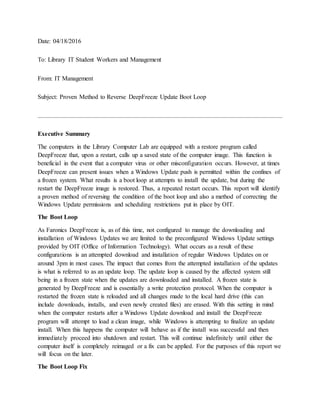
The computers in the Library Computer Lab are equipped with a restore program called
DeepFreeze that, upon a restart, calls up a saved state of the computer image. This function is
beneficial in the event that a computer virus or other misconfiguration occurs. However, at times
DeepFreeze can present issues when a Windows Update push is permitted within the confines of
a frozen system. What results is a boot loop at attempts to install the update, but during the
restart the DeepFreeze image is restored. Thus, a repeated restart occurs. This report will identify
a proven method of reversing the condition of the boot loop and also a method of correcting the
Windows Update permissions and scheduling restrictions put in place by OIT.
The Boot Loop
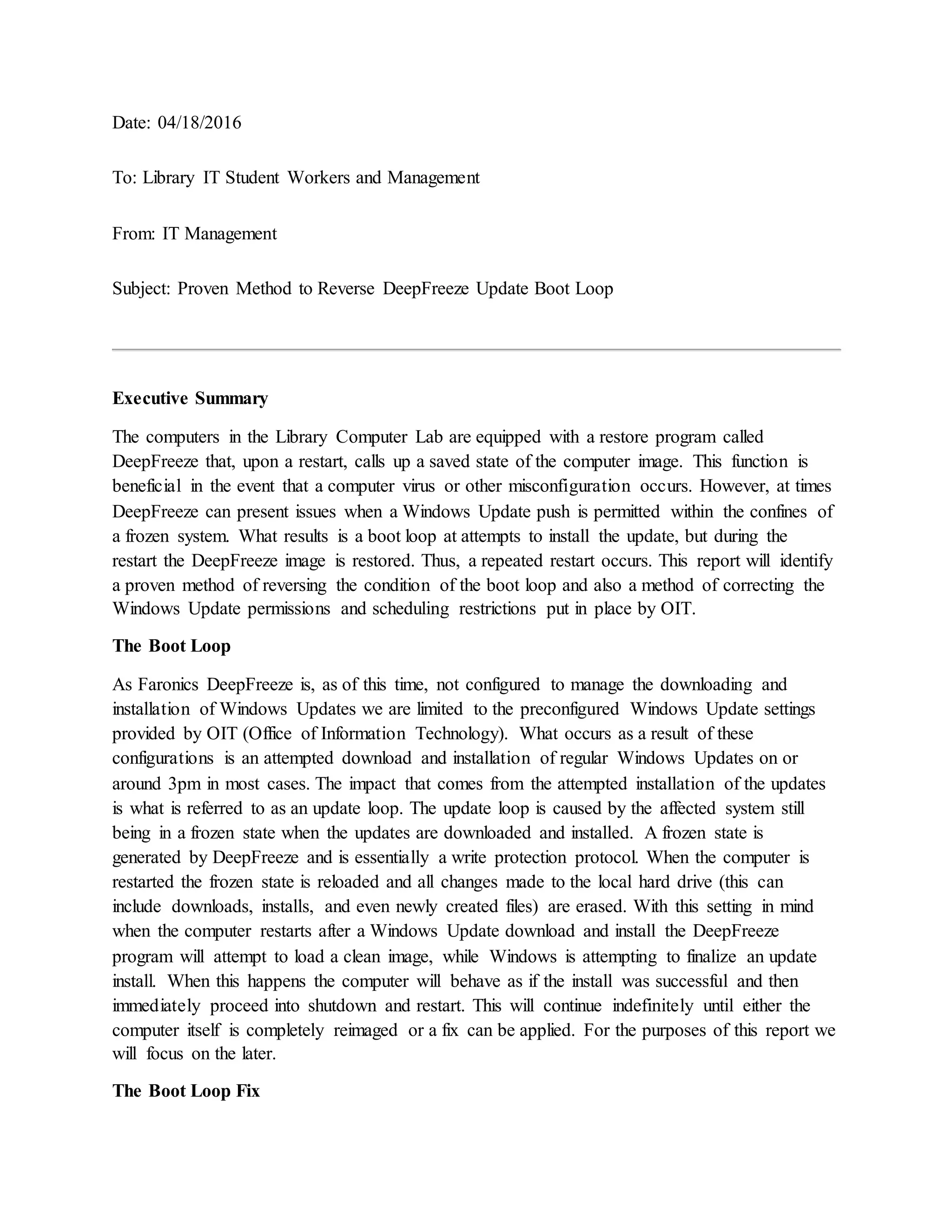
As Faronics DeepFreeze is, as of this time, not configured to manage the downloading and
installation of Windows Updates we are limited to the preconfigured Windows Update settings
provided by OIT (Office of Information Technology). What occurs as a result of these
configurations is an attempted download and installation of regular Windows Updates on or
around 3pm in most cases. The impact that comes from the attempted installation of the updates
is what is referred to as an update loop. The update loop is caused by the affected system still
being in a frozen state when the updates are downloaded and installed. A frozen state is
generated by DeepFreeze and is essentially a write protection protocol. When the computer is
restarted the frozen state is reloaded and all changes made to the local hard drive (this can
include downloads, installs, and even newly created files) are erased. With this setting in mind
when the computer restarts after a Windows Update download and install the DeepFreeze
program will attempt to load a clean image, while Windows is attempting to finalize an update
install. When this happens the computer will behave as if the install was successful and then
immediately proceed into shutdown and restart. This will continue indefinitely until either the
computer itself is completely reimaged or a fix can be applied. For the purposes of this report we
will focus on the later.
The Boot Loop Fix
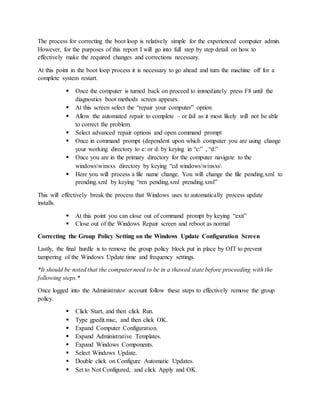
The process for correcting the boot loop is relatively simple for the experienced computer admin.
However, for the purposes of this report I will go into full step by step detail on how to
effectively make the required changes and corrections necessary.
At this point in the boot loop process it is necessary to go ahead and turn the machine off for a
complete system restart.
 Once the computer is turned back on proceed to immediately press F8 until the
diagnostics boot methods screen appears.
 At this screen select the “repair your computer” option
 Allow the automated repair to complete – or fail as it most likely will not be able
to correct the problem.
 Select advanced repair options and open command prompt
 Once in command prompt (dependent upon which computer you are using change
your working directory to c: or d: by keying in “c:” , “d:”
 Once you are in the primary directory for the computer navigate to the
windowswinsxs directory by keying “cd windowswinsxs
 Here you will process a file name change. You will change the file pending.xml to
prending.xml by keying “ren pending.xml prending.xml”
This will effectively break the process that Windows uses to automatically process update
installs.
 At this point you can close out of command prompt by keying “exit”
 Close out of the Windows Repair screen and reboot as normal
Correcting the Group Policy Setting on the Windows Update Configuration Screen
Lastly, the final hurdle is to remove the group policy block put in place by OIT to prevent
tampering of the Windows Update time and frequency settings.
*It should be noted that the computer need to be in a thawed state before proceeding with the
following steps.*
Once logged into the Administrator account follow these steps to effectively remove the group
policy.
 Click Start, and then click Run.
 Type gpedit.msc, and then click OK.
 Expand Computer Configuration.
 Expand Administrative Templates.
 Expand Windows Components.
 Select Windows Update.
 Double click on Configure Automatic Updates.
 Set to Not Configured, and click Apply and OK.
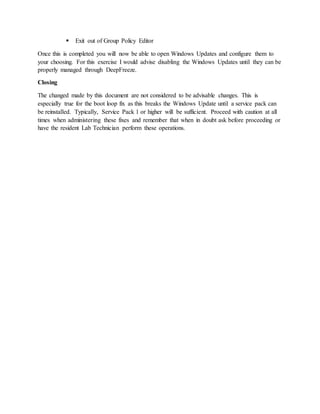
 Exit out of Group Policy Editor
Once this is completed you will now be able to open Windows Updates and configure them to
your choosing. For this exercise I would advise disabling the Windows Updates until they can be
properly managed through DeepFreeze.
Closing
The changed made by this document are not considered to be advisable changes. This is
especially true for the boot loop fix as this breaks the Windows Update until a service pack can
be reinstalled. Typically, Service Pack 1 or higher will be sufficient. Proceed with caution at all
times when administering these fixes and remember that when in doubt ask before proceeding or
have the resident Lab Technician perform these operations.

DeepFreeze Update Loop

  • 1.
    Date: 04/18/2016 To: LibraryIT Student Workers and Management From: IT Management Subject: Proven Method to Reverse DeepFreeze Update Boot Loop Executive Summary The computers in the Library Computer Lab are equipped with a restore program called DeepFreeze that, upon a restart, calls up a saved state of the computer image. This function is beneficial in the event that a computer virus or other misconfiguration occurs. However, at times DeepFreeze can present issues when a Windows Update push is permitted within the confines of a frozen system. What results is a boot loop at attempts to install the update, but during the restart the DeepFreeze image is restored. Thus, a repeated restart occurs. This report will identify a proven method of reversing the condition of the boot loop and also a method of correcting the Windows Update permissions and scheduling restrictions put in place by OIT. The Boot Loop As Faronics DeepFreeze is, as of this time, not configured to manage the downloading and installation of Windows Updates we are limited to the preconfigured Windows Update settings provided by OIT (Office of Information Technology). What occurs as a result of these configurations is an attempted download and installation of regular Windows Updates on or around 3pm in most cases. The impact that comes from the attempted installation of the updates is what is referred to as an update loop. The update loop is caused by the affected system still being in a frozen state when the updates are downloaded and installed. A frozen state is generated by DeepFreeze and is essentially a write protection protocol. When the computer is restarted the frozen state is reloaded and all changes made to the local hard drive (this can include downloads, installs, and even newly created files) are erased. With this setting in mind when the computer restarts after a Windows Update download and install the DeepFreeze program will attempt to load a clean image, while Windows is attempting to finalize an update install. When this happens the computer will behave as if the install was successful and then immediately proceed into shutdown and restart. This will continue indefinitely until either the computer itself is completely reimaged or a fix can be applied. For the purposes of this report we will focus on the later. The Boot Loop Fix
  • 2.
    The process forcorrecting the boot loop is relatively simple for the experienced computer admin. However, for the purposes of this report I will go into full step by step detail on how to effectively make the required changes and corrections necessary. At this point in the boot loop process it is necessary to go ahead and turn the machine off for a complete system restart.  Once the computer is turned back on proceed to immediately press F8 until the diagnostics boot methods screen appears.  At this screen select the “repair your computer” option  Allow the automated repair to complete – or fail as it most likely will not be able to correct the problem.  Select advanced repair options and open command prompt  Once in command prompt (dependent upon which computer you are using change your working directory to c: or d: by keying in “c:” , “d:”  Once you are in the primary directory for the computer navigate to the windowswinsxs directory by keying “cd windowswinsxs  Here you will process a file name change. You will change the file pending.xml to prending.xml by keying “ren pending.xml prending.xml” This will effectively break the process that Windows uses to automatically process update installs.  At this point you can close out of command prompt by keying “exit”  Close out of the Windows Repair screen and reboot as normal Correcting the Group Policy Setting on the Windows Update Configuration Screen Lastly, the final hurdle is to remove the group policy block put in place by OIT to prevent tampering of the Windows Update time and frequency settings. *It should be noted that the computer need to be in a thawed state before proceeding with the following steps.* Once logged into the Administrator account follow these steps to effectively remove the group policy.  Click Start, and then click Run.  Type gpedit.msc, and then click OK.  Expand Computer Configuration.  Expand Administrative Templates.  Expand Windows Components.  Select Windows Update.  Double click on Configure Automatic Updates.  Set to Not Configured, and click Apply and OK.
  • 3.
     Exit outof Group Policy Editor Once this is completed you will now be able to open Windows Updates and configure them to your choosing. For this exercise I would advise disabling the Windows Updates until they can be properly managed through DeepFreeze. Closing The changed made by this document are not considered to be advisable changes. This is especially true for the boot loop fix as this breaks the Windows Update until a service pack can be reinstalled. Typically, Service Pack 1 or higher will be sufficient. Proceed with caution at all times when administering these fixes and remember that when in doubt ask before proceeding or have the resident Lab Technician perform these operations.