Date Objects in Javascript
SASIKUMAR M
Date Object
• The Date object is a datatype built into the
JavaScript language.
• Date objects are created with the new Date(
) as shown below.
new Date( )
new Date(milliseconds)
new Date(datestring)
new Date (year, month, date [,hour,
minute, second, millisecond ])
Contd.
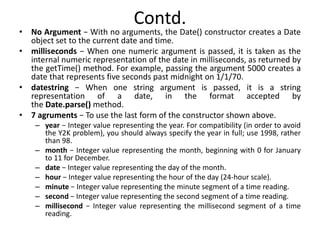
• No Argument − With no arguments, the Date() constructor creates a Date
object set to the current date and time.
• milliseconds − When one numeric argument is passed, it is taken as the
internal numeric representation of the date in milliseconds, as returned by
the getTime() method. For example, passing the argument 5000 creates a
date that represents five seconds past midnight on 1/1/70.
• datestring − When one string argument is passed, it is a string
representation of a date, in the format accepted by
the Date.parse() method.
• 7 agruments − To use the last form of the constructor shown above.
– year − Integer value representing the year. For compatibility (in order to avoid
the Y2K problem), you should always specify the year in full; use 1998, rather
than 98.
– month − Integer value representing the month, beginning with 0 for January
to 11 for December.
– date − Integer value representing the day of the month.
– hour − Integer value representing the hour of the day (24-hour scale).
– minute − Integer value representing the minute segment of a time reading.
– second − Integer value representing the second segment of a time reading.
– millisecond − Integer value representing the millisecond segment of a time
reading.
Date Methods
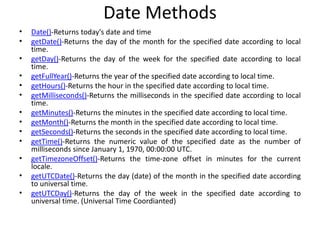
• Date()-Returns today's date and time
• getDate()-Returns the day of the month for the specified date according to local
time.
• getDay()-Returns the day of the week for the specified date according to local
time.
• getFullYear()-Returns the year of the specified date according to local time.
• getHours()-Returns the hour in the specified date according to local time.
• getMilliseconds()-Returns the milliseconds in the specified date according to local
time.
• getMinutes()-Returns the minutes in the specified date according to local time.
• getMonth()-Returns the month in the specified date according to local time.
• getSeconds()-Returns the seconds in the specified date according to local time.
• getTime()-Returns the numeric value of the specified date as the number of
milliseconds since January 1, 1970, 00:00:00 UTC.
• getTimezoneOffset()-Returns the time-zone offset in minutes for the current
locale.
• getUTCDate()-Returns the day (date) of the month in the specified date according
to universal time.
• getUTCDay()-Returns the day of the week in the specified date according to
universal time. (Universal Time Coordianted)
Contd.
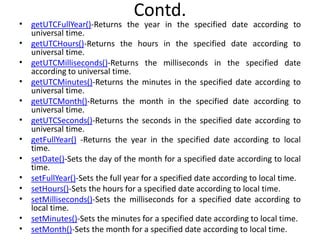
• getUTCFullYear()-Returns the year in the specified date according to
universal time.
• getUTCHours()-Returns the hours in the specified date according to
universal time.
• getUTCMilliseconds()-Returns the milliseconds in the specified date
according to universal time.
• getUTCMinutes()-Returns the minutes in the specified date according to
universal time.
• getUTCMonth()-Returns the month in the specified date according to
universal time.
• getUTCSeconds()-Returns the seconds in the specified date according to
universal time.
• getFullYear() -Returns the year in the specified date according to local
time.
• setDate()-Sets the day of the month for a specified date according to local
time.
• setFullYear()-Sets the full year for a specified date according to local time.
• setHours()-Sets the hours for a specified date according to local time.
• setMilliseconds()-Sets the milliseconds for a specified date according to
local time.
• setMinutes()-Sets the minutes for a specified date according to local time.
• setMonth()-Sets the month for a specified date according to local time.
Contd.
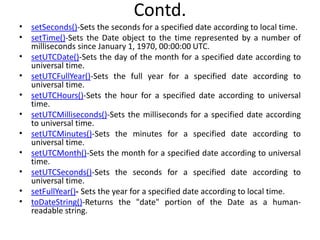
• setSeconds()-Sets the seconds for a specified date according to local time.
• setTime()-Sets the Date object to the time represented by a number of
milliseconds since January 1, 1970, 00:00:00 UTC.
• setUTCDate()-Sets the day of the month for a specified date according to
universal time.
• setUTCFullYear()-Sets the full year for a specified date according to
universal time.
• setUTCHours()-Sets the hour for a specified date according to universal
time.
• setUTCMilliseconds()-Sets the milliseconds for a specified date according
to universal time.
• setUTCMinutes()-Sets the minutes for a specified date according to
universal time.
• setUTCMonth()-Sets the month for a specified date according to universal
time.
• setUTCSeconds()-Sets the seconds for a specified date according to
universal time.
• setFullYear()- Sets the year for a specified date according to local time.
• toDateString()-Returns the "date" portion of the Date as a human-
readable string.
Contd.
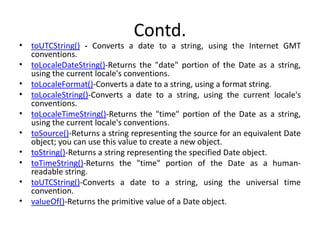
• toUTCString() - Converts a date to a string, using the Internet GMT
conventions.
• toLocaleDateString()-Returns the "date" portion of the Date as a string,
using the current locale's conventions.
• toLocaleFormat()-Converts a date to a string, using a format string.
• toLocaleString()-Converts a date to a string, using the current locale's
conventions.
• toLocaleTimeString()-Returns the "time" portion of the Date as a string,
using the current locale's conventions.
• toSource()-Returns a string representing the source for an equivalent Date
object; you can use this value to create a new object.
• toString()-Returns a string representing the specified Date object.
• toTimeString()-Returns the "time" portion of the Date as a human-
readable string.
• toUTCString()-Converts a date to a string, using the universal time
convention.
• valueOf()-Returns the primitive value of a Date object.
Date()
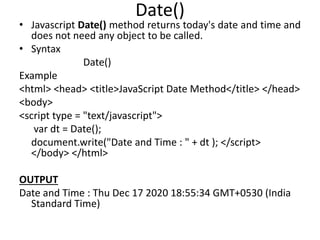
• Javascript Date() method returns today's date and time and
does not need any object to be called.
• Syntax
Date()
Example
<html> <head> <title>JavaScript Date Method</title> </head>
<body>
<script type = "text/javascript">
var dt = Date();
document.write("Date and Time : " + dt ); </script>
</body> </html>
OUTPUT
Date and Time : Thu Dec 17 2020 18:55:34 GMT+0530 (India
Standard Time)
getDate()
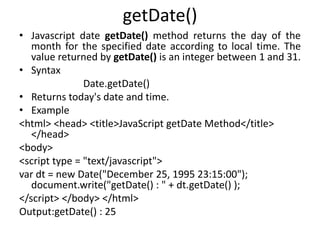
• Javascript date getDate() method returns the day of the
month for the specified date according to local time. The
value returned by getDate() is an integer between 1 and 31.
• Syntax
Date.getDate()
• Returns today's date and time.
• Example
<html> <head> <title>JavaScript getDate Method</title>
</head>
<body>
<script type = "text/javascript">
var dt = new Date("December 25, 1995 23:15:00");
document.write("getDate() : " + dt.getDate() );
</script> </body> </html>
Output:getDate() : 25
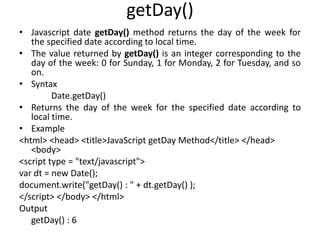
getDay()
• Javascript date getDay() method returns the day of the week for
the specified date according to local time.
• The value returned by getDay() is an integer corresponding to the
day of the week: 0 for Sunday, 1 for Monday, 2 for Tuesday, and so
on.
• Syntax
Date.getDay()
• Returns the day of the week for the specified date according to
local time.
• Example
<html> <head> <title>JavaScript getDay Method</title> </head>
<body>
<script type = "text/javascript">
var dt = new Date();
document.write("getDay() : " + dt.getDay() );
</script> </body> </html>
Output
getDay() : 6
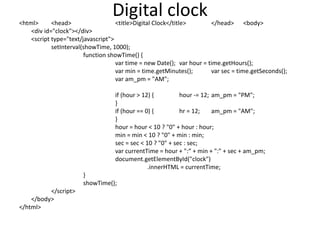
Digital clock
<html> <head> <title>Digital Clock</title> </head> <body>
<div id="clock"></div>
<script type="text/javascript">
setInterval(showTime, 1000);
function showTime() {
var time = new Date(); var hour = time.getHours();
var min = time.getMinutes(); var sec = time.getSeconds();
var am_pm = "AM";
if (hour > 12) { hour -= 12; am_pm = "PM";
}
if (hour == 0) { hr = 12; am_pm = "AM";
}
hour = hour < 10 ? "0" + hour : hour;
min = min < 10 ? "0" + min : min;
sec = sec < 10 ? "0" + sec : sec;
var currentTime = hour + ":“ + min + ":" + sec + am_pm;
document.getElementById("clock")
.innerHTML = currentTime;
}
showTime();
</script>
</body>
</html>
Event Object
• DOM event objects and the event handlers
associated with them can access and
manipulate them.
function someHandler(e) {
// e is the event that triggered this handler.
}
Event Types
• There are several classes of event, with several
types of event within each class specified by
the W3C:
• mouse events
• keyboard events
• form events
• frame events
Mouse Events
• Onclick----he mouse was clicked on an element
• Ondblclick----The mouse was double clicked on an element
• Onmousedown-----The mouse was pressed down over an
element
• Onmouseup----The mouse was released over an element
• Onmouseover----The mouse was moved (not clicked) over
an element
• Onmouseout---The mouse was moved off of an element
• Onmousemove---The mouse was moved while over an
element
Keyboard Events
• Onkeydown----The user is pressing a key (this
happens first)
• Onkeypress----The user presses a key (this
happens after onkeydown)
• Onkeyup---The user releases a key that was
down (this happens last)
Form Events
• Onblur---A form element has lost focus (that is, control has
moved to a different element, perhaps due to a click or Tab
key press.
• Onchange----Some <input>, <textarea> or <select> field
had their value change. This could mean the user typed
something, or selected a new choice.
• Onfocus----Complementing the onblur event, this is
triggered when an element gets focus (the user clicks in
the field or tabs to it)
• Onreset----HTML forms have the ability to be reset. This
event is triggered when that happens.
• Onselect----When the users selects some text. This is often
used to try and prevent copy/paste.
• Onsubmit----When the form is submitted this event is
triggered. We can do some pre-validation when the user
submits the form in JavaScript before sending the data on
to the server.
Frame Events
• Frame events are the events related to the
browser frame that contains your web page.
• The most important event is the onload event,
which tells us an object is loaded and
therefore ready to work with.
Contd.
• Onabort--An object was stopped from loading
• Onerror----An object or image did not
properly load
• Onload---When a document or object has
been loaded
• Onresize----The document view was resized
• Onscroll----The document view was scrolled
• Onunload---The document has unloaded
onchange
<html>
<head>
<title>dropdown menu using select tab</title>
</head>
<script type="text/javascript">
function favTutorial() {
var mylist = document.getElementById("myList");
document.getElementById("favourite").value
= mylist.options[mylist.selectedIndex].text;
}
</script>
<body>
<form>
<b> Select you favourite tutorial site using dropdown list </b>
<select id = "myList" onchange = "favTutorial()" >
<option> ---Choose tutorial--- </option>
<option> C program </option>
<option> JavaScript </option>
<option> HTML </option>
<option> CSS </option>
</select>
<p> Your selected tutorial site is:
<input type = "text" id = "favourite" size = "20" </p>
</form>
</body>
</html>
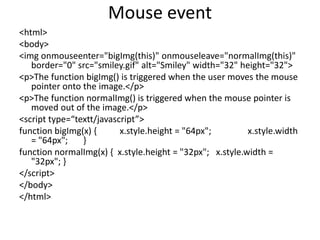
Mouse event
<html>
<body>
<img onmouseenter="bigImg(this)" onmouseleave="normalImg(this)"
border="0" src="smiley.gif" alt="Smiley" width="32" height="32">
<p>The function bigImg() is triggered when the user moves the mouse
pointer onto the image.</p>
<p>The function normalImg() is triggered when the mouse pointer is
moved out of the image.</p>
<script type=“textt/javascript”>
function bigImg(x) { x.style.height = "64px"; x.style.width
= "64px"; }
function normalImg(x) { x.style.height = "32px"; x.style.width =
"32px"; }
</script>
</body>
</html>
Form Validation
• Writing code to pre-validate forms on the
client side will reduce the number of incorrect
submissions, thereby reducing server load.
• There are a number of common validation
activities including email validation, number
validation, and data validation.
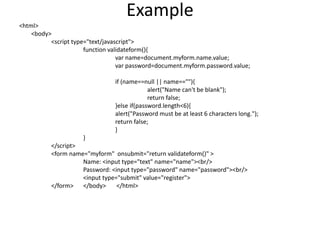
Example
<html>
<body>
<script type="text/javascript">
function validateform(){
var name=document.myform.name.value;
var password=document.myform.password.value;
if (name==null || name==""){
alert("Name can't be blank");
return false;
}else if(password.length<6){
alert("Password must be at least 6 characters long.");
return false;
}
}
</script>
<form name="myform" onsubmit="return validateform()" >
Name: <input type="text" name="name"><br/>
Password: <input type="password" name="password"><br/>
<input type="submit" value="register">
</form> </body> </html>
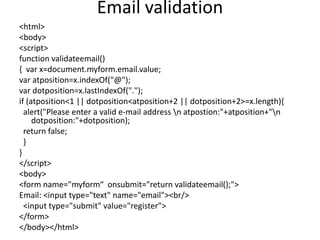
Email validation
<html>
<body>
<script>
function validateemail()
{ var x=document.myform.email.value;
var atposition=x.indexOf("@");
var dotposition=x.lastIndexOf(".");
if (atposition<1 || dotposition<atposition+2 || dotposition+2>=x.length){
alert("Please enter a valid e-mail address n atpostion:"+atposition+"n
dotposition:"+dotposition);
return false;
}
}
</script>
<body>
<form name="myform“ onsubmit="return validateemail();">
Email: <input type="text" name="email"><br/>
<input type="submit" value="register">
</form>
</body></html>

Date object.pptx date and object v

  • 1.
    Date Objects inJavascript SASIKUMAR M
  • 2.
    Date Object • TheDate object is a datatype built into the JavaScript language. • Date objects are created with the new Date( ) as shown below. new Date( ) new Date(milliseconds) new Date(datestring) new Date (year, month, date [,hour, minute, second, millisecond ])
  • 3.
    Contd. • No Argument− With no arguments, the Date() constructor creates a Date object set to the current date and time. • milliseconds − When one numeric argument is passed, it is taken as the internal numeric representation of the date in milliseconds, as returned by the getTime() method. For example, passing the argument 5000 creates a date that represents five seconds past midnight on 1/1/70. • datestring − When one string argument is passed, it is a string representation of a date, in the format accepted by the Date.parse() method. • 7 agruments − To use the last form of the constructor shown above. – year − Integer value representing the year. For compatibility (in order to avoid the Y2K problem), you should always specify the year in full; use 1998, rather than 98. – month − Integer value representing the month, beginning with 0 for January to 11 for December. – date − Integer value representing the day of the month. – hour − Integer value representing the hour of the day (24-hour scale). – minute − Integer value representing the minute segment of a time reading. – second − Integer value representing the second segment of a time reading. – millisecond − Integer value representing the millisecond segment of a time reading.
  • 4.
    Date Methods • Date()-Returnstoday's date and time • getDate()-Returns the day of the month for the specified date according to local time. • getDay()-Returns the day of the week for the specified date according to local time. • getFullYear()-Returns the year of the specified date according to local time. • getHours()-Returns the hour in the specified date according to local time. • getMilliseconds()-Returns the milliseconds in the specified date according to local time. • getMinutes()-Returns the minutes in the specified date according to local time. • getMonth()-Returns the month in the specified date according to local time. • getSeconds()-Returns the seconds in the specified date according to local time. • getTime()-Returns the numeric value of the specified date as the number of milliseconds since January 1, 1970, 00:00:00 UTC. • getTimezoneOffset()-Returns the time-zone offset in minutes for the current locale. • getUTCDate()-Returns the day (date) of the month in the specified date according to universal time. • getUTCDay()-Returns the day of the week in the specified date according to universal time. (Universal Time Coordianted)
  • 5.
    Contd. • getUTCFullYear()-Returns theyear in the specified date according to universal time. • getUTCHours()-Returns the hours in the specified date according to universal time. • getUTCMilliseconds()-Returns the milliseconds in the specified date according to universal time. • getUTCMinutes()-Returns the minutes in the specified date according to universal time. • getUTCMonth()-Returns the month in the specified date according to universal time. • getUTCSeconds()-Returns the seconds in the specified date according to universal time. • getFullYear() -Returns the year in the specified date according to local time. • setDate()-Sets the day of the month for a specified date according to local time. • setFullYear()-Sets the full year for a specified date according to local time. • setHours()-Sets the hours for a specified date according to local time. • setMilliseconds()-Sets the milliseconds for a specified date according to local time. • setMinutes()-Sets the minutes for a specified date according to local time. • setMonth()-Sets the month for a specified date according to local time.
  • 6.
    Contd. • setSeconds()-Sets theseconds for a specified date according to local time. • setTime()-Sets the Date object to the time represented by a number of milliseconds since January 1, 1970, 00:00:00 UTC. • setUTCDate()-Sets the day of the month for a specified date according to universal time. • setUTCFullYear()-Sets the full year for a specified date according to universal time. • setUTCHours()-Sets the hour for a specified date according to universal time. • setUTCMilliseconds()-Sets the milliseconds for a specified date according to universal time. • setUTCMinutes()-Sets the minutes for a specified date according to universal time. • setUTCMonth()-Sets the month for a specified date according to universal time. • setUTCSeconds()-Sets the seconds for a specified date according to universal time. • setFullYear()- Sets the year for a specified date according to local time. • toDateString()-Returns the "date" portion of the Date as a human- readable string.
  • 7.
    Contd. • toUTCString() -Converts a date to a string, using the Internet GMT conventions. • toLocaleDateString()-Returns the "date" portion of the Date as a string, using the current locale's conventions. • toLocaleFormat()-Converts a date to a string, using a format string. • toLocaleString()-Converts a date to a string, using the current locale's conventions. • toLocaleTimeString()-Returns the "time" portion of the Date as a string, using the current locale's conventions. • toSource()-Returns a string representing the source for an equivalent Date object; you can use this value to create a new object. • toString()-Returns a string representing the specified Date object. • toTimeString()-Returns the "time" portion of the Date as a human- readable string. • toUTCString()-Converts a date to a string, using the universal time convention. • valueOf()-Returns the primitive value of a Date object.
  • 8.
    Date() • Javascript Date()method returns today's date and time and does not need any object to be called. • Syntax Date() Example <html> <head> <title>JavaScript Date Method</title> </head> <body> <script type = "text/javascript"> var dt = Date(); document.write("Date and Time : " + dt ); </script> </body> </html> OUTPUT Date and Time : Thu Dec 17 2020 18:55:34 GMT+0530 (India Standard Time)
  • 9.
    getDate() • Javascript dategetDate() method returns the day of the month for the specified date according to local time. The value returned by getDate() is an integer between 1 and 31. • Syntax Date.getDate() • Returns today's date and time. • Example <html> <head> <title>JavaScript getDate Method</title> </head> <body> <script type = "text/javascript"> var dt = new Date("December 25, 1995 23:15:00"); document.write("getDate() : " + dt.getDate() ); </script> </body> </html> Output:getDate() : 25
  • 10.
    getDay() • Javascript dategetDay() method returns the day of the week for the specified date according to local time. • The value returned by getDay() is an integer corresponding to the day of the week: 0 for Sunday, 1 for Monday, 2 for Tuesday, and so on. • Syntax Date.getDay() • Returns the day of the week for the specified date according to local time. • Example <html> <head> <title>JavaScript getDay Method</title> </head> <body> <script type = "text/javascript"> var dt = new Date(); document.write("getDay() : " + dt.getDay() ); </script> </body> </html> Output getDay() : 6
  • 11.
    Digital clock <html> <head><title>Digital Clock</title> </head> <body> <div id="clock"></div> <script type="text/javascript"> setInterval(showTime, 1000); function showTime() { var time = new Date(); var hour = time.getHours(); var min = time.getMinutes(); var sec = time.getSeconds(); var am_pm = "AM"; if (hour > 12) { hour -= 12; am_pm = "PM"; } if (hour == 0) { hr = 12; am_pm = "AM"; } hour = hour < 10 ? "0" + hour : hour; min = min < 10 ? "0" + min : min; sec = sec < 10 ? "0" + sec : sec; var currentTime = hour + ":“ + min + ":" + sec + am_pm; document.getElementById("clock") .innerHTML = currentTime; } showTime(); </script> </body> </html>
  • 12.
    Event Object • DOMevent objects and the event handlers associated with them can access and manipulate them. function someHandler(e) { // e is the event that triggered this handler. }
  • 13.
    Event Types • Thereare several classes of event, with several types of event within each class specified by the W3C: • mouse events • keyboard events • form events • frame events
  • 14.
    Mouse Events • Onclick----hemouse was clicked on an element • Ondblclick----The mouse was double clicked on an element • Onmousedown-----The mouse was pressed down over an element • Onmouseup----The mouse was released over an element • Onmouseover----The mouse was moved (not clicked) over an element • Onmouseout---The mouse was moved off of an element • Onmousemove---The mouse was moved while over an element
  • 15.
    Keyboard Events • Onkeydown----Theuser is pressing a key (this happens first) • Onkeypress----The user presses a key (this happens after onkeydown) • Onkeyup---The user releases a key that was down (this happens last)
  • 16.
    Form Events • Onblur---Aform element has lost focus (that is, control has moved to a different element, perhaps due to a click or Tab key press. • Onchange----Some <input>, <textarea> or <select> field had their value change. This could mean the user typed something, or selected a new choice. • Onfocus----Complementing the onblur event, this is triggered when an element gets focus (the user clicks in the field or tabs to it) • Onreset----HTML forms have the ability to be reset. This event is triggered when that happens. • Onselect----When the users selects some text. This is often used to try and prevent copy/paste. • Onsubmit----When the form is submitted this event is triggered. We can do some pre-validation when the user submits the form in JavaScript before sending the data on to the server.
  • 17.
    Frame Events • Frameevents are the events related to the browser frame that contains your web page. • The most important event is the onload event, which tells us an object is loaded and therefore ready to work with.
  • 18.
    Contd. • Onabort--An objectwas stopped from loading • Onerror----An object or image did not properly load • Onload---When a document or object has been loaded • Onresize----The document view was resized • Onscroll----The document view was scrolled • Onunload---The document has unloaded
  • 19.
    onchange <html> <head> <title>dropdown menu usingselect tab</title> </head> <script type="text/javascript"> function favTutorial() { var mylist = document.getElementById("myList"); document.getElementById("favourite").value = mylist.options[mylist.selectedIndex].text; } </script> <body> <form> <b> Select you favourite tutorial site using dropdown list </b> <select id = "myList" onchange = "favTutorial()" > <option> ---Choose tutorial--- </option> <option> C program </option> <option> JavaScript </option> <option> HTML </option> <option> CSS </option> </select> <p> Your selected tutorial site is: <input type = "text" id = "favourite" size = "20" </p> </form> </body> </html>
  • 20.
    Mouse event <html> <body> <img onmouseenter="bigImg(this)"onmouseleave="normalImg(this)" border="0" src="smiley.gif" alt="Smiley" width="32" height="32"> <p>The function bigImg() is triggered when the user moves the mouse pointer onto the image.</p> <p>The function normalImg() is triggered when the mouse pointer is moved out of the image.</p> <script type=“textt/javascript”> function bigImg(x) { x.style.height = "64px"; x.style.width = "64px"; } function normalImg(x) { x.style.height = "32px"; x.style.width = "32px"; } </script> </body> </html>
  • 21.
    Form Validation • Writingcode to pre-validate forms on the client side will reduce the number of incorrect submissions, thereby reducing server load. • There are a number of common validation activities including email validation, number validation, and data validation.
  • 22.
    Example <html> <body> <script type="text/javascript"> function validateform(){ varname=document.myform.name.value; var password=document.myform.password.value; if (name==null || name==""){ alert("Name can't be blank"); return false; }else if(password.length<6){ alert("Password must be at least 6 characters long."); return false; } } </script> <form name="myform" onsubmit="return validateform()" > Name: <input type="text" name="name"><br/> Password: <input type="password" name="password"><br/> <input type="submit" value="register"> </form> </body> </html>
  • 23.
    Email validation <html> <body> <script> function validateemail() {var x=document.myform.email.value; var atposition=x.indexOf("@"); var dotposition=x.lastIndexOf("."); if (atposition<1 || dotposition<atposition+2 || dotposition+2>=x.length){ alert("Please enter a valid e-mail address n atpostion:"+atposition+"n dotposition:"+dotposition); return false; } } </script> <body> <form name="myform“ onsubmit="return validateemail();"> Email: <input type="text" name="email"><br/> <input type="submit" value="register"> </form> </body></html>