Databases for Beginners:
SQLite
Christopher F. Wimble
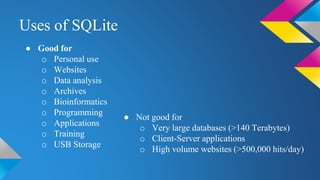
Uses of SQLite
● Good for
o Personal use
o Websites
o Data analysis
o Archives
o Bioinformatics
o Programming
o Applications
o Training
o USB Storage
● Not good for
o Very large databases (>140 Terabytes)
o Client-Server applications
o High volume websites (>500,000 hits/day)
Summary & Terms
● We will
o Create
o Insert
o Access
o Delete
o Modify
o Export/Import
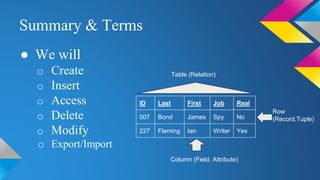
ID Last First Job Real
007 Bond James Spy No
227 Fleming Ian Writer Yes
Table (Relation)
Column (Field, Attribute)
Row
(Record,Tuple)
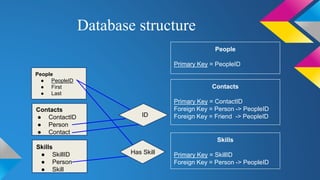
Database structure
People
● PeopleID
● First
● Last
Contacts
● ContactID
● Person
● Contact
Skills
● SkillID
● Person
● Skill
ID
Has Skill
People
Primary Key = PeopleID
Contacts
Primary Key = ContactID
Foreign Key = Person -> PeopleID
Foreign Key = Friend -> PeopleID
Skills
Primary Key = SkillID
Foreign Key = Person -> PeopleID
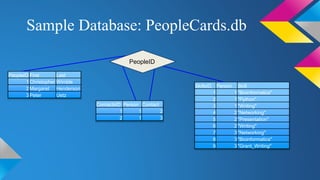
Sample Database: PeopleCards.db
PeopleID First Last
1Christopher Wimble
2Margaret Henderson
3Peter Uetz
SkillsID Person Skill
1 1"Bioinformatics"
2 1"Python"
3 1"Writing"
4 2"Networking"
5 2"Presentation"
6 2"Writing"
7 3"Networking"
8 3"Bioinformatics"
9 3"Grant_Writing"
ContactsID Person Contact
1 1 2
2 1 3
PeopleID
Databases
MIRA
● Modify/Change
● Insert
● Remove/Delete
● Ask/Access
Data Formats in SQLite
● Text
● Integer
● (Blob)
● (Real)
● (Numeric)
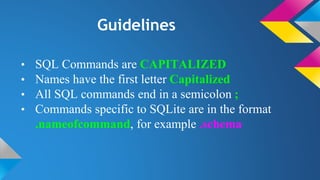
Guidelines
• SQL Commands are CAPITALIZED
• Names have the first letter Capitalized
• All SQL commands end in a semicolon ;
• Commands specific to SQLite are in the format
.nameofcommand, for example .schema
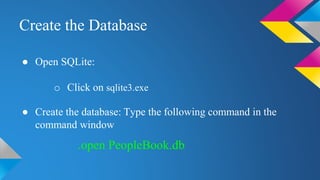
Create the Database
● Open SQLite:
o Click on sqlite3.exe
● Create the database: Type the following command in the
command window
.open PeopleBook.db
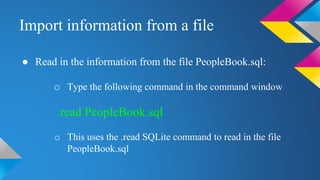
Import information from a file
● Read in the information from the file PeopleBook.sql:
o Type the following command in the command window
.read PeopleBook.sql
o This uses the .read SQLite command to read in the file
PeopleBook.sql
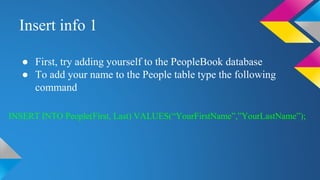
Insert info 1
● First, try adding yourself to the PeopleBook database
● To add your name to the People table type the following
command
INSERT INTO People(First, Last) VALUES(“YourFirstName”,”YourLastName”);
Insert info 2
● Add one or more of your skills using the following command
INSERT INTO Skills(Person, Skill) VALUES(5,“NameOfSkill”);
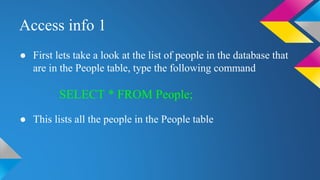
Access info 1
● First lets take a look at the list of people in the database that
are in the People table, type the following command
● This lists all the people in the People table
SELECT * FROM People;
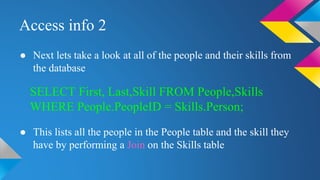
Access info 2
● Next lets take a look at all of the people and their skills from
the database
● This lists all the people in the People table and the skill they
have by performing a Join on the Skills table
SELECT First, Last,Skill FROM People,Skills
WHERE People.PeopleID = Skills.Person;
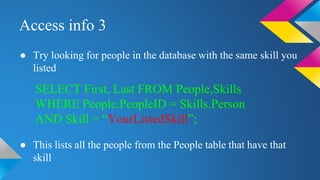
Access info 3
● Try looking for people in the database with the same skill you
listed
● This lists all the people from the People table that have that
skill
SELECT First, Last FROM People,Skills
WHERE People.PeopleID = Skills.Person
AND Skill = “YourListedSkill”;
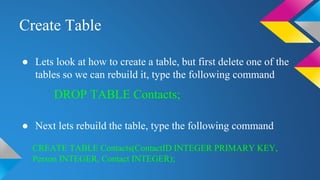
Create Table
● Lets look at how to create a table, but first delete one of the
tables so we can rebuild it, type the following command
● Next lets rebuild the table, type the following command
DROP TABLE Contacts;
CREATE TABLE Contacts(ContactID INTEGER PRIMARY KEY,
Person INTEGER, Contact INTEGER);
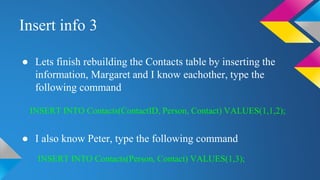
Insert info 3
● Lets finish rebuilding the Contacts table by inserting the
information, Margaret and I know eachother, type the
following command
● I also know Peter, type the following command
INSERT INTO Contacts(ContactID, Person, Contact) VALUES(1,1,2);
INSERT INTO Contacts(Person, Contact) VALUES(1,3);
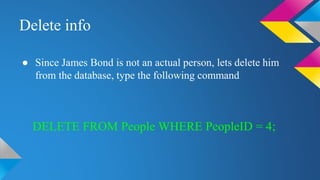
Delete info
● Since James Bond is not an actual person, lets delete him
from the database, type the following command
DELETE FROM People WHERE PeopleID = 4;
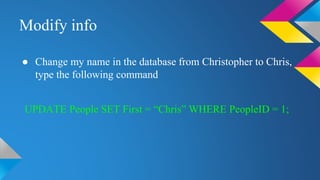
Modify info
● Change my name in the database from Christopher to Chris,
type the following command
UPDATE People SET First = “Chris” WHERE PeopleID = 1;
Links and Resources
● SQLiteWrittenExplination, a Word document explaining the concepts in more detail
● My contact info
o Christopher Wimble: WimbleCF@VCU.edu
● Books
o The Definitive Guide to SQLite:
http://www.amazon.com/dp/1430232250//ref=cm_sw_su_dp?tag=nethta-20
Also aviable for free online access through VCU libraries, see the link in the notes margin
o The Manga Guide to Databases: http://www.amazon.com/Manga-Guide-Databases-Mana-
Takahashi/dp/1593271905
● Video Tutorials
o Derek Banas:
https://www.youtube.com/playlist?list=PLGLfVvz_LVvTsslWD1HBQEjBbmAaAF9Xy
● Websites
o SQLite main page: https://www.sqlite.org/index.html
o SQLite command line tutorial: https://www.sqlite.org/cli.html
o Tutorials Point: http://www.tutorialspoint.com/sqlite/sqlite_commands.htm
o How to diagram a database: https://www.edrawsoft.com/how-to-draw-database-model-diagram.php

Databases for Beginners SQLite

  • 1.
  • 2.
    Uses of SQLite ●Good for o Personal use o Websites o Data analysis o Archives o Bioinformatics o Programming o Applications o Training o USB Storage ● Not good for o Very large databases (>140 Terabytes) o Client-Server applications o High volume websites (>500,000 hits/day)
  • 3.
    Summary & Terms ●We will o Create o Insert o Access o Delete o Modify o Export/Import ID Last First Job Real 007 Bond James Spy No 227 Fleming Ian Writer Yes Table (Relation) Column (Field, Attribute) Row (Record,Tuple)
  • 4.
    Database structure People ● PeopleID ●First ● Last Contacts ● ContactID ● Person ● Contact Skills ● SkillID ● Person ● Skill ID Has Skill People Primary Key = PeopleID Contacts Primary Key = ContactID Foreign Key = Person -> PeopleID Foreign Key = Friend -> PeopleID Skills Primary Key = SkillID Foreign Key = Person -> PeopleID
  • 5.
    Sample Database: PeopleCards.db PeopleIDFirst Last 1Christopher Wimble 2Margaret Henderson 3Peter Uetz SkillsID Person Skill 1 1"Bioinformatics" 2 1"Python" 3 1"Writing" 4 2"Networking" 5 2"Presentation" 6 2"Writing" 7 3"Networking" 8 3"Bioinformatics" 9 3"Grant_Writing" ContactsID Person Contact 1 1 2 2 1 3 PeopleID
  • 6.
    Databases MIRA ● Modify/Change ● Insert ●Remove/Delete ● Ask/Access Data Formats in SQLite ● Text ● Integer ● (Blob) ● (Real) ● (Numeric)
  • 7.
    Guidelines • SQL Commandsare CAPITALIZED • Names have the first letter Capitalized • All SQL commands end in a semicolon ; • Commands specific to SQLite are in the format .nameofcommand, for example .schema
  • 8.
    Create the Database ●Open SQLite: o Click on sqlite3.exe ● Create the database: Type the following command in the command window .open PeopleBook.db
  • 9.
    Import information froma file ● Read in the information from the file PeopleBook.sql: o Type the following command in the command window .read PeopleBook.sql o This uses the .read SQLite command to read in the file PeopleBook.sql
  • 10.
    Insert info 1 ●First, try adding yourself to the PeopleBook database ● To add your name to the People table type the following command INSERT INTO People(First, Last) VALUES(“YourFirstName”,”YourLastName”);
  • 11.
    Insert info 2 ●Add one or more of your skills using the following command INSERT INTO Skills(Person, Skill) VALUES(5,“NameOfSkill”);
  • 12.
    Access info 1 ●First lets take a look at the list of people in the database that are in the People table, type the following command ● This lists all the people in the People table SELECT * FROM People;
  • 13.
    Access info 2 ●Next lets take a look at all of the people and their skills from the database ● This lists all the people in the People table and the skill they have by performing a Join on the Skills table SELECT First, Last,Skill FROM People,Skills WHERE People.PeopleID = Skills.Person;
  • 14.
    Access info 3 ●Try looking for people in the database with the same skill you listed ● This lists all the people from the People table that have that skill SELECT First, Last FROM People,Skills WHERE People.PeopleID = Skills.Person AND Skill = “YourListedSkill”;
  • 15.
    Create Table ● Letslook at how to create a table, but first delete one of the tables so we can rebuild it, type the following command ● Next lets rebuild the table, type the following command DROP TABLE Contacts; CREATE TABLE Contacts(ContactID INTEGER PRIMARY KEY, Person INTEGER, Contact INTEGER);
  • 16.
    Insert info 3 ●Lets finish rebuilding the Contacts table by inserting the information, Margaret and I know eachother, type the following command ● I also know Peter, type the following command INSERT INTO Contacts(ContactID, Person, Contact) VALUES(1,1,2); INSERT INTO Contacts(Person, Contact) VALUES(1,3);
  • 17.
    Delete info ● SinceJames Bond is not an actual person, lets delete him from the database, type the following command DELETE FROM People WHERE PeopleID = 4;
  • 18.
    Modify info ● Changemy name in the database from Christopher to Chris, type the following command UPDATE People SET First = “Chris” WHERE PeopleID = 1;
  • 19.
    Links and Resources ●SQLiteWrittenExplination, a Word document explaining the concepts in more detail ● My contact info o Christopher Wimble: WimbleCF@VCU.edu ● Books o The Definitive Guide to SQLite: http://www.amazon.com/dp/1430232250//ref=cm_sw_su_dp?tag=nethta-20 Also aviable for free online access through VCU libraries, see the link in the notes margin o The Manga Guide to Databases: http://www.amazon.com/Manga-Guide-Databases-Mana- Takahashi/dp/1593271905 ● Video Tutorials o Derek Banas: https://www.youtube.com/playlist?list=PLGLfVvz_LVvTsslWD1HBQEjBbmAaAF9Xy ● Websites o SQLite main page: https://www.sqlite.org/index.html o SQLite command line tutorial: https://www.sqlite.org/cli.html o Tutorials Point: http://www.tutorialspoint.com/sqlite/sqlite_commands.htm o How to diagram a database: https://www.edrawsoft.com/how-to-draw-database-model-diagram.php

Editor's Notes

  • #5 Disclaimer: This diagram is not intended to teach how to diagram a database. It was created only for the purpose of explaining database concepts.
  • #6 Disclaimer: This diagram is not intended to teach how to diagram a database. It was created only for the purpose of explaining database concepts. This is what the PeopleCards database looks like and has everything contained in it to start with.
  • #8 *The commands that use the format .NameOfCommand, which are specific to SQLite, do not end in a semicolon.
  • #9 *When you create a database using SQLite it creates a file for you. To delete the database just delete the file from the folder. When creating a database in SQL you can name it whatever you want (instead of PeopleBook) and can give it any extension (as opposed to .db). I use the extension .db to tell myself that it is a database file.
  • #17 *Notice that the second command does not have ContactID. This is because it is a primary key and is an integer. If both of these things are true and you start the first value as 1, each value afterward will be incremental.
  • #18 *To see a before and after type SELECT * FROM People before and after the command to see the difference.
  • #19 *Try typing SELECT * FROM People before and after the command to see the difference.
  • #20 The Definitive Guide to SQLite Link to free online access http://search.library.vcu.edu/primo_library/libweb/action/display.do;jsessionid=70653FAC2BF007F23978209B56F7A296?tabs=viewOnlineTab&ct=display&fn=search&doc=VCU_ALMA51405332740001101&indx=4&recIds=VCU_ALMA51405332740001101&recIdxs=3&elementId=3&renderMode=poppedOut&displayMode=full&frbrVersion=&dscnt=0&vl(12965624UI0)=any&query=any%2Ccontains%2Csqlite&scp.scps=scope%3A%28VCU_CONTENTDM%29%2Cscope%3A%28VCU%29%2Cscope%3A%28VCU_ALMA%29%2Cscope%3A%28DBAZ%29%2Cprimo_central_multiple_fe&tab=all&dstmp=1438802257361&dym=true&search_scope=all_scope&vl(freeText0)=sqlite&vid=VCU&institution=VCU