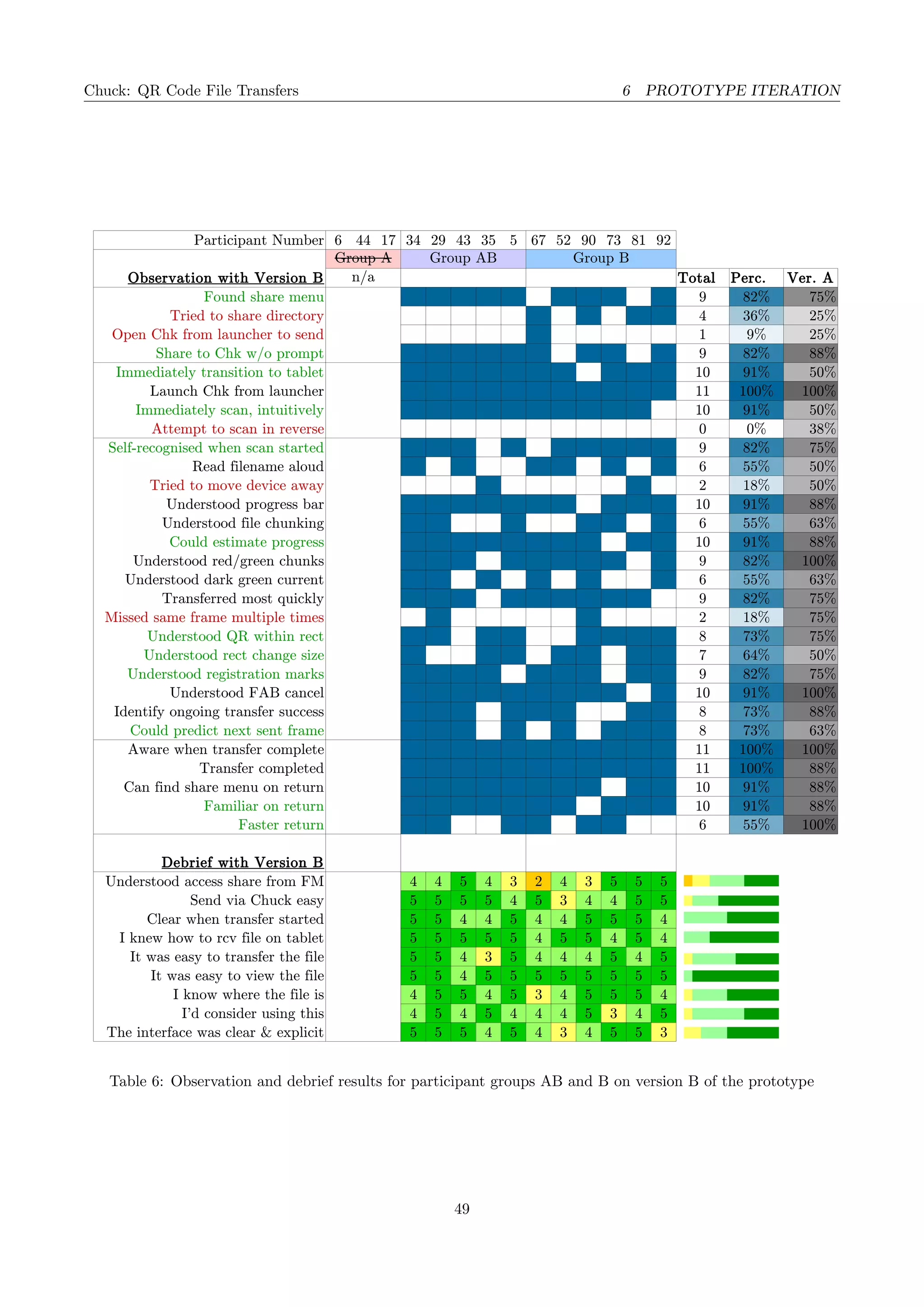
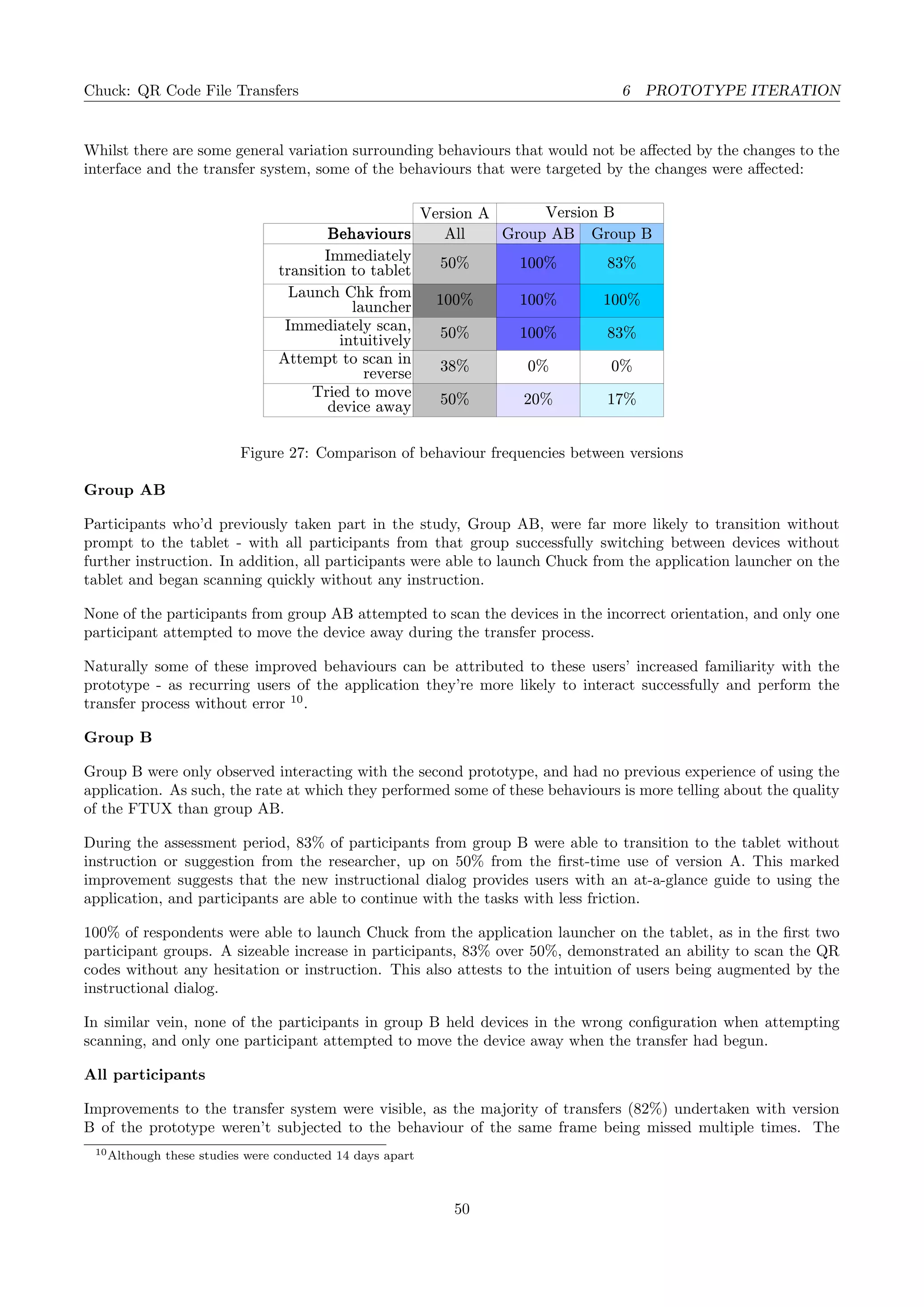
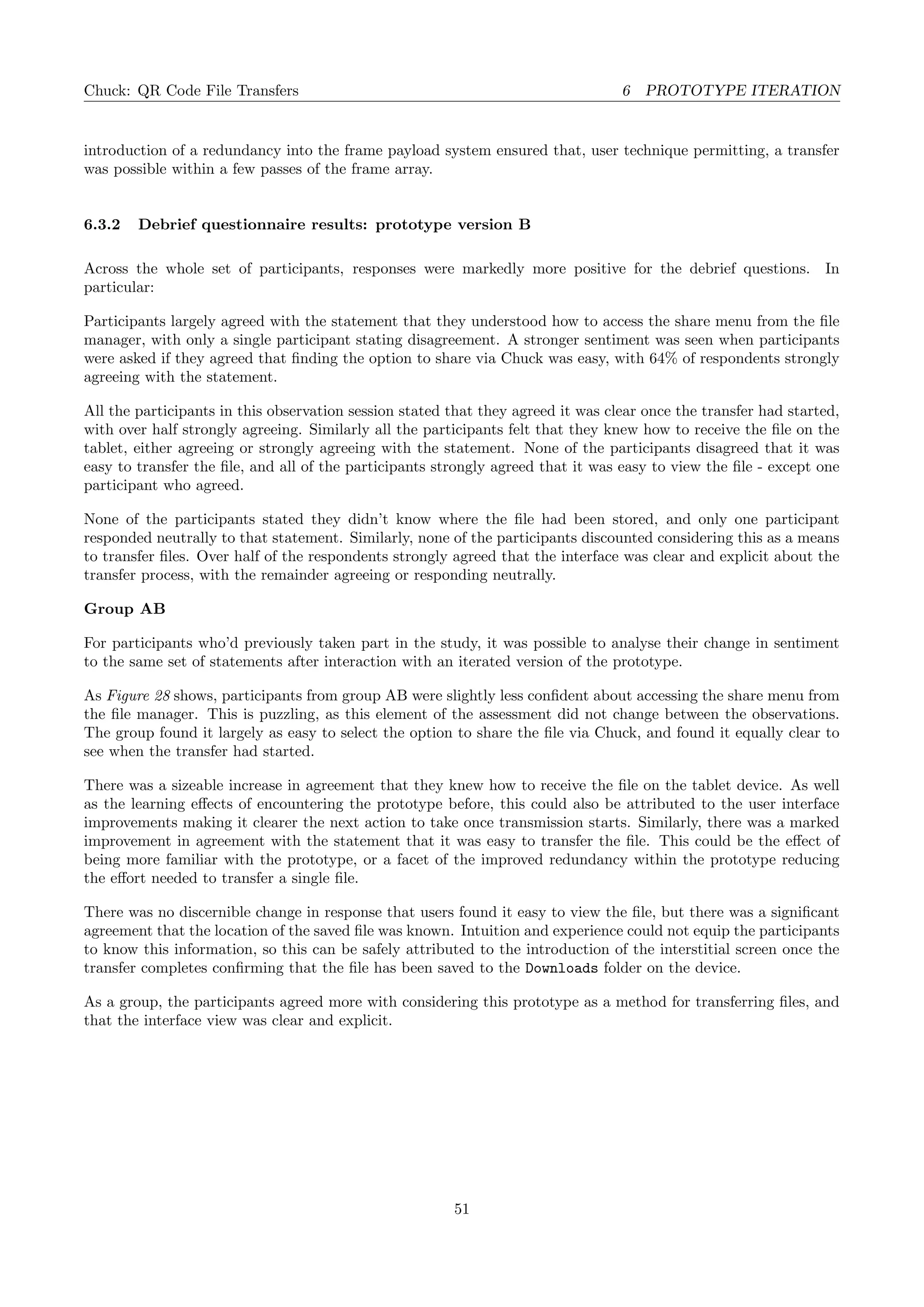
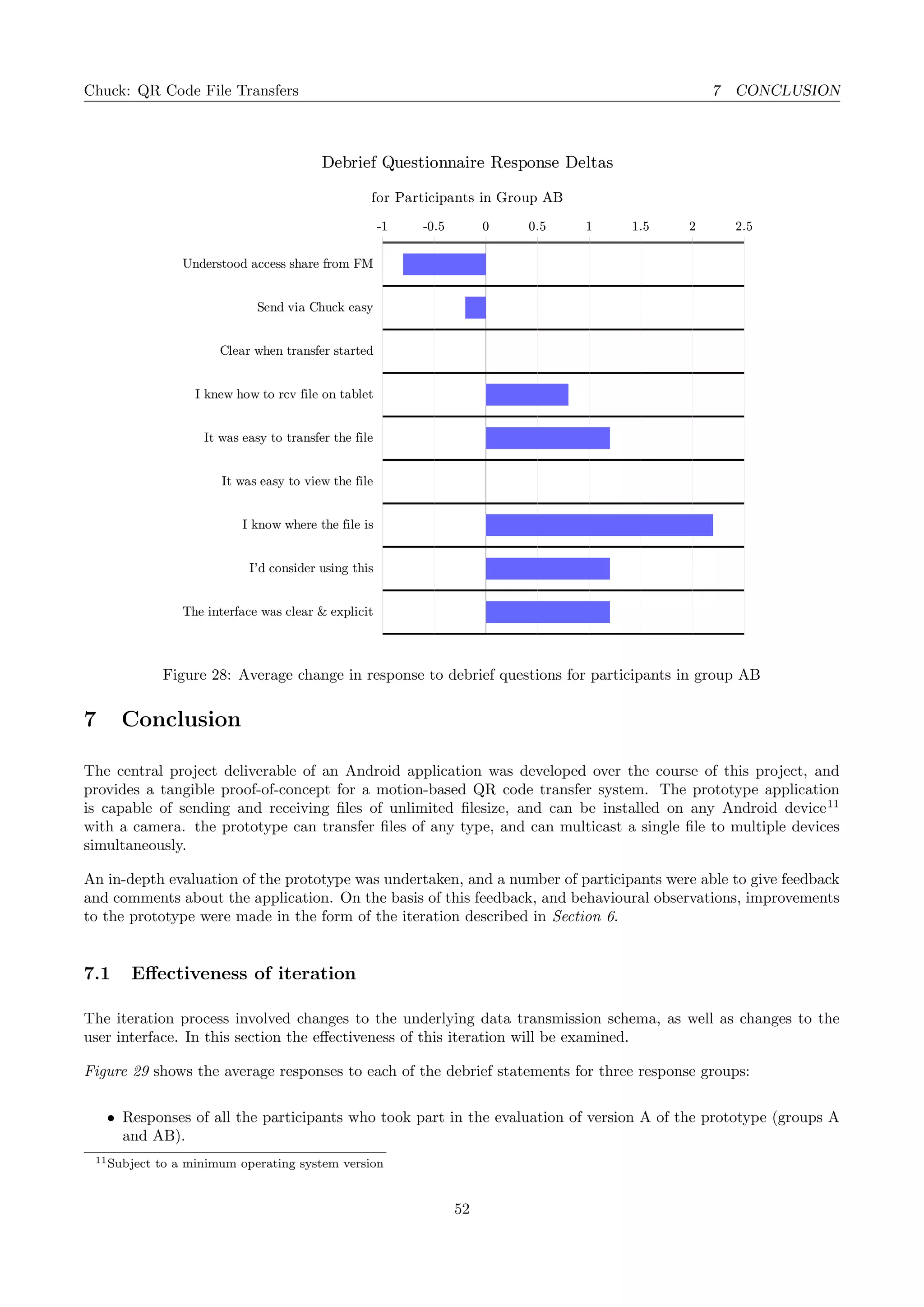
CS4099: Major Software Project
CHUCK: QR CODE FILE TRANSFERS
Elliott Brooks (ejjb)
Hand-in: 4th April 2016
Supervisor: Dr Angela Miguel
Chuck: QR Code File Transfers
Abstract
With the number of users owning multiple devices increasing, the need for technologies to transfer files between
devices has never been greater. This report presents a novel file transmission system based on the QR code
standard, and outlines a high-fidelity prototype application written for the Android mobile operating system.
A comprehensive and extensible transmission schema is drafted and improved upon, and the design process is
captured in detail. The proof-of-concept is thoroughly evaluated and iterated upon, and user behaviours are
analysed to produce an application that participants would consider using regularly. To conclude, a critical
evaluation of the prototype and system under test will be made, and the feasibility of the concept as a means of
data transfer for end users will be discussed.
Declaration
I declare that the material submitted for assessment is my own work except where credit is explicitly given to
others by citation or acknowledgement. This work was performed during the current academic year except where
otherwise stated.
The main text of this project report is 17,123 words long, excluding tables and figures.
In submitting this project report to the University of St Andrews, I give permission for it to be made available for
use in accordance with the regulations of the University Library. I also give permission for the title and abstract
to be published and for copies of the report to be made and supplied at cost to any bona fide library or research
worker, and to be made available on the World Wide Web. I retain the copyright in this work.
Appendices
A Sideloading APK Files
B Prototype User Guide
C Participant Information Sheet
D Participant Consent Form
2
Chuck: QR Code File Transfers CONTENTS
Contents
1 Introduction 4
1.1 Problem description . . . . . . . . . . . . . . . . . . . . . . . . . . . . . . . . . . . . . . . . . . . 4
1.2 Similar systems . . . . . . . . . . . . . . . . . . . . . . . . . . . . . . . . . . . . . . . . . . . . . . 5
1.3 Concept . . . . . . . . . . . . . . . . . . . . . . . . . . . . . . . . . . . . . . . . . . . . . . . . . . 8
1.4 Similar works . . . . . . . . . . . . . . . . . . . . . . . . . . . . . . . . . . . . . . . . . . . . . . . 9
1.5 Project focus . . . . . . . . . . . . . . . . . . . . . . . . . . . . . . . . . . . . . . . . . . . . . . . 10
1.6 Deliverables . . . . . . . . . . . . . . . . . . . . . . . . . . . . . . . . . . . . . . . . . . . . . . . . 11
1.7 Resources and technology . . . . . . . . . . . . . . . . . . . . . . . . . . . . . . . . . . . . . . . . 11
2 Project aims 12
2.1 Primary . . . . . . . . . . . . . . . . . . . . . . . . . . . . . . . . . . . . . . . . . . . . . . . . . . 12
2.2 Secondary . . . . . . . . . . . . . . . . . . . . . . . . . . . . . . . . . . . . . . . . . . . . . . . . . 12
2.3 Tertiary . . . . . . . . . . . . . . . . . . . . . . . . . . . . . . . . . . . . . . . . . . . . . . . . . . 13
3 Interaction design 14
3.1 UI and UX considerations . . . . . . . . . . . . . . . . . . . . . . . . . . . . . . . . . . . . . . . . 14
3.2 Branding and colours . . . . . . . . . . . . . . . . . . . . . . . . . . . . . . . . . . . . . . . . . . . 14
3.3 Interaction state machine . . . . . . . . . . . . . . . . . . . . . . . . . . . . . . . . . . . . . . . . 15
3.4 Custom components . . . . . . . . . . . . . . . . . . . . . . . . . . . . . . . . . . . . . . . . . . . 16
3.5 Mock-ups . . . . . . . . . . . . . . . . . . . . . . . . . . . . . . . . . . . . . . . . . . . . . . . . . 17
3.6 The iterative process . . . . . . . . . . . . . . . . . . . . . . . . . . . . . . . . . . . . . . . . . . . 21
4 Technical design 22
4.1 Transmission schema . . . . . . . . . . . . . . . . . . . . . . . . . . . . . . . . . . . . . . . . . . . 22
4.2 Application . . . . . . . . . . . . . . . . . . . . . . . . . . . . . . . . . . . . . . . . . . . . . . . . 23
5 Prototype assessment 29
5.1 Prototype status . . . . . . . . . . . . . . . . . . . . . . . . . . . . . . . . . . . . . . . . . . . . . 29
5.2 Assessment design and ethics . . . . . . . . . . . . . . . . . . . . . . . . . . . . . . . . . . . . . . 29
5.3 Processing results . . . . . . . . . . . . . . . . . . . . . . . . . . . . . . . . . . . . . . . . . . . . . 34
5.4 Assessment results . . . . . . . . . . . . . . . . . . . . . . . . . . . . . . . . . . . . . . . . . . . . 37
6 Prototype iteration 44
6.1 Areas for improvement . . . . . . . . . . . . . . . . . . . . . . . . . . . . . . . . . . . . . . . . . . 44
6.2 Process . . . . . . . . . . . . . . . . . . . . . . . . . . . . . . . . . . . . . . . . . . . . . . . . . . 45
6.3 Re-evaluation . . . . . . . . . . . . . . . . . . . . . . . . . . . . . . . . . . . . . . . . . . . . . . . 47
7 Conclusion 52
7.1 Effectiveness of iteration . . . . . . . . . . . . . . . . . . . . . . . . . . . . . . . . . . . . . . . . . 52
7.2 Progress against objectives . . . . . . . . . . . . . . . . . . . . . . . . . . . . . . . . . . . . . . . 54
7.3 Future work . . . . . . . . . . . . . . . . . . . . . . . . . . . . . . . . . . . . . . . . . . . . . . . . 55
7.4 Concluding statements . . . . . . . . . . . . . . . . . . . . . . . . . . . . . . . . . . . . . . . . . . 55
3
Chuck: QR Code File Transfers 1 INTRODUCTION
1 Introduction
This report presents the process by which a prototype for a file transfer application was created and improved.
It documents the design, implementation, and evaluation of a prototype application, as well as a series of
improvements and the effects of these on respondents.
For the avoidance of doubt, the terms application, prototype, app, and Chuck are used interchangeably to refer
to the deliverable for this project.
1.1 Problem description
Modern consumers are more likely than ever before to own multiple devices, as shown in Figure 1, resulting
in fragmentation of files and settings across devices. This fragmentation effect can be confusing to users when
files aren’t available on the device currently in use[2], and as such the popularity of file transfer mechanisms are
increasing, with a variety of solutions available [3, 4, 5]. These existing solutions are discussed in more detail in
Section 1.2.
0
10
20
30
40
50
60
70
80
90
May-04 May-05 May-06 May-07 May-08 May-09 May-10 May-11 May-12 May-13 May-14 May-15
Device Ownership by Type
Smartphone eBook Reader Tablet Computer Desktop/Laptop Mp3 Player Game Console
Figure 1: US adult device ownership for various device types[1]. Missing values are interpolated.
Internet-enabled solutions are more popular than ever, with consumers making use of a variety of technologies
and services to transfer files both at home and at work[6]. The increased popularity in transfer mechanisms can
be largely categorised into two groups of solutions:
Casual transfers
Single-time transactional transfers with the explicit instruction of moving a file between two devices. These
transfers are usually time-sensitive and are explicitly supervised by the end-user(s). Examples include
Bluetooth file transfers and Shared links generated from file synchronisation services like Dropbox.
4
Chuck: QR Code File Transfers 1 INTRODUCTION
Structured transfers
These transfers tend to be longer-lasting continuous synchronisation operations between two (or more)
locations. More time is spent in the investment of setup of these relationships, but the transfer process
itself is usually a background process with no direct interaction from the user. Examples include Dropbox
and Google Drive.
Significant improvements in the quality and feature-set of services exhibiting the latter model have been made
recently, with user numbers of file synchronisation services in the hundreds of millions [7]. However, many of the
transactional file transfers that users perform daily[6] occur through systems where file transfers are a secondary
functionality - for example Social Networks and Instant Messaging applications [8, 9]. Some common pain points
that users experience when making transactional file transfers are:
• Complexity in instantiating the transfer For example pairing devices, sending a URL between devices.
• Knowledge of the saved location of a file
• Latency and lack of speed in transfer
1.2 Similar systems
In this section existing systems which attempt to provide support for users partaking in file transfer operations
are explored.
1.2.1 Dropbox [3]
Dropbox
LAN
C1 C2 C3
Figure 2: Propagation of
a change within Dropbox
from Client 1 to {2,3}
Dropbox provide a proprietary set of desktop clients allowing users to
synchronise a folder of files across multiple devices. This core offering is able
to implicitly detect changes in the files within the set of files and synchronise
changes between other devices according to the modification date of the file.
This process is entirely automated, and once setup requires no input from the
user 1
Figure 2 shows how a central source of truth is maintained in the form of the
Dropbox server. Changes to files on a single machine must be propagated to
the central service before these changes are relayed to other clients.
Files that have been synchronised to the central data-store can be shared via
uniquely-generated links by the user. This process can be used to instantiate a
transactional transfer with another device or user, by sharing the URL of the
file. These file addresses are temporary, and can be revoked by the user.
In addition to the desktop clients, there are mobile applications that provide
transactional access to the set of files stored within Dropbox’s servers for a particular user. This access
includes the ability to upload or modify files, although no direct synchronisation functionality is available at
present. Automatic uploading of photographs and videos on smartphones is available, however, which mimics a
one-directional synchronisation process.
Dropbox also provide a basic file versioning service, where ‘previous versions’ of files are stored and users are able
to rollback changes that have been made. No diff functionality is provided, so users perform restore actions on
the basis of modification timecodes.
1Except in cases where a modification conflict is detected, where user input is required to choose a version to keep.
5
Chuck: QR Code File Transfers 1 INTRODUCTION
Pricing
Dropbox’s model is priced according to storage space, with a free tier of 2GB2
and several premium tiers with a
more generous allowance aimed at both personal and business usage. This storage quota includes the overhead
of the versioning solution, such that versioning capabilities are diminished as the limit is reached.
LAN
C1 C2
C3
Figure 3: Propagation
of a change within
Bittorrent Sync from
Client 1 to {2,3}
Derivative systems
Google Drive (http://google.com/drive)
has a similar desktop client and mobile application, providing users with an
increased amount of space for free (15GB). Has similar transactional sharing,
URL generation, and has photo uploading through the companion application
Google Photos.
Bittorrent Sync (https://www.getsync.com)
makes use of the Bittorrent protocol for file transfers, and doesn’t rely on
a centralised server to propagate changes. Users are able to create local
synchronised folders and distribute read/write keys to other clients which
allow synchronisation through the Bittorrent network. In cases where a direct
connection is not possible (through NAT (Network Address Translation) or
port filtering) a relay server is used. Figure 3 shows how this design leverages
network topology to improve transfer times, with nodes within the same LAN
(Local Area Network).
1.2.2 Wetransfer [4]
Wetransfer is an online service allowing users to generate one-time URLs to share large files over the internet -
all from within the browser. Unlike Dropbox’s model, this service is aimed more at ad-hoc file transfers from
user-to-user (or a single user performing a device-to-device transfer).
The user starts by creating a new session on the website and uploading a large file (up to 2GB for a free account,
up to 20GB for premium accounts[4]). A unique URL is generated once the file has been uploaded, and this
permits the download of the file from another device. Like the upload process, the download process is explicit
and in-browser. The browser-based upload and download model helps secure a high platform coverage, and
creates a low friction to transfer initiation.
Downsides in this model include the sequential nature in which the transfer is approached; in three distinct and
siloed stages:
• Initial upload of the file to be shared
• Generation and transmission of the URL
• Download of the file
Performance analysis of Wetransfer transfer model
The first and last of these stages are likely to be the most time-consuming, and the duplication of transfer process
would make the total transfer time T ∝ (Ga + Gb) × F where:
Gi represents the goodput between the centralised server and client i ∈ {a, b}
F represents the size of the file under transfer
2Users can earn additional space through a referral programme
6
Chuck: QR Code File Transfers 1 INTRODUCTION
1.2.3 Bluetooth [5]
Bluetooth transfer technology allows users to pair devices and initiate transfers. These transfers are strictly
unicast as Bluetooth is a round-robin protocol, and the pairing process must be completed before a transfer
begins (making this process less suitable for an ad-hoc transactional file transfer).
Pairing process
The intricacies of the pairing process are dependant on which of three security modes the device is configured
for. To generalise:[10]:
• Mode 1 offers no encryption or security during the pairing process and subsequent transfers over the WPAN
• In Mode 2 encryption and authorisation measures are in place once the pairing process is complete and a
communication channel has opened.
• Mode 3 enforces security and encryption at the link layer, ensuring that the connection process itself is also
secured.
The pairing process involves the exchanging of randomly generated values, physical addresses, and derived keys.
This process often takes several seconds, and involves explicit interaction from the user (confirming or entering a
PIN, or allowing a pairing event to occur). Once two devices are paired connections can be spontaneously made
between the devices in the future (that is to say receiving devices are ‘remembered’ by the sending device and
vice versa).
Figure 4: An Android
device displaying the share
menu.
Transfer process
For mobile devices, file transfers over Bluetooth are usually initiated from a file
manager application or a media viewer. The user is able to begin the process
of transferring the file (or, if necessary the pairing process) from within the
application itself. Within the Android operating system, this is referred to as
firing an intent[11].
Figure 4 shows the screen presented to users once a file has been selected for
sharing on an Android device. Multiple applications are visible, all of which
have registered with the OS as being able to handle the share intent. Filters
can be placed on these handling declarations (for example to only include video
files), and they’re made in the application manifest.
Once the Bluetooth option has been selected, the user is prompted to select
a previously-paired Bluetooth device within range. If no such devices are
available the user is able to create a new pairing. Once a device is selected
a request to send the file (which must be accepted by the receiving party3
) is
made, and the transfer can begin. From this point onwards the transfer process
is more implicit, and users are able to place the devices into standby mode. An
important stipulation is that devices must remain within Bluetooth range (the
range of which is dependent on device model, but is usually of the order of 10
metres).
3Some operating systems contain functionality to auto-accept file transfers over Bluetooth
7
Chuck: QR Code File Transfers 1 INTRODUCTION
1.3 Concept
The technologies discussed in Section 1.2 cater well for structured transfers, where some significant time is
available to set up the transfer parameters, and for transactional transfers where a relationship between two
devices is already established. This report presents a solution for ad-hoc transactional file transfers between
devices in close physical proximity, based on the QR code standard.
1.3.1 QR codes
QR codes were created by Denso Wave[12], and accepted as an ISO standard (ISO/IEC18004) in June 2000. The
technology was originally developed as a method for tracking inventory within manufacturing lines, as each code
could store an increased amount of entropy versus a standard barcode. QR codes have multiple features that
contribute to their popularity as a means of transferring data visually:
Redundancy
Generated codes can contain anywhere from 7% to 30% redundancy, dependant on the level of error-correction
specified at the encoding stage. This is accomplished through the application of Reed-Solomon error-correction
codes[13], which are also used in the encoding of CD audio data.
Variable length
Payloads of varying length can be successfully encoded into QR codes, up to a maximum defined by the
resolution of the outputted code, the type of code being generated, and the level of redundancy.
No orientation
Unlike standard barcodes, QR codes have no fixed orientation, so detection of the registration points
requires a planar scanning device. This means the minimum hardware required to scan QR codes is more
sophisticated, but there are therefore no orientation issues during data transfer (Barcode scanners must be
orientated perpendicular to the barcode print direction to be successfully recognised).
With the rise of smartphone technology and the common inclusion of at least one camera in many of these
devices, more consumers than ever are in possession of planar scanning devices. As such, the use of QR codes
to convey short pieces of textual information to users is increasingly common. URLs are commonly conveyed to
users from print media in this form, as shown in Figure 5.
1.3.2 Temporal element
Rather than scanning an individual QR code, it’s possible to scan multiple QR codes per second, in-line with
the speed of:
• The refresh rate on the sending device screen
• The refresh rate on the receiving device camera
• The processing speed of the QR code recognition algorithm on the receiving device.
This approach circumvents the explicit payload size length within the QR code schema, and allows larger payloads
to be transferred without the use of an internet resource.
8
Chuck: QR Code File Transfers 1 INTRODUCTION
Figure 5: A visitor scans a QR code at Hamburg museum [14]
1.3.3 Properties
The main properties of the proposed technology are:
• No reliance on transportation mediums other than visible light, including mobile data, Wi-Fi, and Bluetooth.
• No theoretical maximum file-size
• Supports multicast transfers
• No pre-existing relationship between devices required
• No information about the sending device is known
• Ticketing applications: harder to forge/copy than static barcodes.
1.4 Similar works
This project draws on a number of similar projects and papers, which are referenced throughout this document.
In particular, a piece of work[15] by Haoxuan Wang (Supervised by Dr Ioannis Patras at School of EECS, Queen
Mary University of London) presents a similar concept of using a sequence of static QR codes to deliver a large
payload. This work includes a video[16] demonstrating the system, in which a transfer from a Java desktop
application to a mobile device is shown. In addition, an interim report[17] details a transmission schema.
This project will detail a separate transmission schema and explore additional concepts such as redundancy of
data transferred, and will examine the design and implementation of a more user-centric Android user interface.
9
Chuck: QR Code File Transfers 1 INTRODUCTION
1.5 Project focus
The project will focus on the creation of a prototype application capable of demonstrating a proof-of-concept for
the above technology. This will take the form of concentration of work in two areas:
1.5.1 Data transfer
To construct this prototype a transfer schema and set of behaviours must be defined and implemented. Refinement
of these documents will take place in order to produce a prototype that effectively represents the underlying
concept. The key areas the prototype will attempt to demonstrate are:
• The variety of file types that can be transferred through the protocol
• Error detection and correction
• Integration with the wider Android operating system
• A clear and frictionless user experience (see Section 1.5.2)
• A resilience to real-world limitations4
Due to the length of the project, there are some areas that have been deemed to be out of scope of the prototype.
These elements are important considerations when evaluating the viability (commercial or otherwise) of the
transfer method, but have been omitted from the scope of this proof-of-concept:
• The speed of transfer; both in comparison to existing systems, and as a stand-alone solution.
• The ability to select files from within the application for transfer
• The security of files transferred
The concentration of these objectives should result in a prototype that conveys the underlying concept in some
detail and demonstrates the feasibility of the concept as a means for transferring content. Further work on the
prototype could demonstrate some of the concepts deemed to be out-of-scope.
1.5.2 Prototype interface
In addition to the development of the transfer prototype, care will be taken to ensure the prototype has an
engaging, intuitive, and clear interface. This is closely entwined with the former goal, as user sentiment of the
application as a whole will be judged. HCI and design best practices will be followed where appropriate, and
after a preliminary round of user feedback an iteration to the design will be made, taking aggregated feedback
into account.
The following assessment criteria will be used throughout the process to determine whether the design is effective:
• Is the design intuitive? Are users able to interact with the interface using their previous experience with
similar systems and mobile operating systems?
• Does the design communicate clearly to the user what is happening?
4Modelling non-perfect conditions and behaviours
10
Chuck: QR Code File Transfers 1 INTRODUCTION
• Is the user able to understand the (relatively complex) transmission process through the interface (or a
simplified version)?
• Does the design adhere to the context of the user’s actions?
• Is the transfer process as frictionless as possible?
This aspect of the project will also begin with the generation of a series of mock-up images depicting the planned
user interface. These will be constructed using background research into similar interfaces, and platform design
guidelines. These are presented in Section 3.5.
The key user stories that will be evaluated against throughout the project are:
• As a user, I want to transfer a file from my device to another device I own.
• As a user, I want to transfer a file from my device to another user’s device.
• As a user, I want to receive a file from another user’s device.
1.6 Deliverables
The project has a single main deliverable, an Android application that provides a prototype for the concept
discussed in Section 1.3.
1.6.1 Android prototype
This prototype will be able to perform file transfers - the same application can operate in transmitting and
receiving mode. This application can be installed on a multitude of devices to test transfer functionality.
The application will be written using the Android Development SDK and will be suitable for installation onto
devices with a minimum Android version of 5.0 Lollipop (SDK version 21). The application will make use of
Android intents to be available from the share menu within file management applications.
1.7 Resources and technology
The following resources will be utilised to produce the application prototype:
• An OSX 10.10.5 development machine
• Android Studio 2.0 Preview 4
• JRE 1.6
• Android Development SDK 5.0.1 (API Level 21)
• ZXing QR code library[18]
And the following resources were provided by the University of St Andrews School of Computer Science:
• A Nexus 4 device running Android 5.1.1
• A Nexus 7 device running Android 5.1.1
11
Chuck: QR Code File Transfers 2 PROJECT AIMS
2 Project aims
In order to provide a clear and demonstrable focus for the project, the high-level objectives discussed earlier in
this document are here formalised into a series of primary, secondary, and tertiary aims. Not all of the objectives
discussed here are expected to be completed as part of the project, but identification of stretch goals before the
project begins allows the project to develop in unexpected ways.
Similarly, the project will retain agility throughout the development process, and the priorities and deliverables
may vary throughout the lifetime of the project to present the concept in the best way.
2.1 Primary
Android Application
Delivery of an Android Application that allows users to transfer files between handsets. Able to transfer
small files (eg. text files) in a modest transfer window (several seconds).
Debug Information
Ability to monitor the progress of a transfer and other related information from a debug console, either as
part of the application itself or a separate console.
Polyfill Ability
The application is able to recover from a missing frame event by waiting for the offending frame to appear
again from the transmitter.
User Satisfaction: Convenience
Users report in feedback sessions that they find this method of transferring data convenient - perhaps more
convenient than traditional methods such as Bluetooth
2.2 Secondary
Automated Usage Monitoring
Making use of MixPanel [19] or a similar service, anonymous monitoring of user behaviour whilst interacting
with the application. This could complement more intense qualitative assessment methods of user interaction.
Integration with OS
The Android Application is able to be triggered from the ”share menu” present in Android, by registering
the proper Intent with the Operating System.
Modest-sized File Transfers
The application is able to process transfers of moderately sized files (such as photographs and short music
clips/ringtones) within an appreciable transfer window (<30 seconds)
Virality of Application
Through a viral feature, it’s possible to onboard new users through existing QR code applications, by
directing them to a website to download the application and complete the transfer.
User Satisfaction: Transfer Speed
Users report in feedback that file transfers occur in an acceptable timeframe, and quantiative analysis
supports this.
Analytics: Low level of Transfer Abandonment
Analytics are able to demonstrate a low level of transfers started but not finished.
12
Chuck: QR Code File Transfers 2 PROJECT AIMS
2.3 Tertiary
Design an iOS equivalent
Design - but not necessarily implement - an iOS companion application, adhering to the iOS platform
design guidelines as appropriate.
PC Client
Design and potentially implement a PC client, that is able to initiate and possibly receive transfers from
other devices.
GIF creation
As an extension of the PC client, possibly create animated GIFs or video files that can be embedded in
a presentation, for the purpose of distribution of content (eg. A lecturer sharing slides at the end of a
lecture).
User Satisfaction: Preference
Users report in interviews that they prefer this method of transfer to existing technologies (eg. Bluetooth,
NFC).
Analytics: Consistent transfer speed
Analytics show a consistent transfer speed (transfer time / transfer size), or a transfer speed that can be
correlated with a sensible performance limitation (eg. screen size).
13
Chuck: QR Code File Transfers 3 INTERACTION DESIGN
3 Interaction design
An important part of the prototype design phase of this project was the formulation of a robust and intuitive
design that demonstrated the core project concept. As such, a basic design was outlined before development
started and an iterative design process occurred during development.
3.1 UI and UX considerations
As discussed in Section 1.5.2, the design must fulfil the central requirements of being intuitive and communicative.
Users are likely to be familiar with the process of scanning a single static QR code, but the idea of holding the
device in place for a period of time to scan subsequent frames might prove to be difficult to communicate.
More strictly in terms of interface, an attempt to encourage user intuition was made through compliance with
Android design guidelines. More specifically, the Material Design[20] specification was used as the basis for many
of the macro design decisions that were made. Several components, including the FAB (Floating Action Button),
were used wholesale from this set of guidelines as a means of improving the familiarity Android users would have
with the interface.
3.2 Branding and colours
In order to present an accurate proof-of-concept for how users may interact with the system, it was important to
create a valid visual identity - this would facilitate user recognition during the later assessment stages, and help
to ensure that users would be able to continue a session in the prototype from one device to another.
As the prototype application was only being developed for the Android platform, it was decided to adhere to
Google’s Material guidelines regarding application icon design, and a bold red/orange primary colour was chosen
as the base branding colour, shown in Figure 6. This figure also shows a secondary accent colour that was
identified, and darker variants.
Accent AccentPrimary
Dark
Primary Accent
Dark
Figure 6: Primary and accent colour swatches chosen
for the prototype branding
Figure 7: A full render of the logo used for the
prototype
Figure 8: Application logo for the prototype, seen in
the launcher and Android intent share menu.
Following on from this initial colour palette, a visual identity was constructed from the prototype, themed on
the concept of movement. In a similar vein, the name Chuck was chosen to represent the off-handing of files in
an ad-hoc manner during a file transfer. A logotype was constructed, and a variation for the Android prototype
launcher icon was created, shown in Figures 7 and 8 respectively. These visual elements were designed with the
express purpose of being memorable and visually striking, to aid user recall during the transfer process as their
session transferred from device to device.
14
Chuck: QR Code File Transfers 3 INTERACTION DESIGN
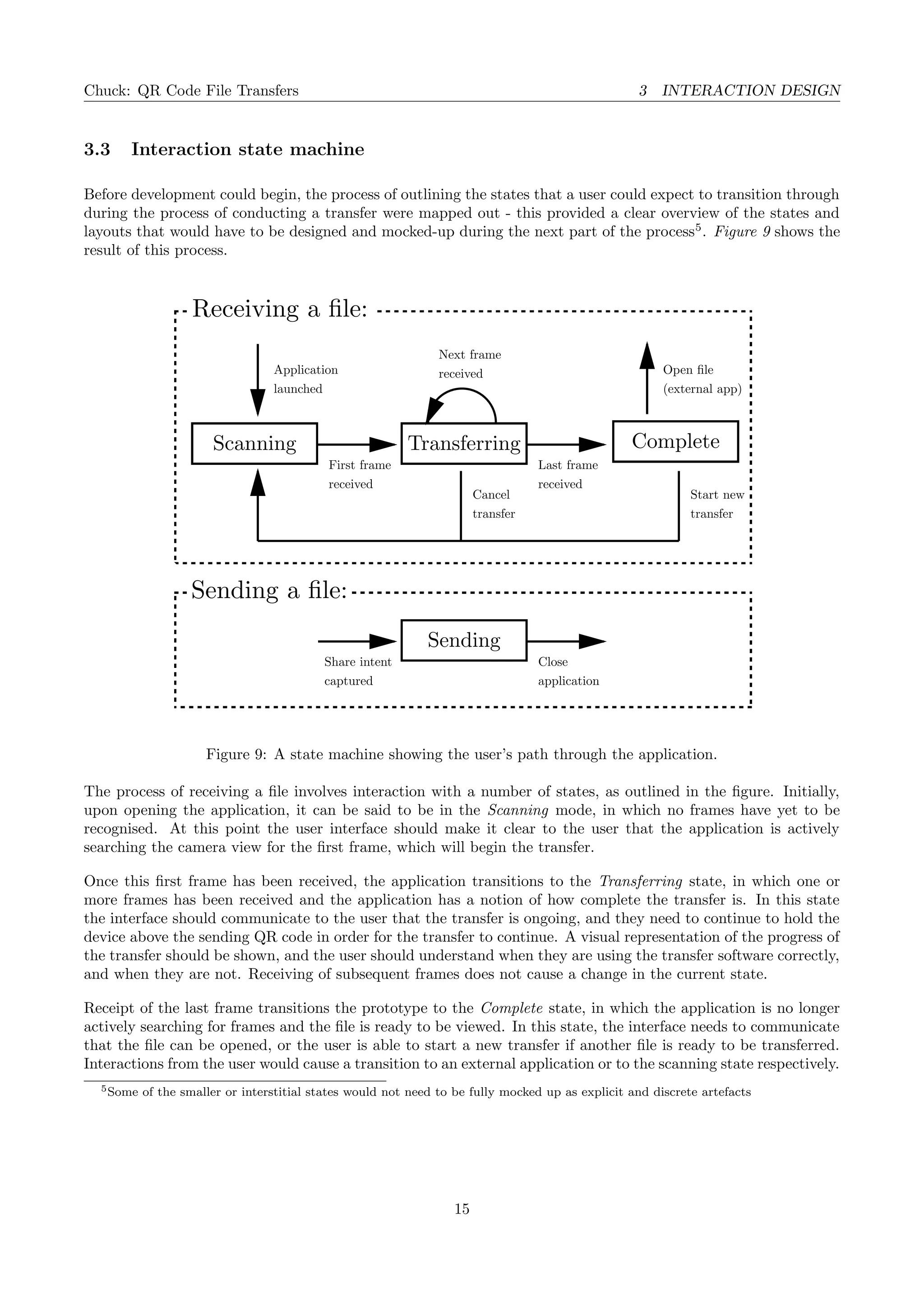
3.3 Interaction state machine
Before development could begin, the process of outlining the states that a user could expect to transition through
during the process of conducting a transfer were mapped out - this provided a clear overview of the states and
layouts that would have to be designed and mocked-up during the next part of the process5
. Figure 9 shows the
result of this process.
CompleteTransferringScanning
Last frame
received
Start new
transfer
Cancel
transfer
Next frame
received
First frame
received
Application
launched
Open file
(external app)
Receiving a file:
Sending
Close
application
Share intent
captured
Sending a file:
Figure 9: A state machine showing the user’s path through the application.
The process of receiving a file involves interaction with a number of states, as outlined in the figure. Initially,
upon opening the application, it can be said to be in the Scanning mode, in which no frames have yet to be
recognised. At this point the user interface should make it clear to the user that the application is actively
searching the camera view for the first frame, which will begin the transfer.
Once this first frame has been received, the application transitions to the Transferring state, in which one or
more frames has been received and the application has a notion of how complete the transfer is. In this state
the interface should communicate to the user that the transfer is ongoing, and they need to continue to hold the
device above the sending QR code in order for the transfer to continue. A visual representation of the progress of
the transfer should be shown, and the user should understand when they are using the transfer software correctly,
and when they are not. Receiving of subsequent frames does not cause a change in the current state.
Receipt of the last frame transitions the prototype to the Complete state, in which the application is no longer
actively searching for frames and the file is ready to be viewed. In this state, the interface needs to communicate
that the file can be opened, or the user is able to start a new transfer if another file is ready to be transferred.
Interactions from the user would cause a transition to an external application or to the scanning state respectively.
5Some of the smaller or interstitial states would not need to be fully mocked up as explicit and discrete artefacts
15
Chuck: QR Code File Transfers 3 INTERACTION DESIGN
3.4 Custom components
As part of the interface development, two key components that would require significant attention in order to
convey transfer success were identified:
3.4.1 Augmented preview
In order to provide the user with sufficient information to receive the file, the receiving interface needs to contain
visual cues to prompt user behaviours. More specifically, the user needs to be guided to maintain a steady fix
on the sending QR code. This is a behaviour that will require explicit instruction as even users familiar with
QR code technology will expect a single successful scan to transfer the entire file. As such the interface should
prompt the user to maintain contact between the devices for the duration of the transfer.
Figure 10: A barcode
scanner displaying a
scanning guide [21]
Figure 11: Registration
point markers and scan
guides.
A common prompt in these kind of ’scanning’ application is the augmentation
of the camera preview with one or more guide marks which establishes an
expected geometry for the code, and provides a mark for the user to aim for.
These kinds of marks are well-suited to this application, as it will prompt the
user to continuously keep the constantly-changing code in view of the receiving
device. A physical manifestation of these guide marks can be seen in Figure
10.
In addition to this device, a secondary set of markers representing successful
recognition of a code is a common sight in scanning applications. These
marks provide a binary success feedback for users, rather than attempting
to direct their actions explicitly. By displaying these markers when a frame
has successfully been recognised, users should have an understanding as to
whether a transfer is currently progressing successfully, which should develop
a user’s natural intuition. The aim would be to exploit the effect of the
learning curve, and to help the user develop their skills in using the prototype
through subsequent uses through regular and honest feedback as to transfer
and recognition progress.
Overlaying the live camera preview in the prototype application with these
marks should help to instruct users to perform behaviours likely to result in a
successful transfer. A mockup of these marks can be seen in Figure 11.
3.4.2 Transfer progress
As part of his 10 design commandments, Rams[22] stipulates that good design should be honest about state
and ability. The design for the receiving interface should be honest and clear about the transfer progress, and
care should be taken to ensure that this does not increase complexity for the user when ascertaining the transfer
progress.
The difficulty with this type of transfer centres around the uncertainty about specific frame transfer success, and
that the connection is not duplexed. This means that in the best case6
the transfer time can be calculated as
the number of frames multiplied by the frequency at which a new frame is shown:
Ttotal = |frames| × fnextframe
However, it is possible that at least one frame will not be correctly received. Frames can fail to be recognised for
a variety of reasons:
6in which all frames are recognised
16
Chuck: QR Code File Transfers 3 INTERACTION DESIGN
• Temporary specular reflections or other temporary optical artefacts preventing successful recognition
• User behaviour: failing to keep QR code within search area for the duration of the transfer
• Temporary lapses in camera focus caused by autofocus functionality or similar being triggered by previous
frames
• Previous frames of a differing size altering the search area to be smaller than required
Figure 12: Differing
received frame profiles can
affect remaining transfer
time.
Figure 13: The Vuse torrent
client displays file portions
as blocks [23]
When this occurs, the remaining transfer time can be greatly influenced by the
time at which this error occurred. Take the two examples presented in Figure
12, in which frames that have been successfully transferred are shown in blue.
Both these examples are representations of the current state of transfer in a
system transferring frames in a sequential looping fashion. Both contain three
’missing frames’, in the form of two frames that are yet to be transferred, and
one frame that was (presumably) not recognised. The frequency at which new
frames are introduced is constant, so the remaining transfer time for both of
these examples can be said to be proportional to the number of frames that
must be transferred before the transfer is complete. We can express this as
x × fnextframe
As such, the remaining transfer time in the first example can be said to be
proportional to the time taken to complete the ’first sweep’ of the frames, plus
the time to re-transfer the missing frame. In this specific case this is 2 plus 7,
giving us an x value of 9 frames.
Conversely, the second example requires less frames to be transferred in order
to retransmit the missing frame due to its index within the frames array. As
such the value of x would be 3, 2 plus the 1 extra transfer frame.
This distinction illustrates the difficulty in establishing a reliable link between
remaining transfer time and transfer progress, as both of these examples have
the same notional value of completeness; 0.7. It’s possible to determine the
remaining time according to the metrics discussed here, but a linear progress
bar is not necessarily honest about the transfer progress. As such, a display
that accurately expresses the received progress would be useful, similar to the
displays commonly seen in applications that facilitate modular file downloads,
as seen in Figure 13.
3.5 Mock-ups
As part of the design process for this project, a set of mock-ups were created before development began. These
mock-ups sought to influence interface design decisions that would be made throughout the course of development
and form an initial start-point for design iteration. These mock-ups are presented in relatively high fidelity, but
the underlying design concepts and decisions being explored were very much in the early stages when these were
created, and as such they bear a limited relation to the final prototype.
The following states were mocked up during the first stage of the project:
17
Chuck: QR Code File Transfers 3 INTERACTION DESIGN
3.5.1 Receiving files
As discussed in the previous state machine, the user interacts with multiple screens throughout the process of
receiving a file, as they transition between states. In Figure 14 two mock-ups are presented, corresponding to
two states the user will interact with during the process.
Centre the code in the guide box to receive
Recieve Files
Hold Steady! Hold Steady!
Hold the code steady in the centre of the guide
Transferring - 72%
Approx 12 seconds remaining
Open when transfer completes
Figure 14: Mock-ups showing the proposed User Interface for both the scanning and transferring states.
Searching state
This mock-up provides a preview of the camera input to the user, with information about the QR code location
overlaid, as discussed in Section 3.4.1. This information helps the user to position the receiving device correctly
with respect to the sending device, and ensures that subsequent frames are received correctly. The registration
points are clearly marked as green icons, making use of the accent colour as a clear contrast to the background.
This accent colour is also used elsewhere in the application as a positive/primary action indicator, helping to
suggest to the user that the presence of these registration marks is an indicator of a successful transfer process.
The bounding area display is used to encourage the user to position the QR code in the centre of the display. As
time progresses the search area slowly increases on the screen, allowing the user to easily position the QR code.
Feedback on the screen informs the user that the prototype is actively searching for the first frame of a file, and
prompts them to place the sending device’s generated QR code in view of the receiving device to receive the file.
A FAB (Floating Action Button[20]) is displayed in this state, allowing users to transition to sending mode (by
selecting a file for transmission). The accent colour is used on this button to show it as a non-negative action,
and the icon suggests an uploading function.
18
Chuck: QR Code File Transfers 3 INTERACTION DESIGN
Receiving state
In the second state presented here, many of the UI elements remain the same or in a common position - this is
to minimise the disruption to the user when this state transition occurs. The new elements that are introduced
to the user are a view of the transfer progress (as discussed in Section 3.4.2), and elements allowing the user
to view the estimated remaining transfer time and to allow the file to automatically open once the transfer is
complete.
The floating action button, previously seen as a device allowing the user to change to the transmission state,
now allows users to abandon the transfer process. This action would clear the receiving session and start afresh,
and revert the current state to the previous one. To create a clear distinction between the two FAB actions, the
colour is changed to the primary application colour and the icon is changed.
The preview augmentation elements, previously discussed, remain in this state to guide the user and ensure a
continuous transfer process across multiple frames. When the transfer is complete these are removed and the file
automatically opens, to provide a clear and distinct transition that alerts the user to the change in state.
19
Chuck: QR Code File Transfers 3 INTERACTION DESIGN
3.5.2 Sending files
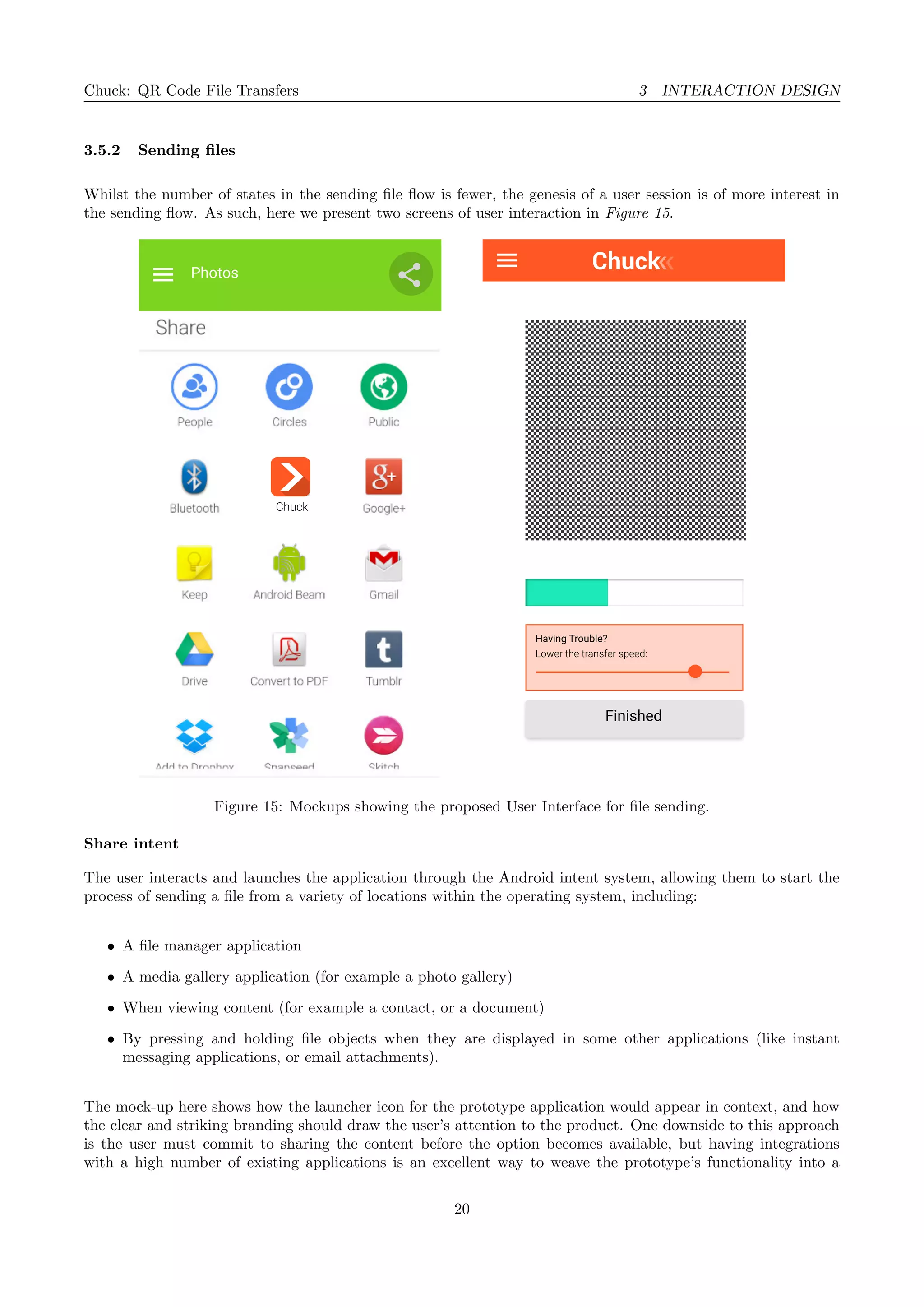
Whilst the number of states in the sending file flow is fewer, the genesis of a user session is of more interest in
the sending flow. As such, here we present two screens of user interaction in Figure 15.
Photos
Chuck
Finished
Having Trouble?
Lower the transfer speed:
Figure 15: Mockups showing the proposed User Interface for file sending.
Share intent
The user interacts and launches the application through the Android intent system, allowing them to start the
process of sending a file from a variety of locations within the operating system, including:
• A file manager application
• A media gallery application (for example a photo gallery)
• When viewing content (for example a contact, or a document)
• By pressing and holding file objects when they are displayed in some other applications (like instant
messaging applications, or email attachments).
The mock-up here shows how the launcher icon for the prototype application would appear in context, and how
the clear and striking branding should draw the user’s attention to the product. One downside to this approach
is the user must commit to sharing the content before the option becomes available, but having integrations
with a high number of existing applications is an excellent way to weave the prototype’s functionality into a
20
Chuck: QR Code File Transfers 3 INTERACTION DESIGN
wide variety of transfer situations. Equally, this is the way in which many users interact with the Bluetooth file
transfer system.
Sending state
In this view, the user is likely to abandon the device and return once the transfer is complete (for example,
setting the device down on the table). Therefore the number of options available to the user should be limited,
to keep the interface clear and maximise the screen area that can be dedicated to the file transfer.
For debugging purposes the prototype should contain some controls for varying the speed of transfer, and it’s
possible that with the correct messaging this control could be manipulated by end users to control the speed of
transfer (for example, older phones may require a slower transfer speed, with the reward of greater frame success
rate).
The only transition possible in this state is to close the application (following a successful transfer), so this option
is presented. Alongside this is a progress bar showing the cursor position in the frame array of the sending device.
3.6 The iterative process
Once the development process began, several design changes were made from the initial mock-ups. These changes
were based on some initial feedback from peers and users, technical limitations, and responses to the behaviour
of the prototype as it was developed. Examples of changes include:
• Removal of the estimated transfer time from the receiving state.
This was removed partly due to the technical challenge in reliably determining the likely duration left on
a transfer, and the poor user experience that a constantly-changing value would cause.
• Auto-open of the file once a transfer completes
This marks the end of the transfer process, and removes the need for the checkbox enabling the same from
the receiving layout.
• Removal of the FAB from the scanning state
The implementation of a file manager was marked as beyond the scope of the prototype project, and method
for reliably launching an existing file management application wasn’t found.
• Removal of progress bar from sending state
The appearance of the progress bar tended to confuse users more than anything else, who took it as a
measure of absolute transfer progress instead of an indication of the sending cursor.
• Debug sending controls placed in collapsible area
As test users wouldn’t be interacting with the debug controls it was decided to hide these during normal
operation.
• Removal of finish button from sending state
Early feedback indicated that users intuitively exited the application on the sending device using the back
button once the transfer was complete, rather than requiring an explicit button. This simplified the layout,
aiding the suggestion that the user should transfer their attention to the receiving device, and leaving more
room for the sending QR code.
21
Chuck: QR Code File Transfers 4 TECHNICAL DESIGN
4 Technical design
When considering the technical design of the prototype, care was taken to ensure that the transmission process
was flexible and demonstrated the core concept effectively. In particular, the brief for the design was for an
encoding system that demonstrated the following properties:
• Each single frame, without any further context, could provide information about the file under transfer.
• It is always possible to determine the progress of the transfer.
• The transfer can occur out-of-order.
• The payload length within a frame is configurable (such that ‘small’ and ‘large’ frames can be generated).
4.1 Transmission schema
For flexibility of definition, human-readability of debug output, and wide range of library and language support,
the JSON standard was chosen for encoding each frame. File payloads themselves, being bit arrays, could be more
efficiently represented as Base64 encoded strings within each frame.
A schema was then developed to represent a frame under transfer, taking into account the requirements outlined
in Section 4. The schema contained information about the current frame number, total number of frames, and
payload fields at the root level. The payload itself is a subset of the file under transfer, and is encoded as a
string. Payload start and payload length fields are also provided, which provide information about the start and
offset of the attached payload. These fields ease the process of streaming the file to storage as it is received. For
more information on this process, see Section 4.2.6.
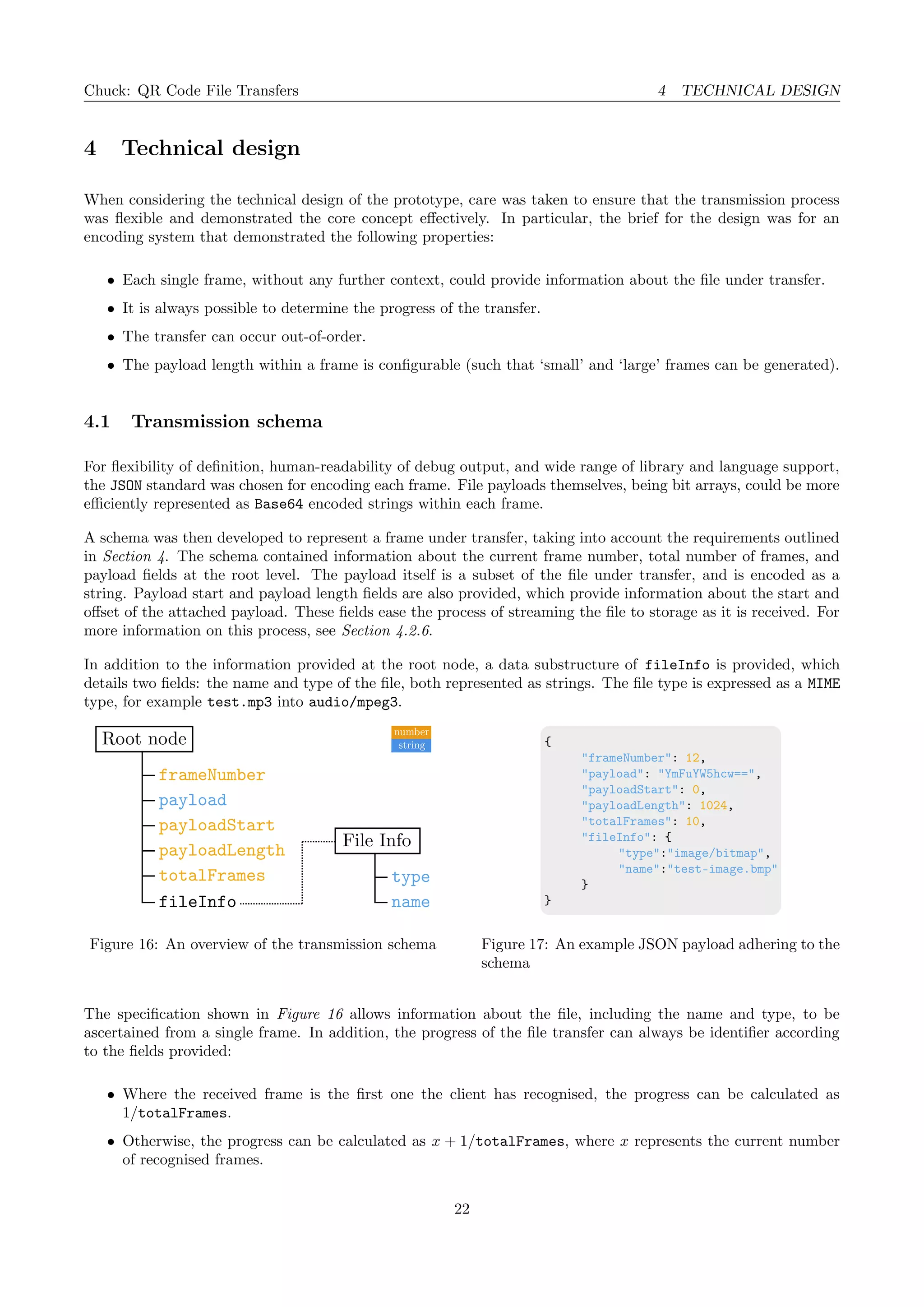
In addition to the information provided at the root node, a data substructure of fileInfo is provided, which
details two fields: the name and type of the file, both represented as strings. The file type is expressed as a MIME
type, for example test.mp3 into audio/mpeg3.
File Info
type
namefileInfo
payload
payloadStart
payloadLength
totalFrames
number
stringRoot node
frameNumber
Figure 16: An overview of the transmission schema
{
"frameNumber": 12,
"payload": "YmFuYW5hcw==",
"payloadStart": 0,
"payloadLength": 1024,
"totalFrames": 10,
"fileInfo": {
"type":"image/bitmap",
"name":"test-image.bmp"
}
}
Figure 17: An example JSON payload adhering to the
schema
The specification shown in Figure 16 allows information about the file, including the name and type, to be
ascertained from a single frame. In addition, the progress of the file transfer can always be identifier according
to the fields provided:
• Where the received frame is the first one the client has recognised, the progress can be calculated as
1/totalFrames.
• Otherwise, the progress can be calculated as x + 1/totalFrames, where x represents the current number
of recognised frames.
22
Chuck: QR Code File Transfers 4 TECHNICAL DESIGN
4.2 Application
Commentary about application and code structure in this section pertains to the first version
of the implementation shown to participants - this version is represented by git commit
7e55ea2ced0dc52e800396f31a9e0e690cb0c0d4 in the submission implementation folder.
This can be accessed via git checkout 7e55ea2ced0dc52e800396f31a9e0e690cb0c0d4 or through the APK
file ImplementationVersionA.apk. More information on sideloading APK files can be found in Appendix A
For the rest of this document this build shall be referred to as version A of the prototype.
The android application itself is comprised of a series of classes to represent objects involved in the transfer
process, activities that the user interacts with, and layout and graphic resources.
4.2.1 Abstract classes
Session
This object represents either a sending or receiving session, and contains fields for storing and retrieving:
• the total number of frames
• the File under transfer
• the type of session
• an array of Frames
4.2.2 Classes
ReceivingSession
Frame[]
Figure 18: Processing
of recognised frames.
Previously-unknown
frames (blue) are
added, duplicated
frames (orange) are
ignored.
This class contains methods for processing a Frame that has been received and adding
it to the underlying frame data structure, as shown in Figure 18. It also has methods
for calculating the file transfer progress, and for determining if a transfer has been
completed. A boolean map of the current transfer status is also calculable from
the getTransferProgressMap method, and is used elsewhere in the application to
display transfer status to the user.
This forms the main data structure the ReceivingActivity interacts with, and is
responsible for reconstructing the received file.
SendingSession
This class contains fields for the frameLength, which defines the length of file
payload within each frame, and bitmapSize which defines the pixel dimensions of
the generated QR code bitmaps.
In addition, the class contains a method generateFrames, which is used once to
populate the frame array with instantiated Frame objects, splitting up the total
payload according to the frameLength value. New frame instances are created with
an appropriate payload start and length values, as shown in Figure 19.
23
Chuck: QR Code File Transfers 4 TECHNICAL DESIGN
payload.length = 26
frameLength = 6
= Frame[]
frames.length = 5 = ceil(payload.length / frameLength)
payloadStart
payloadLength
0 6 12 18
6666
24
2
Figure 19: File chunking algorithm, where a single payload is transformed into an array of Frame objects.
File
This class represents a file under transfer, and is referenced by both sending and receiving sessions. The string
fields type and name are present in both cases, and depending on the type of file, information about the payload
is stored. For short text-based transfers like URLs, the payload is stored directly within the file object as a
string, and for files with longer payloads a payloadUri is stored instead.
An important distinction can be made between text transfers, which have no type, and text file transfers, which
have type text/plain. The former payload is stored in memory, the latter is stored as a Android content URI
to the text file.
The readPayloadSubset allows for the reading of a section of the referenced payload to be returned as a
Base64-encoded string. Conversely, the writePayloadSubset method allows the receiving session to write to
sections of a newly-created file as they are received - this process is assisted by openPayloadWritingSession
and closePayloadWritingSession helper methods.
The getPayloadSize method has relatively complex conditional logic due to the variety of ways in which a file
can be referenced:
• For text transfers with explicit in-object payloads, payload.length provides the required value
• For external Android file URIs, a java.io.File object is created and queried for file length.
• For external Android content URIs, the Android ContentResolver is queried to identify payload length
Frame
The frame class represents an individual transfer frame from payload section through to the generation of the
QR code bitmap. Instances have fields representing the parent session, and the current frame number. Read
and write methods for the payload are provided, calling upon the methods discussed previously within the File
object and for the provided payload start and length values.
Logic to serialize and deserialize this object are included, in the form of the getFullPayload method and
the Frame(String source, Session parentSession) constructor. These methods contain references to the
org.json Java library, and the details of the schema discussed in Section 4.1.
The serialization method is called by generateBitMatrix, which makes use of the ZXing library to construct
a two-dimensional bit matrix. In turn, this method is used within getBitmap, and its result is passed into a
bitmap object and returned.
24
Chuck: QR Code File Transfers 4 TECHNICAL DESIGN
4.2.3 Activities
ReceiveActivity
One of two launch activities in the prototype, this activity is responsible for constructing the interface with which
the user receives files using the QR code reader. On creation of the activity, a number of resources are initialised,
including the receivingSession object that will store the received frames. In addition, a new QRCodeReader
instance is created from the ZXing library to process bitmaps captured by the device camera.
A receivingProgressView and alignmentView are created - these are discussed in more detail in Section 4.2.4.
Other views, created as part of the inflation of res/layout/activity receive.xml are also found and assigned
here, to ease modification of the interface throughout the application.
The onResume method is fired whenever the application takes the foreground, and is responsible for interacting
with the Android Camera API in order to retrieve a stream of images to pass to the QR library. A surfaceView
is created to hold the preview images, and inserted into the activity view, and a surfaceCreated callback is
added to the corresponding surface holder.
This callback method is fired once the surface view is ready to receive images. A Camera object is opened and the
preview display set up, along with a separate preview callback which is used to extract the preview image data.
This second nested callback is fired each time a preview image is generated by the camera, and is responsible for
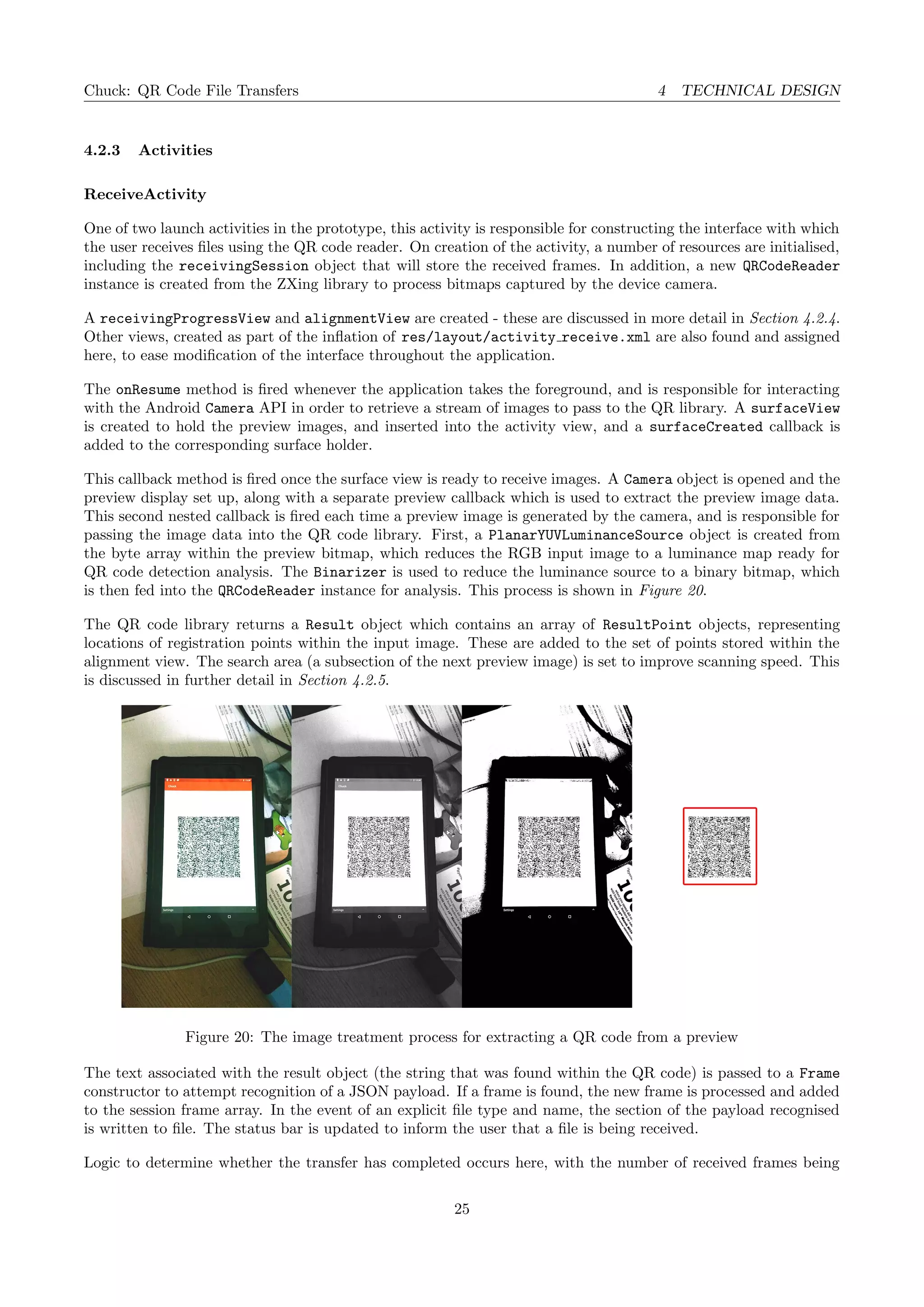
passing the image data into the QR code library. First, a PlanarYUVLuminanceSource object is created from
the byte array within the preview bitmap, which reduces the RGB input image to a luminance map ready for
QR code detection analysis. The Binarizer is used to reduce the luminance source to a binary bitmap, which
is then fed into the QRCodeReader instance for analysis. This process is shown in Figure 20.
The QR code library returns a Result object which contains an array of ResultPoint objects, representing
locations of registration points within the input image. These are added to the set of points stored within the
alignment view. The search area (a subsection of the next preview image) is set to improve scanning speed. This
is discussed in further detail in Section 4.2.5.
Figure 20: The image treatment process for extracting a QR code from a preview
The text associated with the result object (the string that was found within the QR code) is passed to a Frame
constructor to attempt recognition of a JSON payload. If a frame is found, the new frame is processed and added
to the session frame array. In the event of an explicit file type and name, the section of the payload recognised
is written to file. The status bar is updated to inform the user that a file is being received.
Logic to determine whether the transfer has completed occurs here, with the number of received frames being
25
Chuck: QR Code File Transfers 4 TECHNICAL DESIGN
compared to the total number required to construct the entire file. If the transfer has successfully completed,
then the file is opened by firing an intent7
, or displayed as text in a toast notification.
If a frame is received with a differing total number of frames, the session is cleared and the transfer process
begins anew.
SendingActivity
The sending activity is responsible for providing an interface to users initiating a transfer after selecting the
Chuck option from the Android share menu, including the display of generated QR codes. To aid with debugging
of the transfer process, the interface also contains controls for varying:
• The payload length within each frame
• The size of each generated bitmap
• The order in which frames are transmitted, relative to the order of payload segments within the file.
To facilitate the choice of transmission order, an interface TransferMode was created, containing two method
signatures String getName() and int getNextFrame(SendingSession sendingSession, int i). The former
is used to refer to and compare instances of transfer modes, and the latter is used to return the next frame that
should be transmitted (with the second parameter i acting as a incrementing seed value - transfer modes may
or may not be deterministic).
On creation of the activity, a new sending session is created along with a QRCodeWriter from the QR library. A
data structure to represent a collection of TransferMode objects is created, and populated with two modes at
runtime: an incremental model, and a random model. The current transfer mode is set as the incremental model
by default.
References to the debug controls in the layout xml file are constructed and event listeners attached to various
parameters of the sending session. Details about the file under transfer are then extracted from the Android
operating system as parameters of the intent that launched the activity. The sendingSession.fileUnderTransfer
is set once it has been initialised, the frame generation process is performed, and the transfer can begin.
Within the resume event, a separate Thread to handle the clock responsibilities of the transfer is created. The
thread increments the current frame to transfer by calling the current transfer mode implementation for a frame
index. The Frame.getBitmap() method is used to generate a bitmap object, which is inserted into an image
view in the centre of the layout.
At runtime, whilst the transfer is running, the current transfer mode can be modified, as can the frame length
and bitmap size. Altering the frame length will restart the transfer process, as the receiving device will not be
able to mix frames of differing lengths.
4.2.4 Views
The prototype contains several custom Android views, mostly custom graphic elements that are inserted into
the layout view for specific activities. These views are invalidated manually throughout the prototype, causing
a re-render.
ReceivingProgressView
This custom view represents the current transfer progress to the user, in the form described in Section 3.4.2.
The drawing process involves a call to receivingSession.getTransferProgressMap(), returning a binary map
7If an installed application can open the file type
26
Chuck: QR Code File Transfers 4 TECHNICAL DESIGN
of transfer status. The binary array is examined for length versus the view canvas, and wrapping is performed
as appropriate. The array is traversed and appropriate colours are drawn. A data structure representing a set
of frames which have been most recently transferred is kept as a field, and these frames are drawn in a separate
colour.
AlignmentView
This view is responsible for annotating the user’s preview of the camera input with artefacts intended to guide
user behaviour. Specifically, the registration points of the QR code are overlaid, and a bounding rectangle to
represent the search area is shown. To achieve this a dynamic array of points are instantiated, and points can
be added and removed according to the recognition of registration points within the receiving activity.
The onDraw method iterates over the data structure containing recognised points and draws them as small icons.
The view itself is constructed with an argument referencing the parent activity, and this reference is used to fetch
the current search area and render a rectangle demonstrating this, as per the designs.
4.2.5 Search area
The inclusion of a search area was originally proposed as a design tool to promote wanted user behaviour (as
discussed in Section 3.4.1), but actually has a significant advantage algorithmically for the continuous detection of
QR codes. As such, a subset of the preview camera image is passed to the QR code library for recognition, which
improves the speed at which this recognition step can be performed. Therefore the rectangle shown represents
more of a bounding box than a guideline, as QR codes that appear even partially outside of this area will not be
recognised.
4.2.6 Streaming to file
An early iteration of this technical design involved the extraction of the file payload to the File object representing
the file under transfer, for ease of QR code generation. This method was suitable for text files and small
images, but in order for files of increasing size to be transferable modifications had to be made. As such the
prototype interacts directly with the file under transfer at runtime, reading and saving each frame’s payload
section individually. This results in a transfer process that can accommodate files of any size, bound only by
the storage capacity of the device (and any maximum individual file size enforced by the storage technology or
operating system).
4.2.7 Android camera API
During the development window of the prototype, two versions of the Android camera API were available for
development against, Camera and Camera2. The former is officially deprecated against the version of Android
the prototype compiles against, but still functions. The latter is compatible with Android API 21 and later, but
has a more complex method for accessing camera resources. As such, and with this prototype representing a
proof of concept, it was decided to continue development with the former camera API to allow the majority of
development time to focus on the system which the prototype sought to demonstrate.
27
Chuck: QR Code File Transfers 4 TECHNICAL DESIGN
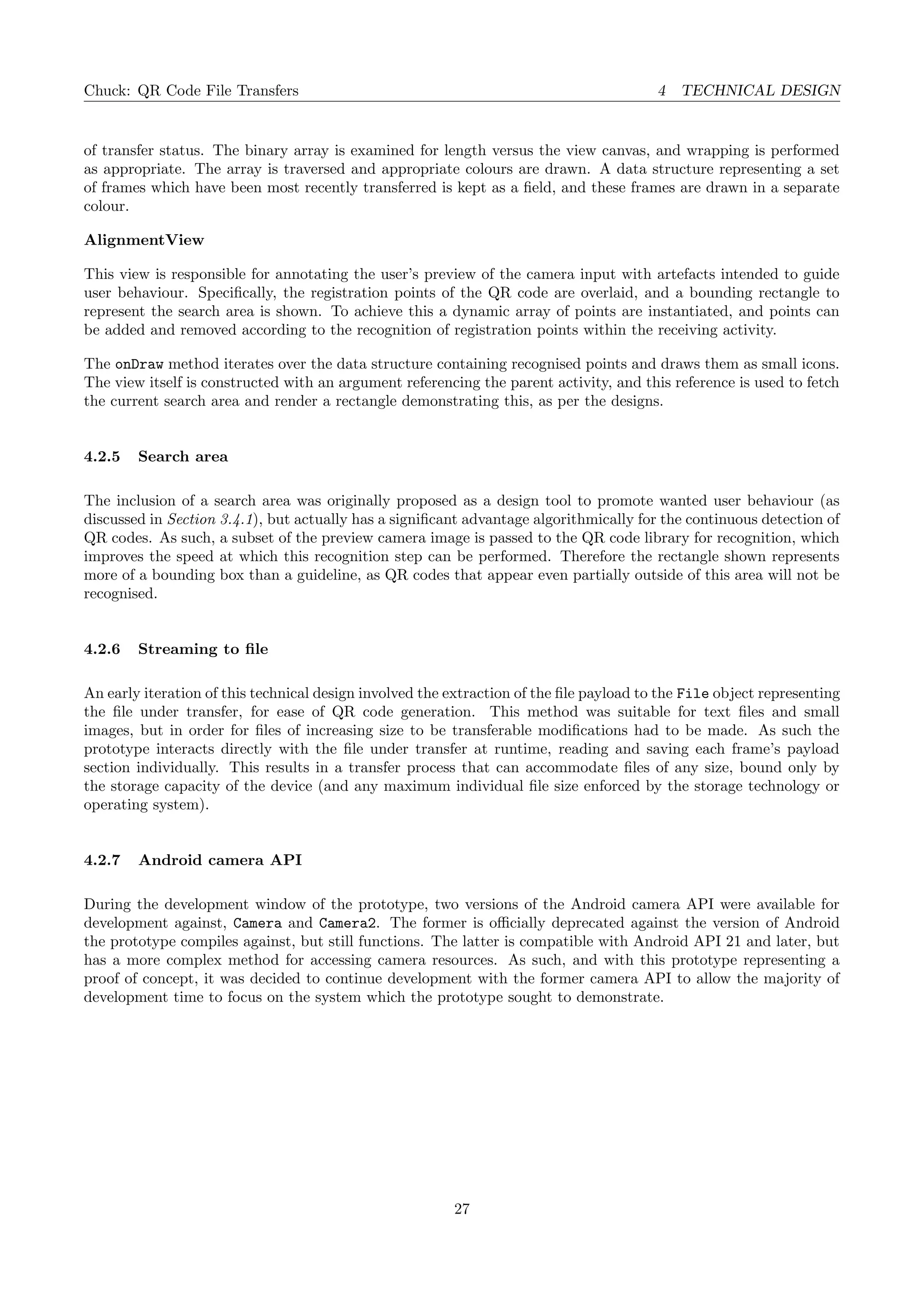
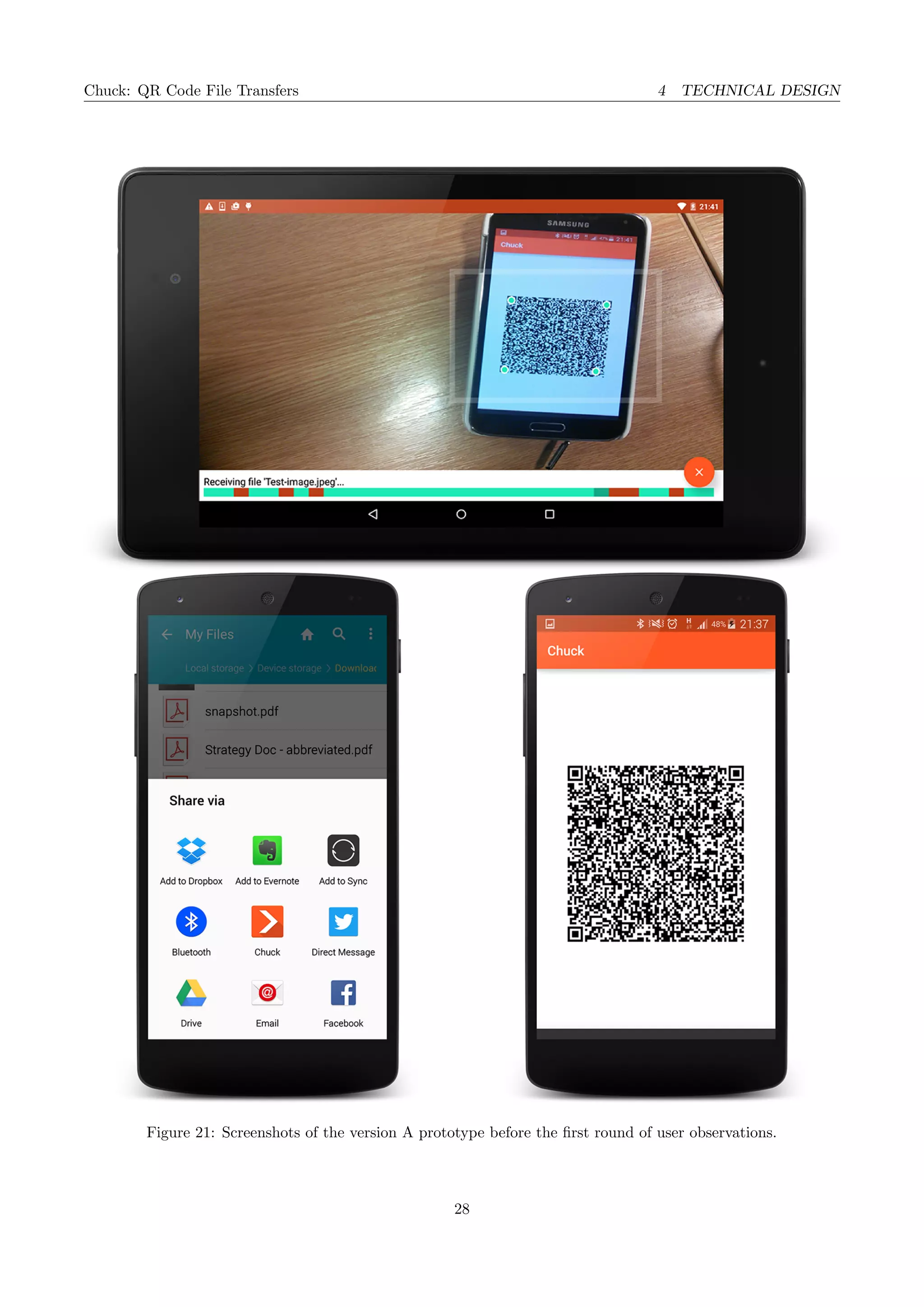
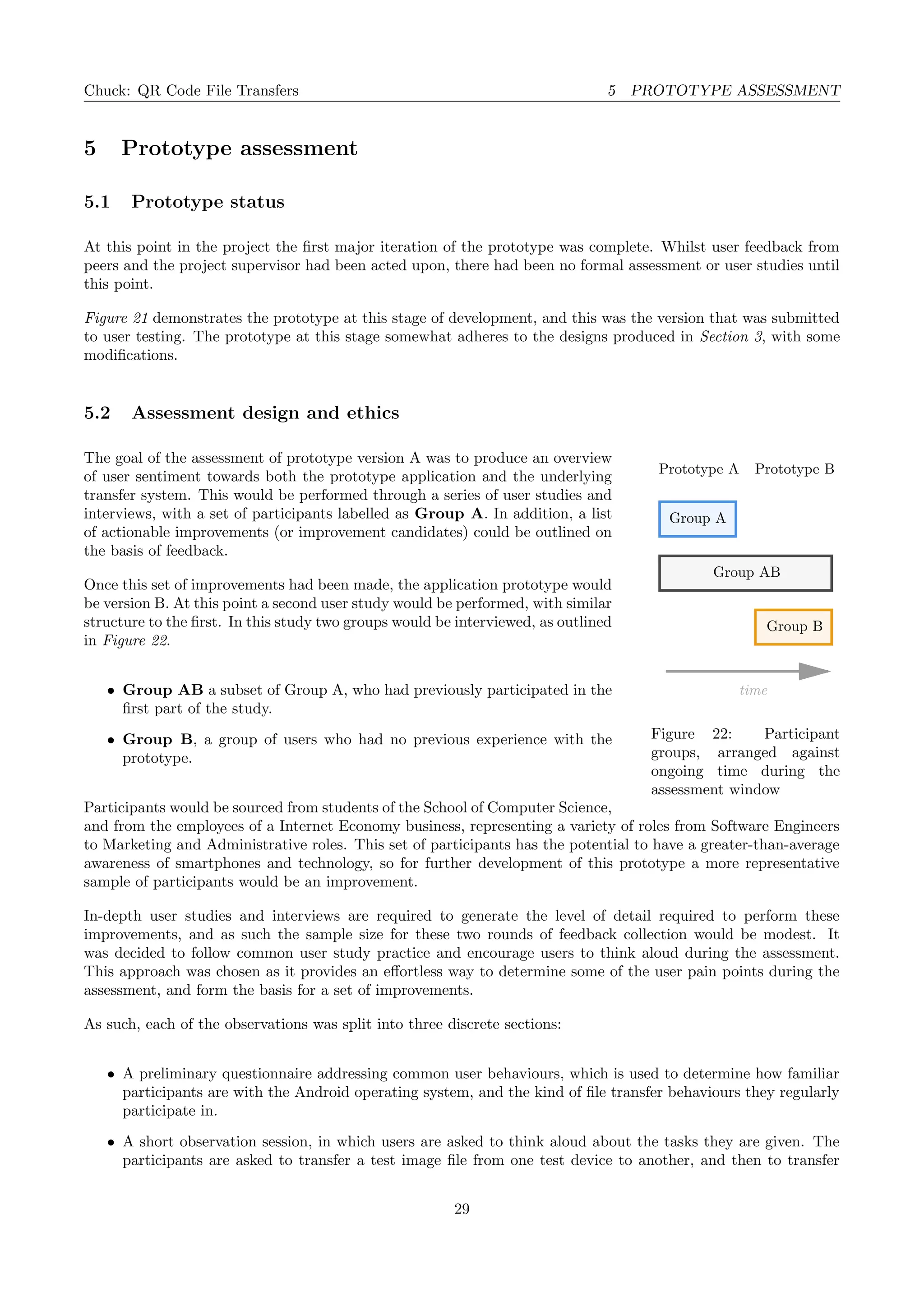
Figure 21: Screenshots of the version A prototype before the first round of user observations.
28
Chuck: QR Code File Transfers 5 PROTOTYPE ASSESSMENT
5 Prototype assessment
5.1 Prototype status
At this point in the project the first major iteration of the prototype was complete. Whilst user feedback from
peers and the project supervisor had been acted upon, there had been no formal assessment or user studies until
this point.
Figure 21 demonstrates the prototype at this stage of development, and this was the version that was submitted
to user testing. The prototype at this stage somewhat adheres to the designs produced in Section 3, with some
modifications.
5.2 Assessment design and ethics
Prototype A
time
Prototype B
Group B
Group AB
Group A
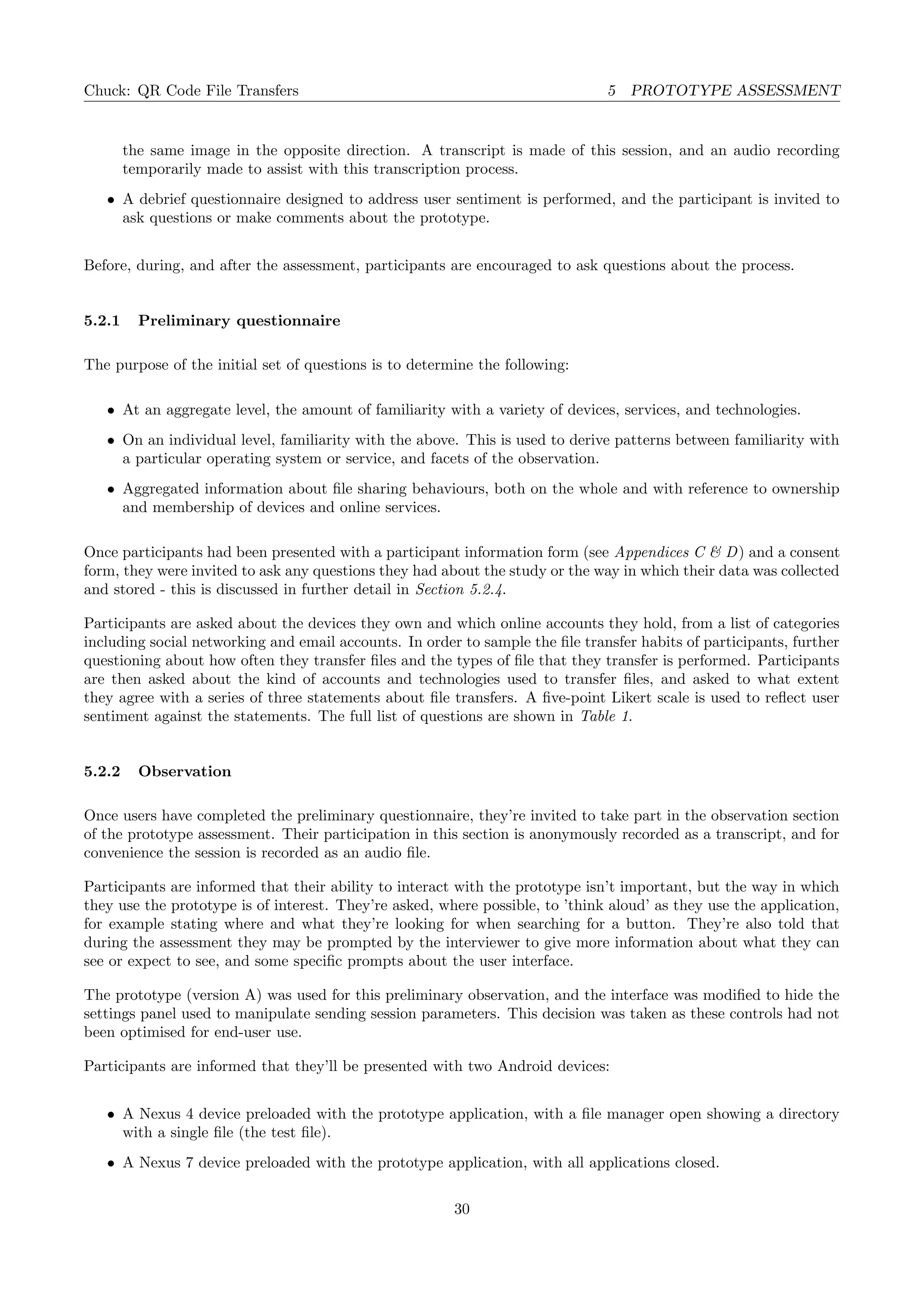
Figure 22: Participant
groups, arranged against
ongoing time during the
assessment window
The goal of the assessment of prototype version A was to produce an overview
of user sentiment towards both the prototype application and the underlying
transfer system. This would be performed through a series of user studies and
interviews, with a set of participants labelled as Group A. In addition, a list
of actionable improvements (or improvement candidates) could be outlined on
the basis of feedback.
Once this set of improvements had been made, the application prototype would
be version B. At this point a second user study would be performed, with similar
structure to the first. In this study two groups would be interviewed, as outlined
in Figure 22.
• Group AB a subset of Group A, who had previously participated in the
first part of the study.
• Group B, a group of users who had no previous experience with the
prototype.
Participants would be sourced from students of the School of Computer Science,
and from the employees of a Internet Economy business, representing a variety of roles from Software Engineers
to Marketing and Administrative roles. This set of participants has the potential to have a greater-than-average
awareness of smartphones and technology, so for further development of this prototype a more representative
sample of participants would be an improvement.
In-depth user studies and interviews are required to generate the level of detail required to perform these
improvements, and as such the sample size for these two rounds of feedback collection would be modest. It
was decided to follow common user study practice and encourage users to think aloud during the assessment.
This approach was chosen as it provides an effortless way to determine some of the user pain points during the
assessment, and form the basis for a set of improvements.
As such, each of the observations was split into three discrete sections:
• A preliminary questionnaire addressing common user behaviours, which is used to determine how familiar
participants are with the Android operating system, and the kind of file transfer behaviours they regularly
participate in.
• A short observation session, in which users are asked to think aloud about the tasks they are given. The
participants are asked to transfer a test image file from one test device to another, and then to transfer
29
Chuck: QR Code File Transfers 5 PROTOTYPE ASSESSMENT
the same image in the opposite direction. A transcript is made of this session, and an audio recording
temporarily made to assist with this transcription process.
• A debrief questionnaire designed to address user sentiment is performed, and the participant is invited to
ask questions or make comments about the prototype.
Before, during, and after the assessment, participants are encouraged to ask questions about the process.
5.2.1 Preliminary questionnaire
The purpose of the initial set of questions is to determine the following:
• At an aggregate level, the amount of familiarity with a variety of devices, services, and technologies.
• On an individual level, familiarity with the above. This is used to derive patterns between familiarity with
a particular operating system or service, and facets of the observation.
• Aggregated information about file sharing behaviours, both on the whole and with reference to ownership
and membership of devices and online services.
Once participants had been presented with a participant information form (see Appendices C & D) and a consent
form, they were invited to ask any questions they had about the study or the way in which their data was collected
and stored - this is discussed in further detail in Section 5.2.4.
Participants are asked about the devices they own and which online accounts they hold, from a list of categories
including social networking and email accounts. In order to sample the file transfer habits of participants, further
questioning about how often they transfer files and the types of file that they transfer is performed. Participants
are then asked about the kind of accounts and technologies used to transfer files, and asked to what extent
they agree with a series of three statements about file transfers. A five-point Likert scale is used to reflect user
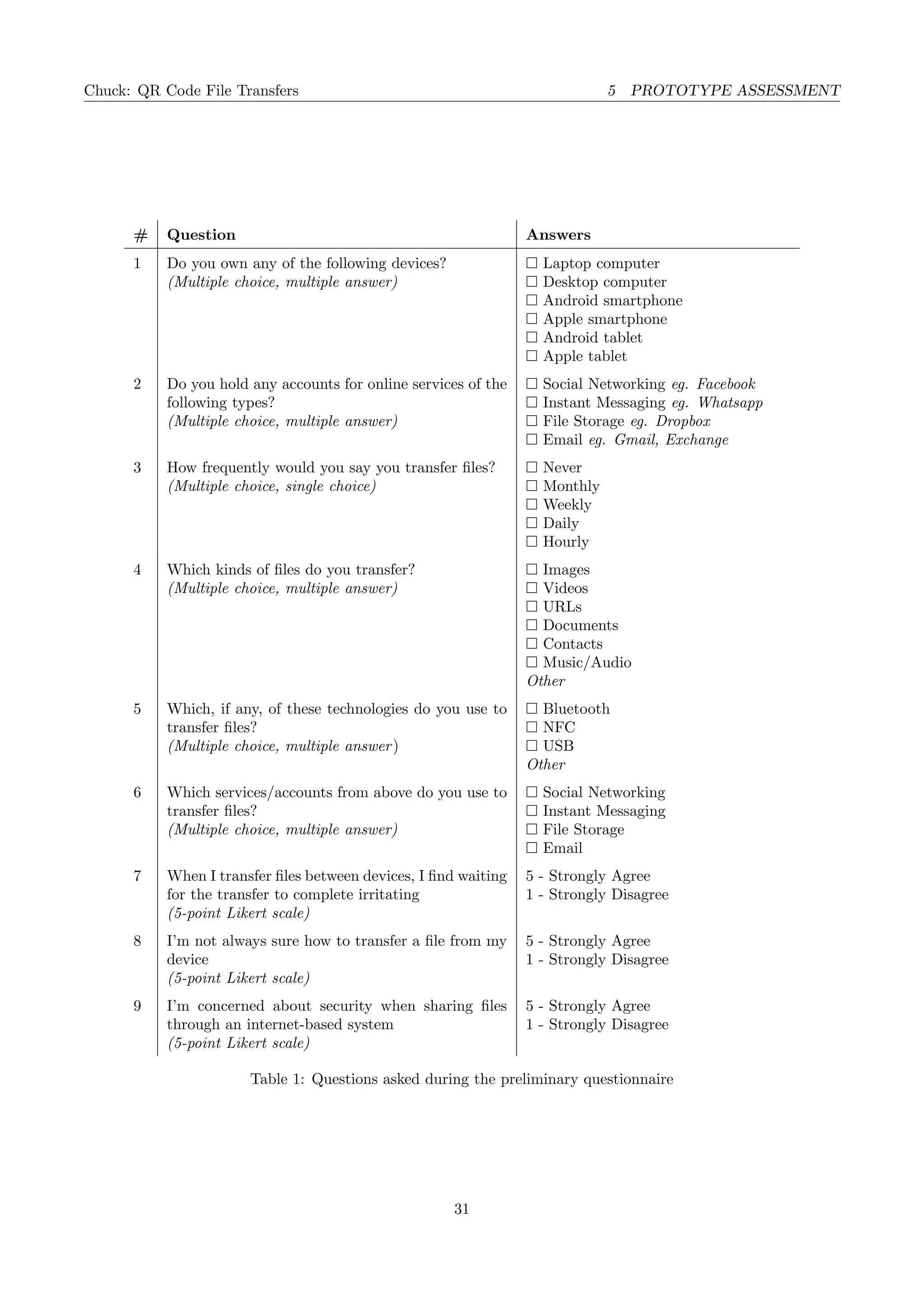
sentiment against the statements. The full list of questions are shown in Table 1.
5.2.2 Observation
Once users have completed the preliminary questionnaire, they’re invited to take part in the observation section
of the prototype assessment. Their participation in this section is anonymously recorded as a transcript, and for
convenience the session is recorded as an audio file.
Participants are informed that their ability to interact with the prototype isn’t important, but the way in which
they use the prototype is of interest. They’re asked, where possible, to ’think aloud’ as they use the application,
for example stating where and what they’re looking for when searching for a button. They’re also told that
during the assessment they may be prompted by the interviewer to give more information about what they can
see or expect to see, and some specific prompts about the user interface.
The prototype (version A) was used for this preliminary observation, and the interface was modified to hide the
settings panel used to manipulate sending session parameters. This decision was taken as these controls had not
been optimised for end-user use.
Participants are informed that they’ll be presented with two Android devices:
• A Nexus 4 device preloaded with the prototype application, with a file manager open showing a directory
with a single file (the test file).
• A Nexus 7 device preloaded with the prototype application, with all applications closed.
30
Chuck: QR Code File Transfers 5 PROTOTYPE ASSESSMENT
# Question Answers
1 Do you own any of the following devices?
(Multiple choice, multiple answer)
Laptop computer
Desktop computer
Android smartphone
Apple smartphone
Android tablet
Apple tablet
2 Do you hold any accounts for online services of the
following types?
(Multiple choice, multiple answer)
Social Networking eg. Facebook
Instant Messaging eg. Whatsapp
File Storage eg. Dropbox
Email eg. Gmail, Exchange
3 How frequently would you say you transfer files?
(Multiple choice, single choice)
Never
Monthly
Weekly
Daily
Hourly
4 Which kinds of files do you transfer?
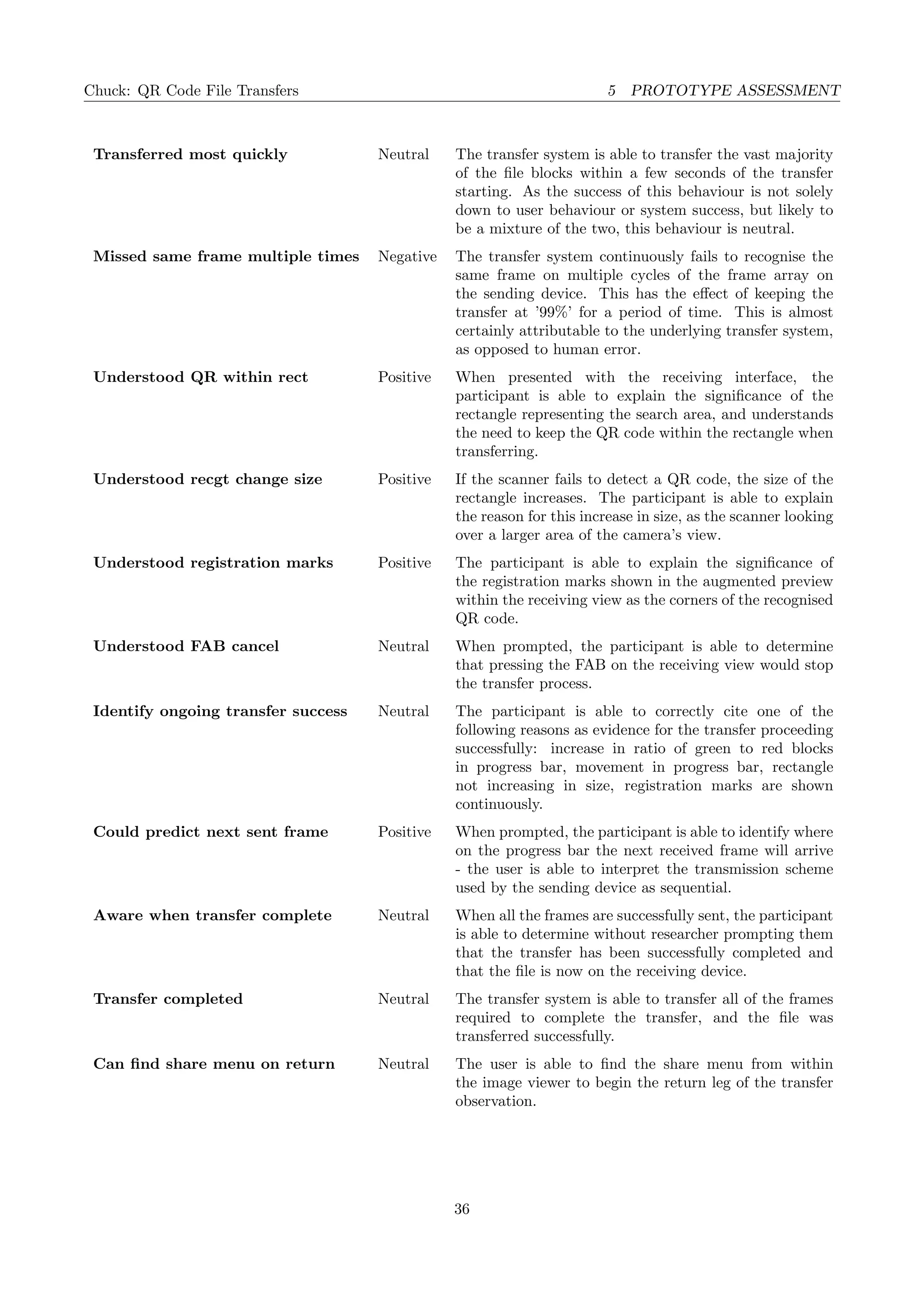
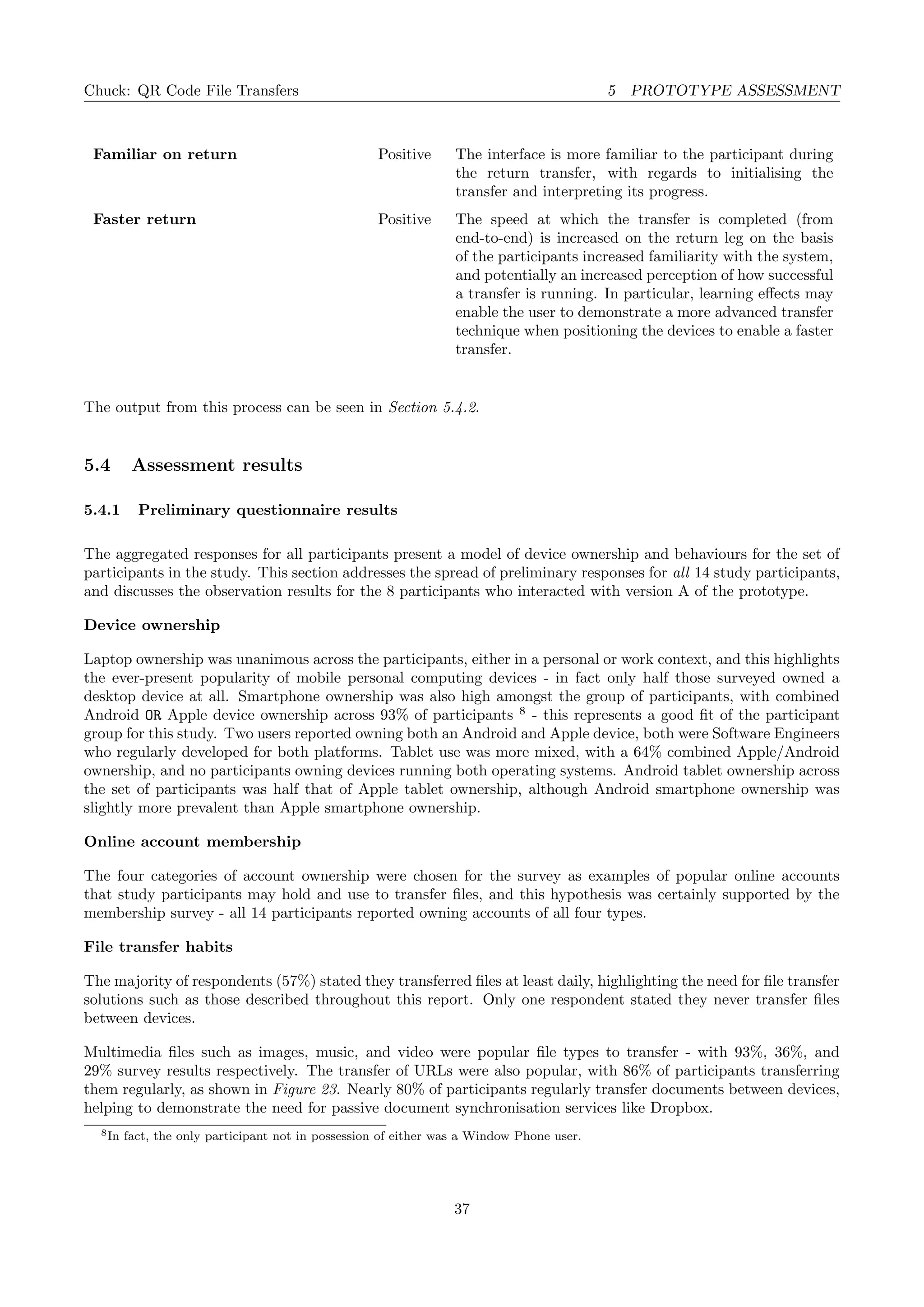
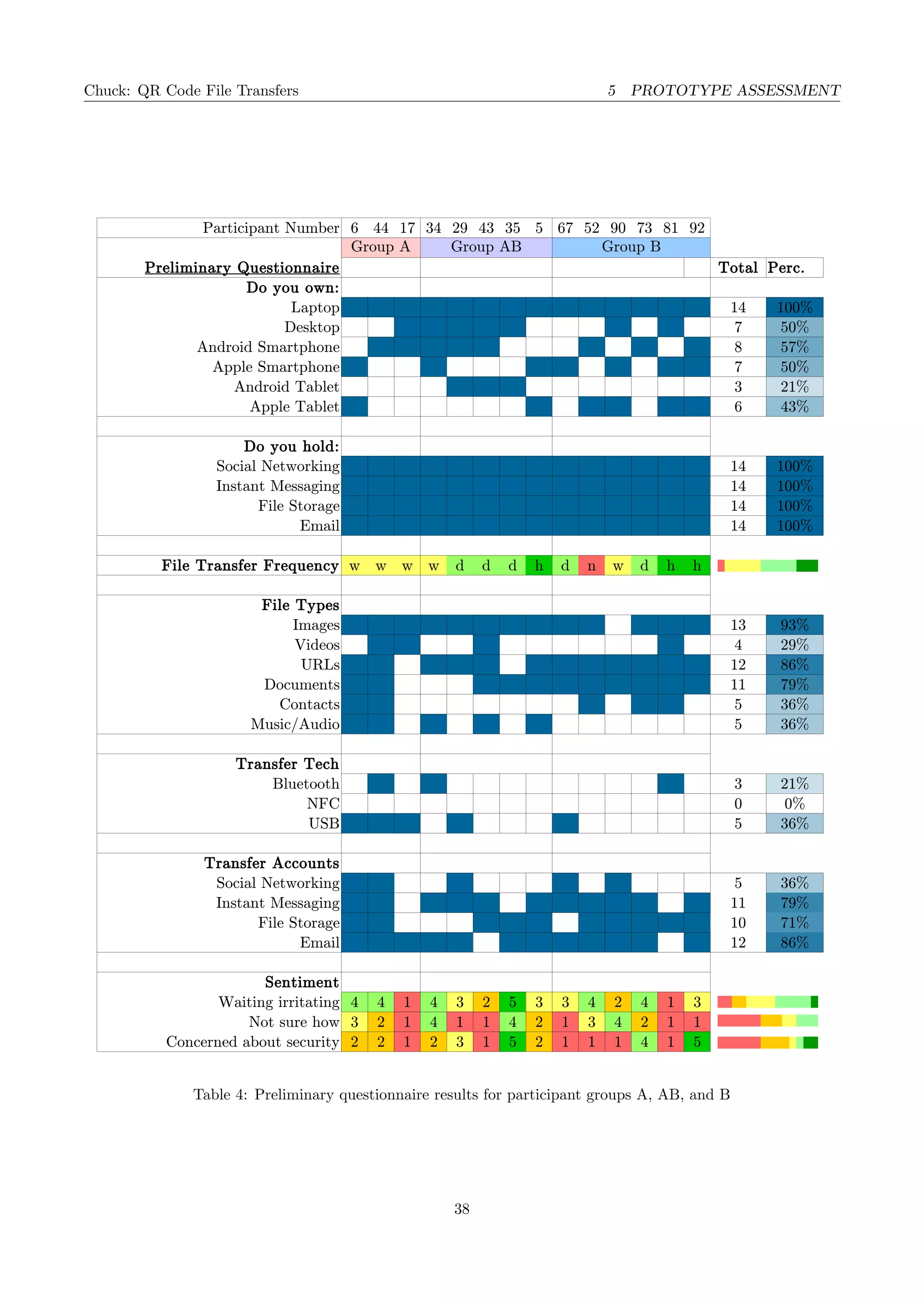
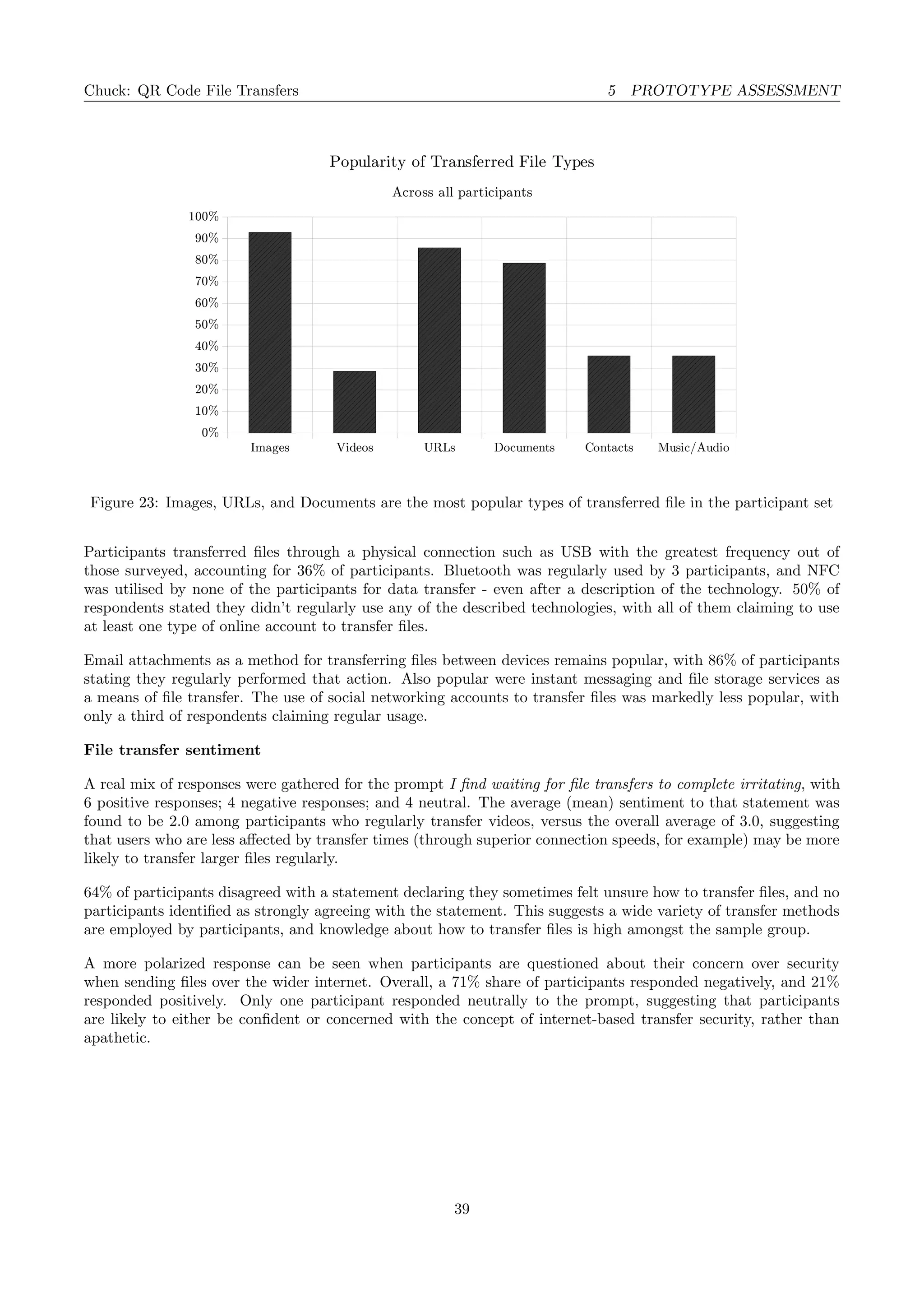
(Multiple choice, multiple answer)
Images
Videos
URLs
Documents
Contacts
Music/Audio
Other
5 Which, if any, of these technologies do you use to
transfer files?
(Multiple choice, multiple answer)
Bluetooth
NFC
USB
Other
6 Which services/accounts from above do you use to
transfer files?
(Multiple choice, multiple answer)
Social Networking
Instant Messaging
File Storage
Email
7 When I transfer files between devices, I find waiting
for the transfer to complete irritating
(5-point Likert scale)
5 - Strongly Agree
1 - Strongly Disagree
8 I’m not always sure how to transfer a file from my
device
(5-point Likert scale)
5 - Strongly Agree
1 - Strongly Disagree
9 I’m concerned about security when sharing files
through an internet-based system
(5-point Likert scale)
5 - Strongly Agree
1 - Strongly Disagree
Table 1: Questions asked during the preliminary questionnaire
31
Chuck: QR Code File Transfers 5 PROTOTYPE ASSESSMENT
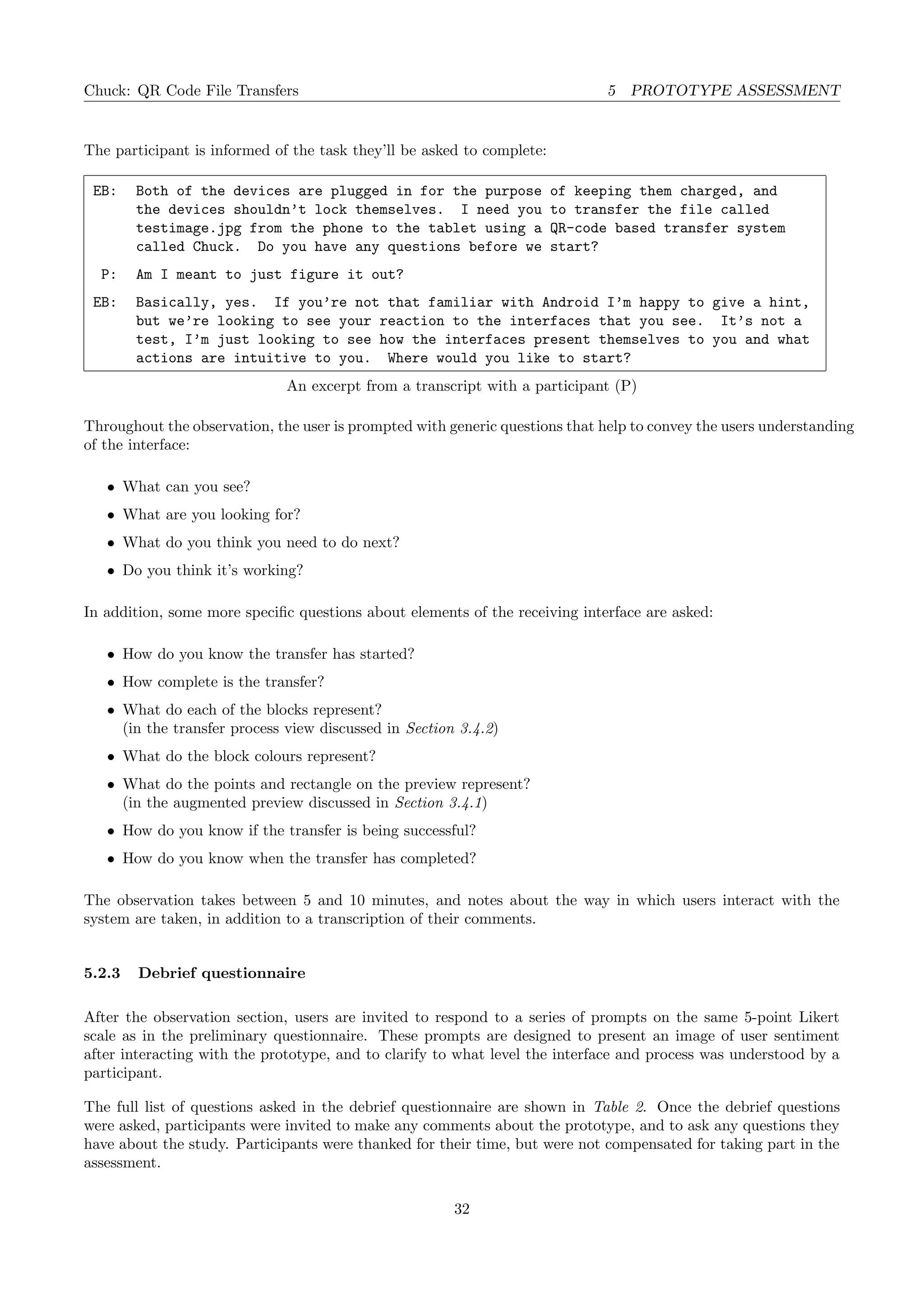
The participant is informed of the task they’ll be asked to complete:
EB: Both of the devices are plugged in for the purpose of keeping them charged, and
the devices shouldn’t lock themselves. I need you to transfer the file called
testimage.jpg from the phone to the tablet using a QR-code based transfer system
called Chuck. Do you have any questions before we start?
P: Am I meant to just figure it out?
EB: Basically, yes. If you’re not that familiar with Android I’m happy to give a hint,
but we’re looking to see your reaction to the interfaces that you see. It’s not a
test, I’m just looking to see how the interfaces present themselves to you and what
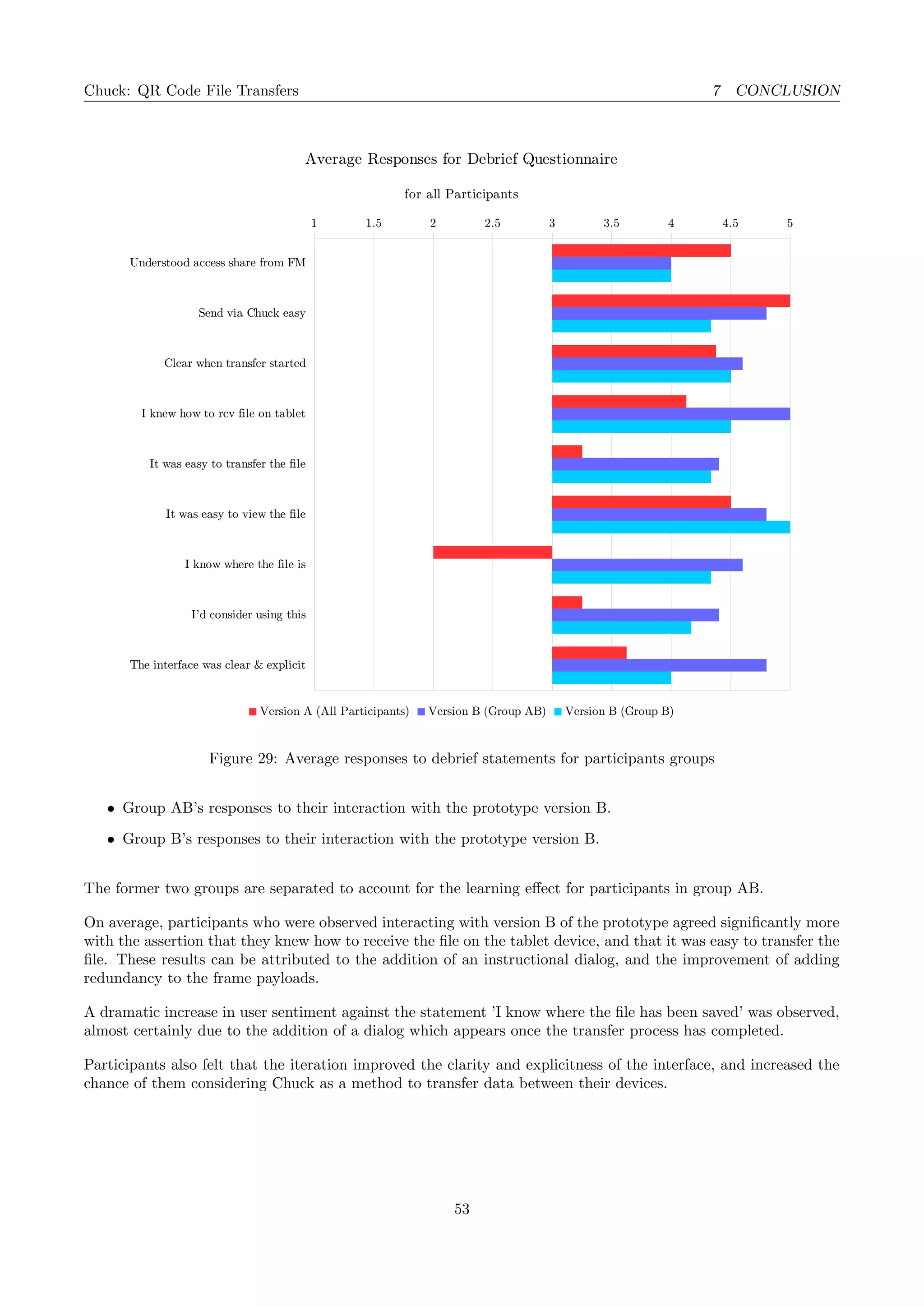
actions are intuitive to you. Where would you like to start?
An excerpt from a transcript with a participant (P)
Throughout the observation, the user is prompted with generic questions that help to convey the users understanding
of the interface:
• What can you see?
• What are you looking for?
• What do you think you need to do next?
• Do you think it’s working?
In addition, some more specific questions about elements of the receiving interface are asked:
• How do you know the transfer has started?
• How complete is the transfer?
• What do each of the blocks represent?
(in the transfer process view discussed in Section 3.4.2)
• What do the block colours represent?
• What do the points and rectangle on the preview represent?
(in the augmented preview discussed in Section 3.4.1)
• How do you know if the transfer is being successful?
• How do you know when the transfer has completed?
The observation takes between 5 and 10 minutes, and notes about the way in which users interact with the
system are taken, in addition to a transcription of their comments.
5.2.3 Debrief questionnaire
After the observation section, users are invited to respond to a series of prompts on the same 5-point Likert
scale as in the preliminary questionnaire. These prompts are designed to present an image of user sentiment
after interacting with the prototype, and to clarify to what level the interface and process was understood by a
participant.
The full list of questions asked in the debrief questionnaire are shown in Table 2. Once the debrief questions
were asked, participants were invited to make any comments about the prototype, and to ask any questions they
have about the study. Participants were thanked for their time, but were not compensated for taking part in the
assessment.
32
Chuck: QR Code File Transfers 5 PROTOTYPE ASSESSMENT
# Question Answers
1 I understood how to access the share menu from the file manager
(5-point Likert scale)
5 - Strongly Agree
1 - Strongly Disagree
2 Finding the option to send the file via Chuck was easy
(5-point Likert scale)
5 - Strongly Agree
1 - Strongly Disagree
3 It was clear when the transfer had started
(5-point Likert scale)
5 - Strongly Agree
1 - Strongly Disagree
4 I knew how to receive the file on the tablet device
(5-point Likert scale)
5 - Strongly Agree
1 - Strongly Disagree
5 It was easy to transfer the file
(5-point Likert scale)
5 - Strongly Agree
1 - Strongly Disagree
6 It was easy to view the file once the transfer was complete
(5-point Likert scale)
5 - Strongly Agree
1 - Strongly Disagree
7 I know where the file has been saved
(5-point Likert scale)
5 - Strongly Agree
1 - Strongly Disagree
8 I’d consider using this as a method to transfer files between devices
(5-point Likert scale)
5 - Strongly Agree
1 - Strongly Disagree
9 The interface was clear and explicit about the transfer process
(5-point Likert scale)
5 - Strongly Agree
1 - Strongly Disagree
Table 2: Questions asked during the debrief questionnaire
5.2.4 Ethical considerations
According to the University of St Andrews School of Computer Science Ethics Pre-assessment Form [24], full
ethical approval is not required for this assessment, as user contributions are kept anonymous. During the process
of the study, some participants were given temporary tokens to represent their identity between observation
sessions. These tokens took the form of randomly-assigned numbers that they were asked to remember or write
down. Numbers were chosen from the set 1 − 50 for the first wave of observations, and 50 − 100 for the second.
This system meant that even though user observation sessions may have occurred several weeks apart, it was
possible to compare an individual user’s responses between the sessions.
Information about token allocation was never stored, and participant consent forms (see Appendix D) were stored
securely and separately from the participation data. As such, it is not (and was not possible during the study)
to link a participant with their data contribution, preserving anonymity.
Recordings taken as part of the assessment were destroyed as soon as the results of the observations were distilled,
a process discussed in Section 5.3.
33
Chuck: QR Code File Transfers 5 PROTOTYPE ASSESSMENT
5.3 Processing results
Once the user studies were complete, it was possible to aggregate information from them and distil the user
observations into a more readable and comparable form than audio recordings.
Common themes from assessments with users were identified (for example, a participant erroneously opening the
prototype from the application drawer when attempting to initiate a transfer) and each a boolean value stored
against each participant indicating whether this behaviour was observed. This reduction of the aggregated
observation data represented by the transcriptions of user actions and speech to a series of ’behavioural flags’
permits the quick analysis and comparison of multiple users.
Observation sessions have been reduced to a series of behaviours, which are marked as either being present or
not in each user’s session. Some of these behaviours have been chosen as examples of the transfer system working
well, or the user interface working well. Similarly, some behaviours have been chosen which show the transfer
system or interface as not functioning optimally.
The behaviours are as follows:
Sharing and starting the transfer
Found share menu Positive The ability of the user to find the share menu within the
file manager at the start of the assessment. This is more
of a measure of familiarity with the underlying operating
system and the design patterns associated with Android
application design than a measure of the effectiveness of
the prototype itself.
Tried to share directory Negative The user opens the contextual menu on the entire
directory, instead of pressing-and-holding the file record
to select it. The prototype will fail to share the directory
and end, and the examiner will explain to the participant
why the sharing action has failed.
Open Chk from launcher to send Negative The user closes the file manager and attempts to open
Chuck from the application drawer/launcher. It is not
possible to send files through Chuck from the launcher,
the user must start from the file they wish to send. This
could indicate that file-sending functionality from the
launched application itself is worth exploring.
Share to Chk w/o prompt Positive The user intuitively selects Chuck from the list of
sharing options, without asking for further instruction
or spending time reading each option. The branding
surrounding chuck is striking enough for the option to
be easily recognised as the best way to proceed with the
transfer.
Immediately transition to tablet Positive The user, without any instruction from the researcher,
recognises that the sending device has started to
transmit data and moves their session to the second
device by interacting with the tablet. It’s clear and
intuitive what the participant must do next.
Launch Chk from launcher Neutral The user automatically opens the application launcher
on the tablet device, finds the Chuck icon quickly and
opens the application in the receiving state.
34
Chuck: QR Code File Transfers 5 PROTOTYPE ASSESSMENT
Immediately scan, intuitively Positive With no instruction from the researcher, the user
recognises the mechanics of the QR code transfer process
and automatically starts to scan the QR code using the
receiving device, holding it steady.
Attempt to scan in reverse Negative The user attempts to scan devices in the incorrect order,
placing the sending device above the receiving device.
This could indicate that user intuition with scanning
behaviour isn’t as strong as assumed, and more explicit
instruction may be required.
Self-recognised when scan started Positive The participant is able to detect that the transfer
progress had begun once the receiving device successfully
recognises a frame. The user interface changes at this
point, showing a progress bar.
Read filename aloud Neutral The user elects to read the new status bar text, informing
them that a transfer of ’test image dot jpeg’ has stated.
As users are encouraged to verbalise what they say, users
who do not perform this action are assumed to have not
read the text.
Tried to move device away Negative Once the transfer has begun, the participant moves the
tablet away, assuming that the file is being transferred
in a non-visual way, or that the file has already been
successfully transferred. This would emulate more
traditional QR code downloads, where an internet
connection is used to deliver the remainder of the
payload.
Understood progress bar Neutral The participant, without any further questioning from
the researcher, acknowledges the new element on screen
when the transfer starts as a progress bar.
Understood file chunking Neutral The participant is able to explain what a single
(isolated) block in the progress bar view represents,
and understands how the file is separated into smaller
sections. As the user does not have to understand how
the prototype works in order to use it, this is a neutral
behaviour.
Could estimate progress Positive When asked, the participant is able to identify the
current progress of the transfer my estimating the ratio of
green blocks to red. If the participant estimates progress
by the relative position of the rightmost block (as in a
more traditional non-fragmented progress bar) then this
behaviour is not displayed.
Understood red/green chunks Neutral The participant is able to identify what the coloured
blocks in the progress bar represent, specifically with
reference to the colouring of individual blocks. They are
able to explain that green blocks are sections of the file
that have already been received, and that red blocks are
yet to be transferred.
Understood dark green current Neutral The participant recognises the block(s) in dark green as
the block(s) most recently transferred using the system.
This behaviour is also accepted if the user expresses the
dark green block as the ’currently transferring’ block.
35
Chuck: QR Code File Transfers 5 PROTOTYPE ASSESSMENT
Transferred most quickly Neutral The transfer system is able to transfer the vast majority
of the file blocks within a few seconds of the transfer
starting. As the success of this behaviour is not solely
down to user behaviour or system success, but likely to
be a mixture of the two, this behaviour is neutral.
Missed same frame multiple times Negative The transfer system continuously fails to recognise the
same frame on multiple cycles of the frame array on
the sending device. This has the effect of keeping the
transfer at ’99%’ for a period of time. This is almost
certainly attributable to the underlying transfer system,
as opposed to human error.
Understood QR within rect Positive When presented with the receiving interface, the
participant is able to explain the significance of the
rectangle representing the search area, and understands
the need to keep the QR code within the rectangle when
transferring.
Understood recgt change size Positive If the scanner fails to detect a QR code, the size of the
rectangle increases. The participant is able to explain
the reason for this increase in size, as the scanner looking
over a larger area of the camera’s view.
Understood registration marks Positive The participant is able to explain the significance of
the registration marks shown in the augmented preview
within the receiving view as the corners of the recognised
QR code.
Understood FAB cancel Neutral When prompted, the participant is able to determine
that pressing the FAB on the receiving view would stop
the transfer process.
Identify ongoing transfer success Neutral The participant is able to correctly cite one of the
following reasons as evidence for the transfer proceeding
successfully: increase in ratio of green to red blocks
in progress bar, movement in progress bar, rectangle
not increasing in size, registration marks are shown
continuously.
Could predict next sent frame Positive When prompted, the participant is able to identify where
on the progress bar the next received frame will arrive
- the user is able to interpret the transmission scheme
used by the sending device as sequential.
Aware when transfer complete Neutral When all the frames are successfully sent, the participant
is able to determine without researcher prompting them
that the transfer has been successfully completed and
that the file is now on the receiving device.
Transfer completed Neutral The transfer system is able to transfer all of the frames
required to complete the transfer, and the file was
transferred successfully.
Can find share menu on return Neutral The user is able to find the share menu from within
the image viewer to begin the return leg of the transfer
observation.
36
Chuck: QR Code File Transfers 5 PROTOTYPE ASSESSMENT
Familiar on return Positive The interface is more familiar to the participant during
the return transfer, with regards to initialising the
transfer and interpreting its progress.
Faster return Positive The speed at which the transfer is completed (from
end-to-end) is increased on the return leg on the basis
of the participants increased familiarity with the system,
and potentially an increased perception of how successful
a transfer is running. In particular, learning effects may
enable the user to demonstrate a more advanced transfer
technique when positioning the devices to enable a faster
transfer.
The output from this process can be seen in Section 5.4.2.
5.4 Assessment results
5.4.1 Preliminary questionnaire results
The aggregated responses for all participants present a model of device ownership and behaviours for the set of
participants in the study. This section addresses the spread of preliminary responses for all 14 study participants,
and discusses the observation results for the 8 participants who interacted with version A of the prototype.
Device ownership
Laptop ownership was unanimous across the participants, either in a personal or work context, and this highlights
the ever-present popularity of mobile personal computing devices - in fact only half those surveyed owned a
desktop device at all. Smartphone ownership was also high amongst the group of participants, with combined
Android OR Apple device ownership across 93% of participants 8
- this represents a good fit of the participant
group for this study. Two users reported owning both an Android and Apple device, both were Software Engineers
who regularly developed for both platforms. Tablet use was more mixed, with a 64% combined Apple/Android
ownership, and no participants owning devices running both operating systems. Android tablet ownership across
the set of participants was half that of Apple tablet ownership, although Android smartphone ownership was
slightly more prevalent than Apple smartphone ownership.
Online account membership
The four categories of account ownership were chosen for the survey as examples of popular online accounts
that study participants may hold and use to transfer files, and this hypothesis was certainly supported by the
membership survey - all 14 participants reported owning accounts of all four types.
File transfer habits
The majority of respondents (57%) stated they transferred files at least daily, highlighting the need for file transfer
solutions such as those described throughout this report. Only one respondent stated they never transfer files
between devices.
Multimedia files such as images, music, and video were popular file types to transfer - with 93%, 36%, and
29% survey results respectively. The transfer of URLs were also popular, with 86% of participants transferring
them regularly, as shown in Figure 23. Nearly 80% of participants regularly transfer documents between devices,
helping to demonstrate the need for passive document synchronisation services like Dropbox.
8In fact, the only participant not in possession of either was a Window Phone user.
37
Chuck: QR Code File Transfers 5 PROTOTYPE ASSESSMENT
Participant Number 6 44 17 34 29 43 35 5 67 52 90 73 81 92
Group A Group AB Group B
Preliminary Questionnaire Total Perc.
Do you own:
Laptop 1 1 1 1 1 1 1 1 1 1 1 1 1 1 14 100%
Desktop 1 1 1 1 1 1 1 7 50%
Android Smartphone 1 1 1 1 1 1 1 1 8 57%
Apple Smartphone 1 1 1 1 1 1 1 7 50%
Android Tablet 1 1 1 3 21%
Apple Tablet 1 1 1 1 1 1 6 43%
Do you hold:
Social Networking 1 1 1 1 1 1 1 1 1 1 1 1 1 1 14 100%
Instant Messaging 1 1 1 1 1 1 1 1 1 1 1 1 1 1 14 100%
File Storage 1 1 1 1 1 1 1 1 1 1 1 1 1 1 14 100%
Email 1 1 1 1 1 1 1 1 1 1 1 1 1 1 14 100%
File Transfer Frequency w w w w d d d h d n w d h h
File Types
Images 1 1 1 1 1 1 1 1 1 1 1 1 1 13 93%
Videos 1 1 1 1 4 29%
URLs 1 1 1 1 1 1 1 1 1 1 1 1 12 86%
Documents 1 1 1 1 1 1 1 1 1 1 1 11 79%
Contacts 1 1 1 1 1 5 36%
Music/Audio 1 1 1 1 1 5 36%
Transfer Tech
Bluetooth 1 1 1 3 21%
NFC 0 0%
USB 1 1 1 1 1 5 36%
Transfer Accounts
Social Networking 1 1 1 1 1 5 36%
Instant Messaging 1 1 1 1 1 1 1 1 1 1 1 11 79%
File Storage 1 1 1 1 1 1 1 1 1 1 10 71%
Email 1 1 1 1 1 1 1 1 1 1 1 1 12 86%
Sentiment
Waiting irritating 4 4 1 4 3 2 5 3 3 4 2 4 1 3
Not sure how 3 2 1 4 1 1 4 2 1 3 4 2 1 1
Concerned about security 2 2 1 2 3 1 5 2 1 1 1 4 1 5
Table 4: Preliminary questionnaire results for participant groups A, AB, and B
38
Chuck: QR Code File Transfers 5 PROTOTYPE ASSESSMENT
Images Videos URLs Documents Contacts Music/Audio
0%
10%
20%
30%
40%
50%
60%
70%
80%
90%
100%
Popularity of Transferred File Types
Across all participants
Figure 23: Images, URLs, and Documents are the most popular types of transferred file in the participant set
Participants transferred files through a physical connection such as USB with the greatest frequency out of
those surveyed, accounting for 36% of participants. Bluetooth was regularly used by 3 participants, and NFC
was utilised by none of the participants for data transfer - even after a description of the technology. 50% of
respondents stated they didn’t regularly use any of the described technologies, with all of them claiming to use
at least one type of online account to transfer files.
Email attachments as a method for transferring files between devices remains popular, with 86% of participants
stating they regularly performed that action. Also popular were instant messaging and file storage services as
a means of file transfer. The use of social networking accounts to transfer files was markedly less popular, with
only a third of respondents claiming regular usage.
File transfer sentiment
A real mix of responses were gathered for the prompt I find waiting for file transfers to complete irritating, with
6 positive responses; 4 negative responses; and 4 neutral. The average (mean) sentiment to that statement was
found to be 2.0 among participants who regularly transfer videos, versus the overall average of 3.0, suggesting
that users who are less affected by transfer times (through superior connection speeds, for example) may be more
likely to transfer larger files regularly.
64% of participants disagreed with a statement declaring they sometimes felt unsure how to transfer files, and no
participants identified as strongly agreeing with the statement. This suggests a wide variety of transfer methods
are employed by participants, and knowledge about how to transfer files is high amongst the sample group.
A more polarized response can be seen when participants are questioned about their concern over security
when sending files over the wider internet. Overall, a 71% share of participants responded negatively, and 21%
responded positively. Only one participant responded neutrally to the prompt, suggesting that participants
are likely to either be confident or concerned with the concept of internet-based transfer security, rather than
apathetic.
39
Chuck: QR Code File Transfers 5 PROTOTYPE ASSESSMENT
Participant Number 6 44 17 34 29 43 35 5 67 52 90 73 81 92
Group A Group AB Group B
Observation with Version A n/a Total Perc.
Found share menu 1 1 1 1 1 1 6 75%
Tried to share directory 1 1 2 25%
Open Chk from launcher to send 1 1 2 25%
Share to Chk w/o prompt 1 1 1 1 1 1 1 7 88%
Immediately transition to tablet 1 1 1 1 4 50%
Launch Chk from launcher 1 1 1 1 1 1 1 1 8 100%
Immediately scan, intuitively 1 1 1 1 4 50%
Attempt to scan in reverse 1 1 1 3 38%
Self-recognised when scan started 1 1 1 1 1 1 6 75%
Read filename aloud 1 1 1 1 4 50%
Tried to move device away 1 1 1 1 4 50%
Understood progress bar 1 1 1 1 1 1 1 7 88%
Understood file chunking 1 1 1 1 1 5 63%
Could estimate progress 1 1 1 1 1 1 1 7 88%
Understood red/green chunks 1 1 1 1 1 1 1 1 8 100%
Understood dark green current 1 1 1 1 1 5 63%
Transferred most quickly 1 1 1 1 1 1 6 75%
Missed same frame multiple times 1 1 1 1 1 1 6 75%
Understood QR within rect 1 1 1 1 1 1 6 75%
Understood rect change size 1 1 1 1 4 50%
Understood registration marks 1 1 1 1 1 1 6 75%
Understood FAB cancel 1 1 1 1 1 1 1 1 8 100%
Identify ongoing transfer success 1 1 1 1 1 1 1 7 88%
Could predict next sent frame 1 1 1 1 1 5 63%
Aware when transfer complete 1 1 1 1 1 1 1 1 8 100%
Transfer completed 1 1 1 1 1 1 1 7 88%
Can find share menu on return 1 1 1 1 1 1 1 7 88%
Familiar on return 1 1 1 1 1 1 1 7 88%
Faster return 1 1 1 1 1 1 1 1 8 100%
Debrief with Version A
Understood access share from FM 3 4 5 5 5 5 5 4
Send via Chuck easy 5 5 5 5 5 5 5 5
Clear when transfer started 5 2 5 4 5 5 5 4
I knew how to rcv file on tablet 5 2 5 4 5 5 3 4
It was easy to transfer the file 2 5 3 1 4 5 3 3
It was easy to view the file 5 5 2 5 5 4 5 5
I know where the file is 1 2 1 3 1 4 2 2
I'd consider using this 2 4 4 3 2 5 3 3
The interface was clear & explicit 4 4 3 3 4 5 3 3
Table 5: Observation and debrief results for participant groups A and AB on version A of the prototype
40
Chuck: QR Code File Transfers 5 PROTOTYPE ASSESSMENT
5.4.2 Observation results: prototype version A
A total of 8 participants took part in the first set of observation sessions, interacting with the first major iteration
of the prototype, version A. The goal was to extract pain points and user feedback about the current state of the
prototype, with the aim of producing a second improved iteration. Excerpts from transcripts with the participants
are included throughout.
All the observations followed the same overall structure, as the participants were asked to complete two tasks -
to transfer a test image back and forth between two devices. As such analysis of user behaviours takes place over
a similar flow:
Sharing the test image
A good proportion (75%) of participants successfully located the share menu by pressing-and-holding the test
image filename, or tapping the filename to open the image preview and selecting the share menu from there.
This behaviour is not entirely dissimilar to the behaviour iOS users would expect to engage with, which may
have contributed to the percentage of users who were able to exhibit this behaviour.
The interface contained a context menu icon at the top of the interface that opened a menu offering a share option
- if the user selected this option without selecting the file to be transferred first, then they would have attempted
to share the directory, which failed. Two participants attempted this behaviour, and required assistance from
the researcher before they were able to continue with the observation.
P: I see the image is on the phone, so is it to go from the phone to the tablet?
EB: That’s correct yes - we’re using a File Manager here, an Android File Manager which
you may be used to.
P: Ok, yes. That makes sense. Ok I’m tapping on the image (P long presses on the
file, causing the select checkbox to appear checked, then taps off to remove it)
I thought by holding it it might come up with some options, so that’s wrong. (P
clicks the three dots in the top right, and clicks share) Perfect that’s what I
wanted, so I’m going to click Chuck (P clicks chuck and the application crashes).
Oh, it’s crashed?
EB: Ok so what’s happened here is the folder has been shared instead of the file within
the folder.
P: Ah ok I understand (taps the image once to open it full-screen) Ok so I can see the
image very clearly. I can now see the dots and click on them to see the options -
oh no that’s wrong, I’m going to click the little icon beside that, which I believe
is for sharing (P taps the share icon. P taps "Chuck" and the application opens
and starts displaying QR codes).
Some participants, on hearing they needed to use an application to share the file, closed the file manager and
opened chuck from the application launcher. These participants were not able to share the file from within
the prototype, as it was launched in the receiving state. On being told to go back to the file manager, all
the participants were eventually able to open the sharing menu. When the sharing menu was shown nearly all
participants were able to select Chuck as the correct sharing option.
41
Chuck: QR Code File Transfers 5 PROTOTYPE ASSESSMENT
Transferring to the tablet
When the prototype was launched and started to generate frames, half of the participants intuitively picked up
the tablet and began the process of receiving frames, whereas some participants were confused as to the next
step, and required some prompting from the researcher. All of the participants were able to launch the receiving
application from the tablet application launcher, and half of the participants started to scan the transmitting
device’s screen without any further instruction. Other participants required some prompting to perform the
scanning operation, and three of the four participants who were prompted attempted the scan the receiving
device with the scanning device first.
The transfer
The majority of participants were able to determine that the transfer had started without any instruction, and
noticed the change in interface. Two-thirds of the participants that recognised the transfer starting read the
status bar text and recognised the filename of the test image, taking its appearance as a sign the transfer had
started.
Some participants, presumably used to static QR code scanning, moved the receiving device away from the
sending device as soon as the start of the transfer was noticed. In all cases this stopped the transfer before
completion, and without further prompting participants realised that continuous contact was required for the file
to transfer successfully.
88% of participants were able to describe the function of the progress bar, and all participants were able to
identify the purpose of the red and green blocks once they were pointed out. All but one participants were able
to estimate the progress of the transfer correctly based on the progress bar, and the remaining participant arrived
at an accurate estimation after two attempts. The designation of dark green as the most recent frame to be
transmitted was significantly less understood, with around 40% of respondents not understanding the meaning
of the colour coding, simply not seeing the color difference, or giving an incorrect theory.
Not all participants were able to intuitively explain that each individual block represented a section of the file
under transfer, but 63% were able to explain the chunking system. Understanding of the bounding rectangle
for QR code searching was strong, with 75% of participants explaining a desire to keep the code within the
rectangle, and half of respondents understanding the ever-widening behaviour of the rectangle when the code
wasn’t recognised. 6 of the 8 participants were able to successfully interpret the registration marks.
The transfer system itself was able to transfer most frames quickly in three quarters of cases, but failed to transfer
the same frame multiple times in as many.
All of the participants who interacted with this version of the prototype were able to identify the purpose
and consequence of tapping the FAB to cancel the transaction, 88% were able to identify when a transfer was
progressing. Just over half of those observed were able to identify which frame was likely to be delivered next.
Completion of transfer
All participants successfully recognised the end of the transfer process, and the transfer was able to complete in
88% of participants’ observation sessions9
.
The vast majority of participants were able to find the share menu when returning the file, and were more
familiar with the interface - demonstrating a more advanced technique for supervising the transfer process. All
participants were able to transfer the file faster on the return, using their increased knowledge about the transfer
system.
9The participant whose transfer could not complete was marked as having recognised the end of the transfer, as a second transfer
was completed which was recognized
42
Chuck: QR Code File Transfers 5 PROTOTYPE ASSESSMENT
Android familiarity
As expected, users who owned an Android device were more likely to be familiar with the Android interface, and
found it easier to access the share controls. Figure 24 shows this effect, with Android users being significantly
more likely to find the share functionality, and less likely to erroneously share a directory.
non-Android
Android
0% 20% 40% 60% 80% 100%
Relative Frequency of Event against Device Ownership
Android-device-owning participants against others
Share Directory Find Share
Figure 24: Differences in relative behaviour probabilities across all observations
5.4.3 Debrief questionnaire results: prototype version A
The majority of participants stated they understood how to access the share menu, with 88% agreeing (or strongly
agreeing) with the statement, and a single participant voting neutrally. All participants stated that they strongly
agreed with the assertion that it was easy to find the option to share a file via Chuck.
A majority of positive responses were recorded against the statement suggesting that it was clear when the
transfer had started, although one participant disagreed with the statement. A similar response was found to a
statement stating that users knew how to receive the file.
A mixed response was found to the statement that it was easy to transfer the file, with 2 and 3 respondents
voting negatively and positively respectively. 3 participants voted neutrally against that statement. The average
response for this statement for users who didn’t experience the same frame being missed multiple times was 4.5,
versus the overall average of 3.25, indicating that this could be a major pain point for participants.
With the exception of one participant, the participants agreed or strongly agreed with a statement suggesting
that the file was easy to view after the transfer was complete, which can most likely be attributed to the way
in which the file automatically opens. However, a much less favourable reaction was found to the statement
asserting that participants knew where the file had been saved, with 75% of participants responding negatively.
Mixed responses were found to the idea of using the system, with 2 participants disagreeing, and 3 participants
agreeing or strongly agreeing. No participants disagreed with the assertion that the interface was clear and
explicit, although half of the respondents responded neutrally to that prompt.
43
Chuck: QR Code File Transfers 6 PROTOTYPE ITERATION
6 Prototype iteration
Based on the information collected in Section 5.4.2, a set of improvements will be identified and an iteration to
the design and functionality of the prototype will be made, before another set of observations are performed.
The aim of the second set of observations are to demonstrate an increase in the quality of user experience. As
one of the key areas that can be worked on is FTUX (First Time User eXperience), some new participants will
be introduced for the assessment of the revised prototype (version B).
6.1 Areas for improvement
Based on the information provided by users during the assessment and debrief of version A of the prototype, a
series of actionable areas for improvement were identified, and a number of these were iterated upon:
6.1.1 Show instructions on first open
Many users struggled with understanding how to perform the transfer action once they’d selected the share
method, and the action of scanning the QR code wasn’t as intuitive as had been hoped. Providing a screen
where users can find out how best to transfer a file when the application is first launched is a good way to
alleviate this issue. More specifically, a dialog overlaid into the sending interface is suggested, containing a
graphic representing the required user behaviour to transfer a file.
When suggesting the addition of interstitial screens, it’s important not to affect the flow of more experienced
users, and as such the option to mark the dialog as viewed and ”Don’t show this again” should be designed,
although it’s not necessary to implement this for the prototype as all participants will be interacting with the
prototype once.
6.1.2 Show dialog when transfer completes
Instead of opening the file directly, display information about the transferred file, such as save location, when the
transfer is complete. This explicit step should make it clearer to users that the file has been saved on the device,
rather than existing only in memory, by stating the location to which the file has been saved. Users should still
be invited to open the file on transfer completion, or to start receiving a new file.
6.1.3 Improve transmission model to bring in redundancy
A significant percentage of the previous testing sessions were adversely affected by a phenomenon in which the
receiving device would continually fail to recognise a specific frame for a number of iterations, until eventually
the final frame would be recognised.
Possible suggestions to explain this effect could be slightly differing sized QR codes dependent on the length
and contents of the payload, and the effect that this change in size can have on the search area, causing the
subsequent code to be missed.
To help mitigate this issue, as well as to improve the likelihood that a file will be successfully transferred
after a single pass of the frame array, it was decided to introduce redundancy into the transmission model
(TransferMode) used to determine which frame should be encoded. As such, each QR code will contain two
frame payloads. Multiple transmission options were considered, but the selected process for version B contains
two frames:
44
Chuck: QR Code File Transfers 6 PROTOTYPE ITERATION
• The next frame in an incrementing sequence (ie the same frame as the existing sequential model would
return)
• A randomly selected frame from the frame array
6.1.4 Bring in sending settings as a collapsible panel
Advanced users (as well as the researcher) may wish to alter the transmission settings from within the sending
application, but most users would not want to make use of this functionality. The appearance of form controls
could serve to confuse casual users, which formed the basis of the decision to remove the settings panel during
the earlier testing sequence.
6.2 Process
Commentary about application and code structure in this section pertains to the second
version of the implementation shown to participants - this version is represented by git commit
7bfde4e574024ade65c959d3489b61de41310420 in the submission implementation folder.
This can be accessed via git checkout master or through the APK file ImplementationVersionB.apk. More
information on sideloading APK files can be found in Appendix A
For the rest of this document this build shall be referred to as version B of the prototype.
6.2.1 Changes to the transfer system
The addition of redundancy to the transferred frames required changes to the underlying transfer system, as well
as to the structure of the transfer schema. The transfer schema in version A is discussed in more detail in Section
4.1, and contains space for a single payload. In order to support the additional redundancy, the schema was
modified to contain an array of frame objects, each with their own payload. As shown in Figure 25, this allows
a single QR code to contain any number of frames, which shared fields for file information to reduce duplication
of data.
Frame
payload
payloadStart
payloadLength
frameNumber
Frame
File Info
type
name
fileInfo
totalFrames
number
stringRoot node
payloads[]
payload
payloadStart
payloadLength
frameNumber
Figure 25: The modified transmission schema, showing multiple frame payloads
In addition to this protocol change, modifications were made to the application code as follows:
45
Chuck: QR Code File Transfers 6 PROTOTYPE ITERATION
Frame
• A new JSONObject getJSONPayload(Frame frame) method was defined, reducing an input frame’s payload,
offset, and length information into a JSON object for inclusion in the frame JSON payloads array.
• The getFullPayload() method was altered to include a single Frame array argument representing ’extra’
frames to be included with the current. The method body calls the new getJSONPayload method on this,
and then on all the elements in the extra frames array, constructing a payload JSON array, and returning
a serialisation of the complete JSON structure for a frame.
• The generateBitMatrix() and getBitmap() method signatures were altered to allow this extra frames
array to be passed in higher in the call stack by the sending activity.
• The frame constructor was modified to include an integer representing an index to the payload within the
JSON payload array with which to populate the instantiated frame object. The rest of the constructor is
left largely the same, pulling the same frame number, offset, and length information from the chosen frame
JSON.
SendActivity
• The default frame length is halved.
• A new Frame array representing the extra frames is created within the showFrameNumber method, and the
random TransferMode is used to populate it with one random frame. This is passed to the sendingSession.getFrames()
call, and causes each generated QR Code to include one additional randomly-chosen supplementary frame.
ReceiveActivity
• When a QR code payload is recognised, after translating the input string to a JSON object, the payloads
array is traversed:
• For each payload within the array, a new frame object is instantiated. The remainder of processing logic
that is applied to each frame remains unchanged.
6.2.2 Changes to the interface
These changes represent a series of changes the user interface of the application, and the creation of some new
layouts.
New layouts
• res/layout/dialog complete.xml
• res/layout/dialog scan.xml
ReceivingSession
• Rather than storing the last received frame as an integer, a new dynamic array data structure is created,
lastReceivedFrames, and new getter and clear methods are created. The processRecognisedFrame(Frame)
method is altered to add each processed frame to this new data structure.
46
Chuck: QR Code File Transfers 6 PROTOTYPE ITERATION
ReceivingProgressView
• Dark green blocks are shown for any file frame which appears in the new receivingSession.lastReceivedFrames
data structure.
ReceiveActivity
• A new boolean, receiving, is used to control the state of the application to prevent new frames being
recognised whilst the complete dialog is open.
• When a non-text file completes transfer, an AlertDialog.Builder instance creates a new dialog object
from the new complete dialog xml file, and sets up the appropriate actions and listeners, before showing
the dialog to the user.
• The receiving boolean is set false to prevent new frames being recognised whilst the dialog is opened. If
the dialog is closed, the boolean is set to true and the application continues to recognise QR codes.
res/layout/activity send.xml
• A new collapsable container is created to house the settings controls, and a chevron is displayed to toggle
its visibility.
SendActivity
• The collapsable settings panel is shown or hidden using the chevron in the modified layout file. This toggle
action is applied to the chevron when the application launches.
• On activity creation a dialog builder creates a new dialog instance from the scan dialog layout file, and this
is shown to the user.
The modifications to the user interface of the application can be seen in Figure 26.
6.3 Re-evaluation
In order to evaluate the effectiveness of the set of changes outlined above, two devices were provisioned with
version B of the prototype, and a second round of user testing was performed. All participants in the first round
of observation were invited to take part in the second round, and 5 participants were able to take part. In
addition, 6 new participants who’d not previously seen the prototype took part in the second observation.
The second observation was identical to the first in terms of structure, ethics, and the format of the observations.
Those participants who’d previously taken part in the study were not asked to complete the preliminary evaluation
or participant consent form again, and their anonymous user tokens were taken so that their results from the two
sessions could be compared.
6.3.1 Observation results: prototype version B
The user observation sessions were analysed and reduced to a series of behavioural flags, as in the previous
process. The same set of behavioural flags were used to allow cross-examination between the result-sets.
47
Chuck: QR Code File Transfers 6 PROTOTYPE ITERATION
Figure 26: The changes to user interface introduced in version B of the prototype
48
Chuck: QR Code File Transfers 6 PROTOTYPE ITERATION
Participant Number 6 44 17 34 29 43 35 5 67 52 90 73 81 92
Group A Group AB Group B
Observation with Version B n/a Total Perc. Ver. A
Found share menu 1 1 1 1 1 1 1 1 1 9 82% 75%
Tried to share directory 1 1 1 1 4 36% 25%
Open Chk from launcher to send 1 1 9% 25%
Share to Chk w/o prompt 1 1 1 1 1 1 1 1 1 9 82% 88%
Immediately transition to tablet 1 1 1 1 1 1 1 1 1 1 10 91% 50%
Launch Chk from launcher 1 1 1 1 1 1 1 1 1 1 1 11 100% 100%
Immediately scan, intuitively 1 1 1 1 1 1 1 1 1 1 10 91% 50%
Attempt to scan in reverse 0 0% 38%
Self-recognised when scan started 1 1 1 1 1 1 1 1 1 9 82% 75%
Read filename aloud 1 1 1 1 1 1 6 55% 50%
Tried to move device away 1 1 2 18% 50%
Understood progress bar 1 1 1 1 1 1 1 1 1 1 10 91% 88%
Understood file chunking 1 1 1 1 1 1 6 55% 63%
Could estimate progress 1 1 1 1 1 1 1 1 1 1 10 91% 88%
Understood red/green chunks 1 1 1 1 1 1 1 1 1 9 82% 100%
Understood dark green current 1 1 1 1 1 1 6 55% 63%
Transferred most quickly 1 1 1 1 1 1 1 1 1 9 82% 75%
Missed same frame multiple times 1 1 2 18% 75%
Understood QR within rect 1 1 1 1 1 1 1 1 8 73% 75%
Understood rect change size 1 1 1 1 1 1 1 7 64% 50%
Understood registration marks 1 1 1 1 1 1 1 1 1 9 82% 75%
Understood FAB cancel 1 1 1 1 1 1 1 1 1 1 10 91% 100%
Identify ongoing transfer success 1 1 1 1 1 1 1 1 8 73% 88%
Could predict next sent frame 1 1 1 1 1 1 1 1 8 73% 63%
Aware when transfer complete 1 1 1 1 1 1 1 1 1 1 1 11 100% 100%
Transfer completed 1 1 1 1 1 1 1 1 1 1 1 11 100% 88%
Can find share menu on return 1 1 1 1 1 1 1 1 1 1 10 91% 88%
Familiar on return 1 1 1 1 1 1 1 1 1 1 10 91% 88%
Faster return 1 1 1 1 1 1 6 55% 100%
Debrief with Version B
Understood access share from FM 4 4 5 4 3 2 4 3 5 5 5 0
Send via Chuck easy 5 5 5 5 4 5 3 4 4 5 5 0
Clear when transfer started 5 5 4 4 5 4 4 5 5 5 4 0
I knew how to rcv file on tablet 5 5 5 5 5 4 5 5 4 5 4 0
It was easy to transfer the file 5 5 4 3 5 4 4 4 5 4 5 0
It was easy to view the file 5 5 4 5 5 5 5 5 5 5 5 0
I know where the file is 4 5 5 4 5 3 4 5 5 5 4 0
I'd consider using this 4 5 4 5 4 4 4 5 3 4 5 0
The interface was clear & explicit 5 5 5 4 5 4 3 4 5 5 3 0
Table 6: Observation and debrief results for participant groups AB and B on version B of the prototype
49
Chuck: QR Code File Transfers 6 PROTOTYPE ITERATION
Whilst there are some general variation surrounding behaviours that would not be affected by the changes to the
interface and the transfer system, some of the behaviours that were targeted by the changes were affected:
Version A Version B
Behaviours All Group AB Group B
50% 100% 83%
100% 100% 100%
50% 100% 83%
38% 0% 0%
50% 20% 17%
Immediately
transition to tablet
Launch Chk from
launcher
Immediately scan,
intuitively
Attempt to scan in
reverse
Tried to move
device away
Figure 27: Comparison of behaviour frequencies between versions
Group AB
Participants who’d previously taken part in the study, Group AB, were far more likely to transition without
prompt to the tablet - with all participants from that group successfully switching between devices without
further instruction. In addition, all participants were able to launch Chuck from the application launcher on the
tablet and began scanning quickly without any instruction.
None of the participants from group AB attempted to scan the devices in the incorrect orientation, and only one
participant attempted to move the device away during the transfer process.
Naturally some of these improved behaviours can be attributed to these users’ increased familiarity with the
prototype - as recurring users of the application they’re more likely to interact successfully and perform the
transfer process without error 10
.
Group B
Group B were only observed interacting with the second prototype, and had no previous experience of using the
application. As such, the rate at which they performed some of these behaviours is more telling about the quality
of the FTUX than group AB.
During the assessment period, 83% of participants from group B were able to transition to the tablet without
instruction or suggestion from the researcher, up on 50% from the first-time use of version A. This marked
improvement suggests that the new instructional dialog provides users with an at-a-glance guide to using the
application, and participants are able to continue with the tasks with less friction.
100% of respondents were able to launch Chuck from the application launcher on the tablet, as in the first two
participant groups. A sizeable increase in participants, 83% over 50%, demonstrated an ability to scan the QR
codes without any hesitation or instruction. This also attests to the intuition of users being augmented by the
instructional dialog.
In similar vein, none of the participants in group B held devices in the wrong configuration when attempting
scanning, and only one participant attempted to move the device away when the transfer had begun.
All participants
Improvements to the transfer system were visible, as the majority of transfers (82%) undertaken with version
B of the prototype weren’t subjected to the behaviour of the same frame being missed multiple times. The
10Although these studies were conducted 14 days apart
50
Chuck: QR Code File Transfers 6 PROTOTYPE ITERATION
introduction of a redundancy into the frame payload system ensured that, user technique permitting, a transfer
was possible within a few passes of the frame array.
6.3.2 Debrief questionnaire results: prototype version B
Across the whole set of participants, responses were markedly more positive for the debrief questions. In
particular:
Participants largely agreed with the statement that they understood how to access the share menu from the file
manager, with only a single participant stating disagreement. A stronger sentiment was seen when participants
were asked if they agreed that finding the option to share via Chuck was easy, with 64% of respondents strongly
agreeing with the statement.
All the participants in this observation session stated that they agreed it was clear once the transfer had started,
with over half strongly agreeing. Similarly all the participants felt that they knew how to receive the file on the
tablet, either agreeing or strongly agreeing with the statement. None of the participants disagreed that it was
easy to transfer the file, and all of the participants strongly agreed that it was easy to view the file - except one
participant who agreed.
None of the participants stated they didn’t know where the file had been stored, and only one participant
responded neutrally to that statement. Similarly, none of the participants discounted considering this as a means
to transfer files. Over half of the respondents strongly agreed that the interface was clear and explicit about the
transfer process, with the remainder agreeing or responding neutrally.
Group AB
For participants who’d previously taken part in the study, it was possible to analyse their change in sentiment
to the same set of statements after interaction with an iterated version of the prototype.
As Figure 28 shows, participants from group AB were slightly less confident about accessing the share menu from
the file manager. This is puzzling, as this element of the assessment did not change between the observations.
The group found it largely as easy to select the option to share the file via Chuck, and found it equally clear to
see when the transfer had started.
There was a sizeable increase in agreement that they knew how to receive the file on the tablet device. As well
as the learning effects of encountering the prototype before, this could also be attributed to the user interface
improvements making it clearer the next action to take once transmission starts. Similarly, there was a marked
improvement in agreement with the statement that it was easy to transfer the file. This could be the effect of
being more familiar with the prototype, or a facet of the improved redundancy within the prototype reducing
the effort needed to transfer a single file.
There was no discernible change in response that users found it easy to view the file, but there was a significant
agreement that the location of the saved file was known. Intuition and experience could not equip the participants
to know this information, so this can be safely attributed to the introduction of the interstitial screen once the
transfer completes confirming that the file has been saved to the Downloads folder on the device.
As a group, the participants agreed more with considering this prototype as a method for transferring files, and
that the interface view was clear and explicit.
51
Chuck: QR Code File Transfers 7 CONCLUSION
Understood access share from FM
Send via Chuck easy
Clear when transfer started
I knew how to rcv file on tablet
It was easy to transfer the file
It was easy to view the file
I know where the file is
I'd consider using this
The interface was clear & explicit
-1 -0.5 0 0.5 1 1.5 2 2.5
Debrief Questionnaire Response Deltas
for Participants in Group AB
Figure 28: Average change in response to debrief questions for participants in group AB
7 Conclusion
The central project deliverable of an Android application was developed over the course of this project, and
provides a tangible proof-of-concept for a motion-based QR code transfer system. The prototype application
is capable of sending and receiving files of unlimited filesize, and can be installed on any Android device11
with a camera. the prototype can transfer files of any type, and can multicast a single file to multiple devices
simultaneously.
An in-depth evaluation of the prototype was undertaken, and a number of participants were able to give feedback
and comments about the application. On the basis of this feedback, and behavioural observations, improvements
to the prototype were made in the form of the iteration described in Section 6.
7.1 Effectiveness of iteration
The iteration process involved changes to the underlying data transmission schema, as well as changes to the
user interface. In this section the effectiveness of this iteration will be examined.
Figure 29 shows the average responses to each of the debrief statements for three response groups:
• Responses of all the participants who took part in the evaluation of version A of the prototype (groups A
and AB).
11Subject to a minimum operating system version
52
Chuck: QR Code File Transfers 7 CONCLUSION
Understood access share from FM
Send via Chuck easy
Clear when transfer started
I knew how to rcv file on tablet
It was easy to transfer the file
It was easy to view the file
I know where the file is
I'd consider using this
The interface was clear & explicit
1 1.5 2 2.5 3 3.5 4 4.5 5
Average Responses for Debrief Questionnaire
for all Participants
Version A (All Participants) Version B (Group AB) Version B (Group B)
Figure 29: Average responses to debrief statements for participants groups
• Group AB’s responses to their interaction with the prototype version B.
• Group B’s responses to their interaction with the prototype version B.
The former two groups are separated to account for the learning effect for participants in group AB.
On average, participants who were observed interacting with version B of the prototype agreed significantly more
with the assertion that they knew how to receive the file on the tablet device, and that it was easy to transfer the
file. These results can be attributed to the addition of an instructional dialog, and the improvement of adding
redundancy to the frame payloads.
A dramatic increase in user sentiment against the statement ’I know where the file has been saved’ was observed,
almost certainly due to the addition of a dialog which appears once the transfer process has completed.
Participants also felt that the iteration improved the clarity and explicitness of the interface, and increased the
chance of them considering Chuck as a method to transfer data between their devices.
53
Chuck: QR Code File Transfers 7 CONCLUSION
7.2 Progress against objectives
7.2.1 Primary
• The objective to produce an Android application capable of allowing users to transfer files between devices
was met, and text files can be transferred within a few seconds.
• Adding debugging information and the creation of a set of administrative controls for the researcher to
control the progress of the transfer is an objective that was met, in the form of the collapsible settings
panel in the sending application.
• The objective to produce an application capable of ’polyfilling’ and recovering from a missed frame was
met as the application makes use of a redundant sending algorithm to send multiple frames with each
transfer. The application can recover from multiple missed frames.
• User feedback on the second prototype states that 91% of participants found agreed that it was easy to
transfer a file using the prototype, and the same number of participants said they’d consider using the
system as a means to transfer files between devices. The author considers this evidence that users find (or
would find) the prototype application a convenient way to transfer data, implying the objective stating the
same was met.
7.2.2 Secondary
• Photographs and other media can be transferred through the medium at an appreciable speed, although a
focus on transfer speed was not in place throughout the project. This objective was met.
• Integration with the Android share menu was completed by registering the prototype to handle share
intents, and therefore this objective was met.
None of the remaining secondary objectives were met.
7.2.3 Tertiary
None of the tertiary objectives were met.
7.2.4 Rationale
A refining of the project scope and focus was made during the project to focus on the core prototype and to
produce a high-quality deliverable, and this agility allowed the project to meet all of its primary objectives.
54
Chuck: QR Code File Transfers 7 CONCLUSION
7.3 Future work
Throughout the process of the project, several areas that could constitute future work were identified - these
include:
Virality
Initially a secondary objective, it would be possible to prepend all QR code payloads with some arbitrary
URL. The effect would be users who didn’t have the Chuck application installed would be directed to a
website where they could download the application, if they scanned the QR code with any QR code reader.
The Chuck reader itself would ignore the URL, retrieving the data contained afterwards.
Automatic variation of session parameters
In general, sessions with shorter QR payloads (or fewer frames per QR code) succeed at a greater rate, but
are slower. If it were possible to receive frames from different sessions for the same file, it could be possible
to slowly decrease the information density within QR codes as the sending session continues, helping to
automatically alleviate issues caused by devices that struggle to scan high-density codes.
Increased transmission speed
Transmission speed was not a core focus for the project, and as such exploration about the maximum rate
at which it’s possible to transfer data was not carried out. Several factors would affect this, such as device
specification and processing power, as well as the QR code density and length of frame payloads.
Autofocus control
The majority of failed scans can be attributed to either specular reflections on the screen of the device or the
focus not being correct. Modern smartphone cameras attempt continuous autofocus, in which movement
is used to determine whether the camera focus should be adjusted. An improvement could be made to the
reader to keep focus at a set level once the scanning process has begun.
7.4 Concluding statements
This project has demonstrated a novel way to transfer data through visual light communication between two
devices. A high-fidelity prototype was developed to explore and evaluate not only the feasibility of the underlying
communication technique, but also integration with wider mobile operating systems.
After an extensive first evaluation of the prototype, users were surveyed and observed in detail to produce a
short list of improvements that would form an iteration on both the design and functionality of the application.
After these improvements were made it was possible to validate the effect of them by performing a secondary
observation, and results showed that in almost all cases users were more satisfied after using the application once
the changes had been made.
On the whole, the majority of users in the evaluation sessions responded well to the prototype and were surprised
to see QR codes used as a method of transporting file data (rather than simply a URL). The majority of the
participants understood the basis of the technology relatively quickly and some were even able to name some
of the potential applications that this technology could have. Examples included event ticketing, sharing files
in the developing world (or in places affected by infrastructure failure), and distributing course material during
lectures.
With improvements to the speed at which data is transferred, there is excellent potential for this technology as
a means to facilitate transactional file transfers between devices.
55
Chuck: QR Code File Transfers REFERENCES
References
[1] Pew Research Center. (2015). Device Ownership Over Time http://www.pewinternet.org/data-trend/
mobile/device-ownership/
[2] David Dearman and Jeffery S. Pierce. (2008). “It’s on my other computer!: computing with multiple
devices.” In Proceedings of the SIGCHI Conference on Human Factors in Computing Systems (CHI ’08).
ACM, New York, NY, USA, 767-776. DOI=http://dx.doi.org/10.1145/1357054.1357177
[3] Dropbox. https://www.dropbox.com/
[4] WeTransfer. https://www.wetransfer.com/
[5] Haartsen, J. C. (2000). “The Bluetooth radio system”. Personal Communications, IEEE, 7(1), 28-36.
[6] OpenText. (2011). State of File Transfer [Online]. Available: http://www.connectis.ca/v/ot/d/smft/
secure-mft-state-of-file-transfer-report-2011-wp.pdf
[7] Drew Houston and Arash Ferdowsi. (28 May 2014). “Thanks for helping us grow” on Dropbox Blog [Online].
Available https://blogs.dropbox.com/dropbox/2014/05/thanks-for-helping-us-grow/
[8] Slack. http://slack.com
[9] Facebook Messenger. http://messenger.com
[10] Kumar, T. (2009). Improving pairing mechanism in Bluetooth security. Int. J. Recent Trends Eng, 2(2).
[11] Android Developer Documentation. Common Intents. Available at: http://developer.android.com/
guide/components/intents-common.html. Accessed 2016.
[12] Denso Wave. QR Codes. [Online] Available at: http://www.qrcode.com/en/. Accessed 2016.
[13] Reed, I. S., & Solomon, G. (1960). Polynomial codes over certain finite fields. Journal of the society for
industrial and applied mathematics, 8(2), 300-304.
[14] Braun C. (2011.) Erster QRpedia QR Code im Museum fr Hamburgische Geschichte, whrend er von Martina
Fritz gescannt wird. Wikimedia Commons. [Online] Available at: https://commons.wikimedia.org/wiki/
File:QR_Code,_Museum_f%C3%BCr_Hamburgische_Geschichte_IMG_1607_original.jpg Accessed 2016.
[15] Wang, H. (2012). QR Motion. Nealwang.net. [Online] Available: http://nealwang.net/projects/
qr-motion.html Accessed 2016.
[16] Wang, H. (2012). QR Motion, A new technology based on QR Code. Youtube. [Video - Online] Available:
https://www.youtube.com/watch?v=NoyvXuJbdOI Accessed 2016.
[17] Wang, H. (2012). QR Motion: Interim Report. Nealwang.net. [Online] Available: http://nealwang.net/
projects/InterimReport%5Bdraft%5D.pdf Accessed 2016.
[18] ZXing Java Library. https://github.com/zxing/zxing
[19] Mixpanel. http://mixpanel.com
[20] Google. (2014). Material Design: Introduction. [Online] Available: https://www.google.com/design/
spec/material-design/introduction.html Accessed 2016.
[21] Network.nt. (2007). CCD Barcode Scanner (Argox ArgoScan AS-8000) during scan. Wikimedia Commons.
[Online] Available at: https://commons.wikimedia.org/wiki/File:CCD_Barcode_Scanner-2.jpg
Accessed 2016.
[22] Rams, D. (2009). Less and more: The design ethos of Dieter Rams. K. Ueki-Polet, & K. Klemp (Eds.).
Gestalten.
56
Chuck: QR Code File Transfers APPENDICES
[23] Vuse. (2010). User Guide: Advanced Information [Online] Available at https://wiki.vuze.com/w/UG_
Advanced_Information
[24] University of St Andrews School of Computer Science Ethics Guidelines Computer Science Student
Handbook. [Online]. Available: https://info.cs.st-andrews.ac.uk/student-handbook/academic/
ethics.html Accessed 2016.
Appendix A: Sideloading APK Files
This submission is accompanied by two APK files, ready for installation onto compatible Android devices.
Before installation can be attempted, the device must be set up to accept unknown installation sources:
• Open the Settings application from the application drawer
• Choose Security
• Enabled the checkbox next to Unknown sources
Installation method 1: file transfer
Transfer the APK file to the device via Bluetooth, Email or by loading the APK file directly onto the devices
external storage, if present. The APK file can then be executed from within a file manager application, triggering
installation of the prototype.
Installation method 2: download
Upload the APK file to an internet-accessible location, such as a local or public webserver, and download the file
to the device using the browser. As before, the APK file can be executed from within the browser’s download
manager.
Installation method 3: developer mode
Enable the device’s developer settings by opening the settings application and selecting About device. Tapping
the Build number of the device seven times should enable developer options from within settings. From here, the
option to enable USB debugging should be enabled.
Download the Android SDK or a standalone copy of ADB(Android Debug Bridge) onto a PC and connect the
Android device to the PC via USB. The command to install an APK file through ADB is:
adb install <path-to-apk-file>
Conflicting versions
It may be necessary to uninstall previous versions of the prototype before installing a new APK.
57
Chuck: QR Code File Transfers APPENDICES
Appendix B: Prototype User Guide
What is Chuck?
Chuck is an application designed to prototype the movement of files from one mobile device to another using a
sequence of high-frequency QR codes.
Usage instructions
On the sending device, open the content you wish to share. For example, open an image from the gallery
application, or press-and-hold a document in the file manager. When the share option appears, select Chuck
from the list of available options.
On the receiving device, open Chuck from the application drawer, and play the device above the sending device.
Once the receiving device begins to scan the QR codes, the file should begin to transfer between the devices.
The progress bar gives a visual indication of how complete the transfer is, with green blocks representing sections
of the file that have been successfully transferred. The receiving device needs to be steadily held above the
sending device and away from bright lighting for the transfer to complete successfully.
Once the transfer is complete, the option will appear to either open the file or to start a new transfer. Choosing
to open the file will launch the default viewer for the type of file that has been transferred.
58
Chuck: QR Code File Transfers APPENDICES
Appendix C: Participant Information Sheet
CS4099: Participant Information
Elliott Brooks ; 130002062
1 Project Title
CS4099 - Data Transfer using Motion QR Codes
2 What is the study about?
We invite you to participate in a research project about transferring content between mobile devices, QR
codes, and the Android operating system.
This study is being conducted as part of my Senior Honours project in the School of Computer Science
3 Do I have to take Part?
This information sheet has been written to help you decide if you would like to take part. It is up to you
and you alone whether or not to take part. If you do decide to take part, you will be free to withdraw at
any time without providing a reason.
4 What would I be required to do?
You’ll be asked to complete a short questionnaire on what mobile devices you own and how you use them
to transfer files. You’ll then be given a pair of devices and will use a prototype application to transfer a file
between them. During this you’ll be observed, and will be asked to explain your thoughts aloud. An audio
recording may be taken for the purpose of generating a transcript of your experience with the prototype,
but this recording won’t be saved as part of the study. A second interview and observation will occur after
modifications to the prototype have been made.
5 Will my participation be Anonymous and Confidential?
Your contribution to the research in the final report will be anonymous, but during the process of the research
it will be necessary to identify you. This is so that your responses to survey questions and observations can
be compared over time as the prototype progresses. Only the researcher(s) and supervisor(s) will have access
to the data which will be kept strictly confidential. Your permission is sought in the Participant Consent
form for the data you provide, which will be anonymised.
1
59
Chuck: QR Code File Transfers APPENDICES
6 Storage and Destruction of Data Collected
The data we collect will be accessible by the researcher(s) and supervisor(s) involved in this study only,
unless explicit consent for wider access is given by means of the consent form. Your data will be stored for a
period of at most three years before being destroyed. The data will be stored in a locked storage cupboard.
7 What will happen to the results of the research study?
The anonymised result set will form part of a dissertation report for the Senior Honours Project module
CS4099.
8 Are there any potential risks to taking part?
No. Taking part will, to the best of our knowledge, not put you in any additional risk to the risks that you
are already exposed to in your regular activity.
9 Questions
You will have the opportunity to ask any questions in relation to this project before giving completing a
Consent Form.
10 Consent and Approval
This research proposal has been scrutinised and been granted Ethical Approval through the University ethical
approval process.
11 What should I do if I have concerns about this study?
A full outline of the procedures governed by the University Teaching and Research Ethical Committee is
available at http://www.st-andrews.ac.uk/utrec/Guidelines/complaints/
12 Contact Details
Researcher: Elliott Brooks
Supervisor: Dr Angie Miguel , arm14@st-andrews.ac.uk , +44 (0)1334 46 3813
2
60
Chuck: QR Code File Transfers APPENDICES
Appendix D: Participant Consent Form
CS4099: Participant Consent Form
Elliott Brooks ; 130002062
The University of St Andrews attaches high priority to the ethical conduct of research. We therefore ask
you to consider the following points before signing this form. Your signature confirms that you are happy to
participate in the study.
1 Project Title
CS4099 - Data Transfer using Motion QR Codes
2 Contact Details
2.1 Researcher
Elliott Brooks 130002062
2.2 Supervisor
Dr Angie Miguel , arm14@st-andrews.ac.uk , +44 (0)1334 46 3813
3 What is Identifiable/Attributable Data?
Identifiable/Attributable data is data where the participant is identified, such as when a public figure gives an
interview, or where consent is given by a participant for their name (including perhaps gender and address)
to be used in the research outputs. The raw data will be held confidentially by the researcher(s) (and
supervisors), The published research will clearly identify and attribute data collected to the participant.
4 Consent
The purpose of this form is to ensure that you are willing to take part in this study and to let you understand
what it entails. Signing this form does not commit you to anything you do not wish to do and you are free
to withdraw at any stage.
1
61
Chuck: QR Code File Transfers APPENDICES
Please answer each statement concerning the collection and use of the research data:
I have read and understood the information sheet. ✷ Yes ✷ No
I have been given the opportunity to ask questions about the study. ✷ Yes ✷ No
I have had my questions answered satisfactorily. ✷ Yes ✷ No
I understand that I can withdraw from the study at any time without having to
give an explanation.
✷ Yes ✷ No
I understand that my data once processed will be anonymous and that only the
researcher(s) (and supervisors) will have access to the raw data which will be
kept confidentially.
✷ Yes ✷ No
I understand that my data will be stored for a period of at most three years
before being destroyed.
✷ Yes ✷ No
I have been made fully aware of the potential risks associated with this research
and am satisfied with the information provided.
✷ Yes ✷ No
Part of our research involves taking tape recordings. These recordings will be
kept secure and stored with no identifying factors i.e. consent forms and ques-
tionnaires. These recordings will not be published as part of the research, and
will be destroyed after publication. I agree to being tape recorded / to being
videoed
✷ Yes ✷ No
I agree to take part in the study ✷ Yes ✷ No
Participation in this research is completely voluntary and your consent is required before you can participate
in this research. If you decide at a later date that data should be destroyed we will honour your request in
writing.
Name in Block Capitals
Signature
Date
2
62

CS4099Report

  • 1.
    CS4099: Major SoftwareProject CHUCK: QR CODE FILE TRANSFERS Elliott Brooks (ejjb) Hand-in: 4th April 2016 Supervisor: Dr Angela Miguel
  • 2.
    Chuck: QR CodeFile Transfers Abstract With the number of users owning multiple devices increasing, the need for technologies to transfer files between devices has never been greater. This report presents a novel file transmission system based on the QR code standard, and outlines a high-fidelity prototype application written for the Android mobile operating system. A comprehensive and extensible transmission schema is drafted and improved upon, and the design process is captured in detail. The proof-of-concept is thoroughly evaluated and iterated upon, and user behaviours are analysed to produce an application that participants would consider using regularly. To conclude, a critical evaluation of the prototype and system under test will be made, and the feasibility of the concept as a means of data transfer for end users will be discussed. Declaration I declare that the material submitted for assessment is my own work except where credit is explicitly given to others by citation or acknowledgement. This work was performed during the current academic year except where otherwise stated. The main text of this project report is 17,123 words long, excluding tables and figures. In submitting this project report to the University of St Andrews, I give permission for it to be made available for use in accordance with the regulations of the University Library. I also give permission for the title and abstract to be published and for copies of the report to be made and supplied at cost to any bona fide library or research worker, and to be made available on the World Wide Web. I retain the copyright in this work. Appendices A Sideloading APK Files B Prototype User Guide C Participant Information Sheet D Participant Consent Form 2
  • 3.
    Chuck: QR CodeFile Transfers CONTENTS Contents 1 Introduction 4 1.1 Problem description . . . . . . . . . . . . . . . . . . . . . . . . . . . . . . . . . . . . . . . . . . . 4 1.2 Similar systems . . . . . . . . . . . . . . . . . . . . . . . . . . . . . . . . . . . . . . . . . . . . . . 5 1.3 Concept . . . . . . . . . . . . . . . . . . . . . . . . . . . . . . . . . . . . . . . . . . . . . . . . . . 8 1.4 Similar works . . . . . . . . . . . . . . . . . . . . . . . . . . . . . . . . . . . . . . . . . . . . . . . 9 1.5 Project focus . . . . . . . . . . . . . . . . . . . . . . . . . . . . . . . . . . . . . . . . . . . . . . . 10 1.6 Deliverables . . . . . . . . . . . . . . . . . . . . . . . . . . . . . . . . . . . . . . . . . . . . . . . . 11 1.7 Resources and technology . . . . . . . . . . . . . . . . . . . . . . . . . . . . . . . . . . . . . . . . 11 2 Project aims 12 2.1 Primary . . . . . . . . . . . . . . . . . . . . . . . . . . . . . . . . . . . . . . . . . . . . . . . . . . 12 2.2 Secondary . . . . . . . . . . . . . . . . . . . . . . . . . . . . . . . . . . . . . . . . . . . . . . . . . 12 2.3 Tertiary . . . . . . . . . . . . . . . . . . . . . . . . . . . . . . . . . . . . . . . . . . . . . . . . . . 13 3 Interaction design 14 3.1 UI and UX considerations . . . . . . . . . . . . . . . . . . . . . . . . . . . . . . . . . . . . . . . . 14 3.2 Branding and colours . . . . . . . . . . . . . . . . . . . . . . . . . . . . . . . . . . . . . . . . . . . 14 3.3 Interaction state machine . . . . . . . . . . . . . . . . . . . . . . . . . . . . . . . . . . . . . . . . 15 3.4 Custom components . . . . . . . . . . . . . . . . . . . . . . . . . . . . . . . . . . . . . . . . . . . 16 3.5 Mock-ups . . . . . . . . . . . . . . . . . . . . . . . . . . . . . . . . . . . . . . . . . . . . . . . . . 17 3.6 The iterative process . . . . . . . . . . . . . . . . . . . . . . . . . . . . . . . . . . . . . . . . . . . 21 4 Technical design 22 4.1 Transmission schema . . . . . . . . . . . . . . . . . . . . . . . . . . . . . . . . . . . . . . . . . . . 22 4.2 Application . . . . . . . . . . . . . . . . . . . . . . . . . . . . . . . . . . . . . . . . . . . . . . . . 23 5 Prototype assessment 29 5.1 Prototype status . . . . . . . . . . . . . . . . . . . . . . . . . . . . . . . . . . . . . . . . . . . . . 29 5.2 Assessment design and ethics . . . . . . . . . . . . . . . . . . . . . . . . . . . . . . . . . . . . . . 29 5.3 Processing results . . . . . . . . . . . . . . . . . . . . . . . . . . . . . . . . . . . . . . . . . . . . . 34 5.4 Assessment results . . . . . . . . . . . . . . . . . . . . . . . . . . . . . . . . . . . . . . . . . . . . 37 6 Prototype iteration 44 6.1 Areas for improvement . . . . . . . . . . . . . . . . . . . . . . . . . . . . . . . . . . . . . . . . . . 44 6.2 Process . . . . . . . . . . . . . . . . . . . . . . . . . . . . . . . . . . . . . . . . . . . . . . . . . . 45 6.3 Re-evaluation . . . . . . . . . . . . . . . . . . . . . . . . . . . . . . . . . . . . . . . . . . . . . . . 47 7 Conclusion 52 7.1 Effectiveness of iteration . . . . . . . . . . . . . . . . . . . . . . . . . . . . . . . . . . . . . . . . . 52 7.2 Progress against objectives . . . . . . . . . . . . . . . . . . . . . . . . . . . . . . . . . . . . . . . 54 7.3 Future work . . . . . . . . . . . . . . . . . . . . . . . . . . . . . . . . . . . . . . . . . . . . . . . . 55 7.4 Concluding statements . . . . . . . . . . . . . . . . . . . . . . . . . . . . . . . . . . . . . . . . . . 55 3
  • 4.
    Chuck: QR CodeFile Transfers 1 INTRODUCTION 1 Introduction This report presents the process by which a prototype for a file transfer application was created and improved. It documents the design, implementation, and evaluation of a prototype application, as well as a series of improvements and the effects of these on respondents. For the avoidance of doubt, the terms application, prototype, app, and Chuck are used interchangeably to refer to the deliverable for this project. 1.1 Problem description Modern consumers are more likely than ever before to own multiple devices, as shown in Figure 1, resulting in fragmentation of files and settings across devices. This fragmentation effect can be confusing to users when files aren’t available on the device currently in use[2], and as such the popularity of file transfer mechanisms are increasing, with a variety of solutions available [3, 4, 5]. These existing solutions are discussed in more detail in Section 1.2. 0 10 20 30 40 50 60 70 80 90 May-04 May-05 May-06 May-07 May-08 May-09 May-10 May-11 May-12 May-13 May-14 May-15 Device Ownership by Type Smartphone eBook Reader Tablet Computer Desktop/Laptop Mp3 Player Game Console Figure 1: US adult device ownership for various device types[1]. Missing values are interpolated. Internet-enabled solutions are more popular than ever, with consumers making use of a variety of technologies and services to transfer files both at home and at work[6]. The increased popularity in transfer mechanisms can be largely categorised into two groups of solutions: Casual transfers Single-time transactional transfers with the explicit instruction of moving a file between two devices. These transfers are usually time-sensitive and are explicitly supervised by the end-user(s). Examples include Bluetooth file transfers and Shared links generated from file synchronisation services like Dropbox. 4
  • 5.
    Chuck: QR CodeFile Transfers 1 INTRODUCTION Structured transfers These transfers tend to be longer-lasting continuous synchronisation operations between two (or more) locations. More time is spent in the investment of setup of these relationships, but the transfer process itself is usually a background process with no direct interaction from the user. Examples include Dropbox and Google Drive. Significant improvements in the quality and feature-set of services exhibiting the latter model have been made recently, with user numbers of file synchronisation services in the hundreds of millions [7]. However, many of the transactional file transfers that users perform daily[6] occur through systems where file transfers are a secondary functionality - for example Social Networks and Instant Messaging applications [8, 9]. Some common pain points that users experience when making transactional file transfers are: • Complexity in instantiating the transfer For example pairing devices, sending a URL between devices. • Knowledge of the saved location of a file • Latency and lack of speed in transfer 1.2 Similar systems In this section existing systems which attempt to provide support for users partaking in file transfer operations are explored. 1.2.1 Dropbox [3] Dropbox LAN C1 C2 C3 Figure 2: Propagation of a change within Dropbox from Client 1 to {2,3} Dropbox provide a proprietary set of desktop clients allowing users to synchronise a folder of files across multiple devices. This core offering is able to implicitly detect changes in the files within the set of files and synchronise changes between other devices according to the modification date of the file. This process is entirely automated, and once setup requires no input from the user 1 Figure 2 shows how a central source of truth is maintained in the form of the Dropbox server. Changes to files on a single machine must be propagated to the central service before these changes are relayed to other clients. Files that have been synchronised to the central data-store can be shared via uniquely-generated links by the user. This process can be used to instantiate a transactional transfer with another device or user, by sharing the URL of the file. These file addresses are temporary, and can be revoked by the user. In addition to the desktop clients, there are mobile applications that provide transactional access to the set of files stored within Dropbox’s servers for a particular user. This access includes the ability to upload or modify files, although no direct synchronisation functionality is available at present. Automatic uploading of photographs and videos on smartphones is available, however, which mimics a one-directional synchronisation process. Dropbox also provide a basic file versioning service, where ‘previous versions’ of files are stored and users are able to rollback changes that have been made. No diff functionality is provided, so users perform restore actions on the basis of modification timecodes. 1Except in cases where a modification conflict is detected, where user input is required to choose a version to keep. 5
  • 6.
    Chuck: QR CodeFile Transfers 1 INTRODUCTION Pricing Dropbox’s model is priced according to storage space, with a free tier of 2GB2 and several premium tiers with a more generous allowance aimed at both personal and business usage. This storage quota includes the overhead of the versioning solution, such that versioning capabilities are diminished as the limit is reached. LAN C1 C2 C3 Figure 3: Propagation of a change within Bittorrent Sync from Client 1 to {2,3} Derivative systems Google Drive (http://google.com/drive) has a similar desktop client and mobile application, providing users with an increased amount of space for free (15GB). Has similar transactional sharing, URL generation, and has photo uploading through the companion application Google Photos. Bittorrent Sync (https://www.getsync.com) makes use of the Bittorrent protocol for file transfers, and doesn’t rely on a centralised server to propagate changes. Users are able to create local synchronised folders and distribute read/write keys to other clients which allow synchronisation through the Bittorrent network. In cases where a direct connection is not possible (through NAT (Network Address Translation) or port filtering) a relay server is used. Figure 3 shows how this design leverages network topology to improve transfer times, with nodes within the same LAN (Local Area Network). 1.2.2 Wetransfer [4] Wetransfer is an online service allowing users to generate one-time URLs to share large files over the internet - all from within the browser. Unlike Dropbox’s model, this service is aimed more at ad-hoc file transfers from user-to-user (or a single user performing a device-to-device transfer). The user starts by creating a new session on the website and uploading a large file (up to 2GB for a free account, up to 20GB for premium accounts[4]). A unique URL is generated once the file has been uploaded, and this permits the download of the file from another device. Like the upload process, the download process is explicit and in-browser. The browser-based upload and download model helps secure a high platform coverage, and creates a low friction to transfer initiation. Downsides in this model include the sequential nature in which the transfer is approached; in three distinct and siloed stages: • Initial upload of the file to be shared • Generation and transmission of the URL • Download of the file Performance analysis of Wetransfer transfer model The first and last of these stages are likely to be the most time-consuming, and the duplication of transfer process would make the total transfer time T ∝ (Ga + Gb) × F where: Gi represents the goodput between the centralised server and client i ∈ {a, b} F represents the size of the file under transfer 2Users can earn additional space through a referral programme 6
  • 7.
    Chuck: QR CodeFile Transfers 1 INTRODUCTION 1.2.3 Bluetooth [5] Bluetooth transfer technology allows users to pair devices and initiate transfers. These transfers are strictly unicast as Bluetooth is a round-robin protocol, and the pairing process must be completed before a transfer begins (making this process less suitable for an ad-hoc transactional file transfer). Pairing process The intricacies of the pairing process are dependant on which of three security modes the device is configured for. To generalise:[10]: • Mode 1 offers no encryption or security during the pairing process and subsequent transfers over the WPAN • In Mode 2 encryption and authorisation measures are in place once the pairing process is complete and a communication channel has opened. • Mode 3 enforces security and encryption at the link layer, ensuring that the connection process itself is also secured. The pairing process involves the exchanging of randomly generated values, physical addresses, and derived keys. This process often takes several seconds, and involves explicit interaction from the user (confirming or entering a PIN, or allowing a pairing event to occur). Once two devices are paired connections can be spontaneously made between the devices in the future (that is to say receiving devices are ‘remembered’ by the sending device and vice versa). Figure 4: An Android device displaying the share menu. Transfer process For mobile devices, file transfers over Bluetooth are usually initiated from a file manager application or a media viewer. The user is able to begin the process of transferring the file (or, if necessary the pairing process) from within the application itself. Within the Android operating system, this is referred to as firing an intent[11]. Figure 4 shows the screen presented to users once a file has been selected for sharing on an Android device. Multiple applications are visible, all of which have registered with the OS as being able to handle the share intent. Filters can be placed on these handling declarations (for example to only include video files), and they’re made in the application manifest. Once the Bluetooth option has been selected, the user is prompted to select a previously-paired Bluetooth device within range. If no such devices are available the user is able to create a new pairing. Once a device is selected a request to send the file (which must be accepted by the receiving party3 ) is made, and the transfer can begin. From this point onwards the transfer process is more implicit, and users are able to place the devices into standby mode. An important stipulation is that devices must remain within Bluetooth range (the range of which is dependent on device model, but is usually of the order of 10 metres). 3Some operating systems contain functionality to auto-accept file transfers over Bluetooth 7
  • 8.
    Chuck: QR CodeFile Transfers 1 INTRODUCTION 1.3 Concept The technologies discussed in Section 1.2 cater well for structured transfers, where some significant time is available to set up the transfer parameters, and for transactional transfers where a relationship between two devices is already established. This report presents a solution for ad-hoc transactional file transfers between devices in close physical proximity, based on the QR code standard. 1.3.1 QR codes QR codes were created by Denso Wave[12], and accepted as an ISO standard (ISO/IEC18004) in June 2000. The technology was originally developed as a method for tracking inventory within manufacturing lines, as each code could store an increased amount of entropy versus a standard barcode. QR codes have multiple features that contribute to their popularity as a means of transferring data visually: Redundancy Generated codes can contain anywhere from 7% to 30% redundancy, dependant on the level of error-correction specified at the encoding stage. This is accomplished through the application of Reed-Solomon error-correction codes[13], which are also used in the encoding of CD audio data. Variable length Payloads of varying length can be successfully encoded into QR codes, up to a maximum defined by the resolution of the outputted code, the type of code being generated, and the level of redundancy. No orientation Unlike standard barcodes, QR codes have no fixed orientation, so detection of the registration points requires a planar scanning device. This means the minimum hardware required to scan QR codes is more sophisticated, but there are therefore no orientation issues during data transfer (Barcode scanners must be orientated perpendicular to the barcode print direction to be successfully recognised). With the rise of smartphone technology and the common inclusion of at least one camera in many of these devices, more consumers than ever are in possession of planar scanning devices. As such, the use of QR codes to convey short pieces of textual information to users is increasingly common. URLs are commonly conveyed to users from print media in this form, as shown in Figure 5. 1.3.2 Temporal element Rather than scanning an individual QR code, it’s possible to scan multiple QR codes per second, in-line with the speed of: • The refresh rate on the sending device screen • The refresh rate on the receiving device camera • The processing speed of the QR code recognition algorithm on the receiving device. This approach circumvents the explicit payload size length within the QR code schema, and allows larger payloads to be transferred without the use of an internet resource. 8
  • 9.
    Chuck: QR CodeFile Transfers 1 INTRODUCTION Figure 5: A visitor scans a QR code at Hamburg museum [14] 1.3.3 Properties The main properties of the proposed technology are: • No reliance on transportation mediums other than visible light, including mobile data, Wi-Fi, and Bluetooth. • No theoretical maximum file-size • Supports multicast transfers • No pre-existing relationship between devices required • No information about the sending device is known • Ticketing applications: harder to forge/copy than static barcodes. 1.4 Similar works This project draws on a number of similar projects and papers, which are referenced throughout this document. In particular, a piece of work[15] by Haoxuan Wang (Supervised by Dr Ioannis Patras at School of EECS, Queen Mary University of London) presents a similar concept of using a sequence of static QR codes to deliver a large payload. This work includes a video[16] demonstrating the system, in which a transfer from a Java desktop application to a mobile device is shown. In addition, an interim report[17] details a transmission schema. This project will detail a separate transmission schema and explore additional concepts such as redundancy of data transferred, and will examine the design and implementation of a more user-centric Android user interface. 9
  • 10.
    Chuck: QR CodeFile Transfers 1 INTRODUCTION 1.5 Project focus The project will focus on the creation of a prototype application capable of demonstrating a proof-of-concept for the above technology. This will take the form of concentration of work in two areas: 1.5.1 Data transfer To construct this prototype a transfer schema and set of behaviours must be defined and implemented. Refinement of these documents will take place in order to produce a prototype that effectively represents the underlying concept. The key areas the prototype will attempt to demonstrate are: • The variety of file types that can be transferred through the protocol • Error detection and correction • Integration with the wider Android operating system • A clear and frictionless user experience (see Section 1.5.2) • A resilience to real-world limitations4 Due to the length of the project, there are some areas that have been deemed to be out of scope of the prototype. These elements are important considerations when evaluating the viability (commercial or otherwise) of the transfer method, but have been omitted from the scope of this proof-of-concept: • The speed of transfer; both in comparison to existing systems, and as a stand-alone solution. • The ability to select files from within the application for transfer • The security of files transferred The concentration of these objectives should result in a prototype that conveys the underlying concept in some detail and demonstrates the feasibility of the concept as a means for transferring content. Further work on the prototype could demonstrate some of the concepts deemed to be out-of-scope. 1.5.2 Prototype interface In addition to the development of the transfer prototype, care will be taken to ensure the prototype has an engaging, intuitive, and clear interface. This is closely entwined with the former goal, as user sentiment of the application as a whole will be judged. HCI and design best practices will be followed where appropriate, and after a preliminary round of user feedback an iteration to the design will be made, taking aggregated feedback into account. The following assessment criteria will be used throughout the process to determine whether the design is effective: • Is the design intuitive? Are users able to interact with the interface using their previous experience with similar systems and mobile operating systems? • Does the design communicate clearly to the user what is happening? 4Modelling non-perfect conditions and behaviours 10
  • 11.
    Chuck: QR CodeFile Transfers 1 INTRODUCTION • Is the user able to understand the (relatively complex) transmission process through the interface (or a simplified version)? • Does the design adhere to the context of the user’s actions? • Is the transfer process as frictionless as possible? This aspect of the project will also begin with the generation of a series of mock-up images depicting the planned user interface. These will be constructed using background research into similar interfaces, and platform design guidelines. These are presented in Section 3.5. The key user stories that will be evaluated against throughout the project are: • As a user, I want to transfer a file from my device to another device I own. • As a user, I want to transfer a file from my device to another user’s device. • As a user, I want to receive a file from another user’s device. 1.6 Deliverables The project has a single main deliverable, an Android application that provides a prototype for the concept discussed in Section 1.3. 1.6.1 Android prototype This prototype will be able to perform file transfers - the same application can operate in transmitting and receiving mode. This application can be installed on a multitude of devices to test transfer functionality. The application will be written using the Android Development SDK and will be suitable for installation onto devices with a minimum Android version of 5.0 Lollipop (SDK version 21). The application will make use of Android intents to be available from the share menu within file management applications. 1.7 Resources and technology The following resources will be utilised to produce the application prototype: • An OSX 10.10.5 development machine • Android Studio 2.0 Preview 4 • JRE 1.6 • Android Development SDK 5.0.1 (API Level 21) • ZXing QR code library[18] And the following resources were provided by the University of St Andrews School of Computer Science: • A Nexus 4 device running Android 5.1.1 • A Nexus 7 device running Android 5.1.1 11
  • 12.
    Chuck: QR CodeFile Transfers 2 PROJECT AIMS 2 Project aims In order to provide a clear and demonstrable focus for the project, the high-level objectives discussed earlier in this document are here formalised into a series of primary, secondary, and tertiary aims. Not all of the objectives discussed here are expected to be completed as part of the project, but identification of stretch goals before the project begins allows the project to develop in unexpected ways. Similarly, the project will retain agility throughout the development process, and the priorities and deliverables may vary throughout the lifetime of the project to present the concept in the best way. 2.1 Primary Android Application Delivery of an Android Application that allows users to transfer files between handsets. Able to transfer small files (eg. text files) in a modest transfer window (several seconds). Debug Information Ability to monitor the progress of a transfer and other related information from a debug console, either as part of the application itself or a separate console. Polyfill Ability The application is able to recover from a missing frame event by waiting for the offending frame to appear again from the transmitter. User Satisfaction: Convenience Users report in feedback sessions that they find this method of transferring data convenient - perhaps more convenient than traditional methods such as Bluetooth 2.2 Secondary Automated Usage Monitoring Making use of MixPanel [19] or a similar service, anonymous monitoring of user behaviour whilst interacting with the application. This could complement more intense qualitative assessment methods of user interaction. Integration with OS The Android Application is able to be triggered from the ”share menu” present in Android, by registering the proper Intent with the Operating System. Modest-sized File Transfers The application is able to process transfers of moderately sized files (such as photographs and short music clips/ringtones) within an appreciable transfer window (<30 seconds) Virality of Application Through a viral feature, it’s possible to onboard new users through existing QR code applications, by directing them to a website to download the application and complete the transfer. User Satisfaction: Transfer Speed Users report in feedback that file transfers occur in an acceptable timeframe, and quantiative analysis supports this. Analytics: Low level of Transfer Abandonment Analytics are able to demonstrate a low level of transfers started but not finished. 12
  • 13.
    Chuck: QR CodeFile Transfers 2 PROJECT AIMS 2.3 Tertiary Design an iOS equivalent Design - but not necessarily implement - an iOS companion application, adhering to the iOS platform design guidelines as appropriate. PC Client Design and potentially implement a PC client, that is able to initiate and possibly receive transfers from other devices. GIF creation As an extension of the PC client, possibly create animated GIFs or video files that can be embedded in a presentation, for the purpose of distribution of content (eg. A lecturer sharing slides at the end of a lecture). User Satisfaction: Preference Users report in interviews that they prefer this method of transfer to existing technologies (eg. Bluetooth, NFC). Analytics: Consistent transfer speed Analytics show a consistent transfer speed (transfer time / transfer size), or a transfer speed that can be correlated with a sensible performance limitation (eg. screen size). 13
  • 14.
    Chuck: QR CodeFile Transfers 3 INTERACTION DESIGN 3 Interaction design An important part of the prototype design phase of this project was the formulation of a robust and intuitive design that demonstrated the core project concept. As such, a basic design was outlined before development started and an iterative design process occurred during development. 3.1 UI and UX considerations As discussed in Section 1.5.2, the design must fulfil the central requirements of being intuitive and communicative. Users are likely to be familiar with the process of scanning a single static QR code, but the idea of holding the device in place for a period of time to scan subsequent frames might prove to be difficult to communicate. More strictly in terms of interface, an attempt to encourage user intuition was made through compliance with Android design guidelines. More specifically, the Material Design[20] specification was used as the basis for many of the macro design decisions that were made. Several components, including the FAB (Floating Action Button), were used wholesale from this set of guidelines as a means of improving the familiarity Android users would have with the interface. 3.2 Branding and colours In order to present an accurate proof-of-concept for how users may interact with the system, it was important to create a valid visual identity - this would facilitate user recognition during the later assessment stages, and help to ensure that users would be able to continue a session in the prototype from one device to another. As the prototype application was only being developed for the Android platform, it was decided to adhere to Google’s Material guidelines regarding application icon design, and a bold red/orange primary colour was chosen as the base branding colour, shown in Figure 6. This figure also shows a secondary accent colour that was identified, and darker variants. Accent AccentPrimary Dark Primary Accent Dark Figure 6: Primary and accent colour swatches chosen for the prototype branding Figure 7: A full render of the logo used for the prototype Figure 8: Application logo for the prototype, seen in the launcher and Android intent share menu. Following on from this initial colour palette, a visual identity was constructed from the prototype, themed on the concept of movement. In a similar vein, the name Chuck was chosen to represent the off-handing of files in an ad-hoc manner during a file transfer. A logotype was constructed, and a variation for the Android prototype launcher icon was created, shown in Figures 7 and 8 respectively. These visual elements were designed with the express purpose of being memorable and visually striking, to aid user recall during the transfer process as their session transferred from device to device. 14
  • 15.
    Chuck: QR CodeFile Transfers 3 INTERACTION DESIGN 3.3 Interaction state machine Before development could begin, the process of outlining the states that a user could expect to transition through during the process of conducting a transfer were mapped out - this provided a clear overview of the states and layouts that would have to be designed and mocked-up during the next part of the process5 . Figure 9 shows the result of this process. CompleteTransferringScanning Last frame received Start new transfer Cancel transfer Next frame received First frame received Application launched Open file (external app) Receiving a file: Sending Close application Share intent captured Sending a file: Figure 9: A state machine showing the user’s path through the application. The process of receiving a file involves interaction with a number of states, as outlined in the figure. Initially, upon opening the application, it can be said to be in the Scanning mode, in which no frames have yet to be recognised. At this point the user interface should make it clear to the user that the application is actively searching the camera view for the first frame, which will begin the transfer. Once this first frame has been received, the application transitions to the Transferring state, in which one or more frames has been received and the application has a notion of how complete the transfer is. In this state the interface should communicate to the user that the transfer is ongoing, and they need to continue to hold the device above the sending QR code in order for the transfer to continue. A visual representation of the progress of the transfer should be shown, and the user should understand when they are using the transfer software correctly, and when they are not. Receiving of subsequent frames does not cause a change in the current state. Receipt of the last frame transitions the prototype to the Complete state, in which the application is no longer actively searching for frames and the file is ready to be viewed. In this state, the interface needs to communicate that the file can be opened, or the user is able to start a new transfer if another file is ready to be transferred. Interactions from the user would cause a transition to an external application or to the scanning state respectively. 5Some of the smaller or interstitial states would not need to be fully mocked up as explicit and discrete artefacts 15
  • 16.
    Chuck: QR CodeFile Transfers 3 INTERACTION DESIGN 3.4 Custom components As part of the interface development, two key components that would require significant attention in order to convey transfer success were identified: 3.4.1 Augmented preview In order to provide the user with sufficient information to receive the file, the receiving interface needs to contain visual cues to prompt user behaviours. More specifically, the user needs to be guided to maintain a steady fix on the sending QR code. This is a behaviour that will require explicit instruction as even users familiar with QR code technology will expect a single successful scan to transfer the entire file. As such the interface should prompt the user to maintain contact between the devices for the duration of the transfer. Figure 10: A barcode scanner displaying a scanning guide [21] Figure 11: Registration point markers and scan guides. A common prompt in these kind of ’scanning’ application is the augmentation of the camera preview with one or more guide marks which establishes an expected geometry for the code, and provides a mark for the user to aim for. These kinds of marks are well-suited to this application, as it will prompt the user to continuously keep the constantly-changing code in view of the receiving device. A physical manifestation of these guide marks can be seen in Figure 10. In addition to this device, a secondary set of markers representing successful recognition of a code is a common sight in scanning applications. These marks provide a binary success feedback for users, rather than attempting to direct their actions explicitly. By displaying these markers when a frame has successfully been recognised, users should have an understanding as to whether a transfer is currently progressing successfully, which should develop a user’s natural intuition. The aim would be to exploit the effect of the learning curve, and to help the user develop their skills in using the prototype through subsequent uses through regular and honest feedback as to transfer and recognition progress. Overlaying the live camera preview in the prototype application with these marks should help to instruct users to perform behaviours likely to result in a successful transfer. A mockup of these marks can be seen in Figure 11. 3.4.2 Transfer progress As part of his 10 design commandments, Rams[22] stipulates that good design should be honest about state and ability. The design for the receiving interface should be honest and clear about the transfer progress, and care should be taken to ensure that this does not increase complexity for the user when ascertaining the transfer progress. The difficulty with this type of transfer centres around the uncertainty about specific frame transfer success, and that the connection is not duplexed. This means that in the best case6 the transfer time can be calculated as the number of frames multiplied by the frequency at which a new frame is shown: Ttotal = |frames| × fnextframe However, it is possible that at least one frame will not be correctly received. Frames can fail to be recognised for a variety of reasons: 6in which all frames are recognised 16
  • 17.
    Chuck: QR CodeFile Transfers 3 INTERACTION DESIGN • Temporary specular reflections or other temporary optical artefacts preventing successful recognition • User behaviour: failing to keep QR code within search area for the duration of the transfer • Temporary lapses in camera focus caused by autofocus functionality or similar being triggered by previous frames • Previous frames of a differing size altering the search area to be smaller than required Figure 12: Differing received frame profiles can affect remaining transfer time. Figure 13: The Vuse torrent client displays file portions as blocks [23] When this occurs, the remaining transfer time can be greatly influenced by the time at which this error occurred. Take the two examples presented in Figure 12, in which frames that have been successfully transferred are shown in blue. Both these examples are representations of the current state of transfer in a system transferring frames in a sequential looping fashion. Both contain three ’missing frames’, in the form of two frames that are yet to be transferred, and one frame that was (presumably) not recognised. The frequency at which new frames are introduced is constant, so the remaining transfer time for both of these examples can be said to be proportional to the number of frames that must be transferred before the transfer is complete. We can express this as x × fnextframe As such, the remaining transfer time in the first example can be said to be proportional to the time taken to complete the ’first sweep’ of the frames, plus the time to re-transfer the missing frame. In this specific case this is 2 plus 7, giving us an x value of 9 frames. Conversely, the second example requires less frames to be transferred in order to retransmit the missing frame due to its index within the frames array. As such the value of x would be 3, 2 plus the 1 extra transfer frame. This distinction illustrates the difficulty in establishing a reliable link between remaining transfer time and transfer progress, as both of these examples have the same notional value of completeness; 0.7. It’s possible to determine the remaining time according to the metrics discussed here, but a linear progress bar is not necessarily honest about the transfer progress. As such, a display that accurately expresses the received progress would be useful, similar to the displays commonly seen in applications that facilitate modular file downloads, as seen in Figure 13. 3.5 Mock-ups As part of the design process for this project, a set of mock-ups were created before development began. These mock-ups sought to influence interface design decisions that would be made throughout the course of development and form an initial start-point for design iteration. These mock-ups are presented in relatively high fidelity, but the underlying design concepts and decisions being explored were very much in the early stages when these were created, and as such they bear a limited relation to the final prototype. The following states were mocked up during the first stage of the project: 17
  • 18.
    Chuck: QR CodeFile Transfers 3 INTERACTION DESIGN 3.5.1 Receiving files As discussed in the previous state machine, the user interacts with multiple screens throughout the process of receiving a file, as they transition between states. In Figure 14 two mock-ups are presented, corresponding to two states the user will interact with during the process. Centre the code in the guide box to receive Recieve Files Hold Steady! Hold Steady! Hold the code steady in the centre of the guide Transferring - 72% Approx 12 seconds remaining Open when transfer completes Figure 14: Mock-ups showing the proposed User Interface for both the scanning and transferring states. Searching state This mock-up provides a preview of the camera input to the user, with information about the QR code location overlaid, as discussed in Section 3.4.1. This information helps the user to position the receiving device correctly with respect to the sending device, and ensures that subsequent frames are received correctly. The registration points are clearly marked as green icons, making use of the accent colour as a clear contrast to the background. This accent colour is also used elsewhere in the application as a positive/primary action indicator, helping to suggest to the user that the presence of these registration marks is an indicator of a successful transfer process. The bounding area display is used to encourage the user to position the QR code in the centre of the display. As time progresses the search area slowly increases on the screen, allowing the user to easily position the QR code. Feedback on the screen informs the user that the prototype is actively searching for the first frame of a file, and prompts them to place the sending device’s generated QR code in view of the receiving device to receive the file. A FAB (Floating Action Button[20]) is displayed in this state, allowing users to transition to sending mode (by selecting a file for transmission). The accent colour is used on this button to show it as a non-negative action, and the icon suggests an uploading function. 18
  • 19.
    Chuck: QR CodeFile Transfers 3 INTERACTION DESIGN Receiving state In the second state presented here, many of the UI elements remain the same or in a common position - this is to minimise the disruption to the user when this state transition occurs. The new elements that are introduced to the user are a view of the transfer progress (as discussed in Section 3.4.2), and elements allowing the user to view the estimated remaining transfer time and to allow the file to automatically open once the transfer is complete. The floating action button, previously seen as a device allowing the user to change to the transmission state, now allows users to abandon the transfer process. This action would clear the receiving session and start afresh, and revert the current state to the previous one. To create a clear distinction between the two FAB actions, the colour is changed to the primary application colour and the icon is changed. The preview augmentation elements, previously discussed, remain in this state to guide the user and ensure a continuous transfer process across multiple frames. When the transfer is complete these are removed and the file automatically opens, to provide a clear and distinct transition that alerts the user to the change in state. 19
  • 20.
    Chuck: QR CodeFile Transfers 3 INTERACTION DESIGN 3.5.2 Sending files Whilst the number of states in the sending file flow is fewer, the genesis of a user session is of more interest in the sending flow. As such, here we present two screens of user interaction in Figure 15. Photos Chuck Finished Having Trouble? Lower the transfer speed: Figure 15: Mockups showing the proposed User Interface for file sending. Share intent The user interacts and launches the application through the Android intent system, allowing them to start the process of sending a file from a variety of locations within the operating system, including: • A file manager application • A media gallery application (for example a photo gallery) • When viewing content (for example a contact, or a document) • By pressing and holding file objects when they are displayed in some other applications (like instant messaging applications, or email attachments). The mock-up here shows how the launcher icon for the prototype application would appear in context, and how the clear and striking branding should draw the user’s attention to the product. One downside to this approach is the user must commit to sharing the content before the option becomes available, but having integrations with a high number of existing applications is an excellent way to weave the prototype’s functionality into a 20
  • 21.
    Chuck: QR CodeFile Transfers 3 INTERACTION DESIGN wide variety of transfer situations. Equally, this is the way in which many users interact with the Bluetooth file transfer system. Sending state In this view, the user is likely to abandon the device and return once the transfer is complete (for example, setting the device down on the table). Therefore the number of options available to the user should be limited, to keep the interface clear and maximise the screen area that can be dedicated to the file transfer. For debugging purposes the prototype should contain some controls for varying the speed of transfer, and it’s possible that with the correct messaging this control could be manipulated by end users to control the speed of transfer (for example, older phones may require a slower transfer speed, with the reward of greater frame success rate). The only transition possible in this state is to close the application (following a successful transfer), so this option is presented. Alongside this is a progress bar showing the cursor position in the frame array of the sending device. 3.6 The iterative process Once the development process began, several design changes were made from the initial mock-ups. These changes were based on some initial feedback from peers and users, technical limitations, and responses to the behaviour of the prototype as it was developed. Examples of changes include: • Removal of the estimated transfer time from the receiving state. This was removed partly due to the technical challenge in reliably determining the likely duration left on a transfer, and the poor user experience that a constantly-changing value would cause. • Auto-open of the file once a transfer completes This marks the end of the transfer process, and removes the need for the checkbox enabling the same from the receiving layout. • Removal of the FAB from the scanning state The implementation of a file manager was marked as beyond the scope of the prototype project, and method for reliably launching an existing file management application wasn’t found. • Removal of progress bar from sending state The appearance of the progress bar tended to confuse users more than anything else, who took it as a measure of absolute transfer progress instead of an indication of the sending cursor. • Debug sending controls placed in collapsible area As test users wouldn’t be interacting with the debug controls it was decided to hide these during normal operation. • Removal of finish button from sending state Early feedback indicated that users intuitively exited the application on the sending device using the back button once the transfer was complete, rather than requiring an explicit button. This simplified the layout, aiding the suggestion that the user should transfer their attention to the receiving device, and leaving more room for the sending QR code. 21
  • 22.
    Chuck: QR CodeFile Transfers 4 TECHNICAL DESIGN 4 Technical design When considering the technical design of the prototype, care was taken to ensure that the transmission process was flexible and demonstrated the core concept effectively. In particular, the brief for the design was for an encoding system that demonstrated the following properties: • Each single frame, without any further context, could provide information about the file under transfer. • It is always possible to determine the progress of the transfer. • The transfer can occur out-of-order. • The payload length within a frame is configurable (such that ‘small’ and ‘large’ frames can be generated). 4.1 Transmission schema For flexibility of definition, human-readability of debug output, and wide range of library and language support, the JSON standard was chosen for encoding each frame. File payloads themselves, being bit arrays, could be more efficiently represented as Base64 encoded strings within each frame. A schema was then developed to represent a frame under transfer, taking into account the requirements outlined in Section 4. The schema contained information about the current frame number, total number of frames, and payload fields at the root level. The payload itself is a subset of the file under transfer, and is encoded as a string. Payload start and payload length fields are also provided, which provide information about the start and offset of the attached payload. These fields ease the process of streaming the file to storage as it is received. For more information on this process, see Section 4.2.6. In addition to the information provided at the root node, a data substructure of fileInfo is provided, which details two fields: the name and type of the file, both represented as strings. The file type is expressed as a MIME type, for example test.mp3 into audio/mpeg3. File Info type namefileInfo payload payloadStart payloadLength totalFrames number stringRoot node frameNumber Figure 16: An overview of the transmission schema { "frameNumber": 12, "payload": "YmFuYW5hcw==", "payloadStart": 0, "payloadLength": 1024, "totalFrames": 10, "fileInfo": { "type":"image/bitmap", "name":"test-image.bmp" } } Figure 17: An example JSON payload adhering to the schema The specification shown in Figure 16 allows information about the file, including the name and type, to be ascertained from a single frame. In addition, the progress of the file transfer can always be identifier according to the fields provided: • Where the received frame is the first one the client has recognised, the progress can be calculated as 1/totalFrames. • Otherwise, the progress can be calculated as x + 1/totalFrames, where x represents the current number of recognised frames. 22
  • 23.
    Chuck: QR CodeFile Transfers 4 TECHNICAL DESIGN 4.2 Application Commentary about application and code structure in this section pertains to the first version of the implementation shown to participants - this version is represented by git commit 7e55ea2ced0dc52e800396f31a9e0e690cb0c0d4 in the submission implementation folder. This can be accessed via git checkout 7e55ea2ced0dc52e800396f31a9e0e690cb0c0d4 or through the APK file ImplementationVersionA.apk. More information on sideloading APK files can be found in Appendix A For the rest of this document this build shall be referred to as version A of the prototype. The android application itself is comprised of a series of classes to represent objects involved in the transfer process, activities that the user interacts with, and layout and graphic resources. 4.2.1 Abstract classes Session This object represents either a sending or receiving session, and contains fields for storing and retrieving: • the total number of frames • the File under transfer • the type of session • an array of Frames 4.2.2 Classes ReceivingSession Frame[] Figure 18: Processing of recognised frames. Previously-unknown frames (blue) are added, duplicated frames (orange) are ignored. This class contains methods for processing a Frame that has been received and adding it to the underlying frame data structure, as shown in Figure 18. It also has methods for calculating the file transfer progress, and for determining if a transfer has been completed. A boolean map of the current transfer status is also calculable from the getTransferProgressMap method, and is used elsewhere in the application to display transfer status to the user. This forms the main data structure the ReceivingActivity interacts with, and is responsible for reconstructing the received file. SendingSession This class contains fields for the frameLength, which defines the length of file payload within each frame, and bitmapSize which defines the pixel dimensions of the generated QR code bitmaps. In addition, the class contains a method generateFrames, which is used once to populate the frame array with instantiated Frame objects, splitting up the total payload according to the frameLength value. New frame instances are created with an appropriate payload start and length values, as shown in Figure 19. 23
  • 24.
    Chuck: QR CodeFile Transfers 4 TECHNICAL DESIGN payload.length = 26 frameLength = 6 = Frame[] frames.length = 5 = ceil(payload.length / frameLength) payloadStart payloadLength 0 6 12 18 6666 24 2 Figure 19: File chunking algorithm, where a single payload is transformed into an array of Frame objects. File This class represents a file under transfer, and is referenced by both sending and receiving sessions. The string fields type and name are present in both cases, and depending on the type of file, information about the payload is stored. For short text-based transfers like URLs, the payload is stored directly within the file object as a string, and for files with longer payloads a payloadUri is stored instead. An important distinction can be made between text transfers, which have no type, and text file transfers, which have type text/plain. The former payload is stored in memory, the latter is stored as a Android content URI to the text file. The readPayloadSubset allows for the reading of a section of the referenced payload to be returned as a Base64-encoded string. Conversely, the writePayloadSubset method allows the receiving session to write to sections of a newly-created file as they are received - this process is assisted by openPayloadWritingSession and closePayloadWritingSession helper methods. The getPayloadSize method has relatively complex conditional logic due to the variety of ways in which a file can be referenced: • For text transfers with explicit in-object payloads, payload.length provides the required value • For external Android file URIs, a java.io.File object is created and queried for file length. • For external Android content URIs, the Android ContentResolver is queried to identify payload length Frame The frame class represents an individual transfer frame from payload section through to the generation of the QR code bitmap. Instances have fields representing the parent session, and the current frame number. Read and write methods for the payload are provided, calling upon the methods discussed previously within the File object and for the provided payload start and length values. Logic to serialize and deserialize this object are included, in the form of the getFullPayload method and the Frame(String source, Session parentSession) constructor. These methods contain references to the org.json Java library, and the details of the schema discussed in Section 4.1. The serialization method is called by generateBitMatrix, which makes use of the ZXing library to construct a two-dimensional bit matrix. In turn, this method is used within getBitmap, and its result is passed into a bitmap object and returned. 24
  • 25.
    Chuck: QR CodeFile Transfers 4 TECHNICAL DESIGN 4.2.3 Activities ReceiveActivity One of two launch activities in the prototype, this activity is responsible for constructing the interface with which the user receives files using the QR code reader. On creation of the activity, a number of resources are initialised, including the receivingSession object that will store the received frames. In addition, a new QRCodeReader instance is created from the ZXing library to process bitmaps captured by the device camera. A receivingProgressView and alignmentView are created - these are discussed in more detail in Section 4.2.4. Other views, created as part of the inflation of res/layout/activity receive.xml are also found and assigned here, to ease modification of the interface throughout the application. The onResume method is fired whenever the application takes the foreground, and is responsible for interacting with the Android Camera API in order to retrieve a stream of images to pass to the QR library. A surfaceView is created to hold the preview images, and inserted into the activity view, and a surfaceCreated callback is added to the corresponding surface holder. This callback method is fired once the surface view is ready to receive images. A Camera object is opened and the preview display set up, along with a separate preview callback which is used to extract the preview image data. This second nested callback is fired each time a preview image is generated by the camera, and is responsible for passing the image data into the QR code library. First, a PlanarYUVLuminanceSource object is created from the byte array within the preview bitmap, which reduces the RGB input image to a luminance map ready for QR code detection analysis. The Binarizer is used to reduce the luminance source to a binary bitmap, which is then fed into the QRCodeReader instance for analysis. This process is shown in Figure 20. The QR code library returns a Result object which contains an array of ResultPoint objects, representing locations of registration points within the input image. These are added to the set of points stored within the alignment view. The search area (a subsection of the next preview image) is set to improve scanning speed. This is discussed in further detail in Section 4.2.5. Figure 20: The image treatment process for extracting a QR code from a preview The text associated with the result object (the string that was found within the QR code) is passed to a Frame constructor to attempt recognition of a JSON payload. If a frame is found, the new frame is processed and added to the session frame array. In the event of an explicit file type and name, the section of the payload recognised is written to file. The status bar is updated to inform the user that a file is being received. Logic to determine whether the transfer has completed occurs here, with the number of received frames being 25
  • 26.
    Chuck: QR CodeFile Transfers 4 TECHNICAL DESIGN compared to the total number required to construct the entire file. If the transfer has successfully completed, then the file is opened by firing an intent7 , or displayed as text in a toast notification. If a frame is received with a differing total number of frames, the session is cleared and the transfer process begins anew. SendingActivity The sending activity is responsible for providing an interface to users initiating a transfer after selecting the Chuck option from the Android share menu, including the display of generated QR codes. To aid with debugging of the transfer process, the interface also contains controls for varying: • The payload length within each frame • The size of each generated bitmap • The order in which frames are transmitted, relative to the order of payload segments within the file. To facilitate the choice of transmission order, an interface TransferMode was created, containing two method signatures String getName() and int getNextFrame(SendingSession sendingSession, int i). The former is used to refer to and compare instances of transfer modes, and the latter is used to return the next frame that should be transmitted (with the second parameter i acting as a incrementing seed value - transfer modes may or may not be deterministic). On creation of the activity, a new sending session is created along with a QRCodeWriter from the QR library. A data structure to represent a collection of TransferMode objects is created, and populated with two modes at runtime: an incremental model, and a random model. The current transfer mode is set as the incremental model by default. References to the debug controls in the layout xml file are constructed and event listeners attached to various parameters of the sending session. Details about the file under transfer are then extracted from the Android operating system as parameters of the intent that launched the activity. The sendingSession.fileUnderTransfer is set once it has been initialised, the frame generation process is performed, and the transfer can begin. Within the resume event, a separate Thread to handle the clock responsibilities of the transfer is created. The thread increments the current frame to transfer by calling the current transfer mode implementation for a frame index. The Frame.getBitmap() method is used to generate a bitmap object, which is inserted into an image view in the centre of the layout. At runtime, whilst the transfer is running, the current transfer mode can be modified, as can the frame length and bitmap size. Altering the frame length will restart the transfer process, as the receiving device will not be able to mix frames of differing lengths. 4.2.4 Views The prototype contains several custom Android views, mostly custom graphic elements that are inserted into the layout view for specific activities. These views are invalidated manually throughout the prototype, causing a re-render. ReceivingProgressView This custom view represents the current transfer progress to the user, in the form described in Section 3.4.2. The drawing process involves a call to receivingSession.getTransferProgressMap(), returning a binary map 7If an installed application can open the file type 26
  • 27.
    Chuck: QR CodeFile Transfers 4 TECHNICAL DESIGN of transfer status. The binary array is examined for length versus the view canvas, and wrapping is performed as appropriate. The array is traversed and appropriate colours are drawn. A data structure representing a set of frames which have been most recently transferred is kept as a field, and these frames are drawn in a separate colour. AlignmentView This view is responsible for annotating the user’s preview of the camera input with artefacts intended to guide user behaviour. Specifically, the registration points of the QR code are overlaid, and a bounding rectangle to represent the search area is shown. To achieve this a dynamic array of points are instantiated, and points can be added and removed according to the recognition of registration points within the receiving activity. The onDraw method iterates over the data structure containing recognised points and draws them as small icons. The view itself is constructed with an argument referencing the parent activity, and this reference is used to fetch the current search area and render a rectangle demonstrating this, as per the designs. 4.2.5 Search area The inclusion of a search area was originally proposed as a design tool to promote wanted user behaviour (as discussed in Section 3.4.1), but actually has a significant advantage algorithmically for the continuous detection of QR codes. As such, a subset of the preview camera image is passed to the QR code library for recognition, which improves the speed at which this recognition step can be performed. Therefore the rectangle shown represents more of a bounding box than a guideline, as QR codes that appear even partially outside of this area will not be recognised. 4.2.6 Streaming to file An early iteration of this technical design involved the extraction of the file payload to the File object representing the file under transfer, for ease of QR code generation. This method was suitable for text files and small images, but in order for files of increasing size to be transferable modifications had to be made. As such the prototype interacts directly with the file under transfer at runtime, reading and saving each frame’s payload section individually. This results in a transfer process that can accommodate files of any size, bound only by the storage capacity of the device (and any maximum individual file size enforced by the storage technology or operating system). 4.2.7 Android camera API During the development window of the prototype, two versions of the Android camera API were available for development against, Camera and Camera2. The former is officially deprecated against the version of Android the prototype compiles against, but still functions. The latter is compatible with Android API 21 and later, but has a more complex method for accessing camera resources. As such, and with this prototype representing a proof of concept, it was decided to continue development with the former camera API to allow the majority of development time to focus on the system which the prototype sought to demonstrate. 27
  • 28.
    Chuck: QR CodeFile Transfers 4 TECHNICAL DESIGN Figure 21: Screenshots of the version A prototype before the first round of user observations. 28
  • 29.
    Chuck: QR CodeFile Transfers 5 PROTOTYPE ASSESSMENT 5 Prototype assessment 5.1 Prototype status At this point in the project the first major iteration of the prototype was complete. Whilst user feedback from peers and the project supervisor had been acted upon, there had been no formal assessment or user studies until this point. Figure 21 demonstrates the prototype at this stage of development, and this was the version that was submitted to user testing. The prototype at this stage somewhat adheres to the designs produced in Section 3, with some modifications. 5.2 Assessment design and ethics Prototype A time Prototype B Group B Group AB Group A Figure 22: Participant groups, arranged against ongoing time during the assessment window The goal of the assessment of prototype version A was to produce an overview of user sentiment towards both the prototype application and the underlying transfer system. This would be performed through a series of user studies and interviews, with a set of participants labelled as Group A. In addition, a list of actionable improvements (or improvement candidates) could be outlined on the basis of feedback. Once this set of improvements had been made, the application prototype would be version B. At this point a second user study would be performed, with similar structure to the first. In this study two groups would be interviewed, as outlined in Figure 22. • Group AB a subset of Group A, who had previously participated in the first part of the study. • Group B, a group of users who had no previous experience with the prototype. Participants would be sourced from students of the School of Computer Science, and from the employees of a Internet Economy business, representing a variety of roles from Software Engineers to Marketing and Administrative roles. This set of participants has the potential to have a greater-than-average awareness of smartphones and technology, so for further development of this prototype a more representative sample of participants would be an improvement. In-depth user studies and interviews are required to generate the level of detail required to perform these improvements, and as such the sample size for these two rounds of feedback collection would be modest. It was decided to follow common user study practice and encourage users to think aloud during the assessment. This approach was chosen as it provides an effortless way to determine some of the user pain points during the assessment, and form the basis for a set of improvements. As such, each of the observations was split into three discrete sections: • A preliminary questionnaire addressing common user behaviours, which is used to determine how familiar participants are with the Android operating system, and the kind of file transfer behaviours they regularly participate in. • A short observation session, in which users are asked to think aloud about the tasks they are given. The participants are asked to transfer a test image file from one test device to another, and then to transfer 29
  • 30.
    Chuck: QR CodeFile Transfers 5 PROTOTYPE ASSESSMENT the same image in the opposite direction. A transcript is made of this session, and an audio recording temporarily made to assist with this transcription process. • A debrief questionnaire designed to address user sentiment is performed, and the participant is invited to ask questions or make comments about the prototype. Before, during, and after the assessment, participants are encouraged to ask questions about the process. 5.2.1 Preliminary questionnaire The purpose of the initial set of questions is to determine the following: • At an aggregate level, the amount of familiarity with a variety of devices, services, and technologies. • On an individual level, familiarity with the above. This is used to derive patterns between familiarity with a particular operating system or service, and facets of the observation. • Aggregated information about file sharing behaviours, both on the whole and with reference to ownership and membership of devices and online services. Once participants had been presented with a participant information form (see Appendices C & D) and a consent form, they were invited to ask any questions they had about the study or the way in which their data was collected and stored - this is discussed in further detail in Section 5.2.4. Participants are asked about the devices they own and which online accounts they hold, from a list of categories including social networking and email accounts. In order to sample the file transfer habits of participants, further questioning about how often they transfer files and the types of file that they transfer is performed. Participants are then asked about the kind of accounts and technologies used to transfer files, and asked to what extent they agree with a series of three statements about file transfers. A five-point Likert scale is used to reflect user sentiment against the statements. The full list of questions are shown in Table 1. 5.2.2 Observation Once users have completed the preliminary questionnaire, they’re invited to take part in the observation section of the prototype assessment. Their participation in this section is anonymously recorded as a transcript, and for convenience the session is recorded as an audio file. Participants are informed that their ability to interact with the prototype isn’t important, but the way in which they use the prototype is of interest. They’re asked, where possible, to ’think aloud’ as they use the application, for example stating where and what they’re looking for when searching for a button. They’re also told that during the assessment they may be prompted by the interviewer to give more information about what they can see or expect to see, and some specific prompts about the user interface. The prototype (version A) was used for this preliminary observation, and the interface was modified to hide the settings panel used to manipulate sending session parameters. This decision was taken as these controls had not been optimised for end-user use. Participants are informed that they’ll be presented with two Android devices: • A Nexus 4 device preloaded with the prototype application, with a file manager open showing a directory with a single file (the test file). • A Nexus 7 device preloaded with the prototype application, with all applications closed. 30
  • 31.
    Chuck: QR CodeFile Transfers 5 PROTOTYPE ASSESSMENT # Question Answers 1 Do you own any of the following devices? (Multiple choice, multiple answer) Laptop computer Desktop computer Android smartphone Apple smartphone Android tablet Apple tablet 2 Do you hold any accounts for online services of the following types? (Multiple choice, multiple answer) Social Networking eg. Facebook Instant Messaging eg. Whatsapp File Storage eg. Dropbox Email eg. Gmail, Exchange 3 How frequently would you say you transfer files? (Multiple choice, single choice) Never Monthly Weekly Daily Hourly 4 Which kinds of files do you transfer? (Multiple choice, multiple answer) Images Videos URLs Documents Contacts Music/Audio Other 5 Which, if any, of these technologies do you use to transfer files? (Multiple choice, multiple answer) Bluetooth NFC USB Other 6 Which services/accounts from above do you use to transfer files? (Multiple choice, multiple answer) Social Networking Instant Messaging File Storage Email 7 When I transfer files between devices, I find waiting for the transfer to complete irritating (5-point Likert scale) 5 - Strongly Agree 1 - Strongly Disagree 8 I’m not always sure how to transfer a file from my device (5-point Likert scale) 5 - Strongly Agree 1 - Strongly Disagree 9 I’m concerned about security when sharing files through an internet-based system (5-point Likert scale) 5 - Strongly Agree 1 - Strongly Disagree Table 1: Questions asked during the preliminary questionnaire 31
  • 32.
    Chuck: QR CodeFile Transfers 5 PROTOTYPE ASSESSMENT The participant is informed of the task they’ll be asked to complete: EB: Both of the devices are plugged in for the purpose of keeping them charged, and the devices shouldn’t lock themselves. I need you to transfer the file called testimage.jpg from the phone to the tablet using a QR-code based transfer system called Chuck. Do you have any questions before we start? P: Am I meant to just figure it out? EB: Basically, yes. If you’re not that familiar with Android I’m happy to give a hint, but we’re looking to see your reaction to the interfaces that you see. It’s not a test, I’m just looking to see how the interfaces present themselves to you and what actions are intuitive to you. Where would you like to start? An excerpt from a transcript with a participant (P) Throughout the observation, the user is prompted with generic questions that help to convey the users understanding of the interface: • What can you see? • What are you looking for? • What do you think you need to do next? • Do you think it’s working? In addition, some more specific questions about elements of the receiving interface are asked: • How do you know the transfer has started? • How complete is the transfer? • What do each of the blocks represent? (in the transfer process view discussed in Section 3.4.2) • What do the block colours represent? • What do the points and rectangle on the preview represent? (in the augmented preview discussed in Section 3.4.1) • How do you know if the transfer is being successful? • How do you know when the transfer has completed? The observation takes between 5 and 10 minutes, and notes about the way in which users interact with the system are taken, in addition to a transcription of their comments. 5.2.3 Debrief questionnaire After the observation section, users are invited to respond to a series of prompts on the same 5-point Likert scale as in the preliminary questionnaire. These prompts are designed to present an image of user sentiment after interacting with the prototype, and to clarify to what level the interface and process was understood by a participant. The full list of questions asked in the debrief questionnaire are shown in Table 2. Once the debrief questions were asked, participants were invited to make any comments about the prototype, and to ask any questions they have about the study. Participants were thanked for their time, but were not compensated for taking part in the assessment. 32
  • 33.
    Chuck: QR CodeFile Transfers 5 PROTOTYPE ASSESSMENT # Question Answers 1 I understood how to access the share menu from the file manager (5-point Likert scale) 5 - Strongly Agree 1 - Strongly Disagree 2 Finding the option to send the file via Chuck was easy (5-point Likert scale) 5 - Strongly Agree 1 - Strongly Disagree 3 It was clear when the transfer had started (5-point Likert scale) 5 - Strongly Agree 1 - Strongly Disagree 4 I knew how to receive the file on the tablet device (5-point Likert scale) 5 - Strongly Agree 1 - Strongly Disagree 5 It was easy to transfer the file (5-point Likert scale) 5 - Strongly Agree 1 - Strongly Disagree 6 It was easy to view the file once the transfer was complete (5-point Likert scale) 5 - Strongly Agree 1 - Strongly Disagree 7 I know where the file has been saved (5-point Likert scale) 5 - Strongly Agree 1 - Strongly Disagree 8 I’d consider using this as a method to transfer files between devices (5-point Likert scale) 5 - Strongly Agree 1 - Strongly Disagree 9 The interface was clear and explicit about the transfer process (5-point Likert scale) 5 - Strongly Agree 1 - Strongly Disagree Table 2: Questions asked during the debrief questionnaire 5.2.4 Ethical considerations According to the University of St Andrews School of Computer Science Ethics Pre-assessment Form [24], full ethical approval is not required for this assessment, as user contributions are kept anonymous. During the process of the study, some participants were given temporary tokens to represent their identity between observation sessions. These tokens took the form of randomly-assigned numbers that they were asked to remember or write down. Numbers were chosen from the set 1 − 50 for the first wave of observations, and 50 − 100 for the second. This system meant that even though user observation sessions may have occurred several weeks apart, it was possible to compare an individual user’s responses between the sessions. Information about token allocation was never stored, and participant consent forms (see Appendix D) were stored securely and separately from the participation data. As such, it is not (and was not possible during the study) to link a participant with their data contribution, preserving anonymity. Recordings taken as part of the assessment were destroyed as soon as the results of the observations were distilled, a process discussed in Section 5.3. 33
  • 34.
    Chuck: QR CodeFile Transfers 5 PROTOTYPE ASSESSMENT 5.3 Processing results Once the user studies were complete, it was possible to aggregate information from them and distil the user observations into a more readable and comparable form than audio recordings. Common themes from assessments with users were identified (for example, a participant erroneously opening the prototype from the application drawer when attempting to initiate a transfer) and each a boolean value stored against each participant indicating whether this behaviour was observed. This reduction of the aggregated observation data represented by the transcriptions of user actions and speech to a series of ’behavioural flags’ permits the quick analysis and comparison of multiple users. Observation sessions have been reduced to a series of behaviours, which are marked as either being present or not in each user’s session. Some of these behaviours have been chosen as examples of the transfer system working well, or the user interface working well. Similarly, some behaviours have been chosen which show the transfer system or interface as not functioning optimally. The behaviours are as follows: Sharing and starting the transfer Found share menu Positive The ability of the user to find the share menu within the file manager at the start of the assessment. This is more of a measure of familiarity with the underlying operating system and the design patterns associated with Android application design than a measure of the effectiveness of the prototype itself. Tried to share directory Negative The user opens the contextual menu on the entire directory, instead of pressing-and-holding the file record to select it. The prototype will fail to share the directory and end, and the examiner will explain to the participant why the sharing action has failed. Open Chk from launcher to send Negative The user closes the file manager and attempts to open Chuck from the application drawer/launcher. It is not possible to send files through Chuck from the launcher, the user must start from the file they wish to send. This could indicate that file-sending functionality from the launched application itself is worth exploring. Share to Chk w/o prompt Positive The user intuitively selects Chuck from the list of sharing options, without asking for further instruction or spending time reading each option. The branding surrounding chuck is striking enough for the option to be easily recognised as the best way to proceed with the transfer. Immediately transition to tablet Positive The user, without any instruction from the researcher, recognises that the sending device has started to transmit data and moves their session to the second device by interacting with the tablet. It’s clear and intuitive what the participant must do next. Launch Chk from launcher Neutral The user automatically opens the application launcher on the tablet device, finds the Chuck icon quickly and opens the application in the receiving state. 34
  • 35.
    Chuck: QR CodeFile Transfers 5 PROTOTYPE ASSESSMENT Immediately scan, intuitively Positive With no instruction from the researcher, the user recognises the mechanics of the QR code transfer process and automatically starts to scan the QR code using the receiving device, holding it steady. Attempt to scan in reverse Negative The user attempts to scan devices in the incorrect order, placing the sending device above the receiving device. This could indicate that user intuition with scanning behaviour isn’t as strong as assumed, and more explicit instruction may be required. Self-recognised when scan started Positive The participant is able to detect that the transfer progress had begun once the receiving device successfully recognises a frame. The user interface changes at this point, showing a progress bar. Read filename aloud Neutral The user elects to read the new status bar text, informing them that a transfer of ’test image dot jpeg’ has stated. As users are encouraged to verbalise what they say, users who do not perform this action are assumed to have not read the text. Tried to move device away Negative Once the transfer has begun, the participant moves the tablet away, assuming that the file is being transferred in a non-visual way, or that the file has already been successfully transferred. This would emulate more traditional QR code downloads, where an internet connection is used to deliver the remainder of the payload. Understood progress bar Neutral The participant, without any further questioning from the researcher, acknowledges the new element on screen when the transfer starts as a progress bar. Understood file chunking Neutral The participant is able to explain what a single (isolated) block in the progress bar view represents, and understands how the file is separated into smaller sections. As the user does not have to understand how the prototype works in order to use it, this is a neutral behaviour. Could estimate progress Positive When asked, the participant is able to identify the current progress of the transfer my estimating the ratio of green blocks to red. If the participant estimates progress by the relative position of the rightmost block (as in a more traditional non-fragmented progress bar) then this behaviour is not displayed. Understood red/green chunks Neutral The participant is able to identify what the coloured blocks in the progress bar represent, specifically with reference to the colouring of individual blocks. They are able to explain that green blocks are sections of the file that have already been received, and that red blocks are yet to be transferred. Understood dark green current Neutral The participant recognises the block(s) in dark green as the block(s) most recently transferred using the system. This behaviour is also accepted if the user expresses the dark green block as the ’currently transferring’ block. 35
  • 36.
    Chuck: QR CodeFile Transfers 5 PROTOTYPE ASSESSMENT Transferred most quickly Neutral The transfer system is able to transfer the vast majority of the file blocks within a few seconds of the transfer starting. As the success of this behaviour is not solely down to user behaviour or system success, but likely to be a mixture of the two, this behaviour is neutral. Missed same frame multiple times Negative The transfer system continuously fails to recognise the same frame on multiple cycles of the frame array on the sending device. This has the effect of keeping the transfer at ’99%’ for a period of time. This is almost certainly attributable to the underlying transfer system, as opposed to human error. Understood QR within rect Positive When presented with the receiving interface, the participant is able to explain the significance of the rectangle representing the search area, and understands the need to keep the QR code within the rectangle when transferring. Understood recgt change size Positive If the scanner fails to detect a QR code, the size of the rectangle increases. The participant is able to explain the reason for this increase in size, as the scanner looking over a larger area of the camera’s view. Understood registration marks Positive The participant is able to explain the significance of the registration marks shown in the augmented preview within the receiving view as the corners of the recognised QR code. Understood FAB cancel Neutral When prompted, the participant is able to determine that pressing the FAB on the receiving view would stop the transfer process. Identify ongoing transfer success Neutral The participant is able to correctly cite one of the following reasons as evidence for the transfer proceeding successfully: increase in ratio of green to red blocks in progress bar, movement in progress bar, rectangle not increasing in size, registration marks are shown continuously. Could predict next sent frame Positive When prompted, the participant is able to identify where on the progress bar the next received frame will arrive - the user is able to interpret the transmission scheme used by the sending device as sequential. Aware when transfer complete Neutral When all the frames are successfully sent, the participant is able to determine without researcher prompting them that the transfer has been successfully completed and that the file is now on the receiving device. Transfer completed Neutral The transfer system is able to transfer all of the frames required to complete the transfer, and the file was transferred successfully. Can find share menu on return Neutral The user is able to find the share menu from within the image viewer to begin the return leg of the transfer observation. 36
  • 37.
    Chuck: QR CodeFile Transfers 5 PROTOTYPE ASSESSMENT Familiar on return Positive The interface is more familiar to the participant during the return transfer, with regards to initialising the transfer and interpreting its progress. Faster return Positive The speed at which the transfer is completed (from end-to-end) is increased on the return leg on the basis of the participants increased familiarity with the system, and potentially an increased perception of how successful a transfer is running. In particular, learning effects may enable the user to demonstrate a more advanced transfer technique when positioning the devices to enable a faster transfer. The output from this process can be seen in Section 5.4.2. 5.4 Assessment results 5.4.1 Preliminary questionnaire results The aggregated responses for all participants present a model of device ownership and behaviours for the set of participants in the study. This section addresses the spread of preliminary responses for all 14 study participants, and discusses the observation results for the 8 participants who interacted with version A of the prototype. Device ownership Laptop ownership was unanimous across the participants, either in a personal or work context, and this highlights the ever-present popularity of mobile personal computing devices - in fact only half those surveyed owned a desktop device at all. Smartphone ownership was also high amongst the group of participants, with combined Android OR Apple device ownership across 93% of participants 8 - this represents a good fit of the participant group for this study. Two users reported owning both an Android and Apple device, both were Software Engineers who regularly developed for both platforms. Tablet use was more mixed, with a 64% combined Apple/Android ownership, and no participants owning devices running both operating systems. Android tablet ownership across the set of participants was half that of Apple tablet ownership, although Android smartphone ownership was slightly more prevalent than Apple smartphone ownership. Online account membership The four categories of account ownership were chosen for the survey as examples of popular online accounts that study participants may hold and use to transfer files, and this hypothesis was certainly supported by the membership survey - all 14 participants reported owning accounts of all four types. File transfer habits The majority of respondents (57%) stated they transferred files at least daily, highlighting the need for file transfer solutions such as those described throughout this report. Only one respondent stated they never transfer files between devices. Multimedia files such as images, music, and video were popular file types to transfer - with 93%, 36%, and 29% survey results respectively. The transfer of URLs were also popular, with 86% of participants transferring them regularly, as shown in Figure 23. Nearly 80% of participants regularly transfer documents between devices, helping to demonstrate the need for passive document synchronisation services like Dropbox. 8In fact, the only participant not in possession of either was a Window Phone user. 37
  • 38.
    Chuck: QR CodeFile Transfers 5 PROTOTYPE ASSESSMENT Participant Number 6 44 17 34 29 43 35 5 67 52 90 73 81 92 Group A Group AB Group B Preliminary Questionnaire Total Perc. Do you own: Laptop 1 1 1 1 1 1 1 1 1 1 1 1 1 1 14 100% Desktop 1 1 1 1 1 1 1 7 50% Android Smartphone 1 1 1 1 1 1 1 1 8 57% Apple Smartphone 1 1 1 1 1 1 1 7 50% Android Tablet 1 1 1 3 21% Apple Tablet 1 1 1 1 1 1 6 43% Do you hold: Social Networking 1 1 1 1 1 1 1 1 1 1 1 1 1 1 14 100% Instant Messaging 1 1 1 1 1 1 1 1 1 1 1 1 1 1 14 100% File Storage 1 1 1 1 1 1 1 1 1 1 1 1 1 1 14 100% Email 1 1 1 1 1 1 1 1 1 1 1 1 1 1 14 100% File Transfer Frequency w w w w d d d h d n w d h h File Types Images 1 1 1 1 1 1 1 1 1 1 1 1 1 13 93% Videos 1 1 1 1 4 29% URLs 1 1 1 1 1 1 1 1 1 1 1 1 12 86% Documents 1 1 1 1 1 1 1 1 1 1 1 11 79% Contacts 1 1 1 1 1 5 36% Music/Audio 1 1 1 1 1 5 36% Transfer Tech Bluetooth 1 1 1 3 21% NFC 0 0% USB 1 1 1 1 1 5 36% Transfer Accounts Social Networking 1 1 1 1 1 5 36% Instant Messaging 1 1 1 1 1 1 1 1 1 1 1 11 79% File Storage 1 1 1 1 1 1 1 1 1 1 10 71% Email 1 1 1 1 1 1 1 1 1 1 1 1 12 86% Sentiment Waiting irritating 4 4 1 4 3 2 5 3 3 4 2 4 1 3 Not sure how 3 2 1 4 1 1 4 2 1 3 4 2 1 1 Concerned about security 2 2 1 2 3 1 5 2 1 1 1 4 1 5 Table 4: Preliminary questionnaire results for participant groups A, AB, and B 38
  • 39.
    Chuck: QR CodeFile Transfers 5 PROTOTYPE ASSESSMENT Images Videos URLs Documents Contacts Music/Audio 0% 10% 20% 30% 40% 50% 60% 70% 80% 90% 100% Popularity of Transferred File Types Across all participants Figure 23: Images, URLs, and Documents are the most popular types of transferred file in the participant set Participants transferred files through a physical connection such as USB with the greatest frequency out of those surveyed, accounting for 36% of participants. Bluetooth was regularly used by 3 participants, and NFC was utilised by none of the participants for data transfer - even after a description of the technology. 50% of respondents stated they didn’t regularly use any of the described technologies, with all of them claiming to use at least one type of online account to transfer files. Email attachments as a method for transferring files between devices remains popular, with 86% of participants stating they regularly performed that action. Also popular were instant messaging and file storage services as a means of file transfer. The use of social networking accounts to transfer files was markedly less popular, with only a third of respondents claiming regular usage. File transfer sentiment A real mix of responses were gathered for the prompt I find waiting for file transfers to complete irritating, with 6 positive responses; 4 negative responses; and 4 neutral. The average (mean) sentiment to that statement was found to be 2.0 among participants who regularly transfer videos, versus the overall average of 3.0, suggesting that users who are less affected by transfer times (through superior connection speeds, for example) may be more likely to transfer larger files regularly. 64% of participants disagreed with a statement declaring they sometimes felt unsure how to transfer files, and no participants identified as strongly agreeing with the statement. This suggests a wide variety of transfer methods are employed by participants, and knowledge about how to transfer files is high amongst the sample group. A more polarized response can be seen when participants are questioned about their concern over security when sending files over the wider internet. Overall, a 71% share of participants responded negatively, and 21% responded positively. Only one participant responded neutrally to the prompt, suggesting that participants are likely to either be confident or concerned with the concept of internet-based transfer security, rather than apathetic. 39
  • 40.
    Chuck: QR CodeFile Transfers 5 PROTOTYPE ASSESSMENT Participant Number 6 44 17 34 29 43 35 5 67 52 90 73 81 92 Group A Group AB Group B Observation with Version A n/a Total Perc. Found share menu 1 1 1 1 1 1 6 75% Tried to share directory 1 1 2 25% Open Chk from launcher to send 1 1 2 25% Share to Chk w/o prompt 1 1 1 1 1 1 1 7 88% Immediately transition to tablet 1 1 1 1 4 50% Launch Chk from launcher 1 1 1 1 1 1 1 1 8 100% Immediately scan, intuitively 1 1 1 1 4 50% Attempt to scan in reverse 1 1 1 3 38% Self-recognised when scan started 1 1 1 1 1 1 6 75% Read filename aloud 1 1 1 1 4 50% Tried to move device away 1 1 1 1 4 50% Understood progress bar 1 1 1 1 1 1 1 7 88% Understood file chunking 1 1 1 1 1 5 63% Could estimate progress 1 1 1 1 1 1 1 7 88% Understood red/green chunks 1 1 1 1 1 1 1 1 8 100% Understood dark green current 1 1 1 1 1 5 63% Transferred most quickly 1 1 1 1 1 1 6 75% Missed same frame multiple times 1 1 1 1 1 1 6 75% Understood QR within rect 1 1 1 1 1 1 6 75% Understood rect change size 1 1 1 1 4 50% Understood registration marks 1 1 1 1 1 1 6 75% Understood FAB cancel 1 1 1 1 1 1 1 1 8 100% Identify ongoing transfer success 1 1 1 1 1 1 1 7 88% Could predict next sent frame 1 1 1 1 1 5 63% Aware when transfer complete 1 1 1 1 1 1 1 1 8 100% Transfer completed 1 1 1 1 1 1 1 7 88% Can find share menu on return 1 1 1 1 1 1 1 7 88% Familiar on return 1 1 1 1 1 1 1 7 88% Faster return 1 1 1 1 1 1 1 1 8 100% Debrief with Version A Understood access share from FM 3 4 5 5 5 5 5 4 Send via Chuck easy 5 5 5 5 5 5 5 5 Clear when transfer started 5 2 5 4 5 5 5 4 I knew how to rcv file on tablet 5 2 5 4 5 5 3 4 It was easy to transfer the file 2 5 3 1 4 5 3 3 It was easy to view the file 5 5 2 5 5 4 5 5 I know where the file is 1 2 1 3 1 4 2 2 I'd consider using this 2 4 4 3 2 5 3 3 The interface was clear & explicit 4 4 3 3 4 5 3 3 Table 5: Observation and debrief results for participant groups A and AB on version A of the prototype 40
  • 41.
    Chuck: QR CodeFile Transfers 5 PROTOTYPE ASSESSMENT 5.4.2 Observation results: prototype version A A total of 8 participants took part in the first set of observation sessions, interacting with the first major iteration of the prototype, version A. The goal was to extract pain points and user feedback about the current state of the prototype, with the aim of producing a second improved iteration. Excerpts from transcripts with the participants are included throughout. All the observations followed the same overall structure, as the participants were asked to complete two tasks - to transfer a test image back and forth between two devices. As such analysis of user behaviours takes place over a similar flow: Sharing the test image A good proportion (75%) of participants successfully located the share menu by pressing-and-holding the test image filename, or tapping the filename to open the image preview and selecting the share menu from there. This behaviour is not entirely dissimilar to the behaviour iOS users would expect to engage with, which may have contributed to the percentage of users who were able to exhibit this behaviour. The interface contained a context menu icon at the top of the interface that opened a menu offering a share option - if the user selected this option without selecting the file to be transferred first, then they would have attempted to share the directory, which failed. Two participants attempted this behaviour, and required assistance from the researcher before they were able to continue with the observation. P: I see the image is on the phone, so is it to go from the phone to the tablet? EB: That’s correct yes - we’re using a File Manager here, an Android File Manager which you may be used to. P: Ok, yes. That makes sense. Ok I’m tapping on the image (P long presses on the file, causing the select checkbox to appear checked, then taps off to remove it) I thought by holding it it might come up with some options, so that’s wrong. (P clicks the three dots in the top right, and clicks share) Perfect that’s what I wanted, so I’m going to click Chuck (P clicks chuck and the application crashes). Oh, it’s crashed? EB: Ok so what’s happened here is the folder has been shared instead of the file within the folder. P: Ah ok I understand (taps the image once to open it full-screen) Ok so I can see the image very clearly. I can now see the dots and click on them to see the options - oh no that’s wrong, I’m going to click the little icon beside that, which I believe is for sharing (P taps the share icon. P taps "Chuck" and the application opens and starts displaying QR codes). Some participants, on hearing they needed to use an application to share the file, closed the file manager and opened chuck from the application launcher. These participants were not able to share the file from within the prototype, as it was launched in the receiving state. On being told to go back to the file manager, all the participants were eventually able to open the sharing menu. When the sharing menu was shown nearly all participants were able to select Chuck as the correct sharing option. 41
  • 42.
    Chuck: QR CodeFile Transfers 5 PROTOTYPE ASSESSMENT Transferring to the tablet When the prototype was launched and started to generate frames, half of the participants intuitively picked up the tablet and began the process of receiving frames, whereas some participants were confused as to the next step, and required some prompting from the researcher. All of the participants were able to launch the receiving application from the tablet application launcher, and half of the participants started to scan the transmitting device’s screen without any further instruction. Other participants required some prompting to perform the scanning operation, and three of the four participants who were prompted attempted the scan the receiving device with the scanning device first. The transfer The majority of participants were able to determine that the transfer had started without any instruction, and noticed the change in interface. Two-thirds of the participants that recognised the transfer starting read the status bar text and recognised the filename of the test image, taking its appearance as a sign the transfer had started. Some participants, presumably used to static QR code scanning, moved the receiving device away from the sending device as soon as the start of the transfer was noticed. In all cases this stopped the transfer before completion, and without further prompting participants realised that continuous contact was required for the file to transfer successfully. 88% of participants were able to describe the function of the progress bar, and all participants were able to identify the purpose of the red and green blocks once they were pointed out. All but one participants were able to estimate the progress of the transfer correctly based on the progress bar, and the remaining participant arrived at an accurate estimation after two attempts. The designation of dark green as the most recent frame to be transmitted was significantly less understood, with around 40% of respondents not understanding the meaning of the colour coding, simply not seeing the color difference, or giving an incorrect theory. Not all participants were able to intuitively explain that each individual block represented a section of the file under transfer, but 63% were able to explain the chunking system. Understanding of the bounding rectangle for QR code searching was strong, with 75% of participants explaining a desire to keep the code within the rectangle, and half of respondents understanding the ever-widening behaviour of the rectangle when the code wasn’t recognised. 6 of the 8 participants were able to successfully interpret the registration marks. The transfer system itself was able to transfer most frames quickly in three quarters of cases, but failed to transfer the same frame multiple times in as many. All of the participants who interacted with this version of the prototype were able to identify the purpose and consequence of tapping the FAB to cancel the transaction, 88% were able to identify when a transfer was progressing. Just over half of those observed were able to identify which frame was likely to be delivered next. Completion of transfer All participants successfully recognised the end of the transfer process, and the transfer was able to complete in 88% of participants’ observation sessions9 . The vast majority of participants were able to find the share menu when returning the file, and were more familiar with the interface - demonstrating a more advanced technique for supervising the transfer process. All participants were able to transfer the file faster on the return, using their increased knowledge about the transfer system. 9The participant whose transfer could not complete was marked as having recognised the end of the transfer, as a second transfer was completed which was recognized 42
  • 43.
    Chuck: QR CodeFile Transfers 5 PROTOTYPE ASSESSMENT Android familiarity As expected, users who owned an Android device were more likely to be familiar with the Android interface, and found it easier to access the share controls. Figure 24 shows this effect, with Android users being significantly more likely to find the share functionality, and less likely to erroneously share a directory. non-Android Android 0% 20% 40% 60% 80% 100% Relative Frequency of Event against Device Ownership Android-device-owning participants against others Share Directory Find Share Figure 24: Differences in relative behaviour probabilities across all observations 5.4.3 Debrief questionnaire results: prototype version A The majority of participants stated they understood how to access the share menu, with 88% agreeing (or strongly agreeing) with the statement, and a single participant voting neutrally. All participants stated that they strongly agreed with the assertion that it was easy to find the option to share a file via Chuck. A majority of positive responses were recorded against the statement suggesting that it was clear when the transfer had started, although one participant disagreed with the statement. A similar response was found to a statement stating that users knew how to receive the file. A mixed response was found to the statement that it was easy to transfer the file, with 2 and 3 respondents voting negatively and positively respectively. 3 participants voted neutrally against that statement. The average response for this statement for users who didn’t experience the same frame being missed multiple times was 4.5, versus the overall average of 3.25, indicating that this could be a major pain point for participants. With the exception of one participant, the participants agreed or strongly agreed with a statement suggesting that the file was easy to view after the transfer was complete, which can most likely be attributed to the way in which the file automatically opens. However, a much less favourable reaction was found to the statement asserting that participants knew where the file had been saved, with 75% of participants responding negatively. Mixed responses were found to the idea of using the system, with 2 participants disagreeing, and 3 participants agreeing or strongly agreeing. No participants disagreed with the assertion that the interface was clear and explicit, although half of the respondents responded neutrally to that prompt. 43
  • 44.
    Chuck: QR CodeFile Transfers 6 PROTOTYPE ITERATION 6 Prototype iteration Based on the information collected in Section 5.4.2, a set of improvements will be identified and an iteration to the design and functionality of the prototype will be made, before another set of observations are performed. The aim of the second set of observations are to demonstrate an increase in the quality of user experience. As one of the key areas that can be worked on is FTUX (First Time User eXperience), some new participants will be introduced for the assessment of the revised prototype (version B). 6.1 Areas for improvement Based on the information provided by users during the assessment and debrief of version A of the prototype, a series of actionable areas for improvement were identified, and a number of these were iterated upon: 6.1.1 Show instructions on first open Many users struggled with understanding how to perform the transfer action once they’d selected the share method, and the action of scanning the QR code wasn’t as intuitive as had been hoped. Providing a screen where users can find out how best to transfer a file when the application is first launched is a good way to alleviate this issue. More specifically, a dialog overlaid into the sending interface is suggested, containing a graphic representing the required user behaviour to transfer a file. When suggesting the addition of interstitial screens, it’s important not to affect the flow of more experienced users, and as such the option to mark the dialog as viewed and ”Don’t show this again” should be designed, although it’s not necessary to implement this for the prototype as all participants will be interacting with the prototype once. 6.1.2 Show dialog when transfer completes Instead of opening the file directly, display information about the transferred file, such as save location, when the transfer is complete. This explicit step should make it clearer to users that the file has been saved on the device, rather than existing only in memory, by stating the location to which the file has been saved. Users should still be invited to open the file on transfer completion, or to start receiving a new file. 6.1.3 Improve transmission model to bring in redundancy A significant percentage of the previous testing sessions were adversely affected by a phenomenon in which the receiving device would continually fail to recognise a specific frame for a number of iterations, until eventually the final frame would be recognised. Possible suggestions to explain this effect could be slightly differing sized QR codes dependent on the length and contents of the payload, and the effect that this change in size can have on the search area, causing the subsequent code to be missed. To help mitigate this issue, as well as to improve the likelihood that a file will be successfully transferred after a single pass of the frame array, it was decided to introduce redundancy into the transmission model (TransferMode) used to determine which frame should be encoded. As such, each QR code will contain two frame payloads. Multiple transmission options were considered, but the selected process for version B contains two frames: 44
  • 45.
    Chuck: QR CodeFile Transfers 6 PROTOTYPE ITERATION • The next frame in an incrementing sequence (ie the same frame as the existing sequential model would return) • A randomly selected frame from the frame array 6.1.4 Bring in sending settings as a collapsible panel Advanced users (as well as the researcher) may wish to alter the transmission settings from within the sending application, but most users would not want to make use of this functionality. The appearance of form controls could serve to confuse casual users, which formed the basis of the decision to remove the settings panel during the earlier testing sequence. 6.2 Process Commentary about application and code structure in this section pertains to the second version of the implementation shown to participants - this version is represented by git commit 7bfde4e574024ade65c959d3489b61de41310420 in the submission implementation folder. This can be accessed via git checkout master or through the APK file ImplementationVersionB.apk. More information on sideloading APK files can be found in Appendix A For the rest of this document this build shall be referred to as version B of the prototype. 6.2.1 Changes to the transfer system The addition of redundancy to the transferred frames required changes to the underlying transfer system, as well as to the structure of the transfer schema. The transfer schema in version A is discussed in more detail in Section 4.1, and contains space for a single payload. In order to support the additional redundancy, the schema was modified to contain an array of frame objects, each with their own payload. As shown in Figure 25, this allows a single QR code to contain any number of frames, which shared fields for file information to reduce duplication of data. Frame payload payloadStart payloadLength frameNumber Frame File Info type name fileInfo totalFrames number stringRoot node payloads[] payload payloadStart payloadLength frameNumber Figure 25: The modified transmission schema, showing multiple frame payloads In addition to this protocol change, modifications were made to the application code as follows: 45
  • 46.
    Chuck: QR CodeFile Transfers 6 PROTOTYPE ITERATION Frame • A new JSONObject getJSONPayload(Frame frame) method was defined, reducing an input frame’s payload, offset, and length information into a JSON object for inclusion in the frame JSON payloads array. • The getFullPayload() method was altered to include a single Frame array argument representing ’extra’ frames to be included with the current. The method body calls the new getJSONPayload method on this, and then on all the elements in the extra frames array, constructing a payload JSON array, and returning a serialisation of the complete JSON structure for a frame. • The generateBitMatrix() and getBitmap() method signatures were altered to allow this extra frames array to be passed in higher in the call stack by the sending activity. • The frame constructor was modified to include an integer representing an index to the payload within the JSON payload array with which to populate the instantiated frame object. The rest of the constructor is left largely the same, pulling the same frame number, offset, and length information from the chosen frame JSON. SendActivity • The default frame length is halved. • A new Frame array representing the extra frames is created within the showFrameNumber method, and the random TransferMode is used to populate it with one random frame. This is passed to the sendingSession.getFrames() call, and causes each generated QR Code to include one additional randomly-chosen supplementary frame. ReceiveActivity • When a QR code payload is recognised, after translating the input string to a JSON object, the payloads array is traversed: • For each payload within the array, a new frame object is instantiated. The remainder of processing logic that is applied to each frame remains unchanged. 6.2.2 Changes to the interface These changes represent a series of changes the user interface of the application, and the creation of some new layouts. New layouts • res/layout/dialog complete.xml • res/layout/dialog scan.xml ReceivingSession • Rather than storing the last received frame as an integer, a new dynamic array data structure is created, lastReceivedFrames, and new getter and clear methods are created. The processRecognisedFrame(Frame) method is altered to add each processed frame to this new data structure. 46
  • 47.
    Chuck: QR CodeFile Transfers 6 PROTOTYPE ITERATION ReceivingProgressView • Dark green blocks are shown for any file frame which appears in the new receivingSession.lastReceivedFrames data structure. ReceiveActivity • A new boolean, receiving, is used to control the state of the application to prevent new frames being recognised whilst the complete dialog is open. • When a non-text file completes transfer, an AlertDialog.Builder instance creates a new dialog object from the new complete dialog xml file, and sets up the appropriate actions and listeners, before showing the dialog to the user. • The receiving boolean is set false to prevent new frames being recognised whilst the dialog is opened. If the dialog is closed, the boolean is set to true and the application continues to recognise QR codes. res/layout/activity send.xml • A new collapsable container is created to house the settings controls, and a chevron is displayed to toggle its visibility. SendActivity • The collapsable settings panel is shown or hidden using the chevron in the modified layout file. This toggle action is applied to the chevron when the application launches. • On activity creation a dialog builder creates a new dialog instance from the scan dialog layout file, and this is shown to the user. The modifications to the user interface of the application can be seen in Figure 26. 6.3 Re-evaluation In order to evaluate the effectiveness of the set of changes outlined above, two devices were provisioned with version B of the prototype, and a second round of user testing was performed. All participants in the first round of observation were invited to take part in the second round, and 5 participants were able to take part. In addition, 6 new participants who’d not previously seen the prototype took part in the second observation. The second observation was identical to the first in terms of structure, ethics, and the format of the observations. Those participants who’d previously taken part in the study were not asked to complete the preliminary evaluation or participant consent form again, and their anonymous user tokens were taken so that their results from the two sessions could be compared. 6.3.1 Observation results: prototype version B The user observation sessions were analysed and reduced to a series of behavioural flags, as in the previous process. The same set of behavioural flags were used to allow cross-examination between the result-sets. 47
  • 48.
    Chuck: QR CodeFile Transfers 6 PROTOTYPE ITERATION Figure 26: The changes to user interface introduced in version B of the prototype 48
  • 49.
    Chuck: QR CodeFile Transfers 6 PROTOTYPE ITERATION Participant Number 6 44 17 34 29 43 35 5 67 52 90 73 81 92 Group A Group AB Group B Observation with Version B n/a Total Perc. Ver. A Found share menu 1 1 1 1 1 1 1 1 1 9 82% 75% Tried to share directory 1 1 1 1 4 36% 25% Open Chk from launcher to send 1 1 9% 25% Share to Chk w/o prompt 1 1 1 1 1 1 1 1 1 9 82% 88% Immediately transition to tablet 1 1 1 1 1 1 1 1 1 1 10 91% 50% Launch Chk from launcher 1 1 1 1 1 1 1 1 1 1 1 11 100% 100% Immediately scan, intuitively 1 1 1 1 1 1 1 1 1 1 10 91% 50% Attempt to scan in reverse 0 0% 38% Self-recognised when scan started 1 1 1 1 1 1 1 1 1 9 82% 75% Read filename aloud 1 1 1 1 1 1 6 55% 50% Tried to move device away 1 1 2 18% 50% Understood progress bar 1 1 1 1 1 1 1 1 1 1 10 91% 88% Understood file chunking 1 1 1 1 1 1 6 55% 63% Could estimate progress 1 1 1 1 1 1 1 1 1 1 10 91% 88% Understood red/green chunks 1 1 1 1 1 1 1 1 1 9 82% 100% Understood dark green current 1 1 1 1 1 1 6 55% 63% Transferred most quickly 1 1 1 1 1 1 1 1 1 9 82% 75% Missed same frame multiple times 1 1 2 18% 75% Understood QR within rect 1 1 1 1 1 1 1 1 8 73% 75% Understood rect change size 1 1 1 1 1 1 1 7 64% 50% Understood registration marks 1 1 1 1 1 1 1 1 1 9 82% 75% Understood FAB cancel 1 1 1 1 1 1 1 1 1 1 10 91% 100% Identify ongoing transfer success 1 1 1 1 1 1 1 1 8 73% 88% Could predict next sent frame 1 1 1 1 1 1 1 1 8 73% 63% Aware when transfer complete 1 1 1 1 1 1 1 1 1 1 1 11 100% 100% Transfer completed 1 1 1 1 1 1 1 1 1 1 1 11 100% 88% Can find share menu on return 1 1 1 1 1 1 1 1 1 1 10 91% 88% Familiar on return 1 1 1 1 1 1 1 1 1 1 10 91% 88% Faster return 1 1 1 1 1 1 6 55% 100% Debrief with Version B Understood access share from FM 4 4 5 4 3 2 4 3 5 5 5 0 Send via Chuck easy 5 5 5 5 4 5 3 4 4 5 5 0 Clear when transfer started 5 5 4 4 5 4 4 5 5 5 4 0 I knew how to rcv file on tablet 5 5 5 5 5 4 5 5 4 5 4 0 It was easy to transfer the file 5 5 4 3 5 4 4 4 5 4 5 0 It was easy to view the file 5 5 4 5 5 5 5 5 5 5 5 0 I know where the file is 4 5 5 4 5 3 4 5 5 5 4 0 I'd consider using this 4 5 4 5 4 4 4 5 3 4 5 0 The interface was clear & explicit 5 5 5 4 5 4 3 4 5 5 3 0 Table 6: Observation and debrief results for participant groups AB and B on version B of the prototype 49
  • 50.
    Chuck: QR CodeFile Transfers 6 PROTOTYPE ITERATION Whilst there are some general variation surrounding behaviours that would not be affected by the changes to the interface and the transfer system, some of the behaviours that were targeted by the changes were affected: Version A Version B Behaviours All Group AB Group B 50% 100% 83% 100% 100% 100% 50% 100% 83% 38% 0% 0% 50% 20% 17% Immediately transition to tablet Launch Chk from launcher Immediately scan, intuitively Attempt to scan in reverse Tried to move device away Figure 27: Comparison of behaviour frequencies between versions Group AB Participants who’d previously taken part in the study, Group AB, were far more likely to transition without prompt to the tablet - with all participants from that group successfully switching between devices without further instruction. In addition, all participants were able to launch Chuck from the application launcher on the tablet and began scanning quickly without any instruction. None of the participants from group AB attempted to scan the devices in the incorrect orientation, and only one participant attempted to move the device away during the transfer process. Naturally some of these improved behaviours can be attributed to these users’ increased familiarity with the prototype - as recurring users of the application they’re more likely to interact successfully and perform the transfer process without error 10 . Group B Group B were only observed interacting with the second prototype, and had no previous experience of using the application. As such, the rate at which they performed some of these behaviours is more telling about the quality of the FTUX than group AB. During the assessment period, 83% of participants from group B were able to transition to the tablet without instruction or suggestion from the researcher, up on 50% from the first-time use of version A. This marked improvement suggests that the new instructional dialog provides users with an at-a-glance guide to using the application, and participants are able to continue with the tasks with less friction. 100% of respondents were able to launch Chuck from the application launcher on the tablet, as in the first two participant groups. A sizeable increase in participants, 83% over 50%, demonstrated an ability to scan the QR codes without any hesitation or instruction. This also attests to the intuition of users being augmented by the instructional dialog. In similar vein, none of the participants in group B held devices in the wrong configuration when attempting scanning, and only one participant attempted to move the device away when the transfer had begun. All participants Improvements to the transfer system were visible, as the majority of transfers (82%) undertaken with version B of the prototype weren’t subjected to the behaviour of the same frame being missed multiple times. The 10Although these studies were conducted 14 days apart 50
  • 51.
    Chuck: QR CodeFile Transfers 6 PROTOTYPE ITERATION introduction of a redundancy into the frame payload system ensured that, user technique permitting, a transfer was possible within a few passes of the frame array. 6.3.2 Debrief questionnaire results: prototype version B Across the whole set of participants, responses were markedly more positive for the debrief questions. In particular: Participants largely agreed with the statement that they understood how to access the share menu from the file manager, with only a single participant stating disagreement. A stronger sentiment was seen when participants were asked if they agreed that finding the option to share via Chuck was easy, with 64% of respondents strongly agreeing with the statement. All the participants in this observation session stated that they agreed it was clear once the transfer had started, with over half strongly agreeing. Similarly all the participants felt that they knew how to receive the file on the tablet, either agreeing or strongly agreeing with the statement. None of the participants disagreed that it was easy to transfer the file, and all of the participants strongly agreed that it was easy to view the file - except one participant who agreed. None of the participants stated they didn’t know where the file had been stored, and only one participant responded neutrally to that statement. Similarly, none of the participants discounted considering this as a means to transfer files. Over half of the respondents strongly agreed that the interface was clear and explicit about the transfer process, with the remainder agreeing or responding neutrally. Group AB For participants who’d previously taken part in the study, it was possible to analyse their change in sentiment to the same set of statements after interaction with an iterated version of the prototype. As Figure 28 shows, participants from group AB were slightly less confident about accessing the share menu from the file manager. This is puzzling, as this element of the assessment did not change between the observations. The group found it largely as easy to select the option to share the file via Chuck, and found it equally clear to see when the transfer had started. There was a sizeable increase in agreement that they knew how to receive the file on the tablet device. As well as the learning effects of encountering the prototype before, this could also be attributed to the user interface improvements making it clearer the next action to take once transmission starts. Similarly, there was a marked improvement in agreement with the statement that it was easy to transfer the file. This could be the effect of being more familiar with the prototype, or a facet of the improved redundancy within the prototype reducing the effort needed to transfer a single file. There was no discernible change in response that users found it easy to view the file, but there was a significant agreement that the location of the saved file was known. Intuition and experience could not equip the participants to know this information, so this can be safely attributed to the introduction of the interstitial screen once the transfer completes confirming that the file has been saved to the Downloads folder on the device. As a group, the participants agreed more with considering this prototype as a method for transferring files, and that the interface view was clear and explicit. 51
  • 52.
    Chuck: QR CodeFile Transfers 7 CONCLUSION Understood access share from FM Send via Chuck easy Clear when transfer started I knew how to rcv file on tablet It was easy to transfer the file It was easy to view the file I know where the file is I'd consider using this The interface was clear & explicit -1 -0.5 0 0.5 1 1.5 2 2.5 Debrief Questionnaire Response Deltas for Participants in Group AB Figure 28: Average change in response to debrief questions for participants in group AB 7 Conclusion The central project deliverable of an Android application was developed over the course of this project, and provides a tangible proof-of-concept for a motion-based QR code transfer system. The prototype application is capable of sending and receiving files of unlimited filesize, and can be installed on any Android device11 with a camera. the prototype can transfer files of any type, and can multicast a single file to multiple devices simultaneously. An in-depth evaluation of the prototype was undertaken, and a number of participants were able to give feedback and comments about the application. On the basis of this feedback, and behavioural observations, improvements to the prototype were made in the form of the iteration described in Section 6. 7.1 Effectiveness of iteration The iteration process involved changes to the underlying data transmission schema, as well as changes to the user interface. In this section the effectiveness of this iteration will be examined. Figure 29 shows the average responses to each of the debrief statements for three response groups: • Responses of all the participants who took part in the evaluation of version A of the prototype (groups A and AB). 11Subject to a minimum operating system version 52
  • 53.
    Chuck: QR CodeFile Transfers 7 CONCLUSION Understood access share from FM Send via Chuck easy Clear when transfer started I knew how to rcv file on tablet It was easy to transfer the file It was easy to view the file I know where the file is I'd consider using this The interface was clear & explicit 1 1.5 2 2.5 3 3.5 4 4.5 5 Average Responses for Debrief Questionnaire for all Participants Version A (All Participants) Version B (Group AB) Version B (Group B) Figure 29: Average responses to debrief statements for participants groups • Group AB’s responses to their interaction with the prototype version B. • Group B’s responses to their interaction with the prototype version B. The former two groups are separated to account for the learning effect for participants in group AB. On average, participants who were observed interacting with version B of the prototype agreed significantly more with the assertion that they knew how to receive the file on the tablet device, and that it was easy to transfer the file. These results can be attributed to the addition of an instructional dialog, and the improvement of adding redundancy to the frame payloads. A dramatic increase in user sentiment against the statement ’I know where the file has been saved’ was observed, almost certainly due to the addition of a dialog which appears once the transfer process has completed. Participants also felt that the iteration improved the clarity and explicitness of the interface, and increased the chance of them considering Chuck as a method to transfer data between their devices. 53
  • 54.
    Chuck: QR CodeFile Transfers 7 CONCLUSION 7.2 Progress against objectives 7.2.1 Primary • The objective to produce an Android application capable of allowing users to transfer files between devices was met, and text files can be transferred within a few seconds. • Adding debugging information and the creation of a set of administrative controls for the researcher to control the progress of the transfer is an objective that was met, in the form of the collapsible settings panel in the sending application. • The objective to produce an application capable of ’polyfilling’ and recovering from a missed frame was met as the application makes use of a redundant sending algorithm to send multiple frames with each transfer. The application can recover from multiple missed frames. • User feedback on the second prototype states that 91% of participants found agreed that it was easy to transfer a file using the prototype, and the same number of participants said they’d consider using the system as a means to transfer files between devices. The author considers this evidence that users find (or would find) the prototype application a convenient way to transfer data, implying the objective stating the same was met. 7.2.2 Secondary • Photographs and other media can be transferred through the medium at an appreciable speed, although a focus on transfer speed was not in place throughout the project. This objective was met. • Integration with the Android share menu was completed by registering the prototype to handle share intents, and therefore this objective was met. None of the remaining secondary objectives were met. 7.2.3 Tertiary None of the tertiary objectives were met. 7.2.4 Rationale A refining of the project scope and focus was made during the project to focus on the core prototype and to produce a high-quality deliverable, and this agility allowed the project to meet all of its primary objectives. 54
  • 55.
    Chuck: QR CodeFile Transfers 7 CONCLUSION 7.3 Future work Throughout the process of the project, several areas that could constitute future work were identified - these include: Virality Initially a secondary objective, it would be possible to prepend all QR code payloads with some arbitrary URL. The effect would be users who didn’t have the Chuck application installed would be directed to a website where they could download the application, if they scanned the QR code with any QR code reader. The Chuck reader itself would ignore the URL, retrieving the data contained afterwards. Automatic variation of session parameters In general, sessions with shorter QR payloads (or fewer frames per QR code) succeed at a greater rate, but are slower. If it were possible to receive frames from different sessions for the same file, it could be possible to slowly decrease the information density within QR codes as the sending session continues, helping to automatically alleviate issues caused by devices that struggle to scan high-density codes. Increased transmission speed Transmission speed was not a core focus for the project, and as such exploration about the maximum rate at which it’s possible to transfer data was not carried out. Several factors would affect this, such as device specification and processing power, as well as the QR code density and length of frame payloads. Autofocus control The majority of failed scans can be attributed to either specular reflections on the screen of the device or the focus not being correct. Modern smartphone cameras attempt continuous autofocus, in which movement is used to determine whether the camera focus should be adjusted. An improvement could be made to the reader to keep focus at a set level once the scanning process has begun. 7.4 Concluding statements This project has demonstrated a novel way to transfer data through visual light communication between two devices. A high-fidelity prototype was developed to explore and evaluate not only the feasibility of the underlying communication technique, but also integration with wider mobile operating systems. After an extensive first evaluation of the prototype, users were surveyed and observed in detail to produce a short list of improvements that would form an iteration on both the design and functionality of the application. After these improvements were made it was possible to validate the effect of them by performing a secondary observation, and results showed that in almost all cases users were more satisfied after using the application once the changes had been made. On the whole, the majority of users in the evaluation sessions responded well to the prototype and were surprised to see QR codes used as a method of transporting file data (rather than simply a URL). The majority of the participants understood the basis of the technology relatively quickly and some were even able to name some of the potential applications that this technology could have. Examples included event ticketing, sharing files in the developing world (or in places affected by infrastructure failure), and distributing course material during lectures. With improvements to the speed at which data is transferred, there is excellent potential for this technology as a means to facilitate transactional file transfers between devices. 55
  • 56.
    Chuck: QR CodeFile Transfers REFERENCES References [1] Pew Research Center. (2015). Device Ownership Over Time http://www.pewinternet.org/data-trend/ mobile/device-ownership/ [2] David Dearman and Jeffery S. Pierce. (2008). “It’s on my other computer!: computing with multiple devices.” In Proceedings of the SIGCHI Conference on Human Factors in Computing Systems (CHI ’08). ACM, New York, NY, USA, 767-776. DOI=http://dx.doi.org/10.1145/1357054.1357177 [3] Dropbox. https://www.dropbox.com/ [4] WeTransfer. https://www.wetransfer.com/ [5] Haartsen, J. C. (2000). “The Bluetooth radio system”. Personal Communications, IEEE, 7(1), 28-36. [6] OpenText. (2011). State of File Transfer [Online]. Available: http://www.connectis.ca/v/ot/d/smft/ secure-mft-state-of-file-transfer-report-2011-wp.pdf [7] Drew Houston and Arash Ferdowsi. (28 May 2014). “Thanks for helping us grow” on Dropbox Blog [Online]. Available https://blogs.dropbox.com/dropbox/2014/05/thanks-for-helping-us-grow/ [8] Slack. http://slack.com [9] Facebook Messenger. http://messenger.com [10] Kumar, T. (2009). Improving pairing mechanism in Bluetooth security. Int. J. Recent Trends Eng, 2(2). [11] Android Developer Documentation. Common Intents. Available at: http://developer.android.com/ guide/components/intents-common.html. Accessed 2016. [12] Denso Wave. QR Codes. [Online] Available at: http://www.qrcode.com/en/. Accessed 2016. [13] Reed, I. S., & Solomon, G. (1960). Polynomial codes over certain finite fields. Journal of the society for industrial and applied mathematics, 8(2), 300-304. [14] Braun C. (2011.) Erster QRpedia QR Code im Museum fr Hamburgische Geschichte, whrend er von Martina Fritz gescannt wird. Wikimedia Commons. [Online] Available at: https://commons.wikimedia.org/wiki/ File:QR_Code,_Museum_f%C3%BCr_Hamburgische_Geschichte_IMG_1607_original.jpg Accessed 2016. [15] Wang, H. (2012). QR Motion. Nealwang.net. [Online] Available: http://nealwang.net/projects/ qr-motion.html Accessed 2016. [16] Wang, H. (2012). QR Motion, A new technology based on QR Code. Youtube. [Video - Online] Available: https://www.youtube.com/watch?v=NoyvXuJbdOI Accessed 2016. [17] Wang, H. (2012). QR Motion: Interim Report. Nealwang.net. [Online] Available: http://nealwang.net/ projects/InterimReport%5Bdraft%5D.pdf Accessed 2016. [18] ZXing Java Library. https://github.com/zxing/zxing [19] Mixpanel. http://mixpanel.com [20] Google. (2014). Material Design: Introduction. [Online] Available: https://www.google.com/design/ spec/material-design/introduction.html Accessed 2016. [21] Network.nt. (2007). CCD Barcode Scanner (Argox ArgoScan AS-8000) during scan. Wikimedia Commons. [Online] Available at: https://commons.wikimedia.org/wiki/File:CCD_Barcode_Scanner-2.jpg Accessed 2016. [22] Rams, D. (2009). Less and more: The design ethos of Dieter Rams. K. Ueki-Polet, & K. Klemp (Eds.). Gestalten. 56
  • 57.
    Chuck: QR CodeFile Transfers APPENDICES [23] Vuse. (2010). User Guide: Advanced Information [Online] Available at https://wiki.vuze.com/w/UG_ Advanced_Information [24] University of St Andrews School of Computer Science Ethics Guidelines Computer Science Student Handbook. [Online]. Available: https://info.cs.st-andrews.ac.uk/student-handbook/academic/ ethics.html Accessed 2016. Appendix A: Sideloading APK Files This submission is accompanied by two APK files, ready for installation onto compatible Android devices. Before installation can be attempted, the device must be set up to accept unknown installation sources: • Open the Settings application from the application drawer • Choose Security • Enabled the checkbox next to Unknown sources Installation method 1: file transfer Transfer the APK file to the device via Bluetooth, Email or by loading the APK file directly onto the devices external storage, if present. The APK file can then be executed from within a file manager application, triggering installation of the prototype. Installation method 2: download Upload the APK file to an internet-accessible location, such as a local or public webserver, and download the file to the device using the browser. As before, the APK file can be executed from within the browser’s download manager. Installation method 3: developer mode Enable the device’s developer settings by opening the settings application and selecting About device. Tapping the Build number of the device seven times should enable developer options from within settings. From here, the option to enable USB debugging should be enabled. Download the Android SDK or a standalone copy of ADB(Android Debug Bridge) onto a PC and connect the Android device to the PC via USB. The command to install an APK file through ADB is: adb install <path-to-apk-file> Conflicting versions It may be necessary to uninstall previous versions of the prototype before installing a new APK. 57
  • 58.
    Chuck: QR CodeFile Transfers APPENDICES Appendix B: Prototype User Guide What is Chuck? Chuck is an application designed to prototype the movement of files from one mobile device to another using a sequence of high-frequency QR codes. Usage instructions On the sending device, open the content you wish to share. For example, open an image from the gallery application, or press-and-hold a document in the file manager. When the share option appears, select Chuck from the list of available options. On the receiving device, open Chuck from the application drawer, and play the device above the sending device. Once the receiving device begins to scan the QR codes, the file should begin to transfer between the devices. The progress bar gives a visual indication of how complete the transfer is, with green blocks representing sections of the file that have been successfully transferred. The receiving device needs to be steadily held above the sending device and away from bright lighting for the transfer to complete successfully. Once the transfer is complete, the option will appear to either open the file or to start a new transfer. Choosing to open the file will launch the default viewer for the type of file that has been transferred. 58
  • 59.
    Chuck: QR CodeFile Transfers APPENDICES Appendix C: Participant Information Sheet CS4099: Participant Information Elliott Brooks ; 130002062 1 Project Title CS4099 - Data Transfer using Motion QR Codes 2 What is the study about? We invite you to participate in a research project about transferring content between mobile devices, QR codes, and the Android operating system. This study is being conducted as part of my Senior Honours project in the School of Computer Science 3 Do I have to take Part? This information sheet has been written to help you decide if you would like to take part. It is up to you and you alone whether or not to take part. If you do decide to take part, you will be free to withdraw at any time without providing a reason. 4 What would I be required to do? You’ll be asked to complete a short questionnaire on what mobile devices you own and how you use them to transfer files. You’ll then be given a pair of devices and will use a prototype application to transfer a file between them. During this you’ll be observed, and will be asked to explain your thoughts aloud. An audio recording may be taken for the purpose of generating a transcript of your experience with the prototype, but this recording won’t be saved as part of the study. A second interview and observation will occur after modifications to the prototype have been made. 5 Will my participation be Anonymous and Confidential? Your contribution to the research in the final report will be anonymous, but during the process of the research it will be necessary to identify you. This is so that your responses to survey questions and observations can be compared over time as the prototype progresses. Only the researcher(s) and supervisor(s) will have access to the data which will be kept strictly confidential. Your permission is sought in the Participant Consent form for the data you provide, which will be anonymised. 1 59
  • 60.
    Chuck: QR CodeFile Transfers APPENDICES 6 Storage and Destruction of Data Collected The data we collect will be accessible by the researcher(s) and supervisor(s) involved in this study only, unless explicit consent for wider access is given by means of the consent form. Your data will be stored for a period of at most three years before being destroyed. The data will be stored in a locked storage cupboard. 7 What will happen to the results of the research study? The anonymised result set will form part of a dissertation report for the Senior Honours Project module CS4099. 8 Are there any potential risks to taking part? No. Taking part will, to the best of our knowledge, not put you in any additional risk to the risks that you are already exposed to in your regular activity. 9 Questions You will have the opportunity to ask any questions in relation to this project before giving completing a Consent Form. 10 Consent and Approval This research proposal has been scrutinised and been granted Ethical Approval through the University ethical approval process. 11 What should I do if I have concerns about this study? A full outline of the procedures governed by the University Teaching and Research Ethical Committee is available at http://www.st-andrews.ac.uk/utrec/Guidelines/complaints/ 12 Contact Details Researcher: Elliott Brooks Supervisor: Dr Angie Miguel , arm14@st-andrews.ac.uk , +44 (0)1334 46 3813 2 60
  • 61.
    Chuck: QR CodeFile Transfers APPENDICES Appendix D: Participant Consent Form CS4099: Participant Consent Form Elliott Brooks ; 130002062 The University of St Andrews attaches high priority to the ethical conduct of research. We therefore ask you to consider the following points before signing this form. Your signature confirms that you are happy to participate in the study. 1 Project Title CS4099 - Data Transfer using Motion QR Codes 2 Contact Details 2.1 Researcher Elliott Brooks 130002062 2.2 Supervisor Dr Angie Miguel , arm14@st-andrews.ac.uk , +44 (0)1334 46 3813 3 What is Identifiable/Attributable Data? Identifiable/Attributable data is data where the participant is identified, such as when a public figure gives an interview, or where consent is given by a participant for their name (including perhaps gender and address) to be used in the research outputs. The raw data will be held confidentially by the researcher(s) (and supervisors), The published research will clearly identify and attribute data collected to the participant. 4 Consent The purpose of this form is to ensure that you are willing to take part in this study and to let you understand what it entails. Signing this form does not commit you to anything you do not wish to do and you are free to withdraw at any stage. 1 61
  • 62.
    Chuck: QR CodeFile Transfers APPENDICES Please answer each statement concerning the collection and use of the research data: I have read and understood the information sheet. ✷ Yes ✷ No I have been given the opportunity to ask questions about the study. ✷ Yes ✷ No I have had my questions answered satisfactorily. ✷ Yes ✷ No I understand that I can withdraw from the study at any time without having to give an explanation. ✷ Yes ✷ No I understand that my data once processed will be anonymous and that only the researcher(s) (and supervisors) will have access to the raw data which will be kept confidentially. ✷ Yes ✷ No I understand that my data will be stored for a period of at most three years before being destroyed. ✷ Yes ✷ No I have been made fully aware of the potential risks associated with this research and am satisfied with the information provided. ✷ Yes ✷ No Part of our research involves taking tape recordings. These recordings will be kept secure and stored with no identifying factors i.e. consent forms and ques- tionnaires. These recordings will not be published as part of the research, and will be destroyed after publication. I agree to being tape recorded / to being videoed ✷ Yes ✷ No I agree to take part in the study ✷ Yes ✷ No Participation in this research is completely voluntary and your consent is required before you can participate in this research. If you decide at a later date that data should be destroyed we will honour your request in writing. Name in Block Capitals Signature Date 2 62