HOME PAGE
NEW LIBRARY
cc: M i x y - https://www.flickr.com/photos/25159380@N00
What’s new?
1. Most important links are under big
search box
2. Big search box replaces our old
library catalog
3. You can now get items from every
single CSU Campus
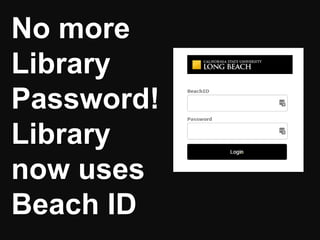
No more
Library
Password!
Library
now uses
Beach ID
cc: armadillo444 - https://www.flickr.com/photos/8062328@N02
Photo by KCIvey - Creative Commons Attribution-NonCommercial-ShareAlike License https://www.flickr.com/photos/17218700@N00 Created with Haiku Deck
The elements of the
record that you need to
create a reference list
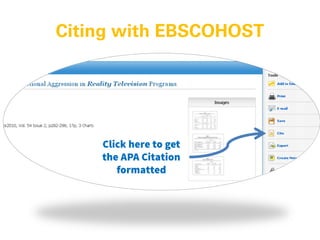
Citation
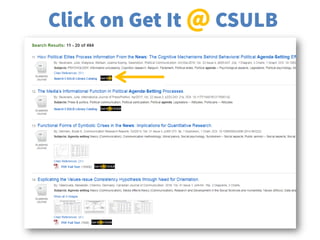
Look for this button
to find out if the
item is full text
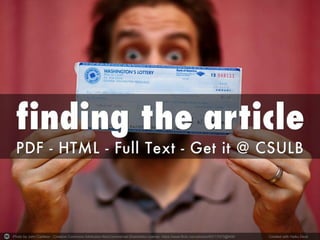
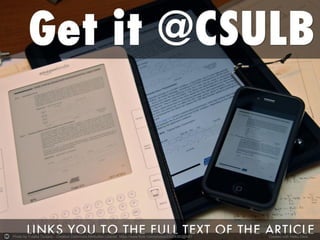
Get it @ CSULB
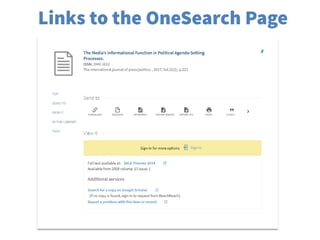
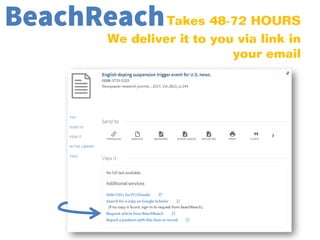
The library emails you
the PDF of the
requested article in less
than 72 hours
BeachReach.
Research Databases
Commercially published materials
Scholarly articles are reviewed by experts
Databases contents are hand selected
Use these FIRST for researching a topic
The Difference between the Internet and Research Databases
GetOrganized
Figure out the terms to
use to find articles on
your topic!
Determine vocabulary
that may be used in a
database
Remember synonyms
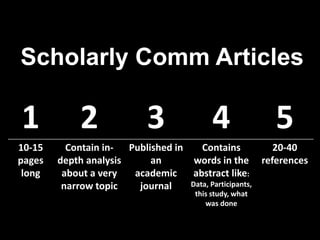
Scholarly Comm Articles
1 2 3 4 5
10-15
pages
long
Contain in-
depth analysis
about a very
narrow topic
Published in
an
academic
journal
Contains
words in the
abstract like:
Data, Participants,
this study, what
was done
20-40
references
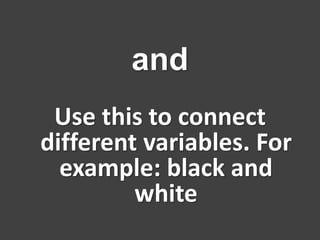
Use this to connect
different variables. For
example: black and
white
and
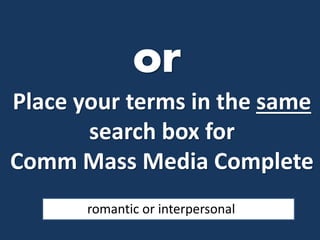
Place your terms in the same
search box for
Comm Mass Media Complete
romantic or interpersonal
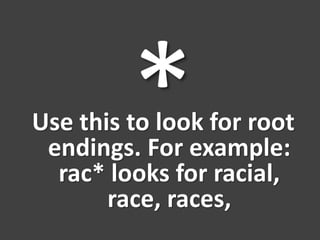
Use this to look for root
endings. For example:
rac* looks for racial,
race, races,
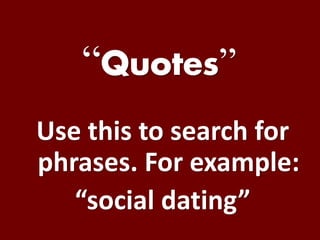
“ ”
Use this to search for
phrases. For example:
“social dating”
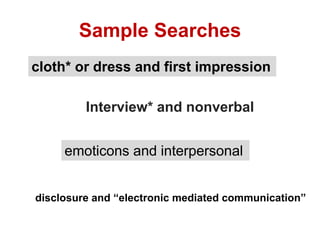
Sample Searches
Interview* and nonverbal
emoticons and interpersonal
disclosure and “electronic mediated communication”
cloth* or dress and first impression
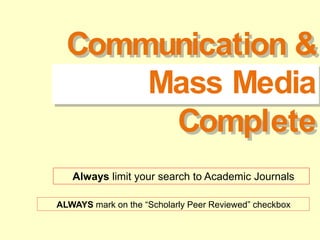
Communication &
Mass Media
Complete
ALWAYS mark on the “Scholarly Peer Reviewed” checkbox
Always limit your search to Academic Journals
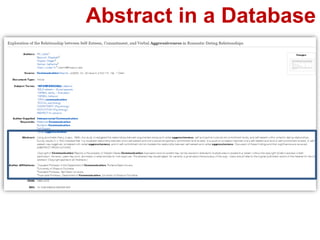
Abstract in a Database
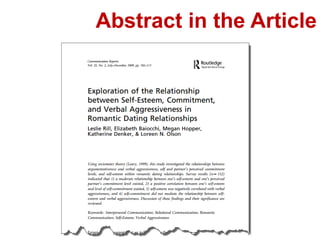
Abstract in the Article
Photo by John Carleton - Creative Commons Attribution-NonCommercial-ShareAlike License https://www.flickr.com/photos/60717073@N00 Created with Haiku Deck
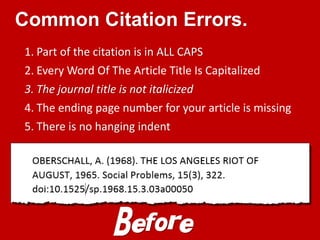
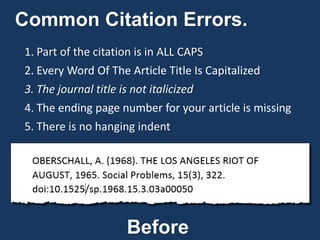
Common Citation Errors.
1. Part of the citation is in ALL CAPS
2. Every Word Of The Article Title Is Capitalized
3. The journal title is not italicized
4. The ending page number for your article is missing
5. There is no hanging indent
Before
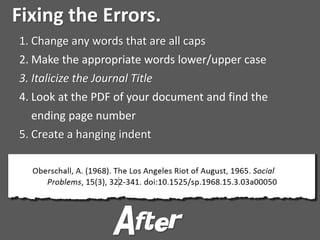
Fixing the Errors.
1. Change any words that are all caps
2. Make the appropriate words lower/upper case
3. Italicize the Journal Title
4. Look at the PDF of your document and find the
ending page number
5. Create a hanging indent
After
Photo by Creative Donkey - Creative Commons Attribution License https://www.flickr.com/photos/35490291@N07 Created with Haiku Deck
Photo by Yutaka Tsutano - Creative Commons Attribution License https://www.flickr.com/photos/23208360@N07 Created with Haiku Deck
Photo by ion-bogdan dumitrescu - Creative Commons Attribution-NonCommercial License https://www.flickr.com/photos/58055760@N00 Created with Haiku Deck
Common Citation Errors.
1. Part of the citation is in ALL CAPS
2. Every Word Of The Article Title Is Capitalized
3. The journal title is not italicized
4. The ending page number for your article is missing
5. There is no hanging indent
Before
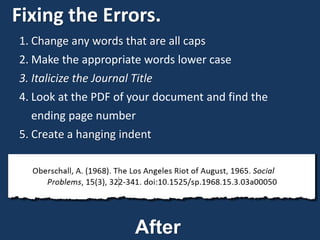
Fixing the Errors.
1. Change any words that are all caps
2. Make the appropriate words lower case
3. Italicize the Journal Title
4. Look at the PDF of your document and find the
ending page number
5. Create a hanging indent
After
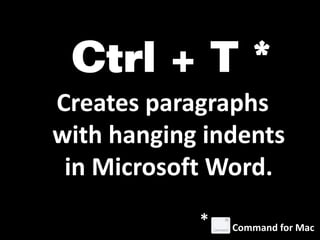
Creates paragraphs
with hanging indents
in Microsoft Word.
Command for Mac
*
COMM 110

COMM 110

  • 2.
    HOME PAGE NEW LIBRARY cc:M i x y - https://www.flickr.com/photos/25159380@N00
  • 3.
    What’s new? 1. Mostimportant links are under big search box 2. Big search box replaces our old library catalog 3. You can now get items from every single CSU Campus
  • 4.
  • 5.
    cc: armadillo444 -https://www.flickr.com/photos/8062328@N02
  • 6.
    Photo by KCIvey- Creative Commons Attribution-NonCommercial-ShareAlike License https://www.flickr.com/photos/17218700@N00 Created with Haiku Deck
  • 7.
    The elements ofthe record that you need to create a reference list Citation
  • 8.
    Look for thisbutton to find out if the item is full text Get it @ CSULB
  • 9.
    The library emailsyou the PDF of the requested article in less than 72 hours BeachReach.
  • 10.
    Research Databases Commercially publishedmaterials Scholarly articles are reviewed by experts Databases contents are hand selected Use these FIRST for researching a topic The Difference between the Internet and Research Databases
  • 11.
    GetOrganized Figure out theterms to use to find articles on your topic! Determine vocabulary that may be used in a database Remember synonyms
  • 12.
    Scholarly Comm Articles 12 3 4 5 10-15 pages long Contain in- depth analysis about a very narrow topic Published in an academic journal Contains words in the abstract like: Data, Participants, this study, what was done 20-40 references
  • 13.
    Use this toconnect different variables. For example: black and white and
  • 14.
    Place your termsin the same search box for Comm Mass Media Complete romantic or interpersonal
  • 15.
    Use this tolook for root endings. For example: rac* looks for racial, race, races,
  • 16.
    “ ” Use thisto search for phrases. For example: “social dating”
  • 17.
    Sample Searches Interview* andnonverbal emoticons and interpersonal disclosure and “electronic mediated communication” cloth* or dress and first impression
  • 18.
    Communication & Mass Media Complete ALWAYSmark on the “Scholarly Peer Reviewed” checkbox Always limit your search to Academic Journals
  • 19.
    Abstract in aDatabase
  • 20.
  • 21.
    Photo by JohnCarleton - Creative Commons Attribution-NonCommercial-ShareAlike License https://www.flickr.com/photos/60717073@N00 Created with Haiku Deck
  • 22.
    Common Citation Errors. 1.Part of the citation is in ALL CAPS 2. Every Word Of The Article Title Is Capitalized 3. The journal title is not italicized 4. The ending page number for your article is missing 5. There is no hanging indent Before
  • 23.
    Fixing the Errors. 1.Change any words that are all caps 2. Make the appropriate words lower/upper case 3. Italicize the Journal Title 4. Look at the PDF of your document and find the ending page number 5. Create a hanging indent After
  • 24.
    Photo by CreativeDonkey - Creative Commons Attribution License https://www.flickr.com/photos/35490291@N07 Created with Haiku Deck
  • 25.
    Photo by YutakaTsutano - Creative Commons Attribution License https://www.flickr.com/photos/23208360@N07 Created with Haiku Deck
  • 29.
    Photo by ion-bogdandumitrescu - Creative Commons Attribution-NonCommercial License https://www.flickr.com/photos/58055760@N00 Created with Haiku Deck
  • 31.
    Common Citation Errors. 1.Part of the citation is in ALL CAPS 2. Every Word Of The Article Title Is Capitalized 3. The journal title is not italicized 4. The ending page number for your article is missing 5. There is no hanging indent Before
  • 32.
    Fixing the Errors. 1.Change any words that are all caps 2. Make the appropriate words lower case 3. Italicize the Journal Title 4. Look at the PDF of your document and find the ending page number 5. Create a hanging indent After
  • 33.
    Creates paragraphs with hangingindents in Microsoft Word. Command for Mac *