“How to create and manage a Web
Application”
Microsoft Azure Tutorial
Microsoft Azure Web App Guide
The following guide shows a step by step creation of an ASP.NET Web Application
and how to host it on “App Service Web Apps” on Microsoft Azure, using Visual
Studio 2013 or Visual Studio 2013 for Web Express. After completing this guide, you
will have created a simple web application running on Azure.
What we are about to see:
How to create a simple web application running on Microsoft Azure using Visual
Studio
How to easily make and apply changes to an already published web application
How to use the Azure Portal (https://portal.azure.com) to monitor and manage
your applications
Getting Ready
Before we can start, you need to make sure that you have everything
you need installed on your PC:
Microsoft Azure SDK
Visual Studio 2013 (Community or Web Express)
Note: Depending on the number of SDK’s already installed on your PC, the
installation of the above might take from several minutes to an hour, on maybe
more.
Creating a Web App
Creating a Web App
Creating a Web App
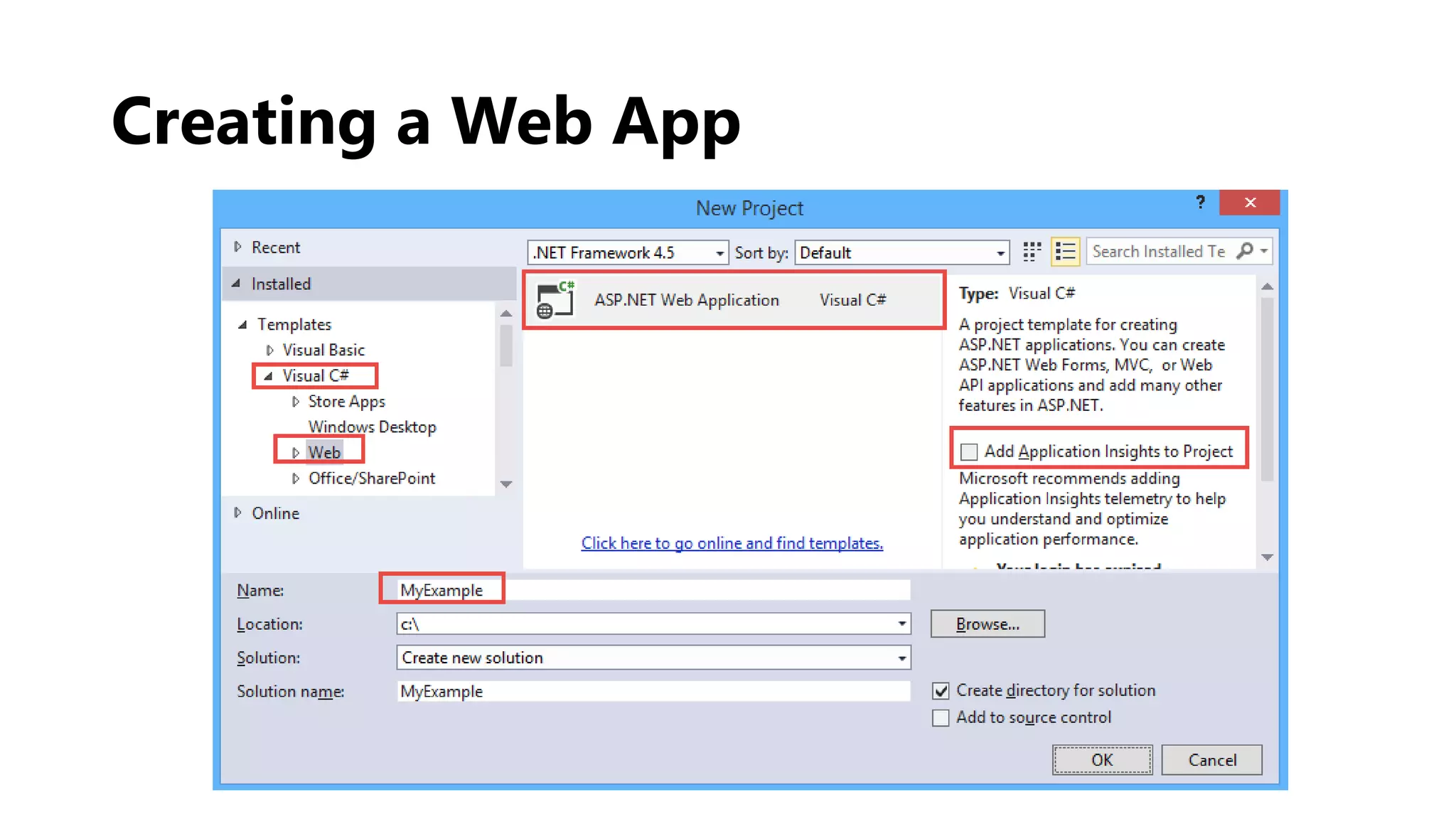
Open Visual Studio. From the menu above select: File > NewProject
At the window that pops-up, select
C# > Web > ASP.NET WebApplication. Make sure that you have
selected .ΝΕΤ Framework 4.5
Unselect the box Add Application Insights to Project (we will use a
separate tutorial for that)
Give your application a name at the field Name [MyExample] and
then click OK
Creating a Web App
Creating a Web App
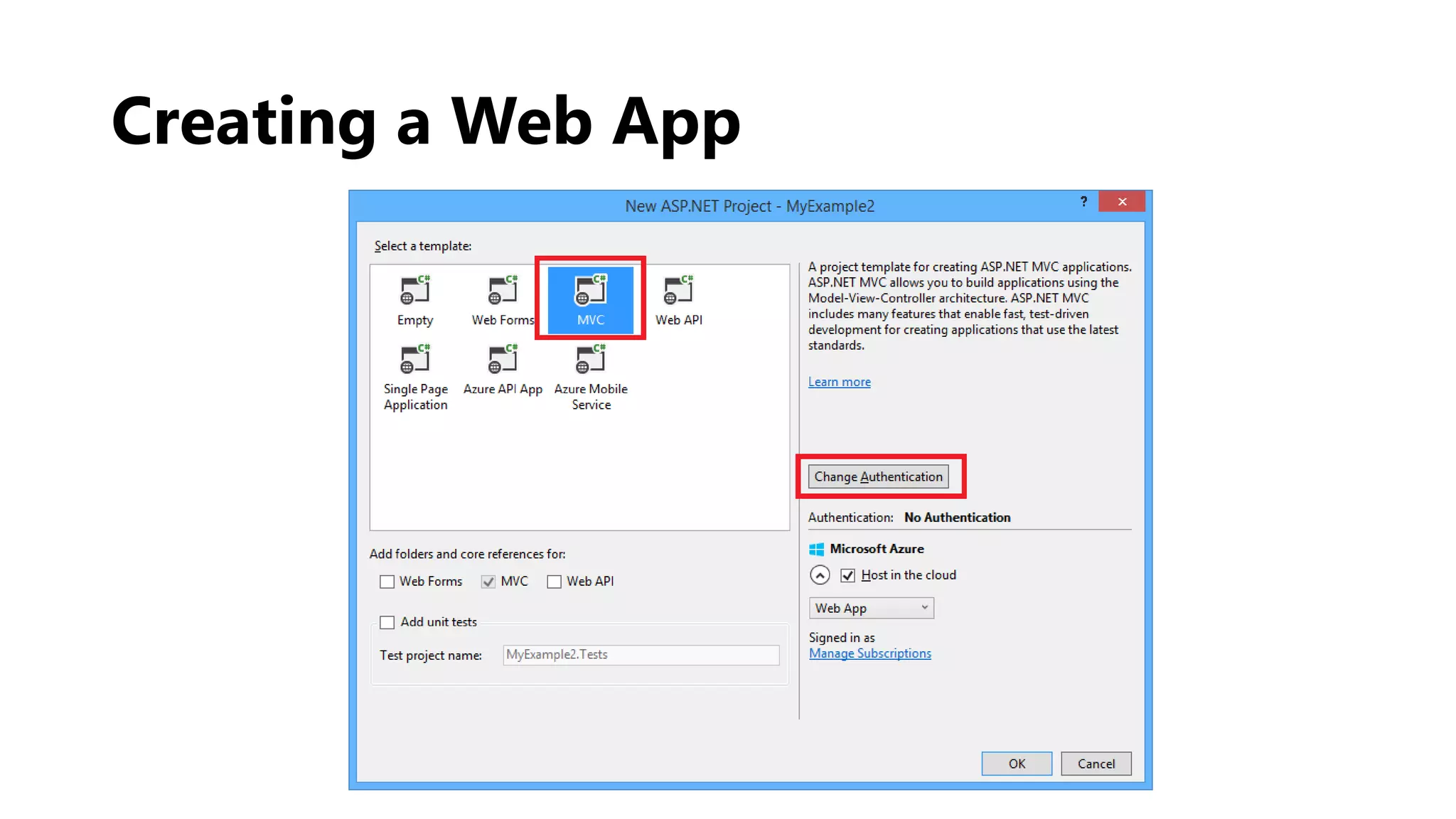
At the New ASP.NET Project wizard select MVC. You can also work
with ASP.NET Web Forms by choosing Web Forms
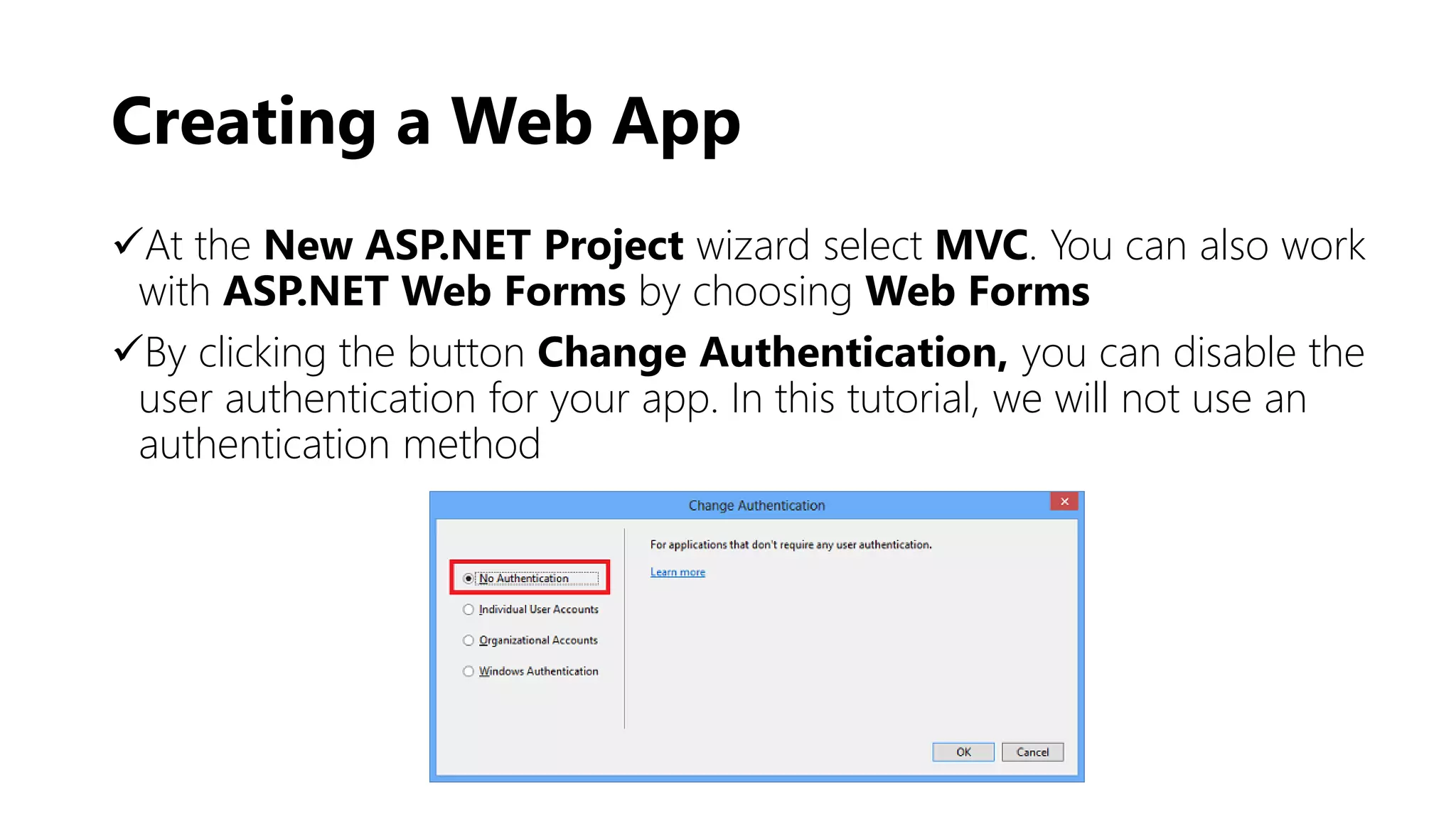
By clicking the button Change Authentication, you can disable the
user authentication for your app. In this tutorial, we will not use an
authentication method
Creating a Web App
Creating a Web App
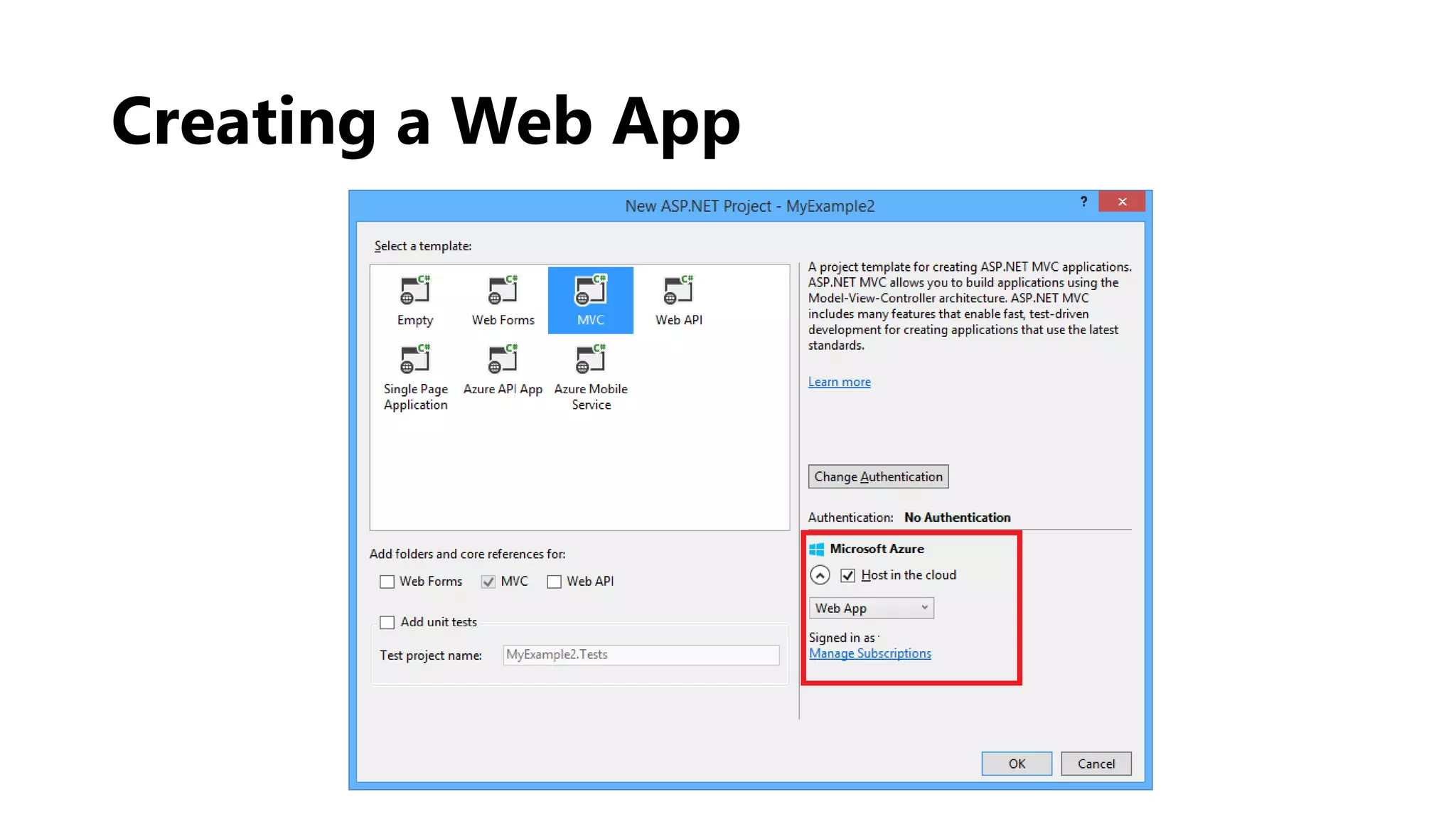
At the New ASP.NET Project wizard, do not change any settings at
the Microsoft Azure section, just click ΟΚ. Leaving the default
settings means that Visual Studio will publish your website to Azure
After clicking OK, a window will pop-up and ask you to sign in to
your Azure Account, using your Microsoft ID and Password
Creating a Web App
Creating a Web App
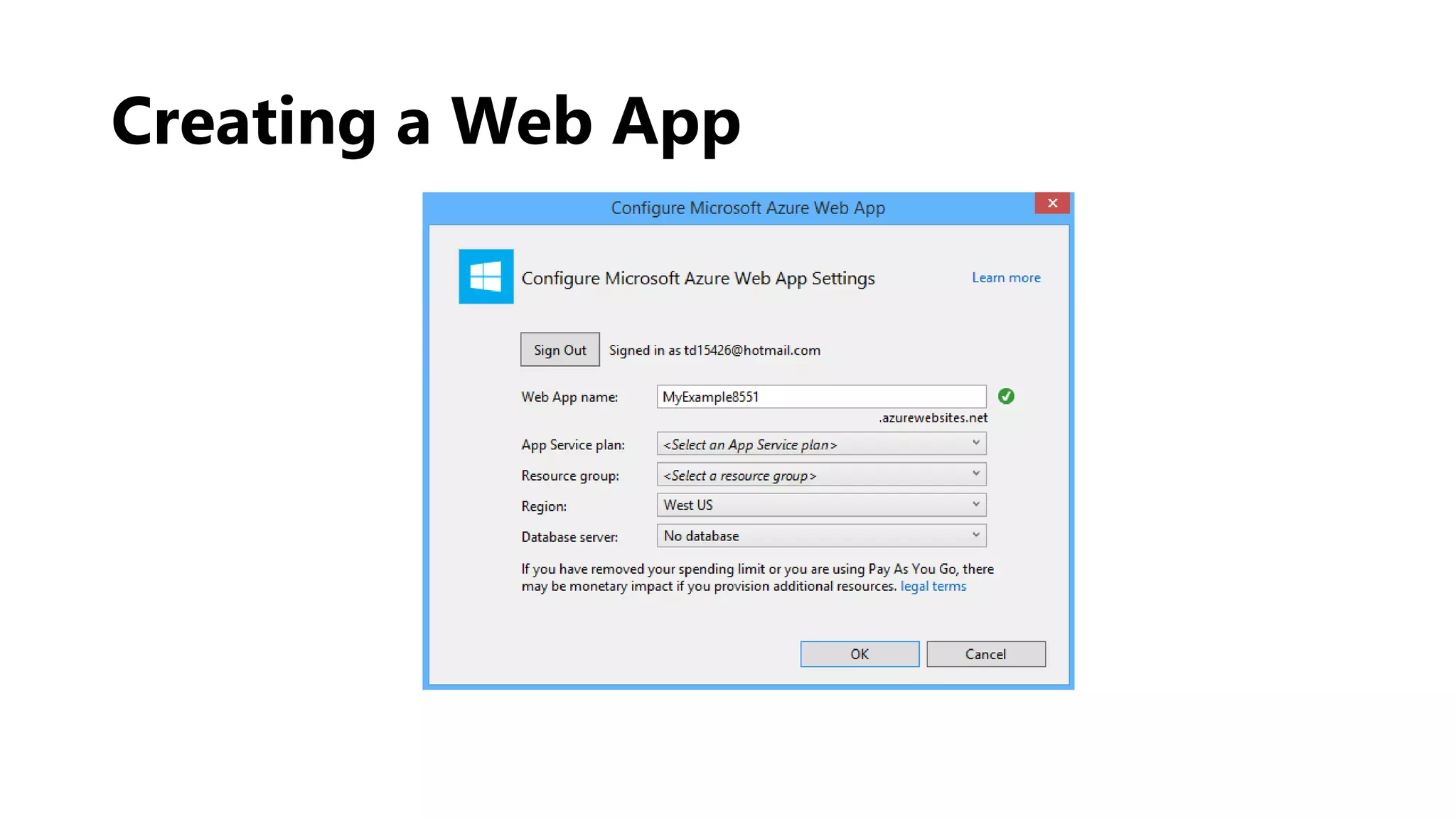
After you successfully sign in to your account, you need to configure the
settings for your application. You can do that at the Configure Microsoft
Azure Web App Settings window. At this window, you can change your
application name, select a service plan and resource group for it (or create a
new one) and set the region and the database center you want to use to
host your web app
If this is the first time that you create a web app on Azure, you will need to
create a service plan and a resource group, which you can use later for your
other apps as well
Note: You can choose to create your own name for the app, but it needs to be
unique for the domain azurewebsites.net. The default name that Visual Studio
suggests is a good way to go, since it is always unique. Azure is going to use that
name for the URL of your application
Creating a Web App
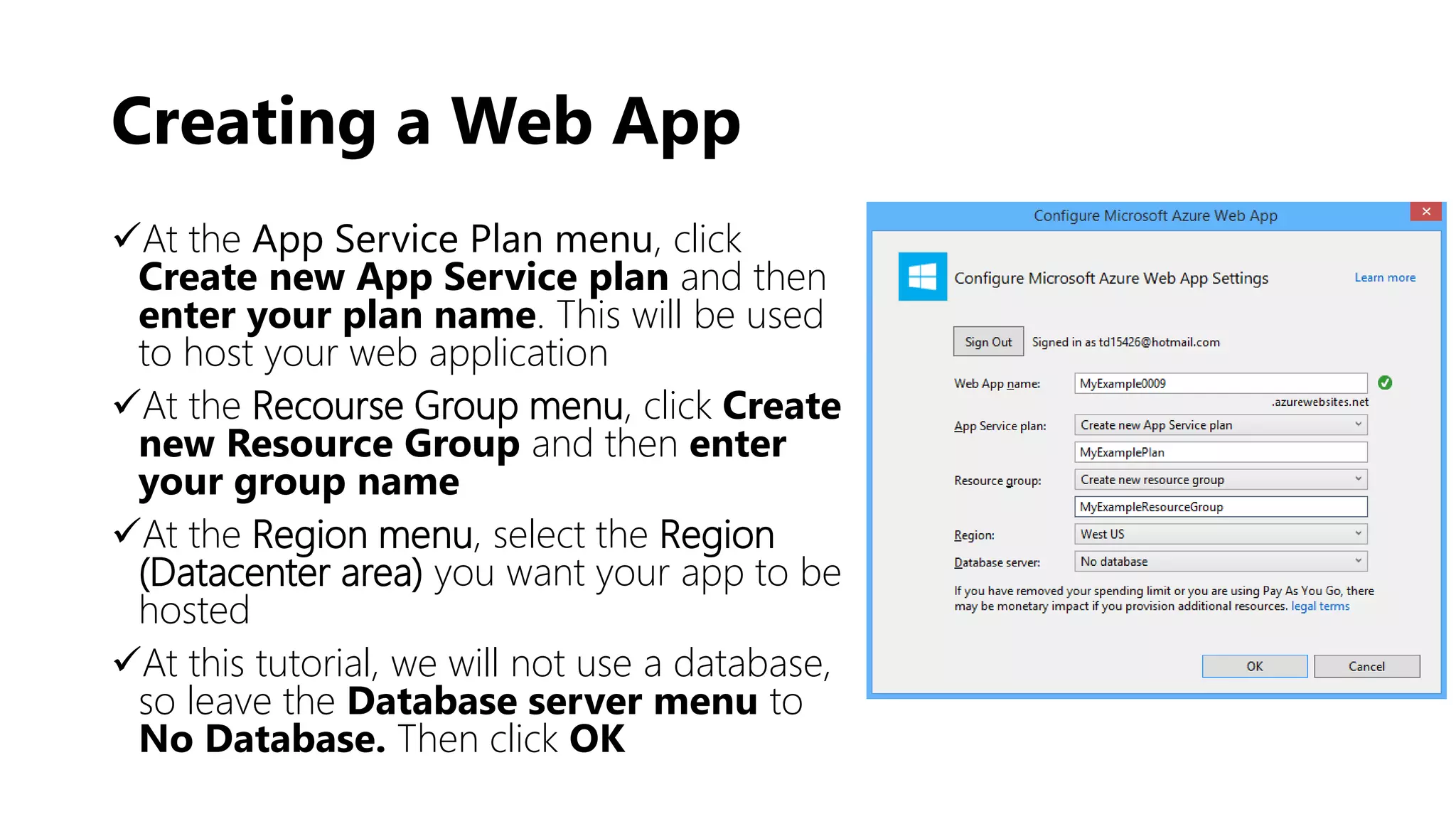
At the App Service Plan menu, click
Create new App Service plan and then
enter your plan name. This will be used
to host your web application
At the Recourse Group menu, click Create
new Resource Group and then enter
your group name
At the Region menu, select the Region
(Datacenter area) you want your app to be
hosted
At this tutorial, we will not use a database,
so leave the Database server menu to
No Database. Then click OK
Creating a Web App
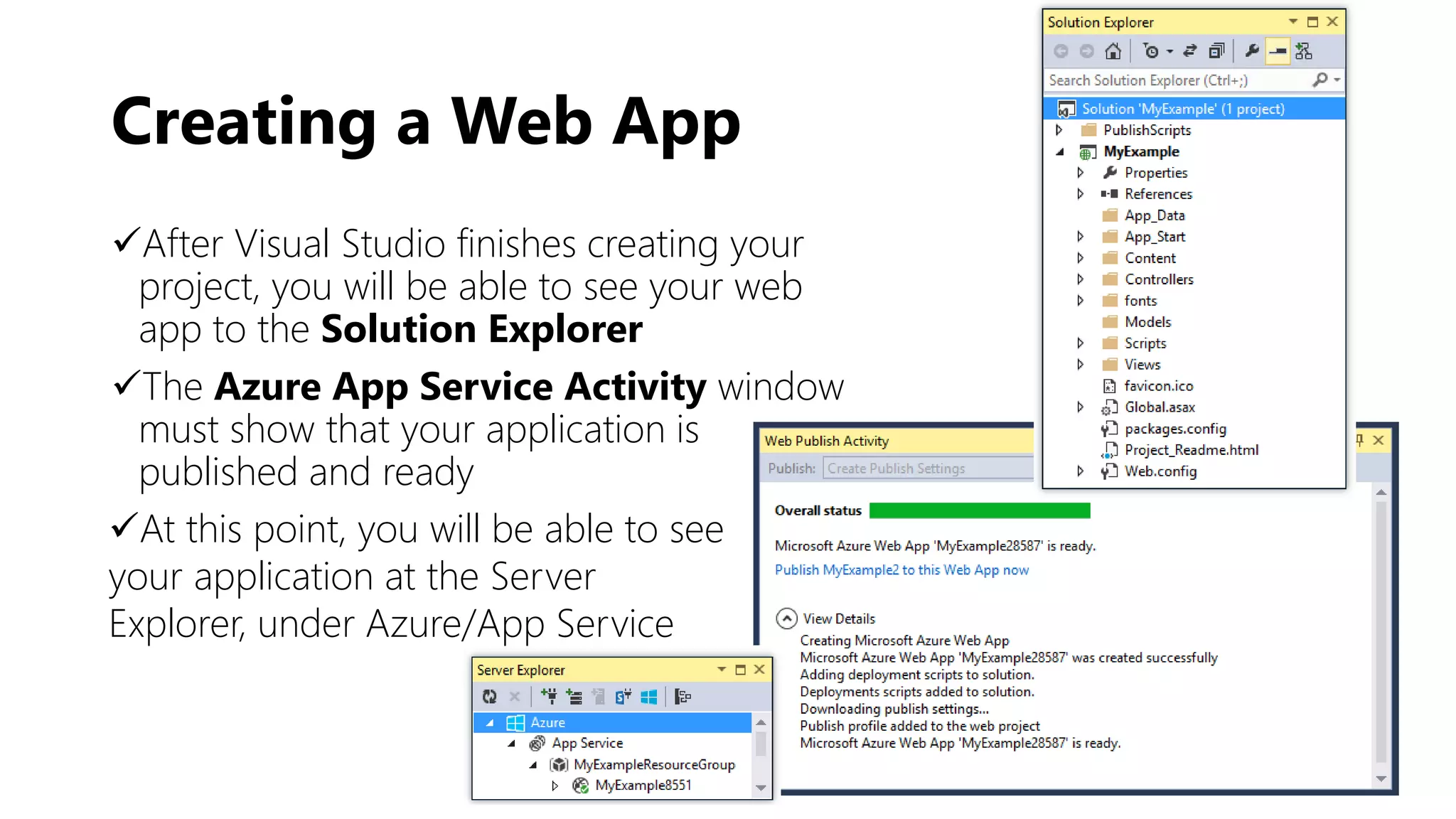
After Visual Studio finishes creating your
project, you will be able to see your web
app to the Solution Explorer
The Azure App Service Activity window
must show that your application is
published and ready
At this point, you will be able to see
your application at the Server
Explorer, under Azure/App Service
Publish Your Web App
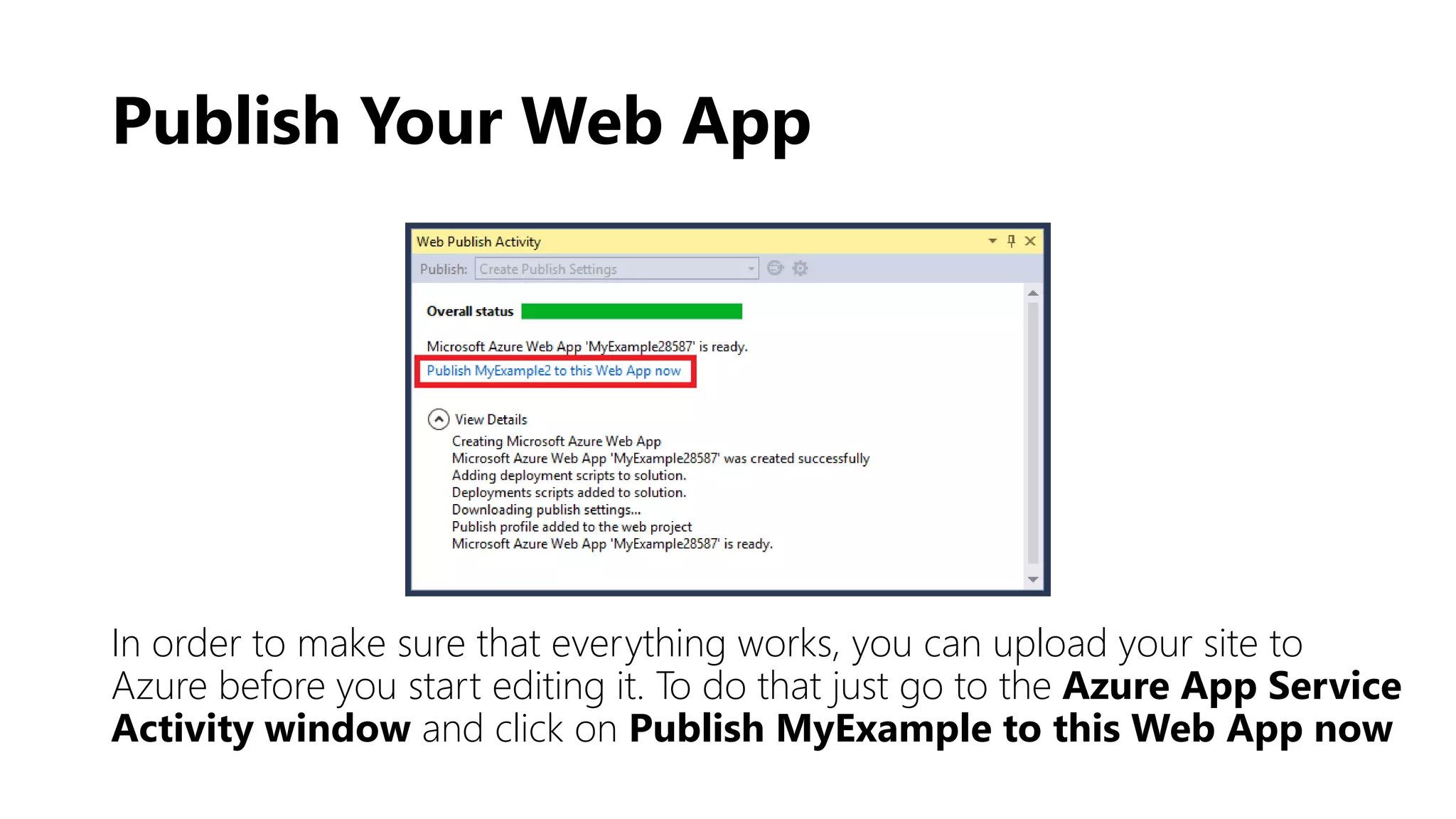
In order to make sure that everything works, you can upload your site to
Azure before you start editing it. To do that just go to the Azure App Service
Activity window and click on Publish MyExample to this Web App now
Publish Your Web App
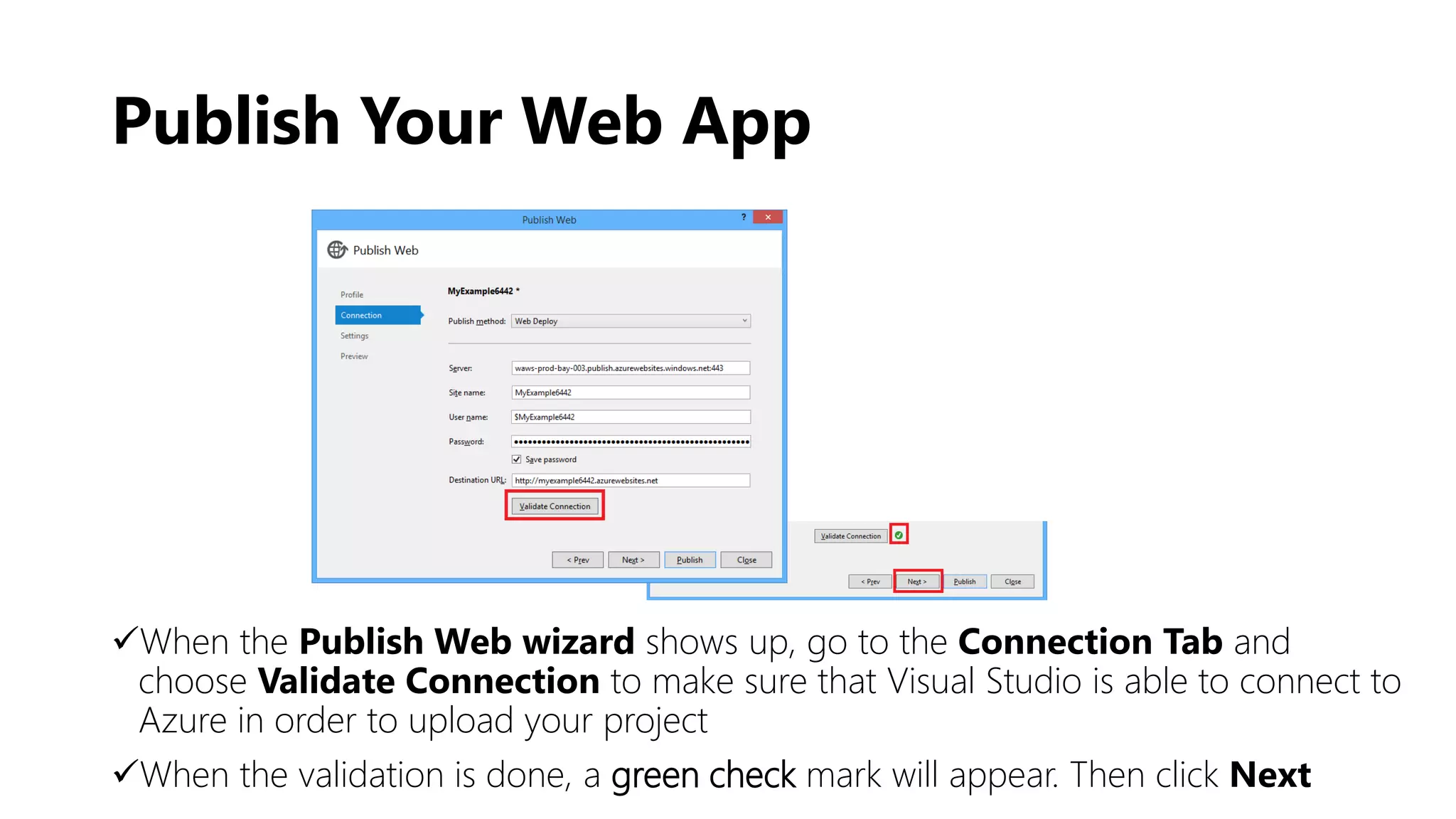
When the Publish Web wizard shows up, go to the Connection Tab and
choose Validate Connection to make sure that Visual Studio is able to connect to
Azure in order to upload your project
When the validation is done, a green check mark will appear. Then click Next
Publish Your Web App
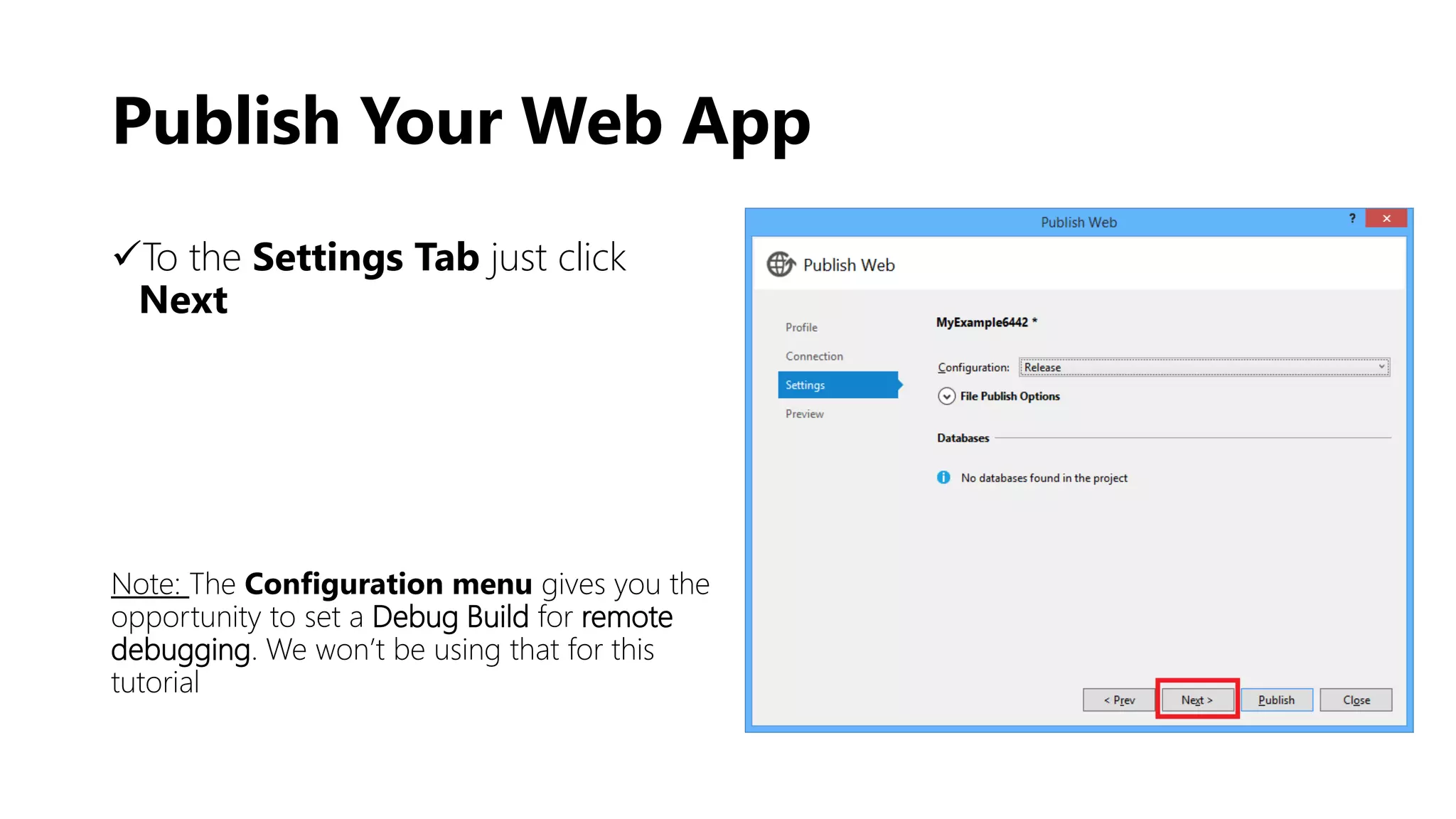
To the Settings Tab just click
Next
Note: The Configuration menu gives you the
opportunity to set a Debug Build for remote
debugging. We won’t be using that for this
tutorial
Publish Your Web App
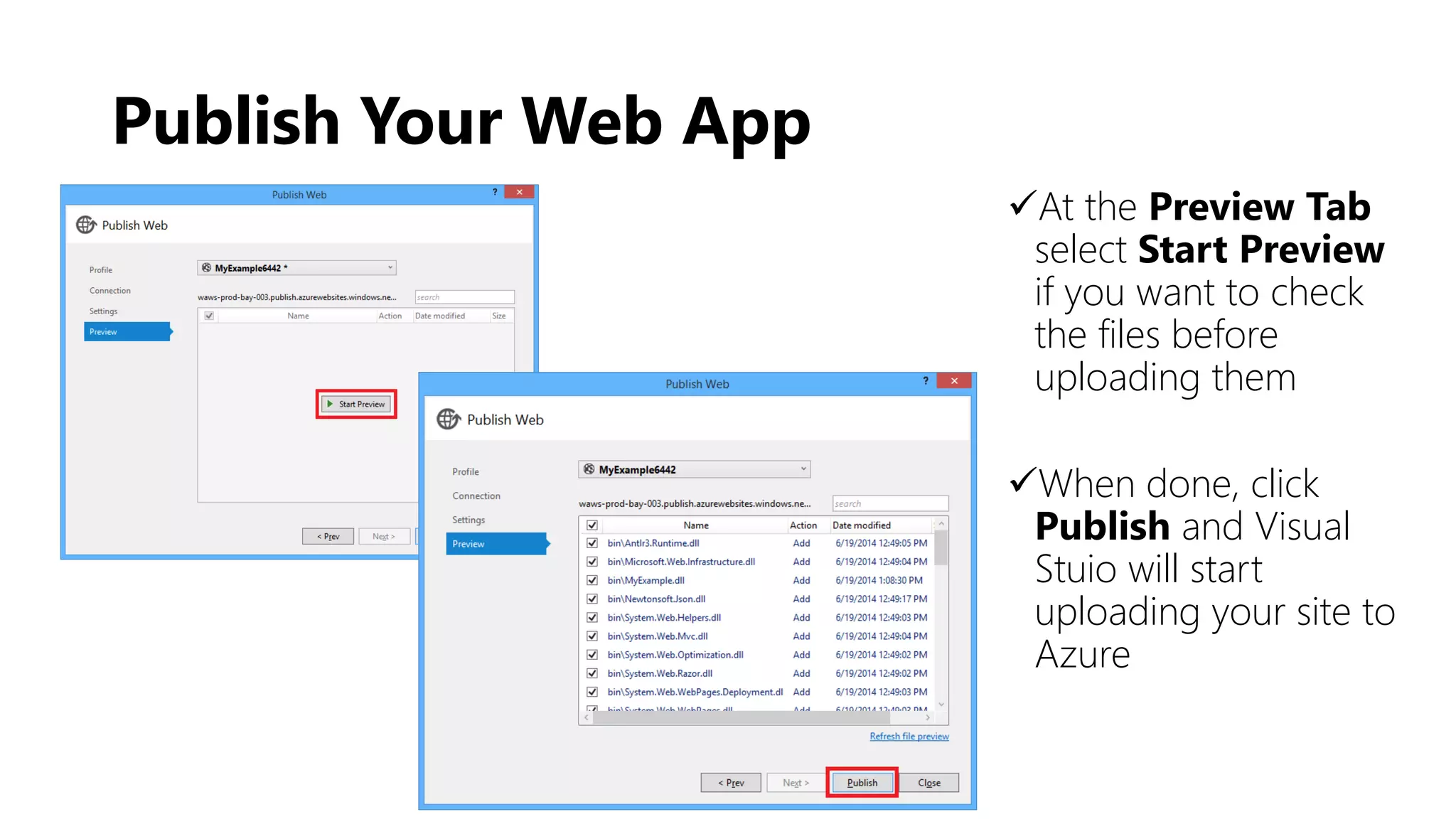
At the Preview Tab
select Start Preview
if you want to check
the files before
uploading them
When done, click
Publish and Visual
Stuio will start
uploading your site to
Azure
Publish Your Web App
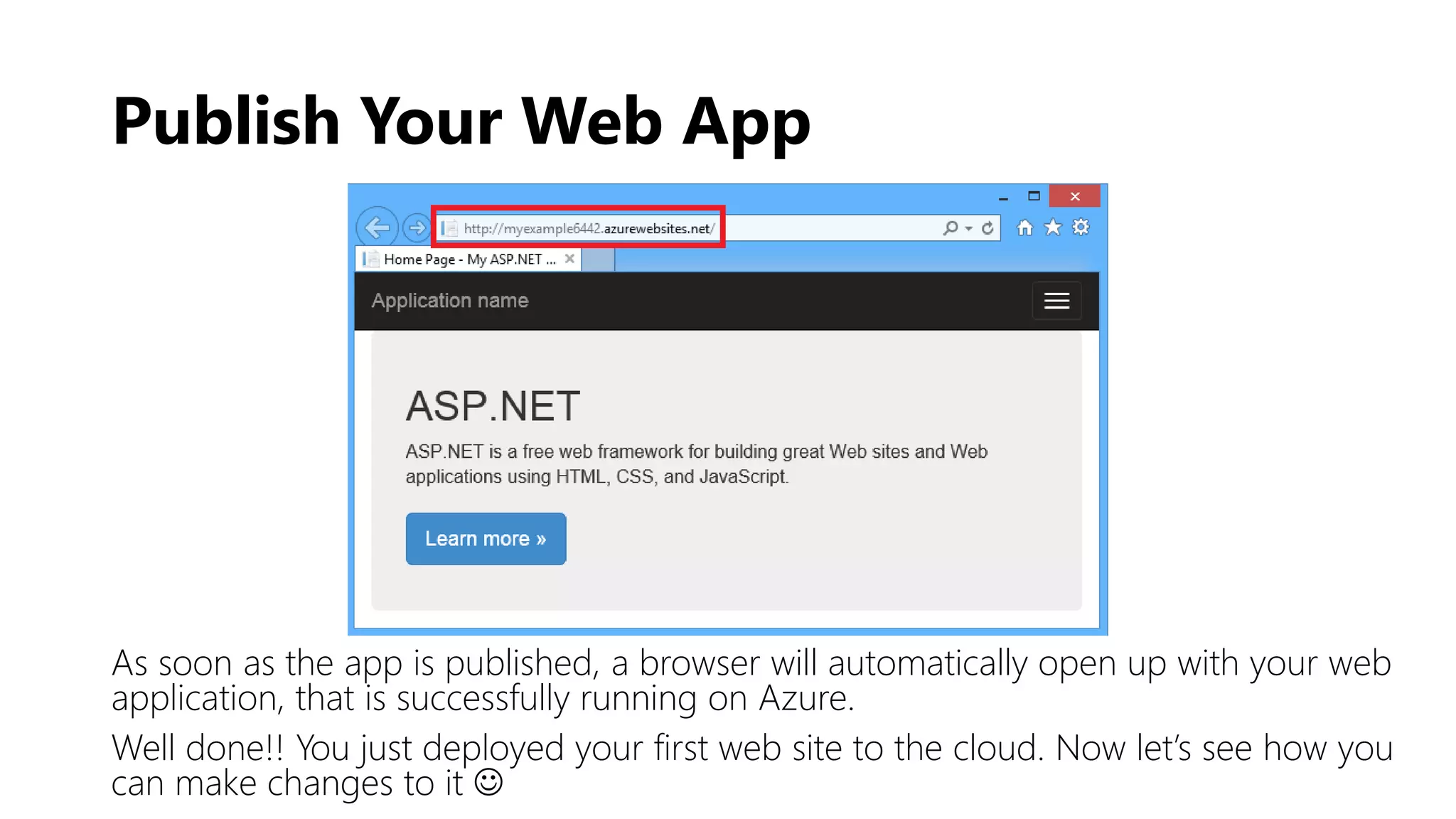
As soon as the app is published, a browser will automatically open up with your web
application, that is successfully running on Azure.
Well done!! You just deployed your first web site to the cloud. Now let’s see how you
can make changes to it 
Modify Your Web App
Modify Your Web App
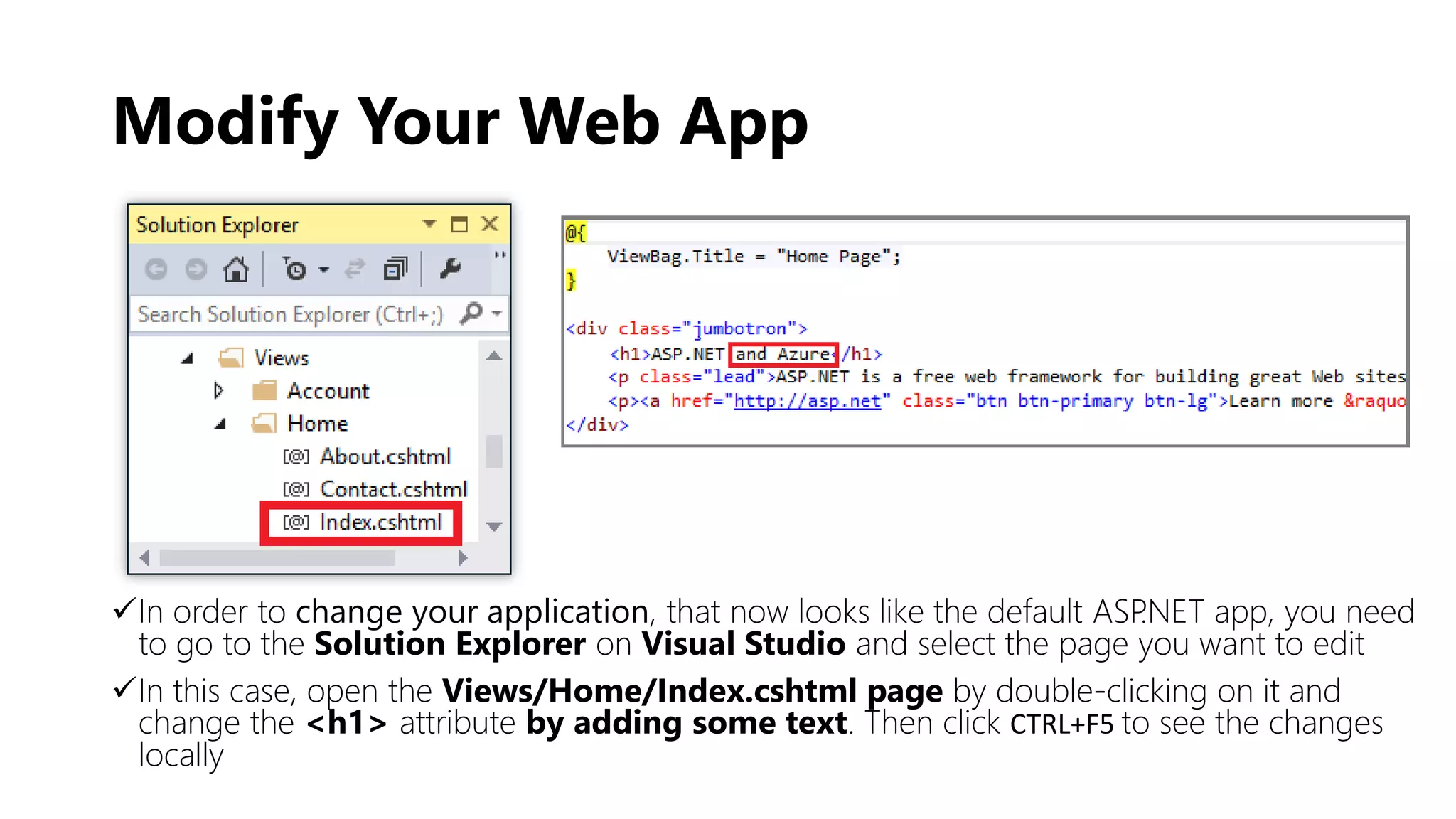
In order to change your application, that now looks like the default ASP.NET app, you need
to go to the Solution Explorer on Visual Studio and select the page you want to edit
In this case, open the Views/Home/Index.cshtml page by double-clicking on it and
change the <h1> attribute by adding some text. Then click CTRL+F5 to see the changes
locally
Modify Your Web App
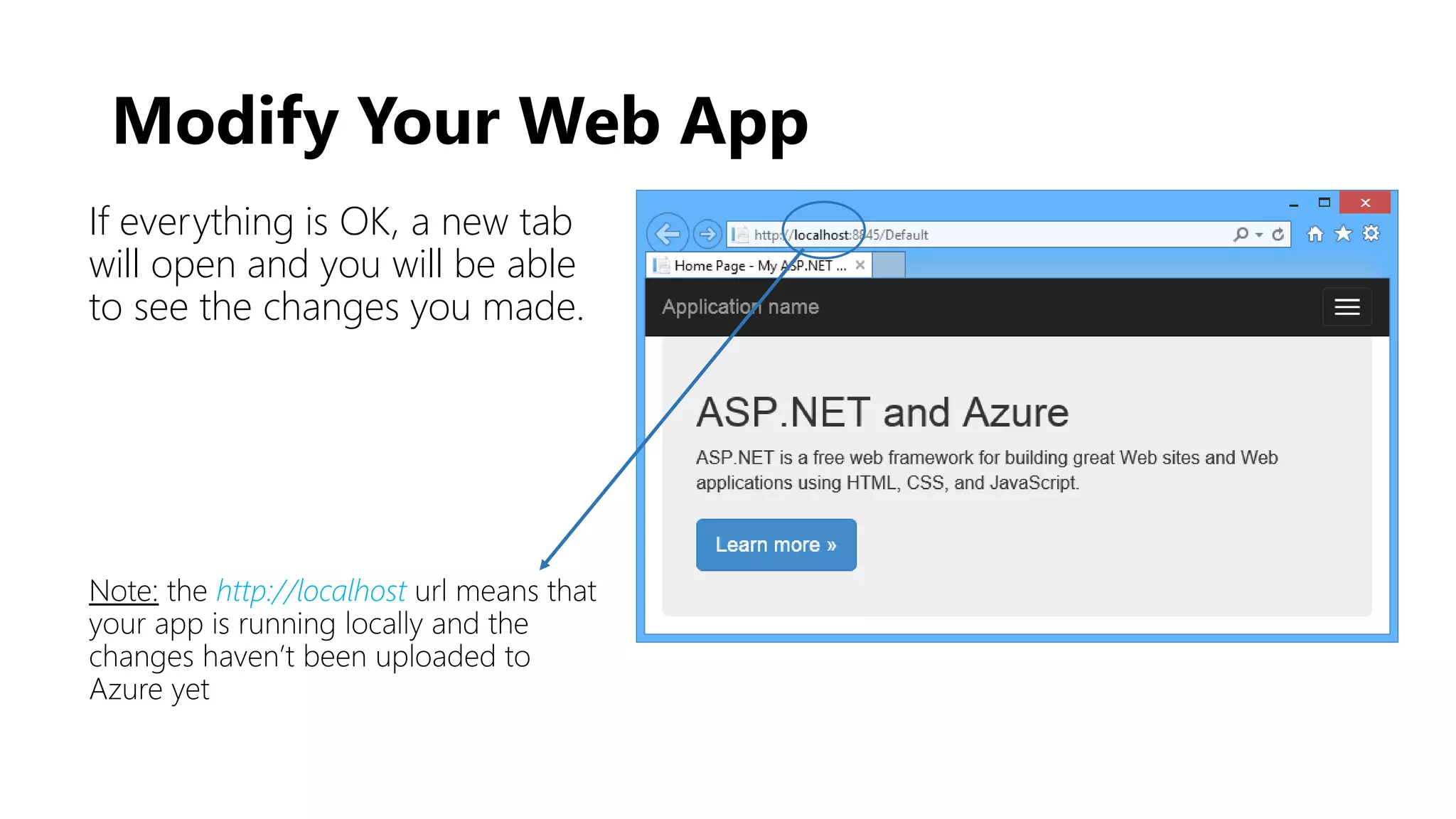
If everything is OK, a new tab
will open and you will be able
to see the changes you made.
Note: the http://localhost url means that
your app is running locally and the
changes haven’t been uploaded to
Azure yet
Modify Your Web App
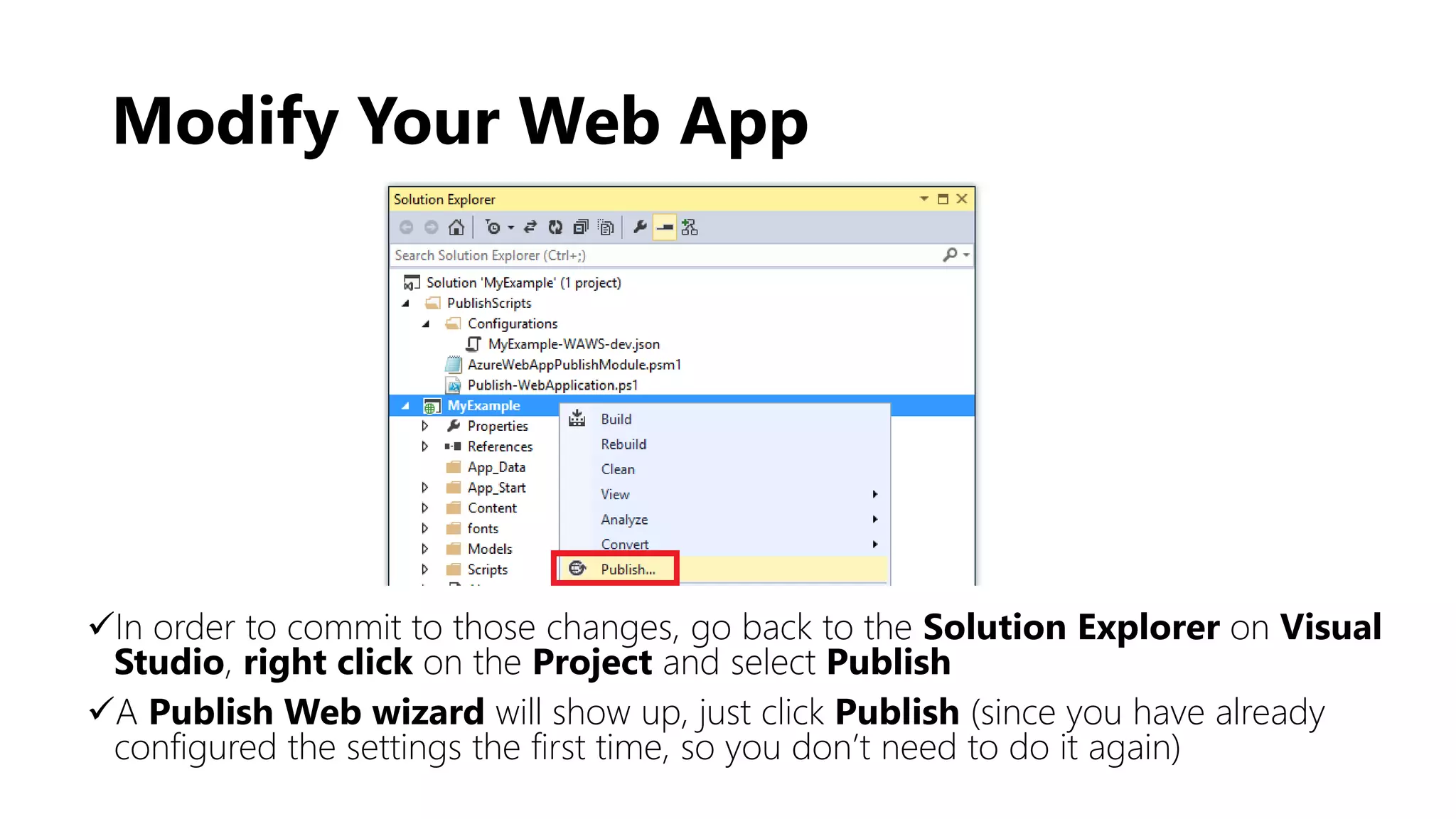
In order to commit to those changes, go back to the Solution Explorer on Visual
Studio, right click on the Project and select Publish
A Publish Web wizard will show up, just click Publish (since you have already
configured the settings the first time, so you don’t need to do it again)
Modify Your Web App
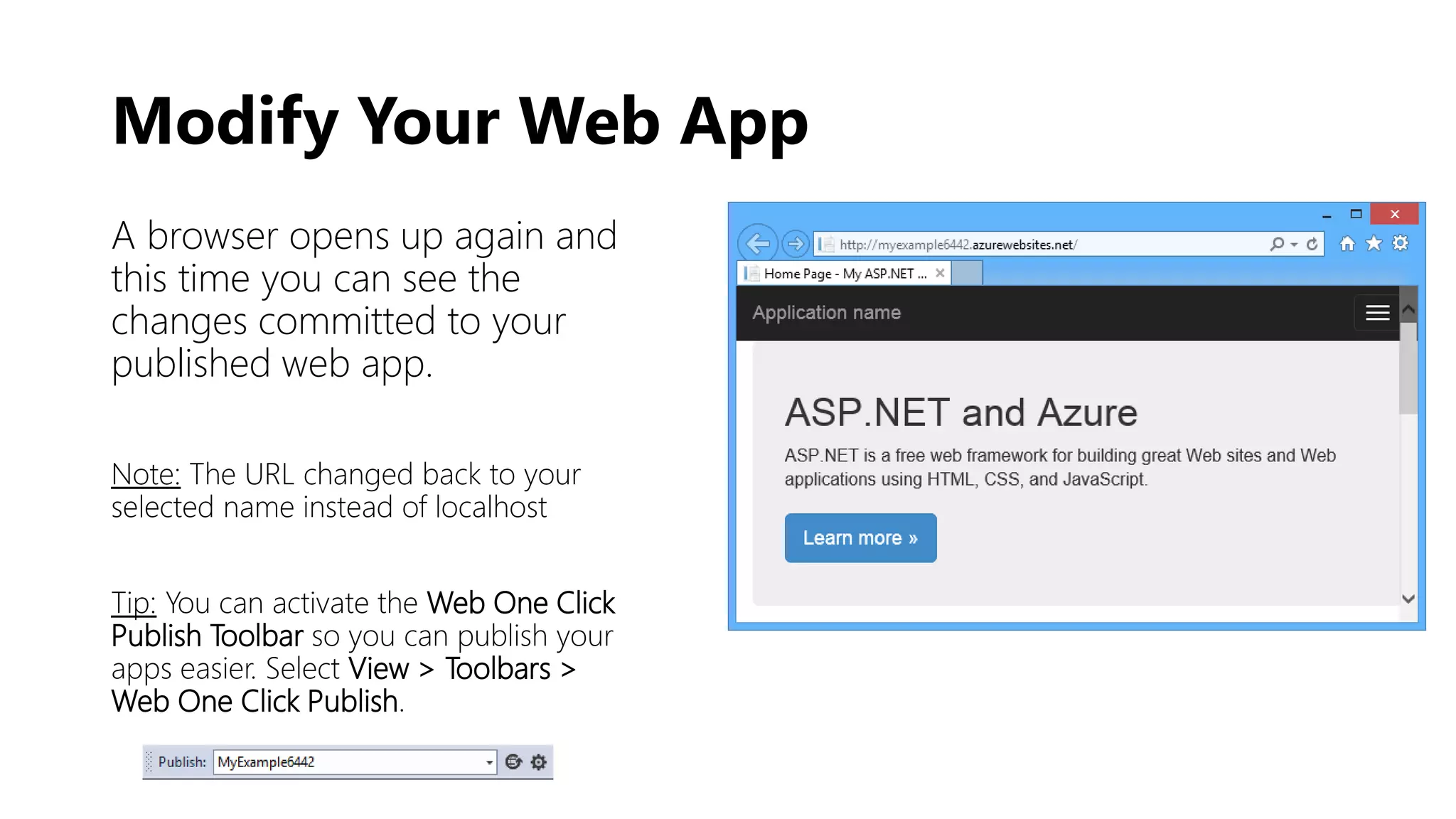
A browser opens up again and
this time you can see the
changes committed to your
published web app.
Note: The URL changed back to your
selected name instead of localhost
Tip: You can activate the Web One Click
Publish Toolbar so you can publish your
apps easier. Select View > Toolbars >
Web One Click Publish.
Manage Your Web App
Through the Azure Portal
Manage Your Web App
You can manage your web application through the Azure
Web Portal. In your browser, go to
https://portral.azure.com and Sign In with your Microsoft
ID and Password
Go to Browse > Web Apps > [Your Web App Name]
to see a summary with statistics for all your apps
Choose All Settings to see more details for your app
Manage Your Web App
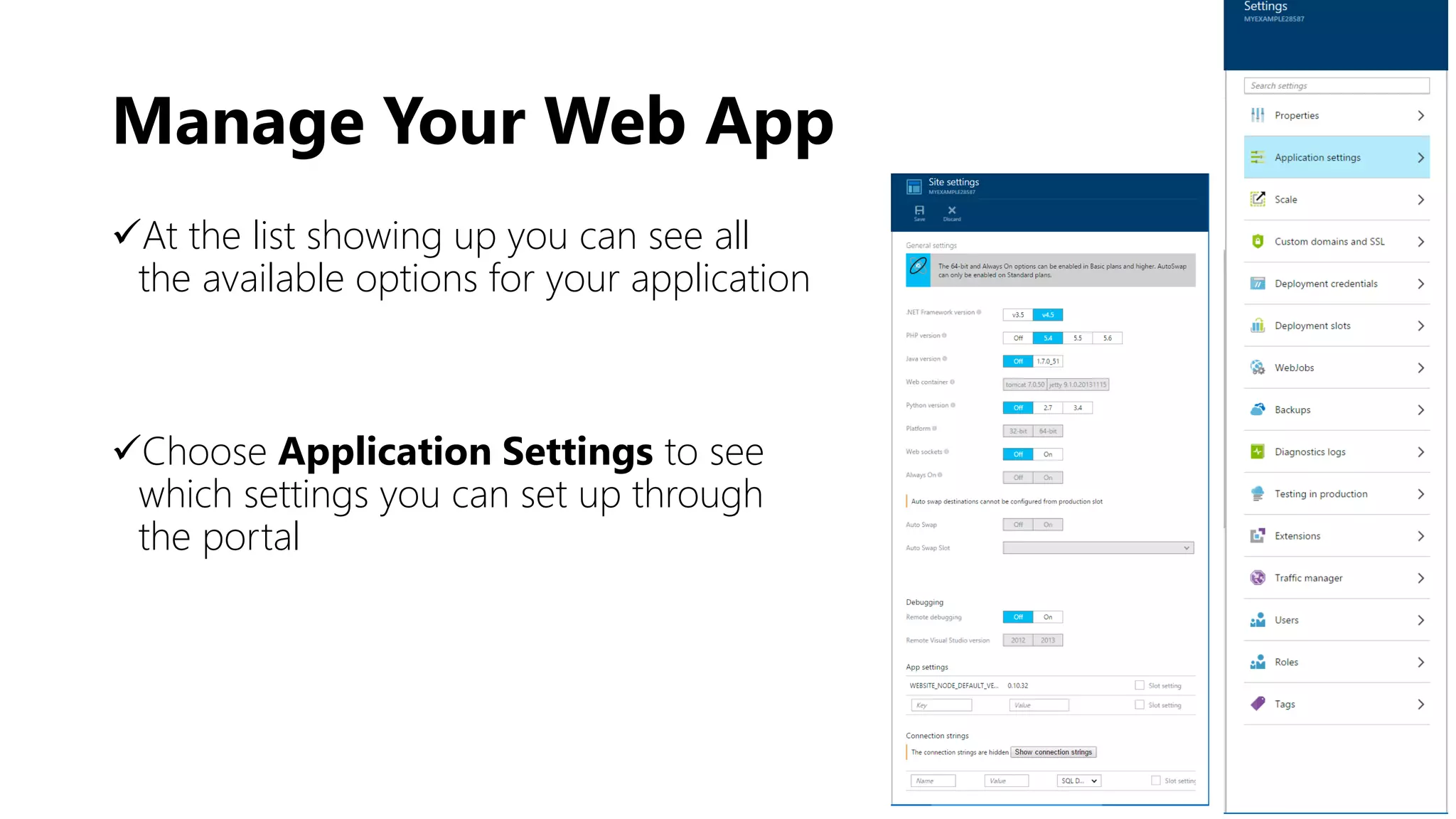
At the list showing up you can see all
the available options for your application
Choose Application Settings to see
which settings you can set up through
the portal
Thank you
@lee_stott http://imagine.Microsoft.com

Create and manage a web application on Azure (step to step tutorial)

  • 1.
    “How to createand manage a Web Application” Microsoft Azure Tutorial
  • 2.
    Microsoft Azure WebApp Guide The following guide shows a step by step creation of an ASP.NET Web Application and how to host it on “App Service Web Apps” on Microsoft Azure, using Visual Studio 2013 or Visual Studio 2013 for Web Express. After completing this guide, you will have created a simple web application running on Azure. What we are about to see: How to create a simple web application running on Microsoft Azure using Visual Studio How to easily make and apply changes to an already published web application How to use the Azure Portal (https://portal.azure.com) to monitor and manage your applications
  • 3.
    Getting Ready Before wecan start, you need to make sure that you have everything you need installed on your PC: Microsoft Azure SDK Visual Studio 2013 (Community or Web Express) Note: Depending on the number of SDK’s already installed on your PC, the installation of the above might take from several minutes to an hour, on maybe more.
  • 4.
  • 5.
  • 6.
    Creating a WebApp Open Visual Studio. From the menu above select: File > NewProject At the window that pops-up, select C# > Web > ASP.NET WebApplication. Make sure that you have selected .ΝΕΤ Framework 4.5 Unselect the box Add Application Insights to Project (we will use a separate tutorial for that) Give your application a name at the field Name [MyExample] and then click OK
  • 7.
  • 8.
    Creating a WebApp At the New ASP.NET Project wizard select MVC. You can also work with ASP.NET Web Forms by choosing Web Forms By clicking the button Change Authentication, you can disable the user authentication for your app. In this tutorial, we will not use an authentication method
  • 9.
  • 10.
    Creating a WebApp At the New ASP.NET Project wizard, do not change any settings at the Microsoft Azure section, just click ΟΚ. Leaving the default settings means that Visual Studio will publish your website to Azure After clicking OK, a window will pop-up and ask you to sign in to your Azure Account, using your Microsoft ID and Password
  • 11.
  • 12.
    Creating a WebApp After you successfully sign in to your account, you need to configure the settings for your application. You can do that at the Configure Microsoft Azure Web App Settings window. At this window, you can change your application name, select a service plan and resource group for it (or create a new one) and set the region and the database center you want to use to host your web app If this is the first time that you create a web app on Azure, you will need to create a service plan and a resource group, which you can use later for your other apps as well Note: You can choose to create your own name for the app, but it needs to be unique for the domain azurewebsites.net. The default name that Visual Studio suggests is a good way to go, since it is always unique. Azure is going to use that name for the URL of your application
  • 13.
    Creating a WebApp At the App Service Plan menu, click Create new App Service plan and then enter your plan name. This will be used to host your web application At the Recourse Group menu, click Create new Resource Group and then enter your group name At the Region menu, select the Region (Datacenter area) you want your app to be hosted At this tutorial, we will not use a database, so leave the Database server menu to No Database. Then click OK
  • 14.
    Creating a WebApp After Visual Studio finishes creating your project, you will be able to see your web app to the Solution Explorer The Azure App Service Activity window must show that your application is published and ready At this point, you will be able to see your application at the Server Explorer, under Azure/App Service
  • 15.
  • 16.
    Publish Your WebApp In order to make sure that everything works, you can upload your site to Azure before you start editing it. To do that just go to the Azure App Service Activity window and click on Publish MyExample to this Web App now
  • 17.
    Publish Your WebApp When the Publish Web wizard shows up, go to the Connection Tab and choose Validate Connection to make sure that Visual Studio is able to connect to Azure in order to upload your project When the validation is done, a green check mark will appear. Then click Next
  • 18.
    Publish Your WebApp To the Settings Tab just click Next Note: The Configuration menu gives you the opportunity to set a Debug Build for remote debugging. We won’t be using that for this tutorial
  • 19.
    Publish Your WebApp At the Preview Tab select Start Preview if you want to check the files before uploading them When done, click Publish and Visual Stuio will start uploading your site to Azure
  • 20.
    Publish Your WebApp As soon as the app is published, a browser will automatically open up with your web application, that is successfully running on Azure. Well done!! You just deployed your first web site to the cloud. Now let’s see how you can make changes to it 
  • 21.
  • 22.
    Modify Your WebApp In order to change your application, that now looks like the default ASP.NET app, you need to go to the Solution Explorer on Visual Studio and select the page you want to edit In this case, open the Views/Home/Index.cshtml page by double-clicking on it and change the <h1> attribute by adding some text. Then click CTRL+F5 to see the changes locally
  • 23.
    Modify Your WebApp If everything is OK, a new tab will open and you will be able to see the changes you made. Note: the http://localhost url means that your app is running locally and the changes haven’t been uploaded to Azure yet
  • 24.
    Modify Your WebApp In order to commit to those changes, go back to the Solution Explorer on Visual Studio, right click on the Project and select Publish A Publish Web wizard will show up, just click Publish (since you have already configured the settings the first time, so you don’t need to do it again)
  • 25.
    Modify Your WebApp A browser opens up again and this time you can see the changes committed to your published web app. Note: The URL changed back to your selected name instead of localhost Tip: You can activate the Web One Click Publish Toolbar so you can publish your apps easier. Select View > Toolbars > Web One Click Publish.
  • 26.
    Manage Your WebApp Through the Azure Portal
  • 27.
    Manage Your WebApp You can manage your web application through the Azure Web Portal. In your browser, go to https://portral.azure.com and Sign In with your Microsoft ID and Password Go to Browse > Web Apps > [Your Web App Name] to see a summary with statistics for all your apps Choose All Settings to see more details for your app
  • 28.
    Manage Your WebApp At the list showing up you can see all the available options for your application Choose Application Settings to see which settings you can set up through the portal
  • 29.