How To Use
© Rose Harvey 2017
?What is
© Rose Harvey 2017
© Rose Harvey 2017
© Rose Harvey 2017
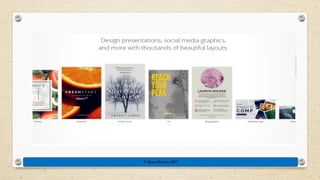
Canva is used and loved by
millions of people around the
globe.
Let’s try it!
© Rose Harvey 2017
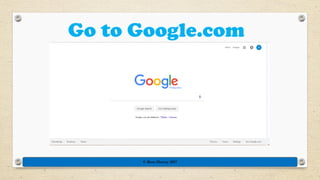
Go to Google.com
© Rose Harvey 2017
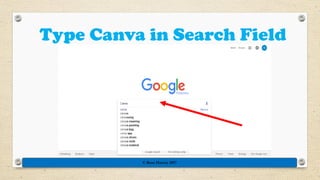
Type Canva in Search Field
© Rose Harvey 2017
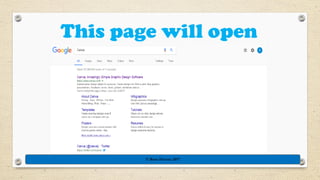
This page will open
© Rose Harvey 2017
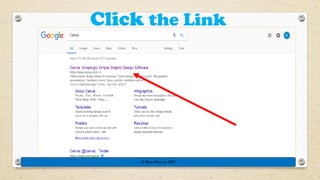
Click the Link
© Rose Harvey 2017
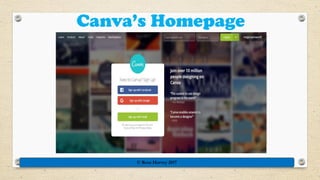
Canva’s Homepage
© Rose Harvey 2017
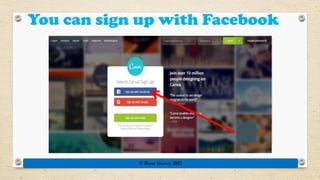
You can sign up with Facebook
© Rose Harvey 2017
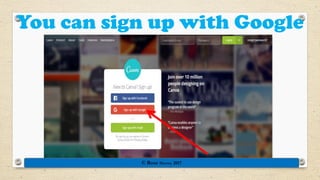
You can sign up with Google
© Rose Harvey 2017
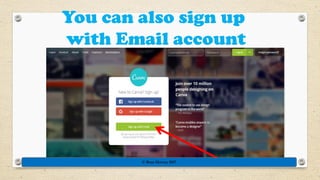
You can also sign up
with Email account
© Rose Harvey 2017
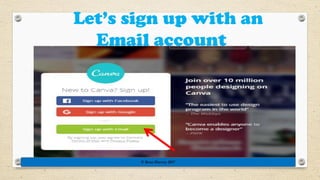
Let’s sign up with an
Email account
© Rose Harvey 2017
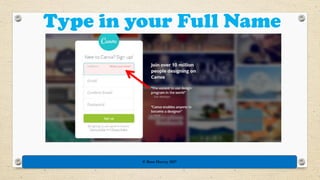
Type in your Full Name
© Rose Harvey 2017
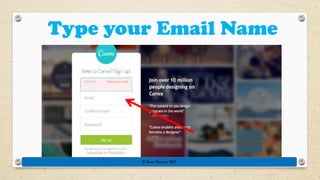
Type your Email Name
© Rose Harvey 2017
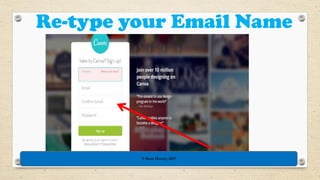
Re-type your Email Name
© Rose Harvey 2017
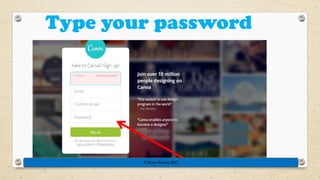
Type your password
© Rose Harvey 2017
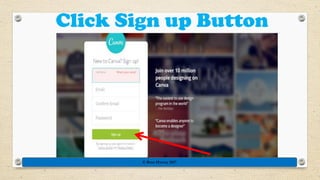
Click Sign up Button
© Rose Harvey 2017
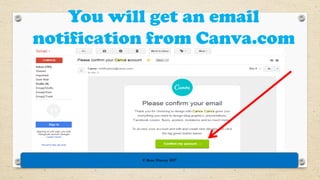
You will get an email
notification from Canva.com
© Rose Harvey 2017
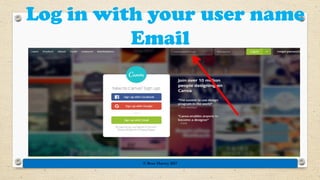
Log in with your user name
Email
© Rose Harvey 2017
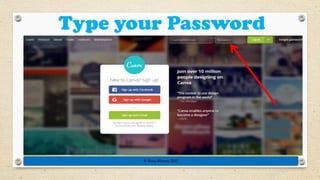
Type your Password
© Rose Harvey 2017
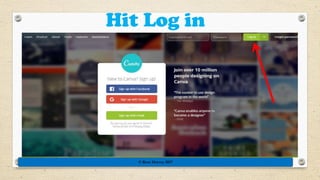
Hit Log in
© Rose Harvey 2017
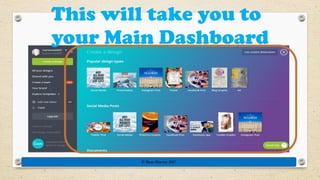
This will take you to
your Main Dashboard
© Rose Harvey 2017
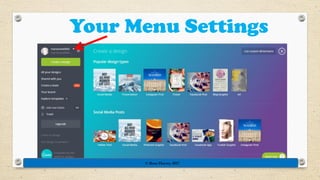
Your Menu Settings
© Rose Harvey 2017
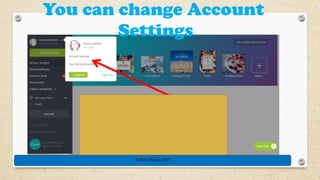
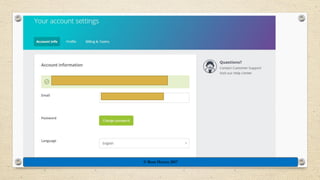
You can change Account
Settings
© Rose Harvey 2017
© Rose Harvey 2017
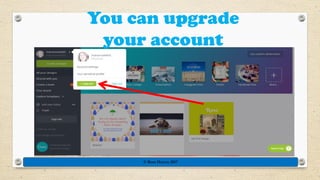
You can upgrade
your account
© Rose Harvey 2017
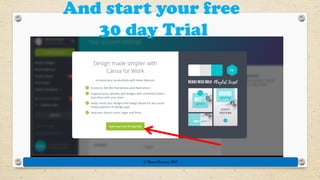
And start your free
30 day Trial
© Rose Harvey 2017
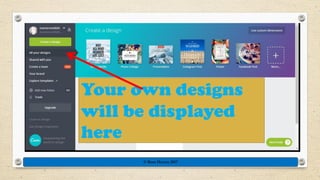
Your own designs
will be displayed
here
© Rose Harvey 2017
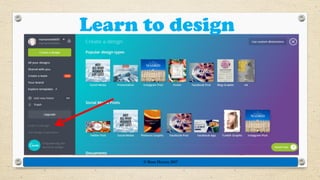
Learn to design
© Rose Harvey 2017
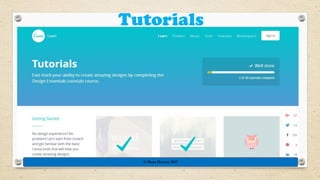
Tutorials
© Rose Harvey 2017
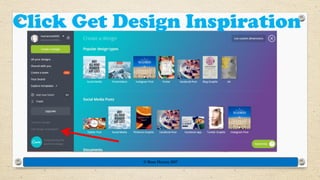
Click Get Design Inspiration
© Rose Harvey 2017
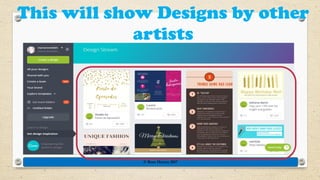
This will show Designs by other
artists
© Rose Harvey 2017
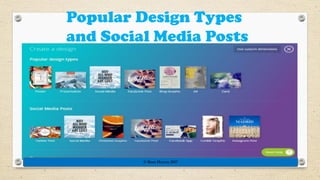
Popular Design Types
and Social Media Posts
© Rose Harvey 2017
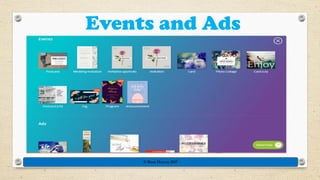
Events and Ads
© Rose Harvey 2017
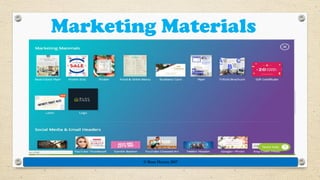
Marketing Materials
© Rose Harvey 2017
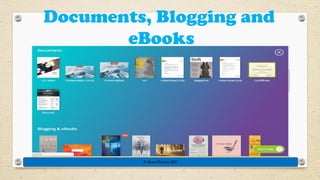
Documents, Blogging and
eBooks
© Rose Harvey 2017
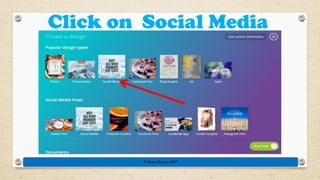
Click on Social Media
© Rose Harvey 2017
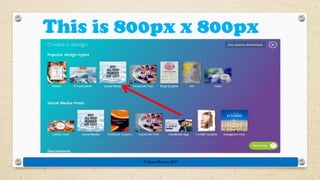
This is 800px x 800px
© Rose Harvey 2017
Canva updates the custom dimension
and adds new templates. If there are
changes within the design layout
e.g. Facebook cover, Canva
automatically updates it.
© Rose Harvey 2017
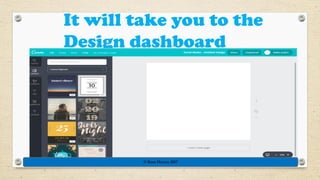
It will take you to the
Design dashboard
© Rose Harvey 2017
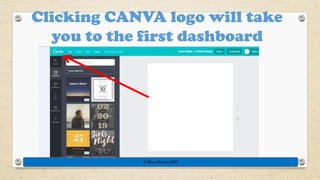
Clicking CANVA logo will take
you to the first dashboard
© Rose Harvey 2017
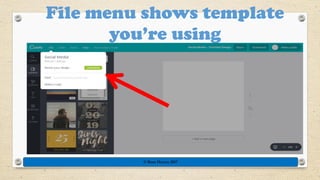
File menu shows template
you’re using
© Rose Harvey 2017
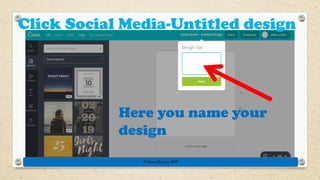
Click Social Media-Untitled design
Here you name your
design
© Rose Harvey 2017
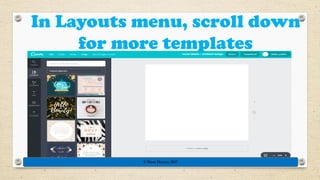
In Layouts menu, scroll down
for more templates
© Rose Harvey 2017
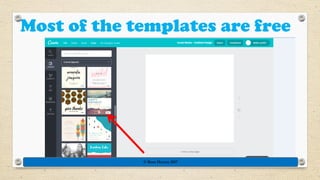
Most of the templates are free
© Rose Harvey 2017
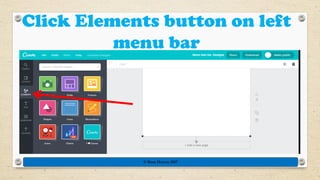
Click Elements button on left
menu bar
© Rose Harvey 2017
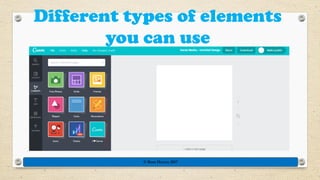
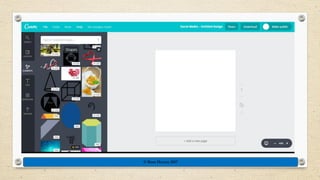
Different types of elements
you can use
© Rose Harvey 2017
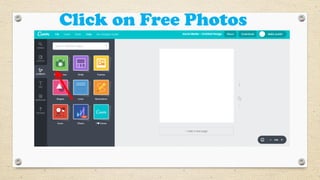
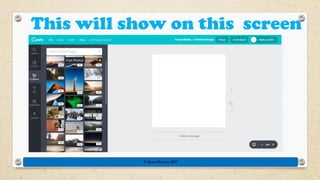
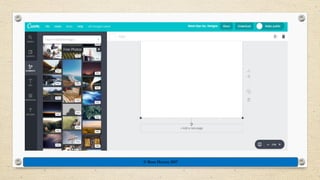
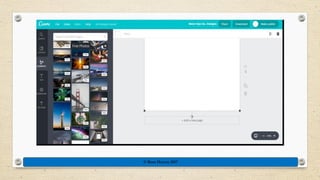
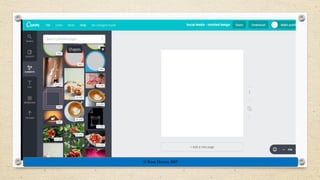
Click on Free Photos
This will show on this screen
© Rose Harvey 2017
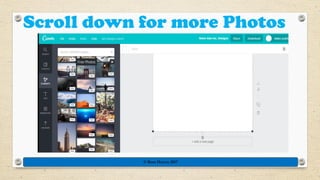
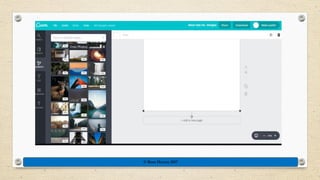
Scroll down for more Photos
© Rose Harvey 2017
© Rose Harvey 2017
© Rose Harvey 2017
© Rose Harvey 2017
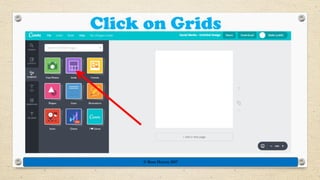
Click on Grids
© Rose Harvey 2017
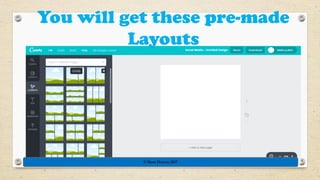
You will get these pre-made
Layouts
© Rose Harvey 2017
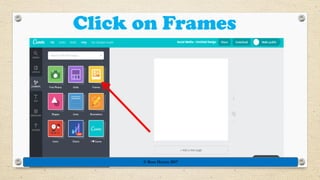
Click on Frames
© Rose Harvey 2017
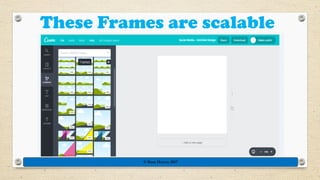
These Frames are scalable
© Rose Harvey 2017
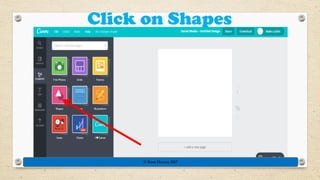
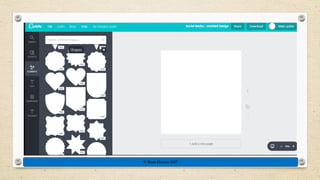
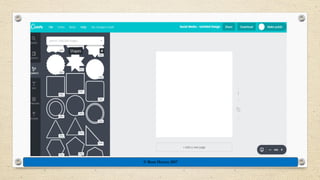
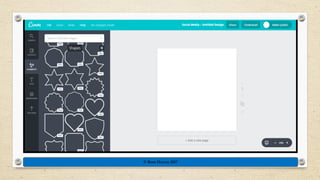
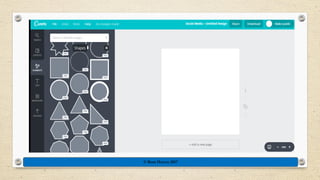
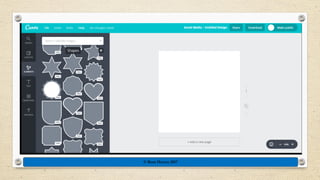
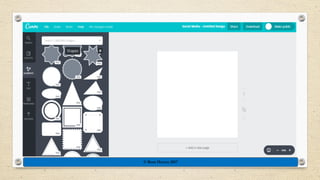
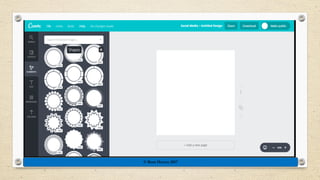
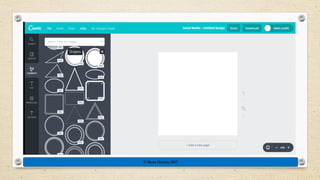
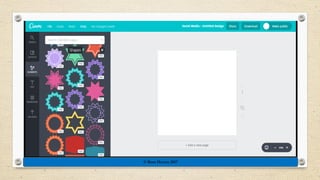
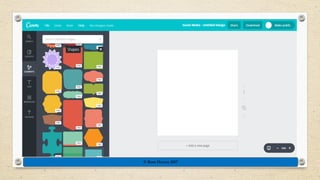
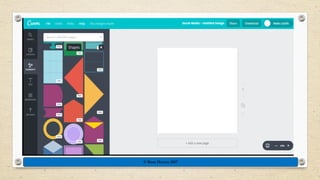
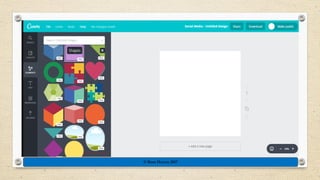
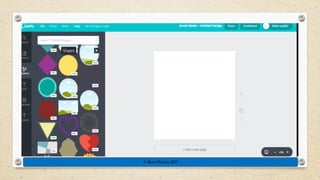
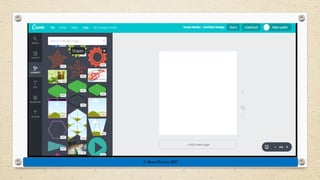
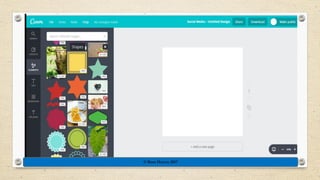
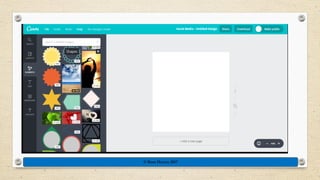
Click on Shapes
© Rose Harvey 2017
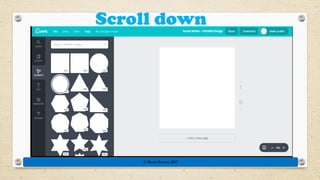
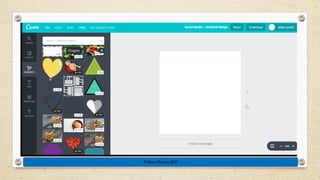
Scroll down
© Rose Harvey 2017
© Rose Harvey 2017
© Rose Harvey 2017
© Rose Harvey 2017
© Rose Harvey 2017
© Rose Harvey 2017
© Rose Harvey 2017
© Rose Harvey 2017
© Rose Harvey 2017
© Rose Harvey 2017
© Rose Harvey 2017
© Rose Harvey 2017
© Rose Harvey 2017
© Rose Harvey 2017
© Rose Harvey 2017
© Rose Harvey 2017
© Rose Harvey 2017
© Rose Harvey 2017
© Rose Harvey 2017
© Rose Harvey 2017
© Rose Harvey 2017
© Rose Harvey 2017
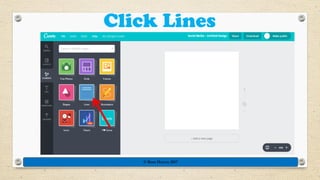
Click Lines
© Rose Harvey 2017
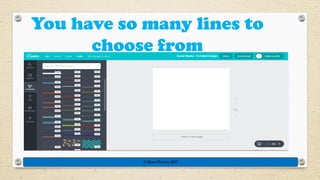
You have so many lines to
choose from
© Rose Harvey 2017
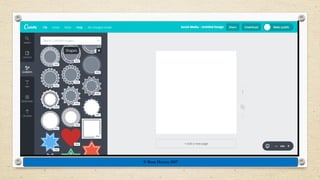
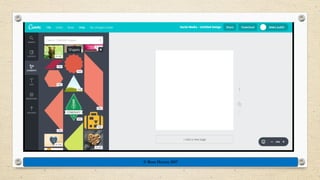
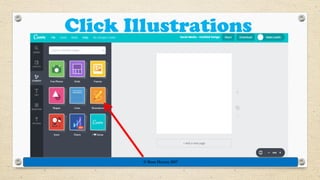
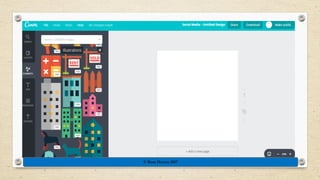
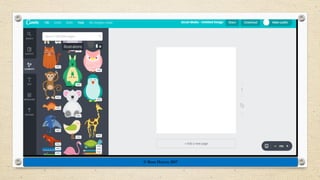
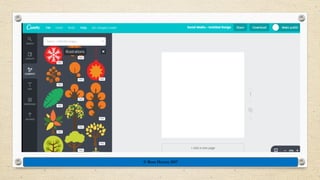
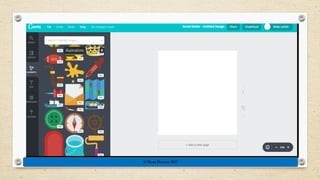
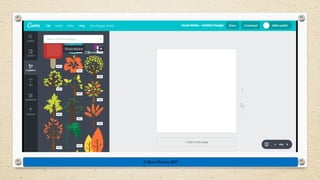
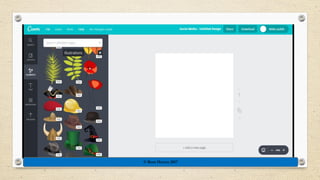
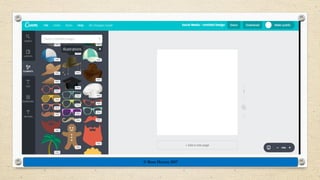
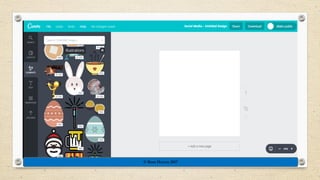
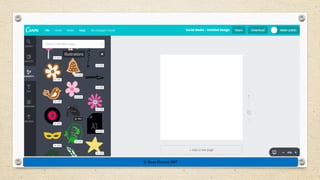
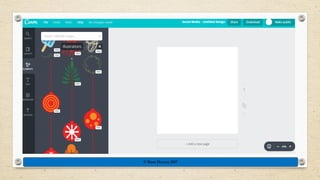
Click Illustrations
© Rose Harvey 2017
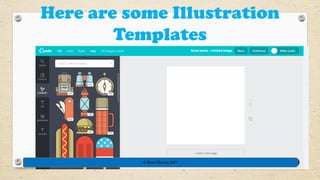
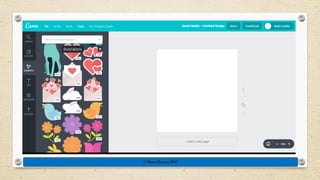
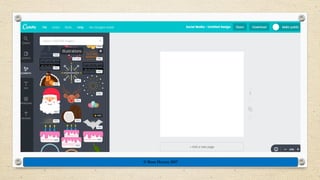
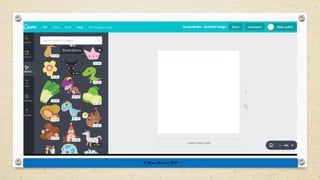
Here are some Illustration
Templates
© Rose Harvey 2017
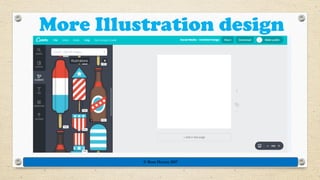
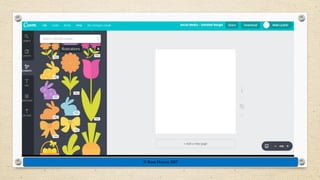
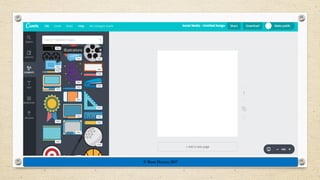
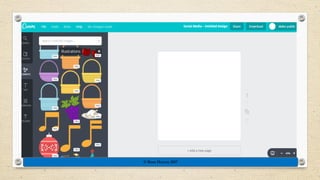
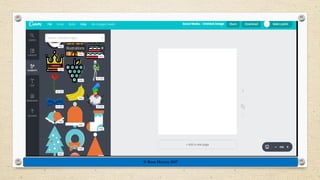
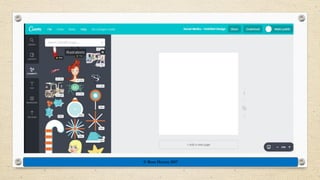
More Illustration design
Designs
© Rose Harvey 2017
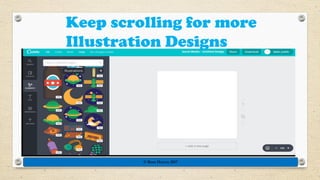
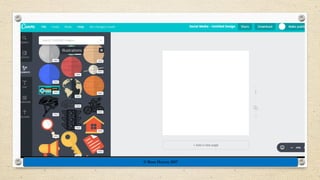
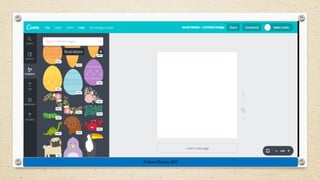
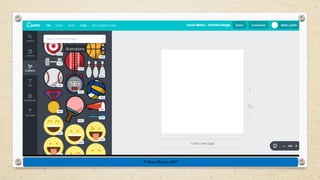
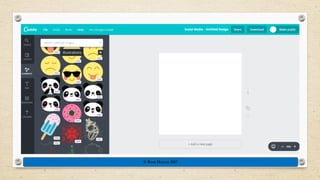
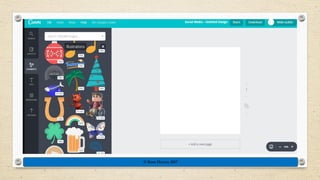
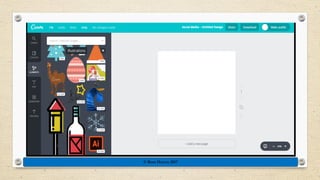
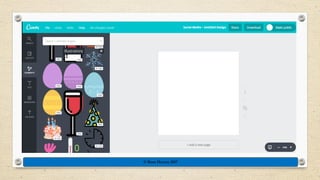
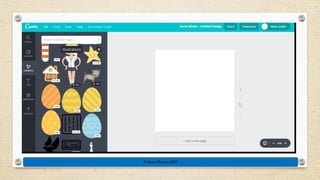
Keep scrolling for more
Illustration Designs
© Rose Harvey 2017
© Rose Harvey 2017
© Rose Harvey 2017
© Rose Harvey 2017
© Rose Harvey 2017
© Rose Harvey 2017
© Rose Harvey 2017
© Rose Harvey 2017
© Rose Harvey 2017
© Rose Harvey 2017
© Rose Harvey 2017
© Rose Harvey 2017
© Rose Harvey 2017
© Rose Harvey 2017
© Rose Harvey 2017
© Rose Harvey 2017
© Rose Harvey 2017
© Rose Harvey 2017
© Rose Harvey 2017
© Rose Harvey 2017
© Rose Harvey 2017
© Rose Harvey 2017
© Rose Harvey 2017
© Rose Harvey 2017
© Rose Harvey 2017
© Rose Harvey 2017
© Rose Harvey 2017
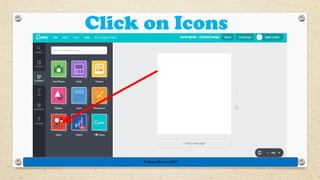
Click on Icons
© Rose Harvey 2017
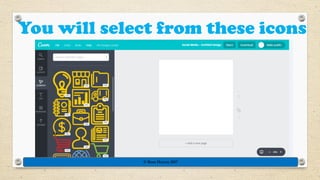
You will select from these icons
© Rose Harvey 2017
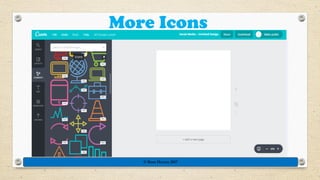
More Icons
© Rose Harvey 2017
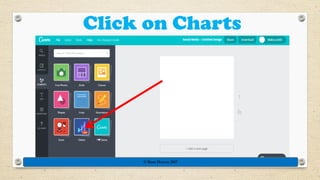
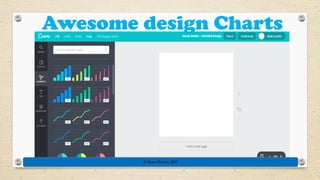
Click on Charts
© Rose Harvey 2017
Awesome design Charts
© Rose Harvey 2017
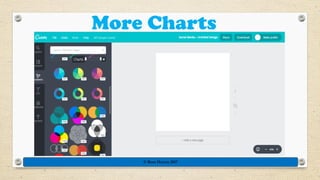
More Charts
© Rose Harvey 2017
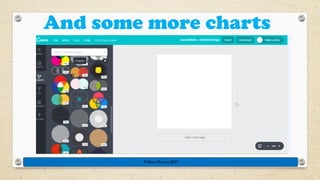
And some more charts
© Rose Harvey 2017
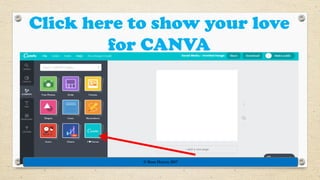
Click here to show your love
for CANVA
© Rose Harvey 2017
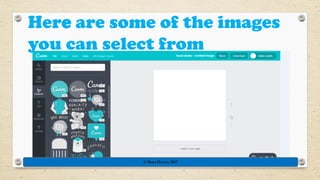
Here are some of the images
you can select from
© Rose Harvey 2017
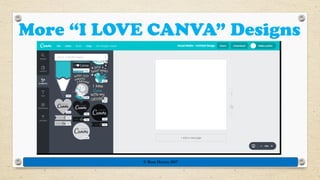
More “I LOVE CANVA” Designs
© Rose Harvey 2017
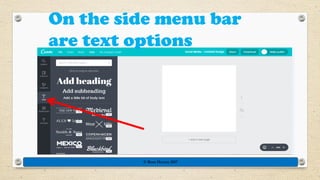
On the side menu bar
are text options
© Rose Harvey 2017
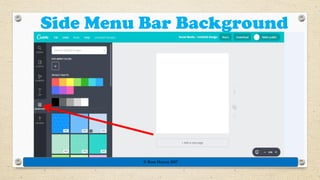
Side Menu Bar Background
© Rose Harvey 2017
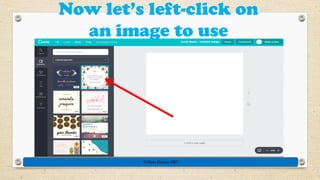
Now let’s left-click on
an image to use
© Rose Harvey 2017
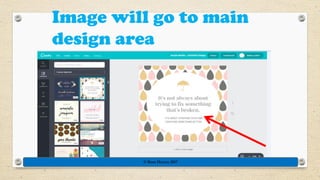
Image will go to main
design area
© Rose Harvey 2017
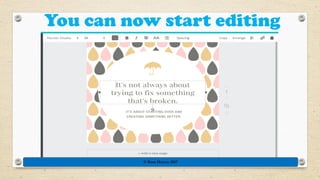
You can now start editing
© Rose Harvey 2017
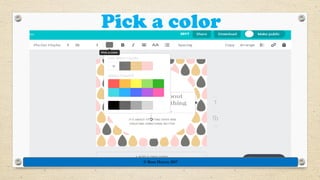
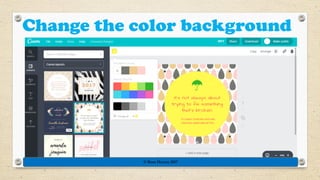
Pick a color
© Rose Harvey 2017
Select document Font
© Rose Harvey 2017
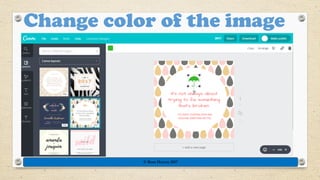
Change color of the image
© Rose Harvey 2017
© Rose Harvey 2017
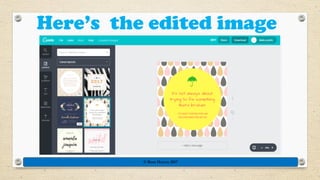
Here’s the edited image
© Rose Harvey 2017
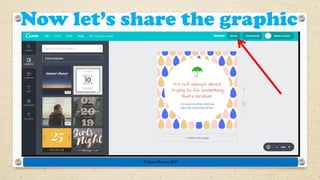
Now let’s share the graphic
© Rose Harvey 2017
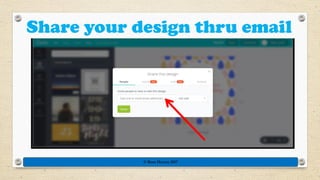
Share your design thru email
© Rose Harvey 2017
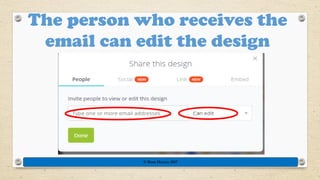
The person who receives the
email can edit the design
© Rose Harvey 2017
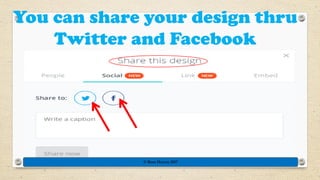
You can share your design thru
Twitter and Facebook
© Rose Harvey 2017
© Rose Harvey 2017
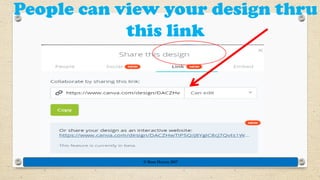
People can view your design thru
this link
© Rose Harvey 2017
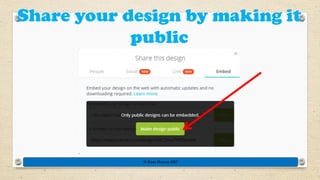
Share your design by making it
public
© Rose Harvey 2017
Rose Harvey 2017
© Rose Harvey 2017
© Rose Harvey 2017

Create Amazing Posters for Social Media