Containerizing
ContentBox CMS
Gavin Pickin
About Me?
Who am I?
● Software Consultant for Ortus Solutions
● Work with ColdBox, CommandBox, ContentBox every day
● Working with Coldfusion for 20 years
● Working with Javascript just as long
● Love learning and sharing the lessons learned
● From New Zealand, live in Bakersfield, Ca
● Loving wife, lots of kids, and countless critters
http://www.gpickin.com and @gpickin on twitter
http://www.ortussolutions.com
Docker Images
● Ortus Solutions has built and supports a few docker images, the most
common and popular
○ ortussolutions/commandbox
https://hub.docker.com/r/ortussolutions/commandbox/
● Ortus Solutions has built one especially for ContentBox
○ Adds several bells and whistles to help get your ContentBox app ready to deploy to docker
○ ContentBox Image updated for Version 4.0 release.
CommandBox Docker Image
https://hub.docker.com/r/ortussolutions/commandbox/
● Gives you commandbox, ready to go.
● Run any CF Engine or WAR file
● Use CFConfig to configure your cfml engine
● Use environment values for overrides
● Put your files in the /app directory and start the server of your choice
Your app is yours, and how you set it up, config it, is all up to you.
ContentBox Docker Image
https://hub.docker.com/r/ortussolutions/contentbox/
ContentBox’s image is built upon CommandBox, so it’s everything plus:
● Datasource config
● Distributed caching for content, rss etc
● Environment Overrides for ContentBox settings
● Embedded H2 DB support
● And more
Use PORTAINER
https://portainer.io/
Awesome, Free Opensource
Kiwi Powered :)
Portainer
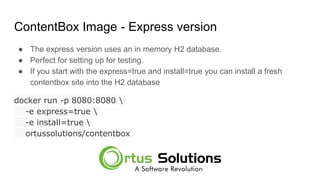
ContentBox Image - Express version
● The express version uses an in memory H2 database.
● Perfect for setting up for testing.
● If you start with the express=true and install=true you can install a fresh
contentbox site into the H2 database
docker run -p 8080:8080 
-e express=true 
-e install=true 
ortussolutions/contentbox
ContentBox Image - Persisting Data
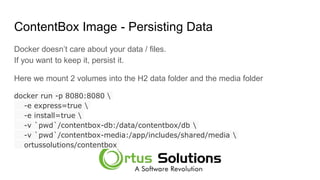
Docker doesn’t care about your data / files.
If you want to keep it, persist it.
Here we mount 2 volumes into the H2 data folder and the media folder
docker run -p 8080:8080 
-e express=true 
-e install=true 
-v `pwd`/contentbox-db:/data/contentbox/db 
-v `pwd`/contentbox-media:/app/includes/shared/media 
ortussolutions/contentbox
ContentBox Image - Environment Variables
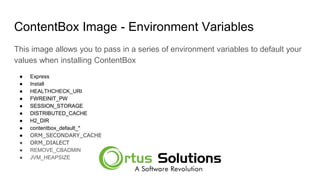
This image allows you to pass in a series of environment variables to default your
values when installing ContentBox
● Express
● Install
● HEALTHCHECK_URI
● FWREINIT_PW
● SESSION_STORAGE
● DISTRIBUTED_CACHE
● H2_DIR
● contentbox_default_*
● ORM_SECONDARY_CACHE
● ORM_DIALECT
● REMOVE_CBADMIN
● JVM_HEAPSIZE
ContentBox Image - Database Connections
● To programmatically configure the database on container start, environment
variables which represent your datasource configuration should be provided.
There are two patterns supported:
○ DB_DRIVER configuration - which may be used for Adobe Coldfusion servers
○ DB_CLASS configuration - which configures a datasource by JDBC driver and
connection string.
ContentBox Image - Database Connections
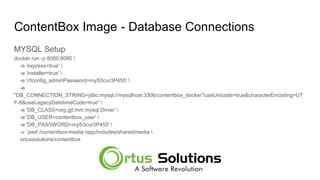
MYSQL Setup
docker run -p 8080:8080 
-e 'express=true' 
-e 'installer=true' 
-e 'cfconfig_adminPassword=myS3cur3P455' 
-e
"DB_CONNECTION_STRING=jdbc:mysql://mysqlhost:3306/contentbox_docker?useUnicode=true&characterEncoding=UT
F-8&useLegacyDatetimeCode=true" 
-e 'DB_CLASS=org.gjt.mm.mysql.Driver' 
-e 'DB_USER=contentbox_user' 
-e 'DB_PASSWORD=myS3cur3P455' 
-v `pwd`/contentbox-media:/app/includes/shared/media 
ortussolutions/contentbox
ContentBox Image - Database Connections
MSSQL Setup on Adobe
docker run -p 8080:8080 
-e 'CFENGINE=adobe@11' 
-e 'installer=true' 
-e 'cfconfig_adminPassword=myS3cur3P455' 
-e 'DB_DRIVER=MSSQLServer' 
-e 'DB_HOST=sqlserver_host' 
-e 'DB_PORT=1433' 
-e 'DB_NAME=contentbox_docker' 
-e 'DB_USER=sa' 
-e 'DB_PASSWORD=myS3cur3P455' 
-v `pwd`/contentbox-media:/app/includes/shared/media 
ortussolutions/contentbox
ContentBox Image - Distributed Cache
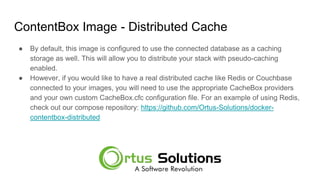
● By default, this image is configured to use the connected database as a caching
storage as well. This will allow you to distribute your stack with pseudo-caching
enabled.
● However, if you would like to have a real distributed cache like Redis or Couchbase
connected to your images, you will need to use the appropriate CacheBox providers
and your own custom CacheBox.cfc configuration file. For an example of using Redis,
check out our compose repository: https://github.com/Ortus-Solutions/docker-
contentbox-distributed
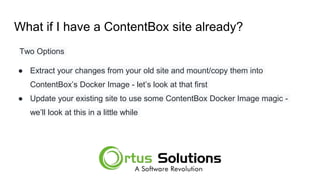
What if I have a ContentBox site already?
Two Options
● Extract your changes from your old site and mount/copy them into
ContentBox’s Docker Image - let’s look at that first
● Update your existing site to use some ContentBox Docker Image magic -
we’ll look at this in a little while
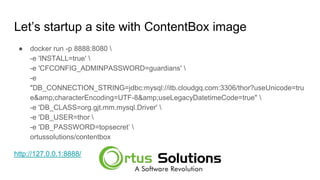
Let’s startup a site with ContentBox image
● docker run -p 8888:8080 
-e 'INSTALL=true' 
-e 'CFCONFIG_ADMINPASSWORD=guardians' 
-e
"DB_CONNECTION_STRING=jdbc:mysql://itb.cloudgq.com:3306/thor?useUnicode=tru
e&characterEncoding=UTF-8&useLegacyDatetimeCode=true" 
-e 'DB_CLASS=org.gjt.mm.mysql.Driver' 
-e 'DB_USER=thor 
-e 'DB_PASSWORD=topsecret’ 
ortussolutions/contentbox
http://127.0.0.1:8888/
Folder Structure - Where are my Files?
Working with Docker where everything is in the image already is a little weird to
say the least.
You only need what is different in your local files
● Mount the persistent files as a volume
● Mount / Copy the Changes
Let’s add our Media into the Image
docker run -p 8888:8080 
-e 'INSTALL=true' -e 'CFCONFIG_ADMINPASSWORD=guardians' -e
"DB_CONNECTION_STRING=jdbc:mysql://itb.cloudgq.com:3306/thor?useUnicode=true&cha
racterEncoding=UTF-8&useLegacyDatetimeCode=true" 
-e 'DB_CLASS=org.gjt.mm.mysql.Driver' 
-e 'DB_USER=thor 
-e 'DB_PASSWORD=topsecret’ 
-v c:/www/contentbox-zero-to-hero/media:/app/includes/shared/media
ortussolutions/contentbox
http://127.0.0.1:8888
Let’s add our ContentBox-Custom folder into the
Image
docker run -p 8888:8080
-e 'INSTALL=true' -e 'CFCONFIG_ADMINPASSWORD=guardians' -e
"DB_CONNECTION_STRING=jdbc:mysql://itb.cloudgq.com:3306/starlord?useUnicode=true&am
p;characterEncoding=UTF-8&useLegacyDatetimeCode=true"
-e 'DB_CLASS=org.gjt.mm.mysql.Driver'
-e 'DB_USER=starlord'
-e 'DB_PASSWORD=starlord'
-v c:/www/contentbox-zero-to-hero/media:/app/includes/shared/media -v C:/www/contentbox-
zero-to-hero/itb-1/modules_app/contentbox-custom:/app/modules_app/contentbox-custom
ortussolutions/contentbox
http://127.0.0.1:8888/
Live coding moment of truth
Deploy to the Cloud!!!!
Want to try it out, use my link and get $100 in credit to play with
https://m.do.co/c/7fd11f7cfdf2
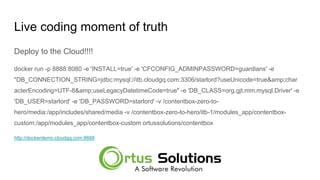
Live coding moment of truth
Deploy to the Cloud!!!!
First, we need to get the files to the server.
Lets just use SSH Copy for now, or FTP, because that’s how it’s done, right?
We’ll upload them into /contentbox-zero-to-hero
/contentbox-hero-to-zero/media
/contentbox-hero-to-zero/itb-1/modules_app/contentbox-custom
Live coding moment of truth
Deploy to the Cloud!!!!
docker run -p 8888:8080 -e 'INSTALL=true' -e 'CFCONFIG_ADMINPASSWORD=guardians' -e
"DB_CONNECTION_STRING=jdbc:mysql://itb.cloudgq.com:3306/starlord?useUnicode=true&char
acterEncoding=UTF-8&useLegacyDatetimeCode=true" -e 'DB_CLASS=org.gjt.mm.mysql.Driver' -e
'DB_USER=starlord' -e 'DB_PASSWORD=starlord' -v /contentbox-zero-to-
hero/media:/app/includes/shared/media -v /contentbox-zero-to-hero/itb-1/modules_app/contentbox-
custom:/app/modules_app/contentbox-custom ortussolutions/contentbox
http://dockerdemo.cloudgq.com:8888
Clustering your Docker Images
That’s what Docker is great for… and Docker Swarm is a great way to get
started.
Things to Consider
Files - Any files you have would need to be persisted to a shared drive between servers,
block storage on Digital ocean works great here ( show example )
Sessions - Sessions are usually stored in the server memory, more servers means more
memory not the same memory.
Baking your code into Docker Images
Having to share your code on every server, or putting it on a shared drive is not
a good workflow.
Your code should only change when you deploy a new version.
Things that change in your app, need to be separated like Media, etc
So lets build a docker image with our Content.
Docker File
FROM ortussolutions/contentbox
COPY modules_app/contentbox-custom /app/modules_app/contentbox-custom
Build a Docker Image with Docker File
docker build -t gpickin/itb-docker-demo:20190503.0.1 .
Push our Docker image to Docker Hub
docker push gpickin/itb-docker-demo:20190503.0.1
Docker Run with our Built Image locally
docker run -p 8888:8080 -e 'INSTALL=true' -e
'CFCONFIG_ADMINPASSWORD=guardians' -e
"DB_CONNECTION_STRING=jdbc:mysql://itb.cloudgq.com:3306/starlord?useUnicode=tru
e&characterEncoding=UTF-8&useLegacyDatetimeCode=true" -e
'DB_CLASS=org.gjt.mm.mysql.Driver' -e 'DB_USER=starlord' -e
'DB_PASSWORD=starlord' -v c:/www/contentbox-zero-to-
hero/media:/app/includes/shared/media gpickin/itb-docker-demo:20190503.0.1
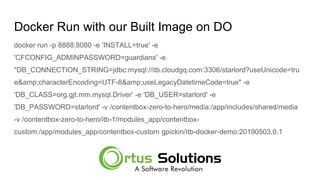
Docker Run with our Built Image on DO
docker run -p 8888:8080 -e 'INSTALL=true' -e
'CFCONFIG_ADMINPASSWORD=guardians' -e
"DB_CONNECTION_STRING=jdbc:mysql://itb.cloudgq.com:3306/starlord?useUnicode=tru
e&characterEncoding=UTF-8&useLegacyDatetimeCode=true" -e
'DB_CLASS=org.gjt.mm.mysql.Driver' -e 'DB_USER=starlord' -e
'DB_PASSWORD=starlord' -v /contentbox-zero-to-hero/media:/app/includes/shared/media
-v /contentbox-zero-to-hero/itb-1/modules_app/contentbox-
custom:/app/modules_app/contentbox-custom gpickin/itb-docker-demo:20190503.0.1
Questions
Want More?
Docker Mastery Course - https://www.udemy.com/docker-mastery/
Ortus Solutions Website - https://www.ortussolutions.com/events
Slack Channel - http://boxteam.herokuapp.com/
Twitter - https://twitter.com/ortussolutions/
CF Summit 2019 ( Las Vegas ) - Talk to us about a Training after the conference
Thanks
Thanks everyone
There are a few more great sessions left, don’t miss out.
Hope to see you all next year at Into the Box
And CF Summit later in the year
Travel Safe

Containerizing ContentBox CMS

  • 1.
  • 2.
  • 3.
    Who am I? ●Software Consultant for Ortus Solutions ● Work with ColdBox, CommandBox, ContentBox every day ● Working with Coldfusion for 20 years ● Working with Javascript just as long ● Love learning and sharing the lessons learned ● From New Zealand, live in Bakersfield, Ca ● Loving wife, lots of kids, and countless critters http://www.gpickin.com and @gpickin on twitter http://www.ortussolutions.com
  • 4.
    Docker Images ● OrtusSolutions has built and supports a few docker images, the most common and popular ○ ortussolutions/commandbox https://hub.docker.com/r/ortussolutions/commandbox/ ● Ortus Solutions has built one especially for ContentBox ○ Adds several bells and whistles to help get your ContentBox app ready to deploy to docker ○ ContentBox Image updated for Version 4.0 release.
  • 5.
    CommandBox Docker Image https://hub.docker.com/r/ortussolutions/commandbox/ ●Gives you commandbox, ready to go. ● Run any CF Engine or WAR file ● Use CFConfig to configure your cfml engine ● Use environment values for overrides ● Put your files in the /app directory and start the server of your choice Your app is yours, and how you set it up, config it, is all up to you.
  • 6.
    ContentBox Docker Image https://hub.docker.com/r/ortussolutions/contentbox/ ContentBox’simage is built upon CommandBox, so it’s everything plus: ● Datasource config ● Distributed caching for content, rss etc ● Environment Overrides for ContentBox settings ● Embedded H2 DB support ● And more
  • 7.
  • 8.
  • 9.
    ContentBox Image -Express version ● The express version uses an in memory H2 database. ● Perfect for setting up for testing. ● If you start with the express=true and install=true you can install a fresh contentbox site into the H2 database docker run -p 8080:8080 -e express=true -e install=true ortussolutions/contentbox
  • 10.
    ContentBox Image -Persisting Data Docker doesn’t care about your data / files. If you want to keep it, persist it. Here we mount 2 volumes into the H2 data folder and the media folder docker run -p 8080:8080 -e express=true -e install=true -v `pwd`/contentbox-db:/data/contentbox/db -v `pwd`/contentbox-media:/app/includes/shared/media ortussolutions/contentbox
  • 11.
    ContentBox Image -Environment Variables This image allows you to pass in a series of environment variables to default your values when installing ContentBox ● Express ● Install ● HEALTHCHECK_URI ● FWREINIT_PW ● SESSION_STORAGE ● DISTRIBUTED_CACHE ● H2_DIR ● contentbox_default_* ● ORM_SECONDARY_CACHE ● ORM_DIALECT ● REMOVE_CBADMIN ● JVM_HEAPSIZE
  • 12.
    ContentBox Image -Database Connections ● To programmatically configure the database on container start, environment variables which represent your datasource configuration should be provided. There are two patterns supported: ○ DB_DRIVER configuration - which may be used for Adobe Coldfusion servers ○ DB_CLASS configuration - which configures a datasource by JDBC driver and connection string.
  • 13.
    ContentBox Image -Database Connections MYSQL Setup docker run -p 8080:8080 -e 'express=true' -e 'installer=true' -e 'cfconfig_adminPassword=myS3cur3P455' -e "DB_CONNECTION_STRING=jdbc:mysql://mysqlhost:3306/contentbox_docker?useUnicode=true&characterEncoding=UT F-8&useLegacyDatetimeCode=true" -e 'DB_CLASS=org.gjt.mm.mysql.Driver' -e 'DB_USER=contentbox_user' -e 'DB_PASSWORD=myS3cur3P455' -v `pwd`/contentbox-media:/app/includes/shared/media ortussolutions/contentbox
  • 14.
    ContentBox Image -Database Connections MSSQL Setup on Adobe docker run -p 8080:8080 -e 'CFENGINE=adobe@11' -e 'installer=true' -e 'cfconfig_adminPassword=myS3cur3P455' -e 'DB_DRIVER=MSSQLServer' -e 'DB_HOST=sqlserver_host' -e 'DB_PORT=1433' -e 'DB_NAME=contentbox_docker' -e 'DB_USER=sa' -e 'DB_PASSWORD=myS3cur3P455' -v `pwd`/contentbox-media:/app/includes/shared/media ortussolutions/contentbox
  • 15.
    ContentBox Image -Distributed Cache ● By default, this image is configured to use the connected database as a caching storage as well. This will allow you to distribute your stack with pseudo-caching enabled. ● However, if you would like to have a real distributed cache like Redis or Couchbase connected to your images, you will need to use the appropriate CacheBox providers and your own custom CacheBox.cfc configuration file. For an example of using Redis, check out our compose repository: https://github.com/Ortus-Solutions/docker- contentbox-distributed
  • 16.
    What if Ihave a ContentBox site already? Two Options ● Extract your changes from your old site and mount/copy them into ContentBox’s Docker Image - let’s look at that first ● Update your existing site to use some ContentBox Docker Image magic - we’ll look at this in a little while
  • 17.
    Let’s startup asite with ContentBox image ● docker run -p 8888:8080 -e 'INSTALL=true' -e 'CFCONFIG_ADMINPASSWORD=guardians' -e "DB_CONNECTION_STRING=jdbc:mysql://itb.cloudgq.com:3306/thor?useUnicode=tru e&characterEncoding=UTF-8&useLegacyDatetimeCode=true" -e 'DB_CLASS=org.gjt.mm.mysql.Driver' -e 'DB_USER=thor -e 'DB_PASSWORD=topsecret’ ortussolutions/contentbox http://127.0.0.1:8888/
  • 18.
    Folder Structure -Where are my Files? Working with Docker where everything is in the image already is a little weird to say the least. You only need what is different in your local files ● Mount the persistent files as a volume ● Mount / Copy the Changes
  • 19.
    Let’s add ourMedia into the Image docker run -p 8888:8080 -e 'INSTALL=true' -e 'CFCONFIG_ADMINPASSWORD=guardians' -e "DB_CONNECTION_STRING=jdbc:mysql://itb.cloudgq.com:3306/thor?useUnicode=true&cha racterEncoding=UTF-8&useLegacyDatetimeCode=true" -e 'DB_CLASS=org.gjt.mm.mysql.Driver' -e 'DB_USER=thor -e 'DB_PASSWORD=topsecret’ -v c:/www/contentbox-zero-to-hero/media:/app/includes/shared/media ortussolutions/contentbox http://127.0.0.1:8888
  • 20.
    Let’s add ourContentBox-Custom folder into the Image docker run -p 8888:8080 -e 'INSTALL=true' -e 'CFCONFIG_ADMINPASSWORD=guardians' -e "DB_CONNECTION_STRING=jdbc:mysql://itb.cloudgq.com:3306/starlord?useUnicode=true&am p;characterEncoding=UTF-8&useLegacyDatetimeCode=true" -e 'DB_CLASS=org.gjt.mm.mysql.Driver' -e 'DB_USER=starlord' -e 'DB_PASSWORD=starlord' -v c:/www/contentbox-zero-to-hero/media:/app/includes/shared/media -v C:/www/contentbox- zero-to-hero/itb-1/modules_app/contentbox-custom:/app/modules_app/contentbox-custom ortussolutions/contentbox http://127.0.0.1:8888/
  • 21.
    Live coding momentof truth Deploy to the Cloud!!!! Want to try it out, use my link and get $100 in credit to play with https://m.do.co/c/7fd11f7cfdf2
  • 22.
    Live coding momentof truth Deploy to the Cloud!!!! First, we need to get the files to the server. Lets just use SSH Copy for now, or FTP, because that’s how it’s done, right? We’ll upload them into /contentbox-zero-to-hero /contentbox-hero-to-zero/media /contentbox-hero-to-zero/itb-1/modules_app/contentbox-custom
  • 23.
    Live coding momentof truth Deploy to the Cloud!!!! docker run -p 8888:8080 -e 'INSTALL=true' -e 'CFCONFIG_ADMINPASSWORD=guardians' -e "DB_CONNECTION_STRING=jdbc:mysql://itb.cloudgq.com:3306/starlord?useUnicode=true&char acterEncoding=UTF-8&useLegacyDatetimeCode=true" -e 'DB_CLASS=org.gjt.mm.mysql.Driver' -e 'DB_USER=starlord' -e 'DB_PASSWORD=starlord' -v /contentbox-zero-to- hero/media:/app/includes/shared/media -v /contentbox-zero-to-hero/itb-1/modules_app/contentbox- custom:/app/modules_app/contentbox-custom ortussolutions/contentbox http://dockerdemo.cloudgq.com:8888
  • 24.
    Clustering your DockerImages That’s what Docker is great for… and Docker Swarm is a great way to get started. Things to Consider Files - Any files you have would need to be persisted to a shared drive between servers, block storage on Digital ocean works great here ( show example ) Sessions - Sessions are usually stored in the server memory, more servers means more memory not the same memory.
  • 25.
    Baking your codeinto Docker Images Having to share your code on every server, or putting it on a shared drive is not a good workflow. Your code should only change when you deploy a new version. Things that change in your app, need to be separated like Media, etc So lets build a docker image with our Content.
  • 26.
    Docker File FROM ortussolutions/contentbox COPYmodules_app/contentbox-custom /app/modules_app/contentbox-custom
  • 27.
    Build a DockerImage with Docker File docker build -t gpickin/itb-docker-demo:20190503.0.1 .
  • 28.
    Push our Dockerimage to Docker Hub docker push gpickin/itb-docker-demo:20190503.0.1
  • 29.
    Docker Run withour Built Image locally docker run -p 8888:8080 -e 'INSTALL=true' -e 'CFCONFIG_ADMINPASSWORD=guardians' -e "DB_CONNECTION_STRING=jdbc:mysql://itb.cloudgq.com:3306/starlord?useUnicode=tru e&characterEncoding=UTF-8&useLegacyDatetimeCode=true" -e 'DB_CLASS=org.gjt.mm.mysql.Driver' -e 'DB_USER=starlord' -e 'DB_PASSWORD=starlord' -v c:/www/contentbox-zero-to- hero/media:/app/includes/shared/media gpickin/itb-docker-demo:20190503.0.1
  • 30.
    Docker Run withour Built Image on DO docker run -p 8888:8080 -e 'INSTALL=true' -e 'CFCONFIG_ADMINPASSWORD=guardians' -e "DB_CONNECTION_STRING=jdbc:mysql://itb.cloudgq.com:3306/starlord?useUnicode=tru e&characterEncoding=UTF-8&useLegacyDatetimeCode=true" -e 'DB_CLASS=org.gjt.mm.mysql.Driver' -e 'DB_USER=starlord' -e 'DB_PASSWORD=starlord' -v /contentbox-zero-to-hero/media:/app/includes/shared/media -v /contentbox-zero-to-hero/itb-1/modules_app/contentbox- custom:/app/modules_app/contentbox-custom gpickin/itb-docker-demo:20190503.0.1
  • 31.
  • 32.
    Want More? Docker MasteryCourse - https://www.udemy.com/docker-mastery/ Ortus Solutions Website - https://www.ortussolutions.com/events Slack Channel - http://boxteam.herokuapp.com/ Twitter - https://twitter.com/ortussolutions/ CF Summit 2019 ( Las Vegas ) - Talk to us about a Training after the conference
  • 33.
    Thanks Thanks everyone There area few more great sessions left, don’t miss out. Hope to see you all next year at Into the Box And CF Summit later in the year Travel Safe