Lesser	
  Known	
  
Search	
  Commands	
  
Kyle	
  Smith	
  
Infrastructure	
  Analyst,	
  
The	
  Hershey	
  Company	
  
Disclaimer	
  
During	
  the	
  course	
  of	
  this	
  presenta?on,	
  we	
  may	
  make	
  forward-­‐looking	
  statements	
  
regarding	
  future	
  events	
  or	
  the	
  expected	
  performance	
  of	
  the	
  company.	
  We	
  
cau?on	
  you	
  that	
  such	
  statements	
  reflect	
  our	
  current	
  expecta?ons	
  and	
  es?mates	
  
based	
  on	
  factors	
  currently	
  known	
  to	
  us	
  and	
  that	
  actual	
  events	
  or	
  results	
  could	
  
differ	
  materially.	
  For	
  important	
  factors	
  that	
  may	
  cause	
  actual	
  results	
  to	
  differ	
  
from	
  those	
  contained	
  in	
  our	
  forward-­‐looking	
  statements,	
  please	
  review	
  our	
  
filings	
  with	
  the	
  SEC.	
  The	
  forward-­‐looking	
  statements	
  made	
  in	
  the	
  this	
  
presenta?on	
  are	
  being	
  made	
  as	
  of	
  the	
  ?me	
  and	
  date	
  of	
  its	
  live	
  presenta?on.	
  If	
  
reviewed	
  aLer	
  its	
  live	
  presenta?on,	
  this	
  presenta?on	
  may	
  not	
  contain	
  current	
  or	
  
accurate	
  informa?on.	
  We	
  do	
  not	
  assume	
  any	
  obliga?on	
  to	
  update	
  any	
  forward-­‐
looking	
  statements	
  we	
  may	
  make.	
  In	
  addi?on,	
  any	
  informa?on	
  about	
  our	
  
roadmap	
  outlines	
  our	
  general	
  product	
  direc?on	
  and	
  is	
  subject	
  to	
  change	
  at	
  any	
  
?me	
  without	
  no?ce.	
  It	
  is	
  for	
  informa?onal	
  purposes	
  only,	
  and	
  shall	
  not	
  be	
  
incorporated	
  into	
  any	
  contract	
  or	
  other	
  commitment.	
  Splunk	
  undertakes	
  no	
  
obliga?on	
  either	
  to	
  develop	
  the	
  features	
  or	
  func?onality	
  described	
  or	
  to	
  include	
  
any	
  such	
  feature	
  or	
  func?onality	
  in	
  a	
  future	
  release.	
  
2	
  
Me	
  
!   Infrastructure	
  Analyst	
  at	
  The	
  Hershey	
  Company	
  
!   Working	
  with	
  Splunk	
  for	
  ~5	
  years	
  
!   WriRen	
  4	
  Public	
  Splunk	
  Apps	
  (on	
  apps.splunk.com)	
  
!   Ac?ve	
  on	
  both	
  #splunk	
  on	
  IRC	
  and	
  answers.splunk.com	
  
–  My	
  Handle	
  is	
  “alacercogitatus”	
  or	
  just	
  “alacer”	
  
!   Totally	
  not	
  above	
  asking	
  for	
  Karma	
  
3	
  
Agenda	
  
!   ?mechart	
  eval	
  
!   dynamic	
  eval	
  
!   con?ngency	
  
!   map	
  
!   gen?mes	
  
!   xyseries	
  
!   foreach	
  
!   cluster	
  
!   correlate	
  
!   autoregress	
  
!   CLI	
  Commands	
  
4	
  
Timeline	
  Eval	
  
!   You	
  can	
  use	
  an	
  eval	
  statement	
  in	
  a	
  ?mechart	
  command	
  
`nest_data`| autoregress temp_f | eval diff = temp_f - temp_f_p1 | timechart span=15m
avg(diff) as "Average Difference" eval(avg(temp_f) - avg(temp_f_p1)) as "Eval Diff”
5	
  
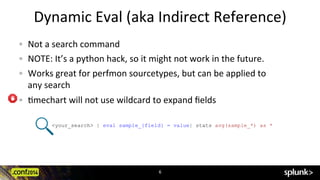
Dynamic	
  Eval	
  (aka	
  Indirect	
  Reference)	
  
!   Not	
  a	
  search	
  command	
  
!   NOTE:	
  It’s	
  a	
  python	
  hack,	
  so	
  it	
  might	
  not	
  work	
  in	
  the	
  future.	
  
!   Works	
  great	
  for	
  perfmon	
  sourcetypes,	
  but	
  can	
  be	
  applied	
  to	
  	
  
any	
  search	
  
!   ?mechart	
  will	
  not	
  use	
  wildcard	
  to	
  expand	
  fields	
  
<your_search> | eval sample_{field} = value| stats avg(sample_*) as *
6	
  
Dynamic	
  Eval	
  –	
  How	
  to	
  Use	
  It	
  
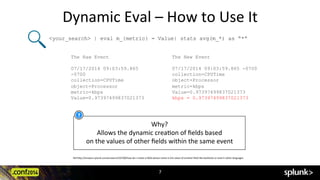
<your_search> | eval m_{metric} = Value| stats avg(m_*) as “*”
The Raw Event
07/17/2014 09:03:59.865
-0700
collection=CPUTime
object=Processor
metric=kbps
Value=0.97397499837021373
The New Event
07/17/2014 09:03:59.865 -0700
collection=CPUTime
object=Processor
metric=kbps
Value=0.97397499837021373
kbps = 0.97397499837021373
Why?	
  	
  
Allows	
  the	
  dynamic	
  crea?on	
  of	
  fields	
  based	
  	
  
on	
  the	
  values	
  of	
  other	
  fields	
  within	
  the	
  same	
  event	
  
Ref:hRp://answers.splunk.com/answers/103700/how-­‐do-­‐i-­‐create-­‐a-­‐field-­‐whose-­‐name-­‐is-­‐the-­‐value-­‐of-­‐another-­‐field-­‐like-­‐back?cks-­‐or-­‐eval-­‐in-­‐other-­‐languages	
  
7	
  
Dynamic	
  Eval	
  –	
  Subsearch	
  
!   Not	
  a	
  search	
  command	
  
!   NOTE:	
  It’s	
  a	
  Splunk	
  hack,	
  so	
  it	
  might	
  not	
  work	
  in	
  the	
  future	
  
<your_search> | eval subsearch = if(host==[ <subsearch> | head 1 | rename host as query |
fields query | eval query=""".query.""" ],”setting_1”,”setting_2”)
8	
  
con?ngency	
  
9	
  
!   Web	
  analy?cs	
  -­‐	
  browsers	
  with	
  versions	
  
!   Demographics	
  -­‐	
  ages	
  with	
  loca?ons	
  or	
  genders	
  
!   Security	
  -­‐	
  usernames	
  with	
  proxy	
  categories	
  
!   Compare	
  categorical	
  fields	
  
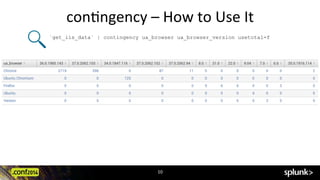
contingency [<contingency-option>]* <field> <field>
Builds a contingency table for two fields
A contingency table is a table showing the distribution
(count) of one variable in rows and another in columns, and
is used to study the association between the two variables
con?ngency	
  –	
  How	
  to	
  Use	
  It	
  
`get_iis_data` | contingency ua_browser ua_browser_version usetotal=f
10	
  
con?ngency	
  –	
  How	
  to	
  Use	
  It	
  
`get_iis_data` | contingency ua_browser ua_browser_version usetotal=f
11	
  
con?ngency	
  –	
  How	
  to	
  Use	
  It	
  
`get_weather_data` | contingency weather range usetotal=f
range in this case is the absolute value of (Actual Temperature - Relative Humidity)
12	
  
map	
  
13	
  
!   Uses	
  “tokens”	
  ($field$)	
  to	
  pass	
  values	
  into	
  the	
  search	
  	
  
!   Best	
  with	
  either:	
  Very	
  small	
  input	
  set	
  And/Or	
  very	
  specific	
  search.	
  Can	
  take	
  a	
  long	
  
amount	
  of	
  ?me	
  
!   Map	
  is	
  a	
  type	
  of	
  subsearch	
  
!   Is	
  “?me	
  agnos?c”	
  –	
  ?me	
  is	
  not	
  necessarily	
  linear,	
  and	
  can	
  be	
  based	
  off	
  of	
  the	
  
master	
  search	
  
map (<searchoption>|<savedsplunkoption>) [maxsearches=int]
Looping operator, performs a search over each search result
map	
  –	
  How	
  to	
  Use	
  It	
  
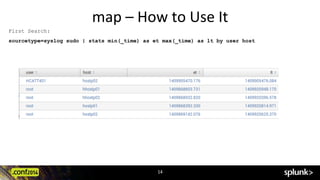
First Search:
sourcetype=syslog sudo | stats min(_time) as et max(_time) as lt by user host
14	
  
map	
  -­‐	
  How	
  to	
  Use	
  It	
  
_?me	
   computername	
   computer?me	
   username	
   user?me	
  
10/12/12	
  8:31:35.00	
  AM	
   Worksta?on$	
   10/12/2012	
  08:25:42	
   userA	
   10/12/2012	
  08:31:35	
  AM	


Map Search
`first_search` | map search="search index=windows latest=$et$ username=$user$
eventtype=ad_last_logon "
It takes each of the results from the previous search and searches in the windows index
for the user's logon event. The results are returned as a table, such as:
So	
  the	
  informa?on	
  you	
  have	
  is:	
  From	
  what	
  computer	
  on	
  the	
  domain,	
  did	
  a	
  user	
  most	
  likely	
  
execute	
  a	
  sudo	
  command	
  on	
  a	
  server?	
  You	
  can	
  then	
  use	
  this	
  to	
  determine	
  if	
  access	
  was	
  
authorized	
  from	
  that	
  loca?on,	
  poten?ally	
  spopng	
  a	
  breach.	
  
15	
  
gen?mes	
  
16	
  
!   Useful	
  for	
  genera?ng	
  ?me	
  buckets	
  not	
  present	
  due	
  to	
  lack	
  of	
  events	
  within	
  those	
  
?me	
  buckets	
  
!   Must	
  be	
  the	
  first	
  command	
  of	
  a	
  search	
  (useful	
  with	
  map	
  )	
  
!   “Suppor?ng	
  Search”	
  -­‐	
  no	
  real	
  use	
  case	
  for	
  basic	
  searching	
  
!   Can	
  be	
  used	
  to	
  show	
  different	
  “top”	
  fields	
  over	
  a	
  ?mechart!	


| gentimes start=<timestamp> [end=<timestamp>] [<increment>]
Generates time range results. This command is useful in
conjunction with the map command
gen?mes	
  –	
  How	
  to	
  Use	
  It	
  
|gentimes start=10/1/2013 end=10/2/2013
increment=1h
<timestamp>
Syntax: (MM/DD/YY)?:(HH:MM:SS)?|<int>
Description: Indicate the time, for
example: 10/1/07:12:34:56 (for October 1,
2007 12:34:56) or -5 (five days ago)
17	
  
gen?mes	
  –	
  How	
  to	
  Use	
  It	
  
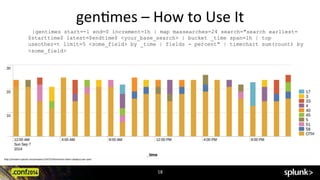
|gentimes start=-1 end=0 increment=1h | map maxsearches=24 search="search earliest=
$starttime$ latest=$endtime$ <your_base_search> | bucket _time span=1h | top
useother=t limit=5 <some_field> by _time | fields - percent" | timechart sum(count) by
<some_field>
hRp://answers.splunk.com/answers/154723/?mechart-­‐other-­‐category-­‐per-­‐span	
  
18	
  
BONUS	
  SEARCH!	
  
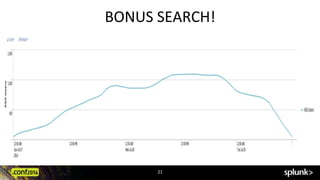
`find_asa_vpn_events` | `combine_user_names`| eventstats
min(_time) as earliest max(_time) as latest by asaUser |
convert ctime(earliest) as et timeformat="%m/%d/%Y:%H:%M:
%S" | convert ctime(latest) as lt timeformat="%m/%d/%Y:%H:
%M:%S" | map maxsearches=5000 search="|gentimes start=$et$
end=$lt$ increment=1h | eval asaUser="$asaUser$" | eval
_time = starttime "| fields _time asaUser | timechart
span=1h dc(asaUser) as "ASA Users"
RUNNING	
  THIS	
  OVER	
  LARGE	
  TIME	
  RANGES	
  WILL	
  TAKE	
  A	
  LONG	
  TIME	
  TO	
  COMPLETE	
  
(	
  This	
  one	
  took	
  9.7	
  minutes	
  to	
  run	
  )	
  
19	
  
BONUS	
  SEARCH!	
  
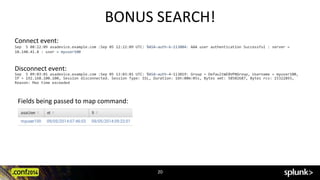
Connect	
  event:	
  	
  
Sep	
  	
  5	
  08:22:09	
  asadevice.example.com	
  :Sep	
  05	
  12:22:09	
  UTC:	
  %ASA-­‐auth-­‐6-­‐113004:	
  AAA	
  user	
  authentication	
  Successful	
  :	
  server	
  =	
  	
  
10.140.41.8	
  :	
  user	
  =	
  myuser100	
  
Disconnect	
  event:	
  	
  
Sep	
  	
  5	
  09:03:01	
  asadevice.example.com	
  :Sep	
  05	
  13:03:01	
  UTC:	
  %ASA-­‐auth-­‐4-­‐113019:	
  Group	
  =	
  DefaultWEBVPNGroup,	
  Username	
  =	
  myuser100,	
  
IP	
  =	
  192.168.100.100,	
  Session	
  disconnected.	
  Session	
  Type:	
  SSL,	
  Duration:	
  16h:00m:05s,	
  Bytes	
  xmt:	
  58502687,	
  Bytes	
  rcv:	
  15322893,	
  
Reason:	
  Max	
  time	
  exceeded	
  
Fields	
  being	
  passed	
  to	
  map	
  command:	
  
20	
  
BONUS	
  SEARCH!	
  
21	
  
BONUS	
  Karma!	
  
Free	
  Karma?	
  How?	
  
1.  Login	
  to	
  answers.splunk.com	
  
(create	
  an	
  account	
  if	
  needed)	
  
2.  Find	
  the	
  Answer	
  where	
  I	
  used	
  
this	
  image	
  
3.  Up	
  vote	
  the	
  answer	
  
4.  I’ll	
  give	
  the	
  first	
  person	
  today	
  
to	
  up	
  vote	
  100	
  Karma	
  points!	
  	
  
22	
  
xyseries	
  
23	
  
!   Email	
  flow	
  [	
  xyseries	
  email_domain	
  email_direc?on	
  count	
  ]	
  
!   One	
  to	
  many	
  rela?onships	
  [	
  example	
  Weather	
  Icons	
  ]	
  
!   Any	
  data	
  that	
  has	
  values	
  INDEPENDENT	
  of	
  the	
  field	
  name	
  
–  host=myhost	
  domain=splunk.com	
  metric=kbps	
  metric_value=100	
  
–  xyseries	
  domain	
  metric	
  metric_value	
  
!   Works	
  great	
  for	
  categorical	
  field	
  comparison	
  
xyseries [grouped=<bool>] <x-field> <y-name-field> <y-data-field>...
[sep=<string>] [format=<string>]
Converts results into a format suitable for graphing
xyseries	
  –	
  How	
  to	
  Use	
  It	
  
`weather_data` | xyseries icon weather weather
24	
  
foreach	
  
25	
  
!   Rapidly	
  perform	
  evalua?ons	
  and	
  other	
  commands	
  on	
  a	
  series	
  of	
  fields	
  
!   Can	
  help	
  calculate	
  Z	
  scores	
  (sta?s?cal	
  inference	
  comparison)	
  
!   Reduces	
  the	
  number	
  of	
  evals	
  required	
  
foreach <wc-field> [fieldstr=<string>] [matchstr=<string>]
[matchseg1=<string>] [matchseg2=<string>] [matchseg3=<string>]
<subsearch>
Runs a templated streaming subsearch for each field in a
wildcarded field list.
Example. Equivalent to ... | eval foo="foo" | eval bar="bar" | eval
baz="baz"
... | foreach foo bar baz [eval <<FIELD>> = "<<FIELD>>"]
foreach	
  –	
  How	
  to	
  Use	
  It	
  
`per60m_firewall_actions`
| timechart span=60m sum(countaction) by action
| streamstats window=720 mean(*) as MEAN* stdev(*) as STDEV*
| foreach * [eval Z_<<FIELD>> = ((<<FIELD>>-MEAN<<MATCHSTR>>) / STDEV<<MATCHSTR>>)] | fields
_time Z*
26	
  
foreach	
  –	
  How	
  to	
  Use	
  It	
  
`per60m_firewall_actions`
| timechart span=60m sum(countaction) by action
| streamstats window=720 mean(*) as MEAN* stdev(*) as STDEV*
| foreach * [eval Z_<<FIELD>> = ((<<FIELD>>-MEAN<<MATCHSTR>>) / STDEV<<MATCHSTR>>)] | eval
Z_PROB=3.2 | fields _time Z*
27	
  
cluster	
  
28	
  
!   Find	
  common	
  and/or	
  rare	
  events	
  
!   Great	
  for	
  “WAG”	
  searching	
  
!   Finds	
  anomalies	
  (outliers)	
  in	
  your	
  web	
  logs,	
  security	
  logs,	
  etc	
  by	
  
checking	
  for	
  cluster_counts	
  
!   Find	
  common	
  errors	
  in	
  event	
  logs	
  
cluster [slc-option]*
Cluster similar events together
cluster	
  –	
  How	
  to	
  Use	
  It	
  
index=_internal source=*splunkd.log* log_level!=info | cluster showcount=t | table
cluster_count _raw | sort -cluster_count
29	
  
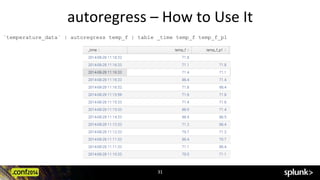
autoregress	
  
30	
  
!   Allows	
  advanced	
  sta?s?cal	
  calcula?ons	
  based	
  on	
  previous	
  values	
  
!   Moving	
  averages	
  of	
  numerical	
  fields	
  
–  Network	
  bandwidth	
  trending	
  -­‐	
  kbps,	
  latency,	
  dura?on	
  of	
  connec?ons	
  
–  Web	
  analy?cs	
  trending	
  -­‐	
  number	
  of	
  visits,	
  dura?on	
  of	
  visits,	
  average	
  download	
  
size	
  
–  Malicious	
  traffic	
  trending	
  -­‐	
  excessive	
  connec?on	
  failures	
  
autoregress field [AS <newfield>] [p=<p_start>[-<p_end>]]
Sets up data for calculating the moving average.
A Moving Average is a succession of averages calculated from
successive events (typically of constant size and
overlapping) of a series of values.
autoregress	
  –	
  How	
  to	
  Use	
  It	
  
`temperature_data` | autoregress temp_f | table _time temp_f temp_f_p1
31	
  
autoregress	
  –	
  How	
  to	
  Use	
  It	
  
`temperature_data` | autoregress temp_f | eval diff = abs(temp_f - temp_f_p1) | timechart span=15m eval(avg(diff)) as
"Average Difference"
32	
  
CLI	
  Commands	
  
33	
  
!   $SPLUNK_HOME/bin/splunk	
  reload	
  index	
  
–  Reloads	
  index	
  configura?on,	
  making	
  immediately	
  effec?ve	
  all	
  
–  "add/edit/enable/disable	
  index"	
  commands	
  since	
  last	
  reload	
  or	
  Splunk	
  restart	
  
!   Why?	
  	
  
–  Adding	
  a	
  new	
  app	
  
–  Changing	
  a	
  frozen	
  ?me	
  period	
  
–  New	
  loca?on	
  for	
  data	
  
CLI	
  Commands	
  
34	
  
!   $SPLUNK_HOME/bin/splunk	
  cmd	
  pcregextest	
  	
  
–  Useful	
  for	
  tes?ng	
  modular	
  regular	
  expressions	
  for	
  extrac?ons	
  
splunk cmd pcregextest mregex="[[ip:src_]] [[ip:dst_]]" ip="(?<ip>d+[[dotnum]]{3})"
dotnum=".d+" test_str="1.1.1.1 2.2.2.2"
Original Pattern: '[[ip:src_]] [[ip:dst_]]'
Expanded Pattern: '(?<src_ip>d+(?:.d+){3}) (?<dst_ip>d+(?:.d+){3})'
Regex compiled successfully. Capture group count = 2. Named capturing groups = 2.
SUCCESS - match against: '1.1.1.1 2.2.2.2'
#### Capturing group data #####
Group | Name | Value
--------------------------------------
1 | src_ip | 1.1.1.1
2 | dst_ip | 2.2.2.2
CLI	
  Commands	
  
35	
  
!   $SPLUNK_HOME/bin/splunk	
  cmd	
  btool	
  
ê  Btool	
  allows	
  you	
  to	
  inspect	
  configura?ons	
  and	
  what	
  is	
  actually	
  being	
  applied	
  to	
  your	
  
sourcetypes	
  
!   splunk	
  cmd	
  btool	
  -­‐-­‐debug	
  props	
  list	
  wunderground	
  |	
  grep	
  -­‐v	
  "system/default"	
  
/opt/splunk/etc/apps/TA-wunderground/default/props.conf [wunderground]
/opt/splunk/etc/apps/TA-wunderground/default/props.conf KV_MODE = json
/opt/splunk/etc/apps/TA-wunderground/default/props.conf MAX_EVENTS = 100000
/opt/splunk/etc/apps/TA-wunderground/default/props.conf MAX_TIMESTAMP_LOOKAHEAD = 30
/opt/splunk/etc/apps/TA-wunderground/default/props.conf REPORT-extjson = wunder_ext_json
/opt/splunk/etc/apps/TA-wunderground/default/props.conf SHOULD_LINEMERGE = true
/opt/splunk/etc/apps/TA-wunderground/default/props.conf TIME_PREFIX = observation_epoch
/opt/splunk/etc/apps/TA-wunderground/default/props.conf TRUNCATE = 1000000
Resources	
  and	
  Ques?ons	
  
36	
  
!   IRC	
  #splunk	
  on	
  efnet.org	
  (look	
  for	
  alacer)	
  
!   docs.splunk.com	
  
!   answers.splunk.com	
  (I’m	
  alacercogitatus	
  -­‐	
  can	
  I	
  haz	
  karma?)	
  
!   wiki.splunk.com	
  
THANK	
  YOU	
  
alacercogitatus	
  –	
  
Did	
  I	
  men?on	
  Karma?	
  

Splunk conf2014 - Lesser Known Commands in Splunk Search Processing Language (SPL)

  • 1.
    Lesser  Known   Search  Commands   Kyle  Smith   Infrastructure  Analyst,   The  Hershey  Company  
  • 2.
    Disclaimer   During  the  course  of  this  presenta?on,  we  may  make  forward-­‐looking  statements   regarding  future  events  or  the  expected  performance  of  the  company.  We   cau?on  you  that  such  statements  reflect  our  current  expecta?ons  and  es?mates   based  on  factors  currently  known  to  us  and  that  actual  events  or  results  could   differ  materially.  For  important  factors  that  may  cause  actual  results  to  differ   from  those  contained  in  our  forward-­‐looking  statements,  please  review  our   filings  with  the  SEC.  The  forward-­‐looking  statements  made  in  the  this   presenta?on  are  being  made  as  of  the  ?me  and  date  of  its  live  presenta?on.  If   reviewed  aLer  its  live  presenta?on,  this  presenta?on  may  not  contain  current  or   accurate  informa?on.  We  do  not  assume  any  obliga?on  to  update  any  forward-­‐ looking  statements  we  may  make.  In  addi?on,  any  informa?on  about  our   roadmap  outlines  our  general  product  direc?on  and  is  subject  to  change  at  any   ?me  without  no?ce.  It  is  for  informa?onal  purposes  only,  and  shall  not  be   incorporated  into  any  contract  or  other  commitment.  Splunk  undertakes  no   obliga?on  either  to  develop  the  features  or  func?onality  described  or  to  include   any  such  feature  or  func?onality  in  a  future  release.   2  
  • 3.
    Me   !  Infrastructure  Analyst  at  The  Hershey  Company   !   Working  with  Splunk  for  ~5  years   !   WriRen  4  Public  Splunk  Apps  (on  apps.splunk.com)   !   Ac?ve  on  both  #splunk  on  IRC  and  answers.splunk.com   –  My  Handle  is  “alacercogitatus”  or  just  “alacer”   !   Totally  not  above  asking  for  Karma   3  
  • 4.
    Agenda   !  ?mechart  eval   !   dynamic  eval   !   con?ngency   !   map   !   gen?mes   !   xyseries   !   foreach   !   cluster   !   correlate   !   autoregress   !   CLI  Commands   4  
  • 5.
    Timeline  Eval   !  You  can  use  an  eval  statement  in  a  ?mechart  command   `nest_data`| autoregress temp_f | eval diff = temp_f - temp_f_p1 | timechart span=15m avg(diff) as "Average Difference" eval(avg(temp_f) - avg(temp_f_p1)) as "Eval Diff” 5  
  • 6.
    Dynamic  Eval  (aka  Indirect  Reference)   !   Not  a  search  command   !   NOTE:  It’s  a  python  hack,  so  it  might  not  work  in  the  future.   !   Works  great  for  perfmon  sourcetypes,  but  can  be  applied  to     any  search   !   ?mechart  will  not  use  wildcard  to  expand  fields   <your_search> | eval sample_{field} = value| stats avg(sample_*) as * 6  
  • 7.
    Dynamic  Eval  –  How  to  Use  It   <your_search> | eval m_{metric} = Value| stats avg(m_*) as “*” The Raw Event 07/17/2014 09:03:59.865 -0700 collection=CPUTime object=Processor metric=kbps Value=0.97397499837021373 The New Event 07/17/2014 09:03:59.865 -0700 collection=CPUTime object=Processor metric=kbps Value=0.97397499837021373 kbps = 0.97397499837021373 Why?     Allows  the  dynamic  crea?on  of  fields  based     on  the  values  of  other  fields  within  the  same  event   Ref:hRp://answers.splunk.com/answers/103700/how-­‐do-­‐i-­‐create-­‐a-­‐field-­‐whose-­‐name-­‐is-­‐the-­‐value-­‐of-­‐another-­‐field-­‐like-­‐back?cks-­‐or-­‐eval-­‐in-­‐other-­‐languages   7  
  • 8.
    Dynamic  Eval  –  Subsearch   !   Not  a  search  command   !   NOTE:  It’s  a  Splunk  hack,  so  it  might  not  work  in  the  future   <your_search> | eval subsearch = if(host==[ <subsearch> | head 1 | rename host as query | fields query | eval query=""".query.""" ],”setting_1”,”setting_2”) 8  
  • 9.
    con?ngency   9   !  Web  analy?cs  -­‐  browsers  with  versions   !   Demographics  -­‐  ages  with  loca?ons  or  genders   !   Security  -­‐  usernames  with  proxy  categories   !   Compare  categorical  fields   contingency [<contingency-option>]* <field> <field> Builds a contingency table for two fields A contingency table is a table showing the distribution (count) of one variable in rows and another in columns, and is used to study the association between the two variables
  • 10.
    con?ngency  –  How  to  Use  It   `get_iis_data` | contingency ua_browser ua_browser_version usetotal=f 10  
  • 11.
    con?ngency  –  How  to  Use  It   `get_iis_data` | contingency ua_browser ua_browser_version usetotal=f 11  
  • 12.
    con?ngency  –  How  to  Use  It   `get_weather_data` | contingency weather range usetotal=f range in this case is the absolute value of (Actual Temperature - Relative Humidity) 12  
  • 13.
    map   13   !  Uses  “tokens”  ($field$)  to  pass  values  into  the  search     !   Best  with  either:  Very  small  input  set  And/Or  very  specific  search.  Can  take  a  long   amount  of  ?me   !   Map  is  a  type  of  subsearch   !   Is  “?me  agnos?c”  –  ?me  is  not  necessarily  linear,  and  can  be  based  off  of  the   master  search   map (<searchoption>|<savedsplunkoption>) [maxsearches=int] Looping operator, performs a search over each search result
  • 14.
    map  –  How  to  Use  It   First Search: sourcetype=syslog sudo | stats min(_time) as et max(_time) as lt by user host 14  
  • 15.
    map  -­‐  How  to  Use  It   _?me   computername   computer?me   username   user?me   10/12/12  8:31:35.00  AM   Worksta?on$   10/12/2012  08:25:42   userA   10/12/2012  08:31:35  AM     Map Search `first_search` | map search="search index=windows latest=$et$ username=$user$ eventtype=ad_last_logon " It takes each of the results from the previous search and searches in the windows index for the user's logon event. The results are returned as a table, such as: So  the  informa?on  you  have  is:  From  what  computer  on  the  domain,  did  a  user  most  likely   execute  a  sudo  command  on  a  server?  You  can  then  use  this  to  determine  if  access  was   authorized  from  that  loca?on,  poten?ally  spopng  a  breach.   15  
  • 16.
    gen?mes   16   !  Useful  for  genera?ng  ?me  buckets  not  present  due  to  lack  of  events  within  those   ?me  buckets   !   Must  be  the  first  command  of  a  search  (useful  with  map  )   !   “Suppor?ng  Search”  -­‐  no  real  use  case  for  basic  searching   !   Can  be  used  to  show  different  “top”  fields  over  a  ?mechart!     | gentimes start=<timestamp> [end=<timestamp>] [<increment>] Generates time range results. This command is useful in conjunction with the map command
  • 17.
    gen?mes  –  How  to  Use  It   |gentimes start=10/1/2013 end=10/2/2013 increment=1h <timestamp> Syntax: (MM/DD/YY)?:(HH:MM:SS)?|<int> Description: Indicate the time, for example: 10/1/07:12:34:56 (for October 1, 2007 12:34:56) or -5 (five days ago) 17  
  • 18.
    gen?mes  –  How  to  Use  It   |gentimes start=-1 end=0 increment=1h | map maxsearches=24 search="search earliest= $starttime$ latest=$endtime$ <your_base_search> | bucket _time span=1h | top useother=t limit=5 <some_field> by _time | fields - percent" | timechart sum(count) by <some_field> hRp://answers.splunk.com/answers/154723/?mechart-­‐other-­‐category-­‐per-­‐span   18  
  • 19.
    BONUS  SEARCH!   `find_asa_vpn_events`| `combine_user_names`| eventstats min(_time) as earliest max(_time) as latest by asaUser | convert ctime(earliest) as et timeformat="%m/%d/%Y:%H:%M: %S" | convert ctime(latest) as lt timeformat="%m/%d/%Y:%H: %M:%S" | map maxsearches=5000 search="|gentimes start=$et$ end=$lt$ increment=1h | eval asaUser="$asaUser$" | eval _time = starttime "| fields _time asaUser | timechart span=1h dc(asaUser) as "ASA Users" RUNNING  THIS  OVER  LARGE  TIME  RANGES  WILL  TAKE  A  LONG  TIME  TO  COMPLETE   (  This  one  took  9.7  minutes  to  run  )   19  
  • 20.
    BONUS  SEARCH!   Connect  event:     Sep    5  08:22:09  asadevice.example.com  :Sep  05  12:22:09  UTC:  %ASA-­‐auth-­‐6-­‐113004:  AAA  user  authentication  Successful  :  server  =     10.140.41.8  :  user  =  myuser100   Disconnect  event:     Sep    5  09:03:01  asadevice.example.com  :Sep  05  13:03:01  UTC:  %ASA-­‐auth-­‐4-­‐113019:  Group  =  DefaultWEBVPNGroup,  Username  =  myuser100,   IP  =  192.168.100.100,  Session  disconnected.  Session  Type:  SSL,  Duration:  16h:00m:05s,  Bytes  xmt:  58502687,  Bytes  rcv:  15322893,   Reason:  Max  time  exceeded   Fields  being  passed  to  map  command:   20  
  • 21.
  • 22.
    BONUS  Karma!   Free  Karma?  How?   1.  Login  to  answers.splunk.com   (create  an  account  if  needed)   2.  Find  the  Answer  where  I  used   this  image   3.  Up  vote  the  answer   4.  I’ll  give  the  first  person  today   to  up  vote  100  Karma  points!     22  
  • 23.
    xyseries   23   !  Email  flow  [  xyseries  email_domain  email_direc?on  count  ]   !   One  to  many  rela?onships  [  example  Weather  Icons  ]   !   Any  data  that  has  values  INDEPENDENT  of  the  field  name   –  host=myhost  domain=splunk.com  metric=kbps  metric_value=100   –  xyseries  domain  metric  metric_value   !   Works  great  for  categorical  field  comparison   xyseries [grouped=<bool>] <x-field> <y-name-field> <y-data-field>... [sep=<string>] [format=<string>] Converts results into a format suitable for graphing
  • 24.
    xyseries  –  How  to  Use  It   `weather_data` | xyseries icon weather weather 24  
  • 25.
    foreach   25   !  Rapidly  perform  evalua?ons  and  other  commands  on  a  series  of  fields   !   Can  help  calculate  Z  scores  (sta?s?cal  inference  comparison)   !   Reduces  the  number  of  evals  required   foreach <wc-field> [fieldstr=<string>] [matchstr=<string>] [matchseg1=<string>] [matchseg2=<string>] [matchseg3=<string>] <subsearch> Runs a templated streaming subsearch for each field in a wildcarded field list. Example. Equivalent to ... | eval foo="foo" | eval bar="bar" | eval baz="baz" ... | foreach foo bar baz [eval <<FIELD>> = "<<FIELD>>"]
  • 26.
    foreach  –  How  to  Use  It   `per60m_firewall_actions` | timechart span=60m sum(countaction) by action | streamstats window=720 mean(*) as MEAN* stdev(*) as STDEV* | foreach * [eval Z_<<FIELD>> = ((<<FIELD>>-MEAN<<MATCHSTR>>) / STDEV<<MATCHSTR>>)] | fields _time Z* 26  
  • 27.
    foreach  –  How  to  Use  It   `per60m_firewall_actions` | timechart span=60m sum(countaction) by action | streamstats window=720 mean(*) as MEAN* stdev(*) as STDEV* | foreach * [eval Z_<<FIELD>> = ((<<FIELD>>-MEAN<<MATCHSTR>>) / STDEV<<MATCHSTR>>)] | eval Z_PROB=3.2 | fields _time Z* 27  
  • 28.
    cluster   28   !  Find  common  and/or  rare  events   !   Great  for  “WAG”  searching   !   Finds  anomalies  (outliers)  in  your  web  logs,  security  logs,  etc  by   checking  for  cluster_counts   !   Find  common  errors  in  event  logs   cluster [slc-option]* Cluster similar events together
  • 29.
    cluster  –  How  to  Use  It   index=_internal source=*splunkd.log* log_level!=info | cluster showcount=t | table cluster_count _raw | sort -cluster_count 29  
  • 30.
    autoregress   30   !  Allows  advanced  sta?s?cal  calcula?ons  based  on  previous  values   !   Moving  averages  of  numerical  fields   –  Network  bandwidth  trending  -­‐  kbps,  latency,  dura?on  of  connec?ons   –  Web  analy?cs  trending  -­‐  number  of  visits,  dura?on  of  visits,  average  download   size   –  Malicious  traffic  trending  -­‐  excessive  connec?on  failures   autoregress field [AS <newfield>] [p=<p_start>[-<p_end>]] Sets up data for calculating the moving average. A Moving Average is a succession of averages calculated from successive events (typically of constant size and overlapping) of a series of values.
  • 31.
    autoregress  –  How  to  Use  It   `temperature_data` | autoregress temp_f | table _time temp_f temp_f_p1 31  
  • 32.
    autoregress  –  How  to  Use  It   `temperature_data` | autoregress temp_f | eval diff = abs(temp_f - temp_f_p1) | timechart span=15m eval(avg(diff)) as "Average Difference" 32  
  • 33.
    CLI  Commands   33   !   $SPLUNK_HOME/bin/splunk  reload  index   –  Reloads  index  configura?on,  making  immediately  effec?ve  all   –  "add/edit/enable/disable  index"  commands  since  last  reload  or  Splunk  restart   !   Why?     –  Adding  a  new  app   –  Changing  a  frozen  ?me  period   –  New  loca?on  for  data  
  • 34.
    CLI  Commands   34   !   $SPLUNK_HOME/bin/splunk  cmd  pcregextest     –  Useful  for  tes?ng  modular  regular  expressions  for  extrac?ons   splunk cmd pcregextest mregex="[[ip:src_]] [[ip:dst_]]" ip="(?<ip>d+[[dotnum]]{3})" dotnum=".d+" test_str="1.1.1.1 2.2.2.2" Original Pattern: '[[ip:src_]] [[ip:dst_]]' Expanded Pattern: '(?<src_ip>d+(?:.d+){3}) (?<dst_ip>d+(?:.d+){3})' Regex compiled successfully. Capture group count = 2. Named capturing groups = 2. SUCCESS - match against: '1.1.1.1 2.2.2.2' #### Capturing group data ##### Group | Name | Value -------------------------------------- 1 | src_ip | 1.1.1.1 2 | dst_ip | 2.2.2.2
  • 35.
    CLI  Commands   35   !   $SPLUNK_HOME/bin/splunk  cmd  btool   ê  Btool  allows  you  to  inspect  configura?ons  and  what  is  actually  being  applied  to  your   sourcetypes   !   splunk  cmd  btool  -­‐-­‐debug  props  list  wunderground  |  grep  -­‐v  "system/default"   /opt/splunk/etc/apps/TA-wunderground/default/props.conf [wunderground] /opt/splunk/etc/apps/TA-wunderground/default/props.conf KV_MODE = json /opt/splunk/etc/apps/TA-wunderground/default/props.conf MAX_EVENTS = 100000 /opt/splunk/etc/apps/TA-wunderground/default/props.conf MAX_TIMESTAMP_LOOKAHEAD = 30 /opt/splunk/etc/apps/TA-wunderground/default/props.conf REPORT-extjson = wunder_ext_json /opt/splunk/etc/apps/TA-wunderground/default/props.conf SHOULD_LINEMERGE = true /opt/splunk/etc/apps/TA-wunderground/default/props.conf TIME_PREFIX = observation_epoch /opt/splunk/etc/apps/TA-wunderground/default/props.conf TRUNCATE = 1000000
  • 36.
    Resources  and  Ques?ons   36   !   IRC  #splunk  on  efnet.org  (look  for  alacer)   !   docs.splunk.com   !   answers.splunk.com  (I’m  alacercogitatus  -­‐  can  I  haz  karma?)   !   wiki.splunk.com  
  • 37.
    THANK  YOU   alacercogitatus  –   Did  I  men?on  Karma?