Microsoft Word
Create documents and reports
Class 10th
PRESENTED BY: MR. VIKRANT SHANDAL
B.TECH (C.S.E.) & CERTIFIED IN TALLY BY LEARN VERN
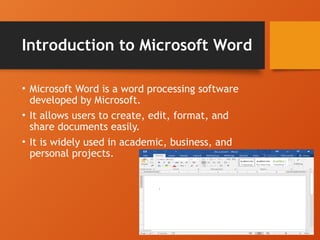
Introduction to Microsoft Word
• Microsoft Word is a word processing software
developed by Microsoft.
• It allows users to create, edit, format, and
share documents easily.
• It is widely used in academic, business, and
personal projects.
Key Features of Microsoft Word
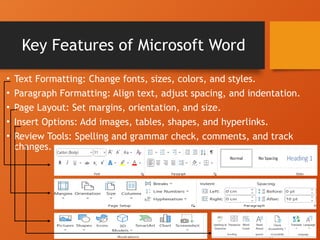
• Text Formatting: Change fonts, sizes, colors, and styles.
• Paragraph Formatting: Align text, adjust spacing, and indentation.
• Page Layout: Set margins, orientation, and size.
• Insert Options: Add images, tables, shapes, and hyperlinks.
• Review Tools: Spelling and grammar check, comments, and track
changes.
Formatting Text in MS Word
• Use the 'Home' tab for font style, size, color, and effects.
• Bold, Italicize, Underline, and Highlight text.
• Change case (Upper, Lower, Sentence case) and apply effects
like strikethrough.
• Utilize 'Styles' for consistent headings and text formats.
Working with Paragraphs
• Use alignment options: Left, Center, Right, and Justify.
• Adjust line and paragraph spacing.
• Apply bullet points or numbered lists.
• Set indentations and tabs to structure content properly.
Page Layout and Design
• Access the 'Layout' tab for page setup options.
• Adjust margins, page orientation, and paper size.
• Add columns, page breaks, and section breaks.
• Customize headers, footers, and page numbers in the 'Insert' tab.
Inserting Elements in a
Document
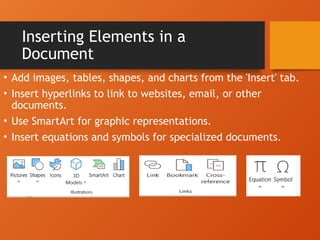
• Add images, tables, shapes, and charts from the 'Insert' tab.
• Insert hyperlinks to link to websites, email, or other
documents.
• Use SmartArt for graphic representations.
• Insert equations and symbols for specialized documents.
Reviewing and Proofing
• Use 'Spelling & Grammar' check to correct errors.
• Add comments and reply to feedback in documents.
• Track changes to monitor edits and modifications.
• Accept or reject changes to finalize the document.
Saving and Sharing Documents
• Save documents in different formats (e.g., .docx, .pdf, .txt).
• Use 'Save As' to save with a new name or format.
• Share documents via email or cloud storage.
• Utilize 'Protect Document' options for restricting editing or
viewing.
Useful Keyboard Shortcuts
• - Ctrl + C: Copy
• - Ctrl + V: Paste
• - Ctrl + Z: Undo
• - Ctrl + B/I/U: Bold/Italic/Underline
• - Ctrl + F: Find
• - Ctrl + P: Print
• - F12: Save As
Thanks & Regards
Sharing knowledge by vikrant shandal
Enginr_vikrant_shandal

class 10th microsoft word document .pptx

  • 1.
    Microsoft Word Create documentsand reports Class 10th PRESENTED BY: MR. VIKRANT SHANDAL B.TECH (C.S.E.) & CERTIFIED IN TALLY BY LEARN VERN
  • 2.
    Introduction to MicrosoftWord • Microsoft Word is a word processing software developed by Microsoft. • It allows users to create, edit, format, and share documents easily. • It is widely used in academic, business, and personal projects.
  • 3.
    Key Features ofMicrosoft Word • Text Formatting: Change fonts, sizes, colors, and styles. • Paragraph Formatting: Align text, adjust spacing, and indentation. • Page Layout: Set margins, orientation, and size. • Insert Options: Add images, tables, shapes, and hyperlinks. • Review Tools: Spelling and grammar check, comments, and track changes.
  • 4.
    Formatting Text inMS Word • Use the 'Home' tab for font style, size, color, and effects. • Bold, Italicize, Underline, and Highlight text. • Change case (Upper, Lower, Sentence case) and apply effects like strikethrough. • Utilize 'Styles' for consistent headings and text formats.
  • 5.
    Working with Paragraphs •Use alignment options: Left, Center, Right, and Justify. • Adjust line and paragraph spacing. • Apply bullet points or numbered lists. • Set indentations and tabs to structure content properly.
  • 6.
    Page Layout andDesign • Access the 'Layout' tab for page setup options. • Adjust margins, page orientation, and paper size. • Add columns, page breaks, and section breaks. • Customize headers, footers, and page numbers in the 'Insert' tab.
  • 7.
    Inserting Elements ina Document • Add images, tables, shapes, and charts from the 'Insert' tab. • Insert hyperlinks to link to websites, email, or other documents. • Use SmartArt for graphic representations. • Insert equations and symbols for specialized documents.
  • 8.
    Reviewing and Proofing •Use 'Spelling & Grammar' check to correct errors. • Add comments and reply to feedback in documents. • Track changes to monitor edits and modifications. • Accept or reject changes to finalize the document.
  • 9.
    Saving and SharingDocuments • Save documents in different formats (e.g., .docx, .pdf, .txt). • Use 'Save As' to save with a new name or format. • Share documents via email or cloud storage. • Utilize 'Protect Document' options for restricting editing or viewing.
  • 10.
    Useful Keyboard Shortcuts •- Ctrl + C: Copy • - Ctrl + V: Paste • - Ctrl + Z: Undo • - Ctrl + B/I/U: Bold/Italic/Underline • - Ctrl + F: Find • - Ctrl + P: Print • - F12: Save As
  • 11.
    Thanks & Regards Sharingknowledge by vikrant shandal Enginr_vikrant_shandal