CIN SD MM FI
Contents 
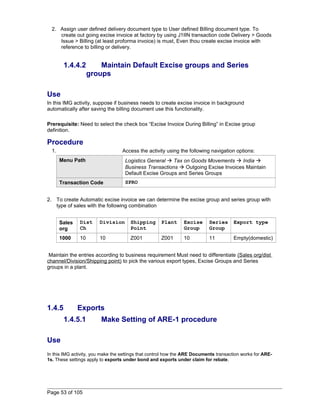
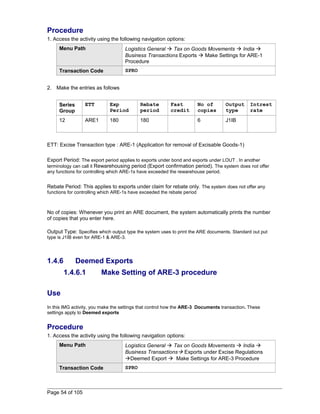
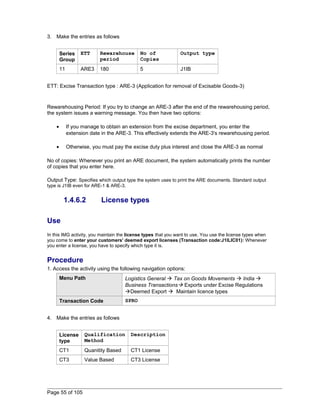
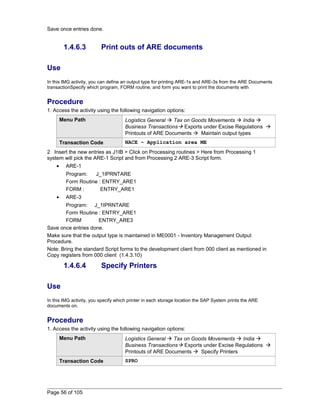
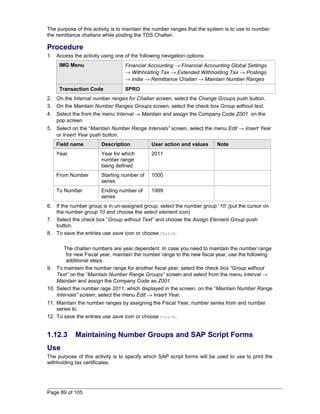
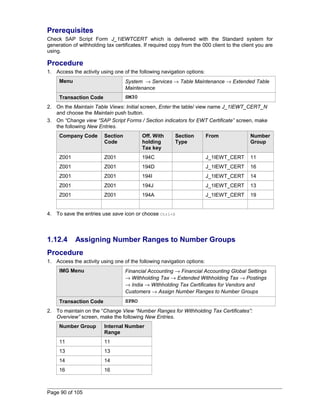
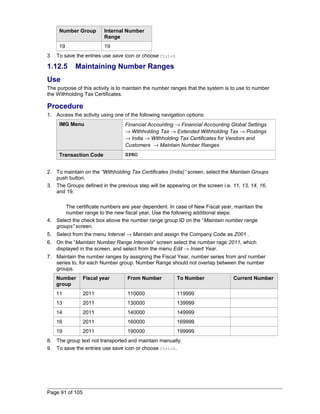
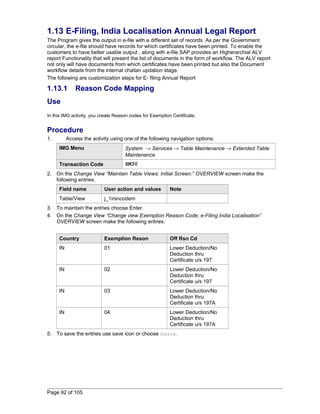
1.1.1 Activate CIN - Business Transaction Event....................................................................4 
1.1.2 Check for Publish & Subscribe BTE (SAP Enhancement) .............................................4 
1.1.3 Check for Process BTE - Alternative Function Module...................................................5 
1.1.4 Check for Deactivation the Partner India........................................................................5 
1.1.5 Check for Deletion of Assignment of Products of Partner India......................................6 
1.1.6 Check for Deletion of Assignment of P & S Interface for Partner India...........................6 
1.1.7 Check for Deletion of Assignment of Process Interface of Partner India.........................7 
1.1.8 Check for Deletion of Assignment of Products of Partner India......................................7 
1.1.9 Check for Deletion of the Assignment of Partner India...................................................8 
1.2 Configuration of Taxation .....................................................................................................8 
1.2.1 Tax on sales/Purchase – Define Tax procedure ............................................................8 
1.2.2 Assign Tax procedure to Country .................................................................................10 
1.2.3 Maintaining Company Code Settings for Taxes............................................................10 
1.2.4 Creating Tax Code........................................................................................................11 
1.3 Logistics Invoice Verification Settings..................................................................................13 
1.3.1 Maintaining Default Values for Tax Codes....................................................................13 
1.4 Tax on Goods Movement - India.........................................................................................14 
1.4.1 Basic Settings...............................................................................................................14 
1.4.2 Determination of Excise Duty........................................................................................22 
1.4.3 Transactions: Incoming Excise Invoices.......................................................................35 
1.4.4 Transactions out going Excise Invoices.......................................................................52 
1.4.5 Exports ........................................................................................................................53 
1.4.6 Deemed Exports ..........................................................................................................54 
1.4.7 Business Transactions: Tools.......................................................................................57 
1.5 Extended Withholding Tax – Basic Settings........................................................................60 
1.5.1 Checking Withholding Tax Countries............................................................................60 
1.5.2 Defining Official Withholding Tax Codes.......................................................................61 
1.5.3 Defining Reasons for Exemption...................................................................................62 
1.6 Defining Branch Office.........................................................................................................62 
1.7 Defining Section Code.........................................................................................................63 
1.8 Maintaining Factory Calendar to Section Code...................................................................64 
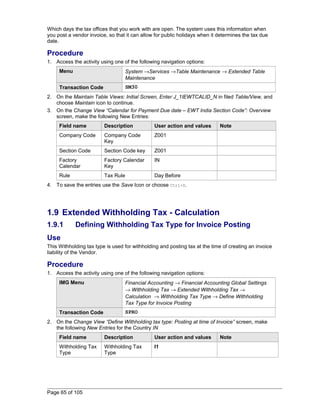
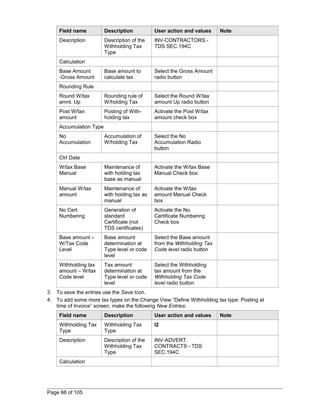
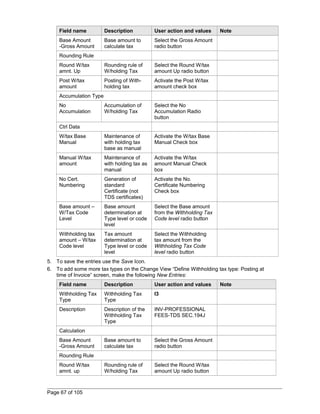
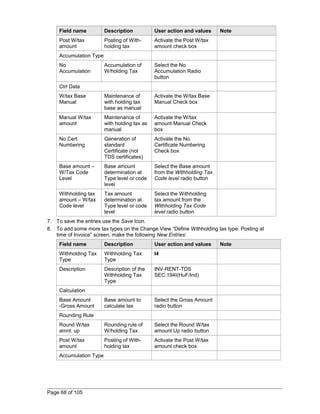
1.9 Extended Withholding Tax - Calculation..............................................................................65 
1.9.1 Defining Withholding Tax Type for Invoice Posting.......................................................65 
1.9.2 Defining Withholding Tax Types for Payment Posting..................................................71 
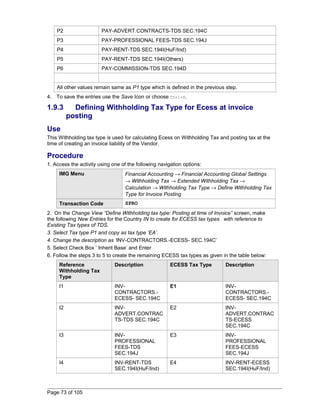
1.9.3 Defining Withholding Tax Type for Ecess at invoice posting.........................................73 
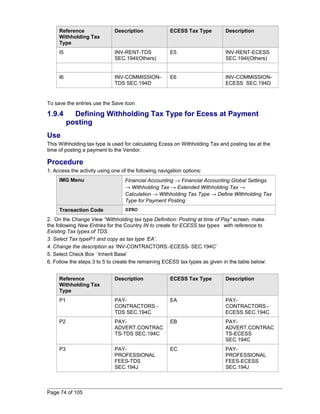
1.9.4 Defining Withholding Tax Type for Ecess at Payment posting......................................74 
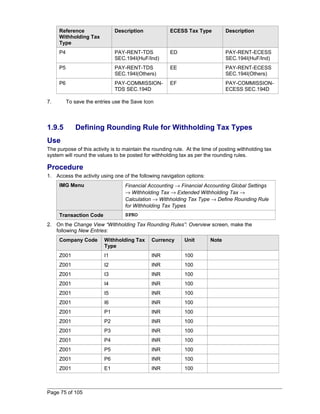
1.9.5 Defining Rounding Rule for Withholding Tax Types......................................................75 
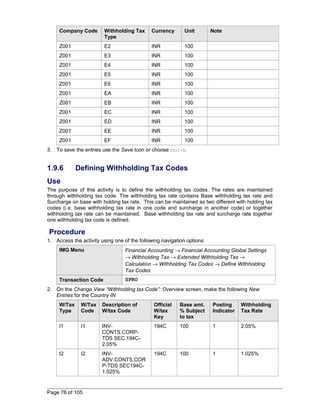
1.9.6 Defining Withholding Tax Codes...................................................................................76 
1.9.7 Defining Withholding Tax Codes (ECESS)...................................................................77 
1.9.8 Portraying Dependencies Between Withholding Tax Types.........................................79 
1.9.9 Checking Recipient Types............................................................................................80 
1.9.10 Maintaining Tax Due Dates.........................................................................................82 
1.9.11 Maintaining Surcharge Rates......................................................................................82 
Page 2 of 105
1.9.12 Assigning Types of Companies to Withholding Tax Codes.........................................83 
1.10 Extended Withholding Tax – Company Code Assignment................................................84 
1.10.1 Assigning Withholding Tax Type to Company Code...................................................84 
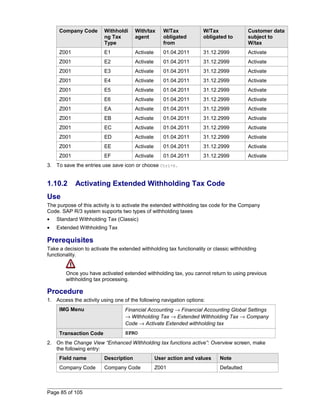
1.10.2 Activating Extended Withholding Tax Code................................................................85 
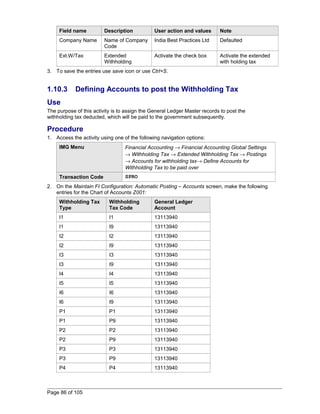
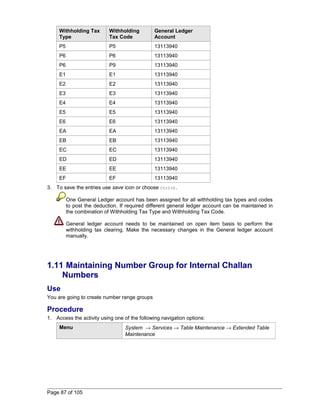
1.10.3 Defining Accounts to post the Withholding Tax...........................................................86 
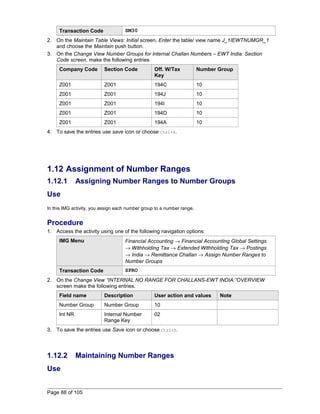
1.11 Maintaining Number Group for Internal Challan Numbers ................................................87 
1.12 Assignment of Number Ranges.........................................................................................88 
1.12.1 Assigning Number Ranges to Number Groups...........................................................88 
1.12.2 Maintaining Number Ranges.......................................................................................88 
1.12.3 Maintaining Number Groups and SAP Script Forms...................................................89 
1.12.4 Assigning Number Ranges to Number Groups...........................................................90 
1.12.5 Maintaining Number Ranges.......................................................................................91 
1.13 E-Filing, India Localisation Annual Legal Report...............................................................92 
1.13.1 Reason Code Mapping...............................................................................................92 
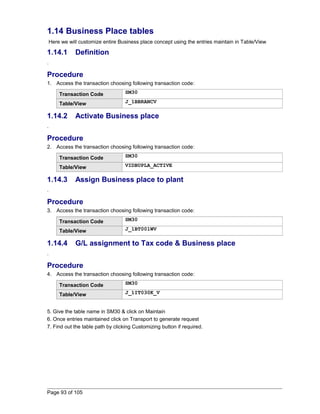
1.14 Business Place tables .....................................................................................................93 
1.14.1 Definition ....................................................................................................................93 
1.14.2 Activate Business place .............................................................................................93 
1.14.3 Assign Business place to plant .................................................................................93 
1.14.4 G/L assignment to Tax code & Business place ..........................................................93 
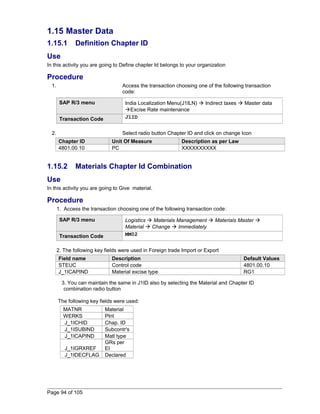
1.15 Master Data.......................................................................................................................94 
1.15.1 Definition Chapter ID...................................................................................................94 
1.15.2 Materials Chapter Id Combination ..............................................................................94 
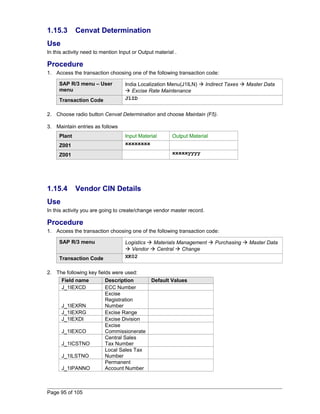
1.15.3 Cenvat Determination ................................................................................................95 
1.15.4 Vendor CIN Details ....................................................................................................95 
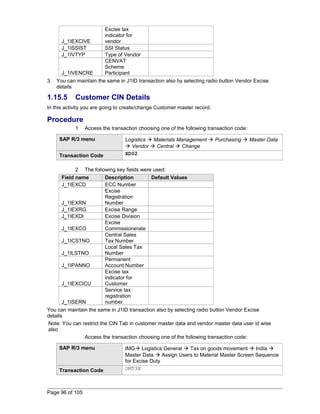
1.15.5 Customer CIN Details ................................................................................................96 
1.15.6 Excise Indicator for Plant ..........................................................................................97 
1.16 Opening balances Upload for Registers............................................................................97 
1.16.1 RG23 A Part I, RG23 C Part I & RG1.........................................................................97 
1.16.2 Balances Updation in RG23 A Part II & PLA.............................................................100 
1.16.3 Balances Updation in RG23 C Part II .......................................................................102 
1.16.4 RG23C On Hold........................................................................................................104 
Page 3 of 105
1.1.1 Activate CIN - Business Transaction Event 
Use 
The purpose of this activity is to check CIN - IN: India functions. 
Procedure 
1. To check the entry choose one of the following navigation options: 
Transaction Code SPRO or FIBF 
IMG Menu Financial Accounting ® Financial Accounting Global Settings 
®Tax on Sales / Purchases ® Basic Settings ® India -® 
Activate Business Transaction Events 
2. On the SAP Business Framework: Business Transaction Events screen select the menu path 
Settings ® Identification ® SAP Applications. 
3. On the Change View “BTE Application Indicator”: Overview screen check the following entry. 
Application Active Text 
CIN Active IN: India functions 
4. If entry is not available select the New Entries push button and maintain the above mentioned 
details. 
5. To save the entries use save icon. 
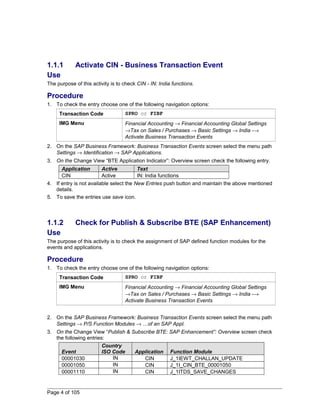
1.1.2 Check for Publish & Subscribe BTE (SAP Enhancement) 
Use 
The purpose of this activity is to check the assignment of SAP defined function modules for the 
events and applications. 
Procedure 
1. To check the entry choose one of the following navigation options: 
Transaction Code SPRO or FIBF 
IMG Menu Financial Accounting ® Financial Accounting Global Settings 
®Tax on Sales / Purchases ® Basic Settings ® India -® 
Activate Business Transaction Events 
2. On the SAP Business Framework: Business Transaction Events screen select the menu path 
Settings ® P/S Function Modules ® …of an SAP Appl. 
3. On the Change View “Publish & Subscribe BTE: SAP Enhancement”: Overview screen check 
the following entries: 
Event 
Country 
ISO Code Application Function Module 
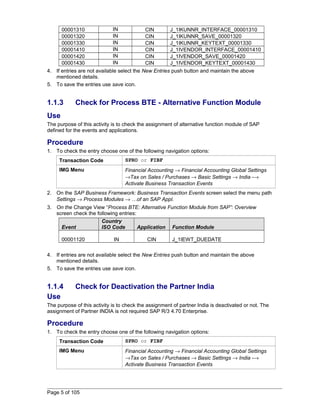
00001030 IN CIN J_1IEWT_CHALLAN_UPDATE 
00001050 IN CIN J_1I_CIN_BTE_00001050 
00001110 IN CIN J_1ITDS_SAVE_CHANGES 
Page 4 of 105
00001310 IN CIN J_1IKUNNR_INTERFACE_00001310 
00001320 IN CIN J_1IKUNNR_SAVE_00001320 
00001330 IN CIN J_1IKUNNR_KEYTEXT_00001330 
00001410 IN CIN J_1IVENDOR_INTERFACE_00001410 
00001420 IN CIN J_1IVENDOR_SAVE_00001420 
00001430 IN CIN J_1IVENDOR_KEYTEXT_00001430 
4. If entries are not available select the New Entries push button and maintain the above 
mentioned details. 
5. To save the entries use save icon. 
1.1.3 Check for Process BTE - Alternative Function Module 
Use 
The purpose of this activity is to check the assignment of alternative function module of SAP 
defined for the events and applications. 
Procedure 
1. To check the entry choose one of the following navigation options: 
Transaction Code SPRO or FIBF 
IMG Menu Financial Accounting ® Financial Accounting Global Settings 
®Tax on Sales / Purchases ® Basic Settings ® India -® 
Activate Business Transaction Events 
2. On the SAP Business Framework: Business Transaction Events screen select the menu path 
Settings ® Process Modules ® …of an SAP Appl. 
3. On the Change View “Process BTE: Alternative Function Module from SAP”: Overview 
screen check the following entries: 
Event 
Country 
ISO Code Application Function Module 
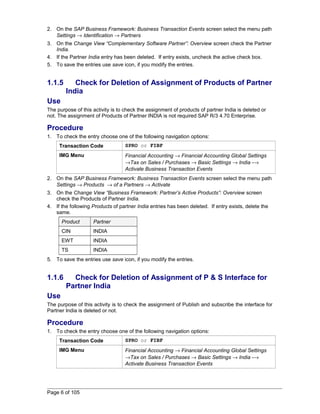
00001120 IN CIN J_1IEWT_DUEDATE 
4. If entries are not available select the New Entries push button and maintain the above 
mentioned details. 
5. To save the entries use save icon. 
1.1.4 Check for Deactivation the Partner India 
Use 
The purpose of this activity is to check the assignment of partner India is deactivated or not. The 
assignment of Partner INDIA is not required SAP R/3 4.70 Enterprise. 
Procedure 
1. To check the entry choose one of the following navigation options: 
Transaction Code SPRO or FIBF 
IMG Menu Financial Accounting ® Financial Accounting Global Settings 
®Tax on Sales / Purchases ® Basic Settings ® India -® 
Activate Business Transaction Events 
Page 5 of 105
2. On the SAP Business Framework: Business Transaction Events screen select the menu path 
Settings ® Identification ® Partners 
3. On the Change View “Complementary Software Partner”: Overview screen check the Partner 
India. 
4. If the Partner India entry has been deleted. If entry exists, uncheck the active check box. 
5. To save the entries use save icon, if you modify the entries. 
1.1.5 Check for Deletion of Assignment of Products of Partner 
India 
Use 
The purpose of this activity is to check the assignment of products of partner India is deleted or 
not. The assignment of Products of Partner INDIA is not required SAP R/3 4.70 Enterprise. 
Procedure 
1. To check the entry choose one of the following navigation options: 
Transaction Code SPRO or FIBF 
IMG Menu Financial Accounting ® Financial Accounting Global Settings 
®Tax on Sales / Purchases ® Basic Settings ® India -® 
Activate Business Transaction Events 
2. On the SAP Business Framework: Business Transaction Events screen select the menu path 
Settings ® Products ® of a Partners ® Activate 
3. On the Change View “Business Framework: Partner’s Active Products”: Overview screen 
check the Products of Partner India. 
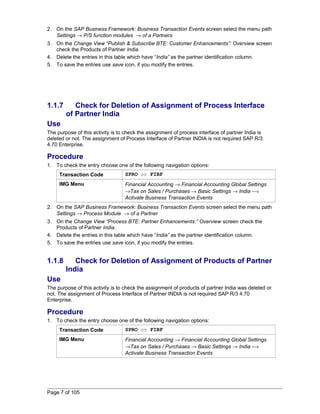
4. If the following Products of partner India entries has been deleted. If entry exists, delete the 
same. 
Product Partner 
CIN INDIA 
EWT INDIA 
TS INDIA 
5. To save the entries use save icon, if you modify the entries. 
1.1.6 Check for Deletion of Assignment of P & S Interface for 
Partner India 
Use 
The purpose of this activity is to check the assignment of Publish and subscribe the interface for 
Partner India is deleted or not. 
Procedure 
1. To check the entry choose one of the following navigation options: 
Transaction Code SPRO or FIBF 
IMG Menu Financial Accounting ® Financial Accounting Global Settings 
®Tax on Sales / Purchases ® Basic Settings ® India -® 
Activate Business Transaction Events 
Page 6 of 105
2. On the SAP Business Framework: Business Transaction Events screen select the menu path 
Settings ® P/S function modules ® of a Partners 
3. On the Change View “Publish & Subscribe BTE: Customer Enhancements”: Overview screen 
check the Products of Partner India. 
4. Delete the entries in this table which have “India” as the partner identification column. 
5. To save the entries use save icon, if you modify the entries. 
1.1.7 Check for Deletion of Assignment of Process Interface 
of Partner India 
Use 
The purpose of this activity is to check the assignment of process interface of partner India is 
deleted or not. The assignment of Process Interface of Partner INDIA is not required SAP R/3 
4.70 Enterprise. 
Procedure 
1. To check the entry choose one of the following navigation options: 
Transaction Code SPRO or FIBF 
IMG Menu Financial Accounting ® Financial Accounting Global Settings 
®Tax on Sales / Purchases ® Basic Settings ® India -® 
Activate Business Transaction Events 
2. On the SAP Business Framework: Business Transaction Events screen select the menu path 
Settings ® Process Module ® of a Partner 
3. On the Change View “Process BTE: Partner Enhancements:” Overview screen check the 
Products of Partner India. 
4. Delete the entries in this table which have “India” as the partner identification column. 
5. To save the entries use save icon, if you modify the entries. 
1.1.8 Check for Deletion of Assignment of Products of Partner 
India 
Use 
The purpose of this activity is to check the assignment of products of partner India was deleted or 
not. The assignment of Process Interface of Partner INDIA is not required SAP R/3 4.70 
Enterprise. 
Procedure 
1. To check the entry choose one of the following navigation options: 
Transaction Code SPRO or FIBF 
IMG Menu Financial Accounting ® Financial Accounting Global Settings 
®Tax on Sales / Purchases ® Basic Settings ® India -® 
Activate Business Transaction Events 
Page 7 of 105
2. On the SAP Business Framework: Business Transaction Events screen select the menu path 
Settings ® Products ® of a Partners ® Edit 
3. On the Change View “Complementary Software Partner Products”: Overview screen check 
the Products of Partner India. 
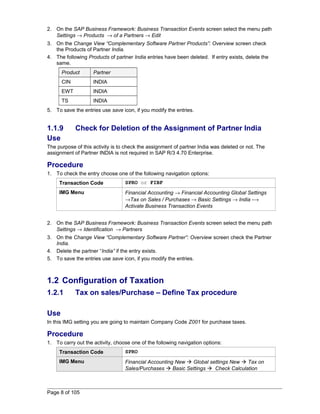
4. The following Products of partner India entries have been deleted. If entry exists, delete the 
same. 
Product Partner 
CIN INDIA 
EWT INDIA 
TS INDIA 
5. To save the entries use save icon, if you modify the entries. 
1.1.9 Check for Deletion of the Assignment of Partner India 
Use 
The purpose of this activity is to check the assignment of partner India was deleted or not. The 
assignment of Partner INDIA is not required in SAP R/3 4.70 Enterprise. 
Procedure 
1. To check the entry choose one of the following navigation options: 
Transaction Code SPRO or FIBF 
IMG Menu Financial Accounting ® Financial Accounting Global Settings 
®Tax on Sales / Purchases ® Basic Settings ® India -® 
Activate Business Transaction Events 
2. On the SAP Business Framework: Business Transaction Events screen select the menu path 
Settings ® Identification ® Partners 
3. On the Change View “Complementary Software Partner”: Overview screen check the Partner 
India. 
4. Delete the partner “India” if the entry exists. 
5. To save the entries use save icon, if you modify the entries. 
1.2 Configuration of Taxation 
1.2.1 Tax on sales/Purchase – Define Tax procedure 
Use 
In this IMG setting you are going to maintain Company Code Z001 for purchase taxes. 
Procedure 
1. To carry out the activity, choose one of the following navigation options: 
Transaction Code SPRO 
IMG Menu Financial Accounting New  Global settings New  Tax on 
Sales/Purchases  Basic Settings  Check Calculation 
Page 8 of 105
Procedure  Define Procedures 
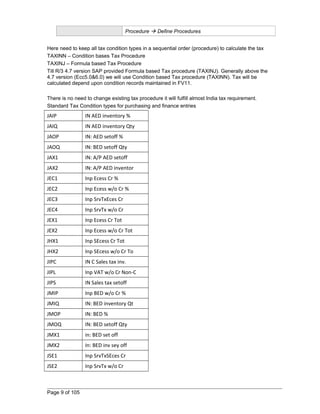
Here need to keep all tax condition types in a sequential order (procedure) to calculate the tax 
TAXINN – Condition bases Tax Procedure 
TAXINJ – Formula based Tax Procedure 
Till R/3 4.7 version SAP provided Formula based Tax procedure (TAXINJ). Generally above the 
4.7 version (Ecc5.0&6.0) we will use Condition based Tax procedure (TAXINN). Tax will be 
calculated depend upon condition records maintained in FV11. 
There is no need to change existing tax procedure it will fulfill almost India tax requirement. 
Standard Tax Condition types for purchasing and finance entries 
JAIP IN AED inventory % 
JAIQ IN AED inventory Qty 
JAOP IN: AED setoff % 
JAOQ IN: BED setoff Qty 
JAX1 IN: A/P AED setoff 
JAX2 IN: A/P AED inventor 
JEC1 Inp Ecess Cr % 
JEC2 Inp Ecess w/o Cr % 
JEC3 Inp SrvTxEces Cr 
JEC4 Inp SrvTx w/o Cr 
JEX1 Inp Ecess Cr Tot 
JEX2 Inp Ecess w/o Cr Tot 
JHX1 Inp SEcess Cr Tot 
JHX2 Inp SEcess w/o Cr To 
JIPC IN C Sales tax inv. 
JIPL Inp VAT w/o Cr Non-C 
JIPS IN Sales tax setoff 
JMIP Inp BED w/o Cr % 
JMIQ IN: BED inventory Qt 
JMOP IN: BED % 
JMOQ IN: BED setoff Qty 
JMX1 in: BED set off 
JMX2 In: BED inv sey off 
JSE1 Inp SrvTxSEces Cr 
JSE2 Inp SrvTx w/o Cr 
Page 9 of 105
JSEI Inp SEcess w/o Cr % 
JSEP Inp SEcess Cr % 
JSER Inp SrvTx (Not used) 
JSIP IN AED inventory Qty 
JSIQ IN AED inventory Qty 
JSOP IN: SED setoff % 
JSOQ IN: SED setoff Qty 
JSV2 Inp SrvTx w/o Cr 
JSVD Inp SrvTx Cr 
JSX1 IN: A/P AED setoff 
JSX2 IN: A/P SED inventor 
JVCD Inp VAT w/o Cr Non-C 
JVCN Inp VAT w/o Cr Non-C 
JVCS Inp CST under VAT 
JVRD Inp VAT Cr Non-CG 
JVRN Inp VAT w/o Cr Non-C 
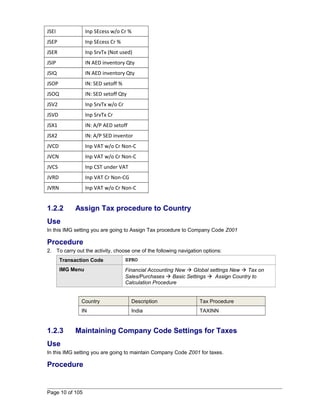
1.2.2 Assign Tax procedure to Country 
Use 
In this IMG setting you are going to Assign Tax procedure to Company Code Z001 
Procedure 
2. To carry out the activity, choose one of the following navigation options: 
Transaction Code SPRO 
IMG Menu Financial Accounting New  Global settings New  Tax on 
Sales/Purchases  Basic Settings  Assign Country to 
Calculation Procedure 
Country Description Tax Procedure 
IN India TAXINN 
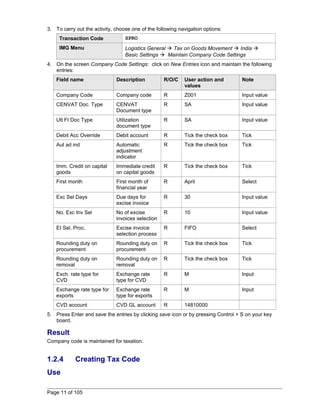
1.2.3 Maintaining Company Code Settings for Taxes 
Use 
In this IMG setting you are going to maintain Company Code Z001 for taxes. 
Procedure 
Page 10 of 105
3. To carry out the activity, choose one of the following navigation options: 
Transaction Code SPRO 
IMG Menu Logistics General  Tax on Goods Movement  India  
Basic Settings  Maintain Company Code Settings 
4. On the screen Company Code Settings: click on New Entries icon and maintain the following 
entries: 
Field name Description R/O/C User action and 
values 
Note 
Company Code Company code R Z001 Input value 
CENVAT Doc. Type CENVAT 
Document type 
R SA Input value 
Utl FI Doc Type Utilization 
document type 
R SA Input value 
Debit Acc Override Debit account R Tick the check box Tick 
Aut ad ind Automatic 
adjustment 
indicator 
R Tick the check box Tick 
Imm. Credit on capital 
goods 
Immediate credit 
on capital goods 
R Tick the check box Tick 
First month First month of 
financial year 
R April Select 
Exc Sel Days Due days for 
excise invoice 
R 30 Input value 
No. Exc Inv Sel No of excise 
invoices selection 
R 10 Input value 
EI Sel. Proc. Excise invoice 
selection process 
R FIFO Select 
Rounding duty on 
procurement 
Rounding duty on 
procurement 
R Tick the check box Tick 
Rounding duty on 
removal 
Rounding duty on 
removal 
R Tick the check box Tick 
Exch. rate type for 
CVD 
Exchange rate 
type for CVD 
R M Input 
Exchange rate type for 
exports 
Exchange rate 
type for exports 
R M Input 
CVD account CVD GL account R 14810000 
5. Press Enter and save the entries by clicking save icon or by pressing Control + S on your key 
board. 
Result 
Company code is maintained for taxation. 
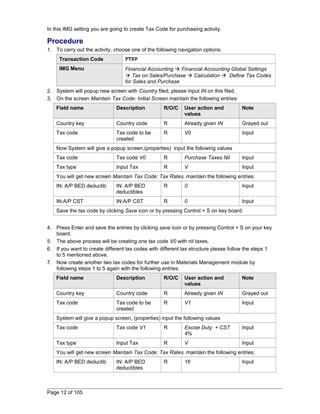
1.2.4 Creating Tax Code 
Use 
Page 11 of 105
In this IMG setting you are going to create Tax Code for purchasing activity. 
Procedure 
1. To carry out the activity, choose one of the following navigation options: 
Transaction Code FTXP 
IMG Menu Financial Accounting  Financial Accounting Global Settings 
 Tax on Sales/Purchase  Calculation  Define Tax Codes 
for Sales and Purchase 
2. System will popup new screen with Country filed, please input IN on this filed. 
3. On the screen Maintain Tax Code: Initial Screen maintain the following entries: 
Field name Description R/O/C User action and 
values 
Note 
Country key Country code R Already given IN Grayed out 
Tax code Tax code to be 
created 
R V0 Input 
Now System will give a popup screen,(properties) input the following values 
Tax code Tax code V0 R Purchase Taxes Nil Input 
Tax type Input Tax R V Input 
You will get new screen Maintain Tax Code: Tax Rates, maintain the following entries: 
IN: A/P BED deductib IN: A/P BED 
deductibles 
R 0 Input 
IN:A/P CST IN:A/P CST R 0 Input 
Save the tax code by clicking Save icon or by pressing Control + S on key board. 
4. Press Enter and save the entries by clicking save icon or by pressing Control + S on your key 
board. 
5. The above process will be creating one tax code V0 with nil taxes. 
6. If you want to create different tax codes with different tax structure please follow the steps 1 
to 5 mentioned above. 
7. Now create another two tax codes for further use in Materials Management module by 
following steps 1 to 5 again with the following entries: 
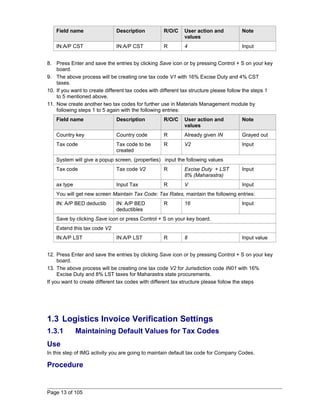
Field name Description R/O/C User action and 
values 
Note 
Country key Country code R Already given IN Grayed out 
Tax code Tax code to be 
created 
R V1 Input 
System will give a popup screen, (properties) input the following values 
Tax code Tax code V1 R Excise Duty + CST 
4% 
Input 
Tax type Input Tax R V Input 
You will get new screen Maintain Tax Code: Tax Rates, maintain the following entries: 
IN: A/P BED deductib IN: A/P BED 
deductibles 
R 16 Input 
Page 12 of 105
Field name Description R/O/C User action and 
values 
Note 
IN:A/P CST IN:A/P CST R 4 Input 
8. Press Enter and save the entries by clicking Save icon or by pressing Control + S on your key 
board. 
9. The above process will be creating one tax code V1 with 16% Excise Duty and 4% CST 
taxes. 
10. If you want to create different tax codes with different tax structure please follow the steps 1 
to 5 mentioned above. 
11. Now create another two tax codes for further use in Materials Management module by 
following steps 1 to 5 again with the following entries: 
Field name Description R/O/C User action and 
values 
Note 
Country key Country code R Already given IN Grayed out 
Tax code Tax code to be 
created 
R V2 Input 
System will give a popup screen, (properties) input the following values 
Tax code Tax code V2 R Excise Duty + LST 
8% (Maharastra) 
Input 
ax type Input Tax R V Input 
You will get new screen Maintain Tax Code: Tax Rates, maintain the following entries: 
IN: A/P BED deductib IN: A/P BED 
deductibles 
R 16 Input 
Save by clicking Save icon or press Control + S on your key board. 
Extend this tax code V2 
IN:A/P LST IN:A/P LST R 8 Input value 
12. Press Enter and save the entries by clicking Save icon or by pressing Control + S on your key 
board. 
13. The above process will be creating one tax code V2 for Jurisdiction code IN01 with 16% 
Excise Duty and 8% LST taxes for Maharastra state procurements. 
If you want to create different tax codes with different tax structure please follow the steps 
1.3 Logistics Invoice Verification Settings 
1.3.1 Maintaining Default Values for Tax Codes 
Use 
In this step of IMG activity you are going to maintain default tax code for Company Codes. 
Procedure 
Page 13 of 105
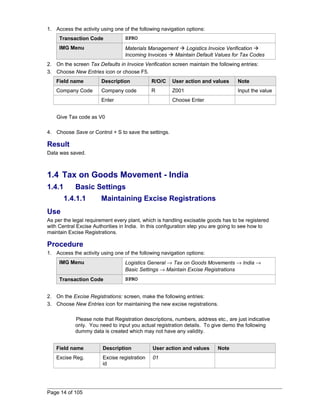
1. Access the activity using one of the following navigation options: 
Transaction Code SPRO 
IMG Menu Materials Management  Logistics Invoice Verification  
Incoming Invoices  Maintain Default Values for Tax Codes 
2. On the screen Tax Defaults in Invoice Verification screen maintain the following entries: 
3. Choose New Entries icon or choose F5. 
Field name Description R/O/C User action and values Note 
Company Code Company code R Z001 Input the value 
Enter Choose Enter 
Give Tax code as V0 
4. Choose Save or Control + S to save the settings. 
Result 
Data was saved. 
1.4 Tax on Goods Movement - India 
1.4.1 Basic Settings 
1.4.1.1 Maintaining Excise Registrations 
Use 
As per the legal requirement every plant, which is handling excisable goods has to be registered 
with Central Excise Authorities in India. In this configuration step you are going to see how to 
maintain Excise Registrations. 
Procedure 
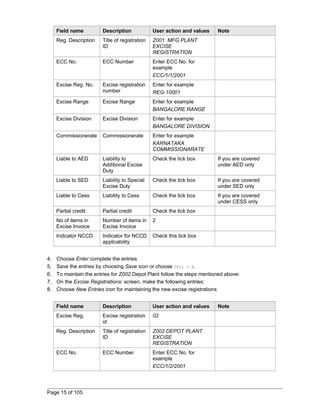
1. Access the activity using one of the following navigation options: 
IMG Menu Logistics General ® Tax on Goods Movements ® India ® 
Basic Settings ® Maintain Excise Registrations 
Transaction Code SPRO 
2. On the Excise Registrations: screen, make the following entries: 
3. Choose New Entries icon for maintaining the new excise registrations. 
Please note that Registration descriptions, numbers, address etc., are just indicative 
only. You need to input you actual registration details. To give demo the following 
dummy data is created which may not have any validity. 
Field name Description User action and values Note 
Excise Reg. Excise registration 
id 
01 
Page 14 of 105
Field name Description User action and values Note 
Reg. Description Title of registration 
ID 
Z001 MFG PLANT 
EXCISE 
REGISTRATION 
ECC No. ECC Number Enter ECC No. for 
example 
ECC/1/1/2001 
Excise Reg. No. Excise registration 
number 
Enter for example 
REG-10001 
Excise Range Excise Range Enter for example 
BANGALORE RANGE 
Excise Division Excise Division Enter for example 
BANGALORE DIVISION 
Commissionerate Commissionerate Enter for example 
KARNATAKA 
COMMISSIONARATE 
Liable to AED Liability to 
Additional Excise 
Duty 
Check the tick box If you are covered 
under AED only 
Liable to SED Liability to Special 
Excise Duty 
Check the tick box If you are covered 
under SED only 
Liable to Cess Liability to Cess Check the tick box If you are covered 
under CESS only 
Partial credit Partial credit Check the tick box 
No of items in 
Number of items in 
2 
Excise Invoice 
Excise Invoice 
Indicator NCCD Indicator for NCCD 
applicability 
Check this tick box 
4. Choose Enter complete the entries 
5. Save the entries by choosing Save icon or choose Ctrl + S. 
6. To maintain the entries for Z002 Depot Plant follow the steps mentioned above: 
7. On the Excise Registrations: screen, make the following entries: 
8. Choose New Entries icon for maintaining the new excise registrations 
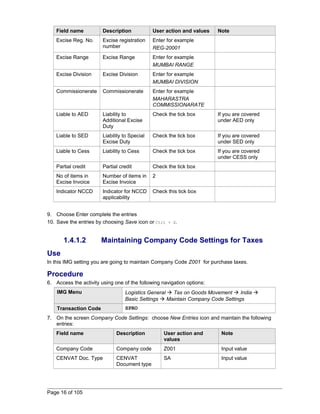
Field name Description User action and values Note 
Excise Reg. Excise registration 
id 
02 
Reg. Description Title of registration 
ID 
Z002 DEPOT PLANT 
EXCISE 
REGISTRATION 
ECC No. ECC Number Enter ECC No. for 
example 
ECC/1/2/2001 
Page 15 of 105
Field name Description User action and values Note 
Excise Reg. No. Excise registration 
number 
Enter for example 
REG-20001 
Excise Range Excise Range Enter for example 
MUMBAI RANGE 
Excise Division Excise Division Enter for example 
MUMBAI DIVISION 
Commissionerate Commissionerate Enter for example 
MAHARASTRA 
COMMISSIONARATE 
Liable to AED Liability to 
Additional Excise 
Duty 
Check the tick box If you are covered 
under AED only 
Liable to SED Liability to Special 
Excise Duty 
Check the tick box If you are covered 
under SED only 
Liable to Cess Liability to Cess Check the tick box If you are covered 
under CESS only 
Partial credit Partial credit Check the tick box 
No of items in 
Number of items in 
2 
Excise Invoice 
Excise Invoice 
Indicator NCCD Indicator for NCCD 
applicability 
Check this tick box 
9. Choose Enter complete the entries 
10. Save the entries by choosing Save icon or Ctrl + S. 
1.4.1.2 Maintaining Company Code Settings for Taxes 
Use 
In this IMG setting you are going to maintain Company Code Z001 for purchase taxes. 
Procedure 
6. Access the activity using one of the following navigation options: 
IMG Menu Logistics General  Tax on Goods Movement  India  
Basic Settings  Maintain Company Code Settings 
Transaction Code SPRO 
7. On the screen Company Code Settings: choose New Entries icon and maintain the following 
entries: 
Field name Description User action and 
values 
Note 
Company Code Company code Z001 Input value 
CENVAT Doc. Type CENVAT 
Document type 
SA Input value 
Page 16 of 105
Field name Description User action and 
values 
Note 
Utl FI Doc Type Utilization 
document type 
SA Input value 
Debit Acc Override Debit account Tick the check box Tick 
Aut ad ind Automatic 
adjustment 
indicator 
Tick the check box Tick 
Imm. Credit on capital 
goods 
Immediate credit 
on capital goods 
Tick the check box Tick 
First month First month of 
financial year 
April Select 
Exc Sel Days Due days for 
excise invoice 
30 Input value 
No. Exc Inv Sel No of excise 
invoices selection 
10 Input value 
EI Sel. Proc. Excise invoice 
selection process 
FIFO Select 
Rounding duty on 
procurement 
Rounding duty on 
procurement 
Tick the check box Tick 
Rounding duty on 
removal 
Rounding duty on 
removal 
Tick the check box Tick 
Exch. rate type for 
CVD 
Exchange rate 
type for CVD 
M Input 
Exchange rate type for 
exports 
Exchange rate 
type for exports 
M Input 
CVD account CVD GL account 14810000 
8. Choose Enter and save the entries by choosing Save icon or by choosing Ctrl + S on your 
key board. 
9. To add another company code, please repeat the above step again. 
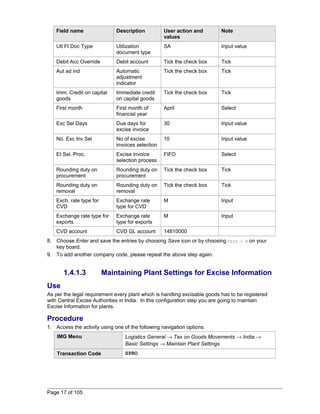
1.4.1.3 Maintaining Plant Settings for Excise Information 
Use 
As per the legal requirement every plant which is handling excisable goods has to be registered 
with Central Excise Authorities in India. In this configuration step you are going to maintain 
Excise Information for plants. 
Procedure 
1. Access the activity using one of the following navigation options: 
IMG Menu Logistics General ® Tax on Goods Movements ® India ® 
Basic Settings ® Maintain Plant Settings 
Transaction Code SPRO 
Page 17 of 105
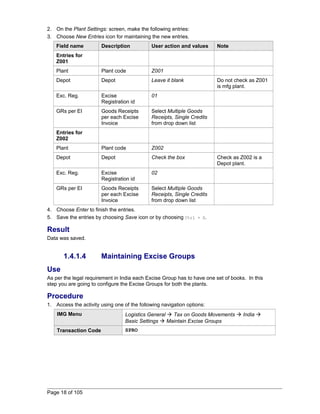
2. On the Plant Settings: screen, make the following entries: 
3. Choose New Entries icon for maintaining the new entries. 
Field name Description User action and values Note 
Entries for 
Z001 
Plant Plant code Z001 
Depot Depot Leave it blank Do not check as Z001 
is mfg plant. 
Exc. Reg. Excise 
Registration id 
01 
GRs per EI Goods Receipts 
per each Excise 
Invoice 
Select Multiple Goods 
Receipts, Single Credits 
from drop down list 
Entries for 
Z002 
Plant Plant code Z002 
Depot Depot Check the box Check as Z002 is a 
Depot plant. 
Exc. Reg. Excise 
Registration id 
02 
GRs per EI Goods Receipts 
per each Excise 
Invoice 
Select Multiple Goods 
Receipts, Single Credits 
from drop down list 
4. Choose Enter to finish the entries. 
5. Save the entries by choosing Save icon or by choosing Ctrl + S. 
Result 
Data was saved. 
1.4.1.4 Maintaining Excise Groups 
Use 
As per the legal requirement in India each Excise Group has to have one set of books. In this 
step you are going to configure the Excise Groups for both the plants. 
Procedure 
1. Access the activity using one of the following navigation options: 
IMG Menu Logistics General  Tax on Goods Movements  India  
Basic Settings  Maintain Excise Groups 
Transaction Code SPRO 
Page 18 of 105
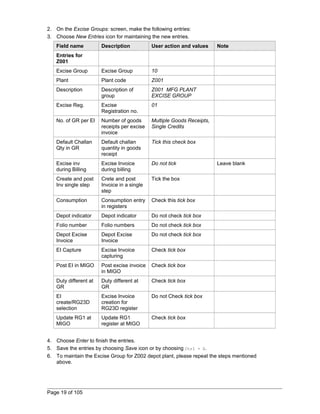
2. On the Excise Groups: screen, make the following entries: 
3. Choose New Entries icon for maintaining the new entries. 
Field name Description User action and values Note 
Entries for 
Z001 
Excise Group Excise Group 10 
Plant Plant code Z001 
Description Description of 
group 
Z001 MFG PLANT 
EXCISE GROUP 
Excise Reg. Excise 
Registration no. 
01 
No. of GR per EI Number of goods 
receipts per excise 
invoice 
Multiple Goods Receipts, 
Single Credits 
Default Challan 
Qty in GR 
Default challan 
quantity in goods 
receipt 
Tick this check box 
Excise inv 
during Billing 
Excise Invoice 
during billing 
Do not tick Leave blank 
Create and post 
Inv single step 
Crete and post 
Invoice in a single 
step 
Tick the box 
Consumption Consumption entry 
in registers 
Check this tick box 
Depot indicator Depot indicator Do not check tick box 
Folio number Folio numbers Do not check tick box 
Depot Excise 
Depot Excise 
Do not check tick box 
Invoice 
Invoice 
EI Capture Excise Invoice 
capturing 
Check tick box 
Post EI in MIGO Post excise invoice 
in MIGO 
Check tick box 
Duty different at 
GR 
Duty different at 
GR 
Check tick box 
EI 
create/RG23D 
selection 
Excise Invoice 
creation for 
RG23D register 
Do not Check tick box 
Update RG1 at 
MIGO 
Update RG1 
register at MIGO 
Check tick box 
4. Choose Enter to finish the entries. 
5. Save the entries by choosing Save icon or by choosing Ctrl + S. 
6. To maintain the Excise Group for Z002 depot plant, please repeat the steps mentioned 
above. 
Page 19 of 105
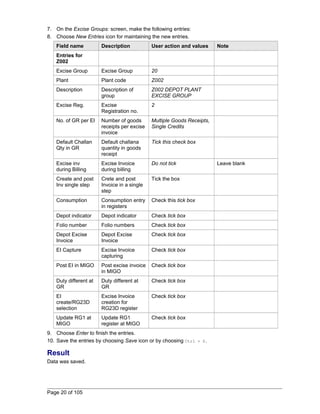
7. On the Excise Groups: screen, make the following entries: 
8. Choose New Entries icon for maintaining the new entries. 
Field name Description User action and values Note 
Entries for 
Z002 
Excise Group Excise Group 20 
Plant Plant code Z002 
Description Description of 
group 
Z002 DEPOT PLANT 
EXCISE GROUP 
Excise Reg. Excise 
Registration no. 
2 
No. of GR per EI Number of goods 
receipts per excise 
invoice 
Multiple Goods Receipts, 
Single Credits 
Default Challan 
Qty in GR 
Default challana 
quantity in goods 
receipt 
Tick this check box 
Excise inv 
during Billing 
Excise Invoice 
during billing 
Do not tick Leave blank 
Create and post 
Inv single step 
Crete and post 
Invoice in a single 
step 
Tick the box 
Consumption Consumption entry 
in registers 
Check this tick box 
Depot indicator Depot indicator Check tick box 
Folio number Folio numbers Check tick box 
Depot Excise 
Depot Excise 
Check tick box 
Invoice 
Invoice 
EI Capture Excise Invoice 
capturing 
Check tick box 
Post EI in MIGO Post excise invoice 
in MIGO 
Check tick box 
Duty different at 
GR 
Duty different at 
GR 
Check tick box 
EI 
create/RG23D 
selection 
Excise Invoice 
creation for 
RG23D register 
Check tick box 
Update RG1 at 
MIGO 
Update RG1 
register at MIGO 
Check tick box 
9. Choose Enter to finish the entries. 
10. Save the entries by choosing Save icon or by choosing Ctrl + S. 
Result 
Data was saved. 
Page 20 of 105
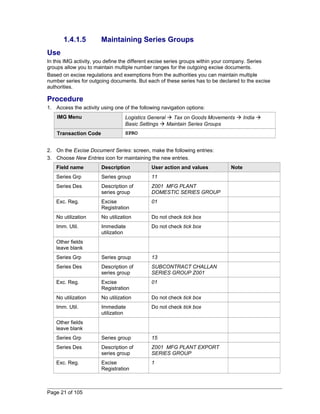
1.4.1.5 Maintaining Series Groups 
Use 
In this IMG activity, you define the different excise series groups within your company. Series 
groups allow you to maintain multiple number ranges for the outgoing excise documents. 
Based on excise regulations and exemptions from the authorities you can maintain multiple 
number series for outgoing documents. But each of these series has to be declared to the excise 
authorities. 
Procedure 
1. Access the activity using one of the following navigation options: 
IMG Menu Logistics General  Tax on Goods Movements  India  
Basic Settings  Maintain Series Groups 
Transaction Code SPRO 
2. On the Excise Document Series: screen, make the following entries: 
3. Choose New Entries icon for maintaining the new entries. 
Field name Description User action and values Note 
Series Grp Series group 11 
Series Des Description of 
series group 
Z001 MFG PLANT 
DOMESTIC SERIES GROUP 
Exc. Reg. Excise 
Registration 
01 
No utilization No utilization Do not check tick box 
Imm. Util. Immediate 
utilization 
Do not check tick box 
Other fields 
leave blank 
Series Grp Series group 13 
Series Des Description of 
series group 
SUBCONTRACT CHALLAN 
SERIES GROUP Z001 
Exc. Reg. Excise 
Registration 
01 
No utilization No utilization Do not check tick box 
Imm. Util. Immediate 
utilization 
Do not check tick box 
Other fields 
leave blank 
Series Grp Series group 15 
Series Des Description of 
series group 
Z001 MFG PLANT EXPORT 
SERIES GROUP 
Exc. Reg. Excise 
Registration 
1 
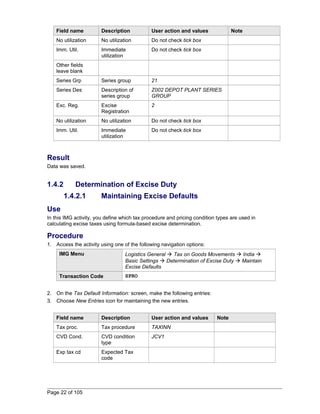
Page 21 of 105
Field name Description User action and values Note 
No utilization No utilization Do not check tick box 
Imm. Util. Immediate 
utilization 
Do not check tick box 
Other fields 
leave blank 
Series Grp Series group 21 
Series Des Description of 
series group 
Z002 DEPOT PLANT SERIES 
GROUP 
Exc. Reg. Excise 
Registration 
2 
No utilization No utilization Do not check tick box 
Imm. Util. Immediate 
utilization 
Do not check tick box 
Result 
Data was saved. 
1.4.2 Determination of Excise Duty 
1.4.2.1 Maintaining Excise Defaults 
Use 
In this IMG activity, you define which tax procedure and pricing condition types are used in 
calculating excise taxes using formula-based excise determination. 
Procedure 
1. Access the activity using one of the following navigation options: 
IMG Menu Logistics General  Tax on Goods Movements  India  
Basic Settings  Determination of Excise Duty  Maintain 
Excise Defaults 
Transaction Code SPRO 
2. On the Tax Default Information: screen, make the following entries: 
3. Choose New Entries icon for maintaining the new entries. 
Field name Description User action and values Note 
Tax proc. Tax procedure TAXINN 
CVD Cond. CVD condition 
type 
JCV1 
Exp tax cd Expected Tax 
code 
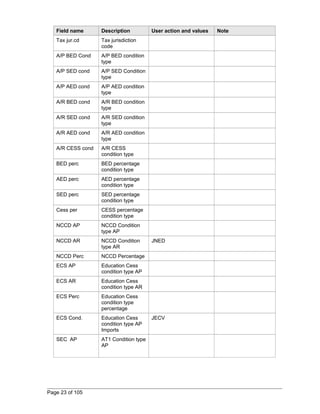
Page 22 of 105
Field name Description User action and values Note 
Tax jur.cd Tax jurisdiction 
code 
A/P BED Cond A/P BED condition 
type 
A/P SED cond A/P SED Condition 
type 
A/P AED cond A/P AED condition 
type 
A/R BED cond A/R BED condition 
type 
A/R SED cond A/R SED condition 
type 
A/R AED cond A/R AED condition 
type 
A/R CESS cond A/R CESS 
condition type 
BED perc BED percentage 
condition type 
AED perc AED percentage 
condition type 
SED perc SED percentage 
condition type 
Cess per CESS percentage 
condition type 
NCCD AP NCCD Condition 
type AP 
NCCD AR NCCD Condition 
type AR 
JNED 
NCCD Perc NCCD Percentage 
ECS AP Education Cess 
condition type AP 
ECS AR Education Cess 
condition type AR 
ECS Perc Education Cess 
condition type 
percentage 
ECS Cond. Education Cess 
condition type AP 
Imports 
JECV 
SEC AP AT1 Condition type 
AP 
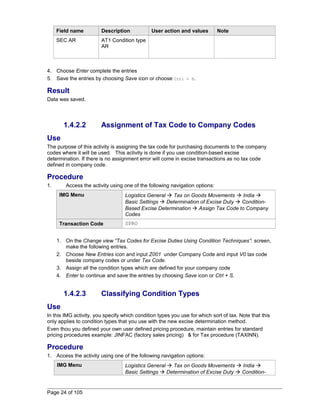
Page 23 of 105
Field name Description User action and values Note 
SEC AR AT1 Condition type 
AR 
4. Choose Enter complete the entries 
5. Save the entries by choosing Save icon or choose Ctrl + S. 
Result 
Data was saved. 
1.4.2.2 Assignment of Tax Code to Company Codes 
Use 
The purpose of this activity is assigning the tax code for purchasing documents to the company 
codes where it will be used. This activity is done if you use condition-based excise 
determination. If there is no assignment error will come in excise transactions as no tax code 
defined in company code. 
Procedure 
1. Access the activity using one of the following navigation options: 
IMG Menu Logistics General  Tax on Goods Movements  India  
Basic Settings  Determination of Excise Duty  Condition- 
Based Excise Determination  Assign Tax Code to Company 
Codes 
Transaction Code SPRO 
1. On the Change view “Tax Codes for Excise Duties Using Condition Techniques”: screen, 
make the following entries. 
2. Choose New Entries icon and input Z001 under Company Code and input V0 tax code 
beside company codes or under Tax Code. 
3. Assign all the condition types which are defined for your company code 
4. Enter to continue and save the entries by choosing Save icon or Ctrl + S. 
1.4.2.3 Classifying Condition Types 
Use 
In this IMG activity, you specify which condition types you use for which sort of tax. Note that this 
only applies to condition types that you use with the new excise determination method. 
Even thou you defined your own user defined pricing procedure, maintain entries for standard 
pricing procedures example: JINFAC (factory sales pricing) & for Tax procedure (TAXINN). 
Procedure 
1. Access the activity using one of the following navigation options: 
IMG Menu Logistics General  Tax on Goods Movements  India  
Basic Settings  Determination of Excise Duty  Condition- 
Page 24 of 105
Based Excise Determination  Classify Condition Types 
Transaction Code SPRO 
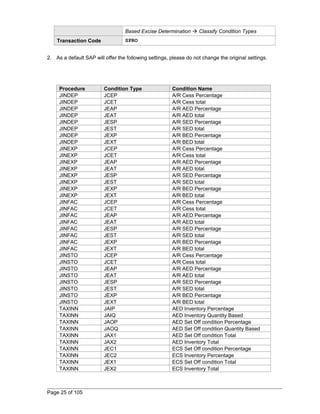
2. As a default SAP will offer the following settings, please do not change the original settings. 
Procedure Condition Type Condition Name 
JINDEP JCEP A/R Cess Percentage 
JINDEP JCET A/R Cess total 
JINDEP JEAP A/R AED Percentage 
JINDEP JEAT A/R AED total 
JINDEP JESP A/R SED Percentage 
JINDEP JEST A/R SED total 
JINDEP JEXP A/R BED Percentage 
JINDEP JEXT A/R BED total 
JINEXP JCEP A/R Cess Percentage 
JINEXP JCET A/R Cess total 
JINEXP JEAP A/R AED Percentage 
JINEXP JEAT A/R AED total 
JINEXP JESP A/R SED Percentage 
JINEXP JEST A/R SED total 
JINEXP JEXP A/R BED Percentage 
JINEXP JEXT A/R BED total 
JINFAC JCEP A/R Cess Percentage 
JINFAC JCET A/R Cess total 
JINFAC JEAP A/R AED Percentage 
JINFAC JEAT A/R AED total 
JINFAC JESP A/R SED Percentage 
JINFAC JEST A/R SED total 
JINFAC JEXP A/R BED Percentage 
JINFAC JEXT A/R BED total 
JINSTO JCEP A/R Cess Percentage 
JINSTO JCET A/R Cess total 
JINSTO JEAP A/R AED Percentage 
JINSTO JEAT A/R AED total 
JINSTO JESP A/R SED Percentage 
JINSTO JEST A/R SED total 
JINSTO JEXP A/R BED Percentage 
JINSTO JEXT A/R BED total 
TAXINN JAIP AED Inventory Percentage 
TAXINN JAIQ AED Inventory Quantity Based 
TAXINN JAOP AED Set Off condition Percentage 
TAXINN JAOQ AED Set Off condition Quantity Based 
TAXINN JAX1 AED Set Off condition Total 
TAXINN JAX2 AED Inventory Total 
TAXINN JEC1 ECS Set Off condition Percentage 
TAXINN JEC2 ECS Inventory Percentage 
TAXINN JEX1 ECS Set Off condition Total 
TAXINN JEX2 ECS Inventory Total 
Page 25 of 105
TAXINN JIPC A/P Central Sales tax 
TAXINN JIPL A/P Local Sales tax 
TAXINN JIPS A/P ST setoff 
TAXINN JMIP BED Inventory Percentage 
TAXINN JMIQ BED Inventory Quantity Based 
TAXINN JMOP BED Set Off condition Percentage 
TAXINN JMOQ BED Set Off condition Quantity based 
TAXINN JMX1 BED Set Off condition Total 
TAXINN JMX2 BED Inventory Total 
TAXINN JNIP NCCD Inventory Percentage 
TAXINN JNOP NCCD Set Off condition Percentage 
TAXINN JNX1 NCCD Set Off condition Total 
TAXINN JNX2 BED Inventory Total 
TAXINN JSIP SED Inventory Percentage 
TAXINN JSIQ SED Inventory Quantity Based 
TAXINN JSOP SED Set Off ConditionPercentage 
TAXINN JSX1 SED Set Off Condition Total 
TAXINN JSX2 SED Inventory Total 
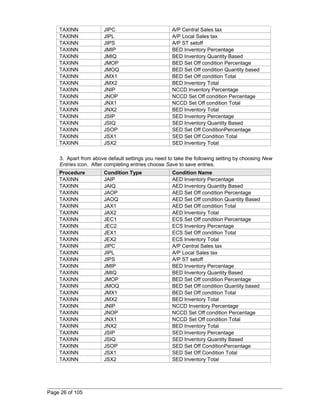
3. Apart from above default settings you need to take the following setting by choosing New 
Entries icon. After completing entries choose Save to save entries. 
Procedure Condition Type Condition Name 
TAXINN JAIP AED Inventory Percentage 
TAXINN JAIQ AED Inventory Quantity Based 
TAXINN JAOP AED Set Off condition Percentage 
TAXINN JAOQ AED Set Off condition Quantity Based 
TAXINN JAX1 AED Set Off condition Total 
TAXINN JAX2 AED Inventory Total 
TAXINN JEC1 ECS Set Off condition Percentage 
TAXINN JEC2 ECS Inventory Percentage 
TAXINN JEX1 ECS Set Off condition Total 
TAXINN JEX2 ECS Inventory Total 
TAXINN JIPC A/P Central Sales tax 
TAXINN JIPL A/P Local Sales tax 
TAXINN JIPS A/P ST setoff 
TAXINN JMIP BED Inventory Percentage 
TAXINN JMIQ BED Inventory Quantity Based 
TAXINN JMOP BED Set Off condition Percentage 
TAXINN JMOQ BED Set Off condition Quantity based 
TAXINN JMX1 BED Set Off condition Total 
TAXINN JMX2 BED Inventory Total 
TAXINN JNIP NCCD Inventory Percentage 
TAXINN JNOP NCCD Set Off condition Percentage 
TAXINN JNX1 NCCD Set Off condition Total 
TAXINN JNX2 BED Inventory Total 
TAXINN JSIP SED Inventory Percentage 
TAXINN JSIQ SED Inventory Quantity Based 
TAXINN JSOP SED Set Off ConditionPercentage 
TAXINN JSX1 SED Set Off Condition Total 
TAXINN JSX2 SED Inventory Total 
Page 26 of 105
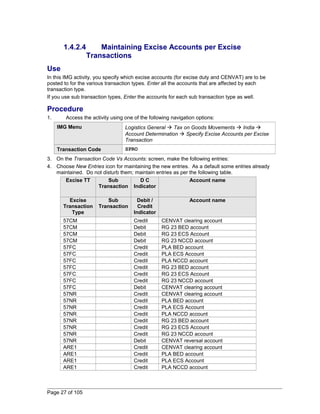
1.4.2.4 Maintaining Excise Accounts per Excise 
Transactions 
Use 
In this IMG activity, you specify which excise accounts (for excise duty and CENVAT) are to be 
posted to for the various transaction types. Enter all the accounts that are affected by each 
transaction type. 
If you use sub transaction types, Enter the accounts for each sub transaction type as well. 
Procedure 
1. Access the activity using one of the following navigation options: 
IMG Menu Logistics General  Tax on Goods Movements  India  
Account Determination  Specify Excise Accounts per Excise 
Transaction 
Transaction Code SPRO 
3. On the Transaction Code Vs Accounts: screen, make the following entries: 
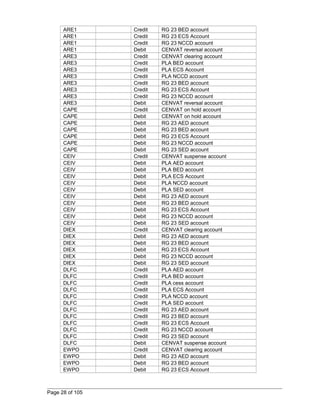
4. Choose New Entries icon for maintaining the new entries. As a default some entries already 
maintained. Do not disturb them; maintain entries as per the following table. 
Excise TT Sub 
Transaction 
D C 
Indicator 
Account name 
Excise 
Transaction 
Type 
Sub 
Transaction 
Debit / 
Credit 
Indicator 
Account name 
57CM Credit CENVAT clearing account 
57CM Debit RG 23 BED account 
57CM Debit RG 23 ECS Account 
57CM Debit RG 23 NCCD account 
57FC Credit PLA BED account 
57FC Credit PLA ECS Account 
57FC Credit PLA NCCD account 
57FC Credit RG 23 BED account 
57FC Credit RG 23 ECS Account 
57FC Credit RG 23 NCCD account 
57FC Debit CENVAT clearing account 
57NR Credit CENVAT clearing account 
57NR Credit PLA BED account 
57NR Credit PLA ECS Account 
57NR Credit PLA NCCD account 
57NR Credit RG 23 BED account 
57NR Credit RG 23 ECS Account 
57NR Credit RG 23 NCCD account 
57NR Debit CENVAT reversal account 
ARE1 Credit CENVAT clearing account 
ARE1 Credit PLA BED account 
ARE1 Credit PLA ECS Account 
ARE1 Credit PLA NCCD account 
Page 27 of 105
ARE1 Credit RG 23 BED account 
ARE1 Credit RG 23 ECS Account 
ARE1 Credit RG 23 NCCD account 
ARE1 Debit CENVAT reversal account 
ARE3 Credit CENVAT clearing account 
ARE3 Credit PLA BED account 
ARE3 Credit PLA ECS Account 
ARE3 Credit PLA NCCD account 
ARE3 Credit RG 23 BED account 
ARE3 Credit RG 23 ECS Account 
ARE3 Credit RG 23 NCCD account 
ARE3 Debit CENVAT reversal account 
CAPE Credit CENVAT on hold account 
CAPE Debit CENVAT on hold account 
CAPE Debit RG 23 AED account 
CAPE Debit RG 23 BED account 
CAPE Debit RG 23 ECS Account 
CAPE Debit RG 23 NCCD account 
CAPE Debit RG 23 SED account 
CEIV Credit CENVAT suspense account 
CEIV Debit PLA AED account 
CEIV Debit PLA BED account 
CEIV Debit PLA ECS Account 
CEIV Debit PLA NCCD account 
CEIV Debit PLA SED account 
CEIV Debit RG 23 AED account 
CEIV Debit RG 23 BED account 
CEIV Debit RG 23 ECS Account 
CEIV Debit RG 23 NCCD account 
CEIV Debit RG 23 SED account 
DIEX Credit CENVAT clearing account 
DIEX Debit RG 23 AED account 
DIEX Debit RG 23 BED account 
DIEX Debit RG 23 ECS Account 
DIEX Debit RG 23 NCCD account 
DIEX Debit RG 23 SED account 
DLFC Credit PLA AED account 
DLFC Credit PLA BED account 
DLFC Credit PLA cess account 
DLFC Credit PLA ECS Account 
DLFC Credit PLA NCCD account 
DLFC Credit PLA SED account 
DLFC Credit RG 23 AED account 
DLFC Credit RG 23 BED account 
DLFC Credit RG 23 ECS Account 
DLFC Credit RG 23 NCCD account 
DLFC Credit RG 23 SED account 
DLFC Debit CENVAT suspense account 
EWPO Credit CENVAT clearing account 
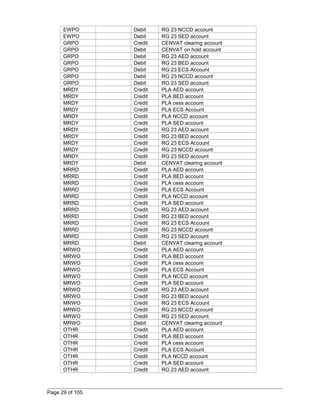
EWPO Debit RG 23 AED account 
EWPO Debit RG 23 BED account 
EWPO Debit RG 23 ECS Account 
Page 28 of 105
EWPO Debit RG 23 NCCD account 
EWPO Debit RG 23 SED account 
GRPO Credit CENVAT clearing account 
GRPO Debit CENVAT on hold account 
GRPO Debit RG 23 AED account 
GRPO Debit RG 23 BED account 
GRPO Debit RG 23 ECS Account 
GRPO Debit RG 23 NCCD account 
GRPO Debit RG 23 SED account 
MRDY Credit PLA AED account 
MRDY Credit PLA BED account 
MRDY Credit PLA cess account 
MRDY Credit PLA ECS Account 
MRDY Credit PLA NCCD account 
MRDY Credit PLA SED account 
MRDY Credit RG 23 AED account 
MRDY Credit RG 23 BED account 
MRDY Credit RG 23 ECS Account 
MRDY Credit RG 23 NCCD account 
MRDY Credit RG 23 SED account 
MRDY Debit CENVAT clearing account 
MRRD Credit PLA AED account 
MRRD Credit PLA BED account 
MRRD Credit PLA cess account 
MRRD Credit PLA ECS Account 
MRRD Credit PLA NCCD account 
MRRD Credit PLA SED account 
MRRD Credit RG 23 AED account 
MRRD Credit RG 23 BED account 
MRRD Credit RG 23 ECS Account 
MRRD Credit RG 23 NCCD account 
MRRD Credit RG 23 SED account 
MRRD Debit CENVAT clearing account 
MRWO Credit PLA AED account 
MRWO Credit PLA BED account 
MRWO Credit PLA cess account 
MRWO Credit PLA ECS Account 
MRWO Credit PLA NCCD account 
MRWO Credit PLA SED account 
MRWO Credit RG 23 AED account 
MRWO Credit RG 23 BED account 
MRWO Credit RG 23 ECS Account 
MRWO Credit RG 23 NCCD account 
MRWO Credit RG 23 SED account 
MRWO Debit CENVAT clearing account 
OTHR Credit PLA AED account 
OTHR Credit PLA BED account 
OTHR Credit PLA cess account 
OTHR Credit PLA ECS Account 
OTHR Credit PLA NCCD account 
OTHR Credit PLA SED account 
OTHR Credit RG 23 AED account 
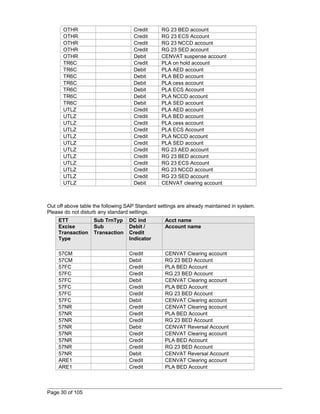
Page 29 of 105
OTHR Credit RG 23 BED account 
OTHR Credit RG 23 ECS Account 
OTHR Credit RG 23 NCCD account 
OTHR Credit RG 23 SED account 
OTHR Debit CENVAT suspense account 
TR6C Credit PLA on hold account 
TR6C Debit PLA AED account 
TR6C Debit PLA BED account 
TR6C Debit PLA cess account 
TR6C Debit PLA ECS Account 
TR6C Debit PLA NCCD account 
TR6C Debit PLA SED account 
UTLZ Credit PLA AED account 
UTLZ Credit PLA BED account 
UTLZ Credit PLA cess account 
UTLZ Credit PLA ECS Account 
UTLZ Credit PLA NCCD account 
UTLZ Credit PLA SED account 
UTLZ Credit RG 23 AED account 
UTLZ Credit RG 23 BED account 
UTLZ Credit RG 23 ECS Account 
UTLZ Credit RG 23 NCCD account 
UTLZ Credit RG 23 SED account 
UTLZ Debit CENVAT clearing account 
Out off above table the following SAP Standard settings are already maintained in system. 
Please do not disturb any standard settings. 
ETT Sub TrnTyp DC ind Acct name 
Excise 
Sub 
Debit / 
Transaction 
Transaction 
Credit 
Type 
Indicator 
Account name 
57CM Credit CENVAT Clearing account 
57CM Debit RG 23 BED Account 
57FC Credit PLA BED Account 
57FC Credit RG 23 BED Account 
57FC Debit CENVAT Clearing account 
57FC Credit PLA BED Account 
57FC Credit RG 23 BED Account 
57FC Debit CENVAT Clearing account 
57NR Credit CENVAT Clearing account 
57NR Credit PLA BED Account 
57NR Credit RG 23 BED Account 
57NR Debit CENVAT Reversal Account 
57NR Credit CENVAT Clearing account 
57NR Credit PLA BED Account 
57NR Credit RG 23 BED Account 
57NR Debit CENVAT Reversal Account 
ARE1 Credit CENVAT Clearing account 
ARE1 Credit PLA BED Account 
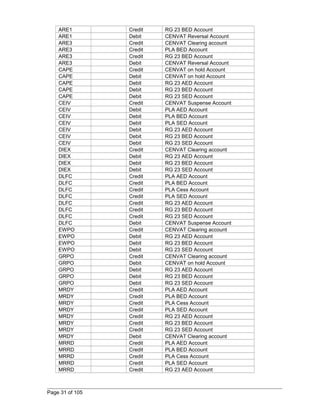
Page 30 of 105
ARE1 Credit RG 23 BED Account 
ARE1 Debit CENVAT Reversal Account 
ARE3 Credit CENVAT Clearing account 
ARE3 Credit PLA BED Account 
ARE3 Credit RG 23 BED Account 
ARE3 Debit CENVAT Reversal Account 
CAPE Credit CENVAT on hold Account 
CAPE Debit CENVAT on hold Account 
CAPE Debit RG 23 AED Account 
CAPE Debit RG 23 BED Account 
CAPE Debit RG 23 SED Account 
CEIV Credit CENVAT Suspense Account 
CEIV Debit PLA AED Account 
CEIV Debit PLA BED Account 
CEIV Debit PLA SED Account 
CEIV Debit RG 23 AED Account 
CEIV Debit RG 23 BED Account 
CEIV Debit RG 23 SED Account 
DIEX Credit CENVAT Clearing account 
DIEX Debit RG 23 AED Account 
DIEX Debit RG 23 BED Account 
DIEX Debit RG 23 SED Account 
DLFC Credit PLA AED Account 
DLFC Credit PLA BED Account 
DLFC Credit PLA Cess Account 
DLFC Credit PLA SED Account 
DLFC Credit RG 23 AED Account 
DLFC Credit RG 23 BED Account 
DLFC Credit RG 23 SED Account 
DLFC Debit CENVAT Suspense Account 
EWPO Credit CENVAT Clearing account 
EWPO Debit RG 23 AED Account 
EWPO Debit RG 23 BED Account 
EWPO Debit RG 23 SED Account 
GRPO Credit CENVAT Clearing account 
GRPO Debit CENVAT on hold Account 
GRPO Debit RG 23 AED Account 
GRPO Debit RG 23 BED Account 
GRPO Debit RG 23 SED Account 
MRDY Credit PLA AED Account 
MRDY Credit PLA BED Account 
MRDY Credit PLA Cess Account 
MRDY Credit PLA SED Account 
MRDY Credit RG 23 AED Account 
MRDY Credit RG 23 BED Account 
MRDY Credit RG 23 SED Account 
MRDY Debit CENVAT Clearing account 
MRRD Credit PLA AED Account 
MRRD Credit PLA BED Account 
MRRD Credit PLA Cess Account 
MRRD Credit PLA SED Account 
MRRD Credit RG 23 AED Account 
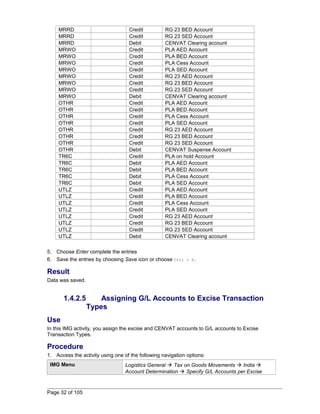
Page 31 of 105
MRRD Credit RG 23 BED Account 
MRRD Credit RG 23 SED Account 
MRRD Debit CENVAT Clearing account 
MRWO Credit PLA AED Account 
MRWO Credit PLA BED Account 
MRWO Credit PLA Cess Account 
MRWO Credit PLA SED Account 
MRWO Credit RG 23 AED Account 
MRWO Credit RG 23 BED Account 
MRWO Credit RG 23 SED Account 
MRWO Debit CENVAT Clearing account 
OTHR Credit PLA AED Account 
OTHR Credit PLA BED Account 
OTHR Credit PLA Cess Account 
OTHR Credit PLA SED Account 
OTHR Credit RG 23 AED Account 
OTHR Credit RG 23 BED Account 
OTHR Credit RG 23 SED Account 
OTHR Debit CENVAT Suspense Account 
TR6C Credit PLA on hold Account 
TR6C Debit PLA AED Account 
TR6C Debit PLA BED Account 
TR6C Debit PLA Cess Account 
TR6C Debit PLA SED Account 
UTLZ Credit PLA AED Account 
UTLZ Credit PLA BED Account 
UTLZ Credit PLA Cess Account 
UTLZ Credit PLA SED Account 
UTLZ Credit RG 23 AED Account 
UTLZ Credit RG 23 BED Account 
UTLZ Credit RG 23 SED Account 
UTLZ Debit CENVAT Clearing account 
5. Choose Enter complete the entries 
6. Save the entries by choosing Save icon or choose Ctrl + S. 
Result 
Data was saved. 
1.4.2.5 Assigning G/L Accounts to Excise Transaction 
Types 
Use 
In this IMG activity, you assign the excise and CENVAT accounts to G/L accounts to Excise 
Transaction Types. 
Procedure 
1. Access the activity using one of the following navigation options: 
IMG Menu Logistics General  Tax on Goods Movements  India  
Account Determination  Specify G/L Accounts per Excise 
Page 32 of 105
Transaction 
Transaction Code SPRO 
2. On the Excise Account Assignment Table: screen, make the following entries: 
3. Choose New Entries icon for maintaining the new entries as per the following table. 
S.No Excise 
Gp 
ETT CoCd Sub TrnTyp ChAc RG23A 
BED 
RG23A 
AED 
RG23A 
SED 
S.No Excise 
Group 
Excise 
Transaction 
type 
Company 
Code 
Sub 
Transactio 
n Type 
Chart of 
Account 
RG23A 
BED 
RG23A 
AED 
RG23A 
SED 
1 10 57FC Z001 Z001 24820000 24840000 24840000 
2 10 57NR Z001 Z001 24820000 24840000 24840000 
3 10 ARE1 Z001 Z001 24820000 24840000 24840000 
4 10 ARE3 Z001 Z001 24820000 24840000 24840000 
5 10 CAPE Z001 Z001 24820000 24840000 24840000 
6 10 CEIV Z001 Z001 24820000 24840000 24840000 
7 10 DIEX Z001 Z001 24820000 24840000 24840000 
9 10 DLFC Z001 Z001 13113910 13113910 13113910 
10 10 EWPO Z001 Z001 24820000 24840000 24840000 
12 10 GRPO Z001 Z001 24820000 24840000 24840000 
14 10 MRDY Z001 Z001 24820000 24840000 24840000 
15 10 MRRD Z001 Z001 24820000 24840000 24840000 
16 10 MRWO Z001 Z001 24820000 24840000 24840000 
17 10 OTHR Z001 Z001 40011000 40011000 40011000 
19 10 TR6C Z001 Z001 24820000 24840000 24840000 
20 10 UTLZ Z001 Z001 40011000 40011000 40011000 
S.No RG23C 
BED 
RG23C AED RG23C 
SED 
Offset Mod.Clear PLA BED PLA AED PLA SED 
1 
2485000 
0 24860000 24870000 24920000 13113920 24880000 24890000 24900000 
2 
2485000 
0 24860000 24870000 24920000 13113920 24880000 24890000 24900000 
3 
2485000 
0 24860000 24870000 24920000 13113920 24880000 24890000 24900000 
4 
2485000 
0 24860000 24870000 24920000 13113920 24880000 24890000 24900000 
5 
2485000 
0 24860000 24870000 24920000 13113920 24880000 24890000 24900000 
6 
2485000 
0 24860000 24870000 24920000 13113920 24880000 24890000 24900000 
7 
2485000 
0 24860000 24870000 24920000 13113920 24880000 24890000 24900000 
8 
2485000 
0 24860000 24870000 24920000 24930000 24880000 24890000 24900000 
9 
2485000 
0 24860000 24870000 24920000 13113920 24880000 24890000 24900000 
10 
2485000 
0 24860000 24870000 24920000 13113920 24880000 24890000 24900000 
11 
2485000 
0 24860000 24870000 24920000 54000000 24880000 24890000 24900000 
12 
2485000 
0 24860000 24870000 24920000 13113920 24880000 24890000 24900000 
13 
2485000 
0 24860000 24870000 24920000 13113910 24880000 24890000 24900000 
14 
2485000 
0 24860000 24870000 24920000 13113920 24880000 24890000 24900000 
15 2485000 24860000 24870000 24920000 13113920 24880000 24890000 24900000 
Page 33 of 105
0 
16 
2485000 
0 24860000 24870000 24920000 13113920 24880000 24890000 24900000 
17 
2485000 
0 24860000 24870000 24920000 13113920 24880000 24890000 24900000 
18 
2485000 
0 24860000 24870000 24920000 13113920 24880000 24890000 24900000 
19 
2485000 
0 24860000 24870000 24920000 13113920 24880000 24890000 24900000 
20 
2485000 
0 24860000 24870000 24920000 13113920 24880000 24890000 24900000 
S.No PLA 
CESS 
CENVAT OH CENVAT 
sse 
PLA On Hld Reversal G/L 
RG23A 
NCCD 
G/L 
RG23C 
NCCD 
1 
2491000 
0 24930000 13113910 24920000 13113930 24840100 24870100 
2 
2491000 
0 24930000 13113910 24920000 13113930 24840100 24870100 
3 
2491000 
0 24930000 13113910 24920000 13113930 24840100 24870100 
4 
2491000 
0 24930000 13113910 24920000 13113930 24840100 24870100 
5 
2491000 
0 24930000 13113910 24920000 13113930 24840100 24870100 
6 
2491000 
0 24930000 13113910 24920000 13113930 24840100 24870100 
7 
2491000 
0 24930000 13113910 24920000 13113930 24840100 24870100 
8 
2491000 
0 24930000 13113910 24920000 13113930 24840100 24870100 
9 
2491000 
0 24930000 54000000 24920000 13113930 13113910 13113910 
10 
2491000 
0 24930000 13113910 24920000 13113930 24840100 24870100 
11 
2491000 
0 24930000 13113910 24920000 13113930 24840100 24870100 
12 
2491000 
0 24930000 13113910 24920000 13113930 24840100 24870100 
13 
2491000 
0 24930000 13113910 24920000 13113930 24840100 24870100 
14 
2491000 
0 24930000 13113910 24920000 13113930 24840100 24870100 
15 
2491000 
0 24930000 13113910 24920000 13113930 24840100 24870100 
16 
2491000 
0 24930000 13113910 24920000 13113930 24840100 24870100 
17 
2491000 
0 24930000 13113910 24920000 13113930 24840100 24870100 
18 
2491000 
0 24930000 13113910 24920000 13113930 24840100 24870100 
19 
2491000 
0 24930000 13113910 24920000 13113930 24840100 24870100 
20 
2491000 
0 24930000 13113910 24920000 13113930 24840100 24870100 
S.No G/L PLA 
NCCD 
G/L RG23A 
ECess 
G/L 
RG23C 
ECess 
G/L PLA 
ECess 
1 
2488010 
0 24840200 24870200 24880200 
2 
2488010 
0 24840200 24870200 24880200 
3 
2488010 
0 24840200 24870200 24880200 
Page 34 of 105
4 
2488010 
0 24840200 24870200 24880200 
5 
2488010 
0 24840200 24870200 24880200 
6 
2488010 
0 24840200 24870200 24880200 
7 
2488010 
0 24840200 24870200 24880200 
8 
2488010 
0 24840200 24870200 24880200 
9 
1311391 
0 13113910 13113910 13113910 
10 
2488010 
0 24840200 24870200 24880200 
11 
2488010 
0 24840200 24870200 24880200 
12 
2488010 
0 24840200 24870200 24880200 
13 
2488010 
0 24840200 24870200 24880200 
14 
2488010 
0 24840200 24870200 24880200 
15 
2488010 
0 24840200 24870200 24880200 
16 
2488010 
0 24840200 24870200 24880200 
17 
2488010 
0 24840200 24870200 24880200 
18 
2488010 
0 24840200 24870200 24880200 
19 
2488010 
0 24840200 24870200 24880200 
20 
2488010 
0 24840200 24870200 24880200 
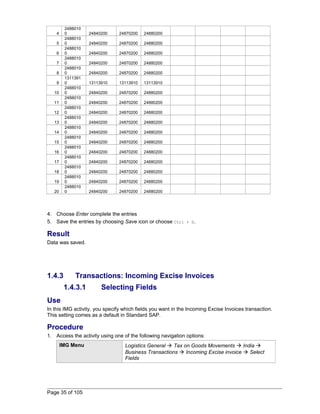
4. Choose Enter complete the entries 
5. Save the entries by choosing Save icon or choose Ctrl + S. 
Result 
Data was saved. 
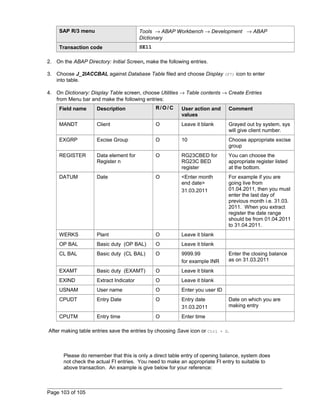
1.4.3 Transactions: Incoming Excise Invoices 
1.4.3.1 Selecting Fields 
Use 
In this IMG activity, you specify which fields you want in the Incoming Excise Invoices transaction. 
This setting comes as a default in Standard SAP. 
Procedure 
1. Access the activity using one of the following navigation options: 
IMG Menu Logistics General  Tax on Goods Movements  India  
Business Transactions  Incoming Excise invoice  Select 
Fields 
Page 35 of 105
Transaction Code SPRO 
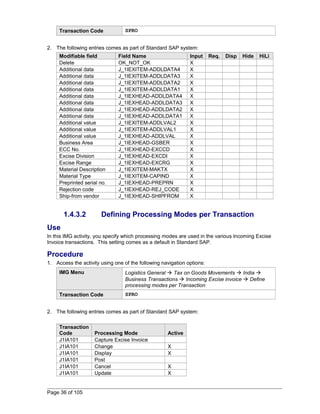
2. The following entries comes as part of Standard SAP system: 
Modifiable field Field Name Input Req. Disp Hide HiLi 
Delete OK_NOT_OK X 
Additional data J_1IEXITEM-ADDLDATA4 X 
Additional data J_1IEXITEM-ADDLDATA3 X 
Additional data J_1IEXITEM-ADDLDATA2 X 
Additional data J_1IEXITEM-ADDLDATA1 X 
Additional data J_1IEXHEAD-ADDLDATA4 X 
Additional data J_1IEXHEAD-ADDLDATA3 X 
Additional data J_1IEXHEAD-ADDLDATA2 X 
Additional data J_1IEXHEAD-ADDLDATA1 X 
Additional value J_1IEXITEM-ADDLVAL2 X 
Additional value J_1IEXITEM-ADDLVAL1 X 
Additional value J_1IEXHEAD-ADDLVAL X 
Business Area J_1IEXHEAD-GSBER X 
ECC No. J_1IEXHEAD-EXCCD X 
Excise Division J_1IEXHEAD-EXCDI X 
Excise Range J_1IEXHEAD-EXCRG X 
Material Description J_1IEXITEM-MAKTX X 
Material Type J_1IEXITEM-CAPIND X 
Preprinted serial no. J_1IEXHEAD-PREPRN X 
Rejection code J_1IEXHEAD-REJ_CODE X 
Ship-from vendor J_1IEXHEAD-SHIPFROM X 
1.4.3.2 Defining Processing Modes per Transaction 
Use 
In this IMG activity, you specify which processing modes are used in the various Incoming Excise 
Invoice transactions. This setting comes as a default in Standard SAP. 
Procedure 
1. Access the activity using one of the following navigation options: 
IMG Menu Logistics General  Tax on Goods Movements  India  
Business Transactions  Incoming Excise invoice  Define 
processing modes per Transaction 
Transaction Code SPRO 
2. The following entries comes as part of Standard SAP system: 
Transaction 
Code Processing Mode Active 
J1IA101 Capture Excise Invoice 
J1IA101 Change X 
J1IA101 Display X 
J1IA101 Post 
J1IA101 Cancel X 
J1IA101 Update X 
Page 36 of 105
J1IA101 Reverse X 
J1IA101 Create ARE-1 X 
J1IA101 Create ARE-3 
J1IA102 Capture Excise Invoice 
J1IA102 Change X 
J1IA102 Display X 
J1IA102 Post 
J1IA102 Cancel X 
J1IA102 Update 
J1IA102 Reverse 
J1IA102 Create ARE-1 X 
J1IA102 Create ARE-3 
J1IA103 Capture Excise Invoice 
J1IA103 Change 
J1IA103 Display X 
J1IA103 Post 
J1IA103 Cancel 
J1IA103 Update X 
J1IA103 Reverse 
J1IA103 Create ARE-1 
J1IA103 Create ARE-3 
J1IA104 Capture Excise Invoice 
J1IA104 Change 
J1IA104 Display X 
J1IA104 Post 
J1IA104 Cancel 
J1IA104 Update 
J1IA104 Reverse X 
J1IA104 Create ARE-1 
J1IA104 Create ARE-3 
J1IA301 Capture Excise Invoice 
J1IA301 Change X 
J1IA301 Display X 
J1IA301 Post 
J1IA301 Cancel X 
J1IA301 Update X 
J1IA301 Reverse X 
J1IA301 Create ARE-1 
J1IA301 Create ARE-3 X 
J1IA302 Capture Excise Invoice 
J1IA302 Change X 
J1IA302 Display X 
J1IA302 Post 
J1IA302 Cancel X 
J1IA302 Update 
J1IA302 Reverse 
J1IA302 Create ARE-1 
J1IA302 Create ARE-3 X 
J1IA303 Capture Excise Invoice 
J1IA303 Change 
J1IA303 Display X 
J1IA303 Post 
Page 37 of 105
J1IA303 Cancel 
J1IA303 Update X 
J1IA303 Reverse 
J1IA303 Create ARE-1 
J1IA303 Create ARE-3 
J1IA304 Capture Excise Invoice 
J1IA304 Change 
J1IA304 Display X 
J1IA304 Post 
J1IA304 Cancel 
J1IA304 Update 
J1IA304 Reverse X 
J1IA304 Create ARE-1 
J1IA304 Create ARE-3 
J1IEX Capture Excise Invoice X 
J1IEX Change X 
J1IEX Display X 
J1IEX Post X 
J1IEX Cancel X 
J1IEX Update 
J1IEX Reverse 
J1IEX Create ARE-1 
J1IEX Create ARE-3 
J1IEX_C Capture Excise Invoice X 
J1IEX_C Change 
J1IEX_C Display X 
J1IEX_C Post 
J1IEX_C Cancel 
J1IEX_C Update 
J1IEX_C Reverse 
J1IEX_C Create ARE-1 
J1IEX_C Create ARE-3 
J1IEX_P Capture Excise Invoice 
J1IEX_P Change X 
J1IEX_P Display X 
J1IEX_P Post X 
J1IEX_P Cancel X 
J1IEX_P Update 
J1IEX_P Reverse 
J1IEX_P Create ARE-1 
J1IEX_P Create ARE-3 
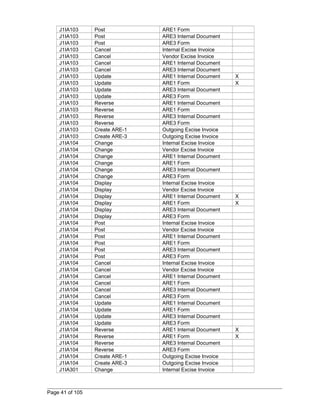
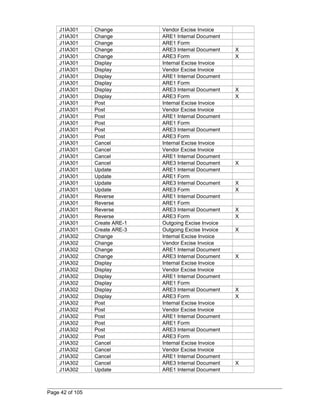
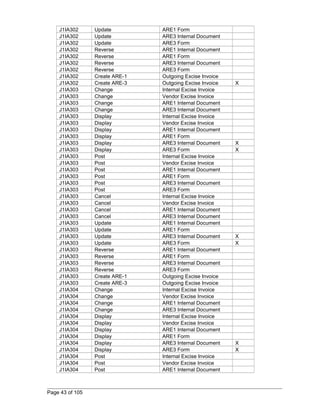
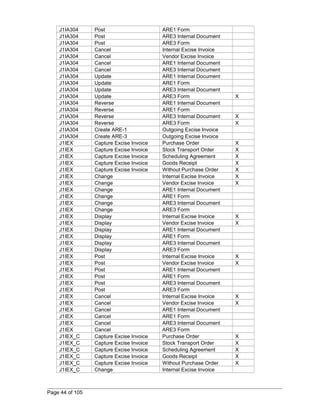
1.4.3.3 Defining Reference Documents per Transaction 
Use 
In this IMG activity, you specify for each combination of transaction and processing mode which 
reference documents you want the users to be able to use. 
This setting comes as a default in Standard SAP. 
Procedure 
Page 38 of 105
1. Access the activity using one of the following navigation options: 
IMG Menu Logistics General  Tax on Goods Movements  India  
Business Transactions  Incoming Excise invoice  Define 
Reference Documents per Transaction 
Transaction Code SPRO 
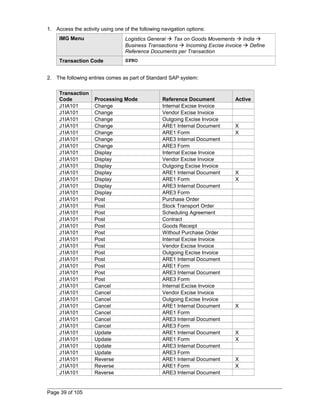
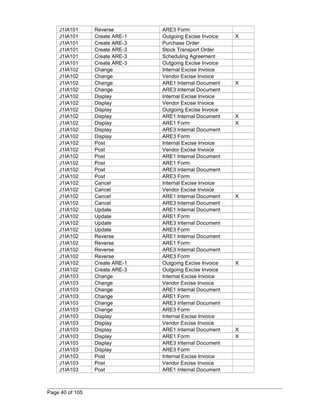
2. The following entries comes as part of Standard SAP system: 
Transaction 
Code Processing Mode Reference Document Active 
J1IA101 Change Internal Excise Invoice 
J1IA101 Change Vendor Excise Invoice 
J1IA101 Change Outgoing Excise Invoice 
J1IA101 Change ARE1 Internal Document X 
J1IA101 Change ARE1 Form X 
J1IA101 Change ARE3 Internal Document 
J1IA101 Change ARE3 Form 
J1IA101 Display Internal Excise Invoice 
J1IA101 Display Vendor Excise Invoice 
J1IA101 Display Outgoing Excise Invoice 
J1IA101 Display ARE1 Internal Document X 
J1IA101 Display ARE1 Form X 
J1IA101 Display ARE3 Internal Document 
J1IA101 Display ARE3 Form 
J1IA101 Post Purchase Order 
J1IA101 Post Stock Transport Order 
J1IA101 Post Scheduling Agreement 
J1IA101 Post Contract 
J1IA101 Post Goods Receipt 
J1IA101 Post Without Purchase Order 
J1IA101 Post Internal Excise Invoice 
J1IA101 Post Vendor Excise Invoice 
J1IA101 Post Outgoing Excise Invoice 
J1IA101 Post ARE1 Internal Document 
J1IA101 Post ARE1 Form 
J1IA101 Post ARE3 Internal Document 
J1IA101 Post ARE3 Form 
J1IA101 Cancel Internal Excise Invoice 
J1IA101 Cancel Vendor Excise Invoice 
J1IA101 Cancel Outgoing Excise Invoice 
J1IA101 Cancel ARE1 Internal Document X 
J1IA101 Cancel ARE1 Form 
J1IA101 Cancel ARE3 Internal Document 
J1IA101 Cancel ARE3 Form 
J1IA101 Update ARE1 Internal Document X 
J1IA101 Update ARE1 Form X 
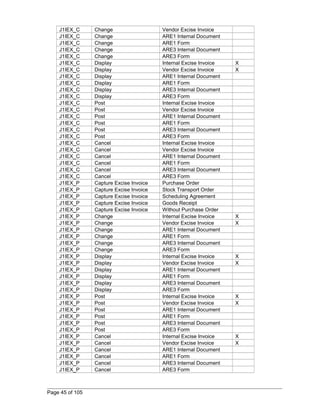
J1IA101 Update ARE3 Internal Document 
J1IA101 Update ARE3 Form 
J1IA101 Reverse ARE1 Internal Document X 
J1IA101 Reverse ARE1 Form X 
J1IA101 Reverse ARE3 Internal Document 
Page 39 of 105
J1IA101 Reverse ARE3 Form 
J1IA101 Create ARE-1 Outgoing Excise Invoice X 
J1IA101 Create ARE-3 Purchase Order 
J1IA101 Create ARE-3 Stock Transport Order 
J1IA101 Create ARE-3 Scheduling Agreement 
J1IA101 Create ARE-3 Outgoing Excise Invoice 
J1IA102 Change Internal Excise Invoice 
J1IA102 Change Vendor Excise Invoice 
J1IA102 Change ARE1 Internal Document X 
J1IA102 Change ARE3 Internal Document 
J1IA102 Display Internal Excise Invoice 
J1IA102 Display Vendor Excise Invoice 
J1IA102 Display Outgoing Excise Invoice 
J1IA102 Display ARE1 Internal Document X 
J1IA102 Display ARE1 Form X 
J1IA102 Display ARE3 Internal Document 
J1IA102 Display ARE3 Form 
J1IA102 Post Internal Excise Invoice 
J1IA102 Post Vendor Excise Invoice 
J1IA102 Post ARE1 Internal Document 
J1IA102 Post ARE1 Form 
J1IA102 Post ARE3 Internal Document 
J1IA102 Post ARE3 Form 
J1IA102 Cancel Internal Excise Invoice 
J1IA102 Cancel Vendor Excise Invoice 
J1IA102 Cancel ARE1 Internal Document X 
J1IA102 Cancel ARE3 Internal Document 
J1IA102 Update ARE1 Internal Document 
J1IA102 Update ARE1 Form 
J1IA102 Update ARE3 Internal Document 
J1IA102 Update ARE3 Form 
J1IA102 Reverse ARE1 Internal Document 
J1IA102 Reverse ARE1 Form 
J1IA102 Reverse ARE3 Internal Document 
J1IA102 Reverse ARE3 Form 
J1IA102 Create ARE-1 Outgoing Excise Invoice X 
J1IA102 Create ARE-3 Outgoing Excise Invoice 
J1IA103 Change Internal Excise Invoice 
J1IA103 Change Vendor Excise Invoice 
J1IA103 Change ARE1 Internal Document 
J1IA103 Change ARE1 Form 
J1IA103 Change ARE3 Internal Document 
J1IA103 Change ARE3 Form 
J1IA103 Display Internal Excise Invoice 
J1IA103 Display Vendor Excise Invoice 
J1IA103 Display ARE1 Internal Document X 
J1IA103 Display ARE1 Form X 
J1IA103 Display ARE3 Internal Document 
J1IA103 Display ARE3 Form 
J1IA103 Post Internal Excise Invoice 
J1IA103 Post Vendor Excise Invoice 
J1IA103 Post ARE1 Internal Document 
Page 40 of 105
J1IA103 Post ARE1 Form 
J1IA103 Post ARE3 Internal Document 
J1IA103 Post ARE3 Form 
J1IA103 Cancel Internal Excise Invoice 
J1IA103 Cancel Vendor Excise Invoice 
J1IA103 Cancel ARE1 Internal Document 
J1IA103 Cancel ARE3 Internal Document 
J1IA103 Update ARE1 Internal Document X 
J1IA103 Update ARE1 Form X 
J1IA103 Update ARE3 Internal Document 
J1IA103 Update ARE3 Form 
J1IA103 Reverse ARE1 Internal Document 
J1IA103 Reverse ARE1 Form 
J1IA103 Reverse ARE3 Internal Document 
J1IA103 Reverse ARE3 Form 
J1IA103 Create ARE-1 Outgoing Excise Invoice 
J1IA103 Create ARE-3 Outgoing Excise Invoice 
J1IA104 Change Internal Excise Invoice 
J1IA104 Change Vendor Excise Invoice 
J1IA104 Change ARE1 Internal Document 
J1IA104 Change ARE1 Form 
J1IA104 Change ARE3 Internal Document 
J1IA104 Change ARE3 Form 
J1IA104 Display Internal Excise Invoice 
J1IA104 Display Vendor Excise Invoice 
J1IA104 Display ARE1 Internal Document X 
J1IA104 Display ARE1 Form X 
J1IA104 Display ARE3 Internal Document 
J1IA104 Display ARE3 Form 
J1IA104 Post Internal Excise Invoice 
J1IA104 Post Vendor Excise Invoice 
J1IA104 Post ARE1 Internal Document 
J1IA104 Post ARE1 Form 
J1IA104 Post ARE3 Internal Document 
J1IA104 Post ARE3 Form 
J1IA104 Cancel Internal Excise Invoice 
J1IA104 Cancel Vendor Excise Invoice 
J1IA104 Cancel ARE1 Internal Document 
J1IA104 Cancel ARE1 Form 
J1IA104 Cancel ARE3 Internal Document 
J1IA104 Cancel ARE3 Form 
J1IA104 Update ARE1 Internal Document 
J1IA104 Update ARE1 Form 
J1IA104 Update ARE3 Internal Document 
J1IA104 Update ARE3 Form 
J1IA104 Reverse ARE1 Internal Document X 
J1IA104 Reverse ARE1 Form X 
J1IA104 Reverse ARE3 Internal Document 
J1IA104 Reverse ARE3 Form 
J1IA104 Create ARE-1 Outgoing Excise Invoice 
J1IA104 Create ARE-3 Outgoing Excise Invoice 
J1IA301 Change Internal Excise Invoice 
Page 41 of 105
J1IA301 Change Vendor Excise Invoice 
J1IA301 Change ARE1 Internal Document 
J1IA301 Change ARE1 Form 
J1IA301 Change ARE3 Internal Document X 
J1IA301 Change ARE3 Form X 
J1IA301 Display Internal Excise Invoice 
J1IA301 Display Vendor Excise Invoice 
J1IA301 Display ARE1 Internal Document 
J1IA301 Display ARE1 Form 
J1IA301 Display ARE3 Internal Document X 
J1IA301 Display ARE3 Form X 
J1IA301 Post Internal Excise Invoice 
J1IA301 Post Vendor Excise Invoice 
J1IA301 Post ARE1 Internal Document 
J1IA301 Post ARE1 Form 
J1IA301 Post ARE3 Internal Document 
J1IA301 Post ARE3 Form 
J1IA301 Cancel Internal Excise Invoice 
J1IA301 Cancel Vendor Excise Invoice 
J1IA301 Cancel ARE1 Internal Document 
J1IA301 Cancel ARE3 Internal Document X 
J1IA301 Update ARE1 Internal Document 
J1IA301 Update ARE1 Form 
J1IA301 Update ARE3 Internal Document X 
J1IA301 Update ARE3 Form X 
J1IA301 Reverse ARE1 Internal Document 
J1IA301 Reverse ARE1 Form 
J1IA301 Reverse ARE3 Internal Document X 
J1IA301 Reverse ARE3 Form X 
J1IA301 Create ARE-1 Outgoing Excise Invoice 
J1IA301 Create ARE-3 Outgoing Excise Invoice X 
J1IA302 Change Internal Excise Invoice 
J1IA302 Change Vendor Excise Invoice 
J1IA302 Change ARE1 Internal Document 
J1IA302 Change ARE3 Internal Document X 
J1IA302 Display Internal Excise Invoice 
J1IA302 Display Vendor Excise Invoice 
J1IA302 Display ARE1 Internal Document 
J1IA302 Display ARE1 Form 
J1IA302 Display ARE3 Internal Document X 
J1IA302 Display ARE3 Form X 
J1IA302 Post Internal Excise Invoice 
J1IA302 Post Vendor Excise Invoice 
J1IA302 Post ARE1 Internal Document 
J1IA302 Post ARE1 Form 
J1IA302 Post ARE3 Internal Document 
J1IA302 Post ARE3 Form 
J1IA302 Cancel Internal Excise Invoice 
J1IA302 Cancel Vendor Excise Invoice 
J1IA302 Cancel ARE1 Internal Document 
J1IA302 Cancel ARE3 Internal Document X 
J1IA302 Update ARE1 Internal Document 
Page 42 of 105
J1IA302 Update ARE1 Form 
J1IA302 Update ARE3 Internal Document 
J1IA302 Update ARE3 Form 
J1IA302 Reverse ARE1 Internal Document 
J1IA302 Reverse ARE1 Form 
J1IA302 Reverse ARE3 Internal Document 
J1IA302 Reverse ARE3 Form 
J1IA302 Create ARE-1 Outgoing Excise Invoice 
J1IA302 Create ARE-3 Outgoing Excise Invoice X 
J1IA303 Change Internal Excise Invoice 
J1IA303 Change Vendor Excise Invoice 
J1IA303 Change ARE1 Internal Document 
J1IA303 Change ARE3 Internal Document 
J1IA303 Display Internal Excise Invoice 
J1IA303 Display Vendor Excise Invoice 
J1IA303 Display ARE1 Internal Document 
J1IA303 Display ARE1 Form 
J1IA303 Display ARE3 Internal Document X 
J1IA303 Display ARE3 Form X 
J1IA303 Post Internal Excise Invoice 
J1IA303 Post Vendor Excise Invoice 
J1IA303 Post ARE1 Internal Document 
J1IA303 Post ARE1 Form 
J1IA303 Post ARE3 Internal Document 
J1IA303 Post ARE3 Form 
J1IA303 Cancel Internal Excise Invoice 
J1IA303 Cancel Vendor Excise Invoice 
J1IA303 Cancel ARE1 Internal Document 
J1IA303 Cancel ARE3 Internal Document 
J1IA303 Update ARE1 Internal Document 
J1IA303 Update ARE1 Form 
J1IA303 Update ARE3 Internal Document X 
J1IA303 Update ARE3 Form X 
J1IA303 Reverse ARE1 Internal Document 
J1IA303 Reverse ARE1 Form 
J1IA303 Reverse ARE3 Internal Document 
J1IA303 Reverse ARE3 Form 
J1IA303 Create ARE-1 Outgoing Excise Invoice 
J1IA303 Create ARE-3 Outgoing Excise Invoice 
J1IA304 Change Internal Excise Invoice 
J1IA304 Change Vendor Excise Invoice 
J1IA304 Change ARE1 Internal Document 
J1IA304 Change ARE3 Internal Document 
J1IA304 Display Internal Excise Invoice 
J1IA304 Display Vendor Excise Invoice 
J1IA304 Display ARE1 Internal Document 
J1IA304 Display ARE1 Form 
J1IA304 Display ARE3 Internal Document X 
J1IA304 Display ARE3 Form X 
J1IA304 Post Internal Excise Invoice 
J1IA304 Post Vendor Excise Invoice 
J1IA304 Post ARE1 Internal Document 
Page 43 of 105
J1IA304 Post ARE1 Form 
J1IA304 Post ARE3 Internal Document 
J1IA304 Post ARE3 Form 
J1IA304 Cancel Internal Excise Invoice 
J1IA304 Cancel Vendor Excise Invoice 
J1IA304 Cancel ARE1 Internal Document 
J1IA304 Cancel ARE3 Internal Document 
J1IA304 Update ARE1 Internal Document 
J1IA304 Update ARE1 Form 
J1IA304 Update ARE3 Internal Document 
J1IA304 Update ARE3 Form X 
J1IA304 Reverse ARE1 Internal Document 
J1IA304 Reverse ARE1 Form 
J1IA304 Reverse ARE3 Internal Document X 
J1IA304 Reverse ARE3 Form X 
J1IA304 Create ARE-1 Outgoing Excise Invoice 
J1IA304 Create ARE-3 Outgoing Excise Invoice 
J1IEX Capture Excise Invoice Purchase Order X 
J1IEX Capture Excise Invoice Stock Transport Order X 
J1IEX Capture Excise Invoice Scheduling Agreement X 
J1IEX Capture Excise Invoice Goods Receipt X 
J1IEX Capture Excise Invoice Without Purchase Order X 
J1IEX Change Internal Excise Invoice X 
J1IEX Change Vendor Excise Invoice X 
J1IEX Change ARE1 Internal Document 
J1IEX Change ARE1 Form 
J1IEX Change ARE3 Internal Document 
J1IEX Change ARE3 Form 
J1IEX Display Internal Excise Invoice X 
J1IEX Display Vendor Excise Invoice X 
J1IEX Display ARE1 Internal Document 
J1IEX Display ARE1 Form 
J1IEX Display ARE3 Internal Document 
J1IEX Display ARE3 Form 
J1IEX Post Internal Excise Invoice X 
J1IEX Post Vendor Excise Invoice X 
J1IEX Post ARE1 Internal Document 
J1IEX Post ARE1 Form 
J1IEX Post ARE3 Internal Document 
J1IEX Post ARE3 Form 
J1IEX Cancel Internal Excise Invoice X 
J1IEX Cancel Vendor Excise Invoice X 
J1IEX Cancel ARE1 Internal Document 
J1IEX Cancel ARE1 Form 
J1IEX Cancel ARE3 Internal Document 
J1IEX Cancel ARE3 Form 
J1IEX_C Capture Excise Invoice Purchase Order X 
J1IEX_C Capture Excise Invoice Stock Transport Order X 
J1IEX_C Capture Excise Invoice Scheduling Agreement X 
J1IEX_C Capture Excise Invoice Goods Receipt X 
J1IEX_C Capture Excise Invoice Without Purchase Order X 
J1IEX_C Change Internal Excise Invoice 
Page 44 of 105
J1IEX_C Change Vendor Excise Invoice 
J1IEX_C Change ARE1 Internal Document 
J1IEX_C Change ARE1 Form 
J1IEX_C Change ARE3 Internal Document 
J1IEX_C Change ARE3 Form 
J1IEX_C Display Internal Excise Invoice X 
J1IEX_C Display Vendor Excise Invoice X 
J1IEX_C Display ARE1 Internal Document 
J1IEX_C Display ARE1 Form 
J1IEX_C Display ARE3 Internal Document 
J1IEX_C Display ARE3 Form 
J1IEX_C Post Internal Excise Invoice 
J1IEX_C Post Vendor Excise Invoice 
J1IEX_C Post ARE1 Internal Document 
J1IEX_C Post ARE1 Form 
J1IEX_C Post ARE3 Internal Document 
J1IEX_C Post ARE3 Form 
J1IEX_C Cancel Internal Excise Invoice 
J1IEX_C Cancel Vendor Excise Invoice 
J1IEX_C Cancel ARE1 Internal Document 
J1IEX_C Cancel ARE1 Form 
J1IEX_C Cancel ARE3 Internal Document 
J1IEX_C Cancel ARE3 Form 
J1IEX_P Capture Excise Invoice Purchase Order 
J1IEX_P Capture Excise Invoice Stock Transport Order 
J1IEX_P Capture Excise Invoice Scheduling Agreement 
J1IEX_P Capture Excise Invoice Goods Receipt 
J1IEX_P Capture Excise Invoice Without Purchase Order 
J1IEX_P Change Internal Excise Invoice X 
J1IEX_P Change Vendor Excise Invoice X 
J1IEX_P Change ARE1 Internal Document 
J1IEX_P Change ARE1 Form 
J1IEX_P Change ARE3 Internal Document 
J1IEX_P Change ARE3 Form 
J1IEX_P Display Internal Excise Invoice X 
J1IEX_P Display Vendor Excise Invoice X 
J1IEX_P Display ARE1 Internal Document 
J1IEX_P Display ARE1 Form 
J1IEX_P Display ARE3 Internal Document 
J1IEX_P Display ARE3 Form 
J1IEX_P Post Internal Excise Invoice X 
J1IEX_P Post Vendor Excise Invoice X 
J1IEX_P Post ARE1 Internal Document 
J1IEX_P Post ARE1 Form 
J1IEX_P Post ARE3 Internal Document 
J1IEX_P Post ARE3 Form 
J1IEX_P Cancel Internal Excise Invoice X 
J1IEX_P Cancel Vendor Excise Invoice X 
J1IEX_P Cancel ARE1 Internal Document 
J1IEX_P Cancel ARE1 Form 
J1IEX_P Cancel ARE3 Internal Document 
J1IEX_P Cancel ARE3 Form 
Page 45 of 105
1.4.3.4 Maintaining Rejection Codes 
Use 
In this IMG activity, you define the rejection codes that are used in the Incoming Excise Invoices 
transaction. 
Procedure 
1. Access the activity using one of the following navigation options: 
IMG Menu Logistics General  Tax on Goods Movements  India  
Business Transactions  Incoming Excise invoice  Maintain 
Rejection Codes 
Transaction Code SPRO 
2. On the Change View: “Rejection Codes”: Over view screen, make the following entries: 
3. Choose New Entries icon for maintaining the new entries. 
Field name Description User action and values Note 
Rejection Code Rejection Code 10 Input value 
Description Description of 
rejection code 
Discrepancy in Excise 
Invoice 
Input value 
Post Ind Posting indicator Leave it blank 
4. Choose Enter complete the entries 
5. Save the entries by choosing Save icon or choose Ctrl + S. 
Result 
Data was saved. 
1.4.3.5 Maintaining Movement Types Involve Excise 
Invoice 
Use 
In this IMG activity, you specify which movement types relating to goods receipts involve excise 
invoices. The system uses this information during the goods receipt procedure. When you post a 
goods receipt using one of the movement types that you have specified here, the system prompts 
you to Enter the excise invoice. 
Procedure 
1. Access the activity using one of the following navigation options: 
IMG Menu Logistics General  Tax on Goods Movements  India  
Business Transactions  Incoming Excise invoice  Specify 
which Movement Types Involve Excise Invoice. 
Page 46 of 105
Transaction Code SPRO 
2. On the Movement Type versus Register Relevance: screen, make the following entries: 
3. Choose New Entries icon for maintaining the new entries. 
Movmt Type Register Note 
Movement Type Register 
101 
Register RG1 
101 
Register RG23A 
101 
Register RG23C 
102 
Register RG1 
102 
Register RG23A 
102 
Register RG23C 
103 
Register RG23A 
103 
Register RG23C 
104 
Register RG23A 
104 
Register RG23C 
122 
Register RG23A 
122 
Register RG23C 
124 
Register RG23A 
124 
Register RG23C 
131 
Register RG1 
132 
Register RG1 
261 
Register RG23A 
261 
Register RG23C 
262 
Register RG23A 
262 
Register RG23C 
561 
Register RG1 
562 
Register RG1 
601 
Register RG1 
641 
Register RG1 
561 
Register RG23A 
561 
Register RG23C 
602 
Register RG1 
642 
Register RG1 
4. Choose Enter complete the entries 
5. Save the entries by choosing Save icon or choose Ctrl + S. 
Result 
Data was saved. 
1.4.3.6 Subcontracting Attributes 
Use 
The subcontracting attributes help determine conditions for a combination of an excise group, a 
transaction type, and a sub-transaction type. The conditions such as the number of excise items 
Page 47 of 105
per subcontracting challan, if the non-excisable materials have to be filtered or not when the 
subcontracting challan is created, the movement type groups for issues and receipts and the 
hierarchy of determining the excise base value are mentioned here. 
Procedure 
1. Access the activity using one of the following navigation options: 
Transaction Code SPRO 
IMG Menu Logistics General  Tax on Goods Movement  India  
Business Transactions  Subcontracting  Subcontracting 
Attributes 
2. On the Subcontracting Scenario Attributes: Details screen, make the following entries: 
3. Choose New Entries icon and maintain the following entries: 
Field name Description R/O/C User action and values Note 
Excise Group Excise group R 10 
Excise TT Excise transaction 
Type 
R 57FC 
Sub Transaction 
Type 
Sub transaction 
Type 
R 01 
Sub Tran Type 
Text 
Sub transaction 
type description 
R 57FC CHALLAN 
Subc. Period Subcontracting 
maximum number 
of days 
R 180 
Rate-subcontracting 
Rate of 
subcontracting 
O Leave it blank 
Mvt Grp Issues Material issue 
movement groups 
R 0001 
Mvt Grp Receipt Materials receipts 
movement groups 
R 0002 
Filter Non excise Filter non 
excisable materials 
O Leave it blank 
EI Items Excise invoice 
items 
O 10 
No. range no. Number range R 01 
Ass. Val. / Exc. 
Inv. 
Assessable value R Assessable value table 
first then Excise Invoice 
Select from 
drop down list 
Subcon Out 
Type 
Subcontracting 
output type 
R J1IF 
4. Choose Enter to complete the inputs. 
5. Choose Save icon or choose Control + S to save the entries. 
Result 
Data was saved. 
Page 48 of 105
1.4.3.7 Maintaining Movement Type Groups 
Use 
In this setting you are going to group together movement types into two groups 0001 and 0002, 
i.e. issue movements and receiving movements. 
Procedure 
1. Access the activity using one of the following navigation options: 
Transaction Code SPRO 
IMG Menu Logistics General  Tax on Goods Movement  India  
Business Transactions  Subcontracting  Maintain 
Movement Type Groups 
2. On the Subcontracting Scenario Attributes: Details screen, make the following entries: 
3. Choose New Entries icon and maintain the following entries: 
Field name Description R/O/C User action and values Note 
Mvt Group Movement type 
group 
R 0001 
Movement type Movement type R 122 
Special stock Special stock type R Leave it blank 
Mvt Group Movement type 
group 
R 0001 
Movement type Movement type R 102 
Special stock Special stock type R Leave it blank 
Mvt Group Movement type 
group 
R 0001 
Movement type Movement type R 541 
Mvt Group Movement type 
group 
R 0001 
Movement type Movement type R 544 
Special stock Special stock type R O 
Special stock Special stock type R 
Mvt Group Movement type 
group 
R 0002 
Movement type Movement type R 542 
Special stock Special stock type R 
Mvt Group Movement type 
group 
R 0002 
Movement type Movement type R 101 
Special stock Special stock type R 
Page 49 of 105
Field name Description R/O/C User action and values Note 
Mvt Group Movement type 
group 
R 0002 
Movement type Movement type R 543 
Special stock Special stock type R O 
4. Choose Enter to complete the inputs. 
5. Choose Save icon or choose Control + S to save the entries. 
Result 
Data was saved. 
1.4.3.8 Utilization Determination 
Use 
In this IMG activity, you specify which CENVAT accounts are to be debited by the Fortnight 
Utilization of CENVAT report: When the report calculates how much excise duty you must remit, it 
automatically proposes which CENVAT accounts the duty should be debited to. Here, you specify 
those defaults. 
Procedure 
1. Access the activity using one of the following navigation options: 
IMG Menu Logistics General  Tax on Goods Movements  India  
Business Transactions  Utilization  Utilization 
Determination 
Page 50 of 105
Transaction Code SPRO 
2. On the Movement Type versus Register Relevance: screen, make the following entries: 
3. Choose New Entries icon for maintaining the new entries. 
Excise gp ACC Name Note 
Excise Group Account Name 
10 
PLA AED account 
10 
PLA BED account 
10 
PLA SED account 
10 
RG 23A AED account 
10 
RG 23A BED account 
10 
RG 23A SED account 
10 
RG 23C AED account 
10 
RG 23C BED account 
10 
RG 23C SED account 
4. Similarly you can copy the entries from excise group 10 to 11, 20, 30, 40 and X0 excise 
groups. 
During copying system may give warning message, please ignore that. 
5. Choose Enter complete the entries 
6. Save the entries by choosing Save icon or choose Ctrl + S. 
Result 
Data was saved. 
1.4.3.9 Excise Registers 
Use 
In this IMG activity, for each of your company codes, you specify which SAP script forms the 
system prints the excise registers with. 
Procedure 
1. Access the activity using one of the following navigation options: 
IMG Menu Logistics General  Tax on Goods Movements  India  
Business Transactions  Excise Registers  Specify SAP 
Script Forms 
Transaction Code SPRO 
2. On the Table for all the layouts of excise reporting: screen, maintain the following entries. 
SAP as a standard will come with some ready made forms; the same are being used here. 
CoCd Reg. name Lay. 
num 
Form Layout description Tcode/prog No. 
copies 
Company 
Code 
Register Name Layout 
number 
Form Layout description Tcode/prog 
Page 51 of 105
Z001 PLA Register 001 J_2I_PLA PERSONAL LEDGER ACCOUNT J_2IPLA 001 
Z001 PLACONS Register 001 J_2I_PLA PERSONAL LEDGER ACCOUNT J_2IPLA 001 
Z001 RG1 Register 001 J_2I_RG1 RG1 REGISTER J_2IRRG1 001 
Z001 RG1RI Register 001 J_2I_RG1 RG1 DAILY STOCK REPORT J_2IRCG1 001 
Z001 RG23A1 Register 001 J_2IRG23A_PART1 RG23A PART1 J_2IRAP1 001 
Z001 RG23A2 Register 001 J_2IRG23A_PART2 RG23A PART2 J_2IRAP2 001 
Z001 RG23C1 Register 001 J_2IRG23C_PART1 RG23A PART1 J_2IRCP1 001 
Z001 RG23C2 Register 001 J_2IRG23C_PART2 RG23A PART2 J_2IRCP2 001 
Z001 RG23D Register 001 J_2I_RG23D RG23D REGISTER J_2IRG23 001 
Z001 RT12 Register 001 J_2I_RT12_ABSTRA RT12 - MONTHLY ABSTRACT J_2IRT12 001 
Z001 RT12 Register 002 J_2I_RT12_DETLS RT12 - DETAILS J_2IRT12 001 
Z001 RT12 Register 003 J_2I_RT12_3 RT12 - FORM 3 J_2IRT12 001 
3. Choose Enter to complete the entries. 
4. To save the entries choose Save icon or choose Ctrl + S. 
Result 
Data was saved. 
1.4.3.10 Copy registers from source client 000 
Use 
In this activity, for each Excise register SAP script form , you need to copy from 000 client and 
need to transport request to target clients and target servers . 
Procedure 
1. Access the activity using the following navigation options: 
Transaction Code SE71 
2. Go to menu > Utilities > copy from clients> Give the SAP Script Form name in both fields & 
give source client as 000 execute save in request to transport. 
1.4.4 Transactions out going Excise Invoices 
1.4.4.1 Assign Billing type to delivery types 
Use 
In this activity, for each delivery document type need to assign the relevant billing document type 
Example LF > F2 
Procedure 
1. Access the activity using the following navigation options: 
Menu Path Logistics General  Tax on Goods Movements  India  
Business Transactions  Outgoing Excise Invoices Assign 
Billing Types to Delivery Types 
Transaction Code SPRO 
Page 52 of 105
2. Assign user defined delivery document type to User defined Billing document type. To 
create out going excise invoice at factory by using J1IIN transaction code Delivery > Goods 
Issue > Billing (at least proforma invoice) is must, Even thou create excise invoice with 
reference to billing or delivery. 
1.4.4.2 Maintain Default Excise groups and Series 
groups 
Use 
In this IMG activity, suppose if business needs to create excise invoice in background 
automatically after saving the billing document use this functionality. 
Prerequisite: Need to select the check box “Excise Invoice During Billing” in Excise group 
definition. 
Procedure 
1. Access the activity using the following navigation options: 
Menu Path Logistics General  Tax on Goods Movements  India  
Business Transactions  Outgoing Excise Invoices Maintain 
Default Excise Groups and Series Groups 
Transaction Code SPRO 
2. To create Automatic excise invoice we can determine the excise group and series group with 
type of sales with the following combination 
Sales 
org 
Dist 
Ch 
Division Shipping 
Point 
Plant Excise 
Group 
Series 
Group 
Export type 
1000 10 10 Z001 Z001 10 11 Empty(domestic) 
Maintain the entries according to business requirement Must need to differentiate (Sales org/dist 
channel/Division/Shipping point) to pick the various export types, Excise Groups and Series 
groups in a plant. 
1.4.5 Exports 
1.4.5.1 Make Setting of ARE-1 procedure 
Use 
In this IMG activity, you make the settings that control how the ARE Documents transaction works for ARE- 
1s. These settings apply to exports under bond and exports under claim for rebate. 
Page 53 of 105
Procedure 
1. Access the activity using the following navigation options: 
Menu Path Logistics General  Tax on Goods Movements  India  
Business Transactions Exports  Make Settings for ARE-1 
Procedure 
Transaction Code SPRO 
2. Make the entries as follows 
Series 
Group 
ETT Exp 
Period 
Rebate 
period 
Fast 
credit 
No of 
copies 
Output 
type 
Intrest 
rate 
12 ARE1 180 180 6 J1IB 
ETT: Excise Transaction type : ARE-1 (Application for removal of Excisable Goods-1) 
Export Period: The export period applies to exports under bond and exports under LOUT . In another 
terminology can call it Rewarehousing period (Export confirmation period). The system does not offer 
any functions for controlling which ARE-1s have exceeded the rewarehouse period. 
Rebate Period: This applies to exports under claim for rebate only. The system does not offer any 
functions for controlling which ARE-1s have exceeded the rebate period 
No of copies: Whenever you print an ARE document, the system automatically prints the number 
of copies that you enter here. 
Output Type: Specifies which output type the system uses to print the ARE documents. Standard out put 
type is J1IB even for ARE-1 & ARE-3. 
1.4.6 Deemed Exports 
1.4.6.1 Make Setting of ARE-3 procedure 
Use 
In this IMG activity, you make the settings that control how the ARE-3 Documents transaction. These 
settings apply to Deemed exports 
Procedure 
1. Access the activity using the following navigation options: 
Menu Path Logistics General  Tax on Goods Movements  India  
Business Transactions Exports under Excise Regulations 
Deemed Export  Make Settings for ARE-3 Procedure 
Transaction Code SPRO 
Page 54 of 105
3. Make the entries as follows 
Series 
Group 
ETT Rewarehouse 
period 
No of 
Copies 
Output type 
11 ARE3 180 5 J1IB 
ETT: Excise Transaction type : ARE-3 (Application for removal of Excisable Goods-3) 
Rewarehousing Period: If you try to change an ARE-3 after the end of the rewarehousing period, 
the system issues a warning message. You then have two options: 
· If you manage to obtain an extension from the excise department, you enter the 
extension date in the ARE-3. This effectively extends the ARE-3's rewarehousing period. 
· Otherwise, you must pay the excise duty plus interest and close the ARE-3 as normal 
No of copies: Whenever you print an ARE document, the system automatically prints the number 
of copies that you enter here. 
Output Type: Specifies which output type the system uses to print the ARE documents. Standard output 
type is J1IB even for ARE-1 & ARE-3. 
1.4.6.2 License types 
Use 
In this IMG activity, you maintain the license types that you want to use. You use the license types when 
you come to enter your customers' deemed export licenses (Transaction code:J1ILIC01): Whenever 
you enter a license, you have to specify which type it is. 
Procedure 
1. Access the activity using the following navigation options: 
Menu Path Logistics General  Tax on Goods Movements  India  
Business Transactions Exports under Excise Regulations 
Deemed Export  Maintain licence types 
Transaction Code SPRO 
4. Make the entries as follows 
License 
type 
Qualification 
Method 
Description 
CT1 Quanitity Based CT1 License 
CT3 Value Based CT3 License 
Page 55 of 105
Save once entries done. 
1.4.6.3 Print outs of ARE documents 
Use 
In this IMG activity, you can define an output type for printing ARE-1s and ARE-3s from the ARE Documents 
transactionSpecify which program, FORM routine, and form you want to print the documents with 
Procedure 
1. Access the activity using the following navigation options: 
Menu Path Logistics General  Tax on Goods Movements  India  
Business Transactions Exports under Excise Regulations  
Printouts of ARE Documents  Maintain output types 
Transaction Code NACE – Application area ME 
2 Insert the new entries as J1IB > Click on Processing routines > Here from Processing 1 
system will pick the ARE-1 Script and from Processing 2 ARE-3 Script form. 
· ARE-1 
Program: J_1IPRNTARE 
Form Routine : ENTRY_ARE1 
FORM : ENTRY_ARE1 
· ARE-3 
Program: J_1IPRNTARE 
Form Routine : ENTRY_ARE1 
FORM ENTRY_ARE3 
Save once entries done. 
Make sure that the output type is maintained in ME0001 - Inventory Management Output 
Procedure. 
Note: Bring the standard Script forms to the development client from 000 client as mentioned in 
Copy registers from 000 client (1.4.3.10) 
1.4.6.4 Specify Printers 
Use 
In this IMG activity, you specify which printer in each storage location the SAP System prints the ARE 
documents on. 
Procedure 
1. Access the activity using the following navigation options: 
Menu Path Logistics General  Tax on Goods Movements  India  
Business Transactions Exports under Excise Regulations  
Printouts of ARE Documents  Specify Printers 
Transaction Code SPRO 
Page 56 of 105
2. Make the entries as follows 
Output 
type 
Plant Storage 
Location 
Output 
Device 
Immediate Release 
J1IB Z001 Z001 LP01 Select check 
box 
Unselect 
check box 
Save the entries 
1.4.7 Business Transactions: Tools 
1.4.7.1 Number Ranges 
Use 
As a proof of performing transactions SAP will give document number. You can maintain the 
number ranges for all CIN Number range objects using this transaction. 
Procedure 
1. Access the activity using one of the following navigation options: 
IMG Menu Logistics General  Tax on Goods Movements  India  
Tools  Number Ranges 
Page 57 of 105
Transaction Code J1I9 or SNRO 
2. On the Number Rage Object Maintenance: screen, give the Object name and choose 
Number Range icon, then system will prompt for new screen. 
As per the table indicated for each and every Object you need to maintain the number 
ranges. Here in this table Year, From number and To number are give for example 
only. As per the requirement you can incorporate the current year and from and to 
number ranges. 
These number ranges to be given for all Objects and all Excise groups separately. 
3. On this new screen give the Excise Group or Excise Series depending on object and maintain 
the number ranges. 
4. Choose Interval icon, then system will give new screen with name Maintain Number Range 
Interval. 
5. On this screen choose Interval icon or choose Shift+F1, then maintain No, Year, From 
number and To numbers as per the table mentioned below: 
6. After giving the number ranges for each and every object choose Save icon or choose Ctrl + 
S to save the number ranges. 
Object Excise Group No Year From number To number 
J_1IINTNUM 01 9999 0000000001 0000099999 
J_1IRG23A1 10 01 2011 0000000001 0000099999 
J_1IRG23A2 10 01 2011 0000000001 0000099999 
J_1IRG23C1 10 01 2011 0000000001 0000099999 
J_1IRG23C2 10 01 2011 0000000001 0000099999 
J_1IRG23D 20 01 2011 0000000001 0000099999 
J_1IINTPR2 10 01 2011 0000000001 0000099999 
J_1IPLA2 10 01 2011 0000000001 0000099999 
J_1IRG1 10 01 2011 0000001000 0000099999 
7. The above number ranges and objects needs to be maintained for the current year and all the 
excise group10,. For 20 only J_1IRG23D object is required as this is declared as depot. 
Object Series Group No Year From number To number 
J_1IEXCLOC 11 01 2011 1100000001 1100099999 
J_1IEXCLOC 12 01 2011 1200000001 1200099999 
J_1I57FC 11 01 2011 0000000001 0000099999 
J_1IEXCEXP 12 01 2011 0000005000 0000009000 
J_1IDEPINV 21 01 2011 0000000001 0000099999 
8. The above number ranges and objects needs to be maintained for the current year and all the 
excise series groups 
Page 58 of 105
Result 
The changes were saved. 
1.4.7.2 Long Texts 
Use 
In this IMG activity, you define the different types of long texts that you want to be able to 
maintain in the various excise transactions 
This setting comes as a default in Standard SAP. 
Procedure 
1. Access the activity using one of the following navigation options: 
IMG Menu Logistics General  Tax on Goods Movements  India  
Tools  Long Texts 
Transaction Code SPRO 
2. The following entries comes as part of Standard SAP system: 
Object ID Description INCL.ID NA 
J1IA 0001 Excise invoice text X 
J1IA 0002 Bill of lading text X 
J1IA 0003 Shipment details text X 
J1IA DNLD Download X 
J1IARE1 0001 Mode of transport X 
J1IARE1 0002 Export obligation X 
J1IARE1 0003 Excise Seal Number X 
J1IARE1 0004 Container number X 
J1IEX 0001 Excise invoice text X 
J1IEX 0002 Bill of lading text X 
J1IEX 0003 Shipment details text X 
J1IEX DNLD Download text X 
J1IF 0001 Sub contracting challan X 
J1IF 0002 Sub contractors norms X 
J1IF 0003 Shipping instructions X 
J1IF DNLD Download X 
J1IF IDEN Identification marks X 
J1IF PROC Nature of processing X 
J1IG 0001 Invoice X 
J1IH 0001 JV text X 
J1IH DNLD Download X 
J1II 0001 Excise invoice X 
J1II DNLD Download X 
J1IJ 0001 Excise depot details X 
J1IM 0001 Depot excise invoice item X 
J1IS 0001 Excise other movements -header X 
J1IS DNLD Download text X 
J1IU DNLD X 
J1IW 0001 Header X 
J1IW DNLD Download X 
Page 59 of 105
1.4.7.3 Message Ctrl 
Use 
In this activity, you can specify whether a given message should appear as a warning message or 
an error message. 
This setting comes as a default in Standard SAP. 
Procedure 
1. Access the activity using one of the following navigation options: 
IMG Menu Logistics General  Tax on Goods Movements  India  
Tools  Message Ctrl 
Transaction Code SPRO 
2. The following entries comes as part of Standard SAP system: 
Application 
Area 
Message 
No. 
Transaction 
Code 
User Message 
Type 
4F 122 Warning 
4F 153 Error 
4F 167 Error 
4F 168 Warning 
4F 176 Error 
4F 180 Warning 
4F 181 Warning 
4F 194 Warning 
8I 103 Warning 
8I 184 Warning 
8I 312 Warning 
8I 339 Warning 
8I 478 Warning 
8I 542 Error 
8I 575 Warning 
8I 576 Warning 
8I 577 Warning 
8I 634 Warning 
1.5 Extended Withholding Tax – Basic Settings 
1.5.1 Checking Withholding Tax Countries 
Use 
Page 60 of 105
The withholding tax country is needed for printing the withholding tax form. 
Activities 
1. Check the country list delivered with the standard system. 
2. Compare it with the official list from the tax authorities and make corrections where 
necessary. 
Procedure 
3. Access the activity using one of the following navigation options: 
Transaction Code SPRO 
IMG Menu Financial Accounting ® Financial Accounting Global Settings 
® Withholding Tax ® Extended Withholding Tax ® Basic 
Settings ® Check Withholding Tax Countries 
4. On the Change View “Country Keys for Withholding Tax”: Overview screen, make the 
following entries 
Field name Description R/O/C User action and values Note 
Cty Country IN Country Key 
Wcty Withholding Tax 
Country 
IN As Country 
Key and With 
holding Tax 
country key is 
same for India 
Description Description India Description of 
with holding 
tax Country 
5. To save the entries use the Save Icon or choose Ctrl+S. 
1.5.2 Defining Official Withholding Tax Codes 
Use 
The withholding tax keys correspond to the Official Withholding Tax laws i.e. official income tax 
Section Code, according to which tax is withheld. The system can therefore assign the 
withholding tax items to the correct withholding tax return. 
Procedure 
1. Access the activity using one of the following navigation options: 
Transaction Code SPRO 
IMG Menu Financial Accounting ® Financial Accounting Global Settings 
® Withholding Tax ® Extended Withholding Tax ® Basic 
Settings ® Define Official Withholding Tax Codes 
2. System will give a pop screen; make country IN entry in this field. 
3. On the Change View “Official withholding tax key – Descriptions”: Overview screen, make the 
following entries for the Country IN 
Official Key Name National Tax Code 
194A Interest income other than securities 
Page 61 of 105
Official Key Name National Tax Code 
194C Payment to contractors 
194D Insurance Commission 
194I Rent 
194J Prof/Technical services 
195 Payment to foreign nationals 
4. To save the entries use the Save Icon or choose Ctrl+S. 
1.5.3 Defining Reasons for Exemption 
Use 
In this activity reasons for exemption from withholding tax will be defined. You can Enter this 
indicator in the vendor master record or in the company code withholding tax master record 
information. 
Procedure 
1. Access the activity using one of the following navigation options: 
IMG Menu Financial Accounting ® Financial Accounting Global Settings 
® Withholding Tax ® Extended Withholding Tax ® Basic 
Settings ® Define Reasons for Exemption 
Transaction Code SPRO 
2. On the Change View “Withholding Tax type: Reasons for Exemption”: Overview screen, 
make the following new entries for the Country IN 
Official Key Name 
01 Exemption granted by AO 
02 Exemption granted by ITO 
03 Exemption granted by AC(IT) 
04 Exemption granted by DC(IT) 
3. To save the entries use the Save Icon or choose Ctrl+S. 
1.6 Defining Branch Office 
For Indian Withholding tax purpose Business Place is being used as Branch Office to meet the 
process requirements. 
Procedure 
1. Access the activity using one of the following navigation options: 
IMG Menu Financial Accounting ® Financial Accounting Global Settings 
® Withholding Tax ® Extended Withholding Tax ® Basic 
Settings ® India ® Define Business Place 
Page 62 of 105
Transaction Code SPRO 
2. System will give a popup screen, Enter company code Z001 and choose Enter. 
3. On the Change View “Business Place”: Details screen, make the following entries for the 
Company Code Z001 
Field name Description User action and values Note 
Business Place Business Place 
Key 
Z001 
Name 1 Name of Business 
Place 
India Bus.Place 
4. Choose Enter or choose the Address icon to maintain the address details 
5. Maintain the address details for the Business Place Z001 in the detail address screen: 
Field name Description User action and values Note 
Name 1 India B.Place Name of the Tax office 
Name 2 
Name 3 & 
Enter required 
Name 4 
necessary details 
Search Term1 BP 
Search Term 2 BUSINESS PLACE ST2 
Street/House 
number 
MG Road Postal Address of 
Business Place 
Postal Code 522000 
City Bangalore 
Country IN 
Region 10 
Time Zone 
Jurisdiction 
Code 
Language EN 
6. Choose Enter to leave the Address details screen 
7. To save the entries use the Save Icon or choose Ctrl+S. 
1.7 Defining Section Code 
Use 
Section Code is used for each tax deduction account number (TAN) and accordingly to which 
TDS Certificates and Annual returns will be filed with tax authorities. 
Procedure 
Page 63 of 105
1. Access the activity using one of the following navigation options: 
IMG Menu Financial Accounting ® Financial Accounting Global Settings 
® Withholding Tax ® Extended Withholding Tax ® Basic 
Settings ® South Korea ® Define Section Code 
Transaction Code SPRO 
2. System will give a pop screen, input company code Z001 in the filed and Enter to continue. 
3. On the Change View “Section Codes”: Overview screen, make the following entries for the 
Company Code Z001 : 
Field name Description User action and values Note 
Section Code Section Code Key Z001 
Name 1 Name of Section 
code 
India Ltd 
Business Place Business Place 
reference 
Blank 
4. Choose Enter or choose the Address icon to maintain the address details 
5. Maintain the address details for the Section Code Z001 in the detail address screen: 
Field name Description User action and values Note 
Name 1 India Ltd., 
Name 2 Section Code Name 2 If any can be 
maintained 
Search Term1 Maintain the TAN 
(Tax deduction 
Account Number) 
Search Term 2 
Street/House 
number 
MG Road 
Postal Code 522000 
City Bangalore 
Country IN 
Region 10 
Time Zone India 
Jurisdiction 
Code 
Language EN 
6. Choose Enter to leave the Address details screen 
7. To save the entries use the Save Icon or choose Ctrl+S. 
1.8 Maintaining Factory Calendar to Section Code 
Use 
Page 64 of 105
Which days the tax offices that you work with are open. The system uses this information when 
you post a vendor invoice, so that it can allow for public holidays when it determines the tax due 
date. 
Procedure 
1. Access the activity using one of the following navigation options: 
Menu System ®Services ®Table Maintenance ® Extended Table 
Maintenance 
Transaction Code SM30 
2. On the Maintain Table Views: Initial Screen, Enter J_1IEWTCALID_N in filed Table/View, and 
choose Maintain icon to continue. 
3. On the Change View “Calendar for Payment Due date – EWT India Section Code”: Overview 
screen, make the following New Entries: 
Field name Description User action and values Note 
Company Code Company Code 
Key 
Z001 
Section Code Section Code key Z001 
Factory 
Factory Calendar 
IN 
Calendar 
Key 
Rule Tax Rule Day Before 
4. To save the entries use the Save Icon or choose Ctrl+S. 
1.9 Extended Withholding Tax - Calculation 
1.9.1 Defining Withholding Tax Type for Invoice Posting 
Use 
This Withholding tax type is used for withholding and posting tax at the time of creating an invoice 
liability of the Vendor. 
Procedure 
1. Access the activity using one of the following navigation options: 
IMG Menu Financial Accounting ® Financial Accounting Global Settings 
® Withholding Tax ® Extended Withholding Tax ® 
Calculation ® Withholding Tax Type ® Define Withholding 
Tax Type for Invoice Posting 
Transaction Code SPRO 
2. On the Change View “Define Withholding tax type: Posting at time of Invoice” screen, make 
the following New Entries for the Country IN 
Field name Description User action and values Note 
Withholding Tax 
Withholding Tax 
I1 
Type 
Type 
Page 65 of 105
Field name Description User action and values Note 
Description Description of the 
Withholding Tax 
Type 
INV-CONTRACTORS.- 
TDS SEC.194C 
Calculation 
Base Amount 
-Gross Amount 
Base amount to 
calculate tax 
Select the Gross Amount 
radio button 
Rounding Rule 
Round W/tax 
amnt. Up 
Rounding rule of 
W/holding Tax 
Select the Round W/tax 
amount Up radio button 
Post W/tax 
amount 
Posting of With-holding 
tax 
Activate the Post W/tax 
amount check box 
Accumulation Type 
No 
Accumulation 
Accumulation of 
W/holding Tax 
Select the No 
Accumulation Radio 
button 
Ctrl Data 
W/tax Base 
Manual 
Maintenance of 
with holding tax 
base as manual 
Activate the W/tax Base 
Manual Check box 
Manual W/tax 
amount 
Maintenance of 
with holding tax as 
manual 
Activate the W/tax 
amount Manual Check 
box 
No Cert. 
Numbering 
Generation of 
standard 
Certificate (not 
TDS certificates) 
Activate the No. 
Certificate Numbering 
Check box 
Base amount – 
W/Tax Code 
Level 
Base amount 
determination at 
Type level or code 
level 
Select the Base amount 
from the Withholding Tax 
Code level radio button 
Withholding tax 
amount – W/tax 
Code level 
Tax amount 
determination at 
Type level or code 
level 
Select the Withholding 
tax amount from the 
Withholding Tax Code 
level radio button 
3. To save the entries use the Save Icon. 
4. To add some more tax types on the Change View “Define Withholding tax type: Posting at 
time of Invoice” screen, make the following New Entries: 
Field name Description User action and values Note 
Withholding Tax 
Withholding Tax 
I2 
Type 
Type 
Description Description of the 
Withholding Tax 
Type 
INV-ADVERT. 
CONTRACTS - TDS 
SEC.194C 
Calculation 
Page 66 of 105
Field name Description User action and values Note 
Base Amount 
Base amount to 
Select the Gross Amount 
-Gross Amount 
calculate tax 
radio button 
Rounding Rule 
Round W/tax 
amnt. Up 
Rounding rule of 
W/holding Tax 
Select the Round W/tax 
amount Up radio button 
Post W/tax 
amount 
Posting of With-holding 
tax 
Activate the Post W/tax 
amount check box 
Accumulation Type 
No 
Accumulation 
Accumulation of 
W/holding Tax 
Select the No 
Accumulation Radio 
button 
Ctrl Data 
W/tax Base 
Manual 
Maintenance of 
with holding tax 
base as manual 
Activate the W/tax Base 
Manual Check box 
Manual W/tax 
amount 
Maintenance of 
with holding tax as 
manual 
Activate the W/tax 
amount Manual Check 
box 
No Cert. 
Numbering 
Generation of 
standard 
Certificate (not 
TDS certificates) 
Activate the No. 
Certificate Numbering 
Check box 
Base amount – 
W/Tax Code 
Level 
Base amount 
determination at 
Type level or code 
level 
Select the Base amount 
from the Withholding Tax 
Code level radio button 
Withholding tax 
amount – W/tax 
Code level 
Tax amount 
determination at 
Type level or code 
level 
Select the Withholding 
tax amount from the 
Withholding Tax Code 
level radio button 
5. To save the entries use the Save Icon. 
6. To add some more tax types on the Change View “Define Withholding tax type: Posting at 
time of Invoice” screen, make the following New Entries: 
Field name Description User action and values Note 
Withholding Tax 
Withholding Tax 
I3 
Type 
Type 
Description Description of the 
Withholding Tax 
Type 
INV-PROFESSIONAL 
FEES-TDS SEC.194J 
Calculation 
Base Amount 
-Gross Amount 
Base amount to 
calculate tax 
Select the Gross Amount 
radio button 
Rounding Rule 
Round W/tax 
amnt. up 
Rounding rule of 
W/holding Tax 
Select the Round W/tax 
amount Up radio button 
Page 67 of 105
Field name Description User action and values Note 
Post W/tax 
Posting of With-holding 
Activate the Post W/tax 
amount 
tax 
amount check box 
Accumulation Type 
No 
Accumulation 
Accumulation of 
W/holding Tax 
Select the No 
Accumulation Radio 
button 
Ctrl Data 
W/tax Base 
Manual 
Maintenance of 
with holding tax 
base as manual 
Activate the W/tax Base 
Manual Check box 
Manual W/tax 
amount 
Maintenance of 
with holding tax as 
manual 
Activate the W/tax 
amount Manual Check 
box 
No Cert. 
Numbering 
Generation of 
standard 
Certificate (not 
TDS certificates) 
Activate the No. 
Certificate Numbering 
Check box 
Base amount – 
W/Tax Code 
Level 
Base amount 
determination at 
Type level or code 
level 
Select the Base amount 
from the Withholding Tax 
Code level radio button 
Withholding tax 
amount – W/tax 
Code level 
Tax amount 
determination at 
Type level or code 
level 
Select the Withholding 
tax amount from the 
Withholding Tax Code 
level radio button 
7. To save the entries use the Save Icon. 
8. To add some more tax types on the Change View “Define Withholding tax type: Posting at 
time of Invoice” screen, make the following New Entries: 
Field name Description User action and values Note 
Withholding Tax 
Withholding Tax 
I4 
Type 
Type 
Description Description of the 
Withholding Tax 
Type 
INV-RENT-TDS 
SEC.194I(HuF/Ind) 
Calculation 
Base Amount 
-Gross Amount 
Base amount to 
calculate tax 
Select the Gross Amount 
radio button 
Rounding Rule 
Round W/tax 
amnt. up 
Rounding rule of 
W/holding Tax 
Select the Round W/tax 
amount Up radio button 
Post W/tax 
amount 
Posting of With-holding 
tax 
Activate the Post W/tax 
amount check box 
Accumulation Type 
Page 68 of 105
Field name Description User action and values Note 
No 
Accumulation of 
Accumulation 
W/holding Tax 
Select the No 
Accumulation Radio 
button 
Ctrl Data 
W/tax Base 
Manual 
Maintenance of 
with holding tax 
base as manual 
Activate the W/tax Base 
Manual Check box 
Manual W/tax 
amount 
Maintenance of 
with holding tax as 
manual 
Activate the W/tax 
amount Manual Check 
box 
No Cert. 
Numbering 
Generation of 
standard 
Certificate (not 
TDS certificates) 
Activate the No. 
Certificate Numbering 
Check box 
Base amount – 
W/Tax Code 
Level 
Base amount 
determination at 
Type level or code 
level 
Select the Base amount 
from the Withholding Tax 
Code level radio button 
Withholding tax 
amount – W/tax 
Code level 
Tax amount 
determination at 
Type level or code 
level 
Select the Withholding 
tax amount from the 
Withholding Tax Code 
level radio button 
9. To save the entries use the Save Icon. 
10. To add some more tax types on the Change View “Define Withholding tax type: Posting at 
time of Invoice” screen, make the following New Entries: 
Field name Description User action and values Note 
Withholding Tax 
Withholding Tax 
I5 
Type 
Type 
Description Description of the 
Withholding Tax 
Type 
INV-RENT-TDS 
SEC.194I(Others) 
Calculation 
Base Amount 
-Gross Amount 
Base amount to 
calculate tax 
Select the Gross Amount 
radio button 
Rounding Rule 
Round W/tax 
amnt. up 
Rounding rule of 
W/holding Tax 
Select the Round W/tax 
amount Up radio button 
Post W/tax 
amount 
Posting of With-holding 
tax 
Activate the Post W/tax 
amount check box 
Accumulation Type 
No 
Accumulation 
Accumulation of 
W/holding Tax 
Select the No 
Accumulation Radio 
button 
Ctrl Data 
Page 69 of 105
Field name Description User action and values Note 
W/tax Base 
Manual 
Maintenance of 
with holding tax 
base as manual 
Activate the W/tax Base 
Manual Check box 
Manual W/tax 
amount 
Maintenance of 
with holding tax as 
manual 
Activate the W/tax 
amount Manual Check 
box 
No Cert. 
Numbering 
Generation of 
standard 
Certificate (not 
TDS certificates) 
Activate the No. 
Certificate Numbering 
Check box 
Base amount – 
W/Tax Code 
Level 
Base amount 
determination at 
Type level or code 
level 
Select the Base amount 
from the Withholding Tax 
Code level radio button 
Withholding tax 
amount – W/tax 
Code level 
Tax amount 
determination at 
Type level or code 
level 
Select the Withholding 
tax amount from the 
Withholding Tax Code 
level radio button 
11. To save the entries use the Save Icon. 
12. To add some more tax types on the Change View “Define Withholding tax type: Posting at 
time of Invoice” screen, make the following New Entries: 
Field name Description User action and values Note 
Withholding Tax 
Withholding Tax 
I6 
Type 
Type 
Description Description of the 
Withholding Tax 
Type 
INV-COMMISSION-TDS 
SEC.194D 
Calculation 
Base Amount 
-Gross Amount 
Base amount to 
calculate tax 
Select the Gross Amount 
radio button 
Rounding Rule 
Round W/tax 
amnt. up 
Rounding rule of 
W/holding Tax 
Select the Round W/tax 
amount Up radio button 
Post W/tax 
amount 
Posting of With-holding 
tax 
Activate the Post W/tax 
amount check box 
Accumulation Type 
No 
Accumulation 
Accumulation of 
W/holding Tax 
Select the No 
Accumulation Radio 
button 
Ctrl Data 
W/tax Base 
Manual 
Maintenance of 
with holding tax 
base as manual 
Activate the W/tax Base 
Manual Check box 
Page 70 of 105
Field name Description User action and values Note 
Manual W/tax 
amount 
Maintenance of 
with holding tax as 
manual 
Activate the W/tax 
amount Manual Check 
box 
No Cert. 
Numbering 
Generation of 
standard 
Certificate (not 
TDS certificates) 
Activate the No. 
Certificate Numbering 
Check box 
Base amount – 
W/Tax Code 
Level 
Base amount 
determination at 
Type level or code 
level 
Select the Base amount 
from the Withholding Tax 
Code level radio button 
Withholding tax 
amount – W/tax 
Code level 
Tax amount 
determination at 
Type level or code 
level 
Select the Withholding 
tax amount from the 
Withholding Tax Code 
level radio button 
13. To save the entries use the Save Icon. 
1.9.2 Defining Withholding Tax Types for Payment Posting 
Use 
The purpose of this activity is to define the withholding tax type for deduction of TDS at the time 
of payment. 
Procedure 
1. Access the activity using one of the following navigation options: 
IMG Menu Financial Accounting ® Financial Accounting Global Settings 
® Withholding Tax ® Extended Withholding Tax ® 
Calculation ® Withholding Tax Type ® Define Withholding Tax 
Type for Payment Posting 
Transaction Code SPRO 
2. On the Change View “Define Withholding tax type definition: Posting at time of Payment” 
screen, make the following New Entries for the Country IN: 
Field name Description User action and values Note 
Withholding Tax 
Withholding Tax 
P1 
Type 
Type 
Description Description of the 
Withholding Tax 
Type 
PAYMENT-CONTRACTORS.- 
TDS 
SEC.194C 
Calculation 
Base Amount 
-Gross Amount 
Base amount to 
calculate tax 
Select the Gross Amount 
radio button 
Rounding Rule 
Round W/tax 
amnt. up 
Rounding rule of 
W/holding Tax 
Select the Round W/tax 
amount Up radio button 
Page 71 of 105
Field name Description User action and values Note 
Cash Discount – 
Tax Deduction on 
Select the C/disc pre 
Cash discount 
net of Discounts 
W/tx radio button 
Pre W/tax 
Post W/tax 
amount 
Posting of With-holding 
tax 
Activate the Post W/tax 
amount check box 
Accumulation Type 
No 
Accumulation 
Accumulation of 
W/holding Tax 
Select the No 
Accumulation Radio 
button 
Ctrl Data 
W/tax Base 
Manual 
Maintenance of 
with holding tax 
base as manual 
Activate the W/tax Base 
Manual Check box 
Manual W/tax 
amount 
Maintenance of 
with holding tax as 
manual 
Activate the W/tax 
amount Manual Check 
box 
No Cert. 
Numbering 
Generation of 
standard 
Certificate (not 
TDS certificates) 
Activate the No. 
Certificate Numbering 
Check box 
Base amount – 
W/Tax Code 
Level 
Base amount 
determination at 
Type level or code 
level 
Select the Base amount 
from the Withholding Tax 
Code level radio button 
Withholding tax 
amount – W/tax 
Code level 
Tax amount 
determination at 
Type level or code 
level 
Select the Withholding 
tax amount from the 
Withholding Tax Code 
level radio button 
Central Invoice – 
No Central 
Invoice 
Receipt of Invoice 
– Central Invoice 
Select the radio button for 
No Central Invoice 
Minimum Check 
– Minimum 
Check at Item 
level 
Minimum Check at 
item level 
Select the radio button for 
minimum check at item 
level 
3. To create the other Payment Withholding tax Type copy the above to the following 
Withholding Tax Types: 
Withholding 
Tax Type Key 
Description of With holding Tax Type for Payment Posting 
Page 72 of 105
P2 PAY-ADVERT.CONTRACTS-TDS SEC.194C 
P3 PAY-PROFESSIONAL FEES-TDS SEC.194J 
P4 PAY-RENT-TDS SEC.194I(HuF/Ind) 
P5 PAY-RENT-TDS SEC.194I(Others) 
P6 PAY-COMMISSION-TDS SEC.194D 
All other values remain same as P1 type which is defined in the previous step. 
4. To save the entries use the Save Icon or choose Ctrl+S. 
1.9.3 Defining Withholding Tax Type for Ecess at invoice 
posting 
Use 
This Withholding tax type is used for calculating Ecess on Withholding Tax and posting tax at the 
time of creating an invoice liability of the Vendor. 
Procedure 
1. Access the activity using one of the following navigation options: 
IMG Menu Financial Accounting ® Financial Accounting Global Settings 
® Withholding Tax ® Extended Withholding Tax ® 
Calculation ® Withholding Tax Type ® Define Withholding Tax 
Type for Invoice Posting 
Transaction Code SPRO 
2. On the Change View “Define Withholding tax type: Posting at time of Invoice” screen, make 
the following New Entries for the Country IN to create for ECESS tax types with reference to 
Existing Tax types of TDS. 
3. Select Tax type P1 and copy as tax type ‘EA’. 
4. Change the description as ‘INV-CONTRACTORS.-ECESS- SEC.194C’ 
5. Select Check Box ‘ Inherit Base’ and Enter 
6. Follow the steps 3 to 5 to create the remaining ECESS tax types as given in the table below: 
Reference 
Withholding Tax 
Type 
Description ECESS Tax Type Description 
I1 INV-CONTRACTORS.- 
ECESS- SEC.194C 
E1 INV-CONTRACTORS.- 
ECESS- SEC.194C 
I2 INV-ADVERT. 
CONTRAC 
TS-TDS SEC.194C 
E2 INV-ADVERT. 
CONTRAC 
TS-ECESS 
SEC.194C 
I3 INV-PROFESSIONAL 
FEES-TDS 
SEC.194J 
E3 INV-PROFESSIONAL 
FEES-ECESS 
SEC.194J 
I4 INV-RENT-TDS 
SEC.194I(HuF/Ind) 
E4 INV-RENT-ECESS 
SEC.194I(HuF/Ind) 
Page 73 of 105
Reference 
Withholding Tax 
Type 
Description ECESS Tax Type Description 
I5 INV-RENT-TDS 
SEC.194I(Others) 
E5 INV-RENT-ECESS 
SEC.194I(Others) 
I6 INV-COMMISSION-TDS 
SEC.194D 
E6 INV-COMMISSION-ECESS 
SEC.194D 
To save the entries use the Save Icon 
1.9.4 Defining Withholding Tax Type for Ecess at Payment 
posting 
Use 
This Withholding tax type is used for calculating Ecess on Withholding Tax and posting tax at the 
time of posting a payment to the Vendor. 
Procedure 
1. Access the activity using one of the following navigation options: 
IMG Menu Financial Accounting ® Financial Accounting Global Settings 
® Withholding Tax ® Extended Withholding Tax ® 
Calculation ® Withholding Tax Type ® Define Withholding Tax 
Type for Payment Posting 
Transaction Code SPRO 
2. On the Change View “Withholding tax type Definition: Posting at time of Pay” screen, make 
the following New Entries for the Country IN to create for ECESS tax types with reference to 
Existing Tax types of TDS. 
3. Select Tax typeP1 and copy as tax type ‘EA’. 
4. Change the description as ‘INV-CONTRACTORS.-ECESS- SEC.194C’ 
5. Select Check Box ‘ Inherit Base’ 
6. Follow the steps 3 to 5 to create the remaining ECESS tax types as given in the table below: 
Reference 
Withholding Tax 
Type 
Description ECESS Tax Type Description 
P1 PAY-CONTRACTORS.- 
TDS SEC.194C 
EA PAY-CONTRACTORS.- 
ECESS SEC.194C 
P2 PAY-ADVERT. 
CONTRAC 
TS-TDS SEC.194C 
EB PAY-ADVERT. 
CONTRAC 
TS-ECESS 
SEC.194C 
P3 PAY-PROFESSIONAL 
FEES-TDS 
SEC.194J 
EC PAY-PROFESSIONAL 
FEES-ECESS 
SEC.194J 
Page 74 of 105
Reference 
Withholding Tax 
Type 
Description ECESS Tax Type Description 
P4 PAY-RENT-TDS 
SEC.194I(HuF/Ind) 
ED PAY-RENT-ECESS 
SEC.194I(HuF/Ind) 
P5 PAY-RENT-TDS 
SEC.194I(Others) 
EE PAY-RENT-ECESS 
SEC.194I(Others) 
P6 PAY-COMMISSION-TDS 
SEC.194D 
EF PAY-COMMISSION-ECESS 
SEC.194D 
7. To save the entries use the Save Icon 
1.9.5 Defining Rounding Rule for Withholding Tax Types 
Use 
The purpose of this activity is to maintain the rounding rule. At the time of posting withholding tax 
system will round the values to be posted for withholding tax as per the rounding rules. 
Procedure 
1. Access the activity using one of the following navigation options: 
IMG Menu Financial Accounting ® Financial Accounting Global Settings 
® Withholding Tax ® Extended Withholding Tax ® 
Calculation ® Withholding Tax Type ® Define Rounding Rule 
for Withholding Tax Types 
Transaction Code SPRO 
2. On the Change View “Withholding Tax Rounding Rules”: Overview screen, make the 
following New Entries: 
Company Code Withholding Tax 
Type 
Currency Unit Note 
Z001 I1 INR 100 
Z001 I2 INR 100 
Z001 I3 INR 100 
Z001 I4 INR 100 
Z001 I5 INR 100 
Z001 I6 INR 100 
Z001 P1 INR 100 
Z001 P2 INR 100 
Z001 P3 INR 100 
Z001 P4 INR 100 
Z001 P5 INR 100 
Z001 P6 INR 100 
Z001 E1 INR 100 
Page 75 of 105
Company Code Withholding Tax 
Type 
Currency Unit Note 
Z001 E2 INR 100 
Z001 E3 INR 100 
Z001 E4 INR 100 
Z001 E5 INR 100 
Z001 E6 INR 100 
Z001 EA INR 100 
Z001 EB INR 100 
Z001 EC INR 100 
Z001 ED INR 100 
Z001 EE INR 100 
Z001 EF INR 100 
3. To save the entries use the Save Icon or choose Ctrl+S. 
1.9.6 Defining Withholding Tax Codes 
Use 
The purpose of this activity is to define the withholding tax codes. The rates are maintained 
through withholding tax code. The withholding tax rate contains Base withholding tax rate and 
Surcharge on base with holding tax rate. This can be maintained as two different with holding tax 
codes (i.e. base withholding tax rate in one code and surcharge in another code) or together 
withholding tax rate can be maintained. Base withholding tax rate and surcharge rate together 
one withholding tax code is defined. 
Procedure 
1. Access the activity using one of the following navigation options: 
IMG Menu Financial Accounting ® Financial Accounting Global Settings 
® Withholding Tax ® Extended Withholding Tax ® 
Calculation ® Withholding Tax Codes ® Define Withholding 
Tax Codes 
Transaction Code SPRO 
2. On the Change View “Withholding tax Code”: Overview screen, make the following New 
Entries for the Country IN 
W/Tax 
W/Tax 
Type 
Code 
Description of 
W/tax Code 
Official 
W/tax 
Key 
Base amt. 
% Subject 
to tax 
Posting 
Indicator 
Withholding 
Tax Rate 
I1 I1 INV-CONTS. 
CORP-TDS 
SEC.194C- 
2.05% 
194C 100 1 2.05% 
I2 I2 INV-ADV. 
CONTS.COR 
P-TDS SEC194C- 
1.025% 
194C 100 1 1.025% 
Page 76 of 105
W/Tax 
Type 
W/Tax 
Code 
Description of 
W/tax Code 
Official 
W/tax 
Key 
Base amt. 
% Subject 
to tax 
Posting 
Indicator 
Withholding 
Tax Rate 
I3 I3 INV-PROF/ 
TECH..COR 
P-TDS SEC.194J- 
5.125% 
194J 100 1 5.125% 
I4 I4 INV-RENT. 
HUF/INDIVI 
DUAL-TDS 
SEC.194I-15% 
194I 100 1 15% 
I5 I5 INV-RENT. 
CORP/OTH 
ER-TDS SEC.194I- 
20.50% 
194I 100 1 20.50% 
I6 I6 INV-COMMISSN. 
CORP 
-TDS SEC.194D- 
5.125% 
194D 100 1 5.125% 
P1 P1 PAY-CONTS. 
CORP-TDS 
SEC.194C- 
2.050% 
194C 100 1 2.05% 
P2 P2 PAY-ADV. 
CONTS.COR 
P-TDS SEC194C- 
1.025% 
194C 100 1 1.025% 
P3 P3 PAY-PROF/ 
TECH..COR 
P-TDS SEC.194J- 
5.125% 
194J 100 1 5.125% 
P4 P4 PAY-RENT. 
HUF/INDIVI 
DUAL-TDS 
SEC.194I-15% 
194I 100 1 15% 
P5 P5 PAY-RENT. 
CORP/OTH 
ER-TDS SEC.194I- 
20.500% 
194I 100 1 20.500% 
P6 P6 PAY-COMMISSN. 
CORP 
-TDS SEC.194D- 
5.500% 
194D 100 1 5.125% 
3. To save the entries use the Save Icon or choose Ctrl+S. 
1.9.7 Defining Withholding Tax Codes (ECESS) 
Use 
Page 77 of 105
The purpose of this activity is to define the withholding tax codes for ECESS. The rates are 
maintained through withholding tax code. The withholding tax rate contains ECESS percentage 
for each withholding tax type. 
Procedure 
1. Access the activity using one of the following navigation options: 
IMG Menu Financial Accounting ® Financial Accounting Global Settings 
® Withholding Tax ® Extended Withholding Tax ® 
Calculation ® Withholding Tax Codes ® Define Withholding 
Tax Codes 
Transaction Code SPRO 
2. On the Change View “Withholding tax Code”: Overview screen, make the following New 
Entries for the Country IN 
W/Tax 
W/Tax 
Type 
Code 
Description of 
W/tax Code 
Official 
W/tax 
Key 
Base amt. 
% Subject 
to tax 
Posting 
Indicator 
Withholding 
Tax Rate 
EI E1 INV-CONTS 
-ECESS SEC.194C 
194C 100 1 2% 
E2 E2 INV-ADV.CONTS. 
-ECESS SEC194C 
194C 100 1 2% 
E3 E3 INV-PROF/TECH.. 
-ECESS SEC.194J 
194J 100 1 2% 
E4 E4 INV-RENT. 
HUF/INDIVI 
DUAL-ECESS 
SEC.194I 
194I 100 1 2% 
E5 E5 INV-RENT. 
CORP/OTH 
ER-ECESS 
SEC.194I 
194I 100 1 2% 
E6 E6 INV-COMMISSN. 
-ECESS SEC.194D 
194D 100 1 2% 
EA EA PAY-CONTS. 
ECESS SEC.194C 
194C 100 1 2% 
EB EB PAY-ADV.CONTS. 
-ECESS SEC194C 
194C 100 1 2% 
EC EC PAY-PROF/TECH 
-ECESS SEC.194J 
194J 100 1 2% 
ED ED PAY-RENT. 
HUF/INDIVI 
DUAL-ECESS 
SEC.194I 
194I 100 1 2% 
EE EE PAY-RENT. 
CORP/OTH 
ER-ECESS 
SEC.194I 
194I 100 1 2% 
Page 78 of 105
W/Tax 
Type 
W/Tax 
Code 
Description of 
W/tax Code 
Official 
W/tax 
Key 
Base amt. 
% Subject 
to tax 
Posting 
Indicator 
Withholding 
Tax Rate 
EF EF PAY-COMMISSN. 
CORP 
-ECESS SEC.194D 
194D 100 1 2% 
3. To save the entries use the Save Icon or choose Ctrl+S. 
1.9.8 Portraying Dependencies Between Withholding Tax 
Types 
Use 
The purpose of this activity is to assign the Base amount withholding Tax type( on which ECESS 
is to be calcualated ) to the ECESS Tax type number 
Procedure 
1. Access the activity using one of the following navigation options: 
IMG Menu Financial Accounting ® Financial Accounting Global Settings 
® Withholding Tax ® Extended Withholding Tax ® 
Calculation ® Withholding tax base amount®Portray 
Dependencies Between Withholding Tax Types 
Transaction Code SPRO 
2. On the Change View “Maintain Dependencies of Withholding tax Type”: Overview screen, 
Select the tax code ‘E1’ for the Country IN 
3. Choose ‘Details’ Button 
4. Enter the’ I1’ tax type number ‘19’ in the field ‘ Depend on type no’ 
5. Repeat the steps from 2 to 4 for the remaining Ecess Tax Types as detailed below: 
W/Tax 
Type 
Description of 
W/tax Code 
Ecess 
Tax 
type no 
Base amt. 
tax type 
no 
EI INV-CONTS 
-ECESS SEC.194C 
31 19 
E2 INV-ADV.CONTS. 
-ECESS SEC194C 
32 20 
E3 INV-PROF/TECH.. 
-ECESS SEC.194J 
33 21 
E4 INV-RENT. 
HUF/INDIVI 
DUAL-ECESS 
SEC.194I 
34 22 
E5 INV-RENT. 
CORP/OTH 
ER-ECESS 
SEC.194I 
35 23 
E6 INV-COMMISSN. 
-ECESS SEC.194D 
36 24 
Page 79 of 105
W/Tax 
Type 
Description of 
W/tax Code 
Ecess 
Tax 
type no 
Base amt. 
tax type 
no 
EA PAY-CONTS. 
ECESS SEC.194C 
37 25 
EB PAY-ADV.CONTS. 
-ECESS SEC194C- 
38 26 
EC PAY-PROF/TECH 
-ECESS SEC.194J 
39 30 
ED PAY-RENT. 
HUF/INDIVI 
DUAL-ECESS 
SEC.194I 
40 27 
EE PAY-RENT. 
CORP/OTH 
ER-ECESS 
SEC.194I 
41 28 
EF PAY-COMMISSN. 
CORP 
-ECESS SEC.194D 
42 29 
1.9.9 Checking Recipient Types 
Use 
The purpose of this activity is to define the Recipient Types. Recipient Types are used for tax 
payment and tax reporting. Recipient Types will be assigned in the Vendor Master Record. 
Procedure 
1. Access the activity using one of the following navigation options: 
IMG Menu Financial Accounting ® Financial Accounting Global Settings 
® Withholding Tax ® Extended Withholding Tax ® Basic 
Settings ® Check Recipient Types 
Transaction Code SPRO 
2. On the Change View “Vendor Types of Recipient for Withholding tax Type”: Overview screen, 
make the following entries for the Country IN 
Withholding 
Tax Type 
Recipient Type Text 
I1 CO Companies 
I1 OT Others 
I2 CO Companies 
I2 OT Others 
I3 CO Companies 
I3 OT Others 
I4 OT Others 
Page 80 of 105
Withholding 
Tax Type 
Recipient Type Text 
I5 CO Companies 
I6 CO Companies 
I6 OT Others 
P1 CO Companies 
P1 OT Others 
P2 CO Companies 
P2 OT Others 
P3 CO Companies 
P3 OT Others 
P4 OT Others 
P5 CO Companies 
P6 CO Companies 
P6 OT Others 
E1 CO Companies 
E1 OT Others 
E2 CO Companies 
E2 OT Others 
E3 CO Companies 
E3 OT Others 
E4 OT Others 
E5 CO Companies 
E6 CO Companies 
E6 OT Others 
EA CO Companies 
EA OT Others 
EB CO Companies 
EB OT Others 
EC CO Companies 
EC OT Others 
ED OT Others 
EE CO Companies 
EF CO Companies 
EF OT Others 
3. To save the entries use the Save Icon or choose Ctrl+S. 
Page 81 of 105
1.9.10 Maintaining Tax Due Dates 
Use 
The purpose of this activity is to identify the Tax Payable due date from the date of deduction / 
posting. 
Procedure 
1. Access the activity using one of the following navigation options: 
IMG Menu Financial Accounting ® Financial Accounting Global Settings 
® Withholding Tax ® Extended Withholding Tax ® Basic 
Settings ® India ® Maintain Tax Due Dates 
Transaction Code SPRO 
2. On the Change View “Tax Due Dates”: Overview screen, make the following entries: 
Country Official 
Withholding Tax 
Key 
Recipient 
Type 
No. of Days 
IN 194C CO 777 
IN 194C OT 777 
IN 194D CO 777 
IN 194D OT 777 
IN 194I CO 777 
IN 194I OT 777 
IN 194J CO 777 
IN 194J OT 777 
IN 195 CO 
IN 195 OT 
3. To save the entries use Save icon or Ctrl+S. 
1.9.11 Maintaining Surcharge Rates 
Use 
The purpose of this activity is to identify the surcharge rate, which is included in the base rate of 
Withholding Tax Code. The surcharge rates will be used by the system for reporting. 
Procedure 
1. Access the activity using one of the following navigation options: 
IMG Menu Financial Accounting ® Financial Accounting Global Settings 
® Withholding Tax ® Extended Withholding Tax ® 
Calculation ® India ® Surcharges ® Maintain Surcharge 
Rates (Surcharges combined with basic WH Tax Codes) 
Page 82 of 105
Transaction Code SPRO 
2. On the Change View “Surcharge Rates”: Overview screen, make the following New Entries: 
Company 
Code 
Withholding Tax 
Type 
Withholding 
Tax Code 
Recipient Type Surcharge 
Z001 I1 I1 CO 10% 
Z001 I2 I2 CO 10% 
Z001 I3 I3 CO 10% 
Z001 I4 I4 OT 
Z001 I5 I5 CO 10% 
Z001 I6 I6 CO 10% 
Z001 P1 P1 CO 10% 
Z001 P2 P2 CO 10% 
Z001 P3 P3 CO 10% 
Z001 P4 P4 OT 
Z001 P5 P5 CO 10% 
Z001 P6 P6 CO 10% 
3. To save the entries use save icon or Ctrl+S. 
1.9.12 Assigning Types of Companies to Withholding Tax 
Codes 
Use 
The purpose of this activity is to identify the types of withholding tax codes and the same will be 
used in the reports. 
Procedure 
1. Access the activity using one of the following navigation options: 
IMG Menu Financial Accounting ® Financial Accounting Global Settings 
® Withholding Tax ® Extended Withholding Tax ® 
Calculation ® India ® Settings for Annual Returns ® Assign 
types of Companies to withholding tax code 
Transaction Code SPRO 
2. On the Change View “Assign Types of Company To Withholding Tax Codes”: Overview 
screen, make the following New Entries 
Country Withholding Tax 
Type 
Withholding Tax 
Code 
Company Type 
IN I1 I1 Contractors 
IN I1 I9 Contractors 
IN I2 I2 Advertising 
IN I2 I9 Advertising 
IN P1 P1 Contractors 
Page 83 of 105
Country Withholding Tax 
Type 
Withholding Tax 
Code 
Company Type 
IN P1 P9 Contractors 
IN P2 P2 Advertising 
IN P2 P9 Advertising 
IN W1 W1 Contractors 
IN wa wa Contractors 
3. To save the entries use Save icon or Ctrl+S. 
1.10 Extended Withholding Tax – Company Code 
Assignment 
1.10.1 Assigning Withholding Tax Type to Company Code 
Use 
The purpose of this activity is to assign the withholding tax types defined to the Company Code. 
Procedure 
1. Access the activity using one of the following navigation options: 
IMG Menu Financial Accounting ® Financial Accounting Global Settings 
® Withholding Tax ® Extended Withholding Tax ® Company 
Code ® Assign Withholding Tax Types to Company Code 
Transaction Code SPRO 
2. On the Change View “Withholding tax information for company code per W/tax:” screen, 
make the following New Entries: 
Company Code Withholdi 
ng Tax 
Type 
With/tax 
agent 
W/Tax 
obligated 
from 
W/Tax 
obligated to 
Customer data 
subject to 
W/tax 
Z001 I1 Activate 01.04.2011 31.12.2999 Activate 
Z001 I2 Activate 01.04.2011 31.12.2999 Activate 
Z001 I3 Activate 01.04.2011 31.12.2999 Activate 
Z001 I4 Activate 01.04.2011 31.12.2999 Activate 
Z001 I5 Activate 01.04.2011 31.12.2999 Activate 
Z001 I6 Activate 01.04.2011 31.12.2999 Activate 
Z001 P1 Activate 01.04.2011 31.12.2999 Activate 
Z001 P2 Activate 01.04.2011 31.12.2999 Activate 
Z001 P3 Activate 01.04.2011 31.12.2999 Activate 
Z001 P4 Activate 01.04.2011 31.12.2999 Activate 
Z001 P5 Activate 01.04.2011 31.12.2999 Activate 
Z001 P6 Activate 01.04.2011 31.12.2999 Activate 
Page 84 of 105
Company Code Withholdi 
ng Tax 
Type 
With/tax 
agent 
W/Tax 
obligated 
from 
W/Tax 
obligated to 
Customer data 
subject to 
W/tax 
Z001 E1 Activate 01.04.2011 31.12.2999 Activate 
Z001 E2 Activate 01.04.2011 31.12.2999 Activate 
Z001 E3 Activate 01.04.2011 31.12.2999 Activate 
Z001 E4 Activate 01.04.2011 31.12.2999 Activate 
Z001 E5 Activate 01.04.2011 31.12.2999 Activate 
Z001 E6 Activate 01.04.2011 31.12.2999 Activate 
Z001 EA Activate 01.04.2011 31.12.2999 Activate 
Z001 EB Activate 01.04.2011 31.12.2999 Activate 
Z001 EC Activate 01.04.2011 31.12.2999 Activate 
Z001 ED Activate 01.04.2011 31.12.2999 Activate 
Z001 EE Activate 01.04.2011 31.12.2999 Activate 
Z001 EF Activate 01.04.2011 31.12.2999 Activate 
3. To save the entries use save icon or choose Ctrl+S. 
1.10.2 Activating Extended Withholding Tax Code 
Use 
The purpose of this activity is to activate the extended withholding tax code for the Company 
Code. SAP R/3 system supports two types of withholding taxes 
· Standard Withholding Tax (Classic) 
· Extended Withholding Tax 
Prerequisites 
Take a decision to activate the extended withholding tax functionality or classic withholding 
functionality. 
Once you have activated extended withholding tax, you cannot return to using previous 
withholding tax processing. 
Procedure 
1. Access the activity using one of the following navigation options: 
IMG Menu Financial Accounting ® Financial Accounting Global Settings 
® Withholding Tax ® Extended Withholding Tax ® Company 
Code ® Activate Extended withholding tax 
Transaction Code SPRO 
2. On the Change View “Enhanced Withholding tax functions active”: Overview screen, make 
the following entry: 
Field name Description User action and values Note 
Company Code Company Code Z001 Defaulted 
Page 85 of 105
Field name Description User action and values Note 
Company Name Name of Company 
Code 
India Best Practices Ltd Defaulted 
Ext.W/Tax Extended 
Withholding 
Activate the check box Activate the extended 
with holding tax 
3. To save the entries use save icon or use Ctrl+S. 
1.10.3 Defining Accounts to post the Withholding Tax 
Use 
The purpose of this activity is to assign the General Ledger Master records to post the 
withholding tax deducted, which will be paid to the government subsequently. 
Procedure 
1. Access the activity using one of the following navigation options: 
IMG Menu Financial Accounting ® Financial Accounting Global Settings 
® Withholding Tax ® Extended Withholding Tax ® Postings 
® Accounts for withholding tax® Define Accounts for 
Withholding Tax to be paid over 
Transaction Code SPRO 
2. On the Maintain FI Configuration: Automatic Posting – Accounts screen, make the following 
entries for the Chart of Accounts Z001: 
Withholding Tax 
Withholding 
Type 
Tax Code 
General Ledger 
Account 
I1 I1 13113940 
I1 I9 13113940 
I2 I2 13113940 
I2 I9 13113940 
I3 I3 13113940 
I3 I9 13113940 
I4 I4 13113940 
I5 I5 13113940 
I6 I6 13113940 
I6 I9 13113940 
P1 P1 13113940 
P1 P9 13113940 
P2 P2 13113940 
P2 P9 13113940 
P3 P3 13113940 
P3 P9 13113940 
P4 P4 13113940 
Page 86 of 105
Withholding Tax 
Type 
Withholding 
Tax Code 
General Ledger 
Account 
P5 P5 13113940 
P6 P6 13113940 
P6 P9 13113940 
E1 E1 13113940 
E2 E2 13113940 
E3 E3 13113940 
E4 E4 13113940 
E5 E5 13113940 
E6 E6 13113940 
EA EA 13113940 
EB EB 13113940 
EC EC 13113940 
ED ED 13113940 
EE EE 13113940 
EF EF 13113940 
3. To save the entries use save icon or choose Ctrl+S. 
One General Ledger account has been assigned for all withholding tax types and codes 
to post the deduction. If required different general ledger account can be maintained in 
the combination of Withholding Tax Type and Withholding Tax Code. 
General ledger account needs to be maintained on open item basis to perform the 
withholding tax clearing. Make the necessary changes in the General ledger account 
manually. 
1.11 Maintaining Number Group for Internal Challan 
Numbers 
Use 
You are going to create number range groups 
Procedure 
1. Access the activity using one of the following navigation options: 
Menu System ® Services ® Table Maintenance ® Extended Table 
Maintenance 
Page 87 of 105
Transaction Code SM30 
2. On the Maintain Table Views: Initial screen, Enter the table/ view name J_1IEWTNUMGR_1 
and choose the Maintain push button. 
3. On the Change View Number Groups for Internal Challan Numbers – EWT India: Section 
Code screen, make the following entries 
Company Code Section Code Off. W/Tax 
Key 
Number Group 
Z001 Z001 194C 10 
Z001 Z001 194J 10 
Z001 Z001 194I 10 
Z001 Z001 194D 10 
Z001 Z001 194A 10 
4. To save the entries use save icon or choose Ctrl+S. 
1.12 Assignment of Number Ranges 
1.12.1 Assigning Number Ranges to Number Groups 
Use 
In this IMG activity, you assign each number group to a number range. 
Procedure 
1. Access the activity using one of the following navigation options: 
IMG Menu Financial Accounting ® Financial Accounting Global Settings 
® Withholding Tax ® Extended Withholding Tax ® Postings 
® India ® Remittance Challan ® Assign Number Ranges to 
Number Groups 
Transaction Code SPRO 
2. On the Change View “INTERNAL NO RANGE FOR CHALLANS-EWT INDIA:”OVERVIEW 
screen make the following entries. 
Field name Description User action and values Note 
Number Group Number Group 10 
Int NR Internal Number 
Range Key 
02 
3. To save the entries use Save icon or choose Ctrl+S. 
1.12.2 Maintaining Number Ranges 
Use 
Page 88 of 105
The purpose of this activity is to maintain the number ranges that the system is to use to number 
the remittance challans while posting the TDS Challan. 
Procedure 
1. Access the activity using one of the following navigation options: 
IMG Menu Financial Accounting ® Financial Accounting Global Settings 
® Withholding Tax ® Extended Withholding Tax ® Postings 
® India ® Remittance Challan ® Maintain Number Ranges 
Transaction Code SPRO 
2. On the Internal number ranges for Challan screen, select the Change Groups push button. 
3. On the Maintain Number Ranges Groups screen, select the check box Group without text. 
4. Select the from the menu Interval ® Maintain and assign the Company Code Z001 on the 
pop screen 
5. Select on the “Maintain Number Range Intervals” screen, select the menu Edit ® Insert Year 
or Insert Year push button. 
Field name Description User action and values Note 
Year Year for which 
number range 
being defined 
2011 
From Number Starting number of 
series 
1000 
To Number Ending number of 
series 
1999 
6. If the number group is in un-assigned group, select the number group ‘10’ (put the cursor on 
the number group 10 and choose the select element icon) 
7. Select the check box “Group without Text” and choose the Assign Element Group push 
button. 
8. To save the entries use save icon or choose Ctrl+S. 
The challan numbers are year dependent. In case you need to maintain the number range 
for new Fiscal year, maintain the number range to the new fiscal year, use the following 
additional steps. 
9. To maintain the number range for another fiscal year, select the check box “Group without 
Text” on the “Maintain Number Range Groups” screen and select from the menu Interval ® 
Maintain and assign the Company Code as Z001 . 
10. Select the number rage 2011, which displayed in the screen, on the “Maintain Number Range 
Intervals” screen, select the menu Edit ® Insert Year. 
11. Maintain the number ranges by assigning the Fiscal Year, number series from and number 
series to. 
12. To save the entries use save icon or choose Ctrl+S. 
1.12.3 Maintaining Number Groups and SAP Script Forms 
Use 
The purpose of this activity is to specify which SAP script forms will be used to use to print the 
withholding tax certificates. 
Page 89 of 105
Prerequisites 
Check SAP Script Form J_1IEWTCERT which is delivered with the Standard system for 
generation of withholding tax certificates. If required copy from the 000 client to the client you are 
using. 
Procedure 
1. Access the activity using one of the following navigation options: 
Menu System ® Services ® Table Maintenance ® Extended Table 
Maintenance 
Transaction Code SM30 
2. On the Maintain Table Views: Initial screen, Enter the table/ view name J_1IEWT_CERT_N 
and choose the Maintain push button. 
3. On “Change view “SAP Script Forms / Section indicators for EWT Certificate” screen, make 
the following New Entries. 
Company Code Section 
Code 
Off. With 
holding 
Tax key 
Section 
Type 
From Number 
Group 
Z001 Z001 194C J_1IEWT_CERT 11 
Z001 Z001 194D J_1IEWT_CERT 16 
Z001 Z001 194I J_1IEWT_CERT 14 
Z001 Z001 194J J_1IEWT_CERT 13 
Z001 Z001 194A J_1IEWT_CERT 19 
4. To save the entries use save icon or choose Ctrl+S 
1.12.4 Assigning Number Ranges to Number Groups 
Procedure 
1. Access the activity using one of the following navigation options: 
IMG Menu Financial Accounting ® Financial Accounting Global Settings 
® Withholding Tax ® Extended Withholding Tax ® Postings 
® India ® Withholding Tax Certificates for Vendors and 
Customers ® Assign Number Ranges to Number Groups 
Transaction Code SPRO 
2. To maintain on the “Change View “Number Ranges for Withholding Tax Certificates”: 
Overview” screen, make the following New Entries. 
Number Group Internal Number 
Range 
11 11 
13 13 
14 14 
16 16 
Page 90 of 105
Number Group Internal Number 
Range 
19 19 
3. To save the entries use save icon or choose Ctrl+S 
1.12.5 Maintaining Number Ranges 
Use 
The purpose of this activity is to maintain the number ranges that the system is to use to number 
the Withholding Tax Certificates. 
Procedure 
1. Access the activity using one of the following navigation options: 
IMG Menu Financial Accounting ® Financial Accounting Global Settings 
® Withholding Tax ® Extended Withholding Tax ® Postings 
® India ® Withholding Tax Certificates for Vendors and 
Customers ® Maintain Number Ranges 
Transaction Code SPRO 
2. To maintain on the “Withholding Tax Certificates (India)” screen, select the Maintain Groups 
push button. 
3. The Groups defined in the previous step will be appearing on the screen i.e. 11, 13, 14, 16, 
and 19. 
The certificate numbers are year dependent. In case of New Fiscal year, maintain the 
number range to the new fiscal year, Use the following additional steps: 
4. Select the check box above the number range group ID on the “Maintain number range 
groups” screen. 
5. Select from the menu Interval ® Maintain and assign the Company Code as Z001 . 
6. On the “Maintain Number Range Intervals” screen select the number rage 2011, which 
displayed in the screen, and select from the menu Edit ® Insert Year. 
7. Maintain the number ranges by assigning the Fiscal Year, number series from and number 
series to, for each Number group. Number Range should not overlap between the number 
groups. 
Number 
group 
Fiscal year From Number To Number Current Number 
11 2011 110000 119999 
13 2011 130000 139999 
14 2011 140000 149999 
16 2011 160000 169999 
19 2011 190000 199999 
8. The group text not transported and maintain manually. 
9. To save the entries use save icon or choose Ctrl+S. 
Page 91 of 105
1.13 E-Filing, India Localisation Annual Legal Report 
The Program gives the output in e-file with a different set of records. As per the Government 
circular, the e-file should have records for which certificates have been printed. To enable the 
customers to have better usable output , along with e-file SAP provides an Higherarchial ALV 
report Functionality that will present the list of documents in the form of workflow. The ALV report 
not only will have documents from which certificates have been printed but also the Document 
workflow details from the internal challan updation stage. 
The following are customization steps for E- filing Annual Report 
1.13.1 Reason Code Mapping 
Use 
In this IMG activity, you create Reason codes for Exemption Certificate. 
Procedure 
1. Access the activity using one of the following navigation options: 
IMG Menu System ® Services ® Table Maintenance ® Extended Table 
Maintenance 
Transaction Code SM30 
2. On the Change View “Maintain Table Views: Initial Screen:” OVERVIEW screen make the 
following entries. 
Field name User action and values Note 
Table/View j_1irsncodem 
3. To maintain the entries choose Enter. 
4. On the Change View “Change view Exemption Reason Code; e-Filing India Localisation” 
OVERVIEW screen make the following entries. 
Country Exemption Reson Off Rsn Cd 
IN 01 Lower Deduction/No 
Deduction thru 
Certificate u/s 197 
IN 02 Lower Deduction/No 
Deduction thru 
Certificate u/s 197 
IN 03 Lower Deduction/No 
Deduction thru 
Certificate u/s 197A 
IN 04 Lower Deduction/No 
Deduction thru 
Certificate u/s 197A 
5. To save the entries use save icon or choose Ctrl+S. 
Page 92 of 105
1.14 Business Place tables 
Here we will customize entire Business place concept using the entries maintain in Table/View 
1.14.1 Definition 
. 
Procedure 
1. Access the transaction choosing following transaction code: 
Transaction Code SM30 
Table/View J_1BBRANCV 
1.14.2 Activate Business place 
. 
Procedure 
2. Access the transaction choosing following transaction code: 
Transaction Code SM30 
Table/View VIDBUPLA_ACTIVE 
1.14.3 Assign Business place to plant 
. 
Procedure 
3. Access the transaction choosing following transaction code: 
Transaction Code SM30 
Table/View J_1BT001WV 
1.14.4 G/L assignment to Tax code & Business place 
. 
Procedure 
4. Access the transaction choosing following transaction code: 
Transaction Code SM30 
Table/View J_1IT030K_V 
5. Give the table name in SM30 & click on Maintain 
6. Once entries maintained click on Transport to generate request 
7. Find out the table path by clicking Customizing button if required. 
Page 93 of 105
1.15 Master Data 
1.15.1 Definition Chapter ID 
Use 
In this activity you are going to Define chapter Id belongs to your organization 
Procedure 
1. Access the transaction choosing one of the following transaction 
code: 
SAP R/3 menu India Localization Menu(J1ILN)  Indirect taxes  Master data 
Excise Rate maintenance 
Transaction Code J1ID 
2. Select radio button Chapter ID and click on change Icon 
Chapter ID Unit Of Measure Description as per Law 
4801.00.10 PC XXXXXXXXXX 
1.15.2 Materials Chapter Id Combination 
Use 
In this activity you are going to Give material. 
Procedure 
1. Access the transaction choosing one of the following transaction code: 
SAP R/3 menu Logistics  Materials Management  Materials Master  
Material  Change  Immediately 
Transaction Code MM02 
2. The following key fields were used in Foreign trade Import or Export 
Field name Description Default Values 
STEUC Control code 4801.00.10 
J_1ICAPIND Material excise type RG1 
3. You can maintain the same in J1ID also by selecting the Material and Chapter ID 
combination radio button 
The following key fields were used: 
MATNR Material 
WERKS Plnt 
J_1ICHID Chap. ID 
J_1ISUBIND Subcontr's 
J_1ICAPIND Matl type 
GRs per 
J_1IGRXREF 
EI 
J_1IDECFLAG Declared 
Page 94 of 105
1.15.3 Cenvat Determination 
Use 
In this activity need to mention Input or Output material . 
Procedure 
1. Access the transaction choosing one of the following transaction code: 
SAP R/3 menu – User 
menu 
India Localization Menu(J1ILN)  Indirect Taxes  Master Data 
 Excise Rate Maintenance 
Transaction Code J1ID 
2. Choose radio button Cenvat Determination and choose Maintain (F5). 
3. Maintain entries as follows 
Plant Input Material Output Material 
Z001 xxxxxxxx 
Z001 xxxxxyyyy 
1.15.4 Vendor CIN Details 
Use 
In this activity you are going to create/change vendor master record. 
Procedure 
1. Access the transaction choosing one of the following transaction code: 
SAP R/3 menu Logistics  Materials Management  Purchasing  Master Data 
 Vendor  Central  Change 
Transaction Code XK02 
2. The following key fields were used: 
Field name Description Default Values 
J_1IEXCD ECC Number 
J_1IEXRN 
Excise 
Registration 
Number 
J_1IEXRG Excise Range 
J_1IEXDI Excise Division 
J_1IEXCO 
Excise 
Commissionerate 
J_1ICSTNO 
Central Sales 
Tax Number 
J_1ILSTNO 
Local Sales Tax 
Number 
J_1IPANNO 
Permanent 
Account Number 
Page 95 of 105
J_1IEXCIVE 
Excise tax 
indicator for 
vendor 
J_1ISSIST SSI Status 
J_1IVTYP Type of Vendor 
J_1IVENCRE 
CENVAT 
Scheme 
Participant 
3. You can maintain the same in J1ID transaction also by selecting radio button Vendor Excise 
details 
1.15.5 Customer CIN Details 
In this activity you are going to create/change Customer master record. 
Procedure 
1 Access the transaction choosing one of the following transaction code: 
SAP R/3 menu Logistics  Materials Management  Purchasing  Master Data 
 Vendor  Central  Change 
Transaction Code XD02 
2 The following key fields were used: 
Field name Description Default Values 
J_1IEXCD ECC Number 
J_1IEXRN 
Excise 
Registration 
Number 
J_1IEXRG Excise Range 
J_1IEXDI Excise Division 
J_1IEXCO 
Excise 
Commissionerate 
J_1ICSTNO 
Central Sales 
Tax Number 
J_1ILSTNO 
Local Sales Tax 
Number 
J_1IPANNO 
Permanent 
Account Number 
J_1IEXCICU 
Excise tax 
indicator for 
Customer 
J_1ISERN 
Service tax 
registration 
number 
You can maintain the same in J1ID transaction also by selecting radio button Vendor Excise 
details 
Note: You can restrict the CIN Tab in customer master data and vendor master data user id wise 
also 
Access the transaction choosing one of the following transaction code: 
SAP R/3 menu IMG Logistics General  Tax on goods movement  India  
Master Data  Assign Users to Material Master Screen Sequence 
for Excise Duty 
Transaction Code OMT3E 
Page 96 of 105
Click on “User screen reference” from Tree and maintain Login Ids to whom you need to give 
authorization for CIN Tab in Masters. 
1.15.6 Excise Indicator for Plant 
Use 
In this activity you are going to give the excise details to plants . 
Procedure 
Access the transaction choosing one of the following transaction code: 
SAP R/3 menu – User 
menu 
India Localization Menu(J1ILN)  Indirect Taxes  Master Data 
 Excise Rate Maintenance 
Transaction Code J1ID 
Choose radio button Excise Indicator for Plant and choose Maintain (F5). 
Field name Description Default Values 
BUKRS Company Code 
WERKS Plant 
J_1IEXCD ECC Number 
J_1IEXRN 
Excise 
Registration 
Number 
J_1IEXRG Excise Range 
J_1IEXDI Excise Division 
J_1IEXCO 
Excise 
Commissionerate 
J_1ICSTNO 
Central Sales 
Tax Number 
J_1ILSTNO 
Local Sales Tax 
Number 
J_1IPANNO 
Permanent 
Account Number 
J_1IEXCICU 
Excise tax 
indicator for 
Customer 
J_1ISERN 
Service tax 
registration 
number 
1.16 Opening balances Upload for Registers 
1.16.1 RG23 A Part I, RG23 C Part I & RG1 
1.16.1.1 Table entries 
Prerequisite: To upload opening balance to RG1 we need to mention the Finished Goods as 
Loose or Packed in RG1 Table. This has to be done manually of through writing a ABAP program 
as per your requirements. 
Page 97 of 105
Procedure 
Access the transaction choosing one of the following transaction code: 
Transaction Code SE16 
Table Name J_2IRG1BAL 
Click on Create Entries (F5) 
Maintain entries as follows 
EXGRP Excise Group 10 
DATUM Date 31.03.2011 
MATNR Material XXXXXXXXX 
FORM Material form P 
Save the entries If it is required you can create transport request from source client to move 
target clients/server as follows. 
Once entries saved go to SE16 for contents > display content records > From the Menu > Table 
entries > Transport entries. 
System will create a work bench request save under package and release to transport. 
1.16.1.2 Register Updation with quantity 
Before going live of any project normally you will be uploading initial stocks by using 561 
movement type in SAP system. In Indian business scenario if the said material is subject to 
excise duty then we need to update Part 1 & RG1 register with the stock. 
Using this activity, you can update the receipts of into RG23A Part I and RG23C Part I & RG1 
Registers by select the radio button option. 
Prerequisites: 
Initial stocks must have been uploaded into system by 561movement and for such materials all 
CIN details (J1ID) like Chapter ID, Material and Chapter ID combination and CENVAT 
Determination should have been maintained 
Procedure 
1. Access the transaction choosing one of the following navigation options: 
SAP R/3 menu Country India User Menu ® Indirect Taxes ® Registers ® 
Excise Tax ® Update RG23A/C Issues and RG1 
Transaction code J1I5 
2. On the Update of Registers RG1 and RG23(Part1) screen, make the following entries: 
Field name Description R/O/C User 
action 
and 
values 
Comment 
Company 
Code 
Company Code R Z001 
Plant Plant – for which RG1 
Register is being maintained 
R Z001 
Page 98 of 105
Excise Group Excise Group for which RG1 
register is being maintained 
R 10 
Material 
Document 
Number 
Material document number O <enter the 
material 
document 
number> 
561 Movement Material 
document number 
Document 
Year 
Material document year O Material document year 
Posting Date Date of Material document 
Posted 
R Enter the 
Material 
Document 
Posting 
Date 
Movement 
Type 
Movement Type used for 
posting the materials 
O 561 
Storage 
Location 
Storage location used for 
posting the material 
movements 
O 
Material Material number to update 
the RG1 Register 
O 
Document 
Date 
Document date of the 
material document 
O 
Batch Batch number of the 
materials 
O 
Stock Type Stock Type declared O 
Rule Excise Classification Rule O 
Classification Pre-defined Classifications R ROP Receipts 
ROP-Receipt from 
outside under any other 
provision 
RG23/ RG1 RG23 / RG1 updation date R Select the 
appropriat 
e radio 
button to 
update the 
Register. 
Please 
select the 
document 
entry date 
radio 
button 
Date to be considered by 
the system for updation of 
Register 
Document Entry date 
Document posting date 
System date 
Registers Register to update R Select the 
RG23A or 
RG23C or 
RG1 
radio 
button 
Choose any one of 
RG23A Part1 
RG23C Pat1 
RG1 
For this transaction 
Page 99 of 105
Please choose enter and ignore any messages. 
3. System will display the ‘Update of Registers RG1 and RG23 (Part1’) screen: 
Displays all the line items to meet the selection criteria to update the Register. 
4. Select the line items which needs to be updated to Register by selecting the check box at the 
beginning of the each line item 
5. Simulate the selection by using the Simulate function or use Shift+F10 to simulate the 
selection 
6. System will display the selection Green or Red Traffic lights. The line items which can be 
updated will be displayed with Green Traffic Lights and the line items which can not be 
updated will be displayed with Red Traffic Lights. 
7. After selecting the right documents select the line item and choose the Register Entry button 
to update the Register or use Ctrl+Shit+F11 to make register entry. 
Please perform step 7 only once, because if you perform two or three times, the 
system will generate two or three times in register which may not required. 
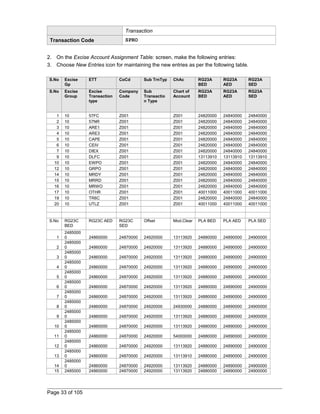
8. To see the changes you need to extract the respective register by transaction code J2I5 and 
print utility program by transaction code J2I6 as per mentioned above. 
9. Run the same for three register one by one by selection radio buttons to update the opening 
balance stock in Registers 
10. 
1.16.2 Balances Updation in RG23 A Part II & PLA 
Use 
Before going live of any project normally you will be uploading initial balances by using FI 
transactions in SAP system. By the time client go-live there might be some opening balance in 
RG23A Part II and PLA registers. 
Using this activity, you can update the receipts of into RG23A Part II and PLA Registers 
by select the respective register button option. 
This transaction involves Direct Table Entries so, please be careful when you are doing 
this transaction. You have to do this activity before Extracting (J2I5) transaction i.e. 
there should not be any entries in J_2IACCBAL table. If they are exists you can delete 
them and make the following transaction and then Extract (J2I5) again. 
Please do note that this is purely manual transaction system does not have any control or 
validations in this i.e. system will cross check with any other entry. 
Prerequisites: All CIN customization must have completed. 
Procedure 
1. Access the transaction choosing one of the following navigation options: 
SAP R/3 menu Tools ® ABAP Workbench ® Development ® ABAP 
Dictionary 
Page 100 of 105
Transaction code SE11 
2. On the ABAP Directory: Initial Screen, make the following entries. 
3. Choose J_2IACCBAL against Database Table filed and choose Display (F7) icon to enter 
into table. 
4. On Dictionary: Display Table screen, choose Utilities ® Table contents ® Create Entries 
from Menu bar and make the following entries: 
Field name Description R/O/C User action and 
values 
Comment 
MANDT Client O Leave it blank Grayed out by system, sys 
will give client number. 
EXGRP Excise Group O 10 Choose appropriate excise 
group 
REGISTER Data element for 
Register n 
O RG23ABED for 
RG23A BED 
register 
You can choose the 
appropriate register listed 
at the bottom. 
DATUM Date O <Enter month 
end date> 
31.03. 2011 
For example if you are 
going live from 1.04.2011, 
then you must enter the 
last day of previous month 
i.e. 31.03. 2011. When 
you extract register the 
date range should be from 
01.04.2011 to 31.04.2011. 
WERKS Plant O Leave it blank 
OP BAL Basic duty (OP BAL) O Leave it blank 
CL BAL Basic duty (CL BAL) O 9999.99 
for example INR 
Enter the closing balance 
as on 31.03.2011 
EXAMT Basic duty (EXAMT) O Leave it blank 
EXIND Extract Indicator O Leave it blank 
USNAM User name O Enter you user ID 
CPUDT Entry Date O Entry date 
31.03.2011 
Date on which you are 
making entry 
CPUTM Entry time O Enter time 
The following are Data elements for Registers: 
RG23ABED, RG23ASED, RG23AAED, RG23CBED, RG23CSED, RG23CAED, PLABED, 
PLASED, PLAAED, 
PLACESS.RG23AECS,RG23CECS,PLAECS,RG23AAT1,RG23CAT1,PLAAT1 
5. After making table entries save the entries by choosing Save icon or Ctrl + S. 
Page 101 of 105
Please do remember that this is only a direct table entry of opening balance, system does not 
check the actual FI entries. You need to make an appropriate FI entry to suitable to above 
transaction. An example is give below for your reference: 
You can use F-02 transaction code to pass the following FI entry: 
RG23A Part II Account DR 
Initial balances clearing a/c CR 
Or 
PLA BED Account DR 
Initial balances clearing a/c CR 
You can choose any appropriate accounting entry which is suitable to client. 
6. After making table entry if you want to see you can extract register by using J2I5 transaction 
code But you need to remember the extraction date should be 01.04.2011 to 31.04.2011 as you 
have given closing balance as on 31.03.2011. 
7. Extraction is possible only if there are some transactions (actual incoming excise invoices). 
That is to say you can extract register only after your first actual CIN transaction in system (other 
than opening balance). 
The same process can be followed for PLA register also. 
Result 
Table entry for RG23A Part II is made. 
1.16.3 Balances Updation in RG23 C Part II 
Use 
To upload the opening balance in RG23C Part II. 
This transaction involves Direct Table Entries so, please be careful when you are doing 
this transaction. You have to do this activity before Extracting (J2I5) transaction i.e. 
there should not be any entries in J_2IACCBAL table, except the balances of RG23A 
Part II and PLA balance as mentioned above. If they are exists you can delete them and 
make the following transaction and then Extract (J2I5) again. 
Please do note that this is purely manual transaction system does not have any control or 
validations in this i.e. system will cross check with any other entry. 
The RG23C is for CENVAT credit on capital goods. Hence in this step you upload only the 
balance in the RG23C Part II. The RG23C balance on hold will not be uploaded in the 
table. The balance will remain in the FI books as a balance in a GL account. When this 
credit for the ‘On hold’ balance is due, it will be transferred to RG23C Part II using Excise 
JV (transaction code J1IH). 
Prerequisites: All CIN customization must have completed. 
Procedure 
1. Access the transaction choosing one of the following navigation options: 
Page 102 of 105
SAP R/3 menu Tools ® ABAP Workbench ® Development ® ABAP 
Dictionary 
Transaction code SE11 
2. On the ABAP Directory: Initial Screen, make the following entries. 
3. Choose J_2IACCBAL against Database Table filed and choose Display (F7) icon to enter 
into table. 
4. On Dictionary: Display Table screen, choose Utilities ® Table contents ® Create Entries 
from Menu bar and make the following entries: 
Field name Description R/O/C User action and 
values 
Comment 
MANDT Client O Leave it blank Grayed out by system, sys 
will give client number. 
EXGRP Excise Group O 10 Choose appropriate excise 
group 
REGISTER Data element for 
Register n 
O RG23CBED for 
RG23C BED 
register 
You can choose the 
appropriate register listed 
at the bottom. 
DATUM Date O <Enter month 
end date> 
31.03.2011 
For example if you are 
going live from 
01.04.2011, then you must 
enter the last day of 
previous month i.e. 31.03. 
2011. When you extract 
register the date range 
should be from 01.04.2011 
to 31.04.2011. 
WERKS Plant O Leave it blank 
OP BAL Basic duty (OP BAL) O Leave it blank 
CL BAL Basic duty (CL BAL) O 9999.99 
for example INR 
Enter the closing balance 
as on 31.03.2011 
EXAMT Basic duty (EXAMT) O Leave it blank 
EXIND Extract Indicator O Leave it blank 
USNAM User name O Enter you user ID 
CPUDT Entry Date O Entry date 
31.03.2011 
Date on which you are 
making entry 
CPUTM Entry time O Enter time 
After making table entries save the entries by choosing Save icon or Ctrl + S. 
Please do remember that this is only a direct table entry of opening balance, system does 
not check the actual FI entries. You need to make an appropriate FI entry to suitable to 
above transaction. An example is give below for your reference: 
Page 103 of 105
You can use F-02 transaction code to pass the following FI entry: 
RG23C Part II Account DR 
Initial balances clearing a/c CR 
You can choose any appropriate accounting entry which is suitable to client. 
5. After making table entry if you want to see you can extract register by using J2I5 transaction 
code (as explained above). But you need to remember the extraction date should be 
01.04.2011 to 31.04.2011 as you have given closing balance as on 31.03.2011. 
6. Extraction is possible only if there are some transactions (actual incoming excise invoices). 
That is to say you can extract register only after your first actual CIN transaction in system 
(other than opening balance). 
The same process can be followed for PLA register also. 
Result 
Table entry for RG23C Part II is made. 
1.16.4 RG23C On Hold 
Use 
When capital purchases are made which are eligible for CENVAT, RG23C(Part II) will be credited 
with only 50% of the CENVAT. The balance 50% will be CENVAT on Hold. 
The CENVAT on hold opening balance is not to be uploaded into Excise Register. It will remain 
as a balance in GL A/c for CENVAT on hold (Account No. 24930000 in chart of Accounts CAIN). 
In the new year when the credit for the CENVAT on hold is due the credit is taken using excise 
JV. The procedure for this is as follows, assuming CENVAT on Hold credit to be taken into 
RG23C (BED) is to be taken for Rs. 100.00 
Procedure 
1. Access the transaction choosing one of the following navigation options: 
SAP R/3 Menu Indirect Taxes ® Excise JV ® Create 
Transaction code J1IH 
2. On the Excise JV – Main Menu screen choose Additional Excise. 
3. On the Create Excise JV – Initial Screen (Diff Excise Posting) screen make the following 
entries: 
Field name Description User action and 
values 
Comment 
Document Number A Enter any dummy entry 
Document year Current year Example 2011 
Page 104 of 105
Company Code Z001 
Plant Z001 
Excise group 10 
Sub-transaction 
Modvat Account 
Selection 
RG23C 
4. Choose Enter to continue. 
5. On the Create Excise JV – Details wrt to exc inv A 2011 for diff exc post Screen make the 
following entries: 
Field name Description User action and 
values 
Comment 
Document Date Today’s date 
Posting date Date on which to 
Post 
BED Amount 200.00 Enter twice the amount of 
credit to be taken 
6. Choose Determine GL accounts. 
System determines the GL accounts automatically in the dialog box Excise JV – G/L Account 
Determination. No changes to be made. Choose Enter. 
7. Choose Save or Crtl+S. 
Result 
System issues a message successfully created with reference of the documents created. 
Following Accounting entry is pass 
Itm PK Account 
Account short 
text Assignment Tax code Amount 
1 50 24930000CENVAT hold V0 -200 
2 40 24930000CENVAT hold V0 100 
3 40 24850000CENVAT CapBED 20040603V0 100 
RG23C (Part II) is credited for Rs. 100.00 
Page 105 of 105

Cin configuration training Document

  • 1.
  • 2.
    Contents 1.1.1 ActivateCIN - Business Transaction Event....................................................................4 1.1.2 Check for Publish & Subscribe BTE (SAP Enhancement) .............................................4 1.1.3 Check for Process BTE - Alternative Function Module...................................................5 1.1.4 Check for Deactivation the Partner India........................................................................5 1.1.5 Check for Deletion of Assignment of Products of Partner India......................................6 1.1.6 Check for Deletion of Assignment of P & S Interface for Partner India...........................6 1.1.7 Check for Deletion of Assignment of Process Interface of Partner India.........................7 1.1.8 Check for Deletion of Assignment of Products of Partner India......................................7 1.1.9 Check for Deletion of the Assignment of Partner India...................................................8 1.2 Configuration of Taxation .....................................................................................................8 1.2.1 Tax on sales/Purchase – Define Tax procedure ............................................................8 1.2.2 Assign Tax procedure to Country .................................................................................10 1.2.3 Maintaining Company Code Settings for Taxes............................................................10 1.2.4 Creating Tax Code........................................................................................................11 1.3 Logistics Invoice Verification Settings..................................................................................13 1.3.1 Maintaining Default Values for Tax Codes....................................................................13 1.4 Tax on Goods Movement - India.........................................................................................14 1.4.1 Basic Settings...............................................................................................................14 1.4.2 Determination of Excise Duty........................................................................................22 1.4.3 Transactions: Incoming Excise Invoices.......................................................................35 1.4.4 Transactions out going Excise Invoices.......................................................................52 1.4.5 Exports ........................................................................................................................53 1.4.6 Deemed Exports ..........................................................................................................54 1.4.7 Business Transactions: Tools.......................................................................................57 1.5 Extended Withholding Tax – Basic Settings........................................................................60 1.5.1 Checking Withholding Tax Countries............................................................................60 1.5.2 Defining Official Withholding Tax Codes.......................................................................61 1.5.3 Defining Reasons for Exemption...................................................................................62 1.6 Defining Branch Office.........................................................................................................62 1.7 Defining Section Code.........................................................................................................63 1.8 Maintaining Factory Calendar to Section Code...................................................................64 1.9 Extended Withholding Tax - Calculation..............................................................................65 1.9.1 Defining Withholding Tax Type for Invoice Posting.......................................................65 1.9.2 Defining Withholding Tax Types for Payment Posting..................................................71 1.9.3 Defining Withholding Tax Type for Ecess at invoice posting.........................................73 1.9.4 Defining Withholding Tax Type for Ecess at Payment posting......................................74 1.9.5 Defining Rounding Rule for Withholding Tax Types......................................................75 1.9.6 Defining Withholding Tax Codes...................................................................................76 1.9.7 Defining Withholding Tax Codes (ECESS)...................................................................77 1.9.8 Portraying Dependencies Between Withholding Tax Types.........................................79 1.9.9 Checking Recipient Types............................................................................................80 1.9.10 Maintaining Tax Due Dates.........................................................................................82 1.9.11 Maintaining Surcharge Rates......................................................................................82 Page 2 of 105
  • 3.
    1.9.12 Assigning Typesof Companies to Withholding Tax Codes.........................................83 1.10 Extended Withholding Tax – Company Code Assignment................................................84 1.10.1 Assigning Withholding Tax Type to Company Code...................................................84 1.10.2 Activating Extended Withholding Tax Code................................................................85 1.10.3 Defining Accounts to post the Withholding Tax...........................................................86 1.11 Maintaining Number Group for Internal Challan Numbers ................................................87 1.12 Assignment of Number Ranges.........................................................................................88 1.12.1 Assigning Number Ranges to Number Groups...........................................................88 1.12.2 Maintaining Number Ranges.......................................................................................88 1.12.3 Maintaining Number Groups and SAP Script Forms...................................................89 1.12.4 Assigning Number Ranges to Number Groups...........................................................90 1.12.5 Maintaining Number Ranges.......................................................................................91 1.13 E-Filing, India Localisation Annual Legal Report...............................................................92 1.13.1 Reason Code Mapping...............................................................................................92 1.14 Business Place tables .....................................................................................................93 1.14.1 Definition ....................................................................................................................93 1.14.2 Activate Business place .............................................................................................93 1.14.3 Assign Business place to plant .................................................................................93 1.14.4 G/L assignment to Tax code & Business place ..........................................................93 1.15 Master Data.......................................................................................................................94 1.15.1 Definition Chapter ID...................................................................................................94 1.15.2 Materials Chapter Id Combination ..............................................................................94 1.15.3 Cenvat Determination ................................................................................................95 1.15.4 Vendor CIN Details ....................................................................................................95 1.15.5 Customer CIN Details ................................................................................................96 1.15.6 Excise Indicator for Plant ..........................................................................................97 1.16 Opening balances Upload for Registers............................................................................97 1.16.1 RG23 A Part I, RG23 C Part I & RG1.........................................................................97 1.16.2 Balances Updation in RG23 A Part II & PLA.............................................................100 1.16.3 Balances Updation in RG23 C Part II .......................................................................102 1.16.4 RG23C On Hold........................................................................................................104 Page 3 of 105
  • 4.
    1.1.1 Activate CIN- Business Transaction Event Use The purpose of this activity is to check CIN - IN: India functions. Procedure 1. To check the entry choose one of the following navigation options: Transaction Code SPRO or FIBF IMG Menu Financial Accounting ® Financial Accounting Global Settings ®Tax on Sales / Purchases ® Basic Settings ® India -® Activate Business Transaction Events 2. On the SAP Business Framework: Business Transaction Events screen select the menu path Settings ® Identification ® SAP Applications. 3. On the Change View “BTE Application Indicator”: Overview screen check the following entry. Application Active Text CIN Active IN: India functions 4. If entry is not available select the New Entries push button and maintain the above mentioned details. 5. To save the entries use save icon. 1.1.2 Check for Publish & Subscribe BTE (SAP Enhancement) Use The purpose of this activity is to check the assignment of SAP defined function modules for the events and applications. Procedure 1. To check the entry choose one of the following navigation options: Transaction Code SPRO or FIBF IMG Menu Financial Accounting ® Financial Accounting Global Settings ®Tax on Sales / Purchases ® Basic Settings ® India -® Activate Business Transaction Events 2. On the SAP Business Framework: Business Transaction Events screen select the menu path Settings ® P/S Function Modules ® …of an SAP Appl. 3. On the Change View “Publish & Subscribe BTE: SAP Enhancement”: Overview screen check the following entries: Event Country ISO Code Application Function Module 00001030 IN CIN J_1IEWT_CHALLAN_UPDATE 00001050 IN CIN J_1I_CIN_BTE_00001050 00001110 IN CIN J_1ITDS_SAVE_CHANGES Page 4 of 105
  • 5.
    00001310 IN CINJ_1IKUNNR_INTERFACE_00001310 00001320 IN CIN J_1IKUNNR_SAVE_00001320 00001330 IN CIN J_1IKUNNR_KEYTEXT_00001330 00001410 IN CIN J_1IVENDOR_INTERFACE_00001410 00001420 IN CIN J_1IVENDOR_SAVE_00001420 00001430 IN CIN J_1IVENDOR_KEYTEXT_00001430 4. If entries are not available select the New Entries push button and maintain the above mentioned details. 5. To save the entries use save icon. 1.1.3 Check for Process BTE - Alternative Function Module Use The purpose of this activity is to check the assignment of alternative function module of SAP defined for the events and applications. Procedure 1. To check the entry choose one of the following navigation options: Transaction Code SPRO or FIBF IMG Menu Financial Accounting ® Financial Accounting Global Settings ®Tax on Sales / Purchases ® Basic Settings ® India -® Activate Business Transaction Events 2. On the SAP Business Framework: Business Transaction Events screen select the menu path Settings ® Process Modules ® …of an SAP Appl. 3. On the Change View “Process BTE: Alternative Function Module from SAP”: Overview screen check the following entries: Event Country ISO Code Application Function Module 00001120 IN CIN J_1IEWT_DUEDATE 4. If entries are not available select the New Entries push button and maintain the above mentioned details. 5. To save the entries use save icon. 1.1.4 Check for Deactivation the Partner India Use The purpose of this activity is to check the assignment of partner India is deactivated or not. The assignment of Partner INDIA is not required SAP R/3 4.70 Enterprise. Procedure 1. To check the entry choose one of the following navigation options: Transaction Code SPRO or FIBF IMG Menu Financial Accounting ® Financial Accounting Global Settings ®Tax on Sales / Purchases ® Basic Settings ® India -® Activate Business Transaction Events Page 5 of 105
  • 6.
    2. On theSAP Business Framework: Business Transaction Events screen select the menu path Settings ® Identification ® Partners 3. On the Change View “Complementary Software Partner”: Overview screen check the Partner India. 4. If the Partner India entry has been deleted. If entry exists, uncheck the active check box. 5. To save the entries use save icon, if you modify the entries. 1.1.5 Check for Deletion of Assignment of Products of Partner India Use The purpose of this activity is to check the assignment of products of partner India is deleted or not. The assignment of Products of Partner INDIA is not required SAP R/3 4.70 Enterprise. Procedure 1. To check the entry choose one of the following navigation options: Transaction Code SPRO or FIBF IMG Menu Financial Accounting ® Financial Accounting Global Settings ®Tax on Sales / Purchases ® Basic Settings ® India -® Activate Business Transaction Events 2. On the SAP Business Framework: Business Transaction Events screen select the menu path Settings ® Products ® of a Partners ® Activate 3. On the Change View “Business Framework: Partner’s Active Products”: Overview screen check the Products of Partner India. 4. If the following Products of partner India entries has been deleted. If entry exists, delete the same. Product Partner CIN INDIA EWT INDIA TS INDIA 5. To save the entries use save icon, if you modify the entries. 1.1.6 Check for Deletion of Assignment of P & S Interface for Partner India Use The purpose of this activity is to check the assignment of Publish and subscribe the interface for Partner India is deleted or not. Procedure 1. To check the entry choose one of the following navigation options: Transaction Code SPRO or FIBF IMG Menu Financial Accounting ® Financial Accounting Global Settings ®Tax on Sales / Purchases ® Basic Settings ® India -® Activate Business Transaction Events Page 6 of 105
  • 7.
    2. On theSAP Business Framework: Business Transaction Events screen select the menu path Settings ® P/S function modules ® of a Partners 3. On the Change View “Publish & Subscribe BTE: Customer Enhancements”: Overview screen check the Products of Partner India. 4. Delete the entries in this table which have “India” as the partner identification column. 5. To save the entries use save icon, if you modify the entries. 1.1.7 Check for Deletion of Assignment of Process Interface of Partner India Use The purpose of this activity is to check the assignment of process interface of partner India is deleted or not. The assignment of Process Interface of Partner INDIA is not required SAP R/3 4.70 Enterprise. Procedure 1. To check the entry choose one of the following navigation options: Transaction Code SPRO or FIBF IMG Menu Financial Accounting ® Financial Accounting Global Settings ®Tax on Sales / Purchases ® Basic Settings ® India -® Activate Business Transaction Events 2. On the SAP Business Framework: Business Transaction Events screen select the menu path Settings ® Process Module ® of a Partner 3. On the Change View “Process BTE: Partner Enhancements:” Overview screen check the Products of Partner India. 4. Delete the entries in this table which have “India” as the partner identification column. 5. To save the entries use save icon, if you modify the entries. 1.1.8 Check for Deletion of Assignment of Products of Partner India Use The purpose of this activity is to check the assignment of products of partner India was deleted or not. The assignment of Process Interface of Partner INDIA is not required SAP R/3 4.70 Enterprise. Procedure 1. To check the entry choose one of the following navigation options: Transaction Code SPRO or FIBF IMG Menu Financial Accounting ® Financial Accounting Global Settings ®Tax on Sales / Purchases ® Basic Settings ® India -® Activate Business Transaction Events Page 7 of 105
  • 8.
    2. On theSAP Business Framework: Business Transaction Events screen select the menu path Settings ® Products ® of a Partners ® Edit 3. On the Change View “Complementary Software Partner Products”: Overview screen check the Products of Partner India. 4. The following Products of partner India entries have been deleted. If entry exists, delete the same. Product Partner CIN INDIA EWT INDIA TS INDIA 5. To save the entries use save icon, if you modify the entries. 1.1.9 Check for Deletion of the Assignment of Partner India Use The purpose of this activity is to check the assignment of partner India was deleted or not. The assignment of Partner INDIA is not required in SAP R/3 4.70 Enterprise. Procedure 1. To check the entry choose one of the following navigation options: Transaction Code SPRO or FIBF IMG Menu Financial Accounting ® Financial Accounting Global Settings ®Tax on Sales / Purchases ® Basic Settings ® India -® Activate Business Transaction Events 2. On the SAP Business Framework: Business Transaction Events screen select the menu path Settings ® Identification ® Partners 3. On the Change View “Complementary Software Partner”: Overview screen check the Partner India. 4. Delete the partner “India” if the entry exists. 5. To save the entries use save icon, if you modify the entries. 1.2 Configuration of Taxation 1.2.1 Tax on sales/Purchase – Define Tax procedure Use In this IMG setting you are going to maintain Company Code Z001 for purchase taxes. Procedure 1. To carry out the activity, choose one of the following navigation options: Transaction Code SPRO IMG Menu Financial Accounting New  Global settings New  Tax on Sales/Purchases  Basic Settings  Check Calculation Page 8 of 105
  • 9.
    Procedure  DefineProcedures Here need to keep all tax condition types in a sequential order (procedure) to calculate the tax TAXINN – Condition bases Tax Procedure TAXINJ – Formula based Tax Procedure Till R/3 4.7 version SAP provided Formula based Tax procedure (TAXINJ). Generally above the 4.7 version (Ecc5.0&6.0) we will use Condition based Tax procedure (TAXINN). Tax will be calculated depend upon condition records maintained in FV11. There is no need to change existing tax procedure it will fulfill almost India tax requirement. Standard Tax Condition types for purchasing and finance entries JAIP IN AED inventory % JAIQ IN AED inventory Qty JAOP IN: AED setoff % JAOQ IN: BED setoff Qty JAX1 IN: A/P AED setoff JAX2 IN: A/P AED inventor JEC1 Inp Ecess Cr % JEC2 Inp Ecess w/o Cr % JEC3 Inp SrvTxEces Cr JEC4 Inp SrvTx w/o Cr JEX1 Inp Ecess Cr Tot JEX2 Inp Ecess w/o Cr Tot JHX1 Inp SEcess Cr Tot JHX2 Inp SEcess w/o Cr To JIPC IN C Sales tax inv. JIPL Inp VAT w/o Cr Non-C JIPS IN Sales tax setoff JMIP Inp BED w/o Cr % JMIQ IN: BED inventory Qt JMOP IN: BED % JMOQ IN: BED setoff Qty JMX1 in: BED set off JMX2 In: BED inv sey off JSE1 Inp SrvTxSEces Cr JSE2 Inp SrvTx w/o Cr Page 9 of 105
  • 10.
    JSEI Inp SEcessw/o Cr % JSEP Inp SEcess Cr % JSER Inp SrvTx (Not used) JSIP IN AED inventory Qty JSIQ IN AED inventory Qty JSOP IN: SED setoff % JSOQ IN: SED setoff Qty JSV2 Inp SrvTx w/o Cr JSVD Inp SrvTx Cr JSX1 IN: A/P AED setoff JSX2 IN: A/P SED inventor JVCD Inp VAT w/o Cr Non-C JVCN Inp VAT w/o Cr Non-C JVCS Inp CST under VAT JVRD Inp VAT Cr Non-CG JVRN Inp VAT w/o Cr Non-C 1.2.2 Assign Tax procedure to Country Use In this IMG setting you are going to Assign Tax procedure to Company Code Z001 Procedure 2. To carry out the activity, choose one of the following navigation options: Transaction Code SPRO IMG Menu Financial Accounting New  Global settings New  Tax on Sales/Purchases  Basic Settings  Assign Country to Calculation Procedure Country Description Tax Procedure IN India TAXINN 1.2.3 Maintaining Company Code Settings for Taxes Use In this IMG setting you are going to maintain Company Code Z001 for taxes. Procedure Page 10 of 105
  • 11.
    3. To carryout the activity, choose one of the following navigation options: Transaction Code SPRO IMG Menu Logistics General  Tax on Goods Movement  India  Basic Settings  Maintain Company Code Settings 4. On the screen Company Code Settings: click on New Entries icon and maintain the following entries: Field name Description R/O/C User action and values Note Company Code Company code R Z001 Input value CENVAT Doc. Type CENVAT Document type R SA Input value Utl FI Doc Type Utilization document type R SA Input value Debit Acc Override Debit account R Tick the check box Tick Aut ad ind Automatic adjustment indicator R Tick the check box Tick Imm. Credit on capital goods Immediate credit on capital goods R Tick the check box Tick First month First month of financial year R April Select Exc Sel Days Due days for excise invoice R 30 Input value No. Exc Inv Sel No of excise invoices selection R 10 Input value EI Sel. Proc. Excise invoice selection process R FIFO Select Rounding duty on procurement Rounding duty on procurement R Tick the check box Tick Rounding duty on removal Rounding duty on removal R Tick the check box Tick Exch. rate type for CVD Exchange rate type for CVD R M Input Exchange rate type for exports Exchange rate type for exports R M Input CVD account CVD GL account R 14810000 5. Press Enter and save the entries by clicking save icon or by pressing Control + S on your key board. Result Company code is maintained for taxation. 1.2.4 Creating Tax Code Use Page 11 of 105
  • 12.
    In this IMGsetting you are going to create Tax Code for purchasing activity. Procedure 1. To carry out the activity, choose one of the following navigation options: Transaction Code FTXP IMG Menu Financial Accounting  Financial Accounting Global Settings  Tax on Sales/Purchase  Calculation  Define Tax Codes for Sales and Purchase 2. System will popup new screen with Country filed, please input IN on this filed. 3. On the screen Maintain Tax Code: Initial Screen maintain the following entries: Field name Description R/O/C User action and values Note Country key Country code R Already given IN Grayed out Tax code Tax code to be created R V0 Input Now System will give a popup screen,(properties) input the following values Tax code Tax code V0 R Purchase Taxes Nil Input Tax type Input Tax R V Input You will get new screen Maintain Tax Code: Tax Rates, maintain the following entries: IN: A/P BED deductib IN: A/P BED deductibles R 0 Input IN:A/P CST IN:A/P CST R 0 Input Save the tax code by clicking Save icon or by pressing Control + S on key board. 4. Press Enter and save the entries by clicking save icon or by pressing Control + S on your key board. 5. The above process will be creating one tax code V0 with nil taxes. 6. If you want to create different tax codes with different tax structure please follow the steps 1 to 5 mentioned above. 7. Now create another two tax codes for further use in Materials Management module by following steps 1 to 5 again with the following entries: Field name Description R/O/C User action and values Note Country key Country code R Already given IN Grayed out Tax code Tax code to be created R V1 Input System will give a popup screen, (properties) input the following values Tax code Tax code V1 R Excise Duty + CST 4% Input Tax type Input Tax R V Input You will get new screen Maintain Tax Code: Tax Rates, maintain the following entries: IN: A/P BED deductib IN: A/P BED deductibles R 16 Input Page 12 of 105
  • 13.
    Field name DescriptionR/O/C User action and values Note IN:A/P CST IN:A/P CST R 4 Input 8. Press Enter and save the entries by clicking Save icon or by pressing Control + S on your key board. 9. The above process will be creating one tax code V1 with 16% Excise Duty and 4% CST taxes. 10. If you want to create different tax codes with different tax structure please follow the steps 1 to 5 mentioned above. 11. Now create another two tax codes for further use in Materials Management module by following steps 1 to 5 again with the following entries: Field name Description R/O/C User action and values Note Country key Country code R Already given IN Grayed out Tax code Tax code to be created R V2 Input System will give a popup screen, (properties) input the following values Tax code Tax code V2 R Excise Duty + LST 8% (Maharastra) Input ax type Input Tax R V Input You will get new screen Maintain Tax Code: Tax Rates, maintain the following entries: IN: A/P BED deductib IN: A/P BED deductibles R 16 Input Save by clicking Save icon or press Control + S on your key board. Extend this tax code V2 IN:A/P LST IN:A/P LST R 8 Input value 12. Press Enter and save the entries by clicking Save icon or by pressing Control + S on your key board. 13. The above process will be creating one tax code V2 for Jurisdiction code IN01 with 16% Excise Duty and 8% LST taxes for Maharastra state procurements. If you want to create different tax codes with different tax structure please follow the steps 1.3 Logistics Invoice Verification Settings 1.3.1 Maintaining Default Values for Tax Codes Use In this step of IMG activity you are going to maintain default tax code for Company Codes. Procedure Page 13 of 105
  • 14.
    1. Access theactivity using one of the following navigation options: Transaction Code SPRO IMG Menu Materials Management  Logistics Invoice Verification  Incoming Invoices  Maintain Default Values for Tax Codes 2. On the screen Tax Defaults in Invoice Verification screen maintain the following entries: 3. Choose New Entries icon or choose F5. Field name Description R/O/C User action and values Note Company Code Company code R Z001 Input the value Enter Choose Enter Give Tax code as V0 4. Choose Save or Control + S to save the settings. Result Data was saved. 1.4 Tax on Goods Movement - India 1.4.1 Basic Settings 1.4.1.1 Maintaining Excise Registrations Use As per the legal requirement every plant, which is handling excisable goods has to be registered with Central Excise Authorities in India. In this configuration step you are going to see how to maintain Excise Registrations. Procedure 1. Access the activity using one of the following navigation options: IMG Menu Logistics General ® Tax on Goods Movements ® India ® Basic Settings ® Maintain Excise Registrations Transaction Code SPRO 2. On the Excise Registrations: screen, make the following entries: 3. Choose New Entries icon for maintaining the new excise registrations. Please note that Registration descriptions, numbers, address etc., are just indicative only. You need to input you actual registration details. To give demo the following dummy data is created which may not have any validity. Field name Description User action and values Note Excise Reg. Excise registration id 01 Page 14 of 105
  • 15.
    Field name DescriptionUser action and values Note Reg. Description Title of registration ID Z001 MFG PLANT EXCISE REGISTRATION ECC No. ECC Number Enter ECC No. for example ECC/1/1/2001 Excise Reg. No. Excise registration number Enter for example REG-10001 Excise Range Excise Range Enter for example BANGALORE RANGE Excise Division Excise Division Enter for example BANGALORE DIVISION Commissionerate Commissionerate Enter for example KARNATAKA COMMISSIONARATE Liable to AED Liability to Additional Excise Duty Check the tick box If you are covered under AED only Liable to SED Liability to Special Excise Duty Check the tick box If you are covered under SED only Liable to Cess Liability to Cess Check the tick box If you are covered under CESS only Partial credit Partial credit Check the tick box No of items in Number of items in 2 Excise Invoice Excise Invoice Indicator NCCD Indicator for NCCD applicability Check this tick box 4. Choose Enter complete the entries 5. Save the entries by choosing Save icon or choose Ctrl + S. 6. To maintain the entries for Z002 Depot Plant follow the steps mentioned above: 7. On the Excise Registrations: screen, make the following entries: 8. Choose New Entries icon for maintaining the new excise registrations Field name Description User action and values Note Excise Reg. Excise registration id 02 Reg. Description Title of registration ID Z002 DEPOT PLANT EXCISE REGISTRATION ECC No. ECC Number Enter ECC No. for example ECC/1/2/2001 Page 15 of 105
  • 16.
    Field name DescriptionUser action and values Note Excise Reg. No. Excise registration number Enter for example REG-20001 Excise Range Excise Range Enter for example MUMBAI RANGE Excise Division Excise Division Enter for example MUMBAI DIVISION Commissionerate Commissionerate Enter for example MAHARASTRA COMMISSIONARATE Liable to AED Liability to Additional Excise Duty Check the tick box If you are covered under AED only Liable to SED Liability to Special Excise Duty Check the tick box If you are covered under SED only Liable to Cess Liability to Cess Check the tick box If you are covered under CESS only Partial credit Partial credit Check the tick box No of items in Number of items in 2 Excise Invoice Excise Invoice Indicator NCCD Indicator for NCCD applicability Check this tick box 9. Choose Enter complete the entries 10. Save the entries by choosing Save icon or Ctrl + S. 1.4.1.2 Maintaining Company Code Settings for Taxes Use In this IMG setting you are going to maintain Company Code Z001 for purchase taxes. Procedure 6. Access the activity using one of the following navigation options: IMG Menu Logistics General  Tax on Goods Movement  India  Basic Settings  Maintain Company Code Settings Transaction Code SPRO 7. On the screen Company Code Settings: choose New Entries icon and maintain the following entries: Field name Description User action and values Note Company Code Company code Z001 Input value CENVAT Doc. Type CENVAT Document type SA Input value Page 16 of 105
  • 17.
    Field name DescriptionUser action and values Note Utl FI Doc Type Utilization document type SA Input value Debit Acc Override Debit account Tick the check box Tick Aut ad ind Automatic adjustment indicator Tick the check box Tick Imm. Credit on capital goods Immediate credit on capital goods Tick the check box Tick First month First month of financial year April Select Exc Sel Days Due days for excise invoice 30 Input value No. Exc Inv Sel No of excise invoices selection 10 Input value EI Sel. Proc. Excise invoice selection process FIFO Select Rounding duty on procurement Rounding duty on procurement Tick the check box Tick Rounding duty on removal Rounding duty on removal Tick the check box Tick Exch. rate type for CVD Exchange rate type for CVD M Input Exchange rate type for exports Exchange rate type for exports M Input CVD account CVD GL account 14810000 8. Choose Enter and save the entries by choosing Save icon or by choosing Ctrl + S on your key board. 9. To add another company code, please repeat the above step again. 1.4.1.3 Maintaining Plant Settings for Excise Information Use As per the legal requirement every plant which is handling excisable goods has to be registered with Central Excise Authorities in India. In this configuration step you are going to maintain Excise Information for plants. Procedure 1. Access the activity using one of the following navigation options: IMG Menu Logistics General ® Tax on Goods Movements ® India ® Basic Settings ® Maintain Plant Settings Transaction Code SPRO Page 17 of 105
  • 18.
    2. On thePlant Settings: screen, make the following entries: 3. Choose New Entries icon for maintaining the new entries. Field name Description User action and values Note Entries for Z001 Plant Plant code Z001 Depot Depot Leave it blank Do not check as Z001 is mfg plant. Exc. Reg. Excise Registration id 01 GRs per EI Goods Receipts per each Excise Invoice Select Multiple Goods Receipts, Single Credits from drop down list Entries for Z002 Plant Plant code Z002 Depot Depot Check the box Check as Z002 is a Depot plant. Exc. Reg. Excise Registration id 02 GRs per EI Goods Receipts per each Excise Invoice Select Multiple Goods Receipts, Single Credits from drop down list 4. Choose Enter to finish the entries. 5. Save the entries by choosing Save icon or by choosing Ctrl + S. Result Data was saved. 1.4.1.4 Maintaining Excise Groups Use As per the legal requirement in India each Excise Group has to have one set of books. In this step you are going to configure the Excise Groups for both the plants. Procedure 1. Access the activity using one of the following navigation options: IMG Menu Logistics General  Tax on Goods Movements  India  Basic Settings  Maintain Excise Groups Transaction Code SPRO Page 18 of 105
  • 19.
    2. On theExcise Groups: screen, make the following entries: 3. Choose New Entries icon for maintaining the new entries. Field name Description User action and values Note Entries for Z001 Excise Group Excise Group 10 Plant Plant code Z001 Description Description of group Z001 MFG PLANT EXCISE GROUP Excise Reg. Excise Registration no. 01 No. of GR per EI Number of goods receipts per excise invoice Multiple Goods Receipts, Single Credits Default Challan Qty in GR Default challan quantity in goods receipt Tick this check box Excise inv during Billing Excise Invoice during billing Do not tick Leave blank Create and post Inv single step Crete and post Invoice in a single step Tick the box Consumption Consumption entry in registers Check this tick box Depot indicator Depot indicator Do not check tick box Folio number Folio numbers Do not check tick box Depot Excise Depot Excise Do not check tick box Invoice Invoice EI Capture Excise Invoice capturing Check tick box Post EI in MIGO Post excise invoice in MIGO Check tick box Duty different at GR Duty different at GR Check tick box EI create/RG23D selection Excise Invoice creation for RG23D register Do not Check tick box Update RG1 at MIGO Update RG1 register at MIGO Check tick box 4. Choose Enter to finish the entries. 5. Save the entries by choosing Save icon or by choosing Ctrl + S. 6. To maintain the Excise Group for Z002 depot plant, please repeat the steps mentioned above. Page 19 of 105
  • 20.
    7. On theExcise Groups: screen, make the following entries: 8. Choose New Entries icon for maintaining the new entries. Field name Description User action and values Note Entries for Z002 Excise Group Excise Group 20 Plant Plant code Z002 Description Description of group Z002 DEPOT PLANT EXCISE GROUP Excise Reg. Excise Registration no. 2 No. of GR per EI Number of goods receipts per excise invoice Multiple Goods Receipts, Single Credits Default Challan Qty in GR Default challana quantity in goods receipt Tick this check box Excise inv during Billing Excise Invoice during billing Do not tick Leave blank Create and post Inv single step Crete and post Invoice in a single step Tick the box Consumption Consumption entry in registers Check this tick box Depot indicator Depot indicator Check tick box Folio number Folio numbers Check tick box Depot Excise Depot Excise Check tick box Invoice Invoice EI Capture Excise Invoice capturing Check tick box Post EI in MIGO Post excise invoice in MIGO Check tick box Duty different at GR Duty different at GR Check tick box EI create/RG23D selection Excise Invoice creation for RG23D register Check tick box Update RG1 at MIGO Update RG1 register at MIGO Check tick box 9. Choose Enter to finish the entries. 10. Save the entries by choosing Save icon or by choosing Ctrl + S. Result Data was saved. Page 20 of 105
  • 21.
    1.4.1.5 Maintaining SeriesGroups Use In this IMG activity, you define the different excise series groups within your company. Series groups allow you to maintain multiple number ranges for the outgoing excise documents. Based on excise regulations and exemptions from the authorities you can maintain multiple number series for outgoing documents. But each of these series has to be declared to the excise authorities. Procedure 1. Access the activity using one of the following navigation options: IMG Menu Logistics General  Tax on Goods Movements  India  Basic Settings  Maintain Series Groups Transaction Code SPRO 2. On the Excise Document Series: screen, make the following entries: 3. Choose New Entries icon for maintaining the new entries. Field name Description User action and values Note Series Grp Series group 11 Series Des Description of series group Z001 MFG PLANT DOMESTIC SERIES GROUP Exc. Reg. Excise Registration 01 No utilization No utilization Do not check tick box Imm. Util. Immediate utilization Do not check tick box Other fields leave blank Series Grp Series group 13 Series Des Description of series group SUBCONTRACT CHALLAN SERIES GROUP Z001 Exc. Reg. Excise Registration 01 No utilization No utilization Do not check tick box Imm. Util. Immediate utilization Do not check tick box Other fields leave blank Series Grp Series group 15 Series Des Description of series group Z001 MFG PLANT EXPORT SERIES GROUP Exc. Reg. Excise Registration 1 Page 21 of 105
  • 22.
    Field name DescriptionUser action and values Note No utilization No utilization Do not check tick box Imm. Util. Immediate utilization Do not check tick box Other fields leave blank Series Grp Series group 21 Series Des Description of series group Z002 DEPOT PLANT SERIES GROUP Exc. Reg. Excise Registration 2 No utilization No utilization Do not check tick box Imm. Util. Immediate utilization Do not check tick box Result Data was saved. 1.4.2 Determination of Excise Duty 1.4.2.1 Maintaining Excise Defaults Use In this IMG activity, you define which tax procedure and pricing condition types are used in calculating excise taxes using formula-based excise determination. Procedure 1. Access the activity using one of the following navigation options: IMG Menu Logistics General  Tax on Goods Movements  India  Basic Settings  Determination of Excise Duty  Maintain Excise Defaults Transaction Code SPRO 2. On the Tax Default Information: screen, make the following entries: 3. Choose New Entries icon for maintaining the new entries. Field name Description User action and values Note Tax proc. Tax procedure TAXINN CVD Cond. CVD condition type JCV1 Exp tax cd Expected Tax code Page 22 of 105
  • 23.
    Field name DescriptionUser action and values Note Tax jur.cd Tax jurisdiction code A/P BED Cond A/P BED condition type A/P SED cond A/P SED Condition type A/P AED cond A/P AED condition type A/R BED cond A/R BED condition type A/R SED cond A/R SED condition type A/R AED cond A/R AED condition type A/R CESS cond A/R CESS condition type BED perc BED percentage condition type AED perc AED percentage condition type SED perc SED percentage condition type Cess per CESS percentage condition type NCCD AP NCCD Condition type AP NCCD AR NCCD Condition type AR JNED NCCD Perc NCCD Percentage ECS AP Education Cess condition type AP ECS AR Education Cess condition type AR ECS Perc Education Cess condition type percentage ECS Cond. Education Cess condition type AP Imports JECV SEC AP AT1 Condition type AP Page 23 of 105
  • 24.
    Field name DescriptionUser action and values Note SEC AR AT1 Condition type AR 4. Choose Enter complete the entries 5. Save the entries by choosing Save icon or choose Ctrl + S. Result Data was saved. 1.4.2.2 Assignment of Tax Code to Company Codes Use The purpose of this activity is assigning the tax code for purchasing documents to the company codes where it will be used. This activity is done if you use condition-based excise determination. If there is no assignment error will come in excise transactions as no tax code defined in company code. Procedure 1. Access the activity using one of the following navigation options: IMG Menu Logistics General  Tax on Goods Movements  India  Basic Settings  Determination of Excise Duty  Condition- Based Excise Determination  Assign Tax Code to Company Codes Transaction Code SPRO 1. On the Change view “Tax Codes for Excise Duties Using Condition Techniques”: screen, make the following entries. 2. Choose New Entries icon and input Z001 under Company Code and input V0 tax code beside company codes or under Tax Code. 3. Assign all the condition types which are defined for your company code 4. Enter to continue and save the entries by choosing Save icon or Ctrl + S. 1.4.2.3 Classifying Condition Types Use In this IMG activity, you specify which condition types you use for which sort of tax. Note that this only applies to condition types that you use with the new excise determination method. Even thou you defined your own user defined pricing procedure, maintain entries for standard pricing procedures example: JINFAC (factory sales pricing) & for Tax procedure (TAXINN). Procedure 1. Access the activity using one of the following navigation options: IMG Menu Logistics General  Tax on Goods Movements  India  Basic Settings  Determination of Excise Duty  Condition- Page 24 of 105
  • 25.
    Based Excise Determination Classify Condition Types Transaction Code SPRO 2. As a default SAP will offer the following settings, please do not change the original settings. Procedure Condition Type Condition Name JINDEP JCEP A/R Cess Percentage JINDEP JCET A/R Cess total JINDEP JEAP A/R AED Percentage JINDEP JEAT A/R AED total JINDEP JESP A/R SED Percentage JINDEP JEST A/R SED total JINDEP JEXP A/R BED Percentage JINDEP JEXT A/R BED total JINEXP JCEP A/R Cess Percentage JINEXP JCET A/R Cess total JINEXP JEAP A/R AED Percentage JINEXP JEAT A/R AED total JINEXP JESP A/R SED Percentage JINEXP JEST A/R SED total JINEXP JEXP A/R BED Percentage JINEXP JEXT A/R BED total JINFAC JCEP A/R Cess Percentage JINFAC JCET A/R Cess total JINFAC JEAP A/R AED Percentage JINFAC JEAT A/R AED total JINFAC JESP A/R SED Percentage JINFAC JEST A/R SED total JINFAC JEXP A/R BED Percentage JINFAC JEXT A/R BED total JINSTO JCEP A/R Cess Percentage JINSTO JCET A/R Cess total JINSTO JEAP A/R AED Percentage JINSTO JEAT A/R AED total JINSTO JESP A/R SED Percentage JINSTO JEST A/R SED total JINSTO JEXP A/R BED Percentage JINSTO JEXT A/R BED total TAXINN JAIP AED Inventory Percentage TAXINN JAIQ AED Inventory Quantity Based TAXINN JAOP AED Set Off condition Percentage TAXINN JAOQ AED Set Off condition Quantity Based TAXINN JAX1 AED Set Off condition Total TAXINN JAX2 AED Inventory Total TAXINN JEC1 ECS Set Off condition Percentage TAXINN JEC2 ECS Inventory Percentage TAXINN JEX1 ECS Set Off condition Total TAXINN JEX2 ECS Inventory Total Page 25 of 105
  • 26.
    TAXINN JIPC A/PCentral Sales tax TAXINN JIPL A/P Local Sales tax TAXINN JIPS A/P ST setoff TAXINN JMIP BED Inventory Percentage TAXINN JMIQ BED Inventory Quantity Based TAXINN JMOP BED Set Off condition Percentage TAXINN JMOQ BED Set Off condition Quantity based TAXINN JMX1 BED Set Off condition Total TAXINN JMX2 BED Inventory Total TAXINN JNIP NCCD Inventory Percentage TAXINN JNOP NCCD Set Off condition Percentage TAXINN JNX1 NCCD Set Off condition Total TAXINN JNX2 BED Inventory Total TAXINN JSIP SED Inventory Percentage TAXINN JSIQ SED Inventory Quantity Based TAXINN JSOP SED Set Off ConditionPercentage TAXINN JSX1 SED Set Off Condition Total TAXINN JSX2 SED Inventory Total 3. Apart from above default settings you need to take the following setting by choosing New Entries icon. After completing entries choose Save to save entries. Procedure Condition Type Condition Name TAXINN JAIP AED Inventory Percentage TAXINN JAIQ AED Inventory Quantity Based TAXINN JAOP AED Set Off condition Percentage TAXINN JAOQ AED Set Off condition Quantity Based TAXINN JAX1 AED Set Off condition Total TAXINN JAX2 AED Inventory Total TAXINN JEC1 ECS Set Off condition Percentage TAXINN JEC2 ECS Inventory Percentage TAXINN JEX1 ECS Set Off condition Total TAXINN JEX2 ECS Inventory Total TAXINN JIPC A/P Central Sales tax TAXINN JIPL A/P Local Sales tax TAXINN JIPS A/P ST setoff TAXINN JMIP BED Inventory Percentage TAXINN JMIQ BED Inventory Quantity Based TAXINN JMOP BED Set Off condition Percentage TAXINN JMOQ BED Set Off condition Quantity based TAXINN JMX1 BED Set Off condition Total TAXINN JMX2 BED Inventory Total TAXINN JNIP NCCD Inventory Percentage TAXINN JNOP NCCD Set Off condition Percentage TAXINN JNX1 NCCD Set Off condition Total TAXINN JNX2 BED Inventory Total TAXINN JSIP SED Inventory Percentage TAXINN JSIQ SED Inventory Quantity Based TAXINN JSOP SED Set Off ConditionPercentage TAXINN JSX1 SED Set Off Condition Total TAXINN JSX2 SED Inventory Total Page 26 of 105
  • 27.
    1.4.2.4 Maintaining ExciseAccounts per Excise Transactions Use In this IMG activity, you specify which excise accounts (for excise duty and CENVAT) are to be posted to for the various transaction types. Enter all the accounts that are affected by each transaction type. If you use sub transaction types, Enter the accounts for each sub transaction type as well. Procedure 1. Access the activity using one of the following navigation options: IMG Menu Logistics General  Tax on Goods Movements  India  Account Determination  Specify Excise Accounts per Excise Transaction Transaction Code SPRO 3. On the Transaction Code Vs Accounts: screen, make the following entries: 4. Choose New Entries icon for maintaining the new entries. As a default some entries already maintained. Do not disturb them; maintain entries as per the following table. Excise TT Sub Transaction D C Indicator Account name Excise Transaction Type Sub Transaction Debit / Credit Indicator Account name 57CM Credit CENVAT clearing account 57CM Debit RG 23 BED account 57CM Debit RG 23 ECS Account 57CM Debit RG 23 NCCD account 57FC Credit PLA BED account 57FC Credit PLA ECS Account 57FC Credit PLA NCCD account 57FC Credit RG 23 BED account 57FC Credit RG 23 ECS Account 57FC Credit RG 23 NCCD account 57FC Debit CENVAT clearing account 57NR Credit CENVAT clearing account 57NR Credit PLA BED account 57NR Credit PLA ECS Account 57NR Credit PLA NCCD account 57NR Credit RG 23 BED account 57NR Credit RG 23 ECS Account 57NR Credit RG 23 NCCD account 57NR Debit CENVAT reversal account ARE1 Credit CENVAT clearing account ARE1 Credit PLA BED account ARE1 Credit PLA ECS Account ARE1 Credit PLA NCCD account Page 27 of 105
  • 28.
    ARE1 Credit RG23 BED account ARE1 Credit RG 23 ECS Account ARE1 Credit RG 23 NCCD account ARE1 Debit CENVAT reversal account ARE3 Credit CENVAT clearing account ARE3 Credit PLA BED account ARE3 Credit PLA ECS Account ARE3 Credit PLA NCCD account ARE3 Credit RG 23 BED account ARE3 Credit RG 23 ECS Account ARE3 Credit RG 23 NCCD account ARE3 Debit CENVAT reversal account CAPE Credit CENVAT on hold account CAPE Debit CENVAT on hold account CAPE Debit RG 23 AED account CAPE Debit RG 23 BED account CAPE Debit RG 23 ECS Account CAPE Debit RG 23 NCCD account CAPE Debit RG 23 SED account CEIV Credit CENVAT suspense account CEIV Debit PLA AED account CEIV Debit PLA BED account CEIV Debit PLA ECS Account CEIV Debit PLA NCCD account CEIV Debit PLA SED account CEIV Debit RG 23 AED account CEIV Debit RG 23 BED account CEIV Debit RG 23 ECS Account CEIV Debit RG 23 NCCD account CEIV Debit RG 23 SED account DIEX Credit CENVAT clearing account DIEX Debit RG 23 AED account DIEX Debit RG 23 BED account DIEX Debit RG 23 ECS Account DIEX Debit RG 23 NCCD account DIEX Debit RG 23 SED account DLFC Credit PLA AED account DLFC Credit PLA BED account DLFC Credit PLA cess account DLFC Credit PLA ECS Account DLFC Credit PLA NCCD account DLFC Credit PLA SED account DLFC Credit RG 23 AED account DLFC Credit RG 23 BED account DLFC Credit RG 23 ECS Account DLFC Credit RG 23 NCCD account DLFC Credit RG 23 SED account DLFC Debit CENVAT suspense account EWPO Credit CENVAT clearing account EWPO Debit RG 23 AED account EWPO Debit RG 23 BED account EWPO Debit RG 23 ECS Account Page 28 of 105
  • 29.
    EWPO Debit RG23 NCCD account EWPO Debit RG 23 SED account GRPO Credit CENVAT clearing account GRPO Debit CENVAT on hold account GRPO Debit RG 23 AED account GRPO Debit RG 23 BED account GRPO Debit RG 23 ECS Account GRPO Debit RG 23 NCCD account GRPO Debit RG 23 SED account MRDY Credit PLA AED account MRDY Credit PLA BED account MRDY Credit PLA cess account MRDY Credit PLA ECS Account MRDY Credit PLA NCCD account MRDY Credit PLA SED account MRDY Credit RG 23 AED account MRDY Credit RG 23 BED account MRDY Credit RG 23 ECS Account MRDY Credit RG 23 NCCD account MRDY Credit RG 23 SED account MRDY Debit CENVAT clearing account MRRD Credit PLA AED account MRRD Credit PLA BED account MRRD Credit PLA cess account MRRD Credit PLA ECS Account MRRD Credit PLA NCCD account MRRD Credit PLA SED account MRRD Credit RG 23 AED account MRRD Credit RG 23 BED account MRRD Credit RG 23 ECS Account MRRD Credit RG 23 NCCD account MRRD Credit RG 23 SED account MRRD Debit CENVAT clearing account MRWO Credit PLA AED account MRWO Credit PLA BED account MRWO Credit PLA cess account MRWO Credit PLA ECS Account MRWO Credit PLA NCCD account MRWO Credit PLA SED account MRWO Credit RG 23 AED account MRWO Credit RG 23 BED account MRWO Credit RG 23 ECS Account MRWO Credit RG 23 NCCD account MRWO Credit RG 23 SED account MRWO Debit CENVAT clearing account OTHR Credit PLA AED account OTHR Credit PLA BED account OTHR Credit PLA cess account OTHR Credit PLA ECS Account OTHR Credit PLA NCCD account OTHR Credit PLA SED account OTHR Credit RG 23 AED account Page 29 of 105
  • 30.
    OTHR Credit RG23 BED account OTHR Credit RG 23 ECS Account OTHR Credit RG 23 NCCD account OTHR Credit RG 23 SED account OTHR Debit CENVAT suspense account TR6C Credit PLA on hold account TR6C Debit PLA AED account TR6C Debit PLA BED account TR6C Debit PLA cess account TR6C Debit PLA ECS Account TR6C Debit PLA NCCD account TR6C Debit PLA SED account UTLZ Credit PLA AED account UTLZ Credit PLA BED account UTLZ Credit PLA cess account UTLZ Credit PLA ECS Account UTLZ Credit PLA NCCD account UTLZ Credit PLA SED account UTLZ Credit RG 23 AED account UTLZ Credit RG 23 BED account UTLZ Credit RG 23 ECS Account UTLZ Credit RG 23 NCCD account UTLZ Credit RG 23 SED account UTLZ Debit CENVAT clearing account Out off above table the following SAP Standard settings are already maintained in system. Please do not disturb any standard settings. ETT Sub TrnTyp DC ind Acct name Excise Sub Debit / Transaction Transaction Credit Type Indicator Account name 57CM Credit CENVAT Clearing account 57CM Debit RG 23 BED Account 57FC Credit PLA BED Account 57FC Credit RG 23 BED Account 57FC Debit CENVAT Clearing account 57FC Credit PLA BED Account 57FC Credit RG 23 BED Account 57FC Debit CENVAT Clearing account 57NR Credit CENVAT Clearing account 57NR Credit PLA BED Account 57NR Credit RG 23 BED Account 57NR Debit CENVAT Reversal Account 57NR Credit CENVAT Clearing account 57NR Credit PLA BED Account 57NR Credit RG 23 BED Account 57NR Debit CENVAT Reversal Account ARE1 Credit CENVAT Clearing account ARE1 Credit PLA BED Account Page 30 of 105
  • 31.
    ARE1 Credit RG23 BED Account ARE1 Debit CENVAT Reversal Account ARE3 Credit CENVAT Clearing account ARE3 Credit PLA BED Account ARE3 Credit RG 23 BED Account ARE3 Debit CENVAT Reversal Account CAPE Credit CENVAT on hold Account CAPE Debit CENVAT on hold Account CAPE Debit RG 23 AED Account CAPE Debit RG 23 BED Account CAPE Debit RG 23 SED Account CEIV Credit CENVAT Suspense Account CEIV Debit PLA AED Account CEIV Debit PLA BED Account CEIV Debit PLA SED Account CEIV Debit RG 23 AED Account CEIV Debit RG 23 BED Account CEIV Debit RG 23 SED Account DIEX Credit CENVAT Clearing account DIEX Debit RG 23 AED Account DIEX Debit RG 23 BED Account DIEX Debit RG 23 SED Account DLFC Credit PLA AED Account DLFC Credit PLA BED Account DLFC Credit PLA Cess Account DLFC Credit PLA SED Account DLFC Credit RG 23 AED Account DLFC Credit RG 23 BED Account DLFC Credit RG 23 SED Account DLFC Debit CENVAT Suspense Account EWPO Credit CENVAT Clearing account EWPO Debit RG 23 AED Account EWPO Debit RG 23 BED Account EWPO Debit RG 23 SED Account GRPO Credit CENVAT Clearing account GRPO Debit CENVAT on hold Account GRPO Debit RG 23 AED Account GRPO Debit RG 23 BED Account GRPO Debit RG 23 SED Account MRDY Credit PLA AED Account MRDY Credit PLA BED Account MRDY Credit PLA Cess Account MRDY Credit PLA SED Account MRDY Credit RG 23 AED Account MRDY Credit RG 23 BED Account MRDY Credit RG 23 SED Account MRDY Debit CENVAT Clearing account MRRD Credit PLA AED Account MRRD Credit PLA BED Account MRRD Credit PLA Cess Account MRRD Credit PLA SED Account MRRD Credit RG 23 AED Account Page 31 of 105
  • 32.
    MRRD Credit RG23 BED Account MRRD Credit RG 23 SED Account MRRD Debit CENVAT Clearing account MRWO Credit PLA AED Account MRWO Credit PLA BED Account MRWO Credit PLA Cess Account MRWO Credit PLA SED Account MRWO Credit RG 23 AED Account MRWO Credit RG 23 BED Account MRWO Credit RG 23 SED Account MRWO Debit CENVAT Clearing account OTHR Credit PLA AED Account OTHR Credit PLA BED Account OTHR Credit PLA Cess Account OTHR Credit PLA SED Account OTHR Credit RG 23 AED Account OTHR Credit RG 23 BED Account OTHR Credit RG 23 SED Account OTHR Debit CENVAT Suspense Account TR6C Credit PLA on hold Account TR6C Debit PLA AED Account TR6C Debit PLA BED Account TR6C Debit PLA Cess Account TR6C Debit PLA SED Account UTLZ Credit PLA AED Account UTLZ Credit PLA BED Account UTLZ Credit PLA Cess Account UTLZ Credit PLA SED Account UTLZ Credit RG 23 AED Account UTLZ Credit RG 23 BED Account UTLZ Credit RG 23 SED Account UTLZ Debit CENVAT Clearing account 5. Choose Enter complete the entries 6. Save the entries by choosing Save icon or choose Ctrl + S. Result Data was saved. 1.4.2.5 Assigning G/L Accounts to Excise Transaction Types Use In this IMG activity, you assign the excise and CENVAT accounts to G/L accounts to Excise Transaction Types. Procedure 1. Access the activity using one of the following navigation options: IMG Menu Logistics General  Tax on Goods Movements  India  Account Determination  Specify G/L Accounts per Excise Page 32 of 105
  • 33.
    Transaction Transaction CodeSPRO 2. On the Excise Account Assignment Table: screen, make the following entries: 3. Choose New Entries icon for maintaining the new entries as per the following table. S.No Excise Gp ETT CoCd Sub TrnTyp ChAc RG23A BED RG23A AED RG23A SED S.No Excise Group Excise Transaction type Company Code Sub Transactio n Type Chart of Account RG23A BED RG23A AED RG23A SED 1 10 57FC Z001 Z001 24820000 24840000 24840000 2 10 57NR Z001 Z001 24820000 24840000 24840000 3 10 ARE1 Z001 Z001 24820000 24840000 24840000 4 10 ARE3 Z001 Z001 24820000 24840000 24840000 5 10 CAPE Z001 Z001 24820000 24840000 24840000 6 10 CEIV Z001 Z001 24820000 24840000 24840000 7 10 DIEX Z001 Z001 24820000 24840000 24840000 9 10 DLFC Z001 Z001 13113910 13113910 13113910 10 10 EWPO Z001 Z001 24820000 24840000 24840000 12 10 GRPO Z001 Z001 24820000 24840000 24840000 14 10 MRDY Z001 Z001 24820000 24840000 24840000 15 10 MRRD Z001 Z001 24820000 24840000 24840000 16 10 MRWO Z001 Z001 24820000 24840000 24840000 17 10 OTHR Z001 Z001 40011000 40011000 40011000 19 10 TR6C Z001 Z001 24820000 24840000 24840000 20 10 UTLZ Z001 Z001 40011000 40011000 40011000 S.No RG23C BED RG23C AED RG23C SED Offset Mod.Clear PLA BED PLA AED PLA SED 1 2485000 0 24860000 24870000 24920000 13113920 24880000 24890000 24900000 2 2485000 0 24860000 24870000 24920000 13113920 24880000 24890000 24900000 3 2485000 0 24860000 24870000 24920000 13113920 24880000 24890000 24900000 4 2485000 0 24860000 24870000 24920000 13113920 24880000 24890000 24900000 5 2485000 0 24860000 24870000 24920000 13113920 24880000 24890000 24900000 6 2485000 0 24860000 24870000 24920000 13113920 24880000 24890000 24900000 7 2485000 0 24860000 24870000 24920000 13113920 24880000 24890000 24900000 8 2485000 0 24860000 24870000 24920000 24930000 24880000 24890000 24900000 9 2485000 0 24860000 24870000 24920000 13113920 24880000 24890000 24900000 10 2485000 0 24860000 24870000 24920000 13113920 24880000 24890000 24900000 11 2485000 0 24860000 24870000 24920000 54000000 24880000 24890000 24900000 12 2485000 0 24860000 24870000 24920000 13113920 24880000 24890000 24900000 13 2485000 0 24860000 24870000 24920000 13113910 24880000 24890000 24900000 14 2485000 0 24860000 24870000 24920000 13113920 24880000 24890000 24900000 15 2485000 24860000 24870000 24920000 13113920 24880000 24890000 24900000 Page 33 of 105
  • 34.
    0 16 2485000 0 24860000 24870000 24920000 13113920 24880000 24890000 24900000 17 2485000 0 24860000 24870000 24920000 13113920 24880000 24890000 24900000 18 2485000 0 24860000 24870000 24920000 13113920 24880000 24890000 24900000 19 2485000 0 24860000 24870000 24920000 13113920 24880000 24890000 24900000 20 2485000 0 24860000 24870000 24920000 13113920 24880000 24890000 24900000 S.No PLA CESS CENVAT OH CENVAT sse PLA On Hld Reversal G/L RG23A NCCD G/L RG23C NCCD 1 2491000 0 24930000 13113910 24920000 13113930 24840100 24870100 2 2491000 0 24930000 13113910 24920000 13113930 24840100 24870100 3 2491000 0 24930000 13113910 24920000 13113930 24840100 24870100 4 2491000 0 24930000 13113910 24920000 13113930 24840100 24870100 5 2491000 0 24930000 13113910 24920000 13113930 24840100 24870100 6 2491000 0 24930000 13113910 24920000 13113930 24840100 24870100 7 2491000 0 24930000 13113910 24920000 13113930 24840100 24870100 8 2491000 0 24930000 13113910 24920000 13113930 24840100 24870100 9 2491000 0 24930000 54000000 24920000 13113930 13113910 13113910 10 2491000 0 24930000 13113910 24920000 13113930 24840100 24870100 11 2491000 0 24930000 13113910 24920000 13113930 24840100 24870100 12 2491000 0 24930000 13113910 24920000 13113930 24840100 24870100 13 2491000 0 24930000 13113910 24920000 13113930 24840100 24870100 14 2491000 0 24930000 13113910 24920000 13113930 24840100 24870100 15 2491000 0 24930000 13113910 24920000 13113930 24840100 24870100 16 2491000 0 24930000 13113910 24920000 13113930 24840100 24870100 17 2491000 0 24930000 13113910 24920000 13113930 24840100 24870100 18 2491000 0 24930000 13113910 24920000 13113930 24840100 24870100 19 2491000 0 24930000 13113910 24920000 13113930 24840100 24870100 20 2491000 0 24930000 13113910 24920000 13113930 24840100 24870100 S.No G/L PLA NCCD G/L RG23A ECess G/L RG23C ECess G/L PLA ECess 1 2488010 0 24840200 24870200 24880200 2 2488010 0 24840200 24870200 24880200 3 2488010 0 24840200 24870200 24880200 Page 34 of 105
  • 35.
    4 2488010 024840200 24870200 24880200 5 2488010 0 24840200 24870200 24880200 6 2488010 0 24840200 24870200 24880200 7 2488010 0 24840200 24870200 24880200 8 2488010 0 24840200 24870200 24880200 9 1311391 0 13113910 13113910 13113910 10 2488010 0 24840200 24870200 24880200 11 2488010 0 24840200 24870200 24880200 12 2488010 0 24840200 24870200 24880200 13 2488010 0 24840200 24870200 24880200 14 2488010 0 24840200 24870200 24880200 15 2488010 0 24840200 24870200 24880200 16 2488010 0 24840200 24870200 24880200 17 2488010 0 24840200 24870200 24880200 18 2488010 0 24840200 24870200 24880200 19 2488010 0 24840200 24870200 24880200 20 2488010 0 24840200 24870200 24880200 4. Choose Enter complete the entries 5. Save the entries by choosing Save icon or choose Ctrl + S. Result Data was saved. 1.4.3 Transactions: Incoming Excise Invoices 1.4.3.1 Selecting Fields Use In this IMG activity, you specify which fields you want in the Incoming Excise Invoices transaction. This setting comes as a default in Standard SAP. Procedure 1. Access the activity using one of the following navigation options: IMG Menu Logistics General  Tax on Goods Movements  India  Business Transactions  Incoming Excise invoice  Select Fields Page 35 of 105
  • 36.
    Transaction Code SPRO 2. The following entries comes as part of Standard SAP system: Modifiable field Field Name Input Req. Disp Hide HiLi Delete OK_NOT_OK X Additional data J_1IEXITEM-ADDLDATA4 X Additional data J_1IEXITEM-ADDLDATA3 X Additional data J_1IEXITEM-ADDLDATA2 X Additional data J_1IEXITEM-ADDLDATA1 X Additional data J_1IEXHEAD-ADDLDATA4 X Additional data J_1IEXHEAD-ADDLDATA3 X Additional data J_1IEXHEAD-ADDLDATA2 X Additional data J_1IEXHEAD-ADDLDATA1 X Additional value J_1IEXITEM-ADDLVAL2 X Additional value J_1IEXITEM-ADDLVAL1 X Additional value J_1IEXHEAD-ADDLVAL X Business Area J_1IEXHEAD-GSBER X ECC No. J_1IEXHEAD-EXCCD X Excise Division J_1IEXHEAD-EXCDI X Excise Range J_1IEXHEAD-EXCRG X Material Description J_1IEXITEM-MAKTX X Material Type J_1IEXITEM-CAPIND X Preprinted serial no. J_1IEXHEAD-PREPRN X Rejection code J_1IEXHEAD-REJ_CODE X Ship-from vendor J_1IEXHEAD-SHIPFROM X 1.4.3.2 Defining Processing Modes per Transaction Use In this IMG activity, you specify which processing modes are used in the various Incoming Excise Invoice transactions. This setting comes as a default in Standard SAP. Procedure 1. Access the activity using one of the following navigation options: IMG Menu Logistics General  Tax on Goods Movements  India  Business Transactions  Incoming Excise invoice  Define processing modes per Transaction Transaction Code SPRO 2. The following entries comes as part of Standard SAP system: Transaction Code Processing Mode Active J1IA101 Capture Excise Invoice J1IA101 Change X J1IA101 Display X J1IA101 Post J1IA101 Cancel X J1IA101 Update X Page 36 of 105
  • 37.
    J1IA101 Reverse X J1IA101 Create ARE-1 X J1IA101 Create ARE-3 J1IA102 Capture Excise Invoice J1IA102 Change X J1IA102 Display X J1IA102 Post J1IA102 Cancel X J1IA102 Update J1IA102 Reverse J1IA102 Create ARE-1 X J1IA102 Create ARE-3 J1IA103 Capture Excise Invoice J1IA103 Change J1IA103 Display X J1IA103 Post J1IA103 Cancel J1IA103 Update X J1IA103 Reverse J1IA103 Create ARE-1 J1IA103 Create ARE-3 J1IA104 Capture Excise Invoice J1IA104 Change J1IA104 Display X J1IA104 Post J1IA104 Cancel J1IA104 Update J1IA104 Reverse X J1IA104 Create ARE-1 J1IA104 Create ARE-3 J1IA301 Capture Excise Invoice J1IA301 Change X J1IA301 Display X J1IA301 Post J1IA301 Cancel X J1IA301 Update X J1IA301 Reverse X J1IA301 Create ARE-1 J1IA301 Create ARE-3 X J1IA302 Capture Excise Invoice J1IA302 Change X J1IA302 Display X J1IA302 Post J1IA302 Cancel X J1IA302 Update J1IA302 Reverse J1IA302 Create ARE-1 J1IA302 Create ARE-3 X J1IA303 Capture Excise Invoice J1IA303 Change J1IA303 Display X J1IA303 Post Page 37 of 105
  • 38.
    J1IA303 Cancel J1IA303Update X J1IA303 Reverse J1IA303 Create ARE-1 J1IA303 Create ARE-3 J1IA304 Capture Excise Invoice J1IA304 Change J1IA304 Display X J1IA304 Post J1IA304 Cancel J1IA304 Update J1IA304 Reverse X J1IA304 Create ARE-1 J1IA304 Create ARE-3 J1IEX Capture Excise Invoice X J1IEX Change X J1IEX Display X J1IEX Post X J1IEX Cancel X J1IEX Update J1IEX Reverse J1IEX Create ARE-1 J1IEX Create ARE-3 J1IEX_C Capture Excise Invoice X J1IEX_C Change J1IEX_C Display X J1IEX_C Post J1IEX_C Cancel J1IEX_C Update J1IEX_C Reverse J1IEX_C Create ARE-1 J1IEX_C Create ARE-3 J1IEX_P Capture Excise Invoice J1IEX_P Change X J1IEX_P Display X J1IEX_P Post X J1IEX_P Cancel X J1IEX_P Update J1IEX_P Reverse J1IEX_P Create ARE-1 J1IEX_P Create ARE-3 1.4.3.3 Defining Reference Documents per Transaction Use In this IMG activity, you specify for each combination of transaction and processing mode which reference documents you want the users to be able to use. This setting comes as a default in Standard SAP. Procedure Page 38 of 105
  • 39.
    1. Access theactivity using one of the following navigation options: IMG Menu Logistics General  Tax on Goods Movements  India  Business Transactions  Incoming Excise invoice  Define Reference Documents per Transaction Transaction Code SPRO 2. The following entries comes as part of Standard SAP system: Transaction Code Processing Mode Reference Document Active J1IA101 Change Internal Excise Invoice J1IA101 Change Vendor Excise Invoice J1IA101 Change Outgoing Excise Invoice J1IA101 Change ARE1 Internal Document X J1IA101 Change ARE1 Form X J1IA101 Change ARE3 Internal Document J1IA101 Change ARE3 Form J1IA101 Display Internal Excise Invoice J1IA101 Display Vendor Excise Invoice J1IA101 Display Outgoing Excise Invoice J1IA101 Display ARE1 Internal Document X J1IA101 Display ARE1 Form X J1IA101 Display ARE3 Internal Document J1IA101 Display ARE3 Form J1IA101 Post Purchase Order J1IA101 Post Stock Transport Order J1IA101 Post Scheduling Agreement J1IA101 Post Contract J1IA101 Post Goods Receipt J1IA101 Post Without Purchase Order J1IA101 Post Internal Excise Invoice J1IA101 Post Vendor Excise Invoice J1IA101 Post Outgoing Excise Invoice J1IA101 Post ARE1 Internal Document J1IA101 Post ARE1 Form J1IA101 Post ARE3 Internal Document J1IA101 Post ARE3 Form J1IA101 Cancel Internal Excise Invoice J1IA101 Cancel Vendor Excise Invoice J1IA101 Cancel Outgoing Excise Invoice J1IA101 Cancel ARE1 Internal Document X J1IA101 Cancel ARE1 Form J1IA101 Cancel ARE3 Internal Document J1IA101 Cancel ARE3 Form J1IA101 Update ARE1 Internal Document X J1IA101 Update ARE1 Form X J1IA101 Update ARE3 Internal Document J1IA101 Update ARE3 Form J1IA101 Reverse ARE1 Internal Document X J1IA101 Reverse ARE1 Form X J1IA101 Reverse ARE3 Internal Document Page 39 of 105
  • 40.
    J1IA101 Reverse ARE3Form J1IA101 Create ARE-1 Outgoing Excise Invoice X J1IA101 Create ARE-3 Purchase Order J1IA101 Create ARE-3 Stock Transport Order J1IA101 Create ARE-3 Scheduling Agreement J1IA101 Create ARE-3 Outgoing Excise Invoice J1IA102 Change Internal Excise Invoice J1IA102 Change Vendor Excise Invoice J1IA102 Change ARE1 Internal Document X J1IA102 Change ARE3 Internal Document J1IA102 Display Internal Excise Invoice J1IA102 Display Vendor Excise Invoice J1IA102 Display Outgoing Excise Invoice J1IA102 Display ARE1 Internal Document X J1IA102 Display ARE1 Form X J1IA102 Display ARE3 Internal Document J1IA102 Display ARE3 Form J1IA102 Post Internal Excise Invoice J1IA102 Post Vendor Excise Invoice J1IA102 Post ARE1 Internal Document J1IA102 Post ARE1 Form J1IA102 Post ARE3 Internal Document J1IA102 Post ARE3 Form J1IA102 Cancel Internal Excise Invoice J1IA102 Cancel Vendor Excise Invoice J1IA102 Cancel ARE1 Internal Document X J1IA102 Cancel ARE3 Internal Document J1IA102 Update ARE1 Internal Document J1IA102 Update ARE1 Form J1IA102 Update ARE3 Internal Document J1IA102 Update ARE3 Form J1IA102 Reverse ARE1 Internal Document J1IA102 Reverse ARE1 Form J1IA102 Reverse ARE3 Internal Document J1IA102 Reverse ARE3 Form J1IA102 Create ARE-1 Outgoing Excise Invoice X J1IA102 Create ARE-3 Outgoing Excise Invoice J1IA103 Change Internal Excise Invoice J1IA103 Change Vendor Excise Invoice J1IA103 Change ARE1 Internal Document J1IA103 Change ARE1 Form J1IA103 Change ARE3 Internal Document J1IA103 Change ARE3 Form J1IA103 Display Internal Excise Invoice J1IA103 Display Vendor Excise Invoice J1IA103 Display ARE1 Internal Document X J1IA103 Display ARE1 Form X J1IA103 Display ARE3 Internal Document J1IA103 Display ARE3 Form J1IA103 Post Internal Excise Invoice J1IA103 Post Vendor Excise Invoice J1IA103 Post ARE1 Internal Document Page 40 of 105
  • 41.
    J1IA103 Post ARE1Form J1IA103 Post ARE3 Internal Document J1IA103 Post ARE3 Form J1IA103 Cancel Internal Excise Invoice J1IA103 Cancel Vendor Excise Invoice J1IA103 Cancel ARE1 Internal Document J1IA103 Cancel ARE3 Internal Document J1IA103 Update ARE1 Internal Document X J1IA103 Update ARE1 Form X J1IA103 Update ARE3 Internal Document J1IA103 Update ARE3 Form J1IA103 Reverse ARE1 Internal Document J1IA103 Reverse ARE1 Form J1IA103 Reverse ARE3 Internal Document J1IA103 Reverse ARE3 Form J1IA103 Create ARE-1 Outgoing Excise Invoice J1IA103 Create ARE-3 Outgoing Excise Invoice J1IA104 Change Internal Excise Invoice J1IA104 Change Vendor Excise Invoice J1IA104 Change ARE1 Internal Document J1IA104 Change ARE1 Form J1IA104 Change ARE3 Internal Document J1IA104 Change ARE3 Form J1IA104 Display Internal Excise Invoice J1IA104 Display Vendor Excise Invoice J1IA104 Display ARE1 Internal Document X J1IA104 Display ARE1 Form X J1IA104 Display ARE3 Internal Document J1IA104 Display ARE3 Form J1IA104 Post Internal Excise Invoice J1IA104 Post Vendor Excise Invoice J1IA104 Post ARE1 Internal Document J1IA104 Post ARE1 Form J1IA104 Post ARE3 Internal Document J1IA104 Post ARE3 Form J1IA104 Cancel Internal Excise Invoice J1IA104 Cancel Vendor Excise Invoice J1IA104 Cancel ARE1 Internal Document J1IA104 Cancel ARE1 Form J1IA104 Cancel ARE3 Internal Document J1IA104 Cancel ARE3 Form J1IA104 Update ARE1 Internal Document J1IA104 Update ARE1 Form J1IA104 Update ARE3 Internal Document J1IA104 Update ARE3 Form J1IA104 Reverse ARE1 Internal Document X J1IA104 Reverse ARE1 Form X J1IA104 Reverse ARE3 Internal Document J1IA104 Reverse ARE3 Form J1IA104 Create ARE-1 Outgoing Excise Invoice J1IA104 Create ARE-3 Outgoing Excise Invoice J1IA301 Change Internal Excise Invoice Page 41 of 105
  • 42.
    J1IA301 Change VendorExcise Invoice J1IA301 Change ARE1 Internal Document J1IA301 Change ARE1 Form J1IA301 Change ARE3 Internal Document X J1IA301 Change ARE3 Form X J1IA301 Display Internal Excise Invoice J1IA301 Display Vendor Excise Invoice J1IA301 Display ARE1 Internal Document J1IA301 Display ARE1 Form J1IA301 Display ARE3 Internal Document X J1IA301 Display ARE3 Form X J1IA301 Post Internal Excise Invoice J1IA301 Post Vendor Excise Invoice J1IA301 Post ARE1 Internal Document J1IA301 Post ARE1 Form J1IA301 Post ARE3 Internal Document J1IA301 Post ARE3 Form J1IA301 Cancel Internal Excise Invoice J1IA301 Cancel Vendor Excise Invoice J1IA301 Cancel ARE1 Internal Document J1IA301 Cancel ARE3 Internal Document X J1IA301 Update ARE1 Internal Document J1IA301 Update ARE1 Form J1IA301 Update ARE3 Internal Document X J1IA301 Update ARE3 Form X J1IA301 Reverse ARE1 Internal Document J1IA301 Reverse ARE1 Form J1IA301 Reverse ARE3 Internal Document X J1IA301 Reverse ARE3 Form X J1IA301 Create ARE-1 Outgoing Excise Invoice J1IA301 Create ARE-3 Outgoing Excise Invoice X J1IA302 Change Internal Excise Invoice J1IA302 Change Vendor Excise Invoice J1IA302 Change ARE1 Internal Document J1IA302 Change ARE3 Internal Document X J1IA302 Display Internal Excise Invoice J1IA302 Display Vendor Excise Invoice J1IA302 Display ARE1 Internal Document J1IA302 Display ARE1 Form J1IA302 Display ARE3 Internal Document X J1IA302 Display ARE3 Form X J1IA302 Post Internal Excise Invoice J1IA302 Post Vendor Excise Invoice J1IA302 Post ARE1 Internal Document J1IA302 Post ARE1 Form J1IA302 Post ARE3 Internal Document J1IA302 Post ARE3 Form J1IA302 Cancel Internal Excise Invoice J1IA302 Cancel Vendor Excise Invoice J1IA302 Cancel ARE1 Internal Document J1IA302 Cancel ARE3 Internal Document X J1IA302 Update ARE1 Internal Document Page 42 of 105
  • 43.
    J1IA302 Update ARE1Form J1IA302 Update ARE3 Internal Document J1IA302 Update ARE3 Form J1IA302 Reverse ARE1 Internal Document J1IA302 Reverse ARE1 Form J1IA302 Reverse ARE3 Internal Document J1IA302 Reverse ARE3 Form J1IA302 Create ARE-1 Outgoing Excise Invoice J1IA302 Create ARE-3 Outgoing Excise Invoice X J1IA303 Change Internal Excise Invoice J1IA303 Change Vendor Excise Invoice J1IA303 Change ARE1 Internal Document J1IA303 Change ARE3 Internal Document J1IA303 Display Internal Excise Invoice J1IA303 Display Vendor Excise Invoice J1IA303 Display ARE1 Internal Document J1IA303 Display ARE1 Form J1IA303 Display ARE3 Internal Document X J1IA303 Display ARE3 Form X J1IA303 Post Internal Excise Invoice J1IA303 Post Vendor Excise Invoice J1IA303 Post ARE1 Internal Document J1IA303 Post ARE1 Form J1IA303 Post ARE3 Internal Document J1IA303 Post ARE3 Form J1IA303 Cancel Internal Excise Invoice J1IA303 Cancel Vendor Excise Invoice J1IA303 Cancel ARE1 Internal Document J1IA303 Cancel ARE3 Internal Document J1IA303 Update ARE1 Internal Document J1IA303 Update ARE1 Form J1IA303 Update ARE3 Internal Document X J1IA303 Update ARE3 Form X J1IA303 Reverse ARE1 Internal Document J1IA303 Reverse ARE1 Form J1IA303 Reverse ARE3 Internal Document J1IA303 Reverse ARE3 Form J1IA303 Create ARE-1 Outgoing Excise Invoice J1IA303 Create ARE-3 Outgoing Excise Invoice J1IA304 Change Internal Excise Invoice J1IA304 Change Vendor Excise Invoice J1IA304 Change ARE1 Internal Document J1IA304 Change ARE3 Internal Document J1IA304 Display Internal Excise Invoice J1IA304 Display Vendor Excise Invoice J1IA304 Display ARE1 Internal Document J1IA304 Display ARE1 Form J1IA304 Display ARE3 Internal Document X J1IA304 Display ARE3 Form X J1IA304 Post Internal Excise Invoice J1IA304 Post Vendor Excise Invoice J1IA304 Post ARE1 Internal Document Page 43 of 105
  • 44.
    J1IA304 Post ARE1Form J1IA304 Post ARE3 Internal Document J1IA304 Post ARE3 Form J1IA304 Cancel Internal Excise Invoice J1IA304 Cancel Vendor Excise Invoice J1IA304 Cancel ARE1 Internal Document J1IA304 Cancel ARE3 Internal Document J1IA304 Update ARE1 Internal Document J1IA304 Update ARE1 Form J1IA304 Update ARE3 Internal Document J1IA304 Update ARE3 Form X J1IA304 Reverse ARE1 Internal Document J1IA304 Reverse ARE1 Form J1IA304 Reverse ARE3 Internal Document X J1IA304 Reverse ARE3 Form X J1IA304 Create ARE-1 Outgoing Excise Invoice J1IA304 Create ARE-3 Outgoing Excise Invoice J1IEX Capture Excise Invoice Purchase Order X J1IEX Capture Excise Invoice Stock Transport Order X J1IEX Capture Excise Invoice Scheduling Agreement X J1IEX Capture Excise Invoice Goods Receipt X J1IEX Capture Excise Invoice Without Purchase Order X J1IEX Change Internal Excise Invoice X J1IEX Change Vendor Excise Invoice X J1IEX Change ARE1 Internal Document J1IEX Change ARE1 Form J1IEX Change ARE3 Internal Document J1IEX Change ARE3 Form J1IEX Display Internal Excise Invoice X J1IEX Display Vendor Excise Invoice X J1IEX Display ARE1 Internal Document J1IEX Display ARE1 Form J1IEX Display ARE3 Internal Document J1IEX Display ARE3 Form J1IEX Post Internal Excise Invoice X J1IEX Post Vendor Excise Invoice X J1IEX Post ARE1 Internal Document J1IEX Post ARE1 Form J1IEX Post ARE3 Internal Document J1IEX Post ARE3 Form J1IEX Cancel Internal Excise Invoice X J1IEX Cancel Vendor Excise Invoice X J1IEX Cancel ARE1 Internal Document J1IEX Cancel ARE1 Form J1IEX Cancel ARE3 Internal Document J1IEX Cancel ARE3 Form J1IEX_C Capture Excise Invoice Purchase Order X J1IEX_C Capture Excise Invoice Stock Transport Order X J1IEX_C Capture Excise Invoice Scheduling Agreement X J1IEX_C Capture Excise Invoice Goods Receipt X J1IEX_C Capture Excise Invoice Without Purchase Order X J1IEX_C Change Internal Excise Invoice Page 44 of 105
  • 45.
    J1IEX_C Change VendorExcise Invoice J1IEX_C Change ARE1 Internal Document J1IEX_C Change ARE1 Form J1IEX_C Change ARE3 Internal Document J1IEX_C Change ARE3 Form J1IEX_C Display Internal Excise Invoice X J1IEX_C Display Vendor Excise Invoice X J1IEX_C Display ARE1 Internal Document J1IEX_C Display ARE1 Form J1IEX_C Display ARE3 Internal Document J1IEX_C Display ARE3 Form J1IEX_C Post Internal Excise Invoice J1IEX_C Post Vendor Excise Invoice J1IEX_C Post ARE1 Internal Document J1IEX_C Post ARE1 Form J1IEX_C Post ARE3 Internal Document J1IEX_C Post ARE3 Form J1IEX_C Cancel Internal Excise Invoice J1IEX_C Cancel Vendor Excise Invoice J1IEX_C Cancel ARE1 Internal Document J1IEX_C Cancel ARE1 Form J1IEX_C Cancel ARE3 Internal Document J1IEX_C Cancel ARE3 Form J1IEX_P Capture Excise Invoice Purchase Order J1IEX_P Capture Excise Invoice Stock Transport Order J1IEX_P Capture Excise Invoice Scheduling Agreement J1IEX_P Capture Excise Invoice Goods Receipt J1IEX_P Capture Excise Invoice Without Purchase Order J1IEX_P Change Internal Excise Invoice X J1IEX_P Change Vendor Excise Invoice X J1IEX_P Change ARE1 Internal Document J1IEX_P Change ARE1 Form J1IEX_P Change ARE3 Internal Document J1IEX_P Change ARE3 Form J1IEX_P Display Internal Excise Invoice X J1IEX_P Display Vendor Excise Invoice X J1IEX_P Display ARE1 Internal Document J1IEX_P Display ARE1 Form J1IEX_P Display ARE3 Internal Document J1IEX_P Display ARE3 Form J1IEX_P Post Internal Excise Invoice X J1IEX_P Post Vendor Excise Invoice X J1IEX_P Post ARE1 Internal Document J1IEX_P Post ARE1 Form J1IEX_P Post ARE3 Internal Document J1IEX_P Post ARE3 Form J1IEX_P Cancel Internal Excise Invoice X J1IEX_P Cancel Vendor Excise Invoice X J1IEX_P Cancel ARE1 Internal Document J1IEX_P Cancel ARE1 Form J1IEX_P Cancel ARE3 Internal Document J1IEX_P Cancel ARE3 Form Page 45 of 105
  • 46.
    1.4.3.4 Maintaining RejectionCodes Use In this IMG activity, you define the rejection codes that are used in the Incoming Excise Invoices transaction. Procedure 1. Access the activity using one of the following navigation options: IMG Menu Logistics General  Tax on Goods Movements  India  Business Transactions  Incoming Excise invoice  Maintain Rejection Codes Transaction Code SPRO 2. On the Change View: “Rejection Codes”: Over view screen, make the following entries: 3. Choose New Entries icon for maintaining the new entries. Field name Description User action and values Note Rejection Code Rejection Code 10 Input value Description Description of rejection code Discrepancy in Excise Invoice Input value Post Ind Posting indicator Leave it blank 4. Choose Enter complete the entries 5. Save the entries by choosing Save icon or choose Ctrl + S. Result Data was saved. 1.4.3.5 Maintaining Movement Types Involve Excise Invoice Use In this IMG activity, you specify which movement types relating to goods receipts involve excise invoices. The system uses this information during the goods receipt procedure. When you post a goods receipt using one of the movement types that you have specified here, the system prompts you to Enter the excise invoice. Procedure 1. Access the activity using one of the following navigation options: IMG Menu Logistics General  Tax on Goods Movements  India  Business Transactions  Incoming Excise invoice  Specify which Movement Types Involve Excise Invoice. Page 46 of 105
  • 47.
    Transaction Code SPRO 2. On the Movement Type versus Register Relevance: screen, make the following entries: 3. Choose New Entries icon for maintaining the new entries. Movmt Type Register Note Movement Type Register 101 Register RG1 101 Register RG23A 101 Register RG23C 102 Register RG1 102 Register RG23A 102 Register RG23C 103 Register RG23A 103 Register RG23C 104 Register RG23A 104 Register RG23C 122 Register RG23A 122 Register RG23C 124 Register RG23A 124 Register RG23C 131 Register RG1 132 Register RG1 261 Register RG23A 261 Register RG23C 262 Register RG23A 262 Register RG23C 561 Register RG1 562 Register RG1 601 Register RG1 641 Register RG1 561 Register RG23A 561 Register RG23C 602 Register RG1 642 Register RG1 4. Choose Enter complete the entries 5. Save the entries by choosing Save icon or choose Ctrl + S. Result Data was saved. 1.4.3.6 Subcontracting Attributes Use The subcontracting attributes help determine conditions for a combination of an excise group, a transaction type, and a sub-transaction type. The conditions such as the number of excise items Page 47 of 105
  • 48.
    per subcontracting challan,if the non-excisable materials have to be filtered or not when the subcontracting challan is created, the movement type groups for issues and receipts and the hierarchy of determining the excise base value are mentioned here. Procedure 1. Access the activity using one of the following navigation options: Transaction Code SPRO IMG Menu Logistics General  Tax on Goods Movement  India  Business Transactions  Subcontracting  Subcontracting Attributes 2. On the Subcontracting Scenario Attributes: Details screen, make the following entries: 3. Choose New Entries icon and maintain the following entries: Field name Description R/O/C User action and values Note Excise Group Excise group R 10 Excise TT Excise transaction Type R 57FC Sub Transaction Type Sub transaction Type R 01 Sub Tran Type Text Sub transaction type description R 57FC CHALLAN Subc. Period Subcontracting maximum number of days R 180 Rate-subcontracting Rate of subcontracting O Leave it blank Mvt Grp Issues Material issue movement groups R 0001 Mvt Grp Receipt Materials receipts movement groups R 0002 Filter Non excise Filter non excisable materials O Leave it blank EI Items Excise invoice items O 10 No. range no. Number range R 01 Ass. Val. / Exc. Inv. Assessable value R Assessable value table first then Excise Invoice Select from drop down list Subcon Out Type Subcontracting output type R J1IF 4. Choose Enter to complete the inputs. 5. Choose Save icon or choose Control + S to save the entries. Result Data was saved. Page 48 of 105
  • 49.
    1.4.3.7 Maintaining MovementType Groups Use In this setting you are going to group together movement types into two groups 0001 and 0002, i.e. issue movements and receiving movements. Procedure 1. Access the activity using one of the following navigation options: Transaction Code SPRO IMG Menu Logistics General  Tax on Goods Movement  India  Business Transactions  Subcontracting  Maintain Movement Type Groups 2. On the Subcontracting Scenario Attributes: Details screen, make the following entries: 3. Choose New Entries icon and maintain the following entries: Field name Description R/O/C User action and values Note Mvt Group Movement type group R 0001 Movement type Movement type R 122 Special stock Special stock type R Leave it blank Mvt Group Movement type group R 0001 Movement type Movement type R 102 Special stock Special stock type R Leave it blank Mvt Group Movement type group R 0001 Movement type Movement type R 541 Mvt Group Movement type group R 0001 Movement type Movement type R 544 Special stock Special stock type R O Special stock Special stock type R Mvt Group Movement type group R 0002 Movement type Movement type R 542 Special stock Special stock type R Mvt Group Movement type group R 0002 Movement type Movement type R 101 Special stock Special stock type R Page 49 of 105
  • 50.
    Field name DescriptionR/O/C User action and values Note Mvt Group Movement type group R 0002 Movement type Movement type R 543 Special stock Special stock type R O 4. Choose Enter to complete the inputs. 5. Choose Save icon or choose Control + S to save the entries. Result Data was saved. 1.4.3.8 Utilization Determination Use In this IMG activity, you specify which CENVAT accounts are to be debited by the Fortnight Utilization of CENVAT report: When the report calculates how much excise duty you must remit, it automatically proposes which CENVAT accounts the duty should be debited to. Here, you specify those defaults. Procedure 1. Access the activity using one of the following navigation options: IMG Menu Logistics General  Tax on Goods Movements  India  Business Transactions  Utilization  Utilization Determination Page 50 of 105
  • 51.
    Transaction Code SPRO 2. On the Movement Type versus Register Relevance: screen, make the following entries: 3. Choose New Entries icon for maintaining the new entries. Excise gp ACC Name Note Excise Group Account Name 10 PLA AED account 10 PLA BED account 10 PLA SED account 10 RG 23A AED account 10 RG 23A BED account 10 RG 23A SED account 10 RG 23C AED account 10 RG 23C BED account 10 RG 23C SED account 4. Similarly you can copy the entries from excise group 10 to 11, 20, 30, 40 and X0 excise groups. During copying system may give warning message, please ignore that. 5. Choose Enter complete the entries 6. Save the entries by choosing Save icon or choose Ctrl + S. Result Data was saved. 1.4.3.9 Excise Registers Use In this IMG activity, for each of your company codes, you specify which SAP script forms the system prints the excise registers with. Procedure 1. Access the activity using one of the following navigation options: IMG Menu Logistics General  Tax on Goods Movements  India  Business Transactions  Excise Registers  Specify SAP Script Forms Transaction Code SPRO 2. On the Table for all the layouts of excise reporting: screen, maintain the following entries. SAP as a standard will come with some ready made forms; the same are being used here. CoCd Reg. name Lay. num Form Layout description Tcode/prog No. copies Company Code Register Name Layout number Form Layout description Tcode/prog Page 51 of 105
  • 52.
    Z001 PLA Register001 J_2I_PLA PERSONAL LEDGER ACCOUNT J_2IPLA 001 Z001 PLACONS Register 001 J_2I_PLA PERSONAL LEDGER ACCOUNT J_2IPLA 001 Z001 RG1 Register 001 J_2I_RG1 RG1 REGISTER J_2IRRG1 001 Z001 RG1RI Register 001 J_2I_RG1 RG1 DAILY STOCK REPORT J_2IRCG1 001 Z001 RG23A1 Register 001 J_2IRG23A_PART1 RG23A PART1 J_2IRAP1 001 Z001 RG23A2 Register 001 J_2IRG23A_PART2 RG23A PART2 J_2IRAP2 001 Z001 RG23C1 Register 001 J_2IRG23C_PART1 RG23A PART1 J_2IRCP1 001 Z001 RG23C2 Register 001 J_2IRG23C_PART2 RG23A PART2 J_2IRCP2 001 Z001 RG23D Register 001 J_2I_RG23D RG23D REGISTER J_2IRG23 001 Z001 RT12 Register 001 J_2I_RT12_ABSTRA RT12 - MONTHLY ABSTRACT J_2IRT12 001 Z001 RT12 Register 002 J_2I_RT12_DETLS RT12 - DETAILS J_2IRT12 001 Z001 RT12 Register 003 J_2I_RT12_3 RT12 - FORM 3 J_2IRT12 001 3. Choose Enter to complete the entries. 4. To save the entries choose Save icon or choose Ctrl + S. Result Data was saved. 1.4.3.10 Copy registers from source client 000 Use In this activity, for each Excise register SAP script form , you need to copy from 000 client and need to transport request to target clients and target servers . Procedure 1. Access the activity using the following navigation options: Transaction Code SE71 2. Go to menu > Utilities > copy from clients> Give the SAP Script Form name in both fields & give source client as 000 execute save in request to transport. 1.4.4 Transactions out going Excise Invoices 1.4.4.1 Assign Billing type to delivery types Use In this activity, for each delivery document type need to assign the relevant billing document type Example LF > F2 Procedure 1. Access the activity using the following navigation options: Menu Path Logistics General  Tax on Goods Movements  India  Business Transactions  Outgoing Excise Invoices Assign Billing Types to Delivery Types Transaction Code SPRO Page 52 of 105
  • 53.
    2. Assign userdefined delivery document type to User defined Billing document type. To create out going excise invoice at factory by using J1IIN transaction code Delivery > Goods Issue > Billing (at least proforma invoice) is must, Even thou create excise invoice with reference to billing or delivery. 1.4.4.2 Maintain Default Excise groups and Series groups Use In this IMG activity, suppose if business needs to create excise invoice in background automatically after saving the billing document use this functionality. Prerequisite: Need to select the check box “Excise Invoice During Billing” in Excise group definition. Procedure 1. Access the activity using the following navigation options: Menu Path Logistics General  Tax on Goods Movements  India  Business Transactions  Outgoing Excise Invoices Maintain Default Excise Groups and Series Groups Transaction Code SPRO 2. To create Automatic excise invoice we can determine the excise group and series group with type of sales with the following combination Sales org Dist Ch Division Shipping Point Plant Excise Group Series Group Export type 1000 10 10 Z001 Z001 10 11 Empty(domestic) Maintain the entries according to business requirement Must need to differentiate (Sales org/dist channel/Division/Shipping point) to pick the various export types, Excise Groups and Series groups in a plant. 1.4.5 Exports 1.4.5.1 Make Setting of ARE-1 procedure Use In this IMG activity, you make the settings that control how the ARE Documents transaction works for ARE- 1s. These settings apply to exports under bond and exports under claim for rebate. Page 53 of 105
  • 54.
    Procedure 1. Accessthe activity using the following navigation options: Menu Path Logistics General  Tax on Goods Movements  India  Business Transactions Exports  Make Settings for ARE-1 Procedure Transaction Code SPRO 2. Make the entries as follows Series Group ETT Exp Period Rebate period Fast credit No of copies Output type Intrest rate 12 ARE1 180 180 6 J1IB ETT: Excise Transaction type : ARE-1 (Application for removal of Excisable Goods-1) Export Period: The export period applies to exports under bond and exports under LOUT . In another terminology can call it Rewarehousing period (Export confirmation period). The system does not offer any functions for controlling which ARE-1s have exceeded the rewarehouse period. Rebate Period: This applies to exports under claim for rebate only. The system does not offer any functions for controlling which ARE-1s have exceeded the rebate period No of copies: Whenever you print an ARE document, the system automatically prints the number of copies that you enter here. Output Type: Specifies which output type the system uses to print the ARE documents. Standard out put type is J1IB even for ARE-1 & ARE-3. 1.4.6 Deemed Exports 1.4.6.1 Make Setting of ARE-3 procedure Use In this IMG activity, you make the settings that control how the ARE-3 Documents transaction. These settings apply to Deemed exports Procedure 1. Access the activity using the following navigation options: Menu Path Logistics General  Tax on Goods Movements  India  Business Transactions Exports under Excise Regulations Deemed Export  Make Settings for ARE-3 Procedure Transaction Code SPRO Page 54 of 105
  • 55.
    3. Make theentries as follows Series Group ETT Rewarehouse period No of Copies Output type 11 ARE3 180 5 J1IB ETT: Excise Transaction type : ARE-3 (Application for removal of Excisable Goods-3) Rewarehousing Period: If you try to change an ARE-3 after the end of the rewarehousing period, the system issues a warning message. You then have two options: · If you manage to obtain an extension from the excise department, you enter the extension date in the ARE-3. This effectively extends the ARE-3's rewarehousing period. · Otherwise, you must pay the excise duty plus interest and close the ARE-3 as normal No of copies: Whenever you print an ARE document, the system automatically prints the number of copies that you enter here. Output Type: Specifies which output type the system uses to print the ARE documents. Standard output type is J1IB even for ARE-1 & ARE-3. 1.4.6.2 License types Use In this IMG activity, you maintain the license types that you want to use. You use the license types when you come to enter your customers' deemed export licenses (Transaction code:J1ILIC01): Whenever you enter a license, you have to specify which type it is. Procedure 1. Access the activity using the following navigation options: Menu Path Logistics General  Tax on Goods Movements  India  Business Transactions Exports under Excise Regulations Deemed Export  Maintain licence types Transaction Code SPRO 4. Make the entries as follows License type Qualification Method Description CT1 Quanitity Based CT1 License CT3 Value Based CT3 License Page 55 of 105
  • 56.
    Save once entriesdone. 1.4.6.3 Print outs of ARE documents Use In this IMG activity, you can define an output type for printing ARE-1s and ARE-3s from the ARE Documents transactionSpecify which program, FORM routine, and form you want to print the documents with Procedure 1. Access the activity using the following navigation options: Menu Path Logistics General  Tax on Goods Movements  India  Business Transactions Exports under Excise Regulations  Printouts of ARE Documents  Maintain output types Transaction Code NACE – Application area ME 2 Insert the new entries as J1IB > Click on Processing routines > Here from Processing 1 system will pick the ARE-1 Script and from Processing 2 ARE-3 Script form. · ARE-1 Program: J_1IPRNTARE Form Routine : ENTRY_ARE1 FORM : ENTRY_ARE1 · ARE-3 Program: J_1IPRNTARE Form Routine : ENTRY_ARE1 FORM ENTRY_ARE3 Save once entries done. Make sure that the output type is maintained in ME0001 - Inventory Management Output Procedure. Note: Bring the standard Script forms to the development client from 000 client as mentioned in Copy registers from 000 client (1.4.3.10) 1.4.6.4 Specify Printers Use In this IMG activity, you specify which printer in each storage location the SAP System prints the ARE documents on. Procedure 1. Access the activity using the following navigation options: Menu Path Logistics General  Tax on Goods Movements  India  Business Transactions Exports under Excise Regulations  Printouts of ARE Documents  Specify Printers Transaction Code SPRO Page 56 of 105
  • 57.
    2. Make theentries as follows Output type Plant Storage Location Output Device Immediate Release J1IB Z001 Z001 LP01 Select check box Unselect check box Save the entries 1.4.7 Business Transactions: Tools 1.4.7.1 Number Ranges Use As a proof of performing transactions SAP will give document number. You can maintain the number ranges for all CIN Number range objects using this transaction. Procedure 1. Access the activity using one of the following navigation options: IMG Menu Logistics General  Tax on Goods Movements  India  Tools  Number Ranges Page 57 of 105
  • 58.
    Transaction Code J1I9or SNRO 2. On the Number Rage Object Maintenance: screen, give the Object name and choose Number Range icon, then system will prompt for new screen. As per the table indicated for each and every Object you need to maintain the number ranges. Here in this table Year, From number and To number are give for example only. As per the requirement you can incorporate the current year and from and to number ranges. These number ranges to be given for all Objects and all Excise groups separately. 3. On this new screen give the Excise Group or Excise Series depending on object and maintain the number ranges. 4. Choose Interval icon, then system will give new screen with name Maintain Number Range Interval. 5. On this screen choose Interval icon or choose Shift+F1, then maintain No, Year, From number and To numbers as per the table mentioned below: 6. After giving the number ranges for each and every object choose Save icon or choose Ctrl + S to save the number ranges. Object Excise Group No Year From number To number J_1IINTNUM 01 9999 0000000001 0000099999 J_1IRG23A1 10 01 2011 0000000001 0000099999 J_1IRG23A2 10 01 2011 0000000001 0000099999 J_1IRG23C1 10 01 2011 0000000001 0000099999 J_1IRG23C2 10 01 2011 0000000001 0000099999 J_1IRG23D 20 01 2011 0000000001 0000099999 J_1IINTPR2 10 01 2011 0000000001 0000099999 J_1IPLA2 10 01 2011 0000000001 0000099999 J_1IRG1 10 01 2011 0000001000 0000099999 7. The above number ranges and objects needs to be maintained for the current year and all the excise group10,. For 20 only J_1IRG23D object is required as this is declared as depot. Object Series Group No Year From number To number J_1IEXCLOC 11 01 2011 1100000001 1100099999 J_1IEXCLOC 12 01 2011 1200000001 1200099999 J_1I57FC 11 01 2011 0000000001 0000099999 J_1IEXCEXP 12 01 2011 0000005000 0000009000 J_1IDEPINV 21 01 2011 0000000001 0000099999 8. The above number ranges and objects needs to be maintained for the current year and all the excise series groups Page 58 of 105
  • 59.
    Result The changeswere saved. 1.4.7.2 Long Texts Use In this IMG activity, you define the different types of long texts that you want to be able to maintain in the various excise transactions This setting comes as a default in Standard SAP. Procedure 1. Access the activity using one of the following navigation options: IMG Menu Logistics General  Tax on Goods Movements  India  Tools  Long Texts Transaction Code SPRO 2. The following entries comes as part of Standard SAP system: Object ID Description INCL.ID NA J1IA 0001 Excise invoice text X J1IA 0002 Bill of lading text X J1IA 0003 Shipment details text X J1IA DNLD Download X J1IARE1 0001 Mode of transport X J1IARE1 0002 Export obligation X J1IARE1 0003 Excise Seal Number X J1IARE1 0004 Container number X J1IEX 0001 Excise invoice text X J1IEX 0002 Bill of lading text X J1IEX 0003 Shipment details text X J1IEX DNLD Download text X J1IF 0001 Sub contracting challan X J1IF 0002 Sub contractors norms X J1IF 0003 Shipping instructions X J1IF DNLD Download X J1IF IDEN Identification marks X J1IF PROC Nature of processing X J1IG 0001 Invoice X J1IH 0001 JV text X J1IH DNLD Download X J1II 0001 Excise invoice X J1II DNLD Download X J1IJ 0001 Excise depot details X J1IM 0001 Depot excise invoice item X J1IS 0001 Excise other movements -header X J1IS DNLD Download text X J1IU DNLD X J1IW 0001 Header X J1IW DNLD Download X Page 59 of 105
  • 60.
    1.4.7.3 Message Ctrl Use In this activity, you can specify whether a given message should appear as a warning message or an error message. This setting comes as a default in Standard SAP. Procedure 1. Access the activity using one of the following navigation options: IMG Menu Logistics General  Tax on Goods Movements  India  Tools  Message Ctrl Transaction Code SPRO 2. The following entries comes as part of Standard SAP system: Application Area Message No. Transaction Code User Message Type 4F 122 Warning 4F 153 Error 4F 167 Error 4F 168 Warning 4F 176 Error 4F 180 Warning 4F 181 Warning 4F 194 Warning 8I 103 Warning 8I 184 Warning 8I 312 Warning 8I 339 Warning 8I 478 Warning 8I 542 Error 8I 575 Warning 8I 576 Warning 8I 577 Warning 8I 634 Warning 1.5 Extended Withholding Tax – Basic Settings 1.5.1 Checking Withholding Tax Countries Use Page 60 of 105
  • 61.
    The withholding taxcountry is needed for printing the withholding tax form. Activities 1. Check the country list delivered with the standard system. 2. Compare it with the official list from the tax authorities and make corrections where necessary. Procedure 3. Access the activity using one of the following navigation options: Transaction Code SPRO IMG Menu Financial Accounting ® Financial Accounting Global Settings ® Withholding Tax ® Extended Withholding Tax ® Basic Settings ® Check Withholding Tax Countries 4. On the Change View “Country Keys for Withholding Tax”: Overview screen, make the following entries Field name Description R/O/C User action and values Note Cty Country IN Country Key Wcty Withholding Tax Country IN As Country Key and With holding Tax country key is same for India Description Description India Description of with holding tax Country 5. To save the entries use the Save Icon or choose Ctrl+S. 1.5.2 Defining Official Withholding Tax Codes Use The withholding tax keys correspond to the Official Withholding Tax laws i.e. official income tax Section Code, according to which tax is withheld. The system can therefore assign the withholding tax items to the correct withholding tax return. Procedure 1. Access the activity using one of the following navigation options: Transaction Code SPRO IMG Menu Financial Accounting ® Financial Accounting Global Settings ® Withholding Tax ® Extended Withholding Tax ® Basic Settings ® Define Official Withholding Tax Codes 2. System will give a pop screen; make country IN entry in this field. 3. On the Change View “Official withholding tax key – Descriptions”: Overview screen, make the following entries for the Country IN Official Key Name National Tax Code 194A Interest income other than securities Page 61 of 105
  • 62.
    Official Key NameNational Tax Code 194C Payment to contractors 194D Insurance Commission 194I Rent 194J Prof/Technical services 195 Payment to foreign nationals 4. To save the entries use the Save Icon or choose Ctrl+S. 1.5.3 Defining Reasons for Exemption Use In this activity reasons for exemption from withholding tax will be defined. You can Enter this indicator in the vendor master record or in the company code withholding tax master record information. Procedure 1. Access the activity using one of the following navigation options: IMG Menu Financial Accounting ® Financial Accounting Global Settings ® Withholding Tax ® Extended Withholding Tax ® Basic Settings ® Define Reasons for Exemption Transaction Code SPRO 2. On the Change View “Withholding Tax type: Reasons for Exemption”: Overview screen, make the following new entries for the Country IN Official Key Name 01 Exemption granted by AO 02 Exemption granted by ITO 03 Exemption granted by AC(IT) 04 Exemption granted by DC(IT) 3. To save the entries use the Save Icon or choose Ctrl+S. 1.6 Defining Branch Office For Indian Withholding tax purpose Business Place is being used as Branch Office to meet the process requirements. Procedure 1. Access the activity using one of the following navigation options: IMG Menu Financial Accounting ® Financial Accounting Global Settings ® Withholding Tax ® Extended Withholding Tax ® Basic Settings ® India ® Define Business Place Page 62 of 105
  • 63.
    Transaction Code SPRO 2. System will give a popup screen, Enter company code Z001 and choose Enter. 3. On the Change View “Business Place”: Details screen, make the following entries for the Company Code Z001 Field name Description User action and values Note Business Place Business Place Key Z001 Name 1 Name of Business Place India Bus.Place 4. Choose Enter or choose the Address icon to maintain the address details 5. Maintain the address details for the Business Place Z001 in the detail address screen: Field name Description User action and values Note Name 1 India B.Place Name of the Tax office Name 2 Name 3 & Enter required Name 4 necessary details Search Term1 BP Search Term 2 BUSINESS PLACE ST2 Street/House number MG Road Postal Address of Business Place Postal Code 522000 City Bangalore Country IN Region 10 Time Zone Jurisdiction Code Language EN 6. Choose Enter to leave the Address details screen 7. To save the entries use the Save Icon or choose Ctrl+S. 1.7 Defining Section Code Use Section Code is used for each tax deduction account number (TAN) and accordingly to which TDS Certificates and Annual returns will be filed with tax authorities. Procedure Page 63 of 105
  • 64.
    1. Access theactivity using one of the following navigation options: IMG Menu Financial Accounting ® Financial Accounting Global Settings ® Withholding Tax ® Extended Withholding Tax ® Basic Settings ® South Korea ® Define Section Code Transaction Code SPRO 2. System will give a pop screen, input company code Z001 in the filed and Enter to continue. 3. On the Change View “Section Codes”: Overview screen, make the following entries for the Company Code Z001 : Field name Description User action and values Note Section Code Section Code Key Z001 Name 1 Name of Section code India Ltd Business Place Business Place reference Blank 4. Choose Enter or choose the Address icon to maintain the address details 5. Maintain the address details for the Section Code Z001 in the detail address screen: Field name Description User action and values Note Name 1 India Ltd., Name 2 Section Code Name 2 If any can be maintained Search Term1 Maintain the TAN (Tax deduction Account Number) Search Term 2 Street/House number MG Road Postal Code 522000 City Bangalore Country IN Region 10 Time Zone India Jurisdiction Code Language EN 6. Choose Enter to leave the Address details screen 7. To save the entries use the Save Icon or choose Ctrl+S. 1.8 Maintaining Factory Calendar to Section Code Use Page 64 of 105
  • 65.
    Which days thetax offices that you work with are open. The system uses this information when you post a vendor invoice, so that it can allow for public holidays when it determines the tax due date. Procedure 1. Access the activity using one of the following navigation options: Menu System ®Services ®Table Maintenance ® Extended Table Maintenance Transaction Code SM30 2. On the Maintain Table Views: Initial Screen, Enter J_1IEWTCALID_N in filed Table/View, and choose Maintain icon to continue. 3. On the Change View “Calendar for Payment Due date – EWT India Section Code”: Overview screen, make the following New Entries: Field name Description User action and values Note Company Code Company Code Key Z001 Section Code Section Code key Z001 Factory Factory Calendar IN Calendar Key Rule Tax Rule Day Before 4. To save the entries use the Save Icon or choose Ctrl+S. 1.9 Extended Withholding Tax - Calculation 1.9.1 Defining Withholding Tax Type for Invoice Posting Use This Withholding tax type is used for withholding and posting tax at the time of creating an invoice liability of the Vendor. Procedure 1. Access the activity using one of the following navigation options: IMG Menu Financial Accounting ® Financial Accounting Global Settings ® Withholding Tax ® Extended Withholding Tax ® Calculation ® Withholding Tax Type ® Define Withholding Tax Type for Invoice Posting Transaction Code SPRO 2. On the Change View “Define Withholding tax type: Posting at time of Invoice” screen, make the following New Entries for the Country IN Field name Description User action and values Note Withholding Tax Withholding Tax I1 Type Type Page 65 of 105
  • 66.
    Field name DescriptionUser action and values Note Description Description of the Withholding Tax Type INV-CONTRACTORS.- TDS SEC.194C Calculation Base Amount -Gross Amount Base amount to calculate tax Select the Gross Amount radio button Rounding Rule Round W/tax amnt. Up Rounding rule of W/holding Tax Select the Round W/tax amount Up radio button Post W/tax amount Posting of With-holding tax Activate the Post W/tax amount check box Accumulation Type No Accumulation Accumulation of W/holding Tax Select the No Accumulation Radio button Ctrl Data W/tax Base Manual Maintenance of with holding tax base as manual Activate the W/tax Base Manual Check box Manual W/tax amount Maintenance of with holding tax as manual Activate the W/tax amount Manual Check box No Cert. Numbering Generation of standard Certificate (not TDS certificates) Activate the No. Certificate Numbering Check box Base amount – W/Tax Code Level Base amount determination at Type level or code level Select the Base amount from the Withholding Tax Code level radio button Withholding tax amount – W/tax Code level Tax amount determination at Type level or code level Select the Withholding tax amount from the Withholding Tax Code level radio button 3. To save the entries use the Save Icon. 4. To add some more tax types on the Change View “Define Withholding tax type: Posting at time of Invoice” screen, make the following New Entries: Field name Description User action and values Note Withholding Tax Withholding Tax I2 Type Type Description Description of the Withholding Tax Type INV-ADVERT. CONTRACTS - TDS SEC.194C Calculation Page 66 of 105
  • 67.
    Field name DescriptionUser action and values Note Base Amount Base amount to Select the Gross Amount -Gross Amount calculate tax radio button Rounding Rule Round W/tax amnt. Up Rounding rule of W/holding Tax Select the Round W/tax amount Up radio button Post W/tax amount Posting of With-holding tax Activate the Post W/tax amount check box Accumulation Type No Accumulation Accumulation of W/holding Tax Select the No Accumulation Radio button Ctrl Data W/tax Base Manual Maintenance of with holding tax base as manual Activate the W/tax Base Manual Check box Manual W/tax amount Maintenance of with holding tax as manual Activate the W/tax amount Manual Check box No Cert. Numbering Generation of standard Certificate (not TDS certificates) Activate the No. Certificate Numbering Check box Base amount – W/Tax Code Level Base amount determination at Type level or code level Select the Base amount from the Withholding Tax Code level radio button Withholding tax amount – W/tax Code level Tax amount determination at Type level or code level Select the Withholding tax amount from the Withholding Tax Code level radio button 5. To save the entries use the Save Icon. 6. To add some more tax types on the Change View “Define Withholding tax type: Posting at time of Invoice” screen, make the following New Entries: Field name Description User action and values Note Withholding Tax Withholding Tax I3 Type Type Description Description of the Withholding Tax Type INV-PROFESSIONAL FEES-TDS SEC.194J Calculation Base Amount -Gross Amount Base amount to calculate tax Select the Gross Amount radio button Rounding Rule Round W/tax amnt. up Rounding rule of W/holding Tax Select the Round W/tax amount Up radio button Page 67 of 105
  • 68.
    Field name DescriptionUser action and values Note Post W/tax Posting of With-holding Activate the Post W/tax amount tax amount check box Accumulation Type No Accumulation Accumulation of W/holding Tax Select the No Accumulation Radio button Ctrl Data W/tax Base Manual Maintenance of with holding tax base as manual Activate the W/tax Base Manual Check box Manual W/tax amount Maintenance of with holding tax as manual Activate the W/tax amount Manual Check box No Cert. Numbering Generation of standard Certificate (not TDS certificates) Activate the No. Certificate Numbering Check box Base amount – W/Tax Code Level Base amount determination at Type level or code level Select the Base amount from the Withholding Tax Code level radio button Withholding tax amount – W/tax Code level Tax amount determination at Type level or code level Select the Withholding tax amount from the Withholding Tax Code level radio button 7. To save the entries use the Save Icon. 8. To add some more tax types on the Change View “Define Withholding tax type: Posting at time of Invoice” screen, make the following New Entries: Field name Description User action and values Note Withholding Tax Withholding Tax I4 Type Type Description Description of the Withholding Tax Type INV-RENT-TDS SEC.194I(HuF/Ind) Calculation Base Amount -Gross Amount Base amount to calculate tax Select the Gross Amount radio button Rounding Rule Round W/tax amnt. up Rounding rule of W/holding Tax Select the Round W/tax amount Up radio button Post W/tax amount Posting of With-holding tax Activate the Post W/tax amount check box Accumulation Type Page 68 of 105
  • 69.
    Field name DescriptionUser action and values Note No Accumulation of Accumulation W/holding Tax Select the No Accumulation Radio button Ctrl Data W/tax Base Manual Maintenance of with holding tax base as manual Activate the W/tax Base Manual Check box Manual W/tax amount Maintenance of with holding tax as manual Activate the W/tax amount Manual Check box No Cert. Numbering Generation of standard Certificate (not TDS certificates) Activate the No. Certificate Numbering Check box Base amount – W/Tax Code Level Base amount determination at Type level or code level Select the Base amount from the Withholding Tax Code level radio button Withholding tax amount – W/tax Code level Tax amount determination at Type level or code level Select the Withholding tax amount from the Withholding Tax Code level radio button 9. To save the entries use the Save Icon. 10. To add some more tax types on the Change View “Define Withholding tax type: Posting at time of Invoice” screen, make the following New Entries: Field name Description User action and values Note Withholding Tax Withholding Tax I5 Type Type Description Description of the Withholding Tax Type INV-RENT-TDS SEC.194I(Others) Calculation Base Amount -Gross Amount Base amount to calculate tax Select the Gross Amount radio button Rounding Rule Round W/tax amnt. up Rounding rule of W/holding Tax Select the Round W/tax amount Up radio button Post W/tax amount Posting of With-holding tax Activate the Post W/tax amount check box Accumulation Type No Accumulation Accumulation of W/holding Tax Select the No Accumulation Radio button Ctrl Data Page 69 of 105
  • 70.
    Field name DescriptionUser action and values Note W/tax Base Manual Maintenance of with holding tax base as manual Activate the W/tax Base Manual Check box Manual W/tax amount Maintenance of with holding tax as manual Activate the W/tax amount Manual Check box No Cert. Numbering Generation of standard Certificate (not TDS certificates) Activate the No. Certificate Numbering Check box Base amount – W/Tax Code Level Base amount determination at Type level or code level Select the Base amount from the Withholding Tax Code level radio button Withholding tax amount – W/tax Code level Tax amount determination at Type level or code level Select the Withholding tax amount from the Withholding Tax Code level radio button 11. To save the entries use the Save Icon. 12. To add some more tax types on the Change View “Define Withholding tax type: Posting at time of Invoice” screen, make the following New Entries: Field name Description User action and values Note Withholding Tax Withholding Tax I6 Type Type Description Description of the Withholding Tax Type INV-COMMISSION-TDS SEC.194D Calculation Base Amount -Gross Amount Base amount to calculate tax Select the Gross Amount radio button Rounding Rule Round W/tax amnt. up Rounding rule of W/holding Tax Select the Round W/tax amount Up radio button Post W/tax amount Posting of With-holding tax Activate the Post W/tax amount check box Accumulation Type No Accumulation Accumulation of W/holding Tax Select the No Accumulation Radio button Ctrl Data W/tax Base Manual Maintenance of with holding tax base as manual Activate the W/tax Base Manual Check box Page 70 of 105
  • 71.
    Field name DescriptionUser action and values Note Manual W/tax amount Maintenance of with holding tax as manual Activate the W/tax amount Manual Check box No Cert. Numbering Generation of standard Certificate (not TDS certificates) Activate the No. Certificate Numbering Check box Base amount – W/Tax Code Level Base amount determination at Type level or code level Select the Base amount from the Withholding Tax Code level radio button Withholding tax amount – W/tax Code level Tax amount determination at Type level or code level Select the Withholding tax amount from the Withholding Tax Code level radio button 13. To save the entries use the Save Icon. 1.9.2 Defining Withholding Tax Types for Payment Posting Use The purpose of this activity is to define the withholding tax type for deduction of TDS at the time of payment. Procedure 1. Access the activity using one of the following navigation options: IMG Menu Financial Accounting ® Financial Accounting Global Settings ® Withholding Tax ® Extended Withholding Tax ® Calculation ® Withholding Tax Type ® Define Withholding Tax Type for Payment Posting Transaction Code SPRO 2. On the Change View “Define Withholding tax type definition: Posting at time of Payment” screen, make the following New Entries for the Country IN: Field name Description User action and values Note Withholding Tax Withholding Tax P1 Type Type Description Description of the Withholding Tax Type PAYMENT-CONTRACTORS.- TDS SEC.194C Calculation Base Amount -Gross Amount Base amount to calculate tax Select the Gross Amount radio button Rounding Rule Round W/tax amnt. up Rounding rule of W/holding Tax Select the Round W/tax amount Up radio button Page 71 of 105
  • 72.
    Field name DescriptionUser action and values Note Cash Discount – Tax Deduction on Select the C/disc pre Cash discount net of Discounts W/tx radio button Pre W/tax Post W/tax amount Posting of With-holding tax Activate the Post W/tax amount check box Accumulation Type No Accumulation Accumulation of W/holding Tax Select the No Accumulation Radio button Ctrl Data W/tax Base Manual Maintenance of with holding tax base as manual Activate the W/tax Base Manual Check box Manual W/tax amount Maintenance of with holding tax as manual Activate the W/tax amount Manual Check box No Cert. Numbering Generation of standard Certificate (not TDS certificates) Activate the No. Certificate Numbering Check box Base amount – W/Tax Code Level Base amount determination at Type level or code level Select the Base amount from the Withholding Tax Code level radio button Withholding tax amount – W/tax Code level Tax amount determination at Type level or code level Select the Withholding tax amount from the Withholding Tax Code level radio button Central Invoice – No Central Invoice Receipt of Invoice – Central Invoice Select the radio button for No Central Invoice Minimum Check – Minimum Check at Item level Minimum Check at item level Select the radio button for minimum check at item level 3. To create the other Payment Withholding tax Type copy the above to the following Withholding Tax Types: Withholding Tax Type Key Description of With holding Tax Type for Payment Posting Page 72 of 105
  • 73.
    P2 PAY-ADVERT.CONTRACTS-TDS SEC.194C P3 PAY-PROFESSIONAL FEES-TDS SEC.194J P4 PAY-RENT-TDS SEC.194I(HuF/Ind) P5 PAY-RENT-TDS SEC.194I(Others) P6 PAY-COMMISSION-TDS SEC.194D All other values remain same as P1 type which is defined in the previous step. 4. To save the entries use the Save Icon or choose Ctrl+S. 1.9.3 Defining Withholding Tax Type for Ecess at invoice posting Use This Withholding tax type is used for calculating Ecess on Withholding Tax and posting tax at the time of creating an invoice liability of the Vendor. Procedure 1. Access the activity using one of the following navigation options: IMG Menu Financial Accounting ® Financial Accounting Global Settings ® Withholding Tax ® Extended Withholding Tax ® Calculation ® Withholding Tax Type ® Define Withholding Tax Type for Invoice Posting Transaction Code SPRO 2. On the Change View “Define Withholding tax type: Posting at time of Invoice” screen, make the following New Entries for the Country IN to create for ECESS tax types with reference to Existing Tax types of TDS. 3. Select Tax type P1 and copy as tax type ‘EA’. 4. Change the description as ‘INV-CONTRACTORS.-ECESS- SEC.194C’ 5. Select Check Box ‘ Inherit Base’ and Enter 6. Follow the steps 3 to 5 to create the remaining ECESS tax types as given in the table below: Reference Withholding Tax Type Description ECESS Tax Type Description I1 INV-CONTRACTORS.- ECESS- SEC.194C E1 INV-CONTRACTORS.- ECESS- SEC.194C I2 INV-ADVERT. CONTRAC TS-TDS SEC.194C E2 INV-ADVERT. CONTRAC TS-ECESS SEC.194C I3 INV-PROFESSIONAL FEES-TDS SEC.194J E3 INV-PROFESSIONAL FEES-ECESS SEC.194J I4 INV-RENT-TDS SEC.194I(HuF/Ind) E4 INV-RENT-ECESS SEC.194I(HuF/Ind) Page 73 of 105
  • 74.
    Reference Withholding Tax Type Description ECESS Tax Type Description I5 INV-RENT-TDS SEC.194I(Others) E5 INV-RENT-ECESS SEC.194I(Others) I6 INV-COMMISSION-TDS SEC.194D E6 INV-COMMISSION-ECESS SEC.194D To save the entries use the Save Icon 1.9.4 Defining Withholding Tax Type for Ecess at Payment posting Use This Withholding tax type is used for calculating Ecess on Withholding Tax and posting tax at the time of posting a payment to the Vendor. Procedure 1. Access the activity using one of the following navigation options: IMG Menu Financial Accounting ® Financial Accounting Global Settings ® Withholding Tax ® Extended Withholding Tax ® Calculation ® Withholding Tax Type ® Define Withholding Tax Type for Payment Posting Transaction Code SPRO 2. On the Change View “Withholding tax type Definition: Posting at time of Pay” screen, make the following New Entries for the Country IN to create for ECESS tax types with reference to Existing Tax types of TDS. 3. Select Tax typeP1 and copy as tax type ‘EA’. 4. Change the description as ‘INV-CONTRACTORS.-ECESS- SEC.194C’ 5. Select Check Box ‘ Inherit Base’ 6. Follow the steps 3 to 5 to create the remaining ECESS tax types as given in the table below: Reference Withholding Tax Type Description ECESS Tax Type Description P1 PAY-CONTRACTORS.- TDS SEC.194C EA PAY-CONTRACTORS.- ECESS SEC.194C P2 PAY-ADVERT. CONTRAC TS-TDS SEC.194C EB PAY-ADVERT. CONTRAC TS-ECESS SEC.194C P3 PAY-PROFESSIONAL FEES-TDS SEC.194J EC PAY-PROFESSIONAL FEES-ECESS SEC.194J Page 74 of 105
  • 75.
    Reference Withholding Tax Type Description ECESS Tax Type Description P4 PAY-RENT-TDS SEC.194I(HuF/Ind) ED PAY-RENT-ECESS SEC.194I(HuF/Ind) P5 PAY-RENT-TDS SEC.194I(Others) EE PAY-RENT-ECESS SEC.194I(Others) P6 PAY-COMMISSION-TDS SEC.194D EF PAY-COMMISSION-ECESS SEC.194D 7. To save the entries use the Save Icon 1.9.5 Defining Rounding Rule for Withholding Tax Types Use The purpose of this activity is to maintain the rounding rule. At the time of posting withholding tax system will round the values to be posted for withholding tax as per the rounding rules. Procedure 1. Access the activity using one of the following navigation options: IMG Menu Financial Accounting ® Financial Accounting Global Settings ® Withholding Tax ® Extended Withholding Tax ® Calculation ® Withholding Tax Type ® Define Rounding Rule for Withholding Tax Types Transaction Code SPRO 2. On the Change View “Withholding Tax Rounding Rules”: Overview screen, make the following New Entries: Company Code Withholding Tax Type Currency Unit Note Z001 I1 INR 100 Z001 I2 INR 100 Z001 I3 INR 100 Z001 I4 INR 100 Z001 I5 INR 100 Z001 I6 INR 100 Z001 P1 INR 100 Z001 P2 INR 100 Z001 P3 INR 100 Z001 P4 INR 100 Z001 P5 INR 100 Z001 P6 INR 100 Z001 E1 INR 100 Page 75 of 105
  • 76.
    Company Code WithholdingTax Type Currency Unit Note Z001 E2 INR 100 Z001 E3 INR 100 Z001 E4 INR 100 Z001 E5 INR 100 Z001 E6 INR 100 Z001 EA INR 100 Z001 EB INR 100 Z001 EC INR 100 Z001 ED INR 100 Z001 EE INR 100 Z001 EF INR 100 3. To save the entries use the Save Icon or choose Ctrl+S. 1.9.6 Defining Withholding Tax Codes Use The purpose of this activity is to define the withholding tax codes. The rates are maintained through withholding tax code. The withholding tax rate contains Base withholding tax rate and Surcharge on base with holding tax rate. This can be maintained as two different with holding tax codes (i.e. base withholding tax rate in one code and surcharge in another code) or together withholding tax rate can be maintained. Base withholding tax rate and surcharge rate together one withholding tax code is defined. Procedure 1. Access the activity using one of the following navigation options: IMG Menu Financial Accounting ® Financial Accounting Global Settings ® Withholding Tax ® Extended Withholding Tax ® Calculation ® Withholding Tax Codes ® Define Withholding Tax Codes Transaction Code SPRO 2. On the Change View “Withholding tax Code”: Overview screen, make the following New Entries for the Country IN W/Tax W/Tax Type Code Description of W/tax Code Official W/tax Key Base amt. % Subject to tax Posting Indicator Withholding Tax Rate I1 I1 INV-CONTS. CORP-TDS SEC.194C- 2.05% 194C 100 1 2.05% I2 I2 INV-ADV. CONTS.COR P-TDS SEC194C- 1.025% 194C 100 1 1.025% Page 76 of 105
  • 77.
    W/Tax Type W/Tax Code Description of W/tax Code Official W/tax Key Base amt. % Subject to tax Posting Indicator Withholding Tax Rate I3 I3 INV-PROF/ TECH..COR P-TDS SEC.194J- 5.125% 194J 100 1 5.125% I4 I4 INV-RENT. HUF/INDIVI DUAL-TDS SEC.194I-15% 194I 100 1 15% I5 I5 INV-RENT. CORP/OTH ER-TDS SEC.194I- 20.50% 194I 100 1 20.50% I6 I6 INV-COMMISSN. CORP -TDS SEC.194D- 5.125% 194D 100 1 5.125% P1 P1 PAY-CONTS. CORP-TDS SEC.194C- 2.050% 194C 100 1 2.05% P2 P2 PAY-ADV. CONTS.COR P-TDS SEC194C- 1.025% 194C 100 1 1.025% P3 P3 PAY-PROF/ TECH..COR P-TDS SEC.194J- 5.125% 194J 100 1 5.125% P4 P4 PAY-RENT. HUF/INDIVI DUAL-TDS SEC.194I-15% 194I 100 1 15% P5 P5 PAY-RENT. CORP/OTH ER-TDS SEC.194I- 20.500% 194I 100 1 20.500% P6 P6 PAY-COMMISSN. CORP -TDS SEC.194D- 5.500% 194D 100 1 5.125% 3. To save the entries use the Save Icon or choose Ctrl+S. 1.9.7 Defining Withholding Tax Codes (ECESS) Use Page 77 of 105
  • 78.
    The purpose ofthis activity is to define the withholding tax codes for ECESS. The rates are maintained through withholding tax code. The withholding tax rate contains ECESS percentage for each withholding tax type. Procedure 1. Access the activity using one of the following navigation options: IMG Menu Financial Accounting ® Financial Accounting Global Settings ® Withholding Tax ® Extended Withholding Tax ® Calculation ® Withholding Tax Codes ® Define Withholding Tax Codes Transaction Code SPRO 2. On the Change View “Withholding tax Code”: Overview screen, make the following New Entries for the Country IN W/Tax W/Tax Type Code Description of W/tax Code Official W/tax Key Base amt. % Subject to tax Posting Indicator Withholding Tax Rate EI E1 INV-CONTS -ECESS SEC.194C 194C 100 1 2% E2 E2 INV-ADV.CONTS. -ECESS SEC194C 194C 100 1 2% E3 E3 INV-PROF/TECH.. -ECESS SEC.194J 194J 100 1 2% E4 E4 INV-RENT. HUF/INDIVI DUAL-ECESS SEC.194I 194I 100 1 2% E5 E5 INV-RENT. CORP/OTH ER-ECESS SEC.194I 194I 100 1 2% E6 E6 INV-COMMISSN. -ECESS SEC.194D 194D 100 1 2% EA EA PAY-CONTS. ECESS SEC.194C 194C 100 1 2% EB EB PAY-ADV.CONTS. -ECESS SEC194C 194C 100 1 2% EC EC PAY-PROF/TECH -ECESS SEC.194J 194J 100 1 2% ED ED PAY-RENT. HUF/INDIVI DUAL-ECESS SEC.194I 194I 100 1 2% EE EE PAY-RENT. CORP/OTH ER-ECESS SEC.194I 194I 100 1 2% Page 78 of 105
  • 79.
    W/Tax Type W/Tax Code Description of W/tax Code Official W/tax Key Base amt. % Subject to tax Posting Indicator Withholding Tax Rate EF EF PAY-COMMISSN. CORP -ECESS SEC.194D 194D 100 1 2% 3. To save the entries use the Save Icon or choose Ctrl+S. 1.9.8 Portraying Dependencies Between Withholding Tax Types Use The purpose of this activity is to assign the Base amount withholding Tax type( on which ECESS is to be calcualated ) to the ECESS Tax type number Procedure 1. Access the activity using one of the following navigation options: IMG Menu Financial Accounting ® Financial Accounting Global Settings ® Withholding Tax ® Extended Withholding Tax ® Calculation ® Withholding tax base amount®Portray Dependencies Between Withholding Tax Types Transaction Code SPRO 2. On the Change View “Maintain Dependencies of Withholding tax Type”: Overview screen, Select the tax code ‘E1’ for the Country IN 3. Choose ‘Details’ Button 4. Enter the’ I1’ tax type number ‘19’ in the field ‘ Depend on type no’ 5. Repeat the steps from 2 to 4 for the remaining Ecess Tax Types as detailed below: W/Tax Type Description of W/tax Code Ecess Tax type no Base amt. tax type no EI INV-CONTS -ECESS SEC.194C 31 19 E2 INV-ADV.CONTS. -ECESS SEC194C 32 20 E3 INV-PROF/TECH.. -ECESS SEC.194J 33 21 E4 INV-RENT. HUF/INDIVI DUAL-ECESS SEC.194I 34 22 E5 INV-RENT. CORP/OTH ER-ECESS SEC.194I 35 23 E6 INV-COMMISSN. -ECESS SEC.194D 36 24 Page 79 of 105
  • 80.
    W/Tax Type Descriptionof W/tax Code Ecess Tax type no Base amt. tax type no EA PAY-CONTS. ECESS SEC.194C 37 25 EB PAY-ADV.CONTS. -ECESS SEC194C- 38 26 EC PAY-PROF/TECH -ECESS SEC.194J 39 30 ED PAY-RENT. HUF/INDIVI DUAL-ECESS SEC.194I 40 27 EE PAY-RENT. CORP/OTH ER-ECESS SEC.194I 41 28 EF PAY-COMMISSN. CORP -ECESS SEC.194D 42 29 1.9.9 Checking Recipient Types Use The purpose of this activity is to define the Recipient Types. Recipient Types are used for tax payment and tax reporting. Recipient Types will be assigned in the Vendor Master Record. Procedure 1. Access the activity using one of the following navigation options: IMG Menu Financial Accounting ® Financial Accounting Global Settings ® Withholding Tax ® Extended Withholding Tax ® Basic Settings ® Check Recipient Types Transaction Code SPRO 2. On the Change View “Vendor Types of Recipient for Withholding tax Type”: Overview screen, make the following entries for the Country IN Withholding Tax Type Recipient Type Text I1 CO Companies I1 OT Others I2 CO Companies I2 OT Others I3 CO Companies I3 OT Others I4 OT Others Page 80 of 105
  • 81.
    Withholding Tax Type Recipient Type Text I5 CO Companies I6 CO Companies I6 OT Others P1 CO Companies P1 OT Others P2 CO Companies P2 OT Others P3 CO Companies P3 OT Others P4 OT Others P5 CO Companies P6 CO Companies P6 OT Others E1 CO Companies E1 OT Others E2 CO Companies E2 OT Others E3 CO Companies E3 OT Others E4 OT Others E5 CO Companies E6 CO Companies E6 OT Others EA CO Companies EA OT Others EB CO Companies EB OT Others EC CO Companies EC OT Others ED OT Others EE CO Companies EF CO Companies EF OT Others 3. To save the entries use the Save Icon or choose Ctrl+S. Page 81 of 105
  • 82.
    1.9.10 Maintaining TaxDue Dates Use The purpose of this activity is to identify the Tax Payable due date from the date of deduction / posting. Procedure 1. Access the activity using one of the following navigation options: IMG Menu Financial Accounting ® Financial Accounting Global Settings ® Withholding Tax ® Extended Withholding Tax ® Basic Settings ® India ® Maintain Tax Due Dates Transaction Code SPRO 2. On the Change View “Tax Due Dates”: Overview screen, make the following entries: Country Official Withholding Tax Key Recipient Type No. of Days IN 194C CO 777 IN 194C OT 777 IN 194D CO 777 IN 194D OT 777 IN 194I CO 777 IN 194I OT 777 IN 194J CO 777 IN 194J OT 777 IN 195 CO IN 195 OT 3. To save the entries use Save icon or Ctrl+S. 1.9.11 Maintaining Surcharge Rates Use The purpose of this activity is to identify the surcharge rate, which is included in the base rate of Withholding Tax Code. The surcharge rates will be used by the system for reporting. Procedure 1. Access the activity using one of the following navigation options: IMG Menu Financial Accounting ® Financial Accounting Global Settings ® Withholding Tax ® Extended Withholding Tax ® Calculation ® India ® Surcharges ® Maintain Surcharge Rates (Surcharges combined with basic WH Tax Codes) Page 82 of 105
  • 83.
    Transaction Code SPRO 2. On the Change View “Surcharge Rates”: Overview screen, make the following New Entries: Company Code Withholding Tax Type Withholding Tax Code Recipient Type Surcharge Z001 I1 I1 CO 10% Z001 I2 I2 CO 10% Z001 I3 I3 CO 10% Z001 I4 I4 OT Z001 I5 I5 CO 10% Z001 I6 I6 CO 10% Z001 P1 P1 CO 10% Z001 P2 P2 CO 10% Z001 P3 P3 CO 10% Z001 P4 P4 OT Z001 P5 P5 CO 10% Z001 P6 P6 CO 10% 3. To save the entries use save icon or Ctrl+S. 1.9.12 Assigning Types of Companies to Withholding Tax Codes Use The purpose of this activity is to identify the types of withholding tax codes and the same will be used in the reports. Procedure 1. Access the activity using one of the following navigation options: IMG Menu Financial Accounting ® Financial Accounting Global Settings ® Withholding Tax ® Extended Withholding Tax ® Calculation ® India ® Settings for Annual Returns ® Assign types of Companies to withholding tax code Transaction Code SPRO 2. On the Change View “Assign Types of Company To Withholding Tax Codes”: Overview screen, make the following New Entries Country Withholding Tax Type Withholding Tax Code Company Type IN I1 I1 Contractors IN I1 I9 Contractors IN I2 I2 Advertising IN I2 I9 Advertising IN P1 P1 Contractors Page 83 of 105
  • 84.
    Country Withholding Tax Type Withholding Tax Code Company Type IN P1 P9 Contractors IN P2 P2 Advertising IN P2 P9 Advertising IN W1 W1 Contractors IN wa wa Contractors 3. To save the entries use Save icon or Ctrl+S. 1.10 Extended Withholding Tax – Company Code Assignment 1.10.1 Assigning Withholding Tax Type to Company Code Use The purpose of this activity is to assign the withholding tax types defined to the Company Code. Procedure 1. Access the activity using one of the following navigation options: IMG Menu Financial Accounting ® Financial Accounting Global Settings ® Withholding Tax ® Extended Withholding Tax ® Company Code ® Assign Withholding Tax Types to Company Code Transaction Code SPRO 2. On the Change View “Withholding tax information for company code per W/tax:” screen, make the following New Entries: Company Code Withholdi ng Tax Type With/tax agent W/Tax obligated from W/Tax obligated to Customer data subject to W/tax Z001 I1 Activate 01.04.2011 31.12.2999 Activate Z001 I2 Activate 01.04.2011 31.12.2999 Activate Z001 I3 Activate 01.04.2011 31.12.2999 Activate Z001 I4 Activate 01.04.2011 31.12.2999 Activate Z001 I5 Activate 01.04.2011 31.12.2999 Activate Z001 I6 Activate 01.04.2011 31.12.2999 Activate Z001 P1 Activate 01.04.2011 31.12.2999 Activate Z001 P2 Activate 01.04.2011 31.12.2999 Activate Z001 P3 Activate 01.04.2011 31.12.2999 Activate Z001 P4 Activate 01.04.2011 31.12.2999 Activate Z001 P5 Activate 01.04.2011 31.12.2999 Activate Z001 P6 Activate 01.04.2011 31.12.2999 Activate Page 84 of 105
  • 85.
    Company Code Withholdi ng Tax Type With/tax agent W/Tax obligated from W/Tax obligated to Customer data subject to W/tax Z001 E1 Activate 01.04.2011 31.12.2999 Activate Z001 E2 Activate 01.04.2011 31.12.2999 Activate Z001 E3 Activate 01.04.2011 31.12.2999 Activate Z001 E4 Activate 01.04.2011 31.12.2999 Activate Z001 E5 Activate 01.04.2011 31.12.2999 Activate Z001 E6 Activate 01.04.2011 31.12.2999 Activate Z001 EA Activate 01.04.2011 31.12.2999 Activate Z001 EB Activate 01.04.2011 31.12.2999 Activate Z001 EC Activate 01.04.2011 31.12.2999 Activate Z001 ED Activate 01.04.2011 31.12.2999 Activate Z001 EE Activate 01.04.2011 31.12.2999 Activate Z001 EF Activate 01.04.2011 31.12.2999 Activate 3. To save the entries use save icon or choose Ctrl+S. 1.10.2 Activating Extended Withholding Tax Code Use The purpose of this activity is to activate the extended withholding tax code for the Company Code. SAP R/3 system supports two types of withholding taxes · Standard Withholding Tax (Classic) · Extended Withholding Tax Prerequisites Take a decision to activate the extended withholding tax functionality or classic withholding functionality. Once you have activated extended withholding tax, you cannot return to using previous withholding tax processing. Procedure 1. Access the activity using one of the following navigation options: IMG Menu Financial Accounting ® Financial Accounting Global Settings ® Withholding Tax ® Extended Withholding Tax ® Company Code ® Activate Extended withholding tax Transaction Code SPRO 2. On the Change View “Enhanced Withholding tax functions active”: Overview screen, make the following entry: Field name Description User action and values Note Company Code Company Code Z001 Defaulted Page 85 of 105
  • 86.
    Field name DescriptionUser action and values Note Company Name Name of Company Code India Best Practices Ltd Defaulted Ext.W/Tax Extended Withholding Activate the check box Activate the extended with holding tax 3. To save the entries use save icon or use Ctrl+S. 1.10.3 Defining Accounts to post the Withholding Tax Use The purpose of this activity is to assign the General Ledger Master records to post the withholding tax deducted, which will be paid to the government subsequently. Procedure 1. Access the activity using one of the following navigation options: IMG Menu Financial Accounting ® Financial Accounting Global Settings ® Withholding Tax ® Extended Withholding Tax ® Postings ® Accounts for withholding tax® Define Accounts for Withholding Tax to be paid over Transaction Code SPRO 2. On the Maintain FI Configuration: Automatic Posting – Accounts screen, make the following entries for the Chart of Accounts Z001: Withholding Tax Withholding Type Tax Code General Ledger Account I1 I1 13113940 I1 I9 13113940 I2 I2 13113940 I2 I9 13113940 I3 I3 13113940 I3 I9 13113940 I4 I4 13113940 I5 I5 13113940 I6 I6 13113940 I6 I9 13113940 P1 P1 13113940 P1 P9 13113940 P2 P2 13113940 P2 P9 13113940 P3 P3 13113940 P3 P9 13113940 P4 P4 13113940 Page 86 of 105
  • 87.
    Withholding Tax Type Withholding Tax Code General Ledger Account P5 P5 13113940 P6 P6 13113940 P6 P9 13113940 E1 E1 13113940 E2 E2 13113940 E3 E3 13113940 E4 E4 13113940 E5 E5 13113940 E6 E6 13113940 EA EA 13113940 EB EB 13113940 EC EC 13113940 ED ED 13113940 EE EE 13113940 EF EF 13113940 3. To save the entries use save icon or choose Ctrl+S. One General Ledger account has been assigned for all withholding tax types and codes to post the deduction. If required different general ledger account can be maintained in the combination of Withholding Tax Type and Withholding Tax Code. General ledger account needs to be maintained on open item basis to perform the withholding tax clearing. Make the necessary changes in the General ledger account manually. 1.11 Maintaining Number Group for Internal Challan Numbers Use You are going to create number range groups Procedure 1. Access the activity using one of the following navigation options: Menu System ® Services ® Table Maintenance ® Extended Table Maintenance Page 87 of 105
  • 88.
    Transaction Code SM30 2. On the Maintain Table Views: Initial screen, Enter the table/ view name J_1IEWTNUMGR_1 and choose the Maintain push button. 3. On the Change View Number Groups for Internal Challan Numbers – EWT India: Section Code screen, make the following entries Company Code Section Code Off. W/Tax Key Number Group Z001 Z001 194C 10 Z001 Z001 194J 10 Z001 Z001 194I 10 Z001 Z001 194D 10 Z001 Z001 194A 10 4. To save the entries use save icon or choose Ctrl+S. 1.12 Assignment of Number Ranges 1.12.1 Assigning Number Ranges to Number Groups Use In this IMG activity, you assign each number group to a number range. Procedure 1. Access the activity using one of the following navigation options: IMG Menu Financial Accounting ® Financial Accounting Global Settings ® Withholding Tax ® Extended Withholding Tax ® Postings ® India ® Remittance Challan ® Assign Number Ranges to Number Groups Transaction Code SPRO 2. On the Change View “INTERNAL NO RANGE FOR CHALLANS-EWT INDIA:”OVERVIEW screen make the following entries. Field name Description User action and values Note Number Group Number Group 10 Int NR Internal Number Range Key 02 3. To save the entries use Save icon or choose Ctrl+S. 1.12.2 Maintaining Number Ranges Use Page 88 of 105
  • 89.
    The purpose ofthis activity is to maintain the number ranges that the system is to use to number the remittance challans while posting the TDS Challan. Procedure 1. Access the activity using one of the following navigation options: IMG Menu Financial Accounting ® Financial Accounting Global Settings ® Withholding Tax ® Extended Withholding Tax ® Postings ® India ® Remittance Challan ® Maintain Number Ranges Transaction Code SPRO 2. On the Internal number ranges for Challan screen, select the Change Groups push button. 3. On the Maintain Number Ranges Groups screen, select the check box Group without text. 4. Select the from the menu Interval ® Maintain and assign the Company Code Z001 on the pop screen 5. Select on the “Maintain Number Range Intervals” screen, select the menu Edit ® Insert Year or Insert Year push button. Field name Description User action and values Note Year Year for which number range being defined 2011 From Number Starting number of series 1000 To Number Ending number of series 1999 6. If the number group is in un-assigned group, select the number group ‘10’ (put the cursor on the number group 10 and choose the select element icon) 7. Select the check box “Group without Text” and choose the Assign Element Group push button. 8. To save the entries use save icon or choose Ctrl+S. The challan numbers are year dependent. In case you need to maintain the number range for new Fiscal year, maintain the number range to the new fiscal year, use the following additional steps. 9. To maintain the number range for another fiscal year, select the check box “Group without Text” on the “Maintain Number Range Groups” screen and select from the menu Interval ® Maintain and assign the Company Code as Z001 . 10. Select the number rage 2011, which displayed in the screen, on the “Maintain Number Range Intervals” screen, select the menu Edit ® Insert Year. 11. Maintain the number ranges by assigning the Fiscal Year, number series from and number series to. 12. To save the entries use save icon or choose Ctrl+S. 1.12.3 Maintaining Number Groups and SAP Script Forms Use The purpose of this activity is to specify which SAP script forms will be used to use to print the withholding tax certificates. Page 89 of 105
  • 90.
    Prerequisites Check SAPScript Form J_1IEWTCERT which is delivered with the Standard system for generation of withholding tax certificates. If required copy from the 000 client to the client you are using. Procedure 1. Access the activity using one of the following navigation options: Menu System ® Services ® Table Maintenance ® Extended Table Maintenance Transaction Code SM30 2. On the Maintain Table Views: Initial screen, Enter the table/ view name J_1IEWT_CERT_N and choose the Maintain push button. 3. On “Change view “SAP Script Forms / Section indicators for EWT Certificate” screen, make the following New Entries. Company Code Section Code Off. With holding Tax key Section Type From Number Group Z001 Z001 194C J_1IEWT_CERT 11 Z001 Z001 194D J_1IEWT_CERT 16 Z001 Z001 194I J_1IEWT_CERT 14 Z001 Z001 194J J_1IEWT_CERT 13 Z001 Z001 194A J_1IEWT_CERT 19 4. To save the entries use save icon or choose Ctrl+S 1.12.4 Assigning Number Ranges to Number Groups Procedure 1. Access the activity using one of the following navigation options: IMG Menu Financial Accounting ® Financial Accounting Global Settings ® Withholding Tax ® Extended Withholding Tax ® Postings ® India ® Withholding Tax Certificates for Vendors and Customers ® Assign Number Ranges to Number Groups Transaction Code SPRO 2. To maintain on the “Change View “Number Ranges for Withholding Tax Certificates”: Overview” screen, make the following New Entries. Number Group Internal Number Range 11 11 13 13 14 14 16 16 Page 90 of 105
  • 91.
    Number Group InternalNumber Range 19 19 3. To save the entries use save icon or choose Ctrl+S 1.12.5 Maintaining Number Ranges Use The purpose of this activity is to maintain the number ranges that the system is to use to number the Withholding Tax Certificates. Procedure 1. Access the activity using one of the following navigation options: IMG Menu Financial Accounting ® Financial Accounting Global Settings ® Withholding Tax ® Extended Withholding Tax ® Postings ® India ® Withholding Tax Certificates for Vendors and Customers ® Maintain Number Ranges Transaction Code SPRO 2. To maintain on the “Withholding Tax Certificates (India)” screen, select the Maintain Groups push button. 3. The Groups defined in the previous step will be appearing on the screen i.e. 11, 13, 14, 16, and 19. The certificate numbers are year dependent. In case of New Fiscal year, maintain the number range to the new fiscal year, Use the following additional steps: 4. Select the check box above the number range group ID on the “Maintain number range groups” screen. 5. Select from the menu Interval ® Maintain and assign the Company Code as Z001 . 6. On the “Maintain Number Range Intervals” screen select the number rage 2011, which displayed in the screen, and select from the menu Edit ® Insert Year. 7. Maintain the number ranges by assigning the Fiscal Year, number series from and number series to, for each Number group. Number Range should not overlap between the number groups. Number group Fiscal year From Number To Number Current Number 11 2011 110000 119999 13 2011 130000 139999 14 2011 140000 149999 16 2011 160000 169999 19 2011 190000 199999 8. The group text not transported and maintain manually. 9. To save the entries use save icon or choose Ctrl+S. Page 91 of 105
  • 92.
    1.13 E-Filing, IndiaLocalisation Annual Legal Report The Program gives the output in e-file with a different set of records. As per the Government circular, the e-file should have records for which certificates have been printed. To enable the customers to have better usable output , along with e-file SAP provides an Higherarchial ALV report Functionality that will present the list of documents in the form of workflow. The ALV report not only will have documents from which certificates have been printed but also the Document workflow details from the internal challan updation stage. The following are customization steps for E- filing Annual Report 1.13.1 Reason Code Mapping Use In this IMG activity, you create Reason codes for Exemption Certificate. Procedure 1. Access the activity using one of the following navigation options: IMG Menu System ® Services ® Table Maintenance ® Extended Table Maintenance Transaction Code SM30 2. On the Change View “Maintain Table Views: Initial Screen:” OVERVIEW screen make the following entries. Field name User action and values Note Table/View j_1irsncodem 3. To maintain the entries choose Enter. 4. On the Change View “Change view Exemption Reason Code; e-Filing India Localisation” OVERVIEW screen make the following entries. Country Exemption Reson Off Rsn Cd IN 01 Lower Deduction/No Deduction thru Certificate u/s 197 IN 02 Lower Deduction/No Deduction thru Certificate u/s 197 IN 03 Lower Deduction/No Deduction thru Certificate u/s 197A IN 04 Lower Deduction/No Deduction thru Certificate u/s 197A 5. To save the entries use save icon or choose Ctrl+S. Page 92 of 105
  • 93.
    1.14 Business Placetables Here we will customize entire Business place concept using the entries maintain in Table/View 1.14.1 Definition . Procedure 1. Access the transaction choosing following transaction code: Transaction Code SM30 Table/View J_1BBRANCV 1.14.2 Activate Business place . Procedure 2. Access the transaction choosing following transaction code: Transaction Code SM30 Table/View VIDBUPLA_ACTIVE 1.14.3 Assign Business place to plant . Procedure 3. Access the transaction choosing following transaction code: Transaction Code SM30 Table/View J_1BT001WV 1.14.4 G/L assignment to Tax code & Business place . Procedure 4. Access the transaction choosing following transaction code: Transaction Code SM30 Table/View J_1IT030K_V 5. Give the table name in SM30 & click on Maintain 6. Once entries maintained click on Transport to generate request 7. Find out the table path by clicking Customizing button if required. Page 93 of 105
  • 94.
    1.15 Master Data 1.15.1 Definition Chapter ID Use In this activity you are going to Define chapter Id belongs to your organization Procedure 1. Access the transaction choosing one of the following transaction code: SAP R/3 menu India Localization Menu(J1ILN)  Indirect taxes  Master data Excise Rate maintenance Transaction Code J1ID 2. Select radio button Chapter ID and click on change Icon Chapter ID Unit Of Measure Description as per Law 4801.00.10 PC XXXXXXXXXX 1.15.2 Materials Chapter Id Combination Use In this activity you are going to Give material. Procedure 1. Access the transaction choosing one of the following transaction code: SAP R/3 menu Logistics  Materials Management  Materials Master  Material  Change  Immediately Transaction Code MM02 2. The following key fields were used in Foreign trade Import or Export Field name Description Default Values STEUC Control code 4801.00.10 J_1ICAPIND Material excise type RG1 3. You can maintain the same in J1ID also by selecting the Material and Chapter ID combination radio button The following key fields were used: MATNR Material WERKS Plnt J_1ICHID Chap. ID J_1ISUBIND Subcontr's J_1ICAPIND Matl type GRs per J_1IGRXREF EI J_1IDECFLAG Declared Page 94 of 105
  • 95.
    1.15.3 Cenvat Determination Use In this activity need to mention Input or Output material . Procedure 1. Access the transaction choosing one of the following transaction code: SAP R/3 menu – User menu India Localization Menu(J1ILN)  Indirect Taxes  Master Data  Excise Rate Maintenance Transaction Code J1ID 2. Choose radio button Cenvat Determination and choose Maintain (F5). 3. Maintain entries as follows Plant Input Material Output Material Z001 xxxxxxxx Z001 xxxxxyyyy 1.15.4 Vendor CIN Details Use In this activity you are going to create/change vendor master record. Procedure 1. Access the transaction choosing one of the following transaction code: SAP R/3 menu Logistics  Materials Management  Purchasing  Master Data  Vendor  Central  Change Transaction Code XK02 2. The following key fields were used: Field name Description Default Values J_1IEXCD ECC Number J_1IEXRN Excise Registration Number J_1IEXRG Excise Range J_1IEXDI Excise Division J_1IEXCO Excise Commissionerate J_1ICSTNO Central Sales Tax Number J_1ILSTNO Local Sales Tax Number J_1IPANNO Permanent Account Number Page 95 of 105
  • 96.
    J_1IEXCIVE Excise tax indicator for vendor J_1ISSIST SSI Status J_1IVTYP Type of Vendor J_1IVENCRE CENVAT Scheme Participant 3. You can maintain the same in J1ID transaction also by selecting radio button Vendor Excise details 1.15.5 Customer CIN Details In this activity you are going to create/change Customer master record. Procedure 1 Access the transaction choosing one of the following transaction code: SAP R/3 menu Logistics  Materials Management  Purchasing  Master Data  Vendor  Central  Change Transaction Code XD02 2 The following key fields were used: Field name Description Default Values J_1IEXCD ECC Number J_1IEXRN Excise Registration Number J_1IEXRG Excise Range J_1IEXDI Excise Division J_1IEXCO Excise Commissionerate J_1ICSTNO Central Sales Tax Number J_1ILSTNO Local Sales Tax Number J_1IPANNO Permanent Account Number J_1IEXCICU Excise tax indicator for Customer J_1ISERN Service tax registration number You can maintain the same in J1ID transaction also by selecting radio button Vendor Excise details Note: You can restrict the CIN Tab in customer master data and vendor master data user id wise also Access the transaction choosing one of the following transaction code: SAP R/3 menu IMG Logistics General  Tax on goods movement  India  Master Data  Assign Users to Material Master Screen Sequence for Excise Duty Transaction Code OMT3E Page 96 of 105
  • 97.
    Click on “Userscreen reference” from Tree and maintain Login Ids to whom you need to give authorization for CIN Tab in Masters. 1.15.6 Excise Indicator for Plant Use In this activity you are going to give the excise details to plants . Procedure Access the transaction choosing one of the following transaction code: SAP R/3 menu – User menu India Localization Menu(J1ILN)  Indirect Taxes  Master Data  Excise Rate Maintenance Transaction Code J1ID Choose radio button Excise Indicator for Plant and choose Maintain (F5). Field name Description Default Values BUKRS Company Code WERKS Plant J_1IEXCD ECC Number J_1IEXRN Excise Registration Number J_1IEXRG Excise Range J_1IEXDI Excise Division J_1IEXCO Excise Commissionerate J_1ICSTNO Central Sales Tax Number J_1ILSTNO Local Sales Tax Number J_1IPANNO Permanent Account Number J_1IEXCICU Excise tax indicator for Customer J_1ISERN Service tax registration number 1.16 Opening balances Upload for Registers 1.16.1 RG23 A Part I, RG23 C Part I & RG1 1.16.1.1 Table entries Prerequisite: To upload opening balance to RG1 we need to mention the Finished Goods as Loose or Packed in RG1 Table. This has to be done manually of through writing a ABAP program as per your requirements. Page 97 of 105
  • 98.
    Procedure Access thetransaction choosing one of the following transaction code: Transaction Code SE16 Table Name J_2IRG1BAL Click on Create Entries (F5) Maintain entries as follows EXGRP Excise Group 10 DATUM Date 31.03.2011 MATNR Material XXXXXXXXX FORM Material form P Save the entries If it is required you can create transport request from source client to move target clients/server as follows. Once entries saved go to SE16 for contents > display content records > From the Menu > Table entries > Transport entries. System will create a work bench request save under package and release to transport. 1.16.1.2 Register Updation with quantity Before going live of any project normally you will be uploading initial stocks by using 561 movement type in SAP system. In Indian business scenario if the said material is subject to excise duty then we need to update Part 1 & RG1 register with the stock. Using this activity, you can update the receipts of into RG23A Part I and RG23C Part I & RG1 Registers by select the radio button option. Prerequisites: Initial stocks must have been uploaded into system by 561movement and for such materials all CIN details (J1ID) like Chapter ID, Material and Chapter ID combination and CENVAT Determination should have been maintained Procedure 1. Access the transaction choosing one of the following navigation options: SAP R/3 menu Country India User Menu ® Indirect Taxes ® Registers ® Excise Tax ® Update RG23A/C Issues and RG1 Transaction code J1I5 2. On the Update of Registers RG1 and RG23(Part1) screen, make the following entries: Field name Description R/O/C User action and values Comment Company Code Company Code R Z001 Plant Plant – for which RG1 Register is being maintained R Z001 Page 98 of 105
  • 99.
    Excise Group ExciseGroup for which RG1 register is being maintained R 10 Material Document Number Material document number O <enter the material document number> 561 Movement Material document number Document Year Material document year O Material document year Posting Date Date of Material document Posted R Enter the Material Document Posting Date Movement Type Movement Type used for posting the materials O 561 Storage Location Storage location used for posting the material movements O Material Material number to update the RG1 Register O Document Date Document date of the material document O Batch Batch number of the materials O Stock Type Stock Type declared O Rule Excise Classification Rule O Classification Pre-defined Classifications R ROP Receipts ROP-Receipt from outside under any other provision RG23/ RG1 RG23 / RG1 updation date R Select the appropriat e radio button to update the Register. Please select the document entry date radio button Date to be considered by the system for updation of Register Document Entry date Document posting date System date Registers Register to update R Select the RG23A or RG23C or RG1 radio button Choose any one of RG23A Part1 RG23C Pat1 RG1 For this transaction Page 99 of 105
  • 100.
    Please choose enterand ignore any messages. 3. System will display the ‘Update of Registers RG1 and RG23 (Part1’) screen: Displays all the line items to meet the selection criteria to update the Register. 4. Select the line items which needs to be updated to Register by selecting the check box at the beginning of the each line item 5. Simulate the selection by using the Simulate function or use Shift+F10 to simulate the selection 6. System will display the selection Green or Red Traffic lights. The line items which can be updated will be displayed with Green Traffic Lights and the line items which can not be updated will be displayed with Red Traffic Lights. 7. After selecting the right documents select the line item and choose the Register Entry button to update the Register or use Ctrl+Shit+F11 to make register entry. Please perform step 7 only once, because if you perform two or three times, the system will generate two or three times in register which may not required. 8. To see the changes you need to extract the respective register by transaction code J2I5 and print utility program by transaction code J2I6 as per mentioned above. 9. Run the same for three register one by one by selection radio buttons to update the opening balance stock in Registers 10. 1.16.2 Balances Updation in RG23 A Part II & PLA Use Before going live of any project normally you will be uploading initial balances by using FI transactions in SAP system. By the time client go-live there might be some opening balance in RG23A Part II and PLA registers. Using this activity, you can update the receipts of into RG23A Part II and PLA Registers by select the respective register button option. This transaction involves Direct Table Entries so, please be careful when you are doing this transaction. You have to do this activity before Extracting (J2I5) transaction i.e. there should not be any entries in J_2IACCBAL table. If they are exists you can delete them and make the following transaction and then Extract (J2I5) again. Please do note that this is purely manual transaction system does not have any control or validations in this i.e. system will cross check with any other entry. Prerequisites: All CIN customization must have completed. Procedure 1. Access the transaction choosing one of the following navigation options: SAP R/3 menu Tools ® ABAP Workbench ® Development ® ABAP Dictionary Page 100 of 105
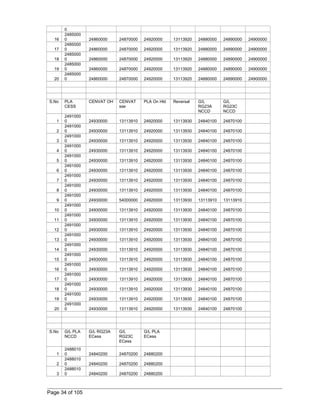
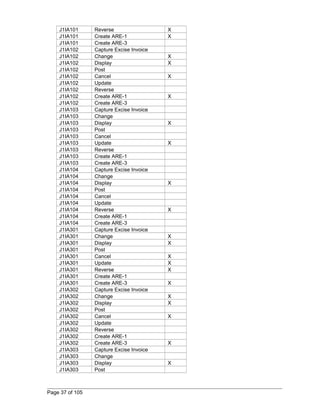
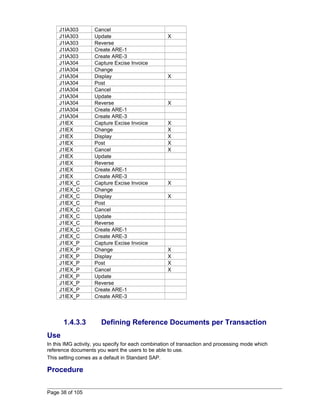
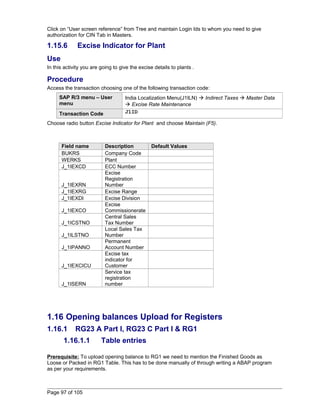
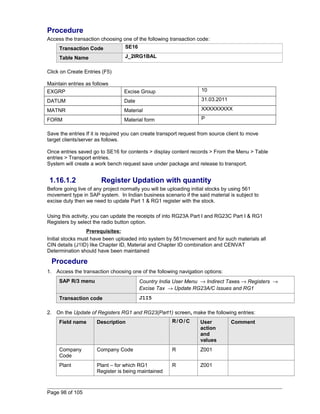
  • 101.
    Transaction code SE11 2. On the ABAP Directory: Initial Screen, make the following entries. 3. Choose J_2IACCBAL against Database Table filed and choose Display (F7) icon to enter into table. 4. On Dictionary: Display Table screen, choose Utilities ® Table contents ® Create Entries from Menu bar and make the following entries: Field name Description R/O/C User action and values Comment MANDT Client O Leave it blank Grayed out by system, sys will give client number. EXGRP Excise Group O 10 Choose appropriate excise group REGISTER Data element for Register n O RG23ABED for RG23A BED register You can choose the appropriate register listed at the bottom. DATUM Date O <Enter month end date> 31.03. 2011 For example if you are going live from 1.04.2011, then you must enter the last day of previous month i.e. 31.03. 2011. When you extract register the date range should be from 01.04.2011 to 31.04.2011. WERKS Plant O Leave it blank OP BAL Basic duty (OP BAL) O Leave it blank CL BAL Basic duty (CL BAL) O 9999.99 for example INR Enter the closing balance as on 31.03.2011 EXAMT Basic duty (EXAMT) O Leave it blank EXIND Extract Indicator O Leave it blank USNAM User name O Enter you user ID CPUDT Entry Date O Entry date 31.03.2011 Date on which you are making entry CPUTM Entry time O Enter time The following are Data elements for Registers: RG23ABED, RG23ASED, RG23AAED, RG23CBED, RG23CSED, RG23CAED, PLABED, PLASED, PLAAED, PLACESS.RG23AECS,RG23CECS,PLAECS,RG23AAT1,RG23CAT1,PLAAT1 5. After making table entries save the entries by choosing Save icon or Ctrl + S. Page 101 of 105
  • 102.
    Please do rememberthat this is only a direct table entry of opening balance, system does not check the actual FI entries. You need to make an appropriate FI entry to suitable to above transaction. An example is give below for your reference: You can use F-02 transaction code to pass the following FI entry: RG23A Part II Account DR Initial balances clearing a/c CR Or PLA BED Account DR Initial balances clearing a/c CR You can choose any appropriate accounting entry which is suitable to client. 6. After making table entry if you want to see you can extract register by using J2I5 transaction code But you need to remember the extraction date should be 01.04.2011 to 31.04.2011 as you have given closing balance as on 31.03.2011. 7. Extraction is possible only if there are some transactions (actual incoming excise invoices). That is to say you can extract register only after your first actual CIN transaction in system (other than opening balance). The same process can be followed for PLA register also. Result Table entry for RG23A Part II is made. 1.16.3 Balances Updation in RG23 C Part II Use To upload the opening balance in RG23C Part II. This transaction involves Direct Table Entries so, please be careful when you are doing this transaction. You have to do this activity before Extracting (J2I5) transaction i.e. there should not be any entries in J_2IACCBAL table, except the balances of RG23A Part II and PLA balance as mentioned above. If they are exists you can delete them and make the following transaction and then Extract (J2I5) again. Please do note that this is purely manual transaction system does not have any control or validations in this i.e. system will cross check with any other entry. The RG23C is for CENVAT credit on capital goods. Hence in this step you upload only the balance in the RG23C Part II. The RG23C balance on hold will not be uploaded in the table. The balance will remain in the FI books as a balance in a GL account. When this credit for the ‘On hold’ balance is due, it will be transferred to RG23C Part II using Excise JV (transaction code J1IH). Prerequisites: All CIN customization must have completed. Procedure 1. Access the transaction choosing one of the following navigation options: Page 102 of 105
  • 103.
    SAP R/3 menuTools ® ABAP Workbench ® Development ® ABAP Dictionary Transaction code SE11 2. On the ABAP Directory: Initial Screen, make the following entries. 3. Choose J_2IACCBAL against Database Table filed and choose Display (F7) icon to enter into table. 4. On Dictionary: Display Table screen, choose Utilities ® Table contents ® Create Entries from Menu bar and make the following entries: Field name Description R/O/C User action and values Comment MANDT Client O Leave it blank Grayed out by system, sys will give client number. EXGRP Excise Group O 10 Choose appropriate excise group REGISTER Data element for Register n O RG23CBED for RG23C BED register You can choose the appropriate register listed at the bottom. DATUM Date O <Enter month end date> 31.03.2011 For example if you are going live from 01.04.2011, then you must enter the last day of previous month i.e. 31.03. 2011. When you extract register the date range should be from 01.04.2011 to 31.04.2011. WERKS Plant O Leave it blank OP BAL Basic duty (OP BAL) O Leave it blank CL BAL Basic duty (CL BAL) O 9999.99 for example INR Enter the closing balance as on 31.03.2011 EXAMT Basic duty (EXAMT) O Leave it blank EXIND Extract Indicator O Leave it blank USNAM User name O Enter you user ID CPUDT Entry Date O Entry date 31.03.2011 Date on which you are making entry CPUTM Entry time O Enter time After making table entries save the entries by choosing Save icon or Ctrl + S. Please do remember that this is only a direct table entry of opening balance, system does not check the actual FI entries. You need to make an appropriate FI entry to suitable to above transaction. An example is give below for your reference: Page 103 of 105
  • 104.
    You can useF-02 transaction code to pass the following FI entry: RG23C Part II Account DR Initial balances clearing a/c CR You can choose any appropriate accounting entry which is suitable to client. 5. After making table entry if you want to see you can extract register by using J2I5 transaction code (as explained above). But you need to remember the extraction date should be 01.04.2011 to 31.04.2011 as you have given closing balance as on 31.03.2011. 6. Extraction is possible only if there are some transactions (actual incoming excise invoices). That is to say you can extract register only after your first actual CIN transaction in system (other than opening balance). The same process can be followed for PLA register also. Result Table entry for RG23C Part II is made. 1.16.4 RG23C On Hold Use When capital purchases are made which are eligible for CENVAT, RG23C(Part II) will be credited with only 50% of the CENVAT. The balance 50% will be CENVAT on Hold. The CENVAT on hold opening balance is not to be uploaded into Excise Register. It will remain as a balance in GL A/c for CENVAT on hold (Account No. 24930000 in chart of Accounts CAIN). In the new year when the credit for the CENVAT on hold is due the credit is taken using excise JV. The procedure for this is as follows, assuming CENVAT on Hold credit to be taken into RG23C (BED) is to be taken for Rs. 100.00 Procedure 1. Access the transaction choosing one of the following navigation options: SAP R/3 Menu Indirect Taxes ® Excise JV ® Create Transaction code J1IH 2. On the Excise JV – Main Menu screen choose Additional Excise. 3. On the Create Excise JV – Initial Screen (Diff Excise Posting) screen make the following entries: Field name Description User action and values Comment Document Number A Enter any dummy entry Document year Current year Example 2011 Page 104 of 105
  • 105.
    Company Code Z001 Plant Z001 Excise group 10 Sub-transaction Modvat Account Selection RG23C 4. Choose Enter to continue. 5. On the Create Excise JV – Details wrt to exc inv A 2011 for diff exc post Screen make the following entries: Field name Description User action and values Comment Document Date Today’s date Posting date Date on which to Post BED Amount 200.00 Enter twice the amount of credit to be taken 6. Choose Determine GL accounts. System determines the GL accounts automatically in the dialog box Excise JV – G/L Account Determination. No changes to be made. Choose Enter. 7. Choose Save or Crtl+S. Result System issues a message successfully created with reference of the documents created. Following Accounting entry is pass Itm PK Account Account short text Assignment Tax code Amount 1 50 24930000CENVAT hold V0 -200 2 40 24930000CENVAT hold V0 100 3 40 24850000CENVAT CapBED 20040603V0 100 RG23C (Part II) is credited for Rs. 100.00 Page 105 of 105