Chapter 3
Titles
By Naod Ephrem
Titles 1
Topics
 Creating and styling titles
 Saving custom styles
 Making text roll and crawl
 Adding text effects
 Animating Text
 Transcribing and Captioning
Titles 2
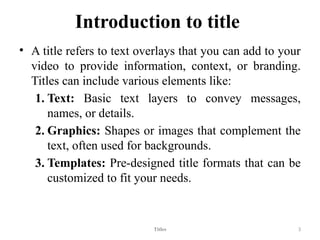
Introduction to title
• A title refers to text overlays that you can add to your
video to provide information, context, or branding.
Titles can include various elements like:
1. Text: Basic text layers to convey messages,
names, or details.
2. Graphics: Shapes or images that complement the
text, often used for backgrounds.
3. Templates: Pre-designed title formats that can be
customized to fit your needs.
Titles 3
• Titles are an essential part of
video production, enhancing
the viewer's understanding
and engagement.
Titles 4
Types of Titles
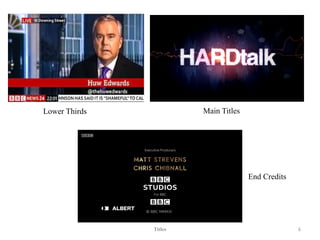
• Lower Thirds: Text that appears in the lower
portion of the screen, often used for names or
titles.
• Main Titles: The primary title that introduces
your video, usually seen at the beginning.
• End Credits: Lists of cast, crew, or
acknowledgments shown at the end of a video.
Titles 5
Titles 6
Lower Thirds
End Credits
Main Titles
Uses of Titles
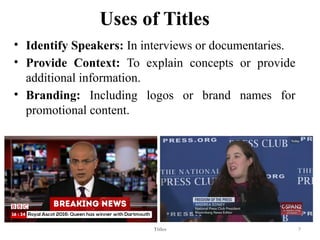
• Identify Speakers: In interviews or documentaries.
• Provide Context: To explain concepts or provide
additional information.
• Branding: Including logos or brand names for
promotional content.
Titles 7
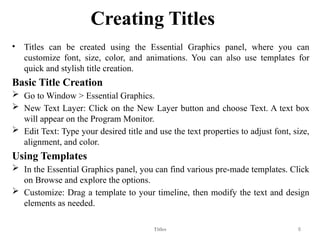
Creating Titles
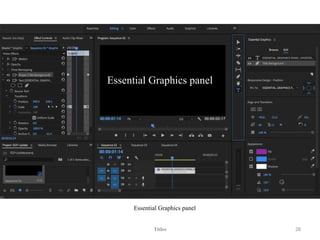
• Titles can be created using the Essential Graphics panel, where you can
customize font, size, color, and animations. You can also use templates for
quick and stylish title creation.
Basic Title Creation
 Go to Window > Essential Graphics.
 New Text Layer: Click on the New Layer button and choose Text. A text box
will appear on the Program Monitor.
 Edit Text: Type your desired title and use the text properties to adjust font, size,
alignment, and color.
Using Templates
 In the Essential Graphics panel, you can find various pre-made templates. Click
on Browse and explore the options.
 Customize: Drag a template to your timeline, then modify the text and design
elements as needed.
Titles 8
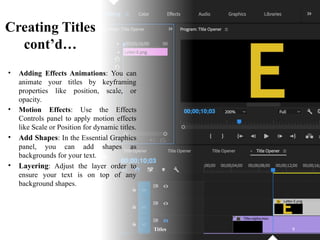
Creating Titles
cont’d…
• Adding Effects Animations: You can
animate your titles by keyframing
properties like position, scale, or
opacity.
• Motion Effects: Use the Effects
Controls panel to apply motion effects
like Scale or Position for dynamic titles.
• Add Shapes: In the Essential Graphics
panel, you can add shapes as
backgrounds for your text.
• Layering: Adjust the layer order to
ensure your text is on top of any
background shapes.
Titles 9
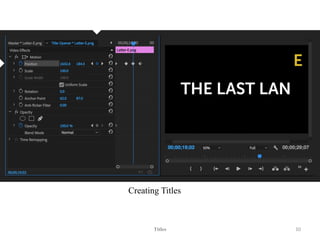
Creating Titles
Titles 10
Saving custom styles
• In Adobe Premiere Pro, saving custom styles can enhance your
workflow by allowing you to reuse your favorite text and
graphic styles.
Titles 11
Saving Custom Text Styles
1. Create a Text Layer:
1. Use the Type Tool (T) to create a text layer in your timeline.
2. Format Your Text:
1. Use the Essential Graphics panel to adjust the font, size, color, and other
properties to your liking.
3. Save the Style:
1. In the Essential Graphics panel, with your text layer selected, click on the “+”
icon (Add to Master) near the top.
2. Choose “Create Style”. Give your style a name and click OK.
4. Using Saved Styles:
1. To apply your saved style to another text layer, select the layer, then go to the
Essential Graphics panel, find your saved style, and click to apply it.
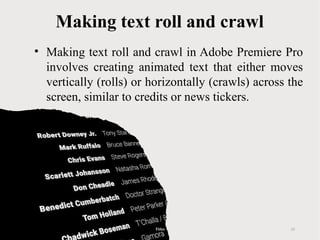
Making text roll and crawl
• Making text roll and crawl in Adobe Premiere Pro
involves creating animated text that either moves
vertically (rolls) or horizontally (crawls) across the
screen, similar to credits or news tickers.
Titles 12
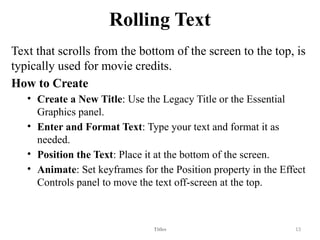
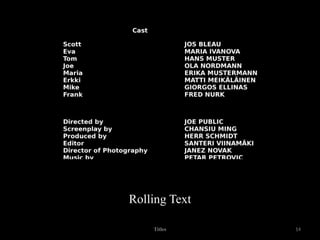
Rolling Text
Text that scrolls from the bottom of the screen to the top, is
typically used for movie credits.
How to Create
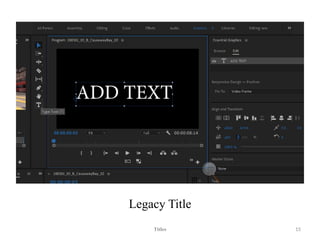
• Create a New Title: Use the Legacy Title or the Essential
Graphics panel.
• Enter and Format Text: Type your text and format it as
needed.
• Position the Text: Place it at the bottom of the screen.
• Animate: Set keyframes for the Position property in the Effect
Controls panel to move the text off-screen at the top.
Titles 13
Titles 14
Rolling Text
Legacy Title
Titles 15
Steps for Rolling Text (like
credits)
To create rolling or crawling text in Adobe Premiere Pro, follow these steps:
1. Create a New Title:
1. Go to File > New > Legacy Title (or Title > New Title in newer versions).
2. A new window will open where you can enter your text.
2. Enter Your Text:
1. Type in your desired text. You can format it using the tools available (font,
size, color, etc.).
3. Position Your Text:
1. Place the text at the bottom of the title window, since it will roll up.
4. Close the Title Editor:
1. Once you're satisfied, close the title editor. The title will now appear in your
project panel.
Titles 16
Steps for Rolling Text (like
credits) cont’d…
5. Add to Timeline:
1. Drag the title from the project panel to your timeline.
6. Animate the Text:
2. Select the title clip in the timeline.
3. Go to the Effect Controls panel.
4. Under Motion, set a keyframe for Position at the start of your clip (make
sure it's off-screen at the bottom).
5. Move the playhead to the end of the clip, then adjust the Position so it
moves off-screen at the top.
6. The text will now roll upwards.
7. Adjust Duration:
7. You can extend or shorten the clip duration by dragging its edges to control
the speed of the roll.
Titles 17
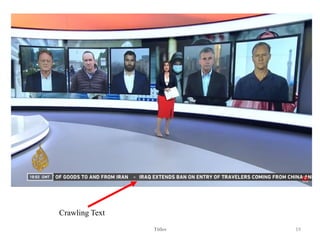
Crawling Text
• Text that moves horizontally across the screen, often seen
in news broadcasts.
How to Create?
• Create a New Title: Same as rolling text.
• Enter and Format Text: Type your text and format it.
• Position the Text: Start it off-screen to the left.
• Animate: Set keyframes for the Position property to
move it off-screen to the right.
Titles 18
Titles 19
Crawling Text
For Crawling Text (like a news
ticker):
1. Create a New Title:
• Use the same process as above to create a new title.
2. Enter Your Text:
• Type in your desired text. Ensure it’s formatted correctly.
3. Position Your Text:
• Place the text in the title editor so it starts off-screen to the
left.
4. Close the Title Editor:
• Close the title editor and drag it to your timeline.
Titles 20
For Crawling Text (like a news
ticker):
5. Animate the Text
6. Select the title clip in the timeline
• In the Effect Controls panel, under Motion, set a keyframe
for Position at the start of your clip (off-screen to the left).
• Move the playhead to the end of the clip, then adjust the
Position so it moves off-screen to the right.
6. Adjust Duration
• Like rolling text, you can adjust the clip's duration to control
the crawl speed.
Titles 21
Adding text effects
• Adding text effects in Adobe Premiere Pro involves
enhancing your video projects with dynamic text
styles and animations.
• This process allows you to create engaging titles,
captions, and other textual elements that can
significantly improve the visual appeal of your
content.
Titles 22
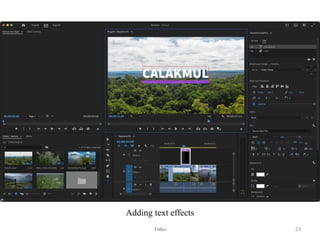
Adding text effects
Titles 23
Key Components of Adding Text Effects
1. Creating Text:
• Use the Type Tool to add text layers directly onto your video timeline.
2. Styling Text:
• Customize fonts, sizes, colors, and alignments using the Essential Graphics panel. You can also
add backgrounds or shapes to make the text stand out.
3. Animating Text:
• Apply animations to text using keyframes to change position, scale, and opacity over time. This
can create effects like fades, slides, or zooms.
4. Applying Effects:
• Utilize built-in video effects such as shadows, glows, or blurs to enhance the text visually. These
can be found in the Effects panel.
5. Using Motion Graphics Templates (MOGRTs):
• Import pre-designed motion graphics templates that offer advanced animations and styles, which
can be easily customized.
6. Layering:
• Combine text with images, videos, and other graphical elements for a more dynamic look. Adjust
the order of layers to create depth.
7. Exporting:
• Once satisfied with the design and animations, export your project to finalize the video.
Titles 24
Why Use Text Effects?
• Emphasize Information: Highlight important
messages or titles.
• Enhance Storytelling: Support narrative
elements with engaging visuals.
• Professional Look: Elevate the overall
production quality of your video.
Titles 25
Adding text effects
1. Create a Text Layer
Open Premiere Pro and load your project.
• Go to the Toolbar and select the Type Tool (T).
• Click on the Program Monitor where you want to add text and type your message.
• With the text selected, use the Essential Graphics panel (Window > Essential
Graphics) to customize the font, size, color, and alignment.
2. Add Text Effects
• Select the Text Layer in the timeline.
• With the layer selected, go to the Effect Controls panel (Window > Effect Controls).
3. Apply Animation Effects
• Position and Scale: Under the Transform options, you can animate the text's
position and scale by setting keyframes. Click the stopwatch icon next to Position or
Scale to create a keyframe, move the playhead, and adjust the values to create
movement.
• Opacity: Similarly, animate the Opacity for fade-in or fade-out effects by setting
keyframes.
Titles 26
Adding text effects cont’d…
4. Using Presets and Effects
• Go to the Effects panel (Window > Effects).
• Look for text effects under Video Effects > Transform for additional
movement options.
• Drag and drop effects like Gaussian Blur, Glow, or Drop Shadow onto
your text layer for enhanced styling.
5. Using Essential Graphics for Advanced Styles
• In the Essential Graphics panel, you can add shapes behind your text for
emphasis.
• Experiment with layering text and shapes, adjusting the layering order in
the timeline to create dynamic compositions.
Titles 27
Titles 28
Essential Graphics panel
Tips for Effective Titles
• Keep It Simple: Clear, concise titles are
usually the most effective.
• Consider Readability: Ensure text stands out
against the background.
• Consistency: Use similar styles and fonts
throughout your video for a cohesive look.
• Test Different Fonts: Experiment with fonts
to find what fits the tone of your video.
Titles 29
Animating Text
1. Create a Text Layer
• Open Premiere Pro and create or open your project.
• Select the Type Tool (T) from the toolbar.
• Click on the Program Monitor and type your text.
• You can adjust the font, size, and color in the Essential Graphics panel.
2. Position Your Text
• Select your text layer in the timeline.
• Go to the Effect Controls panel. Here you can adjust the Position and
Scale settings.
Titles 30
Animating Text cont’d…
3. Animate with Keyframes
• To create animations, you’ll be using keyframes.
• Move the playhead to the point in the timeline where you want the
animation to start.
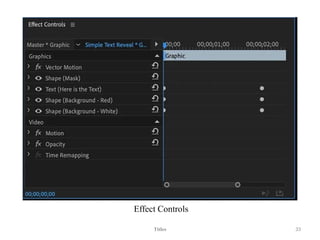
• In the Effect Controls panel, click the stopwatch icon next to Position
or Scale to create a keyframe.
• Move the playhead to where you want the animation to end, then
adjust the position or scale. Premiere will automatically create a new
keyframe.
4. Ease In/Out for Smoother Animation
• Right-click on the keyframes in the Effect Controls panel and choose
Temporal Interpolation > Ease In or Ease Out. This creates smoother
transitions.
Titles 31
Animating Text cont’d…
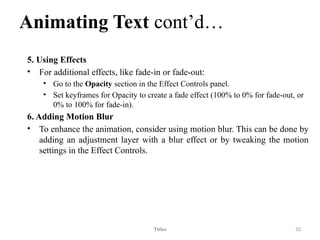
5. Using Effects
• For additional effects, like fade-in or fade-out:
• Go to the Opacity section in the Effect Controls panel.
• Set keyframes for Opacity to create a fade effect (100% to 0% for fade-out, or
0% to 100% for fade-in).
6. Adding Motion Blur
• To enhance the animation, consider using motion blur. This can be done by
adding an adjustment layer with a blur effect or by tweaking the motion
settings in the Effect Controls.
Titles 32
Effect Controls
Titles 33
TranscribingandCaptioning
• Premiere offers transcribing and captioning Many
videographers and filmmakers transcribe their
interviews.
• This allows them to edit the text on a screen. Some will
even print it out and cut it up so they can experiment
with rearranging the order of an interview.
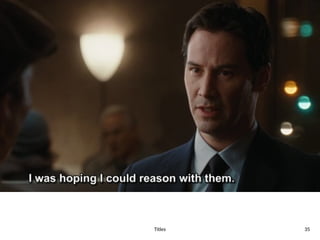
• Captioning can include closed captioning - the kind you
can turn on and off on YouTube, Netflix, Hulu, etc. Or
it can mean open captioning where the caption is
burned into the video - something you see a lot on
social media posts.
Titles 34
Titles 35
Auto-transcribe Your Video with
Premiere Pro
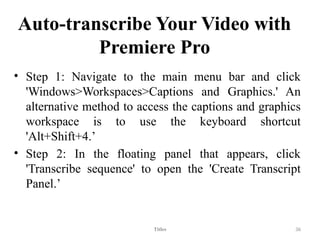
• Step 1: Navigate to the main menu bar and click
'Windows>Workspaces>Captions and Graphics.' An
alternative method to access the captions and graphics
workspace is to use the keyboard shortcut
'Alt+Shift+4.’
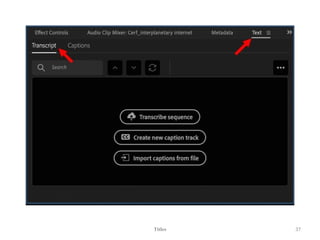
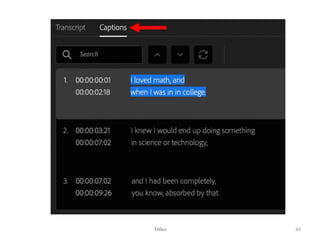
• Step 2: In the floating panel that appears, click
'Transcribe sequence' to open the 'Create Transcript
Panel.’
Titles 36
Titles 37
Auto-transcribe Your Video with
Premiere Pro cont’d…
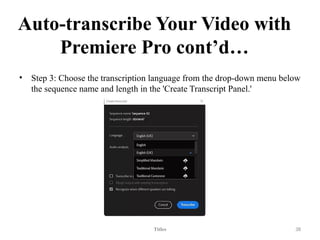
• Step 3: Choose the transcription language from the drop-down menu below
the sequence name and length in the 'Create Transcript Panel.'
Titles 38
Auto-transcribe Your Video with
Premiere Pro cont’d…
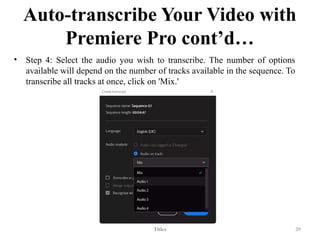
• Step 4: Select the audio you wish to transcribe. The number of options
available will depend on the number of tracks available in the sequence. To
transcribe all tracks at once, click on 'Mix.'
Titles 39
Auto-transcribe Your Video with
Premiere Pro cont’d…
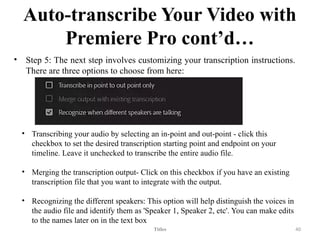
• Step 5: The next step involves customizing your transcription instructions.
There are three options to choose from here:
Titles 40
• Transcribing your audio by selecting an in-point and out-point - click this
checkbox to set the desired transcription starting point and endpoint on your
timeline. Leave it unchecked to transcribe the entire audio file.
• Merging the transcription output- Click on this checkbox if you have an existing
transcription file that you want to integrate with the output.
• Recognizing the different speakers: This option will help distinguish the voices in
the audio file and identify them as 'Speaker 1, Speaker 2, etc'. You can make edits
to the names later on in the text box
Auto-transcribe Your Video with
Premiere Pro cont’d…
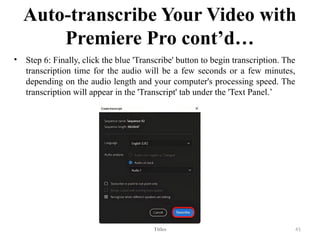
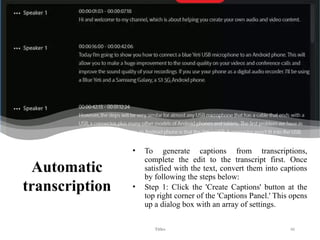
• Step 6: Finally, click the blue 'Transcribe' button to begin transcription. The
transcription time for the audio will be a few seconds or a few minutes,
depending on the audio length and your computer's processing speed. The
transcription will appear in the 'Transcript' tab under the 'Text Panel.’
Titles 41
Auto-transcribe
Your Video with Premiere Pro
cont’d…
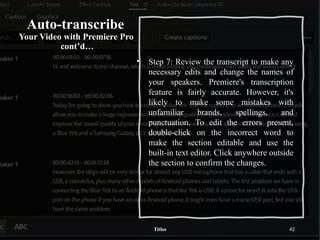
• Step 7: Review the transcript to make any
necessary edits and change the names of
your speakers. Premiere's transcription
feature is fairly accurate. However, it's
likely to make some mistakes with
unfamiliar brands, spellings, and
punctuation. To edit the errors present,
double-click on the incorrect word to
make the section editable and use the
built-in text editor. Click anywhere outside
the section to confirm the changes.
Titles 42
Auto-transcribe
Your Video
with Premiere
Pro cont’d…
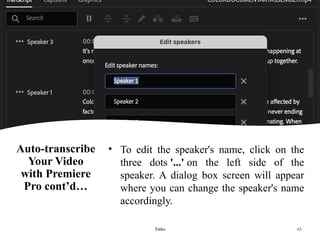
• To edit the speaker's name, click on the
three dots '...' on the left side of the
speaker. A dialog box screen will appear
where you can change the speaker's name
accordingly.
Titles 43
Titles 44
Titles 45
Automatic
transcription
• To generate captions from transcriptions,
complete the edit to the transcript first. Once
satisfied with the text, convert them into captions
by following the steps below:
• Step 1: Click the 'Create Captions' button at the
top right corner of the 'Captions Panel.' This opens
up a dialog box with an array of settings.
Titles 46
Automatic
transcription cont’d…
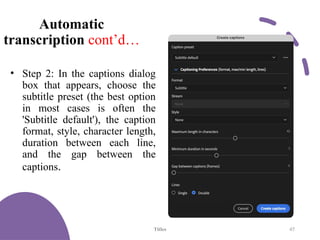
• Step 2: In the captions dialog
box that appears, choose the
subtitle preset (the best option
in most cases is often the
'Subtitle default'), the caption
format, style, character length,
duration between each line,
and the gap between the
captions.
Titles 47
Automatic transcription cont’d…
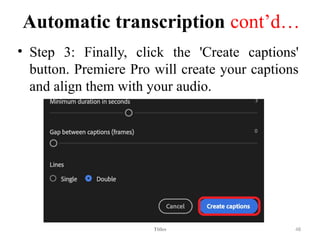
• Step 3: Finally, click the 'Create captions'
button. Premiere Pro will create your captions
and align them with your audio.
Titles 48
Import transcript
from a third party
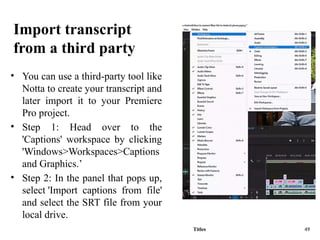
• You can use a third-party tool like
Notta to create your transcript and
later import it to your Premiere
Pro project.
• Step 1: Head over to the
'Captions' workspace by clicking
'Windows>Workspaces>Captions
and Graphics.’
• Step 2: In the panel that pops up,
select 'Import captions from file'
and select the SRT file from your
local drive.
Titles 49
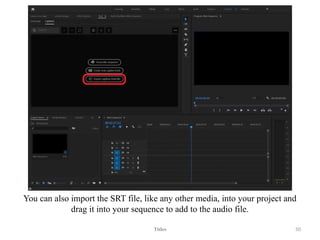
You can also import the SRT file, like any other media, into your project and
drag it into your sequence to add to the audio file.
Titles 50
Manually transcribe your
captions
• This method can be laborious, but it's one of
the best ways to maintain your caption's
accuracy. It involves listening to the audio and
typing out the captions manually. To do it:
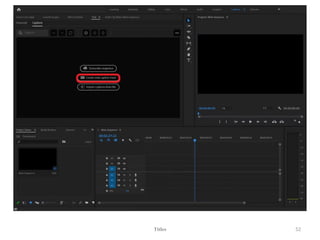
• Step 1:Navigate to the captions workspace and
click 'Create new caption track.' A faster way
to do this is using the shortcut (Ctrl+Alt+A).
Titles 51
Titles 52
Manually
transcribe your
captions
cont’d…
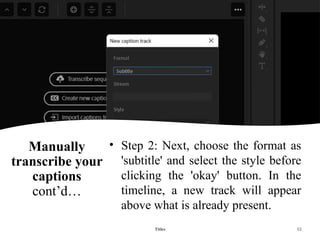
• Step 2: Next, choose the format as
'subtitle' and select the style before
clicking the 'okay' button. In the
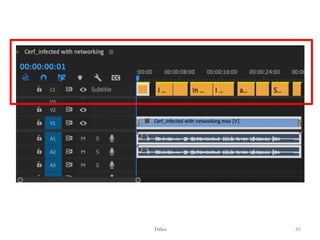
timeline, a new track will appear
above what is already present.
Titles 53
Manually transcribe your
captions cont’d…
• Step 3: Add your audio or video footage and adjust
the playhead on the wavelength where the first
speaker is talking.
• Step 4: Head to the Text panel and click the [+] icon
under captions to add new caption segments.
Alternatively, use the shortcut Ctrl+Alt+C.
Titles 54
Manually transcribe your
captions cont’d…
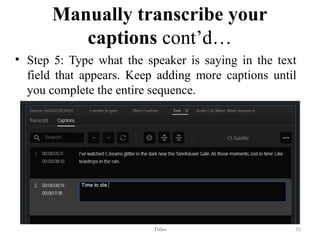
• Step 5: Type what the speaker is saying in the text
field that appears. Keep adding more captions until
you complete the entire sequence.
Titles 55
Manually transcribe your
captions cont’d…
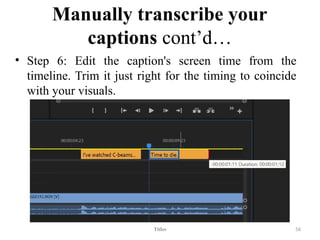
• Step 6: Edit the caption's screen time from the
timeline. Trim it just right for the timing to coincide
with your visuals.
Titles 56
Stylize your captions
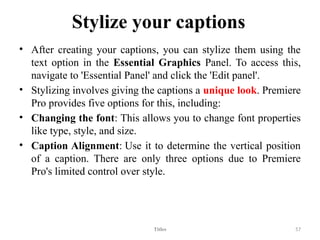
• After creating your captions, you can stylize them using the
text option in the Essential Graphics Panel. To access this,
navigate to 'Essential Panel' and click the 'Edit panel'.
• Stylizing involves giving the captions a unique look. Premiere
Pro provides five options for this, including:
• Changing the font: This allows you to change font properties
like type, style, and size.
• Caption Alignment: Use it to determine the vertical position
of a caption. There are only three options due to Premiere
Pro's limited control over style.
Titles 57
Stylize your captions cont’d…
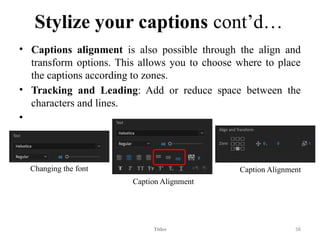
• Captions alignment is also possible through the align and
transform options. This allows you to choose where to place
the captions according to zones.
• Tracking and Leading: Add or reduce space between the
characters and lines.
•
Titles 58
Caption Alignment
Caption Alignment
Changing the font
Export captions
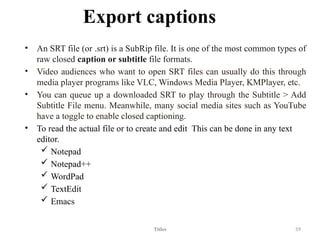
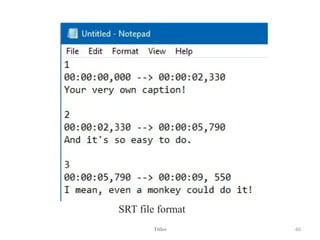
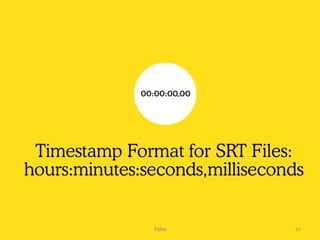
• An SRT file (or .srt) is a SubRip file. It is one of the most common types of
raw closed caption or subtitle file formats.
• Video audiences who want to open SRT files can usually do this through
media player programs like VLC, Windows Media Player, KMPlayer, etc.
• You can queue up a downloaded SRT to play through the Subtitle > Add
Subtitle File menu. Meanwhile, many social media sites such as YouTube
have a toggle to enable closed captioning.
• To read the actual file or to create and edit This can be done in any text
editor.
 Notepad
 Notepad++
 WordPad
 TextEdit
 Emacs
Titles 59
SRT file format
Titles 60
Titles 61
Titles 62
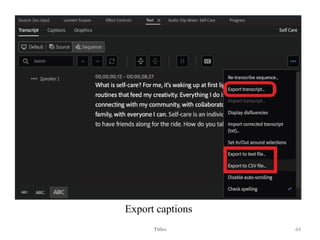
Export captions cont’d…
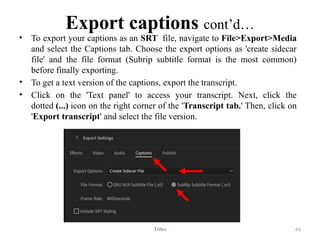
• To export your captions as an SRT file, navigate to File>Export>Media
and select the Captions tab. Choose the export options as 'create sidecar
file' and the file format (Subrip subtitle format is the most common)
before finally exporting.
• To get a text version of the captions, export the transcript.
• Click on the 'Text panel' to access your transcript. Next, click the
dotted (...) icon on the right corner of the 'Transcript tab.' Then, click on
'Export transcript' and select the file version.
Titles 63
Export captions
Titles 64
Q & A
Titles 65
Thank You!
Editing Techniques 66

Chapter 3. Titles in adobe premiere Pro.pptx

  • 1.
    Chapter 3 Titles By NaodEphrem Titles 1
  • 2.
    Topics  Creating andstyling titles  Saving custom styles  Making text roll and crawl  Adding text effects  Animating Text  Transcribing and Captioning Titles 2
  • 3.
    Introduction to title •A title refers to text overlays that you can add to your video to provide information, context, or branding. Titles can include various elements like: 1. Text: Basic text layers to convey messages, names, or details. 2. Graphics: Shapes or images that complement the text, often used for backgrounds. 3. Templates: Pre-designed title formats that can be customized to fit your needs. Titles 3
  • 4.
    • Titles arean essential part of video production, enhancing the viewer's understanding and engagement. Titles 4
  • 5.
    Types of Titles •Lower Thirds: Text that appears in the lower portion of the screen, often used for names or titles. • Main Titles: The primary title that introduces your video, usually seen at the beginning. • End Credits: Lists of cast, crew, or acknowledgments shown at the end of a video. Titles 5
  • 6.
    Titles 6 Lower Thirds EndCredits Main Titles
  • 7.
    Uses of Titles •Identify Speakers: In interviews or documentaries. • Provide Context: To explain concepts or provide additional information. • Branding: Including logos or brand names for promotional content. Titles 7
  • 8.
    Creating Titles • Titlescan be created using the Essential Graphics panel, where you can customize font, size, color, and animations. You can also use templates for quick and stylish title creation. Basic Title Creation  Go to Window > Essential Graphics.  New Text Layer: Click on the New Layer button and choose Text. A text box will appear on the Program Monitor.  Edit Text: Type your desired title and use the text properties to adjust font, size, alignment, and color. Using Templates  In the Essential Graphics panel, you can find various pre-made templates. Click on Browse and explore the options.  Customize: Drag a template to your timeline, then modify the text and design elements as needed. Titles 8
  • 9.
    Creating Titles cont’d… • AddingEffects Animations: You can animate your titles by keyframing properties like position, scale, or opacity. • Motion Effects: Use the Effects Controls panel to apply motion effects like Scale or Position for dynamic titles. • Add Shapes: In the Essential Graphics panel, you can add shapes as backgrounds for your text. • Layering: Adjust the layer order to ensure your text is on top of any background shapes. Titles 9
  • 10.
  • 11.
    Saving custom styles •In Adobe Premiere Pro, saving custom styles can enhance your workflow by allowing you to reuse your favorite text and graphic styles. Titles 11 Saving Custom Text Styles 1. Create a Text Layer: 1. Use the Type Tool (T) to create a text layer in your timeline. 2. Format Your Text: 1. Use the Essential Graphics panel to adjust the font, size, color, and other properties to your liking. 3. Save the Style: 1. In the Essential Graphics panel, with your text layer selected, click on the “+” icon (Add to Master) near the top. 2. Choose “Create Style”. Give your style a name and click OK. 4. Using Saved Styles: 1. To apply your saved style to another text layer, select the layer, then go to the Essential Graphics panel, find your saved style, and click to apply it.
  • 12.
    Making text rolland crawl • Making text roll and crawl in Adobe Premiere Pro involves creating animated text that either moves vertically (rolls) or horizontally (crawls) across the screen, similar to credits or news tickers. Titles 12
  • 13.
    Rolling Text Text thatscrolls from the bottom of the screen to the top, is typically used for movie credits. How to Create • Create a New Title: Use the Legacy Title or the Essential Graphics panel. • Enter and Format Text: Type your text and format it as needed. • Position the Text: Place it at the bottom of the screen. • Animate: Set keyframes for the Position property in the Effect Controls panel to move the text off-screen at the top. Titles 13
  • 14.
  • 15.
  • 16.
    Steps for RollingText (like credits) To create rolling or crawling text in Adobe Premiere Pro, follow these steps: 1. Create a New Title: 1. Go to File > New > Legacy Title (or Title > New Title in newer versions). 2. A new window will open where you can enter your text. 2. Enter Your Text: 1. Type in your desired text. You can format it using the tools available (font, size, color, etc.). 3. Position Your Text: 1. Place the text at the bottom of the title window, since it will roll up. 4. Close the Title Editor: 1. Once you're satisfied, close the title editor. The title will now appear in your project panel. Titles 16
  • 17.
    Steps for RollingText (like credits) cont’d… 5. Add to Timeline: 1. Drag the title from the project panel to your timeline. 6. Animate the Text: 2. Select the title clip in the timeline. 3. Go to the Effect Controls panel. 4. Under Motion, set a keyframe for Position at the start of your clip (make sure it's off-screen at the bottom). 5. Move the playhead to the end of the clip, then adjust the Position so it moves off-screen at the top. 6. The text will now roll upwards. 7. Adjust Duration: 7. You can extend or shorten the clip duration by dragging its edges to control the speed of the roll. Titles 17
  • 18.
    Crawling Text • Textthat moves horizontally across the screen, often seen in news broadcasts. How to Create? • Create a New Title: Same as rolling text. • Enter and Format Text: Type your text and format it. • Position the Text: Start it off-screen to the left. • Animate: Set keyframes for the Position property to move it off-screen to the right. Titles 18
  • 19.
  • 20.
    For Crawling Text(like a news ticker): 1. Create a New Title: • Use the same process as above to create a new title. 2. Enter Your Text: • Type in your desired text. Ensure it’s formatted correctly. 3. Position Your Text: • Place the text in the title editor so it starts off-screen to the left. 4. Close the Title Editor: • Close the title editor and drag it to your timeline. Titles 20
  • 21.
    For Crawling Text(like a news ticker): 5. Animate the Text 6. Select the title clip in the timeline • In the Effect Controls panel, under Motion, set a keyframe for Position at the start of your clip (off-screen to the left). • Move the playhead to the end of the clip, then adjust the Position so it moves off-screen to the right. 6. Adjust Duration • Like rolling text, you can adjust the clip's duration to control the crawl speed. Titles 21
  • 22.
    Adding text effects •Adding text effects in Adobe Premiere Pro involves enhancing your video projects with dynamic text styles and animations. • This process allows you to create engaging titles, captions, and other textual elements that can significantly improve the visual appeal of your content. Titles 22
  • 23.
  • 24.
    Key Components ofAdding Text Effects 1. Creating Text: • Use the Type Tool to add text layers directly onto your video timeline. 2. Styling Text: • Customize fonts, sizes, colors, and alignments using the Essential Graphics panel. You can also add backgrounds or shapes to make the text stand out. 3. Animating Text: • Apply animations to text using keyframes to change position, scale, and opacity over time. This can create effects like fades, slides, or zooms. 4. Applying Effects: • Utilize built-in video effects such as shadows, glows, or blurs to enhance the text visually. These can be found in the Effects panel. 5. Using Motion Graphics Templates (MOGRTs): • Import pre-designed motion graphics templates that offer advanced animations and styles, which can be easily customized. 6. Layering: • Combine text with images, videos, and other graphical elements for a more dynamic look. Adjust the order of layers to create depth. 7. Exporting: • Once satisfied with the design and animations, export your project to finalize the video. Titles 24
  • 25.
    Why Use TextEffects? • Emphasize Information: Highlight important messages or titles. • Enhance Storytelling: Support narrative elements with engaging visuals. • Professional Look: Elevate the overall production quality of your video. Titles 25
  • 26.
    Adding text effects 1.Create a Text Layer Open Premiere Pro and load your project. • Go to the Toolbar and select the Type Tool (T). • Click on the Program Monitor where you want to add text and type your message. • With the text selected, use the Essential Graphics panel (Window > Essential Graphics) to customize the font, size, color, and alignment. 2. Add Text Effects • Select the Text Layer in the timeline. • With the layer selected, go to the Effect Controls panel (Window > Effect Controls). 3. Apply Animation Effects • Position and Scale: Under the Transform options, you can animate the text's position and scale by setting keyframes. Click the stopwatch icon next to Position or Scale to create a keyframe, move the playhead, and adjust the values to create movement. • Opacity: Similarly, animate the Opacity for fade-in or fade-out effects by setting keyframes. Titles 26
  • 27.
    Adding text effectscont’d… 4. Using Presets and Effects • Go to the Effects panel (Window > Effects). • Look for text effects under Video Effects > Transform for additional movement options. • Drag and drop effects like Gaussian Blur, Glow, or Drop Shadow onto your text layer for enhanced styling. 5. Using Essential Graphics for Advanced Styles • In the Essential Graphics panel, you can add shapes behind your text for emphasis. • Experiment with layering text and shapes, adjusting the layering order in the timeline to create dynamic compositions. Titles 27
  • 28.
    Titles 28 Essential Graphicspanel Essential Graphics panel
  • 29.
    Tips for EffectiveTitles • Keep It Simple: Clear, concise titles are usually the most effective. • Consider Readability: Ensure text stands out against the background. • Consistency: Use similar styles and fonts throughout your video for a cohesive look. • Test Different Fonts: Experiment with fonts to find what fits the tone of your video. Titles 29
  • 30.
    Animating Text 1. Createa Text Layer • Open Premiere Pro and create or open your project. • Select the Type Tool (T) from the toolbar. • Click on the Program Monitor and type your text. • You can adjust the font, size, and color in the Essential Graphics panel. 2. Position Your Text • Select your text layer in the timeline. • Go to the Effect Controls panel. Here you can adjust the Position and Scale settings. Titles 30
  • 31.
    Animating Text cont’d… 3.Animate with Keyframes • To create animations, you’ll be using keyframes. • Move the playhead to the point in the timeline where you want the animation to start. • In the Effect Controls panel, click the stopwatch icon next to Position or Scale to create a keyframe. • Move the playhead to where you want the animation to end, then adjust the position or scale. Premiere will automatically create a new keyframe. 4. Ease In/Out for Smoother Animation • Right-click on the keyframes in the Effect Controls panel and choose Temporal Interpolation > Ease In or Ease Out. This creates smoother transitions. Titles 31
  • 32.
    Animating Text cont’d… 5.Using Effects • For additional effects, like fade-in or fade-out: • Go to the Opacity section in the Effect Controls panel. • Set keyframes for Opacity to create a fade effect (100% to 0% for fade-out, or 0% to 100% for fade-in). 6. Adding Motion Blur • To enhance the animation, consider using motion blur. This can be done by adding an adjustment layer with a blur effect or by tweaking the motion settings in the Effect Controls. Titles 32
  • 33.
  • 34.
    TranscribingandCaptioning • Premiere offerstranscribing and captioning Many videographers and filmmakers transcribe their interviews. • This allows them to edit the text on a screen. Some will even print it out and cut it up so they can experiment with rearranging the order of an interview. • Captioning can include closed captioning - the kind you can turn on and off on YouTube, Netflix, Hulu, etc. Or it can mean open captioning where the caption is burned into the video - something you see a lot on social media posts. Titles 34
  • 35.
  • 36.
    Auto-transcribe Your Videowith Premiere Pro • Step 1: Navigate to the main menu bar and click 'Windows>Workspaces>Captions and Graphics.' An alternative method to access the captions and graphics workspace is to use the keyboard shortcut 'Alt+Shift+4.’ • Step 2: In the floating panel that appears, click 'Transcribe sequence' to open the 'Create Transcript Panel.’ Titles 36
  • 37.
  • 38.
    Auto-transcribe Your Videowith Premiere Pro cont’d… • Step 3: Choose the transcription language from the drop-down menu below the sequence name and length in the 'Create Transcript Panel.' Titles 38
  • 39.
    Auto-transcribe Your Videowith Premiere Pro cont’d… • Step 4: Select the audio you wish to transcribe. The number of options available will depend on the number of tracks available in the sequence. To transcribe all tracks at once, click on 'Mix.' Titles 39
  • 40.
    Auto-transcribe Your Videowith Premiere Pro cont’d… • Step 5: The next step involves customizing your transcription instructions. There are three options to choose from here: Titles 40 • Transcribing your audio by selecting an in-point and out-point - click this checkbox to set the desired transcription starting point and endpoint on your timeline. Leave it unchecked to transcribe the entire audio file. • Merging the transcription output- Click on this checkbox if you have an existing transcription file that you want to integrate with the output. • Recognizing the different speakers: This option will help distinguish the voices in the audio file and identify them as 'Speaker 1, Speaker 2, etc'. You can make edits to the names later on in the text box
  • 41.
    Auto-transcribe Your Videowith Premiere Pro cont’d… • Step 6: Finally, click the blue 'Transcribe' button to begin transcription. The transcription time for the audio will be a few seconds or a few minutes, depending on the audio length and your computer's processing speed. The transcription will appear in the 'Transcript' tab under the 'Text Panel.’ Titles 41
  • 42.
    Auto-transcribe Your Video withPremiere Pro cont’d… • Step 7: Review the transcript to make any necessary edits and change the names of your speakers. Premiere's transcription feature is fairly accurate. However, it's likely to make some mistakes with unfamiliar brands, spellings, and punctuation. To edit the errors present, double-click on the incorrect word to make the section editable and use the built-in text editor. Click anywhere outside the section to confirm the changes. Titles 42
  • 43.
    Auto-transcribe Your Video with Premiere Procont’d… • To edit the speaker's name, click on the three dots '...' on the left side of the speaker. A dialog box screen will appear where you can change the speaker's name accordingly. Titles 43
  • 44.
  • 45.
  • 46.
    Automatic transcription • To generatecaptions from transcriptions, complete the edit to the transcript first. Once satisfied with the text, convert them into captions by following the steps below: • Step 1: Click the 'Create Captions' button at the top right corner of the 'Captions Panel.' This opens up a dialog box with an array of settings. Titles 46
  • 47.
    Automatic transcription cont’d… • Step2: In the captions dialog box that appears, choose the subtitle preset (the best option in most cases is often the 'Subtitle default'), the caption format, style, character length, duration between each line, and the gap between the captions. Titles 47
  • 48.
    Automatic transcription cont’d… •Step 3: Finally, click the 'Create captions' button. Premiere Pro will create your captions and align them with your audio. Titles 48
  • 49.
    Import transcript from athird party • You can use a third-party tool like Notta to create your transcript and later import it to your Premiere Pro project. • Step 1: Head over to the 'Captions' workspace by clicking 'Windows>Workspaces>Captions and Graphics.’ • Step 2: In the panel that pops up, select 'Import captions from file' and select the SRT file from your local drive. Titles 49
  • 50.
    You can alsoimport the SRT file, like any other media, into your project and drag it into your sequence to add to the audio file. Titles 50
  • 51.
    Manually transcribe your captions •This method can be laborious, but it's one of the best ways to maintain your caption's accuracy. It involves listening to the audio and typing out the captions manually. To do it: • Step 1:Navigate to the captions workspace and click 'Create new caption track.' A faster way to do this is using the shortcut (Ctrl+Alt+A). Titles 51
  • 52.
  • 53.
    Manually transcribe your captions cont’d… • Step2: Next, choose the format as 'subtitle' and select the style before clicking the 'okay' button. In the timeline, a new track will appear above what is already present. Titles 53
  • 54.
    Manually transcribe your captionscont’d… • Step 3: Add your audio or video footage and adjust the playhead on the wavelength where the first speaker is talking. • Step 4: Head to the Text panel and click the [+] icon under captions to add new caption segments. Alternatively, use the shortcut Ctrl+Alt+C. Titles 54
  • 55.
    Manually transcribe your captionscont’d… • Step 5: Type what the speaker is saying in the text field that appears. Keep adding more captions until you complete the entire sequence. Titles 55
  • 56.
    Manually transcribe your captionscont’d… • Step 6: Edit the caption's screen time from the timeline. Trim it just right for the timing to coincide with your visuals. Titles 56
  • 57.
    Stylize your captions •After creating your captions, you can stylize them using the text option in the Essential Graphics Panel. To access this, navigate to 'Essential Panel' and click the 'Edit panel'. • Stylizing involves giving the captions a unique look. Premiere Pro provides five options for this, including: • Changing the font: This allows you to change font properties like type, style, and size. • Caption Alignment: Use it to determine the vertical position of a caption. There are only three options due to Premiere Pro's limited control over style. Titles 57
  • 58.
    Stylize your captionscont’d… • Captions alignment is also possible through the align and transform options. This allows you to choose where to place the captions according to zones. • Tracking and Leading: Add or reduce space between the characters and lines. • Titles 58 Caption Alignment Caption Alignment Changing the font
  • 59.
    Export captions • AnSRT file (or .srt) is a SubRip file. It is one of the most common types of raw closed caption or subtitle file formats. • Video audiences who want to open SRT files can usually do this through media player programs like VLC, Windows Media Player, KMPlayer, etc. • You can queue up a downloaded SRT to play through the Subtitle > Add Subtitle File menu. Meanwhile, many social media sites such as YouTube have a toggle to enable closed captioning. • To read the actual file or to create and edit This can be done in any text editor.  Notepad  Notepad++  WordPad  TextEdit  Emacs Titles 59
  • 60.
  • 61.
  • 62.
  • 63.
    Export captions cont’d… •To export your captions as an SRT file, navigate to File>Export>Media and select the Captions tab. Choose the export options as 'create sidecar file' and the file format (Subrip subtitle format is the most common) before finally exporting. • To get a text version of the captions, export the transcript. • Click on the 'Text panel' to access your transcript. Next, click the dotted (...) icon on the right corner of the 'Transcript tab.' Then, click on 'Export transcript' and select the file version. Titles 63
  • 64.
  • 65.
  • 66.