Advanced Java FX
Chapter 2
Lecture 1
Introduction to JavaFX Basics
Objectivise of Part1
• Introduction
• Grid Pane
• Border Pane
• Anchor Pane
• Image Viewer
• Labeled and Label
• Contents
• Button
• CheckBox
• RadioButton
TextField
TextArea
Passwordfield
ComboBox
ListView
ScrollBar
Slider
Video and Audio
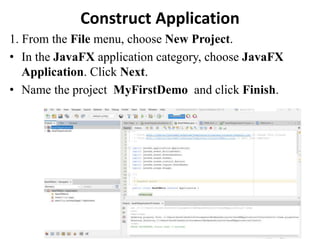
Construct Application
1. From the File menu, choose New Project.
• In the JavaFX application category, choose JavaFX
Application. Click Next.
• Name the project MyFirstDemo and click Finish.
Cont….
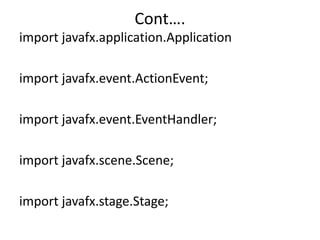
import javafx.application.Application
import javafx.event.ActionEvent;
import javafx.event.EventHandler;
import javafx.scene.Scene;
import javafx.stage.Stage;
Cont….
2. Create FXML -> Right Click on your project Name ->
New -> FXmain class -> Finish.
3. Create Empty FXML: Right Click on your project
Name -> New -> Empty FXML -> Finish.
4. Scenebuilder Main Windwon Should appear.
Cont…
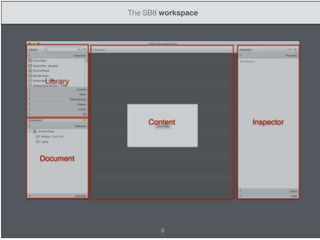
The main window of JavaFX Scene Builder includes the following sections, which
are:
1. Content panel: is the rectangular area that occupies the center of the JavaFX
Scene Builder window. It is your design canvas, and it contains a view of what
you are designing.
2. Library Panel: Lists the available JavaFX UI elements or controls that you can
use to build your FXML layout.
3. Inspector Panel: Contains the Properties, Layout, and Code sections. The
Properties and Layout sections help you manage the properties of the selected
UI element in the Content panel or in the Hierarchy panel.
4. Ducument is located at the lower left side of the tool's window. It is comprised
of the Hierarchy and Controller sections.
• Menu Bar: Provides access to the menu of commands available in JavaFX
Scene Builder.
• Hierarchy Panel: Displays a tree view representation of the FXML layout that
you are building in the Content panel.
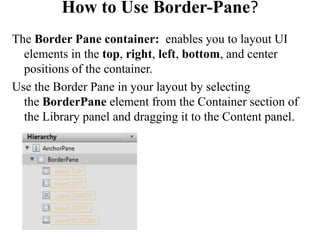
How to Use Border-Pane?
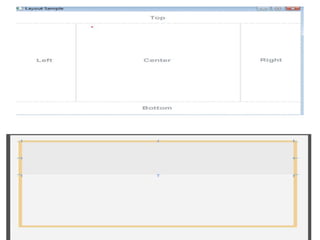
The Border Pane container: enables you to layout UI
elements in the top, right, left, bottom, and center
positions of the container.
Use the Border Pane in your layout by selecting
the BorderPane element from the Container section of
the Library panel and dragging it to the Content panel.
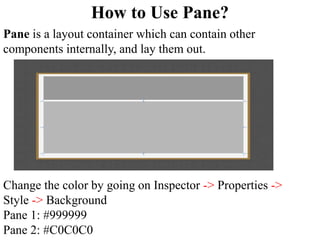
How to Use Pane?
Pane is a layout container which can contain other
components internally, and lay them out.
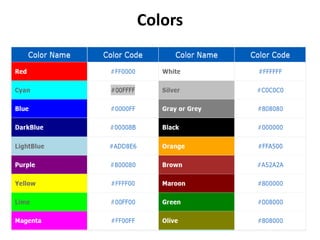
Change the color by going on Inspector -> Properties ->
Style -> Background
Pane 1: #999999
Pane 2: #C0C0C0
Colors
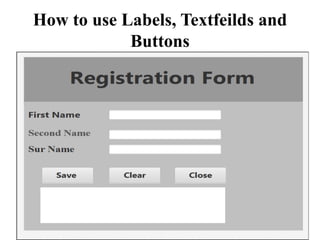
How to use Labels, Textfeilds and
Buttons
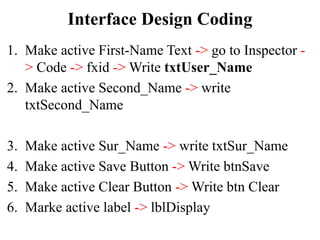
Interface Design Coding
1. Make active First-Name Text -> go to Inspector -
> Code -> fxid -> Write txtUser_Name
2. Make active Second_Name -> write
txtSecond_Name
3. Make active Sur_Name -> write txtSur_Name
4. Make active Save Button -> Write btnSave
5. Make active Clear Button -> Write btn Clear
6. Marke active label -> lblDisplay
Cont….
Go JavaFXMainCLass to this code
public void start(Stage primaryStage) {
try {
Parent root = FXMLLoader.load(getClass().getResource("FXML.fxml"));
Scene scene = new Scene(root);
primaryStage.setTitle("Hello World!");
primaryStage.setScene(scene);
primaryStage.show();
} catch (IOException ex) {
Logger.getLogger(NewFXMain.class.getName()).log(Level.SEVERE, null, ex);
}
}
public static void main(String[] args) {
launch(args);
}
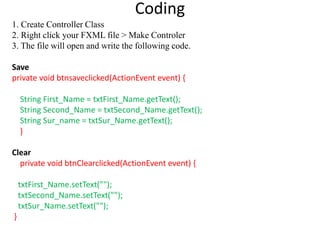
Coding
1. Create Controller Class
2. Right click your FXML file > Make Controler
3. The file will open and write the following code.
Save
private void btnsaveclicked(ActionEvent event) {
String First_Name = txtFirst_Name.getText();
String Second_Name = txtSecond_Name.getText();
String Sur_name = txtSur_Name.getText();
}
Clear
private void btnClearclicked(ActionEvent event) {
txtFirst_Name.setText("");
txtSecond_Name.setText("");
txtSur_Name.setText("");
}
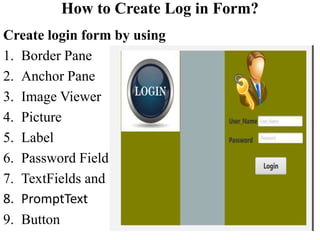
How to Create Log in Form?
Create login form by using
1. Border Pane
2. Anchor Pane
3. Image Viewer
4. Picture
5. Label
6. Password Field
7. TextFields and
8. PromptText
9. Button
Coding
To start the coding of login form:
1. make active user-Name Text -> go to Inspector ->
Code -> Fxid -> Write username.
2. make active Password Text -> go to Inspector ->
Code -> Fxid -> Write password
3. make active Button Text -> go to Inspector -> Code
-> Fxid -> Write button
4. make active Label -> go to Inspector -> Code ->
Fxid -> Write incorrectlogin
Coding
Write this code in Your Main Class
try {
Parent root = FXMLLoader.load(getClass().getResource("Login.fxml"));
Scene scene = new Scene(root, );
primaryStage.setTitle("Hello World!");
primaryStage.setScene(scene);
primaryStage.show();
}
catch (IOException ex) {
Logger.getLogger(NewFXMain.class.getName()).log(Level.SEVERE, null, ex);
}
}
public static void main(String[] args) {
launch(args);
}
Chapter 2
Lecture 2
Cont…

Chapter 2 JavaFX UI Controls and Multimedia.pptx

  • 1.
    Advanced Java FX Chapter2 Lecture 1 Introduction to JavaFX Basics
  • 2.
    Objectivise of Part1 •Introduction • Grid Pane • Border Pane • Anchor Pane • Image Viewer • Labeled and Label • Contents • Button • CheckBox • RadioButton TextField TextArea Passwordfield ComboBox ListView ScrollBar Slider Video and Audio
  • 3.
    Construct Application 1. Fromthe File menu, choose New Project. • In the JavaFX application category, choose JavaFX Application. Click Next. • Name the project MyFirstDemo and click Finish.
  • 4.
    Cont…. import javafx.application.Application import javafx.event.ActionEvent; importjavafx.event.EventHandler; import javafx.scene.Scene; import javafx.stage.Stage;
  • 5.
    Cont…. 2. Create FXML-> Right Click on your project Name -> New -> FXmain class -> Finish. 3. Create Empty FXML: Right Click on your project Name -> New -> Empty FXML -> Finish. 4. Scenebuilder Main Windwon Should appear.
  • 7.
    Cont… The main windowof JavaFX Scene Builder includes the following sections, which are: 1. Content panel: is the rectangular area that occupies the center of the JavaFX Scene Builder window. It is your design canvas, and it contains a view of what you are designing. 2. Library Panel: Lists the available JavaFX UI elements or controls that you can use to build your FXML layout. 3. Inspector Panel: Contains the Properties, Layout, and Code sections. The Properties and Layout sections help you manage the properties of the selected UI element in the Content panel or in the Hierarchy panel. 4. Ducument is located at the lower left side of the tool's window. It is comprised of the Hierarchy and Controller sections. • Menu Bar: Provides access to the menu of commands available in JavaFX Scene Builder. • Hierarchy Panel: Displays a tree view representation of the FXML layout that you are building in the Content panel.
  • 8.
    How to UseBorder-Pane? The Border Pane container: enables you to layout UI elements in the top, right, left, bottom, and center positions of the container. Use the Border Pane in your layout by selecting the BorderPane element from the Container section of the Library panel and dragging it to the Content panel.
  • 10.
    How to UsePane? Pane is a layout container which can contain other components internally, and lay them out. Change the color by going on Inspector -> Properties -> Style -> Background Pane 1: #999999 Pane 2: #C0C0C0
  • 11.
  • 12.
    How to useLabels, Textfeilds and Buttons
  • 13.
    Interface Design Coding 1.Make active First-Name Text -> go to Inspector - > Code -> fxid -> Write txtUser_Name 2. Make active Second_Name -> write txtSecond_Name 3. Make active Sur_Name -> write txtSur_Name 4. Make active Save Button -> Write btnSave 5. Make active Clear Button -> Write btn Clear 6. Marke active label -> lblDisplay
  • 14.
    Cont…. Go JavaFXMainCLass tothis code public void start(Stage primaryStage) { try { Parent root = FXMLLoader.load(getClass().getResource("FXML.fxml")); Scene scene = new Scene(root); primaryStage.setTitle("Hello World!"); primaryStage.setScene(scene); primaryStage.show(); } catch (IOException ex) { Logger.getLogger(NewFXMain.class.getName()).log(Level.SEVERE, null, ex); } } public static void main(String[] args) { launch(args); }
  • 15.
    Coding 1. Create ControllerClass 2. Right click your FXML file > Make Controler 3. The file will open and write the following code. Save private void btnsaveclicked(ActionEvent event) { String First_Name = txtFirst_Name.getText(); String Second_Name = txtSecond_Name.getText(); String Sur_name = txtSur_Name.getText(); } Clear private void btnClearclicked(ActionEvent event) { txtFirst_Name.setText(""); txtSecond_Name.setText(""); txtSur_Name.setText(""); }
  • 16.
    How to CreateLog in Form? Create login form by using 1. Border Pane 2. Anchor Pane 3. Image Viewer 4. Picture 5. Label 6. Password Field 7. TextFields and 8. PromptText 9. Button
  • 17.
    Coding To start thecoding of login form: 1. make active user-Name Text -> go to Inspector -> Code -> Fxid -> Write username. 2. make active Password Text -> go to Inspector -> Code -> Fxid -> Write password 3. make active Button Text -> go to Inspector -> Code -> Fxid -> Write button 4. make active Label -> go to Inspector -> Code -> Fxid -> Write incorrectlogin
  • 18.
    Coding Write this codein Your Main Class try { Parent root = FXMLLoader.load(getClass().getResource("Login.fxml")); Scene scene = new Scene(root, ); primaryStage.setTitle("Hello World!"); primaryStage.setScene(scene); primaryStage.show(); } catch (IOException ex) { Logger.getLogger(NewFXMain.class.getName()).log(Level.SEVERE, null, ex); } } public static void main(String[] args) { launch(args); }
  • 19.