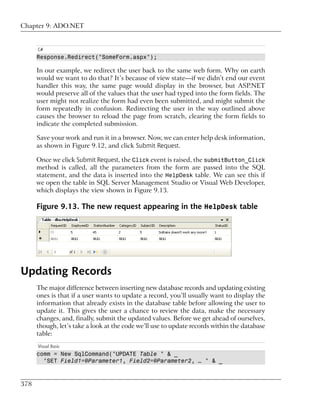
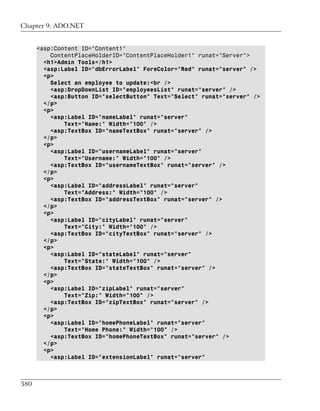
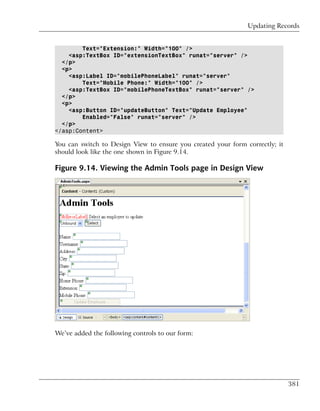
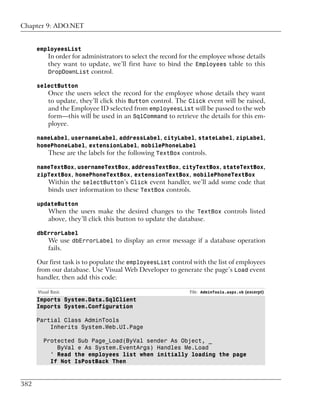
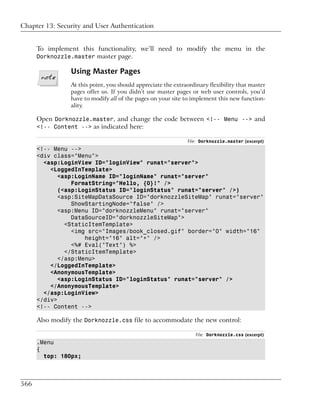
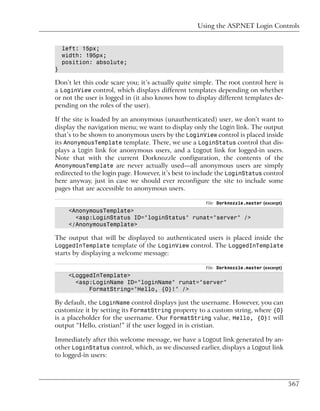
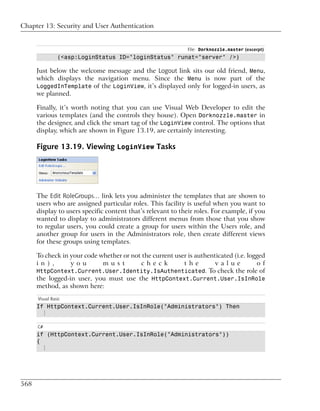
Summary of Contents
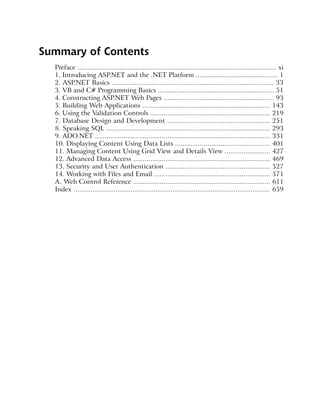
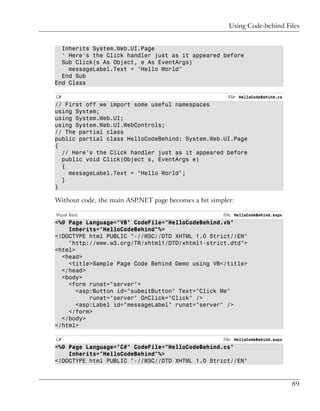
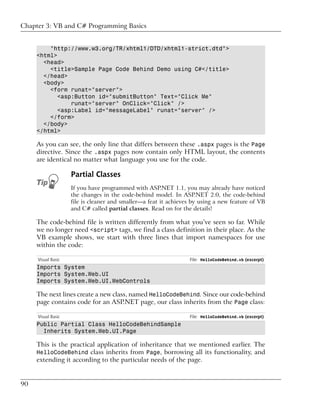
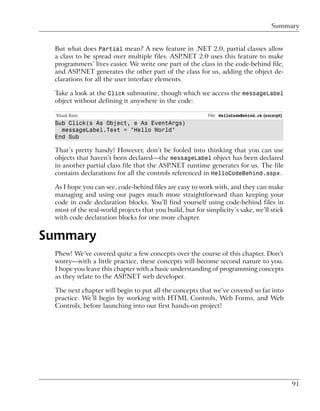
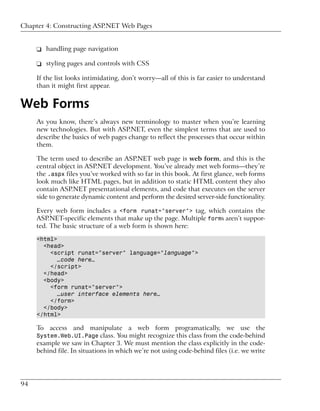
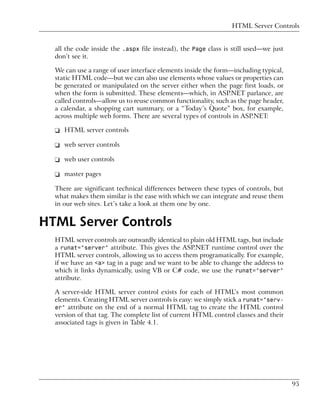
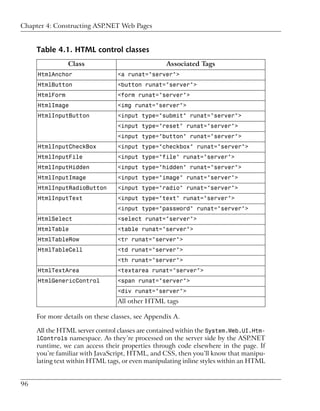
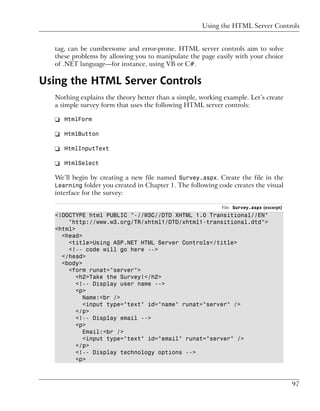
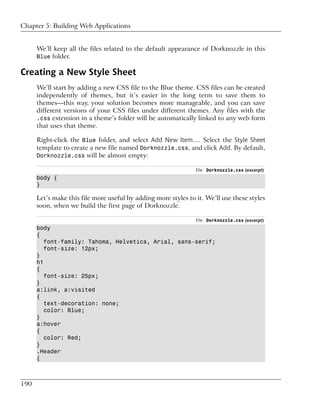
  Preface ........................................................................................................ xi
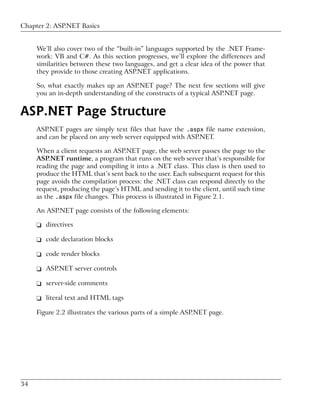
  1. Introducing ASP.NET and the .NET Platform ........................................... 1
  2. ASP.NET Basics ..................................................................................... 33
  3. VB and C# Programming Basics ............................................................. 51
  4. Constructing ASP.NET Web Pages .......................................................... 93
  5. Building Web Applications ................................................................... 143
  6. Using the Validation Controls ............................................................... 219
  7. Database Design and Development ...................................................... 251
  8. Speaking SQL ...................................................................................... 293
  9. ADO.NET ............................................................................................ 331
  10. Displaying Content Using Data Lists .................................................. 401
  11. Managing Content Using Grid View and Details View ........................ 427
  12. Advanced Data Access ........................................................................ 469
  13. Security and User Authentication ....................................................... 527
  14. Working with Files and Email ............................................................. 571
  A. Web Control Reference ........................................................................ 611
  Index ....................................................................................................... 659
Build Your Own ASP.NET 2.0
  Web Site Using C# & VB
        by Cristian Darie
       and Zak Ruvalcaba
Build Your Own ASP.NET 2.0 Web Site Using C# & VB
by Cristian Darie and Zak Ruvalcaba
                           Copyright © 2006 SitePoint Pty. Ltd.
Expert Reviewer: Wyatt Barnett                      Editor: Georgina Laidlaw
Expert Reviewer: Sara Smith                         Index Editor: Max McMaster
Managing Editor: Simon Mackie                       Cover Design: Jess Mason
Technical Editor: Craig Anderson                    Cover Layout: Alex Walker
Technical Director: Kevin Yank
Printing History:
   First Edition: April 2004
   Second Edition: October 2006

Notice of Rights
All rights reserved. No part of this book may be reproduced, stored in a retrieval system or transmitted
in any form or by any means, without the prior written permission of the publisher, except in the
case of brief quotations embodied in critical articles or reviews.


Notice of Liability
The author and publisher have made every effort to ensure the accuracy of the information herein.
However, the information contained in this book is sold without warranty, either express or implied.
Neither the authors and SitePoint Pty. Ltd., nor its dealers or distributors, will be held liable for any
damages to be caused either directly or indirectly by the instructions contained in this book, or by
the software or hardware products described herein.


Trademark Notice
Rather than indicating every occurrence of a trademarked name as such, this book uses the names
only in an editorial fashion and to the benefit of the trademark owner with no intention of infringe-
ment of the trademark.


                               Published by SitePoint Pty. Ltd.

                               424 Smith Street Collingwood
                                   VIC Australia 3066.
                                 Web: www.sitepoint.com
                               Email: business@sitepoint.com
                                ISBN 0-9752402-8-5
                  Printed and bound in the United States of America
About the Authors
Zak Ruvalcaba has been designing, developing, and researching for the Web since 1995.
He holds a Bachelor’s Degree from San Diego State University and a Master of Science
in Instructional Technology from National University in San Diego.

In the course of his career, Zak has developed web applications for such companies as
Gateway, HP, Toshiba, and IBM. More recently, he’s worked as a wireless software engineer
developing .NET solutions for Goldman Sachs, TV Guide, The Gartner Group, Microsoft,
and Qualcomm. Currently, Zak holds a programming position with ADCS Inc. in San
Diego supporting internal .NET applications.

Previous books by Zak Ruvalcaba include The 10 Minute Guide to Dreamweaver 4 (Que
Publishing) and Dreamweaver MX Unleashed (Sams Publishing). He also lectures on various
technologies and tools, including Dreamweaver and ASP.NET, for the San Diego Com-
munity College District.

Cristian Darie is a software engineer with experience in a wide range of modern technolo-
gies, and the author of numerous technical books, including the popular Beginning E-
Commerce series. Having worked with computers since he was old enough to use a keyboard,
he initially tasted programming success with a prize in his first programming contest at
the age of 12. From there, Cristian moved on to many other similar achievements, and is
now studying distributed application architectures for his PhD.

He always loves hearing feedback about his books, so don't hesitate to drop him a "hello"
message when you have a spare moment. Cristian can be contacted through his personal
web site at http://www.cristiandarie.ro.


About the Expert Reviewers
Wyatt Barnett leads the in-house development team for a major industry trade association
in Washington DC. He also writes for SitePoint's .NET Blog, The Daily Catch.1

Sara Smith is an ASP.NET contractor for the US Army and is also a partner in a web de-
velopment business, brainyminds. She has been working with the .NET framework since
its early days. Sara just relocated to Belgium from the US with her family.


About the Technical Editor
Before joining SitePoint, Craig Anderson studied Computer Science at RMIT University,
then worked as a web developer for five years. He spent much of this time trying to con-
vince Visual Basic developers that one of these days they would have to learn object ori-
ented programming.


1
    http://www.sitepoint.com/blogs/category/net/
Craig plays bass guitar in Melbourne rock band Look Who’s Toxic,2 and indulges in all
the extracurricular activities you’d expect of a computer nerd/musician approaching 30
(other than role playing—somehow he never got into that).


About the Technical Director
As Technical Director for SitePoint, Kevin Yank oversees all of its technical publica-
tions—books, articles, newsletters, and blogs. He has written over 50 articles for SitePoint,
but is best known for his book, Build Your Own Database Driven Website Using PHP &
MySQL. Kevin lives in Melbourne, Australia, and enjoys performing improvised comedy
theatre and flying light aircraft.


About SitePoint
SitePoint specializes in publishing fun, practical, and easy-to-understand content for web
professionals. Visit http://www.sitepoint.com/ to access our books, newsletters, articles,
and community forums.


2
    http://www.lookwhostoxic.com/
For my wife Jessica.

          —Zak Ruvalcaba


To my family and friends.

           —Cristian Darie
Table of Contents
   Preface ..................................................................................................... xi

   1. Introducing ASP.NET and the .NET Platform ........................................... 1
         What is ASP.NET? ............................................................................... 2
         Installing the Required Software ........................................................... 5
              Installing the Web Server ............................................................. 6
              Installing the .NET Framework and the SDK ................................ 9
              Configuring the Web Server ....................................................... 11
              Installing SQL Server 2005 Express Edition ................................ 22
              Installing SQL Server Management Studio Express ..................... 22
              Installing Visual Web Developer 2005 ........................................ 25
         Writing your First ASP.NET Page ....................................................... 26
         Getting Help ...................................................................................... 32
         Summary ........................................................................................... 32

   2. ASP.NET Basics .................................................................................... 33
        ASP.NET Page Structure .................................................................... 34
            Directives .................................................................................. 36
            Code Declaration Blocks ............................................................ 37
            Code Render Blocks ................................................................... 39
            ASP.NET Server Controls ........................................................... 40
            Server-side Comments ................................................................ 41
            Literal Text and HTML Tags ....................................................... 42
        View State ......................................................................................... 44
        Working with Directives ..................................................................... 47
        ASP.NET Languages ........................................................................... 48
            Visual Basic ............................................................................... 48
            C# ............................................................................................. 49
        Summary ........................................................................................... 49

   3. VB and C# Programming Basics ............................................................ 51
        Programming Basics ........................................................................... 51
             Control Events and Subroutines ................................................. 52
             Page Events ................................................................................ 56
             Variables and Variable Declaration .............................................. 59
             Arrays ........................................................................................ 62
             Functions ................................................................................... 65
             Operators ................................................................................... 68
             Conditional Logic ...................................................................... 70
             Loops ........................................................................................ 72
Build Your Own ASP.NET 2.0 Web Site Using C# & VB


           Object Oriented Programming Concepts ............................................. 76
                Objects and Classes .................................................................... 77
                Properties .................................................................................. 80
                Methods .................................................................................... 81
                Classes ....................................................................................... 81
                Constructors .............................................................................. 81
                Scope ......................................................................................... 82
                Events ........................................................................................ 83
                Understanding Inheritance ......................................................... 83
                Objects In .NET ......................................................................... 84
                Namespaces ............................................................................... 86
           Using Code-behind Files ..................................................................... 87
           Summary ........................................................................................... 91

     4. Constructing ASP.NET Web Pages ......................................................... 93
          Web Forms ........................................................................................ 94
          HTML Server Controls ...................................................................... 95
               Using the HTML Server Controls ............................................... 97
          Web Server Controls ........................................................................ 101
               Standard Web Server Controls ................................................. 103
               List Controls ............................................................................ 110
               Advanced Controls ................................................................... 112
          Web User Controls ........................................................................... 126
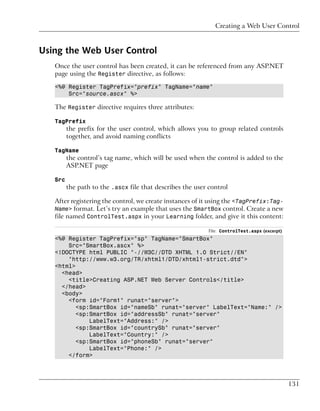
               Creating a Web User Control ................................................... 126
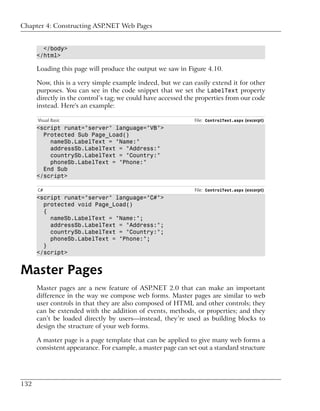
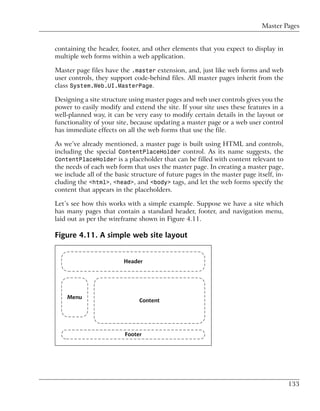
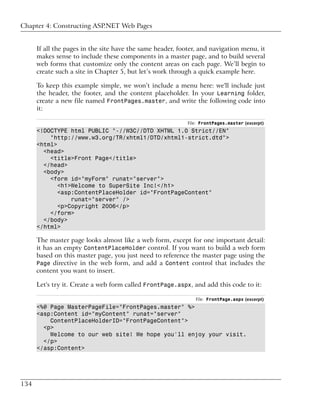
          Master Pages .................................................................................... 132
          Using Cascading Style Sheets (CSS) ................................................. 135
               Types of Styles and Style Sheets ............................................... 136
          Summary ......................................................................................... 141

     5. Building Web Applications ................................................................. 143
          Introducing the Dorknozzle Project .................................................. 144
          Using Visual Web Developer ............................................................ 147
               Meeting the Features ................................................................ 148
          Executing your Project ...................................................................... 156
               Using Visual Web Developer’s Built-in Web Server ................... 157
               Using IIS ................................................................................. 160
          Core Web Application Features ........................................................ 166
               Web.config ............................................................................... 166
               Global.asax .............................................................................. 170
               Using Application State ........................................................... 173
               Working with User Sessions ..................................................... 180
               Using the Cache Object ............................................................ 182


iv
Using Cookies ..........................................................................      183
       Starting the Dorknozzle Project ........................................................            186
             Preparing the Sitemap ..............................................................          187
             Using Themes, Skins, and Styles ..............................................                189
             Building the Master Page ..........................................................           195
             Using the Master Page ..............................................................          199
       Extending Dorknozzle ......................................................................         201
       Debugging and Error Handling .........................................................              204
             Debugging with Visual Web Developer .....................................                     204
             Other Kinds of Errors ...............................................................         210
             Custom Errors ..........................................................................      212
             Handling Exceptions Locally ....................................................              213
       Summary .........................................................................................   218

6. Using the Validation Controls ............................................................. 219
     Introducing the ASP.NET Validation Controls .................................. 220
          Enforcing Validation on the Server ........................................... 223
     Using Validation Controls ................................................................ 229
          RequiredFieldValidator ............................................................. 230
          CompareValidator .................................................................... 231
          RangeValidator ......................................................................... 233
          ValidationSummary ................................................................. 235
          RegularExpressionValidator ...................................................... 236
          CustomValidator ...................................................................... 239
     Validation Groups ............................................................................ 242
     Updating Dorknozzle ....................................................................... 245
     Summary ......................................................................................... 250

7. Database Design and Development .................................................... 251
     What is a Database? ........................................................................ 252
     Creating your First Database ............................................................ 254
          Creating a New Database Using Visual Web Developer ............. 255
          Creating a New Database Using SQL Server Management Stu-
          dio ........................................................................................... 256
     Creating Database Tables ................................................................. 258
          Data Types ............................................................................... 262
          Column Properties ................................................................... 264
          Primary Keys ........................................................................... 265
          Creating the Employees Table ................................................... 267
          Creating the Remaining Tables ................................................. 271
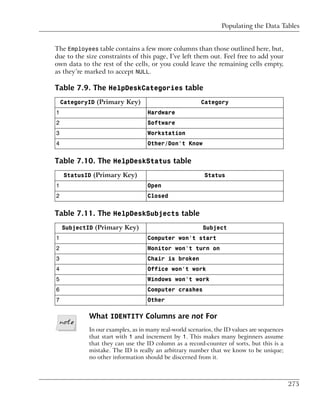
          Populating the Data Tables ....................................................... 273
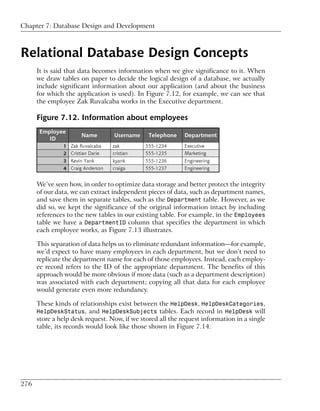
     Relational Database Design Concepts ............................................... 276


                                                                                                                 v
Build Your Own ASP.NET 2.0 Web Site Using C# & VB


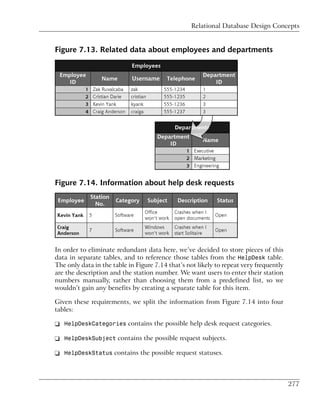
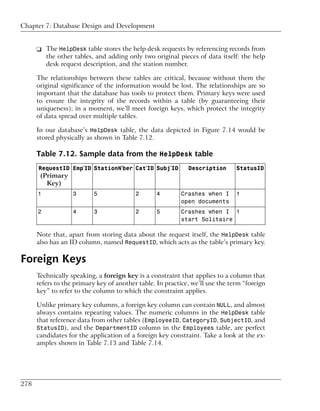
               Foreign Keys ............................................................................        278
               Using Database Diagrams ........................................................                 280
               Implementing Relationships in the Dorknozzle Database ..........                                 284
               Diagrams and Table Relationships ............................................                    287
            Summary .........................................................................................   292

     8. Speaking SQL ..................................................................................... 293
          Reading Data from a Single Table ..................................................... 294
               Using the SELECT Statement ..................................................... 297
               Selecting Certain Fields ............................................................ 299
               Selecting Unique Data with DISTINCT ...................................... 300
               Row Filtering with WHERE .......................................................... 302
               Selecting Ranges of Values with BETWEEN .................................. 303
               Matching Patterns with LIKE .................................................... 304
               Using the IN Operator .............................................................. 305
               Sorting Results Using ORDER BY ................................................ 306
               Limiting the Number of Results with TOP ................................. 307
          Reading Data from Multiple Tables .................................................. 307
               Subqueries ............................................................................... 308
               Table Joins ............................................................................... 309
          Expressions and Operators ............................................................... 310
          Transact-SQL Functions ................................................................... 313
               Arithmetic Functions ................................................................ 314
               String Functions ....................................................................... 315
               Date and Time Functions ......................................................... 317
          Working with Groups of Values ........................................................ 318
               The COUNT Function ................................................................. 319
               Grouping Records Using GROUP BY ........................................... 319
               Filtering Groups Using HAVING ................................................. 321
               The SUM, AVG, MIN, and MAX Functions ....................................... 322
          Updating Existing Data .................................................................... 322
               The INSERT Statement ............................................................. 323
               The UPDATE Statement ............................................................. 324
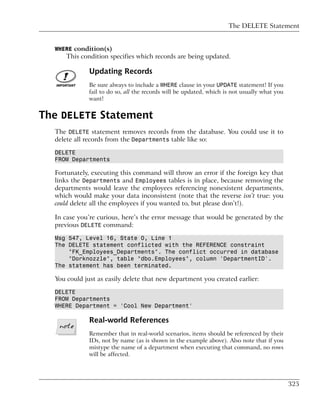
               The DELETE Statement ............................................................. 325
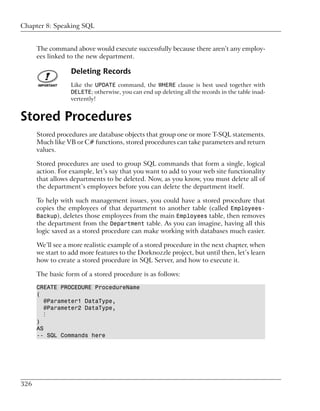
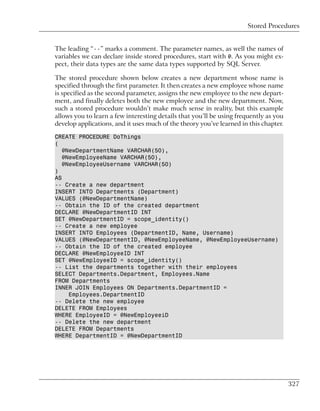
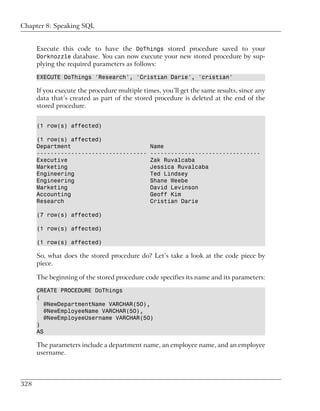
          Stored Procedures ............................................................................ 326
          Summary ......................................................................................... 330

     9. ADO.NET ........................................................................................... 331
          Introducing ADO.NET ..................................................................... 332
               Importing the SqlClient Namespace ....................................... 333
               Defining the Database Connection ........................................... 334
               Preparing the Command .......................................................... 336


vi
Executing the Command ..........................................................               337
            Setting up Database Authentication .........................................                   339
            Reading the Data .....................................................................         342
            Using Parameters with Queries .................................................                344
            Bulletproofing Data Access Code ..............................................                 351
            Using the Repeater Control ......................................................              354
       Creating the Dorknozzle Employee Directory ...................................                      360
            More Data Binding ..................................................................           365
            Inserting Records .....................................................................        371
            Updating Records ....................................................................          378
            Deleting Records ......................................................................        394
            Using Stored Procedures ...........................................................            397
       Summary .........................................................................................   399

10. Displaying Content Using Data Lists ................................................. 401
     DataList Basics ............................................................................... 402
     Handling DataList Events ............................................................... 406
     Editing DataList Items and Using Templates ................................... 413
     DataList and Visual Web Developer ................................................ 422
     Styling the DataList ......................................................................... 424
     Summary ......................................................................................... 426

11. Managing Content Using Grid View and Details View ....................... 427
     Using the GridView Control ............................................................. 428
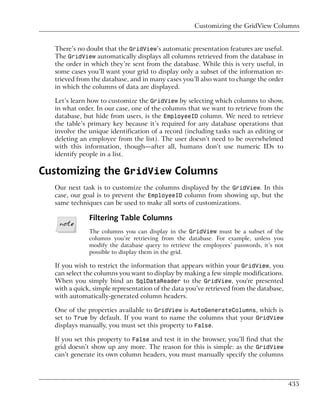
          Customizing the GridView Columns ......................................... 435
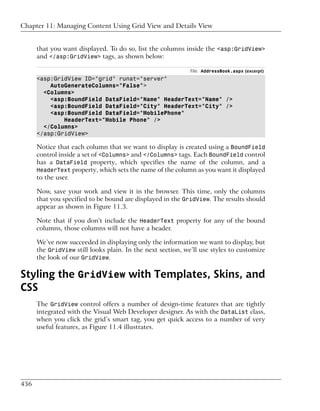
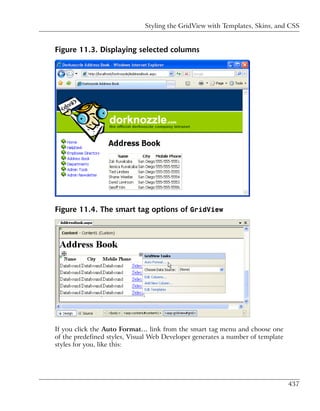
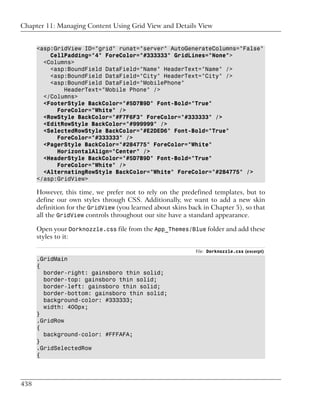
          Styling the GridView with Templates, Skins, and CSS .............. 436
          Selecting Grid Records ............................................................. 440
     Using the DetailsView Control ....................................................... 445
          Styling the DetailsView ............................................................ 450
     GridView and DetailsView Events ................................................... 452
          Entering Edit Mode ................................................................. 456
          Using Templates ....................................................................... 459
          Updating DetailsView Records ................................................ 463
     Summary ......................................................................................... 468

12. Advanced Data Access ..................................................................... 469
     Using Data Source Controls ............................................................. 470
          Binding the GridView to a SqlDataSource ................................ 472
          Binding the DetailsView to a SqlDataSource ........................... 479
          Displaying Lists in DetailsView ................................................ 489
          More on SqlDataSource ........................................................... 492
     Working with Data Sets and Data Tables .......................................... 494
          What is a Data Set Made From? ............................................... 497


                                                                                                                 vii
Build Your Own ASP.NET 2.0 Web Site Using C# & VB


                  Binding DataSets to Controls ...................................................                498
                  Implementing Paging ................................................................            504
                  Storing Data Sets in View State ................................................                506
                  Implementing Sorting ..............................................................             509
                  Filtering Data ...........................................................................      520
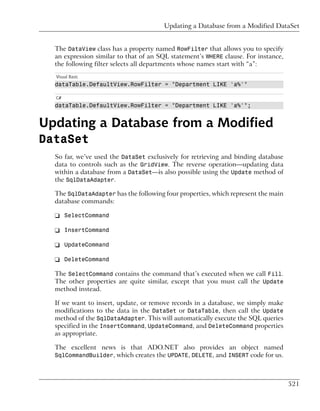
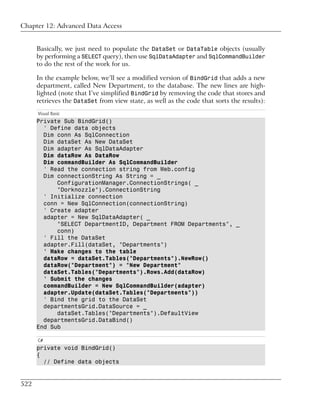
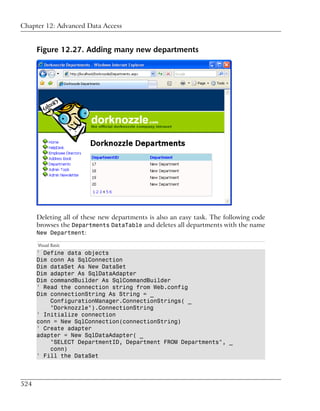
              Updating a Database from a Modified DataSet .................................                       521
              Summary .........................................................................................   526

       13. Security and User Authentication ..................................................... 527
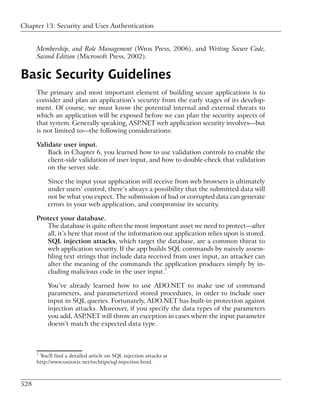
            Basic Security Guidelines ................................................................. 528
            Securing ASP.NET 2.0 Applications .................................................. 530
                 Working with Forms Authentication ......................................... 532
            ASP.NET 2.0 Memberships and Roles .............................................. 544
                 Creating the Membership Data Structures ................................ 544
                 Using your Database to Store Membership Data ...................... 547
                 Using the ASP.NET Web Site Configuration Tool ..................... 552
                 Creating Users and Roles .......................................................... 554
                 Changing Password Strength Requirements ............................... 556
                 Securing your Web Application ................................................ 559
                 Using the ASP.NET Login Controls .......................................... 561
            Summary ......................................................................................... 569

       14. Working with Files and Email ........................................................... 571
            Writing and Reading Text Files ......................................................... 572
                 Setting Up Security .................................................................. 573
                 Writing Content to a Text File .................................................. 576
                 Reading Content from a Text File ............................................. 580
            Accessing Directories and Directory Information .............................. 583
                 Working with Directory and File Paths ..................................... 586
            Uploading Files ................................................................................ 590
            Sending Email with ASP.NET ........................................................... 593
                 Configuring the SMTP Server .................................................. 595
                 Sending a Test Email ................................................................ 597
                 Creating the Company Newsletter Page .................................... 601
            Summary ......................................................................................... 610

       A. Web Control Reference ...................................................................... 611
           The WebControl Class ...................................................................... 611
                Properties ................................................................................ 611
                Methods .................................................................................. 612
           Standard Web Controls .................................................................... 613
                AdRotator ............................................................................... 613
                BulletedList .......................................................................... 613


viii
Button ..................................................................................... 614
       Calendar .................................................................................   615
       CheckBox .................................................................................   617
       CheckBoxList ..........................................................................      617
     DropDownList ......................................................................... 619
     FileUpload .............................................................................. 619
     HiddenField ............................................................................ 620
     HyperLink ............................................................................... 620
     Image ....................................................................................... 621
     ImageButton ............................................................................ 621
     ImageMap ................................................................................. 622
     Label ....................................................................................... 622
     LinkButton .............................................................................. 623
     ListBox ................................................................................... 623
     Literal ................................................................................... 624
     MultiView ............................................................................... 624
     Panel ....................................................................................... 625
     PlaceHolder ............................................................................ 625
     RadioButton ............................................................................ 625
     RadioButtonList ..................................................................... 626
     TextBox ................................................................................... 627
     Xml .......................................................................................... 628
Validation Controls .......................................................................... 628
     CompareValidator ................................................................... 628
     CustomValidator ..................................................................... 629
     RangeValidator ...................................................................... 630
     RegularExpressionValidator ................................................. 631
     RequiredFieldValidator ........................................................ 632
     ValidationSummary ................................................................. 633
Navigation Web Controls ................................................................. 634
     SiteMapPath ............................................................................ 634
     Menu ........................................................................................ 635
     TreeView ................................................................................. 640
HTML Server Controls .................................................................... 643
     HtmlAnchor Control ................................................................. 644
     HtmlButton Control ................................................................. 644
     HtmlForm Control .................................................................... 645
     HtmlGeneric Control ............................................................... 646
     HtmlImage Control ................................................................... 647
     HtmlInputButton Control ........................................................ 647
     HtmlInputCheckBox Control .................................................... 648
     HtmlInputFile Control ........................................................... 649


                                                                                                          ix
Build Your Own ASP.NET 2.0 Web Site Using C# & VB


                   HtmlInputHidden Control ........................................................               650
                   HtmlInputImage Control ..........................................................              651
                   HtmlInputRadioButton Control ...............................................                   652
                   HtmlInputText Control ...........................................................              653
                   HtmlSelect Control .................................................................           653
                   HtmlTable Control ...................................................................          655
                   HtmlTableCell Control ...........................................................              656
                   HtmlTableRow Control .............................................................             657
                   HtmlTextArea Control .............................................................             658
    Index ....................................................................................................... 659


x
Preface
  Web development is very exciting. There’s nothing like the feeling you have after
  you place your first dynamic web site online, and see your little toy in action
  while other people are actually using it!

  Web development with ASP.NET is particularly exciting. If you’ve never created
  a dynamic web site before, I’m sure you’ll fall in love with this area of web devel-
  opment. If you’ve worked with other server-side technologies, I expect you’ll be
  a little shocked by the differences.

  ASP.NET really is a unique technology, and it provides new and extremely effi-
  cient ways to create web applications using the programming language with which
  you feel most comfortable. Though it can take some time to learn, ASP.NET is
  simple to use. Whether you want to create simple web forms, or feature-rich
  shopping carts, or even complex enterprise applications, ASP.NET can help you
  do it. All the tools you’ll need to get up and running are immediately available
  and easy to install, and require very little initial configuration.

  This book will be your gentle introduction to the wonderful world of ASP.NET,
  teaching you the foundations step by step. First, you’ll learn the theory; then,
  you’ll put it in practice as we work through practical exercises together. To
  demonstrate some of the more complex functionality, and to put the theory into
  a cohesive, realistic context, we’ll develop a project through the course of this
  book. The project—an intranet site for a company named Dorknozzle—will allow
  us to see the many components of .NET in action, and to understand through
  practice exactly how .NET works in the real world.

  We hope you’ll find reading this book an enjoyable experience that will signific-
  antly help you with your future web development projects!

Who Should Read this Book?
  This book is aimed at beginner, intermediate, and advanced web designers looking
  to make the leap into server-side programming with ASP.NET. We expect that
  you’ll already feel comfortable with HTML and a little CSS, as very little explan-
  ation of these topics is provided here.

  By the end of this book, you should be able to successfully download and install
  ASP.NET and the .NET Framework, configure and start your web server, create
  and work with basic ASP.NET pages, install and run SQL Server 2005, create
Preface


      database tables, and work with advanced, dynamic ASP.NET pages that query,
      insert, update, and delete information within a database.

      All examples provided in the book are written in both Visual Basic and C#, the
      two most popular languages for creating ASP.NET web sites. The examples start
      at beginners’ level and proceed to more advanced levels. As such, no prior
      knowledge of either language is required in order to read, understand, learn from,
      and apply the knowledge provided in this book. Experience with other program-
      ming or scripting languages (such as JavaScript) will certainly grease the wheels,
      though, and should enable you to grasp fundamental programming concepts more
      quickly.

What’s in this Book?
      This book comprises the following chapters. Read them from beginning to end
      to gain a complete understanding of the subject, or skip around if you feel you
      need a refresher on a particular topic.

      Chapter 1: Introducing ASP.NET
         Before you can start building your database-driven web presence, you must
         ensure that you have the right tools for the job. In this first chapter, you’ll
         learn how to find, download, and configure the .NET Framework. You’ll learn
         where the web server is located, and how to install and configure it. Next,
         we’ll walk through the installation of the Microsoft database solution: SQL
         Server 2005. Finally, we’ll create a simple ASP.NET page to make sure that
         everything’s running and properly configured.

      Chapter 2: ASP.NET Basics
         In this chapter, you’ll create your first useful ASP.NET page. We’ll explore
         all of the components that make up a typical ASP.NET page, including dir-
         ectives, controls, and code. Then, we’ll walk through the process of deploy-
         ment, focusing specifically on allowing the user to view the processing of a
         simple ASP.NET page through a web browser.

      Chapter 3: VB and C# Programming Basics
         In this chapter, we’ll look at two of the programming languages that are used
         to create ASP.NET pages: VB and C#. You’ll learn about the syntax of the
         two languages as we explore the concepts of variables, data types, conditionals,
         loops, arrays, functions, and more. Finally, we’ll see how the two languages
         accommodate Object Oriented Programming principles by allowing you to
         work with classes, methods, properties, inheritance, and so on.


xii
Chapter 4: Constructing ASP.NET Web Forms
   Web forms are the ASP.NET equivalent of web pages but, as we’ll see, the
   process of building ASP.NET web forms is a lot like composing a castle with
   Lego bricks! ASP.NET is bundled with hundreds of controls—including
   HTML controls, web controls, and so on—that are designed for easy deploy-
   ment within your applications. This chapter will introduce you to these
   building blocks, and show how to lock them together. You’ll also learn about
   master pages, which are a very exciting new feature of ASP.NET 2.0.

Chapter 5: Building Web Applications
   A web application is basically a group of web forms, controls, and other ele-
   ments that work together to achieve complex functionality. So it’s no surprise
   that when we build web applications, we must consider more aspects than
   when we build individual web forms. This chapter touches on those aspects,
   beginning with a hands-on tour of the free IDE from Microsoft, called Visual
   Web Developer 2005 Express Edition. Next, we configure your web applica-
   tion, learn how to use the application state, user sessions, and cookies, explore
   the process for debugging errors in your project, and more.

Chapter 6: Using the Validation Controls
   This chapter introduces validation controls. With validation controls, Mi-
   crosoft basically eliminated the headache of fumbling through, and configur-
   ing, tired, reused client-side validation scripts. First, we’ll learn how to imple-
   ment user input validation on both the client and server sides of your applic-
   ation using Microsoft’s ready-made validation controls. Then, we’ll learn how
   to perform more advanced validation using regular expressions and custom
   validators.

Chapter 7: Database Design and Development
   Undoubtedly one of the most important chapters in the book, Chapter 7 will
   prepare you to work with databases in ASP.NET. We’ll cover the essentials
   you’ll need to know in order to create a database using SQL Server Express
   Edition. Also in this chapter, we’ll begin to build the database for the
   Dorknozzle intranet project.

Chapter 8: Speaking SQL
   This chapter will teach you to speak the language of the database: Structured
   Query Language, or SQL. After a gentle introduction to the basic concepts
   of SQL, which will teach you how to write SELECT, INSERT, UPDATE, and DE-
   LETE queries, we’ll move on to more advanced topics such as expressions,
   conditions, and joins. Finally, we’ll take a look at how we can reuse queries
   quickly and easily by writing stored procedures.


                                                                                         xiii
Preface


      Chapter 9: ADO.NET
         The next logical step in building database-driven web applications is to roll
         up our sleeves and dirty our hands with a little ADO.NET—the technology
         that facilitates communication between your web application and the database
         server. This chapter explores the essentials of the technology, and will have
         you reading database data directly from your web applications in just a few
         short steps. We’ll then help you begin the transition from working with
         static applications to those that are database-driven.

      Chapter 10: Displaying Content Using Data Lists
         Taking ADO.NET further, this chapter shows you how to utilize the DataList
         control provided within the .NET Framework. DataLists play a crucial role
         in simplifying the presentation of information with ASP.NET. In learning
         how to present database data within your applications in a cleaner and more
         legible format, you’ll gain an understanding of the concepts of data binding
         at a high level.

      Chapter 11: Managing Content Using GridView and DetailsView
         This chapter explores two of the most powerful data presentation controls
         of ASP.NET: GridView and DetailsView. GridView supersedes ASP.NET
         1.x’s DataGrid, and is a very powerful control that automates almost all tasks
         that involve displaying grids of data. DetailsView completes the picture by
         offering us the functionality needed to display the details of a single grid
         item.

      Chapter 12: Advanced Data Access
         This chapter explores a few of the more advanced details involved in data
         access, retrieval, and manipulation. We’ll start by looking at direct data access
         using ADO.NET’s data source controls. We’ll then compare this approach
         with that of using data sets to access data in a disconnected fashion. In this
         section, you’ll also learn to implement features such as paging, filtering, and
         sorting using custom code.

      Chapter 13: Security and User Authentication
         This chapter will show you how to secure your web applications with
         ASP.NET. We’ll discuss the various security models available, including IIS,
         Forms, Windows, and Passport, and explore the roles that the Web.config
         and XML files can play. This chapter will also introduce you to the new
         ASP.NET 2.0 membership model, and the new ASP.NET 2.0 login controls.


xiv
Chapter 14: Working with Files and Email
     In this chapter, we’ll look at the task of accessing your server’s file system,
     including drives, files, and the network. Next, the chapter will show you how
     to work with file streams to create text files, write to text files, and read from
     text files stored on your web server. Finally, you’ll get first-hand experience
     in sending emails using ASP.NET.

  Appendix
     Included in this book is a handy web control reference, which lists the most
     common properties and methods of the most frequently used controls in
     ASP.NET.

The Book’s Web Site
  Located at http://www.sitepoint.com/books/aspnet2/, the web site that supports
  this book will give you access to the following facilities.

The Code Archive
  As you progress through this book, you’ll note a number of references to the code
  archive. This is a downloadable ZIP archive that contains complete code for all
  the examples presented in the book. You can get it from the book’s web site.1

  The archive contains one folder for each chapter of this book. Each folder contains
  CS and VB subfolders, which contain the C# and VB versions of all the examples
  for that chapter, respectively. In later chapters, these files are further divided into
  two more subfolders: Lessons for standalone examples presented for a single
  chapter, and Project for files associated with the Dorknozzle Intranet Application,
  the project that we’ll work on throughout the book.

Updates and Errata
  No book is perfect, and we expect that watchful readers will be able to spot at
  least one or two mistakes before the end of this one. The Errata page on the
  book’s web site will always have the latest information about known typograph-
  ical and code errors, and necessary updates for new releases of ASP.NET and the
  various web standards that apply.


  1
      http://www.sitepoint.com/books/aspnet2/code.php


                                                                                            xv
Preface


The SitePoint Forums
      If you’d like to communicate with us or anyone else on the SitePoint publishing
      team about this book, you should join SitePoint’s online community.2 The .NET
      forum, in particular, can offer an abundance of information above and beyond
      the solutions in this book.3

      In fact, you should join that community even if you don’t want to talk to us,
      because a lot of fun and experienced web designers and developers hang out there.
      It’s a good way to learn new stuff, get questions answered in a hurry, and just
      have fun.

The SitePoint Newsletters
      In addition to books like this one, SitePoint publishes free email newsletters in-
      cluding The SitePoint Tribune and The SitePoint Tech Times. In them, you’ll read
      about the latest news, product releases, trends, tips, and techniques for all aspects
      of web development. If nothing else, you’ll get useful ASP.NET articles and tips,
      but if you’re interested in learning other technologies, you’ll find them especially
      valuable. Sign up to one or more SitePoint newsletters at
      http://www.sitepoint.com/newsletter/.

Your Feedback
      If you can’t find your answer through the forums, or if you wish to contact us
      for any other reason, the best place to write is books@sitepoint.com. We have
      a well-manned email support system set up to track your inquiries, and if our
      support staff members are unable to answer your question, they will send it
      straight to us. Suggestions for improvements, as well as notices of any mistakes
      you may find, are especially welcome.

Acknowledgements
      First and foremost, I’d like to thank the SitePoint team for doing such a great
      job in making this book possible, for being understanding as deadlines inevitably
      slipped past, and for the team’s personal touch, which made it a pleasure to work
      on this project.

      2
          http://www.sitepoint.com/forums/
      3
          http://www.sitepoint.com/forums/forumdisplay.php?f=141


xvi
Particular thanks go to Simon Mackie, whose valuable insight and close cooper-
ation throughout the process has tied up many loose ends and helped make this
book both readable and accessible. Thanks again Simon for allowing me to write
this book—I appreciate the patience and dedication you’ve shown.

Finally, returning home, I’d like to thank my wife Jessica, whose patience, love,
and understanding throughout continue to amaze me.

—Zak Ruvalcaba

I’d like to thank Simon Mackie, the Managing Editor at SitePoint, for being ex-
tremely supportive during the process of writing this book. Warm thanks and
gratitude go to my parents, my girlfriend, and my close friends for constantly
being there for me.

—Cristian Darie


                                                                                    xvii
xviii
1                          Introducing ASP.NET and the
                           .NET Platform

ASP.NET is one of the most exciting web development technologies on offer
today. When Microsoft released the first version a few years ago, many web de-
velopers thought all their dreams had come true. Here was a powerful platform
with lots of built-in functionality, astonishing performance levels, and one of the
best IDEs (Integrated Development Environments) around: Visual Studio. What
more could anyone want? Indeed, ASP.NET showed the way for the faster, easier,
and more disciplined development of dynamic web sites, and the results were
impressive.

Time has passed, and ASP.NET has grown. ASP.NET 2.0 comes with extraordin-
ary new features as well as an expanded and more powerful underlying framework.
Not only that, but the basic versions of all development tools, including Visual
Web Developer 2005 Express Edition and SQL Server 2005 Express Edition, are
free!

This book shows you how to use all these technologies together in order to produce
fantastic results. We’ll take you step by step through each task, showing you how
to get the most out of each technology and tool. Developers who have already
worked with earlier versions of ASP.NET will find that the latest version has
changed so much that entire chapters of this book are devoted to ASP.NET 2.0-
specific features.

Let’s begin!
Chapter 1: Introducing ASP.NET and the .NET Platform


What is ASP.NET?
     For years, the Active Server Pages (ASP) technology was arguably the leading
     choice for web developers building dynamic web sites on Windows web servers,
     as it offered flexible yet powerful scripting capabilities. Early in 2002, Microsoft
     released a new technology for Internet development called ASP.NET. ASP.NET
     represents a leap forward from ASP both in its sophistication and the productivity
     gains it achieves for developers. It continues to offer flexibility in terms of language
     support, but rather than a range of simple scripting languages, several fully-fledged
     programming languages are now at the fingertips of ASP.NET developers. Devel-
     opment in ASP.NET requires not only an understanding of HTML and web
     design, but also a firm grasp of the concepts of object oriented programming and
     development.

     In the next few sections, we’ll introduce you to the basics of ASP.NET. We’ll
     walk through the process of installing it on your web server, and step through a
     simple example that demonstrates how ASP.NET pages are constructed. But first,
     let’s define what ASP.NET actually is.

     ASP.NET is a server-side technology for developing web applications based on the Microsoft
     .NET Framework. Let’s break that jargon-filled sentence down.

     ASP.NET is a server-side technology; that is, it runs on the web server. Most web
     designers start their careers learning client-side technologies like HTML, JavaS-
     cript, and Cascading Style Sheets (CSS). When a web browser requests a web
     page created with only client-side technologies, the web server simply grabs the
     files that the browser (or client) requests and sends them down the line. The client
     is entirely responsible for reading the markup in those files and interpreting that
     markup to display the page on the screen.

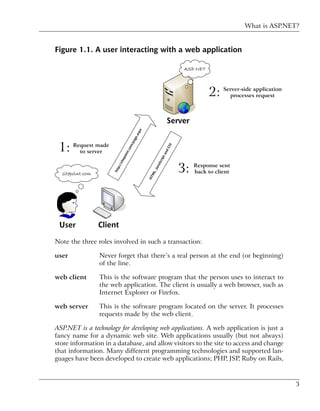
     Server-side technologies, like ASP.NET, are different. Instead of being interpreted
     by the client, server-side code (for example, the code in an ASP.NET page) is
     interpreted by the web server. In the case of ASP.NET, the code in the page is
     read by the server and used to generate HTML, JavaScript, and CSS that is then
     sent to the browser. Since the processing of the ASP.NET code occurs on the
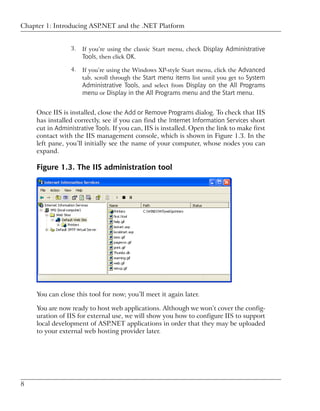
     server, it’s called a server-side technology. As Figure 1.1 shows, the client only
     sees the HTML, JavaScript, and CSS. The server is entirely responsible for pro-
     cessing the server-side code.


2
What is ASP.NET?


Figure 1.1. A user interacting with a web application


Note the three roles involved in such a transaction:

user            Never forget that there’s a real person at the end (or beginning)
                of the line.

web client      This is the software program that the person uses to interact to
                the web application. The client is usually a web browser, such as
                Internet Explorer or Firefox.

web server      This is the software program located on the server. It processes
                requests made by the web client.

ASP.NET is a technology for developing web applications. A web application is just a
fancy name for a dynamic web site. Web applications usually (but not always)
store information in a database, and allow visitors to the site to access and change
that information. Many different programming technologies and supported lan-
guages have been developed to create web applications; PHP, JSP, Ruby on Rails,


                                                                                       3
Chapter 1: Introducing ASP.NET and the .NET Platform


     CGI, and ColdFusion are just a few of the more popular ones. However, rather
     than tying you to a specific technology and language, ASP.NET lets you write
     web applications using a variety of familiar programming languages.

     ASP.NET uses the Microsoft .NET Framework. The .NET Framework collects all the
     technologies needed for building Windows desktop applications, web applications,
     web services, and so on, into a single package, and makes them available to more
     than 40 programming languages.

     Even with all the jargon explained, you’re probably still wondering what makes
     ASP.NET so good. The truth is that there are many server-side technologies
     around, each of which has its own strengths and weaknesses. Yet ASP.NET has
     a few features that really are unique:

     ❑ ASP.NET lets you use your favorite programming language, or at least one
       that’s close to it. The .NET Framework currently supports over 40 languages,
       and many of these may be used to build ASP.NET web sites. The most popular
       choices are C# (pronounced “C sharp”) and Visual Basic (or VB), which are
       the ones we’ll cover in this book.

     ❑ ASP.NET pages are compiled, not interpreted. In ASP.NET’s predecessor, ASP,
       pages were interpreted: every time a user requested a page, the server would
       read the page’s code into memory, figure out how to execute the code (that
       is, interpret the code), and execute it. In ASP.NET, the server need only figure
       out how to execute the code once. The code is compiled into efficient binary
       files, which can be run very quickly, again and again, without the overhead
       involved in re-reading the page each time. This represents a big jump in per-
       formance from the old days of ASP.

     ❑ ASP.NET has full access to the functionality of the .NET Framework. Support
       for XML, web services, database interaction, email, regular expressions, and
       many other technologies are built right into .NET, which saves you from
       having to reinvent the wheel.

     ❑ ASP.NET allows you to separate the server-side code in your pages from the
       HTML layout. When you’re working with a team composed of programmers
       and design specialists, this separation is a great help, as it lets programmers
       modify the server-side code without stepping on the designers’ carefully crafted
       HTML—and vice versa.

     ❑ ASP.NET makes it easy to reuse common User Interface elements in many
       web forms, as it allows us to save those components as independent web user
       controls. During the course of this book, you’ll learn how to add powerful


4
Installing the Required Software


        features to your web site, and to reuse them in many places with a minimum
        of effort.

  ❑ You can get excellent tools that assist in developing ASP.NET web applications.
    Visual Web Developer 2005 is a free, powerful visual editor that includes
    features such as code autocompletion, code formatting, database integration
    functionality, a visual HTML editor, debugging, and more. In the course of
    this book, you’ll learn how to use this tool to build the examples we discuss.

  ❑ The .NET Framework was first available only to the Windows platform, but
    thanks to projects such as Mono,1 it’s since been ported to other operating
    systems.

  Still with me? Great! It’s time to gather our tools and start building!


Installing the Required Software
  If you’re going to learn ASP.NET, you first need to make sure you have all the
  necessary software components installed and working on your system. Let’s take
  care of this before we move on.

  Internet Information Services (IIS) or Cassini
      IIS is the web server of choice for running ASP.NET web applications. You’ll
      need your copy of the Windows CD to install and configure it. Unfortunately,
      some versions of Windows (such as Windows XP Home Edition) don’t sup-
      port IIS. If you’re one of those users, there’s Cassini. Cassini is a small web
      server designed for hobbyists who are looking to build ASP.NET web sites.
      It isn’t as robust, powerful, or user-friendly as IIS, but it will be sufficient for
      our purposes. When we come to use Visual Web Developer in Chapter 5,
      we’ll be making use of that product’s built-in development web server, so not
      having access to IIS on your system won’t be a problem.

  a modern web browser
     Throughout this book, we’ll be using Internet Explorer 6, but you can use
     other browsers during development if you wish. Any modern browser will
     do.

  .NET Framework 2.0
     As we’ve already discussed, the .NET Framework drives ASP.NET. When
     you install the .NET Framework, you’ll automatically install the files necessary

  1
      http://www.mono-project.com/


                                                                                             5
Chapter 1: Introducing ASP.NET and the .NET Platform


            to run ASP.NET. You’re likely to have the .NET Framework already, as it
            installs automatically through the Windows Update service.

     .NET Framework Software Development Kit (SDK)
        The .NET Framework 2.0 Software Development Kit (SDK) is a free down-
        load that contains the necessary Web Application development tools, a de-
        bugger for error correcting, and a suite of samples and documentation.

     We’re also going to need a database. In this book, we’ll use the following:

     Microsoft SQL Server 2005 Express Edition
        This is the free, but still fully functional, version of SQL Server 2005. If you
        worked with previous versions of these technologies, you should know that
        SQL Server 2005 Express is a replacement for the previous Microsoft SQL
        Data Engine (MSDE). You can read more on the differences between various
        SQL Server 2005 editions at the Microsoft site.2

     SQL Server Management Studio Express
       Because the Express Edition of SQL Server doesn’t ship with any visual
       management tools, you can use this free tool, also developed by Microsoft,
       to access your SQL Server 2005 databases.

Installing the Web Server
Installing Internet Information Services (IIS)
     IIS comes with most versions of server-capable Windows operating systems—in-
     cluding Windows 2000 Professional, Server, and Advanced Server; Windows XP
     Professional; Windows XP Media Center Edition; and Windows Server 2003—but
     it’s not installed automatically in all versions, which is why it may not be present
     on your computer. IIS isn’t available for Home editions of these operating systems,
     such as Windows XP Home Edition. If you run this, you’ll need to rely on Cassini,
     which we discuss below.

     To see whether you have IIS installed and running, simply locate your Adminis-
     trative Tools folder (sometimes it’s a menu option; sometimes it’s a folder in the
     Control Panel3) and check whether or not it contains a shortcut to Internet In-
     formation Services. If the shortcut isn’t visible, then it’s not installed. To install
     IIS, simply follow these steps:

     2
         http://www.microsoft.com/sql/2005/productinfo/sql2005features.asp
     3
         To see this folder, you’ll need to view the Control Panel in “classic view.”


6
Installing the Web Server


1.   In the Control Panel, select Add or Remove Programs.

2.   Choose Add/Remove Windows Components. The list of components will be-
     come visible within a few seconds.

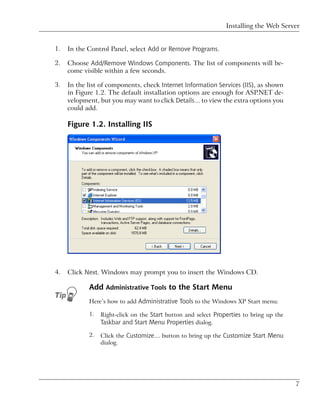
3.   In the list of components, check Internet Information Services (IIS), as shown
     in Figure 1.2. The default installation options are enough for ASP.NET de-
     velopment, but you may want to click Details… to view the extra options you
     could add.

     Figure 1.2. Installing IIS


4.   Click Next. Windows may prompt you to insert the Windows CD.

            Add Administrative Tools to the Start Menu
            Here’s how to add Administrative Tools to the Windows XP Start menu:

            1.   Right-click on the Start button and select Properties to bring up the
                 Taskbar and Start Menu Properties dialog.
            2.   Click the Customize… button to bring up the Customize Start Menu
                 dialog.


                                                                                         7
Chapter 1: Introducing ASP.NET and the .NET Platform


                 3.   If you’re using the classic Start menu, check Display Administrative
                      Tools, then click OK.
                 4.   If you’re using the Windows XP-style Start menu, click the Advanced
                      tab, scroll through the Start menu items list until you get to System
                      Administrative Tools, and select from Display on the All Programs
                      menu or Display in the All Programs menu and the Start menu.


     Once IIS is installed, close the Add or Remove Programs dialog. To check that IIS
     has installed correctly, see if you can find the Internet Information Services short
     cut in Administrative Tools. If you can, IIS is installed. Open the link to make first
     contact with the IIS management console, which is shown in Figure 1.3. In the
     left pane, you’ll initially see the name of your computer, whose nodes you can
     expand.

     Figure 1.3. The IIS administration tool


     You can close this tool for now; you’ll meet it again later.

     You are now ready to host web applications. Although we won’t cover the config-
     uration of IIS for external use, we will show you how to configure IIS to support
     local development of ASP.NET applications in order that they may be uploaded
     to your external web hosting provider later.


8
Installing the .NET Framework and the SDK


Installing Cassini
    If you’re unable to install IIS, you’ll need to download and install Cassini:

    1.     Go to the Cassini download page.4

    2.     Download the Cassini installer executable (cassini.exe).

    3.     Run cassini.exe and follow the steps presented by the installer, accepting
           the default options.

    If the process went to plan, everything you need to run Cassini can be found in
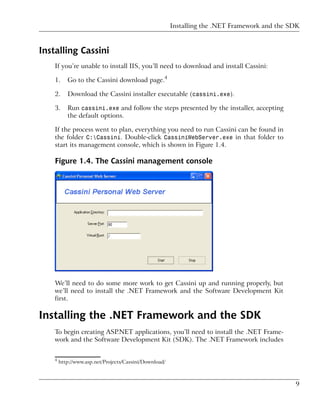
    the folder C:Cassini. Double-click CassiniWebServer.exe in that folder to
    start its management console, which is shown in Figure 1.4.

    Figure 1.4. The Cassini management console


    We’ll need to do some more work to get Cassini up and running properly, but
    we’ll need to install the .NET Framework and the Software Development Kit
    first.

Installing the .NET Framework and the SDK
    To begin creating ASP.NET applications, you’ll need to install the .NET Frame-
    work and the Software Development Kit (SDK). The .NET Framework includes


    4
        http://www.asp.net/Projects/Cassini/Download/


                                                                                               9
Chapter 1: Introducing ASP.NET and the .NET Platform


     the files necessary to run and view ASP.NET pages, while the SDK includes
     samples, documentation, and a variety of free tools.

Installing the .NET Framework
     The best method of acquiring the .NET Framework is to download and install it
     directly from the Web. Note that it is also delivered through Windows Update,
     so you may already have it installed on your system. To check, open the folder
     C:WINDOWSMicrosoft.NETFramework (if your copy of Windows is installed
     somewhere other than C:WINDOWS, change this path accordingly). If this folder
     doesn’t exist, you definitely don’t have the .NET Framework installed. If it does
     exist, you should find inside it at least one folder with a name like v1.1.4322.
     Each of these kinds of folders holds a different version of the .NET Framework
     you have installed. If at least one of these folders’ names doesn’t start with v2 or
     higher, you’ll need to install the latest version of the .NET Framework.

     To install the latest version of the .NET Framework, simply follow the steps
     outlined below:

     1.     Go to the ASP.NET support site5 and click the Download the .NET Framework
            link.

     2.     Under the .NET Framework Version 2.0 Redistributable Package heading, click
            the appropriate download link for your hardware. Remember, we’ll install
            the redistributable package first, then the SDK. The link will advance you
            to a download page.

     3.     Choose the language and version of the installation you want, and click
            Download.

     4.     Save the file to a local directory. After the download is complete, double-
            click the executable to begin the installation.

     5.     Follow the steps presented by the wizard until installation completes.

Installing the SDK
     Now that you’ve installed the redistributable package, you need to install the
     Software Development Kit (SDK):


     5
         http://www.asp.net/


10
Configuring the Web Server


   1.   Go back to the ASP.NET support site and follow the Download the .NET
        Framework link again.

   2.   This time, click the appropriate download link under the .NET Framework
        Version 2.0 Software Development Kit heading. The link will advance you to
        a download page.

   3.   Choose the language version of the installation you want to use and click
        Download, as you did to download the redistributable package.

   4.   When prompted to do so, save the file to a local directory.

   5.   After the download is complete, double-click the executable to begin the in-
        stallation. Before you do so, I strongly recommend that you close all other
        programs to ensure the install proceeds smoothly.

   6.   Follow the steps outlined by the .NET Setup Wizard until installation
        completes. When asked for setup options, it’s safe to use the default values.

   The SDK will take slightly longer to install than the framework.

               A Big Download!
               The .NET Framework SDK weighs in at about 350MB, so it will probably
               take a while to download.


Configuring the Web Server
Configuring IIS
   After installing the .NET Framework and the SDK manually, you will need to
   configure IIS to make it aware of ASP.NET. To do this, you need to follow a few
   simple steps:

   1.   Open the command prompt by selecting Start > All Programs > Microsoft
        .NET Frameworks SDK v2.0 > SDK Command Prompt.

   2.   Type the following command to install ASP.NET:

        C:Program Files…SDKv2.0>aspnet_regiis.exe -i
        Start installing ASP.NET (2.0.50727).
        .........
        Finished installing ASP.NET (2.0.50727).


                                                                                        11
Chapter 1: Introducing ASP.NET and the .NET Platform


     3.   Once ASP.NET is installed, close the command prompt and check again to
          confirm that ASP.NET installed correctly.

                 Running aspnet_regiis.exe
                 Depending on the circumstances, ASP.NET may already have been installed
                 for you, but running aspnet_regiis.exe can’t hurt. Also, remember that
                 you need to run this utility again in case you reinstall IIS.

Configuring Cassini
     If you’ve installed Cassini, you’ll need to get under the hood of the .NET
     Framework to coerce Cassini into working as it should.

     1.   Open the command prompt by selecting Start > All Programs > Microsoft
          .NET Frameworks SDK v2.0 > SDK Command Prompt.

     2.   Enter the following command at the prompt:

          C:Program Files…SDKv2.0>gacutil /i C:CassiniCassini.dll
          Microsoft (R) .NET Global Assembly Cache Utility. Version 2.0…
          Copyright (c) Microsoft Corporation. All rights reserved.

          Assembly successfully added to the cache


     Cassini is now ready to go.

Where do I Put my Files?
                 IIS Recommended
                 From here on in, the instructions we provide will be centered around IIS, as
                 Cassini isn’t suitable for production environments. Many of the concepts
                 we’ll discuss do not apply to Cassini, as it’s much simpler and lacks many
                 of IIS’s features. Where needed, Cassini instructions will be given, but IIS
                 will receive the bulk of the discussion.

     Now that you have ASP.NET up and running, let’s find out where the files for
     your web applications are kept on the computer. You can readily set IIS to look
     for web applications in any folder, including the My Documents folder, or even a
     network share. By default, IIS maps the C:Inetpubwwwroot folder of your disk
     to your web site’s root directory, which is generally considered a good repository
     for storing and managing your web applications.


12
Configuring the Web Server


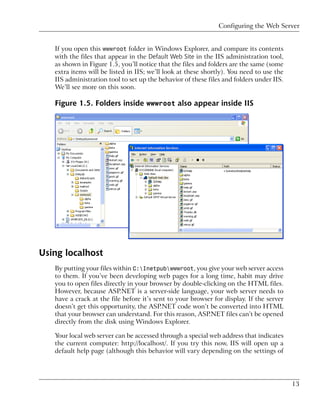
   If you open this wwwroot folder in Windows Explorer, and compare its contents
   with the files that appear in the Default Web Site in the IIS administration tool,
   as shown in Figure 1.5, you’ll notice that the files and folders are the same (some
   extra items will be listed in IIS; we’ll look at these shortly). You need to use the
   IIS administration tool to set up the behavior of these files and folders under IIS.
   We’ll see more on this soon.

   Figure 1.5. Folders inside wwwroot also appear inside IIS


Using localhost
   By putting your files within C:Inetpubwwwroot, you give your web server access
   to them. If you’ve been developing web pages for a long time, habit may drive
   you to open files directly in your browser by double-clicking on the HTML files.
   However, because ASP.NET is a server-side language, your web server needs to
   have a crack at the file before it’s sent to your browser for display. If the server
   doesn’t get this opportunity, the ASP.NET code won’t be converted into HTML
   that your browser can understand. For this reason, ASP.NET files can’t be opened
   directly from the disk using Windows Explorer.

   Your local web server can be accessed through a special web address that indicates
   the current computer: http://localhost/. If you try this now, IIS will open up a
   default help page (although this behavior will vary depending on the settings of


                                                                                          13
Chapter 1: Introducing ASP.NET and the .NET Platform


     your Windows installation; for example, if you get an error instead of the default
     help page, don’t worry).

     What you need to keep in mind, though, is that the address you’ll use to access
     local web applications will always start with http://localhost/, and that, by default,
     this root address points to the folder on your disk.

     To see this in practice, create a new file named index.htm inside C:Inetpubwww-
                                              6
     root, with the following contents :

                                                                                        File: index.htm
     <!DOCTYPE html PUBLIC "-//W3C//DTD XHTML 1.0 Strict//EN"
         "http://www.w3.org/TR/xhtml1/DTD/xhtml1-strict.dtd">
     <html>
       <head>
         <title>Simple HTML Page</title>
       </head>
       <body>
         <P>This is a simple HTML page.
       </body>
     </html>

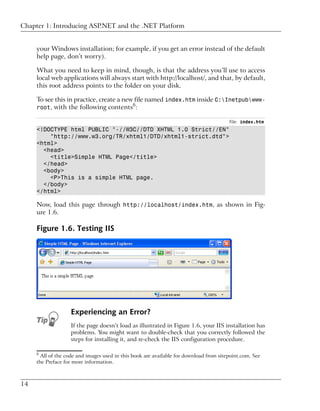
     Now, load this page through http://localhost/index.htm, as shown in Fig-
     ure 1.6.

     Figure 1.6. Testing IIS


                   Experiencing an Error?
                   If the page doesn’t load as illustrated in Figure 1.6, your IIS installation has
                   problems. You might want to double-check that you correctly followed the
                   steps for installing it, and re-check the IIS configuration procedure.

     6
       All of the code and images used in this book are available for download from sitepoint.com. See
     the Preface for more information.


14
Configuring the Web Server


    This localhost name is equivalent to the so-called loopback IP address, 127.0.0.1,
    so you can get the same results by entering http://127.0.0.1/index.htm into
    your browser. If you know them, you can also use the name or IP address of your
    machine to the same end.

    Note that if you do try any of these equivalents, a dialog will appear before the
    page is opened, to ask you for your network credentials. This occurs because
    you’re no longer using your local authentication, which is implicit with localhost.

                Stopping and Starting IIS
                Now that we have IIS up and running, and ASP.NET installed, let’s look at
                how you can start, stop, and restart IIS if the need arises. For the most part,
                you’ll always want to have IIS running; however, if you want to shut it down
                temporarily for any reason (such as security concerns), you can. Also, some
                external programs may stop IIS upon launch because of potential security
                vulnerabilities, so you’ll need to start it again yourself. If you want to stop
                IIS when it’s not being used, simply open the Internet Information Services
                management console, right-click on Default Web Site and select Stop. Al-
                ternatively, after selecting Default Web Site, you can use the Stop, Pause,
                and Play icons from the toolbar.

Virtual Directories
   As we saw in the section called “Where do I Put my Files?”, physical sub-folders
   of C:Inetpubwwwroot also become subdirectories of the web site. For instance,
   imagine your company has a web server that serves documents from C:Inet-
   pubwwwroot. Your users can access these documents through http://www.ex-
   ample.com/. If you create a subfolder of wwwroot, named about, files in that
   directory can be accessed via http://www.example.com/about/.

   You could also set up another subdirectory in your web site, but serve files from
   a different location on the disk. If, for instance, you were developing another
   web application, you could store the files for it in C:devOrderSystem. You
   could then create within IIS a new virtual directory called, say, order, which
   mapped to this location. This new site would then be accessible through the URL
   http://www.example.com/order/. As this application is in development, you
   would probably want to set IIS to hide this virtual directory from the public until
   the project is complete; your existing web site would still be visible.

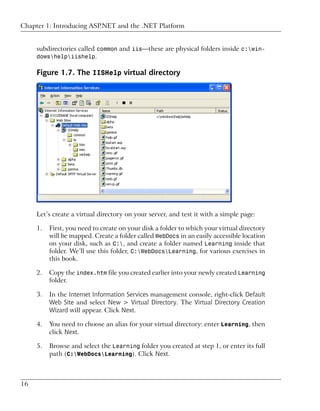
   By default, a virtual directory, called IISHelp, is preconfigured in IIS; it maps to
   c:windowshelpiishelp. You can see in Figure 1.7 that IISHelp contains


                                                                                                  15
Chapter 1: Introducing ASP.NET and the .NET Platform


     subdirectories called common and iis—these are physical folders inside c:win-
     dowshelpiishelp.

     Figure 1.7. The IISHelp virtual directory


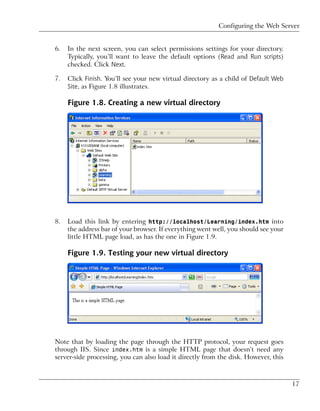
     Let’s create a virtual directory on your server, and test it with a simple page:

     1.   First, you need to create on your disk a folder to which your virtual directory
          will be mapped. Create a folder called WebDocs in an easily accessible location
          on your disk, such as C:, and create a folder named Learning inside that
          folder. We’ll use this folder, C:WebDocsLearning, for various exercises in
          this book.

     2.   Copy the index.htm file you created earlier into your newly created Learning
          folder.

     3.   In the Internet Information Services management console, right-click Default
          Web Site and select New > Virtual Directory. The Virtual Directory Creation
          Wizard will appear. Click Next.

     4.   You need to choose an alias for your virtual directory: enter Learning, then
          click Next.

     5.   Browse and select the Learning folder you created at step 1, or enter its full
          path (C:WebDocsLearning). Click Next.


16
Configuring the Web Server


6.   In the next screen, you can select permissions settings for your directory.
     Typically, you’ll want to leave the default options (Read and Run scripts)
     checked. Click Next.

7.   Click Finish. You’ll see your new virtual directory as a child of Default Web
     Site, as Figure 1.8 illustrates.

     Figure 1.8. Creating a new virtual directory


8.   Load this link by entering http://localhost/Learning/index.htm into
     the address bar of your browser. If everything went well, you should see your
     little HTML page load, as has the one in Figure 1.9.

     Figure 1.9. Testing your new virtual directory


Note that by loading the page through the HTTP protocol, your request goes
through IIS. Since index.htm is a simple HTML page that doesn’t need any
server-side processing, you can also load it directly from the disk. However, this


                                                                                     17
Chapter 1: Introducing ASP.NET and the .NET Platform


     won’t be the case with the ASP.NET scripts you’ll see through the rest of this
     book.

     Once your new virtual directory has been created, you can see and configure it
     through the Internet Information Services management console shown in Fig-
     ure 1.8. You can see the folder’s contents in the right-hand panel.

     As index.htm is one of the default document names, you can access that page
     just by entering http://localhost/Learning/ into your browser’s address bar.
     To see and edit the default document names for a virtual directory (or any direct-
     ory, for that matter), you can right-click the directory’s name in the IIS manage-
     ment console, click Properties, and select the Documents tab. You’ll see the dialog
     displayed in Figure 1.10.

     Figure 1.10. Default document types for the Learning virtual
     directory


     By default, when we request a directory without specifying a filename, IIS looks
     for a page with the name of one of the default documents, such as index.htm or
     default.htm. If there is no index page, IIS assumes we want to see the contents
     of the requested location. This operation is allowed only if the Directory Browsing


18
Configuring the Web Server


option is selected for the directory in question. You’ll find that option in the
Directory tab of the Properties window.

            Directory Browsing
            Enabling directory browsing is not something you’d usually want to do. Al-
            lowing visitors to freely see and access all the files and directories that make
            up your web page is not only a little messy and unprofessional, but also in-
            creases the potential for security issues (you don’t want any hackers to stick
            their nose into your code, do you?). So, by default, IIS won’t allow directory
            browsing when a directory is requested: if a default file such as index.htm
            isn’t there, ready to be served to the visitor, a message reading “Directory
            Listing Denied” will be served instead.

To change your virtual directory’s options, you have to right-click the virtual
directory (Learning, in our case) in the IIS console, and choose Properties. The
Properties dialog that we’ve just used lets us configure various useful properties,
including:

Virtual Directory           This option allows you to configure directory-level
                            properties, including path information, the virtual
                            directory name, access permissions, etc. Everything
                            that was set up through the wizard is modifiable
                            through this tab.

Documents                   This option allows you to configure a default page that
                            displays when the user types in a full URL. For in-
                            stance, because default.aspx is listed as a default
                            page, the user need only enter http://www.mys-
                            ite.com/, rather than http://www.mysite.com/de-
                            fault.aspx, into the browser’s address bar. You can
                            easily change and remove these default pages by select-
                            ing the appropriate button to the right of the menu.

Directory Security          This option provides you with security configuration
                            settings for the virtual directory.

HTTP Headers                This option gives you the ability to forcefully control
                            page caching on the server, add custom HTTP Headers,
                            Edit Ratings (this helps identify the content your site
                            provides to users), and create MIME types. Don’t
                            worry about this for now.


                                                                                               19
Chapter 1: Introducing ASP.NET and the .NET Platform


     Custom Errors              This option allows you to define your own custom error
                                pages. Rather than presenting the standard error mes-
                                sages that appear within Internet Explorer, you can
                                customize error messages with your company’s logo
                                and messages of your choice.

     ASP.NET                    This tab allows you to configure the options for the
                                ASP.NET applications stored in that folder.

     One thing to note at this point is that we can set properties for the Default Web
     Site node, and choose to have them “propagate” down to all the virtual directories
     we’ve created.

Using Cassini
     If you’re stuck using a version of Windows that doesn’t support IIS, you’ll need
     to make use of Cassini to get your simple ASP.NET web applications up and
     running. Cassini doesn’t support virtual directories, security settings, or any of
     IIS’s other fancy features; it’s just a very simple web server that gives you the
     basics you need to get up and running.

     To get started using Cassini:

     1.   Create a directory called C:WebDocsLearning, just like the one we created
          in the section called “Virtual Directories”.

     2.   Copy index.htm into this folder. We first saw index.htm in the section
          called “Using localhost”.

     3.   Start Cassini by opening C:Cassini (or, if you chose to install Cassini
          somewhere else, open that folder), then double-click on the file CassiniWeb-
          Server.exe.

     4.   Cassini has just three configuration options:

          Application Directory
             It’s here that your application’s files are stored. Enter C:WebDocsLearn-
             ing into this field.

          Server Port
              Web servers almost always operate on port 80, so we won’t touch this
              setting.


20
Configuring the Web Server


     Virtual Root
         This is similar to IIS’s virtual directories feature, though it’s nowhere
         near as flexible. By default, it’s set to /, meaning that you can access the
         file C:WebDocsLearningindex.htm by entering the address ht-
         tp://localhost/index.htm. However, to match our IIS virtual directory
         configuration, we want to make this file’s address http://local-
         host/Learning/index.htm. To create this effect, enter /Learning/ into
         this field.


5.   Once you have filled in the Application Directory and Virtual Root fields, click
     the Start button to start the web server.

6.   After clicking Start, a link to the web site that’s being served will appear to-
     ward the bottom of the window, as shown in Figure 1.11.

     Figure 1.11. Cassini serving a web site


When you browse open this site in Cassini, you won’t see index.htm straight
away—you’ll be presented with a list of files instead. Cassini only recognizes files
named default.htm or default.aspx as default documents, and it doesn’t allow
you to configure this feature as IIS does.


                                                                                        21
Chapter 1: Introducing ASP.NET and the .NET Platform


Installing SQL Server 2005 Express Edition
     After making sure IIS, the .NET Framework, and the SDK are installed correctly,
     it’s time to move forward and install the next piece of software that you’ll be
     using as we work through this book: SQL Server 2005 Express Edition.

     SQL Server 2005 is Microsoft’s database solution for medium to large companies
     and enterprises. SQL Server 2005 can be quite expensive, it generally requires
     its own dedicated database server machine, and, at times, it necessitates that a
     certified database administrator (DBA) be employed to ensure its maintenance;
     yet it does offer a robust and scalable solution for larger web applications.

     For the examples in this book, we’ll use SQL Server 2005 Express Edition, which
     is free and sufficiently powerful for our needs. Unlike the expensive versions,
     SQL Server 2005 Express Edition doesn’t ship with visual management utilities,
     but you can use another free tool from Microsoft—SQL Server Management
     Studio Express, which we’ll install next)—for these purposes.

     You can install SQL Server 2005 Express Edition as follows:

     1.   Navigate to http://msdn.microsoft.com/vstudio/express/sql/, and click the
          Download Now link.

     2.   In the next page, you can choose between SQL Server 2005 Express Edition,
          and SQL Server 2005 Express Edition with Advanced Services. The former
          will be fine for our purposes. Your system should meet the necessary require-
          ments, so go ahead and click Download.

     3.   Once the download has completed, double-click the downloaded executable
          file, and follow the steps to install the product. It’s safe to use the default
          options all the way through, though it is a rather long process.

     Provided that everything goes well, SQL Server 2005 Express Edition will be up
     and running at the end of the process. Like IIS, SQL Server runs as a service in
     the background, accepting connections to databases instead of web pages. The
     SQL Server is accessible at the address (local)SqlExpress.

Installing SQL Server Management Studio Express
     In order to use your SQL Server 2005 install effectively, you’ll need some sort
     of administration tool that will allow you to work with your databases. SQL


22
Installing SQL Server Management Studio Express


Server Management Studio Express is a free tool provided by Microsoft to allow
you to manage your installation of SQL Server 2005.

To install SQL Server Management Studio Express, follow these steps:

1.   Navigate again to http://msdn.microsoft.com/vstudio/express/sql/, and click
     the Download Now link.

2.   This time, download the SQL Server Management Studio Express edition that
     corresponds to the SQL Server 2005 version that you installed previously.

3.   After the download completes, execute the file and follow the steps to install
     the product.

Once it’s installed, SQL Server Manager Express can be accessed from Start > All
Programs > Microsoft SQL Server 2005 > SQL Server Management Studio Express.
When executed, it will first ask for your credentials, as Figure 1.12 illustrates.

Figure 1.12. Connecting to SQL Server


By default, when installed, SQL Server 2005 Express Edition will only accept
connections that use Windows Authentication, which means that you’ll use your
Windows user account to log in to the SQL Server. Because you’re the user that
installed SQL Server 2005, you’ll already have full privileges to the SQL Server.
Click Connect to connect to your SQL Server 2005 instance.


                                                                                      23
Chapter 1: Introducing ASP.NET and the .NET Platform


     Figure 1.13. Managing your database server


     After you’re authenticated, you’ll be shown the interface in Figure 1.13, which
     gives you many ways to interact with, and manage, your SQL Server 2005 in-
     stance.

     SQL Server Management Studio lets you browse through the objects inside your
     SQL Server, and even modify their settings. For example, you can change the
     security settings of your server by right-clicking the COMPUTERSQLEXPRESS (where
     COMPUTER is the name of your computer), choosing Properties, and selecting
     Security from the panel, as shown in Figure 1.14.

                 SQL Server and Instances
                 You can run multiple SQL Servers on the one computer simultaneously—each
                 SQL Server is called an instance of SQL Server. How is this useful? Imagine
                 you have a production server that runs two applications with two separate
                 databases on the same instance of SQL Server. If, for some reason, we need
                 to restart SQL Server for the first application, the second application’s
                 database will become unavailable while the restart is taking place. If the
                 second application’s database was operating on a second instance of SQL
                 Server, we wouldn’t have such a problem—the second application would
                 continue working without missing a beat.

                 Each instance of SQL Server requires a name. The default instance name for
                 SQL Server 2005 Express Edition is SQLEXPRESS. When connecting to your


24
Installing Visual Web Developer 2005


  Figure 1.14. Changing server settings with SQL Server Management
  Studio


              database server, you must specify both the name of the computer and the
              name of the SQL Server instance in the form ComputerName/Instance-
              Name. You can see this specification back in Figure 1.12 and Figure 1.13,
              where we’re connecting to an instance called SQLEXPRESS on a computer
              called VM2.


Installing Visual Web Developer 2005
  Visual Web Developer automates many of the tasks that you’d need to complete
  yourself in other environments, and includes many powerful features. For the
  first exercises in this book, we’ll recommend you use a simple text editor such as


                                                                                          25
Chapter 1: Introducing ASP.NET and the .NET Platform


     Notepad, but you’ll gradually learn how to use Visual Web Developer to ease
     some of the tasks we’ll tackle.

     So let’s install this tool to make sure we’ll have it ready when we need it.

     1.   Go to http://msdn.microsoft.com/vstudio/express/vwd/ and click the Down-
          load link.

     2.   Execute the downloaded file.

     3.   Accept the default options. At one point, you’ll be asked about installing
          Microsoft MSDN 2005 Express Edition, which is the product’s documenta-
          tion. It wouldn’t hurt to install it, but you need to be patient, because it’s
          quite big. (Note that you’ve already installed the .NET Framework 2.0 doc-
          umentation, together with the SDK.)

                 Bonus!
                 If you’ve already installed the .NET Framework 2.0 SDK, you’ve already
                 installed Microsoft MSDN 2005 Express Edition.

     In this book, we’ll start using Visual Web Developer to build real web applications
     in Chapter 5. Until then, we’ll create examples using Notepad (or another simple
     text editor) so you’re prepared to take full advantage of the features offered by
     Visual Web Developer when the time comes to use it.


Writing your First ASP.NET Page
     For your first ASP.NET exercise, we’ll create the simple example shown in Fig-
     ure 1.15.

     Figure 1.15. Your first ASP.NET page


26
Writing your First ASP.NET Page


Let’s get started! Open your text editor (Notepad is fine). If you have software
that creates ASP.NET pages automatically, such as Visual Studio .NET or Visual
Web Developer 2005 Express Edition, please don’t use it yet—while these are
great tools that allow you to get up and running quickly, they do assume that
you already understand how ASP.NET works.

So, open your text editor, and create a new file named FirstPage.aspx in the
Learning folder you created earlier. Start editing FirstPage.aspx by entering
the HTML for our page, shown below:

                                                       File: FirstPage.aspx (excerpt)
<!DOCTYPE html PUBLIC "-//W3C//DTD XHTML 1.0 Strict//EN"
    "http://www.w3.org/TR/xhtml1/DTD/xhtml1-strict.dtd">
<html>
  <head>
    <title>My First ASP.NET 2.0 Page</title>
  </head>
  <body>
    <p>Hello there!</p>
    <p>The time is now: </p>
  </body>
</html>

So far, so good, right? Now, let’s add some ASP.NET code that will create the
dynamic elements of the page, starting with the time.

                                                       File: FirstPage.aspx (excerpt)
<!DOCTYPE html PUBLIC "-//W3C//DTD XHTML 1.0 Strict//EN"
    "http://www.w3.org/TR/xhtml1/DTD/xhtml1-strict.dtd">
<html>
  <head>
    <title>My First ASP.NET 2.0 Page</title>
  </head>
  <body>
    <p>Hello there!</p>
    <p>The time is now:
        <asp:Label runat="server" id="timeLabel" /></p>
  </body>
</html>

We’ve added an <asp:Label/> tag to the document. This is a special tag that
lets us insert dynamic content into the page. The asp: part of the tag name
identifies it as a built-in ASP.NET tag. ASP.NET comes with numerous built-in
tags; <asp:Label/> is one of the simplest.


                                                                                        27
Chapter 1: Introducing ASP.NET and the .NET Platform


     The runat="server" attribute identifies the tag as something that needs to be
     handled on the server. In other words, the web browser will never see the
     <asp:Label/> tag; when the page is requested by the client, ASP.NET sees it
     and converts it to regular HTML tags before the page is sent to the browser. It’s
     up to us to write the code that will tell ASP.NET to replace this particular tag
     with the current time.

     To do this, we must add some script to our page. ASP.NET gives you the choice
     of a number of different languages to use in your scripts. The two most common
     languages are VB and C#. Let’s take a look at examples using both. Here’s a
     version of the page in VB:

     Visual Basic                                             File: FirstPage.aspx (excerpt)
     <!DOCTYPE html PUBLIC "-//W3C//DTD XHTML 1.0 Strict//EN"
         "http://www.w3.org/TR/xhtml1/DTD/xhtml1-strict.dtd">
     <html>
       <head>
         <title>My First ASP.NET Page</title>
         <script runat="server" language="VB">
            Sub Page_Load(sender As Object, e As EventArgs)
              timeLabel.Text = DateTime.Now.ToString()
            End Sub
         </script>
       </head>
       <body>
         <p>Hello there!</p>
         <p>The time is now:
             <asp:Label runat="server" id="timeLabel" /></p>
       </body>
     </html>

     Here’s the same page written in C#:

     C#                                                       File: FirstPage.aspx (excerpt)
     <!DOCTYPE html PUBLIC "-//W3C//DTD XHTML 1.0 Strict//EN"
         "http://www.w3.org/TR/xhtml1/DTD/xhtml1-strict.dtd">
     <html>
       <head>
         <title>My First ASP.NET Page</title>
            <script runat="server" language="C#">
              protected void Page_Load(object sender, EventArgs e)
              {
                timeLabel.Text = DateTime.Now.ToString();
              }
         </script>


28
Writing your First ASP.NET Page


  </head>
  <body>
    <p>Hello there!</p>
    <p>The time is now:
        <asp:Label runat="server" id="timeLabel" /></p>
  </body>
</html>

            Clues for Case Sensitivity
            Note that C#, unlike VB, is case-sensitive. If you type the case of a letter
            incorrectly, the page won’t load. If these languages look complicated, don’t
            worry: you’ll learn more about them in Chapter 3.

Both versions of the page achieve exactly the same thing. You can even save them
both, giving each a different filename, and test them separately. If you’ve never
done any server-side programming before, the code may look a little scary. But
before we analyze it in detail, let’s load the page and test that it works. Using
your web browser, load http://localhost/Learning/FirstPage.aspx.
Whether you load the C# version or the VB version, the output should look like
Figure 1.15.

            No Time?
            If the time isn’t displayed in the page, chances are that you opened the file
            directly in your browser instead of loading it through your web server. Because
            ASP.NET is a server-side language, your web server needs to process the file
            before it’s sent to your browser for display. If it doesn’t get access to the file,
            the ASP.NET code is never converted into HTML that your browser can
            understand, so make sure you load the page by entering an actual HTTP
            URL (such as http://localhost/Learning/FirstPage.aspx), not a
            local path and filename (such as C:WebDocsLearningFirstPage.as-
            px).

What happens there? Let’s break down the new elements of this page.

                                                                 File: FirstPage.aspx (excerpt)
<script runat="server">

This tag marks the start of server-side code, or the code declaration block. Like
the <asp:Label/> tag, this <script> tag uses the runat="server" attribute to
let ASP.NET know that the tag should be processed before sending the page to
the browser.


                                                                                                  29
Chapter 1: Introducing ASP.NET and the .NET Platform


     Visual Basic                                                File: FirstPage.aspx (excerpt)
     Sub Page_Load(sender As Object, e As EventArgs)

     C#                                                          File: FirstPage.aspx (excerpt)
     protected void Page_Load(object sender, EventArgs e)
     {

     I won’t go into too much detail here. For now, all you need to know is that you
     can write script fragments that are run in response to different events, such as a
     button being clicked or an item being selected from a drop-down list. What the
     first line of code basically says is, “execute the following script whenever the page
     is loaded.” Note that C# groups code into blocks with curly braces ({ and }),
     while Visual Basic uses statements such as End Sub to mark the end of a particular
     sequence. So, the curly brace in the C# code above ({) marks the start of the
     script that will be executed when the page loads for the first time.

     Finally, here’s the line that actually displays the time on the page:

     Visual Basic                                                File: FirstPage.aspx (excerpt)
          timeLabel.Text = DateTime.Now.ToString()

     C#                                                          File: FirstPage.aspx (excerpt)
          timeLabel.Text = DateTime.Now.ToString();

     As you can see, these .NET languages have much in common, because they’re
     both built on the .NET Framework. In fact, the only difference between the ways
     the two languages handle the above line is that C# ends lines of code with a
     semicolon (;). In plain English, here’s what this line says:

                Set the Text of timeLabel to the current date and time, expressed
                as text.

     Note that timeLabel is the value we gave for the id attribute of the <asp:Label/>
     tag where we want to show the time. So, timeLabel.Text, or the Text property
     of timeLabel, refers to the text that will be displayed by the tag. DateTime is a
     class that’s built into the .NET Framework; it lets you perform all sorts of useful
     functions with dates and times. The .NET Framework has thousands of these
     classes, which do countless handy things. The classes are collectively known as
     the .NET Framework Class Library.

     The DateTime class has a property called Now, which returns the current date
     and time. This Now property has a method called ToString, which expresses that
     date and time as text (a segment of text is called a string in programming circles).


30
Writing your First ASP.NET Page


Classes, properties, and methods: these are all important words in the vocabulary
of any programmer, and we’ll discuss them in more detail a little later in the
book. For now, all you need to take away from this discussion is that Date-
Time.Now.ToString() will give you the current date and time as a text string,
which you can then tell your <asp:Label/> tag to display. The rest of the script
block simply ties up loose ends:

Visual Basic                                             File: FirstPage.aspx (excerpt)
End Sub
</script>

C#                                                       File: FirstPage.aspx (excerpt)
}
</script>

The End Sub in the VB code, and the } in the C# code, mark the end of the
script that’s to be run when the page is loaded, and the </script> tag marks the
end of the script block.

One final thing that’s worth investigating is the code that ASP.NET generated
for you. It’s clear by now that your web browser receives only HTML (no server-
side code!), so what kind of HTML was generated for that label? The answer is
easy to find! With the page displayed in your browser, you can use the browser’s
View Source feature to view the page’s HTML code. Here’s what you’ll see:

<!DOCTYPE html PUBLIC "-//W3C//DTD XHTML 1.0 Strict//EN"
    "http://www.w3.org/TR/xhtml1/DTD/xhtml1-strict.dtd">
<html>
  <head>
    <title>My First ASP.NET Page</title>
  </head>
  <body>
    <p>Hello there!</p>
    <p>The time is now:
        <span id="timeLabel">6/20/2006 8:00:49 PM</span></p>
  </body>
</html>

Notice that all the ASP.NET code has gone! Even the script block has been
completely removed, and the <asp:Label/> tag has been replaced by a <span>
tag (which has the same id attribute as the <asp:Label/> tag we used) that
contains the date and time.


                                                                                          31
Chapter 1: Introducing ASP.NET and the .NET Platform


     That’s how ASP.NET works. From the web browser’s point of view, there’s
     nothing special about an ASP.NET page; it’s just plain HTML like any other. All
     the ASP.NET code is run by your web server and converted to plain HTML that’s
     sent to the browser. So far, so good: the example above was fairly simple. The
     next chapter will get a bit more challenging as we investigate some valuable pro-
     gramming concepts.


Getting Help
     As you develop ASP.NET web applications, you will undoubtedly have questions
     that need answers, and problems that need to be solved. The ASP.NET support
     web site7 was developed by Microsoft as a portal for the ASP.NET community
     to answer the questions and solve the problems that developers encounter while
     using ASP.NET. The support web site provides useful information, such as news,
     downloads, articles, and discussion forums. You can also ask questions of the
     experienced community members in the SitePoint Forums.8


Summary
     In this chapter, you learned about .NET. You also learned of the benefits of
     ASP.NET and that it’s a part of the .NET Framework.

     First, you learned about the components of ASP.NET and how to locate and install
     the .NET Framework. Then, we explored the software that’s required not only
     to use this book, but also in order for you or your company to progress with
     ASP.NET development.

     You’ve gained a solid foundation in the world of ASP.NET! The next chapter
     will build on this knowledge as we begin to introduce you to ASP.NET in more
     detail, covering page structure, the languages that you can use, various program-
     ming concepts, and the finer points of form processing.


     7
         http://www.asp.net/
     8
         http://www.sitepoint.com/forums/


32
2                          ASP.NET Basics

So far, you’ve learned what ASP.NET is, and what it can do. You’ve installed the
software you need to get going, and, having been introduced to some very simple
form processing techniques, you even know how to create a simple ASP.NET
page. Don’t worry if it all seems a little bewildering right now, because, as this
book progresses, you’ll learn how to use ASP.NET at more advanced levels.

As the next few chapters unfold, we’ll explore some more advanced topics, includ-
ing the use of controls, and various programming techniques. But before you can
begin to develop applications with ASP.NET, you’ll need to understand the inner
workings of a typical ASP.NET page—with this knowledge, you’ll be able to
identify the parts of the ASP.NET page referenced in the examples we’ll discuss
throughout this book. So, in this chapter, we’ll talk about some key mechanisms
of an ASP.NET page, specifically:

❑ page structure

❑ view state

❑ namespaces

❑ directives
Chapter 2: ASP.NET Basics


     We’ll also cover two of the “built-in” languages supported by the .NET Frame-
     work: VB and C#. As this section progresses, we’ll explore the differences and
     similarities between these two languages, and get a clear idea of the power that
     they provide to those creating ASP.NET applications.

     So, what exactly makes up an ASP.NET page? The next few sections will give
     you an in-depth understanding of the constructs of a typical ASP.NET page.


ASP.NET Page Structure
     ASP.NET pages are simply text files that have the .aspx file name extension,
     and can be placed on any web server equipped with ASP.NET.

     When a client requests an ASP.NET page, the web server passes the page to the
     ASP.NET runtime, a program that runs on the web server that’s responsible for
     reading the page and compiling it into a .NET class. This class is then used to
     produce the HTML that’s sent back to the user. Each subsequent request for this
     page avoids the compilation process: the .NET class can respond directly to the
     request, producing the page’s HTML and sending it to the client, until such time
     as the .aspx file changes. This process is illustrated in Figure 2.1.

     An ASP.NET page consists of the following elements:

     ❑ directives

     ❑ code declaration blocks

     ❑ code render blocks

     ❑ ASP.NET server controls

     ❑ server-side comments

     ❑ literal text and HTML tags

     Figure 2.2 illustrates the various parts of a simple ASP.NET page.


34
ASP.NET Page Structure


Figure 2.1. The life cycle of the ASP.NET page


Figure 2.2. The parts of an ASP.NET page


                                                                    35
Chapter 2: ASP.NET Basics


     To make sure we’re on the same page and that the code works, save this piece of
     code in a file named Hello.aspx within the Learning virtual directory you created
     in Chapter 1. Loading the file through http://localhost/Learning/Hello.aspx
     should render the result shown in Figure 2.3.

     Figure 2.3. Sample Page in action


     As you can see, this ASP.NET page contains examples of all the above components
     (except server-side includes) that make up an ASP.NET page. You won’t often
     use every single element in a given page, but it’s important that you are familiar
     with these elements, their purposes, and how and when it’s appropriate to use
     them.

Directives
     The directives section is one of the most important parts of an ASP.NET page.
     Directives control how a page is compiled, specify how a page is cached by web
     browsers, aid debugging (error-fixing), and allow you to import classes to use
     within your page’s code. Each directive starts with <%@. This is followed by the
     directive name, plus any attributes and their corresponding values. The directive
     then ends with %>.

     There are many directives that you can use within your pages, and we’ll discuss
     them in greater detail later, but, for now, know that the Import and Page directives
     are the most useful for ASP.NET development. Looking at the sample ASP.NET
     page in Figure 2.2, we can see that a Page directive was used at the top of the
     page like so:

     Visual Basic                                                   File: Hello.aspx (excerpt)
     <%@ Page Language="VB" %>


36
Code Declaration Blocks


   C#                                                             File: Hello.aspx (excerpt)
   <%@ Page Language="C#" %>

   In this case, the Page directive specifies the language that’s to be used for the
   application logic by setting the Language attribute. The value provided for this
   attribute, which appears in quotes, specifies that we’re using either VB or C#. A
   whole range of different directives is available; we’ll see a few more later in this
   chapter.

   Unlike ASP, ASP.NET directives can appear anywhere on a page, but they’re
   commonly included at its very beginning.

Code Declaration Blocks
   In Chapter 3, we’ll talk about code-behind pages and how they let us separate
   our application logic from an ASP.NET page’s HTML. However, if you’re not
   working with code-behind pages, you must use code declaration blocks to contain
   all the application logic of your ASP.NET page. This application logic defines
   variables, subroutines, functions, and more. In our page, we’ve placed the code
   inside <script> tags, like so:
   Visual Basic
   <script runat="server">
     Sub mySub()
       ' Code here
     End Sub
   </script>

   Here, the tags enclose VB code, but it could just as easily be C#:
   C#
   <script runat="server">
     void mySub()
     {
       // Code here
     }
   </script>

Comments in VB and C# Code
   Both of these code snippets contain comments—explanatory text that will be ig-
   nored by ASP.NET, but which serves to describe to us how the code works.


                                                                                               37
Chapter 2: ASP.NET Basics


     In VB code, a single quote or apostrophe (') indicates that the remainder of the
     line is to be ignored as a comment.

     In C# code, two slashes (//) achieve the same end. C# code also lets us span a
     comment over multiple lines if we begin it with /* and end it with */, as in this
     example:
     C#
     <script runat="server">
       void mySub()
       {
         /* Multi-line
            comment    */
       }
     </script>

     Before .NET emerged, ASP also supported such script tags using a runat="serv-
     er" attribute. However, they could only ever contain VBScript and, for a variety
     of reasons, they failed to find favor among developers.

     Code declaration blocks are generally placed inside the head of your ASP.NET
     page. The sample ASP.NET page shown in Figure 2.2, for instance, contains the
     following code declaration block:

     Visual Basic                                                 File: Hello.aspx (excerpt)
     <script runat="server">
       Sub Page_Load()
         messageLabel.Text = "Hello World"
       End Sub
     </script>

     Perhaps you can work out what the equivalent C# code would be:

     C#                                                           File: Hello.aspx (excerpt)
     <script runat="server">
       void Page_Load()
       {
         messageLabel.Text = "Hello World";
       }
     </script>

     The <script runat="server"> tag also accepts two other attributes. We can
     set the language that’s used in this code declaration block via the language at-
     tribute:


38
Code Render Blocks


   Visual Basic
  <script runat="server" language="VB">

   C#
  <script runat="server" language="C#">

  If you don’t specify a language within the code declaration block, the ASP.NET
  page will use the language provided by the language attribute of the Page direct-
  ive. Each page’s code must be written in a single language; for instance, it’s not
  possible to mix VB and C# in the same page.

  The second attribute that’s available to us is src; this lets us specify an external
  code file for use within the ASP.NET page:
   Visual Basic
  <script runat="server" language="VB" src="mycodefile.vb">

   C#
  <script runat="server" language="C#" src="mycodefile.cs">


Code Render Blocks
  If you’ve had experience with traditional ASP, you might recognize these blocks.
  You can use code render blocks to define inline code or expressions that will
  execute when a page is rendered. Code within a code render block is executed
  immediately when it is encountered—usually when the page is loaded or rendered.
  On the other hand, code within a code declaration block (within <script> tags)
  is executed only when it is called or triggered by user or page interactions. There
  are two types of code render blocks—inline code, and inline expressions—both
  of which are typically written within the body of the ASP.NET page.

  Inline code render blocks execute one or more statements, and are placed directly
  inside a page’s HTML between <% and %> delimiters. In our example, the following
  is a code render block:

   Visual Basic                                                  File: Hello.aspx (excerpt)
  <% Dim Title As String = "This is generated by a code render " & _
      "block." %>

   C#                                                            File: Hello.aspx (excerpt)
  <% string Title = "This is generated by a code render block."; %>


                                                                                              39
Chapter 2: ASP.NET Basics


     These code blocks simply declare a String variable called Title, and assign it the
     value This is generated by a code render block.

     Inline expression render blocks can be compared to Response.Write in classic
     ASP. They start with <%= and end with %>, and are used to display the values of
     variables and methods on a page. In our example, an inline expression appears
     immediately after our inline code block:

                                                                 File: Hello.aspx (excerpt)
     <%= Title %>

     If you’re familiar with classic ASP, you’ll know what this code does: it simply
     outputs the value of the variable Title that we declared in the previous inline
     code block.

ASP.NET Server Controls
     At the heart of any ASP.NET page lie server controls, which represent dynamic
     elements with which your users can interact. There are three basic types of server
     control: ASP.NET controls, HTML controls, and web user controls.

     Usually, an ASP.NET control must reside within a <form runat="server"> tag
     in order to function correctly. Controls offer the following advantages to ASP.NET
     developers:

     ❑ They give us the ability to access HTML elements easily from within our code:
       we can change these elements’ characteristics, check their values, or even up-
       date them dynamically from our server-side programming language of choice.

     ❑ ASP.NET controls retain their properties thanks to a mechanism called view
       state. We’ll be covering view state later in this chapter. For now, you need
       to know that view state prevents users from losing the data they’ve entered
       into a form once that form has been sent to the server for processing. When
       the response comes back to the client, text box entries, drop-down list selec-
       tions, and so on, are all retained through view state.

     ❑ With ASP.NET controls, developers are able to separate a page’s presentational
       elements (everything the user sees) from its application logic (the dynamic
       portions of the ASP.NET page), so that each can be considered separately.

     ❑ Many ASP.NET controls can be “bound” to the data sources from which they
       will extract data for display with minimal (if any) coding effort.


40
Server-side Comments


  ASP.NET is all about controls, so we’ll be discussing them in greater detail as we
  move through this book. In particular, Chapter 4 explains many of the controls
  that ship with ASP.NET. For now, though, let’s continue with our dissection of
  an ASP.NET page.

Server-side Comments
  Server-side comments allow you to include within the page comments or notes
  that will not be processed by ASP.NET. Traditional HTML uses the <!-- and -
  -> character sequences to delimit comments; any information included between
  these tags will not be displayed to the user. ASP.NET comments look very similar,
  but use the sequences <%-- and --%>.

  Our ASP.NET example contains the following server-side comment block:

                                                              File: Hello.aspx (excerpt)
  <%-- Declare the title as string and set it --%>

  The difference between ASP.NET comments and HTML comments is that
  ASP.NET comments are not sent to the client at all; HTML comments are, so
  they’re not suited to commenting out ASP.NET code. Consider the following
  example:
   C#
  <!--
  <% string Title = "This is generated by a code render block."; %>
  <%= Title %>
  -->

  Here, it looks as if a developer has attempted to use an HTML comment to stop
  a code render block from being executed. Unfortunately, HTML comments will
  only hide information from the browser, not the ASP.NET runtime. So, in this
  case, while we won’t see anything in the browser that represents these two lines,
  they will be processed by ASP.NET, and the value of the variable Title will be
  sent to the browser inside an HTML comment, as shown here:

  <!–-

  This code generated by a code render block.
  -->

  The code could be modified to use server-side comments very simply:


                                                                                           41
Chapter 2: ASP.NET Basics


     C#
     <%--
     <% string Title = "This is generated by a code render block."; %>
     <%= Title %>
     --%>

     The ASP.NET runtime will ignore the contents of this comment, and the value
     of the Title variable will not be output.

Literal Text and HTML Tags
     The final elements of an ASP.NET page are plain old text and HTML. Generally,
     you can’t do without these elements—after all, HTML allows the display of the
     information in your ASP.NET controls and code in a way that’s suitable for users.
     Let’s take a look at the literal text and HTML tags that were used to produce the
     display in Figure 2.2:

     Visual Basic                                                 File: Hello.aspx (excerpt)
     <%@ Page Language="VB" %>
     <!DOCTYPE html PUBLIC "-//W3C//DTD XHTML 1.0 Strict//EN"
         "http://www.w3.org/TR/xhtml1/DTD/xhtml1-strict.dtd">
     <html>
       <head>
         <title>Sample Page</title>
         <script runat="server">
            Sub Page_Load()
              messageLabel.Text = "Hello World!"
            End Sub
         </script>
       </head>
       <body>
         <form runat="server">
            <p>
              <asp:Label id="messageLabel" runat="server" />
            </p>
           <p>
              <%-- Declare the title as string and set it --%>
              <% Dim Title As String = "This is generated by a " & _
                  "code render block." %>
              <%= Title %>
            </p>
         </form>
       </body>
     </html>


42
Literal Text and HTML Tags


C#                                                              File: Hello.aspx (excerpt)
<%@ Page Language="C#" %>
<!DOCTYPE html PUBLIC "-//W3C//DTD XHTML 1.0 Strict//EN"
    "http://www.w3.org/TR/xhtml1/DTD/xhtml1-strict.dtd">
<html>
  <head>
    <title>Sample Page</title>
    <script runat="server">
       void Page_Load()
       {
         messageLabel.Text = "Hello World";
       }
    </script>
  </head>
  <body>
    <form runat="server">
       <p>
         <asp:Label id="messageLabel" runat="server" />
       </p>
       <p>
         <%-- Declare the title as string and set it --%>
         <% string Title = "This is generated by a code render " +
             "block."; %>
         <%= Title %>
       </p>
    </form>
  </body>
</html>

The bold code above highlights the fact that literal text and HTML tags provide
the structure for presenting our dynamic data. Without these elements, this page
would have no format, and the browser would be unable to understand it.

You now have a clearer understanding of the structure of an ASP.NET page. As
you work through the examples in this book, you’ll begin to realize that, in many
cases, you won’t need to use all of these elements. For the most part, your devel-
opment will be modularized within code declaration blocks, and all of the dynamic
portions of your pages will be contained within code render blocks or controls
located inside a <form runat="server">> tag.

In the following sections, we’ll explore view state, discuss working with directives,
and shine a little light on the languages that can be used within ASP.NET.


                                                                                             43
Chapter 2: ASP.NET Basics


View State
     As we saw briefly in the previous section, ASP.NET controls automatically retain
     their data when a page is sent to the server in response to an event (such as a
     user clicking a button). Microsoft calls this persistence of data “view state.” In
     the past, developers would have had to use hacks to remember the item a user
     had selected in a drop-down menu, or store the content entered into a text box;
     typically, these hacks would have relied on hidden form fields.

     This is no longer the case: once they’re submitted to the server for processing,
     ASP.NET pages automatically retain all the information contained in text boxes
     and drop-down lists, as well as radio button and checkbox selections. They even
     keep track of dynamically generated tags, controls, and text. Consider the following
     ASP (not ASP.NET!) page, called Sample.asp:

                                                                          File: Sample.asp
     <!DOCTYPE html PUBLIC "-//W3C//DTD XHTML 1.0 Strict//EN"
         "http://www.w3.org/TR/xhtml1/DTD/xhtml1-strict.dtd">
     <html>
       <head>
         <title>Sample Page using VBScript</title>
       </head>
       <body>
         <form method="post" action="sample.asp">
            <input type="text" name="nameTextBox"/>
            <input type="submit" name="submitButton"
                 value="Click Me" />
            <%
            If Request.Form("nameTextBox") <> "" Then
               Response.Write(Request.Form("nameTextBox"))
            End If
            %>
         </form>
       </body>
     </html>

                 Cassini and ASP
                 Cassini is an ASP.NET-only web server and will not execute pages written
                 in ASP, such as Sample.asp above. Fortunately, this won’t be a problem
                 as you work your way through this book, as the above Sample.asp file is
                 the only ASP code in this book.


44
View State


If you save this as Sample.asp in the Learning virtual directory you created in
Chapter 1, and open it in your browser by entering http://localhost/Learn-
ing/Sample.asp, you’ll see that view state is not automatically preserved. When
the user submits the form, the information that was typed into the text box is
cleared, although it’s still available in Request.Form("nameTextBox"). The
equivalent page in ASP.NET, ViewState.aspx, demonstrates this data persistence
using view state:

Visual Basic                                                   File: ViewState.aspx
<!DOCTYPE html PUBLIC "-//W3C//DTD XHTML 1.0 Strict//EN"
    "http://www.w3.org/TR/xhtml1/DTD/xhtml1-strict.dtd">
<html>
  <head>
    <title>View State Example</title>
    <script runat="server" language="VB">
       Sub Click(s As Object, e As EventArgs)
         messageLabel.Text = nameTextBox.Text
       End Sub
    </script>
  </head>
  <body>
    <form runat="server">
       <asp:TextBox id="nameTextBox" runat="server" />
       <asp:Button id="submitButton" runat="server"
           Text="Click Me" OnClick="Click" />
       <asp:Label id="messageLabel" runat="server" />
    </form>
  </body>
</html>

C#                                                             File: ViewState.aspx
<!DOCTYPE html PUBLIC "-//W3C//DTD XHTML 1.0 Strict//EN"
    "http://www.w3.org/TR/xhtml1/DTD/xhtml1-strict.dtd">
<html>
  <head>
    <title>View State Example</title>
    <script runat="server" language="C#">
       void Click(Object s, EventArgs e)
       {
         messageLabel.Text = nameTextBox.Text;
       }
    </script>
  </head>
  <body>
    <form runat="server">


                                                                                      45
Chapter 2: ASP.NET Basics


           <asp:TextBox id="nameTextBox" runat="server" />
           <asp:Button id="submitButton" runat="server"
               Text="Click Me" OnClick="Click" />
           <asp:Label id="messageLabel" runat="server" />
         </form>
       </body>
     </html>

     In this case, the code uses ASP.NET controls with the runat="server" attribute.
     As you can see in Figure 2.4, the text from the box appears on the page when the
     button is clicked, but also notice that the data remains in the text box! The data
     in this example is preserved by view state.

     Figure 2.4. ASP.NET maintaining the state of the controls


     You can see the benefits of view state already. But where’s all that information
     stored? ASP.NET pages maintain view state by encrypting the data within a
     hidden form field. View the source of the page after you’ve submitted the form,
     and look for the following code:

     <input type="hidden" name="__VIEWSTATE" id="__VIEWSTATE"
         value="/wEPDwUKLTEwNDY1Nzg0MQ9…0fMCR+FN5P6v5pkTQwNEl5xhBk" />

     This is a standard HTML hidden form field. All information that’s relevant to
     the view state of the page is stored within this hidden form field as an encrypted
     string.

     View state is enabled for every page by default. If you do not intend to use view
     state, you can turn it off, which will result in a slight performance gain in your
     pages. To do this, set the EnableViewState property of the Page directive to
     false:

     <%@ Page EnableViewState="False" %>


46
Working with Directives


              Disabling View State, Control by Control
              View state can also be disabled for particular controls in a page: simply set
              their EnableViewState property to false. We’ll see working examples of
              this in the following chapters.

  Speaking of directives, it’s time to take a closer look at these curious beasts!


Working with Directives
  For the most part, ASP.NET pages resemble traditional HTML pages with a few
  additions. In essence, just using the .aspx extension for an HTML file will ensure
  that IIS passes the page to the .NET Framework for processing. However, before
  you can work with certain, more advanced features, you’ll need to know how to
  use directives.

  We talked a little about directives and what they can do earlier in this chapter.
  You learned that directives control how a page is created, how a page is cached,
  help with bug-fixing, and allow us to import advanced functionality for use
  within our code. Three of the most commonly used directives are:

  Page
      This directive defines page-specific attributes for the ASP.NET page, such as
      the language used for server-side code. We’ve already seen this directive in
      use.

  Import
      The Import directive makes functionality that’s been defined elsewhere
      available in a given page. The following example, for instance, imports func-
      tionality from the System.Web.Mail namespace, which you could use to send
      email from a page. Namespaces are simply .NET’s way of keeping all its
      functionality neatly organized—we’ll see how they work in Chapter 3.

      <%@ Import Namespace="System.Web.Mail" %>

      You’ll become very familiar with this directive as you work through this book.

  Register
      This directive allows you to register a user control for use on your page. We’ll
      cover Register in detail in Chapter 4, but the directive looks something like
      this:


                                                                                              47
Chapter 2: ASP.NET Basics


         <%@ Register TagPrefix="uc" TagName="footer"
             Src="footer.ascx" %>


ASP.NET Languages
     As we saw in the previous chapter, .NET supports many different languages; in
     fact, there’s no limit to the number of languages that could be supported. If you’re
     used to writing ASP, you may think the choice of VBScript or JScript would be
     an obvious one. But, with ASP.NET, Microsoft did away with VBScript, merging
     it with Visual Basic. ASP.NET’s support for C# is likely to find favor with deve-
     lopers from other backgrounds. This section will introduce you to both these new
     languages, which will be covered in more depth in the next chapter. By the end
     of this section, you will, I hope, agree that the similarities between the two are
     astonishing—any differences are minor and, in most cases, easy to figure out.

     Traditional server technologies are much more constrained in terms of the devel-
     opment languages they offer. For instance, old-style CGI scripts were typically
     written with Perl or C/C++, JSP uses Java, Coldfusion uses CFML, and PHP is
     a technology and a language rolled into one. .NET’s support for many different
     languages lets developers choose the ones they prefer. To keep things simple, this
     book will consider the two most popular: VB and C#. You can choose the language
     that feels more comfortable to you, or stick with your current favorite if you have
     one.

Visual Basic
     The latest version of Visual Basic is the result of a dramatic overhaul of Microsoft’s
     hugely popular Visual Basic language. With the inception of Rapid Application
     Development (RAD) in the 1990s, Visual Basic became extremely popular, allow-
     ing in-house teams and software development shops to bang out applications
     two-to-the-dozen. The latest version of VB has many advantages over older ver-
     sions, most notably the fact that it has now became a fully object oriented lan-
     guage. At last, it can call itself a true programming language that’s on a par with
     the likes of Java and C++. Despite the changes, VB generally stays close to the
     structured, legible syntax that has always made it so easy to read, use, and
     maintain.


48
C#


C#
     The official line is that Microsoft created C# in an attempt to produce a program-
     ming language that coupled the simplicity of Visual Basic with the power and
     flexibility of C++. However, there’s little doubt that its development was at least
     hurried along by Microsoft’s legal disputes with Sun. After Microsoft’s treatment
     (some would say abuse) of Sun’s Java programming language, Microsoft was
     forced to stop developing its own version of Java, and instead developed C# and
     another language, which it calls J#. We’re not going to worry about J# here, as
     C# is preferable. It’s easy to read, use, and maintain, because it does away with
     much of the confusing syntax for which C++ became infamous.


Summary
     In this chapter, we started out by introducing key aspects of an ASP.NET page
     including directives, code declaration blocks, code render blocks, includes, com-
     ments, and controls. As the chapter progressed, we took a closer look at the two
     most popular languages that ASP.NET supports, and which we’ll use throughout
     this book.

     In the next chapter, we’ll create a few more ASP.NET pages to demonstrate form
     processing techniques and programming basics, before we turn our attention to
     the topic of object oriented programming for the Web.


                                                                                           49
50
3                            VB and C# Programming Basics

  As you learned at the end of the last chapter, one of the great things about using
  ASP.NET is that we can pick and choose which of the various .NET languages
  we like. In this chapter, we’ll look at the key programming principles that will
  underpin our use of Visual Basic and C#. We’ll start by discussing some basic
  concepts of programming ASP.NET web applications using these two languages.
  We’ll explore programming fundamentals such as variables, arrays, functions,
  operators, conditionals, loops, and events, and work through a quick introduction
  to object oriented programming (OOP). Next, we’ll dive into namespaces and
  address the topic of classes—seeing how they’re exposed through namespaces,
  and which ones you’ll use most often.

  The final sections of the chapter cover some of the ideas underlying modern, ef-
  fective ASP.NET design, including code-behind and the value it provides by
  helping us separate code from presentation. We finish with an examination of
  how object oriented programming techniques impact the ASP.NET developer.


Programming Basics
  One of the building blocks of an ASP.NET page is the application logic: the ac-
  tual programming code that allows the page to function. To get anywhere with
  ASP.NET, you need to grasp the concept of events. All ASP.NET pages will
  contain controls such as text boxes, checkboxes, and lists. Each of these controls
Chapter 3: VB and C# Programming Basics


     allows the user to interact with the application in some way: checking checkboxes,
     scrolling through lists, selecting list items, and so on. Whenever one of these ac-
     tions is performed, the control will raise an event. It is by handling these events
     within our code that we get ASP.NET pages to do what we want.

     For instance, imagine that a user clicks a button on an ASP.NET page. That
     button (or, more specifically, the ASP.NET Button control) raises an event (in
     this case, it will be the Click event). A method called an event handler executes
     automatically when an event is raised—in this case, the event handler code per-
     forms a specific action for that button. For instance, the Click event handler
     could save form data to a file, or retrieve requested information from a database.
     Events really are the key to ASP.NET programming, which is why we’ll start this
     chapter by taking a closer look at them.

     It wouldn’t be practical, or even necessary, to cover all aspects of VB and C# in
     this book, so we’re going to discuss enough to get you started, and complete this
     chapter’s projects and samples using both languages. Moreover, we’d say that
     the programming concepts you’ll learn here will be more than adequate to com-
     plete the great majority of day-to-day web development tasks using ASP.NET.

Control Events and Subroutines
     As I just mentioned, an event (sometimes more than one) is raised, and handler
     code is called, in response to a specific action on a particular control. For instance,
     the code below creates a server-side button and label. Note the use of the OnClick
     attribute on the Button control. If you want to test the code, save the file in the
     Learning virtual directory you’ve been using for the other examples.

                                                                File: ClickEvent.aspx (excerpt)
     <!DOCTYPE html PUBLIC "-//W3C//DTD XHTML 1.0 Strict//EN"
         "http://www.w3.org/TR/xhtml1/DTD/xhtml1-strict.dtd">
     <html>
       <head>
         <title>Click the Button</title>
       </head>
       <body>
         <form runat="server">
            <asp:Button id="button" runat="server"
                OnClick="button_Click" Text="Click Me" />
           <asp:Label id="messageLabel" runat="server" />
         </form>
       </body>
     </html>


52
Control Events and Subroutines


When the button’s clicked, it raises the Click event, and ASP.NET checks the
button’s OnClick attribute to find the name of the handler subroutine for that
event. In the code above, we told ASP.NET to call the button_Click routine, so
perhaps we’d better write this subroutine! We’d normally place it within a code
declaration block inside the <head> tag, like this:

Visual Basic                                            File: ClickEvent.aspx (excerpt)
<head>
  <title>Click the Button</title>
  <script runat="server" language="VB">
    Public Sub button_Click(s As Object, e As EventArgs)
       messageLabel.Text = "Hello World"
    End Sub
  </script>
</head>

C#                                                      File: ClickEvent.aspx (excerpt)
<head>
  <title>Click the Button</title>
  <script runat="server" language="C#">
    public void button_Click(Object s, EventArgs e)
    {
       messageLabel.Text = "Hello World";
    }
  </script>
</head>

This code simply sets a message to display on the label that we declared with the
button. So, when this page is run, and users click the button, they’ll see the
message “Hello World” appear next to it.

Figure 3.1. Handling the Click event


Hopefully, you’re starting to come to grips with the idea of control events, and
the ways in which they’re used to call particular subroutines. In fact, there are
many events that your controls can use, though some of them are found only on


                                                                                          53
Chapter 3: VB and C# Programming Basics


     certain controls. Here’s the complete set of attributes that the Button control
     supports for handling events:

     OnClick
         As we’ve seen, the subroutine indicated by this attribute is called for the
         Click event, which occurs when the user clicks the button.

     OnCommand
         As with OnClick, the subroutine indicated by this attribute is called when
         the button is clicked.

     OnLoad
         The subroutine indicated by this attribute is called when the button is loaded
         for the first time—usually when the page first loads.

     OnInit
         When the button is initialized, any subroutine given in this attribute will be
         called.

     OnPreRender
         We can use this attribute to run code just before the button is rendered.

     OnUnload
         This subroutine will run when the control is unloaded from memory—basic-
         ally, when the user goes to a different page or closes the browser entirely.

     OnDisposed
         The subroutine specified by this attribute is executed when the button is re-
         leased from memory.

     OnDataBinding
         This attribute fires when the button is bound to a data source.

     Don’t worry too much about the intricacies of all these events and when they
     occur; I just want you to understand that a single control can produce a number
     of different events. In the case of the Button control, you’ll almost always be
     interested in the Click event; the others are only useful in rather obscure circum-
     stances.

     When a control raises an event, the specified subroutine (if one is specified) is
     executed. Let’s take a look at the structure of a typical subroutine that interacts
     with a web control:


54
Control Events and Subroutines


Visual Basic
Public Sub mySubName(s As Object, e As EventArgs)
  ' Write your code here
End Sub

C#
public void mySubName(Object s, EventArgs e)
{
  // Write your code here
}

Let’s take a moment to break down all the components that make up a typical
subroutine.

Public (Visual Basic)
public (C#)
      This command defines the scope of the subroutine. There are a few different
      options to choose from, the most frequently used being Public (for a global
      subroutine that can be used anywhere within the entire page) and Private
      (for subroutines that are available for the specific class only).1 We’ll analyze
      these options in more detail a bit later in the chapter.

Sub (Visual Basic)
void (C#)
      This command defines the chunk of code as a subroutine. A subroutine is a
      named block of code that doesn’t return a result; thus, in C#, we use the
      void keyword, which means exactly what the name says. We don’t need this
      in VB, though, because the Sub keyword implies that no value is returned.

mySubName(…)
      This part gives the name we’ve chosen for the subroutine. The parameters
      and their data types are mentioned in the parentheses.

s As Object (Visual Basic)
Object s (C#)
      When we write a subroutine that will function as an event handler, it must
      accept two parameters. The first is a reference to the control that fired the
      event. Each control has a particular type, such as Label or TextBox, but
      Object is a generic type that can be used to reference any kind of object in
      .NET—even basic types, such as numbers or strings. Here, we’re putting that
      Object in a variable named s (again, we’ll talk more about variables later in


1
    The C# equivalents of Public and Private are, perhaps predictably, public and private.


                                                                                             55
Chapter 3: VB and C# Programming Basics


          this chapter). We can then use that variable to access features and settings
          of the specific control from our subroutine.

     e As EventArgs (Visual Basic)
     EventArgs e (C#)
          This, the second parameter, contains certain information that’s specific to
          the event that was raised. Note that, in many cases, you won’t need to use
          either of these two parameters, so you don’t need to worry about them too
          much at this stage.

     As this chapter progresses, you’ll see how subroutines that are associated with
     particular events by the appropriate attributes on controls can revolutionize the
     way your user interacts with your application.

Page Events
     Until now, we’ve considered only events that are raised by controls. However,
     there is another type of event: the page event. Technically, a page is simply an-
     other type of control, so page events are a particular kind of control event.

     The idea is the same as for control events, except that here, it is the page as a
     whole that generates the events.2 You’ve already used one of these events: the
     Page_Load event, which is fired when the page loads for the first time. Note that
     we don’t need to associate handlers for page events as we did for control events;
     instead, we just place our handler code inside a subroutine with a preset name.

     The following list outlines the most frequently used page event subroutines:

     Page_Init
          called when the page is about to be initialized with its basic settings

     Page_Load
          called once the browser request has been processed, and all of the controls
          in the page have their updated values

     Page_PreRender
          called once all objects have reacted to the browser request and any resulting
          events, but before any response has been sent to the browser

     2
      Strictly speaking, a page is simply another type of control, so page events are actually control events.
     But when you’re first learning ASP.NET, it can be helpful to think of page events as being different,
     especially since you don’t usually use OnEventName attributes to assign subroutines to handle
     them.


56
Page Events


Page_UnLoad
     called when the page is no longer needed by the server, and is ready to be
     discarded

The order in which the events are listed above is also the order in which they’re
executed. In other words, the Page_Init event is the first event raised by the
page, followed by Page_Load, Page_PreRender, and finally Page_UnLoad.

The best way to illustrate how these events work is through an example. Create
the following PageEvents.aspx file in the Learning virtual directory:

Visual Basic                                            File: PageEvents.aspx (excerpt)
<!DOCTYPE html PUBLIC "-//W3C//DTD XHTML 1.0 Strict//EN"
    "http://www.w3.org/TR/xhtml1/DTD/xhtml1-strict.dtd">
<html>
  <head>
    <title>Page Events</title>
    <script runat="server" language="VB">
       Sub Page_Init(s As Object, e As EventArgs)
         messageLabel.Text = "1. Page_Init <br/>"
       End Sub
       Sub Page_Load(s As Object, e As EventArgs)
         messageLabel.Text += "2. Page_Load <br/>"
       End Sub
       Sub Page_PreRender(s As Object, e As EventArgs)
         messageLabel.Text += "3. Page_PreRender <br/>"
       End Sub
       Sub Page_UnLoad(s As Object, e As EventArgs)
         messageLabel.Text += "4. Page_UnLoad <br/>"
       End Sub
    </script>
  </head>
  <body>
    <form runat="server">
       <asp:Label id="messageLabel" runat="server" />
    </form>
  </body>
</html>

C#                                                      File: PageEvents.aspx (excerpt)
<!DOCTYPE html PUBLIC "-//W3C//DTD XHTML 1.0 Strict//EN"
    "http://www.w3.org/TR/xhtml1/DTD/xhtml1-strict.dtd">
<html>
  <head>
    <title>Page Events</title>


                                                                                          57
Chapter 3: VB and C# Programming Basics


         <script runat="server" language="C#">
           void Page_Init(Object s, EventArgs e)
           {
              messageLabel.Text = "1. Page_Init <br/>";
           }
           void Page_Load(Object s, EventArgs e)
           {
              messageLabel.Text += "2. Page_Load <br/>";
           }
           void Page_PreRender(Object s, EventArgs e)
           {
              messageLabel.Text += "3. Page_PreRender <br/>";
           }
           void Page_UnLoad(Object s, EventArgs e)
           {
              messageLabel.Text += "4. Page_UnLoad <br/>";
           }
         </script>
       </head>
       <body>
         <form runat="server">
           <asp:Label id="messageLabel" runat="server" />
         </form>
       </body>
     </html>

     You can see that the event handlers (the functions that are executed to handle
     the events) aren’t specifically defined anywhere. There’s no need to define them,
     because these events are generated by default by the ASP.NET page, and their
     handlers have the default names that we’ve used in the code (Page_Init,
     Page_Load, etc). As the page loads, it will generate a number of events. Within
     each event’s event handler, we’ve added a message to the Label control; this will
     give us visual proof that the events actually fire in order. No matter which version
     of the code you execute (C# or VB), the output should look like Figure 3.2.

     As you can see, Page_UnLoad doesn’t generate any output. This is because, at
     that point, the HTML output has already been generated and sent to the browser.

                 Popular Page_Load
                 The event you’ll make the most use of in your code is Page_Load. However,
                 in certain situations the other events will be helpful as well. It’s also worth
                 noting that ASP.NET supports other events, which we haven’t covered here.
                 You’ll only need those in certain, complex applications that aren’t in the
                 scope of this book.


58
Variables and Variable Declaration


   Figure 3.2. Handling ASP.NET events


Variables and Variable Declaration
   Variables are fundamental to programming, and you’re almost certain to have
   come across the term before. Basically, variables let you give a name, or identifier,
   to a specific piece of data; we can then use that identifier to store, modify, and
   retrieve the data in question.

   VB and C# have access to the same basic data types, which are defined as
   foundation classes of the .NET Framework. However, they can be named differ-
   ently, as each language defines its own aliases. There are many different kinds
   of data types, including strings, integers (whole numbers), and floating point
   numbers (fractions or decimals). Before you can use a variable in VB or C#, you
   must specify the types of data it can contain, using keywords such as String,
   Integer, and Decimal, like this:

   Visual Basic
   Dim name As String
   Dim age As Integer

   C#
   string name;
   int age;

   These lines declare the type of data we want our variables to store, and are
   therefore known as “variable declarations.” In VB, we use the keyword Dim, which
   stands for “dimension,” while in C#, we simply precede the variable name with
   the appropriate data type.

   Sometimes, we want to set an initial value for variables that we declare; we can
   do this using a process known as initialization:


                                                                                           59
Chapter 3: VB and C# Programming Basics


     Visual Basic
     Dim carType As String = "BMW"

     C#
     string carType = "BMW";

     We can also declare and/or initialize a group of variables of the same type simul-
     taneously. This practice isn’t recommended, though, as it makes the code more
     difficult to read.
     Visual Basic
     Dim carType As String, carColor As String = "blue"

     C#
     string carType, carColor = "blue";

     Table 3.1 lists the most useful data types available in VB and C#.

     Table 3.1. A list of commonly used data types
              VB                C#                           Description
     Integer             int              whole numbers in the range -2,147,483,648 to
                                          2,147,483,647
     Decimal             decimal          numbers up to 28 decimal places; this command
                                          is used most often when dealing with costs of
                                          items
     String              string           any text value
     Char                char             a single character (letter, number, or symbol)
     Boolean             bool             true or false
     Object              object           a generic type that can be used to refer to ob-
                                          jects of any type

     You’ll encounter many other data types as you progress, but this list provides an
     overview of the ones you’ll use most often.

                    Many Aliases are Available
                    These data types are the VB- and C#-specific aliases for types of the .NET
                    Framework. For example, instead of Integer or int, you could use
                    System.Int32 in any .NET language; likewise, instead of Boolean or bool,
                    you could use System.Boolean, and so on.


60
Variables and Variable Declaration


To sum up, once you’ve declared a variable as a given type, it can only hold data
of that type: you can’t put a string into an integer variable, for instance. However,
there are frequently times when you’ll need to convert one data type to another.
Have a look at this code:
Visual Basic
Dim intX As Integer
Dim strY As String = "35"
intX = strY + 6

C#
int intX;
string strY = "35";
intX = strY + 6;

Now, you or I might think that this could make sense—after all, the string strY
contains a number, so we might wish to add it to another number. Well, this
isn’t so simple for a computer!

VB performs some conversions for us. The VB version of the code will execute
without a hitch, because the string will be converted to a number before the
mathematical operation is applied. C#, on the other hand, will throw an error,
as it’s more strict than VB about conversions.

As a rule of thumb, it’s better to stay on the safe side and avoid mixing types
wherever possible.

               VB and C#—Strongly Typed Languages
               Even though their behavior is a little bit different, both VB and C# are
               strongly typed languages. Strongly typed languages are those that are very
               strict about data types. Many other languages—mostly scripting languages
               such as JavaScript—are loosely typed, which means that they’re more flexible
               when it comes to dealing with data types. For example, if you try to sum a
               number with a string, as we did in the previous code snippet, the JavaScript
               interpreter would make the conversion for you automatically. At times, des-
               pite being a strongly typed language at heart, VB does a bit of background
               work for you, which makes it slightly easier to work with.

In .NET, you can (and sometimes need to) explicitly convert, or cast, the string
into an integer before you’re able to sum them up:


                                                                                              61
Chapter 3: VB and C# Programming Basics


     Visual Basic
     Dim intX As Integer
     Dim strY As String = "35"
     intX = Int32.Parse(strY) + 6

     C#
     int intX;
     string strY = "35";
     intX = Convert.ToInt32(strY) + 6;

     Now, the computer will accept even with the C# code, because it ends up adding
     two numbers, rather than a number and a string, as we tried initially. This prin-
     ciple holds true whenever we’re mixing types in a single expression.

Arrays
     Arrays are a special variety of variable that’s tailored for storing related items of
     the same data type. Any one item in an array can be accessed using the array’s
     name, followed by that item’s position in the array (its offset). Let’s create a
     sample page to see how it’s done. The results of this code are shown in Figure 3.3:

     Visual Basic                                                          File: Arrays.aspx
     <!DOCTYPE html PUBLIC "-//W3C//DTD XHTML 1.0 Strict//EN"
         "http://www.w3.org/TR/xhtml1/DTD/xhtml1-strict.dtd">
     <html>
       <head>
         <title>Arrays</title>
         <script runat="server" language="VB">
            Sub Page_Load()
              ' Declare an array
              Dim drinkList(4) As String
              ' Place some items in it
              drinkList(0) = "Water"
              drinkList(1) = "Juice"
              drinkList(2) = "Soda"
              drinkList(3) = "Milk"
              ' Access an item in the array by its position
              drinkLabel.Text = drinkList(1)
            End Sub
         </script>
       </head>
       <body>
         <form runat="server">
            <asp:Label id="drinkLabel" runat="server" />


62
Arrays


    </form>
  </body>
</html>

C#                                                                     File: Arrays.aspx
<!DOCTYPE html PUBLIC "-//W3C//DTD XHTML 1.0 Strict//EN"
    "http://www.w3.org/TR/xhtml1/DTD/xhtml1-strict.dtd">
<html>
  <head>
    <title>Arrays</title>
    <script runat="server" language="C#">
       void Page_Load()
       {
         // Declare an array
         string[] drinkList = new string[4];
         // Place some items in it
         drinkList[0] = "Water";
         drinkList[1] = "Juice";
         drinkList[2] = "Soda";
         drinkList[3] = "Milk";
         // Access an item in the array by its position
         drinkLabel.Text = drinkList[1];
       }
    </script>
  </head>
  <body>
    <form runat="server">
       <asp:Label id="drinkLabel" runat="server" />
    </form>
  </body>
</html>

Figure 3.3. Reading an element from an array


There are some important points to pick up from this code. First, notice how we
declare an array. In VB, it looks like a regular declaration for a string, except that


                                                                                           63
Chapter 3: VB and C# Programming Basics


     the number of items we want the array to contain is provided in parentheses after
     the name:

     Visual Basic                                                   File: Arrays.aspx (excerpt)
     Dim drinkList(4) As String

     In C#, it’s a little different. First, we declare that drinkList is an array by fol-
     lowing the data type with two empty square brackets. We then specify that this
     is an array of four items, using the new keyword:

     C#                                                             File: Arrays.aspx (excerpt)
     string[] drinkList = new string[4];

     A crucial point to realize here is that, in both C# and VB, these arrays are known
     as zero-based arrays. In a zero-based array, the first item has position 0, the
     second has position 1, and so on through to the last item, which has a position
     that’s one less than the size of the array (3, in this case). So, we specify each item
     in our array like this:

     Visual Basic                                                   File: Arrays.aspx (excerpt)
     drinkList(0)    =   "Water"
     drinkList(1)    =   "Juice"
     drinkList(2)    =   "Soda"
     drinkList(3)    =   "Milk"

     C#                                                             File: Arrays.aspx (excerpt)
     drinkList[0]    =   "Water";
     drinkList[1]    =   "Juice";
     drinkList[2]    =   "Soda";
     drinkList[3]    =   "Milk";

     Note that C# uses square brackets for arrays, while VB uses standard parentheses.
     We have to remember that arrays are zero-based when we set the label text to
     the second item, as shown here:

     Visual Basic                                                   File: Arrays.aspx (excerpt)
     drinkLabel.Text = drinkList(1)

     C#                                                             File: Arrays.aspx (excerpt)
     drinkLabel.Text = drinkList[1];

     To help this fact sink in, you might like to try changing this code to show the
     third item in the list, instead of the second. Can you work out what change you’d
     need to make? That’s right—you need only to change the number in the brackets


64
Functions


  to reflect the new item’s position in the array (don’t forget to start at zero). In
  fact, it’s this ability to select one item from a list using only its numerical location
  that makes arrays so useful in programming—we’ll experience this first-hand as
  we get further into the book.

Functions
  Functions are exactly the same as subroutines, but for one key difference: they
  return a value. In VB, we declare a function using the Function keyword in place
  of Sub, while in C#, we simply have to specify the return type in place of void.
  The following code shows a simple example:

   Visual Basic                                                 File: Functions.aspx (excerpt)
  <!DOCTYPE html PUBLIC "-//W3C//DTD XHTML 1.0 Strict//EN"
      "http://www.w3.org/TR/xhtml1/DTD/xhtml1-strict.dtd">
  <html>
    <head>
      <title>ASP.NET Functions</title>
      <script runat="server" language="VB">
         ' Here's our function
         Function getName() As String
           Return "Zak Ruvalcaba"
         End Function
         ' And now we'll use it in the Page_Load handler
         Sub Page_Load(s As Object, e As EventArgs)
           messageLabel.Text = getName()
         End Sub
      </script>
    </head>
    <body>
      <form runat="server">
         <asp:Label id="messageLabel" runat="server" />
      </form>
    </body>
  </html>

   C#                                                           File: Functions.aspx (excerpt)
  <!DOCTYPE html PUBLIC "-//W3C//DTD XHTML 1.0 Strict//EN"
      "http://www.w3.org/TR/xhtml1/DTD/xhtml1-strict.dtd">
  <html>
    <head>
      <title>ASP.NET Functions</title>
      <script runat="server" language="C#">
         // Here's our function


                                                                                                 65
Chapter 3: VB and C# Programming Basics


           string getName()
           {
              return "Zak Ruvalcaba";
           }
           // And now we'll use it in the Page_Load handler
           void Page_Load()
           {
              messageLabel.Text = getName();
           }
         </script>
       </head>
       <body>
         <form runat="server">
           <asp:Label id="messageLabel" runat="server" />
         </form>
       </body>
     </html>

     When the page above is loaded in the browser, the Load event will be raised
     which will cause the Page_Load event handler to be called, which in turn will call
     the getName function. Figure 3.4 shows the result in the browser.

     Figure 3.4. Executing an ASP.NET function


     Here’s what’s happening: the line in our Page_Load subroutine calls our function,
     which returns a simple string that we can assign to our label. In this simple exam-
     ple, we’re merely returning a fixed string, but the function could just as easily
     retrieve the name from a database (or somewhere else). The point is that, regard-
     less of how the function gets its data, we call it in just the same way.

     When we’re declaring our function, we must remember to specify the correct re-
     turn type. Take a look at the following code:
     Visual Basic
     ' Here's our function
     Function addUp(x As Integer, y As Integer) As Integer
       Return x + y


66
Functions


End Function
' And now we use it in Page_Load
Sub Page_Load(s As Object, e As EventArgs)
  messageLabel.Text = addUp(5, 2).ToString()
End Sub

C#
// Here's our function
int addUp(int x, int y)
{
  return x + y;
}
// And now we use it in Page_Load
void Page_Load()
{
  messageLabel.Text = addUp(5, 2).ToString();
}

You can easily adapt the previous example to use this new code so that you can
see the results in your browser—just replace the code inside the <script> tags
in Functions.aspx with the code above.

The first thing to notice in comparing this new code to the original version of
Functions.aspx is that our function now accepts parameters. Any function or
subroutine can take any number of parameters, of any type (there’s no need for
parameter types to match the return type—that’s just coincidental in this ex-
ample).

We can readily use the parameters inside the function or subroutine just by using
the names we gave them in the function declaration (here, we’ve chosen x and
y, but we could have chosen any names).

The other difference between this and the function declaration we had before is
that we now declare our function with a return type of Integer or int, rather
than String, because we want it to return a whole number.

When we call the new function, we simply have to specify the required number
of parameters, and remember that the function will return a value with the type
we specify. In this case, we have to convert the integer value that the function
returns to a string, so that we can assign it to the label.

The simplest way to convert an integer to a string is to append .ToString() to
the end of the variable name. In this case, we appended ToString on the function


                                                                                    67
Chapter 3: VB and C# Programming Basics


     call which will return an integer during execution. Converting numbers to strings
     is a very common task in ASP.NET, so it’s good to get a handle on it early.

                     Converting Numbers to Strings
                     There are more ways to convert numbers to strings in .NET, as the following
                     lines of VB code illustrate:

                     messageLabel.Text = addUp(5, 2).ToString()
                     messageLabel.Text = Convert.ToString(addUp(5, 2))

                     If you prefer C#, these lines of code perform the same operations as the VB
                     code above:

                     messageLabel.Text = addUp(5, 2).ToString();
                     messageLabel.Text = Convert.ToString(addUp(5, 2));

                     Don’t be concerned if you’re a little confused by how these conversions work,
                     though—the syntax will become clear once we discuss object oriented concepts
                     later in this chapter.


Operators
     Throwing around values with variables and functions isn’t of much use unless
     you can use them in some meaningful way, and to do so, we need operators. An
     operator is a symbol that has a certain meaning when it’s applied to a value.
     Don’t worry—operators are nowhere near as scary as they sound! In fact, in the
     last example, where our function added two numbers, we were using an operator:
     the addition operator, or + symbol. Most of the other operators are just as well
     known, although there are one or two that will probably be new to you. Table 3.2
     outlines the operators that you’ll use most often in your ASP.NET development.

                     Operators Abound!
                     The list of operators in Table 3.2 is far from complete. You can find detailed
                     (though poorly written) lists of the differences between VB and C# operators
                     on the Code Project web site.3


     3
         http://www.codeproject.com/dotnet/vbnet_c__difference.asp


68
Operators


Table 3.2. Common ASP.NET operators
           VB            C#                        Description
>                  >               greater than
>=                 >=              greater than or equal to
<                  <               less than
<=                 <=              less than or equal to
<>                 !=              not equal to
==                 =               equals
=                  =               assigns a value to a variable
OrElse             ||              or
AndAlso            &&              and
&                  +               concatenate strings
New                new             create object or array
*                  *               multiply
/                  /               divide
+                  +               add
-                  -               subtract

The following code uses some of these operators:
Visual Basic
If (user = "Zak" AndAlso itemsBought <> 0) Then
  messageLabel.Text = "Hello Zak! Do you want to proceed to " & _
    "checkout?"
End If

C#
if (user == "Zak" && itemsBought != 0)
{
  messageLabel.Text = "Hello Zak! Do you want to proceed to " +
    "checkout?";
}

Here, we use the equality, inequality (not equal to), and logical “and” operators
in an If statement to print a tailored message for a given user when he has put
a product in his electronic shopping cart. Of particular note is the C# equality
operator, ==, which is used to compare two values to see if they’re equal. Don’t


                                                                                    69
Chapter 3: VB and C# Programming Basics


     use a single equals sign in C# unless you’re assigning a value to a variable; other-
     wise your code will have a very different meaning than you expect!

Breaking Long Lines of Code
     Since the message string in the above example was too long to fit on one line in
     this book, we used the string concatenation operator to combine two shorter
     strings on separate lines to form the complete message. In VB, we also had to
     break one line of code into two using the line continuation symbol (_, an under-
     score at the end of the line to be continued). Since C# marks the end of each
     command with a semicolon (;), you can split a single command over two lines
     in this language without having to do anything special.

     We’ll use these techniques throughout this book to present long lines of code
     within a limited page width. Feel free to recombine the lines in your own code
     if you like—there's no length limit on lines of VB and C# code.

Conditional Logic
     As you develop ASP.NET applications, there will be many instances in which
     you’ll need to perform an action only if a certain condition is met, for instance,
     if the user has checked a certain checkbox, selected a certain item from a
     DropDownList control, or typed a certain string into a TextBox control. We check
     for such occurrences using conditionals, the simplest of which is probably the If
     statement. This statement is often used in conjunction with an Else statement,
     which specifies what should happen if the condition is not met. So, for instance,
     we may wish to check whether or not the name entered in a text box is Zak,
     redirecting the user to a welcome page if it is, or to an error page if it’s not:
     Visual Basic
     If (userName.Text = "Zak") Then
       Response.Redirect("ZaksPage.aspx")
     Else
       Response.Redirect("ErrorPage.aspx")
     End If

     C#
     if (userName.Text == "Zak")
     {
       Response.Redirect("ZaksPage.aspx");
     }
     else
     {


70
Conditional Logic


     Response.Redirect("ErrorPage.aspx");
}

               Take Care with Case Sensitivity
               Instructions are case-sensitive in both C# and VB, so be sure to use if in
               C# code, and If in VB code. On the other hand, variable and function
               names are case-sensitive only in C#. As such, in C# you could have two
               variables called x and X, which would be considered to be different; in VB,
               they would be considered to be the same variable.

Often, we want to check for many possibilities, and specify our application to
perform a particular action in each case. To achieve this, we use the Select Case
(VB) or switch (C#) construct:
Visual Basic
Select Case userName
  Case "Zak"
    Response.Redirect("ZaksPage.aspx")
  Case "Mark"
    Response.Redirect("MarksPage.aspx")
  Case "Fred"
    Response.Redirect("FredsPage.aspx")
  Case Else
    Response.Redirect("ErrorPage.aspx")
End Select

C#
switch (userName)
{
  case "Zak":
    Response.Redirect("ZaksPage.aspx");
    break;
  case "Mark":
    Response.Redirect("MarksPage.aspx");
    break;
  case "Fred":
    Response.Redirect("FredsPage.aspx");
    break;
  default:
    Response.Redirect("ErrorPage.aspx");
    break;
}


                                                                                             71
Chapter 3: VB and C# Programming Basics


Loops
     As you’ve just seen, an If statement causes a code block to execute once if the
     value of its test expression is true. Loops, on the other hand, cause a code block
     to execute repeatedly for as long as the test expression remains true. There are
     two basic kinds of loop:

     ❑ While loops, also called Do loops (which sounds like something Betty Boop
       might say!)

     ❑ For loops, including For Next and For Each

     A While loop is the simplest form of loop; it makes a block of code repeat for as
     long as a particular condition is true. Here’s an example:

     Visual Basic                                                         File: Loops.aspx
     <!DOCTYPE html PUBLIC "-//W3C//DTD XHTML 1.0 Strict//EN"
         "http://www.w3.org/TR/xhtml1/DTD/xhtml1-strict.dtd">
     <html>
       <head>
         <title>Loops</title>
         <script runat="server" language="VB">
            Sub Page_Load(s As Object, e As EventArgs)
              ' Initialize counter
              Dim counter As Integer = 0
              ' Loop
              Do While counter <= 10
                ' Update the label
                messageLabel.Text = counter.ToString()
                ' We use the += operator to increase our variable by 1
                counter += 1
              Loop
            End Sub
         </script>
       </head>
       <body>
         <form runat="server">
            <asp:Label id="messageLabel" runat="server" />
         </form>
       </body>
     </html>


72
Loops


C#                                                                        File: Loops.aspx
<!DOCTYPE html PUBLIC "-//W3C//DTD XHTML 1.0 Strict//EN"
    "http://www.w3.org/TR/xhtml1/DTD/xhtml1-strict.dtd">
<html>
  <head>
    <title>Loops</title>
    <script runat="server" language="C#">
       void Page_Load()
       {
         // initialize counter
         int counter = 0;
         // loop
         while (counter <= 10)
         {
           // Update the label
           messageLabel.Text = counter.ToString();
           // C# has the ++ operator to increase a variable by 1
           counter++;
         }
       }
    </script>
  </head>
  <body>
    <form runat="server">
       <asp:Label id="messageLabel" runat="server"/>
    </form>
  </body>
</html>

If you load this page, you’ll get the result illustrated in Figure 3.5.

Figure 3.5. Results of a While loop


When you open the page, the label will be set to show the number 0, then 1,
then 2, all the way to 10. Of course, since all this happens in Page_Load (i.e. before
any output is sent to the browser), you’ll only see the last value assigned: 10.


                                                                                             73
Chapter 3: VB and C# Programming Basics


     This demonstrates that the loop repeats until the condition is no longer met. Try
     changing the code so that the counter variable is initialized to 20 instead of 0.
     When you open the page now, you won’t see anything on the screen, because
     the loop condition was never met.

     The other form of the While loop, called a Do While loop, checks whether or not
     the condition has been met at the end of the code block, rather than at the be-
     ginning:

     Visual Basic                                                  File: Loops.aspx (excerpt)
     Sub Page_Load(s As Object, e As EventArgs)
       ' Initialize counter
       Dim counter As Integer = 0
       ' Loop
       Do
          ' Update the label
          messageLabel.Text = counter.ToString()
          ' We use the += operator to increase our variable by 1
          counter += 1
       Loop While counter <= 10
     End Sub

     C#                                                            File: Loops.aspx (excerpt)
     void Page_Load()
     {
       // initialize counter
       int counter = 0;
       // loop
       do
       {
          // Update the label
          messageLabel.Text = counter.ToString();
          // C# has the operator ++ to increase a variable by 1
          counter++;
       }
       while (counter <= 10);
     }

     If you run this code, you’ll see it provides the exact same output we saw when
     we tested the condition before the code block. However, we can see the crucial
     difference if we change the code so that the counter variable is initialized to 20.
     In this case, we will, in fact, see 20 displayed, because the loop code is executed
     once before the condition is even checked! There are some instances when this


74
Loops


is just what we want, so being able to place the condition at the end of the loop
can be very handy.

A For loop is similar to a While loop, but we typically use it when we know be-
forehand how many times we need it to execute. The following example displays
the count of items within a DropDownList control called productList:
Visual Basic
Dim i As Integer
For i = 1 To productList.Items.Count
  messageLabel.Text = i.ToString()
Next

C#
int i;
for (i = 1; i <= productList.Items.Count; i++)
{
  messageLabel.Text = i.ToString();
}

In VB, the loop syntax specifies the starting and ending values for our counter
variable within the For statement itself.

In C#, we assign a starting value (i = 1) along with a condition that will be
tested each time we move through the loop (i <= productList.Items.Count),
and identify how the counter variable should be incremented after each loop
(i++). While this allows for some powerful variations on the theme in our C#
code, it can be confusing at first. In VB, the syntax is considerably simpler, but
it can be a bit limiting in exceptional cases.

The other type of For loop is For Each, which loops through every item within
a collection. The following example loops through an array called arrayName:
Visual Basic
For Each item In arrayName
  messageLabel.Text = item
Next

C#
foreach (string item in arrayName)
{
  messageLabel.Text = item;
}


                                                                                     75
Chapter 3: VB and C# Programming Basics


     You may also come across instances in which you need to exit a loop prematurely.
     In these cases, you would use either Exit, if your code is in VB, or the equivalent
     (break) statement in C#, to terminate the loop:
     Visual Basic
     Dim i As Integer
     For i = 0 To 10
       If (i = 5) Then
          Response.Write("Oh no! Not the number 5!!")
          Exit For
       End If
     Next

     C#
     int i;
     for (i = 0; i <= 10; i++)
     {
       if (i == 5)
       {
         Response.Write("Oh no! Not the number 5!!");
         break;
       }
     }

     In this case, as soon as our For loop hits the condition i = 5, it displays a
     warning message using the Response.Write method (which will be familiar to
     those with past ASP experience), and exits the loop so that no further passes
     through the loop will be made.

     Although we’ve only scratched the surface, VB and C# provide a great deal of
     power and flexibility to web developers, and time spent learning the basics now
     will more than pay off in the future.


Object Oriented Programming Concepts
     VB and C# are modern programming languages that give you the tools to write
     structured, extensible, and maintainable code. The code can be separated into
     modules, each of which defines classes that can be imported and used in other
     modules. Both languages are relatively simple to get started with, yet they offer
     sophisticated features for writing complex, large-scale enterprise applications.

     One of the reasons why these languages are so powerful is that they facilitate
     object oriented programming (OOP). In this section, we’ll explain the funda-


76
Objects and Classes


   mentals of OOP and learn how adopting good OOP style now can help you to
   develop better, more versatile web applications down the road. This section will
   provide a basic OOP foundation angled towards the web developer. In particular,
   we’ll cover the following concepts:

   ❑ objects

   ❑ properties

   ❑ methods

   ❑ classes

   ❑ scope

   ❑ events

   ❑ inheritance

   In the pages that follow, we’ll discuss these concepts briefly, and from Chapter 4
   onwards, you’ll see some practical examples of OOP in action.

Objects and Classes
   So what does the term “object oriented programming” mean? Basically, as the
   name suggests, it’s an approach to development that puts objects at the center
   of the programming model. The object is probably the most important concept
   in the world of OOP; an object is a self-contained entity that has state and beha-
   vior, just like a real-world object.

   In programming, an object's state is described by its fields and properties, while
   its behavior is defined by its methods and events. An important part of OOP’s
   strength comes from the natural way it allows programmers to conceive and
   design their applications.

   We often use objects in our programs to describe real-world objects—we can have
   objects that represent a car, a customer, a document, or a person. Each object
   has its own state and behavior.

   It’s very important to have a clear understanding of the difference between a
   class and an object. A class acts like a blueprint for the object, while an object
   represents an instance of the class. I just said that you could have objects of type


                                                                                          77
Chapter 3: VB and C# Programming Basics


     Car, for example. If you did, Car would be the class, or the type, and we could
     create as many Car objects as we wanted, calling them myCar, johnsCar, davesCar,
     and so on.

     The class defines the behavior of all objects of that type. So all objects of type
     Car will have the same behavior—for example, the ability to change gear. However,
     each individual Car object may be in a different gear at any particular time; thus,
     each object has its own particular state.

     Let’s take another example: think of Integer (or int) as a class, and age and
     height as objects of type Integer. The class defines the behavior of the ob-
     jects—they’re numeric, and we can perform mathematical operations on
     them—and the instances of objects (age and height) have their behavior defined
     by the class to which they belong, but they also hold state (so age could be 20).

     Take a look at the following code:
     Visual Basic
     Dim   age As Integer
     Dim   name As String
     Dim   myCar as Car
     Dim   myOtherCar as Car

     C#
     int age;
     string name;
     Car myCar;
     Car myOtherCar;

     As you can see, the syntax for declaring an object is the same as that for declaring
     a simple integer or string variable. In C#, we first mention the type of the object,
     then we name that particular instance. In VB, we use the Dim keyword.

     Object oriented programming sounds like an advanced topic, but getting started
     with it is actually very easy, because OOP offers us a natural way to conceive and
     design programs. Instead of writing long functions of code to perform specific
     tasks, OOP allows us to group pieces of related functionality into classes that we
     can reuse over and over, or even extend to incorporate new features. In OOP,
     one thinks of programming problems in terms of objects, properties, and methods.
     And, as we’ve seen, the best way to get a handle on these terms is to consider a
     real-world object and imagine how it might be represented in an OOP program.
     For the examples that follow, we’ll use as our example my dog, an Australian
     Shepherd named Rayne.


78
Objects and Classes


Rayne is your average great big, friendly, loving, playful mutt. You might describe
him in terms of his physical properties: he’s gray, white, brown, and black, stands
roughly one-and-a-half feet high, and is about three feet long. You might also
describe some methods to make him do things: he sits when he hears the command
“Sit,” lies down when he hears the command “Lie down,” and comes when his
name is called.

So, if we were to represent Rayne in an OOP program, we’d probably start by
creating a class called Dog. A class describes how certain types of objects look
from a programming point of view. When we define a class, we must define the
following two items:

Properties      Properties hold specific information relevant to that class of object.
                You can think of properties as characteristics of the objects that
                they represent. Our Dog class might have properties such as Color,
                Height, and Length.

Methods         Methods are actions that objects of the class can be told to per-
                form. Methods are subroutines (if they don’t return a value) or
                functions (if they do) that are specific to a given class. So the Dog
                class could have methods such as Sit, and LieDown.

Once we’ve defined a class, we can write code that creates objects of that class,
using the class a little like a template. This means that objects of a particular
class expose (or make available) the methods and properties defined by that class.
So, we might create an instance of our Dog class called rayne, set its properties
accordingly, and use the methods defined by the class to interact with Rayne, as
shown in Figure 3.6.

Figure 3.6. An instance of Dog


                                                                                         79
Chapter 3: VB and C# Programming Basics


     This is just a simple example to help you visualize what OOP is all about. In the
     next few sections, we’ll cover properties and methods in greater detail, and talk
     about classes and class instances, scope, events, and inheritance.

Properties
     As we’ve seen, properties are characteristics shared by all objects of a particular
     class. In the case of our example, the following properties might be used to describe
     any given dog:

     ❑ color

     ❑ height

     ❑ length

     In the same way, the more useful ASP.NET Button class exposes properties in-
     cluding:

     ❑ Width

     ❑ Height

     ❑ ID

     ❑ Text

     ❑ ForeColor

     ❑ BackColor

     Unfortunately for me, if I get sick of Rayne’s color, I can’t change it in real life.
     However, if Rayne was a .NET object, we could change any of his properties in
     the same way that we set variables (although a property can be read-only or write-
     only). For instance, we could make him brown very easily:
     Visual Basic
     rayne.Color = "Brown"

     C#
     rayne.Color = "Brown";


80
Methods


   In this example, we’re using an instance of our Dog class called rayne. We use
   the dot operator (.) to access the property Color that the object exposes and set
   it to the string "Brown."

Methods
   With our dog example, we can make a particular dog do things by calling com-
   mands. If I want Rayne to sit, I tell him to sit. If I want Rayne to lie down, I tell
   him to lie down. In object oriented terms, I tell him what I want him to do by
   calling a predefined command or method, and an action results. For example, to
   make Rayne sit, we would use the following code to call his Sit method:
   Visual Basic
   rayne.Sit()

   C#
   rayne.Sit();

   Given that rayne is an instance of our Dog class, we say that the Sit method is
   exposed by the Dog class.

Classes
   You can think of a class as a template for building as many objects of a particular
   type as you like. When you create an instance of a class, you are creating an object
   of that class, and the new object has all the characteristics and behaviors (prop-
   erties and methods) defined by the class.

   In our dog example, rayne was an instance of the Dog class, as Figure 3.6 illus-
   trated. In our code, we’d create a new instance of the Dog class called rayne, as
   shown below:
   Visual Basic
   Dim rayne As New Dog()

   C#
   Dog rayne = new Dog();


Constructors
   Constructors are special kinds of method are that used to initialize the object.
   In OOP, when we create new instances of a class, we say we’re instantiating


                                                                                           81
Chapter 3: VB and C# Programming Basics


     that class. The constructor is a method of a class that’s executed automatically
     when a class is instantiated.

     At least one constructor will be defined for most of the classes you will write
     (though we can define more than one constructor for a class, as we’ll see shortly),
     since it’s likely that some data will need to be initialized for each class at creation
     time.

     In C# and VB, the constructor is defined as a method that has the same name
     as the class, and has no return type.

Scope
     You should now understand programming objects to be entities that exist in a
     program and are manipulated through the methods and properties they expose.
     However, in some cases, we want to create for use inside our class methods that
     are not available to code outside that class.

     Imagine we’re writing the Sit method inside this class, and we realize that before
     the dog can sit, it has to shuffle its back paws forward a little (bear with me on
     this one!). We could create a method called ShufflePaws, then call that method
     from inside the Sit method. However, we don’t want code in an ASP.NET page
     or in some other class to call this method—it’d just be silly. We can prevent it
     by controlling the scope of the ShufflePaws method.

     Carefully controlling which members of a class are accessible from outside that
     class is fundamental to the success of object oriented programming. You can
     control the visibility of a class member using a special set of keywords called ac-
     cess modifiers:

     Public         Defining a property or method of a class as public allows that
                    property or method to be called from outside the class itself. In
                    other words, if an instance of this class is created inside another
                    object (remember, too, that ASP.NET pages themselves are objects),
                    public methods and properties are freely available to the code that
                    created that instance of the class. This is the default scope for VB
                    and C# classes.

     Private        If a property or method of a class is private, it cannot be used from
                    outside the class itself. So, if an instance of this class is created in-
                    side an object of a different class, the creating object has no access
                    to private methods or properties of the created object.


82
Events


  Protected      A protected property or method sits somewhere between public
                 and private. A protected member is accessible from the code within
                 its class, or to the classes derived from it. We’ll learn more about
                 derived classes a bit later.

  Deciding which access modifier to use for a given class member can be a very
  difficult decision—it affects not only your class, but also the other classes and
  programs that use your class. Of special importance are the class’s public members,
  which together form the class’s public interface. The public interface acts like
  a contract between your class and the users of your class, and if it’s designed
  properly, it shouldn’t change over time. If, for example, you mark the Sit method
  as public, and later decide to make it private, all the other classes that use this
  method will have to change accordingly, which is not good. For an extreme
  scenario, imagine that in a year, Microsoft decided to remove the ToString
  method from its classes—obviously, this would wreak havoc with your code.

              Keep Everything Private until you Need It
              As a simple guideline for designing your classes, remember that it’s often
              easier just to make all the members private, and make public only those that
              really need to be public. It’s much easier to add to a public interface than it
              is to remove from it.


Events
  We’ve covered events in some depth already. To sum up, events occur when a
  control object sends a message as a result of some change that has been made to
  it. Generally, these changes occur as the result of user interaction with the control
  via the browser. For instance, when a button is clicked, a Click event is raised,
  and we can handle that event to perform some action. The object that triggers
  the event is referred to as the event sender, while the object that receives the
  event is referred to as the event receiver. You’ll learn more about these objects
  in Chapter 4.

Understanding Inheritance
  The term inheritance refers to the ability of a specialized class to refine the
  properties and methods exposed by another, more generalized class.

  In our dog example, we created a class called Dog, then created instances of that
  class to represent individual dogs such as Rayne. However, dogs are types of an-
  imals, and many characteristics of dogs are shared by all (or most) animals. For


                                                                                                83
Chapter 3: VB and C# Programming Basics


     instance, Rayne has four legs, two ears, one nose, two eyes, etc. It might be better,
     then, for us to create a base class called Animal. When we then defined the Dog
     class, it would inherit from the Animal class, and all public properties and
     methods of Animal would be available to instances of the Dog class.

     Similarly, we could create a new class based on the Dog class. In programming
     circles, this is called deriving a subclass from Dog. For instance, we might create
     a class called AustralianShepherd, and one for my other dog, Amigo, called
     Chihuahua, both of which would inherit the properties and methods of the Dog
     base class, and define new classes specific to each breed.

     Don’t worry too much if this is still a little unclear. The best way to appreciate
     inheritance is to see it used in a real program. The most obvious use of inheritance
     in ASP.NET is in the technique called code-behind, and we’ll build plenty of ex-
     amples using inheritance and code-behind in Chapter 4.

Objects In .NET
     If this is the first book in which you’ve read about object oriented programming,
     you’ve probably started to dream about objects! Don’t worry, the effect of first
     exposure to objects doesn’t usually last for more than a week. Even though this
     is yet another discussion about objects, I promise it won’t be boring. Moreover,
     in the course of this section, we’ll cover some important concepts that every ser-
     ious .NET programmer must know.

     So far, we’ve explored various concepts that apply in one form or the other to
     almost any truly object oriented language. Every language has its peculiarities,
     but the general concepts are the same in all of these languages.

     You may already have heard the common mantra of object oriented programmers:
     “everything is an object.” This has two meanings. First of all, in C#, every program
     consists of a class. In all stages of application development, from design to imple-
     mentation, decisions must be made in regard to the way we design and relate
     objects and classes to each other. Yes, objects are everywhere.

     .NET extends this to yet another level, giving the phrase “everything is an object”
     extra meaning. In the world of .NET, every class ultimately derives from a base
     class named Object, so “everything is an object” becomes “everything is an Ob-
     ject.”

     If you look at the documentation for the ASP.NET Page class, you can see the
     list of classes from which this class inherits, as shown in Figure 3.7.


84
Objects In .NET


Figure 3.7. The Page class’s documentation


You’ll remember from the last section that we said our hypothetical
AustralianShepherd class would inherit from the more general Dog class, which,
in turn, would inherit from the even more general Animal class. This is exactly
the kind of relationship that’s being shown in Figure 3.7—Page inherits methods
and properties from the TemplateControl class, which in turn inherits from a
more general class called Control. In the same way that we say that an Australian
Shepherd is an Animal, we say that a Page is a Control. Control, like all .NET
classes, inherits from Object.

Since Object is so important that every other class derives from it, either directly
or indirectly, it deserves a closer look. Object contains the basic functionality
that the designers of .NET felt should be available in any object. The Object
class contains these public members:

❑ Equals

❑ ReferenceEquals

❑ GetHashCode

❑ GetType


                                                                                       85
Chapter 3: VB and C# Programming Basics


     ❑ ToString

     The only member we’re really interested in at this moment is ToString, which
     returns the text representation of an object. This method is called automatically
     when conversions to string are needed, as is the case in the following code, which
     joins a number and a string:
     Visual Basic
     Dim age As Integer = 5
     Dim message As String = "Current Age: " & age

     C#
     int age = 5;
     string message = "Current Age: " + age;


Namespaces
     As ASP.NET is part of the .NET Framework, we have access to all the goodies
     that are built into it in the form of the .NET Framework Class Library. This library
     represents a huge resource of tools and features in the form of classes; these classes
     are organized in a hierarchy of namespaces. When we want to use certain features
     that .NET provides, we have only to find the namespace that contains the desired
     functionality, and import that namespace into our ASP.NET page. Once we’ve
     done that, we can make use of the .NET classes in that namespace to achieve
     our own ends.

     For instance, if we wanted to access a database from a page, we would import
     the namespace that contains classes for this purpose, which could be Sys-
     tem.Data.SqlClient. You can view the namespace of a class when visiting its
     page in the .NET documentation. For example, the Button control’s class can be
     found in System.Web.UI.WebControls.

     To use a class that’s part of a namespace that isn’t available to you by default,
     you either need to import the namespace, or reference the class using its fully
     qualified name, such as System.Web.UI.WebControls. To import a namespace
     page, we use the Imports directive in VB, and using in C#:
     Visual Basic
     Imports System.Data.SqlClient

     C#
     using System.Data.SqlClient;


86
Using Code-behind Files


  As we’ve imported that namespace, we have access to all the classes that it con-
  tains.


Using Code-behind Files
  Most companies that employ web development teams usually split projects into
  two groups—visual design and functional development—because software engin-
  eers are usually poor designers, and designers are often poor engineers. Until
  now, our ASP.NET pages have contained code render blocks that place VB or
  C# code directly into the ASP.NET page. The problem with this approach is that
  there’s no separation between the presentational elements of the page and the
  application logic. Traditional ASP was infamous for creating “spaghetti” code,
  which was scattered and intertwined throughout the presentation elements. This
  made it very tricky to manage the code between development teams, as you’ll
  know if you’ve ever tried to pick apart someone else’s ASP code. In response to
  these problems, ASP.NET introduced a new development approach that allows
  code developers to work separately from the presentation designers who lay out
  individual pages.

  This new method, called code-behind, keeps all of your presentational elements
  (controls) inside the .aspx file, but moves all of your code to a separate class in
  a .vb or .cs code-behind file. Consider the following ASP.NET page, which dis-
  plays a simple button and label:

  Visual Basic                                                  File: Hello.aspx (excerpt)
  <!DOCTYPE html PUBLIC "-//W3C//DTD XHTML 1.0 Strict//EN"
      "http://www.w3.org/TR/xhtml1/DTD/xhtml1-strict.dtd">
  <html>
    <head>
      <title>Sample Page using VB</title>
      <script runat="server" language="VB">
         Sub Click(s As Object, e As EventArgs)
           messageLabel.Text = "Hello World"
         End Sub
      </script>
    </head>
    <body>
      <form runat="server">
         <asp:Button id="submitButton" Text="Click Me"
             runat="server" OnClick="Click" />
         <asp:Label id="messageLabel" runat="server" />
      </form>


                                                                                             87
Chapter 3: VB and C# Programming Basics


       </body>
     </html>

     C#                                                           File: Hello.aspx (excerpt)
     <!DOCTYPE html PUBLIC "-//W3C//DTD XHTML 1.0 Strict//EN"
         "http://www.w3.org/TR/xhtml1/DTD/xhtml1-strict.dtd">
     <html>
       <head>
         <title>Sample Page using C#</title>
         <script runat="server" language="C#">
            void Click(Object s, EventArgs e)
            {
              messageLabel.Text = "Hello World";
            }
         </script>
       </head>
       <body>
         <form runat="server">
            <asp:Button id="submitButton" Text="Click Me"
                 runat="server" OnClick="Click" />
            <asp:Label id="messageLabel" runat="server" />
         </form>
       </body>
     </html>

     Let’s see how this example could be separated into the following distinct files:

     HelloCodeBehind.aspx
          layout, presentation, and static content

     HelloCodeBehind.vb or HelloCodeBehind.cs
          code-behind files containing a custom page class

     First, we take all the code and place it in the code-behind file (HelloCode-
     Behind.vb or HelloCodeBehind.cs). This file is a pure code file, and contains
     no HTML or other markup tags. Nevertheless, we can still access presentation
     elements from this file, using their IDs (such as messageLabel) as shown below:

     Visual Basic                                                  File: HelloCodeBehind.vb
     ' First off we import some useful namespaces
     Imports System
     Imports System.Web.UI
     Imports System.Web.UI.WebControls
     ' The partial class
     Public Partial Class HelloCodeBehind


88
Using Code-behind Files


  Inherits System.Web.UI.Page
  ' Here's the Click handler just as it appeared before
  Sub Click(s As Object, e As EventArgs)
    messageLabel.Text = "Hello World"
  End Sub
End Class

C#                                                      File: HelloCodeBehind.cs
// First off we import some useful namespaces
using System;
using System.Web.UI;
using System.Web.UI.WebControls;
// The partial class
public partial class HelloCodeBehind: System.Web.UI.Page
{
  // Here's the Click handler just as it appeared before
  public void Click(Object s, EventArgs e)
  {
    messageLabel.Text = "Hello World";
  }
}

Without code, the main ASP.NET page becomes a bit simpler:

Visual Basic                                          File: HelloCodeBehind.aspx
<%@ Page Language="VB" CodeFile="HelloCodeBehind.vb"
    Inherits="HelloCodeBehind"%>
<!DOCTYPE html PUBLIC "-//W3C//DTD XHTML 1.0 Strict//EN"
    "http://www.w3.org/TR/xhtml1/DTD/xhtml1-strict.dtd">
<html>
  <head>
    <title>Sample Page Code Behind Demo using VB</title>
  </head>
  <body>
    <form runat="server">
       <asp:Button id="submitButton" Text="Click Me"
           runat="server" OnClick="Click" />
       <asp:Label id="messageLabel" runat="server" />
    </form>
  </body>
</html>

C#                                                    File: HelloCodeBehind.aspx
<%@ Page Language="C#" CodeFile="HelloCodeBehind.cs"
    Inherits="HelloCodeBehind"%>
<!DOCTYPE html PUBLIC "-//W3C//DTD XHTML 1.0 Strict//EN"


                                                                                   89
Chapter 3: VB and C# Programming Basics


         "http://www.w3.org/TR/xhtml1/DTD/xhtml1-strict.dtd">
     <html>
       <head>
         <title>Sample Page Code Behind Demo using C#</title>
       </head>
       <body>
         <form runat="server">
            <asp:Button id="submitButton" Text="Click Me"
                runat="server" OnClick="Click" />
            <asp:Label id="messageLabel" runat="server" />
         </form>
       </body>
     </html>

     As you can see, the only line that differs between these .aspx pages is the Page
     directive. Since the .aspx pages now contain only HTML layout, the contents
     are identical no matter what language you use for the code.

                    Partial Classes
                    If you have programmed with ASP.NET 1.1, you may already have noticed
                    the changes in the code-behind model. In ASP.NET 2.0, the code-behind
                    file is cleaner and smaller—a feat it achieves by using a new feature of VB
                    and C# called partial classes. Read on for the details!

     The code-behind file is written differently from what you’ve seen so far. While
     we no longer need <script> tags, we find a class definition in their place. As the
     VB example shows, we start with three lines that import namespaces for use
     within the code:

     Visual Basic                                                File: HelloCodeBehind.vb (excerpt)
     Imports System
     Imports System.Web.UI
     Imports System.Web.UI.WebControls

     The next lines create a new class, named HelloCodeBehind. Since our code-behind
     page contains code for an ASP.NET page, our class inherits from the Page class:

     Visual Basic                                                File: HelloCodeBehind.vb (excerpt)
     Public Partial Class HelloCodeBehindSample
       Inherits System.Web.UI.Page

     This is the practical application of inheritance that we mentioned earlier. The
     HelloCodeBehind class inherits from Page, borrowing all its functionality, and
     extending it according to the particular needs of the page.


90
Summary


 But what does Partial mean? A new feature in .NET 2.0, partial classes allow
 a class to be spread over multiple files. ASP.NET 2.0 uses this feature to make
 programmers’ lives easier. We write one part of the class in the code-behind file,
 and ASP.NET generates the other part of the class for us, adding the object de-
 clarations for all the user interface elements.

 Take a look at the Click subroutine, though which we access the messageLabel
 object without defining it anywhere in the code:

  Visual Basic                                            File: HelloCodeBehind.vb (excerpt)
 Sub Click(s As Object, e As EventArgs)
   messageLabel.Text = "Hello World"
 End Sub

 That’s pretty handy! However, don’t be fooled into thinking that you can use
 objects that haven’t been declared—the messageLabel object has been declared
 in another partial class file that the ASP.NET runtime generates for us. The file
 contains declarations for all the controls referenced in HelloCodeBehind.aspx.

 As I hope you can see, code-behind files are easy to work with, and they can make
 managing and using our pages much more straightforward than keeping your
 code in code declaration blocks. You’ll find yourself using code-behind files in
 most of the real-world projects that you build, but for simplicity’s sake, we’ll stick
 with code declaration blocks for one more chapter.


Summary
 Phew! We’ve covered quite a few concepts over the course of this chapter. Don’t
 worry—with a little practice, these concepts will become second nature to you.
 I hope you leave this chapter with a basic understanding of programming concepts
 as they relate to the ASP.NET web developer.

 The next chapter will begin to put all the concepts that we’ve covered so far into
 practice. We’ll begin by working with HTML Controls, Web Forms, and Web
 Controls, before launching into our first hands-on project!


                                                                                               91
92
4                         Constructing ASP.NET Web Pages

If you’ve ever built a model from Lego bricks, you’re well prepared to start
building real ASP.NET web pages. ASP.NET offers many techniques that allow
web developers to build parts of web pages independently, then put them together
later to build complete pages.

The content we’re organizing through our work with ASP.NET is almost never
static. At design time, we tend to think in terms of templates that contain
placeholders for the content that will be generated dynamically at runtime. And
to fill those placeholders, we can either use one of the many controls ASP.NET
provides, or build our own.

In this chapter, we’ll discuss many of the objects and techniques that give life
and color to ASP.NET web pages, including:

❑ web forms

❑ HTML server controls

❑ web server controls

❑ web user controls

❑ master pages
Chapter 4: Constructing ASP.NET Web Pages


     ❑ handling page navigation

     ❑ styling pages and controls with CSS

     If the list looks intimidating, don’t worry—all of this is far easier to understand
     than it might first appear.


Web Forms
     As you know, there’s always new terminology to master when you’re learning
     new technologies. But with ASP.NET, even the simplest terms that are used to
     describe the basics of web pages change to reflect the processes that occur within
     them.

     The term used to describe an ASP.NET web page is web form, and this is the
     central object in ASP.NET development. You’ve already met web forms—they’re
     the .aspx files you’ve worked with so far in this book. At first glance, web forms
     look much like HTML pages, but in addition to static HTML content they also
     contain ASP.NET presentational elements, and code that executes on the server
     side to generate dynamic content and perform the desired server-side functionality.

     Every web form includes a <form runat="server"> tag, which contains the
     ASP.NET-specific elements that make up the page. Multiple forms aren’t suppor-
     ted. The basic structure of a web form is shown here:

     <html>
       <head>
         <script runat="server" language="language">
            …code here…
         </script>
       </head>
       <body>
         <form runat="server">
            …user interface elements here…
         </form>
       </body>
     </html>

     To access and manipulate a web form programatically, we use the
     System.Web.UI.Page class. You might recognize this class from the code-behind
     example we saw in Chapter 3. We must mention the class explicitly in the code-
     behind file. In situations in which we’re not using code-behind files (i.e. we write


94
HTML Server Controls


  all the code inside the .aspx file instead), the Page class is still used—we just
  don’t see it.

  We can use a range of user interface elements inside the form—including typical,
  static HTML code—but we can also use elements whose values or properties can
  be generated or manipulated on the server either when the page first loads, or
  when the form is submitted. These elements—which, in ASP.NET parlance, are
  called controls—allow us to reuse common functionality, such as the page header,
  a calendar, a shopping cart summary, or a “Today’s Quote” box, for example,
  across multiple web forms. There are several types of controls in ASP.NET:

  ❑ HTML server controls

  ❑ web server controls

  ❑ web user controls

  ❑ master pages

  There are significant technical differences between these types of controls, but
  what makes them similar is the ease with which we can integrate and reuse them
  in our web sites. Let’s take a look at them one by one.


HTML Server Controls
  HTML server controls are outwardly identical to plain old HTML tags, but include
  a runat="server" attribute. This gives the ASP.NET runtime control over the
  HTML server controls, allowing us to access them programatically. For example,
  if we have an <a> tag in a page and we want to be able to change the address to
  which it links dynamically, using VB or C# code, we use the runat="server"
  attribute.

  A server-side HTML server control exists for each of HTML’s most common
  elements. Creating HTML server controls is easy: we simply stick a runat="serv-
  er" attribute on the end of a normal HTML tag to create the HTML control
  version of that tag. The complete list of current HTML control classes and their
  associated tags is given in Table 4.1.


                                                                                      95
Chapter 4: Constructing ASP.NET Web Pages


     Table 4.1. HTML control classes
                Class                             Associated Tags
     HtmlAnchor                  <a runat="server">
     HtmlButton                  <button runat="server">
     HtmlForm                    <form runat="server">
     HtmlImage                   <img runat="server">
     HtmlInputButton             <input type="submit" runat="server">
                                 <input type="reset" runat="server">
                                 <input type="button" runat="server">
     HtmlInputCheckBox           <input type="checkbox" runat="server">
     HtmlInputFile               <input type="file" runat="server">
     HtmlInputHidden             <input type="hidden" runat="server">
     HtmlInputImage              <input type="image" runat="server">
     HtmlInputRadioButton        <input type="radio" runat="server">
     HtmlInputText               <input type="text" runat="server">
                                 <input type="password" runat="server">
     HtmlSelect                  <select runat="server">
     HtmlTable                   <table runat="server">
     HtmlTableRow                <tr runat="server">
     HtmlTableCell               <td runat="server">
                                 <th runat="server">
     HtmlTextArea                <textarea runat="server">
     HtmlGenericControl          <span runat="server">
                                 <div runat="server">
                                 All other HTML tags

     For more details on these classes, see Appendix A.

     All the HTML server control classes are contained within the System.Web.UI.Htm-
     lControls namespace. As they’re processed on the server side by the ASP.NET
     runtime, we can access their properties through code elsewhere in the page. If
     you’re familiar with JavaScript, HTML, and CSS, then you’ll know that manipu-
     lating text within HTML tags, or even manipulating inline styles within an HTML


96
Using the HTML Server Controls


  tag, can be cumbersome and error-prone. HTML server controls aim to solve
  these problems by allowing you to manipulate the page easily with your choice
  of .NET language—for instance, using VB or C#.

Using the HTML Server Controls
  Nothing explains the theory better than a simple, working example. Let’s create
  a simple survey form that uses the following HTML server controls:

  ❑ HtmlForm

  ❑ HtmlButton

  ❑ HtmlInputText

  ❑ HtmlSelect

  We’ll begin by creating a new file named Survey.aspx. Create the file in the
  Learning folder you created in Chapter 1. The following code creates the visual
  interface for the survey:

                                                           File: Survey.aspx (excerpt)
  <!DOCTYPE html PUBLIC "-//W3C//DTD XHTML 1.0 Transitional//EN"
      "http://www.w3.org/TR/xhtml1/DTD/xhtml1-transitional.dtd">
  <html>
    <head>
      <title>Using ASP.NET HTML Server Controls</title>
      <!-- code will go here -->
    </head>
    <body>
      <form runat="server">
         <h2>Take the Survey!</h2>
         <!-- Display user name -->
         <p>
           Name:<br />
           <input type="text" id="name" runat="server" />
         </p>
         <!-- Display email -->
         <p>
           Email:<br />
           <input type="text" id="email" runat="server" />
         </p>
         <!-- Display technology options -->
         <p>


                                                                                         97
Chapter 4: Constructing ASP.NET Web Pages


             Which server technologies do you use?<br />
             <select id="serverModel" runat="server" multiple="true">
                <option>ASP.NET</option>
                <option>PHP</option>
                <option>JSP</option>
                <option>CGI</option>
                <option>ColdFusion</option>
             </select>
           </p>
           <!-- Display .NET preference options -->
           <p>
             Do you like .NET so far?<br />
             <select id="likeDotNet" runat="server">
                <option>Yes</option>
                <option>No</option>
             </select>
           </p>
           <!-- Display confirmation button -->
           <p>
             <button id="confirmButton" OnServerClick="Click"
                  runat="server">Confirm</button>
           </p>
           <!-- Confirmation label -->
           <p>
             <asp:Label id="feedbackLabel" runat="server" />
           </p>
         </form>
       </body>
     </html>

     From what we’ve already seen of HTML controls, you should have a good idea
     of the classes we’ll be working with in this page. All we’ve done is place some
     HtmlInputText controls, an HtmlButton control, and an HtmlSelect control inside
     the obligatory HtmlForm control. We’ve also added a Label control, which we’ll
     use to give feedback to the user.

                HTML Server Controls in Action
                Remember, HTML server controls are essentially HTML tags with the run-
                at="server" attribute. In most cases, you’ll also need to assign them IDs,
                which will enable you to use the controls in your code.

     When it’s complete, the Survey.aspx web form will resemble Figure 4.1.


98
Using the HTML Server Controls


Figure 4.1. A simple form that uses HTML server controls


When a user clicks on the button, we’ll display the submitted responses in the
browser. In a real application, we’d probably be more likely to save this informa-
tion to a database and perhaps show the results as a chart. Whatever the case,
we’d access the properties of the HTML controls as shown below:

Visual Basic                                                 File: Survey.aspx (excerpt)
<script runat="server" language="VB">
  Sub Click(ByVal s As Object, ByVal e As EventArgs)
    Dim i As Integer
    feedbackLabel.Text = "Your name is: " & name.Value & "<br />"
    feedbackLabel.Text += "Your email is: " & email.Value & _
        "<br />"
    feedbackLabel.Text += "You like to work with:<br />"
    For i = 0 To serverModel.Items.Count - 1
      If serverModel.Items(i).Selected Then
        feedbackLabel.Text += " - " & _
             serverModel.Items(i).Text & "<br />"
      End If
    Next i


                                                                                           99
Chapter 4: Constructing ASP.NET Web Pages


          feedbackLabel.Text += "You like .NET: " & likeDotNet.Value
        End Sub
      </script>

      C#                                                          File: Survey.aspx (excerpt)
      <script runat="server" language="C#">
        void Click(Object s, EventArgs e)
        {
          feedbackLabel.Text = "Your name is: " + name.Value + "<br />";
          feedbackLabel.Text += "Your email is: " + email.Value +
              "<br />";
          feedbackLabel.Text += "You like to work with:<br />";
          for (int i = 0; i <= serverModel.Items.Count - 1; i++)
          {
            if (serverModel.Items[i].Selected)
            {
              feedbackLabel.Text += " - " + serverModel.Items[i].Text +
                  "<br />";
            }
          }
          feedbackLabel.Text += "You like .NET: " + likeDotNet.Value;
        }
      </script>

      As with the examples in previous chapters, we start by placing our VB and C#
      code inside a server-side script block within the <head> part of the page. Next,
      we create a new Click event handler that takes the two usual parameters. Finally,
      we use the Label control to display the user’s responses within the page.

      Figure 4.2. Viewing the survey results


100
Web Server Controls


  Once you’ve written the code, save your work and test the results in your browser.
  Enter some information and click the button. To select multiple options in the
  serverModel option box, hold down Ctrl as you click on your preferences. The
  information you enter should appear at the bottom of the page when the Confirm
  button is clicked, as shown in Figure 4.2.

  In conclusion, working with HTML server controls is really simple. All you need
  to do is assign each control an ID, and add the runat="server" attribute. Then,
  you can simply access and manipulate them using VB or C# code on the server
  side.


Web Server Controls
  Web server controls can be seen as more advanced versions of HTML server
  controls. Web server controls are those that generate content for you—you’re no
  longer in control of the HTML being used. While having good knowledge of
  HTML is useful, it’s not a necessity for those working with web server controls.

  Let’s look at an example. We can use the Label web server control to place simple
  text inside a web form. To change the Label’s text from within our C# or VB
  code, we simply set its Text property like so:
  Visual Basic
  myLabel.Text = "Mickey Mouse"

  Similarly, to add a text box to our form, we use the TextBox web server control.
  Again, we can read or set its text using the Text property:
  C#
  username = usernameTextBox.Text;

  Though we're applying the TextBox control, ASP.NET still uses an input element
  behind the scenes; however, we no longer have to worry about this detail. With
  web server controls, Microsoft has basically reinvented HTML from scratch.

  Unlike HTML server controls, web server controls don't have a direct, one-to-
  one correspondence with the HTML elements they generate. For example, we
  can use either of two web server controls—the DropDownList control, or the
  ListBox control—to generate a select element.

  Web server controls follow the same basic pattern as HTML tags, but the tag
  name is preceded by asp:, and is capitalized using Pascal Casing. Pascal Casing
  is a form that capitalizes the first character of each word (e.g. TextBox). The


                                                                                       101
Chapter 4: Constructing ASP.NET Web Pages


      object IDs are usually named using Camel Casing, where the first letter of each
      word except the first is capitalized (e.g. usernameTextBox).

      Consider the following HTML input element, which creates an input text box:

      <input type="text" name="usernameTextBox" size="30" />

      The equivalent web server control is the TextBox control, and it looks like this:

      <asp:TextBox id="usernameTextBox" runat="server" Columns="30">
      </asp:TextBox>

      Remember that, unlike any normal HTML that you might use in your web forms,
      web server controls are first processed by the ASP.NET engine, where they're
      transformed to HTML. A side effect of this approach is that you must be very
      careful to always include closing tags (the </asp:TextBox> part above). The
      HTML parsers of most web browsers are forgiving about badly formatted HTML
      code, but ASP.NET is not. Remember that you can use the shorthand /> syntax
      if nothing appears between your web server control's opening and closing tags.
      So, you could also write this TextBox like so:

      <asp:TextBox id="usernameTextBox" runat="server" Columns="30" />

      To sum up, the key points to remember when working with web server controls
      are:

      ❑ Web server controls must be placed within a <form runat="server"> tag to
        function properly.

      ❑ Web server controls require the runat="server" attribute to function properly.

      ❑ We include web server controls in a form using the asp: prefix.

      There are more web server controls than HTML controls, some offer advanced
      features that simply aren’t available using HTML alone, and some generate quite
      complex HTML code for you. We’ll meet many of the web server controls as we
      work through this and future chapters.

      For more information on web server controls, including the properties, methods,
      and events for each, have a look at Appendix B.


102
Standard Web Server Controls


Standard Web Server Controls
  The standard set of web server controls that comes with ASP.NET mirrors the
  HTML server controls in many ways. However, web server controls offer some
  new refinements and enhancements, such as support for events and view state,
  a more consistent set of properties and methods, and more built-in functionality.
  In this section, we’ll take a look as some of the controls you’re most likely to use
  in your day-to-day work.

  Remember to use the .NET Framework 2.0 SDK Documentation whenever you
  need more details about any of the framework’s classes (or controls). Access the
  documentation from Start > All Programs > Microsoft .NET Framework SDK v2.0
  > Documentation. To find a class, simply search for the class’s name. If there are
  many classes with a given name in different namespaces, you’ll be able to choose
  the one you want from the Index Results window. For example, you’ll find that
  there are three classes named Label, situated in the System.Web.UI.MobileCon-
  trols, System.Web.UI.WebControls, and System.Windows.Forms namespaces,
  as Figure 4.3 illustrates. You’ll most likely be interested in the version of the class
  situated in the WebControls namespace.

  Figure 4.3. Documentation for the Label control


                                                                                            103
Chapter 4: Constructing ASP.NET Web Pages


Label
      The easiest way to display static text on your page is simply to add the text to
      the body of the page without enclosing it in any tag. However, if you want to
      modify the text displayed on a page using ASP.NET code, you can display your
      text within a Label control. Here’s a typical example:

      <asp:Label id="messageLabel" Text="" runat="server" />

      The following code sets the Text property of the Label control to display the
      text “Hello World”:
      Visual Basic
      Public Sub Page_Load()
        messageLabel.Text = "Hello World"
      End Sub

      C#
      public void Page_Load()
      {
        messageLabel.Text = "Hello World";
      }

      Reading this Page_Load handler code, we can see that when the page first loads,
      the Text property of the Label control with the id of message will be set to
      “Hello World.”

Literal
      This is perhaps the simplest control in ASP.NET. If you set Literal's Text
      property, it will simply insert that text into the output HTML code without al-
      tering it. Unlike Label, which has similar functionality, Literal doesn’t wrap
      the text in <span> tags that would allow the setting of style information.

TextBox
      The TextBox control is used to create a box in which the user can type or read
      standard text. Using the TextMode property, this control can be set to display
      text in a single line, across multiple lines, or to hide the text being entered (for
      instance, in HTML password fields). The following code shows how we might
      use it in a simple login page:


104
Standard Web Server Controls


   <p>
     Username: <asp:TextBox id="userTextBox" TextMode="SingleLine"
         Columns="30" runat="server" />
   </p>
   <p>
     Password: <asp:TextBox id="passwordTextBox"
         TextMode="Password" Columns="30" runat="server" />
   </p>
   <p>
     Comments: <asp:TextBox id="commentsTextBox"
         TextMode="MultiLine" Columns="30" Rows="10"
         runat="server" />
   </p>

   In each of the instances above, the attribute TextMode dictates the kind of text
   box that’s to be rendered.

HiddenField
   HiddenField is a simple control that renders an input element whose type attri-
   bute is set to hidden. We can set its only important property, Value.

Button
   By default, the Button control renders an input element whose type attribute
   is set to submit. When a button is clicked, the form containing the button is
   submitted to the server for processing, and both the Click and Command events
   are raised.

   The following markup displays a Button control and a Label:

   <asp:Button id="submitButton" Text="Submit" runat="server"
       OnClick="WriteText" />
   <asp:Label id="messageLabel" runat="server" />

   Notice the OnClick attribute on the control. When the button is clicked, the
   Click event is raised and the WriteText subroutine is called. The WriteText
   subroutine will contain the code that performs the intended function for this
   button, such as displaying a message to the user:
   Visual Basic
   Public Sub WriteText(s As Object, e As EventArgs)
     messageLabel.Text = "Hello World"
   End Sub


                                                                                      105
Chapter 4: Constructing ASP.NET Web Pages


      C#
      public void WriteText(Object s, EventArgs e)
      {
        messageLabel.Text = "Hello World";
      }

      It’s important to realize that events are associated with most web server controls,
      and the basic techniques involved in using them, are the same events and tech-
      niques we used with the Click event of the Button control. All controls implement
      a standard set of events because they all inherit from the WebControl base class.

ImageButton
      An ImageButton control is similar to a Button control, but it uses an image that
      we supply in place of the typical system button graphic. Take a look at this exam-
      ple:

      <asp:ImageButton id="myImgButton" ImageUrl="myButton.gif"
          runat="server" OnClick="WriteText" />
      <asp:Label id="messageLabel" runat="server" />

      The Click event of the ImageButton receives the coordinates of the point at
      which the image was clicked:
      Visual Basic
      Public Sub WriteText(s As Object, e As ImageClickEventArgs)
        messageLabel.Text = "Coordinate: " & e.X & "," & e.Y
      End Sub

      C#
      public void WriteText(Object s, ImageClickEventArgs e)
      {
        messageLabel.Text = "Coordinate: " + e.X + "," + e.Y;
      }

LinkButton
      A LinkButton control renders a hyperlink that fires the Click event when it’s
      clicked. From the point of view of ASP.NET code, LinkButtons can be treated
      in much the same way as buttons, hence the name.

      <asp:LinkButton id="myLinkButon" Text="Click Here"
          runat="server" />


106
Standard Web Server Controls


HyperLink
   The HyperLink control creates on your page a hyperlink that links to the URL
   in the NavigateUrl property. Unlike the LinkButton control, which offers features
   such as Click events and validation, HyperLinks are meant to be used to navigate
   from one page to the next.

   <asp:HyperLink id="myLink" NavigateUrl="http://www.sitepoint.com/"
       ImageUrl="splogo.gif" runat="server">SitePoint</asp:HyperLink>

   If it’s specified, the ImageUrl attribute causes the control to display the specified
   image, in which case the text is demoted to acting as the image’s alternate text.

CheckBox
   You can use a CheckBox control to represent a choice that can have only two
   possible states—checked or unchecked.

   <asp:CheckBox id="questionCheck" Text="I agree, I like .NET!"
       Checked="True" runat="server" />

   The main event associated with a CheckBox is the CheckChanged event, which
   can be handled with the OnCheckChanged attribute. The Checked property is
   True if the checkbox is checked, and False otherwise.

RadioButton
   A RadioButton is a lot like a CheckBox, except that RadioButtons can be grouped
   together to represent a set of options from which only one can be selected. Radio
   buttons are grouped together using the GroupName property.

   <asp:RadioButton id="sanDiego" GroupName="City" Text="San Diego"
       runat="server" /><br />
   <asp:RadioButton id="boston" GroupName="City" Text="Boston"
       runat="server" /><br />
   <asp:RadioButton id="phoenix" GroupName="City" Text="Phoenix"
       runat="server" /><br />
   <asp:RadioButton id="seattle" GroupName="City" Text="Seattle"
       runat="server" />

   Like the CheckBox control, the main event associated with RadioButtons is the
   CheckChanged event, which can be handled with the OnCheckChanged attribute.


                                                                                           107
Chapter 4: Constructing ASP.NET Web Pages


      The other control we can use to display radio buttons is RadioButtonList, which
      we'll also meet in this chapter.

Image
      An Image control creates an image that can be accessed dynamically from code;
      it equates to the <img> tag in HTML. Here’s an example:

      <asp:Image id="myImage" ImageUrl="mygif.gif" runat="server"
          AlternateText="description" />

ImageMap
      The ImageMap control generates HTML to display images that have certain
      clickable regions called hot spots. Each hot spot reacts differently when clicked
      by the user.

      These areas are defined using three controls that generate hot spots of different
      shapes: CircleHotSpot, RectangleHotSpot, and PolygonHotSpot. Here’s an
      example that defines an image map with two circular hot spots:

      <asp:ImageMap ID="myImageMap" runat="server" ImageUrl="image.jpg">
        <asp:CircleHotSpot AlternateText="Button1"
            Radius="20" X="50" Y="50" />
        <asp:CircleHotSpot AlternateText="Button2"
            Radius="20" X="100" Y="50" />
      </asp:ImageMap>

      Table 4.2. Possible values of HotSpotMode
      HotSpotMode value              Behavior when hot spot is clicked
      Inactive            none
      Navigate            The user is navigated to the specified URL.
      NotSet              When set for a HotSpot, the behavior is inherited from the
                          parent ImageMap; if the parent ImageMap doesn’t specify a
                          default value, Navigate is set.
                          When set for an ImageMap, this value is effectively equivalent
                          to Navigate.
      PostBack            The hot spot raises the Click event that can be handled
                          server-side to respond to the user action.


108
Standard Web Server Controls


   To configure the action that results when a hot spot is clicked by the user, we
   set the HotSpotMode property of the ImageMap control, or the HotSpotMode
   property of the individual hot spot objects, or both, using the values shown in
   Table 4.2. If the HotSpotMode property is set for the ImageMap control as well as
   for an individual hot spot, the latter property will override that set for the more
   general ImageMap control.

   The Microsoft .NET Framework 2.0 SDK Documentation for the ImageMap class
   and HotSpotMode enumeration contains detailed examples of the usage of these
   values.

PlaceHolder
   The PlaceHolder control lets us add elements at a particular place on a page at
   any time, dynamically, through our code.

   <asp:PlaceHolder id="placeHolder" runat="server" />

   The following code dynamically adds a new HtmlButton control within the
   placeholder:
   Visual Basic
   Public Sub Page_Load()
     Dim button myButton As HtmlButton = New HtmlButton()
     myButton.InnerText = "My New Button"
     placeHolder.Controls.Add(myButton)
   End Sub

   C#
   public void Page_Load()
   {
     HtmlButton button myButton = new HtmlButton();
     myButton.InnerText = "My New Button";
     placeHolder.Controls.Add(myButton);
   }

Panel
   The Panel control functions similarly to the div element in HTML, in that it
   allows the set of items that resides within the tag to be manipulated as a group.
   For instance, the Panel could be made visible or hidden by a Button’s Click
   event:


                                                                                         109
Chapter 4: Constructing ASP.NET Web Pages


      <asp:Panel id="myPanel" runat="server">
        <p>Username: <asp:TextBox id="usernameTextBox" Columns="30"
             runat="server" /></p>
        <p>Password: <asp:TextBox id="passwordTextBox"
             TextMode="Password" Columns="30" runat="server" />
        </p>
      </asp:Panel>
      <asp:Button id="hideButton" Text="Hide Panel" OnClick="HidePanel"
          runat="server" />

      The code above places two TextBox controls within a Panel control. The Button
      control is outside of the panel. The HidePanel subroutine would then control
      the Panel’s visibility by setting its Visible property to False:
      Visual Basic
      Public Sub HidePanel(s As Object, e As EventArgs)
        myPanel.Visible = False
      End Sub

      C#
      public void HidePanel(Object s, EventArgs e)
      {
        myPanel.Visible = false;
      }

      In this case, when the user clicks the button, the Click event is raised and the
      HidePanel subroutine is called, which sets the Visible property of the Panel
      control to False.

List Controls
      Here, we’ll meet the ASP.NET controls that display simple lists of elements:
      ListBox, DropDownList, CheckBoxList, RadioButtonList, and BulletedList.

DropDownList
      A DropDownList control is similar to the HTML select element. The
      DropDownList control allows you to select one item from a list using a drop-down
      menu.

      <asp:DropDownList id="ddlFavColor" runat="server">
        <asp:ListItem Text="Red" value="red" />
        <asp:ListItem Text="Blue" value="blue" />


110
List Controls


     <asp:ListItem Text="Green" value="green" />
   </asp:DropDownList>

   The most useful event that this control provides is SelectedIndexChanged. This
   event is exposed by other list controls, such as the CheckBoxList and
   RadioButtonList controls, allowing for easy programmatic interaction with the
   control. These controls can also be bound to a database, allowing you to extract
   dynamic content into a drop-down menu.

ListBox
   A ListBox control equates to the HTML select element with either the multiple
   or size attribute set (size would need to be set to a value of 2 or more). If you
   set the SelectionMode attribute to Multiple, the user will be able to select more
   than one item from the list, as in this example:

   <asp:ListBox id="listTechnologies" runat="server"
       SelectionMode="Multiple">
     <asp:ListItem Text="ASP.NET" Value="aspnet" />
     <asp:ListItem Text="JSP" Value="jsp" />
     <asp:ListItem Text="PHP" Value="php" />
     <asp:ListItem Text="CGI" Value="cgi" />
     <asp:ListItem Text="ColdFusion" Value="cf" />
   </asp:ListBox>

RadioButtonList
   Like the RadioButton control, the RadioButtonList control represents radio
   buttons. However, the RadioButtonList control represents a list of radio buttons
   and uses more compact syntax. Here’s an example:

   <asp:RadioButtonList id="favoriteColor" runat="server">
     <asp:ListItem Text="Red" Value="red" />
     <asp:ListItem Text="Blue" Value="blue" />
     <asp:ListItem Text="Green" Value="green" />
   </asp:RadioButtonList>

CheckBoxList
   As you may have guessed, the CheckBoxList control represents a group of check
   boxes; it’s equivalent to using several CheckBox controls in row:

   <asp:CheckBoxList id="favoriteFood" runat="server">
     <asp:ListItem Text="Pizza" Value="pizza" />


                                                                                       111
Chapter 4: Constructing ASP.NET Web Pages


        <asp:ListItem Text="Tacos" Value="tacos" />
        <asp:ListItem Text="Pasta" Value="pasta" />
      </asp:CheckBoxList>

BulletedList
      The BulletedList control displays bulleted or numbered lists, using <ul> (un-
      ordered list) or <ol> (ordered list) tags. Unlike the other list controls, the
      BulletedList doesn’t allow the selection of items, so the SelectedIndexChanged
      event isn’t supported.

      The first property you'll want to set is DisplayMode, which can be Text (the de-
      fault), or HyperLink, which will render the list items as links. When DisplayMode
      is set to HyperLink, you can use the Click event to react when the user clicks
      on one of the items.

      The other important property is BulletStyle, which determines the style of the
      bullets. The accepted values are Numbered (1, 2, 3, …), LowerAlpha (a, b, c, …),
      UpperAlpha (A, B, C, …), LowerRoman (i, ii, iii, …), UpperRoman (I, II, III, …),
      Circle, Disc, Square, and CustomImage. If the style is set to CustomImage, you’ll
      also need to set the BulletStyleImageUrl to specify the image to be used for
      the bullets. If the style is one of the numbered lists, you can also set the
      FirstBulletNumber property to specify the first number or letter that’s to be
      generated.

Advanced Controls
      These controls are advanced in terms of their usage, the HTML code they gener-
      ate, and the background work they do for you. Some of these controls aren’t
      available to older versions of ASP.NET; we’ll learn more about many of them (as
      well as others that aren’t covered in this chapter) as we progress through this
      book.

Calendar
      The Calendar is a great example of the reusable nature of ASP.NET controls.
      The Calendar control generate the markup to display an intuitive calendar in
      which the user can click to select or move between days, weeks, months, and so
      on.

      The Calendar control requires very little customization, and can be created
      within a page like this:


112
Advanced Controls


                                                       File: Calendar.aspx (excerpt)
<!DOCTYPE HTML PUBLIC "-//W3C//DTD HTML 4.01//EN"
    "http://www.w3.org/TR/html4/strict.dtd">
<html>
  <head>
    <title>Calendar Test</title>
  </head>
  <body>
    <form runat="server">
       <asp:Calendar id="myCalendar" runat="server" />
    </form>
  </body>
</html>

If you save this page in the Learning folder and load it, you’d get the output
shown in Figure 4.4.

Figure 4.4. Displaying the default calendar


The Calendar control contains a wide range of properties, methods, and events,
including those listed in Table 4.3.


                                                                                       113
Chapter 4: Constructing ASP.NET Web Pages


      Table 4.3. Some of the Calendar control’s properties
           Property                              Description
      DayNameFormat       This property sets the format of the day names. Its possible
                          values are FirstLetter, FirstTwoLetters, Full, and
                          Short. The default is Short, which displays the three-letter
                          abbreviation.
      FirstDayOfWeek      This property sets the day of the week that begins each
                          week in the calendar. By default, the value of this property
                          is determined by your server’s region settings, but you can
                          set this to Sunday or Monday if you want to control it.
      NextPrevFormat      Set to CustomText by default, this property can be set to
                          ShortMonth or FullMonth to control the format of the next
                          and previous month links.
      SelectedDate        This property contains a DateTime value that specifies the
                          highlighted day. You’ll use this property a lot to determine
                          which day the user has selected.
      SelectionMode       This property determines whether days, weeks, or months
                          can be selected; its possible values are Day, DayWeek, Day-
                          WeekMonth, and None, and the default is Day. When Day
                          is selected, a user can only select a day; when DayWeek is
                          selected, a user can select a day or an entire week; and so
                          on.
      SelectMonthText     This property controls the text of the link that’s displayed
                          to allow users to select an entire month from the calendar.
      SelectWeekText      This property controls the text of the link that’s displayed
                          to allow users to select an entire week from the calendar.
      ShowDayHeader       If True, this property displays the names of the days of the
                          week. The default is True.
      ShowGridLines       If True, this property renders the calendar with grid lines.
                          The default is True.
      ShowNextPrevMonth If True, this property displays next/previous month links.
                        The default is True.
      ShowTitle           If True, this property displays the calendar’s title. The de-
                          fault is False.


114
Advanced Controls


        Property                            Description
TitleFormat           This property determines how the month name appears
                      in the title bar. Possible values are Month and MonthYear.
                      The default is MonthYear.
TodaysDate            This DateTime value sets the calendar’s current date. By
                      default, this value is not highlighted within the Calendar
                      control.
VisibleDate           This DateTime value controls which month is displayed.

Let’s take a look at an example that uses some of these properties, events, and
methods to create a Calendar control that allows users to select days, weeks, and
months. Modify the calendar in Calendar.aspx, and add a label to it, as follows:

                                                         File: Calendar.aspx (excerpt)
<asp:Calendar ID="myCalendar" runat="server" DayNameFormat="Short"
    FirstDayOfWeek="Sunday" NextPrevFormat="FullMonth"
    SelectionMode="DayWeekMonth" SelectWeekText="Select Week"
    SelectMonthText="Select Month" TitleFormat="Month"
    OnSelectionChanged="SelectionChanged" />
<h2>You selected these dates:</h2>
<asp:Label ID="myLabel" runat="server" />

Now add a <script runat="server"> tag to the head of the web form to include
the SelectionChanged event handler referenced by your calendar:

Visual Basic                                              File: Calendar.aspx (excerpt)
<script runat="server" language="VB">
  Sub SelectionChanged(ByVal s As Object, ByVal e As EventArgs)
    myLabel.Text = ""
    For Each d As DateTime In myCalendar.SelectedDates
      myLabel.Text &= d.ToString("D") & "<br />"
    Next
  End Sub
</script>

C#                                                        File: Calendar.aspx (excerpt)
<script runat="server" language="C#">
  void SelectionChanged(Object s, EventArgs e)
  {
    myLabel.Text = "";
    foreach (DateTime d in myCalendar.SelectedDates)
    {
      myLabel.Text += d.ToString("D") + "<br />";


                                                                                          115
Chapter 4: Constructing ASP.NET Web Pages


          }
        }
      </script>

      Save your work and test it in a browser. Try selecting a day, week, or month. The
      selection will be highlighted similar to this display shown in Figure 4.5.

      Figure 4.5. Using the Calendar control


      In SelectionChanged, we loop through each date that the user has selected, and
      append it to the BulletedList we added to the page.


116
Advanced Controls


AdRotator
   The AdRotator control allows you to display a list of banner advertisements
   within your web application at random. However, it’s more than a mere substitute
   for creating a randomization script from scratch. Since the AdRotator control
   gets its content from an XML file, the administration and updating of banner
   advertisement files and their properties is a snap. Also, the XML file allows you
   to control the banner’s image, link, link target, and frequency of appearance in
   relation to other banner ads.

   The benefits of using this control don’t stop there, though. As most of the
   AdRotator control’s properties reside within an XML file, if you wished, you
   could share that XML file on the Web, essentially allowing value added resellers
   (VARS), or possibly your companies’ partners, to use your banner advertisements
   on their web sites.

               XML Basics
               In essence, XML is simply a text-based format for the transfer or storage of
               data; it contains no details on how that data should be presented. XML is
               very easy to start with because of its close resemblance to your old friend
               HTML: both are largely comprised of tags inside angle brackets (< and >),
               and any tag may contain attributes specific to that tag. The biggest difference
               between XML and HTML is that, rather than providing a fixed set of tags
               as HTML does, XML allows us to create our own tags to describe the data
               we wish to represent.

               Take a look at the following HTML element:

               <p>Star Wars Episode I: The Phantom Menace</p>

               This example describes the content between the tags as a paragraph. This is
               fine if all we are concerned with is displaying the words “Star Wars Episode
               I: The Phantom Menace” on a web page. But what if we want to access those
               words as data?

               Like HTML, XML’s purpose is to describe the content of a document. But
               unlike HTML, XML doesn’t describe how that content should be displayed;
               it describes what the content is. Using XML, the web author can mark up the
               contents of a document, describing that content in terms of its relevance as
               data.

               We can use XML to mark up the words “Star Wars Episode I: The Phantom
               Menace” in a way that better reflects this content’s significance as data:


                                                                                                 117
Chapter 4: Constructing ASP.NET Web Pages


                  <film>
                    <title>Star Wars Episode I: The Phantom Menace</title>
                  </film>

                  Here, the XML tag names we’ve chosen best describe the contents of the
                  element. We also define our own attribute names as necessary. For instance,
                  in the example above, you may decide that you want to differentiate between
                  the VHS version and the DVD version of the film, or record the name of
                  the movie’s director. This can be achieved by adding attributes and elements,
                  as shown below:

                  <film format="DVD">
                    <title>Star Wars Episode I: The Phantom Menace</title>
                    <director>George Lucas</director>
                  </film>


      If you want to test this out, create a file called ads.xml in your Learning folder,
      and insert the content presented below. Feel free to create your own banners, or
      to use those provided in the code archive for this book.

                                                                          File: Ads.xml (excerpt)
      <Advertisements>
        <Ad>
          <ImageUrl>workatdorknozzle.gif</ImageUrl>
          <NavigateUrl>http://www.dorknozzle.com</NavigateUrl>
          <TargetUrl>_blank</TargetUrl>
          <AlternateText>Work at Dorknozzle.com!</AlternateText>
          <Keyword>HR Sites</Keyword>
          <Impressions>2</Impressions>
        </Ad>
        <Ad>
          <ImageUrl>getthenewsletter.gif</ImageUrl>
          <NavigateUrl>http://www.dorknozzle.com</NavigateUrl>
          <TargetUrl>_blank</TargetUrl>
          <AlternateText>Get the Nozzle Newsletter!</AlternateText>
          <Keyword>Marketing Sites</Keyword>
          <Impressions>1</Impressions>
        </Ad>
      </Advertisements>

      As you can see, the Advertisements element is the root node, and in accordance
      with the XML specification, it appears only once. For each individual advertise-
      ment, we simply add an Ad child element. For instance, the above advertisement
      file contains details for two banner advertisements.


118
Advanced Controls


As you’ve probably noticed by now, the .xml file enables you to specify properties
for each banner advertisement by inserting appropriate elements inside each of
the Ad elements. These elements include:

ImageURL
    the URL of the image to display for the banner ad

NavigateURL
    the web page to which your users will navigate when they click the banner
    ad

AlternateText
    the alternative text to display for browsers that do not support images

Keyword
    the keyword to use to categorize your banner ad

    If you use the KeywordFilter property of the AdRotator control, you can
    specify the categories of banner ads to display.

Impressions
    the relative frequency that a particular banner ad should be shown in relation
    to other banner advertisements

    The higher this number, the more frequently that specific banner will display
    in the browser. The number provided for this element can be as low as one,
    but cannot exceed 2,048,000,000; if it does, the page throws an exception.

Except for ImageURL, all these elements are optional. Also, if you specify an Ad
without a NavigateURL, the banner ad will display without a hyperlink.

To make use of this Ads.xml file, create a new ASP.NET page, called AdRotat-
or.aspx, with the following code:

                                                         File: AdRotator.aspx (excerpt)
<!DOCTYPE html PUBLIC "-//W3C//DTD XHTML 1.0 Strict//EN"
    "http://www.w3.org/TR/xhtml1/DTD/xhtml1-strict.dtd">
<html>
  <head>
    <title>AdRotator Control</title>
  </head>
  <body>
    <form runat="server">
       <asp:AdRotator ID="adRotator" runat="server"


                                                                                          119
Chapter 4: Constructing ASP.NET Web Pages


                AdvertisementFile="Ads.xml" />
          </form>
        </body>
      </html>

      You’ll need to download workatdorknozzle.gif and getthenewsletter.gif
      and place them in the Learning folder in order to see these ad images. Save your
      work and test it in the browser; the display should look something like Figure 4.6.

      Figure 4.6. Displaying ads using AdRotator.aspx


      Refresh the page a few times, and you’ll notice that the first banner appears more
      often than the second. This occurs because the Impression value for the first Ad
      is double the value set for the second banner, so it will appear twice as often.

TreeView
      The TreeView control is a very powerful control that’s capable of displaying a
      complex hierarchical structure of items. Typically we’d use it to view a directory
      structure or a site navigation hierarchy, but it could be used to display a family
      tree, a corporate organizational structure, or any other hierarchical structure.

      The TreeView can pull its data from various sources. You’ll learn more about the
      various kinds of data sources later in the book; here, we’ll focus on the
      SiteMapDataSource class, which, as its name suggests, contains a hierarchical
      sitemap. By default, this sitemap is read from a file called Web.sitemap located
      in the root of your project. The Web.sitemap file is an XML file that looks like
      this:


120
Advanced Controls


                                                                     File: Web.sitemap
<siteMap
    xmlns="http://schemas.microsoft.com/AspNet/SiteMap-File-1.0">
  <siteMapNode title="Home" url="~/Default.aspx"
      description="Home">
    <siteMapNode title="TreeViewDemo" url="~/TreeViewDemo.aspx"
         description="TreeView Example" />
    <siteMapNode title="ClickEvent" url="~/ClickEvent.aspx"
         description="ClickEvent Example" />
    <siteMapNode title="Loops" url="~/Loops.aspx"
         description="Loops Example" />
  </siteMapNode>
</siteMap>

           Web.sitemap Limitation
           An important limitation to note when working with Web.sitemap files is
           that they must contain only one siteMapNode as the direct child of the
           root siteMap element.

           In the example above, the siteMapNode with the title Home is this single
           siteMapNode. If we added another siteMapNode alongside (rather than
           inside) this element, the Web.sitemap file would no longer be valid.

To use this file, you’ll need to add a SiteMapDataSource control to the page, as
well as a TreeView control that uses this data source, like this:

                                                      File: TreeViewDemo.aspx (excerpt)
<!DOCTYPE html PUBLIC "-//W3C//DTD XHTML 1.0 Strict//EN"
    "http://www.w3.org/TR/xhtml1/DTD/xhtml1-strict.dtd">
<html>
  <head>
    <title>TreeView Demo</title>
  </head>
  <body>
    <form runat="server">
       <asp:SiteMapDataSource ID="mySiteMapDataSource"
           runat="server" />
       <asp:TreeView ID="myTreeView" runat="server"
           DataSourceID="mySiteMapDataSource" />
    </form>
  </body>
</html>


                                                                                          121
Chapter 4: Constructing ASP.NET Web Pages


      Note that although the SiteMapDataSource is a control, it does not generate any
      HTML within the web page. There are many data source controls like this; we’ll
      delve into this in more detail later.

      When combined with the example Web.sitemap file above, this web form would
      generate an output such as that shown in Figure 4.7.

      Figure 4.7. A simple TreeView control


      As you can see, the TreeView control generated the tree for us. The root Home
      node can even be collapsed or expanded.

      In many cases, we don’t want to show the root node; we can hide it from view
      by setting the ShowStartingNode property of the SiteMapDataSource to false:

      <asp:SiteMapDataSource ID="mySiteMapDataSource" runat="server"
          ShowStartingNode="false" />

SiteMapPath
      The SiteMapPath control provides the functionality to generate a breadcrumb
      navigational structure for your site. Breadcrumb systems help to orientate users,
      giving them an easy way to identify their current location within the site, and
      provide handy links to the current location’s ancestor nodes. An example of a
      breadcrumb navigation system is shown in Figure 4.8.

      The SiteMapPath control will automatically use any SiteMapDataSource control
      that exists in a web form to display a user's current location within the site. For
      example, you could simply add the following code to the form we worked with
      in the previous example to achieve the effect shown in Figure 4.8:


122
Advanced Controls


   Figure 4.8. A breadcrumb created using the SiteMapPath control


                                                         File: TreeViewDemo.aspx (excerpt)
   <asp:SiteMapPath id="mySiteMapPath" runat="server"
       PathSeparator=" > ">
   </asp:SiteMapPath>

   If you run the example now, you’ll see the breadcrumb appear exactly as it’s
   shown in Figure 4.8.

   Note that the SiteMapPath control shows only the nodes that correspond to ex-
   isting pages of your site, so if you don’t have a file named Default.aspx, the
   root node link won’t show up. Similarly, if the page you’re loading isn’t named
   TreeViewDemo.aspx, the SiteMapPath control won’t generate any output.

Menu
   The Menu control is similar to TreeView in that it displays hierarchical data from
   a data source; the ways in which we work with both controls are also very similar.
   The most important differences between the two lie in their appearances, and
   the fact that Menu supports templates for better customization and displays only
   two levels of items (menu and submenu items).

MultiView
   The MultiView control is similar to Panel in that it doesn’t generate interface
   elements itself, but contains other controls. A MultiView can store more pages
   of data (called views), and lets you show one page at a time. You can change the
   active view (the one being presented to the visitor) by setting the value of the


                                                                                             123
Chapter 4: Constructing ASP.NET Web Pages


      ActiveViewIndex property. The first page corresponds to an ActiveViewIndex
      of 0, the second page is 1, the third page is 2, and so on.

      The contents of each template are defined inside child View elements. Consider
      the following code snippet, which creates a Button control, and a MultiView
      control:

                                                         File: MultiViewDemo.aspx (excerpt)
      <!DOCTYPE html PUBLIC "-//W3C//DTD XHTML 1.0 Strict//EN"
          "http://www.w3.org/TR/xhtml1/DTD/xhtml1-strict.dtd">
      <html>
        <head>
          <title>MultiView Demo</title>
        </head>
        <body>
          <form runat="server">
             <p>
               <asp:Button id="myButton" Text="Switch Page"
                    runat="server" OnClick="SwitchPage" />
             </p>
             <asp:MultiView ID="myMultiView" runat="server"
                  ActiveViewIndex="0">
               <asp:View ID="firstView" runat="server">
                  <p>... contents of the first view ...</p>
               </asp:View>
               <asp:View ID="secondView" runat="server">
                  <p>... contents of the second view ...</p>
               </asp:View>
             </asp:MultiView>
          </form>
        </body>
      </html>

      As you can see, by default, the ActiveViewIndex is 0, so when this code is first
      executed, the MultiView will display its first template, shown in Figure 4.9.

      Clicking on the button will cause the second template to be displayed. Here’s
      the code for the SwitchPage event handler:

      Visual Basic                                         File: MultiViewDemo.aspx (excerpt)
      <script runat="server" language="VB">
        Sub SwitchPage(s as Object, e as EventArgs)
          myMultiView.ActiveViewIndex = _
              (myMultiView.ActiveViewIndex + 1) Mod 2


124
Advanced Controls


   Figure 4.9. Using the MultiView control


     End Sub
   </script>

   C#                                                    File: MultiViewDemo.aspx (excerpt)
   <script runat="server" language="C#">
     public void SwitchPage(Object s, EventArgs e)
     {
       myMultiView.ActiveViewIndex =
           (myMultiView.ActiveViewIndex + 1) % 2;
     }
   </script>

   This simple subroutine uses the modulo operator to set the ActiveViewIndex to
   1 when its original value is 0, and vice versa.

   The MultiView controls has a number of other handy features, so be sure to
   check the documentation for this control if you're using it in a production envir-
   onment.

Wizard
   The Wizard control is a more advanced version of the MultiView control. It’s
   able to display one or more pages at a time, but also includes additional built-in
   functionality such as navigation buttons, and a sidebar that displays the wizard’s
   steps.

FileUpload
   The FileUpload control allows you to let visitors upload files to your server.
   You’ll learn how to use this control in Chapter 14.


                                                                                              125
Chapter 4: Constructing ASP.NET Web Pages


Web User Controls
      As you build real-world projects, you’ll frequently encounter pieces of the user
      interface that appear in multiple places—headers or footers, navigation links, and
      login boxes are just a few examples. Packaging their forms and behaviors into
      your own controls will allow you to reuse these components just as you can reuse
      ASP.NET’s built-in controls.

      Building your own web server controls involves writing advanced VB or C# code,
      and is not within the scope of this book, but it’s good to know that it’s possible.
      Creating customized web server controls makes sense when you need to build
      more complex controls that provide a high level of control and performance, or
      you want to create controls that can be integrated easily into many projects.

      Those of us without advanced coding skills can develop our own controls by
      creating web user controls. These are also powerful and reusable within a given
      project; they can expose properties, events, and methods, just like other controls;
      and they’re easy to implement.

      A   web   user   control   is   represented   by   a   class   that   inherits   from
      System.Web.UI.UserControl, and contains the basic functionality that you need
      to extend to create your own controls. The main drawback to using web user
      controls is that they’re tightly integrated into the projects in which they’re imple-
      mented. As such, it’s more difficult to distribute them, or include them in other
      projects, than it is to distribute or reuse web server controls.

      Web user controls are implemented very much like normal web forms—they’re
      comprised of other controls, HTML markup, and server-side code. The file exten-
      sion of a web user control is .ascx.

Creating a Web User Control
      Let’s get a feel for web user controls by stepping through a simple example. Let’s
      say that in your web site, you have many forms consisting of pairs of Label and
      TextBox controls, like the one shown in Figure 4.10.

      All the labels must have a fixed width of 100 pixels, and the text boxes must accept
      a maximum of 20 characters.

      Rather than adding many labels and text boxes to the form, and then having to
      set all their properties, let’s make life easier by building a web user control that


126
Creating a Web User Control


Figure 4.10. A simple form


includes a Label of the specified width, and a TextBox that accepts 20 characters;
you’ll then be able to reuse the web user control wherever it’s needed in your
project.

In your Learning folder, create a new file named SmartBox.ascx. Then, add the
control’s constituent controls—a Label control and a TextBox control—as shown
below:

                                                               File: SmartBox.ascx (excerpt)
<p>
  <asp:Label ID="myLabel" runat="server" Text="" Width="100" />
  <asp:TextBox ID="myTextBox" runat="server" Text="" Width="200"
      MaxLength="20" />
</p>

            Label Widths in Firefox
            Unfortunately, setting the Width property of the Label control doesn’t
            guarantee that the label will appear at that width in all browsers. The current
            version of Firefox, for example, will not display the above label in the way
            it appears in Internet Explorer.

            To get around this, you should use a CSS style sheet and the CssClass
            property, which we’ll take a look at later in this chapter.

In Chapter 3 we discussed properties briefly, but we didn’t explain how you could
create your own properties within your own classes. So far, you’ve worked with


                                                                                               127
Chapter 4: Constructing ASP.NET Web Pages


      many properties of the built-in controls. For example, you’ve seen a lot of code
      that sets the Text property of the Label control.

      As a web user control is a class, it can also have methods, properties, and so on.
      Our SmartBox control extends the base System.Web.UI.UserControl class by
      adding two properties:

      ❑ LabelText is a write-only property that allows the forms using the control to
        set the control’s label text.

      ❑ Text is a read-only property that returns the text typed by the user in the text
        box.

      Let’s add a server-side script element that will give our control two properties
      — one called Text, for the text in the TextBox, and one called LabelText, for
      the text in the Label:

      Visual Basic                                               File: SmartBox.ascx (excerpt)
      <script runat="server" language="VB">
        Public WriteOnly Property LabelText() As String
          Set(ByVal value As String)
            myLabel.Text = value
          End Set
        End Property

        Public ReadOnly Property Text() As String
          Get
            Text = myTextBox.Text
          End Get
        End Property
      </script>

      C#                                                         File: SmartBox.ascx (excerpt)
      <script runat="server" language="C#">
        public string LabelText
        {
          set
          {
            myLabel.Text = value;
          }
        }
        public string Text
        {
          get
          {


128
Creating a Web User Control


          return myTextBox.Text;
      }
  }
</script>

Just like web forms, web user controls can work with code-behind files, but, in
an effort to keep our examples simple, we aren’t using them here. You’ll meet
more complex web user controls in the chapters that follow.

When you use the SmartBox control in a form, you can set its label and have the
text entered by the user, like this:
Visual Basic
mySmartBox.LabelText = "Address:"
userAddress = mySmartBox.Text

C#
mySmartBox.LabelText = "Address:";
userAddress = mySmartBox.Text;

Let’s see how we implemented this functionality. In .NET, properties can be
read-only, write-only, or read-write. In many cases, you’ll want to have properties
that can be both read and write, but in this case, we want to be able to set the
text of the inner Label, and to read the text from the TextBox.

To define a write-only property in VB, you need to use the WriteOnly modifier.
Write-only properties need only define a special block of code that starts with
the keyword Set. This block of code, called an accessor, is just like a subroutine
that takes as a parameter the value that needs to be set. The block of code uses
this value to perform the desired action—in the case of the LabelText property,
that action sets the Text property of our Label control, as shown below:

Visual Basic                                               File: SmartBox.ascx (excerpt)
Public WriteOnly Property LabelText() As String
  Set(ByVal value As String)
    myLabel.Text = value
  End Set
End Property

Assuming that a form uses a SmartBox object called mySmartBox, we could set
the Text property of the Label like this:
Visual Basic
mySmartBox.LabelText = "Address:"


                                                                                           129
Chapter 4: Constructing ASP.NET Web Pages


      When this code is executed, the Set accessor of the LabelText property is exe-
      cuted with its value parameter set to Address:. The Set accessor uses this value
      to set the Text property of the Label.

      The other accessor you can use when defining properties is Get; this allows us to
      read values instead of writing them. Obviously, you aren’t allowed to add a Get
      accessor to a WriteOnly property, but one is required for a ReadOnly property,
      such as Text:

      Visual Basic                                              File: SmartBox.ascx (excerpt)
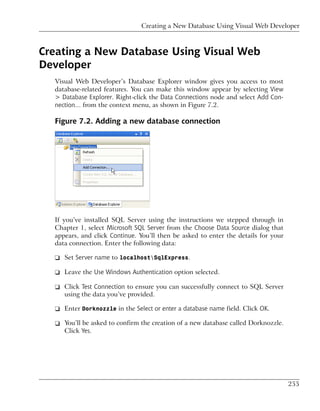
      Public ReadOnly Property Text() As String
        Get
          Text = myTextBox.Text
        End Get
      End Property

      The Text property is ReadOnly, but it doesn’t need to be. If you wanted to allow
      the forms using the control to set some default text to the TextBox, you’d need
      to add a Set accessor, and remove the ReadOnly modifier.

      When defining a property in C#, you don’t need to set any special modifiers,
      such as ReadOnly or WriteOnly, for read-only or write-only properties. A property
      that has only a get accessor will, by default, be considered read-only:

      C#                                                        File: SmartBox.ascx (excerpt)
      public string Text
      {
        get
        {
          return myTextBox.Text;
        }
      }

      Likewise, a property that has only a set accessor will be considered to be write-
      only:

      C#                                                        File: SmartBox.ascx (excerpt)
      public string LabelText
      {
        set
        {
          myLabel.Text = value;
        }
      }


130
Creating a Web User Control


Using the Web User Control
   Once the user control has been created, it can be referenced from any ASP.NET
   page using the Register directive, as follows:

   <%@ Register TagPrefix="prefix" TagName="name"
       Src="source.ascx" %>

   The Register directive requires three attributes:

   TagPrefix
         the prefix for the user control, which allows you to group related controls
         together, and avoid naming conflicts

   TagName
         the control’s tag name, which will be used when the control is added to the
         ASP.NET page

   Src
         the path to the .ascx file that describes the user control

   After registering the control, we create instances of it using the <TagPrefix:Tag-
   Name> format. Let’s try an example that uses the SmartBox control. Create a new
   file named ControlTest.aspx in your Learning folder, and give it this content:

                                                            File: ControlTest.aspx (excerpt)
   <%@ Register TagPrefix="sp" TagName="SmartBox"
       Src="SmartBox.ascx" %>
   <!DOCTYPE html PUBLIC "-//W3C//DTD XHTML 1.0 Strict//EN"
       "http://www.w3.org/TR/xhtml1/DTD/xhtml1-strict.dtd">
   <html>
     <head>
       <title>Creating ASP.NET Web Server Controls</title>
     </head>
     <body>
       <form id="Form1" runat="server">
          <sp:SmartBox id="nameSb" runat="server" LabelText="Name:" />
          <sp:SmartBox id="addressSb" runat="server"
              LabelText="Address:" />
          <sp:SmartBox id="countrySb" runat="server"
              LabelText="Country:" />
          <sp:SmartBox id="phoneSb" runat="server"
              LabelText="Phone:" />
       </form>


                                                                                               131
Chapter 4: Constructing ASP.NET Web Pages


        </body>
      </html>

      Loading this page will produce the output we saw in Figure 4.10.

      Now, this is a very simple example indeed, but we can easily extend it for other
      purposes. You can see in the code snippet that we set the LabelText property
      directly in the control’s tag; we could have accessed the properties from our code
      instead. Here's an example:

      Visual Basic                                            File: ControlTest.aspx (excerpt)
      <script runat="server" language="VB">
        Protected Sub Page_Load()
          nameSb.LabelText = "Name:"
          addressSb.LabelText = "Address:"
          countrySb.LabelText = "Country:"
          phoneSb.LabelText = "Phone:"
        End Sub
      </script>

      C#                                                      File: ControlTest.aspx (excerpt)
      <script runat="server" language="C#">
        protected void Page_Load()
        {
          nameSb.LabelText = "Name:";
          addressSb.LabelText = "Address:";
          countrySb.LabelText = "Country:";
          phoneSb.LabelText = "Phone:";
        }
      </script>


Master Pages
      Master pages are a new feature of ASP.NET 2.0 that can make an important
      difference in the way we compose web forms. Master pages are similar to web
      user controls in that they are also composed of HTML and other controls; they
      can be extended with the addition of events, methods, or properties; and they
      can’t be loaded directly by users—instead, they’re used as building blocks to
      design the structure of your web forms.

      A master page is a page template that can be applied to give many web forms a
      consistent appearance. For example, a master page can set out a standard structure


132
Master Pages


containing the header, footer, and other elements that you expect to display in
multiple web forms within a web application.

Master page files have the .master extension, and, just like web forms and web
user controls, they support code-behind files. All master pages inherit from the
class System.Web.UI.MasterPage.

Designing a site structure using master pages and web user controls gives you the
power to easily modify and extend the site. If your site uses these features in a
well-planned way, it can be very easy to modify certain details in the layout or
functionality of your site, because updating a master page or a web user control
has immediate effects on all the web forms that use the file.

As we’ve already mentioned, a master page is built using HTML and controls,
including the special ContentPlaceHolder control. As its name suggests, the
ContentPlaceHolder is a placeholder that can be filled with content relevant to
the needs of each web form that uses the master page. In creating a master page,
we include all of the basic structure of future pages in the master page itself, in-
cluding the <html>, <head>, and <body> tags, and let the web forms specify the
content that appears in the placeholders.

Let’s see how this works with a simple example. Suppose we have a site which
has many pages that contain a standard header, footer, and navigation menu,
laid out as per the wireframe shown in Figure 4.11.

Figure 4.11. A simple web site layout


                                                                                       133
Chapter 4: Constructing ASP.NET Web Pages


      If all the pages in the site have the same header, footer, and navigation menu, it
      makes sense to include these components in a master page, and to build several
      web forms that customize only the content areas on each page. We’ll begin to
      create such a site in Chapter 5, but let’s work through a quick example here.

      To keep this example simple, we won’t include a menu here: we'll include just
      the header, the footer, and the content placeholder. In your Learning folder,
      create a new file named FrontPages.master, and write the following code into
      it:

                                                            File: FrontPages.master (excerpt)
      <!DOCTYPE html PUBLIC "-//W3C//DTD XHTML 1.0 Strict//EN"
          "http://www.w3.org/TR/xhtml1/DTD/xhtml1-strict.dtd">
      <html>
        <head>
          <title>Front Page</title>
        </head>
        <body>
          <form id="myForm" runat="server">
             <h1>Welcome to SuperSite Inc!</h1>
             <asp:ContentPlaceHolder id="FrontPageContent"
                 runat="server" />
             <p>Copyright 2006</p>
          </form>
        </body>
      </html>

      The master page looks almost like a web form, except for one important detail:
      it has an empty ContentPlaceHolder control. If you want to build a web form
      based on this master page, you just need to reference the master page using the
      Page directive in the web form, and add a Content control that includes the
      content you want to insert.

      Let's try it. Create a web form called FrontPage.aspx, and add this code to it:

                                                               File: FrontPage.aspx (excerpt)
      <%@ Page MasterPageFile="FrontPages.master" %>
      <asp:Content id="myContent" runat="server"
          ContentPlaceHolderID="FrontPageContent">
        <p>
          Welcome to our web site! We hope you'll enjoy your visit.
        </p>
      </asp:Content>


134
Using Cascading Style Sheets (CSS)


  You’re all set now! Loading FrontPage.aspx in your browser will generate the
  output shown in Figure 4.12.

  Figure 4.12. Using a master page


  Although the example is simplistic, it’s easy to see the possibilities: you can create
  many web forms based on this template very easily. In our case, the master page
  contains a single ContentPlaceHolder, but it could have more. Also, the master
  page can define some default content for display inside the ContentPlaceHolder
  on pages whose web forms don’t provide a Content element for that placeholder.


Using Cascading Style Sheets (CSS)
  It’s clear that controls make it easy for us to reuse pieces of functionality in
  multiple places. For example, I can’t imagine an easier way to add calendars to
  many web forms than to use the Calendar web server control.

  However, controls don’t solve the problem of defining and managing the visual
  elements of your web site. Modern web sites need constant updating to keep
  them fresh, and it’s not much fun editing hundreds of pages by hand just to
  change a border color, for example, and then having to check everything to ensure
  that the changes are consistent. The process is even more painful if the client
  wants a more serious update, like rearranging components on the pages.

  The good news is that this maintenance work can be made a lot easier by planning
  ahead, correctly following a few basic rules, and efficiently using the tools HTML
  and ASP.NET offer you.

  An essential tool for building reusable visual styles is CSS (Cascading Style
  Sheets). HTML was initially designed to deliver simple text content, and paid


                                                                                           135
Chapter 4: Constructing ASP.NET Web Pages


      little attention to the specifics of how particular items appeared in the browser.
      HTML left it to the individual browsers to work out these intricacies, and tailor
      the output to the limitations and strengths of users’ machines. While we can
      change font styles, sizes, colors, and so on using HTML tags, this practice can
      lead to verbose code and pages that are very hard to restyle at a later date.

      CSS gives web developers the power to create one set of styles in a single location,
      and to apply those styles to all of the pages in our web site. All the pages to which
      the style sheet is applied will display the same fonts, colors, and sizes, giving the
      site a consistent feel. Regardless of whether our site contains three pages or 300,
      when we alter the styles in the style sheet, our changes are immediately applied
      to all pages that use the style sheet.

                  Look out for Themes and Skins
                  ASP.NET 2.0 provides extra value and power to those building reusable
                  visual elements through its offerings of themes and skins. You’ll learn more
                  about these features in Chapter 5.


Types of Styles and Style Sheets
      There are three different ways in which we can associate styles to the elements
      of a particular web page:

      using an external style sheet
          By placing your style rules in an external style sheet, you can link this one
          file to any web pages on which you want those styles to be used. This makes
          updating a web site’s overall look a cakewalk.

          To reference an external style sheet from a web form, insert the following
          markup inside the head element:

          <link rel="stylesheet" type="text/css" href="file.css" />

          In the above example, file.css would be a text file containing CSS rules,
          much like the example shown below:

          a
          {
              background: #ff9;
              color: #00f;
              text-decoration: underline;
          }


136
Types of Styles and Style Sheets


using an embedded style sheet
    You can place style rules for a page within <style type="text/css"> tags
    inside that page’s head.

    <style type="text/css">
      a
      {
        background: #ff9;
        color: #00f;
        text-decoration: underline;
      }
    </style>

    The problem with using these “embedded” styles is that we can’t reuse those
    styles in another page without having to type them in again, which makes
    global changes to the site very difficult to manage.

using inline style rules
    Inline styles allow us to set styles for a single element using the style attrib-
    ute. For instance, we might give a paragraph a border, and color it red, with
    the following markup:

    <p style="border-style: groove; color: red;">
      Copyright 2006
    </p>

When used in embedded or external style sheets, the first part of any style rule
must determine the elements to which the rule will apply; we do this using a se-
lector. In ASP.NET, we typically use two types of selectors:

element type selectors
   An element type selector targets every single instance of the specified element.
   For example, if we wanted to change the colour of all level two headers in a
   document, we’d use an element type selector to target all <h2>s:

    h2
    {
        color: #369;
    }

classes
    Arguably the most popular way to use styles within your pages is to give each
    element a class attribute, then target elements that have a certain class
    value. For example, the following markup shows a paragraph whose class
    attribute is set to fineprint:


                                                                                        137
Chapter 4: Constructing ASP.NET Web Pages


          <p class="fineprint">
            Copyright 2006
          </p>

          Now, given that anything with the class fineprint should be displayed in,
          well, fine print, we can create a style rule that will reduce the size of the text
          in this paragraph, and any other element with the attribute
          class="fineprint":

          .fineprint
          {
            font-family: Arial;
            font-size: x-small;
          }

      Whether you’re building external style sheets, embedded style sheets, or inline
      style rules, style declarations use the same syntax.

      Now that you have a basic understanding of some of the fundamental concepts
      behind CSS, let’s look at the different types of styles that can be used within our
      ASP.NET applications.

Style Properties
      You can modify many different types of properties using style sheets. Here’s a
      list of the most common property types:

      font
         This category provides you with the ability to format text level elements, in-
         cluding their font faces, sizes, decorations, weights, colors, etc.

      background
         This category allows you to customize backgrounds for objects and text.
         These values give you control over the background, including whether you’d
         like to use a color or an image for the background, and whether or not you
         want to repeat a background image.

      block
          This category allows you to modify the spacing between paragraphs, between
          lines of text, between words, and between letters.


138
Types of Styles and Style Sheets


   box
          The box category allows us to customize tables. If you need to modify borders,
          padding, spacing, and colors on a table, row, or cell, use the elements within
          this category.

   border
      This category lets you draw boxes of different colors, styles, and thicknesses
      around page elements.

   list
          This category allows you to customize the way ordered and unordered lists
          are created.

   positioning
      Modifying positioning allows you to move and position tags and controls
      freely.

   These categories provide an outline of the aspects of a design that can typically
   be modified using CSS. As we progress through the book, the many types of style
   properties will become evident.

The CssClass Property
   Once you’ve defined a class in a style sheet (be it external or internal), you’ll
   want to begin to associate that class with elements in your Web Forms. You can
   associate classes with ASP.NET Web server controls using the CssClass property.
   In most cases, the value you give the CssClass property will be used as the value
   of the resulting element’s class attribute.

   Let’s see an example. First, create in your Learning folder a file named
   Styles.css, and copy this code into it:

                                                                          File: Styles.css
   .title
   {
     font-family: Arial, Helvetica, sans-serif;
     font-size: 19px
   }
   .dropdownmenu
   {
     font-family: Arial;
     background-color: #0099FF;
   }


                                                                                             139
Chapter 4: Constructing ASP.NET Web Pages


      .textbox
      {
        font-family: Arial;
        background-color: #0099FF;
        border: 1px solid
      }
      .button
      {
        font-family: Arial;
        background-color: #0099FF;
        border: 1px solid
      }

      Then, create a new file named UsingStyles.aspx with this code:

                                                        File: UsingStyles.aspx (excerpt)
      <!DOCTYPE html PUBLIC "-//W3C//DTD XHTML 1.0 Strict//EN"
          "http://www.w3.org/TR/xhtml1/DTD/xhtml1-strict.dtd">
      <html>
        <head>
          <title>Testing CSS</title>
          <link href="Styles.css" type="text/css" rel="stylesheet" />
        </head>
        <body>
          <form runat="server">
             <p class="title">Please select a product:</p>
             <p>
               <asp:DropDownList id="productsList"
                    CssClass="dropdownmenu" runat="server">
                  <asp:ListItem Text="Shirt" selected="true" />
                  <asp:ListItem Text="Hat" />
                  <asp:Listitem Text="Pants" />
                  <asp:ListItem Text="Socks" />
               </asp:DropDownList>
             </p>
             <p>
               <asp:TextBox id="quantityTextBox" CssClass="textbox"
                    runat="server" />
             </p>
             <p>
               <asp:Button id="addToCartButton" CssClass="button"
                    Text="Add To Cart" runat="server" />
             </p>
          </form>
        </body>
      </html>


140
Summary


 Loading this page should produce the output shown in Figure 4.13.

 Figure 4.13. CSS at work


 In the next chapter, we’ll learn to use Visual Web Developer to create CSS
 definitions through a simple visual interface.


Summary
 In this chapter, we discussed web forms, HTML server controls, web server con-
 trols, web user controls, master pages, and CSS. All these elements can be com-
 bined to create powerful structures for your web sites.

 In the next chapter, we’ll start building “real” web applications, putting into
 practice most of the theory you’ve learned so far, and using a professional devel-
 opment environment that will do part of the work for you.


                                                                                      141
142
5                           Building Web Applications

In the previous chapters, we discussed the different pieces of ASP.NET in some
detail. In this chapter, you’ll put together everything you’ve learned so far as we
place this new knowledge in context. That’s right: it’s time to build your own
web application!

Microsoft defines a web application as the collection of all files, pages, handlers,
modules, and executable code that can be invoked or run within a given directory
on a web server. The tool we recommend you use as you learn to build ASP.NET
web applications is Visual Web Developer 2005 Express Edition, which is free
but very powerful. You learned how to install this tool in Chapter 1, and in this
chapter, we’ll teach you how to use it to its full potential.

It’s worth keeping in mind that you don’t have to use Visual Web Developer, or
any other specialized tool, to develop ASP.NET web applications: any old text
editor will do. However, we recommend using Visual Web Developer for any
real-world project that’s more complex than a simple, “Hello World”-type example,
because this tool can do a lot of the work for you as you build web applications.

            Using Visual Studio
            If you have access to Microsoft’s commercial Visual Studio program, you
            could make use of that instead of Visual Web Developer. When Visual
            Studio is started in Web Developer mode, its interface will look very similar
            to what you’ll see in this book. Visual Studio has a lot more features than
Chapter 5: Building Web Applications


                  Visual Web Developer, and a few of the tools are named differently to reflect
                  this. For example, the Database Explorer window of Visual Web Developer
                  is named Server Explorer in Visual Studio. For the purposes of this book,
                  these tools are equivalent, and you should feel free to use Visual Studio if
                  you have access to it.

      In this chapter, you’ll learn about much of the functionality Visual Web Developer
      offers as we start to create an intranet for a company called Dorknozzle. Along
      the way, we’ll also explore many interesting ASP.NET features:

      ❑ We’ll use Visual Web Developer to create web applications and edit files.

      ❑ We’ll work with Web.config, Global.asax, and the special ASP.NET folders.

      ❑ We’ll use the application state, user sessions, the application cache, and
        cookies.

      ❑ We’ll debug your project and handle potential coding errors.


Introducing the Dorknozzle Project
      While most books give you a series of simple, isolated examples to illustrate
      particular techniques, this book is a little different. Most of the examples provided
      in these pages will see us working on a single project: an intranet application for
      a fictional company called Dorknozzle. We’ll build on this application as we
      move through the remaining chapters of this book—the Dorknozzle intranet will
      give us a chance to investigate and grasp the many different concepts that are
      important to developers of any type of web application.

      Now, real-world web development projects are built according to a detailed spe-
      cification document, which includes, among other information, specific details
      of the site’s layout. We’ll assume that the pages in the Dorknozzle intranet will
      be laid out as shown in Figure 5.1.

      The menu on the left suggests that the site will have more pages than this
      homepage, and that they’ll have the same structure: on every page of the site,
      the menu will sit on the left, and the header will be identical to the one shown
      here. Only the contents of each individual page will be different from the others.
      (If you paid attention in Chapter 4, you’ll already have realized that this is a
      scenario where it makes sense to use master pages.)

      The intranet application we’ll develop will offer the following functionality:


144
Introducing the Dorknozzle Project


Figure 5.1. The Dorknozzle company intranet site


homepage             You can customize this page by including news about
                     the Dorknozzle company.

help desk            This page allows Dorknozzle employees to submit
                     problems they experience with software, hardware, or
                     their computers, as help desk tickets that are sent to
                     an IT administrator.

employee directory   Employees will likely want to call each other to discuss
                     important, company-related affairs … such as last
                     night’s television viewing! The employee directory
                     should let employees find other staff members’ details
                     quickly and easily.

address book         While the employee directory houses handy informa-
                     tion for staff use, the purpose of the address book is
                     to provide more detailed information about every em-
                     ployee within the company.

departments          The Departments page displays information about
                     Dorknozzle’s various departments.


                                                                                145
Chapter 5: Building Web Applications


      admin tools                Administrators will need the ability to perform various
                                 administrative tasks, such as updating users’ informa-
                                 tion. The Admin Tools section will provide the inter-
                                 face for these kinds of interactions.

      admin newsletter           This page will allow administrators to send email
                                 newsletters to the company employees.

      You’ll learn new techniques when building each of these pages. However, before
      you can begin to create all these smaller applications, we’ll need to build the
      framework that will act as a template for the site as a whole. Visual Web De-
      veloper will prove very helpful in such a project, so let’s start our discussion by
      getting a feel for its key features.

      Figure 5.2. Using Visual Web Developer


146
Using Visual Web Developer


Using Visual Web Developer
  The first step in learning how to use this tool is, obviously, starting it up. Access
  Start > All Programs > Microsoft Visual Web Developer 2005 Express Edition. You’ll
  be welcomed by a page that looks something like the one shown in Figure 5.2.

  Let’s start by creating a new web site. Select File > New Web Site…, or click the
  Web Site… link next to the Create label.

  In the dialog that appears, which is shown in Figure 5.3, select the ASP.NET Web
  Site template, choose the web site’s default language, and identify the location
  at which the web site should be created. Feel free to choose the language with
  which you feel most comfortable, and remember that you can choose different
  languages for use in different files, so if you’re not sure which language is your
  favorite just yet, don’t worry. For the location, create a folder named Dorknozzle
  located in the WebDocs folder you’ve been working with so far. You can create
  this folder by entering its path into the Location field. If you placed WebDocs in
  the root folder of C:, the location will be C:WebDocsDorknozzle.

  Figure 5.3. Creating a new web site project


                                                                                          147
Chapter 5: Building Web Applications


                  The Location Drop-down
                  Wondering what’s implied by setting Location to File System? Earlier, we
                  mentioned that Visual Web Developer contains a built-in web server. When
                  you’re working with a web site project that’s saved to the file system, Visual
                  Web Developer’s web server is used to execute the project.

                  You can create a new web project in IIS by changing the Location to HTTP.
                  In that case, you’d need to specify an HTTP location, such as http://loc-
                  alhost/Dorknozzle. If you did so, Visual Web Developer would create a
                  new folder named Dorknozzle in the web server’s root directory. We’ll take
                  a look at IIS (or Cassini) a bit later.


Meeting the Features
      Once you click OK, your project will be created, along with a few default files,
      and you’ll be presented with the first page of your project. It should look some-
      thing like the one shown in Figure 5.4.

      Figure 5.4. Your new Dorknozzle web application


148
Meeting the Features


   Don’t be daunted by the many forms and windows around your screen—each
   has something to offer! Visual Web Developer is very flexible, so you can resize,
   relocate, or regroup the interface elements that appear. We’ll spend the next few
   pages taking a brief tour of these windows, though we’ll discover even more as
   we progress through the chapters of this book.

The Solution Explorer
   The Solution Explorer, which by default is located in the upper right-hand part
   of the Visual Web Developer window, provides the main view of your project,
   and displays the files of which your project is composed. As Figure 5.5 shows,
   the root node is the location of your project; beneath the root node you can see
   that Visual Web Developer has already created other elements for you.

   Figure 5.5. The Solution Explorer


   The files that are created for you will differ depending on the type of project
   you’re working on, and the language you’ve chosen. If you’re using C#,
   Web.config won’t appear in your list. Don’t worry—we’ll create this file later.

   Let’s review the functions of the three child nodes shown in Figure 5.5:

   ❑ App_Data is a special folder that ASP.NET uses to store database files. You’ll
     learn more about this folder in Chapter 13.

   ❑ Default.aspx is the default web form that Visual Web Developer creates for
     you. If you look closely, you’ll see that you can expand the Default.aspx
     node by clicking the + sign to its left. If you expand the node, you’ll find a
     code-behind file named Default.aspx.vb, or Default.aspx.cs, depending
     on the language you selected when you started the project. Visual Web Deve-
     loper can work with web forms that use a code-behind file, as well as with
     those that don’t.


                                                                                       149
Chapter 5: Building Web Applications


      ❑ Web.config is your web application’s configuration file. By editing Web.config,
        you can set numerous predefined configuration options for your project (for
        instance, you can enable debug mode). You can also define your own custom
        project-wide settings that can then be read from your code (such as the admin-
        istrator’s email address, the project name, your favorite color, or any other
        simple value you’d like to store in a central place). We’ll come back to this
        file later in the chapter.

      An icon sits beside each node, reflecting its type. If you right-click on each node,
      a list of options that are specific to that particular node type will appear. For ex-
      ample, right-click on the root node, and you’ll see a list of options that affect the
      project as a whole. Double-click on a file, and that file will open in an appropriate
      editor (for instance, double-clicking on a web form will open that file in the Web
      Forms Designer).

The Web Forms Designer
      The Web Forms Designer is the place where you’ll spend most of your time
      working with Visual Web Developer. The Web Forms Designer is a very powerful
      tool that allows you to edit web forms, web user controls, and master pages. You
      can edit these files in Source View, where you can see their code, or in Design
      View, which provides a WYSIWYG (what you see is what you get) interface.

      By default, when you start a new web site project, the Web Forms Designer will
      display the contents of Default.aspx, as illustrated in Figure 5.6.

      Tabbed quick links to the currently open files or windows appear at the top of
      the interface. In Figure 5.6, only Default.aspx, and the Start Page (the window
      that was initially loaded when Visual Web Developer started) are open. Each
      kind of file is opened by a different editor or designer, so when you open a
      database table, for example, you’ll see a different view from the one shown in
      Figure 5.6.

      If you click the Design button at the bottom of the Web Forms Designer, you’ll
      see a WYSIWYG interface that’s similar to those of Dreamweaver, FrontPage,
      and other similar tools. Since there’s no content in the page as yet, you’ll see an
      empty window, but you can populate it by typing text, or dragging controls from
      the Toolbox (which we’ll discuss in a moment) onto the page. In Figure 5.7, I’ve
      typed Hello World! into the Design View.

      Now, if you switch back to Source View, you’ll see that the text you just entered
      into the visual editor has been inserted into the page’s source for you. If you’ve


150
Meeting the Features


   Figure 5.6. Viewing Default.aspx in Web Forms Designer’s Source
   View


   Figure 5.7. Editing your form in Design View


   worked with other tools, you’ll appreciate that Visual Web Developer applies
   minimal reformatting to the code you typed.

The Code Editor
   As well as editing web forms, web developers commonly edit those forms’ code-
   behind files. You’ll work with code-behind files as you build the Dorknozzle
   project—in particular, they help us to keep a clear separation between the layout
   and logic of nontrivial projects.


                                                                                       151
Chapter 5: Building Web Applications


      If you’ve opened a web form in the Web Forms Designer, you can easily switch
      to its code-behind file: click the View Code icon in the Solution Explorer, right-
      click the Web Form in Solution Explorer, and select View Code; alternatively,
      expand the Web Form’s node in Solution Explorer and double-click its code-be-
      hind file.

      Do this to open the code-behind file for Default.aspx. If you chose VB as your
      preferred language when you created the project, the code-behind file will be
      called Default.aspx.vb, and will look like the one shown in Figure 5.8.

      Figure 5.8. Editing Default.aspx.vb


      Figure 5.9. Editing Default.aspx.cs


152
Meeting the Features


   If you chose C# as your preferred language when you started the project, then
   you’ll see a slightly different code-behind file—something like the one pictured
   in Figure 5.9.

   As you can see, the C# version contains a number of namespace references. But,
   for the VB template, Visual Web Developer adds these references to the
   Web.config file, thereby applying them to the whole project. This explains why
   a Web.config file is created for those who choose VB, but not for those using
   C#. In the end, the functionality is very similar, but the Visual Web Developer
   designers chose to implement this functionality differently for each language. Of
   course, it’s possible to add the namespace references to Web.config yourself if
   you’re using C#.

   The – icons to the left of certain sections of your file (such as the starting points
   of classes and methods) allow you to collapse those sections, which can help you
   to manage larger code files. In Figure 5.10, I’ve collapsed the section of De-
   fault.aspx.cs that contains the namespace references—you can see that the
   using statements have been collapsed into a single ellipsis. If you hover your
   cursor over the ellipsis, you’ll see a preview of the hidden text.

   Figure 5.10. Playing around with Visual Web Developer


IntelliSense
   IntelliSense is a fantastic code autocompletion feature that Microsoft has included
   in the Visual Studio line for some time. In its latest incarnation as part of Visual
   Web Developer 2005 Express Edition, IntelliSense is pretty close to perfection.
   This feature alone makes it more worthwhile to use Visual Web Developer than
   simpler code editors.


                                                                                           153
Chapter 5: Building Web Applications


      Let’s do a quick test. If you’re using VB, delete a character from the end of the
      Inherits System.Web.UI.Page line in Default.aspx.vb. As Figure 5.11 shows,
      IntelliSense will automatically display other words that could be used in that
      position.

      Figure 5.11. IntelliSense displaying possible word autocompletions


      IntelliSense behaves slightly differently depending on the language you’ve chosen
      to use. For example, if you’re using C#, IntelliSense isn’t triggered as frequently
      as it is for those using VB. You can activate IntelliSense yourself by pressing
      Ctrl-Space. Then, once you’ve selected the correct entry, press Tab or Enter to
      have the word completed for you.

The Toolbox
      While editing a web form, web user control, or master page visually, the Toolbox
      will come in very handy. The Toolbox contains most of the popular ASP.NET
      controls, which you can drag directly from the toolbox and drop into your form.
      You must be viewing a form in the Web Forms Designer to see the proper controls
      in the Toolbox. If you can’t see the toolbox, which is shown in Figure 5.12, select
      View > Toolbox to make it appear.

      Let’s give it a test-drive: double-click on the TextBox entry, or drag it from the
      Toolbox to the form, to have a TextBox control added to your form.

      The controls listed in the Toolbox are grouped within tabs that can be expanded
      and collapsed. In the Standard tab of the Toolbox, you’ll find the standard web


154
Meeting the Features


   Figure 5.12. The Toolbox


   server controls we discussed in Chapter 4. In the other tabs, you’ll find other
   controls, including the validation controls we’ll discuss in Chapter 6, which can
   be found in the Validation tab. Figure 5.13 shows the toolbox with all its tabs in
   the collapsed state.

   Figure 5.13. The collapsed Toolbox tabs


The Properties Window
   When you select a control in the web forms designer, its properties are displayed
   automatically in the Properties window. For example, if you select the TextBox
   control we added to the form earlier, the properties of that TextBox will display
   in the Properties window. If it’s not visible, you can make it appear by selecting
   View > Properties Window.

   The Properties window doesn’t just allow you to see the properties—it also lets
   you set them. Many properties—such as the colors that can be chosen from a
   palette—can be set visually, but in other cases, complex dialogs are available to


                                                                                        155
Chapter 5: Building Web Applications


      help you establish the value of a property. In Figure 5.14, the properties of the
      TextBox are displayed in the Properties window, and the BackColor property is
      being altered.

      Figure 5.14. Setting a color using the Properties window


      By default, the control’s properties are listed by category, but you can order them
      alphabetically by clicking the A-Z button. Other buttons in the window allow you
      to switch between Properties View and Events View.


Executing your Project
      You already know from our work back in Chapter 1 that, in order to execute an
      ASP.NET application, you need to run it through a web server such as IIS. Un-
      fortunately, users of Windows XP Home Edition can’t use IIS, so until now,
      you’ve most likely been using Cassini, a lightweight web server that Microsoft
      has made available for development purposes. Here, we’re going to take a look
      at another option—Visual Web Developer’s built-in web server. We’ll also see
      how you can use Visual Web Developer to execute your project through IIS.


156
Using Visual Web Developer’s Built-in Web Server


Using Visual Web Developer’s Built-in Web Server
   As you already know, Visual Web Developer has an integrated web server, which
   makes it easy to develop ASP.NET web sites even on machines whose operating
   systems don’t have IIS—Windows XP Home Edition, for example.

   To test the web server, we’ll use a simplified version of the Hello.aspx file we
   first saw back in Chapter 2, only this time we’ll name it Default.aspx.

   Visual Basic                                                     File: Default.aspx
   <%@ Page Language="VB" %>
   <!DOCTYPE html PUBLIC "-//W3C//DTD XHTML 1.0 Strict//EN"
       "http://www.w3.org/TR/xhtml1/DTD/xhtml1-strict.dtd">
   <html>
     <head>
       <title>Hello, World!</title>
       <script runat="server">
          Sub Page_Load()
            messageLabel.Text = "Hello, World!"
          End Sub
       </script>
     </head>
     <body>
       <form id="form1" runat="server">
          <asp:Label id="messageLabel" runat="server" />
       </form>
     </body>
   </html>

   C#                                                               File: Default.aspx
   <%@ Page Language="C#" %>
   <!DOCTYPE html PUBLIC "-//W3C//DTD XHTML 1.0 Strict//EN"
       "http://www.w3.org/TR/xhtml1/DTD/xhtml1-strict.dtd">
   <html>
     <head>
       <title>Hello, World!</title>
       <script runat="server">
          void Page_Load()
          {
            messageLabel.Text = "Hello, World!";
          }
       </script>
     </head>
     <body>
       <form runat="server">


                                                                                         157
Chapter 5: Building Web Applications


            <asp:Label id="messageLabel" runat="server" />
          </form>
        </body>
      </html>

      You can start the web server by executing the project: select Debug > Start Without
      Debugging, or use the keyboard shortcut Ctrl-F5. Visual Web Developer will
      load Hello.aspx in your system’s default web browser, as shown in Figure 5.15.

      Figure 5.15. Executing a page using Visual Web Developer


      We executed this project without debugging it, but generally you’ll want to run
      projects with debugging enabled (using F5, or Debug > Start Debugging). The
      debugging features enable you to find and fix errors in your code; we’ll learn more
      about them towards the end of this chapter.

      To enable debugging, you must modify an option in a file called Web.config,
      which is your web application’s configuration file. We’ll take a more in-depth
      look at Web.config shortly. For now, all you need to know is that the first time
      you try to debug the project, Visual Web Developer will ask you whether you
      want to enable debugging in Web.config using a dialog like the one in Figure 5.16.
      Click OK to confirm the action.

      Once you click OK, the application will execute. The resulting browser window
      should be the same as the one we saw in Figure 5.15, but this time you have more
      control over your application, as we’ll soon see.

      You can tell that your application doesn’t run through your local IIS if you look
      at the URL loaded in the browser window. When you execute a project using the
      integrated web server, it will run on a random port, and the complete URL location
      will reflect the physical path. In Figure 5.15, you can see that the integrated web
      server was running on port 1855, which explains the complete URL: http://loc-


158
Using Visual Web Developer’s Built-in Web Server


Figure 5.16. Enabling Debug Mode in Visual Web Developer


alhost:1855/Dorknozzle/Default.aspx. IIS usually runs on the default port,
which explains why it doesn’t need to be mentioned explicitly.

Visual Web Developer’s web server displays one small icon in the system tray
for each web server instance that’s running. If you run multiple projects at the
same time, more web servers will be created and more icons will appear. If you
double-click on one of those icons, you’ll be presented with a dialog that contains
the web server details, and looks very much like the window shown in Figure 5.17.

Figure 5.17. Visual Web Developer’s web server in action


As it executes the project, Visual Web Developer will launch your system’s default
web browser, but you can make it use another browser if you wish. For the purpose
of running and debugging your ASP.NET web applications, you might find it
easier to use Internet Explorer as your default browser, as it works a little better
with Visual Web Developer than do other browsers. For example, if you close
the Internet Explorer window while your project runs in debug mode, Visual Web


                                                                                       159
Chapter 5: Building Web Applications


      Developer will stop the application automatically. Otherwise, you’d need to stop
      it manually by selecting Debug > Stop Debugging, or clicking the Stop button
      shown in Figure 5.18.

      Figure 5.18. Stopping debug mode


      To change the browser that’s used to execute your web applications, first make
      sure that none of your projects are running. Then, right-click the root node in
      Solution Explorer, and select Browse With to display the dialog shown in Fig-
      ure 5.19. Select Internet Explorer, click Set as Default, and click Browse.

      Figure 5.19. Setting the default browser in Visual Web Developer


Using IIS
      You can continue your journey through this book using Visual Web Developer’s
      integrated web server, or you can make use of IIS. Although Microsoft recom-
      mends that we stick with Visual Web Developer for learning purposes, it’s very
      easy to use IIS. Even if you develop your application using the integrated web
      server, it’s beneficial to test your application using IIS as well, because when it’s
      shipped to production, your application will end up running on an IIS server
      anyway.

      To run your web application using IIS, you’ll need to create an IIS virtual directory
      and make it point to the project’s physical folder on the disk. We’ll create a vir-


160
Using IIS


tual directory named Dorknozzle, so the URL of your web application will be
http://localhost/Dorknozzle.

Start by opening the Internet Services Manager by selecting Start > All Programs
> Administrative Tools > Internet Information Services. In the tree in the left-hand
pane, right-click the Default Web Site node, and choose New > Virtual Directory
from the context menu, as shown in Figure 5.20.

Figure 5.20. Creating a new virtual directory


The Virtual Directory Creation Wizard will appear and, in its second screen, will
ask you to specify an alias for your virtual directory. Choose Dorknozzle. The
next screen will ask you for the path to this virtual folder—choose C:Web-
DocsDorknozzle (or the folder you’ve used). Leave all the other settings to their
defaults. After the wizard closes, you’ll be able to see your new virtual folder as
a child of the Default Web Site node.

Let’s spend some time learning about your new virtual directory. Right-click the
Dorknozzle node in the Internet Services Manager, and choose Properties. A dialog
like the one shown in Figure 5.21 will open, allowing you to configure the virtual
directory’s properties.


                                                                                       161
Chapter 5: Building Web Applications


      Figure 5.21. Editing the virtual directory’s properties


      The Virtual Directory tab shows the basic settings of your virtual directory. If you
      look below the Application Settings header, you can see that the virtual directory
      has been configured as an IIS Application. When a virtual directory is set as an
      IIS application, IIS takes special care of that location by isolating all of that dir-
      ectory’s pages and subdirectories into what’s called an application domain. This
      approach offers numerous benefits:

      code isolation
         Code that executes within one application can't access code in other applica-
         tions. So even if we built an intranet web application for a company’s staff,
         then placed a separate application for external users on the same web server,
         code would never cross-reference or conflict between those two applications.

      application stabilization
         Each application is isolated from all others, so if one application crashes or
         stops running, it has no effect on other applications that might be running
         on the same web server.


162
Using IIS


application level security policies
   You can set different permissions for the different applications on the server.
   What this means is that the credentials that are used to log into one applica-
   tion can be totally different from those used to access a second application
   on the same server. We’ll discuss this in detail in Chapter 13.

settings configuration on a per-application basis
    You can affect numerous other configuration settings for each application
    through Internet Services Manager, or Global.asax and Web.config, which
    are two special files located in the root directory of the application.

    The Global.asax file handles application-wide events and sets application-
    wide directives, while the Web.config file specifies configuration settings for
    the application. In addition to these two special files, every ASP.NET web
    application can contain a number of special folders, such as App_Themes,
    App_Code or App_Data. We’ll talk more about these details a little later in
    this chapter.

            Applications and Visual Web Developer’s Web Server
            When you use Visual Web Developer’s integrated web server to run your
            project, the virtual directory it creates for you on the spot is also set as an
            application, so it, too, enjoys all the benefits mentioned above.

Select the Virtual Directory tab in the Dorknozzle Properties dialog. If you click the
Remove button that appears next to the application name, be aware that the action
won’t remove the virtual directory itself: it will remove that application’s IIS ap-
plication properties. When you click Remove, the button will be replaced by a
Create button, which will reinstate the directory as an IIS application.


                                                                                              163
Chapter 5: Building Web Applications


      Figure 5.22. Adding a default name for the document


      While you’re here, it’s a good idea to check that Default.aspx is included as a
      default file. If it is, then requesting http://localhost/Dorknozzle will load
      http://localhost/Dorknozzle/Default.aspx by default. To check this, click
      the Documents tab. If Default.aspx isn’t in the list, add it by clicking the Add…
      button and entering the filename, as shown in Figure 5.22.

      Finally, click OK to close the Dorknozzle Properties window.

      If no default document exists in the Dorknozzle folder, the web server will attempt
      to return a list of the files and folders inside the Dorknozzle folder—an operation
      that will only succeed if the Directory Browsing option shown in Figure 5.21 is
      enabled. If this option is left in its default, disabled state, this operation will result
      in an error.

      Now, if you load http://localhost/Dorknozzle/ using any web browser, you
      should see a little magic (as Figure 5.23 reveals)!


164
Using IIS


   Figure 5.23. Loading the web application through IIS


   Does it look familiar? This is the exact same page you saw in Figure 5.15, but
   this time, the URL shows that it has loaded through the default web server, which,
   in this case, is IIS.

Using IIS with Visual Web Developer
   Once you’ve prepared your virtual directory, you can access it through Visual
   Web Developer. First, select File > Close Project in Visual Web Developer to close
   the current project. It’s okay to save the changes if the system prompts you to
   do so. If the project is currently running in debug mode, you’ll also be asked to
   confirm that you want to stop debugging.

   Next, select File > Open Web Site, select Local IIS in the left-hand pane, select
   Dorknozzle from the pane on the right, and click Open, as illustrated in Figure 5.24.

   Figure 5.24. Opening a web application through IIS


                                                                                           165
Chapter 5: Building Web Applications


      The project will open. This time, the root entry in Solution Explorer will be ht-
      tp://localhost/Dorknozzle/ instead of c:WebDocsDorknozzle, as Fig-
      ure 5.25 indicates.

      Figure 5.25. Solution Explorer displaying an HTTP location


      Visual Web Developer knows how to investigate your IIS location and display
      its contents automatically in the Solution Explorer. If the folder contents are
      changed outside of Visual Web Developer, you’ll need to right-click the root
      node and select Refresh Folder to refresh Visual Web Developer’s display of the
      directory’s contents.


Core Web Application Features
      Let’s continue our exploration of the key topics related to developing ASP.NET
      web applications. We’ll put them into practice as we move through the book,
      but in this quick introduction, we’ll discuss:

      ❑ Web.config

      ❑ Global.asax

      ❑ user sessions

      ❑ caching

      ❑ cookies

Web.config
      Almost every ASP.NET web application contains a file named Web.config, which
      stores various application settings. By default, all ASP.NET web applications are


166
Web.config


configured in the Machine.config file, which contains machine-wide settings,
and lives in the C:WINDOWSMicrosoft.NETFrameworkversionCONFIG direct-
ory.

For the most part, you won’t want to make any modifications to this file. However,
you can override certain settings of the Machine.config file by adding a
Web.config file to the root directory of your application. You may already have
this file in your project; if you don’t, you can add one by accessing File > New
File…, then selecting Web Configuration File from the dialog that appears.

The Web.config file is an XML file that can hold configuration settings for the
application in which the file resides. One of the most useful settings that
Web.config controls is ASP.NET’s debug mode. If you’re using VB, you can en-
able debug mode by opening Web.config and editing the compilation element,
which looks like this:

                                                            File: Web.config (excerpt)
<!--
    Set compilation debug="true" to insert debugging
    symbols into the compiled page. Because this
    affects performance, set this value to true only
    during development.

    Visual Basic options:
    Set strict="true" to disallow all data type conversions
    where data loss can occur.
    Set explicit="true" to force declaration of all variables.
-->
<compilation debug="false" strict="false" explicit="true" />

Enabling debug mode is as simple as changing the value of the debug attribute
to true. The other attributes listed here were added by Visual Web Developer
to offer a helping hand to VB developers migrating from older versions. For ex-
ample, strict="false" makes the compiler forgive some of the mistakes we
might make, such as using the wrong case in variable names.

If you’re using C#, you’ll need to create the Web.config file yourself. Go to File
> New File…, then select Web Configuration File from the dialog that appears,
and click Add. This will create the default Web.config file, which will contain
the following section:

                                                            File: Web.config (excerpt)
<!--
    Set compilation debug="true" to insert debugging


                                                                                         167
Chapter 5: Building Web Applications


           symbols into the compiled page. Because this
           affects performance, set this value to true only
           during development.
      -->
      <compilation debug="false" />

      Once again, set debug to true to enable ASP.NET’s debugging features.

      Web.config can also be used to store custom information for your application
      in a central location that’s accessible from all the pages of your site. For example,
      you might want to store the email address of someone in your technical support
      team so it can be changed easily, so you might take the approach shown here:

                                                                     File: Web.config (excerpt)
      <configuration>
        <appSettings>
          <add key="SupportEmail" value="support@dorknozzle.com" />
        </appSettings>
      </configuration>

      This way, whenever you need to display or use an email address for technical
      support within the site, you can simply read the SupportEmail key using the
      WebConfigurationManager class. And, if you wanted to change the email address
      you used for technical support, you’d just need to change this setting in
      Web.config.

      Another aid for VB users, the default Web.config file generated by Visual Web
      Developer contains a number of namespace references:

                                                                     File: Web.config (excerpt)
      <pages>
        <namespaces>
          <clear/>
          <add namespace="System"/>
          <add namespace="System.Collections"/>
          <add namespace="System.Collections.Specialized"/>
          <add namespace="System.Configuration"/>
          <add namespace="System.Text"/>
          <add namespace="System.Text.RegularExpressions"/>
          <add namespace="System.Web"/>
          <add namespace="System.Web.Caching"/>
          <add namespace="System.Web.SessionState"/>
          <add namespace="System.Web.Security"/>
          <add namespace="System.Web.Profile"/>
          <add namespace="System.Web.UI"/>


168
Web.config


    <add namespace="System.Web.UI.WebControls"/>
    <add namespace="System.Web.UI.WebControls.WebParts"/>
    <add namespace="System.Web.UI.HtmlControls"/>
  </namespaces>
</pages>

We can use classes from these namespaces in our code without needing to refer-
ence them in every file in which they’re used. As you can see, Visual Web Deve-
loper tries to offer an extra level of assistance for VB developers, but users of C#
(or any other language) could also add these namespace references to Web.config.

You’ll learn more about working with Web.config as you progress through this
book, so if you wish, you can skip the rest of these details for now, and come
back to them later as you need them.

The Web.config file’s root element is always configuration, which can contain
three different types of elements:

configuration section groups
   As ASP.NET and the .NET Framework are so configurable, configuration
   files could easily become jumbled if we didn’t have a way to break the files
   into groups of related settings. A number of predefined section grouping tags
   let you do just that. For example, settings specific to ASP.NET must be placed
   inside a system.web section grouping element, while settings that are relevant
   to .NET’s networking classes belong inside a system.net element.

    General settings, like the appSettings element we saw above, stand on their
    own, outside the section grouping tags. In this book, though, our configuration
    files will also contain a number of ASP.NET-specific settings, which live inside
    the system.web element.

configuration sections
   These are the actual setting tags in our configuration file. Since a single ele-
   ment can contain a number of settings (e.g. the appSettings element we
   saw earlier could contain a number of different strings for use by the applic-
   ation), Microsoft calls each of these tags a “configuration section.” ASP.NET
   provides a wide range of built-in configuration sections to control the various
   aspects of your web applications.

    The following list outlines some of the commonly used ASP.NET configura-
    tion sections, all of which must appear within the system.web section
    grouping element:


                                                                                       169
Chapter 5: Building Web Applications


          authentication
              outlines configuration settings for user authentication, and is covered in
              detail in Chapter 14

          authorization
              specifies users and roles, and controls their access to particular files
              within an application; discussed more in Chapter 14.

          compilation
              contains settings that are related to page compilation, and lets you specify
              the default language that’s used to compile pages

          customErrors
              used to customize the way errors display

          globalization
              used to customize character encoding for requests and responses

          pages
              handles the configuration options for specific ASP.NET pages; allows
              you to disable session state, buffering, and view state, for example

          sessionState
              contains configuration information for modifying session state (i.e. vari-
              ables associated with a particular user’s visit to your site)

          trace
              contains information related to page and application tracing

      configuration section handler declarations
         ASP.NET’s configuration file system is so flexible that it allows you to define
         your own configuration sections. For most purposes, the built-in configuration
         sections will do nicely, but if we wanted to include some custom configuration
         sections, we’d need to tell ASP.NET how to handle them. To do so, we’d
         declare a configuration section handler for each custom configuration section
         we wanted to create. This is pretty advanced stuff, so we won’t worry about
         it in this book.

Global.asax
      Global.asax is another special file that can be added to the root of an application.
      It defines subroutines that are executed in response to application-wide events.


170
Global.asax


For instance, Application_Start is executed the first time the application runs
(or just after we restart the server). This makes this method the perfect place to
execute any initialization code that needs to run when the application loads for
the first time. Another useful method is Application_Error, which is called
whenever an unhandled error occurs within a page. The following is a list of the
handlers that you’ll use most often within the Global.asax file:

Application_Start
    called immediately after the application is created; this event occurs once
    only

Application_End
    called immediately before the end of all application instances

Application_Error
    called by an unhandled error in the application

Application_BeginRequest
    called by every request to the server

Application_EndRequest
    called at the end of every request to the server

Application_PreSendRequestHeaders
    called before headers are sent to the browser

Application_PreSendRequestContent
    called before content is sent to the browser

Application_AuthenticateRequest
    called before authenticating a user

Application_AuthorizeRequest
    called before authorizing a user


                                                                                     171
Chapter 5: Building Web Applications


      Figure 5.26. Creating Global.asax


      The Global.asax file is created in the same way as the Web.config file—just
      select File > New File…, then choose the Global Application Class template, as de-
      picted in Figure 5.26.

      Clicking Add will create in the root of your project a new file named Global.asax,
      which contains empty stubs for a number of event handlers, and comments that
      explain their roles. A typical event handler in a Global.asax file looks something
      like this:
      Visual Basic
      Sub Application_EventName(ByVal sender As Object, _
          ByVal e As EventArgs)
        …
      End Sub

      C#
      void Application_EventName(Object sender, EventArgs e)
      {
        …
      }


172
Using Application State


                  Be Careful when Changing Global.asax
                  Be cautious when you add and modify code within the Global.asax file.
                  Any additions or modifications you make within this file will cause the ap-
                  plication to restart, so you’ll lose any data stored in application state.


Using Application State
   You can store the variables and objects you want to use throughout an entire
   application in a special object called Application. The data stored in this object
   is called application state. The Application object also provides you with
   methods that allow you to share application state data between all the pages in
   a given ASP.NET application very easily.

   Application state is closely related to another concept: session state. The key
   difference between the two is that session state stores variables and objects for
   one particular user for the duration of that user’s current visit, whereas application
   state stores objects and variables that are shared between all users of an application
   at the same time. Thus, application state is ideal for storing data that’s used by
   all users of the same application.

   In ASP.NET, session and application state are both implemented as collections,
   or sets of name-value pairs. You can set the value of an application variable named
   SiteName like this:

   Visual Basic
   Application("SiteName") = "Dorknozzle Intranet Application"

   C#
   Application["SiteName"] = "Dorknozzle Intranet Application";

   With SiteName set, any pages in the application can read this string:
   Visual Basic
   Dim appName As String = Application("SiteName")

   C#
   String appName         = Application["SiteName"];

   We can remove an object from application state using the Remove method, like
   so:
   Visual Basic
   Application.Remove("SiteName")


                                                                                                173
Chapter 5: Building Web Applications


      C#
      Application.Remove("SiteName");

      If you find you have multiple objects and application variables lingering in applic-
      ation state, you can remove them all at once using the RemoveAll method:
      Visual Basic
      Application.RemoveAll()

      C#
      Application.RemoveAll();

      It’s important to be cautious when using application variables. Objects remain
      in application state until you remove them using the Remove or RemoveAll
      methods, or shut down the application in IIS. If you continue to save objects
      into the application state without removing them, you can place a heavy demand
      on server resources and dramatically decrease the performance of your applica-
      tions.

      Let’s take a look at application state in action. Application state is very commonly
      used to maintain hit counters, so our first task in this example will be to build
      one! Let’s modify the Default.aspx page that Visual Web Developer created
      for us. Double-click Default.aspx in Solution Explorer, and add a Label control
      inside the form element. You could drag the control from the Toolbox (in either
      Design View or Source View) and modify the generated code, or you could simply
      enter the new code by hand. We’ll also add a bit of text to the page, and change
      the Label’s ID to myLabel, as shown below:

                                                                  File: Default.aspx (excerpt)
      <form id="form1" runat="server">
        <div>
          The page has been requested
          <asp:Label ID="myLabel" runat="server" />
          times!
        </div>
      </form>

      In Design View, you should see your label appear inside the text, as shown in
      Figure 5.27.

      Now, let’s modify the code-behind file to use an application variable that will
      keep track of the number of hits our page receives. Double-click in any empty
      space on your form; Visual Web Developer will create a Page_Load subroutine
      automatically, and display it in the code editor.


174
Using Application State


Figure 5.27. The new label appearing in Design View


Visual Basic                                          File: Default.aspx.vb (excerpt)
Partial Class _Default
  Inherits System.Web.UI.Page

     Protected Sub Page_Load(ByVal sender As Object, _
         ByVal e As System.EventArgs) Handles Me.Load

  End Sub
End Class

C#                                                    File: Default.aspx.cs (excerpt)
public partial class _Default : System.Web.UI.Page
{
  protected void Page_Load(object sender, EventArgs e)
  {

     }
}

Now, let’s modify the automatically generated method by adding the code that
we want to run every time the page is loaded. Modify Page_Load as shown below:

Visual Basic                                          File: Default.aspx.vb (excerpt)
Protected Sub Page_Load(ByVal sender As Object, _
    ByVal e As System.EventArgs) Handles Me.Load
  ' Reset counter when it reaches 10
  If Application("PageCounter") >= 10 Then
    Application.Remove("PageCounter")
  End If
  ' Initialize or increment page counter each time the page loads
  If Application("PageCounter") Is Nothing Then
    Application("PageCounter") = 1
  Else
    Application("PageCounter") += 1


                                                                                        175
Chapter 5: Building Web Applications


        End If
        ' Display page counter
        myLabel.Text = Application("PageCounter")
      End Sub

      C#                                                       File: Default.aspx.cs (excerpt)
      protected void Page_Load(object sender, EventArgs e)
      {
        // Reset counter when it reaches 10
        if (Application["PageCounter"] != null &&
             (int)Application["PageCounter"] >= 10)
        {
          Application.Remove("PageCounter");
        }
        // Initialize or increment page counter each time the page loads
        if (Application["PageCounter"] == null)
        {
          Application["PageCounter"] = 1;
        }
        else
        {
          Application["PageCounter"] =
               (int)Application["PageCounter"] + 1;
        }
        // Display page counter
        myLabel.Text = Convert.ToString(Application["PageCounter"]);
      }

      Before analyzing the code, press F5 to run the site and ensure that everything
      works properly. Every time you refresh the page, the hit counter should increase
      by one until it reaches ten, when it starts over. Now, shut down your browser
      altogether, and open the page in another browser. We’ve stored the value within
      application state, so when you restart the application, the page hit counter will
      remember the value it reached in the original browser, as Figure 5.28 shows.

      If you play with the page, reloading it over and over again, you’ll see that the
      code increments PageCounter every time the page is loaded. First, though, the
      code verifies that the counter hasn’t reached or exceeded ten requests. If it has,
      the counter variable is removed from the application state:

      Visual Basic                                             File: Default.aspx.vb (excerpt)
      ' Reset counter when it reaches 10
      If Application("PageCounter") >= 10 Then
        Application.Remove("PageCounter")
      End If


176
Using Application State


Figure 5.28. Using the Application object


C#                                                            File: Default.aspx.cs (excerpt)
// Reset counter when it reaches 10
if (Application["PageCounter"] != null &&
    (int)Application["PageCounter"] >= 10)
{
  Application.Remove("PageCounter");
}

Notice that the C# code has to do a little more work than the VB code. You may
remember from Chapter 3 that C# is more strict than VB when it comes to
variable types. As everything in application state is stored as an Object, C# re-
quires that we cast the value to an integer before we make use of it. This conver-
sion won’t work if PageCounter hasn’t been added to application state, so we
also need to check that it’s not equal to null.

Next, we try to increase the hit counter. First of all, we need verify that the
counter variable exists in the application state. If it doesn’t, we set it to 1, reflect-
ing that the page is being loaded. To verify that an element exists in VB, we use
Is Nothing:

Visual Basic                                                  File: Default.aspx.vb (excerpt)
' Initialize or increment page counter each time the page loads
If Application("PageCounter") Is Nothing Then
  Application("PageCounter") = 1
Else
  Application("PageCounter") += 1
End If

As we’ve already seen, we compare the value to null in C#:


                                                                                                177
Chapter 5: Building Web Applications


      C#                                                        File: Default.aspx.cs (excerpt)
      // Initialize or increment page counter each time the page loads
      if (Application["PageCounter"] == null)
      {
        Application["PageCounter"] = 1;
      }
      else
      {
        Application["PageCounter"] =
            (int)Application["PageCounter"] + 1;
      }

      The last piece of code simply displays the hit counter value in the label.

      There’s one small problem with our code: if two people were to open the page
      simultaneously, the value could increment only by one, rather than two. The
      reason for this has to do with the code that increments the counter:

      C#                                                        File: Default.aspx.cs (excerpt)
      Application["PageCounter"] =
          (int)Application["PageCounter"] + 1;

      The expression to the right of the = operator is evaluated first; to do this, the
      server must read the value of the PageCounter value stored in the application.
      It adds one to this value, then stores the updated value in application state.

      Now, let’s imagine that two users visit this page at the same time, and that the
      web server processes the first user’s request a fraction of a second before the
      other request. The web form that’s loaded for the first user might read Page-
      Counter from application state and obtain a value of 5, to which it would add 1
      to obtain 6. However, before the web form had a chance to store this new value
      into application state, another copy of the web form, running for the second user,
      might read PageCounter and also obtain the value 6. Both copies of the page will
      have read the same value, and both will store an updated value of 6! This tricky
      situation is illustrated in Figure 5.29.

      To avoid this kind of confusion, we should develop the application so that each
      user locks application state, updates the value, and then unlocks application state
      so that other users can do the same thing. This process is depicted in Figure 5.30.


178
Using Application State


Figure 5.29. Two users updating application state simultaneously


Figure 5.30. Two users updating application state with locks


                                                                    179
Chapter 5: Building Web Applications


      Let’s modify our code slightly to create these locks:

      Visual Basic                                              File: Default.aspx.vb (excerpt)
      ' Initialize or increment page counter
      If Application("PageCounter") Is Nothing Then
        Application("PageCounter") = 1
      Else
        ' Lock the Application object
        Application.Lock()
        ' Increment counter
        Application("PageCounter") += 1
        ' Unlock the Application object
        Application.UnLock()
      End If

      C#                                                        File: Default.aspx.cs (excerpt)
      // Initialize or increment page counter each time the page loads
      if (Application["PageCounter"] == null)
      {
        Application["PageCounter"] = 1;
      }
      else
      {
        // Lock the Application object
        Application.Lock();
        // Increment counter
        Application["PageCounter"] =
            (int)Application["PageCounter"] + 1;
        // Unlock the Application object
        Application.UnLock();
      }

      In this case, the Lock method guarantees that only one user can work with the
      application variable at any time. Next, we call the UnLock method to unlock the
      application variable for the next request. Our use of Lock and UnLock in this
      scenario guarantees that the application variable is incremented by one for each
      visit that’s made to the page.

Working with User Sessions
      Like application state, session state is an important way to store temporary in-
      formation across multiple page requests. However, unlike application state, which
      is accessible to all users, each object stored in session state is associated with a
      particular user’s visit to your site. Stored on the server, session state allocates


180
Working with User Sessions


each user free memory on that server for the temporary storage of objects (strings,
integers, or any other kinds of objects).

The process of reading and writing data into session state is very similar to the
way we read and write data to the application state: instead of using the
Application object, we use the Session object. However, the Session object
doesn’t support locking and unlocking like the Application object does.

To test session state, you could simply edit the Page_Load method to use Session
instead of Application, and remove the Lock and UnLock calls if you added
them. The easiest way to replace Application with Session is by selecting Edit
> Find and Replace > Quick Replace.

In the page hit counter example that we created earlier in this chapter, we stored
the count in the application state, which created a single hit count that was shared
by all users of the site. Now, if you load the page in multiple browsers, you’ll see
that each increments its counter independently of the others.

Like objects stored in application state, session state objects linger on the server
even after the user leaves the page that created them. However, unlike application
variables, session variables disappear after a certain period of user inactivity.
Since web browsers don’t notify web servers when a user leaves a web site,
ASP.NET can only assume that a user has left your site after a period in which
it hasn’t received any page requests from that user. By default, a user’s session
will expire after 20 minutes of inactivity. We can change this timeframe simply
by increasing or decreasing the Timeout property of the Session object, as follows:
Visual Basic
Session.Timeout = 1560

You can do this anywhere in your code, but the most common place to set the
Timeout property is in the Global.asax file. If you open Global.asax, you’ll
see that it contains an event handler named Session_Start. This method runs
before the first request from each user’s visit to your site is processed, and gives
you the opportunity to initialize their session variables before the code in your
web form has a chance to access them.

Here’s a Session_Start that sets the Timeout property to 15 minutes:

Visual Basic                                                  File: Global.asax (excerpt)
Sub Session_Start(sender As Object, e As EventArgs)
  Session.Timeout = 1560
End Sub


                                                                                            181
Chapter 5: Building Web Applications


      C#                                                           File: Global.asax (excerpt)
      void Session_Start(Object sender, EventArgs e)
      {
        Session.Timeout = 1560;
      }


Using the Cache Object
      In traditional ASP, developers used application state to cache data. Although
      there’s nothing to prevent you from doing the same thing here, ASP.NET provides
      a new object, Cache, specifically for that purpose. Cache is also a collection, and
      we access its contents similarly to the way we accessed the contents of
      Application. Another similarity is that both have application-wide visibility,
      being shared between all users who access a web application.

      Let’s assume that there’s a list of employees that you’d normally read from the
      database. To spare the database server’s resources, after you read the table from
      the database the first time, you might save it into the cache using a command
      like this:
      Visual Basic
      Cache("Employees") = employeesTable

      C#
      Cache["Employees"] = employeesTable;

      By default, objects stay in the cache until we remove them, or server resources
      become low, at which point objects begin to be removed from the cache in the
      order in which they were added. The Cache object also lets us control expira-
      tion—if, for example, we want to add an object to the cache for a period of ten
      minutes, we can use the Insert method. Here’s an example:
      Visual Basic
      Cache.Insert("Employees", employeesTable, Nothing,
          DateTime.MaxValue, TimeSpan.FromMinutes(10))

      C#
      Cache.Insert("Employees", employeesTable, null,
          DateTime.MaxValue, TimeSpan.FromMinutes(10));

      The third parameter, which in this case is Nothing or null, can be used to add
      cache dependencies. We could use such dependencies to invalidate cached items


182
Using Cookies


  when some external indicator changes, but that kind of task is a little beyond the
  scope of this discussion.

  Later in the code, we could use the cached object as follows:
   Visual Basic
  employeesTable = Cache("Employees")

   C#
  employeesTable = Cache["Employees"];

  Objects in the cache can expire, so it’s good practice to verify that the object
  you’re expecting does actually exist, to avoid any surprises:
   Visual Basic
  employeesTable = Cache("Employees")
  If employeesTable Is Nothing Then
    ' Read the employees table from another source
    Cache("Employees") = employeesTable
  End If

   C#
  employeesTable = Cache["Employees"];
  if (employeesTable == null)
  {
    // Read the employees table from another source
    Cache["Employees"] = employeesTable;
  }

  This sample code checks to see if the data you’re expecting exists in the cache.
  If not, it means that this is the first time the code has been executed, or that the
  item has been removed from the cache. Thus, we can populate employeesTable
  from the database, remembering to store the retrieved data into the cache. The
  trip to the database server is made only if the cache is empty or not present.

Using Cookies
  If you want to store data related to a particular user, you could use the Session
  object, but this approach has an important drawback: its contents are lost when
  the user closes the browser window.

  To store user data for longer periods of time, you need to use cookies. Cookies
  are pieces of data that your ASP.NET application can save on the user’s browser,
  to be read later by your application. Cookies aren’t lost when the browser is


                                                                                         183
Chapter 5: Building Web Applications


      closed (unless the user deletes them), so you can save data that helps identify
      your user in a cookie.

      In ASP.NET, a cookie is represented by the HttpCookie class. We read the user’s
      cookies through the Cookies property of the Request object, and we set cookies
      though the Cookies property of the Response object. Cookies expire by default
      when the browser window is closed (much like session state), but their points of
      expiration can be set to dates in the future; in such cases, they become persistent
      cookies.

      Let’s do a quick test. First, open Default.aspx and remove the text surrounding
      myLabel:

                                                                 File: Default.aspx (excerpt)
      <form id="form1" runat="server">
        <div>
          <asp:Label ID="myLabel" runat="server" />
        </div>
      </form>

      Then, modify Page_Load in the code-behind file as shown:

      Visual Basic                                              File: Default.aspx.vb (excerpt)
      Protected Sub Page_Load(ByVal sender As Object, _
          ByVal e As System.EventArgs) Handles Me.Load
        ' Declare a cookie variable
        Dim userCookie As HttpCookie
        ' Try to retrieve user's ID by reading the UserID cookie
        userCookie = Request.Cookies("UserID")
        ' Verify if the cookie exists
        If userCookie Is Nothing Then
          ' Display message
          myLabel.Text = "Cookie doesn't exist! Creating a cookie now."
          ' Create cookie
          userCookie = New HttpCookie("UserID", "JoeBlack")
          ' Set cookie to expire in one month
          userCookie.Expires = DateTime.Now.AddMonths(1)
          ' Save the cookie on the client
          Response.Cookies.Add(userCookie)
        Else
          ' Display message
          myLabel.Text = "Welcome back, " & userCookie.Value
        End If
      End Sub


184
Using Cookies


C#                                                        File: Default.aspx.cs (excerpt)
protected void Page_Load(object sender, EventArgs e)
{
  // Declare a cookie variable
  HttpCookie userCookie;
  // Try to retrieve user's ID by reading the UserID cookie
  userCookie = Request.Cookies["UserID"];
  // Verify if the cookie exists
  if (userCookie == null)
  {
    // Display message
    myLabel.Text =
        "Cookie doesn't exist! Creating a cookie now.";
    // Create cookie
    userCookie = new HttpCookie("UserID", "JoeBlack");
    // Set cookie to expire in one month
    userCookie.Expires = DateTime.Now.AddMonths(1);
    // Save the cookie on the client
    Response.Cookies.Add(userCookie);
  }
  else
  {
    // Display message
    myLabel.Text = "Welcome back, " + userCookie.Value;
  }
}

The first time you load the page, you’ll be notified that the cookie doesn’t exist,
and that a new cookie is being created, via a message like the one shown in Fig-
ure 5.31.

Figure 5.31. Creating a new cookie


                                                                                            185
Chapter 5: Building Web Applications


      Figure 5.32. The cookie has persisted


      If you reload the page, the cookie will be found, and you’ll get a different message,
      as Figure 5.32 shows.

      If you go through the code, you’ll see that it’s pretty much self-explanatory.
      What’s interesting to observe is that you can close the browser window, or even
      restart your computer—the cookie will still be there, and the application will be
      able to identify that you’re a returning visitor. As you can see in the code, the
      cookie is set to expire one month after creation.

      Be aware that visitors can choose to reject your cookies, so you can’t rely on them
      for essential features of your application.


Starting the Dorknozzle Project
      You’re now prepared to start developing a larger project! We were introduced to
      Dorknozzle at the beginning of the chapter, and you’ve already created a project
      for it. Now, it’s time to add some real functionality to it! In the next few pages,
      we will:

      ❑ Prepare the sitemap for your site.

      ❑ Create a default theme that defines the common styles.

      ❑ Create a master page that will contain the layout for all the pages of
        Dorknozzle.

      ❑ Create a web form that uses the master page.

      ❑ Learn how to debug your project in case you encounter errors.


186
Preparing the Sitemap


  The star of the show will be the master page, but because it needs to have the
  sitemap and the theme in place, we’ll deal with these first.

Preparing the Sitemap
  As we saw in Figure 5.1, on the left of every page of our Dorknozzle site will sit
  a menu that contains links to the site’s pages. We’ll implement that list using
  the SiteMapPath control, which will require a sitemap file.

              Adding Files to your Project
              If the project is running in debug mode, you can’t add new files to it, so you
              must first stop debugging. You can do this by closing the browser window
              (if you’re using Internet Explorer), by selecting Debug > Stop Debugging,
              or by clicking the Stop icon on the debug toolbar.

  In Solution Explorer, right-click the root node and select Add New Item, as illus-
  trated in Figure 5.33.

  Figure 5.33. Adding a new item to your project


                                                                                               187
Chapter 5: Building Web Applications


      Figure 5.34. Adding a sitemap file


      From the templates list, choose Site Map, as depicted in Figure 5.34 and leave
      the filename as Web.sitemap.

      Click Add to have the file created and added to your project. You’ll be presented
      with a default, empty sitemap that you can start modifying. Change its contents
      as shown below. For now, you need only add a few nodes; you can add the rest
      later on.

                                                                        File: Web.sitemap
      <?xml version="1.0" encoding="utf-8" ?>
      <siteMap
          xmlns="http://schemas.microsoft.com/AspNet/SiteMap-File-1.0" >
        <siteMapNode url="~/" title="Root" description="Root">
          <siteMapNode url="~/Default.aspx" title="Home"
               description="Dorknozzle Home" />
          <siteMapNode url="HelpDesk.aspx" title="Help Desk"
               description="Dorknozzle Help Desk" />
          <siteMapNode url="~/EmployeeDirectory.aspx"
               title="Employee Directory"
               description="Dorknozzle Employee Directory" />
          <siteMapNode url="~/AddressBook.aspx" title="Address Book"
               description="Dorknozzle Address Book" />


188
Using Themes, Skins, and Styles


       <siteMapNode url="~/Departments.aspx" title="Departments"
           description="Dorknozzle Departments" />
       <siteMapNode url="~/AdminTools.aspx" title="Admin Tools"
           description="Admin Tools" />
       <siteMapNode url="~/AdminNewsletter.aspx"
           title="Admin Newsletter"
           description="Dorknozzle Admin Newsletter" />
     </siteMapNode>
   </siteMap>

   Great! Your sitemap file is ready to be used.

Using Themes, Skins, and Styles
   We’ll be using CSS to build the layout of our Dorknozzle interface. CSS provides
   developers with flexibility and control over the look of their web applications,
   and makes it very simple to keep the appearance of the web site consistent.

   In ASP.NET, style sheets can be managed through a mechanism called themes.
   Themes can be used to do much more than simply select which style sheets are
   applied to an application, as we’ll see shortly. But first up, let’s add a style sheet
   to our Dorknozzle site.

Creating a New Theme Folder
   Right-click the root node in Solution Explorer, and select Add ASP.NET Folder >
   Theme. You’ll then be able to type in a name for the new theme. Type Blue, then
   hit Return. If everything worked as planned, you should have a brand new folder
   called App_Themes in the root of your project, with a subfolder called Blue, as
   Figure 5.35 illustrates.

   Figure 5.35. Your new theme in Solution Explorer


                                                                                            189
Chapter 5: Building Web Applications


      We’ll keep all the files related to the default appearance of Dorknozzle in this
      Blue folder.

Creating a New Style Sheet
      We’ll start by adding a new CSS file to the Blue theme. CSS files can be created
      independently of themes, but it’s easier in the long term to save them to
      themes—this way, your solution becomes more manageable, and you can save
      different versions of your CSS files under different themes. Any files with the
      .css extension in a theme’s folder will be automatically linked to any web form
      that uses that theme.

      Right-click the Blue folder, and select Add New Item…. Select the Style Sheet
      template to create a new file named Dorknozzle.css, and click Add. By default,
      Dorknozzle.css will be almost empty:

                                                                File: Dorknozzle.css (excerpt)
      body {
      }

      Let’s make this file more useful by adding more styles to it. We’ll use these styles
      soon, when we build the first page of Dorknozzle.

                                                                File: Dorknozzle.css (excerpt)
      body
      {
         font-family: Tahoma, Helvetica, Arial, sans-serif;
         font-size: 12px;
      }
      h1
      {
         font-size: 25px;
      }
      a:link, a:visited
      {
         text-decoration: none;
         color: Blue;
      }
      a:hover
      {
         color: Red;
      }
      .Header
      {


190
Using Themes, Skins, and Styles


  top: 0px;
  left: 0px;
  position: absolute;
  width: 800px;
  background-image: url(/Dorknozzle/Images/header_bg.gif);
  background-repeat: repeat-x;
}
.Menu
{
  top: 160px;
  left: 15px;
  width: 195px;
  position: absolute;
}
.Content
{
  top: 160px;
  left: 170px;
  position: absolute;
  width: 600px
}

Remember, we’re not limited to using these styles. If, during the development of
our application, we decide to add more styles, we’ll simply need to open the
Dorknozzle.css file and add them as necessary.

While you’re editing the CSS, take a quick look at the built-in features that
Visual Web Developer offers for building and editing styles. Right-click on any
style rule in the CSS code editor, and in the context menu that appears (which
is shown in Figure 5.36), you’ll see one very handy item: Build Style….

Figure 5.36. Choosing to edit a style visually


                                                                                   191
Chapter 5: Building Web Applications


      Figure 5.37. Using the Style Builder


      If you choose Build Style…, you’ll access the very useful Style Builder tool, shown
      in Figure 5.37, which lets you set the properties of the selected style.

Styling Web Server Controls
      CSS styles can apply only to HTML elements—they can’t really be used to keep
      the appearance of web server controls consistent. In Chapter 4, you learned about
      many ASP.NET controls, and you saw that some of them contain properties that
      affect their output.

      Take the Calendar control, for example. Say you use many calendars throughout
      your web site, and all of them are supposed to have the same properties as this
      one:

      <asp:Calendar id="myCalendar" runat="server" DayNameFormat="Short"
          FirstDayOfWeek="Sunday" NextPrevFormat="FullMonth"
          SelectionMode="DayWeekMonth" SelectWeekText="Select Week"
          SelectMonthText="Select Month" TitleFormat="Month"
          OnSelectionChanged="SelectionChanged" />


192
Using Themes, Skins, and Styles


   Now, given that you have many calendars, you decide that you’d like to have the
   common set of properties saved in a central place. This way, if you decided to
   change the format later, you’d need to make changes in one place, rather than
   all over your web site.

   So, can CSS help us keep our calendars consistent in the same way it can keep
   our headings consistent? Unfortunately, it can’t. All the settings in the above
   calendar are processed on the server side, and are used to determine the actual
   HTML that’s output by the control. CSS can affect the final output by setting
   the colors or other details of the resulting HTML code, but it can’t influence the
   way the Calendar control works on the server.

   So the question remains: how can we keep web server controls consistent? Skins,
   which were introduced in ASP.NET 2.0, are the answer to this question. They
   define default values for server-side controls.

   Skin definitions are saved into files with the .skin extension. A skin definition
   looks like the markup for a normal web server control, except that it doesn’t have
   an ID, and it can’t set event handlers. This makes sense, since the skin isn’t an
   actual control. Here’s an example of a skin for a calendar:

   <asp:Calendar runat="server" DayNameFormat="Short"
       FirstDayOfWeek="Sunday" NextPrevFormat="FullMonth"
       SelectionMode="DayWeekMonth" SelectWeekText="Select Week"
       SelectMonthText="Select Month" TitleFormat="Month" />

   Now, provided this skin is part of the theme that’s applied to the current page,
   all Calendar controls will inherit all of these property values automatically. These
   values can be overridden for any specific calendar, but the skin provides the default
   values.

   A skin can also contain a SkinId property, and if it does, it becomes a named
   skin. A named skin doesn’t apply automatically to all controls of its type: it affects
   only those that specify that the skin applies to them. This allows you to define
   many skins for the same control (for instance, a SmallCalendar and a BlueCal-
   endar).

Adding a Skin
   The truth is, we don’t really need skins for our simple site, but we’ll add one so
   that you can get a feel for their functionality. Right-click again on the Blue node
   in Solution Explorer, and select Add New Item…. Choose the Skin File template,
   leave its name as SkinFile.skin, and click Add.


                                                                                            193
Chapter 5: Building Web Applications


      Visual Web Developer adds a comment to the file; this comment contains default
      text that briefly describes skins. A theme can contain one or many skin files, and
      each skin file can contain one or more skin definitions. ASP.NET will automatic-
      ally read all the files with the .skin extension.

      Let’s say we want all TextBox controls to have the default ForeColor property
      set to blue. Without skins, we’d need to set this property manually on all TextBox
      controls in your site. However, you can achieve the same effect by adding this
      line to your SkinFile.skin file:

                                                                File: SkinFile.skin (excerpt)
      <asp:TextBox runat="server" ForeColor="blue" />

      Once the theme containing this skin has been applied, this new skin will give all
      TextBox controls on your site the default ForeColor of blue.

Applying the Theme
      In order for your CSS—and the skin—to take effect, you’ll need to apply the
      theme to your web page. Once the new theme has been created, applying it is a
      piece of cake. You can apply a new theme using the Web.config configuration
      file, or through your code.

      For now we’ll use Web.config. The theme can be set using the theme attribute
      of the pages element, which should be located inside the system.web element.

      If you’re using VB, the pages element already exists in Web.config—you just
      need to add the theme attribute:

                                                                   File: Web.config (excerpt)
      <compilation debug="true" strict="false" explicit="true"/>
      <pages theme="Blue">
        <namespaces>
          <clear/>
          <add namespace="System"/>
          <add namespace="System.Collections"/>
          <add namespace="System.Collections.Specialized"/>
          <add namespace="System.Configuration"/>
          <add namespace="System.Text"/>
          <add namespace="System.Text.RegularExpressions"/>
          <add namespace="System.Web"/>
          <add namespace="System.Web.Caching"/>
          <add namespace="System.Web.SessionState"/>
          <add namespace="System.Web.Security"/>


194
Building the Master Page


    </namespaces>
  </pages>

  If you’re using C#, you’ll need to add the pages element to the system.web ele-
  ment yourself:

                                                               File: Web.config (excerpt)
  <system.web>
    ⋮
    <pages theme="Blue" />
    ⋮
  </system.web>


Building the Master Page
  This is where the real fun begins! All of the pages in Dorknozzle have a common
  structure, with the same header on the top, and the same menu on the left, so it
  makes sense to build a master page. With this master page in place, we’ll be able
  to create pages for the site by writing only the content that makes them different,
  rather than writing the header and the menu afresh for each page.

  Figure 5.38. Creating a new master page


  Right-click again on the root node in Solution Explorer and select Add New Item….
  There, select the Master Page template from the list of available templates, and
  name it Dorknozzle.master. Choose the language you want to program the
  master page in from the Language drop-down list, and check the Place code in a


                                                                                            195
Chapter 5: Building Web Applications


      separate file checkbox, as illustrated in Figure 5.38. This latter option will instruct
      Visual Web Developer to generate a code-behind file for the master page.

      After you click the Add button, Visual Web Developer creates the new master
      page, which will appear immediately in Solution Explorer. If you expand its node
      as shown in Figure 5.39, you’ll see its code-behind file listed as a child node.

      Figure 5.39. The code-behind file appearing as a child of its form


      Double-click the Dorknozzle.master file (not its code-behind file) in Solution
      Explorer, and you’ll find that Visual Web Developer has given you a very simple
      default master page. Edit the markup inside the body element as shown below:

                                                               File: Dorknozzle.master (excerpt)
      <body>
        <form id="form1" runat="server">
          <!-- Header -->
          <div class="Header">
             <asp:Image id="Image1" runat="server"
                 ImageUrl="~/Images/header.gif" Width="450" Height="174"
                 AlternateText="The Official Dorknozzle Company
                 Intranet" />
          </div>
          <!-- Menu -->
          <div class="Menu">
             <asp:SiteMapDataSource id="dorknozzleSiteMap" runat="server"
                 ShowStartingNode="false" />
             <asp:Menu id="dorknozzleMenu" runat="server"
                 DataSourceID="dorknozzleSiteMap">
               <StaticItemTemplate>
                 <img src="Images/book_closed.gif" alt="+"
                     width="16" height="16" style="border-width: 0;" />
                 <%# Eval("Text") %>
               </StaticItemTemplate>


196
Building the Master Page


      </asp:Menu>
    </div>
    <!-- Content -->
    <div class="Content">
      <asp:ContentPlaceHolder id="ContentPlaceHolder1"
           runat="server" />
    </div>
  </form>
</body>

The code is pretty simple: basically, it defines the layout of all the Dorknozzle
pages. Each of the three sections defined here starts with a comment that identifies
the section as being the header, the menu on the left, or the content area. These
elements are positioned on the page using the CSS styles you added earlier to
the Dorknozzle.css file, so you may want to have another look at that file to
refresh your memory.

We saw in Chapter 4 that the TreeView and Menu controls know how to read
data from a SiteMapDataSource class, which reads the Web.sitemap file located
in the root of your project (unless you specify otherwise). To build the menu on
the left-hand side of the page, we create a Web.sitemap file, then add a
SiteMapDataSource control to our web form or master page:

                                                        File: Dorknozzle.master (excerpt)
<asp:SiteMapDataSource id="dorknozzleSiteMap" runat="server"
    ShowStartingNode="false" />

You might recall that the Web.sitemap file forces us to add a root siteMapNode
element, but we can suppress this root element using the SiteMapDataSource—we
set its ShowStartingNode property to False.

To have the Menu control simply display the list of nodes, it’s sufficient to set its
DataSourceID to the ID of the SiteMapDataSource. However, the Menu control
also gives us the potential to customize the look of each menu item through
templates. Here, we used the StaticItemTemplate to add a little book image
to the left of each menu item:

                                                        File: Dorknozzle.master (excerpt)
<asp:Menu id="dorknozzleMenu" runat="server"
    DataSourceID="dorknozzleSiteMap">
  <StaticItemTemplate>
    <img src="Images/book_closed.gif" alt="+"
        width="16" height="16" style="border-width: 0;" />
    <%# Eval("Text") %>


                                                                                            197
Chapter 5: Building Web Applications


        </StaticItemTemplate>
      </asp:Menu>

      After you write Dorknozzle.master, copy the Images folder from the code archive
      to your Dorknozzle folder, which will probably be C:WebDocsDorknozzle.1
      Once this is done, you should have a DorknozzleImages folder that contains a
      few image files. To make the Images folder appear in Solution Explorer, right-
      click the root node and choose Refresh Folder.

      The master page is now in place. Click the Design button at the base of the editor
      window to see a preview of the page. Does yours look like the page shown in
      Figure 5.40?

      Figure 5.40. Viewing Dorknozzle.master in Design View


      Note that the CSS styles don’t apply at design time, so you’ll have to hang on a
      little longer to see that code in action.


      1
       Remember that all code and images used in building the Dorknozzle project are available in the
      code archive, which is available for download from sitepoint.com.


198
Using the Master Page


Using the Master Page
  It’s time for our moment of glory, when we assemble all the pieces we’ve been
  building and put them to work! We’ll start by re-creating the Default.aspx web
  form, but this time, we’ll use the master page. Start by deleting your current De-
  fault.aspx file by right-clicking that file in Solution Explorer, and choosing
  Delete. You’ll be warned that Default.aspx is about to be deleted (see Fig-
  ure 5.41)—choose OK.

  Figure 5.41. Deleting Default.aspx


  Click the root node in Solution Explorer, then go to File > New File… (or right-
  click the root node in Solution Explorer and select Add New Item… from the
  context menu).

  In the dialog that appears, choose the Web Form template, leave the default name
  of Default.aspx as is, and make sure both the Place code in separate file and Select
  master page checkboxes are checked, as shown in Figure 5.42.

  Figure 5.42. Creating the new Default.aspx


                                                                                         199
Chapter 5: Building Web Applications


      Once you click Add, you’ll be asked to select the master page you want to use.
      Choose Dorknozzle.master, and click OK.

      Our new form inherits everything from its master page, so its code is minimal:

      Visual Basic                                                 File: Default.aspx (excerpt)
      <%@ Page Language="VB" MasterPageFile="~/Dorknozzle.master"
          AutoEventWireup="false" CodeFile="Default.aspx.vb"
          Inherits="_Default" title="Untitled Page" %>
      <asp:Content ID="Content1"
          ContentPlaceHolderID="ContentPlaceHolder1" Runat="Server">
      </asp:Content>

      This file is almost exactly the same when it’s written in C#—the only differences
      are the Language, AutoEventWireup, and CodeFile attributes in the Page direct-
      ive. Let’s modify the file by adding some content to the ContentPlaceHolder,
      and altering the page title. Edit the file to reflect the highlighted sections here:

                                                                  File: Default.aspx (excerpt)
      <%@ Page Language="VB" MasterPageFile="~/Dorknozzle.master"
          AutoEventWireup="false" CodeFile="Default.aspx.vb"
          Inherits="_Default" title="Welcome to Dorknozzle!" %>
      <asp:Content ID="Content1"
          ContentPlaceHolderID="ContentPlaceHolder1" Runat="Server">
        <h1>Company News</h1>
        <p>We'll add some news later.</p>
        <h1>Company Events</h1>
        <p>We'll add company events later.</p>
      </asp:Content>

      Switch to Design View to see a preview of the whole page, like the one shown in
      Figure 5.43. The master page areas will be grayed out, and only the content
      placeholder will be editable.

      By default, when you select Debug > Start Debugging or press F5, Visual Web
      Developer executes the page that’s being edited. However, if you prefer, you can
      set a particular page to execute whenever you start debugging. To make sure that
      Default.aspx is the page that’s loaded when the project is executed, right-click
      Default.aspx in Solution Explorer, and select Set As Start Page.

      Now, execute Default.aspx by hitting F5. It should appear as per the page in
      Figure 5.44, with all the CSS applied.


200
Extending Dorknozzle


  Figure 5.43. Editing a web form that uses a master page


  Figure 5.44. Welcome to Dorknozzle!


Extending Dorknozzle
  We’ll extend the Dorknozzle site by adding an employee help desk request web
  form. This form will allow our fictitious employees to report hardware, software,


                                                                                      201
Chapter 5: Building Web Applications


      and workstation problems to the help desk. The Web Form will be arranged into
      a series of simple steps that users will follow to report their problems. The process
      will include the following stages:

      ❑ Choose from a predefined list of potential problem areas.

      ❑ Choose from a range of predetermined subjects that are related to the problem
        area.

      ❑ Enter a description of the problem.

      ❑ Submit the request.

      As we already have a master page that defines the layout of the site’s pages, adding
      a new page to the site is now a trivial task. In this example, we’ll see how simple
      it is to add new pages to an ASP.NET web site once the structure has been created
      correctly.

      Create a web form in the same way you created Default.aspx, but this time,
      name it HelpDesk.aspx. Be sure to check both the Place code in separate file
      and Select master page checkboxes. Next, modify the default code that will be
      generated as shown below:

                                                                  File: HelpDesk.aspx (excerpt)
      <%@ Page Language="VB" MasterPageFile="~/Dorknozzle.master"
          AutoEventWireup="false" CodeFile="HelpDesk.aspx.vb"
          Inherits="HelpDesk" title="Dorknozzle Help Desk" %>
      <asp:Content ID="Content1"
          ContentPlaceHolderID="ContentPlaceHolder1" Runat="Server">
        <h1>Employee Help Desk Request</h1>
        <p>
          Station Number:<br />
          <asp:TextBox id="stationTextBox" runat="server"
              CssClass="textbox" />
        </p>
        <p>
          Problem Category:<br />
          <asp:DropDownList id="categoryList" runat="server"
              CssClass="dropdownmenu" />
        </p>
        <p>
          Problem Subject:<br />
          <asp:DropDownList id="subjectList" runat="server"
              CssClass="dropdownmenu" />


202
Extending Dorknozzle


  </p>
  <p>
    Problem Description:<br />
    <asp:TextBox id="descriptionTextBox" runat="server"
        CssClass="textbox" Columns="40" Rows="4"
        TextMode="MultiLine" />
  </p>
  <p>
    <asp:Button id="submitButton" runat="server"
        CssClass="button" Text="Submit Request" /></p>
</asp:Content>

Don’t worry that the DropDownList controls don’t have items associated with
them—eventually, the categories and subjects will be retrieved from a database.
When you’re finished, save your work, execute the project, and click the Help
Desk link from the menu. You should see the display shown in Figure 5.45.

Figure 5.45. The Help Desk page up and running


This page gives us the opportunity to test the skin file we created earlier. If you
type text into the text boxes, you’ll see that the color of the text is blue. True,


                                                                                      203
Chapter 5: Building Web Applications


      this effect could have been achieved just as easily through CSS, but in future,
      when you’re working on projects that utilize more complex controls and properties,
      skins might be your only choice. As such, it’s important that you know how to
      use them.


Debugging and Error Handling
      Your work with Dorknozzle for this chapter is over, but now that we’ve started
      to create a real-world application, it’s time to consider the real-world problems
      that might occur as we’re developing that application. A constant truth in the
      life of any programmer is that programming mistakes do happen, and they happen
      no matter how experienced the programmer is. For this reason, it’s beneficial to
      know what you can do when you encounter an error, and to learn how ASP.NET
      and Visual Web Developer can help you analyze and debug your code.

Debugging with Visual Web Developer
      Take a look at this code:

      Visual Basic                                           File: ErrorTest.aspx.vb (excerpt)
      Protected Sub Page_Load(ByVal sender As Object, _
          ByVal e As System.EventArgs) Handles Me.Load
        Dim a(10) As Integer
        Dim i As Integer
        For i = 1 To 11
          a(i) = i
        Next
      End Sub

      C#                                                     File: ErrorTest.aspx.cs (excerpt)
      protected void Page_Load(object sender, EventArgs e)
      {
        int[] a = new int[10];
        int i;
        for (i = 0; i < 11; i++)
        {
          a[i] = i;
        }
      }


204
Debugging with Visual Web Developer


The code above creates an array of ten elements, then uses a For loop to assign
values to them. The problem is that it doesn’t stop at the tenth element: it also
tries to assign a value to the eleventh element, which doesn’t exist.

If you load this page directly in Internet Explorer without debugging it, you’ll
see a page that specifies the error, like the one shown in Figure 5.46.

Figure 5.46. The error message isn’t very helpful without debug
mode


You can obtain more details by enabling debug mode and, if you scroll down,
you’ll see instructions that explain how to do just that. The easiest way to enable
debug mode it to use Visual Web Developer. You’ll remember from earlier in
this chapter that the first time you execute a page by pressing F5 (Start Debug-
ging), Visual Web Developer asks you if you want it to enable debug mode for
you. If you ask it to, it’ll modify (or create) the Web.config file accordingly.


                                                                                      205
Chapter 5: Building Web Applications


      Figure 5.47. Debugging a run-time error


      Executing the page once again—this time, with debugging enabled—takes you
      straight to the error in Visual Web Developer, as Figure 5.47 illustrates.

      This interface tells you that the code has thrown an exception of type
      IndexOutOfRangeException. In .NET, exceptions are the standard means by
      which errors are generated and propagated. An exception is a .NET class (in this
      case, the IndexOutOfRangeException class) that contains the details of an error.
      As you’ll see a little later, you can catch the error in your code using the
      Try-Catch-Finally construct. If the error isn’t caught and handled, as in this
      case, it’s finally caught by the ASP.NET runtime, which generates an error mes-
      sage.

      In Figure 5.47, the debugger has paused execution at the moment the exception
      was raised. Let’s see what your options are at this moment. One very useful
      window is the Watch window, which appears by default when your application
      is being debugged. If it’s not displayed, you can open it by accessing Debug >
      Windows > Watch. You can type the names of the objects in your code into the


206
Debugging with Visual Web Developer


Watch window; in response, it will display their values and types. Try typing
a(5) (or a[5] if you’re using C#) in the Watch window; you should see a display
like the one in Figure 5.48.

Figure 5.48. Inspecting values using the Watch window


You could even type just a, then explore its members via the display shown in
Figure 5.49.

Figure 5.49. The Watch window showing the contents of an array


           Arrays and VB
           This example reveals an interesting aspect of this array. The Watch window
           reports that the array’s length is 11, yet we defined it as a(10). In all .NET
           languages, arrays are zero-based, which means that the first element of an
           array is a(0), the second is a(1), and so on. So an array called a that had
           ten elements would have as its first element a(0), and a(9) as its last.

           However, VB offers extra assistance for developers who are experienced with
           pre-.NET versions of the language (which had one-based arrays in which the
           first element would have been a(1), and the last would have been a(10)):
           it adds an element for you. In other words, if you declare an array of ten
           elements in VB, you’ll get an array of 11 elements.

           C# has always had zero-based arrays, so an array defined as a[10] will have
           ten elements.


                                                                                            207
Chapter 5: Building Web Applications


      In more complex scenarios, if you enter the name of an object, the Watch window
      will let you explore its members as we just saw.

      If you switch to the Locals window (Debug > Windows > Locals) shown in Fig-
      ure 5.50, you can see the variables or objects that are visible from the line of code
      at which the execution was paused.

      Figure 5.50. The Locals window


      Another nice feature of Visual Web Developer is that when you hover your
      cursor over a variable, the editing window shows you at-a-glance information
      about that variable.

      Sometimes, you’ll want to debug your application even if it doesn’t generate an
      exception. For example, you may find that your code isn’t generating the output
      you expected. In such cases, it makes sense to execute pieces of code line by line,
      and see in detail what happens at each step.

      The most common way to get started with this kind of debugging is to set a
      breakpoint in the code. In Visual Web Developer, we do this by clicking on the
      gray bar on the left-hand side of the editing window. When we click there, a red
      bullet appears, and the line is highlighted with red to indicate that it’s a break-
      point, as Figure 5.51 illustrates.

      Once the breakpoint is set, we execute the code. When the execution pointer
      reaches the line you selected, execution of the page will be paused and Visual
      Web Developer will open your page in debug mode. In debug mode, you can
      perform a number of tasks:

      ❑ View the values of your variables or objects.

      ❑ Step into any line of code by selecting Debug > Step Into. This executes the
        currently highlighted line, then pauses. If the selected line executes another
        local method, the execution pointer is moved to that method so that you can
        execute it line by line, too.


208
Debugging with Visual Web Developer


Figure 5.51. Setting a breakpoint


❑ Step over any line of code by selecting Debug > Step Over. This makes the
  execution pointer move to the next line in the current method without stepping
  into any local methods that might be called by the current line.

❑ Step out of any method by selecting Debug > Step Out. This causes the current
  method to complete and the execution to be paused on the next line of the
  method that called the current method.

❑ Continue execution of the program normally by selecting Debug > Continue.
  Execution will stop again only if an exception is raised, or another breakpoint
  is met. If the execution is stopped as a result of an exception, choosing to
  continue the execution will allow the error to propagate to the ASP.NET
  runtime, which will cause the error message to display in the browser window.

❑ Stop execution by selecting Debug > Stop Debugging.

❑ Stop and restart the program by selecting Debug > Restart.


                                                                                    209
Chapter 5: Building Web Applications


      All these commands are also available from the Debug toolbar, which is shown
      in Figure 5.52.

      Figure 5.52. The Debug toolbar


      This toolbar appears by default when you’re debugging, but if it doesn’t, you can
      make it display by right-clicking the toolbar and selecting Debug. The Debug
      toolbar reflects the commands you can find in the Debug menu, which is depicted
      in Figure 5.53, and the button on the extreme right gives you easy access to the
      various debugging windows.

      Figure 5.53. Debugging windows accessible from the toolbar


Other Kinds of Errors
      Along with the runtime errors we’ve seen so far, ASP.NET can also throw the
      following kinds of errors:

      configuration errors         These are caused by problems in the Web.config
                                   file. Try adding an incorrect tag to Web.config, and
                                   the next time you try to load the application, an
                                   error will occur.

      parser errors                Parser errors are caused by the use of incorrect syn-
                                   tax in an ASP.NET script page; for instance, prob-
                                   lems in the definitions of ASP.NET controls in-
                                   cluded in a web form will cause parser errors.

      compilation errors           These errors are raised by the compiler when there’s
                                   a syntax error in the page’s C# or VB code, and will
                                   be caught by Visual Web Developer.


210
Other Kinds of Errors


If you try to execute a page that contains compilation errors with Visual Web
Developer, those errors will be signaled right away, and the page won’t be loaded
in the web browser (see Figure 5.54).

Figure 5.54. Visual Web Developer warns about a compilation
error


If you’d like to try this for yourself, write some VB code, but terminate one of
the lines with a semicolon as if you were writing C# code, as shown in the snippet
below.
Visual Basic
Sub Page_Load(s As Object, e As EventArgs)
  timeLabel.Text = DateTime.Now.ToString();
End Sub

If you try to run this code, Visual Web Developer will present you with the
message shown in Figure 5.54. If you choose Yes, a previous version of the code
that used to compile successfully will be executed. Usually, this isn’t what you
want: you’ll prefer to investigate the problem and fix the error. If you choose No,
Visual Web Developer will display a window called Error List. Double-click the
entry in the Error List, and the offending portion of code will be highlighted in
the editor. Moreover, hovering your cursor over the highlighted code will display
a tooltip containing a few details about the error, as Figure 5.55 illustrates.

After such a demonstration, I hope you agree that Visual Web Developer is a
fantastic tool. What you’ve just seen is merely a common-sense feature in the
world of Visual Web Developer, though—much more exciting and powerful fea-
tures are available!


                                                                                      211
Chapter 5: Building Web Applications


      Figure 5.55. Visual Web Developer explaining an error in a tooltip


Custom Errors
      If you’re not running your application through Visual Web Developer, ASP.NET
      will report errors by displaying a message in the browser window, as we saw in
      Figure 5.46. The default error message that’s shown to remote users doesn’t
      contain code or other sensitive data, but you can customize the page that’s dis-
      played to visitors when errors occur using a Web.config setting called customEr-
      rors.

      We define the customErrors element as a child of the system.web element like
      so:

                                                                 File: Web.config (excerpt)
      <configuration>
        <system.web>


212
Handling Exceptions Locally


       ⋮
       <customErrors mode="modeValue"
           defaultRedirect="errorPage.aspx" />
       ⋮
     </system.web>
   </configuration>

   The defaultRedirect attribute of the customErrors element is used to specify
   the page that’s used to report errors. We can then choose whether this error page
   is shown to everybody, to nobody, or only to users who access the site from an-
   other network using the mode attribute. The possible values for the mode attribute
   are:

   On             When mode is On, ASP.NET uses user-defined custom error pages,
                  instead of its default error page, for both local and remote users.

   Off            When mode has a value of Off, ASP.NET uses its default error
                  page for both local and remote users. The customErrors element
                  has no effect when mode is set to Off.

   RemoteOnly     When mode has the RemoteOnly value, the ASP.NET error page
                  is shown only to local users, and the custom error page is shown
                  to remote users. RemoteOnly is the default value, and is generally
                  the safest option during development. If the defaultRedirect
                  attribute is present, remote visitors will see the page mentioned;
                  otherwise, they’ll see a generic error that doesn’t contain debug-
                  ging information.

Handling Exceptions Locally
   As you can see, unless you handle any exceptions that are raised in your code
   yourself, they’ll be caught by the debugger. If you’re not running the code within
   Visual Web Developer, the exceptions will be caught by the ASP.NET runtime,
   which displays the errors in the browser.

   Additionally, C# and VB enable you to handle runtime errors using the
   Try-Catch-Finally construct.

   The basic syntax of Try-Catch-Finally is as follows:
   Visual Basic
   Try
     ' Code that could generate the exception that you want to handle


                                                                                        213
Chapter 5: Building Web Applications


      Catch ex As Exception
        ' Code that is executed when an exception is generated
        ' The exception's details are accessible through the ex object
      Finally
        ' Code that is guaranteed to execute at the end, no matter if
        ' an exception occurred
      End Try

      The equivalent C# syntax looks like this:
      C#
      try
      {
        // Code that could generate the exception that you want to
        // handle
      }
      catch (Exception ex)
      {
        // Code that is executed when an exception is generated
        // The exception's details are accessible through the ex
        // object
      }
      finally
      {
        // Code that is guaranteed to execute at the end, no matter
        // if an exception occurred
      }

      As a basic rule of thumb, we’ll place inside the Try block any code that we suspect
      might generate errors that we’ll want to handle. If an exception is generated, the
      code in the Catch block will be executed. If the code in the Try block doesn’t
      generate any exceptions, the code in the Catch block won’t execute. In the end,
      whether an exception occurred or not, the code in the Finally block will execute.

      That’s an important point: the code in the Finally block will always execute, no
      matter what! As such, it’s good practice to place any “mission-critical” code in
      that block. For example, if database operations are performed in the Try block,
      a good practice would be to close the database connection in the Finally block
      to ensure that no open connections remain active on the database server—con-
      suming resources!—or to keep database objects locked.

      Exceptions propagate from the point at which they were raised up through the
      call stack of your program. The call stack is the list of methods that are being
      executed. So, if method A calls a method B, which in turn calls method C, the call
      stack will be formed of these three methods, as Figure 5.56 illustrates.


214
Handling Exceptions Locally


Figure 5.56. A simple call stack


In this scenario, an exception that’s raised in method C can be handled within
the same function, provided the offending code is inside a Try/Catch block. If
this isn't the case, the exception will propagate to method B, which also has the
opportunity to handle the exception, and so on. If no method handles the excep-
tion, it will be intercepted either by the Visual Web Developer debugger or the
ASP.NET runtime.

In the Try-Catch-Finally construct, both the Finally and Catch blocks are
optional. You can use only the Try and Catch blocks if there’s no need for a Fi-
nally block; you might use only Try and Finally blocks if you want your code
always to perform a particular action when an exception is thrown, but you want
the exception to propagate up the call stack.

In more complex scenarios, you can use more layers of error handling. In these
scenarios, you’ll want to handle the error partially in the place in which it occurred,
but you’ll still want to let it propagate so that the upper layers take note of it,
and perform further processing. Exceptions are thrown using the Throw keyword
(throw in C#), like so:
Visual Basic
Try
  ' Code that could generate and exception that you want to handle
Catch ex As Exception
  ' Code that is executed when an exception is generated
  Throw ex
End Try

C#
try
{
  // Code that could generate the exception that you want to
  // handle


                                                                                          215
Chapter 5: Building Web Applications


      }
      catch (Exception ex)
      {
        // Code that is executed when an exception is generated
        throw ex;
      }

      We could modify our array example to include Try and Catch blocks like this:

      Visual Basic                                        File: ErrorTest.aspx.vb (excerpt)
      Protected Sub Page_Load(ByVal sender As Object, _
          ByVal e As System.EventArgs) Handles Me.Load
        Dim a(10) As Integer
        Dim i As Integer
        Try
          For i = 1 To 11
            a(i) = i
          Next
        Catch ex As Exception
          messageLabel.Text = "Exception!<br />" & ex.Message
        End Try
      End Sub

      C#                                                  File: ErrorTest.aspx.cs (excerpt)
      protected void Page_Load(object sender, EventArgs e)
      {
        int[] a = new int[10];
        int i;
        try
        {
          for (i = 0; i < 11; i++)
          {
            a[i] = i;
          }
        }
        catch(Exception ex)
        {
          messageLabel.Text = "Exception!<br />" + ex.Message;
        }
      }

      Provided you have a Label control named messageLabel in your web form, you’ll
      see the message shown in Figure 5.57 when you run this code.


216
Handling Exceptions Locally


Figure 5.57. Catching an exception


In the code above, we can see that the Catch block receives an Exception object
as a parameter. This object describes the exception that has caused the Catch
block to execute. In our code, we use one of the Exception object’s many prop-
erties—in this case, Message—to display some information about the error.

In .NET, all exceptions are .NET classes derived from the Exception class. This
means that, in fact, each exception is a different class (in our case, ex is an
IndexOutOfRangeException object), but we can treat ex as the generic Exception
class to access the generic details of any error.

The Exception class contains the following properties:

Message
   the error message

Source
   the name of the exception’s source

StackTrace
   the names of the methods that were called just before the error occurred

TargetSite
   an instance of the MethodBase class that represents the method that caused
   the error


                                                                                  217
Chapter 5: Building Web Applications


      Specialized exception classes can contain additional members. For example, the
      SqlException class, which is raised when database-related errors occur, includes
      a collection of error messages (SqlError objects) in its Errors property. You
      could use a For-Each loop to iterate through these errors.

      In complex application scenarios, you could even create your own exception
      classes as specialized versions of Exception. You could then throw these excep-
      tions as needed, and catch them in a class or method that is situated in the upper
      levels of the hierarchy, and will handle these errors properly.


Summary
      In this chapter, you’ve learned just how powerful Visual Web Developer can be.
      We’ve seen most of its basic features in action, and we’ve experimented with
      some of the really useful features you’ll find yourself using every day, such as
      automatic code generation and debugging.

      We’ve taken a close look at Web.config, which is where your web application’s
      configuration settings will be stored, and Global.asax, which is where application-
      wide events can be handled. We’ve also discussed the Application and Cache
      objects, which can be used to store data that’s available to all pages within an
      application; the Session object, which can be used to store user-specific data
      across requests; and cookies, which can be sent to the user’s browser, then read
      on subsequent visits.

      Finally, we took a look at themes and master pages, which are powerful ways of
      managing your site’s look and feel.

      In Chapter 6, we’ll discuss data validation, and learn how ASP.NET’s validation
      controls can help us ensure that our back-end systems are as secure as possible.


218
6                          Using the Validation Controls

Ever needed to ensure that a user typed an email address into a text box? Or
wanted to make sure that a user typed numbers only into a phone number field?
Validation involves checking that the data your application’s users have entered
obeys a number of predefined rules. To help developers with the most common
data validation tasks, ASP.NET provides a set of validation controls that ease
the problems that beset web developers in the past. This chapter will show you
how to use them.

There are two kinds of form validation, differentiated by where the validation
takes place. You could write client-side JavaScript code that validates the data
typed by the user directly into the browser (client-side validation), or you could
use server-side VB or C# code to validate the user input once the form has been
submitted to the server (server-side validation).

Client-side validation has its benefits, chief among them the fact that it provides
instant feedback to users. If users fail to enter their names into a text box, the
page automatically displays an error message. The users know immediately that
they need to enter their names—they don’t need to wait for a response from the
server to tell them so. The process is quick and efficient, and good for the overall
user experience.

However, there’s one big drawback with client-side validation: users must have
JavaScript enabled in their browsers, or validation simply will not occur. Some
Chapter 6: Using the Validation Controls


      browsers, such as those built into PDAs and mobile telephones, don’t support
      JavaScript, so client-side validation doesn’t work for users of those browsers.
      Thus, though client-side validation is a great way to increase the usability of your
      site, it’s not a foolproof method of ensuring that the data entered into your form
      passes all your rules.

      While client-side validation is optional, server-side validation is not. For this
      reason, developers frequently choose to implement only server-side validation
      methods. Server-side validation is necessary because it’s our last line of defense
      against bogus user data. The downside to server-side validation is that the applic-
      ation has to make a trip to the server before users can be alerted to any errors in
      their data.


Introducing the ASP.NET Validation
Controls
      ASP.NET includes controls that make validation a snap. The ASP.NET validation
      controls, while primarily being useful for implementing client-side validation,
      make it easier to implement server-side validation as well. The ASP.NET validation
      controls generate the JavaScript required for basic validation tasks for you (so
      you don’t need to deal with any JavaScript code yourself); then, once the page
      is submitted, you can use the controls to check on the server whether or not the
      client-side validation was successful.

      ASP.NET’s validation controls provide client-side validation capabilities while
      virtually eliminating the need for developers to know JavaScript. Better still, they
      don’t require complex server-side scripting. To use ASP.NET validation controls,
      we just add an object to the page and configure some simple properties.

      As our first step towards demonstrating the ASP.NET validation controls, we’ll
      create a number of simple pages in the Learning folder we worked with in previous
      chapters. Then we’ll update the Dorknozzle intranet, adding validation features
      to the Help Desk page.

                  Opening Learning in Visual Web Developer
                  If you’d like to follow these examples in Visual Web Developer, feel free.
                  You can open Learning as a web site by selecting File > Open Web Site…,
                  navigating to the Learning folder (most likely C:WebDocsLearning),
                  and clicking Open. The view in Solution Explorer will be populated with
                  any files you have in the Learning folder.


220
Introducing the ASP.NET Validation Controls


To start with, let’s create a simple login web form. Create a file named Login.aspx
and modify it as shown below. The parts that differ from the Visual Web Deve-
loper template are highlighted.

                                                             File: Login.aspx (excerpt)
<html xmlns="http://www.w3.org/1999/xhtml">
  <head>
    <title>Simple Login Page</title>
  </head>
  <body>
    <form id="form1" runat="server">
      <div>
         <!-- Username -->
         <p>
           Username:<br />
           <asp:TextBox id="usernameTextBox" runat="server" />
           <asp:RequiredFieldValidator id="usernameReq"
               runat="server"
               ControlToValidate="usernameTextBox"
               ErrorMessage="Username is required!" />
         </p>
         <!-- Password -->
         <p>
           Password:<br />
           <asp:TextBox id="passwordTextBox" runat="server"
               TextMode="Password" />
           <asp:RequiredFieldValidator id="passwordReq"
               runat="server"
               ControlToValidate="passwordTextBox"
               ErrorMessage="Password is required!" />
         </p>
         <!-- Submit Button -->
         <p>
           <asp:Button id="submitButton" runat="server"
               Text="Submit" />
         </p>
      </div>
    </form>
  </body>
</html>

Here, we’ve added two RequiredFieldValidator controls, which force the user
to type some data into the referenced controls before the form can be submitted.
Let’s have a closer look at the first RequiredFieldValidator to see that it does


                                                                                          221
Chapter 6: Using the Validation Controls


      its job. It sets a couple of properties, whose names are pretty descriptive
      (ControlToValidate, and ErrorMessage):

                                                                       File: Login.aspx (excerpt)
      <asp:RequiredFieldValidator id="usernameReq" runat="server"
          ControlToValidate="usernameTextBox"
          ErrorMessage="Username is required!" />

      Load this page and immediately click the Submit button without entering text
      into either field. The page should display as shown in Figure 6.1. When we click
      the Submit button, we see instantly the error messages that tell us we forgot to
      type in a username and password.

      Figure 6.1. Validation controls at work


      The beauty of ASP.NET validation controls is that they determine whether or
      not the browser is capable of supporting client-side validation. If it is, ASP.NET
      automatically includes the necessary client-side JavaScript; if not, it’s omitted
      and the form is validated on the server.

                  ASP.NET 2.0 and Client-side Validation
                  In previous versions of ASP.NET, these controls demonstrated a tendency
                  to assume that non-Microsoft browsers, such as Firefox, do not support
                  JavaScript. As ASP.NET’s client-side validation relies on JavaScript, client-
                  side validation was not supported in those browsers and users had to rely
                  on these controls’ server-side validation.

                  ASP.NET 2.0 now recognizes the JavaScript capabilities of these browsers,
                  so client-side validation is now available to all modern browsers, including
                  Opera, Firefox, and others. However, it’s important not to forget that


222
Enforcing Validation on the Server


               JavaScript can be disabled in any browser, so client-side validation cannot
               be relied upon—we must always validate any submitted data on the server.

   A nice feature of ASP.NET 2.0 is that we can make it set the focus automatically
   to the first input control that causes a validation error. We activate this feature
   by setting the SetFocusOnError property of the validation control to True. Our
   simple example offers two RequiredFieldValidation controls that we can update.
   Let’s do that now:

                                                                   File: Login.aspx (excerpt)
   <!-- Username -->
   <p>
     Username:<br />
     <asp:TextBox id="usernameTextBox" runat="server" />
     <asp:RequiredFieldValidator id="usernameReq" runat="server"
         ControlToValidate="usernameTextBox"
         ErrorMessage="Username is required!"
         SetFocusOnError="True" />
   </p>
   <!-- Password -->
   <p>
     Password:<br />
     <asp:TextBox id="passwordTextBox" runat="server"
         TextMode="Password" />
     <asp:RequiredFieldValidator id="passwordReq" runat="server"
         ControlToValidate="passwordTextBox"
         ErrorMessage="Password is required!"
         SetFocusOnError="True" />
   </p>

   If you make the changes highlighted in bold above, and load the page again,
   pressing the Submit button when a text box is empty will cause the empty text
   box to gain focus. If both text boxes are empty, the first one will receive focus.

Enforcing Validation on the Server
   Validation is critical in circumstances in which users’ submission of invalid data
   could harm your application. There are many circumstances where processing
   bad input data could have negative effects—for instance, it could produce runtime
   errors, or cause bad data to be stored in your database.

   To get a clear idea of these implications, let’s add to the login page some server-
   side code that uses the data input by the visitor. The typical point at which visitor
   data is used in a login page is the Click event handler of the Submit button. Add


                                                                                                223
Chapter 6: Using the Validation Controls


      the OnClick property to the Button control, and give it the value submitBut-
      ton_Click. This mimics what Visual Web Developer would do if you double-
      clicked the button in Design View.

      <!-- Submit Button -->
      <p>
        <asp:Button id="submitButton" runat="server" Text="Submit"
            OnClick="submitButton_Click" />
      </p>

      Next, create the submitButton_Click subroutine. You can add this between
      <script runat="server"> and </script> tags in the head of the web form, or
      place it in a code-behind file. If Visual Web Developer generates these stubs for
      you, they may appear a little differently than they’re presented here:

      Visual Basic                                                        File: Login.aspx (excerpt)
      Protected Sub submitButton_Click(s As Object, e As EventArgs)
        submitButton.Text = "Clicked"
      End Sub

      C#                                                                  File: Login.aspx (excerpt)
      protected void submitButton_Click(object sender, EventArgs e)
      {
        submitButton.Text = "Clicked";
      }

      Now, if you’re trying to submit invalid data using a browser that has JavaScript
      enabled, this code will never be executed. However, if you disable your browser’s
      JavaScript, you’ll see the label on the Button control change to Clicked! Obviously,
      this is not an ideal situation—we’ll need to do a little more work to get validation
      working on the server side.

                     Disabling JavaScript in Firefox
                     To disable JavaScript in Firefox, go to Tools > Options…, click the Content
                     tab and uncheck the Enable JavaScript checkbox.

                     Disabling JavaScript in Opera
                     To disable JavaScript in Opera, go to Tools > Preferences…, click the Ad-
                     vanced tab, select Content in the list on the left, and uncheck the Enable
                     JavaScript checkbox.


224
Enforcing Validation on the Server


               Disabling JavaScript in Internet Explorer
               To disable JavaScript in Internet Explorer, go to Tools > Internet Options…
               and click the Security tab. There, select the zone for which you’re changing
               the settings (the zone will be shown on the right-hand side of the browser’s
               status bar—it will likely be Local Intranet Zone if you’re developing on the
               local machine) and press Custom Level…. Scroll down to the Scripting sec-
               tion, and check the Disable radio button for Active Scripting.

ASP.NET makes it easy to verify on the server side if the submitted data complies
to the validator rules without our having to write very much C# or VB code at
all. All we need to do is to check the Page object’s IsValid property, which only
returns True if all the validators on the page are happy with the data in the con-
trols they’re validating. This approach will always work, regardless of which web
browser the user has, or the settings he or she has chosen.

Let’s add this property to our Click event handler:

Visual Basic                                                         File: Login.aspx (excerpt)
Protected Sub submitButton_Click(s As Object, e As EventArgs)
  If Page.IsValid Then
    submitButton.Text = "Valid"
  Else
    submitButton.Text = "Invalid!"
  End If
End Sub

C#                                                                   File: Login.aspx (excerpt)
protected void submitButton_Click(object s, EventArgs e)
{
  if(Page.IsValid)
  {
    submitButton.Text = "Valid";
  }
  else
  {
    submitButton.Text = "Invalid!";
  }
}

Load the page again after disabling JavaScript, and press the Submit button
without entering any data in the text boxes. The text label on the button should
change, as shown in Figure 6.2.


                                                                                                  225
Chapter 6: Using the Validation Controls


      Figure 6.2. Server validation failed


      As you can see, the text on the button changed to a message that reflects the fact
      that Page.IsValid returned False. The validator controls also display the error
      messages, but only after a round-trip with the server. If JavaScript were enabled,
      the validator controls would prevent the page from submitting, so the code that
      changes the Button’s text wouldn’t execute.

      If you use validation controls, and verify on the server that Page.IsValid is True
      before you use any of the validated data, you have a bulletproof solution that’s
      guaranteed to avoid bad data entering your application through any browser.
      JavaScript-enabled browsers will deliver an improved user experience by allowing
      client-side validation to take place, but server-side validation ensures that, ulti-
      mately, the functionality is the same regardless of your users’ browser settings.

                  Using CausesValidation
                  There are cases in which you might decide to disable validation when a certain
                  event is triggered. For example, imagine you have a registration page that
                  contains two buttons: Submit, and Cancel. You’d probably want the Cancel
                  button to work regardless of whether valid data has been entered, otherwise
                  users won’t be able to cancel the process before typing in some valid data!
                  You can make Cancel work at all times by setting the CausesValidation
                  property of the button to False.

      One thing to note about validator controls is that, by default, they take up space
      in your web form. To illustrate this point, let’s add a password confirmation text
      box just after the password text box’s RequiredFieldValidator:


226
Enforcing Validation on the Server


                                                          File: Login.aspx (excerpt)
<p>
  Username:<br />
  <asp:TextBox id="usernameTextBox" runat="server" />
  <asp:RequiredFieldValidator id="usernameReq" runat="server"
      ControlToValidate="usernameTextBox"
      ErrorMessage="Username is required!"
      SetFocusOnError="True" />
</p>
<!-- Password -->
<p>
  Password and Confirmation:<br />
  <asp:TextBox id="passwordTextBox" runat="server"
      TextMode="Password" />
  <asp:RequiredFieldValidator id="passwordReq" runat="server"
      ControlToValidate="passwordTextBox"
      ErrorMessage="Password is required!"
      SetFocusOnError="True" />
  <asp:TextBox id="confirmPasswordTextBox" runat="server"
      TextMode="Password" />
  <asp:RequiredFieldValidator id="confirmPasswordReq"
      runat="server" ControlToValidate="confirmPasswordTextBox"
      ErrorMessage="Password confirmation is required!"
      SetFocusOnError="True" />
</p>

Load this page and you’ll see that the new confirmPasswordTextBox control
appears after the space that’s reserved for the RequiredFieldValidator control,
as Figure 6.3 illustrates.

Figure 6.3. The RequiredValidatorControl taking up space


                                                                                       227
Chapter 6: Using the Validation Controls


      As you can see, ASP.NET reserves space for its validator controls by default.
      However, we can change this using the Display property, which can take any
      one of the values None, Static, or Dynamic:

      None
         None makes the validator invisible—no space is reserved, and the error message
          is never shown. You may want to set this option when using the
          ValidationSummary control (which we’ll cover later) to display a list of val-
          idation errors for the entire page, in which case you won’t want each validation
          control to display its own error message separately.

      Static
         Static is the default display mode. With this mode, the validator occupies
          space on the generated form even if it doesn’t display anything.

      Dynamic
          The Dynamic mode causes the validation control to display if any validation
          errors occur, but ensures that it doesn’t generate any output (including the
          white space shown in Figure 6.3) if the validation is passed.

      In the code below, the Display property is set to Dynamic. If we set this property
      for all of the validation controls in our page, the two password TextBox controls
      will appear side by side until one of them fails validation.

                                                                    File: Login.aspx (excerpt)
      <!-- Password -->
      <p>
        Password and Confirmation:<br />
        <asp:TextBox id="passwordTextBox" runat="server"
            TextMode="Password" />
        <asp:RequiredFieldValidator id="passwordReq" runat="server"
            ControlToValidate="passwordTextBox"
            ErrorMessage="Password is required!"
            SetFocusOnError="True" Display="Dynamic" />
        <asp:TextBox id="confirmPasswordTextBox" runat="server"
            TextMode="Password" />
        <asp:RequiredFieldValidator id="confirmPasswordReq"
            runat="server" ControlToValidate="confirmPasswordTextBox"
            ErrorMessage="Password confirmation is required!"
            SetFocusOnError="True" Display="Dynamic" />
      </p>


228
Using Validation Controls


Using Validation Controls
  Now that you have an understanding of what validation controls can do, let’s
  have a look at the different controls that are available in ASP.NET:

  ❑ RequiredFieldValidator

  ❑ RangeValidator

  ❑ RegularExpressionValidator

  ❑ CompareValidator

  ❑ CustomValidator

  ❑ ValidationSummary

  If you’re working with Visual Web Developer, you can see the validation controls
  in the Validation tab of the Toolbox, as Figure 6.4 illustrates.

  Figure 6.4. Accessing the validation controls in Visual Web
  Developer


  Validation controls are a particular kind of web server control, and are inserted
  as tags with the asp: prefix. Once a validation control is inserted, it validates an
  existing control elsewhere on the page, and presents an error message to the user
  if necessary. To validate a field, all you have to do is insert a control—there’s no


                                                                                         229
Chapter 6: Using the Validation Controls


      JavaScript or clumsy server-side code to write by hand! Let’s take a look at these
      ASP.NET validation controls in detail.

RequiredFieldValidator
      The RequiredFieldValidator control is the simplest of the validation controls.
      It does exactly what its name suggests: it makes sure that a user enters a value
      into a web control. We used the RequiredFieldValidator control in the login
      page example presented earlier:

                                                                  File: Login.aspx (excerpt)
      <p>
        Username:<br />
        <asp:TextBox id="usernameTextBox" runat="server" />
        <asp:RequiredFieldValidator id="usernameReq" runat="server"
            ControlToValidate="usernameTextBox"
            ErrorMessage="Username is required!"
            SetFocusOnError="True" Display="Dynamic" />
      </p>
      <!-- Password -->
      <p>
        Password and Confirmation:<br />
        <asp:TextBox id="passwordTextBox" runat="server"
            TextMode="Password" />
        <asp:RequiredFieldValidator id="passwordReq" runat="server"
            ControlToValidate="passwordTextBox"
            ErrorMessage="Password is required!"
            SetFocusOnError="True" Display="Dynamic" />
        <asp:TextBox id="confirmPasswordTextBox" runat="server"
            TextMode="Password" />
        <asp:RequiredFieldValidator id="confirmPasswordReq"
            runat="server" ControlToValidate="confirmPasswordTextBox"
            ErrorMessage="Password confirmation is required!"
            SetFocusOnError="True" Display="Dynamic" />
      </p>

      As you can see, three RequiredFieldValidator controls are used on this page.
      The first validates the usernameTextBox control, the second validates the pass-
      wordTextBox control, and the third validates the confirmPasswordTextBox
      control. These assignments are made using the ControlToValidate property of
      the RequiredFieldValidator controls. The ErrorMessage property contains
      the error message that will be displayed when the user fails to enter a value into
      each control.


230
CompareValidator


CompareValidator
  One of the most useful validation controls is the CompareValidator control,
  which performs a comparison between the data entered into a given control and
  some other value. That other value can be a fixed value, such as a number, or a
  value entered into another control.

  Let’s look at an example that builds on the login example from the previous sec-
  tion. Here, we’ll validate that the data entered into both the password fields is
  identical. Make the following changes to Login.aspx:

                                                              File: Login.aspx (excerpt)
    <asp:TextBox id="passwordTextBox" runat="server"
        TextMode="Password" />
    ⋮
    <asp:TextBox id="confirmPasswordTextBox" runat="server"
        TextMode="Password" />
    ⋮
    <asp:CompareValidator id="comparePasswords" runat="server"
        ControlToCompare="passwordTextBox"
        ControlToValidate="confirmPasswordTextBox"
        ErrorMessage="Your passwords do not match up!"
        Display="Dynamic" />
  </p>

  Run the page and enter different passwords into the two fields. The CompareVal-
  idator control will appear as soon as you move on from two fields whose data
  doesn’t match, as Figure 6.5 shows.

  Figure 6.5. A CompareValidator in action


                                                                                           231
Chapter 6: Using the Validation Controls


      As you’ve probably noticed, the CompareValidator control differs very little from
      the RequiredFieldValidator control:

                                                                  File: Login.aspx (excerpt)
      <asp:RequiredFieldValidator id="confirmPasswordReq" runat="server"
          ControlToValidate="confirmPasswordTextBox"
          ErrorMessage="Password confirmation is required!"
          SetFocusOnError="True" Display="Dynamic" />
      <asp:CompareValidator id="comparePasswords" runat="server"
          ControlToCompare="passwordTextBox"
          ControlToValidate="confirmPasswordTextBox"
          ErrorMessage="Your passwords do not match up!"
          Display="Dynamic" />

      The only difference is that in addition to a ControlToValidate property, the
      CompareValidator has a ControlToCompare property. We set these two properties
      to the IDs of the controls we want to compare. So, in our example, the
      ControlToValidate property is set to the confirmPasswordTextBox, and the
      ControlToCompare property is set to the passwordTextBox.

      The CompareValidator can be used to compare the value of a control to a fixed
      value, too. CompareValidator can check whether the entered value is equal to,
      less than, or greater than, any given value. As an example, let’s add an age field
      to our login form:

                                                                  File: Login.aspx (excerpt)
      <!-- Age -->
      <p>
        Age:<br />
        <asp:TextBox id="ageTextBox" runat="server" />
        <asp:RequiredFieldValidator id="ageReq" runat="server"
            ControlToValidate="ageTextBox"
            ErrorMessage="Age is required!"
            SetFocusOnError="True" Display="Dynamic" />
        <asp:CompareValidator id="ageCheck" runat="server"
            Operator="GreaterThan" Type="Integer"
            ControlToValidate="ageTextBox" ValueToCompare="15"
            ErrorMessage="You must be 16 years or older to log in" />
      </p>

      In this case, the CompareValidator control is used to check that the user is old
      enough to log in to our fictitious web application. Here, we set the Operator
      property of the CompareValidator to GreaterThan. This property can take on
      any of the values Equal, NotEqual, GreaterThan, GreaterThanEqual, LessThan,


232
RangeValidator


  LessThanEqual, or DataTypeCheck, which we’ll look at shortly. Next, we tell the
  CompareValidator control to compare the two values by setting the Type property
  to Integer, which will cause the CompareValidator to treat the values as whole
  numbers (this property can also be set to Currency or Date, among other options).
  Finally, we use the ValueToCompare property to make sure that the user’s age is
  greater than 15. If you load this page in your web browser now, you’ll see that
  the form is only validated when the user enters an age of 16 or more.

  We can also use the CompareValidator control to perform data type checks. To
  see how this works, let’s replace the age TextBox control with a date-of-birth text
  box, whose value must be a valid date:

                                                                 File: Login.aspx (excerpt)
  <!-- Birth Date -->
  <p>
    Birth Date:<br />
    <asp:TextBox id="birthDateTextBox" runat="server" />
    <asp:CompareValidator id="birthDateCheck" runat="server"
        Operator="DataTypeCheck" Type="Date"
        ControlToValidate="birthDateTextBox"
        ErrorMessage="You must enter the date in a valid format!"
        SetFocusOnError="True" Display="Dynamic" />
  </p>

  As you can see, the Operator property of the CompareValidator control is set
  to perform a DataTypeCheck, and the Type property is set to Date. Load the page,
  and you’ll see that you can’t enter anything other than a valid date into this field.
  The constituents of a “valid” date will depend on the regional settings on your
  web server.

RangeValidator
  The RangeValidator control checks whether the value of a form field falls between
  minimum and maximum values. For instance, we could make sure that users who
  visit our web site were born in a certain decade. If they enter values that don’t
  fit into the range we specify, the validator will return an “invalid” message.

  Let’s continue by expanding Login.aspx even further:

                                                                 File: Login.aspx (excerpt)
  <!-- Birth Date -->
  <p>
    Birth Date:<br />


                                                                                              233
Chapter 6: Using the Validation Controls


        <asp:TextBox id="birthDateTextBox" runat="server" />
        <asp:RangeValidator id="birthDateRangeTest" runat="server"
            Type="Date" ControlToValidate="birthDateTextBox"
            MinimumValue="1/1/1970" MaximumValue="12/31/1979"
            ErrorMessage="You must've been born in the 1970s to use
            this web site!" />
      </p>

                  Take Care when Specifying Dates
                  If you’re outside of the US, you may need to modify the above example. In
                  the US, dates are specified in month-day-year format. In the UK and Aus-
                  tralia, they’re specified in day-month-year order, and in other countries, the
                  year is specified first. The ASP.NET runtime will be expecting you to specify
                  dates in your local format, so adjust the values of the MinimumValue and
                  MaximumValue properties accordingly.

      Here, we’ve added a RangeValidator to validate the birthDateTextBox control.
      Our RangeValidator control checks whether the date entered falls within the
      1970s, and shows an error message similar to Figure 6.6 if it doesn’t.

      Figure 6.6. Using the RangeValidator control


      Note that the Type property of the RangeValidator control specifies the data
      type that’s expected in the control with which it’s associated: if some other data
      type is entered into this field, it fails validation. As such, we've removed the
      CompareValidator we added for this purpose.


234
ValidationSummary


ValidationSummary
  Imagine we have a form that contains many form fields. If that page contains
  errors, it could be difficult for users to figure out which control caused a given
  error, because the page is so big. The ValidationSummary control can alleviate
  this problem by presenting the user with a list of error messages in one place on
  the page. Let’s see the ValidationSummary control in use. Add it to the end of
  your Login.aspx file, like so:

                                                                 File: Login.aspx (excerpt)
  <!-- Submit Button -->
  <p>
    <asp:Button id="submitButton" runat="server" Text="Submit"
        OnClick="submitButton_Click" />
  </p>
  <!-- Validation Summary -->
  <p>
    <asp:ValidationSummary id="vSummary" runat="server" />
  </p>

  When the user clicks the Submit button, the ValidationSummary is populated
  automatically with a list of all the errors on the page, as we can see in Figure 6.7.

  Figure 6.7. Using the ValidationSummary control


                                                                                              235
Chapter 6: Using the Validation Controls


      This control isn’t particularly good-looking, but you can see its potential. If you
      set the Display properties of all the other validation controls on the page to
      None, you could use a ValidationSummary to show all the errors in one place.

      If you set the ShowMessageBox property of the ValidationSummary control to
      True, the list of errors will be shown in a JavaScript alert box similar to Fig-
      ure 6.8. The server-side list will still be shown to users who don’t have JavaScript-
      enabled browsers.

      Figure 6.8. Showing validation errors in a dialog


RegularExpressionValidator
      The RegularExpressionValidator lets you specify a regular expression that
      describes all the allowable values for a field. Regular expressions are powerful
      tools for manipulating strings, and are supported by many programming languages.
      They’re commonly used to check for patterns inside strings. Consider, for instance,
      the following regular expression:

      ^S+@S+.S+$

      In plain English, this expression will match any string that begins with one or
      more non-whitespace characters followed by the @ character, then one or more
      non-whitespace characters, then a dot (.), then one or more non-whitespace
      characters, followed by the end of the string.

      This regular expression describes any one of these email addresses:

      ❑ books@sitepoint.com

      ❑ zac@host.modulemedia.com

      ❑ joe_bloggs@yahoo.co.uk

      However, the regular expression would fail if the user typed in one of these entries:


236
RegularExpressionValidator


❑ books@sitepoint

❑ joe bloggs@yahoo.co.uk

Although regular expressions cannot check to see if the email address itself is
valid, they can, at the very least, provide a means for us to determine whether
or not the user has entered a string of characters that has all the key components
of a valid email address.

Let’s change the username field in our login form to an email address field, and
validate it using the RegularExpressionValidator control.

                                                             File: Login.aspx (excerpt)
  <asp:TextBox id="emailTextBox" runat="server" />
  <asp:RequiredFieldValidator id="emailReq" runat="server"
      ControlToValidate="emailTextBox"
      ErrorMessage="Email address is required!"
      SetFocusOnError="True" Display="Dynamic" />
  <asp:RegularExpressionValidator id="emailValidator"
      runat="server" ControlToValidate="emailTextBox"
      ValidationExpression="^S+@S+.S+$"
      ErrorMessage="You must enter a valid email address!" />
</p>

The important property within this control is ValidationExpression, to which
we assign the regular expression that’s appropriate to handle our custom validation
functionality. Figure 6.9 shows the error message that appears when a user enters
an incorrect email address.

Figure 6.9. Using the RegularExpressionValidator control


                                                                                          237
Chapter 6: Using the Validation Controls


Some Useful Regular Expressions
      Writing regular expressions can be tricky, and a comprehensive discussion is
      outside the scope of this book. Many of the other regular expressions presented
      here are nowhere near as rigorous as they could be, but are still quite useful. The
      book Mastering Regular Expressions, by Jeffrey E. F. Friedl, contains a single expres-
      sion for checking email addresses that tops 6,000 characters!1

      Table 6.1 outlines the usage of some simple regular expressions.

      Table 6.1. Some simple regular expressions
                           Description                                    Regular Expression
      email address                                               ^S+@S+.S+$
      web URL                                                     ^https?://S+.S+$
      US phone numbers ((555) 555-5555 or                         ^(?d{3})?(s|-)d{3}-
      555-555-5555)                                               d{4}$
      international phone numbers (begins with a ^d(d|-){7,20}$
      digit, followed by between seven and 20 digits
      and/or dashes)
      five-digit ZIP code                                         ^d{5}$
      nine-digit ZIP code                                         ^d{5}-d{4}$
      either five-digit or nine-digit ZIP code                    ^(d{5})|(d{5}-d{4})$
      US social security number                                   ^d{3}-d{2}-d{4}$

      By referencing the components of these regular expressions in Table 6.2, you
      should begin to see how they work. If you’d like more information on regular
      expressions, try the following resources:

      Regular Expression Library2
         a searchable library of regular expressions

      Using Regular Expressions in PHP3
         a great article on the use of regular expressions and PHP


      1
        Jeffrey E. F. Friedl, Mastering Regular Expressions, Third Edition (Sebastopol: O’Reilly Media), 2006.
      2
        http://www.regexlib.com/
      3
        http://www.sitepoint.com/article/regular-expressions-php


238
CustomValidator


  Regular Expressions in JavaScript4
     another great article, this time on the use of regular expressions with JavaScript

  Table 6.2. Common regular expression components and their
  descriptions
         Special                                          Description
        Character
  .                        any character
  ^                        beginning of string
  $                        end of string
  d                       numeric digit
  s                       whitespace character
  S                       non-whitespace character
  (abc)                    the string abc as a group of characters
  ?                        preceding character or group is optional
  +                        one or more of the preceding character or group
  *                        zero or more of the preceding character or group
  {n}                      exactly n of the preceding character or group
  {n,m}                    n to m of the preceding character or group
  (a|b)                    either a or b
  $                       a dollar sign (as opposed to the end of a string); we can ‘escape’
                           any of the special characters listed above by preceding it with
                           a backslash. For example, . matches a period character, ?
                           matches a question mark, and so on

  You’ll find a complete guide and reference to regular expressions and their com-
  ponents in the .NET Framework SDK Documentation.

CustomValidator
  The validation controls included with ASP.NET allow you to handle many kinds
  of validation, yet certain types of validation cannot be performed with these
  built-in controls. For instance, imagine that you needed to ensure that a new

  4
      http://www.sitepoint.com/article/expressions-javascript


                                                                                                239
Chapter 6: Using the Validation Controls


      user’s login details were unique by checking them against a list of existing user-
      names on the server. The CustomValidator control can be helpful in this situation,
      and others like it. Let’s see how:

      Visual Basic                                         File: CustomValidator.aspx (excerpt)
      <!DOCTYPE html PUBLIC "-//W3C//DTD XHTML 1.0 Transitional//EN"
          "http://www.w3.org/TR/xhtml1/DTD/xhtml1-transitional.dtd">
      <html>
        <head>
          <title>CustomValidator Control Sample</title>
          <script runat="server" language="VB">
             Sub CheckUniqueUserName(s As Object, _
                   e As ServerValidateEventArgs)
               Dim username As String = e.Value.ToLower
               If (username = "zak" Or username = "cristian") Then
                 e.IsValid = False
               End If
             End Sub

            Sub submitButton_Click(s As Object, e As EventArgs)
               If Page.IsValid Then
                 submitButton.Text = "Valid"
               Else
                 submitButton.Text = "Invalid!"
               End If
            End Sub
          </script>
        </head>
        <body>
          <form runat="server">
            <p>
               New Username:<br />
               <asp:TextBox ID="usernameTextBox" runat="server" />
               <asp:CustomValidator ID="usernameUnique" runat="server"
                    ControlToValidate="usernameTextBox"
                    OnServerValidate="CheckUniqueUserName"
                    ErrorMessage="This username already taken!" />
            </p>
            <p>
               <asp:Button ID="submitButton" runat="server"
                    OnClick="submitButton_Click" Text="Submit" />
            </p>
          </form>
        </body>
      </html>


240
CustomValidator


C#                                            File: CustomValidator.aspx (excerpt)
<!DOCTYPE html PUBLIC "-//W3C//DTD XHTML 1.0 Transitional//EN"
    "http://www.w3.org/TR/xhtml1/DTD/xhtml1-transitional.dtd">
<html>
  <head>
    <title>CustomValidator Control Sample</title>
    <script runat="server" language="C#">
       void CheckUniqueUserName(Object s,
           ServerValidateEventArgs e)
       {
         string username = e.Value.ToLower();
         if(username == "zak" || username == "cristian")
         {
           e.IsValid = false;
         }
       }

         void submitButton_Click(Object s, EventArgs e)
         {
            if(Page.IsValid)
            {
              submitButton.Text = "Valid";
            }
            else
            {
              submitButton.Text = "Invalid!";
            }
         }
       </script>
     </head>
     <body>
       <form runat="server">
         <p>
            New Username:<br />
            <asp:TextBox ID="usernameTextBox" runat="server" />
            <asp:CustomValidator ID="usernameUnique" runat="server"
                 ControlToValidate="usernameTextBox"
                 OnServerValidate="CheckUniqueUserName"
                 ErrorMessage="This username already taken!" />
         </p>
         <p>
            <asp:Button ID="submitButton" runat="server"
                 OnClick="submitButton_Click" Text="Submit" />
         </p>
       </form>


                                                                                     241
Chapter 6: Using the Validation Controls


      </body>
      </html>

      When this form is submitted, the CustomValidator control raises the ServerVal-
      idate event, and the CheckUniqueUserName method is called as a result. At the
      moment, our list of usernames is limited to zak and cristian. If the new user-
      name matches either of these, e.IsValid is set to False, and the error message
      is displayed; otherwise, we assume that the username is valid. When our
      submitButton_Click event handler checks the Page.IsValid property, e.IsValid
      returns False if the user entered zak or cristian, and True if the new username
      is anything else.

      Although this example shows a very simple CustomValidator, you can certainly
      imagine the possibilities this class makes available. For example, while we won’t
      explore it in this book, you could create a client-side validation function for your
      CustomValidator controls by means of the ClientValidationFunction property.
      For details, refer to the .NET Framework SDK Documentation for the
      CustomValidator control.


Validation Groups
      A very useful new feature in ASP.NET 2.0, validation groups allow us to validate
      individual parts of a web page independently of its other sections. This capability
      proves particularly handy when you’re working with complex pages that contain
      many functional components. For example, consider the scenario of a single page
      that contains a login form and a quick registration form, each with its own Submit
      button and its own set of validation controls. Certainly we don’t want the func-
      tionality of the login form’s Submit button to be affected by the data in the regis-
      tration form; nor can we allow the login form’s data to affect submission of the
      registration form.

      The solution to this problem is to set the controls in each of the boxes within
      different validation groups. You can assign a control to a validation group using
      its ValidationGroup property, as shown in the following code:

                                                         File: ValidationGroups.aspx (excerpt)
      <!DOCTYPE html PUBLIC "-//W3C//DTD XHTML 1.0 Transitional//EN"
          "http://www.w3.org/TR/xhtml1/DTD/xhtml1-transitional.dtd">
      <html>
        <head>
          <title>Validation Groups Demo</title>
        </head>


242
Validation Groups


<body>
  <form id="Form1" runat="server">
    <!-- Login Controls -->
    <h1>Login</h1>
    <!-- Username -->
    <p>
       Username:<br />
       <asp:TextBox id="usernameTextBox" runat="server" />
       <asp:RequiredFieldValidator id="usernameReq"
           runat="server" ControlToValidate="usernameTextBox"
           ErrorMessage="Username is required!"
           SetFocusOnError="True" ValidationGroup="Login" />
    </p>
    <!-- Password -->
    <p>
       Password:<br />
       <asp:TextBox id="passwordTextBox"
           runat="server" TextMode="Password" />
       <asp:RequiredFieldValidator id="passwordReq"
           runat="server" ControlToValidate="passwordTextBox"
           ErrorMessage="Password is required!"
           SetFocusOnError="True" ValidationGroup="Login" />
    </p>
    <p>
       <asp:Button ID="loginButton" runat="server" Text="Log In"
           ValidationGroup="Login" />
    </p>
    <!-- Login Controls -->
    <h1>Register</h1>
    <!-- Username -->
    <p>
       Username:<br />
       <asp:TextBox id="newUserNameTextBox" runat="server" />
       <asp:RequiredFieldValidator id="newUserNameReq"
           runat="server" ControlToValidate="newUserNameTextBox"
           ErrorMessage="Username is required!"
           SetFocusOnError="True" ValidationGroup="Register" />
    </p>
    <!-- Password -->
    <p>
       Password:<br />
       <asp:TextBox id="newPasswordTextBox" runat="server"
           TextMode="Password" />
       <asp:RequiredFieldValidator id="newPasswordReq"
           runat="server" ControlToValidate="newPasswordTextBox"
           ErrorMessage="Password is required!"


                                                                   243
Chapter 6: Using the Validation Controls


                  SetFocusOnError="True" ValidationGroup="Register" />
            </p>
            <p>
              <asp:Button ID="registerButton" runat="server"
                  Text="Register" ValidationGroup="Register" />
            </p>
          </form>
        </body>
      </html>

      Executing this page reveals the two sets of controls: one for logging in an existing
      user, and another for registering a new user. To keep things simple, the only
      validation we’ve implemented in this example is achieved through
      RequiredFieldValidator controls.

      Clicking the Log In button triggers only those validators that share that button’s
      ValidationGroup setting, as Figure 6.10 indicates.

      Figure 6.10. Triggering the Login ValidationGroup


      Likewise, clicking the Register button triggers the second set of validators, and
      deactivates the first, as Figure 6.11 shows.


244
Updating Dorknozzle


              Default Validation Groups
              Controls that aren’t specifically assigned to any validation group are aggreg-
              ated into a default validation group. In other words, a button that isn’t as-
              signed to any validation group will trigger only those validation controls that
              aren’t assigned to any groups.

  Finally, remember that Page.IsValid returns the results of the current validation
  group (i.e. the one that caused the server-side event). To verify the validity of
  another group on the page, we use the Page.Validate method, which can receive
  as parameter the name of the validation group to be validated.

  Figure 6.11. Activating the RegisterValidationGroup


Updating Dorknozzle
  Now that you’ve spent some time with validation controls, let’s use them to up-
  date Dorknozzle’s Help Desk page. The following rules must be met before the
  user can submit a new help desk request:

  ❑ The station number text box cannot be empty.

  ❑ The station number must be a valid number.


                                                                                                245
Chapter 6: Using the Validation Controls


      ❑ The station number must be a numeral between 1 and 50.

      ❑ A description of the problem must be entered.

      To make changes to the help desk page, you first need to load the Dorknozzle
      project in Visual Web Developer. Go to File > Open Web Site… and select the
      Dorknozzle project.

                 Loading Multiple Projects
                 Did you know that you can work with multiple projects at the same time?
                 You can launch multiple instances of Visual Web Developer and load a dif-
                 ferent web application in each of them.

      After Dorknozzle loads, open HelpDesk.aspx in the editor and make the following
      changes to the file:

                                                                File: HelpDesk.aspx (excerpt)
      <%@ Page Language="VB" MasterPageFile="~/Dorknozzle.master"
          AutoEventWireup="false" CodeFile="HelpDesk.aspx.vb"
          Inherits="HelpDesk" title="Dorknozzle Help Desk" %>
      <asp:Content ID="Content1"
          ContentPlaceHolderID="ContentPlaceHolder1" Runat="Server">
        <h1>Employee Help Desk Request</h1>
        <p>
          Station Number:<br />
          <asp:TextBox id="stationTextBox" runat="server"
              CssClass="textbox" />
          <asp:RequiredFieldValidator id="stationNumReq" runat="server"
              ControlToValidate="stationTextBox"
              ErrorMessage="<br />You must enter a station number!"
              Display="Dynamic" />
          <asp:CompareValidator id="stationNumCheck" runat="server"
              ControlToValidate="stationTextBox"
              Operator="DataTypeCheck" Type="Integer"
              ErrorMessage="<br />The value must be a number!"
              Display="Dynamic" />
          <asp:RangeValidator id="stationNumRangeCheck" runat="server"
              ControlToValidate="stationTextBox"
              MinimumValue="1" MaximumValue="50" Type="Integer"
              ErrorMessage="<br />Number must be between 1 and 50."
              Display="Dynamic" />
        </p>
        <p>
          Problem Category:<br />


246
Updating Dorknozzle


    <asp:DropDownList id="categoryList" runat="server"
        CssClass="dropdownmenu" />
  </p>
  <p>
    Problem Subject:<br />
    <asp:DropDownList id="subjectList" runat="server"
        CssClass="dropdownmenu" />
  </p>
  <p>
    Problem Description:<br />
    <asp:TextBox id="descriptionTextBox" runat="server"
        CssClass="textbox" Columns="40" Rows="4"
        TextMode="MultiLine" />
    <asp:RequiredFieldValidator id="descriptionReq" runat="server"
       ControlToValidate="descriptionTextBox"
       ErrorMessage="<br />You must enter a description!"
       Display="Dynamic" />
  </p>
  <p>
    <asp:Button id="submitButton" runat="server"
        CssClass="button" Text="Submit Request" />
  </p>
</asp:Content>

Now execute the project, and select the Help Desk page from the menu. Clicking
Submit without entering valid data triggers the validation controls, as Figure 6.12
shows.


                                                                                      247
Chapter 6: Using the Validation Controls


      Figure 6.12. Validation controls in action on the Dorknozzle Help
      Desk


      Right now, we’re not doing anything with the data that’s been entered, but we’ll
      take care of that in following chapters. When we finally do something with this
      data, we don’t want our server-side code to try to work with invalid data. Let’s
      add the safety check to the server side as well, to make sure we have a solid
      foundation from which to start developing our server-side functionality in the
      next chapters.

      Stop the project from within Visual Web Developer, and open HelpDesk.aspx
      in Design View. There, double-click the Submit Request button to have its Click
      event handler generated for you.


248
Updating Dorknozzle


Complete the automatically generated code as shown below:

Visual Basic                                             File: HelpDesk.aspx.vb (excerpt)
Protected Sub submitButton_Click(ByVal sender As Object, _
    ByVal e As System.EventArgs) Handles submitButton.Click
  If Page.IsValid Then
    ' Code that uses the data entered by the user
  End If
End Sub

C#                                                       File: HelpDesk.aspx.cs (excerpt)
protected void submitButton_Click(object sender, EventArgs e)
{
  if (Page.IsValid)
  {
    // Code that uses the data entered by the user
  }
}

Up to this point, we’ve only discussed one way of tying a control’s event to an
event handler method. This approach involves setting a property, such as OnClick,
on the control, as shown here:

C#                                                          File: HelpDesk.aspx (excerpt)
<asp:Button id="submitButton" runat="server" CssClass="button"
    Text="Submit Request" OnClick="submitButton_Click" />

This property causes ASP.NET to call a method named submitButton_Click
whenever this button is clicked. If you’re using C#, you’ll see that Visual Web
Developer added this property to submitButton when it generated your event
handler, as is shown above.

However, if you’re using VB, this property is not added. Instead, Visual Web
Developer uses the VB-specific keyword Handles, followed by the name of the
control that’s responsible for raising the event, and finally the name of the event
that’s being handled (in our case, submitButton.Click). This generated code is
shown below:

Visual Basic                                             File: HelpDesk.aspx.vb (excerpt)
Protected Sub submitButton_Click(ByVal sender As Object, _
    ByVal e As System.EventArgs) Handles submitButton.Click

This is simply an alternative way of tying this method to the submitButton
control’s Click event.


                                                                                            249
Chapter 6: Using the Validation Controls


      We’ll expand the code inside this method in later chapters, but for the time being,
      you can rest assured that you’ve put the validation mechanism in place.


Summary
      As we’ve seen, the validation controls available through ASP.NET are very
      powerful. This chapter explained how to validate required form fields with the
      RequiredFieldValidator, compare form fields with the CompareValidator,
      check for a numeric range within form fields with the RangeValidator, provide
      a user with a summary of errors using the ValidationSummary control, check for
      email addresses with the RegularExpressionValidator, and perform your own
      custom validation with the CustomValidator.

      In the next chapter, we’ll begin to introduce you to the challenges—and re-
      wards!—involved in working with databases. This is a skill you’ll almost certainly
      need when building any non-trivial real-world web application, so roll up your
      sleeves and let’s get into it!


250
7                           Database Design and
                            Development

As you begin to build dynamic web applications, it will become increasingly ob-
vious that you need to store data and allow users to access it through your applic-
ation. Whether you’re building a company-wide intranet that can only be accessed
by employees, or a feature-rich ecommerce site that millions will visit, you’ll need
a system for storing information. Enter: the database.

In 1970, E.F. Codd, an employee of IBM, proposed his idea for what would be-
come the first relational database design model. His model, which offered new
methods for storing and retrieving data in large applications, far surpassed any
idea or system that was in place at the time. The concept of relational data
stemmed from the fact that data was organized in tables, and relationships were
defined between those tables.

In this chapter, we’ll learn:

❑ what databases are, and why they’re useful

❑ what a database is made of

❑ what kind of relationships can exist between database elements

❑ how to use database diagrams
Chapter 7: Database Design and Development


What is a Database?
      Before we become mired in techno-speak, let’s take a step back to consider the
      project at hand—the Dorknozzle Intranet—and how it can benefit from a rela-
      tional database. By the end of this book, our site will be able to do all sorts of
      things, but beside these bells and whistles, our company intranet will need to do
      one core job: keep track of the employees in our company. The employee directory
      we plan to build would be a sorry sight indeed without a list of employees!

      So, how will we go about building that information into our site? Experience
      with static web design might lead you to create a web page named Employee
      Directory, which displayed a table or list of some kind, and to type in the details
      of each of the employees in the company. But, unless Dorknozzle is a very small
      company, a single page that contained all the details of every employee would
      be destined to become unusably large. Instead, you might only list the employees’
      names, and link each to an individual profile page. Sure, this approach might
      mean there’s a bit of typing to do, but it’s the kind of job you can assign to the
      boss’s son on his summer internship.

      Now, imagine that, a month or two down the track, Dorknozzle undergoes a
      corporate re-branding exercise (a bright idea undoubtedly proposed by the boss’s
      son one night at the dinner table), and the entire web site needs to be updated
      to match the “new look” of the company. By now, Dorknozzle Jr is back at school,
      and the mind-numbing job of manually updating each of the employee profile
      pages falls right in your lap. Lucky you!

      Life would be a lot more pleasant if a database was added to the mix. A database
      is a collection of data organized within a framework that can be accessed by
      programs such as your SPINET web site. For example, you could have the
      Dorknozzle intranet site look into a database to find a list of employees that you
      want to display on the employee directory page.

      Such a collection of data needs to be managed by some kind of software—that
      software is called a database server. The database server we’ll use in this book
      is SQL Server 2005 Express Edition, which is a free but very powerful database
      engine created by Microsoft. Other popular database server software products
      include Oracle, DB2, PostgreSQL, MySQL, and others.

      In our Dorknozzle scenario, the employee records would be stored entirely in
      the database, which would provide two key advantages over the manual mainten-
      ance of a list of employees. First, instead of having to write an HTML file for


252
What is a Database?


each employee profile page, you could write a single ASP.NET web form that
would fetch any employee’s details from the database and display them as a
profile. This single form could be updated quite easily in the event of corporate
re-branding or some other disaster. Second, adding an employee to the directory
would be a simple matter of inserting a new record into the database. The web
form would take care of the rest, automatically displaying the new employee
profile along with the others when it fetched the list from the database.

As a bonus, since this slick, ultra-manageable system reduces the burden of data
entry and maintenance, you could assign the boss’s son to clean the coffee machine
in his spare time!

Let’s run with this example as we look at how data is stored in a database. A
database is composed of one or more tables. For our employee database, we’d
probably start with a table called Employees that would contain—you guessed
it—a list of employees. Each table in a database has one or more columns (or
fields). Each column holds a certain piece of information about each item in the
table. In our example, the Employees table might have columns for the employees’
names, network usernames, and phone numbers. Each employee whose details
were stored in this table would then be said to be a row (or record) in the table.
These rows and columns would form a table that looks like the one shown in
Figure 7.1.

Figure 7.1. Structure of a typical database table


Notice that, in addition to columns for the employees’ names, usernames, and
telephone numbers, I included a column named Employee ID. As a matter of
good design, a database table should always provide a way to identify each of its
rows uniquely. In this particular case, you might consider using an existing piece
of data as the unique identifier. After all, it’s unlikely that two employees would
share the same network username. However, that’s something for our network
administrator to worry about. Just in case he or she slips up somewhere along


                                                                                      253
Chapter 7: Database Design and Development


      the line, we include the Employee ID column, the function of which is to assign
      a unique number to each employee in the database. This gives us an easy way to
      refer to each person, and let us keep track of which employee is which. We’ll
      discuss such database design issues in greater depth shortly.

      So, to review, Figure 7.1 shows a four-column table with four rows, or entries.
      Each row in the table contains four fields, one for each column in the table: the
      employee’s ID, name, username, and telephone number.

      Now, with this basic terminology under your belt, you’re ready to roll up your
      sleeves and build your first database!


Creating your First Database
      The SQL Server 2005 engine does a great job of storing and managing your
      databases, but in order to be able to do anything meaningful with the data, we
      first need to connect to SQL Server. There are many ways to interact with SQL
      Server, but for starters, we’re just interested in using it as a visual tool to facilitate
      basic administrative tasks.

      Because you’re using SQL Server 2005, your key tools will be either:

      ❑ Visual Web Developer 2005 Express Edition

      ❑ SQL Server Management Studio Express Edition

      That’s right, Visual Web Developer has everything you need to get started with
      SQL Server! However, we’ll use SQL Server Management Studio for most database
      tasks—most tasks are easier in SQL Server Management Studio than they are in
      Visual Web Developer, as SQL Server Management Studio’s interface has been
      designed specifically for working with databases.

      We’ll call the database that will store the data for our sample project
      “Dorknozzle.” In this chapter, you’ll learn how to create its structure, and in the
      next chapter, we’ll begin to work with the database. You can use either Visual
      Web Developer or SQL Server Management Studio to create the Dorknozzle
      database. I’ll show you both approaches, so you’re comfortable with both options.


254
Creating a New Database Using Visual Web Developer


Creating a New Database Using Visual Web
Developer
  Visual Web Developer’s Database Explorer window gives you access to most
  database-related features. You can make this window appear by selecting View
  > Database Explorer. Right-click the Data Connections node and select Add Con-
  nection… from the context menu, as shown in Figure 7.2.

  Figure 7.2. Adding a new database connection


  If you’ve installed SQL Server using the instructions we stepped through in
  Chapter 1, select Microsoft SQL Server from the Choose Data Source dialog that
  appears, and click Continue. You’ll then be asked to enter the details for your
  data connection. Enter the following data:

  ❑ Set Server name to localhostSqlExpress.

  ❑ Leave the Use Windows Authentication option selected.

  ❑ Click Test Connection to ensure you can successfully connect to SQL Server
    using the data you’ve provided.

  ❑ Enter Dorknozzle in the Select or enter a database name field. Click OK.

  ❑ You’ll be asked to confirm the creation of a new database called Dorknozzle.
    Click Yes.


                                                                                    255
Chapter 7: Database Design and Development


      Figure 7.3. Exploring the Dorknozzle database


      Once you click Yes, the new database will be created, and a link to it will be added
      to the Data Connections node in Database Explorer. You can expand it to view
      its contents, as Figure 7.3 illustrates.

Creating a New Database Using SQL Server
Management Studio
      To start SQL Server Management Studio, which we learned to install in Chapter 1,
      select Start > All Programs > Microsoft SQL Server > SQL Server Management Studio
      Express. In the dialog that appears, enter localhostSqlExpress into the Server
      Name box, and leave Authentication mode to Windows Authentication, as Figure 7.4
      illustrates.

      After you connect to SQL Server, expand the Databases node to see the current
      databases. If you’ve just installed SQL Server, you’ll only have installed the system
      databases, which are grouped under a System Databases node. In Figure 7.5 below,
      you can see that I have another database, named BalloonShop, on my SQL
      Server.


256
Creating a New Database Using SQL Server Management Studio


Figure 7.4. Connecting to a SQL Server instance


Figure 7.5. Inspecting your SQL server instance


To create a new database, right-click the Databases node, and select New Data-
base… from the context menu. In the dialog that appears, enter Dorknozzle into
the Database name field, then click OK.

Congratulations, you have a brand new database to play with!


                                                                                 257
Chapter 7: Database Design and Development


Creating Database Tables
      Let’s start to create the tables for our intranet application. Tables can be thought
      of as the drawers in a filing cabinet: just as we could separate different information
      into different drawers within our filing cabinet, we can break information about
      employees, departments, and help desk requests into different tables. Tables can
      also be compared to spreadsheets, as they have rows and columns, but they have
      many other powerful features. They know what kinds of data they’re allowed to
      store, they can relate to data contained in other tables, and they can be searched
      and manipulated with a very powerful language called SQL (which you’ll learn
      about in Chapter 8).

      You can organize the tables in your database using either Visual Web Developer
      or SQL Server Management Studio, depending on your preference. While SQL
      Server Management Studio is more powerful, both tools can be used for basic
      tasks such as creating database tables.

      In just a minute, we’ll dive in and create our first table. Before we do, it’s worth
      giving some thought to how many tables our application will need, and exactly
      what they’ll contain. We can think of tables as lists of entities. Entities are the
      rows or records in our table, and would include the employees Zak Ruvalcaba
      and Cristian Darie. Drawing our tables and their entities on paper is a great way
      to plan the logical design of the database. The logical design shows what kinds
      of data our database will need to store, and outlines the relationships that we
      want to exist between specific pieces of data.

      However, unlike a typical spreadsheet file, the tables defined in the logical design
      do not usually represent the way we’ll store the data in the database. This is taken
      care of in the physical design phase, in which we create a practical blueprint
      that allows us to improve database speed, enable relationships between different
      tables, or implement other advanced features—basically, to optimize our database
      in various ways.

      Your database’s design has important consequences in terms of the way your
      application works, and how easy it is to extend, so it’s important to take the lo-
      gical and physical design phases seriously. Let’s take a look at an example, so you
      can see what I mean.

      Let’s say that, in addition to a name, username, and telephone number, you
      wanted to keep track of the departments in which employees work at Dorknozzle.


258
Creating Database Tables


To achieve this, it might seem logical simply to add a column to the Employees
table we discussed above; Figure 7.6 shows how this would look.

Figure 7.6. The Employees table


It looks pretty good, right? Well, it’s okay in theory. However, if you went ahead
and implemented this structure in your database, you’d likely end up in trouble,
because this approach presents a couple of potential problems:

❑ Every time you insert a new employee record, you’ll have to provide the name
  of the department in which that employee works. If you make even the
  slightest spelling error, then, as far as the database is concerned, you have a
  new department. Now, I don’t know about you, but I’d be pretty upset if my
  employee record showed me as the only person working in a department called
  “Enineering.” And what if Dorknozzle Sr decides to rename one of the depart-
  ments? You might try to update all the affected employee records with the
  new department name, but, even if you miss just one record, your database
  will contain inconsistent information. Database design experts refer to this
  sort of problem as an update anomaly.

❑ It would be natural for you to rely on your database to provide a list of all
  the departments in the company, so you could, for example, choose to view
  a list of employees in a particular department. But if, for some reason, you
  deleted the records of all the employees in that department (don’t ask me
  why—your human resource issues aren’t my problem!), you’d remove any re-
  cord that the department had ever existed (although, if you really did have to
  fire everyone, that might be a good thing…). Database design experts call this
  a delete anomaly.

These problems—and more—can be dealt with very easily. Instead of storing the
information for the departments in the Employees table, let’s create an entirely
new table for our list of departments. Similarly to the Employees table, the new
Departments table will include a column called Department ID, which will
identify each of our departments with a unique number. We can use those de-


                                                                                     259
Chapter 7: Database Design and Development


      partment IDs in our Employees table to associate departments with employees.
      This new database layout is shown in Figure 7.7.

      Figure 7.7. The Employees table with a new Department ID field


                   Database Design ... and Implementation
                   As this example has shown, the way you’d naturally draw your database
                   design on paper, and the best way to implement the design in practice, can
                   be two different things. However, keep in mind that there are no absolute
                   rules in database design, and expert database designers sometimes bend or
                   break rules to meet the requirements of particular circumstances.

      What these tables show are four employees and three departments. The Depart-
      ment ID column of the Employees table provides a relationship between the
      two tables, indicating that Zak Ruvalcaba works in department 1, while Kevin
      Yank and Craig Anderson work in department 3. Notice also that, as each depart-
      ment appears only once in the database, and appears independently of the em-
      ployees who work in it, we’ve avoided the problems outlined above.

      However, the most important characteristic of this database design is that, since
      we’re storing information about two types of entities (employees and depart-
      ments), we’re using two tables. This approach illustrates an important rule of
      thumb that we must keep in mind when designing databases:

      Each type of entity about which we want to be able to store information should be given its
      own table.


260
Creating Database Tables


With this rule in mind, we can sit back and think about the Dorknozzle applica-
tion we want to build, as described in Chapter 5. We need to think of the design
in terms of the entities that we want to track, and come up with a preliminary
list of tables. You’ll become more comfortable with this kind of task as you gain
experience in database design, but it’s worth giving it a try on your own at this
stage. When you’re done, compare your list to the one below, and see how you
did!

Employees
  This table keeps track of our company’s employees, each of which is associated
  with a department.

Departments
   This table lists the departments in our company.

Help Desk Problem Reports
   This table stores the problem reports that have been filed at Dorknozzle’s
   employee help desk. A category, subject, and status will be associated with
   each problem report.

Help Desk Categories
   The categories that are available for help desk items (“Hardware,” “Software,”
   etc.) are stored in this table.

Help Desk Subjects
   The subjects that are available for help desk items (“Computer crashes,” “My
   chair is broken,” etc.) are stored in this table.

Help Desk States
   This table stores the various states in which a help desk item can exist (“open”
   or “closed”).

Breaking down and analyzing the items of information that need to be saved is
the first step in determining the database’s design—this process represents the
logical design phase that I mentioned earlier. Through this process, we work to
build a high-level definition of the data that needs to be saved. This definition
can then be transformed into a physical design structure, which contains the details
required to implement the database.

As you analyze the data that needs to be stored, you may come across items that
we overlooked when we designed the site in Chapter 5, such as help desk item
categories, subjects, and states, which aren’t obvious entities in our application’s
current design. However, remember that whenever you predict that your database


                                                                                       261
Chapter 7: Database Design and Development


      will contain a field that should only accept values from a specific list, it makes
      sense to create a table to hold that list. This approach makes it easy to execute
      changes to the list in future; it also reduces the amount of disk space required by
      your database, and helps you to avoid redundancy, as you store only single in-
      stances of department names, strings like “I can’t print,” and so on.

      This process of planning out the entities, tables, and relationships between the
      tables to eliminate maintenance problems and redundant data is called database
      normalization. Although I’ll speak a bit more about normalization before the
      end of this chapter, I’ll only ever discuss it in an informal, hands-on (i.e. non-
      rigorous) way. As any computer science major will tell you, database design is a
      serious area of research, with tested and mathematically provable principles that,
      while useful, are beyond the scope of this book. If you want more information
      on the topic, stop by DataModel.org1 for a list of good books, as well as several
      useful resources on the subject. In particular, check out the Rules of Normalization
      in the Data Modeling section of the site.2

      So, we’ve got our list of tables. In the next section, we’ll look at the columns
      within those tables, and discuss how we can ascertain their characteristics. Al-
      though we won’t go over the creation of all the tables for the Dorknozzle database,
      we will create one as an example: the Employees table. Once you understand how
      to create a new table, you can create the rest of the tables for the Dorknozzle
      application in your own time, based on the descriptions I’ll provide. Or, if you
      prefer, you can simply grab the finished database from the code archive.

      Once you’ve outlined all your tables, the next step is to decide what pieces of
      information will be included within those tables. For instance, you may want to
      include a first name, last name, phone number, address, city, state, zip code, and
      so on, for all employees in the Employees table. Let’s see how we can define these
      columns as we create the Employees table for the Dorknozzle database.

Data Types
      One of the differences between logical design and physical design is that when
      we’re planning the database’s physical design, we have to deal with details such
      as data types. That’s right—as with the data we’re storing in our VB.NET and
      C# variables, the data we store in each of our tables’s columns has a particular
      data type.


      1
          http://www.datamodel.org/
      2
          http://www.datamodel.org/NormalizationRules.html


262
Data Types


SQL Server knows many data types—in fact, it knows too many to list here—but
it’s worth our while to take a look at the most common ones. Below is a list of
the common data types that we’ll use in this book:

int
      Use the int data type when you need to store whole integers. This data type
      can store numbers from -2,147,483,648 to 2,147,483,647.

float
    Use the float data type when you're working with very large numbers or very
    small numbers. float can be used for fractions, but they are prone to rounding
    errors.

money
  The money data type should be used to store monetary data, such as prices
  for a product catalog. This data type is closely related to the int data type.

bit
      Use the bit data type when a condition is either true (represented as 1) or
      false (represented as 0).

datetime
   As you might have guessed, the datetime data type is used to store dates and
   times. It’s very useful when you want to sort items in your table chronologic-
   ally.

nvarchar(n)
   The nvarchar data type stores strings of text. This is most commonly used
   data type because it stores names, descriptions, and the like. When defining
   a column of this type, we also need to specify a maximum size in parentheses;
   longer strings will be trimmed to fit the defined size. For example,
   nvarchar(50) specifies an field that can hold up to 50 characters. The var
   part of the nvarchar name comes from the fact that this data type can store
   strings of variable length up to the specified maximum.

nchar(n)
   The nchar data type is similar to nvarchar in that it stores strings, but a field
   of this type will always store strings of the defined size. If the string you’re
   saving is shorter, it’s padded with spaces until the specified size is reached.
   For example, if you’re working with an nchar(6) field (where the 6 in paren-
   theses indicates that the field can hold six characters), and you add the word
   “test” to the field, two space characters will be appended to the end of the
   word so that all six characters are used. This type is useful when you’re storing


                                                                                       263
Chapter 7: Database Design and Development


          strings that have a predefined size—in such cases, it may be more efficient
          to use the nchar(n) type than nvarchar.

                  money, money, money
                  Sometimes, you may see poorly designed databases use float to store monetary
                  data. As float is susceptible to rounding errors, this is a bad idea. money, on
                  the other hand, is not susceptible to these errors and is a much better choice.

      The SQL Server data types, as with the other SQL Server keywords, aren’t case-
      sensitive. nvarchar and nchar have non-Unicode cousins named varchar and char,
      which you can use if you’re sure you won’t need to store Unicode data. You may
      need to use Unicode (or a language-specific form of encoding) when storing non-
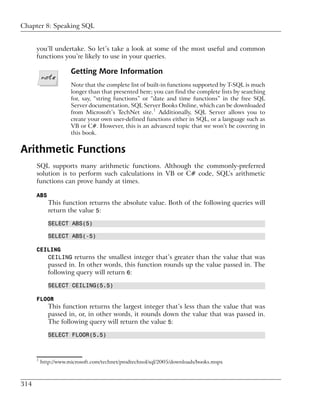
      English text, such as Chinese, Arabic, and others. Unicode is a very widely sup-
      ported standard, so it’s strongly recommended you stick with nvarchar and nchar.

      The type of a column defines how that column behaves. For example, sorting
      data by a datetime column will cause the records to be sorted chronologically,
      rather than alphabetically or numerically.

Column Properties
      Other than a column’s data type, we can define a number of other properties for
      a column. Other properties you’ll use frequently include:

      NULL
          In database speak, NULL means “undefined.” Although we talk about it as if
          it’s a value, NULL actually represents the lack of a value. If you set an employ-
          ee’s mobile telephone number to NULL, for example, this could represent the
          fact that the employee doesn’t have a mobile telephone.

          However, it’s important to realize that allowing NULLs is often inappropriate.
          For instance, you might create a department with the name NULL to represent
          a mysterious department with no name, but obviously, this is far from ideal.
          As you create a table, you can specify which columns are allowed to store
          NULL, and which aren’t. In our example, we’d like every department to have
          a name, so we shouldn’t allow the Name column to allow NULLs.

      DEFAULT
          SQL Server is capable of supplying a default value for a certain column if
          you don’t supply one when you add a new row. We won’t be using this feature
          when we create Dorknozzle, but it’s good to know you have this option.


264
Primary Keys


  IDENTITY
      Identity columns are numbered automatically. If you set a column as an
      IDENTITY column, SQL Server will generate numbers automatically for that
      column as you add new rows to it. The first number in the column is called
      the identity seed. To generate subsequent numbers, the identity column
      adds a given value to the seed; the value that’s added is called the identity
      increment. By default, both the seed and increment have a value of 1, in
      which case the generated values are 1, 2, 3, and so on. If the identity seed
      were 5 and the identity increment were 10, the generated numbers would be
      5, 15, 25, and so on.

      IDENTITY is useful for ID columns, such as Department ID, for which you
      don’t care what the values are, as long as they’re unique. When you use
      IDENTITY, the generated values will always be unique. By default, you can’t
      specify values for an IDENTITY column. Note also that the column can never
      contain NULL.

              Understanding NULL
              Be sure not to see NULL as equivalent to 0 (in numerical columns), or an
              empty string (in the case of string columns). Both 0 and an empty string are
              values; NULL defines the lack of a value.

              NULL and Default Values
              I’ve often heard people say that when we set a default value for a column,
              it doesn’t matter whether or not we set it to accept NULLs. Many people
              seem to believe that columns with default values won’t store NULL.

              That’s incorrect. You can modify a record after it was created, and change
              any field that will allow it to NULL. Your columns’ ability to store NULL is
              important for the integrity of your data, and it should reflect the purpose of
              that data. A default value does make things easier when we create new rows,
              but it’s not as vital as is correctly allowing (or disallowing) NULL in columns.

Primary Keys
  Primary keys are the last fundamental concept that you need to understand before
  you can create your first data table. In the world of relational databases, each
  row in a table must be identified uniquely by a column called a key, on which all
  database operations are based.


                                                                                                 265
Chapter 7: Database Design and Development


      The tables in your databases could contain hundreds or even thousands of rows
      of similar data—you could have several hundred employees in your Employees
      table alone. Imagine that your program needs to update or delete the record for
      John Smith, and there are several people with that name in your organization.
      You couldn’t rely on the database to find the record for the particular John Smith
      that you were trying to work with—it might end up updating or deleting the
      wrong record.

      We can avoid these kinds of problems only by using a system that uniquely
      identifies each row in the table. The first step toward achieving this goal is to
      add to the table an ID column that provides a unique for each employee, as did
      the Employee ID column that we saw in Figure 7.1.

      Remember that when we discussed this Employees table, we noted that you may
      be tempted to use each employee’s username to uniquely identify each employee.
      After all, that’s what the network administrator uses them for, so why shouldn’t
      you? It’s true that this column uniquely identifies each row in the table, and we
      call such a column a candidate key. However, it wouldn’t be a good idea to use
      this column in our database operations for a number of reasons. Firstly, network
      usernames have been known to change, and such a change would wreak havoc
      on any database of more than a couple of tables. As we’ll see later, keys are fun-
      damental to establishing relationships between tables, and these relationships
      rely on the fact that keys will never change. Secondly, non-numeric keys require
      much more processing power than simple numeric ones. Using an nvarchar field
      to uniquely identify rows in your table will bring your SQL Server to a grinding
      halt much, much quicker than if you chose a simple, numeric key.

      The column that we choose to uniquely identify a row in a table in practice is
      called the primary key. In the case of our Employee table, the Employee ID will
      always be unique, so it would be a suitable primary key.

                  Multi-column Keys
                  To make the concept of keys easier to understand, we kept the definition
                  simple, although it’s not 100% technically correct. A key isn’t necessarily
                  formed by a single column—it can be formed by two or more columns. If
                  the key is made up of multiple columns, the set of values in those columns
                  must be unique for any given record. We’ll see an example of such a key in
                  a moment.

      Although we usually refer to primary keys as if they were columns, technically they
      are constraints that we apply to the existing columns of a table. Constraints
      impose restrictions on the data we can enter into our tables, and the primary key


266
Creating the Employees Table


  is a particular kind of constraint. When the primary key constraint is set on a
  column, the database will refuse to store duplicate values in that column.

  Constraints in general, and primary keys in particular, represent a means by
  which the database can maintain the integrity and consistency of data.

  Primary keys composed of a single column, such as Employee ID, are frequently
  used in conjunction with the IDENTITY property. The primary key constraint
  guarantees that duplicate values cannot be inserted into the table. The IDENTITY
  property helps us by always generating a new value that hasn’t already been used
  in the primary key.

              Primary Keys and the IDENTITY Property
              Using the IDENTITY property for a column doesn’t mean we can avoid
              specifying a primary key. It’s true that the IDENTITY property always generates
              unique values, but it doesn’t necessarily enforce them.

             For example, say we have a table with a number of columns, one of which
             has the IDENTITY property set. This table contains three records that are
             likely to contain the automatically generated values 1, 2, and 3 in the
             IDENTITY column. Provided the INDENTITY_INSERT property for this table
             is enabled (by default it’s disabled, but it’s quite easy to enable), it’s quite
             simple to insert another record with the value 2. The IDENTITY column will
             continue to generate unique values (4, 5, 6, and so on), but it doesn’t guar-
             antee the column remains unique.


Creating the Employees Table
  In this section, I’ll show you how to use both Visual Web Developer and SQL
  Server Management Studio, but this time we’ll create a new data table. If you’re
  using Visual Web Developer, expand the database node in Database Explorer,
  right-click Tables, and select Add New Table, as shown in Figure 7.8.

  Figure 7.8. Adding a new table in Visual Web Developer


                                                                                                267
Chapter 7: Database Design and Development


      If you prefer SQL Server Management Studio, you need to follow a similar pro-
      cedure. Expand the Dorknozzle database node, right-click Tables, and select New
      Table…, as illustrated in Figure 7.9.

      Figure 7.9. Adding a new table with SQL Server Management
      Studio


      The window that appears as the result of the above procedures is shown in Fig-
      ure 7.10—it looks the same in both Visual Web Developer and SQL Server
      Management Studio. The main editing window lets you specify the column’s
      three main properties: Column Name, Data Type, and Allow Nulls. To set additional
      properties, you need to use the Column Properties pane.

      To add the IDENTITY property to a column, locate the Identity Specification row
      in the Column Properties pane and expand it. This will reveal the (Is Identity) drop-
      down list, which should be set to Yes for an IDENTITY column, as Figure 7.10
      indicates.

      To set a column as the primary key, we can select Table Designer > Set Primary
      Key, or click the little golden key icon in the Table Designer toolbar while the
      column is selected. When a column is set as a primary key, a little golden key
      appears next to it, as Figure 7.11 illustrates.


268
Creating the Employees Table


Figure 7.10. Specifying column properties


Figure 7.11. The Employees table


                                                                    269
Chapter 7: Database Design and Development


      Now, let’s create a table called Employees by adding the columns described in
      Table 7.1.

      Table 7.1. The structure of the Employees table
         Column          SQL Data            Identity     Allow Nulls     Primary Key
          Name             Type
      EmployeeID       int              Yes             No               Yes
      DepartmentID int                  No              No               No
      Name             nvarchar(50)     No              No               No
      Username         nvarchar(50)     No              No               No
      Password         nvarchar(50)     No              Yes              No
      Address          nvarchar(50)     No              Yes              No
      City             nvarchar(50)     No              Yes              No
      State            nvarchar(50)     No              Yes              No
      Zip              nvarchar(50)     No              Yes              No
      HomePhone        nvarchar(50)     No              Yes              No
      Extension        nvarchar(50)     No              Yes              No
      MobilePhone      nvarchar(50)     No              Yes              No

      After entering this information, press Ctrl-S to save the table. When you’re asked
      to name the table, type Employees and click OK. When you’re done, your table
      will resemble Figure 7.11.

      After you create the table, you’ll see it appear under the Tables node in the Object
      Explorer (or Database Explorer in Visual Web Developer). SQL Server Management
      Studio prepends dbo. to the table’s name; dbo is the default “database owner”
      user. Don’t worry about this for now—we’ll explore the topic of database users
      in some detail later.

      If you close the table designer window, you can open it later by right-clicking the
      Employees table and selecting Open Table Definition in Visual Web Developer,
      or Modify in SQL Server Management Studio. You’ll be taken back to the screen
      that shows the structure of the table (shown in Figure 7.11).


270
Creating the Remaining Tables


Creating the Remaining Tables
  Let’s create the rest of the database tables. Apply the process you used to build
  the Employee table to create the new data tables, using the data presented in
  Table 7.2 to Table 7.6. Later in this chapter, we’ll discuss how these tables work.
  For starters, though, you need to insert them into your database.

  Table 7.2. The Departments table
     Column          SQL Data         Identity       Allow Null      Primary Key
      Name             Type
   DepartmentID int                Yes              No              Yes
   Department      nvarchar(50)    No               No              No

  Table 7.3. The HelpDesk table
     Column          SQL Data         Identity       Allow Null      Primary Key
      Name             Type
   RequestID       int             Yes              No              Yes
   EmployeeID      int             No               No              No
   StationNumber int               No               Yes             No
   CategoryID      int             No               No              No
   SubjectID       int             No               No              No
   Description     nvarchar(50)    No               Yes             No
   StatusID        int             No               No              No

  Table 7.4. The HelpDeskCategories table
     Column          SQL Data         Identity       Allow Null      Primary Key
      Name             Type
   CategoryID      int             Yes              No              Yes
   Category        nvarchar(50)    No               No              No


                                                                                        271
Chapter 7: Database Design and Development


      Table 7.5. The HelpDeskSubjects table
         Column          SQL Data             Identity        Allow Null       Primary Key
          Name             Type
      SubjectID        int               Yes                No                Yes
      Subject          nvarchar(50)      No                 No                No

      Table 7.6. The HelpDeskStatus table
         Column          SQL Data             Identity        Allow Null       Primary Key
          Name             Type
      StatusID         int               Yes                No                Yes
      Status           nvarchar(50)      No                 No                No

                  Using SQL Scripts
                  Yep, there’s a lot of data to type in! While we recommend that you create
                  the tables yourself by defining the fields outlined here, you can achieve the
                  same goal using an SQL script that’s included in this book’s code archive.
                  This script contains SQL code that SQL Server understands, and contains
                  instructions that create data structures (you’ll learn about SQL in Chapter 8).
                  If you want to use the downloadable script, we recommend you have a look
                  over the following tables to get an idea of the structures we’ll be creating,
                  then read the section called “Executing SQL Scripts” that follows.

      We already have a clear idea of the data we’ll store in the Employees and Depart-
      ments tables. The other tables will be used to store help desk requests; we’ll discuss
      these in more detail in the following pages.

Executing SQL Scripts
      If you prefer not to create the data tables manually, you can use the Creat-
      eTables.sql script included in the book’s code archive to create the tables for
      you. This script is most easily used with SQL Server Management Studio. After
      you log in, click the New Query button on the toolbar (or select File > New >
      Query with Current Connection). Paste the contents of the CreateTables.sql
      script into the window that opens, and press F5 to execute the commands. Note
      that if you have already created the Employees table, you should remove the
      CREATE TABLE command that creates this table before you hit F5.


272
Populating the Data Tables


  The SQL scripts included in the code archive contains all the commands required
  for this entire chapter—it even creates the sample data and table references that
  are covered later.

Populating the Data Tables
  If tables represent drawers in a filing cabinet, rows represent individual paper
  records in those drawers. Suppose that our intranet web application was a real
  application. As people begin to register and interact with the application, rows
  are created within the various tables, and are filled up with the information about
  those people.

  Once the data structures are in place, adding rows of data is as easy as typing
  information into the cells in the Datasheet View of a table, which looks a bit
  like a spreadsheet. To access it, right-click on the table and select Show Table
  Data in Visual Web Developer, or Open Table in SQL Server Management Studio.
  You can use the window that opens to start adding data. Let’s add some sample
  data to the tables you’ve just created, so that we can test the Dorknozzle database
  as we develop the application. Table 7.7 to Table 7.11 represent the tables and
  data you should add.

              Inserting Data and Identity Columns
              If you correctly set the ID column as an identity column, you won’t be al-
              lowed to specify the values manually—the ID values will be generated for
              you automatically. You need to be careful, because an ID value will never
              be generated twice on the same table. So even if you delete all the rows in a
              table, the database will not generate an ID with the value of 1; instead, it
              will continue creating new values from the last value that was generated for
              you.

   Keep in mind that a new row is saved to the database at the moment that you
   move on to the next row. It’s very important that you remember this when you
   reach the last row, as you’ll need to move to an empty row even if you aren’t
   adding any more records.


                                                                                              273
Chapter 7: Database Design and Development


      Table 7.7. The Departments table
          EmployeeID (Primary Key)                     Department
      1                              Accounting
      2                              Administration
      3                              Business Development
      4                              Customer Support
      5                              Executive
      6                              Engineering
      7                              Facilities
      8                              IT
      8                              Marketing
      10                             Operations


      Table 7.8. The Employees table
       Emp’ID Dep’tID       Name     U’name   P’word    City State     M’Phone
      (Primary
        Key)
      1         5        Zak       zak        zak       San CA       555-555-5551
                         Ruvalcaba                      Diego

      2         9        Jessica   jessica jessica San CA            555-555-5552
                         Ruvalcaba                 Diego

      3         6        Ted         ted      ted       San CA       555-555-5555
                         Lindsey                        Diego

      4         6        Shane       shane    shane     San CA       555-555-5554
                         Weebe                          Diego
      5         9        David       david    david     San CA       555-555-5553
                         Levinson                       Diego

      6         1        Geoff Kim geoff      geoff     San CA       555-555-5556
                                                        Diego


274
Populating the Data Tables


The Employees table contains a few more columns than those outlined here, but,
due to the size constraints of this page, I’ve left them out. Feel free to add your
own data to the rest of the cells, or you could leave the remaining cells empty,
as they’re marked to accept NULL.

Table 7.9. The HelpDeskCategories table
    CategoryID (Primary Key)                            Category
1                                  Hardware
2                                  Software
3                                  Workstation
4                                  Other/Don't Know


Table 7.10. The HelpDeskStatus table
     StatusID (Primary Key)                              Status
1                                  Open
2                                  Closed


Table 7.11. The HelpDeskSubjects table
    SubjectID (Primary Key)                              Subject
1                                  Computer won't start
2                                  Monitor won't turn on
3                                  Chair is broken
4                                  Office won't work
5                                  Windows won't work
6                                  Computer crashes
7                                  Other

            What IDENTITY Columns are not For
            In our examples, as in many real-world scenarios, the ID values are sequences
            that start with 1 and increment by 1. This makes many beginners assume
            that they can use the ID column as a record-counter of sorts, but this is a
            mistake. The ID is really an arbitrary number that we know to be unique;
            no other information should be discerned from it.


                                                                                            275
Chapter 7: Database Design and Development


Relational Database Design Concepts
      It is said that data becomes information when we give significance to it. When
      we draw tables on paper to decide the logical design of a database, we actually
      include significant information about our application (and about the business
      for which the application is used). In Figure 7.12, for example, we can see that
      the employee Zak Ruvalcaba works in the Executive department.

      Figure 7.12. Information about employees


      We’ve seen how, in order to optimize data storage and better protect the integrity
      of our data, we can extract independent pieces of data, such as department names,
      and save them in separate tables, such as the Department table. However, as we
      did so, we kept the significance of the original information intact by including
      references to the new tables in our existing table. For example, in the Employees
      table we have a DepartmentID column that specifies the department in which
      each employee works, as Figure 7.13 illustrates.

      This separation of data helps us to eliminate redundant information—for example,
      we’d expect to have many employees in each department, but we don’t need to
      replicate the department name for each of those employees. Instead, each employ-
      ee record refers to the ID of the appropriate department. The benefits of this
      approach would be more obvious if more data (such as a department description)
      was associated with each department; copying all that data for each employee
      would generate even more redundancy.

      These kinds of relationships exist between the HelpDesk, HelpDeskCategories,
      HelpDeskStatus, and HelpDeskSubjects tables. Each record in HelpDesk will
      store a help desk request. Now, if we stored all the request information in a single
      table, its records would look like those shown in Figure 7.14.


276
Relational Database Design Concepts


Figure 7.13. Related data about employees and departments


Figure 7.14. Information about help desk requests


In order to eliminate redundant data here, we’ve decided to store pieces of this
data in separate tables, and to reference those tables from the HelpDesk table.
The only data in the table in Figure 7.14 that’s not likely to repeat very frequently
are the description and the station number. We want users to enter their station
numbers manually, rather than choosing them from a predefined list, so we
wouldn’t gain any benefits by creating a separate table for this item.

Given these requirements, we split the information from Figure 7.14 into four
tables:

❑ HelpDeskCategories contains the possible help desk request categories.

❑ HelpDeskSubject contains the possible request subjects.

❑ HelpDeskStatus contains the possible request statuses.


                                                                                        277
Chapter 7: Database Design and Development


      ❑ The HelpDesk table stores the help desk requests by referencing records from
        the other tables, and adding only two original pieces of data itself: the help
        desk request description, and the station number.

      The relationships between these tables are critical, because without them the
      original significance of the information would be lost. The relationships are so
      important that the database has tools to protect them. Primary keys were used
      to ensure the integrity of the records within a table (by guaranteeing their
      uniqueness); in a moment, we’ll meet foreign keys, which protect the integrity
      of data spread over multiple tables.

      In our database’s HelpDesk table, the data depicted in Figure 7.14 would be
      stored physically as shown in Table 7.12.

      Table 7.12. Sample data from the HelpDesk table
      RequestID Emp'ID StationN'ber Cat'ID Subj'ID           Description       StatusID
       (Primary
         Key)
      1            3       5              2       4        Crashes when I      1
                                                           open documents
      2            4       3              2       5        Crashes when I 1
                                                           start Solitaire

      Note that, apart from storing data about the request itself, the HelpDesk table
      also has an ID column, named RequestID, which acts as the table’s primary key.

Foreign Keys
      Technically speaking, a foreign key is a constraint that applies to a column that
      refers to the primary key of another table. In practice, we’ll use the term “foreign
      key” to refer to the column to which the constraint applies.

      Unlike primary key columns, a foreign key column can contain NULL, and almost
      always contains repeating values. The numeric columns in the HelpDesk table
      that reference data from other tables (EmployeeID, CategoryID, SubjectID, and
      StatusID), and the DepartmentID column in the Employees table, are perfect
      candidates for the application of a foreign key constraint. Take a look at the ex-
      amples shown in Table 7.13 and Table 7.14.


278
Foreign Keys


Table 7.13. The Departments table’s primary key
DepartmentID (Primary Key)                          Department
1                               Accounting
2                               Engineering
3                               Executive
4                               Marketing


Table 7.14. The Employees table referencing records from the
Departments table

 Emp’ID Dep’tID        Name      U’name    P’word    City State     M’Phone
(Primary
  Key)
1         5        Zak       zak          zak        San CA       555-555-5551
                   Ruvalcaba                         Diego

2         9        Jessica   jessica jessica San CA               555-555-5552
                   Ruvalcaba                 Diego

3         6        Ted          ted       ted        San CA       555-555-5555
                   Lindsey                           Diego

4         6        Shane        shane     shane      San CA       555-555-5554
                   Weebe                             Diego
5         9        David        david     david      San CA       555-555-5553
                   Levinson                          Diego

6         1        Geoff Kim geoff        geoff      San CA       555-555-5556
                                                     Diego

The DepartmentID column in the Employees table references the DepartmentID
primary key in the Departments table. Notice that the DepartmentID primary
key in the Departments table is unique, but the DepartmentID foreign key
within the Employees table may repeat.

As they stand, these tables already have an established relationship, and all the
data in the DepartmentID column of the Employees table correctly matches ex-


                                                                                    279
Chapter 7: Database Design and Development


      isting departments in the Department table. However, as with primary keys, just
      having the correct fields in place doesn’t mean that our data is guaranteed to be
      correct.

      For example, try setting the DepartmentID field for one of the employees to 123.
      SQL Server won’t mind making the change for you, so if you tried this in practice,
      you’d end up storing invalid data. However, after we set the foreign keys correctly,
      SQL Server will be able to ensure the integrity of our data—specifically, it will
      forbid us to assign employees to nonexistent departments, or to delete departments
      with which employees are associated.

      The easiest way to create foreign keys using Visual Web Developer or SQL
      Server Management Studio is through database diagrams, so let’s learn about
      them.

Using Database Diagrams
      To keep the data consistent, the Dorknozzle database really should contain quite
      a few foreign keys. The good news is that you have access to a great feature called
      database diagrams, which makes it a cinch to create foreign keys. You can define
      the table relationships visually using the database diagrams tool in Visual Web
      Developer or SQL Server Management Studio, and have the foreign keys generated
      for you.

      Database diagrams weren’t created specifically for the purpose of adding foreign
      keys. The primary use of diagrams is to offer a visual representation of the tables
      in your database and the relationships that exist between them, to help you to
      design the structure of your database. However, the diagrams editor included in
      Visual Web Developer and SQL Server Management Studio is very powerful, so
      you can use the diagrams to create new tables, modify the structure of existing
      tables, or add foreign keys.

      Let’s start by creating a diagram for the Dorknozzle database. To create a database
      diagram in Visual Web Developer, right-click the Database Diagrams node, and
      select Add New Diagram, as shown in Figure 7.15.

      The process is similar in SQL Server Management Studio, which, as Figure 7.16
      illustrates, has a similar menu.

      The first time you try to create a diagram, you’ll be asked to confirm the creation
      of the database structures that support diagrams. Select Yes from the dialog,
      which should look like the one shown in Figure 7.17.


280
Using Database Diagrams


Figure 7.15. Creating a database diagram with Visual Web
Developer


Figure 7.16. Creating a database diagram with SQL Server
Management Studio


Figure 7.17. Adding support for database diagrams


                                                                 281
Chapter 7: Database Design and Development


      Figure 7.18. Adding tables to the diagram


      Next, a dialog like the one in Figure 7.18 will ask you which of your database
      tables you want included in the diagram. If you’re working with a database that
      comprises many tables, you may want to have diagrams built to represent specific
      pieces of functionality, but we want to create a diagram that includes all the
      tables in our database.

      Click Add until all the tables are added to the diagram. As you click Add, the
      tables will be removed from the list and will appear in the diagram. Once you’ve
      added all the tables, click Close. You’ll see a window in which all the tables are
      clearly displayed—something like Figure 7.19.

      You’ll probably need to tweak their positioning and dimensions so they fit nicely
      into the window. The zooming feature may prove useful here! Select File > Save
      Diagram1 (or similar) to save your new diagram. Enter Dorknozzle for the dia-
      gram’s name.

      Now, if you right-click any table in the diagram, you’ll gain access to a plethora
      of possibilities, as Figure 7.20 reveals. This menu, along with the other diagram-
      ming features, are identical in Visual Web Developer and SQL Server Management
      Studio.


282
Using Database Diagrams


Figure 7.19. Visualizing data tables using a diagram


Figure 7.20. The many features of the diagram editor


                                                                   283
Chapter 7: Database Design and Development


      Expanding the Table View submenu gives you more options for displaying your
      table. If you choose Standard, you’ll see a full-blown version of the table definition;
      as Figure 7.21 shows, you can change the table structure directly in the diagram!
      The diagraming features provided for free are extremely powerful and useful.

      Figure 7.21. The standard table view


Implementing Relationships in the Dorknozzle
Database
      Every table in the Dorknozzle database has a relationship with another table. To
      create a foreign key using the diagram, click the gray square to the left-hand side
      of the column for which you want to create the foreign key, and drag it over the
      table to which you want it to relate.

      Let’s give it a try. Start by dragging the DepartmentID column of the Employees
      table over the DepartmentID column of the Departments table, as illustrated in
      Figure 7.22.

      Figure 7.22. Creating a link between Employees and Departments


284
Implementing Relationships in the Dorknozzle Database


The designer will open a dialog that shows the details of the new foreign key,
like the one shown in Figure 7.23.

Figure 7.23. Adding a foreign key


Ensure that your data matches that shown in Figure 7.23, and click OK. A new
dialog like the one shown in Figure 7.24 will appear, allowing you to tweak
numerous options that relate to the new foreign key. Leave the default options
as they are for now (though we’ll discuss them shortly), and click OK to finish
up.

Figure 7.24. Editing the foreign key options


                                                                                  285
Chapter 7: Database Design and Development


      After creating the foreign key, make a quick test to ensure that the relationship
      is indeed enforced. Try adding an employee, but set the person’s DepartmentID
      to 123. You should see an error like the one pictured in Figure 7.25.

      Figure 7.25. The foreign key disallowing the addition of invalid
      data


      If you tried to delete a department with which employees were associated, you’d
      generate a similar error.

      Table 7.15 shows the foreign keys that we need to establish in the Dorknozzle
      database. In our project, the foreign key column has the same name as its corres-
      ponding primary key column. Go ahead and create all the foreign keys outlined
      in Table 7.15.

      Table 7.15. The relationships in the Dorknozzle database
                    Primary Key                             Foreign Key
      DepartmentID in the table Departments DepartmentID in the table Employees
      EmployeeID in the table Employees         EmployeeID in the table HelpDesk
      CategoryID in the table HelpDeskCat-      CategoryID in the table HelpDesk
      egories
      SubjectID in the table HelpDeskSub-       SubjectID in the table HelpDesk
      jects
      StatusID in the table HelpDeskStatus      StatusID in the table HelpDesk

      When it’s complete, your relationship diagram should resemble Figure 7.26. After
      you add the relationships, save your changes by selecting File > Save Dorknozzle.
      When you’re asked to confirm the changes to the database tables you’re altering,
      click Yes.


286
Diagrams and Table Relationships


  Figure 7.26. Creating and visualizing table relationships


  Now that you’ve created these foreign keys, you can be sure that all the data
  stored in your tables will obey the enforced table relationships. The DepartmentID
  column in the Employees table will always reference valid departments, and the
  HelpDesk records will always reference valid employees, help desk categories,
  help desk subjects, and help desk status codes.

  In Chapter 8, you’ll start learning how to use your new database. Before then,
  let’s take a moment to analyze the diagram, and learn more about the information
  it shows us.

Diagrams and Table Relationships
  Relationships describe how data in one table is linked to data in other tables. In
  fact, it’s because relationships are so crucial that these types of databases are
  given the name “relational databases.” Relationships exist for the sole purpose
  of associating one table with one or more other tables using primary keys and
  foreign keys.


                                                                                       287
Chapter 7: Database Design and Development


      There are three types of relationships that can occur between the tables in your
      database:

      ❑ one-to-one relationships

      ❑ one-to-many relationships

      ❑ many-to-many relationships

One-to-one Relationships
      A one-to-one relationship means that for each record in one table, only one other
      related record can exist in another table.

      One-to-one relationships are rarely used, since it’s usually more efficient just to
      combine the two records and store them together as columns in a single table.
      For example, every employee in our database will have a phone number stored
      in the HomePhone column of the Employees table. In theory, we could store the
      phone numbers in a separate table and link to them via a foreign key in the Em-
      ployees table, but this would be of no benefit to our application, since we assume
      that one phone number can belong to only one employee. As such, we can leave
      this one-to-one relationship (along with any others) out of our database design.

One-to-many Relationships
      The one-to-many relationship is by far the most common relationship type.
      Within a one-to-many relationship, each record in a table can be associated with
      multiple records from a second table. These records are usually related on the
      basis of the primary key from the first table. In the employees/departments ex-
      ample, a one-to-many relationship exists between the Employees and Departments
      tables, as one department can be associated with many employees.

      When a foreign key is used to link two tables, the table that contains the foreign
      key is on the “many” side of the relationship, and the table that contains the
      primary key is on the “one” side of the relationship. In database diagrams, one-
      to-many relationships are signified by a line between the two tables; a golden key
      symbol appears next to the table on the “one” side of the relationship, and an
      infinity sign (∞) is displayed next to the table that could have many items related
      to each of its records. In Figure 7.27, those icons appear next to the Employees
      and Departments tables.


288
Diagrams and Table Relationships


Figure 7.27. Database diagram showing a one-to-many
relationship


As you can see, one-to-many relationships are easy to spot if you have a diagram
at hand—just look for the icons next to the tables. Note that the symbols don’t
show the exact columns that form the relationship; they simply identify the tables
involved.

Select the line that appears between two related tables to view the properties of
the foreign key that defines that relationship. The properties display in the
Properties window (you can open this by selecting View > Properties Window).
As Figure 7.28 illustrates, they’re the same options we saw earlier in Figure 7.24.

Figure 7.28. The properties of a foreign key


                                                                                      289
Chapter 7: Database Design and Development


                  Advanced Foreign Key Options
                  Unless you really know what you’re doing, we recommend that you use the
                  default foreign key options for now. However, it’s good to have some idea
                  of the features available through the Properties window, as they may well
                  come in handy later in your database development career.

      The most significant setting here is Enforce Foreign Key Constraint, which, when
      set to Yes, prevents users or applications from entering inconsistent data into our
      database (for example, by inserting into the Employees table a DepartmentID
      value that doesn’t have a matching entry in the Departments table). In our appli-
      cation, every user must be associated with a valid department, so we’ll leave this
      option enabled.

      The options available under INSERT And UPDATE Specification can be used to tell
      your database to update the tables itself in order to keep the data valid at times
      when a change in a given table would affect a related table. If, for some reason,
      we changed the ID of a department in the Departments table, we could set the
      database to propagate this change to all the tables related to that department,
      keeping the relationships intact. Similarly, we can set the database to automatically
      delete all the employees related to a department that’s deleted. However, these
      are quite sensitive options, and it’s best to avoid them unless you have good
      reason not to. The cases in which an ID changes are very uncommon (the ID
      doesn’t have any special meaning itself, other than being an unique identifier),
      and letting the database delete data for you is a risky approach (it’s safer to delete
      the related records yourself).

      If these concepts sound a bit advanced at the moment, don’t worry: it will all
      become clear as you spend some time working with databases.

Many-to-many Relationships
      Many-to-many relationships occur between two tables, when records from either
      table can be associated with multiple records in the other table.

      Imagine that you wanted a single employee to be able to belong to more than
      one department—someone who works in “Engineering” could also be an “Exec-
      utive,” for example. One employee can belong to many departments, and one de-
      partment can contain many employees, so this is a many-to-many relationship.

      How do we represent it in our database? Faced with this question, many less-ex-
      perienced developers begin to think of ways to store several values in a single
      column, because the obvious solution is to change the DepartmentID column in


290
Diagrams and Table Relationships


the Employees table so that it contains a list of the IDs of those departments to
which each employee belongs. One those good old rules of thumb we discussed
previously applies here:

If you need to store multiple values in a single column, your design is probably flawed.

The correct way to represent a many-to-many relationship is to add a third table,
named a mapping table, to the database. A mapping table is a table that contains
no data other than the definitions of the pairs of entries that are related. Fig-
ure 7.29 shows the database design for our employees and departments.

Figure 7.29. Using a mapping table to implement a many-to-many
relationship


The EmployeeDepartment table associates employee IDs with department IDs.
If we added this table to our database, we could add Zak Ruvalcaba to both the
“Executive” and “Engineering” departments.

A mapping table is created in much the same way as any other table. The only
difference lies in the choice of the primary key. Every table we’ve created so far
has had a column named somethingID that was designed to be that table’s primary
key. Designating a column as a primary key tells the database not to allow two
entries in that column to have the same value. It also speeds up database searches
based on that column.

In the case of a mapping table, there's no single column that we want to force to
have unique values. Each employee ID may appear more than once, as an employ-
ee may belong to more than one department, and each department ID may appear
more than once, as a department may contain many employees. What we don’t


                                                                                           291
Chapter 7: Database Design and Development


      want to allow is the same pair of values to appear in the table twice (it wouldn’t
      make sense to associate a particular employee with a particular department more
      than once). For this reason, we usually create mapping tables with a multi-column
      primary key.

      In this example, the primary key for the EmployeeDepartment table would consist
      of the EmployeeID and DepartmentID columns. This enforces the uniqueness
      that is appropriate to a look-up table, and prevents a particular employee from
      being assigned to a particular department more than once.

      If you’d like to learn more about many-to-many relationships, or about anything
      else related to SQL Server programming, I recommend you download and use
      the product’s excellent documentation, SQL Server Books Online.3


Summary
      This chapter has introduced the fundamental concepts of relational databases.
      You learned about the underlying structure of a modern relational database,
      which is composed of tables, columns, and rows, and about crucial concepts that
      can aid in database performance, maintenance, and efficiency. You’ve also learned
      how to implement and enforce table relationships, and you have a solid under-
      standing of good relational database design.

      Chapter 8 goes beyond data storage and introduces you to the language used to
      access and manipulate the data you hold in your tables. That language is the
      Structured Query Language, or SQL.


      3
          http://msdn2.microsoft.com/en-us/library/ms130214.aspx


292
8                           Speaking SQL

So your database has been created, and you’ve defined all of the tables you’ll
need, all of the columns for your tables—you’ve even defined the relationships
between your tables. The question now is, “How will you get to that data?” Sure,
you can open the database, look at the data contained in the tables, and manually
insert and delete records, but that does little to help your web users to interact
with that data. Mary in Accounting isn’t going to want to download and learn
to use SQL Server Management Studio just so she can retrieve an employee’s
mobile phone number—this functionality has to be provided by the Dorknozzle
intranet web site, which, after all, is supposed to enable staff members to access
data easily. In fact, the functionality can be created using web forms, web controls,
a little code, and a useful database programming language known as Structured
Query Language (or SQL).

SQL has its origins in a language developed by IBM in the 1970s called SEQUEL
(which stood for Structured English QUEry Language), and is still often referred
to as “sequel” or “ess-que-el.” It represents a very powerful way of interacting
with current database technologies and the tables that constitute our databases.
SQL has roughly 30 keywords and is the language of choice for simple and com-
plex database operations alike. The queries you will construct with these keywords
range from the very simple to extremely complex strings of subqueries and table
joins.
Chapter 8: Speaking SQL


      SQL is an international standard, and almost all database products, including
      SQL Server, Oracle, DB2, and so on, support the standard to a certain degree.
      The dialect of SQL supported by SQL Server is named Transact-SQL (or T-SQL).
      This chapter cannot begin to cover all there is to know on the subject, but we
      hope it will provide you with an introduction to beginning and advanced SQL
      concepts.

      In this chapter, we’ll learn:

      ❑ the basic SQL commands

      ❑ the expressions that SQL supports

      ❑ the most important SQL functions

      ❑ how to perform table joins and subqueries

      ❑ how to create stored procedures

      This may sound like a lot, but you’re certain to enjoy it! Let’s get started.


Reading Data from a Single Table
      Information that’s contained within a database is useless unless we have a way
      of extracting it. SQL is that mechanism; it allows quick but sophisticated access
      to database data through the use of queries. Queries pose questions to the
      database server, which returns the answer to your application.

      Table 8.1. Sample contents from the Employees table
       EmployeeID Dep'tID              Name             Username             City
          (Primary
            Key)
      1               5        Zak Ruvalcaba          zak            San Diego
      2               9        Jessica Ruvalcaba jessica             San Diego
      3               6        Ted Lindsey            ted            San Diego
      4               6        Shane Weebe            shane          San Diego
      5               9        David Levinson         david          San Diego
      6               1        Geoff Kim              geoff          San Diego


294
Reading Data from a Single Table


For example, imagine that you’re trying to extract the information shown in
Table 8.1 from the Employees table of the Dorknozzle database.

How do we make this kind of data available to our web site? The first step is to
learn how to read this data using SQL. Then, in the next chapter, we’ll learn to
access the data from ASP.NET web applications.

In the following sections, we’ll learn to write queries that will let us view existing
data, insert new data, modify existing data, and delete data. Once you’ve learnt
how to write these fundamental SQL queries, the next step is to put everything
together, and to build the web forms with which your users will interact.

Let’s begin: first up, open SQL Server Management Studio. Visual Web Developer
can also be used to test SQL queries, but SQL Server Management Studio is
slightly easier to use for our purposes. Log in to your SQL Server instance, and
select the Dorknozzle database in the Object Explorer pane, as illustrated in Fig-
ure 8.1.

Figure 8.1. Using SQL Server Management Express


Having selected the Dorknozzle database, go to File > New > Database Engine
Query, or simply click the New Query button on the toolbar. A new query window,
like the one shown in Figure 8.2, should open in the right-hand pane.


                                                                                         295
Chapter 8: Speaking SQL


      Figure 8.2. A new query window


      In the query window, type your first command:

      SELECT Name
      FROM Employees

      Click the Execute button, or press F5. If everything works as planned, the result
      will appear similar to Figure 8.3.

      Figure 8.3. Executing a simple query


      Nice work! Now that we’ve taken our first look at SQL, let’s talk more about
      SQL queries.


296
Using the SELECT Statement


Using the SELECT Statement
  The most common of all SQL queries is the SELECT query. This query is generally
  constructed using a SELECT clause and a FROM clause. To understand this concept
  more clearly, take a look at the following statement, which retrieves all columns
  of all records in the Departments table:

  SELECT *
  FROM Departments

  In this case, the SELECT clause lists the columns that you want to retrieve. In this
  case, we used *, which means “all columns.” The FROM clause specifies the table
  from which you want to pull the records. Together, these two clauses create an
  SQL statement that extracts all data from the Departments table.

  You’ve probably noticed that the two clauses appear on separate lines. If you
  wanted to keep the entire statement on one line, that’s fine, but SQL lets you
  separate the statements on multiple lines to make complex queries easier to read.
  Also note that although SQL is not actually a case-sensitive language, we’ll capit-
  alize the keywords (such as SELECT and FROM) according to the popular convention.

  To sum up, here’s the basic syntax used in a SELECT query:

  SELECT
      This keyword indicates that we want to retrieve data, rather than modify,
      add, or delete data—these activities use the UPDATE, INSERT, and DELETE
      keywords, respectively, in place of SELECT.

  columns
      We must provide the names of one or more columns in the database table
      from which we want to retrieve data. We can list multiple columns by separ-
      ating the column names with commas, or we can use * to select all columns.
      We can also prefix each column name with the table name, as shown here:

      SELECT Employees.Name, Employees.Username
      FROM Employees.Name

      This approach is mandatory when two or more of the tables we’re dealing
      with contain columns that have the same names. We’ll learn to read data
      from multiple tables a little later in the chapter.


                                                                                         297
Chapter 8: Speaking SQL


      FROM
          The FROM keyword ends the SELECT clause and starts the FROM clause, which
          identifies the tables from which the data will be extracted. This clause is re-
          quired in all SELECT statements.

      tables
          We need to identify the names of the tables from which we want to extract
          data. To list multiple tables, separate their names with commas. Querying
          multiple tables is called a table join—we’ll cover this a bit later.

      Armed with this knowledge, we can see that the preceding sample statement
      would retrieve all records from the Departments table, producing a set of results
      like that shown in Figure 8.4.

      Figure 8.4. Reading the list of departments


      See how easy it is? The SELECT query is probably the one you’ll use most.

                  The Number of Affected Rows
                  As you can see in Figure 8.4, SQL Server reports the number of records that
                  have been affected by a certain query. This report doesn’t indicate that those
                  records were modified. Instead, the figure represents the number of rows
                  that were read, modified, deleted, or inserted by a certain query.


298
Selecting Certain Fields


               Viewing Results in Text Format
               By default, the query editor of SQL Server Management Studio displays the
               results in a grid like the one shown in Figure 8.3. As you work with SQL
               Server, you may start to find this view a little impractical; in particular, it
               makes viewing longer strings of text painful because each time you run the
               query, you need to resize the columns in the grid. Personally, I prefer the
               plain text view, which is shown in Figure 8.4. You can enable this mode by
               selecting Query > Results To > Results To Text.

   Let’s move on and take a look at some variations of the SELECT query. Then we’ll
   see how easy it is to insert, modify, and delete items from the database using
   other keywords.

Selecting Certain Fields
   If you didn’t want to select all the fields from the database table, you’d include
   the names of the specific fields that you wanted in place of the * in your query.
   For example, if you’re interested only in the department names—not their
   IDs—you could execute the following:

   SELECT Department
   FROM Departments

   This statement would retrieve data from the Department field only. Rather than
   specifying the *, which would return all the fields within the database table, we
   specify only the fields that we need.

               Selecting All Columns Using *
               To improve performance in real-world development scenarios, it’s better to
               ask only for the columns that are of interest, rather than using *. Moreover,
               even when you need all the columns in a table, it’s better to specify them by
               name, to safeguard against the possibility that future changes, which cause
               more columns to be added to the table, affecting the queries you’re writing
               now.

   It’s important to note that the order of the fields in a table determines the order
   in which the data will be retrieved. Take this query, for example:

   SELECT DepartmentID, Department
   FROM Departments

   You could reverse the order in which the columns are returned with this query:


                                                                                                 299
Chapter 8: Speaking SQL


      SELECT Department, DepartmentID
      FROM Departments

      Executing this query would produce the result set shown in Figure 8.5.

      Figure 8.5. Retrieving department names and their IDs


      Try it for yourself!

Selecting Unique Data with DISTINCT
      Say you want to find out which cities your employees hail from. Most likely, a
      query such as the one shown below would generate multiple results:

      SELECT City
      FROM Employees

      If this query were applied to the Dorknozzle application, the same city location
      would appear six times in the results—once for every employee in our database.
      Figure 8.6 illustrates this point.

      That’s not usually what we want to see in our results. Typically, we prefer to see
      the unique cities in the list—a task that, fortunately enough, is easy to achieve.
      Adding the DISTINCT keyword immediately after the SELECT clause extracts only


300
Selecting Unique Data with DISTINCT


Figure 8.6. Reading the employees’ cities


the unique instances of the retrieved data. Take a look at the following SQL
statement:

SELECT DISTINCT City
FROM Employees

This query will produce the result shown in Figure 8.7.

Figure 8.7. Selecting distinct cities


In this case, because only the City column was included within the SQL query,
unique instances within the City column were returned.

Note that the uniqueness condition applies to the whole of the returned rows.
If, for example, we asked for the name of each employee as well, all the rows
would be considered unique (because no two employees have the same name)


                                                                                301
Chapter 8: Speaking SQL


      and no row would be eliminated by DISTINCT. To see for yourself, execute this
      query:

      SELECT DISTINCT Name, City
      FROM Employees

      The results of this code are pictured in Figure 8.8. As we expected, the DISTINCT
      clause doesn’t have any effect, since each row is unique.

      Figure 8.8. Retrieving employees and cities


Row Filtering with WHERE
      The WHERE clause is used in conjunction with SQL queries, including the SELECT
      query, to deliver more refined search results based on individual field criteria.
      The following example could be used to extract all employees that work in the
      Department whose ID is 6:

      SELECT Name, DepartmentID
      FROM Employees
      WHERE DepartmentID = 6

      This query returns the results shown below:

      Name                                                          DepartmentID
      --------------------------------------------------            ------------
      Ted Lindsey                                                   6
      Shane Weebe                                                   6


302
Selecting Ranges of Values with BETWEEN


   (2 row(s) affected)

   But wait! How do I know the name of the department with the ID of 6? Well,
   you could use a similar query to find out. Try this:

   SELECT Department
   FROM Departments
   WHERE DepartmentID = 6

   Executing this query reveals that the department with the ID of 6 is Engineering.

   Department
   --------------------------------------------------
   Engineering

   (1 row(s) affected)


Selecting Ranges of Values with BETWEEN
  There may be times when you’ll want to search within a database table for rows
  that fall within a certain range of values. For instance, if you wanted to retrieve
  from the Departments table all departments that have IDs between 2 and 5, you
  could use the BETWEEN keyword like so:

   SELECT DepartmentID, Department
   FROM Departments
   WHERE DepartmentID BETWEEN 2 AND 5

   As we requested, all departments whose IDs are between 2 and 5 are returned.
   Note that the range is inclusive, so departments with IDs of 2 and 5 will also be
   retrieved.

   Note that any conditions that use BETWEEN could be easily rewritten by combining
   two “greater than or equal” and “less than or equal” conditions:

   SELECT DepartmentID, Department
   FROM Departments
   WHERE DepartmentID >= 2 AND DepartmentID <= 5

   We could also use the NOT keyword before the BETWEEN keyword to specify all
   items that fall outside the range, as follows:


                                                                                        303
Chapter 8: Speaking SQL


      SELECT DepartmentID, Department
      FROM Departments
      WHERE DepartmentID NOT BETWEEN 2 AND 5

      In this example, all rows whose DepartmentIDs are less than 2 or greater than 5
      are returned.

Matching Patterns with LIKE
      As we’ve just seen, the WHERE clause allows us to filter results based on criteria
      that we specify. The example we discussed earlier filtered rows by comparing two
      numbers, but SQL also knows how to handle strings. For example, if we wanted
      to search the company’s Employees table for all employees named Zak Ruvalcaba,
      we'd use the following SQL statement:

      SELECT EmployeeID, Username
      FROM Employees
      WHERE Name = 'Zak Ruvalcaba'

      However, we won’t see many such queries in reality. In real-world scenarios, most
      record matching is done by matching the primary key of the table to some specific
      value. When an arbitrary string such as a name is used (as in the example above),
      it’s likely that we’re searching for data based on partially complete information.

      A more realistic example is one in which we want to find all employees with the
      surname Ruvalcaba. The LIKE keyword allows us to perform pattern matching
      with the help of wildcard characters. The wildcard characters supported by SQL
      Server are the percentage symbol (%), which matches any sequence of zero or
      more characters, and the underscore symbol (_), which matches exactly one
      character.

      If we wanted to find all names within our Employees table with the surname of
      Ruvalcaba, we could modify the SQL query using a wildcard, as follows:

      SELECT EmployeeID, Name
      FROM Employees
      WHERE Name LIKE '%Ruvalcaba'

      With this query, all records in which the Name column ends with Ruvalcaba are
      returned, as shown below.

      EmployeeID Name
      ----------- --------------------------------------------------
      1           Zak Ruvalcaba


304
Using the IN Operator


  2              Jessica Ruvalcaba

  (2 row(s) affected)

  As we knew that the last name was Ruvalcaba, we only needed to place a wildcard
  immediately before the last name. But what would happen if we didn’t know
  how to spell the entire last name? That name is pretty difficult to spell! You could
  solve the problem by modifying your SQL statement to use two wildcards as
  follows:

  SELECT EmployeeID, Name
  FROM Employees
  WHERE Name LIKE '%Ruv%'

  In this case, the wildcard is placed before and after the string Ruv. Although this
  statement would return the same values we saw in the results table above, it
  would also return any employees whose names (first or last) contain the sequence
  Ruv. As SQL is case-insensitive, this would include the names Sarah Ruvin, Jonny
  Noruvitch, Truvor MacDonald, and so on.

Using the IN Operator
  We use the IN operator in SELECT queries primarily to specify a list of values that
  we want to match in our WHERE clause. Let’s say we want to find all employees
  who live in California, Indiana, and Maryland. You could write the following
  SQL statement to accomplish this task:

  SELECT Name, State
  FROM Employees
  WHERE State = 'CA' OR State = 'IN' OR State = 'MD'

  A better way to write this statement uses the IN operator as follows:

  SELECT Name, State
  FROM Employees
  WHERE State IN ('CA', 'IN', 'MD')

  If you execute this query, you’ll get the expected results. Since our database only
  contains employees living in CA, only those records will be displayed.

  Name                                     State
  --------------------------------         --------------------------------
  Zak Ruvalcaba                            Ca
  Jessica Ruvalcaba                        Ca


                                                                                         305
Chapter 8: Speaking SQL


      Ted Lindsey                              Ca
      Shane Weebe                              Ca
      David Levinson                           Ca
      Geoff Kim                                Ca

      (6 row(s) affected)


Sorting Results Using ORDER BY
      Unless you specify some sorting criteria, SQL Server can’t guarantee to return
      the results in a particular order. We’ll most likely receive the results sorted by
      the primary key, because it’s easier for SQL Server to present the results in this
      way than any other, but this ordering isn’t guaranteed. This explains why, in
      some of the examples we’ve completed so far, the order of the results you see on
      your machine may differ from what you see in this book. The ORDER BY clause
      provides you with a quick way to sort the results of your query in either ascending
      or descending order. For instance, to retrieve the names of your employees in
      alphabetical order, you would need to execute this command:

      SELECT EmployeeID, Name
      FROM Employees
      ORDER BY Name

      Looks simple, doesn’t it?

      EmployeeID     Name
      -----------    --------------------------------------------------
      5              David Levinson
      6              Geoff Kim
      2              Jessica Ruvalcaba
      4              Shane Weebe
      3              Ted Lindsey
      1              Zak Ruvalcaba

      (6 row(s) affected)

      Note that the default ordering here is ascending (i.e. running from A to Z). You
      could add the DESC designation (for descending) to the end of the statement, to
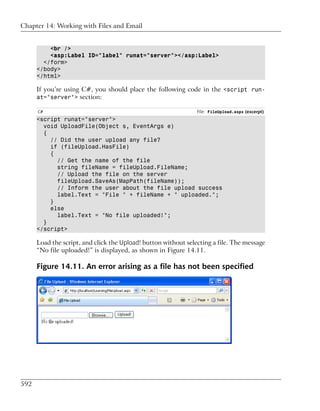
      order the results backwards:

      SELECT EmployeeID, Name
      FROM Employees
      ORDER BY Name DESC


306
Limiting the Number of Results with TOP


   If you execute this query, you’ll get the results we saw above, listed in reverse
   order. You could also order the results by multiple columns—simply add a comma
   after the field name and enter a second field name, as follows:

   SELECT EmployeeID, Name, City
   FROM Employees
   ORDER BY City, Name

   In this case, the results are returned in alphabetical order by city, and any tying
   records (i.e. with the same city) will appear sorted by name.
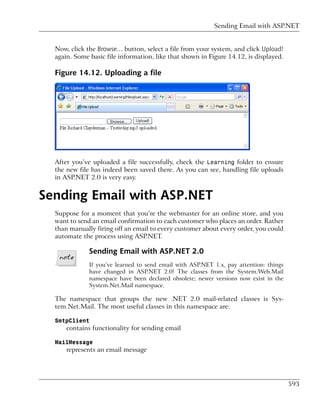
Limiting the Number of Results with TOP
   Another using SQL keyword is TOP, which can be used together with SELECT to
   limit the number of returned rows. For example, if we want to retrieve the first
   five departments, and have the list ordered alphabetically, we’d use this command:

   SELECT TOP 5 Department
   FROM Departments
   ORDER BY Department

   Here are the results:

   Department
   --------------------------------------------------
   Accounting
   Administration
   Business Development
   Customer Support
   Engineering

   (5 row(s) affected)


Reading Data from Multiple Tables
  Until now, we’ve primarily focused on extracting data from a single table. Yet in
  many real-world applications, you’ll need to extract data from multiple tables
  simultaneously. To do so, you’ll need to use subqueries or joins.

  Let’s learn about joins and subqueries by looking closely at a typical example.
  Say you’re asked to build a report that displays all the employees in the Engin-
  eering department. To find employee data, you’d normally query the Employees
  table, and apply a WHERE filter on the ID of the department. That approach would


                                                                                         307
Chapter 8: Speaking SQL


      work fine in this case, except for one thing: you don’t know the ID of the Engin-
      eering department!

      The solution? First, execute this query to find the ID of the Engineering depart-
      ment:

      SELECT DepartmentID
      FROM Departments
      WHERE Department = 'Engineering'

      The result of this query will show that the ID of the Engineering department is
      6. Using this data, you can make a new query to find the employees in that de-
      partment:

      SELECT Name
      FROM Employees
      WHERE DepartmentID = 6

      This query retrieves the same list of employees we saw earlier in this chapter.

      So everything’s great … except that you had to execute two queries in order to
      do the job! There is a better way: SQL is very flexible and allows you to retrieve
      the intended results using a single command. You could use either subqueries or
      joins to do the job, so let’s take a look at them in turn.

Subqueries
      A subquery is a query that’s nested inside another query, and can return data
      that’s used by the main query. For example, you could retrieve all the employees
      who work in the Engineering department like this:

      SELECT Name
      FROM Employees
      WHERE DepartmentID IN
        (SELECT DepartmentID
         FROM Departments
         WHERE Department LIKE '%Engineering')

      In this case, the subquery (highlighted in bold) returns the ID of the Engineering
      department, which is then used to identify the employees who work in that de-
      partment. An embedded SELECT statement is used when you want to perform a
      second query within the WHERE clause of a primary query.


308
Table Joins


   Note that we’re using the IN operator instead of the equality operator (=). We
   do so because our subquery could return a list of values. For example, if we added
   another department with the name “Product Engineering,” or accidentally added
   another Engineering record to the Departments table, our subquery would return
   two IDs. So, whenever we’re dealing with subqueries like this, we should use the
   IN operator unless we’re absolutely certain that the subquery will return only one
   record.

               Querying Multiple Tables
               When using queries that involve multiple tables, it’s useful to take a look at
               the database diagram you created in Chapter 7 to see what columns exist in
               each table, and to get an idea of the relationships between the tables.


Table Joins
   An inner join allows you to read and combine data from two tables between
   which a relationship is established. In Chapter 7, we created such a relationship
   between the Employees table and the Departments table using a foreign key.

   Let’s make use of this relationship now, to obtain a list of all employees in the
   engineering department:

   SELECT Employees.Name
   FROM Departments
   INNER JOIN Employees ON Departments.DepartmentID =
       Employees.DepartmentID
   WHERE Departments.Department LIKE '%Engineering'

   The first thing to notice here is that we qualify our column names by preceding
   them with the name of the table to which they belong, and a period character
   (.). We use Employees.Name rather than Name, and Departments.DepartmentID
   instead of DepartmentID. We need to specify the name of the table whenever
   the column name exists in more than one table (as is the case with DepartmentID);
   in other cases (such as with Employees.Name), adding the name of the table is
   optional.

   As an analogy, imagine that you have two colleagues at work named John. John
   Smith works in the same department as you, and his desk is just across the aisle.
   John Thomas, on the other hand, works in a different department on a different
   floor. When addressing a large group of colleagues, you would use John Smith’s
   full name, otherwise people could become confused. However, it would quickly
   become tiresome if you always used John Smith’s full name when dealing with


                                                                                                309
Chapter 8: Speaking SQL


      people in your own department on a day-to-day basis. In exactly the same way,
      you could always refer to a column in a database using the Table.Column form,
      but it’s only necessary when there’s the potential for confusion.

      As for the join itself, the code is fairly clear: we’re joining the Departments table
      and the Employees table into a single, virtual table by matching the values in the
      Departments.DepartmentID column with those in the Employees.DepartmentID
      column. From this virtual table, we’re only interested in the names of the employ-
      ees whose records match the filter Departments.Department LIKE '%Engineer-
      ing'.

      By eliminating the WHERE clause and adding the department’s name to the column
      list, we could generate a list that contained all the employees and their associated
      departments. Try this query:

      SELECT Employees.Name, Departments.Department
      FROM Departments
      INNER JOIN Employees ON Departments.DepartmentID =
          Employees.DepartmentID

      The results are as you’d expect:

      Name                                      Department
      --------------------------------          ---------------------------------
      Zak Ruvalcaba                             Executive
      Jessica Ruvalcaba                         Marketing
      Ted Lindsey                               Engineering
      Shane Weebe                               Engineering
      David Levinson                            Marketing
      Geoff Kim                                 Accounting

      (6 row(s) affected)


Expressions and Operators
      In the wonderful world of programming, an expression is any piece of code that,
      once evaluated, results in a value. For instance, 1 + 1 is a very simple expression.
      In SQL, expressions work in much the same way, though they don’t necessarily
      have to be mathematical. For a simple example, let’s create a list that contains
      employees and their cities as single strings. Try this query:

      SELECT EmployeeID, Name + ', ' + City AS NameAndCity
      FROM Employees


310
Expressions and Operators


The results are shown below:

EmployeeID    NameAndCity
----------    -------------------------------------------------------
1             Zak Ruvalcaba, San Diego
2             Jessica Ruvalcaba, San Diego
3             Ted Lindsey, San Diego
4             Shane Weebe, San Diego
5             David Levinson, San Diego
6             Geoff Kim, San Diego

(6 row(s) affected)

Note that the results of the expression are used to create a virtual column. This
column doesn’t exist in reality, but is calculated using the values of other columns.
We give this column the name NameAndCity using the AS keyword.

Expressions would be quite useless if we didn’t have operators. Over the course
of the previous sections, you’ve seen the operators =, AND, >=, <=, LIKE and IN at
work. The following is a list of operators that you’ll need to know to use SQL
effectively.

+
    The addition operator adds two numbers or combines two strings.

–
    The subtraction operator subtracts one number from another.

*
    The multiplication operator multiplies one number with another.

/
    The division operator divides one number by another.

>
    The greater-than operator is used in WHERE clauses to determine whether the
    first value is greater than the second. For example, the following query would
    return all the records from the table whose EmployeeID is greater than ten
    (i.e. 11 and up).

    SELECT Name
    FROM Employees
    WHERE EmployeeID > 10


                                                                                        311
Chapter 8: Speaking SQL


      <
           The less-than operator is used in WHERE clauses to determine whether the
           first value is less than the second. The result of the following query would
           return from the table all records whose EmployeeID is less than ten (i.e. nine
           and lower).

           SELECT Name
           FROM Employees
           WHERE EmployeeID < 10

      >=
           The greater-than or equal-to operator is used in WHERE clauses to determine
           whether the first value is greater than, or equal to, the second. The following
           query would return the record with EmployeeID of ten, and every one after
           that.

           SELECT Name
           FROM Employees
           WHERE EmployeeID >= 10

      <=
           The less-than or equal-to operator is used in WHERE clauses to determine
           whether the first value is less than, or equal to, the second. The result of the
           following query would be the record with EmployeeID of ten, and every one
           before that.

           SELECT Name
           FROM Employees
           WHERE EmployeeID <= 10

      <>, !=
           This operator is used to check whether a value is not equal to a second.

      OR
           This operator is used with the WHERE clause in the SELECT statement. The OR
           operator can be used when a certain condition needs to be met, or when only
           one of two conditions needs to be met. For example, the following query’s
           results would return the employees with employee IDs of 1 or 2.

           SELECT Name
           FROM Employees
           WHERE EmployeeID = 1 OR EmployeeID = 2


312
Transact-SQL Functions


  AND
         This operator works just like OR, except that it requires all of the conditions
         to be satisfied, not just any of them.

  NOT
         Typically used in conjunction with the LIKE operator, the NOT operator is
         used when we’re looking for values that are not like the value we specify. For
         example, the following query would return all employees whose name does
         not begin with “Jess.”

         SELECT Name
         FROM Employees
         WHERE Name NOT LIKE 'Jess%'

  _, ?
         The underscore operator is used by SQL Server in WHERE clauses, and matches
         any single character in a string. For instance, if you weren’t sure of the first
         letter of Geoff Kim’s surname, you could use the following query:

         SELECT Name
         FROM Employees
         WHERE Name LIKE 'Geoff _im'

         This would return Geoff Kim’s record, as well as Geoff Sim’s, Geoff Lim’s,
         and so on, were there such employees in the database. Note that the _ char-
         acter only matches a single character, so Geoff Sirrim would not be returned.
         To match zero or more characters, you’d use the % or * operator.

  %, *
         The multiple character operator is similar to the underscore operator, except
         that it matches multiple or zero characters, whereas the underscore operator
         only matches one.

  IN
         This operator is used in WHERE clauses to specify that an expression’s value
         must be one of the values specified in a list.


Transact-SQL Functions
  As well as using operators to construct expressions manually, SQL Server provides
  us with some functions that we can use within our queries. For the most part,
  SQL has sufficient functions to handle almost all of the day-to-day tasks that


                                                                                            313
Chapter 8: Speaking SQL


      you’ll undertake. So let’s take a look at some of the most useful and common
      functions you’re likely to use in your queries.

                      Getting More Information
                      Note that the complete list of built-in functions supported by T-SQL is much
                      longer than that presented here; you can find the complete lists by searching
                      for, say, “string functions” or “date and time functions” in the free SQL
                      Server documentation, SQL Server Books Online, which can be downloaded
                      from Microsoft’s TechNet site.1 Additionally, SQL Server allows you to
                      create your own user-defined functions either in SQL, or a language such as
                      VB or C#. However, this is an advanced topic that we won’t be covering in
                      this book.


Arithmetic Functions
      SQL supports many arithmetic functions. Although the commonly-preferred
      solution is to perform such calculations in VB or C# code, SQL’s arithmetic
      functions can prove handy at times.

      ABS
             This function returns the absolute value. Both of the following queries will
             return the value 5:

             SELECT ABS(5)

             SELECT ABS(-5)

      CEILING
         CEILING returns the smallest integer that’s greater than the value that was
             passed in. In other words, this function rounds up the value passed in. The
             following query will return 6:

             SELECT CEILING(5.5)

      FLOOR
             This function returns the largest integer that’s less than the value that was
             passed in, or, in other words, it rounds down the value that was passed in.
             The following query will return the value 5:

             SELECT FLOOR(5.5)


      1
          http://www.microsoft.com/technet/prodtechnol/sql/2005/downloads/books.mspx


314
String Functions


   MOD
         MOD returns the remainder of one value divided by another. The following
         query would return the value 2:

         SELECT MOD(8, 3)

   SIGN
         This function returns -1, 0, or 1, to indicate the sign of the argument.

   POWER
         This function returns the result of one value raised to the power of another.
         The following query returns the result of 23:

         SELECT POWER(2, 3)

   SQRT
      SQRT returns the non-negative square root of a value.

   Many, many more mathematical functions are available—check SQL Server
   Books Online for a full list.

String Functions
   String functions work with literal text values rather than numeric values.

   UPPER, LOWER
         This function returns the value passed in as all uppercase or all lowercase,
         respectively. Take the following query as an example:

         SELECT LOWER(Username), UPPER(State)
         FROM Employees

         The query above will return a list of usernames in lowercase, and a list of
         states in uppercase.

   LTRIM, RTRIM
         This function trims whitespace characters, such as spaces, from the left- or
         right-hand side of the string, respectively.

   REPLACE
         Use the REPLACE function to change a portion of a string to a new sequence
         of characters that you specify.

         SELECT REPLACE('I like chocolate', 'like', 'love')


                                                                                         315
Chapter 8: Speaking SQL


            This query will search the string “I like chocolate” for the word “like” and
            replace it with the word “love,” as shown in the output below:

            ------------------------------------------------------
            I love chocolate

            (1 row(s) affected)

      SUBSTRING
            This function returns the sequence of characters within a given value, begin-
            ning at a specified start position and spanning a specified number of charac-
            ters.

            SELECT SUBSTRING('I like chocolate', 8, 4)

            The above query will take four characters from the string “I like chocolate”
            starting from the eighth character, as shown in the output below:

            ----
            choc

            (1 row(s) affected)

      LEN
            This function returns the length of a string. Thus, the following query would
            return a list of all usernames, and how many characters were in each username:

            SELECT Username, LEN(Username) AS UsernameLength
            FROM Employees

      CHARINDEX
            This function returns the first position in which a substring can be found in
            a string.

      It’s also worth noting that these functions can be used in conjunction with other
      functions, often to create quite powerful results. For example, the following SQL
      query would return the first name of every employee within the Employees table:

      SELECT SUBSTRING(Name, 1, CHARINDEX(' ', Name)) AS FirstName
      FROM Employees

      Here, we’re using two string functions. CHARINDEX is used to locate the first space
      within the Name column. If we assume that the first space indicates the end of
      the first name, we can then use SUBSTRING to extract the first name from the
      name string. The results, shown in Figure 8.9, are as we expect.


316
Date and Time Functions


  Figure 8.9. Employees’ first names


  FirstName
  ------------------------------------------------------------------
  Zak
  Jessica
  Ted
  Shane
  David
  Geoff

  (6 row(s) affected)

  Note that the query isn’t bulletproof—it’s only suitable for western-style names.
  If an employee had no spaces in his or her name (imagine, for instance, that we
  hired Cher to work as an Engineer), then the CHARINDEX function would return
  -1, indicating that there was no space character in the name. The SUBSTRING
  function would then return NULL, so the list of results would be flawed.

Date and Time Functions
  Date and time functions facilitate the manipulation of dates and times that are
  stored within your database. These functions work with arguments of the date-
  time type. Here are some of the most useful ones:

  GETDATE
      returns the current date and time


                                                                                      317
Chapter 8: Speaking SQL


      DATEADD
            adds an interval to an existing date (a number of days, weeks, etc.) in order
            to obtain a new date

      DATEDIFF
            calculates the difference between two specified dates

      DATEPART
            returns a part of a date (such as the day, month, or year)

      DAY
            returns the day number from a date

      MONTH
            returns the month number from a date

      YEAR
            returns the year from a date

      We won’t be working with these functions in our example application, but it’s
      good to keep them in mind. Here’s a quick example that displays the current
      year:

      SELECT YEAR(GETDATE())

      The result (assuming it’s still 2006, of course) is shown below:

      CurrentYear
      -----------
      2006

      (1 row(s) affected)


Working with Groups of Values
      Transact-SQL includes two very useful clauses that handle the grouping of records,
      and the filtering of these groups: GROUP BY and HAVING. These clauses can help
      you find answers to questions like, “Which are the departments in my company
      that have at least three employees?” and “What is the average salary in each de-
      partment?”2

      2
       Assuming, of course, that your Employees table has a Salary column, or some other way of
      keeping track of salaries.


318
The COUNT Function


  When working with groups of data, you’ll usually need to use aggregate func-
  tions. Earlier, you learned about simple functions, which receive fixed numbers
  of parameters as their inputs. Aggregate functions, on the other hand, can handle
  a variable number of parameters, and can perform a range of tasks with these
  parameters.

  The typical example for an aggregate function is COUNT, which is used when we
  want to count how many records are returned by a SELECT query. In the following
  pages, we’ll learn about the GROUP BY and HAVING clauses, which are useful when
  working with aggregate functions; we’ll also explore the COUNT, SUM, AVG, MIN and
  MAX functions.


The COUNT Function
  The COUNT function returns the number of records selected by a query. If you
  wanted to retrieve the total count of employees in your Employees table, you
  could run the following query:

  SELECT COUNT(Name) AS NumberOfEmployees
  FROM Employees

  Running this query with your current sample data would return the number of
  employees stored in the database, as follows:

  NumberOfEmployees
  -----------------
  6

  (1 row(s) affected)

  The COUNT function becomes far more useful when combined with a GROUP BY
  clause.

Grouping Records Using GROUP BY
  Let’s imagine that you need to find out how many employees work in each de-
  partment. We already know how to get a list of employees and their departments:

  SELECT Departments.Department, Employees.Name
  FROM Employees
  INNER JOIN Departments ON Departments.DepartmentID =
      Employees.DepartmentID


                                                                                      319
Chapter 8: Speaking SQL


      The results of this query are shown below:

      Department                               Name
      --------------------------------         --------------------------------
      Executive                                Zak Ruvalcaba
      Marketing                                Jessica Ruvalcaba
      Engineering                              Ted Lindsey
      Engineering                              Shane Weebe
      Marketing                                David Levinson
      Accounting                               Geoff Kim

      (6 row(s) affected)

      Now, let’s build on this query to find out how many employees work in each
      department. Let’s start by adding the COUNT aggregate function:

      SELECT Departments.Department, COUNT(Employees.Name) AS
          HowManyEmployees
      FROM Employees
      INNER JOIN Departments ON Departments.DepartmentID =
          Employees.DepartmentID

      If we execute this query as is, we get the following error message:

      Msg 8120, Level 16, State 1, Line 1
      Column 'Departments.Department' is invalid in the select list
      because it is not contained in either an aggregate function or the
      GROUP BY clause.

      Yikes! What this error message is trying to tell us is that SQL Server is confused.
      It knows that we want to count employees, but it doesn’t understand how the
      Department.Departments field relates to this. We can tell SQL Server to count
      the employees based on their departments by adding a GROUP BY clause, like
      so:

      SELECT Departments.Department, COUNT(Employees.Name) AS
          HowManyEmployees
      FROM Employees
      INNER JOIN Departments ON Departments.DepartmentID =
          Employees.DepartmentID
      GROUP BY Departments.Department

      When we run the query now, we get the result we were expecting:

      Department                                        HowManyEmployees
      ------------------------------------------------- ----------------


320
Filtering Groups Using HAVING


   Accounting                                                     1
   Engineering                                                    2
   Executive                                                      1
   Marketing                                                      2

   (4 row(s) affected)


Filtering Groups Using HAVING
   Let’s say that we’re interested only in the members of the Ruvalcaba family that
   work at Dorknozzle and that, as before, we want to know how many of them
   work in each department. We can filter out those employees using a WHERE clause,
   as shown below:

   SELECT Departments.Department, COUNT(Employees.Name) AS
       HowManyEmployees
   FROM Employees
   INNER JOIN Departments ON Departments.DepartmentID =
       Employees.DepartmentID
   WHERE Employees.Name LIKE '%Ruvalcaba'
   GROUP BY Departments.Department

   While this query is a little complicated, the WHERE clause by itself is pretty
   simple—it includes only employees with names that end with Ruvalcaba. These
   records are the only ones that are included in the count, as shown here:

   Department                                                     HowManyEmployees
   -------------------------------------------------              ----------------
   Executive                                                      1
   Marketing                                                      1

   (2 row(s) affected)

   When SQL Server processes this query, it uses the WHERE clause to remove records
   before counting the number of employees in each department. The HAVING clause
   works similarly to the WHERE clause, except that it removes records after the aggre-
   gate functions have been applied. The following query builds on the previous
   example. It seeks to find out which of the departments listed in the Dorknozzle
   database have at least two employees.

   SELECT Departments.Department, COUNT(Employees.Name) AS
       HowManyEmployees
   FROM Employees
   INNER JOIN Departments ON Departments.DepartmentID =
       Employees.DepartmentID


                                                                                          321
Chapter 8: Speaking SQL


      GROUP BY Departments.Department
      HAVING COUNT(Employees.Name) >= 2

      The results show us that there are two departments that have more than two
      employees:

      Department                                                      HowManyEmployees
      -------------------------------------------------               ----------------
      Engineering                                                     2
      Marketing                                                       2

      (2 row(s) affected)


The SUM, AVG, MIN, and MAX Functions
      There are other common aggregate functions you’re likely to need when building
      more complex applications:

      SUM
            Unlike the COUNT function, which returns a value that reflects the number of
            rows returned by a query, the SUM function performs a calculation on the
            data within those returned rows.

      AVG
            The AVG function receives a list of numbers as its arguments, and returns the
            average of these numbers.

      MIN, MAX
          The MIN and MAX functions enable you to find the smallest and largest values
            in a group, respectively.

      These functions are great for the statistical analysis of records within the database.
      For example, it wouldn’t be difficult to use them to put together a web-based
      accounting application that monitored daily sales, and gave us totals, averages,
      and the minimum and maximum values for certain products sold.


Updating Existing Data
      Okay, so SQL is so great for querying existing data! But how are we supposed to
      add data to the tables in the first place? We can’t exactly ask Dorknozzle employ-
      ees to add data to our tables using SQL Server Management Studio, can we? We


322
The INSERT Statement


  need to learn how to add, update, and delete data inside our database programat-
  ically.

  The basic SQL statements that handle these actions are INSERT, UPDATE, and
  DELETE. Let’s put them to work!


The INSERT Statement
  Here's a very simple example of INSERT in action:

  INSERT INTO Departments (Department)
  VALUES ('Cool New Department')

  Executing this command adds a new department, named Cool New Department,
  to our database. When we add a new row to a table, we must supply data for all
  the columns that don’t accept NULL, don’t have a default value, and aren’t IDEN-
  TITY columns that are automatically filled by the database (as in this example).

  If, in Chapter 7, you used the database scripts to create database structures and
  insert data, you probably noticed that the script contained many INSERT com-
  mands; these populated the tables with the sample data.

  The INSERT statement generally consists of the following components:

  INSERT INTO
      These keywords indicate that this statement will add a new record to the
      database. The INTO part is optional, but it can make your commands easier
      to read.

  table name
      We provide the name of the table into which we want to insert the values.

  column names
      We also list the names of the columns for which we’ll be supplying data in
      this statement. We separate these column names with commas and enclose
      the list in parentheses.

  VALUES
      This keyword comes between the list of columns and their values.

  values
      We provide a list of values that we wish to supply for the columns listed
      above, respectively.


                                                                                      323
Chapter 8: Speaking SQL


      Try the above SQL statement. Then, to read the new list of records, execute the
      following:

      SELECT DepartmentID, Department
      FROM Departments

      All records in the Departments table will be displayed, along with our Cool New
      Department and its automatically-generated DepartmentID.

                   Identity Values
                   To obtain programatically the identity value that we just generated, we can
                   use the scope_identity function like this:

                   SELECT scope_identity()


The UPDATE Statement
      We use the UPDATE statement to make changes to existing records within our
      database tables. The UPDATE statement requires certain keywords, and usually a
      WHERE clause, in order to modify particular records. Consider this code:

      UPDATE Employees
      SET Name = 'Zak Christian Ruvalcaba'
      WHERE EmployeeID = 1

      This statement would change the name of the employee whose EmployeeID is 1.
      Let’s break down the UPDATE statement's syntax:

      UPDATE
            This clause identifies the statement as one that modifies the named table in
            the database.

      table name
          We give the name of the table we’re updating.

      SET
            The SET clause specifies the columns we want to modify, and gives their new
            values.

      column names and values
          We provide a list of column names and values, separated by commas.


324
The DELETE Statement


  WHERE condition(s)
      This condition specifies which records are being updated.

              Updating Records
              Be sure always to include a WHERE clause in your UPDATE statement! If you
              fail to do so, all the records will be updated, which is not usually what you
              want!


The DELETE Statement
  The DELETE statement removes records from the database. You could use it to
  delete all records from the Departments table like so:

  DELETE
  FROM Departments

  Fortunately, executing this command will throw an error if the foreign key that
  links the Departments and Employees tables is in place, because removing the
  departments would leave the employees referencing nonexistent departments,
  which would make your data inconsistent (note that the reverse isn’t true: you
  could delete all the employees if you wanted to, but please don’t!).

  In case you’re curious, here’s the error message that would be generated by the
  previous DELETE command:

  Msg 547, Level 16, State 0, Line 1
  The DELETE statement conflicted with the REFERENCE constraint
      "FK_Employees_Departments". The conflict occurred in database
      "Dorknozzle", table "dbo.Employees", column 'DepartmentID'.
  The statement has been terminated.

  You could just as easily delete that new department you created earlier:

  DELETE
  FROM Departments
  WHERE Department = 'Cool New Department'

              Real-world References
              Remember that in real-world scenarios, items should be referenced by their
              IDs, not by name (as is shown in the example above). Also note that if you
              mistype the name of a department when executing that command, no rows
              will be affected.


                                                                                              325
Chapter 8: Speaking SQL


      The command above would execute successfully because there aren’t any employ-
      ees linked to the new department.

                  Deleting Records
                  Like the UPDATE command, the WHERE clause is best used together with
                  DELETE; otherwise, you can end up deleting all the records in the table inad-
                  vertently!


Stored Procedures
      Stored procedures are database objects that group one or more T-SQL statements.
      Much like VB or C# functions, stored procedures can take parameters and return
      values.

      Stored procedures are used to group SQL commands that form a single, logical
      action. For example, let’s say that you want to add to your web site functionality
      that allows departments to be deleted. Now, as you know, you must delete all of
      the department’s employees before you can delete the department itself.

      To help with such management issues, you could have a stored procedure that
      copies the employees of that department to another table (called Employees-
      Backup), deletes those employees from the main Employees table, then removes
      the department from the Department table. As you can imagine, having all this
      logic saved as a stored procedure can make working with databases much easier.

      We’ll see a more realistic example of a stored procedure in the next chapter, when
      we start to add more features to the Dorknozzle project, but until then, let’s learn
      how to create a stored procedure in SQL Server, and how to execute it.

      The basic form of a stored procedure is as follows:

      CREATE PROCEDURE ProcedureName
      (
         @Parameter1 DataType,
         @Parameter2 DataType,
         ⋮
      )
      AS
      -- SQL Commands here


326
Stored Procedures


The leading “--” marks a comment. The parameter names, as well the names of
variables we can declare inside stored procedures, start with @. As you might ex-
pect, their data types are the same data types supported by SQL Server.

The stored procedure shown below creates a new department whose name is
specified through the first parameter. It then creates a new employee whose name
is specified as the second parameter, assigns the new employee to the new depart-
ment, and finally deletes both the new employee and the new department. Now,
such a stored procedure wouldn’t make much sense in reality, but this example
allows you to learn a few interesting details that you’ll be using frequently as you
develop applications, and it uses much of the theory you’ve learned in this chapter.

CREATE PROCEDURE DoThings
(
   @NewDepartmentName VARCHAR(50),
   @NewEmployeeName VARCHAR(50),
   @NewEmployeeUsername VARCHAR(50)
)
AS
-- Create a new department
INSERT INTO Departments (Department)
VALUES (@NewDepartmentName)
-- Obtain the ID of the created department
DECLARE @NewDepartmentID INT
SET @NewDepartmentID = scope_identity()
-- Create a new employee
INSERT INTO Employees (DepartmentID, Name, Username)
VALUES (@NewDepartmentID, @NewEmployeeName, @NewEmployeeUsername)
-- Obtain the ID of the created employee
DECLARE @NewEmployeeID INT
SET @NewEmployeeID = scope_identity()
-- List the departments together with their employees
SELECT Departments.Department, Employees.Name
FROM Departments
INNER JOIN Employees ON Departments.DepartmentID =
     Employees.DepartmentID
-- Delete the new employee
DELETE FROM Employees
WHERE EmployeeID = @NewEmployeeiD
-- Delete the new department
DELETE FROM Departments
WHERE DepartmentID = @NewDepartmentID


                                                                                       327
Chapter 8: Speaking SQL


      Execute this code to have the DoThings stored procedure saved to your
      Dorknozzle database. You can now execute your new stored procedure by sup-
      plying the required parameters as follows:

      EXECUTE DoThings 'Research', 'Cristian Darie', 'cristian'

      If you execute the procedure multiple times, you’ll get the same results, since any
      data that’s created as part of the stored procedure is deleted at the end of the
      stored procedure.


      (1 row(s) affected)

      (1 row(s) affected)
      Department                               Name
      --------------------------------         --------------------------------
      Executive                                Zak Ruvalcaba
      Marketing                                Jessica Ruvalcaba
      Engineering                              Ted Lindsey
      Engineering                              Shane Weebe
      Marketing                                David Levinson
      Accounting                               Geoff Kim
      Research                                 Cristian Darie

      (7 row(s) affected)

      (1 row(s) affected)

      (1 row(s) affected)

      So, what does the stored procedure do? Let’s take a look at the code piece by
      piece.

      The beginning of the stored procedure code specifies its name and its parameters:

      CREATE PROCEDURE DoThings
      (
         @NewDepartmentName VARCHAR(50),
         @NewEmployeeName VARCHAR(50),
         @NewEmployeeUsername VARCHAR(50)
      )
      AS

      The parameters include a department name, an employee name, and an employee
      username.


328
Stored Procedures


            CREATE PROCEDURE and ALTER PROCEDURE
            To modify an existing stored procedure, you’ll need to use ALTER PROCED-
            URE instead of CREATE PROCEDURE. Feel free to play with your existing
            procedure, to get a feel for how this works.

The code of the stored procedure starts by creating a new department with the
name specified by the @NewDepartmentName parameter:

-- Create a new department
INSERT INTO Departments (Department)
VALUES (@NewDepartmentName)

Immediately after it creates the department, the stored procedure stores the value
generated for the IDENTITY primary key column (DepartmentID). This value is
returned by the scope_identity function, which returns the most recently gen-
erated identity value. Keep in mind that it’s good practice to store this identity
value right after the INSERT query that generated it; if we don’t store this value
immediately, a second INSERT query may generate another identity value, and
that second identity value would then be returned by scope_identity. The value
is saved into a new variable named @NewDepartmentID.

-- Obtain the ID of the created department
DECLARE @NewDepartmentID INT
SET @NewDepartmentID = scope_identity()

Here, you can also see how we use the DECLARE statement to declare a new variable
in an SQL stored procedure.

The stored procedure continues by creating a new employee using the name and
username it received as parameters; it assigns this employee to the department
that was created earlier:

-- Create a new employee
INSERT INTO Employees (DepartmentID, Name, Username)
VALUES (@NewDepartmentID, @NewEmployeeName, @NewEmployeeUsername)

Again, right after creating the new employee, we store its ID into a variable named
@NewEmployeeID. Earlier, we needed to store the generated DepartmentID so that
we could assign the new employee to it; this time, we’re storing the new employee
ID so we can delete the employee later.

-- Obtain the ID of the created employee
DECLARE @NewEmployeeID INT
SET @NewEmployeeID = scope_identity()


                                                                                       329
Chapter 8: Speaking SQL


      Finally, with the new department and employee in place, the stored procedure
      selects the list of departments together with their employees:

      -- List the departments together with their employees
      SELECT Departments.Department, Employees.Name
      FROM Departments
      INNER JOIN Employees ON Departments.DepartmentID =
          Employees.DepartmentID

      For the purposes of this example, we’d prefer to keep the database tidy, which
      is why we’re deleting the new records at the end of the stored procedure. The
      department and employee IDs that we saved earlier come in very handy at this
      point: without them, we wouldn’t have any way to guarantee that we were deleting
      the right records!

      -- Delete the new employee
      DELETE FROM Employees
      WHERE EmployeeID=@NewEmployeeID
      -- Delete the new department
      DELETE FROM Departments
      WHERE DepartmentID=@NewDepartmentID

      As you can see, a stored procedure is similar to a function in VB or C#: just like
      functions in VB or C# code, stored procedures can accept parameters, perform
      calculations based on those parameters, and return values. SQL also allows for
      some of the other programming constructs we’ve seen in this book, such as If
      statements, While loops, and so on, but advanced stored procedure programming
      is a little beyond the scope of this book.


Summary
      Robust, reliable data access is crucial to the success of any application, and SQL
      meets those needs. As you have seen, SQL not only returns simple results from
      individual tables, but can produce complex data queries complete with filtering,
      sorting, expressions, and even nested statements.

      In the latter part of this chapter, we learned how to group T-SQL statements and
      save them together as stored procedures. In Chapter 9, you’ll begin to use the
      knowledge you’ve gained about databases, and the language that connects those
      databases together, to create a real, working application.


330
9                           ADO.NET

Through the preceding chapters, you’ve made major strides into the world of
dynamic web development using ASP.NET. You’ve learned about interface devel-
opment using web forms and web controls, you’ve learned about modeling and
structuring your data within the framework of a database—you’ve even learned
about the SQL language that’s used to access the data stored within your database.
What you have not yet learned is how to access that data through your web ap-
plications.

The next step is to learn how to access a database using VB or C# code. This, of
course, is the goal we’ve been aiming for from the beginning of our adventures
in ASP.NET. The whole purpose of the data store is to support an application;
in our case, that application is the Dorknozzle Intranet web site, the purpose of
which is to offer users an easy-to-use interface to company data.

ADO.NET (ActiveX Data Objects .NET) is a modern Microsoft technology that
permits us to access a relational database from an application’s code. With
ADO.NET, we’ll be able to display lists of employees and departments, and allow
users to add data to the data store, directly from the Dorknozzle application.

In this chapter, you’ll learn:

❑ how to connect to your database using ADO.NET
Chapter 9: ADO.NET


      ❑ how to execute SQL queries and retrieve their results using ADO.NET

      ❑ how to display data that is read from a database

      ❑ how to handle data access errors


Introducing ADO.NET
      In previous chapters, we learned how to use Visual Web Developer and SQL
      Management Studio to connect to a database and execute SQL queries. Now,
      it’s time to apply this knowledge. Within our web application, we’ll use
      ADO.NET’s classes to connect to the database; we’ll then use that connection
      to execute SQL queries.

                 ADO.NET 2.0 and Generic Data Access
                 ADO.NET is able to use different types of data connections, depending on
                 the kind of database to which the application is trying to connect. The
                 ADO.NET classes whose names start with Sql (such as the previously
                 mentioned SqlConnection, SqlCommand, etc.) are specifically built to
                 connect to SQL Server.

                 Similar classes are provided for other databases—for example, if you’re
                 working with Oracle, you can use classes such as OracleConnection,
                 OracleCommand, and so on. If, on the other hand, you’re working with
                 database systems for which such classes are not specifically designed, you
                 can use generic low-level interfaces; most databases can be accessed through
                 the OLE DB interface (using classes such as OleDbConnection and
                 OleDbCommand), or the older ODBC interface (using classes such as
                 OdbcConnection and OdbcCommand).

                 In this book, we’ll use only the Sql classes, but it’s good to know that you
                 have options!

      In order to use ADO.NET, we must first decide which kind of database we’ll use,
      and import those namespaces containing classes that work with the database.
      Since we’re using SQL Server, you’ll need to import the System.Data.SqlClient
      namespace. This contains all the required Sql classes, the most important of
      which are:

      SqlConnection
         This class exposes properties and methods for connecting to an SQL Server
         database.


332
Importing the SqlClient Namespace


  SqlCommand
       This class holds data about the SQL queries and stored procedures that you
       intend to run on your SQL Server database.

  SqlDataReader
       Data is returned from the database in an SqlDataReader class. This class
       comes with properties and methods that let you iterate through the data it
       contains. Traditional ASP developers can think of the SqlDataReader as
       being similar to a forward-only RecordSet, in which data can only be read
       forward, one record at a time, and we cannot move back to the beginning of
       the data stream.

  The System.Data.SqlClient namespace exposes many more than the few classes
  listed above. We’ll discuss some of the more advanced classes in the next few
  chapters.

  Once you’re ready to begin working with ADO.NET, the task of establishing a
  link between the database and your application is a straightforward, six-step
  process:

  1.   Import the necessary namespaces.

  2.   Define a connection to your database with an SqlConnection object.

  3.   When you’re ready to manipulate your database, set up the appropriate
       query in an SqlCommand object.

  4.   Open the connection and execute the SQL query to return the results into
       a SqlDataReader object.

  5.   Extract relevant database data from the SqlDataReader object and display
       it on your web page.

  6.   Close the database connection.

  Let’s walk through this process, discussing each step.

Importing the SqlClient Namespace
  It’s been a while since we’ve written some VB or C# code! Let’s fire up our old
  friend, Visual Web Developer, and load the Learning project. We’ll use this ap-
  plication to create a few simple scripts; then we’ll move to Dorknozzle, where
  we’ll add more functionality to the project site.


                                                                                    333
Chapter 9: ADO.NET


      After opening the Learning project, go to File > New File… to create a new file.
      Select the Web Form template, and name it AccessingData.aspx. Uncheck the
      Place code in separate file and Select master page checkboxes, as shown in Fig-
      ure 9.1.

      Figure 9.1. Creating the AccessingData.aspx web form


      After the form is created, we can import the SqlClient namespace:

                                                         File: AccessingData.aspx (excerpt)
      <%@ Page Language="VB" %>
      <%@ Import Namespace = "System.Data.SqlClient" %>
      <!DOCTYPE html PUBLIC "-//W3C//DTD XHTML 1.0 Transitional//EN"
          "http://www.w3.org/TR/xhtml1/DTD/xhtml1-transitional.dtd">


Defining the Database Connection
      With our import of the SqlClient namespace complete, we can create a new
      instance of the SqlConnection, which will facilitate our connection to the data-
      base. To initialize this connection, we need to specify a connection string—a
      string in which we specify the database we want to connect to, and provide any


334
Defining the Database Connection


required authentication details. A typical connection string for a SQL Server
Express database looks like this:

Server=computerSqlExpress;Database=database;User ID=username;
  Password=password

The connection string must specify the name of the computer on which the
database is located (you can always use localhost to refer to the local machine)
and the name assigned to the database server instance (SqlExpress is the default
for SQL Server Express). Also required are the name of the database (such as
Dorknozzle), the user ID, and the password for that user account.

SQL Server supports two methods of authentication: SQL Server Authentication
and Windows Authentication. The form of authentication we’ve used in previous
chapters to connect to SQL Server was Windows Authentication, which doesn’t
require you to supply a SQL Server name and password, but instead uses the
credentials of your Windows user account. To tell SQL Server that we’re logging
in using Windows Authentication, our connection string would include Integ-
rated Security=True, rather than a username and password, as shown here:

Server=computerSqlExpress;Database=database;Integrated Security=True

               SQL Server Authentication
               Be aware that, when the ASP.NET web application is run by ASP.NET
               through IIS, it authenticates to SQL Server using a special account named
               ASPNET. We’ll discuss more about configuring SQL Server authentication a
               bit later; for now, let’s assume that your code can access your database suc-
               cessfully.

Let’s put this into practice by creating an SqlConnection in the Page_Load event
handler. To have Visual Web Developer create an empty Page_Load event
handler for you, switch to Design View, and double-click somewhere within the
form. This should take you back to Source View where you can see the Page_Load
method that was created for you. If you’re using VB, enter the code shown in
bold below:

Visual Basic                                                  File: AccessingData.aspx (excerpt)
Protected Sub Page_Load(ByVal sender As Object, _
    ByVal e As System.EventArgs)
  ' Define database connection
  Dim conn As New SqlConnection("Server=localhostSqlExpress;" & _
      "Database=Dorknozzle;Integrated Security=True")
End Sub


                                                                                                   335
Chapter 9: ADO.NET


      If you get sick of typing quotes, ampersands, and underscores, you can combine
      the three bold strings in the above code into a single string. However, I’ll continue
      to present connection strings as above throughout this book—not only are they
      more readable that way, but they fit on the page, too!

      If you’re using C#, your code should look like this:

      C#                                                      File: AccessingData.aspx (excerpt)
      protected void Page_Load(object sender, EventArgs e)
      {
        // Define database connection
        SqlConnection conn = new SqlConnection(
            "Server=localhostSqlExpress;Database=Dorknozzle;" +
            "Integrated Security=True");
      }

      Be aware that, in C#, the backslash () character has a special meaning when it
      appears inside a string, so, when we wish to use one, we have to use the double
      backslash () shown above.

Preparing the Command
      Now we’re at step three, in which we create a SqlCommand object and pass in our
      SQL statement. The SqlCommand object accepts two parameters: the first is the
      SQL statement, and the second is the connection object that we created in the
      previous step.

      Visual Basic                                            File: AccessingData.aspx (excerpt)
      Protected Sub Page_Load(ByVal sender As Object, _
          ByVal e As System.EventArgs)
        ' Define database connection
        Dim conn As New SqlConnection("Server=localhostSqlExpress;" & _
            "Database=Dorknozzle;Integrated Security=True")
        ' Create command
        Dim comm As New SqlCommand( _
            "SELECT EmployeeID, Name FROM Employees", conn)
      End Sub

      C#                                                      File: AccessingData.aspx (excerpt)
      protected void Page_Load(object sender, EventArgs e)
      {
        // Define database connection
        SqlConnection conn = new SqlConnection(
            "Server=localhostSqlExpress;Database=Dorknozzle;" +


336
Executing the Command


          "Integrated Security=True");
      // Create command
      SqlCommand comm = new SqlCommand(
          "SELECT EmployeeID, Name FROM Employees", conn);
  }


Executing the Command
  When we’re ready to run the query, we open the connection and execute the
  command. The SqlCommand class has three methods that we can use to execute
  a command; we simply choose between them depending on the specifics of our
  query. The three methods are as follows:

  ExecuteReader
     ExecuteReader is used for queries or stored procedures that return one or
     more rows of data. ExecuteReader returns an SqlDataReader object that
       can be used to read the results of the query one by one, in a forward-only,
       read-only manner. Using the SqlDataReader object is the fastest way to re-
       trieve records from the database, but it can’t be used to update the data or
       to access the results in random order.

       The SqlDataReader keeps the database connection open until all the records
       have been read. This can be a problem, as the database server will usually
       have a limited number of connections—people who are using your application
       simultaneously may start to see errors if you leave these connections open.
       To alleviate this problem, we can read all the results from the SqlDataReader
       object into an object such as a DataTable, which stores the data locally
       without needing a database connection. You’ll learn more about the
       DataTable object in Chapter 12.

  ExecuteScalar
     ExecuteScalar is used to execute SQL queries or stored procedures that re-
       turn a single value, such as a query that counts the number of employees in
       a company. This method returns an Object, which you can convert to specific
       data types depending on the kinds of data you expect to receive.

  ExecuteNonQuery
     ExecuteNonQuery is an oddly-named method that’s used to execute stored
       procedures and SQL queries that insert, modify, or update data. The return
       value will be the number of affected rows.


                                                                                       337
Chapter 9: ADO.NET


      As we’re reading a list of employees, we’ll be using ExecuteReader. After we
      execute this method, we’ll follow standard practice, reading the data from the
      returned SqlDataReader as quickly as possible, then closing both the
      SqlDataReader and the SqlConnection, to ensure we don’t keep any database
      resources tied up for longer than is necessary.

      Visual Basic                                        File: AccessingData.aspx (excerpt)
      Protected Sub Page_Load(ByVal sender As Object, _
          ByVal e As System.EventArgs)
        ' Define database connection
        Dim conn As New SqlConnection("Server=localhostSqlExpress;" & _
            "Database=Dorknozzle;Integrated Security=True")
        ' Create command
        Dim comm As New SqlCommand( _
            "SELECT EmployeeID, Name FROM Employees", conn)
        ' Open connection
        conn.Open()
        ' Execute the command
        Dim reader As SqlDataReader = comm.ExecuteReader()
        ' TODO: Do something with the data
        ' Close the reader and the connection
        reader.Close()
        conn.Close()
      End Sub

      C#                                                  File: AccessingData.aspx (excerpt)
      protected void Page_Load(object sender, EventArgs e)
      {
        // Define database connection
        SqlConnection conn = new SqlConnection(
            "Server=localhostSqlExpress;Database=Dorknozzle;" +
            "Integrated Security=True");
        // Create command
        SqlCommand comm = new SqlCommand(
            "SELECT EmployeeID, Name FROM Employees", conn);
        // Open connection
        conn.Open();
        // Execute the command
        SqlDataReader reader = comm.ExecuteReader();
        // TODO: Do something with the data
        // Close the reader and the connection
        reader.Close();
        conn.Close();
      }


338
Setting up Database Authentication


  Let’s take a look at a few of the methods that are being introduced here. Before
  we can query our database, a connection must be opened, so we need to call the
  Open method of our SqlConnection object conn. Once the connection is opened,
  we call the ExecuteReader method of our SqlCommand object comm to run our
  query. ExecuteCommand will retrieve a list of all employees and return the list in
  an open SqlDataReader object.

  At this point, we would usually do something with the data in reader, but for
  now, we’ve left a comment to remind us that this method doesn’t produce any
  output.

  Immediately after we’ve done something with the data, we close our
  SqlDataReader and SqlConnection objects using their Close methods. Keeping
  the connection open for longer than necessary can waste database resources,
  which can be an issue in real-world applications where hundreds or more users
  might be accessing the same database at once. As such, it’s best practice to keep
  the connection open for the minimum time.

  The code above doesn’t have any “real” functionality, as it doesn’t actually display
  anything for the user; however, it does open a connection to your database.

Setting up Database Authentication
  If you’re running your ASP.NET Web Application through IIS and connecting
  to SQL Server using Integrated Windows Authentication (by setting "Integrated
  Security=True" in the connection string), you’ll probably get an exception when
  you try to run AccessingData.aspx. If you don’t get an error, you can skip to
  the next section—come back only if you get in trouble when connecting to SQL
  Server.

  Provided everything else is as it should be, the error will look like the one shown
  in Figure 9.2 when you run the code without debugging; it will look like Figure 9.3
  if you run the code with debugging using Visual Web Developer.

  When you run Dorknozzle using Visual Web Developer’s integrated web server,
  all code is executed as if it were being run by you. In the background, every time
  your code requests a system resource, Windows checks to make sure that you
  have access to that resource. If your program were accessing files on the hard
  drive, for example, Windows would check that you have permission to access
  those files before allowing the program to proceed. Windows also checks to make
  sure that you have access to the database. As the user who installed the database


                                                                                         339
Chapter 9: ADO.NET


      Figure 9.2. A database connection error trapped by the ASP.NET
      runtime


      Figure 9.3. A database connection error trapped by Visual Web
      Developer


340
Setting up Database Authentication


in the first place, you have free reign over its features—you’re allowed unfettered
access to all areas.

When you run Dorknozzle through IIS, on the other hand, the code is executed
as if it were being run by a special user called ASPNET (or Network Service in
Windows Server 2003). As such, you need to give this ASPNET user access to
your Dorknozzle database. Let’s do that now.

Start by opening SQL Server Management Studio and connecting to your SQL
Server instance. Click the New Query button to open a new query window. Now,
type the code below into the query window, replacing the MachineName section
with the name of your machine:

            Comments
            The lines starting with -- are comments, so you may prefer not to type them.

-- Add the ASPNET account to SQL Server
EXEC sp_grantlogin 'MachineNameASPNET'
-- Give the ASPNET account access to Dorknozzle
USE Dorknozzle
EXEC sp_grantdbaccess 'MachineNameASPNET'
-- Give the ASPNET account full privileges to Dorknozzle
EXEC sp_addrolemember 'db_owner', 'MachineNameASPNET'

            What’s the Name of my Machine?
            If you’re not sure of the name of your machine, right-click on My Computer,
            which you can find either on the desktop or in the Start menu, and select
            Properties. Under the Computer Name tab, you’ll see the Full computer
            name listed.

Now, when you’re running the application through IIS, you can connect to SQL
Server from your web application using Integrated Windows Authentication.
Execute AccessingData.aspx; this time, you shouldn’t see any connectivity errors.

            Using SQL Server Authentication
            Alternatively, you can connect using SQL Server Authentication by supplying
            a username and password as part of the connection string. This is the con-
            nection mode you’ll most likely use when connecting to remote SQL Server
            instances using the username and password provided to you by that database’s
            administrator. The code to do this in VB and C# is shown below. Replace


                                                                                           341
Chapter 9: ADO.NET


                  ServerName, InstanceName, DatabaseName, Username, and Password with the
                  appropriate details for your server.

                  Visual Basic                               File: AccessingData.aspx (excerpt)
                  ' Define database connection
                  Dim conn As New SqlConnection(
                      "Server=ServerNameInstanceName;" & _
                      "Database=DatabaseName;User ID=Username;" & _
                      "Password=Password")

                  C#                                         File: AccessingData.aspx (excerpt)
                  // Define database connection
                  SqlConnection conn = new SqlConnection(
                      "Server=ServerNameInstanceName;" +
                      "Database=DatabaseName;User ID=Username;" +
                      "Password=Password");


Reading the Data
      Okay, so you’ve opened the connection and executed the command. Let’s do
      something with the returned data!

      A good task for us to start with is to display the list of employees we read from
      the database. To do this, we’ll simply use a While loop to add the data to a Label
      control that we’ll place in the form. Start by adding a Label named employeesLa-
      bel to the AccessingData.aspx web form. We’ll also change the title of the page
      to “Using ADO.NET.”

                                                           File: AccessingData.aspx (excerpt)
      <html xmlns="http://www.w3.org/1999/xhtml" >
      <head runat="server">
          <title>Using ADO.NET</title>
      </head>
      <body>
          <form id="form1" runat="server">
          <div>
             <asp:Label ID="employeesLabel" runat="server" />
          </div>
          </form>
      </body>
      </html>


342
Reading the Data


Now, let’s use the SqlDataReader’s Read method to loop through the data items
held in the reader; we’ll display them by adding their text to the employeesLabel
object as we go.

Visual Basic                                          File: AccessingData.aspx (excerpt)
' Open connection
conn.Open()
' Execute the command
Dim reader As SqlDataReader = comm.ExecuteReader()
' Read and display the data
While reader.Read()
  employeesLabel.Text &= reader.Item("Name") & "<br />"
End While
' Close the reader and the connection
reader.Close()
conn.Close()

C#                                                    File: AccessingData.aspx (excerpt)
// Open connection
conn.Open();
// Execute the command
SqlDataReader reader = comm.ExecuteReader();
// Read and display the data
while(reader.Read())
{
  employeesLabel.Text += reader["Name"] + "<br />";
}
// Close the reader and the connection
reader.Close();
conn.Close();

Figure 9.4. Displaying the list of employees


                                                                                           343
Chapter 9: ADO.NET


      We already know that the SqlDataReader class reads the data row by row, in a
      forward-only fashion. Only one row can be read at any moment. When we call
      reader.Read, our SqlDataReader reads the next row of data from the database.
      If there’s data to be read, it returns True; otherwise—if we’ve already read the
      last record returned by the query—the Read method returns False. If we view
      this page in the browser, we’ll see something like Figure 9.4.

Using Parameters with Queries
      What if the user doesn’t want to view information for all employees, but instead,
      wants to see details for one specific employee?

      To get this information from our Employees table, we’d run the following query,
      replacing EmployeeID with the ID of the employee in which the user was interested.

      SELECT EmployeeID, Name, Username, Password
      FROM Employees
      WHERE EmployeeID = EmployeeID

      Let’s build a page like the one shown in Figure 9.5 to display this information.

      Figure 9.5. Retrieving details of a specific employee


      Create a new web form called QueryParameters.aspx and alter it to reflect the
      code shown here:

                                                         File: QueryParameters.aspx (excerpt)
      <%@ Page Language="VB" %>
      <%@ Import Namespace="System.Data.SqlClient" %>
      <!DOCTYPE html PUBLIC "-//W3C//DTD XHTML 1.0 Transitional//EN"
          "http://www.w3.org/TR/xhtml1/DTD/xhtml1-transitional.dtd">


344
Using Parameters with Queries


<script runat="server">

</script>

<html xmlns="http://www.w3.org/1999/xhtml" >
<head runat="server">
    <title>Using Query Parameters</title>
</head>
<body>
    <form id="form1" runat="server">
    <div>
       User ID:
       <asp:TextBox ID="idTextBox" runat="server" />
       <asp:Button ID="submitButton" runat="server"
           Text="Get Data" /><br />
       <asp:Label ID="userLabel" runat="server" />
    </div>
    </form>
</body>
</html>

With these amendments, we’ve added a Textbox control into which users can
type in the ID of the employee whose information they want to see. We’ve also
added a Button that will be used to submit the form and retrieve the data.

Next, we need to add a Click event handler to the Button control. When this
button is clicked, our web form will need to execute the following tasks:

1.   Read the ID typed by the user in the idTextBox control.

2.   Prepare an SQL query to retrieve data about the specified employee.

3.   Execute the query and read the results.

Now, we could perform this query using the following code:

comm = New SqlCommand( _
    "SELECT EmployeeID, Name, Username, Password " & _
    "FROM Employees WHERE EmployeeID = " & idTextBox.Text , conn)

If the user entered the number 5 into the text box and clicked the button, the
following query would be run:

SELECT EmplyeeID, Name, Username, Password
FROM Employees
WHERE EmployeeID = 5


                                                                                 345
Chapter 9: ADO.NET


      The database would run this query without complaint, and your program would
      execute as expected. However, if—as is perhaps more likely—the user entered an
      employee’s name, your application would attempt to run the following query:

      SELECT EmployeeID, Name, Username, Password
      FROM Employees
      WHERE EmployeeID = Zac Ruvalcaba

      This query would cause an error in the database, which would, in turn, cause an
      exception in your web form. As a safeguard against this eventuality, ADO.NET
      allows you to define parameters in your query, and to give each of those para-
      meters a type. Inserting parameters into your query is a pretty simple task:

      comm = New SqlCommand( _
          "SELECT EmployeeID, Name, Username, Password " & _
          "FROM Employees WHERE EmployeeID = @EmployeeID", conn)

      We’ve added a placeholder for our parameter to the query above. To do so, we
      add the @ symbol, followed by an identifier for our parameter (in this case, we’ve
      used EmployeeID). Next, we need to add this parameter to the SqlCommand object,
      and give it a value:
      Visual Basic
      comm.Parameters.Add("@EmployeeID", System.Data.SqlDbType.Int)
      comm.Parameters("@EmployeeID").Value = idTextBox.Text

      C#
      comm.Parameters.Add("@EmployeeID", System.Data.SqlDbType.Int);
      comm.Parameters["@EmployeeID"].Value = idTextBox.Text

      Here, we call the Add method of conn.Parameters, passing in the name of the
      parameter (EmployeeID) and the parameter’s type; we’ve told ADO.NET that
      we’re expecting an int to be passed to the database, but we could specify any of
      the SQL Server data types here.

      One of the most common SQL Server data types is nvarchar. If your query in-
      volved an nvarchar parameter named @Username, for example, you could set its
      value with the following code:
      Visual Basic
      comm.Parameters.Add("@Username", Data.SqlDbType.NVarChar, 50)
      comm.Parameters("@Username").Value = username


346
Using Parameters with Queries


C#
comm.Parameters.Add("@Username", SqlDbType.NVarChar, 50);
comm.Parameters["@Username"].Value = username;

Notice that we’ve included an additional parameter in our call to the Add method.
This optional parameter tells the SqlCommand object the maximum allowable size
of the nvarchar field in the database. We’ve given the Username field in our Em-
ployees table a maximum size of 50 characters, so our code should reflect this.

For a list of all the types you can use when calling conn.Parameters.Add, see
the entry on System.Data.SqlDbType Enumeration in the .NET Framework’s
SDK Documentation.

Let’s put parameters into action in QueryParameters.aspx. First, create a Click
event handler for the Button control by double-clicking it in Design View. Next,
fill the event handler with the code shown below:

Visual Basic                                        File: QueryParameters.aspx (excerpt)
Protected Sub submitButton_Click(ByVal sender As Object, _
    ByVal e As System.EventArgs)
  ' Define data objects
  Dim conn As SqlConnection
  Dim comm As SqlCommand
  Dim reader As SqlDataReader
  ' Initialize connection
  conn = New SqlConnection("Server=localhostSqlExpress;" & _
       "Database=Dorknozzle;Integrated Security=True")
  ' Create command
  comm = New SqlCommand( _
       "SELECT EmployeeID, Name, Username, Password " & _
       "FROM Employees WHERE EmployeeID=@EmployeeID", conn)
  ' Verify if the ID entered by the visitor is numeric
  Dim employeeID As Integer
  If (Not Integer.TryParse(idTextBox.Text, employeeID)) Then
    ' If the user didn't enter numeric ID...
    userLabel.Text = "Please enter a numeric ID!"
  Else
    ' Add parameter
    comm.Parameters.Add("@EmployeeID", System.Data.SqlDbType.Int)
    comm.Parameters("@EmployeeID").Value = employeeID
    ' Open the connection
    conn.Open()
    ' Execute the command
    reader = comm.ExecuteReader()
    ' Display the requested data


                                                                                           347
Chapter 9: ADO.NET


          If reader.Read() Then
            userLabel.Text = "Employee ID: " & _
                 reader.Item("EmployeeID") & "<br />" & _
                 "Name: " & reader.Item("Name") & "<br />" & _
                 "Username: " & reader.Item("Username") & "<br />" & _
                 "Password: " & reader.Item("Password")
          Else
            userLabel.Text = _
                 "There is no user with this ID: " & employeeID
          End If
          ' Close the reader and the connection
          reader.Close()
          conn.Close()
        End If
      End Sub

      C#                                         File: QueryParameters.aspx (excerpt)
      protected void submitButton_Click(object sender, EventArgs e)
      {
        // Declare objects
        SqlConnection conn;
        SqlCommand comm;
        SqlDataReader reader;
        // Initialize connection
        conn = new SqlConnection("Server=localhostSqlExpress;" +
             "Database=Dorknozzle;Integrated Security=True");
        // Create command
        comm = new SqlCommand(
             "SELECT EmployeeID, Name, Username, Password " +
             "FROM Employees WHERE EmployeeID=@EmployeeID", conn);
        // Verify if the ID entered by the visitor is numeric
        int employeeID;
        if (!int.TryParse(idTextBox.Text, out employeeID))
        {
          // If the user didn't enter numeric ID...
          userLabel.Text = "Please enter a numeric ID!";
        }
        else
        {
          // Add parameter
          comm.Parameters.Add("@EmployeeID", System.Data.SqlDbType.Int);
          comm.Parameters["@EmployeeID"].Value = employeeID;
          // Open the connection
          conn.Open();
          // Execute the command
          reader = comm.ExecuteReader();


348
Using Parameters with Queries


         // Display the requested data
         if (reader.Read())
         {
           userLabel.Text = "Employee ID: " +
               reader["EmployeeID"] + "<br />" +
               "Name: " + reader["Name"] + "<br />" +
               "Username: " + reader["Username"] + "<br />" +
               "Password: " + reader["Password"];
         }
         else
         {
           userLabel.Text =
               "There is no user with this ID: " + employeeID;
         }
         // Close the reader and the connection
         reader.Close();
         conn.Close();
     }
}

Now, when the user clicks the button, the Click event is raised, and the event
handler is executed. In that method, we grab the Employee ID from the Text
property of the TextBox control, and check that it’s a valid integer. This check
can be done with the Integer.TryParse method in VB, or the int.TryParse
method in C#:

Visual Basic                                         File: QueryParameters.aspx (excerpt)
' Verify if the ID entered by the visitor is numeric
Dim employeeID As Integer
If (Not Integer.TryParse(idTextBox.Text, employeeID)) Then
  ⋮

C#                                                   File: QueryParameters.aspx (excerpt)
// Verify if the ID entered by the visitor is numeric
int employeeID;
if (!int.TryParse(idTextBox.Text, out employeeID))
{
  ⋮

This method verifies whether or not the string we pass as the first parameter can
be cast to an integer, and if yes, the integer is returned through the second para-
meter. Note that in C#, this is an out parameter. Out parameters are parameters
that are used to retrieve data from a function, rather than send data to that
function. Out parameters are similar to return values, except that more than one


                                                                                            349
Chapter 9: ADO.NET


      of them can exist for any method. The return value of TryParse is a Boolean
      value that specifies whether or not the value could be properly converted.

      If the ID that’s entered isn’t a valid number, we notify the user, as Figure 9.6 il-
      lustrates.

      Figure 9.6. Invalid input data generating a warning


      We also notify the user if the query doesn’t return any results. This feature is
      simple to implement, because reader.Read only returns True if the query returns
      a record.

      Visual Basic                                          File: QueryParameters.aspx (excerpt)
      ' Display the requested data
      If reader.Read() Then
        userLabel.Text = "Employee ID: " & reader.Item("EmployeeID") & _
        ⋮

      C#                                                    File: QueryParameters.aspx (excerpt)
      // Display the requested data
      if (reader.Read())
      {
        userLabel.Text = "Employee ID: " + reader["EmployeeID"] +
        ⋮

      Figure 9.7 shows the message you’ll see if you enter an ID that doesn’t exist in
      the database.

      There are still a couple of details that we could improve in this system. For ex-
      ample, if an error occurs in the code, the connection will never be closed. Let’s
      look at this problem next.


350
Bulletproofing Data Access Code


  Figure 9.7. An invalid ID warning


Bulletproofing Data Access Code
  Right now, the code in QueryParameters.aspx seems to be perfect, right? Well,
  not quite. While the code does its job most of the time, it still has one important
  weakness: it doesn’t take into account potential errors that could occur in the
  data access code. It’s very good practice to enclose such code in Try-Catch-Finally
  blocks, and always to use the Finally block to close any open data objects. We
  learned about Try-Catch-Finally in Chapter 5; now we’re going to use that
  theory in a real-world scenario.

  Take a look at the following code samples.

   Visual Basic                                        File: QueryParameters.aspx (excerpt)
  Protected Sub submitButton_Click(ByVal sender As Object, _
      ByVal e As System.EventArgs)
    ' Define data objects
    Dim conn As SqlConnection
    Dim comm As SqlCommand
    Dim reader As SqlDataReader
    ' Initialize connection
    conn = New SqlConnection("Server=localhostSqlExpress;" & _
        "Database=Dorknozzle;Integrated Security=True")

      ' Create command
      comm = New SqlCommand( _
          "SELECT EmployeeID, Name, Username, Password " & _
          "FROM Employees WHERE EmployeeID=@EmployeeID", conn)
      ' Verify if the ID entered by the visitor is numeric
      Dim employeeID As Integer
      If (Not Integer.TryParse(idTextBox.Text, employeeID)) Then
        ' If the user didn't enter numeric ID...


                                                                                              351
Chapter 9: ADO.NET


          userLabel.Text = "Please enter a numeric ID!"
        Else
          ' Add parameter
          comm.Parameters.Add("@EmployeeID", System.Data.SqlDbType.Int)
          comm.Parameters("@EmployeeID").Value = employeeID
          ' Enclose database code in Try-Catch-Finally
          Try
             ' Open the connection
             conn.Open()
             ' Execute the command
             reader = comm.ExecuteReader()
             ' Display the requested data
             If reader.Read() Then
               userLabel.Text = "Employee ID: " & _
                    reader.Item("EmployeeID") & "<br />" & _
                    "Name: " & reader.Item("Name") & "<br />" & _
                    "Username: " & reader.Item("Username") & "<br />" & _
                    "Password: " & reader.Item("Password")
             Else
               userLabel.Text = _
                    "There is no user with this ID: " & employeeID
             End If
             reader.Close()
          Catch
             ' Display error message
             userLabel.Text = "Error retrieving user data."
          Finally
             ' Close the connection
             conn.Close()
          End Try
        End If
      End Sub

      C#                                          File: QueryParameters.aspx (excerpt)
      protected void submitButton_Click(object sender, EventArgs e)
      {
        // Declare objects
        SqlConnection conn;
        SqlCommand comm;
        SqlDataReader reader;
        // Initialize connection
        conn = new SqlConnection("Server=localhostSqlExpress;" +
            "Database=Dorknozzle;Integrated Security=True");
        // Create command
        comm = new SqlCommand(
            "SELECT EmployeeID, Name, Username, Password " +


352
Bulletproofing Data Access Code


     "FROM Employees WHERE EmployeeID=@EmployeeID", conn);
// Verify if the ID entered by the visitor is numeric
int employeeID;
if (!int.TryParse(idTextBox.Text, out employeeID))
{
  // If the user didn't enter numeric ID...
  userLabel.Text = "Please enter a numeric ID!";
}
else
{
  // Add parameter
  comm.Parameters.Add("@EmployeeID", System.Data.SqlDbType.Int);
  comm.Parameters["@EmployeeID"].Value = employeeID;
  // Enclose database code in Try-Catch-Finally
  try
  {
     // Open the connection
     conn.Open();
     // Execute the command
     reader = comm.ExecuteReader();
     // Display the requested data
     if (reader.Read())
     {
       userLabel.Text = "Employee ID: " +
          reader["EmployeeID"] + "<br />" +
          "Name: " + reader["Name"] + "<br />" +
          "Username: " + reader["Username"] + "<br />" +
          "Password: " + reader["Password"];
     }
     else
     {
       userLabel.Text =
          "There is no user with this ID: " + employeeID;
     }
     // Close the reader and the connection
     reader.Close();
  }
  catch
  {
     // Display error message
     userLabel.Text = "Error retrieving user data.";
  }
  finally
  {
     // Close the connection
     conn.Close();


                                                                    353
Chapter 9: ADO.NET


               }
           }
      }

      So, what’s new in this version of the event handler, apart from the fact that it’s
      become larger? First of all—and most important—we have the Try-Catch-Finally
      block in place. Everything that manipulates the database is in the Try block. If
      an error arises, we display a message for the user through the Catch block. In the
      Finally block, which is always guaranteed to execute, we close the database
      connection.

Using the Repeater Control
      The .NET Framework comes bundled with a few controls that can help us to
      display more complex lists of data: Repeater, DataList, GridView, DetailsView,
      and FormView. These controls allow you to easily format database data within
      an ASP.NET page.

      In this chapter, you’ll learn how to work with the Repeater; we’ll cover the other
      controls in the next few chapters. Note that these controls aren’t part of
      ADO.NET, but we’re presenting them together with ADO.NET because they’re
      frequently used in work with databases.

                      Where’s the DataGrid?
                      ASP.NET 1.0 and ASP.NET 1.1 developers may wonder what happened to
                      the DataGrid control, which used to be the control of choice for displaying
                      grids of data. Though that control still exists in ASP.NET 2.0, the more
                      powerful and flexible GridView is now the control of choice. Unless you
                      need to maintain older applications, the GridView control should be used.
                      The difference between DataGrid and GridView is covered very nicely in
                      the article GridView: Move Over DataGrid, There’s a New Grid in Town!1

      The Repeater control is a lightweight ASP.NET control that allows the easy
      presentation of data directly from a data source, usually in just a handful of lines
      of code. Let’s look at a quick example of how a Repeater control can be added
      to a page:

      <asp:Repeater id="myRepeater" runat="server">
        <ItemTemplate>
          <%# Eval("Name") %>


      1
          http://msdn.microsoft.com/msdnmag/issues/04/08/GridView/


354
Using the Repeater Control


  </ItemTemplate>
</asp:Repeater>

As you can see, the Repeater control looks a little different to the other web
controls we’ve used thus far. The difference with this control is that it has an
<ItemTemplate> subtag—otherwise known as a child tag—located within the
main <asp:Repeater> tag, or parent tag. This child tag contains a code render
block that specifies the particular data item that we want to appear in the
Repeater. However, before this data can be displayed, we have to bind an
SqlDataReader object (which contains the results of an SQL query) to the
Repeater control using the process known as data binding. This task is achieved
from a code block like so:

myRepeater.DataSource = reader
myRepeater.DataBind()

It’s that easy! In a moment, we’ll display the code within the framework of a new
example. First, let’s discuss what’s happening here in more detail.

True to its name, the Repeater control lets us output some markup for each record
in an SqlDataReader, inserting values from those records wherever we like in
this repeated markup. The markup to be repeated is provided as templates for
the Repeater to use. For example, if we wanted to display the results of a database
query in an HTML table, we could use a Repeater to generate an HTML table
row for each record in that results set. We’d provide a template containing <tr>
and </tr> tags, as well as <td> and </td> tags, and we’d indicate where in that
template we wanted the values from the results set to appear.

To gain greater flexibility in the presentation of our results, we can provide the
Repeater control with a number of different types of templates, which the
Repeater will use in the circumstances described in the list of templates below.
Each of these templates must be specified in a child tag of the <asp:Repeater>
tag:

<HeaderTemplate>
       This template provides a header for the output. If we’re generating an HTML
       table, for example, we could include the opening <table> tag, provide a row
       of header cells (th), and even specify a caption for the table.

<ItemTemplate>
       The only template that is actually required, <ItemTemplate> specifies the
       markup that should be output for each item in the data source. If we were


                                                                                      355
Chapter 9: ADO.NET


          generating an HTML table, this template would contain the <td> and </td>
          tags and their contents.

      <AlternatingItemTemplate>
          This template, if provided, will be applied instead of ItemTemplate to every
          second record in the data source, making it easy to produce effects such as
          alternating table row colors.

      <SeparatorTemplate>
          This template provides markup that will appear between the items in the
          data source. It will not appear before the first item or after the last item.

      <FooterTemplate>
          This template provides a footer for the resulting output, which will appear
          after all the items in the data source. If you’re generating an HTML table,
          you could include the closing </table> tag in this template.

      Let’s take a look at a repeater control that displays a table of employees. If you
      want to test this code, create a new web form named UsingRepeater.aspx in
      the Learning application. Don’t use a code-behind file or a master page. Import
      the System.Data.SqlClient namespace just as you did for the other two forms
      we’ve created in this chapter.

      The following code will set up a Repeater that can be used to display a table of
      employees, listing their employee IDs, names, usernames, and passwords:

                                                           File: UsingRepeater.aspx (excerpt)
      <%@ Page Language="VB" %>
      <%@ Import Namespace="System.Data.SqlClient" %>
      <!DOCTYPE html PUBLIC "-//W3C//DTD XHTML 1.0 Transitional//EN"
          "http://www.w3.org/TR/xhtml1/DTD/xhtml1-transitional.dtd">

      <script runat="server">

      </script>

      <html xmlns="http://www.w3.org/1999/xhtml" >
      <head runat="server">
          <title>Using the Repeater</title>
      </head>
      <body>
          <form id="form1" runat="server">
          <div>
             <asp:Repeater ID="myRepeater" runat="server">


356
Using the Repeater Control


        <HeaderTemplate>
           <table width="400" border="1">
             <tr>
               <th>Employee ID</th>
               <th>Name</th>
               <th>Username</th>
               <th>Password</th>
             </tr>
        </HeaderTemplate>
        <ItemTemplate>
             <tr>
               <td><%# Eval("EmployeeID") %></td>
               <td><%# Eval("Name") %></td>
               <td><%# Eval("Username") %></td>
               <td><%# Eval("Password") %></td>
             </tr>
        </ItemTemplate>
        <FooterTemplate>
           </table>
        </FooterTemplate>
      </asp:Repeater>
    </div>
    </form>
</body>
</html>

The Repeater control naturally lends itself to generating HTML tables, and that’s
just what we’re doing here. First, we include a <HeaderTemplate>, which includes
the opening <table> tag, along with the table’s heading row.

Next, we provide a template for each item in the result set. The template specifies
a table row containing four table cells, each of which contains a code render block
that outputs the values taken from each record in the results set. In both VB and
C#, we use Eval to retrieve database values. Alternatively, you could use the
longer form, Container.DataItem("FieldName") in VB.NET or DataBinder.Ev-
al(Container.DataItem, "FieldName") in C#, but we’ll stick with Eval in this
book.

Finally, here’s the <FooterTemplate> that includes the closing </table> tag.

To make the repeater display any information, we need to bind a data source to
it. Use Visual Web Developer to generate the web form’s Load event handler,
and complete it like this:


                                                                                      357
Chapter 9: ADO.NET


      Visual Basic                                File: UsingRepeater.aspx (excerpt)
      Protected Sub Page_Load(ByVal sender As Object, _
          ByVal e As System.EventArgs)
        ' Define data objects
        Dim conn As SqlConnection
        Dim comm As SqlCommand
        Dim reader As SqlDataReader
        ' Initialize connection
        conn = New SqlConnection("Server=localhostSqlExpress;" & _
            "Database=Dorknozzle;Integrated Security=True")
        ' Create command
        comm = New SqlCommand( _
            "SELECT EmployeeID, Name, Username, Password " & _
            "FROM Employees", conn)
        ' Enclose database code in Try-Catch-Finally
        Try
          ' Open the connection
          conn.Open()
          ' Execute the command
          reader = comm.ExecuteReader()
          ' Bind the repeater to the data source
          myRepeater.DataSource = reader
          myRepeater.DataBind()
          ' Close the data reader
          reader.Close()
        Catch
          ' Display error message
          Response.Write("Error retrieving user data.")
        Finally
          ' Close the connection
          conn.Close()
        End Try
      End Sub

      C#                                          File: UsingRepeater.aspx (excerpt)
      protected void Page_Load(object sender, EventArgs e)
      {
        // Declare objects
        SqlConnection conn;
        SqlCommand comm;
        SqlDataReader reader;
        // Initialize connection
        conn = new SqlConnection("Server=localhostSqlExpress;" +
            "Database=Dorknozzle;Integrated Security=True");
        // Create command
        comm = new SqlCommand(


358
Using the Repeater Control


        "SELECT EmployeeID, Name, Username, Password " +
        "FROM Employees", conn);
    // Enclose database code in Try-Catch-Finally
    try
    {
      // Open the connection
      conn.Open();
      // Execute the command
      reader = comm.ExecuteReader();
      // Bind the repeater to the data source
      myRepeater.DataSource = reader;
      myRepeater.DataBind();
      // Close the data reader
      reader.Close();
    }
    catch
    {
      // Display error message
      Response.Write("Error retrieving user data.");
    }
    finally
    {
      // Close the connection
      conn.Close();
    }
}

Figure 9.8. Using the Repeater control


                                                                        359
Chapter 9: ADO.NET


      As you can see, by binding a control to a data source, it’s very easy to get our
      data to display in the web form. In this case, we’ve used the Repeater control,
      which, in the server-side code, we bound to the SqlDataReader that contains
      our data. The results of this work are shown in Figure 9.8.


Creating the Dorknozzle Employee
Directory
      Great work! You’re presenting data in the browser window based on user interac-
      tion, and you’ve even allowed your users to filter that data in accordance with
      their own search parameters. Your code also takes care to always close the database
      connection in case an error occurs along the way.

      It’s time to apply the theory we’re learning directly to the Dorknozzle application.
      In the following pages, you'll insert, update, and delete database records in a new
      Dorknozzle Employee Directory web form. You’ll also learn how to call stored
      procedures using ADO.NET.

      Start by loading the Dorknozzle project and creating a new web form. Make sure
      you name it EmployeeDirectory.aspx, check that both the Place code in separate
      file and the Select master page checkboxes are checked, and confirm that your
      new page is based on the master page Dorknozzle.master. Then, modify the
      automatically generated code like this:

                                                        File: EmployeeDirectory.aspx (excerpt)
      <%@ Page Language="VB" MasterPageFile="~/Dorknozzle.master"
          AutoEventWireup="true" CodeFile="EmployeeDirectory.aspx.vb"
          Inherits="EmployeeDirectory"
          title="Dorknozzle Employee Directory" %>
      <asp:Content ID="Content1"
          ContentPlaceHolderID="ContentPlaceHolder1" Runat="Server">
        <h1>Employee Directory</h1>
        <asp:Repeater id="employeesRepeater" runat="server">
          <ItemTemplate>
            Employee ID:
            <strong><%#Eval("EmployeeID")%></strong><br />
            Name: <strong><%#Eval("Name")%></strong><br />
            Username: <strong><%#Eval("Username")%></strong>
          </ItemTemplate>
          <SeparatorTemplate>
            <hr />
          </SeparatorTemplate>


360
Creating the Dorknozzle Employee Directory


  </asp:Repeater>
</asp:Content>

This Repeater includes item and separator templates. The item template contains
code render blocks that will display the data from an SqlDataReader. When this
repeater is properly populated with data, the employee directory page will look
like the one shown in Figure 9.9.

Figure 9.9. The completed Employee Directory page


We’ll write the code that populates the repeater in the Page_Load method within
our code-behind file. To have the method’s signature generated for you, switch
the form to Design View, and double-click an empty space on the form (not in
the space of other controls such as the Repeater; a good place to double-click
would be to the right of the Employee Directory header). Then, add this code:

Visual Basic                                   File: EmployeeDirectory.aspx.vb (excerpt)
Imports System.Data.SqlClient
Imports System.Configuration

Partial Class EmployeeDirectory
    Inherits System.Web.UI.Page


                                                                                           361
Chapter 9: ADO.NET


          Protected Sub Page_Load(ByVal sender As Object, _
              ByVal e As System.EventArgs) Handles Me.Load
            ' Define data objects
            Dim conn As SqlConnection
            Dim comm As SqlCommand
            Dim reader As SqlDataReader
            ' Read the connection string from Web.config
            Dim connectionString As String = _
                ConfigurationManager.ConnectionStrings( _
                "Dorknozzle").ConnectionString
            ' Initialize connection
            conn = New SqlConnection(connectionString)
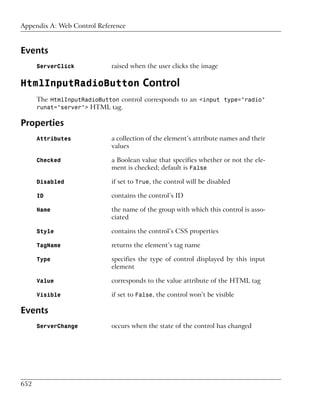
            ' Create command
            comm = New SqlCommand( _
                "SELECT EmployeeID, Name, Username FROM Employees", _
                conn)
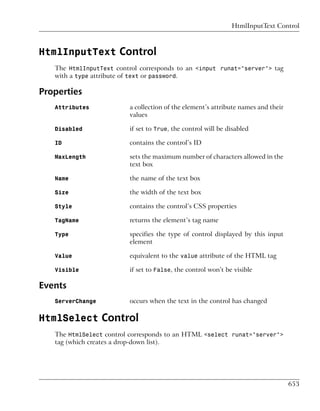
            ' Enclose database code in Try-Catch-Finally
            Try
              ' Open the connection
              conn.Open()
              ' Execute the command
              reader = comm.ExecuteReader()
              ' Bind the reader to the repeater
              employeesRepeater.DataSource = reader
              employeesRepeater.DataBind()
              ' Close the reader
              reader.Close()
            Finally
              ' Close the connection
              conn.Close()
            End Try
          End Sub
      End Class

      C#                                       File: EmployeeDirectory.aspx.cs (excerpt)
      using   System;
      using   System.Data;
      using   System.Configuration;
      using   System.Collections;
      using   System.Web;
      using   System.Web.Security;
      using   System.Web.UI;
      using   System.Web.UI.WebControls;
      using   System.Web.UI.WebControls.WebParts;
      using   System.Web.UI.HtmlControls;
      using   System.Data.SqlClient;


362
Creating the Dorknozzle Employee Directory


public partial class EmployeeDirectory : System.Web.UI.Page
{
    protected void Page_Load(object sender, EventArgs e)
    {
      // Define data objects
      SqlConnection conn;
      SqlCommand comm;
      SqlDataReader reader;
      // Read the connection string from Web.config
      string connectionString =
          ConfigurationManager.ConnectionStrings[
          "Dorknozzle"].ConnectionString;
      // Initialize connection
      conn = new SqlConnection(connectionString);
      // Create command
      comm = new SqlCommand(
        "SELECT EmployeeID, Name, Username FROM Employees",
        conn);
      // Enclose database code in Try-Catch-Finally
      try
      {
        // Open the connection
        conn.Open();
        // Execute the command
        reader = comm.ExecuteReader();
        // Bind the reader to the repeater
        employeesRepeater.DataSource = reader;
        employeesRepeater.DataBind();
        // Close the reader
        reader.Close();
      }
      finally
      {
        // Close the connection
        conn.Close();
      }
    }
}

Most of the code should look familiar, except for the following bit, which reads
the connection string:

Visual Basic                                   File: EmployeeDirectory.aspx.vb (excerpt)
' Read the connection string from Web.config
Dim connectionString As String =


                                                                                           363
Chapter 9: ADO.NET


           ConfigurationManager.ConnectionStrings(
           "Dorknozzle").ConnectionString

      C#                                              File: EmployeeDirectory.aspx.cs (excerpt)
      // Read the connection string from Web.config
      string connectionString = ConfigurationManager.ConnectionStrings[
          "Dorknozzle"].ConnectionString;

      Back in Chapter 5, you learned that you can store various configuration options
      in Web.config. Anticipating that many applications will use Web.config to store
      their connection strings, the designers of .NET reserved a special place in
      Web.config for database connection strings. If you open Web.config now, you’ll
      see an empty connectionStrings element located inside the configuration
      element. Modify Web.config like this:

                                                                     File: Web.config (excerpt)
      <configuration>
        ⋮
        <connectionStrings>
          <add name="Dorknozzle"
              connectionString="Server=localhostSqlExpress;
                  Database=Dorknozzle;Integrated Security=True"
              providerName="System.Data.SqlClient"/>
        </connectionStrings>
        ⋮
      </configuration>

      You can add more connection strings under the connectionStrings element by
      inserting add elements with three attributes: connectionString contains the
      actual connection string, name gives the connection string an identifier that we
      can reference within our code, and providerName indicates the type of data
      provider we want to use for the connection. In our case, providerName="Sys-
      tem.Data.SqlClient" specifies that we’re connecting to an SQL Server database.

      To   retrieve configuration data from Web.config we use the
      ConfigurationManager class, which is located in the System.Configuration
      namespace.

      Also, you may have noticed that we don’t have a Catch block in our database
      handling code. When a Catch block is not present, any exceptions that are raised
      are not caught, although the code in the Finally block is still executed. In other
      words, we’re choosing not to handle potential errors in EmployeeDirectory.aspx,
      but we still want to ensure that the database connection is properly closed if an
      error arises.


364
More Data Binding


  The rest of the code comprises the typical data access routine, involving a
  SqlConnection object, a SqlCommand object, and a SqlDataReader object. Once
  the reader has been filled with the database data, it is bound to the Repeater
  control’s DataSource property, and from this point, the repeater takes control
  and reads all the data from the data source. If you save and run this page, it
  should appear as shown in Figure 9.9.

More Data Binding
  The term “data binding” describes the act of associating a data source with a
  data consumer. In our previous examples, the data source was an SqlDataReader
  object, and the consumer was a Repeater control that read and displayed the
  data. Data binding typically involves setting the DataSource property of the
  consumer object to the data source object, and calling the DataBind method to
  apply the binding:
   Visual Basic
  ' Bind the reader to the repeater
  employeesRepeater.DataSource = reader
  employeesRepeater.DataBind()

   C#
  // Bind the reader to the repeater
  employeesRepeater.DataSource = reader;
  employeesRepeater.DataBind();

  As mentioned earlier, ASP.NET includes a few controls that specialize in display-
  ing data that comes from data sources, but you can also bind data to numerous
  other controls, including lists, menus, text boxes, and so on. To explore the process
  of control binding further, let’s open the Help Desk page again. If you remember,
  we left the Category and Subject drop-down lists empty back in Chapter 5. We
  did so because we knew that, eventually, those items would have to be populated
  dynamically through code. Sure, we could have hard-coded the values ourselves,
  but imagine what would happen if additions or deletions needed to be made to
  that list. In order to make the necessary changes to the controls, we would have
  to open every page that contained lists of categories and subjects.

  It’s preferable to store the lists of categories and subjects in database tables, and
  to bind this data to the drop-down lists in the Help Desk page. Whenever a
  change needs to be made, we can make it once within the database; all the controls
  that are bound to that database table will change automatically.


                                                                                          365
Chapter 9: ADO.NET


      Let’s go ahead and add the necessary code to Page_Load in HelpDesk.aspx to
      populate the DropDownList controls from the database. After the changes are
      made, the lists will be populated with the data you added to your database in
      Chapter 7, as illustrated in Figure 9.10.

      Figure 9.10. A drop-down list created with data binding


      Open HelpDesk.aspx in Design View and double-click an empty space on the
      form to have the signature of the Page_Load method generated for you. Then,
      add the following code:

      Visual Basic                                         File: HelpDesk.aspx.vb (excerpt)
      Imports System.Data.SqlClient
      Imports System.Configuration
      ⋮
      Protected Sub Page_Load(ByVal sender As Object, _
          ByVal e As System.EventArgs) Handles Me.Load
        If Not IsPostBack Then
          ' Define data objects
          Dim conn As SqlConnection
          Dim categoryComm As SqlCommand
          Dim subjectComm As SqlCommand
          Dim reader As SqlDataReader
          ' Read the connection string from Web.config


366
More Data Binding


    Dim connectionString As String = _
         ConfigurationManager.ConnectionStrings( _
         "Dorknozzle").ConnectionString
    ' Initialize connection
    conn = New SqlConnection(connectionString)
    ' Create command to read the help desk categories
    categoryComm = New SqlCommand( _
         "SELECT CategoryID, Category FROM HelpDeskCategories", _
         conn)
    ' Create command to read the help desk subjects
    subjectComm = New SqlCommand( _
      "SELECT SubjectID, Subject FROM HelpDeskSubjects", conn)
    ' Enclose database code in Try-Catch-Finally
    Try
      ' Open the connection
      conn.Open()
      ' Execute the category command
      reader = categoryComm.ExecuteReader()
      ' Populate the list of categories
      categoryList.DataSource = reader
      categoryList.DataValueField = "CategoryID"
      categoryList.DataTextField = "Category"
      categoryList.DataBind()
      ' Close the reader
      reader.Close()
      ' Execute the subjects command
      reader = subjectComm.ExecuteReader()
      ' Populate the list of subjects
      subjectList.DataSource = reader
      subjectList.DataValueField = "SubjectID"
      subjectList.DataTextField = "Subject"
      subjectList.DataBind()
      ' Close the reader
      reader.Close()
    Finally
      ' Close the connection
      conn.Close()
    End Try
  End If
End Sub

C#                                            File: HelpDesk.aspx.cs (excerpt)
using System.Data.SqlClient;
⋮
protected void Page_Load(object sender, EventArgs e)
{


                                                                                 367
Chapter 9: ADO.NET


      if (!IsPostBack)
      {
        // Declare objects
        SqlConnection conn;
        SqlCommand categoryComm;
        SqlCommand subjectComm;
        SqlDataReader reader;
        // Read the connection string from Web.config
        string connectionString =
            ConfigurationManager.ConnectionStrings[
            "Dorknozzle"].ConnectionString;
        // Initialize connection
        conn = new SqlConnection(connectionString);
        // Create command to read the help desk categories
        categoryComm = new SqlCommand(
            "SELECT CategoryID, Category FROM HelpDeskCategories",
            conn);
        // Create command to read the help desk subjects
        subjectComm = new SqlCommand(
            "SELECT SubjectID, Subject FROM HelpDeskSubjects", conn);
        try
        {
          // Open the connection
          conn.Open();
          // Execute the category command
          reader = categoryComm.ExecuteReader();
          // Populate the list of categories
          categoryList.DataSource = reader;
          categoryList.DataValueField = "CategoryID";
          categoryList.DataTextField = "Category";
          categoryList.DataBind();
          // Close the reader
          reader.Close();
          // Execute the subject command
          reader = subjectComm.ExecuteReader();
          // Populate the list of categories
          subjectList.DataSource = reader;
          subjectList.DataValueField = "SubjectID";
          subjectList.DataTextField = "Subject";
          subjectList.DataBind();
          // Close the reader
          reader.Close();
        }
        finally
        {
          // Close the connection


368
More Data Binding


            conn.Close();
        }
    }
}

You’ll notice that the guts of Page_Load are enclosed in an If statement, which
tests to see if IsPostBack is True. But just what is this IsPostBack?

Earlier, in Chapter 2, we explored the View State mechanism that ASP.NET uses
to remember the data in its controls. View State allows your user controls to re-
member their states across page loads. Every time an event that needs to be
handled on the server is raised, the form in the page is submitted to the server—a
process known as a post back. For example, when a button with a server-side
Click event handler is clicked, a post back occurs so that the server-side code
can respond to the Click event.

After such an event occurs, all the controls in the web form retain their values,
but the Page_Load method is executed again regardless. In consequence, if you
click the Submit Request button ten times, Page_Load will be executed ten times.
If the data access code that fills the form with values is in Page_Load, the database
will be queried ten times, even though the data that needs to be displayed on the
page doesn’t change!

It’s here that IsPostBack comes into play. IsPostBack returns False if the web
form is being loaded for the first time; it returns True if the page is being loaded
because the form has been posted back to the server.

               Referring to IsPostBack
               IsPostBack is actually a property of the Page class, but since our web form
               is a class that inherits from Page, we can refer to IsPostBack directly. If
               we wanted to, we could refer to this property as Me.IsPostBack in VB, or
               this.IsPostBack in C#.

               Using the IsPostBack Property Appropriately
               It’s not always appropriate to use IsPostBack as we’re using it here. We’re
               loading the form with data only the first time the page is loaded, because we
               know that the data in the drop-down lists won’t change in response to other
               changes in the form. In cases in which the data in the drop-down lists may
               change, it may be appropriate to access the database and re-fill the form with
               data every time the form is loaded. For example, we might want to take such
               action in a car search form in which, when the user selects a car manufacturer,


                                                                                                 369
Chapter 9: ADO.NET


                     their selection triggers a request to the server to load a list of all models of
                     car made by that manufacturer.

      Once it has been established that this is the first time the page has been loaded,
      the code continues in a pattern similar to the previous code samples. We retrieve
      the connection string from Web.config, create a new connection to the database,
      and set up our SqlCommand objects. In this page, we retrieve two lists—a list of
      help desk request categories and a list of subjects—so we’ll need to execute two
      queries. These queries are stored in two SqlCommand objects: categoryComm and
      subjectComm.

      Next, inside a Try-Catch-Finally block, we execute the commands and bind the
      data in our SqlDataReader to the existing controls. First, we execute
      categoryComm to retrieve a list of categories; then, we bind that list to
      categoryList:

      Visual Basic                                                     File: HelpDesk.aspx.vb (excerpt)
      ' Execute the category command
      reader = categoryComm.ExecuteReader()
      ' Populate the list of categories
      categoryList.DataSource = reader
      categoryList.DataValueField = "CategoryID"
      categoryList.DataTextField = "Category"
      categoryList.DataBind()
      ' Close the reader
      reader.Close()

      C#                                                               File: HelpDesk.aspx.cs (excerpt)
      // Execute the category command
      reader = categoryComm.ExecuteReader();
      // Populate the list of categories
      categoryList.DataSource = reader;
      categoryList.DataValueField = "CategoryID";
      categoryList.DataTextField = "Category";
      categoryList.DataBind();
      // Close the reader
      reader.Close();

      Note that not all controls handle their bindings in the same way. In this case, we
      want the DropDownList control to display the data from the Category column
      of the HelpDeskCategories table. The DropDownList control is cleverly designed,
      and it can also store an ID associated with each item in the list. This can be very
      helpful when we’re performing database operations using the items selected from


370
Inserting Records


   a DropDownList, because the database operations are always carried out using
   the items’ IDs.

   The DataTextField property of the DropDownList needs to be set to the name
   of the column that provides the text to be displayed, and the DataValueField
   must be set to the name of the column that contains the ID. This allows us to
   pass the ID of the category or subject along to any part of the application when
   a user makes a selection from the drop-down lists.

   When the page loads, all the categories and subjects will be loaded into their re-
   spective DropDownList controls, as shown in Figure 9.10.

Inserting Records
   The code that inserts records from your application into a database isn’t too
   different from what we’ve already seen. The main difference is that now we need
   to retrieve data from the user input controls in the page, and use this data as the
   parameters to our INSERT query, rather than simply firing off a simple SELECT
   query. As we discussed earlier in this chapter, to execute such a query, you’d need
   to use the ExecuteNonQuery method of the SqlCommand object, as INSERT queries
   don’t return results.

   When inserting user-entered data into the database, you need to be extra careful
   about validating that data in case the users don’t type whatever you expect them
   to (those users always seem to find unimaginable ways to do things!).

   A typical INSERT statement is coded as follows:
   Visual Basic
   comm = New SqlCommand( _
     "INSERT INTO HelpDesk (Field1, Field2, …) " & _
     "VALUES (@Parameter1, @Parameter2, …)", conn)

   Once the SqlCommand object has been created with a parameterized INSERT query,
   we simply pass in the necessary parameters, similarly to the process we followed
   for SELECT queries:
   Visual Basic
   comm.Parameters.Add("@Parameter1", System.Data.SqlDbType.Type1)
   comm.Parameters("@Parameter1").Value = value1
   comm.Parameters.Add("@Parameter2", System.Data.SqlDbType.Type2)
   comm.Parameters("@Parameter2").Value = value2


                                                                                         371
Chapter 9: ADO.NET


      Keep in mind that in C#, the syntax for accessing the parameters collection is
      slightly different:
      C#
      comm.Parameters.Add("@Parameter1", System.Data.SqlDbType.Type1);
      comm.Parameters["@Parameter1"].Value = value1;
      comm.Parameters.Add("@Parameter2", System.Data.SqlDbType.Type2);
      comm.Parameters["@Parameter2"].Value = value2;

      To demonstrate the process of inserting records into the database, let’s finish the
      help desk page.

      When employees visit the help desk page, they’ll fill out the necessary information,
      click Submit Request, and the information will be saved within the HelpDesk
      table. The HelpDesk table acts as a queue for IT personnel to review and respond
      to reported issues.

      First, open HelpDesk.aspx, and add a label just below the page’s heading.

                                                                 File: HelpDesk.aspx (excerpt)
      <h1>Employee Help Desk Request</h1>
      <asp:Label ID="dbErrorMessage" ForeColor="Red" runat="server" />
      <p>
        Station Number:<br />
        <asp:TextBox id="stationTextBox" runat="server"
            CssClass="textbox" />

      The form already contains numerous validation controls that display error mes-
      sages if they find problems with the entered data. We’re adding this Label control
      to display errors that arise when an exception is caught while the database query
      is executing. This is necessary because, although the validation controls prevent
      most of the errors that could occur, they can’t guarantee that the database query
      will run flawlessly. For example, if the database server is rebooted, and we try to
      run a database query, we’ll receive an error until the database is up and running
      again. There could be other kinds of errors, too. An example of an error message
      is shown in Figure 9.11.

      You already have a Click event handler for the Submit Request button in Help-
      Desk.aspx—we added it in Chapter 6, when we added validation controls to the
      page. The event handler should look like this:

      Visual Basic                                              File: HelpDesk.aspx.vb (excerpt)
      Protected Sub submitButton_Click(ByVal sender As Object, _
          ByVal e As System.EventArgs) Handles submitButton.Click


372
Inserting Records


Figure 9.11. Displaying an error message in the catch block


  If Page.IsValid Then
    ' Code that uses the data entered by the user
  End If
End Sub

C#                                           File: HelpDesk.aspx.cs (excerpt)
protected void submitButton_Click(object sender, EventArgs e)
{
  if (Page.IsValid)
  {
    // Code that uses the data entered by the user
  }
}


                                                                                373
Chapter 9: ADO.NET


      Modify this method by adding code that inserts the user-submitted help desk
      request into the database, as shown below:

      Visual Basic                                       File: HelpDesk.aspx.vb (excerpt)
      Protected Sub submitButton_Click(ByVal sender As Object, _
          ByVal e As System.EventArgs) Handles submitButton.Click
        If Page.IsValid Then
          ' Define data objects
          Dim conn As SqlConnection
          Dim comm As SqlCommand
          ' Read the connection string from Web.config
          Dim connectionString As String = _
              ConfigurationManager.ConnectionStrings( _
              "Dorknozzle").ConnectionString
          ' Initialize connection
          conn = New SqlConnection(connectionString)
          ' Create command
          comm = New SqlCommand( _
              "INSERT INTO HelpDesk (EmployeeID, StationNumber, " & _
              "CategoryID, SubjectID, Description, StatusID) " & _
              "VALUES (@EmployeeID, @StationNumber, @CategoryID, " & _
              "@SubjectID, @Description, @StatusID)", conn)
          ' Add command parameters
          comm.Parameters.Add("@EmployeeID", System.Data.SqlDbType.Int)
          comm.Parameters("@EmployeeID").Value = 5
          comm.Parameters.Add("@StationNumber", _
              System.Data.SqlDbType.Int)
          comm.Parameters("@StationNumber").Value = stationTextBox.Text
          comm.Parameters.Add("@CategoryID", System.Data.SqlDbType.Int)
          comm.Parameters("@CategoryID").Value = _
              categoryList.SelectedItem.Value
          comm.Parameters.Add("@SubjectID", System.Data.SqlDbType.Int)
          comm.Parameters("@SubjectID").Value = _
              subjectList.SelectedItem.Value
          comm.Parameters.Add("@Description", _
              System.Data.SqlDbType.NVarChar, 50)
          comm.Parameters("@Description").Value = _
              descriptionTextBox.Text
          comm.Parameters.Add("@StatusID", System.Data.SqlDbType.Int)
          comm.Parameters("@StatusID").Value = 1
          ' Enclose database code in Try-Catch-Finally
          Try
            ' Open the connection
            conn.Open()
            ' Execute the command
            comm.ExecuteNonQuery()


374
Inserting Records


      ' Reload page if the query executed successfully
      Response.Redirect("HelpDesk.aspx")
    Catch
      ' Display error message
      dbErrorMessage.Text = _
          "Error submitting the help desk request! Please " & _
          "try again later, and/or change the entered data!"
    Finally
      ' Close the connection
      conn.Close()
    End Try
  End If
End Sub

C#                                           File: HelpDesk.aspx.cs (excerpt)
protected void submitButton_Click(object sender, EventArgs e)
{
  if (Page.IsValid)
  {
    // Define data objects
    SqlConnection conn;
    SqlCommand comm;
    // Read the connection string from Web.config
    string connectionString =
        ConfigurationManager.ConnectionStrings[
        "Dorknozzle"].ConnectionString;
    // Initialize connection
    conn = new SqlConnection(connectionString);
    // Create command
    comm = new SqlCommand(
      "INSERT INTO HelpDesk (EmployeeID, StationNumber, " +
      "CategoryID, SubjectID, Description, StatusID) " +
      "VALUES (@EmployeeID, @StationNumber, @CategoryID, " +
      "@SubjectID, @Description, @StatusID)", conn);
    // Add command parameters
    comm.Parameters.Add("@EmployeeID", System.Data.SqlDbType.Int);
    comm.Parameters["@EmployeeID"].Value = 5;
    comm.Parameters.Add("@StationNumber",
        System.Data.SqlDbType.Int);
    comm.Parameters["@StationNumber"].Value = stationTextBox.Text;
    comm.Parameters.Add("@CategoryID", System.Data.SqlDbType.Int);
    comm.Parameters["@CategoryID"].Value =
        categoryList.SelectedItem.Value;
    comm.Parameters.Add("@SubjectID", System.Data.SqlDbType.Int);
    comm.Parameters["@SubjectID"].Value =
        subjectList.SelectedItem.Value;


                                                                                375
Chapter 9: ADO.NET


              comm.Parameters.Add("@Description",
                  System.Data.SqlDbType.NVarChar, 50);
              comm.Parameters["@Description"].Value =
                  descriptionTextBox.Text;
              comm.Parameters.Add("@StatusID", System.Data.SqlDbType.Int);
              comm.Parameters["@StatusID"].Value = 1;
              // Enclose database code in Try-Catch-Finally
              try
              {
                // Open the connection
                conn.Open();
                // Execute the command
                comm.ExecuteNonQuery();
                // Reload page if the query executed successfully
                Response.Redirect("HelpDesk.aspx");
              }
              catch
              {
                // Display error message
                dbErrorMessage.Text =
                    "Error submitting the help desk request! Please " +
                    "try again later, and/or change the entered data!";
              }
              finally
              {
                // Close the connection
                conn.Close();
              }
          }
      }

                   Make Sure you’ve Set the Identity Property!
                   Note that when we’re inserting a new record into the HelpDesk table, we
                   rely on the ID column, RequestID, to be generated automatically for us by
                   the database. If we forget to set RequestID as an identity column, we’ll re-
                   ceive an exception every time we try to add a new help desk request!

      Did you notice the use of the ExecuteNonQuery method? As you know, we use
      this method when we’re executing any SQL query that doesn’t return a set of
      results, such as INSERT, UPDATE, and DELETE queries.

      You’ll remember that, in order to make the example simpler, we hard-coded the
      EmployeeID (to the value of 5), and the Status (to the value of 1). To make the
      application complete, you could add another drop-down list from which employees


376
Inserting Records


Figure 9.12. Submitting the Help Desk Request form


could select their names, and take the IDs from there. For now, just make sure
that the Employees table has a record with an EmployeeID of 5, otherwise the
query won’t execute successfully.

The other potentially unfamiliar part of this code is the final line of the Try block,
which uses Response.Redirect. This method should be quite familiar to deve-
lopers who are experienced with ASP. Response.Redirect simply redirects the
browser to another page. For example, the following line of code redirects the
user to a page called SomeForm.aspx:
Visual Basic
Response.Redirect("SomeForm.aspx")


                                                                                         377
Chapter 9: ADO.NET


      C#
      Response.Redirect("SomeForm.aspx");

      In our example, we redirect the user back to the same web form. Why on earth
      would we want to do that? It’s because of view state—if we didn’t end our event
      handler this way, the same page would display in the browser, but ASP.NET
      would preserve all of the values that the user had typed into the form fields. The
      user might not realize the form had even been submitted, and might submit the
      form repeatedly in confusion. Redirecting the user in the way outlined above
      causes the browser to reload the page from scratch, clearing the form fields to
      indicate the completed submission.

      Save your work and run it in a browser. Now, we can enter help desk information,
      as shown in Figure 9.12, and click Submit Request.

      Once we click Submit Request, the Click event is raised, the submitButton_Click
      method is called, all the parameters from the form are passed into the SQL
      statement, and the data is inserted into the HelpDesk table. We can see this if
      we open the table in SQL Server Management Studio or Visual Web Developer,
      which displays the view shown in Figure 9.13.

      Figure 9.13. The new request appearing in the HelpDesk table


Updating Records
      The major difference between inserting new database records and updating existing
      ones is that if a user wants to update a record, you’ll usually want to display the
      information that already exists in the database table before allowing the user to
      update it. This gives the user a chance to review the data, make the necessary
      changes, and, finally, submit the updated values. Before we get ahead of ourselves,
      though, let’s take a look at the code we’ll use to update records within the database
      table:
      Visual Basic
      comm = New SqlCommand("UPDATE Table " & _
        "SET Field1=@Parameter1, Field2=@Parameter2, … " & _


378
Updating Records


  "WHERE UniqueField=@UniqueFieldParameter", conn)
comm.Parameters.Add("@Parameter1", System.Data.SqlDbType.Type1)
comm.Parameters("@Parameter1").Value = value1
comm.Parameters.Add("@Parameter2", System.Data.SqlDbType.Type2)
comm.Parameters("@Parameter2").Value = value2

C#
comm = new SqlCommand ("UPDATE Table " +
  "SET Field1=@Parameter1, Field2=@Parameter2, … " +
  "WHERE UniqueField=@UniqueFieldParameter", conn);
comm.Parameters.Add("@Parameter1", System.Data.SqlDbType.Type1);
comm.Parameters["@Parameter1"].Value = value1;
comm.Parameters.Add("@Parameter2", System.Data.SqlDbType.Type2);
comm.Parameters["@Parameter2"].Value = value2;

Once the SqlCommand object has been created using this UPDATE statement, we
simply pass in the necessary parameters, as we did with the INSERT statement.
The important thing to remember when updating records is that you must take
care to perform the UPDATE on the correct record. To do this, you must include
a WHERE clause that specifies the correct record using a value from a suitable
unique column (usually the primary key), as shown above.

            Handle Updates with Care!
            When updating a table with some new data, if you don’t specify a WHERE
            clause, every record in the table will be updated with the new data, and
            (usually) there’s no way to undo the action!

Let’s put all this theory into practice as we build the Admin Tools page. The
database doesn’t contain a table that’s dedicated to this page; however, we’ll use
the Admin Tools page as a centralized location for a number of tables associated
with other pages, including the Employees and Departments tables. For instance,
in this section, we’ll allow an administrator to change the details of a specific
employee.

Create a new web form named AdminTools.aspx in the same way you created
the other web forms we’ve built so far. Use the Dorknozzle.master master page
and a code-behind file. Then, add the following code to the content placeholder,
and modify the page title as shown below.

                                                         File: AdminTools.aspx (excerpt)
<%@ Page Language="VB" MasterPageFile="~/Dorknozzle.master"
    AutoEventWireup="true" CodeFile="AdminTools.aspx.vb"
    Inherits="AdminTools" title="Dorknozzle Admin Tools" %>


                                                                                           379
Chapter 9: ADO.NET


      <asp:Content ID="Content1"
          ContentPlaceHolderID="ContentPlaceHolder1" runat="Server">
        <h1>Admin Tools</h1>
        <asp:Label ID="dbErrorLabel" ForeColor="Red" runat="server" />
        <p>
          Select an employee to update:<br />
          <asp:DropDownList ID="employeesList" runat="server" />
          <asp:Button ID="selectButton" Text="Select" runat="server" />
        </p>
        <p>
          <asp:Label ID="nameLabel" runat="server"
              Text="Name:" Width="100" />
          <asp:TextBox ID="nameTextBox" runat="server" />
        </p>
        <p>
          <asp:Label ID="usernameLabel" runat="server"
              Text="Username:" Width="100" />
          <asp:TextBox ID="usernameTextBox" runat="server" />
        </p>
        <p>
          <asp:Label ID="addressLabel" runat="server"
              Text="Address:" Width="100" />
          <asp:TextBox ID="addressTextBox" runat="server" />
        </p>
        <p>
          <asp:Label ID="cityLabel" runat="server"
              Text="City:" Width="100" />
          <asp:TextBox ID="cityTextBox" runat="server" />
        </p>
        <p>
          <asp:Label ID="stateLabel" runat="server"
              Text="State:" Width="100" />
          <asp:TextBox ID="stateTextBox" runat="server" />
        </p>
        <p>
          <asp:Label ID="zipLabel" runat="server"
              Text="Zip:" Width="100" />
          <asp:TextBox ID="zipTextBox" runat="server" />
        </p>
        <p>
          <asp:Label ID="homePhoneLabel" runat="server"
              Text="Home Phone:" Width="100" />
          <asp:TextBox ID="homePhoneTextBox" runat="server" />
        </p>
        <p>
          <asp:Label ID="extensionLabel" runat="server"


380
Updating Records


        Text="Extension:" Width="100" />
    <asp:TextBox ID="extensionTextBox" runat="server" />
  </p>
  <p>
    <asp:Label ID="mobilePhoneLabel" runat="server"
        Text="Mobile Phone:" Width="100" />
    <asp:TextBox ID="mobilePhoneTextBox" runat="server" />
  </p>
  <p>
    <asp:Button ID="updateButton" Text="Update Employee"
        Enabled="False" runat="server" />
  </p>
</asp:Content>

You can switch to Design View to ensure you created your form correctly; it
should look like the one shown in Figure 9.14.

Figure 9.14. Viewing the Admin Tools page in Design View


We’ve added the following controls to our form:


                                                                              381
Chapter 9: ADO.NET


      employeesList
           In order for administrators to select the record for the employee whose details
           they want to update, we’ll first have to bind the Employees table to this
           DropDownList control.

      selectButton
           Once the users select the record for the employee whose details they want
           to update, they’ll click this Button control. The Click event will be raised,
           and the Employee ID selected from employeesList will be passed to the web
           form—this will be used in an SqlCommand to retrieve the details for this em-
           ployee.

      nameLabel, usernameLabel, addressLabel, cityLabel, stateLabel, zipLabel,
      homePhoneLabel, extensionLabel, mobilePhoneLabel
         These are the labels for the following TextBox controls.

      nameTextBox, usernameTextBox, addressTextBox, cityTextBox, stateTextBox,
      zipTextBox, homePhoneTextBox, extensionTextBox, mobilePhoneTextBox
         Within the selectButton’s Click event handler, we’ll add some code that
         binds user information to these TextBox controls.

      updateButton
           When the users make the desired changes to the TextBox controls listed
           above, they’ll click this button to update the database.

      dbErrorLabel
         We use dbErrorLabel to display an error message if a database operation
           fails.

      Our first task is to populate the employeesList control with the list of employees
      from our database. Use Visual Web Developer to generate the page’s Load event
      handler, then add this code:

      Visual Basic                                            File: AdminTools.aspx.vb (excerpt)
      Imports System.Data.SqlClient
      Imports System.Configuration

      Partial Class AdminTools
          Inherits System.Web.UI.Page

         Protected Sub Page_Load(ByVal sender As Object, _
             ByVal e As System.EventArgs) Handles Me.Load
           ' Read the employees list when initially loading the page
           If Not IsPostBack Then


382
Updating Records


    LoadEmployeesList()
  End If
End Sub

Private Sub LoadEmployeesList()
  ' Define data objects
  Dim conn As SqlConnection
  Dim comm As SqlCommand
  Dim reader As SqlDataReader
  ' Read the connection string from Web.config
  Dim connectionString As String = _
      ConfigurationManager.ConnectionStrings( _
      "Dorknozzle").ConnectionString
  ' Initialize connection
  conn = New SqlConnection(connectionString)
  ' Create command
  comm = New SqlCommand( _
      "SELECT EmployeeID, Name FROM Employees", conn)
  ' Enclose database code in Try-Catch-Finally
  Try
    ' Open the connection
    conn.Open()
    ' Execute the command
    reader = comm.ExecuteReader()
    ' Populate the list of employees
    employeesList.DataSource = reader
    employeesList.DataValueField = "EmployeeID"
    employeesList.DataTextField = "Name"
    employeesList.DataBind()
    ' Close the reader
    reader.Close()
  Catch
    ' Display error message
    dbErrorLabel.Text = _
        "Error loading the list of employees!<br />"
  Finally
    ' Close the connection
    conn.Close()
  End Try
  ' Disable the update button
  updateButton.Enabled = False
  ' Clear any values in the TextBox controls
  nameTextBox.Text = ""
  usernameTextBox.Text = ""
  addressTextBox.Text = ""
  cityTextBox.Text = ""


                                                                    383
Chapter 9: ADO.NET


             stateTextBox.Text = ""
             zipTextBox.Text = ""
             homePhoneTextBox.Text = ""
             extensionTextBox.Text = ""
             mobilePhoneTextBox.Text = ""
           End Sub

      End Class

      C#                                             File: AdminTools.aspx.cs (excerpt)
      using    System;
      using    System.Data;
      using    System.Configuration;
      using    System.Collections;
      using    System.Web;
      using    System.Web.Security;
      using    System.Web.UI;
      using    System.Web.UI.WebControls;
      using    System.Web.UI.WebControls.WebParts;
      using    System.Web.UI.HtmlControls;
      using    System.Data.SqlClient;

      public partial class AdminTools : System.Web.UI.Page
      {
        protected void Page_Load(object sender, EventArgs e)
        {
          // Read the employees list when initially loading the page
          if (!IsPostBack)
          {
            LoadEmployeesList();
          }
        }
        private void LoadEmployeesList()
        {
          // Declare objects
          SqlConnection conn;
          SqlCommand comm;
          SqlDataReader reader;
          // Read the connection string from Web.config
          string connectionString =
              ConfigurationManager.ConnectionStrings[
              "Dorknozzle"].ConnectionString;
          // Initialize connection
          conn = new SqlConnection(connectionString);
          // Create command
          comm = new SqlCommand(


384
Updating Records


            "SELECT EmployeeID, Name FROM Employees", conn);
        // Enclose database code in Try-Catch-Finally
        try
        {
          // Open the connection
          conn.Open();
          // Execute the command
          reader = comm.ExecuteReader();
          // Populate the list of categories
          employeesList.DataSource = reader;
          employeesList.DataValueField = "EmployeeID";
          employeesList.DataTextField = "Name";
          employeesList.DataBind();
          // Close the reader
          reader.Close();
        }
        catch
        {
          // Display error message
          dbErrorLabel.Text =
              "Error loading the list of employees!<br />";
        }
        finally
        {
          // Close the connection
          conn.Close();
        }
        // Disable the update button
        updateButton.Enabled = false;
        // Clear any values in the TextBox controls
        nameTextBox.Text = "";
        usernameTextBox.Text = "";
        addressTextBox.Text = "";
        cityTextBox.Text = "";
        stateTextBox.Text = "";
        zipTextBox.Text = "";
        homePhoneTextBox.Text = "";
        extensionTextBox.Text = "";
        mobilePhoneTextBox.Text = "";
    }
}

Note that we’ve put the code to populate the employeesList in a separate sub-
routine called LoadEmployeeList. Later on, we’ll need to reload the names in
this list in case any of the names have been edited; we put this code into its own
subroutine so that we don’t need to repeat it.


                                                                                     385
Chapter 9: ADO.NET


      Load the page now, and test that the list of employees is bound to employeeList,
      and that the page displays as shown in Figure 9.15.

      Figure 9.15. Displaying the list of employees in a drop-down


      As you can see, all the employees are listed within the employee drop-down menu.
      Again, the employees’ names are shown because the Name field is bound to the
      DataTextField property of the DropDownList control. Similarly, the EmployeeID
      field is bound to the DataValueField property of the DropDownList control,
      ensuring that a selected employee’s ID will be submitted as the value of the field.

      We need to undertake two more tasks to complete this page’s functionality. First,
      we need to handle the Click event of the Select button so that it will load the
      form with data about the selected employee. Then, we’ll need to handle the Click
      event of the Update button, to update the information for the selected employee.
      Let’s start with the Select button. Double-click the button in Design View to have
      the Click event handler generated for you, then complete the code like this:

      Visual Basic                                           File: AdminTools.aspx.vb (excerpt)
      Protected Sub selectButton_Click(ByVal sender As Object, _
          ByVal e As System.EventArgs) Handles selectButton.Click


386
Updating Records


Figure 9.16. Displaying employee details in the update form


 ' Define data objects
 Dim conn As SqlConnection
 Dim comm As SqlCommand
 Dim reader As SqlDataReader
 ' Read the connection string from Web.config
 Dim connectionString As String = _
     ConfigurationManager.ConnectionStrings( _
     "Dorknozzle").ConnectionString
 ' Initialize connection
 conn = New SqlConnection(connectionString)
 ' Create command
 comm = New SqlCommand( _
     "SELECT Name, Username, Address, City, State, Zip, " & _
     "HomePhone, Extension, MobilePhone FROM Employees " & _
     "WHERE EmployeeID = @EmployeeID", conn)


                                                                   387
Chapter 9: ADO.NET


        ' Add command parameters
        comm.Parameters.Add("@EmployeeID", Data.SqlDbType.Int)
        comm.Parameters.Item("@EmployeeID").Value = _
            employeesList.SelectedItem.Value
        ' Enclose database code in Try-Catch-Finally
        Try
          ' Open the connection
          conn.Open()
          ' Execute the command
          reader = comm.ExecuteReader()
          ' Display the data on the form
          If reader.Read() Then
            nameTextBox.Text = reader.Item("Name").ToString()
            usernameTextBox.Text = reader.Item("Username").ToString()
            addressTextBox.Text = reader.Item("Address").ToString()
            cityTextBox.Text = reader.Item("City").ToString()
            stateTextBox.Text = reader.Item("State").ToString()
            zipTextBox.Text = reader.Item("Zip").ToString()
            homePhoneTextBox.Text = reader.Item("HomePhone").ToString()
            extensionTextBox.Text = reader.Item("Extension").ToString()
            mobilePhoneTextBox.Text = _
                 reader.Item("MobilePhone").ToString()
          End If
          ' Close the reader
          reader.Close()
          ' Enable the Update button
          updateButton.Enabled = True
        Catch
          ' Display error message
          dbErrorLabel.Text = _
              "Error loading the employee details!<br />"
        Finally
          ' Close the connection
            conn.Close()
        End Try
      End Sub

      C#                                          File: AdminTools.aspx.cs (excerpt)
      protected void selectButton_Click(object sender, EventArgs e)
      {
        // Declare objects
        SqlConnection conn;
        SqlCommand comm;
        SqlDataReader reader;
        // Read the connection string from Web.config
        string connectionString =


388
Updating Records


    ConfigurationManager.ConnectionStrings[
    "Dorknozzle"].ConnectionString;
// Initialize connection
conn = new SqlConnection(connectionString);
// Create command
comm = new SqlCommand(
    "SELECT Name, Username, Address, City, State, Zip, " +
    "HomePhone, Extension, MobilePhone FROM Employees " +
    "WHERE EmployeeID = @EmployeeID", conn);
// Add command parameters
comm.Parameters.Add("@EmployeeID", SqlDbType.Int);
comm.Parameters["@EmployeeID"].Value =
    employeesList.SelectedItem.Value;
// Enclose database code in Try-Catch-Finally
try
{
  // Open the connection
  conn.Open();
  // Execute the command
  reader = comm.ExecuteReader();
  // Display the data on the form
  if (reader.Read())
  {
    nameTextBox.Text = reader["Name"].ToString();
    usernameTextBox.Text = reader["Username"].ToString();
    addressTextBox.Text = reader["Address"].ToString();
    cityTextBox.Text = reader["City"].ToString();
    stateTextBox.Text = reader["State"].ToString();
    zipTextBox.Text = reader["Zip"].ToString();
    homePhoneTextBox.Text = reader["HomePhone"].ToString();
    extensionTextBox.Text = reader["Extension"].ToString();
    mobilePhoneTextBox.Text = reader["MobilePhone"].ToString();
  }
  // Close the reader
  reader.Close();
  // Enable the Update button
  updateButton.Enabled = true;
}
catch
{
  // Display error message
  dbErrorLabel.Text =
      "Error loading the employee details!<br />";
}
finally
{


                                                                  389
Chapter 9: ADO.NET


              // Close the connection
              conn.Close();
          }
      }

      If you load the page, select an employee, and click the Select button, the form
      will be populated with the employee’s details.

      The last thing we need to do is add code to handle the update interaction. You
      may have noticed that the Button control has an Enabled property, which is
      initially set to False. The reason for this is simple: you don’t want your users
      updating information before they’ve selected an employee. You want them to
      use the Update Employee button only when data for an existing employee has
      been loaded into the TextBox controls. If you look at the selectButton_Click
      method just before the Catch statement, you’ll notice that we enable this button
      after binding the user data to the fields.

      Now that these TextBox controls are populated and the Update Employee button
      is enabled, let’s add some code to update an employee’s details. Open Admin-
      Tools.aspx in Design View, and double-click the Update Employee button.
      Visual Web Developer will generate the signature of the event handler subroutine
      (updateButton_Click) for you. Finally, let’s add the necessary code to handle
      updating the employee data:

      Visual Basic                                         File: AdminTools.aspx.vb (excerpt)
      Protected Sub updateButton_Click(ByVal sender As Object, _
          ByVal e As System.EventArgs) Handles updateButton.Click
        ' Define data objects
        Dim conn As SqlConnection
        Dim comm As SqlCommand
        ' Read the connection string from Web.config
        Dim connectionString As String = _
            ConfigurationManager.ConnectionStrings( _
            "Dorknozzle").ConnectionString
        ' Initialize connection
        conn = New SqlConnection(connectionString)
        ' Create command
        comm = New SqlCommand( _
            "UPDATE Employees SET Name=@Name, Username=@Username, " & _
            "Address=@Address, City=@City, State=@State, Zip=@Zip," & _
            "HomePhone=@HomePhone, Extension=@Extension, " & _
            "MobilePhone=@MobilePhone " & _
            "WHERE EmployeeID=@EmployeeID", conn)
        ' Add command parameters


390
Updating Records


  comm.Parameters.Add("@Name", System.Data.SqlDbType.NVarChar, 50)
  comm.Parameters("@Name").Value = nameTextBox.Text
  comm.Parameters.Add("@Username", _
      System.Data.SqlDbType.NVarChar, 50)
  comm.Parameters("@Username").Value = usernameTextBox.Text
  comm.Parameters.Add("@Address", _
      System.Data.SqlDbType.NVarChar, 50)
  comm.Parameters("@Address").Value = addressTextBox.Text
  comm.Parameters.Add("@City", _
      System.Data.SqlDbType.NVarChar, 50)
  comm.Parameters("@City").Value = cityTextBox.Text
  comm.Parameters.Add("@State", _
      System.Data.SqlDbType.NVarChar, 50)
  comm.Parameters("@State").Value = stateTextBox.Text
  comm.Parameters.Add("@Zip", System.Data.SqlDbType.NVarChar, 50)
  comm.Parameters("@Zip").Value = zipTextBox.Text
  comm.Parameters.Add("@HomePhone", _
      System.Data.SqlDbType.NVarChar, 50)
  comm.Parameters("@HomePhone").Value = homePhoneTextBox.Text
  comm.Parameters.Add("@Extension", _
      System.Data.SqlDbType.NVarChar, 50)
  comm.Parameters("@Extension").Value = extensionTextBox.Text
  comm.Parameters.Add("@MobilePhone", _
      System.Data.SqlDbType.NVarChar, 50)
  comm.Parameters("@MobilePhone").Value = mobilePhoneTextBox.Text
  comm.Parameters.Add("@EmployeeID", System.Data.SqlDbType.Int)
  comm.Parameters("@EmployeeID").Value = _
      employeesList.SelectedItem.Value
  ' Enclose database code in Try-Catch-Finally
  Try
    ' Open the connection
    conn.Open()
    ' Execute the command
    comm.ExecuteNonQuery()
  Catch
    ' Display error message
    dbErrorLabel.Text = _
        "Error updating the employee details!<br />"
  Finally
    ' Close the connection
    conn.Close()
  End Try
  ' Refresh the employees list
  LoadEmployeesList()
End Sub


                                                                     391
Chapter 9: ADO.NET


      C#                                          File: AdminTools.aspx.cs (excerpt)
      protected void updateButton_Click(object sender, EventArgs e)
      {
        // Declare objects
        SqlConnection conn;
        SqlCommand comm;
        // Read the connection string from Web.config
        string connectionString =
          ConfigurationManager.ConnectionStrings[
          "Dorknozzle"].ConnectionString;
        // Initialize connection
        conn = new SqlConnection(connectionString);
        // Create command
        comm = new SqlCommand(
            "UPDATE Employees SET Name=@Name, Username=@Username, " +
            "Address=@Address, City=@City, State=@State, Zip=@Zip, " +
            "HomePhone=@HomePhone, Extension=@Extension, " +
            "MobilePhone=@MobilePhone " +
            "WHERE EmployeeID=@EmployeeID", conn);
        // Add command parameters
        comm.Parameters.Add("@Name",
            System.Data.SqlDbType.NVarChar,50);
        comm.Parameters["@Name"].Value = nameTextBox.Text;
        comm.Parameters.Add("@Username",
            System.Data.SqlDbType.NVarChar, 50);
        comm.Parameters["@Username"].Value = usernameTextBox.Text;
        comm.Parameters.Add("@Address",
            System.Data.SqlDbType.NVarChar, 50);
        comm.Parameters["@Address"].Value = addressTextBox.Text;
        comm.Parameters.Add("@City",
            System.Data.SqlDbType.NVarChar, 50);
        comm.Parameters["@City"].Value = cityTextBox.Text;
        comm.Parameters.Add("@State",
            System.Data.SqlDbType.NVarChar, 50);
        comm.Parameters["@State"].Value = stateTextBox.Text;
        comm.Parameters.Add("@Zip",
            System.Data.SqlDbType.NVarChar, 50);
        comm.Parameters["@Zip"].Value = zipTextBox.Text;
        comm.Parameters.Add("@HomePhone",
            System.Data.SqlDbType.NVarChar, 50);
        comm.Parameters["@HomePhone"].Value = homePhoneTextBox.Text;
        comm.Parameters.Add("@Extension",
            System.Data.SqlDbType.NVarChar, 50);
        comm.Parameters["@Extension"].Value = extensionTextBox.Text;
        comm.Parameters.Add("@MobilePhone",
            System.Data.SqlDbType.NVarChar, 50);


392
Updating Records


    comm.Parameters["@MobilePhone"].Value = mobilePhoneTextBox.Text;
    comm.Parameters.Add("@EmployeeID", System.Data.SqlDbType.Int);
    comm.Parameters["@EmployeeID"].Value =
        employeesList.SelectedItem.Value;
    // Enclose database code in Try-Catch-Finally
    try
    {
      // Open the connection
      conn.Open();
      // Execute the command
      comm.ExecuteNonQuery();
    }
    catch
    {
      // Display error message
      dbErrorLabel.Text =
          "Error updating the employee details!<br />";
    }
    finally
    {
      // Close the connection
      conn.Close();
    }
    // Refresh the employees list
    LoadEmployeesList();
}

As you can see, the only real differences between this and the help desk page are
that we’re using an UPDATE query instead of an INSERT query, and we’ve had to
let the user choose an entry from the database to update. We use that selection
not only to populate the form fields with the existing database values, but to re-
strict our UPDATE query so that it only affects that one record.

You’ll also notice that at the very end of this method, we call LoadEmployeesList
to reload the list of employees, as the user may have changed the name of one
of the employees. LoadEmployeesList also disables the Update Employee button
and clears the contents of the page’s TextBox controls. Once LoadEmployeesList
has executed, the page is ready for the user to select another employee for updat-
ing.

As with all examples in this book, you can get this page’s completed code from
the code archive.


                                                                                     393
Chapter 9: ADO.NET


Deleting Records
      Just as we can insert and update records within the database, we can also delete
      them. Again, most of the code for deleting records resembles that which we’ve
      already seen. The only major part that changes is the SQL statement within the
      command:
      Visual Basic
      comm = New SqlCommand("DELETE FROM Table " & _
          "WHERE UniqueField=@UniqueFieldParameter", conn)

      C#
      comm = new SqlCommand("DELETE FROM Table " +
          "WHERE UniqueField=@UniqueFieldParameter", conn)

      Once we’ve created the DELETE query’s SqlCommand object, we can simply pass
      in the necessary parameter:
      Visual Basic
      comm.Parameters.Add("@UniqueFieldParameter", _
          System.Data.SqlDbType.Type)
      comm.Parameters("@UniqueFieldParameter").Value = UniqueValue

      C#
      comm.Parameters.Add("@UniqueFieldParameter",
          System.Data.SqlDbType.Type);
      comm.Parameters["@UniqueFieldParameter"].Value = UniqueValue;

      To demonstrate the process of deleting an item from a database table, we’ll expand
      on the Admin Tools page. Since we’re allowing administrators to update inform-
      ation within the Employees table, let’s also give them the ability to delete an
      employee’s record from the database. To do this, we’ll place a new Button control
      for deleting the selected record next to our Update Employee button.

      Start by adding the new control at the end of AdminTools.aspx:

                                                              File: AdminTools.aspx (excerpt)
      <p>
        <asp:Button ID="updateButton" Text="Update Employee"
            Enabled="False" runat="server" />
        <asp:Button ID="deleteButton" Text="Delete Employee"
            Enabled="False" runat="server" />
      </p>


394
Deleting Records


Next, update selectButton_Click to enable the Delete Employee button when
an employee is selected:

Visual Basic                                        File: AdminTools.aspx.vb (excerpt)
' Enable the Update button
updateButton.Enabled = True
' Enable the Delete button
deleteButton.Enabled = True

Visual Basic                                        File: AdminTools.aspx.vb (excerpt)
// Enable the Update    button
updateButton.Enabled    = true;
// Enable the Delete    button
deleteButton.Enabled    = true;

Next, write the code for its Click event handler. Remember that you can double-
click the button in Visual Web Developer’s Design View to have the signature
generated for you.

Visual Basic                                        File: AdminTools.aspx.vb (excerpt)
Protected Sub deleteButton_Click(ByVal sender As Object, _
    ByVal e As System.EventArgs) Handles deleteButton.Click
  ' Define data objects
  Dim conn As SqlConnection
  Dim comm As SqlCommand
  ' Read the connection string from Web.config
  Dim connectionString As String = _
      ConfigurationManager.ConnectionStrings( _
      "Dorknozzle").ConnectionString
  ' Initialize connection
  conn = New SqlConnection(connectionString)
  ' Create command
  comm = New SqlCommand( _
      "DELETE FROM Employees " & _
      "WHERE EmployeeID=@EmployeeID", conn)
  ' Add command parameters
  comm.Parameters.Add("@EmployeeID", System.Data.SqlDbType.Int)
  comm.Parameters("@EmployeeID").Value = _
      employeesList.SelectedItem.Value
  Try
    ' Open the connection
    conn.Open()
    ' Execute the command
    comm.ExecuteNonQuery()
  Catch


                                                                                         395
Chapter 9: ADO.NET


          ' Display error message
          dbErrorLabel.Text = "Error deleting employee!<br />"
        Finally
          ' Close the connection
            conn.Close()
        End Try
        ' Refresh the employees list
        LoadEmployeesList()
      End Sub

      C#                                          File: AdminTools.aspx.cs (excerpt)
      protected void deleteButton_Click(object sender, EventArgs e)
      {
        // Define data objects
        SqlConnection conn;
        SqlCommand comm;
        // Read the connection string from Web.config
        string connectionString =
            ConfigurationManager.ConnectionStrings[
            "Dorknozzle"].ConnectionString;
        // Initialize connection
        conn = new SqlConnection(connectionString);
        // Create command
        comm = new SqlCommand("DELETE FROM Employees " +
            "WHERE EmployeeID = @EmployeeID", conn);
        // Add command parameters
        comm.Parameters.Add("@EmployeeID", System.Data.SqlDbType.Int);
        comm.Parameters["@EmployeeID"].Value =
            employeesList.SelectedItem.Value;
        try
        {
          // Open the connection
          conn.Open();
          // Execute the command
          comm.ExecuteNonQuery();
        }
        catch
        {
          // Display error message
          dbErrorLabel.Text = "Error deleting employee!<br />";
        }
        finally
        {
          // Close the connection
          conn.Close();
        }


396
Using Stored Procedures


      // Refresh the employees list
      LoadEmployeesList();
  }

  Save your work and test it within the browser. For testing purposes, feel free to
  add more records to the Employees table using SQL Server Management Studio,
  then delete them through the Dorknozzle application (if you do that, note you’ll
  need to refresh the view of the Employees table manually in order to see the
  changes).

Using Stored Procedures
  In the previous chapter, you learned how to add stored procedures to your data-
  base. As far as ADO.NET is concerned, a stored procedure is much like a query
  that has parameters.

  Let’s assume you’d prefer to use a stored procedure to add help desk requests,
  rather than typing the SQL code in HelpDesk.aspx.vb, or HelpDesk.aspx.cs.
  The first step would be to add to your Dorknozzle database a stored procedure,
  which would look something like this:

  CREATE PROCEDURE InsertHelpDesk
  (
     @EmployeeID int,
     @StationNumber int,
     @CategoryID int,
     @SubjectID int,
     @Description nvarchar,
     @StatusID int
  )
  AS
  INSERT INTO HelpDesk (EmployeeID, StationNumber, CategoryID,
       SubjectID, Description, StatusID)
  VALUES (@EmployeeID, @StationNumber, @CategoryID, @SubjectID,
       @Description, @StatusID)

  To use this stored procedure, you’d need to modify the submitButton_Click
  method in HelpDesk.aspx.vb (or HelpDesk.aspx.cs) as shown below:

   Visual Basic                                           File: HelpDesk.aspx.vb (excerpt)
  ' Define data objects
  Dim conn As SqlConnection
  Dim comm As SqlCommand
  ' Read the connection string from Web.config


                                                                                             397
Chapter 9: ADO.NET


      Dim connectionString As String = _
          ConfigurationManager.ConnectionStrings( _
          "Dorknozzle").ConnectionString
      ' Initialize connection
      conn = New SqlConnection(connectionString)
      ' Create command
      comm = New SqlCommand("InsertHelpDesk", conn)
      ' Specify we're calling a stored procedure
      comm.CommandType = System.Data.CommandType.StoredProcedure
      ' Add command parameters
      comm.Parameters.Add("@EmployeeID", System.Data.SqlDbType.Int)
      comm.Parameters("@EmployeeID").Value = 5
      comm.Parameters.Add("@StationNumber", System.Data.SqlDbType.Int)
      comm.Parameters("@StationNumber").Value = stationTextBox.Text
      comm.Parameters.Add("@CategoryID", System.Data.SqlDbType.Int)
      comm.Parameters("@CategoryID").Value = _
          categoryList.SelectedItem.Value
      comm.Parameters.Add("@SubjectID", System.Data.SqlDbType.Int)
      comm.Parameters("@SubjectID").Value = _
          subjectList.SelectedItem.Value
      comm.Parameters.Add("@Description", _
          System.Data.SqlDbType.NVarChar, 50)
      comm.Parameters("@Description").Value = descriptionTextBox.Text
      comm.Parameters.Add("@StatusID", System.Data.SqlDbType.Int)
      comm.Parameters("@StatusID").Value = 1

      C#                                           File: HelpDesk.aspx.cs (excerpt)
      // Define data objects
      SqlConnection conn;
      SqlCommand comm;
      // Read the connection string from Web.config
      string connectionString = ConfigurationManager.ConnectionStrings[
          "Dorknozzle"].ConnectionString;
      // Initialize connection
      conn = new SqlConnection(connectionString);
      // Create command
      comm = new SqlCommand("InsertHelpDesk", conn);
      // Specify we're calling a stored procedure
      comm.CommandType = System.Data.CommandType.StoredProcedure;
      // Add command parameters
      comm.Parameters.Add("@EmployeeID", System.Data.SqlDbType.Int);
      comm.Parameters["@EmployeeID"].Value = 5;
      comm.Parameters.Add("@StationNumber", System.Data.SqlDbType.Int);
      comm.Parameters["@StationNumber"].Value = stationTextBox.Text;
      comm.Parameters.Add("@CategoryID", System.Data.SqlDbType.Int);
      comm.Parameters["@CategoryID"].Value =


398
Summary


     categoryList.SelectedItem.Value;
 comm.Parameters.Add("@SubjectID", System.Data.SqlDbType.Int);
 comm.Parameters["@SubjectID"].Value =
     subjectList.SelectedItem.Value;
 comm.Parameters.Add("@Description",
     System.Data.SqlDbType.NVarChar, 50);
 comm.Parameters["@Description"].Value = descriptionTextBox.Text;
 comm.Parameters.Add("@StatusID", System.Data.SqlDbType.Int);
 comm.Parameters["@StatusID"].Value = 1;

 If you now load the Help Desk page, you’ll see that it works just as it used to,
 but behind the scenes, it’s making use of a stored procedure. You can verify that
 this approach works by adding a new help desk request through the web form,
 then opening the HelpDesk table and checking for your new help desk request.

 As you can see, using stored procedures is very easy. Apart for specifying the
 procedure’s name, you also need to set the CommandType of the SqlCommand object
 to StoredProcedure. That’s it! Everything else is the same as when working with
 a parameterized query.


Summary
 In this chapter, you learned how to create simple web applications that interact
 with databases. First, you learned about the various classes included with
 ADO.NET, such as SqlConnection, SqlCommand, and SqlDataReader. Then,
 you learned how to use these classes to create simple applications that query the
 database, insert records into a database, update records within a database, and
 delete records from a database. You also learned important techniques for
 querying database data, including using parameters and control binding. Later
 in the chapter, you learned how to improve application performance through the
 use of stored procedures.

 The next chapter will expand on what we learned here, and introduce a new
 control that’s often used to display data from a database: the DataList.


                                                                                     399
400
10                        Displaying Content Using Data
                          Lists

Similar to the Repeater control, the DataList control allows you to bind and
customize the presentation of database data. The fundamental difference is that
while the Repeater requires you to build the template from scratch (allowing
you to customize the generated HTML output in any way you like), the DataList
control automatically generates a single-column HTML table for you, like the
one shown below:

<table>
  <tr>
    <td>
       <p>Employee ID: 1</p>
       <p>Name: Zak Ruvalcaba</p>
       <p>Username: zak</p>
    </td>
  </tr>
  <tr>
    <td>
       <p>Employee ID: 2</p>
       <p>Name: Jessica Ruvalcaba</p>
       <p>Username: jessica</p>
    </td>
  </tr>
  <tr>
    <td>
       <p>Employee ID: 3</p>
Chapter 10: Displaying Content Using Data Lists


            <p>Name: Ted Lindsey</p>
            <p>Username: ted</p>
          </td>
        </tr>
        ⋮
      </table>

      As you can see, DataList has, as the name implies, been designed to display lists
      of data, and while it’s less flexible than the Repeater, it contains more built-in
      functionality that can help make the implementation of certain features faster
      and easier. In the following pages, you’ll learn:

      ❑ the basics of the DataList control

      ❑ how to handle DataList events

      ❑ how to edit DataList items

      ❑ how to handle the controls inside the DataList templates

      ❑ how to use Visual Web Developer to edit the DataList

      Let’s get started!


DataList Basics
      To learn how to use the DataList, we’ll update the Dorknozzle Employee Dir-
      ectory page to use a DataList control instead of a Repeater control. This update
      will be particularly easy to do because the Employee Directory already has a list-
      like format.

      If you now open EmployeeDirectory.aspx, you’ll see the Repeater control is
      used like this:

                                                       File: EmployeeDirectory.aspx (excerpt)
      <asp:Repeater id="employeesRepeater" runat="server">
        <ItemTemplate>
          Employee ID:
          <strong><%#Eval("EmployeeID")%></strong><br />
          Name: <strong><%#Eval("Name")%></strong><br />
          Username: <strong><%#Eval("Username")%></strong>
        </ItemTemplate>
        <SeparatorTemplate>


402
DataList Basics


    <hr />
  </SeparatorTemplate>
</asp:Repeater>

You can see the output of this code in Figure 9.9 in Chapter 9. Now, let’s update
the employee directory page to use a DataList instead of a Repeater. We can
do this simply by replacing the <asp:Repeater> and </asp:Repeater> tags with
the tags for a DataList:

                                                File: EmployeeDirectory.aspx (excerpt)
<asp:DataList id="employeesList" runat="server">
  <ItemTemplate>
    Employee ID:
    <strong><%#Eval("EmployeeID")%></strong><br />
    Name: <strong><%#Eval("Name")%></strong><br />
    Username: <strong><%#Eval("Username")%></strong>
  </ItemTemplate>
  <SeparatorTemplate>
    <hr />
  </SeparatorTemplate>
</asp:DataList>

As we’ve changed the ID for this control, we’ll need to change the name of the
control in the code-behind file as well. Locate the following lines of code and
change employeesRepeater to employeesList, as shown:

Visual Basic                                    File: EmployeeDirectory.aspx.vb (excerpt)
' Open the connection
conn.Open()
' Execute the command
reader = comm.ExecuteReader()
' Bind the reader to the DataList
employeesList.DataSource = reader
employeesList.DataBind()
' Close the reader
reader.Close()

C#                                              File: EmployeeDirectory.aspx.cs (excerpt
// Open the connection
conn.Open();
// Execute the command
reader = comm.ExecuteReader();
// Bind the reader to the DataList
employeesList.DataSource = reader;
employeesList.DataBind();


                                                                                            403
Chapter 10: Displaying Content Using Data Lists


      // Close the reader
      reader.Close();

      As you can see, the changes required to use DataList instead of Repeater are
      minimal in this case. That’s largely because the Repeater was displaying a basic
      list of data anyway.

      As with the Repeater control, we can feed data into the a DataList control by
      binding it to a data source. Both Repeater and DataList support the ItemTem-
      plate and SeparatorTemplate templates, but in case of the DataList, the tem-
      plates specify the content that is to be inserted in the td elements of the table.

      At the moment, the output appears very similar to the output we generated using
      the Repeater, as Figure 10.1 illustrates.

      Figure 10.1. The Dorknozzle Employee Directory page


                  Repeater vs DataList
                  As a rule of thumb, you’ll use the Repeater when you need total control
                  over the HTML output, and when you don’t need features such as editing,
                  sorting, formatting, or paging for the data you’re displaying. Depending on


404
DataList Basics


           the extra features you need, you can use either the DataList control (covered
           in this chapter), or the GridView or DetailsView controls (which you’ll
           learn about in Chapter 12).

In this example, we’ve used the ItemTemplate of our DataList. The DataList
offers a number of templates:

ItemTemplate
   This template is replicated for each record that’s read from the data source.
   The contents of the ItemTemplate are repeated for each record, and placed
   inside td elements.

AlternatingItemTemplate
   If this template is defined, it will be used instead of ItemTemplate to display
   every second element.

SelectedItemTemplate
   This template is used to display the selected item of the list. The DataList
   control doesn’t automatically give the user a way to select an item in the list,
   but you can mark an item as selected by setting the DataLists control’s
   SelectedIndex property. Setting this property to 0 will mark the first item
   as selected; setting SelectedIndex to 1 will mark the second item as selected;
   and so on. Setting SelectedIndex to -1 unselects any selected item.

EditItemTemplate
   Similar to SelectedItemTemplate, this template applies to an item that’s
   being edited. We can set the item being edited using the EditItemIndex
   property of the DataList, which operates in the same way as the
   SelectedIndex property. Later in this chapter, you’ll learn how to edit your
   DataList using the EditItemTemplate.

HeaderTemplate
   This template specifies the content to be used for the list header.

FooterTemplate
   This template defines the list footer.

SeparatorTemplate
   This template specifies the content to be inserted between two consecutive
   data items. This content will appear inside its own table cell.


                                                                                           405
Chapter 10: Displaying Content Using Data Lists


Handling DataList Events
      One problem you may encounter when working with container controls such as
      the DataList or the Repeater is that you can’t access the controls inside their
      templates directly from your code. For example, consider the following
      ItemTemplate, which contains a Button control:

      <asp:DataList ID="employeesList" runat="server">
        <ItemTemplate>
          Employee ID: <strong><%#Eval("EmployeeID")%></strong>
          <asp:Button runat="server" ID="myButton" Text="Select" />
        </ItemTemplate>
      </asp:DataList>

      Although it may not be obvious at the first glance, you can’t access the Button
      easily through your code. The following code would generate an error:
      Visual Basic
      ' Don't try this at home
      myButton.Enabled = False

      Things get even more complicated if you want to handle the Button’s Click
      event, because—you guessed it—you can’t do so without jumping through some
      pretty complicated hoops.

      So, if we can’t handle events raised by the buttons and links inside a template,
      how can we interact with the data in each template? We’ll improve our employee
      directory by making a simpler, basic view of the items, and add a “View More”
      link that users can click in order to access more details about the employee. To
      keep things simple, for now, we’ll hide only the employee ID from the standard
      view; we’ll show it when the visitor clicks the View More link.

      After we implement this feature, our list will appear as shown in Figure 10.2.
      You’ll be able to view more details about any employee by clicking on the appro-
      priate link.

      Open EmployeeDirectory.aspx, and modify the ItemTemplate of the DataList
      as shown below:

      Visual Basic                                      File: EmployeeDirectory.aspx (excerpt)
      <asp:DataList id="employeesList" runat="server">
        <ItemTemplate>
          <asp:Literal ID="extraDetailsLiteral" runat="server"


406
Handling DataList Events


Figure 10.2. Hiding employee details


        EnableViewState="false" />
    Name: <strong><%#Eval("Name")%></strong><br />
    Username: <strong><%#Eval("Username")%></strong><br />
    <asp:LinkButton ID="detailsButton" runat="server"
        Text=<%#"View more details about " & Eval("Name")%>
        CommandName="MoreDetailsPlease"
        CommandArgument=<%#Eval("EmployeeID")%> />
  </ItemTemplate>
  <SeparatorTemplate>
    <hr />
  </SeparatorTemplate>
</asp:DataList>

C#                                       File: EmployeeDirectory.aspx (excerpt)
<asp:DataList id="employeesList" runat="server">
  <ItemTemplate>
    <asp:Literal ID="extraDetailsLiteral" runat="server"
        EnableViewState="false" />
    Name: <strong><%#Eval("Name")%></strong><br />
    Username: <strong><%#Eval("Username")%></strong><br />
    <asp:LinkButton ID="detailsButton" runat="server"


                                                                                  407
Chapter 10: Displaying Content Using Data Lists


              Text=<%#"View more details about " + Eval("Name")%>
              CommandName="MoreDetailsPlease"
              CommandArgument=<%#Eval("EmployeeID")%> />
        </ItemTemplate>
        <SeparatorTemplate>
          <hr />
        </SeparatorTemplate>
      </asp:DataList>

      Here, we’ve added two controls. The first is a Literal control, which serves as
      a placeholder that we can replace with HTML later when the user clicks on the
      other control we’ve added—a LinkButton. Even though the LinkButton looks
      like a link, it really behaves like a button. When someone clicks this button, it
      generates an event that can be handled on the server side. If you prefer, you can
      change the LinkButton to a Button, and the functionality will remain identical.
      If you load the page now, it should appear as shown in Figure 10.2.

      Now you have a button that’s displayed for each employee in the list. In order
      to react to this LinkButton being clicked, you might think that you’d need to
      handle its Click event. Not this time! The button is “inside” the DataList as
      part of its ItemTemplate, so it’s not directly visible to your code. Also, when the
      code executes, you’ll have more instances of this button—so on the server side,
      you’ll need a way to know which of them was clicked!

      Luckily, ASP.NET provides an ingenious means of handling this scenario.
      Whenever a button inside a DataList generates a Click event, the DataList
      generates itself a ItemCommand event. The DataList control is accessible in your
      code, so you can handle its ItemCommand event, whose arguments will give us
      information about which control was clicked.

      Within the ItemCommand event handler, we can retrieve the data contained in
      the LinkButton’s CommandName and CommandArgument properties. We use these
      properties to pass the employee ID to the ItemCommand event handler, which can
      use the ID to get more data about that particular employee.

      Take another look at the button definition from the DataList’s ItemTemplate:

      Visual Basic                                        File: EmployeeDirectory.aspx (excerpt)
      <asp:LinkButton ID="detailsButton" runat="server"
          Text=<%#"View more details about " & Eval("Name")%>
          CommandName="MoreDetailsPlease"
          CommandArgument=<%#Eval("EmployeeID")%> />


408
Handling DataList Events


Here, you can see that we’re using CommandArgument to save the ID of the em-
ployee record with which it’s associated. We’re able to read this data from the
DataList’s ItemCommand event handler.

Let’s use Visual Web Developer to generate the ItemCommand event handler.
Open EmployeeDirectory.aspx in Design View, select the DataList, and hit
F4 to open its Properties window. There, click the yellow lightning symbol to
open the list of events, and double-click the ItemCommand event in that list.
Visual Web Developer will generate an empty event handler, and take you to
the event handler’s code in the code-behind file.

If you were to open the DataList’s properties again, you’d see the event handler
name appearing next to the event name, as depicted in Figure 10.3.

Figure 10.3. The ItemCommand event in the Properties window


Modify the code in employeesList_ItemCommand as shown below.

Visual Basic                                   File: EmployeeDirectory.aspx.vb (excerpt)
Protected Sub employeesList_ItemCommand(ByVal source As Object, _
  ByVal e As System.Web.UI.WebControls.DataListCommandEventArgs) _
  Handles employeesList.ItemCommand
  ' Which button was clicked?
  If e.CommandName = "MoreDetailsPlease" Then
    ' Find the Literal control in the DataList item
    Dim li As Literal
    li = e.Item.FindControl("extraDetailsLiteral")
    ' Add content to the Literal control
    li.Text = "Employee ID: <strong>" & e.CommandArgument & _
        "</strong><br />"
    End If
  End Sub


                                                                                           409
Chapter 10: Displaying Content Using Data Lists


      C#                                              File: EmployeeDirectory.aspx.cs (excerpt)
      protected void employeesList_ItemCommand(object source,
          DataListCommandEventArgs e)
      {
        // Which button was clicked?
        if (e.CommandName == "MoreDetailsPlease")
        {
          // Find the Literal control in the DataList item
          Literal li;
          li = (Literal)e.Item.FindControl("extraDetailsLiteral");
          // Add content to the Literal control
          li.Text = "Employee ID: <strong>" + e.CommandArgument +
              "</strong><br />";
        }
      }

      Our code is almost ready to execute, but we should make one more minor tweak
      before we execute this page. At the moment, the Page_Load method will data
      bind the DataList every time the page loads, which will put unnecessary load
      on our database server. Let’s change this code so that the data binding only takes
      place when the page is being loaded for the first time. We’ll also move the data
      binding code into its own function, so that we can make use of it later. Modify
      the code as shown below, moving the current contents of Page_Load into a new
      method called BindList:

      Visual Basic                                    File: EmployeeDirectory.aspx.vb (excerpt)
      Protected Sub Page_Load(ByVal sender As Object, _
          ByVal e As System.EventArgs) Handles Me.Load
        If Not IsPostBack Then
          BindList()
        End If
      End Sub
      Protected Sub BindList()
        ' Define data objects
        Dim conn As SqlConnection
        Dim comm As SqlCommand
        Dim reader As SqlDataReader
        ⋮
      End Sub

      C#                                              File: EmployeeDirectory.aspx.cs (excerpt)
      protected void Page_Load(object sender, EventArgs e)
      {
          if (!IsPostBack)
          {


410
Handling DataList Events


        BindList();
    }
}
protected void BindList()
{
  // Define data objects
  SqlConnection conn;
  SqlCommand comm;
  SqlDataReader reader;
  ⋮
}

Execute the project and click the View more details links to see the employee ID
appear, as shown in Figure 10.4.

Figure 10.4. The Employee Directory showing employee IDs


The code in employeesList_ItemCommand shows how you can work with controls
inside a DataList template, and how to handle their events. We determine which
control was clicked by checking the value of e.CommandName in the event handler,
which will be populated with the value of the CommandName property of the control
that was clicked. Since our LinkButton has the CommandName value MoreDe-


                                                                                    411
Chapter 10: Displaying Content Using Data Lists


      tailsPlease, we check for this value in the ItemCommand event handler, as shown
      below:

      Visual Basic                                      File: EmployeeDirectory.aspx.vb (excerpt)
      ' Which button was clicked?
      If e.CommandName = "MoreDetailsPlease" Then

      C#                                                File: EmployeeDirectory.aspx.cs (excerpt)
      // Which button was clicked?
      if (e.CommandName == "MoreDetailsPlease")
      {

      Once we know the View more details button was pressed, we want to use the ex-
      traDetailsLiteral control from our template to display the employee ID. But,
      given that this control is inside our template, how can we access it through code?

      To use a control inside a DataList, we use the FindControl method of the object
      e.Item. Here, e.Item refers to the template that contains the control; the
      FindControl method will return a reference to any control within the template
      that has the supplied ID. So, in order to obtain a reference to the control with
      the ID extraDetailsLiteral, we use FindControl like this:

      Visual Basic                                      File: EmployeeDirectory.aspx.vb (excerpt)
      ' Find the Literal control in the DataList item
      Dim li As Literal
      li = e.Item.FindControl("extraDetailsLiteral")

      Note that FindControl returns a generic Control object. If you’re using VB, the
      returned Control is automatically converted to a Literal when you assign it to
      an object of type Literal. In C#, we need an explicit cast, as shown here:

      C#                                                File: EmployeeDirectory.aspx.cs (excerpt)
      // Find the Literal control in the DataList item
      Literal li;
      li = (Literal)e.Item.FindControl("extraDetailsLiteral");

      Finally, once we have access to the Literal control in a local variable, setting its
      contents is a piece of cake:

      Visual Basic                                      File: EmployeeDirectory.aspx.vb (excerpt)
      ' Add content to the Literal control
      li.Text = "Employee ID: <strong>" & e.CommandArgument & _
          "</strong><br />"


412
Editing DataList Items and Using Templates


  C#                                                  File: EmployeeDirectory.aspx.cs (excerpt)
  // Add content to the Literal control
  li.Text = "Employee ID: <strong>" + e.CommandArgument +
      "</strong><br />";

              Disabling View State
              If you take a look at the definition of the extraDetailsLiteral control
              in EmployeeDirectory.aspx, you’ll see that we set its EnableViewState
              property to False:

                                                       File: EmployeeDirectory.aspx (excerpt)
              <asp:Literal ID="extraDetailsLiteral" runat="server"
                  EnableViewState="false" />

              When this property is False, its contents aren’t persisted during postback
              events. In our case, once the visitor clicks another View more details button,
              all the instances of that Literal control lose their values. This way, at any
              given moment, no more than one employee’s ID will be displayed. If you
              change EnableViewState to True (the default value), then click the View
              more details button, you’ll see that all employee IDs remain in the form,
              as they’re persisted by the view state mechanism.


Editing DataList Items and Using
Templates
  Continuing our journey into the world of DataList, let’s learn a little more about
  its templates, and see how you can use the EditItemTemplate to edit its contents.
  Our goal here is to allow users to change the name or username of any employee.

  Start by adding another button to the ItemTemplate of the DataList. This button
  will read Edit employee Employee Name and, when clicked, it will cause the item
  of which it’s a part to become editable.

                                                       File: EmployeeDirectory.aspx (excerpt)
  <ItemTemplate>
    <asp:Literal ID="extraDetailsLiteral" runat="server"
        EnableViewState="false" />
    Name: <strong><%#Eval("Name")%></strong><br />
    Username: <strong><%#Eval("Username")%></strong><br />
    <asp:LinkButton ID="detailsButton" runat="server"
        Text=<%#"View more details about " & Eval("Name")%>


                                                                                                  413
Chapter 10: Displaying Content Using Data Lists


            CommandName="MoreDetailsPlease"
            CommandArgument=<%#Eval("EmployeeID")%> /><br />
        <asp:LinkButton ID="editButton" runat="server"
            Text=<%#"Edit employee " + Eval("Name")%>
            CommandName="EditItem"
            CommandArgument=<%#Eval("EmployeeID")%> />
      </ItemTemplate>

      When an Edit employee button is clicked, we will make the item enter edit mode.
      When one of the DataList items is in edit mode, the EditItemTemplate template
      of the DataList is used to generate the contents of that item. All the other items
      are generated by the ItemTemplate, as usual.

      Modify EmployeeDirectory.aspx by adding the EditItemTemplate to the
      DataList. The EditItemTemplate contains TextBox controls into which the user
      can enter the employee’s name and username, and two buttons: Update Item and
      Cancel Editing, whose names are self-explanatory.

                                                       File: EmployeeDirectory.aspx (excerpt)
      <EditItemTemplate>
        Name: <asp:TextBox ID="nameTextBox" runat="server"
            Text=<%#Eval("Name")%> /><br />
        Username: <asp:TextBox ID="usernameTextBox" runat="server"
            Text=<%#Eval("Username")%> /><br />
        <asp:LinkButton ID="updateButton" runat="server"
            Text="Update Item" CommandName="UpdateItem"
            CommandArgument=<%#Eval("EmployeeID")%> />
        or
        <asp:LinkButton ID="cancelButton" runat="server"
            Text="Cancel Editing" CommandName="CancelEditing"
            CommandArgument=<%#Eval("EmployeeID")%> />
      </EditItemTemplate>

      Finally, before you can see your new template, we need to handle the Edit employ-
      ee button. Again, when that button is clicked, the DataList’s ItemCommand event
      is fired. This time, the CommandName of the new button is EditItem, and when
      we discover that this button was clicked, we’ll put the item into edit mode. To
      put a DataList item into edit mode, we set its EditItemIndex to the index of
      the item, then bind the DataList to its data source again to refresh its contents.
      Add this code:

      Visual Basic                                    File: EmployeeDirectory.aspx.vb (excerpt)
      Protected Sub employeesList_ItemCommand(ByVal source As Object, _
        ByVal e As System.Web.UI.WebControls.DataListCommandEventArgs) _


414
Editing DataList Items and Using Templates


     Handles employeesList.ItemCommand
     ' Which button was clicked?
     If e.CommandName = "MoreDetailsPlease" Then
       ' Find the Literal control in the DataList item
       Dim li As Literal
       li = e.Item.FindControl("extraDetailsLiteral")
       ' Add content to the Literal control
       li.Text = "Employee ID: <strong>" & e.CommandArgument & _
           "</strong><br />"
       ElseIf e.CommandName = "EditItem" Then
         ' Set the index of the item being edited
         employeesList.EditItemIndex = e.Item.ItemIndex
         ' Bind again the list to update the list
         BindList()
       End If
     End Sub

C#                                        File: EmployeeDirectory.aspx.cs (excerpt)
protected void employeesList_ItemCommand(object source,
    DataListCommandEventArgs e)
{
  // Which button was clicked?
  if (e.CommandName == "MoreDetailsPlease")
  {
    // Find the Literal control in the DataList item
    Literal li;
    li = (Literal)e.Item.FindControl("extraDetailsLiteral");
    // Add content to the Literal control
    li.Text = "Employee ID: <strong>" + e.CommandArgument +
        "</strong><br />";
  }
  else if (e.CommandName == "EditItem")
  {
    // Set the index of the item being edited
    employeesList.EditItemIndex = e.Item.ItemIndex;
    // Bind again the list to update the list
    BindList();
  }
}


                                                                                      415
Chapter 10: Displaying Content Using Data Lists


      Figure 10.5. Editing the DataList


      Execute the project now, load the employee directory, and enter one of your
      items into edit mode, as shown in Figure 10.5.

      We need to implement functionality for two more buttons: Update Item, and
      Cancel Editing. We’ll take them one at a time, starting with Cancel Editing, which
      is easier to handle. Modify employeesList_ItemCommand like this:

      Visual Basic                                    File: EmployeeDirectory.aspx.vb (excerpt)
      Protected Sub employeesList_ItemCommand(ByVal source As Object, _
        ByVal e As System.Web.UI.WebControls.DataListCommandEventArgs) _
        Handles employeesList.ItemCommand
        ' Which button was clicked?
        If e.CommandName = "MoreDetailsPlease" Then
          ' Find the Literal control in the DataList item
          Dim li As Literal
          li = e.Item.FindControl("extraDetailsLiteral")
          ' Add content to the Literal control
          li.Text = "Employee ID: <strong>" & e.CommandArgument & _
              "</strong><br />"
        ElseIf e.CommandName = "EditItem" Then
          ' Set the index of the item being edited
          employeesList.EditItemIndex = e.Item.ItemIndex


416
Editing DataList Items and Using Templates


    ' Bind again the list to update the list
    BindList()
  ElseIf e.CommandName = "CancelEditing" Then
    ' Cancel edit mode
    employeesList.EditItemIndex = -1
    ' Refresh the DataList
    BindList()
  End If
End Sub

C#                                              File: EmployeeDirectory.aspx.cs (excerpt)
protected void employeesList_ItemCommand(object source,
    DataListCommandEventArgs e)
{
  // Which button was clicked?
  if (e.CommandName == "MoreDetailsPlease")
  {
    // Find the Literal control in the DataList item
    Literal li;
    li = (Literal)e.Item.FindControl("extraDetailsLiteral");
    // Add content to the Literal control
    li.Text = "Employee ID: <strong>" + e.CommandArgument +
        "</strong><br />";
  }
  else if (e.CommandName == "EditItem")
  {
    // Set the index of the item being edited
    employeesList.EditItemIndex = e.Item.ItemIndex;
    // Bind again the list to update the list
    BindList();
  }
  else if (e.CommandName == "CancelEditing")
  {
    // Cancel edit mode
    employeesList.EditItemIndex = -1;
    // Refresh the DataList
    BindList();
  }
}

Execute your project again and check that your new button works. As you can
see, exiting edit mode is really simple. You simply need to set the EditItemIndex
property of the DataList to -1, then refresh the DataList’s contents.

Let’s deal with the task of updating the record now. We read the ID of the em-
ployee whose details are being edited from the button’s CommandArgument prop-


                                                                                            417
Chapter 10: Displaying Content Using Data Lists


      erty, and the employee’s new name and username from the TextBox control. The
      techniques used in this code are the ones we used earlier, but be sure to read the
      code carefully to ensure that you understand how it works.

      Visual Basic                                    File: EmployeeDirectory.aspx.vb (excerpt)
        ElseIf e.CommandName = "CancelEditing" Then
          ' Cancel edit mode
          employeesList.EditItemIndex = -1
          ' Refresh the DataList
          BindList()
        ElseIf e.CommandName = "UpdateItem" Then
          ' Get the employee ID
          Dim employeeId As Integer = e.CommandArgument
          ' Get the new username
          Dim nameTextBox As TextBox = _
               e.Item.FindControl("nameTextBox")
          Dim newName As String = nameTextBox.Text
          ' Get the new name
          Dim usernameTextBox As TextBox = _
               e.Item.FindControl("usernameTextBox")
          Dim newUsername As String = usernameTextBox.Text
          ' Update the item
          UpdateItem(employeeId, newName, newUsername)
          ' Cancel edit mode
          employeesList.EditItemIndex = -1
          ' Refresh the DataList
          BindList()
        End If
      End Sub

      C#                                              File: EmployeeDirectory.aspx.cs (excerpt)
           else if (e.CommandName == "CancelEditing")
           {
             // Cancel edit mode
             employeesList.EditItemIndex = -1;
             // Refresh the DataList
             BindList();
           }
           else if (e.CommandName == "UpdateItem")
           {
             // Get the employee ID
             int employeeId = Convert.ToInt32(e.CommandArgument);
             // Get the new username
             TextBox nameTextBox =
                 (TextBox)e.Item.FindControl("nameTextBox");
             string newName = nameTextBox.Text;


418
Editing DataList Items and Using Templates


        // Get the new name
        TextBox usernameTextBox =
            (TextBox)e.Item.FindControl("usernameTextBox");
        string newUsername = usernameTextBox.Text;
        // Update the item
        UpdateItem(employeeId, newName, newUsername);
        // Cancel edit mode
        employeesList.EditItemIndex = -1;
        // Refresh the DataList
        BindList();
    }
}

As you can see, a mysterious method named UpdateItem is used to perform the
actual update. We’ve created a separate method to make the code easier to
manage. Add this code to your code-behind file:

Visual Basic                                File: EmployeeDirectory.aspx.vb (excerpt)
Protected Sub UpdateItem(ByVal employeeId As String, _
    ByVal newName As String, ByVal newUsername As String)
  ' Declare data objects
  Dim conn As SqlConnection
  Dim comm As SqlCommand
  ' Read the connection string from Web.config
  Dim connectionString As String = _
      ConfigurationManager.ConnectionStrings( _
      "Dorknozzle").ConnectionString
  ' Initialize connection
  conn = New SqlConnection(connectionString)
  ' Create command
  comm = New SqlCommand("UpdateEmployee", conn)
  ' Specify we're calling a stored procedure
  comm.CommandType = System.Data.CommandType.StoredProcedure
  ' Add command parameters
  comm.Parameters.Add("@EmployeeID", Data.SqlDbType.Int)
  comm.Parameters("@EmployeeID").Value = employeeId
  comm.Parameters.Add("@NewName", Data.SqlDbType.NVarChar, 50)
  comm.Parameters("@NewName").Value = newName
  comm.Parameters.Add("@NewUsername", Data.SqlDbType.NVarChar, 50)
  comm.Parameters("@NewUsername").Value = newUsername
  ' Enclose database code in Try-Catch-Finally
  Try
    ' Open the connection
    conn.Open()
    ' Execute the command
    comm.ExecuteNonQuery()


                                                                                        419
Chapter 10: Displaying Content Using Data Lists


        Finally
          ' Close the connection
          conn.Close()
        End Try
      End Sub

      C#                                          File: EmployeeDirectory.aspx.cs (excerpt)
      protected void UpdateItem(int employeeId, string newName,
          string newUsername)
      {
        // Declare data objects
        SqlConnection conn;
        SqlCommand comm;
        // Read the connection string from Web.config
        string connectionString =
            ConfigurationManager.ConnectionStrings[
            "Dorknozzle"].ConnectionString;
        // Initialize connection
        conn = new SqlConnection(connectionString);
        // Create command
        comm = new SqlCommand("UpdateEmployee", conn);
        // Specify we're calling a stored procedure
        comm.CommandType = System.Data.CommandType.StoredProcedure;
        // Add command parameters
        comm.Parameters.Add("@EmployeeID", SqlDbType.Int);
        comm.Parameters["@EmployeeID"].Value = employeeId;
        comm.Parameters.Add("@NewName", SqlDbType.NVarChar, 50);
        comm.Parameters["@NewName"].Value = newName;
        comm.Parameters.Add("@NewUsername", SqlDbType.NVarChar, 50);
        comm.Parameters["@NewUsername"].Value = newUsername;
        // Enclose database code in Try-Catch-Finally
        try
        {
          // Open the connection
          conn.Open();
          // Execute the command
          comm.ExecuteNonQuery();
        }
        finally
        {
          // Close the connection
          conn.Close();
        }
      }


420
Editing DataList Items and Using Templates


Once the parameters are all prepared, the UpdateItem method calls the UpdateEm-
ployee stored procedure, which performs the database operation. Next, let’s add
the UpdateEmployee stored procedure to our database by running the following
script using SQL Server Management Studio:

CREATE PROCEDURE UpdateEmployee
(
   @EmployeeID Int,
   @NewName nvarchar(50),
   @NewUsername nvarchar(50)
)
AS
UPDATE Employees
SET Name = @NewName, Username = @NewUsername
WHERE EmployeeID = @EmployeeID

Finally, execute the project again, load the Employee Directory page, and enter
one of the employees into edit mode. You should see a display like the one shown
in Figure 10.6.

Figure 10.6. Viewing an employee in edit mode


                                                                                   421
Chapter 10: Displaying Content Using Data Lists


      Figure 10.7. Editing the username


      Change the name or username, and click Update Item to see the listed data change.
      In Figure 10.7, you can see that I’ve changed Zak’s username to zakNew.


DataList and Visual Web Developer
      Just like some of the more complex web server controls, DataLists offer a number
      of design-time features that are tightly integrated within Visual Web Developer.
      One of these slick features is the smart tag, which appears as a little arrow button
      in the upper-right part of the control when the cursor is hovered over the control
      in Design View.

      You’ll be working with these neat features in coming chapters, but we can’t finish
      a chapter on DataLists without making ourselves aware of them. If you open
      EmployeeDirectory.aspx in Design View, and click the smart tag, you’ll see the
      menu depicted in Figure 10.8.

      You can use this menu to apply predefined styles to your grid, choose a data
      source control (you’ll learn more about these in the following chapters), or edit
      the grid’s templates.


422
DataList and Visual Web Developer


Figure 10.8. The smart tag options of DataList


If you click Edit Templates, you can build the DataList’s templates visually, as
Figure 10.9 indicates.

Figure 10.9. Building the DataList’s templates visually


We’ll generally write most of the code by hand, but it’s good to know that you
also have this visual option.


                                                                                   423
Chapter 10: Displaying Content Using Data Lists


      Choosing the Property Builder from the smart tag’s menu displays a window that
      lets us set various properties of a DataList. We can access the same settings
      through the Properties window, but with the DataList we have another way to
      set these properties.

      The Choose Data Source item in the smart tag’s menu lets us choose a data source
      control for our list. You’ll learn a lot more about this in Chapter 12.


Styling the DataList
      The Auto Format item in the smart tag menu is probably the most interesting. I
      left this discussion until the end of the chapter to give you the chance to play
      with it a little beforehand. When you select Auto Format, a dialog with a number
      of predefined setups will appear; you can customize these options manually to
      suit your tastes, as Figure 10.10 illustrates.

      Figure 10.10. Choosing an Auto Format option


      If you choose the Simple style, then remove the SeparatorTemplate from your
      DataList, your Employee Directory page will look like the one shown in Fig-
      ure 10.11.

      You may ask what happened behind the scenes. If you look at the DataList
      definition in EmployeeDirectory.aspx, you’ll see it contains a few new lines
      that Visual Web Developer generated for us after we chose the style:

        </EditItemTemplate>
        <FooterStyle BackColor="#1C5E55" Font-Bold="True"
            ForeColor="White" />


424
Styling the DataList


Figure 10.11. The styled Employee Directory list


  <SelectedItemStyle BackColor="#C5BBAF" Font-Bold="True"
      ForeColor="#333333" />
  <AlternatingItemStyle BackColor="White" />
  <ItemStyle BackColor="#E3EAEB" />
  <HeaderStyle BackColor="#1C5E55" Font-Bold="True"
      ForeColor="White" />
</asp:DataList>

The significance of these new elements is as follows:

HeaderStyle
    customizes the appearance of the DataList’s heading

ItemStyle
    customizes the appearance of each item displayed within the DataList

AlternatingItemStyle
    customizes the appearance of every other item displayed within the DataList


                                                                                  425
Chapter 10: Displaying Content Using Data Lists


      FooterStyle
          customizes the appearance of the DataList’s footer

      SelectedItemStyle
          customizes the appearance of a selected item within the DataList

      EditItemStyle
          customizes the appearance of the DataList when in edit mode

      In the next chapter, you’ll learn how to use CSS styles and control skins to facil-
      itate a more professional approach to styling your data controls. Until then, enjoy
      the benefits of having a modern-looking, functional employee directory!


Summary
      As you’ve seen, DataLists provide flexibility and power in terms of presenting
      database data dynamically within the browser. In this chapter, you learned how
      to bind your data to DataLists, and how to customize their appearance using
      templates and styles. You also learned how to edit data in your DataList control,
      and how to access controls located in the DataList templates.

      The next chapter will introduce you to two new and more powerful controls:
      GridView and DetailsView.


426
11                        Managing Content Using Grid
                          View and Details View

In the previous chapters, you learned some of the important concepts surrounding
data access and presentation. You learned that when connecting to a database,
we have to establish a connection using the SqlConnection class. You also learned
that in order to retrieve data from the database table, we must write an SQL
statement within a command using the SqlCommand class. You discovered that
we use the SqlDataReader class to place the database records into a virtual con-
tainer of some sort. Finally, you learned that presenting the data within the
SqlDataReader was simply a matter of binding the SqlDataReader to a data
control such as the Repeater or DataList controls.

The Repeater and DataList controls offer flexibility in the sense that their
templates can easily be customized with inline HTML, in conjunction with code
render blocks, to display the contents in a clean and neatly formatted manner.
So far, these two controls have been great! They certainly have their place, and
I’m not about to discourage you from using them. However, these controls do
remind ASP developers a little too much of the bad old days when we had to
write our HTML table and table row tags in While loops. Within those table row
tags, we also had to add code render blocks to display the contents of the data
source. As you’ve probably noticed, the Repeater control isn’t much different
from the techniques we were forced to use in those bad old days. HTML table
row tags still have to be added within the <HeaderTemplate>, <ItemTemplate>,
and <FooterTemplate> tags, and code render blocks must still be used within
Chapter 11: Managing Content Using Grid View and Details View


      the table data cells. The DataList makes things a bit easier by generating a single-
      column table for us, but even so, the built-in functionality isn’t overwhelming.

      Here, we’ll learn about two more controls that offer much more functionality
      and make it very easy for you to create a table: GridView and DetailsView. These
      controls, which form part of ASP.NET’s set of data controls, give developers
      much more power and flexibility over presentation, as you’ll see in the next few
      sections. The processes by which information within a table is presented,
      formatted, and edited have been completely revamped with the GridView and
      DetailsView controls.

                  GridView vs DataGrid
                  The GridView control supersedes the DataGrid control, which was the
                  star of all data-displaying controls in ASP.NET 1.0 and 1.1. The DataGrid
                  is still present in ASP.NET 2.0 for backwards-compatibility purposes, but
                  for any new development, the GridView is recommended. The DetailsView
                  control is new in ASP.NET 2.0 and doesn’t have a corresponding control in
                  earlier versions.


Using the GridView Control
      The GridView control solves a problem that has plagued developers for years:
      data presentation. The GridView control generates simple HTML tables, so in-
      formation within a GridView is presented to the end user in a familiar, cleanly
      formatted, tabular structure. Similar to the Repeater control, the GridView can
      also automatically display all the content contained in an SqlDataReader on a
      page, based on styles we set within its templates. However, unlike the Repeater
      control, the GridView offers several more advanced features, such as sorting or
      paging (i.e. splitting a large result set into pages), and makes it easy to modify
      the data in the underlying data source.

      To sum up, GridView controls provide the following functionality:

      ❑ database table-like presentation

      ❑ table headers and footers

      ❑ paging

      ❑ sorting


428
Using the GridView Control


❑ style modification through templates

❑ customizable columns for advanced editing

You’ll learn about some of these features in this chapter, though we’ll leave the
more advanced ones (sorting, paging, and editing) for the next chapter.

As with any other ASP.NET server control, GridView controls are added to the
page using a specific element:

<asp:GridView id="myGridView" runat="server" />

Once we add the GridView to the page, we can bind an SqlDataReader to it as
follows:
Visual Basic
myGridView.DataSource = myDataReader
myGridView.DataBind()

C#
myGridView.DataSource = myDataReader;
myGridView.DataBind();

So far, the GridView doesn’t seem to function very differently from the Repeater
control, right? Think again! The Repeater control didn’t work unless we specified
content within the required <ItemTemplate> and </ItemTemplate> tags. The
GridView takes the structure of the database table automatically, and presents
the data to the user in a cleanly formatted HTML table.

Let’s take a look at GridView in action as we develop the Dorknozzle intranet’s
address book page. Start by opening the Dorknozzle project, if it’s not already
open, and creating a new web form named AddressBook.aspx, based on the
Dorknozzle.master master page. Also, make sure the new web form uses a code-
behind file.

Now, open AddressBook.aspx, and complete its code as shown in the following
code snippet.

                                                      File: AddressBook.aspx (excerpt)
<%@ Page Language="VB" MasterPageFile="~/DorkNozzle.master"
    AutoEventWireup="True" CodeFile="AddressBook.aspx.vb"
    Inherits="AddressBook" title="Dorknozzle Address Book" %>
<asp:Content ID="Content1"
    ContentPlaceHolderID="ContentPlaceHolder1" Runat="Server">


                                                                                         429
Chapter 11: Managing Content Using Grid View and Details View


        <h1>Address Book</h1>
        <asp:GridView id="grid" runat="server" />
      </asp:Content>

      By switching to Design View you can see how your grid is represented in the
      designer, as Figure 11.1 indicates.

      Figure 11.1. Viewing AddressBook.aspx in Design View


      Now, double-click on an empty portion of the page to have the form’s Page_Load
      event handler generated for you in the code-behind file. In Page_Load, we’ll call
      a method named BindGrid, which will, in turn, create a database connection and
      a database command object, execute that command, and bind the resulting data
      reader to the grid, as shown below:

      Visual Basic                                         File: AddressBook.aspx.vb (excerpt)
      Imports System.Data.SqlClient


430
Using the GridView Control


Partial Class AddressBook
    Inherits System.Web.UI.Page

  Protected Sub Page_Load(ByVal sender As Object, _
      ByVal e As System.EventArgs) Handles Me.Load
    If Not IsPostBack Then
      BindGrid()
    End If
  End Sub

  Private Sub BindGrid()
    ' Define data objects
    Dim conn As SqlConnection
    Dim comm As SqlCommand
    Dim reader As SqlDataReader
    ' Read the connection string from Web.config
    Dim connectionString As String = _
        ConfigurationManager.ConnectionStrings( _
        "Dorknozzle").ConnectionString
    ' Initialize connection
    conn = New SqlConnection(connectionString)
    ' Create command
    comm = New SqlCommand( _
        "SELECT EmployeeID, Name, City, State, MobilePhone " & _
        "FROM Employees", conn)
    ' Enclose database code in Try-Catch-Finally
    Try
      ' Open the connection
      conn.Open()
      ' Execute the command
      reader = comm.ExecuteReader()
      ' Fill the grid with data
      grid.DataSource = reader
      grid.DataBind()
      ' Close the reader
      reader.Close()
    Finally
      ' Close the connection
      conn.Close()
    End Try
  End Sub

End Class


                                                                     431
Chapter 11: Managing Content Using Grid View and Details View


      C#                                             File: AddressBook.aspx.cs (excerpt)
      using   System;
      using   System.Data;
      using   System.Configuration;
      using   System.Collections;
      using   System.Web;
      using   System.Web.Security;
      using   System.Web.UI;
      using   System.Web.UI.WebControls;
      using   System.Web.UI.WebControls.WebParts;
      using   System.Web.UI.HtmlControls;
      using   System.Data.SqlClient;

      public partial class AddressBook : System.Web.UI.Page
      {
        protected void Page_Load(object sender, EventArgs e)
        {
          if (!IsPostBack)
          {
            BindGrid();
          }
        }
        private void BindGrid()
        {
          // Define data objects
          SqlConnection conn;
          SqlCommand comm;
          SqlDataReader reader;
          // Read the connection string from Web.config
          string connectionString =
              ConfigurationManager.ConnectionStrings[
              "Dorknozzle"].ConnectionString;
          // Initialize connection
          conn = new SqlConnection(connectionString);
          // Create command
          comm = new SqlCommand(
              "SELECT EmployeeID, Name, City, State, MobilePhone " +
              "FROM Employees", conn);
          // Enclose database code in Try-Catch-Finally
          try
          {
            // Open the connection
            conn.Open();
            // Execute the command
            reader = comm.ExecuteReader();
            // Fill the grid with data


432
Using the GridView Control


          grid.DataSource = reader;
          grid.DataBind();
          // Close the reader
          reader.Close();
        }
        finally
        {
          // Close the connection
          conn.Close();
        }
    }
}

What’s going on here? If you disregard the fact that you’re binding the
SqlDataReader to a GridView instead of a Repeater or DataList, the code is
almost identical to that which we saw in the previous chapter.

Now save your work and open the page in the browser. Figure 11.2 shows how
the GridView presents all of the data within the Employees table in a cleanly
formatted structure.

Figure 11.2. Displaying the address book in GridView


                                                                                433
Chapter 11: Managing Content Using Grid View and Details View


      Well, okay, perhaps it doesn’t look all that clean right now! However, the display
      will change as we get some practice using the GridView’s powerful yet intuitive
      formatting capabilities. You’ll notice that the GridView closely resembles the
      structure of the query’s result as you might see it in SQL Server Management
      Studio. All the names of the columns in the database table show as headers
      within the table, and all the rows from the database table are repeated down the
      page.

      If you look at the generated page source (right-click the page in browser and
      choose View Source or similar), you’ll see that the GridView indeed generated a
      table for you:

      <table cellspacing="0" rules="all" border="1"
          id="ctl00_ContentPlaceHolder1_grid"
          style="border-collapse:collapse;">
        <tr>
          <th scope="col">EmployeeID</th>
          <th scope="col">Name</th>
          <th scope="col">City</th>
          <th scope="col">State</th>
          <th scope="col">MobilePhone</th>
        </tr>
        <tr>
          <td>1</td>
          <td>Zak Ruvalcaba</td>
          <td>San Diego</td>
          <td>Ca</td>
          <td>555-555-5551</td>
        </tr>
        <tr>
          <td>2</td>
          <td>Jessica Ruvalcaba</td>
          <td>San Diego</td>
          <td>Ca</td>
          <td>555-555-5552</td>
        </tr>
        ⋮
      </table>

                  Formatted for Readability
                  The HTML generated by ASP.NET won’t look exactly as it does above.
                  You’ll find that ASP.NET will output long, difficult-to-read lines of td ele-
                  ments, each of which appears directly after the previous one. We’ve simply
                  made it a little easier to read; the two HTML tables are otherwise identical.


434
Customizing the GridView Columns


  There’s no doubt that the GridView’s automatic presentation features are useful.
  The GridView automatically displays all columns retrieved from the database in
  the order in which they’re sent from the database. While this is very useful, in
  some cases you’ll want your grid to display only a subset of the information re-
  trieved from the database, and in many cases you’ll also want to change the order
  in which the columns of data are displayed.

  Let’s learn how to customize the GridView by selecting which columns to show,
  in what order. In our case, one of the columns that we want to retrieve from the
  database, but hide from users, is the EmployeeID column. We need to retrieve
  the table’s primary key because it’s required for any database operations that
  involve the unique identification of a record (including tasks such as editing or
  deleting an employee from the list). The user doesn’t need to be overwhelmed
  with this information, though—after all, humans don’t use numeric IDs to
  identify people in a list.

Customizing the GridView Columns
  Our next task is to customize the columns displayed by the GridView. In this
  case, our goal is to prevent the EmployeeID column from showing up, but the
  same techniques can be used to make all sorts of customizations.

              Filtering Table Columns
              The columns you can display in the GridView must be a subset of the
              columns you’re retrieving from the database. For example, unless you
              modify the database query to retrieve the employees’ passwords, it’s not
              possible to display them in the grid.

  If you wish to restrict the information that appears within your GridView, you
  can select the columns you want to display by making a few simple modifications.
  When you simply bind an SqlDataReader to the GridView, you're presented
  with a quick, simple representation of the data you’ve retrieved from the database,
  with automatically-generated column headers.

  One of the properties available to GridView is AutoGenerateColumns, which is
  set to True by default. If you want to name the columns that your GridView
  displays manually, you must set this property to False.

  If you set this property to False and test it in the browser, you’ll find that the
  grid doesn’t show up any more. The reason for this is simple: as the GridView
  can’t generate its own column headers, you must manually specify the columns


                                                                                         435
Chapter 11: Managing Content Using Grid View and Details View


      that you want displayed. To do so, list the columns inside the <asp:GridView>
      and </asp:GridView> tags, as shown below:

                                                             File: AddressBook.aspx (excerpt)
      <asp:GridView ID="grid" runat="server"
          AutoGenerateColumns="False">
        <Columns>
          <asp:BoundField DataField="Name" HeaderText="Name" />
          <asp:BoundField DataField="City" HeaderText="City" />
          <asp:BoundField DataField="MobilePhone"
              HeaderText="Mobile Phone" />
        </Columns>
      </asp:GridView>

      Notice that each column that we want to display is created using a BoundField
      control inside a set of <Columns> and </Columns> tags. Each BoundField control
      has a DataField property, which specifies the name of the column, and a
      HeaderText property, which sets the name of the column as you want it displayed
      to the user.

      Now, save your work and view it in the browser. This time, only the columns
      that you specified to be bound are displayed in the GridView. The results should
      appear as shown in Figure 11.3.

      Note that if you don’t include the HeaderText property for any of the bound
      columns, those columns will not have a header.

      We’ve now succeeded in displaying only the information we want to display, but
      the GridView still looks plain. In the next section, we’ll use styles to customize
      the look of our GridView.

Styling the GridView with Templates, Skins, and
CSS
      The GridView control offers a number of design-time features that are tightly
      integrated with the Visual Web Developer designer. As with the DataList class,
      when you click the grid’s smart tag, you get quick access to a number of very
      useful features, as Figure 11.4 illustrates.


436
Styling the GridView with Templates, Skins, and CSS


Figure 11.3. Displaying selected columns


Figure 11.4. The smart tag options of GridView


If you click the Auto Format… link from the smart tag menu and choose one
of the predefined styles, Visual Web Developer generates a number of template
styles for you, like this:


                                                                                437
Chapter 11: Managing Content Using Grid View and Details View


      <asp:GridView ID="grid" runat="server" AutoGenerateColumns="False"
          CellPadding="4" ForeColor="#333333" GridLines="None">
        <Columns>
          <asp:BoundField DataField="Name" HeaderText="Name" />
          <asp:BoundField DataField="City" HeaderText="City" />
          <asp:BoundField DataField="MobilePhone"
              HeaderText="Mobile Phone" />
        </Columns>
        <FooterStyle BackColor="#5D7B9D" Font-Bold="True"
            ForeColor="White" />
        <RowStyle BackColor="#F7F6F3" ForeColor="#333333" />
        <EditRowStyle BackColor="#999999" />
        <SelectedRowStyle BackColor="#E2DED6" Font-Bold="True"
            ForeColor="#333333" />
        <PagerStyle BackColor="#284775" ForeColor="White"
            HorizontalAlign="Center" />
        <HeaderStyle BackColor="#5D7B9D" Font-Bold="True"
            ForeColor="White" />
        <AlternatingRowStyle BackColor="White" ForeColor="#284775" />
      </asp:GridView>

      However, this time, we prefer not to rely on the predefined templates, but to
      define our own styles through CSS. Additionally, we want to add a new skin
      definition for the GridView (you learned about skins back in Chapter 5), so that
      all the GridView controls throughout our site have a standard appearance.

      Open your Dorknozzle.css file from the App_Themes/Blue folder and add these
      styles to it:

                                                             File: Dorknozzle.css (excerpt)
      .GridMain
      {
        border-right: gainsboro thin solid;
        border-top: gainsboro thin solid;
        border-left: gainsboro thin solid;
        border-bottom: gainsboro thin solid;
        background-color: #333333;
        width: 400px;
      }
      .GridRow
      {
        background-color: #FFFAFA;
      }
      .GridSelectedRow
      {


438
Styling the GridView with Templates, Skins, and CSS


  background-color: #E6E6FA;
}
.GridHeader
{
  background-color: #ADD8E6;
  font-weight: bold;
  text-align: left;
}

Then modify the skin file SkinFile.skin in App_Themes/Blue by adding this
skin definition:

                                                      File: SkinFile.skin (excerpt)
<asp:GridView runat="server" CssClass="GridMain" CellPadding="4"
    GridLines="None">
  <RowStyle CssClass="GridRow" />
  <SelectedRowStyle CssClass="GridSelectedRow" />
  <HeaderStyle CssClass="GridHeader" />
</asp:GridView>

Finally, make sure that your GridView declaration in AddressBook.aspx doesn’t
contain any styling details, as shown here:

                                                   File: AddressBook.aspx (excerpt)
<asp:GridView ID="grid" runat="server"
    AutoGenerateColumns="false">
  <Columns>
    <asp:BoundField DataField="Name" HeaderText="Name" />
    <asp:BoundField DataField="City" HeaderText="City" />
    <asp:BoundField DataField="MobilePhone"
        HeaderText="Mobile Phone" />
  </Columns>
</asp:GridView>


                                                                                      439
Chapter 11: Managing Content Using Grid View and Details View


      Figure 11.5. The styled address book


      All the styling we need is already defined in the skin file; we’d only need to define
      new properties if we wanted to alter the default values provided through the skin
      file. Save your work and view the results in the browser. Do they look like the
      display in Figure 11.5?

      Congratulations! You’ve harnessed the power of CSS and skin files, and combined
      it with the flexibility of GridView to easily create a good-looking address book!

      As you can see, you can style the items in the GridView by altering their font
      types, colors, and sizes. You can also style the column headers and apply an al-
      ternating item style to alternate rows in the table. Now, when the GridView is
      viewed in the browser, we see a little more room between cells, and the lines
      surrounding the GridView are gone.

Selecting Grid Records
      We’ve already made quite a few changes to the display of our GridView. The
      next step will be to allow users to select one of the rows in the GridView so they
      can view more information about the selected employee.


440
Selecting Grid Records


There are several types of columns that we can create in a GridView in addition
to the BoundField columns we’ve already seen. For instance, we could create a
ButtonField column, which displays a button in each row. The complete set of
column controls and their descriptions are listed here:

BoundField
   As you’ve seen, the BoundField provides flexibility in presentation by allowing
   you to specify which columns will appear within the GridView. When the
   grid enters edit mode, this field renders itself as an editable text box, as we’ll
   see later.

ButtonField
   Use the ButtonField to display a clickable button for each row within the
   GridView. When clicked, the button triggers a configurable event that you
   can handle within your code to respond to the user’s action. The possible
   event types that a button can trigger are: Cancel, Delete, Edit, Select, and
   Update.

CheckBoxField
   The CheckBoxField displays a checkbox in each row, allowing you to easily
   present Boolean data in the display.

CommandField
   The CommandField column automatically generates a ButtonField in your
   grid. The actions performed by these buttons depend on the grid’s current
   state. For example, if CommandField is set to generate Edit buttons, it will
   display an Edit button when the grid is in non-editable mode, and will display
   Update and Cancel buttons when the grid is being edited.

HyperLinkField
   Use the HyperLinkField to display a clickable link within the GridView.
   This link simply acts as a hyperlink to a URL; it raises no server-side events.

ImageField
   This control displays an image inside your grid.

TemplateField
   Use the TemplateField to display markup within the GridView.


                                                                                        441
Chapter 11: Managing Content Using Grid View and Details View


      Figure 11.6. Adding a new GridView column


      If you’re using Visual Web Developer, you can quickly and easily add a new
      column to your table in Design View. Click the GridView’s smart tag, and click
      the Add New Column... item, as shown in Figure 11.6.

      In the dialog that appears, change the field type to ButtonField, the command
      name to Select, and set the Text field to Select, so the dialog appears as it does
      in Figure 11.7.

      Figure 11.7. Adding a new field


      After clicking OK, your brand new column shows up in Design View. If you switch
      to Source View, you can see it there, too:

                                                             File: AddressBook.aspx (excerpt)
      <asp:GridView ID="grid" runat="server"
          AutoGenerateColumns="false">
        <Columns>
          <asp:BoundField DataField="Name" HeaderText="Name" />
          <asp:BoundField DataField="City" HeaderText="City" />


442
Selecting Grid Records


    <asp:BoundField DataField="MobilePhone"
      HeaderText="Mobile Phone" />
    <asp:ButtonField CommandName="Select" Text="Select" />
  </Columns>
</asp:GridView>

If you execute the project now, and click the new button, the row will become
highlighted, as Figure 11.8 indicates. Notice that you didn’t write any code to
implement this feature? We’re relying on the functionality provided by the
ButtonField control when it’s CommandName property is set to Select, and the
style settings you set earlier, to produce this functionality.

Figure 11.8. Highlighting the selected field in the Address Book


We usually want extra work—in addition to the row highlight—to be performed
when a user selects a row in the address book. When the Select button is pressed,
the GridView fires the SelectedIndexChanged event, which we handle if we need
to do any further processing. We can generate the GridView’s SelectedIndex-
Changed event handler simply by double-clicking the GridView in the Visual
Web Developer designer.


                                                                                    443
Chapter 11: Managing Content Using Grid View and Details View


                     Generating Default Event Handlers
                     Double-clicking a control in the designer causes Visual Web Developer to
                     generate the handler of the control’s default event. The default event of the
                     GridView is SelectedIndexChanged, which explains why it’s so easy to
                     generate its signature. Remember that you can use the Properties window
                     to have Visual Web Developer generate handlers for other events—just click
                     the lightning icon in the Properties window, then double-click on any of the
                     listed events.

      Before we handle the SelectedIndexChanged event, let’s add just below the
      GridView control in AddressBook.aspx a label that we can use to display some
      details of the selected record. You can use Visual Web Developer’s designer to
      add the control, or you can write the code manually:

                                                                    File: AddressBook.aspx (excerpt)
        </asp:GridView>
        <br />
        <asp:Label ID="detailsLabel" runat="server" />
      </asp:Content>

      Now, generate the SelectedIndexChanged event handler by double-clicking the
      GridView control in Design View, then update the event handler to display a
      short message about the selected record:

      Visual Basic                                                 File: AddressBook.aspx.vb (excerpt)
      Protected Sub grid_SelectedIndexChanged(ByVal sender As Object, _
          ByVal e As System.EventArgs) Handles grid.SelectedIndexChanged
        ' Obtain the index of the selected row
        Dim selectedRowIndex As Integer
        selectedRowIndex = grid.SelectedIndex
        ' Read the name from the grid
        Dim row As GridViewRow = grid.Rows(selectedRowIndex)
        Dim name As String = row.Cells(0).Text
        ' Update the details label
        detailsLabel.Text = "You selected " & name & "."
      End Sub

      C#                                                           File: AddressBook.aspx.cs (excerpt)
      protected void grid_SelectedIndexChanged(object sender,
          EventArgs e)
      {
        // Obtain the index of the selected row
        int selectedRowIndex;
        selectedRowIndex = grid.SelectedIndex;


444
Using the DetailsView Control


      // Read the name from the grid
      GridViewRow row = grid.Rows[selectedRowIndex];
      string name = row.Cells[0].Text;
      // Update the details label
      detailsLabel.Text = "You selected " + name + ".";
  }

  Execute the project, and select one of the records. You should see a display like
  the one in Figure 11.9.

  Figure 11.9. Displaying details about the selected row


  It was easy to add this new feature, wasn’t it?


Using the DetailsView Control
  ASP.NET 2.0 introduced the DetailsView control, which can come in very handy
  when you want to display more details about one record in a grid. You’ll find
  this control very useful when you need to display details about a record that


                                                                                      445
Chapter 11: Managing Content Using Grid View and Details View


      contains many fields—so many, in fact, that the main grid can’t display all of
      them.

      A common use of the DetailsView control is to create a page that shows a list
      of items, and allows you to drill down to view the details of each item. For in-
      stance, an ecommerce site might initially present users with only a little inform-
      ation about all available products, to reduce download time and make the inform-
      ation more readable. Users could then select a product to see a more detailed
      view of that product.

      Let’s see how this works by using a GridView and a DetailsView in our Address
      Book web form.

      Replace detailsLabel with a DetailsView control, as shown in the following
      code snippet:

                                                             File: AddressBook.aspx (excerpt)
        </asp:GridView>
        <br />
        <asp:DetailsView id="employeeDetails" runat="server" />
      </asp:Content>

      Next, we’ll modify the BindGrid method to specify the grid’s data key. The data
      key feature of the GridView control basically allows us to store a piece of data
      about each row without actually displaying that data. We’ll use it to store the
      EmployeeID of each record. Later, when we need to retrieve additional data about
      the selected employee, we’ll be able to read the employee’s ID from the data key,
      and use it in our SELECT query.

      Add this row to your code-behind file:

      Visual Basic                                          File: AddressBook.aspx.vb (excerpt)
      ' Open the connection
      conn.Open()
      ' Execute the command
      reader = comm.ExecuteReader()
      ' Fill the grid with data
      grid.DataSource = reader
      grid.DataKeyNames = New String() {"EmployeeID"}
      grid.DataBind()
      ' Close the reader
      reader.Close()


446
Using the DetailsView Control


Figure 11.10. The DetailsView control in action


C#                                               File: AddressBook.aspx.cs (excerpt)
// Open the connection
conn.Open();
// Execute the command
reader = comm.ExecuteReader();
// Fill the grid with data
grid.DataSource = reader;
grid.DataKeyNames = new string[] { "EmployeeID" };
grid.DataBind();
// Close the reader
reader.Close();

As you can see, we tell the GridView which keys to store by setting the
DataKeyNames property. This property needs to be populated with an array of


                                                                                       447
Chapter 11: Managing Content Using Grid View and Details View


      keys, because the GridView supports storing zero, one, or many keys for each
      row it displays. In this case, we create an array that contains just one value: Em-
      ployeeID. In the code you’ve just written, you can see the syntax that creates
      such an array on the fly, without declaring an array first.

      After you make this change, you’ll be able to access the EmployeeID value for
      any given row through the GridView’s DataKeys property.

      With this new data at hand, loading the details of the selected employee into the
      DetailsView is a straightforward process. In the GridView’s SelectedIndex-
      Changed event handler, we just need to make another database query to read the
      details we want to display for the selected employee, then simply feed the results
      to the DetailsView object, like this:

      Visual Basic                                          File: AddressBook.aspx.vb (excerpt)
      Protected Sub grid_SelectedIndexChanged(ByVal sender As Object, _
          ByVal e As System.EventArgs) Handles grid.SelectedIndexChanged
        BindDetails()
      End Sub

      Private Sub BindDetails()
        ' Obtain the index of the selected row
        Dim selectedRowIndex As Integer = grid.SelectedIndex
        ' Read the employee ID
        Dim employeeId As Integer = _
            grid.DataKeys(selectedRowIndex).Value
        ' Define data objects
        Dim conn As SqlConnection
        Dim comm As SqlCommand
        Dim reader As SqlDataReader
        ' Read the connection string from Web.config
        Dim connectionString As String = _
            ConfigurationManager.ConnectionStrings( _
            "Dorknozzle").ConnectionString
        ' Initialize connection
        conn = New SqlConnection(connectionString)
        ' Create command
        comm = New SqlCommand( _
            "SELECT EmployeeID, Name, Address, City, State, Zip, " & _
            "HomePhone, Extension FROM Employees " & _
            "WHERE EmployeeID=@EmployeeID", conn)
        ' Add the EmployeeID parameter
        comm.Parameters.Add("EmployeeID", Data.SqlDbType.Int)
        comm.Parameters("EmployeeID").Value = employeeId
        ' Enclose database code in Try-Catch-Finally


448
Using the DetailsView Control


  Try
    ' Open the connection
    conn.Open()
    ' Execute the command
    reader = comm.ExecuteReader()
    ' Fill the grid with data
    employeeDetails.DataSource = reader
    employeeDetails.DataKeyNames = New String() {"EmployeeID"}
    employeeDetails.DataBind()
    ' Close the reader
    reader.Close()
  Finally
    ' Close the connection
    conn.Close()
  End Try
End Sub

C#                                         File: AddressBook.aspx.cs (excerpt)
protected void grid_SelectedIndexChanged(object sender,
    EventArgs e)
{
  BindDetails();
}
private void BindDetails()
{
  // Obtain the index of the selected row
  int selectedRowIndex = grid.SelectedIndex;
  // Read the employee ID
  int employeeId = (int) grid.DataKeys[selectedRowIndex].Value;
  // Define data objects
  SqlConnection conn;
  SqlCommand comm;
  SqlDataReader reader;
  // Read the connection string from Web.config
  string connectionString =
      ConfigurationManager.ConnectionStrings[
      "Dorknozzle"].ConnectionString;
  // Initialize connection
  conn = new SqlConnection(connectionString);
  // Create command
  comm = new SqlCommand(
      "SELECT EmployeeID, Name, Address, City, State, Zip, " +
      "HomePhone, Extension FROM Employees " +
      "WHERE EmployeeID=@EmployeeID", conn);
  // Add the EmployeeID parameter
  comm.Parameters.Add("EmployeeID", SqlDbType.Int);


                                                                                 449
Chapter 11: Managing Content Using Grid View and Details View


          comm.Parameters["EmployeeID"].Value = employeeId;
          // Enclose database code in Try-Catch-Finally
          try
          {
            // Open the connection
            conn.Open();
            // Execute the command
            reader = comm.ExecuteReader();
            // Fill the grid with data
            employeeDetails.DataSource = reader;
            employeeDetails.DataKeyNames = new string[] {"EmployeeID"};
            employeeDetails.DataBind();
            // Close the reader
            reader.Close();
          }
          finally
          {
            // Close the connection
            conn.Close();
          }
      }

      Now, if you execute the project and select one of the employees, you should see
      a page like the one shown in Figure 11.10.

Styling the DetailsView
      Displaying the data in the DetailsView control is easy enough, but you’ll probably
      want to make it look a bit prettier. We’ll start by changing the row headings in
      the left-hand column. Open AddressBook.aspx and modify the DetailsView
      control like this:

                                                             File: AddressBook.aspx (excerpt)
      <asp:DetailsView id="employeeDetails" runat="server"
          AutoGenerateRows="False">
        <Fields>
          <asp:BoundField DataField="Address" HeaderText="Address" />
          <asp:BoundField DataField="City" HeaderText="City" />
          <asp:BoundField DataField="State" HeaderText="State" />
          <asp:BoundField DataField="Zip" HeaderText="Zip" />
          <asp:BoundField DataField="HomePhone"
              HeaderText="Home Phone" />
          <asp:BoundField DataField="Extension"
              HeaderText="Extension" />
        </Fields>


450
Styling the DetailsView


Figure 11.11. Viewing employee details


  <HeaderTemplate>
    <%#Eval("Name")%>
  </HeaderTemplate>
</asp:DetailsView>

As you can see, we customize the DetailsView control in a similar way to the
GridView, except that this time we’re dealing with fields instead of rows. We set
the AutoGenerateRows property to False; then, we define the fields we want to
show, and create a HeaderTemplate which displays the name of the employee in
the header—we’ll see what this looks like in a minute.

To further improve the appearance of the DetailsView, add this skin to Skin-
File.skin:


                                                                                    451
Chapter 11: Managing Content Using Grid View and Details View


                                                               File: SkinFile.skin (excerpt)
      <asp:DetailsView runat="server" CssClass="GridMain"
          CellPadding="4" GridLines="None">
        <RowStyle CssClass="GridRow" />
        <HeaderStyle CssClass="GridHeader" />
      </asp:DetailsView>

      Here, we’ve defined a similar style to the GridView control, which will ensure
      that our page has a consistent appearance. Save your work, open AddressBook.as-
      px in the browser, and select an employee. You should see something similar to
      Figure 11.11.

      We’re really making progress now. There’s only one problem—our employee re-
      cords don’t include any addresses, and at this moment there’s no way to add
      any! Let’s take care of this.


GridView and DetailsView Events
      In order to use the GridView and DetailsView controls effectively, we need to
      know how to handle their events. In this section, we’ll learn about the events
      raised by these controls, with an emphasis on the events that relate to editing
      and updating data, as our next goal will be to allow users to edit the employee
      details in the DetailsView.

      Earlier, you learned how to respond to the user’s clicking of the Select button by
      handling the GridView’s SelectedIndexChanged event. Soon you’ll implement
      editing functionality, which you’ll achieve by adding an Edit button to the
      DetailsView control. The editing features of the GridView and the DetailsView
      are very similar, so you can apply the same principles, and even almost the same
      code, to both of them.

      Both the GridView and DetailsView controls support Edit command buttons,
      which will place Edit buttons in the control when the page loads. Once one of
      the Edit buttons has been clicked, the row (in case of GridView) or the entire
      form (in case of DetailsView) will become editable, and instead of an Edit button,
      users will see Update and Cancel buttons.

      These features are pretty amazing, because you can achieve this “edit mode”
      without writing any HTML at all: the columns know how to render their editable
      modes by themselves. If you don’t like their default edit mode appearances, you
      can customize them using templates.


452
GridView and DetailsView Events


Before writing any code, let’s see what this edit mode looks like. Figure 11.12
shows a GridView control with one of its rows in edit mode.

Figure 11.12. GridView in edit mode


Figure 11.13 shows a DetailsView control in edit mode.

Figure 11.13. DetailsView in edit mode


                                                                                  453
Chapter 11: Managing Content Using Grid View and Details View


      When command buttons such as Edit are clicked, they raise events that we can
      handle on the server side. The GridView supports more kinds of command but-
      tons, each of which triggers a certain event that we can handle. The action types
      and the events they trigger are listed in Table 11.1.

      Table 11.1. GridView action types and the events they trigger
                 Action                      Events triggered when clicked
      Select                         SelectedIndexChanging, SelectIndexChanged
      Edit                           RowEditing
      Update                         RowUpdating, RowUpdated
      Cancel                         RowCancelingEdit
      Delete                         RowDeleting, RowDeleted
      (sorting buttons)              RowSorting, RowSorted
      (custom action)                RowCommand

      The DetailsView control, on the other hand, has buttons and events that refer
      to items, rather than rows, which makes sense when you realize that DetailsView
      is used to display the items in one record, while GridView displays a few items
      from many records. The DetailsView action types, and the events they generate,
      are listed in Table 11.2.

      Table 11.2. DetailsView action types and the events they trigger
                 Action                      Events triggered when clicked
      (paging controls)             PageIndexChanging, PageIndexChanged
      Delete                        ItemDeleting, ItemDeleted
      Insert                        ItemInserting, ItemInserted
      Edit                          ModeChanging, ModeChanged
      Update                        ItemUpdating, ItemUpdated
      Delete                        RowDeleting, RowDeleted
      (custom action)               ItemCommand

      Notice that, except for the RowCommand (for the GridView) and the ItemCommand
      (for the DetailsView) events, we have events that are named in the present tense
      (i.e. those that end in “ing,” such as SelectedIndexChanging and ItemUpdating),


454
GridView and DetailsView Events


and events that are named in the past tense (i.e. those that end in “ed,” such as
SelectIndexChanged and ItemUpdated). The events that end in “ing” are fired
just before their past tense counterparts, and should be handled only if you want
to implement some logic to determine whether the action in question should be
performed.

The “ed” events, on the other hand, should perform the actual task of the button.
We saw such an event handler when we handled the SelectIndexChanged event
of our GridView control. In this handler, we queried the database to get the details
of the selected employee, then displayed the result in a DetailsView control.

If we wanted to disallow the selection of a particular employee (say, the employee
with the ID 1), we could do so by setting e.Cancel to False in the SelectIndex-
Changing event handler, as shown below:

Visual Basic
Protected Sub grid_SelectedIndexChanging(ByVal sender As Object, _
    ByVal e As GridViewSelectEventArgs) _
    Handles grid.SelectedIndexChanging
  ' Obtain the index of the selected row
  Dim selectedRowIndex As Integer = grid.SelectedIndex
  ' Read the employee ID
  Dim employeeId As Integer = _
      grid.DataKeys(selectedRowIndex).Value
  ' Cancel the selection if Employee #1 was selected
  If employeeId = 1 Then
    e.Cancel = False
  End If
End Sub

C#
protected void grid_SelectedIndexChanging(object sender,
    GridViewSelectEventArgs e)
{
  // Obtain the index of the selected row
  int selectedRowIndex = grid.SelectedIndex;
  // Read the employee ID
  int employeeId = (int)grid.DataKeys[selectedRowIndex].Value;
  // Cancel the selection if Employee #1 was selected
  if (employeeId == 1)
  {
    e.Cancel = false;
  }
}


                                                                                       455
Chapter 11: Managing Content Using Grid View and Details View


                  Where’s RowEdited?
                  Note that, in the case of the Edit action in the GridView, there’s no
                  RowEdited event. Why not? Well, it wouldn’t make much sense to have
                  one—GridView knows what to do when an editing action is approved to
                  take place. More specifically, when a row enters edit mode, it is displayed
                  using the default editing style of the column. The built-in column types (such
                  as bound columns, check box columns, and so on) have built-in editing
                  templates, which you can customize by providing custom templates.


Entering Edit Mode
      To get a better grasp on all this theory, let’s look at another example. Here, we’ll
      modify the DetailsView control to let users update employee data. To implement
      GridView or DetailsView editing, we can use a CommandField column.

      Let’s get started. Open AddressBook.aspx in the designer, click the DetailsView’s
      smart tag, and choose Add New Column…. In the Choose a field type drop-down,
      select CommandField, and check the Edit/Update checkbox, as shown in Fig-
      ure 11.14.

      Figure 11.14. Adding the Edit/Update CommandField


      If you’d prefer to add the new column by hand, do so by adding it in Address-
      Book.aspx. Either way, you should end up with the following code:


456
Entering Edit Mode


                                                       File: AddressBook.aspx (excerpt)
<asp:DetailsView id="employeeDetails" runat="server"
    AutoGenerateRows="False">
  <Fields>
    <asp:BoundField DataField="Address" HeaderText="Address" />
    <asp:BoundField DataField="City" HeaderText="City" />
    <asp:BoundField DataField="State" HeaderText="State" />
    <asp:BoundField DataField="Zip" HeaderText="Zip" />
    <asp:BoundField DataField="HomePhone"
        HeaderText="Home Phone" />
    <asp:BoundField DataField="Extension"
        HeaderText="Extension" />
    <asp:CommandField ShowEditButton="True" />
  </Fields>
  <HeaderTemplate>
    <%#Eval("Name")%>
  </HeaderTemplate>
</asp:DetailsView>

The new item will appear in the designer as an Edit link immediately below the
list of columns. If you execute the project and click that Edit link, an exception
will be thrown, telling you that you didn’t handle the ModeChanging event. The
DetailsView control doesn’t know how to switch itself to edit mode, but fortu-
nately, it’s extremely easy to write the code yourself.

To have Visual Web Developer generate the ModeChanging event signature for
you, open AddressBook.aspx in Design View, select the DetailsView control,
click the yellow button with the lightning symbol in the Properties window to
bring up the list of the control’s events, and double-click on the ModeChanging
entry. This will generate an empty event handler for you, and take you straight
to the function in the code-behind file. Complete the generated code like this:

Visual Basic                                          File: AddressBook.aspx.vb (excerpt)
Protected Sub employeeDetails_ModeChanging( _
  ByVal sender As Object, _
  ByVal e As System.Web.UI.WebControls.DetailsViewModeEventArgs) _
  Handles employeeDetails.ModeChanging
  ' Change current mode to the selected one
  employeeDetails.ChangeMode(e.NewMode)
  ' Rebind the grid
  BindDetails()
End Sub


                                                                                            457
Chapter 11: Managing Content Using Grid View and Details View


      C#                                                   File: AddressBook.aspx.cs (excerpt)
      protected void employeeDetails_ModeChanging(object sender,
          DetailsViewModeEventArgs e)
      {
        // Change current mode to the selected one
        employeeDetails.ChangeMode(e.NewMode);
        // Rebind the grid
        BindDetails();
      }

      Execute the project and click the Edit button. This will transform the control as
      shown in Figure 11.15.

      Figure 11.15. The DetailsView in edit mode


      In order to understand the code in employeeDetails_ModeChanging, you need
      to know about the display modes of the DetailsView control. The DetailsView


458
Using Templates


  control supports three display modes. You can change the current mode using
  its ChangeMode method, providing as parameter one of these values:

  DetailsViewMode.ReadOnly
      This is the default mode, which is used to display data. When you execute
      your project, and load the details of an employee, you see those details in
      ReadOnly mode.

  DetailsViewMode.Edit
      This mode is used to edit an existing record. We saw this mode in action
      earlier, when we clicked the Edit button.

  DetailsViewMode.Insert
      We use this mode to insert a new record. It’s similar to the edit mode, except
      all the controls are empty, so you can fill in data for a new item.

  If you look at the employeeDetails_ModeChanging, you’ll see it receives a para-
  meter named e that is an object of class DetailsViewModeEventArgs. e’s NewMode
  property tells us which display mode was requested by the user. Its value will be
  DetailsViewMode.Edit when the ModeChanging event is fired as a result of the
  Edit button being clicked. We pass this value to the DetailsView control’s
  ChangeMode method, which does exactly as its name suggests: it changes the mode
  of the DetailsView. With this code, you’ve implemented the functionality to
  make both the Edit and Cancell buttons work correctly, as we’ll see in an example
  shortly.

  However, note that once you switch to edit mode, clicking the Update button
  will generate an error, because we still haven’t handled the ItemUpdating event
  that’s fired when the user tries to save changes to a record. We’ll create the event
  handler later; next, we want to improve our existing solution using templates.

Using Templates
  The built-in column types are sufficiently varied and configurable to provide for
  most of the functionality you’re likely to need, but in cases where further custom-
  ization is required, you can make the desired changes using templates. In the
  smart tag menu of the GridView and DetailsView controls, an option called Edit
  Columns (for the GridView) or Edit Fields (for the DetailsView) is available. Se-
  lecting that option opens a dialog that provides us with a great deal of control
  over the options for each column or field.


                                                                                         459
Chapter 11: Managing Content Using Grid View and Details View


      You’ll notice a Convert this field into a TemplateField link in the dialog. Let’s see
      how this works. Click the smart tag of your DetailsView control, then click Edit
      Fields. In the dialog that appears, select the Address field from the Selected fields
      list, as shown in Figure 11.16.

      Figure 11.16. Editing a field’s properties


      Click the Convert this field into a TemplateField link to have Visual Web Developer
      create a template that simulates the current functionality of the field, then click
      OK to close the dialog.

      So, what happened? Let’s switch AddressBook.aspx to Source View. After you
      convert the field to a template field, its definition will look like this:

                                                               File: AddressBook.aspx (excerpt)
      <asp:DetailsView id="employeeDetails" runat="server"
          AutoGenerateRows="False">
        <Fields>
          <asp:TemplateField HeaderText="Address">
            <EditItemTemplate>
              <asp:TextBox ID="TextBox1" runat="server"
                  Text='<%# Bind("Address") %>'></asp:TextBox>
            </EditItemTemplate>
            <InsertItemTemplate>
              <asp:TextBox ID="TextBox1" runat="server"


460
Using Templates


            Text='<%# Bind("Address") %>'></asp:TextBox>
      </InsertItemTemplate>
      <ItemTemplate>
        <asp:Label ID="Label1" runat="server"
            Text='<%# Bind("Address") %>'></asp:Label>
      </ItemTemplate>
    </asp:TemplateField>
    <asp:BoundField DataField="City" HeaderText="City" />
    ⋮
    <asp:CommandField ShowEditButton="True" />
  </Fields>
  <HeaderTemplate>
    <%#Eval("Name")%>
  </HeaderTemplate>
</asp:DetailsView>

Pretty cool, huh? Visual Web Developer did a little bit of magic for us: it replaced
the BoundField column that used to display the address with a TemplateField
containing an ItemTemplate, an EditItemTemplate, and an InsertItemTemplate.
Despite these alterations, the current functionality hasn’t changed: you can still
execute your project and load the address book, and it will continue to work as
before. The difference is that now you can easily refer to these inner controls
from your code, you can easily change their appearance using custom HTML
code, and, if you wish, you can replace them with totally different controls. The
power is in your hands. For example, you can widen the TextBox controls used
to edit your fields, as well as performing other kinds of customizations. You can
also give specific IDs to the inner template controls, rather than using their default
generic names, so you can find them easily when you need to.

            Beware of ReadOnly
            Note that if you set a column as read-only (by setting the column’s ReadOnly
            property to True) prior to its conversion, Visual Web Developer will use a
            Label control instead of a TextBox control in the EditItemTemplate for
            that field. Thus, when the grid enters edit mode, that particular column
            won’t be transformed into a TextBox, so its read-only behavior will be
            conserved.

Now, convert the other fields—except for CommandField—to template fields.
Then, we’ll modify the generated code by altering the TextBox controls, and as-
signing appropriate names to our controls. To keep things simple, we’re only


                                                                                           461
Chapter 11: Managing Content Using Grid View and Details View


      going to make changes to the Address and City fields in the code samples provided
      here—you can update the others yourself.1

                                                                            File: AddressBook.aspx (excerpt)
      <asp:TemplateField HeaderText="Address">
        <EditItemTemplate>
          <asp:TextBox ID="editAddressTextBox" runat="server"
              Text='<%# Bind("Address") %>'></asp:TextBox>
        </EditItemTemplate>
        <InsertItemTemplate>
          <asp:TextBox ID="insertAddressTextBox" runat="server"
              Text='<%# Bind("Address") %>'></asp:TextBox>
        </InsertItemTemplate>
        <ItemTemplate>
          <asp:Label ID="addressLabel" runat="server"
              Text='<%# Bind("Address") %>'></asp:Label>
        </ItemTemplate>
      </asp:TemplateField>
      <asp:TemplateField HeaderText="City">
        <EditItemTemplate>
          <asp:TextBox ID="editCityTextBox" runat="server"
              Text='<%# Bind("City") %>'></asp:TextBox>
        </EditItemTemplate>
        <InsertItemTemplate>
          <asp:TextBox ID="insertCityTextBox" runat="server"
              Text='<%# Bind("City") %>'></asp:TextBox>
        </InsertItemTemplate>
        <ItemTemplate>
          <asp:Label ID="cityLabel" runat="server"
              Text='<%# Bind("City") %>'></asp:Label>
        </ItemTemplate>
      </asp:TemplateField>

                     Updating Employee Details
                     To keep the code in this chapter short, we’re only showing the code required
                     to update a couple of the fields in the Employees table. Adding more fields
                     is a trivial task, and the code that’s needed to update all the fields is included
                     in the code archive.

      Execute your project, load the address book, select one employee, and click the
      Edit link to ensure everything works (and looks) as shown in Figure 11.17.

      1
       If you’re feeling lazy, you’ll be pleased to hear that updating the other fields is optional for the
      purposes of this chapter.


462
Updating DetailsView Records


  Figure 11.17. The DetailsView’s BoundFields have been converted
  to TemplateFields


Updating DetailsView Records
  Now that you have your DetailsView control in place, let’s complete its func-
  tionality by making the Update link functional. To begin, we’ll generate the
  ItemUpdating event handler. The ItemUpdating event is triggered when the
  Update link is clicked—an action that will occur once the user enters new data
  into the text boxes and is ready to commit the updated data to the database.

  Open AddressBook.aspx in the designer, select the DetailsView control, and
  switch to the events viewer by clicking the Event button (the little lightning
  symbol) in the Properties window. There, double-click the ItemUpdating row to
  have the designer generate the employeeDetails_ItemUpdating method for you,
  and update the handler with the code shown below:

   Visual Basic                                      File: AddressBook.aspx.vb (excerpt)
  Protected Sub employeeDetails_ItemUpdating( _
      ByVal sender As Object, ByVal e As _
      System.Web.UI.WebControls.DetailsViewUpdateEventArgs) _
      Handles employeeDetails.ItemUpdating
    ' Read the employee ID from the DetailsView object
    Dim employeeId As Integer = employeeDetails.DataKey.Value
    ' Find the TextBox controls with updated data
    Dim newAddressTextBox As TextBox = _


                                                                                           463
Chapter 11: Managing Content Using Grid View and Details View


            employeeDetails.FindControl("editAddressTextBox")
        Dim newCityTextBox As TextBox = _
            employeeDetails.FindControl("editCityTextBox")
        ' Extract the updated data from the TextBoxes
        Dim newAddress As String = newAddressTextBox.Text
        Dim newCity As String = newCityTextBox.Text
        ' Declare data objects
        Dim conn As SqlConnection
        Dim comm As SqlCommand
        ' Read the connection string from Web.config
        Dim connectionString As String = _
            ConfigurationManager.ConnectionStrings( _
            "Dorknozzle").ConnectionString
        ' Initialize connection
        conn = New SqlConnection(connectionString)
        ' Create command
        comm = New SqlCommand("UpdateEmployeeDetails", conn)
        comm.CommandType = Data.CommandType.StoredProcedure
        ' Add command parameters
        comm.Parameters.Add("@EmployeeID", Data.SqlDbType.Int)
        comm.Parameters("@EmployeeID").Value = employeeId
        comm.Parameters.Add("@NewAddress", Data.SqlDbType.NVarChar, 50)
        comm.Parameters("@NewAddress").Value = newAddress
        comm.Parameters.Add("@NewCity", Data.SqlDbType.NVarChar, 50)
        comm.Parameters("@NewCity").Value = newCity
        ' Enclose database code in Try-Catch-Finally
        Try
          ' Open the connection
          conn.Open()
          ' Execute the command
          comm.ExecuteNonQuery()
        Finally
          ' Close the connection
          conn.Close()
        End Try
        ' Exit edit mode
        employeeDetails.ChangeMode(DetailsViewMode.ReadOnly)
        ' Reload the employees grid
        BindGrid()
        ' Reload the details view
        BindDetails()
      End Sub

      C#                                             File: AddressBook.aspx.cs (excerpt)
      protected void employeeDetails_ItemUpdating(object sender,
          DetailsViewUpdateEventArgs e)


464
Updating DetailsView Records


{
    // Read the employee from the DetailsView object
    int employeeId = (int)employeeDetails.DataKey.Value;
    // Find the TextBox controls with updated data
    TextBox newAddressTextBox =
        (TextBox)employeeDetails.FindControl("editAddressTextBox");
    TextBox newCityTextBox =
        (TextBox)employeeDetails.FindControl("editCityTextBox");
    // Extract the updated data from the TextBoxes
    string newAddress = newAddressTextBox.Text;
    string newCity = newCityTextBox.Text;
    // Define data objects
    SqlConnection conn;
    SqlCommand comm;
    // Initialize connection
    string connectionString =
         ConfigurationManager.ConnectionStrings[
         "Dorknozzle"].ConnectionString;
    // Initialize connection
    conn = new SqlConnection(connectionString);
    // Create command
    comm = new SqlCommand("UpdateEmployeeDetails", conn);
    comm.CommandType = CommandType.StoredProcedure;
    // Add command parameters
    comm.Parameters.Add("EmployeeID", SqlDbType.Int);
    comm.Parameters["EmployeeID"].Value = employeeId;
    comm.Parameters.Add("NewAddress", SqlDbType.NVarChar, 50);
    comm.Parameters["NewAddress"].Value = newAddress;
    comm.Parameters.Add("NewCity", SqlDbType.NVarChar, 50);
    comm.Parameters["NewCity"].Value = newCity;
    // Enclose database code in Try-Catch-Finally
    try
    {
      // Open the connection
      conn.Open();
      // Execute the command
      comm.ExecuteNonQuery();
    }
    finally
    {
      // Close the connection
      conn.Close();
    }
    // Exit edit mode
    employeeDetails.ChangeMode(DetailsViewMode.ReadOnly);
    // Reload the employees grid


                                                                        465
Chapter 11: Managing Content Using Grid View and Details View


           BindGrid();
           // Reload the details view
           BindDetails();
      }

      This code is pretty straightforward. It starts by reading the value of the DataKey
      of the DetailsView object. As we saw earlier, the DetailsView, like the GridView,
      is able to store the ID of the record (or records) it’s displaying. You’ll remember
      that we made the DetailsView object aware of the EmployeeID data key when
      we bound the DetailsView to its data source in the BindDetails method. We
      read this information in the ItemUpdating event handler, like so:

      Visual Basic                                          File: AddressBook.aspx.vb (excerpt)
      ' Read the employee from the DetailsView object
      Dim employeeId As Integer = employeeDetails.DataKey.Value

      C#                                                    File: AddressBook.aspx.cs (excerpt)
      // Read the employee from the DetailsView object
      int employeeId = (int) employeeDetails.DataKey.Value;

      The next step is to find the TextBox objects that contain the updated data. We
      do this using the FindControl method, as we’ve seen previously. After we obtain
      the control references, we obtain the string values that we’re interested in simply
      by reading their Text properties, as is shown in the following code snippets:

      Visual Basic                                          File: AddressBook.aspx.vb (excerpt)
      ' Find the TextBox controls with updated data
      Dim newAddressTextBox As TextBox = _
          employeeDetails.FindControl("editAddressTextBox")
      Dim newCityTextBox As TextBox = _
          employeeDetails.FindControl("editCityTextBox")
      ' Extract the updated data from the TextBoxes
      Dim newAddress As String = newAddressTextBox.Text
      Dim newCity As String = newCityTextBox.Text

      C#                                                    File: AddressBook.aspx.cs (excerpt)
      // Find the TextBox controls with updated data
      TextBox newAddressTextBox =
         (TextBox)employeeDetails.FindControl("editAddressTextBox");
      TextBox newCityTextBox =
         (TextBox)employeeDetails.FindControl("editCityTextBox");
      // Extract the updated data from the TextBoxes
      string newAddress = newAddressTextBox.Text;
      string newCity = newCityTextBox.Text;


466
Updating DetailsView Records


Figure 11.18. Updating an employee’s address and city


Next, we call a stored procedure to take care of the database update. To create
this stored procedure, run the following script in SQL Server Management Studio:

CREATE PROCEDURE UpdateEmployeeDetails
(
   @EmployeeID Int,
   @NewAddress nvarchar(50),
   @NewCity nvarchar(50)
)
AS
UPDATE Employees
SET Address = @NewAddress, City = @NewCity
WHERE EmployeeID = @EmployeeID


                                                                                   467
Chapter 11: Managing Content Using Grid View and Details View


      In the last part of employeeDetails_ItemUpdating, we rebind both the GridView
      and the DetailsView with the updated information, and switch the DetailsView
      back to its read-only state:

      Visual Basic                                          File: AddressBook.aspx.vb (excerpt)
      ' Exit edit mode
      employeeDetails.ChangeMode(DetailsViewMode.ReadOnly)
      ' Reload the employees grid
      BindGrid()
      ' Reload the details view
      BindDetails()

      C#                                                    File: AddressBook.aspx.cs (excerpt)
      // Exit edit mode
      employeeDetails.ChangeMode(DetailsViewMode.ReadOnly);
      // Reload the employees grid
      BindGrid();
      // Reload the details view
      BindDetails();

      The code is ready to be executed now! Try updating the addresses of your em-
      ployees to ensure the feature works correctly—it should display as shown in Fig-
      ure 11.18.


Summary
      As we’ve seen throughout this chapter, GridViews and DetailsViews provide
      enormous flexibility and power in terms of presenting database data dynamically
      within the browser. In these pages, we learned how to create both of these data
      controls and bind data to them. We also learned how to customize the appearance
      of elements using templates and styles, and saw how various commands allow us
      to select and update items. You can use these techniques to add new records,
      and update existing ones.

      The next chapter will begin to introduce you to advanced programming topics,
      as we investigate even more possibilities for data binding the DetailsView control
      to allow for the editing, updating, and insertion of new records with minimal
      coding effort. We’ll also have a chance to explore the topic of code-free data
      binding in that chapter.


468
12                         Advanced Data Access

In the last three chapters, you learned some of the important concepts of data
access and presentation. You learned how to use the SqlConnection class to es-
tablish a connection to the database, you learned how to use the SqlCommand
class to execute a query on a database table, and you learned how to return the
results of the command into an SqlDataReader for use within the application.

In this chapter, we’ll discuss the alternatives to using the SqlDataReader object
for retrieving data from your database. For starters, it’s important to understand
that SqlDataReader has both advantages and disadvantages. The two main points
you need to keep in mind about SqlDataReader are:

❑ SqlDataReader represents the fastest method available to read data from the
  data source.

❑ SqlDataReader only allows read-only, forward-only access to data.

In other words, the SqlDataReader achieves very high performance at the cost
of providing a direct connection to the data source. It doesn’t store the data loc-
ally, so after it reads one record and moves to the next one, there’s no way to go
back. The SqlDataReader basically offers an input data stream, which you can
read in the order in which it was sent, but which you are unable to modify.
Chapter 12: Advanced Data Access


      However, SqlDataReader isn’t the only means of getting to your data, and in
      many scenarios, it makes sense to use one of the two popular alternatives:

      1.   The first alternative involves using the new ADO.NET data source controls,
           which are tightly integrated with the GridView and DetailsView controls,
           and allow you to implement reading, updating, deleting, inserting, paging,
           and sorting features very easily—for the most part, you don’t even need to
           write any code!

      2.   The second alternative involves using the SqlDataAdapter class in conjunc-
           tion with the DataTable, DataView, and DataSet classes, which are able to
           read data from the database and store it locally, allowing you to browse, filter,
           and sort data in your code without leaving a connection to the database
           open. This method occupies more memory on the server that runs your ap-
           plication, and means that fewer of Visual Web Developer’s automated fea-
           tures are available to you (you have to write more code!), but it does give
           you more flexibility in terms of what you can do with your data.

      In this chapter, you’ll learn how to use both of these alternate data access methods.


Using Data Source Controls
      The .NET framework offers five data source controls: SqlDataSource,
      AccessDataSource, ObjectDataSource, XmlDataSource, and SiteMapDataSource.
      These objects enable automatic connection to various data sources, and provide
      easy ways to read or modify your database using data-bound controls.

      ❑ SqlDataSource allows you to connect to any data source that has an
        ADO.NET data provider. The default providers that ship with .NET 2.0 are
        SqlClient, OracleClient, OleDb, and Odbc. Even though the name of the
        class is SqlDataSource, the fact that its name begins with Sql doesn’t meant
        it works only with SQL Server—it’s really very flexible. This is the data source
        we’ll work with in this chapter.

      ❑ AccessDataSource is the data source object we use to connect to Access
        databases.

      ❑ ObjectDataSource allows us to connect to custom data access classes, and is
        appropriate when we’re creating complex application architectures.

      ❑ XmlDataSource knows how to connect to XML files.


470
Using Data Source Controls


❑ SiteMapDataSource knows how to connect to a sitemap data source, and can
  be used to generate sitemaps. We worked a little with this data source control
  in Chapter 4.

You can find these controls in the Data tab of Visual Web Developer’s Toolbox,
as Figure 12.1 shows.

Figure 12.1. The Data Source Controls in the Toolbox


In Chapter 11, we implemented the functionality required to show employee
details in the Dorknozzle address book page (AddressBook.aspx). We used the
SqlDataReader class for the task, which means we’ve achieved the best possible
performance. However, we wrote quite a bit of code to implement the viewing
and editing features for that page, and we’d need to do even more hand coding
to implement paging, sorting, and inserting features.

This time, to make it easier on our fingers, we’ll use the SqlDataSource object
instead. This object can automate many tasks for us, and while it may not always
provide the best performance or the greatest flexibility, it’s important that we
know how to use it, because it can come in very handy for quick programming
tasks.


                                                                                   471
Chapter 12: Advanced Data Access


Binding the GridView to a SqlDataSource
      We’ll start by binding the GridView control in AddressBook.aspx to a
      SqlDataSource; we’ll deal with the DetailsView control later. Since the data
      sources work with different SQL queries, we’ll need to create two data sources:
      one that reads all employees (to populate the GridView), and one that reads the
      details of one employee (to populate the DetailsView).

      Let’s start by deleting all the code in the code-behind file (AddressBooks.aspx.vb
      or AddressBook.aspx.cs). Yes, you’ve read this correctly: we’re starting from
      scratch! As you’ll see, we can implement a large number of features without any
      code at all when using the SqlDataSource class. Leave your code-behind files
      like this:

      Visual Basic                                          File: AddressBook.aspx.vb (excerpt)
      Imports System.Data.SqlClient
      Partial Class AddressBook
          Inherits System.Web.UI.Page
      End Class

      C#                                                    File: AddressBook.aspx.cs (excerpt)
      using System;
      using System.Data;
      using System.Configuration;
      using System.Collections;
      using System.Web;
      using System.Web.Security;
      using System.Web.UI;
      using System.Web.UI.WebControls;
      using System.Web.UI.WebControls.WebParts;
      using System.Web.UI.HtmlControls;
      using System.Data.SqlClient;
      public partial class AddressBook : System.Web.UI.Page
      {
      }

      If you’re using C#, you’ll also need to delete the event handler declarations from
      AddressBook.aspx. Remove the OnSelectedIndexChanged property from the
      GridView control, and the OnModeChanging and OnItemUpdating properties from
      the DetailsView control.

      Open AddressBook.aspx in Design View, and drag the SqlDataSource control
      from the Toolbox (it’s located under the Data tab) onto the form. You can place


472
Binding the GridView to a SqlDataSource


it anywhere you like—the location isn’t relevant because the control doesn’t
display in the browser. Of course, it will appear in the Design View, as Figure 12.2
shows.

Figure 12.2. AddressBook.aspx with an SqlDataSource control


Rename the object employeesDataSource. In Source View, the code for the new
control should look like this:

                                                        File: AddressBook.aspx (excerpt)
<asp:SqlDataSource id="employeesDataSource" runat="server">
</asp:SqlDataSource>

Switch back to Design View, click the SqlDataSource control’s smart tag, and
select Configure Data Source. A dialog will appear, giving us the opportunity to
provide the details of the data source. In the first page of the dialog, we specify
the data connection we want to use. If we hadn’t already added the Dorknozzle
connection string to the Web.config file, we could have clicked the New Connec-
tion… button, and used the wizard to add a connection string to Web.config.


                                                                                           473
Chapter 12: Advanced Data Access


      However, as we’ve already set up the connection string, we simply choose it from
      the drop-down list, as shown in Figure 12.3.

      Figure 12.3. Specifying the connection string


      After we’ve selected the Dorknozzle connection, we click Next. This is where the
      fun begins!

      In the next screen, we can specify the database table and the columns that we
      want our data source object to handle. Select the Employees table, and check the
      following columns: EmployeeID, Name, City, and MobilePhone, as depicted in
      Figure 12.4.

      Click the ORDER BY… button and select the Name column (or any other column
      by which you want to sort your employees), as illustrated in Figure 12.5.


474
Binding the GridView to a SqlDataSource


Figure 12.4. Choosing columns


Figure 12.5. Specifying an ORDER BY clause


                                                                    475
Chapter 12: Advanced Data Access


      Figure 12.6. Testing the data source


      Click OK, then Next. In the dialog that appears, press the Test Query button to
      test that the query will work with this data source. If everything worked well,
      you should be shown a list of employees similar to the one depicted in Figure 12.6.

      Finally, click Finish.

      Before we move on, let’s take a look at the new code we’ve added to Address-
      Book.aspx. If you switch to Source View, you’ll see that quite a bit of code has
      been created for you. Let’s look at the SqlDataSource object first:

                                                             File: AddressBook.aspx (excerpt)
      <asp:SqlDataSource id="employeesDataSource" runat="server"
          ConnectionString="<%$ ConnectionStrings:Dorknozzle %>"
          SelectCommand="SELECT [EmployeeID], [Name], [City],
              [MobilePhone] FROM [Employees] ORDER BY [Name]">
      </asp:SqlDataSource>

      This object is amazing in its simplicity, yet the GridView can connect to it and
      display the required data with very little additional effort. Let’s use this
      SqlDataSource object to populate the GridView.


476
Binding the GridView to a SqlDataSource


In AddressBook.aspx, use either Source View or the Properties window in Design
View to set the following properties of the GridView control:

Table 12.1. Properties to set for the GridView control
                  Property                                       Value
DataSourceID                                    employeesDataSource
DataKeyNames                                    EmployeeID
AllowPaging                                     True
AllowSorting                                    True
PageSize                                        3

            Don’t Overwrite the Columns!
            If you set the DataSourceID property in Design View, Visual Web Deve-
            loper will ask if you’d like to clear the column data and replace it with that
            from the data source, as Figure 12.7 illustrates. Make sure you choose No,
            because we’re happy with the columns we decided to display when creating
            the grid in Chapter 11.

Figure 12.7. We’re not refreshing the GridView fields


PageSize specifies the number of records the GridView should display on every
page of products. Normally, we’d want this number to be greater than three, but
we’ve set it to a low number here so that we can test the paging functionality.
AllowPaging enables GridView’s paging functionality, which will cause (working)
paging links to be displayed. When we set AllowSorting to True, the column
names become links that users can click to sort the data on the basis of that field.

Let’s also deal with style issues by adding the line below to the skin file, Skin-
File.skin. The PagerStyle defines the style used by the cells that contain the
paging buttons; we’ll see these buttons in a moment.


                                                                                             477
Chapter 12: Advanced Data Access


                                                                File: SkinFile.skin (excerpt)
      <asp:GridView runat="server" CssClass="GridMain" CellPadding="4"
          GridLines="None">
        <RowStyle CssClass="GridRow" />
        <SelectedRowStyle CssClass="GridSelectedRow" />
        <HeaderStyle CssClass="GridHeader" />
        <PagerStyle CssClass="GridRow" />
      </asp:GridView>
      <asp:DetailsView runat="server" CssClass="GridMain"
          CellPadding="4" GridLines="None">
        <RowStyle CssClass="GridRow" />
        <HeaderStyle CssClass="GridHeader" />
        <PagerStyle CssClass="GridRow" />
      </asp:DetailsView>

      Execute the project. If everything goes well, you should see a functional GridView,
      with working paging buttons, like the one in Figure 12.8.

      Figure 12.8. Address Book paging in action


      Yes, paging works, and you didn’t write a single line of C# or VB code to imple-
      ment it! You can even select rows—although when you do, nothing happens,
      because we haven’t implemented any functionality for the DetailsView control
      as yet! (Remember that in the beginning of the chapter, we deleted all the code.)


478
Binding the DetailsView to a SqlDataSource


Binding the DetailsView to a SqlDataSource
  Here, our aim is to replicate the functionality the DetailsView gave us in
  Chapter 11, and to add functionality that will allow users to add and delete
  employees’ records.

  Let’s start by adding another SqlDataSource control, either next to or below the
  existing one, in AddressBook.aspx. Give the new SqlDataSource the name em-
  ployeeDataSource. Click its smart tag, and select Configure Data Source. The
  Configure Data Source wizard will appear again.

  In the first screen, choose the Dorknozzle connection string. Click Next, and you’ll
  be taken to the second screen, where there’s a bit more work to do. Start by
  specifying the Employees table and checking all of its columns, as shown in Fig-
  ure 12.9.

  Figure 12.9. Choosing fields


                                                                                         479
Chapter 12: Advanced Data Access


      Figure 12.10. Creating a new condition


      Next, click the WHERE… button. In the dialog that opens, select the EmployeeID
      column, specify the = operator, and select Control in the Source field. For the
      Control ID select grid, and leave the default value empty, as Figure 12.10 shows.

      Finally, click Add, and the expression will be added to the WHERE clause list. The
      SQL expression that’s generated will filter the results on the basis of the value
      selected in the GridView control. Click OK to close the dialog, then click the Ad-
      vanced… button. Check the Generate INSERT, UPDATE, and DELETE statements
      checkbox, as shown in Figure 12.11.

      Click OK to exit the Advanced SQL Generation Options dialog, then click Next.
      In the next screen, feel free to click on Test Query to ensure everything’s working
      as expected. If you click Test Query, you’ll be asked for the Employee ID’s type
      and value. Enter 1 for the value, leave the type as Int32, then click OK. The row
      should display as shown in Figure 12.12.

      Click Finish.

      Congratulations! Your new SqlDataSource is ready to fill your DetailsView.
      Next, we need to tie this SqlDataSource to the DetailsView and specify how
      we want the DetailsView to behave. Open AddressBooks.aspx, locate the
      DetailsView control and set the properties as outlined in Table 12.2.


480
Binding the DetailsView to a SqlDataSource


Figure 12.11. Generating INSERT, UPDATE, and DELETE statements


Figure 12.12. Testing the query generated for our data source


                                                                      481
Chapter 12: Advanced Data Access


      Table 12.2. Properties to set for the DetailsView control
      Property                                          Value
      AutoGenerateDeleteButton                          True
      AutoGenerateEditButton                            True
      AutoGenerateInsertButton                          True
      AllowPaging                                       False
      DataSourceID                                      employeeDataSource
      DataKeyNames                                      EmployeeID

                  Recreating the Columns
                  If you’re using Design View, make sure you choose Yes when you’re asked
                  about recreating the DetailsView rows and data keys. If you’re not using
                  Design View, set the columns as shown here:

                                                               File: AddressBook.aspx (excerpt)
                  <Fields>
                    <asp:BoundField DataField="EmployeeID"
                        HeaderText="EmployeeID" InsertVisible="False"
                        ReadOnly="True" SortExpression="EmployeeID" />
                    <asp:BoundField DataField="DepartmentID"
                        HeaderText="DepartmentID"
                        SortExpression="DepartmentID" />
                    <asp:BoundField DataField="Name" HeaderText="Name"
                        SortExpression="Name" />
                    <asp:BoundField DataField="Username"
                        HeaderText="Username"
                        SortExpression="Username" />
                    <asp:BoundField DataField="Password"
                        HeaderText="Password"
                        SortExpression="Password" />
                    ⋮
                    <asp:BoundField DataField="MobilePhone"
                        HeaderText="MobilePhone"
                        SortExpression="MobilePhone" />
                  </Fields>


      You’re ready! Execute the project, and enjoy the new functionality that you
      implemented without writing a single line of code! Take it for a quick spin to
      ensure that the features for editing and deleting users are perfectly functional!


482
Binding the DetailsView to a SqlDataSource


Right now, when we add a new employee, the form looks like the one shown in
Figure 12.13.

Figure 12.13. Adding a new employee


           Adding Users the Easy Way
           If you want to be able to add new employees through this form, the easiest
           way to do so is to leave in all the required columns; otherwise, you’ll get an
           error when you try to add a new employee without specifying values for the
           NOT NULL columns. If you don’t need inserting features, and you want to
           keep the list of details short, you can simply remove the unwanted columns
           from the list.


                                                                                            483
Chapter 12: Advanced Data Access


      Before we discuss exactly what’s happening here, and how the functionality works,
      let’s implement a few small improvements.

      If you agreed to let Visual Web Developer generate the DetailsView columns
      for you, it will automatically have rewritten the templates we developed in the
      last chapter, and added BoundField controls for each of the columns you’re
      reading from the data source.

      The HeaderTemplate is still intact, but we want to update it to show a different
      display when we’re inserting details for a new employee. Currently, the header
      is set to display the Name field of the selected employee, which means it will be
      empty when we insert a new employee (as you could see in Figure 12.13). To
      change this, modify the HeaderTemplate of your DetailsView as follows:

      Visual Basic                                                  File: AddressBook.aspx (excerpt)
      <HeaderTemplate>
        <%#IIf(Eval("Name") = Nothing, "Adding New Employee", _
          Eval("Name"))%>
      </HeaderTemplate>

      C#                                                            File: AddressBook.aspx (excerpt)
      <HeaderTemplate>
        <%#Eval("Name") == null ? "Adding New Employee" :
            Eval("Name")%>
      </HeaderTemplate>

                     IIf and the Ternary Operator
                     IIf (in VB) and the ternary operator (in C#) receive as parameters one
                     conditional expression (which returns True or False), and two values. If
                     the condition is True, the first value is returned, and if the condition is
                     False, the second value is returned.

                     In our case, the conditional expression verifies whether the Name field is
                     empty, which will be the case if we’re inserting a new row. So, when we’re
                     inserting a new row, we display “Adding New Employee” in the
                     DetailsView’s header; otherwise, we display the name of the employee
                     whose details are being edited.

      Now, when we insert a new employee record, DetailsView will display “Adding
      New Employee” in its header; when we’re editing or displaying an existing emp-
      loyee’s details, it will display the name of that employee, as Figure 12.14 shows.


484
Binding the DetailsView to a SqlDataSource


Figure 12.14. Adding a new employee, and displaying the new
header


One minor hitch with this solution is that the GridView isn’t instantly updated
when we make a change using the DetailsView control. Try modifying the name
of a user; even after you press the Update link in the DetailsView, the GridView
will still show the old value. Only after you reload the page will the data be dis-
played correctly by the GridView.

This issue occurs because the GridView is populated before the DetailsView
updates the database. To avoid this problem, we could use a simple workaround
that forces the GridView to update itself in response to the occurrence of certain
events raised by the DetailsView control. These events are ItemUpdated, Item-
Deleted, and ItemInserted. Use Visual Web Developer to generate the event
handlers for these events, and update the code like this:

Visual Basic                                          File: AddressBook.aspx.vb (excerpt)
Protected Sub employeeDetails_ItemUpdated( _
    ByVal sender As Object, ByVal e As _


                                                                                            485
Chapter 12: Advanced Data Access


          System.Web.UI.WebControls.DetailsViewUpdatedEventArgs) _
          Handles employeeDetails.ItemUpdated
        grid.DataBind()
      End Sub
      Protected Sub employeeDetails_ItemDeleted( _
          ByVal sender As Object, ByVal e As _
          System.Web.UI.WebControls.DetailsViewDeletedEventArgs) _
          Handles employeeDetails.ItemDeleted
        grid.DataBind()
      End Sub
      Protected Sub employeeDetails_ItemInserted( _
          ByVal sender As Object, ByVal e As _
          System.Web.UI.WebControls.DetailsViewInsertedEventArgs) _
          Handles employeeDetails.ItemInserted
        grid.DataBind()
      End Sub

      C#                                                   File: AddressBook.aspx.cs (excerpt)
      protected void employeeDetails_ItemUpdated(object sender,
          DetailsViewUpdatedEventArgs e)
      {
        grid.DataBind();
      }
      protected void employeeDetails_ItemDeleted(object sender,
          DetailsViewDeletedEventArgs e)
      {
        grid.DataBind();
      }
      protected void employeeDetails_ItemInserted(object sender,
          DetailsViewInsertedEventArgs e)
      {
        grid.DataBind();
      }

      Now your GridView and DetailsView controls will be permanently synchronized.

      The last improvement we’ll make is to add an Add New Employee button to the
      page. Right now, we can only add new employees if we select an employee from
      the GridView, but this isn’t exactly an intuitive way to work! Let’s add a button
      that will make the DetailsView control display in insert mode when it’s clicked
      by a user.


486
Binding the DetailsView to a SqlDataSource


Figure 12.15. The Add New Employee button


Add the new button above the grid like this:

                                                     File: AddressBook.aspx (excerpt)
<h1>Address Book</h1>
<asp:LinkButton id="addEmployeeButton" runat="server"
    Text="Add New Employee" /><br />
<asp:GridView id="grid" runat="server" …

Double-click the button in Design View, and fill in its Click event handler like
this:

Visual Basic                                        File: AddressBook.aspx.vb (excerpt)
Protected Sub addEmployeeButton_Click(ByVal sender As Object, _
    ByVal e As System.EventArgs) Handles addEmployeeButton.Click
  employeeDetails.ChangeMode(DetailsViewMode.Insert)
End Sub

C#                                                  File: AddressBook.aspx.cs (excerpt)
protected void addEmployeeButton_Click(object sender, EventArgs e)
{
  employeeDetails.ChangeMode(DetailsViewMode.Insert);
}


                                                                                          487
Chapter 12: Advanced Data Access


      Our new button (shown in Figure 12.15) will cause the DetailsView to display
      in insert mode when clicked.

      Your Address Book is now fully featured, and ready for production!

      What’s really interesting about the code that was generated for us in this section
      is the definition of the employeeDataSource. Since this data source needs to
      store the details of selecting, deleting, updating, and inserting rows, it looks sig-
      nificantly bigger than the employeesDataSource:

                                                               File: AddressBook.aspx (excerpt)
      <asp:SqlDataSource ID="employeeDataSource" runat="server"
          ConnectionString="<%$ ConnectionStrings:Dorknozzle %>"
          DeleteCommand="DELETE FROM [Employees]
              WHERE [EmployeeID] = @EmployeeID"
          InsertCommand="INSERT INTO [Employees] ([DepartmentID],
              [Name], [Username], [Password], [Address], [City],
              [State], [Zip], [HomePhone], [Extension], [MobilePhone])
              VALUES (@DepartmentID, @Name, @Username, @Password,
              @Address, @City, @State, @Zip, @HomePhone, @Extension,
              @MobilePhone)"
          SelectCommand="SELECT [EmployeeID], [DepartmentID], [Name],
              [Username], [Password], [Address], [City], [State], [Zip],
              [HomePhone], [Extension], [MobilePhone]
              FROM [Employees]
              WHERE ([EmployeeID] = @EmployeeID)"
          UpdateCommand="UPDATE [Employees]
              SET [DepartmentID] = @DepartmentID, [Name] = @Name,
              [Username] = @Username, [Password] = @Password,
              [Address] = @Address, [City] = @City, [State] = @State,
              [Zip] = @Zip, [HomePhone] = @HomePhone,
              [Extension] = @Extension, [MobilePhone] = @MobilePhone
              WHERE [EmployeeID] = @EmployeeID">
        <DeleteParameters>
          <asp:Parameter Name="EmployeeID" Type="Int32" />
        </DeleteParameters>
        <UpdateParameters>
          <asp:Parameter Name="DepartmentID" Type="Int32" />
          <asp:Parameter Name="Name" Type="String" />
          <asp:Parameter Name="Username" Type="String" />
          <asp:Parameter Name="Password" Type="String" />
          <asp:Parameter Name="Address" Type="String" />
          <asp:Parameter Name="City" Type="String" />
          <asp:Parameter Name="State" Type="String" />
          <asp:Parameter Name="Zip" Type="String" />


488
Displaying Lists in DetailsView


       <asp:Parameter Name="HomePhone" Type="String" />
       <asp:Parameter Name="Extension" Type="String" />
       <asp:Parameter Name="MobilePhone" Type="String" />
       <asp:Parameter Name="EmployeeID" Type="Int32" />
     </UpdateParameters>
     <SelectParameters>
       <asp:ControlParameter ControlID="grid" Name="EmployeeID"
           PropertyName="SelectedValue" Type="Int32" />
     </SelectParameters>
     <InsertParameters>
       <asp:Parameter Name="DepartmentID" Type="Int32" />
       <asp:Parameter Name="Name" Type="String" />
       <asp:Parameter Name="Username" Type="String" />
       <asp:Parameter Name="Password" Type="String" />
       <asp:Parameter Name="Address" Type="String" />
       <asp:Parameter Name="City" Type="String" />
       <asp:Parameter Name="State" Type="String" />
       <asp:Parameter Name="Zip" Type="String" />
       <asp:Parameter Name="HomePhone" Type="String" />
       <asp:Parameter Name="Extension" Type="String" />
       <asp:Parameter Name="MobilePhone" Type="String" />
     </InsertParameters>
   </asp:SqlDataSource>

   As you can see, the SqlDataSource contains the UPDATE, DELETE, and INSERT
   queries it needs to execute when the user performs these actions on the
   DetailsView. These are parameterized queries, and a data type is specified for
   each of the parameters, which, as you already know, is good programming practice.
   You might also notice that the names of the fields and tables are surrounded by
   square brackets ([ and ]). These square brackets allow us to include spaces and
   other special characters in table names. Since none of our field or table names
   contain spaces, we haven’t had to worry about this issue so far, but facilitating
   the inclusion of spaces is a good idea.

   The SqlDataSource is the perfect tool when you need to create fully featured
   forms such as the address book quickly and easily for smaller projects like the
   Dorknozzle intranet. As the DetailsView and GridView controls are tightly
   integrated with the data source controls, they allow us to implement a lot of
   functionality without writing any code.

Displaying Lists in DetailsView
   We want to improve on our DetailsView by making it show a list of departments
   instead of department IDs. This makes sense, as it’s much easier for users to select


                                                                                          489
Chapter 12: Advanced Data Access


      the name of a department than a department ID when they’re updating or inser-
      ting the details of an employee. Figure 12.16 shows how the page will look once
      we’ve created this functionality.

      Figure 12.16. Viewing the Department drop-down list in DetailsView


      Start by adding a new SqlDataSource control beside the two existing data source
      controls in AddressBook.aspx. Name the control departmentsDataSource, click
      its smart tag, and select Configure Data Source. In the first screen, select the
      Dorknozzle connection, then click Next. Specify the Departments table and select
      both of its columns, as shown in Figure 12.17.

      Click Next, then Finish to save the data source configuration. The definition of
      your new data source control will look like this:

                                                           File: AddressBook.aspx (excerpt)
      <asp:SqlDataSource id="departmentsDataSource" runat="server"
           ConnectionString="<%$ ConnectionStrings:Dorknozzle %>"


490
Displaying Lists in DetailsView


Figure 12.17. Specifying the Departments data source


     SelectCommand="SELECT [DepartmentID], [Department]
     FROM [Departments]" />

Now, with AddressBook.aspx open in Design View, click the DetailsView
control’s smart tag, select Edit Fields, and transform the Department ID Bound-
Field into a TemplateField—you learned how to do this back in Chapter 11.
Now, switch to Source View, and locate the Department ID TemplateField that
you just generated. It should look something like this:

                                                     File: AddressBook.aspx (excerpt)
<asp:TemplateField HeaderText="DepartmentID"
    SortExpression="DepartmentID">
  <EditItemTemplate>
    <asp:TextBox ID="TextBox1" runat="server"
        Text='<%# Bind("DepartmentID") %>'></asp:TextBox>
  </EditItemTemplate>
  <InsertItemTemplate>
    <asp:TextBox ID="TextBox1" runat="server"
        Text='<%# Bind("DepartmentID") %>'></asp:TextBox>
  </InsertItemTemplate>
  <ItemTemplate>
    <asp:Label ID="Label1" runat="server"


                                                                                        491
Chapter 12: Advanced Data Access


              Text='<%# Bind("DepartmentID") %>'></asp:Label>
        </ItemTemplate>
      </asp:TemplateField>

      Modify this generated template as highlighted below:

                                                             File: AddressBook.aspx (excerpt)
      <asp:TemplateField HeaderText="Department"
          SortExpression="DepartmentID">
        <EditItemTemplate>
          <asp:DropDownList id="didDdl" runat="server"
              DataSourceID="departmentsDataSource"
              DataTextField="Department" DataValueField="DepartmentID"
              SelectedValue='<%# Bind("DepartmentID") %>' />
        </EditItemTemplate>
        <InsertItemTemplate>
          <asp:DropDownList ID="didDdl" runat="server"
              DataSourceID="departmentsDataSource"
              DataTextField="Department"
              DataValueField="DepartmentID"
              SelectedValue='<%# Bind("DepartmentID") %>' />
        </InsertItemTemplate>
        <ItemTemplate>
          <asp:DropDownList ID="didDdl" runat="server"
              DataSourceID="departmentsDataSource"
              DataTextField="Department"
              DataValueField="DepartmentID"
              SelectedValue='<%# Bind("DepartmentID") %>'
              Enabled="False" />
        </ItemTemplate>
      </asp:TemplateField>

      When you reload your address book now, you’ll see that the departments are
      displayed in a drop-down list. You can use that list when you’re inserting and
      editing employee data—a feature that the intranet’s users are sure to find very
      helpful!

More on SqlDataSource
      The SqlDataSource object can make programming easier when it’s used correctly
      and responsibly. However, the simplicity of the SqlDataSource control comes
      at the cost of flexibility and maintainability, and introduces the potential for
      performance problems.


492
More on SqlDataSource


The main advantage of your new AddressBook.aspx file is that it’s incredibly
easy and quick to implement, especially if you’re using Visual Web Developer.

However, embedding SQL queries right into your .aspx files does have a major
disadvantage if you intend to grow your web site: in more complex applications
containing many forms that perform many data-related tasks, storing all of your
SQL queries inside different SqlDataSource controls can degenerate very quickly
into a system that’s very difficult to maintain. When you’re writing real-world
applications, you’ll want to have all the data access logic centralized in specialized
classes. This way, a change to the database design would mean that you’d need
to change only the data access code; if your application was written using
SqlDataSource controls, you’d need to check each web form and update it
manually.

Another disadvantage of using the SqlDataSource is that its sorting and paging
features usually aren’t as fast and efficient as they could be if you used a custom
SQL query that returned the data already paged and/or sorted from the database.
When we use the GridView’s paging feature, for example, the SqlDataSource
control doesn’t limit the number of records we read from the database. Even if
only a small subset of data needs to be shown, unless customizations are imple-
mented, the entire table will be read from the database, and a subset of the data
displayed. Even if only three records need to be displayed, all of the records in
the table will be returned.

An interesting property of SqlDataSource that’s worth noting is DataSourceMode,
whose possible values are DataSet or SqlDataReader. The DataSet mode is the
default mode, and implies that the SqlDataSource will use a DataSet object to
retrieve its data. We’ll analyze the DataSet class next. The other mode is
SqlDataReader, which makes the SqlDataSource use your old friend, the
SqlDataReader, behind the scenes.

So, what is this DataSet? The .NET Framework has, since version 1.0, come with
a number of objects—DataSet, DataTable, DataView, SqlDataAdapter, and
others—that provide disconnected data access. So, instead of having the database
return the exact data you need for a certain task in the exact order in which you
need it, you can use these objects to delegate some of the responsibility of filtering
and ordering the data to your C# or VB code.

Both the DataSet and SqlDataReader settings of DataSourceMode have advant-
ages and disadvantages, and the optimum approach for any task will depend on
the task itself. There are circumstances in which it makes sense to store the data


                                                                                         493
Chapter 12: Advanced Data Access


      locally, and you need to be aware of all the possibilities in order to be able to
      make an informed decision about which mode to use.


Working with Data Sets and Data Tables
      We’ve been working with databases for a while now. You first learned about the
      SqlDataReader, and used it to populate your controls. Then, in the first half of
      this chapter, we gained first-hand experience with the data source controls, which
      can automate many features for you. Let’s learn about one more technique you
      can use to get data to your visitors.

      I know that all these options can be confusing at first—you need to play around
      with all of them before you can become an experienced ASP.NET developer!

      The DataSet object is at the center of Microsoft’s model for presenting discon-
      nected data. Disconnected data (data that resides in memory and is completely
      independent of the data source) gives us a raft of new opportunities of developing
      desktop and web apps.

      In Chapter 9, you learned about the role that data readers play in relation to
      applications and database data. Whenever we need to access data from a database,
      we create a connection object and a command object. These two objects are used
      together to create a data reader object, which we can use within our application
      by binding it to a data control for presentation purposes. Figure 12.18 illustrates
      this process.

      So, what’s the problem? Well, while being the fastest way to retrieve data from
      a database, data readers can’t be used to carry out any significant work—you
      can’t use them to sort, filter, or page through the data. As the arrows in Fig-
      ure 12.18 show, data readers present a forward-only stream of data to the applic-
      ation: you can’t go back to a previous record, or reuse that data reader somewhere
      else. Moreover, once a data reader has been created, it remains tied to the data-
      base. This means that you can’t make multiple requests to a database using the
      same data reader.

      Data sets, on the other hand, are much more flexible. Imagine a virtual database
      that you’re free to use in code whenever and however you wish. That’s a data
      set. As we’ll see in the next section, data sets have all the bells and whistles that
      databases offer, including tables, columns, rows, relationships, and even queries!
      A data set is a memory-resident copy of database data, so, once a data set has
      been created, it can be stored in memory and its ties to the database can be
      broken. Then, when you need to work with the data, you don’t need to re-query


494
Working with Data Sets and Data Tables


Figure 12.18. Retrieving data using a data reader


Figure 12.19. Breaking the data set’s ties to the data source once
it has been created


the database—you simply retrieve the data from the data set again and again.
Figure 12.19 illustrates this point.


                                                                               495
Chapter 12: Advanced Data Access


      Figure 12.20. Multiple pages making multiple requests from the
      same data set


      An even greater advantage is that data sets can be shared among multiple requests,
      as illustrated in Figure 12.20.

      What this means is that you simply need to create the data set once per request.
      Once the data set has been created, it can be used by many different pages, all
      of which may make multiple—and even different—requests to that data set.

      However, data sets require much more memory and resources than do data
      readers. A data reader simply keeps track of its position within the results of a
      query, whereas a data set can contain a local copy of an entire database. The
      larger the amount of data kept in the data set, the more memory the data set
      uses.

      When deciding whether to use data readers or data sets, you need to consider
      the purpose for which you need the data. This decision is important, because it
      affects:

      ❑ resources consumed on the database server

      ❑ resources consumed on the application server

      ❑ the overall application architecture

      If you’re only reading the data, using a data reader can make sense. If you also
      need to update, insert, or delete data, or you need to process the data within
      your code, data sets might be of more help.

      This section will teach you everything you need to know to begin working with
      data sets.


496
What is a Data Set Made From?


What is a Data Set Made From?
  A data set comprises many parts, all of which are required for its usage. The fol-
  lowing classes will be introduced and discussed in this section:

  ❑ DataSet

  ❑ SqlDataAdapter

  ❑ DataTable

  ❑ DataColumn

  ❑ DataRow

  ❑ DataRelation

  ❑ DataView

  We need to use most of these classes in order to work with data sets. For instance,
  the SqlDataAdapter class acts as the communication point between the DataSet
  and the database. The data adapter knows how to fill a DataSet with data from
  the data source; it also knows how to submit to the data source any changes
  you’ve made to a DataSet.

              Data Adapters
              Of all these objects, only SqlDataAdapter depends on a particular data
              provider, and as such, it is interchangeable with other classes that work with
              data providers, including OracleDataAdapter, OleDbDataAdapter, and
              so on. As this class is the bridge between the database and your local data
              storage objects (the other classes mentioned), it makes sense for the class to
              be database-specific. The DataSet, DataTable, and other classes, store the
              data locally and don’t need to be aware of the source of that data.

  A DataSet will always contain at least one DataTable, but it can contain many.
  These DataTables contain DataColumns and DataRows. If we needed to establish
  a relationship between multiple DataTables within a DataSet, we’d use
  DataRelations. Finally, we’d create DataViews to query the DataSet.


                                                                                               497
Chapter 12: Advanced Data Access


                  Data Tables in ADO.NET 2.0
                  The DataTable object in ADO.NET 2.0 is more powerful than it was in
                  previous incarnations of the technology. It can now be used independently
                  of DataSets when the full power of a DataSet is not required.

      A DataSet mirrors the structure of a relational database, as Figure 12.21 shows.

      Figure 12.21. The structure of a DataSet closely resembles that
      of a database


      You can see the parallel between the DataSet’s structure and that of a database.
      A database contains tables; here, the DataSet contains DataTables. Tables in a
      database have columns and rows; our DataTables have DataColumns and DataRows.
      When we work in a database, we establish relationships between tables; here,
      we’d create DataRelations. The major difference between DataSets and databases
      is that DataSets are memory-resident, while a centralized database resides inside
      a database management system.

      Let’s look at how we can create a DataSet within code.

Binding DataSets to Controls
      Now that you have some understanding of the structure of a typical DataSet,
      let’s look at the process involved in creating a DataSet in code, and binding a
      DataTable to a control. To illustrate this example, we’ll create a simple page that
      displays the Dorknozzle departments; we’ll call this page Departments.aspx.


498
Binding DataSets to Controls


Create a new web form called Departments.aspx, as you have for the other pages
in the Dorknozzle project. Update the generated code like this:

                                                     File: Departments.aspx (excerpt)
<%@ Page Language="VB" MasterPageFile="~/DorkNozzle.master"
    AutoEventWireup="False" CodeFile="Departments.aspx.vb"
    Inherits="Departments" title="Dorknozzle Departments" %>
<asp:Content ID="Content1"
    ContentPlaceHolderID="ContentPlaceHolder1" Runat="Server">
  <h1>Dorknozzle Departments</h1>
  <asp:GridView id="departmentsGrid" runat="server">
  </asp:GridView>
</asp:Content>

So far, everything looks familiar. We have a blank page based on
Dorknozzle.master, with an empty GridView control called departmentsGrid.
Our goal through the rest of this chapter is to learn how to use the DataSet and
related objects to give life to the GridView control.

Switch to Design View, and double-click on an empty part of the form to generate
the Page_Load event handler. Add references to the System.Data.SqlClient
namespace (which contains the SqlDataAdapter class), and, if you’re using VB,
the System.Data namespace (which contains classes such as DataSet, DataTable,
and so on) and the System.Configuration namespace (which contains the
ConfigurationManager class, used for reading connection strings from
Web.config).

Visual Basic                                        File: Departments.aspx.vb (excerpt)
Imports System.Data.SqlClient
Imports System.Data
Imports System.Configuration

Partial Class Departments
    Inherits System.Web.UI.Page
  Protected Sub Page_Load(ByVal sender As Object, _
      ByVal e As System.EventArgs) Handles Me.Load
  End Sub
End Class

C#                                                  File: Departments.aspx.cs (excerpt)
using     System;
using     System.Data;
using     System.Configuration;
using     System.Collections;


                                                                                          499
Chapter 12: Advanced Data Access


      using     System.Web;
      using     System.Web.Security;
      using     System.Web.UI;
      using     System.Web.UI.WebControls;
      using     System.Web.UI.WebControls.WebParts;
      using     System.Web.UI.HtmlControls;
      using     System.Data.SqlClient;

      public partial class Departments : System.Web.UI.Page
      {
          protected void Page_Load(object sender, EventArgs e)
          {

            }
      }

      Next, we’ll add a method called BindGrid, which populates the GridView control
      using an SqlDataAdapter and a DataSet. We’ll call BindGrid from Page_Load
      only when the page is loaded for the first time. We assume that any postback
      events won’t affect the data that’s to be displayed by the grid, so we populate
      the grid just once, when the page loads.

      Visual Basic                                        File: Departments.aspx.vb (excerpt)
      Protected Sub Page_Load(ByVal sender As Object, _
          ByVal e As System.EventArgs) Handles Me.Load
        If Not Page.IsPostBack Then
          BindGrid()
        End If
      End Sub
      Private Sub BindGrid()
        ' Define data objects
        Dim conn As SqlConnection
        Dim dataSet As New DataSet
        Dim adapter As SqlDataAdapter
        ' Read the connection string from Web.config
        Dim connectionString As String = _
            ConfigurationManager.ConnectionStrings( _
            "Dorknozzle").ConnectionString
        ' Initialize connection
        conn = New SqlConnection(connectionString)
        ' Create adapter
        adapter = New SqlDataAdapter( _
            "SELECT DepartmentID, Department FROM Departments", _
            conn)
        ' Fill the DataSet
        adapter.Fill(dataSet, "Departments")


500
Binding DataSets to Controls


  ' Bind the grid to the DataSet
  departmentsGrid.DataSource = dataSet
  departmentsGrid.DataBind()
End Sub

C#                                                File: Departments.aspx.cs (excerpt)
protected void Page_Load(object sender, EventArgs e)
{
  if (!IsPostBack)
  {
    BindGrid();
  }
}
private void BindGrid()
{
  // Define data objects
  SqlConnection conn;
  DataSet dataSet = new DataSet();
  SqlDataAdapter adapter;
  // Read the connection string from Web.config
  string connectionString =
      ConfigurationManager.ConnectionStrings[
      "Dorknozzle"].ConnectionString;
  // Initialize connection
  conn = new SqlConnection(connectionString);
  // Create adapter
  adapter = new SqlDataAdapter(
      "SELECT DepartmentID, Department FROM Departments",
      conn);
  // Fill the DataSet
  adapter.Fill(dataSet, "Departments");
  // Bind the grid to the DataSet
  departmentsGrid.DataSource = dataSet;
  departmentsGrid.DataBind();
}

Execute the project, and browse to your departments page, as shown in Fig-
ure 12.22.

The grid is already styled, because we have a GridView skin in place. At this
point, we’ve achieved a level of functionality that you might otherwise have
reached using SqlCommand and SqlDataReader, or the SqlDataSource; the differ-
ence is that, this time, we’ve used an SqlDataAdapter and a DataSet.


                                                                                        501
Chapter 12: Advanced Data Access


      Figure 12.22. The Departments page


      An SqlDataAdapter object is created in much the same way as an SqlCommand
      object. We simply provide it with an SQL statement and an SqlConnection object.
      However, it’s the line that immediately follows the creation of the adapter that
      does all the work. The Fill method of the SqlDataAdapter fills our DataSet
      with the data returned by the SQL query. The Fill method accepts two paramet-
      ers: the first is the DataSet object that needs to be filled, the second is the name
      of the table that we want to create within the DataSet.

      Once the DataSet has been filled with data, it’s simply a matter of binding the
      DataSet to the GridView, which we do using the same approach we’d use to bind
      an SqlDataReader.

      Moving on, let’s see how we can add another DataTable to our DataSet. The
      following code uses the SelectCommand property of the SqlDataAdapter object
      to create a new command on the fly, and fill the same DataSet with a new
      DataTable called Employees:


502
Binding DataSets to Controls


Visual Basic
' Create adapter
adapter = New SqlDataAdapter( _
    "SELECT DepartmentID, Department FROM Departments", conn)
' Fill the DataSet
adapter.Fill(dataSet, "Departments")
' Initialize the adapter with a new command
adapter.SelectCommand = New SqlCommand(_
    "SELECT EmployeeID, Name, MobilePhone FROM Employees", conn)
' Add the new table to the DataSet
adapter.Fill(dataSet, "Employees")
' Bind the grid to the DataSet
departmentsGrid.DataSource = dataSet
departmentsGrid.DataMember = "Employees"
departmentsGrid.DataBind()

C#
// Create adapter
adapter = new SqlDataAdapter(
    "SELECT DepartmentID, Department FROM Departments", conn);
// Fill the DataSet
adapter.Fill(dataSet, "Departments");
// Initialize the adapter with a new command
adapter.SelectCommand = new SqlCommand(
    "SELECT EmployeeID, Name, MobilePhone FROM Employees", conn);
// Add the new table to the DataSet
adapter.Fill(dataSet, "Employees");
// Bind the grid to the DataSet
departmentsGrid.DataSource = dataSet;
departmentsGrid.DataMember = "Employees";
departmentsGrid.DataBind();

This code binds the Employees table of the DataSet to the GridView control by
setting the GridView’s DataMember property. The GridView would now appear
as shown in Figure 12.23.

Figure 12.23. Displaying data from a DataTable in a GridView


                                                                                503
Chapter 12: Advanced Data Access


      It’s easy to imagine how quickly you could fill a page containing many GridViews
      using only one DataSet as the source.

      As you’ve learned thus far, DataTables are elements that hold data within a
      DataSet. Just like tables in a database, DataTables are built from columns and
      rows. However, unlike tables in databases, DataTables reside in memory, which
      gives us the ability to page, sort, and filter the data in ways that just wouldn’t be
      possible with an SqlDataReader.

Implementing Paging
      We saw the GridView’s paging functionality in action earlier in this chapter.
      When we bound the GridView to the SqlDataProvider, the paging functionality
      was automatically implemented. Now that we’re binding the GridView to a
      DataSet, there’s a little more work involved in getting paging up and running.
      However, the effort will be more than worthwhile if performance is an issue in
      your application.

      The task of implementing paging in a GridView that has been bound to an
      SqlDataAdapter is a two-step process. First, we need to set the AllowPaging
      property of the GridView to True, and set its PageSize value to reflect the
      number of items we want to see on every page. Open Departments.aspx in
      Visual Web Developer and set AllowPaging to True, and PageSize to 4 on the
      departmentsGrid control, as shown below:

                                                               File: Departments.aspx (excerpt)
      <asp:GridView id="departmentsGrid" runat="server"
          AllowPaging="True" PageSize="4">
      </asp:GridView>

      Next, we need to handle the PageIndexChanging event of the GridView control.
      This event is fired when the user clicks one of the paging controls; we’ll need to
      update the data displayed in the grid accordingly.

      Double-click the PageIndexChanging entry in the Properties window, as shown
      in Figure 12.24, to have Visual Web Developer generate an empty PageIndex-
      Changing event handler for you.


504
Implementing Paging


Figure 12.24. Creating the PageIndexChanging event handler


Finally, fill in the generated event handler as shown below:

Visual Basic                                         File: Departments.aspx.vb (excerpt)
Protected Sub departmentsGrid_PageIndexChanging( _
    ByVal sender As Object, _
    ByVal e As System.Web.UI.WebControls.GridViewPageEventArgs) _
    Handles departmentsGrid.PageIndexChanging
  ' Retrieve the new page index
  Dim newPageIndex As Integer = e.NewPageIndex
  ' Set the new page index of the GridView
  departmentsGrid.PageIndex = newPageIndex
  ' Bind the grid to its data source again to update its contents
  BindGrid()
End Sub

C#                                                   File: Departments.aspx.cs (excerpt)
protected void departmentsGrid_PageIndexChanging(object sender,
    GridViewPageEventArgs e)
{
  // Retrieve the new page index
  int newPageIndex = e.NewPageIndex;
  // Set the new page index of the GridView
  departmentsGrid.PageIndex = newPageIndex;
  // Bind the grid to its data source again to update its
  // contents
  BindGrid();
}

In this code, we’ve retrieved the index of the requested page from e.NewPageIndex
parameter, and used its value to set the PageIndex property of the GridView.
We’ve then bound the grid to its data source once more.


                                                                                           505
Chapter 12: Advanced Data Access


      Execute the project again. When you click a paging link within the grid, the display
      should update quickly, as Figure 12.25 shows.

      Figure 12.25. Viewing Departments with paging functionality


Storing Data Sets in View State
      Now, we’re able to page through our list of departments, but the code isn’t any-
      where near as efficient as it could be. Every time we display another page of de-
      partments in our GridView, we call the BindData method, which executes the
      following code in order to retrieve a list of departments:

      Visual Basic                                           File: Departments.aspx.vb (excerpt)
      ' Initialize connection
      conn = New SqlConnection(connectionString)
      ' Create adapter
      adapter = New SqlDataAdapter( _
          "SELECT DepartmentID, Department FROM Departments", conn)
      ' Fill the DataSet
      adapter.Fill(dataSet, "Departments")


506
Storing Data Sets in View State


C#                                                    File: Departments.aspx.cs (excerpt)
// Initialize connection
conn = new SqlConnection(connectionString);
// Create adapter
adapter = new SqlDataAdapter(
    "SELECT DepartmentID, Department FROM Departments", conn);
// Fill the DataSet
adapter.Fill(dataSet, "Departments");

Given that this list of departments is unlikely to change a great deal, wouldn’t it
be better if we had to query the database only once? Well, given that we now
have a complete copy of the data in the Departments table, we can! Modify the
BindGrid method as shown below:

Visual Basic                                          File: Departments.aspx.vb (excerpt)
Private Sub BindGrid()
  ' Define data objects
  Dim conn As SqlConnection
  Dim dataSet As New DataSet
  Dim adapter As SqlDataAdapter
  If ViewState("DepartmentsDataSet") Is Nothing Then
    ' Read the connection string from Web.config
    Dim connectionString As String = _
         ConfigurationManager.ConnectionStrings( _
         "Dorknozzle").ConnectionString
    ' Initialize connection
    conn = New SqlConnection(connectionString)
    ' Create adapter
    adapter = New SqlDataAdapter( _
         "SELECT DepartmentID, Department FROM Departments", _
         conn)
    ' Fill the DataSet
    adapter.Fill(dataSet, "Departments")
    ' Store the DataSet in view state
    ViewState("DepartmentsDataSet") = dataSet
  Else
    dataSet = ViewState("DepartmentsDataSet")
  End If
  ' Bind the grid to the DataSet
  departmentsGrid.DataSource = dataSet
  departmentsGrid.DataBind()
End Sub


                                                                                            507
Chapter 12: Advanced Data Access


      C#                                                    File: Departments.aspx.cs (excerpt)
      private void BindGrid()
      {
        // Define data objects
        SqlConnection conn;
        DataSet dataSet = new DataSet();
        SqlDataAdapter adapter;
        if(ViewState["DepartmentsDataSet"] == null)
        {
          // Read the connection string from Web.config
          string connectionString =
              ConfigurationManager.ConnectionStrings[
              "Dorknozzle"].ConnectionString;
          // Initialize connection
          conn = new SqlConnection(connectionString);
          // Create adapter
          adapter = new SqlDataAdapter(
              "SELECT DepartmentID, Department FROM Departments",
              conn);
          // Fill the DataSet
          adapter.Fill(dataSet, "Departments");
          // Store the DataSet in view state
          ViewState["DepartmentsDataSet"] = dataSet;
        }
        else
        {
          dataSet = (DataSet)ViewState["DepartmentsDataSet"];
        }
        // Bind the grid to the DataSet
        departmentsGrid.DataSource = dataSet;
        departmentsGrid.DataBind();
      }

      Here, we’re using the ViewState collection to store our DataSet. The ViewState
      collection works a lot like the Session collection, except that instead of storing
      data for access by the entire application, ViewState stores data for just this one
      page while the user is interacting with it. If the users navigate away from this
      page, the data in ViewState will be lost—even if they return to the page within
      the same session.

      In this revised version of BindGrid, we start by checking the ViewState collection
      for an item named DepartmentsDataSet. If no such item exists, we create a new
      DataSet, fill it with data from the database, as before, and store it in ViewState.
      If an item named DepartmentsDataSet does exist in ViewState, we simply save


508
Implementing Sorting


  that item into our local variable, dataSet. Regardless of how the DataSet is
  loaded, we bind it to our GridView as we did before.

  If you save your work and load the Departments page in your browser, you should
  see that the page runs exactly as it did previously, except that now the database
  is accessed only once, the first time the page loads.

Implementing Sorting
  To implement sorting functionality, we need to understand a few details of the
  inner workings of data binding.

  Technically, you can’t bind a DataSet to a GridView control, because a DataSet
  can contain many tables, whereas the GridView control can only handle one set
  of rows and columns. However, by virtue of the fact that your DataSet has only
  contained a single DataTable, the GridView control has been smart enough to
  figure out that what you probably meant was the following:
   Visual Basic
  ' Bind the grid to the DataSet
  departmentsGrid.DataSource = dataSet.Tables("Departments")
  departmentsGrid.DataBind()

   C#
  // Bind the grid to the DataSet
  departmentsGrid.DataSource = dataSet.Tables["Departments"];
  departmentsGrid.DataBind();

  However, this isn’t technically correct in the strictest sense, either. All of the
  GridView’s data binding is actually done through DataView objects. Thankfully,
  each DataTable has a DefaultView property, which the GridView will automat-
  ically use whenever you bind it to a DataTable. So, the following code listings
  have the same functionality as those we saw above:
   Visual Basic
  ' Bind the grid to the DataView
  departmentsGrid.DataSource = _
      dataSet.Tables("Departments").DefaultView
  departmentsGrid.DataBind()

   C#
  // Bind the grid to the DataView
  departmentsGrid.DataSource =


                                                                                       509
Chapter 12: Advanced Data Access


          dataSet.Tables["Departments"].DefaultView;
      departmentsGrid.DataBind();

                     DefaultView does not Apply when Binding to a DataSet
                     It’s interesting to note that if you bind directly to a DataSet that contains
                     only one table, that table’s DefaultView will not be used; the GridView
                     will generate a separate DataView itself.

      DataViews represent a customized view of a DataSet for sorting, filtering,
      searching, editing, and navigation. When binding a GridView directly to a
      DataTable, the DefaultView property, which is a DataView object, is accessed
      automatically for us. However, if we want to enable sorting, we need to access
      the DataView and set its sorting parameters.

      The first step to enabling sorting is to set the AllowSorting property to True.
      When we do that, the grid’s column headings become hyperlinks. Before we make
      those hyperlinks work, we need to handle the grid’s Sorting event, where we
      teach the grid what to do when those links are clicked.

      Set the AllowSorting property of the GridView control in Departments.aspx
      to True, then use the designer to generate the handler for the GridView’s Sorting
      event. Then, complete the code as shown:

      Visual Basic                                                 File: Departments.aspx.vb (excerpt)
      Protected Sub departmentsGrid_Sorting(ByVal sender As Object, _
          ByVal e As System.Web.UI.WebControls.GridViewSortEventArgs) _
          Handles departmentsGrid.Sorting
        ' Retrieve the name of the clicked column (sort expression)
        Dim sortExpression As String = e.SortExpression
        ' Decide and save the new sort direction
        If (sortExpression = gridSortExpression) Then
          If gridSortDirection = SortDirection.Ascending Then
             gridSortDirection = SortDirection.Descending
          Else
             gridSortDirection = SortDirection.Ascending
          End If
        Else
          gridSortDirection = WebControls.SortDirection.Ascending
        End If
        ' Save the new sort expression
        gridSortExpression = sortExpression
        ' Rebind the grid to its data source
        BindGrid()
      End Sub


510
Implementing Sorting


Private Property gridSortDirection()
  Get
    ' Initial state is Ascending
    If (ViewState("GridSortDirection") Is Nothing) Then
      ViewState("GridSortDirection") = SortDirection.Ascending
    End If
    ' Return the state
    Return ViewState("GridSortDirection")
  End Get
  Set(ByVal value)
    ViewState("GridSortDirection") = value
  End Set
End Property
Private Property gridSortExpression()
  Get
    ' Initial sort expression is DepartmentID
    If (ViewState("GridSortExpression") Is Nothing) Then
      ViewState("GridSortExpression") = "DepartmentID"
    End If
    ' Return the sort expression
    Return ViewState("GridSortExpression")
  End Get
  Set(ByVal value)
    ViewState("GridSortExpression") = value
  End Set
End Property

C#                                         File: Departments.aspx.cs (excerpt)
protected void departmentsGrid_Sorting(object sender,
    GridViewSortEventArgs e)
{
  // Retrieve the name of the clicked column (sort expression)
  string sortExpression = e.SortExpression;
  // Decide and save the new sort direction
  if (sortExpression == gridSortExpression)
  {
    if(gridSortDirection == SortDirection.Ascending)
    {
       gridSortDirection = SortDirection.Descending;
    }
    else
    {
       gridSortDirection = SortDirection.Ascending;
    }
  }
  else


                                                                                 511
Chapter 12: Advanced Data Access


       {
         gridSortDirection = SortDirection.Ascending;
       }
       // Save the new sort expression
       gridSortExpression = sortExpression;
       // Rebind the grid to its data source
       BindGrid();
      }
      private SortDirection gridSortDirection
      {
        get
        {
          // Initial state is Ascending
          if (ViewState["GridSortDirection"] == null)
          {
            ViewState["GridSortDirection"] = SortDirection.Ascending;
          }
          // Return the state
          return (SortDirection) ViewState["GridSortDirection"];
        }
        set
        {
          ViewState["GridSortDirection"] = value;
        }
      }
      private string gridSortExpression
      {
        get
        {
          // Initial sort expression is DepartmentID
          if (ViewState["GridSortExpression"] == null)
          {
            ViewState["GridSortExpression"] = "DepartmentID";
          }
          // Return the sort expression
          return (string) ViewState["GridSortExpression"];
        }
        set
        {
          ViewState["GridSortExpression"] = value;
        }
      }


512
Implementing Sorting


               Properties
               We haven’t really discussed the task of defining your own properties since
               Chapter 4, so now might be a good time for a quick refresher. By now, you
               should be fairly comfortable with the idea that each of your web forms is its
               own class, and inherits a great deal of functionality from its parent class,
               Page. You’ve already dealt with quite a few of that class’s features, such as
               its Load event and its IsPostBack property.

               You can define for your class properties that can be read-only, write-only,
               or are able to be read and written to. When you read data from a property,
               its Get code is executed. Most of the time, this code will be quite simple,
               but it can be as complex as you choose to make it. In the same way, when a
               value is written to a property, its Set code is executed, which can also be
               quite complex if you choose to make it so.

Finally, update the BindGrid method to apply the sorting:

Visual Basic                                                 File: Departments.aspx.vb (excerpt)
Private Sub BindGrid()
  ' Define data objects
  Dim conn As SqlConnection
  Dim dataSet As New DataSet
  Dim adapter As SqlDataAdapter
  If ViewState("DepartmentsDataSet") Is Nothing Then
    ' Read the connection string from Web.config
    Dim connectionString As String = _
         ConfigurationManager.ConnectionStrings( _
         "Dorknozzle").ConnectionString
    ' Initialize connection
    conn = New SqlConnection(connectionString)
    ' Create adapter
    adapter = New SqlDataAdapter( _
         "SELECT DepartmentID, Department FROM Departments", _
         conn)
    ' Fill the DataSet
    adapter.Fill(dataSet, "Departments")
    ' Store the DataSet in view state
    ViewState("DepartmentsDataSet") = dataSet
  Else
    dataSet = ViewState("DepartmentsDataSet")
  End If
  ' Prepare the sort expression using the gridSortDirection and
  ' gridSortExpression properties
  Dim sortExpression As String
  If gridSortDirection = SortDirection.Ascending Then


                                                                                                   513
Chapter 12: Advanced Data Access


          sortExpression = gridSortExpression & " ASC"
        Else
          sortExpression = gridSortExpression & " DESC"
        End If
        ' Sort the data
        dataSet.Tables("Departments").DefaultView.Sort = sortExpression
        ' Bind the grid to the DataSet
        departmentsGrid.DataSource = _
            dataSet.Tables("Departments").DefaultView
        departmentsGrid.DataBind()
      End Sub

      C#                                         File: Departments.aspx.cs (excerpt)
      private void BindGrid()
      {
        // Define data objects
        SqlConnection conn;
        DataSet dataSet = new DataSet();
        SqlDataAdapter adapter;
        if(ViewState["DepartmentsDataSet"] == null)
        {
          // Read the connection string from Web.config
          string connectionString =
              ConfigurationManager.ConnectionStrings[
              "Dorknozzle"].ConnectionString;
          // Initialize connection
          conn = new SqlConnection(connectionString);
          // Create adapter
          adapter = new SqlDataAdapter(
              "SELECT DepartmentID, Department FROM Departments",
              conn);
          // Fill the DataSet
          adapter.Fill(dataSet, "Departments");
          // Store the DataSet in view state
          ViewState["DepartmentsDataSet"] = dataSet;
        }
        else
        {
          dataSet = (DataSet)ViewState["DepartmentsDataSet"];
        }
        // Prepare the sort expression using the gridSortDirection and
        // gridSortExpression properties
        string sortExpression;
        if(gridSortDirection == SortDirection.Ascending)
        {
          sortExpression = gridSortExpression + " ASC";


514
Implementing Sorting


    }
    else
    {
      sortExpression = gridSortExpression + " DESC";
    }
    // Sort the data
    dataSet.Tables["Departments"].DefaultView.Sort = sortExpression;
    // Bind the grid to the DataSet
    departmentsGrid.DataSource =
         dataSet.Tables["Departments"].DefaultView;
    departmentsGrid.DataBind();
}

Execute the project again, and test that sorting by column works as shown in
Figure 12.26.

Figure 12.26. Sorting Dorknozzle’s departments


We’ve written a lot of code here! Let’s take a look at how it works.

In order to sort the data in the grid, all we need to do is set the Sort property of
the view we’re displaying to ColumnNameSortOrder, where ColumnName is, of
course, the name of the column we’re sorting, and SortOrder is either ASC (for


                                                                                       515
Chapter 12: Advanced Data Access


      ascending) or DESC (for descending). So, if you were sorting the DepartmentID
      column, the Sort property would need to be set to DepartmentID ASC or Depart-
      ment DESC.

      This property must be set before the data binding is performed, as is shown in
      the following code, which will sort the data by DepartmentID in descending nu-
      meric order:
      Visual Basic
      dataTable.DefaultView.Sort = "DepartmentID DESC"
      departmentsGrid.DataSource = dataTable.DefaultView
      departmentsGrid.DataBind()

      C#
      dataTable.DefaultView.Sort = "Department DESC";
      departmentsGrid.DataSource = dataTable.DefaultView;
      departmentsGrid.DataBind();

      It’s a pretty simple task to sort a DataView in code like this, but if we want to
      let users sort the data on the basis of any column, in any direction, things get a
      little bit more complicated. In this case, we need to remember the previous sort
      method between requests.

      In order to be truly user-friendly, our grid should behave like this:

      ❑ The first time a column header is clicked, the grid should sort the data in as-
        cending order, based on that column.

      ❑ When the same column header is clicked multiple times, the grid should al-
        ternate between sorting the data in that column in ascending and descending
        modes.

      When a column heading is clicked, the grid’s Sorting event is fired. In our case,
      the Sorting event handler (which we’ll look at in a moment) saves the details
      of the sort column and direction in two properties:

      ❑ gridSortExpression retains the name of the column on which we’re sorting
        the data (such as Department)

      ❑ gridSortDirection can be either SortDirection.Ascending or SortDirec-
           tion.Descending

      We create a sorting expression using these properties in BindGrid:


516
Implementing Sorting


Visual Basic                                       File: Departments.aspx.vb (excerpt)
' Prepare the sort expression using the gridSortDirection and
' gridSortExpression properties
Dim sortExpression As String
If gridSortDirection = SortDirection.Ascending Then
  sortExpression = gridSortExpression & " ASC"
Else
  sortExpression = gridSortExpression & " DESC"
End If

C#                                                 File: Departments.aspx.cs (excerpt)
// Prepare the sort expression using the gridSortDirection and
// gridSortExpression properties
string sortExpression;
if(gridSortDirection == SortDirection.Ascending)
{
  sortExpression = gridSortExpression + " ASC";
}
else
{
  sortExpression = gridSortExpression + " DESC";
}

In order to implement the sorting functionality as explained above, we need to
remember between client requests which column is being sorted, and whether
it’s being sorted in ascending or descending order. That’s what the properties
gridSortExpression and gridSortDirection do:

Visual Basic                                       File: Departments.aspx.vb (excerpt)
Private Property gridSortDirection()
  Get
    ' Initial state is Ascending
    If (ViewState("GridSortDirection") Is Nothing) Then
      ViewState("GridSortDirection") = SortDirection.Ascending
    End If
    ' Return the state
    Return ViewState("GridSortDirection")
  End Get
  Set(ByVal value)
    ViewState("GridSortDirection") = value
  End Set
End Property
Private Property gridSortExpression()
  Get
    ' Initial sort expression is DepartmentID


                                                                                         517
Chapter 12: Advanced Data Access


          If (ViewState("GridSortExpression") Is Nothing) Then
            ViewState("GridSortExpression") = "DepartmentID"
          End If
          ' Return the sort expression
          Return ViewState("GridSortExpression")
        End Get
        Set(ByVal value)
          ViewState("GridSortExpression") = value
        End Set
      End Property

      C#                                         File: Departments.aspx.cs (excerpt)
      private SortDirection gridSortDirection
      {
        get
        {
          // Initial state is Ascending
          if (ViewState["GridSortDirection"] == null)
          {
            ViewState["GridSortDirection"] = SortDirection.Ascending;
          }
          // Return the state
          return (SortDirection) ViewState["GridSortDirection"];
        }
        set
        {
          ViewState["GridSortDirection"] = value;
        }
      }
      private string gridSortExpression
      {
        get
        {
          // Initial sort expression is DepartmentID
          if (ViewState["GridSortExpression"] == null)
          {
            ViewState["GridSortExpression"] = "DepartmentID";
          }
          // Return the sort expression
          return (string) ViewState["GridSortExpression"];
        }
        set
        {
          ViewState["GridSortExpression"] = value;
        }
      }


518
Implementing Sorting


Here, we use the ViewState collection to store information about which column
is being sorted, and the direction in which it’s being sorted.

When the Sorting event handler fires, we set the gridSortExpression and
gridSortDirection properties. The method starts by retrieving the name of the
clicked column:

Visual Basic                                           File: Departments.aspx.vb (excerpt)
Protected Sub departmentsGrid_Sorting(ByVal sender As Object, _
    ByVal e As System.Web.UI.WebControls.GridViewSortEventArgs) _
    Handles departmentsGrid.Sorting
  ' Retrieve the name of the clicked column (sort expression)
  Dim sortExpression As String = e.SortExpression

C#                                                     File: Departments.aspx.cs (excerpt)
protected void departmentsGrid_Sorting(object sender,
    GridViewSortEventArgs e)
{
  // Retrieve the name of the clicked column (sort expression)
  string sortExpression = e.SortExpression;

Next, we check whether the previously-clicked column is the same as the newly-
clicked column. If it is, we need to toggle the sorting direction. Otherwise, we set
the sort direction to ascending:

Visual Basic                                           File: Departments.aspx.vb (excerpt)
' Decide and save the new sort direction
If (sortExpression = gridSortExpression) Then
  If gridSortDirection = SortDirection.Ascending Then
     gridSortDirection = SortDirection.Descending
  Else
     gridSortDirection = SortDirection.Ascending
  End If
Else
  gridSortDirection = WebControls.SortDirection.Ascending
End If

C#                                                     File: Departments.aspx.cs (excerpt)
// Decide and save the new sort direction
if (sortExpression == gridSortExpression)
{
  if(gridSortDirection == SortDirection.Ascending)
  {
    gridSortDirection = SortDirection.Descending;
  }


                                                                                             519
Chapter 12: Advanced Data Access


           else
           {
             gridSortDirection = SortDirection.Ascending;
           }
      }
      else
      {
        gridSortDirection = SortDirection.Ascending;
      }

      Finally, we save the new sort expression to the gridSortExpression property,
      whose value will be retained in case the user keeps working (and changing sort
      modes) on the page:

      Visual Basic                                          File: Departments.aspx.vb (excerpt)
      ' Save the new sort expression
      gridSortExpression = sortExpression
      ' Rebind the grid to its data source
      BindGrid()

      C#                                                    File: Departments.aspx.cs (excerpt)
      // Save the new sort expression
      gridSortExpression = sortExpression;
      // Rebind the grid to its data source
      BindGrid();

      After we store the sort expression, we rebind the grid to its data source so that
      the expression will reflect the changes we’ve made to the gridSortExpression
      and gridSortDirection properties.

Filtering Data
      Although we’re not using it in the Dorknozzle project, it’s interesting to note
      that the DataView control can filter data. Normally you’d have to apply WHERE
      clauses to filter the data before it reaches your application, but in certain cases
      you may prefer to filter data on the client.

      Imagine that you wanted to display employees or departments whose names
      started with a certain letter. You could retrieve the complete list of employees or
      departments from the database using a single request, then let the user filter the
      list locally.


520
Updating a Database from a Modified DataSet


  The DataView class has a property named RowFilter that allows you to specify
  an expression similar to that of an SQL statement’s WHERE clause. For instance,
  the following filter selects all departments whose names start with “a”:
  Visual Basic
  dataTable.DefaultView.RowFilter = "Department LIKE 'a%'"

  C#
  dataTable.DefaultView.RowFilter = "Department LIKE 'a%'";


Updating a Database from a Modified
DataSet
  So far, we’ve used the DataSet exclusively for retrieving and binding database
  data to controls such as the GridView. The reverse operation—updating data
  within a database from a DataSet—is also possible using the Update method of
  the SqlDataAdapter.

  The SqlDataAdapter has the following four properties, which represent the main
  database commands:

  ❑ SelectCommand

  ❑ InsertCommand

  ❑ UpdateCommand

  ❑ DeleteCommand

  The SelectCommand contains the command that’s executed when we call Fill.
  The other properties are quite similar, except that you must call the Update
  method instead.

  If we want to insert, update, or remove records in a database, we simply make
  modifications to the data in the DataSet or DataTable, then call the Update
  method of the SqlDataAdapter. This will automatically execute the SQL queries
  specified in the InsertCommand, UpdateCommand, and DeleteCommand properties
  as appropriate.

  The excellent news is that ADO.NET also provides an object named
  SqlCommandBuilder, which creates the UPDATE, DELETE, and INSERT code for us.


                                                                                    521
Chapter 12: Advanced Data Access


      Basically, we just need to populate the DataSet or DataTable objects (usually
      by performing a SELECT query), then use SqlDataAdapter and SqlCommandBuilder
      to do the rest of the work for us.

      In the example below, we’ll see a modified version of BindGrid that adds a new
      department, called New Department, to the database. The new lines are high-
      lighted (note that I’ve simplified BindGrid by removing the code that stores and
      retrieves the DataSet from view state, as well as the code that sorts the results):
      Visual Basic
      Private Sub BindGrid()
        ' Define data objects
        Dim conn As SqlConnection
        Dim dataSet As New DataSet
        Dim adapter As SqlDataAdapter
        Dim dataRow As DataRow
        Dim commandBuilder As SqlCommandBuilder
        ' Read the connection string from Web.config
        Dim connectionString As String = _
            ConfigurationManager.ConnectionStrings( _
            "Dorknozzle").ConnectionString
        ' Initialize connection
        conn = New SqlConnection(connectionString)
        ' Create adapter
        adapter = New SqlDataAdapter( _
            "SELECT DepartmentID, Department FROM Departments", _
            conn)
        ' Fill the DataSet
        adapter.Fill(dataSet, "Departments")
        ' Make changes to the table
        dataRow = dataSet.Tables("Departments").NewRow()
        dataRow("Department") = "New Department"
        dataSet.Tables("Departments").Rows.Add(dataRow)
        ' Submit the changes
        commandBuilder = New SqlCommandBuilder(adapter)
        adapter.Update(dataSet.Tables("Departments"))
        ' Bind the grid to the DataSet
        departmentsGrid.DataSource = _
            dataSet.Tables("Departments").DefaultView
        departmentsGrid.DataBind()
      End Sub

      C#
      private void BindGrid()
      {
        // Define data objects


522
Updating a Database from a Modified DataSet


    SqlConnection conn;
    DataSet dataSet = new DataSet();
    SqlDataAdapter adapter;
    DataRow dataRow ;
    SqlCommandBuilder commandBuilder;
    // Read the connection string from Web.config
    string connectionString =
        ConfigurationManager.ConnectionStrings[
        "Dorknozzle"].ConnectionString;
    // Initialize connection
    conn = new SqlConnection(connectionString);
    // Create adapter
    adapter = new SqlDataAdapter(
        "SELECT DepartmentID, Department FROM Departments",
        conn);
    // Fill the DataSet
    adapter.Fill(dataSet, "Departments");
    // Make changes to the table
    dataRow = dataSet.Tables["Departments"].NewRow();
    dataRow["Department"] = "New Department";
    dataSet.Tables["Departments"].Rows.Add(dataRow);
    // Submit the changes
    commandBuilder = new SqlCommandBuilder(adapter);
    adapter.Update(dataSet.Tables["Departments"]);
    departmentsGrid.DataSource = dataSet.Tables["Departments"];
    departmentsGrid.DataBind();
}

If you run this code a few times, you’ll have lots of “New Department” depart-
ments added to the database, as shown in Figure 12.27.

As you can see, adding a new record is a trivial task. The work that’s required to
submit the changes to the database requires us to write just two rows of code.
The rest of the new code creates the new row that was inserted.

We create an SqlCommandBuilder object, passing in our SqlDataAdapter. The
SqlCommandBuilder class is responsible for detecting modifications to the DataSet
and deciding what needs to be inserted, updated, or deleted to apply those changes
to the database. Having done this, SqlCommandBuilder generates the necessary
SQL queries and stores them in the SqlDataAdapter for the Update method to
use. It should be no surprise, then, that our next action is to call the Update
method of the SqlDataAdapter object, passing in the DataTable that needs up-
dating.


                                                                                     523
Chapter 12: Advanced Data Access


      Figure 12.27. Adding many new departments


      Deleting all of these new departments is also an easy task. The following code
      browses the Departments DataTable and deletes all departments with the name
      New Department:

      Visual Basic
      ' Define data objects
      Dim conn As SqlConnection
      Dim dataSet As New DataSet
      Dim adapter As SqlDataAdapter
      Dim commandBuilder As SqlCommandBuilder
      ' Read the connection string from Web.config
      Dim connectionString As String = _
          ConfigurationManager.ConnectionStrings( _
          "Dorknozzle").ConnectionString
      ' Initialize connection
      conn = New SqlConnection(connectionString)
      ' Create adapter
      adapter = New SqlDataAdapter( _
          "SELECT DepartmentID, Department FROM Departments", _
          conn)
      ' Fill the DataSet


524
Updating a Database from a Modified DataSet


adapter.Fill(dataSet, "Departments")
' Make changes to the table
For Each dataRow As DataRow In dataSet.Tables("Departments").Rows
  If dataRow("Department") = "New Department" Then
     dataRow.Delete()
  End If
Next
' Submit the changes
commandBuilder = New SqlCommandBuilder(adapter)
adapter.Update(dataSet.Tables("Departments"))
' Bind the grid to the DataSet
departmentsGrid.DataSource = _
     dataSet.Tables("Departments").DefaultView
departmentsGrid.DataBind()

Note that in the C# version the conversion to string needs to be performed ex-
plicitly:
C#
// Define data objects
SqlConnection conn;
DataSet dataSet = new DataSet();
SqlDataAdapter adapter;
SqlCommandBuilder commandBuilder;
// Read the connection string from Web.config
string connectionString =
    ConfigurationManager.ConnectionStrings[
    "Dorknozzle"].ConnectionString;
// Initialize connection
conn = new SqlConnection(connectionString);
// Create adapter
adapter = new SqlDataAdapter(
    "SELECT DepartmentID, Department FROM Departments", conn);
// Fill the DataSet
adapter.Fill(dataSet, "Departments");
// Make changes to the table
foreach (DataRow dataRow in dataSet.Tables["Departments"].Rows)
{
  if(dataRow["Department"].ToString() == "New Department")
  {
    dataRow.Delete();
  }
}
// Submit the changes
commandBuilder = new SqlCommandBuilder(adapter);
adapter.Update(dataSet.Tables["Departments"]);


                                                                                 525
Chapter 12: Advanced Data Access


      departmentsGrid.DataSource = dataSet.Tables["Departments"];
      departmentsGrid.DataBind();

      Execute this command, and all departments called New Department will be re-
      moved.


Summary
      This chapter has given us the chance to explore some more important concepts
      of ADO.NET. First, you learned about the data source controls, and how they
      can be used to build code-free data binding. With just a few mouse clicks, you
      were able to build editable grids of data!

      We also investigated the DataSet class, and learned how to use it in our intranet
      application. We then moved on to learn about the constructs of DataSets, includ-
      ing DataTables and DataViews. We also learned how to populate DataSets using
      SqlDataAdapters. Finally, we looked at sorting, paging, and filtering data using
      DataViews, and updated a data source from a modified DataSet using the
      SqlCommandBuilder.

      In the next chapter, we’ll be looking at ASP.NET’s security features. Using
      ASP.NET’s form-based security capabilities, we’ll learn how to restrict each user’s
      access to the specific web forms we want them to be able to use, while still allowing
      public access to other parts of the site. We’ll also take a look at some controls
      that make building login and logout mechanisms a snap.


526
13                         Security and User Authentication

The issue of security is important in many facets of information technology, but
it’s especially relevant in web development. While you’ll want to make sure that
your web site users are able to go where they need to go and see what they’re al-
lowed to see, you’ll also want to prevent unauthorized and malicious users from
getting into your system.

One common approach is to have visitors to your site log in before they can view
certain pages; another is to ensure that restricted pages cannot be accessed simply
by typing in the appropriate URLs, unless the user has been specifically allowed
to view those pages. Although different solutions exist for the various applications
you may create—for instance, IIS could provide certain pages to users who have
been authenticated by Windows within an intranet environment—this chapter
focuses on the more straightforward tasks of form- and script-based authentication.

In this chapter, we’ll learn some simple coding techniques and discover just how
easy it is to secure your web applications using ASP.NET. As with many other
chapters, this one contains many goodies that will be new to existing ASP.NET
1.0 and 1.1 programmers, because ASP.NET 2.0 delivers new techniques for
securing your web applications.

Security is a huge topic, and several books have been written on the subject. If
you’re serious about developing secure complex applications, we recommend that
you check out some additional resources, such as Professional ASP.NET 2.0 Security,
Chapter 13: Security and User Authentication


      Membership, and Role Management (Wrox Press, 2006), and Writing Secure Code,
      Second Edition (Microsoft Press, 2002).


Basic Security Guidelines
      The primary and most important element of building secure applications is to
      consider and plan an application’s security from the early stages of its develop-
      ment. Of course, we must know the potential internal and external threats to
      which an application will be exposed before we can plan the security aspects of
      that system. Generally speaking, ASP.NET web application security involves—but
      is not limited to—the following considerations:

      Validate user input.
          Back in Chapter 6, you learned how to use validation controls to enable the
          client-side validation of user input, and how to double-check that validation
          on the server side.

           Since the input your application will receive from web browsers is ultimately
           under users’ control, there’s always a possibility that the submitted data will
           not be what you expect. The submission of bad or corrupted data can generate
           errors in your web application, and compromise its security.

      Protect your database.
         The database is quite often the most important asset we need to protect—after
         all, it’s here that most of the information our application relies upon is stored.
         SQL injection attacks, which target the database, are a common threat to
         web application security. If the app builds SQL commands by naively assem-
         bling text strings that include data received from user input, an attacker can
         alter the meaning of the commands the application produces simply by in-
         cluding malicious code in the user input.1

           You’ve already learned how to use ADO.NET to make use of command
           parameters, and parameterized stored procedures, in order to include user
           input in SQL queries. Fortunately, ADO.NET has built-in protection against
           injection attacks. Moreover, if you specify the data types of the parameters
           you add, ASP.NET will throw an exception in cases where the input parameter
           doesn’t match the expected data type.


      1
       You'll find a detailed article on SQL injection attacks at
      http://www.unixwiz.net/techtips/sql-injection.html.


528
Basic Security Guidelines


Display data correctly.
   Assuming your web application produces HTML output, you should always
   bear in mind that any text you include in that output will also be interpreted
   as HTML by your visitors’ browsers. As such, you need to escape special
   characters (such as < and &) correctly, using the HttpUtility.HtmlEncode
   method.

    This is especially important when you’re outputting a string that was originally
    received as user input. If that user input were to contain HTML code, that
    code might disrupt the appearance or functionality of your application when
    it was displayed. For example, if you want to display the text <script> using
    a Label control, you should set your label’s Text property to HttpUtil-
    ity.HtmlEncode("<script>").

    Note that the fields or columns of data-bound controls such as GridView and
    DetailsView have a property called HtmlEncode, the default value of which
    is True. As such, any values that are displayed by these controls are automat-
    ically HTML-encoded unless you set this property to False.

Keep sensitive data to yourself.
   Even though it may not be visible in the browser window, any output that
   your application produces is ultimately accessible to the end user. Con-
   sequently, you should never include sensitive data (such as user passwords,
   credit card data, and so on) in JavaScript code, HTML hidden fields, or the
   ViewState collection. (Unlike the Application, Session, or Cache collections,
   ViewState isn’t stored on the server, but is passed back and forth between
   the client and the server on every request in an easily-decipherable format.)

Use encryption or hashing whenever necessary.
   ASP.NET offers you the tools to encrypt your data using symmetric algorithms
   (which use the same key to encrypt and decrypt the data) or asymmetric
   algorithms (which are based on public key/private key pairs).

    As we’ll see later in this chapter, ASP.NET also supports hashing, an irrevers-
    ible form of encryption that you can use to encrypt passwords and store them
    safely on your server.

Use secure communication channels whenever necessary.
   You can always use the HTTPS (HTTP Secure) protocol to secure the com-
   munication between your visitors and your site. Using this protocol, an atta-
   cker who intercepts the data being passed back and forth between your ap-
   plication and its users won’t obtain any meaningful data.


                                                                                       529
Chapter 13: Security and User Authentication


          This approach is particularly useful when you’re transferring very sensitive
          data such as user passwords, credit card information, and so on. However,
          HTTPS isn’t used in scenarios where the extra security doesn’t bring benefits,
          because it consumes significant processing power on the server—especially
          when many users access the site simultaneously.

      In this chapter, we’ll explore the basic ASP.NET 2.0 features for implementing
      user authentication and authorization to protect the sensitive areas of your web
      site.


Securing ASP.NET 2.0 Applications
      The ASP.NET 1.0 and ASP.NET 1.1 server model offered several robust options
      for storing user information. ASP.NET 2.0 adds many improvements to these
      basic security features.

      In securing the sensitive pages of a web site, you’ll need to deal with two basic
      security-related concepts: authentication and authorization.

      authentication
         Authentication is the process by which an anonymous user is identified as a
         particular user of your system.

          Authentication mechanisms include providing a username/password combin-
          ation, using a fingerprint reader, and so on. As a result of this process, the
          person (or process, or computer) accessing your web site is associated with
          a security token (such as a username) which identifies the user into your
          system.

      authorization
         Authorization establishes the resources an authenticated user can access, and
         the actions that user is allowed to perform. For example, you’ll probably want
         to give different permissions to anonymous users, to registered users, and to
         site administrators.

          To ease the administrative work, modern authorization systems, including
          those supported by ASP.NET, support the notion of authorization roles
          (or groups) . A role represents a set of permissions that can be associated
          with any user who needs all the permissions associated with that role. For
          example, you could build a role called Administrators, and associate the per-
          missions typically required by an administrator to that role. Then, when you
          need to give administrative permissions to a user, you simply assign that user


530
Securing ASP.NET 2.0 Applications


    to the Administrators role, instead of supplying all the related permissions
    manually.

With older versions of ASP, user names and passwords were either hard-coded
into the ASP file, or stored in an external data store such as a database. ASP.NET
offers a better way to implement these old techniques, and also adds new user
authentication methods:

Windows authentication
   Windows authentication uses IIS in conjunction with the users’ operating
   system user accounts to allow or deny those users access to certain parts of
   your web application.

forms authentication
   Offering the greatest flexibility, forms authentication provides the maximum
   control and customization abilities to the developer. Using forms authentic-
   ation, you can authenticate your users against hard-coded credentials, creden-
   tials stored in your Web.config file, user account details stored in a database,
   or a combination of these.

Passport authentication
   The newest addition to user authentication methods, Passport authentication
   is a centralized authentication service provided by Microsoft. It allows users
   to sign in to multiple web sites using Microsoft Passport accounts, which are
   associated with their email addresses. Developers who use this authentication
   method don’t need to worry about storing credential information on their
   own servers.

    When users log in to a site that has Passport authentication enabled, they
    are redirected to the Passport web site, which prompts them for their email
    addresses and passwords. After the information is validated, the users are
    automatically redirected back to the original site.

    This method sounds good, but it has one major downside: it requires users
    to have a Passport account in order to use your site, and it ties your applica-
    tion to Microsoft’s proprietary system.

We’ll spend the rest of this chapter exploring forms authentication—the most
popular authentication method supported by ASP.NET.


                                                                                      531
Chapter 13: Security and User Authentication


Working with Forms Authentication
      By far the most popular authentication method, forms authentication is extremely
      flexible. With forms authentication, you get to choose where the usernames and
      passwords are stored: in the Web.config file, in a separate XML file, in a database,
      or in any combination of the three.

      Forms authentication is cookie-based—each user’s login is maintained with a
      cookie. A browser may not access protected pages of the site unless it has a
      cookie that corresponds to the successful authentication of an authorized user.

      You’ll most frequently use three classes from the System.Web.Security namespace
      as you work with forms authentication:

      FormsAuthentication
           contains several methods for working with forms authentication

      FormsAuthenticationTicket
           represents the authentication ticket that’s stored in the user’s cookie

      FormsIdentity
           represents the authenticated user’s identity

      Let’s walk through an example that explains how a basic login page is constructed.
      We need to take three steps:

      1.   Configure the authentication mode for the application within the Web.config
           file.

      2.   Configure the authorization section to allow or deny certain users within
           the Web.config file.

      3.   Create the login page that your visitors will use.

      The first step is to configure the authentication mode for the application.

      Let’s hand-code an example using the Dorknozzle application. Open it in Visual
      Web Developer, open the Web.config file, and add the <authentication> tag
      shown in the following code snippet. Visual Web Developer may already have
      created an <authentication> tag for you with the default mode of Windows—in
      this case, just change the value to Forms:


532
Working with Forms Authentication


                                                              File: Web.config (excerpt)
<configuration>
  <system.web>
    ⋮
    <authentication mode="Forms" />
    ⋮
  </system.web>
</configuration>

There are four possible values for the mode attribute: Forms, Windows, Passport,
and None. Since we’re working with forms authentication, we set the mode to
Forms.

Next, set up the authorization scheme by adding the <authorization> tag:

                                                              File: Web.config (excerpt)
<authentication mode="Forms" />
<authorization>
  <deny users="?" />
</authorization>

As you’ll see in more detail in the next few sections, the question mark symbol
(?) represents all anonymous users—that is, users who have not logged in. Essen-
tially, this configuration reads: “Deny all non-logged-in users.” If a user tries to
access a page controlled by this Web.config file without logging in, he or she will
be redirected to the login page. Unfortunately, this has the side-effect of denying
all unauthenticated users access to our style sheet and image files, as well.
Thankfully, ASP.NET 2.0 provides a way to override Web.config settings for
particular directories of your web site—the location element.

To allow anonymous users access to your App_Themes and Images folders, add
the following to Web.config:

                                                              File: Web.config (excerpt)
  </system.web>
  <!-- Allow access to App_Themes directory -->
  <location path="App_Themes">
    <system.web>
      <authorization>
        <allow users="?"/>
      </authorization>
    </system.web>
  </location>
  <!-- Allow access to Images directory -->


                                                                                           533
Chapter 13: Security and User Authentication


        <location path="Images">
          <system.web>
            <authorization>
              <allow users="?"/>
            </authorization>
          </system.web>
        </location>
      </configuration>

      Now, all we need do is create that login page.

      Create a new page named Login.aspx, which uses a code-behind file, and is based
      on the Dorknozzle.master master page. Then, modify its title and content
      placeholders like this:

                                                                              File: Login.aspx
      <%@ Page Language="VB" MasterPageFile="~/DorkNozzle.master"
          AutoEventWireup="false" CodeFile="Login.aspx.vb"
          Inherits="Login" Title="Dorknozzle Login" %>
      <asp:Content ID="Content1"
          ContentPlaceHolderID="ContentPlaceHolder1" Runat="Server">
        <h1>Login</h1>
      </asp:Content>

      If you execute the project now, you’ll notice that no matter which link you click,
      you’ll be redirected to the blank Login page shown in Figure 13.1.

                  Naming the Login Page
                  Note that we didn’t need to specify the name of the login page, Login.aspx,
                  anywhere. By default, unless you specify another form name, ASP.NET will
                  assume that the login page is called Login.aspx.

Authenticating Users
      You’re secured. Anonymous users can’t see your application’s pages, and are
      automatically redirected to the login page. Now what? How do you create users,
      give them privileges, store their settings, and so on? Well, it depends.

      All versions of ASP.NET can store user account data, and details of the resources
      each user can access, in the Web.config file. However, relying only on the
      Web.config file isn’t particularly helpful when the users’ account settings need
      to be easily configurable: you can’t keep modifying the configuration file to register
      new users, modify user passwords, and so on.


534
Working with Forms Authentication


   Figure 13.1. The Login page


   As you probably already suspect, a real user management solution must use the
   database somehow. Storing authentication and authorization data—such as user
   accounts, roles, and privileges—in the database gives you much greater flexibility
   in the long run.

   Let’s analyze both possibilities. By the end of the chapter, we’ll have implemented
   a user authentication and authorization system using the new ASP.NET 2.0
   membership features.

Working with Hard-coded User Accounts
   Hard-coding user accounts means keeping user data in the code-behind file. This
   solution should never, ever be used in any application, but it will make things
   easier for us as we work through the first few examples.

   To start off, let’s build a login form that contains a TextBox into which the user
   can enter a username, another TextBox for the password, and a Button for sub-
   mitting the data to the server. Add this code after the Login heading in Login.as-
   px:


                                                                                         535
Chapter 13: Security and User Authentication


                                                                   File: Login.aspx (excerpt)
      <p>Username:<br />
        <asp:TextBox id="username" runat="server" />
      </p>
      <p>Password:<br />
        <asp:TextBox id="password" runat="server" TextMode="Password" />
      </p>
      <p><asp:Button id="submitButton" runat="server" Text="Login"
            OnClick="LoginUser" /></p>

      As you can see, the page contains two TextBox controls, one of which has the
      TextMode set to Password, which means that an asterisk will display for each
      character that a user types into this field. The other is a Button control, the On-
      Click attribute for which calls the LoginUser method. Next, we’ll add the server-
      side script for this method, which will validate the login credentials. Add the
      following code to your code-behind file:

      Visual Basic                                                        File: Login.aspx.vb
      Partial Class Login Inherits System.Web.UI.Page
        Sub LoginUser(ByVal s As Object, ByVal e As EventArgs)
          If (username.Text = "username" And _
              password.Text = "password") Then
            FormsAuthentication.RedirectFromLoginPage(username.Text, _
                 False)
          End If
        End Sub
      End Class

      C#                                                                  File: Login.aspx.cs
      public partial class Login : System.Web.UI.Page+
      {
        protected void Page_Load(object sender, EventArgs e)
        {
        }
        protected void LoginUser(Object s, EventArgs e)
        {
          if (username.Text == "username" &&
              password.Text == "password")
          {
            FormsAuthentication.RedirectFromLoginPage(username.Text,
                false);
          }
        }
      }


536
Working with Forms Authentication


Execute your project and you’ll see the simple, yet functional, login page shown
in Figure 13.2.

Figure 13.2. The simple Dorknozzle Login page


In the code above, the If statement is used to check whether or not the user
typed in the correct username and password. If the username and password
entered were username and password, respectively, we call the
FormsAuthentication class’s RedirectFromLoginPage method, passing in two
parameters.

The first parameter is the username that will be stored in the authentication
ticket (the cookie that’s sent to the user’s browser). We’ll simply use the username
entered into the form for this example. The second parameter is a Boolean value
that indicates whether a persistent cookie should be created. By setting this value
to True, you allow your users to close their browsers, open them again, navigate
back to your site, and still be logged in to the application. Setting this value to
False allows users to be logged in only as long as their browser windows remain


                                                                                       537
Chapter 13: Security and User Authentication


      open. If they close their browsers, reopen them, and navigate to your site, they’ll
      have to log in again.2

      Once you enter the correct name and password, you’ll be forwarded to the page
      you initially requested—by default, this is the homepage.

Configuring Forms Authentication
      In the previous section, we created a basic login page. We also modified the
      Web.config file to enable the forms authentication mode. In this section, we’ll
      explore the forms authentication section of the Web.config file in greater detail.

      Aside from the basic authentication mode, the <authentication> tag within the
      Web.config file may contain a <forms> tag. The <forms> tag accepts the following
      attributes:

      loginUrl
          This attribute specifies the page that the user is redirected to when authen-
          tication is necessary. By default, this page is called login.aspx. Using this
          attribute, you can modify the filename to anything you like.

      name
          This attribute specifies the name of the cookie to be stored on the user’s
          machine. By default, the name is set to .ASPXAUTH.

      timeout
          This attribute specifies the amount of time in minutes before the cookie ex-
          pires. By default, this value is set to 30 minutes.

      path
          This attribute specifies the path to the location at which the cookie is stored.
          By default, this value is set to /.

      protection
          This attribute controls the way(s) the cookie data is protected. Values include
          All, None, Encryption, and Validation. The default value is All.

      cookieless
          A new ASP.NET 2.0 feature, this attribute forces your application to use the
          URL instead of a cookie to identify the logged-in user. The possible values

      2
       You could add a Remember   Me checkbox, and decide the value of the second parameter based
      on the user’s preference.


538
Working with Forms Authentication


       are UseCookies (use the cookie to identify the user), UseUri (use the URL
       to store identification data), AutoDetect (try to detect if the user client
       supports cookies), or UseDeviceProfile (use cookies if the user client is
       known to support them). The default is UseDeviceProfile.

       Applying the cookieless authentication mode is similar to using cookieless
       sessions, and can be used to support visitors who have cookies disabled. When
       the URL is used to identify the visitor, the links in your web site will auto-
       matically be modified to include the identification information, and will look
       like this:

       http://localhost/Dorknozzle/(F(oyVZpBZ3w7Iz_LEFRukBigAf
       nxM5QzvMY374YdcVjfcfgKJt8SJ3x9pVlrvUSUKbAiMuTP4rylvvNi7
       HQH3ta9kMmQWQmZM5aT13GkenHPk1))/Default.aspx

   slidingExpiration
       This attribute specifies whether the cookie’s expiration date (which is specified
       using the timeout attribute) should be reset on subsequent requests of a
       user’s session. The default value in ASP.NET 1.x was True, and the default
       value in ASP.NET 2.0 is False.

   An example Web.config file to which the <forms> tag has been applied might
   look like this:

   <configuration>
     <system.web>
       <authentication mode="Forms">
         <forms name=".LoginCookie" loginUrl="Login.aspx"
             protection="All" timeout="40" path="/"
             cookieless="UseUri" />
       </authentication>
       <authorization>
         ⋮
       </authorization>
     </system.web>
   </configuration>

Configuring Forms Authorization
   As is the case with the authentication section of the Web.config file, the <au-
   thorization> tag can be modified to provide or deny certain users access to your
   application, allowing you to make extremely specific decisions regarding who
   will, and will not, be accepted into the app. For instance, the following code allows
   all non-anonymous (authenticated) users except for zruvalcaba:


                                                                                           539
Chapter 13: Security and User Authentication


      <configuration>
        <system.web>
          <authentication …>
            ⋮
          </authentication>
          <authorization>
            <deny users="?" />
            <deny users="zruvalcaba" />
          </authorization>
        </system.web>
      </configuration>

      Here, we again use the question mark (?) to force users to log in, thus denying
      anonymous users access to our application. We’ve also added another <deny>
      tag, for the user zruvalcaba. In a nutshell, the two deny elements will allow
      everyone except zruvalcaba to log in.

      In addition to <deny> tags, the <authorization> tag may contain <allow>
      tags—we’ll see an example of this in a moment. For each user who attempts to
      access the application, ASP.NET will read through the tags in <authorization>
      and find the first tag that matches that user. If it turns out to be a <deny> tag,
      that user is denied access to the application; if it’s an <allow> tag, or if no
      matching tag is found, the user is granted access.

      The users attribute of <allow> and <deny> will accept three types of values:

      ?
          Use this value to allow or deny all anonymous users. This is the most common
          value used with forms authentication.

      *
          Use this value to allow or deny all users, including users who are logged in.

      user, …
          As with zruvalcaba above, we can allow or deny access to a specific user via
          this attribute. We can list several users by separating their names with com-
          mas.

      We could modify the code a bit further in an effort to allow only specific users:

      <configuration>
        <system.web>
          <authentication …>
            ⋮
          </authentication>


540
Working with Forms Authentication


       <authorization>
         <allow users="jruvalcaba,zruvalcaba" />
         <deny users="*" />
       </authorization>
     </system.web>
   </configuration>

   In this case, the users with the login names of jruvalcaba and zruvalcaba are
   allowed access to the application, but all other users (whether they’re logged in
   or not) will be denied access.

   Now that you have a basic understanding of the ways in which user access is
   configured within the Web.config file, let’s see how we can use Web.config to
   store a list of users for our application.

Storing Users in Web.config
   The great thing about the Web.config file is that it is secure enough for us to
   store user names and passwords in it with confidence. The <credentials> tag,
   shown here within the forms element of the Web.config file, defines login cre-
   dentials for two users:

                                                                      File: Web.config
   <authentication mode="Forms">
     <forms>
       <credentials passwordFormat="Clear" >
         <user name="zak" password="zak" />
         <user name="jessica" password="jessica" />
       </credentials>
     </forms>
   </authentication>
   <authorization>
     <deny users="?" />
   </authorization>

   As we want to prevent users from browsing the site if they’re not logged in, we
   use the appropriate <deny> tag in our <authorization> tag. The names and
   passwords of the users we will permit can then simply be specified in the <cre-
   dentials> tag. Change your Web.config file to match the one shown above, and
   we’ll try another example.

   Let’s modify the code that lies within the <head> tag of the Login.aspx page to
   validate the user names and passwords based on the Web.config file. Here’s what
   this change looks like:


                                                                                         541
Chapter 13: Security and User Authentication


      Visual Basic                                                File: Login.aspx.vb (excerpt)
      Sub LoginUser(s As Object, e As EventArgs)
        If FormsAuthentication.Authenticate(username.Text, _
            password.Text) Then
          FormsAuthentication.RedirectFromLoginPage(username.Text, True)
        End If
      End Sub

      C#                                                          File: Login.aspx.cs (excerpt)
      void LoginUser(Object s, EventArgs e)
      {
        if (FormsAuthentication.Authenticate(username.Text,
            password.Text))
        {
          FormsAuthentication.RedirectFromLoginPage(username.Text,
              true);
        }
      }

      In this case, we use the Authenticate method of the FormsAuthentication
      class, which checks a user name and password against the users defined in the
      <credentials> tag within the Web.config file. Save your work and test the results
      in the browser. Again, when you enter credentials that match those in the
      Web.config file, you’ll be redirected to the page you requested.

      In order to make this solution easier to maintain, you could write code that checked
      the username and password against a database. However, as it turns out, ASP.NET
      2.0 has built-in features that do all this work for you. We’ll look at them a little
      later in this chapter.

Hashing Passwords
      You can provide an increased level of protection for your users’ passwords by
      storing them in a hashed format.

      A hashing algorithm is an algorithm that performs an irreversible but reproducible
      transformation on some input data. If we hash a user’s password before storing
      it, then, when that user tries to log in, we simply apply the same hashing algorithm
      to the password the user has entered, and compare the results with the stored
      value.

      You can store hashed versions of passwords in your database—you can even store
      hashed passwords in Web.config. If you choose the latter option, you’ll obviously


542
Working with Forms Authentication


   need a means of hashing your passwords when you add new users to the file. For
   a quick test, you can use an online hashing tool.3 Simply supply the tool with a
   “cleartext” string (the desired password) and a hashing algorithm, and it will give
   you the hashed version of the string.

   The built-in hashing algorithms that ASP.NET supports are MD5 and SHA1. If
   you were to hash the string “cristian” using MD5, the hashed version would be
   B08C8C585B6D67164C163767076445D6. Here’s what your Web.config file would
   look like if you wanted to assign the password “cristian” to the user “cristian”:

           <authentication mode="Forms">
             <forms>
               <credentials passwordFormat="MD5">
                 <user name="cristian"
                     password="B08C8C585B6D67164C163767076445D6" />
               </credentials>
             </forms>
           </authentication>

   After you make this change, execute your project again. When the login form
   appears, enter cristian for the username, and cristian for the password, and
   you should be redirected to the requested page (which, by default, is the
   homepage).

                    Hashing Passwords Programatically
                    I won’t insist on using Web.config because ASP.NET 2.0 offers the much
                    more powerful option of storing credentials in the database. However, if you
                    want to hash passwords yourself without using an online tool, you can use
                    the       HashForStoringInConfigFile               method       of       the
                    FormsAuthentication class, which takes as parameters the cleartext
                    password, and the hashing algorithm you want to use—MD5 or SHA1.

Logging Users Out
   You’ll usually want to provide users with the ability to log out once they’ve fin-
   ished browsing your site. People gain security from the knowledge that they have
   successfully logged out, and rightly so, since it’s possible for a hacker to take over
   (or spoof) an existing login while it remains active. The first step to take in order
   to create logout functionality for your application is to insert a suitable control
   that users can click on when they finish browsing.


   3
       Try the one at http://aspnetresources.com/tools/pwdhash.aspx.


                                                                                                   543
Chapter 13: Security and User Authentication


      The method that lets you sign out current users is the FormsAuthentication
      class’s SignOut method. You could call this method in the Click event handler
      of a Sign Out button, like this:
      Visual Basic
      Sub Logout(s As Object, e As EventArgs)
        FormsAuthentication.SignOut()
        Response.Redirect("Default.aspx")

      C#
      void Logout(Object s, EventArgs e) {
        FormsAuthentication.SignOut();
        Response.Redirect("Default.aspx");
      }

      As you can see, the SignOut method is used to clear the authentication cookie.
      The next line simply redirects the user to the home page.


ASP.NET 2.0 Memberships and Roles
      The ASP.NET 2.0 team made a big step forward by implementing common
      functionality that previously needed to be coded from scratch for every new web
      application. This functionality includes a membership system, which supports
      the management of customer accounts, login forms, user registration forms, and
      so on, and is divided into several layers, which can each be extended or modified
      to suit your needs.

      In particular, this new membership system offers a rich set of login controls,
      which you find in the Login tab of the Toolbox in Visual Web Developer. That’s
      right—you can add a form for the creation of new user accounts simply by dragging
      a CreateUserWizard control into a web form! ASP.NET 2.0 makes implementing
      many such features extremely easy, but in order to take full advantage of these
      controls, we’ll need to learn about the framework on which they’re built.

Creating the Membership Data Structures
      ASP.NET 2.0’s membership system stores user profile data, including membership
      and personalization information, in a structured data store consisting of a set of
      tables, views, and stored procedures. We’ll call these membership data struc-
      tures, although that name doesn’t take into account the complete range of data
      they contain.


544
Creating the Membership Data Structures


To manipulate this data, Visual Web Developer provides the ASP.NET Web
Site Administration Tool, which lets you add and edit users and their roles,
and perform other administrative tasks.

We can use two procedures to create the necessary data structures. The first option
is simply to open the ASP.NET Web Site Administration Tool, and click the
Security tab. When you do this for the first time, the Web Site Administration
Tool will create a database called ASPNETDB in the App_Data folder of your Web
Application. This database will consist of two files: ASPNETDB.MDF (the database
file) and ASPNETDB_LOG. LDF (the database log file).

Let’s give this a try. With the Dorknozzle web site project loaded in Visual Web
Developer, select Website > ASP.NET Configuration. This will load a page like that
shown in Figure 13.3.

Figure 13.3. The ASP.NET Web Site Administration Tool


                                                                                      545
Chapter 13: Security and User Authentication


      Figure 13.4. The Security tab


      Click the Security tab to access the page shown in Figure 13.4.

      At this point you can open the DorknozzleApp_Data folder, where you’ll be
      able to see your new database files, as Figure 13.5 indicates.

      The ASPNETDB database is what's called a User Instance database, whose files
      are stored locally inside your application’s folder. User instance databases are
      new to Microsoft SQL Server 2005; they allow you to access database files without
      attaching them to a SQL Server instance. These databases can easily be copied
      or transferred, and your application can connect to them as needed.

      The new ASP.NET 2.0 login controls, the ASP.NET Web Site Administration
      Tool, and a number of related classes are able to access the ASPNETDB database


546
Using your Database to Store Membership Data


  Figure 13.5. The ASPNETDB database files


  automatically, without any configuration. Should you need to access this database
  through your own code (for example, to customize the data structures), you can
  do so using the special connection string LocalSqlServer.

  There are two things you need to be aware of when using the ASPNETDB database:

  ❑ Although User Instance databases were designed to be easy to move between
    systems, you can’t always easily upload them to a hosting server.

  ❑ It will often result in your application having to work with two databases.

     In our case, the Dorknozzle site would need to use both the ASPNETDB database
     and our old friend, the Dorknozzle database. Whether this is a wise choice
     or not depends on the specifics of your project, and whether your site’s other
     data structures need to relate to the membership data of your users.

  Fortunately, you have the option to create the necessary data structures within
  your existing database.

Using your Database to Store Membership Data
  In many cases, it’s more beneficial to store the membership data structures in
  your own database than in the default ASPNETDB database. Indeed, for the purposes
  of our application, it would be preferable to keep that data inside the existing
  Dorknozzle database. This way, when we launch the project, we’ll need to


                                                                                      547
Chapter 13: Security and User Authentication


      transfer only one database to the production machine, rather than having to
      migrate two separate databases.

      In order to use your database to store membership data, you need to complete
      two tasks:

      ❑ Create the necessary data structures in Dorknozzle.

      ❑ Edit Web.config to specify the new location of these structures, overriding
        the default configuration that uses the ASPNETDB database.

      You can use a tool that ships with ASP.NET 2.0, aspnet_regsql.exe, to custom-
      ize the data store and add the necessary structures to your own database. This
      tool can be executed at the Windows command prompt, where you can include
      various parameters to instantly configure it for your database; alternatively, it
      can be run in Wizard mode, allowing you to set those options one at a time. To
      execute the tool, first open a SDK Command Prompt window from the Start menu
      (Start > All Programs > Microsoft .NET Framework SDK 2.0 > SDK Command
      Prompt). At the command prompt, type aspnet_regsql.exe and hit Enter.

      The wizard should open with a Welcome screen, where you’ll just need to click
      Next. In the next window, which is shown in Figure 13.6, you can choose between
      adding the data structures to an existing database (or to a new database that can
      be created for you), or removing the data structures.

      Leave the first option selected and hit Next—you’ll see the dialog shown in Fig-
      ure 13.7. Here, you’ll need to tell the wizard which server and database you want
      to connect to in order to create those structures. The Server should be LOCALSql-
      Express (where LOCAL is the network name of your current machine), and the
      Database should be Dorknozzle.

                  Using Remote Servers
                  You can enter any local or remote server into the Server field. You might
                  use this tool to configure a remote server, for example, when choosing to
                  move the application from your development machine to a remote production
                  machine. In that case, you’d need to select SQL Server Authentication and
                  supply the username and password provided by the server’s administrator.


548
Using your Database to Store Membership Data


Figure 13.6. The SQL Server Setup Wizard


Figure 13.7. Selecting the Server and Database


                                                                      549
Chapter 13: Security and User Authentication


      Click Next, and you’ll be asked to confirm the data you’ve entered. Hit Next
      again, and expect a delay while the tool finishes setting up the database for you.
      When it’s done, click Finish to close the wizard; then, when aspnet_regsql.exe
      finishes executing and a new prompt is displayed, you can close the SDK Com-
      mand Prompt window.

                  More on aspnet_regsql.exe
                  You can customize or automate this process by supplying parameters to the
                  aspnet_regsql.exe program at the command prompt. For example, instead
                  of running the wizard using the steps above, you could have executed this
                  command at the SDK Command Prompt:

                  aspnet_regsql -S LOCALSqlExpress -E -A all
                      -d Dorknozzle

                  To have the tool connect using SQL Server Authentication instead of the
                  integrated Windows Authentication, you’d use a slightly different command:

                  aspnet_regsql -S LOCALSqlExpress -U username
                      -P password –A all -d Dorknozzle

                  Keep in mind that you can also use this tool to configure a remote database,
                  in which case you’d need to mention the remote server address and database
                  instance name instead of the local machine name and local SQL Server in-
                  stance name.

                  If you executed the commands shown above, the output would look like that
                  shown in Figure 13.8.

                  Figure 13.8. Using aspnet_regsql.exe at the command
                  prompt


550
Using your Database to Store Membership Data


Once your database is ready, you’ll need to modify Web.config to configure a
new connection string named LocalSqlServer, which points to your database.
As we mention earlier, this is the default connection string used by the built-in
controls and tools that need access to the membership data.

            LocalSqlServer definition in machine.config
            Should you ever want to see or modify the default definition of the Loc-
            alSqlServer connection string, you can find it in the file WindowsMi-
            crosoft.NETFrameworkversionCONFIGmachine.config.

            The machine.config file contains default machine-wide settings, which
            can be customized by each application’s Web.config file. Here’s the default
            definition of LocalSqlServer; this snippet also shows you how to connect
            to a disconnected database, such as ASPNETDB:

            <connectionStrings>
              <add name="LocalSqlServer" connectionString="
                    data source=.SQLEXPRESS;
                    Integrated Security=SSPI;
                    AttachDBFilename=|DataDirectory|aspnetdb.mdf;
                    User Instance=true"
                  providerName="System.Data.SqlClient"/>
            </connectionStrings>


Modify Web.config so that it removes the default LocaSqlServer connection
string, then redefines it with the same connection data as DorknozzleConnection-
String:

                                                                File: Web.config (excerpt)
<connectionStrings>
  <add name="Dorknozzle"
      connectionString="Server=localhostSqlExpress;
          Database=Dorknozzle;Integrated Security=True"
      providerName="System.Data.SqlClient"/>
  <remove name="LocalSqlServer"/>
  <add name="LocalSqlServer"
      connectionString="Server=localhostSqlExpress;
          Database=Dorknozzle;Integrated Security=True"
      providerName="System.Data.SqlClient" />
</connectionStrings>


                                                                                             551
Chapter 13: Security and User Authentication


      At this point, if you experimented with the auto-generated ASPNETDB database,
      you can delete the two database files, aspnetdb.mdf and aspnetdb_log.ldf,
      from your application’s App_Data folder.4

      If you’re curious, open the Dorknozzle database using the tool of your choice to
      see the new tables that have been created—they’re shown in Figure 13.9. You’ll
      notice your database now has 11 new tables whose names start with aspnet.

      Figure 13.9. Membership tables in Dorknozzle


Using the ASP.NET Web Site Configuration Tool
      After making the configuration changes we mentioned earlier, run the ASP.NET
      Web Site Configuration Tool and click the Security tab again. If you look into
      the App_Data folder, you’ll notice that the tool did not create the ASPNETDB
      database. Instead, it’s using the Dorknozzle database.


      4
        It’s interesting to note that if your application isn’t using the ASPNETDB database, you’re free to
      simply delete its files. This is possible because, as explained earlier, ASPNETDB is a User Instance
      database, the files of which are opened and read only when needed.


552
Using the ASP.NET Web Site Configuration Tool


Before you start to add users and roles, it’s worth taking a look around. While
you’re viewing the Security tab, click the Select authentication type link. You’ll see
two options:

From the Internet
   You would normally have to select this option to enable forms authentication,
   but since you have already selected that type of authentication by editing
   your application’s Web.config file, you’ll find this option is already selected.
   However, in future, you might want to use this tool to set your preferred
   authentication type, instead of editing the file manually.

From a local network
   Had we not specified forms authentication in the Web.config file, this option,
   which selects Windows authentication—ASP.NET’s default—would have
   been selected instead. If you were to re-select this option at this stage, the
   tool would remove the <authentication> tag from your Web.config file,
   restoring the default setting.

Leave the From the Internet option selected, and click Done to return to the Security
tab.

The Provider tab allows you to change the data provider that’s used to store the
security data. Currently, you can only choose AspNetSqlProvider, which uses
SQL Server to store the membership data.5

The Application tab shown in Figure 13.10 lets you create and manage application
settings in the form of name-value pairs that will be stored in the Web.config
file. For example, you might want to add a setting named AdminEmail that con-
tained an email address that could be used by your application to send important
administration messages.

We’ve already learned to use Web.config to store connection strings within a
dedicated <connectionStrings> tag. Similarly, ASP.NET supports an <appSet-
tings> tag in the same file for the purpose of storing general application settings.

If you click Save, the administration tool will store the setting in your application’s
Web.config file:

<configuration
    xmlns="http://schemas.microsoft.com/.NetConfiguration/v2.0">

5
 Pre-release versions of ASP.NET 2.0 also supported the use of Access databases, but that feature
was later replaced with support for the ASPNETDB disconnected database.


                                                                                                    553
Chapter 13: Security and User Authentication


      Figure 13.10. Creating an application setting


           ⋮
           <appSettings>
             <add key="AdminEmail" value="admin@dorknozzle.com" />
           </appSettings>
           ⋮

      To access this data, you need to use the ConfigurationManager class, which is
      located in the System.Configuration namespace, like this:
      Visual Basic
      adminEmail = ConfigurationManager.AppSettings("AdminEmail")

      C#
      adminEmail = ConfigurationManager.AppSettings["AdminEmail"];


Creating Users and Roles
      Open the ASP.NET web site, click the Security tab, and click Enable Roles under
      the Roles section. This will add the following line to your Web.config file:


554
Creating Users and Roles


                                                            File: Web.config (excerpt)
    <roleManager enabled="true" />

Two new links will appear under Roles: Disable Roles, and Create or Manage Roles.
Click Create or Manage Roles, and use the form shown in Figure 13.11 to create
two roles: one named Users, and another named Administrators.

Figure 13.11. Creating roles


                                                                                         555
Chapter 13: Security and User Authentication


      Figure 13.12. Creating the admin account


      Click the Security tab to return to the main Security window. Now click the Create
      user link and add a user named admin, whose password is Dorknozzle!. Check
      the checkbox to assign this user the Administrators role, and complete the other
      fields shown in Figure 13.12, which are not optional.

      Previously, the settings you specified using the ASP.NET Web Site Administration
      Tool always affected the Web.config file. Not this time, though! In accordance
      with the connection string in Web.config, roles and users are stored directly in
      the membership data structures that we added to the Dorknozzle database.

Changing Password Strength Requirements
      By default, you won’t be allowed to enter passwords that aren’t considered suffi-
      ciently     secure.    The      default      security     requirements       for
      AspNetSqlMembershipProvider, as defined in machine.config, require the


556
Changing Password Strength Requirements


password to be at least seven characters long, and to include at least one non-al-
phanumeric character (which is why the exclamation mark was included in the
example above). Also, passwords are stored in a hashed format by default.

To change the password strength requirements, we must override the default
settings for the AspNetSqlMembershipProvider by adding a <membership> tag
to the Web.config file. As you might expect, we must first remove the default
settings inherited from machine.config, then define our own settings. Here’s
an example:

<configuration
    xmlns="http://schemas.microsoft.com/.NetConfiguration/v2.0">
  ⋮
  <system.web>
    ⋮
    <membership>
      <providers>
        <remove name="AspNetSqlMembershipProvider" />
        <add name="AspNetSqlMembershipProvider"
            type="System.Web.Security.SqlMembershipProvider"
            connectionStringName="LocalSqlServer"
            enablePasswordRetrieval="false"
            enablePasswordReset="true"
            requiresQuestionAndAnswer="false"
            applicationName="/"
            requiresUniqueEmail="false"
            passwordFormat="Hashed"
            maxInvalidPasswordAttempts="10"
            minRequiredPasswordLength="7"
            minRequiredNonalphanumericCharacters="0"
            passwordAttemptWindow="10" />
      </providers>
    </membership>
    ⋮
  </system.web>
  ⋮
</configuration>

The settings in the example above are self-explanatory. For example, we’ve in-
creased the maxInvalidPasswordAttempts from the default of 5 to 10, to help
many users avoid being locked out of their accounts if they repeatedly enter an
incorrect password. We’ve also removed the constraint that required us to have
at least one alphanumeric character in the password, and the function that facil-
itated lost password retrieval by means of a secret question and answer.


                                                                                     557
Chapter 13: Security and User Authentication


                    What Does your Project Need?
                    Don’t take these security settings as recommendations for your own projects.
                    These kinds of decisions need to be taken seriously, and the choices you
                    make should relate directly to the specific needs of your project.

                    Using Regular Expressions
                    Advanced programmers can make use of an additional setting, password-
                    StrengthRegularExpression, which can be used to describe complex
                    rules that ensure password strength.

      After you make this change in Web.config, start the ASP.NET Web Site Config-
      uration Tool again and add another user named cristian with the password
                                                6
      cristian; assign this user the Users role. As Figure 13.13 illustrates, the fields
      for specifying a security question and answer no longer appear in the form.

      Figure 13.13. Creating a user


      6
       Feel free to use another username and password that match the new password strength require-
      ments—the purpose of this exercise is to see for yourself that the new settings are in place.


558
Securing your Web Application


Securing your Web Application
  Now we have two roles, and two users (admin and cristian), but we still need to
  secure the application. You should have restricted access earlier in this chapter
  by modifying Web.config like this:

                                                               File: Web.config (excerpt)
  <authorization>
    <deny users="?" />
  </authorization>

  If you haven’t already done so, you can add this code now, or use Visual Web
  Developer to add it for you. Open the ASP.NET Web Site Administration Tool,
  click the Security tab, and click Create access rules. Create a new access rule for
  the Dorknozzle directory, as shown in Figure 13.14, to Deny all Anonymous users.

  Figure 13.14. No anonymous users in Dorknozzle


                                                                                            559
Chapter 13: Security and User Authentication


      Check the options indicated in Figure 13.14 and click OK. If you look at your
      updated Web.config file, you’ll see the new authorization element that denies
      anonymous access.

                  Creating Access Rules Using the Administration Tool
                 Note that, while useful, this tool can be misleading. When you add a new
                 access rule using the ASP.NET Web Site Administration Tool, the new rule
                 is added to Web.config—even if it existed before! If you used the tool
                 multiple times in the previous example, you could end up with repetitions
                 like this:

                       <authorization>
                         <deny users="?" />
                         <deny users="?" />
                         <deny users="?" />
                       </authorization>

                  Also, keep in mind that the new rules you add using the tool are appended
                  to the bottom of the list. This is important because these rules are applied
                  in sequence! For example, adding a new rule that allows anonymous users
                  doesn’t change the line created previously. Instead, it creates a new entry:

                       <authorization>
                         <deny users="?" />
                         <allow users="?" />
                       </authorization>

                  As these rules are processed in sequence, all anonymous users would be re-
                  jected even after we added the new rule. The tool isn’t smart enough to detect
                  such logical contradictions, so you must be careful with your rule-setting.

      Before moving on, make sure your authorization element looks like this:

                                                                        File: Web.config (excerpt)
          <authorization>
            <deny users="?" />
          </authorization>

      At this point, no unauthenticated users can access your application. Since this
      is an intranet application that is supposed to be accessed only by Dorknozzle’s
      employees, this security requirement makes sense.

      However, we’d like to impose more severe security restrictions to the Admin-
      Tools.aspx file, which is supposed to be accessed only by administrators. Unfor-
      tunately, the ASP.NET Web Site Application Configuration tool can’t help you


560
Using the ASP.NET Login Controls


  set permissions for individual files in your project, so you’ll either need to place
  all admin-related functionality into a separate folder (which would allow you to
  continue using the tool to configure security options), or modify Web.config by
  hand.

  You can set individual access rules for files using the location element, which
  can contain a system.web sub-element, which, in turn, can contain settings cus-
  tomized for the location. Add this code to your Web.config file:

                                                                File: Web.config (excerpt)
    <!-- Allow access to Images directory -->
    <location path="Images">
      <system.web>
        <authorization>
          <allow users="?"/>
        </authorization>
      </system.web>
    </location>
    <!-- Only administrators may access AdminTools.aspx -->
    <location path="AdminTools.aspx">
      <system.web>
        <authorization>
          <allow roles="Administrators" />
          <deny users="*" />
        </authorization>
      </system.web>
    </location>
  </configuration>

  Now, administrators are allowed to access AdminTools.aspx, as this rule comes
  first under the authorization element. If you switched the order of the allow
  and deny elements, no one would be allowed to access AdminTools.aspx.

  Now your site is accessible only to authenticated users, with the exception of the
  administration page, which is accessible only to users in the Administrators role.
  Now we just need to let users log in into the system.

Using the ASP.NET Login Controls
  As we mentioned earlier in this chapter, ASP.NET 2.0 delivers a range of very
  useful controls related to managing users on your site:


                                                                                             561
Chapter 13: Security and User Authentication


      Login
           This control displays a login form that contains a User Name text box, a
           Password text box, a Remember me next time checkbox, and a Log In button.
           It’s integrated with the membership API, and performs the login functionality
           without requiring you to write any code. The layout is customizable through
           templates and multiple properties.

      LoginStatus
           This is a simple yet useful control that displays a Login link if the user isn’t
           logged in; otherwise, it displays a Logout link. Again, this control requires no
           additional coding in order to work with your application’s membership data.

      LoginView
           This control contains templates that display different data depending on
           whether or not the user is logged in. It can also display different templates
           for authenticated users depending on their roles.

      LoginName
           This control displays the name of the logged-in user.

      PasswordRecovery
           If the user has provided an email address and a secret question and answer
           during registration, this control will use them to recover the user’s password.

      ChangePassword
           This control displays a form that requests the user’s existing password and a
           new password, and includes the functionality to change the user’s password
           automatically, without requiring you to write additional code.

      CreateUserWizard
           This control displays a wizard for creating a new user account.

      Let’s see a few of these controls in action in our own application. In the following
      pages, we’ll undertake these tasks:

      1.   Use a Login control in the Login.aspx page to give users a means of logging
           in to our application.

      2.   Use LoginStatus and LoginView controls to display Login and Logout links,
           and ensure that the Admin Tools link is displayed only to site administrators.


562
Using the ASP.NET Login Controls


Authenticating Users
   Earlier in this chapter, we created a web form based on the Dorknozzle.master
   master page, called Login.aspx. Remove the existing controls from the
   ContentPlaceHolder, and also remove the LoginUser method from the code-
   behind file.

   Using the new ASP.NET 2.0 login controls, we can easily make the authentication
   work. If you’re using Visual Web Developer, simply drag a Login control from
   the Login section of the Toolbox to just below the Login header in Login.aspx.
   If you’d prefer to add the control manually, here’s the code:

                                                                  File: Login.aspx (excerpt)
   <asp:Content ID="Content1"
       ContentPlaceHolderID="ContentPlaceHolder1" Runat="Server">
     <h1>Login</h1>
     <asp:Login ID="Login1" runat="server">
     </asp:Login>
   </asp:Content>

   If you switch to Design View, you should see a display like the one depicted in
   Figure 13.15.

   Figure 13.15. Using the Login control


   Yes, that’s all you have to do! Start your project, and you’ll be sent to the Login
   page. First, log in with the regular user that you created earlier (not with the admin
   account), then browse through the links to see that they can indeed be accessed,


                                                                                               563
Chapter 13: Security and User Authentication


      with the exception of the Admin Tools link. When you click Admin Tools, you
      should be sent back to the Login page. This time, log in with the admin user de-
      tails, and voilà! You’ll gain access to the Admin Tools page as well.

      Let’s take a few moments to customize the look of your login controls. Stop the
      execution of the project, and switch back to Login.aspx in Design View. Select
      the Login control and click its smart tag to see the three very useful options shown
      in Figure 13.16.

      Figure 13.16. Options for the Login control


      The Administer Website link launches the ASP.NET Web Site Administration
      Tool. The Convert to Template option transforms the current layout of your control
      into templates, which you can then customize down to the smallest detail. The
      Auto Format… link lets you select a predefined style to apply to this control.

      If you were working in a production scenario, I’d advise you to select Convert to
      Template and use CSS to fine-tune the appearance of your control, as we did with
      the GridView and DetailsView controls in Chapter 11. However, for the purposes
      of this exercise, let’s just set the BorderStyle property of the Login control to
      Solid, and the BorderWidth property to 1px.

      It was simple to add login functionality—we even changed its appearance with
      just a few mouse clicks! There are just one or two more things that we need to
      take care of before we can continue to add features to our site. First, let’s deal
      with personalization.

Customizing User Display
      The next feature we want to implement is functionality that gives the user a way
      to log out of the application. After you perform the changes that we’re about to
      implement, logged-in users will have the option to log out, as Figure 13.17 illus-
      trates.

      On the other hand, users that aren’t logged in won’t see the menu at all, as Fig-
      ure 13.18 indicates.


564
Using the ASP.NET Login Controls


Figure 13.17. The view that the logged-in user sees


Figure 13.18. The Login page


                                                                   565
Chapter 13: Security and User Authentication


      To implement this functionality, we’ll need to modify the menu in the
      Dorknozzle.master master page.

                 Using Master Pages
                 At this point, you should appreciate the extraordinary flexibility that master
                 pages offer us. If you didn’t use master pages or web user controls, you’d
                 have to modify all of the pages on your site to implement this new function-
                 ality.

      Open Dorknozzle.master, and change the code between <!-- Menu --> and
      <!-- Content --> as indicated here:

                                                               File: Dorknozzle.master (excerpt)
      <!-- Menu -->
      <div class="Menu">
        <asp:LoginView ID="loginView" runat="server">
          <LoggedInTemplate>
             <asp:LoginName ID="loginName" runat="server"
                 FormatString="Hello, {0}!" />
             (<asp:LoginStatus ID="loginStatus" runat="server" />)
             <asp:SiteMapDataSource ID="dorknozzleSiteMap" runat="server"
                 ShowStartingNode="false" />
             <asp:Menu ID="dorknozzleMenu" runat="server"
                 DataSourceID="dorknozzleSiteMap">
               <StaticItemTemplate>
                 <img src="Images/book_closed.gif" border="0" width="16"
                     height="16" alt="+" />
                 <%# Eval("Text") %>
               </StaticItemTemplate>
             </asp:Menu>
          </LoggedInTemplate>
          <AnonymousTemplate>
             <asp:LoginStatus ID="loginStatus" runat="server" />
          </AnonymousTemplate>
        </asp:LoginView>
      </div>
      <!-- Content -->

      Also modify the Dorknozzle.css file to accommodate the new control:

                                                                   File: Dorknozzle.css (excerpt)
      .Menu
      {
        top: 180px;


566
Using the ASP.NET Login Controls


    left: 15px;
    width: 195px;
    position: absolute;
}

Don’t let this code scare you; it’s actually quite simple. The root control here is
a LoginView control, which displays different templates depending on whether
or not the user is logged in (it also knows how to display different templates de-
pending on the roles of the user).

If the site is loaded by an anonymous (unauthenticated) user, we don’t want to
display the navigation menu; we want to display only the Login link. The output
that’s to be shown to anonymous users by the LoginView control is placed inside
its AnonymousTemplate template. There, we use a LoginStatus control that dis-
plays a Login link for anonymous users, and a Logout link for logged-in users.
Note that with the current Dorknozzle configuration, the contents of the
AnonymousTemplate are never actually used—all anonymous users are simply
redirected to the login page. However, it’s best to include the LoginStatus control
here anyway, just in case we should ever reconfigure the site to include some
pages that are accessible to anonymous users.

                                                      File: Dorknozzle.master (excerpt)
      <AnonymousTemplate>
        <asp:LoginStatus ID="loginStatus" runat="server" />
      </AnonymousTemplate>

The output that will be displayed to authenticated users is placed inside the
LoggedInTemplate template of the LoginView control. The LoggedInTemplate
starts by displaying a welcome message:

                                                      File: Dorknozzle.master (excerpt)
      <LoggedInTemplate>
        <asp:LoginName ID="loginName" runat="server"
            FormatString="Hello, {0}!" />

By default, the LoginName control displays just the username. However, you can
customize it by setting its FormatString property to a custom string, where {0}
is a placeholder for the username. Our FormatString value, Hello, {0}! will
output “Hello, cristian!” if the user logged in is cristian.

Immediately after this welcome message, we have a Logout link generated by an-
other LoginStatus control, which, as we discussed earlier, displays a Logout link
to logged-in users:


                                                                                          567
Chapter 13: Security and User Authentication


                                                              File: Dorknozzle.master (excerpt)
                (<asp:LoginStatus ID="loginStatus" runat="server" />)

      Just below the welcome message and the Logout link sits our old friend, Menu,
      which displays the navigation menu. Since the Menu is now part of the
      LoggedInTemplate of the LoginView, it’s displayed only for logged-in users, as
      we planned.

      Finally, it’s worth noting that you can use Visual Web Developer to edit the
      various templates (and the controls they house). Open Dorknozzle.master in
      the designer, and click the smart tag of the LoginView control. The options that
      display, which are shown in Figure 13.19, are certainly interesting.

      Figure 13.19. Viewing LoginView Tasks


      The Edit RoleGroups… link lets you administer the templates that are shown to
      users who are assigned particular roles. This facility is useful when you want to
      display to users specific content that’s relevant to their roles. For example, if you
      wanted to display to administrators different menus from those that you show
      to regular users, you could create a group for users within the Users role, and
      another group for users in the Administrators role, then create different views
      for these groups using templates.

      To check in your code whether or not the current user is authenticated (i.e. logged
      i n ) ,     y o u      m u s t      c h e c k       t h e       v a l u e       o f
      HttpContext.Current.User.Identity.IsAuthenticated. To check the role of
      the logged-in user, you must use the HttpContext.Current.User.IsInRole
      method, as shown here:
      Visual Basic
      If HttpContext.Current.User.IsInRole("Administrators") Then
        ⋮

      C#
      if (HttpContext.Current.User.IsInRole("Administrators"))
      {
        ⋮


568
Summary


 This method returns True if the current user is a member of the specified role,
 and False if he or she is not.


Summary
 In this chapter, we examined the approaches you can use to secure your ASP.NET
 applications. You learned how to create a simple login page, configure the
 Web.config file to handle authentication and authorization, and check for user
 names and passwords using a database.

 ASP.NET 2.0’s new membership features provide extraordinary built-in function-
 ality, and we have explored a number of these features through this chapter. The
 complete list of features is much larger, and, as we mentioned at the beginning
 of this chapter, there are entire books that deal solely with this topic.

 In Chapter 14, we’ll learn to work with files and directories, and send email
 messages using ASP.NET.


                                                                                    569
570
14                         Working with Files and Email

The .NET Framework exposes a set of classes for working with text files, drives,
and directories, through the System.IO namespace. This namespace exposes
functionality that allows you to read from, write to, and update content within,
directories and text files. On occasion, you will want to read from and write to a
text file. Text files almost always use a format that’s based on the ASCII standard,
which is perhaps the most widely accepted cross-platform file format, and has
been around since the 1960s. This makes it a very useful way of exchanging in-
formation between programs—even if they’re running on different platforms and
operating systems.

As we’ll see in the course of this chapter, we can use the set of classes exposed
by the System.IO namespace to complete the following tasks:

write to text files
    The sales department within our fictitious company may want to write sales
    and forecast information to a text file.

read from text files
   As a member of the web development team, you may want to use the data
   within a text file to create dynamic graphs to display sales and revenue fore-
   casts on the Web.
Chapter 14: Working with Files and Email


      upload files from the client to the server
         You may want to create an interface that allows staff from the Human Re-
         sources department to upload company documentation for reference by em-
         ployees.

      access directories and directory information
         You may want to let the Human Resources department choose the drive to
         which staff will upload files. For instance, you may have one drive dedicated
         to spreadsheets, and another just for Word documents.

      Once you have a firm grasp on the intricacies of working with text files and dir-
      ectory information, you’ll learn how to send email in ASP.NET using the Sys-
      tem.Net.Mail namespace. We’ll finish the chapter with a quick introduction to
      serialization.


Writing and Reading Text Files
      The System.IO namespace contains three different groups of classes:

      ❑ classes for working with files

      ❑ classes for working with streams

      ❑ classes for working with directories

      As we progress through this chapter, we’ll look at each of these groups. However,
      let’s begin by discussing the tasks of writing to and reading from text files with
      the aid of the classes that work with files and streams. These classes include:

      File
          contains methods for working with files

      FileStream
          represents a stream for reading and writing to files

      StreamReader
          reads characters from a text file

      StreamWriter
          writes characters to a text file


572
Setting Up Security


   Path
        contains methods for manipulating a file or directory

   For the most part, we read from and write to text files by using the File class to
   return a stream. If we want to write to a text file, we use the StreamWriter class;
   conversely, we use the StreamReader class to read from a text file.

Setting Up Security
   Before our ASP.NET page can read and write files on your hard disk, the ASP.NET
   page must have permissions to access the file we’re trying to read or write. Setting
   the permissions depends on our context. Here's a couple of possible scenarios:

   ❑ If you’re running the page using Cassini or Visual Web Developer’s integrated
     web server, the code will run under the credentials of your user account, so
     it will inherit all your permissions. For example, if you’re a computer admin-
     istrator, then your page will be able to access any resource on your computer.

   ❑ If you’re running the page using IIS, the code will run under the credentials
     of the ASPNET user account on your system. By default, this account has
     access to any folder that is part of an IIS application.

                Running Under IIS
                The IIS scenario is particularly relevant because your web application will
                run under IIS when hosted on a production server. Also of note is the fact
                that, while you may fine-tune the permission rules on your development
                machine, on a hosting server, you will probably not be allowed to access
                folders outside your application’s virtual directory.

   On your own machine, you’ll need to set special permissions only if you use IIS,
   and you want to write in a folder that’s not part of an existing IIS application.
   If you’re in this situation, read on. Otherwise, feel free to skip to the next section,
   in which we’ll create within your application’s folder structure a file that will be
   accessible under the default configuration of either IIS or Cassini.

   1.   Create a new folder called WritingTest somewhere on your disk. For the
        purposes of this discussion, I’ll assume it’s at C:WritingTest.

   2.   In Windows XP, simple file sharing is enabled by default. This hides the
        Security tab you’ll need to select in Step 4, preventing you from granting web
        applications write access to this directory. To disable simple file sharing,
        open the Windows Control Panel and double-click the Folder Options icon.


                                                                                              573
Chapter 14: Working with Files and Email


      Figure 14.1. Disabling simple file sharing


           In the View tab, uncheck Use simple file sharing (Recommended) (as Fig-
           ure 14.1 indicates, this should be the last option on the list).

      3.   Open the C: drive with the Windows Explorer (not the IIS control panel),
           right-click on the WritingText directory and select Properties.

      4.   Select the Security tab.

      5.   Add the ASPNET account to the Group or user names list by clicking Add…,
           and typing it into the Select Users or Groups dialog as shown in Figure 14.2.
           A new entry called ASP.NET Machine Account (machinenameASPNET) will be
           added to the list.


574
Setting Up Security


     Figure 14.2. Adding the ASPNET account


6.   Select the new user in the list, and click on the Write checkbox under Allow
     in the permissions list, as shown in Figure 14.3.

7.   Click OK.

     Figure 14.3. Giving write access to ASPNET


                                                                                    575
Chapter 14: Working with Files and Email


Writing Content to a Text File
      For the purposes of the next few exercises, let’s work again with our old friend,
      the Learning web application. Start Visual Web Developer, go to File > Open
      Web Site, and open the Learning application.

      Right-click the project in Solution Explorer, and select Add New Item. Select the
      Web Form template, name it WriteFile.aspx, and make sure you aren’t using a
      code-behind file or a master page. Click Add, then enter the code shown here in
      bold:

                                                               File: WriteFile.aspx (excerpt)
      <%@ Page Language="VB" %>
      <%@ Import Namespace="System.IO" %>
      <!DOCTYPE html PUBLIC "-//W3C//DTD XHTML 1.0 Transitional//EN"
          "http://www.w3.org/TR/xhtml1/DTD/xhtml1-transitional.dtd">
      <script runat="server">
      </script>
      <html xmlns="http://www.w3.org/1999/xhtml">
      <head runat="server">
        <title>Writing to Text Files</title>
      </head>
      <body>
        <form id="form1" runat="server">
          Write the following text within a text file:<br />
          <asp:TextBox ID="myText" runat="server" />
          <asp:Button ID="writeButton" Text="Write" runat="server"
              OnClick="WriteText" />
        </form>
      </body>
      </html>

      As you can see, we import the System.IO namespace—the namespace that contains
      the classes for working with text files—first. Next, we add a TextBox control to
      handle collection of the user-entered text, and a Button control to send the infor-
      mation to the server for processing.

      Next, in the <head> tag, we’ll create the WriteText method mentioned in the
      OnClick attribute of the Button. This method will write the contents of the
      TextBox to the text file:


576
Writing Content to a Text File


Visual Basic                                                     File: WriteFile.aspx (excerpt)
<script runat="server">
  Sub WriteText(ByVal s As Object, ByVal e As EventArgs)
    Using streamWriter As StreamWriter = File.CreateText( _
          "C:WebDocsLearningmyText.txt")
      streamWriter.WriteLine(myText.Text)
    End Using
  End Sub
</script>

C#                                                               File: WriteFile.aspx (excerpt)
<script runat="server">
  void WriteText(Object s, EventArgs e)
  {
    using (StreamWriter streamWriter = File.CreateText(
        @"C:WebDocsLearningmyText.txt"))
    {
      streamWriter.WriteLine(myText.Text);
    }
  }
</script>

Apart from the new Using construct, the code is pretty straightforward. First, we
create a StreamWriter variable called streamWriter. To obtain the variable’s
value, we call the CreateText method of the File class, passing in the location
of the text file, which returns a new StreamWriter. Don’t forget that C# needs
to escape backslashes when they’re used in strings, so the path to our file must
use  to separate folder names, or use the @ character in front of the string so
that backslashes are automatically ignored.

What about Using, then? Similarly to database connections, streams are some-
thing that we need to close when we’re done working with them, so they don’t
occupy resources unnecessarily. The Using construct is a common means of en-
suring that the stream is closed and disposed of after we work with it.

               Disposing of Objects
               Technically, when we work with Using, the object is disposed of, rather
               than simply closed. The action is identical to explicitly calling its Dispose
               method.

               When the code enclosed by Using finishes executing, streamWriter’s
               Dispose method is called automatically for you. This ensures that it doesn't
               keep any resources locked, and that the object itself is removed from memory
               immediately.


                                                                                                  577
Chapter 14: Working with Files and Email


                     In the world of .NET, closed objects are cleared from memory at regular
                     intervals by .NET’s Garbage Collector, but for classes that support the
                     Dispose method (such as StreamWriter), you can use this method (or
                     the Using construct) to remove an object from memory immediately.

      It’s also interesting to note the way we used the File class’s CreateText method
      in the code above. Normally, when we need to call a method of a particular class,
      we create an object of that class first. How was it possible to call the CreateText
      method using a class name, without creating an object of the File class first?

      The CreateText method is what Visual Basic calls a shared method, and what’s
      known in C# as a static method. Shared or static methods can be called without
      our having to create an actual instance of the class. In the above code, CreateText
      is a shared or static method, because we can call it directly from the File class,
      without having to create an instance of that class.

      We worked with shared/static class members earlier, when we read the connection
      string. In that case, you didn’t need to create an object of the
      ConfigurationManager class in order to read your connection string:

      Visual Basic
      string connectionString =
          ConfigurationManager.ConnectionStrings( _
          "Dorknozzle").ConnectionString

      Instance methods, on the other hand, are those with which you’re familiar—they
      may only be called on an instance (object) of the class. Instance methods are
      most commonly used, but shared/static methods can be useful for providing
      generic functionality that doesn’t need to be tied to a particular class instance.

      Now, test the page in your browser. Initially, all you’ll see is an interface similar
      to Figure 14.4.

      Type some text into the text box, and click the Write button to submit your text
      for processing. Browse to and open the myText.txt file in Notepad, and as in
      Figure 14.5, you’ll see the newly added text.

      If you try to enter a different value into the TextBox control and click the Write
      button, the existing text will be overwritten with the new content. To prevent
      this from happening, you can replace the call to the CreateText method with a
      call to AppendText. As Figure 14.6 shows, the AppendText method adds to existing
      text, rather than replacing it.


578
Writing Content to a Text File


Figure 14.4. Writing text to a file


Figure 14.5. Viewing your new file in Notepad


Figure 14.6. Appending text


Also note that, rather than specifying the full path to the text file, you can use
the MapPath method to generate the full path to the text file automatically. All
you need to do is give the method a path relative to the current directory, as
follows:

Visual Basic                                              File: WriteFile.aspx (excerpt)
      Using streamWriter As StreamWriter = File.AppendText( _
          MapPath("myText.txt"))


                                                                                           579
Chapter 14: Working with Files and Email


      C#                                                         File: WriteFile.aspx (excerpt)
            using (StreamWriter streamWriter = File.AppendText(
                MapPath("myText.txt")))

      The MapPath method returns the full path to the filename that you pass in as a
      parameter, and can make for cleaner code that’s easier to read.

Reading Content from a Text File
      Just as you used the CreateText and AppendText methods of the File class to
      return a new StreamWriter object, you can use the OpenText method of the File
      class to return a new StreamReader. Once the StreamReader has been established,
      you can loop through the text file using a While loop in conjunction with the
      object’s ReadLine method, to examine the contents of the text file.

      To experiment with the process of reading from text files, create a new web form
      named ReadFile.aspx in the same way that you created WriteFile.aspx, and
      add this code to it:

      Visual Basic                                                File: ReadFile.aspx (excerpt)
      <%@ Page Language="VB" %>
      <%@ Import Namespace="System.IO" %>
      <!DOCTYPE html PUBLIC "-//W3C//DTD XHTML 1.0 Transitional//EN"
          "http://www.w3.org/TR/xhtml1/DTD/xhtml1-transitional.dtd">
      <script runat="server">
      </script>
      <html xmlns="http://www.w3.org/1999/xhtml">
      <head runat="server">
        <title>Reading from Text Files</title>
      </head>
      <body>
        <form id="form1" runat="server">
          <asp:Button ID="readButton" Text="Read" runat="server"
              OnClick="ReadText" />
          <br />
          <asp:Label ID="resultLabel" runat="server" />
        </form>
      </body>
      </html>

      As you can see, we’ve simply added a Button and Label to the page. When the
      user clicks the button, the Click event will be raised and the ReadText method
      will be called. Let’s add this method next. It will read the text from the text file
      and write it out to the Label control:


580
Reading Content from a Text File


Visual Basic                                                File: ReadFile.aspx (excerpt)
<script runat="server">
  Sub ReadText(ByVal s As Object, ByVal e As EventArgs)
    Dim inputString As String
    resultLabel.Text = ""
    Using streamReader As StreamReader = _
        File.OpenText(MapPath("myText.txt"))
      inputString = streamReader.ReadLine()
      While (inputString <> Nothing)
        resultLabel.Text &= inputString & "<br />"
        inputString = streamReader.ReadLine()
      End While
    End Using
  End Sub
</script>

C#                                                          File: ReadFile.aspx (excerpt)
<script runat="server">
  void ReadText(Object s, EventArgs e)
  {
    string inputString;
    resultLabel.Text = "";
    using (StreamReader streamReader =
        File.OpenText(MapPath("myText.txt")))
    {
      inputString = streamReader.ReadLine();
      while (inputString != null)
      {
        resultLabel.Text += inputString + "<br />";
        inputString = streamReader.ReadLine();
      }
    }
  }
</script>

We declare a new string variable named inputString to hold the text we’ll read
from the text file. Next, we set the text value of the Label control to an empty
string. We do this in case the user presses the Read button when the Label already
contains text from a previous click.

The next thing our method has to do is call the OpenText method of the File
class to return a new StreamReader, again passing in the full path to the text file.
And, once again, we’re using the Using construct to ensure the stream object is
disposed of after we finish working with it.


                                                                                            581
Chapter 14: Working with Files and Email


      Visual Basic                                               File: ReadFile.aspx (excerpt)
            Using streamReader As StreamReader = _
                File.OpenText(MapPath("myText.txt"))

      C#                                                         File: ReadFile.aspx (excerpt)
            using (StreamReader streamReader =
                File.OpenText(MapPath("myText.txt")))
            {

      Next, we call the ReadLine method of the streamReader object to get the first
      line of the file:

      Visual Basic                                               File: ReadFile.aspx (excerpt)
                inputString = streamReader.ReadLine()

      C#                                                         File: ReadFile.aspx (excerpt)
                inputString = streamReader.ReadLine();

      Now we loop through the file, reading each line and adding it, in turn, to the end
      of the text in the Label:

      Visual Basic                                               File: ReadFile.aspx (excerpt)
                While (inputString <> Nothing)
                  resultLabel.Text &= inputString & "<br />"
                  inputString = streamReader.ReadLine()
                End While

      C#                                                         File: ReadFile.aspx (excerpt)
                while (inputString != null)
                {
                  resultLabel.Text += inputString + "<br />";
                  inputString = streamReader.ReadLine();
                }

      Remember, While loops are used when you want to repeat the loop while a con-
      dition remains True. In this case, we want to loop through the file, reading in
      lines from it until the ReadLine method returns the value Nothing (null in C#),
      which indicates that we’ve reached the end of the file. Within the loop, we simply
      append the value of inputString to the Label control’s Text property using the
      &= operator (+= in C#), then read the next line from streamReader into
      inputString.

      Save your work and test the results in the browser. Figure 14.7 shows the contents
      of the text file, as displayed by ReadFile.aspx.


582
Accessing Directories and Directory Information


  Figure 14.7. Reading a file using StreamReader


Accessing Directories and Directory
Information
  Now that you have some understanding of writing to and reading from text files,
  let’s look at accessing the directories in which those files are located. The classes
  that are available in the System.IO namespace for working with directories and
  directory information are as follows:

  Directory
      contains shared/static methods for creating, moving, and retrieving the con-
      tents of directories

  DirectoryInfo
      contains instance methods for creating, moving, and retrieving the contents
      of directories

  Just like the File class, the Directory class contains shared/static methods, which
  we can call without instantiating the class. The DirectoryInfo class, on the
  other hand, requires instantiation, as it contains only instance methods. The
  Directory class contains the following useful methods:

  GetDirectories
      returns a string array of directory names

  GetFiles
      returns a string array of filenames from a specific drive or directory

  GetFileSystemEntries
      returns a string array of directory and filenames


                                                                                          583
Chapter 14: Working with Files and Email


      Let’s build an example page with a DropDownList control to display the directories
      and files within the server’s C: drive. In the same Learning folder, create a web
      form named Directories.aspx, without a code-behind file, then add to it the
      code shown here in bold:

      Visual Basic                                                File: Directories.aspx (excerpt)
      <%@ Import Namespace="System.IO" %>
      <!DOCTYPE html PUBLIC "-//W3C//DTD XHTML 1.0 Transitional//EN"
          "http://www.w3.org/TR/xhtml1/DTD/xhtml1-transitional.dtd">
      <script runat="server">
      </script>
      <html xmlns="http://www.w3.org/1999/xhtml">
      <head runat="server">
        <title>Directory Info</title>
      </head>
      <body>
        <form id="form1" runat="server">
          What do you want to view:<br />
          <asp:DropDownList ID="dirDropDown" runat="server"
               OnSelectedIndexChanged="ViewDriveInfo"
               AutoPostBack="true">
             <asp:ListItem Text="Directories" />
             <asp:ListItem Text="Files" />
             <asp:ListItem Text="Directories/Files" />
          </asp:DropDownList>
          <asp:GridView ID="grid" runat="server" />
        </form>
      </body>
      </html>

      As you can see, our interface consists of a DropDownList control containing the
      three choices from which the user can select (Directories, Files, or Directories/Files).
      When a user selects an item from the DropDownList control, the SelectedIndex-
      Changed event is raised, and ViewDriveInfo is called.

      Now, let’s write the ViewDriveInfo method, which will write the specified infor-
      mation to the GridView control:

      Visual Basic                                                File: Directories.aspx (excerpt)
      <script runat="server">
        Sub ViewDriveInfo(ByVal s As Object, ByVal e As EventArgs)
          Select Case dirDropDown.SelectedItem.Text
            Case "Directories"
              grid.DataSource = Directory.GetDirectories("C:")
            Case "Files"


584
Accessing Directories and Directory Information


        grid.DataSource = Directory.GetFiles("C:")
      Case "Directories/Files"
        grid.DataSource = Directory.GetFileSystemEntries("C:")
    End Select
    grid.DataBind()
  End Sub
</script>

C#                                                        File: Directories.aspx (excerpt)
<script runat="server">
  void ViewDriveInfo(Object s, EventArgs e)
  {
    switch (dirDropDown.SelectedItem.Text)
    {
      case "Directories":
        grid.DataSource = Directory.GetDirectories("C:");
        break;
      case "Files":
        grid.DataSource = Directory.GetFiles("C:");
        break;
      case "Directories/Files":
        grid.DataSource = Directory.GetFileSystemEntries("C:");
        break;
    }
    grid.DataBind();
  }
</script>

You might remember from Chapter 3 that we use Select Case (VB) or switch
(C#) statements to check for the possibility of multiple values of an object, rather
than just one. The Select Case or switch specifies the value that is to be checked
(in this case, the Text property of the selected list item):

Visual Basic                                              File: Directories.aspx (excerpt)
      Select Case dirDropDown.SelectedItem.Text

C#                                                        File: Directories.aspx (excerpt)
      switch (dirDropDown.SelectedItem.Text)

Next, we use Case to specify the action to be performed for each significant value.

The data retrieved by the GetDirectories, GetFiles, or GetFileSystemEntries
method of Directory can be fed to the GridView as its DataSource. After spe-
cifying the DataSource, we need to call the control’s DataBind method, as if we
were reading from a database, to fetch and display the data from the data source.


                                                                                             585
Chapter 14: Working with Files and Email


      Save your work and test the results in your browser. Figure 14.8 shows within
      the GridView the kind of results that display when the user selects an item from
      the DropDownList.

      Figure 14.8. Using the Directory class to view specific files,
      directories, or both, from a specific drive


                  More Options
                  The GetDirectories, GetFiles, and GetFileSystemEntries methods
                  accept more than simple drive or directory names. For instance, if you wanted
                  to view only text files, you could use the following VB code:

                  Directory.GetFiles("C:", "*.txt")

                  In this example, the GetFiles method would retrieve from the root of the
                  C: drive all files that have the .txt extension.


Working with Directory and File Paths
      The System.IO namespace also includes a utility class named Path that contains
      methods for retrieving path information from files and directories. As an example,
      let’s build a simple application that retrieves the directory and path information


586
Working with Directory and File Paths


for a text file. Create a new web form named PathInfo.aspx in the Learning
directory, then add to it the code shown here in bold:

Visual Basic                                                        File: PathInfo.aspx
<%@ Page Language="VB" %>
<%@ Import Namespace="System.IO" %>
<!DOCTYPE html PUBLIC "-//W3C//DTD XHTML 1.0 Transitional//EN"
    "http://www.w3.org/TR/xhtml1/DTD/xhtml1-transitional.dtd">
<script runat="server">
</script>
<html xmlns="http://www.w3.org/1999/xhtml">
<head runat="server">
  <title>Directory and Path Information</title>
</head>
<body>
  <form id="form1" runat="server">
    <asp:Label ID="resultLabel" runat="server" />
  </form>
</body>
</html>

The page contains a simple Label control, which we’ll use to show all the directory
and path information. Next, let’s add the code that actually returns the path and
directory information:

Visual Basic                                               File: PathInfo.aspx (excerpt)
<script runat="server">
  Sub Page_Load(ByVal s As Object, ByVal e As EventArgs)
    Dim strPath As String
    strPath = MapPath("myText.txt")
    resultLabel.Text &= "File Path: " & strPath & "<br />"
    resultLabel.Text &= "File name: " & _
        Path.GetFileName(strPath) & "<br />"
    resultLabel.Text &= "Directory: " & _
        Path.GetDirectoryName(strPath) & "<br />"
    resultLabel.Text &= "Extension: " & _
        Path.GetExtension(strPath) & "<br />"
    resultLabel.Text &= "Name without Extension: " & _
        Path.GetFileNameWithoutExtension(strPath)
  End Sub
</script>

C#                                                         File: PathInfo.aspx (excerpt)
<script runat="server">
  void Page_Load(Object s, EventArgs e)


                                                                                           587
Chapter 14: Working with Files and Email


         {
             string strPath;
             strPath = MapPath("myText.txt");
             resultLabel.Text += "File Path: " + strPath + "<br />";
             resultLabel.Text += "File name: " +
                 Path.GetFileName(strPath) + "<br />";
             resultLabel.Text += "Directory: " +
                 Path.GetDirectoryName(strPath) + "<br />";
             resultLabel.Text += "Extension: " +
                 Path.GetExtension(strPath) + "<br />";
             resultLabel.Text += "Name w/out Extension: " +
                 Path.GetFileNameWithoutExtension(strPath);
        }
      </script>

      Initially, we create a new string variable and set it equal to the full path of the
      text file:

      Visual Basic                                               File: PathInfo.aspx (excerpt)
             Dim strPath As String
             strPath = MapPath("myText.txt")

      Next, we write into the Label control the complete file path, filename with ex-
      tension, directory, extension, and filename without extension, by using the Path
      class’s     GetFileName,        GetDirectoryName,       GetExtension,        and
      GetFileNameWithoutExtension methods, respectively.

      Save your work and test the results in your browser. Figure 14.9 shows how all
      the information for the text file is displayed.

      Figure 14.9. Retrieving the path, filename, directory, file
      extension, and filename without extension for the text file


588
Working with Directory and File Paths


However, those aren’t the only methods to which the Path class gives us access.
Here’s a list of all of the methods you can use:

ChangeExtension
   modifies a file’s extension

Combine
   joins two file paths

GetDirectoryName
   returns the directory part of a complete file path

GetExtension
   returns the file extension from a file path

GetFileName
   returns the filename from a file path

GetFileNameWithoutExtension
   returns the filename without the file extension from a file path

GetFullPath
   expands the supplied file path with a fully qualified file path

GetPathRoot
   returns the root of the current path

GetTempFileName
   creates a uniquely named file and returns the name of the new file

GetTempPath
   returns the path to the server’s temp directory

HasExtension
   returns True when a file path contains a file extension

IsPathRooted
   returns True when a file path makes reference to a root directory or network
   share

See the .NET Framework SDK documentation for full details on all of these
methods.


                                                                                  589
Chapter 14: Working with Files and Email


Uploading Files
      There are many situations in which you’ll want your web application to allow
      users to upload files to the server. For example, you could create a photo album
      site to which users could upload images for others to view.

      ASP.NET 2.0 offers the FileUpload control for uploading files; it provides a text
      box and Browse button to allow users to select files from their own computers
      and transfer them to the server with ease. The FileUpload control can be found
      in the Standard tab of the Toolbox; Figure 14.10 shows how it looks in Visual
      Web Developer’s design view.

      Figure 14.10. The FileUpload control in Visual Web Developer


      The FileUpload control has the following read-only properties:

      HasFile
         True if the user has uploaded a file, False otherwise

      FileName
          the name of the file as a string

      FileContent
          a stream that can be used to read the contents of the file

      FileBytes
          an array of bytes that can be used to read the contents of the file

      PostedFile
         an HttpPostedFile object for the uploaded file; this object has properties
          that can be used to obtain additional data about the file, such as:

          ContentLength       the file length in bytes


590
Uploading Files


     ContentType             the MIME type of the file (such as image/gif for a GIF
                             file)1

The FileUpload control also has a method that you’ll find very useful: SaveAs.
Although you can get the contents of an uploaded file using the FileContent
and FileBytes properties described above, it’s usually more convenient to use
the SaveAs method to save files uploaded by users, but not before checking that
HasFile is True. The SaveAs method takes as a parameter a string containing
the path and the name of the target file.

Let’s test this control out. Create a new web form named FileUpload.aspx in
the Learning folder, and populate it with this code:

Visual Basic                                                          File: FileUpload.aspx (excerpt)
<%@ Page Language="VB" %>
<%@ Import Namespace="System.IO" %>
<!DOCTYPE html PUBLIC "-//W3C//DTD XHTML 1.0 Transitional//EN"
    "http://www.w3.org/TR/xhtml1/DTD/xhtml1-transitional.dtd">
<script runat="server">
  Sub UploadFile(ByVal s As Object, ByVal e As EventArgs)
    ' Did the user upload any file?
    If fileUpload.HasFile Then
       ' Get the name of the file
       Dim fileName As String = fileUpload.FileName
       ' Upload the file on the server
       fileUpload.SaveAs(MapPath(fileName))
       ' Inform the user about the file upload success
       label.Text = "File " & fileName & " uploaded."
    Else
       label.Text = "No file uploaded!"
    End If
  End Sub
</script>
<html xmlns="http://www.w3.org/1999/xhtml">
<head runat="server">
  <title>File Upload</title>
</head>
<body>
  <form id="form1" runat="server">
    <asp:FileUpload ID="fileUpload" runat="server" />
    <asp:Button ID="uploadButton" runat="server" Text="Upload!"
         OnClick="UploadFile" />

1
 View the complete list of MIME types at http://www.w3schools.com/media/media_mimeref.asp.
Note that there’s no guarantee the MIME type is correct, as it’s easily manipulated by the client.


                                                                                                        591
Chapter 14: Working with Files and Email


          <br />
          <asp:Label ID="label" runat="server"></asp:Label>
        </form>
      </body>
      </html>

      If you’re using C#, you should place the following code in the <script run-
      at="server"> section:

      C#                                                        File: FileUpload.aspx (excerpt)
      <script runat="server">
        void UploadFile(Object s, EventArgs e)
        {
          // Did the user upload any file?
          if (fileUpload.HasFile)
          {
            // Get the name of the file
            string fileName = fileUpload.FileName;
            // Upload the file on the server
            fileUpload.SaveAs(MapPath(fileName));
            // Inform the user about the file upload success
            label.Text = "File " + fileName + " uploaded.";
          }
          else
            label.Text = "No file uploaded!";
        }
      </script>

      Load the script, and click the Upload! button without selecting a file. The message
      “No file uploaded!” is displayed, as shown in Figure 14.11.

      Figure 14.11. An error arising as a file has not been specified


592
Sending Email with ASP.NET


  Now, click the Browse… button, select a file from your system, and click Upload!
  again. Some basic file information, like that shown in Figure 14.12, is displayed.

  Figure 14.12. Uploading a file


  After you’ve uploaded a file successfully, check the Learning folder to ensure
  the new file has indeed been saved there. As you can see, handling file uploads
  in ASP.NET 2.0 is very easy.


Sending Email with ASP.NET
  Suppose for a moment that you’re the webmaster for an online store, and you
  want to send an email confirmation to each customer who places an order. Rather
  than manually firing off an email to every customer about every order, you could
  automate the process using ASP.NET.

              Sending Email with ASP.NET 2.0
              If you’ve learned to send email with ASP.NET 1.x, pay attention: things
              have changed in ASP.NET 2.0! The classes from the System.Web.Mail
              namespace have been declared obsolete; newer versions now exist in the
              System.Net.Mail namespace.

  The namespace that groups the new .NET 2.0 mail-related classes is Sys-
  tem.Net.Mail. The most useful classes in this namespace are:

  SmtpClient
      contains functionality for sending email

  MailMessage
      represents an email message


                                                                                        593
Chapter 14: Working with Files and Email


      Attachment
            represents an email attachment

      AttachmentCollection
            represents a collection of Attachment objects

      MailAddress
            represents an email address

      MailAddressCollection
            represents a collection of email addresses

      A core set of features is common to most email programs. For instance, they all
      enable you to send an email to someone by typing the recipient’s email address
      in a To field. You are also able to specify who the email is from, the subject of
      the message, and the body content of the email. All these properties—and
      more—are available through the MailMessage class. Here’s a partial list of the
      properties that the MailMessage class supports:

      From
            specifies the address from which the email message is to be sent

      To
            specifies the address to which the email message is to be sent

      CC
            specifies the carbon copy field of the email message

      Bcc
            specifies the blind carbon copy field of the email message

      Attachments
            a collection of items or files attached to the email message

      Subject
            specifies the subject of the email message

      Body
            defines the body of the email message

      IsBodyHtml
         True if the message is in HTML format, or False otherwise (defaults to
         False)


594
Configuring the SMTP Server


  Other properties of MailMessage that you may need to use include
  AlternateViews, BodyEncoding, DeliveryNotificationOptions, Headers,
  Priority, ReplyTo, Sender, and SubjectEncoding.

  The From field has the MailAddress type, representing an email address. The To,
  CC, and Bcc properties are of the MailAddressCollection type, representing a
  collection of MailAddress objects.

  As you can see, there are lots of classes and properties that let you define email
  messages. However, to be able to send these messages, you need access to a SMTP
  server.

  The standard email protocol of the Internet is Simple Mail Transfer Protocol
  (SMTP). When you use ASP.NET to send an email, the message is relayed
  through one or more SMTP servers on the way to its final destination. Most ISPs
  provide an SMTP server for customers’ use; alternatively, if you’re using IIS, you
  can make use of Windows’ built-in SMTP Server.

Configuring the SMTP Server
              IIS Only
              If you’re not using IIS, or you have access to an external SMTP server, you
              can choose to skip this section.

  In order to send an email, you need to connect to an SMTP server. On Windows,
  an SMTP server is included with IIS, and you’ll need to configure this server if
  you want to send email from ASP.NET. First, you need to make sure that the
  SMTP service is running. Open the IIS applet to check its status. If the server is
  stopped, you can right-click its icon and select Start to start it, as shown in Fig-
  ure 14.13.

  If the SMTP server entry doesn’t appear, you’ll need to install it using the process
  outlined below. Note that the SMTP server is a component of IIS, so if you
  haven’t installed IIS (or if your Windows version doesn’t support IIS, as is the
  case with Windows XP Home) you won’t be able to install the SMTP server.

  1.   Launch the Add or Remove Programs applet in Control Panel.

  2.   Click Add/Remove Windows Components.

  3.   Select the Internet Information Services item, and click Details….


                                                                                            595
Chapter 14: Working with Files and Email


      Figure 14.13. Starting the SMTP Virtual Server


      4.   Select SMTP Service.

      5.   Click OK, then Next.

      6.   Run the Internet Information Services utility again. This time, you should
           see the SMTP service running.

      Now that you have a running SMTP server, you need to configure it. In order
      for email to be relayed correctly, perform the following steps:

      1.   Open the Internet Information Services utility.

      2.   Right-click Default SMTP Virtual Server and choose Properties.

      3.   Select the Access tab.

      4.   Click Relay….

      5.   Click the Add… button.

      6.   Add the localhost IP address: 127.0.0.1.

      7.   Uncheck the Allow all computers… checkbox. The dialog should look similar
           to Figure 14.14.


596
Sending a Test Email


   Figure 14.14. Configuring the SMTP Server


   8.   Click OK.

   9.   Select the Delivery tab.

   10. Click the Advanced… button.

   11. In the Smart host field of the Advanced Delivery window, type the IP address
       of your ISP’s SMTP server enclosed in square brackets, as shown in Fig-
       ure 14.15.2

   12. Click OK, then OK again, and finally close the IIS tool.

Sending a Test Email
   Later, we’ll add a newsletter section to the Dorknozzle site, but first, let’s write
   a very simple page to test that everything’s working as it should.

   Create a new file named SendEmail.aspx in the Learning folder. Don’t use a
   code-behind file. Open it for editing and add the code highlighted in bold here:


   2
     To find out the IP address, open the Windows Command Prompt and type ping mail.isp.net,
   where mail.isp.net is the hostname of your ISP’s SMTP server. You should see a number of lines that
   read “Reply from…” followed by the IP address of the server.


                                                                                                         597
Chapter 14: Working with Files and Email


      Figure 14.15. Routing email to your ISP’s SMTP server


                                                                File: SendEmail.aspx
      <%@ Page Language="VB" %>
      <%@ Import Namespace="System.Net.Mail" %>
      <!DOCTYPE html PUBLIC "-//W3C//DTD XHTML 1.0 Transitional//EN"
          "http://www.w3.org/TR/xhtml1/DTD/xhtml1-transitional.dtd">
      <script runat="server">
      </script>
      <html xmlns="http://www.w3.org/1999/xhtml">
      <head runat="server">
        <title>Sending Emails with ASP.NET</title>
      </head>
      <body>
        <form id="form1" runat="server">
          <asp:Button ID="sendEmailButton" runat="server"
              Text="Send Email!" OnClick="SendEmail" />
          <br />
          <asp:Label ID="statusLabel" runat="server" />
        </form>
      </body>
      </html>

      Add the following code, making sure you change the To email address to your
      own, and you set the Host property to your SMTP server’s address.


598
Sending a Test Email


Visual Basic                                    File: SendEmail.aspx (excerpt)
<script runat="server">
  Sub SendEmail(ByVal s As Object, ByVal e As EventArgs)
    Dim smtpClient As SmtpClient = New SmtpClient()
    Dim message As MailMessage = New MailMessage()
    Try
      ' Prepare two email addresses
      Dim fromAddress As New MailAddress( _
          "test@cristiandarie.ro", "From Cristian Test")
      Dim toAddress As New MailAddress( _
          "contact@cristiandarie.ro", "To Cristian Test")
      ' Prepare the mail message
      message.From = fromAddress
      message.To.Add(toAddress)
      message.Subject = "Testing!"
      message.Body = "This is the body of a sample message"
      ' Set server details
      smtpClient.Host = "localhost"
      ' Uncomment for SMTP servers that require authentication
      'smtpClient.Credentials = _
      '     New System.Net.NetworkCredential("user", "password")
      ' Send the email
      smtpClient.Send(message)
      ' Inform the user
      statusLabel.Text = "Email sent."
    Catch ex As Exception
      ' Display error message
      statusLabel.Text = "Coudn't send the message!"
    End Try
  End Sub
</script>

C#                                              File: SendEmail.aspx (excerpt)
<script runat="server">
  protected void SendEmail(object sender, EventArgs e)
  {
    SmtpClient smtpClient = new SmtpClient();
    MailMessage message = new MailMessage();
    try
    {
      // Prepare two email addresses
      MailAddress fromAddress = new MailAddress(
          "test@cristiandarie.ro", "From Cristian Test");
      MailAddress toAddress = new MailAddress(
          "contact@cristiandarie.ro", "From Cristian Test");
      // Prepare the mail message


                                                                                 599
Chapter 14: Working with Files and Email


             message.From = fromAddress;
             message.To.Add(toAddress);
             message.Subject = "Testing!";
             message.Body = "This is the body of a sample message";
             // Set server details
             smtpClient.Host = "localhost";
             // Uncomment for SMTP servers that require authentication
             //smtpClient.Credentials = new System.Net.NetworkCredential(
             //    "user", "password");
             // Send the email
             smtpClient.Send(message);
             // Inform the user
             statusLabel.Text = "Email sent.";
          }
          catch (Exception ex)
          {
            // Display error message
            statusLabel.Text = "Coudn't send the message!";
          }
        }
      </script>

      Execute the script, and press the Send Email button, as shown in Figure 14.16.

      Figure 14.16. Sending the email


      The email should arrive successfully at its destination, looking something like
      Figure 14.17.

      Now you’re ready to update the Dorknozzle site!


600
Creating the Company Newsletter Page


  Figure 14.17. Viewing the email


Creating the Company Newsletter Page
  Let’s now extend the Dorknozzle site structure by adding a Newsletters page.
  This page will be accessible only to the site administrator, and will provide tools
  with which a customized newsletter can be sent to a list of recipients.

  Open the Dorknozzle project in Visual Web Developer, and add to it a new web
  form named AdminNewsletter.aspx, making sure both the Select master page
  and Create code in a separate file checkboxes are checked. When prompted, select
  the Dorknozzle.master master page.

  Complete the generated code like this:

                                                             File: AdminNewsletter.aspx
  <%@ Page Language="VB" MasterPageFile="~/DorkNozzle.master"
       AutoEventWireup="false" CodeFile="AdminNewsletter.aspx.vb"
       Inherits="AdminNewsletter" Title="Dorknozzle Admin Newsletter"
  %>
  <asp:Content ID="Content1"
       ContentPlaceHolderID="ContentPlaceHolder1" runat="Server">
     <h1>Create Newsletter</h1>
     <asp:Label ID="resultLabel" runat="server" ForeColor="Red"/>
     <br />To:<br />
     <asp:TextBox ID="toTextBox" runat="server" />
     <br />Subject:<br />
     <asp:TextBox ID="subjectTextBox" runat="server" />
     <br />Introduction:<br />


                                                                                          601
Chapter 14: Working with Files and Email


        <asp:TextBox ID="introTextBox" runat="server"
            TextMode="MultiLine" Width="300" Height="100" />
        <br />Employee Of The Month:<br />
        <asp:TextBox ID="employeeTextBox" runat="server" />
        <br />Featured Event:<br />
        <asp:TextBox ID="eventTextBox" runat="server" />
        <br />
        <asp:Button ID="sendNewsletterButton" runat="server"
            Text="Send Newsletter" />
      </asp:Content>

      Switch to Design View. The form should look like the one shown in Figure 14.18.

      As you can see, the form contains seven TextBox controls, plus a Button and a
      Label. The boxes will allow the administrator to specify who the email is to be
      sent to and what the subject is, enter a simple introduction, identify the employee
      of the month, and feature a company event and a store item. The Button control
      is used to submit the form, while the Label control will display a confirmation
      message once the email has been sent.

      To ensure that only administrators can send email messages, add the code high-
      lighted in bold below, which we discussed in detail in Chapter 13, to Web.config:

                                                                   File: Web.config (excerpt)
        <!-- Only administrators are allowed to access
            AdminTools.aspx -->
        <location path="AdminTools.aspx">
          <system.web>
            <authorization>
              <allow roles="Administrators" />
              <deny users="*" />
            </authorization>
          </system.web>
        </location>
        <!-- Only administrators are allowed to send emails -->
        <location path="AdminNewsletter.aspx">
          <system.web>
            <authorization>
              <allow roles="Administrators" />
              <deny users="*" />
            </authorization>
          </system.web>
        </location>
      </configuration>


602
Creating the Company Newsletter Page


Figure 14.18. The Create Newsletter form


One hurdle that we need to overcome is that we want to include an image to be
displayed as part of the HTML content of the message. We can use either of two
approaches to solve this problem:

❑ Host the image on our web server and reference it in an <img> tag in the
  HTML code of the message (e.g. <img src="http://www.dorknozzle.com/Im-
  ages/Newsletter.jpg" …>).

❑ Embed the image data in the email.

We’ll apply the first technique, as it has the benefit of simplicity, and keeps the
message as small as possible. If you want readers to see the image even when
they’re not connected to the Internet, you should look into the second option.


                                                                                      603
Chapter 14: Working with Files and Email


      Developer Mike Pope explained image embedding, and provided sample code,
      in a post on his blog.3

      All we need to do is handle the Send Newsletter button’s Click event. While in
      Design View, double-click the button to generate the event handler signature. In
      the code-behind file, we’ll need to import the System.Net.Mail namespace:

      Visual Basic                                             File: AdminNewsletter.aspx.vb (excerpt)
      Imports System.Net.Mail

      C#                                                       File: AdminNewsletter.aspx.cs (excerpt)
      using System.Net.Mail;

      Then, complete the code of sendNewsletterButton_Click to send your newslet-
      ter:

      Visual Basic                                             File: AdminNewsletter.aspx.vb (excerpt)
      Protected Sub sendNewsletterButton_Click( _
          ByVal sender As Object, ByVal e As System.EventArgs) _
          Handles sendNewsletterButton.Click
        Dim smtpClient As SmtpClient = New SmtpClient()
        Dim message As MailMessage = New MailMessage()
        ' Try to send the message
        Try
          ' Prepare two email addresses
          Dim fromAddress As New MailAddress( _
              "newsletter@dorknozzle.com", "Your Friends at Dorknozzle")
          Dim toAddress As New MailAddress(toTextBox.Text)
          ' Prepare the mail message
          message.From = fromAddress
          message.To.Add(toAddress)
          message.Subject = subjectTextBox.Text
          message.IsBodyHtml = True
          message.Body = _
              "<html><head><title>" & _
              HttpUtility.HtmlEncode(subjectTextBox.Text) & _
              "</title></head><body>" & _
              "<img src=""http://www.cristiandarie.ro/Dorknozzle" & _
              "/Images/newsletter_header.gif"" />" & _
              "<p>" & _
              HttpUtility.HtmlEncode(introTextBox.Text) & "</p>" & _
              "<p>Employee of the month: " & _
              HttpUtility.HtmlEncode(employeeTextBox.Text) & "</p>" & _

      3
          http://www.mikepope.com/blog/DisplayBlog.aspx?permalink=1264


604
Creating the Company Newsletter Page


        "<p>This months featured event: " & _
        HttpUtility.HtmlEncode(eventTextBox.Text) & "</p>" & _
        "</body></html>"
    ' Set server details
    smtpClient.Host = "localhost"
    ' Send the email
    smtpClient.Send(message)
    ' Inform the user
    resultLabel.Text = "Email sent!<br />"
  Catch ex As Exception
    ' Display error message
    resultLabel.Text = "Couldn't send the message!"
  End Try
End Sub

C#                                       File: AdminNewsletter.aspx.cs (excerpt)
protected void sendNewsletterButton_Click(
    object sender, EventArgs e)
{
  SmtpClient smtpClient = new SmtpClient();
  MailMessage message = new MailMessage();
  // Try to send the message
  try
  {
    // Prepare two email addresses
    MailAddress fromAddress = new MailAddress(
        "newsletter@dorknozzle.com", "Your Friends at Dorknozzle"
        );
    MailAddress toAddress = new MailAddress(toTextBox.Text);
    // Prepare the mail message
    message.From = fromAddress;
    message.To.Add(toAddress);
    message.Subject = subjectTextBox.Text;
    message.IsBodyHtml = true;
    message.Body =
        "<html><head><title>" +
        HttpUtility.HtmlEncode(subjectTextBox.Text) +
        "</title></head><body>" +
        "<img src="http://www.cristiandarie.ro/Dorknozzle" +
        "/Images/newsletter_header.gif" />" +
        "<p>" +
        HttpUtility.HtmlEncode(introTextBox.Text) + "</p>" +
        "<p>Employee of the month: " +
        HttpUtility.HtmlEncode(employeeTextBox.Text) + "</p>" +
        "<p>This months featured event: " +
        HttpUtility.HtmlEncode(eventTextBox.Text) + "</p>" +


                                                                                   605
Chapter 14: Working with Files and Email


                 "</body></html>";
             // Set server details
             smtpClient.Host = "localhost";
             // Send the email
             smtpClient.Send(message);
             // Inform the user
             resultLabel.Text = "Email sent!<br />";
           }
           catch (Exception ex)
           {
             // Display error message
             resultLabel.Text = "Couldn't send the message!";
           }
      }

      That’s a pretty large chunk of code, so let’s break it down. Initially, we create a
      new instance of the MailMessage class, called message:

      Visual Basic                                       File: AdminNewsletter.aspx.vb (excerpt)
           Dim message As MailMessage = New MailMessage()

      C#                                                 File: AdminNewsletter.aspx.cs (excerpt)
           MailMessage message = new MailMessage();

      Next, we begin to define the email message by setting some of the properties that
      the MailMessage class exposes:

      Visual Basic                                       File: AdminNewsletter.aspx.vb (excerpt)
             ' Prepare two email addresses
             Dim fromAddress As New MailAddress( _
                 "newsletter@dorknozzle.com", "Your Friends at Dorknozzle")
             Dim toAddress As New MailAddress(toTextBox.Text)
             ' Prepare the mail message
             message.From = fromAddress
             message.To.Add(toAddress)
             message.Subject = subjectTextBox.Text
             message.IsBodyHtml = True

      C#                                                 File: AdminNewsletter.aspx.cs (excerpt)
             // Prepare two email addresses
             MailAddress fromAddress = new MailAddress(
                 "newsletter@dorknozzle.com", "Your Friends at Dorknozzle"
                 );
             MailAddress toAddress = new MailAddress(toTextBox.Text);
             // Prepare the mail message


606
Creating the Company Newsletter Page


      message.From = fromAddress;
      message.To.Add(toAddress);
      message.Subject = subjectTextBox.Text;
      message.IsBodyHtml = true;

You’ll notice we’ve set the IsBodyHtml property to True because we’re creating
an HTML email message. By default, this property is set to False.

Next, we need to create the body of the message, which, essentially, will be an
HTML document:

Visual Basic                                      File: AdminNewsletter.aspx.vb (excerpt)
      message.Body = _
          "<html><head><title>" & _
          HttpUtility.HtmlEncode(subjectTextBox.Text) & _
          "</title></head><body>" & _
          "<img src=""http://www.cristiandarie.ro/Dorknozzle" & _
          "/Images/newsletter_header.gif"" />" & _
          "<p>" & _
          HttpUtility.HtmlEncode(introTextBox.Text) & "</p>" & _
          "<p>Employee of the month: " & _
          HttpUtility.HtmlEncode(employeeTextBox.Text) & "</p>" & _
          "<p>This month's featured event: " & _
          HttpUtility.HtmlEncode(eventTextBox.Text) & "</p>" & _
          "</body></html>"

C#                                                File: AdminNewsletter.aspx.cs (excerpt)
      message.Body =
          "<html><head><title>" +
          HttpUtility.HtmlEncode(subjectTextBox.Text) +
          "</title></head><body>" +
          "<img src="http://www.cristiandarie.ro/Dorknozzle" +
          "/Images/newsletter_header.gif" />" +
          "<p>" +
          HttpUtility.HtmlEncode(introTextBox.Text) + "</p>" +
          "<p>Employee of the month: " +
          HttpUtility.HtmlEncode(employeeTextBox.Text) + "</p>" +
          "<p>This month's featured event: " +
          HttpUtility.HtmlEncode(eventTextBox.Text) + "</p>" +
          "</body></html>";

As we’re building an HTML document, we need to take care to convert special
characters (including <, >, and &) into their character entity equivalents (&lt;,
&gt;, &amp;, and so on). The HtmlEncode method of the HttpUtility class does
this for us.


                                                                                            607
Chapter 14: Working with Files and Email


      Also note that the image we’ll use in the email has to be hosted on a site some-
      where. In the code above, I’ve used an example URL. To get this example to work
      properly, you’ll need to host the image on your web site, and use the appropriate
      URL in your code.

      We set the Host property of the smtpClient object to localhost, indicating that
      the computer that’s acting as our ASP.NET server should also act as our outgoing
      mail server—you’ll need to change this if you’re using another SMTP server. Fi-
      nally, we call the Send method, pass in the message object, and display a confirm-
      ation message to the user within the resultLabel control:

                                                         File: AdminNewsletter.aspx (excerpt)
          ' Set server details
          smtpClient.Host = "localhost"
          ' Send the email
          smtpClient.Send(message)
          ' Inform the user
          resultLabel.Text = "Email sent!<br />"

                                                         File: AdminNewsletter.aspx (excerpt)
          // Set server details
          smtpClient.Host = "localhost";
          // Send the email
          smtpClient.Send(message);
          // Inform the user
          resultLabel.Text = "Email sent!<br />";

      Save your work and run the page in your browser. Enter all the necessary inform-
      ation into the newsletter page and click the Send Newsletter button, as shown in
      Figure 14.19.


608
Creating the Company Newsletter Page


Figure 14.19. Sending the newsletter


                                                                   609
Chapter 14: Working with Files and Email


      Figure 14.20. Receiving the newsletter


      You should receive the “Email sent!” message once the email is sent. Check your
      email account for the new email message. The message should look like the one
      shown in Figure 14.20.


Summary
      This chapter introduced you to some important topics and gave you the ability
      to read and write to files, access directory information, upload files from the client
      to the server, and send email messages in ASP.NET.

      The topics we covered in this chapter will prove invaluable as you develop applic-
      ations with ASP.NET. Although, strictly speaking, they’re not core features of
      ASP.NET, these tools enable you to implement many of the common requirements
      of ASP.NET applications. Stick ’em in your mental tool belt for now—I guarantee
      they won’t gather much dust!


610
Appendix A: Web Control
   Reference
   The following reference includes a list of important properties, methods, and
   events for most of the controls you’ll find in the Visual Web Developer Toolbox.

   I’ve grouped the lists of controls on the basis of their locations within the Toolbox:

   ❑ standard controls

   ❑ validation controls

   ❑ navigation controls

   ❑ HTML server controls

   As all the web controls listed here are based on (or, more specifically, derived
   from) the WebControl class, they inherit its properties and methods. First up,
   let’s review the more useful of these, which can be used with any of the web
   controls.


The WebControl Class
Properties
   AccessKey                   specifies a shortcut key that quickly selects a control
                               without the user needing to use a mouse; the shortcut
                               command is usually Alt plus a letter or number

   Attributes                  allows the accessing and manipulation of the attributes
                               of the HTML code rendered by the control

   BackColor                   the control’s current background color

   BorderColor                 color for the border

   BorderStyle                 style of border drawn around the web control; default
                               is NotSet; other values are None, Solid, Double,
                               Groove, Ridge, Dotted, Dashed, Inset, and Outset
Appendix A: Web Control Reference


      BorderWidth           width of the border

      Controls              a collection of all the controls contained within the
                            web control (its child controls)

      CssClass              indicates the style class within the current CSS style
                            sheet that should be applied to the web control

      Enabled               determines whether the web control is active and able
                            to receive user input

      EnableTheming         determines whether the control uses themes

      Font                  a FontInfo object representing the control’s current
                            font

                            Properties of FontInfo include Bold, Italic, Name,
                            Names, Overline, Size, Strikeout, and Underline.

      ForeColor             the control’s current foreground color

      Height                the current height of the control

      SkinID                the ID of the skin to be used by the control

      Style                 allows the manipulation of the CSS style elements
                            through the returned CssStyleCollection object

      TabIndex              defines the order in which controls on the page are se-
                            lected when the user presses Tab; lowest value is selec-
                            ted first

      Tooltip               the text that appears in a popup when the cursor is
                            hovered over the control

      Visible               determines whether the control appears on-screen in
                            the user’s browser

      Width                 the current width of the control

Methods
      ApplyStyle            copies an element of a Style object to a control


612
Standard Web Controls


   MergeStyle                 copies an element of a Style object to a control but
                              does not overwrite existing styles

   DataBind                   binds the web control to its data source

   As well as the properties and methods described here, web controls offer additional
   properties and methods specific to each control. These are listed in the following
   sections.


Standard Web Controls
AdRotator
Properties
   AdvertisementFile          specifies the path to the XML file that contains the
                              list of banner advertisements

   KeywordFilter              returns only advertisements that match a specific filter
                              when the property is set

   Target                     displays the page in this window or frame; possible
                              values are _child, _self, _parent, and _blank

Events
   AdCreated                  raised after an ad is retrieved from the advertisement
                              file, but before the ad is rendered

BulletedList
Properties
   BulletImageUrl             the URL of the image used to display the bullets

   BulletStyle                identifies the style of the bulleted list; can take one of
                              the BulletStyle enumeration values: Numbered (1, 2,
                              3, ...), LowerAlpha (a, b, c, ...), UpperAlpha (A, B, C,
                              ...), LowerRoman (i, ii, iii, ...), UpperRoman (I, II, III, ...),
                              Circle, CustomImage, Disc, and Square


                                                                                                  613
Appendix A: Web Control Reference


      DisplayMode           determines the display mode, which can be Text (the
                            default), or HyperLink (if you want the list to be
                            formed of links)

      FirstBulletNumber     specifies the value of the first bullet

      SelectedIndex         the index of the selected item

      SelectedItem          the currently selected item as a ListItem object

      SelectedValue         the Value of the selected ListItem object

      Target                specifies the target window or frame in which new
                            content should be displayed when a link is clicked;
                            possible values are _blank, _parent, _search, _self,
                            and _top

      Text                  the text of the BulletedList control

Events
      Click                 raised when the Button is clicked and the form is sub-
                            mitted to the server for processing

Button
Properties
      CommandName           passes a value to the Command event when the Button
                            is clicked

      CommandArgument       passes a value to the Command event when the Button
                            is clicked

      CausesValidation      allows interaction with client-side validation controls;
                            when False, validation does not occur

      Text                  specifies the text displayed by the Button

      Visible               controls the visibility of the Button


614
Calendar


Events
   Click                raised when the Button is clicked and the form is sub-
                        mitted to the server for processing

   Command              raised when the Button is clicked and the form is sub-
                        mitted to the server for processing; passes the values
                        of the CommandName and CommandArgument properties

Calendar
Properties
   CellPadding          specifies the number of pixels between a cell and its
                        border

   CellSpacing          specifies the number of pixels between cells

   DayHeaderStyle       specifies the style of the weekdays listed at the top of
                        the calendar

   DayNameFormat        sets the format of day names; possible values are
                        FirstLetter, FirstTwoLetters, Full, and Short.

   DayStyle             specifies the style applied to each day in the calendar

   FirstDayOfWeek       specifies which day of the week is displayed in the first
                        column

   NextMonthText        if ShowNextPrevMonth is True, specifies the text for
                        the next month hyperlink

   NextPrevFormat       specifies the format for the next and previous hyper-
                        links

   NextPrevStyle        specifies the style to use for next and previous month
                        links

   OtherMonthDayStyle   specifies the style to use to display days of adjacent
                        months within the current month’s calendar


                                                                                    615
Appendix A: Web Control Reference


      PrevMonthText         if ShowNextPrevMonth is True, specifies the text for
                            the previous month hyperlink

      SelectedDate          contains a date-and-time value that specifies a high-
                            lighted day

      SelectedDates         contains a collection of date-and-time values that spe-
                            cify the highlighted days

      SelectedDayStyle      specifies the style to use for the currently selected day

      SelectionMode         determines whether or not days, weeks, or months can
                            be selected; possible values are Day, DayWeek, DayWeek-
                            Month, and None

      SelectMonthText       contains the HTML text displayed in the month selec-
                            tor column; default value is &gt;&gt;, which is
                            rendered as >>

      SelectorStyle         specifies the style to be applied to the link for selecting
                            week and month

      SelectWeekText        contains HTML text displayed for selecting weeks when
                            SelectionMode has the value DayWeek or DayWeekMonth

      ShowDayHeader         if True, displays the names of the days of the week

      ShowGridLines         if True, renders the calendar with a border around each
                            day’s cell

      ShowNextPrevMonth     if True, displays links to the next and previous months

      ShowTitle             if True, displays the calendar’s title

      TitleFormat           determines how the month name appears in the title
                            bar; possible values are Month and MonthYear

      TitleStyle            specifies the style to use for text within the title bar

      TodayDayStyle         specifies the style to use for the current day

      TodaysDate            specifies a DateTime value that sets the calendar’s
                            current date


616
CheckBox


   VisibleDate           specifies a DateTime value that sets the month to dis-
                         play

   WeekendDayStyle       specifies the style to use for weekend days

Events
   DayRender             raised before each day cell is rendered on the calendar

   SelectionChanged      raised when a new day, month, or week is selected

   VisibleMonthChanged   raised by clicking the next or previous month links

CheckBox
Properties
   AutoPostBack          when True, automatically posts the form containing
                         the CheckBox whenever it’s checked or unchecked

   Checked               shows the CheckBox as checked if set to True

   Text                  specifies the text displayed next to the CheckBox

   TextAlign             determines how the text associated with the CheckBox
                         is aligned; possible values are Left and Right

Events
   CheckedChanged        raised when the CheckBox is checked or unchecked

CheckBoxList
Properties
   AutoPostBack          if True, automatically posts the form containing the
                         CheckBoxList whenever a CheckBox is checked or un-
                         checked

   CellPadding           sets the number of pixels between the border and a
                         particular CheckBox


                                                                                   617
Appendix A: Web Control Reference


      CellSpacing            sets the number of pixels between individual
                             CheckBoxes within the CheckBoxList

      DataMember             represents the particular table within the data source

      DataSource             represents the actual data source to use when binding
                             to a CheckBoxList

      DataTextField          represents the field within the data source to use with
                             the CheckBoxList text label

      DataTextFormatString   a format string that determines how the data is dis-
                             played

      DataValueField         represents the field within the data source to use with
                             the CheckBoxList’s value

      Items                  the collection of items within the CheckBoxList

      RepeatColumns          determines the number of columns to use when display-
                             ing the CheckBoxList

      RepeatDirection        indicates the direction in which the CheckBoxes should
                             repeat; possible values are Horizontal and Vertical

      RepeatLayout           determines how the check boxes are formatted; possible
                             values are Table and Flow; default is Table

      SelectedIndex          represents the index selected within the CheckBoxList

      SelectedItem           represents the item selected within the CheckBoxList

Events
      SelectedIndexChanged   raised when a CheckBox within the CheckBoxList is
                             selected


618
DropDownList


DropDownList
Properties
   AutoPostBack           automatically   posts   the   form    containing   the
                          DropDownList whenever the selection in the list is
                          changed

   DataMember             represents the particular table within the data source

   DataSource             represents the actual data source to use when binding
                          to a DropDownList

   DataTextField          represents the field within the data source to use with
                          the DropDownList’s text label

   DataTextFormatString   specifies a format string that determines how the
                          DropDownList is displayed

   DataValueField         represents the field within the data source to use with
                          the DropDownList’s value

   Items                  the collection of items within the DropDownList

   SelectedIndex          represents the index selected within the DropDownList

   SelectedItem           represents the item selected within the DropDownList

Events
   SelectedIndexChanged   raised when an item within the DropDownList is selec-
                          ted

FileUpload
Properties
   FileBytes              returns the contents of the uploaded file as an array
                          of bytes

   FileContent            returns the contents of the uploaded file as a stream


                                                                                    619
Appendix A: Web Control Reference


      FileName              returns the name of the file

      HasFile               returns True if the control has loaded a file, and False
                            otherwise

      PostedFile            returns for the uploaded file an HttpPostedFile object
                            whose properties can be used to obtain additional data
                            about the file

Methods
      SaveAs                saves the uploaded file to disk

HiddenField
Properties
      Value                 specifies the value of the hidden field

HyperLink
Properties
      ImageURL              specifies the location of the image to use

      NavigateURL           specifies the URL to navigate to when the hyperlink
                            is clicked

      Target                specifies the target window or frame to display for the
                            URL; possible values are _top, _blank, _self, and
                            _parent

      Text                  specifies the text displayed by the HyperLink

      Visible               controls the visibility of the HyperLink


620
Image


Image
Properties
   AlternateText      specifies the text to display within browsers that do
                      not support images

   ImageAlign         specifies one of ten possible values for image alignment;
                      possible values include AbsBottom, AbsMiddle,
                      Baseline, Bottom, Left, Middle, NotSet, Right,
                      TextTop, and Top

   ImageURL           specifies the location of the image to use

   Visible            controls the visibility of the image

ImageButton
Properties
   AlternateText      specifies the text to display within browsers that do
                      not support images

   CommandName        passes a value to the Command event when the
                      ImageButton is clicked

   CommandArgument    passes a value to the Command event when the
                      ImageButton is clicked

   CausesValidation   allows interaction with client-side validation controls;
                      when False, validation does not occur

   ImageAlign         specifies one of ten possible values for image alignment;
                      possible values include AbsBottom, AbsMiddle,
                      Baseline, Bottom, Left, Middle, NotSet, Right,
                      TextTop, and Top

   ImageURL           specifies the location of the image to use

   Visible            controls the visibility of the ImageButton


                                                                                  621
Appendix A: Web Control Reference


Events
      Click                 raised when the ImageButton is clicked and the form
                            is submitted to the server for processing

      Command               raised when the ImageButton is clicked and the form
                            is submitted to the server for processing; values of the
                            CommandName and CommandArgument properties are
                            provided with the event

ImageMap
Properties
      Enabled               enables or disables the control

      HotSpotMode           defines the behavior when a hot spot is clicked; possible
                            values are Inactive, Navigate, NotSet, and PostBack

      HotSpots              the  HotSpotCollection object containing the
                            ImageMap’s hot spots; hot spots are defined using three
                            other controls, which generate hot spots of different
                            shapes: CircleHotSpot, RectangleHotSpot, and
                            PolygonHotSpot

      Target                specifies the target window or frame where new content
                            should be displayed when a link is clicked; possible
                            values are _blank, _parent, _search, _self, and _top

Events
      Click                 raised when a HotSpot object in the ImageMap is clicked
                            and the form is submitted to the server for processing

Label
Properties
      Text                  specifies the text displayed by the Label

      Visible               controls the visibility of the Label


622
LinkButton


LinkButton
Properties
   Text               specifies the text displayed by the LinkButton

   CommandName        passes a value to the Command event when the
                      LinkButton is clicked

   CommandArgument    passes a value to the Command event when the
                      LinkButton is clicked

   CausesValidation   allows interaction with client-side validation controls;
                      when False, validation does not occur

   Visible            controls the visibility of the LinkButton

Events
   Click              raised when the LinkButton is clicked and the form is
                      submitted to the server for processing

   Command            raised when the LinkButton is clicked and the form is
                      submitted to the server for processing; values of the
                      CommandName and CommandArgument properties are
                      passed

ListBox
Properties
   AutoPostBack       when True, automatically posts the form containing
                      the ListBox whenever an item is selected

   DataMember         specifies the particular table within the data source to
                      which to bind

   DataSource         represents the actual data source to use when binding

   DataTextField      represents the field within the data source to use with
                      the ListBox’s text label


                                                                                 623
Appendix A: Web Control Reference


      DataTextFormatString   specifies a format string that determines how the
                             ListBox is displayed

      DataValueField         represents the field within the data source to use with
                             the ListBox’s value

      Items                  the collection of items within the ListBox

      Rows                   indicates the number of rows to display within the
                             ListBox; default value is 4

      SelectedIndex          represents the index selected within the ListBox

      SelectedItem           represents the item selected within the ListBox

      SelectionMode          determines whether or not a user can select more than
                             one item at a time; possible values are Multiple and
                             Single

Events
      SelectedIndexChanged   raised when an item within the ListBox is selected

Literal
Properties
      Text                   specifies the text displayed by the control

MultiView
Properties
      ActiveViewIndex        specifies the index of the active view

      Views                  the ViewCollection object representing the collection
                             of views

Methods
      GetActiveView          returns the active view as a View object


624
Panel


   SetActiveView       sets the active view to the View received as parameter

Events
   ActiveViewChanged   fires when the active view of the MultiView changes

Panel
Properties
   BackImageURL        the URL of the background image to use within the
                       Panel

   HorizontalAlign     sets the horizontal alignment of the Panel; possible
                       values are Center, Justify, Left, NotSet, and Right

   Wrap                wraps the contents within the Panel when True; de-
                       fault value is True.

   Visible             controls the visibility of the Panel

PlaceHolder
Properties
   Visible             controls the visibility of the PlaceHolder

RadioButton
Properties
   AutoPostBack        automatically    posts   the   form    containing   the
                       RadioButton whenever checked or unchecked is True

   Checked             shows the RadioButton as checked if set to True

   GroupName           determines the name of the group to which the
                       RadioButton belongs

   Text                specifies the text displayed next to the RadioButton


                                                                                  625
Appendix A: Web Control Reference


      TextAlign              determines   how    the    text    associated   with   the
                             RadioButton is aligned; possible values are Left and
                             Right

Events
      CheckedChanged         raised when the RadioButton is checked or unchecked

RadioButtonList
Properties
      AutoPostBack           automatically   posts     the     form   containing    the
                             RadioButtonList whenever checked or unchecked is
                             True

      DataMember             represents the particular table within the data source

      DataSource             represents the actual data source to use when binding
                             to a RadioButtonList

      DataTextField          represents the field within the data source to use with
                             the RadioButtonList’s text label

      DataTextFormatString   specifies a format string that determines how the
                             RadioButtonList is displayed

      DataValueField         represents the field within the data source to use with
                             the RadioButtonList’s value

      RepeatColumns          the collection of items within the RadioButtonList

      Items                  determines the number of columns to use when display-
                             ing the radio buttons

      RepeatDirection        indicates the direction in which the radio buttons
                             should repeat; possible values are Horizontal and
                             Vertical

      RepeatLayout           determines how the radio buttons should repeat; pos-
                             sible values are Horizontal and Vertical


626
TextBox


   SelectedIndex          represents    the       index         selected   within     the
                          RadioButtonList

   SelectedItem           represents    the       item      selected       within     the
                          RadioButtonList

   SelectedItem           represents    the       item      selected       within     the
                          RadioButtonList

   TextAlign              determines   how        the    text     associated   with   the
                          RadioButtonList is aligned; possible values are Left
                          and Right

Events
   SelectedIndexChanged   raised    when      a     radio        button    within     the
                          RadioButtonList is selected


TextBox
Properties
   AutoPostBack           automatically posts the form containing the TextBox
                          whenever a change is made to the contents of the
                          TextBox

   Columns                sets the horizontal size of the TextBox in characters

   MaxLength              sets the maximum number of characters that may be
                          entered

   Rows                   sets the vertical size of the multiline TextBox

   Text                   specifies the text displayed by the TextBox

   TextMode               determines whether the TextBox should render as
                          SingleLine, Password, or MultiLine

   Visible                controls the visibility of the TextBox

   Wrap                   determines how a multiline TextBox wraps; if set to
                          True, word wrapping is enabled


                                                                                            627
Appendix A: Web Control Reference


Events
      TextChanged               raised when the contents of the TextBox have changed

Xml
Properties
      Document                  specifies the System.Xml.XmlDocument object to dis-
                                play

      DocumentContent           specifies a string representing the XML document to
                                display

      DocumentSource            specifies the URL of a document to display

      Transform                 specifies the System.Xml.Xsl.XslTransform object
                                used to format the XML document

      TransformArgumentList     specifies the XsltArgumentList used to format the
                                XML document

      TransformSource           specifies the URL of an XSLT style sheet used to
                                format the XML document


Validation Controls
      The following reference includes a list of important properties, methods, and
      events for each of the validation controls. These controls ultimately derive from
      the WebControl class, meaning that they, like the web controls themselves, inherit
      its properties and methods. The more useful of these properties and methods are
      listed at the start of this appendix.

CompareValidator
Properties
      ControlToCompare          specifies the ID of the control to use for comparing
                                values


628
CustomValidator


  ControlToValidate          specifies the ID of the control that you want to validate

  Display                    shows how the error message within the validation
                             control will be displayed; possible values are Static,
                             Dynamic, and None; default is Static

  EnableClientScript         enables or disables client-side validation; by default, is
                             set to Enabled

  Enabled                    enables or disables client and server-side validation;
                             default is Enabled

  ErrorMessage               specifies the error message that will be displayed to the
                             user in any associated validation summary control; if
                             no value is set for the Text property, this message also
                             appears in the control itself

  IsValid                    has the value True when the validation check succeeds,
                             and False otherwise

  Operator                   specifies the operator to use when performing compar-
                             isons; possible values are Equal, NotEqual, Greater-
                             Than, GreaterThanEqual, LessThan, LessThanEqual,
                             DataTypeCheck

  Text                       sets the error message displayed by the control when
                             validation fails

  Type                       specifies the data type to use when comparing values;
                             possible values are Currency, Date, Double, Integer,
                             and String

  ValueToCompare             specifies the value used when performing the compar-
                             ison

Methods
  Validate                   performs validation and modifies the IsValid property

CustomValidator
  ClientValidationFunction   specifies the name of the client-side function to use
                             for validation


                                                                                          629
Appendix A: Web Control Reference


      ControlToValidate     specifies the ID of the control that you want to validate

      Display               shows how the error message within the validation
                            control will be displayed; possible values are Static,
                            Dynamic, and None; default is Static

      EnableClientScript    enables or disables client-side validation; by default, is
                            set as Enabled

      Enabled               enables or disables client and server-side validation; by
                            default, is set as Enabled

      ErrorMessage          specifies the error message that will be displayed to the
                            user

      IsValid               has the value True when the validation check succeeds,
                            and False otherwise

      Text                  sets the error message displayed by the control when
                            validation fails

Methods
      Validate              performs validation and modifies the IsValid property

Events
      ServerValidate        represents the function for performing server-side val-
                            idation

RangeValidator
Properties
      ControlToValidate     specifies the ID of the control that you want to validate

      Display               shows how the error message within the validation
                            control will be displayed; possible values are Static,
                            Dynamic, and None; default is Static

      EnableClientScript    enables or disables client-side validation; set as Enabled
                            by default


630
RegularExpressionValidator


   Enabled              enables or disables client and server-side validation;
                        set as Enabled by default

   ErrorMessage         specifies the error message that will be displayed to the
                        user in any associated validation summary control; if
                        no value is set for the Text property, this message also
                        appears in the control itself

   IsValid              has the value True when the validation check succeeds,
                        and False otherwise

   MaximumValue         sets the maximum value in the range of permissible
                        values

   MinimumValue         sets the minimum value in the range of permissible
                        values

   Text                 sets the error message displayed by the control when
                        validation fails

   Type                 specifies the data type to use when comparing values;
                        possible values are Currency, Date, Double, Integer,
                        and String

Methods
   Validate             performs validation and modifies the IsValid property

RegularExpressionValidator
Properties
   ControlToValidate    specifies the ID of the control that you want to validate

   Display              shows how the error message within the validation
                        control will be displayed; possible values are Static,
                        Dynamic, and None; default is Static

   EnableClientScript   enables or disables client-side validation; set as Enabled
                        by default


                                                                                     631
Appendix A: Web Control Reference


      Enabled               enables or disables client and server-side validation; by
                            default, is set as Enabled

      ErrorMessage          specifies the error message that will be displayed to the
                            user

      InitialValue          specifies   the   initial   value   specified   by    the
                            ControlToValidate property

      IsValid               has the value True when the validation check succeeds,
                            and False otherwise

      Text                  sets the error message displayed by the control

      ValidateExpression    specifies the regular expression to use when performing
                            validation

Methods
      Validate              performs validation and modifies the IsValid property

RequiredFieldValidator
Properties
      ControlToValidate     specifies the ID of the control that you want to validate

      Display               shows how the error message within the validation
                            control will be displayed; possible values are Static,
                            Dynamic, and None; default is Static

      EnableClientScript    enables or disables client-side validation; set as Enabled
                            by default

      Enabled               enables or disables client and server-side validation; by
                            default, is set as enabled

      ErrorMessage          specifies the error message that will be displayed to the
                            user in any associated validation summary control; if
                            no value is set for the Text property, this message also
                            appears in the control itself


632
ValidationSummary


   InitialValue         specifies   the   initial   value   specified   by    the
                        ControlToValidate property

   IsValid              has the value True when the validation check succeeds,
                        and False otherwise

   Text                 sets the error message displayed by the control when
                        validation fails

Methods
   Validate             performs validation and modifies the IsValid property

ValidationSummary
Properties
   DisplayMode          sets the formatting for the error messages that are dis-
                        played within the page; possible values are BulletList,
                        List, and SingleParagraph; these messages are the
                        ErrorMessage properties of all validation controls for
                        which validation has failed

   EnableClientScript   enables or disables client-side validation; by default, is
                        set as Enabled

   Enabled              enables or disables client and server-side validation; by
                        default, is set as Enabled

   HeaderText           sets the text that is displayed to the user at the top of
                        the summary

   ShowMessageBox       when the value is set to True, an alert box listing form
                        fields that caused errors is presented to the user

   ShowSummary          enables or disables the summary of error messages


                                                                                     633
Appendix A: Web Control Reference


Navigation Web Controls
SiteMapPath
Properties
      CurrentNodeStyle          the style used to display the current node

      CurrentNodeTemplate       the template used to display the current node

      NodeStyle                 the style used to display SiteMapPath nodes

      NodeTemplate              the template used to display nodes

      ParentLevelsDisplayed     the maximum number of parent nodes to display

      PathDirection             specifies the path direction display; possible values are
                                PathDirection.CurrentToRoot                          and
                                PathDirection.RootToCurrent

      PathSeparator             the string used to separate path nodes

      PathSeparatorStyle        the styles used to display the path separator

      PathSeparatorTemplate     the template used to display the separator

      Provider                  the SiteMapProvider object associated with the
                                SiteMapPath; the default site map provider is
                                XmlSiteMapProvider, which reads its data from the
                                Web.sitemap file

      RenderCurrentNodeAsLink   when set to True, the current site map site will be dis-
                                played as a link; default value is False

      RootNodeStyle             the style used to display the root node

      RootNodeTemplate          the template used to display the root node

      ShowToolTips              specifies whether the node links should display tooltips
                                when the cursor hovers over them


634
Menu


   SiteMapProvider           a string representing the name of the SiteMapProvider
                             object associated with the SiteMapPath

   SkipLinkText              a string that describes a link to allow screen reader
                             users to skip the control’s content

Methods
   DataBind                  binds the SiteMapPath to its data source

Events
   ItemCreated               fires when a new SiteMapNodeItem object is created

   ItemDataBound             fires after a node item has been bound to the data
                             source

Menu
Properties
   Controls
       returns a ControlColection object containing the menu’s child controls

   DisappearAfter
       an integer representing how long, in milliseconds, a dynamic menu continues
       to display after the cursor ceases to hover over it; the default is 500; when
       DisappearAfter is set to -1, the menu won’t disappear automatically

   DynamicBottomSeparatorImageUrl
       a string representing the URL of an image to be displayed at the bottom of
       a dynamic menu item; this is usually a line that separates the dynamic item
       from the other items; value is empty (an empty string) by default

   DynamicEnableDefaultPopOutImage
       a Boolean value representing whether a dynamic menu that contains a sub-
       menu    should    be    enhanced    with   the   image    specified   by
       DynamicPopOutImageUrl; default value is True

   DynamicHorizontalOffset
       an integer representing the number of pixels by which a dynamic menu should
       be shifted horizontally relative to the parent menu item


                                                                                       635
Appendix A: Web Control Reference


      DynamicHoverStyle
         a MenuItemStyle object that allows you to control the appearance of a dy-
         namic menu item when the cursor hovers over it

      DynamicItemFormatString
         a string used to set the text to be displayed for dynamic menu items on mobile
         devices that don’t support templates

      DynamicItemTemplate
         the template to be used to render dynamic menu items

      DynamicMenuItemStyle
         the MenuItemStyle object that represents the styles used to render dynamic
         menu items

      DynamicMenuStyle
         the SubMenuStyle object that represents the styles used for rendering the
         dynamic menu

      DynamicPopOutImageTextFormatString
         a string representing the alternate text to be displayed instead of the image
         specified by DynamicPopOutImageUrl

      DynamicPopOutImageUrl
         a string representing the URL for the image to be displayed for a dynamic
         menu item that has a submenu when DynamicEnableDefaultPopOutImage
         is True

      DynamicSelectedStyle
         a MenuItemStyle object representing the style of a selected dynamic menu
         item

      DynamicTopSeparatorImageUrl
         a string representing the URL for an image to be displayed at the top of a
         dynamic menu item; this is usually a line that separates the dynamic item
         from the other items; the value is empty (an empty string) by default

      DynamicVerticalOffset
         an integer representing the number of pixels by which a dynamic menu should
         be shifted vertically relative to the parent menu item


636
Menu


Items
   a MenuItemCollection that contains a collection of MenuItem objects, repres-
   enting all the menu items

ItemWrap
   a Boolean value representing whether the menu items’ text should wrap

LevelMenuItemStyles
   a MenuItemStyleCollection representing a collection of MenuItemStyle
   objects that define the styles to be applied to menu items depending on their
   levels in the menu (the first object in the collection defines the style for the
   first menu level, the second object in the collection defines the style for the
   second menu level, and so on)

LevelSelectedStyles
   similar to LevelMenuItemStyles, but applies to selected menu items

LevelSubMenuStyles
   similar to LevelMenuItemStyles, but applies to submenu items

MaximumDynamicDisplayLevels
   an integer that specifies the maximum number of dynamic menu levels to
   display; the default value is 3

Orientation
   can be set either to Orientation.Horizontal or Orientation.Vertical,
   specifying the direction in which to display the menu items

PathSeparator
   a Char value representing the character used to delimit the path of a menu
   item

ScrollDownImageUrl
   a string representing the URL for an image to be displayed in a dynamic
   menu to indicate that the user can scroll down to see more menu items

ScrollDownText
   alternate text for the image defined by ScrollDownImageUrl

ScrollUpImageUrl
   a string representing the URL for an image to be displayed in a dynamic
   menu to indicate that the user can scroll up to see more menu items


                                                                                      637
Appendix A: Web Control Reference


      ScrollUpText
         alternate text for the image defined by ScrollUpImageUrl

      SelectedItem
         a MenuItem object representing the selected menu item

      SelectedValue
         a string representing the text of the selected menu item

      SkipLinkText
         a string representing alternate text to be used by screen readers to allow screen
         reader users to skip the list of links

      StaticBottomSeparatorImageUrl
         a string representing the URL for an image to be displayed at the bottom of
         a static menu item—usually a line that separates the static item from the
         other items; value is empty (an empty string), by default

      StaticDisplayLevels
         an integer representing the maximum number of levels to display for a static
         menu; default is 1

      StaticEnableDefaultPopOutImage
         a Boolean value representing whether a static menu that contains a submenu
         should be enhanced with the image specified by StaticPopOutImageUrl;
         default is True

      StaticHoverStyle
         a MenuItemStyle object that allows you to control the appearance of a static
         menu item when the cursor is hovered over it

      StaticItemFormatString
         a string used to set the text for static menu items displayed on mobile devices
         that don’t support templates

      StaticItemTemplate
         the template to be used to render static menu items

      StaticMenuItemStyle
         the MenuItemStyle object that represents the styles used to render static
         menu items


638
Menu


   StaticMenuStyle
      the SubMenuStyle object that represents the styles used to render the static
      menu

   StaticPopOutImageTextFormatString
      a string representing the alternate text to be displayed instead of the image
      specified by StaticPopOutImageUrl

   StaticPopOutImageUrl
      a string representing the URL for the image to be displayed for a dynamic
      menu item that has a submenu, when StaticEnableDefaultPopOutImage
      is True

   StaticSelectedStyle
      a MenuItemStyle object representing the style of a selected static menu item

   StaticSubMenuIndent
      a Unit value representing the number of pixels by which submenus should
      be indented in a static menu

   StaticTopSeparatorImageUrl
      a string representing the URL for an image to be displayed at the top of a
      static menu item; this is usually a line that separates the static item from the
      other items; value is empty (an empty string) by default

   Target
      specifies the target window or frame in which content associated with a menu
      item should be displayed when the item is clicked; possible values are _blank,
      _parent, _search, _self, and _top

Methods
   DataBind                  binds the menu to its data source

   FindItem                  returns the MenuItem located at the path specified by
                             the valuePath string parameter; that path must also
                             contain the path separator, which is retrieved through
                             the PathSeparator property

Events
   MenuItemClick             fired when a menu item is clicked


                                                                                         639
Appendix A: Web Control Reference


      MenuItemDataBound         fired when a menu item is bound to its data source

TreeView
Properties
      AutoGenerateDataBindings
         a Boolean value specifying whether the TreeView should automatically gen-
         erate tree node bindings; default is True

      CheckedNodes
         a collection of TreeNode objects representing the checked TreeView nodes

      CollapseImageToolTip
         the tooltip for the image displayed for the “collapse” node indicator

      CollapseImageUrl
         a string representing the URL for a custom image to be used as the “collapse”
         node indicator

      EnableClientScript
         a Boolean value that specifies whether or not the TreeView should generate
         client-side JavaScript that expands or collapses nodes; True by default

         When the value is False, a server postback needs to be performed every time
         the user expands or collapses a node.

      ExpandDepth
         an integer representing the number of TreeView levels that are expanded
         when the control is displayed for the first time; default is -1, which displays
         all the nodes

      ExpandImageToolTip
         the tooltip for the image displayed for the “expand” node indicator

      ExpandImageUrl
         a string representing the URL for a custom image to be used as the “expand”
         node indicator

      HoverNodeStyle
         a TreeNodeStyle object used to define the styles of a node when the cursor
         is hovered over it


640
TreeView


ImageSet
   a TreeViewImageSet value representing the set of images to be used when
   displaying TreeView nodes; default values are Arrows, BulletedList, Bul-
   letedList2, BulletedList3, BulletedList4, Contacts, Custom, Events,
   Faq, Inbox, News, Simple, Simple2, Msdn, WindowsHelp, and XPFileExplorer

   When not using one of these predefined sets, you should define these prop-
   erties instead: CollapseImageUrl, ExpandImageUrl, LineImagesFolder, and
   NoExpandImageUrl

LeafNodeStyle
   a TreeNodeStyle representing the style used to render leaf nodes

LevelStyles
   a TreeNodeStyleCollection that contains the styles used to render the items
   in each TreeView level

LineImagesFolder
   a string containing the path to a web-accessible folder that holds the image
   files used to connect child nodes to parent nodes; that folder must include
   these files: Dash.gif, Dashminus.gif, Dashplus.gif, I.gif, L.gif,
   Lminus.gif, Lplus.gif, Minus.gif, Noexpand.gif, Plus.gif, R.gif,
   Rminus.gif, Rplus.gif, T.gif, Tminus.gif, and Tplus.gif

MaxDataBindDepth
   defines the maximum number of tree levels to bind to the TreeView control

NodeIndent
   an integer representing the number of pixels by which child nodes in the tree
   will be indented

Nodes
   a TreeNodeCollection containing the root nodes of the tree

NodeStyle
   the TreeNodeStyle object that defines the default appearance of all tree
   nodes

NodeWrap
   a Boolean value indicating whether the text in a node wraps


                                                                                   641
Appendix A: Web Control Reference


      NoExpandImageUrl
         a string representing the URL for a custom image that indicates nodes that
         cannot be expanded

      ParentNodeStyle
         the TreeNodeStyle object that defines the appearance of parent nodes

      PathSeparator
         the character used to delimit node values in the ValuePath property

      PopulateNodesFromClient
         a Boolean value that specifies whether or not node data should be populated
         dynamically when necessary, without posting back to the server; default value
         is True

      RootNodeStyle
         a TreeNodeStyle object that defines the appearance of the root node

      SelectedNode
         a string containing the value of the selected node

      SelectedNodeStyle
         a TreeNodeStyle object that defines the appearance of the selected node

      ShowCheckBoxes
         a TreeNodeTypes value that defines which tree nodes should be associated
         with text boxes; possible values are All, Leaf, None, Parent, and Root

      ShowExpandCollapse
         a Boolean value that determines whether or not expansion node indicators
         should be displayed

      ShowLines
         a Boolean value that determines whether or not linking lines between parent
         nodes and child nodes should be displayed

      SkipLinkText
         a string that describes the link that allows screen reader users to skip the
         content of this element


642
HTML Server Controls


   Target
       specifies the target window or frame in which content associated with a menu
       item should be displayed when that item is clicked; possible values are _blank,
       _parent, _search, _self, and _top

Methods
   CollapseAll                collapses all nodes

   DataBind                   binds the control to its data source

   ExpandAll                  expands all nodes

   FindNode                   returns the TreeNode object located at the path spe-
                              cified by the string parameter

Events
   SelectedNodeChanged        fires when the currently selected item changes

   TreeNodeCheckChanged       fires when a checkbox changes state

   TreeNodeCollapsed          fires when a node is collapsed

   TreeNodeExpanded           fires when a node is expanded

   TreeNodePopulate           fires when a node that has its PopulateOnDemand
                              property set to True is expanded


HTML Server Controls
   When HTML tags are used in an ASP.NET page, they’re ignored by the server
   and passed to the browser unchanged; the browser renders them as it would any
   other HTML page. The simple addition of the runat="server" attribute turns
   an HTML tag into an HTML control, which we can then access and alter through
   our code by means of the identifier given in the control’s id attribute. The fol-
   lowing reference lists all the useful properties, methods, and events of ASP.NET’s
   HTML controls.


                                                                                         643
Appendix A: Web Control Reference


HtmlAnchor Control
      When an HTML anchor tag <a> is given a runat="server" attribute, it becomes
      accessible through code as an HtmlAnchor control.

Properties
      Attributes              a collection of the element’s attribute names and their
                              values

      Disabled                if set to True, the control will be disabled

      Href                    contains the control’s link URL

      ID                      contains the control’s ID

      InnerHtml               contains the content between the element’s opening
                              and closing tags

      InnerText               contains the text between the element’s opening and
                              closing tags

      Name                    the name of the anchor

      Style                   contains the control’s CSS properties

      TagName                 returns the element’s tag name

      Target                  contains the target window or frame to be opened

      Title                   contains the link’s title

      Visible                 if set to False, the control won’t be visible

Events
      ServerClick             raised when the user clicks the link

HtmlButton Control
      The HtmlButton control corresponds to the <button runat="server"> HTML
      tag.


644
HtmlForm Control


Properties
   Attributes             a collection of the element’s attribute names and their
                          values

   Disabled               if set to True, the control will be disabled

   ID                     contains the control’s ID

   InnerHtml              contains the content between the element’s opening
                          and closing tags

   InnerText              contains the text between the element’s opening and
                          closing tags

   Style                  contains the control’s CSS properties

   TagName                returns the element’s tag name

   Visible                if set to False, the control won’t be visible

Events
   ServerClick            raised when the user clicks the button

HtmlForm Control
   The HtmlForm control represents a <form runat="server"> tag in an ASP.NET
   page.

Properties
   Attributes             a collection of the element’s attribute names and their
                          values

   Disabled               if set to True, the control will be disabled

   EncType                contains the MIME type of the form’s content

   ID                     contains the control’s ID


                                                                                    645
Appendix A: Web Control Reference


      InnerHtml               contains the content between the element’s opening
                              and closing tags

      InnerText               contains the text between the element’s opening and
                              closing tags

      Method                  sets how the form is posted to the server; can be either
                              Get or Post (the default)

      Name                    the form’s name

      Style                   contains the control’s CSS properties

      TagName                 returns the element’s tag name

      Target                  sets the target frame or window to render the results
                              of information posted to the server

      Visible                 if set to False, the control won’t be visible

HtmlGeneric Control
      The HtmlGeneric control corresponds to HTML elements that do not have their
      own specific HTML controls, such as <div>, <span> etc.

Properties
      Attributes              a collection of the element’s attribute names and their
                              values

      Disabled                if set to True, the control will be disabled

      ID                      contains the control’s ID

      InnerHtml               contains the content between the element’s opening
                              and closing tags

      InnerText               contains the text between the element’s opening and
                              closing tags

      Style                   contains the control’s CSS properties

      TagName                 returns the element’s tag name


646
HtmlImage Control


   Visible                 if set to False, the control won’t be visible

HtmlImage Control
   The HTMLImage control corresponds to an HTML img element.

Properties
   Align                   details alignment of the image with respect to other
                           elements on the page; can be Top, Middle, Bottom,
                           Left, or Right

   Alt                     a caption to use if the browser doesn’t support images,
                           or the image hasn’t yet downloaded

   Attributes              a collection of the element’s attribute names and their
                           values

   Border                  specifies the width of the border around the image

   Disabled                if set to True, the control will be disabled

   Height                  specifies the height of the image

   ID                      contains the control’s ID

   Src                     contains the URL of the image

   Style                   contains the control’s CSS properties

   TagName                 returns the element’s tag name

   Visible                 if set to False, the control won’t be visible

   Width                   specifies the width of the image

HtmlInputButton Control
   HtmlInputButton represents an <input runat="server"> tag with a type attrib-
   ute of button, submit, or reset.


                                                                                     647
Appendix A: Web Control Reference


Properties
      Attributes            a collection of the element’s attribute names and their
                            values

      CausesValidation      if True, validation is performed when the button is
                            clicked; default is True

      Disabled              if set to True, the control will be disabled

      ID                    contains the control’s ID

      Name                  the name of the button

      Style                 contains the control’s CSS properties

      TagName               returns the element’s tag name

      Type                  specifies the type of control displayed by this input
                            element

      Value                 equivalent to the value attribute of the HTML tag

      Visible               if set to False, the control won’t be visible

Events
      ServerClick           raised when the user clicks the button

HtmlInputCheckBox Control
      The HtmlInputCheckBox control corresponds to an <input type="checkbox"
      runat="server"> tag.

Properties
      Attributes            a collection of the element’s attribute names and their
                            values

      Checked               a Boolean value that specifies whether or not the ele-
                            ment is to be checked; default is False


648
HtmlInputFile Control


   Disabled               if set to True, the control will be disabled

   ID                     contains the control’s ID

   Name                   the name of the checkbox

   Style                  contains the control’s CSS properties

   TagName                returns the element’s tag name

   Type                   specifies the type of control displayed by this input
                          element

   Value                  equivalent to the value attribute of the HTML tag

   Visible                if set to False, the control won’t be visible

Events
   ServerChange           occurs when the state of the control has changed

HtmlInputFile Control
   This control corresponds to an <input type="file" runat="server"> tag.

Properties
   Accept                 a comma-separated list of acceptable MIME types
                          available to the user

   Attributes             a collection of the element’s attribute names and their
                          values

   Disabled               if set to True, the control will be disabled

   ID                     contains the control’s ID

   MaxLength              the maximum number of characters allowed in file path

   Name                   the name of the control

   PostedFile             the posted file


                                                                                    649
Appendix A: Web Control Reference


      Size                   sets the width of the text box that will contain the file
                             path

      Style                  contains the control’s CSS properties

      TagName                returns the element’s tag name

      Type                   specifies the type of control displayed by this input
                             element

      Value                  corresponds to the value attribute of the HTML tag

      Visible                if set to False, the control won’t be visible

HtmlInputHidden Control
      The HtmlInputHidden control corresponds to an <input type="hidden" run-
      at="server"> tag.

Properties
      Attributes             a collection of the element’s attribute names and their
                             values

      Disabled               if set to True, the control will be disabled

      ID                     contains the control’s ID

      Name                   the name of the control

      Style                  contains the control’s CSS properties

      TagName                returns the element’s tag name

      Type                   specifies the type of control displayed by this input
                             element

      Value                  corresponds to the value attribute of the HTML tag

      Visible                if set to False, the control won’t be visible


650
HtmlInputImage Control


HtmlInputImage Control
   The HtmlInputImage control corresponds to an <input type="image" run-
   at="server"> tag.

Properties
   Align                 Details alignment of the image with respect to other
                         elements on the page; can be set to Top, Middle, Bot-
                         tom, Left, or Right

   Alt                   a caption that can be used if the browser doesn’t sup-
                         port images, or the image hasn’t yet downloaded

   Attributes            a collection of the element’s attribute names and their
                         values

   Border                specifies the width of the border around the image

   CausesValidation      if True (the default), validation is performed when the
                         button is clicked

   Disabled              if set to True, the control will be disabled

   ID                    contains the control’s ID

   Name                  the name of the control

   Src                   contains the URL of the image to use

   Style                 contains the control’s CSS properties

   TagName               returns the element’s tag name

   Type                  specifies the type of control displayed by this input
                         element

   Value                 equivalent to the value attribute of the HTML tag

   Visible               if set to False, the control won’t be visible


                                                                                   651
Appendix A: Web Control Reference


Events
      ServerClick           raised when the user clicks the image

HtmlInputRadioButton Control
      The HtmlInputRadioButton control corresponds to an <input type="radio"
      runat="server"> HTML tag.

Properties
      Attributes            a collection of the element’s attribute names and their
                            values

      Checked               a Boolean value that specifies whether or not the ele-
                            ment is checked; default is False

      Disabled              if set to True, the control will be disabled

      ID                    contains the control’s ID

      Name                  the name of the group with which this control is asso-
                            ciated

      Style                 contains the control’s CSS properties

      TagName               returns the element’s tag name

      Type                  specifies the type of control displayed by this input
                            element

      Value                 corresponds to the value attribute of the HTML tag

      Visible               if set to False, the control won’t be visible

Events
      ServerChange          occurs when the state of the control has changed


652
HtmlInputText Control


HtmlInputText Control
   The HtmlInputText control corresponds to an <input runat="server"> tag
   with a type attribute of text or password.

Properties
   Attributes            a collection of the element’s attribute names and their
                         values

   Disabled              if set to True, the control will be disabled

   ID                    contains the control’s ID

   MaxLength             sets the maximum number of characters allowed in the
                         text box

   Name                  the name of the text box

   Size                  the width of the text box

   Style                 contains the control’s CSS properties

   TagName               returns the element’s tag name

   Type                  specifies the type of control displayed by this input
                         element

   Value                 equivalent to the value attribute of the HTML tag

   Visible               if set to False, the control won’t be visible

Events
   ServerChange          occurs when the text in the control has changed

HtmlSelect Control
   The HtmlSelect control corresponds to an HTML <select runat="server">
   tag (which creates a drop-down list).


                                                                                   653
Appendix A: Web Control Reference


Properties
      Attributes            a collection of the element’s attribute names and their
                            values

      DataMember            the data set to bind to the control from a DataSource
                            with multiple data sets

      DataSource            sets the data source to use

      DataTextField         the field from the DataSource to bind to the Text
                            property of each ListItem in the control

      DataValueField        the field from the DataSource to bind to the Value
                            property of each ListItem in the control

      Disabled              if set to True, the control will be disabled

      ID                    contains the control’s ID

      InnerHtml             contains the content between the element’s opening
                            and closing tags

      InnerText             contains the text between the element’s opening and
                            closing tags

      Items                 a collection that contains the items in the drop-down
                            list

      Multiple              if True, multiple items can be selected at a time; default
                            is False

      SelectedIndex         the zero-based index of the currently selected item in
                            a single selection list; in a multiple selection list, it
                            contains the index of the first selected item; if no item
                            is selected, it contains -1

      Style                 contains the control’s CSS properties

      TagName               returns the element’s tag name

      Value                 corresponds to the value attribute of the HTML tag

      Visible               if set to False, the control won’t be visible


654
HtmlTable Control


Events
   ServerChange            occurs when the item selected has changed

HtmlTable Control
   The HtmlTable control represents a <table runat="server"> tag.

Properties
   Align                   specifies the alignment of the table in relation to other
                           elements on the page; possible values are Left, Right,
                           and Center

   Attributes              a collection of the element’s attribute names and their
                           values

   BgColor                 the background color of the table

   Border                  sets the width of the borders around the table, in pixels

   BorderColor             specifies the table border color

   CellPadding             the amount of space between the contents of a cell and
                           the cell’s border, in pixels

   CellSpacing             sets the space between adjacent cells, in pixels

   Disabled                if set to True, the control will be disabled

   Height                  the table’s height

   ID                      contains the control’s ID

   InnerHtml               contains the content between the element’s opening
                           and closing tags

   InnerText               contains the text between the element’s opening and
                           closing tags

   Rows                    an HtmlTableRowCollection that contains all the rows
                           in the control; these rows can be used to change the
                           rows in the table


                                                                                       655
Appendix A: Web Control Reference


      Style                   contains the control’s CSS properties

      TagName                 returns the element’s tag name

      Visible                 if set to False, the control won’t be visible

      Width                   the table’s width

HtmlTableCell Control
      This control represents a <td runat="server"> or <th runat="server"> tag.

Properties
      Align                   sets the horizontal alignment of the contents of the
                              cell; possible values are Left, Right, and Center

      Attributes              a collection of the element’s attribute names and their
                              values

      BgColor                 the background color of the cell

      BorderColor             specifies the color of the borders of this cell

      ColSpan                 sets the number of columns this cell should occupy

      Disabled                if set to True, the control will be disabled

      Height                  the height of the cell, in pixels

      ID                      contains the control’s ID

      InnerHtml               contains the content between the element’s opening
                              and closing tags

      InnerText               contains the text between the element’s opening and
                              closing tags

      NoWrap                  True if the text does not automatically wrap in the cell;
                              default value is False

      RowSpan                 the number of rows this cell should occupy

      Style                   contains the control’s CSS properties


656
HtmlTableRow Control


   TagName                 returns the element’s tag name

   VAlign                  sets the vertical alignment for the cell’s content; pos-
                           sible values include Top, Middle, and Bottom

   Visible                 if set to False, the control won’t be visible

   Width                   the width of the cell, in pixels

HtmlTableRow Control
   The HtmlTableRow control corresponds to a <tr runat="server"> tag.

Properties
   Align                   sets the horizontal alignment of the contents of the
                           cell; possible values are Left, Right, and Center

   Attributes              a collection of the element’s attribute names and their
                           values

   BgColor                 the background color of the cell

   BorderColor             specifies the color of the borders of this row

   Cells                   a collection that represents the cells contained in the
                           row

   Disabled                if set to True, the control will be disabled

   Height                  the height of the row, in pixels

   ID                      contains the control’s ID

   InnerHtml               contains the content between the element’s opening
                           and closing tags

   InnerText               contains the text between the element’s opening and
                           closing tags

   Style                   contains the control’s CSS properties

   TagName                 returns the element’s tag name


                                                                                      657
Appendix A: Web Control Reference


      VAlign                 sets the vertical alignment for the content of the cells
                             in a row; possible values include Top, Middle, and
                             Bottom

      Visible                if set to False, the control won’t be visible

HtmlTextArea Control
      The HtmlTextArea control corresponds to a <textarea runat="server"> tag.

Properties
      Attributes             a collection of the element’s attribute names and their
                             values

      Cols                   the width of the text area, specified in characters

      Disabled               if set to True, the control will be disabled

      ID                     contains the control’s ID

      InnerHtml              contains the content between the element’s opening
                             and closing tags

      InnerText              contains the text between the element’s opening and
                             closing tags

      Name                   the unique name for the text area

      Rows                   the height of the text area, in characters

      Style                  contains the control’s CSS properties

      TagName                returns the element’s tag name

      Value                  the text entered in the text area

      Visible                a Boolean value that indicates whether or not the
                             control should be visible

Events
      ServerChange           raised when the contents of the text area are changed


658
Index
                                           Address field, 462
A                                          admin newsletter, 146
ABS function, 314                          admin tools, 146
access modifiers, 82                       Admin Tools link, 564
AccessDataSource object, 470               Admin Tools page, 379–381
accessing directories and directory in-       in Design View, 381
      formation, 572, 583–586              Administer Website link, 564
accessors, 129–130                         Administration Tool (see ASP.NET
Active Server Pages (ASP) technology,            Web Site Administration Tool)
      2                                    Administrative Tools folder, 6, 8
ActiveViewIndex property, 124–125          Administrators role
ActiveX Data Objects .NET (see                creating users, 556
      ADO.NET)                             ADO.NET, 332–333
Ad elements, 119                              built in protection against injection
Add method, 346                                     attacks, 528
Add New Column..., 442, 456                   bulletproofing data access code, 351–
Add New Diagram, 280                                354
Add New Employee button, 486–487              data source controls, 470–494
adding a new item to a project, 187–          defining the database connection,
      188                                           334–336
addition operator (+), 311                    establishing link between database
address book, 145, 429–435                          and application, 333
   adding a new employee, 483, 485,           executing the Command, 337–339
         487                                  importing the SqlClient namespace,
   code for, 488–489                                333–334
   displaying details about the selected      preparing the command, 336
         row, 445                             reading the data, 342–343
   displaying selected columns, 437           setting up database authentication,
   highlighting selected fields, 443                339–342
   in Design View, 430                        using parameters with queries, 344–
   in DetailsView, 446, 448–450, 458                350
   in GridView, 433                           using the repeater control, 354–359
   paging, 478                             AdRotator control, 117–120, 613
   SqlDataSource object code, 476             benefits, 117
   styled, 440                             Advanced SQL Generation options, 480
   updating an employee's address and      Advanced... button, 480
         city, 467                         aggregate functions, 319–322
   viewing employee details, 451           allowing user access, 540
   with SqlDataSource control, 473         AllowPaging, 477, 504
Index


      AllowSorting property, 477, 510              declaring, 63
      ALTER PROCEDURE, 329                         reading an element from, 63
      AlternateText, 119                         ASP.NET, 1–2
      AlternatingItemStyle, 425                    access to functionality of .NET
      <AlternatingItemTemplate> template,                Framework, 4
            356, 405                               advantages, 4
      AND operator, 313                            and client-side validation, 222
      anonymous users, 540, 559–560, 567           as server-side technology, 2, 29
      App_Code, 163                                as technology for developing web
      App_Data, 149, 163                                 applications, 3
      App_Themes, 163                              controls in, 95
      appending text, 579                          reuse of common User Interface ele-
      AppendText method, 578, 580                        ments, 4
      Application Directory field, 20–21           separation of server-side code from
      application domain, 162                            HTML layout, 4
      application level security policies, 163     use of Microsoft .NET Framework,
      Application object, 173                            4
      Application Settings, 162                    what is it?, 2–5
      application stabilization, 162             ASP.NET 2.0 (see ASP.NET)
      application state, 173–180                 ASP.NET code
         difference from session state, 173        adding time information, 27
         locking, 178                            ASP.NET configuration sections, 169
         objects in, 173–174                     ASP.NET events, 51
         removing objects from, 173                outputs, 59
         two users updating simuntaneously,      ASP.NET files
               179                                 access to, 13
         two users updating with locks, 179      ASP.NET function
         using, 174–177                            executing, 66
      Application_AuthenticateRequest, 171       ASP.NET languages, 48
      Application_AuthorizeRequest, 171          ASP.NET login controls (see login con-
      Application_BeginRequest, 171                   trols)
      Application_End, 171                       ASP.NET membership system, 544
      Application_EndRequest, 171                  creating membership data structures,
      Application_Error, 171                             544–547
      Application_PreSendRequestContent,           using your database to store member-
            171                                          ship data, 547–552
      Application_PreSendRequestHeaders,         ASP.NET operators, 69
            171                                  ASP.NET option, 20
      Application_Start, 171                     ASP.NET page, 34
      arithmetic functions, 314–315                as plain HTML, 32
      arrays, 62–65                                ASP.NET server controls, 40
         and VB, 207


660
code declaration blocks, 37–39             using, 552–554
  code render blocks, 39–40               ASP.NET Web Site template, 147
  compiling of, 4                         asp: prefix, 101–102
  directives, 36, 47                      <asp:Label/> tag, 27, 29–31
  elements, 34                            ASPNET account
  encryption of view state data, 46          adding, 575
  HTML tags, 42–43                           giving write access to, 575
  life cycle, 35                          aspnet_regsql.exe, 548
  literal text, 42–43                        customization, 550
  parts of, 35                               using at the command prompt, 550
  sample page, 36                         ASPNETDB database, 545, 547
  server-side comments, 41–42                access to, 546
  writing your first page, 26–32             as User Instance database, 546
ASP.NET page strcture, 34–43                 important features, 547
ASP.NET runtime, 34                       ASPNETDB database files, 547
  database connection error, 340          AspNetSqlMembershipProvider, 556
ASP.NET security, 530–544                    overriding default settings, 557
ASP.NET server controls, 34, 40           .aspx files, 34, 47
  advantages for ASP.NET developers,      Attachment class, 594
         40                               AttachmentCollection class, 594
  residence of, 40                        Attachments (email messages), 594
  view state, 40, 44–47                   authenticating users, 534, 563–564
ASP.NET support web site, 32              authentication, 530
ASP.NET validation controls, 220–223         forms, 531–544
  enforcing validation on the server,        Passport, 531
         223–228                             Windows, 531
  reserved space for, 228                 authentication mode
  using, 229–242                             attribute values, 533
ASP.NET Web Site Administration           authentication ticket, 532, 537
      Tool, 545, 560                      authorization, 530
  Application tab, 553                    authorization section
  Provider tab, 553                          configuring, 533
  Security tab, 545–546, 552              Auto Format, 424
      assigning the Users role, 558       AutoFormat..., 437
      Create user, 556                    AutoGenerateColumns, 435
      creating access rules, 559–560      AVG function, 322
      creating the administration ac-
            count, 556                    B
      Enable Roles, 554                   background (style property), 138
      Select authentication type link,    backslash () character
            553                             used inside a string, 336
  to create an application setting, 554


                                                                                661
Index


      banner advertisements, 117                 as strongly-typed language, 61
         example, 118–120                        case sensitivity, 29
      Bcc (email messages), 594                  case sensitivty, 71
      BETWEEN keyword, 303–304                   Click event, 53
      BindData method, 506                       code-behind files, 89
      BindGrid method, 430, 500                  comments in, 37
         modifying, 507–508                      curly braces to mark end of script,
         to add a new department to a data-             30–31
               base, 522–523                     data types, 60
         to apply sorting, 513–515               declaring an array, 64
      BindList method, 410                       do while loop, 74
      bit data type, 263                         editing Default.aspx, 152
      block, 138                                 enabling Debug Mode, 167
      Body (email message), 594                  equality operator, 69
      bool (C#), 60                              file upload, 592
      Boolean (VB), 60                           for loop, 75
      border, 139                                functions, 65
      BoundField column, 436, 441, 446,          HTML server controls in, 100
            461                                  if else statement, 70
         converted to TemplateFields, 463        operators, 69
      box, 139                                   page events, 57
      breadcrumb navigation system, 122          <script> tags in, 28, 37
      break (C#), 76                             selecting case, 71
      breaking long lines of code, 70            semicolon to end lines of code, 30
      breakpoint, 208                            semicolon to mark end of a com-
      Browse With, 160                                  mand, 70
      Build Style..., 191                        simple button and label (code-behind
      BulletedList control, 112, 614                    files), 89
      BulletStyle property, 112                  simple button and label (non code-
      Button control, 105–106, 224, 345,                behind files), 88
            347, 602                             square brackets for arrays, 64
         attributes, 52, 54                      static method, 578
         events, 615                             subroutine components, 55
         OnClick attribute, 536                  while loop, 73
         properties, 614                      C++, 48
      button_Click routine, 53                Cache object, 182–183
      ButtonField column, 441–443             calendar
                                                 default, 113
      C                                       Calendar control, 112–116, 135, 192
      C#, 4, 28, 48–49                           events, 617
        arrays, 63                               properties, 114–115, 615–617


662
user selection of days, weeks and    classes, 77, 81
         months example, 115–116           access modifiers, 82
call stack, 214                            definition, 78
Camel Casing, 102                          for working with directories, 572
Cancel button, 459                         for working with files, 572
Cancel Editing button, 416–417             for working with streams, 572
candidate key, 266                         importing namespaces into, 86
Cascading Style Sheets (CSS), 2, 135–      instantiating, 81
      136, 189–190, 193                    methods, 79, 81
   template styles, 438                    .NET Framework, 30
Case, 585                                  properties, 79
case sensitivity, 71                       scope, 82
   C#, 29                               Click event, 52–53, 105–106, 615
   selecting case, 71                   Click event handler, 100, 223, 225,
Cassini, 5, 12, 156                           248, 345, 347, 372, 386
   configuration options, 20            Click subroutine, 91
   configuring, 12                      client-side technologies, 2
   installing, 9                        client-side validation, 219–220
   permissions, 573                        advantages/disadvantages, 219
   using, 20–21                            and ASP.NET 2.0, 222
cast, 61                                   of user input, 528
Catch block, 214–217, 354, 364, 390     ClientValidationFunction proprety, 242
   error message, 373                   code-behind files, 87–91, 129, 152
Category drop-down list, 365               partial classes, 90–91
CausesValidation, 226                      separation of presentational elements
CC (email messages), 594                         (controls) and your code, 87
CEILING function, 314                   code declaration blocks, 29, 34, 37–39
ChangeExtension method, 589                code within, 39
ChangeMode method, 459                     comments in VB and C# code, 37–
ChangePassword control, 562                      39
char (C#), 60                              language attribute, 38–39
Char (VB), 60                              placement on ASP.NET page, 38
CHARINDEX function, 316–317                src attribute, 39
CheckBox control, 107, 111, 617         Code Editor, 151–153
CheckBoxField column, 441               code isolation, 162
CheckBoxList control, 111, 617          code render blocks, 34, 39–40, 87
CheckChanged event, 107                    types of, 39
CheckUniqueUserName method, 242         collections, 173
child tag, 355                          colour setting, 156
CircleHotSpot control, 108              column controls, 436, 441
City field, 462                         column headers, 435–436
class attribute (style), 137            columns, 253, 297


                                                                                   663
Index


        choosing, 475                            Content control, 134
        customizing in GridView, 435–436         ContentLength, 590
        displaying selected, 437                 ContentPlaceHolder, 200
        properties, 264–265                      ContentPlaceHolder control, 133–135
        read-only, 461                           ContentType, 591
      Combine method, 589                        control binding, 365
      combining lines of code, 70                Control class, 85
      CommandField column, 441, 456              control events, 52–56
      company newsletter page                       subroutines, 54–56
        creating, 601–610                        ControlToCompare property, 232
      CompareValidator control, 231–233,         ControlToValidate property, 230, 232
           628                                   Convert this field into a TemplateField
        difference from RequiredFieldValid-            link, 460
              ator control, 232                  Convert to Template option, 564
        example, 231                             cookieless attribute, 538
        for data type checks, 233                cookies, 183–186
        to compare value of control to a fixed      creating, 185
              value, 232                         COUNT function, 319
        values, 232                              CREATE PROCEDURE, 327, 329
      compilation errors, 210                    CreateText method, 578, 580
      computer name, 341                         CreateUserWizard control, 562
      conditional logic, 70–71                   creating users and roles, 554–556
      configuration errors, 210                  <credentials> tag, 541–542
      configuration file                         CSS (see Cascading Style Sheets)
        elements, 169                            CssClass property, 139–141
      configuration section groups, 169          current databases, 256
      configuration section handler declara-     custom errors, 212–213
           tions, 170                            Custom Errors option, 20
      configuration sections, 169                customErrors, 212
      configuration settings, 169                CustomValidator control, 239–242,
      ConfigurationManager class, 364, 554             629
      Configure Data Source, 473, 479, 490
      configuring                                D
        Cassini, 12                              data access code
        Internet Information Service, 11           bulletproofing, 351–354
        web server, 11–21                        data adapters, 497
      confirmPasswordTextBox control, 230        data binding, 355, 365–371, 410
      connection string, 334, 336, 363, 578        and sorting, 516
        in Web.config, 364                         DataSet to GridView control, 509
        specifying, 474, 479                       DefaultView does not apply when
      constraints, 266                                   binding to a DataSet, 510
      constructors, 81


664
DetailsView to a SqlDataSource,           column properties, 264–265
        479–489                             creating, 254–257
  for creating drop-down lists, 366            using SQL Server Management
  GridView to a SqlDataSource, 472–                  Studio, 256–257
        478                                    using Visual Web Developer, 255
data consumer, 365                          deleting records, 394–397
data key, 446                               inserting records, 371–378
data readers, 494, 496                      primary keys, 265–267
  disadvantages, 494                        updating from a modified DataSet,
  retrieving data using, 495                      521–526
data sets, 494                              updating records, 378–393
  advantages over data readers, 495         what is it?, 252–254
  breaking ties to data source, 495       database authentication
  component parts, 497–498                  setting up, 339–342
  memory and resource requirements,       database connection
        496                                 defining, 334–336
  shared among multiple requests, 496     database connection error, 340
  storing in View State, 506–509          database design, 258–259
data source, 365                            and implementation, 260
  testing, 476                              delete anomaly, 259
data source controls, 470–494               logical design, 258, 261
  binding the DetailsView to                overcoming problems, 259
        SqlDataSource, 479–489              physical design, 258
  binding the GridView to a SqlData-        relational database concepts, 276–
        Source, 472–478                           292
  displaying lists in DetailsView, 489–     update anomaly, 259
        492                               database diagrams, 280–284
  in the Visual Web Developer’s             adding support for, 281
        Toolbox, 471                        adding tables to, 282
data store                                  and table relationships, 287–292
  customizing, 548                          to create foreign keys, 280
Data tab, 471–472                           to provide visual representation of
data tables                                       tables in the database, 280
  in ADO.NET 2.0, 498                       visualizing data tables using, 283
  populating, 273–275                       zooming feature, 282
data types, 59–60, 262–264                Database Diagrams node, 280
  aliases, 60                             Database Engine Query, 295
  avoid mixing of, 61                     Database Explorer, 144, 267, 270
  converting from one type to another,    Database field, 548
        61                                Database name field, 257
database                                  database normalization, 262
  adding stored procedures, 397–399       database protection, 528


                                                                                  665
Index


      database server, 252                       difference from databases, 498
      database tables, 253                       filling with data, 502
        creating, 258–262, 271–273               for updating a database, 521–526
        for storing lists of categories and      structure, 498
              subjects, 365                    Datasheet View, 273
        inserting data and identity columns,   DataSource, 585
              273                              DataSourceMode, 493
        populating, 273–275                    DataTable class, 470, 497
        relationships between tables, 260,     DataTable object, 493
              287–292                            in ADO.NET 2.0, 498
      Databases node, 256–257                  DataTableS, 504
      DataBind method, 585                       displaying data from in a GridView,
      DataColumn class, 497                             503
      DataField property, 436                  DataTypeCheck, 233
      DataGrid, 428                            DataView class, 470, 497, 521
      DataGrid control, 354                    DataView object, 493, 510
      DataKeyNames property, 447                 sorting parameters, 510
      DataList control, 354, 401, 427          DATEADD function, 318
        and Visual Web Developer, 422–424      DATEDIFF function, 318
        basics, 402–405                        date-of-birth text box, 233–234
        generation of ItemCommand event,       DATEPART function, 318
              408                              dates
        handling buttons within their tem-       specifying, 234
              plates, 406, 408, 411            DateTime class, 30
        smart tag, 422                           Now property, 30
        style elements, 425                          ToString method, 30
        styling, 424–426                       datetime data type, 263
        versus Repeater control, 404           DAY function, 318
      DataList events, 406–413                 dbErrorLabel control, 382
        using controls within, 412             Debug toolbar, 210
      DataList items                           debugging, 158, 200
        editing, 413–422                         run-time error, 206
      DataList templates, 405                    setting using Web.config, 167
        building visually, 423                   stopping, 160
      DataRelation class, 497                    using a breakpoint in the code, 208
      DataRow class, 497                         with Visual Web Developer, 204–
      DataSet class, 470, 493, 497                      210
      DataSet mode, 493                        decimal (C#), 60
      DataSet object, 493–494, 502             Decimal (VB), 59–60
      DataSetS                                 declaring a function, 66–67
        adding DataTable to, 502               declaring an array, 63
        binding to controls, 498–504           declaring an object, 78


666
default event handlers, 444             DetailsView action types
default names                              and the events they trigger when
  adding to a document, 164                      clicked, 454
DEFAULT property (columns), 264         DetailsView control, 354, 470
default validation groups, 245             adding a new employee, 485
default web browsers, 159                  binding to SqlDataSource, 479–489
default web form, 149                      deleting properties from, 472
Default Web Site, 13, 15                   display modes, 458
Default.aspx, 149–150                      displaying lists, 489–492
  deleting, 199                            Edit button, 452
  editing, 152                             entering edit mode, 456–459
  viewing, 151                             in edit mode, 453, 458
DefaultView                                properties to set, 482
  does not apply when binding to a         recreating the columns, 482
        DataSet, 510                       skins in, 451
Delete Employee button, 395                styling, 450–452
DELETE query, 394, 480                     synchronization with GridView con-
DELETE statement, 325–326                        trol, 486
DeleteCommand property, 521                updates and GridView control, 485
deleting database records, 394–397         use with address book, 446, 448–450
deleting records, 326                      using, 445–450
denying user access, 539–541, 559          using templates, 459–463
Department drop-down list, 490          DetailsView events, 452–456
Department ID TemplateField, 491        DetailsView object
Departments, 145, 515                      storing ID of the record, 466
  adding many new to a database, 524    DetailsView records
  data source, 491                         updating, 463–468
  deleting, 524–526                        using a stored procedure, 467
  viewing with paging functionality,    development languages, 48
        506                             Dim (dimension), 59
Departments page, 498–502               directives, 34, 36
  storing in View State, 506–509           location on page, 37
Departments table (employee data-          types of, 36, 47
      base), 271, 274, 298                 working with, 47
  primary key, 279                      directories, 584
  retrieving department names and          working with, 586–589
        their ID, 300                   directories and directory information
Design button, 150, 198                    accessing, 572, 583–586
Design View, 151, 200, 361, 381, 386,   Directories/Files, 584
      430, 442                          Directory Browsing, 18
                                        Directory class, 583
                                        Directory Security option, 19


                                                                                 667
Index


      DirectoryInfo class, 583                   creating a company newsletter page,
      disabling                                        601–610
         file sharing, 574                       creating a new style sheet, 190–192
      disconnected data, 494                     creating a new theme folder, 189
      disconnected data access, 493              creating employee directory, 360–
      display modes                                    399
         DetailsView control, 458                creating the employees table, 267–
      Display property, 228                            270
      Display View, 477                          creating the remaining tables, 271–
      displaying data correctly, 529                   273
      displaying lists in DetailsView, 489–      creating virtual directory using IIS,
             492                                       161
      DisplayMode property, 112                  database diagrams, 280–284
      disposal of objects, 577                   deleting records, 394–397
      DISTINCT clause, 300–302                   Departments, 515
      division operator (/), 311                    data source, 491
      Do loop, 72                                   viewing with paging functionality,
      Do While loop, 74                                   506
      Documents option, 19                       Departments page, 502
      dog                                        employee records database, 252,
         OOP example, 78–81                            256, 258, 261
      Dorknozzle project, 144–146                executing stored procedure, 328–330
         adding a foreign key, 285               extracting information from employ-
         adding a skin, 193                            ees database, 294
         adding an employee help desk re-        implementing relationships in em-
                quest web form, 201–204                ployee database, 284–287
         adding files, 187                       inserting records, 371–378
         adding many new departments, 524        login page, 534, 565
         address book, 429–433                   populating the employee records
             adding a new employee, 483,               database, 273–275
                  485, 487                       preparing the sitemap, 187–189
             displaying details about selected   relationships in employee records
                  rows, 445                            database, 286
             displaying selected columns, 437    running through IIS, 341
             highlighting selected fields, 443   running through Visual Web De-
             paging, 478                               veloper's integrated web server,
             showing DetailsView control, 447          339
             updating employee's address and     starting, 186–200
                  city, 467                      styled address book, 440
             viewing employee details, 451       styling web server controls, 192–193
         applying the themes, 194                updating Help Desk page, 245–250
         building the master page, 195–198       updating records, 378–393


668
using stored procedures, 397–399         sending a test email, 597–600
  using the master page, 199–200           sending with ASP.NET, 593–610
  using validation controls, 245–250     email address
  view the logged-in user sees, 565        invalid, 237
  web application, 148                   embedded style sheets, 137
  welcome page, 201                      employee database, 253, 258, 266
Dorknozzle Properties window, 161,         creating the employee table, 267–
     164                                         270
drop-down list                             creating the remaining tables, 271–
  created with data binding, 366                 273
  selecting directories or files from,     entities, 261
        584                                relational design concepts, 276–278
DropDownList control, 101, 110, 203,       with Department ID field, 260
     366, 386, 584, 619                  employee details, 387
Dynamic mode (validation), 228           employee directory, 145, 182, 404
                                           completed page, 361
E                                          creating, 360–399
e As EventArgs (VB), 56                    data binding, 365–371
Edit button, 452, 454, 459                 deleting records, 394–397
Edit columns, 459                          hiding employee details, 407
Edit employee button, 414                  inserting records, 371–378
Edit fields, 459                           showing employee ID, 411
Edit Fields, 491                           styled list, 425
Edit link, 457                             updated using DataList, 403–404
edit mode                                  updating records, 378–393
   DetailsView control, 453, 456–459       using stored procedures, 397–399
   GridView control, 453, 456–459          viewing an employee in edit mode,
Edit Templates, 423                              421
editing                                  employee help desk request web form,
   DataList items, 413–422                    201–204
   field's properties, 460               employee ID, 344–345, 349, 376, 386,
EditItemStyle, 426                            411
<EditItemTemplate> template, 405,          invalid, 351
      414, 461                           employee list, 343
EditRoleGroups, 568                        in a drop-down, 386
EditUpdate checkbox, 456                 employee table, 274
element type selectors, 137                creating, 267–270
Else statement, 70                         extracting information from, 294
email                                      referencing records from the Depart-
   configuring the SMTP server, 595–             ments table, 279
          597                              structure, 270
                                           using Repeater control, 356–360


                                                                                  669
Index


      employeeDataSource, 488                     Exit (VB), 76
      employeesList control, 382                  exiting loops prematurely, 76
         populating with list of employees        expressions, 310
               from database, 382–385             expressions (SQL), 310
      encryption, 529                             external style sheets, 136
         asymmetric algorithms, 529
         symmetric algorithms, 529                F
      End Sub, 30–31                              fields
      Enforce Foreign Key Constraint, 290             choosing, 479
      entities (tables), 258                      fields (database), 253
      Equals, 85                                  fields (object), 77
      error messages, 205–206, 210, 212–213       field’s properties
         invalid email address, 237                   editing, 460
         validation errors, 236                   File class, 572–573
      Event button, 463                           file paths
      event handler, 52, 58                           working with, 586–589
      event receiver, 83                          file sharing
      event sender, 83                                disabling, 574
      EventArgs e (C#), 56                        FileBytes property, 590–591
      events, 51                                  FileContent property, 590–591
         (see also control events; page events)   FileName property, 590
         naming using past and present tense,     files, 584
               454                                    uploading, 590–593
         triggered by DetailsView action          Filestream class, 572
               types, 454                         FileUpload control, 125, 590–591, 619
         triggered by GridView action types,      Fill method, 502
               454                                filtering data, 520
      events (object), 77, 83                     filtering groups, 321–322
      "everything is an object", 84               Finally block, 214–215, 351, 364
      Exception class                             FindControl method, 412, 466
         properties, 217                          FirstBulletNumber property, 112
      Exception object, 217                       float data type, 263–264
      exceptions, 206                             floating point numbers, 59
         handling locally, 213–218                FLOOR function, 314
      Execute button, 296                         font, 138
      ExecuteNonQuery method, 337, 371,           FooterStyle, 426
            376                                   <FooterTemplate> template, 356, 405
      ExecuteReader method, 337, 339              For Each loop, 72, 75
      ExecuteScalar method, 337                   For loops, 72, 75–76, 205
      executing a page, 158                       For Next loop, 72
         with debugging, 158                      foreign keys, 278–280
         without debugging, 158


670
adding to Dorknozzle database, 285      GetDirectoryName method, 588–589
   creating using database diagrams,       GetExtension method, 588–589
         280                               GetFileName method, 588–589
   disallowing the addition of invalid     GetFileNameWithoutExtension meth-
         data, 286                               od, 588–589
   editing, 285                            GetFiles method, 583, 585–586
   options, 290                            GetFileSystemEntries method, 583,
   properties, 289                               585–586
<form runat="server"> tag, 94, 102         GetFullPath method, 589
forms authentication, 531                  GetHashCode, 85
   as cookie-based, 532                    GetPathRoot method, 589
   authenticating users, 534               GetTempFileName method, 589
   configuring, 538–539                    GetTempPath method, 589
   constructing a basic login page, 532–   getting help, 32
         534                               GetType, 85
   working with, 532–544                   Global Application Class template, 172
   working with hard-coded user ac-        Global.asax, 163, 170–173
         counts, 535–538                      changing, 173
forms authorization                           creating, 172
   configuring, 539–541                       event handler in, 172
FormsAuthentication class, 532, 537           Timeout property in, 181
   Authenticate method, 542                greater-than operator (>), 311
   HashForStoringInConfigFile method,      greater-than or equal-to operator (>=),
         543                                     312
   SignOut method, 544                     grid records
FormsAuthenticationTicket class, 532          adding a new field, 442
FormsIdentity class, 532                      selecting, 440–445
FormView control, 354                      gridSortDirection property, 516–517
From (address in email message), 594       gridSortExpression property, 516–517,
FROM clause (SELECT query), 298                  520
fully qualified name, 86                   GridView action types
functions, 65–68                              and the events they trigger when
   and return types, 66–67                          clicked, 454
   declaring, 66–67                        GridView control, 354, 470, 584–585
   number of parameters, 67                   and DetailsView update, 485
                                              automatic presentation features, 435
G                                             avoid overwriting columns, 477
generic Control objects, 412                  binding to DataSet, 509
Get accessor, 130                             binding to SqlDataAdapter and a
GETDATE function, 317                               DataSet, 500
GetDirectories method, 583, 585–586           binding to SqlDataReader, 429
                                              binding to SqlDataSource, 472–478


                                                                                     671
Index


         calling BlindData method, 506        HasExtension method, 589
         column controls, 436, 441            HasFile property, 590
         customizing columns, 435–436         hashing, 529
         data key feature, 446–448               passwords, 542–543
         deleting properties from, 472        hashing algorithm, 542
         differences from Repeater control,   HAVING clause, 321–322
                429                           HeaderStyle, 425
         displaying data drom a DataTable,    <HeaderTemplate> template, 355, 405
                503                           HeaderText property, 436
         entering edit mode, 456–459          help desk, 145
         features, 428                        help desk page, 201–204
         in edit mode, 453, 456                  updating, 245–250
         PageSize, 477, 504                   Help Desk Request form, 377
         paging, 478, 504–506                 help services, 32
         proprties to set, 477                HelpDesk table, 372, 378
         selecting grid records, 440–445         setting the identity property, 376
         skins in, 439                        HelpDesk table (employee database),
         smart tag options, 437                     271, 276, 278
         Sorting property, 510–512               sample data from, 278
         styling with templates, skins and    HelpDeskCategories table (employee
                CSS, 436–440                        database), 271, 275–277
         synchronization with DetailsView     HelpDeskStatus table (employee data-
                control, 486                        base), 272, 275–277
         table generation, 434                HelpDeskSubjects table (employee
         template styles, 437                       database), 272, 275–277
         using, 428–435                       hidden form fields, 46
         using templates, 459–463             HiddenField control, 105, 620
         versus DataGrid, 428                 HidePanel subroutine, 110
      GridView events, 452–456                hierarchical structure of terms, 120–123
      GROUP BY clause, 319–321                hit counter, 181
      GroupName property, 107                 hit counters, 174–180
      groups of values, 318–322               homepage, 145
         COUNT function, 319                  Host property, 608
         filtering groups using HAVING,       hot spots, 108–109
                321–322                       HotSpotMode property, 109
         grouping records using GROUP BY,        possible values, 108
                319–321                       HTML, 2, 31
                                                 <img> tag, 108
      H                                          div element, 109
      Handles keyword, 249                       select element, 110–111
      hard-coded user accounts, 535–538       HTML code, 95
                                                 viewing, 31


672
HTML comments, 41                        HyperLinkField column, 441
HTML control classes, 96
HTML documents, 607                      I
HTML elements                            identity increment, 265
  access to, 40                          IDENTITY primary key, 329
HTML hidden form field, 46               IDENTITY property (columns), 265
HTML output                                  and primary key, 267
  visitors’ browser interpretation of,       what they are not for, 275
        529                              identity seed, 265
HTML pages, 94                           identity values, 324
HTML server controls, 95–97, 643–658     IDENTITY_INSERT property, 267
  accessing properties of, 99–100        If statement, 69, 72
  assigning IDs t, 101                       combined with Else statement, 70
  essentially as HTML tags with run-         VB code, 71
        at="server" attribute, 98        if statement (C# code), 71
  survey form example, 97–101            IIf (in VB), 484
  using, 97–101                          IIS (see Internet Informaton Services)
HTML tags, 34, 42–43                     Image control, 108, 621
  in HTML server controls, 98            ImageButton control, 106, 621
  manipulation, 96                       ImageField column, 441
HtmlAnchor control, 644                  ImageMap control, 108–109, 622
HtmlButton control, 97–98, 109, 644      Images folder, 198
HtmlForm control, 97–98, 645             ImageURL, 119
HtmlGeneric control, 646                 ImageUrl attribute, 107
htmlIinputImage control, 651             Import directive, 36, 47
HtmlImage control, 647                   Imports (VB), 86
HtmlInputButton control, 647             Impressions value, 119
HtmlInputCheckBox control, 648           IN operator, 313
HtmlInputFile control, 649                   use in SELECT queries, 305–306
HtmlInputHidden control, 650             IndexOutOfRangeException class, 206
HtmlInputRadioButton control, 652        inheritance, 83
HtmlInputText control, 97–98, 653        initialization (variables), 59
HtmlSelect control, 97–98, 653           inline code, 39
HtmlTable control, 655                   inline expressions, 39–40
HtmlTableCell control, 656               inline style rules, 137
HtmlTableRow control, 657                inner join, 309
HtmlTextArea control, 658                input element, 101
HTTP Headers option, 19                  inputString, 581
HttpCookie class, 184                    Insert method, 182
HTTPS (HTTP Secure) protocol, 529        INSERT query, 371, 480
HttpUtility.HtmlEncode, 529              INSERT statement, 323–324, 329
HyperLink control, 107, 620


                                                                                  673
Index


         syntax, 323                                Default Web Site, 13, 15
      InsertCommand property, 521                   Directory Browsing, 18
      inserting database records, 371–378           file placement, 12
      <InsertItemTemplate> template, 461            installing, 6–8
      installing                                    loading errors, 14
         Cassini, 9                                 permissions rule, 573
         Internet Information Services (IIS),       running Dorknozzle through, 341
               6–8                                  running web applications in, 160–
         .NET Framework, 10                               166
         .NET Framework Software Develop-           shortcut to, 6, 8
               ment Kit, 10                         stopping and starting, 15
         required software, 5–6                     to connect to SQL server, 339, 341
         SQL Server 2005 Express Edition,           using localhost, 13–15
               22                                   using with Visual Web Developer,
         SQL Server Management Studio Ex-                 165–166
               press, 22–24                         virtual directories, 15–20
         Visual Web Developer 2005 Express       Internet Information Services (IIS)
               Edition, 25                              Administration Tool, 8
         web server, 6–9                         intranet functionality, 144
      instance methods, 578                      invalid input data error message , 349
      instantiating that class, 81               IP address
      int (C#), 60, 67                              setting, 597
      int data type, 263                         Is Nothing, 177
      int.TryParse method (C#), 349              IsBodyHtml property, 594, 607
      Int32, 480                                 IsPathRooted method, 589
      Integer (VB), 59–60, 67                    IsPostBack, 369
      Integer.TryParse method (VB), 349             using appropriately, 369
      integers, 59, 61                           ItemCommand, 454
         converting to a string, 67              ItemCommand event handler, 408–
      Integrated Windows Authenticartion,               409, 412
            339, 341                             ItemDeleted event, 485
      IntelliSense, 153–154                      ItemInserted event, 485
      Internet Explorer, 159                     ItemStyle, 425
      Internet Explorer 6, 5                     <ItemTemplate> template, 355, 404–
      Internet Information Services (IIS), 5            405, 413, 461
         amd Windows XP Home Edition,               Button control in, 406, 408
               156                               ItemUpdated event, 485
         and URLs, 158
         configuring, 11                         J
         configuring SMTP server, 595            J#, 49
         creating a new virtual directory, 161   Java, 49
         creating web project in, 148


674
JavaScript, 2, 219                          connection to a disconnected data-
   diabling in Opera, 224                          base, 551
   disabling in Firefox, 224                connection to your database, 551
   disabling in Internet Explorer, 225      definition in machine.config, 551
                                         Location drop-down, 148
K                                        lock application state, 178
keys, 265                                Log In button, 244
Keyword, 119                             logged-in user
KeywordFilter property, 119                 checking status of, 568
                                         LoggedInTemplate, 567
                                         logging users out, 543
L                                        logical design (database), 258, 261
Label control, 98, 100, 103–104, 174,
                                         Login control, 562
       342, 580–581, 587–588, 602, 622
                                         login controls, 544, 561–562
    documentation, 103
                                            authenticating users, 563–564
    Text property, 104
                                            customizing user display, 564–569
Label web server control, 101
                                            options for, 564
LabelText property, 128–129
                                            using, 563
language attribute, 37–39
                                         login credentials, 541
languages, 48
                                            validation, 536
Lanugage drop-down list, 195
                                         login page, 565
LEN function, 316
                                            configuring the authentication mode,
lenght of string function, 316
                                                   532
less-than operator (<), 312
                                            configuring the authorizatoin sec-
less-than ot equal-to operator (<=),
                                                   tion, 533
       312
                                            construction, 532–534
LIKE keyword, 304–305
                                            creating the, 534–535
LIKE operator, 313
                                            example, 537
LinikButton control, 623
                                            for hard-coded user accounts, 535–
LinkButton, 408, 411
                                                   537
LinkButton control, 106
                                            naming, 534
list (style property), 139
                                         login web form
list controls, 110–112
                                            and validation groups, 242
ListBox control, 101, 111, 623
                                            checking uniqueness of login, 240
Literal control, 104, 408, 412, 624
                                            creating, 221
    setting its contents, 412
                                            list of error messages, 235
    Text property, 104
                                            username field, 237
literal text, 34, 42–43
                                            validating data in password fields,
LoadEmployeesList, 393
                                                   231
localhost, 13–15
                                         LoginName control, 562, 567
Locals window, 208
                                         LoginStatus control, 562, 567
LocalSqlServer, 547
                                         loginUr1 attribute, 538


                                                                                   675
Index


      LoginValidationGrouo, 244                 properties, 635–639
      LoginView control, 562, 567             Message property, 217
      Logout link, 567                        messageLabel object, 91
      loops, 72–76                            methods (class), 79, 81
      LOWER function, 315                     methods (object), 77
      lowercase, 315                          Microsoft, 2
      LTRIM function, 315                     Microsoft .NET Framework (see .Net
                                                   Framework)
      M                                       Microsoft MSDN 2005 Express Edi-
      machine name, 341                            tion, 26
      machine.config file, 551, 556           Microsoft Passport accounts, 531
        overriding settings, 167              Microsoft SQL Server, 255
      MailAddress class, 594                  Microsoft SQL Server 2005 Express
      MailAddressCollection class, 594–595         Edition (see SQL Server 2005 Ex-
      MailMessage class, 593, 606                  press Edition)
        proerties supported, 594              Microsoft SQL Server Management
      many-to-many relationships, 290–292          Studio Express (see SQL Server
      MapPath method, 579–580                      Management Studio Express)
      mapping tables, 291                     MIN function, 322
      master page                             MinimumValue property, 234
        building, 195–198                     MOD function, 315
        editing a web form that uses a, 201   ModeChanging event, 457
        using, 199–200                        Modify, 270
      master page files, 133                  money data type, 263–264
      Master Page template, 195               MONTH function, 318
      master pages, 95, 132–135, 566          mulitple tables
        differences from web forms, 134         querying
        example, 133–134                           using table joins, 309–310
        using, 135                            multi-column keys, 266
      MAX function, 322                       multiple character operator (% or *),
      MaximumValue poperty, 234                    313
      membership data                         multiple projects
        storage using your database, 547–       working with, 246
              552                             multiple tables
      membership data structures, 544–547       querying, 309
      membership system, 544                       using subqueries, 308–309
        login controls, 544                     reading data from, 307–310
      membership tables, 552                  multiplication operator (*), 311
      Menu control, 123, 197                  MultiView control, 123–125
        events, 639                             example, 124
        methods, 639                          Multiview control, 624


676
mySubName (...), 55                    newsletter page, 146
                                         creating, 601–610
N                                      "No file uploaded!" error message, 592
name attribute, 538                    None mode (validation), 228
named skin, 193                        normalization (database), 262
namespace references, 168              not equal to operator (<> or !=), 312
namespaces, 86                         NOT operator, 313
  impiorting, 86                       Notepad, 27
NavigateURL, 119                       Nothing, 182
NavigateUrl property, 107              null, 177, 182
navigation web controls, 634–643       NULL property (columns), 264–265
nchar (n) data type, 263                 and default values, 265
.NET                                   numbers
  objects in, 84–86                      (see also integers)
.NET Framework, 4–5                      converting to strings, 68
  availability, 5                      nvarchar (n), 346
  installing, 10                       nvarchar (n) data type, 263
  languages supported, 4
.NET Framework 2.0 (see .NET Frame-    O
     work)                             Object (data type), 60
.NET Framework 2.0 SDK Document-       Object class, 85
     ation, 103, 109                     public members, 85
.NET Framework 2.0 Software Devel-     Object Explorer, 270, 295
     opment Kit (SDK) (see .NET        object IDs
     Framework Software Develop-         naming using Camel Casing, 102
     ment Kit)                         object oriented programming, 76
.NET Framework Class Library, 30, 86     classes, 78–79, 81
.NET Framework Software Develop-         constructors, 81
     ment Kit (SDK), 6                   events, 83
  downloading, 11                        inheritance, 83
  installing, 10                         methods, 81
new condition                            objects, 77–78
  creating, 480                          properties, 80
New Connection... button, 473            Rayne (dog) example, 78–81
new database                             scope, 82–83
  creating using SQL Server Manage-    Object s (C#), 55
        ment Studio, 256–257           ObjectDataSource object, 470
  creating using Visual Web De-        objects
        veloper, 255                     behaviour, 77
New Databases..., 257                    declaring, 78
New Query button, 272, 295, 341          definition, 77


                                                                                677
Index


        disposal, 577                         P
        events, 77, 83
                                              page
        fields, 77
                                                definition, 56
        in .NET, 84–86
                                              Page class, 95
        methods, 77
                                                documentation, 85
        properties, 77
                                              page counter, 181
        state, 77
                                              page counters, 174–180
      OnCheckChanged attribute, 107
                                              Page directive, 36, 47, 90, 134
      OnClick attribute, 52–54, 105
                                              page events, 56–58
      OnClick property, 224, 249
                                                order of execution, 57
      OnCommand attribute, 54
                                                subroutines, 56
      OnDataBinding attribute, 54
                                              page templates, 132–135
      OnDisposed attribute, 54
                                              Page.IsValid property, 225–226, 242,
      one-to-many relationships, 288–290
                                                    245
      one-to-one relationship, 288
                                              Page_Init event, 56
      OnInit attribute, 54
                                              Page_Load event, 56
      OnItemUpdating property, 472
                                              Page_Load method, 181, 335, 361,
      OnLoad attribute, 54
                                                    366, 369, 410, 430
      OnModeChanging property, 472
                                              Page_PreRender event, 56
      OnPreRender attribute, 54
                                              Page_UnLoad event, 57
      OnSelectedIndexChanged property,
                                              PageIndex property, 505
           472
                                              PageIndexChanging event, 504
      OnUnloaD attribute, 54
                                              PageIndexChanging event handler, 505
      OOP (see object oriented programming)
                                              PagerStyle, 477
      Open Table Definition, 270
                                              pages element, 194–195
      OpenText method, 580–581
                                              PageSize, 477
      operators, 68–70
                                              paging, 478, 504–506
        definition, 68
                                              paging buttons, 477
        to break long lines of code, 70
                                              Panel control, 109–110, 123, 625
        to combine lines of code, 70
                                              parameters, 346
      operators (SQL), 311–313
                                                in functions and subroutines, 67
      OR operator, 312
                                                out, 349
      ORDER BY clause
                                                use with queries, 344–350
        for sorting query results, 306–307
                                              parent tag, 355
        specifying, 475
                                              parser errors, 210
      ORDER BY... button, 474
                                              partial classes, 90–91
      out parameters, 349
                                                usage, 91
      overwriting text, 578
                                              Pascal Casing, 101
                                              Passport accounts, 531
                                              Passport authentication, 531
                                              password confirmation text box, 226


678
password strength requirements              colour setting, 156
   changing, 556–558                      Property Builder, 424
PasswordRecovery control, 562             Protected (access modifier), 83
passwords, 536                            protection attribute, 538
   default security, 556                  Public (access modifier), 82
   encryption, 529                        public (C#), 55
   hashing, 542–543                       Public (VB), 55
   verification, 537                      public interface, 83
passwordStrengthRegularExpression,
      558                                 Q
PasswordTextBox control, 227, 230,        queries, 294
      232                                   executing, 296
path attribute, 538                         limiting the number of results with
Path class, 573, 586, 588–589                     TOP, 307
permissions                                 matching patterns with LIKE, 304–
   reading and writing text files, 573–           305
         575                                multiple tables, 309
persistent cookies, 184                     row filtering with WHERE, 302–303
physical design (database), 258             SELECT statement, 297–299
Place code in separate file checkbox,       selecting certain fields, 299–300
      196, 199, 202, 334, 360               selecting ranges of values with
PlaceHolder control, 109, 625                     BETWEEN, 303–304
PolygonHotSpot control, 108                 selecting unique data with DIS-
populating data tables, 273–275                   TINCT, 300–302
positioning, 139                            sorting results using ORDER BY,
post back, 369                                    306–307
PostedFile property, 590                    table joins, 309–310
POWER function, 315                         using parameters with, 344–350
primary keys, 265–267, 278                  using the IN operator, 305–306
   and IDENTITY property, 267             query window, 296
   as constraints, 266                    question mark symbol ("?"), 533, 540
   setting columns as, 268
Private (access modifier), 82
Private (VB), 55
                                          R
                                          RadioButton control, 107, 625
properties
                                          RadioButtonList control, 108, 111, 626
   defining, 513
                                          RangeValidator control, 233–234, 630
properties (class), 79–80
                                          Read mthod, 343
properties (object), 77, 80
                                          reading from text files, 571, 580–582
Properties dialog
                                             permissions, 573–575
   options, 19
                                          ReadLine method, 580, 582
Properties window, 155–156, 289,
      409, 444, 463, 477, 504


                                                                                   679
Index


      read-only                               reusable visual styles, 135
         in columns, 461                      roles
      ReadOnly modifier, 130                     creating, 554–556
      read-only properties, 130               root node, 122
      ReadText method, 580                    RowCommand, 454
      records (database), 253                 RowEdited event, 456
      RecrtangleHotSpot control, 108          RowFilter property, 521
      Redirect attribute, 213                 rows (database), 253
      ReferenceEquals, 85                     RTRIM function, 315
      Refresh Folder, 166                     runat="server" attribute, 28–29, 37,
      Refresh folder, 198                           95, 98, 101–102
      Register button, 244                    run-time errors, 206, 213
      Register directive, 47, 131
         attributes, 131                      S
      registration form, 242                  s As Object (VB), 55
      regular expressions, 238                SaveAs method, 591
         resources, 238                       scope, 82–83
      RegularExpressionValidator control,     <script runat="server"> tag, 115
            236–237, 631                      <script> tags, 28–29, 37
         some regular expressions, 238           runat="server" attribute, 37
      relational database design concepts,    SDK (see .NET Framework Software
            276–278                                 Development Kit)
         Dorknozzle database, 284–287         SDK Command Prompt window, 548,
         foreign keys, 278–280                      550
         using database diagrams, 280–284     secure communication channels, 529
      Remember Me checkbox, 538               securing web applications, 559–561
      remote servers, 548                     security
      Remove button, 163                         common approaches to, 527
      Repeater control, 354–359, 361, 404,       resources, 527
            427, 429                          security guidelines, 528–530
         application, 354                        database protection, 528
         differences from DataList control,      display data correctly, 529
               401                               encryption use, 529
         templates, 355                          hashing, 529
         versus DataList, 404                    keeping sensitive data to yourself,
      REPLACE function, 315                            529
      RequiredFieldValidator control, 221,       using secure communication chan-
            223, 226, 230, 244, 632                    nels, 529
         difference from CompareValidator        validating user input, 528
               control, 232                   Security tab, 545
      Response object, 184
      Response.Write (classic ASP), 40


680
security-related concepts                Server Explorer, 144
   authentication, 530–531               Server field, 548
   authorization, 530                    Server Port field, 20
Select button, 386–390                   serverModel option box, 101
Select Case (VB), 71                     server-side button, 52
Select Case statements, 585              server-side comments, 34, 41–42
select element, 101                         differences from HTML comments,
Select master page checkbox, 199, 202,            41
      334, 360                           server-side HTML server control, 95
SELECT query, 297–299, 371               server-side technologies, 2, 29
   FROM clause, 298                      server-side validation, 219, 223–228,
   order of fields in a table, 299             528, 536
   selecting all columns using *, 299       failure of, 226
   selecting certain fields, 299–300     ServerValidate event, 242
   syntax, 297                           Session object, 181, 183
   using DISTINCT clause, 300–302           changing from Application object,
   using the IN operator, 305–306                 181
   using WHERE clause, 302               session state, 173, 180–182
selectButton control, 382                   objects in, 181
selectButton_Click method, 390              testing, 181
SelectCommand property, 502, 521         Set accessor, 129–130
SelectedIndexChanged event, 111–         SetFocusOnError property, 223
      112, 443–444, 452                  settings configuration on a per-applica-
SelectedIndexChanged event handler,            tion basis, 163
      444, 448, 455                      shared method, 578
SelectedIndexChanged events, 584         Show Table Data, 273
SelectedItemStyle, 426                   SIGN function, 315
<SelectedItemTemplate> template,         Sign Out button, 544
      405                                SignOut method, 544
SelectionChanged event, 115–116          Simple Mail Transfer Protocol (see
SelectionMode attribute, 111                   SMTP)
semicolon, 70                            Simple style, 424
   in C# code, 30                        single table
Send Email button, 600                      reading data from, 294–307
Send Newsletter button, 604–606          Site Map, 188
sending a test email, 597–600            SiteMapDataSource class, 120, 197
sending email with ASP.NET, 593–610      SiteMapDataSource control, 121–122
sensitive data, 529                      SiteMapDataSource object, 471
   transferring, 530                     SiteMapPath control, 122–123
<SeparatorTemplate> template, 356,       SiteMapPath controls, 634
      404–405                            SiteName set, 173
seriving a subclass, 84


                                                                                    681
Index


      SitePoint Forums, 32                      reading data from a single table,
      Skin File template, 193                         294–307
      SkinId property, 193                      reading data from multiple tables,
      skins, 136, 193, 439, 451, 477, 501             307–310
         adding, 193                            stored procedures, 326–330
         definition, 193                        transact-SQL functions, 313–318
      slidingExpiration attribute, 539          updating existing data, 322–326
      Smart host field, 597                     working with groups of values, 318–
      smart tag, 422, 424                             322
         Auto Format, 424                     SQL injection attacks, 528
         in SqlDataSource control, 473, 479   SQL queries, 294
         of GridView, 437                       limiting the number of results with
      SmartBox control, 128–129, 131                  TOP, 307
      SMTP, 595                                 matching patterns with LIKE, 304–
      SMTP server                                     305
         configuring, 595–597                   row filtering with WHERE, 302–303
         installing, 595                        SELECT statement, 297–299
         routing email to, 598                  selecting certain fields, 299–300
         starting, 596                          selecting ranges of values with
      SmtpClient class, 593                           BETWEEN, 303–304
      Software Development Kit (SDK) (see       selecting unique data with DIS-
            .NET Framework Software Devel-            TINCT, 300–302
            opment Kit)                         sorting results using ORDER BY,
      Solution Explorer, 149–150, 160, 166,           306–307
            189, 196, 199                       subqueries, 308–309
      sorting                                   table joins, 309–310
         data in a grid, 515–520                using the IN operator, 305–306
         direction, 516–520                     viewing results in text format, 299
         expressions, 516–520                   wildcard characters in, 304
         GridView control, 510–512            SQL scripts
         using BindGrid method, 513–520         executing, 272
      Sorting event handler, 516, 519           using, 272
      sorting query results using ORDER BY,   SQL Server 2005 Express Edition, 1,
            306–307                                6, 252
      Source property, 217                      database administrator for, 22
      Source View, 151, 442, 476–477            downloading, 22
      <span> tag, 31                            installing, 22
      specific employee details, 344          SQL Server Authentication, 335, 341,
      SQL, 293                                     548, 550
         expressions and operators, 310–313   SQL Server Management Studio Ex-
         origins, 293                              press, 6, 254, 295
                                                accessing, 23


682
changing security settings, 24           alternatives to, 470
  changing server settings, 25          SqlDataSource object, 470–471, 489
  database creation, 256–257               advantages/disadvantages, 492–494
  downloading, 23                          binding to DetailsView, 479–489
  installing, 22–24                        binding to GridView, 472–478
  managing your database server, 24        generating INSERT, UPDATE and
  number of affected rows affected by            DELETE statements, 480, 489
        a query, 298                       use with address book, 476
  starting, 256                         SqlException class, 218
  to connect to SQL Server, 341         SQRT function, 315
  Windows Authentication, 23            square root function, 315
SQL Server Setup Wizard, 549            Src, 131
SQL statement, 336                      src attribute, 39
SqlClient namespace                     SrteamReader class, 572
  importing, 333–334                    StackTrace property, 217
SqlCommand class, 333, 427              Standard table view, 284
  execution methods, 337                standard web controls, 613–628
SqlCommand object, 370                  standard web server controls, 103–110
  adding paramters to, 346              Start Page, 150
  preparing, 336                        static method, 578
  with parameterized DELETE query,      Static mode (validation), 228
        394                             StaticItemTemplate, 197
  with parameterized INSERT query,      SteMapDataSource control, 197
        371                             stored procedure
  with parameterized UPDATE query,         basic form, 326
        379                                example, 327–330
SqlCommand object comm                     for DetailsView records, 467
  ExecuteCommand method, 339            stored procedures, 326–330
SqlCommandBuilder object, 521, 523         use with employee directory, 397–
SqlConnection class, 332                         399
SqlConnection object conn               StreamReader object, 580–582
  Open method, 339                      StreamWriter class, 572–573
SqlDataAdapter, 522                     StreamWriter object, 577, 580
  Update method, 521, 523               string (C#), 60
SqlDataAdapter class, 470, 497, 499     String (VB), 59–60, 67
SqlDataAdapter object, 493, 502, 523    string concatination operator, 70
  properties, 521                       string functions, 315–317
SqlDataReader class, 333, 360–361,      string variables, 581
     427–429, 471                       strings, 59, 61
  Read method, 343–344                  strongly-typed languages, 61
SqlDataReader object, 337, 493          Structured Query Language (see SQL)
  advantages/disadvantages, 469         style attribute, 137


                                                                                683
Index


      Style Builder tool, 192                 switch (C#), 71
      style properties, 138                   switch statements, 585
      style rules, 136                        SwitchPage event handler, 124
         inline, 137                          system databases, 256
      Style Sheet template, 190               System.Configuration namespace, 364
      style sheets, 135–136                   System.Data.SqlClient namespace, 332
         creating, 190–192                    System.IO namespace, 571, 576, 586
         embedded, 137                           groups of classes, 572
         external, 136                        System.Net.Mail namespace, 593
      styled address book, 440                System.Web.Security namespace, 532
      styles                                  System.Web.UI.HtmlControls
         classes, 137–138                           namespace, 96
         CssClass property, 139–141           System.Web.UI.MasterPage class, 133
         editing, 191                         System.Web.UI.MobileControls
         element type selectors, 137                namespace, 103
         inline, 137                          System.Web.UI.Page class, 94
      styling the DataList, 424–426           System.Web.UI.UserControl class,
      styling the DetailsView, 450–452              126, 128
      styling the GridView with templates,    System.Web.UI.WebControls class, 86
            skins and CSS, 436–440            System.Web.UI.WebControls
      Sub (VB), 55, 65                              namespace, 103
      subclass                                System.Windows.Forms namespace,
         deriving, 84                               103
      Subject (email messages), 594
      Subject drop-down list, 365             T
      Submit button, 222–223, 225, 235        table joins, 309–310
      Submit Request button, 248, 369, 372,   table relationships
            378                                  and diagrams, 287–292
      submitButton_Click method, 224, 249,       creating and visualizing, 287
            378, 397                             many-to-many relationships, 290–
      subqueries, 308–309                              292
      subroutines                                one-to-many relationships, 288–290
         components, 55                          one-to-one relationship, 288
         numbers of parameters, 67            Table View, 284
         page events, 56                      tables
         web control, 54–56                      querying, 298
      SUBSTRING function, 316–317             tables (databases), 253
      subtraction operator (-), 311           TagName, 131
      SUM function, 322                       TagPrefix, 131
      survey form                             TargetSite property, 217
         HTML server control example, 97–
               101


684
template styles                             not displayed in page, 29
   designed through CSS, 438             timeLabel, 30
   in GridView, 437                      timeout attribute, 538
TemplateControl class, 85                Timeout property, 181
TemplateField column, 441, 461, 463      To (address in email message), 594
templates                                Toolbox, 154–155, 174
   access to controls within, 406           collapsed tabs, 155
   DataList control, 405                    controls, 155
   Repeater control, 355                    Login tab, 544
   using in DetailsView, 459                Standard tab, 154
   using in GridView, 459–463               Validation tab, 229
terminating a loop, 76                   TOP keyword, 307
ternary operator, 484                    ToString, 86
test query                               transact-SQL functions, 313
   for our data source, 481                 arithmetic functions, 314–315
Test Query button, 476, 480                 data and time functions, 317–318
text                                        string functions, 315–317
   placement inside a web form, 101         working with groups of values, 318–
text box, 102                                     322
   adding to a web form, 101             TreeView control, 120–123, 197
text editors, 27                            events, 643
text files, 571                             methods, 643
   reading from, 571, 580–582               properties, 640–643
   writing to, 571, 576–580              troubleshooting
Text property, 101, 104, 128                IIS doesn't load, 14
TextBox, 154                             Try block, 214–216, 354, 377
   for username and password, 536        Try-Catch-Finally blocks, 351, 354, 370
TextBox control, 104, 128, 578, 602,     Try-Catch-Finally construct, 206, 215
      627                                   syntax, 213
TextBox controls, 461
   widening, 461                         U
TextBox web server control, 101–102      unauthenticated users (see anonymous
TextMode property, 104                       users)
theme folder                             underscore operator (_), 313
   cerating, 189                         Update button, 386, 459
themes, 136, 189, 194                    Update Employee button, 390–397
Throw keyword, 215                       Update Item button, 416–422
time, 30                                 Update link, 463, 485
   added through ASP.NET code, 27        Update method, 521, 523
   adding script through C#, 28          UPDATE query, 379, 393, 480
   adding script through Visual Basic,   UPDATE statements, 324–325
         28


                                                                                   685
Index


         syntax, 324                                CompareValidator, 231–233
      updateButton control, 382                     CustomValidator, 239–242
      UpdateCommand property, 521                   RangeValidator, 233–234
      UpdateEmployee stored procedure, 421          RegularExpressionValidator, 236–
      UpdateItem method, 419–421                          239
      updating database records, 378–393            RequiredFieldValidator, 230
         use WHERE statement, 379                   using, 229–242
      updating DetailsView records, 463–468         ValidationSummary, 235–236
      updating existing data, 322–326            validation errors, 236
      Upload button, 592–593                     validation groups, 242–245
      uploading files, 590–593                      default, 245
      uploading files from the client to the     Validation tab, 229
            server, 572                          ValidationExpression, 237
      UPPER function, 315                        ValidationGroup property, 242
      uppercase, 315                             ValidationSummary control, 235–236,
      user access                                       633
         denying/allowing, 539, 559              Value property, 105
         setting individual rules, 561           variable declarations, 59
      user accounts, 534                         variables, 59
         hard-coded, 535–538                        data types, 59–60
      User instance databases, 546                  initialization, 59
      user interaction                           VB, 4, 28, 48
         with web application, 3                    and arrays, 207
      username, 567                                 arrays, 62
         editing, 422                               as strongly-typed language, 61
         entering, 536                              case sensitivity, 71
         storage in authentication ticket, 537      Click event, 53
         verification, 537                          code-behind files, 88–89
      usernameTextBox control, 230                  comments in, 37
      users, 3                                      data types, 60
         creating, 554–556                          declaring an array, 63
      Users role                                    Do While loop, 74
         assigning, 558                             editing Default.aspx, 152
      using (C#), 86                                enabling Debug Mode, 167
      Using construct, 577                          End Sub to mark end of script, 30–
      using statements, 153                               31
                                                    file upload, 591
      V                                             For loop, 75
      validating user input, 528                    functions, 65
      validation controls, 219–250, 528,            HTML server controls in , 99
           628–633                                  If Else statement, 70
                                                    operators, 69


686
page events, 57                           basic settings, 162
   reading from a text file, 580          Virtual Directory Creation Wizard, 161
   <script> tags in, 28, 37               Virtual Directory option, 19
   <script> tags in, 28, 37               virtual directory properties
   selecting case, 71                        editing, 162
   shared method, 578                     Virtual Directory tab, 162–163
   simple button and label (code-behind   Virtual Root field, 21
         files), 88–89                    Virtual Web Developer
   simple button and label (non code-        errors, 210
         behind files), 87                Visual Basic (see VB)
   standard parentheses for arrays, 64    Visual Studio, 143
   subroutine components, 55              Visual Web Developer, 143, 146–156
   underscore to mark end of a line, 70      and DataList, 422–424
   While loop, 72                            Code Editor, 151–153
   write-only properties, 129                creating a new master page, 196–197
   writing content to a text file, 576       creating a new web site, 147
VB.NET code (see VB)                         database connection error, 340
View Code, 152                               database creation, 255
View More details button, 406, 411–          debug mode, 159–160, 204–210
      413                                    executing a page, 158
view state, 40, 44–47                        features, 148–156
   data persistence, 45                      IntelliSense, 153–154
   disabling, 47, 413                        launching system's default web
   storage of information, 46                      browser, 159
View State                                   opening Learning in, 220
   for storing data sets, 506–509            permissions, 573
ViewDriveInfo method, 584                    Properties window, 155–156
views, 123                                   refreshing display, 166
ViewState, 369, 529                          Solution Explorer, 149–150
ViewState collection, 508                    Toolbox, 154–155
virtual directories, 15–20                   using with IIS, 165–166
   changing options, 19                      Web Forms Designer, 150–151
   creating, 16–18                           web server, 157–160
   default                                   web server in action, 159
      IISHelp, 15                         Visual Web Developer 2005 Express
   default document types, 18                   Edition, 1, 5
   Properties, 19                            downloading, 26
   seeing and configuring, 18                installing, 25
   subdirectories, 15                     void (C#), 55, 65
   testing, 17
virtual directory
   as IIS Application, 162


                                                                                   687
Index


      W                                        styling, 192–193
                                               summary, 102
      Watch window, 207
                                               tag name preceded by asp:, 101
      web applications
                                             web site creation, 147
        ASP.NET as technology for, 3
                                             web user controls, 95, 126, 132
        building, 143
                                               creating, 126–130
        core features, 166–186
                                               examples, 131–132
        location on computer, 12
                                               methods, properties, etc., 128
        securing, 559–561
                                               using, 131–132
        user interacting with, 3
                                               work with code-behind files, 129
      web browsers, 5, 159
                                             Web.config, 150, 163, 166–170
        changing, 160
                                               adding connection string to, 473
        View Source feature, 31
                                               as XML file, 167
      web client, 3
                                               configuration as root element, 169
      Web Configuration File, 167
                                               customErrors, 212
      web development projects, 144–146
                                               database connection strings in, 364
        executing, 156–166
                                               debugging in, 158
      Web form template, 199
                                               namespace references, 168
      web forms, 94–95
                                               retrieving configuration data from,
        access and maniupulation, 94
                                                     364
        basic structure, 94
                                               theme attribute, 194
        differences from master pages, 134
                                               to store custom information, 168
      Web Forms Designer, 150–151
                                             Web.config file, 534, 551
        code-behind file, 152
                                               authentication mode, 532, 553
        Design View, 150
                                                  <forms> tag attributes, 538–539
        Source View, 151
                                               authorization section, 532, 560
        viewing Toolbox controls, 154
                                               <authorization> tag, 539–541
      web server, 2–3
                                               <credentials> tag, 541–542
        access to, 13
                                               storing users in, 541–542
        configuring, 11–21
                                               to store connection strings, 553
        installing, 6–9
                                               to store general application settings,
        starting, 158
                                                     553
        testing in C#, 157
                                             Web.sitemap files, 120, 197
        testing in VB, 157
                                               limitations, 121
        Visual Web Developer, 157–160,
                                             WebControl class
              163
                                               methods, 612
      web server controls, 95, 101–102
                                               properties, 611–612
        advanced controls, 112–125
                                             WHERE clause, 312–313, 321, 325–
        list controls, 110–112
                                                  326, 379, 480, 520
        no direct link to HTML elements
                                               SQL queries, 302–303, 308, 310–
              they generate, 101
                                                     311
        standard, 103–110
                                             WHERE... button, 480


688
While loop, 342, 580, 582
While loops, 72
   results of, 73
whitespace characters
   trimming, 315
wildcard characters, 304
Windows Authentication, 335
Windows authentication, 531
Wizard control, 125
Write button, 578
WriteOnly modifier, 129–130
write-only properties, 129–130
WriteText method, 576
writing to text files, 571, 576–580
   permissions, 573–575
wwwroot folder, 13
   web server access to files in, 13
WYSIWYG interface, 150

X
XML basics, 117
Xml control, 628
XmlDataSource object, 470

Y
YEAR function, 318

Z
zero-based arrays, 64
zooming, 282


                                       689

Categories

  • 3.
    Summary of Contents Preface ........................................................................................................ xi 1. Introducing ASP.NET and the .NET Platform ........................................... 1 2. ASP.NET Basics ..................................................................................... 33 3. VB and C# Programming Basics ............................................................. 51 4. Constructing ASP.NET Web Pages .......................................................... 93 5. Building Web Applications ................................................................... 143 6. Using the Validation Controls ............................................................... 219 7. Database Design and Development ...................................................... 251 8. Speaking SQL ...................................................................................... 293 9. ADO.NET ............................................................................................ 331 10. Displaying Content Using Data Lists .................................................. 401 11. Managing Content Using Grid View and Details View ........................ 427 12. Advanced Data Access ........................................................................ 469 13. Security and User Authentication ....................................................... 527 14. Working with Files and Email ............................................................. 571 A. Web Control Reference ........................................................................ 611 Index ....................................................................................................... 659
  • 5.
    Build Your OwnASP.NET 2.0 Web Site Using C# & VB by Cristian Darie and Zak Ruvalcaba
  • 6.
    Build Your OwnASP.NET 2.0 Web Site Using C# & VB by Cristian Darie and Zak Ruvalcaba Copyright © 2006 SitePoint Pty. Ltd. Expert Reviewer: Wyatt Barnett Editor: Georgina Laidlaw Expert Reviewer: Sara Smith Index Editor: Max McMaster Managing Editor: Simon Mackie Cover Design: Jess Mason Technical Editor: Craig Anderson Cover Layout: Alex Walker Technical Director: Kevin Yank Printing History: First Edition: April 2004 Second Edition: October 2006 Notice of Rights All rights reserved. No part of this book may be reproduced, stored in a retrieval system or transmitted in any form or by any means, without the prior written permission of the publisher, except in the case of brief quotations embodied in critical articles or reviews. Notice of Liability The author and publisher have made every effort to ensure the accuracy of the information herein. However, the information contained in this book is sold without warranty, either express or implied. Neither the authors and SitePoint Pty. Ltd., nor its dealers or distributors, will be held liable for any damages to be caused either directly or indirectly by the instructions contained in this book, or by the software or hardware products described herein. Trademark Notice Rather than indicating every occurrence of a trademarked name as such, this book uses the names only in an editorial fashion and to the benefit of the trademark owner with no intention of infringe- ment of the trademark. Published by SitePoint Pty. Ltd. 424 Smith Street Collingwood VIC Australia 3066. Web: www.sitepoint.com Email: business@sitepoint.com ISBN 0-9752402-8-5 Printed and bound in the United States of America
  • 7.
    About the Authors ZakRuvalcaba has been designing, developing, and researching for the Web since 1995. He holds a Bachelor’s Degree from San Diego State University and a Master of Science in Instructional Technology from National University in San Diego. In the course of his career, Zak has developed web applications for such companies as Gateway, HP, Toshiba, and IBM. More recently, he’s worked as a wireless software engineer developing .NET solutions for Goldman Sachs, TV Guide, The Gartner Group, Microsoft, and Qualcomm. Currently, Zak holds a programming position with ADCS Inc. in San Diego supporting internal .NET applications. Previous books by Zak Ruvalcaba include The 10 Minute Guide to Dreamweaver 4 (Que Publishing) and Dreamweaver MX Unleashed (Sams Publishing). He also lectures on various technologies and tools, including Dreamweaver and ASP.NET, for the San Diego Com- munity College District. Cristian Darie is a software engineer with experience in a wide range of modern technolo- gies, and the author of numerous technical books, including the popular Beginning E- Commerce series. Having worked with computers since he was old enough to use a keyboard, he initially tasted programming success with a prize in his first programming contest at the age of 12. From there, Cristian moved on to many other similar achievements, and is now studying distributed application architectures for his PhD. He always loves hearing feedback about his books, so don't hesitate to drop him a "hello" message when you have a spare moment. Cristian can be contacted through his personal web site at http://www.cristiandarie.ro. About the Expert Reviewers Wyatt Barnett leads the in-house development team for a major industry trade association in Washington DC. He also writes for SitePoint's .NET Blog, The Daily Catch.1 Sara Smith is an ASP.NET contractor for the US Army and is also a partner in a web de- velopment business, brainyminds. She has been working with the .NET framework since its early days. Sara just relocated to Belgium from the US with her family. About the Technical Editor Before joining SitePoint, Craig Anderson studied Computer Science at RMIT University, then worked as a web developer for five years. He spent much of this time trying to con- vince Visual Basic developers that one of these days they would have to learn object ori- ented programming. 1 http://www.sitepoint.com/blogs/category/net/
  • 8.
    Craig plays bassguitar in Melbourne rock band Look Who’s Toxic,2 and indulges in all the extracurricular activities you’d expect of a computer nerd/musician approaching 30 (other than role playing—somehow he never got into that). About the Technical Director As Technical Director for SitePoint, Kevin Yank oversees all of its technical publica- tions—books, articles, newsletters, and blogs. He has written over 50 articles for SitePoint, but is best known for his book, Build Your Own Database Driven Website Using PHP & MySQL. Kevin lives in Melbourne, Australia, and enjoys performing improvised comedy theatre and flying light aircraft. About SitePoint SitePoint specializes in publishing fun, practical, and easy-to-understand content for web professionals. Visit http://www.sitepoint.com/ to access our books, newsletters, articles, and community forums. 2 http://www.lookwhostoxic.com/
  • 9.
    For my wifeJessica. —Zak Ruvalcaba To my family and friends. —Cristian Darie
  • 11.
    Table of Contents Preface ..................................................................................................... xi 1. Introducing ASP.NET and the .NET Platform ........................................... 1 What is ASP.NET? ............................................................................... 2 Installing the Required Software ........................................................... 5 Installing the Web Server ............................................................. 6 Installing the .NET Framework and the SDK ................................ 9 Configuring the Web Server ....................................................... 11 Installing SQL Server 2005 Express Edition ................................ 22 Installing SQL Server Management Studio Express ..................... 22 Installing Visual Web Developer 2005 ........................................ 25 Writing your First ASP.NET Page ....................................................... 26 Getting Help ...................................................................................... 32 Summary ........................................................................................... 32 2. ASP.NET Basics .................................................................................... 33 ASP.NET Page Structure .................................................................... 34 Directives .................................................................................. 36 Code Declaration Blocks ............................................................ 37 Code Render Blocks ................................................................... 39 ASP.NET Server Controls ........................................................... 40 Server-side Comments ................................................................ 41 Literal Text and HTML Tags ....................................................... 42 View State ......................................................................................... 44 Working with Directives ..................................................................... 47 ASP.NET Languages ........................................................................... 48 Visual Basic ............................................................................... 48 C# ............................................................................................. 49 Summary ........................................................................................... 49 3. VB and C# Programming Basics ............................................................ 51 Programming Basics ........................................................................... 51 Control Events and Subroutines ................................................. 52 Page Events ................................................................................ 56 Variables and Variable Declaration .............................................. 59 Arrays ........................................................................................ 62 Functions ................................................................................... 65 Operators ................................................................................... 68 Conditional Logic ...................................................................... 70 Loops ........................................................................................ 72
  • 12.
    Build Your OwnASP.NET 2.0 Web Site Using C# & VB Object Oriented Programming Concepts ............................................. 76 Objects and Classes .................................................................... 77 Properties .................................................................................. 80 Methods .................................................................................... 81 Classes ....................................................................................... 81 Constructors .............................................................................. 81 Scope ......................................................................................... 82 Events ........................................................................................ 83 Understanding Inheritance ......................................................... 83 Objects In .NET ......................................................................... 84 Namespaces ............................................................................... 86 Using Code-behind Files ..................................................................... 87 Summary ........................................................................................... 91 4. Constructing ASP.NET Web Pages ......................................................... 93 Web Forms ........................................................................................ 94 HTML Server Controls ...................................................................... 95 Using the HTML Server Controls ............................................... 97 Web Server Controls ........................................................................ 101 Standard Web Server Controls ................................................. 103 List Controls ............................................................................ 110 Advanced Controls ................................................................... 112 Web User Controls ........................................................................... 126 Creating a Web User Control ................................................... 126 Master Pages .................................................................................... 132 Using Cascading Style Sheets (CSS) ................................................. 135 Types of Styles and Style Sheets ............................................... 136 Summary ......................................................................................... 141 5. Building Web Applications ................................................................. 143 Introducing the Dorknozzle Project .................................................. 144 Using Visual Web Developer ............................................................ 147 Meeting the Features ................................................................ 148 Executing your Project ...................................................................... 156 Using Visual Web Developer’s Built-in Web Server ................... 157 Using IIS ................................................................................. 160 Core Web Application Features ........................................................ 166 Web.config ............................................................................... 166 Global.asax .............................................................................. 170 Using Application State ........................................................... 173 Working with User Sessions ..................................................... 180 Using the Cache Object ............................................................ 182 iv
  • 13.
    Using Cookies .......................................................................... 183 Starting the Dorknozzle Project ........................................................ 186 Preparing the Sitemap .............................................................. 187 Using Themes, Skins, and Styles .............................................. 189 Building the Master Page .......................................................... 195 Using the Master Page .............................................................. 199 Extending Dorknozzle ...................................................................... 201 Debugging and Error Handling ......................................................... 204 Debugging with Visual Web Developer ..................................... 204 Other Kinds of Errors ............................................................... 210 Custom Errors .......................................................................... 212 Handling Exceptions Locally .................................................... 213 Summary ......................................................................................... 218 6. Using the Validation Controls ............................................................. 219 Introducing the ASP.NET Validation Controls .................................. 220 Enforcing Validation on the Server ........................................... 223 Using Validation Controls ................................................................ 229 RequiredFieldValidator ............................................................. 230 CompareValidator .................................................................... 231 RangeValidator ......................................................................... 233 ValidationSummary ................................................................. 235 RegularExpressionValidator ...................................................... 236 CustomValidator ...................................................................... 239 Validation Groups ............................................................................ 242 Updating Dorknozzle ....................................................................... 245 Summary ......................................................................................... 250 7. Database Design and Development .................................................... 251 What is a Database? ........................................................................ 252 Creating your First Database ............................................................ 254 Creating a New Database Using Visual Web Developer ............. 255 Creating a New Database Using SQL Server Management Stu- dio ........................................................................................... 256 Creating Database Tables ................................................................. 258 Data Types ............................................................................... 262 Column Properties ................................................................... 264 Primary Keys ........................................................................... 265 Creating the Employees Table ................................................... 267 Creating the Remaining Tables ................................................. 271 Populating the Data Tables ....................................................... 273 Relational Database Design Concepts ............................................... 276 v
  • 14.
    Build Your OwnASP.NET 2.0 Web Site Using C# & VB Foreign Keys ............................................................................ 278 Using Database Diagrams ........................................................ 280 Implementing Relationships in the Dorknozzle Database .......... 284 Diagrams and Table Relationships ............................................ 287 Summary ......................................................................................... 292 8. Speaking SQL ..................................................................................... 293 Reading Data from a Single Table ..................................................... 294 Using the SELECT Statement ..................................................... 297 Selecting Certain Fields ............................................................ 299 Selecting Unique Data with DISTINCT ...................................... 300 Row Filtering with WHERE .......................................................... 302 Selecting Ranges of Values with BETWEEN .................................. 303 Matching Patterns with LIKE .................................................... 304 Using the IN Operator .............................................................. 305 Sorting Results Using ORDER BY ................................................ 306 Limiting the Number of Results with TOP ................................. 307 Reading Data from Multiple Tables .................................................. 307 Subqueries ............................................................................... 308 Table Joins ............................................................................... 309 Expressions and Operators ............................................................... 310 Transact-SQL Functions ................................................................... 313 Arithmetic Functions ................................................................ 314 String Functions ....................................................................... 315 Date and Time Functions ......................................................... 317 Working with Groups of Values ........................................................ 318 The COUNT Function ................................................................. 319 Grouping Records Using GROUP BY ........................................... 319 Filtering Groups Using HAVING ................................................. 321 The SUM, AVG, MIN, and MAX Functions ....................................... 322 Updating Existing Data .................................................................... 322 The INSERT Statement ............................................................. 323 The UPDATE Statement ............................................................. 324 The DELETE Statement ............................................................. 325 Stored Procedures ............................................................................ 326 Summary ......................................................................................... 330 9. ADO.NET ........................................................................................... 331 Introducing ADO.NET ..................................................................... 332 Importing the SqlClient Namespace ....................................... 333 Defining the Database Connection ........................................... 334 Preparing the Command .......................................................... 336 vi
  • 15.
    Executing the Command.......................................................... 337 Setting up Database Authentication ......................................... 339 Reading the Data ..................................................................... 342 Using Parameters with Queries ................................................. 344 Bulletproofing Data Access Code .............................................. 351 Using the Repeater Control ...................................................... 354 Creating the Dorknozzle Employee Directory ................................... 360 More Data Binding .................................................................. 365 Inserting Records ..................................................................... 371 Updating Records .................................................................... 378 Deleting Records ...................................................................... 394 Using Stored Procedures ........................................................... 397 Summary ......................................................................................... 399 10. Displaying Content Using Data Lists ................................................. 401 DataList Basics ............................................................................... 402 Handling DataList Events ............................................................... 406 Editing DataList Items and Using Templates ................................... 413 DataList and Visual Web Developer ................................................ 422 Styling the DataList ......................................................................... 424 Summary ......................................................................................... 426 11. Managing Content Using Grid View and Details View ....................... 427 Using the GridView Control ............................................................. 428 Customizing the GridView Columns ......................................... 435 Styling the GridView with Templates, Skins, and CSS .............. 436 Selecting Grid Records ............................................................. 440 Using the DetailsView Control ....................................................... 445 Styling the DetailsView ............................................................ 450 GridView and DetailsView Events ................................................... 452 Entering Edit Mode ................................................................. 456 Using Templates ....................................................................... 459 Updating DetailsView Records ................................................ 463 Summary ......................................................................................... 468 12. Advanced Data Access ..................................................................... 469 Using Data Source Controls ............................................................. 470 Binding the GridView to a SqlDataSource ................................ 472 Binding the DetailsView to a SqlDataSource ........................... 479 Displaying Lists in DetailsView ................................................ 489 More on SqlDataSource ........................................................... 492 Working with Data Sets and Data Tables .......................................... 494 What is a Data Set Made From? ............................................... 497 vii
  • 16.
    Build Your OwnASP.NET 2.0 Web Site Using C# & VB Binding DataSets to Controls ................................................... 498 Implementing Paging ................................................................ 504 Storing Data Sets in View State ................................................ 506 Implementing Sorting .............................................................. 509 Filtering Data ........................................................................... 520 Updating a Database from a Modified DataSet ................................. 521 Summary ......................................................................................... 526 13. Security and User Authentication ..................................................... 527 Basic Security Guidelines ................................................................. 528 Securing ASP.NET 2.0 Applications .................................................. 530 Working with Forms Authentication ......................................... 532 ASP.NET 2.0 Memberships and Roles .............................................. 544 Creating the Membership Data Structures ................................ 544 Using your Database to Store Membership Data ...................... 547 Using the ASP.NET Web Site Configuration Tool ..................... 552 Creating Users and Roles .......................................................... 554 Changing Password Strength Requirements ............................... 556 Securing your Web Application ................................................ 559 Using the ASP.NET Login Controls .......................................... 561 Summary ......................................................................................... 569 14. Working with Files and Email ........................................................... 571 Writing and Reading Text Files ......................................................... 572 Setting Up Security .................................................................. 573 Writing Content to a Text File .................................................. 576 Reading Content from a Text File ............................................. 580 Accessing Directories and Directory Information .............................. 583 Working with Directory and File Paths ..................................... 586 Uploading Files ................................................................................ 590 Sending Email with ASP.NET ........................................................... 593 Configuring the SMTP Server .................................................. 595 Sending a Test Email ................................................................ 597 Creating the Company Newsletter Page .................................... 601 Summary ......................................................................................... 610 A. Web Control Reference ...................................................................... 611 The WebControl Class ...................................................................... 611 Properties ................................................................................ 611 Methods .................................................................................. 612 Standard Web Controls .................................................................... 613 AdRotator ............................................................................... 613 BulletedList .......................................................................... 613 viii
  • 17.
    Button ..................................................................................... 614 Calendar ................................................................................. 615 CheckBox ................................................................................. 617 CheckBoxList .......................................................................... 617 DropDownList ......................................................................... 619 FileUpload .............................................................................. 619 HiddenField ............................................................................ 620 HyperLink ............................................................................... 620 Image ....................................................................................... 621 ImageButton ............................................................................ 621 ImageMap ................................................................................. 622 Label ....................................................................................... 622 LinkButton .............................................................................. 623 ListBox ................................................................................... 623 Literal ................................................................................... 624 MultiView ............................................................................... 624 Panel ....................................................................................... 625 PlaceHolder ............................................................................ 625 RadioButton ............................................................................ 625 RadioButtonList ..................................................................... 626 TextBox ................................................................................... 627 Xml .......................................................................................... 628 Validation Controls .......................................................................... 628 CompareValidator ................................................................... 628 CustomValidator ..................................................................... 629 RangeValidator ...................................................................... 630 RegularExpressionValidator ................................................. 631 RequiredFieldValidator ........................................................ 632 ValidationSummary ................................................................. 633 Navigation Web Controls ................................................................. 634 SiteMapPath ............................................................................ 634 Menu ........................................................................................ 635 TreeView ................................................................................. 640 HTML Server Controls .................................................................... 643 HtmlAnchor Control ................................................................. 644 HtmlButton Control ................................................................. 644 HtmlForm Control .................................................................... 645 HtmlGeneric Control ............................................................... 646 HtmlImage Control ................................................................... 647 HtmlInputButton Control ........................................................ 647 HtmlInputCheckBox Control .................................................... 648 HtmlInputFile Control ........................................................... 649 ix
  • 18.
    Build Your OwnASP.NET 2.0 Web Site Using C# & VB HtmlInputHidden Control ........................................................ 650 HtmlInputImage Control .......................................................... 651 HtmlInputRadioButton Control ............................................... 652 HtmlInputText Control ........................................................... 653 HtmlSelect Control ................................................................. 653 HtmlTable Control ................................................................... 655 HtmlTableCell Control ........................................................... 656 HtmlTableRow Control ............................................................. 657 HtmlTextArea Control ............................................................. 658 Index ....................................................................................................... 659 x
  • 19.
    Preface Webdevelopment is very exciting. There’s nothing like the feeling you have after you place your first dynamic web site online, and see your little toy in action while other people are actually using it! Web development with ASP.NET is particularly exciting. If you’ve never created a dynamic web site before, I’m sure you’ll fall in love with this area of web devel- opment. If you’ve worked with other server-side technologies, I expect you’ll be a little shocked by the differences. ASP.NET really is a unique technology, and it provides new and extremely effi- cient ways to create web applications using the programming language with which you feel most comfortable. Though it can take some time to learn, ASP.NET is simple to use. Whether you want to create simple web forms, or feature-rich shopping carts, or even complex enterprise applications, ASP.NET can help you do it. All the tools you’ll need to get up and running are immediately available and easy to install, and require very little initial configuration. This book will be your gentle introduction to the wonderful world of ASP.NET, teaching you the foundations step by step. First, you’ll learn the theory; then, you’ll put it in practice as we work through practical exercises together. To demonstrate some of the more complex functionality, and to put the theory into a cohesive, realistic context, we’ll develop a project through the course of this book. The project—an intranet site for a company named Dorknozzle—will allow us to see the many components of .NET in action, and to understand through practice exactly how .NET works in the real world. We hope you’ll find reading this book an enjoyable experience that will signific- antly help you with your future web development projects! Who Should Read this Book? This book is aimed at beginner, intermediate, and advanced web designers looking to make the leap into server-side programming with ASP.NET. We expect that you’ll already feel comfortable with HTML and a little CSS, as very little explan- ation of these topics is provided here. By the end of this book, you should be able to successfully download and install ASP.NET and the .NET Framework, configure and start your web server, create and work with basic ASP.NET pages, install and run SQL Server 2005, create
  • 20.
    Preface database tables, and work with advanced, dynamic ASP.NET pages that query, insert, update, and delete information within a database. All examples provided in the book are written in both Visual Basic and C#, the two most popular languages for creating ASP.NET web sites. The examples start at beginners’ level and proceed to more advanced levels. As such, no prior knowledge of either language is required in order to read, understand, learn from, and apply the knowledge provided in this book. Experience with other program- ming or scripting languages (such as JavaScript) will certainly grease the wheels, though, and should enable you to grasp fundamental programming concepts more quickly. What’s in this Book? This book comprises the following chapters. Read them from beginning to end to gain a complete understanding of the subject, or skip around if you feel you need a refresher on a particular topic. Chapter 1: Introducing ASP.NET Before you can start building your database-driven web presence, you must ensure that you have the right tools for the job. In this first chapter, you’ll learn how to find, download, and configure the .NET Framework. You’ll learn where the web server is located, and how to install and configure it. Next, we’ll walk through the installation of the Microsoft database solution: SQL Server 2005. Finally, we’ll create a simple ASP.NET page to make sure that everything’s running and properly configured. Chapter 2: ASP.NET Basics In this chapter, you’ll create your first useful ASP.NET page. We’ll explore all of the components that make up a typical ASP.NET page, including dir- ectives, controls, and code. Then, we’ll walk through the process of deploy- ment, focusing specifically on allowing the user to view the processing of a simple ASP.NET page through a web browser. Chapter 3: VB and C# Programming Basics In this chapter, we’ll look at two of the programming languages that are used to create ASP.NET pages: VB and C#. You’ll learn about the syntax of the two languages as we explore the concepts of variables, data types, conditionals, loops, arrays, functions, and more. Finally, we’ll see how the two languages accommodate Object Oriented Programming principles by allowing you to work with classes, methods, properties, inheritance, and so on. xii
  • 21.
    Chapter 4: ConstructingASP.NET Web Forms Web forms are the ASP.NET equivalent of web pages but, as we’ll see, the process of building ASP.NET web forms is a lot like composing a castle with Lego bricks! ASP.NET is bundled with hundreds of controls—including HTML controls, web controls, and so on—that are designed for easy deploy- ment within your applications. This chapter will introduce you to these building blocks, and show how to lock them together. You’ll also learn about master pages, which are a very exciting new feature of ASP.NET 2.0. Chapter 5: Building Web Applications A web application is basically a group of web forms, controls, and other ele- ments that work together to achieve complex functionality. So it’s no surprise that when we build web applications, we must consider more aspects than when we build individual web forms. This chapter touches on those aspects, beginning with a hands-on tour of the free IDE from Microsoft, called Visual Web Developer 2005 Express Edition. Next, we configure your web applica- tion, learn how to use the application state, user sessions, and cookies, explore the process for debugging errors in your project, and more. Chapter 6: Using the Validation Controls This chapter introduces validation controls. With validation controls, Mi- crosoft basically eliminated the headache of fumbling through, and configur- ing, tired, reused client-side validation scripts. First, we’ll learn how to imple- ment user input validation on both the client and server sides of your applic- ation using Microsoft’s ready-made validation controls. Then, we’ll learn how to perform more advanced validation using regular expressions and custom validators. Chapter 7: Database Design and Development Undoubtedly one of the most important chapters in the book, Chapter 7 will prepare you to work with databases in ASP.NET. We’ll cover the essentials you’ll need to know in order to create a database using SQL Server Express Edition. Also in this chapter, we’ll begin to build the database for the Dorknozzle intranet project. Chapter 8: Speaking SQL This chapter will teach you to speak the language of the database: Structured Query Language, or SQL. After a gentle introduction to the basic concepts of SQL, which will teach you how to write SELECT, INSERT, UPDATE, and DE- LETE queries, we’ll move on to more advanced topics such as expressions, conditions, and joins. Finally, we’ll take a look at how we can reuse queries quickly and easily by writing stored procedures. xiii
  • 22.
    Preface Chapter 9: ADO.NET The next logical step in building database-driven web applications is to roll up our sleeves and dirty our hands with a little ADO.NET—the technology that facilitates communication between your web application and the database server. This chapter explores the essentials of the technology, and will have you reading database data directly from your web applications in just a few short steps. We’ll then help you begin the transition from working with static applications to those that are database-driven. Chapter 10: Displaying Content Using Data Lists Taking ADO.NET further, this chapter shows you how to utilize the DataList control provided within the .NET Framework. DataLists play a crucial role in simplifying the presentation of information with ASP.NET. In learning how to present database data within your applications in a cleaner and more legible format, you’ll gain an understanding of the concepts of data binding at a high level. Chapter 11: Managing Content Using GridView and DetailsView This chapter explores two of the most powerful data presentation controls of ASP.NET: GridView and DetailsView. GridView supersedes ASP.NET 1.x’s DataGrid, and is a very powerful control that automates almost all tasks that involve displaying grids of data. DetailsView completes the picture by offering us the functionality needed to display the details of a single grid item. Chapter 12: Advanced Data Access This chapter explores a few of the more advanced details involved in data access, retrieval, and manipulation. We’ll start by looking at direct data access using ADO.NET’s data source controls. We’ll then compare this approach with that of using data sets to access data in a disconnected fashion. In this section, you’ll also learn to implement features such as paging, filtering, and sorting using custom code. Chapter 13: Security and User Authentication This chapter will show you how to secure your web applications with ASP.NET. We’ll discuss the various security models available, including IIS, Forms, Windows, and Passport, and explore the roles that the Web.config and XML files can play. This chapter will also introduce you to the new ASP.NET 2.0 membership model, and the new ASP.NET 2.0 login controls. xiv
  • 23.
    Chapter 14: Workingwith Files and Email In this chapter, we’ll look at the task of accessing your server’s file system, including drives, files, and the network. Next, the chapter will show you how to work with file streams to create text files, write to text files, and read from text files stored on your web server. Finally, you’ll get first-hand experience in sending emails using ASP.NET. Appendix Included in this book is a handy web control reference, which lists the most common properties and methods of the most frequently used controls in ASP.NET. The Book’s Web Site Located at http://www.sitepoint.com/books/aspnet2/, the web site that supports this book will give you access to the following facilities. The Code Archive As you progress through this book, you’ll note a number of references to the code archive. This is a downloadable ZIP archive that contains complete code for all the examples presented in the book. You can get it from the book’s web site.1 The archive contains one folder for each chapter of this book. Each folder contains CS and VB subfolders, which contain the C# and VB versions of all the examples for that chapter, respectively. In later chapters, these files are further divided into two more subfolders: Lessons for standalone examples presented for a single chapter, and Project for files associated with the Dorknozzle Intranet Application, the project that we’ll work on throughout the book. Updates and Errata No book is perfect, and we expect that watchful readers will be able to spot at least one or two mistakes before the end of this one. The Errata page on the book’s web site will always have the latest information about known typograph- ical and code errors, and necessary updates for new releases of ASP.NET and the various web standards that apply. 1 http://www.sitepoint.com/books/aspnet2/code.php xv
  • 24.
    Preface The SitePoint Forums If you’d like to communicate with us or anyone else on the SitePoint publishing team about this book, you should join SitePoint’s online community.2 The .NET forum, in particular, can offer an abundance of information above and beyond the solutions in this book.3 In fact, you should join that community even if you don’t want to talk to us, because a lot of fun and experienced web designers and developers hang out there. It’s a good way to learn new stuff, get questions answered in a hurry, and just have fun. The SitePoint Newsletters In addition to books like this one, SitePoint publishes free email newsletters in- cluding The SitePoint Tribune and The SitePoint Tech Times. In them, you’ll read about the latest news, product releases, trends, tips, and techniques for all aspects of web development. If nothing else, you’ll get useful ASP.NET articles and tips, but if you’re interested in learning other technologies, you’ll find them especially valuable. Sign up to one or more SitePoint newsletters at http://www.sitepoint.com/newsletter/. Your Feedback If you can’t find your answer through the forums, or if you wish to contact us for any other reason, the best place to write is books@sitepoint.com. We have a well-manned email support system set up to track your inquiries, and if our support staff members are unable to answer your question, they will send it straight to us. Suggestions for improvements, as well as notices of any mistakes you may find, are especially welcome. Acknowledgements First and foremost, I’d like to thank the SitePoint team for doing such a great job in making this book possible, for being understanding as deadlines inevitably slipped past, and for the team’s personal touch, which made it a pleasure to work on this project. 2 http://www.sitepoint.com/forums/ 3 http://www.sitepoint.com/forums/forumdisplay.php?f=141 xvi
  • 25.
    Particular thanks goto Simon Mackie, whose valuable insight and close cooper- ation throughout the process has tied up many loose ends and helped make this book both readable and accessible. Thanks again Simon for allowing me to write this book—I appreciate the patience and dedication you’ve shown. Finally, returning home, I’d like to thank my wife Jessica, whose patience, love, and understanding throughout continue to amaze me. —Zak Ruvalcaba I’d like to thank Simon Mackie, the Managing Editor at SitePoint, for being ex- tremely supportive during the process of writing this book. Warm thanks and gratitude go to my parents, my girlfriend, and my close friends for constantly being there for me. —Cristian Darie xvii
  • 26.
  • 27.
    1 Introducing ASP.NET and the .NET Platform ASP.NET is one of the most exciting web development technologies on offer today. When Microsoft released the first version a few years ago, many web de- velopers thought all their dreams had come true. Here was a powerful platform with lots of built-in functionality, astonishing performance levels, and one of the best IDEs (Integrated Development Environments) around: Visual Studio. What more could anyone want? Indeed, ASP.NET showed the way for the faster, easier, and more disciplined development of dynamic web sites, and the results were impressive. Time has passed, and ASP.NET has grown. ASP.NET 2.0 comes with extraordin- ary new features as well as an expanded and more powerful underlying framework. Not only that, but the basic versions of all development tools, including Visual Web Developer 2005 Express Edition and SQL Server 2005 Express Edition, are free! This book shows you how to use all these technologies together in order to produce fantastic results. We’ll take you step by step through each task, showing you how to get the most out of each technology and tool. Developers who have already worked with earlier versions of ASP.NET will find that the latest version has changed so much that entire chapters of this book are devoted to ASP.NET 2.0- specific features. Let’s begin!
  • 28.
    Chapter 1: IntroducingASP.NET and the .NET Platform What is ASP.NET? For years, the Active Server Pages (ASP) technology was arguably the leading choice for web developers building dynamic web sites on Windows web servers, as it offered flexible yet powerful scripting capabilities. Early in 2002, Microsoft released a new technology for Internet development called ASP.NET. ASP.NET represents a leap forward from ASP both in its sophistication and the productivity gains it achieves for developers. It continues to offer flexibility in terms of language support, but rather than a range of simple scripting languages, several fully-fledged programming languages are now at the fingertips of ASP.NET developers. Devel- opment in ASP.NET requires not only an understanding of HTML and web design, but also a firm grasp of the concepts of object oriented programming and development. In the next few sections, we’ll introduce you to the basics of ASP.NET. We’ll walk through the process of installing it on your web server, and step through a simple example that demonstrates how ASP.NET pages are constructed. But first, let’s define what ASP.NET actually is. ASP.NET is a server-side technology for developing web applications based on the Microsoft .NET Framework. Let’s break that jargon-filled sentence down. ASP.NET is a server-side technology; that is, it runs on the web server. Most web designers start their careers learning client-side technologies like HTML, JavaS- cript, and Cascading Style Sheets (CSS). When a web browser requests a web page created with only client-side technologies, the web server simply grabs the files that the browser (or client) requests and sends them down the line. The client is entirely responsible for reading the markup in those files and interpreting that markup to display the page on the screen. Server-side technologies, like ASP.NET, are different. Instead of being interpreted by the client, server-side code (for example, the code in an ASP.NET page) is interpreted by the web server. In the case of ASP.NET, the code in the page is read by the server and used to generate HTML, JavaScript, and CSS that is then sent to the browser. Since the processing of the ASP.NET code occurs on the server, it’s called a server-side technology. As Figure 1.1 shows, the client only sees the HTML, JavaScript, and CSS. The server is entirely responsible for pro- cessing the server-side code. 2
  • 29.
    What is ASP.NET? Figure1.1. A user interacting with a web application Note the three roles involved in such a transaction: user Never forget that there’s a real person at the end (or beginning) of the line. web client This is the software program that the person uses to interact to the web application. The client is usually a web browser, such as Internet Explorer or Firefox. web server This is the software program located on the server. It processes requests made by the web client. ASP.NET is a technology for developing web applications. A web application is just a fancy name for a dynamic web site. Web applications usually (but not always) store information in a database, and allow visitors to the site to access and change that information. Many different programming technologies and supported lan- guages have been developed to create web applications; PHP, JSP, Ruby on Rails, 3
  • 30.
    Chapter 1: IntroducingASP.NET and the .NET Platform CGI, and ColdFusion are just a few of the more popular ones. However, rather than tying you to a specific technology and language, ASP.NET lets you write web applications using a variety of familiar programming languages. ASP.NET uses the Microsoft .NET Framework. The .NET Framework collects all the technologies needed for building Windows desktop applications, web applications, web services, and so on, into a single package, and makes them available to more than 40 programming languages. Even with all the jargon explained, you’re probably still wondering what makes ASP.NET so good. The truth is that there are many server-side technologies around, each of which has its own strengths and weaknesses. Yet ASP.NET has a few features that really are unique: ❑ ASP.NET lets you use your favorite programming language, or at least one that’s close to it. The .NET Framework currently supports over 40 languages, and many of these may be used to build ASP.NET web sites. The most popular choices are C# (pronounced “C sharp”) and Visual Basic (or VB), which are the ones we’ll cover in this book. ❑ ASP.NET pages are compiled, not interpreted. In ASP.NET’s predecessor, ASP, pages were interpreted: every time a user requested a page, the server would read the page’s code into memory, figure out how to execute the code (that is, interpret the code), and execute it. In ASP.NET, the server need only figure out how to execute the code once. The code is compiled into efficient binary files, which can be run very quickly, again and again, without the overhead involved in re-reading the page each time. This represents a big jump in per- formance from the old days of ASP. ❑ ASP.NET has full access to the functionality of the .NET Framework. Support for XML, web services, database interaction, email, regular expressions, and many other technologies are built right into .NET, which saves you from having to reinvent the wheel. ❑ ASP.NET allows you to separate the server-side code in your pages from the HTML layout. When you’re working with a team composed of programmers and design specialists, this separation is a great help, as it lets programmers modify the server-side code without stepping on the designers’ carefully crafted HTML—and vice versa. ❑ ASP.NET makes it easy to reuse common User Interface elements in many web forms, as it allows us to save those components as independent web user controls. During the course of this book, you’ll learn how to add powerful 4
  • 31.
    Installing the RequiredSoftware features to your web site, and to reuse them in many places with a minimum of effort. ❑ You can get excellent tools that assist in developing ASP.NET web applications. Visual Web Developer 2005 is a free, powerful visual editor that includes features such as code autocompletion, code formatting, database integration functionality, a visual HTML editor, debugging, and more. In the course of this book, you’ll learn how to use this tool to build the examples we discuss. ❑ The .NET Framework was first available only to the Windows platform, but thanks to projects such as Mono,1 it’s since been ported to other operating systems. Still with me? Great! It’s time to gather our tools and start building! Installing the Required Software If you’re going to learn ASP.NET, you first need to make sure you have all the necessary software components installed and working on your system. Let’s take care of this before we move on. Internet Information Services (IIS) or Cassini IIS is the web server of choice for running ASP.NET web applications. You’ll need your copy of the Windows CD to install and configure it. Unfortunately, some versions of Windows (such as Windows XP Home Edition) don’t sup- port IIS. If you’re one of those users, there’s Cassini. Cassini is a small web server designed for hobbyists who are looking to build ASP.NET web sites. It isn’t as robust, powerful, or user-friendly as IIS, but it will be sufficient for our purposes. When we come to use Visual Web Developer in Chapter 5, we’ll be making use of that product’s built-in development web server, so not having access to IIS on your system won’t be a problem. a modern web browser Throughout this book, we’ll be using Internet Explorer 6, but you can use other browsers during development if you wish. Any modern browser will do. .NET Framework 2.0 As we’ve already discussed, the .NET Framework drives ASP.NET. When you install the .NET Framework, you’ll automatically install the files necessary 1 http://www.mono-project.com/ 5
  • 32.
    Chapter 1: IntroducingASP.NET and the .NET Platform to run ASP.NET. You’re likely to have the .NET Framework already, as it installs automatically through the Windows Update service. .NET Framework Software Development Kit (SDK) The .NET Framework 2.0 Software Development Kit (SDK) is a free down- load that contains the necessary Web Application development tools, a de- bugger for error correcting, and a suite of samples and documentation. We’re also going to need a database. In this book, we’ll use the following: Microsoft SQL Server 2005 Express Edition This is the free, but still fully functional, version of SQL Server 2005. If you worked with previous versions of these technologies, you should know that SQL Server 2005 Express is a replacement for the previous Microsoft SQL Data Engine (MSDE). You can read more on the differences between various SQL Server 2005 editions at the Microsoft site.2 SQL Server Management Studio Express Because the Express Edition of SQL Server doesn’t ship with any visual management tools, you can use this free tool, also developed by Microsoft, to access your SQL Server 2005 databases. Installing the Web Server Installing Internet Information Services (IIS) IIS comes with most versions of server-capable Windows operating systems—in- cluding Windows 2000 Professional, Server, and Advanced Server; Windows XP Professional; Windows XP Media Center Edition; and Windows Server 2003—but it’s not installed automatically in all versions, which is why it may not be present on your computer. IIS isn’t available for Home editions of these operating systems, such as Windows XP Home Edition. If you run this, you’ll need to rely on Cassini, which we discuss below. To see whether you have IIS installed and running, simply locate your Adminis- trative Tools folder (sometimes it’s a menu option; sometimes it’s a folder in the Control Panel3) and check whether or not it contains a shortcut to Internet In- formation Services. If the shortcut isn’t visible, then it’s not installed. To install IIS, simply follow these steps: 2 http://www.microsoft.com/sql/2005/productinfo/sql2005features.asp 3 To see this folder, you’ll need to view the Control Panel in “classic view.” 6
  • 33.
    Installing the WebServer 1. In the Control Panel, select Add or Remove Programs. 2. Choose Add/Remove Windows Components. The list of components will be- come visible within a few seconds. 3. In the list of components, check Internet Information Services (IIS), as shown in Figure 1.2. The default installation options are enough for ASP.NET de- velopment, but you may want to click Details… to view the extra options you could add. Figure 1.2. Installing IIS 4. Click Next. Windows may prompt you to insert the Windows CD. Add Administrative Tools to the Start Menu Here’s how to add Administrative Tools to the Windows XP Start menu: 1. Right-click on the Start button and select Properties to bring up the Taskbar and Start Menu Properties dialog. 2. Click the Customize… button to bring up the Customize Start Menu dialog. 7
  • 34.
    Chapter 1: IntroducingASP.NET and the .NET Platform 3. If you’re using the classic Start menu, check Display Administrative Tools, then click OK. 4. If you’re using the Windows XP-style Start menu, click the Advanced tab, scroll through the Start menu items list until you get to System Administrative Tools, and select from Display on the All Programs menu or Display in the All Programs menu and the Start menu. Once IIS is installed, close the Add or Remove Programs dialog. To check that IIS has installed correctly, see if you can find the Internet Information Services short cut in Administrative Tools. If you can, IIS is installed. Open the link to make first contact with the IIS management console, which is shown in Figure 1.3. In the left pane, you’ll initially see the name of your computer, whose nodes you can expand. Figure 1.3. The IIS administration tool You can close this tool for now; you’ll meet it again later. You are now ready to host web applications. Although we won’t cover the config- uration of IIS for external use, we will show you how to configure IIS to support local development of ASP.NET applications in order that they may be uploaded to your external web hosting provider later. 8
  • 35.
    Installing the .NETFramework and the SDK Installing Cassini If you’re unable to install IIS, you’ll need to download and install Cassini: 1. Go to the Cassini download page.4 2. Download the Cassini installer executable (cassini.exe). 3. Run cassini.exe and follow the steps presented by the installer, accepting the default options. If the process went to plan, everything you need to run Cassini can be found in the folder C:Cassini. Double-click CassiniWebServer.exe in that folder to start its management console, which is shown in Figure 1.4. Figure 1.4. The Cassini management console We’ll need to do some more work to get Cassini up and running properly, but we’ll need to install the .NET Framework and the Software Development Kit first. Installing the .NET Framework and the SDK To begin creating ASP.NET applications, you’ll need to install the .NET Frame- work and the Software Development Kit (SDK). The .NET Framework includes 4 http://www.asp.net/Projects/Cassini/Download/ 9
  • 36.
    Chapter 1: IntroducingASP.NET and the .NET Platform the files necessary to run and view ASP.NET pages, while the SDK includes samples, documentation, and a variety of free tools. Installing the .NET Framework The best method of acquiring the .NET Framework is to download and install it directly from the Web. Note that it is also delivered through Windows Update, so you may already have it installed on your system. To check, open the folder C:WINDOWSMicrosoft.NETFramework (if your copy of Windows is installed somewhere other than C:WINDOWS, change this path accordingly). If this folder doesn’t exist, you definitely don’t have the .NET Framework installed. If it does exist, you should find inside it at least one folder with a name like v1.1.4322. Each of these kinds of folders holds a different version of the .NET Framework you have installed. If at least one of these folders’ names doesn’t start with v2 or higher, you’ll need to install the latest version of the .NET Framework. To install the latest version of the .NET Framework, simply follow the steps outlined below: 1. Go to the ASP.NET support site5 and click the Download the .NET Framework link. 2. Under the .NET Framework Version 2.0 Redistributable Package heading, click the appropriate download link for your hardware. Remember, we’ll install the redistributable package first, then the SDK. The link will advance you to a download page. 3. Choose the language and version of the installation you want, and click Download. 4. Save the file to a local directory. After the download is complete, double- click the executable to begin the installation. 5. Follow the steps presented by the wizard until installation completes. Installing the SDK Now that you’ve installed the redistributable package, you need to install the Software Development Kit (SDK): 5 http://www.asp.net/ 10
  • 37.
    Configuring the WebServer 1. Go back to the ASP.NET support site and follow the Download the .NET Framework link again. 2. This time, click the appropriate download link under the .NET Framework Version 2.0 Software Development Kit heading. The link will advance you to a download page. 3. Choose the language version of the installation you want to use and click Download, as you did to download the redistributable package. 4. When prompted to do so, save the file to a local directory. 5. After the download is complete, double-click the executable to begin the in- stallation. Before you do so, I strongly recommend that you close all other programs to ensure the install proceeds smoothly. 6. Follow the steps outlined by the .NET Setup Wizard until installation completes. When asked for setup options, it’s safe to use the default values. The SDK will take slightly longer to install than the framework. A Big Download! The .NET Framework SDK weighs in at about 350MB, so it will probably take a while to download. Configuring the Web Server Configuring IIS After installing the .NET Framework and the SDK manually, you will need to configure IIS to make it aware of ASP.NET. To do this, you need to follow a few simple steps: 1. Open the command prompt by selecting Start > All Programs > Microsoft .NET Frameworks SDK v2.0 > SDK Command Prompt. 2. Type the following command to install ASP.NET: C:Program Files…SDKv2.0>aspnet_regiis.exe -i Start installing ASP.NET (2.0.50727). ......... Finished installing ASP.NET (2.0.50727). 11
  • 38.
    Chapter 1: IntroducingASP.NET and the .NET Platform 3. Once ASP.NET is installed, close the command prompt and check again to confirm that ASP.NET installed correctly. Running aspnet_regiis.exe Depending on the circumstances, ASP.NET may already have been installed for you, but running aspnet_regiis.exe can’t hurt. Also, remember that you need to run this utility again in case you reinstall IIS. Configuring Cassini If you’ve installed Cassini, you’ll need to get under the hood of the .NET Framework to coerce Cassini into working as it should. 1. Open the command prompt by selecting Start > All Programs > Microsoft .NET Frameworks SDK v2.0 > SDK Command Prompt. 2. Enter the following command at the prompt: C:Program Files…SDKv2.0>gacutil /i C:CassiniCassini.dll Microsoft (R) .NET Global Assembly Cache Utility. Version 2.0… Copyright (c) Microsoft Corporation. All rights reserved. Assembly successfully added to the cache Cassini is now ready to go. Where do I Put my Files? IIS Recommended From here on in, the instructions we provide will be centered around IIS, as Cassini isn’t suitable for production environments. Many of the concepts we’ll discuss do not apply to Cassini, as it’s much simpler and lacks many of IIS’s features. Where needed, Cassini instructions will be given, but IIS will receive the bulk of the discussion. Now that you have ASP.NET up and running, let’s find out where the files for your web applications are kept on the computer. You can readily set IIS to look for web applications in any folder, including the My Documents folder, or even a network share. By default, IIS maps the C:Inetpubwwwroot folder of your disk to your web site’s root directory, which is generally considered a good repository for storing and managing your web applications. 12
  • 39.
    Configuring the WebServer If you open this wwwroot folder in Windows Explorer, and compare its contents with the files that appear in the Default Web Site in the IIS administration tool, as shown in Figure 1.5, you’ll notice that the files and folders are the same (some extra items will be listed in IIS; we’ll look at these shortly). You need to use the IIS administration tool to set up the behavior of these files and folders under IIS. We’ll see more on this soon. Figure 1.5. Folders inside wwwroot also appear inside IIS Using localhost By putting your files within C:Inetpubwwwroot, you give your web server access to them. If you’ve been developing web pages for a long time, habit may drive you to open files directly in your browser by double-clicking on the HTML files. However, because ASP.NET is a server-side language, your web server needs to have a crack at the file before it’s sent to your browser for display. If the server doesn’t get this opportunity, the ASP.NET code won’t be converted into HTML that your browser can understand. For this reason, ASP.NET files can’t be opened directly from the disk using Windows Explorer. Your local web server can be accessed through a special web address that indicates the current computer: http://localhost/. If you try this now, IIS will open up a default help page (although this behavior will vary depending on the settings of 13
  • 40.
    Chapter 1: IntroducingASP.NET and the .NET Platform your Windows installation; for example, if you get an error instead of the default help page, don’t worry). What you need to keep in mind, though, is that the address you’ll use to access local web applications will always start with http://localhost/, and that, by default, this root address points to the folder on your disk. To see this in practice, create a new file named index.htm inside C:Inetpubwww- 6 root, with the following contents : File: index.htm <!DOCTYPE html PUBLIC "-//W3C//DTD XHTML 1.0 Strict//EN" "http://www.w3.org/TR/xhtml1/DTD/xhtml1-strict.dtd"> <html> <head> <title>Simple HTML Page</title> </head> <body> <P>This is a simple HTML page. </body> </html> Now, load this page through http://localhost/index.htm, as shown in Fig- ure 1.6. Figure 1.6. Testing IIS Experiencing an Error? If the page doesn’t load as illustrated in Figure 1.6, your IIS installation has problems. You might want to double-check that you correctly followed the steps for installing it, and re-check the IIS configuration procedure. 6 All of the code and images used in this book are available for download from sitepoint.com. See the Preface for more information. 14
  • 41.
    Configuring the WebServer This localhost name is equivalent to the so-called loopback IP address, 127.0.0.1, so you can get the same results by entering http://127.0.0.1/index.htm into your browser. If you know them, you can also use the name or IP address of your machine to the same end. Note that if you do try any of these equivalents, a dialog will appear before the page is opened, to ask you for your network credentials. This occurs because you’re no longer using your local authentication, which is implicit with localhost. Stopping and Starting IIS Now that we have IIS up and running, and ASP.NET installed, let’s look at how you can start, stop, and restart IIS if the need arises. For the most part, you’ll always want to have IIS running; however, if you want to shut it down temporarily for any reason (such as security concerns), you can. Also, some external programs may stop IIS upon launch because of potential security vulnerabilities, so you’ll need to start it again yourself. If you want to stop IIS when it’s not being used, simply open the Internet Information Services management console, right-click on Default Web Site and select Stop. Al- ternatively, after selecting Default Web Site, you can use the Stop, Pause, and Play icons from the toolbar. Virtual Directories As we saw in the section called “Where do I Put my Files?”, physical sub-folders of C:Inetpubwwwroot also become subdirectories of the web site. For instance, imagine your company has a web server that serves documents from C:Inet- pubwwwroot. Your users can access these documents through http://www.ex- ample.com/. If you create a subfolder of wwwroot, named about, files in that directory can be accessed via http://www.example.com/about/. You could also set up another subdirectory in your web site, but serve files from a different location on the disk. If, for instance, you were developing another web application, you could store the files for it in C:devOrderSystem. You could then create within IIS a new virtual directory called, say, order, which mapped to this location. This new site would then be accessible through the URL http://www.example.com/order/. As this application is in development, you would probably want to set IIS to hide this virtual directory from the public until the project is complete; your existing web site would still be visible. By default, a virtual directory, called IISHelp, is preconfigured in IIS; it maps to c:windowshelpiishelp. You can see in Figure 1.7 that IISHelp contains 15
  • 42.
    Chapter 1: IntroducingASP.NET and the .NET Platform subdirectories called common and iis—these are physical folders inside c:win- dowshelpiishelp. Figure 1.7. The IISHelp virtual directory Let’s create a virtual directory on your server, and test it with a simple page: 1. First, you need to create on your disk a folder to which your virtual directory will be mapped. Create a folder called WebDocs in an easily accessible location on your disk, such as C:, and create a folder named Learning inside that folder. We’ll use this folder, C:WebDocsLearning, for various exercises in this book. 2. Copy the index.htm file you created earlier into your newly created Learning folder. 3. In the Internet Information Services management console, right-click Default Web Site and select New > Virtual Directory. The Virtual Directory Creation Wizard will appear. Click Next. 4. You need to choose an alias for your virtual directory: enter Learning, then click Next. 5. Browse and select the Learning folder you created at step 1, or enter its full path (C:WebDocsLearning). Click Next. 16
  • 43.
    Configuring the WebServer 6. In the next screen, you can select permissions settings for your directory. Typically, you’ll want to leave the default options (Read and Run scripts) checked. Click Next. 7. Click Finish. You’ll see your new virtual directory as a child of Default Web Site, as Figure 1.8 illustrates. Figure 1.8. Creating a new virtual directory 8. Load this link by entering http://localhost/Learning/index.htm into the address bar of your browser. If everything went well, you should see your little HTML page load, as has the one in Figure 1.9. Figure 1.9. Testing your new virtual directory Note that by loading the page through the HTTP protocol, your request goes through IIS. Since index.htm is a simple HTML page that doesn’t need any server-side processing, you can also load it directly from the disk. However, this 17
  • 44.
    Chapter 1: IntroducingASP.NET and the .NET Platform won’t be the case with the ASP.NET scripts you’ll see through the rest of this book. Once your new virtual directory has been created, you can see and configure it through the Internet Information Services management console shown in Fig- ure 1.8. You can see the folder’s contents in the right-hand panel. As index.htm is one of the default document names, you can access that page just by entering http://localhost/Learning/ into your browser’s address bar. To see and edit the default document names for a virtual directory (or any direct- ory, for that matter), you can right-click the directory’s name in the IIS manage- ment console, click Properties, and select the Documents tab. You’ll see the dialog displayed in Figure 1.10. Figure 1.10. Default document types for the Learning virtual directory By default, when we request a directory without specifying a filename, IIS looks for a page with the name of one of the default documents, such as index.htm or default.htm. If there is no index page, IIS assumes we want to see the contents of the requested location. This operation is allowed only if the Directory Browsing 18
  • 45.
    Configuring the WebServer option is selected for the directory in question. You’ll find that option in the Directory tab of the Properties window. Directory Browsing Enabling directory browsing is not something you’d usually want to do. Al- lowing visitors to freely see and access all the files and directories that make up your web page is not only a little messy and unprofessional, but also in- creases the potential for security issues (you don’t want any hackers to stick their nose into your code, do you?). So, by default, IIS won’t allow directory browsing when a directory is requested: if a default file such as index.htm isn’t there, ready to be served to the visitor, a message reading “Directory Listing Denied” will be served instead. To change your virtual directory’s options, you have to right-click the virtual directory (Learning, in our case) in the IIS console, and choose Properties. The Properties dialog that we’ve just used lets us configure various useful properties, including: Virtual Directory This option allows you to configure directory-level properties, including path information, the virtual directory name, access permissions, etc. Everything that was set up through the wizard is modifiable through this tab. Documents This option allows you to configure a default page that displays when the user types in a full URL. For in- stance, because default.aspx is listed as a default page, the user need only enter http://www.mys- ite.com/, rather than http://www.mysite.com/de- fault.aspx, into the browser’s address bar. You can easily change and remove these default pages by select- ing the appropriate button to the right of the menu. Directory Security This option provides you with security configuration settings for the virtual directory. HTTP Headers This option gives you the ability to forcefully control page caching on the server, add custom HTTP Headers, Edit Ratings (this helps identify the content your site provides to users), and create MIME types. Don’t worry about this for now. 19
  • 46.
    Chapter 1: IntroducingASP.NET and the .NET Platform Custom Errors This option allows you to define your own custom error pages. Rather than presenting the standard error mes- sages that appear within Internet Explorer, you can customize error messages with your company’s logo and messages of your choice. ASP.NET This tab allows you to configure the options for the ASP.NET applications stored in that folder. One thing to note at this point is that we can set properties for the Default Web Site node, and choose to have them “propagate” down to all the virtual directories we’ve created. Using Cassini If you’re stuck using a version of Windows that doesn’t support IIS, you’ll need to make use of Cassini to get your simple ASP.NET web applications up and running. Cassini doesn’t support virtual directories, security settings, or any of IIS’s other fancy features; it’s just a very simple web server that gives you the basics you need to get up and running. To get started using Cassini: 1. Create a directory called C:WebDocsLearning, just like the one we created in the section called “Virtual Directories”. 2. Copy index.htm into this folder. We first saw index.htm in the section called “Using localhost”. 3. Start Cassini by opening C:Cassini (or, if you chose to install Cassini somewhere else, open that folder), then double-click on the file CassiniWeb- Server.exe. 4. Cassini has just three configuration options: Application Directory It’s here that your application’s files are stored. Enter C:WebDocsLearn- ing into this field. Server Port Web servers almost always operate on port 80, so we won’t touch this setting. 20
  • 47.
    Configuring the WebServer Virtual Root This is similar to IIS’s virtual directories feature, though it’s nowhere near as flexible. By default, it’s set to /, meaning that you can access the file C:WebDocsLearningindex.htm by entering the address ht- tp://localhost/index.htm. However, to match our IIS virtual directory configuration, we want to make this file’s address http://local- host/Learning/index.htm. To create this effect, enter /Learning/ into this field. 5. Once you have filled in the Application Directory and Virtual Root fields, click the Start button to start the web server. 6. After clicking Start, a link to the web site that’s being served will appear to- ward the bottom of the window, as shown in Figure 1.11. Figure 1.11. Cassini serving a web site When you browse open this site in Cassini, you won’t see index.htm straight away—you’ll be presented with a list of files instead. Cassini only recognizes files named default.htm or default.aspx as default documents, and it doesn’t allow you to configure this feature as IIS does. 21
  • 48.
    Chapter 1: IntroducingASP.NET and the .NET Platform Installing SQL Server 2005 Express Edition After making sure IIS, the .NET Framework, and the SDK are installed correctly, it’s time to move forward and install the next piece of software that you’ll be using as we work through this book: SQL Server 2005 Express Edition. SQL Server 2005 is Microsoft’s database solution for medium to large companies and enterprises. SQL Server 2005 can be quite expensive, it generally requires its own dedicated database server machine, and, at times, it necessitates that a certified database administrator (DBA) be employed to ensure its maintenance; yet it does offer a robust and scalable solution for larger web applications. For the examples in this book, we’ll use SQL Server 2005 Express Edition, which is free and sufficiently powerful for our needs. Unlike the expensive versions, SQL Server 2005 Express Edition doesn’t ship with visual management utilities, but you can use another free tool from Microsoft—SQL Server Management Studio Express, which we’ll install next)—for these purposes. You can install SQL Server 2005 Express Edition as follows: 1. Navigate to http://msdn.microsoft.com/vstudio/express/sql/, and click the Download Now link. 2. In the next page, you can choose between SQL Server 2005 Express Edition, and SQL Server 2005 Express Edition with Advanced Services. The former will be fine for our purposes. Your system should meet the necessary require- ments, so go ahead and click Download. 3. Once the download has completed, double-click the downloaded executable file, and follow the steps to install the product. It’s safe to use the default options all the way through, though it is a rather long process. Provided that everything goes well, SQL Server 2005 Express Edition will be up and running at the end of the process. Like IIS, SQL Server runs as a service in the background, accepting connections to databases instead of web pages. The SQL Server is accessible at the address (local)SqlExpress. Installing SQL Server Management Studio Express In order to use your SQL Server 2005 install effectively, you’ll need some sort of administration tool that will allow you to work with your databases. SQL 22
  • 49.
    Installing SQL ServerManagement Studio Express Server Management Studio Express is a free tool provided by Microsoft to allow you to manage your installation of SQL Server 2005. To install SQL Server Management Studio Express, follow these steps: 1. Navigate again to http://msdn.microsoft.com/vstudio/express/sql/, and click the Download Now link. 2. This time, download the SQL Server Management Studio Express edition that corresponds to the SQL Server 2005 version that you installed previously. 3. After the download completes, execute the file and follow the steps to install the product. Once it’s installed, SQL Server Manager Express can be accessed from Start > All Programs > Microsoft SQL Server 2005 > SQL Server Management Studio Express. When executed, it will first ask for your credentials, as Figure 1.12 illustrates. Figure 1.12. Connecting to SQL Server By default, when installed, SQL Server 2005 Express Edition will only accept connections that use Windows Authentication, which means that you’ll use your Windows user account to log in to the SQL Server. Because you’re the user that installed SQL Server 2005, you’ll already have full privileges to the SQL Server. Click Connect to connect to your SQL Server 2005 instance. 23
  • 50.
    Chapter 1: IntroducingASP.NET and the .NET Platform Figure 1.13. Managing your database server After you’re authenticated, you’ll be shown the interface in Figure 1.13, which gives you many ways to interact with, and manage, your SQL Server 2005 in- stance. SQL Server Management Studio lets you browse through the objects inside your SQL Server, and even modify their settings. For example, you can change the security settings of your server by right-clicking the COMPUTERSQLEXPRESS (where COMPUTER is the name of your computer), choosing Properties, and selecting Security from the panel, as shown in Figure 1.14. SQL Server and Instances You can run multiple SQL Servers on the one computer simultaneously—each SQL Server is called an instance of SQL Server. How is this useful? Imagine you have a production server that runs two applications with two separate databases on the same instance of SQL Server. If, for some reason, we need to restart SQL Server for the first application, the second application’s database will become unavailable while the restart is taking place. If the second application’s database was operating on a second instance of SQL Server, we wouldn’t have such a problem—the second application would continue working without missing a beat. Each instance of SQL Server requires a name. The default instance name for SQL Server 2005 Express Edition is SQLEXPRESS. When connecting to your 24
  • 51.
    Installing Visual WebDeveloper 2005 Figure 1.14. Changing server settings with SQL Server Management Studio database server, you must specify both the name of the computer and the name of the SQL Server instance in the form ComputerName/Instance- Name. You can see this specification back in Figure 1.12 and Figure 1.13, where we’re connecting to an instance called SQLEXPRESS on a computer called VM2. Installing Visual Web Developer 2005 Visual Web Developer automates many of the tasks that you’d need to complete yourself in other environments, and includes many powerful features. For the first exercises in this book, we’ll recommend you use a simple text editor such as 25
  • 52.
    Chapter 1: IntroducingASP.NET and the .NET Platform Notepad, but you’ll gradually learn how to use Visual Web Developer to ease some of the tasks we’ll tackle. So let’s install this tool to make sure we’ll have it ready when we need it. 1. Go to http://msdn.microsoft.com/vstudio/express/vwd/ and click the Down- load link. 2. Execute the downloaded file. 3. Accept the default options. At one point, you’ll be asked about installing Microsoft MSDN 2005 Express Edition, which is the product’s documenta- tion. It wouldn’t hurt to install it, but you need to be patient, because it’s quite big. (Note that you’ve already installed the .NET Framework 2.0 doc- umentation, together with the SDK.) Bonus! If you’ve already installed the .NET Framework 2.0 SDK, you’ve already installed Microsoft MSDN 2005 Express Edition. In this book, we’ll start using Visual Web Developer to build real web applications in Chapter 5. Until then, we’ll create examples using Notepad (or another simple text editor) so you’re prepared to take full advantage of the features offered by Visual Web Developer when the time comes to use it. Writing your First ASP.NET Page For your first ASP.NET exercise, we’ll create the simple example shown in Fig- ure 1.15. Figure 1.15. Your first ASP.NET page 26
  • 53.
    Writing your FirstASP.NET Page Let’s get started! Open your text editor (Notepad is fine). If you have software that creates ASP.NET pages automatically, such as Visual Studio .NET or Visual Web Developer 2005 Express Edition, please don’t use it yet—while these are great tools that allow you to get up and running quickly, they do assume that you already understand how ASP.NET works. So, open your text editor, and create a new file named FirstPage.aspx in the Learning folder you created earlier. Start editing FirstPage.aspx by entering the HTML for our page, shown below: File: FirstPage.aspx (excerpt) <!DOCTYPE html PUBLIC "-//W3C//DTD XHTML 1.0 Strict//EN" "http://www.w3.org/TR/xhtml1/DTD/xhtml1-strict.dtd"> <html> <head> <title>My First ASP.NET 2.0 Page</title> </head> <body> <p>Hello there!</p> <p>The time is now: </p> </body> </html> So far, so good, right? Now, let’s add some ASP.NET code that will create the dynamic elements of the page, starting with the time. File: FirstPage.aspx (excerpt) <!DOCTYPE html PUBLIC "-//W3C//DTD XHTML 1.0 Strict//EN" "http://www.w3.org/TR/xhtml1/DTD/xhtml1-strict.dtd"> <html> <head> <title>My First ASP.NET 2.0 Page</title> </head> <body> <p>Hello there!</p> <p>The time is now: <asp:Label runat="server" id="timeLabel" /></p> </body> </html> We’ve added an <asp:Label/> tag to the document. This is a special tag that lets us insert dynamic content into the page. The asp: part of the tag name identifies it as a built-in ASP.NET tag. ASP.NET comes with numerous built-in tags; <asp:Label/> is one of the simplest. 27
  • 54.
    Chapter 1: IntroducingASP.NET and the .NET Platform The runat="server" attribute identifies the tag as something that needs to be handled on the server. In other words, the web browser will never see the <asp:Label/> tag; when the page is requested by the client, ASP.NET sees it and converts it to regular HTML tags before the page is sent to the browser. It’s up to us to write the code that will tell ASP.NET to replace this particular tag with the current time. To do this, we must add some script to our page. ASP.NET gives you the choice of a number of different languages to use in your scripts. The two most common languages are VB and C#. Let’s take a look at examples using both. Here’s a version of the page in VB: Visual Basic File: FirstPage.aspx (excerpt) <!DOCTYPE html PUBLIC "-//W3C//DTD XHTML 1.0 Strict//EN" "http://www.w3.org/TR/xhtml1/DTD/xhtml1-strict.dtd"> <html> <head> <title>My First ASP.NET Page</title> <script runat="server" language="VB"> Sub Page_Load(sender As Object, e As EventArgs) timeLabel.Text = DateTime.Now.ToString() End Sub </script> </head> <body> <p>Hello there!</p> <p>The time is now: <asp:Label runat="server" id="timeLabel" /></p> </body> </html> Here’s the same page written in C#: C# File: FirstPage.aspx (excerpt) <!DOCTYPE html PUBLIC "-//W3C//DTD XHTML 1.0 Strict//EN" "http://www.w3.org/TR/xhtml1/DTD/xhtml1-strict.dtd"> <html> <head> <title>My First ASP.NET Page</title> <script runat="server" language="C#"> protected void Page_Load(object sender, EventArgs e) { timeLabel.Text = DateTime.Now.ToString(); } </script> 28
  • 55.
    Writing your FirstASP.NET Page </head> <body> <p>Hello there!</p> <p>The time is now: <asp:Label runat="server" id="timeLabel" /></p> </body> </html> Clues for Case Sensitivity Note that C#, unlike VB, is case-sensitive. If you type the case of a letter incorrectly, the page won’t load. If these languages look complicated, don’t worry: you’ll learn more about them in Chapter 3. Both versions of the page achieve exactly the same thing. You can even save them both, giving each a different filename, and test them separately. If you’ve never done any server-side programming before, the code may look a little scary. But before we analyze it in detail, let’s load the page and test that it works. Using your web browser, load http://localhost/Learning/FirstPage.aspx. Whether you load the C# version or the VB version, the output should look like Figure 1.15. No Time? If the time isn’t displayed in the page, chances are that you opened the file directly in your browser instead of loading it through your web server. Because ASP.NET is a server-side language, your web server needs to process the file before it’s sent to your browser for display. If it doesn’t get access to the file, the ASP.NET code is never converted into HTML that your browser can understand, so make sure you load the page by entering an actual HTTP URL (such as http://localhost/Learning/FirstPage.aspx), not a local path and filename (such as C:WebDocsLearningFirstPage.as- px). What happens there? Let’s break down the new elements of this page. File: FirstPage.aspx (excerpt) <script runat="server"> This tag marks the start of server-side code, or the code declaration block. Like the <asp:Label/> tag, this <script> tag uses the runat="server" attribute to let ASP.NET know that the tag should be processed before sending the page to the browser. 29
  • 56.
    Chapter 1: IntroducingASP.NET and the .NET Platform Visual Basic File: FirstPage.aspx (excerpt) Sub Page_Load(sender As Object, e As EventArgs) C# File: FirstPage.aspx (excerpt) protected void Page_Load(object sender, EventArgs e) { I won’t go into too much detail here. For now, all you need to know is that you can write script fragments that are run in response to different events, such as a button being clicked or an item being selected from a drop-down list. What the first line of code basically says is, “execute the following script whenever the page is loaded.” Note that C# groups code into blocks with curly braces ({ and }), while Visual Basic uses statements such as End Sub to mark the end of a particular sequence. So, the curly brace in the C# code above ({) marks the start of the script that will be executed when the page loads for the first time. Finally, here’s the line that actually displays the time on the page: Visual Basic File: FirstPage.aspx (excerpt) timeLabel.Text = DateTime.Now.ToString() C# File: FirstPage.aspx (excerpt) timeLabel.Text = DateTime.Now.ToString(); As you can see, these .NET languages have much in common, because they’re both built on the .NET Framework. In fact, the only difference between the ways the two languages handle the above line is that C# ends lines of code with a semicolon (;). In plain English, here’s what this line says: Set the Text of timeLabel to the current date and time, expressed as text. Note that timeLabel is the value we gave for the id attribute of the <asp:Label/> tag where we want to show the time. So, timeLabel.Text, or the Text property of timeLabel, refers to the text that will be displayed by the tag. DateTime is a class that’s built into the .NET Framework; it lets you perform all sorts of useful functions with dates and times. The .NET Framework has thousands of these classes, which do countless handy things. The classes are collectively known as the .NET Framework Class Library. The DateTime class has a property called Now, which returns the current date and time. This Now property has a method called ToString, which expresses that date and time as text (a segment of text is called a string in programming circles). 30
  • 57.
    Writing your FirstASP.NET Page Classes, properties, and methods: these are all important words in the vocabulary of any programmer, and we’ll discuss them in more detail a little later in the book. For now, all you need to take away from this discussion is that Date- Time.Now.ToString() will give you the current date and time as a text string, which you can then tell your <asp:Label/> tag to display. The rest of the script block simply ties up loose ends: Visual Basic File: FirstPage.aspx (excerpt) End Sub </script> C# File: FirstPage.aspx (excerpt) } </script> The End Sub in the VB code, and the } in the C# code, mark the end of the script that’s to be run when the page is loaded, and the </script> tag marks the end of the script block. One final thing that’s worth investigating is the code that ASP.NET generated for you. It’s clear by now that your web browser receives only HTML (no server- side code!), so what kind of HTML was generated for that label? The answer is easy to find! With the page displayed in your browser, you can use the browser’s View Source feature to view the page’s HTML code. Here’s what you’ll see: <!DOCTYPE html PUBLIC "-//W3C//DTD XHTML 1.0 Strict//EN" "http://www.w3.org/TR/xhtml1/DTD/xhtml1-strict.dtd"> <html> <head> <title>My First ASP.NET Page</title> </head> <body> <p>Hello there!</p> <p>The time is now: <span id="timeLabel">6/20/2006 8:00:49 PM</span></p> </body> </html> Notice that all the ASP.NET code has gone! Even the script block has been completely removed, and the <asp:Label/> tag has been replaced by a <span> tag (which has the same id attribute as the <asp:Label/> tag we used) that contains the date and time. 31
  • 58.
    Chapter 1: IntroducingASP.NET and the .NET Platform That’s how ASP.NET works. From the web browser’s point of view, there’s nothing special about an ASP.NET page; it’s just plain HTML like any other. All the ASP.NET code is run by your web server and converted to plain HTML that’s sent to the browser. So far, so good: the example above was fairly simple. The next chapter will get a bit more challenging as we investigate some valuable pro- gramming concepts. Getting Help As you develop ASP.NET web applications, you will undoubtedly have questions that need answers, and problems that need to be solved. The ASP.NET support web site7 was developed by Microsoft as a portal for the ASP.NET community to answer the questions and solve the problems that developers encounter while using ASP.NET. The support web site provides useful information, such as news, downloads, articles, and discussion forums. You can also ask questions of the experienced community members in the SitePoint Forums.8 Summary In this chapter, you learned about .NET. You also learned of the benefits of ASP.NET and that it’s a part of the .NET Framework. First, you learned about the components of ASP.NET and how to locate and install the .NET Framework. Then, we explored the software that’s required not only to use this book, but also in order for you or your company to progress with ASP.NET development. You’ve gained a solid foundation in the world of ASP.NET! The next chapter will build on this knowledge as we begin to introduce you to ASP.NET in more detail, covering page structure, the languages that you can use, various program- ming concepts, and the finer points of form processing. 7 http://www.asp.net/ 8 http://www.sitepoint.com/forums/ 32
  • 59.
    2 ASP.NET Basics So far, you’ve learned what ASP.NET is, and what it can do. You’ve installed the software you need to get going, and, having been introduced to some very simple form processing techniques, you even know how to create a simple ASP.NET page. Don’t worry if it all seems a little bewildering right now, because, as this book progresses, you’ll learn how to use ASP.NET at more advanced levels. As the next few chapters unfold, we’ll explore some more advanced topics, includ- ing the use of controls, and various programming techniques. But before you can begin to develop applications with ASP.NET, you’ll need to understand the inner workings of a typical ASP.NET page—with this knowledge, you’ll be able to identify the parts of the ASP.NET page referenced in the examples we’ll discuss throughout this book. So, in this chapter, we’ll talk about some key mechanisms of an ASP.NET page, specifically: ❑ page structure ❑ view state ❑ namespaces ❑ directives
  • 60.
    Chapter 2: ASP.NETBasics We’ll also cover two of the “built-in” languages supported by the .NET Frame- work: VB and C#. As this section progresses, we’ll explore the differences and similarities between these two languages, and get a clear idea of the power that they provide to those creating ASP.NET applications. So, what exactly makes up an ASP.NET page? The next few sections will give you an in-depth understanding of the constructs of a typical ASP.NET page. ASP.NET Page Structure ASP.NET pages are simply text files that have the .aspx file name extension, and can be placed on any web server equipped with ASP.NET. When a client requests an ASP.NET page, the web server passes the page to the ASP.NET runtime, a program that runs on the web server that’s responsible for reading the page and compiling it into a .NET class. This class is then used to produce the HTML that’s sent back to the user. Each subsequent request for this page avoids the compilation process: the .NET class can respond directly to the request, producing the page’s HTML and sending it to the client, until such time as the .aspx file changes. This process is illustrated in Figure 2.1. An ASP.NET page consists of the following elements: ❑ directives ❑ code declaration blocks ❑ code render blocks ❑ ASP.NET server controls ❑ server-side comments ❑ literal text and HTML tags Figure 2.2 illustrates the various parts of a simple ASP.NET page. 34
  • 61.
    ASP.NET Page Structure Figure2.1. The life cycle of the ASP.NET page Figure 2.2. The parts of an ASP.NET page 35
  • 62.
    Chapter 2: ASP.NETBasics To make sure we’re on the same page and that the code works, save this piece of code in a file named Hello.aspx within the Learning virtual directory you created in Chapter 1. Loading the file through http://localhost/Learning/Hello.aspx should render the result shown in Figure 2.3. Figure 2.3. Sample Page in action As you can see, this ASP.NET page contains examples of all the above components (except server-side includes) that make up an ASP.NET page. You won’t often use every single element in a given page, but it’s important that you are familiar with these elements, their purposes, and how and when it’s appropriate to use them. Directives The directives section is one of the most important parts of an ASP.NET page. Directives control how a page is compiled, specify how a page is cached by web browsers, aid debugging (error-fixing), and allow you to import classes to use within your page’s code. Each directive starts with <%@. This is followed by the directive name, plus any attributes and their corresponding values. The directive then ends with %>. There are many directives that you can use within your pages, and we’ll discuss them in greater detail later, but, for now, know that the Import and Page directives are the most useful for ASP.NET development. Looking at the sample ASP.NET page in Figure 2.2, we can see that a Page directive was used at the top of the page like so: Visual Basic File: Hello.aspx (excerpt) <%@ Page Language="VB" %> 36
  • 63.
    Code Declaration Blocks C# File: Hello.aspx (excerpt) <%@ Page Language="C#" %> In this case, the Page directive specifies the language that’s to be used for the application logic by setting the Language attribute. The value provided for this attribute, which appears in quotes, specifies that we’re using either VB or C#. A whole range of different directives is available; we’ll see a few more later in this chapter. Unlike ASP, ASP.NET directives can appear anywhere on a page, but they’re commonly included at its very beginning. Code Declaration Blocks In Chapter 3, we’ll talk about code-behind pages and how they let us separate our application logic from an ASP.NET page’s HTML. However, if you’re not working with code-behind pages, you must use code declaration blocks to contain all the application logic of your ASP.NET page. This application logic defines variables, subroutines, functions, and more. In our page, we’ve placed the code inside <script> tags, like so: Visual Basic <script runat="server"> Sub mySub() ' Code here End Sub </script> Here, the tags enclose VB code, but it could just as easily be C#: C# <script runat="server"> void mySub() { // Code here } </script> Comments in VB and C# Code Both of these code snippets contain comments—explanatory text that will be ig- nored by ASP.NET, but which serves to describe to us how the code works. 37
  • 64.
    Chapter 2: ASP.NETBasics In VB code, a single quote or apostrophe (') indicates that the remainder of the line is to be ignored as a comment. In C# code, two slashes (//) achieve the same end. C# code also lets us span a comment over multiple lines if we begin it with /* and end it with */, as in this example: C# <script runat="server"> void mySub() { /* Multi-line comment */ } </script> Before .NET emerged, ASP also supported such script tags using a runat="serv- er" attribute. However, they could only ever contain VBScript and, for a variety of reasons, they failed to find favor among developers. Code declaration blocks are generally placed inside the head of your ASP.NET page. The sample ASP.NET page shown in Figure 2.2, for instance, contains the following code declaration block: Visual Basic File: Hello.aspx (excerpt) <script runat="server"> Sub Page_Load() messageLabel.Text = "Hello World" End Sub </script> Perhaps you can work out what the equivalent C# code would be: C# File: Hello.aspx (excerpt) <script runat="server"> void Page_Load() { messageLabel.Text = "Hello World"; } </script> The <script runat="server"> tag also accepts two other attributes. We can set the language that’s used in this code declaration block via the language at- tribute: 38
  • 65.
    Code Render Blocks Visual Basic <script runat="server" language="VB"> C# <script runat="server" language="C#"> If you don’t specify a language within the code declaration block, the ASP.NET page will use the language provided by the language attribute of the Page direct- ive. Each page’s code must be written in a single language; for instance, it’s not possible to mix VB and C# in the same page. The second attribute that’s available to us is src; this lets us specify an external code file for use within the ASP.NET page: Visual Basic <script runat="server" language="VB" src="mycodefile.vb"> C# <script runat="server" language="C#" src="mycodefile.cs"> Code Render Blocks If you’ve had experience with traditional ASP, you might recognize these blocks. You can use code render blocks to define inline code or expressions that will execute when a page is rendered. Code within a code render block is executed immediately when it is encountered—usually when the page is loaded or rendered. On the other hand, code within a code declaration block (within <script> tags) is executed only when it is called or triggered by user or page interactions. There are two types of code render blocks—inline code, and inline expressions—both of which are typically written within the body of the ASP.NET page. Inline code render blocks execute one or more statements, and are placed directly inside a page’s HTML between <% and %> delimiters. In our example, the following is a code render block: Visual Basic File: Hello.aspx (excerpt) <% Dim Title As String = "This is generated by a code render " & _ "block." %> C# File: Hello.aspx (excerpt) <% string Title = "This is generated by a code render block."; %> 39
  • 66.
    Chapter 2: ASP.NETBasics These code blocks simply declare a String variable called Title, and assign it the value This is generated by a code render block. Inline expression render blocks can be compared to Response.Write in classic ASP. They start with <%= and end with %>, and are used to display the values of variables and methods on a page. In our example, an inline expression appears immediately after our inline code block: File: Hello.aspx (excerpt) <%= Title %> If you’re familiar with classic ASP, you’ll know what this code does: it simply outputs the value of the variable Title that we declared in the previous inline code block. ASP.NET Server Controls At the heart of any ASP.NET page lie server controls, which represent dynamic elements with which your users can interact. There are three basic types of server control: ASP.NET controls, HTML controls, and web user controls. Usually, an ASP.NET control must reside within a <form runat="server"> tag in order to function correctly. Controls offer the following advantages to ASP.NET developers: ❑ They give us the ability to access HTML elements easily from within our code: we can change these elements’ characteristics, check their values, or even up- date them dynamically from our server-side programming language of choice. ❑ ASP.NET controls retain their properties thanks to a mechanism called view state. We’ll be covering view state later in this chapter. For now, you need to know that view state prevents users from losing the data they’ve entered into a form once that form has been sent to the server for processing. When the response comes back to the client, text box entries, drop-down list selec- tions, and so on, are all retained through view state. ❑ With ASP.NET controls, developers are able to separate a page’s presentational elements (everything the user sees) from its application logic (the dynamic portions of the ASP.NET page), so that each can be considered separately. ❑ Many ASP.NET controls can be “bound” to the data sources from which they will extract data for display with minimal (if any) coding effort. 40
  • 67.
    Server-side Comments ASP.NET is all about controls, so we’ll be discussing them in greater detail as we move through this book. In particular, Chapter 4 explains many of the controls that ship with ASP.NET. For now, though, let’s continue with our dissection of an ASP.NET page. Server-side Comments Server-side comments allow you to include within the page comments or notes that will not be processed by ASP.NET. Traditional HTML uses the <!-- and - -> character sequences to delimit comments; any information included between these tags will not be displayed to the user. ASP.NET comments look very similar, but use the sequences <%-- and --%>. Our ASP.NET example contains the following server-side comment block: File: Hello.aspx (excerpt) <%-- Declare the title as string and set it --%> The difference between ASP.NET comments and HTML comments is that ASP.NET comments are not sent to the client at all; HTML comments are, so they’re not suited to commenting out ASP.NET code. Consider the following example: C# <!-- <% string Title = "This is generated by a code render block."; %> <%= Title %> --> Here, it looks as if a developer has attempted to use an HTML comment to stop a code render block from being executed. Unfortunately, HTML comments will only hide information from the browser, not the ASP.NET runtime. So, in this case, while we won’t see anything in the browser that represents these two lines, they will be processed by ASP.NET, and the value of the variable Title will be sent to the browser inside an HTML comment, as shown here: <!–- This code generated by a code render block. --> The code could be modified to use server-side comments very simply: 41
  • 68.
    Chapter 2: ASP.NETBasics C# <%-- <% string Title = "This is generated by a code render block."; %> <%= Title %> --%> The ASP.NET runtime will ignore the contents of this comment, and the value of the Title variable will not be output. Literal Text and HTML Tags The final elements of an ASP.NET page are plain old text and HTML. Generally, you can’t do without these elements—after all, HTML allows the display of the information in your ASP.NET controls and code in a way that’s suitable for users. Let’s take a look at the literal text and HTML tags that were used to produce the display in Figure 2.2: Visual Basic File: Hello.aspx (excerpt) <%@ Page Language="VB" %> <!DOCTYPE html PUBLIC "-//W3C//DTD XHTML 1.0 Strict//EN" "http://www.w3.org/TR/xhtml1/DTD/xhtml1-strict.dtd"> <html> <head> <title>Sample Page</title> <script runat="server"> Sub Page_Load() messageLabel.Text = "Hello World!" End Sub </script> </head> <body> <form runat="server"> <p> <asp:Label id="messageLabel" runat="server" /> </p> <p> <%-- Declare the title as string and set it --%> <% Dim Title As String = "This is generated by a " & _ "code render block." %> <%= Title %> </p> </form> </body> </html> 42
  • 69.
    Literal Text andHTML Tags C# File: Hello.aspx (excerpt) <%@ Page Language="C#" %> <!DOCTYPE html PUBLIC "-//W3C//DTD XHTML 1.0 Strict//EN" "http://www.w3.org/TR/xhtml1/DTD/xhtml1-strict.dtd"> <html> <head> <title>Sample Page</title> <script runat="server"> void Page_Load() { messageLabel.Text = "Hello World"; } </script> </head> <body> <form runat="server"> <p> <asp:Label id="messageLabel" runat="server" /> </p> <p> <%-- Declare the title as string and set it --%> <% string Title = "This is generated by a code render " + "block."; %> <%= Title %> </p> </form> </body> </html> The bold code above highlights the fact that literal text and HTML tags provide the structure for presenting our dynamic data. Without these elements, this page would have no format, and the browser would be unable to understand it. You now have a clearer understanding of the structure of an ASP.NET page. As you work through the examples in this book, you’ll begin to realize that, in many cases, you won’t need to use all of these elements. For the most part, your devel- opment will be modularized within code declaration blocks, and all of the dynamic portions of your pages will be contained within code render blocks or controls located inside a <form runat="server">> tag. In the following sections, we’ll explore view state, discuss working with directives, and shine a little light on the languages that can be used within ASP.NET. 43
  • 70.
    Chapter 2: ASP.NETBasics View State As we saw briefly in the previous section, ASP.NET controls automatically retain their data when a page is sent to the server in response to an event (such as a user clicking a button). Microsoft calls this persistence of data “view state.” In the past, developers would have had to use hacks to remember the item a user had selected in a drop-down menu, or store the content entered into a text box; typically, these hacks would have relied on hidden form fields. This is no longer the case: once they’re submitted to the server for processing, ASP.NET pages automatically retain all the information contained in text boxes and drop-down lists, as well as radio button and checkbox selections. They even keep track of dynamically generated tags, controls, and text. Consider the following ASP (not ASP.NET!) page, called Sample.asp: File: Sample.asp <!DOCTYPE html PUBLIC "-//W3C//DTD XHTML 1.0 Strict//EN" "http://www.w3.org/TR/xhtml1/DTD/xhtml1-strict.dtd"> <html> <head> <title>Sample Page using VBScript</title> </head> <body> <form method="post" action="sample.asp"> <input type="text" name="nameTextBox"/> <input type="submit" name="submitButton" value="Click Me" /> <% If Request.Form("nameTextBox") <> "" Then Response.Write(Request.Form("nameTextBox")) End If %> </form> </body> </html> Cassini and ASP Cassini is an ASP.NET-only web server and will not execute pages written in ASP, such as Sample.asp above. Fortunately, this won’t be a problem as you work your way through this book, as the above Sample.asp file is the only ASP code in this book. 44
  • 71.
    View State If yousave this as Sample.asp in the Learning virtual directory you created in Chapter 1, and open it in your browser by entering http://localhost/Learn- ing/Sample.asp, you’ll see that view state is not automatically preserved. When the user submits the form, the information that was typed into the text box is cleared, although it’s still available in Request.Form("nameTextBox"). The equivalent page in ASP.NET, ViewState.aspx, demonstrates this data persistence using view state: Visual Basic File: ViewState.aspx <!DOCTYPE html PUBLIC "-//W3C//DTD XHTML 1.0 Strict//EN" "http://www.w3.org/TR/xhtml1/DTD/xhtml1-strict.dtd"> <html> <head> <title>View State Example</title> <script runat="server" language="VB"> Sub Click(s As Object, e As EventArgs) messageLabel.Text = nameTextBox.Text End Sub </script> </head> <body> <form runat="server"> <asp:TextBox id="nameTextBox" runat="server" /> <asp:Button id="submitButton" runat="server" Text="Click Me" OnClick="Click" /> <asp:Label id="messageLabel" runat="server" /> </form> </body> </html> C# File: ViewState.aspx <!DOCTYPE html PUBLIC "-//W3C//DTD XHTML 1.0 Strict//EN" "http://www.w3.org/TR/xhtml1/DTD/xhtml1-strict.dtd"> <html> <head> <title>View State Example</title> <script runat="server" language="C#"> void Click(Object s, EventArgs e) { messageLabel.Text = nameTextBox.Text; } </script> </head> <body> <form runat="server"> 45
  • 72.
    Chapter 2: ASP.NETBasics <asp:TextBox id="nameTextBox" runat="server" /> <asp:Button id="submitButton" runat="server" Text="Click Me" OnClick="Click" /> <asp:Label id="messageLabel" runat="server" /> </form> </body> </html> In this case, the code uses ASP.NET controls with the runat="server" attribute. As you can see in Figure 2.4, the text from the box appears on the page when the button is clicked, but also notice that the data remains in the text box! The data in this example is preserved by view state. Figure 2.4. ASP.NET maintaining the state of the controls You can see the benefits of view state already. But where’s all that information stored? ASP.NET pages maintain view state by encrypting the data within a hidden form field. View the source of the page after you’ve submitted the form, and look for the following code: <input type="hidden" name="__VIEWSTATE" id="__VIEWSTATE" value="/wEPDwUKLTEwNDY1Nzg0MQ9…0fMCR+FN5P6v5pkTQwNEl5xhBk" /> This is a standard HTML hidden form field. All information that’s relevant to the view state of the page is stored within this hidden form field as an encrypted string. View state is enabled for every page by default. If you do not intend to use view state, you can turn it off, which will result in a slight performance gain in your pages. To do this, set the EnableViewState property of the Page directive to false: <%@ Page EnableViewState="False" %> 46
  • 73.
    Working with Directives Disabling View State, Control by Control View state can also be disabled for particular controls in a page: simply set their EnableViewState property to false. We’ll see working examples of this in the following chapters. Speaking of directives, it’s time to take a closer look at these curious beasts! Working with Directives For the most part, ASP.NET pages resemble traditional HTML pages with a few additions. In essence, just using the .aspx extension for an HTML file will ensure that IIS passes the page to the .NET Framework for processing. However, before you can work with certain, more advanced features, you’ll need to know how to use directives. We talked a little about directives and what they can do earlier in this chapter. You learned that directives control how a page is created, how a page is cached, help with bug-fixing, and allow us to import advanced functionality for use within our code. Three of the most commonly used directives are: Page This directive defines page-specific attributes for the ASP.NET page, such as the language used for server-side code. We’ve already seen this directive in use. Import The Import directive makes functionality that’s been defined elsewhere available in a given page. The following example, for instance, imports func- tionality from the System.Web.Mail namespace, which you could use to send email from a page. Namespaces are simply .NET’s way of keeping all its functionality neatly organized—we’ll see how they work in Chapter 3. <%@ Import Namespace="System.Web.Mail" %> You’ll become very familiar with this directive as you work through this book. Register This directive allows you to register a user control for use on your page. We’ll cover Register in detail in Chapter 4, but the directive looks something like this: 47
  • 74.
    Chapter 2: ASP.NETBasics <%@ Register TagPrefix="uc" TagName="footer" Src="footer.ascx" %> ASP.NET Languages As we saw in the previous chapter, .NET supports many different languages; in fact, there’s no limit to the number of languages that could be supported. If you’re used to writing ASP, you may think the choice of VBScript or JScript would be an obvious one. But, with ASP.NET, Microsoft did away with VBScript, merging it with Visual Basic. ASP.NET’s support for C# is likely to find favor with deve- lopers from other backgrounds. This section will introduce you to both these new languages, which will be covered in more depth in the next chapter. By the end of this section, you will, I hope, agree that the similarities between the two are astonishing—any differences are minor and, in most cases, easy to figure out. Traditional server technologies are much more constrained in terms of the devel- opment languages they offer. For instance, old-style CGI scripts were typically written with Perl or C/C++, JSP uses Java, Coldfusion uses CFML, and PHP is a technology and a language rolled into one. .NET’s support for many different languages lets developers choose the ones they prefer. To keep things simple, this book will consider the two most popular: VB and C#. You can choose the language that feels more comfortable to you, or stick with your current favorite if you have one. Visual Basic The latest version of Visual Basic is the result of a dramatic overhaul of Microsoft’s hugely popular Visual Basic language. With the inception of Rapid Application Development (RAD) in the 1990s, Visual Basic became extremely popular, allow- ing in-house teams and software development shops to bang out applications two-to-the-dozen. The latest version of VB has many advantages over older ver- sions, most notably the fact that it has now became a fully object oriented lan- guage. At last, it can call itself a true programming language that’s on a par with the likes of Java and C++. Despite the changes, VB generally stays close to the structured, legible syntax that has always made it so easy to read, use, and maintain. 48
  • 75.
    C# C# The official line is that Microsoft created C# in an attempt to produce a program- ming language that coupled the simplicity of Visual Basic with the power and flexibility of C++. However, there’s little doubt that its development was at least hurried along by Microsoft’s legal disputes with Sun. After Microsoft’s treatment (some would say abuse) of Sun’s Java programming language, Microsoft was forced to stop developing its own version of Java, and instead developed C# and another language, which it calls J#. We’re not going to worry about J# here, as C# is preferable. It’s easy to read, use, and maintain, because it does away with much of the confusing syntax for which C++ became infamous. Summary In this chapter, we started out by introducing key aspects of an ASP.NET page including directives, code declaration blocks, code render blocks, includes, com- ments, and controls. As the chapter progressed, we took a closer look at the two most popular languages that ASP.NET supports, and which we’ll use throughout this book. In the next chapter, we’ll create a few more ASP.NET pages to demonstrate form processing techniques and programming basics, before we turn our attention to the topic of object oriented programming for the Web. 49
  • 76.
  • 77.
    3 VB and C# Programming Basics As you learned at the end of the last chapter, one of the great things about using ASP.NET is that we can pick and choose which of the various .NET languages we like. In this chapter, we’ll look at the key programming principles that will underpin our use of Visual Basic and C#. We’ll start by discussing some basic concepts of programming ASP.NET web applications using these two languages. We’ll explore programming fundamentals such as variables, arrays, functions, operators, conditionals, loops, and events, and work through a quick introduction to object oriented programming (OOP). Next, we’ll dive into namespaces and address the topic of classes—seeing how they’re exposed through namespaces, and which ones you’ll use most often. The final sections of the chapter cover some of the ideas underlying modern, ef- fective ASP.NET design, including code-behind and the value it provides by helping us separate code from presentation. We finish with an examination of how object oriented programming techniques impact the ASP.NET developer. Programming Basics One of the building blocks of an ASP.NET page is the application logic: the ac- tual programming code that allows the page to function. To get anywhere with ASP.NET, you need to grasp the concept of events. All ASP.NET pages will contain controls such as text boxes, checkboxes, and lists. Each of these controls
  • 78.
    Chapter 3: VBand C# Programming Basics allows the user to interact with the application in some way: checking checkboxes, scrolling through lists, selecting list items, and so on. Whenever one of these ac- tions is performed, the control will raise an event. It is by handling these events within our code that we get ASP.NET pages to do what we want. For instance, imagine that a user clicks a button on an ASP.NET page. That button (or, more specifically, the ASP.NET Button control) raises an event (in this case, it will be the Click event). A method called an event handler executes automatically when an event is raised—in this case, the event handler code per- forms a specific action for that button. For instance, the Click event handler could save form data to a file, or retrieve requested information from a database. Events really are the key to ASP.NET programming, which is why we’ll start this chapter by taking a closer look at them. It wouldn’t be practical, or even necessary, to cover all aspects of VB and C# in this book, so we’re going to discuss enough to get you started, and complete this chapter’s projects and samples using both languages. Moreover, we’d say that the programming concepts you’ll learn here will be more than adequate to com- plete the great majority of day-to-day web development tasks using ASP.NET. Control Events and Subroutines As I just mentioned, an event (sometimes more than one) is raised, and handler code is called, in response to a specific action on a particular control. For instance, the code below creates a server-side button and label. Note the use of the OnClick attribute on the Button control. If you want to test the code, save the file in the Learning virtual directory you’ve been using for the other examples. File: ClickEvent.aspx (excerpt) <!DOCTYPE html PUBLIC "-//W3C//DTD XHTML 1.0 Strict//EN" "http://www.w3.org/TR/xhtml1/DTD/xhtml1-strict.dtd"> <html> <head> <title>Click the Button</title> </head> <body> <form runat="server"> <asp:Button id="button" runat="server" OnClick="button_Click" Text="Click Me" /> <asp:Label id="messageLabel" runat="server" /> </form> </body> </html> 52
  • 79.
    Control Events andSubroutines When the button’s clicked, it raises the Click event, and ASP.NET checks the button’s OnClick attribute to find the name of the handler subroutine for that event. In the code above, we told ASP.NET to call the button_Click routine, so perhaps we’d better write this subroutine! We’d normally place it within a code declaration block inside the <head> tag, like this: Visual Basic File: ClickEvent.aspx (excerpt) <head> <title>Click the Button</title> <script runat="server" language="VB"> Public Sub button_Click(s As Object, e As EventArgs) messageLabel.Text = "Hello World" End Sub </script> </head> C# File: ClickEvent.aspx (excerpt) <head> <title>Click the Button</title> <script runat="server" language="C#"> public void button_Click(Object s, EventArgs e) { messageLabel.Text = "Hello World"; } </script> </head> This code simply sets a message to display on the label that we declared with the button. So, when this page is run, and users click the button, they’ll see the message “Hello World” appear next to it. Figure 3.1. Handling the Click event Hopefully, you’re starting to come to grips with the idea of control events, and the ways in which they’re used to call particular subroutines. In fact, there are many events that your controls can use, though some of them are found only on 53
  • 80.
    Chapter 3: VBand C# Programming Basics certain controls. Here’s the complete set of attributes that the Button control supports for handling events: OnClick As we’ve seen, the subroutine indicated by this attribute is called for the Click event, which occurs when the user clicks the button. OnCommand As with OnClick, the subroutine indicated by this attribute is called when the button is clicked. OnLoad The subroutine indicated by this attribute is called when the button is loaded for the first time—usually when the page first loads. OnInit When the button is initialized, any subroutine given in this attribute will be called. OnPreRender We can use this attribute to run code just before the button is rendered. OnUnload This subroutine will run when the control is unloaded from memory—basic- ally, when the user goes to a different page or closes the browser entirely. OnDisposed The subroutine specified by this attribute is executed when the button is re- leased from memory. OnDataBinding This attribute fires when the button is bound to a data source. Don’t worry too much about the intricacies of all these events and when they occur; I just want you to understand that a single control can produce a number of different events. In the case of the Button control, you’ll almost always be interested in the Click event; the others are only useful in rather obscure circum- stances. When a control raises an event, the specified subroutine (if one is specified) is executed. Let’s take a look at the structure of a typical subroutine that interacts with a web control: 54
  • 81.
    Control Events andSubroutines Visual Basic Public Sub mySubName(s As Object, e As EventArgs) ' Write your code here End Sub C# public void mySubName(Object s, EventArgs e) { // Write your code here } Let’s take a moment to break down all the components that make up a typical subroutine. Public (Visual Basic) public (C#) This command defines the scope of the subroutine. There are a few different options to choose from, the most frequently used being Public (for a global subroutine that can be used anywhere within the entire page) and Private (for subroutines that are available for the specific class only).1 We’ll analyze these options in more detail a bit later in the chapter. Sub (Visual Basic) void (C#) This command defines the chunk of code as a subroutine. A subroutine is a named block of code that doesn’t return a result; thus, in C#, we use the void keyword, which means exactly what the name says. We don’t need this in VB, though, because the Sub keyword implies that no value is returned. mySubName(…) This part gives the name we’ve chosen for the subroutine. The parameters and their data types are mentioned in the parentheses. s As Object (Visual Basic) Object s (C#) When we write a subroutine that will function as an event handler, it must accept two parameters. The first is a reference to the control that fired the event. Each control has a particular type, such as Label or TextBox, but Object is a generic type that can be used to reference any kind of object in .NET—even basic types, such as numbers or strings. Here, we’re putting that Object in a variable named s (again, we’ll talk more about variables later in 1 The C# equivalents of Public and Private are, perhaps predictably, public and private. 55
  • 82.
    Chapter 3: VBand C# Programming Basics this chapter). We can then use that variable to access features and settings of the specific control from our subroutine. e As EventArgs (Visual Basic) EventArgs e (C#) This, the second parameter, contains certain information that’s specific to the event that was raised. Note that, in many cases, you won’t need to use either of these two parameters, so you don’t need to worry about them too much at this stage. As this chapter progresses, you’ll see how subroutines that are associated with particular events by the appropriate attributes on controls can revolutionize the way your user interacts with your application. Page Events Until now, we’ve considered only events that are raised by controls. However, there is another type of event: the page event. Technically, a page is simply an- other type of control, so page events are a particular kind of control event. The idea is the same as for control events, except that here, it is the page as a whole that generates the events.2 You’ve already used one of these events: the Page_Load event, which is fired when the page loads for the first time. Note that we don’t need to associate handlers for page events as we did for control events; instead, we just place our handler code inside a subroutine with a preset name. The following list outlines the most frequently used page event subroutines: Page_Init called when the page is about to be initialized with its basic settings Page_Load called once the browser request has been processed, and all of the controls in the page have their updated values Page_PreRender called once all objects have reacted to the browser request and any resulting events, but before any response has been sent to the browser 2 Strictly speaking, a page is simply another type of control, so page events are actually control events. But when you’re first learning ASP.NET, it can be helpful to think of page events as being different, especially since you don’t usually use OnEventName attributes to assign subroutines to handle them. 56
  • 83.
    Page Events Page_UnLoad called when the page is no longer needed by the server, and is ready to be discarded The order in which the events are listed above is also the order in which they’re executed. In other words, the Page_Init event is the first event raised by the page, followed by Page_Load, Page_PreRender, and finally Page_UnLoad. The best way to illustrate how these events work is through an example. Create the following PageEvents.aspx file in the Learning virtual directory: Visual Basic File: PageEvents.aspx (excerpt) <!DOCTYPE html PUBLIC "-//W3C//DTD XHTML 1.0 Strict//EN" "http://www.w3.org/TR/xhtml1/DTD/xhtml1-strict.dtd"> <html> <head> <title>Page Events</title> <script runat="server" language="VB"> Sub Page_Init(s As Object, e As EventArgs) messageLabel.Text = "1. Page_Init <br/>" End Sub Sub Page_Load(s As Object, e As EventArgs) messageLabel.Text += "2. Page_Load <br/>" End Sub Sub Page_PreRender(s As Object, e As EventArgs) messageLabel.Text += "3. Page_PreRender <br/>" End Sub Sub Page_UnLoad(s As Object, e As EventArgs) messageLabel.Text += "4. Page_UnLoad <br/>" End Sub </script> </head> <body> <form runat="server"> <asp:Label id="messageLabel" runat="server" /> </form> </body> </html> C# File: PageEvents.aspx (excerpt) <!DOCTYPE html PUBLIC "-//W3C//DTD XHTML 1.0 Strict//EN" "http://www.w3.org/TR/xhtml1/DTD/xhtml1-strict.dtd"> <html> <head> <title>Page Events</title> 57
  • 84.
    Chapter 3: VBand C# Programming Basics <script runat="server" language="C#"> void Page_Init(Object s, EventArgs e) { messageLabel.Text = "1. Page_Init <br/>"; } void Page_Load(Object s, EventArgs e) { messageLabel.Text += "2. Page_Load <br/>"; } void Page_PreRender(Object s, EventArgs e) { messageLabel.Text += "3. Page_PreRender <br/>"; } void Page_UnLoad(Object s, EventArgs e) { messageLabel.Text += "4. Page_UnLoad <br/>"; } </script> </head> <body> <form runat="server"> <asp:Label id="messageLabel" runat="server" /> </form> </body> </html> You can see that the event handlers (the functions that are executed to handle the events) aren’t specifically defined anywhere. There’s no need to define them, because these events are generated by default by the ASP.NET page, and their handlers have the default names that we’ve used in the code (Page_Init, Page_Load, etc). As the page loads, it will generate a number of events. Within each event’s event handler, we’ve added a message to the Label control; this will give us visual proof that the events actually fire in order. No matter which version of the code you execute (C# or VB), the output should look like Figure 3.2. As you can see, Page_UnLoad doesn’t generate any output. This is because, at that point, the HTML output has already been generated and sent to the browser. Popular Page_Load The event you’ll make the most use of in your code is Page_Load. However, in certain situations the other events will be helpful as well. It’s also worth noting that ASP.NET supports other events, which we haven’t covered here. You’ll only need those in certain, complex applications that aren’t in the scope of this book. 58
  • 85.
    Variables and VariableDeclaration Figure 3.2. Handling ASP.NET events Variables and Variable Declaration Variables are fundamental to programming, and you’re almost certain to have come across the term before. Basically, variables let you give a name, or identifier, to a specific piece of data; we can then use that identifier to store, modify, and retrieve the data in question. VB and C# have access to the same basic data types, which are defined as foundation classes of the .NET Framework. However, they can be named differ- ently, as each language defines its own aliases. There are many different kinds of data types, including strings, integers (whole numbers), and floating point numbers (fractions or decimals). Before you can use a variable in VB or C#, you must specify the types of data it can contain, using keywords such as String, Integer, and Decimal, like this: Visual Basic Dim name As String Dim age As Integer C# string name; int age; These lines declare the type of data we want our variables to store, and are therefore known as “variable declarations.” In VB, we use the keyword Dim, which stands for “dimension,” while in C#, we simply precede the variable name with the appropriate data type. Sometimes, we want to set an initial value for variables that we declare; we can do this using a process known as initialization: 59
  • 86.
    Chapter 3: VBand C# Programming Basics Visual Basic Dim carType As String = "BMW" C# string carType = "BMW"; We can also declare and/or initialize a group of variables of the same type simul- taneously. This practice isn’t recommended, though, as it makes the code more difficult to read. Visual Basic Dim carType As String, carColor As String = "blue" C# string carType, carColor = "blue"; Table 3.1 lists the most useful data types available in VB and C#. Table 3.1. A list of commonly used data types VB C# Description Integer int whole numbers in the range -2,147,483,648 to 2,147,483,647 Decimal decimal numbers up to 28 decimal places; this command is used most often when dealing with costs of items String string any text value Char char a single character (letter, number, or symbol) Boolean bool true or false Object object a generic type that can be used to refer to ob- jects of any type You’ll encounter many other data types as you progress, but this list provides an overview of the ones you’ll use most often. Many Aliases are Available These data types are the VB- and C#-specific aliases for types of the .NET Framework. For example, instead of Integer or int, you could use System.Int32 in any .NET language; likewise, instead of Boolean or bool, you could use System.Boolean, and so on. 60
  • 87.
    Variables and VariableDeclaration To sum up, once you’ve declared a variable as a given type, it can only hold data of that type: you can’t put a string into an integer variable, for instance. However, there are frequently times when you’ll need to convert one data type to another. Have a look at this code: Visual Basic Dim intX As Integer Dim strY As String = "35" intX = strY + 6 C# int intX; string strY = "35"; intX = strY + 6; Now, you or I might think that this could make sense—after all, the string strY contains a number, so we might wish to add it to another number. Well, this isn’t so simple for a computer! VB performs some conversions for us. The VB version of the code will execute without a hitch, because the string will be converted to a number before the mathematical operation is applied. C#, on the other hand, will throw an error, as it’s more strict than VB about conversions. As a rule of thumb, it’s better to stay on the safe side and avoid mixing types wherever possible. VB and C#—Strongly Typed Languages Even though their behavior is a little bit different, both VB and C# are strongly typed languages. Strongly typed languages are those that are very strict about data types. Many other languages—mostly scripting languages such as JavaScript—are loosely typed, which means that they’re more flexible when it comes to dealing with data types. For example, if you try to sum a number with a string, as we did in the previous code snippet, the JavaScript interpreter would make the conversion for you automatically. At times, des- pite being a strongly typed language at heart, VB does a bit of background work for you, which makes it slightly easier to work with. In .NET, you can (and sometimes need to) explicitly convert, or cast, the string into an integer before you’re able to sum them up: 61
  • 88.
    Chapter 3: VBand C# Programming Basics Visual Basic Dim intX As Integer Dim strY As String = "35" intX = Int32.Parse(strY) + 6 C# int intX; string strY = "35"; intX = Convert.ToInt32(strY) + 6; Now, the computer will accept even with the C# code, because it ends up adding two numbers, rather than a number and a string, as we tried initially. This prin- ciple holds true whenever we’re mixing types in a single expression. Arrays Arrays are a special variety of variable that’s tailored for storing related items of the same data type. Any one item in an array can be accessed using the array’s name, followed by that item’s position in the array (its offset). Let’s create a sample page to see how it’s done. The results of this code are shown in Figure 3.3: Visual Basic File: Arrays.aspx <!DOCTYPE html PUBLIC "-//W3C//DTD XHTML 1.0 Strict//EN" "http://www.w3.org/TR/xhtml1/DTD/xhtml1-strict.dtd"> <html> <head> <title>Arrays</title> <script runat="server" language="VB"> Sub Page_Load() ' Declare an array Dim drinkList(4) As String ' Place some items in it drinkList(0) = "Water" drinkList(1) = "Juice" drinkList(2) = "Soda" drinkList(3) = "Milk" ' Access an item in the array by its position drinkLabel.Text = drinkList(1) End Sub </script> </head> <body> <form runat="server"> <asp:Label id="drinkLabel" runat="server" /> 62
  • 89.
    Arrays </form> </body> </html> C# File: Arrays.aspx <!DOCTYPE html PUBLIC "-//W3C//DTD XHTML 1.0 Strict//EN" "http://www.w3.org/TR/xhtml1/DTD/xhtml1-strict.dtd"> <html> <head> <title>Arrays</title> <script runat="server" language="C#"> void Page_Load() { // Declare an array string[] drinkList = new string[4]; // Place some items in it drinkList[0] = "Water"; drinkList[1] = "Juice"; drinkList[2] = "Soda"; drinkList[3] = "Milk"; // Access an item in the array by its position drinkLabel.Text = drinkList[1]; } </script> </head> <body> <form runat="server"> <asp:Label id="drinkLabel" runat="server" /> </form> </body> </html> Figure 3.3. Reading an element from an array There are some important points to pick up from this code. First, notice how we declare an array. In VB, it looks like a regular declaration for a string, except that 63
  • 90.
    Chapter 3: VBand C# Programming Basics the number of items we want the array to contain is provided in parentheses after the name: Visual Basic File: Arrays.aspx (excerpt) Dim drinkList(4) As String In C#, it’s a little different. First, we declare that drinkList is an array by fol- lowing the data type with two empty square brackets. We then specify that this is an array of four items, using the new keyword: C# File: Arrays.aspx (excerpt) string[] drinkList = new string[4]; A crucial point to realize here is that, in both C# and VB, these arrays are known as zero-based arrays. In a zero-based array, the first item has position 0, the second has position 1, and so on through to the last item, which has a position that’s one less than the size of the array (3, in this case). So, we specify each item in our array like this: Visual Basic File: Arrays.aspx (excerpt) drinkList(0) = "Water" drinkList(1) = "Juice" drinkList(2) = "Soda" drinkList(3) = "Milk" C# File: Arrays.aspx (excerpt) drinkList[0] = "Water"; drinkList[1] = "Juice"; drinkList[2] = "Soda"; drinkList[3] = "Milk"; Note that C# uses square brackets for arrays, while VB uses standard parentheses. We have to remember that arrays are zero-based when we set the label text to the second item, as shown here: Visual Basic File: Arrays.aspx (excerpt) drinkLabel.Text = drinkList(1) C# File: Arrays.aspx (excerpt) drinkLabel.Text = drinkList[1]; To help this fact sink in, you might like to try changing this code to show the third item in the list, instead of the second. Can you work out what change you’d need to make? That’s right—you need only to change the number in the brackets 64
  • 91.
    Functions toreflect the new item’s position in the array (don’t forget to start at zero). In fact, it’s this ability to select one item from a list using only its numerical location that makes arrays so useful in programming—we’ll experience this first-hand as we get further into the book. Functions Functions are exactly the same as subroutines, but for one key difference: they return a value. In VB, we declare a function using the Function keyword in place of Sub, while in C#, we simply have to specify the return type in place of void. The following code shows a simple example: Visual Basic File: Functions.aspx (excerpt) <!DOCTYPE html PUBLIC "-//W3C//DTD XHTML 1.0 Strict//EN" "http://www.w3.org/TR/xhtml1/DTD/xhtml1-strict.dtd"> <html> <head> <title>ASP.NET Functions</title> <script runat="server" language="VB"> ' Here's our function Function getName() As String Return "Zak Ruvalcaba" End Function ' And now we'll use it in the Page_Load handler Sub Page_Load(s As Object, e As EventArgs) messageLabel.Text = getName() End Sub </script> </head> <body> <form runat="server"> <asp:Label id="messageLabel" runat="server" /> </form> </body> </html> C# File: Functions.aspx (excerpt) <!DOCTYPE html PUBLIC "-//W3C//DTD XHTML 1.0 Strict//EN" "http://www.w3.org/TR/xhtml1/DTD/xhtml1-strict.dtd"> <html> <head> <title>ASP.NET Functions</title> <script runat="server" language="C#"> // Here's our function 65
  • 92.
    Chapter 3: VBand C# Programming Basics string getName() { return "Zak Ruvalcaba"; } // And now we'll use it in the Page_Load handler void Page_Load() { messageLabel.Text = getName(); } </script> </head> <body> <form runat="server"> <asp:Label id="messageLabel" runat="server" /> </form> </body> </html> When the page above is loaded in the browser, the Load event will be raised which will cause the Page_Load event handler to be called, which in turn will call the getName function. Figure 3.4 shows the result in the browser. Figure 3.4. Executing an ASP.NET function Here’s what’s happening: the line in our Page_Load subroutine calls our function, which returns a simple string that we can assign to our label. In this simple exam- ple, we’re merely returning a fixed string, but the function could just as easily retrieve the name from a database (or somewhere else). The point is that, regard- less of how the function gets its data, we call it in just the same way. When we’re declaring our function, we must remember to specify the correct re- turn type. Take a look at the following code: Visual Basic ' Here's our function Function addUp(x As Integer, y As Integer) As Integer Return x + y 66
  • 93.
    Functions End Function ' Andnow we use it in Page_Load Sub Page_Load(s As Object, e As EventArgs) messageLabel.Text = addUp(5, 2).ToString() End Sub C# // Here's our function int addUp(int x, int y) { return x + y; } // And now we use it in Page_Load void Page_Load() { messageLabel.Text = addUp(5, 2).ToString(); } You can easily adapt the previous example to use this new code so that you can see the results in your browser—just replace the code inside the <script> tags in Functions.aspx with the code above. The first thing to notice in comparing this new code to the original version of Functions.aspx is that our function now accepts parameters. Any function or subroutine can take any number of parameters, of any type (there’s no need for parameter types to match the return type—that’s just coincidental in this ex- ample). We can readily use the parameters inside the function or subroutine just by using the names we gave them in the function declaration (here, we’ve chosen x and y, but we could have chosen any names). The other difference between this and the function declaration we had before is that we now declare our function with a return type of Integer or int, rather than String, because we want it to return a whole number. When we call the new function, we simply have to specify the required number of parameters, and remember that the function will return a value with the type we specify. In this case, we have to convert the integer value that the function returns to a string, so that we can assign it to the label. The simplest way to convert an integer to a string is to append .ToString() to the end of the variable name. In this case, we appended ToString on the function 67
  • 94.
    Chapter 3: VBand C# Programming Basics call which will return an integer during execution. Converting numbers to strings is a very common task in ASP.NET, so it’s good to get a handle on it early. Converting Numbers to Strings There are more ways to convert numbers to strings in .NET, as the following lines of VB code illustrate: messageLabel.Text = addUp(5, 2).ToString() messageLabel.Text = Convert.ToString(addUp(5, 2)) If you prefer C#, these lines of code perform the same operations as the VB code above: messageLabel.Text = addUp(5, 2).ToString(); messageLabel.Text = Convert.ToString(addUp(5, 2)); Don’t be concerned if you’re a little confused by how these conversions work, though—the syntax will become clear once we discuss object oriented concepts later in this chapter. Operators Throwing around values with variables and functions isn’t of much use unless you can use them in some meaningful way, and to do so, we need operators. An operator is a symbol that has a certain meaning when it’s applied to a value. Don’t worry—operators are nowhere near as scary as they sound! In fact, in the last example, where our function added two numbers, we were using an operator: the addition operator, or + symbol. Most of the other operators are just as well known, although there are one or two that will probably be new to you. Table 3.2 outlines the operators that you’ll use most often in your ASP.NET development. Operators Abound! The list of operators in Table 3.2 is far from complete. You can find detailed (though poorly written) lists of the differences between VB and C# operators on the Code Project web site.3 3 http://www.codeproject.com/dotnet/vbnet_c__difference.asp 68
  • 95.
    Operators Table 3.2. CommonASP.NET operators VB C# Description > > greater than >= >= greater than or equal to < < less than <= <= less than or equal to <> != not equal to == = equals = = assigns a value to a variable OrElse || or AndAlso && and & + concatenate strings New new create object or array * * multiply / / divide + + add - - subtract The following code uses some of these operators: Visual Basic If (user = "Zak" AndAlso itemsBought <> 0) Then messageLabel.Text = "Hello Zak! Do you want to proceed to " & _ "checkout?" End If C# if (user == "Zak" && itemsBought != 0) { messageLabel.Text = "Hello Zak! Do you want to proceed to " + "checkout?"; } Here, we use the equality, inequality (not equal to), and logical “and” operators in an If statement to print a tailored message for a given user when he has put a product in his electronic shopping cart. Of particular note is the C# equality operator, ==, which is used to compare two values to see if they’re equal. Don’t 69
  • 96.
    Chapter 3: VBand C# Programming Basics use a single equals sign in C# unless you’re assigning a value to a variable; other- wise your code will have a very different meaning than you expect! Breaking Long Lines of Code Since the message string in the above example was too long to fit on one line in this book, we used the string concatenation operator to combine two shorter strings on separate lines to form the complete message. In VB, we also had to break one line of code into two using the line continuation symbol (_, an under- score at the end of the line to be continued). Since C# marks the end of each command with a semicolon (;), you can split a single command over two lines in this language without having to do anything special. We’ll use these techniques throughout this book to present long lines of code within a limited page width. Feel free to recombine the lines in your own code if you like—there's no length limit on lines of VB and C# code. Conditional Logic As you develop ASP.NET applications, there will be many instances in which you’ll need to perform an action only if a certain condition is met, for instance, if the user has checked a certain checkbox, selected a certain item from a DropDownList control, or typed a certain string into a TextBox control. We check for such occurrences using conditionals, the simplest of which is probably the If statement. This statement is often used in conjunction with an Else statement, which specifies what should happen if the condition is not met. So, for instance, we may wish to check whether or not the name entered in a text box is Zak, redirecting the user to a welcome page if it is, or to an error page if it’s not: Visual Basic If (userName.Text = "Zak") Then Response.Redirect("ZaksPage.aspx") Else Response.Redirect("ErrorPage.aspx") End If C# if (userName.Text == "Zak") { Response.Redirect("ZaksPage.aspx"); } else { 70
  • 97.
    Conditional Logic Response.Redirect("ErrorPage.aspx"); } Take Care with Case Sensitivity Instructions are case-sensitive in both C# and VB, so be sure to use if in C# code, and If in VB code. On the other hand, variable and function names are case-sensitive only in C#. As such, in C# you could have two variables called x and X, which would be considered to be different; in VB, they would be considered to be the same variable. Often, we want to check for many possibilities, and specify our application to perform a particular action in each case. To achieve this, we use the Select Case (VB) or switch (C#) construct: Visual Basic Select Case userName Case "Zak" Response.Redirect("ZaksPage.aspx") Case "Mark" Response.Redirect("MarksPage.aspx") Case "Fred" Response.Redirect("FredsPage.aspx") Case Else Response.Redirect("ErrorPage.aspx") End Select C# switch (userName) { case "Zak": Response.Redirect("ZaksPage.aspx"); break; case "Mark": Response.Redirect("MarksPage.aspx"); break; case "Fred": Response.Redirect("FredsPage.aspx"); break; default: Response.Redirect("ErrorPage.aspx"); break; } 71
  • 98.
    Chapter 3: VBand C# Programming Basics Loops As you’ve just seen, an If statement causes a code block to execute once if the value of its test expression is true. Loops, on the other hand, cause a code block to execute repeatedly for as long as the test expression remains true. There are two basic kinds of loop: ❑ While loops, also called Do loops (which sounds like something Betty Boop might say!) ❑ For loops, including For Next and For Each A While loop is the simplest form of loop; it makes a block of code repeat for as long as a particular condition is true. Here’s an example: Visual Basic File: Loops.aspx <!DOCTYPE html PUBLIC "-//W3C//DTD XHTML 1.0 Strict//EN" "http://www.w3.org/TR/xhtml1/DTD/xhtml1-strict.dtd"> <html> <head> <title>Loops</title> <script runat="server" language="VB"> Sub Page_Load(s As Object, e As EventArgs) ' Initialize counter Dim counter As Integer = 0 ' Loop Do While counter <= 10 ' Update the label messageLabel.Text = counter.ToString() ' We use the += operator to increase our variable by 1 counter += 1 Loop End Sub </script> </head> <body> <form runat="server"> <asp:Label id="messageLabel" runat="server" /> </form> </body> </html> 72
  • 99.
    Loops C# File: Loops.aspx <!DOCTYPE html PUBLIC "-//W3C//DTD XHTML 1.0 Strict//EN" "http://www.w3.org/TR/xhtml1/DTD/xhtml1-strict.dtd"> <html> <head> <title>Loops</title> <script runat="server" language="C#"> void Page_Load() { // initialize counter int counter = 0; // loop while (counter <= 10) { // Update the label messageLabel.Text = counter.ToString(); // C# has the ++ operator to increase a variable by 1 counter++; } } </script> </head> <body> <form runat="server"> <asp:Label id="messageLabel" runat="server"/> </form> </body> </html> If you load this page, you’ll get the result illustrated in Figure 3.5. Figure 3.5. Results of a While loop When you open the page, the label will be set to show the number 0, then 1, then 2, all the way to 10. Of course, since all this happens in Page_Load (i.e. before any output is sent to the browser), you’ll only see the last value assigned: 10. 73
  • 100.
    Chapter 3: VBand C# Programming Basics This demonstrates that the loop repeats until the condition is no longer met. Try changing the code so that the counter variable is initialized to 20 instead of 0. When you open the page now, you won’t see anything on the screen, because the loop condition was never met. The other form of the While loop, called a Do While loop, checks whether or not the condition has been met at the end of the code block, rather than at the be- ginning: Visual Basic File: Loops.aspx (excerpt) Sub Page_Load(s As Object, e As EventArgs) ' Initialize counter Dim counter As Integer = 0 ' Loop Do ' Update the label messageLabel.Text = counter.ToString() ' We use the += operator to increase our variable by 1 counter += 1 Loop While counter <= 10 End Sub C# File: Loops.aspx (excerpt) void Page_Load() { // initialize counter int counter = 0; // loop do { // Update the label messageLabel.Text = counter.ToString(); // C# has the operator ++ to increase a variable by 1 counter++; } while (counter <= 10); } If you run this code, you’ll see it provides the exact same output we saw when we tested the condition before the code block. However, we can see the crucial difference if we change the code so that the counter variable is initialized to 20. In this case, we will, in fact, see 20 displayed, because the loop code is executed once before the condition is even checked! There are some instances when this 74
  • 101.
    Loops is just whatwe want, so being able to place the condition at the end of the loop can be very handy. A For loop is similar to a While loop, but we typically use it when we know be- forehand how many times we need it to execute. The following example displays the count of items within a DropDownList control called productList: Visual Basic Dim i As Integer For i = 1 To productList.Items.Count messageLabel.Text = i.ToString() Next C# int i; for (i = 1; i <= productList.Items.Count; i++) { messageLabel.Text = i.ToString(); } In VB, the loop syntax specifies the starting and ending values for our counter variable within the For statement itself. In C#, we assign a starting value (i = 1) along with a condition that will be tested each time we move through the loop (i <= productList.Items.Count), and identify how the counter variable should be incremented after each loop (i++). While this allows for some powerful variations on the theme in our C# code, it can be confusing at first. In VB, the syntax is considerably simpler, but it can be a bit limiting in exceptional cases. The other type of For loop is For Each, which loops through every item within a collection. The following example loops through an array called arrayName: Visual Basic For Each item In arrayName messageLabel.Text = item Next C# foreach (string item in arrayName) { messageLabel.Text = item; } 75
  • 102.
    Chapter 3: VBand C# Programming Basics You may also come across instances in which you need to exit a loop prematurely. In these cases, you would use either Exit, if your code is in VB, or the equivalent (break) statement in C#, to terminate the loop: Visual Basic Dim i As Integer For i = 0 To 10 If (i = 5) Then Response.Write("Oh no! Not the number 5!!") Exit For End If Next C# int i; for (i = 0; i <= 10; i++) { if (i == 5) { Response.Write("Oh no! Not the number 5!!"); break; } } In this case, as soon as our For loop hits the condition i = 5, it displays a warning message using the Response.Write method (which will be familiar to those with past ASP experience), and exits the loop so that no further passes through the loop will be made. Although we’ve only scratched the surface, VB and C# provide a great deal of power and flexibility to web developers, and time spent learning the basics now will more than pay off in the future. Object Oriented Programming Concepts VB and C# are modern programming languages that give you the tools to write structured, extensible, and maintainable code. The code can be separated into modules, each of which defines classes that can be imported and used in other modules. Both languages are relatively simple to get started with, yet they offer sophisticated features for writing complex, large-scale enterprise applications. One of the reasons why these languages are so powerful is that they facilitate object oriented programming (OOP). In this section, we’ll explain the funda- 76
  • 103.
    Objects and Classes mentals of OOP and learn how adopting good OOP style now can help you to develop better, more versatile web applications down the road. This section will provide a basic OOP foundation angled towards the web developer. In particular, we’ll cover the following concepts: ❑ objects ❑ properties ❑ methods ❑ classes ❑ scope ❑ events ❑ inheritance In the pages that follow, we’ll discuss these concepts briefly, and from Chapter 4 onwards, you’ll see some practical examples of OOP in action. Objects and Classes So what does the term “object oriented programming” mean? Basically, as the name suggests, it’s an approach to development that puts objects at the center of the programming model. The object is probably the most important concept in the world of OOP; an object is a self-contained entity that has state and beha- vior, just like a real-world object. In programming, an object's state is described by its fields and properties, while its behavior is defined by its methods and events. An important part of OOP’s strength comes from the natural way it allows programmers to conceive and design their applications. We often use objects in our programs to describe real-world objects—we can have objects that represent a car, a customer, a document, or a person. Each object has its own state and behavior. It’s very important to have a clear understanding of the difference between a class and an object. A class acts like a blueprint for the object, while an object represents an instance of the class. I just said that you could have objects of type 77
  • 104.
    Chapter 3: VBand C# Programming Basics Car, for example. If you did, Car would be the class, or the type, and we could create as many Car objects as we wanted, calling them myCar, johnsCar, davesCar, and so on. The class defines the behavior of all objects of that type. So all objects of type Car will have the same behavior—for example, the ability to change gear. However, each individual Car object may be in a different gear at any particular time; thus, each object has its own particular state. Let’s take another example: think of Integer (or int) as a class, and age and height as objects of type Integer. The class defines the behavior of the ob- jects—they’re numeric, and we can perform mathematical operations on them—and the instances of objects (age and height) have their behavior defined by the class to which they belong, but they also hold state (so age could be 20). Take a look at the following code: Visual Basic Dim age As Integer Dim name As String Dim myCar as Car Dim myOtherCar as Car C# int age; string name; Car myCar; Car myOtherCar; As you can see, the syntax for declaring an object is the same as that for declaring a simple integer or string variable. In C#, we first mention the type of the object, then we name that particular instance. In VB, we use the Dim keyword. Object oriented programming sounds like an advanced topic, but getting started with it is actually very easy, because OOP offers us a natural way to conceive and design programs. Instead of writing long functions of code to perform specific tasks, OOP allows us to group pieces of related functionality into classes that we can reuse over and over, or even extend to incorporate new features. In OOP, one thinks of programming problems in terms of objects, properties, and methods. And, as we’ve seen, the best way to get a handle on these terms is to consider a real-world object and imagine how it might be represented in an OOP program. For the examples that follow, we’ll use as our example my dog, an Australian Shepherd named Rayne. 78
  • 105.
    Objects and Classes Rayneis your average great big, friendly, loving, playful mutt. You might describe him in terms of his physical properties: he’s gray, white, brown, and black, stands roughly one-and-a-half feet high, and is about three feet long. You might also describe some methods to make him do things: he sits when he hears the command “Sit,” lies down when he hears the command “Lie down,” and comes when his name is called. So, if we were to represent Rayne in an OOP program, we’d probably start by creating a class called Dog. A class describes how certain types of objects look from a programming point of view. When we define a class, we must define the following two items: Properties Properties hold specific information relevant to that class of object. You can think of properties as characteristics of the objects that they represent. Our Dog class might have properties such as Color, Height, and Length. Methods Methods are actions that objects of the class can be told to per- form. Methods are subroutines (if they don’t return a value) or functions (if they do) that are specific to a given class. So the Dog class could have methods such as Sit, and LieDown. Once we’ve defined a class, we can write code that creates objects of that class, using the class a little like a template. This means that objects of a particular class expose (or make available) the methods and properties defined by that class. So, we might create an instance of our Dog class called rayne, set its properties accordingly, and use the methods defined by the class to interact with Rayne, as shown in Figure 3.6. Figure 3.6. An instance of Dog 79
  • 106.
    Chapter 3: VBand C# Programming Basics This is just a simple example to help you visualize what OOP is all about. In the next few sections, we’ll cover properties and methods in greater detail, and talk about classes and class instances, scope, events, and inheritance. Properties As we’ve seen, properties are characteristics shared by all objects of a particular class. In the case of our example, the following properties might be used to describe any given dog: ❑ color ❑ height ❑ length In the same way, the more useful ASP.NET Button class exposes properties in- cluding: ❑ Width ❑ Height ❑ ID ❑ Text ❑ ForeColor ❑ BackColor Unfortunately for me, if I get sick of Rayne’s color, I can’t change it in real life. However, if Rayne was a .NET object, we could change any of his properties in the same way that we set variables (although a property can be read-only or write- only). For instance, we could make him brown very easily: Visual Basic rayne.Color = "Brown" C# rayne.Color = "Brown"; 80
  • 107.
    Methods In this example, we’re using an instance of our Dog class called rayne. We use the dot operator (.) to access the property Color that the object exposes and set it to the string "Brown." Methods With our dog example, we can make a particular dog do things by calling com- mands. If I want Rayne to sit, I tell him to sit. If I want Rayne to lie down, I tell him to lie down. In object oriented terms, I tell him what I want him to do by calling a predefined command or method, and an action results. For example, to make Rayne sit, we would use the following code to call his Sit method: Visual Basic rayne.Sit() C# rayne.Sit(); Given that rayne is an instance of our Dog class, we say that the Sit method is exposed by the Dog class. Classes You can think of a class as a template for building as many objects of a particular type as you like. When you create an instance of a class, you are creating an object of that class, and the new object has all the characteristics and behaviors (prop- erties and methods) defined by the class. In our dog example, rayne was an instance of the Dog class, as Figure 3.6 illus- trated. In our code, we’d create a new instance of the Dog class called rayne, as shown below: Visual Basic Dim rayne As New Dog() C# Dog rayne = new Dog(); Constructors Constructors are special kinds of method are that used to initialize the object. In OOP, when we create new instances of a class, we say we’re instantiating 81
  • 108.
    Chapter 3: VBand C# Programming Basics that class. The constructor is a method of a class that’s executed automatically when a class is instantiated. At least one constructor will be defined for most of the classes you will write (though we can define more than one constructor for a class, as we’ll see shortly), since it’s likely that some data will need to be initialized for each class at creation time. In C# and VB, the constructor is defined as a method that has the same name as the class, and has no return type. Scope You should now understand programming objects to be entities that exist in a program and are manipulated through the methods and properties they expose. However, in some cases, we want to create for use inside our class methods that are not available to code outside that class. Imagine we’re writing the Sit method inside this class, and we realize that before the dog can sit, it has to shuffle its back paws forward a little (bear with me on this one!). We could create a method called ShufflePaws, then call that method from inside the Sit method. However, we don’t want code in an ASP.NET page or in some other class to call this method—it’d just be silly. We can prevent it by controlling the scope of the ShufflePaws method. Carefully controlling which members of a class are accessible from outside that class is fundamental to the success of object oriented programming. You can control the visibility of a class member using a special set of keywords called ac- cess modifiers: Public Defining a property or method of a class as public allows that property or method to be called from outside the class itself. In other words, if an instance of this class is created inside another object (remember, too, that ASP.NET pages themselves are objects), public methods and properties are freely available to the code that created that instance of the class. This is the default scope for VB and C# classes. Private If a property or method of a class is private, it cannot be used from outside the class itself. So, if an instance of this class is created in- side an object of a different class, the creating object has no access to private methods or properties of the created object. 82
  • 109.
    Events Protected A protected property or method sits somewhere between public and private. A protected member is accessible from the code within its class, or to the classes derived from it. We’ll learn more about derived classes a bit later. Deciding which access modifier to use for a given class member can be a very difficult decision—it affects not only your class, but also the other classes and programs that use your class. Of special importance are the class’s public members, which together form the class’s public interface. The public interface acts like a contract between your class and the users of your class, and if it’s designed properly, it shouldn’t change over time. If, for example, you mark the Sit method as public, and later decide to make it private, all the other classes that use this method will have to change accordingly, which is not good. For an extreme scenario, imagine that in a year, Microsoft decided to remove the ToString method from its classes—obviously, this would wreak havoc with your code. Keep Everything Private until you Need It As a simple guideline for designing your classes, remember that it’s often easier just to make all the members private, and make public only those that really need to be public. It’s much easier to add to a public interface than it is to remove from it. Events We’ve covered events in some depth already. To sum up, events occur when a control object sends a message as a result of some change that has been made to it. Generally, these changes occur as the result of user interaction with the control via the browser. For instance, when a button is clicked, a Click event is raised, and we can handle that event to perform some action. The object that triggers the event is referred to as the event sender, while the object that receives the event is referred to as the event receiver. You’ll learn more about these objects in Chapter 4. Understanding Inheritance The term inheritance refers to the ability of a specialized class to refine the properties and methods exposed by another, more generalized class. In our dog example, we created a class called Dog, then created instances of that class to represent individual dogs such as Rayne. However, dogs are types of an- imals, and many characteristics of dogs are shared by all (or most) animals. For 83
  • 110.
    Chapter 3: VBand C# Programming Basics instance, Rayne has four legs, two ears, one nose, two eyes, etc. It might be better, then, for us to create a base class called Animal. When we then defined the Dog class, it would inherit from the Animal class, and all public properties and methods of Animal would be available to instances of the Dog class. Similarly, we could create a new class based on the Dog class. In programming circles, this is called deriving a subclass from Dog. For instance, we might create a class called AustralianShepherd, and one for my other dog, Amigo, called Chihuahua, both of which would inherit the properties and methods of the Dog base class, and define new classes specific to each breed. Don’t worry too much if this is still a little unclear. The best way to appreciate inheritance is to see it used in a real program. The most obvious use of inheritance in ASP.NET is in the technique called code-behind, and we’ll build plenty of ex- amples using inheritance and code-behind in Chapter 4. Objects In .NET If this is the first book in which you’ve read about object oriented programming, you’ve probably started to dream about objects! Don’t worry, the effect of first exposure to objects doesn’t usually last for more than a week. Even though this is yet another discussion about objects, I promise it won’t be boring. Moreover, in the course of this section, we’ll cover some important concepts that every ser- ious .NET programmer must know. So far, we’ve explored various concepts that apply in one form or the other to almost any truly object oriented language. Every language has its peculiarities, but the general concepts are the same in all of these languages. You may already have heard the common mantra of object oriented programmers: “everything is an object.” This has two meanings. First of all, in C#, every program consists of a class. In all stages of application development, from design to imple- mentation, decisions must be made in regard to the way we design and relate objects and classes to each other. Yes, objects are everywhere. .NET extends this to yet another level, giving the phrase “everything is an object” extra meaning. In the world of .NET, every class ultimately derives from a base class named Object, so “everything is an object” becomes “everything is an Ob- ject.” If you look at the documentation for the ASP.NET Page class, you can see the list of classes from which this class inherits, as shown in Figure 3.7. 84
  • 111.
    Objects In .NET Figure3.7. The Page class’s documentation You’ll remember from the last section that we said our hypothetical AustralianShepherd class would inherit from the more general Dog class, which, in turn, would inherit from the even more general Animal class. This is exactly the kind of relationship that’s being shown in Figure 3.7—Page inherits methods and properties from the TemplateControl class, which in turn inherits from a more general class called Control. In the same way that we say that an Australian Shepherd is an Animal, we say that a Page is a Control. Control, like all .NET classes, inherits from Object. Since Object is so important that every other class derives from it, either directly or indirectly, it deserves a closer look. Object contains the basic functionality that the designers of .NET felt should be available in any object. The Object class contains these public members: ❑ Equals ❑ ReferenceEquals ❑ GetHashCode ❑ GetType 85
  • 112.
    Chapter 3: VBand C# Programming Basics ❑ ToString The only member we’re really interested in at this moment is ToString, which returns the text representation of an object. This method is called automatically when conversions to string are needed, as is the case in the following code, which joins a number and a string: Visual Basic Dim age As Integer = 5 Dim message As String = "Current Age: " & age C# int age = 5; string message = "Current Age: " + age; Namespaces As ASP.NET is part of the .NET Framework, we have access to all the goodies that are built into it in the form of the .NET Framework Class Library. This library represents a huge resource of tools and features in the form of classes; these classes are organized in a hierarchy of namespaces. When we want to use certain features that .NET provides, we have only to find the namespace that contains the desired functionality, and import that namespace into our ASP.NET page. Once we’ve done that, we can make use of the .NET classes in that namespace to achieve our own ends. For instance, if we wanted to access a database from a page, we would import the namespace that contains classes for this purpose, which could be Sys- tem.Data.SqlClient. You can view the namespace of a class when visiting its page in the .NET documentation. For example, the Button control’s class can be found in System.Web.UI.WebControls. To use a class that’s part of a namespace that isn’t available to you by default, you either need to import the namespace, or reference the class using its fully qualified name, such as System.Web.UI.WebControls. To import a namespace page, we use the Imports directive in VB, and using in C#: Visual Basic Imports System.Data.SqlClient C# using System.Data.SqlClient; 86
  • 113.
    Using Code-behind Files As we’ve imported that namespace, we have access to all the classes that it con- tains. Using Code-behind Files Most companies that employ web development teams usually split projects into two groups—visual design and functional development—because software engin- eers are usually poor designers, and designers are often poor engineers. Until now, our ASP.NET pages have contained code render blocks that place VB or C# code directly into the ASP.NET page. The problem with this approach is that there’s no separation between the presentational elements of the page and the application logic. Traditional ASP was infamous for creating “spaghetti” code, which was scattered and intertwined throughout the presentation elements. This made it very tricky to manage the code between development teams, as you’ll know if you’ve ever tried to pick apart someone else’s ASP code. In response to these problems, ASP.NET introduced a new development approach that allows code developers to work separately from the presentation designers who lay out individual pages. This new method, called code-behind, keeps all of your presentational elements (controls) inside the .aspx file, but moves all of your code to a separate class in a .vb or .cs code-behind file. Consider the following ASP.NET page, which dis- plays a simple button and label: Visual Basic File: Hello.aspx (excerpt) <!DOCTYPE html PUBLIC "-//W3C//DTD XHTML 1.0 Strict//EN" "http://www.w3.org/TR/xhtml1/DTD/xhtml1-strict.dtd"> <html> <head> <title>Sample Page using VB</title> <script runat="server" language="VB"> Sub Click(s As Object, e As EventArgs) messageLabel.Text = "Hello World" End Sub </script> </head> <body> <form runat="server"> <asp:Button id="submitButton" Text="Click Me" runat="server" OnClick="Click" /> <asp:Label id="messageLabel" runat="server" /> </form> 87
  • 114.
    Chapter 3: VBand C# Programming Basics </body> </html> C# File: Hello.aspx (excerpt) <!DOCTYPE html PUBLIC "-//W3C//DTD XHTML 1.0 Strict//EN" "http://www.w3.org/TR/xhtml1/DTD/xhtml1-strict.dtd"> <html> <head> <title>Sample Page using C#</title> <script runat="server" language="C#"> void Click(Object s, EventArgs e) { messageLabel.Text = "Hello World"; } </script> </head> <body> <form runat="server"> <asp:Button id="submitButton" Text="Click Me" runat="server" OnClick="Click" /> <asp:Label id="messageLabel" runat="server" /> </form> </body> </html> Let’s see how this example could be separated into the following distinct files: HelloCodeBehind.aspx layout, presentation, and static content HelloCodeBehind.vb or HelloCodeBehind.cs code-behind files containing a custom page class First, we take all the code and place it in the code-behind file (HelloCode- Behind.vb or HelloCodeBehind.cs). This file is a pure code file, and contains no HTML or other markup tags. Nevertheless, we can still access presentation elements from this file, using their IDs (such as messageLabel) as shown below: Visual Basic File: HelloCodeBehind.vb ' First off we import some useful namespaces Imports System Imports System.Web.UI Imports System.Web.UI.WebControls ' The partial class Public Partial Class HelloCodeBehind 88
  • 115.
    Using Code-behind Files Inherits System.Web.UI.Page ' Here's the Click handler just as it appeared before Sub Click(s As Object, e As EventArgs) messageLabel.Text = "Hello World" End Sub End Class C# File: HelloCodeBehind.cs // First off we import some useful namespaces using System; using System.Web.UI; using System.Web.UI.WebControls; // The partial class public partial class HelloCodeBehind: System.Web.UI.Page { // Here's the Click handler just as it appeared before public void Click(Object s, EventArgs e) { messageLabel.Text = "Hello World"; } } Without code, the main ASP.NET page becomes a bit simpler: Visual Basic File: HelloCodeBehind.aspx <%@ Page Language="VB" CodeFile="HelloCodeBehind.vb" Inherits="HelloCodeBehind"%> <!DOCTYPE html PUBLIC "-//W3C//DTD XHTML 1.0 Strict//EN" "http://www.w3.org/TR/xhtml1/DTD/xhtml1-strict.dtd"> <html> <head> <title>Sample Page Code Behind Demo using VB</title> </head> <body> <form runat="server"> <asp:Button id="submitButton" Text="Click Me" runat="server" OnClick="Click" /> <asp:Label id="messageLabel" runat="server" /> </form> </body> </html> C# File: HelloCodeBehind.aspx <%@ Page Language="C#" CodeFile="HelloCodeBehind.cs" Inherits="HelloCodeBehind"%> <!DOCTYPE html PUBLIC "-//W3C//DTD XHTML 1.0 Strict//EN" 89
  • 116.
    Chapter 3: VBand C# Programming Basics "http://www.w3.org/TR/xhtml1/DTD/xhtml1-strict.dtd"> <html> <head> <title>Sample Page Code Behind Demo using C#</title> </head> <body> <form runat="server"> <asp:Button id="submitButton" Text="Click Me" runat="server" OnClick="Click" /> <asp:Label id="messageLabel" runat="server" /> </form> </body> </html> As you can see, the only line that differs between these .aspx pages is the Page directive. Since the .aspx pages now contain only HTML layout, the contents are identical no matter what language you use for the code. Partial Classes If you have programmed with ASP.NET 1.1, you may already have noticed the changes in the code-behind model. In ASP.NET 2.0, the code-behind file is cleaner and smaller—a feat it achieves by using a new feature of VB and C# called partial classes. Read on for the details! The code-behind file is written differently from what you’ve seen so far. While we no longer need <script> tags, we find a class definition in their place. As the VB example shows, we start with three lines that import namespaces for use within the code: Visual Basic File: HelloCodeBehind.vb (excerpt) Imports System Imports System.Web.UI Imports System.Web.UI.WebControls The next lines create a new class, named HelloCodeBehind. Since our code-behind page contains code for an ASP.NET page, our class inherits from the Page class: Visual Basic File: HelloCodeBehind.vb (excerpt) Public Partial Class HelloCodeBehindSample Inherits System.Web.UI.Page This is the practical application of inheritance that we mentioned earlier. The HelloCodeBehind class inherits from Page, borrowing all its functionality, and extending it according to the particular needs of the page. 90
  • 117.
    Summary But whatdoes Partial mean? A new feature in .NET 2.0, partial classes allow a class to be spread over multiple files. ASP.NET 2.0 uses this feature to make programmers’ lives easier. We write one part of the class in the code-behind file, and ASP.NET generates the other part of the class for us, adding the object de- clarations for all the user interface elements. Take a look at the Click subroutine, though which we access the messageLabel object without defining it anywhere in the code: Visual Basic File: HelloCodeBehind.vb (excerpt) Sub Click(s As Object, e As EventArgs) messageLabel.Text = "Hello World" End Sub That’s pretty handy! However, don’t be fooled into thinking that you can use objects that haven’t been declared—the messageLabel object has been declared in another partial class file that the ASP.NET runtime generates for us. The file contains declarations for all the controls referenced in HelloCodeBehind.aspx. As I hope you can see, code-behind files are easy to work with, and they can make managing and using our pages much more straightforward than keeping your code in code declaration blocks. You’ll find yourself using code-behind files in most of the real-world projects that you build, but for simplicity’s sake, we’ll stick with code declaration blocks for one more chapter. Summary Phew! We’ve covered quite a few concepts over the course of this chapter. Don’t worry—with a little practice, these concepts will become second nature to you. I hope you leave this chapter with a basic understanding of programming concepts as they relate to the ASP.NET web developer. The next chapter will begin to put all the concepts that we’ve covered so far into practice. We’ll begin by working with HTML Controls, Web Forms, and Web Controls, before launching into our first hands-on project! 91
  • 118.
  • 119.
    4 Constructing ASP.NET Web Pages If you’ve ever built a model from Lego bricks, you’re well prepared to start building real ASP.NET web pages. ASP.NET offers many techniques that allow web developers to build parts of web pages independently, then put them together later to build complete pages. The content we’re organizing through our work with ASP.NET is almost never static. At design time, we tend to think in terms of templates that contain placeholders for the content that will be generated dynamically at runtime. And to fill those placeholders, we can either use one of the many controls ASP.NET provides, or build our own. In this chapter, we’ll discuss many of the objects and techniques that give life and color to ASP.NET web pages, including: ❑ web forms ❑ HTML server controls ❑ web server controls ❑ web user controls ❑ master pages
  • 120.
    Chapter 4: ConstructingASP.NET Web Pages ❑ handling page navigation ❑ styling pages and controls with CSS If the list looks intimidating, don’t worry—all of this is far easier to understand than it might first appear. Web Forms As you know, there’s always new terminology to master when you’re learning new technologies. But with ASP.NET, even the simplest terms that are used to describe the basics of web pages change to reflect the processes that occur within them. The term used to describe an ASP.NET web page is web form, and this is the central object in ASP.NET development. You’ve already met web forms—they’re the .aspx files you’ve worked with so far in this book. At first glance, web forms look much like HTML pages, but in addition to static HTML content they also contain ASP.NET presentational elements, and code that executes on the server side to generate dynamic content and perform the desired server-side functionality. Every web form includes a <form runat="server"> tag, which contains the ASP.NET-specific elements that make up the page. Multiple forms aren’t suppor- ted. The basic structure of a web form is shown here: <html> <head> <script runat="server" language="language"> …code here… </script> </head> <body> <form runat="server"> …user interface elements here… </form> </body> </html> To access and manipulate a web form programatically, we use the System.Web.UI.Page class. You might recognize this class from the code-behind example we saw in Chapter 3. We must mention the class explicitly in the code- behind file. In situations in which we’re not using code-behind files (i.e. we write 94
  • 121.
    HTML Server Controls all the code inside the .aspx file instead), the Page class is still used—we just don’t see it. We can use a range of user interface elements inside the form—including typical, static HTML code—but we can also use elements whose values or properties can be generated or manipulated on the server either when the page first loads, or when the form is submitted. These elements—which, in ASP.NET parlance, are called controls—allow us to reuse common functionality, such as the page header, a calendar, a shopping cart summary, or a “Today’s Quote” box, for example, across multiple web forms. There are several types of controls in ASP.NET: ❑ HTML server controls ❑ web server controls ❑ web user controls ❑ master pages There are significant technical differences between these types of controls, but what makes them similar is the ease with which we can integrate and reuse them in our web sites. Let’s take a look at them one by one. HTML Server Controls HTML server controls are outwardly identical to plain old HTML tags, but include a runat="server" attribute. This gives the ASP.NET runtime control over the HTML server controls, allowing us to access them programatically. For example, if we have an <a> tag in a page and we want to be able to change the address to which it links dynamically, using VB or C# code, we use the runat="server" attribute. A server-side HTML server control exists for each of HTML’s most common elements. Creating HTML server controls is easy: we simply stick a runat="serv- er" attribute on the end of a normal HTML tag to create the HTML control version of that tag. The complete list of current HTML control classes and their associated tags is given in Table 4.1. 95
  • 122.
    Chapter 4: ConstructingASP.NET Web Pages Table 4.1. HTML control classes Class Associated Tags HtmlAnchor <a runat="server"> HtmlButton <button runat="server"> HtmlForm <form runat="server"> HtmlImage <img runat="server"> HtmlInputButton <input type="submit" runat="server"> <input type="reset" runat="server"> <input type="button" runat="server"> HtmlInputCheckBox <input type="checkbox" runat="server"> HtmlInputFile <input type="file" runat="server"> HtmlInputHidden <input type="hidden" runat="server"> HtmlInputImage <input type="image" runat="server"> HtmlInputRadioButton <input type="radio" runat="server"> HtmlInputText <input type="text" runat="server"> <input type="password" runat="server"> HtmlSelect <select runat="server"> HtmlTable <table runat="server"> HtmlTableRow <tr runat="server"> HtmlTableCell <td runat="server"> <th runat="server"> HtmlTextArea <textarea runat="server"> HtmlGenericControl <span runat="server"> <div runat="server"> All other HTML tags For more details on these classes, see Appendix A. All the HTML server control classes are contained within the System.Web.UI.Htm- lControls namespace. As they’re processed on the server side by the ASP.NET runtime, we can access their properties through code elsewhere in the page. If you’re familiar with JavaScript, HTML, and CSS, then you’ll know that manipu- lating text within HTML tags, or even manipulating inline styles within an HTML 96
  • 123.
    Using the HTMLServer Controls tag, can be cumbersome and error-prone. HTML server controls aim to solve these problems by allowing you to manipulate the page easily with your choice of .NET language—for instance, using VB or C#. Using the HTML Server Controls Nothing explains the theory better than a simple, working example. Let’s create a simple survey form that uses the following HTML server controls: ❑ HtmlForm ❑ HtmlButton ❑ HtmlInputText ❑ HtmlSelect We’ll begin by creating a new file named Survey.aspx. Create the file in the Learning folder you created in Chapter 1. The following code creates the visual interface for the survey: File: Survey.aspx (excerpt) <!DOCTYPE html PUBLIC "-//W3C//DTD XHTML 1.0 Transitional//EN" "http://www.w3.org/TR/xhtml1/DTD/xhtml1-transitional.dtd"> <html> <head> <title>Using ASP.NET HTML Server Controls</title> <!-- code will go here --> </head> <body> <form runat="server"> <h2>Take the Survey!</h2> <!-- Display user name --> <p> Name:<br /> <input type="text" id="name" runat="server" /> </p> <!-- Display email --> <p> Email:<br /> <input type="text" id="email" runat="server" /> </p> <!-- Display technology options --> <p> 97
  • 124.
    Chapter 4: ConstructingASP.NET Web Pages Which server technologies do you use?<br /> <select id="serverModel" runat="server" multiple="true"> <option>ASP.NET</option> <option>PHP</option> <option>JSP</option> <option>CGI</option> <option>ColdFusion</option> </select> </p> <!-- Display .NET preference options --> <p> Do you like .NET so far?<br /> <select id="likeDotNet" runat="server"> <option>Yes</option> <option>No</option> </select> </p> <!-- Display confirmation button --> <p> <button id="confirmButton" OnServerClick="Click" runat="server">Confirm</button> </p> <!-- Confirmation label --> <p> <asp:Label id="feedbackLabel" runat="server" /> </p> </form> </body> </html> From what we’ve already seen of HTML controls, you should have a good idea of the classes we’ll be working with in this page. All we’ve done is place some HtmlInputText controls, an HtmlButton control, and an HtmlSelect control inside the obligatory HtmlForm control. We’ve also added a Label control, which we’ll use to give feedback to the user. HTML Server Controls in Action Remember, HTML server controls are essentially HTML tags with the run- at="server" attribute. In most cases, you’ll also need to assign them IDs, which will enable you to use the controls in your code. When it’s complete, the Survey.aspx web form will resemble Figure 4.1. 98
  • 125.
    Using the HTMLServer Controls Figure 4.1. A simple form that uses HTML server controls When a user clicks on the button, we’ll display the submitted responses in the browser. In a real application, we’d probably be more likely to save this informa- tion to a database and perhaps show the results as a chart. Whatever the case, we’d access the properties of the HTML controls as shown below: Visual Basic File: Survey.aspx (excerpt) <script runat="server" language="VB"> Sub Click(ByVal s As Object, ByVal e As EventArgs) Dim i As Integer feedbackLabel.Text = "Your name is: " & name.Value & "<br />" feedbackLabel.Text += "Your email is: " & email.Value & _ "<br />" feedbackLabel.Text += "You like to work with:<br />" For i = 0 To serverModel.Items.Count - 1 If serverModel.Items(i).Selected Then feedbackLabel.Text += " - " & _ serverModel.Items(i).Text & "<br />" End If Next i 99
  • 126.
    Chapter 4: ConstructingASP.NET Web Pages feedbackLabel.Text += "You like .NET: " & likeDotNet.Value End Sub </script> C# File: Survey.aspx (excerpt) <script runat="server" language="C#"> void Click(Object s, EventArgs e) { feedbackLabel.Text = "Your name is: " + name.Value + "<br />"; feedbackLabel.Text += "Your email is: " + email.Value + "<br />"; feedbackLabel.Text += "You like to work with:<br />"; for (int i = 0; i <= serverModel.Items.Count - 1; i++) { if (serverModel.Items[i].Selected) { feedbackLabel.Text += " - " + serverModel.Items[i].Text + "<br />"; } } feedbackLabel.Text += "You like .NET: " + likeDotNet.Value; } </script> As with the examples in previous chapters, we start by placing our VB and C# code inside a server-side script block within the <head> part of the page. Next, we create a new Click event handler that takes the two usual parameters. Finally, we use the Label control to display the user’s responses within the page. Figure 4.2. Viewing the survey results 100
  • 127.
    Web Server Controls Once you’ve written the code, save your work and test the results in your browser. Enter some information and click the button. To select multiple options in the serverModel option box, hold down Ctrl as you click on your preferences. The information you enter should appear at the bottom of the page when the Confirm button is clicked, as shown in Figure 4.2. In conclusion, working with HTML server controls is really simple. All you need to do is assign each control an ID, and add the runat="server" attribute. Then, you can simply access and manipulate them using VB or C# code on the server side. Web Server Controls Web server controls can be seen as more advanced versions of HTML server controls. Web server controls are those that generate content for you—you’re no longer in control of the HTML being used. While having good knowledge of HTML is useful, it’s not a necessity for those working with web server controls. Let’s look at an example. We can use the Label web server control to place simple text inside a web form. To change the Label’s text from within our C# or VB code, we simply set its Text property like so: Visual Basic myLabel.Text = "Mickey Mouse" Similarly, to add a text box to our form, we use the TextBox web server control. Again, we can read or set its text using the Text property: C# username = usernameTextBox.Text; Though we're applying the TextBox control, ASP.NET still uses an input element behind the scenes; however, we no longer have to worry about this detail. With web server controls, Microsoft has basically reinvented HTML from scratch. Unlike HTML server controls, web server controls don't have a direct, one-to- one correspondence with the HTML elements they generate. For example, we can use either of two web server controls—the DropDownList control, or the ListBox control—to generate a select element. Web server controls follow the same basic pattern as HTML tags, but the tag name is preceded by asp:, and is capitalized using Pascal Casing. Pascal Casing is a form that capitalizes the first character of each word (e.g. TextBox). The 101
  • 128.
    Chapter 4: ConstructingASP.NET Web Pages object IDs are usually named using Camel Casing, where the first letter of each word except the first is capitalized (e.g. usernameTextBox). Consider the following HTML input element, which creates an input text box: <input type="text" name="usernameTextBox" size="30" /> The equivalent web server control is the TextBox control, and it looks like this: <asp:TextBox id="usernameTextBox" runat="server" Columns="30"> </asp:TextBox> Remember that, unlike any normal HTML that you might use in your web forms, web server controls are first processed by the ASP.NET engine, where they're transformed to HTML. A side effect of this approach is that you must be very careful to always include closing tags (the </asp:TextBox> part above). The HTML parsers of most web browsers are forgiving about badly formatted HTML code, but ASP.NET is not. Remember that you can use the shorthand /> syntax if nothing appears between your web server control's opening and closing tags. So, you could also write this TextBox like so: <asp:TextBox id="usernameTextBox" runat="server" Columns="30" /> To sum up, the key points to remember when working with web server controls are: ❑ Web server controls must be placed within a <form runat="server"> tag to function properly. ❑ Web server controls require the runat="server" attribute to function properly. ❑ We include web server controls in a form using the asp: prefix. There are more web server controls than HTML controls, some offer advanced features that simply aren’t available using HTML alone, and some generate quite complex HTML code for you. We’ll meet many of the web server controls as we work through this and future chapters. For more information on web server controls, including the properties, methods, and events for each, have a look at Appendix B. 102
  • 129.
    Standard Web ServerControls Standard Web Server Controls The standard set of web server controls that comes with ASP.NET mirrors the HTML server controls in many ways. However, web server controls offer some new refinements and enhancements, such as support for events and view state, a more consistent set of properties and methods, and more built-in functionality. In this section, we’ll take a look as some of the controls you’re most likely to use in your day-to-day work. Remember to use the .NET Framework 2.0 SDK Documentation whenever you need more details about any of the framework’s classes (or controls). Access the documentation from Start > All Programs > Microsoft .NET Framework SDK v2.0 > Documentation. To find a class, simply search for the class’s name. If there are many classes with a given name in different namespaces, you’ll be able to choose the one you want from the Index Results window. For example, you’ll find that there are three classes named Label, situated in the System.Web.UI.MobileCon- trols, System.Web.UI.WebControls, and System.Windows.Forms namespaces, as Figure 4.3 illustrates. You’ll most likely be interested in the version of the class situated in the WebControls namespace. Figure 4.3. Documentation for the Label control 103
  • 130.
    Chapter 4: ConstructingASP.NET Web Pages Label The easiest way to display static text on your page is simply to add the text to the body of the page without enclosing it in any tag. However, if you want to modify the text displayed on a page using ASP.NET code, you can display your text within a Label control. Here’s a typical example: <asp:Label id="messageLabel" Text="" runat="server" /> The following code sets the Text property of the Label control to display the text “Hello World”: Visual Basic Public Sub Page_Load() messageLabel.Text = "Hello World" End Sub C# public void Page_Load() { messageLabel.Text = "Hello World"; } Reading this Page_Load handler code, we can see that when the page first loads, the Text property of the Label control with the id of message will be set to “Hello World.” Literal This is perhaps the simplest control in ASP.NET. If you set Literal's Text property, it will simply insert that text into the output HTML code without al- tering it. Unlike Label, which has similar functionality, Literal doesn’t wrap the text in <span> tags that would allow the setting of style information. TextBox The TextBox control is used to create a box in which the user can type or read standard text. Using the TextMode property, this control can be set to display text in a single line, across multiple lines, or to hide the text being entered (for instance, in HTML password fields). The following code shows how we might use it in a simple login page: 104
  • 131.
    Standard Web ServerControls <p> Username: <asp:TextBox id="userTextBox" TextMode="SingleLine" Columns="30" runat="server" /> </p> <p> Password: <asp:TextBox id="passwordTextBox" TextMode="Password" Columns="30" runat="server" /> </p> <p> Comments: <asp:TextBox id="commentsTextBox" TextMode="MultiLine" Columns="30" Rows="10" runat="server" /> </p> In each of the instances above, the attribute TextMode dictates the kind of text box that’s to be rendered. HiddenField HiddenField is a simple control that renders an input element whose type attri- bute is set to hidden. We can set its only important property, Value. Button By default, the Button control renders an input element whose type attribute is set to submit. When a button is clicked, the form containing the button is submitted to the server for processing, and both the Click and Command events are raised. The following markup displays a Button control and a Label: <asp:Button id="submitButton" Text="Submit" runat="server" OnClick="WriteText" /> <asp:Label id="messageLabel" runat="server" /> Notice the OnClick attribute on the control. When the button is clicked, the Click event is raised and the WriteText subroutine is called. The WriteText subroutine will contain the code that performs the intended function for this button, such as displaying a message to the user: Visual Basic Public Sub WriteText(s As Object, e As EventArgs) messageLabel.Text = "Hello World" End Sub 105
  • 132.
    Chapter 4: ConstructingASP.NET Web Pages C# public void WriteText(Object s, EventArgs e) { messageLabel.Text = "Hello World"; } It’s important to realize that events are associated with most web server controls, and the basic techniques involved in using them, are the same events and tech- niques we used with the Click event of the Button control. All controls implement a standard set of events because they all inherit from the WebControl base class. ImageButton An ImageButton control is similar to a Button control, but it uses an image that we supply in place of the typical system button graphic. Take a look at this exam- ple: <asp:ImageButton id="myImgButton" ImageUrl="myButton.gif" runat="server" OnClick="WriteText" /> <asp:Label id="messageLabel" runat="server" /> The Click event of the ImageButton receives the coordinates of the point at which the image was clicked: Visual Basic Public Sub WriteText(s As Object, e As ImageClickEventArgs) messageLabel.Text = "Coordinate: " & e.X & "," & e.Y End Sub C# public void WriteText(Object s, ImageClickEventArgs e) { messageLabel.Text = "Coordinate: " + e.X + "," + e.Y; } LinkButton A LinkButton control renders a hyperlink that fires the Click event when it’s clicked. From the point of view of ASP.NET code, LinkButtons can be treated in much the same way as buttons, hence the name. <asp:LinkButton id="myLinkButon" Text="Click Here" runat="server" /> 106
  • 133.
    Standard Web ServerControls HyperLink The HyperLink control creates on your page a hyperlink that links to the URL in the NavigateUrl property. Unlike the LinkButton control, which offers features such as Click events and validation, HyperLinks are meant to be used to navigate from one page to the next. <asp:HyperLink id="myLink" NavigateUrl="http://www.sitepoint.com/" ImageUrl="splogo.gif" runat="server">SitePoint</asp:HyperLink> If it’s specified, the ImageUrl attribute causes the control to display the specified image, in which case the text is demoted to acting as the image’s alternate text. CheckBox You can use a CheckBox control to represent a choice that can have only two possible states—checked or unchecked. <asp:CheckBox id="questionCheck" Text="I agree, I like .NET!" Checked="True" runat="server" /> The main event associated with a CheckBox is the CheckChanged event, which can be handled with the OnCheckChanged attribute. The Checked property is True if the checkbox is checked, and False otherwise. RadioButton A RadioButton is a lot like a CheckBox, except that RadioButtons can be grouped together to represent a set of options from which only one can be selected. Radio buttons are grouped together using the GroupName property. <asp:RadioButton id="sanDiego" GroupName="City" Text="San Diego" runat="server" /><br /> <asp:RadioButton id="boston" GroupName="City" Text="Boston" runat="server" /><br /> <asp:RadioButton id="phoenix" GroupName="City" Text="Phoenix" runat="server" /><br /> <asp:RadioButton id="seattle" GroupName="City" Text="Seattle" runat="server" /> Like the CheckBox control, the main event associated with RadioButtons is the CheckChanged event, which can be handled with the OnCheckChanged attribute. 107
  • 134.
    Chapter 4: ConstructingASP.NET Web Pages The other control we can use to display radio buttons is RadioButtonList, which we'll also meet in this chapter. Image An Image control creates an image that can be accessed dynamically from code; it equates to the <img> tag in HTML. Here’s an example: <asp:Image id="myImage" ImageUrl="mygif.gif" runat="server" AlternateText="description" /> ImageMap The ImageMap control generates HTML to display images that have certain clickable regions called hot spots. Each hot spot reacts differently when clicked by the user. These areas are defined using three controls that generate hot spots of different shapes: CircleHotSpot, RectangleHotSpot, and PolygonHotSpot. Here’s an example that defines an image map with two circular hot spots: <asp:ImageMap ID="myImageMap" runat="server" ImageUrl="image.jpg"> <asp:CircleHotSpot AlternateText="Button1" Radius="20" X="50" Y="50" /> <asp:CircleHotSpot AlternateText="Button2" Radius="20" X="100" Y="50" /> </asp:ImageMap> Table 4.2. Possible values of HotSpotMode HotSpotMode value Behavior when hot spot is clicked Inactive none Navigate The user is navigated to the specified URL. NotSet When set for a HotSpot, the behavior is inherited from the parent ImageMap; if the parent ImageMap doesn’t specify a default value, Navigate is set. When set for an ImageMap, this value is effectively equivalent to Navigate. PostBack The hot spot raises the Click event that can be handled server-side to respond to the user action. 108
  • 135.
    Standard Web ServerControls To configure the action that results when a hot spot is clicked by the user, we set the HotSpotMode property of the ImageMap control, or the HotSpotMode property of the individual hot spot objects, or both, using the values shown in Table 4.2. If the HotSpotMode property is set for the ImageMap control as well as for an individual hot spot, the latter property will override that set for the more general ImageMap control. The Microsoft .NET Framework 2.0 SDK Documentation for the ImageMap class and HotSpotMode enumeration contains detailed examples of the usage of these values. PlaceHolder The PlaceHolder control lets us add elements at a particular place on a page at any time, dynamically, through our code. <asp:PlaceHolder id="placeHolder" runat="server" /> The following code dynamically adds a new HtmlButton control within the placeholder: Visual Basic Public Sub Page_Load() Dim button myButton As HtmlButton = New HtmlButton() myButton.InnerText = "My New Button" placeHolder.Controls.Add(myButton) End Sub C# public void Page_Load() { HtmlButton button myButton = new HtmlButton(); myButton.InnerText = "My New Button"; placeHolder.Controls.Add(myButton); } Panel The Panel control functions similarly to the div element in HTML, in that it allows the set of items that resides within the tag to be manipulated as a group. For instance, the Panel could be made visible or hidden by a Button’s Click event: 109
  • 136.
    Chapter 4: ConstructingASP.NET Web Pages <asp:Panel id="myPanel" runat="server"> <p>Username: <asp:TextBox id="usernameTextBox" Columns="30" runat="server" /></p> <p>Password: <asp:TextBox id="passwordTextBox" TextMode="Password" Columns="30" runat="server" /> </p> </asp:Panel> <asp:Button id="hideButton" Text="Hide Panel" OnClick="HidePanel" runat="server" /> The code above places two TextBox controls within a Panel control. The Button control is outside of the panel. The HidePanel subroutine would then control the Panel’s visibility by setting its Visible property to False: Visual Basic Public Sub HidePanel(s As Object, e As EventArgs) myPanel.Visible = False End Sub C# public void HidePanel(Object s, EventArgs e) { myPanel.Visible = false; } In this case, when the user clicks the button, the Click event is raised and the HidePanel subroutine is called, which sets the Visible property of the Panel control to False. List Controls Here, we’ll meet the ASP.NET controls that display simple lists of elements: ListBox, DropDownList, CheckBoxList, RadioButtonList, and BulletedList. DropDownList A DropDownList control is similar to the HTML select element. The DropDownList control allows you to select one item from a list using a drop-down menu. <asp:DropDownList id="ddlFavColor" runat="server"> <asp:ListItem Text="Red" value="red" /> <asp:ListItem Text="Blue" value="blue" /> 110
  • 137.
    List Controls <asp:ListItem Text="Green" value="green" /> </asp:DropDownList> The most useful event that this control provides is SelectedIndexChanged. This event is exposed by other list controls, such as the CheckBoxList and RadioButtonList controls, allowing for easy programmatic interaction with the control. These controls can also be bound to a database, allowing you to extract dynamic content into a drop-down menu. ListBox A ListBox control equates to the HTML select element with either the multiple or size attribute set (size would need to be set to a value of 2 or more). If you set the SelectionMode attribute to Multiple, the user will be able to select more than one item from the list, as in this example: <asp:ListBox id="listTechnologies" runat="server" SelectionMode="Multiple"> <asp:ListItem Text="ASP.NET" Value="aspnet" /> <asp:ListItem Text="JSP" Value="jsp" /> <asp:ListItem Text="PHP" Value="php" /> <asp:ListItem Text="CGI" Value="cgi" /> <asp:ListItem Text="ColdFusion" Value="cf" /> </asp:ListBox> RadioButtonList Like the RadioButton control, the RadioButtonList control represents radio buttons. However, the RadioButtonList control represents a list of radio buttons and uses more compact syntax. Here’s an example: <asp:RadioButtonList id="favoriteColor" runat="server"> <asp:ListItem Text="Red" Value="red" /> <asp:ListItem Text="Blue" Value="blue" /> <asp:ListItem Text="Green" Value="green" /> </asp:RadioButtonList> CheckBoxList As you may have guessed, the CheckBoxList control represents a group of check boxes; it’s equivalent to using several CheckBox controls in row: <asp:CheckBoxList id="favoriteFood" runat="server"> <asp:ListItem Text="Pizza" Value="pizza" /> 111
  • 138.
    Chapter 4: ConstructingASP.NET Web Pages <asp:ListItem Text="Tacos" Value="tacos" /> <asp:ListItem Text="Pasta" Value="pasta" /> </asp:CheckBoxList> BulletedList The BulletedList control displays bulleted or numbered lists, using <ul> (un- ordered list) or <ol> (ordered list) tags. Unlike the other list controls, the BulletedList doesn’t allow the selection of items, so the SelectedIndexChanged event isn’t supported. The first property you'll want to set is DisplayMode, which can be Text (the de- fault), or HyperLink, which will render the list items as links. When DisplayMode is set to HyperLink, you can use the Click event to react when the user clicks on one of the items. The other important property is BulletStyle, which determines the style of the bullets. The accepted values are Numbered (1, 2, 3, …), LowerAlpha (a, b, c, …), UpperAlpha (A, B, C, …), LowerRoman (i, ii, iii, …), UpperRoman (I, II, III, …), Circle, Disc, Square, and CustomImage. If the style is set to CustomImage, you’ll also need to set the BulletStyleImageUrl to specify the image to be used for the bullets. If the style is one of the numbered lists, you can also set the FirstBulletNumber property to specify the first number or letter that’s to be generated. Advanced Controls These controls are advanced in terms of their usage, the HTML code they gener- ate, and the background work they do for you. Some of these controls aren’t available to older versions of ASP.NET; we’ll learn more about many of them (as well as others that aren’t covered in this chapter) as we progress through this book. Calendar The Calendar is a great example of the reusable nature of ASP.NET controls. The Calendar control generate the markup to display an intuitive calendar in which the user can click to select or move between days, weeks, months, and so on. The Calendar control requires very little customization, and can be created within a page like this: 112
  • 139.
    Advanced Controls File: Calendar.aspx (excerpt) <!DOCTYPE HTML PUBLIC "-//W3C//DTD HTML 4.01//EN" "http://www.w3.org/TR/html4/strict.dtd"> <html> <head> <title>Calendar Test</title> </head> <body> <form runat="server"> <asp:Calendar id="myCalendar" runat="server" /> </form> </body> </html> If you save this page in the Learning folder and load it, you’d get the output shown in Figure 4.4. Figure 4.4. Displaying the default calendar The Calendar control contains a wide range of properties, methods, and events, including those listed in Table 4.3. 113
  • 140.
    Chapter 4: ConstructingASP.NET Web Pages Table 4.3. Some of the Calendar control’s properties Property Description DayNameFormat This property sets the format of the day names. Its possible values are FirstLetter, FirstTwoLetters, Full, and Short. The default is Short, which displays the three-letter abbreviation. FirstDayOfWeek This property sets the day of the week that begins each week in the calendar. By default, the value of this property is determined by your server’s region settings, but you can set this to Sunday or Monday if you want to control it. NextPrevFormat Set to CustomText by default, this property can be set to ShortMonth or FullMonth to control the format of the next and previous month links. SelectedDate This property contains a DateTime value that specifies the highlighted day. You’ll use this property a lot to determine which day the user has selected. SelectionMode This property determines whether days, weeks, or months can be selected; its possible values are Day, DayWeek, Day- WeekMonth, and None, and the default is Day. When Day is selected, a user can only select a day; when DayWeek is selected, a user can select a day or an entire week; and so on. SelectMonthText This property controls the text of the link that’s displayed to allow users to select an entire month from the calendar. SelectWeekText This property controls the text of the link that’s displayed to allow users to select an entire week from the calendar. ShowDayHeader If True, this property displays the names of the days of the week. The default is True. ShowGridLines If True, this property renders the calendar with grid lines. The default is True. ShowNextPrevMonth If True, this property displays next/previous month links. The default is True. ShowTitle If True, this property displays the calendar’s title. The de- fault is False. 114
  • 141.
    Advanced Controls Property Description TitleFormat This property determines how the month name appears in the title bar. Possible values are Month and MonthYear. The default is MonthYear. TodaysDate This DateTime value sets the calendar’s current date. By default, this value is not highlighted within the Calendar control. VisibleDate This DateTime value controls which month is displayed. Let’s take a look at an example that uses some of these properties, events, and methods to create a Calendar control that allows users to select days, weeks, and months. Modify the calendar in Calendar.aspx, and add a label to it, as follows: File: Calendar.aspx (excerpt) <asp:Calendar ID="myCalendar" runat="server" DayNameFormat="Short" FirstDayOfWeek="Sunday" NextPrevFormat="FullMonth" SelectionMode="DayWeekMonth" SelectWeekText="Select Week" SelectMonthText="Select Month" TitleFormat="Month" OnSelectionChanged="SelectionChanged" /> <h2>You selected these dates:</h2> <asp:Label ID="myLabel" runat="server" /> Now add a <script runat="server"> tag to the head of the web form to include the SelectionChanged event handler referenced by your calendar: Visual Basic File: Calendar.aspx (excerpt) <script runat="server" language="VB"> Sub SelectionChanged(ByVal s As Object, ByVal e As EventArgs) myLabel.Text = "" For Each d As DateTime In myCalendar.SelectedDates myLabel.Text &= d.ToString("D") & "<br />" Next End Sub </script> C# File: Calendar.aspx (excerpt) <script runat="server" language="C#"> void SelectionChanged(Object s, EventArgs e) { myLabel.Text = ""; foreach (DateTime d in myCalendar.SelectedDates) { myLabel.Text += d.ToString("D") + "<br />"; 115
  • 142.
    Chapter 4: ConstructingASP.NET Web Pages } } </script> Save your work and test it in a browser. Try selecting a day, week, or month. The selection will be highlighted similar to this display shown in Figure 4.5. Figure 4.5. Using the Calendar control In SelectionChanged, we loop through each date that the user has selected, and append it to the BulletedList we added to the page. 116
  • 143.
    Advanced Controls AdRotator The AdRotator control allows you to display a list of banner advertisements within your web application at random. However, it’s more than a mere substitute for creating a randomization script from scratch. Since the AdRotator control gets its content from an XML file, the administration and updating of banner advertisement files and their properties is a snap. Also, the XML file allows you to control the banner’s image, link, link target, and frequency of appearance in relation to other banner ads. The benefits of using this control don’t stop there, though. As most of the AdRotator control’s properties reside within an XML file, if you wished, you could share that XML file on the Web, essentially allowing value added resellers (VARS), or possibly your companies’ partners, to use your banner advertisements on their web sites. XML Basics In essence, XML is simply a text-based format for the transfer or storage of data; it contains no details on how that data should be presented. XML is very easy to start with because of its close resemblance to your old friend HTML: both are largely comprised of tags inside angle brackets (< and >), and any tag may contain attributes specific to that tag. The biggest difference between XML and HTML is that, rather than providing a fixed set of tags as HTML does, XML allows us to create our own tags to describe the data we wish to represent. Take a look at the following HTML element: <p>Star Wars Episode I: The Phantom Menace</p> This example describes the content between the tags as a paragraph. This is fine if all we are concerned with is displaying the words “Star Wars Episode I: The Phantom Menace” on a web page. But what if we want to access those words as data? Like HTML, XML’s purpose is to describe the content of a document. But unlike HTML, XML doesn’t describe how that content should be displayed; it describes what the content is. Using XML, the web author can mark up the contents of a document, describing that content in terms of its relevance as data. We can use XML to mark up the words “Star Wars Episode I: The Phantom Menace” in a way that better reflects this content’s significance as data: 117
  • 144.
    Chapter 4: ConstructingASP.NET Web Pages <film> <title>Star Wars Episode I: The Phantom Menace</title> </film> Here, the XML tag names we’ve chosen best describe the contents of the element. We also define our own attribute names as necessary. For instance, in the example above, you may decide that you want to differentiate between the VHS version and the DVD version of the film, or record the name of the movie’s director. This can be achieved by adding attributes and elements, as shown below: <film format="DVD"> <title>Star Wars Episode I: The Phantom Menace</title> <director>George Lucas</director> </film> If you want to test this out, create a file called ads.xml in your Learning folder, and insert the content presented below. Feel free to create your own banners, or to use those provided in the code archive for this book. File: Ads.xml (excerpt) <Advertisements> <Ad> <ImageUrl>workatdorknozzle.gif</ImageUrl> <NavigateUrl>http://www.dorknozzle.com</NavigateUrl> <TargetUrl>_blank</TargetUrl> <AlternateText>Work at Dorknozzle.com!</AlternateText> <Keyword>HR Sites</Keyword> <Impressions>2</Impressions> </Ad> <Ad> <ImageUrl>getthenewsletter.gif</ImageUrl> <NavigateUrl>http://www.dorknozzle.com</NavigateUrl> <TargetUrl>_blank</TargetUrl> <AlternateText>Get the Nozzle Newsletter!</AlternateText> <Keyword>Marketing Sites</Keyword> <Impressions>1</Impressions> </Ad> </Advertisements> As you can see, the Advertisements element is the root node, and in accordance with the XML specification, it appears only once. For each individual advertise- ment, we simply add an Ad child element. For instance, the above advertisement file contains details for two banner advertisements. 118
  • 145.
    Advanced Controls As you’veprobably noticed by now, the .xml file enables you to specify properties for each banner advertisement by inserting appropriate elements inside each of the Ad elements. These elements include: ImageURL the URL of the image to display for the banner ad NavigateURL the web page to which your users will navigate when they click the banner ad AlternateText the alternative text to display for browsers that do not support images Keyword the keyword to use to categorize your banner ad If you use the KeywordFilter property of the AdRotator control, you can specify the categories of banner ads to display. Impressions the relative frequency that a particular banner ad should be shown in relation to other banner advertisements The higher this number, the more frequently that specific banner will display in the browser. The number provided for this element can be as low as one, but cannot exceed 2,048,000,000; if it does, the page throws an exception. Except for ImageURL, all these elements are optional. Also, if you specify an Ad without a NavigateURL, the banner ad will display without a hyperlink. To make use of this Ads.xml file, create a new ASP.NET page, called AdRotat- or.aspx, with the following code: File: AdRotator.aspx (excerpt) <!DOCTYPE html PUBLIC "-//W3C//DTD XHTML 1.0 Strict//EN" "http://www.w3.org/TR/xhtml1/DTD/xhtml1-strict.dtd"> <html> <head> <title>AdRotator Control</title> </head> <body> <form runat="server"> <asp:AdRotator ID="adRotator" runat="server" 119
  • 146.
    Chapter 4: ConstructingASP.NET Web Pages AdvertisementFile="Ads.xml" /> </form> </body> </html> You’ll need to download workatdorknozzle.gif and getthenewsletter.gif and place them in the Learning folder in order to see these ad images. Save your work and test it in the browser; the display should look something like Figure 4.6. Figure 4.6. Displaying ads using AdRotator.aspx Refresh the page a few times, and you’ll notice that the first banner appears more often than the second. This occurs because the Impression value for the first Ad is double the value set for the second banner, so it will appear twice as often. TreeView The TreeView control is a very powerful control that’s capable of displaying a complex hierarchical structure of items. Typically we’d use it to view a directory structure or a site navigation hierarchy, but it could be used to display a family tree, a corporate organizational structure, or any other hierarchical structure. The TreeView can pull its data from various sources. You’ll learn more about the various kinds of data sources later in the book; here, we’ll focus on the SiteMapDataSource class, which, as its name suggests, contains a hierarchical sitemap. By default, this sitemap is read from a file called Web.sitemap located in the root of your project. The Web.sitemap file is an XML file that looks like this: 120
  • 147.
    Advanced Controls File: Web.sitemap <siteMap xmlns="http://schemas.microsoft.com/AspNet/SiteMap-File-1.0"> <siteMapNode title="Home" url="~/Default.aspx" description="Home"> <siteMapNode title="TreeViewDemo" url="~/TreeViewDemo.aspx" description="TreeView Example" /> <siteMapNode title="ClickEvent" url="~/ClickEvent.aspx" description="ClickEvent Example" /> <siteMapNode title="Loops" url="~/Loops.aspx" description="Loops Example" /> </siteMapNode> </siteMap> Web.sitemap Limitation An important limitation to note when working with Web.sitemap files is that they must contain only one siteMapNode as the direct child of the root siteMap element. In the example above, the siteMapNode with the title Home is this single siteMapNode. If we added another siteMapNode alongside (rather than inside) this element, the Web.sitemap file would no longer be valid. To use this file, you’ll need to add a SiteMapDataSource control to the page, as well as a TreeView control that uses this data source, like this: File: TreeViewDemo.aspx (excerpt) <!DOCTYPE html PUBLIC "-//W3C//DTD XHTML 1.0 Strict//EN" "http://www.w3.org/TR/xhtml1/DTD/xhtml1-strict.dtd"> <html> <head> <title>TreeView Demo</title> </head> <body> <form runat="server"> <asp:SiteMapDataSource ID="mySiteMapDataSource" runat="server" /> <asp:TreeView ID="myTreeView" runat="server" DataSourceID="mySiteMapDataSource" /> </form> </body> </html> 121
  • 148.
    Chapter 4: ConstructingASP.NET Web Pages Note that although the SiteMapDataSource is a control, it does not generate any HTML within the web page. There are many data source controls like this; we’ll delve into this in more detail later. When combined with the example Web.sitemap file above, this web form would generate an output such as that shown in Figure 4.7. Figure 4.7. A simple TreeView control As you can see, the TreeView control generated the tree for us. The root Home node can even be collapsed or expanded. In many cases, we don’t want to show the root node; we can hide it from view by setting the ShowStartingNode property of the SiteMapDataSource to false: <asp:SiteMapDataSource ID="mySiteMapDataSource" runat="server" ShowStartingNode="false" /> SiteMapPath The SiteMapPath control provides the functionality to generate a breadcrumb navigational structure for your site. Breadcrumb systems help to orientate users, giving them an easy way to identify their current location within the site, and provide handy links to the current location’s ancestor nodes. An example of a breadcrumb navigation system is shown in Figure 4.8. The SiteMapPath control will automatically use any SiteMapDataSource control that exists in a web form to display a user's current location within the site. For example, you could simply add the following code to the form we worked with in the previous example to achieve the effect shown in Figure 4.8: 122
  • 149.
    Advanced Controls Figure 4.8. A breadcrumb created using the SiteMapPath control File: TreeViewDemo.aspx (excerpt) <asp:SiteMapPath id="mySiteMapPath" runat="server" PathSeparator=" > "> </asp:SiteMapPath> If you run the example now, you’ll see the breadcrumb appear exactly as it’s shown in Figure 4.8. Note that the SiteMapPath control shows only the nodes that correspond to ex- isting pages of your site, so if you don’t have a file named Default.aspx, the root node link won’t show up. Similarly, if the page you’re loading isn’t named TreeViewDemo.aspx, the SiteMapPath control won’t generate any output. Menu The Menu control is similar to TreeView in that it displays hierarchical data from a data source; the ways in which we work with both controls are also very similar. The most important differences between the two lie in their appearances, and the fact that Menu supports templates for better customization and displays only two levels of items (menu and submenu items). MultiView The MultiView control is similar to Panel in that it doesn’t generate interface elements itself, but contains other controls. A MultiView can store more pages of data (called views), and lets you show one page at a time. You can change the active view (the one being presented to the visitor) by setting the value of the 123
  • 150.
    Chapter 4: ConstructingASP.NET Web Pages ActiveViewIndex property. The first page corresponds to an ActiveViewIndex of 0, the second page is 1, the third page is 2, and so on. The contents of each template are defined inside child View elements. Consider the following code snippet, which creates a Button control, and a MultiView control: File: MultiViewDemo.aspx (excerpt) <!DOCTYPE html PUBLIC "-//W3C//DTD XHTML 1.0 Strict//EN" "http://www.w3.org/TR/xhtml1/DTD/xhtml1-strict.dtd"> <html> <head> <title>MultiView Demo</title> </head> <body> <form runat="server"> <p> <asp:Button id="myButton" Text="Switch Page" runat="server" OnClick="SwitchPage" /> </p> <asp:MultiView ID="myMultiView" runat="server" ActiveViewIndex="0"> <asp:View ID="firstView" runat="server"> <p>... contents of the first view ...</p> </asp:View> <asp:View ID="secondView" runat="server"> <p>... contents of the second view ...</p> </asp:View> </asp:MultiView> </form> </body> </html> As you can see, by default, the ActiveViewIndex is 0, so when this code is first executed, the MultiView will display its first template, shown in Figure 4.9. Clicking on the button will cause the second template to be displayed. Here’s the code for the SwitchPage event handler: Visual Basic File: MultiViewDemo.aspx (excerpt) <script runat="server" language="VB"> Sub SwitchPage(s as Object, e as EventArgs) myMultiView.ActiveViewIndex = _ (myMultiView.ActiveViewIndex + 1) Mod 2 124
  • 151.
    Advanced Controls Figure 4.9. Using the MultiView control End Sub </script> C# File: MultiViewDemo.aspx (excerpt) <script runat="server" language="C#"> public void SwitchPage(Object s, EventArgs e) { myMultiView.ActiveViewIndex = (myMultiView.ActiveViewIndex + 1) % 2; } </script> This simple subroutine uses the modulo operator to set the ActiveViewIndex to 1 when its original value is 0, and vice versa. The MultiView controls has a number of other handy features, so be sure to check the documentation for this control if you're using it in a production envir- onment. Wizard The Wizard control is a more advanced version of the MultiView control. It’s able to display one or more pages at a time, but also includes additional built-in functionality such as navigation buttons, and a sidebar that displays the wizard’s steps. FileUpload The FileUpload control allows you to let visitors upload files to your server. You’ll learn how to use this control in Chapter 14. 125
  • 152.
    Chapter 4: ConstructingASP.NET Web Pages Web User Controls As you build real-world projects, you’ll frequently encounter pieces of the user interface that appear in multiple places—headers or footers, navigation links, and login boxes are just a few examples. Packaging their forms and behaviors into your own controls will allow you to reuse these components just as you can reuse ASP.NET’s built-in controls. Building your own web server controls involves writing advanced VB or C# code, and is not within the scope of this book, but it’s good to know that it’s possible. Creating customized web server controls makes sense when you need to build more complex controls that provide a high level of control and performance, or you want to create controls that can be integrated easily into many projects. Those of us without advanced coding skills can develop our own controls by creating web user controls. These are also powerful and reusable within a given project; they can expose properties, events, and methods, just like other controls; and they’re easy to implement. A web user control is represented by a class that inherits from System.Web.UI.UserControl, and contains the basic functionality that you need to extend to create your own controls. The main drawback to using web user controls is that they’re tightly integrated into the projects in which they’re imple- mented. As such, it’s more difficult to distribute them, or include them in other projects, than it is to distribute or reuse web server controls. Web user controls are implemented very much like normal web forms—they’re comprised of other controls, HTML markup, and server-side code. The file exten- sion of a web user control is .ascx. Creating a Web User Control Let’s get a feel for web user controls by stepping through a simple example. Let’s say that in your web site, you have many forms consisting of pairs of Label and TextBox controls, like the one shown in Figure 4.10. All the labels must have a fixed width of 100 pixels, and the text boxes must accept a maximum of 20 characters. Rather than adding many labels and text boxes to the form, and then having to set all their properties, let’s make life easier by building a web user control that 126
  • 153.
    Creating a WebUser Control Figure 4.10. A simple form includes a Label of the specified width, and a TextBox that accepts 20 characters; you’ll then be able to reuse the web user control wherever it’s needed in your project. In your Learning folder, create a new file named SmartBox.ascx. Then, add the control’s constituent controls—a Label control and a TextBox control—as shown below: File: SmartBox.ascx (excerpt) <p> <asp:Label ID="myLabel" runat="server" Text="" Width="100" /> <asp:TextBox ID="myTextBox" runat="server" Text="" Width="200" MaxLength="20" /> </p> Label Widths in Firefox Unfortunately, setting the Width property of the Label control doesn’t guarantee that the label will appear at that width in all browsers. The current version of Firefox, for example, will not display the above label in the way it appears in Internet Explorer. To get around this, you should use a CSS style sheet and the CssClass property, which we’ll take a look at later in this chapter. In Chapter 3 we discussed properties briefly, but we didn’t explain how you could create your own properties within your own classes. So far, you’ve worked with 127
  • 154.
    Chapter 4: ConstructingASP.NET Web Pages many properties of the built-in controls. For example, you’ve seen a lot of code that sets the Text property of the Label control. As a web user control is a class, it can also have methods, properties, and so on. Our SmartBox control extends the base System.Web.UI.UserControl class by adding two properties: ❑ LabelText is a write-only property that allows the forms using the control to set the control’s label text. ❑ Text is a read-only property that returns the text typed by the user in the text box. Let’s add a server-side script element that will give our control two properties — one called Text, for the text in the TextBox, and one called LabelText, for the text in the Label: Visual Basic File: SmartBox.ascx (excerpt) <script runat="server" language="VB"> Public WriteOnly Property LabelText() As String Set(ByVal value As String) myLabel.Text = value End Set End Property Public ReadOnly Property Text() As String Get Text = myTextBox.Text End Get End Property </script> C# File: SmartBox.ascx (excerpt) <script runat="server" language="C#"> public string LabelText { set { myLabel.Text = value; } } public string Text { get { 128
  • 155.
    Creating a WebUser Control return myTextBox.Text; } } </script> Just like web forms, web user controls can work with code-behind files, but, in an effort to keep our examples simple, we aren’t using them here. You’ll meet more complex web user controls in the chapters that follow. When you use the SmartBox control in a form, you can set its label and have the text entered by the user, like this: Visual Basic mySmartBox.LabelText = "Address:" userAddress = mySmartBox.Text C# mySmartBox.LabelText = "Address:"; userAddress = mySmartBox.Text; Let’s see how we implemented this functionality. In .NET, properties can be read-only, write-only, or read-write. In many cases, you’ll want to have properties that can be both read and write, but in this case, we want to be able to set the text of the inner Label, and to read the text from the TextBox. To define a write-only property in VB, you need to use the WriteOnly modifier. Write-only properties need only define a special block of code that starts with the keyword Set. This block of code, called an accessor, is just like a subroutine that takes as a parameter the value that needs to be set. The block of code uses this value to perform the desired action—in the case of the LabelText property, that action sets the Text property of our Label control, as shown below: Visual Basic File: SmartBox.ascx (excerpt) Public WriteOnly Property LabelText() As String Set(ByVal value As String) myLabel.Text = value End Set End Property Assuming that a form uses a SmartBox object called mySmartBox, we could set the Text property of the Label like this: Visual Basic mySmartBox.LabelText = "Address:" 129
  • 156.
    Chapter 4: ConstructingASP.NET Web Pages When this code is executed, the Set accessor of the LabelText property is exe- cuted with its value parameter set to Address:. The Set accessor uses this value to set the Text property of the Label. The other accessor you can use when defining properties is Get; this allows us to read values instead of writing them. Obviously, you aren’t allowed to add a Get accessor to a WriteOnly property, but one is required for a ReadOnly property, such as Text: Visual Basic File: SmartBox.ascx (excerpt) Public ReadOnly Property Text() As String Get Text = myTextBox.Text End Get End Property The Text property is ReadOnly, but it doesn’t need to be. If you wanted to allow the forms using the control to set some default text to the TextBox, you’d need to add a Set accessor, and remove the ReadOnly modifier. When defining a property in C#, you don’t need to set any special modifiers, such as ReadOnly or WriteOnly, for read-only or write-only properties. A property that has only a get accessor will, by default, be considered read-only: C# File: SmartBox.ascx (excerpt) public string Text { get { return myTextBox.Text; } } Likewise, a property that has only a set accessor will be considered to be write- only: C# File: SmartBox.ascx (excerpt) public string LabelText { set { myLabel.Text = value; } } 130
  • 157.
    Creating a WebUser Control Using the Web User Control Once the user control has been created, it can be referenced from any ASP.NET page using the Register directive, as follows: <%@ Register TagPrefix="prefix" TagName="name" Src="source.ascx" %> The Register directive requires three attributes: TagPrefix the prefix for the user control, which allows you to group related controls together, and avoid naming conflicts TagName the control’s tag name, which will be used when the control is added to the ASP.NET page Src the path to the .ascx file that describes the user control After registering the control, we create instances of it using the <TagPrefix:Tag- Name> format. Let’s try an example that uses the SmartBox control. Create a new file named ControlTest.aspx in your Learning folder, and give it this content: File: ControlTest.aspx (excerpt) <%@ Register TagPrefix="sp" TagName="SmartBox" Src="SmartBox.ascx" %> <!DOCTYPE html PUBLIC "-//W3C//DTD XHTML 1.0 Strict//EN" "http://www.w3.org/TR/xhtml1/DTD/xhtml1-strict.dtd"> <html> <head> <title>Creating ASP.NET Web Server Controls</title> </head> <body> <form id="Form1" runat="server"> <sp:SmartBox id="nameSb" runat="server" LabelText="Name:" /> <sp:SmartBox id="addressSb" runat="server" LabelText="Address:" /> <sp:SmartBox id="countrySb" runat="server" LabelText="Country:" /> <sp:SmartBox id="phoneSb" runat="server" LabelText="Phone:" /> </form> 131
  • 158.
    Chapter 4: ConstructingASP.NET Web Pages </body> </html> Loading this page will produce the output we saw in Figure 4.10. Now, this is a very simple example indeed, but we can easily extend it for other purposes. You can see in the code snippet that we set the LabelText property directly in the control’s tag; we could have accessed the properties from our code instead. Here's an example: Visual Basic File: ControlTest.aspx (excerpt) <script runat="server" language="VB"> Protected Sub Page_Load() nameSb.LabelText = "Name:" addressSb.LabelText = "Address:" countrySb.LabelText = "Country:" phoneSb.LabelText = "Phone:" End Sub </script> C# File: ControlTest.aspx (excerpt) <script runat="server" language="C#"> protected void Page_Load() { nameSb.LabelText = "Name:"; addressSb.LabelText = "Address:"; countrySb.LabelText = "Country:"; phoneSb.LabelText = "Phone:"; } </script> Master Pages Master pages are a new feature of ASP.NET 2.0 that can make an important difference in the way we compose web forms. Master pages are similar to web user controls in that they are also composed of HTML and other controls; they can be extended with the addition of events, methods, or properties; and they can’t be loaded directly by users—instead, they’re used as building blocks to design the structure of your web forms. A master page is a page template that can be applied to give many web forms a consistent appearance. For example, a master page can set out a standard structure 132
  • 159.
    Master Pages containing theheader, footer, and other elements that you expect to display in multiple web forms within a web application. Master page files have the .master extension, and, just like web forms and web user controls, they support code-behind files. All master pages inherit from the class System.Web.UI.MasterPage. Designing a site structure using master pages and web user controls gives you the power to easily modify and extend the site. If your site uses these features in a well-planned way, it can be very easy to modify certain details in the layout or functionality of your site, because updating a master page or a web user control has immediate effects on all the web forms that use the file. As we’ve already mentioned, a master page is built using HTML and controls, including the special ContentPlaceHolder control. As its name suggests, the ContentPlaceHolder is a placeholder that can be filled with content relevant to the needs of each web form that uses the master page. In creating a master page, we include all of the basic structure of future pages in the master page itself, in- cluding the <html>, <head>, and <body> tags, and let the web forms specify the content that appears in the placeholders. Let’s see how this works with a simple example. Suppose we have a site which has many pages that contain a standard header, footer, and navigation menu, laid out as per the wireframe shown in Figure 4.11. Figure 4.11. A simple web site layout 133
  • 160.
    Chapter 4: ConstructingASP.NET Web Pages If all the pages in the site have the same header, footer, and navigation menu, it makes sense to include these components in a master page, and to build several web forms that customize only the content areas on each page. We’ll begin to create such a site in Chapter 5, but let’s work through a quick example here. To keep this example simple, we won’t include a menu here: we'll include just the header, the footer, and the content placeholder. In your Learning folder, create a new file named FrontPages.master, and write the following code into it: File: FrontPages.master (excerpt) <!DOCTYPE html PUBLIC "-//W3C//DTD XHTML 1.0 Strict//EN" "http://www.w3.org/TR/xhtml1/DTD/xhtml1-strict.dtd"> <html> <head> <title>Front Page</title> </head> <body> <form id="myForm" runat="server"> <h1>Welcome to SuperSite Inc!</h1> <asp:ContentPlaceHolder id="FrontPageContent" runat="server" /> <p>Copyright 2006</p> </form> </body> </html> The master page looks almost like a web form, except for one important detail: it has an empty ContentPlaceHolder control. If you want to build a web form based on this master page, you just need to reference the master page using the Page directive in the web form, and add a Content control that includes the content you want to insert. Let's try it. Create a web form called FrontPage.aspx, and add this code to it: File: FrontPage.aspx (excerpt) <%@ Page MasterPageFile="FrontPages.master" %> <asp:Content id="myContent" runat="server" ContentPlaceHolderID="FrontPageContent"> <p> Welcome to our web site! We hope you'll enjoy your visit. </p> </asp:Content> 134
  • 161.
    Using Cascading StyleSheets (CSS) You’re all set now! Loading FrontPage.aspx in your browser will generate the output shown in Figure 4.12. Figure 4.12. Using a master page Although the example is simplistic, it’s easy to see the possibilities: you can create many web forms based on this template very easily. In our case, the master page contains a single ContentPlaceHolder, but it could have more. Also, the master page can define some default content for display inside the ContentPlaceHolder on pages whose web forms don’t provide a Content element for that placeholder. Using Cascading Style Sheets (CSS) It’s clear that controls make it easy for us to reuse pieces of functionality in multiple places. For example, I can’t imagine an easier way to add calendars to many web forms than to use the Calendar web server control. However, controls don’t solve the problem of defining and managing the visual elements of your web site. Modern web sites need constant updating to keep them fresh, and it’s not much fun editing hundreds of pages by hand just to change a border color, for example, and then having to check everything to ensure that the changes are consistent. The process is even more painful if the client wants a more serious update, like rearranging components on the pages. The good news is that this maintenance work can be made a lot easier by planning ahead, correctly following a few basic rules, and efficiently using the tools HTML and ASP.NET offer you. An essential tool for building reusable visual styles is CSS (Cascading Style Sheets). HTML was initially designed to deliver simple text content, and paid 135
  • 162.
    Chapter 4: ConstructingASP.NET Web Pages little attention to the specifics of how particular items appeared in the browser. HTML left it to the individual browsers to work out these intricacies, and tailor the output to the limitations and strengths of users’ machines. While we can change font styles, sizes, colors, and so on using HTML tags, this practice can lead to verbose code and pages that are very hard to restyle at a later date. CSS gives web developers the power to create one set of styles in a single location, and to apply those styles to all of the pages in our web site. All the pages to which the style sheet is applied will display the same fonts, colors, and sizes, giving the site a consistent feel. Regardless of whether our site contains three pages or 300, when we alter the styles in the style sheet, our changes are immediately applied to all pages that use the style sheet. Look out for Themes and Skins ASP.NET 2.0 provides extra value and power to those building reusable visual elements through its offerings of themes and skins. You’ll learn more about these features in Chapter 5. Types of Styles and Style Sheets There are three different ways in which we can associate styles to the elements of a particular web page: using an external style sheet By placing your style rules in an external style sheet, you can link this one file to any web pages on which you want those styles to be used. This makes updating a web site’s overall look a cakewalk. To reference an external style sheet from a web form, insert the following markup inside the head element: <link rel="stylesheet" type="text/css" href="file.css" /> In the above example, file.css would be a text file containing CSS rules, much like the example shown below: a { background: #ff9; color: #00f; text-decoration: underline; } 136
  • 163.
    Types of Stylesand Style Sheets using an embedded style sheet You can place style rules for a page within <style type="text/css"> tags inside that page’s head. <style type="text/css"> a { background: #ff9; color: #00f; text-decoration: underline; } </style> The problem with using these “embedded” styles is that we can’t reuse those styles in another page without having to type them in again, which makes global changes to the site very difficult to manage. using inline style rules Inline styles allow us to set styles for a single element using the style attrib- ute. For instance, we might give a paragraph a border, and color it red, with the following markup: <p style="border-style: groove; color: red;"> Copyright 2006 </p> When used in embedded or external style sheets, the first part of any style rule must determine the elements to which the rule will apply; we do this using a se- lector. In ASP.NET, we typically use two types of selectors: element type selectors An element type selector targets every single instance of the specified element. For example, if we wanted to change the colour of all level two headers in a document, we’d use an element type selector to target all <h2>s: h2 { color: #369; } classes Arguably the most popular way to use styles within your pages is to give each element a class attribute, then target elements that have a certain class value. For example, the following markup shows a paragraph whose class attribute is set to fineprint: 137
  • 164.
    Chapter 4: ConstructingASP.NET Web Pages <p class="fineprint"> Copyright 2006 </p> Now, given that anything with the class fineprint should be displayed in, well, fine print, we can create a style rule that will reduce the size of the text in this paragraph, and any other element with the attribute class="fineprint": .fineprint { font-family: Arial; font-size: x-small; } Whether you’re building external style sheets, embedded style sheets, or inline style rules, style declarations use the same syntax. Now that you have a basic understanding of some of the fundamental concepts behind CSS, let’s look at the different types of styles that can be used within our ASP.NET applications. Style Properties You can modify many different types of properties using style sheets. Here’s a list of the most common property types: font This category provides you with the ability to format text level elements, in- cluding their font faces, sizes, decorations, weights, colors, etc. background This category allows you to customize backgrounds for objects and text. These values give you control over the background, including whether you’d like to use a color or an image for the background, and whether or not you want to repeat a background image. block This category allows you to modify the spacing between paragraphs, between lines of text, between words, and between letters. 138
  • 165.
    Types of Stylesand Style Sheets box The box category allows us to customize tables. If you need to modify borders, padding, spacing, and colors on a table, row, or cell, use the elements within this category. border This category lets you draw boxes of different colors, styles, and thicknesses around page elements. list This category allows you to customize the way ordered and unordered lists are created. positioning Modifying positioning allows you to move and position tags and controls freely. These categories provide an outline of the aspects of a design that can typically be modified using CSS. As we progress through the book, the many types of style properties will become evident. The CssClass Property Once you’ve defined a class in a style sheet (be it external or internal), you’ll want to begin to associate that class with elements in your Web Forms. You can associate classes with ASP.NET Web server controls using the CssClass property. In most cases, the value you give the CssClass property will be used as the value of the resulting element’s class attribute. Let’s see an example. First, create in your Learning folder a file named Styles.css, and copy this code into it: File: Styles.css .title { font-family: Arial, Helvetica, sans-serif; font-size: 19px } .dropdownmenu { font-family: Arial; background-color: #0099FF; } 139
  • 166.
    Chapter 4: ConstructingASP.NET Web Pages .textbox { font-family: Arial; background-color: #0099FF; border: 1px solid } .button { font-family: Arial; background-color: #0099FF; border: 1px solid } Then, create a new file named UsingStyles.aspx with this code: File: UsingStyles.aspx (excerpt) <!DOCTYPE html PUBLIC "-//W3C//DTD XHTML 1.0 Strict//EN" "http://www.w3.org/TR/xhtml1/DTD/xhtml1-strict.dtd"> <html> <head> <title>Testing CSS</title> <link href="Styles.css" type="text/css" rel="stylesheet" /> </head> <body> <form runat="server"> <p class="title">Please select a product:</p> <p> <asp:DropDownList id="productsList" CssClass="dropdownmenu" runat="server"> <asp:ListItem Text="Shirt" selected="true" /> <asp:ListItem Text="Hat" /> <asp:Listitem Text="Pants" /> <asp:ListItem Text="Socks" /> </asp:DropDownList> </p> <p> <asp:TextBox id="quantityTextBox" CssClass="textbox" runat="server" /> </p> <p> <asp:Button id="addToCartButton" CssClass="button" Text="Add To Cart" runat="server" /> </p> </form> </body> </html> 140
  • 167.
    Summary Loading thispage should produce the output shown in Figure 4.13. Figure 4.13. CSS at work In the next chapter, we’ll learn to use Visual Web Developer to create CSS definitions through a simple visual interface. Summary In this chapter, we discussed web forms, HTML server controls, web server con- trols, web user controls, master pages, and CSS. All these elements can be com- bined to create powerful structures for your web sites. In the next chapter, we’ll start building “real” web applications, putting into practice most of the theory you’ve learned so far, and using a professional devel- opment environment that will do part of the work for you. 141
  • 168.
  • 169.
    5 Building Web Applications In the previous chapters, we discussed the different pieces of ASP.NET in some detail. In this chapter, you’ll put together everything you’ve learned so far as we place this new knowledge in context. That’s right: it’s time to build your own web application! Microsoft defines a web application as the collection of all files, pages, handlers, modules, and executable code that can be invoked or run within a given directory on a web server. The tool we recommend you use as you learn to build ASP.NET web applications is Visual Web Developer 2005 Express Edition, which is free but very powerful. You learned how to install this tool in Chapter 1, and in this chapter, we’ll teach you how to use it to its full potential. It’s worth keeping in mind that you don’t have to use Visual Web Developer, or any other specialized tool, to develop ASP.NET web applications: any old text editor will do. However, we recommend using Visual Web Developer for any real-world project that’s more complex than a simple, “Hello World”-type example, because this tool can do a lot of the work for you as you build web applications. Using Visual Studio If you have access to Microsoft’s commercial Visual Studio program, you could make use of that instead of Visual Web Developer. When Visual Studio is started in Web Developer mode, its interface will look very similar to what you’ll see in this book. Visual Studio has a lot more features than
  • 170.
    Chapter 5: BuildingWeb Applications Visual Web Developer, and a few of the tools are named differently to reflect this. For example, the Database Explorer window of Visual Web Developer is named Server Explorer in Visual Studio. For the purposes of this book, these tools are equivalent, and you should feel free to use Visual Studio if you have access to it. In this chapter, you’ll learn about much of the functionality Visual Web Developer offers as we start to create an intranet for a company called Dorknozzle. Along the way, we’ll also explore many interesting ASP.NET features: ❑ We’ll use Visual Web Developer to create web applications and edit files. ❑ We’ll work with Web.config, Global.asax, and the special ASP.NET folders. ❑ We’ll use the application state, user sessions, the application cache, and cookies. ❑ We’ll debug your project and handle potential coding errors. Introducing the Dorknozzle Project While most books give you a series of simple, isolated examples to illustrate particular techniques, this book is a little different. Most of the examples provided in these pages will see us working on a single project: an intranet application for a fictional company called Dorknozzle. We’ll build on this application as we move through the remaining chapters of this book—the Dorknozzle intranet will give us a chance to investigate and grasp the many different concepts that are important to developers of any type of web application. Now, real-world web development projects are built according to a detailed spe- cification document, which includes, among other information, specific details of the site’s layout. We’ll assume that the pages in the Dorknozzle intranet will be laid out as shown in Figure 5.1. The menu on the left suggests that the site will have more pages than this homepage, and that they’ll have the same structure: on every page of the site, the menu will sit on the left, and the header will be identical to the one shown here. Only the contents of each individual page will be different from the others. (If you paid attention in Chapter 4, you’ll already have realized that this is a scenario where it makes sense to use master pages.) The intranet application we’ll develop will offer the following functionality: 144
  • 171.
    Introducing the DorknozzleProject Figure 5.1. The Dorknozzle company intranet site homepage You can customize this page by including news about the Dorknozzle company. help desk This page allows Dorknozzle employees to submit problems they experience with software, hardware, or their computers, as help desk tickets that are sent to an IT administrator. employee directory Employees will likely want to call each other to discuss important, company-related affairs … such as last night’s television viewing! The employee directory should let employees find other staff members’ details quickly and easily. address book While the employee directory houses handy informa- tion for staff use, the purpose of the address book is to provide more detailed information about every em- ployee within the company. departments The Departments page displays information about Dorknozzle’s various departments. 145
  • 172.
    Chapter 5: BuildingWeb Applications admin tools Administrators will need the ability to perform various administrative tasks, such as updating users’ informa- tion. The Admin Tools section will provide the inter- face for these kinds of interactions. admin newsletter This page will allow administrators to send email newsletters to the company employees. You’ll learn new techniques when building each of these pages. However, before you can begin to create all these smaller applications, we’ll need to build the framework that will act as a template for the site as a whole. Visual Web De- veloper will prove very helpful in such a project, so let’s start our discussion by getting a feel for its key features. Figure 5.2. Using Visual Web Developer 146
  • 173.
    Using Visual WebDeveloper Using Visual Web Developer The first step in learning how to use this tool is, obviously, starting it up. Access Start > All Programs > Microsoft Visual Web Developer 2005 Express Edition. You’ll be welcomed by a page that looks something like the one shown in Figure 5.2. Let’s start by creating a new web site. Select File > New Web Site…, or click the Web Site… link next to the Create label. In the dialog that appears, which is shown in Figure 5.3, select the ASP.NET Web Site template, choose the web site’s default language, and identify the location at which the web site should be created. Feel free to choose the language with which you feel most comfortable, and remember that you can choose different languages for use in different files, so if you’re not sure which language is your favorite just yet, don’t worry. For the location, create a folder named Dorknozzle located in the WebDocs folder you’ve been working with so far. You can create this folder by entering its path into the Location field. If you placed WebDocs in the root folder of C:, the location will be C:WebDocsDorknozzle. Figure 5.3. Creating a new web site project 147
  • 174.
    Chapter 5: BuildingWeb Applications The Location Drop-down Wondering what’s implied by setting Location to File System? Earlier, we mentioned that Visual Web Developer contains a built-in web server. When you’re working with a web site project that’s saved to the file system, Visual Web Developer’s web server is used to execute the project. You can create a new web project in IIS by changing the Location to HTTP. In that case, you’d need to specify an HTTP location, such as http://loc- alhost/Dorknozzle. If you did so, Visual Web Developer would create a new folder named Dorknozzle in the web server’s root directory. We’ll take a look at IIS (or Cassini) a bit later. Meeting the Features Once you click OK, your project will be created, along with a few default files, and you’ll be presented with the first page of your project. It should look some- thing like the one shown in Figure 5.4. Figure 5.4. Your new Dorknozzle web application 148
  • 175.
    Meeting the Features Don’t be daunted by the many forms and windows around your screen—each has something to offer! Visual Web Developer is very flexible, so you can resize, relocate, or regroup the interface elements that appear. We’ll spend the next few pages taking a brief tour of these windows, though we’ll discover even more as we progress through the chapters of this book. The Solution Explorer The Solution Explorer, which by default is located in the upper right-hand part of the Visual Web Developer window, provides the main view of your project, and displays the files of which your project is composed. As Figure 5.5 shows, the root node is the location of your project; beneath the root node you can see that Visual Web Developer has already created other elements for you. Figure 5.5. The Solution Explorer The files that are created for you will differ depending on the type of project you’re working on, and the language you’ve chosen. If you’re using C#, Web.config won’t appear in your list. Don’t worry—we’ll create this file later. Let’s review the functions of the three child nodes shown in Figure 5.5: ❑ App_Data is a special folder that ASP.NET uses to store database files. You’ll learn more about this folder in Chapter 13. ❑ Default.aspx is the default web form that Visual Web Developer creates for you. If you look closely, you’ll see that you can expand the Default.aspx node by clicking the + sign to its left. If you expand the node, you’ll find a code-behind file named Default.aspx.vb, or Default.aspx.cs, depending on the language you selected when you started the project. Visual Web Deve- loper can work with web forms that use a code-behind file, as well as with those that don’t. 149
  • 176.
    Chapter 5: BuildingWeb Applications ❑ Web.config is your web application’s configuration file. By editing Web.config, you can set numerous predefined configuration options for your project (for instance, you can enable debug mode). You can also define your own custom project-wide settings that can then be read from your code (such as the admin- istrator’s email address, the project name, your favorite color, or any other simple value you’d like to store in a central place). We’ll come back to this file later in the chapter. An icon sits beside each node, reflecting its type. If you right-click on each node, a list of options that are specific to that particular node type will appear. For ex- ample, right-click on the root node, and you’ll see a list of options that affect the project as a whole. Double-click on a file, and that file will open in an appropriate editor (for instance, double-clicking on a web form will open that file in the Web Forms Designer). The Web Forms Designer The Web Forms Designer is the place where you’ll spend most of your time working with Visual Web Developer. The Web Forms Designer is a very powerful tool that allows you to edit web forms, web user controls, and master pages. You can edit these files in Source View, where you can see their code, or in Design View, which provides a WYSIWYG (what you see is what you get) interface. By default, when you start a new web site project, the Web Forms Designer will display the contents of Default.aspx, as illustrated in Figure 5.6. Tabbed quick links to the currently open files or windows appear at the top of the interface. In Figure 5.6, only Default.aspx, and the Start Page (the window that was initially loaded when Visual Web Developer started) are open. Each kind of file is opened by a different editor or designer, so when you open a database table, for example, you’ll see a different view from the one shown in Figure 5.6. If you click the Design button at the bottom of the Web Forms Designer, you’ll see a WYSIWYG interface that’s similar to those of Dreamweaver, FrontPage, and other similar tools. Since there’s no content in the page as yet, you’ll see an empty window, but you can populate it by typing text, or dragging controls from the Toolbox (which we’ll discuss in a moment) onto the page. In Figure 5.7, I’ve typed Hello World! into the Design View. Now, if you switch back to Source View, you’ll see that the text you just entered into the visual editor has been inserted into the page’s source for you. If you’ve 150
  • 177.
    Meeting the Features Figure 5.6. Viewing Default.aspx in Web Forms Designer’s Source View Figure 5.7. Editing your form in Design View worked with other tools, you’ll appreciate that Visual Web Developer applies minimal reformatting to the code you typed. The Code Editor As well as editing web forms, web developers commonly edit those forms’ code- behind files. You’ll work with code-behind files as you build the Dorknozzle project—in particular, they help us to keep a clear separation between the layout and logic of nontrivial projects. 151
  • 178.
    Chapter 5: BuildingWeb Applications If you’ve opened a web form in the Web Forms Designer, you can easily switch to its code-behind file: click the View Code icon in the Solution Explorer, right- click the Web Form in Solution Explorer, and select View Code; alternatively, expand the Web Form’s node in Solution Explorer and double-click its code-be- hind file. Do this to open the code-behind file for Default.aspx. If you chose VB as your preferred language when you created the project, the code-behind file will be called Default.aspx.vb, and will look like the one shown in Figure 5.8. Figure 5.8. Editing Default.aspx.vb Figure 5.9. Editing Default.aspx.cs 152
  • 179.
    Meeting the Features If you chose C# as your preferred language when you started the project, then you’ll see a slightly different code-behind file—something like the one pictured in Figure 5.9. As you can see, the C# version contains a number of namespace references. But, for the VB template, Visual Web Developer adds these references to the Web.config file, thereby applying them to the whole project. This explains why a Web.config file is created for those who choose VB, but not for those using C#. In the end, the functionality is very similar, but the Visual Web Developer designers chose to implement this functionality differently for each language. Of course, it’s possible to add the namespace references to Web.config yourself if you’re using C#. The – icons to the left of certain sections of your file (such as the starting points of classes and methods) allow you to collapse those sections, which can help you to manage larger code files. In Figure 5.10, I’ve collapsed the section of De- fault.aspx.cs that contains the namespace references—you can see that the using statements have been collapsed into a single ellipsis. If you hover your cursor over the ellipsis, you’ll see a preview of the hidden text. Figure 5.10. Playing around with Visual Web Developer IntelliSense IntelliSense is a fantastic code autocompletion feature that Microsoft has included in the Visual Studio line for some time. In its latest incarnation as part of Visual Web Developer 2005 Express Edition, IntelliSense is pretty close to perfection. This feature alone makes it more worthwhile to use Visual Web Developer than simpler code editors. 153
  • 180.
    Chapter 5: BuildingWeb Applications Let’s do a quick test. If you’re using VB, delete a character from the end of the Inherits System.Web.UI.Page line in Default.aspx.vb. As Figure 5.11 shows, IntelliSense will automatically display other words that could be used in that position. Figure 5.11. IntelliSense displaying possible word autocompletions IntelliSense behaves slightly differently depending on the language you’ve chosen to use. For example, if you’re using C#, IntelliSense isn’t triggered as frequently as it is for those using VB. You can activate IntelliSense yourself by pressing Ctrl-Space. Then, once you’ve selected the correct entry, press Tab or Enter to have the word completed for you. The Toolbox While editing a web form, web user control, or master page visually, the Toolbox will come in very handy. The Toolbox contains most of the popular ASP.NET controls, which you can drag directly from the toolbox and drop into your form. You must be viewing a form in the Web Forms Designer to see the proper controls in the Toolbox. If you can’t see the toolbox, which is shown in Figure 5.12, select View > Toolbox to make it appear. Let’s give it a test-drive: double-click on the TextBox entry, or drag it from the Toolbox to the form, to have a TextBox control added to your form. The controls listed in the Toolbox are grouped within tabs that can be expanded and collapsed. In the Standard tab of the Toolbox, you’ll find the standard web 154
  • 181.
    Meeting the Features Figure 5.12. The Toolbox server controls we discussed in Chapter 4. In the other tabs, you’ll find other controls, including the validation controls we’ll discuss in Chapter 6, which can be found in the Validation tab. Figure 5.13 shows the toolbox with all its tabs in the collapsed state. Figure 5.13. The collapsed Toolbox tabs The Properties Window When you select a control in the web forms designer, its properties are displayed automatically in the Properties window. For example, if you select the TextBox control we added to the form earlier, the properties of that TextBox will display in the Properties window. If it’s not visible, you can make it appear by selecting View > Properties Window. The Properties window doesn’t just allow you to see the properties—it also lets you set them. Many properties—such as the colors that can be chosen from a palette—can be set visually, but in other cases, complex dialogs are available to 155
  • 182.
    Chapter 5: BuildingWeb Applications help you establish the value of a property. In Figure 5.14, the properties of the TextBox are displayed in the Properties window, and the BackColor property is being altered. Figure 5.14. Setting a color using the Properties window By default, the control’s properties are listed by category, but you can order them alphabetically by clicking the A-Z button. Other buttons in the window allow you to switch between Properties View and Events View. Executing your Project You already know from our work back in Chapter 1 that, in order to execute an ASP.NET application, you need to run it through a web server such as IIS. Un- fortunately, users of Windows XP Home Edition can’t use IIS, so until now, you’ve most likely been using Cassini, a lightweight web server that Microsoft has made available for development purposes. Here, we’re going to take a look at another option—Visual Web Developer’s built-in web server. We’ll also see how you can use Visual Web Developer to execute your project through IIS. 156
  • 183.
    Using Visual WebDeveloper’s Built-in Web Server Using Visual Web Developer’s Built-in Web Server As you already know, Visual Web Developer has an integrated web server, which makes it easy to develop ASP.NET web sites even on machines whose operating systems don’t have IIS—Windows XP Home Edition, for example. To test the web server, we’ll use a simplified version of the Hello.aspx file we first saw back in Chapter 2, only this time we’ll name it Default.aspx. Visual Basic File: Default.aspx <%@ Page Language="VB" %> <!DOCTYPE html PUBLIC "-//W3C//DTD XHTML 1.0 Strict//EN" "http://www.w3.org/TR/xhtml1/DTD/xhtml1-strict.dtd"> <html> <head> <title>Hello, World!</title> <script runat="server"> Sub Page_Load() messageLabel.Text = "Hello, World!" End Sub </script> </head> <body> <form id="form1" runat="server"> <asp:Label id="messageLabel" runat="server" /> </form> </body> </html> C# File: Default.aspx <%@ Page Language="C#" %> <!DOCTYPE html PUBLIC "-//W3C//DTD XHTML 1.0 Strict//EN" "http://www.w3.org/TR/xhtml1/DTD/xhtml1-strict.dtd"> <html> <head> <title>Hello, World!</title> <script runat="server"> void Page_Load() { messageLabel.Text = "Hello, World!"; } </script> </head> <body> <form runat="server"> 157
  • 184.
    Chapter 5: BuildingWeb Applications <asp:Label id="messageLabel" runat="server" /> </form> </body> </html> You can start the web server by executing the project: select Debug > Start Without Debugging, or use the keyboard shortcut Ctrl-F5. Visual Web Developer will load Hello.aspx in your system’s default web browser, as shown in Figure 5.15. Figure 5.15. Executing a page using Visual Web Developer We executed this project without debugging it, but generally you’ll want to run projects with debugging enabled (using F5, or Debug > Start Debugging). The debugging features enable you to find and fix errors in your code; we’ll learn more about them towards the end of this chapter. To enable debugging, you must modify an option in a file called Web.config, which is your web application’s configuration file. We’ll take a more in-depth look at Web.config shortly. For now, all you need to know is that the first time you try to debug the project, Visual Web Developer will ask you whether you want to enable debugging in Web.config using a dialog like the one in Figure 5.16. Click OK to confirm the action. Once you click OK, the application will execute. The resulting browser window should be the same as the one we saw in Figure 5.15, but this time you have more control over your application, as we’ll soon see. You can tell that your application doesn’t run through your local IIS if you look at the URL loaded in the browser window. When you execute a project using the integrated web server, it will run on a random port, and the complete URL location will reflect the physical path. In Figure 5.15, you can see that the integrated web server was running on port 1855, which explains the complete URL: http://loc- 158
  • 185.
    Using Visual WebDeveloper’s Built-in Web Server Figure 5.16. Enabling Debug Mode in Visual Web Developer alhost:1855/Dorknozzle/Default.aspx. IIS usually runs on the default port, which explains why it doesn’t need to be mentioned explicitly. Visual Web Developer’s web server displays one small icon in the system tray for each web server instance that’s running. If you run multiple projects at the same time, more web servers will be created and more icons will appear. If you double-click on one of those icons, you’ll be presented with a dialog that contains the web server details, and looks very much like the window shown in Figure 5.17. Figure 5.17. Visual Web Developer’s web server in action As it executes the project, Visual Web Developer will launch your system’s default web browser, but you can make it use another browser if you wish. For the purpose of running and debugging your ASP.NET web applications, you might find it easier to use Internet Explorer as your default browser, as it works a little better with Visual Web Developer than do other browsers. For example, if you close the Internet Explorer window while your project runs in debug mode, Visual Web 159
  • 186.
    Chapter 5: BuildingWeb Applications Developer will stop the application automatically. Otherwise, you’d need to stop it manually by selecting Debug > Stop Debugging, or clicking the Stop button shown in Figure 5.18. Figure 5.18. Stopping debug mode To change the browser that’s used to execute your web applications, first make sure that none of your projects are running. Then, right-click the root node in Solution Explorer, and select Browse With to display the dialog shown in Fig- ure 5.19. Select Internet Explorer, click Set as Default, and click Browse. Figure 5.19. Setting the default browser in Visual Web Developer Using IIS You can continue your journey through this book using Visual Web Developer’s integrated web server, or you can make use of IIS. Although Microsoft recom- mends that we stick with Visual Web Developer for learning purposes, it’s very easy to use IIS. Even if you develop your application using the integrated web server, it’s beneficial to test your application using IIS as well, because when it’s shipped to production, your application will end up running on an IIS server anyway. To run your web application using IIS, you’ll need to create an IIS virtual directory and make it point to the project’s physical folder on the disk. We’ll create a vir- 160
  • 187.
    Using IIS tual directorynamed Dorknozzle, so the URL of your web application will be http://localhost/Dorknozzle. Start by opening the Internet Services Manager by selecting Start > All Programs > Administrative Tools > Internet Information Services. In the tree in the left-hand pane, right-click the Default Web Site node, and choose New > Virtual Directory from the context menu, as shown in Figure 5.20. Figure 5.20. Creating a new virtual directory The Virtual Directory Creation Wizard will appear and, in its second screen, will ask you to specify an alias for your virtual directory. Choose Dorknozzle. The next screen will ask you for the path to this virtual folder—choose C:Web- DocsDorknozzle (or the folder you’ve used). Leave all the other settings to their defaults. After the wizard closes, you’ll be able to see your new virtual folder as a child of the Default Web Site node. Let’s spend some time learning about your new virtual directory. Right-click the Dorknozzle node in the Internet Services Manager, and choose Properties. A dialog like the one shown in Figure 5.21 will open, allowing you to configure the virtual directory’s properties. 161
  • 188.
    Chapter 5: BuildingWeb Applications Figure 5.21. Editing the virtual directory’s properties The Virtual Directory tab shows the basic settings of your virtual directory. If you look below the Application Settings header, you can see that the virtual directory has been configured as an IIS Application. When a virtual directory is set as an IIS application, IIS takes special care of that location by isolating all of that dir- ectory’s pages and subdirectories into what’s called an application domain. This approach offers numerous benefits: code isolation Code that executes within one application can't access code in other applica- tions. So even if we built an intranet web application for a company’s staff, then placed a separate application for external users on the same web server, code would never cross-reference or conflict between those two applications. application stabilization Each application is isolated from all others, so if one application crashes or stops running, it has no effect on other applications that might be running on the same web server. 162
  • 189.
    Using IIS application levelsecurity policies You can set different permissions for the different applications on the server. What this means is that the credentials that are used to log into one applica- tion can be totally different from those used to access a second application on the same server. We’ll discuss this in detail in Chapter 13. settings configuration on a per-application basis You can affect numerous other configuration settings for each application through Internet Services Manager, or Global.asax and Web.config, which are two special files located in the root directory of the application. The Global.asax file handles application-wide events and sets application- wide directives, while the Web.config file specifies configuration settings for the application. In addition to these two special files, every ASP.NET web application can contain a number of special folders, such as App_Themes, App_Code or App_Data. We’ll talk more about these details a little later in this chapter. Applications and Visual Web Developer’s Web Server When you use Visual Web Developer’s integrated web server to run your project, the virtual directory it creates for you on the spot is also set as an application, so it, too, enjoys all the benefits mentioned above. Select the Virtual Directory tab in the Dorknozzle Properties dialog. If you click the Remove button that appears next to the application name, be aware that the action won’t remove the virtual directory itself: it will remove that application’s IIS ap- plication properties. When you click Remove, the button will be replaced by a Create button, which will reinstate the directory as an IIS application. 163
  • 190.
    Chapter 5: BuildingWeb Applications Figure 5.22. Adding a default name for the document While you’re here, it’s a good idea to check that Default.aspx is included as a default file. If it is, then requesting http://localhost/Dorknozzle will load http://localhost/Dorknozzle/Default.aspx by default. To check this, click the Documents tab. If Default.aspx isn’t in the list, add it by clicking the Add… button and entering the filename, as shown in Figure 5.22. Finally, click OK to close the Dorknozzle Properties window. If no default document exists in the Dorknozzle folder, the web server will attempt to return a list of the files and folders inside the Dorknozzle folder—an operation that will only succeed if the Directory Browsing option shown in Figure 5.21 is enabled. If this option is left in its default, disabled state, this operation will result in an error. Now, if you load http://localhost/Dorknozzle/ using any web browser, you should see a little magic (as Figure 5.23 reveals)! 164
  • 191.
    Using IIS Figure 5.23. Loading the web application through IIS Does it look familiar? This is the exact same page you saw in Figure 5.15, but this time, the URL shows that it has loaded through the default web server, which, in this case, is IIS. Using IIS with Visual Web Developer Once you’ve prepared your virtual directory, you can access it through Visual Web Developer. First, select File > Close Project in Visual Web Developer to close the current project. It’s okay to save the changes if the system prompts you to do so. If the project is currently running in debug mode, you’ll also be asked to confirm that you want to stop debugging. Next, select File > Open Web Site, select Local IIS in the left-hand pane, select Dorknozzle from the pane on the right, and click Open, as illustrated in Figure 5.24. Figure 5.24. Opening a web application through IIS 165
  • 192.
    Chapter 5: BuildingWeb Applications The project will open. This time, the root entry in Solution Explorer will be ht- tp://localhost/Dorknozzle/ instead of c:WebDocsDorknozzle, as Fig- ure 5.25 indicates. Figure 5.25. Solution Explorer displaying an HTTP location Visual Web Developer knows how to investigate your IIS location and display its contents automatically in the Solution Explorer. If the folder contents are changed outside of Visual Web Developer, you’ll need to right-click the root node and select Refresh Folder to refresh Visual Web Developer’s display of the directory’s contents. Core Web Application Features Let’s continue our exploration of the key topics related to developing ASP.NET web applications. We’ll put them into practice as we move through the book, but in this quick introduction, we’ll discuss: ❑ Web.config ❑ Global.asax ❑ user sessions ❑ caching ❑ cookies Web.config Almost every ASP.NET web application contains a file named Web.config, which stores various application settings. By default, all ASP.NET web applications are 166
  • 193.
    Web.config configured in theMachine.config file, which contains machine-wide settings, and lives in the C:WINDOWSMicrosoft.NETFrameworkversionCONFIG direct- ory. For the most part, you won’t want to make any modifications to this file. However, you can override certain settings of the Machine.config file by adding a Web.config file to the root directory of your application. You may already have this file in your project; if you don’t, you can add one by accessing File > New File…, then selecting Web Configuration File from the dialog that appears. The Web.config file is an XML file that can hold configuration settings for the application in which the file resides. One of the most useful settings that Web.config controls is ASP.NET’s debug mode. If you’re using VB, you can en- able debug mode by opening Web.config and editing the compilation element, which looks like this: File: Web.config (excerpt) <!-- Set compilation debug="true" to insert debugging symbols into the compiled page. Because this affects performance, set this value to true only during development. Visual Basic options: Set strict="true" to disallow all data type conversions where data loss can occur. Set explicit="true" to force declaration of all variables. --> <compilation debug="false" strict="false" explicit="true" /> Enabling debug mode is as simple as changing the value of the debug attribute to true. The other attributes listed here were added by Visual Web Developer to offer a helping hand to VB developers migrating from older versions. For ex- ample, strict="false" makes the compiler forgive some of the mistakes we might make, such as using the wrong case in variable names. If you’re using C#, you’ll need to create the Web.config file yourself. Go to File > New File…, then select Web Configuration File from the dialog that appears, and click Add. This will create the default Web.config file, which will contain the following section: File: Web.config (excerpt) <!-- Set compilation debug="true" to insert debugging 167
  • 194.
    Chapter 5: BuildingWeb Applications symbols into the compiled page. Because this affects performance, set this value to true only during development. --> <compilation debug="false" /> Once again, set debug to true to enable ASP.NET’s debugging features. Web.config can also be used to store custom information for your application in a central location that’s accessible from all the pages of your site. For example, you might want to store the email address of someone in your technical support team so it can be changed easily, so you might take the approach shown here: File: Web.config (excerpt) <configuration> <appSettings> <add key="SupportEmail" value="support@dorknozzle.com" /> </appSettings> </configuration> This way, whenever you need to display or use an email address for technical support within the site, you can simply read the SupportEmail key using the WebConfigurationManager class. And, if you wanted to change the email address you used for technical support, you’d just need to change this setting in Web.config. Another aid for VB users, the default Web.config file generated by Visual Web Developer contains a number of namespace references: File: Web.config (excerpt) <pages> <namespaces> <clear/> <add namespace="System"/> <add namespace="System.Collections"/> <add namespace="System.Collections.Specialized"/> <add namespace="System.Configuration"/> <add namespace="System.Text"/> <add namespace="System.Text.RegularExpressions"/> <add namespace="System.Web"/> <add namespace="System.Web.Caching"/> <add namespace="System.Web.SessionState"/> <add namespace="System.Web.Security"/> <add namespace="System.Web.Profile"/> <add namespace="System.Web.UI"/> 168
  • 195.
    Web.config <add namespace="System.Web.UI.WebControls"/> <add namespace="System.Web.UI.WebControls.WebParts"/> <add namespace="System.Web.UI.HtmlControls"/> </namespaces> </pages> We can use classes from these namespaces in our code without needing to refer- ence them in every file in which they’re used. As you can see, Visual Web Deve- loper tries to offer an extra level of assistance for VB developers, but users of C# (or any other language) could also add these namespace references to Web.config. You’ll learn more about working with Web.config as you progress through this book, so if you wish, you can skip the rest of these details for now, and come back to them later as you need them. The Web.config file’s root element is always configuration, which can contain three different types of elements: configuration section groups As ASP.NET and the .NET Framework are so configurable, configuration files could easily become jumbled if we didn’t have a way to break the files into groups of related settings. A number of predefined section grouping tags let you do just that. For example, settings specific to ASP.NET must be placed inside a system.web section grouping element, while settings that are relevant to .NET’s networking classes belong inside a system.net element. General settings, like the appSettings element we saw above, stand on their own, outside the section grouping tags. In this book, though, our configuration files will also contain a number of ASP.NET-specific settings, which live inside the system.web element. configuration sections These are the actual setting tags in our configuration file. Since a single ele- ment can contain a number of settings (e.g. the appSettings element we saw earlier could contain a number of different strings for use by the applic- ation), Microsoft calls each of these tags a “configuration section.” ASP.NET provides a wide range of built-in configuration sections to control the various aspects of your web applications. The following list outlines some of the commonly used ASP.NET configura- tion sections, all of which must appear within the system.web section grouping element: 169
  • 196.
    Chapter 5: BuildingWeb Applications authentication outlines configuration settings for user authentication, and is covered in detail in Chapter 14 authorization specifies users and roles, and controls their access to particular files within an application; discussed more in Chapter 14. compilation contains settings that are related to page compilation, and lets you specify the default language that’s used to compile pages customErrors used to customize the way errors display globalization used to customize character encoding for requests and responses pages handles the configuration options for specific ASP.NET pages; allows you to disable session state, buffering, and view state, for example sessionState contains configuration information for modifying session state (i.e. vari- ables associated with a particular user’s visit to your site) trace contains information related to page and application tracing configuration section handler declarations ASP.NET’s configuration file system is so flexible that it allows you to define your own configuration sections. For most purposes, the built-in configuration sections will do nicely, but if we wanted to include some custom configuration sections, we’d need to tell ASP.NET how to handle them. To do so, we’d declare a configuration section handler for each custom configuration section we wanted to create. This is pretty advanced stuff, so we won’t worry about it in this book. Global.asax Global.asax is another special file that can be added to the root of an application. It defines subroutines that are executed in response to application-wide events. 170
  • 197.
    Global.asax For instance, Application_Startis executed the first time the application runs (or just after we restart the server). This makes this method the perfect place to execute any initialization code that needs to run when the application loads for the first time. Another useful method is Application_Error, which is called whenever an unhandled error occurs within a page. The following is a list of the handlers that you’ll use most often within the Global.asax file: Application_Start called immediately after the application is created; this event occurs once only Application_End called immediately before the end of all application instances Application_Error called by an unhandled error in the application Application_BeginRequest called by every request to the server Application_EndRequest called at the end of every request to the server Application_PreSendRequestHeaders called before headers are sent to the browser Application_PreSendRequestContent called before content is sent to the browser Application_AuthenticateRequest called before authenticating a user Application_AuthorizeRequest called before authorizing a user 171
  • 198.
    Chapter 5: BuildingWeb Applications Figure 5.26. Creating Global.asax The Global.asax file is created in the same way as the Web.config file—just select File > New File…, then choose the Global Application Class template, as de- picted in Figure 5.26. Clicking Add will create in the root of your project a new file named Global.asax, which contains empty stubs for a number of event handlers, and comments that explain their roles. A typical event handler in a Global.asax file looks something like this: Visual Basic Sub Application_EventName(ByVal sender As Object, _ ByVal e As EventArgs) … End Sub C# void Application_EventName(Object sender, EventArgs e) { … } 172
  • 199.
    Using Application State Be Careful when Changing Global.asax Be cautious when you add and modify code within the Global.asax file. Any additions or modifications you make within this file will cause the ap- plication to restart, so you’ll lose any data stored in application state. Using Application State You can store the variables and objects you want to use throughout an entire application in a special object called Application. The data stored in this object is called application state. The Application object also provides you with methods that allow you to share application state data between all the pages in a given ASP.NET application very easily. Application state is closely related to another concept: session state. The key difference between the two is that session state stores variables and objects for one particular user for the duration of that user’s current visit, whereas application state stores objects and variables that are shared between all users of an application at the same time. Thus, application state is ideal for storing data that’s used by all users of the same application. In ASP.NET, session and application state are both implemented as collections, or sets of name-value pairs. You can set the value of an application variable named SiteName like this: Visual Basic Application("SiteName") = "Dorknozzle Intranet Application" C# Application["SiteName"] = "Dorknozzle Intranet Application"; With SiteName set, any pages in the application can read this string: Visual Basic Dim appName As String = Application("SiteName") C# String appName = Application["SiteName"]; We can remove an object from application state using the Remove method, like so: Visual Basic Application.Remove("SiteName") 173
  • 200.
    Chapter 5: BuildingWeb Applications C# Application.Remove("SiteName"); If you find you have multiple objects and application variables lingering in applic- ation state, you can remove them all at once using the RemoveAll method: Visual Basic Application.RemoveAll() C# Application.RemoveAll(); It’s important to be cautious when using application variables. Objects remain in application state until you remove them using the Remove or RemoveAll methods, or shut down the application in IIS. If you continue to save objects into the application state without removing them, you can place a heavy demand on server resources and dramatically decrease the performance of your applica- tions. Let’s take a look at application state in action. Application state is very commonly used to maintain hit counters, so our first task in this example will be to build one! Let’s modify the Default.aspx page that Visual Web Developer created for us. Double-click Default.aspx in Solution Explorer, and add a Label control inside the form element. You could drag the control from the Toolbox (in either Design View or Source View) and modify the generated code, or you could simply enter the new code by hand. We’ll also add a bit of text to the page, and change the Label’s ID to myLabel, as shown below: File: Default.aspx (excerpt) <form id="form1" runat="server"> <div> The page has been requested <asp:Label ID="myLabel" runat="server" /> times! </div> </form> In Design View, you should see your label appear inside the text, as shown in Figure 5.27. Now, let’s modify the code-behind file to use an application variable that will keep track of the number of hits our page receives. Double-click in any empty space on your form; Visual Web Developer will create a Page_Load subroutine automatically, and display it in the code editor. 174
  • 201.
    Using Application State Figure5.27. The new label appearing in Design View Visual Basic File: Default.aspx.vb (excerpt) Partial Class _Default Inherits System.Web.UI.Page Protected Sub Page_Load(ByVal sender As Object, _ ByVal e As System.EventArgs) Handles Me.Load End Sub End Class C# File: Default.aspx.cs (excerpt) public partial class _Default : System.Web.UI.Page { protected void Page_Load(object sender, EventArgs e) { } } Now, let’s modify the automatically generated method by adding the code that we want to run every time the page is loaded. Modify Page_Load as shown below: Visual Basic File: Default.aspx.vb (excerpt) Protected Sub Page_Load(ByVal sender As Object, _ ByVal e As System.EventArgs) Handles Me.Load ' Reset counter when it reaches 10 If Application("PageCounter") >= 10 Then Application.Remove("PageCounter") End If ' Initialize or increment page counter each time the page loads If Application("PageCounter") Is Nothing Then Application("PageCounter") = 1 Else Application("PageCounter") += 1 175
  • 202.
    Chapter 5: BuildingWeb Applications End If ' Display page counter myLabel.Text = Application("PageCounter") End Sub C# File: Default.aspx.cs (excerpt) protected void Page_Load(object sender, EventArgs e) { // Reset counter when it reaches 10 if (Application["PageCounter"] != null && (int)Application["PageCounter"] >= 10) { Application.Remove("PageCounter"); } // Initialize or increment page counter each time the page loads if (Application["PageCounter"] == null) { Application["PageCounter"] = 1; } else { Application["PageCounter"] = (int)Application["PageCounter"] + 1; } // Display page counter myLabel.Text = Convert.ToString(Application["PageCounter"]); } Before analyzing the code, press F5 to run the site and ensure that everything works properly. Every time you refresh the page, the hit counter should increase by one until it reaches ten, when it starts over. Now, shut down your browser altogether, and open the page in another browser. We’ve stored the value within application state, so when you restart the application, the page hit counter will remember the value it reached in the original browser, as Figure 5.28 shows. If you play with the page, reloading it over and over again, you’ll see that the code increments PageCounter every time the page is loaded. First, though, the code verifies that the counter hasn’t reached or exceeded ten requests. If it has, the counter variable is removed from the application state: Visual Basic File: Default.aspx.vb (excerpt) ' Reset counter when it reaches 10 If Application("PageCounter") >= 10 Then Application.Remove("PageCounter") End If 176
  • 203.
    Using Application State Figure5.28. Using the Application object C# File: Default.aspx.cs (excerpt) // Reset counter when it reaches 10 if (Application["PageCounter"] != null && (int)Application["PageCounter"] >= 10) { Application.Remove("PageCounter"); } Notice that the C# code has to do a little more work than the VB code. You may remember from Chapter 3 that C# is more strict than VB when it comes to variable types. As everything in application state is stored as an Object, C# re- quires that we cast the value to an integer before we make use of it. This conver- sion won’t work if PageCounter hasn’t been added to application state, so we also need to check that it’s not equal to null. Next, we try to increase the hit counter. First of all, we need verify that the counter variable exists in the application state. If it doesn’t, we set it to 1, reflect- ing that the page is being loaded. To verify that an element exists in VB, we use Is Nothing: Visual Basic File: Default.aspx.vb (excerpt) ' Initialize or increment page counter each time the page loads If Application("PageCounter") Is Nothing Then Application("PageCounter") = 1 Else Application("PageCounter") += 1 End If As we’ve already seen, we compare the value to null in C#: 177
  • 204.
    Chapter 5: BuildingWeb Applications C# File: Default.aspx.cs (excerpt) // Initialize or increment page counter each time the page loads if (Application["PageCounter"] == null) { Application["PageCounter"] = 1; } else { Application["PageCounter"] = (int)Application["PageCounter"] + 1; } The last piece of code simply displays the hit counter value in the label. There’s one small problem with our code: if two people were to open the page simultaneously, the value could increment only by one, rather than two. The reason for this has to do with the code that increments the counter: C# File: Default.aspx.cs (excerpt) Application["PageCounter"] = (int)Application["PageCounter"] + 1; The expression to the right of the = operator is evaluated first; to do this, the server must read the value of the PageCounter value stored in the application. It adds one to this value, then stores the updated value in application state. Now, let’s imagine that two users visit this page at the same time, and that the web server processes the first user’s request a fraction of a second before the other request. The web form that’s loaded for the first user might read Page- Counter from application state and obtain a value of 5, to which it would add 1 to obtain 6. However, before the web form had a chance to store this new value into application state, another copy of the web form, running for the second user, might read PageCounter and also obtain the value 6. Both copies of the page will have read the same value, and both will store an updated value of 6! This tricky situation is illustrated in Figure 5.29. To avoid this kind of confusion, we should develop the application so that each user locks application state, updates the value, and then unlocks application state so that other users can do the same thing. This process is depicted in Figure 5.30. 178
  • 205.
    Using Application State Figure5.29. Two users updating application state simultaneously Figure 5.30. Two users updating application state with locks 179
  • 206.
    Chapter 5: BuildingWeb Applications Let’s modify our code slightly to create these locks: Visual Basic File: Default.aspx.vb (excerpt) ' Initialize or increment page counter If Application("PageCounter") Is Nothing Then Application("PageCounter") = 1 Else ' Lock the Application object Application.Lock() ' Increment counter Application("PageCounter") += 1 ' Unlock the Application object Application.UnLock() End If C# File: Default.aspx.cs (excerpt) // Initialize or increment page counter each time the page loads if (Application["PageCounter"] == null) { Application["PageCounter"] = 1; } else { // Lock the Application object Application.Lock(); // Increment counter Application["PageCounter"] = (int)Application["PageCounter"] + 1; // Unlock the Application object Application.UnLock(); } In this case, the Lock method guarantees that only one user can work with the application variable at any time. Next, we call the UnLock method to unlock the application variable for the next request. Our use of Lock and UnLock in this scenario guarantees that the application variable is incremented by one for each visit that’s made to the page. Working with User Sessions Like application state, session state is an important way to store temporary in- formation across multiple page requests. However, unlike application state, which is accessible to all users, each object stored in session state is associated with a particular user’s visit to your site. Stored on the server, session state allocates 180
  • 207.
    Working with UserSessions each user free memory on that server for the temporary storage of objects (strings, integers, or any other kinds of objects). The process of reading and writing data into session state is very similar to the way we read and write data to the application state: instead of using the Application object, we use the Session object. However, the Session object doesn’t support locking and unlocking like the Application object does. To test session state, you could simply edit the Page_Load method to use Session instead of Application, and remove the Lock and UnLock calls if you added them. The easiest way to replace Application with Session is by selecting Edit > Find and Replace > Quick Replace. In the page hit counter example that we created earlier in this chapter, we stored the count in the application state, which created a single hit count that was shared by all users of the site. Now, if you load the page in multiple browsers, you’ll see that each increments its counter independently of the others. Like objects stored in application state, session state objects linger on the server even after the user leaves the page that created them. However, unlike application variables, session variables disappear after a certain period of user inactivity. Since web browsers don’t notify web servers when a user leaves a web site, ASP.NET can only assume that a user has left your site after a period in which it hasn’t received any page requests from that user. By default, a user’s session will expire after 20 minutes of inactivity. We can change this timeframe simply by increasing or decreasing the Timeout property of the Session object, as follows: Visual Basic Session.Timeout = 1560 You can do this anywhere in your code, but the most common place to set the Timeout property is in the Global.asax file. If you open Global.asax, you’ll see that it contains an event handler named Session_Start. This method runs before the first request from each user’s visit to your site is processed, and gives you the opportunity to initialize their session variables before the code in your web form has a chance to access them. Here’s a Session_Start that sets the Timeout property to 15 minutes: Visual Basic File: Global.asax (excerpt) Sub Session_Start(sender As Object, e As EventArgs) Session.Timeout = 1560 End Sub 181
  • 208.
    Chapter 5: BuildingWeb Applications C# File: Global.asax (excerpt) void Session_Start(Object sender, EventArgs e) { Session.Timeout = 1560; } Using the Cache Object In traditional ASP, developers used application state to cache data. Although there’s nothing to prevent you from doing the same thing here, ASP.NET provides a new object, Cache, specifically for that purpose. Cache is also a collection, and we access its contents similarly to the way we accessed the contents of Application. Another similarity is that both have application-wide visibility, being shared between all users who access a web application. Let’s assume that there’s a list of employees that you’d normally read from the database. To spare the database server’s resources, after you read the table from the database the first time, you might save it into the cache using a command like this: Visual Basic Cache("Employees") = employeesTable C# Cache["Employees"] = employeesTable; By default, objects stay in the cache until we remove them, or server resources become low, at which point objects begin to be removed from the cache in the order in which they were added. The Cache object also lets us control expira- tion—if, for example, we want to add an object to the cache for a period of ten minutes, we can use the Insert method. Here’s an example: Visual Basic Cache.Insert("Employees", employeesTable, Nothing, DateTime.MaxValue, TimeSpan.FromMinutes(10)) C# Cache.Insert("Employees", employeesTable, null, DateTime.MaxValue, TimeSpan.FromMinutes(10)); The third parameter, which in this case is Nothing or null, can be used to add cache dependencies. We could use such dependencies to invalidate cached items 182
  • 209.
    Using Cookies when some external indicator changes, but that kind of task is a little beyond the scope of this discussion. Later in the code, we could use the cached object as follows: Visual Basic employeesTable = Cache("Employees") C# employeesTable = Cache["Employees"]; Objects in the cache can expire, so it’s good practice to verify that the object you’re expecting does actually exist, to avoid any surprises: Visual Basic employeesTable = Cache("Employees") If employeesTable Is Nothing Then ' Read the employees table from another source Cache("Employees") = employeesTable End If C# employeesTable = Cache["Employees"]; if (employeesTable == null) { // Read the employees table from another source Cache["Employees"] = employeesTable; } This sample code checks to see if the data you’re expecting exists in the cache. If not, it means that this is the first time the code has been executed, or that the item has been removed from the cache. Thus, we can populate employeesTable from the database, remembering to store the retrieved data into the cache. The trip to the database server is made only if the cache is empty or not present. Using Cookies If you want to store data related to a particular user, you could use the Session object, but this approach has an important drawback: its contents are lost when the user closes the browser window. To store user data for longer periods of time, you need to use cookies. Cookies are pieces of data that your ASP.NET application can save on the user’s browser, to be read later by your application. Cookies aren’t lost when the browser is 183
  • 210.
    Chapter 5: BuildingWeb Applications closed (unless the user deletes them), so you can save data that helps identify your user in a cookie. In ASP.NET, a cookie is represented by the HttpCookie class. We read the user’s cookies through the Cookies property of the Request object, and we set cookies though the Cookies property of the Response object. Cookies expire by default when the browser window is closed (much like session state), but their points of expiration can be set to dates in the future; in such cases, they become persistent cookies. Let’s do a quick test. First, open Default.aspx and remove the text surrounding myLabel: File: Default.aspx (excerpt) <form id="form1" runat="server"> <div> <asp:Label ID="myLabel" runat="server" /> </div> </form> Then, modify Page_Load in the code-behind file as shown: Visual Basic File: Default.aspx.vb (excerpt) Protected Sub Page_Load(ByVal sender As Object, _ ByVal e As System.EventArgs) Handles Me.Load ' Declare a cookie variable Dim userCookie As HttpCookie ' Try to retrieve user's ID by reading the UserID cookie userCookie = Request.Cookies("UserID") ' Verify if the cookie exists If userCookie Is Nothing Then ' Display message myLabel.Text = "Cookie doesn't exist! Creating a cookie now." ' Create cookie userCookie = New HttpCookie("UserID", "JoeBlack") ' Set cookie to expire in one month userCookie.Expires = DateTime.Now.AddMonths(1) ' Save the cookie on the client Response.Cookies.Add(userCookie) Else ' Display message myLabel.Text = "Welcome back, " & userCookie.Value End If End Sub 184
  • 211.
    Using Cookies C# File: Default.aspx.cs (excerpt) protected void Page_Load(object sender, EventArgs e) { // Declare a cookie variable HttpCookie userCookie; // Try to retrieve user's ID by reading the UserID cookie userCookie = Request.Cookies["UserID"]; // Verify if the cookie exists if (userCookie == null) { // Display message myLabel.Text = "Cookie doesn't exist! Creating a cookie now."; // Create cookie userCookie = new HttpCookie("UserID", "JoeBlack"); // Set cookie to expire in one month userCookie.Expires = DateTime.Now.AddMonths(1); // Save the cookie on the client Response.Cookies.Add(userCookie); } else { // Display message myLabel.Text = "Welcome back, " + userCookie.Value; } } The first time you load the page, you’ll be notified that the cookie doesn’t exist, and that a new cookie is being created, via a message like the one shown in Fig- ure 5.31. Figure 5.31. Creating a new cookie 185
  • 212.
    Chapter 5: BuildingWeb Applications Figure 5.32. The cookie has persisted If you reload the page, the cookie will be found, and you’ll get a different message, as Figure 5.32 shows. If you go through the code, you’ll see that it’s pretty much self-explanatory. What’s interesting to observe is that you can close the browser window, or even restart your computer—the cookie will still be there, and the application will be able to identify that you’re a returning visitor. As you can see in the code, the cookie is set to expire one month after creation. Be aware that visitors can choose to reject your cookies, so you can’t rely on them for essential features of your application. Starting the Dorknozzle Project You’re now prepared to start developing a larger project! We were introduced to Dorknozzle at the beginning of the chapter, and you’ve already created a project for it. Now, it’s time to add some real functionality to it! In the next few pages, we will: ❑ Prepare the sitemap for your site. ❑ Create a default theme that defines the common styles. ❑ Create a master page that will contain the layout for all the pages of Dorknozzle. ❑ Create a web form that uses the master page. ❑ Learn how to debug your project in case you encounter errors. 186
  • 213.
    Preparing the Sitemap The star of the show will be the master page, but because it needs to have the sitemap and the theme in place, we’ll deal with these first. Preparing the Sitemap As we saw in Figure 5.1, on the left of every page of our Dorknozzle site will sit a menu that contains links to the site’s pages. We’ll implement that list using the SiteMapPath control, which will require a sitemap file. Adding Files to your Project If the project is running in debug mode, you can’t add new files to it, so you must first stop debugging. You can do this by closing the browser window (if you’re using Internet Explorer), by selecting Debug > Stop Debugging, or by clicking the Stop icon on the debug toolbar. In Solution Explorer, right-click the root node and select Add New Item, as illus- trated in Figure 5.33. Figure 5.33. Adding a new item to your project 187
  • 214.
    Chapter 5: BuildingWeb Applications Figure 5.34. Adding a sitemap file From the templates list, choose Site Map, as depicted in Figure 5.34 and leave the filename as Web.sitemap. Click Add to have the file created and added to your project. You’ll be presented with a default, empty sitemap that you can start modifying. Change its contents as shown below. For now, you need only add a few nodes; you can add the rest later on. File: Web.sitemap <?xml version="1.0" encoding="utf-8" ?> <siteMap xmlns="http://schemas.microsoft.com/AspNet/SiteMap-File-1.0" > <siteMapNode url="~/" title="Root" description="Root"> <siteMapNode url="~/Default.aspx" title="Home" description="Dorknozzle Home" /> <siteMapNode url="HelpDesk.aspx" title="Help Desk" description="Dorknozzle Help Desk" /> <siteMapNode url="~/EmployeeDirectory.aspx" title="Employee Directory" description="Dorknozzle Employee Directory" /> <siteMapNode url="~/AddressBook.aspx" title="Address Book" description="Dorknozzle Address Book" /> 188
  • 215.
    Using Themes, Skins,and Styles <siteMapNode url="~/Departments.aspx" title="Departments" description="Dorknozzle Departments" /> <siteMapNode url="~/AdminTools.aspx" title="Admin Tools" description="Admin Tools" /> <siteMapNode url="~/AdminNewsletter.aspx" title="Admin Newsletter" description="Dorknozzle Admin Newsletter" /> </siteMapNode> </siteMap> Great! Your sitemap file is ready to be used. Using Themes, Skins, and Styles We’ll be using CSS to build the layout of our Dorknozzle interface. CSS provides developers with flexibility and control over the look of their web applications, and makes it very simple to keep the appearance of the web site consistent. In ASP.NET, style sheets can be managed through a mechanism called themes. Themes can be used to do much more than simply select which style sheets are applied to an application, as we’ll see shortly. But first up, let’s add a style sheet to our Dorknozzle site. Creating a New Theme Folder Right-click the root node in Solution Explorer, and select Add ASP.NET Folder > Theme. You’ll then be able to type in a name for the new theme. Type Blue, then hit Return. If everything worked as planned, you should have a brand new folder called App_Themes in the root of your project, with a subfolder called Blue, as Figure 5.35 illustrates. Figure 5.35. Your new theme in Solution Explorer 189
  • 216.
    Chapter 5: BuildingWeb Applications We’ll keep all the files related to the default appearance of Dorknozzle in this Blue folder. Creating a New Style Sheet We’ll start by adding a new CSS file to the Blue theme. CSS files can be created independently of themes, but it’s easier in the long term to save them to themes—this way, your solution becomes more manageable, and you can save different versions of your CSS files under different themes. Any files with the .css extension in a theme’s folder will be automatically linked to any web form that uses that theme. Right-click the Blue folder, and select Add New Item…. Select the Style Sheet template to create a new file named Dorknozzle.css, and click Add. By default, Dorknozzle.css will be almost empty: File: Dorknozzle.css (excerpt) body { } Let’s make this file more useful by adding more styles to it. We’ll use these styles soon, when we build the first page of Dorknozzle. File: Dorknozzle.css (excerpt) body { font-family: Tahoma, Helvetica, Arial, sans-serif; font-size: 12px; } h1 { font-size: 25px; } a:link, a:visited { text-decoration: none; color: Blue; } a:hover { color: Red; } .Header { 190
  • 217.
    Using Themes, Skins,and Styles top: 0px; left: 0px; position: absolute; width: 800px; background-image: url(/Dorknozzle/Images/header_bg.gif); background-repeat: repeat-x; } .Menu { top: 160px; left: 15px; width: 195px; position: absolute; } .Content { top: 160px; left: 170px; position: absolute; width: 600px } Remember, we’re not limited to using these styles. If, during the development of our application, we decide to add more styles, we’ll simply need to open the Dorknozzle.css file and add them as necessary. While you’re editing the CSS, take a quick look at the built-in features that Visual Web Developer offers for building and editing styles. Right-click on any style rule in the CSS code editor, and in the context menu that appears (which is shown in Figure 5.36), you’ll see one very handy item: Build Style…. Figure 5.36. Choosing to edit a style visually 191
  • 218.
    Chapter 5: BuildingWeb Applications Figure 5.37. Using the Style Builder If you choose Build Style…, you’ll access the very useful Style Builder tool, shown in Figure 5.37, which lets you set the properties of the selected style. Styling Web Server Controls CSS styles can apply only to HTML elements—they can’t really be used to keep the appearance of web server controls consistent. In Chapter 4, you learned about many ASP.NET controls, and you saw that some of them contain properties that affect their output. Take the Calendar control, for example. Say you use many calendars throughout your web site, and all of them are supposed to have the same properties as this one: <asp:Calendar id="myCalendar" runat="server" DayNameFormat="Short" FirstDayOfWeek="Sunday" NextPrevFormat="FullMonth" SelectionMode="DayWeekMonth" SelectWeekText="Select Week" SelectMonthText="Select Month" TitleFormat="Month" OnSelectionChanged="SelectionChanged" /> 192
  • 219.
    Using Themes, Skins,and Styles Now, given that you have many calendars, you decide that you’d like to have the common set of properties saved in a central place. This way, if you decided to change the format later, you’d need to make changes in one place, rather than all over your web site. So, can CSS help us keep our calendars consistent in the same way it can keep our headings consistent? Unfortunately, it can’t. All the settings in the above calendar are processed on the server side, and are used to determine the actual HTML that’s output by the control. CSS can affect the final output by setting the colors or other details of the resulting HTML code, but it can’t influence the way the Calendar control works on the server. So the question remains: how can we keep web server controls consistent? Skins, which were introduced in ASP.NET 2.0, are the answer to this question. They define default values for server-side controls. Skin definitions are saved into files with the .skin extension. A skin definition looks like the markup for a normal web server control, except that it doesn’t have an ID, and it can’t set event handlers. This makes sense, since the skin isn’t an actual control. Here’s an example of a skin for a calendar: <asp:Calendar runat="server" DayNameFormat="Short" FirstDayOfWeek="Sunday" NextPrevFormat="FullMonth" SelectionMode="DayWeekMonth" SelectWeekText="Select Week" SelectMonthText="Select Month" TitleFormat="Month" /> Now, provided this skin is part of the theme that’s applied to the current page, all Calendar controls will inherit all of these property values automatically. These values can be overridden for any specific calendar, but the skin provides the default values. A skin can also contain a SkinId property, and if it does, it becomes a named skin. A named skin doesn’t apply automatically to all controls of its type: it affects only those that specify that the skin applies to them. This allows you to define many skins for the same control (for instance, a SmallCalendar and a BlueCal- endar). Adding a Skin The truth is, we don’t really need skins for our simple site, but we’ll add one so that you can get a feel for their functionality. Right-click again on the Blue node in Solution Explorer, and select Add New Item…. Choose the Skin File template, leave its name as SkinFile.skin, and click Add. 193
  • 220.
    Chapter 5: BuildingWeb Applications Visual Web Developer adds a comment to the file; this comment contains default text that briefly describes skins. A theme can contain one or many skin files, and each skin file can contain one or more skin definitions. ASP.NET will automatic- ally read all the files with the .skin extension. Let’s say we want all TextBox controls to have the default ForeColor property set to blue. Without skins, we’d need to set this property manually on all TextBox controls in your site. However, you can achieve the same effect by adding this line to your SkinFile.skin file: File: SkinFile.skin (excerpt) <asp:TextBox runat="server" ForeColor="blue" /> Once the theme containing this skin has been applied, this new skin will give all TextBox controls on your site the default ForeColor of blue. Applying the Theme In order for your CSS—and the skin—to take effect, you’ll need to apply the theme to your web page. Once the new theme has been created, applying it is a piece of cake. You can apply a new theme using the Web.config configuration file, or through your code. For now we’ll use Web.config. The theme can be set using the theme attribute of the pages element, which should be located inside the system.web element. If you’re using VB, the pages element already exists in Web.config—you just need to add the theme attribute: File: Web.config (excerpt) <compilation debug="true" strict="false" explicit="true"/> <pages theme="Blue"> <namespaces> <clear/> <add namespace="System"/> <add namespace="System.Collections"/> <add namespace="System.Collections.Specialized"/> <add namespace="System.Configuration"/> <add namespace="System.Text"/> <add namespace="System.Text.RegularExpressions"/> <add namespace="System.Web"/> <add namespace="System.Web.Caching"/> <add namespace="System.Web.SessionState"/> <add namespace="System.Web.Security"/> 194
  • 221.
    Building the MasterPage </namespaces> </pages> If you’re using C#, you’ll need to add the pages element to the system.web ele- ment yourself: File: Web.config (excerpt) <system.web> ⋮ <pages theme="Blue" /> ⋮ </system.web> Building the Master Page This is where the real fun begins! All of the pages in Dorknozzle have a common structure, with the same header on the top, and the same menu on the left, so it makes sense to build a master page. With this master page in place, we’ll be able to create pages for the site by writing only the content that makes them different, rather than writing the header and the menu afresh for each page. Figure 5.38. Creating a new master page Right-click again on the root node in Solution Explorer and select Add New Item…. There, select the Master Page template from the list of available templates, and name it Dorknozzle.master. Choose the language you want to program the master page in from the Language drop-down list, and check the Place code in a 195
  • 222.
    Chapter 5: BuildingWeb Applications separate file checkbox, as illustrated in Figure 5.38. This latter option will instruct Visual Web Developer to generate a code-behind file for the master page. After you click the Add button, Visual Web Developer creates the new master page, which will appear immediately in Solution Explorer. If you expand its node as shown in Figure 5.39, you’ll see its code-behind file listed as a child node. Figure 5.39. The code-behind file appearing as a child of its form Double-click the Dorknozzle.master file (not its code-behind file) in Solution Explorer, and you’ll find that Visual Web Developer has given you a very simple default master page. Edit the markup inside the body element as shown below: File: Dorknozzle.master (excerpt) <body> <form id="form1" runat="server"> <!-- Header --> <div class="Header"> <asp:Image id="Image1" runat="server" ImageUrl="~/Images/header.gif" Width="450" Height="174" AlternateText="The Official Dorknozzle Company Intranet" /> </div> <!-- Menu --> <div class="Menu"> <asp:SiteMapDataSource id="dorknozzleSiteMap" runat="server" ShowStartingNode="false" /> <asp:Menu id="dorknozzleMenu" runat="server" DataSourceID="dorknozzleSiteMap"> <StaticItemTemplate> <img src="Images/book_closed.gif" alt="+" width="16" height="16" style="border-width: 0;" /> <%# Eval("Text") %> </StaticItemTemplate> 196
  • 223.
    Building the MasterPage </asp:Menu> </div> <!-- Content --> <div class="Content"> <asp:ContentPlaceHolder id="ContentPlaceHolder1" runat="server" /> </div> </form> </body> The code is pretty simple: basically, it defines the layout of all the Dorknozzle pages. Each of the three sections defined here starts with a comment that identifies the section as being the header, the menu on the left, or the content area. These elements are positioned on the page using the CSS styles you added earlier to the Dorknozzle.css file, so you may want to have another look at that file to refresh your memory. We saw in Chapter 4 that the TreeView and Menu controls know how to read data from a SiteMapDataSource class, which reads the Web.sitemap file located in the root of your project (unless you specify otherwise). To build the menu on the left-hand side of the page, we create a Web.sitemap file, then add a SiteMapDataSource control to our web form or master page: File: Dorknozzle.master (excerpt) <asp:SiteMapDataSource id="dorknozzleSiteMap" runat="server" ShowStartingNode="false" /> You might recall that the Web.sitemap file forces us to add a root siteMapNode element, but we can suppress this root element using the SiteMapDataSource—we set its ShowStartingNode property to False. To have the Menu control simply display the list of nodes, it’s sufficient to set its DataSourceID to the ID of the SiteMapDataSource. However, the Menu control also gives us the potential to customize the look of each menu item through templates. Here, we used the StaticItemTemplate to add a little book image to the left of each menu item: File: Dorknozzle.master (excerpt) <asp:Menu id="dorknozzleMenu" runat="server" DataSourceID="dorknozzleSiteMap"> <StaticItemTemplate> <img src="Images/book_closed.gif" alt="+" width="16" height="16" style="border-width: 0;" /> <%# Eval("Text") %> 197
  • 224.
    Chapter 5: BuildingWeb Applications </StaticItemTemplate> </asp:Menu> After you write Dorknozzle.master, copy the Images folder from the code archive to your Dorknozzle folder, which will probably be C:WebDocsDorknozzle.1 Once this is done, you should have a DorknozzleImages folder that contains a few image files. To make the Images folder appear in Solution Explorer, right- click the root node and choose Refresh Folder. The master page is now in place. Click the Design button at the base of the editor window to see a preview of the page. Does yours look like the page shown in Figure 5.40? Figure 5.40. Viewing Dorknozzle.master in Design View Note that the CSS styles don’t apply at design time, so you’ll have to hang on a little longer to see that code in action. 1 Remember that all code and images used in building the Dorknozzle project are available in the code archive, which is available for download from sitepoint.com. 198
  • 225.
    Using the MasterPage Using the Master Page It’s time for our moment of glory, when we assemble all the pieces we’ve been building and put them to work! We’ll start by re-creating the Default.aspx web form, but this time, we’ll use the master page. Start by deleting your current De- fault.aspx file by right-clicking that file in Solution Explorer, and choosing Delete. You’ll be warned that Default.aspx is about to be deleted (see Fig- ure 5.41)—choose OK. Figure 5.41. Deleting Default.aspx Click the root node in Solution Explorer, then go to File > New File… (or right- click the root node in Solution Explorer and select Add New Item… from the context menu). In the dialog that appears, choose the Web Form template, leave the default name of Default.aspx as is, and make sure both the Place code in separate file and Select master page checkboxes are checked, as shown in Figure 5.42. Figure 5.42. Creating the new Default.aspx 199
  • 226.
    Chapter 5: BuildingWeb Applications Once you click Add, you’ll be asked to select the master page you want to use. Choose Dorknozzle.master, and click OK. Our new form inherits everything from its master page, so its code is minimal: Visual Basic File: Default.aspx (excerpt) <%@ Page Language="VB" MasterPageFile="~/Dorknozzle.master" AutoEventWireup="false" CodeFile="Default.aspx.vb" Inherits="_Default" title="Untitled Page" %> <asp:Content ID="Content1" ContentPlaceHolderID="ContentPlaceHolder1" Runat="Server"> </asp:Content> This file is almost exactly the same when it’s written in C#—the only differences are the Language, AutoEventWireup, and CodeFile attributes in the Page direct- ive. Let’s modify the file by adding some content to the ContentPlaceHolder, and altering the page title. Edit the file to reflect the highlighted sections here: File: Default.aspx (excerpt) <%@ Page Language="VB" MasterPageFile="~/Dorknozzle.master" AutoEventWireup="false" CodeFile="Default.aspx.vb" Inherits="_Default" title="Welcome to Dorknozzle!" %> <asp:Content ID="Content1" ContentPlaceHolderID="ContentPlaceHolder1" Runat="Server"> <h1>Company News</h1> <p>We'll add some news later.</p> <h1>Company Events</h1> <p>We'll add company events later.</p> </asp:Content> Switch to Design View to see a preview of the whole page, like the one shown in Figure 5.43. The master page areas will be grayed out, and only the content placeholder will be editable. By default, when you select Debug > Start Debugging or press F5, Visual Web Developer executes the page that’s being edited. However, if you prefer, you can set a particular page to execute whenever you start debugging. To make sure that Default.aspx is the page that’s loaded when the project is executed, right-click Default.aspx in Solution Explorer, and select Set As Start Page. Now, execute Default.aspx by hitting F5. It should appear as per the page in Figure 5.44, with all the CSS applied. 200
  • 227.
    Extending Dorknozzle Figure 5.43. Editing a web form that uses a master page Figure 5.44. Welcome to Dorknozzle! Extending Dorknozzle We’ll extend the Dorknozzle site by adding an employee help desk request web form. This form will allow our fictitious employees to report hardware, software, 201
  • 228.
    Chapter 5: BuildingWeb Applications and workstation problems to the help desk. The Web Form will be arranged into a series of simple steps that users will follow to report their problems. The process will include the following stages: ❑ Choose from a predefined list of potential problem areas. ❑ Choose from a range of predetermined subjects that are related to the problem area. ❑ Enter a description of the problem. ❑ Submit the request. As we already have a master page that defines the layout of the site’s pages, adding a new page to the site is now a trivial task. In this example, we’ll see how simple it is to add new pages to an ASP.NET web site once the structure has been created correctly. Create a web form in the same way you created Default.aspx, but this time, name it HelpDesk.aspx. Be sure to check both the Place code in separate file and Select master page checkboxes. Next, modify the default code that will be generated as shown below: File: HelpDesk.aspx (excerpt) <%@ Page Language="VB" MasterPageFile="~/Dorknozzle.master" AutoEventWireup="false" CodeFile="HelpDesk.aspx.vb" Inherits="HelpDesk" title="Dorknozzle Help Desk" %> <asp:Content ID="Content1" ContentPlaceHolderID="ContentPlaceHolder1" Runat="Server"> <h1>Employee Help Desk Request</h1> <p> Station Number:<br /> <asp:TextBox id="stationTextBox" runat="server" CssClass="textbox" /> </p> <p> Problem Category:<br /> <asp:DropDownList id="categoryList" runat="server" CssClass="dropdownmenu" /> </p> <p> Problem Subject:<br /> <asp:DropDownList id="subjectList" runat="server" CssClass="dropdownmenu" /> 202
  • 229.
    Extending Dorknozzle </p> <p> Problem Description:<br /> <asp:TextBox id="descriptionTextBox" runat="server" CssClass="textbox" Columns="40" Rows="4" TextMode="MultiLine" /> </p> <p> <asp:Button id="submitButton" runat="server" CssClass="button" Text="Submit Request" /></p> </asp:Content> Don’t worry that the DropDownList controls don’t have items associated with them—eventually, the categories and subjects will be retrieved from a database. When you’re finished, save your work, execute the project, and click the Help Desk link from the menu. You should see the display shown in Figure 5.45. Figure 5.45. The Help Desk page up and running This page gives us the opportunity to test the skin file we created earlier. If you type text into the text boxes, you’ll see that the color of the text is blue. True, 203
  • 230.
    Chapter 5: BuildingWeb Applications this effect could have been achieved just as easily through CSS, but in future, when you’re working on projects that utilize more complex controls and properties, skins might be your only choice. As such, it’s important that you know how to use them. Debugging and Error Handling Your work with Dorknozzle for this chapter is over, but now that we’ve started to create a real-world application, it’s time to consider the real-world problems that might occur as we’re developing that application. A constant truth in the life of any programmer is that programming mistakes do happen, and they happen no matter how experienced the programmer is. For this reason, it’s beneficial to know what you can do when you encounter an error, and to learn how ASP.NET and Visual Web Developer can help you analyze and debug your code. Debugging with Visual Web Developer Take a look at this code: Visual Basic File: ErrorTest.aspx.vb (excerpt) Protected Sub Page_Load(ByVal sender As Object, _ ByVal e As System.EventArgs) Handles Me.Load Dim a(10) As Integer Dim i As Integer For i = 1 To 11 a(i) = i Next End Sub C# File: ErrorTest.aspx.cs (excerpt) protected void Page_Load(object sender, EventArgs e) { int[] a = new int[10]; int i; for (i = 0; i < 11; i++) { a[i] = i; } } 204
  • 231.
    Debugging with VisualWeb Developer The code above creates an array of ten elements, then uses a For loop to assign values to them. The problem is that it doesn’t stop at the tenth element: it also tries to assign a value to the eleventh element, which doesn’t exist. If you load this page directly in Internet Explorer without debugging it, you’ll see a page that specifies the error, like the one shown in Figure 5.46. Figure 5.46. The error message isn’t very helpful without debug mode You can obtain more details by enabling debug mode and, if you scroll down, you’ll see instructions that explain how to do just that. The easiest way to enable debug mode it to use Visual Web Developer. You’ll remember from earlier in this chapter that the first time you execute a page by pressing F5 (Start Debug- ging), Visual Web Developer asks you if you want it to enable debug mode for you. If you ask it to, it’ll modify (or create) the Web.config file accordingly. 205
  • 232.
    Chapter 5: BuildingWeb Applications Figure 5.47. Debugging a run-time error Executing the page once again—this time, with debugging enabled—takes you straight to the error in Visual Web Developer, as Figure 5.47 illustrates. This interface tells you that the code has thrown an exception of type IndexOutOfRangeException. In .NET, exceptions are the standard means by which errors are generated and propagated. An exception is a .NET class (in this case, the IndexOutOfRangeException class) that contains the details of an error. As you’ll see a little later, you can catch the error in your code using the Try-Catch-Finally construct. If the error isn’t caught and handled, as in this case, it’s finally caught by the ASP.NET runtime, which generates an error mes- sage. In Figure 5.47, the debugger has paused execution at the moment the exception was raised. Let’s see what your options are at this moment. One very useful window is the Watch window, which appears by default when your application is being debugged. If it’s not displayed, you can open it by accessing Debug > Windows > Watch. You can type the names of the objects in your code into the 206
  • 233.
    Debugging with VisualWeb Developer Watch window; in response, it will display their values and types. Try typing a(5) (or a[5] if you’re using C#) in the Watch window; you should see a display like the one in Figure 5.48. Figure 5.48. Inspecting values using the Watch window You could even type just a, then explore its members via the display shown in Figure 5.49. Figure 5.49. The Watch window showing the contents of an array Arrays and VB This example reveals an interesting aspect of this array. The Watch window reports that the array’s length is 11, yet we defined it as a(10). In all .NET languages, arrays are zero-based, which means that the first element of an array is a(0), the second is a(1), and so on. So an array called a that had ten elements would have as its first element a(0), and a(9) as its last. However, VB offers extra assistance for developers who are experienced with pre-.NET versions of the language (which had one-based arrays in which the first element would have been a(1), and the last would have been a(10)): it adds an element for you. In other words, if you declare an array of ten elements in VB, you’ll get an array of 11 elements. C# has always had zero-based arrays, so an array defined as a[10] will have ten elements. 207
  • 234.
    Chapter 5: BuildingWeb Applications In more complex scenarios, if you enter the name of an object, the Watch window will let you explore its members as we just saw. If you switch to the Locals window (Debug > Windows > Locals) shown in Fig- ure 5.50, you can see the variables or objects that are visible from the line of code at which the execution was paused. Figure 5.50. The Locals window Another nice feature of Visual Web Developer is that when you hover your cursor over a variable, the editing window shows you at-a-glance information about that variable. Sometimes, you’ll want to debug your application even if it doesn’t generate an exception. For example, you may find that your code isn’t generating the output you expected. In such cases, it makes sense to execute pieces of code line by line, and see in detail what happens at each step. The most common way to get started with this kind of debugging is to set a breakpoint in the code. In Visual Web Developer, we do this by clicking on the gray bar on the left-hand side of the editing window. When we click there, a red bullet appears, and the line is highlighted with red to indicate that it’s a break- point, as Figure 5.51 illustrates. Once the breakpoint is set, we execute the code. When the execution pointer reaches the line you selected, execution of the page will be paused and Visual Web Developer will open your page in debug mode. In debug mode, you can perform a number of tasks: ❑ View the values of your variables or objects. ❑ Step into any line of code by selecting Debug > Step Into. This executes the currently highlighted line, then pauses. If the selected line executes another local method, the execution pointer is moved to that method so that you can execute it line by line, too. 208
  • 235.
    Debugging with VisualWeb Developer Figure 5.51. Setting a breakpoint ❑ Step over any line of code by selecting Debug > Step Over. This makes the execution pointer move to the next line in the current method without stepping into any local methods that might be called by the current line. ❑ Step out of any method by selecting Debug > Step Out. This causes the current method to complete and the execution to be paused on the next line of the method that called the current method. ❑ Continue execution of the program normally by selecting Debug > Continue. Execution will stop again only if an exception is raised, or another breakpoint is met. If the execution is stopped as a result of an exception, choosing to continue the execution will allow the error to propagate to the ASP.NET runtime, which will cause the error message to display in the browser window. ❑ Stop execution by selecting Debug > Stop Debugging. ❑ Stop and restart the program by selecting Debug > Restart. 209
  • 236.
    Chapter 5: BuildingWeb Applications All these commands are also available from the Debug toolbar, which is shown in Figure 5.52. Figure 5.52. The Debug toolbar This toolbar appears by default when you’re debugging, but if it doesn’t, you can make it display by right-clicking the toolbar and selecting Debug. The Debug toolbar reflects the commands you can find in the Debug menu, which is depicted in Figure 5.53, and the button on the extreme right gives you easy access to the various debugging windows. Figure 5.53. Debugging windows accessible from the toolbar Other Kinds of Errors Along with the runtime errors we’ve seen so far, ASP.NET can also throw the following kinds of errors: configuration errors These are caused by problems in the Web.config file. Try adding an incorrect tag to Web.config, and the next time you try to load the application, an error will occur. parser errors Parser errors are caused by the use of incorrect syn- tax in an ASP.NET script page; for instance, prob- lems in the definitions of ASP.NET controls in- cluded in a web form will cause parser errors. compilation errors These errors are raised by the compiler when there’s a syntax error in the page’s C# or VB code, and will be caught by Visual Web Developer. 210
  • 237.
    Other Kinds ofErrors If you try to execute a page that contains compilation errors with Visual Web Developer, those errors will be signaled right away, and the page won’t be loaded in the web browser (see Figure 5.54). Figure 5.54. Visual Web Developer warns about a compilation error If you’d like to try this for yourself, write some VB code, but terminate one of the lines with a semicolon as if you were writing C# code, as shown in the snippet below. Visual Basic Sub Page_Load(s As Object, e As EventArgs) timeLabel.Text = DateTime.Now.ToString(); End Sub If you try to run this code, Visual Web Developer will present you with the message shown in Figure 5.54. If you choose Yes, a previous version of the code that used to compile successfully will be executed. Usually, this isn’t what you want: you’ll prefer to investigate the problem and fix the error. If you choose No, Visual Web Developer will display a window called Error List. Double-click the entry in the Error List, and the offending portion of code will be highlighted in the editor. Moreover, hovering your cursor over the highlighted code will display a tooltip containing a few details about the error, as Figure 5.55 illustrates. After such a demonstration, I hope you agree that Visual Web Developer is a fantastic tool. What you’ve just seen is merely a common-sense feature in the world of Visual Web Developer, though—much more exciting and powerful fea- tures are available! 211
  • 238.
    Chapter 5: BuildingWeb Applications Figure 5.55. Visual Web Developer explaining an error in a tooltip Custom Errors If you’re not running your application through Visual Web Developer, ASP.NET will report errors by displaying a message in the browser window, as we saw in Figure 5.46. The default error message that’s shown to remote users doesn’t contain code or other sensitive data, but you can customize the page that’s dis- played to visitors when errors occur using a Web.config setting called customEr- rors. We define the customErrors element as a child of the system.web element like so: File: Web.config (excerpt) <configuration> <system.web> 212
  • 239.
    Handling Exceptions Locally ⋮ <customErrors mode="modeValue" defaultRedirect="errorPage.aspx" /> ⋮ </system.web> </configuration> The defaultRedirect attribute of the customErrors element is used to specify the page that’s used to report errors. We can then choose whether this error page is shown to everybody, to nobody, or only to users who access the site from an- other network using the mode attribute. The possible values for the mode attribute are: On When mode is On, ASP.NET uses user-defined custom error pages, instead of its default error page, for both local and remote users. Off When mode has a value of Off, ASP.NET uses its default error page for both local and remote users. The customErrors element has no effect when mode is set to Off. RemoteOnly When mode has the RemoteOnly value, the ASP.NET error page is shown only to local users, and the custom error page is shown to remote users. RemoteOnly is the default value, and is generally the safest option during development. If the defaultRedirect attribute is present, remote visitors will see the page mentioned; otherwise, they’ll see a generic error that doesn’t contain debug- ging information. Handling Exceptions Locally As you can see, unless you handle any exceptions that are raised in your code yourself, they’ll be caught by the debugger. If you’re not running the code within Visual Web Developer, the exceptions will be caught by the ASP.NET runtime, which displays the errors in the browser. Additionally, C# and VB enable you to handle runtime errors using the Try-Catch-Finally construct. The basic syntax of Try-Catch-Finally is as follows: Visual Basic Try ' Code that could generate the exception that you want to handle 213
  • 240.
    Chapter 5: BuildingWeb Applications Catch ex As Exception ' Code that is executed when an exception is generated ' The exception's details are accessible through the ex object Finally ' Code that is guaranteed to execute at the end, no matter if ' an exception occurred End Try The equivalent C# syntax looks like this: C# try { // Code that could generate the exception that you want to // handle } catch (Exception ex) { // Code that is executed when an exception is generated // The exception's details are accessible through the ex // object } finally { // Code that is guaranteed to execute at the end, no matter // if an exception occurred } As a basic rule of thumb, we’ll place inside the Try block any code that we suspect might generate errors that we’ll want to handle. If an exception is generated, the code in the Catch block will be executed. If the code in the Try block doesn’t generate any exceptions, the code in the Catch block won’t execute. In the end, whether an exception occurred or not, the code in the Finally block will execute. That’s an important point: the code in the Finally block will always execute, no matter what! As such, it’s good practice to place any “mission-critical” code in that block. For example, if database operations are performed in the Try block, a good practice would be to close the database connection in the Finally block to ensure that no open connections remain active on the database server—con- suming resources!—or to keep database objects locked. Exceptions propagate from the point at which they were raised up through the call stack of your program. The call stack is the list of methods that are being executed. So, if method A calls a method B, which in turn calls method C, the call stack will be formed of these three methods, as Figure 5.56 illustrates. 214
  • 241.
    Handling Exceptions Locally Figure5.56. A simple call stack In this scenario, an exception that’s raised in method C can be handled within the same function, provided the offending code is inside a Try/Catch block. If this isn't the case, the exception will propagate to method B, which also has the opportunity to handle the exception, and so on. If no method handles the excep- tion, it will be intercepted either by the Visual Web Developer debugger or the ASP.NET runtime. In the Try-Catch-Finally construct, both the Finally and Catch blocks are optional. You can use only the Try and Catch blocks if there’s no need for a Fi- nally block; you might use only Try and Finally blocks if you want your code always to perform a particular action when an exception is thrown, but you want the exception to propagate up the call stack. In more complex scenarios, you can use more layers of error handling. In these scenarios, you’ll want to handle the error partially in the place in which it occurred, but you’ll still want to let it propagate so that the upper layers take note of it, and perform further processing. Exceptions are thrown using the Throw keyword (throw in C#), like so: Visual Basic Try ' Code that could generate and exception that you want to handle Catch ex As Exception ' Code that is executed when an exception is generated Throw ex End Try C# try { // Code that could generate the exception that you want to // handle 215
  • 242.
    Chapter 5: BuildingWeb Applications } catch (Exception ex) { // Code that is executed when an exception is generated throw ex; } We could modify our array example to include Try and Catch blocks like this: Visual Basic File: ErrorTest.aspx.vb (excerpt) Protected Sub Page_Load(ByVal sender As Object, _ ByVal e As System.EventArgs) Handles Me.Load Dim a(10) As Integer Dim i As Integer Try For i = 1 To 11 a(i) = i Next Catch ex As Exception messageLabel.Text = "Exception!<br />" & ex.Message End Try End Sub C# File: ErrorTest.aspx.cs (excerpt) protected void Page_Load(object sender, EventArgs e) { int[] a = new int[10]; int i; try { for (i = 0; i < 11; i++) { a[i] = i; } } catch(Exception ex) { messageLabel.Text = "Exception!<br />" + ex.Message; } } Provided you have a Label control named messageLabel in your web form, you’ll see the message shown in Figure 5.57 when you run this code. 216
  • 243.
    Handling Exceptions Locally Figure5.57. Catching an exception In the code above, we can see that the Catch block receives an Exception object as a parameter. This object describes the exception that has caused the Catch block to execute. In our code, we use one of the Exception object’s many prop- erties—in this case, Message—to display some information about the error. In .NET, all exceptions are .NET classes derived from the Exception class. This means that, in fact, each exception is a different class (in our case, ex is an IndexOutOfRangeException object), but we can treat ex as the generic Exception class to access the generic details of any error. The Exception class contains the following properties: Message the error message Source the name of the exception’s source StackTrace the names of the methods that were called just before the error occurred TargetSite an instance of the MethodBase class that represents the method that caused the error 217
  • 244.
    Chapter 5: BuildingWeb Applications Specialized exception classes can contain additional members. For example, the SqlException class, which is raised when database-related errors occur, includes a collection of error messages (SqlError objects) in its Errors property. You could use a For-Each loop to iterate through these errors. In complex application scenarios, you could even create your own exception classes as specialized versions of Exception. You could then throw these excep- tions as needed, and catch them in a class or method that is situated in the upper levels of the hierarchy, and will handle these errors properly. Summary In this chapter, you’ve learned just how powerful Visual Web Developer can be. We’ve seen most of its basic features in action, and we’ve experimented with some of the really useful features you’ll find yourself using every day, such as automatic code generation and debugging. We’ve taken a close look at Web.config, which is where your web application’s configuration settings will be stored, and Global.asax, which is where application- wide events can be handled. We’ve also discussed the Application and Cache objects, which can be used to store data that’s available to all pages within an application; the Session object, which can be used to store user-specific data across requests; and cookies, which can be sent to the user’s browser, then read on subsequent visits. Finally, we took a look at themes and master pages, which are powerful ways of managing your site’s look and feel. In Chapter 6, we’ll discuss data validation, and learn how ASP.NET’s validation controls can help us ensure that our back-end systems are as secure as possible. 218
  • 245.
    6 Using the Validation Controls Ever needed to ensure that a user typed an email address into a text box? Or wanted to make sure that a user typed numbers only into a phone number field? Validation involves checking that the data your application’s users have entered obeys a number of predefined rules. To help developers with the most common data validation tasks, ASP.NET provides a set of validation controls that ease the problems that beset web developers in the past. This chapter will show you how to use them. There are two kinds of form validation, differentiated by where the validation takes place. You could write client-side JavaScript code that validates the data typed by the user directly into the browser (client-side validation), or you could use server-side VB or C# code to validate the user input once the form has been submitted to the server (server-side validation). Client-side validation has its benefits, chief among them the fact that it provides instant feedback to users. If users fail to enter their names into a text box, the page automatically displays an error message. The users know immediately that they need to enter their names—they don’t need to wait for a response from the server to tell them so. The process is quick and efficient, and good for the overall user experience. However, there’s one big drawback with client-side validation: users must have JavaScript enabled in their browsers, or validation simply will not occur. Some
  • 246.
    Chapter 6: Usingthe Validation Controls browsers, such as those built into PDAs and mobile telephones, don’t support JavaScript, so client-side validation doesn’t work for users of those browsers. Thus, though client-side validation is a great way to increase the usability of your site, it’s not a foolproof method of ensuring that the data entered into your form passes all your rules. While client-side validation is optional, server-side validation is not. For this reason, developers frequently choose to implement only server-side validation methods. Server-side validation is necessary because it’s our last line of defense against bogus user data. The downside to server-side validation is that the applic- ation has to make a trip to the server before users can be alerted to any errors in their data. Introducing the ASP.NET Validation Controls ASP.NET includes controls that make validation a snap. The ASP.NET validation controls, while primarily being useful for implementing client-side validation, make it easier to implement server-side validation as well. The ASP.NET validation controls generate the JavaScript required for basic validation tasks for you (so you don’t need to deal with any JavaScript code yourself); then, once the page is submitted, you can use the controls to check on the server whether or not the client-side validation was successful. ASP.NET’s validation controls provide client-side validation capabilities while virtually eliminating the need for developers to know JavaScript. Better still, they don’t require complex server-side scripting. To use ASP.NET validation controls, we just add an object to the page and configure some simple properties. As our first step towards demonstrating the ASP.NET validation controls, we’ll create a number of simple pages in the Learning folder we worked with in previous chapters. Then we’ll update the Dorknozzle intranet, adding validation features to the Help Desk page. Opening Learning in Visual Web Developer If you’d like to follow these examples in Visual Web Developer, feel free. You can open Learning as a web site by selecting File > Open Web Site…, navigating to the Learning folder (most likely C:WebDocsLearning), and clicking Open. The view in Solution Explorer will be populated with any files you have in the Learning folder. 220
  • 247.
    Introducing the ASP.NETValidation Controls To start with, let’s create a simple login web form. Create a file named Login.aspx and modify it as shown below. The parts that differ from the Visual Web Deve- loper template are highlighted. File: Login.aspx (excerpt) <html xmlns="http://www.w3.org/1999/xhtml"> <head> <title>Simple Login Page</title> </head> <body> <form id="form1" runat="server"> <div> <!-- Username --> <p> Username:<br /> <asp:TextBox id="usernameTextBox" runat="server" /> <asp:RequiredFieldValidator id="usernameReq" runat="server" ControlToValidate="usernameTextBox" ErrorMessage="Username is required!" /> </p> <!-- Password --> <p> Password:<br /> <asp:TextBox id="passwordTextBox" runat="server" TextMode="Password" /> <asp:RequiredFieldValidator id="passwordReq" runat="server" ControlToValidate="passwordTextBox" ErrorMessage="Password is required!" /> </p> <!-- Submit Button --> <p> <asp:Button id="submitButton" runat="server" Text="Submit" /> </p> </div> </form> </body> </html> Here, we’ve added two RequiredFieldValidator controls, which force the user to type some data into the referenced controls before the form can be submitted. Let’s have a closer look at the first RequiredFieldValidator to see that it does 221
  • 248.
    Chapter 6: Usingthe Validation Controls its job. It sets a couple of properties, whose names are pretty descriptive (ControlToValidate, and ErrorMessage): File: Login.aspx (excerpt) <asp:RequiredFieldValidator id="usernameReq" runat="server" ControlToValidate="usernameTextBox" ErrorMessage="Username is required!" /> Load this page and immediately click the Submit button without entering text into either field. The page should display as shown in Figure 6.1. When we click the Submit button, we see instantly the error messages that tell us we forgot to type in a username and password. Figure 6.1. Validation controls at work The beauty of ASP.NET validation controls is that they determine whether or not the browser is capable of supporting client-side validation. If it is, ASP.NET automatically includes the necessary client-side JavaScript; if not, it’s omitted and the form is validated on the server. ASP.NET 2.0 and Client-side Validation In previous versions of ASP.NET, these controls demonstrated a tendency to assume that non-Microsoft browsers, such as Firefox, do not support JavaScript. As ASP.NET’s client-side validation relies on JavaScript, client- side validation was not supported in those browsers and users had to rely on these controls’ server-side validation. ASP.NET 2.0 now recognizes the JavaScript capabilities of these browsers, so client-side validation is now available to all modern browsers, including Opera, Firefox, and others. However, it’s important not to forget that 222
  • 249.
    Enforcing Validation onthe Server JavaScript can be disabled in any browser, so client-side validation cannot be relied upon—we must always validate any submitted data on the server. A nice feature of ASP.NET 2.0 is that we can make it set the focus automatically to the first input control that causes a validation error. We activate this feature by setting the SetFocusOnError property of the validation control to True. Our simple example offers two RequiredFieldValidation controls that we can update. Let’s do that now: File: Login.aspx (excerpt) <!-- Username --> <p> Username:<br /> <asp:TextBox id="usernameTextBox" runat="server" /> <asp:RequiredFieldValidator id="usernameReq" runat="server" ControlToValidate="usernameTextBox" ErrorMessage="Username is required!" SetFocusOnError="True" /> </p> <!-- Password --> <p> Password:<br /> <asp:TextBox id="passwordTextBox" runat="server" TextMode="Password" /> <asp:RequiredFieldValidator id="passwordReq" runat="server" ControlToValidate="passwordTextBox" ErrorMessage="Password is required!" SetFocusOnError="True" /> </p> If you make the changes highlighted in bold above, and load the page again, pressing the Submit button when a text box is empty will cause the empty text box to gain focus. If both text boxes are empty, the first one will receive focus. Enforcing Validation on the Server Validation is critical in circumstances in which users’ submission of invalid data could harm your application. There are many circumstances where processing bad input data could have negative effects—for instance, it could produce runtime errors, or cause bad data to be stored in your database. To get a clear idea of these implications, let’s add to the login page some server- side code that uses the data input by the visitor. The typical point at which visitor data is used in a login page is the Click event handler of the Submit button. Add 223
  • 250.
    Chapter 6: Usingthe Validation Controls the OnClick property to the Button control, and give it the value submitBut- ton_Click. This mimics what Visual Web Developer would do if you double- clicked the button in Design View. <!-- Submit Button --> <p> <asp:Button id="submitButton" runat="server" Text="Submit" OnClick="submitButton_Click" /> </p> Next, create the submitButton_Click subroutine. You can add this between <script runat="server"> and </script> tags in the head of the web form, or place it in a code-behind file. If Visual Web Developer generates these stubs for you, they may appear a little differently than they’re presented here: Visual Basic File: Login.aspx (excerpt) Protected Sub submitButton_Click(s As Object, e As EventArgs) submitButton.Text = "Clicked" End Sub C# File: Login.aspx (excerpt) protected void submitButton_Click(object sender, EventArgs e) { submitButton.Text = "Clicked"; } Now, if you’re trying to submit invalid data using a browser that has JavaScript enabled, this code will never be executed. However, if you disable your browser’s JavaScript, you’ll see the label on the Button control change to Clicked! Obviously, this is not an ideal situation—we’ll need to do a little more work to get validation working on the server side. Disabling JavaScript in Firefox To disable JavaScript in Firefox, go to Tools > Options…, click the Content tab and uncheck the Enable JavaScript checkbox. Disabling JavaScript in Opera To disable JavaScript in Opera, go to Tools > Preferences…, click the Ad- vanced tab, select Content in the list on the left, and uncheck the Enable JavaScript checkbox. 224
  • 251.
    Enforcing Validation onthe Server Disabling JavaScript in Internet Explorer To disable JavaScript in Internet Explorer, go to Tools > Internet Options… and click the Security tab. There, select the zone for which you’re changing the settings (the zone will be shown on the right-hand side of the browser’s status bar—it will likely be Local Intranet Zone if you’re developing on the local machine) and press Custom Level…. Scroll down to the Scripting sec- tion, and check the Disable radio button for Active Scripting. ASP.NET makes it easy to verify on the server side if the submitted data complies to the validator rules without our having to write very much C# or VB code at all. All we need to do is to check the Page object’s IsValid property, which only returns True if all the validators on the page are happy with the data in the con- trols they’re validating. This approach will always work, regardless of which web browser the user has, or the settings he or she has chosen. Let’s add this property to our Click event handler: Visual Basic File: Login.aspx (excerpt) Protected Sub submitButton_Click(s As Object, e As EventArgs) If Page.IsValid Then submitButton.Text = "Valid" Else submitButton.Text = "Invalid!" End If End Sub C# File: Login.aspx (excerpt) protected void submitButton_Click(object s, EventArgs e) { if(Page.IsValid) { submitButton.Text = "Valid"; } else { submitButton.Text = "Invalid!"; } } Load the page again after disabling JavaScript, and press the Submit button without entering any data in the text boxes. The text label on the button should change, as shown in Figure 6.2. 225
  • 252.
    Chapter 6: Usingthe Validation Controls Figure 6.2. Server validation failed As you can see, the text on the button changed to a message that reflects the fact that Page.IsValid returned False. The validator controls also display the error messages, but only after a round-trip with the server. If JavaScript were enabled, the validator controls would prevent the page from submitting, so the code that changes the Button’s text wouldn’t execute. If you use validation controls, and verify on the server that Page.IsValid is True before you use any of the validated data, you have a bulletproof solution that’s guaranteed to avoid bad data entering your application through any browser. JavaScript-enabled browsers will deliver an improved user experience by allowing client-side validation to take place, but server-side validation ensures that, ulti- mately, the functionality is the same regardless of your users’ browser settings. Using CausesValidation There are cases in which you might decide to disable validation when a certain event is triggered. For example, imagine you have a registration page that contains two buttons: Submit, and Cancel. You’d probably want the Cancel button to work regardless of whether valid data has been entered, otherwise users won’t be able to cancel the process before typing in some valid data! You can make Cancel work at all times by setting the CausesValidation property of the button to False. One thing to note about validator controls is that, by default, they take up space in your web form. To illustrate this point, let’s add a password confirmation text box just after the password text box’s RequiredFieldValidator: 226
  • 253.
    Enforcing Validation onthe Server File: Login.aspx (excerpt) <p> Username:<br /> <asp:TextBox id="usernameTextBox" runat="server" /> <asp:RequiredFieldValidator id="usernameReq" runat="server" ControlToValidate="usernameTextBox" ErrorMessage="Username is required!" SetFocusOnError="True" /> </p> <!-- Password --> <p> Password and Confirmation:<br /> <asp:TextBox id="passwordTextBox" runat="server" TextMode="Password" /> <asp:RequiredFieldValidator id="passwordReq" runat="server" ControlToValidate="passwordTextBox" ErrorMessage="Password is required!" SetFocusOnError="True" /> <asp:TextBox id="confirmPasswordTextBox" runat="server" TextMode="Password" /> <asp:RequiredFieldValidator id="confirmPasswordReq" runat="server" ControlToValidate="confirmPasswordTextBox" ErrorMessage="Password confirmation is required!" SetFocusOnError="True" /> </p> Load this page and you’ll see that the new confirmPasswordTextBox control appears after the space that’s reserved for the RequiredFieldValidator control, as Figure 6.3 illustrates. Figure 6.3. The RequiredValidatorControl taking up space 227
  • 254.
    Chapter 6: Usingthe Validation Controls As you can see, ASP.NET reserves space for its validator controls by default. However, we can change this using the Display property, which can take any one of the values None, Static, or Dynamic: None None makes the validator invisible—no space is reserved, and the error message is never shown. You may want to set this option when using the ValidationSummary control (which we’ll cover later) to display a list of val- idation errors for the entire page, in which case you won’t want each validation control to display its own error message separately. Static Static is the default display mode. With this mode, the validator occupies space on the generated form even if it doesn’t display anything. Dynamic The Dynamic mode causes the validation control to display if any validation errors occur, but ensures that it doesn’t generate any output (including the white space shown in Figure 6.3) if the validation is passed. In the code below, the Display property is set to Dynamic. If we set this property for all of the validation controls in our page, the two password TextBox controls will appear side by side until one of them fails validation. File: Login.aspx (excerpt) <!-- Password --> <p> Password and Confirmation:<br /> <asp:TextBox id="passwordTextBox" runat="server" TextMode="Password" /> <asp:RequiredFieldValidator id="passwordReq" runat="server" ControlToValidate="passwordTextBox" ErrorMessage="Password is required!" SetFocusOnError="True" Display="Dynamic" /> <asp:TextBox id="confirmPasswordTextBox" runat="server" TextMode="Password" /> <asp:RequiredFieldValidator id="confirmPasswordReq" runat="server" ControlToValidate="confirmPasswordTextBox" ErrorMessage="Password confirmation is required!" SetFocusOnError="True" Display="Dynamic" /> </p> 228
  • 255.
    Using Validation Controls UsingValidation Controls Now that you have an understanding of what validation controls can do, let’s have a look at the different controls that are available in ASP.NET: ❑ RequiredFieldValidator ❑ RangeValidator ❑ RegularExpressionValidator ❑ CompareValidator ❑ CustomValidator ❑ ValidationSummary If you’re working with Visual Web Developer, you can see the validation controls in the Validation tab of the Toolbox, as Figure 6.4 illustrates. Figure 6.4. Accessing the validation controls in Visual Web Developer Validation controls are a particular kind of web server control, and are inserted as tags with the asp: prefix. Once a validation control is inserted, it validates an existing control elsewhere on the page, and presents an error message to the user if necessary. To validate a field, all you have to do is insert a control—there’s no 229
  • 256.
    Chapter 6: Usingthe Validation Controls JavaScript or clumsy server-side code to write by hand! Let’s take a look at these ASP.NET validation controls in detail. RequiredFieldValidator The RequiredFieldValidator control is the simplest of the validation controls. It does exactly what its name suggests: it makes sure that a user enters a value into a web control. We used the RequiredFieldValidator control in the login page example presented earlier: File: Login.aspx (excerpt) <p> Username:<br /> <asp:TextBox id="usernameTextBox" runat="server" /> <asp:RequiredFieldValidator id="usernameReq" runat="server" ControlToValidate="usernameTextBox" ErrorMessage="Username is required!" SetFocusOnError="True" Display="Dynamic" /> </p> <!-- Password --> <p> Password and Confirmation:<br /> <asp:TextBox id="passwordTextBox" runat="server" TextMode="Password" /> <asp:RequiredFieldValidator id="passwordReq" runat="server" ControlToValidate="passwordTextBox" ErrorMessage="Password is required!" SetFocusOnError="True" Display="Dynamic" /> <asp:TextBox id="confirmPasswordTextBox" runat="server" TextMode="Password" /> <asp:RequiredFieldValidator id="confirmPasswordReq" runat="server" ControlToValidate="confirmPasswordTextBox" ErrorMessage="Password confirmation is required!" SetFocusOnError="True" Display="Dynamic" /> </p> As you can see, three RequiredFieldValidator controls are used on this page. The first validates the usernameTextBox control, the second validates the pass- wordTextBox control, and the third validates the confirmPasswordTextBox control. These assignments are made using the ControlToValidate property of the RequiredFieldValidator controls. The ErrorMessage property contains the error message that will be displayed when the user fails to enter a value into each control. 230
  • 257.
    CompareValidator CompareValidator Oneof the most useful validation controls is the CompareValidator control, which performs a comparison between the data entered into a given control and some other value. That other value can be a fixed value, such as a number, or a value entered into another control. Let’s look at an example that builds on the login example from the previous sec- tion. Here, we’ll validate that the data entered into both the password fields is identical. Make the following changes to Login.aspx: File: Login.aspx (excerpt) <asp:TextBox id="passwordTextBox" runat="server" TextMode="Password" /> ⋮ <asp:TextBox id="confirmPasswordTextBox" runat="server" TextMode="Password" /> ⋮ <asp:CompareValidator id="comparePasswords" runat="server" ControlToCompare="passwordTextBox" ControlToValidate="confirmPasswordTextBox" ErrorMessage="Your passwords do not match up!" Display="Dynamic" /> </p> Run the page and enter different passwords into the two fields. The CompareVal- idator control will appear as soon as you move on from two fields whose data doesn’t match, as Figure 6.5 shows. Figure 6.5. A CompareValidator in action 231
  • 258.
    Chapter 6: Usingthe Validation Controls As you’ve probably noticed, the CompareValidator control differs very little from the RequiredFieldValidator control: File: Login.aspx (excerpt) <asp:RequiredFieldValidator id="confirmPasswordReq" runat="server" ControlToValidate="confirmPasswordTextBox" ErrorMessage="Password confirmation is required!" SetFocusOnError="True" Display="Dynamic" /> <asp:CompareValidator id="comparePasswords" runat="server" ControlToCompare="passwordTextBox" ControlToValidate="confirmPasswordTextBox" ErrorMessage="Your passwords do not match up!" Display="Dynamic" /> The only difference is that in addition to a ControlToValidate property, the CompareValidator has a ControlToCompare property. We set these two properties to the IDs of the controls we want to compare. So, in our example, the ControlToValidate property is set to the confirmPasswordTextBox, and the ControlToCompare property is set to the passwordTextBox. The CompareValidator can be used to compare the value of a control to a fixed value, too. CompareValidator can check whether the entered value is equal to, less than, or greater than, any given value. As an example, let’s add an age field to our login form: File: Login.aspx (excerpt) <!-- Age --> <p> Age:<br /> <asp:TextBox id="ageTextBox" runat="server" /> <asp:RequiredFieldValidator id="ageReq" runat="server" ControlToValidate="ageTextBox" ErrorMessage="Age is required!" SetFocusOnError="True" Display="Dynamic" /> <asp:CompareValidator id="ageCheck" runat="server" Operator="GreaterThan" Type="Integer" ControlToValidate="ageTextBox" ValueToCompare="15" ErrorMessage="You must be 16 years or older to log in" /> </p> In this case, the CompareValidator control is used to check that the user is old enough to log in to our fictitious web application. Here, we set the Operator property of the CompareValidator to GreaterThan. This property can take on any of the values Equal, NotEqual, GreaterThan, GreaterThanEqual, LessThan, 232
  • 259.
    RangeValidator LessThanEqual,or DataTypeCheck, which we’ll look at shortly. Next, we tell the CompareValidator control to compare the two values by setting the Type property to Integer, which will cause the CompareValidator to treat the values as whole numbers (this property can also be set to Currency or Date, among other options). Finally, we use the ValueToCompare property to make sure that the user’s age is greater than 15. If you load this page in your web browser now, you’ll see that the form is only validated when the user enters an age of 16 or more. We can also use the CompareValidator control to perform data type checks. To see how this works, let’s replace the age TextBox control with a date-of-birth text box, whose value must be a valid date: File: Login.aspx (excerpt) <!-- Birth Date --> <p> Birth Date:<br /> <asp:TextBox id="birthDateTextBox" runat="server" /> <asp:CompareValidator id="birthDateCheck" runat="server" Operator="DataTypeCheck" Type="Date" ControlToValidate="birthDateTextBox" ErrorMessage="You must enter the date in a valid format!" SetFocusOnError="True" Display="Dynamic" /> </p> As you can see, the Operator property of the CompareValidator control is set to perform a DataTypeCheck, and the Type property is set to Date. Load the page, and you’ll see that you can’t enter anything other than a valid date into this field. The constituents of a “valid” date will depend on the regional settings on your web server. RangeValidator The RangeValidator control checks whether the value of a form field falls between minimum and maximum values. For instance, we could make sure that users who visit our web site were born in a certain decade. If they enter values that don’t fit into the range we specify, the validator will return an “invalid” message. Let’s continue by expanding Login.aspx even further: File: Login.aspx (excerpt) <!-- Birth Date --> <p> Birth Date:<br /> 233
  • 260.
    Chapter 6: Usingthe Validation Controls <asp:TextBox id="birthDateTextBox" runat="server" /> <asp:RangeValidator id="birthDateRangeTest" runat="server" Type="Date" ControlToValidate="birthDateTextBox" MinimumValue="1/1/1970" MaximumValue="12/31/1979" ErrorMessage="You must've been born in the 1970s to use this web site!" /> </p> Take Care when Specifying Dates If you’re outside of the US, you may need to modify the above example. In the US, dates are specified in month-day-year format. In the UK and Aus- tralia, they’re specified in day-month-year order, and in other countries, the year is specified first. The ASP.NET runtime will be expecting you to specify dates in your local format, so adjust the values of the MinimumValue and MaximumValue properties accordingly. Here, we’ve added a RangeValidator to validate the birthDateTextBox control. Our RangeValidator control checks whether the date entered falls within the 1970s, and shows an error message similar to Figure 6.6 if it doesn’t. Figure 6.6. Using the RangeValidator control Note that the Type property of the RangeValidator control specifies the data type that’s expected in the control with which it’s associated: if some other data type is entered into this field, it fails validation. As such, we've removed the CompareValidator we added for this purpose. 234
  • 261.
    ValidationSummary ValidationSummary Imaginewe have a form that contains many form fields. If that page contains errors, it could be difficult for users to figure out which control caused a given error, because the page is so big. The ValidationSummary control can alleviate this problem by presenting the user with a list of error messages in one place on the page. Let’s see the ValidationSummary control in use. Add it to the end of your Login.aspx file, like so: File: Login.aspx (excerpt) <!-- Submit Button --> <p> <asp:Button id="submitButton" runat="server" Text="Submit" OnClick="submitButton_Click" /> </p> <!-- Validation Summary --> <p> <asp:ValidationSummary id="vSummary" runat="server" /> </p> When the user clicks the Submit button, the ValidationSummary is populated automatically with a list of all the errors on the page, as we can see in Figure 6.7. Figure 6.7. Using the ValidationSummary control 235
  • 262.
    Chapter 6: Usingthe Validation Controls This control isn’t particularly good-looking, but you can see its potential. If you set the Display properties of all the other validation controls on the page to None, you could use a ValidationSummary to show all the errors in one place. If you set the ShowMessageBox property of the ValidationSummary control to True, the list of errors will be shown in a JavaScript alert box similar to Fig- ure 6.8. The server-side list will still be shown to users who don’t have JavaScript- enabled browsers. Figure 6.8. Showing validation errors in a dialog RegularExpressionValidator The RegularExpressionValidator lets you specify a regular expression that describes all the allowable values for a field. Regular expressions are powerful tools for manipulating strings, and are supported by many programming languages. They’re commonly used to check for patterns inside strings. Consider, for instance, the following regular expression: ^S+@S+.S+$ In plain English, this expression will match any string that begins with one or more non-whitespace characters followed by the @ character, then one or more non-whitespace characters, then a dot (.), then one or more non-whitespace characters, followed by the end of the string. This regular expression describes any one of these email addresses: ❑ books@sitepoint.com ❑ zac@host.modulemedia.com ❑ joe_bloggs@yahoo.co.uk However, the regular expression would fail if the user typed in one of these entries: 236
  • 263.
    RegularExpressionValidator ❑ books@sitepoint ❑ joebloggs@yahoo.co.uk Although regular expressions cannot check to see if the email address itself is valid, they can, at the very least, provide a means for us to determine whether or not the user has entered a string of characters that has all the key components of a valid email address. Let’s change the username field in our login form to an email address field, and validate it using the RegularExpressionValidator control. File: Login.aspx (excerpt) <asp:TextBox id="emailTextBox" runat="server" /> <asp:RequiredFieldValidator id="emailReq" runat="server" ControlToValidate="emailTextBox" ErrorMessage="Email address is required!" SetFocusOnError="True" Display="Dynamic" /> <asp:RegularExpressionValidator id="emailValidator" runat="server" ControlToValidate="emailTextBox" ValidationExpression="^S+@S+.S+$" ErrorMessage="You must enter a valid email address!" /> </p> The important property within this control is ValidationExpression, to which we assign the regular expression that’s appropriate to handle our custom validation functionality. Figure 6.9 shows the error message that appears when a user enters an incorrect email address. Figure 6.9. Using the RegularExpressionValidator control 237
  • 264.
    Chapter 6: Usingthe Validation Controls Some Useful Regular Expressions Writing regular expressions can be tricky, and a comprehensive discussion is outside the scope of this book. Many of the other regular expressions presented here are nowhere near as rigorous as they could be, but are still quite useful. The book Mastering Regular Expressions, by Jeffrey E. F. Friedl, contains a single expres- sion for checking email addresses that tops 6,000 characters!1 Table 6.1 outlines the usage of some simple regular expressions. Table 6.1. Some simple regular expressions Description Regular Expression email address ^S+@S+.S+$ web URL ^https?://S+.S+$ US phone numbers ((555) 555-5555 or ^(?d{3})?(s|-)d{3}- 555-555-5555) d{4}$ international phone numbers (begins with a ^d(d|-){7,20}$ digit, followed by between seven and 20 digits and/or dashes) five-digit ZIP code ^d{5}$ nine-digit ZIP code ^d{5}-d{4}$ either five-digit or nine-digit ZIP code ^(d{5})|(d{5}-d{4})$ US social security number ^d{3}-d{2}-d{4}$ By referencing the components of these regular expressions in Table 6.2, you should begin to see how they work. If you’d like more information on regular expressions, try the following resources: Regular Expression Library2 a searchable library of regular expressions Using Regular Expressions in PHP3 a great article on the use of regular expressions and PHP 1 Jeffrey E. F. Friedl, Mastering Regular Expressions, Third Edition (Sebastopol: O’Reilly Media), 2006. 2 http://www.regexlib.com/ 3 http://www.sitepoint.com/article/regular-expressions-php 238
  • 265.
    CustomValidator RegularExpressions in JavaScript4 another great article, this time on the use of regular expressions with JavaScript Table 6.2. Common regular expression components and their descriptions Special Description Character . any character ^ beginning of string $ end of string d numeric digit s whitespace character S non-whitespace character (abc) the string abc as a group of characters ? preceding character or group is optional + one or more of the preceding character or group * zero or more of the preceding character or group {n} exactly n of the preceding character or group {n,m} n to m of the preceding character or group (a|b) either a or b $ a dollar sign (as opposed to the end of a string); we can ‘escape’ any of the special characters listed above by preceding it with a backslash. For example, . matches a period character, ? matches a question mark, and so on You’ll find a complete guide and reference to regular expressions and their com- ponents in the .NET Framework SDK Documentation. CustomValidator The validation controls included with ASP.NET allow you to handle many kinds of validation, yet certain types of validation cannot be performed with these built-in controls. For instance, imagine that you needed to ensure that a new 4 http://www.sitepoint.com/article/expressions-javascript 239
  • 266.
    Chapter 6: Usingthe Validation Controls user’s login details were unique by checking them against a list of existing user- names on the server. The CustomValidator control can be helpful in this situation, and others like it. Let’s see how: Visual Basic File: CustomValidator.aspx (excerpt) <!DOCTYPE html PUBLIC "-//W3C//DTD XHTML 1.0 Transitional//EN" "http://www.w3.org/TR/xhtml1/DTD/xhtml1-transitional.dtd"> <html> <head> <title>CustomValidator Control Sample</title> <script runat="server" language="VB"> Sub CheckUniqueUserName(s As Object, _ e As ServerValidateEventArgs) Dim username As String = e.Value.ToLower If (username = "zak" Or username = "cristian") Then e.IsValid = False End If End Sub Sub submitButton_Click(s As Object, e As EventArgs) If Page.IsValid Then submitButton.Text = "Valid" Else submitButton.Text = "Invalid!" End If End Sub </script> </head> <body> <form runat="server"> <p> New Username:<br /> <asp:TextBox ID="usernameTextBox" runat="server" /> <asp:CustomValidator ID="usernameUnique" runat="server" ControlToValidate="usernameTextBox" OnServerValidate="CheckUniqueUserName" ErrorMessage="This username already taken!" /> </p> <p> <asp:Button ID="submitButton" runat="server" OnClick="submitButton_Click" Text="Submit" /> </p> </form> </body> </html> 240
  • 267.
    CustomValidator C# File: CustomValidator.aspx (excerpt) <!DOCTYPE html PUBLIC "-//W3C//DTD XHTML 1.0 Transitional//EN" "http://www.w3.org/TR/xhtml1/DTD/xhtml1-transitional.dtd"> <html> <head> <title>CustomValidator Control Sample</title> <script runat="server" language="C#"> void CheckUniqueUserName(Object s, ServerValidateEventArgs e) { string username = e.Value.ToLower(); if(username == "zak" || username == "cristian") { e.IsValid = false; } } void submitButton_Click(Object s, EventArgs e) { if(Page.IsValid) { submitButton.Text = "Valid"; } else { submitButton.Text = "Invalid!"; } } </script> </head> <body> <form runat="server"> <p> New Username:<br /> <asp:TextBox ID="usernameTextBox" runat="server" /> <asp:CustomValidator ID="usernameUnique" runat="server" ControlToValidate="usernameTextBox" OnServerValidate="CheckUniqueUserName" ErrorMessage="This username already taken!" /> </p> <p> <asp:Button ID="submitButton" runat="server" OnClick="submitButton_Click" Text="Submit" /> </p> </form> 241
  • 268.
    Chapter 6: Usingthe Validation Controls </body> </html> When this form is submitted, the CustomValidator control raises the ServerVal- idate event, and the CheckUniqueUserName method is called as a result. At the moment, our list of usernames is limited to zak and cristian. If the new user- name matches either of these, e.IsValid is set to False, and the error message is displayed; otherwise, we assume that the username is valid. When our submitButton_Click event handler checks the Page.IsValid property, e.IsValid returns False if the user entered zak or cristian, and True if the new username is anything else. Although this example shows a very simple CustomValidator, you can certainly imagine the possibilities this class makes available. For example, while we won’t explore it in this book, you could create a client-side validation function for your CustomValidator controls by means of the ClientValidationFunction property. For details, refer to the .NET Framework SDK Documentation for the CustomValidator control. Validation Groups A very useful new feature in ASP.NET 2.0, validation groups allow us to validate individual parts of a web page independently of its other sections. This capability proves particularly handy when you’re working with complex pages that contain many functional components. For example, consider the scenario of a single page that contains a login form and a quick registration form, each with its own Submit button and its own set of validation controls. Certainly we don’t want the func- tionality of the login form’s Submit button to be affected by the data in the regis- tration form; nor can we allow the login form’s data to affect submission of the registration form. The solution to this problem is to set the controls in each of the boxes within different validation groups. You can assign a control to a validation group using its ValidationGroup property, as shown in the following code: File: ValidationGroups.aspx (excerpt) <!DOCTYPE html PUBLIC "-//W3C//DTD XHTML 1.0 Transitional//EN" "http://www.w3.org/TR/xhtml1/DTD/xhtml1-transitional.dtd"> <html> <head> <title>Validation Groups Demo</title> </head> 242
  • 269.
    Validation Groups <body> <form id="Form1" runat="server"> <!-- Login Controls --> <h1>Login</h1> <!-- Username --> <p> Username:<br /> <asp:TextBox id="usernameTextBox" runat="server" /> <asp:RequiredFieldValidator id="usernameReq" runat="server" ControlToValidate="usernameTextBox" ErrorMessage="Username is required!" SetFocusOnError="True" ValidationGroup="Login" /> </p> <!-- Password --> <p> Password:<br /> <asp:TextBox id="passwordTextBox" runat="server" TextMode="Password" /> <asp:RequiredFieldValidator id="passwordReq" runat="server" ControlToValidate="passwordTextBox" ErrorMessage="Password is required!" SetFocusOnError="True" ValidationGroup="Login" /> </p> <p> <asp:Button ID="loginButton" runat="server" Text="Log In" ValidationGroup="Login" /> </p> <!-- Login Controls --> <h1>Register</h1> <!-- Username --> <p> Username:<br /> <asp:TextBox id="newUserNameTextBox" runat="server" /> <asp:RequiredFieldValidator id="newUserNameReq" runat="server" ControlToValidate="newUserNameTextBox" ErrorMessage="Username is required!" SetFocusOnError="True" ValidationGroup="Register" /> </p> <!-- Password --> <p> Password:<br /> <asp:TextBox id="newPasswordTextBox" runat="server" TextMode="Password" /> <asp:RequiredFieldValidator id="newPasswordReq" runat="server" ControlToValidate="newPasswordTextBox" ErrorMessage="Password is required!" 243
  • 270.
    Chapter 6: Usingthe Validation Controls SetFocusOnError="True" ValidationGroup="Register" /> </p> <p> <asp:Button ID="registerButton" runat="server" Text="Register" ValidationGroup="Register" /> </p> </form> </body> </html> Executing this page reveals the two sets of controls: one for logging in an existing user, and another for registering a new user. To keep things simple, the only validation we’ve implemented in this example is achieved through RequiredFieldValidator controls. Clicking the Log In button triggers only those validators that share that button’s ValidationGroup setting, as Figure 6.10 indicates. Figure 6.10. Triggering the Login ValidationGroup Likewise, clicking the Register button triggers the second set of validators, and deactivates the first, as Figure 6.11 shows. 244
  • 271.
    Updating Dorknozzle Default Validation Groups Controls that aren’t specifically assigned to any validation group are aggreg- ated into a default validation group. In other words, a button that isn’t as- signed to any validation group will trigger only those validation controls that aren’t assigned to any groups. Finally, remember that Page.IsValid returns the results of the current validation group (i.e. the one that caused the server-side event). To verify the validity of another group on the page, we use the Page.Validate method, which can receive as parameter the name of the validation group to be validated. Figure 6.11. Activating the RegisterValidationGroup Updating Dorknozzle Now that you’ve spent some time with validation controls, let’s use them to up- date Dorknozzle’s Help Desk page. The following rules must be met before the user can submit a new help desk request: ❑ The station number text box cannot be empty. ❑ The station number must be a valid number. 245
  • 272.
    Chapter 6: Usingthe Validation Controls ❑ The station number must be a numeral between 1 and 50. ❑ A description of the problem must be entered. To make changes to the help desk page, you first need to load the Dorknozzle project in Visual Web Developer. Go to File > Open Web Site… and select the Dorknozzle project. Loading Multiple Projects Did you know that you can work with multiple projects at the same time? You can launch multiple instances of Visual Web Developer and load a dif- ferent web application in each of them. After Dorknozzle loads, open HelpDesk.aspx in the editor and make the following changes to the file: File: HelpDesk.aspx (excerpt) <%@ Page Language="VB" MasterPageFile="~/Dorknozzle.master" AutoEventWireup="false" CodeFile="HelpDesk.aspx.vb" Inherits="HelpDesk" title="Dorknozzle Help Desk" %> <asp:Content ID="Content1" ContentPlaceHolderID="ContentPlaceHolder1" Runat="Server"> <h1>Employee Help Desk Request</h1> <p> Station Number:<br /> <asp:TextBox id="stationTextBox" runat="server" CssClass="textbox" /> <asp:RequiredFieldValidator id="stationNumReq" runat="server" ControlToValidate="stationTextBox" ErrorMessage="<br />You must enter a station number!" Display="Dynamic" /> <asp:CompareValidator id="stationNumCheck" runat="server" ControlToValidate="stationTextBox" Operator="DataTypeCheck" Type="Integer" ErrorMessage="<br />The value must be a number!" Display="Dynamic" /> <asp:RangeValidator id="stationNumRangeCheck" runat="server" ControlToValidate="stationTextBox" MinimumValue="1" MaximumValue="50" Type="Integer" ErrorMessage="<br />Number must be between 1 and 50." Display="Dynamic" /> </p> <p> Problem Category:<br /> 246
  • 273.
    Updating Dorknozzle <asp:DropDownList id="categoryList" runat="server" CssClass="dropdownmenu" /> </p> <p> Problem Subject:<br /> <asp:DropDownList id="subjectList" runat="server" CssClass="dropdownmenu" /> </p> <p> Problem Description:<br /> <asp:TextBox id="descriptionTextBox" runat="server" CssClass="textbox" Columns="40" Rows="4" TextMode="MultiLine" /> <asp:RequiredFieldValidator id="descriptionReq" runat="server" ControlToValidate="descriptionTextBox" ErrorMessage="<br />You must enter a description!" Display="Dynamic" /> </p> <p> <asp:Button id="submitButton" runat="server" CssClass="button" Text="Submit Request" /> </p> </asp:Content> Now execute the project, and select the Help Desk page from the menu. Clicking Submit without entering valid data triggers the validation controls, as Figure 6.12 shows. 247
  • 274.
    Chapter 6: Usingthe Validation Controls Figure 6.12. Validation controls in action on the Dorknozzle Help Desk Right now, we’re not doing anything with the data that’s been entered, but we’ll take care of that in following chapters. When we finally do something with this data, we don’t want our server-side code to try to work with invalid data. Let’s add the safety check to the server side as well, to make sure we have a solid foundation from which to start developing our server-side functionality in the next chapters. Stop the project from within Visual Web Developer, and open HelpDesk.aspx in Design View. There, double-click the Submit Request button to have its Click event handler generated for you. 248
  • 275.
    Updating Dorknozzle Complete theautomatically generated code as shown below: Visual Basic File: HelpDesk.aspx.vb (excerpt) Protected Sub submitButton_Click(ByVal sender As Object, _ ByVal e As System.EventArgs) Handles submitButton.Click If Page.IsValid Then ' Code that uses the data entered by the user End If End Sub C# File: HelpDesk.aspx.cs (excerpt) protected void submitButton_Click(object sender, EventArgs e) { if (Page.IsValid) { // Code that uses the data entered by the user } } Up to this point, we’ve only discussed one way of tying a control’s event to an event handler method. This approach involves setting a property, such as OnClick, on the control, as shown here: C# File: HelpDesk.aspx (excerpt) <asp:Button id="submitButton" runat="server" CssClass="button" Text="Submit Request" OnClick="submitButton_Click" /> This property causes ASP.NET to call a method named submitButton_Click whenever this button is clicked. If you’re using C#, you’ll see that Visual Web Developer added this property to submitButton when it generated your event handler, as is shown above. However, if you’re using VB, this property is not added. Instead, Visual Web Developer uses the VB-specific keyword Handles, followed by the name of the control that’s responsible for raising the event, and finally the name of the event that’s being handled (in our case, submitButton.Click). This generated code is shown below: Visual Basic File: HelpDesk.aspx.vb (excerpt) Protected Sub submitButton_Click(ByVal sender As Object, _ ByVal e As System.EventArgs) Handles submitButton.Click This is simply an alternative way of tying this method to the submitButton control’s Click event. 249
  • 276.
    Chapter 6: Usingthe Validation Controls We’ll expand the code inside this method in later chapters, but for the time being, you can rest assured that you’ve put the validation mechanism in place. Summary As we’ve seen, the validation controls available through ASP.NET are very powerful. This chapter explained how to validate required form fields with the RequiredFieldValidator, compare form fields with the CompareValidator, check for a numeric range within form fields with the RangeValidator, provide a user with a summary of errors using the ValidationSummary control, check for email addresses with the RegularExpressionValidator, and perform your own custom validation with the CustomValidator. In the next chapter, we’ll begin to introduce you to the challenges—and re- wards!—involved in working with databases. This is a skill you’ll almost certainly need when building any non-trivial real-world web application, so roll up your sleeves and let’s get into it! 250
  • 277.
    7 Database Design and Development As you begin to build dynamic web applications, it will become increasingly ob- vious that you need to store data and allow users to access it through your applic- ation. Whether you’re building a company-wide intranet that can only be accessed by employees, or a feature-rich ecommerce site that millions will visit, you’ll need a system for storing information. Enter: the database. In 1970, E.F. Codd, an employee of IBM, proposed his idea for what would be- come the first relational database design model. His model, which offered new methods for storing and retrieving data in large applications, far surpassed any idea or system that was in place at the time. The concept of relational data stemmed from the fact that data was organized in tables, and relationships were defined between those tables. In this chapter, we’ll learn: ❑ what databases are, and why they’re useful ❑ what a database is made of ❑ what kind of relationships can exist between database elements ❑ how to use database diagrams
  • 278.
    Chapter 7: DatabaseDesign and Development What is a Database? Before we become mired in techno-speak, let’s take a step back to consider the project at hand—the Dorknozzle Intranet—and how it can benefit from a rela- tional database. By the end of this book, our site will be able to do all sorts of things, but beside these bells and whistles, our company intranet will need to do one core job: keep track of the employees in our company. The employee directory we plan to build would be a sorry sight indeed without a list of employees! So, how will we go about building that information into our site? Experience with static web design might lead you to create a web page named Employee Directory, which displayed a table or list of some kind, and to type in the details of each of the employees in the company. But, unless Dorknozzle is a very small company, a single page that contained all the details of every employee would be destined to become unusably large. Instead, you might only list the employees’ names, and link each to an individual profile page. Sure, this approach might mean there’s a bit of typing to do, but it’s the kind of job you can assign to the boss’s son on his summer internship. Now, imagine that, a month or two down the track, Dorknozzle undergoes a corporate re-branding exercise (a bright idea undoubtedly proposed by the boss’s son one night at the dinner table), and the entire web site needs to be updated to match the “new look” of the company. By now, Dorknozzle Jr is back at school, and the mind-numbing job of manually updating each of the employee profile pages falls right in your lap. Lucky you! Life would be a lot more pleasant if a database was added to the mix. A database is a collection of data organized within a framework that can be accessed by programs such as your SPINET web site. For example, you could have the Dorknozzle intranet site look into a database to find a list of employees that you want to display on the employee directory page. Such a collection of data needs to be managed by some kind of software—that software is called a database server. The database server we’ll use in this book is SQL Server 2005 Express Edition, which is a free but very powerful database engine created by Microsoft. Other popular database server software products include Oracle, DB2, PostgreSQL, MySQL, and others. In our Dorknozzle scenario, the employee records would be stored entirely in the database, which would provide two key advantages over the manual mainten- ance of a list of employees. First, instead of having to write an HTML file for 252
  • 279.
    What is aDatabase? each employee profile page, you could write a single ASP.NET web form that would fetch any employee’s details from the database and display them as a profile. This single form could be updated quite easily in the event of corporate re-branding or some other disaster. Second, adding an employee to the directory would be a simple matter of inserting a new record into the database. The web form would take care of the rest, automatically displaying the new employee profile along with the others when it fetched the list from the database. As a bonus, since this slick, ultra-manageable system reduces the burden of data entry and maintenance, you could assign the boss’s son to clean the coffee machine in his spare time! Let’s run with this example as we look at how data is stored in a database. A database is composed of one or more tables. For our employee database, we’d probably start with a table called Employees that would contain—you guessed it—a list of employees. Each table in a database has one or more columns (or fields). Each column holds a certain piece of information about each item in the table. In our example, the Employees table might have columns for the employees’ names, network usernames, and phone numbers. Each employee whose details were stored in this table would then be said to be a row (or record) in the table. These rows and columns would form a table that looks like the one shown in Figure 7.1. Figure 7.1. Structure of a typical database table Notice that, in addition to columns for the employees’ names, usernames, and telephone numbers, I included a column named Employee ID. As a matter of good design, a database table should always provide a way to identify each of its rows uniquely. In this particular case, you might consider using an existing piece of data as the unique identifier. After all, it’s unlikely that two employees would share the same network username. However, that’s something for our network administrator to worry about. Just in case he or she slips up somewhere along 253
  • 280.
    Chapter 7: DatabaseDesign and Development the line, we include the Employee ID column, the function of which is to assign a unique number to each employee in the database. This gives us an easy way to refer to each person, and let us keep track of which employee is which. We’ll discuss such database design issues in greater depth shortly. So, to review, Figure 7.1 shows a four-column table with four rows, or entries. Each row in the table contains four fields, one for each column in the table: the employee’s ID, name, username, and telephone number. Now, with this basic terminology under your belt, you’re ready to roll up your sleeves and build your first database! Creating your First Database The SQL Server 2005 engine does a great job of storing and managing your databases, but in order to be able to do anything meaningful with the data, we first need to connect to SQL Server. There are many ways to interact with SQL Server, but for starters, we’re just interested in using it as a visual tool to facilitate basic administrative tasks. Because you’re using SQL Server 2005, your key tools will be either: ❑ Visual Web Developer 2005 Express Edition ❑ SQL Server Management Studio Express Edition That’s right, Visual Web Developer has everything you need to get started with SQL Server! However, we’ll use SQL Server Management Studio for most database tasks—most tasks are easier in SQL Server Management Studio than they are in Visual Web Developer, as SQL Server Management Studio’s interface has been designed specifically for working with databases. We’ll call the database that will store the data for our sample project “Dorknozzle.” In this chapter, you’ll learn how to create its structure, and in the next chapter, we’ll begin to work with the database. You can use either Visual Web Developer or SQL Server Management Studio to create the Dorknozzle database. I’ll show you both approaches, so you’re comfortable with both options. 254
  • 281.
    Creating a NewDatabase Using Visual Web Developer Creating a New Database Using Visual Web Developer Visual Web Developer’s Database Explorer window gives you access to most database-related features. You can make this window appear by selecting View > Database Explorer. Right-click the Data Connections node and select Add Con- nection… from the context menu, as shown in Figure 7.2. Figure 7.2. Adding a new database connection If you’ve installed SQL Server using the instructions we stepped through in Chapter 1, select Microsoft SQL Server from the Choose Data Source dialog that appears, and click Continue. You’ll then be asked to enter the details for your data connection. Enter the following data: ❑ Set Server name to localhostSqlExpress. ❑ Leave the Use Windows Authentication option selected. ❑ Click Test Connection to ensure you can successfully connect to SQL Server using the data you’ve provided. ❑ Enter Dorknozzle in the Select or enter a database name field. Click OK. ❑ You’ll be asked to confirm the creation of a new database called Dorknozzle. Click Yes. 255
  • 282.
    Chapter 7: DatabaseDesign and Development Figure 7.3. Exploring the Dorknozzle database Once you click Yes, the new database will be created, and a link to it will be added to the Data Connections node in Database Explorer. You can expand it to view its contents, as Figure 7.3 illustrates. Creating a New Database Using SQL Server Management Studio To start SQL Server Management Studio, which we learned to install in Chapter 1, select Start > All Programs > Microsoft SQL Server > SQL Server Management Studio Express. In the dialog that appears, enter localhostSqlExpress into the Server Name box, and leave Authentication mode to Windows Authentication, as Figure 7.4 illustrates. After you connect to SQL Server, expand the Databases node to see the current databases. If you’ve just installed SQL Server, you’ll only have installed the system databases, which are grouped under a System Databases node. In Figure 7.5 below, you can see that I have another database, named BalloonShop, on my SQL Server. 256
  • 283.
    Creating a NewDatabase Using SQL Server Management Studio Figure 7.4. Connecting to a SQL Server instance Figure 7.5. Inspecting your SQL server instance To create a new database, right-click the Databases node, and select New Data- base… from the context menu. In the dialog that appears, enter Dorknozzle into the Database name field, then click OK. Congratulations, you have a brand new database to play with! 257
  • 284.
    Chapter 7: DatabaseDesign and Development Creating Database Tables Let’s start to create the tables for our intranet application. Tables can be thought of as the drawers in a filing cabinet: just as we could separate different information into different drawers within our filing cabinet, we can break information about employees, departments, and help desk requests into different tables. Tables can also be compared to spreadsheets, as they have rows and columns, but they have many other powerful features. They know what kinds of data they’re allowed to store, they can relate to data contained in other tables, and they can be searched and manipulated with a very powerful language called SQL (which you’ll learn about in Chapter 8). You can organize the tables in your database using either Visual Web Developer or SQL Server Management Studio, depending on your preference. While SQL Server Management Studio is more powerful, both tools can be used for basic tasks such as creating database tables. In just a minute, we’ll dive in and create our first table. Before we do, it’s worth giving some thought to how many tables our application will need, and exactly what they’ll contain. We can think of tables as lists of entities. Entities are the rows or records in our table, and would include the employees Zak Ruvalcaba and Cristian Darie. Drawing our tables and their entities on paper is a great way to plan the logical design of the database. The logical design shows what kinds of data our database will need to store, and outlines the relationships that we want to exist between specific pieces of data. However, unlike a typical spreadsheet file, the tables defined in the logical design do not usually represent the way we’ll store the data in the database. This is taken care of in the physical design phase, in which we create a practical blueprint that allows us to improve database speed, enable relationships between different tables, or implement other advanced features—basically, to optimize our database in various ways. Your database’s design has important consequences in terms of the way your application works, and how easy it is to extend, so it’s important to take the lo- gical and physical design phases seriously. Let’s take a look at an example, so you can see what I mean. Let’s say that, in addition to a name, username, and telephone number, you wanted to keep track of the departments in which employees work at Dorknozzle. 258
  • 285.
    Creating Database Tables Toachieve this, it might seem logical simply to add a column to the Employees table we discussed above; Figure 7.6 shows how this would look. Figure 7.6. The Employees table It looks pretty good, right? Well, it’s okay in theory. However, if you went ahead and implemented this structure in your database, you’d likely end up in trouble, because this approach presents a couple of potential problems: ❑ Every time you insert a new employee record, you’ll have to provide the name of the department in which that employee works. If you make even the slightest spelling error, then, as far as the database is concerned, you have a new department. Now, I don’t know about you, but I’d be pretty upset if my employee record showed me as the only person working in a department called “Enineering.” And what if Dorknozzle Sr decides to rename one of the depart- ments? You might try to update all the affected employee records with the new department name, but, even if you miss just one record, your database will contain inconsistent information. Database design experts refer to this sort of problem as an update anomaly. ❑ It would be natural for you to rely on your database to provide a list of all the departments in the company, so you could, for example, choose to view a list of employees in a particular department. But if, for some reason, you deleted the records of all the employees in that department (don’t ask me why—your human resource issues aren’t my problem!), you’d remove any re- cord that the department had ever existed (although, if you really did have to fire everyone, that might be a good thing…). Database design experts call this a delete anomaly. These problems—and more—can be dealt with very easily. Instead of storing the information for the departments in the Employees table, let’s create an entirely new table for our list of departments. Similarly to the Employees table, the new Departments table will include a column called Department ID, which will identify each of our departments with a unique number. We can use those de- 259
  • 286.
    Chapter 7: DatabaseDesign and Development partment IDs in our Employees table to associate departments with employees. This new database layout is shown in Figure 7.7. Figure 7.7. The Employees table with a new Department ID field Database Design ... and Implementation As this example has shown, the way you’d naturally draw your database design on paper, and the best way to implement the design in practice, can be two different things. However, keep in mind that there are no absolute rules in database design, and expert database designers sometimes bend or break rules to meet the requirements of particular circumstances. What these tables show are four employees and three departments. The Depart- ment ID column of the Employees table provides a relationship between the two tables, indicating that Zak Ruvalcaba works in department 1, while Kevin Yank and Craig Anderson work in department 3. Notice also that, as each depart- ment appears only once in the database, and appears independently of the em- ployees who work in it, we’ve avoided the problems outlined above. However, the most important characteristic of this database design is that, since we’re storing information about two types of entities (employees and depart- ments), we’re using two tables. This approach illustrates an important rule of thumb that we must keep in mind when designing databases: Each type of entity about which we want to be able to store information should be given its own table. 260
  • 287.
    Creating Database Tables Withthis rule in mind, we can sit back and think about the Dorknozzle applica- tion we want to build, as described in Chapter 5. We need to think of the design in terms of the entities that we want to track, and come up with a preliminary list of tables. You’ll become more comfortable with this kind of task as you gain experience in database design, but it’s worth giving it a try on your own at this stage. When you’re done, compare your list to the one below, and see how you did! Employees This table keeps track of our company’s employees, each of which is associated with a department. Departments This table lists the departments in our company. Help Desk Problem Reports This table stores the problem reports that have been filed at Dorknozzle’s employee help desk. A category, subject, and status will be associated with each problem report. Help Desk Categories The categories that are available for help desk items (“Hardware,” “Software,” etc.) are stored in this table. Help Desk Subjects The subjects that are available for help desk items (“Computer crashes,” “My chair is broken,” etc.) are stored in this table. Help Desk States This table stores the various states in which a help desk item can exist (“open” or “closed”). Breaking down and analyzing the items of information that need to be saved is the first step in determining the database’s design—this process represents the logical design phase that I mentioned earlier. Through this process, we work to build a high-level definition of the data that needs to be saved. This definition can then be transformed into a physical design structure, which contains the details required to implement the database. As you analyze the data that needs to be stored, you may come across items that we overlooked when we designed the site in Chapter 5, such as help desk item categories, subjects, and states, which aren’t obvious entities in our application’s current design. However, remember that whenever you predict that your database 261
  • 288.
    Chapter 7: DatabaseDesign and Development will contain a field that should only accept values from a specific list, it makes sense to create a table to hold that list. This approach makes it easy to execute changes to the list in future; it also reduces the amount of disk space required by your database, and helps you to avoid redundancy, as you store only single in- stances of department names, strings like “I can’t print,” and so on. This process of planning out the entities, tables, and relationships between the tables to eliminate maintenance problems and redundant data is called database normalization. Although I’ll speak a bit more about normalization before the end of this chapter, I’ll only ever discuss it in an informal, hands-on (i.e. non- rigorous) way. As any computer science major will tell you, database design is a serious area of research, with tested and mathematically provable principles that, while useful, are beyond the scope of this book. If you want more information on the topic, stop by DataModel.org1 for a list of good books, as well as several useful resources on the subject. In particular, check out the Rules of Normalization in the Data Modeling section of the site.2 So, we’ve got our list of tables. In the next section, we’ll look at the columns within those tables, and discuss how we can ascertain their characteristics. Al- though we won’t go over the creation of all the tables for the Dorknozzle database, we will create one as an example: the Employees table. Once you understand how to create a new table, you can create the rest of the tables for the Dorknozzle application in your own time, based on the descriptions I’ll provide. Or, if you prefer, you can simply grab the finished database from the code archive. Once you’ve outlined all your tables, the next step is to decide what pieces of information will be included within those tables. For instance, you may want to include a first name, last name, phone number, address, city, state, zip code, and so on, for all employees in the Employees table. Let’s see how we can define these columns as we create the Employees table for the Dorknozzle database. Data Types One of the differences between logical design and physical design is that when we’re planning the database’s physical design, we have to deal with details such as data types. That’s right—as with the data we’re storing in our VB.NET and C# variables, the data we store in each of our tables’s columns has a particular data type. 1 http://www.datamodel.org/ 2 http://www.datamodel.org/NormalizationRules.html 262
  • 289.
    Data Types SQL Serverknows many data types—in fact, it knows too many to list here—but it’s worth our while to take a look at the most common ones. Below is a list of the common data types that we’ll use in this book: int Use the int data type when you need to store whole integers. This data type can store numbers from -2,147,483,648 to 2,147,483,647. float Use the float data type when you're working with very large numbers or very small numbers. float can be used for fractions, but they are prone to rounding errors. money The money data type should be used to store monetary data, such as prices for a product catalog. This data type is closely related to the int data type. bit Use the bit data type when a condition is either true (represented as 1) or false (represented as 0). datetime As you might have guessed, the datetime data type is used to store dates and times. It’s very useful when you want to sort items in your table chronologic- ally. nvarchar(n) The nvarchar data type stores strings of text. This is most commonly used data type because it stores names, descriptions, and the like. When defining a column of this type, we also need to specify a maximum size in parentheses; longer strings will be trimmed to fit the defined size. For example, nvarchar(50) specifies an field that can hold up to 50 characters. The var part of the nvarchar name comes from the fact that this data type can store strings of variable length up to the specified maximum. nchar(n) The nchar data type is similar to nvarchar in that it stores strings, but a field of this type will always store strings of the defined size. If the string you’re saving is shorter, it’s padded with spaces until the specified size is reached. For example, if you’re working with an nchar(6) field (where the 6 in paren- theses indicates that the field can hold six characters), and you add the word “test” to the field, two space characters will be appended to the end of the word so that all six characters are used. This type is useful when you’re storing 263
  • 290.
    Chapter 7: DatabaseDesign and Development strings that have a predefined size—in such cases, it may be more efficient to use the nchar(n) type than nvarchar. money, money, money Sometimes, you may see poorly designed databases use float to store monetary data. As float is susceptible to rounding errors, this is a bad idea. money, on the other hand, is not susceptible to these errors and is a much better choice. The SQL Server data types, as with the other SQL Server keywords, aren’t case- sensitive. nvarchar and nchar have non-Unicode cousins named varchar and char, which you can use if you’re sure you won’t need to store Unicode data. You may need to use Unicode (or a language-specific form of encoding) when storing non- English text, such as Chinese, Arabic, and others. Unicode is a very widely sup- ported standard, so it’s strongly recommended you stick with nvarchar and nchar. The type of a column defines how that column behaves. For example, sorting data by a datetime column will cause the records to be sorted chronologically, rather than alphabetically or numerically. Column Properties Other than a column’s data type, we can define a number of other properties for a column. Other properties you’ll use frequently include: NULL In database speak, NULL means “undefined.” Although we talk about it as if it’s a value, NULL actually represents the lack of a value. If you set an employ- ee’s mobile telephone number to NULL, for example, this could represent the fact that the employee doesn’t have a mobile telephone. However, it’s important to realize that allowing NULLs is often inappropriate. For instance, you might create a department with the name NULL to represent a mysterious department with no name, but obviously, this is far from ideal. As you create a table, you can specify which columns are allowed to store NULL, and which aren’t. In our example, we’d like every department to have a name, so we shouldn’t allow the Name column to allow NULLs. DEFAULT SQL Server is capable of supplying a default value for a certain column if you don’t supply one when you add a new row. We won’t be using this feature when we create Dorknozzle, but it’s good to know you have this option. 264
  • 291.
    Primary Keys IDENTITY Identity columns are numbered automatically. If you set a column as an IDENTITY column, SQL Server will generate numbers automatically for that column as you add new rows to it. The first number in the column is called the identity seed. To generate subsequent numbers, the identity column adds a given value to the seed; the value that’s added is called the identity increment. By default, both the seed and increment have a value of 1, in which case the generated values are 1, 2, 3, and so on. If the identity seed were 5 and the identity increment were 10, the generated numbers would be 5, 15, 25, and so on. IDENTITY is useful for ID columns, such as Department ID, for which you don’t care what the values are, as long as they’re unique. When you use IDENTITY, the generated values will always be unique. By default, you can’t specify values for an IDENTITY column. Note also that the column can never contain NULL. Understanding NULL Be sure not to see NULL as equivalent to 0 (in numerical columns), or an empty string (in the case of string columns). Both 0 and an empty string are values; NULL defines the lack of a value. NULL and Default Values I’ve often heard people say that when we set a default value for a column, it doesn’t matter whether or not we set it to accept NULLs. Many people seem to believe that columns with default values won’t store NULL. That’s incorrect. You can modify a record after it was created, and change any field that will allow it to NULL. Your columns’ ability to store NULL is important for the integrity of your data, and it should reflect the purpose of that data. A default value does make things easier when we create new rows, but it’s not as vital as is correctly allowing (or disallowing) NULL in columns. Primary Keys Primary keys are the last fundamental concept that you need to understand before you can create your first data table. In the world of relational databases, each row in a table must be identified uniquely by a column called a key, on which all database operations are based. 265
  • 292.
    Chapter 7: DatabaseDesign and Development The tables in your databases could contain hundreds or even thousands of rows of similar data—you could have several hundred employees in your Employees table alone. Imagine that your program needs to update or delete the record for John Smith, and there are several people with that name in your organization. You couldn’t rely on the database to find the record for the particular John Smith that you were trying to work with—it might end up updating or deleting the wrong record. We can avoid these kinds of problems only by using a system that uniquely identifies each row in the table. The first step toward achieving this goal is to add to the table an ID column that provides a unique for each employee, as did the Employee ID column that we saw in Figure 7.1. Remember that when we discussed this Employees table, we noted that you may be tempted to use each employee’s username to uniquely identify each employee. After all, that’s what the network administrator uses them for, so why shouldn’t you? It’s true that this column uniquely identifies each row in the table, and we call such a column a candidate key. However, it wouldn’t be a good idea to use this column in our database operations for a number of reasons. Firstly, network usernames have been known to change, and such a change would wreak havoc on any database of more than a couple of tables. As we’ll see later, keys are fun- damental to establishing relationships between tables, and these relationships rely on the fact that keys will never change. Secondly, non-numeric keys require much more processing power than simple numeric ones. Using an nvarchar field to uniquely identify rows in your table will bring your SQL Server to a grinding halt much, much quicker than if you chose a simple, numeric key. The column that we choose to uniquely identify a row in a table in practice is called the primary key. In the case of our Employee table, the Employee ID will always be unique, so it would be a suitable primary key. Multi-column Keys To make the concept of keys easier to understand, we kept the definition simple, although it’s not 100% technically correct. A key isn’t necessarily formed by a single column—it can be formed by two or more columns. If the key is made up of multiple columns, the set of values in those columns must be unique for any given record. We’ll see an example of such a key in a moment. Although we usually refer to primary keys as if they were columns, technically they are constraints that we apply to the existing columns of a table. Constraints impose restrictions on the data we can enter into our tables, and the primary key 266
  • 293.
    Creating the EmployeesTable is a particular kind of constraint. When the primary key constraint is set on a column, the database will refuse to store duplicate values in that column. Constraints in general, and primary keys in particular, represent a means by which the database can maintain the integrity and consistency of data. Primary keys composed of a single column, such as Employee ID, are frequently used in conjunction with the IDENTITY property. The primary key constraint guarantees that duplicate values cannot be inserted into the table. The IDENTITY property helps us by always generating a new value that hasn’t already been used in the primary key. Primary Keys and the IDENTITY Property Using the IDENTITY property for a column doesn’t mean we can avoid specifying a primary key. It’s true that the IDENTITY property always generates unique values, but it doesn’t necessarily enforce them. For example, say we have a table with a number of columns, one of which has the IDENTITY property set. This table contains three records that are likely to contain the automatically generated values 1, 2, and 3 in the IDENTITY column. Provided the INDENTITY_INSERT property for this table is enabled (by default it’s disabled, but it’s quite easy to enable), it’s quite simple to insert another record with the value 2. The IDENTITY column will continue to generate unique values (4, 5, 6, and so on), but it doesn’t guar- antee the column remains unique. Creating the Employees Table In this section, I’ll show you how to use both Visual Web Developer and SQL Server Management Studio, but this time we’ll create a new data table. If you’re using Visual Web Developer, expand the database node in Database Explorer, right-click Tables, and select Add New Table, as shown in Figure 7.8. Figure 7.8. Adding a new table in Visual Web Developer 267
  • 294.
    Chapter 7: DatabaseDesign and Development If you prefer SQL Server Management Studio, you need to follow a similar pro- cedure. Expand the Dorknozzle database node, right-click Tables, and select New Table…, as illustrated in Figure 7.9. Figure 7.9. Adding a new table with SQL Server Management Studio The window that appears as the result of the above procedures is shown in Fig- ure 7.10—it looks the same in both Visual Web Developer and SQL Server Management Studio. The main editing window lets you specify the column’s three main properties: Column Name, Data Type, and Allow Nulls. To set additional properties, you need to use the Column Properties pane. To add the IDENTITY property to a column, locate the Identity Specification row in the Column Properties pane and expand it. This will reveal the (Is Identity) drop- down list, which should be set to Yes for an IDENTITY column, as Figure 7.10 indicates. To set a column as the primary key, we can select Table Designer > Set Primary Key, or click the little golden key icon in the Table Designer toolbar while the column is selected. When a column is set as a primary key, a little golden key appears next to it, as Figure 7.11 illustrates. 268
  • 295.
    Creating the EmployeesTable Figure 7.10. Specifying column properties Figure 7.11. The Employees table 269
  • 296.
    Chapter 7: DatabaseDesign and Development Now, let’s create a table called Employees by adding the columns described in Table 7.1. Table 7.1. The structure of the Employees table Column SQL Data Identity Allow Nulls Primary Key Name Type EmployeeID int Yes No Yes DepartmentID int No No No Name nvarchar(50) No No No Username nvarchar(50) No No No Password nvarchar(50) No Yes No Address nvarchar(50) No Yes No City nvarchar(50) No Yes No State nvarchar(50) No Yes No Zip nvarchar(50) No Yes No HomePhone nvarchar(50) No Yes No Extension nvarchar(50) No Yes No MobilePhone nvarchar(50) No Yes No After entering this information, press Ctrl-S to save the table. When you’re asked to name the table, type Employees and click OK. When you’re done, your table will resemble Figure 7.11. After you create the table, you’ll see it appear under the Tables node in the Object Explorer (or Database Explorer in Visual Web Developer). SQL Server Management Studio prepends dbo. to the table’s name; dbo is the default “database owner” user. Don’t worry about this for now—we’ll explore the topic of database users in some detail later. If you close the table designer window, you can open it later by right-clicking the Employees table and selecting Open Table Definition in Visual Web Developer, or Modify in SQL Server Management Studio. You’ll be taken back to the screen that shows the structure of the table (shown in Figure 7.11). 270
  • 297.
    Creating the RemainingTables Creating the Remaining Tables Let’s create the rest of the database tables. Apply the process you used to build the Employee table to create the new data tables, using the data presented in Table 7.2 to Table 7.6. Later in this chapter, we’ll discuss how these tables work. For starters, though, you need to insert them into your database. Table 7.2. The Departments table Column SQL Data Identity Allow Null Primary Key Name Type DepartmentID int Yes No Yes Department nvarchar(50) No No No Table 7.3. The HelpDesk table Column SQL Data Identity Allow Null Primary Key Name Type RequestID int Yes No Yes EmployeeID int No No No StationNumber int No Yes No CategoryID int No No No SubjectID int No No No Description nvarchar(50) No Yes No StatusID int No No No Table 7.4. The HelpDeskCategories table Column SQL Data Identity Allow Null Primary Key Name Type CategoryID int Yes No Yes Category nvarchar(50) No No No 271
  • 298.
    Chapter 7: DatabaseDesign and Development Table 7.5. The HelpDeskSubjects table Column SQL Data Identity Allow Null Primary Key Name Type SubjectID int Yes No Yes Subject nvarchar(50) No No No Table 7.6. The HelpDeskStatus table Column SQL Data Identity Allow Null Primary Key Name Type StatusID int Yes No Yes Status nvarchar(50) No No No Using SQL Scripts Yep, there’s a lot of data to type in! While we recommend that you create the tables yourself by defining the fields outlined here, you can achieve the same goal using an SQL script that’s included in this book’s code archive. This script contains SQL code that SQL Server understands, and contains instructions that create data structures (you’ll learn about SQL in Chapter 8). If you want to use the downloadable script, we recommend you have a look over the following tables to get an idea of the structures we’ll be creating, then read the section called “Executing SQL Scripts” that follows. We already have a clear idea of the data we’ll store in the Employees and Depart- ments tables. The other tables will be used to store help desk requests; we’ll discuss these in more detail in the following pages. Executing SQL Scripts If you prefer not to create the data tables manually, you can use the Creat- eTables.sql script included in the book’s code archive to create the tables for you. This script is most easily used with SQL Server Management Studio. After you log in, click the New Query button on the toolbar (or select File > New > Query with Current Connection). Paste the contents of the CreateTables.sql script into the window that opens, and press F5 to execute the commands. Note that if you have already created the Employees table, you should remove the CREATE TABLE command that creates this table before you hit F5. 272
  • 299.
    Populating the DataTables The SQL scripts included in the code archive contains all the commands required for this entire chapter—it even creates the sample data and table references that are covered later. Populating the Data Tables If tables represent drawers in a filing cabinet, rows represent individual paper records in those drawers. Suppose that our intranet web application was a real application. As people begin to register and interact with the application, rows are created within the various tables, and are filled up with the information about those people. Once the data structures are in place, adding rows of data is as easy as typing information into the cells in the Datasheet View of a table, which looks a bit like a spreadsheet. To access it, right-click on the table and select Show Table Data in Visual Web Developer, or Open Table in SQL Server Management Studio. You can use the window that opens to start adding data. Let’s add some sample data to the tables you’ve just created, so that we can test the Dorknozzle database as we develop the application. Table 7.7 to Table 7.11 represent the tables and data you should add. Inserting Data and Identity Columns If you correctly set the ID column as an identity column, you won’t be al- lowed to specify the values manually—the ID values will be generated for you automatically. You need to be careful, because an ID value will never be generated twice on the same table. So even if you delete all the rows in a table, the database will not generate an ID with the value of 1; instead, it will continue creating new values from the last value that was generated for you. Keep in mind that a new row is saved to the database at the moment that you move on to the next row. It’s very important that you remember this when you reach the last row, as you’ll need to move to an empty row even if you aren’t adding any more records. 273
  • 300.
    Chapter 7: DatabaseDesign and Development Table 7.7. The Departments table EmployeeID (Primary Key) Department 1 Accounting 2 Administration 3 Business Development 4 Customer Support 5 Executive 6 Engineering 7 Facilities 8 IT 8 Marketing 10 Operations Table 7.8. The Employees table Emp’ID Dep’tID Name U’name P’word City State M’Phone (Primary Key) 1 5 Zak zak zak San CA 555-555-5551 Ruvalcaba Diego 2 9 Jessica jessica jessica San CA 555-555-5552 Ruvalcaba Diego 3 6 Ted ted ted San CA 555-555-5555 Lindsey Diego 4 6 Shane shane shane San CA 555-555-5554 Weebe Diego 5 9 David david david San CA 555-555-5553 Levinson Diego 6 1 Geoff Kim geoff geoff San CA 555-555-5556 Diego 274
  • 301.
    Populating the DataTables The Employees table contains a few more columns than those outlined here, but, due to the size constraints of this page, I’ve left them out. Feel free to add your own data to the rest of the cells, or you could leave the remaining cells empty, as they’re marked to accept NULL. Table 7.9. The HelpDeskCategories table CategoryID (Primary Key) Category 1 Hardware 2 Software 3 Workstation 4 Other/Don't Know Table 7.10. The HelpDeskStatus table StatusID (Primary Key) Status 1 Open 2 Closed Table 7.11. The HelpDeskSubjects table SubjectID (Primary Key) Subject 1 Computer won't start 2 Monitor won't turn on 3 Chair is broken 4 Office won't work 5 Windows won't work 6 Computer crashes 7 Other What IDENTITY Columns are not For In our examples, as in many real-world scenarios, the ID values are sequences that start with 1 and increment by 1. This makes many beginners assume that they can use the ID column as a record-counter of sorts, but this is a mistake. The ID is really an arbitrary number that we know to be unique; no other information should be discerned from it. 275
  • 302.
    Chapter 7: DatabaseDesign and Development Relational Database Design Concepts It is said that data becomes information when we give significance to it. When we draw tables on paper to decide the logical design of a database, we actually include significant information about our application (and about the business for which the application is used). In Figure 7.12, for example, we can see that the employee Zak Ruvalcaba works in the Executive department. Figure 7.12. Information about employees We’ve seen how, in order to optimize data storage and better protect the integrity of our data, we can extract independent pieces of data, such as department names, and save them in separate tables, such as the Department table. However, as we did so, we kept the significance of the original information intact by including references to the new tables in our existing table. For example, in the Employees table we have a DepartmentID column that specifies the department in which each employee works, as Figure 7.13 illustrates. This separation of data helps us to eliminate redundant information—for example, we’d expect to have many employees in each department, but we don’t need to replicate the department name for each of those employees. Instead, each employ- ee record refers to the ID of the appropriate department. The benefits of this approach would be more obvious if more data (such as a department description) was associated with each department; copying all that data for each employee would generate even more redundancy. These kinds of relationships exist between the HelpDesk, HelpDeskCategories, HelpDeskStatus, and HelpDeskSubjects tables. Each record in HelpDesk will store a help desk request. Now, if we stored all the request information in a single table, its records would look like those shown in Figure 7.14. 276
  • 303.
    Relational Database DesignConcepts Figure 7.13. Related data about employees and departments Figure 7.14. Information about help desk requests In order to eliminate redundant data here, we’ve decided to store pieces of this data in separate tables, and to reference those tables from the HelpDesk table. The only data in the table in Figure 7.14 that’s not likely to repeat very frequently are the description and the station number. We want users to enter their station numbers manually, rather than choosing them from a predefined list, so we wouldn’t gain any benefits by creating a separate table for this item. Given these requirements, we split the information from Figure 7.14 into four tables: ❑ HelpDeskCategories contains the possible help desk request categories. ❑ HelpDeskSubject contains the possible request subjects. ❑ HelpDeskStatus contains the possible request statuses. 277
  • 304.
    Chapter 7: DatabaseDesign and Development ❑ The HelpDesk table stores the help desk requests by referencing records from the other tables, and adding only two original pieces of data itself: the help desk request description, and the station number. The relationships between these tables are critical, because without them the original significance of the information would be lost. The relationships are so important that the database has tools to protect them. Primary keys were used to ensure the integrity of the records within a table (by guaranteeing their uniqueness); in a moment, we’ll meet foreign keys, which protect the integrity of data spread over multiple tables. In our database’s HelpDesk table, the data depicted in Figure 7.14 would be stored physically as shown in Table 7.12. Table 7.12. Sample data from the HelpDesk table RequestID Emp'ID StationN'ber Cat'ID Subj'ID Description StatusID (Primary Key) 1 3 5 2 4 Crashes when I 1 open documents 2 4 3 2 5 Crashes when I 1 start Solitaire Note that, apart from storing data about the request itself, the HelpDesk table also has an ID column, named RequestID, which acts as the table’s primary key. Foreign Keys Technically speaking, a foreign key is a constraint that applies to a column that refers to the primary key of another table. In practice, we’ll use the term “foreign key” to refer to the column to which the constraint applies. Unlike primary key columns, a foreign key column can contain NULL, and almost always contains repeating values. The numeric columns in the HelpDesk table that reference data from other tables (EmployeeID, CategoryID, SubjectID, and StatusID), and the DepartmentID column in the Employees table, are perfect candidates for the application of a foreign key constraint. Take a look at the ex- amples shown in Table 7.13 and Table 7.14. 278
  • 305.
    Foreign Keys Table 7.13.The Departments table’s primary key DepartmentID (Primary Key) Department 1 Accounting 2 Engineering 3 Executive 4 Marketing Table 7.14. The Employees table referencing records from the Departments table Emp’ID Dep’tID Name U’name P’word City State M’Phone (Primary Key) 1 5 Zak zak zak San CA 555-555-5551 Ruvalcaba Diego 2 9 Jessica jessica jessica San CA 555-555-5552 Ruvalcaba Diego 3 6 Ted ted ted San CA 555-555-5555 Lindsey Diego 4 6 Shane shane shane San CA 555-555-5554 Weebe Diego 5 9 David david david San CA 555-555-5553 Levinson Diego 6 1 Geoff Kim geoff geoff San CA 555-555-5556 Diego The DepartmentID column in the Employees table references the DepartmentID primary key in the Departments table. Notice that the DepartmentID primary key in the Departments table is unique, but the DepartmentID foreign key within the Employees table may repeat. As they stand, these tables already have an established relationship, and all the data in the DepartmentID column of the Employees table correctly matches ex- 279
  • 306.
    Chapter 7: DatabaseDesign and Development isting departments in the Department table. However, as with primary keys, just having the correct fields in place doesn’t mean that our data is guaranteed to be correct. For example, try setting the DepartmentID field for one of the employees to 123. SQL Server won’t mind making the change for you, so if you tried this in practice, you’d end up storing invalid data. However, after we set the foreign keys correctly, SQL Server will be able to ensure the integrity of our data—specifically, it will forbid us to assign employees to nonexistent departments, or to delete departments with which employees are associated. The easiest way to create foreign keys using Visual Web Developer or SQL Server Management Studio is through database diagrams, so let’s learn about them. Using Database Diagrams To keep the data consistent, the Dorknozzle database really should contain quite a few foreign keys. The good news is that you have access to a great feature called database diagrams, which makes it a cinch to create foreign keys. You can define the table relationships visually using the database diagrams tool in Visual Web Developer or SQL Server Management Studio, and have the foreign keys generated for you. Database diagrams weren’t created specifically for the purpose of adding foreign keys. The primary use of diagrams is to offer a visual representation of the tables in your database and the relationships that exist between them, to help you to design the structure of your database. However, the diagrams editor included in Visual Web Developer and SQL Server Management Studio is very powerful, so you can use the diagrams to create new tables, modify the structure of existing tables, or add foreign keys. Let’s start by creating a diagram for the Dorknozzle database. To create a database diagram in Visual Web Developer, right-click the Database Diagrams node, and select Add New Diagram, as shown in Figure 7.15. The process is similar in SQL Server Management Studio, which, as Figure 7.16 illustrates, has a similar menu. The first time you try to create a diagram, you’ll be asked to confirm the creation of the database structures that support diagrams. Select Yes from the dialog, which should look like the one shown in Figure 7.17. 280
  • 307.
    Using Database Diagrams Figure7.15. Creating a database diagram with Visual Web Developer Figure 7.16. Creating a database diagram with SQL Server Management Studio Figure 7.17. Adding support for database diagrams 281
  • 308.
    Chapter 7: DatabaseDesign and Development Figure 7.18. Adding tables to the diagram Next, a dialog like the one in Figure 7.18 will ask you which of your database tables you want included in the diagram. If you’re working with a database that comprises many tables, you may want to have diagrams built to represent specific pieces of functionality, but we want to create a diagram that includes all the tables in our database. Click Add until all the tables are added to the diagram. As you click Add, the tables will be removed from the list and will appear in the diagram. Once you’ve added all the tables, click Close. You’ll see a window in which all the tables are clearly displayed—something like Figure 7.19. You’ll probably need to tweak their positioning and dimensions so they fit nicely into the window. The zooming feature may prove useful here! Select File > Save Diagram1 (or similar) to save your new diagram. Enter Dorknozzle for the dia- gram’s name. Now, if you right-click any table in the diagram, you’ll gain access to a plethora of possibilities, as Figure 7.20 reveals. This menu, along with the other diagram- ming features, are identical in Visual Web Developer and SQL Server Management Studio. 282
  • 309.
    Using Database Diagrams Figure7.19. Visualizing data tables using a diagram Figure 7.20. The many features of the diagram editor 283
  • 310.
    Chapter 7: DatabaseDesign and Development Expanding the Table View submenu gives you more options for displaying your table. If you choose Standard, you’ll see a full-blown version of the table definition; as Figure 7.21 shows, you can change the table structure directly in the diagram! The diagraming features provided for free are extremely powerful and useful. Figure 7.21. The standard table view Implementing Relationships in the Dorknozzle Database Every table in the Dorknozzle database has a relationship with another table. To create a foreign key using the diagram, click the gray square to the left-hand side of the column for which you want to create the foreign key, and drag it over the table to which you want it to relate. Let’s give it a try. Start by dragging the DepartmentID column of the Employees table over the DepartmentID column of the Departments table, as illustrated in Figure 7.22. Figure 7.22. Creating a link between Employees and Departments 284
  • 311.
    Implementing Relationships inthe Dorknozzle Database The designer will open a dialog that shows the details of the new foreign key, like the one shown in Figure 7.23. Figure 7.23. Adding a foreign key Ensure that your data matches that shown in Figure 7.23, and click OK. A new dialog like the one shown in Figure 7.24 will appear, allowing you to tweak numerous options that relate to the new foreign key. Leave the default options as they are for now (though we’ll discuss them shortly), and click OK to finish up. Figure 7.24. Editing the foreign key options 285
  • 312.
    Chapter 7: DatabaseDesign and Development After creating the foreign key, make a quick test to ensure that the relationship is indeed enforced. Try adding an employee, but set the person’s DepartmentID to 123. You should see an error like the one pictured in Figure 7.25. Figure 7.25. The foreign key disallowing the addition of invalid data If you tried to delete a department with which employees were associated, you’d generate a similar error. Table 7.15 shows the foreign keys that we need to establish in the Dorknozzle database. In our project, the foreign key column has the same name as its corres- ponding primary key column. Go ahead and create all the foreign keys outlined in Table 7.15. Table 7.15. The relationships in the Dorknozzle database Primary Key Foreign Key DepartmentID in the table Departments DepartmentID in the table Employees EmployeeID in the table Employees EmployeeID in the table HelpDesk CategoryID in the table HelpDeskCat- CategoryID in the table HelpDesk egories SubjectID in the table HelpDeskSub- SubjectID in the table HelpDesk jects StatusID in the table HelpDeskStatus StatusID in the table HelpDesk When it’s complete, your relationship diagram should resemble Figure 7.26. After you add the relationships, save your changes by selecting File > Save Dorknozzle. When you’re asked to confirm the changes to the database tables you’re altering, click Yes. 286
  • 313.
    Diagrams and TableRelationships Figure 7.26. Creating and visualizing table relationships Now that you’ve created these foreign keys, you can be sure that all the data stored in your tables will obey the enforced table relationships. The DepartmentID column in the Employees table will always reference valid departments, and the HelpDesk records will always reference valid employees, help desk categories, help desk subjects, and help desk status codes. In Chapter 8, you’ll start learning how to use your new database. Before then, let’s take a moment to analyze the diagram, and learn more about the information it shows us. Diagrams and Table Relationships Relationships describe how data in one table is linked to data in other tables. In fact, it’s because relationships are so crucial that these types of databases are given the name “relational databases.” Relationships exist for the sole purpose of associating one table with one or more other tables using primary keys and foreign keys. 287
  • 314.
    Chapter 7: DatabaseDesign and Development There are three types of relationships that can occur between the tables in your database: ❑ one-to-one relationships ❑ one-to-many relationships ❑ many-to-many relationships One-to-one Relationships A one-to-one relationship means that for each record in one table, only one other related record can exist in another table. One-to-one relationships are rarely used, since it’s usually more efficient just to combine the two records and store them together as columns in a single table. For example, every employee in our database will have a phone number stored in the HomePhone column of the Employees table. In theory, we could store the phone numbers in a separate table and link to them via a foreign key in the Em- ployees table, but this would be of no benefit to our application, since we assume that one phone number can belong to only one employee. As such, we can leave this one-to-one relationship (along with any others) out of our database design. One-to-many Relationships The one-to-many relationship is by far the most common relationship type. Within a one-to-many relationship, each record in a table can be associated with multiple records from a second table. These records are usually related on the basis of the primary key from the first table. In the employees/departments ex- ample, a one-to-many relationship exists between the Employees and Departments tables, as one department can be associated with many employees. When a foreign key is used to link two tables, the table that contains the foreign key is on the “many” side of the relationship, and the table that contains the primary key is on the “one” side of the relationship. In database diagrams, one- to-many relationships are signified by a line between the two tables; a golden key symbol appears next to the table on the “one” side of the relationship, and an infinity sign (∞) is displayed next to the table that could have many items related to each of its records. In Figure 7.27, those icons appear next to the Employees and Departments tables. 288
  • 315.
    Diagrams and TableRelationships Figure 7.27. Database diagram showing a one-to-many relationship As you can see, one-to-many relationships are easy to spot if you have a diagram at hand—just look for the icons next to the tables. Note that the symbols don’t show the exact columns that form the relationship; they simply identify the tables involved. Select the line that appears between two related tables to view the properties of the foreign key that defines that relationship. The properties display in the Properties window (you can open this by selecting View > Properties Window). As Figure 7.28 illustrates, they’re the same options we saw earlier in Figure 7.24. Figure 7.28. The properties of a foreign key 289
  • 316.
    Chapter 7: DatabaseDesign and Development Advanced Foreign Key Options Unless you really know what you’re doing, we recommend that you use the default foreign key options for now. However, it’s good to have some idea of the features available through the Properties window, as they may well come in handy later in your database development career. The most significant setting here is Enforce Foreign Key Constraint, which, when set to Yes, prevents users or applications from entering inconsistent data into our database (for example, by inserting into the Employees table a DepartmentID value that doesn’t have a matching entry in the Departments table). In our appli- cation, every user must be associated with a valid department, so we’ll leave this option enabled. The options available under INSERT And UPDATE Specification can be used to tell your database to update the tables itself in order to keep the data valid at times when a change in a given table would affect a related table. If, for some reason, we changed the ID of a department in the Departments table, we could set the database to propagate this change to all the tables related to that department, keeping the relationships intact. Similarly, we can set the database to automatically delete all the employees related to a department that’s deleted. However, these are quite sensitive options, and it’s best to avoid them unless you have good reason not to. The cases in which an ID changes are very uncommon (the ID doesn’t have any special meaning itself, other than being an unique identifier), and letting the database delete data for you is a risky approach (it’s safer to delete the related records yourself). If these concepts sound a bit advanced at the moment, don’t worry: it will all become clear as you spend some time working with databases. Many-to-many Relationships Many-to-many relationships occur between two tables, when records from either table can be associated with multiple records in the other table. Imagine that you wanted a single employee to be able to belong to more than one department—someone who works in “Engineering” could also be an “Exec- utive,” for example. One employee can belong to many departments, and one de- partment can contain many employees, so this is a many-to-many relationship. How do we represent it in our database? Faced with this question, many less-ex- perienced developers begin to think of ways to store several values in a single column, because the obvious solution is to change the DepartmentID column in 290
  • 317.
    Diagrams and TableRelationships the Employees table so that it contains a list of the IDs of those departments to which each employee belongs. One those good old rules of thumb we discussed previously applies here: If you need to store multiple values in a single column, your design is probably flawed. The correct way to represent a many-to-many relationship is to add a third table, named a mapping table, to the database. A mapping table is a table that contains no data other than the definitions of the pairs of entries that are related. Fig- ure 7.29 shows the database design for our employees and departments. Figure 7.29. Using a mapping table to implement a many-to-many relationship The EmployeeDepartment table associates employee IDs with department IDs. If we added this table to our database, we could add Zak Ruvalcaba to both the “Executive” and “Engineering” departments. A mapping table is created in much the same way as any other table. The only difference lies in the choice of the primary key. Every table we’ve created so far has had a column named somethingID that was designed to be that table’s primary key. Designating a column as a primary key tells the database not to allow two entries in that column to have the same value. It also speeds up database searches based on that column. In the case of a mapping table, there's no single column that we want to force to have unique values. Each employee ID may appear more than once, as an employ- ee may belong to more than one department, and each department ID may appear more than once, as a department may contain many employees. What we don’t 291
  • 318.
    Chapter 7: DatabaseDesign and Development want to allow is the same pair of values to appear in the table twice (it wouldn’t make sense to associate a particular employee with a particular department more than once). For this reason, we usually create mapping tables with a multi-column primary key. In this example, the primary key for the EmployeeDepartment table would consist of the EmployeeID and DepartmentID columns. This enforces the uniqueness that is appropriate to a look-up table, and prevents a particular employee from being assigned to a particular department more than once. If you’d like to learn more about many-to-many relationships, or about anything else related to SQL Server programming, I recommend you download and use the product’s excellent documentation, SQL Server Books Online.3 Summary This chapter has introduced the fundamental concepts of relational databases. You learned about the underlying structure of a modern relational database, which is composed of tables, columns, and rows, and about crucial concepts that can aid in database performance, maintenance, and efficiency. You’ve also learned how to implement and enforce table relationships, and you have a solid under- standing of good relational database design. Chapter 8 goes beyond data storage and introduces you to the language used to access and manipulate the data you hold in your tables. That language is the Structured Query Language, or SQL. 3 http://msdn2.microsoft.com/en-us/library/ms130214.aspx 292
  • 319.
    8 Speaking SQL So your database has been created, and you’ve defined all of the tables you’ll need, all of the columns for your tables—you’ve even defined the relationships between your tables. The question now is, “How will you get to that data?” Sure, you can open the database, look at the data contained in the tables, and manually insert and delete records, but that does little to help your web users to interact with that data. Mary in Accounting isn’t going to want to download and learn to use SQL Server Management Studio just so she can retrieve an employee’s mobile phone number—this functionality has to be provided by the Dorknozzle intranet web site, which, after all, is supposed to enable staff members to access data easily. In fact, the functionality can be created using web forms, web controls, a little code, and a useful database programming language known as Structured Query Language (or SQL). SQL has its origins in a language developed by IBM in the 1970s called SEQUEL (which stood for Structured English QUEry Language), and is still often referred to as “sequel” or “ess-que-el.” It represents a very powerful way of interacting with current database technologies and the tables that constitute our databases. SQL has roughly 30 keywords and is the language of choice for simple and com- plex database operations alike. The queries you will construct with these keywords range from the very simple to extremely complex strings of subqueries and table joins.
  • 320.
    Chapter 8: SpeakingSQL SQL is an international standard, and almost all database products, including SQL Server, Oracle, DB2, and so on, support the standard to a certain degree. The dialect of SQL supported by SQL Server is named Transact-SQL (or T-SQL). This chapter cannot begin to cover all there is to know on the subject, but we hope it will provide you with an introduction to beginning and advanced SQL concepts. In this chapter, we’ll learn: ❑ the basic SQL commands ❑ the expressions that SQL supports ❑ the most important SQL functions ❑ how to perform table joins and subqueries ❑ how to create stored procedures This may sound like a lot, but you’re certain to enjoy it! Let’s get started. Reading Data from a Single Table Information that’s contained within a database is useless unless we have a way of extracting it. SQL is that mechanism; it allows quick but sophisticated access to database data through the use of queries. Queries pose questions to the database server, which returns the answer to your application. Table 8.1. Sample contents from the Employees table EmployeeID Dep'tID Name Username City (Primary Key) 1 5 Zak Ruvalcaba zak San Diego 2 9 Jessica Ruvalcaba jessica San Diego 3 6 Ted Lindsey ted San Diego 4 6 Shane Weebe shane San Diego 5 9 David Levinson david San Diego 6 1 Geoff Kim geoff San Diego 294
  • 321.
    Reading Data froma Single Table For example, imagine that you’re trying to extract the information shown in Table 8.1 from the Employees table of the Dorknozzle database. How do we make this kind of data available to our web site? The first step is to learn how to read this data using SQL. Then, in the next chapter, we’ll learn to access the data from ASP.NET web applications. In the following sections, we’ll learn to write queries that will let us view existing data, insert new data, modify existing data, and delete data. Once you’ve learnt how to write these fundamental SQL queries, the next step is to put everything together, and to build the web forms with which your users will interact. Let’s begin: first up, open SQL Server Management Studio. Visual Web Developer can also be used to test SQL queries, but SQL Server Management Studio is slightly easier to use for our purposes. Log in to your SQL Server instance, and select the Dorknozzle database in the Object Explorer pane, as illustrated in Fig- ure 8.1. Figure 8.1. Using SQL Server Management Express Having selected the Dorknozzle database, go to File > New > Database Engine Query, or simply click the New Query button on the toolbar. A new query window, like the one shown in Figure 8.2, should open in the right-hand pane. 295
  • 322.
    Chapter 8: SpeakingSQL Figure 8.2. A new query window In the query window, type your first command: SELECT Name FROM Employees Click the Execute button, or press F5. If everything works as planned, the result will appear similar to Figure 8.3. Figure 8.3. Executing a simple query Nice work! Now that we’ve taken our first look at SQL, let’s talk more about SQL queries. 296
  • 323.
    Using the SELECTStatement Using the SELECT Statement The most common of all SQL queries is the SELECT query. This query is generally constructed using a SELECT clause and a FROM clause. To understand this concept more clearly, take a look at the following statement, which retrieves all columns of all records in the Departments table: SELECT * FROM Departments In this case, the SELECT clause lists the columns that you want to retrieve. In this case, we used *, which means “all columns.” The FROM clause specifies the table from which you want to pull the records. Together, these two clauses create an SQL statement that extracts all data from the Departments table. You’ve probably noticed that the two clauses appear on separate lines. If you wanted to keep the entire statement on one line, that’s fine, but SQL lets you separate the statements on multiple lines to make complex queries easier to read. Also note that although SQL is not actually a case-sensitive language, we’ll capit- alize the keywords (such as SELECT and FROM) according to the popular convention. To sum up, here’s the basic syntax used in a SELECT query: SELECT This keyword indicates that we want to retrieve data, rather than modify, add, or delete data—these activities use the UPDATE, INSERT, and DELETE keywords, respectively, in place of SELECT. columns We must provide the names of one or more columns in the database table from which we want to retrieve data. We can list multiple columns by separ- ating the column names with commas, or we can use * to select all columns. We can also prefix each column name with the table name, as shown here: SELECT Employees.Name, Employees.Username FROM Employees.Name This approach is mandatory when two or more of the tables we’re dealing with contain columns that have the same names. We’ll learn to read data from multiple tables a little later in the chapter. 297
  • 324.
    Chapter 8: SpeakingSQL FROM The FROM keyword ends the SELECT clause and starts the FROM clause, which identifies the tables from which the data will be extracted. This clause is re- quired in all SELECT statements. tables We need to identify the names of the tables from which we want to extract data. To list multiple tables, separate their names with commas. Querying multiple tables is called a table join—we’ll cover this a bit later. Armed with this knowledge, we can see that the preceding sample statement would retrieve all records from the Departments table, producing a set of results like that shown in Figure 8.4. Figure 8.4. Reading the list of departments See how easy it is? The SELECT query is probably the one you’ll use most. The Number of Affected Rows As you can see in Figure 8.4, SQL Server reports the number of records that have been affected by a certain query. This report doesn’t indicate that those records were modified. Instead, the figure represents the number of rows that were read, modified, deleted, or inserted by a certain query. 298
  • 325.
    Selecting Certain Fields Viewing Results in Text Format By default, the query editor of SQL Server Management Studio displays the results in a grid like the one shown in Figure 8.3. As you work with SQL Server, you may start to find this view a little impractical; in particular, it makes viewing longer strings of text painful because each time you run the query, you need to resize the columns in the grid. Personally, I prefer the plain text view, which is shown in Figure 8.4. You can enable this mode by selecting Query > Results To > Results To Text. Let’s move on and take a look at some variations of the SELECT query. Then we’ll see how easy it is to insert, modify, and delete items from the database using other keywords. Selecting Certain Fields If you didn’t want to select all the fields from the database table, you’d include the names of the specific fields that you wanted in place of the * in your query. For example, if you’re interested only in the department names—not their IDs—you could execute the following: SELECT Department FROM Departments This statement would retrieve data from the Department field only. Rather than specifying the *, which would return all the fields within the database table, we specify only the fields that we need. Selecting All Columns Using * To improve performance in real-world development scenarios, it’s better to ask only for the columns that are of interest, rather than using *. Moreover, even when you need all the columns in a table, it’s better to specify them by name, to safeguard against the possibility that future changes, which cause more columns to be added to the table, affecting the queries you’re writing now. It’s important to note that the order of the fields in a table determines the order in which the data will be retrieved. Take this query, for example: SELECT DepartmentID, Department FROM Departments You could reverse the order in which the columns are returned with this query: 299
  • 326.
    Chapter 8: SpeakingSQL SELECT Department, DepartmentID FROM Departments Executing this query would produce the result set shown in Figure 8.5. Figure 8.5. Retrieving department names and their IDs Try it for yourself! Selecting Unique Data with DISTINCT Say you want to find out which cities your employees hail from. Most likely, a query such as the one shown below would generate multiple results: SELECT City FROM Employees If this query were applied to the Dorknozzle application, the same city location would appear six times in the results—once for every employee in our database. Figure 8.6 illustrates this point. That’s not usually what we want to see in our results. Typically, we prefer to see the unique cities in the list—a task that, fortunately enough, is easy to achieve. Adding the DISTINCT keyword immediately after the SELECT clause extracts only 300
  • 327.
    Selecting Unique Datawith DISTINCT Figure 8.6. Reading the employees’ cities the unique instances of the retrieved data. Take a look at the following SQL statement: SELECT DISTINCT City FROM Employees This query will produce the result shown in Figure 8.7. Figure 8.7. Selecting distinct cities In this case, because only the City column was included within the SQL query, unique instances within the City column were returned. Note that the uniqueness condition applies to the whole of the returned rows. If, for example, we asked for the name of each employee as well, all the rows would be considered unique (because no two employees have the same name) 301
  • 328.
    Chapter 8: SpeakingSQL and no row would be eliminated by DISTINCT. To see for yourself, execute this query: SELECT DISTINCT Name, City FROM Employees The results of this code are pictured in Figure 8.8. As we expected, the DISTINCT clause doesn’t have any effect, since each row is unique. Figure 8.8. Retrieving employees and cities Row Filtering with WHERE The WHERE clause is used in conjunction with SQL queries, including the SELECT query, to deliver more refined search results based on individual field criteria. The following example could be used to extract all employees that work in the Department whose ID is 6: SELECT Name, DepartmentID FROM Employees WHERE DepartmentID = 6 This query returns the results shown below: Name DepartmentID -------------------------------------------------- ------------ Ted Lindsey 6 Shane Weebe 6 302
  • 329.
    Selecting Ranges ofValues with BETWEEN (2 row(s) affected) But wait! How do I know the name of the department with the ID of 6? Well, you could use a similar query to find out. Try this: SELECT Department FROM Departments WHERE DepartmentID = 6 Executing this query reveals that the department with the ID of 6 is Engineering. Department -------------------------------------------------- Engineering (1 row(s) affected) Selecting Ranges of Values with BETWEEN There may be times when you’ll want to search within a database table for rows that fall within a certain range of values. For instance, if you wanted to retrieve from the Departments table all departments that have IDs between 2 and 5, you could use the BETWEEN keyword like so: SELECT DepartmentID, Department FROM Departments WHERE DepartmentID BETWEEN 2 AND 5 As we requested, all departments whose IDs are between 2 and 5 are returned. Note that the range is inclusive, so departments with IDs of 2 and 5 will also be retrieved. Note that any conditions that use BETWEEN could be easily rewritten by combining two “greater than or equal” and “less than or equal” conditions: SELECT DepartmentID, Department FROM Departments WHERE DepartmentID >= 2 AND DepartmentID <= 5 We could also use the NOT keyword before the BETWEEN keyword to specify all items that fall outside the range, as follows: 303
  • 330.
    Chapter 8: SpeakingSQL SELECT DepartmentID, Department FROM Departments WHERE DepartmentID NOT BETWEEN 2 AND 5 In this example, all rows whose DepartmentIDs are less than 2 or greater than 5 are returned. Matching Patterns with LIKE As we’ve just seen, the WHERE clause allows us to filter results based on criteria that we specify. The example we discussed earlier filtered rows by comparing two numbers, but SQL also knows how to handle strings. For example, if we wanted to search the company’s Employees table for all employees named Zak Ruvalcaba, we'd use the following SQL statement: SELECT EmployeeID, Username FROM Employees WHERE Name = 'Zak Ruvalcaba' However, we won’t see many such queries in reality. In real-world scenarios, most record matching is done by matching the primary key of the table to some specific value. When an arbitrary string such as a name is used (as in the example above), it’s likely that we’re searching for data based on partially complete information. A more realistic example is one in which we want to find all employees with the surname Ruvalcaba. The LIKE keyword allows us to perform pattern matching with the help of wildcard characters. The wildcard characters supported by SQL Server are the percentage symbol (%), which matches any sequence of zero or more characters, and the underscore symbol (_), which matches exactly one character. If we wanted to find all names within our Employees table with the surname of Ruvalcaba, we could modify the SQL query using a wildcard, as follows: SELECT EmployeeID, Name FROM Employees WHERE Name LIKE '%Ruvalcaba' With this query, all records in which the Name column ends with Ruvalcaba are returned, as shown below. EmployeeID Name ----------- -------------------------------------------------- 1 Zak Ruvalcaba 304
  • 331.
    Using the INOperator 2 Jessica Ruvalcaba (2 row(s) affected) As we knew that the last name was Ruvalcaba, we only needed to place a wildcard immediately before the last name. But what would happen if we didn’t know how to spell the entire last name? That name is pretty difficult to spell! You could solve the problem by modifying your SQL statement to use two wildcards as follows: SELECT EmployeeID, Name FROM Employees WHERE Name LIKE '%Ruv%' In this case, the wildcard is placed before and after the string Ruv. Although this statement would return the same values we saw in the results table above, it would also return any employees whose names (first or last) contain the sequence Ruv. As SQL is case-insensitive, this would include the names Sarah Ruvin, Jonny Noruvitch, Truvor MacDonald, and so on. Using the IN Operator We use the IN operator in SELECT queries primarily to specify a list of values that we want to match in our WHERE clause. Let’s say we want to find all employees who live in California, Indiana, and Maryland. You could write the following SQL statement to accomplish this task: SELECT Name, State FROM Employees WHERE State = 'CA' OR State = 'IN' OR State = 'MD' A better way to write this statement uses the IN operator as follows: SELECT Name, State FROM Employees WHERE State IN ('CA', 'IN', 'MD') If you execute this query, you’ll get the expected results. Since our database only contains employees living in CA, only those records will be displayed. Name State -------------------------------- -------------------------------- Zak Ruvalcaba Ca Jessica Ruvalcaba Ca 305
  • 332.
    Chapter 8: SpeakingSQL Ted Lindsey Ca Shane Weebe Ca David Levinson Ca Geoff Kim Ca (6 row(s) affected) Sorting Results Using ORDER BY Unless you specify some sorting criteria, SQL Server can’t guarantee to return the results in a particular order. We’ll most likely receive the results sorted by the primary key, because it’s easier for SQL Server to present the results in this way than any other, but this ordering isn’t guaranteed. This explains why, in some of the examples we’ve completed so far, the order of the results you see on your machine may differ from what you see in this book. The ORDER BY clause provides you with a quick way to sort the results of your query in either ascending or descending order. For instance, to retrieve the names of your employees in alphabetical order, you would need to execute this command: SELECT EmployeeID, Name FROM Employees ORDER BY Name Looks simple, doesn’t it? EmployeeID Name ----------- -------------------------------------------------- 5 David Levinson 6 Geoff Kim 2 Jessica Ruvalcaba 4 Shane Weebe 3 Ted Lindsey 1 Zak Ruvalcaba (6 row(s) affected) Note that the default ordering here is ascending (i.e. running from A to Z). You could add the DESC designation (for descending) to the end of the statement, to order the results backwards: SELECT EmployeeID, Name FROM Employees ORDER BY Name DESC 306
  • 333.
    Limiting the Numberof Results with TOP If you execute this query, you’ll get the results we saw above, listed in reverse order. You could also order the results by multiple columns—simply add a comma after the field name and enter a second field name, as follows: SELECT EmployeeID, Name, City FROM Employees ORDER BY City, Name In this case, the results are returned in alphabetical order by city, and any tying records (i.e. with the same city) will appear sorted by name. Limiting the Number of Results with TOP Another using SQL keyword is TOP, which can be used together with SELECT to limit the number of returned rows. For example, if we want to retrieve the first five departments, and have the list ordered alphabetically, we’d use this command: SELECT TOP 5 Department FROM Departments ORDER BY Department Here are the results: Department -------------------------------------------------- Accounting Administration Business Development Customer Support Engineering (5 row(s) affected) Reading Data from Multiple Tables Until now, we’ve primarily focused on extracting data from a single table. Yet in many real-world applications, you’ll need to extract data from multiple tables simultaneously. To do so, you’ll need to use subqueries or joins. Let’s learn about joins and subqueries by looking closely at a typical example. Say you’re asked to build a report that displays all the employees in the Engin- eering department. To find employee data, you’d normally query the Employees table, and apply a WHERE filter on the ID of the department. That approach would 307
  • 334.
    Chapter 8: SpeakingSQL work fine in this case, except for one thing: you don’t know the ID of the Engin- eering department! The solution? First, execute this query to find the ID of the Engineering depart- ment: SELECT DepartmentID FROM Departments WHERE Department = 'Engineering' The result of this query will show that the ID of the Engineering department is 6. Using this data, you can make a new query to find the employees in that de- partment: SELECT Name FROM Employees WHERE DepartmentID = 6 This query retrieves the same list of employees we saw earlier in this chapter. So everything’s great … except that you had to execute two queries in order to do the job! There is a better way: SQL is very flexible and allows you to retrieve the intended results using a single command. You could use either subqueries or joins to do the job, so let’s take a look at them in turn. Subqueries A subquery is a query that’s nested inside another query, and can return data that’s used by the main query. For example, you could retrieve all the employees who work in the Engineering department like this: SELECT Name FROM Employees WHERE DepartmentID IN (SELECT DepartmentID FROM Departments WHERE Department LIKE '%Engineering') In this case, the subquery (highlighted in bold) returns the ID of the Engineering department, which is then used to identify the employees who work in that de- partment. An embedded SELECT statement is used when you want to perform a second query within the WHERE clause of a primary query. 308
  • 335.
    Table Joins Note that we’re using the IN operator instead of the equality operator (=). We do so because our subquery could return a list of values. For example, if we added another department with the name “Product Engineering,” or accidentally added another Engineering record to the Departments table, our subquery would return two IDs. So, whenever we’re dealing with subqueries like this, we should use the IN operator unless we’re absolutely certain that the subquery will return only one record. Querying Multiple Tables When using queries that involve multiple tables, it’s useful to take a look at the database diagram you created in Chapter 7 to see what columns exist in each table, and to get an idea of the relationships between the tables. Table Joins An inner join allows you to read and combine data from two tables between which a relationship is established. In Chapter 7, we created such a relationship between the Employees table and the Departments table using a foreign key. Let’s make use of this relationship now, to obtain a list of all employees in the engineering department: SELECT Employees.Name FROM Departments INNER JOIN Employees ON Departments.DepartmentID = Employees.DepartmentID WHERE Departments.Department LIKE '%Engineering' The first thing to notice here is that we qualify our column names by preceding them with the name of the table to which they belong, and a period character (.). We use Employees.Name rather than Name, and Departments.DepartmentID instead of DepartmentID. We need to specify the name of the table whenever the column name exists in more than one table (as is the case with DepartmentID); in other cases (such as with Employees.Name), adding the name of the table is optional. As an analogy, imagine that you have two colleagues at work named John. John Smith works in the same department as you, and his desk is just across the aisle. John Thomas, on the other hand, works in a different department on a different floor. When addressing a large group of colleagues, you would use John Smith’s full name, otherwise people could become confused. However, it would quickly become tiresome if you always used John Smith’s full name when dealing with 309
  • 336.
    Chapter 8: SpeakingSQL people in your own department on a day-to-day basis. In exactly the same way, you could always refer to a column in a database using the Table.Column form, but it’s only necessary when there’s the potential for confusion. As for the join itself, the code is fairly clear: we’re joining the Departments table and the Employees table into a single, virtual table by matching the values in the Departments.DepartmentID column with those in the Employees.DepartmentID column. From this virtual table, we’re only interested in the names of the employ- ees whose records match the filter Departments.Department LIKE '%Engineer- ing'. By eliminating the WHERE clause and adding the department’s name to the column list, we could generate a list that contained all the employees and their associated departments. Try this query: SELECT Employees.Name, Departments.Department FROM Departments INNER JOIN Employees ON Departments.DepartmentID = Employees.DepartmentID The results are as you’d expect: Name Department -------------------------------- --------------------------------- Zak Ruvalcaba Executive Jessica Ruvalcaba Marketing Ted Lindsey Engineering Shane Weebe Engineering David Levinson Marketing Geoff Kim Accounting (6 row(s) affected) Expressions and Operators In the wonderful world of programming, an expression is any piece of code that, once evaluated, results in a value. For instance, 1 + 1 is a very simple expression. In SQL, expressions work in much the same way, though they don’t necessarily have to be mathematical. For a simple example, let’s create a list that contains employees and their cities as single strings. Try this query: SELECT EmployeeID, Name + ', ' + City AS NameAndCity FROM Employees 310
  • 337.
    Expressions and Operators Theresults are shown below: EmployeeID NameAndCity ---------- ------------------------------------------------------- 1 Zak Ruvalcaba, San Diego 2 Jessica Ruvalcaba, San Diego 3 Ted Lindsey, San Diego 4 Shane Weebe, San Diego 5 David Levinson, San Diego 6 Geoff Kim, San Diego (6 row(s) affected) Note that the results of the expression are used to create a virtual column. This column doesn’t exist in reality, but is calculated using the values of other columns. We give this column the name NameAndCity using the AS keyword. Expressions would be quite useless if we didn’t have operators. Over the course of the previous sections, you’ve seen the operators =, AND, >=, <=, LIKE and IN at work. The following is a list of operators that you’ll need to know to use SQL effectively. + The addition operator adds two numbers or combines two strings. – The subtraction operator subtracts one number from another. * The multiplication operator multiplies one number with another. / The division operator divides one number by another. > The greater-than operator is used in WHERE clauses to determine whether the first value is greater than the second. For example, the following query would return all the records from the table whose EmployeeID is greater than ten (i.e. 11 and up). SELECT Name FROM Employees WHERE EmployeeID > 10 311
  • 338.
    Chapter 8: SpeakingSQL < The less-than operator is used in WHERE clauses to determine whether the first value is less than the second. The result of the following query would return from the table all records whose EmployeeID is less than ten (i.e. nine and lower). SELECT Name FROM Employees WHERE EmployeeID < 10 >= The greater-than or equal-to operator is used in WHERE clauses to determine whether the first value is greater than, or equal to, the second. The following query would return the record with EmployeeID of ten, and every one after that. SELECT Name FROM Employees WHERE EmployeeID >= 10 <= The less-than or equal-to operator is used in WHERE clauses to determine whether the first value is less than, or equal to, the second. The result of the following query would be the record with EmployeeID of ten, and every one before that. SELECT Name FROM Employees WHERE EmployeeID <= 10 <>, != This operator is used to check whether a value is not equal to a second. OR This operator is used with the WHERE clause in the SELECT statement. The OR operator can be used when a certain condition needs to be met, or when only one of two conditions needs to be met. For example, the following query’s results would return the employees with employee IDs of 1 or 2. SELECT Name FROM Employees WHERE EmployeeID = 1 OR EmployeeID = 2 312
  • 339.
    Transact-SQL Functions AND This operator works just like OR, except that it requires all of the conditions to be satisfied, not just any of them. NOT Typically used in conjunction with the LIKE operator, the NOT operator is used when we’re looking for values that are not like the value we specify. For example, the following query would return all employees whose name does not begin with “Jess.” SELECT Name FROM Employees WHERE Name NOT LIKE 'Jess%' _, ? The underscore operator is used by SQL Server in WHERE clauses, and matches any single character in a string. For instance, if you weren’t sure of the first letter of Geoff Kim’s surname, you could use the following query: SELECT Name FROM Employees WHERE Name LIKE 'Geoff _im' This would return Geoff Kim’s record, as well as Geoff Sim’s, Geoff Lim’s, and so on, were there such employees in the database. Note that the _ char- acter only matches a single character, so Geoff Sirrim would not be returned. To match zero or more characters, you’d use the % or * operator. %, * The multiple character operator is similar to the underscore operator, except that it matches multiple or zero characters, whereas the underscore operator only matches one. IN This operator is used in WHERE clauses to specify that an expression’s value must be one of the values specified in a list. Transact-SQL Functions As well as using operators to construct expressions manually, SQL Server provides us with some functions that we can use within our queries. For the most part, SQL has sufficient functions to handle almost all of the day-to-day tasks that 313
  • 340.
    Chapter 8: SpeakingSQL you’ll undertake. So let’s take a look at some of the most useful and common functions you’re likely to use in your queries. Getting More Information Note that the complete list of built-in functions supported by T-SQL is much longer than that presented here; you can find the complete lists by searching for, say, “string functions” or “date and time functions” in the free SQL Server documentation, SQL Server Books Online, which can be downloaded from Microsoft’s TechNet site.1 Additionally, SQL Server allows you to create your own user-defined functions either in SQL, or a language such as VB or C#. However, this is an advanced topic that we won’t be covering in this book. Arithmetic Functions SQL supports many arithmetic functions. Although the commonly-preferred solution is to perform such calculations in VB or C# code, SQL’s arithmetic functions can prove handy at times. ABS This function returns the absolute value. Both of the following queries will return the value 5: SELECT ABS(5) SELECT ABS(-5) CEILING CEILING returns the smallest integer that’s greater than the value that was passed in. In other words, this function rounds up the value passed in. The following query will return 6: SELECT CEILING(5.5) FLOOR This function returns the largest integer that’s less than the value that was passed in, or, in other words, it rounds down the value that was passed in. The following query will return the value 5: SELECT FLOOR(5.5) 1 http://www.microsoft.com/technet/prodtechnol/sql/2005/downloads/books.mspx 314
  • 341.
    String Functions MOD MOD returns the remainder of one value divided by another. The following query would return the value 2: SELECT MOD(8, 3) SIGN This function returns -1, 0, or 1, to indicate the sign of the argument. POWER This function returns the result of one value raised to the power of another. The following query returns the result of 23: SELECT POWER(2, 3) SQRT SQRT returns the non-negative square root of a value. Many, many more mathematical functions are available—check SQL Server Books Online for a full list. String Functions String functions work with literal text values rather than numeric values. UPPER, LOWER This function returns the value passed in as all uppercase or all lowercase, respectively. Take the following query as an example: SELECT LOWER(Username), UPPER(State) FROM Employees The query above will return a list of usernames in lowercase, and a list of states in uppercase. LTRIM, RTRIM This function trims whitespace characters, such as spaces, from the left- or right-hand side of the string, respectively. REPLACE Use the REPLACE function to change a portion of a string to a new sequence of characters that you specify. SELECT REPLACE('I like chocolate', 'like', 'love') 315
  • 342.
    Chapter 8: SpeakingSQL This query will search the string “I like chocolate” for the word “like” and replace it with the word “love,” as shown in the output below: ------------------------------------------------------ I love chocolate (1 row(s) affected) SUBSTRING This function returns the sequence of characters within a given value, begin- ning at a specified start position and spanning a specified number of charac- ters. SELECT SUBSTRING('I like chocolate', 8, 4) The above query will take four characters from the string “I like chocolate” starting from the eighth character, as shown in the output below: ---- choc (1 row(s) affected) LEN This function returns the length of a string. Thus, the following query would return a list of all usernames, and how many characters were in each username: SELECT Username, LEN(Username) AS UsernameLength FROM Employees CHARINDEX This function returns the first position in which a substring can be found in a string. It’s also worth noting that these functions can be used in conjunction with other functions, often to create quite powerful results. For example, the following SQL query would return the first name of every employee within the Employees table: SELECT SUBSTRING(Name, 1, CHARINDEX(' ', Name)) AS FirstName FROM Employees Here, we’re using two string functions. CHARINDEX is used to locate the first space within the Name column. If we assume that the first space indicates the end of the first name, we can then use SUBSTRING to extract the first name from the name string. The results, shown in Figure 8.9, are as we expect. 316
  • 343.
    Date and TimeFunctions Figure 8.9. Employees’ first names FirstName ------------------------------------------------------------------ Zak Jessica Ted Shane David Geoff (6 row(s) affected) Note that the query isn’t bulletproof—it’s only suitable for western-style names. If an employee had no spaces in his or her name (imagine, for instance, that we hired Cher to work as an Engineer), then the CHARINDEX function would return -1, indicating that there was no space character in the name. The SUBSTRING function would then return NULL, so the list of results would be flawed. Date and Time Functions Date and time functions facilitate the manipulation of dates and times that are stored within your database. These functions work with arguments of the date- time type. Here are some of the most useful ones: GETDATE returns the current date and time 317
  • 344.
    Chapter 8: SpeakingSQL DATEADD adds an interval to an existing date (a number of days, weeks, etc.) in order to obtain a new date DATEDIFF calculates the difference between two specified dates DATEPART returns a part of a date (such as the day, month, or year) DAY returns the day number from a date MONTH returns the month number from a date YEAR returns the year from a date We won’t be working with these functions in our example application, but it’s good to keep them in mind. Here’s a quick example that displays the current year: SELECT YEAR(GETDATE()) The result (assuming it’s still 2006, of course) is shown below: CurrentYear ----------- 2006 (1 row(s) affected) Working with Groups of Values Transact-SQL includes two very useful clauses that handle the grouping of records, and the filtering of these groups: GROUP BY and HAVING. These clauses can help you find answers to questions like, “Which are the departments in my company that have at least three employees?” and “What is the average salary in each de- partment?”2 2 Assuming, of course, that your Employees table has a Salary column, or some other way of keeping track of salaries. 318
  • 345.
    The COUNT Function When working with groups of data, you’ll usually need to use aggregate func- tions. Earlier, you learned about simple functions, which receive fixed numbers of parameters as their inputs. Aggregate functions, on the other hand, can handle a variable number of parameters, and can perform a range of tasks with these parameters. The typical example for an aggregate function is COUNT, which is used when we want to count how many records are returned by a SELECT query. In the following pages, we’ll learn about the GROUP BY and HAVING clauses, which are useful when working with aggregate functions; we’ll also explore the COUNT, SUM, AVG, MIN and MAX functions. The COUNT Function The COUNT function returns the number of records selected by a query. If you wanted to retrieve the total count of employees in your Employees table, you could run the following query: SELECT COUNT(Name) AS NumberOfEmployees FROM Employees Running this query with your current sample data would return the number of employees stored in the database, as follows: NumberOfEmployees ----------------- 6 (1 row(s) affected) The COUNT function becomes far more useful when combined with a GROUP BY clause. Grouping Records Using GROUP BY Let’s imagine that you need to find out how many employees work in each de- partment. We already know how to get a list of employees and their departments: SELECT Departments.Department, Employees.Name FROM Employees INNER JOIN Departments ON Departments.DepartmentID = Employees.DepartmentID 319
  • 346.
    Chapter 8: SpeakingSQL The results of this query are shown below: Department Name -------------------------------- -------------------------------- Executive Zak Ruvalcaba Marketing Jessica Ruvalcaba Engineering Ted Lindsey Engineering Shane Weebe Marketing David Levinson Accounting Geoff Kim (6 row(s) affected) Now, let’s build on this query to find out how many employees work in each department. Let’s start by adding the COUNT aggregate function: SELECT Departments.Department, COUNT(Employees.Name) AS HowManyEmployees FROM Employees INNER JOIN Departments ON Departments.DepartmentID = Employees.DepartmentID If we execute this query as is, we get the following error message: Msg 8120, Level 16, State 1, Line 1 Column 'Departments.Department' is invalid in the select list because it is not contained in either an aggregate function or the GROUP BY clause. Yikes! What this error message is trying to tell us is that SQL Server is confused. It knows that we want to count employees, but it doesn’t understand how the Department.Departments field relates to this. We can tell SQL Server to count the employees based on their departments by adding a GROUP BY clause, like so: SELECT Departments.Department, COUNT(Employees.Name) AS HowManyEmployees FROM Employees INNER JOIN Departments ON Departments.DepartmentID = Employees.DepartmentID GROUP BY Departments.Department When we run the query now, we get the result we were expecting: Department HowManyEmployees ------------------------------------------------- ---------------- 320
  • 347.
    Filtering Groups UsingHAVING Accounting 1 Engineering 2 Executive 1 Marketing 2 (4 row(s) affected) Filtering Groups Using HAVING Let’s say that we’re interested only in the members of the Ruvalcaba family that work at Dorknozzle and that, as before, we want to know how many of them work in each department. We can filter out those employees using a WHERE clause, as shown below: SELECT Departments.Department, COUNT(Employees.Name) AS HowManyEmployees FROM Employees INNER JOIN Departments ON Departments.DepartmentID = Employees.DepartmentID WHERE Employees.Name LIKE '%Ruvalcaba' GROUP BY Departments.Department While this query is a little complicated, the WHERE clause by itself is pretty simple—it includes only employees with names that end with Ruvalcaba. These records are the only ones that are included in the count, as shown here: Department HowManyEmployees ------------------------------------------------- ---------------- Executive 1 Marketing 1 (2 row(s) affected) When SQL Server processes this query, it uses the WHERE clause to remove records before counting the number of employees in each department. The HAVING clause works similarly to the WHERE clause, except that it removes records after the aggre- gate functions have been applied. The following query builds on the previous example. It seeks to find out which of the departments listed in the Dorknozzle database have at least two employees. SELECT Departments.Department, COUNT(Employees.Name) AS HowManyEmployees FROM Employees INNER JOIN Departments ON Departments.DepartmentID = Employees.DepartmentID 321
  • 348.
    Chapter 8: SpeakingSQL GROUP BY Departments.Department HAVING COUNT(Employees.Name) >= 2 The results show us that there are two departments that have more than two employees: Department HowManyEmployees ------------------------------------------------- ---------------- Engineering 2 Marketing 2 (2 row(s) affected) The SUM, AVG, MIN, and MAX Functions There are other common aggregate functions you’re likely to need when building more complex applications: SUM Unlike the COUNT function, which returns a value that reflects the number of rows returned by a query, the SUM function performs a calculation on the data within those returned rows. AVG The AVG function receives a list of numbers as its arguments, and returns the average of these numbers. MIN, MAX The MIN and MAX functions enable you to find the smallest and largest values in a group, respectively. These functions are great for the statistical analysis of records within the database. For example, it wouldn’t be difficult to use them to put together a web-based accounting application that monitored daily sales, and gave us totals, averages, and the minimum and maximum values for certain products sold. Updating Existing Data Okay, so SQL is so great for querying existing data! But how are we supposed to add data to the tables in the first place? We can’t exactly ask Dorknozzle employ- ees to add data to our tables using SQL Server Management Studio, can we? We 322
  • 349.
    The INSERT Statement need to learn how to add, update, and delete data inside our database programat- ically. The basic SQL statements that handle these actions are INSERT, UPDATE, and DELETE. Let’s put them to work! The INSERT Statement Here's a very simple example of INSERT in action: INSERT INTO Departments (Department) VALUES ('Cool New Department') Executing this command adds a new department, named Cool New Department, to our database. When we add a new row to a table, we must supply data for all the columns that don’t accept NULL, don’t have a default value, and aren’t IDEN- TITY columns that are automatically filled by the database (as in this example). If, in Chapter 7, you used the database scripts to create database structures and insert data, you probably noticed that the script contained many INSERT com- mands; these populated the tables with the sample data. The INSERT statement generally consists of the following components: INSERT INTO These keywords indicate that this statement will add a new record to the database. The INTO part is optional, but it can make your commands easier to read. table name We provide the name of the table into which we want to insert the values. column names We also list the names of the columns for which we’ll be supplying data in this statement. We separate these column names with commas and enclose the list in parentheses. VALUES This keyword comes between the list of columns and their values. values We provide a list of values that we wish to supply for the columns listed above, respectively. 323
  • 350.
    Chapter 8: SpeakingSQL Try the above SQL statement. Then, to read the new list of records, execute the following: SELECT DepartmentID, Department FROM Departments All records in the Departments table will be displayed, along with our Cool New Department and its automatically-generated DepartmentID. Identity Values To obtain programatically the identity value that we just generated, we can use the scope_identity function like this: SELECT scope_identity() The UPDATE Statement We use the UPDATE statement to make changes to existing records within our database tables. The UPDATE statement requires certain keywords, and usually a WHERE clause, in order to modify particular records. Consider this code: UPDATE Employees SET Name = 'Zak Christian Ruvalcaba' WHERE EmployeeID = 1 This statement would change the name of the employee whose EmployeeID is 1. Let’s break down the UPDATE statement's syntax: UPDATE This clause identifies the statement as one that modifies the named table in the database. table name We give the name of the table we’re updating. SET The SET clause specifies the columns we want to modify, and gives their new values. column names and values We provide a list of column names and values, separated by commas. 324
  • 351.
    The DELETE Statement WHERE condition(s) This condition specifies which records are being updated. Updating Records Be sure always to include a WHERE clause in your UPDATE statement! If you fail to do so, all the records will be updated, which is not usually what you want! The DELETE Statement The DELETE statement removes records from the database. You could use it to delete all records from the Departments table like so: DELETE FROM Departments Fortunately, executing this command will throw an error if the foreign key that links the Departments and Employees tables is in place, because removing the departments would leave the employees referencing nonexistent departments, which would make your data inconsistent (note that the reverse isn’t true: you could delete all the employees if you wanted to, but please don’t!). In case you’re curious, here’s the error message that would be generated by the previous DELETE command: Msg 547, Level 16, State 0, Line 1 The DELETE statement conflicted with the REFERENCE constraint "FK_Employees_Departments". The conflict occurred in database "Dorknozzle", table "dbo.Employees", column 'DepartmentID'. The statement has been terminated. You could just as easily delete that new department you created earlier: DELETE FROM Departments WHERE Department = 'Cool New Department' Real-world References Remember that in real-world scenarios, items should be referenced by their IDs, not by name (as is shown in the example above). Also note that if you mistype the name of a department when executing that command, no rows will be affected. 325
  • 352.
    Chapter 8: SpeakingSQL The command above would execute successfully because there aren’t any employ- ees linked to the new department. Deleting Records Like the UPDATE command, the WHERE clause is best used together with DELETE; otherwise, you can end up deleting all the records in the table inad- vertently! Stored Procedures Stored procedures are database objects that group one or more T-SQL statements. Much like VB or C# functions, stored procedures can take parameters and return values. Stored procedures are used to group SQL commands that form a single, logical action. For example, let’s say that you want to add to your web site functionality that allows departments to be deleted. Now, as you know, you must delete all of the department’s employees before you can delete the department itself. To help with such management issues, you could have a stored procedure that copies the employees of that department to another table (called Employees- Backup), deletes those employees from the main Employees table, then removes the department from the Department table. As you can imagine, having all this logic saved as a stored procedure can make working with databases much easier. We’ll see a more realistic example of a stored procedure in the next chapter, when we start to add more features to the Dorknozzle project, but until then, let’s learn how to create a stored procedure in SQL Server, and how to execute it. The basic form of a stored procedure is as follows: CREATE PROCEDURE ProcedureName ( @Parameter1 DataType, @Parameter2 DataType, ⋮ ) AS -- SQL Commands here 326
  • 353.
    Stored Procedures The leading“--” marks a comment. The parameter names, as well the names of variables we can declare inside stored procedures, start with @. As you might ex- pect, their data types are the same data types supported by SQL Server. The stored procedure shown below creates a new department whose name is specified through the first parameter. It then creates a new employee whose name is specified as the second parameter, assigns the new employee to the new depart- ment, and finally deletes both the new employee and the new department. Now, such a stored procedure wouldn’t make much sense in reality, but this example allows you to learn a few interesting details that you’ll be using frequently as you develop applications, and it uses much of the theory you’ve learned in this chapter. CREATE PROCEDURE DoThings ( @NewDepartmentName VARCHAR(50), @NewEmployeeName VARCHAR(50), @NewEmployeeUsername VARCHAR(50) ) AS -- Create a new department INSERT INTO Departments (Department) VALUES (@NewDepartmentName) -- Obtain the ID of the created department DECLARE @NewDepartmentID INT SET @NewDepartmentID = scope_identity() -- Create a new employee INSERT INTO Employees (DepartmentID, Name, Username) VALUES (@NewDepartmentID, @NewEmployeeName, @NewEmployeeUsername) -- Obtain the ID of the created employee DECLARE @NewEmployeeID INT SET @NewEmployeeID = scope_identity() -- List the departments together with their employees SELECT Departments.Department, Employees.Name FROM Departments INNER JOIN Employees ON Departments.DepartmentID = Employees.DepartmentID -- Delete the new employee DELETE FROM Employees WHERE EmployeeID = @NewEmployeeiD -- Delete the new department DELETE FROM Departments WHERE DepartmentID = @NewDepartmentID 327
  • 354.
    Chapter 8: SpeakingSQL Execute this code to have the DoThings stored procedure saved to your Dorknozzle database. You can now execute your new stored procedure by sup- plying the required parameters as follows: EXECUTE DoThings 'Research', 'Cristian Darie', 'cristian' If you execute the procedure multiple times, you’ll get the same results, since any data that’s created as part of the stored procedure is deleted at the end of the stored procedure. (1 row(s) affected) (1 row(s) affected) Department Name -------------------------------- -------------------------------- Executive Zak Ruvalcaba Marketing Jessica Ruvalcaba Engineering Ted Lindsey Engineering Shane Weebe Marketing David Levinson Accounting Geoff Kim Research Cristian Darie (7 row(s) affected) (1 row(s) affected) (1 row(s) affected) So, what does the stored procedure do? Let’s take a look at the code piece by piece. The beginning of the stored procedure code specifies its name and its parameters: CREATE PROCEDURE DoThings ( @NewDepartmentName VARCHAR(50), @NewEmployeeName VARCHAR(50), @NewEmployeeUsername VARCHAR(50) ) AS The parameters include a department name, an employee name, and an employee username. 328
  • 355.
    Stored Procedures CREATE PROCEDURE and ALTER PROCEDURE To modify an existing stored procedure, you’ll need to use ALTER PROCED- URE instead of CREATE PROCEDURE. Feel free to play with your existing procedure, to get a feel for how this works. The code of the stored procedure starts by creating a new department with the name specified by the @NewDepartmentName parameter: -- Create a new department INSERT INTO Departments (Department) VALUES (@NewDepartmentName) Immediately after it creates the department, the stored procedure stores the value generated for the IDENTITY primary key column (DepartmentID). This value is returned by the scope_identity function, which returns the most recently gen- erated identity value. Keep in mind that it’s good practice to store this identity value right after the INSERT query that generated it; if we don’t store this value immediately, a second INSERT query may generate another identity value, and that second identity value would then be returned by scope_identity. The value is saved into a new variable named @NewDepartmentID. -- Obtain the ID of the created department DECLARE @NewDepartmentID INT SET @NewDepartmentID = scope_identity() Here, you can also see how we use the DECLARE statement to declare a new variable in an SQL stored procedure. The stored procedure continues by creating a new employee using the name and username it received as parameters; it assigns this employee to the department that was created earlier: -- Create a new employee INSERT INTO Employees (DepartmentID, Name, Username) VALUES (@NewDepartmentID, @NewEmployeeName, @NewEmployeeUsername) Again, right after creating the new employee, we store its ID into a variable named @NewEmployeeID. Earlier, we needed to store the generated DepartmentID so that we could assign the new employee to it; this time, we’re storing the new employee ID so we can delete the employee later. -- Obtain the ID of the created employee DECLARE @NewEmployeeID INT SET @NewEmployeeID = scope_identity() 329
  • 356.
    Chapter 8: SpeakingSQL Finally, with the new department and employee in place, the stored procedure selects the list of departments together with their employees: -- List the departments together with their employees SELECT Departments.Department, Employees.Name FROM Departments INNER JOIN Employees ON Departments.DepartmentID = Employees.DepartmentID For the purposes of this example, we’d prefer to keep the database tidy, which is why we’re deleting the new records at the end of the stored procedure. The department and employee IDs that we saved earlier come in very handy at this point: without them, we wouldn’t have any way to guarantee that we were deleting the right records! -- Delete the new employee DELETE FROM Employees WHERE EmployeeID=@NewEmployeeID -- Delete the new department DELETE FROM Departments WHERE DepartmentID=@NewDepartmentID As you can see, a stored procedure is similar to a function in VB or C#: just like functions in VB or C# code, stored procedures can accept parameters, perform calculations based on those parameters, and return values. SQL also allows for some of the other programming constructs we’ve seen in this book, such as If statements, While loops, and so on, but advanced stored procedure programming is a little beyond the scope of this book. Summary Robust, reliable data access is crucial to the success of any application, and SQL meets those needs. As you have seen, SQL not only returns simple results from individual tables, but can produce complex data queries complete with filtering, sorting, expressions, and even nested statements. In the latter part of this chapter, we learned how to group T-SQL statements and save them together as stored procedures. In Chapter 9, you’ll begin to use the knowledge you’ve gained about databases, and the language that connects those databases together, to create a real, working application. 330
  • 357.
    9 ADO.NET Through the preceding chapters, you’ve made major strides into the world of dynamic web development using ASP.NET. You’ve learned about interface devel- opment using web forms and web controls, you’ve learned about modeling and structuring your data within the framework of a database—you’ve even learned about the SQL language that’s used to access the data stored within your database. What you have not yet learned is how to access that data through your web ap- plications. The next step is to learn how to access a database using VB or C# code. This, of course, is the goal we’ve been aiming for from the beginning of our adventures in ASP.NET. The whole purpose of the data store is to support an application; in our case, that application is the Dorknozzle Intranet web site, the purpose of which is to offer users an easy-to-use interface to company data. ADO.NET (ActiveX Data Objects .NET) is a modern Microsoft technology that permits us to access a relational database from an application’s code. With ADO.NET, we’ll be able to display lists of employees and departments, and allow users to add data to the data store, directly from the Dorknozzle application. In this chapter, you’ll learn: ❑ how to connect to your database using ADO.NET
  • 358.
    Chapter 9: ADO.NET ❑ how to execute SQL queries and retrieve their results using ADO.NET ❑ how to display data that is read from a database ❑ how to handle data access errors Introducing ADO.NET In previous chapters, we learned how to use Visual Web Developer and SQL Management Studio to connect to a database and execute SQL queries. Now, it’s time to apply this knowledge. Within our web application, we’ll use ADO.NET’s classes to connect to the database; we’ll then use that connection to execute SQL queries. ADO.NET 2.0 and Generic Data Access ADO.NET is able to use different types of data connections, depending on the kind of database to which the application is trying to connect. The ADO.NET classes whose names start with Sql (such as the previously mentioned SqlConnection, SqlCommand, etc.) are specifically built to connect to SQL Server. Similar classes are provided for other databases—for example, if you’re working with Oracle, you can use classes such as OracleConnection, OracleCommand, and so on. If, on the other hand, you’re working with database systems for which such classes are not specifically designed, you can use generic low-level interfaces; most databases can be accessed through the OLE DB interface (using classes such as OleDbConnection and OleDbCommand), or the older ODBC interface (using classes such as OdbcConnection and OdbcCommand). In this book, we’ll use only the Sql classes, but it’s good to know that you have options! In order to use ADO.NET, we must first decide which kind of database we’ll use, and import those namespaces containing classes that work with the database. Since we’re using SQL Server, you’ll need to import the System.Data.SqlClient namespace. This contains all the required Sql classes, the most important of which are: SqlConnection This class exposes properties and methods for connecting to an SQL Server database. 332
  • 359.
    Importing the SqlClientNamespace SqlCommand This class holds data about the SQL queries and stored procedures that you intend to run on your SQL Server database. SqlDataReader Data is returned from the database in an SqlDataReader class. This class comes with properties and methods that let you iterate through the data it contains. Traditional ASP developers can think of the SqlDataReader as being similar to a forward-only RecordSet, in which data can only be read forward, one record at a time, and we cannot move back to the beginning of the data stream. The System.Data.SqlClient namespace exposes many more than the few classes listed above. We’ll discuss some of the more advanced classes in the next few chapters. Once you’re ready to begin working with ADO.NET, the task of establishing a link between the database and your application is a straightforward, six-step process: 1. Import the necessary namespaces. 2. Define a connection to your database with an SqlConnection object. 3. When you’re ready to manipulate your database, set up the appropriate query in an SqlCommand object. 4. Open the connection and execute the SQL query to return the results into a SqlDataReader object. 5. Extract relevant database data from the SqlDataReader object and display it on your web page. 6. Close the database connection. Let’s walk through this process, discussing each step. Importing the SqlClient Namespace It’s been a while since we’ve written some VB or C# code! Let’s fire up our old friend, Visual Web Developer, and load the Learning project. We’ll use this ap- plication to create a few simple scripts; then we’ll move to Dorknozzle, where we’ll add more functionality to the project site. 333
  • 360.
    Chapter 9: ADO.NET After opening the Learning project, go to File > New File… to create a new file. Select the Web Form template, and name it AccessingData.aspx. Uncheck the Place code in separate file and Select master page checkboxes, as shown in Fig- ure 9.1. Figure 9.1. Creating the AccessingData.aspx web form After the form is created, we can import the SqlClient namespace: File: AccessingData.aspx (excerpt) <%@ Page Language="VB" %> <%@ Import Namespace = "System.Data.SqlClient" %> <!DOCTYPE html PUBLIC "-//W3C//DTD XHTML 1.0 Transitional//EN" "http://www.w3.org/TR/xhtml1/DTD/xhtml1-transitional.dtd"> Defining the Database Connection With our import of the SqlClient namespace complete, we can create a new instance of the SqlConnection, which will facilitate our connection to the data- base. To initialize this connection, we need to specify a connection string—a string in which we specify the database we want to connect to, and provide any 334
  • 361.
    Defining the DatabaseConnection required authentication details. A typical connection string for a SQL Server Express database looks like this: Server=computerSqlExpress;Database=database;User ID=username; Password=password The connection string must specify the name of the computer on which the database is located (you can always use localhost to refer to the local machine) and the name assigned to the database server instance (SqlExpress is the default for SQL Server Express). Also required are the name of the database (such as Dorknozzle), the user ID, and the password for that user account. SQL Server supports two methods of authentication: SQL Server Authentication and Windows Authentication. The form of authentication we’ve used in previous chapters to connect to SQL Server was Windows Authentication, which doesn’t require you to supply a SQL Server name and password, but instead uses the credentials of your Windows user account. To tell SQL Server that we’re logging in using Windows Authentication, our connection string would include Integ- rated Security=True, rather than a username and password, as shown here: Server=computerSqlExpress;Database=database;Integrated Security=True SQL Server Authentication Be aware that, when the ASP.NET web application is run by ASP.NET through IIS, it authenticates to SQL Server using a special account named ASPNET. We’ll discuss more about configuring SQL Server authentication a bit later; for now, let’s assume that your code can access your database suc- cessfully. Let’s put this into practice by creating an SqlConnection in the Page_Load event handler. To have Visual Web Developer create an empty Page_Load event handler for you, switch to Design View, and double-click somewhere within the form. This should take you back to Source View where you can see the Page_Load method that was created for you. If you’re using VB, enter the code shown in bold below: Visual Basic File: AccessingData.aspx (excerpt) Protected Sub Page_Load(ByVal sender As Object, _ ByVal e As System.EventArgs) ' Define database connection Dim conn As New SqlConnection("Server=localhostSqlExpress;" & _ "Database=Dorknozzle;Integrated Security=True") End Sub 335
  • 362.
    Chapter 9: ADO.NET If you get sick of typing quotes, ampersands, and underscores, you can combine the three bold strings in the above code into a single string. However, I’ll continue to present connection strings as above throughout this book—not only are they more readable that way, but they fit on the page, too! If you’re using C#, your code should look like this: C# File: AccessingData.aspx (excerpt) protected void Page_Load(object sender, EventArgs e) { // Define database connection SqlConnection conn = new SqlConnection( "Server=localhostSqlExpress;Database=Dorknozzle;" + "Integrated Security=True"); } Be aware that, in C#, the backslash () character has a special meaning when it appears inside a string, so, when we wish to use one, we have to use the double backslash () shown above. Preparing the Command Now we’re at step three, in which we create a SqlCommand object and pass in our SQL statement. The SqlCommand object accepts two parameters: the first is the SQL statement, and the second is the connection object that we created in the previous step. Visual Basic File: AccessingData.aspx (excerpt) Protected Sub Page_Load(ByVal sender As Object, _ ByVal e As System.EventArgs) ' Define database connection Dim conn As New SqlConnection("Server=localhostSqlExpress;" & _ "Database=Dorknozzle;Integrated Security=True") ' Create command Dim comm As New SqlCommand( _ "SELECT EmployeeID, Name FROM Employees", conn) End Sub C# File: AccessingData.aspx (excerpt) protected void Page_Load(object sender, EventArgs e) { // Define database connection SqlConnection conn = new SqlConnection( "Server=localhostSqlExpress;Database=Dorknozzle;" + 336
  • 363.
    Executing the Command "Integrated Security=True"); // Create command SqlCommand comm = new SqlCommand( "SELECT EmployeeID, Name FROM Employees", conn); } Executing the Command When we’re ready to run the query, we open the connection and execute the command. The SqlCommand class has three methods that we can use to execute a command; we simply choose between them depending on the specifics of our query. The three methods are as follows: ExecuteReader ExecuteReader is used for queries or stored procedures that return one or more rows of data. ExecuteReader returns an SqlDataReader object that can be used to read the results of the query one by one, in a forward-only, read-only manner. Using the SqlDataReader object is the fastest way to re- trieve records from the database, but it can’t be used to update the data or to access the results in random order. The SqlDataReader keeps the database connection open until all the records have been read. This can be a problem, as the database server will usually have a limited number of connections—people who are using your application simultaneously may start to see errors if you leave these connections open. To alleviate this problem, we can read all the results from the SqlDataReader object into an object such as a DataTable, which stores the data locally without needing a database connection. You’ll learn more about the DataTable object in Chapter 12. ExecuteScalar ExecuteScalar is used to execute SQL queries or stored procedures that re- turn a single value, such as a query that counts the number of employees in a company. This method returns an Object, which you can convert to specific data types depending on the kinds of data you expect to receive. ExecuteNonQuery ExecuteNonQuery is an oddly-named method that’s used to execute stored procedures and SQL queries that insert, modify, or update data. The return value will be the number of affected rows. 337
  • 364.
    Chapter 9: ADO.NET As we’re reading a list of employees, we’ll be using ExecuteReader. After we execute this method, we’ll follow standard practice, reading the data from the returned SqlDataReader as quickly as possible, then closing both the SqlDataReader and the SqlConnection, to ensure we don’t keep any database resources tied up for longer than is necessary. Visual Basic File: AccessingData.aspx (excerpt) Protected Sub Page_Load(ByVal sender As Object, _ ByVal e As System.EventArgs) ' Define database connection Dim conn As New SqlConnection("Server=localhostSqlExpress;" & _ "Database=Dorknozzle;Integrated Security=True") ' Create command Dim comm As New SqlCommand( _ "SELECT EmployeeID, Name FROM Employees", conn) ' Open connection conn.Open() ' Execute the command Dim reader As SqlDataReader = comm.ExecuteReader() ' TODO: Do something with the data ' Close the reader and the connection reader.Close() conn.Close() End Sub C# File: AccessingData.aspx (excerpt) protected void Page_Load(object sender, EventArgs e) { // Define database connection SqlConnection conn = new SqlConnection( "Server=localhostSqlExpress;Database=Dorknozzle;" + "Integrated Security=True"); // Create command SqlCommand comm = new SqlCommand( "SELECT EmployeeID, Name FROM Employees", conn); // Open connection conn.Open(); // Execute the command SqlDataReader reader = comm.ExecuteReader(); // TODO: Do something with the data // Close the reader and the connection reader.Close(); conn.Close(); } 338
  • 365.
    Setting up DatabaseAuthentication Let’s take a look at a few of the methods that are being introduced here. Before we can query our database, a connection must be opened, so we need to call the Open method of our SqlConnection object conn. Once the connection is opened, we call the ExecuteReader method of our SqlCommand object comm to run our query. ExecuteCommand will retrieve a list of all employees and return the list in an open SqlDataReader object. At this point, we would usually do something with the data in reader, but for now, we’ve left a comment to remind us that this method doesn’t produce any output. Immediately after we’ve done something with the data, we close our SqlDataReader and SqlConnection objects using their Close methods. Keeping the connection open for longer than necessary can waste database resources, which can be an issue in real-world applications where hundreds or more users might be accessing the same database at once. As such, it’s best practice to keep the connection open for the minimum time. The code above doesn’t have any “real” functionality, as it doesn’t actually display anything for the user; however, it does open a connection to your database. Setting up Database Authentication If you’re running your ASP.NET Web Application through IIS and connecting to SQL Server using Integrated Windows Authentication (by setting "Integrated Security=True" in the connection string), you’ll probably get an exception when you try to run AccessingData.aspx. If you don’t get an error, you can skip to the next section—come back only if you get in trouble when connecting to SQL Server. Provided everything else is as it should be, the error will look like the one shown in Figure 9.2 when you run the code without debugging; it will look like Figure 9.3 if you run the code with debugging using Visual Web Developer. When you run Dorknozzle using Visual Web Developer’s integrated web server, all code is executed as if it were being run by you. In the background, every time your code requests a system resource, Windows checks to make sure that you have access to that resource. If your program were accessing files on the hard drive, for example, Windows would check that you have permission to access those files before allowing the program to proceed. Windows also checks to make sure that you have access to the database. As the user who installed the database 339
  • 366.
    Chapter 9: ADO.NET Figure 9.2. A database connection error trapped by the ASP.NET runtime Figure 9.3. A database connection error trapped by Visual Web Developer 340
  • 367.
    Setting up DatabaseAuthentication in the first place, you have free reign over its features—you’re allowed unfettered access to all areas. When you run Dorknozzle through IIS, on the other hand, the code is executed as if it were being run by a special user called ASPNET (or Network Service in Windows Server 2003). As such, you need to give this ASPNET user access to your Dorknozzle database. Let’s do that now. Start by opening SQL Server Management Studio and connecting to your SQL Server instance. Click the New Query button to open a new query window. Now, type the code below into the query window, replacing the MachineName section with the name of your machine: Comments The lines starting with -- are comments, so you may prefer not to type them. -- Add the ASPNET account to SQL Server EXEC sp_grantlogin 'MachineNameASPNET' -- Give the ASPNET account access to Dorknozzle USE Dorknozzle EXEC sp_grantdbaccess 'MachineNameASPNET' -- Give the ASPNET account full privileges to Dorknozzle EXEC sp_addrolemember 'db_owner', 'MachineNameASPNET' What’s the Name of my Machine? If you’re not sure of the name of your machine, right-click on My Computer, which you can find either on the desktop or in the Start menu, and select Properties. Under the Computer Name tab, you’ll see the Full computer name listed. Now, when you’re running the application through IIS, you can connect to SQL Server from your web application using Integrated Windows Authentication. Execute AccessingData.aspx; this time, you shouldn’t see any connectivity errors. Using SQL Server Authentication Alternatively, you can connect using SQL Server Authentication by supplying a username and password as part of the connection string. This is the con- nection mode you’ll most likely use when connecting to remote SQL Server instances using the username and password provided to you by that database’s administrator. The code to do this in VB and C# is shown below. Replace 341
  • 368.
    Chapter 9: ADO.NET ServerName, InstanceName, DatabaseName, Username, and Password with the appropriate details for your server. Visual Basic File: AccessingData.aspx (excerpt) ' Define database connection Dim conn As New SqlConnection( "Server=ServerNameInstanceName;" & _ "Database=DatabaseName;User ID=Username;" & _ "Password=Password") C# File: AccessingData.aspx (excerpt) // Define database connection SqlConnection conn = new SqlConnection( "Server=ServerNameInstanceName;" + "Database=DatabaseName;User ID=Username;" + "Password=Password"); Reading the Data Okay, so you’ve opened the connection and executed the command. Let’s do something with the returned data! A good task for us to start with is to display the list of employees we read from the database. To do this, we’ll simply use a While loop to add the data to a Label control that we’ll place in the form. Start by adding a Label named employeesLa- bel to the AccessingData.aspx web form. We’ll also change the title of the page to “Using ADO.NET.” File: AccessingData.aspx (excerpt) <html xmlns="http://www.w3.org/1999/xhtml" > <head runat="server"> <title>Using ADO.NET</title> </head> <body> <form id="form1" runat="server"> <div> <asp:Label ID="employeesLabel" runat="server" /> </div> </form> </body> </html> 342
  • 369.
    Reading the Data Now,let’s use the SqlDataReader’s Read method to loop through the data items held in the reader; we’ll display them by adding their text to the employeesLabel object as we go. Visual Basic File: AccessingData.aspx (excerpt) ' Open connection conn.Open() ' Execute the command Dim reader As SqlDataReader = comm.ExecuteReader() ' Read and display the data While reader.Read() employeesLabel.Text &= reader.Item("Name") & "<br />" End While ' Close the reader and the connection reader.Close() conn.Close() C# File: AccessingData.aspx (excerpt) // Open connection conn.Open(); // Execute the command SqlDataReader reader = comm.ExecuteReader(); // Read and display the data while(reader.Read()) { employeesLabel.Text += reader["Name"] + "<br />"; } // Close the reader and the connection reader.Close(); conn.Close(); Figure 9.4. Displaying the list of employees 343
  • 370.
    Chapter 9: ADO.NET We already know that the SqlDataReader class reads the data row by row, in a forward-only fashion. Only one row can be read at any moment. When we call reader.Read, our SqlDataReader reads the next row of data from the database. If there’s data to be read, it returns True; otherwise—if we’ve already read the last record returned by the query—the Read method returns False. If we view this page in the browser, we’ll see something like Figure 9.4. Using Parameters with Queries What if the user doesn’t want to view information for all employees, but instead, wants to see details for one specific employee? To get this information from our Employees table, we’d run the following query, replacing EmployeeID with the ID of the employee in which the user was interested. SELECT EmployeeID, Name, Username, Password FROM Employees WHERE EmployeeID = EmployeeID Let’s build a page like the one shown in Figure 9.5 to display this information. Figure 9.5. Retrieving details of a specific employee Create a new web form called QueryParameters.aspx and alter it to reflect the code shown here: File: QueryParameters.aspx (excerpt) <%@ Page Language="VB" %> <%@ Import Namespace="System.Data.SqlClient" %> <!DOCTYPE html PUBLIC "-//W3C//DTD XHTML 1.0 Transitional//EN" "http://www.w3.org/TR/xhtml1/DTD/xhtml1-transitional.dtd"> 344
  • 371.
    Using Parameters withQueries <script runat="server"> </script> <html xmlns="http://www.w3.org/1999/xhtml" > <head runat="server"> <title>Using Query Parameters</title> </head> <body> <form id="form1" runat="server"> <div> User ID: <asp:TextBox ID="idTextBox" runat="server" /> <asp:Button ID="submitButton" runat="server" Text="Get Data" /><br /> <asp:Label ID="userLabel" runat="server" /> </div> </form> </body> </html> With these amendments, we’ve added a Textbox control into which users can type in the ID of the employee whose information they want to see. We’ve also added a Button that will be used to submit the form and retrieve the data. Next, we need to add a Click event handler to the Button control. When this button is clicked, our web form will need to execute the following tasks: 1. Read the ID typed by the user in the idTextBox control. 2. Prepare an SQL query to retrieve data about the specified employee. 3. Execute the query and read the results. Now, we could perform this query using the following code: comm = New SqlCommand( _ "SELECT EmployeeID, Name, Username, Password " & _ "FROM Employees WHERE EmployeeID = " & idTextBox.Text , conn) If the user entered the number 5 into the text box and clicked the button, the following query would be run: SELECT EmplyeeID, Name, Username, Password FROM Employees WHERE EmployeeID = 5 345
  • 372.
    Chapter 9: ADO.NET The database would run this query without complaint, and your program would execute as expected. However, if—as is perhaps more likely—the user entered an employee’s name, your application would attempt to run the following query: SELECT EmployeeID, Name, Username, Password FROM Employees WHERE EmployeeID = Zac Ruvalcaba This query would cause an error in the database, which would, in turn, cause an exception in your web form. As a safeguard against this eventuality, ADO.NET allows you to define parameters in your query, and to give each of those para- meters a type. Inserting parameters into your query is a pretty simple task: comm = New SqlCommand( _ "SELECT EmployeeID, Name, Username, Password " & _ "FROM Employees WHERE EmployeeID = @EmployeeID", conn) We’ve added a placeholder for our parameter to the query above. To do so, we add the @ symbol, followed by an identifier for our parameter (in this case, we’ve used EmployeeID). Next, we need to add this parameter to the SqlCommand object, and give it a value: Visual Basic comm.Parameters.Add("@EmployeeID", System.Data.SqlDbType.Int) comm.Parameters("@EmployeeID").Value = idTextBox.Text C# comm.Parameters.Add("@EmployeeID", System.Data.SqlDbType.Int); comm.Parameters["@EmployeeID"].Value = idTextBox.Text Here, we call the Add method of conn.Parameters, passing in the name of the parameter (EmployeeID) and the parameter’s type; we’ve told ADO.NET that we’re expecting an int to be passed to the database, but we could specify any of the SQL Server data types here. One of the most common SQL Server data types is nvarchar. If your query in- volved an nvarchar parameter named @Username, for example, you could set its value with the following code: Visual Basic comm.Parameters.Add("@Username", Data.SqlDbType.NVarChar, 50) comm.Parameters("@Username").Value = username 346
  • 373.
    Using Parameters withQueries C# comm.Parameters.Add("@Username", SqlDbType.NVarChar, 50); comm.Parameters["@Username"].Value = username; Notice that we’ve included an additional parameter in our call to the Add method. This optional parameter tells the SqlCommand object the maximum allowable size of the nvarchar field in the database. We’ve given the Username field in our Em- ployees table a maximum size of 50 characters, so our code should reflect this. For a list of all the types you can use when calling conn.Parameters.Add, see the entry on System.Data.SqlDbType Enumeration in the .NET Framework’s SDK Documentation. Let’s put parameters into action in QueryParameters.aspx. First, create a Click event handler for the Button control by double-clicking it in Design View. Next, fill the event handler with the code shown below: Visual Basic File: QueryParameters.aspx (excerpt) Protected Sub submitButton_Click(ByVal sender As Object, _ ByVal e As System.EventArgs) ' Define data objects Dim conn As SqlConnection Dim comm As SqlCommand Dim reader As SqlDataReader ' Initialize connection conn = New SqlConnection("Server=localhostSqlExpress;" & _ "Database=Dorknozzle;Integrated Security=True") ' Create command comm = New SqlCommand( _ "SELECT EmployeeID, Name, Username, Password " & _ "FROM Employees WHERE EmployeeID=@EmployeeID", conn) ' Verify if the ID entered by the visitor is numeric Dim employeeID As Integer If (Not Integer.TryParse(idTextBox.Text, employeeID)) Then ' If the user didn't enter numeric ID... userLabel.Text = "Please enter a numeric ID!" Else ' Add parameter comm.Parameters.Add("@EmployeeID", System.Data.SqlDbType.Int) comm.Parameters("@EmployeeID").Value = employeeID ' Open the connection conn.Open() ' Execute the command reader = comm.ExecuteReader() ' Display the requested data 347
  • 374.
    Chapter 9: ADO.NET If reader.Read() Then userLabel.Text = "Employee ID: " & _ reader.Item("EmployeeID") & "<br />" & _ "Name: " & reader.Item("Name") & "<br />" & _ "Username: " & reader.Item("Username") & "<br />" & _ "Password: " & reader.Item("Password") Else userLabel.Text = _ "There is no user with this ID: " & employeeID End If ' Close the reader and the connection reader.Close() conn.Close() End If End Sub C# File: QueryParameters.aspx (excerpt) protected void submitButton_Click(object sender, EventArgs e) { // Declare objects SqlConnection conn; SqlCommand comm; SqlDataReader reader; // Initialize connection conn = new SqlConnection("Server=localhostSqlExpress;" + "Database=Dorknozzle;Integrated Security=True"); // Create command comm = new SqlCommand( "SELECT EmployeeID, Name, Username, Password " + "FROM Employees WHERE EmployeeID=@EmployeeID", conn); // Verify if the ID entered by the visitor is numeric int employeeID; if (!int.TryParse(idTextBox.Text, out employeeID)) { // If the user didn't enter numeric ID... userLabel.Text = "Please enter a numeric ID!"; } else { // Add parameter comm.Parameters.Add("@EmployeeID", System.Data.SqlDbType.Int); comm.Parameters["@EmployeeID"].Value = employeeID; // Open the connection conn.Open(); // Execute the command reader = comm.ExecuteReader(); 348
  • 375.
    Using Parameters withQueries // Display the requested data if (reader.Read()) { userLabel.Text = "Employee ID: " + reader["EmployeeID"] + "<br />" + "Name: " + reader["Name"] + "<br />" + "Username: " + reader["Username"] + "<br />" + "Password: " + reader["Password"]; } else { userLabel.Text = "There is no user with this ID: " + employeeID; } // Close the reader and the connection reader.Close(); conn.Close(); } } Now, when the user clicks the button, the Click event is raised, and the event handler is executed. In that method, we grab the Employee ID from the Text property of the TextBox control, and check that it’s a valid integer. This check can be done with the Integer.TryParse method in VB, or the int.TryParse method in C#: Visual Basic File: QueryParameters.aspx (excerpt) ' Verify if the ID entered by the visitor is numeric Dim employeeID As Integer If (Not Integer.TryParse(idTextBox.Text, employeeID)) Then ⋮ C# File: QueryParameters.aspx (excerpt) // Verify if the ID entered by the visitor is numeric int employeeID; if (!int.TryParse(idTextBox.Text, out employeeID)) { ⋮ This method verifies whether or not the string we pass as the first parameter can be cast to an integer, and if yes, the integer is returned through the second para- meter. Note that in C#, this is an out parameter. Out parameters are parameters that are used to retrieve data from a function, rather than send data to that function. Out parameters are similar to return values, except that more than one 349
  • 376.
    Chapter 9: ADO.NET of them can exist for any method. The return value of TryParse is a Boolean value that specifies whether or not the value could be properly converted. If the ID that’s entered isn’t a valid number, we notify the user, as Figure 9.6 il- lustrates. Figure 9.6. Invalid input data generating a warning We also notify the user if the query doesn’t return any results. This feature is simple to implement, because reader.Read only returns True if the query returns a record. Visual Basic File: QueryParameters.aspx (excerpt) ' Display the requested data If reader.Read() Then userLabel.Text = "Employee ID: " & reader.Item("EmployeeID") & _ ⋮ C# File: QueryParameters.aspx (excerpt) // Display the requested data if (reader.Read()) { userLabel.Text = "Employee ID: " + reader["EmployeeID"] + ⋮ Figure 9.7 shows the message you’ll see if you enter an ID that doesn’t exist in the database. There are still a couple of details that we could improve in this system. For ex- ample, if an error occurs in the code, the connection will never be closed. Let’s look at this problem next. 350
  • 377.
    Bulletproofing Data AccessCode Figure 9.7. An invalid ID warning Bulletproofing Data Access Code Right now, the code in QueryParameters.aspx seems to be perfect, right? Well, not quite. While the code does its job most of the time, it still has one important weakness: it doesn’t take into account potential errors that could occur in the data access code. It’s very good practice to enclose such code in Try-Catch-Finally blocks, and always to use the Finally block to close any open data objects. We learned about Try-Catch-Finally in Chapter 5; now we’re going to use that theory in a real-world scenario. Take a look at the following code samples. Visual Basic File: QueryParameters.aspx (excerpt) Protected Sub submitButton_Click(ByVal sender As Object, _ ByVal e As System.EventArgs) ' Define data objects Dim conn As SqlConnection Dim comm As SqlCommand Dim reader As SqlDataReader ' Initialize connection conn = New SqlConnection("Server=localhostSqlExpress;" & _ "Database=Dorknozzle;Integrated Security=True") ' Create command comm = New SqlCommand( _ "SELECT EmployeeID, Name, Username, Password " & _ "FROM Employees WHERE EmployeeID=@EmployeeID", conn) ' Verify if the ID entered by the visitor is numeric Dim employeeID As Integer If (Not Integer.TryParse(idTextBox.Text, employeeID)) Then ' If the user didn't enter numeric ID... 351
  • 378.
    Chapter 9: ADO.NET userLabel.Text = "Please enter a numeric ID!" Else ' Add parameter comm.Parameters.Add("@EmployeeID", System.Data.SqlDbType.Int) comm.Parameters("@EmployeeID").Value = employeeID ' Enclose database code in Try-Catch-Finally Try ' Open the connection conn.Open() ' Execute the command reader = comm.ExecuteReader() ' Display the requested data If reader.Read() Then userLabel.Text = "Employee ID: " & _ reader.Item("EmployeeID") & "<br />" & _ "Name: " & reader.Item("Name") & "<br />" & _ "Username: " & reader.Item("Username") & "<br />" & _ "Password: " & reader.Item("Password") Else userLabel.Text = _ "There is no user with this ID: " & employeeID End If reader.Close() Catch ' Display error message userLabel.Text = "Error retrieving user data." Finally ' Close the connection conn.Close() End Try End If End Sub C# File: QueryParameters.aspx (excerpt) protected void submitButton_Click(object sender, EventArgs e) { // Declare objects SqlConnection conn; SqlCommand comm; SqlDataReader reader; // Initialize connection conn = new SqlConnection("Server=localhostSqlExpress;" + "Database=Dorknozzle;Integrated Security=True"); // Create command comm = new SqlCommand( "SELECT EmployeeID, Name, Username, Password " + 352
  • 379.
    Bulletproofing Data AccessCode "FROM Employees WHERE EmployeeID=@EmployeeID", conn); // Verify if the ID entered by the visitor is numeric int employeeID; if (!int.TryParse(idTextBox.Text, out employeeID)) { // If the user didn't enter numeric ID... userLabel.Text = "Please enter a numeric ID!"; } else { // Add parameter comm.Parameters.Add("@EmployeeID", System.Data.SqlDbType.Int); comm.Parameters["@EmployeeID"].Value = employeeID; // Enclose database code in Try-Catch-Finally try { // Open the connection conn.Open(); // Execute the command reader = comm.ExecuteReader(); // Display the requested data if (reader.Read()) { userLabel.Text = "Employee ID: " + reader["EmployeeID"] + "<br />" + "Name: " + reader["Name"] + "<br />" + "Username: " + reader["Username"] + "<br />" + "Password: " + reader["Password"]; } else { userLabel.Text = "There is no user with this ID: " + employeeID; } // Close the reader and the connection reader.Close(); } catch { // Display error message userLabel.Text = "Error retrieving user data."; } finally { // Close the connection conn.Close(); 353
  • 380.
    Chapter 9: ADO.NET } } } So, what’s new in this version of the event handler, apart from the fact that it’s become larger? First of all—and most important—we have the Try-Catch-Finally block in place. Everything that manipulates the database is in the Try block. If an error arises, we display a message for the user through the Catch block. In the Finally block, which is always guaranteed to execute, we close the database connection. Using the Repeater Control The .NET Framework comes bundled with a few controls that can help us to display more complex lists of data: Repeater, DataList, GridView, DetailsView, and FormView. These controls allow you to easily format database data within an ASP.NET page. In this chapter, you’ll learn how to work with the Repeater; we’ll cover the other controls in the next few chapters. Note that these controls aren’t part of ADO.NET, but we’re presenting them together with ADO.NET because they’re frequently used in work with databases. Where’s the DataGrid? ASP.NET 1.0 and ASP.NET 1.1 developers may wonder what happened to the DataGrid control, which used to be the control of choice for displaying grids of data. Though that control still exists in ASP.NET 2.0, the more powerful and flexible GridView is now the control of choice. Unless you need to maintain older applications, the GridView control should be used. The difference between DataGrid and GridView is covered very nicely in the article GridView: Move Over DataGrid, There’s a New Grid in Town!1 The Repeater control is a lightweight ASP.NET control that allows the easy presentation of data directly from a data source, usually in just a handful of lines of code. Let’s look at a quick example of how a Repeater control can be added to a page: <asp:Repeater id="myRepeater" runat="server"> <ItemTemplate> <%# Eval("Name") %> 1 http://msdn.microsoft.com/msdnmag/issues/04/08/GridView/ 354
  • 381.
    Using the RepeaterControl </ItemTemplate> </asp:Repeater> As you can see, the Repeater control looks a little different to the other web controls we’ve used thus far. The difference with this control is that it has an <ItemTemplate> subtag—otherwise known as a child tag—located within the main <asp:Repeater> tag, or parent tag. This child tag contains a code render block that specifies the particular data item that we want to appear in the Repeater. However, before this data can be displayed, we have to bind an SqlDataReader object (which contains the results of an SQL query) to the Repeater control using the process known as data binding. This task is achieved from a code block like so: myRepeater.DataSource = reader myRepeater.DataBind() It’s that easy! In a moment, we’ll display the code within the framework of a new example. First, let’s discuss what’s happening here in more detail. True to its name, the Repeater control lets us output some markup for each record in an SqlDataReader, inserting values from those records wherever we like in this repeated markup. The markup to be repeated is provided as templates for the Repeater to use. For example, if we wanted to display the results of a database query in an HTML table, we could use a Repeater to generate an HTML table row for each record in that results set. We’d provide a template containing <tr> and </tr> tags, as well as <td> and </td> tags, and we’d indicate where in that template we wanted the values from the results set to appear. To gain greater flexibility in the presentation of our results, we can provide the Repeater control with a number of different types of templates, which the Repeater will use in the circumstances described in the list of templates below. Each of these templates must be specified in a child tag of the <asp:Repeater> tag: <HeaderTemplate> This template provides a header for the output. If we’re generating an HTML table, for example, we could include the opening <table> tag, provide a row of header cells (th), and even specify a caption for the table. <ItemTemplate> The only template that is actually required, <ItemTemplate> specifies the markup that should be output for each item in the data source. If we were 355
  • 382.
    Chapter 9: ADO.NET generating an HTML table, this template would contain the <td> and </td> tags and their contents. <AlternatingItemTemplate> This template, if provided, will be applied instead of ItemTemplate to every second record in the data source, making it easy to produce effects such as alternating table row colors. <SeparatorTemplate> This template provides markup that will appear between the items in the data source. It will not appear before the first item or after the last item. <FooterTemplate> This template provides a footer for the resulting output, which will appear after all the items in the data source. If you’re generating an HTML table, you could include the closing </table> tag in this template. Let’s take a look at a repeater control that displays a table of employees. If you want to test this code, create a new web form named UsingRepeater.aspx in the Learning application. Don’t use a code-behind file or a master page. Import the System.Data.SqlClient namespace just as you did for the other two forms we’ve created in this chapter. The following code will set up a Repeater that can be used to display a table of employees, listing their employee IDs, names, usernames, and passwords: File: UsingRepeater.aspx (excerpt) <%@ Page Language="VB" %> <%@ Import Namespace="System.Data.SqlClient" %> <!DOCTYPE html PUBLIC "-//W3C//DTD XHTML 1.0 Transitional//EN" "http://www.w3.org/TR/xhtml1/DTD/xhtml1-transitional.dtd"> <script runat="server"> </script> <html xmlns="http://www.w3.org/1999/xhtml" > <head runat="server"> <title>Using the Repeater</title> </head> <body> <form id="form1" runat="server"> <div> <asp:Repeater ID="myRepeater" runat="server"> 356
  • 383.
    Using the RepeaterControl <HeaderTemplate> <table width="400" border="1"> <tr> <th>Employee ID</th> <th>Name</th> <th>Username</th> <th>Password</th> </tr> </HeaderTemplate> <ItemTemplate> <tr> <td><%# Eval("EmployeeID") %></td> <td><%# Eval("Name") %></td> <td><%# Eval("Username") %></td> <td><%# Eval("Password") %></td> </tr> </ItemTemplate> <FooterTemplate> </table> </FooterTemplate> </asp:Repeater> </div> </form> </body> </html> The Repeater control naturally lends itself to generating HTML tables, and that’s just what we’re doing here. First, we include a <HeaderTemplate>, which includes the opening <table> tag, along with the table’s heading row. Next, we provide a template for each item in the result set. The template specifies a table row containing four table cells, each of which contains a code render block that outputs the values taken from each record in the results set. In both VB and C#, we use Eval to retrieve database values. Alternatively, you could use the longer form, Container.DataItem("FieldName") in VB.NET or DataBinder.Ev- al(Container.DataItem, "FieldName") in C#, but we’ll stick with Eval in this book. Finally, here’s the <FooterTemplate> that includes the closing </table> tag. To make the repeater display any information, we need to bind a data source to it. Use Visual Web Developer to generate the web form’s Load event handler, and complete it like this: 357
  • 384.
    Chapter 9: ADO.NET Visual Basic File: UsingRepeater.aspx (excerpt) Protected Sub Page_Load(ByVal sender As Object, _ ByVal e As System.EventArgs) ' Define data objects Dim conn As SqlConnection Dim comm As SqlCommand Dim reader As SqlDataReader ' Initialize connection conn = New SqlConnection("Server=localhostSqlExpress;" & _ "Database=Dorknozzle;Integrated Security=True") ' Create command comm = New SqlCommand( _ "SELECT EmployeeID, Name, Username, Password " & _ "FROM Employees", conn) ' Enclose database code in Try-Catch-Finally Try ' Open the connection conn.Open() ' Execute the command reader = comm.ExecuteReader() ' Bind the repeater to the data source myRepeater.DataSource = reader myRepeater.DataBind() ' Close the data reader reader.Close() Catch ' Display error message Response.Write("Error retrieving user data.") Finally ' Close the connection conn.Close() End Try End Sub C# File: UsingRepeater.aspx (excerpt) protected void Page_Load(object sender, EventArgs e) { // Declare objects SqlConnection conn; SqlCommand comm; SqlDataReader reader; // Initialize connection conn = new SqlConnection("Server=localhostSqlExpress;" + "Database=Dorknozzle;Integrated Security=True"); // Create command comm = new SqlCommand( 358
  • 385.
    Using the RepeaterControl "SELECT EmployeeID, Name, Username, Password " + "FROM Employees", conn); // Enclose database code in Try-Catch-Finally try { // Open the connection conn.Open(); // Execute the command reader = comm.ExecuteReader(); // Bind the repeater to the data source myRepeater.DataSource = reader; myRepeater.DataBind(); // Close the data reader reader.Close(); } catch { // Display error message Response.Write("Error retrieving user data."); } finally { // Close the connection conn.Close(); } } Figure 9.8. Using the Repeater control 359
  • 386.
    Chapter 9: ADO.NET As you can see, by binding a control to a data source, it’s very easy to get our data to display in the web form. In this case, we’ve used the Repeater control, which, in the server-side code, we bound to the SqlDataReader that contains our data. The results of this work are shown in Figure 9.8. Creating the Dorknozzle Employee Directory Great work! You’re presenting data in the browser window based on user interac- tion, and you’ve even allowed your users to filter that data in accordance with their own search parameters. Your code also takes care to always close the database connection in case an error occurs along the way. It’s time to apply the theory we’re learning directly to the Dorknozzle application. In the following pages, you'll insert, update, and delete database records in a new Dorknozzle Employee Directory web form. You’ll also learn how to call stored procedures using ADO.NET. Start by loading the Dorknozzle project and creating a new web form. Make sure you name it EmployeeDirectory.aspx, check that both the Place code in separate file and the Select master page checkboxes are checked, and confirm that your new page is based on the master page Dorknozzle.master. Then, modify the automatically generated code like this: File: EmployeeDirectory.aspx (excerpt) <%@ Page Language="VB" MasterPageFile="~/Dorknozzle.master" AutoEventWireup="true" CodeFile="EmployeeDirectory.aspx.vb" Inherits="EmployeeDirectory" title="Dorknozzle Employee Directory" %> <asp:Content ID="Content1" ContentPlaceHolderID="ContentPlaceHolder1" Runat="Server"> <h1>Employee Directory</h1> <asp:Repeater id="employeesRepeater" runat="server"> <ItemTemplate> Employee ID: <strong><%#Eval("EmployeeID")%></strong><br /> Name: <strong><%#Eval("Name")%></strong><br /> Username: <strong><%#Eval("Username")%></strong> </ItemTemplate> <SeparatorTemplate> <hr /> </SeparatorTemplate> 360
  • 387.
    Creating the DorknozzleEmployee Directory </asp:Repeater> </asp:Content> This Repeater includes item and separator templates. The item template contains code render blocks that will display the data from an SqlDataReader. When this repeater is properly populated with data, the employee directory page will look like the one shown in Figure 9.9. Figure 9.9. The completed Employee Directory page We’ll write the code that populates the repeater in the Page_Load method within our code-behind file. To have the method’s signature generated for you, switch the form to Design View, and double-click an empty space on the form (not in the space of other controls such as the Repeater; a good place to double-click would be to the right of the Employee Directory header). Then, add this code: Visual Basic File: EmployeeDirectory.aspx.vb (excerpt) Imports System.Data.SqlClient Imports System.Configuration Partial Class EmployeeDirectory Inherits System.Web.UI.Page 361
  • 388.
    Chapter 9: ADO.NET Protected Sub Page_Load(ByVal sender As Object, _ ByVal e As System.EventArgs) Handles Me.Load ' Define data objects Dim conn As SqlConnection Dim comm As SqlCommand Dim reader As SqlDataReader ' Read the connection string from Web.config Dim connectionString As String = _ ConfigurationManager.ConnectionStrings( _ "Dorknozzle").ConnectionString ' Initialize connection conn = New SqlConnection(connectionString) ' Create command comm = New SqlCommand( _ "SELECT EmployeeID, Name, Username FROM Employees", _ conn) ' Enclose database code in Try-Catch-Finally Try ' Open the connection conn.Open() ' Execute the command reader = comm.ExecuteReader() ' Bind the reader to the repeater employeesRepeater.DataSource = reader employeesRepeater.DataBind() ' Close the reader reader.Close() Finally ' Close the connection conn.Close() End Try End Sub End Class C# File: EmployeeDirectory.aspx.cs (excerpt) using System; using System.Data; using System.Configuration; using System.Collections; using System.Web; using System.Web.Security; using System.Web.UI; using System.Web.UI.WebControls; using System.Web.UI.WebControls.WebParts; using System.Web.UI.HtmlControls; using System.Data.SqlClient; 362
  • 389.
    Creating the DorknozzleEmployee Directory public partial class EmployeeDirectory : System.Web.UI.Page { protected void Page_Load(object sender, EventArgs e) { // Define data objects SqlConnection conn; SqlCommand comm; SqlDataReader reader; // Read the connection string from Web.config string connectionString = ConfigurationManager.ConnectionStrings[ "Dorknozzle"].ConnectionString; // Initialize connection conn = new SqlConnection(connectionString); // Create command comm = new SqlCommand( "SELECT EmployeeID, Name, Username FROM Employees", conn); // Enclose database code in Try-Catch-Finally try { // Open the connection conn.Open(); // Execute the command reader = comm.ExecuteReader(); // Bind the reader to the repeater employeesRepeater.DataSource = reader; employeesRepeater.DataBind(); // Close the reader reader.Close(); } finally { // Close the connection conn.Close(); } } } Most of the code should look familiar, except for the following bit, which reads the connection string: Visual Basic File: EmployeeDirectory.aspx.vb (excerpt) ' Read the connection string from Web.config Dim connectionString As String = 363
  • 390.
    Chapter 9: ADO.NET ConfigurationManager.ConnectionStrings( "Dorknozzle").ConnectionString C# File: EmployeeDirectory.aspx.cs (excerpt) // Read the connection string from Web.config string connectionString = ConfigurationManager.ConnectionStrings[ "Dorknozzle"].ConnectionString; Back in Chapter 5, you learned that you can store various configuration options in Web.config. Anticipating that many applications will use Web.config to store their connection strings, the designers of .NET reserved a special place in Web.config for database connection strings. If you open Web.config now, you’ll see an empty connectionStrings element located inside the configuration element. Modify Web.config like this: File: Web.config (excerpt) <configuration> ⋮ <connectionStrings> <add name="Dorknozzle" connectionString="Server=localhostSqlExpress; Database=Dorknozzle;Integrated Security=True" providerName="System.Data.SqlClient"/> </connectionStrings> ⋮ </configuration> You can add more connection strings under the connectionStrings element by inserting add elements with three attributes: connectionString contains the actual connection string, name gives the connection string an identifier that we can reference within our code, and providerName indicates the type of data provider we want to use for the connection. In our case, providerName="Sys- tem.Data.SqlClient" specifies that we’re connecting to an SQL Server database. To retrieve configuration data from Web.config we use the ConfigurationManager class, which is located in the System.Configuration namespace. Also, you may have noticed that we don’t have a Catch block in our database handling code. When a Catch block is not present, any exceptions that are raised are not caught, although the code in the Finally block is still executed. In other words, we’re choosing not to handle potential errors in EmployeeDirectory.aspx, but we still want to ensure that the database connection is properly closed if an error arises. 364
  • 391.
    More Data Binding The rest of the code comprises the typical data access routine, involving a SqlConnection object, a SqlCommand object, and a SqlDataReader object. Once the reader has been filled with the database data, it is bound to the Repeater control’s DataSource property, and from this point, the repeater takes control and reads all the data from the data source. If you save and run this page, it should appear as shown in Figure 9.9. More Data Binding The term “data binding” describes the act of associating a data source with a data consumer. In our previous examples, the data source was an SqlDataReader object, and the consumer was a Repeater control that read and displayed the data. Data binding typically involves setting the DataSource property of the consumer object to the data source object, and calling the DataBind method to apply the binding: Visual Basic ' Bind the reader to the repeater employeesRepeater.DataSource = reader employeesRepeater.DataBind() C# // Bind the reader to the repeater employeesRepeater.DataSource = reader; employeesRepeater.DataBind(); As mentioned earlier, ASP.NET includes a few controls that specialize in display- ing data that comes from data sources, but you can also bind data to numerous other controls, including lists, menus, text boxes, and so on. To explore the process of control binding further, let’s open the Help Desk page again. If you remember, we left the Category and Subject drop-down lists empty back in Chapter 5. We did so because we knew that, eventually, those items would have to be populated dynamically through code. Sure, we could have hard-coded the values ourselves, but imagine what would happen if additions or deletions needed to be made to that list. In order to make the necessary changes to the controls, we would have to open every page that contained lists of categories and subjects. It’s preferable to store the lists of categories and subjects in database tables, and to bind this data to the drop-down lists in the Help Desk page. Whenever a change needs to be made, we can make it once within the database; all the controls that are bound to that database table will change automatically. 365
  • 392.
    Chapter 9: ADO.NET Let’s go ahead and add the necessary code to Page_Load in HelpDesk.aspx to populate the DropDownList controls from the database. After the changes are made, the lists will be populated with the data you added to your database in Chapter 7, as illustrated in Figure 9.10. Figure 9.10. A drop-down list created with data binding Open HelpDesk.aspx in Design View and double-click an empty space on the form to have the signature of the Page_Load method generated for you. Then, add the following code: Visual Basic File: HelpDesk.aspx.vb (excerpt) Imports System.Data.SqlClient Imports System.Configuration ⋮ Protected Sub Page_Load(ByVal sender As Object, _ ByVal e As System.EventArgs) Handles Me.Load If Not IsPostBack Then ' Define data objects Dim conn As SqlConnection Dim categoryComm As SqlCommand Dim subjectComm As SqlCommand Dim reader As SqlDataReader ' Read the connection string from Web.config 366
  • 393.
    More Data Binding Dim connectionString As String = _ ConfigurationManager.ConnectionStrings( _ "Dorknozzle").ConnectionString ' Initialize connection conn = New SqlConnection(connectionString) ' Create command to read the help desk categories categoryComm = New SqlCommand( _ "SELECT CategoryID, Category FROM HelpDeskCategories", _ conn) ' Create command to read the help desk subjects subjectComm = New SqlCommand( _ "SELECT SubjectID, Subject FROM HelpDeskSubjects", conn) ' Enclose database code in Try-Catch-Finally Try ' Open the connection conn.Open() ' Execute the category command reader = categoryComm.ExecuteReader() ' Populate the list of categories categoryList.DataSource = reader categoryList.DataValueField = "CategoryID" categoryList.DataTextField = "Category" categoryList.DataBind() ' Close the reader reader.Close() ' Execute the subjects command reader = subjectComm.ExecuteReader() ' Populate the list of subjects subjectList.DataSource = reader subjectList.DataValueField = "SubjectID" subjectList.DataTextField = "Subject" subjectList.DataBind() ' Close the reader reader.Close() Finally ' Close the connection conn.Close() End Try End If End Sub C# File: HelpDesk.aspx.cs (excerpt) using System.Data.SqlClient; ⋮ protected void Page_Load(object sender, EventArgs e) { 367
  • 394.
    Chapter 9: ADO.NET if (!IsPostBack) { // Declare objects SqlConnection conn; SqlCommand categoryComm; SqlCommand subjectComm; SqlDataReader reader; // Read the connection string from Web.config string connectionString = ConfigurationManager.ConnectionStrings[ "Dorknozzle"].ConnectionString; // Initialize connection conn = new SqlConnection(connectionString); // Create command to read the help desk categories categoryComm = new SqlCommand( "SELECT CategoryID, Category FROM HelpDeskCategories", conn); // Create command to read the help desk subjects subjectComm = new SqlCommand( "SELECT SubjectID, Subject FROM HelpDeskSubjects", conn); try { // Open the connection conn.Open(); // Execute the category command reader = categoryComm.ExecuteReader(); // Populate the list of categories categoryList.DataSource = reader; categoryList.DataValueField = "CategoryID"; categoryList.DataTextField = "Category"; categoryList.DataBind(); // Close the reader reader.Close(); // Execute the subject command reader = subjectComm.ExecuteReader(); // Populate the list of categories subjectList.DataSource = reader; subjectList.DataValueField = "SubjectID"; subjectList.DataTextField = "Subject"; subjectList.DataBind(); // Close the reader reader.Close(); } finally { // Close the connection 368
  • 395.
    More Data Binding conn.Close(); } } } You’ll notice that the guts of Page_Load are enclosed in an If statement, which tests to see if IsPostBack is True. But just what is this IsPostBack? Earlier, in Chapter 2, we explored the View State mechanism that ASP.NET uses to remember the data in its controls. View State allows your user controls to re- member their states across page loads. Every time an event that needs to be handled on the server is raised, the form in the page is submitted to the server—a process known as a post back. For example, when a button with a server-side Click event handler is clicked, a post back occurs so that the server-side code can respond to the Click event. After such an event occurs, all the controls in the web form retain their values, but the Page_Load method is executed again regardless. In consequence, if you click the Submit Request button ten times, Page_Load will be executed ten times. If the data access code that fills the form with values is in Page_Load, the database will be queried ten times, even though the data that needs to be displayed on the page doesn’t change! It’s here that IsPostBack comes into play. IsPostBack returns False if the web form is being loaded for the first time; it returns True if the page is being loaded because the form has been posted back to the server. Referring to IsPostBack IsPostBack is actually a property of the Page class, but since our web form is a class that inherits from Page, we can refer to IsPostBack directly. If we wanted to, we could refer to this property as Me.IsPostBack in VB, or this.IsPostBack in C#. Using the IsPostBack Property Appropriately It’s not always appropriate to use IsPostBack as we’re using it here. We’re loading the form with data only the first time the page is loaded, because we know that the data in the drop-down lists won’t change in response to other changes in the form. In cases in which the data in the drop-down lists may change, it may be appropriate to access the database and re-fill the form with data every time the form is loaded. For example, we might want to take such action in a car search form in which, when the user selects a car manufacturer, 369
  • 396.
    Chapter 9: ADO.NET their selection triggers a request to the server to load a list of all models of car made by that manufacturer. Once it has been established that this is the first time the page has been loaded, the code continues in a pattern similar to the previous code samples. We retrieve the connection string from Web.config, create a new connection to the database, and set up our SqlCommand objects. In this page, we retrieve two lists—a list of help desk request categories and a list of subjects—so we’ll need to execute two queries. These queries are stored in two SqlCommand objects: categoryComm and subjectComm. Next, inside a Try-Catch-Finally block, we execute the commands and bind the data in our SqlDataReader to the existing controls. First, we execute categoryComm to retrieve a list of categories; then, we bind that list to categoryList: Visual Basic File: HelpDesk.aspx.vb (excerpt) ' Execute the category command reader = categoryComm.ExecuteReader() ' Populate the list of categories categoryList.DataSource = reader categoryList.DataValueField = "CategoryID" categoryList.DataTextField = "Category" categoryList.DataBind() ' Close the reader reader.Close() C# File: HelpDesk.aspx.cs (excerpt) // Execute the category command reader = categoryComm.ExecuteReader(); // Populate the list of categories categoryList.DataSource = reader; categoryList.DataValueField = "CategoryID"; categoryList.DataTextField = "Category"; categoryList.DataBind(); // Close the reader reader.Close(); Note that not all controls handle their bindings in the same way. In this case, we want the DropDownList control to display the data from the Category column of the HelpDeskCategories table. The DropDownList control is cleverly designed, and it can also store an ID associated with each item in the list. This can be very helpful when we’re performing database operations using the items selected from 370
  • 397.
    Inserting Records a DropDownList, because the database operations are always carried out using the items’ IDs. The DataTextField property of the DropDownList needs to be set to the name of the column that provides the text to be displayed, and the DataValueField must be set to the name of the column that contains the ID. This allows us to pass the ID of the category or subject along to any part of the application when a user makes a selection from the drop-down lists. When the page loads, all the categories and subjects will be loaded into their re- spective DropDownList controls, as shown in Figure 9.10. Inserting Records The code that inserts records from your application into a database isn’t too different from what we’ve already seen. The main difference is that now we need to retrieve data from the user input controls in the page, and use this data as the parameters to our INSERT query, rather than simply firing off a simple SELECT query. As we discussed earlier in this chapter, to execute such a query, you’d need to use the ExecuteNonQuery method of the SqlCommand object, as INSERT queries don’t return results. When inserting user-entered data into the database, you need to be extra careful about validating that data in case the users don’t type whatever you expect them to (those users always seem to find unimaginable ways to do things!). A typical INSERT statement is coded as follows: Visual Basic comm = New SqlCommand( _ "INSERT INTO HelpDesk (Field1, Field2, …) " & _ "VALUES (@Parameter1, @Parameter2, …)", conn) Once the SqlCommand object has been created with a parameterized INSERT query, we simply pass in the necessary parameters, similarly to the process we followed for SELECT queries: Visual Basic comm.Parameters.Add("@Parameter1", System.Data.SqlDbType.Type1) comm.Parameters("@Parameter1").Value = value1 comm.Parameters.Add("@Parameter2", System.Data.SqlDbType.Type2) comm.Parameters("@Parameter2").Value = value2 371
  • 398.
    Chapter 9: ADO.NET Keep in mind that in C#, the syntax for accessing the parameters collection is slightly different: C# comm.Parameters.Add("@Parameter1", System.Data.SqlDbType.Type1); comm.Parameters["@Parameter1"].Value = value1; comm.Parameters.Add("@Parameter2", System.Data.SqlDbType.Type2); comm.Parameters["@Parameter2"].Value = value2; To demonstrate the process of inserting records into the database, let’s finish the help desk page. When employees visit the help desk page, they’ll fill out the necessary information, click Submit Request, and the information will be saved within the HelpDesk table. The HelpDesk table acts as a queue for IT personnel to review and respond to reported issues. First, open HelpDesk.aspx, and add a label just below the page’s heading. File: HelpDesk.aspx (excerpt) <h1>Employee Help Desk Request</h1> <asp:Label ID="dbErrorMessage" ForeColor="Red" runat="server" /> <p> Station Number:<br /> <asp:TextBox id="stationTextBox" runat="server" CssClass="textbox" /> The form already contains numerous validation controls that display error mes- sages if they find problems with the entered data. We’re adding this Label control to display errors that arise when an exception is caught while the database query is executing. This is necessary because, although the validation controls prevent most of the errors that could occur, they can’t guarantee that the database query will run flawlessly. For example, if the database server is rebooted, and we try to run a database query, we’ll receive an error until the database is up and running again. There could be other kinds of errors, too. An example of an error message is shown in Figure 9.11. You already have a Click event handler for the Submit Request button in Help- Desk.aspx—we added it in Chapter 6, when we added validation controls to the page. The event handler should look like this: Visual Basic File: HelpDesk.aspx.vb (excerpt) Protected Sub submitButton_Click(ByVal sender As Object, _ ByVal e As System.EventArgs) Handles submitButton.Click 372
  • 399.
    Inserting Records Figure 9.11.Displaying an error message in the catch block If Page.IsValid Then ' Code that uses the data entered by the user End If End Sub C# File: HelpDesk.aspx.cs (excerpt) protected void submitButton_Click(object sender, EventArgs e) { if (Page.IsValid) { // Code that uses the data entered by the user } } 373
  • 400.
    Chapter 9: ADO.NET Modify this method by adding code that inserts the user-submitted help desk request into the database, as shown below: Visual Basic File: HelpDesk.aspx.vb (excerpt) Protected Sub submitButton_Click(ByVal sender As Object, _ ByVal e As System.EventArgs) Handles submitButton.Click If Page.IsValid Then ' Define data objects Dim conn As SqlConnection Dim comm As SqlCommand ' Read the connection string from Web.config Dim connectionString As String = _ ConfigurationManager.ConnectionStrings( _ "Dorknozzle").ConnectionString ' Initialize connection conn = New SqlConnection(connectionString) ' Create command comm = New SqlCommand( _ "INSERT INTO HelpDesk (EmployeeID, StationNumber, " & _ "CategoryID, SubjectID, Description, StatusID) " & _ "VALUES (@EmployeeID, @StationNumber, @CategoryID, " & _ "@SubjectID, @Description, @StatusID)", conn) ' Add command parameters comm.Parameters.Add("@EmployeeID", System.Data.SqlDbType.Int) comm.Parameters("@EmployeeID").Value = 5 comm.Parameters.Add("@StationNumber", _ System.Data.SqlDbType.Int) comm.Parameters("@StationNumber").Value = stationTextBox.Text comm.Parameters.Add("@CategoryID", System.Data.SqlDbType.Int) comm.Parameters("@CategoryID").Value = _ categoryList.SelectedItem.Value comm.Parameters.Add("@SubjectID", System.Data.SqlDbType.Int) comm.Parameters("@SubjectID").Value = _ subjectList.SelectedItem.Value comm.Parameters.Add("@Description", _ System.Data.SqlDbType.NVarChar, 50) comm.Parameters("@Description").Value = _ descriptionTextBox.Text comm.Parameters.Add("@StatusID", System.Data.SqlDbType.Int) comm.Parameters("@StatusID").Value = 1 ' Enclose database code in Try-Catch-Finally Try ' Open the connection conn.Open() ' Execute the command comm.ExecuteNonQuery() 374
  • 401.
    Inserting Records ' Reload page if the query executed successfully Response.Redirect("HelpDesk.aspx") Catch ' Display error message dbErrorMessage.Text = _ "Error submitting the help desk request! Please " & _ "try again later, and/or change the entered data!" Finally ' Close the connection conn.Close() End Try End If End Sub C# File: HelpDesk.aspx.cs (excerpt) protected void submitButton_Click(object sender, EventArgs e) { if (Page.IsValid) { // Define data objects SqlConnection conn; SqlCommand comm; // Read the connection string from Web.config string connectionString = ConfigurationManager.ConnectionStrings[ "Dorknozzle"].ConnectionString; // Initialize connection conn = new SqlConnection(connectionString); // Create command comm = new SqlCommand( "INSERT INTO HelpDesk (EmployeeID, StationNumber, " + "CategoryID, SubjectID, Description, StatusID) " + "VALUES (@EmployeeID, @StationNumber, @CategoryID, " + "@SubjectID, @Description, @StatusID)", conn); // Add command parameters comm.Parameters.Add("@EmployeeID", System.Data.SqlDbType.Int); comm.Parameters["@EmployeeID"].Value = 5; comm.Parameters.Add("@StationNumber", System.Data.SqlDbType.Int); comm.Parameters["@StationNumber"].Value = stationTextBox.Text; comm.Parameters.Add("@CategoryID", System.Data.SqlDbType.Int); comm.Parameters["@CategoryID"].Value = categoryList.SelectedItem.Value; comm.Parameters.Add("@SubjectID", System.Data.SqlDbType.Int); comm.Parameters["@SubjectID"].Value = subjectList.SelectedItem.Value; 375
  • 402.
    Chapter 9: ADO.NET comm.Parameters.Add("@Description", System.Data.SqlDbType.NVarChar, 50); comm.Parameters["@Description"].Value = descriptionTextBox.Text; comm.Parameters.Add("@StatusID", System.Data.SqlDbType.Int); comm.Parameters["@StatusID"].Value = 1; // Enclose database code in Try-Catch-Finally try { // Open the connection conn.Open(); // Execute the command comm.ExecuteNonQuery(); // Reload page if the query executed successfully Response.Redirect("HelpDesk.aspx"); } catch { // Display error message dbErrorMessage.Text = "Error submitting the help desk request! Please " + "try again later, and/or change the entered data!"; } finally { // Close the connection conn.Close(); } } } Make Sure you’ve Set the Identity Property! Note that when we’re inserting a new record into the HelpDesk table, we rely on the ID column, RequestID, to be generated automatically for us by the database. If we forget to set RequestID as an identity column, we’ll re- ceive an exception every time we try to add a new help desk request! Did you notice the use of the ExecuteNonQuery method? As you know, we use this method when we’re executing any SQL query that doesn’t return a set of results, such as INSERT, UPDATE, and DELETE queries. You’ll remember that, in order to make the example simpler, we hard-coded the EmployeeID (to the value of 5), and the Status (to the value of 1). To make the application complete, you could add another drop-down list from which employees 376
  • 403.
    Inserting Records Figure 9.12.Submitting the Help Desk Request form could select their names, and take the IDs from there. For now, just make sure that the Employees table has a record with an EmployeeID of 5, otherwise the query won’t execute successfully. The other potentially unfamiliar part of this code is the final line of the Try block, which uses Response.Redirect. This method should be quite familiar to deve- lopers who are experienced with ASP. Response.Redirect simply redirects the browser to another page. For example, the following line of code redirects the user to a page called SomeForm.aspx: Visual Basic Response.Redirect("SomeForm.aspx") 377
  • 404.
    Chapter 9: ADO.NET C# Response.Redirect("SomeForm.aspx"); In our example, we redirect the user back to the same web form. Why on earth would we want to do that? It’s because of view state—if we didn’t end our event handler this way, the same page would display in the browser, but ASP.NET would preserve all of the values that the user had typed into the form fields. The user might not realize the form had even been submitted, and might submit the form repeatedly in confusion. Redirecting the user in the way outlined above causes the browser to reload the page from scratch, clearing the form fields to indicate the completed submission. Save your work and run it in a browser. Now, we can enter help desk information, as shown in Figure 9.12, and click Submit Request. Once we click Submit Request, the Click event is raised, the submitButton_Click method is called, all the parameters from the form are passed into the SQL statement, and the data is inserted into the HelpDesk table. We can see this if we open the table in SQL Server Management Studio or Visual Web Developer, which displays the view shown in Figure 9.13. Figure 9.13. The new request appearing in the HelpDesk table Updating Records The major difference between inserting new database records and updating existing ones is that if a user wants to update a record, you’ll usually want to display the information that already exists in the database table before allowing the user to update it. This gives the user a chance to review the data, make the necessary changes, and, finally, submit the updated values. Before we get ahead of ourselves, though, let’s take a look at the code we’ll use to update records within the database table: Visual Basic comm = New SqlCommand("UPDATE Table " & _ "SET Field1=@Parameter1, Field2=@Parameter2, … " & _ 378
  • 405.
    Updating Records "WHERE UniqueField=@UniqueFieldParameter", conn) comm.Parameters.Add("@Parameter1", System.Data.SqlDbType.Type1) comm.Parameters("@Parameter1").Value = value1 comm.Parameters.Add("@Parameter2", System.Data.SqlDbType.Type2) comm.Parameters("@Parameter2").Value = value2 C# comm = new SqlCommand ("UPDATE Table " + "SET Field1=@Parameter1, Field2=@Parameter2, … " + "WHERE UniqueField=@UniqueFieldParameter", conn); comm.Parameters.Add("@Parameter1", System.Data.SqlDbType.Type1); comm.Parameters["@Parameter1"].Value = value1; comm.Parameters.Add("@Parameter2", System.Data.SqlDbType.Type2); comm.Parameters["@Parameter2"].Value = value2; Once the SqlCommand object has been created using this UPDATE statement, we simply pass in the necessary parameters, as we did with the INSERT statement. The important thing to remember when updating records is that you must take care to perform the UPDATE on the correct record. To do this, you must include a WHERE clause that specifies the correct record using a value from a suitable unique column (usually the primary key), as shown above. Handle Updates with Care! When updating a table with some new data, if you don’t specify a WHERE clause, every record in the table will be updated with the new data, and (usually) there’s no way to undo the action! Let’s put all this theory into practice as we build the Admin Tools page. The database doesn’t contain a table that’s dedicated to this page; however, we’ll use the Admin Tools page as a centralized location for a number of tables associated with other pages, including the Employees and Departments tables. For instance, in this section, we’ll allow an administrator to change the details of a specific employee. Create a new web form named AdminTools.aspx in the same way you created the other web forms we’ve built so far. Use the Dorknozzle.master master page and a code-behind file. Then, add the following code to the content placeholder, and modify the page title as shown below. File: AdminTools.aspx (excerpt) <%@ Page Language="VB" MasterPageFile="~/Dorknozzle.master" AutoEventWireup="true" CodeFile="AdminTools.aspx.vb" Inherits="AdminTools" title="Dorknozzle Admin Tools" %> 379
  • 406.
    Chapter 9: ADO.NET <asp:Content ID="Content1" ContentPlaceHolderID="ContentPlaceHolder1" runat="Server"> <h1>Admin Tools</h1> <asp:Label ID="dbErrorLabel" ForeColor="Red" runat="server" /> <p> Select an employee to update:<br /> <asp:DropDownList ID="employeesList" runat="server" /> <asp:Button ID="selectButton" Text="Select" runat="server" /> </p> <p> <asp:Label ID="nameLabel" runat="server" Text="Name:" Width="100" /> <asp:TextBox ID="nameTextBox" runat="server" /> </p> <p> <asp:Label ID="usernameLabel" runat="server" Text="Username:" Width="100" /> <asp:TextBox ID="usernameTextBox" runat="server" /> </p> <p> <asp:Label ID="addressLabel" runat="server" Text="Address:" Width="100" /> <asp:TextBox ID="addressTextBox" runat="server" /> </p> <p> <asp:Label ID="cityLabel" runat="server" Text="City:" Width="100" /> <asp:TextBox ID="cityTextBox" runat="server" /> </p> <p> <asp:Label ID="stateLabel" runat="server" Text="State:" Width="100" /> <asp:TextBox ID="stateTextBox" runat="server" /> </p> <p> <asp:Label ID="zipLabel" runat="server" Text="Zip:" Width="100" /> <asp:TextBox ID="zipTextBox" runat="server" /> </p> <p> <asp:Label ID="homePhoneLabel" runat="server" Text="Home Phone:" Width="100" /> <asp:TextBox ID="homePhoneTextBox" runat="server" /> </p> <p> <asp:Label ID="extensionLabel" runat="server" 380
  • 407.
    Updating Records Text="Extension:" Width="100" /> <asp:TextBox ID="extensionTextBox" runat="server" /> </p> <p> <asp:Label ID="mobilePhoneLabel" runat="server" Text="Mobile Phone:" Width="100" /> <asp:TextBox ID="mobilePhoneTextBox" runat="server" /> </p> <p> <asp:Button ID="updateButton" Text="Update Employee" Enabled="False" runat="server" /> </p> </asp:Content> You can switch to Design View to ensure you created your form correctly; it should look like the one shown in Figure 9.14. Figure 9.14. Viewing the Admin Tools page in Design View We’ve added the following controls to our form: 381
  • 408.
    Chapter 9: ADO.NET employeesList In order for administrators to select the record for the employee whose details they want to update, we’ll first have to bind the Employees table to this DropDownList control. selectButton Once the users select the record for the employee whose details they want to update, they’ll click this Button control. The Click event will be raised, and the Employee ID selected from employeesList will be passed to the web form—this will be used in an SqlCommand to retrieve the details for this em- ployee. nameLabel, usernameLabel, addressLabel, cityLabel, stateLabel, zipLabel, homePhoneLabel, extensionLabel, mobilePhoneLabel These are the labels for the following TextBox controls. nameTextBox, usernameTextBox, addressTextBox, cityTextBox, stateTextBox, zipTextBox, homePhoneTextBox, extensionTextBox, mobilePhoneTextBox Within the selectButton’s Click event handler, we’ll add some code that binds user information to these TextBox controls. updateButton When the users make the desired changes to the TextBox controls listed above, they’ll click this button to update the database. dbErrorLabel We use dbErrorLabel to display an error message if a database operation fails. Our first task is to populate the employeesList control with the list of employees from our database. Use Visual Web Developer to generate the page’s Load event handler, then add this code: Visual Basic File: AdminTools.aspx.vb (excerpt) Imports System.Data.SqlClient Imports System.Configuration Partial Class AdminTools Inherits System.Web.UI.Page Protected Sub Page_Load(ByVal sender As Object, _ ByVal e As System.EventArgs) Handles Me.Load ' Read the employees list when initially loading the page If Not IsPostBack Then 382
  • 409.
    Updating Records LoadEmployeesList() End If End Sub Private Sub LoadEmployeesList() ' Define data objects Dim conn As SqlConnection Dim comm As SqlCommand Dim reader As SqlDataReader ' Read the connection string from Web.config Dim connectionString As String = _ ConfigurationManager.ConnectionStrings( _ "Dorknozzle").ConnectionString ' Initialize connection conn = New SqlConnection(connectionString) ' Create command comm = New SqlCommand( _ "SELECT EmployeeID, Name FROM Employees", conn) ' Enclose database code in Try-Catch-Finally Try ' Open the connection conn.Open() ' Execute the command reader = comm.ExecuteReader() ' Populate the list of employees employeesList.DataSource = reader employeesList.DataValueField = "EmployeeID" employeesList.DataTextField = "Name" employeesList.DataBind() ' Close the reader reader.Close() Catch ' Display error message dbErrorLabel.Text = _ "Error loading the list of employees!<br />" Finally ' Close the connection conn.Close() End Try ' Disable the update button updateButton.Enabled = False ' Clear any values in the TextBox controls nameTextBox.Text = "" usernameTextBox.Text = "" addressTextBox.Text = "" cityTextBox.Text = "" 383
  • 410.
    Chapter 9: ADO.NET stateTextBox.Text = "" zipTextBox.Text = "" homePhoneTextBox.Text = "" extensionTextBox.Text = "" mobilePhoneTextBox.Text = "" End Sub End Class C# File: AdminTools.aspx.cs (excerpt) using System; using System.Data; using System.Configuration; using System.Collections; using System.Web; using System.Web.Security; using System.Web.UI; using System.Web.UI.WebControls; using System.Web.UI.WebControls.WebParts; using System.Web.UI.HtmlControls; using System.Data.SqlClient; public partial class AdminTools : System.Web.UI.Page { protected void Page_Load(object sender, EventArgs e) { // Read the employees list when initially loading the page if (!IsPostBack) { LoadEmployeesList(); } } private void LoadEmployeesList() { // Declare objects SqlConnection conn; SqlCommand comm; SqlDataReader reader; // Read the connection string from Web.config string connectionString = ConfigurationManager.ConnectionStrings[ "Dorknozzle"].ConnectionString; // Initialize connection conn = new SqlConnection(connectionString); // Create command comm = new SqlCommand( 384
  • 411.
    Updating Records "SELECT EmployeeID, Name FROM Employees", conn); // Enclose database code in Try-Catch-Finally try { // Open the connection conn.Open(); // Execute the command reader = comm.ExecuteReader(); // Populate the list of categories employeesList.DataSource = reader; employeesList.DataValueField = "EmployeeID"; employeesList.DataTextField = "Name"; employeesList.DataBind(); // Close the reader reader.Close(); } catch { // Display error message dbErrorLabel.Text = "Error loading the list of employees!<br />"; } finally { // Close the connection conn.Close(); } // Disable the update button updateButton.Enabled = false; // Clear any values in the TextBox controls nameTextBox.Text = ""; usernameTextBox.Text = ""; addressTextBox.Text = ""; cityTextBox.Text = ""; stateTextBox.Text = ""; zipTextBox.Text = ""; homePhoneTextBox.Text = ""; extensionTextBox.Text = ""; mobilePhoneTextBox.Text = ""; } } Note that we’ve put the code to populate the employeesList in a separate sub- routine called LoadEmployeeList. Later on, we’ll need to reload the names in this list in case any of the names have been edited; we put this code into its own subroutine so that we don’t need to repeat it. 385
  • 412.
    Chapter 9: ADO.NET Load the page now, and test that the list of employees is bound to employeeList, and that the page displays as shown in Figure 9.15. Figure 9.15. Displaying the list of employees in a drop-down As you can see, all the employees are listed within the employee drop-down menu. Again, the employees’ names are shown because the Name field is bound to the DataTextField property of the DropDownList control. Similarly, the EmployeeID field is bound to the DataValueField property of the DropDownList control, ensuring that a selected employee’s ID will be submitted as the value of the field. We need to undertake two more tasks to complete this page’s functionality. First, we need to handle the Click event of the Select button so that it will load the form with data about the selected employee. Then, we’ll need to handle the Click event of the Update button, to update the information for the selected employee. Let’s start with the Select button. Double-click the button in Design View to have the Click event handler generated for you, then complete the code like this: Visual Basic File: AdminTools.aspx.vb (excerpt) Protected Sub selectButton_Click(ByVal sender As Object, _ ByVal e As System.EventArgs) Handles selectButton.Click 386
  • 413.
    Updating Records Figure 9.16.Displaying employee details in the update form ' Define data objects Dim conn As SqlConnection Dim comm As SqlCommand Dim reader As SqlDataReader ' Read the connection string from Web.config Dim connectionString As String = _ ConfigurationManager.ConnectionStrings( _ "Dorknozzle").ConnectionString ' Initialize connection conn = New SqlConnection(connectionString) ' Create command comm = New SqlCommand( _ "SELECT Name, Username, Address, City, State, Zip, " & _ "HomePhone, Extension, MobilePhone FROM Employees " & _ "WHERE EmployeeID = @EmployeeID", conn) 387
  • 414.
    Chapter 9: ADO.NET ' Add command parameters comm.Parameters.Add("@EmployeeID", Data.SqlDbType.Int) comm.Parameters.Item("@EmployeeID").Value = _ employeesList.SelectedItem.Value ' Enclose database code in Try-Catch-Finally Try ' Open the connection conn.Open() ' Execute the command reader = comm.ExecuteReader() ' Display the data on the form If reader.Read() Then nameTextBox.Text = reader.Item("Name").ToString() usernameTextBox.Text = reader.Item("Username").ToString() addressTextBox.Text = reader.Item("Address").ToString() cityTextBox.Text = reader.Item("City").ToString() stateTextBox.Text = reader.Item("State").ToString() zipTextBox.Text = reader.Item("Zip").ToString() homePhoneTextBox.Text = reader.Item("HomePhone").ToString() extensionTextBox.Text = reader.Item("Extension").ToString() mobilePhoneTextBox.Text = _ reader.Item("MobilePhone").ToString() End If ' Close the reader reader.Close() ' Enable the Update button updateButton.Enabled = True Catch ' Display error message dbErrorLabel.Text = _ "Error loading the employee details!<br />" Finally ' Close the connection conn.Close() End Try End Sub C# File: AdminTools.aspx.cs (excerpt) protected void selectButton_Click(object sender, EventArgs e) { // Declare objects SqlConnection conn; SqlCommand comm; SqlDataReader reader; // Read the connection string from Web.config string connectionString = 388
  • 415.
    Updating Records ConfigurationManager.ConnectionStrings[ "Dorknozzle"].ConnectionString; // Initialize connection conn = new SqlConnection(connectionString); // Create command comm = new SqlCommand( "SELECT Name, Username, Address, City, State, Zip, " + "HomePhone, Extension, MobilePhone FROM Employees " + "WHERE EmployeeID = @EmployeeID", conn); // Add command parameters comm.Parameters.Add("@EmployeeID", SqlDbType.Int); comm.Parameters["@EmployeeID"].Value = employeesList.SelectedItem.Value; // Enclose database code in Try-Catch-Finally try { // Open the connection conn.Open(); // Execute the command reader = comm.ExecuteReader(); // Display the data on the form if (reader.Read()) { nameTextBox.Text = reader["Name"].ToString(); usernameTextBox.Text = reader["Username"].ToString(); addressTextBox.Text = reader["Address"].ToString(); cityTextBox.Text = reader["City"].ToString(); stateTextBox.Text = reader["State"].ToString(); zipTextBox.Text = reader["Zip"].ToString(); homePhoneTextBox.Text = reader["HomePhone"].ToString(); extensionTextBox.Text = reader["Extension"].ToString(); mobilePhoneTextBox.Text = reader["MobilePhone"].ToString(); } // Close the reader reader.Close(); // Enable the Update button updateButton.Enabled = true; } catch { // Display error message dbErrorLabel.Text = "Error loading the employee details!<br />"; } finally { 389
  • 416.
    Chapter 9: ADO.NET // Close the connection conn.Close(); } } If you load the page, select an employee, and click the Select button, the form will be populated with the employee’s details. The last thing we need to do is add code to handle the update interaction. You may have noticed that the Button control has an Enabled property, which is initially set to False. The reason for this is simple: you don’t want your users updating information before they’ve selected an employee. You want them to use the Update Employee button only when data for an existing employee has been loaded into the TextBox controls. If you look at the selectButton_Click method just before the Catch statement, you’ll notice that we enable this button after binding the user data to the fields. Now that these TextBox controls are populated and the Update Employee button is enabled, let’s add some code to update an employee’s details. Open Admin- Tools.aspx in Design View, and double-click the Update Employee button. Visual Web Developer will generate the signature of the event handler subroutine (updateButton_Click) for you. Finally, let’s add the necessary code to handle updating the employee data: Visual Basic File: AdminTools.aspx.vb (excerpt) Protected Sub updateButton_Click(ByVal sender As Object, _ ByVal e As System.EventArgs) Handles updateButton.Click ' Define data objects Dim conn As SqlConnection Dim comm As SqlCommand ' Read the connection string from Web.config Dim connectionString As String = _ ConfigurationManager.ConnectionStrings( _ "Dorknozzle").ConnectionString ' Initialize connection conn = New SqlConnection(connectionString) ' Create command comm = New SqlCommand( _ "UPDATE Employees SET Name=@Name, Username=@Username, " & _ "Address=@Address, City=@City, State=@State, Zip=@Zip," & _ "HomePhone=@HomePhone, Extension=@Extension, " & _ "MobilePhone=@MobilePhone " & _ "WHERE EmployeeID=@EmployeeID", conn) ' Add command parameters 390
  • 417.
    Updating Records comm.Parameters.Add("@Name", System.Data.SqlDbType.NVarChar, 50) comm.Parameters("@Name").Value = nameTextBox.Text comm.Parameters.Add("@Username", _ System.Data.SqlDbType.NVarChar, 50) comm.Parameters("@Username").Value = usernameTextBox.Text comm.Parameters.Add("@Address", _ System.Data.SqlDbType.NVarChar, 50) comm.Parameters("@Address").Value = addressTextBox.Text comm.Parameters.Add("@City", _ System.Data.SqlDbType.NVarChar, 50) comm.Parameters("@City").Value = cityTextBox.Text comm.Parameters.Add("@State", _ System.Data.SqlDbType.NVarChar, 50) comm.Parameters("@State").Value = stateTextBox.Text comm.Parameters.Add("@Zip", System.Data.SqlDbType.NVarChar, 50) comm.Parameters("@Zip").Value = zipTextBox.Text comm.Parameters.Add("@HomePhone", _ System.Data.SqlDbType.NVarChar, 50) comm.Parameters("@HomePhone").Value = homePhoneTextBox.Text comm.Parameters.Add("@Extension", _ System.Data.SqlDbType.NVarChar, 50) comm.Parameters("@Extension").Value = extensionTextBox.Text comm.Parameters.Add("@MobilePhone", _ System.Data.SqlDbType.NVarChar, 50) comm.Parameters("@MobilePhone").Value = mobilePhoneTextBox.Text comm.Parameters.Add("@EmployeeID", System.Data.SqlDbType.Int) comm.Parameters("@EmployeeID").Value = _ employeesList.SelectedItem.Value ' Enclose database code in Try-Catch-Finally Try ' Open the connection conn.Open() ' Execute the command comm.ExecuteNonQuery() Catch ' Display error message dbErrorLabel.Text = _ "Error updating the employee details!<br />" Finally ' Close the connection conn.Close() End Try ' Refresh the employees list LoadEmployeesList() End Sub 391
  • 418.
    Chapter 9: ADO.NET C# File: AdminTools.aspx.cs (excerpt) protected void updateButton_Click(object sender, EventArgs e) { // Declare objects SqlConnection conn; SqlCommand comm; // Read the connection string from Web.config string connectionString = ConfigurationManager.ConnectionStrings[ "Dorknozzle"].ConnectionString; // Initialize connection conn = new SqlConnection(connectionString); // Create command comm = new SqlCommand( "UPDATE Employees SET Name=@Name, Username=@Username, " + "Address=@Address, City=@City, State=@State, Zip=@Zip, " + "HomePhone=@HomePhone, Extension=@Extension, " + "MobilePhone=@MobilePhone " + "WHERE EmployeeID=@EmployeeID", conn); // Add command parameters comm.Parameters.Add("@Name", System.Data.SqlDbType.NVarChar,50); comm.Parameters["@Name"].Value = nameTextBox.Text; comm.Parameters.Add("@Username", System.Data.SqlDbType.NVarChar, 50); comm.Parameters["@Username"].Value = usernameTextBox.Text; comm.Parameters.Add("@Address", System.Data.SqlDbType.NVarChar, 50); comm.Parameters["@Address"].Value = addressTextBox.Text; comm.Parameters.Add("@City", System.Data.SqlDbType.NVarChar, 50); comm.Parameters["@City"].Value = cityTextBox.Text; comm.Parameters.Add("@State", System.Data.SqlDbType.NVarChar, 50); comm.Parameters["@State"].Value = stateTextBox.Text; comm.Parameters.Add("@Zip", System.Data.SqlDbType.NVarChar, 50); comm.Parameters["@Zip"].Value = zipTextBox.Text; comm.Parameters.Add("@HomePhone", System.Data.SqlDbType.NVarChar, 50); comm.Parameters["@HomePhone"].Value = homePhoneTextBox.Text; comm.Parameters.Add("@Extension", System.Data.SqlDbType.NVarChar, 50); comm.Parameters["@Extension"].Value = extensionTextBox.Text; comm.Parameters.Add("@MobilePhone", System.Data.SqlDbType.NVarChar, 50); 392
  • 419.
    Updating Records comm.Parameters["@MobilePhone"].Value = mobilePhoneTextBox.Text; comm.Parameters.Add("@EmployeeID", System.Data.SqlDbType.Int); comm.Parameters["@EmployeeID"].Value = employeesList.SelectedItem.Value; // Enclose database code in Try-Catch-Finally try { // Open the connection conn.Open(); // Execute the command comm.ExecuteNonQuery(); } catch { // Display error message dbErrorLabel.Text = "Error updating the employee details!<br />"; } finally { // Close the connection conn.Close(); } // Refresh the employees list LoadEmployeesList(); } As you can see, the only real differences between this and the help desk page are that we’re using an UPDATE query instead of an INSERT query, and we’ve had to let the user choose an entry from the database to update. We use that selection not only to populate the form fields with the existing database values, but to re- strict our UPDATE query so that it only affects that one record. You’ll also notice that at the very end of this method, we call LoadEmployeesList to reload the list of employees, as the user may have changed the name of one of the employees. LoadEmployeesList also disables the Update Employee button and clears the contents of the page’s TextBox controls. Once LoadEmployeesList has executed, the page is ready for the user to select another employee for updat- ing. As with all examples in this book, you can get this page’s completed code from the code archive. 393
  • 420.
    Chapter 9: ADO.NET DeletingRecords Just as we can insert and update records within the database, we can also delete them. Again, most of the code for deleting records resembles that which we’ve already seen. The only major part that changes is the SQL statement within the command: Visual Basic comm = New SqlCommand("DELETE FROM Table " & _ "WHERE UniqueField=@UniqueFieldParameter", conn) C# comm = new SqlCommand("DELETE FROM Table " + "WHERE UniqueField=@UniqueFieldParameter", conn) Once we’ve created the DELETE query’s SqlCommand object, we can simply pass in the necessary parameter: Visual Basic comm.Parameters.Add("@UniqueFieldParameter", _ System.Data.SqlDbType.Type) comm.Parameters("@UniqueFieldParameter").Value = UniqueValue C# comm.Parameters.Add("@UniqueFieldParameter", System.Data.SqlDbType.Type); comm.Parameters["@UniqueFieldParameter"].Value = UniqueValue; To demonstrate the process of deleting an item from a database table, we’ll expand on the Admin Tools page. Since we’re allowing administrators to update inform- ation within the Employees table, let’s also give them the ability to delete an employee’s record from the database. To do this, we’ll place a new Button control for deleting the selected record next to our Update Employee button. Start by adding the new control at the end of AdminTools.aspx: File: AdminTools.aspx (excerpt) <p> <asp:Button ID="updateButton" Text="Update Employee" Enabled="False" runat="server" /> <asp:Button ID="deleteButton" Text="Delete Employee" Enabled="False" runat="server" /> </p> 394
  • 421.
    Deleting Records Next, updateselectButton_Click to enable the Delete Employee button when an employee is selected: Visual Basic File: AdminTools.aspx.vb (excerpt) ' Enable the Update button updateButton.Enabled = True ' Enable the Delete button deleteButton.Enabled = True Visual Basic File: AdminTools.aspx.vb (excerpt) // Enable the Update button updateButton.Enabled = true; // Enable the Delete button deleteButton.Enabled = true; Next, write the code for its Click event handler. Remember that you can double- click the button in Visual Web Developer’s Design View to have the signature generated for you. Visual Basic File: AdminTools.aspx.vb (excerpt) Protected Sub deleteButton_Click(ByVal sender As Object, _ ByVal e As System.EventArgs) Handles deleteButton.Click ' Define data objects Dim conn As SqlConnection Dim comm As SqlCommand ' Read the connection string from Web.config Dim connectionString As String = _ ConfigurationManager.ConnectionStrings( _ "Dorknozzle").ConnectionString ' Initialize connection conn = New SqlConnection(connectionString) ' Create command comm = New SqlCommand( _ "DELETE FROM Employees " & _ "WHERE EmployeeID=@EmployeeID", conn) ' Add command parameters comm.Parameters.Add("@EmployeeID", System.Data.SqlDbType.Int) comm.Parameters("@EmployeeID").Value = _ employeesList.SelectedItem.Value Try ' Open the connection conn.Open() ' Execute the command comm.ExecuteNonQuery() Catch 395
  • 422.
    Chapter 9: ADO.NET ' Display error message dbErrorLabel.Text = "Error deleting employee!<br />" Finally ' Close the connection conn.Close() End Try ' Refresh the employees list LoadEmployeesList() End Sub C# File: AdminTools.aspx.cs (excerpt) protected void deleteButton_Click(object sender, EventArgs e) { // Define data objects SqlConnection conn; SqlCommand comm; // Read the connection string from Web.config string connectionString = ConfigurationManager.ConnectionStrings[ "Dorknozzle"].ConnectionString; // Initialize connection conn = new SqlConnection(connectionString); // Create command comm = new SqlCommand("DELETE FROM Employees " + "WHERE EmployeeID = @EmployeeID", conn); // Add command parameters comm.Parameters.Add("@EmployeeID", System.Data.SqlDbType.Int); comm.Parameters["@EmployeeID"].Value = employeesList.SelectedItem.Value; try { // Open the connection conn.Open(); // Execute the command comm.ExecuteNonQuery(); } catch { // Display error message dbErrorLabel.Text = "Error deleting employee!<br />"; } finally { // Close the connection conn.Close(); } 396
  • 423.
    Using Stored Procedures // Refresh the employees list LoadEmployeesList(); } Save your work and test it within the browser. For testing purposes, feel free to add more records to the Employees table using SQL Server Management Studio, then delete them through the Dorknozzle application (if you do that, note you’ll need to refresh the view of the Employees table manually in order to see the changes). Using Stored Procedures In the previous chapter, you learned how to add stored procedures to your data- base. As far as ADO.NET is concerned, a stored procedure is much like a query that has parameters. Let’s assume you’d prefer to use a stored procedure to add help desk requests, rather than typing the SQL code in HelpDesk.aspx.vb, or HelpDesk.aspx.cs. The first step would be to add to your Dorknozzle database a stored procedure, which would look something like this: CREATE PROCEDURE InsertHelpDesk ( @EmployeeID int, @StationNumber int, @CategoryID int, @SubjectID int, @Description nvarchar, @StatusID int ) AS INSERT INTO HelpDesk (EmployeeID, StationNumber, CategoryID, SubjectID, Description, StatusID) VALUES (@EmployeeID, @StationNumber, @CategoryID, @SubjectID, @Description, @StatusID) To use this stored procedure, you’d need to modify the submitButton_Click method in HelpDesk.aspx.vb (or HelpDesk.aspx.cs) as shown below: Visual Basic File: HelpDesk.aspx.vb (excerpt) ' Define data objects Dim conn As SqlConnection Dim comm As SqlCommand ' Read the connection string from Web.config 397
  • 424.
    Chapter 9: ADO.NET Dim connectionString As String = _ ConfigurationManager.ConnectionStrings( _ "Dorknozzle").ConnectionString ' Initialize connection conn = New SqlConnection(connectionString) ' Create command comm = New SqlCommand("InsertHelpDesk", conn) ' Specify we're calling a stored procedure comm.CommandType = System.Data.CommandType.StoredProcedure ' Add command parameters comm.Parameters.Add("@EmployeeID", System.Data.SqlDbType.Int) comm.Parameters("@EmployeeID").Value = 5 comm.Parameters.Add("@StationNumber", System.Data.SqlDbType.Int) comm.Parameters("@StationNumber").Value = stationTextBox.Text comm.Parameters.Add("@CategoryID", System.Data.SqlDbType.Int) comm.Parameters("@CategoryID").Value = _ categoryList.SelectedItem.Value comm.Parameters.Add("@SubjectID", System.Data.SqlDbType.Int) comm.Parameters("@SubjectID").Value = _ subjectList.SelectedItem.Value comm.Parameters.Add("@Description", _ System.Data.SqlDbType.NVarChar, 50) comm.Parameters("@Description").Value = descriptionTextBox.Text comm.Parameters.Add("@StatusID", System.Data.SqlDbType.Int) comm.Parameters("@StatusID").Value = 1 C# File: HelpDesk.aspx.cs (excerpt) // Define data objects SqlConnection conn; SqlCommand comm; // Read the connection string from Web.config string connectionString = ConfigurationManager.ConnectionStrings[ "Dorknozzle"].ConnectionString; // Initialize connection conn = new SqlConnection(connectionString); // Create command comm = new SqlCommand("InsertHelpDesk", conn); // Specify we're calling a stored procedure comm.CommandType = System.Data.CommandType.StoredProcedure; // Add command parameters comm.Parameters.Add("@EmployeeID", System.Data.SqlDbType.Int); comm.Parameters["@EmployeeID"].Value = 5; comm.Parameters.Add("@StationNumber", System.Data.SqlDbType.Int); comm.Parameters["@StationNumber"].Value = stationTextBox.Text; comm.Parameters.Add("@CategoryID", System.Data.SqlDbType.Int); comm.Parameters["@CategoryID"].Value = 398
  • 425.
    Summary categoryList.SelectedItem.Value; comm.Parameters.Add("@SubjectID", System.Data.SqlDbType.Int); comm.Parameters["@SubjectID"].Value = subjectList.SelectedItem.Value; comm.Parameters.Add("@Description", System.Data.SqlDbType.NVarChar, 50); comm.Parameters["@Description"].Value = descriptionTextBox.Text; comm.Parameters.Add("@StatusID", System.Data.SqlDbType.Int); comm.Parameters["@StatusID"].Value = 1; If you now load the Help Desk page, you’ll see that it works just as it used to, but behind the scenes, it’s making use of a stored procedure. You can verify that this approach works by adding a new help desk request through the web form, then opening the HelpDesk table and checking for your new help desk request. As you can see, using stored procedures is very easy. Apart for specifying the procedure’s name, you also need to set the CommandType of the SqlCommand object to StoredProcedure. That’s it! Everything else is the same as when working with a parameterized query. Summary In this chapter, you learned how to create simple web applications that interact with databases. First, you learned about the various classes included with ADO.NET, such as SqlConnection, SqlCommand, and SqlDataReader. Then, you learned how to use these classes to create simple applications that query the database, insert records into a database, update records within a database, and delete records from a database. You also learned important techniques for querying database data, including using parameters and control binding. Later in the chapter, you learned how to improve application performance through the use of stored procedures. The next chapter will expand on what we learned here, and introduce a new control that’s often used to display data from a database: the DataList. 399
  • 426.
  • 427.
    10 Displaying Content Using Data Lists Similar to the Repeater control, the DataList control allows you to bind and customize the presentation of database data. The fundamental difference is that while the Repeater requires you to build the template from scratch (allowing you to customize the generated HTML output in any way you like), the DataList control automatically generates a single-column HTML table for you, like the one shown below: <table> <tr> <td> <p>Employee ID: 1</p> <p>Name: Zak Ruvalcaba</p> <p>Username: zak</p> </td> </tr> <tr> <td> <p>Employee ID: 2</p> <p>Name: Jessica Ruvalcaba</p> <p>Username: jessica</p> </td> </tr> <tr> <td> <p>Employee ID: 3</p>
  • 428.
    Chapter 10: DisplayingContent Using Data Lists <p>Name: Ted Lindsey</p> <p>Username: ted</p> </td> </tr> ⋮ </table> As you can see, DataList has, as the name implies, been designed to display lists of data, and while it’s less flexible than the Repeater, it contains more built-in functionality that can help make the implementation of certain features faster and easier. In the following pages, you’ll learn: ❑ the basics of the DataList control ❑ how to handle DataList events ❑ how to edit DataList items ❑ how to handle the controls inside the DataList templates ❑ how to use Visual Web Developer to edit the DataList Let’s get started! DataList Basics To learn how to use the DataList, we’ll update the Dorknozzle Employee Dir- ectory page to use a DataList control instead of a Repeater control. This update will be particularly easy to do because the Employee Directory already has a list- like format. If you now open EmployeeDirectory.aspx, you’ll see the Repeater control is used like this: File: EmployeeDirectory.aspx (excerpt) <asp:Repeater id="employeesRepeater" runat="server"> <ItemTemplate> Employee ID: <strong><%#Eval("EmployeeID")%></strong><br /> Name: <strong><%#Eval("Name")%></strong><br /> Username: <strong><%#Eval("Username")%></strong> </ItemTemplate> <SeparatorTemplate> 402
  • 429.
    DataList Basics <hr /> </SeparatorTemplate> </asp:Repeater> You can see the output of this code in Figure 9.9 in Chapter 9. Now, let’s update the employee directory page to use a DataList instead of a Repeater. We can do this simply by replacing the <asp:Repeater> and </asp:Repeater> tags with the tags for a DataList: File: EmployeeDirectory.aspx (excerpt) <asp:DataList id="employeesList" runat="server"> <ItemTemplate> Employee ID: <strong><%#Eval("EmployeeID")%></strong><br /> Name: <strong><%#Eval("Name")%></strong><br /> Username: <strong><%#Eval("Username")%></strong> </ItemTemplate> <SeparatorTemplate> <hr /> </SeparatorTemplate> </asp:DataList> As we’ve changed the ID for this control, we’ll need to change the name of the control in the code-behind file as well. Locate the following lines of code and change employeesRepeater to employeesList, as shown: Visual Basic File: EmployeeDirectory.aspx.vb (excerpt) ' Open the connection conn.Open() ' Execute the command reader = comm.ExecuteReader() ' Bind the reader to the DataList employeesList.DataSource = reader employeesList.DataBind() ' Close the reader reader.Close() C# File: EmployeeDirectory.aspx.cs (excerpt // Open the connection conn.Open(); // Execute the command reader = comm.ExecuteReader(); // Bind the reader to the DataList employeesList.DataSource = reader; employeesList.DataBind(); 403
  • 430.
    Chapter 10: DisplayingContent Using Data Lists // Close the reader reader.Close(); As you can see, the changes required to use DataList instead of Repeater are minimal in this case. That’s largely because the Repeater was displaying a basic list of data anyway. As with the Repeater control, we can feed data into the a DataList control by binding it to a data source. Both Repeater and DataList support the ItemTem- plate and SeparatorTemplate templates, but in case of the DataList, the tem- plates specify the content that is to be inserted in the td elements of the table. At the moment, the output appears very similar to the output we generated using the Repeater, as Figure 10.1 illustrates. Figure 10.1. The Dorknozzle Employee Directory page Repeater vs DataList As a rule of thumb, you’ll use the Repeater when you need total control over the HTML output, and when you don’t need features such as editing, sorting, formatting, or paging for the data you’re displaying. Depending on 404
  • 431.
    DataList Basics the extra features you need, you can use either the DataList control (covered in this chapter), or the GridView or DetailsView controls (which you’ll learn about in Chapter 12). In this example, we’ve used the ItemTemplate of our DataList. The DataList offers a number of templates: ItemTemplate This template is replicated for each record that’s read from the data source. The contents of the ItemTemplate are repeated for each record, and placed inside td elements. AlternatingItemTemplate If this template is defined, it will be used instead of ItemTemplate to display every second element. SelectedItemTemplate This template is used to display the selected item of the list. The DataList control doesn’t automatically give the user a way to select an item in the list, but you can mark an item as selected by setting the DataLists control’s SelectedIndex property. Setting this property to 0 will mark the first item as selected; setting SelectedIndex to 1 will mark the second item as selected; and so on. Setting SelectedIndex to -1 unselects any selected item. EditItemTemplate Similar to SelectedItemTemplate, this template applies to an item that’s being edited. We can set the item being edited using the EditItemIndex property of the DataList, which operates in the same way as the SelectedIndex property. Later in this chapter, you’ll learn how to edit your DataList using the EditItemTemplate. HeaderTemplate This template specifies the content to be used for the list header. FooterTemplate This template defines the list footer. SeparatorTemplate This template specifies the content to be inserted between two consecutive data items. This content will appear inside its own table cell. 405
  • 432.
    Chapter 10: DisplayingContent Using Data Lists Handling DataList Events One problem you may encounter when working with container controls such as the DataList or the Repeater is that you can’t access the controls inside their templates directly from your code. For example, consider the following ItemTemplate, which contains a Button control: <asp:DataList ID="employeesList" runat="server"> <ItemTemplate> Employee ID: <strong><%#Eval("EmployeeID")%></strong> <asp:Button runat="server" ID="myButton" Text="Select" /> </ItemTemplate> </asp:DataList> Although it may not be obvious at the first glance, you can’t access the Button easily through your code. The following code would generate an error: Visual Basic ' Don't try this at home myButton.Enabled = False Things get even more complicated if you want to handle the Button’s Click event, because—you guessed it—you can’t do so without jumping through some pretty complicated hoops. So, if we can’t handle events raised by the buttons and links inside a template, how can we interact with the data in each template? We’ll improve our employee directory by making a simpler, basic view of the items, and add a “View More” link that users can click in order to access more details about the employee. To keep things simple, for now, we’ll hide only the employee ID from the standard view; we’ll show it when the visitor clicks the View More link. After we implement this feature, our list will appear as shown in Figure 10.2. You’ll be able to view more details about any employee by clicking on the appro- priate link. Open EmployeeDirectory.aspx, and modify the ItemTemplate of the DataList as shown below: Visual Basic File: EmployeeDirectory.aspx (excerpt) <asp:DataList id="employeesList" runat="server"> <ItemTemplate> <asp:Literal ID="extraDetailsLiteral" runat="server" 406
  • 433.
    Handling DataList Events Figure10.2. Hiding employee details EnableViewState="false" /> Name: <strong><%#Eval("Name")%></strong><br /> Username: <strong><%#Eval("Username")%></strong><br /> <asp:LinkButton ID="detailsButton" runat="server" Text=<%#"View more details about " & Eval("Name")%> CommandName="MoreDetailsPlease" CommandArgument=<%#Eval("EmployeeID")%> /> </ItemTemplate> <SeparatorTemplate> <hr /> </SeparatorTemplate> </asp:DataList> C# File: EmployeeDirectory.aspx (excerpt) <asp:DataList id="employeesList" runat="server"> <ItemTemplate> <asp:Literal ID="extraDetailsLiteral" runat="server" EnableViewState="false" /> Name: <strong><%#Eval("Name")%></strong><br /> Username: <strong><%#Eval("Username")%></strong><br /> <asp:LinkButton ID="detailsButton" runat="server" 407
  • 434.
    Chapter 10: DisplayingContent Using Data Lists Text=<%#"View more details about " + Eval("Name")%> CommandName="MoreDetailsPlease" CommandArgument=<%#Eval("EmployeeID")%> /> </ItemTemplate> <SeparatorTemplate> <hr /> </SeparatorTemplate> </asp:DataList> Here, we’ve added two controls. The first is a Literal control, which serves as a placeholder that we can replace with HTML later when the user clicks on the other control we’ve added—a LinkButton. Even though the LinkButton looks like a link, it really behaves like a button. When someone clicks this button, it generates an event that can be handled on the server side. If you prefer, you can change the LinkButton to a Button, and the functionality will remain identical. If you load the page now, it should appear as shown in Figure 10.2. Now you have a button that’s displayed for each employee in the list. In order to react to this LinkButton being clicked, you might think that you’d need to handle its Click event. Not this time! The button is “inside” the DataList as part of its ItemTemplate, so it’s not directly visible to your code. Also, when the code executes, you’ll have more instances of this button—so on the server side, you’ll need a way to know which of them was clicked! Luckily, ASP.NET provides an ingenious means of handling this scenario. Whenever a button inside a DataList generates a Click event, the DataList generates itself a ItemCommand event. The DataList control is accessible in your code, so you can handle its ItemCommand event, whose arguments will give us information about which control was clicked. Within the ItemCommand event handler, we can retrieve the data contained in the LinkButton’s CommandName and CommandArgument properties. We use these properties to pass the employee ID to the ItemCommand event handler, which can use the ID to get more data about that particular employee. Take another look at the button definition from the DataList’s ItemTemplate: Visual Basic File: EmployeeDirectory.aspx (excerpt) <asp:LinkButton ID="detailsButton" runat="server" Text=<%#"View more details about " & Eval("Name")%> CommandName="MoreDetailsPlease" CommandArgument=<%#Eval("EmployeeID")%> /> 408
  • 435.
    Handling DataList Events Here,you can see that we’re using CommandArgument to save the ID of the em- ployee record with which it’s associated. We’re able to read this data from the DataList’s ItemCommand event handler. Let’s use Visual Web Developer to generate the ItemCommand event handler. Open EmployeeDirectory.aspx in Design View, select the DataList, and hit F4 to open its Properties window. There, click the yellow lightning symbol to open the list of events, and double-click the ItemCommand event in that list. Visual Web Developer will generate an empty event handler, and take you to the event handler’s code in the code-behind file. If you were to open the DataList’s properties again, you’d see the event handler name appearing next to the event name, as depicted in Figure 10.3. Figure 10.3. The ItemCommand event in the Properties window Modify the code in employeesList_ItemCommand as shown below. Visual Basic File: EmployeeDirectory.aspx.vb (excerpt) Protected Sub employeesList_ItemCommand(ByVal source As Object, _ ByVal e As System.Web.UI.WebControls.DataListCommandEventArgs) _ Handles employeesList.ItemCommand ' Which button was clicked? If e.CommandName = "MoreDetailsPlease" Then ' Find the Literal control in the DataList item Dim li As Literal li = e.Item.FindControl("extraDetailsLiteral") ' Add content to the Literal control li.Text = "Employee ID: <strong>" & e.CommandArgument & _ "</strong><br />" End If End Sub 409
  • 436.
    Chapter 10: DisplayingContent Using Data Lists C# File: EmployeeDirectory.aspx.cs (excerpt) protected void employeesList_ItemCommand(object source, DataListCommandEventArgs e) { // Which button was clicked? if (e.CommandName == "MoreDetailsPlease") { // Find the Literal control in the DataList item Literal li; li = (Literal)e.Item.FindControl("extraDetailsLiteral"); // Add content to the Literal control li.Text = "Employee ID: <strong>" + e.CommandArgument + "</strong><br />"; } } Our code is almost ready to execute, but we should make one more minor tweak before we execute this page. At the moment, the Page_Load method will data bind the DataList every time the page loads, which will put unnecessary load on our database server. Let’s change this code so that the data binding only takes place when the page is being loaded for the first time. We’ll also move the data binding code into its own function, so that we can make use of it later. Modify the code as shown below, moving the current contents of Page_Load into a new method called BindList: Visual Basic File: EmployeeDirectory.aspx.vb (excerpt) Protected Sub Page_Load(ByVal sender As Object, _ ByVal e As System.EventArgs) Handles Me.Load If Not IsPostBack Then BindList() End If End Sub Protected Sub BindList() ' Define data objects Dim conn As SqlConnection Dim comm As SqlCommand Dim reader As SqlDataReader ⋮ End Sub C# File: EmployeeDirectory.aspx.cs (excerpt) protected void Page_Load(object sender, EventArgs e) { if (!IsPostBack) { 410
  • 437.
    Handling DataList Events BindList(); } } protected void BindList() { // Define data objects SqlConnection conn; SqlCommand comm; SqlDataReader reader; ⋮ } Execute the project and click the View more details links to see the employee ID appear, as shown in Figure 10.4. Figure 10.4. The Employee Directory showing employee IDs The code in employeesList_ItemCommand shows how you can work with controls inside a DataList template, and how to handle their events. We determine which control was clicked by checking the value of e.CommandName in the event handler, which will be populated with the value of the CommandName property of the control that was clicked. Since our LinkButton has the CommandName value MoreDe- 411
  • 438.
    Chapter 10: DisplayingContent Using Data Lists tailsPlease, we check for this value in the ItemCommand event handler, as shown below: Visual Basic File: EmployeeDirectory.aspx.vb (excerpt) ' Which button was clicked? If e.CommandName = "MoreDetailsPlease" Then C# File: EmployeeDirectory.aspx.cs (excerpt) // Which button was clicked? if (e.CommandName == "MoreDetailsPlease") { Once we know the View more details button was pressed, we want to use the ex- traDetailsLiteral control from our template to display the employee ID. But, given that this control is inside our template, how can we access it through code? To use a control inside a DataList, we use the FindControl method of the object e.Item. Here, e.Item refers to the template that contains the control; the FindControl method will return a reference to any control within the template that has the supplied ID. So, in order to obtain a reference to the control with the ID extraDetailsLiteral, we use FindControl like this: Visual Basic File: EmployeeDirectory.aspx.vb (excerpt) ' Find the Literal control in the DataList item Dim li As Literal li = e.Item.FindControl("extraDetailsLiteral") Note that FindControl returns a generic Control object. If you’re using VB, the returned Control is automatically converted to a Literal when you assign it to an object of type Literal. In C#, we need an explicit cast, as shown here: C# File: EmployeeDirectory.aspx.cs (excerpt) // Find the Literal control in the DataList item Literal li; li = (Literal)e.Item.FindControl("extraDetailsLiteral"); Finally, once we have access to the Literal control in a local variable, setting its contents is a piece of cake: Visual Basic File: EmployeeDirectory.aspx.vb (excerpt) ' Add content to the Literal control li.Text = "Employee ID: <strong>" & e.CommandArgument & _ "</strong><br />" 412
  • 439.
    Editing DataList Itemsand Using Templates C# File: EmployeeDirectory.aspx.cs (excerpt) // Add content to the Literal control li.Text = "Employee ID: <strong>" + e.CommandArgument + "</strong><br />"; Disabling View State If you take a look at the definition of the extraDetailsLiteral control in EmployeeDirectory.aspx, you’ll see that we set its EnableViewState property to False: File: EmployeeDirectory.aspx (excerpt) <asp:Literal ID="extraDetailsLiteral" runat="server" EnableViewState="false" /> When this property is False, its contents aren’t persisted during postback events. In our case, once the visitor clicks another View more details button, all the instances of that Literal control lose their values. This way, at any given moment, no more than one employee’s ID will be displayed. If you change EnableViewState to True (the default value), then click the View more details button, you’ll see that all employee IDs remain in the form, as they’re persisted by the view state mechanism. Editing DataList Items and Using Templates Continuing our journey into the world of DataList, let’s learn a little more about its templates, and see how you can use the EditItemTemplate to edit its contents. Our goal here is to allow users to change the name or username of any employee. Start by adding another button to the ItemTemplate of the DataList. This button will read Edit employee Employee Name and, when clicked, it will cause the item of which it’s a part to become editable. File: EmployeeDirectory.aspx (excerpt) <ItemTemplate> <asp:Literal ID="extraDetailsLiteral" runat="server" EnableViewState="false" /> Name: <strong><%#Eval("Name")%></strong><br /> Username: <strong><%#Eval("Username")%></strong><br /> <asp:LinkButton ID="detailsButton" runat="server" Text=<%#"View more details about " & Eval("Name")%> 413
  • 440.
    Chapter 10: DisplayingContent Using Data Lists CommandName="MoreDetailsPlease" CommandArgument=<%#Eval("EmployeeID")%> /><br /> <asp:LinkButton ID="editButton" runat="server" Text=<%#"Edit employee " + Eval("Name")%> CommandName="EditItem" CommandArgument=<%#Eval("EmployeeID")%> /> </ItemTemplate> When an Edit employee button is clicked, we will make the item enter edit mode. When one of the DataList items is in edit mode, the EditItemTemplate template of the DataList is used to generate the contents of that item. All the other items are generated by the ItemTemplate, as usual. Modify EmployeeDirectory.aspx by adding the EditItemTemplate to the DataList. The EditItemTemplate contains TextBox controls into which the user can enter the employee’s name and username, and two buttons: Update Item and Cancel Editing, whose names are self-explanatory. File: EmployeeDirectory.aspx (excerpt) <EditItemTemplate> Name: <asp:TextBox ID="nameTextBox" runat="server" Text=<%#Eval("Name")%> /><br /> Username: <asp:TextBox ID="usernameTextBox" runat="server" Text=<%#Eval("Username")%> /><br /> <asp:LinkButton ID="updateButton" runat="server" Text="Update Item" CommandName="UpdateItem" CommandArgument=<%#Eval("EmployeeID")%> /> or <asp:LinkButton ID="cancelButton" runat="server" Text="Cancel Editing" CommandName="CancelEditing" CommandArgument=<%#Eval("EmployeeID")%> /> </EditItemTemplate> Finally, before you can see your new template, we need to handle the Edit employ- ee button. Again, when that button is clicked, the DataList’s ItemCommand event is fired. This time, the CommandName of the new button is EditItem, and when we discover that this button was clicked, we’ll put the item into edit mode. To put a DataList item into edit mode, we set its EditItemIndex to the index of the item, then bind the DataList to its data source again to refresh its contents. Add this code: Visual Basic File: EmployeeDirectory.aspx.vb (excerpt) Protected Sub employeesList_ItemCommand(ByVal source As Object, _ ByVal e As System.Web.UI.WebControls.DataListCommandEventArgs) _ 414
  • 441.
    Editing DataList Itemsand Using Templates Handles employeesList.ItemCommand ' Which button was clicked? If e.CommandName = "MoreDetailsPlease" Then ' Find the Literal control in the DataList item Dim li As Literal li = e.Item.FindControl("extraDetailsLiteral") ' Add content to the Literal control li.Text = "Employee ID: <strong>" & e.CommandArgument & _ "</strong><br />" ElseIf e.CommandName = "EditItem" Then ' Set the index of the item being edited employeesList.EditItemIndex = e.Item.ItemIndex ' Bind again the list to update the list BindList() End If End Sub C# File: EmployeeDirectory.aspx.cs (excerpt) protected void employeesList_ItemCommand(object source, DataListCommandEventArgs e) { // Which button was clicked? if (e.CommandName == "MoreDetailsPlease") { // Find the Literal control in the DataList item Literal li; li = (Literal)e.Item.FindControl("extraDetailsLiteral"); // Add content to the Literal control li.Text = "Employee ID: <strong>" + e.CommandArgument + "</strong><br />"; } else if (e.CommandName == "EditItem") { // Set the index of the item being edited employeesList.EditItemIndex = e.Item.ItemIndex; // Bind again the list to update the list BindList(); } } 415
  • 442.
    Chapter 10: DisplayingContent Using Data Lists Figure 10.5. Editing the DataList Execute the project now, load the employee directory, and enter one of your items into edit mode, as shown in Figure 10.5. We need to implement functionality for two more buttons: Update Item, and Cancel Editing. We’ll take them one at a time, starting with Cancel Editing, which is easier to handle. Modify employeesList_ItemCommand like this: Visual Basic File: EmployeeDirectory.aspx.vb (excerpt) Protected Sub employeesList_ItemCommand(ByVal source As Object, _ ByVal e As System.Web.UI.WebControls.DataListCommandEventArgs) _ Handles employeesList.ItemCommand ' Which button was clicked? If e.CommandName = "MoreDetailsPlease" Then ' Find the Literal control in the DataList item Dim li As Literal li = e.Item.FindControl("extraDetailsLiteral") ' Add content to the Literal control li.Text = "Employee ID: <strong>" & e.CommandArgument & _ "</strong><br />" ElseIf e.CommandName = "EditItem" Then ' Set the index of the item being edited employeesList.EditItemIndex = e.Item.ItemIndex 416
  • 443.
    Editing DataList Itemsand Using Templates ' Bind again the list to update the list BindList() ElseIf e.CommandName = "CancelEditing" Then ' Cancel edit mode employeesList.EditItemIndex = -1 ' Refresh the DataList BindList() End If End Sub C# File: EmployeeDirectory.aspx.cs (excerpt) protected void employeesList_ItemCommand(object source, DataListCommandEventArgs e) { // Which button was clicked? if (e.CommandName == "MoreDetailsPlease") { // Find the Literal control in the DataList item Literal li; li = (Literal)e.Item.FindControl("extraDetailsLiteral"); // Add content to the Literal control li.Text = "Employee ID: <strong>" + e.CommandArgument + "</strong><br />"; } else if (e.CommandName == "EditItem") { // Set the index of the item being edited employeesList.EditItemIndex = e.Item.ItemIndex; // Bind again the list to update the list BindList(); } else if (e.CommandName == "CancelEditing") { // Cancel edit mode employeesList.EditItemIndex = -1; // Refresh the DataList BindList(); } } Execute your project again and check that your new button works. As you can see, exiting edit mode is really simple. You simply need to set the EditItemIndex property of the DataList to -1, then refresh the DataList’s contents. Let’s deal with the task of updating the record now. We read the ID of the em- ployee whose details are being edited from the button’s CommandArgument prop- 417
  • 444.
    Chapter 10: DisplayingContent Using Data Lists erty, and the employee’s new name and username from the TextBox control. The techniques used in this code are the ones we used earlier, but be sure to read the code carefully to ensure that you understand how it works. Visual Basic File: EmployeeDirectory.aspx.vb (excerpt) ElseIf e.CommandName = "CancelEditing" Then ' Cancel edit mode employeesList.EditItemIndex = -1 ' Refresh the DataList BindList() ElseIf e.CommandName = "UpdateItem" Then ' Get the employee ID Dim employeeId As Integer = e.CommandArgument ' Get the new username Dim nameTextBox As TextBox = _ e.Item.FindControl("nameTextBox") Dim newName As String = nameTextBox.Text ' Get the new name Dim usernameTextBox As TextBox = _ e.Item.FindControl("usernameTextBox") Dim newUsername As String = usernameTextBox.Text ' Update the item UpdateItem(employeeId, newName, newUsername) ' Cancel edit mode employeesList.EditItemIndex = -1 ' Refresh the DataList BindList() End If End Sub C# File: EmployeeDirectory.aspx.cs (excerpt) else if (e.CommandName == "CancelEditing") { // Cancel edit mode employeesList.EditItemIndex = -1; // Refresh the DataList BindList(); } else if (e.CommandName == "UpdateItem") { // Get the employee ID int employeeId = Convert.ToInt32(e.CommandArgument); // Get the new username TextBox nameTextBox = (TextBox)e.Item.FindControl("nameTextBox"); string newName = nameTextBox.Text; 418
  • 445.
    Editing DataList Itemsand Using Templates // Get the new name TextBox usernameTextBox = (TextBox)e.Item.FindControl("usernameTextBox"); string newUsername = usernameTextBox.Text; // Update the item UpdateItem(employeeId, newName, newUsername); // Cancel edit mode employeesList.EditItemIndex = -1; // Refresh the DataList BindList(); } } As you can see, a mysterious method named UpdateItem is used to perform the actual update. We’ve created a separate method to make the code easier to manage. Add this code to your code-behind file: Visual Basic File: EmployeeDirectory.aspx.vb (excerpt) Protected Sub UpdateItem(ByVal employeeId As String, _ ByVal newName As String, ByVal newUsername As String) ' Declare data objects Dim conn As SqlConnection Dim comm As SqlCommand ' Read the connection string from Web.config Dim connectionString As String = _ ConfigurationManager.ConnectionStrings( _ "Dorknozzle").ConnectionString ' Initialize connection conn = New SqlConnection(connectionString) ' Create command comm = New SqlCommand("UpdateEmployee", conn) ' Specify we're calling a stored procedure comm.CommandType = System.Data.CommandType.StoredProcedure ' Add command parameters comm.Parameters.Add("@EmployeeID", Data.SqlDbType.Int) comm.Parameters("@EmployeeID").Value = employeeId comm.Parameters.Add("@NewName", Data.SqlDbType.NVarChar, 50) comm.Parameters("@NewName").Value = newName comm.Parameters.Add("@NewUsername", Data.SqlDbType.NVarChar, 50) comm.Parameters("@NewUsername").Value = newUsername ' Enclose database code in Try-Catch-Finally Try ' Open the connection conn.Open() ' Execute the command comm.ExecuteNonQuery() 419
  • 446.
    Chapter 10: DisplayingContent Using Data Lists Finally ' Close the connection conn.Close() End Try End Sub C# File: EmployeeDirectory.aspx.cs (excerpt) protected void UpdateItem(int employeeId, string newName, string newUsername) { // Declare data objects SqlConnection conn; SqlCommand comm; // Read the connection string from Web.config string connectionString = ConfigurationManager.ConnectionStrings[ "Dorknozzle"].ConnectionString; // Initialize connection conn = new SqlConnection(connectionString); // Create command comm = new SqlCommand("UpdateEmployee", conn); // Specify we're calling a stored procedure comm.CommandType = System.Data.CommandType.StoredProcedure; // Add command parameters comm.Parameters.Add("@EmployeeID", SqlDbType.Int); comm.Parameters["@EmployeeID"].Value = employeeId; comm.Parameters.Add("@NewName", SqlDbType.NVarChar, 50); comm.Parameters["@NewName"].Value = newName; comm.Parameters.Add("@NewUsername", SqlDbType.NVarChar, 50); comm.Parameters["@NewUsername"].Value = newUsername; // Enclose database code in Try-Catch-Finally try { // Open the connection conn.Open(); // Execute the command comm.ExecuteNonQuery(); } finally { // Close the connection conn.Close(); } } 420
  • 447.
    Editing DataList Itemsand Using Templates Once the parameters are all prepared, the UpdateItem method calls the UpdateEm- ployee stored procedure, which performs the database operation. Next, let’s add the UpdateEmployee stored procedure to our database by running the following script using SQL Server Management Studio: CREATE PROCEDURE UpdateEmployee ( @EmployeeID Int, @NewName nvarchar(50), @NewUsername nvarchar(50) ) AS UPDATE Employees SET Name = @NewName, Username = @NewUsername WHERE EmployeeID = @EmployeeID Finally, execute the project again, load the Employee Directory page, and enter one of the employees into edit mode. You should see a display like the one shown in Figure 10.6. Figure 10.6. Viewing an employee in edit mode 421
  • 448.
    Chapter 10: DisplayingContent Using Data Lists Figure 10.7. Editing the username Change the name or username, and click Update Item to see the listed data change. In Figure 10.7, you can see that I’ve changed Zak’s username to zakNew. DataList and Visual Web Developer Just like some of the more complex web server controls, DataLists offer a number of design-time features that are tightly integrated within Visual Web Developer. One of these slick features is the smart tag, which appears as a little arrow button in the upper-right part of the control when the cursor is hovered over the control in Design View. You’ll be working with these neat features in coming chapters, but we can’t finish a chapter on DataLists without making ourselves aware of them. If you open EmployeeDirectory.aspx in Design View, and click the smart tag, you’ll see the menu depicted in Figure 10.8. You can use this menu to apply predefined styles to your grid, choose a data source control (you’ll learn more about these in the following chapters), or edit the grid’s templates. 422
  • 449.
    DataList and VisualWeb Developer Figure 10.8. The smart tag options of DataList If you click Edit Templates, you can build the DataList’s templates visually, as Figure 10.9 indicates. Figure 10.9. Building the DataList’s templates visually We’ll generally write most of the code by hand, but it’s good to know that you also have this visual option. 423
  • 450.
    Chapter 10: DisplayingContent Using Data Lists Choosing the Property Builder from the smart tag’s menu displays a window that lets us set various properties of a DataList. We can access the same settings through the Properties window, but with the DataList we have another way to set these properties. The Choose Data Source item in the smart tag’s menu lets us choose a data source control for our list. You’ll learn a lot more about this in Chapter 12. Styling the DataList The Auto Format item in the smart tag menu is probably the most interesting. I left this discussion until the end of the chapter to give you the chance to play with it a little beforehand. When you select Auto Format, a dialog with a number of predefined setups will appear; you can customize these options manually to suit your tastes, as Figure 10.10 illustrates. Figure 10.10. Choosing an Auto Format option If you choose the Simple style, then remove the SeparatorTemplate from your DataList, your Employee Directory page will look like the one shown in Fig- ure 10.11. You may ask what happened behind the scenes. If you look at the DataList definition in EmployeeDirectory.aspx, you’ll see it contains a few new lines that Visual Web Developer generated for us after we chose the style: </EditItemTemplate> <FooterStyle BackColor="#1C5E55" Font-Bold="True" ForeColor="White" /> 424
  • 451.
    Styling the DataList Figure10.11. The styled Employee Directory list <SelectedItemStyle BackColor="#C5BBAF" Font-Bold="True" ForeColor="#333333" /> <AlternatingItemStyle BackColor="White" /> <ItemStyle BackColor="#E3EAEB" /> <HeaderStyle BackColor="#1C5E55" Font-Bold="True" ForeColor="White" /> </asp:DataList> The significance of these new elements is as follows: HeaderStyle customizes the appearance of the DataList’s heading ItemStyle customizes the appearance of each item displayed within the DataList AlternatingItemStyle customizes the appearance of every other item displayed within the DataList 425
  • 452.
    Chapter 10: DisplayingContent Using Data Lists FooterStyle customizes the appearance of the DataList’s footer SelectedItemStyle customizes the appearance of a selected item within the DataList EditItemStyle customizes the appearance of the DataList when in edit mode In the next chapter, you’ll learn how to use CSS styles and control skins to facil- itate a more professional approach to styling your data controls. Until then, enjoy the benefits of having a modern-looking, functional employee directory! Summary As you’ve seen, DataLists provide flexibility and power in terms of presenting database data dynamically within the browser. In this chapter, you learned how to bind your data to DataLists, and how to customize their appearance using templates and styles. You also learned how to edit data in your DataList control, and how to access controls located in the DataList templates. The next chapter will introduce you to two new and more powerful controls: GridView and DetailsView. 426
  • 453.
    11 Managing Content Using Grid View and Details View In the previous chapters, you learned some of the important concepts surrounding data access and presentation. You learned that when connecting to a database, we have to establish a connection using the SqlConnection class. You also learned that in order to retrieve data from the database table, we must write an SQL statement within a command using the SqlCommand class. You discovered that we use the SqlDataReader class to place the database records into a virtual con- tainer of some sort. Finally, you learned that presenting the data within the SqlDataReader was simply a matter of binding the SqlDataReader to a data control such as the Repeater or DataList controls. The Repeater and DataList controls offer flexibility in the sense that their templates can easily be customized with inline HTML, in conjunction with code render blocks, to display the contents in a clean and neatly formatted manner. So far, these two controls have been great! They certainly have their place, and I’m not about to discourage you from using them. However, these controls do remind ASP developers a little too much of the bad old days when we had to write our HTML table and table row tags in While loops. Within those table row tags, we also had to add code render blocks to display the contents of the data source. As you’ve probably noticed, the Repeater control isn’t much different from the techniques we were forced to use in those bad old days. HTML table row tags still have to be added within the <HeaderTemplate>, <ItemTemplate>, and <FooterTemplate> tags, and code render blocks must still be used within
  • 454.
    Chapter 11: ManagingContent Using Grid View and Details View the table data cells. The DataList makes things a bit easier by generating a single- column table for us, but even so, the built-in functionality isn’t overwhelming. Here, we’ll learn about two more controls that offer much more functionality and make it very easy for you to create a table: GridView and DetailsView. These controls, which form part of ASP.NET’s set of data controls, give developers much more power and flexibility over presentation, as you’ll see in the next few sections. The processes by which information within a table is presented, formatted, and edited have been completely revamped with the GridView and DetailsView controls. GridView vs DataGrid The GridView control supersedes the DataGrid control, which was the star of all data-displaying controls in ASP.NET 1.0 and 1.1. The DataGrid is still present in ASP.NET 2.0 for backwards-compatibility purposes, but for any new development, the GridView is recommended. The DetailsView control is new in ASP.NET 2.0 and doesn’t have a corresponding control in earlier versions. Using the GridView Control The GridView control solves a problem that has plagued developers for years: data presentation. The GridView control generates simple HTML tables, so in- formation within a GridView is presented to the end user in a familiar, cleanly formatted, tabular structure. Similar to the Repeater control, the GridView can also automatically display all the content contained in an SqlDataReader on a page, based on styles we set within its templates. However, unlike the Repeater control, the GridView offers several more advanced features, such as sorting or paging (i.e. splitting a large result set into pages), and makes it easy to modify the data in the underlying data source. To sum up, GridView controls provide the following functionality: ❑ database table-like presentation ❑ table headers and footers ❑ paging ❑ sorting 428
  • 455.
    Using the GridViewControl ❑ style modification through templates ❑ customizable columns for advanced editing You’ll learn about some of these features in this chapter, though we’ll leave the more advanced ones (sorting, paging, and editing) for the next chapter. As with any other ASP.NET server control, GridView controls are added to the page using a specific element: <asp:GridView id="myGridView" runat="server" /> Once we add the GridView to the page, we can bind an SqlDataReader to it as follows: Visual Basic myGridView.DataSource = myDataReader myGridView.DataBind() C# myGridView.DataSource = myDataReader; myGridView.DataBind(); So far, the GridView doesn’t seem to function very differently from the Repeater control, right? Think again! The Repeater control didn’t work unless we specified content within the required <ItemTemplate> and </ItemTemplate> tags. The GridView takes the structure of the database table automatically, and presents the data to the user in a cleanly formatted HTML table. Let’s take a look at GridView in action as we develop the Dorknozzle intranet’s address book page. Start by opening the Dorknozzle project, if it’s not already open, and creating a new web form named AddressBook.aspx, based on the Dorknozzle.master master page. Also, make sure the new web form uses a code- behind file. Now, open AddressBook.aspx, and complete its code as shown in the following code snippet. File: AddressBook.aspx (excerpt) <%@ Page Language="VB" MasterPageFile="~/DorkNozzle.master" AutoEventWireup="True" CodeFile="AddressBook.aspx.vb" Inherits="AddressBook" title="Dorknozzle Address Book" %> <asp:Content ID="Content1" ContentPlaceHolderID="ContentPlaceHolder1" Runat="Server"> 429
  • 456.
    Chapter 11: ManagingContent Using Grid View and Details View <h1>Address Book</h1> <asp:GridView id="grid" runat="server" /> </asp:Content> By switching to Design View you can see how your grid is represented in the designer, as Figure 11.1 indicates. Figure 11.1. Viewing AddressBook.aspx in Design View Now, double-click on an empty portion of the page to have the form’s Page_Load event handler generated for you in the code-behind file. In Page_Load, we’ll call a method named BindGrid, which will, in turn, create a database connection and a database command object, execute that command, and bind the resulting data reader to the grid, as shown below: Visual Basic File: AddressBook.aspx.vb (excerpt) Imports System.Data.SqlClient 430
  • 457.
    Using the GridViewControl Partial Class AddressBook Inherits System.Web.UI.Page Protected Sub Page_Load(ByVal sender As Object, _ ByVal e As System.EventArgs) Handles Me.Load If Not IsPostBack Then BindGrid() End If End Sub Private Sub BindGrid() ' Define data objects Dim conn As SqlConnection Dim comm As SqlCommand Dim reader As SqlDataReader ' Read the connection string from Web.config Dim connectionString As String = _ ConfigurationManager.ConnectionStrings( _ "Dorknozzle").ConnectionString ' Initialize connection conn = New SqlConnection(connectionString) ' Create command comm = New SqlCommand( _ "SELECT EmployeeID, Name, City, State, MobilePhone " & _ "FROM Employees", conn) ' Enclose database code in Try-Catch-Finally Try ' Open the connection conn.Open() ' Execute the command reader = comm.ExecuteReader() ' Fill the grid with data grid.DataSource = reader grid.DataBind() ' Close the reader reader.Close() Finally ' Close the connection conn.Close() End Try End Sub End Class 431
  • 458.
    Chapter 11: ManagingContent Using Grid View and Details View C# File: AddressBook.aspx.cs (excerpt) using System; using System.Data; using System.Configuration; using System.Collections; using System.Web; using System.Web.Security; using System.Web.UI; using System.Web.UI.WebControls; using System.Web.UI.WebControls.WebParts; using System.Web.UI.HtmlControls; using System.Data.SqlClient; public partial class AddressBook : System.Web.UI.Page { protected void Page_Load(object sender, EventArgs e) { if (!IsPostBack) { BindGrid(); } } private void BindGrid() { // Define data objects SqlConnection conn; SqlCommand comm; SqlDataReader reader; // Read the connection string from Web.config string connectionString = ConfigurationManager.ConnectionStrings[ "Dorknozzle"].ConnectionString; // Initialize connection conn = new SqlConnection(connectionString); // Create command comm = new SqlCommand( "SELECT EmployeeID, Name, City, State, MobilePhone " + "FROM Employees", conn); // Enclose database code in Try-Catch-Finally try { // Open the connection conn.Open(); // Execute the command reader = comm.ExecuteReader(); // Fill the grid with data 432
  • 459.
    Using the GridViewControl grid.DataSource = reader; grid.DataBind(); // Close the reader reader.Close(); } finally { // Close the connection conn.Close(); } } } What’s going on here? If you disregard the fact that you’re binding the SqlDataReader to a GridView instead of a Repeater or DataList, the code is almost identical to that which we saw in the previous chapter. Now save your work and open the page in the browser. Figure 11.2 shows how the GridView presents all of the data within the Employees table in a cleanly formatted structure. Figure 11.2. Displaying the address book in GridView 433
  • 460.
    Chapter 11: ManagingContent Using Grid View and Details View Well, okay, perhaps it doesn’t look all that clean right now! However, the display will change as we get some practice using the GridView’s powerful yet intuitive formatting capabilities. You’ll notice that the GridView closely resembles the structure of the query’s result as you might see it in SQL Server Management Studio. All the names of the columns in the database table show as headers within the table, and all the rows from the database table are repeated down the page. If you look at the generated page source (right-click the page in browser and choose View Source or similar), you’ll see that the GridView indeed generated a table for you: <table cellspacing="0" rules="all" border="1" id="ctl00_ContentPlaceHolder1_grid" style="border-collapse:collapse;"> <tr> <th scope="col">EmployeeID</th> <th scope="col">Name</th> <th scope="col">City</th> <th scope="col">State</th> <th scope="col">MobilePhone</th> </tr> <tr> <td>1</td> <td>Zak Ruvalcaba</td> <td>San Diego</td> <td>Ca</td> <td>555-555-5551</td> </tr> <tr> <td>2</td> <td>Jessica Ruvalcaba</td> <td>San Diego</td> <td>Ca</td> <td>555-555-5552</td> </tr> ⋮ </table> Formatted for Readability The HTML generated by ASP.NET won’t look exactly as it does above. You’ll find that ASP.NET will output long, difficult-to-read lines of td ele- ments, each of which appears directly after the previous one. We’ve simply made it a little easier to read; the two HTML tables are otherwise identical. 434
  • 461.
    Customizing the GridViewColumns There’s no doubt that the GridView’s automatic presentation features are useful. The GridView automatically displays all columns retrieved from the database in the order in which they’re sent from the database. While this is very useful, in some cases you’ll want your grid to display only a subset of the information re- trieved from the database, and in many cases you’ll also want to change the order in which the columns of data are displayed. Let’s learn how to customize the GridView by selecting which columns to show, in what order. In our case, one of the columns that we want to retrieve from the database, but hide from users, is the EmployeeID column. We need to retrieve the table’s primary key because it’s required for any database operations that involve the unique identification of a record (including tasks such as editing or deleting an employee from the list). The user doesn’t need to be overwhelmed with this information, though—after all, humans don’t use numeric IDs to identify people in a list. Customizing the GridView Columns Our next task is to customize the columns displayed by the GridView. In this case, our goal is to prevent the EmployeeID column from showing up, but the same techniques can be used to make all sorts of customizations. Filtering Table Columns The columns you can display in the GridView must be a subset of the columns you’re retrieving from the database. For example, unless you modify the database query to retrieve the employees’ passwords, it’s not possible to display them in the grid. If you wish to restrict the information that appears within your GridView, you can select the columns you want to display by making a few simple modifications. When you simply bind an SqlDataReader to the GridView, you're presented with a quick, simple representation of the data you’ve retrieved from the database, with automatically-generated column headers. One of the properties available to GridView is AutoGenerateColumns, which is set to True by default. If you want to name the columns that your GridView displays manually, you must set this property to False. If you set this property to False and test it in the browser, you’ll find that the grid doesn’t show up any more. The reason for this is simple: as the GridView can’t generate its own column headers, you must manually specify the columns 435
  • 462.
    Chapter 11: ManagingContent Using Grid View and Details View that you want displayed. To do so, list the columns inside the <asp:GridView> and </asp:GridView> tags, as shown below: File: AddressBook.aspx (excerpt) <asp:GridView ID="grid" runat="server" AutoGenerateColumns="False"> <Columns> <asp:BoundField DataField="Name" HeaderText="Name" /> <asp:BoundField DataField="City" HeaderText="City" /> <asp:BoundField DataField="MobilePhone" HeaderText="Mobile Phone" /> </Columns> </asp:GridView> Notice that each column that we want to display is created using a BoundField control inside a set of <Columns> and </Columns> tags. Each BoundField control has a DataField property, which specifies the name of the column, and a HeaderText property, which sets the name of the column as you want it displayed to the user. Now, save your work and view it in the browser. This time, only the columns that you specified to be bound are displayed in the GridView. The results should appear as shown in Figure 11.3. Note that if you don’t include the HeaderText property for any of the bound columns, those columns will not have a header. We’ve now succeeded in displaying only the information we want to display, but the GridView still looks plain. In the next section, we’ll use styles to customize the look of our GridView. Styling the GridView with Templates, Skins, and CSS The GridView control offers a number of design-time features that are tightly integrated with the Visual Web Developer designer. As with the DataList class, when you click the grid’s smart tag, you get quick access to a number of very useful features, as Figure 11.4 illustrates. 436
  • 463.
    Styling the GridViewwith Templates, Skins, and CSS Figure 11.3. Displaying selected columns Figure 11.4. The smart tag options of GridView If you click the Auto Format… link from the smart tag menu and choose one of the predefined styles, Visual Web Developer generates a number of template styles for you, like this: 437
  • 464.
    Chapter 11: ManagingContent Using Grid View and Details View <asp:GridView ID="grid" runat="server" AutoGenerateColumns="False" CellPadding="4" ForeColor="#333333" GridLines="None"> <Columns> <asp:BoundField DataField="Name" HeaderText="Name" /> <asp:BoundField DataField="City" HeaderText="City" /> <asp:BoundField DataField="MobilePhone" HeaderText="Mobile Phone" /> </Columns> <FooterStyle BackColor="#5D7B9D" Font-Bold="True" ForeColor="White" /> <RowStyle BackColor="#F7F6F3" ForeColor="#333333" /> <EditRowStyle BackColor="#999999" /> <SelectedRowStyle BackColor="#E2DED6" Font-Bold="True" ForeColor="#333333" /> <PagerStyle BackColor="#284775" ForeColor="White" HorizontalAlign="Center" /> <HeaderStyle BackColor="#5D7B9D" Font-Bold="True" ForeColor="White" /> <AlternatingRowStyle BackColor="White" ForeColor="#284775" /> </asp:GridView> However, this time, we prefer not to rely on the predefined templates, but to define our own styles through CSS. Additionally, we want to add a new skin definition for the GridView (you learned about skins back in Chapter 5), so that all the GridView controls throughout our site have a standard appearance. Open your Dorknozzle.css file from the App_Themes/Blue folder and add these styles to it: File: Dorknozzle.css (excerpt) .GridMain { border-right: gainsboro thin solid; border-top: gainsboro thin solid; border-left: gainsboro thin solid; border-bottom: gainsboro thin solid; background-color: #333333; width: 400px; } .GridRow { background-color: #FFFAFA; } .GridSelectedRow { 438
  • 465.
    Styling the GridViewwith Templates, Skins, and CSS background-color: #E6E6FA; } .GridHeader { background-color: #ADD8E6; font-weight: bold; text-align: left; } Then modify the skin file SkinFile.skin in App_Themes/Blue by adding this skin definition: File: SkinFile.skin (excerpt) <asp:GridView runat="server" CssClass="GridMain" CellPadding="4" GridLines="None"> <RowStyle CssClass="GridRow" /> <SelectedRowStyle CssClass="GridSelectedRow" /> <HeaderStyle CssClass="GridHeader" /> </asp:GridView> Finally, make sure that your GridView declaration in AddressBook.aspx doesn’t contain any styling details, as shown here: File: AddressBook.aspx (excerpt) <asp:GridView ID="grid" runat="server" AutoGenerateColumns="false"> <Columns> <asp:BoundField DataField="Name" HeaderText="Name" /> <asp:BoundField DataField="City" HeaderText="City" /> <asp:BoundField DataField="MobilePhone" HeaderText="Mobile Phone" /> </Columns> </asp:GridView> 439
  • 466.
    Chapter 11: ManagingContent Using Grid View and Details View Figure 11.5. The styled address book All the styling we need is already defined in the skin file; we’d only need to define new properties if we wanted to alter the default values provided through the skin file. Save your work and view the results in the browser. Do they look like the display in Figure 11.5? Congratulations! You’ve harnessed the power of CSS and skin files, and combined it with the flexibility of GridView to easily create a good-looking address book! As you can see, you can style the items in the GridView by altering their font types, colors, and sizes. You can also style the column headers and apply an al- ternating item style to alternate rows in the table. Now, when the GridView is viewed in the browser, we see a little more room between cells, and the lines surrounding the GridView are gone. Selecting Grid Records We’ve already made quite a few changes to the display of our GridView. The next step will be to allow users to select one of the rows in the GridView so they can view more information about the selected employee. 440
  • 467.
    Selecting Grid Records Thereare several types of columns that we can create in a GridView in addition to the BoundField columns we’ve already seen. For instance, we could create a ButtonField column, which displays a button in each row. The complete set of column controls and their descriptions are listed here: BoundField As you’ve seen, the BoundField provides flexibility in presentation by allowing you to specify which columns will appear within the GridView. When the grid enters edit mode, this field renders itself as an editable text box, as we’ll see later. ButtonField Use the ButtonField to display a clickable button for each row within the GridView. When clicked, the button triggers a configurable event that you can handle within your code to respond to the user’s action. The possible event types that a button can trigger are: Cancel, Delete, Edit, Select, and Update. CheckBoxField The CheckBoxField displays a checkbox in each row, allowing you to easily present Boolean data in the display. CommandField The CommandField column automatically generates a ButtonField in your grid. The actions performed by these buttons depend on the grid’s current state. For example, if CommandField is set to generate Edit buttons, it will display an Edit button when the grid is in non-editable mode, and will display Update and Cancel buttons when the grid is being edited. HyperLinkField Use the HyperLinkField to display a clickable link within the GridView. This link simply acts as a hyperlink to a URL; it raises no server-side events. ImageField This control displays an image inside your grid. TemplateField Use the TemplateField to display markup within the GridView. 441
  • 468.
    Chapter 11: ManagingContent Using Grid View and Details View Figure 11.6. Adding a new GridView column If you’re using Visual Web Developer, you can quickly and easily add a new column to your table in Design View. Click the GridView’s smart tag, and click the Add New Column... item, as shown in Figure 11.6. In the dialog that appears, change the field type to ButtonField, the command name to Select, and set the Text field to Select, so the dialog appears as it does in Figure 11.7. Figure 11.7. Adding a new field After clicking OK, your brand new column shows up in Design View. If you switch to Source View, you can see it there, too: File: AddressBook.aspx (excerpt) <asp:GridView ID="grid" runat="server" AutoGenerateColumns="false"> <Columns> <asp:BoundField DataField="Name" HeaderText="Name" /> <asp:BoundField DataField="City" HeaderText="City" /> 442
  • 469.
    Selecting Grid Records <asp:BoundField DataField="MobilePhone" HeaderText="Mobile Phone" /> <asp:ButtonField CommandName="Select" Text="Select" /> </Columns> </asp:GridView> If you execute the project now, and click the new button, the row will become highlighted, as Figure 11.8 indicates. Notice that you didn’t write any code to implement this feature? We’re relying on the functionality provided by the ButtonField control when it’s CommandName property is set to Select, and the style settings you set earlier, to produce this functionality. Figure 11.8. Highlighting the selected field in the Address Book We usually want extra work—in addition to the row highlight—to be performed when a user selects a row in the address book. When the Select button is pressed, the GridView fires the SelectedIndexChanged event, which we handle if we need to do any further processing. We can generate the GridView’s SelectedIndex- Changed event handler simply by double-clicking the GridView in the Visual Web Developer designer. 443
  • 470.
    Chapter 11: ManagingContent Using Grid View and Details View Generating Default Event Handlers Double-clicking a control in the designer causes Visual Web Developer to generate the handler of the control’s default event. The default event of the GridView is SelectedIndexChanged, which explains why it’s so easy to generate its signature. Remember that you can use the Properties window to have Visual Web Developer generate handlers for other events—just click the lightning icon in the Properties window, then double-click on any of the listed events. Before we handle the SelectedIndexChanged event, let’s add just below the GridView control in AddressBook.aspx a label that we can use to display some details of the selected record. You can use Visual Web Developer’s designer to add the control, or you can write the code manually: File: AddressBook.aspx (excerpt) </asp:GridView> <br /> <asp:Label ID="detailsLabel" runat="server" /> </asp:Content> Now, generate the SelectedIndexChanged event handler by double-clicking the GridView control in Design View, then update the event handler to display a short message about the selected record: Visual Basic File: AddressBook.aspx.vb (excerpt) Protected Sub grid_SelectedIndexChanged(ByVal sender As Object, _ ByVal e As System.EventArgs) Handles grid.SelectedIndexChanged ' Obtain the index of the selected row Dim selectedRowIndex As Integer selectedRowIndex = grid.SelectedIndex ' Read the name from the grid Dim row As GridViewRow = grid.Rows(selectedRowIndex) Dim name As String = row.Cells(0).Text ' Update the details label detailsLabel.Text = "You selected " & name & "." End Sub C# File: AddressBook.aspx.cs (excerpt) protected void grid_SelectedIndexChanged(object sender, EventArgs e) { // Obtain the index of the selected row int selectedRowIndex; selectedRowIndex = grid.SelectedIndex; 444
  • 471.
    Using the DetailsViewControl // Read the name from the grid GridViewRow row = grid.Rows[selectedRowIndex]; string name = row.Cells[0].Text; // Update the details label detailsLabel.Text = "You selected " + name + "."; } Execute the project, and select one of the records. You should see a display like the one in Figure 11.9. Figure 11.9. Displaying details about the selected row It was easy to add this new feature, wasn’t it? Using the DetailsView Control ASP.NET 2.0 introduced the DetailsView control, which can come in very handy when you want to display more details about one record in a grid. You’ll find this control very useful when you need to display details about a record that 445
  • 472.
    Chapter 11: ManagingContent Using Grid View and Details View contains many fields—so many, in fact, that the main grid can’t display all of them. A common use of the DetailsView control is to create a page that shows a list of items, and allows you to drill down to view the details of each item. For in- stance, an ecommerce site might initially present users with only a little inform- ation about all available products, to reduce download time and make the inform- ation more readable. Users could then select a product to see a more detailed view of that product. Let’s see how this works by using a GridView and a DetailsView in our Address Book web form. Replace detailsLabel with a DetailsView control, as shown in the following code snippet: File: AddressBook.aspx (excerpt) </asp:GridView> <br /> <asp:DetailsView id="employeeDetails" runat="server" /> </asp:Content> Next, we’ll modify the BindGrid method to specify the grid’s data key. The data key feature of the GridView control basically allows us to store a piece of data about each row without actually displaying that data. We’ll use it to store the EmployeeID of each record. Later, when we need to retrieve additional data about the selected employee, we’ll be able to read the employee’s ID from the data key, and use it in our SELECT query. Add this row to your code-behind file: Visual Basic File: AddressBook.aspx.vb (excerpt) ' Open the connection conn.Open() ' Execute the command reader = comm.ExecuteReader() ' Fill the grid with data grid.DataSource = reader grid.DataKeyNames = New String() {"EmployeeID"} grid.DataBind() ' Close the reader reader.Close() 446
  • 473.
    Using the DetailsViewControl Figure 11.10. The DetailsView control in action C# File: AddressBook.aspx.cs (excerpt) // Open the connection conn.Open(); // Execute the command reader = comm.ExecuteReader(); // Fill the grid with data grid.DataSource = reader; grid.DataKeyNames = new string[] { "EmployeeID" }; grid.DataBind(); // Close the reader reader.Close(); As you can see, we tell the GridView which keys to store by setting the DataKeyNames property. This property needs to be populated with an array of 447
  • 474.
    Chapter 11: ManagingContent Using Grid View and Details View keys, because the GridView supports storing zero, one, or many keys for each row it displays. In this case, we create an array that contains just one value: Em- ployeeID. In the code you’ve just written, you can see the syntax that creates such an array on the fly, without declaring an array first. After you make this change, you’ll be able to access the EmployeeID value for any given row through the GridView’s DataKeys property. With this new data at hand, loading the details of the selected employee into the DetailsView is a straightforward process. In the GridView’s SelectedIndex- Changed event handler, we just need to make another database query to read the details we want to display for the selected employee, then simply feed the results to the DetailsView object, like this: Visual Basic File: AddressBook.aspx.vb (excerpt) Protected Sub grid_SelectedIndexChanged(ByVal sender As Object, _ ByVal e As System.EventArgs) Handles grid.SelectedIndexChanged BindDetails() End Sub Private Sub BindDetails() ' Obtain the index of the selected row Dim selectedRowIndex As Integer = grid.SelectedIndex ' Read the employee ID Dim employeeId As Integer = _ grid.DataKeys(selectedRowIndex).Value ' Define data objects Dim conn As SqlConnection Dim comm As SqlCommand Dim reader As SqlDataReader ' Read the connection string from Web.config Dim connectionString As String = _ ConfigurationManager.ConnectionStrings( _ "Dorknozzle").ConnectionString ' Initialize connection conn = New SqlConnection(connectionString) ' Create command comm = New SqlCommand( _ "SELECT EmployeeID, Name, Address, City, State, Zip, " & _ "HomePhone, Extension FROM Employees " & _ "WHERE EmployeeID=@EmployeeID", conn) ' Add the EmployeeID parameter comm.Parameters.Add("EmployeeID", Data.SqlDbType.Int) comm.Parameters("EmployeeID").Value = employeeId ' Enclose database code in Try-Catch-Finally 448
  • 475.
    Using the DetailsViewControl Try ' Open the connection conn.Open() ' Execute the command reader = comm.ExecuteReader() ' Fill the grid with data employeeDetails.DataSource = reader employeeDetails.DataKeyNames = New String() {"EmployeeID"} employeeDetails.DataBind() ' Close the reader reader.Close() Finally ' Close the connection conn.Close() End Try End Sub C# File: AddressBook.aspx.cs (excerpt) protected void grid_SelectedIndexChanged(object sender, EventArgs e) { BindDetails(); } private void BindDetails() { // Obtain the index of the selected row int selectedRowIndex = grid.SelectedIndex; // Read the employee ID int employeeId = (int) grid.DataKeys[selectedRowIndex].Value; // Define data objects SqlConnection conn; SqlCommand comm; SqlDataReader reader; // Read the connection string from Web.config string connectionString = ConfigurationManager.ConnectionStrings[ "Dorknozzle"].ConnectionString; // Initialize connection conn = new SqlConnection(connectionString); // Create command comm = new SqlCommand( "SELECT EmployeeID, Name, Address, City, State, Zip, " + "HomePhone, Extension FROM Employees " + "WHERE EmployeeID=@EmployeeID", conn); // Add the EmployeeID parameter comm.Parameters.Add("EmployeeID", SqlDbType.Int); 449
  • 476.
    Chapter 11: ManagingContent Using Grid View and Details View comm.Parameters["EmployeeID"].Value = employeeId; // Enclose database code in Try-Catch-Finally try { // Open the connection conn.Open(); // Execute the command reader = comm.ExecuteReader(); // Fill the grid with data employeeDetails.DataSource = reader; employeeDetails.DataKeyNames = new string[] {"EmployeeID"}; employeeDetails.DataBind(); // Close the reader reader.Close(); } finally { // Close the connection conn.Close(); } } Now, if you execute the project and select one of the employees, you should see a page like the one shown in Figure 11.10. Styling the DetailsView Displaying the data in the DetailsView control is easy enough, but you’ll probably want to make it look a bit prettier. We’ll start by changing the row headings in the left-hand column. Open AddressBook.aspx and modify the DetailsView control like this: File: AddressBook.aspx (excerpt) <asp:DetailsView id="employeeDetails" runat="server" AutoGenerateRows="False"> <Fields> <asp:BoundField DataField="Address" HeaderText="Address" /> <asp:BoundField DataField="City" HeaderText="City" /> <asp:BoundField DataField="State" HeaderText="State" /> <asp:BoundField DataField="Zip" HeaderText="Zip" /> <asp:BoundField DataField="HomePhone" HeaderText="Home Phone" /> <asp:BoundField DataField="Extension" HeaderText="Extension" /> </Fields> 450
  • 477.
    Styling the DetailsView Figure11.11. Viewing employee details <HeaderTemplate> <%#Eval("Name")%> </HeaderTemplate> </asp:DetailsView> As you can see, we customize the DetailsView control in a similar way to the GridView, except that this time we’re dealing with fields instead of rows. We set the AutoGenerateRows property to False; then, we define the fields we want to show, and create a HeaderTemplate which displays the name of the employee in the header—we’ll see what this looks like in a minute. To further improve the appearance of the DetailsView, add this skin to Skin- File.skin: 451
  • 478.
    Chapter 11: ManagingContent Using Grid View and Details View File: SkinFile.skin (excerpt) <asp:DetailsView runat="server" CssClass="GridMain" CellPadding="4" GridLines="None"> <RowStyle CssClass="GridRow" /> <HeaderStyle CssClass="GridHeader" /> </asp:DetailsView> Here, we’ve defined a similar style to the GridView control, which will ensure that our page has a consistent appearance. Save your work, open AddressBook.as- px in the browser, and select an employee. You should see something similar to Figure 11.11. We’re really making progress now. There’s only one problem—our employee re- cords don’t include any addresses, and at this moment there’s no way to add any! Let’s take care of this. GridView and DetailsView Events In order to use the GridView and DetailsView controls effectively, we need to know how to handle their events. In this section, we’ll learn about the events raised by these controls, with an emphasis on the events that relate to editing and updating data, as our next goal will be to allow users to edit the employee details in the DetailsView. Earlier, you learned how to respond to the user’s clicking of the Select button by handling the GridView’s SelectedIndexChanged event. Soon you’ll implement editing functionality, which you’ll achieve by adding an Edit button to the DetailsView control. The editing features of the GridView and the DetailsView are very similar, so you can apply the same principles, and even almost the same code, to both of them. Both the GridView and DetailsView controls support Edit command buttons, which will place Edit buttons in the control when the page loads. Once one of the Edit buttons has been clicked, the row (in case of GridView) or the entire form (in case of DetailsView) will become editable, and instead of an Edit button, users will see Update and Cancel buttons. These features are pretty amazing, because you can achieve this “edit mode” without writing any HTML at all: the columns know how to render their editable modes by themselves. If you don’t like their default edit mode appearances, you can customize them using templates. 452
  • 479.
    GridView and DetailsViewEvents Before writing any code, let’s see what this edit mode looks like. Figure 11.12 shows a GridView control with one of its rows in edit mode. Figure 11.12. GridView in edit mode Figure 11.13 shows a DetailsView control in edit mode. Figure 11.13. DetailsView in edit mode 453
  • 480.
    Chapter 11: ManagingContent Using Grid View and Details View When command buttons such as Edit are clicked, they raise events that we can handle on the server side. The GridView supports more kinds of command but- tons, each of which triggers a certain event that we can handle. The action types and the events they trigger are listed in Table 11.1. Table 11.1. GridView action types and the events they trigger Action Events triggered when clicked Select SelectedIndexChanging, SelectIndexChanged Edit RowEditing Update RowUpdating, RowUpdated Cancel RowCancelingEdit Delete RowDeleting, RowDeleted (sorting buttons) RowSorting, RowSorted (custom action) RowCommand The DetailsView control, on the other hand, has buttons and events that refer to items, rather than rows, which makes sense when you realize that DetailsView is used to display the items in one record, while GridView displays a few items from many records. The DetailsView action types, and the events they generate, are listed in Table 11.2. Table 11.2. DetailsView action types and the events they trigger Action Events triggered when clicked (paging controls) PageIndexChanging, PageIndexChanged Delete ItemDeleting, ItemDeleted Insert ItemInserting, ItemInserted Edit ModeChanging, ModeChanged Update ItemUpdating, ItemUpdated Delete RowDeleting, RowDeleted (custom action) ItemCommand Notice that, except for the RowCommand (for the GridView) and the ItemCommand (for the DetailsView) events, we have events that are named in the present tense (i.e. those that end in “ing,” such as SelectedIndexChanging and ItemUpdating), 454
  • 481.
    GridView and DetailsViewEvents and events that are named in the past tense (i.e. those that end in “ed,” such as SelectIndexChanged and ItemUpdated). The events that end in “ing” are fired just before their past tense counterparts, and should be handled only if you want to implement some logic to determine whether the action in question should be performed. The “ed” events, on the other hand, should perform the actual task of the button. We saw such an event handler when we handled the SelectIndexChanged event of our GridView control. In this handler, we queried the database to get the details of the selected employee, then displayed the result in a DetailsView control. If we wanted to disallow the selection of a particular employee (say, the employee with the ID 1), we could do so by setting e.Cancel to False in the SelectIndex- Changing event handler, as shown below: Visual Basic Protected Sub grid_SelectedIndexChanging(ByVal sender As Object, _ ByVal e As GridViewSelectEventArgs) _ Handles grid.SelectedIndexChanging ' Obtain the index of the selected row Dim selectedRowIndex As Integer = grid.SelectedIndex ' Read the employee ID Dim employeeId As Integer = _ grid.DataKeys(selectedRowIndex).Value ' Cancel the selection if Employee #1 was selected If employeeId = 1 Then e.Cancel = False End If End Sub C# protected void grid_SelectedIndexChanging(object sender, GridViewSelectEventArgs e) { // Obtain the index of the selected row int selectedRowIndex = grid.SelectedIndex; // Read the employee ID int employeeId = (int)grid.DataKeys[selectedRowIndex].Value; // Cancel the selection if Employee #1 was selected if (employeeId == 1) { e.Cancel = false; } } 455
  • 482.
    Chapter 11: ManagingContent Using Grid View and Details View Where’s RowEdited? Note that, in the case of the Edit action in the GridView, there’s no RowEdited event. Why not? Well, it wouldn’t make much sense to have one—GridView knows what to do when an editing action is approved to take place. More specifically, when a row enters edit mode, it is displayed using the default editing style of the column. The built-in column types (such as bound columns, check box columns, and so on) have built-in editing templates, which you can customize by providing custom templates. Entering Edit Mode To get a better grasp on all this theory, let’s look at another example. Here, we’ll modify the DetailsView control to let users update employee data. To implement GridView or DetailsView editing, we can use a CommandField column. Let’s get started. Open AddressBook.aspx in the designer, click the DetailsView’s smart tag, and choose Add New Column…. In the Choose a field type drop-down, select CommandField, and check the Edit/Update checkbox, as shown in Fig- ure 11.14. Figure 11.14. Adding the Edit/Update CommandField If you’d prefer to add the new column by hand, do so by adding it in Address- Book.aspx. Either way, you should end up with the following code: 456
  • 483.
    Entering Edit Mode File: AddressBook.aspx (excerpt) <asp:DetailsView id="employeeDetails" runat="server" AutoGenerateRows="False"> <Fields> <asp:BoundField DataField="Address" HeaderText="Address" /> <asp:BoundField DataField="City" HeaderText="City" /> <asp:BoundField DataField="State" HeaderText="State" /> <asp:BoundField DataField="Zip" HeaderText="Zip" /> <asp:BoundField DataField="HomePhone" HeaderText="Home Phone" /> <asp:BoundField DataField="Extension" HeaderText="Extension" /> <asp:CommandField ShowEditButton="True" /> </Fields> <HeaderTemplate> <%#Eval("Name")%> </HeaderTemplate> </asp:DetailsView> The new item will appear in the designer as an Edit link immediately below the list of columns. If you execute the project and click that Edit link, an exception will be thrown, telling you that you didn’t handle the ModeChanging event. The DetailsView control doesn’t know how to switch itself to edit mode, but fortu- nately, it’s extremely easy to write the code yourself. To have Visual Web Developer generate the ModeChanging event signature for you, open AddressBook.aspx in Design View, select the DetailsView control, click the yellow button with the lightning symbol in the Properties window to bring up the list of the control’s events, and double-click on the ModeChanging entry. This will generate an empty event handler for you, and take you straight to the function in the code-behind file. Complete the generated code like this: Visual Basic File: AddressBook.aspx.vb (excerpt) Protected Sub employeeDetails_ModeChanging( _ ByVal sender As Object, _ ByVal e As System.Web.UI.WebControls.DetailsViewModeEventArgs) _ Handles employeeDetails.ModeChanging ' Change current mode to the selected one employeeDetails.ChangeMode(e.NewMode) ' Rebind the grid BindDetails() End Sub 457
  • 484.
    Chapter 11: ManagingContent Using Grid View and Details View C# File: AddressBook.aspx.cs (excerpt) protected void employeeDetails_ModeChanging(object sender, DetailsViewModeEventArgs e) { // Change current mode to the selected one employeeDetails.ChangeMode(e.NewMode); // Rebind the grid BindDetails(); } Execute the project and click the Edit button. This will transform the control as shown in Figure 11.15. Figure 11.15. The DetailsView in edit mode In order to understand the code in employeeDetails_ModeChanging, you need to know about the display modes of the DetailsView control. The DetailsView 458
  • 485.
    Using Templates control supports three display modes. You can change the current mode using its ChangeMode method, providing as parameter one of these values: DetailsViewMode.ReadOnly This is the default mode, which is used to display data. When you execute your project, and load the details of an employee, you see those details in ReadOnly mode. DetailsViewMode.Edit This mode is used to edit an existing record. We saw this mode in action earlier, when we clicked the Edit button. DetailsViewMode.Insert We use this mode to insert a new record. It’s similar to the edit mode, except all the controls are empty, so you can fill in data for a new item. If you look at the employeeDetails_ModeChanging, you’ll see it receives a para- meter named e that is an object of class DetailsViewModeEventArgs. e’s NewMode property tells us which display mode was requested by the user. Its value will be DetailsViewMode.Edit when the ModeChanging event is fired as a result of the Edit button being clicked. We pass this value to the DetailsView control’s ChangeMode method, which does exactly as its name suggests: it changes the mode of the DetailsView. With this code, you’ve implemented the functionality to make both the Edit and Cancell buttons work correctly, as we’ll see in an example shortly. However, note that once you switch to edit mode, clicking the Update button will generate an error, because we still haven’t handled the ItemUpdating event that’s fired when the user tries to save changes to a record. We’ll create the event handler later; next, we want to improve our existing solution using templates. Using Templates The built-in column types are sufficiently varied and configurable to provide for most of the functionality you’re likely to need, but in cases where further custom- ization is required, you can make the desired changes using templates. In the smart tag menu of the GridView and DetailsView controls, an option called Edit Columns (for the GridView) or Edit Fields (for the DetailsView) is available. Se- lecting that option opens a dialog that provides us with a great deal of control over the options for each column or field. 459
  • 486.
    Chapter 11: ManagingContent Using Grid View and Details View You’ll notice a Convert this field into a TemplateField link in the dialog. Let’s see how this works. Click the smart tag of your DetailsView control, then click Edit Fields. In the dialog that appears, select the Address field from the Selected fields list, as shown in Figure 11.16. Figure 11.16. Editing a field’s properties Click the Convert this field into a TemplateField link to have Visual Web Developer create a template that simulates the current functionality of the field, then click OK to close the dialog. So, what happened? Let’s switch AddressBook.aspx to Source View. After you convert the field to a template field, its definition will look like this: File: AddressBook.aspx (excerpt) <asp:DetailsView id="employeeDetails" runat="server" AutoGenerateRows="False"> <Fields> <asp:TemplateField HeaderText="Address"> <EditItemTemplate> <asp:TextBox ID="TextBox1" runat="server" Text='<%# Bind("Address") %>'></asp:TextBox> </EditItemTemplate> <InsertItemTemplate> <asp:TextBox ID="TextBox1" runat="server" 460
  • 487.
    Using Templates Text='<%# Bind("Address") %>'></asp:TextBox> </InsertItemTemplate> <ItemTemplate> <asp:Label ID="Label1" runat="server" Text='<%# Bind("Address") %>'></asp:Label> </ItemTemplate> </asp:TemplateField> <asp:BoundField DataField="City" HeaderText="City" /> ⋮ <asp:CommandField ShowEditButton="True" /> </Fields> <HeaderTemplate> <%#Eval("Name")%> </HeaderTemplate> </asp:DetailsView> Pretty cool, huh? Visual Web Developer did a little bit of magic for us: it replaced the BoundField column that used to display the address with a TemplateField containing an ItemTemplate, an EditItemTemplate, and an InsertItemTemplate. Despite these alterations, the current functionality hasn’t changed: you can still execute your project and load the address book, and it will continue to work as before. The difference is that now you can easily refer to these inner controls from your code, you can easily change their appearance using custom HTML code, and, if you wish, you can replace them with totally different controls. The power is in your hands. For example, you can widen the TextBox controls used to edit your fields, as well as performing other kinds of customizations. You can also give specific IDs to the inner template controls, rather than using their default generic names, so you can find them easily when you need to. Beware of ReadOnly Note that if you set a column as read-only (by setting the column’s ReadOnly property to True) prior to its conversion, Visual Web Developer will use a Label control instead of a TextBox control in the EditItemTemplate for that field. Thus, when the grid enters edit mode, that particular column won’t be transformed into a TextBox, so its read-only behavior will be conserved. Now, convert the other fields—except for CommandField—to template fields. Then, we’ll modify the generated code by altering the TextBox controls, and as- signing appropriate names to our controls. To keep things simple, we’re only 461
  • 488.
    Chapter 11: ManagingContent Using Grid View and Details View going to make changes to the Address and City fields in the code samples provided here—you can update the others yourself.1 File: AddressBook.aspx (excerpt) <asp:TemplateField HeaderText="Address"> <EditItemTemplate> <asp:TextBox ID="editAddressTextBox" runat="server" Text='<%# Bind("Address") %>'></asp:TextBox> </EditItemTemplate> <InsertItemTemplate> <asp:TextBox ID="insertAddressTextBox" runat="server" Text='<%# Bind("Address") %>'></asp:TextBox> </InsertItemTemplate> <ItemTemplate> <asp:Label ID="addressLabel" runat="server" Text='<%# Bind("Address") %>'></asp:Label> </ItemTemplate> </asp:TemplateField> <asp:TemplateField HeaderText="City"> <EditItemTemplate> <asp:TextBox ID="editCityTextBox" runat="server" Text='<%# Bind("City") %>'></asp:TextBox> </EditItemTemplate> <InsertItemTemplate> <asp:TextBox ID="insertCityTextBox" runat="server" Text='<%# Bind("City") %>'></asp:TextBox> </InsertItemTemplate> <ItemTemplate> <asp:Label ID="cityLabel" runat="server" Text='<%# Bind("City") %>'></asp:Label> </ItemTemplate> </asp:TemplateField> Updating Employee Details To keep the code in this chapter short, we’re only showing the code required to update a couple of the fields in the Employees table. Adding more fields is a trivial task, and the code that’s needed to update all the fields is included in the code archive. Execute your project, load the address book, select one employee, and click the Edit link to ensure everything works (and looks) as shown in Figure 11.17. 1 If you’re feeling lazy, you’ll be pleased to hear that updating the other fields is optional for the purposes of this chapter. 462
  • 489.
    Updating DetailsView Records Figure 11.17. The DetailsView’s BoundFields have been converted to TemplateFields Updating DetailsView Records Now that you have your DetailsView control in place, let’s complete its func- tionality by making the Update link functional. To begin, we’ll generate the ItemUpdating event handler. The ItemUpdating event is triggered when the Update link is clicked—an action that will occur once the user enters new data into the text boxes and is ready to commit the updated data to the database. Open AddressBook.aspx in the designer, select the DetailsView control, and switch to the events viewer by clicking the Event button (the little lightning symbol) in the Properties window. There, double-click the ItemUpdating row to have the designer generate the employeeDetails_ItemUpdating method for you, and update the handler with the code shown below: Visual Basic File: AddressBook.aspx.vb (excerpt) Protected Sub employeeDetails_ItemUpdating( _ ByVal sender As Object, ByVal e As _ System.Web.UI.WebControls.DetailsViewUpdateEventArgs) _ Handles employeeDetails.ItemUpdating ' Read the employee ID from the DetailsView object Dim employeeId As Integer = employeeDetails.DataKey.Value ' Find the TextBox controls with updated data Dim newAddressTextBox As TextBox = _ 463
  • 490.
    Chapter 11: ManagingContent Using Grid View and Details View employeeDetails.FindControl("editAddressTextBox") Dim newCityTextBox As TextBox = _ employeeDetails.FindControl("editCityTextBox") ' Extract the updated data from the TextBoxes Dim newAddress As String = newAddressTextBox.Text Dim newCity As String = newCityTextBox.Text ' Declare data objects Dim conn As SqlConnection Dim comm As SqlCommand ' Read the connection string from Web.config Dim connectionString As String = _ ConfigurationManager.ConnectionStrings( _ "Dorknozzle").ConnectionString ' Initialize connection conn = New SqlConnection(connectionString) ' Create command comm = New SqlCommand("UpdateEmployeeDetails", conn) comm.CommandType = Data.CommandType.StoredProcedure ' Add command parameters comm.Parameters.Add("@EmployeeID", Data.SqlDbType.Int) comm.Parameters("@EmployeeID").Value = employeeId comm.Parameters.Add("@NewAddress", Data.SqlDbType.NVarChar, 50) comm.Parameters("@NewAddress").Value = newAddress comm.Parameters.Add("@NewCity", Data.SqlDbType.NVarChar, 50) comm.Parameters("@NewCity").Value = newCity ' Enclose database code in Try-Catch-Finally Try ' Open the connection conn.Open() ' Execute the command comm.ExecuteNonQuery() Finally ' Close the connection conn.Close() End Try ' Exit edit mode employeeDetails.ChangeMode(DetailsViewMode.ReadOnly) ' Reload the employees grid BindGrid() ' Reload the details view BindDetails() End Sub C# File: AddressBook.aspx.cs (excerpt) protected void employeeDetails_ItemUpdating(object sender, DetailsViewUpdateEventArgs e) 464
  • 491.
    Updating DetailsView Records { // Read the employee from the DetailsView object int employeeId = (int)employeeDetails.DataKey.Value; // Find the TextBox controls with updated data TextBox newAddressTextBox = (TextBox)employeeDetails.FindControl("editAddressTextBox"); TextBox newCityTextBox = (TextBox)employeeDetails.FindControl("editCityTextBox"); // Extract the updated data from the TextBoxes string newAddress = newAddressTextBox.Text; string newCity = newCityTextBox.Text; // Define data objects SqlConnection conn; SqlCommand comm; // Initialize connection string connectionString = ConfigurationManager.ConnectionStrings[ "Dorknozzle"].ConnectionString; // Initialize connection conn = new SqlConnection(connectionString); // Create command comm = new SqlCommand("UpdateEmployeeDetails", conn); comm.CommandType = CommandType.StoredProcedure; // Add command parameters comm.Parameters.Add("EmployeeID", SqlDbType.Int); comm.Parameters["EmployeeID"].Value = employeeId; comm.Parameters.Add("NewAddress", SqlDbType.NVarChar, 50); comm.Parameters["NewAddress"].Value = newAddress; comm.Parameters.Add("NewCity", SqlDbType.NVarChar, 50); comm.Parameters["NewCity"].Value = newCity; // Enclose database code in Try-Catch-Finally try { // Open the connection conn.Open(); // Execute the command comm.ExecuteNonQuery(); } finally { // Close the connection conn.Close(); } // Exit edit mode employeeDetails.ChangeMode(DetailsViewMode.ReadOnly); // Reload the employees grid 465
  • 492.
    Chapter 11: ManagingContent Using Grid View and Details View BindGrid(); // Reload the details view BindDetails(); } This code is pretty straightforward. It starts by reading the value of the DataKey of the DetailsView object. As we saw earlier, the DetailsView, like the GridView, is able to store the ID of the record (or records) it’s displaying. You’ll remember that we made the DetailsView object aware of the EmployeeID data key when we bound the DetailsView to its data source in the BindDetails method. We read this information in the ItemUpdating event handler, like so: Visual Basic File: AddressBook.aspx.vb (excerpt) ' Read the employee from the DetailsView object Dim employeeId As Integer = employeeDetails.DataKey.Value C# File: AddressBook.aspx.cs (excerpt) // Read the employee from the DetailsView object int employeeId = (int) employeeDetails.DataKey.Value; The next step is to find the TextBox objects that contain the updated data. We do this using the FindControl method, as we’ve seen previously. After we obtain the control references, we obtain the string values that we’re interested in simply by reading their Text properties, as is shown in the following code snippets: Visual Basic File: AddressBook.aspx.vb (excerpt) ' Find the TextBox controls with updated data Dim newAddressTextBox As TextBox = _ employeeDetails.FindControl("editAddressTextBox") Dim newCityTextBox As TextBox = _ employeeDetails.FindControl("editCityTextBox") ' Extract the updated data from the TextBoxes Dim newAddress As String = newAddressTextBox.Text Dim newCity As String = newCityTextBox.Text C# File: AddressBook.aspx.cs (excerpt) // Find the TextBox controls with updated data TextBox newAddressTextBox = (TextBox)employeeDetails.FindControl("editAddressTextBox"); TextBox newCityTextBox = (TextBox)employeeDetails.FindControl("editCityTextBox"); // Extract the updated data from the TextBoxes string newAddress = newAddressTextBox.Text; string newCity = newCityTextBox.Text; 466
  • 493.
    Updating DetailsView Records Figure11.18. Updating an employee’s address and city Next, we call a stored procedure to take care of the database update. To create this stored procedure, run the following script in SQL Server Management Studio: CREATE PROCEDURE UpdateEmployeeDetails ( @EmployeeID Int, @NewAddress nvarchar(50), @NewCity nvarchar(50) ) AS UPDATE Employees SET Address = @NewAddress, City = @NewCity WHERE EmployeeID = @EmployeeID 467
  • 494.
    Chapter 11: ManagingContent Using Grid View and Details View In the last part of employeeDetails_ItemUpdating, we rebind both the GridView and the DetailsView with the updated information, and switch the DetailsView back to its read-only state: Visual Basic File: AddressBook.aspx.vb (excerpt) ' Exit edit mode employeeDetails.ChangeMode(DetailsViewMode.ReadOnly) ' Reload the employees grid BindGrid() ' Reload the details view BindDetails() C# File: AddressBook.aspx.cs (excerpt) // Exit edit mode employeeDetails.ChangeMode(DetailsViewMode.ReadOnly); // Reload the employees grid BindGrid(); // Reload the details view BindDetails(); The code is ready to be executed now! Try updating the addresses of your em- ployees to ensure the feature works correctly—it should display as shown in Fig- ure 11.18. Summary As we’ve seen throughout this chapter, GridViews and DetailsViews provide enormous flexibility and power in terms of presenting database data dynamically within the browser. In these pages, we learned how to create both of these data controls and bind data to them. We also learned how to customize the appearance of elements using templates and styles, and saw how various commands allow us to select and update items. You can use these techniques to add new records, and update existing ones. The next chapter will begin to introduce you to advanced programming topics, as we investigate even more possibilities for data binding the DetailsView control to allow for the editing, updating, and insertion of new records with minimal coding effort. We’ll also have a chance to explore the topic of code-free data binding in that chapter. 468
  • 495.
    12 Advanced Data Access In the last three chapters, you learned some of the important concepts of data access and presentation. You learned how to use the SqlConnection class to es- tablish a connection to the database, you learned how to use the SqlCommand class to execute a query on a database table, and you learned how to return the results of the command into an SqlDataReader for use within the application. In this chapter, we’ll discuss the alternatives to using the SqlDataReader object for retrieving data from your database. For starters, it’s important to understand that SqlDataReader has both advantages and disadvantages. The two main points you need to keep in mind about SqlDataReader are: ❑ SqlDataReader represents the fastest method available to read data from the data source. ❑ SqlDataReader only allows read-only, forward-only access to data. In other words, the SqlDataReader achieves very high performance at the cost of providing a direct connection to the data source. It doesn’t store the data loc- ally, so after it reads one record and moves to the next one, there’s no way to go back. The SqlDataReader basically offers an input data stream, which you can read in the order in which it was sent, but which you are unable to modify.
  • 496.
    Chapter 12: AdvancedData Access However, SqlDataReader isn’t the only means of getting to your data, and in many scenarios, it makes sense to use one of the two popular alternatives: 1. The first alternative involves using the new ADO.NET data source controls, which are tightly integrated with the GridView and DetailsView controls, and allow you to implement reading, updating, deleting, inserting, paging, and sorting features very easily—for the most part, you don’t even need to write any code! 2. The second alternative involves using the SqlDataAdapter class in conjunc- tion with the DataTable, DataView, and DataSet classes, which are able to read data from the database and store it locally, allowing you to browse, filter, and sort data in your code without leaving a connection to the database open. This method occupies more memory on the server that runs your ap- plication, and means that fewer of Visual Web Developer’s automated fea- tures are available to you (you have to write more code!), but it does give you more flexibility in terms of what you can do with your data. In this chapter, you’ll learn how to use both of these alternate data access methods. Using Data Source Controls The .NET framework offers five data source controls: SqlDataSource, AccessDataSource, ObjectDataSource, XmlDataSource, and SiteMapDataSource. These objects enable automatic connection to various data sources, and provide easy ways to read or modify your database using data-bound controls. ❑ SqlDataSource allows you to connect to any data source that has an ADO.NET data provider. The default providers that ship with .NET 2.0 are SqlClient, OracleClient, OleDb, and Odbc. Even though the name of the class is SqlDataSource, the fact that its name begins with Sql doesn’t meant it works only with SQL Server—it’s really very flexible. This is the data source we’ll work with in this chapter. ❑ AccessDataSource is the data source object we use to connect to Access databases. ❑ ObjectDataSource allows us to connect to custom data access classes, and is appropriate when we’re creating complex application architectures. ❑ XmlDataSource knows how to connect to XML files. 470
  • 497.
    Using Data SourceControls ❑ SiteMapDataSource knows how to connect to a sitemap data source, and can be used to generate sitemaps. We worked a little with this data source control in Chapter 4. You can find these controls in the Data tab of Visual Web Developer’s Toolbox, as Figure 12.1 shows. Figure 12.1. The Data Source Controls in the Toolbox In Chapter 11, we implemented the functionality required to show employee details in the Dorknozzle address book page (AddressBook.aspx). We used the SqlDataReader class for the task, which means we’ve achieved the best possible performance. However, we wrote quite a bit of code to implement the viewing and editing features for that page, and we’d need to do even more hand coding to implement paging, sorting, and inserting features. This time, to make it easier on our fingers, we’ll use the SqlDataSource object instead. This object can automate many tasks for us, and while it may not always provide the best performance or the greatest flexibility, it’s important that we know how to use it, because it can come in very handy for quick programming tasks. 471
  • 498.
    Chapter 12: AdvancedData Access Binding the GridView to a SqlDataSource We’ll start by binding the GridView control in AddressBook.aspx to a SqlDataSource; we’ll deal with the DetailsView control later. Since the data sources work with different SQL queries, we’ll need to create two data sources: one that reads all employees (to populate the GridView), and one that reads the details of one employee (to populate the DetailsView). Let’s start by deleting all the code in the code-behind file (AddressBooks.aspx.vb or AddressBook.aspx.cs). Yes, you’ve read this correctly: we’re starting from scratch! As you’ll see, we can implement a large number of features without any code at all when using the SqlDataSource class. Leave your code-behind files like this: Visual Basic File: AddressBook.aspx.vb (excerpt) Imports System.Data.SqlClient Partial Class AddressBook Inherits System.Web.UI.Page End Class C# File: AddressBook.aspx.cs (excerpt) using System; using System.Data; using System.Configuration; using System.Collections; using System.Web; using System.Web.Security; using System.Web.UI; using System.Web.UI.WebControls; using System.Web.UI.WebControls.WebParts; using System.Web.UI.HtmlControls; using System.Data.SqlClient; public partial class AddressBook : System.Web.UI.Page { } If you’re using C#, you’ll also need to delete the event handler declarations from AddressBook.aspx. Remove the OnSelectedIndexChanged property from the GridView control, and the OnModeChanging and OnItemUpdating properties from the DetailsView control. Open AddressBook.aspx in Design View, and drag the SqlDataSource control from the Toolbox (it’s located under the Data tab) onto the form. You can place 472
  • 499.
    Binding the GridViewto a SqlDataSource it anywhere you like—the location isn’t relevant because the control doesn’t display in the browser. Of course, it will appear in the Design View, as Figure 12.2 shows. Figure 12.2. AddressBook.aspx with an SqlDataSource control Rename the object employeesDataSource. In Source View, the code for the new control should look like this: File: AddressBook.aspx (excerpt) <asp:SqlDataSource id="employeesDataSource" runat="server"> </asp:SqlDataSource> Switch back to Design View, click the SqlDataSource control’s smart tag, and select Configure Data Source. A dialog will appear, giving us the opportunity to provide the details of the data source. In the first page of the dialog, we specify the data connection we want to use. If we hadn’t already added the Dorknozzle connection string to the Web.config file, we could have clicked the New Connec- tion… button, and used the wizard to add a connection string to Web.config. 473
  • 500.
    Chapter 12: AdvancedData Access However, as we’ve already set up the connection string, we simply choose it from the drop-down list, as shown in Figure 12.3. Figure 12.3. Specifying the connection string After we’ve selected the Dorknozzle connection, we click Next. This is where the fun begins! In the next screen, we can specify the database table and the columns that we want our data source object to handle. Select the Employees table, and check the following columns: EmployeeID, Name, City, and MobilePhone, as depicted in Figure 12.4. Click the ORDER BY… button and select the Name column (or any other column by which you want to sort your employees), as illustrated in Figure 12.5. 474
  • 501.
    Binding the GridViewto a SqlDataSource Figure 12.4. Choosing columns Figure 12.5. Specifying an ORDER BY clause 475
  • 502.
    Chapter 12: AdvancedData Access Figure 12.6. Testing the data source Click OK, then Next. In the dialog that appears, press the Test Query button to test that the query will work with this data source. If everything worked well, you should be shown a list of employees similar to the one depicted in Figure 12.6. Finally, click Finish. Before we move on, let’s take a look at the new code we’ve added to Address- Book.aspx. If you switch to Source View, you’ll see that quite a bit of code has been created for you. Let’s look at the SqlDataSource object first: File: AddressBook.aspx (excerpt) <asp:SqlDataSource id="employeesDataSource" runat="server" ConnectionString="<%$ ConnectionStrings:Dorknozzle %>" SelectCommand="SELECT [EmployeeID], [Name], [City], [MobilePhone] FROM [Employees] ORDER BY [Name]"> </asp:SqlDataSource> This object is amazing in its simplicity, yet the GridView can connect to it and display the required data with very little additional effort. Let’s use this SqlDataSource object to populate the GridView. 476
  • 503.
    Binding the GridViewto a SqlDataSource In AddressBook.aspx, use either Source View or the Properties window in Design View to set the following properties of the GridView control: Table 12.1. Properties to set for the GridView control Property Value DataSourceID employeesDataSource DataKeyNames EmployeeID AllowPaging True AllowSorting True PageSize 3 Don’t Overwrite the Columns! If you set the DataSourceID property in Design View, Visual Web Deve- loper will ask if you’d like to clear the column data and replace it with that from the data source, as Figure 12.7 illustrates. Make sure you choose No, because we’re happy with the columns we decided to display when creating the grid in Chapter 11. Figure 12.7. We’re not refreshing the GridView fields PageSize specifies the number of records the GridView should display on every page of products. Normally, we’d want this number to be greater than three, but we’ve set it to a low number here so that we can test the paging functionality. AllowPaging enables GridView’s paging functionality, which will cause (working) paging links to be displayed. When we set AllowSorting to True, the column names become links that users can click to sort the data on the basis of that field. Let’s also deal with style issues by adding the line below to the skin file, Skin- File.skin. The PagerStyle defines the style used by the cells that contain the paging buttons; we’ll see these buttons in a moment. 477
  • 504.
    Chapter 12: AdvancedData Access File: SkinFile.skin (excerpt) <asp:GridView runat="server" CssClass="GridMain" CellPadding="4" GridLines="None"> <RowStyle CssClass="GridRow" /> <SelectedRowStyle CssClass="GridSelectedRow" /> <HeaderStyle CssClass="GridHeader" /> <PagerStyle CssClass="GridRow" /> </asp:GridView> <asp:DetailsView runat="server" CssClass="GridMain" CellPadding="4" GridLines="None"> <RowStyle CssClass="GridRow" /> <HeaderStyle CssClass="GridHeader" /> <PagerStyle CssClass="GridRow" /> </asp:DetailsView> Execute the project. If everything goes well, you should see a functional GridView, with working paging buttons, like the one in Figure 12.8. Figure 12.8. Address Book paging in action Yes, paging works, and you didn’t write a single line of C# or VB code to imple- ment it! You can even select rows—although when you do, nothing happens, because we haven’t implemented any functionality for the DetailsView control as yet! (Remember that in the beginning of the chapter, we deleted all the code.) 478
  • 505.
    Binding the DetailsViewto a SqlDataSource Binding the DetailsView to a SqlDataSource Here, our aim is to replicate the functionality the DetailsView gave us in Chapter 11, and to add functionality that will allow users to add and delete employees’ records. Let’s start by adding another SqlDataSource control, either next to or below the existing one, in AddressBook.aspx. Give the new SqlDataSource the name em- ployeeDataSource. Click its smart tag, and select Configure Data Source. The Configure Data Source wizard will appear again. In the first screen, choose the Dorknozzle connection string. Click Next, and you’ll be taken to the second screen, where there’s a bit more work to do. Start by specifying the Employees table and checking all of its columns, as shown in Fig- ure 12.9. Figure 12.9. Choosing fields 479
  • 506.
    Chapter 12: AdvancedData Access Figure 12.10. Creating a new condition Next, click the WHERE… button. In the dialog that opens, select the EmployeeID column, specify the = operator, and select Control in the Source field. For the Control ID select grid, and leave the default value empty, as Figure 12.10 shows. Finally, click Add, and the expression will be added to the WHERE clause list. The SQL expression that’s generated will filter the results on the basis of the value selected in the GridView control. Click OK to close the dialog, then click the Ad- vanced… button. Check the Generate INSERT, UPDATE, and DELETE statements checkbox, as shown in Figure 12.11. Click OK to exit the Advanced SQL Generation Options dialog, then click Next. In the next screen, feel free to click on Test Query to ensure everything’s working as expected. If you click Test Query, you’ll be asked for the Employee ID’s type and value. Enter 1 for the value, leave the type as Int32, then click OK. The row should display as shown in Figure 12.12. Click Finish. Congratulations! Your new SqlDataSource is ready to fill your DetailsView. Next, we need to tie this SqlDataSource to the DetailsView and specify how we want the DetailsView to behave. Open AddressBooks.aspx, locate the DetailsView control and set the properties as outlined in Table 12.2. 480
  • 507.
    Binding the DetailsViewto a SqlDataSource Figure 12.11. Generating INSERT, UPDATE, and DELETE statements Figure 12.12. Testing the query generated for our data source 481
  • 508.
    Chapter 12: AdvancedData Access Table 12.2. Properties to set for the DetailsView control Property Value AutoGenerateDeleteButton True AutoGenerateEditButton True AutoGenerateInsertButton True AllowPaging False DataSourceID employeeDataSource DataKeyNames EmployeeID Recreating the Columns If you’re using Design View, make sure you choose Yes when you’re asked about recreating the DetailsView rows and data keys. If you’re not using Design View, set the columns as shown here: File: AddressBook.aspx (excerpt) <Fields> <asp:BoundField DataField="EmployeeID" HeaderText="EmployeeID" InsertVisible="False" ReadOnly="True" SortExpression="EmployeeID" /> <asp:BoundField DataField="DepartmentID" HeaderText="DepartmentID" SortExpression="DepartmentID" /> <asp:BoundField DataField="Name" HeaderText="Name" SortExpression="Name" /> <asp:BoundField DataField="Username" HeaderText="Username" SortExpression="Username" /> <asp:BoundField DataField="Password" HeaderText="Password" SortExpression="Password" /> ⋮ <asp:BoundField DataField="MobilePhone" HeaderText="MobilePhone" SortExpression="MobilePhone" /> </Fields> You’re ready! Execute the project, and enjoy the new functionality that you implemented without writing a single line of code! Take it for a quick spin to ensure that the features for editing and deleting users are perfectly functional! 482
  • 509.
    Binding the DetailsViewto a SqlDataSource Right now, when we add a new employee, the form looks like the one shown in Figure 12.13. Figure 12.13. Adding a new employee Adding Users the Easy Way If you want to be able to add new employees through this form, the easiest way to do so is to leave in all the required columns; otherwise, you’ll get an error when you try to add a new employee without specifying values for the NOT NULL columns. If you don’t need inserting features, and you want to keep the list of details short, you can simply remove the unwanted columns from the list. 483
  • 510.
    Chapter 12: AdvancedData Access Before we discuss exactly what’s happening here, and how the functionality works, let’s implement a few small improvements. If you agreed to let Visual Web Developer generate the DetailsView columns for you, it will automatically have rewritten the templates we developed in the last chapter, and added BoundField controls for each of the columns you’re reading from the data source. The HeaderTemplate is still intact, but we want to update it to show a different display when we’re inserting details for a new employee. Currently, the header is set to display the Name field of the selected employee, which means it will be empty when we insert a new employee (as you could see in Figure 12.13). To change this, modify the HeaderTemplate of your DetailsView as follows: Visual Basic File: AddressBook.aspx (excerpt) <HeaderTemplate> <%#IIf(Eval("Name") = Nothing, "Adding New Employee", _ Eval("Name"))%> </HeaderTemplate> C# File: AddressBook.aspx (excerpt) <HeaderTemplate> <%#Eval("Name") == null ? "Adding New Employee" : Eval("Name")%> </HeaderTemplate> IIf and the Ternary Operator IIf (in VB) and the ternary operator (in C#) receive as parameters one conditional expression (which returns True or False), and two values. If the condition is True, the first value is returned, and if the condition is False, the second value is returned. In our case, the conditional expression verifies whether the Name field is empty, which will be the case if we’re inserting a new row. So, when we’re inserting a new row, we display “Adding New Employee” in the DetailsView’s header; otherwise, we display the name of the employee whose details are being edited. Now, when we insert a new employee record, DetailsView will display “Adding New Employee” in its header; when we’re editing or displaying an existing emp- loyee’s details, it will display the name of that employee, as Figure 12.14 shows. 484
  • 511.
    Binding the DetailsViewto a SqlDataSource Figure 12.14. Adding a new employee, and displaying the new header One minor hitch with this solution is that the GridView isn’t instantly updated when we make a change using the DetailsView control. Try modifying the name of a user; even after you press the Update link in the DetailsView, the GridView will still show the old value. Only after you reload the page will the data be dis- played correctly by the GridView. This issue occurs because the GridView is populated before the DetailsView updates the database. To avoid this problem, we could use a simple workaround that forces the GridView to update itself in response to the occurrence of certain events raised by the DetailsView control. These events are ItemUpdated, Item- Deleted, and ItemInserted. Use Visual Web Developer to generate the event handlers for these events, and update the code like this: Visual Basic File: AddressBook.aspx.vb (excerpt) Protected Sub employeeDetails_ItemUpdated( _ ByVal sender As Object, ByVal e As _ 485
  • 512.
    Chapter 12: AdvancedData Access System.Web.UI.WebControls.DetailsViewUpdatedEventArgs) _ Handles employeeDetails.ItemUpdated grid.DataBind() End Sub Protected Sub employeeDetails_ItemDeleted( _ ByVal sender As Object, ByVal e As _ System.Web.UI.WebControls.DetailsViewDeletedEventArgs) _ Handles employeeDetails.ItemDeleted grid.DataBind() End Sub Protected Sub employeeDetails_ItemInserted( _ ByVal sender As Object, ByVal e As _ System.Web.UI.WebControls.DetailsViewInsertedEventArgs) _ Handles employeeDetails.ItemInserted grid.DataBind() End Sub C# File: AddressBook.aspx.cs (excerpt) protected void employeeDetails_ItemUpdated(object sender, DetailsViewUpdatedEventArgs e) { grid.DataBind(); } protected void employeeDetails_ItemDeleted(object sender, DetailsViewDeletedEventArgs e) { grid.DataBind(); } protected void employeeDetails_ItemInserted(object sender, DetailsViewInsertedEventArgs e) { grid.DataBind(); } Now your GridView and DetailsView controls will be permanently synchronized. The last improvement we’ll make is to add an Add New Employee button to the page. Right now, we can only add new employees if we select an employee from the GridView, but this isn’t exactly an intuitive way to work! Let’s add a button that will make the DetailsView control display in insert mode when it’s clicked by a user. 486
  • 513.
    Binding the DetailsViewto a SqlDataSource Figure 12.15. The Add New Employee button Add the new button above the grid like this: File: AddressBook.aspx (excerpt) <h1>Address Book</h1> <asp:LinkButton id="addEmployeeButton" runat="server" Text="Add New Employee" /><br /> <asp:GridView id="grid" runat="server" … Double-click the button in Design View, and fill in its Click event handler like this: Visual Basic File: AddressBook.aspx.vb (excerpt) Protected Sub addEmployeeButton_Click(ByVal sender As Object, _ ByVal e As System.EventArgs) Handles addEmployeeButton.Click employeeDetails.ChangeMode(DetailsViewMode.Insert) End Sub C# File: AddressBook.aspx.cs (excerpt) protected void addEmployeeButton_Click(object sender, EventArgs e) { employeeDetails.ChangeMode(DetailsViewMode.Insert); } 487
  • 514.
    Chapter 12: AdvancedData Access Our new button (shown in Figure 12.15) will cause the DetailsView to display in insert mode when clicked. Your Address Book is now fully featured, and ready for production! What’s really interesting about the code that was generated for us in this section is the definition of the employeeDataSource. Since this data source needs to store the details of selecting, deleting, updating, and inserting rows, it looks sig- nificantly bigger than the employeesDataSource: File: AddressBook.aspx (excerpt) <asp:SqlDataSource ID="employeeDataSource" runat="server" ConnectionString="<%$ ConnectionStrings:Dorknozzle %>" DeleteCommand="DELETE FROM [Employees] WHERE [EmployeeID] = @EmployeeID" InsertCommand="INSERT INTO [Employees] ([DepartmentID], [Name], [Username], [Password], [Address], [City], [State], [Zip], [HomePhone], [Extension], [MobilePhone]) VALUES (@DepartmentID, @Name, @Username, @Password, @Address, @City, @State, @Zip, @HomePhone, @Extension, @MobilePhone)" SelectCommand="SELECT [EmployeeID], [DepartmentID], [Name], [Username], [Password], [Address], [City], [State], [Zip], [HomePhone], [Extension], [MobilePhone] FROM [Employees] WHERE ([EmployeeID] = @EmployeeID)" UpdateCommand="UPDATE [Employees] SET [DepartmentID] = @DepartmentID, [Name] = @Name, [Username] = @Username, [Password] = @Password, [Address] = @Address, [City] = @City, [State] = @State, [Zip] = @Zip, [HomePhone] = @HomePhone, [Extension] = @Extension, [MobilePhone] = @MobilePhone WHERE [EmployeeID] = @EmployeeID"> <DeleteParameters> <asp:Parameter Name="EmployeeID" Type="Int32" /> </DeleteParameters> <UpdateParameters> <asp:Parameter Name="DepartmentID" Type="Int32" /> <asp:Parameter Name="Name" Type="String" /> <asp:Parameter Name="Username" Type="String" /> <asp:Parameter Name="Password" Type="String" /> <asp:Parameter Name="Address" Type="String" /> <asp:Parameter Name="City" Type="String" /> <asp:Parameter Name="State" Type="String" /> <asp:Parameter Name="Zip" Type="String" /> 488
  • 515.
    Displaying Lists inDetailsView <asp:Parameter Name="HomePhone" Type="String" /> <asp:Parameter Name="Extension" Type="String" /> <asp:Parameter Name="MobilePhone" Type="String" /> <asp:Parameter Name="EmployeeID" Type="Int32" /> </UpdateParameters> <SelectParameters> <asp:ControlParameter ControlID="grid" Name="EmployeeID" PropertyName="SelectedValue" Type="Int32" /> </SelectParameters> <InsertParameters> <asp:Parameter Name="DepartmentID" Type="Int32" /> <asp:Parameter Name="Name" Type="String" /> <asp:Parameter Name="Username" Type="String" /> <asp:Parameter Name="Password" Type="String" /> <asp:Parameter Name="Address" Type="String" /> <asp:Parameter Name="City" Type="String" /> <asp:Parameter Name="State" Type="String" /> <asp:Parameter Name="Zip" Type="String" /> <asp:Parameter Name="HomePhone" Type="String" /> <asp:Parameter Name="Extension" Type="String" /> <asp:Parameter Name="MobilePhone" Type="String" /> </InsertParameters> </asp:SqlDataSource> As you can see, the SqlDataSource contains the UPDATE, DELETE, and INSERT queries it needs to execute when the user performs these actions on the DetailsView. These are parameterized queries, and a data type is specified for each of the parameters, which, as you already know, is good programming practice. You might also notice that the names of the fields and tables are surrounded by square brackets ([ and ]). These square brackets allow us to include spaces and other special characters in table names. Since none of our field or table names contain spaces, we haven’t had to worry about this issue so far, but facilitating the inclusion of spaces is a good idea. The SqlDataSource is the perfect tool when you need to create fully featured forms such as the address book quickly and easily for smaller projects like the Dorknozzle intranet. As the DetailsView and GridView controls are tightly integrated with the data source controls, they allow us to implement a lot of functionality without writing any code. Displaying Lists in DetailsView We want to improve on our DetailsView by making it show a list of departments instead of department IDs. This makes sense, as it’s much easier for users to select 489
  • 516.
    Chapter 12: AdvancedData Access the name of a department than a department ID when they’re updating or inser- ting the details of an employee. Figure 12.16 shows how the page will look once we’ve created this functionality. Figure 12.16. Viewing the Department drop-down list in DetailsView Start by adding a new SqlDataSource control beside the two existing data source controls in AddressBook.aspx. Name the control departmentsDataSource, click its smart tag, and select Configure Data Source. In the first screen, select the Dorknozzle connection, then click Next. Specify the Departments table and select both of its columns, as shown in Figure 12.17. Click Next, then Finish to save the data source configuration. The definition of your new data source control will look like this: File: AddressBook.aspx (excerpt) <asp:SqlDataSource id="departmentsDataSource" runat="server" ConnectionString="<%$ ConnectionStrings:Dorknozzle %>" 490
  • 517.
    Displaying Lists inDetailsView Figure 12.17. Specifying the Departments data source SelectCommand="SELECT [DepartmentID], [Department] FROM [Departments]" /> Now, with AddressBook.aspx open in Design View, click the DetailsView control’s smart tag, select Edit Fields, and transform the Department ID Bound- Field into a TemplateField—you learned how to do this back in Chapter 11. Now, switch to Source View, and locate the Department ID TemplateField that you just generated. It should look something like this: File: AddressBook.aspx (excerpt) <asp:TemplateField HeaderText="DepartmentID" SortExpression="DepartmentID"> <EditItemTemplate> <asp:TextBox ID="TextBox1" runat="server" Text='<%# Bind("DepartmentID") %>'></asp:TextBox> </EditItemTemplate> <InsertItemTemplate> <asp:TextBox ID="TextBox1" runat="server" Text='<%# Bind("DepartmentID") %>'></asp:TextBox> </InsertItemTemplate> <ItemTemplate> <asp:Label ID="Label1" runat="server" 491
  • 518.
    Chapter 12: AdvancedData Access Text='<%# Bind("DepartmentID") %>'></asp:Label> </ItemTemplate> </asp:TemplateField> Modify this generated template as highlighted below: File: AddressBook.aspx (excerpt) <asp:TemplateField HeaderText="Department" SortExpression="DepartmentID"> <EditItemTemplate> <asp:DropDownList id="didDdl" runat="server" DataSourceID="departmentsDataSource" DataTextField="Department" DataValueField="DepartmentID" SelectedValue='<%# Bind("DepartmentID") %>' /> </EditItemTemplate> <InsertItemTemplate> <asp:DropDownList ID="didDdl" runat="server" DataSourceID="departmentsDataSource" DataTextField="Department" DataValueField="DepartmentID" SelectedValue='<%# Bind("DepartmentID") %>' /> </InsertItemTemplate> <ItemTemplate> <asp:DropDownList ID="didDdl" runat="server" DataSourceID="departmentsDataSource" DataTextField="Department" DataValueField="DepartmentID" SelectedValue='<%# Bind("DepartmentID") %>' Enabled="False" /> </ItemTemplate> </asp:TemplateField> When you reload your address book now, you’ll see that the departments are displayed in a drop-down list. You can use that list when you’re inserting and editing employee data—a feature that the intranet’s users are sure to find very helpful! More on SqlDataSource The SqlDataSource object can make programming easier when it’s used correctly and responsibly. However, the simplicity of the SqlDataSource control comes at the cost of flexibility and maintainability, and introduces the potential for performance problems. 492
  • 519.
    More on SqlDataSource Themain advantage of your new AddressBook.aspx file is that it’s incredibly easy and quick to implement, especially if you’re using Visual Web Developer. However, embedding SQL queries right into your .aspx files does have a major disadvantage if you intend to grow your web site: in more complex applications containing many forms that perform many data-related tasks, storing all of your SQL queries inside different SqlDataSource controls can degenerate very quickly into a system that’s very difficult to maintain. When you’re writing real-world applications, you’ll want to have all the data access logic centralized in specialized classes. This way, a change to the database design would mean that you’d need to change only the data access code; if your application was written using SqlDataSource controls, you’d need to check each web form and update it manually. Another disadvantage of using the SqlDataSource is that its sorting and paging features usually aren’t as fast and efficient as they could be if you used a custom SQL query that returned the data already paged and/or sorted from the database. When we use the GridView’s paging feature, for example, the SqlDataSource control doesn’t limit the number of records we read from the database. Even if only a small subset of data needs to be shown, unless customizations are imple- mented, the entire table will be read from the database, and a subset of the data displayed. Even if only three records need to be displayed, all of the records in the table will be returned. An interesting property of SqlDataSource that’s worth noting is DataSourceMode, whose possible values are DataSet or SqlDataReader. The DataSet mode is the default mode, and implies that the SqlDataSource will use a DataSet object to retrieve its data. We’ll analyze the DataSet class next. The other mode is SqlDataReader, which makes the SqlDataSource use your old friend, the SqlDataReader, behind the scenes. So, what is this DataSet? The .NET Framework has, since version 1.0, come with a number of objects—DataSet, DataTable, DataView, SqlDataAdapter, and others—that provide disconnected data access. So, instead of having the database return the exact data you need for a certain task in the exact order in which you need it, you can use these objects to delegate some of the responsibility of filtering and ordering the data to your C# or VB code. Both the DataSet and SqlDataReader settings of DataSourceMode have advant- ages and disadvantages, and the optimum approach for any task will depend on the task itself. There are circumstances in which it makes sense to store the data 493
  • 520.
    Chapter 12: AdvancedData Access locally, and you need to be aware of all the possibilities in order to be able to make an informed decision about which mode to use. Working with Data Sets and Data Tables We’ve been working with databases for a while now. You first learned about the SqlDataReader, and used it to populate your controls. Then, in the first half of this chapter, we gained first-hand experience with the data source controls, which can automate many features for you. Let’s learn about one more technique you can use to get data to your visitors. I know that all these options can be confusing at first—you need to play around with all of them before you can become an experienced ASP.NET developer! The DataSet object is at the center of Microsoft’s model for presenting discon- nected data. Disconnected data (data that resides in memory and is completely independent of the data source) gives us a raft of new opportunities of developing desktop and web apps. In Chapter 9, you learned about the role that data readers play in relation to applications and database data. Whenever we need to access data from a database, we create a connection object and a command object. These two objects are used together to create a data reader object, which we can use within our application by binding it to a data control for presentation purposes. Figure 12.18 illustrates this process. So, what’s the problem? Well, while being the fastest way to retrieve data from a database, data readers can’t be used to carry out any significant work—you can’t use them to sort, filter, or page through the data. As the arrows in Fig- ure 12.18 show, data readers present a forward-only stream of data to the applic- ation: you can’t go back to a previous record, or reuse that data reader somewhere else. Moreover, once a data reader has been created, it remains tied to the data- base. This means that you can’t make multiple requests to a database using the same data reader. Data sets, on the other hand, are much more flexible. Imagine a virtual database that you’re free to use in code whenever and however you wish. That’s a data set. As we’ll see in the next section, data sets have all the bells and whistles that databases offer, including tables, columns, rows, relationships, and even queries! A data set is a memory-resident copy of database data, so, once a data set has been created, it can be stored in memory and its ties to the database can be broken. Then, when you need to work with the data, you don’t need to re-query 494
  • 521.
    Working with DataSets and Data Tables Figure 12.18. Retrieving data using a data reader Figure 12.19. Breaking the data set’s ties to the data source once it has been created the database—you simply retrieve the data from the data set again and again. Figure 12.19 illustrates this point. 495
  • 522.
    Chapter 12: AdvancedData Access Figure 12.20. Multiple pages making multiple requests from the same data set An even greater advantage is that data sets can be shared among multiple requests, as illustrated in Figure 12.20. What this means is that you simply need to create the data set once per request. Once the data set has been created, it can be used by many different pages, all of which may make multiple—and even different—requests to that data set. However, data sets require much more memory and resources than do data readers. A data reader simply keeps track of its position within the results of a query, whereas a data set can contain a local copy of an entire database. The larger the amount of data kept in the data set, the more memory the data set uses. When deciding whether to use data readers or data sets, you need to consider the purpose for which you need the data. This decision is important, because it affects: ❑ resources consumed on the database server ❑ resources consumed on the application server ❑ the overall application architecture If you’re only reading the data, using a data reader can make sense. If you also need to update, insert, or delete data, or you need to process the data within your code, data sets might be of more help. This section will teach you everything you need to know to begin working with data sets. 496
  • 523.
    What is aData Set Made From? What is a Data Set Made From? A data set comprises many parts, all of which are required for its usage. The fol- lowing classes will be introduced and discussed in this section: ❑ DataSet ❑ SqlDataAdapter ❑ DataTable ❑ DataColumn ❑ DataRow ❑ DataRelation ❑ DataView We need to use most of these classes in order to work with data sets. For instance, the SqlDataAdapter class acts as the communication point between the DataSet and the database. The data adapter knows how to fill a DataSet with data from the data source; it also knows how to submit to the data source any changes you’ve made to a DataSet. Data Adapters Of all these objects, only SqlDataAdapter depends on a particular data provider, and as such, it is interchangeable with other classes that work with data providers, including OracleDataAdapter, OleDbDataAdapter, and so on. As this class is the bridge between the database and your local data storage objects (the other classes mentioned), it makes sense for the class to be database-specific. The DataSet, DataTable, and other classes, store the data locally and don’t need to be aware of the source of that data. A DataSet will always contain at least one DataTable, but it can contain many. These DataTables contain DataColumns and DataRows. If we needed to establish a relationship between multiple DataTables within a DataSet, we’d use DataRelations. Finally, we’d create DataViews to query the DataSet. 497
  • 524.
    Chapter 12: AdvancedData Access Data Tables in ADO.NET 2.0 The DataTable object in ADO.NET 2.0 is more powerful than it was in previous incarnations of the technology. It can now be used independently of DataSets when the full power of a DataSet is not required. A DataSet mirrors the structure of a relational database, as Figure 12.21 shows. Figure 12.21. The structure of a DataSet closely resembles that of a database You can see the parallel between the DataSet’s structure and that of a database. A database contains tables; here, the DataSet contains DataTables. Tables in a database have columns and rows; our DataTables have DataColumns and DataRows. When we work in a database, we establish relationships between tables; here, we’d create DataRelations. The major difference between DataSets and databases is that DataSets are memory-resident, while a centralized database resides inside a database management system. Let’s look at how we can create a DataSet within code. Binding DataSets to Controls Now that you have some understanding of the structure of a typical DataSet, let’s look at the process involved in creating a DataSet in code, and binding a DataTable to a control. To illustrate this example, we’ll create a simple page that displays the Dorknozzle departments; we’ll call this page Departments.aspx. 498
  • 525.
    Binding DataSets toControls Create a new web form called Departments.aspx, as you have for the other pages in the Dorknozzle project. Update the generated code like this: File: Departments.aspx (excerpt) <%@ Page Language="VB" MasterPageFile="~/DorkNozzle.master" AutoEventWireup="False" CodeFile="Departments.aspx.vb" Inherits="Departments" title="Dorknozzle Departments" %> <asp:Content ID="Content1" ContentPlaceHolderID="ContentPlaceHolder1" Runat="Server"> <h1>Dorknozzle Departments</h1> <asp:GridView id="departmentsGrid" runat="server"> </asp:GridView> </asp:Content> So far, everything looks familiar. We have a blank page based on Dorknozzle.master, with an empty GridView control called departmentsGrid. Our goal through the rest of this chapter is to learn how to use the DataSet and related objects to give life to the GridView control. Switch to Design View, and double-click on an empty part of the form to generate the Page_Load event handler. Add references to the System.Data.SqlClient namespace (which contains the SqlDataAdapter class), and, if you’re using VB, the System.Data namespace (which contains classes such as DataSet, DataTable, and so on) and the System.Configuration namespace (which contains the ConfigurationManager class, used for reading connection strings from Web.config). Visual Basic File: Departments.aspx.vb (excerpt) Imports System.Data.SqlClient Imports System.Data Imports System.Configuration Partial Class Departments Inherits System.Web.UI.Page Protected Sub Page_Load(ByVal sender As Object, _ ByVal e As System.EventArgs) Handles Me.Load End Sub End Class C# File: Departments.aspx.cs (excerpt) using System; using System.Data; using System.Configuration; using System.Collections; 499
  • 526.
    Chapter 12: AdvancedData Access using System.Web; using System.Web.Security; using System.Web.UI; using System.Web.UI.WebControls; using System.Web.UI.WebControls.WebParts; using System.Web.UI.HtmlControls; using System.Data.SqlClient; public partial class Departments : System.Web.UI.Page { protected void Page_Load(object sender, EventArgs e) { } } Next, we’ll add a method called BindGrid, which populates the GridView control using an SqlDataAdapter and a DataSet. We’ll call BindGrid from Page_Load only when the page is loaded for the first time. We assume that any postback events won’t affect the data that’s to be displayed by the grid, so we populate the grid just once, when the page loads. Visual Basic File: Departments.aspx.vb (excerpt) Protected Sub Page_Load(ByVal sender As Object, _ ByVal e As System.EventArgs) Handles Me.Load If Not Page.IsPostBack Then BindGrid() End If End Sub Private Sub BindGrid() ' Define data objects Dim conn As SqlConnection Dim dataSet As New DataSet Dim adapter As SqlDataAdapter ' Read the connection string from Web.config Dim connectionString As String = _ ConfigurationManager.ConnectionStrings( _ "Dorknozzle").ConnectionString ' Initialize connection conn = New SqlConnection(connectionString) ' Create adapter adapter = New SqlDataAdapter( _ "SELECT DepartmentID, Department FROM Departments", _ conn) ' Fill the DataSet adapter.Fill(dataSet, "Departments") 500
  • 527.
    Binding DataSets toControls ' Bind the grid to the DataSet departmentsGrid.DataSource = dataSet departmentsGrid.DataBind() End Sub C# File: Departments.aspx.cs (excerpt) protected void Page_Load(object sender, EventArgs e) { if (!IsPostBack) { BindGrid(); } } private void BindGrid() { // Define data objects SqlConnection conn; DataSet dataSet = new DataSet(); SqlDataAdapter adapter; // Read the connection string from Web.config string connectionString = ConfigurationManager.ConnectionStrings[ "Dorknozzle"].ConnectionString; // Initialize connection conn = new SqlConnection(connectionString); // Create adapter adapter = new SqlDataAdapter( "SELECT DepartmentID, Department FROM Departments", conn); // Fill the DataSet adapter.Fill(dataSet, "Departments"); // Bind the grid to the DataSet departmentsGrid.DataSource = dataSet; departmentsGrid.DataBind(); } Execute the project, and browse to your departments page, as shown in Fig- ure 12.22. The grid is already styled, because we have a GridView skin in place. At this point, we’ve achieved a level of functionality that you might otherwise have reached using SqlCommand and SqlDataReader, or the SqlDataSource; the differ- ence is that, this time, we’ve used an SqlDataAdapter and a DataSet. 501
  • 528.
    Chapter 12: AdvancedData Access Figure 12.22. The Departments page An SqlDataAdapter object is created in much the same way as an SqlCommand object. We simply provide it with an SQL statement and an SqlConnection object. However, it’s the line that immediately follows the creation of the adapter that does all the work. The Fill method of the SqlDataAdapter fills our DataSet with the data returned by the SQL query. The Fill method accepts two paramet- ers: the first is the DataSet object that needs to be filled, the second is the name of the table that we want to create within the DataSet. Once the DataSet has been filled with data, it’s simply a matter of binding the DataSet to the GridView, which we do using the same approach we’d use to bind an SqlDataReader. Moving on, let’s see how we can add another DataTable to our DataSet. The following code uses the SelectCommand property of the SqlDataAdapter object to create a new command on the fly, and fill the same DataSet with a new DataTable called Employees: 502
  • 529.
    Binding DataSets toControls Visual Basic ' Create adapter adapter = New SqlDataAdapter( _ "SELECT DepartmentID, Department FROM Departments", conn) ' Fill the DataSet adapter.Fill(dataSet, "Departments") ' Initialize the adapter with a new command adapter.SelectCommand = New SqlCommand(_ "SELECT EmployeeID, Name, MobilePhone FROM Employees", conn) ' Add the new table to the DataSet adapter.Fill(dataSet, "Employees") ' Bind the grid to the DataSet departmentsGrid.DataSource = dataSet departmentsGrid.DataMember = "Employees" departmentsGrid.DataBind() C# // Create adapter adapter = new SqlDataAdapter( "SELECT DepartmentID, Department FROM Departments", conn); // Fill the DataSet adapter.Fill(dataSet, "Departments"); // Initialize the adapter with a new command adapter.SelectCommand = new SqlCommand( "SELECT EmployeeID, Name, MobilePhone FROM Employees", conn); // Add the new table to the DataSet adapter.Fill(dataSet, "Employees"); // Bind the grid to the DataSet departmentsGrid.DataSource = dataSet; departmentsGrid.DataMember = "Employees"; departmentsGrid.DataBind(); This code binds the Employees table of the DataSet to the GridView control by setting the GridView’s DataMember property. The GridView would now appear as shown in Figure 12.23. Figure 12.23. Displaying data from a DataTable in a GridView 503
  • 530.
    Chapter 12: AdvancedData Access It’s easy to imagine how quickly you could fill a page containing many GridViews using only one DataSet as the source. As you’ve learned thus far, DataTables are elements that hold data within a DataSet. Just like tables in a database, DataTables are built from columns and rows. However, unlike tables in databases, DataTables reside in memory, which gives us the ability to page, sort, and filter the data in ways that just wouldn’t be possible with an SqlDataReader. Implementing Paging We saw the GridView’s paging functionality in action earlier in this chapter. When we bound the GridView to the SqlDataProvider, the paging functionality was automatically implemented. Now that we’re binding the GridView to a DataSet, there’s a little more work involved in getting paging up and running. However, the effort will be more than worthwhile if performance is an issue in your application. The task of implementing paging in a GridView that has been bound to an SqlDataAdapter is a two-step process. First, we need to set the AllowPaging property of the GridView to True, and set its PageSize value to reflect the number of items we want to see on every page. Open Departments.aspx in Visual Web Developer and set AllowPaging to True, and PageSize to 4 on the departmentsGrid control, as shown below: File: Departments.aspx (excerpt) <asp:GridView id="departmentsGrid" runat="server" AllowPaging="True" PageSize="4"> </asp:GridView> Next, we need to handle the PageIndexChanging event of the GridView control. This event is fired when the user clicks one of the paging controls; we’ll need to update the data displayed in the grid accordingly. Double-click the PageIndexChanging entry in the Properties window, as shown in Figure 12.24, to have Visual Web Developer generate an empty PageIndex- Changing event handler for you. 504
  • 531.
    Implementing Paging Figure 12.24.Creating the PageIndexChanging event handler Finally, fill in the generated event handler as shown below: Visual Basic File: Departments.aspx.vb (excerpt) Protected Sub departmentsGrid_PageIndexChanging( _ ByVal sender As Object, _ ByVal e As System.Web.UI.WebControls.GridViewPageEventArgs) _ Handles departmentsGrid.PageIndexChanging ' Retrieve the new page index Dim newPageIndex As Integer = e.NewPageIndex ' Set the new page index of the GridView departmentsGrid.PageIndex = newPageIndex ' Bind the grid to its data source again to update its contents BindGrid() End Sub C# File: Departments.aspx.cs (excerpt) protected void departmentsGrid_PageIndexChanging(object sender, GridViewPageEventArgs e) { // Retrieve the new page index int newPageIndex = e.NewPageIndex; // Set the new page index of the GridView departmentsGrid.PageIndex = newPageIndex; // Bind the grid to its data source again to update its // contents BindGrid(); } In this code, we’ve retrieved the index of the requested page from e.NewPageIndex parameter, and used its value to set the PageIndex property of the GridView. We’ve then bound the grid to its data source once more. 505
  • 532.
    Chapter 12: AdvancedData Access Execute the project again. When you click a paging link within the grid, the display should update quickly, as Figure 12.25 shows. Figure 12.25. Viewing Departments with paging functionality Storing Data Sets in View State Now, we’re able to page through our list of departments, but the code isn’t any- where near as efficient as it could be. Every time we display another page of de- partments in our GridView, we call the BindData method, which executes the following code in order to retrieve a list of departments: Visual Basic File: Departments.aspx.vb (excerpt) ' Initialize connection conn = New SqlConnection(connectionString) ' Create adapter adapter = New SqlDataAdapter( _ "SELECT DepartmentID, Department FROM Departments", conn) ' Fill the DataSet adapter.Fill(dataSet, "Departments") 506
  • 533.
    Storing Data Setsin View State C# File: Departments.aspx.cs (excerpt) // Initialize connection conn = new SqlConnection(connectionString); // Create adapter adapter = new SqlDataAdapter( "SELECT DepartmentID, Department FROM Departments", conn); // Fill the DataSet adapter.Fill(dataSet, "Departments"); Given that this list of departments is unlikely to change a great deal, wouldn’t it be better if we had to query the database only once? Well, given that we now have a complete copy of the data in the Departments table, we can! Modify the BindGrid method as shown below: Visual Basic File: Departments.aspx.vb (excerpt) Private Sub BindGrid() ' Define data objects Dim conn As SqlConnection Dim dataSet As New DataSet Dim adapter As SqlDataAdapter If ViewState("DepartmentsDataSet") Is Nothing Then ' Read the connection string from Web.config Dim connectionString As String = _ ConfigurationManager.ConnectionStrings( _ "Dorknozzle").ConnectionString ' Initialize connection conn = New SqlConnection(connectionString) ' Create adapter adapter = New SqlDataAdapter( _ "SELECT DepartmentID, Department FROM Departments", _ conn) ' Fill the DataSet adapter.Fill(dataSet, "Departments") ' Store the DataSet in view state ViewState("DepartmentsDataSet") = dataSet Else dataSet = ViewState("DepartmentsDataSet") End If ' Bind the grid to the DataSet departmentsGrid.DataSource = dataSet departmentsGrid.DataBind() End Sub 507
  • 534.
    Chapter 12: AdvancedData Access C# File: Departments.aspx.cs (excerpt) private void BindGrid() { // Define data objects SqlConnection conn; DataSet dataSet = new DataSet(); SqlDataAdapter adapter; if(ViewState["DepartmentsDataSet"] == null) { // Read the connection string from Web.config string connectionString = ConfigurationManager.ConnectionStrings[ "Dorknozzle"].ConnectionString; // Initialize connection conn = new SqlConnection(connectionString); // Create adapter adapter = new SqlDataAdapter( "SELECT DepartmentID, Department FROM Departments", conn); // Fill the DataSet adapter.Fill(dataSet, "Departments"); // Store the DataSet in view state ViewState["DepartmentsDataSet"] = dataSet; } else { dataSet = (DataSet)ViewState["DepartmentsDataSet"]; } // Bind the grid to the DataSet departmentsGrid.DataSource = dataSet; departmentsGrid.DataBind(); } Here, we’re using the ViewState collection to store our DataSet. The ViewState collection works a lot like the Session collection, except that instead of storing data for access by the entire application, ViewState stores data for just this one page while the user is interacting with it. If the users navigate away from this page, the data in ViewState will be lost—even if they return to the page within the same session. In this revised version of BindGrid, we start by checking the ViewState collection for an item named DepartmentsDataSet. If no such item exists, we create a new DataSet, fill it with data from the database, as before, and store it in ViewState. If an item named DepartmentsDataSet does exist in ViewState, we simply save 508
  • 535.
    Implementing Sorting that item into our local variable, dataSet. Regardless of how the DataSet is loaded, we bind it to our GridView as we did before. If you save your work and load the Departments page in your browser, you should see that the page runs exactly as it did previously, except that now the database is accessed only once, the first time the page loads. Implementing Sorting To implement sorting functionality, we need to understand a few details of the inner workings of data binding. Technically, you can’t bind a DataSet to a GridView control, because a DataSet can contain many tables, whereas the GridView control can only handle one set of rows and columns. However, by virtue of the fact that your DataSet has only contained a single DataTable, the GridView control has been smart enough to figure out that what you probably meant was the following: Visual Basic ' Bind the grid to the DataSet departmentsGrid.DataSource = dataSet.Tables("Departments") departmentsGrid.DataBind() C# // Bind the grid to the DataSet departmentsGrid.DataSource = dataSet.Tables["Departments"]; departmentsGrid.DataBind(); However, this isn’t technically correct in the strictest sense, either. All of the GridView’s data binding is actually done through DataView objects. Thankfully, each DataTable has a DefaultView property, which the GridView will automat- ically use whenever you bind it to a DataTable. So, the following code listings have the same functionality as those we saw above: Visual Basic ' Bind the grid to the DataView departmentsGrid.DataSource = _ dataSet.Tables("Departments").DefaultView departmentsGrid.DataBind() C# // Bind the grid to the DataView departmentsGrid.DataSource = 509
  • 536.
    Chapter 12: AdvancedData Access dataSet.Tables["Departments"].DefaultView; departmentsGrid.DataBind(); DefaultView does not Apply when Binding to a DataSet It’s interesting to note that if you bind directly to a DataSet that contains only one table, that table’s DefaultView will not be used; the GridView will generate a separate DataView itself. DataViews represent a customized view of a DataSet for sorting, filtering, searching, editing, and navigation. When binding a GridView directly to a DataTable, the DefaultView property, which is a DataView object, is accessed automatically for us. However, if we want to enable sorting, we need to access the DataView and set its sorting parameters. The first step to enabling sorting is to set the AllowSorting property to True. When we do that, the grid’s column headings become hyperlinks. Before we make those hyperlinks work, we need to handle the grid’s Sorting event, where we teach the grid what to do when those links are clicked. Set the AllowSorting property of the GridView control in Departments.aspx to True, then use the designer to generate the handler for the GridView’s Sorting event. Then, complete the code as shown: Visual Basic File: Departments.aspx.vb (excerpt) Protected Sub departmentsGrid_Sorting(ByVal sender As Object, _ ByVal e As System.Web.UI.WebControls.GridViewSortEventArgs) _ Handles departmentsGrid.Sorting ' Retrieve the name of the clicked column (sort expression) Dim sortExpression As String = e.SortExpression ' Decide and save the new sort direction If (sortExpression = gridSortExpression) Then If gridSortDirection = SortDirection.Ascending Then gridSortDirection = SortDirection.Descending Else gridSortDirection = SortDirection.Ascending End If Else gridSortDirection = WebControls.SortDirection.Ascending End If ' Save the new sort expression gridSortExpression = sortExpression ' Rebind the grid to its data source BindGrid() End Sub 510
  • 537.
    Implementing Sorting Private PropertygridSortDirection() Get ' Initial state is Ascending If (ViewState("GridSortDirection") Is Nothing) Then ViewState("GridSortDirection") = SortDirection.Ascending End If ' Return the state Return ViewState("GridSortDirection") End Get Set(ByVal value) ViewState("GridSortDirection") = value End Set End Property Private Property gridSortExpression() Get ' Initial sort expression is DepartmentID If (ViewState("GridSortExpression") Is Nothing) Then ViewState("GridSortExpression") = "DepartmentID" End If ' Return the sort expression Return ViewState("GridSortExpression") End Get Set(ByVal value) ViewState("GridSortExpression") = value End Set End Property C# File: Departments.aspx.cs (excerpt) protected void departmentsGrid_Sorting(object sender, GridViewSortEventArgs e) { // Retrieve the name of the clicked column (sort expression) string sortExpression = e.SortExpression; // Decide and save the new sort direction if (sortExpression == gridSortExpression) { if(gridSortDirection == SortDirection.Ascending) { gridSortDirection = SortDirection.Descending; } else { gridSortDirection = SortDirection.Ascending; } } else 511
  • 538.
    Chapter 12: AdvancedData Access { gridSortDirection = SortDirection.Ascending; } // Save the new sort expression gridSortExpression = sortExpression; // Rebind the grid to its data source BindGrid(); } private SortDirection gridSortDirection { get { // Initial state is Ascending if (ViewState["GridSortDirection"] == null) { ViewState["GridSortDirection"] = SortDirection.Ascending; } // Return the state return (SortDirection) ViewState["GridSortDirection"]; } set { ViewState["GridSortDirection"] = value; } } private string gridSortExpression { get { // Initial sort expression is DepartmentID if (ViewState["GridSortExpression"] == null) { ViewState["GridSortExpression"] = "DepartmentID"; } // Return the sort expression return (string) ViewState["GridSortExpression"]; } set { ViewState["GridSortExpression"] = value; } } 512
  • 539.
    Implementing Sorting Properties We haven’t really discussed the task of defining your own properties since Chapter 4, so now might be a good time for a quick refresher. By now, you should be fairly comfortable with the idea that each of your web forms is its own class, and inherits a great deal of functionality from its parent class, Page. You’ve already dealt with quite a few of that class’s features, such as its Load event and its IsPostBack property. You can define for your class properties that can be read-only, write-only, or are able to be read and written to. When you read data from a property, its Get code is executed. Most of the time, this code will be quite simple, but it can be as complex as you choose to make it. In the same way, when a value is written to a property, its Set code is executed, which can also be quite complex if you choose to make it so. Finally, update the BindGrid method to apply the sorting: Visual Basic File: Departments.aspx.vb (excerpt) Private Sub BindGrid() ' Define data objects Dim conn As SqlConnection Dim dataSet As New DataSet Dim adapter As SqlDataAdapter If ViewState("DepartmentsDataSet") Is Nothing Then ' Read the connection string from Web.config Dim connectionString As String = _ ConfigurationManager.ConnectionStrings( _ "Dorknozzle").ConnectionString ' Initialize connection conn = New SqlConnection(connectionString) ' Create adapter adapter = New SqlDataAdapter( _ "SELECT DepartmentID, Department FROM Departments", _ conn) ' Fill the DataSet adapter.Fill(dataSet, "Departments") ' Store the DataSet in view state ViewState("DepartmentsDataSet") = dataSet Else dataSet = ViewState("DepartmentsDataSet") End If ' Prepare the sort expression using the gridSortDirection and ' gridSortExpression properties Dim sortExpression As String If gridSortDirection = SortDirection.Ascending Then 513
  • 540.
    Chapter 12: AdvancedData Access sortExpression = gridSortExpression & " ASC" Else sortExpression = gridSortExpression & " DESC" End If ' Sort the data dataSet.Tables("Departments").DefaultView.Sort = sortExpression ' Bind the grid to the DataSet departmentsGrid.DataSource = _ dataSet.Tables("Departments").DefaultView departmentsGrid.DataBind() End Sub C# File: Departments.aspx.cs (excerpt) private void BindGrid() { // Define data objects SqlConnection conn; DataSet dataSet = new DataSet(); SqlDataAdapter adapter; if(ViewState["DepartmentsDataSet"] == null) { // Read the connection string from Web.config string connectionString = ConfigurationManager.ConnectionStrings[ "Dorknozzle"].ConnectionString; // Initialize connection conn = new SqlConnection(connectionString); // Create adapter adapter = new SqlDataAdapter( "SELECT DepartmentID, Department FROM Departments", conn); // Fill the DataSet adapter.Fill(dataSet, "Departments"); // Store the DataSet in view state ViewState["DepartmentsDataSet"] = dataSet; } else { dataSet = (DataSet)ViewState["DepartmentsDataSet"]; } // Prepare the sort expression using the gridSortDirection and // gridSortExpression properties string sortExpression; if(gridSortDirection == SortDirection.Ascending) { sortExpression = gridSortExpression + " ASC"; 514
  • 541.
    Implementing Sorting } else { sortExpression = gridSortExpression + " DESC"; } // Sort the data dataSet.Tables["Departments"].DefaultView.Sort = sortExpression; // Bind the grid to the DataSet departmentsGrid.DataSource = dataSet.Tables["Departments"].DefaultView; departmentsGrid.DataBind(); } Execute the project again, and test that sorting by column works as shown in Figure 12.26. Figure 12.26. Sorting Dorknozzle’s departments We’ve written a lot of code here! Let’s take a look at how it works. In order to sort the data in the grid, all we need to do is set the Sort property of the view we’re displaying to ColumnNameSortOrder, where ColumnName is, of course, the name of the column we’re sorting, and SortOrder is either ASC (for 515
  • 542.
    Chapter 12: AdvancedData Access ascending) or DESC (for descending). So, if you were sorting the DepartmentID column, the Sort property would need to be set to DepartmentID ASC or Depart- ment DESC. This property must be set before the data binding is performed, as is shown in the following code, which will sort the data by DepartmentID in descending nu- meric order: Visual Basic dataTable.DefaultView.Sort = "DepartmentID DESC" departmentsGrid.DataSource = dataTable.DefaultView departmentsGrid.DataBind() C# dataTable.DefaultView.Sort = "Department DESC"; departmentsGrid.DataSource = dataTable.DefaultView; departmentsGrid.DataBind(); It’s a pretty simple task to sort a DataView in code like this, but if we want to let users sort the data on the basis of any column, in any direction, things get a little bit more complicated. In this case, we need to remember the previous sort method between requests. In order to be truly user-friendly, our grid should behave like this: ❑ The first time a column header is clicked, the grid should sort the data in as- cending order, based on that column. ❑ When the same column header is clicked multiple times, the grid should al- ternate between sorting the data in that column in ascending and descending modes. When a column heading is clicked, the grid’s Sorting event is fired. In our case, the Sorting event handler (which we’ll look at in a moment) saves the details of the sort column and direction in two properties: ❑ gridSortExpression retains the name of the column on which we’re sorting the data (such as Department) ❑ gridSortDirection can be either SortDirection.Ascending or SortDirec- tion.Descending We create a sorting expression using these properties in BindGrid: 516
  • 543.
    Implementing Sorting Visual Basic File: Departments.aspx.vb (excerpt) ' Prepare the sort expression using the gridSortDirection and ' gridSortExpression properties Dim sortExpression As String If gridSortDirection = SortDirection.Ascending Then sortExpression = gridSortExpression & " ASC" Else sortExpression = gridSortExpression & " DESC" End If C# File: Departments.aspx.cs (excerpt) // Prepare the sort expression using the gridSortDirection and // gridSortExpression properties string sortExpression; if(gridSortDirection == SortDirection.Ascending) { sortExpression = gridSortExpression + " ASC"; } else { sortExpression = gridSortExpression + " DESC"; } In order to implement the sorting functionality as explained above, we need to remember between client requests which column is being sorted, and whether it’s being sorted in ascending or descending order. That’s what the properties gridSortExpression and gridSortDirection do: Visual Basic File: Departments.aspx.vb (excerpt) Private Property gridSortDirection() Get ' Initial state is Ascending If (ViewState("GridSortDirection") Is Nothing) Then ViewState("GridSortDirection") = SortDirection.Ascending End If ' Return the state Return ViewState("GridSortDirection") End Get Set(ByVal value) ViewState("GridSortDirection") = value End Set End Property Private Property gridSortExpression() Get ' Initial sort expression is DepartmentID 517
  • 544.
    Chapter 12: AdvancedData Access If (ViewState("GridSortExpression") Is Nothing) Then ViewState("GridSortExpression") = "DepartmentID" End If ' Return the sort expression Return ViewState("GridSortExpression") End Get Set(ByVal value) ViewState("GridSortExpression") = value End Set End Property C# File: Departments.aspx.cs (excerpt) private SortDirection gridSortDirection { get { // Initial state is Ascending if (ViewState["GridSortDirection"] == null) { ViewState["GridSortDirection"] = SortDirection.Ascending; } // Return the state return (SortDirection) ViewState["GridSortDirection"]; } set { ViewState["GridSortDirection"] = value; } } private string gridSortExpression { get { // Initial sort expression is DepartmentID if (ViewState["GridSortExpression"] == null) { ViewState["GridSortExpression"] = "DepartmentID"; } // Return the sort expression return (string) ViewState["GridSortExpression"]; } set { ViewState["GridSortExpression"] = value; } } 518
  • 545.
    Implementing Sorting Here, weuse the ViewState collection to store information about which column is being sorted, and the direction in which it’s being sorted. When the Sorting event handler fires, we set the gridSortExpression and gridSortDirection properties. The method starts by retrieving the name of the clicked column: Visual Basic File: Departments.aspx.vb (excerpt) Protected Sub departmentsGrid_Sorting(ByVal sender As Object, _ ByVal e As System.Web.UI.WebControls.GridViewSortEventArgs) _ Handles departmentsGrid.Sorting ' Retrieve the name of the clicked column (sort expression) Dim sortExpression As String = e.SortExpression C# File: Departments.aspx.cs (excerpt) protected void departmentsGrid_Sorting(object sender, GridViewSortEventArgs e) { // Retrieve the name of the clicked column (sort expression) string sortExpression = e.SortExpression; Next, we check whether the previously-clicked column is the same as the newly- clicked column. If it is, we need to toggle the sorting direction. Otherwise, we set the sort direction to ascending: Visual Basic File: Departments.aspx.vb (excerpt) ' Decide and save the new sort direction If (sortExpression = gridSortExpression) Then If gridSortDirection = SortDirection.Ascending Then gridSortDirection = SortDirection.Descending Else gridSortDirection = SortDirection.Ascending End If Else gridSortDirection = WebControls.SortDirection.Ascending End If C# File: Departments.aspx.cs (excerpt) // Decide and save the new sort direction if (sortExpression == gridSortExpression) { if(gridSortDirection == SortDirection.Ascending) { gridSortDirection = SortDirection.Descending; } 519
  • 546.
    Chapter 12: AdvancedData Access else { gridSortDirection = SortDirection.Ascending; } } else { gridSortDirection = SortDirection.Ascending; } Finally, we save the new sort expression to the gridSortExpression property, whose value will be retained in case the user keeps working (and changing sort modes) on the page: Visual Basic File: Departments.aspx.vb (excerpt) ' Save the new sort expression gridSortExpression = sortExpression ' Rebind the grid to its data source BindGrid() C# File: Departments.aspx.cs (excerpt) // Save the new sort expression gridSortExpression = sortExpression; // Rebind the grid to its data source BindGrid(); After we store the sort expression, we rebind the grid to its data source so that the expression will reflect the changes we’ve made to the gridSortExpression and gridSortDirection properties. Filtering Data Although we’re not using it in the Dorknozzle project, it’s interesting to note that the DataView control can filter data. Normally you’d have to apply WHERE clauses to filter the data before it reaches your application, but in certain cases you may prefer to filter data on the client. Imagine that you wanted to display employees or departments whose names started with a certain letter. You could retrieve the complete list of employees or departments from the database using a single request, then let the user filter the list locally. 520
  • 547.
    Updating a Databasefrom a Modified DataSet The DataView class has a property named RowFilter that allows you to specify an expression similar to that of an SQL statement’s WHERE clause. For instance, the following filter selects all departments whose names start with “a”: Visual Basic dataTable.DefaultView.RowFilter = "Department LIKE 'a%'" C# dataTable.DefaultView.RowFilter = "Department LIKE 'a%'"; Updating a Database from a Modified DataSet So far, we’ve used the DataSet exclusively for retrieving and binding database data to controls such as the GridView. The reverse operation—updating data within a database from a DataSet—is also possible using the Update method of the SqlDataAdapter. The SqlDataAdapter has the following four properties, which represent the main database commands: ❑ SelectCommand ❑ InsertCommand ❑ UpdateCommand ❑ DeleteCommand The SelectCommand contains the command that’s executed when we call Fill. The other properties are quite similar, except that you must call the Update method instead. If we want to insert, update, or remove records in a database, we simply make modifications to the data in the DataSet or DataTable, then call the Update method of the SqlDataAdapter. This will automatically execute the SQL queries specified in the InsertCommand, UpdateCommand, and DeleteCommand properties as appropriate. The excellent news is that ADO.NET also provides an object named SqlCommandBuilder, which creates the UPDATE, DELETE, and INSERT code for us. 521
  • 548.
    Chapter 12: AdvancedData Access Basically, we just need to populate the DataSet or DataTable objects (usually by performing a SELECT query), then use SqlDataAdapter and SqlCommandBuilder to do the rest of the work for us. In the example below, we’ll see a modified version of BindGrid that adds a new department, called New Department, to the database. The new lines are high- lighted (note that I’ve simplified BindGrid by removing the code that stores and retrieves the DataSet from view state, as well as the code that sorts the results): Visual Basic Private Sub BindGrid() ' Define data objects Dim conn As SqlConnection Dim dataSet As New DataSet Dim adapter As SqlDataAdapter Dim dataRow As DataRow Dim commandBuilder As SqlCommandBuilder ' Read the connection string from Web.config Dim connectionString As String = _ ConfigurationManager.ConnectionStrings( _ "Dorknozzle").ConnectionString ' Initialize connection conn = New SqlConnection(connectionString) ' Create adapter adapter = New SqlDataAdapter( _ "SELECT DepartmentID, Department FROM Departments", _ conn) ' Fill the DataSet adapter.Fill(dataSet, "Departments") ' Make changes to the table dataRow = dataSet.Tables("Departments").NewRow() dataRow("Department") = "New Department" dataSet.Tables("Departments").Rows.Add(dataRow) ' Submit the changes commandBuilder = New SqlCommandBuilder(adapter) adapter.Update(dataSet.Tables("Departments")) ' Bind the grid to the DataSet departmentsGrid.DataSource = _ dataSet.Tables("Departments").DefaultView departmentsGrid.DataBind() End Sub C# private void BindGrid() { // Define data objects 522
  • 549.
    Updating a Databasefrom a Modified DataSet SqlConnection conn; DataSet dataSet = new DataSet(); SqlDataAdapter adapter; DataRow dataRow ; SqlCommandBuilder commandBuilder; // Read the connection string from Web.config string connectionString = ConfigurationManager.ConnectionStrings[ "Dorknozzle"].ConnectionString; // Initialize connection conn = new SqlConnection(connectionString); // Create adapter adapter = new SqlDataAdapter( "SELECT DepartmentID, Department FROM Departments", conn); // Fill the DataSet adapter.Fill(dataSet, "Departments"); // Make changes to the table dataRow = dataSet.Tables["Departments"].NewRow(); dataRow["Department"] = "New Department"; dataSet.Tables["Departments"].Rows.Add(dataRow); // Submit the changes commandBuilder = new SqlCommandBuilder(adapter); adapter.Update(dataSet.Tables["Departments"]); departmentsGrid.DataSource = dataSet.Tables["Departments"]; departmentsGrid.DataBind(); } If you run this code a few times, you’ll have lots of “New Department” depart- ments added to the database, as shown in Figure 12.27. As you can see, adding a new record is a trivial task. The work that’s required to submit the changes to the database requires us to write just two rows of code. The rest of the new code creates the new row that was inserted. We create an SqlCommandBuilder object, passing in our SqlDataAdapter. The SqlCommandBuilder class is responsible for detecting modifications to the DataSet and deciding what needs to be inserted, updated, or deleted to apply those changes to the database. Having done this, SqlCommandBuilder generates the necessary SQL queries and stores them in the SqlDataAdapter for the Update method to use. It should be no surprise, then, that our next action is to call the Update method of the SqlDataAdapter object, passing in the DataTable that needs up- dating. 523
  • 550.
    Chapter 12: AdvancedData Access Figure 12.27. Adding many new departments Deleting all of these new departments is also an easy task. The following code browses the Departments DataTable and deletes all departments with the name New Department: Visual Basic ' Define data objects Dim conn As SqlConnection Dim dataSet As New DataSet Dim adapter As SqlDataAdapter Dim commandBuilder As SqlCommandBuilder ' Read the connection string from Web.config Dim connectionString As String = _ ConfigurationManager.ConnectionStrings( _ "Dorknozzle").ConnectionString ' Initialize connection conn = New SqlConnection(connectionString) ' Create adapter adapter = New SqlDataAdapter( _ "SELECT DepartmentID, Department FROM Departments", _ conn) ' Fill the DataSet 524
  • 551.
    Updating a Databasefrom a Modified DataSet adapter.Fill(dataSet, "Departments") ' Make changes to the table For Each dataRow As DataRow In dataSet.Tables("Departments").Rows If dataRow("Department") = "New Department" Then dataRow.Delete() End If Next ' Submit the changes commandBuilder = New SqlCommandBuilder(adapter) adapter.Update(dataSet.Tables("Departments")) ' Bind the grid to the DataSet departmentsGrid.DataSource = _ dataSet.Tables("Departments").DefaultView departmentsGrid.DataBind() Note that in the C# version the conversion to string needs to be performed ex- plicitly: C# // Define data objects SqlConnection conn; DataSet dataSet = new DataSet(); SqlDataAdapter adapter; SqlCommandBuilder commandBuilder; // Read the connection string from Web.config string connectionString = ConfigurationManager.ConnectionStrings[ "Dorknozzle"].ConnectionString; // Initialize connection conn = new SqlConnection(connectionString); // Create adapter adapter = new SqlDataAdapter( "SELECT DepartmentID, Department FROM Departments", conn); // Fill the DataSet adapter.Fill(dataSet, "Departments"); // Make changes to the table foreach (DataRow dataRow in dataSet.Tables["Departments"].Rows) { if(dataRow["Department"].ToString() == "New Department") { dataRow.Delete(); } } // Submit the changes commandBuilder = new SqlCommandBuilder(adapter); adapter.Update(dataSet.Tables["Departments"]); 525
  • 552.
    Chapter 12: AdvancedData Access departmentsGrid.DataSource = dataSet.Tables["Departments"]; departmentsGrid.DataBind(); Execute this command, and all departments called New Department will be re- moved. Summary This chapter has given us the chance to explore some more important concepts of ADO.NET. First, you learned about the data source controls, and how they can be used to build code-free data binding. With just a few mouse clicks, you were able to build editable grids of data! We also investigated the DataSet class, and learned how to use it in our intranet application. We then moved on to learn about the constructs of DataSets, includ- ing DataTables and DataViews. We also learned how to populate DataSets using SqlDataAdapters. Finally, we looked at sorting, paging, and filtering data using DataViews, and updated a data source from a modified DataSet using the SqlCommandBuilder. In the next chapter, we’ll be looking at ASP.NET’s security features. Using ASP.NET’s form-based security capabilities, we’ll learn how to restrict each user’s access to the specific web forms we want them to be able to use, while still allowing public access to other parts of the site. We’ll also take a look at some controls that make building login and logout mechanisms a snap. 526
  • 553.
    13 Security and User Authentication The issue of security is important in many facets of information technology, but it’s especially relevant in web development. While you’ll want to make sure that your web site users are able to go where they need to go and see what they’re al- lowed to see, you’ll also want to prevent unauthorized and malicious users from getting into your system. One common approach is to have visitors to your site log in before they can view certain pages; another is to ensure that restricted pages cannot be accessed simply by typing in the appropriate URLs, unless the user has been specifically allowed to view those pages. Although different solutions exist for the various applications you may create—for instance, IIS could provide certain pages to users who have been authenticated by Windows within an intranet environment—this chapter focuses on the more straightforward tasks of form- and script-based authentication. In this chapter, we’ll learn some simple coding techniques and discover just how easy it is to secure your web applications using ASP.NET. As with many other chapters, this one contains many goodies that will be new to existing ASP.NET 1.0 and 1.1 programmers, because ASP.NET 2.0 delivers new techniques for securing your web applications. Security is a huge topic, and several books have been written on the subject. If you’re serious about developing secure complex applications, we recommend that you check out some additional resources, such as Professional ASP.NET 2.0 Security,
  • 554.
    Chapter 13: Securityand User Authentication Membership, and Role Management (Wrox Press, 2006), and Writing Secure Code, Second Edition (Microsoft Press, 2002). Basic Security Guidelines The primary and most important element of building secure applications is to consider and plan an application’s security from the early stages of its develop- ment. Of course, we must know the potential internal and external threats to which an application will be exposed before we can plan the security aspects of that system. Generally speaking, ASP.NET web application security involves—but is not limited to—the following considerations: Validate user input. Back in Chapter 6, you learned how to use validation controls to enable the client-side validation of user input, and how to double-check that validation on the server side. Since the input your application will receive from web browsers is ultimately under users’ control, there’s always a possibility that the submitted data will not be what you expect. The submission of bad or corrupted data can generate errors in your web application, and compromise its security. Protect your database. The database is quite often the most important asset we need to protect—after all, it’s here that most of the information our application relies upon is stored. SQL injection attacks, which target the database, are a common threat to web application security. If the app builds SQL commands by naively assem- bling text strings that include data received from user input, an attacker can alter the meaning of the commands the application produces simply by in- cluding malicious code in the user input.1 You’ve already learned how to use ADO.NET to make use of command parameters, and parameterized stored procedures, in order to include user input in SQL queries. Fortunately, ADO.NET has built-in protection against injection attacks. Moreover, if you specify the data types of the parameters you add, ASP.NET will throw an exception in cases where the input parameter doesn’t match the expected data type. 1 You'll find a detailed article on SQL injection attacks at http://www.unixwiz.net/techtips/sql-injection.html. 528
  • 555.
    Basic Security Guidelines Displaydata correctly. Assuming your web application produces HTML output, you should always bear in mind that any text you include in that output will also be interpreted as HTML by your visitors’ browsers. As such, you need to escape special characters (such as < and &) correctly, using the HttpUtility.HtmlEncode method. This is especially important when you’re outputting a string that was originally received as user input. If that user input were to contain HTML code, that code might disrupt the appearance or functionality of your application when it was displayed. For example, if you want to display the text <script> using a Label control, you should set your label’s Text property to HttpUtil- ity.HtmlEncode("<script>"). Note that the fields or columns of data-bound controls such as GridView and DetailsView have a property called HtmlEncode, the default value of which is True. As such, any values that are displayed by these controls are automat- ically HTML-encoded unless you set this property to False. Keep sensitive data to yourself. Even though it may not be visible in the browser window, any output that your application produces is ultimately accessible to the end user. Con- sequently, you should never include sensitive data (such as user passwords, credit card data, and so on) in JavaScript code, HTML hidden fields, or the ViewState collection. (Unlike the Application, Session, or Cache collections, ViewState isn’t stored on the server, but is passed back and forth between the client and the server on every request in an easily-decipherable format.) Use encryption or hashing whenever necessary. ASP.NET offers you the tools to encrypt your data using symmetric algorithms (which use the same key to encrypt and decrypt the data) or asymmetric algorithms (which are based on public key/private key pairs). As we’ll see later in this chapter, ASP.NET also supports hashing, an irrevers- ible form of encryption that you can use to encrypt passwords and store them safely on your server. Use secure communication channels whenever necessary. You can always use the HTTPS (HTTP Secure) protocol to secure the com- munication between your visitors and your site. Using this protocol, an atta- cker who intercepts the data being passed back and forth between your ap- plication and its users won’t obtain any meaningful data. 529
  • 556.
    Chapter 13: Securityand User Authentication This approach is particularly useful when you’re transferring very sensitive data such as user passwords, credit card information, and so on. However, HTTPS isn’t used in scenarios where the extra security doesn’t bring benefits, because it consumes significant processing power on the server—especially when many users access the site simultaneously. In this chapter, we’ll explore the basic ASP.NET 2.0 features for implementing user authentication and authorization to protect the sensitive areas of your web site. Securing ASP.NET 2.0 Applications The ASP.NET 1.0 and ASP.NET 1.1 server model offered several robust options for storing user information. ASP.NET 2.0 adds many improvements to these basic security features. In securing the sensitive pages of a web site, you’ll need to deal with two basic security-related concepts: authentication and authorization. authentication Authentication is the process by which an anonymous user is identified as a particular user of your system. Authentication mechanisms include providing a username/password combin- ation, using a fingerprint reader, and so on. As a result of this process, the person (or process, or computer) accessing your web site is associated with a security token (such as a username) which identifies the user into your system. authorization Authorization establishes the resources an authenticated user can access, and the actions that user is allowed to perform. For example, you’ll probably want to give different permissions to anonymous users, to registered users, and to site administrators. To ease the administrative work, modern authorization systems, including those supported by ASP.NET, support the notion of authorization roles (or groups) . A role represents a set of permissions that can be associated with any user who needs all the permissions associated with that role. For example, you could build a role called Administrators, and associate the per- missions typically required by an administrator to that role. Then, when you need to give administrative permissions to a user, you simply assign that user 530
  • 557.
    Securing ASP.NET 2.0Applications to the Administrators role, instead of supplying all the related permissions manually. With older versions of ASP, user names and passwords were either hard-coded into the ASP file, or stored in an external data store such as a database. ASP.NET offers a better way to implement these old techniques, and also adds new user authentication methods: Windows authentication Windows authentication uses IIS in conjunction with the users’ operating system user accounts to allow or deny those users access to certain parts of your web application. forms authentication Offering the greatest flexibility, forms authentication provides the maximum control and customization abilities to the developer. Using forms authentic- ation, you can authenticate your users against hard-coded credentials, creden- tials stored in your Web.config file, user account details stored in a database, or a combination of these. Passport authentication The newest addition to user authentication methods, Passport authentication is a centralized authentication service provided by Microsoft. It allows users to sign in to multiple web sites using Microsoft Passport accounts, which are associated with their email addresses. Developers who use this authentication method don’t need to worry about storing credential information on their own servers. When users log in to a site that has Passport authentication enabled, they are redirected to the Passport web site, which prompts them for their email addresses and passwords. After the information is validated, the users are automatically redirected back to the original site. This method sounds good, but it has one major downside: it requires users to have a Passport account in order to use your site, and it ties your applica- tion to Microsoft’s proprietary system. We’ll spend the rest of this chapter exploring forms authentication—the most popular authentication method supported by ASP.NET. 531
  • 558.
    Chapter 13: Securityand User Authentication Working with Forms Authentication By far the most popular authentication method, forms authentication is extremely flexible. With forms authentication, you get to choose where the usernames and passwords are stored: in the Web.config file, in a separate XML file, in a database, or in any combination of the three. Forms authentication is cookie-based—each user’s login is maintained with a cookie. A browser may not access protected pages of the site unless it has a cookie that corresponds to the successful authentication of an authorized user. You’ll most frequently use three classes from the System.Web.Security namespace as you work with forms authentication: FormsAuthentication contains several methods for working with forms authentication FormsAuthenticationTicket represents the authentication ticket that’s stored in the user’s cookie FormsIdentity represents the authenticated user’s identity Let’s walk through an example that explains how a basic login page is constructed. We need to take three steps: 1. Configure the authentication mode for the application within the Web.config file. 2. Configure the authorization section to allow or deny certain users within the Web.config file. 3. Create the login page that your visitors will use. The first step is to configure the authentication mode for the application. Let’s hand-code an example using the Dorknozzle application. Open it in Visual Web Developer, open the Web.config file, and add the <authentication> tag shown in the following code snippet. Visual Web Developer may already have created an <authentication> tag for you with the default mode of Windows—in this case, just change the value to Forms: 532
  • 559.
    Working with FormsAuthentication File: Web.config (excerpt) <configuration> <system.web> ⋮ <authentication mode="Forms" /> ⋮ </system.web> </configuration> There are four possible values for the mode attribute: Forms, Windows, Passport, and None. Since we’re working with forms authentication, we set the mode to Forms. Next, set up the authorization scheme by adding the <authorization> tag: File: Web.config (excerpt) <authentication mode="Forms" /> <authorization> <deny users="?" /> </authorization> As you’ll see in more detail in the next few sections, the question mark symbol (?) represents all anonymous users—that is, users who have not logged in. Essen- tially, this configuration reads: “Deny all non-logged-in users.” If a user tries to access a page controlled by this Web.config file without logging in, he or she will be redirected to the login page. Unfortunately, this has the side-effect of denying all unauthenticated users access to our style sheet and image files, as well. Thankfully, ASP.NET 2.0 provides a way to override Web.config settings for particular directories of your web site—the location element. To allow anonymous users access to your App_Themes and Images folders, add the following to Web.config: File: Web.config (excerpt) </system.web> <!-- Allow access to App_Themes directory --> <location path="App_Themes"> <system.web> <authorization> <allow users="?"/> </authorization> </system.web> </location> <!-- Allow access to Images directory --> 533
  • 560.
    Chapter 13: Securityand User Authentication <location path="Images"> <system.web> <authorization> <allow users="?"/> </authorization> </system.web> </location> </configuration> Now, all we need do is create that login page. Create a new page named Login.aspx, which uses a code-behind file, and is based on the Dorknozzle.master master page. Then, modify its title and content placeholders like this: File: Login.aspx <%@ Page Language="VB" MasterPageFile="~/DorkNozzle.master" AutoEventWireup="false" CodeFile="Login.aspx.vb" Inherits="Login" Title="Dorknozzle Login" %> <asp:Content ID="Content1" ContentPlaceHolderID="ContentPlaceHolder1" Runat="Server"> <h1>Login</h1> </asp:Content> If you execute the project now, you’ll notice that no matter which link you click, you’ll be redirected to the blank Login page shown in Figure 13.1. Naming the Login Page Note that we didn’t need to specify the name of the login page, Login.aspx, anywhere. By default, unless you specify another form name, ASP.NET will assume that the login page is called Login.aspx. Authenticating Users You’re secured. Anonymous users can’t see your application’s pages, and are automatically redirected to the login page. Now what? How do you create users, give them privileges, store their settings, and so on? Well, it depends. All versions of ASP.NET can store user account data, and details of the resources each user can access, in the Web.config file. However, relying only on the Web.config file isn’t particularly helpful when the users’ account settings need to be easily configurable: you can’t keep modifying the configuration file to register new users, modify user passwords, and so on. 534
  • 561.
    Working with FormsAuthentication Figure 13.1. The Login page As you probably already suspect, a real user management solution must use the database somehow. Storing authentication and authorization data—such as user accounts, roles, and privileges—in the database gives you much greater flexibility in the long run. Let’s analyze both possibilities. By the end of the chapter, we’ll have implemented a user authentication and authorization system using the new ASP.NET 2.0 membership features. Working with Hard-coded User Accounts Hard-coding user accounts means keeping user data in the code-behind file. This solution should never, ever be used in any application, but it will make things easier for us as we work through the first few examples. To start off, let’s build a login form that contains a TextBox into which the user can enter a username, another TextBox for the password, and a Button for sub- mitting the data to the server. Add this code after the Login heading in Login.as- px: 535
  • 562.
    Chapter 13: Securityand User Authentication File: Login.aspx (excerpt) <p>Username:<br /> <asp:TextBox id="username" runat="server" /> </p> <p>Password:<br /> <asp:TextBox id="password" runat="server" TextMode="Password" /> </p> <p><asp:Button id="submitButton" runat="server" Text="Login" OnClick="LoginUser" /></p> As you can see, the page contains two TextBox controls, one of which has the TextMode set to Password, which means that an asterisk will display for each character that a user types into this field. The other is a Button control, the On- Click attribute for which calls the LoginUser method. Next, we’ll add the server- side script for this method, which will validate the login credentials. Add the following code to your code-behind file: Visual Basic File: Login.aspx.vb Partial Class Login Inherits System.Web.UI.Page Sub LoginUser(ByVal s As Object, ByVal e As EventArgs) If (username.Text = "username" And _ password.Text = "password") Then FormsAuthentication.RedirectFromLoginPage(username.Text, _ False) End If End Sub End Class C# File: Login.aspx.cs public partial class Login : System.Web.UI.Page+ { protected void Page_Load(object sender, EventArgs e) { } protected void LoginUser(Object s, EventArgs e) { if (username.Text == "username" && password.Text == "password") { FormsAuthentication.RedirectFromLoginPage(username.Text, false); } } } 536
  • 563.
    Working with FormsAuthentication Execute your project and you’ll see the simple, yet functional, login page shown in Figure 13.2. Figure 13.2. The simple Dorknozzle Login page In the code above, the If statement is used to check whether or not the user typed in the correct username and password. If the username and password entered were username and password, respectively, we call the FormsAuthentication class’s RedirectFromLoginPage method, passing in two parameters. The first parameter is the username that will be stored in the authentication ticket (the cookie that’s sent to the user’s browser). We’ll simply use the username entered into the form for this example. The second parameter is a Boolean value that indicates whether a persistent cookie should be created. By setting this value to True, you allow your users to close their browsers, open them again, navigate back to your site, and still be logged in to the application. Setting this value to False allows users to be logged in only as long as their browser windows remain 537
  • 564.
    Chapter 13: Securityand User Authentication open. If they close their browsers, reopen them, and navigate to your site, they’ll have to log in again.2 Once you enter the correct name and password, you’ll be forwarded to the page you initially requested—by default, this is the homepage. Configuring Forms Authentication In the previous section, we created a basic login page. We also modified the Web.config file to enable the forms authentication mode. In this section, we’ll explore the forms authentication section of the Web.config file in greater detail. Aside from the basic authentication mode, the <authentication> tag within the Web.config file may contain a <forms> tag. The <forms> tag accepts the following attributes: loginUrl This attribute specifies the page that the user is redirected to when authen- tication is necessary. By default, this page is called login.aspx. Using this attribute, you can modify the filename to anything you like. name This attribute specifies the name of the cookie to be stored on the user’s machine. By default, the name is set to .ASPXAUTH. timeout This attribute specifies the amount of time in minutes before the cookie ex- pires. By default, this value is set to 30 minutes. path This attribute specifies the path to the location at which the cookie is stored. By default, this value is set to /. protection This attribute controls the way(s) the cookie data is protected. Values include All, None, Encryption, and Validation. The default value is All. cookieless A new ASP.NET 2.0 feature, this attribute forces your application to use the URL instead of a cookie to identify the logged-in user. The possible values 2 You could add a Remember Me checkbox, and decide the value of the second parameter based on the user’s preference. 538
  • 565.
    Working with FormsAuthentication are UseCookies (use the cookie to identify the user), UseUri (use the URL to store identification data), AutoDetect (try to detect if the user client supports cookies), or UseDeviceProfile (use cookies if the user client is known to support them). The default is UseDeviceProfile. Applying the cookieless authentication mode is similar to using cookieless sessions, and can be used to support visitors who have cookies disabled. When the URL is used to identify the visitor, the links in your web site will auto- matically be modified to include the identification information, and will look like this: http://localhost/Dorknozzle/(F(oyVZpBZ3w7Iz_LEFRukBigAf nxM5QzvMY374YdcVjfcfgKJt8SJ3x9pVlrvUSUKbAiMuTP4rylvvNi7 HQH3ta9kMmQWQmZM5aT13GkenHPk1))/Default.aspx slidingExpiration This attribute specifies whether the cookie’s expiration date (which is specified using the timeout attribute) should be reset on subsequent requests of a user’s session. The default value in ASP.NET 1.x was True, and the default value in ASP.NET 2.0 is False. An example Web.config file to which the <forms> tag has been applied might look like this: <configuration> <system.web> <authentication mode="Forms"> <forms name=".LoginCookie" loginUrl="Login.aspx" protection="All" timeout="40" path="/" cookieless="UseUri" /> </authentication> <authorization> ⋮ </authorization> </system.web> </configuration> Configuring Forms Authorization As is the case with the authentication section of the Web.config file, the <au- thorization> tag can be modified to provide or deny certain users access to your application, allowing you to make extremely specific decisions regarding who will, and will not, be accepted into the app. For instance, the following code allows all non-anonymous (authenticated) users except for zruvalcaba: 539
  • 566.
    Chapter 13: Securityand User Authentication <configuration> <system.web> <authentication …> ⋮ </authentication> <authorization> <deny users="?" /> <deny users="zruvalcaba" /> </authorization> </system.web> </configuration> Here, we again use the question mark (?) to force users to log in, thus denying anonymous users access to our application. We’ve also added another <deny> tag, for the user zruvalcaba. In a nutshell, the two deny elements will allow everyone except zruvalcaba to log in. In addition to <deny> tags, the <authorization> tag may contain <allow> tags—we’ll see an example of this in a moment. For each user who attempts to access the application, ASP.NET will read through the tags in <authorization> and find the first tag that matches that user. If it turns out to be a <deny> tag, that user is denied access to the application; if it’s an <allow> tag, or if no matching tag is found, the user is granted access. The users attribute of <allow> and <deny> will accept three types of values: ? Use this value to allow or deny all anonymous users. This is the most common value used with forms authentication. * Use this value to allow or deny all users, including users who are logged in. user, … As with zruvalcaba above, we can allow or deny access to a specific user via this attribute. We can list several users by separating their names with com- mas. We could modify the code a bit further in an effort to allow only specific users: <configuration> <system.web> <authentication …> ⋮ </authentication> 540
  • 567.
    Working with FormsAuthentication <authorization> <allow users="jruvalcaba,zruvalcaba" /> <deny users="*" /> </authorization> </system.web> </configuration> In this case, the users with the login names of jruvalcaba and zruvalcaba are allowed access to the application, but all other users (whether they’re logged in or not) will be denied access. Now that you have a basic understanding of the ways in which user access is configured within the Web.config file, let’s see how we can use Web.config to store a list of users for our application. Storing Users in Web.config The great thing about the Web.config file is that it is secure enough for us to store user names and passwords in it with confidence. The <credentials> tag, shown here within the forms element of the Web.config file, defines login cre- dentials for two users: File: Web.config <authentication mode="Forms"> <forms> <credentials passwordFormat="Clear" > <user name="zak" password="zak" /> <user name="jessica" password="jessica" /> </credentials> </forms> </authentication> <authorization> <deny users="?" /> </authorization> As we want to prevent users from browsing the site if they’re not logged in, we use the appropriate <deny> tag in our <authorization> tag. The names and passwords of the users we will permit can then simply be specified in the <cre- dentials> tag. Change your Web.config file to match the one shown above, and we’ll try another example. Let’s modify the code that lies within the <head> tag of the Login.aspx page to validate the user names and passwords based on the Web.config file. Here’s what this change looks like: 541
  • 568.
    Chapter 13: Securityand User Authentication Visual Basic File: Login.aspx.vb (excerpt) Sub LoginUser(s As Object, e As EventArgs) If FormsAuthentication.Authenticate(username.Text, _ password.Text) Then FormsAuthentication.RedirectFromLoginPage(username.Text, True) End If End Sub C# File: Login.aspx.cs (excerpt) void LoginUser(Object s, EventArgs e) { if (FormsAuthentication.Authenticate(username.Text, password.Text)) { FormsAuthentication.RedirectFromLoginPage(username.Text, true); } } In this case, we use the Authenticate method of the FormsAuthentication class, which checks a user name and password against the users defined in the <credentials> tag within the Web.config file. Save your work and test the results in the browser. Again, when you enter credentials that match those in the Web.config file, you’ll be redirected to the page you requested. In order to make this solution easier to maintain, you could write code that checked the username and password against a database. However, as it turns out, ASP.NET 2.0 has built-in features that do all this work for you. We’ll look at them a little later in this chapter. Hashing Passwords You can provide an increased level of protection for your users’ passwords by storing them in a hashed format. A hashing algorithm is an algorithm that performs an irreversible but reproducible transformation on some input data. If we hash a user’s password before storing it, then, when that user tries to log in, we simply apply the same hashing algorithm to the password the user has entered, and compare the results with the stored value. You can store hashed versions of passwords in your database—you can even store hashed passwords in Web.config. If you choose the latter option, you’ll obviously 542
  • 569.
    Working with FormsAuthentication need a means of hashing your passwords when you add new users to the file. For a quick test, you can use an online hashing tool.3 Simply supply the tool with a “cleartext” string (the desired password) and a hashing algorithm, and it will give you the hashed version of the string. The built-in hashing algorithms that ASP.NET supports are MD5 and SHA1. If you were to hash the string “cristian” using MD5, the hashed version would be B08C8C585B6D67164C163767076445D6. Here’s what your Web.config file would look like if you wanted to assign the password “cristian” to the user “cristian”: <authentication mode="Forms"> <forms> <credentials passwordFormat="MD5"> <user name="cristian" password="B08C8C585B6D67164C163767076445D6" /> </credentials> </forms> </authentication> After you make this change, execute your project again. When the login form appears, enter cristian for the username, and cristian for the password, and you should be redirected to the requested page (which, by default, is the homepage). Hashing Passwords Programatically I won’t insist on using Web.config because ASP.NET 2.0 offers the much more powerful option of storing credentials in the database. However, if you want to hash passwords yourself without using an online tool, you can use the HashForStoringInConfigFile method of the FormsAuthentication class, which takes as parameters the cleartext password, and the hashing algorithm you want to use—MD5 or SHA1. Logging Users Out You’ll usually want to provide users with the ability to log out once they’ve fin- ished browsing your site. People gain security from the knowledge that they have successfully logged out, and rightly so, since it’s possible for a hacker to take over (or spoof) an existing login while it remains active. The first step to take in order to create logout functionality for your application is to insert a suitable control that users can click on when they finish browsing. 3 Try the one at http://aspnetresources.com/tools/pwdhash.aspx. 543
  • 570.
    Chapter 13: Securityand User Authentication The method that lets you sign out current users is the FormsAuthentication class’s SignOut method. You could call this method in the Click event handler of a Sign Out button, like this: Visual Basic Sub Logout(s As Object, e As EventArgs) FormsAuthentication.SignOut() Response.Redirect("Default.aspx") C# void Logout(Object s, EventArgs e) { FormsAuthentication.SignOut(); Response.Redirect("Default.aspx"); } As you can see, the SignOut method is used to clear the authentication cookie. The next line simply redirects the user to the home page. ASP.NET 2.0 Memberships and Roles The ASP.NET 2.0 team made a big step forward by implementing common functionality that previously needed to be coded from scratch for every new web application. This functionality includes a membership system, which supports the management of customer accounts, login forms, user registration forms, and so on, and is divided into several layers, which can each be extended or modified to suit your needs. In particular, this new membership system offers a rich set of login controls, which you find in the Login tab of the Toolbox in Visual Web Developer. That’s right—you can add a form for the creation of new user accounts simply by dragging a CreateUserWizard control into a web form! ASP.NET 2.0 makes implementing many such features extremely easy, but in order to take full advantage of these controls, we’ll need to learn about the framework on which they’re built. Creating the Membership Data Structures ASP.NET 2.0’s membership system stores user profile data, including membership and personalization information, in a structured data store consisting of a set of tables, views, and stored procedures. We’ll call these membership data struc- tures, although that name doesn’t take into account the complete range of data they contain. 544
  • 571.
    Creating the MembershipData Structures To manipulate this data, Visual Web Developer provides the ASP.NET Web Site Administration Tool, which lets you add and edit users and their roles, and perform other administrative tasks. We can use two procedures to create the necessary data structures. The first option is simply to open the ASP.NET Web Site Administration Tool, and click the Security tab. When you do this for the first time, the Web Site Administration Tool will create a database called ASPNETDB in the App_Data folder of your Web Application. This database will consist of two files: ASPNETDB.MDF (the database file) and ASPNETDB_LOG. LDF (the database log file). Let’s give this a try. With the Dorknozzle web site project loaded in Visual Web Developer, select Website > ASP.NET Configuration. This will load a page like that shown in Figure 13.3. Figure 13.3. The ASP.NET Web Site Administration Tool 545
  • 572.
    Chapter 13: Securityand User Authentication Figure 13.4. The Security tab Click the Security tab to access the page shown in Figure 13.4. At this point you can open the DorknozzleApp_Data folder, where you’ll be able to see your new database files, as Figure 13.5 indicates. The ASPNETDB database is what's called a User Instance database, whose files are stored locally inside your application’s folder. User instance databases are new to Microsoft SQL Server 2005; they allow you to access database files without attaching them to a SQL Server instance. These databases can easily be copied or transferred, and your application can connect to them as needed. The new ASP.NET 2.0 login controls, the ASP.NET Web Site Administration Tool, and a number of related classes are able to access the ASPNETDB database 546
  • 573.
    Using your Databaseto Store Membership Data Figure 13.5. The ASPNETDB database files automatically, without any configuration. Should you need to access this database through your own code (for example, to customize the data structures), you can do so using the special connection string LocalSqlServer. There are two things you need to be aware of when using the ASPNETDB database: ❑ Although User Instance databases were designed to be easy to move between systems, you can’t always easily upload them to a hosting server. ❑ It will often result in your application having to work with two databases. In our case, the Dorknozzle site would need to use both the ASPNETDB database and our old friend, the Dorknozzle database. Whether this is a wise choice or not depends on the specifics of your project, and whether your site’s other data structures need to relate to the membership data of your users. Fortunately, you have the option to create the necessary data structures within your existing database. Using your Database to Store Membership Data In many cases, it’s more beneficial to store the membership data structures in your own database than in the default ASPNETDB database. Indeed, for the purposes of our application, it would be preferable to keep that data inside the existing Dorknozzle database. This way, when we launch the project, we’ll need to 547
  • 574.
    Chapter 13: Securityand User Authentication transfer only one database to the production machine, rather than having to migrate two separate databases. In order to use your database to store membership data, you need to complete two tasks: ❑ Create the necessary data structures in Dorknozzle. ❑ Edit Web.config to specify the new location of these structures, overriding the default configuration that uses the ASPNETDB database. You can use a tool that ships with ASP.NET 2.0, aspnet_regsql.exe, to custom- ize the data store and add the necessary structures to your own database. This tool can be executed at the Windows command prompt, where you can include various parameters to instantly configure it for your database; alternatively, it can be run in Wizard mode, allowing you to set those options one at a time. To execute the tool, first open a SDK Command Prompt window from the Start menu (Start > All Programs > Microsoft .NET Framework SDK 2.0 > SDK Command Prompt). At the command prompt, type aspnet_regsql.exe and hit Enter. The wizard should open with a Welcome screen, where you’ll just need to click Next. In the next window, which is shown in Figure 13.6, you can choose between adding the data structures to an existing database (or to a new database that can be created for you), or removing the data structures. Leave the first option selected and hit Next—you’ll see the dialog shown in Fig- ure 13.7. Here, you’ll need to tell the wizard which server and database you want to connect to in order to create those structures. The Server should be LOCALSql- Express (where LOCAL is the network name of your current machine), and the Database should be Dorknozzle. Using Remote Servers You can enter any local or remote server into the Server field. You might use this tool to configure a remote server, for example, when choosing to move the application from your development machine to a remote production machine. In that case, you’d need to select SQL Server Authentication and supply the username and password provided by the server’s administrator. 548
  • 575.
    Using your Databaseto Store Membership Data Figure 13.6. The SQL Server Setup Wizard Figure 13.7. Selecting the Server and Database 549
  • 576.
    Chapter 13: Securityand User Authentication Click Next, and you’ll be asked to confirm the data you’ve entered. Hit Next again, and expect a delay while the tool finishes setting up the database for you. When it’s done, click Finish to close the wizard; then, when aspnet_regsql.exe finishes executing and a new prompt is displayed, you can close the SDK Com- mand Prompt window. More on aspnet_regsql.exe You can customize or automate this process by supplying parameters to the aspnet_regsql.exe program at the command prompt. For example, instead of running the wizard using the steps above, you could have executed this command at the SDK Command Prompt: aspnet_regsql -S LOCALSqlExpress -E -A all -d Dorknozzle To have the tool connect using SQL Server Authentication instead of the integrated Windows Authentication, you’d use a slightly different command: aspnet_regsql -S LOCALSqlExpress -U username -P password –A all -d Dorknozzle Keep in mind that you can also use this tool to configure a remote database, in which case you’d need to mention the remote server address and database instance name instead of the local machine name and local SQL Server in- stance name. If you executed the commands shown above, the output would look like that shown in Figure 13.8. Figure 13.8. Using aspnet_regsql.exe at the command prompt 550
  • 577.
    Using your Databaseto Store Membership Data Once your database is ready, you’ll need to modify Web.config to configure a new connection string named LocalSqlServer, which points to your database. As we mention earlier, this is the default connection string used by the built-in controls and tools that need access to the membership data. LocalSqlServer definition in machine.config Should you ever want to see or modify the default definition of the Loc- alSqlServer connection string, you can find it in the file WindowsMi- crosoft.NETFrameworkversionCONFIGmachine.config. The machine.config file contains default machine-wide settings, which can be customized by each application’s Web.config file. Here’s the default definition of LocalSqlServer; this snippet also shows you how to connect to a disconnected database, such as ASPNETDB: <connectionStrings> <add name="LocalSqlServer" connectionString=" data source=.SQLEXPRESS; Integrated Security=SSPI; AttachDBFilename=|DataDirectory|aspnetdb.mdf; User Instance=true" providerName="System.Data.SqlClient"/> </connectionStrings> Modify Web.config so that it removes the default LocaSqlServer connection string, then redefines it with the same connection data as DorknozzleConnection- String: File: Web.config (excerpt) <connectionStrings> <add name="Dorknozzle" connectionString="Server=localhostSqlExpress; Database=Dorknozzle;Integrated Security=True" providerName="System.Data.SqlClient"/> <remove name="LocalSqlServer"/> <add name="LocalSqlServer" connectionString="Server=localhostSqlExpress; Database=Dorknozzle;Integrated Security=True" providerName="System.Data.SqlClient" /> </connectionStrings> 551
  • 578.
    Chapter 13: Securityand User Authentication At this point, if you experimented with the auto-generated ASPNETDB database, you can delete the two database files, aspnetdb.mdf and aspnetdb_log.ldf, from your application’s App_Data folder.4 If you’re curious, open the Dorknozzle database using the tool of your choice to see the new tables that have been created—they’re shown in Figure 13.9. You’ll notice your database now has 11 new tables whose names start with aspnet. Figure 13.9. Membership tables in Dorknozzle Using the ASP.NET Web Site Configuration Tool After making the configuration changes we mentioned earlier, run the ASP.NET Web Site Configuration Tool and click the Security tab again. If you look into the App_Data folder, you’ll notice that the tool did not create the ASPNETDB database. Instead, it’s using the Dorknozzle database. 4 It’s interesting to note that if your application isn’t using the ASPNETDB database, you’re free to simply delete its files. This is possible because, as explained earlier, ASPNETDB is a User Instance database, the files of which are opened and read only when needed. 552
  • 579.
    Using the ASP.NETWeb Site Configuration Tool Before you start to add users and roles, it’s worth taking a look around. While you’re viewing the Security tab, click the Select authentication type link. You’ll see two options: From the Internet You would normally have to select this option to enable forms authentication, but since you have already selected that type of authentication by editing your application’s Web.config file, you’ll find this option is already selected. However, in future, you might want to use this tool to set your preferred authentication type, instead of editing the file manually. From a local network Had we not specified forms authentication in the Web.config file, this option, which selects Windows authentication—ASP.NET’s default—would have been selected instead. If you were to re-select this option at this stage, the tool would remove the <authentication> tag from your Web.config file, restoring the default setting. Leave the From the Internet option selected, and click Done to return to the Security tab. The Provider tab allows you to change the data provider that’s used to store the security data. Currently, you can only choose AspNetSqlProvider, which uses SQL Server to store the membership data.5 The Application tab shown in Figure 13.10 lets you create and manage application settings in the form of name-value pairs that will be stored in the Web.config file. For example, you might want to add a setting named AdminEmail that con- tained an email address that could be used by your application to send important administration messages. We’ve already learned to use Web.config to store connection strings within a dedicated <connectionStrings> tag. Similarly, ASP.NET supports an <appSet- tings> tag in the same file for the purpose of storing general application settings. If you click Save, the administration tool will store the setting in your application’s Web.config file: <configuration xmlns="http://schemas.microsoft.com/.NetConfiguration/v2.0"> 5 Pre-release versions of ASP.NET 2.0 also supported the use of Access databases, but that feature was later replaced with support for the ASPNETDB disconnected database. 553
  • 580.
    Chapter 13: Securityand User Authentication Figure 13.10. Creating an application setting ⋮ <appSettings> <add key="AdminEmail" value="admin@dorknozzle.com" /> </appSettings> ⋮ To access this data, you need to use the ConfigurationManager class, which is located in the System.Configuration namespace, like this: Visual Basic adminEmail = ConfigurationManager.AppSettings("AdminEmail") C# adminEmail = ConfigurationManager.AppSettings["AdminEmail"]; Creating Users and Roles Open the ASP.NET web site, click the Security tab, and click Enable Roles under the Roles section. This will add the following line to your Web.config file: 554
  • 581.
    Creating Users andRoles File: Web.config (excerpt) <roleManager enabled="true" /> Two new links will appear under Roles: Disable Roles, and Create or Manage Roles. Click Create or Manage Roles, and use the form shown in Figure 13.11 to create two roles: one named Users, and another named Administrators. Figure 13.11. Creating roles 555
  • 582.
    Chapter 13: Securityand User Authentication Figure 13.12. Creating the admin account Click the Security tab to return to the main Security window. Now click the Create user link and add a user named admin, whose password is Dorknozzle!. Check the checkbox to assign this user the Administrators role, and complete the other fields shown in Figure 13.12, which are not optional. Previously, the settings you specified using the ASP.NET Web Site Administration Tool always affected the Web.config file. Not this time, though! In accordance with the connection string in Web.config, roles and users are stored directly in the membership data structures that we added to the Dorknozzle database. Changing Password Strength Requirements By default, you won’t be allowed to enter passwords that aren’t considered suffi- ciently secure. The default security requirements for AspNetSqlMembershipProvider, as defined in machine.config, require the 556
  • 583.
    Changing Password StrengthRequirements password to be at least seven characters long, and to include at least one non-al- phanumeric character (which is why the exclamation mark was included in the example above). Also, passwords are stored in a hashed format by default. To change the password strength requirements, we must override the default settings for the AspNetSqlMembershipProvider by adding a <membership> tag to the Web.config file. As you might expect, we must first remove the default settings inherited from machine.config, then define our own settings. Here’s an example: <configuration xmlns="http://schemas.microsoft.com/.NetConfiguration/v2.0"> ⋮ <system.web> ⋮ <membership> <providers> <remove name="AspNetSqlMembershipProvider" /> <add name="AspNetSqlMembershipProvider" type="System.Web.Security.SqlMembershipProvider" connectionStringName="LocalSqlServer" enablePasswordRetrieval="false" enablePasswordReset="true" requiresQuestionAndAnswer="false" applicationName="/" requiresUniqueEmail="false" passwordFormat="Hashed" maxInvalidPasswordAttempts="10" minRequiredPasswordLength="7" minRequiredNonalphanumericCharacters="0" passwordAttemptWindow="10" /> </providers> </membership> ⋮ </system.web> ⋮ </configuration> The settings in the example above are self-explanatory. For example, we’ve in- creased the maxInvalidPasswordAttempts from the default of 5 to 10, to help many users avoid being locked out of their accounts if they repeatedly enter an incorrect password. We’ve also removed the constraint that required us to have at least one alphanumeric character in the password, and the function that facil- itated lost password retrieval by means of a secret question and answer. 557
  • 584.
    Chapter 13: Securityand User Authentication What Does your Project Need? Don’t take these security settings as recommendations for your own projects. These kinds of decisions need to be taken seriously, and the choices you make should relate directly to the specific needs of your project. Using Regular Expressions Advanced programmers can make use of an additional setting, password- StrengthRegularExpression, which can be used to describe complex rules that ensure password strength. After you make this change in Web.config, start the ASP.NET Web Site Config- uration Tool again and add another user named cristian with the password 6 cristian; assign this user the Users role. As Figure 13.13 illustrates, the fields for specifying a security question and answer no longer appear in the form. Figure 13.13. Creating a user 6 Feel free to use another username and password that match the new password strength require- ments—the purpose of this exercise is to see for yourself that the new settings are in place. 558
  • 585.
    Securing your WebApplication Securing your Web Application Now we have two roles, and two users (admin and cristian), but we still need to secure the application. You should have restricted access earlier in this chapter by modifying Web.config like this: File: Web.config (excerpt) <authorization> <deny users="?" /> </authorization> If you haven’t already done so, you can add this code now, or use Visual Web Developer to add it for you. Open the ASP.NET Web Site Administration Tool, click the Security tab, and click Create access rules. Create a new access rule for the Dorknozzle directory, as shown in Figure 13.14, to Deny all Anonymous users. Figure 13.14. No anonymous users in Dorknozzle 559
  • 586.
    Chapter 13: Securityand User Authentication Check the options indicated in Figure 13.14 and click OK. If you look at your updated Web.config file, you’ll see the new authorization element that denies anonymous access. Creating Access Rules Using the Administration Tool Note that, while useful, this tool can be misleading. When you add a new access rule using the ASP.NET Web Site Administration Tool, the new rule is added to Web.config—even if it existed before! If you used the tool multiple times in the previous example, you could end up with repetitions like this: <authorization> <deny users="?" /> <deny users="?" /> <deny users="?" /> </authorization> Also, keep in mind that the new rules you add using the tool are appended to the bottom of the list. This is important because these rules are applied in sequence! For example, adding a new rule that allows anonymous users doesn’t change the line created previously. Instead, it creates a new entry: <authorization> <deny users="?" /> <allow users="?" /> </authorization> As these rules are processed in sequence, all anonymous users would be re- jected even after we added the new rule. The tool isn’t smart enough to detect such logical contradictions, so you must be careful with your rule-setting. Before moving on, make sure your authorization element looks like this: File: Web.config (excerpt) <authorization> <deny users="?" /> </authorization> At this point, no unauthenticated users can access your application. Since this is an intranet application that is supposed to be accessed only by Dorknozzle’s employees, this security requirement makes sense. However, we’d like to impose more severe security restrictions to the Admin- Tools.aspx file, which is supposed to be accessed only by administrators. Unfor- tunately, the ASP.NET Web Site Application Configuration tool can’t help you 560
  • 587.
    Using the ASP.NETLogin Controls set permissions for individual files in your project, so you’ll either need to place all admin-related functionality into a separate folder (which would allow you to continue using the tool to configure security options), or modify Web.config by hand. You can set individual access rules for files using the location element, which can contain a system.web sub-element, which, in turn, can contain settings cus- tomized for the location. Add this code to your Web.config file: File: Web.config (excerpt) <!-- Allow access to Images directory --> <location path="Images"> <system.web> <authorization> <allow users="?"/> </authorization> </system.web> </location> <!-- Only administrators may access AdminTools.aspx --> <location path="AdminTools.aspx"> <system.web> <authorization> <allow roles="Administrators" /> <deny users="*" /> </authorization> </system.web> </location> </configuration> Now, administrators are allowed to access AdminTools.aspx, as this rule comes first under the authorization element. If you switched the order of the allow and deny elements, no one would be allowed to access AdminTools.aspx. Now your site is accessible only to authenticated users, with the exception of the administration page, which is accessible only to users in the Administrators role. Now we just need to let users log in into the system. Using the ASP.NET Login Controls As we mentioned earlier in this chapter, ASP.NET 2.0 delivers a range of very useful controls related to managing users on your site: 561
  • 588.
    Chapter 13: Securityand User Authentication Login This control displays a login form that contains a User Name text box, a Password text box, a Remember me next time checkbox, and a Log In button. It’s integrated with the membership API, and performs the login functionality without requiring you to write any code. The layout is customizable through templates and multiple properties. LoginStatus This is a simple yet useful control that displays a Login link if the user isn’t logged in; otherwise, it displays a Logout link. Again, this control requires no additional coding in order to work with your application’s membership data. LoginView This control contains templates that display different data depending on whether or not the user is logged in. It can also display different templates for authenticated users depending on their roles. LoginName This control displays the name of the logged-in user. PasswordRecovery If the user has provided an email address and a secret question and answer during registration, this control will use them to recover the user’s password. ChangePassword This control displays a form that requests the user’s existing password and a new password, and includes the functionality to change the user’s password automatically, without requiring you to write additional code. CreateUserWizard This control displays a wizard for creating a new user account. Let’s see a few of these controls in action in our own application. In the following pages, we’ll undertake these tasks: 1. Use a Login control in the Login.aspx page to give users a means of logging in to our application. 2. Use LoginStatus and LoginView controls to display Login and Logout links, and ensure that the Admin Tools link is displayed only to site administrators. 562
  • 589.
    Using the ASP.NETLogin Controls Authenticating Users Earlier in this chapter, we created a web form based on the Dorknozzle.master master page, called Login.aspx. Remove the existing controls from the ContentPlaceHolder, and also remove the LoginUser method from the code- behind file. Using the new ASP.NET 2.0 login controls, we can easily make the authentication work. If you’re using Visual Web Developer, simply drag a Login control from the Login section of the Toolbox to just below the Login header in Login.aspx. If you’d prefer to add the control manually, here’s the code: File: Login.aspx (excerpt) <asp:Content ID="Content1" ContentPlaceHolderID="ContentPlaceHolder1" Runat="Server"> <h1>Login</h1> <asp:Login ID="Login1" runat="server"> </asp:Login> </asp:Content> If you switch to Design View, you should see a display like the one depicted in Figure 13.15. Figure 13.15. Using the Login control Yes, that’s all you have to do! Start your project, and you’ll be sent to the Login page. First, log in with the regular user that you created earlier (not with the admin account), then browse through the links to see that they can indeed be accessed, 563
  • 590.
    Chapter 13: Securityand User Authentication with the exception of the Admin Tools link. When you click Admin Tools, you should be sent back to the Login page. This time, log in with the admin user de- tails, and voilà! You’ll gain access to the Admin Tools page as well. Let’s take a few moments to customize the look of your login controls. Stop the execution of the project, and switch back to Login.aspx in Design View. Select the Login control and click its smart tag to see the three very useful options shown in Figure 13.16. Figure 13.16. Options for the Login control The Administer Website link launches the ASP.NET Web Site Administration Tool. The Convert to Template option transforms the current layout of your control into templates, which you can then customize down to the smallest detail. The Auto Format… link lets you select a predefined style to apply to this control. If you were working in a production scenario, I’d advise you to select Convert to Template and use CSS to fine-tune the appearance of your control, as we did with the GridView and DetailsView controls in Chapter 11. However, for the purposes of this exercise, let’s just set the BorderStyle property of the Login control to Solid, and the BorderWidth property to 1px. It was simple to add login functionality—we even changed its appearance with just a few mouse clicks! There are just one or two more things that we need to take care of before we can continue to add features to our site. First, let’s deal with personalization. Customizing User Display The next feature we want to implement is functionality that gives the user a way to log out of the application. After you perform the changes that we’re about to implement, logged-in users will have the option to log out, as Figure 13.17 illus- trates. On the other hand, users that aren’t logged in won’t see the menu at all, as Fig- ure 13.18 indicates. 564
  • 591.
    Using the ASP.NETLogin Controls Figure 13.17. The view that the logged-in user sees Figure 13.18. The Login page 565
  • 592.
    Chapter 13: Securityand User Authentication To implement this functionality, we’ll need to modify the menu in the Dorknozzle.master master page. Using Master Pages At this point, you should appreciate the extraordinary flexibility that master pages offer us. If you didn’t use master pages or web user controls, you’d have to modify all of the pages on your site to implement this new function- ality. Open Dorknozzle.master, and change the code between <!-- Menu --> and <!-- Content --> as indicated here: File: Dorknozzle.master (excerpt) <!-- Menu --> <div class="Menu"> <asp:LoginView ID="loginView" runat="server"> <LoggedInTemplate> <asp:LoginName ID="loginName" runat="server" FormatString="Hello, {0}!" /> (<asp:LoginStatus ID="loginStatus" runat="server" />) <asp:SiteMapDataSource ID="dorknozzleSiteMap" runat="server" ShowStartingNode="false" /> <asp:Menu ID="dorknozzleMenu" runat="server" DataSourceID="dorknozzleSiteMap"> <StaticItemTemplate> <img src="Images/book_closed.gif" border="0" width="16" height="16" alt="+" /> <%# Eval("Text") %> </StaticItemTemplate> </asp:Menu> </LoggedInTemplate> <AnonymousTemplate> <asp:LoginStatus ID="loginStatus" runat="server" /> </AnonymousTemplate> </asp:LoginView> </div> <!-- Content --> Also modify the Dorknozzle.css file to accommodate the new control: File: Dorknozzle.css (excerpt) .Menu { top: 180px; 566
  • 593.
    Using the ASP.NETLogin Controls left: 15px; width: 195px; position: absolute; } Don’t let this code scare you; it’s actually quite simple. The root control here is a LoginView control, which displays different templates depending on whether or not the user is logged in (it also knows how to display different templates de- pending on the roles of the user). If the site is loaded by an anonymous (unauthenticated) user, we don’t want to display the navigation menu; we want to display only the Login link. The output that’s to be shown to anonymous users by the LoginView control is placed inside its AnonymousTemplate template. There, we use a LoginStatus control that dis- plays a Login link for anonymous users, and a Logout link for logged-in users. Note that with the current Dorknozzle configuration, the contents of the AnonymousTemplate are never actually used—all anonymous users are simply redirected to the login page. However, it’s best to include the LoginStatus control here anyway, just in case we should ever reconfigure the site to include some pages that are accessible to anonymous users. File: Dorknozzle.master (excerpt) <AnonymousTemplate> <asp:LoginStatus ID="loginStatus" runat="server" /> </AnonymousTemplate> The output that will be displayed to authenticated users is placed inside the LoggedInTemplate template of the LoginView control. The LoggedInTemplate starts by displaying a welcome message: File: Dorknozzle.master (excerpt) <LoggedInTemplate> <asp:LoginName ID="loginName" runat="server" FormatString="Hello, {0}!" /> By default, the LoginName control displays just the username. However, you can customize it by setting its FormatString property to a custom string, where {0} is a placeholder for the username. Our FormatString value, Hello, {0}! will output “Hello, cristian!” if the user logged in is cristian. Immediately after this welcome message, we have a Logout link generated by an- other LoginStatus control, which, as we discussed earlier, displays a Logout link to logged-in users: 567
  • 594.
    Chapter 13: Securityand User Authentication File: Dorknozzle.master (excerpt) (<asp:LoginStatus ID="loginStatus" runat="server" />) Just below the welcome message and the Logout link sits our old friend, Menu, which displays the navigation menu. Since the Menu is now part of the LoggedInTemplate of the LoginView, it’s displayed only for logged-in users, as we planned. Finally, it’s worth noting that you can use Visual Web Developer to edit the various templates (and the controls they house). Open Dorknozzle.master in the designer, and click the smart tag of the LoginView control. The options that display, which are shown in Figure 13.19, are certainly interesting. Figure 13.19. Viewing LoginView Tasks The Edit RoleGroups… link lets you administer the templates that are shown to users who are assigned particular roles. This facility is useful when you want to display to users specific content that’s relevant to their roles. For example, if you wanted to display to administrators different menus from those that you show to regular users, you could create a group for users within the Users role, and another group for users in the Administrators role, then create different views for these groups using templates. To check in your code whether or not the current user is authenticated (i.e. logged i n ) , y o u m u s t c h e c k t h e v a l u e o f HttpContext.Current.User.Identity.IsAuthenticated. To check the role of the logged-in user, you must use the HttpContext.Current.User.IsInRole method, as shown here: Visual Basic If HttpContext.Current.User.IsInRole("Administrators") Then ⋮ C# if (HttpContext.Current.User.IsInRole("Administrators")) { ⋮ 568
  • 595.
    Summary This methodreturns True if the current user is a member of the specified role, and False if he or she is not. Summary In this chapter, we examined the approaches you can use to secure your ASP.NET applications. You learned how to create a simple login page, configure the Web.config file to handle authentication and authorization, and check for user names and passwords using a database. ASP.NET 2.0’s new membership features provide extraordinary built-in function- ality, and we have explored a number of these features through this chapter. The complete list of features is much larger, and, as we mentioned at the beginning of this chapter, there are entire books that deal solely with this topic. In Chapter 14, we’ll learn to work with files and directories, and send email messages using ASP.NET. 569
  • 596.
  • 597.
    14 Working with Files and Email The .NET Framework exposes a set of classes for working with text files, drives, and directories, through the System.IO namespace. This namespace exposes functionality that allows you to read from, write to, and update content within, directories and text files. On occasion, you will want to read from and write to a text file. Text files almost always use a format that’s based on the ASCII standard, which is perhaps the most widely accepted cross-platform file format, and has been around since the 1960s. This makes it a very useful way of exchanging in- formation between programs—even if they’re running on different platforms and operating systems. As we’ll see in the course of this chapter, we can use the set of classes exposed by the System.IO namespace to complete the following tasks: write to text files The sales department within our fictitious company may want to write sales and forecast information to a text file. read from text files As a member of the web development team, you may want to use the data within a text file to create dynamic graphs to display sales and revenue fore- casts on the Web.
  • 598.
    Chapter 14: Workingwith Files and Email upload files from the client to the server You may want to create an interface that allows staff from the Human Re- sources department to upload company documentation for reference by em- ployees. access directories and directory information You may want to let the Human Resources department choose the drive to which staff will upload files. For instance, you may have one drive dedicated to spreadsheets, and another just for Word documents. Once you have a firm grasp on the intricacies of working with text files and dir- ectory information, you’ll learn how to send email in ASP.NET using the Sys- tem.Net.Mail namespace. We’ll finish the chapter with a quick introduction to serialization. Writing and Reading Text Files The System.IO namespace contains three different groups of classes: ❑ classes for working with files ❑ classes for working with streams ❑ classes for working with directories As we progress through this chapter, we’ll look at each of these groups. However, let’s begin by discussing the tasks of writing to and reading from text files with the aid of the classes that work with files and streams. These classes include: File contains methods for working with files FileStream represents a stream for reading and writing to files StreamReader reads characters from a text file StreamWriter writes characters to a text file 572
  • 599.
    Setting Up Security Path contains methods for manipulating a file or directory For the most part, we read from and write to text files by using the File class to return a stream. If we want to write to a text file, we use the StreamWriter class; conversely, we use the StreamReader class to read from a text file. Setting Up Security Before our ASP.NET page can read and write files on your hard disk, the ASP.NET page must have permissions to access the file we’re trying to read or write. Setting the permissions depends on our context. Here's a couple of possible scenarios: ❑ If you’re running the page using Cassini or Visual Web Developer’s integrated web server, the code will run under the credentials of your user account, so it will inherit all your permissions. For example, if you’re a computer admin- istrator, then your page will be able to access any resource on your computer. ❑ If you’re running the page using IIS, the code will run under the credentials of the ASPNET user account on your system. By default, this account has access to any folder that is part of an IIS application. Running Under IIS The IIS scenario is particularly relevant because your web application will run under IIS when hosted on a production server. Also of note is the fact that, while you may fine-tune the permission rules on your development machine, on a hosting server, you will probably not be allowed to access folders outside your application’s virtual directory. On your own machine, you’ll need to set special permissions only if you use IIS, and you want to write in a folder that’s not part of an existing IIS application. If you’re in this situation, read on. Otherwise, feel free to skip to the next section, in which we’ll create within your application’s folder structure a file that will be accessible under the default configuration of either IIS or Cassini. 1. Create a new folder called WritingTest somewhere on your disk. For the purposes of this discussion, I’ll assume it’s at C:WritingTest. 2. In Windows XP, simple file sharing is enabled by default. This hides the Security tab you’ll need to select in Step 4, preventing you from granting web applications write access to this directory. To disable simple file sharing, open the Windows Control Panel and double-click the Folder Options icon. 573
  • 600.
    Chapter 14: Workingwith Files and Email Figure 14.1. Disabling simple file sharing In the View tab, uncheck Use simple file sharing (Recommended) (as Fig- ure 14.1 indicates, this should be the last option on the list). 3. Open the C: drive with the Windows Explorer (not the IIS control panel), right-click on the WritingText directory and select Properties. 4. Select the Security tab. 5. Add the ASPNET account to the Group or user names list by clicking Add…, and typing it into the Select Users or Groups dialog as shown in Figure 14.2. A new entry called ASP.NET Machine Account (machinenameASPNET) will be added to the list. 574
  • 601.
    Setting Up Security Figure 14.2. Adding the ASPNET account 6. Select the new user in the list, and click on the Write checkbox under Allow in the permissions list, as shown in Figure 14.3. 7. Click OK. Figure 14.3. Giving write access to ASPNET 575
  • 602.
    Chapter 14: Workingwith Files and Email Writing Content to a Text File For the purposes of the next few exercises, let’s work again with our old friend, the Learning web application. Start Visual Web Developer, go to File > Open Web Site, and open the Learning application. Right-click the project in Solution Explorer, and select Add New Item. Select the Web Form template, name it WriteFile.aspx, and make sure you aren’t using a code-behind file or a master page. Click Add, then enter the code shown here in bold: File: WriteFile.aspx (excerpt) <%@ Page Language="VB" %> <%@ Import Namespace="System.IO" %> <!DOCTYPE html PUBLIC "-//W3C//DTD XHTML 1.0 Transitional//EN" "http://www.w3.org/TR/xhtml1/DTD/xhtml1-transitional.dtd"> <script runat="server"> </script> <html xmlns="http://www.w3.org/1999/xhtml"> <head runat="server"> <title>Writing to Text Files</title> </head> <body> <form id="form1" runat="server"> Write the following text within a text file:<br /> <asp:TextBox ID="myText" runat="server" /> <asp:Button ID="writeButton" Text="Write" runat="server" OnClick="WriteText" /> </form> </body> </html> As you can see, we import the System.IO namespace—the namespace that contains the classes for working with text files—first. Next, we add a TextBox control to handle collection of the user-entered text, and a Button control to send the infor- mation to the server for processing. Next, in the <head> tag, we’ll create the WriteText method mentioned in the OnClick attribute of the Button. This method will write the contents of the TextBox to the text file: 576
  • 603.
    Writing Content toa Text File Visual Basic File: WriteFile.aspx (excerpt) <script runat="server"> Sub WriteText(ByVal s As Object, ByVal e As EventArgs) Using streamWriter As StreamWriter = File.CreateText( _ "C:WebDocsLearningmyText.txt") streamWriter.WriteLine(myText.Text) End Using End Sub </script> C# File: WriteFile.aspx (excerpt) <script runat="server"> void WriteText(Object s, EventArgs e) { using (StreamWriter streamWriter = File.CreateText( @"C:WebDocsLearningmyText.txt")) { streamWriter.WriteLine(myText.Text); } } </script> Apart from the new Using construct, the code is pretty straightforward. First, we create a StreamWriter variable called streamWriter. To obtain the variable’s value, we call the CreateText method of the File class, passing in the location of the text file, which returns a new StreamWriter. Don’t forget that C# needs to escape backslashes when they’re used in strings, so the path to our file must use to separate folder names, or use the @ character in front of the string so that backslashes are automatically ignored. What about Using, then? Similarly to database connections, streams are some- thing that we need to close when we’re done working with them, so they don’t occupy resources unnecessarily. The Using construct is a common means of en- suring that the stream is closed and disposed of after we work with it. Disposing of Objects Technically, when we work with Using, the object is disposed of, rather than simply closed. The action is identical to explicitly calling its Dispose method. When the code enclosed by Using finishes executing, streamWriter’s Dispose method is called automatically for you. This ensures that it doesn't keep any resources locked, and that the object itself is removed from memory immediately. 577
  • 604.
    Chapter 14: Workingwith Files and Email In the world of .NET, closed objects are cleared from memory at regular intervals by .NET’s Garbage Collector, but for classes that support the Dispose method (such as StreamWriter), you can use this method (or the Using construct) to remove an object from memory immediately. It’s also interesting to note the way we used the File class’s CreateText method in the code above. Normally, when we need to call a method of a particular class, we create an object of that class first. How was it possible to call the CreateText method using a class name, without creating an object of the File class first? The CreateText method is what Visual Basic calls a shared method, and what’s known in C# as a static method. Shared or static methods can be called without our having to create an actual instance of the class. In the above code, CreateText is a shared or static method, because we can call it directly from the File class, without having to create an instance of that class. We worked with shared/static class members earlier, when we read the connection string. In that case, you didn’t need to create an object of the ConfigurationManager class in order to read your connection string: Visual Basic string connectionString = ConfigurationManager.ConnectionStrings( _ "Dorknozzle").ConnectionString Instance methods, on the other hand, are those with which you’re familiar—they may only be called on an instance (object) of the class. Instance methods are most commonly used, but shared/static methods can be useful for providing generic functionality that doesn’t need to be tied to a particular class instance. Now, test the page in your browser. Initially, all you’ll see is an interface similar to Figure 14.4. Type some text into the text box, and click the Write button to submit your text for processing. Browse to and open the myText.txt file in Notepad, and as in Figure 14.5, you’ll see the newly added text. If you try to enter a different value into the TextBox control and click the Write button, the existing text will be overwritten with the new content. To prevent this from happening, you can replace the call to the CreateText method with a call to AppendText. As Figure 14.6 shows, the AppendText method adds to existing text, rather than replacing it. 578
  • 605.
    Writing Content toa Text File Figure 14.4. Writing text to a file Figure 14.5. Viewing your new file in Notepad Figure 14.6. Appending text Also note that, rather than specifying the full path to the text file, you can use the MapPath method to generate the full path to the text file automatically. All you need to do is give the method a path relative to the current directory, as follows: Visual Basic File: WriteFile.aspx (excerpt) Using streamWriter As StreamWriter = File.AppendText( _ MapPath("myText.txt")) 579
  • 606.
    Chapter 14: Workingwith Files and Email C# File: WriteFile.aspx (excerpt) using (StreamWriter streamWriter = File.AppendText( MapPath("myText.txt"))) The MapPath method returns the full path to the filename that you pass in as a parameter, and can make for cleaner code that’s easier to read. Reading Content from a Text File Just as you used the CreateText and AppendText methods of the File class to return a new StreamWriter object, you can use the OpenText method of the File class to return a new StreamReader. Once the StreamReader has been established, you can loop through the text file using a While loop in conjunction with the object’s ReadLine method, to examine the contents of the text file. To experiment with the process of reading from text files, create a new web form named ReadFile.aspx in the same way that you created WriteFile.aspx, and add this code to it: Visual Basic File: ReadFile.aspx (excerpt) <%@ Page Language="VB" %> <%@ Import Namespace="System.IO" %> <!DOCTYPE html PUBLIC "-//W3C//DTD XHTML 1.0 Transitional//EN" "http://www.w3.org/TR/xhtml1/DTD/xhtml1-transitional.dtd"> <script runat="server"> </script> <html xmlns="http://www.w3.org/1999/xhtml"> <head runat="server"> <title>Reading from Text Files</title> </head> <body> <form id="form1" runat="server"> <asp:Button ID="readButton" Text="Read" runat="server" OnClick="ReadText" /> <br /> <asp:Label ID="resultLabel" runat="server" /> </form> </body> </html> As you can see, we’ve simply added a Button and Label to the page. When the user clicks the button, the Click event will be raised and the ReadText method will be called. Let’s add this method next. It will read the text from the text file and write it out to the Label control: 580
  • 607.
    Reading Content froma Text File Visual Basic File: ReadFile.aspx (excerpt) <script runat="server"> Sub ReadText(ByVal s As Object, ByVal e As EventArgs) Dim inputString As String resultLabel.Text = "" Using streamReader As StreamReader = _ File.OpenText(MapPath("myText.txt")) inputString = streamReader.ReadLine() While (inputString <> Nothing) resultLabel.Text &= inputString & "<br />" inputString = streamReader.ReadLine() End While End Using End Sub </script> C# File: ReadFile.aspx (excerpt) <script runat="server"> void ReadText(Object s, EventArgs e) { string inputString; resultLabel.Text = ""; using (StreamReader streamReader = File.OpenText(MapPath("myText.txt"))) { inputString = streamReader.ReadLine(); while (inputString != null) { resultLabel.Text += inputString + "<br />"; inputString = streamReader.ReadLine(); } } } </script> We declare a new string variable named inputString to hold the text we’ll read from the text file. Next, we set the text value of the Label control to an empty string. We do this in case the user presses the Read button when the Label already contains text from a previous click. The next thing our method has to do is call the OpenText method of the File class to return a new StreamReader, again passing in the full path to the text file. And, once again, we’re using the Using construct to ensure the stream object is disposed of after we finish working with it. 581
  • 608.
    Chapter 14: Workingwith Files and Email Visual Basic File: ReadFile.aspx (excerpt) Using streamReader As StreamReader = _ File.OpenText(MapPath("myText.txt")) C# File: ReadFile.aspx (excerpt) using (StreamReader streamReader = File.OpenText(MapPath("myText.txt"))) { Next, we call the ReadLine method of the streamReader object to get the first line of the file: Visual Basic File: ReadFile.aspx (excerpt) inputString = streamReader.ReadLine() C# File: ReadFile.aspx (excerpt) inputString = streamReader.ReadLine(); Now we loop through the file, reading each line and adding it, in turn, to the end of the text in the Label: Visual Basic File: ReadFile.aspx (excerpt) While (inputString <> Nothing) resultLabel.Text &= inputString & "<br />" inputString = streamReader.ReadLine() End While C# File: ReadFile.aspx (excerpt) while (inputString != null) { resultLabel.Text += inputString + "<br />"; inputString = streamReader.ReadLine(); } Remember, While loops are used when you want to repeat the loop while a con- dition remains True. In this case, we want to loop through the file, reading in lines from it until the ReadLine method returns the value Nothing (null in C#), which indicates that we’ve reached the end of the file. Within the loop, we simply append the value of inputString to the Label control’s Text property using the &= operator (+= in C#), then read the next line from streamReader into inputString. Save your work and test the results in the browser. Figure 14.7 shows the contents of the text file, as displayed by ReadFile.aspx. 582
  • 609.
    Accessing Directories andDirectory Information Figure 14.7. Reading a file using StreamReader Accessing Directories and Directory Information Now that you have some understanding of writing to and reading from text files, let’s look at accessing the directories in which those files are located. The classes that are available in the System.IO namespace for working with directories and directory information are as follows: Directory contains shared/static methods for creating, moving, and retrieving the con- tents of directories DirectoryInfo contains instance methods for creating, moving, and retrieving the contents of directories Just like the File class, the Directory class contains shared/static methods, which we can call without instantiating the class. The DirectoryInfo class, on the other hand, requires instantiation, as it contains only instance methods. The Directory class contains the following useful methods: GetDirectories returns a string array of directory names GetFiles returns a string array of filenames from a specific drive or directory GetFileSystemEntries returns a string array of directory and filenames 583
  • 610.
    Chapter 14: Workingwith Files and Email Let’s build an example page with a DropDownList control to display the directories and files within the server’s C: drive. In the same Learning folder, create a web form named Directories.aspx, without a code-behind file, then add to it the code shown here in bold: Visual Basic File: Directories.aspx (excerpt) <%@ Import Namespace="System.IO" %> <!DOCTYPE html PUBLIC "-//W3C//DTD XHTML 1.0 Transitional//EN" "http://www.w3.org/TR/xhtml1/DTD/xhtml1-transitional.dtd"> <script runat="server"> </script> <html xmlns="http://www.w3.org/1999/xhtml"> <head runat="server"> <title>Directory Info</title> </head> <body> <form id="form1" runat="server"> What do you want to view:<br /> <asp:DropDownList ID="dirDropDown" runat="server" OnSelectedIndexChanged="ViewDriveInfo" AutoPostBack="true"> <asp:ListItem Text="Directories" /> <asp:ListItem Text="Files" /> <asp:ListItem Text="Directories/Files" /> </asp:DropDownList> <asp:GridView ID="grid" runat="server" /> </form> </body> </html> As you can see, our interface consists of a DropDownList control containing the three choices from which the user can select (Directories, Files, or Directories/Files). When a user selects an item from the DropDownList control, the SelectedIndex- Changed event is raised, and ViewDriveInfo is called. Now, let’s write the ViewDriveInfo method, which will write the specified infor- mation to the GridView control: Visual Basic File: Directories.aspx (excerpt) <script runat="server"> Sub ViewDriveInfo(ByVal s As Object, ByVal e As EventArgs) Select Case dirDropDown.SelectedItem.Text Case "Directories" grid.DataSource = Directory.GetDirectories("C:") Case "Files" 584
  • 611.
    Accessing Directories andDirectory Information grid.DataSource = Directory.GetFiles("C:") Case "Directories/Files" grid.DataSource = Directory.GetFileSystemEntries("C:") End Select grid.DataBind() End Sub </script> C# File: Directories.aspx (excerpt) <script runat="server"> void ViewDriveInfo(Object s, EventArgs e) { switch (dirDropDown.SelectedItem.Text) { case "Directories": grid.DataSource = Directory.GetDirectories("C:"); break; case "Files": grid.DataSource = Directory.GetFiles("C:"); break; case "Directories/Files": grid.DataSource = Directory.GetFileSystemEntries("C:"); break; } grid.DataBind(); } </script> You might remember from Chapter 3 that we use Select Case (VB) or switch (C#) statements to check for the possibility of multiple values of an object, rather than just one. The Select Case or switch specifies the value that is to be checked (in this case, the Text property of the selected list item): Visual Basic File: Directories.aspx (excerpt) Select Case dirDropDown.SelectedItem.Text C# File: Directories.aspx (excerpt) switch (dirDropDown.SelectedItem.Text) Next, we use Case to specify the action to be performed for each significant value. The data retrieved by the GetDirectories, GetFiles, or GetFileSystemEntries method of Directory can be fed to the GridView as its DataSource. After spe- cifying the DataSource, we need to call the control’s DataBind method, as if we were reading from a database, to fetch and display the data from the data source. 585
  • 612.
    Chapter 14: Workingwith Files and Email Save your work and test the results in your browser. Figure 14.8 shows within the GridView the kind of results that display when the user selects an item from the DropDownList. Figure 14.8. Using the Directory class to view specific files, directories, or both, from a specific drive More Options The GetDirectories, GetFiles, and GetFileSystemEntries methods accept more than simple drive or directory names. For instance, if you wanted to view only text files, you could use the following VB code: Directory.GetFiles("C:", "*.txt") In this example, the GetFiles method would retrieve from the root of the C: drive all files that have the .txt extension. Working with Directory and File Paths The System.IO namespace also includes a utility class named Path that contains methods for retrieving path information from files and directories. As an example, let’s build a simple application that retrieves the directory and path information 586
  • 613.
    Working with Directoryand File Paths for a text file. Create a new web form named PathInfo.aspx in the Learning directory, then add to it the code shown here in bold: Visual Basic File: PathInfo.aspx <%@ Page Language="VB" %> <%@ Import Namespace="System.IO" %> <!DOCTYPE html PUBLIC "-//W3C//DTD XHTML 1.0 Transitional//EN" "http://www.w3.org/TR/xhtml1/DTD/xhtml1-transitional.dtd"> <script runat="server"> </script> <html xmlns="http://www.w3.org/1999/xhtml"> <head runat="server"> <title>Directory and Path Information</title> </head> <body> <form id="form1" runat="server"> <asp:Label ID="resultLabel" runat="server" /> </form> </body> </html> The page contains a simple Label control, which we’ll use to show all the directory and path information. Next, let’s add the code that actually returns the path and directory information: Visual Basic File: PathInfo.aspx (excerpt) <script runat="server"> Sub Page_Load(ByVal s As Object, ByVal e As EventArgs) Dim strPath As String strPath = MapPath("myText.txt") resultLabel.Text &= "File Path: " & strPath & "<br />" resultLabel.Text &= "File name: " & _ Path.GetFileName(strPath) & "<br />" resultLabel.Text &= "Directory: " & _ Path.GetDirectoryName(strPath) & "<br />" resultLabel.Text &= "Extension: " & _ Path.GetExtension(strPath) & "<br />" resultLabel.Text &= "Name without Extension: " & _ Path.GetFileNameWithoutExtension(strPath) End Sub </script> C# File: PathInfo.aspx (excerpt) <script runat="server"> void Page_Load(Object s, EventArgs e) 587
  • 614.
    Chapter 14: Workingwith Files and Email { string strPath; strPath = MapPath("myText.txt"); resultLabel.Text += "File Path: " + strPath + "<br />"; resultLabel.Text += "File name: " + Path.GetFileName(strPath) + "<br />"; resultLabel.Text += "Directory: " + Path.GetDirectoryName(strPath) + "<br />"; resultLabel.Text += "Extension: " + Path.GetExtension(strPath) + "<br />"; resultLabel.Text += "Name w/out Extension: " + Path.GetFileNameWithoutExtension(strPath); } </script> Initially, we create a new string variable and set it equal to the full path of the text file: Visual Basic File: PathInfo.aspx (excerpt) Dim strPath As String strPath = MapPath("myText.txt") Next, we write into the Label control the complete file path, filename with ex- tension, directory, extension, and filename without extension, by using the Path class’s GetFileName, GetDirectoryName, GetExtension, and GetFileNameWithoutExtension methods, respectively. Save your work and test the results in your browser. Figure 14.9 shows how all the information for the text file is displayed. Figure 14.9. Retrieving the path, filename, directory, file extension, and filename without extension for the text file 588
  • 615.
    Working with Directoryand File Paths However, those aren’t the only methods to which the Path class gives us access. Here’s a list of all of the methods you can use: ChangeExtension modifies a file’s extension Combine joins two file paths GetDirectoryName returns the directory part of a complete file path GetExtension returns the file extension from a file path GetFileName returns the filename from a file path GetFileNameWithoutExtension returns the filename without the file extension from a file path GetFullPath expands the supplied file path with a fully qualified file path GetPathRoot returns the root of the current path GetTempFileName creates a uniquely named file and returns the name of the new file GetTempPath returns the path to the server’s temp directory HasExtension returns True when a file path contains a file extension IsPathRooted returns True when a file path makes reference to a root directory or network share See the .NET Framework SDK documentation for full details on all of these methods. 589
  • 616.
    Chapter 14: Workingwith Files and Email Uploading Files There are many situations in which you’ll want your web application to allow users to upload files to the server. For example, you could create a photo album site to which users could upload images for others to view. ASP.NET 2.0 offers the FileUpload control for uploading files; it provides a text box and Browse button to allow users to select files from their own computers and transfer them to the server with ease. The FileUpload control can be found in the Standard tab of the Toolbox; Figure 14.10 shows how it looks in Visual Web Developer’s design view. Figure 14.10. The FileUpload control in Visual Web Developer The FileUpload control has the following read-only properties: HasFile True if the user has uploaded a file, False otherwise FileName the name of the file as a string FileContent a stream that can be used to read the contents of the file FileBytes an array of bytes that can be used to read the contents of the file PostedFile an HttpPostedFile object for the uploaded file; this object has properties that can be used to obtain additional data about the file, such as: ContentLength the file length in bytes 590
  • 617.
    Uploading Files ContentType the MIME type of the file (such as image/gif for a GIF file)1 The FileUpload control also has a method that you’ll find very useful: SaveAs. Although you can get the contents of an uploaded file using the FileContent and FileBytes properties described above, it’s usually more convenient to use the SaveAs method to save files uploaded by users, but not before checking that HasFile is True. The SaveAs method takes as a parameter a string containing the path and the name of the target file. Let’s test this control out. Create a new web form named FileUpload.aspx in the Learning folder, and populate it with this code: Visual Basic File: FileUpload.aspx (excerpt) <%@ Page Language="VB" %> <%@ Import Namespace="System.IO" %> <!DOCTYPE html PUBLIC "-//W3C//DTD XHTML 1.0 Transitional//EN" "http://www.w3.org/TR/xhtml1/DTD/xhtml1-transitional.dtd"> <script runat="server"> Sub UploadFile(ByVal s As Object, ByVal e As EventArgs) ' Did the user upload any file? If fileUpload.HasFile Then ' Get the name of the file Dim fileName As String = fileUpload.FileName ' Upload the file on the server fileUpload.SaveAs(MapPath(fileName)) ' Inform the user about the file upload success label.Text = "File " & fileName & " uploaded." Else label.Text = "No file uploaded!" End If End Sub </script> <html xmlns="http://www.w3.org/1999/xhtml"> <head runat="server"> <title>File Upload</title> </head> <body> <form id="form1" runat="server"> <asp:FileUpload ID="fileUpload" runat="server" /> <asp:Button ID="uploadButton" runat="server" Text="Upload!" OnClick="UploadFile" /> 1 View the complete list of MIME types at http://www.w3schools.com/media/media_mimeref.asp. Note that there’s no guarantee the MIME type is correct, as it’s easily manipulated by the client. 591
  • 618.
    Chapter 14: Workingwith Files and Email <br /> <asp:Label ID="label" runat="server"></asp:Label> </form> </body> </html> If you’re using C#, you should place the following code in the <script run- at="server"> section: C# File: FileUpload.aspx (excerpt) <script runat="server"> void UploadFile(Object s, EventArgs e) { // Did the user upload any file? if (fileUpload.HasFile) { // Get the name of the file string fileName = fileUpload.FileName; // Upload the file on the server fileUpload.SaveAs(MapPath(fileName)); // Inform the user about the file upload success label.Text = "File " + fileName + " uploaded."; } else label.Text = "No file uploaded!"; } </script> Load the script, and click the Upload! button without selecting a file. The message “No file uploaded!” is displayed, as shown in Figure 14.11. Figure 14.11. An error arising as a file has not been specified 592
  • 619.
    Sending Email withASP.NET Now, click the Browse… button, select a file from your system, and click Upload! again. Some basic file information, like that shown in Figure 14.12, is displayed. Figure 14.12. Uploading a file After you’ve uploaded a file successfully, check the Learning folder to ensure the new file has indeed been saved there. As you can see, handling file uploads in ASP.NET 2.0 is very easy. Sending Email with ASP.NET Suppose for a moment that you’re the webmaster for an online store, and you want to send an email confirmation to each customer who places an order. Rather than manually firing off an email to every customer about every order, you could automate the process using ASP.NET. Sending Email with ASP.NET 2.0 If you’ve learned to send email with ASP.NET 1.x, pay attention: things have changed in ASP.NET 2.0! The classes from the System.Web.Mail namespace have been declared obsolete; newer versions now exist in the System.Net.Mail namespace. The namespace that groups the new .NET 2.0 mail-related classes is Sys- tem.Net.Mail. The most useful classes in this namespace are: SmtpClient contains functionality for sending email MailMessage represents an email message 593
  • 620.
    Chapter 14: Workingwith Files and Email Attachment represents an email attachment AttachmentCollection represents a collection of Attachment objects MailAddress represents an email address MailAddressCollection represents a collection of email addresses A core set of features is common to most email programs. For instance, they all enable you to send an email to someone by typing the recipient’s email address in a To field. You are also able to specify who the email is from, the subject of the message, and the body content of the email. All these properties—and more—are available through the MailMessage class. Here’s a partial list of the properties that the MailMessage class supports: From specifies the address from which the email message is to be sent To specifies the address to which the email message is to be sent CC specifies the carbon copy field of the email message Bcc specifies the blind carbon copy field of the email message Attachments a collection of items or files attached to the email message Subject specifies the subject of the email message Body defines the body of the email message IsBodyHtml True if the message is in HTML format, or False otherwise (defaults to False) 594
  • 621.
    Configuring the SMTPServer Other properties of MailMessage that you may need to use include AlternateViews, BodyEncoding, DeliveryNotificationOptions, Headers, Priority, ReplyTo, Sender, and SubjectEncoding. The From field has the MailAddress type, representing an email address. The To, CC, and Bcc properties are of the MailAddressCollection type, representing a collection of MailAddress objects. As you can see, there are lots of classes and properties that let you define email messages. However, to be able to send these messages, you need access to a SMTP server. The standard email protocol of the Internet is Simple Mail Transfer Protocol (SMTP). When you use ASP.NET to send an email, the message is relayed through one or more SMTP servers on the way to its final destination. Most ISPs provide an SMTP server for customers’ use; alternatively, if you’re using IIS, you can make use of Windows’ built-in SMTP Server. Configuring the SMTP Server IIS Only If you’re not using IIS, or you have access to an external SMTP server, you can choose to skip this section. In order to send an email, you need to connect to an SMTP server. On Windows, an SMTP server is included with IIS, and you’ll need to configure this server if you want to send email from ASP.NET. First, you need to make sure that the SMTP service is running. Open the IIS applet to check its status. If the server is stopped, you can right-click its icon and select Start to start it, as shown in Fig- ure 14.13. If the SMTP server entry doesn’t appear, you’ll need to install it using the process outlined below. Note that the SMTP server is a component of IIS, so if you haven’t installed IIS (or if your Windows version doesn’t support IIS, as is the case with Windows XP Home) you won’t be able to install the SMTP server. 1. Launch the Add or Remove Programs applet in Control Panel. 2. Click Add/Remove Windows Components. 3. Select the Internet Information Services item, and click Details…. 595
  • 622.
    Chapter 14: Workingwith Files and Email Figure 14.13. Starting the SMTP Virtual Server 4. Select SMTP Service. 5. Click OK, then Next. 6. Run the Internet Information Services utility again. This time, you should see the SMTP service running. Now that you have a running SMTP server, you need to configure it. In order for email to be relayed correctly, perform the following steps: 1. Open the Internet Information Services utility. 2. Right-click Default SMTP Virtual Server and choose Properties. 3. Select the Access tab. 4. Click Relay…. 5. Click the Add… button. 6. Add the localhost IP address: 127.0.0.1. 7. Uncheck the Allow all computers… checkbox. The dialog should look similar to Figure 14.14. 596
  • 623.
    Sending a TestEmail Figure 14.14. Configuring the SMTP Server 8. Click OK. 9. Select the Delivery tab. 10. Click the Advanced… button. 11. In the Smart host field of the Advanced Delivery window, type the IP address of your ISP’s SMTP server enclosed in square brackets, as shown in Fig- ure 14.15.2 12. Click OK, then OK again, and finally close the IIS tool. Sending a Test Email Later, we’ll add a newsletter section to the Dorknozzle site, but first, let’s write a very simple page to test that everything’s working as it should. Create a new file named SendEmail.aspx in the Learning folder. Don’t use a code-behind file. Open it for editing and add the code highlighted in bold here: 2 To find out the IP address, open the Windows Command Prompt and type ping mail.isp.net, where mail.isp.net is the hostname of your ISP’s SMTP server. You should see a number of lines that read “Reply from…” followed by the IP address of the server. 597
  • 624.
    Chapter 14: Workingwith Files and Email Figure 14.15. Routing email to your ISP’s SMTP server File: SendEmail.aspx <%@ Page Language="VB" %> <%@ Import Namespace="System.Net.Mail" %> <!DOCTYPE html PUBLIC "-//W3C//DTD XHTML 1.0 Transitional//EN" "http://www.w3.org/TR/xhtml1/DTD/xhtml1-transitional.dtd"> <script runat="server"> </script> <html xmlns="http://www.w3.org/1999/xhtml"> <head runat="server"> <title>Sending Emails with ASP.NET</title> </head> <body> <form id="form1" runat="server"> <asp:Button ID="sendEmailButton" runat="server" Text="Send Email!" OnClick="SendEmail" /> <br /> <asp:Label ID="statusLabel" runat="server" /> </form> </body> </html> Add the following code, making sure you change the To email address to your own, and you set the Host property to your SMTP server’s address. 598
  • 625.
    Sending a TestEmail Visual Basic File: SendEmail.aspx (excerpt) <script runat="server"> Sub SendEmail(ByVal s As Object, ByVal e As EventArgs) Dim smtpClient As SmtpClient = New SmtpClient() Dim message As MailMessage = New MailMessage() Try ' Prepare two email addresses Dim fromAddress As New MailAddress( _ "test@cristiandarie.ro", "From Cristian Test") Dim toAddress As New MailAddress( _ "contact@cristiandarie.ro", "To Cristian Test") ' Prepare the mail message message.From = fromAddress message.To.Add(toAddress) message.Subject = "Testing!" message.Body = "This is the body of a sample message" ' Set server details smtpClient.Host = "localhost" ' Uncomment for SMTP servers that require authentication 'smtpClient.Credentials = _ ' New System.Net.NetworkCredential("user", "password") ' Send the email smtpClient.Send(message) ' Inform the user statusLabel.Text = "Email sent." Catch ex As Exception ' Display error message statusLabel.Text = "Coudn't send the message!" End Try End Sub </script> C# File: SendEmail.aspx (excerpt) <script runat="server"> protected void SendEmail(object sender, EventArgs e) { SmtpClient smtpClient = new SmtpClient(); MailMessage message = new MailMessage(); try { // Prepare two email addresses MailAddress fromAddress = new MailAddress( "test@cristiandarie.ro", "From Cristian Test"); MailAddress toAddress = new MailAddress( "contact@cristiandarie.ro", "From Cristian Test"); // Prepare the mail message 599
  • 626.
    Chapter 14: Workingwith Files and Email message.From = fromAddress; message.To.Add(toAddress); message.Subject = "Testing!"; message.Body = "This is the body of a sample message"; // Set server details smtpClient.Host = "localhost"; // Uncomment for SMTP servers that require authentication //smtpClient.Credentials = new System.Net.NetworkCredential( // "user", "password"); // Send the email smtpClient.Send(message); // Inform the user statusLabel.Text = "Email sent."; } catch (Exception ex) { // Display error message statusLabel.Text = "Coudn't send the message!"; } } </script> Execute the script, and press the Send Email button, as shown in Figure 14.16. Figure 14.16. Sending the email The email should arrive successfully at its destination, looking something like Figure 14.17. Now you’re ready to update the Dorknozzle site! 600
  • 627.
    Creating the CompanyNewsletter Page Figure 14.17. Viewing the email Creating the Company Newsletter Page Let’s now extend the Dorknozzle site structure by adding a Newsletters page. This page will be accessible only to the site administrator, and will provide tools with which a customized newsletter can be sent to a list of recipients. Open the Dorknozzle project in Visual Web Developer, and add to it a new web form named AdminNewsletter.aspx, making sure both the Select master page and Create code in a separate file checkboxes are checked. When prompted, select the Dorknozzle.master master page. Complete the generated code like this: File: AdminNewsletter.aspx <%@ Page Language="VB" MasterPageFile="~/DorkNozzle.master" AutoEventWireup="false" CodeFile="AdminNewsletter.aspx.vb" Inherits="AdminNewsletter" Title="Dorknozzle Admin Newsletter" %> <asp:Content ID="Content1" ContentPlaceHolderID="ContentPlaceHolder1" runat="Server"> <h1>Create Newsletter</h1> <asp:Label ID="resultLabel" runat="server" ForeColor="Red"/> <br />To:<br /> <asp:TextBox ID="toTextBox" runat="server" /> <br />Subject:<br /> <asp:TextBox ID="subjectTextBox" runat="server" /> <br />Introduction:<br /> 601
  • 628.
    Chapter 14: Workingwith Files and Email <asp:TextBox ID="introTextBox" runat="server" TextMode="MultiLine" Width="300" Height="100" /> <br />Employee Of The Month:<br /> <asp:TextBox ID="employeeTextBox" runat="server" /> <br />Featured Event:<br /> <asp:TextBox ID="eventTextBox" runat="server" /> <br /> <asp:Button ID="sendNewsletterButton" runat="server" Text="Send Newsletter" /> </asp:Content> Switch to Design View. The form should look like the one shown in Figure 14.18. As you can see, the form contains seven TextBox controls, plus a Button and a Label. The boxes will allow the administrator to specify who the email is to be sent to and what the subject is, enter a simple introduction, identify the employee of the month, and feature a company event and a store item. The Button control is used to submit the form, while the Label control will display a confirmation message once the email has been sent. To ensure that only administrators can send email messages, add the code high- lighted in bold below, which we discussed in detail in Chapter 13, to Web.config: File: Web.config (excerpt) <!-- Only administrators are allowed to access AdminTools.aspx --> <location path="AdminTools.aspx"> <system.web> <authorization> <allow roles="Administrators" /> <deny users="*" /> </authorization> </system.web> </location> <!-- Only administrators are allowed to send emails --> <location path="AdminNewsletter.aspx"> <system.web> <authorization> <allow roles="Administrators" /> <deny users="*" /> </authorization> </system.web> </location> </configuration> 602
  • 629.
    Creating the CompanyNewsletter Page Figure 14.18. The Create Newsletter form One hurdle that we need to overcome is that we want to include an image to be displayed as part of the HTML content of the message. We can use either of two approaches to solve this problem: ❑ Host the image on our web server and reference it in an <img> tag in the HTML code of the message (e.g. <img src="http://www.dorknozzle.com/Im- ages/Newsletter.jpg" …>). ❑ Embed the image data in the email. We’ll apply the first technique, as it has the benefit of simplicity, and keeps the message as small as possible. If you want readers to see the image even when they’re not connected to the Internet, you should look into the second option. 603
  • 630.
    Chapter 14: Workingwith Files and Email Developer Mike Pope explained image embedding, and provided sample code, in a post on his blog.3 All we need to do is handle the Send Newsletter button’s Click event. While in Design View, double-click the button to generate the event handler signature. In the code-behind file, we’ll need to import the System.Net.Mail namespace: Visual Basic File: AdminNewsletter.aspx.vb (excerpt) Imports System.Net.Mail C# File: AdminNewsletter.aspx.cs (excerpt) using System.Net.Mail; Then, complete the code of sendNewsletterButton_Click to send your newslet- ter: Visual Basic File: AdminNewsletter.aspx.vb (excerpt) Protected Sub sendNewsletterButton_Click( _ ByVal sender As Object, ByVal e As System.EventArgs) _ Handles sendNewsletterButton.Click Dim smtpClient As SmtpClient = New SmtpClient() Dim message As MailMessage = New MailMessage() ' Try to send the message Try ' Prepare two email addresses Dim fromAddress As New MailAddress( _ "newsletter@dorknozzle.com", "Your Friends at Dorknozzle") Dim toAddress As New MailAddress(toTextBox.Text) ' Prepare the mail message message.From = fromAddress message.To.Add(toAddress) message.Subject = subjectTextBox.Text message.IsBodyHtml = True message.Body = _ "<html><head><title>" & _ HttpUtility.HtmlEncode(subjectTextBox.Text) & _ "</title></head><body>" & _ "<img src=""http://www.cristiandarie.ro/Dorknozzle" & _ "/Images/newsletter_header.gif"" />" & _ "<p>" & _ HttpUtility.HtmlEncode(introTextBox.Text) & "</p>" & _ "<p>Employee of the month: " & _ HttpUtility.HtmlEncode(employeeTextBox.Text) & "</p>" & _ 3 http://www.mikepope.com/blog/DisplayBlog.aspx?permalink=1264 604
  • 631.
    Creating the CompanyNewsletter Page "<p>This months featured event: " & _ HttpUtility.HtmlEncode(eventTextBox.Text) & "</p>" & _ "</body></html>" ' Set server details smtpClient.Host = "localhost" ' Send the email smtpClient.Send(message) ' Inform the user resultLabel.Text = "Email sent!<br />" Catch ex As Exception ' Display error message resultLabel.Text = "Couldn't send the message!" End Try End Sub C# File: AdminNewsletter.aspx.cs (excerpt) protected void sendNewsletterButton_Click( object sender, EventArgs e) { SmtpClient smtpClient = new SmtpClient(); MailMessage message = new MailMessage(); // Try to send the message try { // Prepare two email addresses MailAddress fromAddress = new MailAddress( "newsletter@dorknozzle.com", "Your Friends at Dorknozzle" ); MailAddress toAddress = new MailAddress(toTextBox.Text); // Prepare the mail message message.From = fromAddress; message.To.Add(toAddress); message.Subject = subjectTextBox.Text; message.IsBodyHtml = true; message.Body = "<html><head><title>" + HttpUtility.HtmlEncode(subjectTextBox.Text) + "</title></head><body>" + "<img src="http://www.cristiandarie.ro/Dorknozzle" + "/Images/newsletter_header.gif" />" + "<p>" + HttpUtility.HtmlEncode(introTextBox.Text) + "</p>" + "<p>Employee of the month: " + HttpUtility.HtmlEncode(employeeTextBox.Text) + "</p>" + "<p>This months featured event: " + HttpUtility.HtmlEncode(eventTextBox.Text) + "</p>" + 605
  • 632.
    Chapter 14: Workingwith Files and Email "</body></html>"; // Set server details smtpClient.Host = "localhost"; // Send the email smtpClient.Send(message); // Inform the user resultLabel.Text = "Email sent!<br />"; } catch (Exception ex) { // Display error message resultLabel.Text = "Couldn't send the message!"; } } That’s a pretty large chunk of code, so let’s break it down. Initially, we create a new instance of the MailMessage class, called message: Visual Basic File: AdminNewsletter.aspx.vb (excerpt) Dim message As MailMessage = New MailMessage() C# File: AdminNewsletter.aspx.cs (excerpt) MailMessage message = new MailMessage(); Next, we begin to define the email message by setting some of the properties that the MailMessage class exposes: Visual Basic File: AdminNewsletter.aspx.vb (excerpt) ' Prepare two email addresses Dim fromAddress As New MailAddress( _ "newsletter@dorknozzle.com", "Your Friends at Dorknozzle") Dim toAddress As New MailAddress(toTextBox.Text) ' Prepare the mail message message.From = fromAddress message.To.Add(toAddress) message.Subject = subjectTextBox.Text message.IsBodyHtml = True C# File: AdminNewsletter.aspx.cs (excerpt) // Prepare two email addresses MailAddress fromAddress = new MailAddress( "newsletter@dorknozzle.com", "Your Friends at Dorknozzle" ); MailAddress toAddress = new MailAddress(toTextBox.Text); // Prepare the mail message 606
  • 633.
    Creating the CompanyNewsletter Page message.From = fromAddress; message.To.Add(toAddress); message.Subject = subjectTextBox.Text; message.IsBodyHtml = true; You’ll notice we’ve set the IsBodyHtml property to True because we’re creating an HTML email message. By default, this property is set to False. Next, we need to create the body of the message, which, essentially, will be an HTML document: Visual Basic File: AdminNewsletter.aspx.vb (excerpt) message.Body = _ "<html><head><title>" & _ HttpUtility.HtmlEncode(subjectTextBox.Text) & _ "</title></head><body>" & _ "<img src=""http://www.cristiandarie.ro/Dorknozzle" & _ "/Images/newsletter_header.gif"" />" & _ "<p>" & _ HttpUtility.HtmlEncode(introTextBox.Text) & "</p>" & _ "<p>Employee of the month: " & _ HttpUtility.HtmlEncode(employeeTextBox.Text) & "</p>" & _ "<p>This month's featured event: " & _ HttpUtility.HtmlEncode(eventTextBox.Text) & "</p>" & _ "</body></html>" C# File: AdminNewsletter.aspx.cs (excerpt) message.Body = "<html><head><title>" + HttpUtility.HtmlEncode(subjectTextBox.Text) + "</title></head><body>" + "<img src="http://www.cristiandarie.ro/Dorknozzle" + "/Images/newsletter_header.gif" />" + "<p>" + HttpUtility.HtmlEncode(introTextBox.Text) + "</p>" + "<p>Employee of the month: " + HttpUtility.HtmlEncode(employeeTextBox.Text) + "</p>" + "<p>This month's featured event: " + HttpUtility.HtmlEncode(eventTextBox.Text) + "</p>" + "</body></html>"; As we’re building an HTML document, we need to take care to convert special characters (including <, >, and &) into their character entity equivalents (&lt;, &gt;, &amp;, and so on). The HtmlEncode method of the HttpUtility class does this for us. 607
  • 634.
    Chapter 14: Workingwith Files and Email Also note that the image we’ll use in the email has to be hosted on a site some- where. In the code above, I’ve used an example URL. To get this example to work properly, you’ll need to host the image on your web site, and use the appropriate URL in your code. We set the Host property of the smtpClient object to localhost, indicating that the computer that’s acting as our ASP.NET server should also act as our outgoing mail server—you’ll need to change this if you’re using another SMTP server. Fi- nally, we call the Send method, pass in the message object, and display a confirm- ation message to the user within the resultLabel control: File: AdminNewsletter.aspx (excerpt) ' Set server details smtpClient.Host = "localhost" ' Send the email smtpClient.Send(message) ' Inform the user resultLabel.Text = "Email sent!<br />" File: AdminNewsletter.aspx (excerpt) // Set server details smtpClient.Host = "localhost"; // Send the email smtpClient.Send(message); // Inform the user resultLabel.Text = "Email sent!<br />"; Save your work and run the page in your browser. Enter all the necessary inform- ation into the newsletter page and click the Send Newsletter button, as shown in Figure 14.19. 608
  • 635.
    Creating the CompanyNewsletter Page Figure 14.19. Sending the newsletter 609
  • 636.
    Chapter 14: Workingwith Files and Email Figure 14.20. Receiving the newsletter You should receive the “Email sent!” message once the email is sent. Check your email account for the new email message. The message should look like the one shown in Figure 14.20. Summary This chapter introduced you to some important topics and gave you the ability to read and write to files, access directory information, upload files from the client to the server, and send email messages in ASP.NET. The topics we covered in this chapter will prove invaluable as you develop applic- ations with ASP.NET. Although, strictly speaking, they’re not core features of ASP.NET, these tools enable you to implement many of the common requirements of ASP.NET applications. Stick ’em in your mental tool belt for now—I guarantee they won’t gather much dust! 610
  • 637.
    Appendix A: WebControl Reference The following reference includes a list of important properties, methods, and events for most of the controls you’ll find in the Visual Web Developer Toolbox. I’ve grouped the lists of controls on the basis of their locations within the Toolbox: ❑ standard controls ❑ validation controls ❑ navigation controls ❑ HTML server controls As all the web controls listed here are based on (or, more specifically, derived from) the WebControl class, they inherit its properties and methods. First up, let’s review the more useful of these, which can be used with any of the web controls. The WebControl Class Properties AccessKey specifies a shortcut key that quickly selects a control without the user needing to use a mouse; the shortcut command is usually Alt plus a letter or number Attributes allows the accessing and manipulation of the attributes of the HTML code rendered by the control BackColor the control’s current background color BorderColor color for the border BorderStyle style of border drawn around the web control; default is NotSet; other values are None, Solid, Double, Groove, Ridge, Dotted, Dashed, Inset, and Outset
  • 638.
    Appendix A: WebControl Reference BorderWidth width of the border Controls a collection of all the controls contained within the web control (its child controls) CssClass indicates the style class within the current CSS style sheet that should be applied to the web control Enabled determines whether the web control is active and able to receive user input EnableTheming determines whether the control uses themes Font a FontInfo object representing the control’s current font Properties of FontInfo include Bold, Italic, Name, Names, Overline, Size, Strikeout, and Underline. ForeColor the control’s current foreground color Height the current height of the control SkinID the ID of the skin to be used by the control Style allows the manipulation of the CSS style elements through the returned CssStyleCollection object TabIndex defines the order in which controls on the page are se- lected when the user presses Tab; lowest value is selec- ted first Tooltip the text that appears in a popup when the cursor is hovered over the control Visible determines whether the control appears on-screen in the user’s browser Width the current width of the control Methods ApplyStyle copies an element of a Style object to a control 612
  • 639.
    Standard Web Controls MergeStyle copies an element of a Style object to a control but does not overwrite existing styles DataBind binds the web control to its data source As well as the properties and methods described here, web controls offer additional properties and methods specific to each control. These are listed in the following sections. Standard Web Controls AdRotator Properties AdvertisementFile specifies the path to the XML file that contains the list of banner advertisements KeywordFilter returns only advertisements that match a specific filter when the property is set Target displays the page in this window or frame; possible values are _child, _self, _parent, and _blank Events AdCreated raised after an ad is retrieved from the advertisement file, but before the ad is rendered BulletedList Properties BulletImageUrl the URL of the image used to display the bullets BulletStyle identifies the style of the bulleted list; can take one of the BulletStyle enumeration values: Numbered (1, 2, 3, ...), LowerAlpha (a, b, c, ...), UpperAlpha (A, B, C, ...), LowerRoman (i, ii, iii, ...), UpperRoman (I, II, III, ...), Circle, CustomImage, Disc, and Square 613
  • 640.
    Appendix A: WebControl Reference DisplayMode determines the display mode, which can be Text (the default), or HyperLink (if you want the list to be formed of links) FirstBulletNumber specifies the value of the first bullet SelectedIndex the index of the selected item SelectedItem the currently selected item as a ListItem object SelectedValue the Value of the selected ListItem object Target specifies the target window or frame in which new content should be displayed when a link is clicked; possible values are _blank, _parent, _search, _self, and _top Text the text of the BulletedList control Events Click raised when the Button is clicked and the form is sub- mitted to the server for processing Button Properties CommandName passes a value to the Command event when the Button is clicked CommandArgument passes a value to the Command event when the Button is clicked CausesValidation allows interaction with client-side validation controls; when False, validation does not occur Text specifies the text displayed by the Button Visible controls the visibility of the Button 614
  • 641.
    Calendar Events Click raised when the Button is clicked and the form is sub- mitted to the server for processing Command raised when the Button is clicked and the form is sub- mitted to the server for processing; passes the values of the CommandName and CommandArgument properties Calendar Properties CellPadding specifies the number of pixels between a cell and its border CellSpacing specifies the number of pixels between cells DayHeaderStyle specifies the style of the weekdays listed at the top of the calendar DayNameFormat sets the format of day names; possible values are FirstLetter, FirstTwoLetters, Full, and Short. DayStyle specifies the style applied to each day in the calendar FirstDayOfWeek specifies which day of the week is displayed in the first column NextMonthText if ShowNextPrevMonth is True, specifies the text for the next month hyperlink NextPrevFormat specifies the format for the next and previous hyper- links NextPrevStyle specifies the style to use for next and previous month links OtherMonthDayStyle specifies the style to use to display days of adjacent months within the current month’s calendar 615
  • 642.
    Appendix A: WebControl Reference PrevMonthText if ShowNextPrevMonth is True, specifies the text for the previous month hyperlink SelectedDate contains a date-and-time value that specifies a high- lighted day SelectedDates contains a collection of date-and-time values that spe- cify the highlighted days SelectedDayStyle specifies the style to use for the currently selected day SelectionMode determines whether or not days, weeks, or months can be selected; possible values are Day, DayWeek, DayWeek- Month, and None SelectMonthText contains the HTML text displayed in the month selec- tor column; default value is &gt;&gt;, which is rendered as >> SelectorStyle specifies the style to be applied to the link for selecting week and month SelectWeekText contains HTML text displayed for selecting weeks when SelectionMode has the value DayWeek or DayWeekMonth ShowDayHeader if True, displays the names of the days of the week ShowGridLines if True, renders the calendar with a border around each day’s cell ShowNextPrevMonth if True, displays links to the next and previous months ShowTitle if True, displays the calendar’s title TitleFormat determines how the month name appears in the title bar; possible values are Month and MonthYear TitleStyle specifies the style to use for text within the title bar TodayDayStyle specifies the style to use for the current day TodaysDate specifies a DateTime value that sets the calendar’s current date 616
  • 643.
    CheckBox VisibleDate specifies a DateTime value that sets the month to dis- play WeekendDayStyle specifies the style to use for weekend days Events DayRender raised before each day cell is rendered on the calendar SelectionChanged raised when a new day, month, or week is selected VisibleMonthChanged raised by clicking the next or previous month links CheckBox Properties AutoPostBack when True, automatically posts the form containing the CheckBox whenever it’s checked or unchecked Checked shows the CheckBox as checked if set to True Text specifies the text displayed next to the CheckBox TextAlign determines how the text associated with the CheckBox is aligned; possible values are Left and Right Events CheckedChanged raised when the CheckBox is checked or unchecked CheckBoxList Properties AutoPostBack if True, automatically posts the form containing the CheckBoxList whenever a CheckBox is checked or un- checked CellPadding sets the number of pixels between the border and a particular CheckBox 617
  • 644.
    Appendix A: WebControl Reference CellSpacing sets the number of pixels between individual CheckBoxes within the CheckBoxList DataMember represents the particular table within the data source DataSource represents the actual data source to use when binding to a CheckBoxList DataTextField represents the field within the data source to use with the CheckBoxList text label DataTextFormatString a format string that determines how the data is dis- played DataValueField represents the field within the data source to use with the CheckBoxList’s value Items the collection of items within the CheckBoxList RepeatColumns determines the number of columns to use when display- ing the CheckBoxList RepeatDirection indicates the direction in which the CheckBoxes should repeat; possible values are Horizontal and Vertical RepeatLayout determines how the check boxes are formatted; possible values are Table and Flow; default is Table SelectedIndex represents the index selected within the CheckBoxList SelectedItem represents the item selected within the CheckBoxList Events SelectedIndexChanged raised when a CheckBox within the CheckBoxList is selected 618
  • 645.
    DropDownList DropDownList Properties AutoPostBack automatically posts the form containing the DropDownList whenever the selection in the list is changed DataMember represents the particular table within the data source DataSource represents the actual data source to use when binding to a DropDownList DataTextField represents the field within the data source to use with the DropDownList’s text label DataTextFormatString specifies a format string that determines how the DropDownList is displayed DataValueField represents the field within the data source to use with the DropDownList’s value Items the collection of items within the DropDownList SelectedIndex represents the index selected within the DropDownList SelectedItem represents the item selected within the DropDownList Events SelectedIndexChanged raised when an item within the DropDownList is selec- ted FileUpload Properties FileBytes returns the contents of the uploaded file as an array of bytes FileContent returns the contents of the uploaded file as a stream 619
  • 646.
    Appendix A: WebControl Reference FileName returns the name of the file HasFile returns True if the control has loaded a file, and False otherwise PostedFile returns for the uploaded file an HttpPostedFile object whose properties can be used to obtain additional data about the file Methods SaveAs saves the uploaded file to disk HiddenField Properties Value specifies the value of the hidden field HyperLink Properties ImageURL specifies the location of the image to use NavigateURL specifies the URL to navigate to when the hyperlink is clicked Target specifies the target window or frame to display for the URL; possible values are _top, _blank, _self, and _parent Text specifies the text displayed by the HyperLink Visible controls the visibility of the HyperLink 620
  • 647.
    Image Image Properties AlternateText specifies the text to display within browsers that do not support images ImageAlign specifies one of ten possible values for image alignment; possible values include AbsBottom, AbsMiddle, Baseline, Bottom, Left, Middle, NotSet, Right, TextTop, and Top ImageURL specifies the location of the image to use Visible controls the visibility of the image ImageButton Properties AlternateText specifies the text to display within browsers that do not support images CommandName passes a value to the Command event when the ImageButton is clicked CommandArgument passes a value to the Command event when the ImageButton is clicked CausesValidation allows interaction with client-side validation controls; when False, validation does not occur ImageAlign specifies one of ten possible values for image alignment; possible values include AbsBottom, AbsMiddle, Baseline, Bottom, Left, Middle, NotSet, Right, TextTop, and Top ImageURL specifies the location of the image to use Visible controls the visibility of the ImageButton 621
  • 648.
    Appendix A: WebControl Reference Events Click raised when the ImageButton is clicked and the form is submitted to the server for processing Command raised when the ImageButton is clicked and the form is submitted to the server for processing; values of the CommandName and CommandArgument properties are provided with the event ImageMap Properties Enabled enables or disables the control HotSpotMode defines the behavior when a hot spot is clicked; possible values are Inactive, Navigate, NotSet, and PostBack HotSpots the HotSpotCollection object containing the ImageMap’s hot spots; hot spots are defined using three other controls, which generate hot spots of different shapes: CircleHotSpot, RectangleHotSpot, and PolygonHotSpot Target specifies the target window or frame where new content should be displayed when a link is clicked; possible values are _blank, _parent, _search, _self, and _top Events Click raised when a HotSpot object in the ImageMap is clicked and the form is submitted to the server for processing Label Properties Text specifies the text displayed by the Label Visible controls the visibility of the Label 622
  • 649.
    LinkButton LinkButton Properties Text specifies the text displayed by the LinkButton CommandName passes a value to the Command event when the LinkButton is clicked CommandArgument passes a value to the Command event when the LinkButton is clicked CausesValidation allows interaction with client-side validation controls; when False, validation does not occur Visible controls the visibility of the LinkButton Events Click raised when the LinkButton is clicked and the form is submitted to the server for processing Command raised when the LinkButton is clicked and the form is submitted to the server for processing; values of the CommandName and CommandArgument properties are passed ListBox Properties AutoPostBack when True, automatically posts the form containing the ListBox whenever an item is selected DataMember specifies the particular table within the data source to which to bind DataSource represents the actual data source to use when binding DataTextField represents the field within the data source to use with the ListBox’s text label 623
  • 650.
    Appendix A: WebControl Reference DataTextFormatString specifies a format string that determines how the ListBox is displayed DataValueField represents the field within the data source to use with the ListBox’s value Items the collection of items within the ListBox Rows indicates the number of rows to display within the ListBox; default value is 4 SelectedIndex represents the index selected within the ListBox SelectedItem represents the item selected within the ListBox SelectionMode determines whether or not a user can select more than one item at a time; possible values are Multiple and Single Events SelectedIndexChanged raised when an item within the ListBox is selected Literal Properties Text specifies the text displayed by the control MultiView Properties ActiveViewIndex specifies the index of the active view Views the ViewCollection object representing the collection of views Methods GetActiveView returns the active view as a View object 624
  • 651.
    Panel SetActiveView sets the active view to the View received as parameter Events ActiveViewChanged fires when the active view of the MultiView changes Panel Properties BackImageURL the URL of the background image to use within the Panel HorizontalAlign sets the horizontal alignment of the Panel; possible values are Center, Justify, Left, NotSet, and Right Wrap wraps the contents within the Panel when True; de- fault value is True. Visible controls the visibility of the Panel PlaceHolder Properties Visible controls the visibility of the PlaceHolder RadioButton Properties AutoPostBack automatically posts the form containing the RadioButton whenever checked or unchecked is True Checked shows the RadioButton as checked if set to True GroupName determines the name of the group to which the RadioButton belongs Text specifies the text displayed next to the RadioButton 625
  • 652.
    Appendix A: WebControl Reference TextAlign determines how the text associated with the RadioButton is aligned; possible values are Left and Right Events CheckedChanged raised when the RadioButton is checked or unchecked RadioButtonList Properties AutoPostBack automatically posts the form containing the RadioButtonList whenever checked or unchecked is True DataMember represents the particular table within the data source DataSource represents the actual data source to use when binding to a RadioButtonList DataTextField represents the field within the data source to use with the RadioButtonList’s text label DataTextFormatString specifies a format string that determines how the RadioButtonList is displayed DataValueField represents the field within the data source to use with the RadioButtonList’s value RepeatColumns the collection of items within the RadioButtonList Items determines the number of columns to use when display- ing the radio buttons RepeatDirection indicates the direction in which the radio buttons should repeat; possible values are Horizontal and Vertical RepeatLayout determines how the radio buttons should repeat; pos- sible values are Horizontal and Vertical 626
  • 653.
    TextBox SelectedIndex represents the index selected within the RadioButtonList SelectedItem represents the item selected within the RadioButtonList SelectedItem represents the item selected within the RadioButtonList TextAlign determines how the text associated with the RadioButtonList is aligned; possible values are Left and Right Events SelectedIndexChanged raised when a radio button within the RadioButtonList is selected TextBox Properties AutoPostBack automatically posts the form containing the TextBox whenever a change is made to the contents of the TextBox Columns sets the horizontal size of the TextBox in characters MaxLength sets the maximum number of characters that may be entered Rows sets the vertical size of the multiline TextBox Text specifies the text displayed by the TextBox TextMode determines whether the TextBox should render as SingleLine, Password, or MultiLine Visible controls the visibility of the TextBox Wrap determines how a multiline TextBox wraps; if set to True, word wrapping is enabled 627
  • 654.
    Appendix A: WebControl Reference Events TextChanged raised when the contents of the TextBox have changed Xml Properties Document specifies the System.Xml.XmlDocument object to dis- play DocumentContent specifies a string representing the XML document to display DocumentSource specifies the URL of a document to display Transform specifies the System.Xml.Xsl.XslTransform object used to format the XML document TransformArgumentList specifies the XsltArgumentList used to format the XML document TransformSource specifies the URL of an XSLT style sheet used to format the XML document Validation Controls The following reference includes a list of important properties, methods, and events for each of the validation controls. These controls ultimately derive from the WebControl class, meaning that they, like the web controls themselves, inherit its properties and methods. The more useful of these properties and methods are listed at the start of this appendix. CompareValidator Properties ControlToCompare specifies the ID of the control to use for comparing values 628
  • 655.
    CustomValidator ControlToValidate specifies the ID of the control that you want to validate Display shows how the error message within the validation control will be displayed; possible values are Static, Dynamic, and None; default is Static EnableClientScript enables or disables client-side validation; by default, is set to Enabled Enabled enables or disables client and server-side validation; default is Enabled ErrorMessage specifies the error message that will be displayed to the user in any associated validation summary control; if no value is set for the Text property, this message also appears in the control itself IsValid has the value True when the validation check succeeds, and False otherwise Operator specifies the operator to use when performing compar- isons; possible values are Equal, NotEqual, Greater- Than, GreaterThanEqual, LessThan, LessThanEqual, DataTypeCheck Text sets the error message displayed by the control when validation fails Type specifies the data type to use when comparing values; possible values are Currency, Date, Double, Integer, and String ValueToCompare specifies the value used when performing the compar- ison Methods Validate performs validation and modifies the IsValid property CustomValidator ClientValidationFunction specifies the name of the client-side function to use for validation 629
  • 656.
    Appendix A: WebControl Reference ControlToValidate specifies the ID of the control that you want to validate Display shows how the error message within the validation control will be displayed; possible values are Static, Dynamic, and None; default is Static EnableClientScript enables or disables client-side validation; by default, is set as Enabled Enabled enables or disables client and server-side validation; by default, is set as Enabled ErrorMessage specifies the error message that will be displayed to the user IsValid has the value True when the validation check succeeds, and False otherwise Text sets the error message displayed by the control when validation fails Methods Validate performs validation and modifies the IsValid property Events ServerValidate represents the function for performing server-side val- idation RangeValidator Properties ControlToValidate specifies the ID of the control that you want to validate Display shows how the error message within the validation control will be displayed; possible values are Static, Dynamic, and None; default is Static EnableClientScript enables or disables client-side validation; set as Enabled by default 630
  • 657.
    RegularExpressionValidator Enabled enables or disables client and server-side validation; set as Enabled by default ErrorMessage specifies the error message that will be displayed to the user in any associated validation summary control; if no value is set for the Text property, this message also appears in the control itself IsValid has the value True when the validation check succeeds, and False otherwise MaximumValue sets the maximum value in the range of permissible values MinimumValue sets the minimum value in the range of permissible values Text sets the error message displayed by the control when validation fails Type specifies the data type to use when comparing values; possible values are Currency, Date, Double, Integer, and String Methods Validate performs validation and modifies the IsValid property RegularExpressionValidator Properties ControlToValidate specifies the ID of the control that you want to validate Display shows how the error message within the validation control will be displayed; possible values are Static, Dynamic, and None; default is Static EnableClientScript enables or disables client-side validation; set as Enabled by default 631
  • 658.
    Appendix A: WebControl Reference Enabled enables or disables client and server-side validation; by default, is set as Enabled ErrorMessage specifies the error message that will be displayed to the user InitialValue specifies the initial value specified by the ControlToValidate property IsValid has the value True when the validation check succeeds, and False otherwise Text sets the error message displayed by the control ValidateExpression specifies the regular expression to use when performing validation Methods Validate performs validation and modifies the IsValid property RequiredFieldValidator Properties ControlToValidate specifies the ID of the control that you want to validate Display shows how the error message within the validation control will be displayed; possible values are Static, Dynamic, and None; default is Static EnableClientScript enables or disables client-side validation; set as Enabled by default Enabled enables or disables client and server-side validation; by default, is set as enabled ErrorMessage specifies the error message that will be displayed to the user in any associated validation summary control; if no value is set for the Text property, this message also appears in the control itself 632
  • 659.
    ValidationSummary InitialValue specifies the initial value specified by the ControlToValidate property IsValid has the value True when the validation check succeeds, and False otherwise Text sets the error message displayed by the control when validation fails Methods Validate performs validation and modifies the IsValid property ValidationSummary Properties DisplayMode sets the formatting for the error messages that are dis- played within the page; possible values are BulletList, List, and SingleParagraph; these messages are the ErrorMessage properties of all validation controls for which validation has failed EnableClientScript enables or disables client-side validation; by default, is set as Enabled Enabled enables or disables client and server-side validation; by default, is set as Enabled HeaderText sets the text that is displayed to the user at the top of the summary ShowMessageBox when the value is set to True, an alert box listing form fields that caused errors is presented to the user ShowSummary enables or disables the summary of error messages 633
  • 660.
    Appendix A: WebControl Reference Navigation Web Controls SiteMapPath Properties CurrentNodeStyle the style used to display the current node CurrentNodeTemplate the template used to display the current node NodeStyle the style used to display SiteMapPath nodes NodeTemplate the template used to display nodes ParentLevelsDisplayed the maximum number of parent nodes to display PathDirection specifies the path direction display; possible values are PathDirection.CurrentToRoot and PathDirection.RootToCurrent PathSeparator the string used to separate path nodes PathSeparatorStyle the styles used to display the path separator PathSeparatorTemplate the template used to display the separator Provider the SiteMapProvider object associated with the SiteMapPath; the default site map provider is XmlSiteMapProvider, which reads its data from the Web.sitemap file RenderCurrentNodeAsLink when set to True, the current site map site will be dis- played as a link; default value is False RootNodeStyle the style used to display the root node RootNodeTemplate the template used to display the root node ShowToolTips specifies whether the node links should display tooltips when the cursor hovers over them 634
  • 661.
    Menu SiteMapProvider a string representing the name of the SiteMapProvider object associated with the SiteMapPath SkipLinkText a string that describes a link to allow screen reader users to skip the control’s content Methods DataBind binds the SiteMapPath to its data source Events ItemCreated fires when a new SiteMapNodeItem object is created ItemDataBound fires after a node item has been bound to the data source Menu Properties Controls returns a ControlColection object containing the menu’s child controls DisappearAfter an integer representing how long, in milliseconds, a dynamic menu continues to display after the cursor ceases to hover over it; the default is 500; when DisappearAfter is set to -1, the menu won’t disappear automatically DynamicBottomSeparatorImageUrl a string representing the URL of an image to be displayed at the bottom of a dynamic menu item; this is usually a line that separates the dynamic item from the other items; value is empty (an empty string) by default DynamicEnableDefaultPopOutImage a Boolean value representing whether a dynamic menu that contains a sub- menu should be enhanced with the image specified by DynamicPopOutImageUrl; default value is True DynamicHorizontalOffset an integer representing the number of pixels by which a dynamic menu should be shifted horizontally relative to the parent menu item 635
  • 662.
    Appendix A: WebControl Reference DynamicHoverStyle a MenuItemStyle object that allows you to control the appearance of a dy- namic menu item when the cursor hovers over it DynamicItemFormatString a string used to set the text to be displayed for dynamic menu items on mobile devices that don’t support templates DynamicItemTemplate the template to be used to render dynamic menu items DynamicMenuItemStyle the MenuItemStyle object that represents the styles used to render dynamic menu items DynamicMenuStyle the SubMenuStyle object that represents the styles used for rendering the dynamic menu DynamicPopOutImageTextFormatString a string representing the alternate text to be displayed instead of the image specified by DynamicPopOutImageUrl DynamicPopOutImageUrl a string representing the URL for the image to be displayed for a dynamic menu item that has a submenu when DynamicEnableDefaultPopOutImage is True DynamicSelectedStyle a MenuItemStyle object representing the style of a selected dynamic menu item DynamicTopSeparatorImageUrl a string representing the URL for an image to be displayed at the top of a dynamic menu item; this is usually a line that separates the dynamic item from the other items; the value is empty (an empty string) by default DynamicVerticalOffset an integer representing the number of pixels by which a dynamic menu should be shifted vertically relative to the parent menu item 636
  • 663.
    Menu Items a MenuItemCollection that contains a collection of MenuItem objects, repres- enting all the menu items ItemWrap a Boolean value representing whether the menu items’ text should wrap LevelMenuItemStyles a MenuItemStyleCollection representing a collection of MenuItemStyle objects that define the styles to be applied to menu items depending on their levels in the menu (the first object in the collection defines the style for the first menu level, the second object in the collection defines the style for the second menu level, and so on) LevelSelectedStyles similar to LevelMenuItemStyles, but applies to selected menu items LevelSubMenuStyles similar to LevelMenuItemStyles, but applies to submenu items MaximumDynamicDisplayLevels an integer that specifies the maximum number of dynamic menu levels to display; the default value is 3 Orientation can be set either to Orientation.Horizontal or Orientation.Vertical, specifying the direction in which to display the menu items PathSeparator a Char value representing the character used to delimit the path of a menu item ScrollDownImageUrl a string representing the URL for an image to be displayed in a dynamic menu to indicate that the user can scroll down to see more menu items ScrollDownText alternate text for the image defined by ScrollDownImageUrl ScrollUpImageUrl a string representing the URL for an image to be displayed in a dynamic menu to indicate that the user can scroll up to see more menu items 637
  • 664.
    Appendix A: WebControl Reference ScrollUpText alternate text for the image defined by ScrollUpImageUrl SelectedItem a MenuItem object representing the selected menu item SelectedValue a string representing the text of the selected menu item SkipLinkText a string representing alternate text to be used by screen readers to allow screen reader users to skip the list of links StaticBottomSeparatorImageUrl a string representing the URL for an image to be displayed at the bottom of a static menu item—usually a line that separates the static item from the other items; value is empty (an empty string), by default StaticDisplayLevels an integer representing the maximum number of levels to display for a static menu; default is 1 StaticEnableDefaultPopOutImage a Boolean value representing whether a static menu that contains a submenu should be enhanced with the image specified by StaticPopOutImageUrl; default is True StaticHoverStyle a MenuItemStyle object that allows you to control the appearance of a static menu item when the cursor is hovered over it StaticItemFormatString a string used to set the text for static menu items displayed on mobile devices that don’t support templates StaticItemTemplate the template to be used to render static menu items StaticMenuItemStyle the MenuItemStyle object that represents the styles used to render static menu items 638
  • 665.
    Menu StaticMenuStyle the SubMenuStyle object that represents the styles used to render the static menu StaticPopOutImageTextFormatString a string representing the alternate text to be displayed instead of the image specified by StaticPopOutImageUrl StaticPopOutImageUrl a string representing the URL for the image to be displayed for a dynamic menu item that has a submenu, when StaticEnableDefaultPopOutImage is True StaticSelectedStyle a MenuItemStyle object representing the style of a selected static menu item StaticSubMenuIndent a Unit value representing the number of pixels by which submenus should be indented in a static menu StaticTopSeparatorImageUrl a string representing the URL for an image to be displayed at the top of a static menu item; this is usually a line that separates the static item from the other items; value is empty (an empty string) by default Target specifies the target window or frame in which content associated with a menu item should be displayed when the item is clicked; possible values are _blank, _parent, _search, _self, and _top Methods DataBind binds the menu to its data source FindItem returns the MenuItem located at the path specified by the valuePath string parameter; that path must also contain the path separator, which is retrieved through the PathSeparator property Events MenuItemClick fired when a menu item is clicked 639
  • 666.
    Appendix A: WebControl Reference MenuItemDataBound fired when a menu item is bound to its data source TreeView Properties AutoGenerateDataBindings a Boolean value specifying whether the TreeView should automatically gen- erate tree node bindings; default is True CheckedNodes a collection of TreeNode objects representing the checked TreeView nodes CollapseImageToolTip the tooltip for the image displayed for the “collapse” node indicator CollapseImageUrl a string representing the URL for a custom image to be used as the “collapse” node indicator EnableClientScript a Boolean value that specifies whether or not the TreeView should generate client-side JavaScript that expands or collapses nodes; True by default When the value is False, a server postback needs to be performed every time the user expands or collapses a node. ExpandDepth an integer representing the number of TreeView levels that are expanded when the control is displayed for the first time; default is -1, which displays all the nodes ExpandImageToolTip the tooltip for the image displayed for the “expand” node indicator ExpandImageUrl a string representing the URL for a custom image to be used as the “expand” node indicator HoverNodeStyle a TreeNodeStyle object used to define the styles of a node when the cursor is hovered over it 640
  • 667.
    TreeView ImageSet a TreeViewImageSet value representing the set of images to be used when displaying TreeView nodes; default values are Arrows, BulletedList, Bul- letedList2, BulletedList3, BulletedList4, Contacts, Custom, Events, Faq, Inbox, News, Simple, Simple2, Msdn, WindowsHelp, and XPFileExplorer When not using one of these predefined sets, you should define these prop- erties instead: CollapseImageUrl, ExpandImageUrl, LineImagesFolder, and NoExpandImageUrl LeafNodeStyle a TreeNodeStyle representing the style used to render leaf nodes LevelStyles a TreeNodeStyleCollection that contains the styles used to render the items in each TreeView level LineImagesFolder a string containing the path to a web-accessible folder that holds the image files used to connect child nodes to parent nodes; that folder must include these files: Dash.gif, Dashminus.gif, Dashplus.gif, I.gif, L.gif, Lminus.gif, Lplus.gif, Minus.gif, Noexpand.gif, Plus.gif, R.gif, Rminus.gif, Rplus.gif, T.gif, Tminus.gif, and Tplus.gif MaxDataBindDepth defines the maximum number of tree levels to bind to the TreeView control NodeIndent an integer representing the number of pixels by which child nodes in the tree will be indented Nodes a TreeNodeCollection containing the root nodes of the tree NodeStyle the TreeNodeStyle object that defines the default appearance of all tree nodes NodeWrap a Boolean value indicating whether the text in a node wraps 641
  • 668.
    Appendix A: WebControl Reference NoExpandImageUrl a string representing the URL for a custom image that indicates nodes that cannot be expanded ParentNodeStyle the TreeNodeStyle object that defines the appearance of parent nodes PathSeparator the character used to delimit node values in the ValuePath property PopulateNodesFromClient a Boolean value that specifies whether or not node data should be populated dynamically when necessary, without posting back to the server; default value is True RootNodeStyle a TreeNodeStyle object that defines the appearance of the root node SelectedNode a string containing the value of the selected node SelectedNodeStyle a TreeNodeStyle object that defines the appearance of the selected node ShowCheckBoxes a TreeNodeTypes value that defines which tree nodes should be associated with text boxes; possible values are All, Leaf, None, Parent, and Root ShowExpandCollapse a Boolean value that determines whether or not expansion node indicators should be displayed ShowLines a Boolean value that determines whether or not linking lines between parent nodes and child nodes should be displayed SkipLinkText a string that describes the link that allows screen reader users to skip the content of this element 642
  • 669.
    HTML Server Controls Target specifies the target window or frame in which content associated with a menu item should be displayed when that item is clicked; possible values are _blank, _parent, _search, _self, and _top Methods CollapseAll collapses all nodes DataBind binds the control to its data source ExpandAll expands all nodes FindNode returns the TreeNode object located at the path spe- cified by the string parameter Events SelectedNodeChanged fires when the currently selected item changes TreeNodeCheckChanged fires when a checkbox changes state TreeNodeCollapsed fires when a node is collapsed TreeNodeExpanded fires when a node is expanded TreeNodePopulate fires when a node that has its PopulateOnDemand property set to True is expanded HTML Server Controls When HTML tags are used in an ASP.NET page, they’re ignored by the server and passed to the browser unchanged; the browser renders them as it would any other HTML page. The simple addition of the runat="server" attribute turns an HTML tag into an HTML control, which we can then access and alter through our code by means of the identifier given in the control’s id attribute. The fol- lowing reference lists all the useful properties, methods, and events of ASP.NET’s HTML controls. 643
  • 670.
    Appendix A: WebControl Reference HtmlAnchor Control When an HTML anchor tag <a> is given a runat="server" attribute, it becomes accessible through code as an HtmlAnchor control. Properties Attributes a collection of the element’s attribute names and their values Disabled if set to True, the control will be disabled Href contains the control’s link URL ID contains the control’s ID InnerHtml contains the content between the element’s opening and closing tags InnerText contains the text between the element’s opening and closing tags Name the name of the anchor Style contains the control’s CSS properties TagName returns the element’s tag name Target contains the target window or frame to be opened Title contains the link’s title Visible if set to False, the control won’t be visible Events ServerClick raised when the user clicks the link HtmlButton Control The HtmlButton control corresponds to the <button runat="server"> HTML tag. 644
  • 671.
    HtmlForm Control Properties Attributes a collection of the element’s attribute names and their values Disabled if set to True, the control will be disabled ID contains the control’s ID InnerHtml contains the content between the element’s opening and closing tags InnerText contains the text between the element’s opening and closing tags Style contains the control’s CSS properties TagName returns the element’s tag name Visible if set to False, the control won’t be visible Events ServerClick raised when the user clicks the button HtmlForm Control The HtmlForm control represents a <form runat="server"> tag in an ASP.NET page. Properties Attributes a collection of the element’s attribute names and their values Disabled if set to True, the control will be disabled EncType contains the MIME type of the form’s content ID contains the control’s ID 645
  • 672.
    Appendix A: WebControl Reference InnerHtml contains the content between the element’s opening and closing tags InnerText contains the text between the element’s opening and closing tags Method sets how the form is posted to the server; can be either Get or Post (the default) Name the form’s name Style contains the control’s CSS properties TagName returns the element’s tag name Target sets the target frame or window to render the results of information posted to the server Visible if set to False, the control won’t be visible HtmlGeneric Control The HtmlGeneric control corresponds to HTML elements that do not have their own specific HTML controls, such as <div>, <span> etc. Properties Attributes a collection of the element’s attribute names and their values Disabled if set to True, the control will be disabled ID contains the control’s ID InnerHtml contains the content between the element’s opening and closing tags InnerText contains the text between the element’s opening and closing tags Style contains the control’s CSS properties TagName returns the element’s tag name 646
  • 673.
    HtmlImage Control Visible if set to False, the control won’t be visible HtmlImage Control The HTMLImage control corresponds to an HTML img element. Properties Align details alignment of the image with respect to other elements on the page; can be Top, Middle, Bottom, Left, or Right Alt a caption to use if the browser doesn’t support images, or the image hasn’t yet downloaded Attributes a collection of the element’s attribute names and their values Border specifies the width of the border around the image Disabled if set to True, the control will be disabled Height specifies the height of the image ID contains the control’s ID Src contains the URL of the image Style contains the control’s CSS properties TagName returns the element’s tag name Visible if set to False, the control won’t be visible Width specifies the width of the image HtmlInputButton Control HtmlInputButton represents an <input runat="server"> tag with a type attrib- ute of button, submit, or reset. 647
  • 674.
    Appendix A: WebControl Reference Properties Attributes a collection of the element’s attribute names and their values CausesValidation if True, validation is performed when the button is clicked; default is True Disabled if set to True, the control will be disabled ID contains the control’s ID Name the name of the button Style contains the control’s CSS properties TagName returns the element’s tag name Type specifies the type of control displayed by this input element Value equivalent to the value attribute of the HTML tag Visible if set to False, the control won’t be visible Events ServerClick raised when the user clicks the button HtmlInputCheckBox Control The HtmlInputCheckBox control corresponds to an <input type="checkbox" runat="server"> tag. Properties Attributes a collection of the element’s attribute names and their values Checked a Boolean value that specifies whether or not the ele- ment is to be checked; default is False 648
  • 675.
    HtmlInputFile Control Disabled if set to True, the control will be disabled ID contains the control’s ID Name the name of the checkbox Style contains the control’s CSS properties TagName returns the element’s tag name Type specifies the type of control displayed by this input element Value equivalent to the value attribute of the HTML tag Visible if set to False, the control won’t be visible Events ServerChange occurs when the state of the control has changed HtmlInputFile Control This control corresponds to an <input type="file" runat="server"> tag. Properties Accept a comma-separated list of acceptable MIME types available to the user Attributes a collection of the element’s attribute names and their values Disabled if set to True, the control will be disabled ID contains the control’s ID MaxLength the maximum number of characters allowed in file path Name the name of the control PostedFile the posted file 649
  • 676.
    Appendix A: WebControl Reference Size sets the width of the text box that will contain the file path Style contains the control’s CSS properties TagName returns the element’s tag name Type specifies the type of control displayed by this input element Value corresponds to the value attribute of the HTML tag Visible if set to False, the control won’t be visible HtmlInputHidden Control The HtmlInputHidden control corresponds to an <input type="hidden" run- at="server"> tag. Properties Attributes a collection of the element’s attribute names and their values Disabled if set to True, the control will be disabled ID contains the control’s ID Name the name of the control Style contains the control’s CSS properties TagName returns the element’s tag name Type specifies the type of control displayed by this input element Value corresponds to the value attribute of the HTML tag Visible if set to False, the control won’t be visible 650
  • 677.
    HtmlInputImage Control HtmlInputImage Control The HtmlInputImage control corresponds to an <input type="image" run- at="server"> tag. Properties Align Details alignment of the image with respect to other elements on the page; can be set to Top, Middle, Bot- tom, Left, or Right Alt a caption that can be used if the browser doesn’t sup- port images, or the image hasn’t yet downloaded Attributes a collection of the element’s attribute names and their values Border specifies the width of the border around the image CausesValidation if True (the default), validation is performed when the button is clicked Disabled if set to True, the control will be disabled ID contains the control’s ID Name the name of the control Src contains the URL of the image to use Style contains the control’s CSS properties TagName returns the element’s tag name Type specifies the type of control displayed by this input element Value equivalent to the value attribute of the HTML tag Visible if set to False, the control won’t be visible 651
  • 678.
    Appendix A: WebControl Reference Events ServerClick raised when the user clicks the image HtmlInputRadioButton Control The HtmlInputRadioButton control corresponds to an <input type="radio" runat="server"> HTML tag. Properties Attributes a collection of the element’s attribute names and their values Checked a Boolean value that specifies whether or not the ele- ment is checked; default is False Disabled if set to True, the control will be disabled ID contains the control’s ID Name the name of the group with which this control is asso- ciated Style contains the control’s CSS properties TagName returns the element’s tag name Type specifies the type of control displayed by this input element Value corresponds to the value attribute of the HTML tag Visible if set to False, the control won’t be visible Events ServerChange occurs when the state of the control has changed 652
  • 679.
    HtmlInputText Control HtmlInputText Control The HtmlInputText control corresponds to an <input runat="server"> tag with a type attribute of text or password. Properties Attributes a collection of the element’s attribute names and their values Disabled if set to True, the control will be disabled ID contains the control’s ID MaxLength sets the maximum number of characters allowed in the text box Name the name of the text box Size the width of the text box Style contains the control’s CSS properties TagName returns the element’s tag name Type specifies the type of control displayed by this input element Value equivalent to the value attribute of the HTML tag Visible if set to False, the control won’t be visible Events ServerChange occurs when the text in the control has changed HtmlSelect Control The HtmlSelect control corresponds to an HTML <select runat="server"> tag (which creates a drop-down list). 653
  • 680.
    Appendix A: WebControl Reference Properties Attributes a collection of the element’s attribute names and their values DataMember the data set to bind to the control from a DataSource with multiple data sets DataSource sets the data source to use DataTextField the field from the DataSource to bind to the Text property of each ListItem in the control DataValueField the field from the DataSource to bind to the Value property of each ListItem in the control Disabled if set to True, the control will be disabled ID contains the control’s ID InnerHtml contains the content between the element’s opening and closing tags InnerText contains the text between the element’s opening and closing tags Items a collection that contains the items in the drop-down list Multiple if True, multiple items can be selected at a time; default is False SelectedIndex the zero-based index of the currently selected item in a single selection list; in a multiple selection list, it contains the index of the first selected item; if no item is selected, it contains -1 Style contains the control’s CSS properties TagName returns the element’s tag name Value corresponds to the value attribute of the HTML tag Visible if set to False, the control won’t be visible 654
  • 681.
    HtmlTable Control Events ServerChange occurs when the item selected has changed HtmlTable Control The HtmlTable control represents a <table runat="server"> tag. Properties Align specifies the alignment of the table in relation to other elements on the page; possible values are Left, Right, and Center Attributes a collection of the element’s attribute names and their values BgColor the background color of the table Border sets the width of the borders around the table, in pixels BorderColor specifies the table border color CellPadding the amount of space between the contents of a cell and the cell’s border, in pixels CellSpacing sets the space between adjacent cells, in pixels Disabled if set to True, the control will be disabled Height the table’s height ID contains the control’s ID InnerHtml contains the content between the element’s opening and closing tags InnerText contains the text between the element’s opening and closing tags Rows an HtmlTableRowCollection that contains all the rows in the control; these rows can be used to change the rows in the table 655
  • 682.
    Appendix A: WebControl Reference Style contains the control’s CSS properties TagName returns the element’s tag name Visible if set to False, the control won’t be visible Width the table’s width HtmlTableCell Control This control represents a <td runat="server"> or <th runat="server"> tag. Properties Align sets the horizontal alignment of the contents of the cell; possible values are Left, Right, and Center Attributes a collection of the element’s attribute names and their values BgColor the background color of the cell BorderColor specifies the color of the borders of this cell ColSpan sets the number of columns this cell should occupy Disabled if set to True, the control will be disabled Height the height of the cell, in pixels ID contains the control’s ID InnerHtml contains the content between the element’s opening and closing tags InnerText contains the text between the element’s opening and closing tags NoWrap True if the text does not automatically wrap in the cell; default value is False RowSpan the number of rows this cell should occupy Style contains the control’s CSS properties 656
  • 683.
    HtmlTableRow Control TagName returns the element’s tag name VAlign sets the vertical alignment for the cell’s content; pos- sible values include Top, Middle, and Bottom Visible if set to False, the control won’t be visible Width the width of the cell, in pixels HtmlTableRow Control The HtmlTableRow control corresponds to a <tr runat="server"> tag. Properties Align sets the horizontal alignment of the contents of the cell; possible values are Left, Right, and Center Attributes a collection of the element’s attribute names and their values BgColor the background color of the cell BorderColor specifies the color of the borders of this row Cells a collection that represents the cells contained in the row Disabled if set to True, the control will be disabled Height the height of the row, in pixels ID contains the control’s ID InnerHtml contains the content between the element’s opening and closing tags InnerText contains the text between the element’s opening and closing tags Style contains the control’s CSS properties TagName returns the element’s tag name 657
  • 684.
    Appendix A: WebControl Reference VAlign sets the vertical alignment for the content of the cells in a row; possible values include Top, Middle, and Bottom Visible if set to False, the control won’t be visible HtmlTextArea Control The HtmlTextArea control corresponds to a <textarea runat="server"> tag. Properties Attributes a collection of the element’s attribute names and their values Cols the width of the text area, specified in characters Disabled if set to True, the control will be disabled ID contains the control’s ID InnerHtml contains the content between the element’s opening and closing tags InnerText contains the text between the element’s opening and closing tags Name the unique name for the text area Rows the height of the text area, in characters Style contains the control’s CSS properties TagName returns the element’s tag name Value the text entered in the text area Visible a Boolean value that indicates whether or not the control should be visible Events ServerChange raised when the contents of the text area are changed 658
  • 685.
    Index Address field, 462 A admin newsletter, 146 ABS function, 314 admin tools, 146 access modifiers, 82 Admin Tools link, 564 AccessDataSource object, 470 Admin Tools page, 379–381 accessing directories and directory in- in Design View, 381 formation, 572, 583–586 Administer Website link, 564 accessors, 129–130 Administration Tool (see ASP.NET Active Server Pages (ASP) technology, Web Site Administration Tool) 2 Administrative Tools folder, 6, 8 ActiveViewIndex property, 124–125 Administrators role ActiveX Data Objects .NET (see creating users, 556 ADO.NET) ADO.NET, 332–333 Ad elements, 119 built in protection against injection Add method, 346 attacks, 528 Add New Column..., 442, 456 bulletproofing data access code, 351– Add New Diagram, 280 354 Add New Employee button, 486–487 data source controls, 470–494 adding a new item to a project, 187– defining the database connection, 188 334–336 addition operator (+), 311 establishing link between database address book, 145, 429–435 and application, 333 adding a new employee, 483, 485, executing the Command, 337–339 487 importing the SqlClient namespace, code for, 488–489 333–334 displaying details about the selected preparing the command, 336 row, 445 reading the data, 342–343 displaying selected columns, 437 setting up database authentication, highlighting selected fields, 443 339–342 in Design View, 430 using parameters with queries, 344– in DetailsView, 446, 448–450, 458 350 in GridView, 433 using the repeater control, 354–359 paging, 478 AdRotator control, 117–120, 613 SqlDataSource object code, 476 benefits, 117 styled, 440 Advanced SQL Generation options, 480 updating an employee's address and Advanced... button, 480 city, 467 aggregate functions, 319–322 viewing employee details, 451 allowing user access, 540 with SqlDataSource control, 473 AllowPaging, 477, 504
  • 686.
    Index AllowSorting property, 477, 510 declaring, 63 ALTER PROCEDURE, 329 reading an element from, 63 AlternateText, 119 ASP.NET, 1–2 AlternatingItemStyle, 425 access to functionality of .NET <AlternatingItemTemplate> template, Framework, 4 356, 405 advantages, 4 AND operator, 313 and client-side validation, 222 anonymous users, 540, 559–560, 567 as server-side technology, 2, 29 App_Code, 163 as technology for developing web App_Data, 149, 163 applications, 3 App_Themes, 163 controls in, 95 appending text, 579 reuse of common User Interface ele- AppendText method, 578, 580 ments, 4 Application Directory field, 20–21 separation of server-side code from application domain, 162 HTML layout, 4 application level security policies, 163 use of Microsoft .NET Framework, Application object, 173 4 Application Settings, 162 what is it?, 2–5 application stabilization, 162 ASP.NET 2.0 (see ASP.NET) application state, 173–180 ASP.NET code difference from session state, 173 adding time information, 27 locking, 178 ASP.NET configuration sections, 169 objects in, 173–174 ASP.NET events, 51 removing objects from, 173 outputs, 59 two users updating simuntaneously, ASP.NET files 179 access to, 13 two users updating with locks, 179 ASP.NET function using, 174–177 executing, 66 Application_AuthenticateRequest, 171 ASP.NET languages, 48 Application_AuthorizeRequest, 171 ASP.NET login controls (see login con- Application_BeginRequest, 171 trols) Application_End, 171 ASP.NET membership system, 544 Application_EndRequest, 171 creating membership data structures, Application_Error, 171 544–547 Application_PreSendRequestContent, using your database to store member- 171 ship data, 547–552 Application_PreSendRequestHeaders, ASP.NET operators, 69 171 ASP.NET option, 20 Application_Start, 171 ASP.NET page, 34 arithmetic functions, 314–315 as plain HTML, 32 arrays, 62–65 ASP.NET server controls, 40 and VB, 207 660
  • 687.
    code declaration blocks,37–39 using, 552–554 code render blocks, 39–40 ASP.NET Web Site template, 147 compiling of, 4 asp: prefix, 101–102 directives, 36, 47 <asp:Label/> tag, 27, 29–31 elements, 34 ASPNET account encryption of view state data, 46 adding, 575 HTML tags, 42–43 giving write access to, 575 life cycle, 35 aspnet_regsql.exe, 548 literal text, 42–43 customization, 550 parts of, 35 using at the command prompt, 550 sample page, 36 ASPNETDB database, 545, 547 server-side comments, 41–42 access to, 546 writing your first page, 26–32 as User Instance database, 546 ASP.NET page strcture, 34–43 important features, 547 ASP.NET runtime, 34 ASPNETDB database files, 547 database connection error, 340 AspNetSqlMembershipProvider, 556 ASP.NET security, 530–544 overriding default settings, 557 ASP.NET server controls, 34, 40 .aspx files, 34, 47 advantages for ASP.NET developers, Attachment class, 594 40 AttachmentCollection class, 594 residence of, 40 Attachments (email messages), 594 view state, 40, 44–47 authenticating users, 534, 563–564 ASP.NET support web site, 32 authentication, 530 ASP.NET validation controls, 220–223 forms, 531–544 enforcing validation on the server, Passport, 531 223–228 Windows, 531 reserved space for, 228 authentication mode using, 229–242 attribute values, 533 ASP.NET Web Site Administration authentication ticket, 532, 537 Tool, 545, 560 authorization, 530 Application tab, 553 authorization section Provider tab, 553 configuring, 533 Security tab, 545–546, 552 Auto Format, 424 assigning the Users role, 558 AutoFormat..., 437 Create user, 556 AutoGenerateColumns, 435 creating access rules, 559–560 AVG function, 322 creating the administration ac- count, 556 B Enable Roles, 554 background (style property), 138 Select authentication type link, backslash () character 553 used inside a string, 336 to create an application setting, 554 661
  • 688.
    Index banner advertisements, 117 as strongly-typed language, 61 example, 118–120 case sensitivity, 29 Bcc (email messages), 594 case sensitivty, 71 BETWEEN keyword, 303–304 Click event, 53 BindData method, 506 code-behind files, 89 BindGrid method, 430, 500 comments in, 37 modifying, 507–508 curly braces to mark end of script, to add a new department to a data- 30–31 base, 522–523 data types, 60 to apply sorting, 513–515 declaring an array, 64 BindList method, 410 do while loop, 74 bit data type, 263 editing Default.aspx, 152 block, 138 enabling Debug Mode, 167 Body (email message), 594 equality operator, 69 bool (C#), 60 file upload, 592 Boolean (VB), 60 for loop, 75 border, 139 functions, 65 BoundField column, 436, 441, 446, HTML server controls in, 100 461 if else statement, 70 converted to TemplateFields, 463 operators, 69 box, 139 page events, 57 breadcrumb navigation system, 122 <script> tags in, 28, 37 break (C#), 76 selecting case, 71 breaking long lines of code, 70 semicolon to end lines of code, 30 breakpoint, 208 semicolon to mark end of a com- Browse With, 160 mand, 70 Build Style..., 191 simple button and label (code-behind BulletedList control, 112, 614 files), 89 BulletStyle property, 112 simple button and label (non code- Button control, 105–106, 224, 345, behind files), 88 347, 602 square brackets for arrays, 64 attributes, 52, 54 static method, 578 events, 615 subroutine components, 55 OnClick attribute, 536 while loop, 73 properties, 614 C++, 48 button_Click routine, 53 Cache object, 182–183 ButtonField column, 441–443 calendar default, 113 C Calendar control, 112–116, 135, 192 C#, 4, 28, 48–49 events, 617 arrays, 63 properties, 114–115, 615–617 662
  • 689.
    user selection ofdays, weeks and classes, 77, 81 months example, 115–116 access modifiers, 82 call stack, 214 definition, 78 Camel Casing, 102 for working with directories, 572 Cancel button, 459 for working with files, 572 Cancel Editing button, 416–417 for working with streams, 572 candidate key, 266 importing namespaces into, 86 Cascading Style Sheets (CSS), 2, 135– instantiating, 81 136, 189–190, 193 methods, 79, 81 template styles, 438 .NET Framework, 30 Case, 585 properties, 79 case sensitivity, 71 scope, 82 C#, 29 Click event, 52–53, 105–106, 615 selecting case, 71 Click event handler, 100, 223, 225, Cassini, 5, 12, 156 248, 345, 347, 372, 386 configuration options, 20 Click subroutine, 91 configuring, 12 client-side technologies, 2 installing, 9 client-side validation, 219–220 permissions, 573 advantages/disadvantages, 219 using, 20–21 and ASP.NET 2.0, 222 cast, 61 of user input, 528 Catch block, 214–217, 354, 364, 390 ClientValidationFunction proprety, 242 error message, 373 code-behind files, 87–91, 129, 152 Category drop-down list, 365 partial classes, 90–91 CausesValidation, 226 separation of presentational elements CC (email messages), 594 (controls) and your code, 87 CEILING function, 314 code declaration blocks, 29, 34, 37–39 ChangeExtension method, 589 code within, 39 ChangeMode method, 459 comments in VB and C# code, 37– ChangePassword control, 562 39 char (C#), 60 language attribute, 38–39 Char (VB), 60 placement on ASP.NET page, 38 CHARINDEX function, 316–317 src attribute, 39 CheckBox control, 107, 111, 617 Code Editor, 151–153 CheckBoxField column, 441 code isolation, 162 CheckBoxList control, 111, 617 code render blocks, 34, 39–40, 87 CheckChanged event, 107 types of, 39 CheckUniqueUserName method, 242 collections, 173 child tag, 355 colour setting, 156 CircleHotSpot control, 108 column controls, 436, 441 City field, 462 column headers, 435–436 class attribute (style), 137 columns, 253, 297 663
  • 690.
    Index choosing, 475 Content control, 134 customizing in GridView, 435–436 ContentLength, 590 displaying selected, 437 ContentPlaceHolder, 200 properties, 264–265 ContentPlaceHolder control, 133–135 read-only, 461 ContentType, 591 Combine method, 589 control binding, 365 combining lines of code, 70 Control class, 85 CommandField column, 441, 456 control events, 52–56 company newsletter page subroutines, 54–56 creating, 601–610 ControlToCompare property, 232 CompareValidator control, 231–233, ControlToValidate property, 230, 232 628 Convert this field into a TemplateField difference from RequiredFieldValid- link, 460 ator control, 232 Convert to Template option, 564 example, 231 cookieless attribute, 538 for data type checks, 233 cookies, 183–186 to compare value of control to a fixed creating, 185 value, 232 COUNT function, 319 values, 232 CREATE PROCEDURE, 327, 329 compilation errors, 210 CreateText method, 578, 580 computer name, 341 CreateUserWizard control, 562 conditional logic, 70–71 creating users and roles, 554–556 configuration errors, 210 <credentials> tag, 541–542 configuration file CSS (see Cascading Style Sheets) elements, 169 CssClass property, 139–141 configuration section groups, 169 current databases, 256 configuration section handler declara- custom errors, 212–213 tions, 170 Custom Errors option, 20 configuration sections, 169 customErrors, 212 configuration settings, 169 CustomValidator control, 239–242, ConfigurationManager class, 364, 554 629 Configure Data Source, 473, 479, 490 configuring D Cassini, 12 data access code Internet Information Service, 11 bulletproofing, 351–354 web server, 11–21 data adapters, 497 confirmPasswordTextBox control, 230 data binding, 355, 365–371, 410 connection string, 334, 336, 363, 578 and sorting, 516 in Web.config, 364 DataSet to GridView control, 509 specifying, 474, 479 DefaultView does not apply when constraints, 266 binding to a DataSet, 510 constructors, 81 664
  • 691.
    DetailsView to aSqlDataSource, column properties, 264–265 479–489 creating, 254–257 for creating drop-down lists, 366 using SQL Server Management GridView to a SqlDataSource, 472– Studio, 256–257 478 using Visual Web Developer, 255 data consumer, 365 deleting records, 394–397 data key, 446 inserting records, 371–378 data readers, 494, 496 primary keys, 265–267 disadvantages, 494 updating from a modified DataSet, retrieving data using, 495 521–526 data sets, 494 updating records, 378–393 advantages over data readers, 495 what is it?, 252–254 breaking ties to data source, 495 database authentication component parts, 497–498 setting up, 339–342 memory and resource requirements, database connection 496 defining, 334–336 shared among multiple requests, 496 database connection error, 340 storing in View State, 506–509 database design, 258–259 data source, 365 and implementation, 260 testing, 476 delete anomaly, 259 data source controls, 470–494 logical design, 258, 261 binding the DetailsView to overcoming problems, 259 SqlDataSource, 479–489 physical design, 258 binding the GridView to a SqlData- relational database concepts, 276– Source, 472–478 292 displaying lists in DetailsView, 489– update anomaly, 259 492 database diagrams, 280–284 in the Visual Web Developer’s adding support for, 281 Toolbox, 471 adding tables to, 282 data store and table relationships, 287–292 customizing, 548 to create foreign keys, 280 Data tab, 471–472 to provide visual representation of data tables tables in the database, 280 in ADO.NET 2.0, 498 visualizing data tables using, 283 populating, 273–275 zooming feature, 282 data types, 59–60, 262–264 Database Diagrams node, 280 aliases, 60 Database Engine Query, 295 avoid mixing of, 61 Database Explorer, 144, 267, 270 converting from one type to another, Database field, 548 61 Database name field, 257 database database normalization, 262 adding stored procedures, 397–399 database protection, 528 665
  • 692.
    Index database server, 252 difference from databases, 498 database tables, 253 filling with data, 502 creating, 258–262, 271–273 for updating a database, 521–526 for storing lists of categories and structure, 498 subjects, 365 Datasheet View, 273 inserting data and identity columns, DataSource, 585 273 DataSourceMode, 493 populating, 273–275 DataTable class, 470, 497 relationships between tables, 260, DataTable object, 493 287–292 in ADO.NET 2.0, 498 Databases node, 256–257 DataTableS, 504 DataBind method, 585 displaying data from in a GridView, DataColumn class, 497 503 DataField property, 436 DataTypeCheck, 233 DataGrid, 428 DataView class, 470, 497, 521 DataGrid control, 354 DataView object, 493, 510 DataKeyNames property, 447 sorting parameters, 510 DataList control, 354, 401, 427 DATEADD function, 318 and Visual Web Developer, 422–424 DATEDIFF function, 318 basics, 402–405 date-of-birth text box, 233–234 generation of ItemCommand event, DATEPART function, 318 408 dates handling buttons within their tem- specifying, 234 plates, 406, 408, 411 DateTime class, 30 smart tag, 422 Now property, 30 style elements, 425 ToString method, 30 styling, 424–426 datetime data type, 263 versus Repeater control, 404 DAY function, 318 DataList events, 406–413 dbErrorLabel control, 382 using controls within, 412 Debug toolbar, 210 DataList items debugging, 158, 200 editing, 413–422 run-time error, 206 DataList templates, 405 setting using Web.config, 167 building visually, 423 stopping, 160 DataRelation class, 497 using a breakpoint in the code, 208 DataRow class, 497 with Visual Web Developer, 204– DataSet class, 470, 493, 497 210 DataSet mode, 493 decimal (C#), 60 DataSet object, 493–494, 502 Decimal (VB), 59–60 DataSetS declaring a function, 66–67 adding DataTable to, 502 declaring an array, 63 binding to controls, 498–504 declaring an object, 78 666
  • 693.
    default event handlers,444 DetailsView action types default names and the events they trigger when adding to a document, 164 clicked, 454 DEFAULT property (columns), 264 DetailsView control, 354, 470 default validation groups, 245 adding a new employee, 485 default web browsers, 159 binding to SqlDataSource, 479–489 default web form, 149 deleting properties from, 472 Default Web Site, 13, 15 display modes, 458 Default.aspx, 149–150 displaying lists, 489–492 deleting, 199 Edit button, 452 editing, 152 entering edit mode, 456–459 viewing, 151 in edit mode, 453, 458 DefaultView properties to set, 482 does not apply when binding to a recreating the columns, 482 DataSet, 510 skins in, 451 Delete Employee button, 395 styling, 450–452 DELETE query, 394, 480 synchronization with GridView con- DELETE statement, 325–326 trol, 486 DeleteCommand property, 521 updates and GridView control, 485 deleting database records, 394–397 use with address book, 446, 448–450 deleting records, 326 using, 445–450 denying user access, 539–541, 559 using templates, 459–463 Department drop-down list, 490 DetailsView events, 452–456 Department ID TemplateField, 491 DetailsView object Departments, 145, 515 storing ID of the record, 466 adding many new to a database, 524 DetailsView records data source, 491 updating, 463–468 deleting, 524–526 using a stored procedure, 467 viewing with paging functionality, development languages, 48 506 Dim (dimension), 59 Departments page, 498–502 directives, 34, 36 storing in View State, 506–509 location on page, 37 Departments table (employee data- types of, 36, 47 base), 271, 274, 298 working with, 47 primary key, 279 directories, 584 retrieving department names and working with, 586–589 their ID, 300 directories and directory information Design button, 150, 198 accessing, 572, 583–586 Design View, 151, 200, 361, 381, 386, Directories/Files, 584 430, 442 Directory Browsing, 18 Directory class, 583 Directory Security option, 19 667
  • 694.
    Index DirectoryInfo class, 583 creating a company newsletter page, disabling 601–610 file sharing, 574 creating a new style sheet, 190–192 disconnected data, 494 creating a new theme folder, 189 disconnected data access, 493 creating employee directory, 360– display modes 399 DetailsView control, 458 creating the employees table, 267– Display property, 228 270 Display View, 477 creating the remaining tables, 271– displaying data correctly, 529 273 displaying lists in DetailsView, 489– creating virtual directory using IIS, 492 161 DisplayMode property, 112 database diagrams, 280–284 disposal of objects, 577 deleting records, 394–397 DISTINCT clause, 300–302 Departments, 515 division operator (/), 311 data source, 491 Do loop, 72 viewing with paging functionality, Do While loop, 74 506 Documents option, 19 Departments page, 502 dog employee records database, 252, OOP example, 78–81 256, 258, 261 Dorknozzle project, 144–146 executing stored procedure, 328–330 adding a foreign key, 285 extracting information from employ- adding a skin, 193 ees database, 294 adding an employee help desk re- implementing relationships in em- quest web form, 201–204 ployee database, 284–287 adding files, 187 inserting records, 371–378 adding many new departments, 524 login page, 534, 565 address book, 429–433 populating the employee records adding a new employee, 483, database, 273–275 485, 487 preparing the sitemap, 187–189 displaying details about selected relationships in employee records rows, 445 database, 286 displaying selected columns, 437 running through IIS, 341 highlighting selected fields, 443 running through Visual Web De- paging, 478 veloper's integrated web server, showing DetailsView control, 447 339 updating employee's address and starting, 186–200 city, 467 styled address book, 440 viewing employee details, 451 styling web server controls, 192–193 applying the themes, 194 updating Help Desk page, 245–250 building the master page, 195–198 updating records, 378–393 668
  • 695.
    using stored procedures,397–399 sending a test email, 597–600 using the master page, 199–200 sending with ASP.NET, 593–610 using validation controls, 245–250 email address view the logged-in user sees, 565 invalid, 237 web application, 148 embedded style sheets, 137 welcome page, 201 employee database, 253, 258, 266 Dorknozzle Properties window, 161, creating the employee table, 267– 164 270 drop-down list creating the remaining tables, 271– created with data binding, 366 273 selecting directories or files from, entities, 261 584 relational design concepts, 276–278 DropDownList control, 101, 110, 203, with Department ID field, 260 366, 386, 584, 619 employee details, 387 Dynamic mode (validation), 228 employee directory, 145, 182, 404 completed page, 361 E creating, 360–399 e As EventArgs (VB), 56 data binding, 365–371 Edit button, 452, 454, 459 deleting records, 394–397 Edit columns, 459 hiding employee details, 407 Edit employee button, 414 inserting records, 371–378 Edit fields, 459 showing employee ID, 411 Edit Fields, 491 styled list, 425 Edit link, 457 updated using DataList, 403–404 edit mode updating records, 378–393 DetailsView control, 453, 456–459 using stored procedures, 397–399 GridView control, 453, 456–459 viewing an employee in edit mode, Edit Templates, 423 421 editing employee help desk request web form, DataList items, 413–422 201–204 field's properties, 460 employee ID, 344–345, 349, 376, 386, EditItemStyle, 426 411 <EditItemTemplate> template, 405, invalid, 351 414, 461 employee list, 343 EditRoleGroups, 568 in a drop-down, 386 EditUpdate checkbox, 456 employee table, 274 element type selectors, 137 creating, 267–270 Else statement, 70 extracting information from, 294 email referencing records from the Depart- configuring the SMTP server, 595– ments table, 279 597 structure, 270 using Repeater control, 356–360 669
  • 696.
    Index employeeDataSource, 488 Exit (VB), 76 employeesList control, 382 exiting loops prematurely, 76 populating with list of employees expressions, 310 from database, 382–385 expressions (SQL), 310 encryption, 529 external style sheets, 136 asymmetric algorithms, 529 symmetric algorithms, 529 F End Sub, 30–31 fields Enforce Foreign Key Constraint, 290 choosing, 479 entities (tables), 258 fields (database), 253 Equals, 85 fields (object), 77 error messages, 205–206, 210, 212–213 field’s properties invalid email address, 237 editing, 460 validation errors, 236 File class, 572–573 Event button, 463 file paths event handler, 52, 58 working with, 586–589 event receiver, 83 file sharing event sender, 83 disabling, 574 EventArgs e (C#), 56 FileBytes property, 590–591 events, 51 FileContent property, 590–591 (see also control events; page events) FileName property, 590 naming using past and present tense, files, 584 454 uploading, 590–593 triggered by DetailsView action Filestream class, 572 types, 454 FileUpload control, 125, 590–591, 619 triggered by GridView action types, Fill method, 502 454 filtering data, 520 events (object), 77, 83 filtering groups, 321–322 "everything is an object", 84 Finally block, 214–215, 351, 364 Exception class FindControl method, 412, 466 properties, 217 FirstBulletNumber property, 112 Exception object, 217 float data type, 263–264 exceptions, 206 floating point numbers, 59 handling locally, 213–218 FLOOR function, 314 Execute button, 296 font, 138 ExecuteNonQuery method, 337, 371, FooterStyle, 426 376 <FooterTemplate> template, 356, 405 ExecuteReader method, 337, 339 For Each loop, 72, 75 ExecuteScalar method, 337 For loops, 72, 75–76, 205 executing a page, 158 For Next loop, 72 with debugging, 158 foreign keys, 278–280 without debugging, 158 670
  • 697.
    adding to Dorknozzledatabase, 285 GetDirectoryName method, 588–589 creating using database diagrams, GetExtension method, 588–589 280 GetFileName method, 588–589 disallowing the addition of invalid GetFileNameWithoutExtension meth- data, 286 od, 588–589 editing, 285 GetFiles method, 583, 585–586 options, 290 GetFileSystemEntries method, 583, properties, 289 585–586 <form runat="server"> tag, 94, 102 GetFullPath method, 589 forms authentication, 531 GetHashCode, 85 as cookie-based, 532 GetPathRoot method, 589 authenticating users, 534 GetTempFileName method, 589 configuring, 538–539 GetTempPath method, 589 constructing a basic login page, 532– getting help, 32 534 GetType, 85 working with, 532–544 Global Application Class template, 172 working with hard-coded user ac- Global.asax, 163, 170–173 counts, 535–538 changing, 173 forms authorization creating, 172 configuring, 539–541 event handler in, 172 FormsAuthentication class, 532, 537 Timeout property in, 181 Authenticate method, 542 greater-than operator (>), 311 HashForStoringInConfigFile method, greater-than or equal-to operator (>=), 543 312 SignOut method, 544 grid records FormsAuthenticationTicket class, 532 adding a new field, 442 FormsIdentity class, 532 selecting, 440–445 FormView control, 354 gridSortDirection property, 516–517 From (address in email message), 594 gridSortExpression property, 516–517, FROM clause (SELECT query), 298 520 fully qualified name, 86 GridView action types functions, 65–68 and the events they trigger when and return types, 66–67 clicked, 454 declaring, 66–67 GridView control, 354, 470, 584–585 number of parameters, 67 and DetailsView update, 485 automatic presentation features, 435 G avoid overwriting columns, 477 generic Control objects, 412 binding to DataSet, 509 Get accessor, 130 binding to SqlDataAdapter and a GETDATE function, 317 DataSet, 500 GetDirectories method, 583, 585–586 binding to SqlDataReader, 429 binding to SqlDataSource, 472–478 671
  • 698.
    Index calling BlindData method, 506 HasExtension method, 589 column controls, 436, 441 HasFile property, 590 customizing columns, 435–436 hashing, 529 data key feature, 446–448 passwords, 542–543 deleting properties from, 472 hashing algorithm, 542 differences from Repeater control, HAVING clause, 321–322 429 HeaderStyle, 425 displaying data drom a DataTable, <HeaderTemplate> template, 355, 405 503 HeaderText property, 436 entering edit mode, 456–459 help desk, 145 features, 428 help desk page, 201–204 in edit mode, 453, 456 updating, 245–250 PageSize, 477, 504 Help Desk Request form, 377 paging, 478, 504–506 help services, 32 proprties to set, 477 HelpDesk table, 372, 378 selecting grid records, 440–445 setting the identity property, 376 skins in, 439 HelpDesk table (employee database), smart tag options, 437 271, 276, 278 Sorting property, 510–512 sample data from, 278 styling with templates, skins and HelpDeskCategories table (employee CSS, 436–440 database), 271, 275–277 synchronization with DetailsView HelpDeskStatus table (employee data- control, 486 base), 272, 275–277 table generation, 434 HelpDeskSubjects table (employee template styles, 437 database), 272, 275–277 using, 428–435 hidden form fields, 46 using templates, 459–463 HiddenField control, 105, 620 versus DataGrid, 428 HidePanel subroutine, 110 GridView events, 452–456 hierarchical structure of terms, 120–123 GROUP BY clause, 319–321 hit counter, 181 GroupName property, 107 hit counters, 174–180 groups of values, 318–322 homepage, 145 COUNT function, 319 Host property, 608 filtering groups using HAVING, hot spots, 108–109 321–322 HotSpotMode property, 109 grouping records using GROUP BY, possible values, 108 319–321 HTML, 2, 31 <img> tag, 108 H div element, 109 Handles keyword, 249 select element, 110–111 hard-coded user accounts, 535–538 HTML code, 95 viewing, 31 672
  • 699.
    HTML comments, 41 HyperLinkField column, 441 HTML control classes, 96 HTML documents, 607 I HTML elements identity increment, 265 access to, 40 IDENTITY primary key, 329 HTML hidden form field, 46 IDENTITY property (columns), 265 HTML output and primary key, 267 visitors’ browser interpretation of, what they are not for, 275 529 identity seed, 265 HTML pages, 94 identity values, 324 HTML server controls, 95–97, 643–658 IDENTITY_INSERT property, 267 accessing properties of, 99–100 If statement, 69, 72 assigning IDs t, 101 combined with Else statement, 70 essentially as HTML tags with run- VB code, 71 at="server" attribute, 98 if statement (C# code), 71 survey form example, 97–101 IIf (in VB), 484 using, 97–101 IIS (see Internet Informaton Services) HTML tags, 34, 42–43 Image control, 108, 621 in HTML server controls, 98 ImageButton control, 106, 621 manipulation, 96 ImageField column, 441 HtmlAnchor control, 644 ImageMap control, 108–109, 622 HtmlButton control, 97–98, 109, 644 Images folder, 198 HtmlForm control, 97–98, 645 ImageURL, 119 HtmlGeneric control, 646 ImageUrl attribute, 107 htmlIinputImage control, 651 Import directive, 36, 47 HtmlImage control, 647 Imports (VB), 86 HtmlInputButton control, 647 Impressions value, 119 HtmlInputCheckBox control, 648 IN operator, 313 HtmlInputFile control, 649 use in SELECT queries, 305–306 HtmlInputHidden control, 650 IndexOutOfRangeException class, 206 HtmlInputRadioButton control, 652 inheritance, 83 HtmlInputText control, 97–98, 653 initialization (variables), 59 HtmlSelect control, 97–98, 653 inline code, 39 HtmlTable control, 655 inline expressions, 39–40 HtmlTableCell control, 656 inline style rules, 137 HtmlTableRow control, 657 inner join, 309 HtmlTextArea control, 658 input element, 101 HTTP Headers option, 19 inputString, 581 HttpCookie class, 184 Insert method, 182 HTTPS (HTTP Secure) protocol, 529 INSERT query, 371, 480 HttpUtility.HtmlEncode, 529 INSERT statement, 323–324, 329 HyperLink control, 107, 620 673
  • 700.
    Index syntax, 323 Default Web Site, 13, 15 InsertCommand property, 521 Directory Browsing, 18 inserting database records, 371–378 file placement, 12 <InsertItemTemplate> template, 461 installing, 6–8 installing loading errors, 14 Cassini, 9 permissions rule, 573 Internet Information Services (IIS), running Dorknozzle through, 341 6–8 running web applications in, 160– .NET Framework, 10 166 .NET Framework Software Develop- shortcut to, 6, 8 ment Kit, 10 stopping and starting, 15 required software, 5–6 to connect to SQL server, 339, 341 SQL Server 2005 Express Edition, using localhost, 13–15 22 using with Visual Web Developer, SQL Server Management Studio Ex- 165–166 press, 22–24 virtual directories, 15–20 Visual Web Developer 2005 Express Internet Information Services (IIS) Edition, 25 Administration Tool, 8 web server, 6–9 intranet functionality, 144 instance methods, 578 invalid input data error message , 349 instantiating that class, 81 IP address int (C#), 60, 67 setting, 597 int data type, 263 Is Nothing, 177 int.TryParse method (C#), 349 IsBodyHtml property, 594, 607 Int32, 480 IsPathRooted method, 589 Integer (VB), 59–60, 67 IsPostBack, 369 Integer.TryParse method (VB), 349 using appropriately, 369 integers, 59, 61 ItemCommand, 454 converting to a string, 67 ItemCommand event handler, 408– Integrated Windows Authenticartion, 409, 412 339, 341 ItemDeleted event, 485 IntelliSense, 153–154 ItemInserted event, 485 Internet Explorer, 159 ItemStyle, 425 Internet Explorer 6, 5 <ItemTemplate> template, 355, 404– Internet Information Services (IIS), 5 405, 413, 461 amd Windows XP Home Edition, Button control in, 406, 408 156 ItemUpdated event, 485 and URLs, 158 configuring, 11 J configuring SMTP server, 595 J#, 49 creating a new virtual directory, 161 Java, 49 creating web project in, 148 674
  • 701.
    JavaScript, 2, 219 connection to a disconnected data- diabling in Opera, 224 base, 551 disabling in Firefox, 224 connection to your database, 551 disabling in Internet Explorer, 225 definition in machine.config, 551 Location drop-down, 148 K lock application state, 178 keys, 265 Log In button, 244 Keyword, 119 logged-in user KeywordFilter property, 119 checking status of, 568 LoggedInTemplate, 567 logging users out, 543 L logical design (database), 258, 261 Label control, 98, 100, 103–104, 174, Login control, 562 342, 580–581, 587–588, 602, 622 login controls, 544, 561–562 documentation, 103 authenticating users, 563–564 Text property, 104 customizing user display, 564–569 Label web server control, 101 options for, 564 LabelText property, 128–129 using, 563 language attribute, 37–39 login credentials, 541 languages, 48 validation, 536 Lanugage drop-down list, 195 login page, 565 LEN function, 316 configuring the authentication mode, lenght of string function, 316 532 less-than operator (<), 312 configuring the authorizatoin sec- less-than ot equal-to operator (<=), tion, 533 312 construction, 532–534 LIKE keyword, 304–305 creating the, 534–535 LIKE operator, 313 example, 537 LinikButton control, 623 for hard-coded user accounts, 535– LinkButton, 408, 411 537 LinkButton control, 106 naming, 534 list (style property), 139 login web form list controls, 110–112 and validation groups, 242 ListBox control, 101, 111, 623 checking uniqueness of login, 240 Literal control, 104, 408, 412, 624 creating, 221 setting its contents, 412 list of error messages, 235 Text property, 104 username field, 237 literal text, 34, 42–43 validating data in password fields, LoadEmployeesList, 393 231 localhost, 13–15 LoginName control, 562, 567 Locals window, 208 LoginStatus control, 562, 567 LocalSqlServer, 547 loginUr1 attribute, 538 675
  • 702.
    Index LoginValidationGrouo, 244 properties, 635–639 LoginView control, 562, 567 Message property, 217 Logout link, 567 messageLabel object, 91 loops, 72–76 methods (class), 79, 81 LOWER function, 315 methods (object), 77 lowercase, 315 Microsoft, 2 LTRIM function, 315 Microsoft .NET Framework (see .Net Framework) M Microsoft MSDN 2005 Express Edi- machine name, 341 tion, 26 machine.config file, 551, 556 Microsoft Passport accounts, 531 overriding settings, 167 Microsoft SQL Server, 255 MailAddress class, 594 Microsoft SQL Server 2005 Express MailAddressCollection class, 594–595 Edition (see SQL Server 2005 Ex- MailMessage class, 593, 606 press Edition) proerties supported, 594 Microsoft SQL Server Management many-to-many relationships, 290–292 Studio Express (see SQL Server MapPath method, 579–580 Management Studio Express) mapping tables, 291 MIN function, 322 master page MinimumValue property, 234 building, 195–198 MOD function, 315 editing a web form that uses a, 201 ModeChanging event, 457 using, 199–200 Modify, 270 master page files, 133 money data type, 263–264 Master Page template, 195 MONTH function, 318 master pages, 95, 132–135, 566 mulitple tables differences from web forms, 134 querying example, 133–134 using table joins, 309–310 using, 135 multi-column keys, 266 MAX function, 322 multiple character operator (% or *), MaximumValue poperty, 234 313 membership data multiple projects storage using your database, 547– working with, 246 552 multiple tables membership data structures, 544–547 querying, 309 membership system, 544 using subqueries, 308–309 login controls, 544 reading data from, 307–310 membership tables, 552 multiplication operator (*), 311 Menu control, 123, 197 MultiView control, 123–125 events, 639 example, 124 methods, 639 Multiview control, 624 676
  • 703.
    mySubName (...), 55 newsletter page, 146 creating, 601–610 N "No file uploaded!" error message, 592 name attribute, 538 None mode (validation), 228 named skin, 193 normalization (database), 262 namespace references, 168 not equal to operator (<> or !=), 312 namespaces, 86 NOT operator, 313 impiorting, 86 Notepad, 27 NavigateURL, 119 Nothing, 182 NavigateUrl property, 107 null, 177, 182 navigation web controls, 634–643 NULL property (columns), 264–265 nchar (n) data type, 263 and default values, 265 .NET numbers objects in, 84–86 (see also integers) .NET Framework, 4–5 converting to strings, 68 availability, 5 nvarchar (n), 346 installing, 10 nvarchar (n) data type, 263 languages supported, 4 .NET Framework 2.0 (see .NET Frame- O work) Object (data type), 60 .NET Framework 2.0 SDK Document- Object class, 85 ation, 103, 109 public members, 85 .NET Framework 2.0 Software Devel- Object Explorer, 270, 295 opment Kit (SDK) (see .NET object IDs Framework Software Develop- naming using Camel Casing, 102 ment Kit) object oriented programming, 76 .NET Framework Class Library, 30, 86 classes, 78–79, 81 .NET Framework Software Develop- constructors, 81 ment Kit (SDK), 6 events, 83 downloading, 11 inheritance, 83 installing, 10 methods, 81 new condition objects, 77–78 creating, 480 properties, 80 New Connection... button, 473 Rayne (dog) example, 78–81 new database scope, 82–83 creating using SQL Server Manage- Object s (C#), 55 ment Studio, 256–257 ObjectDataSource object, 470 creating using Visual Web De- objects veloper, 255 behaviour, 77 New Databases..., 257 declaring, 78 New Query button, 272, 295, 341 definition, 77 677
  • 704.
    Index disposal, 577 P events, 77, 83 page fields, 77 definition, 56 in .NET, 84–86 Page class, 95 methods, 77 documentation, 85 properties, 77 page counter, 181 state, 77 page counters, 174–180 OnCheckChanged attribute, 107 Page directive, 36, 47, 90, 134 OnClick attribute, 52–54, 105 page events, 56–58 OnClick property, 224, 249 order of execution, 57 OnCommand attribute, 54 subroutines, 56 OnDataBinding attribute, 54 page templates, 132–135 OnDisposed attribute, 54 Page.IsValid property, 225–226, 242, one-to-many relationships, 288–290 245 one-to-one relationship, 288 Page_Init event, 56 OnInit attribute, 54 Page_Load event, 56 OnItemUpdating property, 472 Page_Load method, 181, 335, 361, OnLoad attribute, 54 366, 369, 410, 430 OnModeChanging property, 472 Page_PreRender event, 56 OnPreRender attribute, 54 Page_UnLoad event, 57 OnSelectedIndexChanged property, PageIndex property, 505 472 PageIndexChanging event, 504 OnUnloaD attribute, 54 PageIndexChanging event handler, 505 OOP (see object oriented programming) PagerStyle, 477 Open Table Definition, 270 pages element, 194–195 OpenText method, 580–581 PageSize, 477 operators, 68–70 paging, 478, 504–506 definition, 68 paging buttons, 477 to break long lines of code, 70 Panel control, 109–110, 123, 625 to combine lines of code, 70 parameters, 346 operators (SQL), 311–313 in functions and subroutines, 67 OR operator, 312 out, 349 ORDER BY clause use with queries, 344–350 for sorting query results, 306–307 parent tag, 355 specifying, 475 parser errors, 210 ORDER BY... button, 474 partial classes, 90–91 out parameters, 349 usage, 91 overwriting text, 578 Pascal Casing, 101 Passport accounts, 531 Passport authentication, 531 password confirmation text box, 226 678
  • 705.
    password strength requirements colour setting, 156 changing, 556–558 Property Builder, 424 PasswordRecovery control, 562 Protected (access modifier), 83 passwords, 536 protection attribute, 538 default security, 556 Public (access modifier), 82 encryption, 529 public (C#), 55 hashing, 542–543 Public (VB), 55 verification, 537 public interface, 83 passwordStrengthRegularExpression, 558 Q PasswordTextBox control, 227, 230, queries, 294 232 executing, 296 path attribute, 538 limiting the number of results with Path class, 573, 586, 588–589 TOP, 307 permissions matching patterns with LIKE, 304– reading and writing text files, 573– 305 575 multiple tables, 309 persistent cookies, 184 row filtering with WHERE, 302–303 physical design (database), 258 SELECT statement, 297–299 Place code in separate file checkbox, selecting certain fields, 299–300 196, 199, 202, 334, 360 selecting ranges of values with PlaceHolder control, 109, 625 BETWEEN, 303–304 PolygonHotSpot control, 108 selecting unique data with DIS- populating data tables, 273–275 TINCT, 300–302 positioning, 139 sorting results using ORDER BY, post back, 369 306–307 PostedFile property, 590 table joins, 309–310 POWER function, 315 using parameters with, 344–350 primary keys, 265–267, 278 using the IN operator, 305–306 and IDENTITY property, 267 query window, 296 as constraints, 266 question mark symbol ("?"), 533, 540 setting columns as, 268 Private (access modifier), 82 Private (VB), 55 R RadioButton control, 107, 625 properties RadioButtonList control, 108, 111, 626 defining, 513 RangeValidator control, 233–234, 630 properties (class), 79–80 Read mthod, 343 properties (object), 77, 80 reading from text files, 571, 580–582 Properties dialog permissions, 573–575 options, 19 ReadLine method, 580, 582 Properties window, 155–156, 289, 409, 444, 463, 477, 504 679
  • 706.
    Index read-only reusable visual styles, 135 in columns, 461 roles ReadOnly modifier, 130 creating, 554–556 read-only properties, 130 root node, 122 ReadText method, 580 RowCommand, 454 records (database), 253 RowEdited event, 456 RecrtangleHotSpot control, 108 RowFilter property, 521 Redirect attribute, 213 rows (database), 253 ReferenceEquals, 85 RTRIM function, 315 Refresh Folder, 166 runat="server" attribute, 28–29, 37, Refresh folder, 198 95, 98, 101–102 Register button, 244 run-time errors, 206, 213 Register directive, 47, 131 attributes, 131 S registration form, 242 s As Object (VB), 55 regular expressions, 238 SaveAs method, 591 resources, 238 scope, 82–83 RegularExpressionValidator control, <script runat="server"> tag, 115 236–237, 631 <script> tags, 28–29, 37 some regular expressions, 238 runat="server" attribute, 37 relational database design concepts, SDK (see .NET Framework Software 276–278 Development Kit) Dorknozzle database, 284–287 SDK Command Prompt window, 548, foreign keys, 278–280 550 using database diagrams, 280–284 secure communication channels, 529 Remember Me checkbox, 538 securing web applications, 559–561 remote servers, 548 security Remove button, 163 common approaches to, 527 Repeater control, 354–359, 361, 404, resources, 527 427, 429 security guidelines, 528–530 application, 354 database protection, 528 differences from DataList control, display data correctly, 529 401 encryption use, 529 templates, 355 hashing, 529 versus DataList, 404 keeping sensitive data to yourself, REPLACE function, 315 529 RequiredFieldValidator control, 221, using secure communication chan- 223, 226, 230, 244, 632 nels, 529 difference from CompareValidator validating user input, 528 control, 232 Security tab, 545 Response object, 184 Response.Write (classic ASP), 40 680
  • 707.
    security-related concepts Server Explorer, 144 authentication, 530–531 Server field, 548 authorization, 530 Server Port field, 20 Select button, 386–390 serverModel option box, 101 Select Case (VB), 71 server-side button, 52 Select Case statements, 585 server-side comments, 34, 41–42 select element, 101 differences from HTML comments, Select master page checkbox, 199, 202, 41 334, 360 server-side HTML server control, 95 SELECT query, 297–299, 371 server-side technologies, 2, 29 FROM clause, 298 server-side validation, 219, 223–228, order of fields in a table, 299 528, 536 selecting all columns using *, 299 failure of, 226 selecting certain fields, 299–300 ServerValidate event, 242 syntax, 297 Session object, 181, 183 using DISTINCT clause, 300–302 changing from Application object, using the IN operator, 305–306 181 using WHERE clause, 302 session state, 173, 180–182 selectButton control, 382 objects in, 181 selectButton_Click method, 390 testing, 181 SelectCommand property, 502, 521 Set accessor, 129–130 SelectedIndexChanged event, 111– SetFocusOnError property, 223 112, 443–444, 452 settings configuration on a per-applica- SelectedIndexChanged event handler, tion basis, 163 444, 448, 455 shared method, 578 SelectedIndexChanged events, 584 Show Table Data, 273 SelectedItemStyle, 426 SIGN function, 315 <SelectedItemTemplate> template, Sign Out button, 544 405 SignOut method, 544 SelectionChanged event, 115–116 Simple Mail Transfer Protocol (see SelectionMode attribute, 111 SMTP) semicolon, 70 Simple style, 424 in C# code, 30 single table Send Email button, 600 reading data from, 294–307 Send Newsletter button, 604–606 Site Map, 188 sending a test email, 597–600 SiteMapDataSource class, 120, 197 sending email with ASP.NET, 593–610 SiteMapDataSource control, 121–122 sensitive data, 529 SiteMapDataSource object, 471 transferring, 530 SiteMapPath control, 122–123 <SeparatorTemplate> template, 356, SiteMapPath controls, 634 404–405 SiteName set, 173 seriving a subclass, 84 681
  • 708.
    Index SitePoint Forums, 32 reading data from a single table, Skin File template, 193 294–307 SkinId property, 193 reading data from multiple tables, skins, 136, 193, 439, 451, 477, 501 307–310 adding, 193 stored procedures, 326–330 definition, 193 transact-SQL functions, 313–318 slidingExpiration attribute, 539 updating existing data, 322–326 Smart host field, 597 working with groups of values, 318– smart tag, 422, 424 322 Auto Format, 424 SQL injection attacks, 528 in SqlDataSource control, 473, 479 SQL queries, 294 of GridView, 437 limiting the number of results with SmartBox control, 128–129, 131 TOP, 307 SMTP, 595 matching patterns with LIKE, 304– SMTP server 305 configuring, 595–597 row filtering with WHERE, 302–303 installing, 595 SELECT statement, 297–299 routing email to, 598 selecting certain fields, 299–300 starting, 596 selecting ranges of values with SmtpClient class, 593 BETWEEN, 303–304 Software Development Kit (SDK) (see selecting unique data with DIS- .NET Framework Software Devel- TINCT, 300–302 opment Kit) sorting results using ORDER BY, Solution Explorer, 149–150, 160, 166, 306–307 189, 196, 199 subqueries, 308–309 sorting table joins, 309–310 data in a grid, 515–520 using the IN operator, 305–306 direction, 516–520 viewing results in text format, 299 expressions, 516–520 wildcard characters in, 304 GridView control, 510–512 SQL scripts using BindGrid method, 513–520 executing, 272 Sorting event handler, 516, 519 using, 272 sorting query results using ORDER BY, SQL Server 2005 Express Edition, 1, 306–307 6, 252 Source property, 217 database administrator for, 22 Source View, 151, 442, 476–477 downloading, 22 <span> tag, 31 installing, 22 specific employee details, 344 SQL Server Authentication, 335, 341, SQL, 293 548, 550 expressions and operators, 310–313 SQL Server Management Studio Ex- origins, 293 press, 6, 254, 295 accessing, 23 682
  • 709.
    changing security settings,24 alternatives to, 470 changing server settings, 25 SqlDataSource object, 470–471, 489 database creation, 256–257 advantages/disadvantages, 492–494 downloading, 23 binding to DetailsView, 479–489 installing, 22–24 binding to GridView, 472–478 managing your database server, 24 generating INSERT, UPDATE and number of affected rows affected by DELETE statements, 480, 489 a query, 298 use with address book, 476 starting, 256 SqlException class, 218 to connect to SQL Server, 341 SQRT function, 315 Windows Authentication, 23 square root function, 315 SQL Server Setup Wizard, 549 Src, 131 SQL statement, 336 src attribute, 39 SqlClient namespace SrteamReader class, 572 importing, 333–334 StackTrace property, 217 SqlCommand class, 333, 427 Standard table view, 284 execution methods, 337 standard web controls, 613–628 SqlCommand object, 370 standard web server controls, 103–110 adding paramters to, 346 Start Page, 150 preparing, 336 static method, 578 with parameterized DELETE query, Static mode (validation), 228 394 StaticItemTemplate, 197 with parameterized INSERT query, SteMapDataSource control, 197 371 stored procedure with parameterized UPDATE query, basic form, 326 379 example, 327–330 SqlCommand object comm for DetailsView records, 467 ExecuteCommand method, 339 stored procedures, 326–330 SqlCommandBuilder object, 521, 523 use with employee directory, 397– SqlConnection class, 332 399 SqlConnection object conn StreamReader object, 580–582 Open method, 339 StreamWriter class, 572–573 SqlDataAdapter, 522 StreamWriter object, 577, 580 Update method, 521, 523 string (C#), 60 SqlDataAdapter class, 470, 497, 499 String (VB), 59–60, 67 SqlDataAdapter object, 493, 502, 523 string concatination operator, 70 properties, 521 string functions, 315–317 SqlDataReader class, 333, 360–361, string variables, 581 427–429, 471 strings, 59, 61 Read method, 343–344 strongly-typed languages, 61 SqlDataReader object, 337, 493 Structured Query Language (see SQL) advantages/disadvantages, 469 style attribute, 137 683
  • 710.
    Index Style Builder tool, 192 switch (C#), 71 style properties, 138 switch statements, 585 style rules, 136 SwitchPage event handler, 124 inline, 137 system databases, 256 Style Sheet template, 190 System.Configuration namespace, 364 style sheets, 135–136 System.Data.SqlClient namespace, 332 creating, 190–192 System.IO namespace, 571, 576, 586 embedded, 137 groups of classes, 572 external, 136 System.Net.Mail namespace, 593 styled address book, 440 System.Web.Security namespace, 532 styles System.Web.UI.HtmlControls classes, 137–138 namespace, 96 CssClass property, 139–141 System.Web.UI.MasterPage class, 133 editing, 191 System.Web.UI.MobileControls element type selectors, 137 namespace, 103 inline, 137 System.Web.UI.Page class, 94 styling the DataList, 424–426 System.Web.UI.UserControl class, styling the DetailsView, 450–452 126, 128 styling the GridView with templates, System.Web.UI.WebControls class, 86 skins and CSS, 436–440 System.Web.UI.WebControls Sub (VB), 55, 65 namespace, 103 subclass System.Windows.Forms namespace, deriving, 84 103 Subject (email messages), 594 Subject drop-down list, 365 T Submit button, 222–223, 225, 235 table joins, 309–310 Submit Request button, 248, 369, 372, table relationships 378 and diagrams, 287–292 submitButton_Click method, 224, 249, creating and visualizing, 287 378, 397 many-to-many relationships, 290– subqueries, 308–309 292 subroutines one-to-many relationships, 288–290 components, 55 one-to-one relationship, 288 numbers of parameters, 67 Table View, 284 page events, 56 tables web control, 54–56 querying, 298 SUBSTRING function, 316–317 tables (databases), 253 subtraction operator (-), 311 TagName, 131 SUM function, 322 TagPrefix, 131 survey form TargetSite property, 217 HTML server control example, 97– 101 684
  • 711.
    template styles not displayed in page, 29 designed through CSS, 438 timeLabel, 30 in GridView, 437 timeout attribute, 538 TemplateControl class, 85 Timeout property, 181 TemplateField column, 441, 461, 463 To (address in email message), 594 templates Toolbox, 154–155, 174 access to controls within, 406 collapsed tabs, 155 DataList control, 405 controls, 155 Repeater control, 355 Login tab, 544 using in DetailsView, 459 Standard tab, 154 using in GridView, 459–463 Validation tab, 229 terminating a loop, 76 TOP keyword, 307 ternary operator, 484 ToString, 86 test query transact-SQL functions, 313 for our data source, 481 arithmetic functions, 314–315 Test Query button, 476, 480 data and time functions, 317–318 text string functions, 315–317 placement inside a web form, 101 working with groups of values, 318– text box, 102 322 adding to a web form, 101 TreeView control, 120–123, 197 text editors, 27 events, 643 text files, 571 methods, 643 reading from, 571, 580–582 properties, 640–643 writing to, 571, 576–580 troubleshooting Text property, 101, 104, 128 IIS doesn't load, 14 TextBox, 154 Try block, 214–216, 354, 377 for username and password, 536 Try-Catch-Finally blocks, 351, 354, 370 TextBox control, 104, 128, 578, 602, Try-Catch-Finally construct, 206, 215 627 syntax, 213 TextBox controls, 461 widening, 461 U TextBox web server control, 101–102 unauthenticated users (see anonymous TextMode property, 104 users) theme folder underscore operator (_), 313 cerating, 189 Update button, 386, 459 themes, 136, 189, 194 Update Employee button, 390–397 Throw keyword, 215 Update Item button, 416–422 time, 30 Update link, 463, 485 added through ASP.NET code, 27 Update method, 521, 523 adding script through C#, 28 UPDATE query, 379, 393, 480 adding script through Visual Basic, UPDATE statements, 324–325 28 685
  • 712.
    Index syntax, 324 CompareValidator, 231–233 updateButton control, 382 CustomValidator, 239–242 UpdateCommand property, 521 RangeValidator, 233–234 UpdateEmployee stored procedure, 421 RegularExpressionValidator, 236– UpdateItem method, 419–421 239 updating database records, 378–393 RequiredFieldValidator, 230 use WHERE statement, 379 using, 229–242 updating DetailsView records, 463–468 ValidationSummary, 235–236 updating existing data, 322–326 validation errors, 236 Upload button, 592–593 validation groups, 242–245 uploading files, 590–593 default, 245 uploading files from the client to the Validation tab, 229 server, 572 ValidationExpression, 237 UPPER function, 315 ValidationGroup property, 242 uppercase, 315 ValidationSummary control, 235–236, user access 633 denying/allowing, 539, 559 Value property, 105 setting individual rules, 561 variable declarations, 59 user accounts, 534 variables, 59 hard-coded, 535–538 data types, 59–60 User instance databases, 546 initialization, 59 user interaction VB, 4, 28, 48 with web application, 3 and arrays, 207 username, 567 arrays, 62 editing, 422 as strongly-typed language, 61 entering, 536 case sensitivity, 71 storage in authentication ticket, 537 Click event, 53 verification, 537 code-behind files, 88–89 usernameTextBox control, 230 comments in, 37 users, 3 data types, 60 creating, 554–556 declaring an array, 63 Users role Do While loop, 74 assigning, 558 editing Default.aspx, 152 using (C#), 86 enabling Debug Mode, 167 Using construct, 577 End Sub to mark end of script, 30– using statements, 153 31 file upload, 591 V For loop, 75 validating user input, 528 functions, 65 validation controls, 219–250, 528, HTML server controls in , 99 628–633 If Else statement, 70 operators, 69 686
  • 713.
    page events, 57 basic settings, 162 reading from a text file, 580 Virtual Directory Creation Wizard, 161 <script> tags in, 28, 37 Virtual Directory option, 19 <script> tags in, 28, 37 virtual directory properties selecting case, 71 editing, 162 shared method, 578 Virtual Directory tab, 162–163 simple button and label (code-behind Virtual Root field, 21 files), 88–89 Virtual Web Developer simple button and label (non code- errors, 210 behind files), 87 Visual Basic (see VB) standard parentheses for arrays, 64 Visual Studio, 143 subroutine components, 55 Visual Web Developer, 143, 146–156 underscore to mark end of a line, 70 and DataList, 422–424 While loop, 72 Code Editor, 151–153 write-only properties, 129 creating a new master page, 196–197 writing content to a text file, 576 creating a new web site, 147 VB.NET code (see VB) database connection error, 340 View Code, 152 database creation, 255 View More details button, 406, 411– debug mode, 159–160, 204–210 413 executing a page, 158 view state, 40, 44–47 features, 148–156 data persistence, 45 IntelliSense, 153–154 disabling, 47, 413 launching system's default web storage of information, 46 browser, 159 View State opening Learning in, 220 for storing data sets, 506–509 permissions, 573 ViewDriveInfo method, 584 Properties window, 155–156 views, 123 refreshing display, 166 ViewState, 369, 529 Solution Explorer, 149–150 ViewState collection, 508 Toolbox, 154–155 virtual directories, 15–20 using with IIS, 165–166 changing options, 19 Web Forms Designer, 150–151 creating, 16–18 web server, 157–160 default web server in action, 159 IISHelp, 15 Visual Web Developer 2005 Express default document types, 18 Edition, 1, 5 Properties, 19 downloading, 26 seeing and configuring, 18 installing, 25 subdirectories, 15 void (C#), 55, 65 testing, 17 virtual directory as IIS Application, 162 687
  • 714.
    Index W styling, 192–193 summary, 102 Watch window, 207 tag name preceded by asp:, 101 web applications web site creation, 147 ASP.NET as technology for, 3 web user controls, 95, 126, 132 building, 143 creating, 126–130 core features, 166–186 examples, 131–132 location on computer, 12 methods, properties, etc., 128 securing, 559–561 using, 131–132 user interacting with, 3 work with code-behind files, 129 web browsers, 5, 159 Web.config, 150, 163, 166–170 changing, 160 adding connection string to, 473 View Source feature, 31 as XML file, 167 web client, 3 configuration as root element, 169 Web Configuration File, 167 customErrors, 212 web development projects, 144–146 database connection strings in, 364 executing, 156–166 debugging in, 158 Web form template, 199 namespace references, 168 web forms, 94–95 retrieving configuration data from, access and maniupulation, 94 364 basic structure, 94 theme attribute, 194 differences from master pages, 134 to store custom information, 168 Web Forms Designer, 150–151 Web.config file, 534, 551 code-behind file, 152 authentication mode, 532, 553 Design View, 150 <forms> tag attributes, 538–539 Source View, 151 authorization section, 532, 560 viewing Toolbox controls, 154 <authorization> tag, 539–541 web server, 2–3 <credentials> tag, 541–542 access to, 13 storing users in, 541–542 configuring, 11–21 to store connection strings, 553 installing, 6–9 to store general application settings, starting, 158 553 testing in C#, 157 Web.sitemap files, 120, 197 testing in VB, 157 limitations, 121 Visual Web Developer, 157–160, WebControl class 163 methods, 612 web server controls, 95, 101–102 properties, 611–612 advanced controls, 112–125 WHERE clause, 312–313, 321, 325– list controls, 110–112 326, 379, 480, 520 no direct link to HTML elements SQL queries, 302–303, 308, 310– they generate, 101 311 standard, 103–110 WHERE... button, 480 688
  • 715.
    While loop, 342,580, 582 While loops, 72 results of, 73 whitespace characters trimming, 315 wildcard characters, 304 Windows Authentication, 335 Windows authentication, 531 Wizard control, 125 Write button, 578 WriteOnly modifier, 129–130 write-only properties, 129–130 WriteText method, 576 writing to text files, 571, 576–580 permissions, 573–575 wwwroot folder, 13 web server access to files in, 13 WYSIWYG interface, 150 X XML basics, 117 Xml control, 628 XmlDataSource object, 470 Y YEAR function, 318 Z zero-based arrays, 64 zooming, 282 689