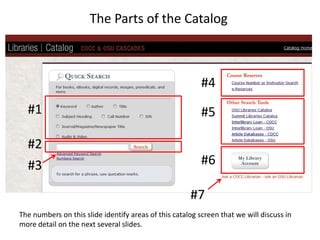
The Parts of the Catalog#4#1#5#2#6#3#7The numbers on this slide identify areas of this catalog screen that we will discuss in more detail on the next several slides.
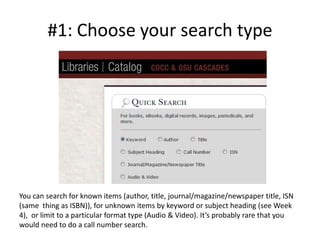
#1: Choose your search typeYou can search for known items (author, title, journal/magazine/newspaper title, ISN (same  thing as ISBN)), for unknown items by keyword or subject heading (see Week 4),  or limit to a particular format type (Audio & Video). It’s probably rare that you would need to do a call number search.
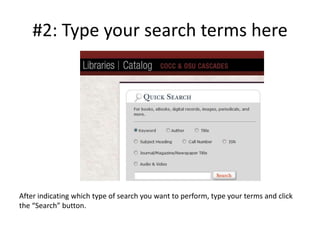
#2: Type your search terms hereAfter indicating which type of search you want to perform, type your terms and click the “Search” button.
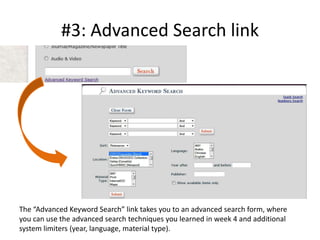
#3: Advanced Search linkThe “Advanced Keyword Search” link takes you to an advanced search form, where you can use the advanced search techniques you learned in week 4 and additional system limiters (year, language, material type).
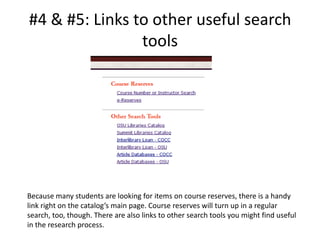
#4 & #5: Links to other useful search toolsBecause many students are looking for items on course reserves, there is a handy link right on the catalog’s main page. Course reserves will turn up in a regular search, too, though. There are also links to other search tools you might find useful in the research process.
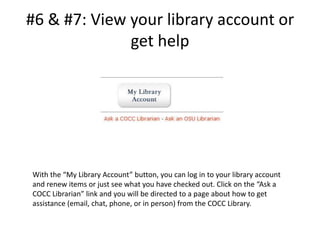
#6 & #7: View your library account or get helpWith the “My Library Account” button, you can log in to your library account and renew items or just see what you have checked out. Click on the “Ask a COCC Librarian” link and you will be directed to a page about how to get assistance (email, chat, phone, or in person) from the COCC Library.

Catalog parts

  • 1.
    The Parts ofthe Catalog#4#1#5#2#6#3#7The numbers on this slide identify areas of this catalog screen that we will discuss in more detail on the next several slides.
  • 2.
    #1: Choose yoursearch typeYou can search for known items (author, title, journal/magazine/newspaper title, ISN (same thing as ISBN)), for unknown items by keyword or subject heading (see Week 4), or limit to a particular format type (Audio & Video). It’s probably rare that you would need to do a call number search.
  • 3.
    #2: Type yoursearch terms hereAfter indicating which type of search you want to perform, type your terms and click the “Search” button.
  • 4.
    #3: Advanced SearchlinkThe “Advanced Keyword Search” link takes you to an advanced search form, where you can use the advanced search techniques you learned in week 4 and additional system limiters (year, language, material type).
  • 5.
    #4 & #5:Links to other useful search toolsBecause many students are looking for items on course reserves, there is a handy link right on the catalog’s main page. Course reserves will turn up in a regular search, too, though. There are also links to other search tools you might find useful in the research process.
  • 6.
    #6 & #7:View your library account or get helpWith the “My Library Account” button, you can log in to your library account and renew items or just see what you have checked out. Click on the “Ask a COCC Librarian” link and you will be directed to a page about how to get assistance (email, chat, phone, or in person) from the COCC Library.