This will only work if the student has submitted something already. I have not yet figured out
how to submit for the first time. This is the solution for the instructor resubmitting a file for a
student who HAS ALREADY submitted something. But, it’s more than we could dobefore 
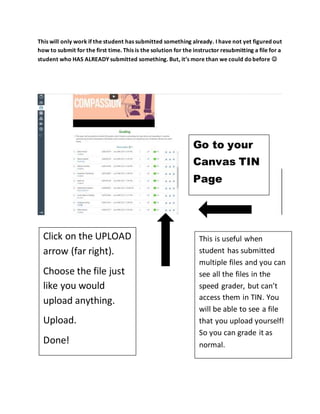
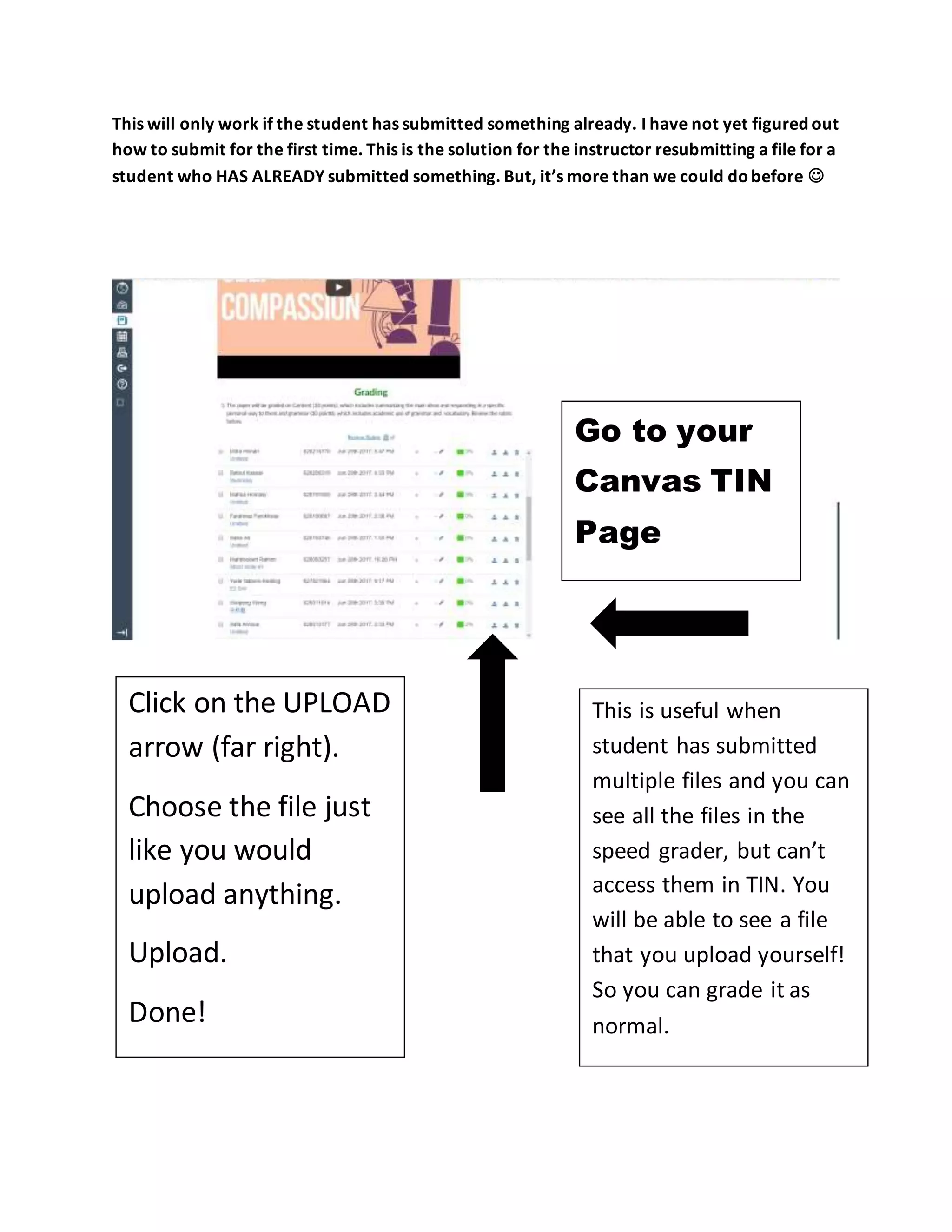
Go to your
Canvas TIN
Page
Click on the UPLOAD
arrow (far right).
Choose the file just
like you would
upload anything.
Upload.
Done!
This is useful when
student has submitted
multiple files and you can
see all the files in the
speed grader, but can’t
access them in TIN. You
will be able to see a file
that you upload yourself!
So you can grade it as
normal.

Canvas Instructor Upload

  • 1.
    This will onlywork if the student has submitted something already. I have not yet figured out how to submit for the first time. This is the solution for the instructor resubmitting a file for a student who HAS ALREADY submitted something. But, it’s more than we could dobefore  Go to your Canvas TIN Page Click on the UPLOAD arrow (far right). Choose the file just like you would upload anything. Upload. Done! This is useful when student has submitted multiple files and you can see all the files in the speed grader, but can’t access them in TIN. You will be able to see a file that you upload yourself! So you can grade it as normal.