2 Ways to Record PowerPoint 
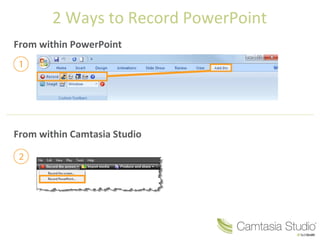
From within PowerPoint 
From within Camtasia Studio
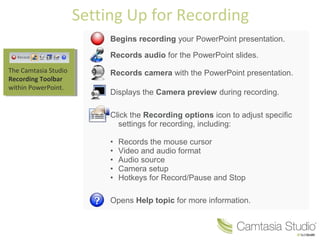
Setting Up for Recording 
Begins recording your PowerPoint presentation. 
Records audio for the PowerPoint slides. 
Records camera with the PowerPoint presentation. 
Displays the Camera preview during recording. 
Click the Recording options icon to adjust specific 
settings for recording, including: 
• Records the mouse cursor 
• Video and audio format 
• Audio source 
• Camera setup 
• Hotkeys for Record/Pause and Stop 
Opens Help topic for more information. 
The Camtasia Studio 
Recording Toolbar 
within PowerPoint.
During Recording 
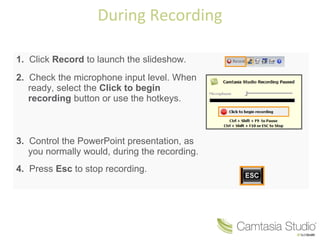
1. Click Record to launch the slideshow. 
2. Check the microphone input level. When 
ready, select the Click to begin 
recording button or use the hotkeys. 
3. Control the PowerPoint presentation, as 
you normally would, during the recording. 
4. Press Esc to stop recording.
After Recording 
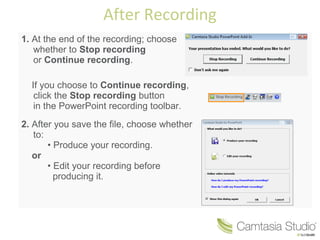
1. At the end of the recording; choose 
whether to Stop recording 
or Continue recording. 
If you choose to Continue recording, 
click the Stop recording button 
in the PowerPoint recording toolbar. 
2. After you save the file, choose whether 
to: 
• Produce your recording. 
or 
• Edit your recording before 
producing it.
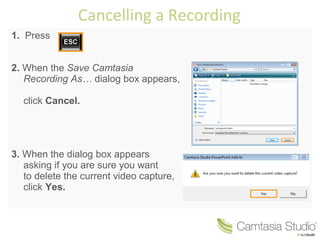
Cancelling a Recording 
1. Press 
2. When the Save Camtasia 
Recording As… dialog box appears, 
click Cancel. 
3. When the dialog box appears 
asking if you are sure you want 
to delete the current video capture, 
click Yes.
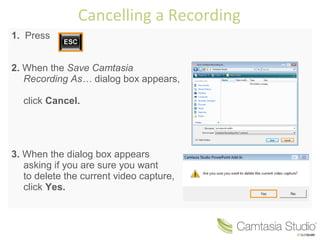
Cancelling a Recording 
1. Press 
2. When the Save Camtasia 
Recording As… dialog box appears, 
click Cancel. 
3. When the dialog box appears 
asking if you are sure you want 
to delete the current video capture, 
click Yes.

Manual Camtasia

  • 1.
    2 Ways toRecord PowerPoint From within PowerPoint From within Camtasia Studio
  • 2.
    Setting Up forRecording Begins recording your PowerPoint presentation. Records audio for the PowerPoint slides. Records camera with the PowerPoint presentation. Displays the Camera preview during recording. Click the Recording options icon to adjust specific settings for recording, including: • Records the mouse cursor • Video and audio format • Audio source • Camera setup • Hotkeys for Record/Pause and Stop Opens Help topic for more information. The Camtasia Studio Recording Toolbar within PowerPoint.
  • 3.
    During Recording 1.Click Record to launch the slideshow. 2. Check the microphone input level. When ready, select the Click to begin recording button or use the hotkeys. 3. Control the PowerPoint presentation, as you normally would, during the recording. 4. Press Esc to stop recording.
  • 4.
    After Recording 1.At the end of the recording; choose whether to Stop recording or Continue recording. If you choose to Continue recording, click the Stop recording button in the PowerPoint recording toolbar. 2. After you save the file, choose whether to: • Produce your recording. or • Edit your recording before producing it.
  • 5.
    Cancelling a Recording 1. Press 2. When the Save Camtasia Recording As… dialog box appears, click Cancel. 3. When the dialog box appears asking if you are sure you want to delete the current video capture, click Yes.
  • 6.
    Cancelling a Recording 1. Press 2. When the Save Camtasia Recording As… dialog box appears, click Cancel. 3. When the dialog box appears asking if you are sure you want to delete the current video capture, click Yes.