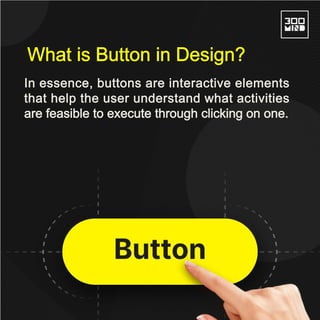
In essence, buttons are interactive elements
that help the user understand what activities
are feasible to execute through clicking on one.
What is Button in Design?
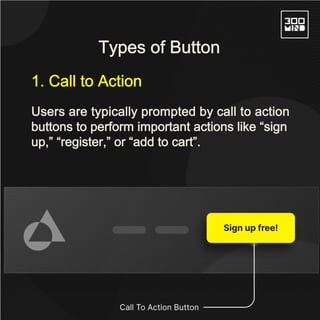
Users are typically prompted by call to action
buttons to perform important actions like “sign
up,” “register,” or “add to cart”.
1. Call to Action
Types of Button
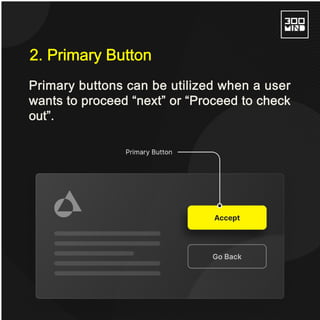
Primary buttons can be utilized when a user
wants to proceed “next” or “Proceed to check
out”.
2. Primary Button
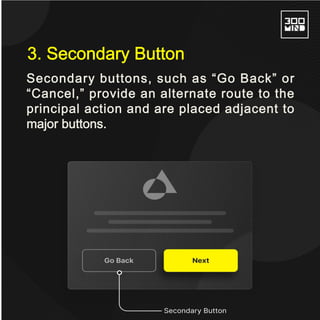
Secondary buttons, such as “Go Back” or
“Cancel,” provide an alternate route to the
principal action and are placed adjacent to
major buttons.
3. Secondary Button
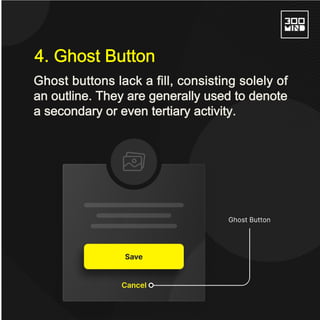
Ghost buttons lack a fill, consisting solely of
an outline. They are generally used to denote
a secondary or even tertiary activity.
4. Ghost Button
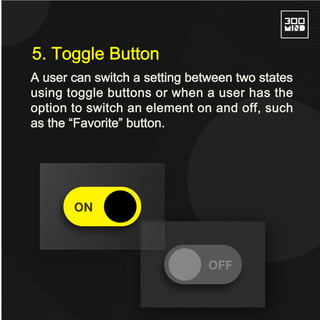
A user can switch a setting between two states
using toggle buttons or when a user has the
option to switch an element on and off, such
as the “Favorite” button.
5. Toggle Button
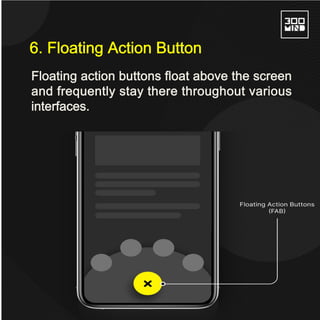
Floating action buttons float above the screen
and frequently stay there throughout various
interfaces.
6. Floating Action Button
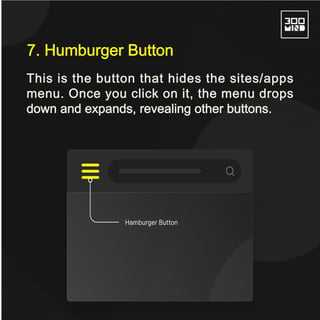
This is the button that hides the sites/apps
menu. Once you click on it, the menu drops
down and expands, revealing other buttons.
7. Humburger Button
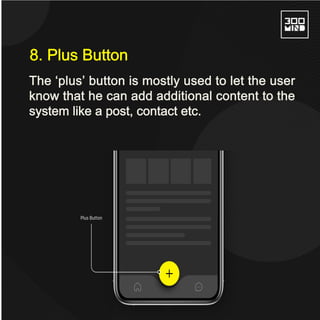
The ‘plus’ button is mostly used to let the user
know that he can add additional content to the
system like a post, contact etc.
8. Plus Button
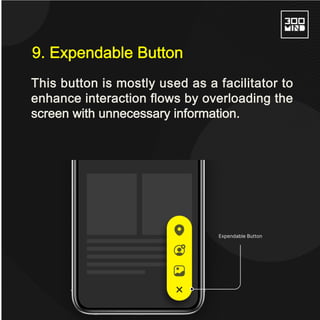
This button is mostly used as a facilitator to
enhance interaction flows by overloading the
screen with unnecessary information.
9. Expendable Button
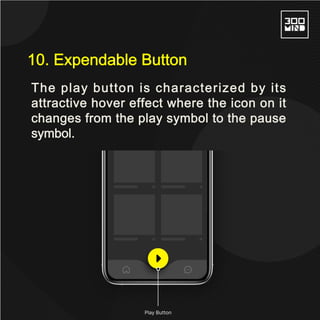
The play button is characterized by its
attractive hover effect where the icon on it
changes from the play symbol to the pause
symbol.
10. Expendable Button
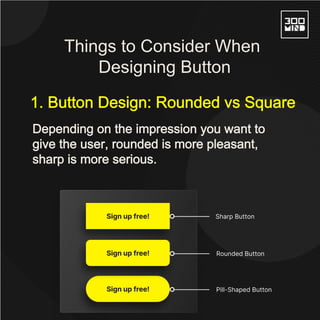
Depending on the impression you want to
give the user, rounded is more pleasant,
sharp is more serious.
1. Button Design: Rounded vs Square
Things to Consider When
Designing Button
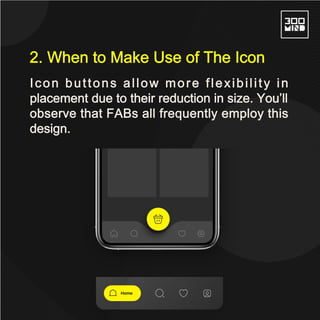
Icon buttons allow more flexibility in
placement due to their reduction in size. You’ll
observe that FABs all frequently employ this
design.
2. When to Make Use of The Icon
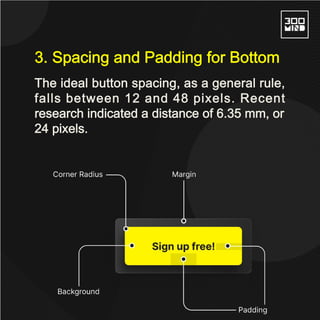
The ideal button spacing, as a general rule,
falls between 12 and 48 pixels. Recent
research indicated a distance of 6.35 mm, or
24 pixels.
3. Spacing and Padding for Bottom
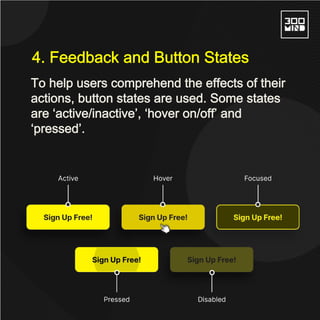
To help users comprehend the effects of their
actions, button states are used. Some states
are ‘active/inactive’, ‘hover on/off’ and
‘pressed’.
4. Feedback and Button States
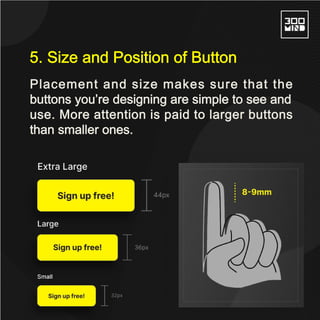
Placement and size makes sure that the
buttons you’re designing are simple to see and
use. More attention is paid to larger buttons
than smaller ones.
5. Size and Position of Button
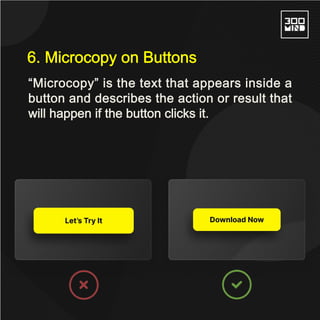
“Microcopy” is the text that appears inside a
button and describes the action or result that
will happen if the button clicks it.
6. Microcopy on Buttons
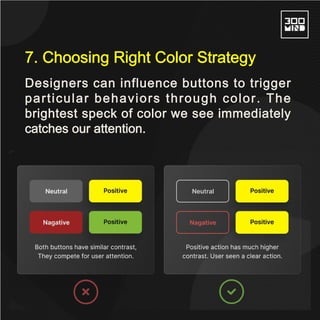
Designers can influence buttons to trigger
particular behaviors through color. The
brightest speck of color we see immediately
catches our attention.
7. Choosing Right Color Strategy
Leverage Our
UX Design
Expertise to Bring Your
Product Ideas to Life.
www.300mind.studio
Sales@300minds.com

Button Design: A Comprehensive Guide

  • 2.
    In essence, buttonsare interactive elements that help the user understand what activities are feasible to execute through clicking on one. What is Button in Design?
  • 3.
    Users are typicallyprompted by call to action buttons to perform important actions like “sign up,” “register,” or “add to cart”. 1. Call to Action Types of Button
  • 4.
    Primary buttons canbe utilized when a user wants to proceed “next” or “Proceed to check out”. 2. Primary Button
  • 5.
    Secondary buttons, suchas “Go Back” or “Cancel,” provide an alternate route to the principal action and are placed adjacent to major buttons. 3. Secondary Button
  • 6.
    Ghost buttons lacka fill, consisting solely of an outline. They are generally used to denote a secondary or even tertiary activity. 4. Ghost Button
  • 7.
    A user canswitch a setting between two states using toggle buttons or when a user has the option to switch an element on and off, such as the “Favorite” button. 5. Toggle Button
  • 8.
    Floating action buttonsfloat above the screen and frequently stay there throughout various interfaces. 6. Floating Action Button
  • 9.
    This is thebutton that hides the sites/apps menu. Once you click on it, the menu drops down and expands, revealing other buttons. 7. Humburger Button
  • 10.
    The ‘plus’ buttonis mostly used to let the user know that he can add additional content to the system like a post, contact etc. 8. Plus Button
  • 11.
    This button ismostly used as a facilitator to enhance interaction flows by overloading the screen with unnecessary information. 9. Expendable Button
  • 12.
    The play buttonis characterized by its attractive hover effect where the icon on it changes from the play symbol to the pause symbol. 10. Expendable Button
  • 13.
    Depending on theimpression you want to give the user, rounded is more pleasant, sharp is more serious. 1. Button Design: Rounded vs Square Things to Consider When Designing Button
  • 14.
    Icon buttons allowmore flexibility in placement due to their reduction in size. You’ll observe that FABs all frequently employ this design. 2. When to Make Use of The Icon
  • 15.
    The ideal buttonspacing, as a general rule, falls between 12 and 48 pixels. Recent research indicated a distance of 6.35 mm, or 24 pixels. 3. Spacing and Padding for Bottom
  • 16.
    To help userscomprehend the effects of their actions, button states are used. Some states are ‘active/inactive’, ‘hover on/off’ and ‘pressed’. 4. Feedback and Button States
  • 17.
    Placement and sizemakes sure that the buttons you’re designing are simple to see and use. More attention is paid to larger buttons than smaller ones. 5. Size and Position of Button
  • 18.
    “Microcopy” is thetext that appears inside a button and describes the action or result that will happen if the button clicks it. 6. Microcopy on Buttons
  • 19.
    Designers can influencebuttons to trigger particular behaviors through color. The brightest speck of color we see immediately catches our attention. 7. Choosing Right Color Strategy
  • 20.
    Leverage Our UX Design Expertiseto Bring Your Product Ideas to Life. www.300mind.studio Sales@300minds.com