HFM TASK
AUTOM ATI ON

Created By :RUPAM M AJUM DAR
Reviewed By: AM I T SHARM A
learnhyperion.wordpress.com
CONTENTS
Ø
Ø
Ø
Ø
Ø
Ø
Ø
Ø
Ø
Ø

INTRODUCTION TO TASKFLOWS
AVAILABLE WORKLISTS OF TASKFLOWS
USE OF TASKFLOWS
OVERVIEW OF TASKFLOWS
COMPONENTS OF TASKFLOWS
CREATION OF TASKFLOWS
EDITING OF TASKFLOWS
VIEW OF TASKFLOWS
MANUALLY RUNNING OF TASKFLOWS
ACCESS PERSMISSIONS OF TASKFLOWS
TASK AUTOM ATI ON
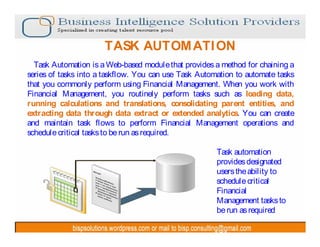
Task Automation is a Web-based module that provides a method for chaining a
series of tasks into a taskflow. You can use Task Automation to automate tasks
that you commonly perform using Financial Management. When you work with
Financial Management, you routinely perform tasks such as loading data,
running calculations and translations, consolidating parent entities, and
extracting data through data extract or extended analytics. You can create
and maintain task flows to perform Financial Management operations and
schedule critical tasks to be run as required.
Task automation
provides designated
users the ability to
schedule critical
Financial
Management tasks to
be run as required
TASK AUTOM ATI ON
Available Financial Management Tasks
You can use Task Automation to automate these Financial Management tasks:
Ø Allocate
ØCalculate
ØCalculate Contribution
ØTranslate
ØConsolidate
ØLoad Journals
ØExtract Journals
ØLoad Data
ØExtract Data
ØExecute Journal Action
Ø Extended Analytics
Ø Process Management

Note that there are a few areas in which
automation is not available, specifically,
certain loading tasks such as loading
metadata, security, and member lists.
TASK AUTOM ATI ON
Uses for Task Automation
ØTranslating and calculating all base entities.
Ø Loading data files and consolidating data.
ØExtracting data from one application and loading it into another Application.
Ø Reconsolidating all prior periods and scenarios.
Ø Regularly consolidating main points of view overnight during the close
process.
ØOracle Internal & Oracle Academy

The ability to automate loading, calculating, translating, and consolidating tasks
(including notifications) provides an opportunity to improve the efficiency of
your monthly and quarterly closing and reporting business processes.
TASK AUTOM ATI ON
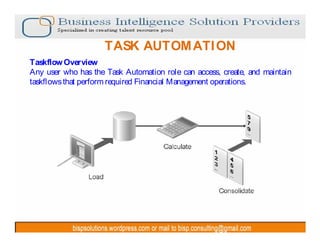
Taskflow Overview
Any user who has the Task Automation role can access, create, and maintain
taskflows that perform required Financial Management operations.
TASK AUTOM ATI ON
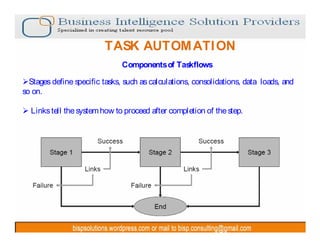
Components of Taskflows
ØStages define specific tasks, such as calculations, consolidations, data loads, and
so on.
Ø Links tell the system how to proceed after completion of the step.
TASK AUTOM ATI ON
Components of Taskflows
A stage describes a step in a taskflow. Each stage has an action, such as load
data, calculate data, and so on. These actions have parameters for which values
are supplied at runtime.
Each stage contains two tabs, except for the first stage, which has three tabs.
ØGeneral
ØProcessing
ØStarting Event (first stage only)
TASK AUTOM ATI ON
Creating Taskflows
1 Select
Administration > M anage Taskflows.

2 Click New.
TASK AUTOM ATI ON
Creating Taskflows
For Name, enter a taskflow name.
ØThe name can contain up to 40 characters.
ØThe Application text box displays the name of the current application.
ØFor Description, enter a taskflow description.
ØClick Submit
TASK AUTOM ATI ON
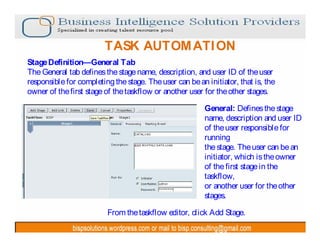
Stage Definition—General Tab
The General tab defines the stage name, description, and user ID of the user
responsible for completing the stage. The user can be an initiator, that is, the
owner of the first stage of the taskflow or another user for the other stages.
General: Defines the stage
name, description and user ID
of the user responsible for
running
the stage. The user can be an
initiator, which is the owner
of the first stage in the
taskflow,
or another user for the other
stages.
From the taskflow editor, click Add Stage.
TASK AUTOM ATI ON
Stage Definition—Processing Tab
The Processing tab defines the actions to be performed when the stage is run and
defines all required parameters.

Processing: Defines the action to be performed when the taskflow is run and any
required parameters.
TASK AUTOM ATI ON
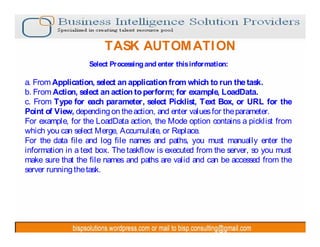
Select Processing and enter this information:

a. From Application, select an application from which to run the task.
b. From Action, select an action to perform; for example, LoadData.
c. From Type for each parameter, select Picklist, Text Box, or URL for the
Point of View, depending on the action, and enter values for the parameter.
For example, for the LoadData action, the Mode option contains a picklist from
which you can select Merge, Accumulate, or Replace.
For the data file and log file names and paths, you must manually enter the
information in a text box. The taskflow is executed from the server, so you must
make sure that the file names and paths are valid and can be accessed from the
server running the task.
TASK AUTOM ATI ON
Stage Definition—Starting Event
The Starting Event tab defines the event that initiates the taskflow and the
scheduled times for the event to occur. The scheduled time is based on the time of
the application server, not on the time of the local user’ s computer.
This functionality is schedule related. You can schedule the taskflow to run
according to a schedule, such as weekly, monthly, at the first of the month, and so
on.
Used to define
the scheduled
times for the
event to occur
TASK AUTOM ATI ON
Adding Links
A link is the point during the execution of the taskflow at which the activity in
one stage completes and the taskflow ends or control passes to another stage. A
link can be unconditional, where the completion of one stage always leads to
the start of another, or conditional, where the sequence of operation depends on
one or more link conditions. A link instructs the system about the action to take
next. In general, most stages have two links, Success and Failure. You can
specify that, if the first stage is successful, the system should proceed to the
second stage (receiving stage). For example, if the first stage of LoadData is
successful, the system should proceed to the receiving stage of consolidation.
You can specify conditions for a link.
For example, you can add a condition for a consolidation task (stage), such as
Consolidation Success = = ‘ True’ .
You must enter two equal signs (= =) after the variable and place single
quotation marks (‘ ) around the condition that you are evaluating. The value can
be True or False.
TASK AUTOM ATI ON
Adding Links
1 Click Add L ink.
2 Select General and for Name, enter a
link name. The name can contain up to 30
characters.
3 For Description, enter a link
description.
The Sending Stage is displayed for
informational purposes.
4 From Receiving Stage select a stage.
5 Select Condition tab if applicable,
and from Variable, select a variable,
for example, LoadData_Result.
To delete a condition, click Delete.
6 From Value, select Success or
Failure.
7 Click Add.
TASK AUTOM ATI ON
Testing Taskflows
You can run a taskflow manually instead of waiting for it to start automatically.
You may want to test a taskflow before the time that it is scheduled to run.
Testing enables you to make adjustments to the taskflow before it actually runs

To run taskflows manually:
1 Select Administration > Manage Taskflows.
2 From the list of taskflows, select the taskflow to run and click Run Now.
TASK AUTOM ATI ON
Editing Taskflows
After you create a taskflow, you can edit the taskflow description, and create,
edit, or delete taskflow variables. You can also add or delete a stage or a link.
To edit taskflows:
1 Select Administration > Manage Taskflows.
2 Select the taskflow to edit and click Edit.
TASK AUTOM ATI ON
Viewing Task Audit Detail
You can use Task Audit functionality in conjunction with task automation
(especially for troubleshooting). Task auditing provides information on tasks
that have been run.
The filters at the top of the Task Audit page can be used to select certain tasks.
TASK AUTOM ATI ON
Viewing Data Audit Detail

Use the Data Audit feature to view data changes performed by users.
Use filters to view the data changes by date range, user, or dimension members.
You must enable dimension members for data auditing by turning on the Enable
Data Audit member attribute. The default is Off.
TASK AUTOM ATI ON
Managing Access Permissions to Taskflows
You can assign permissions to individual users or to groups of users for
individual taskflows. You must have Manage permission for a taskflow to assign
permissions to it. Users inherit the permissions of the groups to which they
belong. Permissions that you assign to an individual user, however, override any
group permissions that the user inherits.
Assigning Write permission does not implicitly assign Read permission, and
assigning Manage permission does not implicitly assign Read and Write
permissions. Likewise, denying Read permission does not implicitly deny Write
and Manage permissions, and denying Write permission does not implicitly deny
Manage permission. You must explicitly assign all.
TASK AUTOM ATI ON
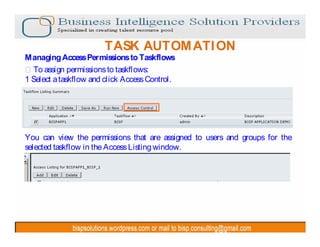
Managing Access Permissions to Taskflows
To assign permissions to taskflows:
1 Select a taskflow and click Access Control.

You can view the permissions that are assigned to users and groups for the
selected taskflow in the Access Listing window.
TASK AUTOM ATI ON
To add users or groups, click Add.
The Add Principal window is displayed. Available Users/Groups lists users who are
authenticated as Oracle's Hyperion® Shared Services users. If a user that you want
is not on the list, contact the administrator to add authenticated users.

Click Add to move the selected users and groups to Selected Users/Groups or click
Add All to move all users and groups to Selected Users/Groups.
TASK AUTOM ATI ON
Managing Access Permissions to Taskflows
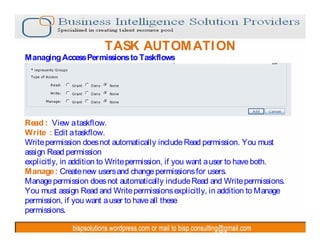
ØFor the Read, Write, and Manage permissions, select an access type: Grant,
Deny, or None.
ØClick Add to assign the permissions.

ØGrant: Explicitly grant the permission to the user or group.
ØDeny: Explicitly deny the permission to the user or group.
ØNone: Do not apply the permission to the user or group.
TASK AUTOM ATI ON
Managing Access Permissions to Taskflows

Read : View a taskflow.
Write : Edit a taskflow.
Write permission does not automatically include Read permission. You must
assign Read permission
explicitly, in addition to Write permission, if you want a user to have both.
Manage : Create new users and change permissions for users.
Manage permission does not automatically include Read and Write permissions.
You must assign Read and Write permissions explicitly, in addition to Manage
permission, if you want a user to have all these
permissions.
THANK YOU
To learn more about hyperion please visit
http://learnhyperion.wordpress.com

Bisp hfm-task-automation

  • 1.
    HFM TASK AUTOM ATION Created By :RUPAM M AJUM DAR Reviewed By: AM I T SHARM A learnhyperion.wordpress.com
  • 2.
    CONTENTS Ø Ø Ø Ø Ø Ø Ø Ø Ø Ø INTRODUCTION TO TASKFLOWS AVAILABLEWORKLISTS OF TASKFLOWS USE OF TASKFLOWS OVERVIEW OF TASKFLOWS COMPONENTS OF TASKFLOWS CREATION OF TASKFLOWS EDITING OF TASKFLOWS VIEW OF TASKFLOWS MANUALLY RUNNING OF TASKFLOWS ACCESS PERSMISSIONS OF TASKFLOWS
  • 3.
    TASK AUTOM ATION Task Automation is a Web-based module that provides a method for chaining a series of tasks into a taskflow. You can use Task Automation to automate tasks that you commonly perform using Financial Management. When you work with Financial Management, you routinely perform tasks such as loading data, running calculations and translations, consolidating parent entities, and extracting data through data extract or extended analytics. You can create and maintain task flows to perform Financial Management operations and schedule critical tasks to be run as required. Task automation provides designated users the ability to schedule critical Financial Management tasks to be run as required
  • 4.
    TASK AUTOM ATION Available Financial Management Tasks You can use Task Automation to automate these Financial Management tasks: Ø Allocate ØCalculate ØCalculate Contribution ØTranslate ØConsolidate ØLoad Journals ØExtract Journals ØLoad Data ØExtract Data ØExecute Journal Action Ø Extended Analytics Ø Process Management Note that there are a few areas in which automation is not available, specifically, certain loading tasks such as loading metadata, security, and member lists.
  • 5.
    TASK AUTOM ATION Uses for Task Automation ØTranslating and calculating all base entities. Ø Loading data files and consolidating data. ØExtracting data from one application and loading it into another Application. Ø Reconsolidating all prior periods and scenarios. Ø Regularly consolidating main points of view overnight during the close process. ØOracle Internal & Oracle Academy The ability to automate loading, calculating, translating, and consolidating tasks (including notifications) provides an opportunity to improve the efficiency of your monthly and quarterly closing and reporting business processes.
  • 6.
    TASK AUTOM ATION Taskflow Overview Any user who has the Task Automation role can access, create, and maintain taskflows that perform required Financial Management operations.
  • 7.
    TASK AUTOM ATION Components of Taskflows ØStages define specific tasks, such as calculations, consolidations, data loads, and so on. Ø Links tell the system how to proceed after completion of the step.
  • 8.
    TASK AUTOM ATION Components of Taskflows A stage describes a step in a taskflow. Each stage has an action, such as load data, calculate data, and so on. These actions have parameters for which values are supplied at runtime. Each stage contains two tabs, except for the first stage, which has three tabs. ØGeneral ØProcessing ØStarting Event (first stage only)
  • 9.
    TASK AUTOM ATION Creating Taskflows 1 Select Administration > M anage Taskflows. 2 Click New.
  • 10.
    TASK AUTOM ATION Creating Taskflows For Name, enter a taskflow name. ØThe name can contain up to 40 characters. ØThe Application text box displays the name of the current application. ØFor Description, enter a taskflow description. ØClick Submit
  • 11.
    TASK AUTOM ATION Stage Definition—General Tab The General tab defines the stage name, description, and user ID of the user responsible for completing the stage. The user can be an initiator, that is, the owner of the first stage of the taskflow or another user for the other stages. General: Defines the stage name, description and user ID of the user responsible for running the stage. The user can be an initiator, which is the owner of the first stage in the taskflow, or another user for the other stages. From the taskflow editor, click Add Stage.
  • 12.
    TASK AUTOM ATION Stage Definition—Processing Tab The Processing tab defines the actions to be performed when the stage is run and defines all required parameters. Processing: Defines the action to be performed when the taskflow is run and any required parameters.
  • 13.
    TASK AUTOM ATION Select Processing and enter this information: a. From Application, select an application from which to run the task. b. From Action, select an action to perform; for example, LoadData. c. From Type for each parameter, select Picklist, Text Box, or URL for the Point of View, depending on the action, and enter values for the parameter. For example, for the LoadData action, the Mode option contains a picklist from which you can select Merge, Accumulate, or Replace. For the data file and log file names and paths, you must manually enter the information in a text box. The taskflow is executed from the server, so you must make sure that the file names and paths are valid and can be accessed from the server running the task.
  • 14.
    TASK AUTOM ATION Stage Definition—Starting Event The Starting Event tab defines the event that initiates the taskflow and the scheduled times for the event to occur. The scheduled time is based on the time of the application server, not on the time of the local user’ s computer. This functionality is schedule related. You can schedule the taskflow to run according to a schedule, such as weekly, monthly, at the first of the month, and so on. Used to define the scheduled times for the event to occur
  • 15.
    TASK AUTOM ATION Adding Links A link is the point during the execution of the taskflow at which the activity in one stage completes and the taskflow ends or control passes to another stage. A link can be unconditional, where the completion of one stage always leads to the start of another, or conditional, where the sequence of operation depends on one or more link conditions. A link instructs the system about the action to take next. In general, most stages have two links, Success and Failure. You can specify that, if the first stage is successful, the system should proceed to the second stage (receiving stage). For example, if the first stage of LoadData is successful, the system should proceed to the receiving stage of consolidation. You can specify conditions for a link. For example, you can add a condition for a consolidation task (stage), such as Consolidation Success = = ‘ True’ . You must enter two equal signs (= =) after the variable and place single quotation marks (‘ ) around the condition that you are evaluating. The value can be True or False.
  • 16.
    TASK AUTOM ATION Adding Links 1 Click Add L ink. 2 Select General and for Name, enter a link name. The name can contain up to 30 characters. 3 For Description, enter a link description. The Sending Stage is displayed for informational purposes. 4 From Receiving Stage select a stage. 5 Select Condition tab if applicable, and from Variable, select a variable, for example, LoadData_Result. To delete a condition, click Delete. 6 From Value, select Success or Failure. 7 Click Add.
  • 17.
    TASK AUTOM ATION Testing Taskflows You can run a taskflow manually instead of waiting for it to start automatically. You may want to test a taskflow before the time that it is scheduled to run. Testing enables you to make adjustments to the taskflow before it actually runs To run taskflows manually: 1 Select Administration > Manage Taskflows. 2 From the list of taskflows, select the taskflow to run and click Run Now.
  • 18.
    TASK AUTOM ATION Editing Taskflows After you create a taskflow, you can edit the taskflow description, and create, edit, or delete taskflow variables. You can also add or delete a stage or a link. To edit taskflows: 1 Select Administration > Manage Taskflows. 2 Select the taskflow to edit and click Edit.
  • 19.
    TASK AUTOM ATION Viewing Task Audit Detail You can use Task Audit functionality in conjunction with task automation (especially for troubleshooting). Task auditing provides information on tasks that have been run. The filters at the top of the Task Audit page can be used to select certain tasks.
  • 20.
    TASK AUTOM ATION Viewing Data Audit Detail Use the Data Audit feature to view data changes performed by users. Use filters to view the data changes by date range, user, or dimension members. You must enable dimension members for data auditing by turning on the Enable Data Audit member attribute. The default is Off.
  • 21.
    TASK AUTOM ATION Managing Access Permissions to Taskflows You can assign permissions to individual users or to groups of users for individual taskflows. You must have Manage permission for a taskflow to assign permissions to it. Users inherit the permissions of the groups to which they belong. Permissions that you assign to an individual user, however, override any group permissions that the user inherits. Assigning Write permission does not implicitly assign Read permission, and assigning Manage permission does not implicitly assign Read and Write permissions. Likewise, denying Read permission does not implicitly deny Write and Manage permissions, and denying Write permission does not implicitly deny Manage permission. You must explicitly assign all.
  • 22.
    TASK AUTOM ATION Managing Access Permissions to Taskflows To assign permissions to taskflows: 1 Select a taskflow and click Access Control. You can view the permissions that are assigned to users and groups for the selected taskflow in the Access Listing window.
  • 23.
    TASK AUTOM ATION To add users or groups, click Add. The Add Principal window is displayed. Available Users/Groups lists users who are authenticated as Oracle's Hyperion® Shared Services users. If a user that you want is not on the list, contact the administrator to add authenticated users. Click Add to move the selected users and groups to Selected Users/Groups or click Add All to move all users and groups to Selected Users/Groups.
  • 24.
    TASK AUTOM ATION Managing Access Permissions to Taskflows ØFor the Read, Write, and Manage permissions, select an access type: Grant, Deny, or None. ØClick Add to assign the permissions. ØGrant: Explicitly grant the permission to the user or group. ØDeny: Explicitly deny the permission to the user or group. ØNone: Do not apply the permission to the user or group.
  • 25.
    TASK AUTOM ATION Managing Access Permissions to Taskflows Read : View a taskflow. Write : Edit a taskflow. Write permission does not automatically include Read permission. You must assign Read permission explicitly, in addition to Write permission, if you want a user to have both. Manage : Create new users and change permissions for users. Manage permission does not automatically include Read and Write permissions. You must assign Read and Write permissions explicitly, in addition to Manage permission, if you want a user to have all these permissions.
  • 26.
    THANK YOU To learnmore about hyperion please visit http://learnhyperion.wordpress.com