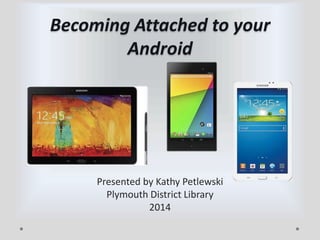
Becoming Attached to your
Android

Presented by Kathy Petlewski
Plymouth District Library
2014
Topics We’ll Cover
•
•
•
•
•
•

Various Makes and Models of Androids
The Android Operating System
Looking at the various desktops
Making sense of the Settings
Enabling WiFi
Shopping in the Google Play Store & Samsung
Apps
• Downloading ebooks to your device.
Samsung Galaxy Tab series
•
•
•
•
•
•
•
•

Galaxy Tab/Tab 7.0 (2010)
Galaxy Tab 7.0 Plus
Galaxy Tab 7.7 (2011)
Galaxy Tab 8.9 (Oct 2011)
Galaxy Tab 10.1 (2011)
Galaxy Tab 2 (7” & 10.1”)
Galaxy Tab 3 (7”, 8” & 10.1”) 2013
Galaxy Tab Pro (8.4”, 10.1” & 12.2”)
Samsung Galaxy Note Series
• Galaxy Note 8.0 –
Android 4.1 upgradable
to 4.2
• Galaxy Note 10.1 –
Android 4.0 upgradable
to 4.1
• Galaxy Note 10.1, 2014
Edition – Android 4.3
Jelly Bean
Google Nexus Tablets
• Nexus 7 – 2012
Version, developed with Asus.
Released with Android 4.1.
• Nexus 10 – Oct.
2012, manufactured by
Samsung
• Nexus 7, 2nd
generation, released July
2013. Released with Android
4.3.
Android Operating System
• Android 2.3 – Gingerbread (December 2010)
• Android 3.0 – Honeycomb (February 2011)
• Android 4.0-4.0.4 – Ice Cream Sandwich (October
2011)
• Android 4.1-4.3 – Jelly Bean (July 2012)
• Android 4.4 – KitKat (September 2013)
Common Features of Android
Tablets
• Users have the ability to customize the look and feel
of their devices.
• Shop and download applications from the Google
Play Store.
• Download e-books from OverDrive in the EPUB
format.
• Browse the Internet, read e-mail, use social media
sites such as Facebook, Pinterest and Twitter.
• Play music, watch movies, and view photos.
Android Apps vs. Widgets
• “Apps are conventional programs that occupy the
entire screen when opened. Applications added to
the Home screen appear as icons. To open an
app, tap its icon.”
• “Widgets are single-purpose miniprograms. Widgets
added to the Home screen appear as icons that you
can tap to open or as tiles that you can resize to open
part or all of the Home screen.”
• (taken from Google Nexus 7 Tablet by Chris Fehily, page 21.)
Looking at Google Nexus
Nexus Apps & Widgets
Nexus Settings Screen
Information About Your Nexus
• When I clicked on
System Update, it told
me to update to
Android Version 4.4.2
“which improves
performance and
stability and fixes bugs.”
Shopping in the Google Play Store
Samsung Galaxy Tab
Widgets & Apps for Galaxy Tab
Galaxy Tab Settings
Apps – Google & Samsung
Samsung Galaxy Note 8
Galaxy Note Special Feature
• Use the Galaxy Note’s
special stylus called the
“S pen” to
draw, scribble notes, or
write on the screen and
then save to your
tablet.
• Choose from a number
of different templates.
Apps & Widgets for the Note
Galaxy Note Settings
Downloading ebooks for Androids
Choose Overdrive App
Select the Plymouth District Library
Going to the MCLS Site
Settings and Searching for e-Books
Starting the Checkout Process
Starting the Download
Authorizing Adobe Digital Editions
• The first time you
download from
OverDrive, you must
authorize with Adobe
Digital Editions.
• This is a free
process, but be sure to
write down your ID for
safekeeping.
Completing the Download
Things to Remember
• You must have your Wi-Fi enabled to surf web, download
ebooks and get to the Google Play Store or Samsung Apps.
• You will have to a username and password for Adobe Digital
Editions the first time you download from OverDrive. This is a
free registration.

• It’s a “Use it or Lose it” set of skills. The more you use it, the
more comfortable you will become with it.
Time for Questions & Comments

Thanks for attending !

Becoming Attached to Your Android

  • 1.
    Becoming Attached toyour Android Presented by Kathy Petlewski Plymouth District Library 2014
  • 2.
    Topics We’ll Cover • • • • • • VariousMakes and Models of Androids The Android Operating System Looking at the various desktops Making sense of the Settings Enabling WiFi Shopping in the Google Play Store & Samsung Apps • Downloading ebooks to your device.
  • 3.
    Samsung Galaxy Tabseries • • • • • • • • Galaxy Tab/Tab 7.0 (2010) Galaxy Tab 7.0 Plus Galaxy Tab 7.7 (2011) Galaxy Tab 8.9 (Oct 2011) Galaxy Tab 10.1 (2011) Galaxy Tab 2 (7” & 10.1”) Galaxy Tab 3 (7”, 8” & 10.1”) 2013 Galaxy Tab Pro (8.4”, 10.1” & 12.2”)
  • 4.
    Samsung Galaxy NoteSeries • Galaxy Note 8.0 – Android 4.1 upgradable to 4.2 • Galaxy Note 10.1 – Android 4.0 upgradable to 4.1 • Galaxy Note 10.1, 2014 Edition – Android 4.3 Jelly Bean
  • 5.
    Google Nexus Tablets •Nexus 7 – 2012 Version, developed with Asus. Released with Android 4.1. • Nexus 10 – Oct. 2012, manufactured by Samsung • Nexus 7, 2nd generation, released July 2013. Released with Android 4.3.
  • 6.
    Android Operating System •Android 2.3 – Gingerbread (December 2010) • Android 3.0 – Honeycomb (February 2011) • Android 4.0-4.0.4 – Ice Cream Sandwich (October 2011) • Android 4.1-4.3 – Jelly Bean (July 2012) • Android 4.4 – KitKat (September 2013)
  • 7.
    Common Features ofAndroid Tablets • Users have the ability to customize the look and feel of their devices. • Shop and download applications from the Google Play Store. • Download e-books from OverDrive in the EPUB format. • Browse the Internet, read e-mail, use social media sites such as Facebook, Pinterest and Twitter. • Play music, watch movies, and view photos.
  • 8.
    Android Apps vs.Widgets • “Apps are conventional programs that occupy the entire screen when opened. Applications added to the Home screen appear as icons. To open an app, tap its icon.” • “Widgets are single-purpose miniprograms. Widgets added to the Home screen appear as icons that you can tap to open or as tiles that you can resize to open part or all of the Home screen.” • (taken from Google Nexus 7 Tablet by Chris Fehily, page 21.)
  • 9.
  • 10.
    Nexus Apps &Widgets
  • 11.
  • 12.
    Information About YourNexus • When I clicked on System Update, it told me to update to Android Version 4.4.2 “which improves performance and stability and fixes bugs.”
  • 13.
    Shopping in theGoogle Play Store
  • 14.
  • 15.
    Widgets & Appsfor Galaxy Tab
  • 16.
  • 17.
    Apps – Google& Samsung
  • 18.
  • 19.
    Galaxy Note SpecialFeature • Use the Galaxy Note’s special stylus called the “S pen” to draw, scribble notes, or write on the screen and then save to your tablet. • Choose from a number of different templates.
  • 20.
    Apps & Widgetsfor the Note
  • 21.
  • 22.
  • 23.
  • 24.
    Select the PlymouthDistrict Library
  • 25.
    Going to theMCLS Site
  • 26.
  • 27.
  • 28.
  • 29.
    Authorizing Adobe DigitalEditions • The first time you download from OverDrive, you must authorize with Adobe Digital Editions. • This is a free process, but be sure to write down your ID for safekeeping.
  • 30.
  • 31.
    Things to Remember •You must have your Wi-Fi enabled to surf web, download ebooks and get to the Google Play Store or Samsung Apps. • You will have to a username and password for Adobe Digital Editions the first time you download from OverDrive. This is a free registration. • It’s a “Use it or Lose it” set of skills. The more you use it, the more comfortable you will become with it.
  • 32.
    Time for Questions& Comments Thanks for attending !

Editor's Notes

  • #4 Original Galaxy Tab released in 2010Tab 2 & Tab 3 aimed at budget markets. Front-facing cameras downgraded to VGA quality and the rear to fixed focus
  • #10 Navigation Bar – Back button, Home button, and Recent Apps button