Gujarat University 
External Examination 
B.COM Sem – I (Fresh) 
NOV - 2014 
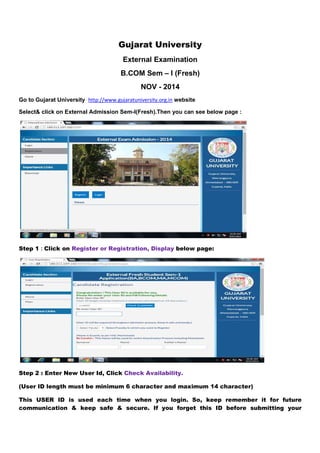
Go to Gujarat University http://www.gujaratuniversity.org.in website 
Select& click on External Admission Sem-I(Fresh).Then you can see below page : 
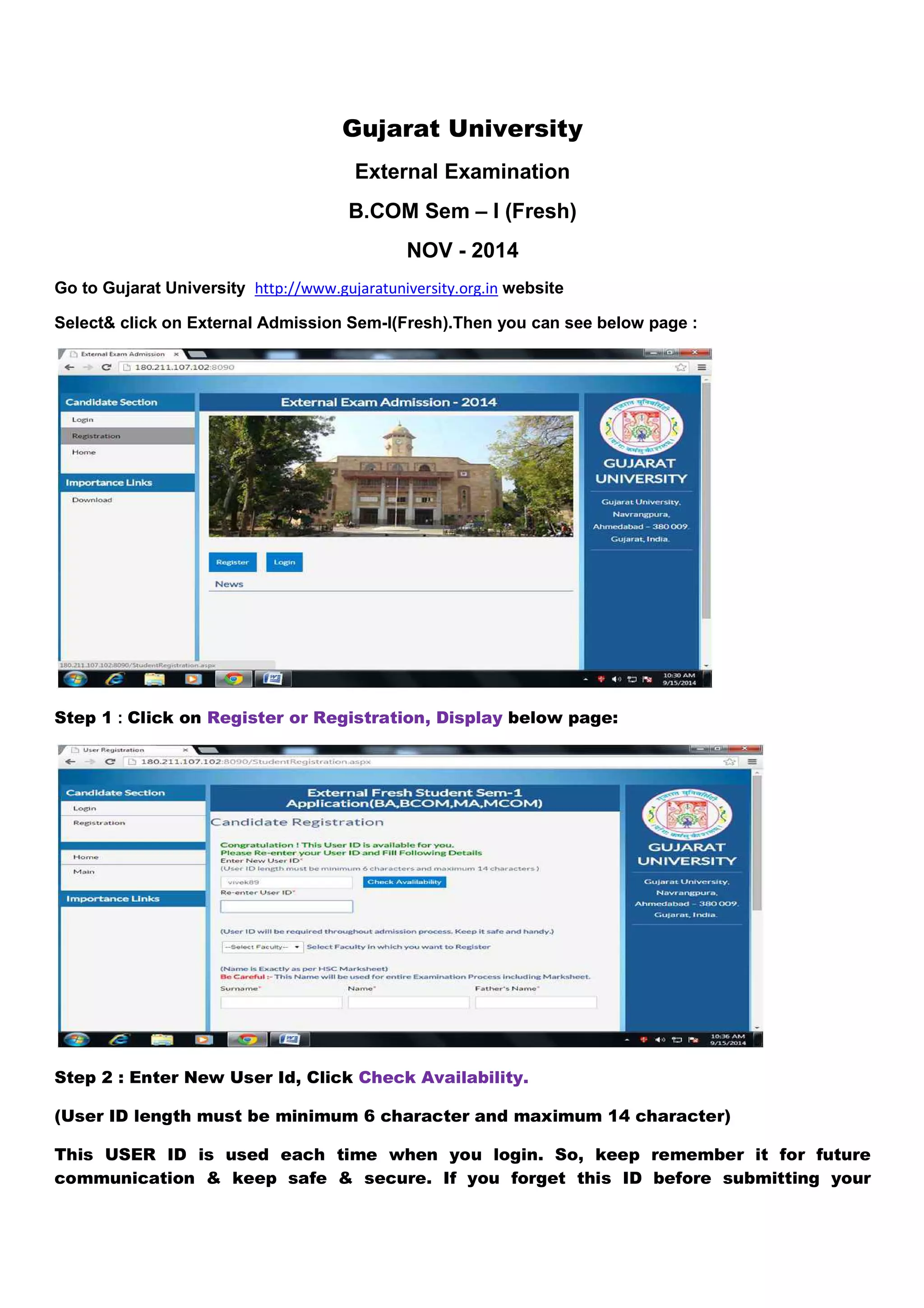
Step 1 : Click on Register or Registration, Display below page: 
Step 2 : Enter New User Id, Click Check Availability. 
(User ID length must be minimum 6 character and maximum 14 character) 
This USER ID is used each time when you login. So, keep remember it for future 
communication & keep safe & secure. If you forget this ID before submitting your
application then you need to register again with some other new USER ID and fill & 
submit your application again. 
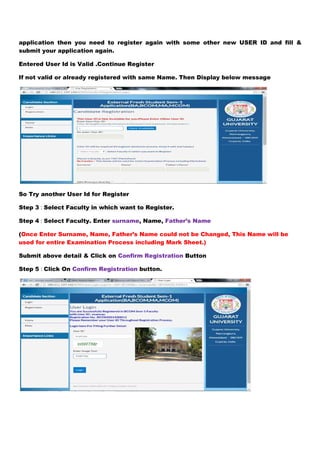
Entered User Id is Valid .Continue Register 
If not valid or already registered with same Name. Then Display below message 
So Try another User Id for Register 
Step 3 : Select Faculty in which want to Register. 
Step 4 : Select Faculty. Enter surname, Name, Father’s Name 
(Once Enter Surname, Name, Father’s Name could not be Changed, This Name will be 
used for entire Examination Process including Mark Sheet.) 
Submit above detail & Click on Confirm Registration Button 
Step 5 : Click On Confirm Registration button.
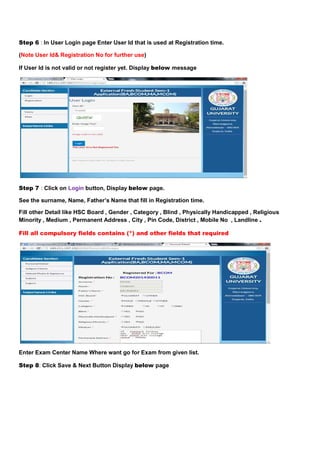
Step 6 : In User Login page Enter User Id that is used at Registration time. 
(Note User Id& Registration No for further use) 
If User Id is not valid or not register yet. Display below message 
Step 7 : Click on Login button, Display below page. 
See the surname, Name, Father’s Name that fill in Registration time. 
Fill other Detail like HSC Board , Gender , Category , Blind , Physically Handicapped , Religious 
Minority , Medium , Permanent Address , City , Pin Code, District , Mobile No , Landline . 
Fill all compulsory fields contains (*) and other fields that required 
Enter Exam Center Name Where want go for Exam from given list. 
Step 8: Click Save & Next Button Display below page
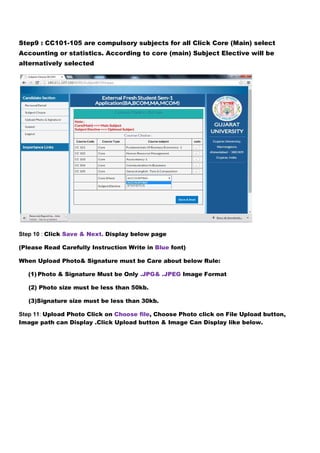
Step9 : CC101-105 are compulsory subjects for all Click Core (Main) select 
Accounting or statistics. According to core (main) Subject Elective will be 
alternatively selected 
Step 10 : Click Save & Next. Display below page 
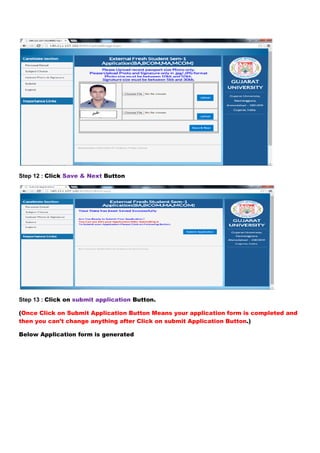
(Please Read Carefully Instruction Write in Blue font) 
When Upload Photo& Signature must be Care about below Rule: 
(1) Photo & Signature Must be Only .JPG& .JPEG Image Format 
(2) Photo size must be less than 50kb. 
(3)Signature size must be less than 30kb. 
Step 11: Upload Photo Click on Choose file, Choose Photo click on File Upload button, 
Image path can Display .Click Upload button & Image Can Display like below.
Step 12 : Click Save & Next Button 
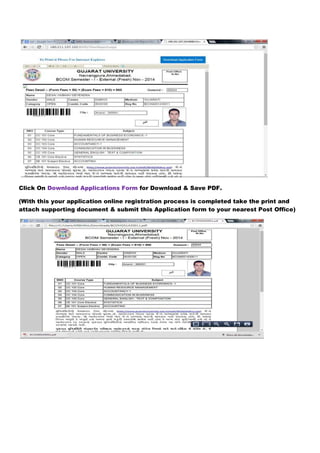
Step 13 : Click on submit application 
Button. 
(Once Click on Submit Application 
then you can’t change anything after Click on submit Application Button 
Button Means your application form is completed and 
Below elow Application form is generated 
Button.)
Click On Download Applications Form for Download & Save PDF. 
(With this your application online registration process is completed take the print and 
attach supporting document & submit this Application form to your nearest Post Office)

Bcom guidline

  • 1.
    Gujarat University ExternalExamination B.COM Sem – I (Fresh) NOV - 2014 Go to Gujarat University http://www.gujaratuniversity.org.in website Select& click on External Admission Sem-I(Fresh).Then you can see below page : Step 1 : Click on Register or Registration, Display below page: Step 2 : Enter New User Id, Click Check Availability. (User ID length must be minimum 6 character and maximum 14 character) This USER ID is used each time when you login. So, keep remember it for future communication & keep safe & secure. If you forget this ID before submitting your
  • 2.
    application then youneed to register again with some other new USER ID and fill & submit your application again. Entered User Id is Valid .Continue Register If not valid or already registered with same Name. Then Display below message So Try another User Id for Register Step 3 : Select Faculty in which want to Register. Step 4 : Select Faculty. Enter surname, Name, Father’s Name (Once Enter Surname, Name, Father’s Name could not be Changed, This Name will be used for entire Examination Process including Mark Sheet.) Submit above detail & Click on Confirm Registration Button Step 5 : Click On Confirm Registration button.
  • 3.
    Step 6 :In User Login page Enter User Id that is used at Registration time. (Note User Id& Registration No for further use) If User Id is not valid or not register yet. Display below message Step 7 : Click on Login button, Display below page. See the surname, Name, Father’s Name that fill in Registration time. Fill other Detail like HSC Board , Gender , Category , Blind , Physically Handicapped , Religious Minority , Medium , Permanent Address , City , Pin Code, District , Mobile No , Landline . Fill all compulsory fields contains (*) and other fields that required Enter Exam Center Name Where want go for Exam from given list. Step 8: Click Save & Next Button Display below page
  • 4.
    Step9 : CC101-105are compulsory subjects for all Click Core (Main) select Accounting or statistics. According to core (main) Subject Elective will be alternatively selected Step 10 : Click Save & Next. Display below page (Please Read Carefully Instruction Write in Blue font) When Upload Photo& Signature must be Care about below Rule: (1) Photo & Signature Must be Only .JPG& .JPEG Image Format (2) Photo size must be less than 50kb. (3)Signature size must be less than 30kb. Step 11: Upload Photo Click on Choose file, Choose Photo click on File Upload button, Image path can Display .Click Upload button & Image Can Display like below.
  • 5.
    Step 12 :Click Save & Next Button Step 13 : Click on submit application Button. (Once Click on Submit Application then you can’t change anything after Click on submit Application Button Button Means your application form is completed and Below elow Application form is generated Button.)
  • 6.
    Click On DownloadApplications Form for Download & Save PDF. (With this your application online registration process is completed take the print and attach supporting document & submit this Application form to your nearest Post Office)