Working
with Accion’s
Online Loan Application
Learning Outcomes
At the end of this session:
• Users will be able to enter information and successfully
submit a loan application.
• Users will be able to troubleshoot any issues an applicant
will run into as they complete and submit loan applications
• Accion Lending staff will
System Compatibility
The Online Loan Application will run successfully with the
following browsers:
– IE 8
– Firefox
– Chrome
– Safari
Welcome Page
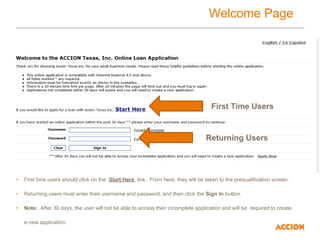
• First time users should click on the Start Here link. From here, they will be taken to the prequalification screen.
• Returning users must enter their username and password, and then click the Sign In button.
• Note: After 30 days, the user will not be able to access their incomplete application and will be required to create
a new application.
Returning Users
First Time Users
Retrieve Unsubmitted Applications
• By creating a user id and password users will be able to
retrieve their incomplete/unsubmitted online application
for up to 30 days.
• After 30 days they will need to start a new online
application.
• Applications are not reviewed until the Submit button is
clicked at the end of the application.
• If an applicant cannot remember their password, they’ll
be prompted by the system to provide their email
address. An email message with a link to reset their
password will be sent to the user.
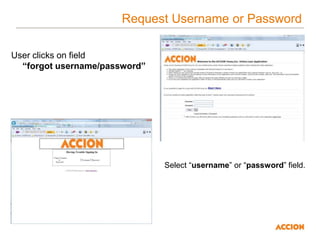
Request Username or Password
User clicks on field
“forgot username/password”
Select “username” or “password” field.
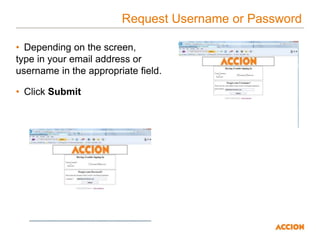
Request Username or Password
• Depending on the screen,
type in your email address or
username in the appropriate field.
• Click Submit
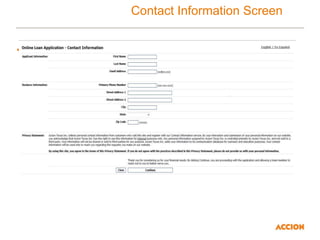
Contact Information Screen
• Information gathered on this page creates a “Lead” file in
CRM when applicant clicks on “submit” button.
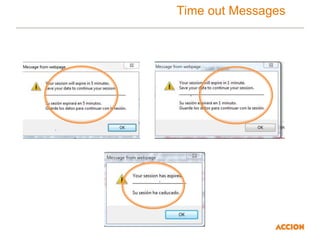
Time out Messages
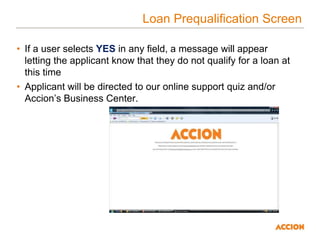
Loan Prequalification Screen
• If a user selects YES in any field, a message will appear
letting the applicant know that they do not qualify for a loan at
this time
• Applicant will be directed to our online support quiz and/or
Accion’s Business Center.
Change to Password Requirements
• Minimum requirements
when setting up a
password:
– 1 Capital Letter
– 1 Lower case letter
– 1 Number
• Special Character is
no longer required
Johnsmith1
Required Fields
“*” denotes a required field. The system will not let the
applicant proceed to the next screen if all required fields are
not completed.
Any field with more than two choices is listed in a drop-down
menu.
Troubleshooting
• Place FAQs here

Working.pptx

  • 1.
  • 2.
    Learning Outcomes At theend of this session: • Users will be able to enter information and successfully submit a loan application. • Users will be able to troubleshoot any issues an applicant will run into as they complete and submit loan applications • Accion Lending staff will
  • 3.
    System Compatibility The OnlineLoan Application will run successfully with the following browsers: – IE 8 – Firefox – Chrome – Safari
  • 4.
    Welcome Page • Firsttime users should click on the Start Here link. From here, they will be taken to the prequalification screen. • Returning users must enter their username and password, and then click the Sign In button. • Note: After 30 days, the user will not be able to access their incomplete application and will be required to create a new application. Returning Users First Time Users
  • 5.
    Retrieve Unsubmitted Applications •By creating a user id and password users will be able to retrieve their incomplete/unsubmitted online application for up to 30 days. • After 30 days they will need to start a new online application. • Applications are not reviewed until the Submit button is clicked at the end of the application. • If an applicant cannot remember their password, they’ll be prompted by the system to provide their email address. An email message with a link to reset their password will be sent to the user.
  • 6.
    Request Username orPassword User clicks on field “forgot username/password” Select “username” or “password” field.
  • 7.
    Request Username orPassword • Depending on the screen, type in your email address or username in the appropriate field. • Click Submit
  • 8.
    Contact Information Screen •Information gathered on this page creates a “Lead” file in CRM when applicant clicks on “submit” button.
  • 9.
  • 10.
    Loan Prequalification Screen •If a user selects YES in any field, a message will appear letting the applicant know that they do not qualify for a loan at this time • Applicant will be directed to our online support quiz and/or Accion’s Business Center.
  • 11.
    Change to PasswordRequirements • Minimum requirements when setting up a password: – 1 Capital Letter – 1 Lower case letter – 1 Number • Special Character is no longer required Johnsmith1
  • 12.
    Required Fields “*” denotesa required field. The system will not let the applicant proceed to the next screen if all required fields are not completed. Any field with more than two choices is listed in a drop-down menu.
  • 13.