Download to read offline
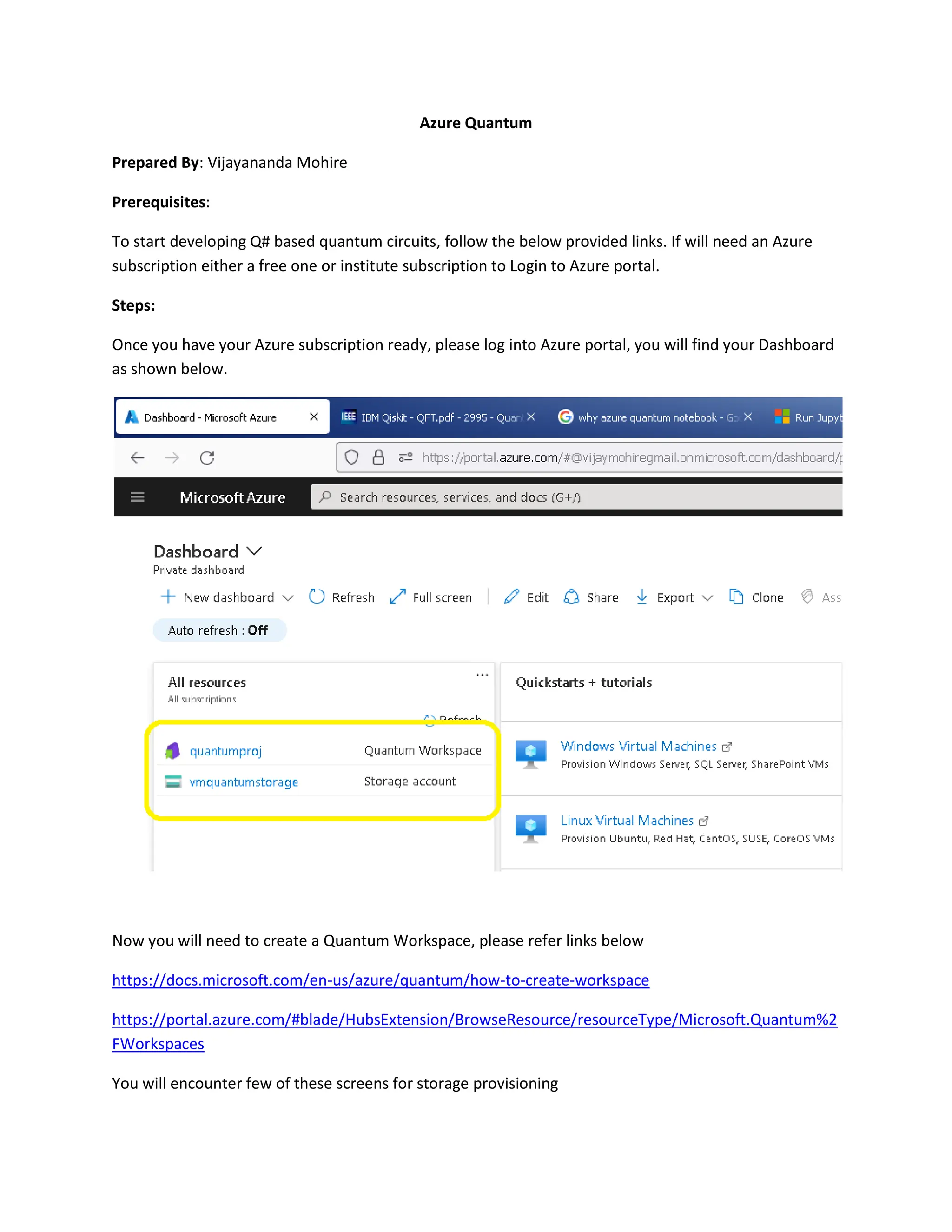
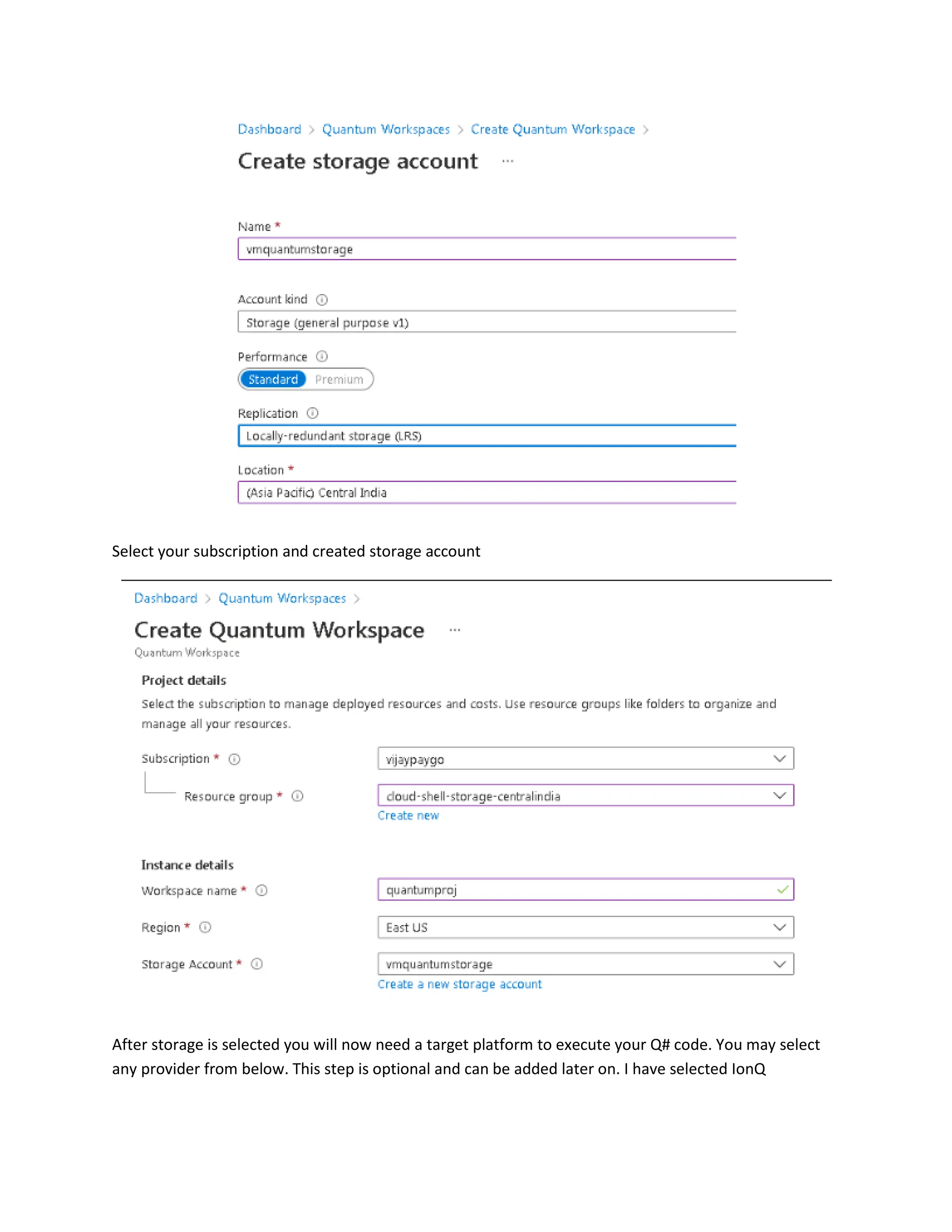
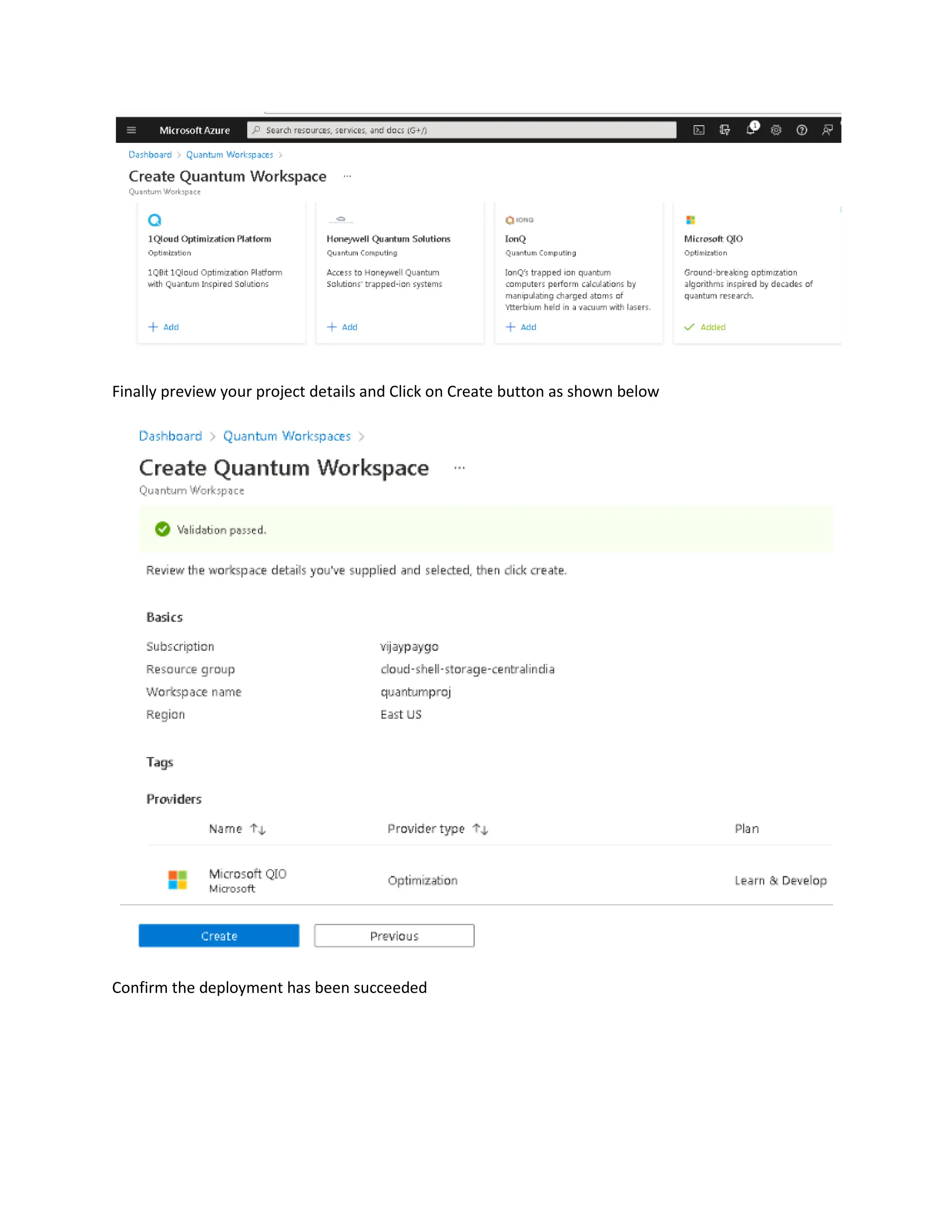
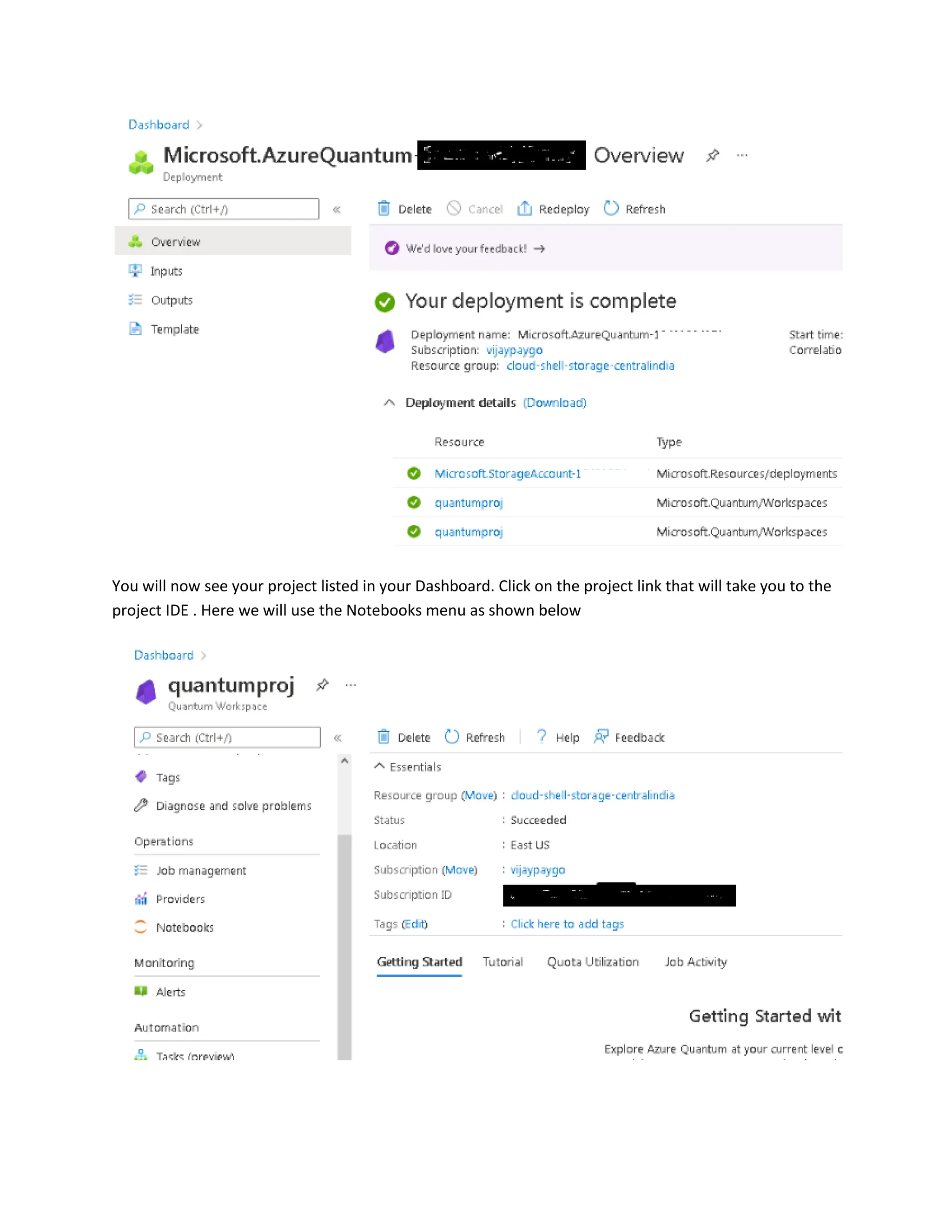
![We will now start working with the Jupyter Notebooks with Q# as Kernel. You can instead select
Python.
Use this link for more details. https://docs.microsoft.com/en-us/azure/quantum/get-started-jupyter-
notebook
Below is the sample of notebook imported into the Quantum workspace and the resulting results
after executing the code. Please follow the instruction and obtain the results
Quantum Computing on Azure Quantum
with Q# and Jupyter Notebook:
Parallel QRNG
This notebook demonstrates how to execute a Q# program on Azure Quantum.
Define Q# operations
The quickest way to define a Q# operation in a Q# Jupyter Notebook is to simply write the Q#
code directly into a notebook cell and execute it. Note that for convenience, the
Microsoft.Quantum.Canon and Microsoft.Quantum.Intrinsic namespaces are
automatically opened in every cell.
[2]
open Microsoft.Quantum.Arrays;
open Microsoft.Quantum.Measurement;](https://image.slidesharecdn.com/azurequantumworkspace-240309053940-14fe3abe/75/Azure-Quantum-Workspace-for-developing-Q-based-quantum-circuits-5-2048.jpg)
![operation SampleRandomNumber(nQubits : Int) : Result[] {
// We prepare a register of qubits in a uniform
// superposition state, such that when we measure,
// all bitstrings occur with equal probability.
use register = Qubit[nQubits] {
// Set qubits in superposition.
ApplyToEachA(H, register);
// Measure all qubits and return.
return ForEach(MResetZ, register);
}
}
SampleRandomNumber
You can also write your Q# code in .qs files which are in the same folder as the .ipynb notebook.
Running %workspace reload will recompile all such .qs files and report the list of available Q#
operations and functions. In this case, it finds an operation called SampleRandomNumber in a
namespace called Microsoft.Quantum.AzureSamples.
[3]
%workspace reload
Reloading workspace: done!
Using %simulate, you can invoke the built-in Q# functionality to simulate a quantum operation
locally and return the result. You can specify any operation that has been defined in the notebook
or that has been imported from a .qs file.
[4]
%simulate SampleRandomNumber nQubits=3
Zero
One
Zero
Executing Q# operations in Azure Quantum
First, find the resource ID of your Azure Quantum workspace. You can copy/paste this from the
top-right corner of your Quantum Workspace page in Azure Portal.
Next, you can run %azure.connect to connect to the workspace and display the list of
provisioned targets that support execution of Q# programs. If you are prompted to login, be sure
to use the same account you used to create your Azure Quantum workspace.
[7]](https://image.slidesharecdn.com/azurequantumworkspace-240309053940-14fe3abe/75/Azure-Quantum-Workspace-for-developing-Q-based-quantum-circuits-6-2048.jpg)
![%azure.connect "/subscriptions/c684880b-e981-4b8f-9baf-
742935e59228/resourceGroups/cloud-shell-storage-
centralindia/providers/Microsoft.Quantum/Workspaces/quantumproj" location="eastus"
2 sec
Authenticated using
Microsoft.Azure.Quantum.Authentication.TokenFileCredential
Connected to Azure Quantum workspace quantumproj in location eastus.
Target ID Current Availability Average Queue Time (Seconds)
ionq.qpu Available 158
ionq.simulator Available 3
Now, use %azure.target to specify the target you'd like to use for job submission.
[8]
%azure.target ionq.simulator
38 sec
Loading package Microsoft.Quantum.Providers.IonQ and dependencies...
Active target is now ionq.simulator
Target ID Current Availability Average Queue Time (Seconds)
ionq.simulator Available 3
To submit a job, use %azure.submit along with the Q# operation name and any parameters
required by that operation. The %azure.submit command will return immediately after the job
is created. Alternatively, you can use %azure.execute, which will submit the job and wait for it
to complete.
[9]
%azure.submit SampleRandomNumber nQubits=3
9 sec
Submitting SampleRandomNumber to target ionq.simulator...
Job successfully submitted for 500 shots.
Job name: SampleRandomNumber
Job ID: 5f1afaa2-25ea-437d-b305-fe1fa94e479e](https://image.slidesharecdn.com/azurequantumworkspace-240309053940-14fe3abe/75/Azure-Quantum-Workspace-for-developing-Q-based-quantum-circuits-7-2048.jpg)
![Job Name Job ID
Job
Status
Target
Creation
Time
Begin
Execution
Time
End
Execution
Time
SampleRandomNumber
5f1afaa2-25ea-
437d-b305-
fe1fa94e479e
Waiting ionq.simulator
01/14/2022
07:27:34
+00:00
Running %azure.status will display the status of the most recently submitted job in this
session. If you want to check the status of a different job, provide the job ID to %azure.status.
[10]
%azure.status
4 sec
Job Name Job ID Job Status Target
Creation
Time
Begin
Execution
Time
End
Execution
Time
SampleRandomNumber
5f1afaa2-
25ea-437d-
b305-
fe1fa94e479e
Succeeded ionq.simulator
01/14/2022
07:27:34
+00:00
01/14/2022
07:27:40
+00:00
01/14/2022
07:27:40
+00:00
Once the job has completed, use %azure.output to display the result. Again, you can provide a
job ID to %azure.output if you want to display the status of a specific job.
[11]
%azure.output
2 sec](https://image.slidesharecdn.com/azurequantumworkspace-240309053940-14fe3abe/75/Azure-Quantum-Workspace-for-developing-Q-based-quantum-circuits-8-2048.jpg)
![You can also view the status of all jobs by using %azure.jobs. Providing a parameter to this
command will filter to just the jobs containing that string. For example, you can query for the
status of all jobs named Microsoft.Quantum.AzureSamples.SampleRandomNumber.
[12]
%azure.jobs SampleRandomNumber
1 sec
Job Name Job ID Job Status Target
Creation
Time
Begin
Execution
Time
End
Execution
Time
SampleRandomNumber
5f1afaa2-
25ea-437d-
b305-
fe1fa94e479e
Succeeded ionq.simulator
01/14/2022
07:27:34
+00:00
01/14/2022
07:27:40
+00:00
01/14/2022
07:27:40
+00:00](https://image.slidesharecdn.com/azurequantumworkspace-240309053940-14fe3abe/75/Azure-Quantum-Workspace-for-developing-Q-based-quantum-circuits-9-2048.jpg)

This document provides steps to develop quantum circuits using Q# on Azure Quantum. It instructs the user to create an Azure subscription, log into the Azure portal, create a Quantum Workspace, and provision storage. It then explains how to define Q# operations, simulate them locally using %simulate, connect to the Azure Quantum workspace with %azure.connect, specify an execution target with %azure.target, submit jobs with %azure.submit, check job status with %azure.status, retrieve outputs with %azure.output, and view all jobs with %azure.jobs. An example quantum random number generation program written in Q# is provided.


