Azure Active Directory Connect to a Single Domain
Published by Hector Ramos, Robert Roman on 7/13/2015
As I wrote earlier, Microsoft recently released a new version of the Connect tool that makes connection on
premise and cloud domain very easy. You can be on your way to a Hybrid cloud environment in no time.
Using one tool you can now configure Directory Sync, Password Sync, and Federation Services through a
wizard by simply providing credentials and checking a few boxes. The tool needs to be run on a computer that
is joined to the domain you wish to integrate. It will also install a few files and a local version of SQL express
unless you connect it to an existing SQL instance. You may want to install the tool to a dedicated server that
will run synchronization services. I'll demo how easy it was to integrate a single development domain to Azure
Active Directory.
You will first be prompted to select custom or express settings. The express option assumes that the current
user is an administrator for the domain. The customize option lets you specify an install location for files, SQL
server for metadata, service account to connect to the domain, and specific groups to synchronize. After
configuring your settings or selecting express, all of the pre-requisites will be installed on the machine.
After the file installation, you will be asked to determine how your users will sign in to your Hybrid domain.
Password synchronization will store password hashes (not actualpasswords) in your cloud domain. This
means that users can log in with domain credentials to your cloud domain in the event that you’re on premises
domain becomes unavailable. The Federation option will install and configure the AD FS role on a windows
2012 server so that users are redirected to the on-premises AD FS instance for signing in and authentication is
done on-premises. This option offers a little bit less resiliency if you’re on premise domain goes down. It also
requires some certificate configuration. Check the do not configure option if you will be using a third party
solution for federated sign-ins. For the demo I will select the password synchronization as it provides the
resiliency that I’m looking for.
After you select the password option, provide credentials to your azure active directory instance. The account
must be a global administrator in the active directory domain.
Then, enter credentials for an administrative account in the directory being synced with Azure and click the
Add Directory button to confirm.
You will subsequently have to configure properties that will uniquely identify your domain users. This can get
tricky if your user's are represented multiple times across domain but for our purposes the default options will
suffice. The important thing to note is that the Source Anchor should be mapped to a globally unique identifier
that will not change during the lifetime of the user and the User Principal Name maps to the property that users
enter to log in.
Now you can configure the subset of user's that will actually be synced to Azure AD. I selected the Domain
Users container.
Finally, you can check some boxes to further customize the integration process. There is an option for
Exchange hybrid deployments if you want to integrate with Exchange Online. The Azure AD app and attribute
filtering will simplify connectivity to Microsoft Online Applications such as Office 365, Exchange,
SharePoint, Lync, Dynamics, and others by allowing further granularity in attribute synchronization. The
password write back feature will allow users to change their password online and have it synced back to your
on premises domain. The user, Group, and Device write back options are self-explanatory.
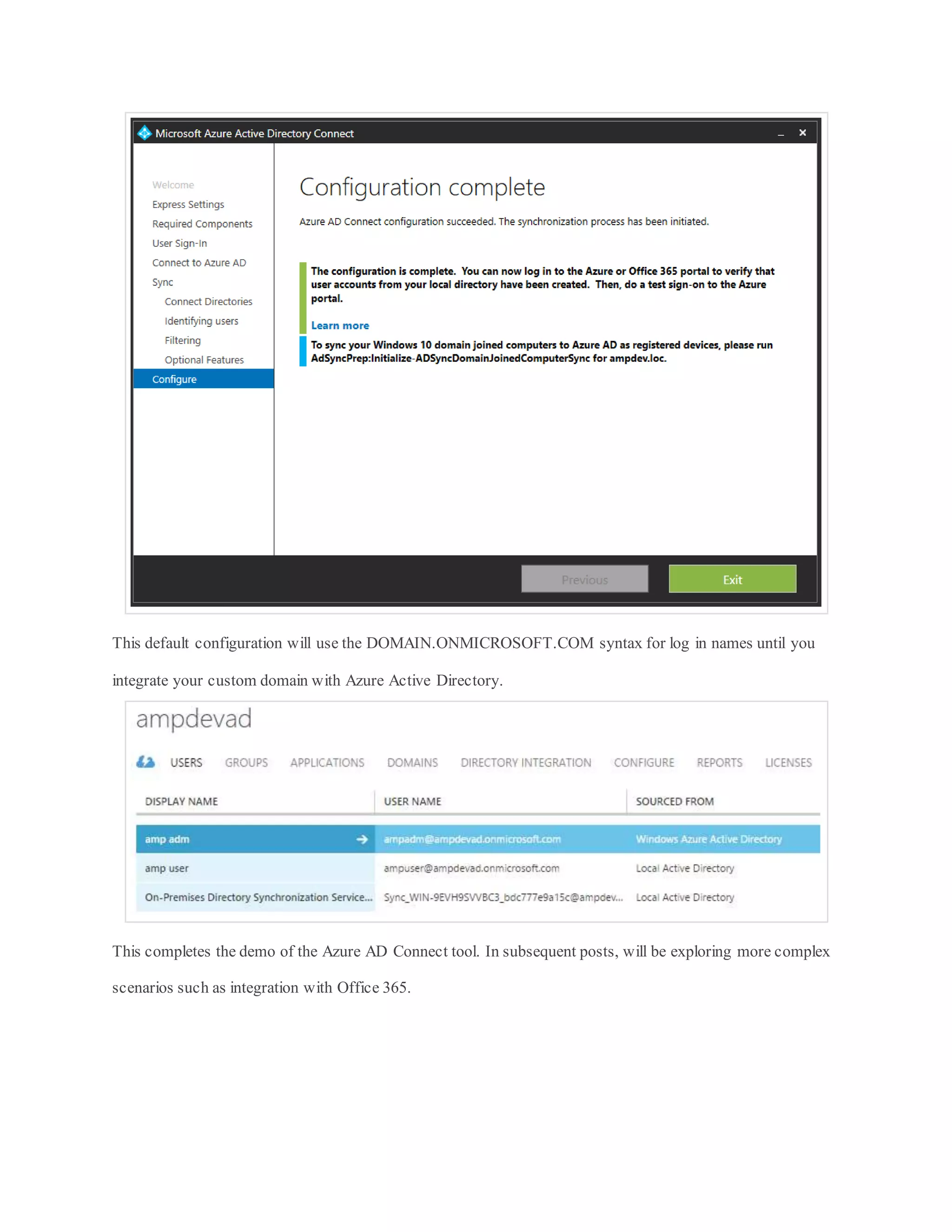
Finally, you can kick back and relax as the Connect tool configures your hybrid environment. And, once the
first sync has completed you will see your user's in Azure AD.
This default configuration will use the DOMAIN.ONMICROSOFT.COM syntax for log in names until you
integrate your custom domain with Azure Active Directory.
This completes the demo of the Azure AD Connect tool. In subsequent posts, will be exploring more complex
scenarios such as integration with Office 365.

Azure active directory connect to a single domain

  • 1.
    Azure Active DirectoryConnect to a Single Domain Published by Hector Ramos, Robert Roman on 7/13/2015 As I wrote earlier, Microsoft recently released a new version of the Connect tool that makes connection on premise and cloud domain very easy. You can be on your way to a Hybrid cloud environment in no time. Using one tool you can now configure Directory Sync, Password Sync, and Federation Services through a wizard by simply providing credentials and checking a few boxes. The tool needs to be run on a computer that is joined to the domain you wish to integrate. It will also install a few files and a local version of SQL express unless you connect it to an existing SQL instance. You may want to install the tool to a dedicated server that will run synchronization services. I'll demo how easy it was to integrate a single development domain to Azure Active Directory.
  • 2.
    You will firstbe prompted to select custom or express settings. The express option assumes that the current user is an administrator for the domain. The customize option lets you specify an install location for files, SQL server for metadata, service account to connect to the domain, and specific groups to synchronize. After configuring your settings or selecting express, all of the pre-requisites will be installed on the machine. After the file installation, you will be asked to determine how your users will sign in to your Hybrid domain. Password synchronization will store password hashes (not actualpasswords) in your cloud domain. This means that users can log in with domain credentials to your cloud domain in the event that you’re on premises domain becomes unavailable. The Federation option will install and configure the AD FS role on a windows 2012 server so that users are redirected to the on-premises AD FS instance for signing in and authentication is done on-premises. This option offers a little bit less resiliency if you’re on premise domain goes down. It also requires some certificate configuration. Check the do not configure option if you will be using a third party
  • 3.
    solution for federatedsign-ins. For the demo I will select the password synchronization as it provides the resiliency that I’m looking for. After you select the password option, provide credentials to your azure active directory instance. The account must be a global administrator in the active directory domain.
  • 4.
    Then, enter credentialsfor an administrative account in the directory being synced with Azure and click the Add Directory button to confirm.
  • 5.
    You will subsequentlyhave to configure properties that will uniquely identify your domain users. This can get tricky if your user's are represented multiple times across domain but for our purposes the default options will suffice. The important thing to note is that the Source Anchor should be mapped to a globally unique identifier that will not change during the lifetime of the user and the User Principal Name maps to the property that users enter to log in.
  • 6.
    Now you canconfigure the subset of user's that will actually be synced to Azure AD. I selected the Domain Users container.
  • 7.
    Finally, you cancheck some boxes to further customize the integration process. There is an option for Exchange hybrid deployments if you want to integrate with Exchange Online. The Azure AD app and attribute filtering will simplify connectivity to Microsoft Online Applications such as Office 365, Exchange, SharePoint, Lync, Dynamics, and others by allowing further granularity in attribute synchronization. The password write back feature will allow users to change their password online and have it synced back to your on premises domain. The user, Group, and Device write back options are self-explanatory.
  • 8.
    Finally, you cankick back and relax as the Connect tool configures your hybrid environment. And, once the first sync has completed you will see your user's in Azure AD.
  • 10.
    This default configurationwill use the DOMAIN.ONMICROSOFT.COM syntax for log in names until you integrate your custom domain with Azure Active Directory. This completes the demo of the Azure AD Connect tool. In subsequent posts, will be exploring more complex scenarios such as integration with Office 365.