Overview of the AWS Schema
Conversion Tool
Introduction
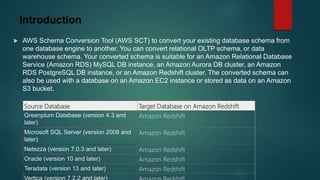
 AWS Schema Conversion Tool (AWS SCT) to convert your existing database schema from
one database engine to another. You can convert relational OLTP schema, or data
warehouse schema. Your converted schema is suitable for an Amazon Relational Database
Service (Amazon RDS) MySQL DB instance, an Amazon Aurora DB cluster, an Amazon
RDS PostgreSQL DB instance, or an Amazon Redshift cluster. The converted schema can
also be used with a database on an Amazon EC2 instance or stored as data on an Amazon
S3 bucket.
Source Database Target Database on Amazon Redshift
Greenplum Database (version 4.3 and
later)
Amazon Redshift
Microsoft SQL Server (version 2008 and
later)
Amazon Redshift
Netezza (version 7.0.3 and later) Amazon Redshift
Oracle (version 10 and later) Amazon Redshift
Teradata (version 13 and later) Amazon Redshift
Installing SCT on Windows OS
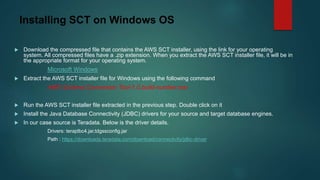
 Download the compressed file that contains the AWS SCT installer, using the link for your operating
system. All compressed files have a .zip extension. When you extract the AWS SCT installer file, it will be in
the appropriate format for your operating system.
Microsoft Windows
 Extract the AWS SCT installer file for Windows using the following command
AWS Schema Conversion Tool-1.0.build-number.msi
 Run the AWS SCT installer file extracted in the previous step. Double click on it
 Install the Java Database Connectivity (JDBC) drivers for your source and target database engines.
 In our case source is Teradata. Below is the driver details.
Drivers: terajdbc4.jar,tdgssconfig.jar
Path : https://downloads.teradata.com/download/connectivity/jdbc-driver
SCT Interface Overview
 The illustration following is what you see in the AWS SCT when you create a schema migration
project, and then convert a schema.
 In the left panel, the schema from your source database is presented in a tree view. Your
database schema is "lazy loaded." In other words, when you select an item from the tree view,
AWS SCT gets and displays the current schema from your source database.
 In the top middle panel, action items appear for schema elements from the source database
engine that couldn't be converted automatically to the target database engine.
 In the right panel, the schema from your target DB instance is presented in a tree view. Your
database schema is "lazy loaded." That is, at the point when you select an item from the tree
view, AWS SCT gets and displays the current schema from your target database.

In the lower left panel, when you choose a schema element, properties describing the source
schema element and the SQL command to create that element in the source database are
displayed.
 In the lower right panel, when you choose a schema element, properties describing the target
schema element and the SQL command to create that element in the target database are
displayed. You can edit this SQL command and save the updated command with your project.
 For further details please check the below link
https://docs.aws.amazon.com/SchemaConversionTool/latest/userguide/
Using Teradata as a Source for AWS Schema
Conversion Tool
 Privileges for Teradata as a Source
The privileges required for Teradata as a
source are listed following:
SELECT ON DBC
 Connecting to Teradata as a Source
Use the following procedure to connect to
your Teradata source database with t he AWS
Schema Conversion Tool.
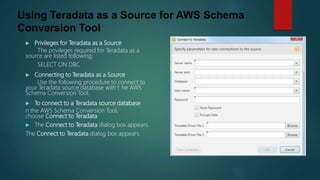
 To connect to a Teradata source database
n the AWS Schema Conversion Tool,
choose Connect to Teradata.
 The Connect to Teradata dialog box appears.
The Connect to Teradata dialog box appears.
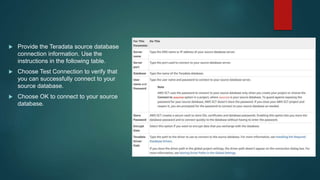
 Provide the Teradata source database
connection information. Use the
instructions in the following table.
 Choose Test Connection to verify that
you can successfully connect to your
source database.
 Choose OK to connect to your source
database.
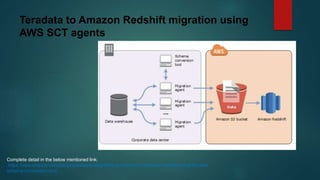
Teradata to Amazon Redshift migration using
AWS SCT agents
Complete detail in the below mentioned link:
https://aws.amazon.com/blogs/database/integrating-teradata-with-amazon-redshift-using-the-aws-
schema-conversion-tool/
Thanks

Aws schema conversion tool

  • 1.
    Overview of theAWS Schema Conversion Tool
  • 2.
    Introduction  AWS SchemaConversion Tool (AWS SCT) to convert your existing database schema from one database engine to another. You can convert relational OLTP schema, or data warehouse schema. Your converted schema is suitable for an Amazon Relational Database Service (Amazon RDS) MySQL DB instance, an Amazon Aurora DB cluster, an Amazon RDS PostgreSQL DB instance, or an Amazon Redshift cluster. The converted schema can also be used with a database on an Amazon EC2 instance or stored as data on an Amazon S3 bucket. Source Database Target Database on Amazon Redshift Greenplum Database (version 4.3 and later) Amazon Redshift Microsoft SQL Server (version 2008 and later) Amazon Redshift Netezza (version 7.0.3 and later) Amazon Redshift Oracle (version 10 and later) Amazon Redshift Teradata (version 13 and later) Amazon Redshift
  • 3.
    Installing SCT onWindows OS  Download the compressed file that contains the AWS SCT installer, using the link for your operating system. All compressed files have a .zip extension. When you extract the AWS SCT installer file, it will be in the appropriate format for your operating system. Microsoft Windows  Extract the AWS SCT installer file for Windows using the following command AWS Schema Conversion Tool-1.0.build-number.msi  Run the AWS SCT installer file extracted in the previous step. Double click on it  Install the Java Database Connectivity (JDBC) drivers for your source and target database engines.  In our case source is Teradata. Below is the driver details. Drivers: terajdbc4.jar,tdgssconfig.jar Path : https://downloads.teradata.com/download/connectivity/jdbc-driver
  • 4.
    SCT Interface Overview The illustration following is what you see in the AWS SCT when you create a schema migration project, and then convert a schema.  In the left panel, the schema from your source database is presented in a tree view. Your database schema is "lazy loaded." In other words, when you select an item from the tree view, AWS SCT gets and displays the current schema from your source database.  In the top middle panel, action items appear for schema elements from the source database engine that couldn't be converted automatically to the target database engine.  In the right panel, the schema from your target DB instance is presented in a tree view. Your database schema is "lazy loaded." That is, at the point when you select an item from the tree view, AWS SCT gets and displays the current schema from your target database.  In the lower left panel, when you choose a schema element, properties describing the source schema element and the SQL command to create that element in the source database are displayed.  In the lower right panel, when you choose a schema element, properties describing the target schema element and the SQL command to create that element in the target database are displayed. You can edit this SQL command and save the updated command with your project.  For further details please check the below link https://docs.aws.amazon.com/SchemaConversionTool/latest/userguide/
  • 5.
    Using Teradata asa Source for AWS Schema Conversion Tool  Privileges for Teradata as a Source The privileges required for Teradata as a source are listed following: SELECT ON DBC  Connecting to Teradata as a Source Use the following procedure to connect to your Teradata source database with t he AWS Schema Conversion Tool.  To connect to a Teradata source database n the AWS Schema Conversion Tool, choose Connect to Teradata.  The Connect to Teradata dialog box appears. The Connect to Teradata dialog box appears.
  • 6.
     Provide theTeradata source database connection information. Use the instructions in the following table.  Choose Test Connection to verify that you can successfully connect to your source database.  Choose OK to connect to your source database.
  • 7.
    Teradata to AmazonRedshift migration using AWS SCT agents Complete detail in the below mentioned link: https://aws.amazon.com/blogs/database/integrating-teradata-with-amazon-redshift-using-the-aws- schema-conversion-tool/
  • 8.