Arduino Bluetooth Voice Control
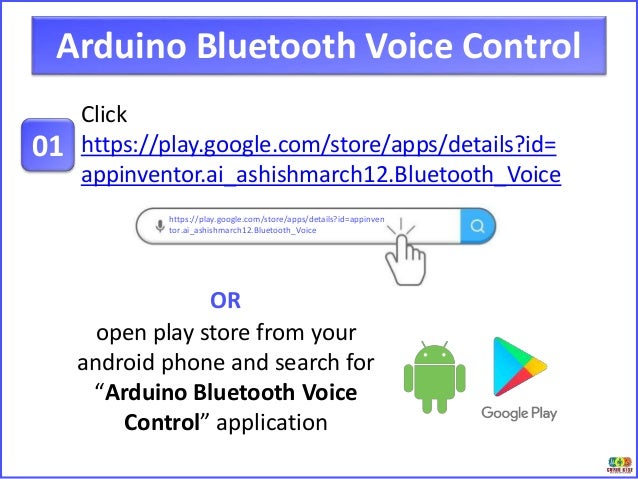
Click
https://play.google.com/store/apps/details?id=
appinventor.ai_ashishmarch12.Bluetooth_Voice
01
https://play.google.com/store/apps/details?id=appinven
tor.ai_ashishmarch12.Bluetooth_Voice
open play store from your
android phone and search for
“Arduino Bluetooth Voice
Control” application
OR
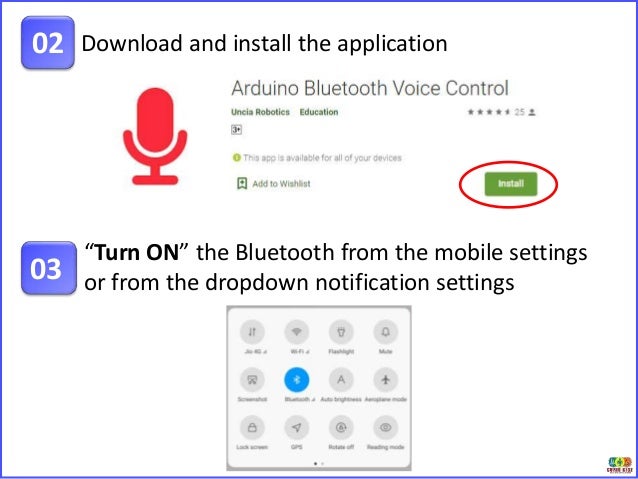
Download and install the application
02
“Turn ON” the Bluetooth from the mobile settings
or from the dropdown notification settings
03
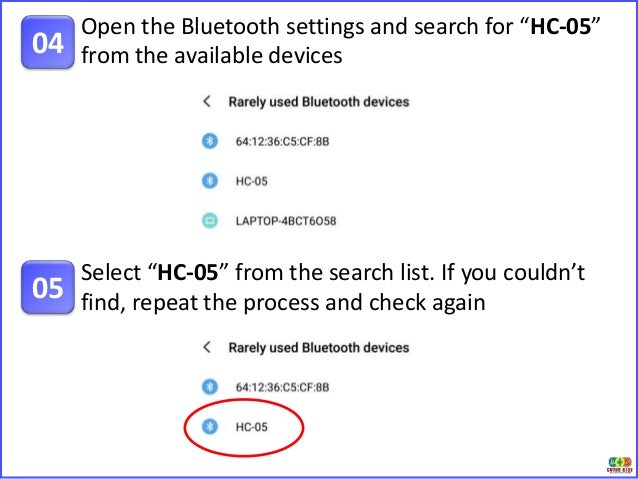
Open the Bluetooth settings and search for “HC-05”
from the available devices
04
Select “HC-05” from the search list. If you couldn’t
find, repeat the process and check again
05
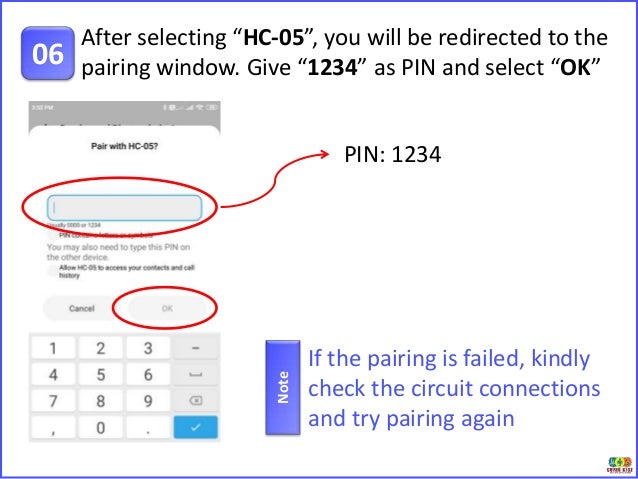
After selecting “HC-05”, you will be redirected to the
pairing window. Give “1234” as PIN and select “OK”
06
PIN: 1234
If the pairing is failed, kindly
check the circuit connections
and try pairing again
Note
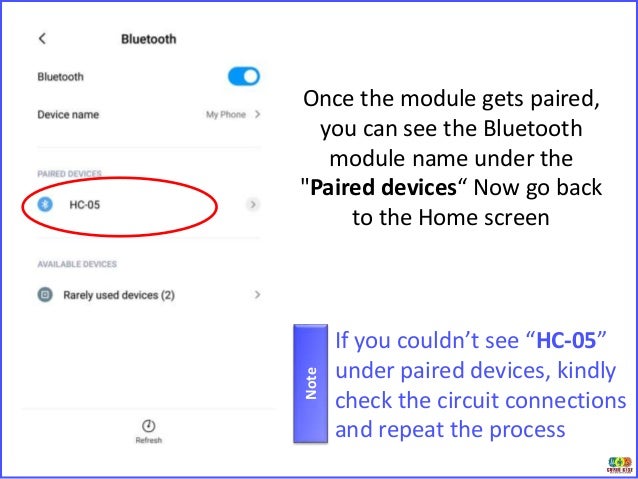
Once the module gets paired,
you can see the Bluetooth
module name under the
"Paired devices“ Now go back
to the Home screen
If you couldn’t see “HC-05”
under paired devices, kindly
check the circuit connections
and repeat the process
Note
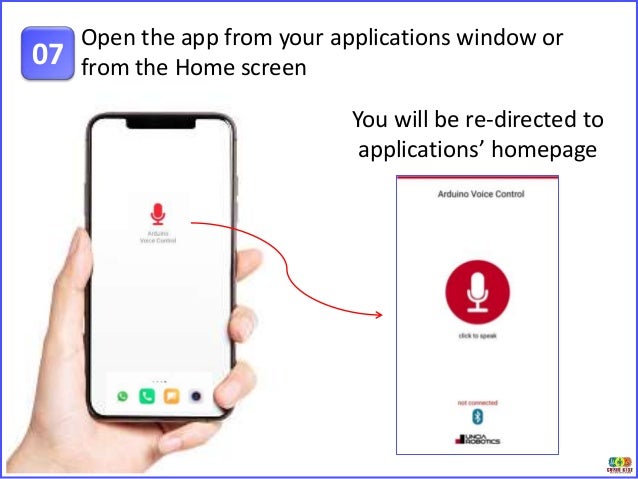
Open the app from your applications window or
from the Home screen
07
You will be re-directed to
applications’ homepage
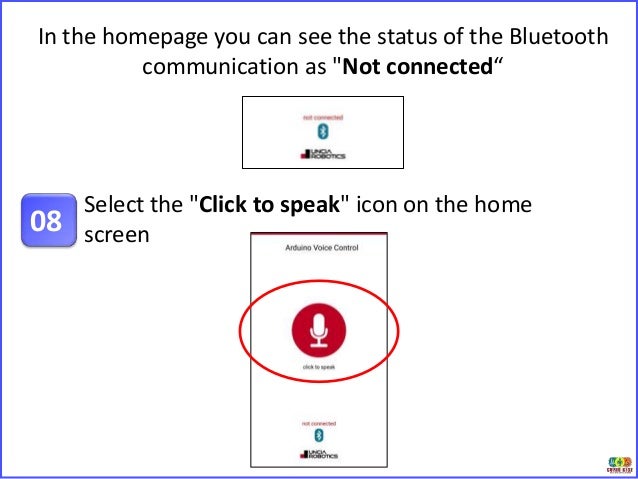
In the homepage you can see the status of the Bluetooth
communication as "Not connected“
Select the "Click to speak" icon on the home
screen
08
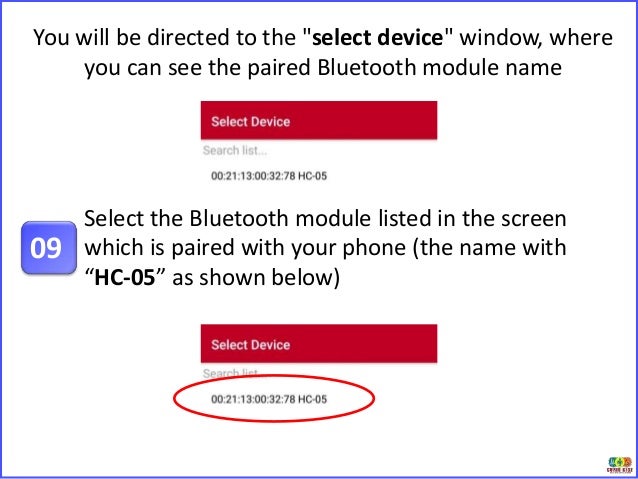
You will be directed to the "select device" window, where
you can see the paired Bluetooth module name
Select the Bluetooth module listed in the screen
which is paired with your phone (the name with
“HC-05” as shown below)
09
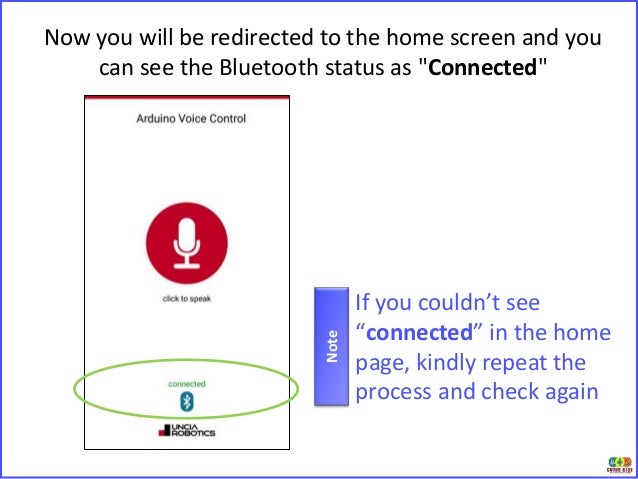
Now you will be redirected to the home screen and you
can see the Bluetooth status as "Connected"
If you couldn’t see
“connected” in the home
page, kindly repeat the
process and check again
Note
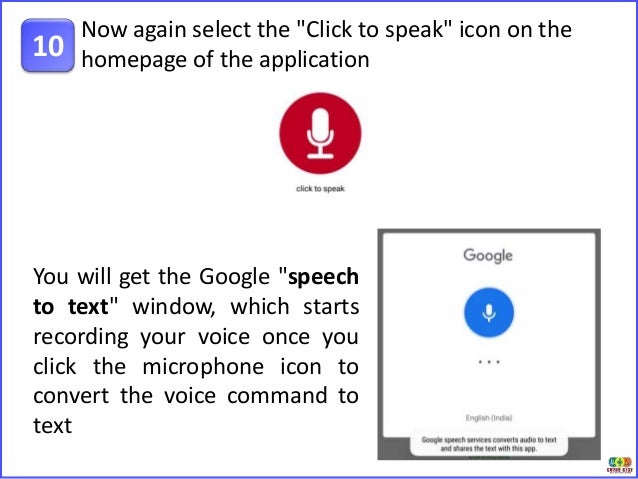
Now again select the "Click to speak" icon on the
homepage of the application
10
You will get the Google "speech
to text" window, which starts
recording your voice once you
click the microphone icon to
convert the voice command to
text
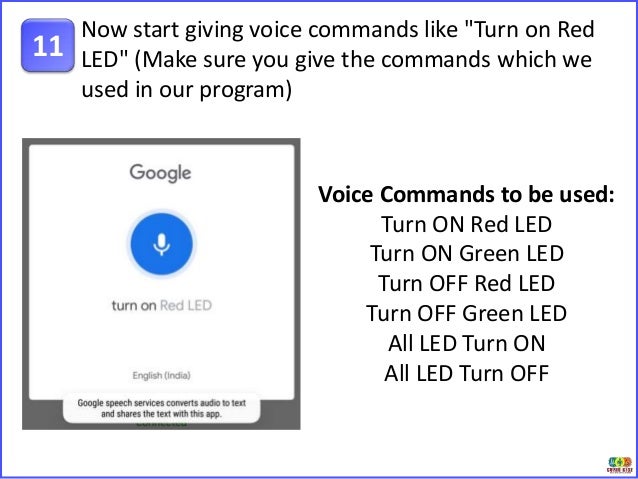
Now start giving voice commands like "Turn on Red
LED" (Make sure you give the commands which we
used in our program)
11
Voice Commands to be used:
Turn ON Red LED
Turn ON Green LED
Turn OFF Red LED
Turn OFF Green LED
All LED Turn ON
All LED Turn OFF
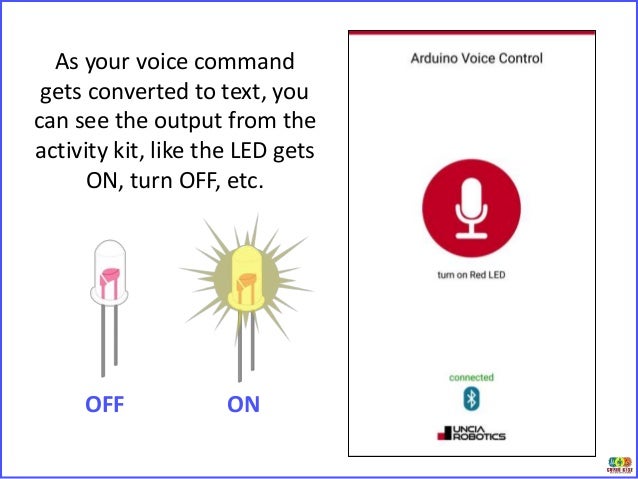
As your voice command
gets converted to text, you
can see the output from the
activity kit, like the LED gets
ON, turn OFF, etc.
OFF ON
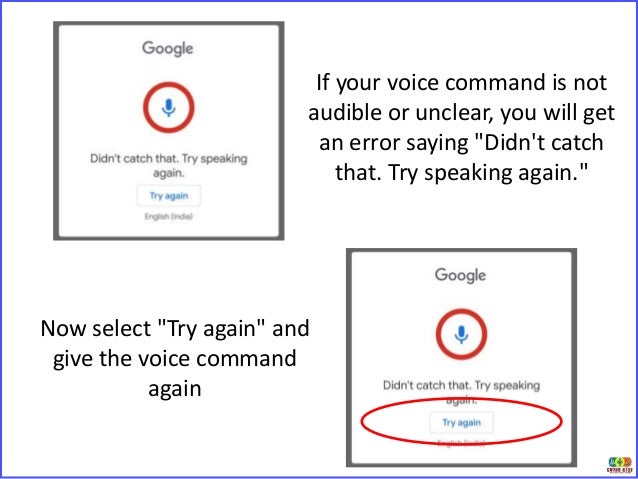
If your voice command is not
audible or unclear, you will get
an error saying "Didn't catch
that. Try speaking again."
Now select "Try again" and
give the voice command
again
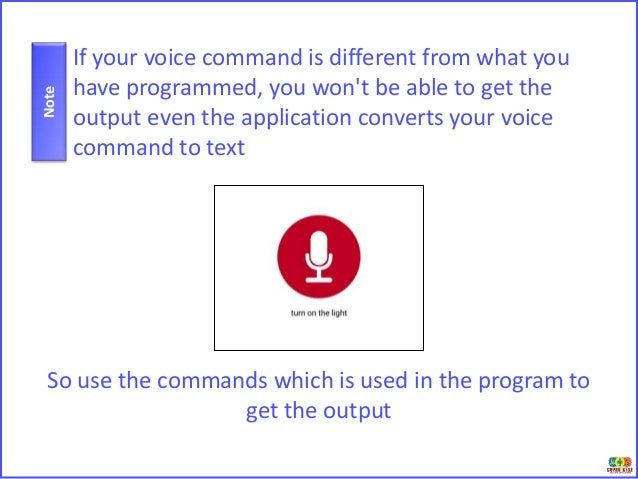
If your voice command is different from what you
have programmed, you won't be able to get the
output even the application converts your voice
command to text
Note
So use the commands which is used in the program to
get the output

Arduino Bluetooth Voice Control

  • 1.
    Arduino Bluetooth VoiceControl Click https://play.google.com/store/apps/details?id= appinventor.ai_ashishmarch12.Bluetooth_Voice 01 https://play.google.com/store/apps/details?id=appinven tor.ai_ashishmarch12.Bluetooth_Voice open play store from your android phone and search for “Arduino Bluetooth Voice Control” application OR
  • 2.
    Download and installthe application 02 “Turn ON” the Bluetooth from the mobile settings or from the dropdown notification settings 03
  • 3.
    Open the Bluetoothsettings and search for “HC-05” from the available devices 04 Select “HC-05” from the search list. If you couldn’t find, repeat the process and check again 05
  • 4.
    After selecting “HC-05”,you will be redirected to the pairing window. Give “1234” as PIN and select “OK” 06 PIN: 1234 If the pairing is failed, kindly check the circuit connections and try pairing again Note
  • 5.
    Once the modulegets paired, you can see the Bluetooth module name under the "Paired devices“ Now go back to the Home screen If you couldn’t see “HC-05” under paired devices, kindly check the circuit connections and repeat the process Note
  • 6.
    Open the appfrom your applications window or from the Home screen 07 You will be re-directed to applications’ homepage
  • 7.
    In the homepageyou can see the status of the Bluetooth communication as "Not connected“ Select the "Click to speak" icon on the home screen 08
  • 8.
    You will bedirected to the "select device" window, where you can see the paired Bluetooth module name Select the Bluetooth module listed in the screen which is paired with your phone (the name with “HC-05” as shown below) 09
  • 9.
    Now you willbe redirected to the home screen and you can see the Bluetooth status as "Connected" If you couldn’t see “connected” in the home page, kindly repeat the process and check again Note
  • 10.
    Now again selectthe "Click to speak" icon on the homepage of the application 10 You will get the Google "speech to text" window, which starts recording your voice once you click the microphone icon to convert the voice command to text
  • 11.
    Now start givingvoice commands like "Turn on Red LED" (Make sure you give the commands which we used in our program) 11 Voice Commands to be used: Turn ON Red LED Turn ON Green LED Turn OFF Red LED Turn OFF Green LED All LED Turn ON All LED Turn OFF
  • 12.
    As your voicecommand gets converted to text, you can see the output from the activity kit, like the LED gets ON, turn OFF, etc. OFF ON
  • 13.
    If your voicecommand is not audible or unclear, you will get an error saying "Didn't catch that. Try speaking again." Now select "Try again" and give the voice command again
  • 14.
    If your voicecommand is different from what you have programmed, you won't be able to get the output even the application converts your voice command to text Note So use the commands which is used in the program to get the output