To make my handy project with documentation is so smart style but
pretty boring work. But apple make it easy with Xcode to make auto
documentation by simply installing a script.
There are various documentation style like
1. VVDocumenter
2. Appledoc
But here we discuss about appledoc documentation setup. Follow the
below process:
Appledoc style code commenting and Documentation -
To make method/ class/ library documentation like Xcode documentation
need several steps.
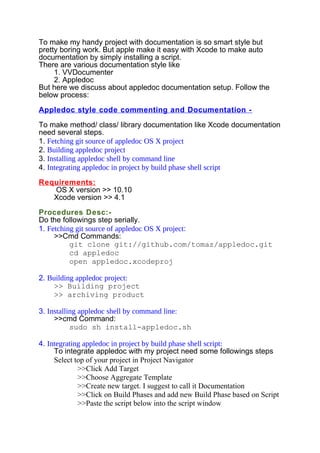
1. Fetching git source of appledoc OS X project
2. Building appledoc project
3. Installing appledoc shell by command line
4. Integrating appledoc in project by build phase shell script
Requirements:
OS X version >> 10.10
Xcode version >> 4.1
Procedures Desc:-
Do the followings step serially.
1. Fetching git source of appledoc OS X project:
>>Cmd Commands:
git clone git://github.com/tomaz/appledoc.git
cd appledoc
open appledoc.xcodeproj
2. Building appledoc project:
>> Building project
>> archiving product
3. Installing appledoc shell by command line:
>>cmd Command:
sudo sh install-appledoc.sh
4. Integrating appledoc in project by build phase shell script:
To integrate appledoc with my project need some followings steps
Select top of your project in Project Navigator
>>Click Add Target
>>Choose Aggregate Template
>>Create new target. I suggest to call it Documentation
>>Click on Build Phases and add new Build Phase based on Script
>>Paste the script below into the script window
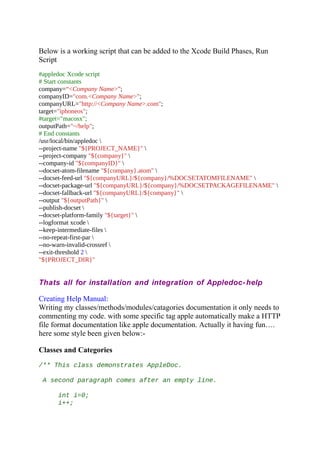
Below is a working script that can be added to the Xcode Build Phases, Run
Script
#appledoc Xcode script
# Start constants
company=“<Company Name>”;
companyID="com.<Company Name>";
companyURL="http://<Company Name>.com";
target="iphoneos";
#target="macosx";
outputPath="~/help";
# End constants
/usr/local/bin/appledoc 
--project-name "${PROJECT_NAME}" 
--project-company "${company}" 
--company-id "${companyID}" 
--docset-atom-filename "${company}.atom" 
--docset-feed-url "${companyURL}/${company}/%DOCSETATOMFILENAME" 
--docset-package-url "${companyURL}/${company}/%DOCSETPACKAGEFILENAME" 
--docset-fallback-url "${companyURL}/${company}" 
--output "${outputPath}" 
--publish-docset 
--docset-platform-family "${target}" 
--logformat xcode 
--keep-intermediate-files 
--no-repeat-first-par 
--no-warn-invalid-crossref 
--exit-threshold 2 
"${PROJECT_DIR}"
Thats all for installation and integration of Appledoc-help
Creating Help Manual:
Writing my classes/methods/modules/catagories documentation it only needs to
commenting my code. with some specific tag apple automatically make a HTTP
file format documentation like apple documentation. Actually it having fun….
here some style been given below:-
Classes and Categories
/** This class demonstrates AppleDoc.
A second paragraph comes after an empty line.
int i=0;
i++;
And some sample code can also be in a block, but indented
with a TAB.
*/
Methods
/
**------------------------------------------------------------
---------------------------
* @name A name under which this method appears under "Tasks"
*
--------------------------------------------------------------
-------------------------
*/
/** This is the first super-awesome method.
You can also add lists, but have to keep an empty line
between these blocks.
- One
- Two
- Three
@param string A parameter that is passed in.
@return Whatever it returns.
*/
- (NSString *)someMethodWithString:(NSString *)string;
/** This is the second super-awesome method.
Note that there are additional cool things here, like [direct
hyperlinks](http://www.cocoanetics.com)
@param number A parameter that is passed in, almost as cool
as someMethodWithString:
@return Whatever it returns.
@see someMethodWithString:
@warning *Warning:* A blue background.
@bug *Bug:* A yellow background.
*/
- (NSString *)someMethodWithInteger:(NSInteger)number;
The comment block with the @name serves for the grouping of methods in the
“Tasks” section at the beginning of the page for the class/category. You should
group similar methods under one such section, you don’t have to repeat it
because the @name is good until the next one. You see that you can also have
lists (numbered or not). You need an @param for each parameter of the method.
If it has a non-void return value then you also need an @return to describe that.
Omitting any of these will get you a warning. This shows cross references inline
and via the @see tag. For external hyperlinks you put the link words in square
brackets, the link itself in round ones. Finally you have a choice of blue or
yellow box for warnings/notices.
That’s all and Thank you much.

appledoc_style

  • 1.
    To make myhandy project with documentation is so smart style but pretty boring work. But apple make it easy with Xcode to make auto documentation by simply installing a script. There are various documentation style like 1. VVDocumenter 2. Appledoc But here we discuss about appledoc documentation setup. Follow the below process: Appledoc style code commenting and Documentation - To make method/ class/ library documentation like Xcode documentation need several steps. 1. Fetching git source of appledoc OS X project 2. Building appledoc project 3. Installing appledoc shell by command line 4. Integrating appledoc in project by build phase shell script Requirements: OS X version >> 10.10 Xcode version >> 4.1 Procedures Desc:- Do the followings step serially. 1. Fetching git source of appledoc OS X project: >>Cmd Commands: git clone git://github.com/tomaz/appledoc.git cd appledoc open appledoc.xcodeproj 2. Building appledoc project: >> Building project >> archiving product 3. Installing appledoc shell by command line: >>cmd Command: sudo sh install-appledoc.sh 4. Integrating appledoc in project by build phase shell script: To integrate appledoc with my project need some followings steps Select top of your project in Project Navigator >>Click Add Target >>Choose Aggregate Template >>Create new target. I suggest to call it Documentation >>Click on Build Phases and add new Build Phase based on Script >>Paste the script below into the script window
  • 2.
    Below is aworking script that can be added to the Xcode Build Phases, Run Script #appledoc Xcode script # Start constants company=“<Company Name>”; companyID="com.<Company Name>"; companyURL="http://<Company Name>.com"; target="iphoneos"; #target="macosx"; outputPath="~/help"; # End constants /usr/local/bin/appledoc --project-name "${PROJECT_NAME}" --project-company "${company}" --company-id "${companyID}" --docset-atom-filename "${company}.atom" --docset-feed-url "${companyURL}/${company}/%DOCSETATOMFILENAME" --docset-package-url "${companyURL}/${company}/%DOCSETPACKAGEFILENAME" --docset-fallback-url "${companyURL}/${company}" --output "${outputPath}" --publish-docset --docset-platform-family "${target}" --logformat xcode --keep-intermediate-files --no-repeat-first-par --no-warn-invalid-crossref --exit-threshold 2 "${PROJECT_DIR}" Thats all for installation and integration of Appledoc-help Creating Help Manual: Writing my classes/methods/modules/catagories documentation it only needs to commenting my code. with some specific tag apple automatically make a HTTP file format documentation like apple documentation. Actually it having fun…. here some style been given below:- Classes and Categories /** This class demonstrates AppleDoc. A second paragraph comes after an empty line. int i=0; i++;
  • 3.
    And some samplecode can also be in a block, but indented with a TAB. */ Methods / **------------------------------------------------------------ --------------------------- * @name A name under which this method appears under "Tasks" * -------------------------------------------------------------- ------------------------- */ /** This is the first super-awesome method. You can also add lists, but have to keep an empty line between these blocks. - One - Two - Three @param string A parameter that is passed in. @return Whatever it returns. */ - (NSString *)someMethodWithString:(NSString *)string; /** This is the second super-awesome method. Note that there are additional cool things here, like [direct hyperlinks](http://www.cocoanetics.com) @param number A parameter that is passed in, almost as cool as someMethodWithString: @return Whatever it returns. @see someMethodWithString: @warning *Warning:* A blue background. @bug *Bug:* A yellow background. */ - (NSString *)someMethodWithInteger:(NSInteger)number; The comment block with the @name serves for the grouping of methods in the “Tasks” section at the beginning of the page for the class/category. You should group similar methods under one such section, you don’t have to repeat it because the @name is good until the next one. You see that you can also have lists (numbered or not). You need an @param for each parameter of the method.
  • 4.
    If it hasa non-void return value then you also need an @return to describe that. Omitting any of these will get you a warning. This shows cross references inline and via the @see tag. For external hyperlinks you put the link words in square brackets, the link itself in round ones. Finally you have a choice of blue or yellow box for warnings/notices. That’s all and Thank you much.