Android Architecture,
Environment, and
Components
Wireless and Mobile Programming /
Mobile Programming Class
Week 01
Autonomous Professional Profile (Informatics)
1.Graduates from the study program will have successful careers in the
field of informatics or other relevant sectors.
2.Graduates from the study program will succeed as entrepreneurs who
develop a Startup Business related to and supported by information
technology.
3.Graduates from the study program will successfully pursue
postgraduate studies and/or play an active role in the development of
science, tools, or technology related to the study of informatics.
Autonomous Professional Profile
(Information System)
1.Having excellent skills as an Information System Professional and
ability to lead innovation at Enterprise through Information System
Technology utilization.
2.Having technopreneurial quality to develop and lead an independent
business by incorporating various technologies and cross-disciplinary
approaches.
3. Having excellent ability in knowledge transfer to advance the
Information System field through the publication of innovative, creative,
and applicable scientific works.
Program Learning Outcome (Informatics)
•PLO-1 Able to analyze complex problems in the field of informatics and apply principles of informatics and other relevant
disciplines to identify their solutions by taking into account insights from the advancements of trans-disciplinary fields.
•PLO-2 Able to design, implement, and evaluate computing-based solutions that meet the computing needs of a disciplinary
program.
•PLO-3 Able to communicate proficiently in various professional contexts.
•PLO-4 Able to comprehend professional responsibilities and to conduct assessment based on appropriate information in
computing practices and legal and ethical principles.
•PLO-5 Able to effectively conduct the role of team leader or member in activities that are in accordance with the discipline
of the study program.
•PLO-6 Able to apply computer science theories and the basis of software development to develop computing-
based solutions.
•PLO-7 Able to analyze, design, and develop a Startup Business supported by information technology.
•PLO-8 Able to comprehend the basics of research and scientific writing in the field of informatics.
Program Learning Outcome
(Information System)
•PLO 1 Possessing the ability to identify and analyze complex problems in the field of computing by utilizing principles of
computing, supported by other related fields, to develop innovative and creative solutions in accordance with the
development of cross-disciplinary fields
•PLO 2 Possessing the skills to design computing-based solutions and to implement them by applying modern style
techniques in order to offer complete solutions based on appropriate requirements, and to evaluate the solutions in a certain
domain
•PLO 3 Possessing the proficiency to communicate properly and correctly, both orally and in writing, in a variety of domains
•PLO 4 Possessing a professionally responsible attitude and the ability to conduct assessments based on data and
information in computing practices while paying attention to ethical and legal norms
•PLO 5 Possessing the capability to be effective and efficient leaders or team members in a variety of activities, that are
relevant to both the field of information systems and those of other fields
•PLO 6 Possessing the ability to support the concept, delivery, utilization, and management of information
systems within an industrial and business environment in particular, as well as those of other environments
•PLO 7 Possessing an entrepreneurial attitude and the capability to design an independent business/start-up related to
information systems
•PLO 8 Being able to learn independently as a lifelong study, and to generate and transfer cutting-edge scientific knowledge
Syllabus
● Week 1. Android Architecture, Environment, and Component
● Week 2. Android UI Layout and UI Control
● Week 3. Android Activity and Intent
● Week 4. Android Service
● Week 5. Android Fragments
● Week 6. Android Storage: Shared Preferences
● Week 7. Android Storage: SQLite
● Week 8. Mid Exam
Syllabus
● Week 9. Android Device: Bluetooth
● Week 10. Android Camera
● Week 11. Android Google Map
● Week 12. Android Sensors
● Week 13. Firebase Integration
● Week 14. PHP/MySql Integration
● Week 15. Android Project Presentation
● Week 16. Final Exam
Grading Component
● Attendance: 5%
● Class Practice and Participation: 10%
● Assignment: 10%
● Group Project: 20%
● Mid Exam: 25%
● Final Exam: 30%
Android
Architecture
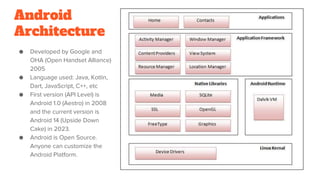
● Developed by Google and
OHA (Open Handset Alliance)
2005
● Language used: Java, Kotlin,
Dart, JavaScript, C++, etc
● First version (API Level) is
Android 1.0 (Aestro) in 2008
and the current version is
Android 14 (Upside Down
Cake) in 2023.
● Android is Open Source.
Anyone can customize the
Android Platform.
Android Architecture
● Linux Kernel is responsible for device driver, device management, memory
management, etc. It helps mobile apps to communicate with mobile devices
hardwares and use their services such as camera, microphone, touch screen,
etc.
● Native Libraries serves as collection of classes that we can use to create
mobile applications functionality.
● Dalvik Virtual Machine (DVM) is Android runtime. It is a mini version of JVM. It
consumes less memory, thus it is suitable for small device.
● Android Framework is Android APIs in which developers can use to integrate
with Android features such as telephony, location, package managers, etc.
● Application, on top of Android framework is our application. We will learn how
to create our own Android application. SO LET GET STARTED.
Environment Setup
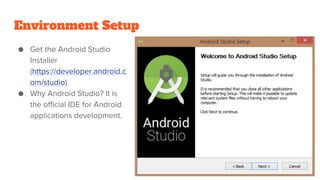
● Get the Android Studio
Installer
(https://developer.android.c
om/studio)
● Why Android Studio? It is
the official IDE for Android
applications development.
Environment Setup
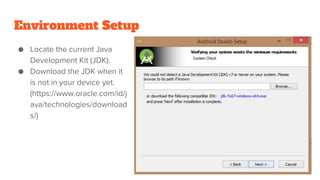
● Locate the current Java
Development Kit (JDK).
● Download the JDK when it
is not in your device yet.
(https://www.oracle.com/id/j
ava/technologies/download
s/)
Environment Setup
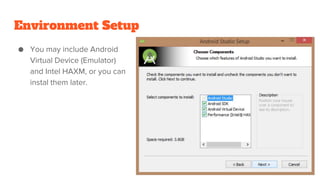
● You may include Android
Virtual Device (Emulator)
and Intel HAXM, or you can
instal them later.
Environment Setup
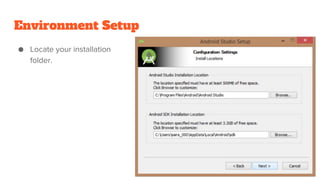
● Locate your installation
folder.
Environment Setup
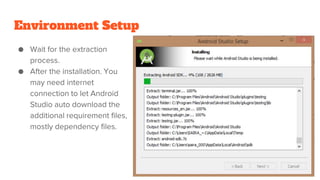
● Wait for the extraction
process.
● After the installation. You
may need internet
connection to let Android
Studio auto download the
additional requirement files,
mostly dependency files.
Start with new project
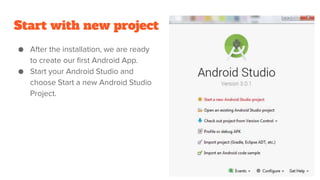
● After the installation, we are ready
to create our first Android App.
● Start your Android Studio and
choose Start a new Android Studio
Project.
Start with new project
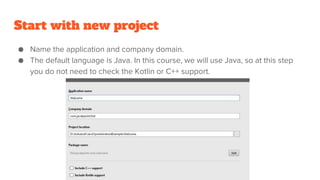
● Name the application and company domain.
● The default language is Java. In this course, we will use Java, so at this step
you do not need to check the Kotlin or C++ support.
Start with new project
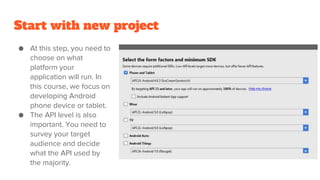
● At this step, you need to
choose on what
platform your
application will run. In
this course, we focus on
developing Android
phone device or tablet.
● The API level is also
important. You need to
survey your target
audience and decide
what the API used by
the majority.
Start with new project
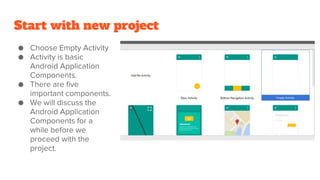
● Choose Empty Activity
● Activity is basic
Android Application
Components.
● There are five
important components.
● We will discuss the
Android Application
Components for a
while before we
proceed with the
project.
Android Application Components
● Activity represent a single screen with a user interface. It is something that the
user see on their mobile phone screen. So, basically, most of Android Apps,
are a set of integrated activities.
● Service, on the other hand, does not require a UI. It runs in the background.
For example, user can listen to music while he/she uses another application.
● Broadcast Receiver is a component that respond to the broadcast messages
from other applications or from the system. For example, application
sometimes received notifications from other applications. The broadcast
receiver works to manage the message from one application and distribute to
other applications.
● Content Provider is a component that supplies data based on the application
request. The data can be stored in files or database.
Android Application Components
● Intent is an object that contain data from the intent creator that later will be
received by the other process. The other four components used intent to
communicate to each other.
● For example, Activity A create an intent and send it to Activity B. It helps the
user to move from Activity A screen/ UI to Activity B screen/UI.
● We will discuss the detail of Activity and Intent in week 2.
● Let’s go back and continue with the project preparation.
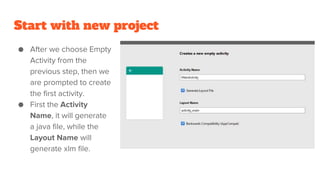
Start with new project
● After we choose Empty
Activity from the
previous step, then we
are prompted to create
the first activity.
● First the Activity
Name, it will generate
a java file, while the
Layout Name will
generate xlm file.
Get familiar with the
environment
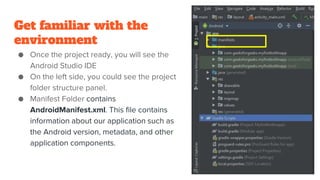
● Once the project ready, you will see the
Android Studio IDE
● On the left side, you could see the project
folder structure panel.
● Manifest Folder contains
AndroidManifest.xml. This file contains
information about our application such as
the Android version, metadata, and other
application components.
Get familiar with the
environment
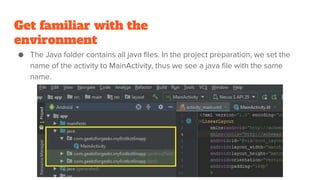
● The Java folder contains all java files. In the project preparation, we set the
name of the activity to MainActivity, thus we see a java file with the same
name.
Get familiar with the
environment
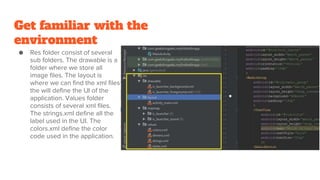
● Res folder consist of several
sub folders. The drawable is a
folder where we store all
image files. The layout is
where we can find the xml files
the will define the UI of the
application. Values folder
consists of several xml files.
The strings.xml define all the
label used in the UI. The
colors.xml define the color
code used in the application.
Get familiar with the
environment
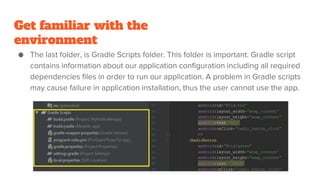
● The last folder, is Gradle Scripts folder. This folder is important. Gradle script
contains information about our application configuration including all required
dependencies files in order to run our application. A problem in Gradle scripts
may cause failure in application installation, thus the user cannot use the app.
Hello World
● As explained earlier. An activity is component that the user see on the screen.
When we choose empty Activity, meaning that we create one activity with
nothing on it. Our activity that we have created previously is named
MainActivity. There are two important files that responsible to handle this
activity.
● MainActivity.java is a java file that is responsible for all the logic, data
processing, class integration, and many more. We can find this file in Java
folder on the project folder panel.
● activity_main.xml is an xml file that is responsible to define the layout type, the
view groups, view elements, etc.
● To create Hello World application, we simply need to add view element in the
layout (activity_main.xml).
Hello World
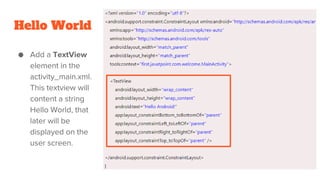
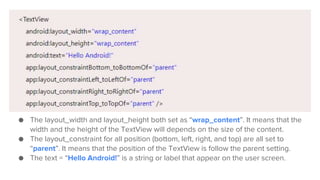
● Add a TextView
element in the
activity_main.xml.
This textview will
content a string
Hello World, that
later will be
displayed on the
user screen.
● The layout_width and layout_height both set as “wrap_content”. It means that the
width and the height of the TextView will depends on the size of the content.
● The layout_constraint for all position (bottom, left, right, and top) are all set to
“parent”. It means that the position of the TextView is follow the parent setting.
● The text = “Hello Android!” is a string or label that appear on the user screen.
Hello World
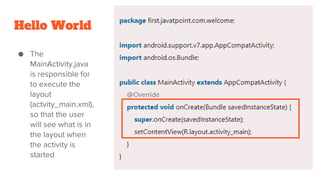
● The
MainActivity.java
is responsible for
to execute the
layout
(actvity_main.xml),
so that the user
will see what is in
the layout when
the activity is
started
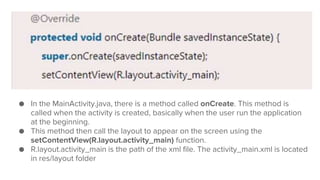
● In the MainActivity.java, there is a method called onCreate. This method is
called when the activity is created, basically when the user run the application
at the beginning.
● This method then call the layout to appear on the screen using the
setContentView(R.layout.activity_main) function.
● R.layout.activity_main is the path of the xml file. The activity_main.xml is located
in res/layout folder
Hello World
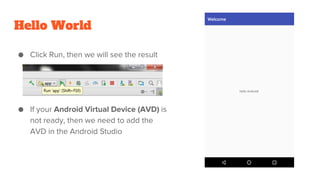
● Click Run, then we will see the result
● If your Android Virtual Device (AVD) is
not ready, then we need to add the
AVD in the Android Studio
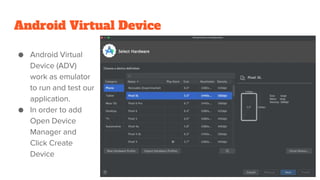
Android Virtual Device
● Android Virtual
Device (ADV)
work as emulator
to run and test our
application.
● In order to add
Open Device
Manager and
Click Create
Device
Practice
● Create another Android Project.
● Choose Empty Activity
● Name your project with your studentid_01
● Create an application that showing your image profile and information such as
names, studentid, email, major, address, dob, hobbies, and your picture profile
● Test your app using AVD.
Thanks and
See you next week

Android Architecture, Environment, and Components.pptx

  • 1.
    Android Architecture, Environment, and Components Wirelessand Mobile Programming / Mobile Programming Class Week 01
  • 2.
    Autonomous Professional Profile(Informatics) 1.Graduates from the study program will have successful careers in the field of informatics or other relevant sectors. 2.Graduates from the study program will succeed as entrepreneurs who develop a Startup Business related to and supported by information technology. 3.Graduates from the study program will successfully pursue postgraduate studies and/or play an active role in the development of science, tools, or technology related to the study of informatics.
  • 3.
    Autonomous Professional Profile (InformationSystem) 1.Having excellent skills as an Information System Professional and ability to lead innovation at Enterprise through Information System Technology utilization. 2.Having technopreneurial quality to develop and lead an independent business by incorporating various technologies and cross-disciplinary approaches. 3. Having excellent ability in knowledge transfer to advance the Information System field through the publication of innovative, creative, and applicable scientific works.
  • 4.
    Program Learning Outcome(Informatics) •PLO-1 Able to analyze complex problems in the field of informatics and apply principles of informatics and other relevant disciplines to identify their solutions by taking into account insights from the advancements of trans-disciplinary fields. •PLO-2 Able to design, implement, and evaluate computing-based solutions that meet the computing needs of a disciplinary program. •PLO-3 Able to communicate proficiently in various professional contexts. •PLO-4 Able to comprehend professional responsibilities and to conduct assessment based on appropriate information in computing practices and legal and ethical principles. •PLO-5 Able to effectively conduct the role of team leader or member in activities that are in accordance with the discipline of the study program. •PLO-6 Able to apply computer science theories and the basis of software development to develop computing- based solutions. •PLO-7 Able to analyze, design, and develop a Startup Business supported by information technology. •PLO-8 Able to comprehend the basics of research and scientific writing in the field of informatics.
  • 5.
    Program Learning Outcome (InformationSystem) •PLO 1 Possessing the ability to identify and analyze complex problems in the field of computing by utilizing principles of computing, supported by other related fields, to develop innovative and creative solutions in accordance with the development of cross-disciplinary fields •PLO 2 Possessing the skills to design computing-based solutions and to implement them by applying modern style techniques in order to offer complete solutions based on appropriate requirements, and to evaluate the solutions in a certain domain •PLO 3 Possessing the proficiency to communicate properly and correctly, both orally and in writing, in a variety of domains •PLO 4 Possessing a professionally responsible attitude and the ability to conduct assessments based on data and information in computing practices while paying attention to ethical and legal norms •PLO 5 Possessing the capability to be effective and efficient leaders or team members in a variety of activities, that are relevant to both the field of information systems and those of other fields •PLO 6 Possessing the ability to support the concept, delivery, utilization, and management of information systems within an industrial and business environment in particular, as well as those of other environments •PLO 7 Possessing an entrepreneurial attitude and the capability to design an independent business/start-up related to information systems •PLO 8 Being able to learn independently as a lifelong study, and to generate and transfer cutting-edge scientific knowledge
  • 6.
    Syllabus ● Week 1.Android Architecture, Environment, and Component ● Week 2. Android UI Layout and UI Control ● Week 3. Android Activity and Intent ● Week 4. Android Service ● Week 5. Android Fragments ● Week 6. Android Storage: Shared Preferences ● Week 7. Android Storage: SQLite ● Week 8. Mid Exam
  • 7.
    Syllabus ● Week 9.Android Device: Bluetooth ● Week 10. Android Camera ● Week 11. Android Google Map ● Week 12. Android Sensors ● Week 13. Firebase Integration ● Week 14. PHP/MySql Integration ● Week 15. Android Project Presentation ● Week 16. Final Exam
  • 8.
    Grading Component ● Attendance:5% ● Class Practice and Participation: 10% ● Assignment: 10% ● Group Project: 20% ● Mid Exam: 25% ● Final Exam: 30%
  • 9.
    Android Architecture ● Developed byGoogle and OHA (Open Handset Alliance) 2005 ● Language used: Java, Kotlin, Dart, JavaScript, C++, etc ● First version (API Level) is Android 1.0 (Aestro) in 2008 and the current version is Android 14 (Upside Down Cake) in 2023. ● Android is Open Source. Anyone can customize the Android Platform.
  • 10.
    Android Architecture ● LinuxKernel is responsible for device driver, device management, memory management, etc. It helps mobile apps to communicate with mobile devices hardwares and use their services such as camera, microphone, touch screen, etc. ● Native Libraries serves as collection of classes that we can use to create mobile applications functionality. ● Dalvik Virtual Machine (DVM) is Android runtime. It is a mini version of JVM. It consumes less memory, thus it is suitable for small device. ● Android Framework is Android APIs in which developers can use to integrate with Android features such as telephony, location, package managers, etc. ● Application, on top of Android framework is our application. We will learn how to create our own Android application. SO LET GET STARTED.
  • 11.
    Environment Setup ● Getthe Android Studio Installer (https://developer.android.c om/studio) ● Why Android Studio? It is the official IDE for Android applications development.
  • 12.
    Environment Setup ● Locatethe current Java Development Kit (JDK). ● Download the JDK when it is not in your device yet. (https://www.oracle.com/id/j ava/technologies/download s/)
  • 13.
    Environment Setup ● Youmay include Android Virtual Device (Emulator) and Intel HAXM, or you can instal them later.
  • 14.
    Environment Setup ● Locateyour installation folder.
  • 15.
    Environment Setup ● Waitfor the extraction process. ● After the installation. You may need internet connection to let Android Studio auto download the additional requirement files, mostly dependency files.
  • 16.
    Start with newproject ● After the installation, we are ready to create our first Android App. ● Start your Android Studio and choose Start a new Android Studio Project.
  • 17.
    Start with newproject ● Name the application and company domain. ● The default language is Java. In this course, we will use Java, so at this step you do not need to check the Kotlin or C++ support.
  • 18.
    Start with newproject ● At this step, you need to choose on what platform your application will run. In this course, we focus on developing Android phone device or tablet. ● The API level is also important. You need to survey your target audience and decide what the API used by the majority.
  • 19.
    Start with newproject ● Choose Empty Activity ● Activity is basic Android Application Components. ● There are five important components. ● We will discuss the Android Application Components for a while before we proceed with the project.
  • 20.
    Android Application Components ●Activity represent a single screen with a user interface. It is something that the user see on their mobile phone screen. So, basically, most of Android Apps, are a set of integrated activities. ● Service, on the other hand, does not require a UI. It runs in the background. For example, user can listen to music while he/she uses another application. ● Broadcast Receiver is a component that respond to the broadcast messages from other applications or from the system. For example, application sometimes received notifications from other applications. The broadcast receiver works to manage the message from one application and distribute to other applications. ● Content Provider is a component that supplies data based on the application request. The data can be stored in files or database.
  • 21.
    Android Application Components ●Intent is an object that contain data from the intent creator that later will be received by the other process. The other four components used intent to communicate to each other. ● For example, Activity A create an intent and send it to Activity B. It helps the user to move from Activity A screen/ UI to Activity B screen/UI. ● We will discuss the detail of Activity and Intent in week 2. ● Let’s go back and continue with the project preparation.
  • 22.
    Start with newproject ● After we choose Empty Activity from the previous step, then we are prompted to create the first activity. ● First the Activity Name, it will generate a java file, while the Layout Name will generate xlm file.
  • 23.
    Get familiar withthe environment ● Once the project ready, you will see the Android Studio IDE ● On the left side, you could see the project folder structure panel. ● Manifest Folder contains AndroidManifest.xml. This file contains information about our application such as the Android version, metadata, and other application components.
  • 24.
    Get familiar withthe environment ● The Java folder contains all java files. In the project preparation, we set the name of the activity to MainActivity, thus we see a java file with the same name.
  • 25.
    Get familiar withthe environment ● Res folder consist of several sub folders. The drawable is a folder where we store all image files. The layout is where we can find the xml files the will define the UI of the application. Values folder consists of several xml files. The strings.xml define all the label used in the UI. The colors.xml define the color code used in the application.
  • 26.
    Get familiar withthe environment ● The last folder, is Gradle Scripts folder. This folder is important. Gradle script contains information about our application configuration including all required dependencies files in order to run our application. A problem in Gradle scripts may cause failure in application installation, thus the user cannot use the app.
  • 27.
    Hello World ● Asexplained earlier. An activity is component that the user see on the screen. When we choose empty Activity, meaning that we create one activity with nothing on it. Our activity that we have created previously is named MainActivity. There are two important files that responsible to handle this activity. ● MainActivity.java is a java file that is responsible for all the logic, data processing, class integration, and many more. We can find this file in Java folder on the project folder panel. ● activity_main.xml is an xml file that is responsible to define the layout type, the view groups, view elements, etc. ● To create Hello World application, we simply need to add view element in the layout (activity_main.xml).
  • 28.
    Hello World ● Adda TextView element in the activity_main.xml. This textview will content a string Hello World, that later will be displayed on the user screen.
  • 29.
    ● The layout_widthand layout_height both set as “wrap_content”. It means that the width and the height of the TextView will depends on the size of the content. ● The layout_constraint for all position (bottom, left, right, and top) are all set to “parent”. It means that the position of the TextView is follow the parent setting. ● The text = “Hello Android!” is a string or label that appear on the user screen.
  • 30.
    Hello World ● The MainActivity.java isresponsible for to execute the layout (actvity_main.xml), so that the user will see what is in the layout when the activity is started
  • 31.
    ● In theMainActivity.java, there is a method called onCreate. This method is called when the activity is created, basically when the user run the application at the beginning. ● This method then call the layout to appear on the screen using the setContentView(R.layout.activity_main) function. ● R.layout.activity_main is the path of the xml file. The activity_main.xml is located in res/layout folder
  • 32.
    Hello World ● ClickRun, then we will see the result ● If your Android Virtual Device (AVD) is not ready, then we need to add the AVD in the Android Studio
  • 33.
    Android Virtual Device ●Android Virtual Device (ADV) work as emulator to run and test our application. ● In order to add Open Device Manager and Click Create Device
  • 34.
    Practice ● Create anotherAndroid Project. ● Choose Empty Activity ● Name your project with your studentid_01 ● Create an application that showing your image profile and information such as names, studentid, email, major, address, dob, hobbies, and your picture profile ● Test your app using AVD.
  • 35.