Adobe®


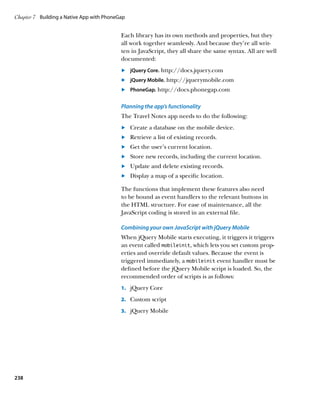
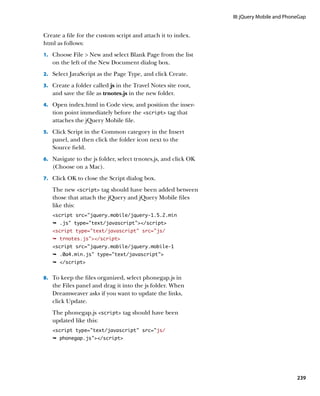
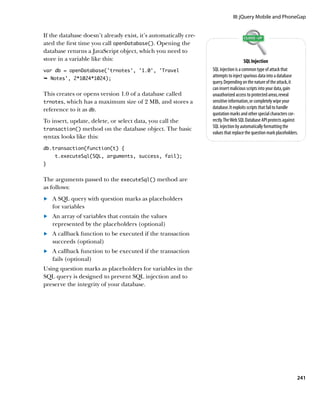
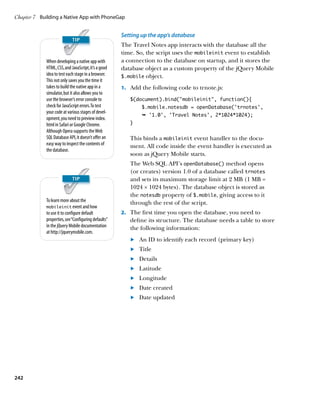
Dreamweaver CS5.5     ®


Designing and Developing for Mobile
with jQuery, HTML5 and CSS3
Studio Techniques
David Powers
Adobe Dreamweaver CS5.5 Studio Techniques:
Designing and Developing for Mobile with jQuery, HTML5, and CSS3

David Powers

This Adobe Press book is published by Peachpit.
For information on Adobe Press books, contact:

Peachpit
1249 Eighth Street
Berkeley, CA 94710
510/524-2178
510/524-2221 (fax)

For the latest on Adobe Press books, go to www.adobepress.com
To report errors, please send a note to errata@peachpit.com
Peachpit is a division of Pearson Education.

Copyright © 2011 by David Powers

Associate Editor: Valerie Witte
Production Editor: Cory Borman
Developmental Editor: Anne Marie Walker
Copyeditor: Anne Marie Walker
Proofreader: Patricia Pane
Composition: WolfsonDesign
Indexer: Joy Dean Lee
Cover Image: Alicia Buelow
Cover Design: Charlene Charles-Will

Notice of Rights
All rights reserved. No part of this book may be reproduced or transmitted in any form by any means, electronic,
mechanical, photocopying, recording, or otherwise, without the prior written permission of the publisher.
For information on getting permission for reprints and excerpts, contact permissions@peachpit.com.

Notice of Liability
The information in this book is distributed on an “As Is” basis, without warranty. While every precaution has been
taken in the preparation of the book, neither the author nor Peachpit shall have any liability to any person or entity
with respect to any loss or damage caused or alleged to be caused directly or indirectly by the instructions contained
in this book or by the computer software and hardware products described in it.

Trademarks
Dreamweaver and Photoshop are either trademarks or registered trademarks of Adobe Systems Incorporated in the
United States and/or other countries.
Many of the designations used by manufacturers and sellers to distinguish their products are claimed as trademarks.
Where those designations appear in this book, and Peachpit was aware of a trademark claim, the designations appear
as requested by the owner of the trademark. All other product names and services identified throughout this book are
used in editorial fashion only and for the benefit of such companies with no intention of infringement of the trademark.
No such use, or the use of any trade name, is intended to convey endorsement or other affiliation with this book.

ISBN-13:	978-0-321-77325-8
ISBN–10:	978-0-321-77325-X

987654321

Printed and bound in the United States of America
Contents
             About the Author                                   iv
             Acknowledgments                                     v
             Introduction                                       vi


Section I    Dreamweaver CS5.5	                                  1
Chapter 1    Dreamweaver Goes Mobile                             3
             Assessing HTML5 and CSS3                            6
             Using HTML5 and CSS3 with Dreamweaver CS5.5        14
             Developing for Multiple Devices                    27


Section II   HTML5 and CSS3	                                    69
Chapter 2    Progressive Enhancement
              with HTML5 and CSS3                               29
             Improving an Existing Site                         31
             Sacrificing a Uniform Look                         68

Chapter 3    A
              dapting Pages for Mobile with
             Media Queries                                       7
             Understanding Media Queries                        73
             Adapting the Tozai Hotel Site                      82
             Assessing Media Queries                           115

Chapter 4    M
              aking Your Site Available Offline               117
             How Offline Sites Work                            118
             Making the Tozai Hotel Site Available Offline     124
             Going Offline                                     138


Section III jQuery Mobile and PhoneGap                         139
Chapter 5    Introducing jQuery Mobile                         141
             Creating a Basic Site with jQuery Mobile          143
             Building on a Solid Foundation                    173

Chapter 6    Diving Deeper into jQuery Mobile                  175
             A Guide to jQuery Mobile Custom Data Attributes   177
             Rapid Deployment with jQuery Mobile Widgets       188
             Case Study:  Creating a Reservation Form          207
             Submitting a Form and Displaying the Response     216
             Getting Your Hands Dirty with Code                218

Chapter 7    Building a Native App with PhoneGap               219
             Setting Up PhoneGap in Dreamweaver                221
             Case Study: A Travel Notes App                    230
             Going Further                                     270

             Index                                             271
             B
              onus material mentioned in this eBook is
             available after the index.
                                                                     iii
About the Author
     David Powers started developing websites in 1994 while
     at the BBC (British Broadcasting Corporation). He’d just
     taken on the role of Editor, BBC Japanese TV, and needed
     a way of advertising the fledgling channel in Japan. The
     problem was that he had no advertising budget. So, he
     begged the IT department for a corner of server space and
     singlehandedly developed an 80-page bilingual website,
     which he regularly maintained for the next five years—on
     top of all his other duties.
     After three decades as a radio and TV journalist, David
     left the BBC in 1999 to work independently. He created
     multilingual websites for several leading clients, including
     the Embassy of Japan in London and Oxford Analytica.
     In 2003, he decided to combine his professional writing
     and editing expertise with his passion for the web, and
     began writing books on web development. This is his
     fourteenth so far. Readers frequently comment on David’s
     ability to explain complex technical subjects in a jargon-
     free style that’s easy to understand. At the same time, he
     doesn’t talk down to readers, thereby appealing equally to
     more experienced web developers.
     David is an Adobe Community Professional and Adobe
     Certified Instructor for Dreamweaver. You’ll often find
     him giving help and advice in the Dreamweaver forums
     and Adobe Developer Center—to which he has contrib-
     uted many popular tutorials and training videos. He greatly
     enjoys traveling and taking photos—all the photos used in
     this book were taken by him.
     David has also translated a number of musical plays from
     Japanese into English, and he likes nothing better than
     sushi with a glass or two of cold sake.


iv
Acknowledgments
Writing a book about new software is a solitary activity,
grappling with a constantly moving target and pounding
the keyboard to deliver the chapters on time. But none of it
would be possible without an army of helpers. First, there’s
Scott Fegette, Senior Product Manager for Dreamweaver,
who kept me informed of the engineering team’s plans.
Then there’s Kin Blas, a Dreamweaver engineer actively
involved in developing jQuery Mobile, who clarified points
I found difficult to understand. My thanks go to them and
to the rest of the Dreamweaver team for their help both
directly and indirectly.
I’ve also had a strong backup team at Peachpit: Victor
Gavenda, who accepted the concept of this book and liked
it so much that he persuaded Adobe Press that it was high
time one of my books was printed in color; Valerie Witte,
my editor, who calmly accepted my frequent changes of
mind about the structure of the book; Anne Marie Walker,
my development editor, who picked up inconsistencies
and helped me (mis)spell the American way; Tom Muck,
my technical editor, who spotted problems with code and
made suggestions to improve it; and Cory Borman, who
oversaw the production process.
Many others have helped indirectly. At times, the Twitter
stream felt like an annoying distraction, but it provided
some invaluable leads, alerting me to changes in this fast-
moving industry. It also provided some essential light relief,
although I’m not sure I’m ready to watch another cat video
just yet.


                                                                 v
Introduction

     Don’t be fooled. Although the .5 might give the impression
     that Dreamweaver CS5.5 is a point release, it’s anything but.
     Dreamweaver engineers have packed a stunning amount
     of new features into this version. To mention just a few,
     there’s code hinting for the popular jQuery JavaScript
     library, the ability to see what pages will look like at differ-
     ent screen resolutions without leaving the Document win-
     dow, support for jQuery Mobile widgets, and integration
     of PhoneGap to build native apps for Android or iOS (the
     operating system used in the iPhone, iPad, and iPod touch).
     The emphasis in Dreamweaver CS5.5 is firmly on mobile
     development and designing for multiple screens, but that’s
     not all. There’s improved support for HTML5 and CSS3,
     including tools to simplify the creation of rounded cor-
     ners and drop shadows without images. Previous versions
     of Dreamweaver supported only a limited range of CSS
     selectors. Live view now supports them all. Oh yes, Dream-
     weaver CS5.5 supports web fonts, too.
     There’s a lot to absorb, and this book aims to guide you
     through all the new features with the help of three case
     studies. The first one centers on redesigning a website
     for display on desktops, tablets, and smartphones using
     HTML5, CSS3, and media queries. The second takes a cut-
     down version of the same site and builds a dedicated mobile
     version using jQuery Mobile, a sophisticated JavaScript and
     CSS framework designed to work consistently on all major
     mobile platforms. The final case study develops a simple
     app that stores information in a database, accesses a mobile
     phone’s GPS sensor, and displays a map.


     Is This the Right Book for You?
     The new features in Dreamweaver CS5.5 are aimed at web
     designers and developers who are already comfortable with
     HTML and CSS. It also helps to have at least a basic under-
     standing of JavaScript and some jQuery experience. If the


vi
Introduction


thought of diving into code sends shivers up your spine,
this might not be the most appropriate book for you. Web
development is becoming increasingly sophisticated, and
the days of just copying and pasting snippets of code are
rapidly drawing to a close.
Having said that, you don’t need to be an expert. I firmly
believe that if you understand why you’re being told to do
something a particular way, you’re more likely to remember
and be able to adapt it for your own projects. Each step is
explained, as are new concepts, but I don’t go back to basics,
such as describing what a function or event handler is.


Mac or Windows?
The differences between the Mac and Windows versions
of Dreamweaver are so few as to be negligible. In the rare
cases where there is a difference, I point it out and show a
screen shot if necessary. The most important difference,
as far as this book is concerned, lies in PhoneGap integra-
tion. Both Windows and Mac support Android, but the
software necessary to build apps for iOS runs only on a Mac.
The other difference, as always, lies in keyboard shortcuts.
I provide both versions, Windows first, followed by Mac.
Using a multibutton mouse is now so common among
Mac users that I refer only to right-click instead of giving
Control-click as the alternative. On most Macs, the F keys
now control hardware features, such as sound level and
brightness. When I refer to F keys, you need to hold down
the Fn key at the same time. Alternatively, open Keyboard
in System Preferences and select the “Use all F1, F2, etc.
keys as standard function key” check box.
Although I test on both operating systems, I had to choose
one for taking screen shots. Most of them have been taken
on Windows 7, but some have been taken on Mac OS X 10.6
where appropriate. However, this is a book about mobile
development. So, many screen shots have also been taken
on Android (HTC Desire and Samsung Galaxy Tab) and
iOS (iPad and iPod touch). I also tested on a BlackBerry
Torch and Windows Phone 7.


                                                                          vii
Introduction


               Downloading the Case Study Files
               This book doesn’t come with a CD. However, you can
               download the files used in the case studies from my website
               at http://foundationphp.com/dwmobile. In most cases,
               all the necessary files are supplied. However, for licensing
               reasons, you need to obtain the Calluna Regular web font
               directly (the details are in Chapter 2). Also, the download
               files don’t include the jQuery Mobile or PhoneGap libraries.
               Dreamweaver copies them directly to your site when you
               create a jQuery Mobile page (see Chapter 5) or define the
               Native Application Settings (see Chapter 7).


               Keeping Up to Date
               The jQuery Mobile framework was feature complete at
               the time Adobe locked down the code for the release
               of Dreamweaver CS5.5. However, work continued on
               stabilizing and optimizing performance. Consequently,
               newer versions of the jQuery Mobile style sheet, external
               JavaScript files, and images are likely to be available by the
               time you read this. Adobe plans to release extensions to
               update the files in Dreamweaver. Chapter 5 also describes
               how to change the source folder for the files so that you
               can use your own customized versions.
               Because jQuery Mobile is a new framework, it’s likely to
               continue to develop. I’ll try to keep abreast of its progress
               and will post updates that affect this book on my website at
               http://foundationphp.com/dwmobile.
               Adobe is a jQuery Mobile project sponsor, and Dreamweaver
               engineers are playing an active role in its development.
               That holds the promise of even greater things to come.


viii
I
                 SECTION I


 Dreamweaver CS5.5

Chapter 1   Dreamweaver Goes Mobile   3
This page intentionally left blank
chapter


         1
Dreamweaver Goes Mobile
Chapter 1	 Dreamweaver Goes Mobile


                                     Change is inevitable in a progressive country.
                                     Change is constant.
                                                                          —Benjamin Disraeli


                                     Dreamweaver Goes Mobile

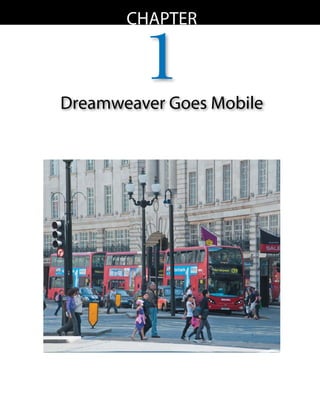
                                     G    roundbreaking web technologies are like London
                                     buses. You wait seemingly forever for one to come, and
                                     then three come at the same time. Unlike buses, which
                                     take you to a fixed destination, the journey promised by
                                     HTML5, CSS3, and mobile is far less predictable. The road
                                     map is constantly evolving, and the timetables implemented
                                     by the major participants are rarely—if ever—coordinated.
                                     It sounds like a nightmare.
                                     Just as all leading browsers finally offered web designers the
                                     prospect of stability through reasonably consistent support
                                     for CSS2.1, everything is about to change again. At the
                                     same time, it’s an exciting challenge: creating websites
                                     and applications that take advantage of the new features
                                     offered by HTML5, CSS3, and related technologies. Only
                                     a couple of years ago, accessing the Internet on a mobile
                                     device was relatively uncommon. That’s no longer the case.
                                     In its key predictions for 2010 and beyond, Gartner, a
                                     leading research company, forecast that mobile phones
                                     would overtake desktop computers as the most common
                                     web access device worldwide by 2013 (www.gartner.com/it/
                                     page.jsp?id=1278413). Industry experts don’t all agree
                                     on when it will happen, but there’s little dispute that the
                                     explosive growth of mobile devices is making fundamental
                                     changes to the way people access the Internet.
                                     The dramatic early growth of Apple iPads prompted
                                     Gartner to update its predictions the following year, esti-
                                     mating that by 2013, 80 percent of businesses will support
                                     a workforce using tablets. With regard to mobile phones,


4
I: Dreamweaver CS5.5


it predicted that enterprises will need to support a variety
of mobile platforms rather than be able to standardize on
one or two.
After years of designing for increasingly bigger desktop
monitors, web designers now face the need to display
content in a wide range of screen resolutions—from tiny
mobile phones to tablets and laptops to large desktops.
This forces web designers not only to think about the size
of the screen, but also the size of files. Mobile networks
tend to be slower than broadband connections, and many
users must pay extra if they exceed their monthly data limit.
To help web designers rise to the new challenges, Adobe
Dreamweaver CS5.5 incorporates a set of tools focused on
HTML5, CSS3, and development for mobile devices. This
book is your guide to using those tools.
This chapter provides a broad overview of the new features
in Dreamweaver CS5.5 and discusses some of the main
considerations you need to bear in mind when designing
websites likely to be viewed on a variety of devices. The
remaining chapters are project based:
	 	 Chapters 2 and 3 adapt an existing website so that it
.
    works equally well on a desktop computer, tablet, or
    mobile phone. The starting point is a small website
    designed using XHTML 1.0 Strict. I’ll show you how to
    convert it to HTML5 and add some sophisticated style
    flourishes with CSS3, before using media queries to opti-
    mize each page for display on different-sized devices.
	 	 Chapter 4 explains how to make your site available to
.
    users even when they’re not connected to the Internet                         Media Queries
    by creating a cache manifest, a new feature in HTML5        Introduced in CSS3, media queries are similar to
                                                                the HTML media attribute in that they let you
    that tells browsers which files to store locally.
                                                                specify which devices your styles should be applied
	 	 Chapters 5 and 6 focus on building a dedicated website
.                                                               to. But they’re much more powerful, because you
    for display on mobile phones and tablets using jQuery       can serve different styles depending on such factors
                                                                as screen width. Media queries are supported by
    Mobile, a new JavaScript framework that is integrated
                                                                most modern browsers, including Internet Explorer
    into Dreamweaver CS5.5. As its name suggests, it’s          9, but you need to provide a basic set of styles for
    based on jQuery, the widely popular cross-browser           earlier browsers.
    JavaScript library.


                                                                                                                       5
Chapter 1	 Dreamweaver Goes Mobile


                                                           	 	 Chapter 7 describes how to package a web application
                                                           .
                                                               built with HTML, CSS, and JavaScript for deployment
                                                               as a native app on Android or iOS using PhoneGap.
                                                               PhoneGap is an open-source framework that allows you
                   The version of PhoneGap integrated
                   in Dreamweaver CS5.5 supports only          to author native apps without the need to learn Java or
                   Google’s Android and Apple’s iOS (for       Objective-C. Dreamweaver CS5.5 automatically installs
                   iPhone, iPad, and iPod touch). Adobe        PhoneGap and simplifies the packaging process.
                   plans to expand Dreamweaver’s
                   support for other mobile operating      Before describing the new HTML5, CSS3, and mobile-
                   systems, such as BlackBerry, later.     related features in Dreamweaver CS5.5, I’ll address what I
                                                           suspect is a burning question for many of you.


                                                           Assessing HTML5 and CSS3
                                                           Are HTML5 and CSS3 ready to use? The simple answer is
                                                           yes—as long as you know what you’re doing.
                                                           The editor of the HTML5 specification, Ian Hickson,
                                                           provoked an uproar in 2008, when he estimated that it
                                                           would take until 2022 for the World Wide Web Consortium
                                                           (W3C) to adopt the specification as a proposed recom-
                                                           mendation (http://blogs.techrepublic.com.com/program-
                                                           ming-and-development/?p=718). This was widely misinter-
                                                           preted as meaning that HTML5 wouldn’t be ready for use
                                                           before then. In fact, he was actually referring to the W3C’s
                                                           stringent requirements for approval. To qualify, the specifi-
                            W3C
                                                           cation must pass tens of thousands of test cases, and at least
    The W3C (www.w3.org) is responsible for devel-
    oping web standards, which are formally referred
                                                           two browsers must implement every feature completely. In
    to as recommendations. Its members include all         February 2011, the W3C announced it was speeding up the
    the big software and technology companies, as          process and set 2014 as the target for formally approving
    well as government and research institutions           the HTML5 specification. But you don’t need to wait until
    from over 40 countries. The need to find consensus
                                                           then. Many aspects of HTML5 are widely supported, even
    among its diverse membership often leads to slow
    decision making.                                       by the browser everyone loves to hate, Microsoft Internet
                                                           Explorer (IE) as far back as IE 6.


6
I: Dreamweaver CS5.5


Using HTML5 Now
One of the fundamental principles underlying HTML5 is
that it is backwards compatible. With only a small number
of exceptions—such as font tags and frames—valid code
written according to the HTML 4.01 or XHTML 1.0 speci-           Dreamweaver CS5.5 uses uppercase
                                                                 for the DOCTYPE declaration, but
fications is also valid HTML5. Simply replace your existing
                                                                 it’s equally valid to use lowercase
DOCTYPE declaration with the shorter HTML5 one:                  or even a combination of uppercase
                                                                 and lowercase. According to the
!DOCTYPE HTML
                                                                 HTML5 specification, the DOCTYPE
That’s all there is to it! One of the reasons this DOCTYPE was   is case-insensitive.
chosen is that it’s the shortest string that reliably prevents
browsers from rendering pages in quirks mode.
Of course, HTML5 introduces many new tags and attri-
butes, but there’s no obligation to use them unless you
need to—just as you probably never used every tag and
attribute in HTML 4.01. You also need to be aware of the                              Quirks Mode
capabilities of the browsers your target audience is likely to   According to the CSS specification, the width and
use. This is a constantly changing scenario, so it’s impos-      height of an element refer only to its content.
sible to lay down hard-and-fast rules in a book. In addition     Padding and borders are added outside. In the
                                                                 early days of CSS, IE misinterpreted this rule, but
to your own testing, a website like http://caniuse.com is
                                                                 other browsers got it right. Microsoft eventually
more likely to provide up-to-date information on what you        acknowledged the error of its ways, and IE 6 applied
can use and what’s best to avoid.                                the rules correctly.
                                                                 To prevent existing sites from breaking, browsers
Much of the discussion about HTML5 has focused on the
                                                                 used the DOCTYPE to switch between standards
new semantic elements, such as section, header, footer,    and quirks modes. In standards mode, the browser
and nav. The idea behind the introduction of these tags        renders width and height according to the speci-
is to give page markup greater meaning. Up to now, the           fication. In quirks mode, it emulates IE’s original,
only way of grouping related elements on a page has been         incorrect behavior. The only browser known to slip
                                                                 into quirks mode with the HTML5 DOCTYPE is
with div tags. On its own, a div has no meaning, so          Netscape 6, which has an estimated market share of
it’s common to indicate its role through an ID or class.         less than 1 percent.
Rather than using div id=”nav”, it’s more logical (and
less code) to use nav—as long as your target browser sup-
ports the new tag.
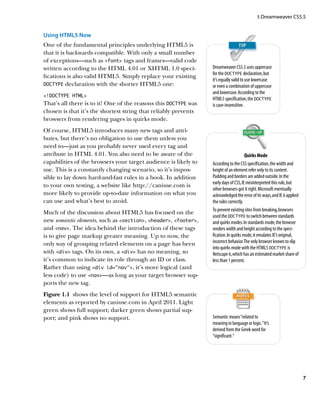
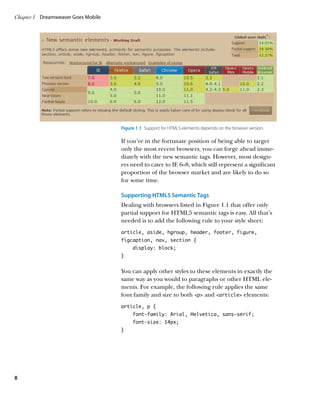
Figure 1.1  shows the level of support for HTML5 semantic
elements as reported by caniuse.com in April 2011. Light
green shows full support; darker green shows partial sup-
port; and pink shows no support.                                 Semantic means “related to
                                                                 meaning in language or logic.” It’s
                                                                 derived from the Greek word for
                                                                 “significant.”


                                                                                                                        7
Chapter 1	 Dreamweaver Goes Mobile


                                     Figure 1.1  Support for HTML5 elements depends on the browser version.

                                     If you’re in the fortunate position of being able to target
                                     only the most recent browsers, you can forge ahead imme-
                                     diately with the new semantic tags. However, most design-
                                     ers need to cater to IE 6–8, which still represent a significant
                                     proportion of the browser market and are likely to do so
                                     for some time.

                                     Supporting HTML5 Semantic Tags
                                     Dealing with browsers listed in Figure 1.1 that offer only
                                     partial support for HTML5 semantic tags is easy. All that’s
                                     needed is to add the following rule to your style sheet:
                                     article, aside, hgroup, header, footer, figure,
                                     figcaption, nav, section {
                                          display: block;
                                     }


                                     You can apply other styles to these elements in exactly the
                                     same way as you would to paragraphs or other HTML ele-
                                     ments. For example, the following rule applies the same
                                     font family and size to both p and article elements:
                                     article, p {
                                          font-family: Arial, Helvetica, sans-serif;
                                          font-size: 14px;
                                     }


8
I: Dreamweaver CS5.5


Unfortunately, IE 8 and earlier require an extra jolt of
encouragement to recognize the new HTML5 tags. You
need to use JavaScript to create a dummy element for each
type of semantic tag you want to use. For example, if you
want to use the header, footer, and nav tags, you         In HTML5, you no longer need to add
need to add the following in the head of each page:           type=”text/javascript”
                                                                in the opening script tag.
script                                                        JavaScript is the default.
    document.createElement(‘header’);
    document.createElement(‘footer’);
    document.createElement(‘nav’);
/script


Alternatively, you can load a tiny script from the Google
content distribution network (CDN) by adding the follow-
ing just before the closing /head tag:
!--[if lt IE 9]
script src=”http://html5shiv.googlecode.com/svn/
Ê trunk/html5.js/script
![endif]--


This is a 2 KB file that contains a little bit of JavaScript
wizardry devised by Remy Sharp that forces earlier versions
of IE to recognize the new HTML5 tags and apply CSS to
them. It creates dummy elements for all semantic tags,
saving you the bother of using createElement() for each
one. Although the file is small enough to host on your own      Remy Sharp and Bruce Lawson are
                                                                authors of Introducing HTML5 (New
site, the advantage of using Google’s CDN is that the file      Riders, 2010), a practical guide to
might already be in the user’s browser cache after visiting     using HTML5 in websites today.
other sites, so it doesn’t need to be downloaded again.
The predefined HTML5 CSS layouts in Dreamweaver
CS5.5 (File  New  Blank Document) use Remy Sharp’s
script in combination with a style rule to display the seman-
tic tags as block-level elements, ensuring almost universal
support for them.
Therein lies the problem: It’s not 100 percent foolproof.
If JavaScript is disabled in the browser, IE leaves the
HTML5 tags completely unstyled. This wouldn’t be such
a problem if the whole page was unstyled, but you end up
with a horrendous mix of styled and unstyled elements.


                                                                                                            9
Chapter 1	 Dreamweaver Goes Mobile


                                                    In HTML5 Now (New Riders, 2010), Tantek Çelik advocates
                                                    a belt and suspenders (braces, if you’re British) approach.
                                                    He recommends wrapping HTML5 semantic tags in a
                                                    div and assigning it a class named after the tag like this:
            Tantek Çelik is a respected web
            standards advocate and principal        div class=”header”
            editor of many CSS specifications. He
                                                        header
            led the team that developed IE 5 for
            Macintosh. Although the browser             !-- header content goes here --
            has now been discontinued, it was           /header
            widely regarded as having far supe-     /div
            rior CSS support than its Windows
            equivalent (IE 6).
                                                    This is undoubtedly the safest way to implement HTML5
                                                    semantic tags in a website, but it duplicates markup need-
                                                    lessly. Although IE 9 and other modern browsers support
                                                    the HTML5 tags, assistive technology for the disabled hasn’t
                                                    caught up yet. Websites tend to need to be redesigned on
                                                    a regular basis, so there’s a strong argument in favor of
            You don’t need to wait for semantic
            tags to be supported before you can     waiting for broader support for semantic tags.
            start using other aspects of HTML5.
                                                    HTML and CSS as Living Standards
                                                    Ian Hickson is no stranger to controversy. Barely a day
                                                    had passed after the W3C launched its proposed logo for
                                                    HTML5 (Figure 1.2) in January 2011, when he declared
                                                    that he was dropping the number 5 in favor of plain HTML.
                                                    This threw many web designers into total confusion, but
                                                    the decision made a lot of sense. However, to understand
                                                    why, you need to know a little history.

         Figure 1.2  The HTML5 logo was             A breakaway group pulls HTML back from the brink
         officially adopted by the W3C in
         April 2011.                                In the late 1990s, the W3C decided that HTML should
                                                    no longer be developed, and that the future of the web
                                                    rested with XML (Extensible Markup Language). As the
                                                    first step in the transition, HTML 4.01 was reformulated
                                                    according to the stricter rules of XML and released as
                                                    XHTML 1.0. Work then began on the XHTML 2.0 specifi-
                                                    cation. The idea was to start from a clean slate, devising a
                                                    “perfect” markup language without worrying about back-
                                                    wards compatibility.


10
I: Dreamweaver CS5.5


Eventually, this led to the establishment in 2004 of a
breakaway group called the Web Hypertext Application
Technology Working Group (WHATWG), composed of
individuals from Apple, the Mozilla Foundation (which
creates the Firefox browser), and Opera Software.
Disillusioned by the prospect of XHTML 2.0 breaking
billions of existing web pages, they began work on revising
the HTML standard to add new features without breaking
existing pages. Two years later, the W3C acknowledged
the need to develop HTML incrementally and revived the
HTML Working Group, which also included Microsoft.
Work on XHTML 2.0 was finally abandoned in 2009.
The HTML5 specification is unusual in that it has been
developed simultaneously by both the W3C and the
WHATWG, with Ian Hickson as the editor of both versions.
His decision to drop the number from HTML5 is intended
to reflect the fact that the web is constantly evolving. In
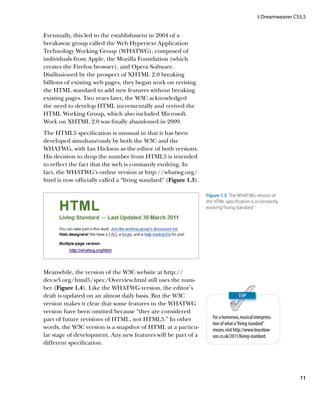
fact, the WHATWG’s online version at http://whatwg.org/
html is now officially called a “living standard” (Figure 1.3).

                                                                  Figure 1.3  The WHATWG version of
                                                                  the HTML specification is a constantly
                                                                  evolving “living standard.”


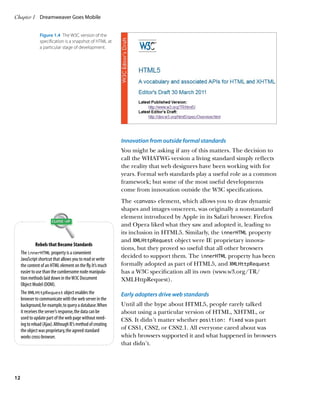
Meanwhile, the version of the W3C website at http://
dev.w3.org/html5/spec/Overview.html still uses the num-
ber (Figure 1.4). Like the WHATWG version, the editor’s
draft is updated on an almost daily basis. But the W3C
version makes it clear that some features in the WHATWG
version have been omitted because “they are considered
part of future revisions of HTML, not HTML5.” In other               For a humorous, musical interpreta-
                                                                     tion of what a “living standard”
words, the W3C version is a snapshot of HTML at a particu-           means, visit http://www.brucelaw-
lar stage of development. Any new features will be part of a         son.co.uk/2011/living-standard.
different specification.


                                                                                                                11
Chapter 1	 Dreamweaver Goes Mobile


                Figure 1.4  The W3C version of the
                specification is a snapshot of HTML at
                a particular stage of development.


                                                              Innovation from outside formal standards
                                                              You might be asking if any of this matters. The decision to
                                                              call the WHATWG version a living standard simply reflects
                                                              the reality that web designers have been working with for
                                                              years. Formal web standards play a useful role as a common
                                                              framework; but some of the most useful developments
                                                              come from innovation outside the W3C specifications.
                                                              The canvas element, which allows you to draw dynamic
                                                              shapes and images onscreen, was originally a nonstandard
                                                              element introduced by Apple in its Safari browser. Firefox
                                                              and Opera liked what they saw and adopted it, leading to
                                                              its inclusion in HTML5. Similarly, the innerHTML property
                                                              and XMLHttpRequest object were IE proprietary innova-
               Rebels that Became Standards
                                                              tions, but they proved so useful that all other browsers
     The innerHTML property is a convenient
     JavaScript shortcut that allows you to read or write
                                                              decided to support them. The innerHTML property has been
     the content of an HTML element on the fly. It’s much     formally adopted as part of HTML5, and XMLHttpRequest
     easier to use than the cumbersome node manipula-         has a W3C specification all its own (www.w3.org/TR/
     tion methods laid down in the W3C Document               XMLHttpRequest).
     Object Model (DOM).
     The XMLHttpRequest object enables the                    Early adopters drive web standards
     browser to communicate with the web server in the
     background, for example, to query a database. When       Until all the hype about HTML5, people rarely talked
     it receives the server’s response, the data can be       about using a particular version of HTML, XHTML, or
     used to update part of the web page without need-        CSS. It didn’t matter whether position: fixed was part
     ing to reload (Ajax). Although IE’s method of creating
     the object was proprietary, the agreed standard          of CSS1, CSS2, or CSS2.1. All everyone cared about was
     works cross-browser.                                     which browsers supported it and what happened in browsers
                                                              that didn’t.


12
I: Dreamweaver CS5.5


The CSS2.1 specification still hadn’t reached formal
approval by the beginning of 2011, but that hasn’t stopped
designers from using those parts of it that have reliable
cross-browser support. The same should be true for both
HTML5 and CSS3. Browser support will come in stages.
Fortunately, you can use many features to enhance the
user experience in modern browsers without causing prob-
lems in earlier ones. For example, HTML5 defines new
input type attributes, such as date and number, for forms.
Browsers that don’t recognize these values simply display a
standard text input field. By using the new type attributes
now, your forms will automatically display the specialized
input fields as soon as browsers support them.

Using vendor-specific prefixes for CSS
You can also use many CSS3 properties with vendor-specific
prefixes that ensure they won’t affect other browsers if
their implementation is buggy. To create rounded corners
with the border-radius property, you need to use three
style declarations like this:
-moz-border-radius: 8px;
-webkit-border-radius: 8px;
border-radius: 8px;


The -moz- and -webkit- prefixes indicate properties that
will be used only by Mozilla (Firefox) or WebKit (Safari and
Google Chrome) browsers. By placing the version without
a prefix last, the normal rules of the cascade ensure that     The small amount of extra work
browsers will implement the standard property as soon as       needed to add the vendor-specific
the bugs are ironed out. This involves writing more code,      prefixes to create rounded corners
                                                               and drop shadows with CSS3 is more
but is far better than resorting to hacks, which were the      than made up for by the time saved
bane of every web designer’s life until quite recently.        in not having to create the same ef-
                                                               fects with graphics. Your pages load
Browsers that don’t recognize the vendor-specific prefixes     more quickly, too, because there are
or standard CSS3 properties simply ignore them. So, you        no images for the browser to fetch.
can use them without worrying.

Doesn’t HTML5 Encourage Poor Markup?
Web standards enthusiasts recoiled in horror when they
realized that HTML5 doesn’t insist on enclosing the
value of attributes in quotes or on using closing tags for


                                                                                                          13
Chapter 1	 Dreamweaver Goes Mobile


                                                              paragraphs and list items. This seemed like a massive step
                                                              backwards from the strict rules imposed by XHTML 1.0.
                                                              However, it has been done for a very practical reason: to
                                                              avoid breaking the web. Countless millions of existing
                      Goodbye to XHTML                        web pages use poor markup, yet browsers manage to dis-
     Web standards advocates embraced XHTML with              play them.
     enthusiasm, attracted by its insistence on strict ad-
     herence to rules. However, the fatal flaw in XHTML is    The looser rules adopted by HTML5 are not intended as a
     that most web servers don’t serve it with the correct    signal to adopt bad practices. Clean, well-formed markup is
     MIME type (application/xhtml+xml), and if                easy to maintain and is likely to be handled more efficiently
     they do, the smallest error, such as a missing closing
                                                              by browsers. Just because HTML5 allows you to omit the
     tag or quotation mark, results in the page failing
     to display.                                              closing /p tag of a paragraph doesn’t mean you should.
     Saying goodbye to XHTML doesn’t mean saying              When you select an HTML5 DOCTYPE, Dreamweaver
     goodbye to the stricter coding standards it encour-
                                                              CS5.5 encloses all attribute values in quotes and always
     aged. You can continue to use all the rules of XHTML
     in HTML5, and your pages will validate. However, if      uses closing tags. Converting XHTML pages to HTML5
     you choose an HTML5 DOCTYPE in Dreamweaver,              in Dreamweaver CS5.5 is simple. Just choose File  Convert
     you must bid farewell to unnecessary markup,              HTML5.
     such as a forward slash before the closing angle
     bracket of an img tag. There is no way to force
     Dreamweaver to use XHTML syntax with an HTML5            Using HTML5 and CSS3 with Dreamweaver CS5.5
     DOCTYPE. If you have doubts about the wisdom of
     following the new standard, take a look at http://       Adobe took the initial steps to support HTML5 and CSS3
     wiki.whatwg.org/wiki/FAQ. The WHATWG gives               with the release of the 11.0.3 updater for Dreamweaver
     detailed explanations of its decisions and makes it
     clear that it doesn’t legitimize tag soup.               CS5 in August 2010. The updater added code hints for
                                                              HTML5 tags and attributes, as well as widely supported
                                                              CSS3 properties. The other main feature was the introduc-
                                                              tion of the Multiscreen Preview panel, which made it pos-
                                                              sible to visualize the effect of media queries in screens of
                                                              three different resolutions.
                                                              Dreamweaver CS5.5 builds on those features by improving
                                                              the method of applying CSS3 properties, such as border-
                                                              radius, box-shadow, and text-shadow, and streamlining the
                                                              way it handles media queries. In addition, it has integrated
                                                              support for the jQuery Mobile and PhoneGap frameworks
                                                              to speed up the development of dedicated mobile websites
                                                              and the deployment of native applications on Android or
                                                              iOS. Code hints for jQuery have also been added.
                                                              These features are covered in detail in later chapters, but
                                                              the next few pages offer a brief description of each one.


14
I: Dreamweaver CS5.5


Authoring HTML5
Dreamweaver CS5.5 has full support for all the new tags
and attributes in HTML5. But if you’re expecting to add
semantic elements, such as header, nav, and footer,
through the Insert panel/bar, you’ll be disappointed.
To add a semantic element to a page, you need to type it
manually in Code view. Alternatively, highlight an existing
element in Design view, right-click, and choose Wrap Tag
                                                                Figure 1.5  Wrapping an existing element in a
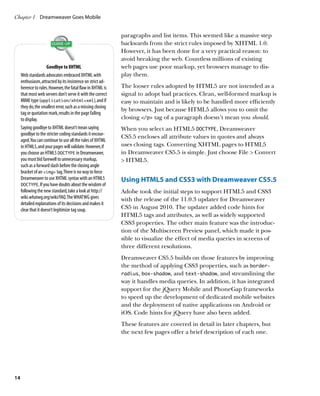
from the context menu. This brings up code hints for all        header tag.
tags, including those added in HTML5 (Figure 1.5).
The Property inspector treats the new HTML5 tags as text.
This allows you to assign an ID or class to an element, but
it doesn’t give you access to any of the new HTML5 attri-
butes. Instead, you need to edit HTML5 tags manually in
Code view or use the Tag Inspector panel (Window  Tag
Inspector, or F9/Option+Shift+F9).
The Tag Inspector’s role is very similar to that of the
Property inspector. The difference is that the Tag Inspector
provides access to every attribute that can be applied to the
selected element, whereas the Property inspector concen-
trates on those most widely used. The Tag Inspector panel
also plays host to Dreamweaver’s JavaScript behaviors, so
you need to make sure the Attributes button is selected at
the top left (Figure 1.6). The two icons immediately below
toggle the display between attributes sorted by category
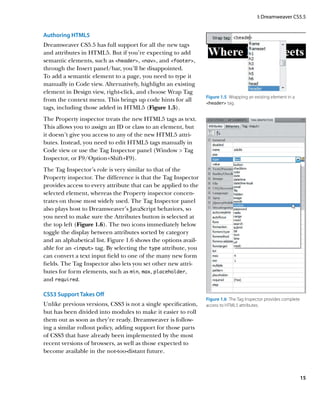
and an alphabetical list. Figure 1.6 shows the options avail-
able for an input tag. By selecting the type attribute, you
can convert a text input field to one of the many new form
fields. The Tag Inspector also lets you set other new attri-
butes for form elements, such as min, max, placeholder,
and required.

CSS3 Support Takes Off
                                                                Figure 1.6  The Tag Inspector provides complete
Unlike previous versions, CSS3 is not a single specification,   access to HTML5 attributes.
but has been divided into modules to make it easier to roll
them out as soon as they’re ready. Dreamweaver is follow-
ing a similar rollout policy, adding support for those parts
of CSS3 that have already been implemented by the most
recent versions of browsers, as well as those expected to
become available in the not-too-distant future.


                                                                                                                  15
Chapter 1	 Dreamweaver Goes Mobile


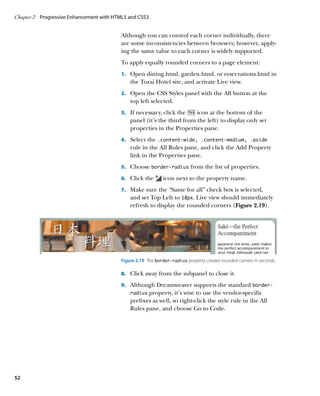
                                                                Creating rounded corners and drop shadows
                                                                The border-radius, box-shadow, and text-shadow proper-
                                                                ties are among the first CSS3 properties with widespread
                     Technically speaking, text-shadow          support in modern browsers, answering designers’ prayers
                     was originally part of the CSS2            for a way to create rounded corners and drop shadows
                     specification. Lack of browser sup-        without the need for images. Dreamweaver CS5.5 makes
                     port resulted in it being removed          it straightforward to apply and adjust these properties
                     from CSS2.1. Ironically, once it had
                     been dropped, browsers began to            through the CSS Styles panel and Live view.
                     support it.
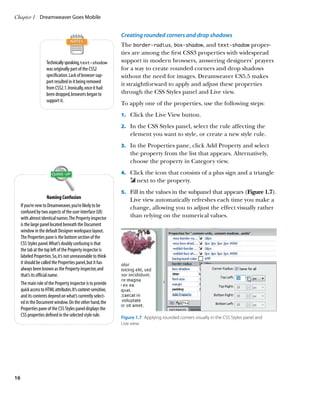
                                                                To apply one of the properties, use the following steps:
                                                                1.		 Click the Live View button.

                                                                2.		 In the CSS Styles panel, select the rule affecting the
                                                                    element you want to style, or create a new style rule.
                                                                3.		 In the Properties pane, click Add Property and select
                                                                    the property from the list that appears. Alternatively,
                                                                    choose the property in Category view.
                                                                4.		 Click the icon that consists of a plus sign and a triangle
                                                                        next to the property.
                                                                5.		 Fill in the values in the subpanel that appears (Figure 1.7).
                        Naming Confusion                            Live view automatically refreshes each time you make a
     If you’re new to Dreamweaver, you’re likely to be              change, allowing you to adjust the effect visually rather
     confused by two aspects of the user interface (UI)
     with almost identical names. The Property inspector            than relying on the numerical values.
     is the large panel located beneath the Document
     window in the default Designer workspace layout.
     The Properties pane is the bottom section of the
     CSS Styles panel. What’s doubly confusing is that
     the tab at the top left of the Property inspector is
     labeled Properties. So, it’s not unreasonable to think
     it should be called the Properties panel, but it has
     always been known as the Property inspector, and
     that’s its official name.
     The main role of the Property inspector is to provide
     quick access to HTML attributes. It’s context-sensitive,
     and its contents depend on what’s currently select-
     ed in the Document window. On the other hand, the
     Properties pane of the CSS Styles panel displays the
     CSS properties defined in the selected style rule.         Figure 1.7  Applying rounded corners visually in the CSS Styles panel and
                                                                Live view.


16
I: Dreamweaver CS5.5


Using embedded fonts
For years, web designers have been frustrated by the nar-
row range of “web safe” fonts at their disposal, because
                                                                                  Live view currently supports the
browsers use the fonts installed on the visitor’s computer.                       W3C border-radius and
CSS2 sought to solve this problem through @font-face, but                         text-shadow properties, but
browser support was lacking, so it was dropped. However,                          not box-shadow. To apply a drop
@font-face now has widespread browser support and is                              shadow on an element, you must
                                                                                  choose -webkit-box-shadow
part of CSS3.                                                                     from the Categories view of the
Unfortunately, the situation is complicated by licensing                          Properties pane.
issues and the font formats supported by different browsers.
Chapter 2 discusses these problems and potential solutions.
The good news is that Dreamweaver CS5.5 supports
@font-face in Live view (Figure 1.8), making it easier to
visualize how your page will look in a browser.


Figure 1.8  Live view displays embedded fonts as they will appear in a browser.


Expanded support for CSS3 selectors
Previous versions of Dreamweaver had support for only
a limited range of CSS selectors. A notable omission was
support for attribute selectors, such as input[type=submit]
(to select submit buttons). These have been part of CSS
ever since 1998, but have been of limited use because of
IE 6’s lack of support. However, IE 7 caught up with all
other browsers by adding support not only for CSS2.1
attribute selectors, but also three new ones from CSS3.
Dreamweaver CS5.5 now supports all attribute selectors,
which are listed in Table 1.1.


                                                                                                                           17
Chapter 1	 Dreamweaver Goes Mobile


         Table 1.1  CSS Attribute Selectors
         Selector	               Description	Example
         e[attr]	                Matches an e element with the attr attribute regardless 	   img[title]
         	                       of the attribute’s value.	
         e[attr=val]	            Matches an e element with the attr attribute whose	         input[type=submit]
         	                       value is exactly equal to val.
         e[attr~=val]	           Matches an e element with the attr attribute whose	         p[class~=aside]
         	                       value is a space-separated list of words; one of
         	                       which is exactly val.
         e[attr|=val]	           Matches an e element with the attr attribute whose	         span[lang|=fr]
         	                       value is exactly val or val followed by a hyphen.
         	                       Used mainly to match language codes and subcodes.
         e[attr^=val]	           Matches an e element with the attr attribute whose	         a[href^=http]
         	                       value begins with val.
         e[attr$=val]	           Matches an e element with the attr attribute whose	         a[href$=.pdf]
         	                       value ends with val.
         e[attr*=val]	           Matches an e element with the attr attribute whose	         div[class*=wide]
         	                       value contains the substring val.


                                                        CSS3 gives designers a much finer degree of control over the
                                                        selection of elements. With the exception of IE, browsers
                                                        have been quick to adopt the new selectors, many of which
                                                        will be familiar to you if you use jQuery. IE 9 has done a lot
             Peter-Paul Koch has published a use-       of catching up, so Dreamweaver CS5.5 now supports all the
             ful set of CSS compatibility charts at
             www.quirksmode.org/css/contents.           structural pseudo-classes listed in Table 1.2.
             html. According to his tests, all selec-
                                                        The :nth-child() and related pseudo-classes all take an
             tors in Table 1.2 are supported by IE
             9, Firefox 3.5, Safari 4, Chrome 4,        argument that indicates the position of the element you
             and later versions. Opera 10 also          want to select. The possible values are the following:
             supports them but has bugs with
             :nth-child() and :nth-of-                  	 	 The keywords odd or even. To select every even-numbered
                                                        .
             type(). According to my own tests,             matching element, use :nth-child(even).
             these bugs were fixed in Opera 11.
                                                        	 	 A single number counting from 1. Using :nth-child(5)
                                                        .
                                                            picks the fifth matching element.
                                                        	 	 The formula an+b or an-b. The letters a and b represent
                                                        .
                                                            numbers, and n is the literal character. This divides the
                                                            child elements into groups, each composed of the
                                                            number specified by a; and within that group, it selects
                                                            the element specified by b. For example, tr:nth-child
                                                            (5n+2) selects the second, seventh, twelfth, and so on


18
I: Dreamweaver CS5.5


     rows of a table. If b is negative, it counts back from the
     end of the group. For example, tr:nth-child(5n-2)
     selects the third, eighth, thirteenth, and so on rows.

Table 1.2  CSS3 Structural Pseudo-classes
Selector	                Description
:root	                   Selects the root of the document. In HTML, this is always the html element.
:nth-child()	Selects elements based on their position in relation to their siblings within the
                         document tree. See main text for a description of how the position is calculated.
:nth-last-child()	       Same as :nth-child() but counting backwards.
:nth-of-type()	Selects elements of the same type in relation to their siblings within the
                         document tree. For example, img:nth-of-type(odd) selects alternate images
                         that are children of the same parent element.
:nth-last-of-type()	     Same as :nth-of-type() but counting backwards.
:first-child	            Selects an element that is the first child of some other element.
:last-child	             Selects an element that is the last child of some other element.
:first-of-type	Selects an element that is the first of its type in the list of children of its
                         parent element.
:last-of-type	Selects an element that is the last of its type in the list of children of its parent
                         element.
:only-child	             Selects an element that is the only child of its parent element.
:only-of-type	Selects an element that has no siblings of the same type. For example, img:only-
                         of-type selects an image only if its parent element contains no other images.

:empty	Selects elements that contain no other elements or text. For example, div:empty
                         matches div/div but not divHi!/div.


Lack of support in IE 8 and earlier reduces the usefulness
of the selectors listed in Table 1.2 unless you are targeting
only the most recent browsers. However, it’s useful to know
they’re supported by Dreamweaver CS5.5.
                                                                              In her book Stunning CSS3
A rather obscure change is the addition of support for the                    (New Riders, 2010), Zoe Mickley
CSS3 syntax for pseudo-elements. In CSS2.1, these were                        Gillenwater suggests a simple way
                                                                              of dealing with the formula for
preceded by a single colon. In CSS3, they’re preceded by a                    nth-child(). Treat it as a × n
double colon, as shown in Table 1.3.                                          ± b. Start n at 0 and increment it
                                                                              by 1 each time. So, 5 × 0 + 2 = 2,
                                                                               5 × 1 + 2 = 7, and so on.


                                                                                                                         19
Chapter 1	 Dreamweaver Goes Mobile


             Table 1.3  CSS Pseudo-elements
             CSS2.1	CSS3	Meaning
             :first-line	            ::first-line	Applies styles to the first line of an element.

             :first-letter	          ::first-letter	Applies styles to the first letter of an element.

             :before	                ::before	Adds generated content before the element.

             :after	                 ::after	Adds generated content after the element.


                                                     Browser support for the double-colon syntax is limited.
                                                     Also, the requirement for backwards compatibility means
                                                     that the single-colon versions should continue indefinitely.
                The ::before and ::after
                pseudo-elements and their single-    Support for other CSS3 properties
                colon equivalents work only in       To get an idea of which new properties are supported
                Live view.                           by Dreamweaver CS5.5, click the leftmost button at the
                                                     bottom of the Properties pane in the CSS Styles panel to
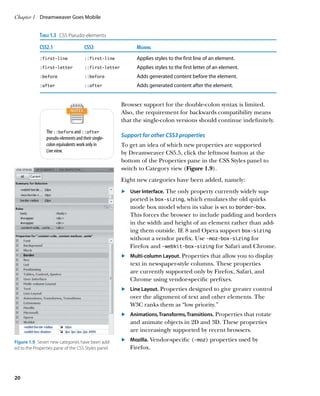
                                                     switch to Category view (Figure 1.9).
                                                     Eight new categories have been added, namely:
                                                     	 	 User Interface. The only property currently widely sup-
                                                     .
                                                         ported is box-sizing, which emulates the old quirks
                                                         mode box model when its value is set to border-box.
                                                         This forces the browser to include padding and borders
                                                         in the width and height of an element rather than add-
                                                         ing them outside. IE 8 and Opera support box-sizing
                                                         without a vendor prefix. Use -moz-box-sizing for
                                                         Firefox and -webkit-box-sizing for Safari and Chrome.
                                                     	 	 Multi-column Layout. Properties that allow you to display
                                                     .
                                                         text in newspaper-style columns. These properties
                                                         are currently supported only by Firefox, Safari, and
                                                         Chrome using vendor-specific prefixes.
                                                     	 	 Line Layout. Properties designed to give greater control
                                                     .
                                                         over the alignment of text and other elements. The
                                                         W3C ranks them as “low priority.”
                                                     	 	 Animations, Transforms, Transitions. Properties that rotate
                                                     .
                                                         and animate objects in 2D and 3D. These properties
                                                         are increasingly supported by recent browsers.
Figure 1.9  Seven new categories have been add-      	 	 Mozilla. Vendor-specific (-moz) properties used by
                                                     .
ed to the Properties pane of the CSS Styles panel.       Firefox.


20
I: Dreamweaver CS5.5


	 	 Microsoft. Vendor-specific (-ms) properties used by IE.
.
	 	 Webkit. Vendor-specific (-webkit) properties used by
.
    Safari and Chrome.
                                                                  Live view is powered by the WebKit
	 	 Opera. Vendor-specific (-o) properties used by Opera.
.                                                                 engine, so the only vendor-specific
                                                                  properties it renders are those pre-
Support for CSS3 color values and opacity                         fixed with -webkit.
The CSS3 Color module specifies several new ways to handle
colors in addition to hexadecimal and RGB (red, green,
blue) values. It allows you to use HSL (hue, saturation,
lightness) and to set the color’s opacity (or transparency,
depending on your point of view).
There are two basic ways of controlling opacity:
	 	 Specify the color using either rgba() or hsla().
.
	 	 Set the opacity property on the element.
.
The degree of opacity is always expressed as a number
between 0 (transparent) and 1 (opaque). With rgba() and
hsla(), it’s the fourth value in a comma-separated list of
RGB or HSL values. The opacity property takes it as its
sole value.
The color picker in previous versions of Dreamweaver
supported only hexadecimal notation, but it now supports
all formats. To switch to a different color format, click the
right-facing arrow at the top right of the color picker, and
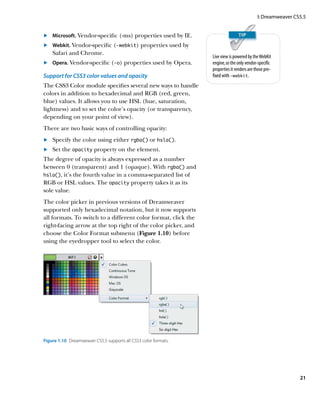
choose the Color Format submenu (Figure 1.10) before
using the eyedropper tool to select the color.


Figure 1.10  Dreamweaver CS5.5 supports all CSS3 color formats.


                                                                                                              21
Chapter 1	 Dreamweaver Goes Mobile


                                                           When you choose rgba() or hsla(), Dreamweaver auto-
                                                           matically sets the fourth value to 1 (opaque). You need to
                                                           edit the value manually in the CSS Styles panel or in the
                                                           style sheet.
                        Opacity in CSS
                                                           The new color formats and the opacity property are sup-
     The opacity property affects not only the ele-
                                                           ported by most modern browsers, including IE 9. They
     ment it’s applied to, but also all of the element’s
     children. To demonstrate the difference between       don’t work in IE 8 or earlier.
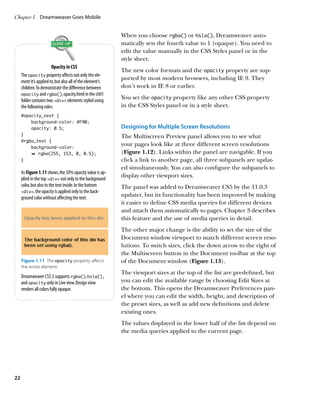
     opacity and rgba(), opacity.html in the ch01
     folder contains two div elements styled using
                                                           You set the opacity property like any other CSS property
     the following rules:                                  in the CSS Styles panel or in a style sheet.
     #opacity_test {
         background-color: #F90;
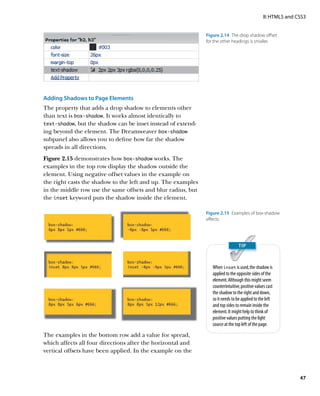
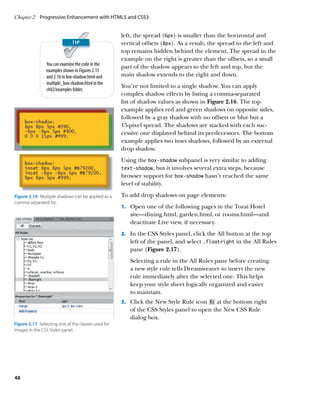
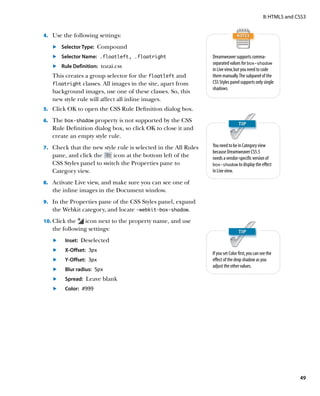
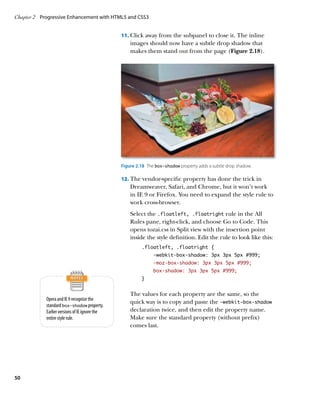
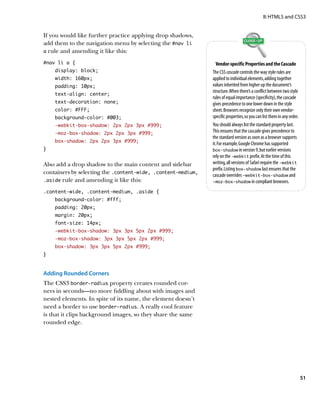
         opacity: 0.5;                                     Designing for Multiple Screen Resolutions
     }                                                     The Multiscreen Preview panel allows you to see what
     #rgba_test {
         background-color:
                                                           your pages look like at three different screen resolutions
         Ê rgba(255, 153, 0, 0.5);                         (Figure 1.12). Links within the panel are navigable. If you
     }                                                     click a link to another page, all three subpanels are updat-
                                                           ed simultaneously. You can also configure the subpanels to
     As Figure 1.11 shows, the 50% opacity value is ap-
                                                           display other viewport sizes.
     plied in the top div not only to the background
     color, but also to the text inside. In the bottom     The panel was added to Dreamweaver CS5 by the 11.0.3
     div, the opacity is applied only to the back-
     ground color without affecting the text.
                                                           updater, but its functionality has been improved by making
                                                           it easier to define CSS media queries for different devices
                                                           and attach them automatically to pages. Chapter 3 describes
                                                           this feature and the use of media queries in detail.
                                                           The other major change is the ability to set the size of the
                                                           Document window viewport to match different screen reso-
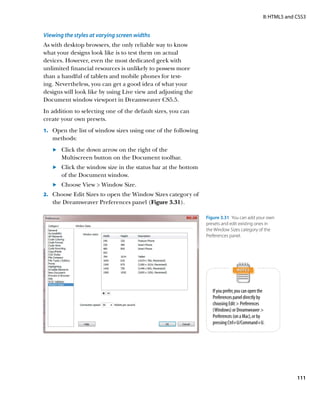
                                                           lutions. To switch sizes, click the down arrow to the right of
                                                           the Multiscreen button in the Document toolbar at the top
     Figure 1.11  The opacity property affects             of the Document window (Figure 1.13).
     the entire element.
                                                           The viewport sizes at the top of the list are predefined, but
     Dreamweaver CS5.5 supports rgba(), hsla(),
     and opacity only in Live view. Design view            you can edit the available range by choosing Edit Sizes at
     renders all colors fully opaque.                      the bottom. This opens the Dreamweaver Preferences pan-
                                                           el where you can edit the width, height, and description of
                                                           the preset sizes, as well as add new definitions and delete
                                                           existing ones.
                                                           The values displayed in the lower half of the list depend on
                                                           the media queries applied to the current page.


22
I: Dreamweaver CS5.5


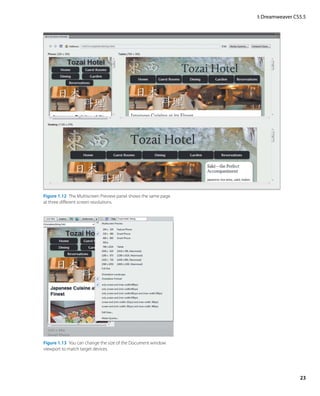
Figure 1.12  The Multiscreen Preview panel shows the same page
at three different screen resolutions.


Figure 1.13  You can change the size of the Document window
viewport to match target devices.


                                                                                  23
Chapter 1	 Dreamweaver Goes Mobile


                                                     Building Dedicated Mobile Sites with jQuery Mobile
                                                     Using media queries to change the look of a website in dif-
                                                     ferent devices gives you great flexibility, but it’s not always
                                                     the optimal solution. Very long pages can be difficult to
                Visit http://jquerymobile.com/gbs
                for the most recent information on   read on a small screen. Also, image-heavy sites are slow to
                the operating systems and browsers   download on a mobile device. In many cases, it’s best to
                supported by jQuery Mobile.          create a custom-built site for mobile users.
                                                     The jQuery Mobile framework is ideal for doing this, and
                                                     it has been developed with the active participation of
                                                     Dreamweaver engineers. It’s designed to work on all main-
                                                     stream mobile operating systems and browsers, including
                                                     all versions of Android and iOS, BlackBerry OS version 5
                                                     and later, Windows Phone 7, and Symbian S60 version 5
                                                     (used mainly by Nokia, Sony Ericsson, and DoCoMo).
                                                     Dreamweaver CS5.5 speeds up the development of dedi-
                                                     cated mobile sites by integrating the jQuery Mobile
                                                     framework and widgets.
                                                     To create a skeleton mobile site with jQuery Mobile:
                                                     1.		 Choose File  New to open the New Document
                                                        dialog box.
                                                     2.		 Choose Page from Sample on the left of the dialog box.

                                                     3.		 Select Mobile Starters from the Sample Folder list. This
                                                        offers a choice of loading the jQuery Mobile library
                                                        from a CDN, using local versions of the files, or using
                                                        jQuery Mobile with PhoneGap.
                                                     4.		 Choose one of the options and click Create to insert
                                                        the basic structure of a jQuery Mobile site/application.
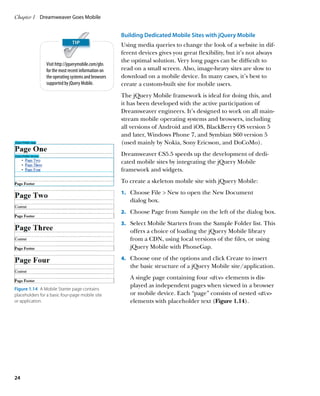
                                                        A single page containing four div elements is dis-
                                                        played as independent pages when viewed in a browser
Figure 1.14  A Mobile Starter page contains
placeholders for a basic four-page mobile site          or mobile device. Each “page” consists of nested div
or application.                                         elements with placeholder text (Figure 1.14).


24
I: Dreamweaver CS5.5


The Mobile Starter page automatically links to the jQuery
Mobile JavaScript files and basic style sheet; each element
is marked up with the code to build the individual pages,
attach the touch-responsive JavaScript events, and style the
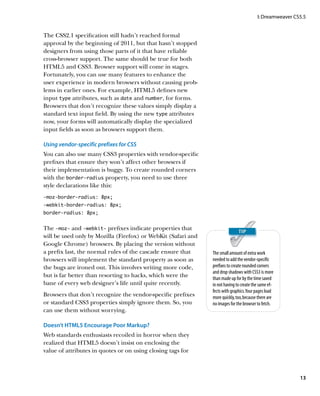
content. In just a few minutes, you can convert the starter
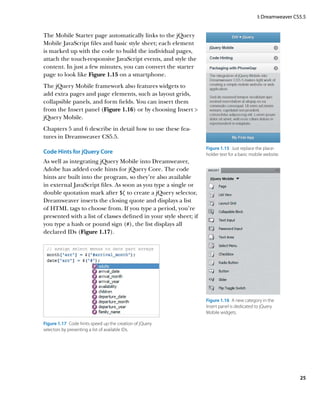
page to look like Figure 1.15 on a smartphone.
The jQuery Mobile framework also features widgets to
add extra pages and page elements, such as layout grids,
collapsible panels, and form fields. You can insert them
from the Insert panel (Figure 1.16) or by choosing Insert 
jQuery Mobile.
Chapters 5 and 6 describe in detail how to use these fea-
tures in Dreamweaver CS5.5.
                                                                   Figure 1.15  Just replace the place-
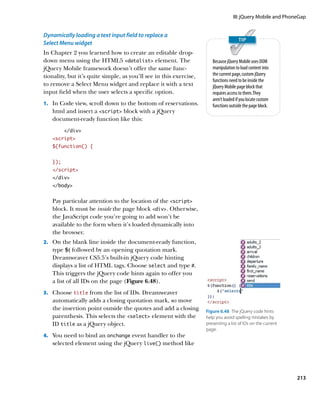
Code Hints for jQuery Core                                         holder text for a basic mobile website.
As well as integrating jQuery Mobile into Dreamweaver,
Adobe has added code hints for jQuery Core. The code
hints are built into the program, so they’re also available
in external JavaScript files. As soon as you type a single or
double quotation mark after $( to create a jQuery selector,
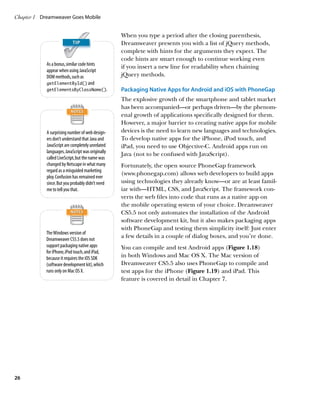
Dreamweaver inserts the closing quote and displays a list
of HTML tags to choose from. If you type a period, you’re
presented with a list of classes defined in your style sheet; if
you type a hash or pound sign (#), the list displays all
declared IDs (Figure 1.17).


                                                                   Figure 1.16  A new category in the
                                                                   Insert panel is dedicated to jQuery
                                                                   Mobile widgets.

Figure 1.17  Code hints speed up the creation of jQuery
selectors by presenting a list of available IDs.


                                                                                                               25
Chapter 1	 Dreamweaver Goes Mobile


                                                   When you type a period after the closing parenthesis,
                                                   Dreamweaver presents you with a list of jQuery methods,
                                                   complete with hints for the arguments they expect. The
                                                   code hints are smart enough to continue working even
            As a bonus, similar code hints
                                                   if you insert a new line for readability when chaining
            appear when using JavaScript
            DOM methods, such as                   jQuery methods.
            getElementById() and
            getElementsByClassName().              Packaging Native Apps for Android and iOS with PhoneGap
                                                   The explosive growth of the smartphone and tablet market
                                                   has been accompanied—or perhaps driven—by the phenom-
                                                   enal growth of applications specifically designed for them.
                                                   However, a major barrier to creating native apps for mobile
            A surprising number of web design-     devices is the need to learn new languages and technologies.
            ers don’t understand that Java and     To develop native apps for the iPhone, iPod touch, and
            JavaScript are completely unrelated    iPad, you need to use Objective-C. Android apps run on
            languages. JavaScript was originally
                                                   Java (not to be confused with JavaScript).
            called LiveScript, but the name was
            changed by Netscape in what many       Fortunately, the open source PhoneGap framework
            regard as a misguided marketing
                                                   (www.phonegap.com) allows web developers to build apps
            ploy. Confusion has remained ever
            since. But you probably didn’t need    using technologies they already know—or are at least famil-
            me to tell you that.                   iar with—HTML, CSS, and JavaScript. The framework con-
                                                   verts the web files into code that runs as a native app on
                                                   the mobile operating system of your choice. Dreamweaver
                                                   CS5.5 not only automates the installation of the Android
                                                   software development kit, but it also makes packaging apps
                                                   with PhoneGap and testing them simplicity itself: Just enter
            The Windows version of
            Dreamweaver CS5.5 does not
                                                   a few details in a couple of dialog boxes, and you’re done.
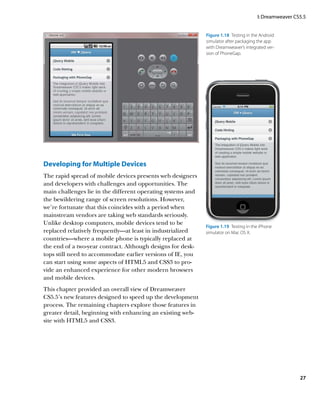
            support packaging native apps          You can compile and test Android apps (Figure 1.18)
            for iPhone, iPod touch, and iPad,
            because it requires the iOS SDK        in both Windows and Mac OS X. The Mac version of
            (software development kit), which      Dreamweaver CS5.5 also uses PhoneGap to compile and
            runs only on Mac OS X.                 test apps for the iPhone (Figure 1.19) and iPad. This
                                                   feature is covered in detail in Chapter 7.


26
I: Dreamweaver CS5.5


                                                             Figure 1.18  Testing in the Android
                                                             simulator after packaging the app
                                                             with Dreamweaver’s integrated ver-
                                                             sion of PhoneGap.


Developing for Multiple Devices
The rapid spread of mobile devices presents web designers
and developers with challenges and opportunities. The
main challenges lie in the different operating systems and
the bewildering range of screen resolutions. However,
we’re fortunate that this coincides with a period when
mainstream vendors are taking web standards seriously.
Unlike desktop computers, mobile devices tend to be
                                                             Figure 1.19  Testing in the iPhone
replaced relatively frequently—at least in industrialized    simulator on Mac OS X.
countries—where a mobile phone is typically replaced at
the end of a two-year contract. Although designs for desk-
tops still need to accommodate earlier versions of IE, you
can start using some aspects of HTML5 and CSS3 to pro-
vide an enhanced experience for other modern browsers
and mobile devices.
This chapter provided an overall view of Dreamweaver
CS5.5’s new features designed to speed up the development
process. The remaining chapters explore those features in
greater detail, beginning with enhancing an existing web-
site with HTML5 and CSS3.


                                                                                                        27
This page intentionally left blank
II
                 SECTION II


     HTML5 and CSS3

Chapter 2   P
             rogressive Enhancement with
            HTML5 and CSS3                        31
Chapter 3   A
             dapting Pages for Mobile with
            Media Queries                         71
Chapter 4   M
             aking Your Site Available Offline   117
This page intentionally left blank
chapter


         2
Progressive Enhancement
  with HTML5 and CSS3
Chapter 2	 Progressive Enhancement with HTML5 and CSS3


                                          When we treat them as if they were what they should
                                          be, we improve them as far as they can be improved.
                                                                                             —Goethe


                                          Progressive Enhancement with
                                          HTML5 and CSS3

                                          B      ack in the 1990s, it was common for the front page
                                          of a website to inform visitors that it was “best viewed” in a
                                          particular browser. Designers often gave up trying to rec-
                                          oncile incompatible differences between Internet Explorer
                                          (IE) and Netscape. If you weren’t using the recommended
                                          browser, that was just your hard luck. When IE eventually
                                          emerged as the victor in the browser wars, many design-
                                          ers breathed a sigh of relief and designed exclusively for
                                          IE. But if you weren’t using IE—and many weren’t—it was
                                          still your hard luck. A more enlightened approach known
                                          as graceful degradation emerged with the web standards
                                          movement in the first decade of the new century. If a fea-
                                          ture couldn’t be supported by a particular browser—usu-
                                          ally Netscape 4—a fallback solution prevented the design
                                          from breaking completely.
                                          In more recent times, leading designers have turned this
                                          idea on its head, arguing that you shouldn’t need to wait
                                          for the majority of browsers to implement a feature before
                                          using it. They advocate progressive enhancement—build-
                                          ing a website that works satisfactorily in all current browsers
                                          and then adding features to improve the experience for
                                          visitors using more advanced browsers. Visitors using
                                          earlier browsers get a satisfactory experience; when they
                                          upgrade, they automatically see the improved features.


32
II: HTML5 and CSS3


In this chapter, you’ll learn how to apply progressive
enhancement to a website for a fictitious hotel. In the next
chapter, I’ll show you how to adapt it for display in mobile
phones and tablets through the use of media queries.            The files for the site are in the ch02/
                                                                begin folder (see the Introduction
                                                                for details of where to download
Improving an Existing Site                                       them).

The Tozai Hotel site has been designed using an XHTML
1.0 Strict DOCTYPE. The main pages look identical in all cur-
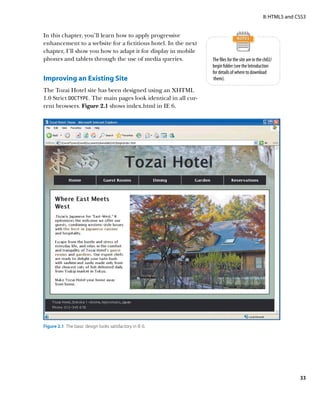
rent browsers. Figure 2.1 shows index.html in IE 6.


Figure 2.1  The basic design looks satisfactory in IE 6.


                                                                                                                33
Chapter 2	 Progressive Enhancement with HTML5 and CSS3


                                                              There’s just one minor exception. The styles for the inquiry
                                                              form in reservations.html include the following rules:
                                                              select + label, input + label {
                                                                   padding-left: 10px;
                                                              }
                                                              input[type=submit] {
                                                                   margin-left: 135px;
                                                              }


                                                              The first rule uses the adjacent sibling selector to add 10 pixels
                                                              of padding to the left of label tags that immediately fol-
                                                              low a select or input element. The second rule uses
                                                              an attribute selector (see Table 1.1) to add a 135-pixel mar-
                                                              gin to the left of the submit button. The result is a neatly
                                                              aligned form in all modern browsers (Figure 2.2).
                   Adjacent Sibling Selector
     Sometimes it’s convenient to apply a style rule to
     an element only if it immediately follows another
     element at the same level of the document
     hierarchy (a sibling). For example, you might want
     to apply a different style to each first paragraph
     that follows a heading. The adjacent sibling selector,
     which consists of two selectors separated by a plus
     sign (+), is designed precisely for this purpose.
     The selector on the left of the plus sign identifies
     the element that must precede the element that
     matches the selector on the right. In other words,
     h1 + p tells the browser to apply the rule only to
     p elements that immediately follow an h1
     heading. If any other element comes between them,
     the rule doesn’t apply.
                                                              Figure 2.2  In modern browsers, the form elements are neatly aligned.
     Using selectors to target elements based on their
     relationship to their immediate siblings avoids          IE didn’t support adjacent sibling or attribute selectors
     the need to pepper your code with classes. The
                                                              until IE 7. As a result, the form is not so neatly aligned in
     downside is that changes to the page structure
     might destroy the relationship, resulting in the style   IE 6 (Figure 2.3). Also, the word Guests appears in a differ-
     rule no longer being applied. The CSS3 Selectors         ent color, because it’s the legend element of a fieldset
     module refers to the adjacent sibling selector as the    surrounding the input fields for adults and children. These
     adjacent sibling combinator, but it’s simply a change
                                                              minor differences don’t affect the usability of the form and
     of name. The syntax and functionality remain
     unchanged.                                               can be ignored for a browser with a small and declining
                                                              market share.


34
II: HTML5 and CSS3


Figure 2.3  IE 6 doesn’t recognize all the CSS styles, which results in a less
pleasing but still usable layout.

In this chapter, you’ll make the following enhancements to
the site:
                                                                                 Determining how far to go in
	.	 Convert from XHTML 1.0 to HTML5                                              supporting a particular browser is
	.	 Add accessibility attributes to key elements                                 a decision that you should make
                                                                                 only on a case-by-case basis. If your
	.	 Use an embedded font for headings                                            website’s server statistics show that
	.	 Enhance the design with CSS rounded corners and                              IE 6 still has a significant market
                                                                                 share, you might need to take a
    drop shadows
                                                                                 different approach. Even if you
	.	 Add HTML5 form elements and attributes                                       make the radical decision to drop all
                                                                                 support for IE 6, you should ensure
	.	 Use jQuery to improve the date pickers                                       that the site remains functional.
	.	 Validate the finished pages

Converting to HTML5
As mentioned in Chapter 1, all that’s needed to convert a
page to HTML5 is to replace the existing DOCTYPE declara-
tion with the case-insensitive new one:
!DOCTYPE HTML
Because the pages in the Tozai Hotel site were created with
an XHTML 1.0 Strict DOCTYPE, tags that don’t have a cor-
responding closing tag, such as img and link, have a
forward slash before the closing angle bracket like this:
link href=”styles/tozai.css” rel=”stylesheet”
Ê type=text/css /


                                                                                                                               35
Chapter 2	 Progressive Enhancement with HTML5 and CSS3


                                                            To ease the transition between XHTML 1.0 and HTML5,
                                                            the closing slash is permitted, but it’s no longer required.
                                                            It was added to XHTML solely to conform to the rules
                                                            of XML. Dreamweaver CS5.5 makes it easy to switch the
                    Dreamweaver CS5.5 doesn’t offer
                                                            DOCTYPE and strip out unnecessary code by choosing File 
                    the option to create HTML5 pages
                    with XHTML-style markup. If you         Convert  HTML5.
                    need to create XML-compliant code,
                                                            Another change you need to make when converting to
                    build your pages using an XHTML
                    1.0 DOCTYPE, and replace it with        HTML5 concerns the use of bold text and italics. For
                    an HTML5 DOCTYPE just before            many years, it was considered best practice to use strong
                    deploying them online.                  instead of b for bold text and em instead of i for ital-
                                                            ics. The idea was to handle all presentational aspects of a
                                                            web page through CSS. The b and i tags were consid-
                                                            ered presentational, whereas strong and em were said
                                                            to be related to the document’s structure.
                                                            Although well intentioned, this practice frequently made
                    Picking the Right Tag                   little sense and simply replaced b and i with longer
     HTML contains many underused tags and attributes.      equivalents. In addition, it resulted in screen readers for
     Finding the right one for a specific situation isn’t   the blind giving unnecessary emphasis to words styled in
     always easy, but it’s likely to make your pages more   bold or italics. HTML5 has redefined the meanings of
     meaningful. The first time a keyword is introduced     these tags to clarify their use, as summarized in Table 2.1.
     in a page, consider wrapping it in dfn tags,
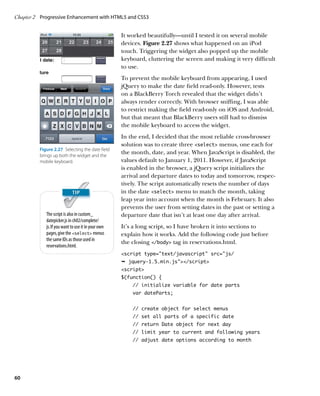
     which represent the defining instance of a term. You
     can use CSS to display the tag in bold, and use b
     tags for subsequent references to the keyword.         Table 2.1  HTML5 Tags for Bold, Italics, and Emphasis
     For a foreign language expression, use the lang        Tag	Meaning
     attribute to indicate which language is being used,
     for example:                                           b	A span of text stylistically offset from the surrounding
     i lang=”fr”Bonjour le monde!/i                                   text in bold type without conveying extra importance,
     This not only preserves the typographic convention,                  for example, keywords in a document or product names
     but also provides useful information to search                       in a review.
     engines and screen readers.                            i	A span of text that needs to be offset from the sur-
                                                                          rounding text in italics, such as a technical term, foreign
                                                                          language expression, thought, or ship’s name.
                                                            strong	Indicates strong importance, for example,
                                                                          strongWarning!/strong. The level of importance
                                                                          can be increased by nesting strong tags like this:
                                                                          strongstrongVery severe warning!/strong
                                                                          /strong.

                                                            em	Indicates that the word(s) should be emphasized if
                                                                          spoken aloud. Like strong, the level of emphasis can
                                                                          be increased by nesting em tags.


36
II: HTML5 and CSS3


By default, Dreamweaver uses strong and em for bold
and italic type. If you’re using an HTML5 DOCTYPE, you
should change this setting in the Preferences panel.
To convert a page to HTML5 and change how bold text                               The best way to understand how
and italics are handled:                                                          features work is to use them. Copy
                                                                                  the files from ch02/begin to a
    Open index.html in the Document window, and choose
1.			                                                                             new folder, and follow the steps in
   File  Convert  HTML5. This changes the DOCTYPE                               each section.
   and strips out all closing slashes.
2.		 Open the Preferences panel by choosing Edit 
   Preferences (Dreamweaver  Preferences on a Mac).
3.		 Select the General category from the list on the left
   of the panel, and deselect the check box labeled Use
   strong and em in place of b and i.
4.		 Click OK to close the Preferences panel.

5.		 With index.html still in the Document window, switch
   to Split view by clicking the Split button in the Document
   toolbar or choosing View  Code and Design.
6.		 In Design view, double-click Tozai in the first paragraph
   to select the whole word. In Code view, the highlighted
   word is wrapped in em tags. Tozai is a foreign word,
   so it needs to be offset without giving it emphasis. The
   em tags need to be replaced with i tags.

7.		 Make sure the Property inspector is in HTML mode
   with the        button selected, and click the                     button
   to remove the italics and the em tags.
8.		 Click the  button again. This restores the italics, but
   this time the word is wrapped in i tags (Figure 2.4).


   Figure 2.4  The i tags offset the foreign word without giving it emphasis.


                                                                                                                                37
Chapter 2	 Progressive Enhancement with HTML5 and CSS3


                                                      9.		 With the word and its surrounding i tags still selected,
                                                         open the Tag Inspector panel, expand the Language
                                                         category, and click in the field next to the lang attri-
             See www.w3.org/International/               bute. Choose ja from the list of values to indicate the
             questions/qa-choosing-language-             language used is Japanese.
             tags for detailed advice on choosing
             the correct value for the lang              Alternatively, position the insertion point just before
             attribute.                                  the closing bracket of the opening i tag, and press
                                                         Enter/Return. Select lang from the code hints list, and
                                                         then select ja.
                                                      10.		 epeat steps 6–9 with the other foreign words (sashimi
                                                          R
                                                         and sushi in the second paragraph).
                                                      11.		 onvert dining.html, garden.html, reservations.html,
                                                          C
                                                         and rooms.html to HTML5, and change the em tags
                                                         to i tags in dining.html.
                                                      12.		 hoose File  Save All.
                                                          C

                                                      Using strong and em tags
                                                      Resetting the Dreamweaver preferences to use b and i
                                                      doesn’t prevent you from using strong and em where
                                                      appropriate. Instead of using the    and     buttons in the
          Figure 2.5  The strong and em
                                                      Property inspector in HTML mode, use the Text category
          tags can be inserted through the            of the Insert panel, which has separate options for each tag
          Insert panel.                               (Figure 2.5).
                                                      Alternatively, select the text in Design view, right-click, and
                                                      choose Wrap Tag from the context menu. Then type either
                                                      strong or em.

             The and buttons in the                   Improving Accessibility with ARIA Roles
             Property inspector can be used to
                                                      Until IE 8 and earlier disappear from the scene, using
             remove strong, em, b,
             and i tags that you don’t want         HTML5 semantic tags, such as header and nav, will
             regardless of the Preferences setting.   remain problematic unless you wrap them in div tags
             However, make sure the                   (see “Supporting HTML5 Semantic Tags” in Chapter 1).
             button is selected on the left of the    An alternative worth considering is to mark up your pages
             Property inspector. If the
             button is selected instead, you’ll       with universally supported HTML elements, such as div
             be prompted to create a style rule.      and ul, and to indicate their meaning by adding the
             An alternative way to remove             WAI-ARIA role attribute.
             unwanted tags is to select the
             element in the Tag selector at the       The role attribute has been adopted by HTML5, and
             bottom of the Document window,           it’s understood by many screen readers. So, it provides a
             right-click, and choose Remove Tag.      useful transition until such time as the new semantic tags


38
II: HTML5 and CSS3


are fully supported. The attribute has a large number of
possible values (for a full list, see www.w3.org/TR/wai-aria/
roles#role_definitions). Table 2.2 lists the equivalent role
attributes for the main HTML5 semantic elements. Where             HTML5 allows you to use multiple
                                                                   instances of the header tag on
multiple values are shown, the primary one is listed first.        a page. However, ARIA restricts the
                                                                   use of banner to the main header
                                                                   or logo. For section headers, set
Table 2.2  WAI-ARIA Roles for HTML5 Semantic Elements              the role attribute to heading
                                                                   or omit it entirely. Heading tags,
HTML5 Element	     WAI-ARIA Role                                   such as h1, don’t need further
                                                                   explanation. The tag name explicitly
article	         article
                                                                   defines the role its contents play in
aside	           note, complementary, search                     the page structure.
footer	          contentinfo

header	          banner (see note)

nav	             navigation

section	         region, contentinfo, main, search


Unfortunately, code hints in Dreamweaver CS5.5 don’t
support the role attribute. You need to edit the code
manually. However, rather than accessing individual tags
to add ARIA roles, it’s more efficient to use Dreamweaver’s
Find and Replace dialog box.
1.		 Press Ctrl+F/Command+F or choose Edit  Find and
    Replace to open the dialog box. It doesn’t matter
    whether you have any documents open.                                          Accessibility Standards
2.		 Select Folder from the “Find in” list, and click the          WAI-ARIA is the W3C’s Accessible Rich Internet
                                                                   Applications specification (WAI stands for Web
    icon on the right of the text field to select the folder
                                                                   Accessibility Initiative). Its purpose is to improve
    that contains your working copies of the Tozai Hotel           the accessibility for disabled people by defining
    site files.                                                    the roles, states, and properties of user interface
                                                                   elements. See www.w3.org/TR/wai-aria.
3.		 Select Specific Tag from the Search list, and set the
                                                                   Many countries now make it a legal requirement
    field on the right to “div.”                                   that websites must be accessible to people
                                                                   with a wide range of disabilities, not just the
4.		 If necessary, click the plus button to display the next
                                                                   blind. Although some designers regard this as
    option, and set it to With Attribute. Set the values of        unwarranted bureaucratic interference, most
    the three options to “id”, “=”, and “header” respectively.     accessibility measures are just common sense and
                                                                   simple to implement, particularly if factored into
5.		 If other search options are visible, click the minus button   the design from the outset.
    to remove them from the dialog box.


                                                                                                                          39
Chapter 2	 Progressive Enhancement with HTML5 and CSS3


                                          6.		 Set Action to Set Attribute.

                                          7.		 Type role in the next field, and banner in the To field.

                                          8.		 Check that the settings in the Find and Replace dialog
                                              box look like Figure 2.6, and click Replace All.


                                          Figure 2.6  Using Find and Replace is a quick way to add the role attribute to
                                          multiple pages.

                                          9.		 If the files aren’t currently open, Dreamweaver warns
                                              you that the operation can’t be undone. Click Yes to
                                              confirm you want to proceed.
                                          10.		 reamweaver displays the results in the Search tab of
                                              D
                                              the Results panel (Figure 2.7). It should confirm that
                                              five items were affected.


                                          Figure 2.7  The Results panel displays the affected tags.

                                          11.		 lick the right-facing green arrow at the top left of
                                              C
                                              the Results panel to reopen the Find and Replace
                                              dialog box.


40
II: HTML5 and CSS3


12.		 he main content in index.html is in a div with the
    T
       ID hero. In rooms.html, it’s in a div with the class
       content-wide. In both pages, the main content stretch-
       es the full width of the page.
       In the other three pages, the main content is in a div
       with the class content-medium. These pages also have a
       sidebar, which is a div with the class aside.
       Add the role attribute to these sections using the
       settings in Table 2.3.


Table 2.3  Find and Replace Settings for ARIA Roles
Specific Tag	   With Attribute	                  To
ul	             id = nav	                        navigation
div	            id = hero	                       main
div	            class = content-wide	            main
div	            class = content-medium	          main
div	            class = aside	                   complementary
div	            id = footer	                     contentinfo


13.		 fter making the changes, close the Results panel by
    A
       right-clicking the gray area to the right of the tabs and
       choosing Close Tab Group. Alternatively, collapse it by
       pressing F7.

Embedding a Font with @font-face
Greater font choices in web pages have been a long time
coming. Believe it or not, but IE has supported embedded
fonts since the release of IE 4 in 1997, and @font‑face was
part of the original CSS2 proposals in 1998. But a com-
bination of technical and licensing problems prevented
widespread use of embedded fonts. Now they’re truly back
on the agenda.
The W3C has published a proposed new standard called
Web Open Font Format (WOFF). It has received the back-
ing of many font foundries and is supported in Firefox
3.6, IE 9, and Chrome 5. It’s not available in Safari 5 but is
expected to be supported in later releases.


                                                                                  41
Chapter 2	 Progressive Enhancement with HTML5 and CSS3


                                                   WOFF is relatively new but has enjoyed a rapid rate of
                                                   adoption, leading to the prospect of a standard, unified
                                                   format for embedded fonts. That still leaves the problem of
                                                   earlier browsers. Prior to IE 9, IE used a proprietary format
                                                   called Embedded Open Type (EOT). Opera and Safari
                                                   currently support TrueType (TTF) and OpenType (OTF).
                                                   One solution is to use an online font library service, such
                                                   as Typekit (http://typekit.com). Instead of storing the font
                                                   files on your web server, they’re downloaded from the font
                                                   library’s content distribution network. The download script
                                                   detects the correct format to serve the browser, and the
                                                   library handles all licensing issues on your behalf. A disad-
                                                   vantage—at least in the case of Typekit—is that it doesn’t
                                                   work if JavaScript is disabled in the browser. Some free
                                                   options are available, but you normally have to pay, and the
                                                   pricing model varies from company to company.
                                                   Another solution is to use WOFF only and specify several
                                                   web-safe fonts as backup. You should always specify fallback
            Using embedded fonts is a complex
            subject. For detailed coverage, see    fonts anyway in case the embedded fonts can’t be down-
            Stunning CSS3 by Zoe Mickley           loaded. However, for the most reliable cross-browser support,
            Gillenwater (New Riders, 2010).        it’s best to offer the font files in multiple formats and let
                                                   the browser choose.
                                                   To demonstrate the use of @font‑face in Dreamweaver
                                                   CS5.5, I have chosen a free font called Calluna Regular,
                                                   which was created by the Dutch font designer Jos Buivenga.
                                                   The following instructions describe how to obtain the font
            At the time of this writing, Calluna   and embed it with @font‑face:
            Regular is free for unlimited use on
            websites. Please check the price and   1.		 Go to www.fontspring.com/fonts/exljbris/calluna,
            license terms applicable at the time      scroll down to Calluna Regular, and click Add to Cart.
            of downloading.
                                                   2.		 Go to the checkout. If you haven’t used fontspring.com
                                                      before, you will be asked to create an account.
                                                   3.		 Click the download link, and save the ZIP file to your
                                                      local hard disk when prompted.
                                                   4.		 Unzip the contents of the file to a new folder. It should
                                                      contain a folder called web fonts, plus a copy of the
                                                      license and a file called Calluna-Regular.otf. This last file
                                                      is for desktop use. It should not be used in your website.


42
II: HTML5 and CSS3


   One of the conditions of the web font license is that
   you must put a link to www.exljbris.nl on your site.
   Alternatively, you can add a notice to your style sheet
   crediting the creator of the font.
5.		 Inside the web fonts folder is another called calluna_
   regular_macroman, which contains the following files:
   Calluna-regular-webfont.eot
   Calluna-regular-webfont.svg
   Calluna-regular-webfont.ttf
   Calluna-regular-webfont.woff


   These files contain the Calluna Regular font in the vari-
   ous formats needed to support all browsers.
6.		 Create a folder called fonts in your working copy of the
   Tozai Hotel site, and copy the four files from the cal-
   luna_regular_macroman folder into the new folder.
7.		 Insert the following @font‑face rule at the top of styles/
   tozai.css:
   @charset “utf-8”;
   @font-face {
        /* A font by Jos Buivenga (exljbris) -
                www.exljbris.com */
        font-family: ‘CallunaRegular’;
        src: url(‘../fonts/Calluna-Regular-
                Ê webfont.eot’) format(‘eot’);
        src: url(‘../fonts/Calluna-Regular-
                Ê webfont.eot?iefix’) format(‘eot’),
                url(‘../fonts/Calluna-Regular-
                Ê webfont.woff’) format(‘woff’),
                url(‘../fonts/Calluna-Regular-
                Ê webfont.ttf’)    format(‘truetype’),
                url(‘../fonts/Calluna-Regular-
                Ê webfont.svg#webfontrsodunSr’)
                Ê format('svg');
   }
   body {


   This adds the credit to the font designer, as required by
   the license, declares CallunaRegular as a font-family
   property, and then tells the browser where to find the


                                                                                 43
Chapter 2	 Progressive Enhancement with HTML5 and CSS3


                                                        font files. For an explanation of the syntax, see
                                                        www.fontspring.com/blog/further-hardening-of-the-
                                                        bulletproof-syntax.
             Efforts to perfect the @font-face          The value after the hash sign for the .svg file comes
             syntax to work in a reliable cross-
                                                        from the stylesheet.css file in the calluna_regular_
             browser way have gone through
             several iterations. The version shown      macroman folder. It might be different in the version
             here is widely acknowledged to be          that you download, so check the value.
             the most reliable—at least at the
                                                     8.		 Now that CallunaRegular has been defined with
             time of this writing.
                                                        @font‑face,   you can use it in font‑family property
                                                        declarations like any other font. Add the following
                                                        style rule to tozai.css immediately after the @font‑face
                                                        declaration:
                                                         h1, h2, h3 {
                                                             font-family: CallunaRegular, “Palatino
                                                             Ê Linotype, Book Antiqua, Palatino,
                                                             Ê serif;
                                                         }


                                                     9.		 Save tozai.css, and open one of the HTML pages in the
                                                        Document window. Activate Live view to see how the
                                                        font in the headings changes from a heavy sans-serif
                                                        (Figure 2.8) to a more delicate serif (Figure 2.9).

          Figure 2.8  Design view displays
          the headings using the computer’s
          installed font.


          Figure 2.9  Live view uses the
          embedded font defined by the
          @font-face rule.


44
II: HTML5 and CSS3


Adding a Drop Shadow to Text
The text-shadow property adds a drop shadow to text
without the need for graphics. It’s not supported by IE,
but IE simply ignores it and renders the text as normal.
The text-shadow property usually takes a space-separated
list of four values:
	.	 The horizontal distance of the shadow from the text
	.	 The vertical distance from the text
	.	 The amount of blur
	.	 The color of the shadow                                        The text-shadow property
The first three values can be expressed in pixels, ems, or         accepts an optional fourth
any other measurement valid in CSS. The first two values           measurement to define how far the
                                                                   shadow spreads in all directions. This
can be positive or negative: Positive values position the          is rarely used and is not supported
shadow to the right and down; negative values move it              by the Dreamweaver subpanel.
to the left and up. The third value cannot be negative,
although it can be 0, or omitted.
To simplify the application of text‑shadow, Dreamweaver
CS5.5 provides a subpanel of the CSS Styles panel, which
works in conjunction with Live view.
To add a drop shadow to the headings:
1.		 With one of the Tozai Hotel pages open in the Document
   window, click anywhere in the text of the h1 heading,
   and open the CSS Styles panel. If it’s not already select-
   ed, click the Current button at the top left of the panel
   to display the properties for #header h1 (Figure 2.10).
2.		 Activate Live view.

3.		 Click the Add Property link at the bottom of the
   Properties pane in the CSS Styles panel, and select
   text‑shadow from the list.

4.		 Click the icon displayed to the right of the prop-
   erty name to open the subpanel where you set the             Figure 2.10  The Properties pane of the CSS Styles
   text‑shadow values.                                          panel shows the styles for the main heading.


                                                                                                                 45
Chapter 2	 Progressive Enhancement with HTML5 and CSS3


                                                       5.		 Set X-Offset, Y-Offset, and Blur radius to 3px each. You
                                                          won’t see any change in Live view until you set the value
                                                          for Color.
                                                       6.		 Click the color box at the bottom of the subpanel to
                                                          open the color picker. Then click the right-facing arrow
                                                          at the top right of the color picker, and choose Color
                                                          Format  rgba() (Figure 2.11).
                                                       7.		 Use the eyedropper tool to select black, and click away
                                                          from the color picker to close it. Live view displays a
                                                          drop shadow on the main heading, but the effect of
                                                          the opaque black shadow is rather overpowering
                                                          (Figure 2.12).
                                                       8.		 In the Properties pane of the CSS Styles panel, click
                                                          the field that displays the text‑shadow setting to edit it,
Figure 2.11  Change the color format for the drop         and change the final rgba() value from 1 (opaque) to
shadow to rgba().                                         0.25 (25 percent opacity) like this:
                                                           3px 3px 3px rgba(0,0,0,0.25)
                                                       9.		 Press Enter/Return to save the change. Live view
                                                          updates the drop shadow, which now looks subtler
                                                          (Figure 2.13).
Figure 2.12  Using opaque black produces an
overpowering drop shadow.                              10.		 f you’re not happy with the drop shadow, you can ad-
                                                           I
                                                          just the settings by clicking the  icon to reopen
                                                          the subpanel. Live view automatically updates with each
                                                          change. There’s no need to close the subpanel to see
                                                          the effect. If you decide to change the color, Dream-
Figure 2.13  Reducing the opacity of the drop
shadow results in a subtler effect.
                                                          weaver remembers your choice of color format.
                                                       11.		 ith Live view still active, click the heading of the
                                                           W
                                                          page’s main content or of a sidebar to select the prop-
                                                          erties for the h2, h3 style rule in the Properties pane
                                                          of the CSS Styles panel.
                                                       12.		 epeat steps 4–9 to add the text‑shadow property,
                                                           R
                The Color Picker panel always
                displays the opacity value as 1,          setting X‑Offset and Y‑Offset to 2px, and Blur radius
                even if you have changed it. When         to 3px (Figure 2.14).
                the panel closes, Dreamweaver
                preserves your original opacity
                setting but rounds the number to
                one decimal place. For example, 0.25
                is rounded up to 0.3.


46
II: HTML5 and CSS3


                                                              Figure 2.14  The drop shadow offset
                                                              for the other headings is smaller.


Adding Shadows to Page Elements
The property that adds a drop shadow to elements other
than text is box‑shadow. It works almost identically to
text‑shadow, but the shadow can be inset instead of extend-
ing beyond the element. The Dreamweaver box‑shadow
subpanel also allows you to define how far the shadow
spreads in all directions.
Figure 2.15 demonstrates how box‑shadow works. The
examples in the top row display the shadow outside the
element. Using negative offset values in the example on
the right casts the shadow to the left and up. The examples
in the middle row use the same offsets and blur radius, but
the inset keyword puts the shadow inside the element.

                                                              Figure 2.15  Examples of box-shadow
                                                              effects.


                                                                 When inset is used, the shadow is
                                                                 applied to the opposite sides of the
                                                                 element. Although this might seem
                                                                 counterintuitive, positive values cast
                                                                 the shadow to the right and down,
                                                                 so it needs to be applied to the left
                                                                 and top sides to remain inside the
                                                                 element. It might help to think of
                                                                 positive values putting the light
                                                                 source at the top left of the page.

The examples in the bottom row add a value for spread,
which affects all four directions after the horizontal and
vertical offsets have been applied. In the example on the


                                                                                                                47
Chapter 2	 Progressive Enhancement with HTML5 and CSS3


                                                     left, the spread (6px) is smaller than the horizontal and
                                                     vertical offsets (8px). As a result, the spread to the left and
                                                     top remains hidden behind the element. The spread in the
                                                     example on the right is greater than the offsets, so a small
                You can examine the code in the
                                                     part of the shadow appears to the left and top, but the
                examples shown in Figures 2.15
                and 2.16 in box‑shadow.html and      main shadow extends to the right and down.
                multiple_box‑shadow.html in the
                                                     You’re not limited to a single shadow. You can apply
                ch02/examples folder.
                                                     complex shadow effects by listing a comma-separated
                                                     list of shadow values as shown in Figure 2.16. The top
                                                     example applies red and green shadows on opposite sides,
                                                     followed by a gray shadow with no offsets or blur but a
                                                     15-pixel spread. The shadows are stacked with each suc-
                                                     cessive one displayed behind its predecessors. The bottom
                                                     example applies two inset shadows, followed by an external
                                                     drop shadow.
                                                     Using the box‑shadow subpanel is very similar to adding
                                                     text‑shadow, but it involves several extra steps, because
                                                     browser support for box‑shadow hasn’t reached the same
                                                     level of stability.

Figure 2.16  Multiple shadows can be applied as a    To add drop shadows on page elements:
comma-separated list.
                                                     1.		 Open one of the following pages in the Tozai Hotel
                                                        site—dining.html, garden.html, or rooms.html—and
                                                        deactivate Live view, if necessary.
                                                     2.		 In the CSS Styles panel, click the All button at the top
                                                        left of the panel, and select .floatright in the All Rules
                                                        pane (Figure 2.17).
                                                        S
                                                        	 electing a rule in the All Rules pane before creating
                                                        a new style rule tells Dreamweaver to insert the new
                                                        rule immediately after the selected one. This helps
                                                        keep your style sheet logically organized and easier
                                                        to maintain.
                                                     3.		 Click the New Style Rule icon  at the bottom right
                                                        of the CSS Styles panel to open the New CSS Rule
                                                        dialog box.
Figure 2.17  Selecting one of the classes used for
images in the CSS Styles panel.


48
II: HTML5 and CSS3


4.		 Use the following settings:

   	.	 Selector Type: Compound
   	.	 Selector Name: .floatleft, .floatright                     Dreamweaver supports comma-
                                                                  separated values for box‑shadow
   	.	 Rule Definition: tozai.css
                                                                  in Live view, but you need to code
   This creates a group selector for the floatleft and            them manually. The subpanel of the
   floatright classes. All images in the site, apart from         CSS Styles panel supports only single
                                                                  shadows.
   background images, use one of these classes. So, this
   new style rule will affect all inline images.
5.		 Click OK to open the CSS Rule Definition dialog box.

6.		 The box‑shadow property is not supported by the CSS
   Rule Definition dialog box, so click OK to close it and
   create an empty style rule.
7.		 Check that the new style rule is selected in the All Rules   You need to be in Category view
                                                                  because Dreamweaver CS5.5
   pane, and click the     icon at the bottom left of the         needs a vendor-specific version of
   CSS Styles panel to switch the Properties pane to              box‑shadow to display the effect
   Category view.                                                 in Live view.

8.		 Activate Live view, and make sure you can see one of
   the inline images in the Document window.
9.		 In the Properties pane of the CSS Styles panel, expand
   the Webkit category, and locate ‑webkit‑box‑shadow.
10.		 lick the
    C           icon next to the property name, and use
   the following settings:
   	.	   Inset: Deselected
   	.	X-Offset: 3px
                                                                  If you set Color first, you can see the
   	.	   Y-Offset: 3px                                            effect of the drop shadow as you
                                                                  adjust the other values.
   	.	   Blur radius: 5px
   	.	   Spread: Leave blank
   	.	   Color: #999


                                                                                                                  49
Chapter 2	 Progressive Enhancement with HTML5 and CSS3


                                                11.		 lick away from the subpanel to close it. The inline
                                                    C
                                                    images should now have a subtle drop shadow that
                                                    makes them stand out from the page (Figure 2.18).


                                                Figure 2.18  The box-shadow property adds a subtle drop shadow.

                                                12.		 he vendor-specific property has done the trick in
                                                    T
                                                    Dreamweaver, Safari, and Chrome, but it won’t work
                                                    in IE 9 or Firefox. You need to expand the style rule to
                                                    work cross-browser.
                                                    Select the .floatleft, .floatright rule in the All
                                                    Rules pane, right-click, and choose Go to Code. This
                                                    opens tozai.css in Split view with the insertion point
                                                    inside the style definition. Edit the rule to look like this:
                                                         .floatleft, .floatright {
                                                               -webkit-box-shadow: 3px 3px 5px #999;
                                                               -moz-box-shadow: 3px 3px 5px #999;
                                                               box-shadow: 3px 3px 5px #999;
                                                         }


                                                    The values for each property are the same, so the
            Opera and IE 9 recognize the
                                                    quick way is to copy and paste the ‑webkit‑box‑shadow
            standard box‑shadow property.
            Earlier versions of IE ignore the       declaration twice, and then edit the property name.
            entire style rule.                      Make sure the standard property (without prefix)
                                                    comes last.


50
II: HTML5 and CSS3


If you would like further practice applying drop shadows,
add them to the navigation menu by selecting the #nav li 
a rule and amending it like this:

#nav li a {                                                      Vendor-specific Properties and the Cascade
    display: block;                                           The CSS cascade controls the way style rules are
    width: 160px;                                             applied to individual elements, adding together
    padding: 10px;                                            values inherited from higher up the document’s
                                                              structure. When there’s a conflict between two style
    text-align: center;
                                                              rules of equal importance (specificity), the cascade
    text-decoration: none;                                    gives precedence to one lower down in the style
    color: #FFF;                                              sheet. Browsers recognize only their own vendor-
    background-color: #003;                                   specific properties, so you can list them in any order.
    -webkit-box-shadow: 2px 2px 3px #999;                     You should always list the standard property last.
    -moz-box-shadow: 2px 2px 3px #999;                        This ensures that the cascade gives precedence to
                                                              the standard version as soon as a browser supports
    box-shadow: 2px 2px 3px #999;
                                                              it. For example, Google Chrome has supported
}                                                             box‑shadow in version 9, but earlier versions
                                                              rely on the ‑webkit prefix. At the time of this
Also add a drop shadow to the main content and sidebar        writing, all versions of Safari require the ‑webkit
                                                              prefix. Listing box‑shadow last ensures that the
containers by selecting the .content‑wide, .content‑medium,   cascade overrides ‑webkit‑box‑shadow and
.aside rule and amending it like this:                        ‑moz‑box‑shadow in compliant browsers.

.content-wide, .content-medium, .aside {
    background-color: #fff;
    padding: 20px;
    margin: 20px;
    font-size: 14px;
    -webkit-box-shadow: 3px 3px 5px 2px #999;
    -moz-box-shadow: 3px 3px 5px 2px #999;
    box-shadow: 3px 3px 5px 2px #999;
}


Adding Rounded Corners
The CSS3 border‑radius property creates rounded cor-
ners in seconds—no more fiddling about with images and
nested elements. In spite of its name, the element doesn’t
need a border to use border‑radius. A really cool feature
is that it clips background images, so they share the same
rounded edge.


                                                                                                                        51
Chapter 2	 Progressive Enhancement with HTML5 and CSS3


                                          Although you can control each corner individually, there
                                          are some inconsistencies between browsers; however, apply-
                                          ing the same value to each corner is widely supported.
                                          To apply equally rounded corners to a page element:
                                          1.		 Open dining.html, garden.html, or reservations.html in
                                              the Tozai Hotel site, and activate Live view.
                                          2.		 Open the CSS Styles panel with the All button at the
                                              top left selected.
                                          3.		 If necessary, click the   icon at the bottom of the
                                              panel (it’s the third from the left) to display only set
                                              properties in the Properties pane.
                                          4.		 Select the .content‑wide, .content‑medium, .aside
                                              rule in the All Rules pane, and click the Add Property
                                              link in the Properties pane.
                                          5.		 Choose border-radius from the list of properties.

                                          6.		 Click the      icon next to the property name.
                                          7.		 Make sure the “Same for all” check box is selected,
                                              and set Top Left to 18px. Live view should immediately
                                              refresh to display the rounded corners (Figure 2.19).


                                          Figure 2.19  The border-radius property creates rounded corners in seconds.

                                          8.		 Click away from the subpanel to close it.

                                          9.		 Although Dreamweaver supports the standard border‑
                                              radius property, it’s wise to use the vendor-specific
                                              prefixes as well, so right-click the style rule in the All
                                              Rules pane, and choose Go to Code.


52
II: HTML5 and CSS3


10.		 mend the style rule like this:
    A
        .content-wide, .content-medium, .aside {
              background-color: #fff;
              padding: 20px;
              margin: 20px;
              font-size: 14px;
              -webkit-box-shadow: 3px 3px 5px 2px #999;
              -moz-box-shadow: 3px 3px 5px 2px #999;
              box-shadow: 3px 3px 5px 2px #999;
              -webkit-border-radius: 18px;
              -moz-border-radius: 18px;
              border-radius: 18px;
        }


Add rounded corners to the navigation menu by amending
the #nav li a rule like this:
#nav li a {
    display: block;
    width: 160px;
    padding: 10px;
    text-align: center;
    text-decoration: none;
    color: #FFF;
    background-color: #003;
    -webkit-box-shadow: 2px 2px 3px #999;
    -moz-box-shadow: 2px 2px 3px #999;
    box-shadow: 2px 2px 3px #999;
    -webkit-border-radius: 8px;
    -moz-border-radius: 8px;
    border-radius: 8px;
}


                                                                         53
Chapter 2	 Progressive Enhancement with HTML5 and CSS3


                                                     Also add rounded corners to the main content of index.
                                                     html by amending the #hero rule like this:
                                                     #hero {
                                                         background-color: #FFF;
                                                         background-image: url(../images/exterior.jpg);
                                                         background-repeat: no-repeat;
                                                         background-position: 340px center;
                                                         width: 896px;
                                                         padding: 20px;
                                                         margin: 20px;
                                                         border: #003 solid 2px;
                                                         height: 404px;
                                                         min-height: 404px;
                                                         -webkit-border-radius: 15px;
                                                         -moz-border-radius: 15px;
                                                         border-radius: 15px;
                                                     }


                                                     Improving Forms with HTML5 Features
                                                     HTML5 heralds a quiet revolution in the way you create
                                                     online forms. What’s revolutionary is that HTML5 offers a
                                                     wide range of new input elements, such as date pickers and
                                                     number steppers. In addition, when browsers implement
                                                     all the new features, they will automatically validate user
                                                     input before submitting the form. No need for JavaScript
            Client-side validation in the browser    validation anymore.
            is mainly a convenience to the user,
            avoiding the need for a round-trip       The reason it’s quiet is because the overwhelming majority
            to the server if there are any errors.   of new features use the input tag. By default, browsers
            Your form-processing script on the       display a single-line text input field if the type attribute is
            web server should still validate user    missing or if they don’t recognize the attribute’s value. This
            input, because it’s all too easy for
            spam bots and attackers to evade         means you can use the new features now. Existing browsers
            client-side validation.                  display them as ordinary text fields. Table 2.4 describes the
                                                     new input type attributes defined by HTML5.


54
II: HTML5 and CSS3


Table 2.4  New Type Attributes for input Elements
Type	              Description
color	             Color picker
email	Single-line text field for email address or list of
                   addresses
number	            Single-line text field or number stepper
range	Slider control for numeric value (exact value
                   unimportant)
search	            Search field
tel	               Single-line text field for phone number
url	               Single-line text field for URL
datetime	          Date and time picker with time zone set to UTC
date	              Date picker
month	             Date picker for year and month only
week	              Date picker for year and week number only
time	Time picker

datetime‑local	    Date and time picker for local time zone

                                                                       At the time of this writing, Opera
Another new type of form input is a datalist element,                is the only desktop browser that
                                                                       supports datalist, but it’s
which associates a list of options with a text input field. It’s
                                                                       widely supported on smartphones
very similar to a select menu but is more versatile, as              and tablets.
described in the following section.

Creating an editable drop-down menu
A select menu provides users with a list of options to
choose from. It works fine when there’s a fixed range of
options, but there’s often a need to supply a text field for
users to enter a different value. The datalist element
                                                                    Figure 2.20  The datalist
avoids this problem by displaying a preset list of options          element creates an editable
but allowing the user to enter a custom option. Figure 2.20         select menu.
shows how it works. The datalist offers the preset
options of Mr., Mrs., and Ms. but allows the user to type
in another value, such as Dr.


                                                                                                                    55
Chapter 2	 Progressive Enhancement with HTML5 and CSS3


                                                        Thanks to some clever experimentation by Jeremy Keith,
                                                        it’s possible to incorporate a datalist into a form so that
                                                        it works seamlessly in browsers that support it and provides
                 Jeremy Keith is a well-known author    an elegant fallback for browsers that don’t.
                 and speaker at web development
                 conferences. Details of his cross-     The form in reservations.html in the Tozai Hotel site
                 browser solution for datalist        contains a select menu for the user’s title with the
                 can be found on his website at         options Mr., Mrs., Ms., and Other. Next to the menu is
                 http://adactio.com/journal/4272.
                                                        a text input field for users to type a value if they choose
                                                        Other (Figure 2.21).
                                                        The code for the two form elements looks like this:
                                                        label for=”title”Title: /label
                                                            select name=”title” id=”title”
                                                                 option /option
Figure 2.21  Normally, a separate text input field is            optionMr./option
needed for user input.
                                                                 optionMrs./option
                                                                 optionMs./option
                                                                 optionOther/option
                                                            /select
                                                        label for=”other”Specify if other:/label
                                                        input name=”other” class=”narrowField” id=”other”


                                                        Notice that the option elements don’t contain a value
                                                        attribute. When you omit this attribute, the browser auto-
                                                        matically submits the value between the opening and clos-
                                                        ing tags of the selected item.
                                                        You need to edit the code manually, but Dreamweaver
                                                        CS5.5 helps with code hints for datalist. The following
                                                        instructions explain the process:
                                                        1.		 On a new line between the first label element
                                                           and the opening select tag, create the opening
                                                           datalist tag and give it an ID like this:

                                                                datalist id=”titlelist”


                                                           The ID associates the datalist with the text input field.


56
II: HTML5 and CSS3


2.		 Delete the ID from the opening select tag. Only the
   name   attribute is required.
3.		 Set an explicit value attribute for the Mr. option:

        option value=”Mr.”Mr./option


4.		 Do the same for the Mrs. and Ms. options but not
   for Other.
5.		 Replace the label tags around “Specify with other”
   with span tags.
6.		 Change the name and id attributes of the input
   element to match the name of the select element
   (title).
7.		 Add list=”titlelist” to the input tag. This identi-
   fies the datalist options as belonging to this field.
   The finished code looks like this (with the changes
   highlighted):
        label for=”title”Title: /label
              datalist id=”titlelist”
                  select name=”title”
                       option /option
                       option value=”Mr.”Mr./option
                       option value=”Mrs.”Mrs./option
                       option value=”Ms.”Ms./option
                       optionOther/option
                  /select
                  spanIf other, please specify:/span
              /datalist
        input name=”title” class=”narrowField”
        Ê id=”title” list=titlelist


On its own, a datalist consists only of the option ele-
ments. It’s linked to an input element through the list
attribute, which is set to the datalist ID. According to
the HTML5 specification, the datalist must be hidden
by the browser. What’s clever about Jeremy Keith’s solution
is that it borrows the option elements of the select


                                                                             57
Chapter 2	 Progressive Enhancement with HTML5 and CSS3


                                                      menu for the datalist. If a browser recognizes the
                                                      datalist element, it hides the select menu but uses
                                                      its option tags. The datalist ignores option ele-
                                                      ments that don’t have an explicit value attribute. Browsers
                                                      that don’t recognize datalist ignore the tag and display
                                                      the select menu instead. Everyone’s happy!
                                                      In step 5, you replaced the label tags with span tags,
                                                      so the adjacent sibling style rule needs to be amended like
                                                      this to maintain the padding in browsers that don’t yet
                                                      support datalist:
                                                      select + label, input + label, select + span {
                                                      	       padding-left: 10px;
                                                      }
                                                      To fix a problem with WebKit browsers, you also need to
                                                      add the following style rule to the style sheet:
                                                      datalist {
                                                          display: inline-block;
                                                      }


                                                      Using HTML5 attributes with form elements
                                                      In addition to the new values for the type attribute,
Figure 2.22  The Tag Inspector panel provides         HTML5 introduces new attributes, such as autofocus and
access to HTML5 form attributes.
                                                      placeholder to improve usability, and required to aid
                                                      validation. To add or change any of these attributes, use
                                                      the code hints in Code view, or select the input element
                                                      in Design view and use the Tag Inspector panel. Figure
                                                      2.22 shows changes made to the Adult input tag, setting
                                                      type to number, min to 1, and max to 4, and turning on the
                                                      required attribute.

                                                      In browsers that support the number type, the input field is
                                                      displayed as a number stepper (Figure 2.23). If the min and
                For an in-depth discussion of HTML5   max attributes are set, the number stepper limits values to
                form elements and attributes, see
                Introducing HTML5 by Bruce Lawson     that range. Opera allows you to type in a number directly
                and Remy Sharp (New Riders, 2010).    but displays an alert when you submit the form with an out-
                                                      of-range value (Figure 2.24).


58
II: HTML5 and CSS3


Figure 2.23  HTML5-compliant
browsers display number input
fields as number steppers.
                                Figure 2.24  Opera automatically displays an
                                error message for out-of-range values.


Choosing a foolproof date picker
Inputting dates is a minefield. Europeans write dates in the
order date, month, year. Chinese and Japanese reverse the
order: year, month, date. Americans use the format month,
date, year. Even if you can force users to input dates in a
particular order, there’s always a danger of choosing an
invalid date, such as September 31. HTML5 seeks to solve
this problem with the date type. Opera has pioneered the
way by automatically displaying a date picker when you
click in a date field (Figure 2.25).
Chrome 9 offers a different solution—a date field that acts
like a number stepper. However, users are in for a shock
                                                                               Figure 2.25  Opera’s date picker is automatic—no
if you don’t also set the min attribute to a recent date.                      coding is required.
Figure 2.26 shows what happens when the user first clicks
the stepper arrow. To get to today’s date, you would need
to click more than 730,000 times!
You can avoid this problem by setting a min value using the                    Figure 2.26  Chrome’s date stepper
yyyy-mm-dd  format. For example, the following code starts                     goes back in the mists of time.
the date stepper at February 7, 2011:
input name=”date” type=”date” min=”2011-02-07”


That’s still not much use if you want users to enter their
date of birth. Until there’s reliable cross-browser support
for the date type, you need an alternative solution. One
that I experimented with for this book was using select
elements for the year and month, combined with a text
input field for the date. I then used jQuery to hide the year
and month menus, and displayed a jQuery UI Datepicker
widget (http://jqueryui.com/demos/datepicker) when
the focus was in the date field. A browser with JavaScript
enabled would use the widget. Otherwise, the user would
fill in separate fields for each date part.


                                                                                                                             59
Chapter 2	 Progressive Enhancement with HTML5 and CSS3


                                                     It worked beautifully—until I tested it on several mobile
                                                     devices. Figure 2.27 shows what happened on an iPod
                                                     touch. Triggering the widget also popped up the mobile
                                                     keyboard, cluttering the screen and making it very difficult
                                                     to use.
                                                     To prevent the mobile keyboard from appearing, I used
                                                     jQuery to make the date field read-only. However, tests
                                                     on a BlackBerry Torch revealed that the widget didn’t
                                                     always render correctly. With browser sniffing, I was able
                                                     to restrict making the field read-only on iOS and Android,
                                                     but that meant that BlackBerry users still had to dismiss
                                                     the mobile keyboard to access the widget.
                                                     In the end, I decided that the most reliable cross-browser
                                                     solution was to create three select menus, one each for
          Figure 2.27  Selecting the date field
          brings up both the widget and the
                                                     the month, date, and year. When JavaScript is disabled, the
          mobile keyboard.                           values default to January 1, 2011. However, if JavaScript
                                                     is enabled in the browser, a jQuery script initializes the
                                                     arrival and departure dates to today and tomorrow, respec-
                                                     tively. The script automatically resets the number of days
                                                     in the date select menu to match the month, taking
                                                     leap year into account when the month is February. It also
                                                     prevents the user from setting dates in the past or setting a
             The script is also in custom_           departure date that isn’t at least one day after arrival.
             datepicker.js in ch02/complete/
             js. If you want to use it in your own   It’s a long script, so I have broken it into sections to
             pages, give the select menus          explain how it works. Add the following code just before
             the same IDs as those used in
                                                     the closing /body tag in reservations.html.
             reservations.html.
                                                     script type=”text/javascript” src=”js/
                                                     Ê jquery-1.5.min.js/script
                                                     script
                                                     $(function() {
                                                         // initialize variable for date parts
                                                         var dateParts;


                                                         // create object for select menus
                                                         // set all parts of a specific date
                                                         // return Date object for next day
                                                         // limit year to current and following years
                                                         // adjust date options according to month


60
II: HTML5 and CSS3


      // return number of days in selected month
      // change handler for select menus
      // run the script
});
/script


This includes the jQuery core library into the page, and
creates a script block with a jQuery document-ready
handler, which runs automatically as soon as the page loads.
Apart from declaring a single variable, the document-ready
handler doesn’t yet do anything. The series of comments
outlines the structure of the script. Each of the following
sections needs to be added under the appropriate comment.
The first section is a function that creates a JavaScript
object with properties that store a reference to each of the
select menus in the page using jQuery selectors. It looks
like this:
// create object for select menus
function initMenus() {
      var menus = {};
      menus.arr_month = $(‘#arrival_month’);
      menus.arr_date = $(‘#arrival_date’);
      menus.arr_year = $(‘#arrival_year’);
      menus.dep_month = $(‘#departure_month’);
      menus.dep_date = $(‘#departure_date’);
      menus.dep_year = $(‘#departure_year’);
      return menus;
}


This function is used to store an object in dateParts,
which is passed as an argument to subsequent functions.
Each property name consists of arr_ or dep_ followed           Creating an object to reference the
                                                               select menus avoids using
by the date part. This naming convention is designed so        global variables within the functions
that the same functions can be used to set the arrival and     that adjust the date parts.
departure dates.


                                                                                                            61
Chapter 2	 Progressive Enhancement with HTML5 and CSS3


                                                               The next part of the script is a function that sets all parts of
                                                               a specific date. It looks like this:
                                                               // set all parts of a specific date
                                                               function setValues(dateParts, menu, theDate) {
                                                                   // advance date by one day for departure menu
                                                                   if (menu == ‘dep’) {
                                                                        theDate = getNextDay(theDate);
                                                                   }
                                                                   // get the individual date parts
                                                                   var m = theDate.getMonth() + 1,
                                                                        d = theDate.getDate(),
                                                                        y = theDate.getFullYear(),
                                                                        today = new Date();
                       JavaScript Dates                            // adjust options for date and year menus
     JavaScript stores dates and times as the number               populateDate(dateParts, menu, m, y);
     of milliseconds before or after midnight UTC                  populateYear(dateParts, menu,
     (Coordinated Universal Time) on January 1, 1970.              Ê today.getFullYear());
     The valid range is plus or minus 100 million days
                                                                   // set the values for each select menu
     (273,785 years) from this date.
                                                                   dateParts[menu + '_month'].val(m);
     If no arguments are passed to the Date constructor,
     an object representing the current date and time              dateParts[menu + '_date'].val(d);
     (to the nearest millisecond) is created. Alternatively,       dateParts[menu + '_year'].val(y);
     you can create a Date object for a specific date and      }
     time using any of the following:
     .	 An integer representing the number of mil-             The setValues() function takes three arguments:
          liseconds since January 1, 1970
     .	 A date string, such as ‘05 May 2011’                   	.	 The dateParts object containing references to the
     .	 A comma-separated list of integers, represent-             select menus
          ing date parts in the order year, month, date,
          hour, minutes, seconds, milliseconds
                                                               	.	 A string (‘arr’ or ‘dep’) identifying whether to set the
                                                                   arrival or departure date
     Care needs to be taken when using a date string,
     because the syntax can be difficult to get right.         	.	 A JavaScript Date object representing the date to be set
     When using a comma-separated list of date parts,
     the last four values are optional. JavaScript counts
                                                               When the page first loads, the arrival date is set to the cur-
     months from zero, so 4 represents May, not April.         rent date, and the departure is set to the following day. So,
     See https://developer.mozilla.org/en/JavaScript/          if the value of menu is ‘dep’, the Date object in theDate
     Reference/Global_Objects/Date.                            is advanced by one day by a function called getNextDay(),
                                                               which is defined shortly.


62
II: HTML5 and CSS3


The function then uses standard JavaScript Date methods
to assign the date part values to local variables. JavaScript
counts months from zero, so 1 is added to the value
assigned to m.
To prevent incorrect dates from being selected, the
function calls two other functions, populateDate() and
populateYear(), to adjust the values displayed by the
date and year select menus. These functions are
described later.
Finally, setValues() uses the jQuery val() method to set
the values of the select menus, using square bracket
notation to access the appropriate properties of the date-
Parts object. For example, if ‘arr’ is passed as the second
argument to setValues(), the last three lines of the func-
tion equate to this:
dateParts[‘arr_month’].val(m);
dateParts[‘arr_date’].val(d);
dateParts[‘arr_year’].val(y);                                   Using square bracket notation to
                                                                access object properties makes it
                                                                possible to build the property name
This is the equivalent of using the following dot notation      from a combination of a variable
to access the object’s properties:                              and a string literal. You can’t build
                                                                property names dynamically with
dateParts.arr_month.val(m);                                     dot notation.
dateParts.arr_date.val(d);
dateParts.arr_year.val(y);


The getNextDay() function is defined next. It takes a Date
object as its sole argument, and returns a new Date object
for the following day by adding the number of milliseconds
in 24 hours to the current value. The code looks like this:
// return Date object for next day
function getNextDay(date) {
    return new Date(date.getTime() +
    Ê (1000*60*60*24));
}


                                                                                                              63
Chapter 2	 Progressive Enhancement with HTML5 and CSS3


                                          The next two functions adjust the values in the year and
                                          date select menus, taking into account the number of
                                          days in a month and whether it’s a leap year. The code
                                          looks like this:
                                          // limit year to current and following years
                                          function populateYear(dateParts, menu, yr) {
                                               dateParts[menu + ‘_year’].html(‘option’ + yr
                                               Ê + '/option' +
                                               'option' + (yr + 1) + '/option');
                                          }


                                          // adjust date options according to month
                                          function populateDate(dateParts, menu, mon, yr) {
                                               var len = getNumDays(mon, yr);
                                               var html = ‘’;
                                               for (var i = 1; i = len; i+=1) {
                                                    html += ‘option’ + i + ‘/option’;
                                               }
                                               dateParts[menu + ‘_date’].html(html);
                                          }


                                          Both functions use the jQuery html() method to generate
                                          a new set of option elements to replace the existing ones.
                                          The populateYear() function limits the years displayed to
                                          the current and following years. The populateDate() func-
                                          tion takes both the year and month among its arguments,
                                          because February has 28 or 29 days depending on whether
                                          it’s a leap year. The calculation regarding the number of
                                          days to display is carried out by getNumDays(), which is
                                          defined next.
                                          // return number of days in selected month
                                          function getNumDays(mon, yr) {
                                               var num_days = 31;
                                               if (mon == 4 || mon == 6 || mon == 9 ||
                                               Ê mon == 11) {
                                                    num_days = 30;
                                               } else if (mon == 2) {
                                                    // if leap year, Feb has 29 days


64
II: HTML5 and CSS3


         if (yr % 400 == 0 ||
             Ê(yr % 4 == 0  yr % 100 != 0)) {
              num_days = 29;
         } else {
              num_days = 28;
         }
    }
    return num_days;
}


The getNumDays() function takes two arguments: a month
and a year. Most months have 31 days, so that’s set as the
default value of the local variable num_days. If the month is
                                                                 Although JavaScript counts months
April, June, September, or November, the value of num_days       from zero, this script adds 1 to the
is changed to 30. The else if clause checks if the month is      month values to bring them in line
February and calculates the correct number of days.              with normal dates.

The nested conditional statement uses modulo division to
calculate whether it’s a leap year. Leap years occur every
four years on years wholly divisible by 4. The exception is
that years divisible by 100 are not leap years unless they are
also divisible by 400.
The main part of this script is the change handler function                          Modulo Division
bound to all six select menus. It looks like this:             Modulo division uses the percentage sign (%) as
                                                                 its operator and produces the remainder left over
// change handler for select menus                               after a division. If a number is wholly divisible by
function resetDates(e) {                                         another, the remainder is zero. For example, 2000 is
    // find out whether arrival or departure
                                                                 wholly divisible by 400, so 2000 % 400 produces 0
                                                                 as its result.
    // was changed, and get its value
                                                                 Modulo division by 2 is frequently used to find
    var dateParts = e.data.dateParts,
                                                                 whether a number is odd or even. If the result is 0,
         menu = e.data.menu,                                     the number is even.
         m = dateParts[menu + ‘_month’].val(),
         d = dateParts[menu + ‘_date’].val(),
         y = dateParts[menu + ‘_year’].val(),
         num_days = getNumDays(m, y),
         today = new Date(),
         selected, arrival, departure;
    // make sure date menu displays
    // correct number of days
    populateDate(dateParts, menu, m, y);
    // if the month contains fewer days than


                                                                                                                        65
Chapter 2	 Progressive Enhancement with HTML5 and CSS3


                                               // currently selected value, reset date
                                               // menu to last day of month
                                               d = (d = num_days) ? d : num_days;
                                               dateParts[menu + ‘_date’].val(d);
                                               // create Date objects for selected dates
                                               selected = new Date(y, m-1, d);
                                               arrival = new Date(dateParts.arr_year.val(),
                                                               dateParts.arr_month.val()-1,
                                                               dateParts.arr_date.val());
                                               departure = new Date(dateParts.dep_year.val(),
                                                                 dateParts.dep_month.val()-1,
                                                                 dateParts.dep_date.val());
                                               // if changes were made to arrival date
                                               if (menu == ‘arr’) {
                                                    // if the arrival earlier than today,
                                                    // reset to today’s date
                                                    if (selected  today) {
                                                         setValues(dateParts, ‘arr’, today);
                                                         setValues(dateParts, ‘dep’, today);
                                                    }
                                                    if (departure = selected) {
                                                         // set departure date to following day
                                                         setValues(dateParts, ‘dep’, arrival);
                                                    }
                                               } else {
                                                    // if selected departure is today or
                                                    // earlier, reset both dates to default
                                                    if (selected = today) {
                                                         setValues(dateParts, ‘arr’, today);
                                                         setValues(dateParts, ‘dep’, today);
                                                    } else if (selected = arrival) {
                                                         // if selected departure date is same
                                                         // as arrival date or earlier, reset
                                                         // departure to one day after arrival
                                                         setValues(dateParts, ‘dep’, arrival);
                                                    }
                                               }
                                          }


66
II: HTML5 and CSS3


The resetDates() function is bound to each select
menu using the jQuery change() method. The function
takes as its only argument the event object triggered by a
change in the value of the select menu to which the
function is bound. To allow you to pass other values to an
event-handler function, jQuery creates a data property on
the event object. You’ll see how to pass these values shortly,
but you retrieve them from the data property through dot
notation like this:
var dateParts = e.data.dateParts,
    menu = e.data.menu, // more definitions


This gives you access to the dateParts object and the string
identifying whether the value that has changed belongs to
the arrival or departure date. With this information, the
resetDates() function gets the current values for each part
of the affected date and calculates the correct number of
days in the month. The populateDate() function resets the
option tags for the date menu. But before you can set
the value of the date part, you need to find out if the cur-
rent value exceeds the number of days in the month. For
example, if the original date is January 31 and you change
the month to September, you end up with an invalid date.
So, the following line uses the ternary operator to reset d
                                                                                   Ternary Operator
to num_days if the month is shorter:
                                                                 The ternary operator is a shorthand way of
d = (d = num_days) ? d : num_days;                              assigning a value using a simple if/else condition.
                                                                 The condition is placed between the assignment
                                                                 operator (an equal sign) and a question mark. If
If d is less than or equal to num_days, its original value is
                                                                 the condition equates to true, the value between
preserved.                                                       the question mark and a colon is assigned. If the
                                                                 condition is false, the value after the colon is
The jQuery val() method then sets the date menu to the
                                                                 assigned.
correct value, and three Date objects are created. The first
                                                                 The line of code that uses the ternary operator in
of these Date objects, selected, represents the complete         resetDates() can be rewritten like this:
value of the date that has just been changed. The other
two Date objects represent the arrival and departure dates,      if (d = num_days) {
                                                                     d = d;
respectively. The rest of the function consists of a series of
                                                                 } else {
conditional statements that prevent the arrival date from            d = num_days;
being earlier than the current date, and ensuring that the       }
departure date is at least one day after the arrival date.


                                                                                                                       67
Chapter 2	 Progressive Enhancement with HTML5 and CSS3


                                          Finally, add the code to run the script:
                                             // run the script
                                             dateParts = initMenus();
                                             // set initial menu values to today and tomorrow
                                             setValues(dateParts, ‘arr’, new Date());
                                             setValues(dateParts, ‘dep’, new Date());


                                             // bind the resetDates function as the onchange
                                             //event handler to each select menu
                                             $(‘#arrival_date, #arrival_month, #arrival_year’)
                                                  .change({dateParts: dateParts, menu: ‘arr’},
                                                  Ê resetDates);
                                             $('#departure_date, #departure_month,
                                             Ê #departure_year')
                                                  .change({dateParts: dateParts, menu: 'dep'},
                                                  Ê resetDates);
                                          });


                                          This initializes the menus and sets the arrival and departure
                                          dates to today and tomorrow, respectively. The resetDates()
                                          function is then bound to each select menu as its onchange
                                          event handler. The first argument to the jQuery change()
                                          method is an object literal containing the values to be
                                          passed to the resetDates() function. In both cases, the
                                          dateParts object is assigned to a property of the same
                                          name. The menu property for the arrival date menus is set
                                          to ‘arr’, and for the departure date, it’s set to ‘dep’. As
                                          you saw earlier, you access these values in resetDates()
                                          through the data property of the event object.
                                          Prior to version 1.4.3, the jQuery change() method does
                                          not support passing an object literal as an argument. If
                                          you’re using an earlier version of jQuery, you must use the
                                          bind() method like this:

                                          $(‘#arrival_date, #arrival_month, #arrival_year’)
                                                .bind(‘change’, {dateParts: dateParts, menu:
                                                Ê 'arr'}, resetDates);
                                          $('#departure_date, #departure_month,
                                          Ê #departure_year')
                                                .bind(‘change’, {dateParts: dateParts, menu:
                                                Ê 'dep'}, resetDates);


68
II: HTML5 and CSS3


Even with all the comments, the script is a lightweight 5
KB. Contrast that with the jQuery UI Datepicker widget,
which is approximately 115 KB and consists of 16 files.
For desktop use, the widget is excellent. But for a site likely      Adobe removed the internal
to be accessed on mobile devices, the smaller the file size,         validator from Dreamweaver CS5
the better.                                                          because it occasionally produced
                                                                     inaccurate results. Because HTML5
                                                                     is still evolving, it was decided
Validating the Adapted Pages                                         to entrust validation to the most
Dreamweaver CS5.5 restores the option to validate your               reliable source, the W3C. You must be
                                                                     online to validate pages.
pages within the Document window. However, instead
of relying on its own validating tool, Dreamweaver now
uploads your files to the W3C validator.
To validate a page:
1.		 In the Document window, open one of the pages you
   have edited.                                                      Server-side code, such as PHP or
2.		 Make sure you’re connected to the Internet, and                 ColdFusion, needs to be parsed
                                                                     by a web server before it can be
   choose File  Validate  Validate Current Document                submitted to the validator. Specify
   (W3C).                                                            a testing server in the Site Setup
                                                                     dialog box, make sure the server is
   Dreamweaver displays an alert telling you that it will            running, and activate Live view. Then
   send the document to the W3C validation service. If               choose File  Validate  Validate
   you don’t want to see this every time you validate a              Live Document (W3C). Validate
   document, select the “Don’t show this dialog again”               only complete pages, not individual
                                                                     include files.
   check box.
3.		 Dreamweaver connects to the W3C and displays the
   results in the W3C Validation tab of the Results panel
   (Figure 2.28).

                                                                  Figure 2.28  Confirmation that the
                                                                  edited page is valid HTML5.


                                                                                                                  69
Chapter 2	 Progressive Enhancement with HTML5 and CSS3


                                                     4.		 To test other pages, open the page first in the Document
                                                        window. You can then click the right-facing triangle at
                                                        the top left of the Results panel, and choose Validate
                                                        Current Document (W3C).
                                                     5.		 Test reservations.html. As Figure 2.29 shows, it fails vali-
                                                        dation because HTML5 doesn’t permit an empty value
                                                        for the action attribute in the opening form tag.

          Figure 2.29  HTML5 doesn’t allow the
          form action attribute to be empty.


                                                     6.		 Double-click the error report or right-click and choose
                                                        Go to Line from the context menu. This takes you to
                                                        the line that needs to be edited.
             The action attribute tells the
             browser where to submit the             7.		 Delete action=””, save the page, and revalidate it. This
             form for processing. If it’s missing,      time it passes without errors.
             the browser simply reloads the
             page. A common technique with
             a server-side language, such as         Sacrificing a Uniform Look
             PHP, is to use what’s known as a
             self-processing form. The processing    HTML5 and CSS3 often speed up development and result
             script is wrapped in a conditional      in less code and use of decorative images. Smaller page
             statement in a code block above the
             DOCTYPE declaration, and it runs
                                                     downloads are particularly important for sites that will be
             when the page reloads. Processing       viewed on mobile devices. Using CSS3 for rounded corners
             the contents of forms is beyond the     and drop shadows means sacrificing those effects in earlier
             scope of this book. To learn about      browsers. But as long as you provide an acceptable basic
             processing forms with PHP, see my
             book Dreamweaver CS5 with PHP:          design for them, it’s a sacrifice worth making. Attempting
             Training from the Source (Adobe         to make websites look identical in every browser makes
             Press, 2010).                           little sense when increasing numbers of people browse
                                                     the web on a variety of devices—a desktop in the office, a
                                                     smartphone while commuting, and a tablet at home.
                                                     To see what the Tozai Hotel website looks like after its
                                                     transformation with HTML5 and CSS3, view ch02/com-
                                                     plete in a variety of desktop browsers. The next chapter
             The files in ch02/complete do not       takes the transformation further with the help of CSS
             include the Calluna Regular font.
                                                     media queries to prepare the site for viewing on mobile
             You should download the font files
             directly to obtain a personal license   devices using different screen resolutions.
             to use them.


70
chapter


          3
Adapting Pages for Mobile
   with Media Queries
Chapter 3	 Adapting Pages for Mobile with Media Queries


                                             The great source of pleasure is variety. Uniformity
                                             must tire at last, though it be uniformity of excellence.
                                                                                    —Samuel Johnson


                                             Adapting Pages for Mobile with
                                             Media Queries

                                             The need for dedicated style sheets for mobile devices was
                                             recognized as far back as 1997, when the HTML and CSS
                                             specifications included handheld among the permitted
                                             values for the media attribute. However, the specifications
                                             describe handheld devices as “small screen, monochrome,
                                             [and] limited bandwidth.” Apart from screen size, modern
                                             smartphones and tablets frequently have capabilities that
                                             rival and even surpass desktops. Fortunately, the W3C had
                                             the foresight to establish rules for the way browsers should
                                             handle the media attribute, paving the way for future exten-
                                             sions. The result is the CSS3 Media Queries module, which
                                             allows you to specify rules for different devices through
                                             simple queries about the device’s features, such as screen
                                             width, device width, color depth, and orientation.
                                             The W3C began work on media queries in 2001, and the
                                             specification has reached a high level of maturity and stabil-
                                             ity. According to http://caniuse.com, all modern browsers,
                                             including Internet Explorer (IE) 9, support media queries
                                             (Figure 3.1). Perhaps most important of all, media queries
                                             are well supported by iOS and Android. As a result, they’re
                                             ideal for delivering different styles to smartphones and
                                             tablets. The problem, as usual, is lack of support by IE 6–8,
                                             but you can overcome this with a little planning.
                                             In this chapter, you’ll learn how to use media queries to adapt
                                             the styles for the Tozai Hotel website from Chapter 2 for
                                             display on smartphones and tablets. Although Dreamweaver
                                             provides the tools that assist in the process of designing
                                             for devices with different screen resolutions, the success


72
II: HTML5 and CSS3


of designing a site with media queries relies principally on
your knowledge of CSS.


Figure 3.1  Browser support for media queries.

The range of screen sizes on mobile devices is bewildering,
so your designs need to be flexible. Some devices automati-
cally reflow the layout when you switch from portrait to
landscape orientation and vice versa. Others preserve the
layout and scale the display. This involves testing the design
on as many mobile devices as possible, and inevitably leads
to some compromises. Don’t expect the redesign to be
a five-minute job. It’s a lot of work, but the result can be
very satisfying.
Let’s first take a look at how media queries work.


Understanding Media Queries
The media attribute lets you specify which types of devices
should use your style rules. For example, the screen media
type is intended primarily for color computer screens,
whereas print is intended for printers.                          For a full list of media types
                                                                 and their intended uses, see
Media queries allow you not only to specify the media type,      www.w3.org/TR/CSS21/media.
but also to set conditions, such as minimum or maximum           html#media-types.
screen width. Therefore, you can optimize your sites for
different devices, sending one set of style rules to desktop
computers and other rules to mobile phones and tablets.
You set the conditions using one or more of the media features


                                                                                                             73
Chapter 3	 Adapting Pages for Mobile with Media Queries


                                                  listed in Table 3.1 to describe the characteristics of the
                                                  target devices.

          Table 3.1  Media Features for Setting Conditions in Media Queries
          Feature	                     Value	Min/Max	                    Description
          width	                       Length	              Yes	         Width of display area
          height	                      Length	              Yes	Height of display area
          device-width	                Length	              Yes	         Width of rendering area
          device-height	               Length	              Yes	Height of rendering area
          orientation	                 portrait or	         No	          Orientation of device
          	                            landscape
          aspect-ratio	Ratio	                               Yes	Ratio of width to height
          device-aspect-ratio	Ratio	                        Yes	Ratio of device-width to device-height
          color	                       Integer	             Yes	Number of bits per color component (if not
                                                                 color, the value is 0)
          color-index	                 Integer	             Yes	Number of entries in output device’s color
                                                                 lookup table
          monochrome	                  Integer	             Yes	Number of bits per pixel in the monochrome
                                                                 frame buffer (if not monochrome, the
                                                                 value is 0)
          resolution	Resolution	                            Yes	         Density of pixels of output device
          scan	                        progressive or	      No	          Scanning process used by TV devices
          	                            interlace	
          	
          grid	                        0 or 1	              No	 set to 1, this specifies that the device is
                                                                If
                                                                grid-based, such as a teletype terminal or a
                                                                phone display with only one fixed font (all
                                                                other devices are 0)


                                                  You can prefix most media features by min‑ or max‑ to
                                                  indicate minimum or maximum values. For example, in
                                                  addition to width, you can use min-width and max-width
                                                  to specify a condition. The Min/Max column in Table 3.1
                                                  indicates which media features you can prefix this way.


74
II: HTML5 and CSS3


You specify the value for a media feature after a colon in
the same way you do for a CSS property. Each condition is
wrapped in parentheses and added to the media declara-
                                                                 In the Value column of Table 3.1,
tion using the keyword and.                                      length refers to a number followed
For example, the following media query targets visual dis-       immediately by a unit of measure
                                                                 valid in CSS, such as em or px.
plays with a minimum width of 361 pixels:                        Ratios are expressed as two integers
                                                                 separated by a forward slash, for
media=”screen and (min-width: 361px)”
                                                                 example 16/9. The forward slash
                                                                 can optionally be surrounded by
To restrict the targeted devices to displays in the range of     spaces. So, 16 / 9 is equally valid.
361–768 pixels, add a second condition like this:                Resolution is expressed as an integer
                                                                 immediately followed by dpi
media=”screen and (min-width: 361px) and                         (dots per inch) or dpcm (dots per
Ê (max-width: 768px)”                                            centimeter).


Some media features, such as color, grid, and monochrome,
can be used as conditions without specifying a value. For
example, the following targets all color visual displays:
media=”screen and (color)”
                                                                 The full media queries specification
                                                                 is at www.w3.org/TR/css3-
Hiding Styles from Earlier Browsers                              mediaqueries. It’s quite short and
                                                                 easy to understand. It also contains
Browsers that don’t recognize media queries expect a comma-      many examples.
separated list of media types, and the specifications say they
should truncate each value immediately before the first
nonalphanumeric character that isn’t a hyphen. So, with
all the examples in the preceding section, IE 6 and other
noncompliant browsers should simply see this:
media=”screen”


As a result, style rules intended for a particular type of
device should also be displayed by noncompliant browsers.
If you don’t want this to happen, precede the media type
with the keyword only like this:
media=”only screen and (min-width:361px) and
Ê (max-width:768px)”


Browsers that don’t recognize media queries should trun-
cate the value just before the first space like this:
media=”only”


                                                                                                               75
Chapter 3	 Adapting Pages for Mobile with Media Queries


                                                            There is no only media type, so the style rules are completely
                                                            ignored by earlier browsers.

                  IE Conditional Comments                   Unfortunately, IE 6–8 failed to implement the specification
     IE conditional comments are extremely useful for       correctly. If you have access to any of these versions of IE,
     hiding from other browsers code that you want          try the following experiment to see what happens when
     to be seen only by IE. For example, you can wrap a     they encounter a media query.
     link to an external style sheet in an IE conditional
     comment to serve a special set of styles to specific   1.	 Open dining.html from your work folder in the
     versions of IE. Although IE conditional comments          previous chapter (or use the file in the ch02/complete
     use proprietary Microsoft code, they’re wrapped in
                                                               folder) and switch to Code view or Split view.
     standard HTML comment tags, so your code remains
     valid and other browsers ignore them.                  2.	 In the link tag that attaches the style sheet, add a
     The basic structure of an IE conditional comment          media query like this (on line 6):
     looks like this:
                                                               link href=”styles/tozai.css” rel=”stylesheet”
     !--[if condition]
     Content seen only by IE                                   Ê type=text/css media=”screen and
     ![endif]--                                              Ê (min-width:768px)

     The condition is built using an optional
     comparison operator followed by IE and an              3.	 Save dining.html and view it in one of the browsers
     optional version number. The main comparison              listed in Figure 3.1 as supporting media queries. As
     operators are                                             long as the viewport is at least 768 pixels wide, the page
     .	 lt (less than)                                         remains fully styled. Figure 3.2 shows what it looks like
     .	 lte (less than or equal to)                            in Chrome.
     .	 gt (greater than)
     .	 gte (greater than or equal to)                      4.	 Now view the same page in IE 6, IE 7, or IE 8. Although
     For example, the following IE conditional comment         browsers that don’t recognize media queries should
     applies to IE 8 and earlier:                              truncate the media attribute to media=”screen” and
     !--[if lte IE 8]
                                                               apply the styles, the page is completely unstyled. Figure
     Content seen by IE 6–8                                    3.3 shows the page in IE 7.
     ![endif]--
                                                            To ensure that your pages are styled in IE 6–8, you need to
     All other browsers—including IE 9—ignore the
     content inside the conditional comment.
                                                            create a basic style sheet that is processed by all browsers
                                                            and use media queries to override the styles for tablets and
                                                            mobile phones. Alternatively, use an IE conditional comment
                                                            to add a special style sheet for IE 6–8. Sometimes, a combi-
                                                            nation of both approaches is needed, as you’ll see later in
                                                            this chapter.


76
II: HTML5 and CSS3


                                                           Figure 3.2  The page displays as
                                                           expected in a browser that recognizes
                                                           media queries.


                                                           Figure 3.3  Prior to IE 9, media queries
                                                           result in IE completely ignoring the
                                                           style sheet.


Using Conditions with @media and @import
You can also make CSS @import and @media rules condi-
tional using the same media query syntax. For example,
the following @import rule loads the styles in phone.css
only if the display is no wider than 360 pixels:
@import url(“phone.css”) screen and (max-width:
Ê 360px);


                                                                                                         77
Chapter 3	 Adapting Pages for Mobile with Media Queries


                                             To hide the same @import rule from browsers that don’t
                                             recognize media queries, add the only keyword like this:
                                             @import url(“phone.css”) only screen and
                                             Ê (max-width:360px);


                                             Inside a style sheet, you can use an @media rule to set condi-
                                             tions for the use of certain style rules like this:
                                             @media only screen and (max-width:360px) {
                                                 #header h1 {
                                                      font-size:36px;
                                                 }
                                             }


                                             The style rule inside this @media block is applied only to
                                             displays no wider than 360 pixels.

                                             Specifying Width and Height
                                             Dealing with width and height on mobile devices is like
                                             stepping into a minefield. First of all, the media queries
                                             specification draws a distinction between width and device‑
                                             width, and similarly between height and device‑height.
                                             According to the specification:
                                             	.	 width and height are the dimensions of the viewport,
                                                 including any scrollbars.
                                             	.	 device-width and device-height are the dimensions of
                                                 the screen.
                                             In the case of desktop computers, this is an important dif-
                                             ference, because not everyone runs a browser full screen.
                                             When it comes to mobile devices, the distinction is less
                                             clear. Mobile browsers fill the available screen, so it’s not
                                             unreasonable to expect width and device‑width to have
                                             the same meaning. Unfortunately, it’s not so simple.
                                             Apple has created its own definition of the viewport on the
                                             iPhone and iPod touch. Instead of regarding the viewport
                                             as the visible area of the 320 × 480-pixel screen, Apple sets
                                             it to a default width of 980 pixels. Consequently, if you
                                             use width, min‑width, or max‑width in media queries, the
                                             iPhone and iPod touch apply styles intended for a desktop


78
II: HTML5 and CSS3


version rather than those optimized for a mobile phone. The
result is impossible to read without rescaling (Figure 3.4).
Using the device‑width media features doesn’t really improve
the situation. The iPhone and iPod touch still treat the
viewport as 980 pixels wide. As a result, fluid layouts become
unacceptably stretched horizontally (Figure 3.5).
Fortunately, Apple has provided a simple solution: a new
meta tag to control the viewport. Many other mobile
phone manufacturers have adopted the viewport meta
tag; those that haven’t simply ignore it.

Using the viewport meta tag
To ensure that styles are applied correctly through media
queries, use the width, min‑width, and max‑width media
features rather than those related to device‑width, and
add the following code in the head of your web pages:                            Figure 3.4  An iPod touch displays the
                                                                                   desktop version instead of the styles
meta name=”viewport” content=”width=                                              optimized for a mobile phone.
Ê device-width

This constrains the viewport in compliant mobile devices
to the physical width of the screen (Figure 3.6).


Figure 3.5  Using a device‑width           Figure 3.6  The viewport meta tag
media query still treats the viewport as   ensures that the styles are applied correctly.
980 pixels wide.


                                                                                                                               79
Chapter 3	 Adapting Pages for Mobile with Media Queries


                                                   The content attribute in the viewport meta tag accepts a
                                                   comma-delimited list of properties. Table 3.2 lists the prop-
                                                   erties currently supported.

          Table 3.2  Properties Supported by the Viewport meta Tag
          Property	Accepted Values	                                     Description
          width	                        Integer or device-width	This sets the width of the mobile viewport to
                                                                  the specified number of pixels or to the width
                                                                  of the device. When specifying an actual width,
                                                                  the valid range is 200–10000.
          height	                       Integer or device-height	 iOS, this sets the width of the viewport in
                                                                  On
                                                                  landscape orientation to the specified number
                                                                  of pixels or to the height of the device. The
                                                                  valid range is 223–10000.
          initial-scale	                Number with decimal fraction	This sets the initial scaling factor of the dis-
                                                                      play. The range is determined by the mini-
                                                                      mum‑scale and maximum‑scale properties.
          minimum-scale	                Number with decimal fraction	The valid range is any number above zero to
                                                                      10.0. The default is 0.25.
          maximum-scale	                Number with decimal fraction	The valid range is any number above zero to
                                                                      10.0. The default is 1.6.
          user-scalable	                yes or no	This determines whether the user can zoom
                                                    the display in and out. The default is yes.


                                                   The following meta tag sets the viewport to 768 pixels
                                                   and turns off the user’s ability to zoom in and out:
                                                   meta name=”viewport” content=”width=768,
             For a detailed explanation of         Ê user-scalable=no
             the viewport meta tag, see
             http://developer.apple.com/           What might come as a surprise is that the iPhone, iPod
             library/safari/#documentation/
                                                   touch, and iPad use device-height to set the width of the
             AppleApplications/Reference/
             SafariWebContent/UsingtheViewport/    viewport in landscape orientation. This is different from
             UsingtheViewport.html.                most other devices.


80
II: HTML5 and CSS3


Width and orientation
A simple way to check the width of a display is to add the
following JavaScript to a web page:
script
alert(screen.width);
/script


When you load the page in a mobile device, the script
displays an alert with the screen width in pixels. On an
iPhone, iPod touch, or iPad, it doesn’t matter whether
you’re holding the device in portrait or landscape orienta-
tion; the result is always the same: Width is always reported
as the width in portrait orientation. By contrast, Android
and BlackBerry devices take orientation into account when
reporting width. This affects the way media queries are
interpreted:
	.	 On iOS, media queries based on width-related media
    features are always applied on the basis of the width in
    portrait orientation. When the user switches to landscape
    orientation, the display is scaled up to fit the screen.
	.	 Android and BlackBerry (and probably other) devices
    consider width to be the horizontal axis of the current
    orientation.
Another complication is that the media queries specification
states that “user agents are expected, but not required, to
re-evaluate and re-layout the page . . . if the device is tilted
from landscape to portrait mode.” In my experiments, the
Samsung Galaxy Tab is particularly bad at responding to
changes in orientation, but the HTC Desire smartphone
responds immediately. Because both are running Android
2.2, the difference is device-specific, not related to the
operating system.
This poses design problems, because the Galaxy Tab’s 400
× 683 screen is more suited to a phone layout in portrait
orientation. But the physical dimensions (4.8 × 7.4 inches
or 11.8 × 18.7 centimeters) demand a tablet layout in land-
scape orientation. The HTC Desire’s 320 × 533 screen also
requires different portrait and landscape layouts. But in


                                                                                  81
Chapter 3	 Adapting Pages for Mobile with Media Queries


                                                       landscape orientation, it’s considerably smaller than a tablet.
                                                       Instead of just “one size fits all” for phones and tablets, you
                                                       need to tailor some rules for a wide range of sizes.


                                                       Adapting the Tozai Hotel Site
                                                       To display a website successfully on a range of devices, you
                                                       need to create separate styles for at least these categories:
                                                       	.	 Mobile phones. There’s a wide range of screen sizes,
                                                           but 320 pixels seems to be the most common among
                                                           modern smartphones. However, the BlackBerry Torch
                                                           screen is 360 pixels wide, and the Samsung Galaxy Tab
                                                           is only 400 pixels wide in portrait orientation.
                                                       	.	 Tablets. Again, there’s a great deal of variety, but the
             Categorizing style rules for each
             group of devices—phones, tablets,             iPad’s 768-pixel width is probably a good choice for the
             and desktops—is merely a conveni-             maximum limit. This set of rules applies to all devices
             ence. As long as the browser recognizes       wider than a mobile phone but no wider than 768
             media queries, the rules are applied          pixels.
             according to the width of the
             viewport, not the type of device.         	.	 Desktops. These rules apply to any device wider than 768
                                                           pixels.

                                                       Organizing the Style Rules
                                                       Opinions differ on how to organize rules for use with media
                                                       queries. The three main approaches available include:
                                                       	.	 	 ull style sheet for each type of target device. Link to each
                                                           F
                                                           one with a media query. The advantage is that each set
                                                           of rules is independent from the rest. The disadvantage
                                                           is that if you make a change that should be applied
                                                           globally, such as background color or font size, you
                                                           need to make the same changes to each style sheet.
                                                       	.	 Common style sheet plus specific overrides. Locate all basic
                                                           rules in a common style sheet, and then use media que-
                                                           ries to attach separate style sheets to override only those
                                                           rules that need to be different for specific types of
                                                           device. This approach is more efficient, but it requires a
                                                           strong understanding of the cascade.


82
II: HTML5 and CSS3


	.	 Single style sheet with @media rules. Locate all rules in a
    single style sheet and use media queries in @media rules
    to target different devices. This reduces the number of
    server requests, but it results in mobile phones need-
    lessly downloading the styles aimed exclusively at tablets
                                                                                  The display Property
    and desktops. It also results in a long style sheet, which
                                                                  The CSS display property tells the browser how
    can be hard to maintain.
                                                                  to treat an element within the flow of a document.
My preferred approach is a combination of the last two.           When its value is set to none, the element is
I create a basic style sheet that is served to all browsers       removed completely from the page, and subsequent
                                                                  elements move up to fill the empty space. However,
regardless of whether they recognize media queries. The
                                                                  don’t be fooled into thinking that setting display
rules for tablets and mobile phones are located in sepa-          to none prevents the element from being
rate style sheets, but I also use @media rules within those       downloaded. The element is still there; it’s just not
files to handle special cases, such as phones that are wider      displayed.
than average but too small to be considered tablets. This         This behavior has important implications for
keeps the style sheets relatively short and simple to main-       background images, which often need to be created
                                                                  in a range of sizes to match the target screen width.
tain. Switching between style sheets is also easy thanks to       To prevent devices from downloading images they
Dreamweaver’s Related Files toolbar.                              don’t need, you should specify the appropriate
                                                                  background images for each type of device within
An important consideration when planning to use media             style rules controlled by a media query.
queries is how to handle images. Inline images—in other
words, those embedded in the HTML with img tags—
cannot be controlled by media queries. They are automati-
cally downloaded by all devices, even if you create a style
rule setting the display property to none. So, it’s important
for inline images to be an integral part of the content, not
just used for decoration.
                                                                  In an ideal world, you should be able
One way to control the size of inline images on different         to serve inline images optimized
size screens is to remove the height attribute from the HTML      for each type of device. A Boston-
img tag and to use CSS to override the width. It’s a rela-      based design agency, Filament
tively crude, yet effective method.                               Group, has developed a technique
                                                                  called context-aware image sizing,
Purely decorative images should be served as background           which serves the smallest-size
images. Because background images are part of CSS, you            image by default and dynamically
                                                                  replaces it with a larger image,
can use media queries to serve optimized versions for dif-        depending on the screen size. For
ferent screen widths. However, printers ignore background         details, see http://filamentgroup.
images. So, if you expect your pages to be printed, use           com/lab/responsive_images_
img tags for important images.                                  experimenting_with_context_
                                                                  aware_image_sizing.


                                                                                                                          83
Chapter 3	 Adapting Pages for Mobile with Media Queries


                                                            The following style sheets adapt the Tozai Hotel site for
                                                            display on multiple devices:
                                                            	.	 tozai.css. This is the existing style sheet, which is served
                                                                to all browsers, ensuring that the site remains styled
                                                                even in browsers that don’t recognize media queries.
                                                                Most styles remain unchanged, but background images
                                                                are moved to other style sheets to prevent mobile
                                                                devices from downloading unnecessary images.
                                                            	.	 phone.css. Most styles in this style sheet are targeted at
                                                                screens with a maximum width of 320 pixels. However,
                                                                alternate styles for screens up to 400 pixels are wrapped
                                                                in @media rules.
                                                            	.	 tablet.css. This style sheet contains rules for screen
                                                                widths in the range of 401–768 pixels. Alternate styles
                                                                for screens narrower than 680 pixels are wrapped
                           @import                              in @media rules.
     You can attach an external style sheet in two
                                                            	.	 desktop.css. This style sheet contains the background
     ways: with the HTML link tag or with a CSS
     @import rule. As the name suggests, an @import             image styles from tozai.css, plus any rules designed to
     rule imports the styles from another location. For         deal with bugs in IE 6–8. A media query serves this file
     example, the following line imports the styles from        to screens wider than 769 pixels. However, the style
     tablet.css:                                                sheet also needs to be served to IE 6–8 through an IE
     @import url(“tablet.css”);                                 conditional comment.
     Because they’re part of CSS, @import rules can be      To attach these style sheets with media queries, you’ll use
     used only inside a style block or an external        Dreamweaver CS5.5 to create a site-wide media queries file.
     style sheet. They must come before other style rules
     in the same file or style block. Otherwise,
     the import fails. Consequently, imported styles are    Creating a Site-wide Media Queries File
     higher up the cascade and can be overridden by         The 11.0.3 updater for Dreamweaver CS5 provided the
     subsequent rules.                                      ability to attach up to three style sheets to a page with
     Browsers treat the style rules exactly the same        media queries. In Dreamweaver CS5.5, this functionality
     regardless of whether link or @import is
     used to attach style sheets. In the past, @import      has been considerably enhanced:
     was used mainly to hide style rules from Netscape 4    	.	 You can add more than three media queries.
     because it supported only link. However,
     all current browsers, including IE 6–8, support        	.	 You can add media queries to the current document or
     @import rules.                                             to a site-wide media queries file.
                                                            	.	 An option to insert the viewport meta tag is available.


84
II: HTML5 and CSS3


The role of the site-wide media queries file is to import
styles from other style sheets using a series of @import rules
and media queries. This avoids the need to link to each
style sheet with media queries in every page. You just link
to the site-wide media queries file, and it imports the rel-
evant style rules. If you find the concept difficult to grasp,
it should become clear once you have used it.
There are four ways to open the Media Queries dialog box:
	.	 Click the Multiscreen button in the Document toolbar            For licensing reasons, the ch02/
    to open the Multiscreen Preview panel, and then click           complete folder does not contain
    the Media Queries button at the top right of the panel.         the Calluna Regular font files. See
                                                                    “Embedding a Font with @font-face”
	.	 Choose Modify  Media Queries.                                  in Chapter 2 for details on how to
	.	 Right-click in the CSS Styles panel, and choose Media           obtain them.
    Queries from the context menu.
	.	 Click the   icon at the top right of the CSS Styles
    panel to open the panel menu, and then choose
    Media Queries.

Using the Media Queries dialog box
The following instructions describe how to prepare the
Tozai Hotel site for use with media queries:
1.	 Open index.html from the work files from the previous
   chapter. Alternatively, copy ch02/complete to a
   working folder and open index.html.
2.	 Detach the tozai.css style sheet from the page. You can
   do this by deleting the link tag on line 6 in Code
   view.
   Alternatively, open the CSS Styles panel, click the All
   button at the top left, and select tozai.css in the All
   Rules pane. Then click the icon at the bottom right
   of the panel (Figure 3.7), or right-click and choose          Figure 3.7  Click the trash can icon to unlink the
   Delete from the context menu.                                 style sheet.

3.	 The page is now completely unstyled, but the styles will
   be restored by linking a site-wide media query file to it.
   Choose Modify  Media Queries or use one of the other
   methods outlined earlier to open the Media Queries
   dialog box (Figure 3.8).


                                                                                                                      85
Chapter 3	 Adapting Pages for Mobile with Media Queries


          Figure 3.8  The Media Queries dialog
          box has options to create site-wide
          media queries or media queries for
          only the current document.


                                                 4.	 In the section at the top of the dialog box, select the
                                                    “Site-wide media queries file” radio button, and click
                                                    the Specify button.
                                                 5.	 In the Specify Site-wide Media Query File dialog box,
                                                    choose “Create new file” from the CSS File menu, and
                                                    click the  icon next to the text field.
                                                 6.	 Navigate to the styles folder in your work files, type
                                                    tozai_mq.css in the “File name” field, and click Save.
                                                    This returns you to the Specify Site-wide Media Query
                                                    File dialog box, which should now look like Figure 3.9.


86
II: HTML5 and CSS3


                                                               Figure 3.9  Creating a new site-wide
                                                               media query file.


7.	 Click OK to close the Specify Site-wide Media Query
   File dialog box. Although nothing appears to happen,
   tozai_mq.css is now listed as the file that media queries
   will be written to (Figure 3.10).

                                                               Figure 3.10  Setting up a site-wide
                                                               media queries file disables the option
                                                               to write media queries to the current
                                                               document.


8.	 As Figure 3.10 shows, the “Force devices to report
   actual width” check box is selected by default. This
   automatically inserts the viewport meta tag into each
   page attached to the site-wide media queries file and
   sets the width value to device-width. This is what you
   want, so leave the check box selected.
9.	 The bottom half of the Media Queries dialog box is
   where you specify which style sheets to attach with
   media queries. You can do this manually by clicking
   the icon and filling in the fields at the bottom of the
   dialog box.
   However, it’s much quicker to click the Default Presets
   button, which populates the area at the bottom of the
   dialog box with suggested values for mobile phones,
   tablets, and desktops (Figure 3.11).


                                                                                                            87
Chapter 3	 Adapting Pages for Mobile with Media Queries


          Figure 3.11  The default presets
          speed up the creation of media
          queries.


                                                      10.	 The Properties section at the bottom of the dialog
                                                         box lets you change the description and the min‑ and
                                                         max‑width settings, as well as specify the CSS file to use.
             When you navigate to the styles             With Phone selected, change the value in the Max
             folder, don’t worry if tozai_mq.css or
             the new CSS files you create aren’t         Width field from 320 to 400.
             listed. Dreamweaver creates the          11.	 Click the icon next to the CSS File field, and create a
             new files when you finally close the        new CSS file called phone.css in the styles folder in the
             Media Queries dialog box.
                                                         same way as you created tozai_mq.css in step 6.
                                                      12.	 Select Tablet, and change Min Width from 321 to 401.
                                                         Then create a new CSS file called tablet.css.
                                                      13.	 Select Desktop. Leave Min Width and Max Width at
                                                         their default values, and create a new CSS file called
                                                         desktop.css.
                                                         The values at the bottom of the dialog box should now
                                                         look like Figure 3.12.

          Figure 3.12  The default presets have
          now been edited.


88
II: HTML5 and CSS3


14.	 Click OK to close the Media Queries dialog box.

15.	 Select tozai_mq.css in the Related Files toolbar. It
   should contain the following code:
   /* Phone */
   @import url(“phone.css”) only screen and
   Ê (max-width:400px);
   /* Tablet */
   @import url(tablet.css) only screen and
   Ê (min-width:401px) and (max-width:768px);
   /* Desktop */
   @import url(desktop.css) only screen and
   Ê (min-width:769px);


   At the moment, the imported style sheets are empty.
   But browsers that recognize media queries will import
   the rules in phone.css only if they detect a screen no
                                                                The CSS comments in the media
   wider than 400 pixels. Similarly, the rules in tablet.css
                                                                queries file are derived from the
   will be imported only if the screen width is in the range    Description fields in the Media
   of 401–768 pixels, and those in desktop.css only if the      Queries dialog box.
   screen is wider than 769 pixels.
16.	 The page is still unstyled. You need to import the
   original style sheet, tozai.css, without a media query.
   Because the style sheets controlled by media queries
   use the cascade to override the basic styles, tozai.css
   must be imported first. Add it to the top of tozai_mq.css
   like this:
   /* Basic styles */
   @import url(“tozai.css”);
   /* Phone */
   @import url(“phone.css”) only screen and
   Ê (max-width:400px);


17.	 Click in Design view. The original styles are restored.

18.	 Choose File  Save All Related Files to save the changes
   to index.html and the new style sheets.


                                                                                                              89
Chapter 3	 Adapting Pages for Mobile with Media Queries


                                                      19.	 Inspect the changes that have been made to the head
                                                         of the page in Code view:
                                                         head
                                                         meta charset=”utf-8”
                                                         meta name=”viewport” content=”width=
                                                         Ê device-width
                                                         titleTozai Hotel: Home/title
                                                         link href=”styles/tozai_mq.css”
                                                         Ê rel=stylesheet type=text/css
                                                         /head


                                                         The viewport meta tag forces mobile devices to use
                                                         the actual screen width rather than a notional viewport
                                                         when implementing media queries. An ordinary
                                                         link attaches the site-wide media queries file to the
                                                         page. This ensures that tozai_mq.css is accessed by all
                                                         browsers, allowing IE 6–8 to read the styles in tozai.css
                                                         but not in any of the other style sheets that use media
                                                         queries. You’ll add a link to desktop.css in an IE
                                                         conditional comment later.

                                                      Attaching the site-wide media queries file to other pages
                                                      After you have created a site-wide media queries file,
                                                      Dreamweaver remembers the details, simplifying the pro-
                                                      cess of adding the viewport meta tag and attaching the
             If you modify any settings in the
             bottom half of the Media Queries
                                                      file to other pages.
             dialog box, the site-wide media          1.	 Open dining.html in the Document window, and
             queries file is updated and the
             changes are applied to all pages            detach tozai.css in the same way as in step 2 of the
             attached to it. You can have only           preceding section.
             one site-wide media queries file
             in each site. If you want to attach      2.	 Choose Modify  Media Queries or one of the other
             alternative media queries files to          methods of opening the Media Queries dialog box.
             different parts of a site, you need to
             do so manually.                          3.	 Select the “Site-wide media queries file” radio button,
                                                         and click OK.
                                                      4.	 Repeat steps 1–3 in garden.html, reservations.html, and
                                                         rooms.html.
                                                      5.	 Choose File  Save All.


90
II: HTML5 and CSS3


Hiding the Desktop Background Images from
Mobile Devices
The style rules for mobile phones omit most background
images, and tablets often use smaller versions. So, it’s
necessary to move the background image styles rules to
desktop.css to prevent them from being downloaded by
devices that won’t display them.
It’s also a good idea to hide the embedded fonts from
mobile phones. They increase the amount of data that
needs to be downloaded and add very little to the site      Using the Related Files toolbar
when viewed on a small screen.                              allows you to switch quickly
                                                            between style sheets, make changes,
1.	 With one of the Tozai Hotel site’s pages open in the    and see the results in Design view
    Document window, click tozai.css in the Related Files   or Live view.
    toolbar to open the style sheet in Split view.
2.	 Select the @font-face rule at the top of tozai.css
    (Figure 3.13), and cut it to your clipboard.


Figure 3.13  Preparing to move the @font-face rule.

3.	 Switch to desktop.css by selecting it in the Related
    Files toolbar, and paste the @font-face rule into the
    style sheet.


                                                                                                       91
Chapter 3	 Adapting Pages for Mobile with Media Queries


                                                        4.	 Switch back to tozai.css, and scroll down to the #wrapper
                                                           style rule (around lines 12–20), which looks like this:
                                                           #wrapper {
                                                                width: 980px;
                                                                margin: 0 auto;
                                                                background-image: url(../images/
                                                                Ê basin_bg.jpg);
                                                                background-repeat: no-repeat;
                                                                background-color: #B4C4BA;
                                                                border-left: #594431 solid 1px;
                                                                border-right: #594431 solid 1px;
                                                           }


                                                        5.	 Select the line that defines the background-image
                                                           property (highlighted in the preceding step), and cut it
             As you switch from tozai.css to
             desktop.css after cutting the
                                                           to your clipboard. It’s only the image that you want to
             background-image property,                    hide from mobile phones and tablets, so leave the other
             you’ll see the background image               background properties untouched.
             disappear from the top of the page
             in Design view. When you have              6.	 Switch to desktop.css, create a style block for #wrapper,
             created the new rule in desktop.              and paste the background-image property inside:
             css, click in Design view to refresh it.
             The background image is restored.             #wrapper {
             Keeping an eye on Design view is                   background-image:url(../images/
             a good way to check the effect of                  Ê basin_bg.jpg);
              your edits.
                                                           }


                                                        7.	 Repeat steps 4–6 for the background-image property
                                                           in the #hero style rule using #hero as the ID selector in
                                                           desktop.css.
                                                        8.	 The background image in the #dining style rule is used
                                                           in all layouts, so leave it untouched.
                                                        9.	 Locate the #sake style rule in tozai.css. It should now be
                                                           around lines 161–166 and looks like this:
                                                           #sake {
                                                                background-image:url(../images/sake.jpg);
                                                                background-repeat:no-repeat;
                                                                background-position:bottom;
                                                                padding-bottom:140px;
                                                           }


92
II: HTML5 and CSS3


    This displays a background image at the bottom of the
    sidebar in dining.html (Figure 3.14).
    The design for tablets moves the sidebar below the
    main content and displays a different background
    image next to the sidebar text (Figure 3.15).
    Because the tablet layout is completely different and
    no background image is used for mobile phones, cut
    the entire #sake rule from tozai.css and paste it in
    desktop.css.


                                                                               Figure 3.14  In the desktop
Figure 3.15  In the tablet layout, the background image and its position are   layout, the background image is
different.                                                                     at the bottom of the sidebar.


10.	 There’s one more background image—in the #blossom
    style rule. It’s purely decorative, but it’s only 8 KB. The
    same image is used in all layouts, so leave the #blossom
    style rule as it is.
11.	 Choose File  Save All Related Files to save your changes.


                                                                                                                          93
Chapter 3	 Adapting Pages for Mobile with Media Queries


                                             12.	 The contents of desktop.css should now look like this:

                                                @charset “utf-8”;
                                                @font-face {
                                                     /* A font by Jos Buivenga (exljbris) -
                                                    Ê www.exljbris.com */
                                                     font-family: 'CallunaRegular';
                                                     src: url('../fonts/Calluna-Regular-webfont
                                                     Ê .eot') format('eot');
                                                     src: url('../fonts/Calluna-Regular-webfont
                                                     Ê .eot?iefix') format('eot'),
                                                           url('../fonts/Calluna-Regular-webfont
                                                           Ê .woff') format('woff'),
                                                           url('../fonts/Calluna-Regular-webfont
                                                           Ê .ttf')    format('truetype'),
                                                           url('../fonts/Calluna-Regular-webfont
                                                           Ê .svg#webfontrsodunSr') format('svg');
                                                }
                                                #wrapper {
                                                     background-image:url(../images/basin_bg
                                                     Ê .jpg);
                                                }
                                                #hero {
                                                     background-image: url(../images/exterior
                                                     Ê .jpg);
                                                }
                                                #sake {
                                                     background-image:url(../images/sake.jpg);
                                                     background-repeat:no-repeat;
                                                     background-position:bottom;
                                                     padding-bottom:140px;
                                                }


                                             13.	 Activate Live view. With a full-size screen, you should
                                                see all background images.
                                             14.	 Click the down arrow to the right of the Multiscreen
                                                button in the Document toolbar and choose Tablet
                                                from the list of screen sizes. Alternatively, click the
                                                window size in the status bar at the bottom right of the
                                                Document window, and choose Tablet (Figure 3.16).
                                                The background images, apart from chef.jpg and
                                                blossom.jpg, are hidden.


94
II: HTML5 and CSS3


Figure 3.16  Changing the size of the Document window viewport confirms
that the background images are hidden from tablets.

15.	 Choose 320 × 480 Smart Phone from the list of screen
    sizes and verify that the background images are still
    not displayed.

Serving desktop.css to IE 6–8
Although the media queries file hides desktop.css from
devices with screens less than 769 pixels wide, IE 6–8 can’t
see it either. So, you need to attach desktop.css to each
page in the normal way and wrap the link in an IE
conditional comment. The Dreamweaver Snippets panel
doesn’t have a conditional comment that covers all three
versions of IE, but it takes only a few moments to adapt an
existing snippet.
                                                                          As with most features, Dreamweaver
1.	 Exit Live view, if necessary, and choose Format  CSS                 offers several different ways to
                                                                          attach an external style sheet. I have
    Styles  Attach Style Sheet.
                                                                          listed only one for brevity.
2.	 Click the Browse button, select desktop.css in the styles
    folder, and click OK (Choose on a Mac).


                                                                                                                        95
Chapter 3	 Adapting Pages for Mobile with Media Queries


                                                      3.	 Select the Link radio button (it’s the default), and
                                                         click OK.
                                                      4.	 Open Split view. You should see the new link
                                                         immediately before the closing /head tag:
                                                         link href=”styles/tozai_mq.css”
                                                         Ê rel=stylesheet type=text/css
                                                         link href=”styles/desktop.css”
                                                         Ê rel=stylesheet type=text/css
                                                         /head


                                                      5.	 Open the Snippets panel by choosing Window 
                                                         Snippets. On Windows, you can also press Shift+F9, but
                                                         there is no keyboard shortcut on a Mac.
                                                      6.	 Expand the Comments folder in the Snippets panel,
                                                         and select If Less Than IE 8 Conditional Comment
                                                         (Figure 3.17).
Figure 3.17  The Snippets panel contains
commonly used IE conditional comments.                7.	 Click the  icon at the bottom right of the panel to
                                                         open the snippet for editing.
                                                      8.	 Amend the text in the Name field to Less Than or
                                                         Equal to IE 8 Conditional Comment.
                                                      9.	 (Optional) Update the Description field to indicate
                                                         that the browser version is less than or equal to Internet
                                                         Explorer 8.
                                                      10.	 Amend the code in the “Insert before” block like this:

                                                         !--[if lte IE 8]
                                                         The settings in the Snippet dialog box should look like
               Even though you no longer have a
               snippet for less than IE 8, the Less      Figure 3.18.
               Than or Equal to IE 7 Conditional      11.	 Click OK to save the changes.
               Comment snippet serves exactly the
               same purpose.                          12.	 In Code view, select the link to desktop.css. Make
                                                         sure the entire tag is selected.


96
II: HTML5 and CSS3


                                                                  Figure 3.18  Editing the snippet.


13.	 The edited snippet should still be selected in the
   Snippets panel. If not, select it before clicking the
   Insert button at the bottom left of the panel.
   The link should now be wrapped in an IE
   conditional comment like this:
                                                                Because IE conditional comments
   !--[if lte IE 8]                                           are wrapped in standard HTML
   link href=”styles/desktop.css”                              comment tags, they are grayed out
                                                                in Code view, and any content is
   Ê rel=stylesheet type=text/css
                                                                ignored by Design view and Live view.
   ![endif]--


14.	 Copy and paste the IE conditional comment and link
   into the other pages in the same location. Then save
   all files.
It’s a nuisance having to attach desktop.css twice like this,
but it’s essential to prevent files from being downloaded
unnecessarily by mobile devices. Although desktop.css is
attached twice, browsers download it only once. Those
browsers that recognize media queries import desktop.css
through the site-wide media queries file. Only IE 6–8 use
the link you just wrapped in a conditional comment.


                                                                                                             97
Chapter 3	 Adapting Pages for Mobile with Media Queries


                                                Creating the Styles for Tablets
                                                The wide range of screen sizes in tablet devices poses con-
                                                siderable problems for designing a suitable layout. In portrait
                                                orientation, some tablets are barely wider than the average
                                                smartphone. But in landscape orientation, they all offer
                                                considerably more space. My strategy is to adapt the desk-
                                                top design to fit the 768-pixel width of an iPad screen and
                                                then add supplementary @media rules to adjust the display
                                                for narrower screens.
                                                In the Tozai Hotel site, dining.html, garden.html, and
                                                reservations.html all consist of a main content section with
                                                a sidebar on the right (Figure 3.19). To adapt the layout to
                                                increasingly narrower screens, the sidebar is moved below
                                                the main content and displayed full width (Figure 3.20).

            Figure 3.19  Several pages in the
            desktop version consist of main
            content and a sidebar.


                                                In my experiments, I found that the iPad handled embed-
                                                ded fonts without difficulty, but the Samsung Galaxy Tab
                                                and HTC Desire failed to render them correctly. So, I
                                                decided to use an @media rule to limit the use of embedded
                                                fonts to screens at least 700 pixels wide. This is far from
                                                ideal, but media queries handle only the media features
                                                listed in Table 3.1. They can’t identify individual devices or
                                                the level of support they offer for fonts.


Figure 3.20  The sidebar is moved down and
displayed full width in the tablet layout.


98
II: HTML5 and CSS3


Creating the basic rules for tablets
The following instructions describe the style rules aimed
at tablets and explain their purpose. To avoid lengthy         To refresh Live view after you edit
descriptions, I show only the finished CSS code as seen in     the style rules, click inside the
Split view. Choose your own preferred method of generat-       Document window or press F5. There
ing the rules.                                                 is no need to save the style sheet
                                                               between each change, although it’s
1.	 Open index.html in the Document window, and click          a good idea to save your changes
   the down arrow to the right of the Multiscreen button       periodically.
   to display the list of screen sizes. Choose 768 × 1024
   Tablet, and activate Live view. This enables you to
   follow the effect of the changes as you progress.
2.	 Copy the @font-face rule from desktop.css to tablet.css:

   @font-face {
   /* A font by Jos Buivenga (exljbris) -
        www.exljbris.com */
   font-family: ‘CallunaRegular’;
   src: url(‘../fonts/Calluna-Regular-webfont
        Ê .eot') format('eot');
   src: url(‘../fonts/Calluna-Regular-webfont
        Ê .eot?iefix') format('eot'),
        url(‘../fonts/calluna-regular-webfont
        Ê .woff') format('woff'),
        url('../fonts/calluna-regular-webfont
        Ê .ttf') format('truetype'),
        url('../fonts/calluna-regular-webfont
        Ê .svg#webfontrsodunSr') format('svg');
   }


3.	 The .eot font format is used only by IE 6–8, so you can
   delete both references to it. Then wrap the @font-face
   rule in an @media rule to apply it only to devices with a
   minimum screen width of 700 pixels.
   @media screen and (min-width: 700px) {
        @font-face {
        /* A font by Jos Buivenga (exljbris) -
            www.exljbris.com */
        font-family: ‘CallunaRegular’;
        src: url(‘../fonts/calluna-regular-webfont
              Ê .woff') format('woff'),


                                                                                                           99
Chapter 3	 Adapting Pages for Mobile with Media Queries


                                                                            url('../fonts/calluna-regular-webfont
                                                                            Ê .ttf') format('truetype'),
                                                                            url('../fonts/calluna-regular-webfont
                                                                            Ê .svg#webfontrsodunSr')
                                                                            Ê format('svg');
                                                                      }
                                                                  }


                                                               4.	 The desktop design is based on a 980-pixel fixed-width
                                                                  wrapper div. However, the tablet layout needs to
                                                                  be flexible. So, I changed width to 100%, but also set
                                                                  the max-width property to 700px, the same width as a
                                                                  smaller version of the background image. The #wrapper
                                                                  style rule looks like this:
                                                                  #wrapper {
                                                                      width: 100%;
                                                                      max-width: 700px;
                                                                      background-image: url(../images/
                                                                      Ê basin_bg_tab.jpg);
                                                                      background-size: contain;
                                                                  }


                                                                  The most interesting aspect of this style rule is the
             The background-size Property                         use of the CSS3 background-size property. By setting
  The background-size property allows you to                      its value to contain, the background image scales in
  scale a background image. It accepts the following
                                                                  proportion to the page width.
  values:
  .	 Physical measurements, such as px, or                     5.	 The main heading and navigation menu need to be
        percentages. If two values are given, the first           made smaller and repositioned to fit the narrower
        controls the width and the second controls the            space. Add the following style rules to tablet.css:
        height. If only one value is given, it controls only
        the width, and the image’s original height is             #header h1 {
        preserved.                                                    font-size: 58px;
  .	 The keywords contain or cover.                                   text-align: center;
  The keywords preserve the image’s aspect ratio                      padding-left: 0;
  while stretching or shrinking it. The difference is
                                                                      padding-top: 10px;
  that contain scales the image to the largest size
  to fit the background, whereas cover scales it to                   margin-bottom: 0px;
  the smallest size needed. If the background image               }
  is smaller than the element, use cover to fill the              #nav {
  whole background.
                                                                      width: 660px;
  The property is supported by IE 9, Firefox 4, Safari                margin-left: auto;
  5, Chrome 4, and Opera 10.53. Earlier browsers
  ignore it.                                                          margin-right: auto;
                                                                  }


100
II: HTML5 and CSS3


   #nav li a {
        width: 120px;
        padding: 10px 5px;
   }                                                          The width of the navigation menu
                                                              is calculated by adding the width
   The main heading is kept centered at all screen widths     of #nav li a (120px) plus 5px
                                                              of horizontal padding and 1px of
   by zeroing the left padding and setting text‑align to
                                                              horizontal margin on each side. The
   center. The navigation menu is also centered by giving     horizontal margin is inherited from
   the #nav style rule a fixed width of 660px and setting     tozai.css. The final width calculation
   the horizontal margins to auto. These values will be       looks like this: (120+5+5+1+1) ×
                                                              5 = 660.
   overridden later by @media rules for smaller screens.
6.	 The style rules for the hero div in the desktop
   version have a fixed width. You need to override this by
   setting the width property to auto, leaving the left and
   right margins to control the overall width. The #hero
   rule in tozai.css also contains a fixed height for the
   benefit of IE 6 and min-height for other browsers. Both
   values need to be reset. The other changes substitute
   a smaller version of the background image and
   reposition it in relation to the text.
   #hero {
        margin-right: 10px;
        margin-left: 10px;
        padding-right: 15px;
        padding-left: 15px;
        width: auto;
        height: auto;
        min-height: 279px;
        background-image: url(../images/
        Ê exterior_tab.jpg);
        background-position: 265px;
   }
   #hero p {
        padding-right: 410px;
   }
   #hero h2 {
        padding-right: 0;
   }


                                                                                                            101
Chapter 3	 Adapting Pages for Mobile with Media Queries


                                                      When you refresh Live view, index.html should look
                                                      like Figure 3.21. The changes so far simply rescale the
                                                      design to fit within a narrower screen.

          Figure 3.21  The styles preserve the
          original layout within the constraints
          of a tablet screen.


                                                   7.	 Open rooms.html, set the Document window viewport
                                                      to the tablet size, and activate Live view. The page
                                                      doesn’t look too bad as it is, although the image of the
                                                      bedroom is too big and slightly off center (Figure 3.22).
                                                      The design won’t hold together on a tablet with a
                                                      smaller screen. So, you need to make some changes.
                                                      Add the following style rules to tablet.css:
                                                      .content-wide {
                                                          margin-right: 15px;
                                                          margin-left: 15px;
                                                          padding-right: 10px;
                                                          padding-left: 10px;
                                                      }
                                                      .floatright.img-large {
                                                          width: 450px;
                                                      }


102
II: HTML5 and CSS3


                                                             Figure 3.22  The image looks out of
                                                             proportion with the rest of the page.


   This slightly changes the horizontal margins and pad-
   ding for the content‑wide class for the main content.
   The image of the bedroom has the floatright and
   img‑large classes applied to it, so the compound
   selector overrides the width in the HTML markup and
   resets it to 450 pixels.
8.	 When you refresh Live view, the text wraps around the
   smaller image, but the image is distorted because its
   height is hard-coded in the HTML.
   Exit Live view, select the image in the Document
   window, and delete the height in the Property inspector
   (circled in Figure 3.23).

                                                             Figure 3.23  To prevent the image
                                                             from being distorted, you need to
                                                             delete its height in the underlying
                                                             HTML.


                                                                                                         103
Chapter 3	 Adapting Pages for Mobile with Media Queries


                                                 9.	 Reactivate Live view. The image should now be in
                                                    proportion.
                                                 10.	 Save rooms.html, and then open dining.html in the
                                                    Document window. This page contains two inline
                                                    images, sashimi.jpg and sushi.jpg. Select each one in
                                                    turn and delete its height in the Property inspector.
                                                 11.	 In the desktop layout, the main content is styled with
                                                    the class content‑medium, whereas the sidebar uses the
                                                    class aside. The sidebar has a 720-pixel left margin into
                                                    which the main content is floated left. To stack the two
                                                    elements vertically, you need to cancel the float, set the
                                                    main content’s width to auto, and adjust the margins
                                                    and padding like this:
                                                    .content-medium {
                                                         float: none;
                                                         width: auto;
                                                    }
                                                    .aside {
                                                         margin-left: auto;
                                                    }
                                                    .content-medium, .aside {
                                                         margin-right: 15px;
                                                         margin-left: 15px;
                                                         padding-right: 10px;
                                                         padding-left: 10px;
                                                    }


                                                 12.	When you refresh Live view, you should immediately
                                                    spot a problem. The main content’s background
                                                    disappears, and the margins and padding aren’t
                                                    applied (Figure 3.24).

          Figure 3.24  Removing the float from
          the main content also affects the
          background.


104
II: HTML5 and CSS3


   The clue lies in the lack of margins and padding.
   Switch to tozai.css, and locate the .content‑medium style
   rule (around lines 143–148), which looks like this:
   .content-medium {
        float: left;
        width: 640px;
        margin-top: 5px;
        display: inline; /* Fixes double-margin
                              bug in IE 6  7 */                           The IE Double-margin Bug
   }                                                           When you add a margin to an element and float it
                                                               to the same side, IE 6 and IE 7 double the margin.
                                                               The solution is to set the display property of
   When the div was floated, setting its display property    the floated element to inline. This coaxes IE 6
   to inline fixed a bug in IE 6–7 without affecting other     and IE 7 into removing the extra margin without
   browsers adversely. But now that the div is no longer     causing problems in other browsers.
   floated, it destroys the layout for mobile devices.
13.	 Cut the line highlighted in the preceding step, and
   paste it into desktop.css to create a new rule for the
   content‑medium class like this:

   .content-medium {
        display: inline; /* Fixes double-margin
                              bug in IE 6  7 */
   }


   The background and margins now display correctly
   because desktop.css is read only by screens wider than
   768 pixels.
14.	 In the desktop version, a background image is at the
   bottom of the sidebar in dining.html. Now that the
   sidebar is displayed the full width of the content area,
   you need a different approach. Add the following rules
   to tablet.css:
   #sake {
        background-position: 440px bottom;
        background-repeat: no-repeat;
        background-image: url(../images/
        Ê sake_tab.jpg);
   }
   #sake p {
        max-width: 400px;
   }


                                                                                                                    105
Chapter 3	 Adapting Pages for Mobile with Media Queries


                                                   When you refresh Live view, the sake div looks like
                                                   Figure 3.25.

          Figure 3.25  A different background
          image is used when the sidebar is
          displayed full width.


                                                   The new styles position a larger image at the bottom of
                                                   the div and 440 pixels from the left. The maximum
                                                   width of a paragraph is set at 400 pixels. This ensures
                                                   that the width of the text contracts on very narrow
                                                   tablet screens.
                                                15.	 Open garden.html, select the inline image
                                                   stone‑lantern.jpg, and delete its height in the Property
                                                   inspector.
                                                16.	 Activate Live view. The only problem is that the text
                                                   overlaps the cluster of cherry blossoms in the sidebar.
                                                   Add the following rule to fix it:
                                                   #blossom h3 + p {
                                                        padding-right: 90px;
                                                   }


                                                   This uses an adjacent sibling selector (see the
                                                   “Adjacent Sibling Selector” Close-Up in Chapter 2)
                                                   to target just the first paragraph after the heading in
                                                   the blossom div, giving the blossom space of its own
                                                   (Figure 3.26).


106
II: HTML5 and CSS3


                                                                 Figure 3.26  Extra padding on the first
                                                                 paragraph moves the text away from
                                                                 the background image.


17.	 Choose File  Save All Related Files.

Using @media rules for supplementary styles
The styles in tablet.css work fine for larger tablets, such as
the iPad or the Samsung Galaxy Tab in landscape orienta-
tion. But the media query applies these styles to all devices
wider than 400 pixels. When viewed on an HTC Desire in
landscape orientation (533 pixels wide), the design falls
apart (Figure 3.27).

                                                                 Figure 3.27  The HTC Desire’s
                                                                 533-pixel screen in landscape
                                                                 orientation reveals problems with the
                                                                 tablet layout.


The #nav style rule fixes the width of the navigation menu
at 660 pixels, pushing it out of the wrapper div. The font
size in the heading also needs to be smaller.
I have added three @media rules with media queries to tab-
let.css. Let’s take a look at each one in turn. The first one
contains most of the rules, which override previous settings
and apply to all screen widths in the range of 401–680 pixels.
@media screen and (min-width: 401px) and
Ê (max-width: 680px) {
    #header h1 {


                                                                                                             107
Chapter 3	 Adapting Pages for Mobile with Media Queries


                                                      font-size: 40px;
                                                      padding-top: 7px;
                                                 }
                                                 #nav {
                                                      width: 396px;
                                                      height: 75px;
                                                 }
                                                 #nav li a {
                                                      margin-bottom: 2px;
                                                 }
                                                 #nav li:nth-child(4) a {
                                                      margin-left: 66px;
                                                 }
                                                 #hero {
                                                      width: 87%;
                                                      background-image: none;
                                                      margin: 5px auto;
                                                      min-height: 0;
                                                 }
                                                 #hero p {
                                                      padding-right: 0;
                                                 }
                                                 #sake {
                                                      background-position: 380px bottom;
                                                 }
                                                 #sake p {
                                                      max-width: 340px;
                                                 }
                                                 .floatright, .floatleft {
                                                      float: none;
                                                      display: block;
                                                      margin: 10px auto;
                                                      max-width: 90%;
                                                 }
                                             }


                                             The first point of interest is the navigation menu. The
                                             #nav rule resets width to 396px, forcing the fourth and fifth
                                             navigation buttons onto a second row. Because the li
                                             elements used for the buttons are floated, you need to


108
II: HTML5 and CSS3


assign an explicit height to prevent the second row from
overlapping the following content. The rows are separated
by giving the navigation links a bottom margin of 2px.
To center the second row of buttons, the fourth one is given
a left margin of 66px (132 ÷ 2) using the :nth‑child()
pseudo-class (see Table 1.2 in Chapter 1).
The #hero style rule sets background-image to none for
smaller screens. As noted earlier, this doesn’t prevent the
image from being downloaded. However, flexible design
inevitably involves some compromises. One way to avoid
downloading this image unnecessarily would be to create
separate style sheets for smaller and larger tablets, but that
is likely to make maintenance more difficult.
The #sake and #sake p style rules change the position of
the background image and the width of the text to fit the
narrow screen better.
Finally, all inline images that use the floatleft and               To center an image, set its display
floatright classes are no longer floated, but are cen-              property to block, and set the
tered by setting their display property to block and their          left and right margins to auto. The
horizontal margins to auto. To prevent the images from              image must have a declared width.
                                                                    By default, browsers use the value in
protruding outside their containing elements, max‑width             the width attribute in the img
is set to 90%. The percentage refers to the width of the            tag, but you can override this in your
containing block, so a 400-pixel wide image is rescaled only        style sheet.
when the available space is less than 445 pixels.
Figure 3.28  shows dining.html on an HTC Desire in land-
scape orientation after making these changes.

                                                                 Figure 3.28  The heading and
                                                                 navigation menu now fit comfortably
                                                                 in the HTC Desire’s 533-pixel screen.


                                                                                                                 109
Chapter 3	 Adapting Pages for Mobile with Media Queries


                                                            The next @media rule fixes some problems with the align-
                                                            ment of form elements on screens narrower than 480
                                                            pixels.

                      :last-of-type                         @media screen and (max-width: 480px) {
  The :last-of-type pseudo-class selects an                     select:last-of-type {
  element that is the last of its type in the list of                display:block;
  children of its parent element. It’s fully supported by            margin-left:135px;
  iOS, Android, and BlackBerry. The three select
                                                                     margin-top:5px;
  menus used for each date picker are wrapped in a
  paragraph. So, this rule selects the last select            }
  element within each paragraph.                                #adults {
                                                                     margin-right:80px;
                                                                }
                                                                input + label {
                                                                     padding-left:50px;
                                                                }
                                                                input[type=submit] {
                                                                     margin-left:50px;
                                                                }
                                                            }


                                                            The first style rule uses the CSS3 :last-of-type pseudo-class
                                                            (see Table 1.2 in Chapter 1) to select the last select
                                                            menu in each of the date pickers. Without this rule, the
              Figure 3.29  On a narrow screen the           year menus are likely to drop to the next line and sit flush
              year menus are sometimes pushed
              onto the next line.
                                                            with the label on the left (Figure 3.29).
                                                            By setting the display property to block and setting margins,
                                                            you can align the year menus with the months (Figure 3.30).
                                                            The other rules align the Adults and Children text input
                                                            fields and the submit button.
                                                            The final @media rule simply assigns a bigger font size to
              Figure 3.30  The date picker menus            the main heading when the screen width is in the range of
              are now neatly aligned.                       500–680 pixels.
                                                            @media screen and (min-width: 500px) and
                                                            Ê (max-width: 680px) {
                                                                #header h1 {
                                                                     font-size: 48px;
                                                                }
                                                            }


110
II: HTML5 and CSS3


Viewing the styles at varying screen widths
As with desktop browsers, the only reliable way to know
what your designs look like is to test them on actual
devices. However, even the most dedicated geek with
unlimited financial resources is unlikely to possess more
than a handful of tablets and mobile phones for test-
ing. Nevertheless, you can get a good idea of what your
designs will look like by using Live view and adjusting the
Document window viewport in Dreamweaver CS5.5.
In addition to selecting one of the default sizes, you can
create your own presets.
1.		 Open the list of window sizes using one of the following
   methods:
   	.	  lick the down arrow on the right of the
       C
       Multiscreen button on the Document toolbar.
   	.	  lick the window size in the status bar at the bottom
       C
       of the Document window.
   	.	  hoose View  Window Size.
       C
2.		 Choose Edit Sizes to open the Window Sizes category of
   the Dreamweaver Preferences panel (Figure 3.31).

                                                                Figure 3.31  You can add your own
                                                                presets and edit existing ones in
                                                                the Window Sizes category of the
                                                                Preferences panel.


                                                                   If you prefer, you can open the
                                                                   Preferences panel directly by
                                                                   choosing Edit  Preferences
                                                                   (Windows) or Dreamweaver 
                                                                   Preferences (on a Mac), or by
                                                                   pressing Ctrl+U/Command+U.


                                                                                                               111
Chapter 3	 Adapting Pages for Mobile with Media Queries


                                             3.		 Click the icon at the bottom left of the panel to add
                                                 your own presets. To remove a preset, select it and click
                                                 the minus button.
                                             4.		 Click OK to save the changes. The new presets are
                                                 immediately available in the list of window sizes.
                                             You can also change the width of the Document window
                                             viewport dynamically like this:
                                             1.		 Open the list of window sizes (not the Window Sizes
                                                 category of the Preferences panel).
                                             2.		 Choose Full Size.

                                             3.		 Activate Live view.

                                             4.		 Select Split view, and make sure the screen is split
                                                 vertically (choose View  Split Vertically, if necessary).
                                             5.		 Drag the border between Code view and Live view. Live
                                                 view automatically refreshes as you drag, applying the
                                                 styles dynamically in response to the changing width.

                                             Creating the Styles for Mobile Phones
                                             The process of creating the styles for mobile phones is
                                             exactly the same as for tablets. The only difference is that
                                             you’re dealing with a much narrower width, so it’s mainly
                                             a question of adjusting margins, padding, and font sizes. A
                                             full listing of the styles in phone.css follows:
                                             @charset “utf-8”;
                                             #wrapper {
                                                  background-image: url(../images/
                                                  Ê basin_bg_phone.jpg);
                                                  background-size: contain;
                                                  width: 100%;
                                             }
                                             #header h1 {
                                                  font-size: 36px;
                                                  margin-bottom: 0px;
                                                  padding-left: 90px;
                                                  padding-top: 5px;
                                             }


112
II: HTML5 and CSS3


/* Basic styles */
h2 {
    font-size:24px;
}
.floatleft, .floatright {
    float: none;
    max-width: 290px;
    margin: 0.5em auto;
    display: block;
}
/* Main navigation */
#nav {
    width: 308px;
    height: 95px;
    margin: 0 auto 5px auto;
}
#nav li a {
    width: 136px;
    margin: 0 6px 2px 6px;
    padding: 5px 2px;
}
#nav li: last-child a {
    margin-left: 74px;
}
/* Main content on index page */
#hero {
    width: auto;
    margin: 5px;
    padding: 10px;
    min-height: 0;
    height: auto;
}
#hero h2 {
    padding-right: 10px;
    font-size: 24px;
}
#hero p {
    padding-right: 0;
}


                                                 113
Chapter 3	 Adapting Pages for Mobile with Media Queries


                                             /* Content containers on other pages */
                                             .content-wide, .content-medium, .aside {
                                                 margin: 0 5px 5px 5px;
                                                 padding: 10px;
                                                 width: auto;
                                                 float: none;
                                             }
                                             /* Form elements */
                                             form {
                                                 margin-left: 10px;
                                             }
                                             label {
                                                 width: 100px;
                                             }
                                             label[for=title] {
                                                 float: left;
                                             }
                                             datalist {
                                                 float: left;
                                             }
                                             datalist span {
                                                 display: block;
                                                 margin: 5px;
                                             }
                                             input[name=title] {
                                                 display: block;
                                                 clear: left;
                                                 margin-left: 105px;
                                             }
                                             select:last-of-type {
                                                 display: block;
                                                 margin-left: 105px;
                                                 margin-top: 5px;
                                             }
                                             input[type=submit] {
                                                 margin-left: 50px;
                                             }
                                             fieldset label {
                                                 width: 80px;
                                                 padding-left: 30px;
                                             }


114
II: HTML5 and CSS3


/* Alternate rules for screens wider than 360px */
@media screen and (min-width: 360px) {
    #header h1 {
         padding-left: 125px;
    }
    #nav {
         margin-left: 40px;
    }
    #hero {
         width: 87%;
         margin: 5px auto;
    }
    #hero p {
         padding-right: 0;
    }
    .floatright.img-large, img.floatleft,
    Ê img.floatright {
         width: 330px;
    }
    #adults {
         margin-right: 80px;
    }
}


The screen on a BlackBerry Torch is 360 pixels wide, so
an @media rule adjusts some dimensions to fit the larger
screen.
After applying these styles, rooms.html looks like Figure 3.32
on an iPod touch.
The image of the bedroom, which is 600 pixels wide in
the desktop layout, is scaled down to fit in the narrower
confines of a mobile phone screen.


Assessing Media Queries                                          Figure 3.32  The site still looks good
                                                                 on a 320-pixel screen.
Using media queries to adapt an existing desktop design
to display satisfactorily on tablets and mobile phones is a
time-consuming process that involves a lot of testing and
fine-tuning. However, the effort is worthwhile if you want


                                                                                                             115
Chapter 3	 Adapting Pages for Mobile with Media Queries


                                             to give visitors a similar experience regardless of their
                                             screen size. Instead of trying to reproduce the same design
                                             pixel-perfect on every browser, you need to adapt the
                                             design to fit a wide range of screen widths.
                                             Media queries work well for tablets, but they’re not neces-
                                             sarily the best choice for mobile phones. People who access
                                             websites on their phones are usually on the go. They’re
                                             looking for quick information, not in-depth, image-heavy
                                             content. Although you can hide content by setting its
                                             display property to none, the phone still downloads it,
                                             wasting precious bandwidth for both the site owner and the
                                             phone user. Often, it makes more sense to create a dedicated,
                                             lightweight site for mobile phones and include a link to the
                                             main site for anyone who wants more in-depth coverage.
                                             In Chapter 5, you’ll explore using the jQuery Mobile frame-
                                             work, which is integrated in Dreamweaver CS5.5, to build
                                             dedicated mobile sites. Before doing so, the next chapter
                                             introduces the new features in HTML5 that enable users to
                                             continue interacting with a website even when offline.


116
chapter


      4
Making Your Site
Available Offline
Chapter 4	 Making Your Site Available Offline


                                                You can’t always get what you want,
                                                But if you try sometimes,
                                                You might get what you need.
                                                                                      —The Rolling Stones


                                                Making Your Site Available Offline

                                                Loss of signal is probably one of the most frustrating aspects
                                                of surfing the web with a mobile device. You’ve just clicked
                                                a link and the page is beginning to load when your train
                                                enters a tunnel. Your connection disappears. Even when
                                                the train emerges from the tunnel, your mobile has to
                                                hunt for a signal and you often need to start all over again.
                                                HTML5 can’t improve mobile connectivity, but it does
                                                make it possible to continue interacting with websites, even
                                                when no network connection is available. The secret lies
                                                in caching the necessary files. Although browsers auto-
                                                matically cache recently downloaded files, what’s different
                                                about HTML5 is that you can instruct the browser to down-
                                                load files in advance of their being needed. You can also
                                                specify alternative files to be displayed if the user is offline.
                                                In this chapter, you’ll learn how to make a site available
                                                offline by creating a file that not only tells the browser
                                                which files to cache, but also specifies substitute files for
                                                offline use. To speed up this process, the download files for
                                                this chapter contain a Dreamweaver extension that I cre-
                                                ated to generate a list of all files used in a site or folder.


                                                How Offline Sites Work
                                                To make a site available without a network connection—
                                                an offline web application, as the HTML5 specification calls
                                                it—you need to create a manifest. This is a list of files that
                                                the browser needs to download and store in an application
                                                cache. The first time someone visits your site, the browser


118
II: HTML5 and CSS3


checks the manifest and downloads the listed files ready for
use offline. The next time the same user visits your site, the
browser checks the manifest. If it detects a change, all the
files are downloaded again, updating the application cache.              Firefox alerts users that the site is
                                                                         asking to store data on your com-
Figure 4.1 shows which browsers support offline applica-                 puter for offline use and offers the
tions as reported by caniuse.com. Light green shows full                 option to decline. Most other brows-
                                                                         ers download the files without asking.
support; darker green shows partial support; and pink
indicates no support. Internet Explorer (IE) is the only
mainstream browser with no support. Crucially, though,
iOS Safari, Android, and Opera Mobile all support offline
access, making it ideal for websites that you expect to be
accessed on mobile devices.


Figure 4.1  Most modern browsers apart from IE support offline access.


Creating a Manifest
The manifest is a plain text file that must be saved with a
.manifest filename extension. It’s not important where
you locate the manifest, but the most logical place is in the
site root. However, if you want to make only part of a site
available offline, the manifest should be located in the rel-
evant folder and cover the files in all subfolders. The first
line inside the manifest file should look like this:
CACHE MANIFEST


There should be only a single space between CACHE and
MANIFEST, both of which should be in uppercase.


                                                                                                                      119
Chapter 4	 Making Your Site Available Offline


                                                    Following this is a list of files grouped according to how
                                                    you want them to be treated when the user is offline:
                                                    	.	 	 xplicit section. All files in this section are downloaded
                                                        E
                                                        automatically, even if they’re not required for the
                                                        current page.
                                                    	.	 Online whitelist section. Files in this section are never
                                                        cached. The browser always tries to access the online
                                                        version.
                                                    	.	 Fallback section. This is where you specify substitute files
                                                        that the browser should use when the user is offline.
                                                    The following basic rules apply to all sections:
                                                    	.	 Each file must be listed on a separate line, except in the
                                                        fallback section where the original and substitute files
                                                        are listed on the same line with a space between them.
                                                    	.	 Document-relative paths should be relative to the
                                                        manifest.
                                                    	.	 Paths relative to the site root (in other words, those that
                                                        begin with a leading slash) or fully qualified URLs are
                                                        also acceptable.
                                                    	.	 The list should include not only web pages, but other
                                                        assets, such as images, style sheets, and JavaScript files.
                                                    	.	 Blank lines are permitted.
                                                    	.	 Comments can be included, but they must be on a
                                                        separate line beginning with a hash or pound sign (#)
                                                        optionally preceded by spaces or tab characters.
                                                    Sections can be listed in any order and don’t need to be a
                                                    single block. For example, you might want to make some
                                                    files available offline only for a limited period. So, it makes
              Section headers must be written
              in uppercase and are followed by a    sense to list them separately from the core files that don’t
              colon. Headers can be preceded by     normally change.
              spaces, but there should be nothing
              else on the same line.                You create sections by placing a section header on a sepa-
                                                    rate line.

                                                    Specifying files that should be cached
                                                    The explicit section is the default, so files listed immedi-
                                                    ately after CACHE MANIFEST are automatically downloaded
                                                    and cached. To switch back to the explicit section after the


120
II: HTML5 and CSS3


online whitelist or fallback section, place the following
section header on a separate line:
CACHE:                                                             Technically speaking, you can use
                                                                   the CACHE: section header imme-
                                                                   diately after CACHE MANIFEST,
Specifying files that must always be accessed online               but it’s unnecessary.
Server-side scripts and other files that you don’t want to
be cached locally should be listed in the online whitelist
section. You create this by adding the following header on
a separate line:
NETWORK:


Then list the path or URL of each file on a separate line in
the same way as for files that you want to be downloaded.
If your site accesses resources on other domains or subdo-
mains, you should add an asterisk (*) on a line of its own
in the online whitelist section like this:
NETWORK:
*


This indicates that access to resources on other domains is
not blocked.

Specifying alternative files to use offline
To specify alternatives for files that can’t be accessed
offline, create a fallback section by placing the following
section header on a separate line:
FALLBACK:


Each entry in the fallback section lists a file in the online
site followed by the location of a substitute file to be used
when offline. Both files are listed on the same line and
separated by one or more spaces.
To represent any file, use a single forward slash (/) as the
first part of the entry. For example:
FALLBACK:
/ offline.html


This substitutes offline.html for any file not listed elsewhere.


                                                                                                             121
Chapter 4	 Making Your Site Available Offline


                                                          Keeping the cache up to date
                                                          More often than not, updates to a site involve changing the
                                                          contents of a file without changing its name. This presents
                                                          a problem for the application cache. The browser checks
                       Browser Caches                     only the filenames in the manifest. If they’re the same, it
  Application caches are designed to make the             assumes the cache doesn’t need updating.
  website—or parts of it—available offline. They’re
  separate from the normal browser cache, which           To force the browser to update the cache, you need to
  speeds up the rendering of pages by avoiding the        change the contents of the manifest. The simplest way to
  need to download files that haven’t changed. When
                                                          do this is to add a comment with a version number like this:
  the normal cache reaches capacity, older files are
  deleted to make way for newer ones. The location of     CACHE MANIFEST
  both types of cache is dependent on the browser.
                                                          # version 4
  The HTML5 specification doesn’t prescribe any limit
  for the amount of disk space used by an application
  cache. The specification is equally vague about         Increment the version number each time you make
  allowing users to delete specific application caches.   changes to the site, and upload the revised manifest after
  Web developers should exercise their judgment           all the changes have been uploaded. You don’t need to
  about which files to make available offline and not
                                                          use a version number. Any unique value—such as a time-
  fill up users’ disk space unnecessarily.
                                                          stamp—in a comment will do.

                                                          Serving the Manifest
                                                          You attach a manifest to a web page with the HTML5
                                                          manifest attribute in the opening html tag like this:

                                                          html manifest=”mysite.manifest”


                                                          The value of the manifest attribute should be a document-
                                                          relative or site-root-relative path to the manifest file.
                                                          You should do this in every page in a site that you want to
                                                          make available offline.
                                                          It’s important to serve the manifest with the correct MIME
                                                          type: text/cache‑manifest.
                                                          Because this is a new MIME type, it might not be supported
                                                          by all servers.

                                                          Setting the correct MIME type on Apache
                                                          If your web server runs on Apache, you should be able to
                                                          configure it using an .htaccess file in your site root. If you
                                                          already have an .htaccess file, add the following line to it:
                                                          AddType text/cache-manifest .manifest


122
II: HTML5 and CSS3


If you don’t have an .htaccess file, you can create one
in Dreamweaver:
1.		 Choose File  New.                                                                   .htaccess
                                                                   An .htaccess file is a mini-configuration file
2.		 In the New Document dialog box, select Other from
                                                                   for the Apache web server. It has the advantage
   the list on the left, and set Page Type to Text. Click          that all the settings are applied immediately
   Create.                                                         without the need to restart the server. Normally,
                                                                   an .htaccess file is located in the site root
3.		 Type the following line of code into the new document,        and applies to the whole site. However, you can
   paying careful attention to spelling (Apache directives         apply different settings to individual folders
   are case-sensitive):                                            (directories) by placing an .htaccess file in
                                                                   the folder you want to control (the same settings
   AddType text/cache-manifest .manifest                           apply to all subfolders unless overridden by another
                                                                   .htaccess file).

4.		 Save the file in your site root with the name .htaccess.      Most hosting companies configure their servers
                                                                   to allow site owners to fine-tune their settings
   The name begins with a dot. Although it’s a text file,
                                                                   with .htaccess. However, if you don’t have
   make sure it’s not saved with a .txt filename extension.        permission to use .htaccess, you need to ask
                                                                   the server administrator to enable the text/
   On Windows, the file will be saved as normal.                   cache‑manifest MIME type.
   On a Mac, you’ll see a warning that files with names
   that begin with a dot are reserved for the system and
   will be hidden (Figure 4.2). Click Use “.”. The file will
   be listed as normal in the Dreamweaver Files panel.
   However, you won’t be able to see it in the Finder or
   any other Mac program unless it supports hidden files.

                                                                Figure 4.2  On a Mac, Dreamweaver
                                                                warns you that names beginning with
                                                                a dot have special status.


5.		 Upload the .htaccess file to your website.

Setting the MIME type on other web servers
If your website is on a server other than Apache, you
need to ask the server administrator to enable the text/
cache‑manifest MIME type.


                                                                                                                      123
Chapter 4	 Making Your Site Available Offline


                                                       Creating a “Lazy” Manifest
                                                       The HTML5 specification includes among its examples the
                                                       following extremely simple manifest:
              As long as they’re attached to a
              manifest, visited pages are stored       CACHE MANIFEST
              in the application cache because         FALLBACK:
              a page that links to the manifest
              is automatically included in the         / /offline.html
              explicit section. However, it’s gener-   NETWORK:
              ally recommended that you list files     *
              individually rather than relying on
              this default behavior.
                                                       Instead of downloading all pages immediately, the browser
                                                       stores only the fallback page (offline.html) and pages that
                                                       are visited while the user is online. When the user goes
                                                       offline, cached pages are retrieved from the user’s applica-
                                                       tion cache. But if the user clicks a link to a page that hasn’t
                                                       previously been visited, offline.html is displayed instead.
              Web pages that use a server-side
              technology, such as PHP, ColdFusion,     This lazy way of caching can be very useful on a large site.
              or ASP.NET, can also be linked to a
                                                       However, you still need to update the manifest with a ver-
              manifest. However, the offline ver-
              sion stored by the application cache     sion number or other unique value each time a page is
              contains only the HTML output.           edited. Otherwise, the old version of the page remains in
              For example, if the dynamic code         the application cache.
              outputs the current date, the ver-
              sion stored in the application cache     Only HTML pages can be linked to a manifest. So, other
              displays the date when the online        resources—such as style sheets and images—are not stored
              version was most recently accessed.
                                                       in the application cache unless they’re listed in the explicit
              As soon as you go back online, the
              stored date is updated.                  section of the manifest.


                                                       Making the Tozai Hotel Site Available Offline
                                                       As you just learned, making a website available offline is a
                                                       simple matter of generating the manifest, uploading it to
                                                       your website, and making sure that it’s served with the cor-
                                                       rect MIME type. The user’s browser takes care of the rest.
                                                       If the browser doesn’t support offline web applications, it
                                                       simply ignores the manifest.
                                                       The Tozai Hotel website consists of only 28 files, so typing
                                                       out the manifest manually isn’t a major chore, although
                                                       it’s important to get the spelling and path names right.
                                                       However, life would be a lot easier if you could generate a
                                                       file list automatically. So, I created a Dreamweaver exten-
                                                       sion to do it for you.


124
II: HTML5 and CSS3


Installing the Generate Site Manifest Extension
The Generate Site Manifest extension is included in the
download files for this book, and it takes only a minute or
so to install.
1.		 Launch Adobe Extension Manager CS5.5 from within
   Dreamweaver or directly using one of the following
   methods:
   	.	  hoose Commands  Manage Extensions.
       C
   	.	  hoose Help  Manage Extensions.
       C
   	.	  aunch the Extension Manager from the Start
       L
       menu in Windows or from the Finder in Mac OS X.
2.		 Click the Install button in the Extension Manager title
   bar, and navigate to the ch04/extension folder in the
   download files.
3.		 Select GenerateSiteManifest_1_0.mxp, and click Open
   (Select on a Mac).
4.		 Read the Extension Disclaimer and choose to accept
   the terms. The extension should install immediately
   and display a brief description in the Extension
   Manager (Figure 4.3).

                                                               Figure 4.3  The Generate Site
                                                               Manifest extension has been
                                                               successfully installed.


                                                                                                             125
Chapter 4	 Making Your Site Available Offline


                                                        5.		 The Generate Site Manifest extension should now
                                                           be listed at the bottom of the Commands menu in
                                                           Dreamweaver (Figure 4.4).
                                                        6.		 Close the Extension Manager.

                                                        Using the Generate Site Manifest Command
                                                        The Generate Site Manifest command installed by the
                                                        extension inspects the site’s folder structure and builds
                                                        a list of all files (except manifests and their backups, and
                                                        .htaccess files), which it stores in a manifest file ready for
                                                        you to edit. The command’s dialog box (Figure 4.5) has
                                                        the following options:
                                                        	.	  he radio buttons let you choose whether to list files
                                                            T
                                                            starting from the current folder or the site root.
Figure 4.4  The extension adds a new item at the        	.	  f you choose the “Current folder,” all paths are
                                                            I
                                                            	
bottom of the Commands menu.                                relative to the folder, and the manifest is created in
                                                            the same folder.
                                                        	.	  f you choose “Site root,” the paths are relative to the
                                                            I
                                                            site root and the manifest is created in the root folder.
                                                        	.	  y default, the manifest is saved as site.manifest.
                                                            B
                The extension should be enabled             However, you can change this by entering your own
                immediately in Dreamweaver.
                However, if it fails to appear at the
                                                            value in the Name text field. The command automati-
                bottom of the Commands menu,                cally adds the .manifest filename extension to the name.
                close and relaunch Dreamweaver.         When you run the command the first time, it sets the
                                                        manifest’s version number to 1. If the command detects
                                                        an existing manifest with the same name, it saves a backup
                                                        with a .manifest.bak filename extension before generat-
                                                        ing a new manifest with an updated version number. This
                                                        avoids the need to build the online whitelist and fallback
                                                        sections from scratch each time you generate a new mani-
                                                        fest file. You can copy and paste them from the backup
                                                        when editing the new file.
                                                        Try out the command with the Tozai Hotel files.
Figure 4.5  The Generate Site Manifest dialog
                                                        1.		 Open one of the HTML files in your working copy
box lets you choose the scope and name of
the manifest.                                              of the Tozai Hotel site. Alternatively, open one of the
                                                           HTML files in ch03/complete.


126
II: HTML5 and CSS3


2.		 Choose Commands  Generate Site Manifest.

3.		 Leave the options in the Generate Site Manifest dialog
    box at their default settings, and click OK.
4.		 If site.manifest doesn’t immediately appear in the
    Files panel, click the     icon at the top of the panel
    to refresh its contents. You should now see site.manifest
    listed in the same folder as the file you opened
    (Figure 4.6).
5.		 Before you can edit the manifest file in Dreamweaver,
    you need to make a small adjustment to the program’s
    preferences. Choose Edit  Preferences (Dreamweaver 
    Preferences on a Mac), and select the File Types / Editors
    category from the list on the left.
6.		 In the “Open in code view” field, insert a space at the
    end of the existing list of filename extensions, and type
    .manifest (Figure 4.7).


                                                                              Figure 4.6  The manifest file has been created in
                                                                              the same folder.


                                                                                 Don’t forget the period at the begin-
                                                                                 ning of .manifest.

Figure 4.7  You need to add the .manifest filename extension to the list of
files that Dreamweaver can edit.


                                                                                                                              127
Chapter 4	 Making Your Site Available Offline


                                                7.		 Click OK to close the Preferences dialog box.

                                                8.		 In the Files panel, double-click site.manifest to open
                                                   it in the Document window. You should see the follow-
                                                   ing code:
                                                   CACHE MANIFEST


                                                   # version 1


                                                   dining.html
                                                   garden.html
                                                   index.html
                                                   reservations.html
                                                   rooms.html


                                                   fonts/Calluna-Regular-webfont.eot
                                                   fonts/Calluna-Regular-webfont.svg
                                                   fonts/Calluna-Regular-webfont.ttf
                                                   fonts/Calluna-Regular-webfont.woff


                                                   images/basin_bg.jpg
                                                   images/basin_bg_phone.jpg
                                                   images/basin_bg_tab.jpg
                                                   images/chef.jpg
                                                   images/cherry_blossom.png
                                                   images/exterior.jpg
                                                   images/exterior_tab.jpg
                                                   images/hotel-room.jpg
                                                   images/sake.jpg
                                                   images/sake_tab.jpg
                                                   images/sashimi.jpg
                                                   images/stone-lantern.jpg
                                                   images/sushi.jpg


                                                   js/jquery-1.5.min.js


                                                   styles/desktop.css
                                                   styles/phone.css
                                                   styles/tablet.css
                                                   styles/tozai.css
                                                   styles/tozai_mq.css


128
II: HTML5 and CSS3


   You now have a complete list of files ready to divide
   into the explicit, online whitelist, and fallback sections.
9.		 Edit the code by adding an online whitelist section
   header before the list of font files like this:
   CACHE MANIFEST


   # version 1


   dining.html
   garden.html
   index.html
   reservations.html
   rooms.html


   NETWORK:
   fonts/Calluna-Regular-webfont.eot


10.	 Save site.manifest and close it.

11.	 Run the Generate Site Manifest command again and
   refresh the Files panel if necessary. You should now
   have both site.manifest and site.manifest.bak in the
   same folder as the HTML file you opened.
12.	 Double-click site.manifest to open it. The first few lines
   should look like this:
   CACHE MANIFEST


   # version 2


   dining.html
   garden.html
   index.html
   reservations.html
   rooms.html


   fonts/Calluna-Regular-webfont.eot


   The version number has changed, and the list has been
   generated anew, so the online whitelist section header
   has disappeared.


                                                                                129
Chapter 4	 Making Your Site Available Offline


                                                        13.	 Right-click site.manifest.bak and choose Open with 
                                                            Dreamweaver from the context menu. The file contains
                                                            the edit you made in step 9.
              If you delete the existing manifest
              files, the version number reverts to 1.   You can continue experimenting with the Generate Site
              This is fine when experimenting be-       Manifest command, selecting the option to list files starting
              fore deploying a manifest file, but it    from the site root, and changing the name.
              could cause problems with a live site.
              If users have an earlier copy of the
              manifest with the same number, the        Editing the Manifest File
              updated files won’t be downloaded.        When deciding how to organize your manifest file, it’s a
                                                        good idea to look at the size of the files in your site. Unlike
                                                        media queries, you can’t restrict what is cached by each
                                                        type of device. It’s an all-or-nothing decision. Unless you’re
                                                        careful, you could undo all the good work of your media
                                                        queries by forcing mobile phones to download files they’ll
                                                        never use.
                                                        Overall, the Tozai Hotel site weighs in at 696 KB, broken
                                                        down as follows:
                                                        	.	 Fonts. 212 KB
                                                        	.	 mages. 370 KB
                                                            I
                                                        	.	 JavaScript (external). 83 KB
                                                        	.	 	Style sheets. 9 KB
                                                             
                                                        	.	 HTML files. 22 KB
                                                            
                                                        Quite clearly, the bulk of the weight lies in the first three
                                                        categories. The fonts are used purely for aesthetic reasons,
                                                        so they can easily be sacrificed offline. The styles specify
                                                        alternative fonts anyway. Many of the images are decora-
                                                        tive, but the site would be less attractive and meaningful if
                                                        you got rid of all of them. However, the external JavaScript
                                                        file is used only by reservations.html, which is meaningless
                                                        offline. Although the form isn’t connected to a processing
                                                        script in the example files, in a real website users would need
                                                        to be online to submit a request about the availability of
                                                        rooms. So, the external JavaScript can be dispensed with; and
                                                        reservations.html needs to have a fallback page for offline use.
                                                        Losing the fonts, external JavaScript, and some of the
                                                        images reduces the overall download by approximately
                                                        half. You can’t avoid serving all the style sheets to every
                                                        device, but the size is trivial and could be reduced by elimi-
                                                        nating comments and unnecessary whitespace.


130
II: HTML5 and CSS3


Here’s my suggested version of site.manifest for the Tozai
Hotel site:
CACHE MANIFEST


# version 1


dining.html
garden.html
index.html
rooms.html


images/basin_bg.jpg
images/chef.jpg
images/cherry_blossom.png
images/hotel-room.jpg
images/sashimi.jpg
images/stone-lantern.jpg
images/sushi.jpg


styles/desktop.css
styles/phone.css
styles/tablet.css
styles/tozai.css
styles/tozai_mq.css


FALLBACK:
images/basin_bg_phone.jpg images/basin_bg.jpg
images/basin_bg_tab.jpg images/basin_bg.jpg
reservations.html reservations_off.html


NETWORK:
fonts/Calluna-Regular-webfont.eot
fonts/Calluna-Regular-webfont.svg
fonts/Calluna-Regular-webfont.ttf
fonts/Calluna-Regular-webfont.woff


images/exterior.jpg
images/exterior_tab.jpg
images/sake.jpg
images/sake_tab.jpg


                                                                           131
Chapter 4	 Making Your Site Available Offline


                                                      The following points should be noted:
                                                      	.	 Only one version of the background image at the top of
              In a real-world situation, it would         the page, basin_bg.jpg, is in the explicit section. It’s 37
              make more sense to use the same             KB but is required for the desktop layout.
              background image for all devices
                                                      	.	 The fallback section instructs browsers to replace
              rather than serving smaller ones
              through media queries. Alternatively,       basin_bg_phone.jpg and basic_bg_tab.jpg with the
              you could add the background im-            larger image, basin_bg.jpg, when offline. The styles
              ages to the online whitelist section        for tablets and phones use the CSS3 background-size
              to prevent them from being cached           property to scale the image, so it looks the same in all
              and display the site offline without
              the background image.                       devices.
                                                      	.	 The fallback section tells browsers to substitute reser-
                                                          vations_off.html for reservations.html when offline.
                                                          This tells users to go online to check the availability of
                                                          rooms (Figure 4.8).

           Figure 4.8  When accessed offline, the
           reservations page displays a different
           message.


                                                      	.	 In addition to the fonts, four images that are 183 KB
                                                          in total have been added to the online whitelist sec-
                                                          tion. This prevents them from being downloaded to
                                                          the application cache. It means these particular images
                                                          won’t be available offline (Figure 4.9), but they’re
                                                          mainly decorative. However, they need to be listed
                                                          explicitly here. Otherwise, they aren’t displayed even
                                                          when the user is online.
                                                      	.	 The manifest results in browsers caching 177 KB, just
                                                          25 percent of the total size of the site.


132
II: HTML5 and CSS3


                                                               Figure 4.9  The exterior image isn’t
                                                               shown when the index page is viewed
                                                               offline on a tablet.


                                                                  Instead of listing all files that you
                                                                  don’t want to be downloaded, you
                                                                  can use an asterisk (*) on a line of its
                                                                  own after the NETWORK: section
                                                                  header as a convenient shortcut.


Attaching the Manifest File
The manifest file needs to be attached to all web pages
listed in the explicit section. However, it should not be
attached to any pages that you don’t want to be cached,
because attaching a manifest automatically adds the file to
the explicit section, even if it isn’t listed there.
There are two ways to attach a manifest file in Dreamweaver:
	.	 Manually in Code view
	.	 With the Find and Replace dialog box
To attach a manifest file in Code view:
1.		 Position the insertion point just before the closing
   angle bracket of the opening html tag at the top of
   the page.
2.		 Insert a space to bring up code hints. Use your
   keyboard down arrow key or mouse to select manifest
   (Figure 4.10), and press Enter/Return or double-click.
   This inserts manifest=”” and moves the insertion point      Figure 4.10  Dreamweaver displays a code hint for
   to between the quotes.                                      manifest in the html tag.


                                                                                                                 133
Chapter 4	 Making Your Site Available Offline


                                                      3.		 Type site.manifest (or the name of your manifest file)
                                                         between the quotes.
                                                         Alternatively, right-click and choose Code Hint Tools
                                                          URL Browser from the context menu. Click Browse,
                                                         and navigate to the manifest file. Click OK (Choose on
                                                         a Mac) to insert the filename and path.
                                                      In a small site like Tozai Hotel, attaching a manifest file
                                                      manually to each HTML file takes only a couple of min-
                                                      utes, but you need a more efficient approach on a larger
                                                      site. Dreamweaver doesn’t have a dedicated dialog box to
                                                      handle this, but the Find and Replace dialog box does the
                                                      job quickly and easily.
                                                      This is how you do it:
                                                      1.		 In the Files panel, Ctrl-click/Command-click to select the
                                                         files you want to attach the manifest file to (Figure 4.11).
                                                      2.		 Choose Edit  Find and Replace or press Ctrl+F/
                                                         Command+F to open the Find and Replace dialog box.
                                                      3.		 Set “Find in” to Selected Files in Site.

                                                      4.		 Set Search to Specific Tag, and select html from the
                                                         adjacent list.
                                                      5.		 If necessary, click the   icon to remove further search
                                                         option menus.

Figure 4.11  Select only the files that you want to   6.		 Set Action to Set Attribute, and select manifest from
be cached by the manifest.                               the adjacent list.
                                                      7.		 In the To field, type the name (and path, if necessary)
                                                         of the manifest file. The settings in the Find and
                                                         Replace dialog box should now look like Figure 4.12.

             Figure 4.12  Find and Replace offers
             a quick way to attach a manifest to
             multiple pages.


134
II: HTML5 and CSS3


8.		 Click Replace All.

9.		 Dreamweaver warns you that the operation cannot be
   undone in files that are not currently open and asks
   you to confirm. Click Yes.
10.	 The Search tab of the Reports panel opens to display
   the changes (Figure 4.13).

                                                                 Figure 4.13  The Reports panel
                                                                 confirms that the manifest attribute
                                                                 has been added to the selected pages.


                                                                    If you attach the wrong file or make
                                                                    a mistake in the path name, you can
   Right-click the gray area to the right of the tabs, and          use the Find and Replace dialog box
   choose Close Tab Group to close the Reports panel.               to change the value of the mani-
                                                                    fest attribute. You can also remove
Testing a Site Offline                                              the manifest attribute by setting
                                                                    Action to Remove Attribute.
As soon as you add a manifest file to the pages in a site,
browsers that support offline web applications start cach-
ing the files. Once they’re stored in the application cache,
the browser relies on the manifest file to inform it of any
changes. It’s worth repeating that the manifest file needs
to be updated not only when you add or remove files from
the site, but also if existing pages are edited. Consequently,
you should attach the manifest file only in the final stages
of testing a site. Otherwise, you need to update the mani-
fest’s version number every time you make an adjustment
to the site.
When you have decided the site’s ready, create the mani-
fest file, and attach it to the pages you want to make avail-
able offline. Then upload the manifest and web pages to
your web server.
In theory, the application cache should be created and
populated by visiting just one page. However, the time it
takes for all files to be downloaded depends entirely on the
browser and network conditions.


                                                                                                                135
Chapter 4	 Making Your Site Available Offline


                                                     To test the application cache on a mobile device, disable
                                                     all wireless connections:
                                                     	.	 	 n iOS, choose Settings, and turn on Airplane Mode.
                                                         O
                                                     	.	 On Android devices, choose Settings  Wireless and
                                                         network(s), and tap Airplane mode or Flight mode to
                                                         select it.
                                                     	.	 On BlackBerry, choose Manage Connections, and tap
                                                         Turn All Connections Off.
                                                     It might take a short while for the mobile device to discon-
                                                     nect from Wi-Fi and other networks.
                                                     Once disconnected, open the browser and navigate to the
                                                     site. Usually, the browser displays a warning telling you
                                                     there is no network connection (Figure 4.14) or telling you
                                                     to turn off Airplane Mode (Figure 4.15).
                                                     Click OK to dismiss the alert. You should now be able to
Figure 4.14  In Flight mode, the Samsung Galaxy      continue to the site, which should be loaded from the
Tab warns about the lack of a network connection.    application cache. If you have specified an alternative page
                                                     in the fallback section, it should be displayed instead of the
                                                     normal page, as shown in Figure 4.8 earlier in this chapter.
                                                     If the alternative page fails to display or if images are miss-
                                                     ing, there are two likely explanations:

            Figure 4.15  iOS tells you to turn off
                                                     	.	 The manifest file is not being served with the correct
            Airplane Mode and offers a shortcut          MIME type.
            to Settings.
                                                     	.	 The files are being served from the browser’s normal
                                                         cache rather than from the application cache.
                                                     A simple way to check whether the manifest file is being
                                                     served with the correct MIME type is to try to load it
                                                     directly in Firefox, Safari, or IE 9. If the browser asks if you
                                                     want to save the file, the MIME type is probably OK. The
                                                     Firefox dialog box actually confirms it as a manifest file
                                                     (Figure 4.16). If the manifest opens in the browser as plain
                                                     text, you need to check the .htaccess file or ask the server
                                                     administrator to verify the MIME type.


136
II: HTML5 and CSS3


                                                                 Figure 4.16  Firefox correctly
                                                                 identifies the MIME type.


                                                                    At the time of this writing, Opera
                                                                    and Chrome open manifest files
                                                                    as plain text, even when they are
                                                                    served with the correct MIME type.


The second issue is not quite as easy to check. In my
experiments on a small number of mobile devices, brows-
ers appeared to use the application cache only if a file
couldn’t be found in the normal cache. For example, my
iPad continued to display the online version of reserva-
tions.html, even offline. However, going back online and
visiting several other sites cleared it out of the cache. Only
then did the offline version display correctly.
Generally speaking, the fact that browsers store files in
their local cache is beneficial. It avoids unnecessary down-
loads, saving bandwidth and speeding up the user’s experi-
ence. However, you might want to add the following line
to the head of pages that you don’t want to be available
offline:
meta http-equiv=”expires” content=”-1”


This doesn’t prevent the page from being cached, but it
expires the page immediately, so the browser always fetches
a new version. The downside of using this technique is that
the page will always be downloaded afresh.


                                                                                                                137
Chapter 4	 Making Your Site Available Offline


                                                Going Offline
                                                It doesn’t take a great deal of effort to make a website
                                                available offline, although it’s important to update the
                                                manifest file by adding a version number or another unique
                                                identifier each time you make any changes to the site’s
                                                content. However, just because you can make a site avail-
                                                able offline doesn’t necessarily mean that you should. Ask
                                                yourself whether the site makes sense offline. Remember
                                                that a manifest forces the browser to download all files
                                                listed in the explicit section, taking up bandwidth and valu-
                                                able disk space on the user’s device. Firefox asks the user’s
                                                permission to create an application cache, but most other
                                                browsers don’t.
                                                When creating a manifest, give careful thought to the size
                                                and importance of files you add to the explicit section. Are
                                                they really vital to the offline version of the site? If not, add
                                                them to the online whitelist section or specify substitutes in
                                                the fallback section.
                                                All the techniques explored in Chapters 2–4 can be used in
                                                websites designed for a wide range of devices from desktops
                                                to mobile phones. The rest of the book is devoted to build-
                                                ing websites and apps designed specifically for modern
                                                smartphones using the jQuery Mobile framework, which
                                                has been integrated into Dreamweaver CS5.5.


138
III
                 SECTION III


        jQuery Mobile
        and PhoneGap
Chapter 5   I
             ntroducing jQuery Mobile             141
Chapter 6   D
             iving Deeper into jQuery Mobile      175
Chapter 7   B
             uilding a Native App with PhoneGap   219
This page intentionally left blank
chapter


          5
Introducing jQuery Mobile
Chapter 5	 Introducing jQuery Mobile


                                                       Round round get around
                                                       I get around, yeah
                                                                                              —The Beach Boys


                                                       Introducing jQuery Mobile

                                                       Websites are traditionally made up of individual pages,
                                                       each stored in a separate HTML file. Even if the site is
                                                       generated by a content management system, such as
                                                       WordPress or Drupal, loading a new page usually involves a
                                                       round trip to the web server. The need to fetch the HTML
                                                       for each new page is a bottleneck for mobile devices, par-
                                                       ticularly on a slow or unreliable connection. To overcome
                                                       this problem, jQuery Mobile stores the HTML markup
                                                       for multiple pages in a single file and uses JavaScript to
                                                       manipulate the file’s document object model (DOM) to
                                                       display only the first page. Tapping a link hides the page
                                                       and replaces it with another. But jQuery Mobile does much
                                                       more. It’s a sophisticated JavaScript and CSS framework
                                                       designed to build websites that act and feel like mobile apps.
                                                       Pages glide in and out or flip. Each page has a back but-
                                                       ton, and JavaScript keeps track of visited pages to ensure
                                                       smooth navigation. Less frequently visited pages can be
                                                       stored in separate files to reduce the size of the initial
                                                       download. There’s also a wide range of user interface (UI)
                                                       and form widgets, such as navigation bars, accordions,
                                                       check box and radio button groups, and sliders.
                                                       Dreamweaver CS5.5 not only supports jQuery Mobile, but
                                                       two of its engineers, Kin Blas and Jorge Taylor, have been
                                                       actively involved in the development of the framework,
                                                       with Kin contributing significant parts of the JavaScript
             Sites built with jQuery Mobile work
                                                       code. As the name suggests, jQuery Mobile is based on the
             in all current browsers, including
             Internet Explorer 7 and later, not just   extremely popular jQuery JavaScript framework. You don’t
             on mobile devices.                        need to know JavaScript or jQuery to use jQuery Mobile,
                                                       although you’ll get a lot more out of it if you do.


142
III: jQuery Mobile and PhoneGap


In this chapter, you’ll learn how to create a simple jQuery
Mobile site and navigate between pages. You’ll also insert
a couple of widgets and learn some of the basic principles
underlying jQuery Mobile. Although the starter pages and                       Updating jQuery Mobile
Insert panel do a lot of the coding for you, it’s important      When Dreamweaver CS5.5 was released, work on
to understand what the code means, so you can edit or            version 1.0 of the jQuery Mobile framework was
customize the widgets.                                           at an advanced stage, but still incomplete. Check
                                                                 www.adobe.com/support/dreamweaver to see if a
                                                                 Dreamweaver extension is available to update the
                                                                 jQuery Mobile files and Mobile Starter pages.
Creating a Basic Site with jQuery Mobile
                                                                 Also refer to the Close-Up titled “Changing the
To help you get started with jQuery Mobile, Dreamweaver          Library Source” later in this chapter for details of
CS5.5 provides three sample pages, which you access              how to obtain and link to the most up-to-date
                                                                 versions of the jQuery Mobile files.
through the New Document dialog box.
    Choose File  New to open the New Document
1.			
   dialog box.
    Select Page from Sample in the list on the left.
2.			

3.			 the Sample Folder column, select Mobile Starters
    In
   (Figure 5.1).

                                                              Figure 5.1  The starter pages create a
                                                              jQuery Mobile site with placeholders
                                                              for four pages.


                                                                                                                        143
Chapter 5	 Introducing jQuery Mobile


                                                      Although there are three sample pages, they all create an
                                                      identical skeleton site. The difference lies in the external
                                                      JavaScript and CSS files they attach to the HTML page.
             You are not restricted to using static   When you select Mobile Starters, you’re presented with the
             HTML pages. You can also use jQuery      following choices:
             Mobile with pages dynamically gen-
             erated by a server-side technology,      	.	 jQuery Mobile (CDN). This version links to files served by
             such as PHP, ColdFusion, or ASP.NET.         the jQuery content distribution network (CDN). The
                                                          potential advantage of using the CDN is that visitors to
                                                          your site might already have the files in their cache if
                                                          they have visited other sites that also use the CDN. This
                                                          speeds up the display and reduces the amount of band-
                                                          width used. The disadvantages are that there’s a small
                                                          possibility the CDN might be down, and that you need
                                                          to be online when testing your files in Dreamweaver.
                                                      	.	 	jQuery Mobile (Local). This version creates a folder called
                                                          jquery-mobile in your site root, copies all the necessary
                                                          files and images to it, and links to the local versions
                                                          of the files. When deploying the site on the Internet,
                                                          you need to upload the jquery-mobile folder and all its
                                                          contents to your web server.
                                                      	.	 jQuery Mobile (PhoneGap). This is the same as the local
                                                          version with the addition of a link to an extra JavaScript
                                                          file, which is required for accessing the mobile device’s
                                                          native features—such as accelerometer, camera, and
                                                          geolocation—through the PhoneGap framework. You’ll
                                                          learn more about PhoneGap in Chapter 7.

                                                      Using a Starter Page
                                                      The best way to understand how jQuery Mobile works is
             The jQuery Mobile framework makes        to create a basic site using a starter page. It’s not necessary
             extensive use of HTML5 features.         to define a new Dreamweaver site unless you want to; you
             It’s important to use the correct
                                                      can just save the starter page in a separate working folder.
             DOCTYPE to ensure browsers
             handle the pages correctly.              However, don’t call the folder jquery-mobile, because that’s
                                                      the name Dreamweaver uses for the local files that it installs.


144
III: jQuery Mobile and PhoneGap


1.		 Choose File  New to open the New Document dialog
   box, and select Page from Sample. Then select Mobile
   Starters in the Sample Folder column and jQuery Mo-
   bile (Local) in the Sample Page column.
2.		 Check that DocType is set to HTML 5 (the setting is on
   the right of the New Document dialog box under the
   thumbnail image). Change the setting if necessary.
3.		 Click Create. Dreamweaver inserts in Design view the
   basic structure for what will become a four-page site
   when viewed on a mobile phone or in a browser. It’s a
   single HTML page with four jQuery Mobile page blocks
   (Figure 5.2).
4.		 Choose File  Save, and save the file as index.html in
   your working folder or in the site root if you created a
   new Dreamweaver site.
5.		 When you click Save, Dreamweaver displays the Copy
   Dependent Files dialog box (Figure 5.3). Click Copy
   to save the jQuery Mobile files to your Dreamweaver
   site root.

                                                                               Figure 5.2  The starter page contains only the bare
                                                                               bones of a mobile site.


   Figure 5.3  Dreamweaver creates local copies of all the files required by
   jQuery Mobile.


                                                                                                                              145
Chapter 5	 Introducing jQuery Mobile


                                                        6.		 In the Files panel, expand the jquery-mobile folder.
                                                           It contains two JavaScript files, a style sheet, and an
                                                           images folder with several .png files (Figure 5.4). The
                                                           actual number of image files varies according to the
                                                           version of jQuery Mobile.
                                                           To reduce the number of files that need to be down-
                                                           loaded, jQuery Mobile uses CSS3 rather than images
                                                           for many effects, such as gradients and rounded corners.
                                                           Many of the icons are stored as CSS sprites and displayed
                                                           using background positioning.
                                                        7.		 Resize Design view by clicking the down arrow next to
                                                           the Multiscreen button in the Document toolbar and
                                                           choosing 320 × 480 Smart Phone from the list of win-
                                                           dow sizes.
                                                           Alternatively, choose View  Window Sizes or click
                                                           the window size in the status bar at the bottom of the
                                                           Document window to open the list of window sizes.
                                                        8.		 Activate Live view. The previously unstyled skeleton
                                                           is transformed with only Page One displayed and the
                                                           unordered list converted into a series of buttons with
                                                           right-facing arrows indicating they’re links (Figure 5.5).
Figure 5.4  The jquery-mobile folder is always
                                                        9.		 The whole area of each button is clickable. Click a link
created in the site root.
                                                           to one of the other pages. As you click, you should notice
                                                           the button turn light blue before the existing page is
                                                           replaced by the one you selected. The new page has a
                                                           Back button at the top left of the header (Figure 5.6).


                Normally, you need to hold down the
                Ctrl/Command key while clicking
                links in Live view. However, jQuery
                Mobile links appear to work without
                the need to do so. If nothing happens
                when you try to click a link, try
                holding down the appropriate               Figure 5.5  The first page is turned   Figure 5.6  Each page block is
                key. Alternatively, choose View           into a navigation menu.                displayed as a separate page, even
                Live View Options  Follow Links                                                  though the underlying HTML is in
                Continuously. This option works only                                              the same file.
                with the current file and needs to
                be reselected each time you activate
                Live view.


146
III: jQuery Mobile and PhoneGap


                                                                          CSS Sprites
  A CSS sprite is an image that contains several smaller images. For example, icons‑18‑black.png (Figure 5.7) combines 18 icons in a single file. Each
  icon is 18 pixels wide, so CSS is used to apply the image as the background to an 18-pixel-wide element. The horizontal position of the background
  image is adjusted to move the correct icon into view. To display the right-facing arrow, background‑position is set to -54px 0, moving the
  background image 54 pixels to the left and zero pixels down.


  Figure 5.7  Storing multiple icons as a single image reduces the number of downloads.

  Creating CSS sprites can be time-consuming because the background positioning needs to be very accurate. However, they significantly reduce the
  number of resources that the browser needs to download, and they’re supported by all mainstream browsers in current use.


10.		 lick the Back button to return to the first page block.
    C
   The transition in Live view might seem jerky, but it’s
   normally very smooth when viewed in a browser or on
   a mobile device.
Because the starter page contains only placeholder text,
the content is far from exciting. But once you start filling
the page blocks with your own content and adding
widgets, you’ll begin to appreciate the power of the jQuery
Mobile framework. First, let’s take a closer look at the
HTML markup.

Inspecting the Structure of a jQuery Mobile Site
When you activate Live view or load index.html into a
browser, jQuery Mobile manipulates the DOM, dynamically
adding classes to most HTML elements. In some cases, this
styles the elements and hides or reveals a section of the file.
In other cases, it injects new elements, such as the Back                                            Not all browsers are equal. The
button, into the DOM. The JavaScript also binds event                                                jQuery Mobile team is concentrating
handlers to many elements. Because jQuery Mobile is spe-                                             its efforts on the most widely used
cifically designed for mobile devices, the events respond                                            mobile platforms, giving top priority
                                                                                                     to Android, iOS, BlackBerry 6, Palm
not only to clicks, but also to touch gestures. Consequently,                                        WebOS, and Windows Phone 7.
a jQuery Mobile site should work equally well on a smart-                                            There are plans to extend support
phone, tablet, or desktop browser.                                                                   to BlackBerry 5 and Nokia. Details of
                                                                                                     mobile device support can be found
Let’s take a look at the code inserted by the starter page to                                        at http://jquerymobile.com/gbs.
see how a jQuery Mobile site is structured.


                                                                                                                                                         147
Chapter 5	 Introducing jQuery Mobile


                                                      1.		 Open the starter page that you created in the previous
                                                         section in the Document window, and click the Split
                                                         button to reveal the underlying code.
                                                      2.		 The code at the top of the page looks like this:

                                                         !DOCTYPE html
                                                         html
                                                         head
                                                         meta charset=”utf-8”
                                                         titlejQuery Mobile Web App/title
                                                         link href=”../../jquery-mobile/jquery.mobile-
                                                         Ê 1.0a3.min.css rel=stylesheet type=
                                                         Ê text/css/
                                                         script src=../../jquery-mobile/jquery-1.5.
                                                         Ê min.js type=text/javascript/script
                                                         script src=../../jquery-mobile/jquery.mobile
                                                         Ê -1.0a3.min.js type=text/javascript
                                                         Ê /script
             The jQuery Mobile team is likely            /head
             to release regular updates to the
             JavaScript files and style sheet. I’ll      The page begins with an HTML5 DOCTYPE declaration
             show you in “Creating and linking to
             an external file with a single page         and sets the character set to Unicode (UTF-8). The
             block” later in this chapter how to         highlighted lines of code attach the jQuery Mobile style
             keep your versions up to date.              sheet and two external JavaScript files: the jQuery core
                                                         library and the jQuery Mobile script.
                                                         Recent best practice recommends against loading
                                                         JavaScript files in the head of a document because it
                                                         blocks all other activity until the JavaScript has been
                                                         parsed. However, it’s essential to load these three files
                                                         first because jQuery Mobile applies many markup
                                                         enhancements before the document.ready event fires.
                                                         Don’t move the script tags to the bottom of the page.


148
III: jQuery Mobile and PhoneGap


3.		 Scroll down to the body section. The code used to
   build the first two page blocks of the jQuery Mobile site
   looks like this:
   div data-role=”page” id=”page”
       div data-role=”header”
            h1Page One/h1
       /div
       div data-role=”content”
            ul data-role=”listview”
                lia href=”#page2”Page Two
                Ê /a/li
                lia href=”#page3”Page Three
                Ê /a/li
                lia href=”#page4”Page Four
                Ê /a/li
            /ul
       /div
       div data-role=”footer”
            h4Page Footer/h4
       /div
   /div


   div data-role=”page” id=”page2”
       div data-role=”header”
            h1Page Two/h1
       /div
       div data-role=”content”
            Content
       /div
       div data-role=”footer”
            h4Page Footer/h4
       /div
   /div


   Your initial impression is likely to be that someone has
   run riot with div elements. Each page block is wrapped
   in a div, as are the headers, footers, and content
   sections. Although this sounds contrary to HTML5’s
   aims of a more meaningful, semantic structure, the
   reality is somewhat different, as you’ll see in a moment.


                                                                                          149
Chapter 5	 Introducing jQuery Mobile


                                                              The other points to note in this basic structure are
                                                              	.	  ost elements contain a data‑role attribute that
                                                                  M
                                                                  describes the element’s role within the structure.
                                                                  This attribute is one of the most important features
                Custom Data Attributes
                                                                  of jQuery Mobile. It’s what the HTML5 specification
  The HTML5 specification allows web page authors
  to create custom attributes to store data about                 calls a custom data attribute. So, it’s a perfectly valid
  HTML elements when there’s no suitable official                 markup.
  attribute. A custom data attribute must begin with
                                                              	.	  ach div that represents a page within the site is
                                                                  E
  data- and be followed by at least one character.
  Alphabetic characters after the hyphen should be                identified by data‑role=”page”.
  all lowercase.                                              	.	  ach page block has a unique ID. By default,
                                                                  E
  The jQuery Mobile framework handles custom data                 Dreamweaver assigns page to the first one, page2 to
  attributes automatically. But if you need to access             the second, and so on.
  the value of custom data attribute in a script of your
  own, use the jQuery attr() method like this:                	.	  he links that load these internal page blocks
                                                                  T
                                                                  point to named anchors—in other words, the ID
  var role = $(‘#page’).
  Êattr(‘data-role’);                                             preceded by a hash sign. For example, the link
                                                                  to the second page block uses href=”#page2”. It’s
  As you’ll learn in Chapter 6, jQuery Mobile makes
  extensive use of other custom data attributes in
                                                                  only DOM manipulation that makes it appear to
  addition to data-role.                                          be a separate page. As you’ll see later in this chap-
                                                                  ter, links to external pages point to the filename
                                                                  or URL.
                                                           4.		 Click the Live Code button to see the HTML code
                                                              generated by jQuery Mobile when the page is loaded
                                                              in a browser (Figure 5.8).
                                                              The generated code is considerably more complex than
                                                              the raw HTML. The jQuery Mobile framework uses the
                                                              data-role attributes to assign classes to each element
                                                              according to its function in the page. To make the site
                                                              accessible to visually impaired people using a screen
                                                              reader, it also injects WAI-ARIA role and aria‑level
                  WAI-ARIA is the Web Accessibility
                                                              attributes (see Table 2.2 in Chapter 2). As Figure 5.8
                  Initiative Accessible Rich Internet         shows, the div with the data-role value content is
                  Applications specification.                 assigned the WAI-ARIA main role, indicating that it
                                                              contains the main content of the page.


150
III: jQuery Mobile and PhoneGap


Figure 5.8  The jQuery Mobile framework makes sites accessible by injecting
WAI-ARIA roles into the HTML elements.

5.		 With Live code still active, pass your mouse pointer
    over the page link buttons in Live view. As the pointer
    moves from one button to the next, you should see the
    class names highlighted in pink as they change dynami-
    cally (Figure 5.9).


Figure 5.9  As you move the mouse pointer over the buttons, the classes switch
between hover and up.


                                                                                                            151
Chapter 5	 Introducing jQuery Mobile


                                                   6.		 Keep your eye on Live code as you click one of the links
                                                       in Live view. You should see several sections of code
                                                       highlighted in pink (Figure 5.10).
             If you want to inspect the changes        As Figure 5.10 shows, the base tag in the head of
             to the code during the transition         the document is updated to show the name of the page
             to another page, press F6 to freeze
             the JavaScript. Pressing F6 again         being navigated to, and the body tag is assigned the
             normally toggles JavaScript back          ui-mobile-viewport-transitioning class. The clicked
             on, but disrupting jQuery Mobile          button is also assigned the ui-btn-active class.
             is likely to prevent the page from
             responding further. Exit Live view        These classes are applied for less than a second during
             and then reactivate it to restore         the transition from one page to the next. When the
             normal functionality.                     new page loads, further dynamic changes to the classes
                                                       display it within the viewport.


                                                   Figure 5.10  Clicking a link results in multiple changes to the CSS classes.


152
III: jQuery Mobile and PhoneGap


You don’t need to understand the minute details of how
jQuery Mobile handles the page transitions, but it’s useful
to be able to inspect the code generated by the browser. As
you just learned, jQuery Mobile applies multiple classes to
most HTML elements. Knowing which classes are applied
at any particular time helps you customize the styles to give
your site an individual look (styling a jQuery Mobile site is
the subject of Chapter 7).

Adding Content to the Starter Page
Now that you understand the basic structure of a jQuery
Mobile multiple-page file, let’s flesh out the starter page
with some content. For a dedicated mobile site, it’s gener-
ally a good idea to pare down the content to avoid visitors
having to scroll through long pages on a small screen. The
download files for this chapter contain a shorter version of
the text in the Tozai Hotel case study from Chapters 2–4.
Of course, feel free to use your own content if you prefer.
1.		 With the starter page open in the Document window,
   exit Live view if necessary. In the Document toolbar,
   replace the default value in the Title field with
   Tozai Hotel.
2.		 Select the Page One heading in Design view, and
   replace it with Tozai Hotel.
3.		 Select each of the links in the unordered list in turn,
   and replace them with Guest Rooms, Dining, and
   Garden.
4.		 Position the insertion point after Garden in the final
   list item, and press Enter/Return to insert a new list
   item. Type Reservations.
5.		 Select the text you have just typed in the new list item,
   and type reservations.html in the Link field of the
   Property inspector. The page you’re linking to doesn’t
   exist yet; you’ll create it later.


                                                                                            153
Chapter 5	 Introducing jQuery Mobile


                                                       6.		 Open Split view, and click the turquoise “jQuery
                                                          Mobile: listview” tab at the top left of the unordered
                                                          list of links to select the underlying HTML code
                                                          (Figure 5.11).

          Figure 5.11  Each jQuery Mobile
          widget has a turquoise tab that can be
          used to select the HTML code.


             If you can’t see the turquoise tab
             when you move your mouse pointer          7.		 Press the keyboard right arrow key once to deselect the
             over a jQuery Mobile widget, choose          unordered list and move the insertion point outside the
             View  Visual Aids and make sure
             there’s a check mark next to Invisible       closing /ul tag.
             Elements. If there isn’t, select Invis-
                                                       8.		 The text for the Tozai Hotel site is available in three
             ible Elements to turn on the option.
                                                          formats in the ch05/source folder. Open index.docx,
                                                          index.doc, or index.txt; copy the Where East Meets
                                                          West heading; and the following two paragraphs.
                                                       9.		 If you used one of the Microsoft Word documents,
                                                          choose Edit  Paste Special or press Ctrl+Shift+V/
                                                          Shift+Command+V. In the Paste Special dialog box,
                                                          select the “Text with structure (paragraphs, lists, tables,
                                                          etc.)” radio button and the “Clean up Word paragraph
                                                          spacing” check box. Then click OK to paste the text
                                                          into the page.
                                                          If you used the plain text version, simply copy and
                                                          paste the text. Instead of wrapping the heading
                                                          and paragraphs in the appropriate HTML tags,
                                                          Dreamweaver inserts line breaks (br tags). You need
                                                          to format the text manually.
                                                       10.		 lick anywhere inside the Where East Meets West head-
                                                           C
                                                          ing, and format it as a level 2 heading using the Format
                                                          menu in the Property inspector in HTML mode or by
                                                          pressing Ctrl+2/Command+2.


154
III: jQuery Mobile and PhoneGap


11.		 lick anywhere inside the Page Footer heading in the
    C
   first page block, and select Paragraph from the Format
   menu in the Property inspector. Replace the placehold-
   er text by copying and pasting the address from the
   Word document or text file that you opened in step 8.
12.		 ave index.html and change the Document window
    S
   size by choosing View  Window Size  320 × 480
   Smart Phone.
13.		 ctivate Live view. The page should look like Figure 5.12.
    A
14.		 lick the Reservations button. You should briefly see
    C
   an animated Loading image followed by an error alert
   (Figure 5.13).
   In this case, the target page, reservations.html, doesn’t
                                                                  Figure 5.12  The first page links to
   exist. But on a mobile device, a page might fail to load       the other sections and displays some
   because of connectivity problems. Whatever the reason,         short text.
   jQuery Mobile gracefully abandons the attempt to
   load the file and automatically displays a warning for a
   couple of seconds.

Fixing the look of the footer
Customizing the default styles of a jQuery Mobile site is the
subject of Chapter 7, but the address in the footer section
needs to be in a smaller font size and better aligned. So,
                                                                  Figure 5.13  An error message is dis-
let’s fix that now.
                                                                  played when the page can’t be found.
1.		 Create a new CSS file called custom.css, and save it a
   new folder called styles within your working folder.
2.		 Open the CSS Styles panel, click the  icon to open
   the Attach External Style Sheet dialog box, and link
   styles/custom.css to index.html.                                  Using the CSS Styles panel is the
   Dreamweaver automatically attaches new style sheets               most efficient way to attach an
                                                                     external style sheet when working
   just before the closing /head tag, so any styles you add        with jQuery Mobile. If you choose
   to custom.css are lower in the cascade than the jQuery            Format  CSS Styles or open the
   Mobile default styles, allowing you to override them.             Class menu in the Property inspector,
                                                                     you need to scroll through a list of
3.		 Activate Live view, and click the Inspect button in the         approximately 200 jQuery Mobile
   Document toolbar. As you move your mouse pointer                  classes to get to the Attach Style
   over the page in Live view, Dreamweaver highlights                Sheet option.
   the current element showing margins in yellow and


                                                                                                             155
Chapter 5	 Introducing jQuery Mobile


                                                           padding in magenta. With the mouse pointer over one
                                                           of the paragraphs in the footer, you can see that it has
                                                           big top and bottom margins (Figure 5.14).
                                                        4.		 To style the paragraphs inside the footer, you need to
                                                           find out which rules have already been applied to the
                                                           footer. As long as you don’t click anywhere in Live view,
Figure 5.14  CSS Inspect mode in Live view reveals         you can climb up the document hierarchy by pressing
the margins surrounding an element.
                                                           the left arrow key. Pressing once selects the div that
                                                           contains the footer (Figure 5.15).
                                                        5.		 You can now read the names of the classes applied
                                                           dynamically to the footer: ui‑bar‑a and ui‑footer.
                                                           The main purpose of the ui‑bar‑a class is to define
                                                           the color scheme, and it isn’t exclusive to the footer.
                                                           However, there’s no doubt about the meaning of
                                                           ui‑footer. You can base a new style rule for the footer
Figure 5.15  The status bar lists the classes applied      paragraphs on this class.
to the footer div.
                                                        6.		 Add the following style rule to custom.css:

                                                           .ui-footer p {
                                                                font-size: 12px;
                                                                margin: 0;
                                                                padding: 3px 15px;
                                                           }


                                                           This uses a descendant selector that applies to all
                                                           paragraphs nested inside elements with the class
                                                           ui‑footer. It changes the font size, zeroes the margins,
                                                           and adds 3 pixels of vertical padding and 15 pixels of
                                                           horizontal padding.
                                                        7.		 Save custom.css and refresh Live view. The first page
                                                           now looks much smarter (Figure 5.16).

             Figure 5.16  The footer paragraphs         Adding text to the other pages
             are now in better proportion to the
                                                        Replacing the placeholder text in the other jQuery Mobile
             rest of the page.
                                                        page blocks is a straightforward cut-and-paste job. Just use
                                                        the data‑role of each div to determine what goes where.
                                                        The page heading has a data‑role of header; for the main
                                                        content, it’s content; and for the footer, it’s footer.


156
III: jQuery Mobile and PhoneGap


You need to be careful how much text you put in the
header. In a website designed for a desktop, it’s normal
to have a banner heading with the site or company name.
The heading that describes the page’s content usually
comes below. When designing for a small screen, though,
space is at a premium. For example, let’s say you decide to
combine the site name with the subject of the page in the
second page block like this:
div data-role=”page” id=”page2”
    div data-role=”header”
         h1Tozai Hotel Guest Rooms/h1
    /div


Figure 5.17  shows what happens when the header is
viewed on a screen that’s only 320 pixels wide.
The default jQuery Mobile styles for headers, footers, and
most list items use the white‑space and overflow proper-      Figure 5.17  Long text is truncated in
ties to keep the text on a single line and hide the over-     the header.
flow, adding an ellipsis to indicate that the text has been
truncated.
If you use the default layout, you need to keep headers and
footers short.

Using headings to preserve the document structure
The recommended best practice for search engine optimi-
zation and accessibility is to build web pages with head-
ings organized in a logical structure. The most important
heading at the top of the page should be wrapped in h1
tags, the next most important level of headings should be
in h2 tags, and so on.
The multiple-page structure is merely an illusion created
by jQuery Mobile manipulating the DOM. Search engines
and screen readers see only a single page, so your head-
ing levels should be organized accordingly. There should
be one h1 heading at the top of the file, and subsequent
header sections should use h2 headings. Headings in the
content sections should use h3 tags.


                                                                                                       157
Chapter 5	 Introducing jQuery Mobile


                                                      The jQuery Mobile team anticipated the need to use differ-
                                                      ent level headings to maintain a logical file structure while
                                                      at the same time presenting the visual illusion of separate
                                                      pages. All levels of headings from h1 through h6 are
          Figure 5.18  The font size of h1
          through h6 is always the same in a        styled identically in headers, footers, and other elements
          header or footer.                           that have a specific data-role, such as the headings of
                                                      collapsible blocks and accordions. Figure 5.18 shows the
                                                      second page’s header with shorter text and using h2 tags
                                                      instead of h1.

                                                      Inserting a List View widget
             To save you time, index_text.html        The List View widget is one of the most versatile jQuery
             in ch05/begin contains the text for      Mobile components and is useful for navigating to other
             the remaining page sections copied
             from the Word document with the
                                                      parts of the site. It’s not only styled automatically, but you
             headings formatted to reflect the        can also add images, which are automatically rescaled as
             file’s logical structure.                icons (Figure 5.19).


                                                                                      Figure 5.19  A List View
                                                                                      widget can make an attractive
                                                                                      navigation device.


             When inserting jQuery Mobile
             widgets, it’s extremely important
             to make sure the insertion point
             is in the right place. Unfortu-
             nately, Dreamweaver CS5.5 does not
             automatically move the insertion
             point outside the current element.
             For example, if the insertion point
             is just before a closing paragraph
             tag, the widget is inserted inside the
             paragraph, generating invalid code.


                                                      1.		 With index.html open in the Document window,
                                                         deactivate Live view if necessary, and open Split view.
                                                         Make sure the Document window viewport is fully
                                                         expanded (View  Window Size  Full Size). Setting up
                                                         the workspace like this makes it easier to add new ele-
                                                         ments accurately.


158
III: jQuery Mobile and PhoneGap


2.		 In Design view, locate the third page block, and click at
   the end of the second paragraph following the heading
   Japanese Cuisine at Its Finest.
                                                                   Figure 5.20  Pay close attention to the position of
3.		 Check the position of the insertion point in Code view.       the insertion point.

   Dreamweaver puts it just before the closing /p tag
   (Figure 5.20).
4.		 It’s vital to move the insertion point so that it’s between
   the closing /p tag and the opening p tag of the next
   paragraph. The simplest way is to move into Code view
   and click to the right of the closing /p tag.
                                                                   Figure 5.21  Use the Tag selector to select the
   The alternative is to click the p in the Tag selector         whole paragraph.
   at the bottom of the Document window to select the
   entire paragraph (Figure 5.21). Then press the right
   arrow key once to move the insertion point to the right
   of the closing /p tag (Figure 5.22).
                                                                   Figure 5.22  The insertion point is now in the
5.		 In the Insert panel, select the jQuery Mobile category,       correct position.
   and click List View to open the jQuery Mobile List View
   dialog box.
   Alternatively, choose Insert  jQuery Mobile  List View.
6.		 In the dialog box, set List Type to Unordered, Items
   to 4, and select the Inset check box, as shown in
   Figure 5.23.


   Figure 5.23  The options can be combined to produce
   different types of lists.


                                                                                                                     159
Chapter 5	 Introducing jQuery Mobile


                                                     7.		 Click OK to insert the List View widget. If the insertion
                                                         point was in the correct place, you should see an unor-
                                                         dered list with four list items after the closing /p tag
                                                         in Code view. In Design view, you should see a List View
                                                         widget with four placeholder links (Figure 5.24).


                                                     Figure 5.24  Check that the widget has been inserted in the correct location.

                                                     8.		 You’ll convert the first placeholder link into a title bar
                                                         for the widget by removing the link and assigning the
                                                         list item the data‑role of list‑divider.

Category view                                            In Design view, right-click in the first placeholder link,
                                                         and choose Remove Tag a from the context menu.
                                                         Replace the text with Japanese Food  Drink.
                                                     9.		 With the insertion point inside the text you just typed,
                                                         open the Tag Inspector panel (Window  Tag Inspector
                                                         or F9/Option+Shift+F9). Make sure that the Attributes
                                                         button and Category view icon at the top left of the
                                                         panel are selected, and that the current tag is li, as
                                                         shown in Figure 5.25.
                                                     10.		 xpand the jQuery Mobile category, and select
                                                         E
                                                         list‑divider       from the data‑role options.
                                                     11.		 eplace the three other placeholders with Sashimi,
                                                         R
                                                         Sushi, and Sake. The underlying code for the List View
                                                         widget should now look like this:
                                                         ul data-role=”listview” data-inset=”true”
                                                               li data-role=”list-divider”Japanese Food
                                                               Ê amp; Drink/li
                                                               lia href=”#”Sashimi/a/li
                                                               lia href=”#”Sushi/a/li

Figure 5.25  The Tag Inspector gives you access to             lia href=”#”Sake/a/li
all the jQuery Mobile attributes.                        /ul


160
III: jQuery Mobile and PhoneGap


    At the moment, the last three items are only dummy
    links. You’ll fix that later.
12.		 ctivate Live view and click the Dining link. The List
    A
    View widget should now look like Figure 5.26. Adding
    the list‑divider data‑role to the first item turns it
    into a heading. The other three items are displayed as       Figure 5.26  The widget is
    buttons with right-facing arrows, and the widget is inset    automatically styled by jQuery Mobile.
    from the edge of the page with rounded corners.

Adding icons to a List View widget
You can add icons to each item in a List View widget. This
not only makes it more attractive, but it also gives the user
an indication of what each item links to. Creating custom
icons is time-consuming and increases the number of
resources that need to be downloaded. So, jQuery Mobile
automatically rescales a full-sized image that’s used else-
where in the site. All you need to do is to insert the image
as the first child of the li item; jQuery Mobile handles
the rest for you.
1.		 Exit Live view if it’s still enabled.

2.		 The images need to be inserted between the opening
    li  and a tags. As you did earlier, you can either
    click directly in Code view to position the insertion
    point, or select the a tag in the Tag selector and press
    the left arrow key.
3.		 With the insertion point between the li and a tags
    of the second list item, choose Insert  Image, navigate
    to ch05/images, and select sashimi.jpg.
4.		 When you click OK (Choose on a Mac), the Image
    Tag Accessibility Attributes dialog box appears. Select
    empty from the “Alternate text” menu, and click OK.


                                                                                                          161
Chapter 5	 Introducing jQuery Mobile


                                                          The image is inserted in front of the link and looks
                                                          completely out of proportion in Design view (Figure 5.27).
                                                          Don’t worry. As long as the image is the first child of
                                                          the li element, jQuery Mobile styles it dynamically in
                                                          a browser or Live view.


                                                      Figure 5.27  The image is displayed full size in Design view.

                                                      5.		 Repeat steps 2–4 to insert sushi.jpg and sake_380.jpg in
                                                          the other two list items. The underlying code now looks
                                                          like this:
                                                          ul data-role=”listview” data-inset=”true”
                                                                 li data-role=”list-divider”Japanese Food
                                                                 Ê amp; Drink/li
                                                                 liimg src=”../images/sashimi.jpg” width
                                                                 Ê =400 height=244 alt=a href=”#”
                                                                 Ê Sashimi/a/li
                                                                 liimg src=”../images/sushi.jpg” width
             The jQuery Mobile styles scale the                  Ê =400 height=241 alt=a href=”#”
             images to a maximum width and                       Ê Sushi/a/li
             height of 80 pixels without preserv-
             ing the original aspect ratio. This                 liimg src=”../images/sake_380.jpg”
             results in the images being slightly                Ê width=380 height=279 alt=a href
             distorted, but I decided it was ac-                 Ê =#Sake/a/li
             ceptable at this size. However, square       /ul
             images or those with approximately
             equal width and height scale better.
             Customizing the CSS to preserve the      6.		 Save index.html, activate Live view, and click the Dining
             aspect ratio involves editing not only       link. The List View widget should now look like Figure 5.19.
             the style rules for the images, but
             also for the List View widget.               You can check your code against index_listview.html in
                                                          ch05/complete.


162
III: jQuery Mobile and PhoneGap


Creating and Linking to External Pages
The danger of storing multiple pages in a single file is that
the file might become difficult to maintain. It also forces
visitors to download your whole site, even though they                             Changing the Library Source
might be interested in only a specific section. Therefore,             When you select Local in the jQuery Mobile Files
                                                                       dialog box, Dreamweaver copies the files from
it’s a good idea to split up a jQuery Mobile site into several
                                                                       its main configuration folder. However, you can
files. You can link to external files that contain either one          tell Dreamweaver to get the files from a different
or multiple page blocks. Let’s start by looking at a file with         source. This is useful if an extension isn’t available to
a single page block because it’s easier to handle.                     update Dreamweaver’s versions of the files, or if you
                                                                       need to use a customized version.
Creating and linking to an external file with a single page block      To change the source folder, click the folder icon
                                                                       to the right of the jQuery Library Source field. The
The final link on the first page of index.html points to               new source folder must contain the jQuery core
reservations.html, which hasn’t yet been created. The fol-             library, the jQuery Mobile JavaScript file and style
lowing steps describe how to create a file with a single page          sheet, and an images folder containing the jQuery
                                                                       Mobile CSS sprites. The filenames can include the
block and link to it.                                                  version number or a client name, but they must
1.		 Choose File  New  Blank Page. Set Page Type to                  contain “jquery” for the core library .js file and
                                                                       “jquery.mobile” for the jQuery Mobile .css and .js
   HTML and Layout to none. Make sure DocType is set                 files. You can get the most up-to-date version of the
   to HTML 5, and click Create.                                        jQuery Mobile files from http://jquerymobile.com/
                                                                       download, and the jQuery core library from
2.		 Save the new file as reservations.html in the same                http://jquery.com.
   folder as index.html, and set the page title to Tozai               Dreamweaver remembers the new source folder
   Hotel: Reservations.                                                until you change it or click the “Reset to defaults”
                                                                       button.
3.		 In the jQuery Mobile category in the Insert panel, click
   Page. Alternatively, choose Insert  jQuery Mobile 
   Page. This opens the jQuery Mobile Files dialog box
   (Figure 5.28).

                                                                    Figure 5.28  Dreamweaver gives you
                                                                    the choice of using remote or local
                                                                    versions of the jQuery Mobile files.


                                                                       The jQuery Mobile Updates link at
                                                                       the bottom of the jQuery Mobile
                                                                       Files dialog box takes you to a web
4.		 Select the Local radio button to use the local versions           page where extensions to update
   of the jQuery Mobile files.                                         the jQuery Mobile library assets will
                                                                       be posted when new versions are
5.		 When you click OK, the jQuery Mobile Page dialog box              released.
   appears. Type reservations in the ID field, select the


                                                                                                                               163
Chapter 5	 Introducing jQuery Mobile


                                                      Header and Footer check boxes, and click OK to insert
                                                      the skeleton code for a single jQuery Mobile page block.

             Normally, IDs should be unique        6.		 Replace the placeholder text with a header, content,
             within a page but can be reused in       and footer like this:
             other pages. However, jQuery Mobile
             uses DOM manipulation to load            div data-role=”page” id=”reservations”
             content from external pages into              div data-role=”header”
             the current page, so IDs should be                 h1Reservations/h1
             unique within the site rather than
                                                           /div
             just within the current page.
                                                           div data-role=”content”
                                                                h2Check Availability/h2
                                                           /div
                                                           div data-role=”footer”
                                                                pTozai Hotel, Dokoka 1-chome,
                                                                Ê Nijinomuko, Japan/p
                                                                pPhone: 012-345 678 /p
                                                           /div
                                                      /div


                                                   7.		 Save reservations.html, and switch to index.html as the
                                                      active document.
                                                   8.		 Activate Live view and click the Reservations button to
                                                      load the page you just created. As Figure 5.29 shows, a
                                                      Back button is automatically created to the left of the
                                                      header.
          Figure 5.29  The new page creates
          an automatic link back to the            9.		 Click the Back button to return to the first page, and
          previous page.                              exit Live view.

                                                   Linking to an external file from a page block other than the first
                                                   In the preceding section, you linked to reservations.html
                                                   from the first page block in index.html. However, linking
                                                   to an external file from a subsequent page block within
                                                   a file with multiple page blocks is slightly more complex.
                                                   The following instructions explain how to insert a jQuery
                                                   Mobile Button widget to link to reservations.html from the
                                                   second page block within index.html.


164
III: jQuery Mobile and PhoneGap


1.		 In Design view, locate the second page block, and click
   at the end of the first paragraph following the Wake
   Up to a Stunning View heading. Press Enter/Return to
   insert an empty paragraph.
2.		 In the jQuery Mobile category in the Insert panel, click
   Button. Alternatively, choose Insert  jQuery Mobile 
   Button.
3.		 In the jQuery Mobile Button dialog box (Figure 5.30),
   set Buttons to 1, Button Type to Link, and Icon to
   None. Then click OK to insert the Button widget.
4.		 Replace the placeholder text with Check Room
   Availability, and link to reservations.html. The HTML        Figure 5.30  The jQuery Mobile Button widget has
   code should look like this:                                  many options.

   pa href=”reservations.html” data-role=
   Ê buttonCheck Room Availability/a/p


   When you set the Button Type to Link, Dreamweaver
                                                                   You might need to delete the
   simply inserts an ordinary link with data‑role=”button”         nbsp; HTML entity for a non-
   in the opening a tag.                                         breaking space after the opening
5.		 Activate Live view, and click the Guest Rooms button          p tag. Dreamweaver normally
                                                                   deletes it automatically when you
   to navigate to the second page. The link is styled as a         start typing in an empty paragraph,
   button that stretches the full width of the paragraph           but it doesn’t always do so when you
   (Figure 5.31).                                                  insert a widget. Failure to remove
                                                                   the nonbreaking space adds an extra
6.		 Click the Check Room Availability button. You should          line of space above the widget.
   see a Loading widget followed by the yellow error
   alert (see Figure 5.13 earlier in this chapter). See the
   “jQuery Mobile Navigation” Close-Up on the next page
   to understand why the page can’t be loaded.
7.		 Chose Site  Manage Sites, select the name of your
   current site, and click Edit to open the Site Setup
   dialog box.
8.		 Expand Advanced Settings in the column on the left, and
   select Local Info. Select the Site Root radio button for
   “Links relative to,” and type http://www.example.com/
   in the Web URL field. Of course, if you’re building a
   real site, use the actual domain name.
                                                                Figure 3.31  Styling a link as a button
                                                                makes it easier to tap on a mobile phone.


                                                                                                            165
Chapter 5	 Introducing jQuery Mobile


                                                          9.		 Click Save and Done to close the Site Setup and Manage
                                                             Sites dialog boxes.

               jQuery Mobile Navigation                   10.		 hanging the setting in the Site Setup dialog box
                                                              C
  Links in jQuery Mobile use DOM manipulation                affects only future links. You need to change existing
  to load content into the current page, and the             links manually to be relative to the site root.
  framework keeps track of where you have been,
  allowing you to retrace your steps through the Back        Exit Live view, and relink the Button widget to
  button. When you linked to reservations.html from          reservations.html using a site-root-relative link:
  the first page, jQuery Mobile sent an Ajax request to
                                                             a href=”/ch05/working/reservations.html” data
  the external file and loaded the jQuery Mobile Page
  widget into index.html. Clicking the Back button           Ê -role=buttonCheck Room Availability/a
  unloaded the content from the external file.
  Navigating to the Guest Rooms section of index.         11.		 ave index.html and reactivate Live view. Click the Guest
                                                              S
  html changes the URL to index.html#page2. When             Rooms link and then the Check Room Availability
  you try to navigate to reservations.html from this         button. This time the reservations page should load
  location using a document-relative link, the browser
  can no longer find it. To make the link work, it must      correctly, and you should be able to use the Back but-
  be relative to the site root rather than relative to       ton to get back to the Guest Rooms page and then to
  the document.                                              the first page.
  Linking to multiple-page files requires special
  handling, as described in “Creating and linking to a    Creating and linking to a file with multiple page blocks
  file with multiple page blocks.”
                                                          There are two ways to create a file with multiple page blocks:
                                                          	.	 Use a mobile starter page and delete any elements you
                                                              don’t want.
                                                          	.	 Create a blank HTML page and use the Insert panel or
                                                              Insert menu to add as many jQuery Mobile page blocks
                                                              as you need. The jQuery Mobile Files dialog box (see
                                                              Figure 5.28 earlier in this chapter) appears only when
                 Even though custom.css isn’t
                                                              you insert the first page block.
                 attached to reservations.html, the       The most important aspect of linking from one file with
                 footer is styled the same way as         multiple page blocks to another is that you need to tell
                 in index.html. This is because the
                 content of reservations.html is
                                                          the browser to clear the history of visited links. Otherwise,
                 loaded into the DOM of index.html,       you rapidly run into navigation problems. Unfortunately,
                 so it picks up the same styles. If you   clearing the history of visited links prevents the Back but-
                 load reservations.html directly in       ton from being added automatically to the header. Still, it’s
                 Live view, the footer uses a larger
                                                          simple to add it manually.
                 font size and is flush against the
                 left margin.                             To save you time, I have created a file called food.html in
                                                          ch05/begin. It contains three jQuery Mobile page blocks
                                                          with the IDs sashimi, sushi, and sake. You’ll link to this
                                                          page from the List View widget that you created earlier in
                                                          this chapter.


166
III: jQuery Mobile and PhoneGap


1.		 Copy food.html from ch05/begin and save it in your
   working folder.
2.		 With food.html the active document, activate Live view
   to load the first page, which contains internal links to
   the other two page blocks (Figure 5.32).
3.		 Click one of the links to load one of the other internal   Figure 5.32  Only the first page
                                                                block shows when the file is loaded
   page blocks. When the next page loads, a Back button         in Live view.
   automatically appears in the header. You can use this
   to return to the first page, or you can click one of the
   other internal links. Whenever you return to the first
   page, the Back button disappears.
4.		 Switch to index.html in the Document window. Locate
   the List View widget you created earlier in this chapter,
   and link to food.html, adding a hash or pound sign
   (#) and the ID of the appropriate jQuery Mobile Page
   widget at the end of each URL. The HTML code for
   the List View widget should look like this:
   ul data-role=”listview” data-inset=”true”
        li data-role=”list-divider”Japanese Food
        Ê amp; Drink/li
        liimg src=../images/sashimi.jpg width
        Ê =400 height=244 alt=a href=
        Ê /ch05/working/food.html#sashimi”
        Ê Sashimi/a/li
        liimg src=../images/sushi.jpg width
        Ê =400 height=241 alt=a href=
        Ê /ch05/working/food.html#sushi”Sushi
        Ê /a/li
        liimg src=../images/sake_380.jpg
        Ê width=380 height=279 alt=a
        Ê href=/ch05/working/food.html#sake”Sake
        Ê /a/li
   /ul


5.		 Activate Live view and click the Dining button to load
   the third page block in index.html.
6.		 Click one of the links in the List View widget. The ap-
   propriate page block of food.html loads, complete with
   a Back button.


                                                                                                        167
Chapter 5	 Introducing jQuery Mobile


                                                         7.		 Click the Back button. You are taken back to the Dining
                                                            page of index.html.
                                                         8.		 Click another link in the List View widget to load food.
                                                            html again. This time click one of the internal links in
                                                            food.html. You should see the error alert. The page
                                                            can’t be loaded.
                                                            As explained earlier, when you navigate to an external
                                                            page, jQuery Mobile fetches the content of the external
                                                            page and loads it into the DOM of the current page.
                                                            So, when you try to navigate to an internal link, jQuery
                                                            Mobile looks for a page with that ID in the current
                                                            document. But the page block with the ID you’re trying
                                                            to load is still in the external document, and jQuery
                                                            Mobile can’t find it.
                                                         9.		 When linking to an external file with multiple page
                                                            blocks, you need to tell jQuery Mobile to clear its his-
                                                            tory and load the page directly. You do this by adding
                                                            rel=”external” to the opening a tag of the link.

                                                            Exit Live view. Then click anywhere in the Sashimi
                                                            link in the List View widget in the third page block
                                                            of index.html, open the Tag Inspector, and expand
Figure 5.33  When linking to a multiple-page file,          the Uncategorized category. Type external in the rel
set rel to external.                                        attribute field (Figure 5.33).
                                                            Alternatively, add the rel attribute manually in
                                                            Code view:
                                                            a href=”/ch05/working/food.html#sashimi”
                                                            Ê rel=”external”Sashimi/a

                In theory, you should also be able to    10.		 dd rel=”external” to the other two links in the List
                                                             A
                link to an external file with multiple
                page blocks by setting the jQuery           View widget.
                Mobile custom data attribute da-
                                                         11.		 ctivate Live view and navigate to the Dining page. Click
                                                             A
                ta‑ajax to false in the opening
                a tag. However, in my tests, I             one of the links in the List View widget. The appropri-
                found data‑ajax=”false”                     ate page block in food.html should load. Click one of
                often resulted in the site freezing,        the internal links. This time the correct page block
                whereas rel=”external” was                  should load.
                consistently reliable.
                                                         12.		 lick the Back button to return to the page block in
                                                             C
                                                            food.html that originally loaded from the Dining page.
                                                            There’s no Back button because jQuery Mobile cleared
                                                            its navigation history when it loaded food.html.


168
III: jQuery Mobile and PhoneGap


   You can use the Back button in the Browser Navigation
   toolbar (Figure 5.34) to return to the Dining page, but
   it would be more consistent to add a jQuery Mobile
   Back button.


   Figure 5.34  You can use Dreamweaver’s Browser Navigation toolbar to
   navigate in Live view.


Adding Back and Home buttons to page headers
If you add a link inside a header, jQuery Mobile automati-
cally turns it into a button and places it to the left of the
heading. A second link is automatically located on the right.
                                                                          In this and the following section,
The following instructions describe how to add two buttons
                                                                          you’ll encounter several new jQuery
to the headers in food.html. The first one mimics the Back                Mobile custom data attributes.
button, whereas the other links back to the home page.                    They’re described in detail in
                                                                          Chapter 6.
1.		 Open food.html in the Document window, and exit
   Live view if necessary.
2.		 Click anywhere in the Sashimi heading, and then click
   h1in the Tag selector at the bottom of the Document
   window to select the entire element.
                                                                          It’s recommended to link to a named
3.		 Press the left arrow key once to move the insertion                  page for the benefit of mobile brows-
   point to the left of the opening h1 tag, and type Back.              ers that are not fully supported by
                                                                          jQuery Mobile.
4.		 Select the text you just typed, and create a site-root-
   relative link to index.html#page3 (the Dining page
   block).
5.		 To mimic the browser’s Back button, you need to use
   another jQuery Mobile custom data attribute, data‑rel
   and set its value to back. With the link still selected,


                                                                                                                  169
Chapter 5	 Introducing jQuery Mobile


                                                       expand the jQuery Mobile category in the Tag Inspector,
                                                       and type back in the data‑rel field.
                                                       Alternatively, add data‑rel=”back” manually in the
                                                       opening a tag in Code view.
                                                       The link should look like this:
                                                       a href=”/ch05/working/index.html#page3”
                                                       Ê data-rel=”back”Back/a


                                                    6.		 Select the h1 tag again, and press the right arrow key
                                                       to move the insertion point to the right of the closing
                                                       /h1 tag.

                                                    7.		 Type Home and convert the text into a link to index.
                                                       html.
                                                    8.		 You want this link to reload the main page, so add
                                                       rel=”external”   to the opening a tag in the same way
                                                       as in the previous section.
                                                       The code in the header should now look like this:
                                                       div data-role=”header”
                                                            a href=”/ch05/working/index.html#page3”
                                                            Ê data-rel=backBack/a
                                                            h1Sashimi/h1
                                                            a href=”/ch05/working/index.html”
                                                            Ê rel=externalHome/a

             Because the code in the links is          /div
             identical in each page block, it’s
             quicker to copy and paste the links    9.		 Add the same links to the other two headers in food.
             rather than going through all the         html.
             steps again.
                                                    10.		 ave food.html and test the new links by switching to
                                                        S
                                                       index.html and activating Live view. Click the Dining
                                                       link, and then click one of the links to food.html. You
                                                       should now see Back and Home buttons on either side
                                                       of the header (Figure 5.35).
                                                    11.		 est the links thoroughly. When you click one of the
                                                        T
                                                       internal links in food.html, jQuery Mobile is savvy
          Figure 5.35  The Back and Home links         enough to realize there’s a Back button hard-coded
          make the external page user friendlier.      into the header, so it doesn’t add another one.


170
III: jQuery Mobile and PhoneGap


   Even though the link in the Back button points to the
   Dining page, clicking the button always takes you back
   one step in the navigation history. Clicking the Home
   button takes you to the first page block in index.html
   and clears the navigation history so you can continue
   moving around the site normally.
12.		 here’s just one fly in the ointment: When you click the
    T
   Back button to return to the Dining page, there’s no
   way to navigate to the rest of the site. You need to hard-
   code a Back button that links back to the home page in
   this page block too. Amend the header section of the
   Dining page block like this:
   div data-role=”page” id=”page3”
        div data-role=”header”
            a href=”#page”Back/a
            h2Dining at Tozai/h2
   /div


13.		 his hard-coded Back button uses an internal link, so
    T
   jQuery Mobile automatically inserts a Back button in
   the first page block when you return there. It seems
   counterintuitive to have a Back button on the site’s home
   page, but it’s easy to suppress with the data‑backbtn
   custom data attribute.
   Select the div that contains the header for the first
   page, and use the Tag Inspector to set the value of
   data‑backbtn to false. The code looks like this:

   div data-role=”page” id=”page”
        div data-backbtn=”false” data-role=header
            h1Tozai Hotel/h1
        /div


   This prevents the Back button from appearing on the
   home page.


                                                                                           171
Chapter 5	 Introducing jQuery Mobile


                                       Adding icons to the Back and Home buttons
                                       At the moment, the hard-coded Back and Home buttons
                                       are text only. You can also add icons to them with the
                                       data‑icon and data‑iconpos custom data attributes by
                                       following these steps.
                                       1.		 Exit Live view, and switch to food.html.

                                       2.		 Click inside one of the Back links, and expand the
                                          jQuery Mobile category in the Tag Inspector. Select
                                          arrow‑l from the data‑icon list (Figure 5.36) to add a
                                          left-facing arrow icon to the button.


                                          Figure 5.36  You can choose from a wide range of icons.

                                          As Figure 5.36 shows, there is also an attribute called
                                          data‑iconpos, which determines the position of the
                                          icon. The default position is on the left of the button,
                                          so there’s no need to add data‑iconpos to the Back link.


172
III: jQuery Mobile and PhoneGap


3.		 Click inside one of the Home links, and select home
   from the data‑icon list in the Tag Inspector. To place
   the icon on the right of the button, select right from
   the data‑iconpos list.                                         The jQuery Mobile team added
                                                                  home and search to the list of
4.		 Repeat steps 2 and 3 for the other Back and Home             default icons at a late stage in the
   links, including the Back link in the Dining page block        Dreamweaver CS5.5 development
                                                                  cycle. If home is not listed in the
   in index.html.                                                 code hints for data‑icon, enter
                                                                  the value manually.
5.		 Test the links as before by switching to index.html and
   activating Live view. When you click one of the links in
   the Dining page, you should see that icons have been
   added to the Back and Home buttons (Figure 5.37).
   You can compare your code with index.html and food.
   html in ch05/complete.


Building on a Solid Foundation
                                                               Figure 5.37  Icons can be added on
This chapter has provided you with an overview of build-       either side or above or below the text.
ing a dedicated mobile site with jQuery Mobile using one
of the Mobile Starter pages in Dreamweaver CS5.5. The
starter page speeds up development by creating a file with
multiple page blocks complete with a List View widget to
navigate to the other pages. You also learned how to create
and link to external jQuery Mobile files, which can contain
single or multiple page blocks. Navigation to and from
external files that contain only a single jQuery Mobile page
block is straightforward, but external files with multiple
page blocks require more complex handling.
In addition, you learned how to insert List View and Button
widgets. The next chapter explores the other jQuery Mobile
widgets in Dreamweaver CS5.5 and delves deeper into the
many custom data attributes, such as data‑role, that lie at
the heart of the jQuery Mobile framework.


                                                                                                          173
This page intentionally left blank
chapter


      6
  Diving Deeper
into jQuery Mobile
Chapter 6	 Diving Deeper into jQuery Mobile


                                              If this be magic, let it be an art
                                              Lawful as eating.
                                                                               —William Shakespeare


                                              Diving Deeper into jQuery Mobile

                                              The jQuery Mobile framework weaves its magic through a
                                              combination of JavaScript and CSS. When a page initially
                                              loads, the JavaScript analyzes the custom data attributes in
                                              each HTML element and uses them to assign CSS classes,
                                              bind event handlers, and insert page elements. Tapping a
                                              link or button triggers an event, showing or hiding con-
                                              tent, or loading a new page block. Each time this happens,
                                              jQuery Mobile dynamically updates the CSS classes applied
                                              to each element.
                                              Under the hood are more than 12,000 lines of JavaScript
                                              and approximately 2,000 lines of CSS. Using the custom
                                              data attributes mercifully hides this complexity from the
                                              web designer. Dreamweaver’s jQuery Mobile widgets auto-
                                              matically insert the appropriate custom data attributes into
                                              the HTML. Even so, you need to know what they mean to
                                              troubleshoot problems and customize the default settings.
                                              What’s more, the widgets don’t exploit every feature in
                                              jQuery Mobile. You miss out on a lot if you rely solely on
                                              the widgets.
                                              This chapter begins with a reference guide to jQuery
                                              Mobile attributes to help you unleash more of the frame-
                                              work’s power. The rest of the chapter is devoted to show-
                                              ing you how to use Dreamweaver’s prebuilt jQuery Mobile
                                              widgets. There are 13 altogether, which you can access
                                              through the Insert panel or Insert menu. Many of them
                                              are designed for use in forms. You’ll learn how to build a
                                              simple form and handle the response. In addition, you’ll
                                              explore the many options offered by the List View and
                                              Button widgets that you used in the previous chapter.


176
III: jQuery Mobile and PhoneGap


A Guide to jQuery Mobile Custom Data Attributes
Let’s start the exploration of the custom data attributes
with the most important one: data‑role.

Designating an Element’s Role
The data‑role attribute assigns the role that an HTML ele-
ment plays in the jQuery Mobile framework. Page blocks have
a data‑role of page; a page block’s main content is in a
div that has a data‑role of content, and so on. Table 6.1
lists the data-role values and describes their meaning.

Table 6.1  jQuery Mobile data-role Values
Value	Description
autoform	Not documented.

button	Converts an a tag into a button.

collapsible	Creates a collapsible block of content consisting of a heading (h1–h6) and other HTML
                     elements. Clicking the heading toggles the remaining elements open and closed.
collapsible-set	Creates an accordion when applied to a div wrapped around a set of collapsible blocks.
content	Designates the main content section of a page block.
controlgroup	Groups buttons, radio buttons, and check boxes.
fieldcontain	Styles and aligns form elements. Wrap each form element in a div or fieldset
                     and apply this data-role.
footer	Designates the footer element of a page block.
header	Designates the header element of a page block.
list-divider	Converts an li element into a divider styled differently from the rest of the list.

listview	Converts an ordered or unordered list into a series of buttons.
navbar	Converts an unordered list into a navigation bar. Apply to a div wrapped around
                     the list.
nojs	 JavaScript is disabled, the browser displays only the content in elements with this
      If
                     data-role. JavaScript-enabled browsers hide these elements.

none	When applied to an individual form element, this prevents jQuery Mobile from
                     styling it, leaving the browser to display it normally.
page	Designates a page block.
slider	 spite of its name, this does not create a slider widget. It converts a select
        In
                     element with two options into a flip toggle switch, such as an on/off switch.
                     Slider widgets are automatically created by using an input element with the
                     HTML5 range type.


                                                                                                                177
Chapter 6	 Diving Deeper into jQuery Mobile


                                                   Many of these data‑role values are inserted automatically
                                                   by Dreamweaver’s jQuery Mobile widgets, which are described
                                                   later in this chapter. The following sections concentrate on
                                                   those that aren’t handled by widgets.

                                                   Creating a collapsible block
                                                   A collapsible block consists of a heading, which can be any
                                                   level from h1 through h6, followed by content that you
                                                   want to toggle open and closed. In its collapsed state, only
                                                   the heading is displayed (Figure 6.1).
                                                   When the user taps the heading, the hidden content is
                                                   revealed, moving the remaining content farther down the
                                                   page (Figure 6.2).


             The example shown in Figures
             6.1 and 6.2 is in ch06/examples/
             collapsible.html.


                                                   Figure 6.1  The heading of a
                                                   collapsible block is styled as a button
                                                   and displays a plus icon in the block’s
                                                   collapsed state.
             Dreamweaver has a Collapsible
             Block widget that creates a set of
             interlinked collapsible blocks that
             work like an accordion. Only one                                                Figure 6.2  When the block is
             block can be open at any time. See                                              expanded, the minus icon indicates
                                                                                             it can be collapsed.
             “Creating an accordion with the
             Collapsible Block widget” later in
             this chapter.                         Tapping the heading again hides the content again.
                                                   To create a collapsible block, wrap the heading and con-
                                                   tent in a div and assign it the data‑role of collapsible
                                                   like this:
                                                   div data-role=”collapsible”
                                                         h2There’s         More!/h2
                                                         pUt labore et dolore magna aliqua. . ./p
                                                   /div


178
III: jQuery Mobile and PhoneGap


This example uses a single paragraph, but you can put any
HTML elements inside a collapsible block. By default, the
block is displayed open. To show it initially closed, add the
data‑collapsed attribute to the opening div tag and set
its value to true:
div data-collapsed=”true” data-role=”collapsible”
    h2There’s     More!/h2
    pUt labore et dolore magna aliqua. . ./p
/div


Collapsible blocks are independent of each other, allowing
the user to open and close them in different combinations.

Creating a navigation bar
Wrapping an unordered list in a div that has the
data‑role of navbar creates a navigation bar with the fol-
lowing characteristics:
	.	 The bar can be nested in a header or footer div or in
    the main content.
	.	 It fills the entire width of its parent element.
	.	 Up to a maximum of five items can be displayed
    horizontally.
	.	 All items are equal width.
	.	 Text in each item is kept on a single line and truncated
    if the text is too wide to fit.
The basic code for a navigation bar looks like this:
div data-role=”navbar”
    ul
         lia href=”#”One/a/li
         lia href=”#”Two/a/li
    /ul
/div


Figure 6.3 shows examples of a five-item navigation bar
nested in the header, plus navigation bars with two to six      Figure 6.3  The layout of navigation
items in the main content section.                              bars is controlled automatically.


                                                                                                         179
Chapter 6	 Diving Deeper into jQuery Mobile


                                                     As Figure 6.3 shows, unordered lists that contain more
                                                     than five items default to displaying two items in each row.
                                                     However, you can override this default behavior by add-
                                                     ing the data‑grid attribute to the opening div tag. This
                                                     attribute accepts as its value a letter in the range a–d. The
                                                     default value of data‑grid is a, which results in two cells in
                                                     each row. Incrementing the letter increases the number of
                                                     cells in each row by one, up to a maximum of five (d).
                                                     Figure 6.4 shows two navigation bars, each with ten items.
                                                     The top one uses the default layout, so it has two items in
                                                     each row. The bottom one is laid out five items to a row
          Figure 6.4  Use data‑grid to control
                                                     because data‑grid is set to d like this:
          the layout for navigation bars with
          more than five items.                      div data-role=”navbar” data-grid=”d”
                                                         ul
                                                              lia href=”#”One/a/li
                                                              . . .
                                                              lia href=”#”Ten/a/li
             The examples in Figures 6.3 and 6.4         /ul
             are in navbars.html and navbars2.       /div
             html in ch06/examples.
                                                     Providing content for browsers with JavaScript disabled
                                                     The jQuery Mobile framework depends entirely on JavaScript
                                                     being enabled in the browser. The data‑role of nojs
                                                     performs a similar function to the HTML noscript tag.
                                                     Content is hidden from JavaScript-enabled browsers and
                                                     displayed only when JavaScript is disabled.
                                                     The file nojs.html in ch06/examples is a copy of
                                                     collapsible.html with the addition of the following div:
                                                     div data-role=”nojs”
                                                         pstrongWARNING:/strong JavaScript needs
                                                         to be enabled. . ./p
                                                     /div


                                                     When you load nojs.html into Live view, it looks identical
                                                     to Figure 6.1. However, if you choose View  Live View
          Figure 6.5  It’s a good idea to redirect   Options  Disable JavaScript, you’ll see the warning message
          visitors who have JavaScript disabled.     instead (Figure 6.5).


180
III: jQuery Mobile and PhoneGap


Attributes that Control Behavior and Style
In addition to the data‑role attribute, jQuery Mobile has
many other custom data attributes that control the behav-
ior and style of individual elements. Table 6.2 describes
each one and lists the values it expects.

Table 6.2  jQuery Mobile Custom Data Attributes
Attribute	               Values	           Description
data-ajax	               true/false	Determines whether Ajax is used to load content. The default
                                           is true.
data-back-btn-text	      Text	             Sets custom text for the Back button. The default is “Back.”
data-backbtn	            true/false	Set this attribute to false to prevent a Back button from being
                                           generated in a header.
data-collapsed	          true/false	Determines whether a collapsible block is closed or open on
                                           initial display. The default is false. Set to true to hide content.
data-counttheme	         a–f	              Sets the theme for count bubbles in a List View widget.
data-direction	          reverse	Reverses the direction of a page transition. See “Controlling
                                           page transitions” later in this chapter.
data-dividertheme	       a–f	Sets the theme for elements with the data‑role of
                                           list‑divider.	

data-filter	             true/false	Adds a search box above a List View widget when set to
                                           true. See “Creating a searchable List View widget” later in this
                                           chapter.
data-fullscreen	         true/false	When added to a page block and set to true, the page is
                                           displayed full screen. Headers and footers are toggled on and
                                           off by tapping the screen. See “Creating persistent headers and
                                           footers” later in this chapter.
data-grid	               a–d	Controls the number of cells in each row of a navigation bar.
                                           See “Creating a navigation bar” earlier in this chapter.
data-groupingtheme	      a–f	Sets the theme for dividers in a List View widget. The default
                                           is b.
data-icon	               See Figure 6.7	Adds an icon to a button using either jQuery Mobile’s default
                                         icons or custom icons. When specifying a custom icon, this
                                         generates a CSS class using the specified name prefixed by
                                         ui‑icon‑.

data-iconpos	            See Table 6.3	Specifies the position of an icon in relation to the button text.
data-id	Text	Applies a common identity to elements in different page
                                           blocks. See “Creating persistent headers and footers” later in
                                           this chapter.

                                                                                  Table continues on next page


                                                                                                                    181
Chapter 6	 Diving Deeper into jQuery Mobile


          Table 6.2  jQuery Mobile Custom Data Attributes (continued)
          Attribute	                Values	           Description
          data-inline	              true/false	When set to true, displays buttons as inline elements only
                                                      as wide as their content. The default is false, which displays
                                                      buttons the full width of their containing element.
          data-inset	               true/false	When set to true, insets a List View widget from the margins.
                                                      The default is false, which stretches the List View widget the
                                                      full width of its containing element.
          data-native-menu	         true/false	When set to false, jQuery Mobile styling is applied to
                                                      select menus.

          data-placeholder	         true/false	Set this attribute to true in an option element to prevent
                                                      it from being selected in a select menu. Works only if
                                                      data‑native‑menu is set to false.

          data-position	            fixed/inline/	    Determines how headers and footers are displayed. The
          	                         fullscreen 	default is inline, which displays headers and footers in the
                                                      normal flow of the document. See “Creating persistent headers
                                                      and footers” later in this chapter.
          data-rel	                 back/dialog	Setting this attribute to back on a link mimics the browser’s
                                                      Back button. Setting it to dialog, opens the new page as a
                                                      dialog box suspended above the existing page. See “Creating a
                                                      dialog box” later in this chapter.
          data-role	                See Table 6.1	Assigns the role of an element. See “Designating an Element’s
                                                   Role” earlier in this chapter.
          data-split-icon	          See Figure 6.7	Adds an icon to a split button in a List View widget.
          data-split-theme	         a–f	Sets the theme for a split button in a List View widget.
          data-state	                        Originally in Alpha 1, but no longer appears to be used.
                                    collapsed/	
          	                                  Replaced by data‑collapsed and data‑type.
                                    horizontal/	
          	                         vertical	

          data-theme	               a–f	Sets the theme for an element and its children.
          data-track-theme	         a–f	Not documented.

          data-transition	          See description	Determines how the transition to the next page block is
                                                     handled, as described in “Controlling page transitions” later
                                                     in this chapter.
          data-type	                horizontal/	      Determines whether grouped buttons, radio buttons, and
          	                         vertical	check boxes are displayed horizontally or vertically.


182
III: jQuery Mobile and PhoneGap


Creating persistent headers and footers
By default, the header scrolls out of view as you move down
the page, and the footer scrolls into view only when you
get to the bottom. However, it’s often useful to keep the
header and/or footer in view all the time, particularly if
one of them contains a navigation bar. To make a header
or footer persistent, add the data‑position attribute to its
opening div tag and set the value to fixed like this:
div data-position=”fixed” data-role=”header”
    a href=”#page” data-icon=”arrow-l”Back/a
    h2Dining at Tozai/h2
/div


If you use the same footer on each page, you should also
give it a common ID. However, because you can’t reuse a
normal ID within a single document, jQuery Mobile pro-
vides the custom data‑id attribute. Add it to the opening
div tag of each footer like this:

div data-id=”myfooter” data-position=”fixed”
Ê data-role=footer
    pTozai Hotel, Dokoka 1-chome, Nijinomuko,
    Ê Japan/p
    pPhone: 012-345 678/p
/div
                                                                 Figure 6.6  When data‑position
                                                                 is set to fixed, the header and
While the user is scrolling the page, the header and footer      footer reappear after you scroll down
disappear temporarily, but they reappear when the page           the page.
comes to a halt (Figure 6.6).
To toggle on and off the display of fixed headers and footers,
add data‑position to the opening div tag of the page
block and set it to fullscreen like this:
                                                                    Setting the data‑position of a
div data-role=”page” id=”page3”
                                                                    footer to fixed locks the footer to
Ê data-position=”fullscreen”                                       the bottom of the screen regardless
    div data-position=”fixed” data-role=”header”                  of the length of the page. This can
                                                                    leave a large gap between the
                                                                    content and the footer when a short
When the page loads, the fixed header and footer appear             page is viewed on a large screen,
as usual, but tapping the screen causes them to disappear.          such as an iPad.
They come back into view when you tap the screen again.


                                                                                                           183
Chapter 6	 Diving Deeper into jQuery Mobile


                                                    Adding icons to buttons
                                                    As you learned in Chapter 5, adding data‑icon to the
                                                    opening a tag of a link inserts an icon. Figure 6.7 shows
                                                    the icons displayed by each of the 18 preset values.

          Figure 6.7  To add an icon to a button,
          set data‑icon to the appropriate
          value.


                                                    By default, icons are displayed on the left of the button.
                                                    To display the button on a different side, set data‑iconpos
                                                    to one of the values in Table 6.3.
             The examples in Figures 6.7 and 6.8
             are in icons.html and iconpos.html
             in ch06/examples.                      Table 6.3  Specifying the Position of an Icon
                                                    Value	             Description
                                                    bottom	Positions the icon below the button text.

                                                    left	Positions the icon to the left of the button text. This is
                                                           the default, so setting it is optional.
                                                    notext	Hides the button text onscreen but adds it as
                                                             a title attribute to provide context for screen readers.
                                                    top	Positions the icon above the button text.
 notext                                             right	Positions the icon to the right of the button text.


          Figure 6.8  Icons can be displayed
          in four different positions around a      Figure 6.8 shows the effect of the different values of
          button.                                   data‑iconpos.


184
III: jQuery Mobile and PhoneGap


The code for the icon-only button at the bottom left of
Figure 6.8 looks like this:
a href=”#” data-icon=”home” data-iconpos=”notext”
Ê data-role=buttonHome/a


Setting the value of data‑iconpos to notext adds
title=”Home” to the link, and suppresses the text onscreen.


Creating a dialog box
A dialog box is an ordinary jQuery Mobile page block but
is displayed as an inset panel with rounded corners against
a dark background, giving the impression of a modal win-
dow (Figure 6.9).
You don’t need to apply any special styling to a dialog box;
                                                                 Figure 6.9  Dialog boxes are styled
jQuery Mobile does it automatically when you add the             differently and are not added to the
data‑rel attribute to a link and set it to dialog.               navigation history.

To distinguish a dialog box from an ordinary page, it’s a
good idea to use a different type of transition, such as pop
or flip (page transitions are covered in the next section).
By default, a dialog box has an X-shaped icon at the top            Dreamweaver CS5.5 fails to detect
left of the header, which can be used to close it. However,         the existing jquery-mobile folder
it’s a good idea to add a button to dismiss the dialog box.         and presents you with the Copy
Add the data‑rel attribute to the link and set its value            Dependent Files dialog box again.
                                                                    You need to click Copy, even though
to back.
                                                                    the files already exist. If you click
The following brief exercise demonstrates how to create a           Cancel, the file isn’t saved. Hopefully,
                                                                    this problem will be fixed in an
dialog box and link to it.                                          updated version.
1.		 Choose File  New  Page from Sample. In the Sample
   Folder column, select Mobile Starters, and then select
   jQuery Mobile (Local) in the Sample Page column.
2.		 Click Create, and save the file in your working folder as
   dialog.html.
3.		 Delete the link to Page Four in the unordered list
   under the Page One heading.
4.		 Scroll down to the content section under the Page Two
   heading, and type Terms of Use.
5.		 Select the text, and create a link to #page4.


                                                                                                               185
Chapter 6	 Diving Deeper into jQuery Mobile


                                                       6.		 With your insertion point inside the link, expand
                                                          the jQuery Mobile category in the Attributes view of
                                                          the Tag Inspector and set the following attributes
                                                          (Figure 6.10):
                                                          	.	 data-rel. dialog
                                                          	.	 data-role. button
                                                          	.	 data-transition. flip
                                                       7.		 Change the Page Four heading to Terms of Use.

                                                       8.		 In the content area under the new heading, type
                                                          Return to Previous Page, and create a dummy link by
                                                          typing # in the Link field of the Property inspector.
                                                       9.		 Set the link’s data‑rel attribute to back and data‑role
                                                          to button.
                                                       10.		 ave the page, and activate Live view to test it. Click
                                                           S
                                                          the link to Page Two, and then click the Terms of Use
                                                          button to load the dialog box. It should look similar to
Figure 6.10  Use a different page transition when         Figure 6.9.
linking to a dialog box.
                                                       11.		 lick the Return to Previous Page button to return to
                                                           C
                                                          Page Two. When you click the Back button in Page
                                                          Two, you should be returned to the first page, not the
                                                          dialog box.

                In Live view, the flip transition to      You can compare your code with dialog.html in ch06/
                and from the dialog box looks very        examples.
                jerky. It’s usually very smooth in
                Android or iOS.                        Controlling page transitions
                                                       By default, page blocks slide in from the right. To give
                                                       your site some variety, you can change the transition from
                                                       one page block to the next by adding the data‑transition
                                                       attribute to the opening a tag of a link and setting it to
                                                       one of the following values:
                                                       	.	 fade. This fades in the new page.
                                                       	.	 flip. This uses a 3D transition to flip the page
                                                           horizontally like a revolving panel, revealing the next
                                                           page on the reverse as it passes beyond 90 degrees.
                                                       	.	 pop. This displays the new page expanding from the
                                                           center of the screen.


186
III: jQuery Mobile and PhoneGap


	.	 slide. This is the default behavior, sliding the new page
    in from the right.
	.	 slidedown. The new page slides down from the top of
    the screen.
	.	 slideup. The new page slides up from the bottom of
    the screen.
To reverse the transition direction, add data‑direction to
the opening a tag and set its value to reverse. For exam-
ple, using data‑direction=”reverse” in combination with
data‑transition=”pop” results in the existing page shrink-
ing toward the center, revealing the new page behind.            Figure 6.11  The data‑theme attribute
                                                                 changes the default color of elements.

Controlling the look of page elements with themes
Table 6.2 lists several custom data attributes that incor-
porate the word “theme.” The most important of these
is data‑theme, which controls the look of elements by
applying styles from the default jQuery Mobile style sheet.
Dreamweaver code hints for data‑theme and related
attributes offer the choice of a lowercase letter from a to f.
The letter refers to the names of classes in the style sheet.
For example, setting an element’s data‑theme to a applies
classes ending in -a, such as ui‑body‑a and ui‑btn‑up‑a,
to the element and all its children. Setting data‑theme to b
applies classes ending in -b, and so on. Figure 6.11 shows
the effect of applying themes a–e to individual list items in
a List View widget.
When you apply a theme to a page block, jQuery Mobile
adjusts the color of buttons and page backgrounds to
blend with the theme, as Figure 6.12 shows.

Creating your own themes
The jQuery Mobile style sheet defines only themes a to e.
Adding the code hint for theme f is to encourage you to
devise your own theme. This is how you do it:                    Figure 6.12  Applying a theme to a
                                                                 page block gives it a unified look.
1.		 Open the jQuery Mobile style sheet.

2.		 The line breaks have been removed to reduce the file
   size, so choose Commands  Apply Style Formatting to
   make the style sheet more readable.


                                                                                                          187
Chapter 6	 Diving Deeper into jQuery Mobile


                                                  3.		 Copy the classes for the a theme. At the time of this
                                                     writing, there are 16 of them beginning with ui‑bar‑a.
                                                     You can easily find the end of the theme by choosing
                                                     Edit  Find and Replace, and searching for ui‑bar‑b,
                                                     which is the first class in the next theme.
                                                  4.		 Close the jQuery Mobile style sheet without saving. This
                                                     reverts the file to its minified state.
                                                  5.		 Paste the classes into your own style sheet, and run Find
                                                     and Replace to change all instances of -a to -f.
                                                  6.		 Change the colors and other properties to suit your
                                                     taste.
                                                  7.		 Attach your style sheet to your jQuery Mobile pages,
             You can create 21 custom themes
                                                     and set data‑theme to f in elements or page blocks in
             (f to z).
                                                     which you want to use your custom theme.
                                                  Creating custom themes will be even easier when the jQuery
                                                  Mobile ThemeRoller tool becomes available. Similar
                                                  to the jQuery UI ThemeRoller (http://jqueryui.com/
             The examples in Figure 6.14 are in
                                                  themeroller), it should provide a simple web interface,
             listviews.html in ch06/examples.     where you can choose your own color combinations and
                                                  effects, and automatically generate a custom style sheet.
                                                  The ThemeRoller tool for jQuery Mobile is expected to
                                                  be released shortly after this book is published. Check the
                                                  jQuery Mobile website at http://jquerymobile.com for
                                                  up-to-date information.


                                                  Rapid Deployment with jQuery Mobile Widgets
                                                  Mastering custom data attributes unlocks the jQuery
                                                  Mobile framework’s power, but it requires a lot of effort.
                                                  Fortunately, Dreamweaver CS5.5 eases the learning curve
                                                  with prebuilt widgets, which allow you to select the avail-
                                                  able options through a dialog box. Many of the widgets are
                                                  form input elements that are designed to respond in a way
                                                  that’s familiar to smartphone users. The form elements are
                                                  also aligned automatically.

                                                  Exploring Dreamweaver’s Prebuilt Widgets
          Figure 6.13  The Insert panel
          creates the most useful jQuery
                                                  The jQuery Mobile category in the Insert panel (Figure 6.13)
          Mobile widgets automatically.           offers a choice of 13 prebuilt widgets. The same options


188
III: jQuery Mobile and PhoneGap


are also available by choosing Insert  jQuery Mobile and
selecting from the submenu that appears.
The following widgets are available:
	.	 Page. This inserts a single page block. It can be used to
    add extra pages to a file with multiple page blocks or
    to create a single page block in an empty document.
    The dialog box gives you the option to omit the header
    and/or footer.
	.	 List View. This inserts an ordered or unordered list,
    which can be styled in multiple ways (Figure 6.14). The
    options in the widget’s dialog box can be combined for
    different effects.
	.	 Layout Grid. This creates a layout grid with two to five
    columns of equal width.
	.	 Collapsible Block. This creates a set of three collapsible
    blocks similar to an accordion widget.
	.	 Text Input. This inserts a text input field wrapped in a
    container that displays a label and aligns the widget
    with other form elements. All form-related widgets,
    apart from Button, are similarly wrapped.
	.	 Password Input. This inserts a password field.
	.	 Text Area. This inserts a textarea element that
    expands and contracts automatically depending on the
    amount of user input.
	.	 Select Menu. This inserts a select element.
	.	 Checkbox. This inserts a group of check boxes. The
    dialog box has options for assigning the group’s name,
    the number of check boxes to insert, and whether to
                                                                 Figure 6.14  Some of the many options for the
    lay them out horizontally or vertically.                     List View widget.
	.	 Radio Button. This inserts a group of radio buttons. The
    widget’s dialog box has the same options as for a check
    box group.
	.	 Button. On mobile sites, links are often converted to
    buttons because they are easier to tap than ordinary
    text links. This widget can insert one to ten buttons in
    a single operation, offering a wide range of options,
    including button type, layout, and whether to include an
    icon and the icon’s position. In addition to displaying


                                                                                                                 189
Chapter 6	 Diving Deeper into jQuery Mobile


                                                     links as buttons, the widget has options for standard
                                                     form buttons.
                                                 	.	 Slider. This inserts an input element with the range type,
                                                     which is displayed as a horizontal slider (Figure 6.15).
                                                     The default range is 0–100, but this can be changed by
                                                     editing the input element’s min and max attributes.
          Figure 6.15  The Slider widget is
          useful for entering numeric values     	.	 Flip Toggle Switch. This creates a sliding switch with two
          within a specified range.                  options (Figure 6.16).
                                                 Chapter 5 described how to insert a page block using the
                                                 Insert panel, so I won’t repeat the same information here.
                                                 The following sections describe the options available for
                                                 the other widgets.

                                                 Choosing options for a List View widget
          Figure 6.16  A flip toggle switch is   The List View widget is very versatile. You can combine the
          used mainly for mutually exclusive     options in the jQuery Mobile List View dialog box (Figure
          options, such as On/Off.
                                                 6.17) in many ways to produce different effects. Figure
                                                 6.14 shows some of the combinations you can use.


             The examples in Figures 6.15 and
             6.16 are in slider.html and flip_
             toggle.html in ch06/examples.


                                                 Figure 6.17  Most options for the List View widget can be
                                                 combined with each other.


190
III: jQuery Mobile and PhoneGap


The dialog box offers the following options:
	.	 List Type. The default is Unordered. Selecting Ordered
    inserts a number before the text in each item.
	.		Items. The maximum is ten. To insert more, you need to
    copy and paste extra list elements manually.
	.	 Inset. This insets the List View widget and adds rounded
    corners. The default is to display the widget the full
    width of the parent element.
	.	 Text Description. This adds a single line of text under the
    item heading. Text that is too wide is truncated.
	.	 Text Bubble. This is primarily intended to display
    numbers, but you can use any text. Because the bubble
    uses absolute positioning, you need to edit the text in
    Code view.
	.	 Aside. This inserts a short section of text floated to the
    right of the item heading. Because the text is floated,
    it’s difficult to identify the list item that it relates to in
    Design view. To make sure you select the correct text
    for editing, it’s better to work in Code view.
	.	 Split Button. This option creates two separate clickable
    	
    areas, one for text and the other for an icon. The
    underlying code for the icon is a text link, but the text
    is automatically hidden and converted into a title
    attribute in the same way as if you set data‑iconpos
    to notext.
	.	 Split Button Icon. This menu is activated when you select
    the Split Button check box. Selecting Default displays
    a right-facing arrow.

Creating a searchable List View widget
The jQuery Mobile List View dialog box doesn’t include
the option to make the List View widget searchable, but
this is an awesome enhancement—and it’s incredibly easy
to implement. Just add the data‑filter attribute to the
List View widget’s opening ul or ol tag and set its value
to true like this:
ul data-filter=”true” data-role=”listview”


                                                                                                191
Chapter 6	 Diving Deeper into jQuery Mobile


                                                   This automatically adds a search field at the top of the List
                                                   View widget (Figure 6.18). As you start typing in the search
                                                   field, the widget displays only those items that contain the
                                                   text you have entered. For example, Figure 6.19 shows
                                                   what happens when the letter d is entered in the search
                                                   field. The search is case-insensitive and matches the text
             The example in Figures 6.18 through   anywhere in the list items, not just the first letter. As you
             6.20 is in listview_search.html in    continue typing, the widget narrows down the options until
              ch06/examples.
                                                   you find the entry you’re looking for (Figure 6.20).


          Figure 6.18  Searchable List View        Figure 6.19  The widget narrows     Figure 6.20  The search is case-
          widgets are useful for long lists.       down the options as soon as you     insensitive.
                                                   begin typing in the search field.

                                                   Understanding the Layout Grid widget
                                                   The Layout Grid widget inserts a series of div elements
                                                   that create a borderless grid with two to five columns of
                                                   equal width. Although mobile screens are usually too
                                                   narrow for a grid layout, this widget is useful in situa-
                                                   tions where you want to align buttons or text in a uniform
                                                   way. The examples of icons and icon positions in Figures
                                                   6.7 and 6.8 earlier in the chapter were created using the
                                                   Layout Grid widget.


192
III: jQuery Mobile and PhoneGap


The widget’s dialog box (Figure 6.21) has just two options:
the number of rows and columns in the grid. The maximum
for both is five. In the case of columns, this limit is imposed
by jQuery Mobile. To add extra rows, you need to copy and
paste the underlying code.
When you insert a Layout Grid widget, Dreamweaver
inserts placeholder text in each div indicating its row         Figure 6.21  The Layout Grid widget
                                                                  has only two options.
and column number (Figure 6.22).
Unfortunately, if the grid has more than two rows, some
div elements are superimposed on top of others in
Design view, forcing you to work directly in the code.
That’s why it’s essential to understand how a Layout Grid
widget is constructed. Unlike other widgets, it uses classes
instead of custom data attributes. The following code is for      Figure 6.22  Design view has difficulty
                                                                  displaying the layout grid accurately.
a grid with two rows and three columns:
div class=”ui-grid-b”
    div class=”ui-block-a”Block 1,1/div
    div class=”ui-block-b”Block 1,2/div
    div class=”ui-block-c”Block 1,3/div
    div class=”ui-block-a”Block 2,1/div
    div class=”ui-block-b”Block 2,2/div
    div class=”ui-block-c”Block 2,3/div
/div


The final letter in the class assigned to the outer div
determines the number of columns as follows:
	.	 ui-grid-a. Two-column grid.
	.	 	 i-grid-b. Three-column grid.
    u

	.	 ui-grid-c. Four-column grid.
	.	 ui-grid-d. Five-column grid.
Similarly, the final letter in the class assigned to each div
within the grid indicates which column it belongs to as
follows:
	.	 ui-block-a. Column 1.
	.	 ui-block-b. Column 2.
	.	 ui-block-c. Column 3.
	.	 ui-block-d. Column 4.
	.	 ui-block-e. Column 5.


                                                                                                            193
Chapter 6	 Diving Deeper into jQuery Mobile


                                              The structure of a Layout Grid widget is easy to understand,
                                              although the naming of the classes would be more intuitive
                                              if numbers were used instead of letters. It’s confusing that
                                              a represents 2 when preceded by ui‑grid‑, but it’s 1 when
                                              preceded by ui‑block‑.
                                              However, the main problem with the Layout Grid widget
                                              is that you need to change nearly all the class names if you
                                              change your mind about the number of columns in a grid.
                                              You can’t just change the class in the outer div. The
                                              inner div elements must be in the correct a–e sequence
                                              depending on the number of columns in each row. Unlike
                                              HTML tables, Dreamweaver CS5.5 doesn’t have menu
                                              options to add or delete columns or rows in a Layout Grid
                                              widget. You need to edit the code manually or delete the
                                              widget and start again.

                                              Creating an accordion with the Collapsible Block widget
                                              Dreamweaver’s jQuery Mobile Collapsible Block widget is
                                              misleadingly named. Instead of inserting a single collaps-
                                              ible block (see “Creating a collapsible block” earlier in this
                                              chapter), it inserts three collapsible blocks wrapped in an
                                              outer div with the data‑role of collapsible‑set. This
                                              creates what is commonly called an accordion widget—a
                                              set of collapsible blocks in which only one block can be
                                              open at any time.
                                              The Dreamweaver widget doesn’t have any options; it simply
                                              inserts the following HTML structure:
                                              div data-role=”collapsible-set”
                                                  div data-role=”collapsible”
                                                       h3Header/h3
                                                       pContent/p
                                                  /div
                                                  div data-role=”collapsible” data-collapsed=
                                                  Ê true
                                                       h3Header/h3
                                                       pContent/p
                                                  /div
                                                  div data-role=”collapsible” data-collapsed=
                                                  Ê true


194
III: jQuery Mobile and PhoneGap


         h3Header/h3
         pContent/p
    /div
/div


Figure 6.23 shows what this produces in Live view. By
default, the first collapsible block is displayed open.
However, you can override this by adding the data‑col-
lapsed attribute to the opening div tag of the first block
and setting its value to true.                                  Figure 6.23  Only one block of a
                                                                collapsible set can be open at any
After inserting the widget, replace the placeholder text        given time.
with your own content. The heading inside each inner
div is automatically converted into the collapsible block’s
label. All other HTML inside an inner div is treated as
the collapsible block that is toggled open and closed by
clicking the heading. Although Dreamweaver uses h3               The example in Figure 6.23 is in
tags, the headings can be any level from h1 through h6.        collapsible_set.html in ch06/
As explained in “Using headings to preserve the document           examples.
structure” in Chapter 5, all levels of headings in elements
that have a specific data‑role are styled identically. Change
the level of the headings to fit your document structure.
To increase the number of blocks within the accordion,
just copy and paste one of the inner div elements to cre-
ate as many blocks as you need.

Inserting a Text Input widget
In common with other jQuery Mobile form widgets, the
Text Input widget is wrapped in a div with a data‑role
of fieldcontain. This ensures that the element’s label and
input field are styled and aligned uniformly. Inside the           Form widgets must be inside
div, the widget consists of a label element and an             an HTML form element.
                                                                   Dreamweaver CS5.5 does not add
input element with the type attribute set to text. The
                                                                   the form tags automatically.
HTML code looks like this:                                         You need to add them yourself by
                                                                   choosing Insert  Form  Form.
div data-role=”fieldcontain”
    label for=”textinput”Text Input:/label
    input type=”text” name=”textinput”
    Ê id=textinput value=      /
/div


                                                                                                          195
Chapter 6	 Diving Deeper into jQuery Mobile


                                                  By default, Dreamweaver names the element textinput.
                                                  If you insert more Text Input widgets, Dreamweaver auto-
                                                  matically names them textinput2, textinput3, and so on.
                                                  However, you should assign your own names to form ele-
                                                  ments to match your processing script. Because the same
                                                  value is applied to the for, name, and id attributes, all three
                                                  need to be changed. The simple way to do so is to select
                                                  the input element in Design view and change the name
                                                  in the field on the left of the Property inspector (circled in
                                                  Figure 6.24).


                                                  Figure 6.24  Changing the input element’s name in the Property inspector
                                                  automatically updates the id and for attributes.

                                                  For example, if you change the name in the Property
                                                  inspector to first_name, Dreamweaver updates all three
                                                  values simultaneously:
             Never use spaces in form names.
             Separate words with an underscore    label for=”first_name”Text Input:/label
             or use camel case, for example
                                                  input type=”text” name=”first_name”
             first_name or firstName.
             Spaces in form names are a common    Ê id=first_name” value=””               /
             cause of errors in form-processing
             scripts.                             Although the Text Input widget sets the input tag’s type
                                                  attribute to text, you’re not limited to using the default
                                                  value. In fact, I strongly recommend changing the type to
                                                  match the expected input (see Table 2.4 in Chapter 2 for a
                                                  complete list of types). You can change the type attribute
                                                  manually in Code view or through the Tag Inspector (see
                                                  Figure 2.22 in Chapter 2).


196
III: jQuery Mobile and PhoneGap


If you set type to number, recent mobile devices automati-
cally display a numeric input pad when you tap in the
input field (Figure 6.25).
Setting type to tel brings up the same numeric pad on
an Android device; in iOS it brings up a dedicated phone
number keypad (Figure 6.26).
Unfortunately, at the time of this writing, setting type to
date does not bring up a date picker. The input field is
treated simply as text.


Figure 6.25  Choosing the           Figure 6.26  A tel input type
appropriate type of input element   prevents users from entering invalid
brings up the relevant keypad.      characters in a phone number in iOS.


Inserting a Password Input widget
A jQuery Mobile Password Input widget is identical to a
Text Input widget except the type attribute is set to pass-
word. In most modern phones, the most recently input
character is displayed briefly to allow the user to verify
that the correct one was chosen. The character is then
displayed as a dot to prevent revealing the password to
anyone looking over the user’s shoulder.


                                                                                                      197
Chapter 6	 Diving Deeper into jQuery Mobile


                                                   Inserting a Text Area widget
                                                   A Text Area widget inserts a label and a textarea tag
                                                   wrapped in a div like this:
             The cols and rows attributes in
             the opening textarea tag            div data-role=”fieldcontain”
             specify the width and height of the       label for=”textarea”Textarea:/label
             text area in browsers that don’t
             support CSS. They are required by         textarea cols=”40” rows=”8” name=”textarea”
             the HTML 4.01 specification but are       Ê id=textarea/textarea
             optional in HTML5. You can delete     /div
             them if you want, but leaving them
             in does no harm.
                                                   The jQuery Mobile style sheet initially displays the Text
                                                   Area widget with sufficient space for two lines of text, but
                                                   the height automatically expands as the user enters more
                                                   (Figure 6.27).
                                                   You can change the default name of the Text Area widget
                                                   through the Property inspector in the same way as for a
                                                   Text Input widget.

                                                   Choosing options for a Select Menu widget
                                                   A Select Menu widget inserts a div containing a label
                                                   and a select menu with three option elements like
                                                   this:
                                                   div data-role=”fieldcontain”
                                                       label for=”selectmenu” class=”select”
                                                       Ê Options:/label
                                                       select name=selectmenu id=selectmenu
                                                            option value=option1Option 1/option
                                                            option value=”option2”Option 2/option
          Figure 6.27  The Text Area widget is
          a great example of jQuery Mobile’s                option value=”option3”Option 3/option
          responsive design.                           /select
                                                     /div


198
III: jQuery Mobile and PhoneGap


You change the name of the select menu in the Property
inspector in the same way as for a Text Input widget. You
change the option elements in the same way as for an
ordinary select menu; namely, select the menu in Design
view and click the List Values button in the Property
inspector (Figure 6.28).


Figure 6.28  Access the List Values dialog box through the Property inspector.

This opens the List Values dialog box (Figure 6.29). Text
entered in the Item Label column is inserted between a
pair of option tags and is displayed onscreen when the
select menu is activated. Text entered in the Value
column is assigned to the value attribute of the opening
option tag. Use the plus and minus buttons at the top
left of the dialog box to add or remove options. Use the
up and down arrows at the top right of the dialog box to
reorder the options.

                                                                                 Figure 6.29  Use the List Values dialog
                                                                                 box to set the options in a Select
                                                                                 Menu widget.


After setting the options, select one of the values in the
“Initially selected” field in the Property inspector to add
Selected to its opening option tag.


                                                                                                                           199
Chapter 6	 Diving Deeper into jQuery Mobile


                                                   When a select menu gains focus, jQuery Mobile displays
                                                   the options using the platform’s default style (Figures 6.30
                                                   and 6.31).


             Dreamweaver CS5.5 code hints don’t
             list the data‑native‑menu
             attribute. You need to add it                                                    Figure 6.31  In Android, the screen is
             manually.                             Figure 6.30  In iOS, a Select Menu         darkened and the menu is presented
                                                   widget is displayed as a rolling barrel.   as a radio button group.


                                                   However, if you prefer the menu options to be displayed
                                                   in a uniform style on all platforms, as shown in Figure
                                                   6.32, add the data‑native‑menu attribute to the opening
                                                   select tag and set its value to false like this:

                                                   select name=”meals” id=”meals” data-native-menu=
                                                   Ê false
          Figure 6.32  The Select Menu widget
          can also be styled to look the same on   It’s common practice to use the first option tag in a
          all platforms.                           select menu to invite users to make a selection. To
                                                   prevent that option from being selected, add data‑place-
                                                   holder to the opening option tag and set its value to true
                                                   like this:
                                                   select name=”meals” id=”meals” data-native-menu=
                                                   Ê false
                                                         option data-placeholder=”true”Choose One
                                                         Ê /option
                                                         option value=noneNone/option

          Figure 6.33  Setting
          data‑placeholder to true                 As Figure 6.33 shows, the first item is displayed as a head-
          prevents a menu option from being        ing, not as an option.
          selected.
                                                   It’s important to note that when setting data‑placeholder
                                                   to true, you must also set data‑native‑menu to false.


200
III: jQuery Mobile and PhoneGap


The default style for select menus leaves the first
option selectable.

Offering multiple choices with a Checkbox widget
To insert a Checkbox widget, click Checkbox in the jQuery
Mobile category in the Insert panel, or choose Insert 
jQuery Mobile  Checkbox. This opens the jQuery Mobile
Checkbox dialog box (Figure 6.34).
The dialog box has the following options:                      Figure 6.34  The Checkbox widget has options for
                                                               vertical and horizontal layout.
	.	 Name. This sets the name attribute that is shared by all
    check boxes in the same group. Dreamweaver also
    uses this value to assign a unique ID to each input
    element. For example, if you enter meals in this field,
    the check boxes are assigned the IDs meals_0, meals_1,
    and so on.                                                    If the form-processing script uses
                                                                  PHP, you need to append an empty
	.	 Checkboxes. Select the number of check boxes you want         pair of square brackets to the name,
    in the group. The dialog box permits a maximum of             for example meals[ ]. This tells
    ten. If you want more, you need to add them manually          the processing script to treat the
                                                                  selected values as an array. Because
    to the HTML code later.                                       brackets are illegal characters in IDs,
	.	 Layout. In a vertical layout, the check boxes are             Dreamweaver ignores them when
    stacked on top of each other with labels on the right.        assigning the IDs to each check box,
                                                                  keeping your code valid.
    The horizontal layout presents only the labels as a
    horizontal bar (Figure 6.35).


                                                                  The examples in Figure 6.35 are in
                                                                  checkbox.html in ch06/examples.


   Figure 6.35  The Checkbox widget
   has options for vertical and
   horizontal layout.


                                                                                                            201
Chapter 6	 Diving Deeper into jQuery Mobile


                                              The horizontal option is suitable only for two or three
                                              items with short labels. Otherwise, the bar is broken over
                                              two lines. Also, it might not be immediately obvious to
                                              users that multiple choices are possible unless you say
                                              so explicitly.
                                              When you insert a jQuery Mobile Checkbox widget, the
                                              check boxes are always displayed horizontally in Design
                                              view, even if you choose the option for vertical layout. This
Figure 6.36  A new Checkbox widget contains   is because the classes that control the layout are added
placeholders for the heading and labels.      dynamically only when the page is loaded in a browser.
                                              Figure 6.36 shows what a widget with three check boxes
                                              looks like when it’s first inserted in a page.
                                              The underlying HTML inserted by the widget looks
                                              like this:
                                              div data-role=”fieldcontain”
                                                  fieldset data-role=”controlgroup”
                                                       legendOption/legend
                                                       input type=”checkbox” name=”meals”
                                                       Ê id=meals_0 class=custom value= /
                                                       label for=meals_0Option/label
                                                       input type=checkbox name=meals
                                                       Ê id=meals_1 class=custom value= /
                                                       label for=meals_1Option/label
                                                       input type=checkbox name=meals
                                                       Ê id=meals_2 class=custom value= /
                                                       label for=meals_2Option/label
                                                  /fieldset
                                              /div


                                              Because each check box requires a separate label tag,
                                              the check box group is wrapped in a fieldset. The
                                              heading is wrapped in legend tags.
                                              In addition to replacing the Option placeholder text in the
                                              legend and label tags, you also need to set the value
                                              attribute for each check box. This is the value that is passed
                                              to the form-processing script if a check box is selected. You
                                              can do this directly in Code view or by selecting the check
                                              box in Design view and entering the value in the “Checked
                                              value” field in the Property inspector (Figure 6.37).


202
III: jQuery Mobile and PhoneGap


Figure 6.37  You can set the properties for each check box in the Property
inspector.

If you want a check box to be selected by default, set
the “Initial state” radio button in the Property inspector
                                                                             Editing the value in the field labeled
to Checked.
                                                                             “Checkbox name” affects only the
If you change your mind about the orientation of a                           selected check box. If you want to
                                                                             change the name for the whole
Checkbox widget, it’s very easy to switch. To convert a verti-               group, you need to edit each one
cal widget to a horizontal one, add the data‑type attribute to               separately.
the opening fieldset tag and set its value to horizontal
like this:
fieldset data-role=”controlgroup”
Ê data-type=”horizontal”


To convert a horizontal Checkbox widget to a vertical
one, just delete the data‑type attribute or set its value
to vertical.

Inserting a Radio Button widget
A radio button group is similar to a check box group, but
it allows only one item to be selected. The options in the
jQuery Mobile Radio Button dialog box are identical to                       If your form-processing script uses
those for a Checkbox widget. You also edit the HTML code                     PHP, do not add an empty pair of
in the same way. Refer to the preceding section for details.                 square brackets after the name.
                                                                             Only one value can be selected in a
                                                                             Radio Button widget, so the user’s
Selecting the options for a Button widget                                    selection should not be transmitted
Buttons play a big role in jQuery Mobile because they                        as an array.
offer a bigger target than ordinary links for users to tap
on a small screen. Some links are automatically converted
to buttons—for example, links in header sections. You
can also convert other links into buttons by adding the
data‑role attribute to the link’s opening a tag and set-
ting it to button. The jQuery Mobile Button widget in the
Insert panel and menu opens up even more options.


                                                                                                                      203
Chapter 6	 Diving Deeper into jQuery Mobile


                                                     The jQuery Mobile Button dialog box (Figure 6.38) has
                                                     the following settings:
                                                     .		 Buttons. This allows you to create 1–10 buttons at the
                                                         same time.
                                                     	.	 Button Type. This option offers three choices:
                                                        Link. This inserts a tags styled as buttons.
                                                        Button. This inserts button tags, allowing you to add a
                                                        greater amount of content, including images, between
                                                        the opening and closing tags.
                                                        Input. This inserts input tags.
                                                     	.	 Input Type. This option is available only when Button
Figure 6.38  The range of options in the jQuery          Type is set to Input. It sets the type attribute of the
Mobile Button dialog box reflects the importance         input tag to button, submit, reset, or image.
of buttons in a mobile site.
                                                     	.	 Position. This option is grayed out for single buttons.
                                                         When Buttons is set to more than 1, there are two choices:
                                                        Group. The buttons are grouped together as a continu-
                                                        ous block vertically or horizontally depending on the
                                                        Layout setting (Figure 6.39).
                                                        Inline. The buttons are displayed inline independent of
                                                        each other. As Figure 6.39 shows, buttons drop to the
                                                        next line if there isn’t sufficient room to display them
                                                        next to each other.


                The examples in Figure 6.39 are in
                buttons.html in ch06/examples.


                                                        Figure 6.39  Buttons can be
                                                        displayed as a continuous group or
                                                        independent of each other.


204
III: jQuery Mobile and PhoneGap


	.	 Layout. This option is available only when Buttons is set
    to more than 1 and Position is set to Group.
	.	 Icon. This allows you to add an icon to the buttons. The
    same icon is applied to all buttons created at the same              The Home and Search icons are
                                                                         missing from the Icon menu in the
    time. See Figure 6.7 earlier in this chapter for the range
                                                                         jQuery Mobile Button dialog box.
    of available icons.                                                  Hopefully, they will be added in an
	.	 Icon Position. This sets the position of the icon in                 updated version of Dreamweaver
                                                                         CS5.5.
    relation to the button text. See Table 6.3 for the
    options available.

Inserting a Slider widget
There’s no dialog box for the jQuery Mobile Slider widget.
It simply inserts the following HTML code:
div data-role=”fieldcontain”
      label for=”slider”Value:/label
      input type=”range” name=”slider” id=”slider”
      Ê value=”0” min=”0” max=”100” /
/div


The input tag uses the HTML5 range type. The value
attribute sets the initial value displayed in a text field next
to a horizontal slider (see Figure 6.13 earlier in this chap-
ter) that changes the value within the range set by the min
and max attributes.
To change the values of the for, name, and id attributes,
select the input field in Design view, and edit the “Input
name” field on the left of the Property inspector
(Figure 6.40).


Figure 6.40  The Property inspector displays only some attributes of a
Slider widget.


                                                                                                                205
Chapter 6	 Diving Deeper into jQuery Mobile


                                                      In the Value field, enter the initial value that you want the
                                                      widget to display. Alternatively, edit the value attribute
                                                      through the Tag Inspector or in Code view. The value must
                                                      be a number. The Slider widget cannot handle a range of
                                                      letters, such as A–F.
                                                      By default, the widget displays a range of 0–100. To change
                                                      this, edit the min and max attributes in one of the following
                                                      ways:
                                                      	.	 Edit the values directly in Code view.
                                                      	.	 With the input element selected, edit the attributes
                                                          in the Uncategorized category in the Tag Inspector.
                                                      	.	 With the input element selected, click the Parameters
                                                          button in the Property inspector and edit the values in
                                                          the Parameters dialog box (Figure 6.41).

          Figure 6.41  The Parameters dialog
          box lets you set other attributes.


                                                      The Parameters dialog box displays the values of the id,
             The step attribute sets the              max, and min attributes. In addition to editing their values,
             increment between numbers in the         you can add other attributes, such as step, by clicking the
             range. For example, in a range of        plus icon at the top left of the dialog box and entering the
             0–100, setting step to 10 displays
             10, 20, 30, and so on. If omitted, the
                                                      attribute name in the Parameter column and its value in
             default is to increment the numbers      the Value column. The Parameter column is case-insen-
             by 1.                                    sitive. Dreamweaver automatically converts attributes to
                                                      lowercase when it inserts them in the input tag.


206
III: jQuery Mobile and PhoneGap


Inserting a Flip Toggle Switch widget
The jQuery Mobile Flip Toggle Switch widget is a stylized
select menu with two option tags. There is no dialog
box. Dreamweaver inserts the following HTML code into
the page:
div data-role=”fieldcontain”
    label for=”flipswitch”Option:/label
    select name=”flipswitch” id=”flipswitch”
    Ê data-role=”slider”
         option value=”off”Off/option
         option value=”on”On/option
    /select
/div


Confusingly, the data‑role attribute of the Flip Toggle
Switch widget has a value of slider. This converts the
select menu into a horizontal set of buttons designed
primarily for selecting mutually exclusive options, such as
On/Off (see Figure 6.16 earlier in this chapter).
You edit the options for a Flip Toggle Switch widget in the
same way as for a select menu or directly in Code view.


Case Study:  Creating a Reservation Form
After all that theory, let’s put some of it into practice by
building a reservation form for the Tozai Hotel case study.
In most respects, creating a form with jQuery Mobile is
no different from any other web form. However, jQuery
Mobile’s use of dynamic styling presents some challenges
when working in Design view. The next few pages offer
some hints on how to overcome these challenges.
You’ll also learn how to dynamically replace a select
menu with a text input field when the user chooses an
option that calls for direct input.
	 uilding the Form with jQuery Mobile Widgets
B
The following instructions assume you have read the previ-
ous sections describing how to edit the options for the
various jQuery Mobile widgets.


                                                                                          207
Chapter 6	 Diving Deeper into jQuery Mobile


                                               Configuring a Select Menu widget
                                               Continue working with reservations.html from the previ-
                                               ous chapter. Alternatively, copy reservations.html from
             Selecting the heading and using   ch06/begin and save it in a working folder.
             the right arrow key to position
             the insertion point prevents      1.		 With reservations.html open in the Document window,
             Dreamweaver from inserting an        put the insertion point in the Check Availability
             unwanted empty paragraph.            heading, and click h2 in the Tag selector to select the
                                                  whole element. Press the right arrow key once to move
                                                  the insertion point outside the closing /h2 tag.
                                               2.		 Insert a form by choosing Insert  Form  Form.

                                               3.		 Click Select Menu in the jQuery Mobile category in the
                                                  Insert panel to insert a Select Menu widget inside the
                                                  form.
                                               4.		 Select the select menu element and change its name
                                                  in the Property inspector from selectmenu to title.
                                               5.		 Click the List Values button, add two extra options to
                                                  the select menu, and set their values to Choose, Mr.,
                                                  Mrs., Ms., and Other.
                                               6.		 In Code view, add the data‑native‑menu attribute to the
                                                  opening select tag and set its value to false.
                                               7.		 Set the value attribute in the first option element to
                                                  an empty string, add the data‑placeholder attribute,
                                                  and set its value to true.
                                               8.		 Change the menu’s label to Title. The HTML code
                                                  should now look like this:
                                                  form name=”form1” method=”post” action=””
                                                       div data-role=”fieldcontain”
                                                            label for=”title” class=”select”
                                                            Ê data-native-menu=”false”Title:
                                                            Ê /label
                                                            select name=title” id=”title”
                                                                option value=”” data-placeholder=
                                                                Ê trueChoose/option
                                                                option value=”Mr.”Mr./option
                                                                option value=”Mrs.”Mrs./option
                                                                option value=”Ms.”Ms./option


208
III: jQuery Mobile and PhoneGap


                 option value=”Other”Other
                 Ê /option
             /select
        /div
                                                                    It’s worth repeating how important
   /form                                                          it is to move the insertion point
                                                                    outside an existing HTML element
Configuring Text Input widgets                                      before inserting a new jQuery
                                                                    Mobile widget. Failure to do so
The next stage in building the form is to insert several Text       results in the new widget being
Input widgets.                                                      nested inside the existing element.

1.		 In Design view, click the turquoise tab labeled “jQuery
   Mobile: fieldcontain” at the top left of the Select Menu
   widget to select the entire div. Then press the right
   arrow key once to move the insertion point to the right
   of the closing /div tag.
   Alternatively, position the insertion point manually in
   Code view.
2.		 You need two text input fields for first and last names.
   Click jQuery Mobile Text Input in the jQuery Mobile
   category in the Insert panel to insert the first one, press
   the right arrow key once to move the insertion point
   to the correct position, and insert another Text Input
   widget. Your page should now look like Figure 6.42 in         Figure 6.42  The second Text Input widget’s tab
   Design view.                                                  obscures the previous widget.

3.		 Because jQuery Mobile styles elements dynamically, the
   classes that insert vertical space between the widgets
   aren’t applied in Design view, making it extremely
   difficult to edit the first Text Input widget.
   One way to deal with this problem is to turn off the
   display of invisible elements by choosing View  Visual
   Aids  Invisible Elements. This hides the widgets’
   turquoise tabs (choosing the same option toggles them
   back on). However, the tabs are useful for selecting
   widgets not only to move the insertion point, but also
   to copy and paste, move, or delete them.
   My preferred solution is to create a style rule to add
   some vertical space between widgets in Design view.
   Scroll up to the head of the page in Code view and


                                                                                                               209
Chapter 6	 Diving Deeper into jQuery Mobile


                                                         add the following style block just before the closing
                                                         /head tag:

                                                         style
                                                         div[data-role=fieldcontain] {
                                                                margin: 1em inherit;
                                                         }
                                                         /style


                                                         This uses an attribute selector (see Table 1.1 in Chapter
                                                         1) to select all div elements that have a data‑role of
                                                         fieldcontain—in other words, all form widgets. The
                                                         style rule applies top and bottom margins of one em
                                                         but leaves the horizontal margins untouched. Adding
                                                         this rule has the effect of pushing the form widgets one
Figure 6.43  The style rule makes it easier to edit      line apart (Figure 6.43).
the form widgets.
                                                         An added bonus of this style rule is that it doesn’t
                                                         increase the vertical margins between form widgets when
                                                         viewed in a browser, so it doesn’t matter if you forget
                                                         to delete it when you have finished editing the form.


                 Select the style block created
                 in step 3, right-click, and choose
                 Create New Snippet. Give the snippet
                 a name, such as jQuery Mobile                           The placeholder and data‑placeholder Attributes
                 Widget Separator, and click
                 OK to save it in the Snippets panel    HTML5 and jQuery Mobile have similarly named attributes—placeholder
                 ready for reuse in other pages.        and data‑placeholder—that are also similar in purpose but work very
                                                        differently. In browsers that support the HTML5 placeholder attribute, the
                                                        attribute’s value is displayed as a text hint inside a text input field. The text hint is
                                                        usually dimmed, and it disappears as soon as the input field has focus (Figure 6.44).
                                                        On the other hand, the jQuery Mobile data‑placeholder attribute turns an
                                                        option element in a select menu into a heading that can’t be selected,
                                                        normally prompting the user to select one of the other options. See Figure 6.33 in
                                                        “Choosing options for a Select Menu widget” earlier in this chapter for an example.


                                                                                                           Figure 6.44  The placeholder
                                                                                                           attribute reminds users what to
                                                                                                           enter in a form field.


210
III: jQuery Mobile and PhoneGap


4.		 Edit the Text Input widgets, changing their labels
   to First Name and Family Name, and their names to
   first_name and family_name respectively.

5.		 Make sure the insertion point is after the closing /div
   tag of the second Text Input widget and insert two
   more Text Input widgets. Change the labels to Arrival
   and Departure. Also change the names in the Property
   inspector to arrival and departure, respectively.
6.		 With the arrival text input element selected, open
   the Tag Inspector panel, expand the Uncategorized
   category, type MM/DD/YYYY in the placeholder field,
   and set required to (Yes), as shown in Figure 6.45.
7.		 Repeat the previous step with the departure text input
   element selected. Also, set required to (Yes) for the
   first_name and family_name input fields.


Adding Radio Button and Slider widgets
The final part of the form asks the user to enter the number
of adults and children. Normally, you would use the same
input elements for both fields, but this example shows how
different widgets can be used for similar purposes.
1.		 Move the insertion point to after the closing /div tag
   for the departure input field, and click Radio Button in
   the jQuery Mobile category of the Insert panel. Use the       Figure 6.45  The Tag Inspector exposes all HTML5
                                                                 attributes for the selected element.
   following settings in the jQuery Mobile Radio Button
   dialog box:
   	.	 Name. adults
   	.	 Radio buttons. 4
   	.	 Layout. Horizontal
2.		 Change the legend text to Adults: and edit the labels
   for the radio buttons to read 1, 2, 3, 4. You also need to
   select each radio button in turn, and enter the relevant
   number in the “Checked value” field in the Property
   inspector. A hotel booking requires a minimum of one
   adult, so set “Initial state” of the first radio button to
   Checked.


                                                                                                              211
Chapter 6	 Diving Deeper into jQuery Mobile


                                                    3.		 Move the insertion point outside the Radio Button
                                                       widget’s closing /div tag, and insert a jQuery Mobile
                                                       Slider widget in the form. Edit the Slider widget to
                                                       change its name to children and set max to 3. Also
                                                       change the label to Children.
                                                    4.		 Move the insertion point outside the Slider widget’s
                                                       closing /div tag, and click Button in the jQuery
                                                       Mobile category in the Insert panel. Use the following
                                                       settings in the jQuery Mobile Button dialog box:
                                                       	.	 Buttons. 1
                                                       	.	 Button Type. Input
                                                       	.	 Input Type. Submit
          Figure 6.46  The unstyled form               	.	 Icon. None
          elements look disorganized in
                                                    5.		 Click OK to insert the Submit button. Dreamweaver
          Design view.
                                                       doesn’t automatically give it a name, so enter send in
                                                       the “Button name” field on the left of the Property
                                                       inspector. The completed form should look like
                                                       Figure 6.46 in Design view.
             The Submit button is not wrapped in    6.		 Save reservations.html and activate Live view. The
             a div like other form elements,
                                                       jQuery Mobile styles automatically align the previously
             but jQuery Mobile styles it to blend
             with the rest of the form.                disorganized form elements. Depending on the window
                                                       size you choose, the labels are displayed above or to the
                                                       left of the elements.
                                                    7.		 Scroll down to the bottom of the form. The radio
                                                       buttons are displayed as a horizontal group with
                                                       rounded corners, and the slider offers a choice of 0–3
                                                       (Figure 6.47).
                                                       You can compare your code with reservations_noscript.
                                                       html in ch06/complete.

                                                    Improving the Form with jQuery
                                                    Although the form is perfectly functional, it needs to be
                                                    improved before it can be deployed. The first issue that
                                                    needs to be fixed is providing a text input field if the user
                                                    selects Other in the Title select menu.
          Figure 6.47  The form demon-
          strates alternative ways of selecting
          a number with the Radio Button
          and Slider widgets.


212
III: jQuery Mobile and PhoneGap


Dynamically loading a text input field to replace a
Select Menu widget
In Chapter 2 you learned how to create an editable drop-
down menu using the HTML5 datalist element. The                      Because jQuery Mobile uses DOM
jQuery Mobile framework doesn’t offer the same func-                   manipulation to load content into
tionality, but it’s quite simple, as you’ll see in this exercise,      the current page, custom jQuery
                                                                       functions need to be inside the
to remove a Select Menu widget and replace it with a text              jQuery Mobile page block that
input field when the user selects a specific option.                   requires access to them. They
                                                                       aren’t loaded if you locate custom
1.		 In Code view, scroll down to the bottom of reservations.          functions outside the page block.
   html and insert a script block with a jQuery
   document-ready function like this:
         /div
   script
   $(function() {
   	
   });
   /script
   /div
   /body


   Pay particular attention to the location of the script
   block. It must be inside the page block div. Otherwise,
   the JavaScript code you’re going to add won’t be
   available to the form when it’s loaded dynamically into
   the browser.
2.		 On the blank line inside the document-ready function,
   type $( followed by an opening quotation mark.
   Dreamweaver CS5.5’s built-in jQuery code hinting
   displays a list of HTML tags. Choose select and type #.
   This triggers the jQuery code hints again to offer you
   a list of all IDs on the page (Figure 6.48).
3.		 Choose title from the list of IDs. Dreamweaver
   automatically adds a closing quotation mark, so move
   the insertion point outside the quotes and add a closing         Figure 6.48  The jQuery code hints
   parenthesis. This selects the select element with the          help you avoid spelling mistakes by
   ID title as a jQuery object.                                     presenting a list of IDs on the current
                                                                    page.
4.		 You need to bind an onchange event handler to the
   selected element using the jQuery live() method like


                                                                                                              213
Chapter 6	 Diving Deeper into jQuery Mobile


                                                            this (Dreamweaver provides code hints as you continue
                                                            typing):
                                                            $(function() {
                                                                  // Change handler for Select Menu widget
                                                                  $(‘select#title’).live(‘change’,
                                                                  Ê function(e) {
                                                                        // Check selected value
                                                                  });
                                                            });


                                                         5.		 You want to replace the Select Menu widget with a
                                                            text input field only if the user selects Other. So, add a
                                                            condition inside the event handler like this:
                                                            $(‘select#title’).live(‘change’, function(e) {
                                                                  // Check selected value
                                                                  if ($(this).val() == ‘Other’) {
                                                                        // Replace with text input field
                                                                  }
                                                            });


                                                            Inside the event handler, $(this) refers to the element
                                                            that the function is bound to—in other words, the
                                                            select menu. The val() method gets the selected
                 The comparison operator in
                                                            value. The double equal sign compares the selected
                 JavaScript (and many other
                 programming languages) consists            value with “Other.” The code inside the curly braces
                 of two equal signs. It’s a common          will be executed only if the values match.
                 mistake to use just one. A single
                                                         6.		 To work out how to replace the Select Menu widget
                 equal sign assigns a value. Two equal
                 signs compare values. Comparisons          with a text input field, you need to call on the assistance
                 are case-sensitive.                        of Live Code. Click the Live Code button in the
                                                            Document toolbar or choose View  Live Code.
                                                            Locate the dynamically generated code for the widget.
                                                            Figure 6.49 shows what it looks like.

Figure 6.49  You need
to inspect the widget’s
dynamically generated
code to style the replace-
ment appropriately.


214
III: jQuery Mobile and PhoneGap


   Although the code looks complex, it can be simplified
   like this:
   divaLink to hidden pop-up/a
                                                                  Use the line numbers in Figures
        select/select                                         6.49 and 6.51 only as a guide to the
   /div                                                         approximate location of the code. It
                                                                  might be different in your file.
   So, to replace the Select Menu widget with a text input
   field, you need to replace the select menu’s parent
   div rather than just the select element. Removing
   only the select element leaves an unwanted jQuery
   Mobile button in the DOM.
7.		 To replace one element with another, jQuery provides
   the appropriately named replaceWith() method, which
   takes as its argument the replacement element. Exit
   Live view and add the following code between the curly
   braces of the conditional block that you added in step 4:
   if ($(this).val() == ‘other’) {
        // Replace with text input field
        $(this).parent().replaceWith(‘input type=
        Ê text name=title id=title');
   }


   This chains the parent() method to $(this) to select
   the select menu’s parent div and then chains
   the replaceWith() method. The argument passed to
   replaceWith() is a string containing the HTML for
   a text input field with the same name and ID as the
   element it’s replacing.
8.		 Save reservations.html and activate Live view. Click
   the Select Menu widget and test it by changing to any
   value except Other. The value should be selected. Next,     Figure 6.50  The widget has been
                                                               replaced, but the input field needs to
   change the value to Other. The Select Menu widget           be styled to match the rest of
   should be replaced by a text input field (Figure 6.50).     the form.

9.		 To match the style of other text input fields, activate
   Live Code again, locate the dynamically generated
   markup for the First Name field, and copy its class
   definition (Figure 6.51).

                                                                                          Figure 6.51  Live Code
                                                                                          reveals the class definition
                                                                                          for the Text Input widget.


                                                                                                                   215
Chapter 6	 Diving Deeper into jQuery Mobile


                                                      10.		 xit Live view and paste the class definition into
                                                          E
                                                         the HTML markup that’s passed as an argument to
                                                         replaceWith(). The complete script now looks like this:

                                                         $(function() {
                                                               // Change handler for Select Menu widget
                                                               $(‘select#title’).live(‘change’,
                                                               Ê function(e) {
                                                                     // Check selected value
                                                                     if ($(this).val() == 'Other') {
                                                                         // Replace with text input field
                                                                         $(this).parent().replaceWith(
                                                                         Ê 'input type=text name=title
                                                                         Ê id=title class=”ui-input-text
                                                                         Ê ui-body-null ui-corner-all
                                                                         Ê ui-shadow-inset ui-body-c’);
                                                                     }
                                                               });
                                                         });


             Replacing the select menu              11.		 est the Select Menu widget in Live view again. This
                                                          T
             with a text input field has a               time the new text input field should be styled the same
             disadvantage: It prevents the user          as the others.
             from returning to the menu if Other
             is selected by accident, which could        You can compare your code with reservations_select.
             easily happen on a touch-sensitive          html in ch06/complete.
             device. However, the user is left with
             a normal text input field, so the form   The form would also benefit from the addition of scripts
             remains functional.                      to validate the date format and to check that all required
                                                      fields have been filled in. For space reasons, detailed
                                                      instructions are not included here, but the completed
                                                      scripts are in reservations.html in the ch06/complete
                                                      folder. See http://foundationphp.com/dwmobile for
                                                      more information about the scripts.
             Among the many books that deal
             with form processing, you might
             find my Adobe Dreamweaver                Submitting a Form and Displaying the Response
             CS5 with PHP: Training from the
             Source (Adobe Press, 2010) helpful.      Although the jQuery Mobile framework has all the com-
             Alternatively, if your server supports   ponents necessary to create and submit an online form,
             ColdFusion, consult ColdFusion 9         it cannot process data input. That’s the responsibility of
             Web Application Construction Kit
                                                      a server-side technology, such as PHP, ColdFusion, ASP.
             by Ben Forta and others (Adobe
             Press, 2010).                            NET, or Perl. Writing form-processing scripts is beyond the
                                                      scope of this book.


216
III: jQuery Mobile and PhoneGap


By default, jQuery Mobile attempts to submit the form
input using Ajax. All that’s necessary is to set the value of
the form’s action attribute to the URL of the file that pro-
cesses the form input. If the form-processing script outputs
the response as a jQuery Mobile page block, it’s loaded                            GET and POST
automatically like any other content, complete with a           The method attribute in the opening form
Back button.                                                    tag determines how the browser handles user input
                                                                when the form is submitted. When the attribute
However, sending and loading the response by Ajax has the       is set to GET (the value is case-insensitive) or
following limitations:                                          omitted, the form appends the data to the URL as a
                                                                query string—a question mark followed by a series
	.	 Using Ajax results in the form being submitted directly,    of name/value pairs. The GET method is normally
    thereby sidestepping any validation.                        used in search forms because the URL can be
                                                                bookmarked. Browsers also try to cache the results.
	.	 The Back button takes the user back to the same form.
                                                                When the method attribute is set to POST,
	.	 At the time of this writing, using Ajax works only when     the data is sent in the background and cannot be
    the form is submitted using the GET method.                 bookmarked. The POST method should be used
                                                                when the form is intended to update a database,
To set up a form for submission in jQuery Mobile:               upload files, or send the input by email. It should
                                                                also be used when a large amount of data needs
    Select the form by clicking its red border in Design
1.			                                                           to be transmitted, because Internet Explorer limits
   view. Alternatively, click anywhere in the form and          the amount of data that can be sent by the GET
   select form in the Tag selector at the bottom of the       method to approximately 2,000 characters.
   Document window.
2.		 Enter the URL of the form-processing script in the
   Action field of the Property inspector.
3.		 Set Method to GET or POST.

   If you select Default, Dreamweaver removes the method        Do not set data‑ajax to false
   attribute from the form tag, which results in the form     if the form is submitted by the GET
   being submitted by the GET method.                           method and you want users to be
                                                                able to return to the form after
4.		 If you select the POST method, expand the jQuery           viewing the response.
   Mobile category in the Tag Inspector and set data‑ajax
   to false. Alternatively, add data‑ajax=”false” to the
   opening form tag in Code view.
The script that processes the form should output a jQuery
Mobile page block or redirect the user to such a page.
If the form was submitted by the GET method, the response
page automatically adds a Back button to the header.
Clicking the button returns the user to the page that con-
tains the form.


                                                                                                                      217
Chapter 6	 Diving Deeper into jQuery Mobile


                                              When you set data‑ajax to false, you need to hard-code
                                              navigation buttons into the response page’s header in the
                                              same way as described in “Adding Back and Home buttons
                                              to page headers” in Chapter 5.


                                              Getting Your Hands Dirty with Code
                                              As this chapter has demonstrated, the jQuery Mobile widgets
                                              in Dreamweaver CS5.5 speed up development. But you still
                                              need a good understanding of the code they use, and you
                                              need to be prepared to dive into the code to achieve the
                                              results you want. In the next chapter, you’ll learn how to
                                              convert a jQuery Mobile site into a native app for Android
                                              and iOS using the PhoneGap framework, which is integrated
                                              into Dreamweaver CS5.5. It’s another code-heavy chapter,
                                              so take a well-earned rest before diving in.


218
chapter


        7
Building a Native App
   with PhoneGap
Chapter 7	 Building a Native App with PhoneGap


                                                    Receipted bills and invitations
                                                    To inspect new stock or to visit relations
                                                    And applications for situations
                                                                                             —W.H. Auden


                                                    Building a Native App
                                                    with PhoneGap

                                                    Modern smartphones and tablets are capable of much
                                                    more than browsing websites on the move. They have
                                                    cameras, storage space, global positioning system (GPS)
                                                    sensors, and more. These enhanced features have ger-
                                                    minated a whole new industry of developing specialized
                                                    applications—or apps—for mobile devices. The drawback
                                                    from the developer’s point of view is the proliferation of
                                                    operating systems. You need to program in Objective-C for
                                                    iOS, whereas Android apps are written in Java. BlackBerry
                                                    and Windows Phone 7 use other operating systems.
                                                    PhoneGap is an open-source development tool that allows
                                                    web developers to use familiar technologies—HTML, CSS,
                                                    and JavaScript—and then convert them into native apps
                                                    for the most widely available mobile operating systems.
             For an up-to-date list of the native   PhoneGap exposes access to a device’s native features, such
             features supported by PhoneGap,        as a camera, GPS, and storage through a simple JavaScript
             see www.phonegap.com/features.         application programming interface (API). If you can write
                                                    JavaScript, you can start creating native apps right away.


220
III: jQuery Mobile and PhoneGap


Dreamweaver CS5.5 helps you get started developing
native apps by incorporating support for PhoneGap.
Although PhoneGap supports a wide range of mobile plat-
forms, Dreamweaver currently supports only two:               Structured Query Language (SQL)
                                                              is the most widely used language
	.	 Android. Supported on Windows, Mac OS X 10.5, and         for communicating with databases.
    Mac OS X 10.6                                             Although SQL is a formal standard,
                                                              most database systems use their
	.	 iOS. Requires Mac OS X 10.6                               own dialect of SQL. The version
                                                              adopted by mobile devices is SQLite
This chapter describes how to set up Dreamweaver to
                                                              (www.sqlite.org).
work with PhoneGap. You’ll build a simple travel notes app
that stores the current location and displays it on a map.
In addition to using parts of the PhoneGap API, the app
introduces you to jQuery Mobile custom events. Most of
this chapter is devoted to hand-coding JavaScript, jQuery,
and SQL. All the code is explained in detail, but you might
find this chapter a challenge without a basic knowledge
of JavaScript.
You don’t need an Android device or an iPhone, iPod
touch, or iPad to follow along in this chapter. The Android
and iOS software development kits (SDKs) include simula-
tors that show how your app would work on a real device.                       Developing for iOS
                                                              Allow plenty of time for downloading and installing
                                                              Xcode and the iOS SDK. The disk image is 4.6 GB,
Setting Up PhoneGap in Dreamweaver                            and the installation process can take an hour or
                                                              longer. You need to register with Apple to download
To build native apps with PhoneGap, you need to install       the SDK, but there is no need to pay the annual
the SDK for each platform that you intend to target. If you   developer registration fee until you’re ready to start
                                                              deploying apps. The SDK includes simulators for the
already have the Android SDK installed, you simply need to    iPhone and iPad that allow you to launch and test
tell Dreamweaver where to find it. Otherwise, you can have    your apps from within Dreamweaver.
Dreamweaver install it for you.                               Xcode and the iOS SDK cannot be installed on
                                                              Windows. Dreamweaver’s integration of the iOS SDK
To develop for iOS, you need to be running Mac OS             requires Mac OS X 10.6. Check with www.adobe.
X 10.6. Download and install the most recent versions         com/support for information about compatibility
of Xcode and the iOS SDK from the iOS Dev Center at           with later versions of OS X.
http://developer.apple.com.


                                                                                                                  221
Chapter 7	 Building a Native App with PhoneGap


                                                 Configuring Dreamweaver for Android and iOS
                                                 Apart from a slight difference in the dialog box, the setup
                                                 process for working with your chosen SDK(s) is identical
                                                 on Windows and Mac OS X.
                                                 1.		 Choose Site  Mobile Applications  Configure
                                                    Application Framework to open the dialog box to tell
                                                    Dreamweaver where to find the files it needs to convert
                                                    web pages into native apps.
                                                    In Windows, the only option in the dialog box is for the
                                                    Android SDK (Figure 7.1).
                                                    In the Mac version, the dialog box has options for
                                                    Android and iOS (Figure 7.2).

          Figure 7.1  The Windows version of
          Dreamweaver supports only Android.


          Figure 7.2  You need the Mac version
          of Dreamweaver to develop for iOS.


                                                 2.		 If you don’t have the Android SDK installed, skip to
                                                    step 3.
                                                    If you have already installed the Android SDK, click the
                                                    folder icon next to the Android SDK Path text field,
                                                    and choose the folder that contains the SDK. In the
                                                    Windows version of Dreamweaver or Mac OS X 10.5,
                                                    that’s all you need to do. Just click Save and skip to the
                                                    next section.
                                                    If you’re running Mac OS X 10.6 and have installed
                                                    Xcode and the iOS SDK, skip to step 6.


222
III: jQuery Mobile and PhoneGap


3.		 If you don’t have the Android SDK installed on your
   computer, click the Easy Install button. This opens your
   operating system’s dialog box asking where you want to
   install the SDK (it’s approximately 180 MB).
   You need to be connected to the Internet, because as
   soon as you click OK (Choose on a Mac), Dreamweaver
   starts downloading and installing the files (Figure 7.3).

                                                 Figure 7.3  Dreamweaver
                                                 downloads the Android SDK
                                                 directly from Google.


   If the Internet connection is dropped before the SDK
   has completed installing, just click Easy Install again.
4.		 Downloading and installing the Android SDK usually
   takes only a few minutes on a broadband connection.
   When the process is complete, Dreamweaver informs
   you that the SDK was installed successfully (Figure 7.4).

                                                                 Figure 7.4  Installing the Android
                                                                 SDK through Dreamweaver is much
                                                                 simpler than installing the individual
                                                                 components yourself.


   In the event that the installation fails, try clicking
   Easy Install again to overwrite the previous files.
   Alternatively, drag the folder to the Recycle Bin or
   Trash for a clean start. Also, make sure that you’re
   logged in with administrative privileges and that the
   target folder is writeable.
5.		 Once the Android SDK has been successfully installed
   on Windows, click Save to close the Configure
   Application Framework dialog box.


                                                                                                          223
Chapter 7	 Building a Native App with PhoneGap


                                              6.		 On a Mac, if you have installed Xcode and the iOS
                                                 SDK, enter the location of the iOS SDK in the iOS
                                                 Developer Tools Path text field. The default location
                                                 is /Developer (Figure 7.5). The path begins with a
                                                 leading slash.

          Figure 7.5  Dreamweaver has been
          configured for Android and iOS on
          a Mac.


                                              7.		 Click Save to close the Configure Application
                                                 Framework dialog box.

                                              Setting Up a Dreamweaver Site for a Native App
                                              Because PhoneGap packages your HTML, CSS, JavaScript,
                                              and images in a format suitable for installation in a
                                              mobile device, you need to create each app in a separate
                                              Dreamweaver site. You also need to specify the application
                                              settings.
                                              The Mobile Starter pages in the New Document dialog box
                                              have an option for jQuery Mobile (PhoneGap) that creates
                                              a basic jQuery Mobile page with multiple page blocks. The
                                              only difference from the other Mobile Starter pages is that
                                              it includes a script tag in the head of the page that
                                              links to an external JavaScript file, phonegap.js. However,
                                              phonegap.js isn’t copied to your site until you specify the
                                              application settings. Consequently, it’s more convenient to
                                              start with a blank HTML page and add only the elements
                                              you actually need.


224
III: jQuery Mobile and PhoneGap


The following steps describe how to set up the site and                                   Figure 7.6  The
                                                                                          recommended bounding
specify the application settings for this chapter’s case study,
                                                                                          box for a square launch icon
a simple app called Travel Notes.                                                         is 56 × 56 pixels, so it can’t
                                                                                          contain a lot of detail.
1.		 Choose Site  New Site to open the Site Setup dialog box.

2.		 In the Site Name field, type Travel Notes.

3.		 In the Local Site Folder text field, create a new folder
   called trnotes.
4.		 Click Save to create the site in Dreamweaver.

5.		 Use Windows Explorer or the Finder to copy ic_
   launcher.png and splash.png from the ch07/begin
   folder. Paste them into the trnotes folder. These will be
   used as the app’s launch icon (Figure 7.6) and startup
   screen (Figure 7.7).
6.		 Create a blank HTML page with an HTML5 DOCTYPE,
   and save it in the Travel Notes site root as index.html.
   You must use this name. Otherwise, PhoneGap won’t
   know which page to load when the app launches.
7.		 Make sure the focus is in Design view, and click Page in
   the jQuery Mobile category in the Insert panel.
8.		 In the jQuery Mobile Files dialog box, select the Local
   radio button and click OK.
9.		 In the jQuery Mobile Page dialog box, type home in           Figure 7.7  The startup screen is displayed while
   the ID field and select only the Header check box.             PhoneGap launches.
   Click OK to insert the jQuery Mobile page block.
10.	 Save index.html and click Copy when Dreamweaver
   prompts you to copy the dependent files to your site.
11.	 You now need to define the application settings. In the
   Travel Notes site, choose Site  Mobile Applications             I have followed the Android naming
   Application Settings to open the Native Application               conventions for the launch icon and
   Settings dialog box (Figure 7.8).                                 startup screen, but you can use any
                                                                     names you like for your own projects.


                                                                                                                     225
Chapter 7	 Building a Native App with PhoneGap


                                            Figure 7.8  You need to create a unique identity for each app and define its
                                            target operating system(s).

                                                 The main settings are the same in both Windows and
                                                 Mac OS X. However, the Mac version also has options
                                                 for iOS.
                                                 Here is a description of each setting:
                                                 	.	  undle ID. This creates a unique ID for the app.
                                                     B
                                                     When developing locally, the value is unimportant,
                                                     but a unique value is required for distribution in an
                                                     app store. By default, Dreamweaver sets the value
                                                     to com.company.site_name. You should replace
                                                     com.company with your own reverse domain name.
                                                     For example, my website is foundationphp.com, so
                                                     I’ve used com.foundationphp.travel_notes as the
                                                     Bundle ID.
                                                 	.	 Application Name. This is the name of the app as you
                                                     
                                                     want it to appear when installed in a mobile device.
                                                     Dreamweaver automatically uses the same name as
                                                     in your site definition.


226
III: jQuery Mobile and PhoneGap


   	.	  uthor Name. This is the name of the person or com-
       A
       pany that creates the app.
   	.	 Version. By default, Dreamweaver sets this to 1.0.
       
                                                                    The Native Application Settings
       In the testing stage, you might want to use a lower          dialog box in the original release of
       number, such as 0.5.                                         Dreamweaver CS5.5 has a couple of
   	.	 Application Icon PNG. Although this is marked as
                                                                   rough edges that are expected to
                                                                    be eliminated in an update. When
       optional, it’s a good idea to create an icon to distin-      you select an image for the icon
       guish your app from the thousands of others on               or startup screen, Dreamweaver
       the market. For the Travel Notes app, click the              displays a warning about document-
       folder icon and select ic_launcher.png in the                relative paths, which you should
                                                                    ignore. Also, the Windows version
       trnotes folder.                                              doesn’t have the option for the
   	.	  tartup Screen PNG. It takes a few seconds for
       S                                                            startup screen. Details of how to fix
       PhoneGap to load, so it’s a good idea to create a 320        this problem are in “Specifying a
                                                                    startup screen in Windows” later in
       × 480 pixel startup screen. For the Travel Notes app,        this chapter.
       select splash.png in the trnotes folder. See the note
       in the margin if this field is missing.
   	.	  arget Path. This is where you want PhoneGap to
       T
       build the app and store its related files. The default
       is on your Desktop.
   	.	 Select Target OS Version. On Windows, the only option
       
       is Android. By default, Dreamweaver sets the target
       version to DW_AVD. This is the Dreamweaver ver-
       sion of the Android Virtual Device (AVD), which
       simulates a mobile phone. The Manage AVDs but-
       ton launches the Android SDK and AVD Manager,
       which you can use to download and install updates
       to the SDK, as well as AVDs for different versions
       of Android.
   I
   	 f you have installed the iOS SDK on Mac OS X, you
   can also select the versions of iOS that you want to
   target for the iPhone, iPod touch, and iPad. PhoneGap
   builds separate versions of the app for Android and iOS
   from your HTML, CSS, and JavaScript files.
12.	 Click Save to close the Native Application Settings
   dialog box. If you check the Files panel, you should
   now see that phonegap.js has been added to your site          Figure 7.9  The site now has the main files needed
   (Figure 7.9).                                                 to develop the Travel Notes app.


                                                                                                               227
Chapter 7	 Building a Native App with PhoneGap


                                                           13.		 lthough phonegap.js has been added to the site, you
                                                               A
                                                              need to link it to index.html. In Code view, position the
                                                              insertion point immediately before the closing /head
                                                              tag and click Script in the Common category in the
          Launch Icons and Startup Screens                    Insert panel.
  Creating an icon and startup screen for an app is
  arguably just as important as the rest of the design     14.		 ype phonegap.js in the Source field and click OK.
                                                               T
  and development process. The Android Developers             You’re now ready to begin developing a native app.
  Dev Guide has advice on what makes a good launch
  icon at http://developer.android.com/guide/
                                                           Specifying a startup screen in Windows
  practices/ui_guidelines/icon_design_launcher.html.
  You can also download a template pack in Photoshop       When PhoneGap was being integrated into Dreamweaver,
  format from http://developer.android.com/guide/          only the iOS version of PhoneGap supported startup
  practices/ui_guidelines/icon_design.html.
                                                           screens. As a result, the Windows version of Dreamweaver
  When developing in PhoneGap, a startup screen
  should be 320 × 480 pixels. It can be saved as a
                                                           CS5.5 doesn’t have an option to specify an image for a
  .png or .jpg file.                                       startup screen. However, if you’re willing to make a minor
                                                           edit to a Dreamweaver configuration file, you can enable
                                                           the option.
                                                           If your version of the Native Application Settings dialog
                                                           box looks like Figure 7.10, use the following instructions to
                                                           reveal the Startup Screen PNG field.

             Figure 7.10  The Startup Screen PNG
             field is missing in the Windows version.


                 Editing configuration files always
                 carries the risk of making changes
                 that prevent Dreamweaver from
                 working. However, the changes are
                 so trivial that you should have no
                 problem. If you have any doubts,
                 back up the configuration folder first.


228
III: jQuery Mobile and PhoneGap


1.		 Close Dreamweaver CS5.5.

2.		 You need to edit a JavaScript file in the main
    Dreamweaver configuration folder. Notepad will do,
    but it’s better if you have an editor that shows line
    numbers. To change a program file, being logged on
    as administrator is not sufficient. Locate the text editor
    in the Windows Start menu or use the editor’s shortcut
    icon, right-click, and choose Run as Administrator.
3.		 In the text editor, choose File  Open, and navigate to
    C:Program FilesAdobeAdobe Dreamweaver CS5.5
    configurationNativeAppFramework. On Windows
    64-bit, the folder is in the same location in C:Program
    Files (x86).
4.		 Select NativeAppSetup.js and open it. If you can’t see it
    listed, set File Type to All Files (*.*).
5.		 Locate the section of code shown in Figure 7.11.


Figure 7.11  These lines are responsible for hiding the startup screen field
in Windows.

6.		 Comment out the code in lines 106–107 by typing // at
    the beginning of both lines, as shown in Figure 7.12.


Figure 7.12  Commenting out the two lines reenables the startup screen field.

7.		 Save NativeAppSetup.js and close your text editor.

8.		 Relaunch Dreamweaver CS5.5 and open the Travel
    Notes site.


                                                                                                           229
Chapter 7	 Building a Native App with PhoneGap


                                            9.		 Choose Site  Mobile Applications  Application
                                                 Settings. You should now see the Startup Screen PNG
                                                 field (Figure 7.13).


                                            Figure 7.13  After editing the configuration file, you can specify a startup screen.

                                            10.	 Select the startup screen for your app (splash.png in
                                                 the case of the Travel Notes app) and click Save. You’re
                                                 now ready to begin developing the native app in the
                                                 following case study.


                                            Case Study: A Travel Notes App
                                            The PhoneGap API gives you access to the following native
                                            features of mobile devices:
                                            	.	  ccelerometer
                                                A
                                            	.	  amera
                                                C
                                            	.	  ompass
                                                C
                                            	.	  ontacts
                                                C
                                            	.	  ile (not on iOS)
                                                F
                                            	.	  eolocation
                                                G
                                            	.	  edia (audio recording)
                                                M
                                            	.	  otification (sound)
                                                N
                                            	.	  otification (vibration)
                                                N
                                            	.	  torage
                                                S

230
III: jQuery Mobile and PhoneGap


To demonstrate how to use some of these features, this
case study builds a simple app that allows you to store
brief travel notes about a place you’re visiting. On a GPS-
enabled device, it automatically detects and stores the
current latitude and longitude (as long as the user gives
consent). The stored coordinates are then used to display
a map on demand.

Creating the App’s HTML Structure
The Travel Notes app needs two forms: one for inserting
new notes and the other for editing existing notes. It also
needs to be able to display a searchable list of existing
notes and link to a map. As soon as you start adding notes,
a list of the most recent is displayed on the first page
(Figure 7.14).
To build the app, you need five jQuery Mobile page blocks,
as follows:
	.	  ome screen. By default, this displays the 20 most recent
    H
    notes but also has a button to retrieve all notes.
	.	  ew entry. This is a simple form that stores new notes.
    N
                                                                 Figure 7.14  The opening screen lets you create
	.	  dit note. This loads the contents of an existing note
    E                                                            new notes and search existing ones.
    ready for updating.
	.	  isplay note. This displays an individual note and has
    D
    Edit and Delete buttons. If GPS is enabled, it also links
    to a map of the location.
	.	  isplay map. This displays a map of the location.
    D

The following steps describe how to build the HTML
structure.
1.		 In index.html, change the page title and the h1
   heading to Travel Notes.
2.		 Delete the Content placeholder text, and with the inser-
   tion point still inside the div, click List View in the
   jQuery Mobile category in the Insert bar. Set the List
   Type to Unordered and Items to 1. Leave all the check
   boxes deselected, and click OK to insert the widget.
3.		 Change the placeholder text in the List View widget
   to New Entry, and type #new in the Link field in the
   Property inspector.


                                                                                                               231
Chapter 7	 Building a Native App with PhoneGap


                                            4.		 Click ul in the Tag selector at the bottom of the
                                                 Document window to select the List View widget, and
                                                 press the right arrow key once to move the insertion
                                                 point past the closing /ul tag but still within the main
                                                 content div.
                                            5.		 The rest of the first screen needs to be hidden when
                                                 there are no entries in the app’s database. So, insert a
                                                 div by choosing Insert  Layout Objects  Div Tag. In
                                                 the Insert Div Tag dialog box, set Insert to “At inser-
                                                 tion point” and type entries in the ID field. Click OK to
                                                 insert the div.
                                            6.		 Press Ctrl+2/Command+2 to convert the placeholder text
                                                 into an h2 heading, and change it to Most Recent Notes.
                                            7.		 The rest of the code in the first page block needs to
                                                 be the List All button and an empty List View widget.
                                                 Although you can continue working in Design view, it’s
                                                 probably more efficient to switch to Code view and hand-
                                                 code the remaining tags with the help of code hints. The
                                                 finished code for the first page block looks like this:
                                                 div data-role=”page” id=”home”
                                                     div data-role=”header”
                                                          h1Travel Notes/h1
                                                     /div
                                                     div data-role=”content”
                                                          ul data-role=”listview”
                                                              lia href=”#new”New Entry
                                                              Ê /a/li
                                                          /ul
                                                          div id=entries
                                                              h2Most Recent Notes/h2
                                                              a href=”#” data-role=”button”
                                                              Ê data-inline=true id=limit
                                                              Ê List All/a
                                                              ul id=recent data-role=
                                                              Ê listview data-inset=true
                                                              Ê data-filter=true
                                                              /ul
                                                          /div
                                                     /div
                                                 /div


232
III: jQuery Mobile and PhoneGap


   The List All button is an a tag that has been assigned
   the data‑role of button with data‑inline set to true.
   The empty List View has data‑inset set to true to inset
   it from the edges of the screen and data‑filter set to
   true to add a search field.

   Both elements have been given IDs to make it easy to
   attach event handlers with jQuery later.
8.		 Make sure the insertion point is outside the closing
   /div tag of the first page block but still inside the
   body. Insert a new jQuery Mobile page, and set its ID
   to new. As before, the page block needs only a header.
9.		 Change the text in the h1 heading to New Note.

10.		 elete the Content placeholder text, and insert a form.
    D
   Name the form insert and set the method to POST.
11.		 he form needs a jQuery Mobile Text Input widget, a
    T
   Text Area widget, and a submit button. Name the Text
   Input widget title, the Text Area widget details, and
   the submit button create. Also, the opening form tag
   needs data‑ajax set to false.
   Using jQuery Mobile form widgets was covered in detail
   in Chapter 6, so I’ll just show the completed code for
   the second page block.
   div data-role=”page” id=”new”
        div data-role=”header”
            h1New Note/h1
        /div
        div data-role=”content”
            form action=”” method=”post”
            Ê name=insert” id=”insert” data-ajax=
            Ê false
            div data-role=”fieldcontain”
                 label for=”title”Title:/label
                 input type=”text” name=”title”
                 Ê id=title” value=””      /
            /div
            div data-role=”fieldcontain”
                 label for=”details”Details:
                 Ê /label


                                                                                          233
Chapter 7	 Building a Native App with PhoneGap


                                                                      textarea cols=40 rows=8
                                                                      Ê name=details” id=”details”
                                                                      Ê /textarea
                                                                 /div
                                                                 input name=create” type=”submit”
                                                                 Ê id=create” value=”Insert” /
                                                                 /form
                                                             /div
                                                        /div


                                                     12.		 elect the page block containing the new entry form
                                                         S
                                                        and copy it to your clipboard. Move the insertion point
                                                        outside the closing /div tag, and paste the page block
             Always paste into the same view            back into the page. You should now have two identi-
             of the Document window as you              cal page blocks. However, Dreamweaver automatically
             copied from. If you copy in Code
             view, paste in Code view. If you copy      detects the existing IDs in the code and appends 2 at
             in Design view, paste in Design view.      the end of the duplicates. So, new becomes new2, title
                                                        becomes title2, and so on.
                                                     13.		 he duplicate form is for updating existing notes, so
                                                         T
                                                        the title2 and details2 IDs are OK, but you need to
                                                        change the others to make the JavaScript code more
                                                        understandable and easier to maintain. Edit the dupli-
                                                        cate page block like this (the changes are highlighted):
                                                        div data-role=”page” id=”editNote”
                                                             div data-role=”header”
                                                                 h1Update Note/h1
                                                             /div
                                                             div data-role=”content”
                                                                 form action=”” method=”post” name=
                                                                 Ê edit” id=”edit” data-ajax=”false”
                                                                      div data-role=”fieldcontain”
                                                                           label for=”title2”Title:
                                                                           Ê /label
                                                                           input type=text name=
                                                                           Ê title2 id=title2
                                                                           Ê value=    /
                                                                      /div
                                                                      div data-role=fieldcontain
                                                                           label for=details2Details:
                                                                           Ê /label


234
III: jQuery Mobile and PhoneGap


                      textarea cols=40 rows=8
                      Êname=details2 id=
                      Ê details2/textarea
                 /div
                 input name=update” type=”submit”
                 Ê id=update” value=”Update” /
            /form
        /div
   /div


14.		 ake sure the insertion point is outside the closing
    M
   /div  tag of the page block you have just edited, and
   insert another jQuery Mobile page block. Set its ID
   to display.
15.		 hange the text in the h1 heading to Display Note,
    C
   and delete the Content placeholder text in Design view.
16.		 ith the insertion point still between the content div
    W
   tags, right-click, and choose Insert HTML from the
   context menu. This displays a mini panel that lets you
   insert an HTML tag at the current location (Figure 7.15).
   Type art to select the code hint for article, and press
   Enter/Return twice to insert an empty pair of arti-
   cle tags. This element will be used to display the
   contents of the selected travel note.
17.		 ou need to add a button to display the map.
    Y                                                           Figure 7.15  Choose Insert HTML
   Unfortunately, Dreamweaver’s handling of HTML5               from the context menu in Design
   semantic tags in Design view is still rather unpolished,     view to add HTML5 semantic tags to
                                                                a page.
   so it’s best to add the button and a footer element in
   Code view like this:
   article/article
   pa href=”#” id=”showmap” data-role=
   Ê buttonShow Map/a/p
   footer/footer


   The footer element will be used to display the date
   the note was originally entered and, if appropriate,
   updated.


                                                                                                        235
Chapter 7	 Building a Native App with PhoneGap


                                            18.		 reate a blank new line after the closing /footer tag
                                                C
                                                 in Code view, and click Button in the jQuery Mobile
                                                 category in the Insert panel. In the dialog box, use the
                                                 following settings:
                                                 	.	 Buttons. 2
                                                 	.	 Button Type. Link
                                                 	.	 Position. Group
                                                 	.	 Layout. Horizontal
                                                 This inserts the code for a grouped pair of buttons. Edit
                                                 the code to change the button labels and add IDs like
                                                 this:
                                                 div data-role=”controlgroup” data-type=
                                                 Ê horizontala href=# data-role=button
                                                 Ê id=”editItem”Edit Note/a
                                                 Ê a href=# data-role=button id=”delete”
                                                 Ê Delete Note/a/div


                                            19.		 ake sure the insertion point is outside the closing
                                                M
                                                 /div tag of the page block you just created, and
                                                 insert a new jQuery Mobile page block. Set the ID of
                                                 the new page block to map.
                                            20.		 hange the text in the h1 heading to Display Map,
                                                C
                                                 and delete the Content placeholder text.
                                            21.		 he HTML structure is now complete, but you need to
                                                T
                                                 add a style block in the head of the page to display
                                                 the article and footer tags as block-level ele-
                                                 ments. Add the following code to the head of index.
                                                 html:
                                                 style
                                                 article, footer {
                                                     display: block;
                                                 }
                                                 /style


236
III: jQuery Mobile and PhoneGap


22.		 ctivate Live view. The List All button is too far below
    A
   the Most Recent Notes heading and sits directly on top
   of the search box (Figure 7.16).
23.		 dd the following definitions to the style block that
    A
   you created in step 21:
   #home h2 {
        margin-bottom: 5px;
   }
   #limit {
        margin: 0 auto 20px 40px;                               Figure 7.16  The List All button is badly positioned.
   }


   Refresh Live view by clicking anywhere inside or by
   pressing F5. The button is now evenly positioned
   between the heading and search box (Figure 7.17).
   You can compare your code with index_struct.html in
   ch07/complete.

Programming the App
Although the HTML structure consists of five page blocks,
you can access only two of them at the moment: the initial
screen and the new entry form. To bring the app to life,
                                                                Figure 7.17  That looks better!
you need to develop the programming logic that creates
the database, populates it with data, and displays the loca-
tion map. The HTML page has access to three JavaScript
libraries:
	.	 jQuery Core. This simplifies the selection of page
    elements, reducing the complexity of code needed to
    attach event handlers and manipulate the Document
    Object Model (DOM) to display and remove content
    on the fly.
	.	 jQuery Mobile. This exposes extra events that are
    	
    specific to mobile applications, for example, allowing
    you to trigger page transitions or rebuilding content
    dynamically.
	.	 	 honeGap. This gives you access to native features, such
    P
    as database storage and geolocation.


                                                                                                                 237
Chapter 7	 Building a Native App with PhoneGap


                                            Each library has its own methods and properties, but they
                                            all work together seamlessly. And because they’re all writ-
                                            ten in JavaScript, they all share the same syntax. All are well
                                            documented:
                                            	.	 jQuery Core. http://docs.jquery.com
                                            	.	 jQuery Mobile. http://jquerymobile.com
                                            	.	 PhoneGap. http://docs.phonegap.com

                                            Planning the app’s functionality
                                            The Travel Notes app needs to do the following:
                                            	.	 Create a database on the mobile device.
                                            	.	 Retrieve a list of existing records.
                                            	.	 Get the user’s current location.
                                            	.	 Store new records, including the current location.
                                            	.	 Update and delete existing records.
                                            	.	 Display a map of a specific location.

                                            The functions that implement these features also need
                                            to be bound as event handlers to the relevant buttons in
                                            the HTML structure. For ease of maintenance, all the
                                            JavaScript coding is stored in an external file.

                                            Combining your own JavaScript with jQuery Mobile
                                            When jQuery Mobile starts executing, it triggers it triggers
                                            an event called mobileinit, which lets you set custom prop-
                                            erties and override default values. Because the event is
                                            triggered immediately, a mobileinit event handler must be
                                            defined before the jQuery Mobile script is loaded. So, the
                                            recommended order of scripts is as follows:
                                            1.		 jQuery Core

                                            2.		 Custom script

                                            3.		 jQuery Mobile


238
III: jQuery Mobile and PhoneGap


Create a file for the custom script and attach it to index.
html as follows:
1.		 Choose File  New and select Blank Page from the list
   on the left of the New Document dialog box.
2.		 Select JavaScript as the Page Type, and click Create.

3.		 Create a folder called js in the Travel Notes site root,
   and save the file as trnotes.js in the new folder.
4.		 Open index.html in Code view, and position the inser-
   tion point immediately before the script tag that
   attaches the jQuery Mobile file.
5.		 Click Script in the Common category in the Insert
   panel, and then click the folder icon next to the
   Source field.
6.		 Navigate to the js folder, select trnotes.js, and click OK
   (Choose on a Mac).
7.		 Click OK to close the Script dialog box.

   The new script tag should have been added between
   those that attach the jQuery and jQuery Mobile files
   like this:
   script src=”jquery.mobile/jquery-1.5.2.min
   Ê .js type=text/javascript/script
   script type=”text/javascript” src=”js/
   Ê trnotes.js/script
   script src=”jquery.mobile/jquery.mobile-1
   Ê .0a4.min.js type=text/javascript
   Ê /script


8.		 To keep the files organized, select phonegap.js in
   the Files panel and drag it into the js folder. When
   Dreamweaver asks if you want to update the links,
   click Update.
   The phonegap.js script tag should have been
   updated like this:
   script type=”text/javascript” src=”js/
   Ê phonegap.js/script


                                                                                             239
Chapter 7	 Building a Native App with PhoneGap


                                            Storing data with the Web SQL Database API
                                            The Web SQL Database API is a World Wide Web Consortium
                                            (W3C) specification (www.w3.org/TR/webdatabase) that
                                            defines how web pages can store and retrieve data from a
                                            database. It has been adopted by WebKit browsers, such as
                                            Safari and Google Chrome. It’s also supported by Android,
                                            iOS, BlackBerry 6, and Palm. However, in the complex and
                                            sometimes political atmosphere of web standards develop-
                                            ment, the W3C’s Web Applications Working Group has
                                            stopped work on the specification and is now devoting its
                                            efforts to the Indexed Database API (www.w3.org/TR/
                                            IndexedDB).
                                            The Web SQL Database API has been abandoned because
                                            of a dispute over which database to use. All implementa-
                                            tions of the API use SQLite. The W3C wants the API to be
                                            database-neutral. Although that’s a noble ambition, there
                                            are no implementations of the W3C’s favored solution,
                                            whereas the Web SQL Database API is in active use.
                                            Normally, I hesitate to recommend using a specification
                                            that’s no longer under active development. However, I
                                            think it’s safe to use the Web SQL Database API in the
                                            closed environment of a native app. But it’s unsuitable for
                                            use in a website because Firefox and Internet Explorer
                                            (IE) don’t support it.
                                            Using the Web SQL Database API is fairly simple. You first
                                            need to connect to a database with the openDatabase()
                                            method, which expects the following arguments:
                                            	.	 Database name. This shouldn’t contain spaces, hyphens,
                                                or special characters.
                                            	.	 Version number. Only one version can be open at a time.
                                            	.	 Display name. This is a text description of the database.
                                                It can contain spaces and special characters.
                                            	.	 Maximum size. This specifies in bytes the maximum
                                                amount of storage space allocated to the database.


240
III: jQuery Mobile and PhoneGap


If the database doesn’t already exist, it’s automatically cre-
ated the first time you call openDatabase(). Opening the
database returns a JavaScript object, which you need to
store in a variable like this:                                                       SQL Injection
var db = openDatabase(‘trnotes’, ‘1.0’, ‘Travel                  SQL injection is a common type of attack that
Ê Notes', 2*1024*1024);
                                                                 attempts to inject spurious data into a database
                                                                 query. Depending on the nature of the attack, it
                                                                 can insert malicious scripts into your data, gain
This creates or opens version 1.0 of a database called           unauthorized access to protected areas, reveal
trnotes, which has a maximum size of 2 MB, and stores a          sensitive information, or completely wipe your
reference to it as db.                                           database. It exploits scripts that fail to handle
                                                                 quotation marks and other special characters cor-
To insert, update, delete, or select data, you call the          rectly. The Web SQL Database API protects against
transaction() method on the database object. The basic
                                                                 SQL injection by automatically formatting the
                                                                 values that replace the question mark placeholders.
syntax looks like this:
db.transaction(function(t) {
    t.executeSql(SQL, arguments, success, fail);
}


The arguments passed to the executeSql() method are
as follows:
	.	 A SQL query with question marks as placeholders
    for variables
	.	 An array of variables that contain the values
    represented by the placeholders (optional)
	.	 A callback function to be executed if the transaction
    succeeds (optional)
	.	 A callback function to be executed if the transaction
    fails (optional)
Using question marks as placeholders for variables in the
SQL query is designed to prevent SQL injection and to
preserve the integrity of your database.


                                                                                                                   241
Chapter 7	 Building a Native App with PhoneGap


                                                      Setting up the app’s database
                                                      The Travel Notes app interacts with the database all the
                                                      time. So, the script uses the mobileinit event to establish
             When developing a native app with        a connection to the database on startup, and it stores the
             HTML, CSS, and JavaScript, it’s a good   database object as a custom property of the jQuery Mobile
             idea to test each stage in a browser.    $.mobile object.
             This not only saves you the time it
             takes to build the native app in a       1.		 Add the following code to trnote.js:
             simulator, but it also allows you to
             use the browser’s error console to          $(document).bind(“mobileinit”, function(){
             check for JavaScript errors. To test             $.mobile.notesdb = openDatabase(‘trnotes’,
             your code at various stages of devel-
                                                              Ê '1.0', 'Travel Notes', 2*1024*1024);
             opment, you need to preview index.
             html in Safari or Google Chrome.            }
             Although Opera supports the Web
             SQL Database API, it doesn’t offer an       This binds a mobileinit event handler to the docu-
             easy way to inspect the contents of         ment. All code inside the event handler is executed as
             the database.
                                                         soon as jQuery Mobile starts.
                                                         The Web SQL API’s openDatabase() method opens
                                                         (or creates) version 1.0 of a database called trnotes
                                                         and sets its maximum storage limit at 2 MB (1 MB =
                                                         1024 × 1024 bytes). The database object is stored as
                                                         the notesdb property of $.mobile, giving access to it
             To learn more about the                     through the rest of the script.
             mobileinit event and how
             to use it to configure default           2.		 The first time you open the database, you need to
             properties, see “Configuring defaults”      define its structure. The database needs a table to store
             in the jQuery Mobile documentation          the following information:
             at http://jquerymobile.com.
                                                         	.	 An ID to identify each record (primary key)
                                                         	.	 Title
                                                         	.	 Details
                                                         	.	 Latitude
                                                         	.	 Longitude
                                                         	.	 Date created
                                                         	.	 Date updated


242
III: jQuery Mobile and PhoneGap


   Amend the code in the mobileinit event handler to
   execute a SQL query to build the table like this:
   $(document).bind(“mobileinit”, function(){
       $.mobile.notesdb = openDatabase(‘trnotes’,
       Ê '1.0', 'Travel Notes', 2*1024*1024);
       $.mobile.notesdb.transaction(function(t) {
             t.executeSql(‘CREATE TABLE IF NOT
             Ê EXISTS notes (id INTEGER NOT NULL
             Ê PRIMARY KEY AUTOINCREMENT,
             Ê title TEXT NOT NULL, details TEXT
             Ê NOT NULL, entered TEXT NOT NULL,
             Ê updated TEXT, latitude REAL,
             Ê longitude REAL);');
       });


   The SQL query creates a table called notes and defines
                                                                                      Primary Key
   the data type for each column. The table needs to be
                                                                 A primary key is a unique value that identifies
   created only once, so the query uses the command              a record in a database. It plays a vital role in
   CREATE TABLE IF NOT EXISTS. The id column is designa-         selecting specific records, as well as updating and
   ted as the table’s primary key and is set to AUTOINCREMENT,   deleting them. Although any unique value can be
   which automatically increments the number by 1 each           used as a primary key, it’s common to use an auto-
                                                                 matically incremented number. In more complex
   time. SQLite stores dates as TEXT. The latitude and           databases, primary keys are used to link records in
   longitude columns use the REAL data type, which stores        different tables.
   the values as floating point numbers.
   In this case, only one argument is passed to the
   executeSql() method. There are no placeholders in
   the SQL query, so the second argument is not needed.
   Using callback functions for success and failure has
   little value here, because the query will succeed only        Windows users, if you don’t have
                                                                 Safari or Chrome listed in the Preview
   once—when the table is created. Thereafter, it will           in Browser submenu, choose Edit
   always fail. You can use a browser’s debugging tools to       Browser List to open the Preview in
   check whether your code works.                                Browser category in the Preferences
                                                                 panel. Click the plus icon next to
3.		 Save trnotes.js and index.html. With index.html the
                                                                 Browsers, and add your browser of
   active document, choose File  Preview in Browser, and        choice. Safari is in Program Files,
   then choose either Safari or Google Chrome. The page          but Google Chrome is located in
   should look the same as it did when you tested it earlier     your user account’s AppDataLocal
                                                                 or Application Data folder, which is
   in Live view (see Figure 7.17 in “Creating the App’s
                                                                  normally a hidden folder.
   HTML Structure”).


                                                                                                                       243
Chapter 7	 Building a Native App with PhoneGap


                                                   4.		 In Safari, open the Web Inspector by pressing
                                                      Ctrl+Alt+I/Option+Command+I. Select Storage and
                                                      expand Databases. You should see the trnotes database
                                                      and the notes table listed (Figure 7.18).

          Figure 7.18  Confirmation in the
          Safari Web Inspector that the database
          and table have been created.


                                                      In Chrome, open the Developer Tools by pressing
                                                      Ctrl+Shift+I/Option+Command+I. Select Resources
                                                      and expand Databases. You should see the trnotes
                                                      database and the notes table listed (Figure 7.19).

          Figure 7.19  The Chrome Developer
          Tools provide the same information in
          a slightly different location.


                                                      If the database and table weren’t created, select Console
                                                      in the Safari Web Inspector or Chrome Developer Tools
                                                      to see if any JavaScript errors are listed. Also, check the
                                                      SQL code carefully. Because it’s in a JavaScript file, it
                                                      mustn’t be broken across several lines.
                                                      You can check your code with trnotes_create.js in
                                                      ch07/complete.

                                                   Getting the current location and inserting data
                                                   When the user taps on the New Entry button, the app
                                                   needs to get the current latitude and longitude to store
                                                   along with the user input. The PhoneGap geolocation


244
III: jQuery Mobile and PhoneGap


object provides access to the device’s GPS sensor, and the
getCurrentPosition() method does exactly what you would
expect. The method expects up to three arguments: a call-
back to be executed on success, a callback to be executed      See the PhoneGap documentation
                                                               at http://docs.phonegap.com for
on failure, and an options object.                             full details of the geolocation
The jQuery Mobile framework provides a pageshow event          object and examples of its use.
that is triggered after a page block is displayed. So, we’ll
use the new page block’s pageshow event to trigger the
acquisition of the GPS data.
The following instructions also show how to dynamically
load a page using the $.mobile.changePage() method.
1.		 Add the following code to trnotes.js:

   $(function() {
         $(‘#new’).live(‘pageshow’, getLocation);
         $(‘#insert’).live(‘submit’, insertEntry);
   });                                                         Other event handlers will be added
                                                               to the document-ready event
   This document-ready handler binds a function called         handler as you continue to build this
                                                               script. They’ll be added at the same
   getLocation()to the new page block’s pageshow event
                                                               time as the functions are defined to
   and a function called insertEntry() to the submit           avoid generating errors by calling
   event of the insert form. You’ll define both functions      undefined functions.
   in a moment.
2.		 You need access to the latitude and longitude values in
   several places. Rather than creating global variables for
   both, create an object to store commonly used values.
   Add the following code immediately after the preced-
   ing block:
   var trNotes = {
         lat: null,
         lng: null,
         limit: 20
   };


   This initializes an object called trNotes with three
   properties: lat, lng, and limit. The first two properties
   are for the latitude and longitude. The third property
   sets the default number of records to be retrieved from
   the database.


                                                                                                       245
Chapter 7	 Building a Native App with PhoneGap


                                            3.		 Add the definition for the getLocation() function:

                                                 function getLocation() {
                                                     navigator.geolocation.getCurrentPosition(
                                                          locSuccess,
                                                          locFail,
                                                          {enableHighAccuracy: true}
                                                     );
                                                 }


                                                 The PhoneGap geolocation object is accessed
                                                 through the JavaScript navigator object. The first two
                                                 arguments to getCurrentPosition() call two new func-
                                                 tions, locSuccess() and locFail(), which you’ll define
                                                 next. The third argument is an object that sets the
                                                 enableHighAccuracy property to true. This tells the app
                                                 to get the best possible results from the GPS sensor.
                                            4.		 The code for the locSuccess() function looks like this:

                                                 function locSuccess(position) {
                                                     trNotes.lat = position.coords.latitude;
                                                     trNotes.lng = position.coords.longitude;
                                                 }


                                                 If the getCurrentPosition() method succeeds, it
                                                 returns an object containing the data from the GPS
                                                 sensor, which is automatically passed as the first argu-
                                                 ment to the success callback. The coords property of
                                                 this object contains the latitude and longitude, which
                                                 are stored as the lat and lng properties of the trNotes
                                                 object that you created in step 2.
                                            5.		 The locFail() function looks like this:

                                                 function locFail(error) {
                                                     var msg = ‘Cannot determine location.’;
                                                     if (error.code == error.PERMISSION_DENIED)
                                                     {
                                                          msg += ‘ Geolocation is disabled.’;
                                                     }
                                                     try {
                                                          navigator.notification.alert(
                                                          Ê msg, null, 'Geolocation');


246
III: jQuery Mobile and PhoneGap


        } catch (e) {
            alert(msg);
        }
   };


   If the getCurrentPosition() method fails, it returns an
   object containing details of the error, which is auto-
   matically passed as the first argument to the failure
   callback. If the code property of the error object is
   PERMISSION_DENIED, it indicates that the user or the
   system refused access to the GPS sensor, so this infor-
   mation is added to the message stored in msg.
   The try/catch blocks attempt to display the message
   using the PhoneGap notification object, which uses
   the mobile device’s native alert panel. The first argu-
   ment passed to the alert() method is the text of the
   message. The second is a callback function to be exe-
   cuted when the user dismisses the alert. In this case, it
   has been set to null because no callback is needed. The
   third argument is used as the title of the panel. You can
   also pass a fourth argument to set the text of the button
   (the default is “OK”).
   Desktop browsers don’t support PhoneGap, so the
   catch block displays the default browser alert.

6.		 Define the insertEntry() function by adding the fol-
   lowing code at the bottom of trnotes.js:
   function insertEntry(e) {
        var title = $(‘#title’).val(),
            details = $(‘#details’).val();
        $.mobile.notesdb.transaction(function(t) {
            t.executeSql(‘INSERT into notes (title,
            Ê details, entered, latitude,
            Ê longitude) VALUES
            Ê (?,?,date(now),?,?);',
                [title, details, trNotes.lat,
                Ê trNotes.lng],
                function() {
                     $.mobile.changePage('#page',
                     Ê 'slide', false, true);	
                     $('#title').val('');


                                                                                          247
Chapter 7	 Building a Native App with PhoneGap


                                                                       $('#details').val('');
                                                                  },
                                                                  null
                                                             );
                                                       });
                                                       e.preventDefault();
                                                  };


                                                  The function begins by storing the values entered in
                                                  the title and details fields of the form. These values
                                                  are passed to the SQL query together with the latitude
                                                  and longitude stored in trNotes.lat and trNotes.lng.
                                                  Let’s take a quick look at how the values are passed into
                                                  the query. To make it easier to understand, the SQL
                                                  query is formatted with line breaks:
                                                  INSERT into notes
                                                  (title, details, entered, latitude, longitude)
                                                  VALUES (?,?,date(“now”),?,?);


                                                  The comma-separated list in the first set of parentheses
                                                  specifies the names of the columns into which the data
                                                  is to be inserted. The second set of parentheses speci-
                                                  fies the values for each column in the same order as
                                                  the first list. With the exception of entered, each value
                                                  is a question mark placeholder. The value for entered
                                                  is date(“now”), which is SQLite’s way of inserting the
                                                  current date.
                                                  The values represented by the placeholders are in the
                                                  following argument, which is a JavaScript array:
                                                  [title, details, trNotes.lat, trNotes.lng]
             When using question mark
             placeholders in SQL queries, there   In other words, the value held in the title variable
             must be the same number of           is inserted in the title column, the value held in the
             elements in the array of values as
                                                  details variable is inserted in the details column, and
             placeholders—and they must be in
             the same order.                      the values in trNotes.lat and trNotes.lng are inserted
                                                  in the latitude and longitude columns, respectively.


248
III: jQuery Mobile and PhoneGap


   Following the array of variables is the callback function
   that’s executed if the executeSql() method succeeds.
   Viewed in isolation, it looks like this:
   function() {
        $.mobile.changePage(‘#home’, ‘slide’,
        Ê false, true);	
        $('#title').val('');
        $('#details').val('');
   }


   The key feature here is $.mobile.changePage(), which
   dynamically loads a new jQuery Mobile page block.
   It takes four arguments, as follows:
   	.	 The destination page block or URL.
   		The type of page transition, using one of the values
      in “Controlling page transitions” in Chapter 6.
   		Whether the transition should be in reverse (the
      default is false).
   	.	 Whether to update the URL (the default is true).

   Because the last two arguments use the default values,
   they could be omitted, but I have included them to
   show their meaning.
   The last two lines of the callback function reset the
   values of the title and details fields to empty strings
   to prevent the form from loading the same values the
   next time.
   The failure callback is set to null. This has been done
   for simplicity. In a commercial app, you should use
   $.mobile.changePage() to redirect the user to a page
   block that describes the reason for the error.
   The final line of the insertEntry() function calls the
   jQuery preventDefault() method on the event object.
   This is the same as calling return false and prevents
   the submit event handler from reloading the form.
7.		 Save trnotes.js and reload index.html in the browser.
   Test the code so far by clicking the New Entry button.
   Depending on your setup, you might be prompted to
   allow the browser to disclose your location. Even if you


                                                                                          249
Chapter 7	 Building a Native App with PhoneGap


                                                        do so, you might see an alert that the location couldn’t
                                                        be determined. If so, dismiss the alert. Testing geoloca-
                                                        tion on a desktop or laptop is unreliable. What’s
                                                        important is seeing the messages.
                                                    8.		 Enter some text in the title and details fields, and
                                                        click the Insert button. You should be taken back to
                                                        the initial screen.
                                                    9.		 The new entry isn’t listed on the initial screen because
                                                        that part of the script hasn’t been created yet. However,
                                                        you can check that the script is working by refreshing
                                                        the Databases display in the Safari Web Inspector or
                                                        Chrome Developer Tools (Figure 7.20).


                                                    Figure 7.20  The first record is displayed in the Safari Web Inspector.

                                                        You can check your code against trnotes_insert.js in
                                                        ch07/complete.

             Safari displays columns without val-   Displaying a list of existing records
             ues as null, whereas Chrome leaves
                                                    Now that you have at least one record in the database, you
             them blank. This is unimportant.
             Also note that the date is formatted   need to add the code to display a list of travel notes on the
             as YYYY-MM-DD in the database.         first screen. The list is displayed each time the first page
             You’ll learn later how to customize    block loads, so you can use another jQuery Mobile event,
             the format when displaying the         pagebeforeshow, to trigger the function before the transi-
             value in the app.
                                                    tion takes place.
                                                    The code needs to perform the following tasks:
                                                    	.	 Retrieve a list of records in the database.
                                                    	.	 If records are found, populate the recent List View
                                                        widget in the initial screen.
                                                    	.	 Store each record’s primary key in the button that
                                                        loads it into the display page block.


250
III: jQuery Mobile and PhoneGap


.		 Bind a click event handler to each button to pass the
    primary key to a function that retrieves the selected
    record and loads its details in the display and editNote
    page blocks.
	.	 Display the entries div in the initial screen.
	.	 If no records are found, hide the entries div in the
    initial screen.
The following steps describe the code in detail and show
you how to handle the result of a SQL query.
1.		 Amend the document-ready event handler at the top of
   trnotes.js to bind a new function called getTitles() to
   the pagebeforeshow event of the home page block
   like this:
   $(function() {
         $(‘#home’).live(‘pagebeforeshow’,
         Ê getTitles);
         $(‘#new’).live(‘pageshow’, getLocation);
         $(‘#insert’).live(‘submit’, insertEntry);
   });


   I’ve added it as the first item because it needs to run
   immediately when the app is first launched. Using the
   pagebeforeshow event also means that the getTitles()
   function is executed each time you return to the
   first screen.
2.		 Add the code for the getTitles() function. It’s not
   really important where you locate it in trnotes.js.         The constraints of the printed page
   However, your code is easier to maintain if you organize    result in many lines being broken up,
   functions in the order they’re used. In the download        so you might find it easier to study
                                                               the code for the getTitles()
   files, I have put it after the definition of the trNotes
                                                               function in trnotes_titles.js in ch07/
   object and before the getLocation() function. The           complete.
   code looks like this:
   function getTitles() {
         var list = $(‘#recent’),
            items = [];
         $.mobile.notesdb.transaction(function(t) {
            t.executeSql(‘SELECT id, title FROM
            Ê notes ORDER BY id DESC LIMIT ?',


                                                                                                        251
Chapter 7	 Building a Native App with PhoneGap


                                                           [trNotes.limit],
                                                           function(t, result) {
                                                                var i,
                                                                    len = result.rows.length,
                                                                    row;
                                                                if (len  0 ) {
                                                                    for (i = 0; i  len; i += 1) {
                                                                          row = result.rows.item(i);
                                                                          items.push('lia href=
                                                                          Ê #display data-trnote='
                                                                          Ê    + row.id + '' + row.
                                                                          Ê title + '/a/li');
                                                                    }
                                                                    list.html(items.join());
                                                                    list.listview('refresh');
                                                                    $('a', list).live('click',
                                                                    Ê function(e) {
                                                                              getItem(($(this).attr(
                                                                              Ê 'data-trnote')));
                                                                    });
                                                                    $('#entries').show();
                                                                } else {
                                                                    $('#entries').hide();
                                                                }
                                                           })
                                                     });
                                                 }


                                                 The function begins by creating two variables: list
                                                 holds a reference to the empty unordered list in the
                                                 home page block, and items is an empty array that will
                                                 be used to populate the list with the results of the
                                                 SQL query.
                                                 The SELECT query retrieves the id and title columns
                                                 from the notes table in descending (reverse) order, so
                                                 the most recent appears first. The query uses a LIMIT
                                                 clause to restrict the number of results. The number is
             Even when there’s only one place-
             holder in a SQL query, the second
                                                 represented by a question mark placeholder, and the
             argument to executeSql() still      specified value (trNotes.limit) is passed to the query
             needs to be an array.               as a single-element array in the second argument to
                                                 executeSql().


252
III: jQuery Mobile and PhoneGap


The rest of the code is an anonymous callback function
that handles the result. When a SQL query is success-
fully executed, two objects are automatically passed to
the callback: the first is the transaction object, and the
second is an object containing the results of the query.
It’s the second object, which I have called result, that
you’re interested in.
The result object has a rows property, which contains
an array of the records that the SELECT query retrieved
from the database. By storing the length of the array in
len, the function determines if any records were found.
If len is greater than zero, a loop iterates through each
                                                             Pay close attention to the combina-
record, building an array of list items for the empty        tion of single and double quotation
unordered list. The code that builds each item looks         marks. The single quotation marks
like this:                                                   define the string, whereas the
                                                             double quotation marks are an
‘lia href=”#display” data-trnote=”’ +                     integral part of the string.
Ê row.id + '’ + row.title + ‘/a/li’


This builds an HTML a tag nested in an li tag. The
link points to the display page block, and it contains
a custom data attribute that I have called data‑trnote,
which stores the ID of the current record. Each record
in the result is extracted to a temporary variable called
row. To get the value stored in each column, you
append the column name after a period. So, row.id
gets the value from the id column, and row.title gets
the value from the title column. Storing the record’s
ID or primary key like this ensures that you select the
correct record from the database when the user taps a
link. When the JavaScript variables are substituted by
their values, the resulting string looks similar to this:
‘lia href=”#display” data-trnote=”1”
Ê This is a test/a/li’


After the loop, the items array is converted to a single
string using the standard JavaScript join() method and
is passed to the jQuery html() method, populating the
previously empty unordered list. Because the list has
been updated, you need to call listview(‘refresh’),
which tells jQuery Mobile to rebuild the List View widget.


                                                                                                    253
Chapter 7	 Building a Native App with PhoneGap


                                                        The next section of code binds a click event handler to
                                                        each link in the List View widget like this:
                                                        $(‘a’, list).live(‘click’, function(e) {
                                                              getItem($(this).attr(‘data-trnote’));
                                                        });


                                                        The jQuery selector uses list as a second argument,
                                                        limiting the target elements to the recent List View
                                                        widget. The event-handler function calls a function called
                                                        getItem() and passes it $(this).attr(‘data-trnote’)
                                                        as an argument. $(this) refers to the event target—in
                                                        other words, the a link—and the attr() method
                                                        retrieves the value of data‑trnote. In effect, this passes
                                                        the primary key of the selected item as an argument to
                                                        getItem().

                                                        After the List View widget has been built, the jQuery
                                                        show() method displays the entries div, which con-
                                                        tains the List All button, the search field, and the List
                                                        View widget.
                                                        The code that builds and displays the List View widget
                                                        is wrapped in a conditional statement, so it’s executed
                                                        only if there are any results from the SELECT query. If
                                                        there are no results, the else clause uses the jQuery
                                                        hide() method to conceal the entries div.

                                                     3.		 Save trnotes.js and reload index.html in your browser.
                                                        You should see the title of your first record listed in the
                                                        initial screen.
                                                     4.		 Click New Entry and insert one or two more items.
                                                        When you click Insert, you should be taken back to the
                                                        initial screen where each item is displayed, with the
                                                        most recent one first (Figure 7.21).

Figure 7.21  New items are added at the top of the      You can check your code against trnotes_titles.js in
List View widget.                                       ch07/complete.

                                                     Displaying an individual record’s details
                                                     The getItem() function has to do the following:
                                                     	.	 Retrieve the selected item’s details from the database.
                                                     	.	 Display the item’s details in the display page block.


254
III: jQuery Mobile and PhoneGap


	.	 Control the button to display a map of the specified
    location.
	.	 Bind event handlers to the Edit Note and Delete Note
    buttons.
	.	 Populate the form in the editNote page block, so the
    item is ready for updating.
Here’s the full listing:
function getItem(id) {
    $.mobile.notesdb.transaction(function(t) {
          t.executeSql(‘SELECT * FROM notes
          Ê WHERE id = ?',
          [id],
          function(t, result) {
               var row = result.rows.item(0),
                   entered = convertToMDY(
                   Ê row.entered),
                   updated = row.updated;
               $('#display h1').text(row.title);
               $('#display article').text(
               Ê row.details);
               if (row.latitude == null) {
                   $('#showmap').parent('p').hide();
               } else {
                   $('#showmap').parent('p').show();
                   $('#showmap').unbind('click');
                   $('#showmap').click(displayMap);
               }
               $('#display footer').html('p
               Ê Created: ' + entered + '/p');
               if (updated != null) {
                   updated = convertToMDY(updated);
                   $('#display footer').append('p
                   Ê Updated: ' + updated + '/p');
               }
               $('#delete, #update').attr(
               Ê 'data-trnote', id);
               $('#title2').val(row.title);
               $('#details2').val(row.details);
          })
    });
}


                                                                                      255
Chapter 7	 Building a Native App with PhoneGap


                                            The getItem() function takes as its argument the ID of the
                                            selected item and uses it in the WHERE clause of the SELECT
                                            query to retrieve the item’s details from the database.
                                            The callback function that handles the result of the query
                                            assigns the result to row and then uses it to populate the
                                            display page block. The value of the entered column is
                                            passed to a utility function called convertToMDY(), which
                                            converts it to an American date format.
                                            The value of the title column replaces the text in the
                                            h1 heading, and the value of details populates the
                                            article element.

                                            If the value of latitude is null, there’s no map to show,
                                            so the paragraph that contains the Show Map button is
                                            hidden. Otherwise, the paragraph is displayed and a func-
                                            tion called displayMap() is bound to the button as a click
                                            event handler. However, to prevent multiple click events
                                            from being bound to the Show Map button each time
                                            the getItem() function runs, the unbind() method first
                                            removes any previous event handler.
                                            The reformatted date is displayed in the footer element,
                                            and if updated is not null, it’s reformatted and appended
                                            to the HTML in the footer.
                                            Finally, the item’s primary key is stored as data‑trnote in
                                            the Delete and Update buttons, and the title and details
                                            fields of the update form are prepopulated with the rel-
                                            evant values. Even if the user doesn’t intend to update the
                                            item, prepopulating the update form avoids the need to
                                            query the database again.
                                            Because getItem() calls two functions that haven’t yet been
                                            created, you can’t test it yet.
                                            1.		 Add the getItem() function definition to trnotes.js.

                                            2.		 Add the following definition for the convertToMDY()
                                                 function:
                                                 function convertToMDY(date) {
                                                     var d = date.split(‘-’);
                                                     return d[1] + ‘/’ + d[2] + ‘/’ + d[0];
                                                 }


256
III: jQuery Mobile and PhoneGap


   This uses basic JavaScript to split the date, which
   SQLite stores in the YYYY-MM-DD format, into an array
   using the hyphens as a separator. So, the first element
   of the array contains the year, the second contains the
                                                                  To convert the date to the European
   month, and the third contains the date. The array ele-
                                                                  DD/MM/YYYY format, just swap the
   ments are returned reordered with slashes in between           positions of d[1] and d[2] in the
   as MM/DD/YYYY.                                                 last line of the convertToMDY()
                                                                  function.
3.		 You’ll define the displayMap() function later, but you
   need to create a dummy function to prevent the script
   from generating an error. Add this to trnotes.js:
   function displayMap() {
   }


4.		 Save trnotes.js and refresh index.html in your browser.
   Click one of the items in the list in the initial screen.
   A new screen should load and display the details of the
   item you selected (Figure 7.22).
                                                               Figure 7.22  The date is reformatted American style
   If your network connection permits geolocation data to      when the selected item’s details are shown.
   be accessed, you should also see the Show Map button
   (Figure 7.23).
   The Show Map, Edit Note, and Delete Note buttons
   don’t do anything yet.
   You can check your code with trnotes_item.js in
   ch07/complete.

Updating and deleting items
The functions for updating and deleting items follow the
same pattern as the other functions that you already cre-
                                                               Figure 7.23  The Show Map button is displayed
ated, so you can add them to the script at the same time.      only if the latitude has been detected.
In addition to defining the functions, you also need to
bind them as event handlers to the relevant buttons, as
described in the following steps.
1.		 Amend the document-ready event handler at the top
   of trnotes.js to bind the new functions to the Edit Note,
   Delete Note, and Update buttons:
   $(function() {
        $(‘#home’).live(‘pagebeforeshow’,
        Ê getTitles);


                                                                                                             257
Chapter 7	 Building a Native App with PhoneGap


                                                       $('#new').live('pageshow', getLocation);
                                                       $('#insert').live('submit', insertEntry);
                                                       $(‘#editItem’).live(‘click’, editItem);
                                                       $(‘#delete’).live(‘click’, deleteItem);
                                                       $(‘#update’).live(‘click’, updateItem);
                                                 });


                                            2.		 Add the function definitions related to the three buttons.
                                                 The code looks like this:
                                                 function editItem() {
                                                       $.mobile.changePage(‘#editNote’,
                                                       Ê 'slideup', false, true);
                                                 }


                                                 function deleteItem(e) {
                                                       var id = $(this).attr('data-trnote');
                                                       $.mobile.notesdb.transaction(function(t) {
                                                             t.executeSql('DELETE FROM notes WHERE
                                                             Ê id = ?',
                                                             [id],
                                                             $.mobile.changePage('#home', 'slide',
                                                             Ê false, true),
                                                             null);
                                                       });
                                                       e.preventDefault();
                                                 }


                                                 function updateItem(e) {
                                                       var title = $('#title2').val(),
                                                             details = $('#details2').val(),
                                                             id = $(this).attr('data-trnote');
                                                       $.mobile.notesdb.transaction(function(t) {
                                                             t.executeSql('UPDATE notes SET title =
                                                             Ê ?, details = ?, updated = date(now)
                                                             Ê WHERE id = ?',
                                                             [title, details, id],
                                                             $.mobile.changePage('#home', 'flip',
                                                             Ê false, true),
                                                             null);
                                                       });
                                                       e.preventDefault();
                                                 }


258
III: jQuery Mobile and PhoneGap


   The editItem() function simply calls the jQuery Mobile
   $.mobile.changePage() function to load the editNote
   page block. To indicate the screen’s different purpose,
   the transition is set to slideup. The form fields were
   populated earlier by the getItem() function, so
   editItem() doesn’t need to do anything else.

   The deleteItem() and updateItem() functions obtain
   the record’s primary key from the data‑trnote attribute
   stored on the relevant button, execute the SQL query,
   and reload the initial screen.
3.		 Save trnotes.js and reload index.html in your browser.
   Test the amended script by selecting an item and updat-
   ing it. If you edit the title, the revised version should be
   displayed immediately when you return to the initial           Figure 7.24  The updated title is displayed
   screen (Figure 7.24).                                          immediately.

4.		 Select the same item. This time when it’s displayed, you
   should also see when it was updated (Figure 7.25).
5.		 Add the following rules to the style block in the
   head   of index.html:
   footer p {
        text-align:right;
        font-style:italic;
        font-size:90%;
        margin: 5px inherit;
                                                                  Figure 7.25  The dates need to be styled differently
   }                                                              from the rest of the text.
   #entries {
        display: none;
   }


6.		 Save index.html and reload it in your browser. Although
   the second style rule you just added sets the display
   property of the entries div to none, the List All but-
   ton, search field, and List View widget of recent travel
   notes are still visible. That’s because the getTitles()
   function displays the div when there are records in
   the database.                                                  Figure 7.26  The dates now look less overpowering.
7.		 Click one of the items to view its details. The dates
   are now aligned right and in a smaller italic font
   (Figure 7.26).


                                                                                                                 259
Chapter 7	 Building a Native App with PhoneGap


                                            8.		 Test the Delete button. When the initial screen reloads,
                                                 the item that you deleted is no longer listed.
                                            9.		 Delete the remaining items. After you delete the last one,
                                                 the List All button and search field are no longer displayed.
                                            10.		 dd a new entry. The List All button, search field, and
                                                A
                                                 List View widget all reappear.
                                            11.		 he List All button doesn’t do anything yet. So, let’s
                                                T
                                                 fix that. Add the following line to the document-ready
                                                 event handler at the top of trnotes.js:
                                                 $(function() {
                                                       $(‘#home’).live(‘pagebeforeshow’,
                                                       Ê getTitles);
                                                       $('#new').live('pageshow', getLocation);
                                                       $('#insert').live('submit', insertEntry);
                                                       $('#editItem').live('click', editItem);
                                                       $('#delete').live('click', deleteItem);
                                                       $('#update').live('click', updateItem);
                                                       $(‘#limit’).live(‘click’, swapList);
                                                 });


                                            12.		 dd the swapList() function definition at the bottom
                                                A
                                                 of the script:
                                                 function swapList() {
                                                       var btn = $(‘#limit’);
                                                       if (btn.text() == ‘List All’) {
                                                           btn.text(‘List Most Recent’);
                                                           $(‘#entries h2’).text(‘All Notes’);
                                                           trNotes.limit = -1;
                                                       } else {
                                                           btn.text(‘List All’);
                                                           $(‘#entries h2’).text(‘Most Recent
                                                           Ê Notes');
                                                           trNotes.limit = 20;
                                                       }
                                                       getTitles();
                                                 }


                                                 The List All button has the ID limit, so this stores a
                                                 reference to it as btn. The conditional statement then
                                                 uses the text() method to check the value of the text
                                                 in the button and toggle it to List Most Recent. At the
260
III: jQuery Mobile and PhoneGap


   same time, the h2 heading in the entries div is
   also changed.
   If the button displays List All before it’s clicked, you
   want the SELECT query in the getTitles() function
   to retrieve all results. SQLite ignores the LIMIT clause
   if a negative number is supplied, so trNotes.limit is
   set to -1. When you click List Most Recent, the limit is
   changed back to 20.
   Finally, the function calls getTitles() to refresh the
   List View widget.
                                                               Figure 7.27  The button loses its style as soon as
13.		 ave trnotes.js and index.html, and reload index.html
    S
                                                               the text is replaced.
   in your browser. Click the List All button. The text
   changes, but the button collapses (Figure 7.27).
14.		 o find out why this happens, you need to inspect the
    T
   dynamically generated HTML code. You can’t use
   Dreamweaver’s Live Code in this case, because Live
   view doesn’t support some of the features used in this
   script. However, Safari’s Web Inspector and Chrome’s
   Developer Tools come to the rescue.
   Reload index.html in your browser so the List All button
   is restored to its normal size and shape. Right-click the
   text in the List All button, and choose Inspect Element
   from the context menu (it’s the same in both browsers),
   as shown in Figure 7.28.
   This launches the Web Inspector or Developer Tools          Figure 7.28  Use Inspect Element in Safari or
   panel with the element highlighted. As Figure 7.29          Chrome to see the generated HTML code.

   shows, the List All text is dynamically wrapped in two
   span tags. The text is in a span, which has the class
   ui‑btn‑text.

                                                               Figure 7.29  Inspecting the generated
                                                               code reveals how the button text is
                                                               styled.


                                                                  You might need to expand some of
                                                                  the collapsed elements in the Web
                                                                  Inspector or Developer Tools panel to
                                                                  see the button text.


                                                                                                               261
Chapter 7	 Building a Native App with PhoneGap


                                                   15.		 dit the selector in the first line inside the swapList()
                                                       E
                                                      function definition to add the ui‑btn‑text class like
                                                      this:
                                                      function swapList() {
                                                           var btn = $(‘#limit .ui-btn-text’);


                                                   16.		 ave trnotes.js and reload index.html. This time,
                                                       S
                                                      when you click the List All button, it retains its styling
                                                      (Figure 7.30).
                                                   17.		 o test whether the List All button retrieves the correct
                                                       T
Figure 7.30  The button no longer collapses when
the text changes.                                     amount of records, change both instances of trNotes.
                                                      limit: 20   in the script to trNotes: 1. As long as you
                                                      have more than one record, only one will be displayed
                                                      normally. But they should all be displayed when you
                                                      click List All.
                                                      Change both instances back to 20 after you have
                                                      finished testing.
                                                      You can check your code against trnotes_update.js and
                                                      index_update.html in ch07/complete.

                                                   Displaying the map
                                                   The final section of the script displays a map of the loca-
                                                   tion if geolocation is enabled. The ideal approach would
                                                   be to launch the mobile device’s Maps application, giving
                                                   you access to all its interactive features. However, PhoneGap
                                                   can’t do that—at least not at the time of this writing.
                                                   As a compromise, I used window.location to load Google
                                                   Maps directly into the app. On Android, this prompts the
                                                   user to choose whether to complete the action through
                                                   the device’s browser or by launching the Maps application
                                                   (Figure 7.31).
                                                   As a result, the map is loaded in a separate application,
                                                   allowing the user to interact with it. Clicking the Android
Figure 7.31  Android gives users a choice of how   Back button returns to the Travel Notes app.
to load the map.
                                                   On iOS, calling window.location loads the map directly
                                                   into the app. That’s great until you realize that iOS devices
                                                   don’t have a Back button, so there’s no way to exit the
                                                   map. To get round this problem, I loaded a static map as


262
III: jQuery Mobile and PhoneGap


an image in the map page block. It’s not interactive, but at
least you can continue using the Travel Notes app after
viewing the map by clicking the Back button generated by
jQuery Mobile.
The script uses the PhoneGap device object to detect
which operating system the app is running on.
The following steps describe how the script works.
1.		 The displayMap() function needs access to some of the
   information retrieved from the database by getItem().
   To pass data to an event handler in jQuery, you need to
   create an object that’s attached to the Event instance.
   Amend the getItem() function by adding the high-
   lighted code:
   function getItem(id) {
        $.mobile.notesdb.transaction(function(t) {
            t.executeSql(‘SELECT * FROM notes
            Ê WHERE id = ?',
            [id],
            function(t, result) {
                 var row = result.rows.item(0),
                     entered = convertToMDY(
                     Ê row.entered),
                     updated = row.updated,
                     opts = {};
                 $(‘#display h1’).text(row.title);
                 $(‘#display article’).text(
                 Ê row.details);
                 if (row.latitude == null) {
                     $('#showmap').parent('p').
                     Ê hide();
                 } else {
                     $('#showmap').parent('p').
                     Ê show();
                     opts.title = row.title;
                     opts.lat = row.latitude;
                     opts.lng = row.longitude;
                     $(‘#showmap’).unbind(‘click’);
                     $(‘#showmap’).click(opts,
                     ÊdisplayMap);
                 }


                                                                                          263
Chapter 7	 Building a Native App with PhoneGap


                                                                $('#display footer').html('p
                                                                Ê Created: ' + entered + '/p');
                                                                if (updated != null) {
                                                                    updated = convertToMDY(
                                                                    Ê updated);
                                                                    $('#display footer').append(
                                                                    Ê 'pUpdated: ' + updated +
                                                                    Ê '/p');
                                                                }
                                                                $('#delete, #update').attr(
                                                                Ê 'data-trnote', id);
                                                                $('#title2').val(row.title);
                                                                $('#details2').val(row.details);
                                                           })
                                                     });
                                                 }


                                                 The first line of new code assigns an empty pair of curly
                                                 braces to opts, initializing it as an empty object.
                                                 The next three lines of new code assign the title,
                                                 latitude, and longitude values from the database as
                                                 properties of the opts object.
                                                 Finally, the opts data object is passed to the click()
                                                 method like this:
                                                 $(‘#showmap’).click(opts, displayMap);


                                                 This ensures that the opts properties are passed to
                                                 the displayMap() function when the Show Map button
                                                 is clicked.
                                            2.		 You now need to add the code to the displayMap()
                                                 function. The complete function looks like this:
                                                 function displayMap(e) {
                                                     var title = e.data.title,
                                                         latlng = e.data.lat + ‘,’ + e.data.lng;
                                                     if (typeof device !=’undefined’ 
                                                     Ê device.platform.toLowerCase() ==
                                                     Ê 'android') {
                                                           window.location = 'http://maps.google.
                                                           Ê com/maps?z=16q=' +
                                                           Ê encodeURIComponent(title) + '@'
                                                           Ê + latlng;


264
III: jQuery Mobile and PhoneGap


    } else {
         $('#map h1').text(title);
         $('#map div[data-role=content]').html(
         Ê 'img src=http://maps.google.com/
         Ê maps/api/staticmap?center=' + latlng
         Ê + ' zoom=16size=320x420markers='
         Ê   + latlng + 'sensor=false');
         $.mobile.changePage('#map', 'fade',
         Ê false, true);
    }
}


When you pass a data object to an event handler, its
properties are assigned to the event’s data property. The
event is passed to displayMap() as e, so displayMap()
receives the value of opts.title as e.data.title, opts.
lat as e.data.lat, and opts.lng as e.data.lng.

The displayMap() function begins by storing the item’s
title as title and by combining its latitude and longi-
tude as a comma-separated value in latlng.
The rest of the function consists of a conditional
statement that determines how to display the map
depending on the platform. The condition uses the
platform property of PhoneGap’s device object to
detect if the app is running on Android. Because the
object isn’t supported by all devices, you need to test
for its existence like this:
if (typeof device !=’undefined’ . . .)


The rest of the condition uses toLowerCase() to convert
the value of device.platform to lowercase and compare
it with “android.” If the app is running on Android,
the script calls window.location and points it to Google
Maps. The else clause loads a Google static map as an
                                                            For details of the Google Maps
image into the map page block and then calls $.mobile.
                                                            and Google Static Maps APIs, see
changePage() to load the map page block. In both            http://code.google.com/apis/maps/
cases, the latitude and longitude are incorporated in       index.html.
the URL to display the map of the selected location.


                                                                                                  265
Chapter 7	 Building a Native App with PhoneGap


                                                         3.		 To test the script, you need to use a computer that
                                                            can access geolocation information. Save the files and
                                                            reload index.html in your browser. Then access an
                                                            item and click the Show Map button. This loads the map
                                                            page block because desktop browsers don’t support the
                                                            PhoneGap device object. As Figure 7.32 shows, there’s
                                                            an unsightly gap on the top and left of the map.
                                                         4.		 Add the following rule to the style block in the
                                                            head   of index.html:
                                                            #map div[data-role=content] {
                                                                 padding:0;
                                                            }


                                                            This eliminates the 15-pixel padding surrounding the
                                                            content div in the map page block and moves the map
                                                            into the correct position.
                                                            That completes the code for the Travel Notes app. You
                                                            can compare your code with index.html and trnotes.js
Figure 7.32  The map needs to be moved up and
to the left.                                                in ch07/complete.

                                                         Building and Testing the Native App
                                                         After you have created the HTML, CSS, and JavaScript
                                                         for an app, it needs to be packaged in a format that the
               No, I don’t actually live at 10 Downing   target platforms understand. As long as you set up the
               Street. It’s already occupied by          Native Application Settings as described in “Setting up a
               someone else.                             Dreamweaver Site for a Native App” earlier in this chapter,
                                                         you’re just a couple of clicks away.
                                                         The following steps describe how to test the Travel Notes app.
                                                         1.		 Choose Site  Mobile Applications  Build and Emulate.

                                                            On Windows and Mac OS X 10.5, you have only one
               The Build option on the submenu
               packages the app without launching
                                                            option: Android.
               a simulator.                                 If you installed Xcode and the iOS SDK on Mac OS X
                                                            10.6, you have the choice of iPhone, iPad, and Android.
                                                         2.		 Select the target device from the submenu.
                                                            Dreamweaver displays a progress bar that keeps you
                                                            informed of what’s happening.
                                                            If you selected Android, be prepared to wait a couple of
                                                            minutes. The Android emulator takes a long time to
                                                            start up. The iOS simulator is much quicker off the mark.


266
III: jQuery Mobile and PhoneGap


3.		 When PhoneGap has finished building the native app,
   Dreamweaver installs it in the appropriate simulator and
   displays a message telling you where the files have been
   created. Dismiss the message, and switch to the simulator.
4.		 If the Android emulator displays the screen shown in
   Figure 7.33, use your mouse to drag the green padlock
   icon to the right.

                                                                Figure 7.33  The Android emulator
                                                                often needs to be unlocked in the
                                                                same way as a real device.


                                                                   The Android and iOS SDKs both
                                                                   include software for you to simulate
                                                                   running your apps on a mobile
                                                                   device. Android calls its program
                                                                   an emulator, whereas iOS uses the
5.		 After unlocking the screen in the Android emulator,           term simulator. They both do the
   the Travel Notes splash screen should display as soon as        same thing.
   the app loads (Figure 7.34).

                                                                Figure 7.34  The splash screen
                                                                provides visual interest while the app
                                                                is being initialized.


                                                                                                          267
Chapter 7	 Building a Native App with PhoneGap


                                            6.		 The simulators don’t support touch gestures, but you
                                                 get an immediate feel for how the app behaves. For
                                                 example, if your network connection permits access to
                                                 geolocation information, you’ll see a native dialog box
                                                 rather than one generated by a browser (Figure 7.35).
                                            7.		 Click the New Entry button and put the focus in the
                                                 Title field. The simulator displays the native keypad
                                                 (Figure 7.36).
                                                 The simulator stores data, so you can also test inserting,
                                                 updating, and deleting entries.


                                            Figure 7.35  Using a simulator lets   Figure 7.36  The simulator shows the
                                            you see the app in a more realistic   type of keypad displayed when a form
                                            environment.                          field has focus.


268
III: jQuery Mobile and PhoneGap


Removing apps from a simulator
If you need to rebuild an app, running Build and Emulate
automatically replaces an existing version. However, if you
make significant changes to an app and it ceases to work as
expected, you should uninstall it from the simulator.
You remove an app from a simulator in the same way as on
a real device. To remove an app from the Android emula-
tor, follow these steps.
1.		 Click the Home icon on the right of the emulator panel.

2.		 Click the Launcher icon (Figure 7.37) at the bottom of
   the screen.
3.		 Click the Settings icon. Then click Applications fol-
   lowed by Manage Applications to display a list of apps       Figure 7.37  Use the Launcher icon to
   installed in the emulator.                                   access the Android emulator’s settings
                                                                and other apps.
4.		 Click the name of the app that you want to uninstall.

5.		 Click Uninstall and confirm that you want to uninstall
   the app.
To remove an app from the iOS simulator:
1.		 Click the Home button at the bottom of the simulator.

2.		 Drag the simulator screen horizontally until you can see
   the app’s launch icon.
3.		 Position your mouse pointer over the icon and hold
   down the mouse button until the icon begins shaking.
                                                                                     Figure 7.38 
4.		 Click the icon’s Close button (Figure 7.38) and confirm                         Click the Close button
   that you want to uninstall the app.                                               to remove the app from
                                                                                     the iOS simulator.
5.		 Click the Home button to stop the other icons from
   shaking.


                                                                                                              269
Chapter 7	 Building a Native App with PhoneGap


                                            Going Further
                                            The case study in this chapter provides only a brief insight
                                            into developing native apps with PhoneGap, showing how
                                            to store and update data, accessing the GPS sensor, display-
                                            ing native alerts, and detecting the device’s platform. In
                                            addition to the core PhoneGap API, there are plug-ins that
                                            extend access to other native features. The integration of
                                            PhoneGap in Dreamweaver CS5.5 simplifies the mechanics
                                            of installing the Android SDK and of building apps ready
                                            for launch in a simulator. However, developing an app
                                            requires a solid understanding of JavaScript and the
                                            PhoneGap API.
                                            If you plan to deploy your app in the Android or Apple
                                            markets, you need to remove debugging code and sign the
                                            app with a digital certificate. The procedure is different
                                            for each operating system. Check the Android Developers
                                            website at http://developer.android.com or the iOS Dev
                                            Center at http://developer.apple.com for the most up-to-
                                            date information.
                                            Adobe describes the mobile development features in
                                            Dreamweaver CS5.5 as the first part of a multirelease
                                            effort, so there should be plenty to look forward to as the
                                            mobile scene develops.


270
Index


Index

A                                             WHATWG involvement, 11              B
                                         Apple, Safari support
Accelerometer mobile device feature,                                              b property, 34–36
                                              for columns without values, 250
  230                                                                             Back and Home buttons, 172–173
                                              for CSS3
accessibility. See ARIA                                                           back value, attributes
                                                   background-size property,
Accessible Rich Internet                                                              data-icon, 184
                                                     100
  Applications. See ARIA                                                              data-rel, 169–170, 182,
                                                   @import rule, 84
action attribute, 68                                                                     185–186
                                                   media queries, 72–73
a–d values, data-grid attribute,                                                  background images, hiding, 91–95
                                                   prefixes, 13
  180–181                                                                         background-image property, 92, 109
                                                   selectors, 18
adjacent sibling selectors, 32                                                    background-size property, 100
                                              for drop shadows, 48
Adobe Dreamweaver CS5 with PHP:                                                   banner role, 37
                                              for HTML5, 8
  Training from the Source, 216                                                   ::before CSS pseudo-element, 20
                                              for jQuery Mobile, 142
Adobe Extension Manager CS5.5, 125                                                bind() method, 66
                                              for offline applications, 119
a–f values, attributes                                                            BlackBerry OS
                                                   manifest MIME type, 136
    data-counttheme, 181                                                              display width and orientation,
                                              for OTF, 40
    data-dividertheme, 181                                                               81–82, 115
                                              for TTF, 40
    data-groupingtheme, 181                                                           jQuery Mobile, 24, 147
                                              for WOFF, 39
    data-split-theme, 182                                                                  PhoneGap, 220
                                         ARIA (Accessible Rich Internet
    data-theme, 182, 187–188                                                          support
                                           Applications) roles, 36–39, 150–151
    data-track-theme, 182                                                                  for CSS3 media queries,
                                              Find and Replace settings, 39
::after CSS pseudo-element, 20                                                               72–73
                                              for HTML5 semantic elements,
Ajax, online forms, 217                                                                    for last-of-type pseudo-
                                                37
alert() method, 247                                                                          class, 110
                                         arrow-d value, data-icon attribute,
alert value, data-icon attribute,                                                          by PhoneGap, lack of, 6
                                           184
  184                                                                                 testing offline web applications,
                                         arrow-l value, data-icon attribute,
and keyword, 75                                                                          136
                                           184
Android                                                                           Blas, Kin, 142
                                         arrow-r value, data-icon attribute,
    Android Developers website, 270                                               block attribute, 109–110
                                           184
    Android SDK, 221, 270                                                         #blossom style rule, 93
                                         arrow-u value, data-icon attribute,
         configuring Dreamweaver,                                                 border-radius property, 13, 14, 16,
                                           184
           222–224                                                                  49–52
                                         article element, 8
    display width and orientation, 81                                                 Live view support, 17
                                              rule to apply font family/size, 8
    jQuery Mobile, 24, 147                                                        bottom value, data-iconpos
                                              WAI-ARIA roles, 37
    packaging apps for deployment, 6                                                attribute, 184
                                         article role, 37
    PhoneGap, 26–27, 221                                                          box-shadow property, 14, 16, 45–49
                                         article tag, 236
    support                                                                           lack of Live view support, 17
                                         aside element, 8
         for CSS3 media queries,                                                  browsers. See also specific browsers
                                              WAI-ARIA roles, 37
           72–73                                                                      standard and quirks modes, 7
                                         Aside option, List View widget, 191
         for HTML5, 8                                                                 support for HTML5, 6
                                         aspect ratio
         for last-of-type pseudo-                                                          semantic elements, 7–8
                                              aspect-ratio media feature, 74
           class, 110                                                             Buivenga, Jos, 40
                                              jQuery Mobile, 162
         for offline applications, 119                                            button value, data-role attribute,
                                         ASP.NET
    testing                                                                         165–166, 177
                                              jQuery Mobile, 144, 216
         offline web applications, 136                                            Button widget, 164–166, 189–190,
                                              manifests, 124
         Travel Notes app, 266–269                                                  203–205
                                         attr() method, 150, 254
Animations, Transforms, Transitions
                                         attribute selectors, CSS, 17–18
  category, CSS Properties pane, 20
                                         auto property, margins, 109              C
Apache web server, 122–123
                                         autofocus attribute, 56                  cache manifest, 5
Apple. See also iOS; iPad; iPhone;
                                         autoform value, data-role attribute,     CACHE MANIFEST, 119, 128–129
  iPod
                                           177                                       CACHE: section, 120–121
    Safari Web Inspector, 250, 261


                                                                                                                           271
Index


           FALLBACK: section, 121, 131          compatibility charts, CSS (Cascading     data-counttheme, a–f values,
           NETWORK: section, 121, 129, 133        Style Sheets), 18                       181
            version numbers, 122, 130           complementary role, 37                   data-direction, reverse
        Camera mobile device feature, 230       conditional comments, IE, 76, 96–97       values, 181, 187
        caniuse.com, 7, 119                     Contacts mobile device feature, 230      data-dividertheme, a–f values,
        canvas element, 12                    contain keyword, 100                      181
        case sensitivity, HTML5, 7              content distribution network. See        data-filter, true/false
        CDN (content distribution network),       CDN                                     values, 181, 191
          Google, 9                             content value, data-role attribute,      data-fullscreen, true/false
        Çelik, Tantek, 10                         149–150, 156–157, 164, 177              values, 181
        change() method, 65–66                  contentinfo role, 37                     data-grid, a–d values, 180–181
        check value, data-icon attribute,       context-aware image sizing, 83           data-groupingtheme, a–f
          184                                   controlgroup value, data-role             values, 181
        Checkbox widget, 189, 201–203             attribute, 177, 202–203                data-icon, 172, 181
        Chrome (Google), support                convertToMDY() function, 256                values, 184
            for columns without values, 250     Coordinated Universal Time. See          data-iconpos, 172, 181
            for CSS3                              UTC                                       values, 184
                 background-size property,      Copy Dependent Files dialog box          data-id, text values, 181, 183
                   100                            problem, 185                           data-inline, true/false
                 @import rule, 84               cover keyword, 100                        values, 182
                 media queries, 72–73           createElement() method, 9                data-insert, true/false
                 prefixes, 13                   CSS (Cascading Style Sheets), 14–15.      values, 182
                 selectors, 18                    See also CSS3                          data-native-menu, true/false
            for drop shadows, 48                    compatibility charts, 18              values, 182, 200
            for HTML5, 8                            IE (Internet Explorer), 7            data-placeholder
            for jQuery Mobile, 142                  jQuery Mobile, 142                      versus HTML5 placeholder
            for offline applications, 119           Media Queries module, 72                    attribute, 210
                 manifest file MIME type, 137       PhoneGap, 220                            true/false values, 182, 200
            for WOFF, 39                            predefined layouts, 9                data-position, fixed/inline/
        Chrome Developer Tools, 250, 261            progressive enhancement, 30–31         fullscreen values, 182–183
        click event, 251                            sprites, 147                         data-rel
        click() method, 264                         vendor-specific prefixes, 13             back/dialog values,
        ColdFusion                              CSS3 (Cascading Style Sheets),                  169–170, 182, 185–186
            jQuery Mobile, 144, 216               14–15. See also CSS                       external value, 168, 170
            manifests, 124                          attribute selectors, 17–18           data-role, 150, 160, 182
            parsing before validator                code hints, properties, 14              collapsible value, 177–178,
               submission, 67                       color values and opacity, 21–22             194
        ColdFusion 9 Web Application                Document window size, 22–23             collapsible-set value,
          Construction Kit, 216                     drop shadows, 16                            177, 194
        collapsed value, data-state                 embedded fonts, 17                      controlgroup value, 202–203
          attribute, 182                            Multiscreen Preview panel, 14,          fieldcontain value, 195, 202
        Collapsible Block widget, 189,                 22–23                                navbar value, 177, 179–180
          194–195                                   properties, 20–21                       nojs value, 177, 180
        collapsible blocks, 178–179                 pseudo-classes, 18–19                   values, 177–178
        collapsible value, data-role                pseudo-elements, 19–20               data-split-icon, 182
          attribute, 177–178, 194                   rounded corners, 16                  data-split-theme, a–f values,
        collapsible-set value, data-role            Styles panel Properties pane          182
          attribute, 177, 194                            new categories, 20–21           data-state, collapsed/
        color                                            versus Property inspector, 16     horizontal/vertical values,
            drop shadows, 43–44, 47             custom data attributes                    182
            values and opacity, 21–22               data-ajax, true/false values,        data-theme, a–f values, 182,
        color attribute, 47, 53                        168, 181                           187–188
        color media feature, 74–75                  data-backbtn, true/false             data-track-theme, a–f values,
        Color module, CSS3, 21                         values, 171, 181                   182
        color-index media feature, 74               data-back-btn-text, text             data-transition, 182
        comma-separated values, box                    values, 181                          fade value, 186
          shadows, 46–47                            data-collapsed, true/false              flip value, 185–186
        comparison operators, JavaScript, 214          values, 177, 179, 181, 194           pop value, 185–187
        Compass mobile device feature, 230                                                  slide value, 187


272
Index


        slidedown value, 187              controlgroup value, 177,             dialog boxes, 185
        slideup value, 187                  202–203                            dialog value, data-rel attribute,
    data-type, horizontal/                fieldcontain value, 195, 202           182
      vertical values, 182, 203           navbar value, 177, 179–180           display property, 83, 109–110
                                          nojs value, 177, 180                 displayMap() function, 256–257,
D                                         values, 177–178                        263–265
                                       data-split-icon attribute, 182          div elements
data attributes. See custom data
                                       data-split-theme attribute, a–f            nested div elements, 24
  attributes
                                        values, 182                                universally supported, 36
data-ajax attribute, true/false
                                       data-state attribute, collapsed/        DOCTYPE and !DOCTYPE HTML
  values, 168, 181
                                         horizontal/vertical values, 182         declarations, case sensitivity, 7
data-backbtn attribute, true/false
                                       data-theme attribute, a–f values,       Document Object Model. See DOM
  values, 171, 181                      182, 187–188                           Document window viewport, sizing,
data-back-btn-text attribute, text
                                       data-track-theme attribute, a–f           95, 102
  values, 181                           values, 182                            DOM (Document Object Model), 12
data-collapsed attribute, true/
                                       data-transition, 182                         jQuery Mobile, 142, 147, 157,
  false values, 177, 179, 181, 194
                                           fade value, 186                            166, 213
data-counttheme attribute, a–f
                                           flip value, 185–186                 dot notation versus square bracket
  values, 181                                                                    notation, 61
                                           pop value, 185–187
data-direction attribute, reverse
                                           slide value, 187                    dpc (dots per centimeter), 75
  values, 181, 187                                                             dpi (dots per inch), 75
                                           slidedown value, 187
data-dividertheme attribute, a–f
                                           slideup value, 187                  Dreamweaver CS5 with PHP: Training
  values, 181                                                                    from the Source, 68
                                       data-trnote attribute, 259
data-filter attribute, true/false
                                       data-type attribute, horizontal/        Dreamweaver CS5.5
  values, 181, 191                                                                  code hints
                                         vertical values, 182, 203
data-fullscreen attribute, true/
                                       date() method, 248                               for CSS properties, 14
  false values, 181
                                       date pickers, 57–67, 110                         for HTML5 tags, 14–15
data-grid attribute, a–d values,
                                       Datepicker widget, jQuery, 57, 67                for JQuery Core, 14–15,
  180–181                              dates and times                                    25–26
data-groupingtheme attribute, a–f
                                           attributes                               CSS3, 14–15
  values, 181                                                                           attribute selectors, 17–18
                                                date, 13, 53
data-icon attribute, 172, 181
                                                datetime, 53                            color values and opacity,
    values, 184                                                                           21–22
                                                datetime-local, 53
data-iconpos attribute, 172, 181
                                           date type, 57                                Document window size,
    values, 184                                                                           22–23
                                           dateParts object, 59–60
data-id attribute, text values, 181,
                                           select menus, 110                          drop shadows, 16
  183                                                                                   embedded fonts, 17
                                           UI Datepicker widget, jQuery,
data-inline attribute, true/false
                                              57, 67                                    Multiscreen Preview panel,
  values, 182                              UTC (Coordinated Universal                     14, 22–23
data-insert, true/false values,
                                              Time), 60                                 properties, 20–21
  182                                                                                   pseudo-classes, 18–19
                                       default value, data-iconpos
datalist element, 53–56
                                         attribute, 184                                 pseudo-elements, 19–20
    cross-browser solutions, 54                                                         rounded corners, 16
                                       delete value, data-icon attribute,
data-native-menu attribute, true/
                                         184                                            Styles panel Properties pane,
  false values, 182, 200
                                       deleteItem() function, 258–259                     new categories, 20–21
data-placeholder attribute
                                       Desire (HTC)                                     Styles panel Properties pane,
    versus HTML5 placeholder               display width and orientation,                 versus Property inspector, 16
       attribute, 210                         81, 107                               development for multiple
    true/false values, 182, 200
                                           embedded fonts, 98                         devices, 27
data-position attribute, fixed/
                                           navigation menu, 109                     HTML5
  inline/fullscreen values,
                                       desktop computers, style rules, 82–84            code hints, 14–15
  182–183                              desktop.css, 95–97                               editing tags manually, 15
data-rel attribute
                                       device-aspect-ratio media                    jQuery Mobile, 14–15, 24–26
    back/dialog values, 169–170,
                                         feature, 74                                media query handling, 14
       182, 185–186                                                                 PhoneGap, 14, 26–27
                                       device-height media feature, 74,
    external value, 168, 170
                                         78–80                                      Property inspector, 15
data-role attribute, 150, 160, 182
                                       device-width media feature, 74,                  versus Properties pane, CSS
    collapsible value, 177–178, 194
                                         78–79                                            Styles panel, 16
    collapsible-set value, 177, 194
                                       dfn tags, 34


                                                                                                                           273
Index


               support, lack of, for role         flip value, data-transition            getElementByClassName() method,
                 attribute, 37                      attribute, 185–186                       26
               Tag Inspector, Behaviors tab, 15   @font-face rule, 17, 39–42, 91         getElementById() method, 26
               W3C validator, 67                      wrapping in @media rule, 99–100    getItem() function, 254–256, 259,
               Windows version, no support for    fonts                                      263
                 iOS, 26                              embedded fonts, 17, 39–42          getLocation() function, 251
            drop shadows, 13, 16                      @font-face declaration, 39–42      getNextDay() function, 59–60,
               to page elements, 45–49                online font library services, 40       60–61
               to text, 43–45                     footer element, 7–8, 235–236, 256    getNumDays() function, 62–63
                                                      WAI-ARIA roles, 37                 getTitles() function, 251, 259–261
        E                                         footer value, data-role attribute,     Gillenwater, Zoe Mickley, 19, 40
                                                    149, 164, 177                        Google
            editItem() function, 258–259
                                                  footers, 155–156, 183                      CDN (content distribution
            em property, 34–36
                                                  forms, 52–53                                 network), 9
            em unit of measure, 75                    client-side validation, 52             Chrome Developer Tools, 250,
            email attribute, 53
                                                      date pickers, 57–66                      261
            embedded fonts, 17, 39–42, 91–95          editable drop-down menus, 53–56    Google Maps, 265
            Embedded Open Type (EOT), 40              elements                           Google Static Maps APIs, 265
            :empty() CSS pseudo-class, 19
                                                          datalist, 53–56              Google’s Chrome, support
            EOT (Embedded Open Type), 40                                                     for columns without values, 250
                                                          form, 195
            executeSql() method, 241, 252
                                                          input, 52–53                     for CSS3
            external value, data-rel attribute,
                                                          select, 53–56                         background-size property,
              168, 170                                HTML5 attributes, 56–57                       100
                                                          autofocus, 56                           @import rule, 84
        F                                                 date type, 57                           media queries, 72–73
            fade value, data-transition                   max, 56                                 prefixes, 13
             attribute, 186                               min, 56                                 selectors, 18
            fieldcontain value, data-role                 placeholder, 56                    for drop shadows, 48
             attribute, 177                               required, 56                       for HTML5, 8
            figcaption element, 8                   jQuery Mobile                          for jQuery Mobile, 142
            figure element, 8                           with Radio Button widget,          for offline applications, 119
            Filament Group, 83                              211–212                               manifest file MIME type, 137
            File mobile device feature, 230               with Select Menu widget,           for WOFF, 39
            Find and Replace dialog box, 37–39              208–209                      grid media feature, 74–75
            Firefox (Mozilla), support                    with Select Menu widget,       grid value, data-icon attribute, 184
                for CSS3                                    replacing with text input
                     background-size property,              field, 213–216               H
                       100                                with Slider widget, 211–212
                                                                                         h1 tags, ARIA rules, 37
                     @import rule, 84                     submitting and displaying
                                                                                         handheld value, media attribute, 72
                     media queries, 72–73                   response, 216–218
                                                                                         header element, 7–8
                     prefixes, 13                         with Text Input widget,
                                                            209–211                          ARIA restrictions, 37
                     selectors, 18
                                                      spaces, 196                            WAI-ARIA roles, 37
                for HTML5, 8
                                                  Forta, Ben, 216                            wrapping in div tags, 36
                for jQuery Mobile, 142
                                                                                         header value, data-role attribute,
                for offline applications, 119     forward value, data-icon attribute,
                                                                                           149, 156–158, 164, 170–171, 177
                     manifest MIME type, 136        184
                                                                                         headers, 157–158, 169–171, 183
                for WOFF, 39                      fullscreen value, data-position
                                                                                         height media feature, 74, 78–79
            :first-child() CSS pseudo-class,        attribute, 182
                                                                                         height property, 80, 101
              19                                                                             removing from HTML img
            ::first-letter CSS pseudo-            G                                            tags, 83
              element, 20
                                                  Gartner research company, 4            #hero style rule, 92, 101, 109
            ::first-line CSS pseudo-element,
                                                  gear value, data-icon attribute, 184   hexadecimal notation, 21
              20                                  Generate Site Manifest extension,      Hickson, Ian, 6, 10
            :first-of-type() CSS pseudo-
                                                    125–130                              home value, data-icon attribute, 184
              class, 19                           Geolocation mobile device feature,     horizontal value, attributes
            fixed value, data-position
                                                    230                                      data-state, 182
              attribute, 182
                                                  getCurrentPosition() method,               data-type, 182, 203
            Flip Toggle Switch widget, 190, 207
                                                    245–247                              HSL (hue, saturation, lightness),
                                                                                           CSS3 Color module, 21


274
Index


    hsla() method, 21–22                             for HTML5, 6, 8                         testing, Travel Notes app,
    .htaccess file, 123                              for HTML5, workarounds,                   266–269
    HTC Desire                                         9–10                              iPhone (Apple)
       display width and orientation,                for jQuery Mobile, 142                  display width and orientation, 81
          81, 107                                    for offline applications, 119           media features
       embedded fonts, 98                            for offline applications,                    device-height, 78–80
       navigation menu, 109                            manifest file MIME type,                   device-width, 78–79
    HTML                                               136                                        max-width, 78–79
       development history, 10–13                    for WOFF, 39                                 min-width, 78–79
       “living standard,” 11–12             images. See also inline images                        width, 78–79
       poor markup encouragement,               context-aware image sizing, 83               PhoneGap, 26
          13–14                                 embedded, 83                                 testing, Travel Notes app,
       versus XML (Extensible Markup            hiding background images, 91–95                266–269
          Language), 10                     img tags, 83                               iPod (Apple)
    html() method, 253                          width attribute, 109                         display width and orientation,
    HTML5                                   @import media rule                                 81, 115
       assistive technology for disabled,       conditions, 77–78                            media features
          10                                    style sheets, 84                                  device-height, 78–80
       backwards compatibility, 7           Indexed Database API, 240                             device-width, 78–79
       cache manifest, 5                    info value, data-icon attribute, 184                  max-width, 78–79
       caniuse.com, 7                       initial-scale property, 80                            width, 78–79
       case sensitivity, 7                  inline images, 83. See also images               PhoneGap, 26
       code hints, 14–15                        floatleft and floatright                 Items option, List View widget, 191
       converting from XHTML 1.0                   classes, 109
          Strict, 5                         inline value, data-position              J
       custom data attributes, 150            attribute, 182
       editing tags manually, 15                                                         Java versus JavaScript, 26
                                            innerHTML property, 12
       HTML 4.01 compatibility, 7                                                        JavaScript
                                            input element, 190, 201, 204–206
       JavaScript default, 9                                                                 default for HTML5, 9
                                                attributes available, 15
       jQuery Mobile, 142, 144,                                                              DOM methods, 26
                                            insertEntry() method, 247, 249
          147–151, 154, 165–166                                                              versus Java, 26
                                            Inset option, List View widget, 191
       logo, 10                                                                              jQuery Mobile, 5, 142
                                            Introducing HTML5, 9, 56
       new elements and attributes, 7                                                        PhoneGap, 26, 220
                                            Invisible Elements widget, 154
       PhoneGap, 220                                                                     JavaScript-disabled content, 180
                                            iOS
            Travel Notes app, 231–237                                                    jQuery Core library, 237–238
                                                display width and orientation, 81
                                                                                         jQuery html() method, 62
       progressive enhancement, 30–31           iOS SDK
       semantic elements, 7                          configuring Dreamweaver,            jQuery Mobile (Local) Mobile
            style sheet rule for partial               222–224                             Starter, 144, 163
              support browsers, 8                    downloading, 221                    jQuery Mobile (PhoneGap) Mobile
       W3C specification approval               jQuery Mobile, 24, 147                     Starter, 144, 224
          process, 6                            packaging apps for deployment, 6         jQuery Mobile (CDN–content
    HTML5 Now, 10                               PhoneGap, 26–27, 220–221                   distribution network) Mobile
                                                     configuring Dreamweaver,              Starter, 144
                                                                                         jQuery/jQuery Mobile, 5, 14–15,
I                                                      222–228
                                                                                           24–26
                                                support
    i property, 34–36
                                                     for CSS3 media queries,                 code hints, 14–15, 25–26
    icons, adding to buttons, 184–185                  72–73                                 data attributes (See custom data
    IE (Internet Explorer), Microsoft                for last-of-type pseudo-                  attributes)
        conditional comments, 76                                                             DOM (Document Object Model),
                                                       class, 110
        and Netscape, 30                                                                       142, 147, 157, 166, 213
                                                     for offline applications, 119
        support or lack of, 136                                                              forms
                                                testing
            for background-size                                                                   with Radio Button widget,
                                                     offline web applications, 136
              property, 100                                                                         211–212
                                                     Travel Notes app, 266–269
            for CSS, 7, 9                                                                         with Select Menu widget,
                                            iPad (Apple)
            for CSS3, @import rule, 84                                                              208–209
                                                device-height media feature, 80
            for CSS3, media queries,                                                              with Select Menu widget,
                                                display width and orientation,
              72–73, 76–77                                                                          replacing with text input
                                                   81, 98
            for CSS3, selectors, 18–19                                                              field, 213–216
                                                mobile Internet access, 4
            for drop shadows, 48                                                                  with Slider widget, 211–212
                                                PhoneGap, 26
            for EOT, 40


                                                                                                                                  275
Index


             submitting and displaying              Select Menu, replacing with     max attribute, 15, 56
               response, 216–218                      text input field, 213–216     maximum-scale property, 80
             with Text Input widget,                Slider, 190, 205–206, 211–212   max-width media feature, 74, 78–79
               209–211                              Text Area, 189, 198             media attribute, 5
        HTML5, 142, 144, 147–151, 154,              Text Input, 189, 195–197,          handheld value, 72
           165–166                                    209–211, 233                  Media mobile device feature, 230
        library, 237–238                                                            media queries, 5, 14. See also Media
        Library Source field, 163            K–L                                      Queries module, CSS3
        mobile site creation, 143–144                                                   assessing, 115–116
             Back and Home buttons,          Keith, Jeremy, 54–55                       CSS comments, 89
               172–173                       Koch, Peter-Paul, 18                       inline images, 83
             collapsible blocks, 178–179                                                site-wide files, 84–90
                                             label tags, 198, 202
             dialog boxes, 185                                                      Media Queries dialog box, 85–90
                                             lang tag, 34, 36
             footers, 155–156, 183                                                  Media Queries module, CSS3, 72
                                             :last-child() CSS pseudo-class, 19
             headers, 157–158, 169–171,                                             @media rules, 101, 110
                                             :last-of-type() CSS pseudo-class,
               183                                                                      conditions, 77–78
             icons, adding to buttons,         19, 110
                                                                                        @font-face rule, wrapping in,
               184–185                       Lawson, Bruce, 9, 56
                                                                                           99–100
             IDs, 164                        Layout Grid widget, 189, 192–194
                                                                                        style sheets, 83
             JavaScript-disabled content,    lazy manifests, 124
                                                                                    meta tag, 79–80
                                             left value, data-iconpos attribute,
               180                                                                  Microsoft category, CSS Properties
             linking to external pages,        184                                    pane, 20–21
                                             legend tags, 202
               163–169                                                              Microsoft’s IE (Internet Explorer)
             Mobile Starters, 144–147        Less Than or Equal to IE                  conditional comments, 76
             Mobile Starters, adding           Conditional Comment, 96                  and Netscape, 30
               content, 153–155              Line Layout category, CSS Properties       support or lack of, 136
             navigation bars, 179–180          pane, 20                                      for background-size
                                             link tag, style sheets, 84, 97
             page transitions, 186–187                                                         property, 100
             static versus dynamic pages,    List Type option, List View widget,             for CSS, 7, 9
               144                             191                                           for CSS3, @import rule, 84
             structure, 147–153              List View widget, 158–162, 166–168,
                                                                                             for CSS3, media queries,
             text, 156–157                     189–192, 231–233, 250, 253–254,
                                                                                               72–73, 76–77
             themes, 187–188                   259–261
                                                                                             for CSS3, selectors, 18–19
                                             list-divider value, data-role
        processing data input with server-                                                   for drop shadows, 48
           side technology, 216–218            attribute, 160, 162, 167, 177                 for EOT, 40
                                             listview() method, 253
        ThemeRoller tool, 188                                                                for HTML5, 6, 8
                                             listview value, data-role attribute,
        updating files, 143, 163                                                             for HTML5, workarounds,
        widgets                                149, 160, 162, 167, 177                         9–10
             Button, 164–166, 189–190,       LiveScript. See JavaScript                      for jQuery Mobile, 142
               203–205                       Loading widget, 165                             for offline applications, 119
             Checkbox, 189, 201–203                                                          for offline applications,
             Collapsible Block, 189,         M                                                 manifest file MIME type,
               194–195                       main role, 37                                     136
             Flip Toggle Switch, 190, 207    .manifest filename extension, 119,              for WOFF, 39
             insertion point importance,      127                                   MIME type, 122–123, 136–137
               158                           manifests, offline websites, 118       min attribute, 15, 56
             Invisible Elements, 154            CACHE MANIFEST listings,            min-height media feature, 101
             Layout Grid, 189, 192–194             120–121, 129                     minimum-scale property, 80
             List View, 158–162, 166–168,       creating, 119–120                   minus value, data-icon attribute,
               189–192, 231–233, 250,           files, attaching, 133–135             184
               253–254, 259–261                 files, editing, 130–133             min-width media feature, 74, 78–79
             Loading, 165                       lazy manifests, 124                 Mobile Starters, 144–147
             Page, 166, 189                     manifest attribute, 122–123             adding site content, 153–155
             Password Input, 189, 197           PHP, ColdFusion, or ASP.NET             Mobile Starter page, 24–25
             Radio Button, 189, 203,               files, 124                           updating pages, 143
               211–212                          serving, 122–123                    $.mobile.changePage() method,
             Select Menu, 189, 198–201,         site manifest extensions, 125–130     249, 259, 265
               208–209                          up-to-date caches, 122              mobile-init event, 238
                                                version numbers, 122, 126, 130      modulo division, 63


276
Index


monochrome media feature, 74–75                 CACHE MANIFEST listings,        page value, data-role attribute,
month attribute, 53                                120–121, 129                   149–150, 157, 164, 171, 177
-moz- prefix, 13                                creating, 119–120               Page widget, 166, 189
Mozilla category, CSS Properties                files, attaching, 133–135       pagebefoeshow event, 250–251
 pane, 20                                       files, editing, 130–133         Palm WebOS, jQuery Mobile, 147
Mozilla’s Firefox, support                      lazy manifests, 124             Password Input widget, 189, 197
   for CSS3                                     manifest attribute, 122–123     percentages, units of measure, 100
        background-size property,               PHP, ColdFusion, or ASP.        Perl, jQuery Mobile, 216
          100                                      NET files, 124               PhoneGap, 14, 26–27
        @import rule, 84                        serving, 122–123                    API access to mobile device
        media queries, 72–73                    site manifest extensions,              features, 230–231
        prefixes, 13                               125–130                          jQuery Mobile (PhoneGap)
        selectors, 18                           up-to-date caches, 122                 Mobile Starter, 144, 224–228
   for HTML5, 8                                 version numbers, 122, 126,          library, 237–238
   for jQuery Mobile, 142                          130                              packaging apps for deployment, 6
   for offline applications, 119           offline web applications, 118–119        startup screen for Windows
        manifest MIME type, 136                 going offline, 138                     Phone OS, 228–230
   for WOFF, 39                                 online access only files, 121       support for Android and iOS, 6
Mozilla’s Firefox, WHATWG, 11                   testing offline, 135–137            Travel Notes app, 230–231
Multi-column Layout category, CSS      only keyword, 75, 78                              building and testing, 266–269
 Properties pane, 20                   :only-child() CSS pseudo-class, 19                database, 242–244
Multiscreen Preview panel, 14          :only-of-type() CSS pseudo-class,                 database, current location,
                                         19                                                244–250
N                                      opacity property, 21–22, 44                       database, displaying record
                                       Open Type (OTF), 40                                 details, 254–257
nav element, 7–8
                                       openDatabase() method, 240–242                    database, displaying records,
    WAI-ARIA roles, 37                                                                     250–254
                                       Opera
#nav rule, 101, 107–108
                                           support                                       database, inserting data,
navbar value, data-role attribute,
                                                for CSS3, background-size                  244–250
  177, 179–180                                                                           database, updating and
                                                   property, 100
navigation bars, 179–180                                                                   deleting items, 257–262
                                                for CSS3, @import rule, 84
navigation role, 37
                                                for CSS3, media queries,                 HTML structure, 231–237
Netscape                                           72–73                                 map, displaying, 262–266
    CSS3, @import rule, 84                      for CSS3, selectors, 18                  programming, 237–241
    IE (Internet Explorer),                     for drop shadows, 48                     removing from simulator,
       Microsoft, 30                            for HTML5, 8                               269–270
    quirks mode, 7                              for jQuery Mobile, 142              up-to-date features, 220
nojs value, data-role attribute,
                                                for offline applications, 119   PHP (PHP Hypertext Preprocessor)
  177, 180                                      for offline applications,           jQuery Mobile, 144, 216
non-breaking spaces, 165                           manifest file MIME type,              form-processing scripts, 201
none value, data-role attribute, 177
                                                   137                              manifests, 124
note role, 37
                                                for OTF, 40                         parsing before validator
notext value, data-iconpos
                                                for TTF, 40                            submission, 67
  attribute, 184–185                       WHATWG involvement in W3C,           placeholder attribute, 15, 56
Notification mobile device feature,          11                                     versus jQuery Mobile data-
  230                                  Opera category, CSS Properties pane,            placeholder attribute, 210
:nth-child() CSS pseudo-class,
                                         20–21                                  plus value, data-icon attribute, 184
  18–19, 109
                                       option elements, 198                   pop value, data-transition
:nth-last-child() CSS pseudo-
                                       orientation media feature, 74              attribute, 185–187
  class, 19                            OTF (Open Type), 40                      populateDate() function, 61–62, 65
:nth-last-of-type() CSS pseudo-
                                       overflow property, 157                   populateYear() function, 61–62
  class, 19                                                                     preferences
:nth-of-type() CSS pseudo-class,
  18–19                                P                                            bold and italics, 35
                                                                                    File Types / Editors, filename
number attribute, 13, 53               /p tag, omitted in HTML5, 14
                                                                                       extensions, 127
                                       p tag, rule to apply font family/
                                                                                    window sizes, 111
O                                        size, 8
                                                                                preventDefault() method, 249
                                       packaging apps for deployment, 6
offline websites                                                                Property inspector, 15
                                       page transitions, 186–187
     manifests, 118


                                                                                                                          277
Index


                versus Properties pane, CSS Styles   search value, data-icon attribute,                new categories, 20–21
                  panel, 16                           184                                              versus Property inspector, 16
            pseudo-classes, CSS3, 18–19              section element, 7–8                       styles/style sheets
            pseudo-elements, CSS3, 19–20                WAI-ARIA roles, 37                             external, attaching, 84–90
            px unit of measure, 75, 100              select elements, 189, 198–201,                      jQuery Mobile, 155
                                                       207                                             hiding from earlier browsers,
        Q–R                                              date pickers, 57–65                             75–77
                                                         text input field disadvantage, 216            for mobile phones, 112–115
            quirks mode, browsers, 7, 18             Select Menu widget, 189, 198–201,                 for multiple devices, 84
            quotation marks, caution, 253              208–209                                         organizing, 82–84
            Radio Button widget, 189, 203,               replacing with text input field,              for tablets, 98–115
              211–212                                       213–216                                    for varying screen widths,
            range attribute, 53
                                                     SELECT query, 252–254                               111–112
            refresh value, data-icon attribute,
                                                     semantic elements, HTML5                     swapList() function, 260, 262
              184                                        browser support, 7–10                    Symbian S60, jQuery Mobile, 24
            region role, 37
                                                              style sheet rule for partial
            Related Files toolbar, 83, 89, 91
            rel=”external” data attribute, 168,
                                                                support browsers, 8           T
                                                         Code view, adding elements, 15
              170                                        new, 7                                   Tag Inspector
            required attribute, 15, 56                                                                Attributes tab, 160
                                                         WAI-ARIA roles, 36–37
            resetDates() function, 65–66                                                              Behaviors tab, 15
                                                     setValues() function, 60–61
            resolution media feature, 74–75                                                       Taylor, Jorge, 142
                                                     Sharp, Remy, 9, 56
            RGB (red, green, blue) values, CSS3                                                   tel attribute, 53
                                                     show() method, 254
              Color module, 21                                                                    tenary operator, 65
                                                     slide value, data-transition
            rgba(), 21–22                                                                         Text Area widget, 189, 198
                                                       attribute, 187
            right value, data-iconpos attribute,                                                  Text Bubble option, List View widget,
                                                     slidedown value, data-transition
              184                                                                                   191
                                                       attribute, 187
            role attribute, WAI-ARIA, 36–39                                                       Text Description option, List View
                                                     slider value, data-role attribute,
            :root CSS pseudo-class, 19                                                              widget, 191
                                                       177
            rounded corners, 13, 16, 49–52                                                        Text Input widget, 189, 195–197,
                                                     Slider widget, 190, 205–206, 211–212
            rows property, 253                                                                      209–211, 233
                                                     slideup value, data-transition
                                                                                                  text values, attributes
                                                       attribute, 187
        S                                            Snippets panel, 95–97                            data-back-btn-text, 181
                                                                                                      data-id, 181, 183
            Safari (Apple), support                  span tag, 256
                                                                                                  textarea element, 189
                for columns without values, 250      Specify Site-wide Media Query dialog
                                                                                                  textarea tag, 198
                for CSS3                               box, 86–87
                                                                                                  text-shadow property, 14, 17, 43–45
                     background-size property,       Split Button Icon option, List View
                                                       widget, 191                                themes, 187–188
                       100
                                                                                                  time attribute, 53
                     @import rule, 84                Split Button option, List View widget,
                                                       191                                        times and dates
                     media queries, 72–73                                                             attributes
                     prefixes, 13                    sprites, CSS (Cascading Style Sheets),
                                                                                                           date, 13, 53
                     selectors, 18                     147
                                                                                                           datetime, 53
                for drop shadows, 48                 SQL (Structured Query Language),
                                                                                                           datetime-local, 53
                for HTML5, 8                           221
                                                                                                      date type, 57
                for jQuery Mobile, 142                   Indexed Database API, 240
                                                                                                      dateParts object, 59–60
                for offline applications, 119            SQL injection, 241
                                                                                                      select menus, 110
                     manifest MIME type, 136             Web SQL Database API, 240–242
                                                     SQL injection, 241                               UI Datepicker widget, jQuery,
                for OTF, 40
                                                     SQLite, 221                                        57, 67
                for TTF, 40
                                                     square bracket notation versus dot               UTC (Coordinated Universal
                for WOFF, 39
                                                       notation, 61                                     Time), 60
            Safari Web Inspector, 250, 261
                                                                                                  toLowerCase() function, 256–265
            #sake style rule, 92–93, 109             star value, data-icon attribute, 184
                                                                                                  top value, data-iconpos attribute,
            Samsung Galaxy Tab, display width        Storage mobile device feature, 230
                                                                                                    184
              and orientation, 81–82, 98             strong property, 34–36
                                                                                                  Travel Notes app, 230–231
            scan media feature, 74                   Structured Query Language. See SQL
                                                                                                      building and testing, 266–269
            script tags, 59, 239                   Stunning CSS3, 19, 40
                                                                                                      database, 242–244
            search attribute, 53                     style block, 236
                                                                                                           current location, 244–250
            search role, 37                              @import media rule, 84
                                                                                                           displaying record details,
                                                     Styles panel Properties pane, CSS3
                                                                                                             254–257


278
Index


        displaying records, 250–254             logo, 10                               replacing with text input
        inserting data, 244–250                 specification approval                   field, 213–216
        updating and deleting items,              process, 6                       Slider, 190, 205–206, 211–212
          257–262                          HTML5 specification approval            Text Area, 189, 198
   HTML structure, 231–237                    process, 6                           Text Input, 189, 195–197,
   map, displaying, 262–266                Indexed Database API, 240                 209–211, 233
   programming, 237–241                    language tags usage, 36             width attribute, 109
   removing from simulator,                media attribute rules, 72           width media feature, 74, 78–79
     269–270                               media queries specification, 75     width property, 80
true/false values, attributes              Web SQL Database API, 240           Windows Phone 7
   data-ajax, 168, 181                     WOFF (Web Open Font Format),            jQuery Mobile, 24, 147
   data-backbtn, 171, 181                     39–40                                PhoneGap, 220
   data-collapsed, 177, 179, 181,      W3C validator, 67                               configuring Dreamweaver,
     194                               WAI (Web Accessibility Initiative)-               228–230
   data-filter, 181, 191                 ARIA (Accessible Rich Internet        Windows version, no support for
   data-fullscreen, 181                  Applications) roles, 36–39, 150–151     iOS, 26
   data-inline, 182                        Find and Replace settings, 39       WOFF (Web Open Font Format),
   data-insert, 182                        for HTML5 semantic elements,          39–40
   data-native-menu, 182, 200                 37                               World Wide Web Consortium. See
   data-placeholder, 182, 200          Web Accessibility Initiative. See WAI     W3C
TrueType (TTF), 40                     web applications, offline, 118–119.     #wrapper style rule, 92, 100
try/catch blocks, 247                    See also offline websites
TTF (TrueType), 40                         going offline, 138                  X–Z
type attributes, 13                        online access only files, 121
Typekit, 40                                testing offline, 135–137            Xcode
                                       Web Open Font Format (WOFF),                downloading, 221
                                                                                   testing Travel Notes app, 266–269
U                                        39–40
                                                                               XHTML 1.0, 10
                                       web safe fonts, 17, 40
UI Datepicker widget, jQuery, 57, 67   Web SQL Database API, 240–242               development of HTML, 10
ui-btn-active class, 152                                                           DOCTYPE declaration
                                       WebKit browsers, CSS3 prefixes, 13
ui-mobile-viewport-
                                       Webkit category, CSS Properties                  HTML 1.0 Strict, 31
  transitioning class, 152                                                              replacing with HTML5
                                         pane, 20–21
ul elements, 36                                                                         DOCTYPE declaration, 7
                                       -webkit property, 13, 21
Unicode (UTF-8), 148                                                               HTML5
                                       -webkit-box-shadow property, 17
updateItem() function, 258–259                                                          compatibility, 7
                                       week attribute, 53
url attribute, 53                                                                       converting to, 5, 33–36
                                       WHATWG (Web Hypertext
User Interface category, CSS             Application Technology Working
                                                                               XHTML 2.0, 10–11
  Properties pane, 20                    Group)
                                                                                   converting to HTML5, 14
user-scalable property, 80                                                     XML (Extensible Markup Language)
                                           FAQs, 14
UTC (Coordinated Universal Time),                                                versus HTML, 10
                                           HTML5 development, 11
  60                                                                           XMLHttpRequest object, 12
                                       white-space property, 157
                                       widgets, jQuery Mobile
V                                          Button, 164–166, 189–190,
val() method, 61                              203–205
validation of adapted pages, 67–68         Checkbox, 189, 201–203
vertical value, attributes                 Collapsible Block, 189, 194–195
    data-state, 182                        Flip Toggle Switch, 190, 207
    data-type, 182, 203                    insertion point importance, 158
viewport meta tag, properties,           Invisible Elements, 154
  79–80                                    Layout Grid, 189, 192–194
                                           List View, 158–162, 166–168,
                                              189–192, 231–233, 250,
W                                             253–254, 259–261
W3C (World Wide Web Consortium)            Loading, 165
  ARIA (Accessible Rich Internet           Page, 166, 189
    Applications) specification, 37        Password Input, 189, 197
  DOM (Document Object Model),             Radio Button, 189, 203, 211–212
    12                                     Select Menu, 189, 198–201,
  HTML5                                       208–209


                                                                                                                        279
Unlimited online access to all Peachpit, Adobe
Press, Apple Training and New Riders videos
and books, as well as content from other
leading publishers including: O’Reilly Media,
Focal Press, Sams, Que, Total Training, John
Wiley  Sons, Course Technology PTR, Class
on Demand, VTC and more.


No time commitment or contract required!
Sign up for one month or a year.
All for $19.99 a month


Sign up today
peachpit.com /creativeedge
Bonus Material


Validating the date format
There are plans to adapt the jQuery UI Datepicker widget
for use in a jQuery Mobile site. At the time of this writing,
the widget was still highly experimental. When a stable
version becomes available, you might prefer to use it                          Regular Expressions
instead of the following solution, which checks only the        A regular expression—or regex for short—is
                                                                a pattern for matching text. Regexes use a
date format, not the validity of the date.
                                                                combination of literal text and characters with
This solution uses a complex regular expression. Copying        special meanings. For example, w matches
                                                                any alphanumeric character or an underscore.
regular expressions from printed books often leads to
                                                                Learning how to build regexes isn’t easy, but it’s a
mistakes, so I suggest that you copy the code for the regex     skill worth acquiring if you use a lot of JavaScript
from reservations_date.html in ch06/complete.                   or other programming languages. You’ll also find
                                                                regexes extremely useful in the Dreamweaver Find
1.		 Insert the following code inside the jQuery document-      and Replace dialog box. For a basic introduction
   ready function that you created in the previous section      to regexes, see my tutorial at www.adobe.
   (the change-handler script for the Select Menu widget        com/devnet/dreamweaver/articles/regular_
                                                                expressions_pt1.html.
   has been omitted for brevity):
   $(function() {
         // Change handler for Select Menu widget
         . . .
         // Check date format
         $(‘#arrival, #departure’).live(‘blur’,
         Ê function(e) {


         });
   });


   This creates a jQuery selector for the arrival and
   departure text input fields, and binds an onblur event
   handler to both of them.
2.		 Inside the new event-handler function, define a variable
   to hold the regex. Because of the limitations of the
   printed page, it’s split over two lines, but it must be on
   a single, unbroken line in your code:
   var pattern = /^(1[0-2]|0[1-9])/(3[01]|
   Ê [12][0-9]|0[1-9])/201[1-9]$/;


   This matches a date in the MM/DD/YYYY format in the
   years 2011–2019. The date must include leading zeros.


                                                                                                                       A-1
Chapter 6	 Diving Deeper into jQuery Mobile


                                                 To match a date in the European DD/MM/YYYY
                                                 format, use the following pattern instead:
                                                 var pattern = /^(3[01]|[12][0-9]|0[1-9])/
                                                 Ê (1[0-2]|0[1-9])/201[1-9]$/;
                                                 To match a date in the YYYY/MM/DD format
                                                 commonly used in East Asia, use this:
                                                 var pattern = /^201[1-9]/(1[0-2]|0[1-9])/
                                                 Ê (3[01]|[12][0-9]|0[1-9])$/;


                                              3.		 You need to obtain the value entered by the user
                                                 using $(this).val() and pass it as an argument to
                                                 the JavaScript test() method, which returns true or
                                                 false depending on whether the value matches the
                                                 regex. If the input doesn’t match, display an alert. The
                                                 completed code looks like this:
                                                 $(function() {
                                                       // Change handler for Select Menu widget
                                                       . . .
                                                       // Check date format
                                                       $(‘#arrival, #departure’).live(‘blur’,
                                                       function(e) {
                                                             var pattern = /^(1[0-2]|0[1-9])/(3
                                                             Ê [01]|[12][0-9]|0[1-9])/201[1-9]$/;
                                                             if (!pattern.test($(this).val())) {
                                                                 alert(‘Date must be in MM/DD/YYYY
                                                                 Ê format with leading zeros');
                                                             }
                                                       });
                                                 });


                                                 The exclamation mark after the opening parenthesis
                                                 of the condition is the logical NOT operator, which
                                                 negates the meaning of the following expression. In
                                                 other words, the condition means “if the value doesn’t
                                                 match the pattern.”

                                              Checking that all required fields have been filled in
                                              Because you can’t be sure that all browsers recognize the
                                              HTML5 required attribute, it’s a good idea to check that
                                              required fields aren’t blank before submitting the form.


A-2
Bonus Material


If any fields are missing, you can dynamically add a warn-
ing message to the form, highlight the affected fields, and
prevent the form from being submitted.
1.		 Add the following style rule to the style block in the
   head   of reservations.html:
   .invalid {
        background-color: rgba(255,0,0,0.1);
   }


   This uses the rgba() color format to set the background
   color to red with 10% alpha transparency—in effect,
   pale pink.
2.		 Add the following code inside the jQuery document-
   ready function at the bottom of the page:
$(function() {
        // Change handler for Select Menu widget
        . . .
        // Check date format
        . . .
        // Check required fields
        $(‘form’).live(‘submit’, function(e) {
             // Initialize Boolean variable
             var OK = true;
             // Test each required field
             $(‘input[required]’).each(function() {
                   if ($.trim($(this).val()) == ‘’) {
                       // If blank, set OK to false
                       OK = false;
                       // Style current element
                       $(this).addClass(‘invalid’);
                   }
             });
             if (!OK) {
                   // Add warning if field(s) blank
                   $(‘form’).before(‘p id=”errors”
                   Ê Please fill in required fields.
                   Ê /p');
                   // Scroll to top of page
                   window.scrollTo(0,0);


                                                                          A-3
Chapter 6	 Diving Deeper into jQuery Mobile


                                                             } else {
                                                                 // Remove warning if OK
                                                                 $('#errors').remove();
                                                             }
                                                             return OK;
                                                       });
                                                 });
                                                 This binds an onsubmit event handler to the form.
                                                 It must be bound to the form instead of the submit
                                                 button because of the way that jQuery Mobile handles
                                                 form submission. The script begins by initializing a
                                                 Boolean variable OK, which the event handler ultimately
                                                 returns. If any required fields are blank, OK is reset to
                                                 false, which prevents the form from being submitted.

                                                 The each() method is applied to the attribute selector
                                                 $(‘input[required]’). This executes the same function
                                                 on each required field. The condition inside the
                                                 function uses the jQuery $.trim() utility method to
                                                 strip leading and trailing spaces from the user input,
                                                 and compares the value with an empty string. If the
                                                 field is blank, OK is reset to false, and the invalid class
                                                 is applied to the current element.
                                                 If OK is false, the before() method prepends a warning
                                                 paragraph to the form, and the page is scrolled to the
                                                 top to bring the warning into view. The paragraph is
                                                 given an ID so that it can be removed later if the form
                                                 is submitted without errors.
                                              3.		 There’s just one final refinement: Add the following
                                                 code inside the jQuery document-ready handler:
                                                 $(function() {
                                                       // Change handler for Select Menu widget
                                                       . . .
                                                       // Check date format
                                                       . . .
                                                       // Check required fields
                                                       . . .
                                                       // Clear invalid class on focus
                                                       $(‘input[required]’).live(‘focus’,
                                                       Ê function(e) {


A-4
Bonus Material


               $(this).removeClass('invalid');
         });
   });


   This binds an onfocus event handler to the required
   fields to remove the invalid class when the focus
   moves into the field. Of course, this is needed only on
   required fields that were left blank when the form was
   submitted, but the function fails silently if the class
   hasn’t been applied to an element.
4.		 Before you can test the page in Live view, you need to
   add data‑ajax to the opening form tag and set its
   value to false.
5.		 Activate Live view and scroll down to the Submit
   button without filling in any fields. Hold down the        Figure 6.1  The form now warns users
   Ctrl/Command key and click Submit. The page should         about required fields that have been
                                                              left blank.
   scroll to the top and display the warning message. The
   blank fields should also be highlighted in pale red
   (Figure 6.1).


                                                                 Live view does not clear the invalid
                                                                 class from required fields when you
                                                                 give them focus. However, the fields
                                                                 are cleared as expected in a browser.


                                                                                                               A-5

Adobe_Dreamweaver_CS5.5_Studio_Techniques.pdf

  • 2.
    Adobe® Dreamweaver CS5.5 ® Designing and Developing for Mobile with jQuery, HTML5 and CSS3 Studio Techniques David Powers
  • 3.
    Adobe Dreamweaver CS5.5Studio Techniques: Designing and Developing for Mobile with jQuery, HTML5, and CSS3 David Powers This Adobe Press book is published by Peachpit. For information on Adobe Press books, contact: Peachpit 1249 Eighth Street Berkeley, CA 94710 510/524-2178 510/524-2221 (fax) For the latest on Adobe Press books, go to www.adobepress.com To report errors, please send a note to errata@peachpit.com Peachpit is a division of Pearson Education. Copyright © 2011 by David Powers Associate Editor: Valerie Witte Production Editor: Cory Borman Developmental Editor: Anne Marie Walker Copyeditor: Anne Marie Walker Proofreader: Patricia Pane Composition: WolfsonDesign Indexer: Joy Dean Lee Cover Image: Alicia Buelow Cover Design: Charlene Charles-Will Notice of Rights All rights reserved. No part of this book may be reproduced or transmitted in any form by any means, electronic, mechanical, photocopying, recording, or otherwise, without the prior written permission of the publisher. For information on getting permission for reprints and excerpts, contact permissions@peachpit.com. Notice of Liability The information in this book is distributed on an “As Is” basis, without warranty. While every precaution has been taken in the preparation of the book, neither the author nor Peachpit shall have any liability to any person or entity with respect to any loss or damage caused or alleged to be caused directly or indirectly by the instructions contained in this book or by the computer software and hardware products described in it. Trademarks Dreamweaver and Photoshop are either trademarks or registered trademarks of Adobe Systems Incorporated in the United States and/or other countries. Many of the designations used by manufacturers and sellers to distinguish their products are claimed as trademarks. Where those designations appear in this book, and Peachpit was aware of a trademark claim, the designations appear as requested by the owner of the trademark. All other product names and services identified throughout this book are used in editorial fashion only and for the benefit of such companies with no intention of infringement of the trademark. No such use, or the use of any trade name, is intended to convey endorsement or other affiliation with this book. ISBN-13: 978-0-321-77325-8 ISBN–10: 978-0-321-77325-X 987654321 Printed and bound in the United States of America
  • 4.
    Contents About the Author iv Acknowledgments v Introduction vi Section I Dreamweaver CS5.5 1 Chapter 1 Dreamweaver Goes Mobile 3 Assessing HTML5 and CSS3 6 Using HTML5 and CSS3 with Dreamweaver CS5.5 14 Developing for Multiple Devices 27 Section II HTML5 and CSS3 69 Chapter 2 Progressive Enhancement with HTML5 and CSS3 29 Improving an Existing Site 31 Sacrificing a Uniform Look 68 Chapter 3 A dapting Pages for Mobile with Media Queries 7 Understanding Media Queries 73 Adapting the Tozai Hotel Site 82 Assessing Media Queries 115 Chapter 4 M aking Your Site Available Offline 117 How Offline Sites Work 118 Making the Tozai Hotel Site Available Offline 124 Going Offline 138 Section III jQuery Mobile and PhoneGap 139 Chapter 5 Introducing jQuery Mobile 141 Creating a Basic Site with jQuery Mobile 143 Building on a Solid Foundation 173 Chapter 6 Diving Deeper into jQuery Mobile 175 A Guide to jQuery Mobile Custom Data Attributes 177 Rapid Deployment with jQuery Mobile Widgets 188 Case Study:  Creating a Reservation Form 207 Submitting a Form and Displaying the Response 216 Getting Your Hands Dirty with Code 218 Chapter 7 Building a Native App with PhoneGap 219 Setting Up PhoneGap in Dreamweaver 221 Case Study: A Travel Notes App 230 Going Further 270 Index 271 B onus material mentioned in this eBook is available after the index. iii
  • 5.
    About the Author David Powers started developing websites in 1994 while at the BBC (British Broadcasting Corporation). He’d just taken on the role of Editor, BBC Japanese TV, and needed a way of advertising the fledgling channel in Japan. The problem was that he had no advertising budget. So, he begged the IT department for a corner of server space and singlehandedly developed an 80-page bilingual website, which he regularly maintained for the next five years—on top of all his other duties. After three decades as a radio and TV journalist, David left the BBC in 1999 to work independently. He created multilingual websites for several leading clients, including the Embassy of Japan in London and Oxford Analytica. In 2003, he decided to combine his professional writing and editing expertise with his passion for the web, and began writing books on web development. This is his fourteenth so far. Readers frequently comment on David’s ability to explain complex technical subjects in a jargon- free style that’s easy to understand. At the same time, he doesn’t talk down to readers, thereby appealing equally to more experienced web developers. David is an Adobe Community Professional and Adobe Certified Instructor for Dreamweaver. You’ll often find him giving help and advice in the Dreamweaver forums and Adobe Developer Center—to which he has contrib- uted many popular tutorials and training videos. He greatly enjoys traveling and taking photos—all the photos used in this book were taken by him. David has also translated a number of musical plays from Japanese into English, and he likes nothing better than sushi with a glass or two of cold sake. iv
  • 6.
    Acknowledgments Writing a bookabout new software is a solitary activity, grappling with a constantly moving target and pounding the keyboard to deliver the chapters on time. But none of it would be possible without an army of helpers. First, there’s Scott Fegette, Senior Product Manager for Dreamweaver, who kept me informed of the engineering team’s plans. Then there’s Kin Blas, a Dreamweaver engineer actively involved in developing jQuery Mobile, who clarified points I found difficult to understand. My thanks go to them and to the rest of the Dreamweaver team for their help both directly and indirectly. I’ve also had a strong backup team at Peachpit: Victor Gavenda, who accepted the concept of this book and liked it so much that he persuaded Adobe Press that it was high time one of my books was printed in color; Valerie Witte, my editor, who calmly accepted my frequent changes of mind about the structure of the book; Anne Marie Walker, my development editor, who picked up inconsistencies and helped me (mis)spell the American way; Tom Muck, my technical editor, who spotted problems with code and made suggestions to improve it; and Cory Borman, who oversaw the production process. Many others have helped indirectly. At times, the Twitter stream felt like an annoying distraction, but it provided some invaluable leads, alerting me to changes in this fast- moving industry. It also provided some essential light relief, although I’m not sure I’m ready to watch another cat video just yet. v
  • 7.
    Introduction Don’t be fooled. Although the .5 might give the impression that Dreamweaver CS5.5 is a point release, it’s anything but. Dreamweaver engineers have packed a stunning amount of new features into this version. To mention just a few, there’s code hinting for the popular jQuery JavaScript library, the ability to see what pages will look like at differ- ent screen resolutions without leaving the Document win- dow, support for jQuery Mobile widgets, and integration of PhoneGap to build native apps for Android or iOS (the operating system used in the iPhone, iPad, and iPod touch). The emphasis in Dreamweaver CS5.5 is firmly on mobile development and designing for multiple screens, but that’s not all. There’s improved support for HTML5 and CSS3, including tools to simplify the creation of rounded cor- ners and drop shadows without images. Previous versions of Dreamweaver supported only a limited range of CSS selectors. Live view now supports them all. Oh yes, Dream- weaver CS5.5 supports web fonts, too. There’s a lot to absorb, and this book aims to guide you through all the new features with the help of three case studies. The first one centers on redesigning a website for display on desktops, tablets, and smartphones using HTML5, CSS3, and media queries. The second takes a cut- down version of the same site and builds a dedicated mobile version using jQuery Mobile, a sophisticated JavaScript and CSS framework designed to work consistently on all major mobile platforms. The final case study develops a simple app that stores information in a database, accesses a mobile phone’s GPS sensor, and displays a map. Is This the Right Book for You? The new features in Dreamweaver CS5.5 are aimed at web designers and developers who are already comfortable with HTML and CSS. It also helps to have at least a basic under- standing of JavaScript and some jQuery experience. If the vi
  • 8.
    Introduction thought of divinginto code sends shivers up your spine, this might not be the most appropriate book for you. Web development is becoming increasingly sophisticated, and the days of just copying and pasting snippets of code are rapidly drawing to a close. Having said that, you don’t need to be an expert. I firmly believe that if you understand why you’re being told to do something a particular way, you’re more likely to remember and be able to adapt it for your own projects. Each step is explained, as are new concepts, but I don’t go back to basics, such as describing what a function or event handler is. Mac or Windows? The differences between the Mac and Windows versions of Dreamweaver are so few as to be negligible. In the rare cases where there is a difference, I point it out and show a screen shot if necessary. The most important difference, as far as this book is concerned, lies in PhoneGap integra- tion. Both Windows and Mac support Android, but the software necessary to build apps for iOS runs only on a Mac. The other difference, as always, lies in keyboard shortcuts. I provide both versions, Windows first, followed by Mac. Using a multibutton mouse is now so common among Mac users that I refer only to right-click instead of giving Control-click as the alternative. On most Macs, the F keys now control hardware features, such as sound level and brightness. When I refer to F keys, you need to hold down the Fn key at the same time. Alternatively, open Keyboard in System Preferences and select the “Use all F1, F2, etc. keys as standard function key” check box. Although I test on both operating systems, I had to choose one for taking screen shots. Most of them have been taken on Windows 7, but some have been taken on Mac OS X 10.6 where appropriate. However, this is a book about mobile development. So, many screen shots have also been taken on Android (HTC Desire and Samsung Galaxy Tab) and iOS (iPad and iPod touch). I also tested on a BlackBerry Torch and Windows Phone 7. vii
  • 9.
    Introduction Downloading the Case Study Files This book doesn’t come with a CD. However, you can download the files used in the case studies from my website at http://foundationphp.com/dwmobile. In most cases, all the necessary files are supplied. However, for licensing reasons, you need to obtain the Calluna Regular web font directly (the details are in Chapter 2). Also, the download files don’t include the jQuery Mobile or PhoneGap libraries. Dreamweaver copies them directly to your site when you create a jQuery Mobile page (see Chapter 5) or define the Native Application Settings (see Chapter 7). Keeping Up to Date The jQuery Mobile framework was feature complete at the time Adobe locked down the code for the release of Dreamweaver CS5.5. However, work continued on stabilizing and optimizing performance. Consequently, newer versions of the jQuery Mobile style sheet, external JavaScript files, and images are likely to be available by the time you read this. Adobe plans to release extensions to update the files in Dreamweaver. Chapter 5 also describes how to change the source folder for the files so that you can use your own customized versions. Because jQuery Mobile is a new framework, it’s likely to continue to develop. I’ll try to keep abreast of its progress and will post updates that affect this book on my website at http://foundationphp.com/dwmobile. Adobe is a jQuery Mobile project sponsor, and Dreamweaver engineers are playing an active role in its development. That holds the promise of even greater things to come. viii
  • 10.
    I SECTION I Dreamweaver CS5.5 Chapter 1 Dreamweaver Goes Mobile 3
  • 11.
  • 12.
    chapter 1 Dreamweaver Goes Mobile
  • 13.
    Chapter 1 DreamweaverGoes Mobile Change is inevitable in a progressive country. Change is constant. —Benjamin Disraeli Dreamweaver Goes Mobile G roundbreaking web technologies are like London buses. You wait seemingly forever for one to come, and then three come at the same time. Unlike buses, which take you to a fixed destination, the journey promised by HTML5, CSS3, and mobile is far less predictable. The road map is constantly evolving, and the timetables implemented by the major participants are rarely—if ever—coordinated. It sounds like a nightmare. Just as all leading browsers finally offered web designers the prospect of stability through reasonably consistent support for CSS2.1, everything is about to change again. At the same time, it’s an exciting challenge: creating websites and applications that take advantage of the new features offered by HTML5, CSS3, and related technologies. Only a couple of years ago, accessing the Internet on a mobile device was relatively uncommon. That’s no longer the case. In its key predictions for 2010 and beyond, Gartner, a leading research company, forecast that mobile phones would overtake desktop computers as the most common web access device worldwide by 2013 (www.gartner.com/it/ page.jsp?id=1278413). Industry experts don’t all agree on when it will happen, but there’s little dispute that the explosive growth of mobile devices is making fundamental changes to the way people access the Internet. The dramatic early growth of Apple iPads prompted Gartner to update its predictions the following year, esti- mating that by 2013, 80 percent of businesses will support a workforce using tablets. With regard to mobile phones, 4
  • 14.
    I: Dreamweaver CS5.5 itpredicted that enterprises will need to support a variety of mobile platforms rather than be able to standardize on one or two. After years of designing for increasingly bigger desktop monitors, web designers now face the need to display content in a wide range of screen resolutions—from tiny mobile phones to tablets and laptops to large desktops. This forces web designers not only to think about the size of the screen, but also the size of files. Mobile networks tend to be slower than broadband connections, and many users must pay extra if they exceed their monthly data limit. To help web designers rise to the new challenges, Adobe Dreamweaver CS5.5 incorporates a set of tools focused on HTML5, CSS3, and development for mobile devices. This book is your guide to using those tools. This chapter provides a broad overview of the new features in Dreamweaver CS5.5 and discusses some of the main considerations you need to bear in mind when designing websites likely to be viewed on a variety of devices. The remaining chapters are project based: Chapters 2 and 3 adapt an existing website so that it . works equally well on a desktop computer, tablet, or mobile phone. The starting point is a small website designed using XHTML 1.0 Strict. I’ll show you how to convert it to HTML5 and add some sophisticated style flourishes with CSS3, before using media queries to opti- mize each page for display on different-sized devices. Chapter 4 explains how to make your site available to . users even when they’re not connected to the Internet Media Queries by creating a cache manifest, a new feature in HTML5 Introduced in CSS3, media queries are similar to the HTML media attribute in that they let you that tells browsers which files to store locally. specify which devices your styles should be applied Chapters 5 and 6 focus on building a dedicated website . to. But they’re much more powerful, because you for display on mobile phones and tablets using jQuery can serve different styles depending on such factors as screen width. Media queries are supported by Mobile, a new JavaScript framework that is integrated most modern browsers, including Internet Explorer into Dreamweaver CS5.5. As its name suggests, it’s 9, but you need to provide a basic set of styles for based on jQuery, the widely popular cross-browser earlier browsers. JavaScript library. 5
  • 15.
    Chapter 1 DreamweaverGoes Mobile Chapter 7 describes how to package a web application . built with HTML, CSS, and JavaScript for deployment as a native app on Android or iOS using PhoneGap. PhoneGap is an open-source framework that allows you The version of PhoneGap integrated in Dreamweaver CS5.5 supports only to author native apps without the need to learn Java or Google’s Android and Apple’s iOS (for Objective-C. Dreamweaver CS5.5 automatically installs iPhone, iPad, and iPod touch). Adobe PhoneGap and simplifies the packaging process. plans to expand Dreamweaver’s support for other mobile operating Before describing the new HTML5, CSS3, and mobile- systems, such as BlackBerry, later. related features in Dreamweaver CS5.5, I’ll address what I suspect is a burning question for many of you. Assessing HTML5 and CSS3 Are HTML5 and CSS3 ready to use? The simple answer is yes—as long as you know what you’re doing. The editor of the HTML5 specification, Ian Hickson, provoked an uproar in 2008, when he estimated that it would take until 2022 for the World Wide Web Consortium (W3C) to adopt the specification as a proposed recom- mendation (http://blogs.techrepublic.com.com/program- ming-and-development/?p=718). This was widely misinter- preted as meaning that HTML5 wouldn’t be ready for use before then. In fact, he was actually referring to the W3C’s stringent requirements for approval. To qualify, the specifi- W3C cation must pass tens of thousands of test cases, and at least The W3C (www.w3.org) is responsible for devel- oping web standards, which are formally referred two browsers must implement every feature completely. In to as recommendations. Its members include all February 2011, the W3C announced it was speeding up the the big software and technology companies, as process and set 2014 as the target for formally approving well as government and research institutions the HTML5 specification. But you don’t need to wait until from over 40 countries. The need to find consensus then. Many aspects of HTML5 are widely supported, even among its diverse membership often leads to slow decision making. by the browser everyone loves to hate, Microsoft Internet Explorer (IE) as far back as IE 6. 6
  • 16.
    I: Dreamweaver CS5.5 UsingHTML5 Now One of the fundamental principles underlying HTML5 is that it is backwards compatible. With only a small number of exceptions—such as font tags and frames—valid code written according to the HTML 4.01 or XHTML 1.0 speci- Dreamweaver CS5.5 uses uppercase for the DOCTYPE declaration, but fications is also valid HTML5. Simply replace your existing it’s equally valid to use lowercase DOCTYPE declaration with the shorter HTML5 one: or even a combination of uppercase and lowercase. According to the !DOCTYPE HTML HTML5 specification, the DOCTYPE That’s all there is to it! One of the reasons this DOCTYPE was is case-insensitive. chosen is that it’s the shortest string that reliably prevents browsers from rendering pages in quirks mode. Of course, HTML5 introduces many new tags and attri- butes, but there’s no obligation to use them unless you need to—just as you probably never used every tag and attribute in HTML 4.01. You also need to be aware of the Quirks Mode capabilities of the browsers your target audience is likely to According to the CSS specification, the width and use. This is a constantly changing scenario, so it’s impos- height of an element refer only to its content. sible to lay down hard-and-fast rules in a book. In addition Padding and borders are added outside. In the early days of CSS, IE misinterpreted this rule, but to your own testing, a website like http://caniuse.com is other browsers got it right. Microsoft eventually more likely to provide up-to-date information on what you acknowledged the error of its ways, and IE 6 applied can use and what’s best to avoid. the rules correctly. To prevent existing sites from breaking, browsers Much of the discussion about HTML5 has focused on the used the DOCTYPE to switch between standards new semantic elements, such as section, header, footer, and quirks modes. In standards mode, the browser and nav. The idea behind the introduction of these tags renders width and height according to the speci- is to give page markup greater meaning. Up to now, the fication. In quirks mode, it emulates IE’s original, only way of grouping related elements on a page has been incorrect behavior. The only browser known to slip into quirks mode with the HTML5 DOCTYPE is with div tags. On its own, a div has no meaning, so Netscape 6, which has an estimated market share of it’s common to indicate its role through an ID or class. less than 1 percent. Rather than using div id=”nav”, it’s more logical (and less code) to use nav—as long as your target browser sup- ports the new tag. Figure 1.1  shows the level of support for HTML5 semantic elements as reported by caniuse.com in April 2011. Light green shows full support; darker green shows partial sup- port; and pink shows no support. Semantic means “related to meaning in language or logic.” It’s derived from the Greek word for “significant.” 7
  • 17.
    Chapter 1 DreamweaverGoes Mobile Figure 1.1  Support for HTML5 elements depends on the browser version. If you’re in the fortunate position of being able to target only the most recent browsers, you can forge ahead imme- diately with the new semantic tags. However, most design- ers need to cater to IE 6–8, which still represent a significant proportion of the browser market and are likely to do so for some time. Supporting HTML5 Semantic Tags Dealing with browsers listed in Figure 1.1 that offer only partial support for HTML5 semantic tags is easy. All that’s needed is to add the following rule to your style sheet: article, aside, hgroup, header, footer, figure, figcaption, nav, section { display: block; } You can apply other styles to these elements in exactly the same way as you would to paragraphs or other HTML ele- ments. For example, the following rule applies the same font family and size to both p and article elements: article, p { font-family: Arial, Helvetica, sans-serif; font-size: 14px; } 8
  • 18.
    I: Dreamweaver CS5.5 Unfortunately,IE 8 and earlier require an extra jolt of encouragement to recognize the new HTML5 tags. You need to use JavaScript to create a dummy element for each type of semantic tag you want to use. For example, if you want to use the header, footer, and nav tags, you In HTML5, you no longer need to add need to add the following in the head of each page: type=”text/javascript” in the opening script tag. script JavaScript is the default. document.createElement(‘header’); document.createElement(‘footer’); document.createElement(‘nav’); /script Alternatively, you can load a tiny script from the Google content distribution network (CDN) by adding the follow- ing just before the closing /head tag: !--[if lt IE 9] script src=”http://html5shiv.googlecode.com/svn/ Ê trunk/html5.js/script ![endif]-- This is a 2 KB file that contains a little bit of JavaScript wizardry devised by Remy Sharp that forces earlier versions of IE to recognize the new HTML5 tags and apply CSS to them. It creates dummy elements for all semantic tags, saving you the bother of using createElement() for each one. Although the file is small enough to host on your own Remy Sharp and Bruce Lawson are authors of Introducing HTML5 (New site, the advantage of using Google’s CDN is that the file Riders, 2010), a practical guide to might already be in the user’s browser cache after visiting using HTML5 in websites today. other sites, so it doesn’t need to be downloaded again. The predefined HTML5 CSS layouts in Dreamweaver CS5.5 (File New Blank Document) use Remy Sharp’s script in combination with a style rule to display the seman- tic tags as block-level elements, ensuring almost universal support for them. Therein lies the problem: It’s not 100 percent foolproof. If JavaScript is disabled in the browser, IE leaves the HTML5 tags completely unstyled. This wouldn’t be such a problem if the whole page was unstyled, but you end up with a horrendous mix of styled and unstyled elements. 9
  • 19.
    Chapter 1 DreamweaverGoes Mobile In HTML5 Now (New Riders, 2010), Tantek Çelik advocates a belt and suspenders (braces, if you’re British) approach. He recommends wrapping HTML5 semantic tags in a div and assigning it a class named after the tag like this: Tantek Çelik is a respected web standards advocate and principal div class=”header” editor of many CSS specifications. He header led the team that developed IE 5 for Macintosh. Although the browser !-- header content goes here -- has now been discontinued, it was /header widely regarded as having far supe- /div rior CSS support than its Windows equivalent (IE 6). This is undoubtedly the safest way to implement HTML5 semantic tags in a website, but it duplicates markup need- lessly. Although IE 9 and other modern browsers support the HTML5 tags, assistive technology for the disabled hasn’t caught up yet. Websites tend to need to be redesigned on a regular basis, so there’s a strong argument in favor of You don’t need to wait for semantic tags to be supported before you can waiting for broader support for semantic tags. start using other aspects of HTML5. HTML and CSS as Living Standards Ian Hickson is no stranger to controversy. Barely a day had passed after the W3C launched its proposed logo for HTML5 (Figure 1.2) in January 2011, when he declared that he was dropping the number 5 in favor of plain HTML. This threw many web designers into total confusion, but the decision made a lot of sense. However, to understand why, you need to know a little history. Figure 1.2  The HTML5 logo was A breakaway group pulls HTML back from the brink officially adopted by the W3C in April 2011. In the late 1990s, the W3C decided that HTML should no longer be developed, and that the future of the web rested with XML (Extensible Markup Language). As the first step in the transition, HTML 4.01 was reformulated according to the stricter rules of XML and released as XHTML 1.0. Work then began on the XHTML 2.0 specifi- cation. The idea was to start from a clean slate, devising a “perfect” markup language without worrying about back- wards compatibility. 10
  • 20.
    I: Dreamweaver CS5.5 Eventually,this led to the establishment in 2004 of a breakaway group called the Web Hypertext Application Technology Working Group (WHATWG), composed of individuals from Apple, the Mozilla Foundation (which creates the Firefox browser), and Opera Software. Disillusioned by the prospect of XHTML 2.0 breaking billions of existing web pages, they began work on revising the HTML standard to add new features without breaking existing pages. Two years later, the W3C acknowledged the need to develop HTML incrementally and revived the HTML Working Group, which also included Microsoft. Work on XHTML 2.0 was finally abandoned in 2009. The HTML5 specification is unusual in that it has been developed simultaneously by both the W3C and the WHATWG, with Ian Hickson as the editor of both versions. His decision to drop the number from HTML5 is intended to reflect the fact that the web is constantly evolving. In fact, the WHATWG’s online version at http://whatwg.org/ html is now officially called a “living standard” (Figure 1.3). Figure 1.3  The WHATWG version of the HTML specification is a constantly evolving “living standard.” Meanwhile, the version of the W3C website at http:// dev.w3.org/html5/spec/Overview.html still uses the num- ber (Figure 1.4). Like the WHATWG version, the editor’s draft is updated on an almost daily basis. But the W3C version makes it clear that some features in the WHATWG version have been omitted because “they are considered part of future revisions of HTML, not HTML5.” In other For a humorous, musical interpreta- tion of what a “living standard” words, the W3C version is a snapshot of HTML at a particu- means, visit http://www.brucelaw- lar stage of development. Any new features will be part of a son.co.uk/2011/living-standard. different specification. 11
  • 21.
    Chapter 1 DreamweaverGoes Mobile Figure 1.4  The W3C version of the specification is a snapshot of HTML at a particular stage of development. Innovation from outside formal standards You might be asking if any of this matters. The decision to call the WHATWG version a living standard simply reflects the reality that web designers have been working with for years. Formal web standards play a useful role as a common framework; but some of the most useful developments come from innovation outside the W3C specifications. The canvas element, which allows you to draw dynamic shapes and images onscreen, was originally a nonstandard element introduced by Apple in its Safari browser. Firefox and Opera liked what they saw and adopted it, leading to its inclusion in HTML5. Similarly, the innerHTML property and XMLHttpRequest object were IE proprietary innova- Rebels that Became Standards tions, but they proved so useful that all other browsers The innerHTML property is a convenient JavaScript shortcut that allows you to read or write decided to support them. The innerHTML property has been the content of an HTML element on the fly. It’s much formally adopted as part of HTML5, and XMLHttpRequest easier to use than the cumbersome node manipula- has a W3C specification all its own (www.w3.org/TR/ tion methods laid down in the W3C Document XMLHttpRequest). Object Model (DOM). The XMLHttpRequest object enables the Early adopters drive web standards browser to communicate with the web server in the background, for example, to query a database. When Until all the hype about HTML5, people rarely talked it receives the server’s response, the data can be about using a particular version of HTML, XHTML, or used to update part of the web page without need- CSS. It didn’t matter whether position: fixed was part ing to reload (Ajax). Although IE’s method of creating the object was proprietary, the agreed standard of CSS1, CSS2, or CSS2.1. All everyone cared about was works cross-browser. which browsers supported it and what happened in browsers that didn’t. 12
  • 22.
    I: Dreamweaver CS5.5 TheCSS2.1 specification still hadn’t reached formal approval by the beginning of 2011, but that hasn’t stopped designers from using those parts of it that have reliable cross-browser support. The same should be true for both HTML5 and CSS3. Browser support will come in stages. Fortunately, you can use many features to enhance the user experience in modern browsers without causing prob- lems in earlier ones. For example, HTML5 defines new input type attributes, such as date and number, for forms. Browsers that don’t recognize these values simply display a standard text input field. By using the new type attributes now, your forms will automatically display the specialized input fields as soon as browsers support them. Using vendor-specific prefixes for CSS You can also use many CSS3 properties with vendor-specific prefixes that ensure they won’t affect other browsers if their implementation is buggy. To create rounded corners with the border-radius property, you need to use three style declarations like this: -moz-border-radius: 8px; -webkit-border-radius: 8px; border-radius: 8px; The -moz- and -webkit- prefixes indicate properties that will be used only by Mozilla (Firefox) or WebKit (Safari and Google Chrome) browsers. By placing the version without a prefix last, the normal rules of the cascade ensure that The small amount of extra work browsers will implement the standard property as soon as needed to add the vendor-specific the bugs are ironed out. This involves writing more code, prefixes to create rounded corners and drop shadows with CSS3 is more but is far better than resorting to hacks, which were the than made up for by the time saved bane of every web designer’s life until quite recently. in not having to create the same ef- fects with graphics. Your pages load Browsers that don’t recognize the vendor-specific prefixes more quickly, too, because there are or standard CSS3 properties simply ignore them. So, you no images for the browser to fetch. can use them without worrying. Doesn’t HTML5 Encourage Poor Markup? Web standards enthusiasts recoiled in horror when they realized that HTML5 doesn’t insist on enclosing the value of attributes in quotes or on using closing tags for 13
  • 23.
    Chapter 1 DreamweaverGoes Mobile paragraphs and list items. This seemed like a massive step backwards from the strict rules imposed by XHTML 1.0. However, it has been done for a very practical reason: to avoid breaking the web. Countless millions of existing Goodbye to XHTML web pages use poor markup, yet browsers manage to dis- Web standards advocates embraced XHTML with play them. enthusiasm, attracted by its insistence on strict ad- herence to rules. However, the fatal flaw in XHTML is The looser rules adopted by HTML5 are not intended as a that most web servers don’t serve it with the correct signal to adopt bad practices. Clean, well-formed markup is MIME type (application/xhtml+xml), and if easy to maintain and is likely to be handled more efficiently they do, the smallest error, such as a missing closing by browsers. Just because HTML5 allows you to omit the tag or quotation mark, results in the page failing to display. closing /p tag of a paragraph doesn’t mean you should. Saying goodbye to XHTML doesn’t mean saying When you select an HTML5 DOCTYPE, Dreamweaver goodbye to the stricter coding standards it encour- CS5.5 encloses all attribute values in quotes and always aged. You can continue to use all the rules of XHTML in HTML5, and your pages will validate. However, if uses closing tags. Converting XHTML pages to HTML5 you choose an HTML5 DOCTYPE in Dreamweaver, in Dreamweaver CS5.5 is simple. Just choose File Convert you must bid farewell to unnecessary markup, HTML5. such as a forward slash before the closing angle bracket of an img tag. There is no way to force Dreamweaver to use XHTML syntax with an HTML5 Using HTML5 and CSS3 with Dreamweaver CS5.5 DOCTYPE. If you have doubts about the wisdom of following the new standard, take a look at http:// Adobe took the initial steps to support HTML5 and CSS3 wiki.whatwg.org/wiki/FAQ. The WHATWG gives with the release of the 11.0.3 updater for Dreamweaver detailed explanations of its decisions and makes it clear that it doesn’t legitimize tag soup. CS5 in August 2010. The updater added code hints for HTML5 tags and attributes, as well as widely supported CSS3 properties. The other main feature was the introduc- tion of the Multiscreen Preview panel, which made it pos- sible to visualize the effect of media queries in screens of three different resolutions. Dreamweaver CS5.5 builds on those features by improving the method of applying CSS3 properties, such as border- radius, box-shadow, and text-shadow, and streamlining the way it handles media queries. In addition, it has integrated support for the jQuery Mobile and PhoneGap frameworks to speed up the development of dedicated mobile websites and the deployment of native applications on Android or iOS. Code hints for jQuery have also been added. These features are covered in detail in later chapters, but the next few pages offer a brief description of each one. 14
  • 24.
    I: Dreamweaver CS5.5 AuthoringHTML5 Dreamweaver CS5.5 has full support for all the new tags and attributes in HTML5. But if you’re expecting to add semantic elements, such as header, nav, and footer, through the Insert panel/bar, you’ll be disappointed. To add a semantic element to a page, you need to type it manually in Code view. Alternatively, highlight an existing element in Design view, right-click, and choose Wrap Tag Figure 1.5  Wrapping an existing element in a from the context menu. This brings up code hints for all header tag. tags, including those added in HTML5 (Figure 1.5). The Property inspector treats the new HTML5 tags as text. This allows you to assign an ID or class to an element, but it doesn’t give you access to any of the new HTML5 attri- butes. Instead, you need to edit HTML5 tags manually in Code view or use the Tag Inspector panel (Window Tag Inspector, or F9/Option+Shift+F9). The Tag Inspector’s role is very similar to that of the Property inspector. The difference is that the Tag Inspector provides access to every attribute that can be applied to the selected element, whereas the Property inspector concen- trates on those most widely used. The Tag Inspector panel also plays host to Dreamweaver’s JavaScript behaviors, so you need to make sure the Attributes button is selected at the top left (Figure 1.6). The two icons immediately below toggle the display between attributes sorted by category and an alphabetical list. Figure 1.6 shows the options avail- able for an input tag. By selecting the type attribute, you can convert a text input field to one of the many new form fields. The Tag Inspector also lets you set other new attri- butes for form elements, such as min, max, placeholder, and required. CSS3 Support Takes Off Figure 1.6  The Tag Inspector provides complete Unlike previous versions, CSS3 is not a single specification, access to HTML5 attributes. but has been divided into modules to make it easier to roll them out as soon as they’re ready. Dreamweaver is follow- ing a similar rollout policy, adding support for those parts of CSS3 that have already been implemented by the most recent versions of browsers, as well as those expected to become available in the not-too-distant future. 15
  • 25.
    Chapter 1 DreamweaverGoes Mobile Creating rounded corners and drop shadows The border-radius, box-shadow, and text-shadow proper- ties are among the first CSS3 properties with widespread Technically speaking, text-shadow support in modern browsers, answering designers’ prayers was originally part of the CSS2 for a way to create rounded corners and drop shadows specification. Lack of browser sup- without the need for images. Dreamweaver CS5.5 makes port resulted in it being removed it straightforward to apply and adjust these properties from CSS2.1. Ironically, once it had been dropped, browsers began to through the CSS Styles panel and Live view. support it. To apply one of the properties, use the following steps: 1. Click the Live View button. 2. In the CSS Styles panel, select the rule affecting the element you want to style, or create a new style rule. 3. In the Properties pane, click Add Property and select the property from the list that appears. Alternatively, choose the property in Category view. 4. Click the icon that consists of a plus sign and a triangle next to the property. 5. Fill in the values in the subpanel that appears (Figure 1.7). Naming Confusion Live view automatically refreshes each time you make a If you’re new to Dreamweaver, you’re likely to be change, allowing you to adjust the effect visually rather confused by two aspects of the user interface (UI) with almost identical names. The Property inspector than relying on the numerical values. is the large panel located beneath the Document window in the default Designer workspace layout. The Properties pane is the bottom section of the CSS Styles panel. What’s doubly confusing is that the tab at the top left of the Property inspector is labeled Properties. So, it’s not unreasonable to think it should be called the Properties panel, but it has always been known as the Property inspector, and that’s its official name. The main role of the Property inspector is to provide quick access to HTML attributes. It’s context-sensitive, and its contents depend on what’s currently select- ed in the Document window. On the other hand, the Properties pane of the CSS Styles panel displays the CSS properties defined in the selected style rule. Figure 1.7  Applying rounded corners visually in the CSS Styles panel and Live view. 16
  • 26.
    I: Dreamweaver CS5.5 Usingembedded fonts For years, web designers have been frustrated by the nar- row range of “web safe” fonts at their disposal, because Live view currently supports the browsers use the fonts installed on the visitor’s computer. W3C border-radius and CSS2 sought to solve this problem through @font-face, but text-shadow properties, but browser support was lacking, so it was dropped. However, not box-shadow. To apply a drop @font-face now has widespread browser support and is shadow on an element, you must choose -webkit-box-shadow part of CSS3. from the Categories view of the Unfortunately, the situation is complicated by licensing Properties pane. issues and the font formats supported by different browsers. Chapter 2 discusses these problems and potential solutions. The good news is that Dreamweaver CS5.5 supports @font-face in Live view (Figure 1.8), making it easier to visualize how your page will look in a browser. Figure 1.8  Live view displays embedded fonts as they will appear in a browser. Expanded support for CSS3 selectors Previous versions of Dreamweaver had support for only a limited range of CSS selectors. A notable omission was support for attribute selectors, such as input[type=submit] (to select submit buttons). These have been part of CSS ever since 1998, but have been of limited use because of IE 6’s lack of support. However, IE 7 caught up with all other browsers by adding support not only for CSS2.1 attribute selectors, but also three new ones from CSS3. Dreamweaver CS5.5 now supports all attribute selectors, which are listed in Table 1.1. 17
  • 27.
    Chapter 1 DreamweaverGoes Mobile Table 1.1  CSS Attribute Selectors Selector Description Example e[attr] Matches an e element with the attr attribute regardless img[title] of the attribute’s value. e[attr=val] Matches an e element with the attr attribute whose input[type=submit] value is exactly equal to val. e[attr~=val] Matches an e element with the attr attribute whose p[class~=aside] value is a space-separated list of words; one of which is exactly val. e[attr|=val] Matches an e element with the attr attribute whose span[lang|=fr] value is exactly val or val followed by a hyphen. Used mainly to match language codes and subcodes. e[attr^=val] Matches an e element with the attr attribute whose a[href^=http] value begins with val. e[attr$=val] Matches an e element with the attr attribute whose a[href$=.pdf] value ends with val. e[attr*=val] Matches an e element with the attr attribute whose div[class*=wide] value contains the substring val. CSS3 gives designers a much finer degree of control over the selection of elements. With the exception of IE, browsers have been quick to adopt the new selectors, many of which will be familiar to you if you use jQuery. IE 9 has done a lot Peter-Paul Koch has published a use- of catching up, so Dreamweaver CS5.5 now supports all the ful set of CSS compatibility charts at www.quirksmode.org/css/contents. structural pseudo-classes listed in Table 1.2. html. According to his tests, all selec- The :nth-child() and related pseudo-classes all take an tors in Table 1.2 are supported by IE 9, Firefox 3.5, Safari 4, Chrome 4, argument that indicates the position of the element you and later versions. Opera 10 also want to select. The possible values are the following: supports them but has bugs with :nth-child() and :nth-of- The keywords odd or even. To select every even-numbered . type(). According to my own tests, matching element, use :nth-child(even). these bugs were fixed in Opera 11. A single number counting from 1. Using :nth-child(5) . picks the fifth matching element. The formula an+b or an-b. The letters a and b represent . numbers, and n is the literal character. This divides the child elements into groups, each composed of the number specified by a; and within that group, it selects the element specified by b. For example, tr:nth-child (5n+2) selects the second, seventh, twelfth, and so on 18
  • 28.
    I: Dreamweaver CS5.5 rows of a table. If b is negative, it counts back from the end of the group. For example, tr:nth-child(5n-2) selects the third, eighth, thirteenth, and so on rows. Table 1.2  CSS3 Structural Pseudo-classes Selector Description :root Selects the root of the document. In HTML, this is always the html element. :nth-child() Selects elements based on their position in relation to their siblings within the document tree. See main text for a description of how the position is calculated. :nth-last-child() Same as :nth-child() but counting backwards. :nth-of-type() Selects elements of the same type in relation to their siblings within the document tree. For example, img:nth-of-type(odd) selects alternate images that are children of the same parent element. :nth-last-of-type() Same as :nth-of-type() but counting backwards. :first-child Selects an element that is the first child of some other element. :last-child Selects an element that is the last child of some other element. :first-of-type Selects an element that is the first of its type in the list of children of its parent element. :last-of-type Selects an element that is the last of its type in the list of children of its parent element. :only-child Selects an element that is the only child of its parent element. :only-of-type Selects an element that has no siblings of the same type. For example, img:only- of-type selects an image only if its parent element contains no other images. :empty Selects elements that contain no other elements or text. For example, div:empty matches div/div but not divHi!/div. Lack of support in IE 8 and earlier reduces the usefulness of the selectors listed in Table 1.2 unless you are targeting only the most recent browsers. However, it’s useful to know they’re supported by Dreamweaver CS5.5. In her book Stunning CSS3 A rather obscure change is the addition of support for the (New Riders, 2010), Zoe Mickley CSS3 syntax for pseudo-elements. In CSS2.1, these were Gillenwater suggests a simple way of dealing with the formula for preceded by a single colon. In CSS3, they’re preceded by a nth-child(). Treat it as a × n double colon, as shown in Table 1.3. ± b. Start n at 0 and increment it by 1 each time. So, 5 × 0 + 2 = 2, 5 × 1 + 2 = 7, and so on. 19
  • 29.
    Chapter 1 DreamweaverGoes Mobile Table 1.3  CSS Pseudo-elements CSS2.1 CSS3 Meaning :first-line ::first-line Applies styles to the first line of an element. :first-letter ::first-letter Applies styles to the first letter of an element. :before ::before Adds generated content before the element. :after ::after Adds generated content after the element. Browser support for the double-colon syntax is limited. Also, the requirement for backwards compatibility means that the single-colon versions should continue indefinitely. The ::before and ::after pseudo-elements and their single- Support for other CSS3 properties colon equivalents work only in To get an idea of which new properties are supported Live view. by Dreamweaver CS5.5, click the leftmost button at the bottom of the Properties pane in the CSS Styles panel to switch to Category view (Figure 1.9). Eight new categories have been added, namely: User Interface. The only property currently widely sup- . ported is box-sizing, which emulates the old quirks mode box model when its value is set to border-box. This forces the browser to include padding and borders in the width and height of an element rather than add- ing them outside. IE 8 and Opera support box-sizing without a vendor prefix. Use -moz-box-sizing for Firefox and -webkit-box-sizing for Safari and Chrome. Multi-column Layout. Properties that allow you to display . text in newspaper-style columns. These properties are currently supported only by Firefox, Safari, and Chrome using vendor-specific prefixes. Line Layout. Properties designed to give greater control . over the alignment of text and other elements. The W3C ranks them as “low priority.” Animations, Transforms, Transitions. Properties that rotate . and animate objects in 2D and 3D. These properties are increasingly supported by recent browsers. Figure 1.9  Seven new categories have been add- Mozilla. Vendor-specific (-moz) properties used by . ed to the Properties pane of the CSS Styles panel. Firefox. 20
  • 30.
    I: Dreamweaver CS5.5 Microsoft. Vendor-specific (-ms) properties used by IE. . Webkit. Vendor-specific (-webkit) properties used by . Safari and Chrome. Live view is powered by the WebKit Opera. Vendor-specific (-o) properties used by Opera. . engine, so the only vendor-specific properties it renders are those pre- Support for CSS3 color values and opacity fixed with -webkit. The CSS3 Color module specifies several new ways to handle colors in addition to hexadecimal and RGB (red, green, blue) values. It allows you to use HSL (hue, saturation, lightness) and to set the color’s opacity (or transparency, depending on your point of view). There are two basic ways of controlling opacity: Specify the color using either rgba() or hsla(). . Set the opacity property on the element. . The degree of opacity is always expressed as a number between 0 (transparent) and 1 (opaque). With rgba() and hsla(), it’s the fourth value in a comma-separated list of RGB or HSL values. The opacity property takes it as its sole value. The color picker in previous versions of Dreamweaver supported only hexadecimal notation, but it now supports all formats. To switch to a different color format, click the right-facing arrow at the top right of the color picker, and choose the Color Format submenu (Figure 1.10) before using the eyedropper tool to select the color. Figure 1.10  Dreamweaver CS5.5 supports all CSS3 color formats. 21
  • 31.
    Chapter 1 DreamweaverGoes Mobile When you choose rgba() or hsla(), Dreamweaver auto- matically sets the fourth value to 1 (opaque). You need to edit the value manually in the CSS Styles panel or in the style sheet. Opacity in CSS The new color formats and the opacity property are sup- The opacity property affects not only the ele- ported by most modern browsers, including IE 9. They ment it’s applied to, but also all of the element’s children. To demonstrate the difference between don’t work in IE 8 or earlier. opacity and rgba(), opacity.html in the ch01 folder contains two div elements styled using You set the opacity property like any other CSS property the following rules: in the CSS Styles panel or in a style sheet. #opacity_test { background-color: #F90; opacity: 0.5; Designing for Multiple Screen Resolutions } The Multiscreen Preview panel allows you to see what #rgba_test { background-color: your pages look like at three different screen resolutions Ê rgba(255, 153, 0, 0.5); (Figure 1.12). Links within the panel are navigable. If you } click a link to another page, all three subpanels are updat- ed simultaneously. You can also configure the subpanels to As Figure 1.11 shows, the 50% opacity value is ap- display other viewport sizes. plied in the top div not only to the background color, but also to the text inside. In the bottom The panel was added to Dreamweaver CS5 by the 11.0.3 div, the opacity is applied only to the back- ground color without affecting the text. updater, but its functionality has been improved by making it easier to define CSS media queries for different devices and attach them automatically to pages. Chapter 3 describes this feature and the use of media queries in detail. The other major change is the ability to set the size of the Document window viewport to match different screen reso- lutions. To switch sizes, click the down arrow to the right of the Multiscreen button in the Document toolbar at the top Figure 1.11  The opacity property affects of the Document window (Figure 1.13). the entire element. The viewport sizes at the top of the list are predefined, but Dreamweaver CS5.5 supports rgba(), hsla(), and opacity only in Live view. Design view you can edit the available range by choosing Edit Sizes at renders all colors fully opaque. the bottom. This opens the Dreamweaver Preferences pan- el where you can edit the width, height, and description of the preset sizes, as well as add new definitions and delete existing ones. The values displayed in the lower half of the list depend on the media queries applied to the current page. 22
  • 32.
    I: Dreamweaver CS5.5 Figure1.12  The Multiscreen Preview panel shows the same page at three different screen resolutions. Figure 1.13  You can change the size of the Document window viewport to match target devices. 23
  • 33.
    Chapter 1 DreamweaverGoes Mobile Building Dedicated Mobile Sites with jQuery Mobile Using media queries to change the look of a website in dif- ferent devices gives you great flexibility, but it’s not always the optimal solution. Very long pages can be difficult to Visit http://jquerymobile.com/gbs for the most recent information on read on a small screen. Also, image-heavy sites are slow to the operating systems and browsers download on a mobile device. In many cases, it’s best to supported by jQuery Mobile. create a custom-built site for mobile users. The jQuery Mobile framework is ideal for doing this, and it has been developed with the active participation of Dreamweaver engineers. It’s designed to work on all main- stream mobile operating systems and browsers, including all versions of Android and iOS, BlackBerry OS version 5 and later, Windows Phone 7, and Symbian S60 version 5 (used mainly by Nokia, Sony Ericsson, and DoCoMo). Dreamweaver CS5.5 speeds up the development of dedi- cated mobile sites by integrating the jQuery Mobile framework and widgets. To create a skeleton mobile site with jQuery Mobile: 1. Choose File New to open the New Document dialog box. 2. Choose Page from Sample on the left of the dialog box. 3. Select Mobile Starters from the Sample Folder list. This offers a choice of loading the jQuery Mobile library from a CDN, using local versions of the files, or using jQuery Mobile with PhoneGap. 4. Choose one of the options and click Create to insert the basic structure of a jQuery Mobile site/application. A single page containing four div elements is dis- played as independent pages when viewed in a browser Figure 1.14  A Mobile Starter page contains placeholders for a basic four-page mobile site or mobile device. Each “page” consists of nested div or application. elements with placeholder text (Figure 1.14). 24
  • 34.
    I: Dreamweaver CS5.5 TheMobile Starter page automatically links to the jQuery Mobile JavaScript files and basic style sheet; each element is marked up with the code to build the individual pages, attach the touch-responsive JavaScript events, and style the content. In just a few minutes, you can convert the starter page to look like Figure 1.15 on a smartphone. The jQuery Mobile framework also features widgets to add extra pages and page elements, such as layout grids, collapsible panels, and form fields. You can insert them from the Insert panel (Figure 1.16) or by choosing Insert jQuery Mobile. Chapters 5 and 6 describe in detail how to use these fea- tures in Dreamweaver CS5.5. Figure 1.15  Just replace the place- Code Hints for jQuery Core holder text for a basic mobile website. As well as integrating jQuery Mobile into Dreamweaver, Adobe has added code hints for jQuery Core. The code hints are built into the program, so they’re also available in external JavaScript files. As soon as you type a single or double quotation mark after $( to create a jQuery selector, Dreamweaver inserts the closing quote and displays a list of HTML tags to choose from. If you type a period, you’re presented with a list of classes defined in your style sheet; if you type a hash or pound sign (#), the list displays all declared IDs (Figure 1.17). Figure 1.16  A new category in the Insert panel is dedicated to jQuery Mobile widgets. Figure 1.17  Code hints speed up the creation of jQuery selectors by presenting a list of available IDs. 25
  • 35.
    Chapter 1 DreamweaverGoes Mobile When you type a period after the closing parenthesis, Dreamweaver presents you with a list of jQuery methods, complete with hints for the arguments they expect. The code hints are smart enough to continue working even As a bonus, similar code hints if you insert a new line for readability when chaining appear when using JavaScript DOM methods, such as jQuery methods. getElementById() and getElementsByClassName(). Packaging Native Apps for Android and iOS with PhoneGap The explosive growth of the smartphone and tablet market has been accompanied—or perhaps driven—by the phenom- enal growth of applications specifically designed for them. However, a major barrier to creating native apps for mobile A surprising number of web design- devices is the need to learn new languages and technologies. ers don’t understand that Java and To develop native apps for the iPhone, iPod touch, and JavaScript are completely unrelated iPad, you need to use Objective-C. Android apps run on languages. JavaScript was originally Java (not to be confused with JavaScript). called LiveScript, but the name was changed by Netscape in what many Fortunately, the open source PhoneGap framework regard as a misguided marketing (www.phonegap.com) allows web developers to build apps ploy. Confusion has remained ever since. But you probably didn’t need using technologies they already know—or are at least famil- me to tell you that. iar with—HTML, CSS, and JavaScript. The framework con- verts the web files into code that runs as a native app on the mobile operating system of your choice. Dreamweaver CS5.5 not only automates the installation of the Android software development kit, but it also makes packaging apps with PhoneGap and testing them simplicity itself: Just enter The Windows version of Dreamweaver CS5.5 does not a few details in a couple of dialog boxes, and you’re done. support packaging native apps You can compile and test Android apps (Figure 1.18) for iPhone, iPod touch, and iPad, because it requires the iOS SDK in both Windows and Mac OS X. The Mac version of (software development kit), which Dreamweaver CS5.5 also uses PhoneGap to compile and runs only on Mac OS X. test apps for the iPhone (Figure 1.19) and iPad. This feature is covered in detail in Chapter 7. 26
  • 36.
    I: Dreamweaver CS5.5 Figure 1.18  Testing in the Android simulator after packaging the app with Dreamweaver’s integrated ver- sion of PhoneGap. Developing for Multiple Devices The rapid spread of mobile devices presents web designers and developers with challenges and opportunities. The main challenges lie in the different operating systems and the bewildering range of screen resolutions. However, we’re fortunate that this coincides with a period when mainstream vendors are taking web standards seriously. Unlike desktop computers, mobile devices tend to be Figure 1.19  Testing in the iPhone replaced relatively frequently—at least in industrialized simulator on Mac OS X. countries—where a mobile phone is typically replaced at the end of a two-year contract. Although designs for desk- tops still need to accommodate earlier versions of IE, you can start using some aspects of HTML5 and CSS3 to pro- vide an enhanced experience for other modern browsers and mobile devices. This chapter provided an overall view of Dreamweaver CS5.5’s new features designed to speed up the development process. The remaining chapters explore those features in greater detail, beginning with enhancing an existing web- site with HTML5 and CSS3. 27
  • 37.
  • 38.
    II SECTION II HTML5 and CSS3 Chapter 2 P rogressive Enhancement with HTML5 and CSS3 31 Chapter 3 A dapting Pages for Mobile with Media Queries 71 Chapter 4 M aking Your Site Available Offline 117
  • 39.
  • 40.
    chapter 2 Progressive Enhancement with HTML5 and CSS3
  • 41.
    Chapter 2 ProgressiveEnhancement with HTML5 and CSS3 When we treat them as if they were what they should be, we improve them as far as they can be improved. —Goethe Progressive Enhancement with HTML5 and CSS3 B ack in the 1990s, it was common for the front page of a website to inform visitors that it was “best viewed” in a particular browser. Designers often gave up trying to rec- oncile incompatible differences between Internet Explorer (IE) and Netscape. If you weren’t using the recommended browser, that was just your hard luck. When IE eventually emerged as the victor in the browser wars, many design- ers breathed a sigh of relief and designed exclusively for IE. But if you weren’t using IE—and many weren’t—it was still your hard luck. A more enlightened approach known as graceful degradation emerged with the web standards movement in the first decade of the new century. If a fea- ture couldn’t be supported by a particular browser—usu- ally Netscape 4—a fallback solution prevented the design from breaking completely. In more recent times, leading designers have turned this idea on its head, arguing that you shouldn’t need to wait for the majority of browsers to implement a feature before using it. They advocate progressive enhancement—build- ing a website that works satisfactorily in all current browsers and then adding features to improve the experience for visitors using more advanced browsers. Visitors using earlier browsers get a satisfactory experience; when they upgrade, they automatically see the improved features. 32
  • 42.
    II: HTML5 andCSS3 In this chapter, you’ll learn how to apply progressive enhancement to a website for a fictitious hotel. In the next chapter, I’ll show you how to adapt it for display in mobile phones and tablets through the use of media queries. The files for the site are in the ch02/ begin folder (see the Introduction for details of where to download Improving an Existing Site them). The Tozai Hotel site has been designed using an XHTML 1.0 Strict DOCTYPE. The main pages look identical in all cur- rent browsers. Figure 2.1 shows index.html in IE 6. Figure 2.1  The basic design looks satisfactory in IE 6. 33
  • 43.
    Chapter 2 ProgressiveEnhancement with HTML5 and CSS3 There’s just one minor exception. The styles for the inquiry form in reservations.html include the following rules: select + label, input + label { padding-left: 10px; } input[type=submit] { margin-left: 135px; } The first rule uses the adjacent sibling selector to add 10 pixels of padding to the left of label tags that immediately fol- low a select or input element. The second rule uses an attribute selector (see Table 1.1) to add a 135-pixel mar- gin to the left of the submit button. The result is a neatly aligned form in all modern browsers (Figure 2.2). Adjacent Sibling Selector Sometimes it’s convenient to apply a style rule to an element only if it immediately follows another element at the same level of the document hierarchy (a sibling). For example, you might want to apply a different style to each first paragraph that follows a heading. The adjacent sibling selector, which consists of two selectors separated by a plus sign (+), is designed precisely for this purpose. The selector on the left of the plus sign identifies the element that must precede the element that matches the selector on the right. In other words, h1 + p tells the browser to apply the rule only to p elements that immediately follow an h1 heading. If any other element comes between them, the rule doesn’t apply. Figure 2.2  In modern browsers, the form elements are neatly aligned. Using selectors to target elements based on their relationship to their immediate siblings avoids IE didn’t support adjacent sibling or attribute selectors the need to pepper your code with classes. The until IE 7. As a result, the form is not so neatly aligned in downside is that changes to the page structure might destroy the relationship, resulting in the style IE 6 (Figure 2.3). Also, the word Guests appears in a differ- rule no longer being applied. The CSS3 Selectors ent color, because it’s the legend element of a fieldset module refers to the adjacent sibling selector as the surrounding the input fields for adults and children. These adjacent sibling combinator, but it’s simply a change minor differences don’t affect the usability of the form and of name. The syntax and functionality remain unchanged. can be ignored for a browser with a small and declining market share. 34
  • 44.
    II: HTML5 andCSS3 Figure 2.3  IE 6 doesn’t recognize all the CSS styles, which results in a less pleasing but still usable layout. In this chapter, you’ll make the following enhancements to the site: Determining how far to go in . Convert from XHTML 1.0 to HTML5 supporting a particular browser is . Add accessibility attributes to key elements a decision that you should make only on a case-by-case basis. If your . Use an embedded font for headings website’s server statistics show that . Enhance the design with CSS rounded corners and IE 6 still has a significant market share, you might need to take a drop shadows different approach. Even if you . Add HTML5 form elements and attributes make the radical decision to drop all support for IE 6, you should ensure . Use jQuery to improve the date pickers that the site remains functional. . Validate the finished pages Converting to HTML5 As mentioned in Chapter 1, all that’s needed to convert a page to HTML5 is to replace the existing DOCTYPE declara- tion with the case-insensitive new one: !DOCTYPE HTML Because the pages in the Tozai Hotel site were created with an XHTML 1.0 Strict DOCTYPE, tags that don’t have a cor- responding closing tag, such as img and link, have a forward slash before the closing angle bracket like this: link href=”styles/tozai.css” rel=”stylesheet” Ê type=text/css / 35
  • 45.
    Chapter 2 ProgressiveEnhancement with HTML5 and CSS3 To ease the transition between XHTML 1.0 and HTML5, the closing slash is permitted, but it’s no longer required. It was added to XHTML solely to conform to the rules of XML. Dreamweaver CS5.5 makes it easy to switch the Dreamweaver CS5.5 doesn’t offer DOCTYPE and strip out unnecessary code by choosing File the option to create HTML5 pages with XHTML-style markup. If you Convert HTML5. need to create XML-compliant code, Another change you need to make when converting to build your pages using an XHTML 1.0 DOCTYPE, and replace it with HTML5 concerns the use of bold text and italics. For an HTML5 DOCTYPE just before many years, it was considered best practice to use strong deploying them online. instead of b for bold text and em instead of i for ital- ics. The idea was to handle all presentational aspects of a web page through CSS. The b and i tags were consid- ered presentational, whereas strong and em were said to be related to the document’s structure. Although well intentioned, this practice frequently made Picking the Right Tag little sense and simply replaced b and i with longer HTML contains many underused tags and attributes. equivalents. In addition, it resulted in screen readers for Finding the right one for a specific situation isn’t the blind giving unnecessary emphasis to words styled in always easy, but it’s likely to make your pages more bold or italics. HTML5 has redefined the meanings of meaningful. The first time a keyword is introduced these tags to clarify their use, as summarized in Table 2.1. in a page, consider wrapping it in dfn tags, which represent the defining instance of a term. You can use CSS to display the tag in bold, and use b tags for subsequent references to the keyword. Table 2.1  HTML5 Tags for Bold, Italics, and Emphasis For a foreign language expression, use the lang Tag Meaning attribute to indicate which language is being used, for example: b A span of text stylistically offset from the surrounding i lang=”fr”Bonjour le monde!/i text in bold type without conveying extra importance, This not only preserves the typographic convention, for example, keywords in a document or product names but also provides useful information to search in a review. engines and screen readers. i A span of text that needs to be offset from the sur- rounding text in italics, such as a technical term, foreign language expression, thought, or ship’s name. strong Indicates strong importance, for example, strongWarning!/strong. The level of importance can be increased by nesting strong tags like this: strongstrongVery severe warning!/strong /strong. em Indicates that the word(s) should be emphasized if spoken aloud. Like strong, the level of emphasis can be increased by nesting em tags. 36
  • 46.
    II: HTML5 andCSS3 By default, Dreamweaver uses strong and em for bold and italic type. If you’re using an HTML5 DOCTYPE, you should change this setting in the Preferences panel. To convert a page to HTML5 and change how bold text The best way to understand how and italics are handled: features work is to use them. Copy the files from ch02/begin to a Open index.html in the Document window, and choose 1. new folder, and follow the steps in File Convert HTML5. This changes the DOCTYPE each section. and strips out all closing slashes. 2. Open the Preferences panel by choosing Edit Preferences (Dreamweaver Preferences on a Mac). 3. Select the General category from the list on the left of the panel, and deselect the check box labeled Use strong and em in place of b and i. 4. Click OK to close the Preferences panel. 5. With index.html still in the Document window, switch to Split view by clicking the Split button in the Document toolbar or choosing View Code and Design. 6. In Design view, double-click Tozai in the first paragraph to select the whole word. In Code view, the highlighted word is wrapped in em tags. Tozai is a foreign word, so it needs to be offset without giving it emphasis. The em tags need to be replaced with i tags. 7. Make sure the Property inspector is in HTML mode with the button selected, and click the button to remove the italics and the em tags. 8. Click the button again. This restores the italics, but this time the word is wrapped in i tags (Figure 2.4). Figure 2.4  The i tags offset the foreign word without giving it emphasis. 37
  • 47.
    Chapter 2 ProgressiveEnhancement with HTML5 and CSS3 9. With the word and its surrounding i tags still selected, open the Tag Inspector panel, expand the Language category, and click in the field next to the lang attri- See www.w3.org/International/ bute. Choose ja from the list of values to indicate the questions/qa-choosing-language- language used is Japanese. tags for detailed advice on choosing the correct value for the lang Alternatively, position the insertion point just before attribute. the closing bracket of the opening i tag, and press Enter/Return. Select lang from the code hints list, and then select ja. 10. epeat steps 6–9 with the other foreign words (sashimi R and sushi in the second paragraph). 11. onvert dining.html, garden.html, reservations.html, C and rooms.html to HTML5, and change the em tags to i tags in dining.html. 12. hoose File Save All. C Using strong and em tags Resetting the Dreamweaver preferences to use b and i doesn’t prevent you from using strong and em where appropriate. Instead of using the and buttons in the Figure 2.5  The strong and em Property inspector in HTML mode, use the Text category tags can be inserted through the of the Insert panel, which has separate options for each tag Insert panel. (Figure 2.5). Alternatively, select the text in Design view, right-click, and choose Wrap Tag from the context menu. Then type either strong or em. The and buttons in the Improving Accessibility with ARIA Roles Property inspector can be used to Until IE 8 and earlier disappear from the scene, using remove strong, em, b, and i tags that you don’t want HTML5 semantic tags, such as header and nav, will regardless of the Preferences setting. remain problematic unless you wrap them in div tags However, make sure the (see “Supporting HTML5 Semantic Tags” in Chapter 1). button is selected on the left of the An alternative worth considering is to mark up your pages Property inspector. If the button is selected instead, you’ll with universally supported HTML elements, such as div be prompted to create a style rule. and ul, and to indicate their meaning by adding the An alternative way to remove WAI-ARIA role attribute. unwanted tags is to select the element in the Tag selector at the The role attribute has been adopted by HTML5, and bottom of the Document window, it’s understood by many screen readers. So, it provides a right-click, and choose Remove Tag. useful transition until such time as the new semantic tags 38
  • 48.
    II: HTML5 andCSS3 are fully supported. The attribute has a large number of possible values (for a full list, see www.w3.org/TR/wai-aria/ roles#role_definitions). Table 2.2 lists the equivalent role attributes for the main HTML5 semantic elements. Where HTML5 allows you to use multiple instances of the header tag on multiple values are shown, the primary one is listed first. a page. However, ARIA restricts the use of banner to the main header or logo. For section headers, set Table 2.2  WAI-ARIA Roles for HTML5 Semantic Elements the role attribute to heading or omit it entirely. Heading tags, HTML5 Element WAI-ARIA Role such as h1, don’t need further explanation. The tag name explicitly article article defines the role its contents play in aside note, complementary, search the page structure. footer contentinfo header banner (see note) nav navigation section region, contentinfo, main, search Unfortunately, code hints in Dreamweaver CS5.5 don’t support the role attribute. You need to edit the code manually. However, rather than accessing individual tags to add ARIA roles, it’s more efficient to use Dreamweaver’s Find and Replace dialog box. 1. Press Ctrl+F/Command+F or choose Edit Find and Replace to open the dialog box. It doesn’t matter whether you have any documents open. Accessibility Standards 2. Select Folder from the “Find in” list, and click the WAI-ARIA is the W3C’s Accessible Rich Internet Applications specification (WAI stands for Web icon on the right of the text field to select the folder Accessibility Initiative). Its purpose is to improve that contains your working copies of the Tozai Hotel the accessibility for disabled people by defining site files. the roles, states, and properties of user interface elements. See www.w3.org/TR/wai-aria. 3. Select Specific Tag from the Search list, and set the Many countries now make it a legal requirement field on the right to “div.” that websites must be accessible to people with a wide range of disabilities, not just the 4. If necessary, click the plus button to display the next blind. Although some designers regard this as option, and set it to With Attribute. Set the values of unwarranted bureaucratic interference, most the three options to “id”, “=”, and “header” respectively. accessibility measures are just common sense and simple to implement, particularly if factored into 5. If other search options are visible, click the minus button the design from the outset. to remove them from the dialog box. 39
  • 49.
    Chapter 2 ProgressiveEnhancement with HTML5 and CSS3 6. Set Action to Set Attribute. 7. Type role in the next field, and banner in the To field. 8. Check that the settings in the Find and Replace dialog box look like Figure 2.6, and click Replace All. Figure 2.6  Using Find and Replace is a quick way to add the role attribute to multiple pages. 9. If the files aren’t currently open, Dreamweaver warns you that the operation can’t be undone. Click Yes to confirm you want to proceed. 10. reamweaver displays the results in the Search tab of D the Results panel (Figure 2.7). It should confirm that five items were affected. Figure 2.7  The Results panel displays the affected tags. 11. lick the right-facing green arrow at the top left of C the Results panel to reopen the Find and Replace dialog box. 40
  • 50.
    II: HTML5 andCSS3 12. he main content in index.html is in a div with the T ID hero. In rooms.html, it’s in a div with the class content-wide. In both pages, the main content stretch- es the full width of the page. In the other three pages, the main content is in a div with the class content-medium. These pages also have a sidebar, which is a div with the class aside. Add the role attribute to these sections using the settings in Table 2.3. Table 2.3  Find and Replace Settings for ARIA Roles Specific Tag With Attribute To ul id = nav navigation div id = hero main div class = content-wide main div class = content-medium main div class = aside complementary div id = footer contentinfo 13. fter making the changes, close the Results panel by A right-clicking the gray area to the right of the tabs and choosing Close Tab Group. Alternatively, collapse it by pressing F7. Embedding a Font with @font-face Greater font choices in web pages have been a long time coming. Believe it or not, but IE has supported embedded fonts since the release of IE 4 in 1997, and @font‑face was part of the original CSS2 proposals in 1998. But a com- bination of technical and licensing problems prevented widespread use of embedded fonts. Now they’re truly back on the agenda. The W3C has published a proposed new standard called Web Open Font Format (WOFF). It has received the back- ing of many font foundries and is supported in Firefox 3.6, IE 9, and Chrome 5. It’s not available in Safari 5 but is expected to be supported in later releases. 41
  • 51.
    Chapter 2 ProgressiveEnhancement with HTML5 and CSS3 WOFF is relatively new but has enjoyed a rapid rate of adoption, leading to the prospect of a standard, unified format for embedded fonts. That still leaves the problem of earlier browsers. Prior to IE 9, IE used a proprietary format called Embedded Open Type (EOT). Opera and Safari currently support TrueType (TTF) and OpenType (OTF). One solution is to use an online font library service, such as Typekit (http://typekit.com). Instead of storing the font files on your web server, they’re downloaded from the font library’s content distribution network. The download script detects the correct format to serve the browser, and the library handles all licensing issues on your behalf. A disad- vantage—at least in the case of Typekit—is that it doesn’t work if JavaScript is disabled in the browser. Some free options are available, but you normally have to pay, and the pricing model varies from company to company. Another solution is to use WOFF only and specify several web-safe fonts as backup. You should always specify fallback Using embedded fonts is a complex subject. For detailed coverage, see fonts anyway in case the embedded fonts can’t be down- Stunning CSS3 by Zoe Mickley loaded. However, for the most reliable cross-browser support, Gillenwater (New Riders, 2010). it’s best to offer the font files in multiple formats and let the browser choose. To demonstrate the use of @font‑face in Dreamweaver CS5.5, I have chosen a free font called Calluna Regular, which was created by the Dutch font designer Jos Buivenga. The following instructions describe how to obtain the font At the time of this writing, Calluna and embed it with @font‑face: Regular is free for unlimited use on websites. Please check the price and 1. Go to www.fontspring.com/fonts/exljbris/calluna, license terms applicable at the time scroll down to Calluna Regular, and click Add to Cart. of downloading. 2. Go to the checkout. If you haven’t used fontspring.com before, you will be asked to create an account. 3. Click the download link, and save the ZIP file to your local hard disk when prompted. 4. Unzip the contents of the file to a new folder. It should contain a folder called web fonts, plus a copy of the license and a file called Calluna-Regular.otf. This last file is for desktop use. It should not be used in your website. 42
  • 52.
    II: HTML5 andCSS3 One of the conditions of the web font license is that you must put a link to www.exljbris.nl on your site. Alternatively, you can add a notice to your style sheet crediting the creator of the font. 5. Inside the web fonts folder is another called calluna_ regular_macroman, which contains the following files: Calluna-regular-webfont.eot Calluna-regular-webfont.svg Calluna-regular-webfont.ttf Calluna-regular-webfont.woff These files contain the Calluna Regular font in the vari- ous formats needed to support all browsers. 6. Create a folder called fonts in your working copy of the Tozai Hotel site, and copy the four files from the cal- luna_regular_macroman folder into the new folder. 7. Insert the following @font‑face rule at the top of styles/ tozai.css: @charset “utf-8”; @font-face { /* A font by Jos Buivenga (exljbris) - www.exljbris.com */ font-family: ‘CallunaRegular’; src: url(‘../fonts/Calluna-Regular- Ê webfont.eot’) format(‘eot’); src: url(‘../fonts/Calluna-Regular- Ê webfont.eot?iefix’) format(‘eot’), url(‘../fonts/Calluna-Regular- Ê webfont.woff’) format(‘woff’), url(‘../fonts/Calluna-Regular- Ê webfont.ttf’) format(‘truetype’), url(‘../fonts/Calluna-Regular- Ê webfont.svg#webfontrsodunSr’) Ê format('svg'); } body { This adds the credit to the font designer, as required by the license, declares CallunaRegular as a font-family property, and then tells the browser where to find the 43
  • 53.
    Chapter 2 ProgressiveEnhancement with HTML5 and CSS3 font files. For an explanation of the syntax, see www.fontspring.com/blog/further-hardening-of-the- bulletproof-syntax. Efforts to perfect the @font-face The value after the hash sign for the .svg file comes syntax to work in a reliable cross- from the stylesheet.css file in the calluna_regular_ browser way have gone through several iterations. The version shown macroman folder. It might be different in the version here is widely acknowledged to be that you download, so check the value. the most reliable—at least at the 8. Now that CallunaRegular has been defined with time of this writing. @font‑face, you can use it in font‑family property declarations like any other font. Add the following style rule to tozai.css immediately after the @font‑face declaration: h1, h2, h3 { font-family: CallunaRegular, “Palatino Ê Linotype, Book Antiqua, Palatino, Ê serif; } 9. Save tozai.css, and open one of the HTML pages in the Document window. Activate Live view to see how the font in the headings changes from a heavy sans-serif (Figure 2.8) to a more delicate serif (Figure 2.9). Figure 2.8  Design view displays the headings using the computer’s installed font. Figure 2.9  Live view uses the embedded font defined by the @font-face rule. 44
  • 54.
    II: HTML5 andCSS3 Adding a Drop Shadow to Text The text-shadow property adds a drop shadow to text without the need for graphics. It’s not supported by IE, but IE simply ignores it and renders the text as normal. The text-shadow property usually takes a space-separated list of four values: . The horizontal distance of the shadow from the text . The vertical distance from the text . The amount of blur . The color of the shadow The text-shadow property The first three values can be expressed in pixels, ems, or accepts an optional fourth any other measurement valid in CSS. The first two values measurement to define how far the shadow spreads in all directions. This can be positive or negative: Positive values position the is rarely used and is not supported shadow to the right and down; negative values move it by the Dreamweaver subpanel. to the left and up. The third value cannot be negative, although it can be 0, or omitted. To simplify the application of text‑shadow, Dreamweaver CS5.5 provides a subpanel of the CSS Styles panel, which works in conjunction with Live view. To add a drop shadow to the headings: 1. With one of the Tozai Hotel pages open in the Document window, click anywhere in the text of the h1 heading, and open the CSS Styles panel. If it’s not already select- ed, click the Current button at the top left of the panel to display the properties for #header h1 (Figure 2.10). 2. Activate Live view. 3. Click the Add Property link at the bottom of the Properties pane in the CSS Styles panel, and select text‑shadow from the list. 4. Click the icon displayed to the right of the prop- erty name to open the subpanel where you set the Figure 2.10  The Properties pane of the CSS Styles text‑shadow values. panel shows the styles for the main heading. 45
  • 55.
    Chapter 2 ProgressiveEnhancement with HTML5 and CSS3 5. Set X-Offset, Y-Offset, and Blur radius to 3px each. You won’t see any change in Live view until you set the value for Color. 6. Click the color box at the bottom of the subpanel to open the color picker. Then click the right-facing arrow at the top right of the color picker, and choose Color Format rgba() (Figure 2.11). 7. Use the eyedropper tool to select black, and click away from the color picker to close it. Live view displays a drop shadow on the main heading, but the effect of the opaque black shadow is rather overpowering (Figure 2.12). 8. In the Properties pane of the CSS Styles panel, click the field that displays the text‑shadow setting to edit it, Figure 2.11  Change the color format for the drop and change the final rgba() value from 1 (opaque) to shadow to rgba(). 0.25 (25 percent opacity) like this: 3px 3px 3px rgba(0,0,0,0.25) 9. Press Enter/Return to save the change. Live view updates the drop shadow, which now looks subtler (Figure 2.13). Figure 2.12  Using opaque black produces an overpowering drop shadow. 10. f you’re not happy with the drop shadow, you can ad- I just the settings by clicking the icon to reopen the subpanel. Live view automatically updates with each change. There’s no need to close the subpanel to see the effect. If you decide to change the color, Dream- Figure 2.13  Reducing the opacity of the drop shadow results in a subtler effect. weaver remembers your choice of color format. 11. ith Live view still active, click the heading of the W page’s main content or of a sidebar to select the prop- erties for the h2, h3 style rule in the Properties pane of the CSS Styles panel. 12. epeat steps 4–9 to add the text‑shadow property, R The Color Picker panel always displays the opacity value as 1, setting X‑Offset and Y‑Offset to 2px, and Blur radius even if you have changed it. When to 3px (Figure 2.14). the panel closes, Dreamweaver preserves your original opacity setting but rounds the number to one decimal place. For example, 0.25 is rounded up to 0.3. 46
  • 56.
    II: HTML5 andCSS3 Figure 2.14  The drop shadow offset for the other headings is smaller. Adding Shadows to Page Elements The property that adds a drop shadow to elements other than text is box‑shadow. It works almost identically to text‑shadow, but the shadow can be inset instead of extend- ing beyond the element. The Dreamweaver box‑shadow subpanel also allows you to define how far the shadow spreads in all directions. Figure 2.15 demonstrates how box‑shadow works. The examples in the top row display the shadow outside the element. Using negative offset values in the example on the right casts the shadow to the left and up. The examples in the middle row use the same offsets and blur radius, but the inset keyword puts the shadow inside the element. Figure 2.15  Examples of box-shadow effects. When inset is used, the shadow is applied to the opposite sides of the element. Although this might seem counterintuitive, positive values cast the shadow to the right and down, so it needs to be applied to the left and top sides to remain inside the element. It might help to think of positive values putting the light source at the top left of the page. The examples in the bottom row add a value for spread, which affects all four directions after the horizontal and vertical offsets have been applied. In the example on the 47
  • 57.
    Chapter 2 ProgressiveEnhancement with HTML5 and CSS3 left, the spread (6px) is smaller than the horizontal and vertical offsets (8px). As a result, the spread to the left and top remains hidden behind the element. The spread in the example on the right is greater than the offsets, so a small You can examine the code in the part of the shadow appears to the left and top, but the examples shown in Figures 2.15 and 2.16 in box‑shadow.html and main shadow extends to the right and down. multiple_box‑shadow.html in the You’re not limited to a single shadow. You can apply ch02/examples folder. complex shadow effects by listing a comma-separated list of shadow values as shown in Figure 2.16. The top example applies red and green shadows on opposite sides, followed by a gray shadow with no offsets or blur but a 15-pixel spread. The shadows are stacked with each suc- cessive one displayed behind its predecessors. The bottom example applies two inset shadows, followed by an external drop shadow. Using the box‑shadow subpanel is very similar to adding text‑shadow, but it involves several extra steps, because browser support for box‑shadow hasn’t reached the same level of stability. Figure 2.16  Multiple shadows can be applied as a To add drop shadows on page elements: comma-separated list. 1. Open one of the following pages in the Tozai Hotel site—dining.html, garden.html, or rooms.html—and deactivate Live view, if necessary. 2. In the CSS Styles panel, click the All button at the top left of the panel, and select .floatright in the All Rules pane (Figure 2.17). S electing a rule in the All Rules pane before creating a new style rule tells Dreamweaver to insert the new rule immediately after the selected one. This helps keep your style sheet logically organized and easier to maintain. 3. Click the New Style Rule icon at the bottom right of the CSS Styles panel to open the New CSS Rule dialog box. Figure 2.17  Selecting one of the classes used for images in the CSS Styles panel. 48
  • 58.
    II: HTML5 andCSS3 4. Use the following settings: . Selector Type: Compound . Selector Name: .floatleft, .floatright Dreamweaver supports comma- separated values for box‑shadow . Rule Definition: tozai.css in Live view, but you need to code This creates a group selector for the floatleft and them manually. The subpanel of the floatright classes. All images in the site, apart from CSS Styles panel supports only single shadows. background images, use one of these classes. So, this new style rule will affect all inline images. 5. Click OK to open the CSS Rule Definition dialog box. 6. The box‑shadow property is not supported by the CSS Rule Definition dialog box, so click OK to close it and create an empty style rule. 7. Check that the new style rule is selected in the All Rules You need to be in Category view because Dreamweaver CS5.5 pane, and click the icon at the bottom left of the needs a vendor-specific version of CSS Styles panel to switch the Properties pane to box‑shadow to display the effect Category view. in Live view. 8. Activate Live view, and make sure you can see one of the inline images in the Document window. 9. In the Properties pane of the CSS Styles panel, expand the Webkit category, and locate ‑webkit‑box‑shadow. 10. lick the C icon next to the property name, and use the following settings: . Inset: Deselected . X-Offset: 3px If you set Color first, you can see the . Y-Offset: 3px effect of the drop shadow as you adjust the other values. . Blur radius: 5px . Spread: Leave blank . Color: #999 49
  • 59.
    Chapter 2 ProgressiveEnhancement with HTML5 and CSS3 11. lick away from the subpanel to close it. The inline C images should now have a subtle drop shadow that makes them stand out from the page (Figure 2.18). Figure 2.18  The box-shadow property adds a subtle drop shadow. 12. he vendor-specific property has done the trick in T Dreamweaver, Safari, and Chrome, but it won’t work in IE 9 or Firefox. You need to expand the style rule to work cross-browser. Select the .floatleft, .floatright rule in the All Rules pane, right-click, and choose Go to Code. This opens tozai.css in Split view with the insertion point inside the style definition. Edit the rule to look like this: .floatleft, .floatright { -webkit-box-shadow: 3px 3px 5px #999; -moz-box-shadow: 3px 3px 5px #999; box-shadow: 3px 3px 5px #999; } The values for each property are the same, so the Opera and IE 9 recognize the quick way is to copy and paste the ‑webkit‑box‑shadow standard box‑shadow property. Earlier versions of IE ignore the declaration twice, and then edit the property name. entire style rule. Make sure the standard property (without prefix) comes last. 50
  • 60.
    II: HTML5 andCSS3 If you would like further practice applying drop shadows, add them to the navigation menu by selecting the #nav li  a rule and amending it like this: #nav li a { Vendor-specific Properties and the Cascade display: block; The CSS cascade controls the way style rules are width: 160px; applied to individual elements, adding together padding: 10px; values inherited from higher up the document’s structure. When there’s a conflict between two style text-align: center; rules of equal importance (specificity), the cascade text-decoration: none; gives precedence to one lower down in the style color: #FFF; sheet. Browsers recognize only their own vendor- background-color: #003; specific properties, so you can list them in any order. -webkit-box-shadow: 2px 2px 3px #999; You should always list the standard property last. -moz-box-shadow: 2px 2px 3px #999; This ensures that the cascade gives precedence to the standard version as soon as a browser supports box-shadow: 2px 2px 3px #999; it. For example, Google Chrome has supported } box‑shadow in version 9, but earlier versions rely on the ‑webkit prefix. At the time of this Also add a drop shadow to the main content and sidebar writing, all versions of Safari require the ‑webkit prefix. Listing box‑shadow last ensures that the containers by selecting the .content‑wide, .content‑medium, cascade overrides ‑webkit‑box‑shadow and .aside rule and amending it like this: ‑moz‑box‑shadow in compliant browsers. .content-wide, .content-medium, .aside { background-color: #fff; padding: 20px; margin: 20px; font-size: 14px; -webkit-box-shadow: 3px 3px 5px 2px #999; -moz-box-shadow: 3px 3px 5px 2px #999; box-shadow: 3px 3px 5px 2px #999; } Adding Rounded Corners The CSS3 border‑radius property creates rounded cor- ners in seconds—no more fiddling about with images and nested elements. In spite of its name, the element doesn’t need a border to use border‑radius. A really cool feature is that it clips background images, so they share the same rounded edge. 51
  • 61.
    Chapter 2 ProgressiveEnhancement with HTML5 and CSS3 Although you can control each corner individually, there are some inconsistencies between browsers; however, apply- ing the same value to each corner is widely supported. To apply equally rounded corners to a page element: 1. Open dining.html, garden.html, or reservations.html in the Tozai Hotel site, and activate Live view. 2. Open the CSS Styles panel with the All button at the top left selected. 3. If necessary, click the icon at the bottom of the panel (it’s the third from the left) to display only set properties in the Properties pane. 4. Select the .content‑wide, .content‑medium, .aside rule in the All Rules pane, and click the Add Property link in the Properties pane. 5. Choose border-radius from the list of properties. 6. Click the icon next to the property name. 7. Make sure the “Same for all” check box is selected, and set Top Left to 18px. Live view should immediately refresh to display the rounded corners (Figure 2.19). Figure 2.19  The border-radius property creates rounded corners in seconds. 8. Click away from the subpanel to close it. 9. Although Dreamweaver supports the standard border‑ radius property, it’s wise to use the vendor-specific prefixes as well, so right-click the style rule in the All Rules pane, and choose Go to Code. 52
  • 62.
    II: HTML5 andCSS3 10. mend the style rule like this: A .content-wide, .content-medium, .aside { background-color: #fff; padding: 20px; margin: 20px; font-size: 14px; -webkit-box-shadow: 3px 3px 5px 2px #999; -moz-box-shadow: 3px 3px 5px 2px #999; box-shadow: 3px 3px 5px 2px #999; -webkit-border-radius: 18px; -moz-border-radius: 18px; border-radius: 18px; } Add rounded corners to the navigation menu by amending the #nav li a rule like this: #nav li a { display: block; width: 160px; padding: 10px; text-align: center; text-decoration: none; color: #FFF; background-color: #003; -webkit-box-shadow: 2px 2px 3px #999; -moz-box-shadow: 2px 2px 3px #999; box-shadow: 2px 2px 3px #999; -webkit-border-radius: 8px; -moz-border-radius: 8px; border-radius: 8px; } 53
  • 63.
    Chapter 2 ProgressiveEnhancement with HTML5 and CSS3 Also add rounded corners to the main content of index. html by amending the #hero rule like this: #hero { background-color: #FFF; background-image: url(../images/exterior.jpg); background-repeat: no-repeat; background-position: 340px center; width: 896px; padding: 20px; margin: 20px; border: #003 solid 2px; height: 404px; min-height: 404px; -webkit-border-radius: 15px; -moz-border-radius: 15px; border-radius: 15px; } Improving Forms with HTML5 Features HTML5 heralds a quiet revolution in the way you create online forms. What’s revolutionary is that HTML5 offers a wide range of new input elements, such as date pickers and number steppers. In addition, when browsers implement all the new features, they will automatically validate user input before submitting the form. No need for JavaScript Client-side validation in the browser validation anymore. is mainly a convenience to the user, avoiding the need for a round-trip The reason it’s quiet is because the overwhelming majority to the server if there are any errors. of new features use the input tag. By default, browsers Your form-processing script on the display a single-line text input field if the type attribute is web server should still validate user missing or if they don’t recognize the attribute’s value. This input, because it’s all too easy for spam bots and attackers to evade means you can use the new features now. Existing browsers client-side validation. display them as ordinary text fields. Table 2.4 describes the new input type attributes defined by HTML5. 54
  • 64.
    II: HTML5 andCSS3 Table 2.4  New Type Attributes for input Elements Type Description color Color picker email Single-line text field for email address or list of addresses number Single-line text field or number stepper range Slider control for numeric value (exact value unimportant) search Search field tel Single-line text field for phone number url Single-line text field for URL datetime Date and time picker with time zone set to UTC date Date picker month Date picker for year and month only week Date picker for year and week number only time Time picker datetime‑local Date and time picker for local time zone At the time of this writing, Opera Another new type of form input is a datalist element, is the only desktop browser that supports datalist, but it’s which associates a list of options with a text input field. It’s widely supported on smartphones very similar to a select menu but is more versatile, as and tablets. described in the following section. Creating an editable drop-down menu A select menu provides users with a list of options to choose from. It works fine when there’s a fixed range of options, but there’s often a need to supply a text field for users to enter a different value. The datalist element Figure 2.20  The datalist avoids this problem by displaying a preset list of options element creates an editable but allowing the user to enter a custom option. Figure 2.20 select menu. shows how it works. The datalist offers the preset options of Mr., Mrs., and Ms. but allows the user to type in another value, such as Dr. 55
  • 65.
    Chapter 2 ProgressiveEnhancement with HTML5 and CSS3 Thanks to some clever experimentation by Jeremy Keith, it’s possible to incorporate a datalist into a form so that it works seamlessly in browsers that support it and provides Jeremy Keith is a well-known author an elegant fallback for browsers that don’t. and speaker at web development conferences. Details of his cross- The form in reservations.html in the Tozai Hotel site browser solution for datalist contains a select menu for the user’s title with the can be found on his website at options Mr., Mrs., Ms., and Other. Next to the menu is http://adactio.com/journal/4272. a text input field for users to type a value if they choose Other (Figure 2.21). The code for the two form elements looks like this: label for=”title”Title: /label select name=”title” id=”title” option /option Figure 2.21  Normally, a separate text input field is optionMr./option needed for user input. optionMrs./option optionMs./option optionOther/option /select label for=”other”Specify if other:/label input name=”other” class=”narrowField” id=”other” Notice that the option elements don’t contain a value attribute. When you omit this attribute, the browser auto- matically submits the value between the opening and clos- ing tags of the selected item. You need to edit the code manually, but Dreamweaver CS5.5 helps with code hints for datalist. The following instructions explain the process: 1. On a new line between the first label element and the opening select tag, create the opening datalist tag and give it an ID like this: datalist id=”titlelist” The ID associates the datalist with the text input field. 56
  • 66.
    II: HTML5 andCSS3 2. Delete the ID from the opening select tag. Only the name attribute is required. 3. Set an explicit value attribute for the Mr. option: option value=”Mr.”Mr./option 4. Do the same for the Mrs. and Ms. options but not for Other. 5. Replace the label tags around “Specify with other” with span tags. 6. Change the name and id attributes of the input element to match the name of the select element (title). 7. Add list=”titlelist” to the input tag. This identi- fies the datalist options as belonging to this field. The finished code looks like this (with the changes highlighted): label for=”title”Title: /label datalist id=”titlelist” select name=”title” option /option option value=”Mr.”Mr./option option value=”Mrs.”Mrs./option option value=”Ms.”Ms./option optionOther/option /select spanIf other, please specify:/span /datalist input name=”title” class=”narrowField” Ê id=”title” list=titlelist On its own, a datalist consists only of the option ele- ments. It’s linked to an input element through the list attribute, which is set to the datalist ID. According to the HTML5 specification, the datalist must be hidden by the browser. What’s clever about Jeremy Keith’s solution is that it borrows the option elements of the select 57
  • 67.
    Chapter 2 ProgressiveEnhancement with HTML5 and CSS3 menu for the datalist. If a browser recognizes the datalist element, it hides the select menu but uses its option tags. The datalist ignores option ele- ments that don’t have an explicit value attribute. Browsers that don’t recognize datalist ignore the tag and display the select menu instead. Everyone’s happy! In step 5, you replaced the label tags with span tags, so the adjacent sibling style rule needs to be amended like this to maintain the padding in browsers that don’t yet support datalist: select + label, input + label, select + span { padding-left: 10px; } To fix a problem with WebKit browsers, you also need to add the following style rule to the style sheet: datalist { display: inline-block; } Using HTML5 attributes with form elements In addition to the new values for the type attribute, Figure 2.22  The Tag Inspector panel provides HTML5 introduces new attributes, such as autofocus and access to HTML5 form attributes. placeholder to improve usability, and required to aid validation. To add or change any of these attributes, use the code hints in Code view, or select the input element in Design view and use the Tag Inspector panel. Figure 2.22 shows changes made to the Adult input tag, setting type to number, min to 1, and max to 4, and turning on the required attribute. In browsers that support the number type, the input field is displayed as a number stepper (Figure 2.23). If the min and For an in-depth discussion of HTML5 max attributes are set, the number stepper limits values to form elements and attributes, see Introducing HTML5 by Bruce Lawson that range. Opera allows you to type in a number directly and Remy Sharp (New Riders, 2010). but displays an alert when you submit the form with an out- of-range value (Figure 2.24). 58
  • 68.
    II: HTML5 andCSS3 Figure 2.23  HTML5-compliant browsers display number input fields as number steppers. Figure 2.24  Opera automatically displays an error message for out-of-range values. Choosing a foolproof date picker Inputting dates is a minefield. Europeans write dates in the order date, month, year. Chinese and Japanese reverse the order: year, month, date. Americans use the format month, date, year. Even if you can force users to input dates in a particular order, there’s always a danger of choosing an invalid date, such as September 31. HTML5 seeks to solve this problem with the date type. Opera has pioneered the way by automatically displaying a date picker when you click in a date field (Figure 2.25). Chrome 9 offers a different solution—a date field that acts like a number stepper. However, users are in for a shock Figure 2.25  Opera’s date picker is automatic—no if you don’t also set the min attribute to a recent date. coding is required. Figure 2.26 shows what happens when the user first clicks the stepper arrow. To get to today’s date, you would need to click more than 730,000 times! You can avoid this problem by setting a min value using the Figure 2.26  Chrome’s date stepper yyyy-mm-dd format. For example, the following code starts goes back in the mists of time. the date stepper at February 7, 2011: input name=”date” type=”date” min=”2011-02-07” That’s still not much use if you want users to enter their date of birth. Until there’s reliable cross-browser support for the date type, you need an alternative solution. One that I experimented with for this book was using select elements for the year and month, combined with a text input field for the date. I then used jQuery to hide the year and month menus, and displayed a jQuery UI Datepicker widget (http://jqueryui.com/demos/datepicker) when the focus was in the date field. A browser with JavaScript enabled would use the widget. Otherwise, the user would fill in separate fields for each date part. 59
  • 69.
    Chapter 2 ProgressiveEnhancement with HTML5 and CSS3 It worked beautifully—until I tested it on several mobile devices. Figure 2.27 shows what happened on an iPod touch. Triggering the widget also popped up the mobile keyboard, cluttering the screen and making it very difficult to use. To prevent the mobile keyboard from appearing, I used jQuery to make the date field read-only. However, tests on a BlackBerry Torch revealed that the widget didn’t always render correctly. With browser sniffing, I was able to restrict making the field read-only on iOS and Android, but that meant that BlackBerry users still had to dismiss the mobile keyboard to access the widget. In the end, I decided that the most reliable cross-browser solution was to create three select menus, one each for Figure 2.27  Selecting the date field brings up both the widget and the the month, date, and year. When JavaScript is disabled, the mobile keyboard. values default to January 1, 2011. However, if JavaScript is enabled in the browser, a jQuery script initializes the arrival and departure dates to today and tomorrow, respec- tively. The script automatically resets the number of days in the date select menu to match the month, taking leap year into account when the month is February. It also prevents the user from setting dates in the past or setting a The script is also in custom_ departure date that isn’t at least one day after arrival. datepicker.js in ch02/complete/ js. If you want to use it in your own It’s a long script, so I have broken it into sections to pages, give the select menus explain how it works. Add the following code just before the same IDs as those used in the closing /body tag in reservations.html. reservations.html. script type=”text/javascript” src=”js/ Ê jquery-1.5.min.js/script script $(function() { // initialize variable for date parts var dateParts; // create object for select menus // set all parts of a specific date // return Date object for next day // limit year to current and following years // adjust date options according to month 60
  • 70.
    II: HTML5 andCSS3 // return number of days in selected month // change handler for select menus // run the script }); /script This includes the jQuery core library into the page, and creates a script block with a jQuery document-ready handler, which runs automatically as soon as the page loads. Apart from declaring a single variable, the document-ready handler doesn’t yet do anything. The series of comments outlines the structure of the script. Each of the following sections needs to be added under the appropriate comment. The first section is a function that creates a JavaScript object with properties that store a reference to each of the select menus in the page using jQuery selectors. It looks like this: // create object for select menus function initMenus() { var menus = {}; menus.arr_month = $(‘#arrival_month’); menus.arr_date = $(‘#arrival_date’); menus.arr_year = $(‘#arrival_year’); menus.dep_month = $(‘#departure_month’); menus.dep_date = $(‘#departure_date’); menus.dep_year = $(‘#departure_year’); return menus; } This function is used to store an object in dateParts, which is passed as an argument to subsequent functions. Each property name consists of arr_ or dep_ followed Creating an object to reference the select menus avoids using by the date part. This naming convention is designed so global variables within the functions that the same functions can be used to set the arrival and that adjust the date parts. departure dates. 61
  • 71.
    Chapter 2 ProgressiveEnhancement with HTML5 and CSS3 The next part of the script is a function that sets all parts of a specific date. It looks like this: // set all parts of a specific date function setValues(dateParts, menu, theDate) { // advance date by one day for departure menu if (menu == ‘dep’) { theDate = getNextDay(theDate); } // get the individual date parts var m = theDate.getMonth() + 1, d = theDate.getDate(), y = theDate.getFullYear(), today = new Date(); JavaScript Dates // adjust options for date and year menus JavaScript stores dates and times as the number populateDate(dateParts, menu, m, y); of milliseconds before or after midnight UTC populateYear(dateParts, menu, (Coordinated Universal Time) on January 1, 1970. Ê today.getFullYear()); The valid range is plus or minus 100 million days // set the values for each select menu (273,785 years) from this date. dateParts[menu + '_month'].val(m); If no arguments are passed to the Date constructor, an object representing the current date and time dateParts[menu + '_date'].val(d); (to the nearest millisecond) is created. Alternatively, dateParts[menu + '_year'].val(y); you can create a Date object for a specific date and } time using any of the following: . An integer representing the number of mil- The setValues() function takes three arguments: liseconds since January 1, 1970 . A date string, such as ‘05 May 2011’ . The dateParts object containing references to the . A comma-separated list of integers, represent- select menus ing date parts in the order year, month, date, hour, minutes, seconds, milliseconds . A string (‘arr’ or ‘dep’) identifying whether to set the arrival or departure date Care needs to be taken when using a date string, because the syntax can be difficult to get right. . A JavaScript Date object representing the date to be set When using a comma-separated list of date parts, the last four values are optional. JavaScript counts When the page first loads, the arrival date is set to the cur- months from zero, so 4 represents May, not April. rent date, and the departure is set to the following day. So, See https://developer.mozilla.org/en/JavaScript/ if the value of menu is ‘dep’, the Date object in theDate Reference/Global_Objects/Date. is advanced by one day by a function called getNextDay(), which is defined shortly. 62
  • 72.
    II: HTML5 andCSS3 The function then uses standard JavaScript Date methods to assign the date part values to local variables. JavaScript counts months from zero, so 1 is added to the value assigned to m. To prevent incorrect dates from being selected, the function calls two other functions, populateDate() and populateYear(), to adjust the values displayed by the date and year select menus. These functions are described later. Finally, setValues() uses the jQuery val() method to set the values of the select menus, using square bracket notation to access the appropriate properties of the date- Parts object. For example, if ‘arr’ is passed as the second argument to setValues(), the last three lines of the func- tion equate to this: dateParts[‘arr_month’].val(m); dateParts[‘arr_date’].val(d); dateParts[‘arr_year’].val(y); Using square bracket notation to access object properties makes it possible to build the property name This is the equivalent of using the following dot notation from a combination of a variable to access the object’s properties: and a string literal. You can’t build property names dynamically with dateParts.arr_month.val(m); dot notation. dateParts.arr_date.val(d); dateParts.arr_year.val(y); The getNextDay() function is defined next. It takes a Date object as its sole argument, and returns a new Date object for the following day by adding the number of milliseconds in 24 hours to the current value. The code looks like this: // return Date object for next day function getNextDay(date) { return new Date(date.getTime() + Ê (1000*60*60*24)); } 63
  • 73.
    Chapter 2 ProgressiveEnhancement with HTML5 and CSS3 The next two functions adjust the values in the year and date select menus, taking into account the number of days in a month and whether it’s a leap year. The code looks like this: // limit year to current and following years function populateYear(dateParts, menu, yr) { dateParts[menu + ‘_year’].html(‘option’ + yr Ê + '/option' + 'option' + (yr + 1) + '/option'); } // adjust date options according to month function populateDate(dateParts, menu, mon, yr) { var len = getNumDays(mon, yr); var html = ‘’; for (var i = 1; i = len; i+=1) { html += ‘option’ + i + ‘/option’; } dateParts[menu + ‘_date’].html(html); } Both functions use the jQuery html() method to generate a new set of option elements to replace the existing ones. The populateYear() function limits the years displayed to the current and following years. The populateDate() func- tion takes both the year and month among its arguments, because February has 28 or 29 days depending on whether it’s a leap year. The calculation regarding the number of days to display is carried out by getNumDays(), which is defined next. // return number of days in selected month function getNumDays(mon, yr) { var num_days = 31; if (mon == 4 || mon == 6 || mon == 9 || Ê mon == 11) { num_days = 30; } else if (mon == 2) { // if leap year, Feb has 29 days 64
  • 74.
    II: HTML5 andCSS3 if (yr % 400 == 0 || Ê(yr % 4 == 0 yr % 100 != 0)) { num_days = 29; } else { num_days = 28; } } return num_days; } The getNumDays() function takes two arguments: a month and a year. Most months have 31 days, so that’s set as the default value of the local variable num_days. If the month is Although JavaScript counts months April, June, September, or November, the value of num_days from zero, this script adds 1 to the is changed to 30. The else if clause checks if the month is month values to bring them in line February and calculates the correct number of days. with normal dates. The nested conditional statement uses modulo division to calculate whether it’s a leap year. Leap years occur every four years on years wholly divisible by 4. The exception is that years divisible by 100 are not leap years unless they are also divisible by 400. The main part of this script is the change handler function Modulo Division bound to all six select menus. It looks like this: Modulo division uses the percentage sign (%) as its operator and produces the remainder left over // change handler for select menus after a division. If a number is wholly divisible by function resetDates(e) { another, the remainder is zero. For example, 2000 is // find out whether arrival or departure wholly divisible by 400, so 2000 % 400 produces 0 as its result. // was changed, and get its value Modulo division by 2 is frequently used to find var dateParts = e.data.dateParts, whether a number is odd or even. If the result is 0, menu = e.data.menu, the number is even. m = dateParts[menu + ‘_month’].val(), d = dateParts[menu + ‘_date’].val(), y = dateParts[menu + ‘_year’].val(), num_days = getNumDays(m, y), today = new Date(), selected, arrival, departure; // make sure date menu displays // correct number of days populateDate(dateParts, menu, m, y); // if the month contains fewer days than 65
  • 75.
    Chapter 2 ProgressiveEnhancement with HTML5 and CSS3 // currently selected value, reset date // menu to last day of month d = (d = num_days) ? d : num_days; dateParts[menu + ‘_date’].val(d); // create Date objects for selected dates selected = new Date(y, m-1, d); arrival = new Date(dateParts.arr_year.val(), dateParts.arr_month.val()-1, dateParts.arr_date.val()); departure = new Date(dateParts.dep_year.val(), dateParts.dep_month.val()-1, dateParts.dep_date.val()); // if changes were made to arrival date if (menu == ‘arr’) { // if the arrival earlier than today, // reset to today’s date if (selected today) { setValues(dateParts, ‘arr’, today); setValues(dateParts, ‘dep’, today); } if (departure = selected) { // set departure date to following day setValues(dateParts, ‘dep’, arrival); } } else { // if selected departure is today or // earlier, reset both dates to default if (selected = today) { setValues(dateParts, ‘arr’, today); setValues(dateParts, ‘dep’, today); } else if (selected = arrival) { // if selected departure date is same // as arrival date or earlier, reset // departure to one day after arrival setValues(dateParts, ‘dep’, arrival); } } } 66
  • 76.
    II: HTML5 andCSS3 The resetDates() function is bound to each select menu using the jQuery change() method. The function takes as its only argument the event object triggered by a change in the value of the select menu to which the function is bound. To allow you to pass other values to an event-handler function, jQuery creates a data property on the event object. You’ll see how to pass these values shortly, but you retrieve them from the data property through dot notation like this: var dateParts = e.data.dateParts, menu = e.data.menu, // more definitions This gives you access to the dateParts object and the string identifying whether the value that has changed belongs to the arrival or departure date. With this information, the resetDates() function gets the current values for each part of the affected date and calculates the correct number of days in the month. The populateDate() function resets the option tags for the date menu. But before you can set the value of the date part, you need to find out if the cur- rent value exceeds the number of days in the month. For example, if the original date is January 31 and you change the month to September, you end up with an invalid date. So, the following line uses the ternary operator to reset d Ternary Operator to num_days if the month is shorter: The ternary operator is a shorthand way of d = (d = num_days) ? d : num_days; assigning a value using a simple if/else condition. The condition is placed between the assignment operator (an equal sign) and a question mark. If If d is less than or equal to num_days, its original value is the condition equates to true, the value between preserved. the question mark and a colon is assigned. If the condition is false, the value after the colon is The jQuery val() method then sets the date menu to the assigned. correct value, and three Date objects are created. The first The line of code that uses the ternary operator in of these Date objects, selected, represents the complete resetDates() can be rewritten like this: value of the date that has just been changed. The other two Date objects represent the arrival and departure dates, if (d = num_days) { d = d; respectively. The rest of the function consists of a series of } else { conditional statements that prevent the arrival date from d = num_days; being earlier than the current date, and ensuring that the } departure date is at least one day after the arrival date. 67
  • 77.
    Chapter 2 ProgressiveEnhancement with HTML5 and CSS3 Finally, add the code to run the script: // run the script dateParts = initMenus(); // set initial menu values to today and tomorrow setValues(dateParts, ‘arr’, new Date()); setValues(dateParts, ‘dep’, new Date()); // bind the resetDates function as the onchange //event handler to each select menu $(‘#arrival_date, #arrival_month, #arrival_year’) .change({dateParts: dateParts, menu: ‘arr’}, Ê resetDates); $('#departure_date, #departure_month, Ê #departure_year') .change({dateParts: dateParts, menu: 'dep'}, Ê resetDates); }); This initializes the menus and sets the arrival and departure dates to today and tomorrow, respectively. The resetDates() function is then bound to each select menu as its onchange event handler. The first argument to the jQuery change() method is an object literal containing the values to be passed to the resetDates() function. In both cases, the dateParts object is assigned to a property of the same name. The menu property for the arrival date menus is set to ‘arr’, and for the departure date, it’s set to ‘dep’. As you saw earlier, you access these values in resetDates() through the data property of the event object. Prior to version 1.4.3, the jQuery change() method does not support passing an object literal as an argument. If you’re using an earlier version of jQuery, you must use the bind() method like this: $(‘#arrival_date, #arrival_month, #arrival_year’) .bind(‘change’, {dateParts: dateParts, menu: Ê 'arr'}, resetDates); $('#departure_date, #departure_month, Ê #departure_year') .bind(‘change’, {dateParts: dateParts, menu: Ê 'dep'}, resetDates); 68
  • 78.
    II: HTML5 andCSS3 Even with all the comments, the script is a lightweight 5 KB. Contrast that with the jQuery UI Datepicker widget, which is approximately 115 KB and consists of 16 files. For desktop use, the widget is excellent. But for a site likely Adobe removed the internal to be accessed on mobile devices, the smaller the file size, validator from Dreamweaver CS5 the better. because it occasionally produced inaccurate results. Because HTML5 is still evolving, it was decided Validating the Adapted Pages to entrust validation to the most Dreamweaver CS5.5 restores the option to validate your reliable source, the W3C. You must be online to validate pages. pages within the Document window. However, instead of relying on its own validating tool, Dreamweaver now uploads your files to the W3C validator. To validate a page: 1. In the Document window, open one of the pages you have edited. Server-side code, such as PHP or 2. Make sure you’re connected to the Internet, and ColdFusion, needs to be parsed by a web server before it can be choose File Validate Validate Current Document submitted to the validator. Specify (W3C). a testing server in the Site Setup dialog box, make sure the server is Dreamweaver displays an alert telling you that it will running, and activate Live view. Then send the document to the W3C validation service. If choose File Validate Validate you don’t want to see this every time you validate a Live Document (W3C). Validate document, select the “Don’t show this dialog again” only complete pages, not individual include files. check box. 3. Dreamweaver connects to the W3C and displays the results in the W3C Validation tab of the Results panel (Figure 2.28). Figure 2.28  Confirmation that the edited page is valid HTML5. 69
  • 79.
    Chapter 2 ProgressiveEnhancement with HTML5 and CSS3 4. To test other pages, open the page first in the Document window. You can then click the right-facing triangle at the top left of the Results panel, and choose Validate Current Document (W3C). 5. Test reservations.html. As Figure 2.29 shows, it fails vali- dation because HTML5 doesn’t permit an empty value for the action attribute in the opening form tag. Figure 2.29  HTML5 doesn’t allow the form action attribute to be empty. 6. Double-click the error report or right-click and choose Go to Line from the context menu. This takes you to the line that needs to be edited. The action attribute tells the browser where to submit the 7. Delete action=””, save the page, and revalidate it. This form for processing. If it’s missing, time it passes without errors. the browser simply reloads the page. A common technique with a server-side language, such as Sacrificing a Uniform Look PHP, is to use what’s known as a self-processing form. The processing HTML5 and CSS3 often speed up development and result script is wrapped in a conditional in less code and use of decorative images. Smaller page statement in a code block above the DOCTYPE declaration, and it runs downloads are particularly important for sites that will be when the page reloads. Processing viewed on mobile devices. Using CSS3 for rounded corners the contents of forms is beyond the and drop shadows means sacrificing those effects in earlier scope of this book. To learn about browsers. But as long as you provide an acceptable basic processing forms with PHP, see my book Dreamweaver CS5 with PHP: design for them, it’s a sacrifice worth making. Attempting Training from the Source (Adobe to make websites look identical in every browser makes Press, 2010). little sense when increasing numbers of people browse the web on a variety of devices—a desktop in the office, a smartphone while commuting, and a tablet at home. To see what the Tozai Hotel website looks like after its transformation with HTML5 and CSS3, view ch02/com- plete in a variety of desktop browsers. The next chapter The files in ch02/complete do not takes the transformation further with the help of CSS include the Calluna Regular font. media queries to prepare the site for viewing on mobile You should download the font files directly to obtain a personal license devices using different screen resolutions. to use them. 70
  • 80.
    chapter 3 Adapting Pages for Mobile with Media Queries
  • 81.
    Chapter 3 AdaptingPages for Mobile with Media Queries The great source of pleasure is variety. Uniformity must tire at last, though it be uniformity of excellence. —Samuel Johnson Adapting Pages for Mobile with Media Queries The need for dedicated style sheets for mobile devices was recognized as far back as 1997, when the HTML and CSS specifications included handheld among the permitted values for the media attribute. However, the specifications describe handheld devices as “small screen, monochrome, [and] limited bandwidth.” Apart from screen size, modern smartphones and tablets frequently have capabilities that rival and even surpass desktops. Fortunately, the W3C had the foresight to establish rules for the way browsers should handle the media attribute, paving the way for future exten- sions. The result is the CSS3 Media Queries module, which allows you to specify rules for different devices through simple queries about the device’s features, such as screen width, device width, color depth, and orientation. The W3C began work on media queries in 2001, and the specification has reached a high level of maturity and stabil- ity. According to http://caniuse.com, all modern browsers, including Internet Explorer (IE) 9, support media queries (Figure 3.1). Perhaps most important of all, media queries are well supported by iOS and Android. As a result, they’re ideal for delivering different styles to smartphones and tablets. The problem, as usual, is lack of support by IE 6–8, but you can overcome this with a little planning. In this chapter, you’ll learn how to use media queries to adapt the styles for the Tozai Hotel website from Chapter 2 for display on smartphones and tablets. Although Dreamweaver provides the tools that assist in the process of designing for devices with different screen resolutions, the success 72
  • 82.
    II: HTML5 andCSS3 of designing a site with media queries relies principally on your knowledge of CSS. Figure 3.1  Browser support for media queries. The range of screen sizes on mobile devices is bewildering, so your designs need to be flexible. Some devices automati- cally reflow the layout when you switch from portrait to landscape orientation and vice versa. Others preserve the layout and scale the display. This involves testing the design on as many mobile devices as possible, and inevitably leads to some compromises. Don’t expect the redesign to be a five-minute job. It’s a lot of work, but the result can be very satisfying. Let’s first take a look at how media queries work. Understanding Media Queries The media attribute lets you specify which types of devices should use your style rules. For example, the screen media type is intended primarily for color computer screens, whereas print is intended for printers. For a full list of media types and their intended uses, see Media queries allow you not only to specify the media type, www.w3.org/TR/CSS21/media. but also to set conditions, such as minimum or maximum html#media-types. screen width. Therefore, you can optimize your sites for different devices, sending one set of style rules to desktop computers and other rules to mobile phones and tablets. You set the conditions using one or more of the media features 73
  • 83.
    Chapter 3 AdaptingPages for Mobile with Media Queries listed in Table 3.1 to describe the characteristics of the target devices. Table 3.1  Media Features for Setting Conditions in Media Queries Feature Value Min/Max Description width Length Yes Width of display area height Length Yes Height of display area device-width Length Yes Width of rendering area device-height Length Yes Height of rendering area orientation portrait or No Orientation of device landscape aspect-ratio Ratio Yes Ratio of width to height device-aspect-ratio Ratio Yes Ratio of device-width to device-height color Integer Yes Number of bits per color component (if not color, the value is 0) color-index Integer Yes Number of entries in output device’s color lookup table monochrome Integer Yes Number of bits per pixel in the monochrome frame buffer (if not monochrome, the value is 0) resolution Resolution Yes Density of pixels of output device scan progressive or No Scanning process used by TV devices interlace grid 0 or 1 No set to 1, this specifies that the device is If grid-based, such as a teletype terminal or a phone display with only one fixed font (all other devices are 0) You can prefix most media features by min‑ or max‑ to indicate minimum or maximum values. For example, in addition to width, you can use min-width and max-width to specify a condition. The Min/Max column in Table 3.1 indicates which media features you can prefix this way. 74
  • 84.
    II: HTML5 andCSS3 You specify the value for a media feature after a colon in the same way you do for a CSS property. Each condition is wrapped in parentheses and added to the media declara- In the Value column of Table 3.1, tion using the keyword and. length refers to a number followed For example, the following media query targets visual dis- immediately by a unit of measure valid in CSS, such as em or px. plays with a minimum width of 361 pixels: Ratios are expressed as two integers separated by a forward slash, for media=”screen and (min-width: 361px)” example 16/9. The forward slash can optionally be surrounded by To restrict the targeted devices to displays in the range of spaces. So, 16 / 9 is equally valid. 361–768 pixels, add a second condition like this: Resolution is expressed as an integer immediately followed by dpi media=”screen and (min-width: 361px) and (dots per inch) or dpcm (dots per Ê (max-width: 768px)” centimeter). Some media features, such as color, grid, and monochrome, can be used as conditions without specifying a value. For example, the following targets all color visual displays: media=”screen and (color)” The full media queries specification is at www.w3.org/TR/css3- Hiding Styles from Earlier Browsers mediaqueries. It’s quite short and easy to understand. It also contains Browsers that don’t recognize media queries expect a comma- many examples. separated list of media types, and the specifications say they should truncate each value immediately before the first nonalphanumeric character that isn’t a hyphen. So, with all the examples in the preceding section, IE 6 and other noncompliant browsers should simply see this: media=”screen” As a result, style rules intended for a particular type of device should also be displayed by noncompliant browsers. If you don’t want this to happen, precede the media type with the keyword only like this: media=”only screen and (min-width:361px) and Ê (max-width:768px)” Browsers that don’t recognize media queries should trun- cate the value just before the first space like this: media=”only” 75
  • 85.
    Chapter 3 AdaptingPages for Mobile with Media Queries There is no only media type, so the style rules are completely ignored by earlier browsers. IE Conditional Comments Unfortunately, IE 6–8 failed to implement the specification IE conditional comments are extremely useful for correctly. If you have access to any of these versions of IE, hiding from other browsers code that you want try the following experiment to see what happens when to be seen only by IE. For example, you can wrap a they encounter a media query. link to an external style sheet in an IE conditional comment to serve a special set of styles to specific 1. Open dining.html from your work folder in the versions of IE. Although IE conditional comments previous chapter (or use the file in the ch02/complete use proprietary Microsoft code, they’re wrapped in folder) and switch to Code view or Split view. standard HTML comment tags, so your code remains valid and other browsers ignore them. 2. In the link tag that attaches the style sheet, add a The basic structure of an IE conditional comment media query like this (on line 6): looks like this: link href=”styles/tozai.css” rel=”stylesheet” !--[if condition] Content seen only by IE Ê type=text/css media=”screen and ![endif]-- Ê (min-width:768px) The condition is built using an optional comparison operator followed by IE and an 3. Save dining.html and view it in one of the browsers optional version number. The main comparison listed in Figure 3.1 as supporting media queries. As operators are long as the viewport is at least 768 pixels wide, the page . lt (less than) remains fully styled. Figure 3.2 shows what it looks like . lte (less than or equal to) in Chrome. . gt (greater than) . gte (greater than or equal to) 4. Now view the same page in IE 6, IE 7, or IE 8. Although For example, the following IE conditional comment browsers that don’t recognize media queries should applies to IE 8 and earlier: truncate the media attribute to media=”screen” and !--[if lte IE 8] apply the styles, the page is completely unstyled. Figure Content seen by IE 6–8 3.3 shows the page in IE 7. ![endif]-- To ensure that your pages are styled in IE 6–8, you need to All other browsers—including IE 9—ignore the content inside the conditional comment. create a basic style sheet that is processed by all browsers and use media queries to override the styles for tablets and mobile phones. Alternatively, use an IE conditional comment to add a special style sheet for IE 6–8. Sometimes, a combi- nation of both approaches is needed, as you’ll see later in this chapter. 76
  • 86.
    II: HTML5 andCSS3 Figure 3.2  The page displays as expected in a browser that recognizes media queries. Figure 3.3  Prior to IE 9, media queries result in IE completely ignoring the style sheet. Using Conditions with @media and @import You can also make CSS @import and @media rules condi- tional using the same media query syntax. For example, the following @import rule loads the styles in phone.css only if the display is no wider than 360 pixels: @import url(“phone.css”) screen and (max-width: Ê 360px); 77
  • 87.
    Chapter 3 AdaptingPages for Mobile with Media Queries To hide the same @import rule from browsers that don’t recognize media queries, add the only keyword like this: @import url(“phone.css”) only screen and Ê (max-width:360px); Inside a style sheet, you can use an @media rule to set condi- tions for the use of certain style rules like this: @media only screen and (max-width:360px) { #header h1 { font-size:36px; } } The style rule inside this @media block is applied only to displays no wider than 360 pixels. Specifying Width and Height Dealing with width and height on mobile devices is like stepping into a minefield. First of all, the media queries specification draws a distinction between width and device‑ width, and similarly between height and device‑height. According to the specification: . width and height are the dimensions of the viewport, including any scrollbars. . device-width and device-height are the dimensions of the screen. In the case of desktop computers, this is an important dif- ference, because not everyone runs a browser full screen. When it comes to mobile devices, the distinction is less clear. Mobile browsers fill the available screen, so it’s not unreasonable to expect width and device‑width to have the same meaning. Unfortunately, it’s not so simple. Apple has created its own definition of the viewport on the iPhone and iPod touch. Instead of regarding the viewport as the visible area of the 320 × 480-pixel screen, Apple sets it to a default width of 980 pixels. Consequently, if you use width, min‑width, or max‑width in media queries, the iPhone and iPod touch apply styles intended for a desktop 78
  • 88.
    II: HTML5 andCSS3 version rather than those optimized for a mobile phone. The result is impossible to read without rescaling (Figure 3.4). Using the device‑width media features doesn’t really improve the situation. The iPhone and iPod touch still treat the viewport as 980 pixels wide. As a result, fluid layouts become unacceptably stretched horizontally (Figure 3.5). Fortunately, Apple has provided a simple solution: a new meta tag to control the viewport. Many other mobile phone manufacturers have adopted the viewport meta tag; those that haven’t simply ignore it. Using the viewport meta tag To ensure that styles are applied correctly through media queries, use the width, min‑width, and max‑width media features rather than those related to device‑width, and add the following code in the head of your web pages: Figure 3.4  An iPod touch displays the desktop version instead of the styles meta name=”viewport” content=”width= optimized for a mobile phone. Ê device-width This constrains the viewport in compliant mobile devices to the physical width of the screen (Figure 3.6). Figure 3.5  Using a device‑width Figure 3.6  The viewport meta tag media query still treats the viewport as ensures that the styles are applied correctly. 980 pixels wide. 79
  • 89.
    Chapter 3 AdaptingPages for Mobile with Media Queries The content attribute in the viewport meta tag accepts a comma-delimited list of properties. Table 3.2 lists the prop- erties currently supported. Table 3.2  Properties Supported by the Viewport meta Tag Property Accepted Values Description width Integer or device-width This sets the width of the mobile viewport to the specified number of pixels or to the width of the device. When specifying an actual width, the valid range is 200–10000. height Integer or device-height iOS, this sets the width of the viewport in On landscape orientation to the specified number of pixels or to the height of the device. The valid range is 223–10000. initial-scale Number with decimal fraction This sets the initial scaling factor of the dis- play. The range is determined by the mini- mum‑scale and maximum‑scale properties. minimum-scale Number with decimal fraction The valid range is any number above zero to 10.0. The default is 0.25. maximum-scale Number with decimal fraction The valid range is any number above zero to 10.0. The default is 1.6. user-scalable yes or no This determines whether the user can zoom the display in and out. The default is yes. The following meta tag sets the viewport to 768 pixels and turns off the user’s ability to zoom in and out: meta name=”viewport” content=”width=768, For a detailed explanation of Ê user-scalable=no the viewport meta tag, see http://developer.apple.com/ What might come as a surprise is that the iPhone, iPod library/safari/#documentation/ touch, and iPad use device-height to set the width of the AppleApplications/Reference/ SafariWebContent/UsingtheViewport/ viewport in landscape orientation. This is different from UsingtheViewport.html. most other devices. 80
  • 90.
    II: HTML5 andCSS3 Width and orientation A simple way to check the width of a display is to add the following JavaScript to a web page: script alert(screen.width); /script When you load the page in a mobile device, the script displays an alert with the screen width in pixels. On an iPhone, iPod touch, or iPad, it doesn’t matter whether you’re holding the device in portrait or landscape orienta- tion; the result is always the same: Width is always reported as the width in portrait orientation. By contrast, Android and BlackBerry devices take orientation into account when reporting width. This affects the way media queries are interpreted: . On iOS, media queries based on width-related media features are always applied on the basis of the width in portrait orientation. When the user switches to landscape orientation, the display is scaled up to fit the screen. . Android and BlackBerry (and probably other) devices consider width to be the horizontal axis of the current orientation. Another complication is that the media queries specification states that “user agents are expected, but not required, to re-evaluate and re-layout the page . . . if the device is tilted from landscape to portrait mode.” In my experiments, the Samsung Galaxy Tab is particularly bad at responding to changes in orientation, but the HTC Desire smartphone responds immediately. Because both are running Android 2.2, the difference is device-specific, not related to the operating system. This poses design problems, because the Galaxy Tab’s 400 × 683 screen is more suited to a phone layout in portrait orientation. But the physical dimensions (4.8 × 7.4 inches or 11.8 × 18.7 centimeters) demand a tablet layout in land- scape orientation. The HTC Desire’s 320 × 533 screen also requires different portrait and landscape layouts. But in 81
  • 91.
    Chapter 3 AdaptingPages for Mobile with Media Queries landscape orientation, it’s considerably smaller than a tablet. Instead of just “one size fits all” for phones and tablets, you need to tailor some rules for a wide range of sizes. Adapting the Tozai Hotel Site To display a website successfully on a range of devices, you need to create separate styles for at least these categories: . Mobile phones. There’s a wide range of screen sizes, but 320 pixels seems to be the most common among modern smartphones. However, the BlackBerry Torch screen is 360 pixels wide, and the Samsung Galaxy Tab is only 400 pixels wide in portrait orientation. . Tablets. Again, there’s a great deal of variety, but the Categorizing style rules for each group of devices—phones, tablets, iPad’s 768-pixel width is probably a good choice for the and desktops—is merely a conveni- maximum limit. This set of rules applies to all devices ence. As long as the browser recognizes wider than a mobile phone but no wider than 768 media queries, the rules are applied pixels. according to the width of the viewport, not the type of device. . Desktops. These rules apply to any device wider than 768 pixels. Organizing the Style Rules Opinions differ on how to organize rules for use with media queries. The three main approaches available include: . ull style sheet for each type of target device. Link to each F one with a media query. The advantage is that each set of rules is independent from the rest. The disadvantage is that if you make a change that should be applied globally, such as background color or font size, you need to make the same changes to each style sheet. . Common style sheet plus specific overrides. Locate all basic rules in a common style sheet, and then use media que- ries to attach separate style sheets to override only those rules that need to be different for specific types of device. This approach is more efficient, but it requires a strong understanding of the cascade. 82
  • 92.
    II: HTML5 andCSS3 . Single style sheet with @media rules. Locate all rules in a single style sheet and use media queries in @media rules to target different devices. This reduces the number of server requests, but it results in mobile phones need- lessly downloading the styles aimed exclusively at tablets The display Property and desktops. It also results in a long style sheet, which The CSS display property tells the browser how can be hard to maintain. to treat an element within the flow of a document. My preferred approach is a combination of the last two. When its value is set to none, the element is I create a basic style sheet that is served to all browsers removed completely from the page, and subsequent elements move up to fill the empty space. However, regardless of whether they recognize media queries. The don’t be fooled into thinking that setting display rules for tablets and mobile phones are located in sepa- to none prevents the element from being rate style sheets, but I also use @media rules within those downloaded. The element is still there; it’s just not files to handle special cases, such as phones that are wider displayed. than average but too small to be considered tablets. This This behavior has important implications for keeps the style sheets relatively short and simple to main- background images, which often need to be created in a range of sizes to match the target screen width. tain. Switching between style sheets is also easy thanks to To prevent devices from downloading images they Dreamweaver’s Related Files toolbar. don’t need, you should specify the appropriate background images for each type of device within An important consideration when planning to use media style rules controlled by a media query. queries is how to handle images. Inline images—in other words, those embedded in the HTML with img tags— cannot be controlled by media queries. They are automati- cally downloaded by all devices, even if you create a style rule setting the display property to none. So, it’s important for inline images to be an integral part of the content, not just used for decoration. In an ideal world, you should be able One way to control the size of inline images on different to serve inline images optimized size screens is to remove the height attribute from the HTML for each type of device. A Boston- img tag and to use CSS to override the width. It’s a rela- based design agency, Filament tively crude, yet effective method. Group, has developed a technique called context-aware image sizing, Purely decorative images should be served as background which serves the smallest-size images. Because background images are part of CSS, you image by default and dynamically replaces it with a larger image, can use media queries to serve optimized versions for dif- depending on the screen size. For ferent screen widths. However, printers ignore background details, see http://filamentgroup. images. So, if you expect your pages to be printed, use com/lab/responsive_images_ img tags for important images. experimenting_with_context_ aware_image_sizing. 83
  • 93.
    Chapter 3 AdaptingPages for Mobile with Media Queries The following style sheets adapt the Tozai Hotel site for display on multiple devices: . tozai.css. This is the existing style sheet, which is served to all browsers, ensuring that the site remains styled even in browsers that don’t recognize media queries. Most styles remain unchanged, but background images are moved to other style sheets to prevent mobile devices from downloading unnecessary images. . phone.css. Most styles in this style sheet are targeted at screens with a maximum width of 320 pixels. However, alternate styles for screens up to 400 pixels are wrapped in @media rules. . tablet.css. This style sheet contains rules for screen widths in the range of 401–768 pixels. Alternate styles for screens narrower than 680 pixels are wrapped @import in @media rules. You can attach an external style sheet in two . desktop.css. This style sheet contains the background ways: with the HTML link tag or with a CSS @import rule. As the name suggests, an @import image styles from tozai.css, plus any rules designed to rule imports the styles from another location. For deal with bugs in IE 6–8. A media query serves this file example, the following line imports the styles from to screens wider than 769 pixels. However, the style tablet.css: sheet also needs to be served to IE 6–8 through an IE @import url(“tablet.css”); conditional comment. Because they’re part of CSS, @import rules can be To attach these style sheets with media queries, you’ll use used only inside a style block or an external Dreamweaver CS5.5 to create a site-wide media queries file. style sheet. They must come before other style rules in the same file or style block. Otherwise, the import fails. Consequently, imported styles are Creating a Site-wide Media Queries File higher up the cascade and can be overridden by The 11.0.3 updater for Dreamweaver CS5 provided the subsequent rules. ability to attach up to three style sheets to a page with Browsers treat the style rules exactly the same media queries. In Dreamweaver CS5.5, this functionality regardless of whether link or @import is used to attach style sheets. In the past, @import has been considerably enhanced: was used mainly to hide style rules from Netscape 4 . You can add more than three media queries. because it supported only link. However, all current browsers, including IE 6–8, support . You can add media queries to the current document or @import rules. to a site-wide media queries file. . An option to insert the viewport meta tag is available. 84
  • 94.
    II: HTML5 andCSS3 The role of the site-wide media queries file is to import styles from other style sheets using a series of @import rules and media queries. This avoids the need to link to each style sheet with media queries in every page. You just link to the site-wide media queries file, and it imports the rel- evant style rules. If you find the concept difficult to grasp, it should become clear once you have used it. There are four ways to open the Media Queries dialog box: . Click the Multiscreen button in the Document toolbar For licensing reasons, the ch02/ to open the Multiscreen Preview panel, and then click complete folder does not contain the Media Queries button at the top right of the panel. the Calluna Regular font files. See “Embedding a Font with @font-face” . Choose Modify Media Queries. in Chapter 2 for details on how to . Right-click in the CSS Styles panel, and choose Media obtain them. Queries from the context menu. . Click the icon at the top right of the CSS Styles panel to open the panel menu, and then choose Media Queries. Using the Media Queries dialog box The following instructions describe how to prepare the Tozai Hotel site for use with media queries: 1. Open index.html from the work files from the previous chapter. Alternatively, copy ch02/complete to a working folder and open index.html. 2. Detach the tozai.css style sheet from the page. You can do this by deleting the link tag on line 6 in Code view. Alternatively, open the CSS Styles panel, click the All button at the top left, and select tozai.css in the All Rules pane. Then click the icon at the bottom right of the panel (Figure 3.7), or right-click and choose Figure 3.7  Click the trash can icon to unlink the Delete from the context menu. style sheet. 3. The page is now completely unstyled, but the styles will be restored by linking a site-wide media query file to it. Choose Modify Media Queries or use one of the other methods outlined earlier to open the Media Queries dialog box (Figure 3.8). 85
  • 95.
    Chapter 3 AdaptingPages for Mobile with Media Queries Figure 3.8  The Media Queries dialog box has options to create site-wide media queries or media queries for only the current document. 4. In the section at the top of the dialog box, select the “Site-wide media queries file” radio button, and click the Specify button. 5. In the Specify Site-wide Media Query File dialog box, choose “Create new file” from the CSS File menu, and click the icon next to the text field. 6. Navigate to the styles folder in your work files, type tozai_mq.css in the “File name” field, and click Save. This returns you to the Specify Site-wide Media Query File dialog box, which should now look like Figure 3.9. 86
  • 96.
    II: HTML5 andCSS3 Figure 3.9  Creating a new site-wide media query file. 7. Click OK to close the Specify Site-wide Media Query File dialog box. Although nothing appears to happen, tozai_mq.css is now listed as the file that media queries will be written to (Figure 3.10). Figure 3.10  Setting up a site-wide media queries file disables the option to write media queries to the current document. 8. As Figure 3.10 shows, the “Force devices to report actual width” check box is selected by default. This automatically inserts the viewport meta tag into each page attached to the site-wide media queries file and sets the width value to device-width. This is what you want, so leave the check box selected. 9. The bottom half of the Media Queries dialog box is where you specify which style sheets to attach with media queries. You can do this manually by clicking the icon and filling in the fields at the bottom of the dialog box. However, it’s much quicker to click the Default Presets button, which populates the area at the bottom of the dialog box with suggested values for mobile phones, tablets, and desktops (Figure 3.11). 87
  • 97.
    Chapter 3 AdaptingPages for Mobile with Media Queries Figure 3.11  The default presets speed up the creation of media queries. 10. The Properties section at the bottom of the dialog box lets you change the description and the min‑ and max‑width settings, as well as specify the CSS file to use. When you navigate to the styles With Phone selected, change the value in the Max folder, don’t worry if tozai_mq.css or the new CSS files you create aren’t Width field from 320 to 400. listed. Dreamweaver creates the 11. Click the icon next to the CSS File field, and create a new files when you finally close the new CSS file called phone.css in the styles folder in the Media Queries dialog box. same way as you created tozai_mq.css in step 6. 12. Select Tablet, and change Min Width from 321 to 401. Then create a new CSS file called tablet.css. 13. Select Desktop. Leave Min Width and Max Width at their default values, and create a new CSS file called desktop.css. The values at the bottom of the dialog box should now look like Figure 3.12. Figure 3.12  The default presets have now been edited. 88
  • 98.
    II: HTML5 andCSS3 14. Click OK to close the Media Queries dialog box. 15. Select tozai_mq.css in the Related Files toolbar. It should contain the following code: /* Phone */ @import url(“phone.css”) only screen and Ê (max-width:400px); /* Tablet */ @import url(tablet.css) only screen and Ê (min-width:401px) and (max-width:768px); /* Desktop */ @import url(desktop.css) only screen and Ê (min-width:769px); At the moment, the imported style sheets are empty. But browsers that recognize media queries will import the rules in phone.css only if they detect a screen no The CSS comments in the media wider than 400 pixels. Similarly, the rules in tablet.css queries file are derived from the will be imported only if the screen width is in the range Description fields in the Media of 401–768 pixels, and those in desktop.css only if the Queries dialog box. screen is wider than 769 pixels. 16. The page is still unstyled. You need to import the original style sheet, tozai.css, without a media query. Because the style sheets controlled by media queries use the cascade to override the basic styles, tozai.css must be imported first. Add it to the top of tozai_mq.css like this: /* Basic styles */ @import url(“tozai.css”); /* Phone */ @import url(“phone.css”) only screen and Ê (max-width:400px); 17. Click in Design view. The original styles are restored. 18. Choose File Save All Related Files to save the changes to index.html and the new style sheets. 89
  • 99.
    Chapter 3 AdaptingPages for Mobile with Media Queries 19. Inspect the changes that have been made to the head of the page in Code view: head meta charset=”utf-8” meta name=”viewport” content=”width= Ê device-width titleTozai Hotel: Home/title link href=”styles/tozai_mq.css” Ê rel=stylesheet type=text/css /head The viewport meta tag forces mobile devices to use the actual screen width rather than a notional viewport when implementing media queries. An ordinary link attaches the site-wide media queries file to the page. This ensures that tozai_mq.css is accessed by all browsers, allowing IE 6–8 to read the styles in tozai.css but not in any of the other style sheets that use media queries. You’ll add a link to desktop.css in an IE conditional comment later. Attaching the site-wide media queries file to other pages After you have created a site-wide media queries file, Dreamweaver remembers the details, simplifying the pro- cess of adding the viewport meta tag and attaching the If you modify any settings in the bottom half of the Media Queries file to other pages. dialog box, the site-wide media 1. Open dining.html in the Document window, and queries file is updated and the changes are applied to all pages detach tozai.css in the same way as in step 2 of the attached to it. You can have only preceding section. one site-wide media queries file in each site. If you want to attach 2. Choose Modify Media Queries or one of the other alternative media queries files to methods of opening the Media Queries dialog box. different parts of a site, you need to do so manually. 3. Select the “Site-wide media queries file” radio button, and click OK. 4. Repeat steps 1–3 in garden.html, reservations.html, and rooms.html. 5. Choose File Save All. 90
  • 100.
    II: HTML5 andCSS3 Hiding the Desktop Background Images from Mobile Devices The style rules for mobile phones omit most background images, and tablets often use smaller versions. So, it’s necessary to move the background image styles rules to desktop.css to prevent them from being downloaded by devices that won’t display them. It’s also a good idea to hide the embedded fonts from mobile phones. They increase the amount of data that needs to be downloaded and add very little to the site Using the Related Files toolbar when viewed on a small screen. allows you to switch quickly between style sheets, make changes, 1. With one of the Tozai Hotel site’s pages open in the and see the results in Design view Document window, click tozai.css in the Related Files or Live view. toolbar to open the style sheet in Split view. 2. Select the @font-face rule at the top of tozai.css (Figure 3.13), and cut it to your clipboard. Figure 3.13  Preparing to move the @font-face rule. 3. Switch to desktop.css by selecting it in the Related Files toolbar, and paste the @font-face rule into the style sheet. 91
  • 101.
    Chapter 3 AdaptingPages for Mobile with Media Queries 4. Switch back to tozai.css, and scroll down to the #wrapper style rule (around lines 12–20), which looks like this: #wrapper { width: 980px; margin: 0 auto; background-image: url(../images/ Ê basin_bg.jpg); background-repeat: no-repeat; background-color: #B4C4BA; border-left: #594431 solid 1px; border-right: #594431 solid 1px; } 5. Select the line that defines the background-image property (highlighted in the preceding step), and cut it As you switch from tozai.css to desktop.css after cutting the to your clipboard. It’s only the image that you want to background-image property, hide from mobile phones and tablets, so leave the other you’ll see the background image background properties untouched. disappear from the top of the page in Design view. When you have 6. Switch to desktop.css, create a style block for #wrapper, created the new rule in desktop. and paste the background-image property inside: css, click in Design view to refresh it. The background image is restored. #wrapper { Keeping an eye on Design view is background-image:url(../images/ a good way to check the effect of Ê basin_bg.jpg); your edits. } 7. Repeat steps 4–6 for the background-image property in the #hero style rule using #hero as the ID selector in desktop.css. 8. The background image in the #dining style rule is used in all layouts, so leave it untouched. 9. Locate the #sake style rule in tozai.css. It should now be around lines 161–166 and looks like this: #sake { background-image:url(../images/sake.jpg); background-repeat:no-repeat; background-position:bottom; padding-bottom:140px; } 92
  • 102.
    II: HTML5 andCSS3 This displays a background image at the bottom of the sidebar in dining.html (Figure 3.14). The design for tablets moves the sidebar below the main content and displays a different background image next to the sidebar text (Figure 3.15). Because the tablet layout is completely different and no background image is used for mobile phones, cut the entire #sake rule from tozai.css and paste it in desktop.css. Figure 3.14  In the desktop Figure 3.15  In the tablet layout, the background image and its position are layout, the background image is different. at the bottom of the sidebar. 10. There’s one more background image—in the #blossom style rule. It’s purely decorative, but it’s only 8 KB. The same image is used in all layouts, so leave the #blossom style rule as it is. 11. Choose File Save All Related Files to save your changes. 93
  • 103.
    Chapter 3 AdaptingPages for Mobile with Media Queries 12. The contents of desktop.css should now look like this: @charset “utf-8”; @font-face { /* A font by Jos Buivenga (exljbris) - Ê www.exljbris.com */ font-family: 'CallunaRegular'; src: url('../fonts/Calluna-Regular-webfont Ê .eot') format('eot'); src: url('../fonts/Calluna-Regular-webfont Ê .eot?iefix') format('eot'), url('../fonts/Calluna-Regular-webfont Ê .woff') format('woff'), url('../fonts/Calluna-Regular-webfont Ê .ttf') format('truetype'), url('../fonts/Calluna-Regular-webfont Ê .svg#webfontrsodunSr') format('svg'); } #wrapper { background-image:url(../images/basin_bg Ê .jpg); } #hero { background-image: url(../images/exterior Ê .jpg); } #sake { background-image:url(../images/sake.jpg); background-repeat:no-repeat; background-position:bottom; padding-bottom:140px; } 13. Activate Live view. With a full-size screen, you should see all background images. 14. Click the down arrow to the right of the Multiscreen button in the Document toolbar and choose Tablet from the list of screen sizes. Alternatively, click the window size in the status bar at the bottom right of the Document window, and choose Tablet (Figure 3.16). The background images, apart from chef.jpg and blossom.jpg, are hidden. 94
  • 104.
    II: HTML5 andCSS3 Figure 3.16  Changing the size of the Document window viewport confirms that the background images are hidden from tablets. 15. Choose 320 × 480 Smart Phone from the list of screen sizes and verify that the background images are still not displayed. Serving desktop.css to IE 6–8 Although the media queries file hides desktop.css from devices with screens less than 769 pixels wide, IE 6–8 can’t see it either. So, you need to attach desktop.css to each page in the normal way and wrap the link in an IE conditional comment. The Dreamweaver Snippets panel doesn’t have a conditional comment that covers all three versions of IE, but it takes only a few moments to adapt an existing snippet. As with most features, Dreamweaver 1. Exit Live view, if necessary, and choose Format CSS offers several different ways to attach an external style sheet. I have Styles Attach Style Sheet. listed only one for brevity. 2. Click the Browse button, select desktop.css in the styles folder, and click OK (Choose on a Mac). 95
  • 105.
    Chapter 3 AdaptingPages for Mobile with Media Queries 3. Select the Link radio button (it’s the default), and click OK. 4. Open Split view. You should see the new link immediately before the closing /head tag: link href=”styles/tozai_mq.css” Ê rel=stylesheet type=text/css link href=”styles/desktop.css” Ê rel=stylesheet type=text/css /head 5. Open the Snippets panel by choosing Window Snippets. On Windows, you can also press Shift+F9, but there is no keyboard shortcut on a Mac. 6. Expand the Comments folder in the Snippets panel, and select If Less Than IE 8 Conditional Comment (Figure 3.17). Figure 3.17  The Snippets panel contains commonly used IE conditional comments. 7. Click the icon at the bottom right of the panel to open the snippet for editing. 8. Amend the text in the Name field to Less Than or Equal to IE 8 Conditional Comment. 9. (Optional) Update the Description field to indicate that the browser version is less than or equal to Internet Explorer 8. 10. Amend the code in the “Insert before” block like this: !--[if lte IE 8] The settings in the Snippet dialog box should look like Even though you no longer have a snippet for less than IE 8, the Less Figure 3.18. Than or Equal to IE 7 Conditional 11. Click OK to save the changes. Comment snippet serves exactly the same purpose. 12. In Code view, select the link to desktop.css. Make sure the entire tag is selected. 96
  • 106.
    II: HTML5 andCSS3 Figure 3.18  Editing the snippet. 13. The edited snippet should still be selected in the Snippets panel. If not, select it before clicking the Insert button at the bottom left of the panel. The link should now be wrapped in an IE conditional comment like this: Because IE conditional comments !--[if lte IE 8] are wrapped in standard HTML link href=”styles/desktop.css” comment tags, they are grayed out in Code view, and any content is Ê rel=stylesheet type=text/css ignored by Design view and Live view. ![endif]-- 14. Copy and paste the IE conditional comment and link into the other pages in the same location. Then save all files. It’s a nuisance having to attach desktop.css twice like this, but it’s essential to prevent files from being downloaded unnecessarily by mobile devices. Although desktop.css is attached twice, browsers download it only once. Those browsers that recognize media queries import desktop.css through the site-wide media queries file. Only IE 6–8 use the link you just wrapped in a conditional comment. 97
  • 107.
    Chapter 3 AdaptingPages for Mobile with Media Queries Creating the Styles for Tablets The wide range of screen sizes in tablet devices poses con- siderable problems for designing a suitable layout. In portrait orientation, some tablets are barely wider than the average smartphone. But in landscape orientation, they all offer considerably more space. My strategy is to adapt the desk- top design to fit the 768-pixel width of an iPad screen and then add supplementary @media rules to adjust the display for narrower screens. In the Tozai Hotel site, dining.html, garden.html, and reservations.html all consist of a main content section with a sidebar on the right (Figure 3.19). To adapt the layout to increasingly narrower screens, the sidebar is moved below the main content and displayed full width (Figure 3.20). Figure 3.19  Several pages in the desktop version consist of main content and a sidebar. In my experiments, I found that the iPad handled embed- ded fonts without difficulty, but the Samsung Galaxy Tab and HTC Desire failed to render them correctly. So, I decided to use an @media rule to limit the use of embedded fonts to screens at least 700 pixels wide. This is far from ideal, but media queries handle only the media features listed in Table 3.1. They can’t identify individual devices or the level of support they offer for fonts. Figure 3.20  The sidebar is moved down and displayed full width in the tablet layout. 98
  • 108.
    II: HTML5 andCSS3 Creating the basic rules for tablets The following instructions describe the style rules aimed at tablets and explain their purpose. To avoid lengthy To refresh Live view after you edit descriptions, I show only the finished CSS code as seen in the style rules, click inside the Split view. Choose your own preferred method of generat- Document window or press F5. There ing the rules. is no need to save the style sheet between each change, although it’s 1. Open index.html in the Document window, and click a good idea to save your changes the down arrow to the right of the Multiscreen button periodically. to display the list of screen sizes. Choose 768 × 1024 Tablet, and activate Live view. This enables you to follow the effect of the changes as you progress. 2. Copy the @font-face rule from desktop.css to tablet.css: @font-face { /* A font by Jos Buivenga (exljbris) - www.exljbris.com */ font-family: ‘CallunaRegular’; src: url(‘../fonts/Calluna-Regular-webfont Ê .eot') format('eot'); src: url(‘../fonts/Calluna-Regular-webfont Ê .eot?iefix') format('eot'), url(‘../fonts/calluna-regular-webfont Ê .woff') format('woff'), url('../fonts/calluna-regular-webfont Ê .ttf') format('truetype'), url('../fonts/calluna-regular-webfont Ê .svg#webfontrsodunSr') format('svg'); } 3. The .eot font format is used only by IE 6–8, so you can delete both references to it. Then wrap the @font-face rule in an @media rule to apply it only to devices with a minimum screen width of 700 pixels. @media screen and (min-width: 700px) { @font-face { /* A font by Jos Buivenga (exljbris) - www.exljbris.com */ font-family: ‘CallunaRegular’; src: url(‘../fonts/calluna-regular-webfont Ê .woff') format('woff'), 99
  • 109.
    Chapter 3 AdaptingPages for Mobile with Media Queries url('../fonts/calluna-regular-webfont Ê .ttf') format('truetype'), url('../fonts/calluna-regular-webfont Ê .svg#webfontrsodunSr') Ê format('svg'); } } 4. The desktop design is based on a 980-pixel fixed-width wrapper div. However, the tablet layout needs to be flexible. So, I changed width to 100%, but also set the max-width property to 700px, the same width as a smaller version of the background image. The #wrapper style rule looks like this: #wrapper { width: 100%; max-width: 700px; background-image: url(../images/ Ê basin_bg_tab.jpg); background-size: contain; } The most interesting aspect of this style rule is the The background-size Property use of the CSS3 background-size property. By setting The background-size property allows you to its value to contain, the background image scales in scale a background image. It accepts the following proportion to the page width. values: . Physical measurements, such as px, or 5. The main heading and navigation menu need to be percentages. If two values are given, the first made smaller and repositioned to fit the narrower controls the width and the second controls the space. Add the following style rules to tablet.css: height. If only one value is given, it controls only the width, and the image’s original height is #header h1 { preserved. font-size: 58px; . The keywords contain or cover. text-align: center; The keywords preserve the image’s aspect ratio padding-left: 0; while stretching or shrinking it. The difference is padding-top: 10px; that contain scales the image to the largest size to fit the background, whereas cover scales it to margin-bottom: 0px; the smallest size needed. If the background image } is smaller than the element, use cover to fill the #nav { whole background. width: 660px; The property is supported by IE 9, Firefox 4, Safari margin-left: auto; 5, Chrome 4, and Opera 10.53. Earlier browsers ignore it. margin-right: auto; } 100
  • 110.
    II: HTML5 andCSS3 #nav li a { width: 120px; padding: 10px 5px; } The width of the navigation menu is calculated by adding the width The main heading is kept centered at all screen widths of #nav li a (120px) plus 5px of horizontal padding and 1px of by zeroing the left padding and setting text‑align to horizontal margin on each side. The center. The navigation menu is also centered by giving horizontal margin is inherited from the #nav style rule a fixed width of 660px and setting tozai.css. The final width calculation the horizontal margins to auto. These values will be looks like this: (120+5+5+1+1) × 5 = 660. overridden later by @media rules for smaller screens. 6. The style rules for the hero div in the desktop version have a fixed width. You need to override this by setting the width property to auto, leaving the left and right margins to control the overall width. The #hero rule in tozai.css also contains a fixed height for the benefit of IE 6 and min-height for other browsers. Both values need to be reset. The other changes substitute a smaller version of the background image and reposition it in relation to the text. #hero { margin-right: 10px; margin-left: 10px; padding-right: 15px; padding-left: 15px; width: auto; height: auto; min-height: 279px; background-image: url(../images/ Ê exterior_tab.jpg); background-position: 265px; } #hero p { padding-right: 410px; } #hero h2 { padding-right: 0; } 101
  • 111.
    Chapter 3 AdaptingPages for Mobile with Media Queries When you refresh Live view, index.html should look like Figure 3.21. The changes so far simply rescale the design to fit within a narrower screen. Figure 3.21  The styles preserve the original layout within the constraints of a tablet screen. 7. Open rooms.html, set the Document window viewport to the tablet size, and activate Live view. The page doesn’t look too bad as it is, although the image of the bedroom is too big and slightly off center (Figure 3.22). The design won’t hold together on a tablet with a smaller screen. So, you need to make some changes. Add the following style rules to tablet.css: .content-wide { margin-right: 15px; margin-left: 15px; padding-right: 10px; padding-left: 10px; } .floatright.img-large { width: 450px; } 102
  • 112.
    II: HTML5 andCSS3 Figure 3.22  The image looks out of proportion with the rest of the page. This slightly changes the horizontal margins and pad- ding for the content‑wide class for the main content. The image of the bedroom has the floatright and img‑large classes applied to it, so the compound selector overrides the width in the HTML markup and resets it to 450 pixels. 8. When you refresh Live view, the text wraps around the smaller image, but the image is distorted because its height is hard-coded in the HTML. Exit Live view, select the image in the Document window, and delete the height in the Property inspector (circled in Figure 3.23). Figure 3.23  To prevent the image from being distorted, you need to delete its height in the underlying HTML. 103
  • 113.
    Chapter 3 AdaptingPages for Mobile with Media Queries 9. Reactivate Live view. The image should now be in proportion. 10. Save rooms.html, and then open dining.html in the Document window. This page contains two inline images, sashimi.jpg and sushi.jpg. Select each one in turn and delete its height in the Property inspector. 11. In the desktop layout, the main content is styled with the class content‑medium, whereas the sidebar uses the class aside. The sidebar has a 720-pixel left margin into which the main content is floated left. To stack the two elements vertically, you need to cancel the float, set the main content’s width to auto, and adjust the margins and padding like this: .content-medium { float: none; width: auto; } .aside { margin-left: auto; } .content-medium, .aside { margin-right: 15px; margin-left: 15px; padding-right: 10px; padding-left: 10px; } 12. When you refresh Live view, you should immediately spot a problem. The main content’s background disappears, and the margins and padding aren’t applied (Figure 3.24). Figure 3.24  Removing the float from the main content also affects the background. 104
  • 114.
    II: HTML5 andCSS3 The clue lies in the lack of margins and padding. Switch to tozai.css, and locate the .content‑medium style rule (around lines 143–148), which looks like this: .content-medium { float: left; width: 640px; margin-top: 5px; display: inline; /* Fixes double-margin bug in IE 6 7 */ The IE Double-margin Bug } When you add a margin to an element and float it to the same side, IE 6 and IE 7 double the margin. The solution is to set the display property of When the div was floated, setting its display property the floated element to inline. This coaxes IE 6 to inline fixed a bug in IE 6–7 without affecting other and IE 7 into removing the extra margin without browsers adversely. But now that the div is no longer causing problems in other browsers. floated, it destroys the layout for mobile devices. 13. Cut the line highlighted in the preceding step, and paste it into desktop.css to create a new rule for the content‑medium class like this: .content-medium { display: inline; /* Fixes double-margin bug in IE 6 7 */ } The background and margins now display correctly because desktop.css is read only by screens wider than 768 pixels. 14. In the desktop version, a background image is at the bottom of the sidebar in dining.html. Now that the sidebar is displayed the full width of the content area, you need a different approach. Add the following rules to tablet.css: #sake { background-position: 440px bottom; background-repeat: no-repeat; background-image: url(../images/ Ê sake_tab.jpg); } #sake p { max-width: 400px; } 105
  • 115.
    Chapter 3 AdaptingPages for Mobile with Media Queries When you refresh Live view, the sake div looks like Figure 3.25. Figure 3.25  A different background image is used when the sidebar is displayed full width. The new styles position a larger image at the bottom of the div and 440 pixels from the left. The maximum width of a paragraph is set at 400 pixels. This ensures that the width of the text contracts on very narrow tablet screens. 15. Open garden.html, select the inline image stone‑lantern.jpg, and delete its height in the Property inspector. 16. Activate Live view. The only problem is that the text overlaps the cluster of cherry blossoms in the sidebar. Add the following rule to fix it: #blossom h3 + p { padding-right: 90px; } This uses an adjacent sibling selector (see the “Adjacent Sibling Selector” Close-Up in Chapter 2) to target just the first paragraph after the heading in the blossom div, giving the blossom space of its own (Figure 3.26). 106
  • 116.
    II: HTML5 andCSS3 Figure 3.26  Extra padding on the first paragraph moves the text away from the background image. 17. Choose File Save All Related Files. Using @media rules for supplementary styles The styles in tablet.css work fine for larger tablets, such as the iPad or the Samsung Galaxy Tab in landscape orienta- tion. But the media query applies these styles to all devices wider than 400 pixels. When viewed on an HTC Desire in landscape orientation (533 pixels wide), the design falls apart (Figure 3.27). Figure 3.27  The HTC Desire’s 533-pixel screen in landscape orientation reveals problems with the tablet layout. The #nav style rule fixes the width of the navigation menu at 660 pixels, pushing it out of the wrapper div. The font size in the heading also needs to be smaller. I have added three @media rules with media queries to tab- let.css. Let’s take a look at each one in turn. The first one contains most of the rules, which override previous settings and apply to all screen widths in the range of 401–680 pixels. @media screen and (min-width: 401px) and Ê (max-width: 680px) { #header h1 { 107
  • 117.
    Chapter 3 AdaptingPages for Mobile with Media Queries font-size: 40px; padding-top: 7px; } #nav { width: 396px; height: 75px; } #nav li a { margin-bottom: 2px; } #nav li:nth-child(4) a { margin-left: 66px; } #hero { width: 87%; background-image: none; margin: 5px auto; min-height: 0; } #hero p { padding-right: 0; } #sake { background-position: 380px bottom; } #sake p { max-width: 340px; } .floatright, .floatleft { float: none; display: block; margin: 10px auto; max-width: 90%; } } The first point of interest is the navigation menu. The #nav rule resets width to 396px, forcing the fourth and fifth navigation buttons onto a second row. Because the li elements used for the buttons are floated, you need to 108
  • 118.
    II: HTML5 andCSS3 assign an explicit height to prevent the second row from overlapping the following content. The rows are separated by giving the navigation links a bottom margin of 2px. To center the second row of buttons, the fourth one is given a left margin of 66px (132 ÷ 2) using the :nth‑child() pseudo-class (see Table 1.2 in Chapter 1). The #hero style rule sets background-image to none for smaller screens. As noted earlier, this doesn’t prevent the image from being downloaded. However, flexible design inevitably involves some compromises. One way to avoid downloading this image unnecessarily would be to create separate style sheets for smaller and larger tablets, but that is likely to make maintenance more difficult. The #sake and #sake p style rules change the position of the background image and the width of the text to fit the narrow screen better. Finally, all inline images that use the floatleft and To center an image, set its display floatright classes are no longer floated, but are cen- property to block, and set the tered by setting their display property to block and their left and right margins to auto. The horizontal margins to auto. To prevent the images from image must have a declared width. By default, browsers use the value in protruding outside their containing elements, max‑width the width attribute in the img is set to 90%. The percentage refers to the width of the tag, but you can override this in your containing block, so a 400-pixel wide image is rescaled only style sheet. when the available space is less than 445 pixels. Figure 3.28  shows dining.html on an HTC Desire in land- scape orientation after making these changes. Figure 3.28  The heading and navigation menu now fit comfortably in the HTC Desire’s 533-pixel screen. 109
  • 119.
    Chapter 3 AdaptingPages for Mobile with Media Queries The next @media rule fixes some problems with the align- ment of form elements on screens narrower than 480 pixels. :last-of-type @media screen and (max-width: 480px) { The :last-of-type pseudo-class selects an select:last-of-type { element that is the last of its type in the list of display:block; children of its parent element. It’s fully supported by margin-left:135px; iOS, Android, and BlackBerry. The three select margin-top:5px; menus used for each date picker are wrapped in a paragraph. So, this rule selects the last select } element within each paragraph. #adults { margin-right:80px; } input + label { padding-left:50px; } input[type=submit] { margin-left:50px; } } The first style rule uses the CSS3 :last-of-type pseudo-class (see Table 1.2 in Chapter 1) to select the last select menu in each of the date pickers. Without this rule, the Figure 3.29  On a narrow screen the year menus are likely to drop to the next line and sit flush year menus are sometimes pushed onto the next line. with the label on the left (Figure 3.29). By setting the display property to block and setting margins, you can align the year menus with the months (Figure 3.30). The other rules align the Adults and Children text input fields and the submit button. The final @media rule simply assigns a bigger font size to Figure 3.30  The date picker menus the main heading when the screen width is in the range of are now neatly aligned. 500–680 pixels. @media screen and (min-width: 500px) and Ê (max-width: 680px) { #header h1 { font-size: 48px; } } 110
  • 120.
    II: HTML5 andCSS3 Viewing the styles at varying screen widths As with desktop browsers, the only reliable way to know what your designs look like is to test them on actual devices. However, even the most dedicated geek with unlimited financial resources is unlikely to possess more than a handful of tablets and mobile phones for test- ing. Nevertheless, you can get a good idea of what your designs will look like by using Live view and adjusting the Document window viewport in Dreamweaver CS5.5. In addition to selecting one of the default sizes, you can create your own presets. 1. Open the list of window sizes using one of the following methods: . lick the down arrow on the right of the C Multiscreen button on the Document toolbar. . lick the window size in the status bar at the bottom C of the Document window. . hoose View Window Size. C 2. Choose Edit Sizes to open the Window Sizes category of the Dreamweaver Preferences panel (Figure 3.31). Figure 3.31  You can add your own presets and edit existing ones in the Window Sizes category of the Preferences panel. If you prefer, you can open the Preferences panel directly by choosing Edit Preferences (Windows) or Dreamweaver Preferences (on a Mac), or by pressing Ctrl+U/Command+U. 111
  • 121.
    Chapter 3 AdaptingPages for Mobile with Media Queries 3. Click the icon at the bottom left of the panel to add your own presets. To remove a preset, select it and click the minus button. 4. Click OK to save the changes. The new presets are immediately available in the list of window sizes. You can also change the width of the Document window viewport dynamically like this: 1. Open the list of window sizes (not the Window Sizes category of the Preferences panel). 2. Choose Full Size. 3. Activate Live view. 4. Select Split view, and make sure the screen is split vertically (choose View Split Vertically, if necessary). 5. Drag the border between Code view and Live view. Live view automatically refreshes as you drag, applying the styles dynamically in response to the changing width. Creating the Styles for Mobile Phones The process of creating the styles for mobile phones is exactly the same as for tablets. The only difference is that you’re dealing with a much narrower width, so it’s mainly a question of adjusting margins, padding, and font sizes. A full listing of the styles in phone.css follows: @charset “utf-8”; #wrapper { background-image: url(../images/ Ê basin_bg_phone.jpg); background-size: contain; width: 100%; } #header h1 { font-size: 36px; margin-bottom: 0px; padding-left: 90px; padding-top: 5px; } 112
  • 122.
    II: HTML5 andCSS3 /* Basic styles */ h2 { font-size:24px; } .floatleft, .floatright { float: none; max-width: 290px; margin: 0.5em auto; display: block; } /* Main navigation */ #nav { width: 308px; height: 95px; margin: 0 auto 5px auto; } #nav li a { width: 136px; margin: 0 6px 2px 6px; padding: 5px 2px; } #nav li: last-child a { margin-left: 74px; } /* Main content on index page */ #hero { width: auto; margin: 5px; padding: 10px; min-height: 0; height: auto; } #hero h2 { padding-right: 10px; font-size: 24px; } #hero p { padding-right: 0; } 113
  • 123.
    Chapter 3 AdaptingPages for Mobile with Media Queries /* Content containers on other pages */ .content-wide, .content-medium, .aside { margin: 0 5px 5px 5px; padding: 10px; width: auto; float: none; } /* Form elements */ form { margin-left: 10px; } label { width: 100px; } label[for=title] { float: left; } datalist { float: left; } datalist span { display: block; margin: 5px; } input[name=title] { display: block; clear: left; margin-left: 105px; } select:last-of-type { display: block; margin-left: 105px; margin-top: 5px; } input[type=submit] { margin-left: 50px; } fieldset label { width: 80px; padding-left: 30px; } 114
  • 124.
    II: HTML5 andCSS3 /* Alternate rules for screens wider than 360px */ @media screen and (min-width: 360px) { #header h1 { padding-left: 125px; } #nav { margin-left: 40px; } #hero { width: 87%; margin: 5px auto; } #hero p { padding-right: 0; } .floatright.img-large, img.floatleft, Ê img.floatright { width: 330px; } #adults { margin-right: 80px; } } The screen on a BlackBerry Torch is 360 pixels wide, so an @media rule adjusts some dimensions to fit the larger screen. After applying these styles, rooms.html looks like Figure 3.32 on an iPod touch. The image of the bedroom, which is 600 pixels wide in the desktop layout, is scaled down to fit in the narrower confines of a mobile phone screen. Assessing Media Queries Figure 3.32  The site still looks good on a 320-pixel screen. Using media queries to adapt an existing desktop design to display satisfactorily on tablets and mobile phones is a time-consuming process that involves a lot of testing and fine-tuning. However, the effort is worthwhile if you want 115
  • 125.
    Chapter 3 AdaptingPages for Mobile with Media Queries to give visitors a similar experience regardless of their screen size. Instead of trying to reproduce the same design pixel-perfect on every browser, you need to adapt the design to fit a wide range of screen widths. Media queries work well for tablets, but they’re not neces- sarily the best choice for mobile phones. People who access websites on their phones are usually on the go. They’re looking for quick information, not in-depth, image-heavy content. Although you can hide content by setting its display property to none, the phone still downloads it, wasting precious bandwidth for both the site owner and the phone user. Often, it makes more sense to create a dedicated, lightweight site for mobile phones and include a link to the main site for anyone who wants more in-depth coverage. In Chapter 5, you’ll explore using the jQuery Mobile frame- work, which is integrated in Dreamweaver CS5.5, to build dedicated mobile sites. Before doing so, the next chapter introduces the new features in HTML5 that enable users to continue interacting with a website even when offline. 116
  • 126.
    chapter 4 Making Your Site Available Offline
  • 127.
    Chapter 4 MakingYour Site Available Offline You can’t always get what you want, But if you try sometimes, You might get what you need. —The Rolling Stones Making Your Site Available Offline Loss of signal is probably one of the most frustrating aspects of surfing the web with a mobile device. You’ve just clicked a link and the page is beginning to load when your train enters a tunnel. Your connection disappears. Even when the train emerges from the tunnel, your mobile has to hunt for a signal and you often need to start all over again. HTML5 can’t improve mobile connectivity, but it does make it possible to continue interacting with websites, even when no network connection is available. The secret lies in caching the necessary files. Although browsers auto- matically cache recently downloaded files, what’s different about HTML5 is that you can instruct the browser to down- load files in advance of their being needed. You can also specify alternative files to be displayed if the user is offline. In this chapter, you’ll learn how to make a site available offline by creating a file that not only tells the browser which files to cache, but also specifies substitute files for offline use. To speed up this process, the download files for this chapter contain a Dreamweaver extension that I cre- ated to generate a list of all files used in a site or folder. How Offline Sites Work To make a site available without a network connection— an offline web application, as the HTML5 specification calls it—you need to create a manifest. This is a list of files that the browser needs to download and store in an application cache. The first time someone visits your site, the browser 118
  • 128.
    II: HTML5 andCSS3 checks the manifest and downloads the listed files ready for use offline. The next time the same user visits your site, the browser checks the manifest. If it detects a change, all the files are downloaded again, updating the application cache. Firefox alerts users that the site is asking to store data on your com- Figure 4.1 shows which browsers support offline applica- puter for offline use and offers the tions as reported by caniuse.com. Light green shows full option to decline. Most other brows- ers download the files without asking. support; darker green shows partial support; and pink indicates no support. Internet Explorer (IE) is the only mainstream browser with no support. Crucially, though, iOS Safari, Android, and Opera Mobile all support offline access, making it ideal for websites that you expect to be accessed on mobile devices. Figure 4.1  Most modern browsers apart from IE support offline access. Creating a Manifest The manifest is a plain text file that must be saved with a .manifest filename extension. It’s not important where you locate the manifest, but the most logical place is in the site root. However, if you want to make only part of a site available offline, the manifest should be located in the rel- evant folder and cover the files in all subfolders. The first line inside the manifest file should look like this: CACHE MANIFEST There should be only a single space between CACHE and MANIFEST, both of which should be in uppercase. 119
  • 129.
    Chapter 4 MakingYour Site Available Offline Following this is a list of files grouped according to how you want them to be treated when the user is offline: . xplicit section. All files in this section are downloaded E automatically, even if they’re not required for the current page. . Online whitelist section. Files in this section are never cached. The browser always tries to access the online version. . Fallback section. This is where you specify substitute files that the browser should use when the user is offline. The following basic rules apply to all sections: . Each file must be listed on a separate line, except in the fallback section where the original and substitute files are listed on the same line with a space between them. . Document-relative paths should be relative to the manifest. . Paths relative to the site root (in other words, those that begin with a leading slash) or fully qualified URLs are also acceptable. . The list should include not only web pages, but other assets, such as images, style sheets, and JavaScript files. . Blank lines are permitted. . Comments can be included, but they must be on a separate line beginning with a hash or pound sign (#) optionally preceded by spaces or tab characters. Sections can be listed in any order and don’t need to be a single block. For example, you might want to make some files available offline only for a limited period. So, it makes Section headers must be written in uppercase and are followed by a sense to list them separately from the core files that don’t colon. Headers can be preceded by normally change. spaces, but there should be nothing else on the same line. You create sections by placing a section header on a sepa- rate line. Specifying files that should be cached The explicit section is the default, so files listed immedi- ately after CACHE MANIFEST are automatically downloaded and cached. To switch back to the explicit section after the 120
  • 130.
    II: HTML5 andCSS3 online whitelist or fallback section, place the following section header on a separate line: CACHE: Technically speaking, you can use the CACHE: section header imme- diately after CACHE MANIFEST, Specifying files that must always be accessed online but it’s unnecessary. Server-side scripts and other files that you don’t want to be cached locally should be listed in the online whitelist section. You create this by adding the following header on a separate line: NETWORK: Then list the path or URL of each file on a separate line in the same way as for files that you want to be downloaded. If your site accesses resources on other domains or subdo- mains, you should add an asterisk (*) on a line of its own in the online whitelist section like this: NETWORK: * This indicates that access to resources on other domains is not blocked. Specifying alternative files to use offline To specify alternatives for files that can’t be accessed offline, create a fallback section by placing the following section header on a separate line: FALLBACK: Each entry in the fallback section lists a file in the online site followed by the location of a substitute file to be used when offline. Both files are listed on the same line and separated by one or more spaces. To represent any file, use a single forward slash (/) as the first part of the entry. For example: FALLBACK: / offline.html This substitutes offline.html for any file not listed elsewhere. 121
  • 131.
    Chapter 4 MakingYour Site Available Offline Keeping the cache up to date More often than not, updates to a site involve changing the contents of a file without changing its name. This presents a problem for the application cache. The browser checks Browser Caches only the filenames in the manifest. If they’re the same, it Application caches are designed to make the assumes the cache doesn’t need updating. website—or parts of it—available offline. They’re separate from the normal browser cache, which To force the browser to update the cache, you need to speeds up the rendering of pages by avoiding the change the contents of the manifest. The simplest way to need to download files that haven’t changed. When do this is to add a comment with a version number like this: the normal cache reaches capacity, older files are deleted to make way for newer ones. The location of CACHE MANIFEST both types of cache is dependent on the browser. # version 4 The HTML5 specification doesn’t prescribe any limit for the amount of disk space used by an application cache. The specification is equally vague about Increment the version number each time you make allowing users to delete specific application caches. changes to the site, and upload the revised manifest after Web developers should exercise their judgment all the changes have been uploaded. You don’t need to about which files to make available offline and not use a version number. Any unique value—such as a time- fill up users’ disk space unnecessarily. stamp—in a comment will do. Serving the Manifest You attach a manifest to a web page with the HTML5 manifest attribute in the opening html tag like this: html manifest=”mysite.manifest” The value of the manifest attribute should be a document- relative or site-root-relative path to the manifest file. You should do this in every page in a site that you want to make available offline. It’s important to serve the manifest with the correct MIME type: text/cache‑manifest. Because this is a new MIME type, it might not be supported by all servers. Setting the correct MIME type on Apache If your web server runs on Apache, you should be able to configure it using an .htaccess file in your site root. If you already have an .htaccess file, add the following line to it: AddType text/cache-manifest .manifest 122
  • 132.
    II: HTML5 andCSS3 If you don’t have an .htaccess file, you can create one in Dreamweaver: 1. Choose File New. .htaccess An .htaccess file is a mini-configuration file 2. In the New Document dialog box, select Other from for the Apache web server. It has the advantage the list on the left, and set Page Type to Text. Click that all the settings are applied immediately Create. without the need to restart the server. Normally, an .htaccess file is located in the site root 3. Type the following line of code into the new document, and applies to the whole site. However, you can paying careful attention to spelling (Apache directives apply different settings to individual folders are case-sensitive): (directories) by placing an .htaccess file in the folder you want to control (the same settings AddType text/cache-manifest .manifest apply to all subfolders unless overridden by another .htaccess file). 4. Save the file in your site root with the name .htaccess. Most hosting companies configure their servers to allow site owners to fine-tune their settings The name begins with a dot. Although it’s a text file, with .htaccess. However, if you don’t have make sure it’s not saved with a .txt filename extension. permission to use .htaccess, you need to ask the server administrator to enable the text/ On Windows, the file will be saved as normal. cache‑manifest MIME type. On a Mac, you’ll see a warning that files with names that begin with a dot are reserved for the system and will be hidden (Figure 4.2). Click Use “.”. The file will be listed as normal in the Dreamweaver Files panel. However, you won’t be able to see it in the Finder or any other Mac program unless it supports hidden files. Figure 4.2  On a Mac, Dreamweaver warns you that names beginning with a dot have special status. 5. Upload the .htaccess file to your website. Setting the MIME type on other web servers If your website is on a server other than Apache, you need to ask the server administrator to enable the text/ cache‑manifest MIME type. 123
  • 133.
    Chapter 4 MakingYour Site Available Offline Creating a “Lazy” Manifest The HTML5 specification includes among its examples the following extremely simple manifest: As long as they’re attached to a manifest, visited pages are stored CACHE MANIFEST in the application cache because FALLBACK: a page that links to the manifest is automatically included in the / /offline.html explicit section. However, it’s gener- NETWORK: ally recommended that you list files * individually rather than relying on this default behavior. Instead of downloading all pages immediately, the browser stores only the fallback page (offline.html) and pages that are visited while the user is online. When the user goes offline, cached pages are retrieved from the user’s applica- tion cache. But if the user clicks a link to a page that hasn’t previously been visited, offline.html is displayed instead. Web pages that use a server-side technology, such as PHP, ColdFusion, This lazy way of caching can be very useful on a large site. or ASP.NET, can also be linked to a However, you still need to update the manifest with a ver- manifest. However, the offline ver- sion stored by the application cache sion number or other unique value each time a page is contains only the HTML output. edited. Otherwise, the old version of the page remains in For example, if the dynamic code the application cache. outputs the current date, the ver- sion stored in the application cache Only HTML pages can be linked to a manifest. So, other displays the date when the online resources—such as style sheets and images—are not stored version was most recently accessed. in the application cache unless they’re listed in the explicit As soon as you go back online, the stored date is updated. section of the manifest. Making the Tozai Hotel Site Available Offline As you just learned, making a website available offline is a simple matter of generating the manifest, uploading it to your website, and making sure that it’s served with the cor- rect MIME type. The user’s browser takes care of the rest. If the browser doesn’t support offline web applications, it simply ignores the manifest. The Tozai Hotel website consists of only 28 files, so typing out the manifest manually isn’t a major chore, although it’s important to get the spelling and path names right. However, life would be a lot easier if you could generate a file list automatically. So, I created a Dreamweaver exten- sion to do it for you. 124
  • 134.
    II: HTML5 andCSS3 Installing the Generate Site Manifest Extension The Generate Site Manifest extension is included in the download files for this book, and it takes only a minute or so to install. 1. Launch Adobe Extension Manager CS5.5 from within Dreamweaver or directly using one of the following methods: . hoose Commands Manage Extensions. C . hoose Help Manage Extensions. C . aunch the Extension Manager from the Start L menu in Windows or from the Finder in Mac OS X. 2. Click the Install button in the Extension Manager title bar, and navigate to the ch04/extension folder in the download files. 3. Select GenerateSiteManifest_1_0.mxp, and click Open (Select on a Mac). 4. Read the Extension Disclaimer and choose to accept the terms. The extension should install immediately and display a brief description in the Extension Manager (Figure 4.3). Figure 4.3  The Generate Site Manifest extension has been successfully installed. 125
  • 135.
    Chapter 4 MakingYour Site Available Offline 5. The Generate Site Manifest extension should now be listed at the bottom of the Commands menu in Dreamweaver (Figure 4.4). 6. Close the Extension Manager. Using the Generate Site Manifest Command The Generate Site Manifest command installed by the extension inspects the site’s folder structure and builds a list of all files (except manifests and their backups, and .htaccess files), which it stores in a manifest file ready for you to edit. The command’s dialog box (Figure 4.5) has the following options: . he radio buttons let you choose whether to list files T starting from the current folder or the site root. Figure 4.4  The extension adds a new item at the . f you choose the “Current folder,” all paths are I bottom of the Commands menu. relative to the folder, and the manifest is created in the same folder. . f you choose “Site root,” the paths are relative to the I site root and the manifest is created in the root folder. . y default, the manifest is saved as site.manifest. B The extension should be enabled However, you can change this by entering your own immediately in Dreamweaver. However, if it fails to appear at the value in the Name text field. The command automati- bottom of the Commands menu, cally adds the .manifest filename extension to the name. close and relaunch Dreamweaver. When you run the command the first time, it sets the manifest’s version number to 1. If the command detects an existing manifest with the same name, it saves a backup with a .manifest.bak filename extension before generat- ing a new manifest with an updated version number. This avoids the need to build the online whitelist and fallback sections from scratch each time you generate a new mani- fest file. You can copy and paste them from the backup when editing the new file. Try out the command with the Tozai Hotel files. Figure 4.5  The Generate Site Manifest dialog 1. Open one of the HTML files in your working copy box lets you choose the scope and name of the manifest. of the Tozai Hotel site. Alternatively, open one of the HTML files in ch03/complete. 126
  • 136.
    II: HTML5 andCSS3 2. Choose Commands Generate Site Manifest. 3. Leave the options in the Generate Site Manifest dialog box at their default settings, and click OK. 4. If site.manifest doesn’t immediately appear in the Files panel, click the icon at the top of the panel to refresh its contents. You should now see site.manifest listed in the same folder as the file you opened (Figure 4.6). 5. Before you can edit the manifest file in Dreamweaver, you need to make a small adjustment to the program’s preferences. Choose Edit Preferences (Dreamweaver Preferences on a Mac), and select the File Types / Editors category from the list on the left. 6. In the “Open in code view” field, insert a space at the end of the existing list of filename extensions, and type .manifest (Figure 4.7). Figure 4.6  The manifest file has been created in the same folder. Don’t forget the period at the begin- ning of .manifest. Figure 4.7  You need to add the .manifest filename extension to the list of files that Dreamweaver can edit. 127
  • 137.
    Chapter 4 MakingYour Site Available Offline 7. Click OK to close the Preferences dialog box. 8. In the Files panel, double-click site.manifest to open it in the Document window. You should see the follow- ing code: CACHE MANIFEST # version 1 dining.html garden.html index.html reservations.html rooms.html fonts/Calluna-Regular-webfont.eot fonts/Calluna-Regular-webfont.svg fonts/Calluna-Regular-webfont.ttf fonts/Calluna-Regular-webfont.woff images/basin_bg.jpg images/basin_bg_phone.jpg images/basin_bg_tab.jpg images/chef.jpg images/cherry_blossom.png images/exterior.jpg images/exterior_tab.jpg images/hotel-room.jpg images/sake.jpg images/sake_tab.jpg images/sashimi.jpg images/stone-lantern.jpg images/sushi.jpg js/jquery-1.5.min.js styles/desktop.css styles/phone.css styles/tablet.css styles/tozai.css styles/tozai_mq.css 128
  • 138.
    II: HTML5 andCSS3 You now have a complete list of files ready to divide into the explicit, online whitelist, and fallback sections. 9. Edit the code by adding an online whitelist section header before the list of font files like this: CACHE MANIFEST # version 1 dining.html garden.html index.html reservations.html rooms.html NETWORK: fonts/Calluna-Regular-webfont.eot 10. Save site.manifest and close it. 11. Run the Generate Site Manifest command again and refresh the Files panel if necessary. You should now have both site.manifest and site.manifest.bak in the same folder as the HTML file you opened. 12. Double-click site.manifest to open it. The first few lines should look like this: CACHE MANIFEST # version 2 dining.html garden.html index.html reservations.html rooms.html fonts/Calluna-Regular-webfont.eot The version number has changed, and the list has been generated anew, so the online whitelist section header has disappeared. 129
  • 139.
    Chapter 4 MakingYour Site Available Offline 13. Right-click site.manifest.bak and choose Open with Dreamweaver from the context menu. The file contains the edit you made in step 9. If you delete the existing manifest files, the version number reverts to 1. You can continue experimenting with the Generate Site This is fine when experimenting be- Manifest command, selecting the option to list files starting fore deploying a manifest file, but it from the site root, and changing the name. could cause problems with a live site. If users have an earlier copy of the manifest with the same number, the Editing the Manifest File updated files won’t be downloaded. When deciding how to organize your manifest file, it’s a good idea to look at the size of the files in your site. Unlike media queries, you can’t restrict what is cached by each type of device. It’s an all-or-nothing decision. Unless you’re careful, you could undo all the good work of your media queries by forcing mobile phones to download files they’ll never use. Overall, the Tozai Hotel site weighs in at 696 KB, broken down as follows: . Fonts. 212 KB . mages. 370 KB I . JavaScript (external). 83 KB . Style sheets. 9 KB . HTML files. 22 KB Quite clearly, the bulk of the weight lies in the first three categories. The fonts are used purely for aesthetic reasons, so they can easily be sacrificed offline. The styles specify alternative fonts anyway. Many of the images are decora- tive, but the site would be less attractive and meaningful if you got rid of all of them. However, the external JavaScript file is used only by reservations.html, which is meaningless offline. Although the form isn’t connected to a processing script in the example files, in a real website users would need to be online to submit a request about the availability of rooms. So, the external JavaScript can be dispensed with; and reservations.html needs to have a fallback page for offline use. Losing the fonts, external JavaScript, and some of the images reduces the overall download by approximately half. You can’t avoid serving all the style sheets to every device, but the size is trivial and could be reduced by elimi- nating comments and unnecessary whitespace. 130
  • 140.
    II: HTML5 andCSS3 Here’s my suggested version of site.manifest for the Tozai Hotel site: CACHE MANIFEST # version 1 dining.html garden.html index.html rooms.html images/basin_bg.jpg images/chef.jpg images/cherry_blossom.png images/hotel-room.jpg images/sashimi.jpg images/stone-lantern.jpg images/sushi.jpg styles/desktop.css styles/phone.css styles/tablet.css styles/tozai.css styles/tozai_mq.css FALLBACK: images/basin_bg_phone.jpg images/basin_bg.jpg images/basin_bg_tab.jpg images/basin_bg.jpg reservations.html reservations_off.html NETWORK: fonts/Calluna-Regular-webfont.eot fonts/Calluna-Regular-webfont.svg fonts/Calluna-Regular-webfont.ttf fonts/Calluna-Regular-webfont.woff images/exterior.jpg images/exterior_tab.jpg images/sake.jpg images/sake_tab.jpg 131
  • 141.
    Chapter 4 MakingYour Site Available Offline The following points should be noted: . Only one version of the background image at the top of In a real-world situation, it would the page, basin_bg.jpg, is in the explicit section. It’s 37 make more sense to use the same KB but is required for the desktop layout. background image for all devices . The fallback section instructs browsers to replace rather than serving smaller ones through media queries. Alternatively, basin_bg_phone.jpg and basic_bg_tab.jpg with the you could add the background im- larger image, basin_bg.jpg, when offline. The styles ages to the online whitelist section for tablets and phones use the CSS3 background-size to prevent them from being cached property to scale the image, so it looks the same in all and display the site offline without the background image. devices. . The fallback section tells browsers to substitute reser- vations_off.html for reservations.html when offline. This tells users to go online to check the availability of rooms (Figure 4.8). Figure 4.8  When accessed offline, the reservations page displays a different message. . In addition to the fonts, four images that are 183 KB in total have been added to the online whitelist sec- tion. This prevents them from being downloaded to the application cache. It means these particular images won’t be available offline (Figure 4.9), but they’re mainly decorative. However, they need to be listed explicitly here. Otherwise, they aren’t displayed even when the user is online. . The manifest results in browsers caching 177 KB, just 25 percent of the total size of the site. 132
  • 142.
    II: HTML5 andCSS3 Figure 4.9  The exterior image isn’t shown when the index page is viewed offline on a tablet. Instead of listing all files that you don’t want to be downloaded, you can use an asterisk (*) on a line of its own after the NETWORK: section header as a convenient shortcut. Attaching the Manifest File The manifest file needs to be attached to all web pages listed in the explicit section. However, it should not be attached to any pages that you don’t want to be cached, because attaching a manifest automatically adds the file to the explicit section, even if it isn’t listed there. There are two ways to attach a manifest file in Dreamweaver: . Manually in Code view . With the Find and Replace dialog box To attach a manifest file in Code view: 1. Position the insertion point just before the closing angle bracket of the opening html tag at the top of the page. 2. Insert a space to bring up code hints. Use your keyboard down arrow key or mouse to select manifest (Figure 4.10), and press Enter/Return or double-click. This inserts manifest=”” and moves the insertion point Figure 4.10  Dreamweaver displays a code hint for to between the quotes. manifest in the html tag. 133
  • 143.
    Chapter 4 MakingYour Site Available Offline 3. Type site.manifest (or the name of your manifest file) between the quotes. Alternatively, right-click and choose Code Hint Tools URL Browser from the context menu. Click Browse, and navigate to the manifest file. Click OK (Choose on a Mac) to insert the filename and path. In a small site like Tozai Hotel, attaching a manifest file manually to each HTML file takes only a couple of min- utes, but you need a more efficient approach on a larger site. Dreamweaver doesn’t have a dedicated dialog box to handle this, but the Find and Replace dialog box does the job quickly and easily. This is how you do it: 1. In the Files panel, Ctrl-click/Command-click to select the files you want to attach the manifest file to (Figure 4.11). 2. Choose Edit Find and Replace or press Ctrl+F/ Command+F to open the Find and Replace dialog box. 3. Set “Find in” to Selected Files in Site. 4. Set Search to Specific Tag, and select html from the adjacent list. 5. If necessary, click the icon to remove further search option menus. Figure 4.11  Select only the files that you want to 6. Set Action to Set Attribute, and select manifest from be cached by the manifest. the adjacent list. 7. In the To field, type the name (and path, if necessary) of the manifest file. The settings in the Find and Replace dialog box should now look like Figure 4.12. Figure 4.12  Find and Replace offers a quick way to attach a manifest to multiple pages. 134
  • 144.
    II: HTML5 andCSS3 8. Click Replace All. 9. Dreamweaver warns you that the operation cannot be undone in files that are not currently open and asks you to confirm. Click Yes. 10. The Search tab of the Reports panel opens to display the changes (Figure 4.13). Figure 4.13  The Reports panel confirms that the manifest attribute has been added to the selected pages. If you attach the wrong file or make a mistake in the path name, you can Right-click the gray area to the right of the tabs, and use the Find and Replace dialog box choose Close Tab Group to close the Reports panel. to change the value of the mani- fest attribute. You can also remove Testing a Site Offline the manifest attribute by setting Action to Remove Attribute. As soon as you add a manifest file to the pages in a site, browsers that support offline web applications start cach- ing the files. Once they’re stored in the application cache, the browser relies on the manifest file to inform it of any changes. It’s worth repeating that the manifest file needs to be updated not only when you add or remove files from the site, but also if existing pages are edited. Consequently, you should attach the manifest file only in the final stages of testing a site. Otherwise, you need to update the mani- fest’s version number every time you make an adjustment to the site. When you have decided the site’s ready, create the mani- fest file, and attach it to the pages you want to make avail- able offline. Then upload the manifest and web pages to your web server. In theory, the application cache should be created and populated by visiting just one page. However, the time it takes for all files to be downloaded depends entirely on the browser and network conditions. 135
  • 145.
    Chapter 4 MakingYour Site Available Offline To test the application cache on a mobile device, disable all wireless connections: . n iOS, choose Settings, and turn on Airplane Mode. O . On Android devices, choose Settings Wireless and network(s), and tap Airplane mode or Flight mode to select it. . On BlackBerry, choose Manage Connections, and tap Turn All Connections Off. It might take a short while for the mobile device to discon- nect from Wi-Fi and other networks. Once disconnected, open the browser and navigate to the site. Usually, the browser displays a warning telling you there is no network connection (Figure 4.14) or telling you to turn off Airplane Mode (Figure 4.15). Click OK to dismiss the alert. You should now be able to Figure 4.14  In Flight mode, the Samsung Galaxy continue to the site, which should be loaded from the Tab warns about the lack of a network connection. application cache. If you have specified an alternative page in the fallback section, it should be displayed instead of the normal page, as shown in Figure 4.8 earlier in this chapter. If the alternative page fails to display or if images are miss- ing, there are two likely explanations: Figure 4.15  iOS tells you to turn off . The manifest file is not being served with the correct Airplane Mode and offers a shortcut MIME type. to Settings. . The files are being served from the browser’s normal cache rather than from the application cache. A simple way to check whether the manifest file is being served with the correct MIME type is to try to load it directly in Firefox, Safari, or IE 9. If the browser asks if you want to save the file, the MIME type is probably OK. The Firefox dialog box actually confirms it as a manifest file (Figure 4.16). If the manifest opens in the browser as plain text, you need to check the .htaccess file or ask the server administrator to verify the MIME type. 136
  • 146.
    II: HTML5 andCSS3 Figure 4.16  Firefox correctly identifies the MIME type. At the time of this writing, Opera and Chrome open manifest files as plain text, even when they are served with the correct MIME type. The second issue is not quite as easy to check. In my experiments on a small number of mobile devices, brows- ers appeared to use the application cache only if a file couldn’t be found in the normal cache. For example, my iPad continued to display the online version of reserva- tions.html, even offline. However, going back online and visiting several other sites cleared it out of the cache. Only then did the offline version display correctly. Generally speaking, the fact that browsers store files in their local cache is beneficial. It avoids unnecessary down- loads, saving bandwidth and speeding up the user’s experi- ence. However, you might want to add the following line to the head of pages that you don’t want to be available offline: meta http-equiv=”expires” content=”-1” This doesn’t prevent the page from being cached, but it expires the page immediately, so the browser always fetches a new version. The downside of using this technique is that the page will always be downloaded afresh. 137
  • 147.
    Chapter 4 MakingYour Site Available Offline Going Offline It doesn’t take a great deal of effort to make a website available offline, although it’s important to update the manifest file by adding a version number or another unique identifier each time you make any changes to the site’s content. However, just because you can make a site avail- able offline doesn’t necessarily mean that you should. Ask yourself whether the site makes sense offline. Remember that a manifest forces the browser to download all files listed in the explicit section, taking up bandwidth and valu- able disk space on the user’s device. Firefox asks the user’s permission to create an application cache, but most other browsers don’t. When creating a manifest, give careful thought to the size and importance of files you add to the explicit section. Are they really vital to the offline version of the site? If not, add them to the online whitelist section or specify substitutes in the fallback section. All the techniques explored in Chapters 2–4 can be used in websites designed for a wide range of devices from desktops to mobile phones. The rest of the book is devoted to build- ing websites and apps designed specifically for modern smartphones using the jQuery Mobile framework, which has been integrated into Dreamweaver CS5.5. 138
  • 148.
    III SECTION III jQuery Mobile and PhoneGap Chapter 5 I ntroducing jQuery Mobile 141 Chapter 6 D iving Deeper into jQuery Mobile 175 Chapter 7 B uilding a Native App with PhoneGap 219
  • 149.
  • 150.
    chapter 5 Introducing jQuery Mobile
  • 151.
    Chapter 5 IntroducingjQuery Mobile Round round get around I get around, yeah —The Beach Boys Introducing jQuery Mobile Websites are traditionally made up of individual pages, each stored in a separate HTML file. Even if the site is generated by a content management system, such as WordPress or Drupal, loading a new page usually involves a round trip to the web server. The need to fetch the HTML for each new page is a bottleneck for mobile devices, par- ticularly on a slow or unreliable connection. To overcome this problem, jQuery Mobile stores the HTML markup for multiple pages in a single file and uses JavaScript to manipulate the file’s document object model (DOM) to display only the first page. Tapping a link hides the page and replaces it with another. But jQuery Mobile does much more. It’s a sophisticated JavaScript and CSS framework designed to build websites that act and feel like mobile apps. Pages glide in and out or flip. Each page has a back but- ton, and JavaScript keeps track of visited pages to ensure smooth navigation. Less frequently visited pages can be stored in separate files to reduce the size of the initial download. There’s also a wide range of user interface (UI) and form widgets, such as navigation bars, accordions, check box and radio button groups, and sliders. Dreamweaver CS5.5 not only supports jQuery Mobile, but two of its engineers, Kin Blas and Jorge Taylor, have been actively involved in the development of the framework, with Kin contributing significant parts of the JavaScript Sites built with jQuery Mobile work code. As the name suggests, jQuery Mobile is based on the in all current browsers, including Internet Explorer 7 and later, not just extremely popular jQuery JavaScript framework. You don’t on mobile devices. need to know JavaScript or jQuery to use jQuery Mobile, although you’ll get a lot more out of it if you do. 142
  • 152.
    III: jQuery Mobileand PhoneGap In this chapter, you’ll learn how to create a simple jQuery Mobile site and navigate between pages. You’ll also insert a couple of widgets and learn some of the basic principles underlying jQuery Mobile. Although the starter pages and Updating jQuery Mobile Insert panel do a lot of the coding for you, it’s important When Dreamweaver CS5.5 was released, work on to understand what the code means, so you can edit or version 1.0 of the jQuery Mobile framework was customize the widgets. at an advanced stage, but still incomplete. Check www.adobe.com/support/dreamweaver to see if a Dreamweaver extension is available to update the jQuery Mobile files and Mobile Starter pages. Creating a Basic Site with jQuery Mobile Also refer to the Close-Up titled “Changing the To help you get started with jQuery Mobile, Dreamweaver Library Source” later in this chapter for details of CS5.5 provides three sample pages, which you access how to obtain and link to the most up-to-date versions of the jQuery Mobile files. through the New Document dialog box. Choose File New to open the New Document 1. dialog box. Select Page from Sample in the list on the left. 2. 3. the Sample Folder column, select Mobile Starters In (Figure 5.1). Figure 5.1  The starter pages create a jQuery Mobile site with placeholders for four pages. 143
  • 153.
    Chapter 5 IntroducingjQuery Mobile Although there are three sample pages, they all create an identical skeleton site. The difference lies in the external JavaScript and CSS files they attach to the HTML page. You are not restricted to using static When you select Mobile Starters, you’re presented with the HTML pages. You can also use jQuery following choices: Mobile with pages dynamically gen- erated by a server-side technology, . jQuery Mobile (CDN). This version links to files served by such as PHP, ColdFusion, or ASP.NET. the jQuery content distribution network (CDN). The potential advantage of using the CDN is that visitors to your site might already have the files in their cache if they have visited other sites that also use the CDN. This speeds up the display and reduces the amount of band- width used. The disadvantages are that there’s a small possibility the CDN might be down, and that you need to be online when testing your files in Dreamweaver. . jQuery Mobile (Local). This version creates a folder called jquery-mobile in your site root, copies all the necessary files and images to it, and links to the local versions of the files. When deploying the site on the Internet, you need to upload the jquery-mobile folder and all its contents to your web server. . jQuery Mobile (PhoneGap). This is the same as the local version with the addition of a link to an extra JavaScript file, which is required for accessing the mobile device’s native features—such as accelerometer, camera, and geolocation—through the PhoneGap framework. You’ll learn more about PhoneGap in Chapter 7. Using a Starter Page The best way to understand how jQuery Mobile works is The jQuery Mobile framework makes to create a basic site using a starter page. It’s not necessary extensive use of HTML5 features. to define a new Dreamweaver site unless you want to; you It’s important to use the correct can just save the starter page in a separate working folder. DOCTYPE to ensure browsers handle the pages correctly. However, don’t call the folder jquery-mobile, because that’s the name Dreamweaver uses for the local files that it installs. 144
  • 154.
    III: jQuery Mobileand PhoneGap 1. Choose File New to open the New Document dialog box, and select Page from Sample. Then select Mobile Starters in the Sample Folder column and jQuery Mo- bile (Local) in the Sample Page column. 2. Check that DocType is set to HTML 5 (the setting is on the right of the New Document dialog box under the thumbnail image). Change the setting if necessary. 3. Click Create. Dreamweaver inserts in Design view the basic structure for what will become a four-page site when viewed on a mobile phone or in a browser. It’s a single HTML page with four jQuery Mobile page blocks (Figure 5.2). 4. Choose File Save, and save the file as index.html in your working folder or in the site root if you created a new Dreamweaver site. 5. When you click Save, Dreamweaver displays the Copy Dependent Files dialog box (Figure 5.3). Click Copy to save the jQuery Mobile files to your Dreamweaver site root. Figure 5.2  The starter page contains only the bare bones of a mobile site. Figure 5.3  Dreamweaver creates local copies of all the files required by jQuery Mobile. 145
  • 155.
    Chapter 5 IntroducingjQuery Mobile 6. In the Files panel, expand the jquery-mobile folder. It contains two JavaScript files, a style sheet, and an images folder with several .png files (Figure 5.4). The actual number of image files varies according to the version of jQuery Mobile. To reduce the number of files that need to be down- loaded, jQuery Mobile uses CSS3 rather than images for many effects, such as gradients and rounded corners. Many of the icons are stored as CSS sprites and displayed using background positioning. 7. Resize Design view by clicking the down arrow next to the Multiscreen button in the Document toolbar and choosing 320 × 480 Smart Phone from the list of win- dow sizes. Alternatively, choose View Window Sizes or click the window size in the status bar at the bottom of the Document window to open the list of window sizes. 8. Activate Live view. The previously unstyled skeleton is transformed with only Page One displayed and the unordered list converted into a series of buttons with right-facing arrows indicating they’re links (Figure 5.5). Figure 5.4  The jquery-mobile folder is always 9. The whole area of each button is clickable. Click a link created in the site root. to one of the other pages. As you click, you should notice the button turn light blue before the existing page is replaced by the one you selected. The new page has a Back button at the top left of the header (Figure 5.6). Normally, you need to hold down the Ctrl/Command key while clicking links in Live view. However, jQuery Mobile links appear to work without the need to do so. If nothing happens when you try to click a link, try holding down the appropriate Figure 5.5  The first page is turned Figure 5.6  Each page block is key. Alternatively, choose View into a navigation menu. displayed as a separate page, even Live View Options Follow Links though the underlying HTML is in Continuously. This option works only the same file. with the current file and needs to be reselected each time you activate Live view. 146
  • 156.
    III: jQuery Mobileand PhoneGap CSS Sprites A CSS sprite is an image that contains several smaller images. For example, icons‑18‑black.png (Figure 5.7) combines 18 icons in a single file. Each icon is 18 pixels wide, so CSS is used to apply the image as the background to an 18-pixel-wide element. The horizontal position of the background image is adjusted to move the correct icon into view. To display the right-facing arrow, background‑position is set to -54px 0, moving the background image 54 pixels to the left and zero pixels down. Figure 5.7  Storing multiple icons as a single image reduces the number of downloads. Creating CSS sprites can be time-consuming because the background positioning needs to be very accurate. However, they significantly reduce the number of resources that the browser needs to download, and they’re supported by all mainstream browsers in current use. 10. lick the Back button to return to the first page block. C The transition in Live view might seem jerky, but it’s normally very smooth when viewed in a browser or on a mobile device. Because the starter page contains only placeholder text, the content is far from exciting. But once you start filling the page blocks with your own content and adding widgets, you’ll begin to appreciate the power of the jQuery Mobile framework. First, let’s take a closer look at the HTML markup. Inspecting the Structure of a jQuery Mobile Site When you activate Live view or load index.html into a browser, jQuery Mobile manipulates the DOM, dynamically adding classes to most HTML elements. In some cases, this styles the elements and hides or reveals a section of the file. In other cases, it injects new elements, such as the Back Not all browsers are equal. The button, into the DOM. The JavaScript also binds event jQuery Mobile team is concentrating handlers to many elements. Because jQuery Mobile is spe- its efforts on the most widely used cifically designed for mobile devices, the events respond mobile platforms, giving top priority to Android, iOS, BlackBerry 6, Palm not only to clicks, but also to touch gestures. Consequently, WebOS, and Windows Phone 7. a jQuery Mobile site should work equally well on a smart- There are plans to extend support phone, tablet, or desktop browser. to BlackBerry 5 and Nokia. Details of mobile device support can be found Let’s take a look at the code inserted by the starter page to at http://jquerymobile.com/gbs. see how a jQuery Mobile site is structured. 147
  • 157.
    Chapter 5 IntroducingjQuery Mobile 1. Open the starter page that you created in the previous section in the Document window, and click the Split button to reveal the underlying code. 2. The code at the top of the page looks like this: !DOCTYPE html html head meta charset=”utf-8” titlejQuery Mobile Web App/title link href=”../../jquery-mobile/jquery.mobile- Ê 1.0a3.min.css rel=stylesheet type= Ê text/css/ script src=../../jquery-mobile/jquery-1.5. Ê min.js type=text/javascript/script script src=../../jquery-mobile/jquery.mobile Ê -1.0a3.min.js type=text/javascript Ê /script The jQuery Mobile team is likely /head to release regular updates to the JavaScript files and style sheet. I’ll The page begins with an HTML5 DOCTYPE declaration show you in “Creating and linking to an external file with a single page and sets the character set to Unicode (UTF-8). The block” later in this chapter how to highlighted lines of code attach the jQuery Mobile style keep your versions up to date. sheet and two external JavaScript files: the jQuery core library and the jQuery Mobile script. Recent best practice recommends against loading JavaScript files in the head of a document because it blocks all other activity until the JavaScript has been parsed. However, it’s essential to load these three files first because jQuery Mobile applies many markup enhancements before the document.ready event fires. Don’t move the script tags to the bottom of the page. 148
  • 158.
    III: jQuery Mobileand PhoneGap 3. Scroll down to the body section. The code used to build the first two page blocks of the jQuery Mobile site looks like this: div data-role=”page” id=”page” div data-role=”header” h1Page One/h1 /div div data-role=”content” ul data-role=”listview” lia href=”#page2”Page Two Ê /a/li lia href=”#page3”Page Three Ê /a/li lia href=”#page4”Page Four Ê /a/li /ul /div div data-role=”footer” h4Page Footer/h4 /div /div div data-role=”page” id=”page2” div data-role=”header” h1Page Two/h1 /div div data-role=”content” Content /div div data-role=”footer” h4Page Footer/h4 /div /div Your initial impression is likely to be that someone has run riot with div elements. Each page block is wrapped in a div, as are the headers, footers, and content sections. Although this sounds contrary to HTML5’s aims of a more meaningful, semantic structure, the reality is somewhat different, as you’ll see in a moment. 149
  • 159.
    Chapter 5 IntroducingjQuery Mobile The other points to note in this basic structure are . ost elements contain a data‑role attribute that M describes the element’s role within the structure. This attribute is one of the most important features Custom Data Attributes of jQuery Mobile. It’s what the HTML5 specification The HTML5 specification allows web page authors to create custom attributes to store data about calls a custom data attribute. So, it’s a perfectly valid HTML elements when there’s no suitable official markup. attribute. A custom data attribute must begin with . ach div that represents a page within the site is E data- and be followed by at least one character. Alphabetic characters after the hyphen should be identified by data‑role=”page”. all lowercase. . ach page block has a unique ID. By default, E The jQuery Mobile framework handles custom data Dreamweaver assigns page to the first one, page2 to attributes automatically. But if you need to access the second, and so on. the value of custom data attribute in a script of your own, use the jQuery attr() method like this: . he links that load these internal page blocks T point to named anchors—in other words, the ID var role = $(‘#page’). Êattr(‘data-role’); preceded by a hash sign. For example, the link to the second page block uses href=”#page2”. It’s As you’ll learn in Chapter 6, jQuery Mobile makes extensive use of other custom data attributes in only DOM manipulation that makes it appear to addition to data-role. be a separate page. As you’ll see later in this chap- ter, links to external pages point to the filename or URL. 4. Click the Live Code button to see the HTML code generated by jQuery Mobile when the page is loaded in a browser (Figure 5.8). The generated code is considerably more complex than the raw HTML. The jQuery Mobile framework uses the data-role attributes to assign classes to each element according to its function in the page. To make the site accessible to visually impaired people using a screen reader, it also injects WAI-ARIA role and aria‑level WAI-ARIA is the Web Accessibility attributes (see Table 2.2 in Chapter 2). As Figure 5.8 Initiative Accessible Rich Internet shows, the div with the data-role value content is Applications specification. assigned the WAI-ARIA main role, indicating that it contains the main content of the page. 150
  • 160.
    III: jQuery Mobileand PhoneGap Figure 5.8  The jQuery Mobile framework makes sites accessible by injecting WAI-ARIA roles into the HTML elements. 5. With Live code still active, pass your mouse pointer over the page link buttons in Live view. As the pointer moves from one button to the next, you should see the class names highlighted in pink as they change dynami- cally (Figure 5.9). Figure 5.9  As you move the mouse pointer over the buttons, the classes switch between hover and up. 151
  • 161.
    Chapter 5 IntroducingjQuery Mobile 6. Keep your eye on Live code as you click one of the links in Live view. You should see several sections of code highlighted in pink (Figure 5.10). If you want to inspect the changes As Figure 5.10 shows, the base tag in the head of to the code during the transition the document is updated to show the name of the page to another page, press F6 to freeze the JavaScript. Pressing F6 again being navigated to, and the body tag is assigned the normally toggles JavaScript back ui-mobile-viewport-transitioning class. The clicked on, but disrupting jQuery Mobile button is also assigned the ui-btn-active class. is likely to prevent the page from responding further. Exit Live view These classes are applied for less than a second during and then reactivate it to restore the transition from one page to the next. When the normal functionality. new page loads, further dynamic changes to the classes display it within the viewport. Figure 5.10  Clicking a link results in multiple changes to the CSS classes. 152
  • 162.
    III: jQuery Mobileand PhoneGap You don’t need to understand the minute details of how jQuery Mobile handles the page transitions, but it’s useful to be able to inspect the code generated by the browser. As you just learned, jQuery Mobile applies multiple classes to most HTML elements. Knowing which classes are applied at any particular time helps you customize the styles to give your site an individual look (styling a jQuery Mobile site is the subject of Chapter 7). Adding Content to the Starter Page Now that you understand the basic structure of a jQuery Mobile multiple-page file, let’s flesh out the starter page with some content. For a dedicated mobile site, it’s gener- ally a good idea to pare down the content to avoid visitors having to scroll through long pages on a small screen. The download files for this chapter contain a shorter version of the text in the Tozai Hotel case study from Chapters 2–4. Of course, feel free to use your own content if you prefer. 1. With the starter page open in the Document window, exit Live view if necessary. In the Document toolbar, replace the default value in the Title field with Tozai Hotel. 2. Select the Page One heading in Design view, and replace it with Tozai Hotel. 3. Select each of the links in the unordered list in turn, and replace them with Guest Rooms, Dining, and Garden. 4. Position the insertion point after Garden in the final list item, and press Enter/Return to insert a new list item. Type Reservations. 5. Select the text you have just typed in the new list item, and type reservations.html in the Link field of the Property inspector. The page you’re linking to doesn’t exist yet; you’ll create it later. 153
  • 163.
    Chapter 5 IntroducingjQuery Mobile 6. Open Split view, and click the turquoise “jQuery Mobile: listview” tab at the top left of the unordered list of links to select the underlying HTML code (Figure 5.11). Figure 5.11  Each jQuery Mobile widget has a turquoise tab that can be used to select the HTML code. If you can’t see the turquoise tab when you move your mouse pointer 7. Press the keyboard right arrow key once to deselect the over a jQuery Mobile widget, choose unordered list and move the insertion point outside the View Visual Aids and make sure there’s a check mark next to Invisible closing /ul tag. Elements. If there isn’t, select Invis- 8. The text for the Tozai Hotel site is available in three ible Elements to turn on the option. formats in the ch05/source folder. Open index.docx, index.doc, or index.txt; copy the Where East Meets West heading; and the following two paragraphs. 9. If you used one of the Microsoft Word documents, choose Edit Paste Special or press Ctrl+Shift+V/ Shift+Command+V. In the Paste Special dialog box, select the “Text with structure (paragraphs, lists, tables, etc.)” radio button and the “Clean up Word paragraph spacing” check box. Then click OK to paste the text into the page. If you used the plain text version, simply copy and paste the text. Instead of wrapping the heading and paragraphs in the appropriate HTML tags, Dreamweaver inserts line breaks (br tags). You need to format the text manually. 10. lick anywhere inside the Where East Meets West head- C ing, and format it as a level 2 heading using the Format menu in the Property inspector in HTML mode or by pressing Ctrl+2/Command+2. 154
  • 164.
    III: jQuery Mobileand PhoneGap 11. lick anywhere inside the Page Footer heading in the C first page block, and select Paragraph from the Format menu in the Property inspector. Replace the placehold- er text by copying and pasting the address from the Word document or text file that you opened in step 8. 12. ave index.html and change the Document window S size by choosing View Window Size 320 × 480 Smart Phone. 13. ctivate Live view. The page should look like Figure 5.12. A 14. lick the Reservations button. You should briefly see C an animated Loading image followed by an error alert (Figure 5.13). In this case, the target page, reservations.html, doesn’t Figure 5.12  The first page links to exist. But on a mobile device, a page might fail to load the other sections and displays some because of connectivity problems. Whatever the reason, short text. jQuery Mobile gracefully abandons the attempt to load the file and automatically displays a warning for a couple of seconds. Fixing the look of the footer Customizing the default styles of a jQuery Mobile site is the subject of Chapter 7, but the address in the footer section needs to be in a smaller font size and better aligned. So, Figure 5.13  An error message is dis- let’s fix that now. played when the page can’t be found. 1. Create a new CSS file called custom.css, and save it a new folder called styles within your working folder. 2. Open the CSS Styles panel, click the icon to open the Attach External Style Sheet dialog box, and link styles/custom.css to index.html. Using the CSS Styles panel is the Dreamweaver automatically attaches new style sheets most efficient way to attach an external style sheet when working just before the closing /head tag, so any styles you add with jQuery Mobile. If you choose to custom.css are lower in the cascade than the jQuery Format CSS Styles or open the Mobile default styles, allowing you to override them. Class menu in the Property inspector, you need to scroll through a list of 3. Activate Live view, and click the Inspect button in the approximately 200 jQuery Mobile Document toolbar. As you move your mouse pointer classes to get to the Attach Style over the page in Live view, Dreamweaver highlights Sheet option. the current element showing margins in yellow and 155
  • 165.
    Chapter 5 IntroducingjQuery Mobile padding in magenta. With the mouse pointer over one of the paragraphs in the footer, you can see that it has big top and bottom margins (Figure 5.14). 4. To style the paragraphs inside the footer, you need to find out which rules have already been applied to the footer. As long as you don’t click anywhere in Live view, Figure 5.14  CSS Inspect mode in Live view reveals you can climb up the document hierarchy by pressing the margins surrounding an element. the left arrow key. Pressing once selects the div that contains the footer (Figure 5.15). 5. You can now read the names of the classes applied dynamically to the footer: ui‑bar‑a and ui‑footer. The main purpose of the ui‑bar‑a class is to define the color scheme, and it isn’t exclusive to the footer. However, there’s no doubt about the meaning of ui‑footer. You can base a new style rule for the footer Figure 5.15  The status bar lists the classes applied paragraphs on this class. to the footer div. 6. Add the following style rule to custom.css: .ui-footer p { font-size: 12px; margin: 0; padding: 3px 15px; } This uses a descendant selector that applies to all paragraphs nested inside elements with the class ui‑footer. It changes the font size, zeroes the margins, and adds 3 pixels of vertical padding and 15 pixels of horizontal padding. 7. Save custom.css and refresh Live view. The first page now looks much smarter (Figure 5.16). Figure 5.16  The footer paragraphs Adding text to the other pages are now in better proportion to the Replacing the placeholder text in the other jQuery Mobile rest of the page. page blocks is a straightforward cut-and-paste job. Just use the data‑role of each div to determine what goes where. The page heading has a data‑role of header; for the main content, it’s content; and for the footer, it’s footer. 156
  • 166.
    III: jQuery Mobileand PhoneGap You need to be careful how much text you put in the header. In a website designed for a desktop, it’s normal to have a banner heading with the site or company name. The heading that describes the page’s content usually comes below. When designing for a small screen, though, space is at a premium. For example, let’s say you decide to combine the site name with the subject of the page in the second page block like this: div data-role=”page” id=”page2” div data-role=”header” h1Tozai Hotel Guest Rooms/h1 /div Figure 5.17  shows what happens when the header is viewed on a screen that’s only 320 pixels wide. The default jQuery Mobile styles for headers, footers, and most list items use the white‑space and overflow proper- Figure 5.17  Long text is truncated in ties to keep the text on a single line and hide the over- the header. flow, adding an ellipsis to indicate that the text has been truncated. If you use the default layout, you need to keep headers and footers short. Using headings to preserve the document structure The recommended best practice for search engine optimi- zation and accessibility is to build web pages with head- ings organized in a logical structure. The most important heading at the top of the page should be wrapped in h1 tags, the next most important level of headings should be in h2 tags, and so on. The multiple-page structure is merely an illusion created by jQuery Mobile manipulating the DOM. Search engines and screen readers see only a single page, so your head- ing levels should be organized accordingly. There should be one h1 heading at the top of the file, and subsequent header sections should use h2 headings. Headings in the content sections should use h3 tags. 157
  • 167.
    Chapter 5 IntroducingjQuery Mobile The jQuery Mobile team anticipated the need to use differ- ent level headings to maintain a logical file structure while at the same time presenting the visual illusion of separate pages. All levels of headings from h1 through h6 are Figure 5.18  The font size of h1 through h6 is always the same in a styled identically in headers, footers, and other elements header or footer. that have a specific data-role, such as the headings of collapsible blocks and accordions. Figure 5.18 shows the second page’s header with shorter text and using h2 tags instead of h1. Inserting a List View widget To save you time, index_text.html The List View widget is one of the most versatile jQuery in ch05/begin contains the text for Mobile components and is useful for navigating to other the remaining page sections copied from the Word document with the parts of the site. It’s not only styled automatically, but you headings formatted to reflect the can also add images, which are automatically rescaled as file’s logical structure. icons (Figure 5.19). Figure 5.19  A List View widget can make an attractive navigation device. When inserting jQuery Mobile widgets, it’s extremely important to make sure the insertion point is in the right place. Unfortu- nately, Dreamweaver CS5.5 does not automatically move the insertion point outside the current element. For example, if the insertion point is just before a closing paragraph tag, the widget is inserted inside the paragraph, generating invalid code. 1. With index.html open in the Document window, deactivate Live view if necessary, and open Split view. Make sure the Document window viewport is fully expanded (View Window Size Full Size). Setting up the workspace like this makes it easier to add new ele- ments accurately. 158
  • 168.
    III: jQuery Mobileand PhoneGap 2. In Design view, locate the third page block, and click at the end of the second paragraph following the heading Japanese Cuisine at Its Finest. Figure 5.20  Pay close attention to the position of 3. Check the position of the insertion point in Code view. the insertion point. Dreamweaver puts it just before the closing /p tag (Figure 5.20). 4. It’s vital to move the insertion point so that it’s between the closing /p tag and the opening p tag of the next paragraph. The simplest way is to move into Code view and click to the right of the closing /p tag. Figure 5.21  Use the Tag selector to select the The alternative is to click the p in the Tag selector whole paragraph. at the bottom of the Document window to select the entire paragraph (Figure 5.21). Then press the right arrow key once to move the insertion point to the right of the closing /p tag (Figure 5.22). Figure 5.22  The insertion point is now in the 5. In the Insert panel, select the jQuery Mobile category, correct position. and click List View to open the jQuery Mobile List View dialog box. Alternatively, choose Insert jQuery Mobile List View. 6. In the dialog box, set List Type to Unordered, Items to 4, and select the Inset check box, as shown in Figure 5.23. Figure 5.23  The options can be combined to produce different types of lists. 159
  • 169.
    Chapter 5 IntroducingjQuery Mobile 7. Click OK to insert the List View widget. If the insertion point was in the correct place, you should see an unor- dered list with four list items after the closing /p tag in Code view. In Design view, you should see a List View widget with four placeholder links (Figure 5.24). Figure 5.24  Check that the widget has been inserted in the correct location. 8. You’ll convert the first placeholder link into a title bar for the widget by removing the link and assigning the list item the data‑role of list‑divider. Category view In Design view, right-click in the first placeholder link, and choose Remove Tag a from the context menu. Replace the text with Japanese Food Drink. 9. With the insertion point inside the text you just typed, open the Tag Inspector panel (Window Tag Inspector or F9/Option+Shift+F9). Make sure that the Attributes button and Category view icon at the top left of the panel are selected, and that the current tag is li, as shown in Figure 5.25. 10. xpand the jQuery Mobile category, and select E list‑divider from the data‑role options. 11. eplace the three other placeholders with Sashimi, R Sushi, and Sake. The underlying code for the List View widget should now look like this: ul data-role=”listview” data-inset=”true” li data-role=”list-divider”Japanese Food Ê amp; Drink/li lia href=”#”Sashimi/a/li lia href=”#”Sushi/a/li Figure 5.25  The Tag Inspector gives you access to lia href=”#”Sake/a/li all the jQuery Mobile attributes. /ul 160
  • 170.
    III: jQuery Mobileand PhoneGap At the moment, the last three items are only dummy links. You’ll fix that later. 12. ctivate Live view and click the Dining link. The List A View widget should now look like Figure 5.26. Adding the list‑divider data‑role to the first item turns it into a heading. The other three items are displayed as Figure 5.26  The widget is buttons with right-facing arrows, and the widget is inset automatically styled by jQuery Mobile. from the edge of the page with rounded corners. Adding icons to a List View widget You can add icons to each item in a List View widget. This not only makes it more attractive, but it also gives the user an indication of what each item links to. Creating custom icons is time-consuming and increases the number of resources that need to be downloaded. So, jQuery Mobile automatically rescales a full-sized image that’s used else- where in the site. All you need to do is to insert the image as the first child of the li item; jQuery Mobile handles the rest for you. 1. Exit Live view if it’s still enabled. 2. The images need to be inserted between the opening li and a tags. As you did earlier, you can either click directly in Code view to position the insertion point, or select the a tag in the Tag selector and press the left arrow key. 3. With the insertion point between the li and a tags of the second list item, choose Insert Image, navigate to ch05/images, and select sashimi.jpg. 4. When you click OK (Choose on a Mac), the Image Tag Accessibility Attributes dialog box appears. Select empty from the “Alternate text” menu, and click OK. 161
  • 171.
    Chapter 5 IntroducingjQuery Mobile The image is inserted in front of the link and looks completely out of proportion in Design view (Figure 5.27). Don’t worry. As long as the image is the first child of the li element, jQuery Mobile styles it dynamically in a browser or Live view. Figure 5.27  The image is displayed full size in Design view. 5. Repeat steps 2–4 to insert sushi.jpg and sake_380.jpg in the other two list items. The underlying code now looks like this: ul data-role=”listview” data-inset=”true” li data-role=”list-divider”Japanese Food Ê amp; Drink/li liimg src=”../images/sashimi.jpg” width Ê =400 height=244 alt=a href=”#” Ê Sashimi/a/li liimg src=”../images/sushi.jpg” width The jQuery Mobile styles scale the Ê =400 height=241 alt=a href=”#” images to a maximum width and Ê Sushi/a/li height of 80 pixels without preserv- ing the original aspect ratio. This liimg src=”../images/sake_380.jpg” results in the images being slightly Ê width=380 height=279 alt=a href distorted, but I decided it was ac- Ê =#Sake/a/li ceptable at this size. However, square /ul images or those with approximately equal width and height scale better. Customizing the CSS to preserve the 6. Save index.html, activate Live view, and click the Dining aspect ratio involves editing not only link. The List View widget should now look like Figure 5.19. the style rules for the images, but also for the List View widget. You can check your code against index_listview.html in ch05/complete. 162
  • 172.
    III: jQuery Mobileand PhoneGap Creating and Linking to External Pages The danger of storing multiple pages in a single file is that the file might become difficult to maintain. It also forces visitors to download your whole site, even though they Changing the Library Source might be interested in only a specific section. Therefore, When you select Local in the jQuery Mobile Files dialog box, Dreamweaver copies the files from it’s a good idea to split up a jQuery Mobile site into several its main configuration folder. However, you can files. You can link to external files that contain either one tell Dreamweaver to get the files from a different or multiple page blocks. Let’s start by looking at a file with source. This is useful if an extension isn’t available to a single page block because it’s easier to handle. update Dreamweaver’s versions of the files, or if you need to use a customized version. Creating and linking to an external file with a single page block To change the source folder, click the folder icon to the right of the jQuery Library Source field. The The final link on the first page of index.html points to new source folder must contain the jQuery core reservations.html, which hasn’t yet been created. The fol- library, the jQuery Mobile JavaScript file and style lowing steps describe how to create a file with a single page sheet, and an images folder containing the jQuery Mobile CSS sprites. The filenames can include the block and link to it. version number or a client name, but they must 1. Choose File New Blank Page. Set Page Type to contain “jquery” for the core library .js file and “jquery.mobile” for the jQuery Mobile .css and .js HTML and Layout to none. Make sure DocType is set files. You can get the most up-to-date version of the to HTML 5, and click Create. jQuery Mobile files from http://jquerymobile.com/ download, and the jQuery core library from 2. Save the new file as reservations.html in the same http://jquery.com. folder as index.html, and set the page title to Tozai Dreamweaver remembers the new source folder Hotel: Reservations. until you change it or click the “Reset to defaults” button. 3. In the jQuery Mobile category in the Insert panel, click Page. Alternatively, choose Insert jQuery Mobile Page. This opens the jQuery Mobile Files dialog box (Figure 5.28). Figure 5.28  Dreamweaver gives you the choice of using remote or local versions of the jQuery Mobile files. The jQuery Mobile Updates link at the bottom of the jQuery Mobile Files dialog box takes you to a web 4. Select the Local radio button to use the local versions page where extensions to update of the jQuery Mobile files. the jQuery Mobile library assets will be posted when new versions are 5. When you click OK, the jQuery Mobile Page dialog box released. appears. Type reservations in the ID field, select the 163
  • 173.
    Chapter 5 IntroducingjQuery Mobile Header and Footer check boxes, and click OK to insert the skeleton code for a single jQuery Mobile page block. Normally, IDs should be unique 6. Replace the placeholder text with a header, content, within a page but can be reused in and footer like this: other pages. However, jQuery Mobile uses DOM manipulation to load div data-role=”page” id=”reservations” content from external pages into div data-role=”header” the current page, so IDs should be h1Reservations/h1 unique within the site rather than /div just within the current page. div data-role=”content” h2Check Availability/h2 /div div data-role=”footer” pTozai Hotel, Dokoka 1-chome, Ê Nijinomuko, Japan/p pPhone: 012-345 678 /p /div /div 7. Save reservations.html, and switch to index.html as the active document. 8. Activate Live view and click the Reservations button to load the page you just created. As Figure 5.29 shows, a Back button is automatically created to the left of the header. Figure 5.29  The new page creates an automatic link back to the 9. Click the Back button to return to the first page, and previous page. exit Live view. Linking to an external file from a page block other than the first In the preceding section, you linked to reservations.html from the first page block in index.html. However, linking to an external file from a subsequent page block within a file with multiple page blocks is slightly more complex. The following instructions explain how to insert a jQuery Mobile Button widget to link to reservations.html from the second page block within index.html. 164
  • 174.
    III: jQuery Mobileand PhoneGap 1. In Design view, locate the second page block, and click at the end of the first paragraph following the Wake Up to a Stunning View heading. Press Enter/Return to insert an empty paragraph. 2. In the jQuery Mobile category in the Insert panel, click Button. Alternatively, choose Insert jQuery Mobile Button. 3. In the jQuery Mobile Button dialog box (Figure 5.30), set Buttons to 1, Button Type to Link, and Icon to None. Then click OK to insert the Button widget. 4. Replace the placeholder text with Check Room Availability, and link to reservations.html. The HTML Figure 5.30  The jQuery Mobile Button widget has code should look like this: many options. pa href=”reservations.html” data-role= Ê buttonCheck Room Availability/a/p When you set the Button Type to Link, Dreamweaver You might need to delete the simply inserts an ordinary link with data‑role=”button” nbsp; HTML entity for a non- in the opening a tag. breaking space after the opening 5. Activate Live view, and click the Guest Rooms button p tag. Dreamweaver normally deletes it automatically when you to navigate to the second page. The link is styled as a start typing in an empty paragraph, button that stretches the full width of the paragraph but it doesn’t always do so when you (Figure 5.31). insert a widget. Failure to remove the nonbreaking space adds an extra 6. Click the Check Room Availability button. You should line of space above the widget. see a Loading widget followed by the yellow error alert (see Figure 5.13 earlier in this chapter). See the “jQuery Mobile Navigation” Close-Up on the next page to understand why the page can’t be loaded. 7. Chose Site Manage Sites, select the name of your current site, and click Edit to open the Site Setup dialog box. 8. Expand Advanced Settings in the column on the left, and select Local Info. Select the Site Root radio button for “Links relative to,” and type http://www.example.com/ in the Web URL field. Of course, if you’re building a real site, use the actual domain name. Figure 3.31  Styling a link as a button makes it easier to tap on a mobile phone. 165
  • 175.
    Chapter 5 IntroducingjQuery Mobile 9. Click Save and Done to close the Site Setup and Manage Sites dialog boxes. jQuery Mobile Navigation 10. hanging the setting in the Site Setup dialog box C Links in jQuery Mobile use DOM manipulation affects only future links. You need to change existing to load content into the current page, and the links manually to be relative to the site root. framework keeps track of where you have been, allowing you to retrace your steps through the Back Exit Live view, and relink the Button widget to button. When you linked to reservations.html from reservations.html using a site-root-relative link: the first page, jQuery Mobile sent an Ajax request to a href=”/ch05/working/reservations.html” data the external file and loaded the jQuery Mobile Page widget into index.html. Clicking the Back button Ê -role=buttonCheck Room Availability/a unloaded the content from the external file. Navigating to the Guest Rooms section of index. 11. ave index.html and reactivate Live view. Click the Guest S html changes the URL to index.html#page2. When Rooms link and then the Check Room Availability you try to navigate to reservations.html from this button. This time the reservations page should load location using a document-relative link, the browser can no longer find it. To make the link work, it must correctly, and you should be able to use the Back but- be relative to the site root rather than relative to ton to get back to the Guest Rooms page and then to the document. the first page. Linking to multiple-page files requires special handling, as described in “Creating and linking to a Creating and linking to a file with multiple page blocks file with multiple page blocks.” There are two ways to create a file with multiple page blocks: . Use a mobile starter page and delete any elements you don’t want. . Create a blank HTML page and use the Insert panel or Insert menu to add as many jQuery Mobile page blocks as you need. The jQuery Mobile Files dialog box (see Figure 5.28 earlier in this chapter) appears only when Even though custom.css isn’t you insert the first page block. attached to reservations.html, the The most important aspect of linking from one file with footer is styled the same way as multiple page blocks to another is that you need to tell in index.html. This is because the content of reservations.html is the browser to clear the history of visited links. Otherwise, loaded into the DOM of index.html, you rapidly run into navigation problems. Unfortunately, so it picks up the same styles. If you clearing the history of visited links prevents the Back but- load reservations.html directly in ton from being added automatically to the header. Still, it’s Live view, the footer uses a larger simple to add it manually. font size and is flush against the left margin. To save you time, I have created a file called food.html in ch05/begin. It contains three jQuery Mobile page blocks with the IDs sashimi, sushi, and sake. You’ll link to this page from the List View widget that you created earlier in this chapter. 166
  • 176.
    III: jQuery Mobileand PhoneGap 1. Copy food.html from ch05/begin and save it in your working folder. 2. With food.html the active document, activate Live view to load the first page, which contains internal links to the other two page blocks (Figure 5.32). 3. Click one of the links to load one of the other internal Figure 5.32  Only the first page block shows when the file is loaded page blocks. When the next page loads, a Back button in Live view. automatically appears in the header. You can use this to return to the first page, or you can click one of the other internal links. Whenever you return to the first page, the Back button disappears. 4. Switch to index.html in the Document window. Locate the List View widget you created earlier in this chapter, and link to food.html, adding a hash or pound sign (#) and the ID of the appropriate jQuery Mobile Page widget at the end of each URL. The HTML code for the List View widget should look like this: ul data-role=”listview” data-inset=”true” li data-role=”list-divider”Japanese Food Ê amp; Drink/li liimg src=../images/sashimi.jpg width Ê =400 height=244 alt=a href= Ê /ch05/working/food.html#sashimi” Ê Sashimi/a/li liimg src=../images/sushi.jpg width Ê =400 height=241 alt=a href= Ê /ch05/working/food.html#sushi”Sushi Ê /a/li liimg src=../images/sake_380.jpg Ê width=380 height=279 alt=a Ê href=/ch05/working/food.html#sake”Sake Ê /a/li /ul 5. Activate Live view and click the Dining button to load the third page block in index.html. 6. Click one of the links in the List View widget. The ap- propriate page block of food.html loads, complete with a Back button. 167
  • 177.
    Chapter 5 IntroducingjQuery Mobile 7. Click the Back button. You are taken back to the Dining page of index.html. 8. Click another link in the List View widget to load food. html again. This time click one of the internal links in food.html. You should see the error alert. The page can’t be loaded. As explained earlier, when you navigate to an external page, jQuery Mobile fetches the content of the external page and loads it into the DOM of the current page. So, when you try to navigate to an internal link, jQuery Mobile looks for a page with that ID in the current document. But the page block with the ID you’re trying to load is still in the external document, and jQuery Mobile can’t find it. 9. When linking to an external file with multiple page blocks, you need to tell jQuery Mobile to clear its his- tory and load the page directly. You do this by adding rel=”external” to the opening a tag of the link. Exit Live view. Then click anywhere in the Sashimi link in the List View widget in the third page block of index.html, open the Tag Inspector, and expand Figure 5.33  When linking to a multiple-page file, the Uncategorized category. Type external in the rel set rel to external. attribute field (Figure 5.33). Alternatively, add the rel attribute manually in Code view: a href=”/ch05/working/food.html#sashimi” Ê rel=”external”Sashimi/a In theory, you should also be able to 10. dd rel=”external” to the other two links in the List A link to an external file with multiple page blocks by setting the jQuery View widget. Mobile custom data attribute da- 11. ctivate Live view and navigate to the Dining page. Click A ta‑ajax to false in the opening a tag. However, in my tests, I one of the links in the List View widget. The appropri- found data‑ajax=”false” ate page block in food.html should load. Click one of often resulted in the site freezing, the internal links. This time the correct page block whereas rel=”external” was should load. consistently reliable. 12. lick the Back button to return to the page block in C food.html that originally loaded from the Dining page. There’s no Back button because jQuery Mobile cleared its navigation history when it loaded food.html. 168
  • 178.
    III: jQuery Mobileand PhoneGap You can use the Back button in the Browser Navigation toolbar (Figure 5.34) to return to the Dining page, but it would be more consistent to add a jQuery Mobile Back button. Figure 5.34  You can use Dreamweaver’s Browser Navigation toolbar to navigate in Live view. Adding Back and Home buttons to page headers If you add a link inside a header, jQuery Mobile automati- cally turns it into a button and places it to the left of the heading. A second link is automatically located on the right. In this and the following section, The following instructions describe how to add two buttons you’ll encounter several new jQuery to the headers in food.html. The first one mimics the Back Mobile custom data attributes. button, whereas the other links back to the home page. They’re described in detail in Chapter 6. 1. Open food.html in the Document window, and exit Live view if necessary. 2. Click anywhere in the Sashimi heading, and then click h1in the Tag selector at the bottom of the Document window to select the entire element. It’s recommended to link to a named 3. Press the left arrow key once to move the insertion page for the benefit of mobile brows- point to the left of the opening h1 tag, and type Back. ers that are not fully supported by jQuery Mobile. 4. Select the text you just typed, and create a site-root- relative link to index.html#page3 (the Dining page block). 5. To mimic the browser’s Back button, you need to use another jQuery Mobile custom data attribute, data‑rel and set its value to back. With the link still selected, 169
  • 179.
    Chapter 5 IntroducingjQuery Mobile expand the jQuery Mobile category in the Tag Inspector, and type back in the data‑rel field. Alternatively, add data‑rel=”back” manually in the opening a tag in Code view. The link should look like this: a href=”/ch05/working/index.html#page3” Ê data-rel=”back”Back/a 6. Select the h1 tag again, and press the right arrow key to move the insertion point to the right of the closing /h1 tag. 7. Type Home and convert the text into a link to index. html. 8. You want this link to reload the main page, so add rel=”external” to the opening a tag in the same way as in the previous section. The code in the header should now look like this: div data-role=”header” a href=”/ch05/working/index.html#page3” Ê data-rel=backBack/a h1Sashimi/h1 a href=”/ch05/working/index.html” Ê rel=externalHome/a Because the code in the links is /div identical in each page block, it’s quicker to copy and paste the links 9. Add the same links to the other two headers in food. rather than going through all the html. steps again. 10. ave food.html and test the new links by switching to S index.html and activating Live view. Click the Dining link, and then click one of the links to food.html. You should now see Back and Home buttons on either side of the header (Figure 5.35). 11. est the links thoroughly. When you click one of the T internal links in food.html, jQuery Mobile is savvy Figure 5.35  The Back and Home links enough to realize there’s a Back button hard-coded make the external page user friendlier. into the header, so it doesn’t add another one. 170
  • 180.
    III: jQuery Mobileand PhoneGap Even though the link in the Back button points to the Dining page, clicking the button always takes you back one step in the navigation history. Clicking the Home button takes you to the first page block in index.html and clears the navigation history so you can continue moving around the site normally. 12. here’s just one fly in the ointment: When you click the T Back button to return to the Dining page, there’s no way to navigate to the rest of the site. You need to hard- code a Back button that links back to the home page in this page block too. Amend the header section of the Dining page block like this: div data-role=”page” id=”page3” div data-role=”header” a href=”#page”Back/a h2Dining at Tozai/h2 /div 13. his hard-coded Back button uses an internal link, so T jQuery Mobile automatically inserts a Back button in the first page block when you return there. It seems counterintuitive to have a Back button on the site’s home page, but it’s easy to suppress with the data‑backbtn custom data attribute. Select the div that contains the header for the first page, and use the Tag Inspector to set the value of data‑backbtn to false. The code looks like this: div data-role=”page” id=”page” div data-backbtn=”false” data-role=header h1Tozai Hotel/h1 /div This prevents the Back button from appearing on the home page. 171
  • 181.
    Chapter 5 IntroducingjQuery Mobile Adding icons to the Back and Home buttons At the moment, the hard-coded Back and Home buttons are text only. You can also add icons to them with the data‑icon and data‑iconpos custom data attributes by following these steps. 1. Exit Live view, and switch to food.html. 2. Click inside one of the Back links, and expand the jQuery Mobile category in the Tag Inspector. Select arrow‑l from the data‑icon list (Figure 5.36) to add a left-facing arrow icon to the button. Figure 5.36  You can choose from a wide range of icons. As Figure 5.36 shows, there is also an attribute called data‑iconpos, which determines the position of the icon. The default position is on the left of the button, so there’s no need to add data‑iconpos to the Back link. 172
  • 182.
    III: jQuery Mobileand PhoneGap 3. Click inside one of the Home links, and select home from the data‑icon list in the Tag Inspector. To place the icon on the right of the button, select right from the data‑iconpos list. The jQuery Mobile team added home and search to the list of 4. Repeat steps 2 and 3 for the other Back and Home default icons at a late stage in the links, including the Back link in the Dining page block Dreamweaver CS5.5 development cycle. If home is not listed in the in index.html. code hints for data‑icon, enter the value manually. 5. Test the links as before by switching to index.html and activating Live view. When you click one of the links in the Dining page, you should see that icons have been added to the Back and Home buttons (Figure 5.37). You can compare your code with index.html and food. html in ch05/complete. Building on a Solid Foundation Figure 5.37  Icons can be added on This chapter has provided you with an overview of build- either side or above or below the text. ing a dedicated mobile site with jQuery Mobile using one of the Mobile Starter pages in Dreamweaver CS5.5. The starter page speeds up development by creating a file with multiple page blocks complete with a List View widget to navigate to the other pages. You also learned how to create and link to external jQuery Mobile files, which can contain single or multiple page blocks. Navigation to and from external files that contain only a single jQuery Mobile page block is straightforward, but external files with multiple page blocks require more complex handling. In addition, you learned how to insert List View and Button widgets. The next chapter explores the other jQuery Mobile widgets in Dreamweaver CS5.5 and delves deeper into the many custom data attributes, such as data‑role, that lie at the heart of the jQuery Mobile framework. 173
  • 183.
  • 184.
    chapter 6 Diving Deeper into jQuery Mobile
  • 185.
    Chapter 6 DivingDeeper into jQuery Mobile If this be magic, let it be an art Lawful as eating. —William Shakespeare Diving Deeper into jQuery Mobile The jQuery Mobile framework weaves its magic through a combination of JavaScript and CSS. When a page initially loads, the JavaScript analyzes the custom data attributes in each HTML element and uses them to assign CSS classes, bind event handlers, and insert page elements. Tapping a link or button triggers an event, showing or hiding con- tent, or loading a new page block. Each time this happens, jQuery Mobile dynamically updates the CSS classes applied to each element. Under the hood are more than 12,000 lines of JavaScript and approximately 2,000 lines of CSS. Using the custom data attributes mercifully hides this complexity from the web designer. Dreamweaver’s jQuery Mobile widgets auto- matically insert the appropriate custom data attributes into the HTML. Even so, you need to know what they mean to troubleshoot problems and customize the default settings. What’s more, the widgets don’t exploit every feature in jQuery Mobile. You miss out on a lot if you rely solely on the widgets. This chapter begins with a reference guide to jQuery Mobile attributes to help you unleash more of the frame- work’s power. The rest of the chapter is devoted to show- ing you how to use Dreamweaver’s prebuilt jQuery Mobile widgets. There are 13 altogether, which you can access through the Insert panel or Insert menu. Many of them are designed for use in forms. You’ll learn how to build a simple form and handle the response. In addition, you’ll explore the many options offered by the List View and Button widgets that you used in the previous chapter. 176
  • 186.
    III: jQuery Mobileand PhoneGap A Guide to jQuery Mobile Custom Data Attributes Let’s start the exploration of the custom data attributes with the most important one: data‑role. Designating an Element’s Role The data‑role attribute assigns the role that an HTML ele- ment plays in the jQuery Mobile framework. Page blocks have a data‑role of page; a page block’s main content is in a div that has a data‑role of content, and so on. Table 6.1 lists the data-role values and describes their meaning. Table 6.1  jQuery Mobile data-role Values Value Description autoform Not documented. button Converts an a tag into a button. collapsible Creates a collapsible block of content consisting of a heading (h1–h6) and other HTML elements. Clicking the heading toggles the remaining elements open and closed. collapsible-set Creates an accordion when applied to a div wrapped around a set of collapsible blocks. content Designates the main content section of a page block. controlgroup Groups buttons, radio buttons, and check boxes. fieldcontain Styles and aligns form elements. Wrap each form element in a div or fieldset and apply this data-role. footer Designates the footer element of a page block. header Designates the header element of a page block. list-divider Converts an li element into a divider styled differently from the rest of the list. listview Converts an ordered or unordered list into a series of buttons. navbar Converts an unordered list into a navigation bar. Apply to a div wrapped around the list. nojs JavaScript is disabled, the browser displays only the content in elements with this If data-role. JavaScript-enabled browsers hide these elements. none When applied to an individual form element, this prevents jQuery Mobile from styling it, leaving the browser to display it normally. page Designates a page block. slider spite of its name, this does not create a slider widget. It converts a select In element with two options into a flip toggle switch, such as an on/off switch. Slider widgets are automatically created by using an input element with the HTML5 range type. 177
  • 187.
    Chapter 6 DivingDeeper into jQuery Mobile Many of these data‑role values are inserted automatically by Dreamweaver’s jQuery Mobile widgets, which are described later in this chapter. The following sections concentrate on those that aren’t handled by widgets. Creating a collapsible block A collapsible block consists of a heading, which can be any level from h1 through h6, followed by content that you want to toggle open and closed. In its collapsed state, only the heading is displayed (Figure 6.1). When the user taps the heading, the hidden content is revealed, moving the remaining content farther down the page (Figure 6.2). The example shown in Figures 6.1 and 6.2 is in ch06/examples/ collapsible.html. Figure 6.1  The heading of a collapsible block is styled as a button and displays a plus icon in the block’s collapsed state. Dreamweaver has a Collapsible Block widget that creates a set of interlinked collapsible blocks that work like an accordion. Only one Figure 6.2  When the block is block can be open at any time. See expanded, the minus icon indicates it can be collapsed. “Creating an accordion with the Collapsible Block widget” later in this chapter. Tapping the heading again hides the content again. To create a collapsible block, wrap the heading and con- tent in a div and assign it the data‑role of collapsible like this: div data-role=”collapsible” h2There’s More!/h2 pUt labore et dolore magna aliqua. . ./p /div 178
  • 188.
    III: jQuery Mobileand PhoneGap This example uses a single paragraph, but you can put any HTML elements inside a collapsible block. By default, the block is displayed open. To show it initially closed, add the data‑collapsed attribute to the opening div tag and set its value to true: div data-collapsed=”true” data-role=”collapsible” h2There’s More!/h2 pUt labore et dolore magna aliqua. . ./p /div Collapsible blocks are independent of each other, allowing the user to open and close them in different combinations. Creating a navigation bar Wrapping an unordered list in a div that has the data‑role of navbar creates a navigation bar with the fol- lowing characteristics: . The bar can be nested in a header or footer div or in the main content. . It fills the entire width of its parent element. . Up to a maximum of five items can be displayed horizontally. . All items are equal width. . Text in each item is kept on a single line and truncated if the text is too wide to fit. The basic code for a navigation bar looks like this: div data-role=”navbar” ul lia href=”#”One/a/li lia href=”#”Two/a/li /ul /div Figure 6.3 shows examples of a five-item navigation bar nested in the header, plus navigation bars with two to six Figure 6.3  The layout of navigation items in the main content section. bars is controlled automatically. 179
  • 189.
    Chapter 6 DivingDeeper into jQuery Mobile As Figure 6.3 shows, unordered lists that contain more than five items default to displaying two items in each row. However, you can override this default behavior by add- ing the data‑grid attribute to the opening div tag. This attribute accepts as its value a letter in the range a–d. The default value of data‑grid is a, which results in two cells in each row. Incrementing the letter increases the number of cells in each row by one, up to a maximum of five (d). Figure 6.4 shows two navigation bars, each with ten items. The top one uses the default layout, so it has two items in each row. The bottom one is laid out five items to a row Figure 6.4  Use data‑grid to control because data‑grid is set to d like this: the layout for navigation bars with more than five items. div data-role=”navbar” data-grid=”d” ul lia href=”#”One/a/li . . . lia href=”#”Ten/a/li The examples in Figures 6.3 and 6.4 /ul are in navbars.html and navbars2. /div html in ch06/examples. Providing content for browsers with JavaScript disabled The jQuery Mobile framework depends entirely on JavaScript being enabled in the browser. The data‑role of nojs performs a similar function to the HTML noscript tag. Content is hidden from JavaScript-enabled browsers and displayed only when JavaScript is disabled. The file nojs.html in ch06/examples is a copy of collapsible.html with the addition of the following div: div data-role=”nojs” pstrongWARNING:/strong JavaScript needs to be enabled. . ./p /div When you load nojs.html into Live view, it looks identical to Figure 6.1. However, if you choose View Live View Figure 6.5  It’s a good idea to redirect Options Disable JavaScript, you’ll see the warning message visitors who have JavaScript disabled. instead (Figure 6.5). 180
  • 190.
    III: jQuery Mobileand PhoneGap Attributes that Control Behavior and Style In addition to the data‑role attribute, jQuery Mobile has many other custom data attributes that control the behav- ior and style of individual elements. Table 6.2 describes each one and lists the values it expects. Table 6.2  jQuery Mobile Custom Data Attributes Attribute Values Description data-ajax true/false Determines whether Ajax is used to load content. The default is true. data-back-btn-text Text Sets custom text for the Back button. The default is “Back.” data-backbtn true/false Set this attribute to false to prevent a Back button from being generated in a header. data-collapsed true/false Determines whether a collapsible block is closed or open on initial display. The default is false. Set to true to hide content. data-counttheme a–f Sets the theme for count bubbles in a List View widget. data-direction reverse Reverses the direction of a page transition. See “Controlling page transitions” later in this chapter. data-dividertheme a–f Sets the theme for elements with the data‑role of list‑divider. data-filter true/false Adds a search box above a List View widget when set to true. See “Creating a searchable List View widget” later in this chapter. data-fullscreen true/false When added to a page block and set to true, the page is displayed full screen. Headers and footers are toggled on and off by tapping the screen. See “Creating persistent headers and footers” later in this chapter. data-grid a–d Controls the number of cells in each row of a navigation bar. See “Creating a navigation bar” earlier in this chapter. data-groupingtheme a–f Sets the theme for dividers in a List View widget. The default is b. data-icon See Figure 6.7 Adds an icon to a button using either jQuery Mobile’s default icons or custom icons. When specifying a custom icon, this generates a CSS class using the specified name prefixed by ui‑icon‑. data-iconpos See Table 6.3 Specifies the position of an icon in relation to the button text. data-id Text Applies a common identity to elements in different page blocks. See “Creating persistent headers and footers” later in this chapter. Table continues on next page 181
  • 191.
    Chapter 6 DivingDeeper into jQuery Mobile Table 6.2  jQuery Mobile Custom Data Attributes (continued) Attribute Values Description data-inline true/false When set to true, displays buttons as inline elements only as wide as their content. The default is false, which displays buttons the full width of their containing element. data-inset true/false When set to true, insets a List View widget from the margins. The default is false, which stretches the List View widget the full width of its containing element. data-native-menu true/false When set to false, jQuery Mobile styling is applied to select menus. data-placeholder true/false Set this attribute to true in an option element to prevent it from being selected in a select menu. Works only if data‑native‑menu is set to false. data-position fixed/inline/ Determines how headers and footers are displayed. The fullscreen default is inline, which displays headers and footers in the normal flow of the document. See “Creating persistent headers and footers” later in this chapter. data-rel back/dialog Setting this attribute to back on a link mimics the browser’s Back button. Setting it to dialog, opens the new page as a dialog box suspended above the existing page. See “Creating a dialog box” later in this chapter. data-role See Table 6.1 Assigns the role of an element. See “Designating an Element’s Role” earlier in this chapter. data-split-icon See Figure 6.7 Adds an icon to a split button in a List View widget. data-split-theme a–f Sets the theme for a split button in a List View widget. data-state Originally in Alpha 1, but no longer appears to be used. collapsed/ Replaced by data‑collapsed and data‑type. horizontal/ vertical data-theme a–f Sets the theme for an element and its children. data-track-theme a–f Not documented. data-transition See description Determines how the transition to the next page block is handled, as described in “Controlling page transitions” later in this chapter. data-type horizontal/ Determines whether grouped buttons, radio buttons, and vertical check boxes are displayed horizontally or vertically. 182
  • 192.
    III: jQuery Mobileand PhoneGap Creating persistent headers and footers By default, the header scrolls out of view as you move down the page, and the footer scrolls into view only when you get to the bottom. However, it’s often useful to keep the header and/or footer in view all the time, particularly if one of them contains a navigation bar. To make a header or footer persistent, add the data‑position attribute to its opening div tag and set the value to fixed like this: div data-position=”fixed” data-role=”header” a href=”#page” data-icon=”arrow-l”Back/a h2Dining at Tozai/h2 /div If you use the same footer on each page, you should also give it a common ID. However, because you can’t reuse a normal ID within a single document, jQuery Mobile pro- vides the custom data‑id attribute. Add it to the opening div tag of each footer like this: div data-id=”myfooter” data-position=”fixed” Ê data-role=footer pTozai Hotel, Dokoka 1-chome, Nijinomuko, Ê Japan/p pPhone: 012-345 678/p /div Figure 6.6  When data‑position is set to fixed, the header and While the user is scrolling the page, the header and footer footer reappear after you scroll down disappear temporarily, but they reappear when the page the page. comes to a halt (Figure 6.6). To toggle on and off the display of fixed headers and footers, add data‑position to the opening div tag of the page block and set it to fullscreen like this: Setting the data‑position of a div data-role=”page” id=”page3” footer to fixed locks the footer to Ê data-position=”fullscreen” the bottom of the screen regardless div data-position=”fixed” data-role=”header” of the length of the page. This can leave a large gap between the content and the footer when a short When the page loads, the fixed header and footer appear page is viewed on a large screen, as usual, but tapping the screen causes them to disappear. such as an iPad. They come back into view when you tap the screen again. 183
  • 193.
    Chapter 6 DivingDeeper into jQuery Mobile Adding icons to buttons As you learned in Chapter 5, adding data‑icon to the opening a tag of a link inserts an icon. Figure 6.7 shows the icons displayed by each of the 18 preset values. Figure 6.7  To add an icon to a button, set data‑icon to the appropriate value. By default, icons are displayed on the left of the button. To display the button on a different side, set data‑iconpos to one of the values in Table 6.3. The examples in Figures 6.7 and 6.8 are in icons.html and iconpos.html in ch06/examples. Table 6.3  Specifying the Position of an Icon Value Description bottom Positions the icon below the button text. left Positions the icon to the left of the button text. This is the default, so setting it is optional. notext Hides the button text onscreen but adds it as a title attribute to provide context for screen readers. top Positions the icon above the button text. notext right Positions the icon to the right of the button text. Figure 6.8  Icons can be displayed in four different positions around a Figure 6.8 shows the effect of the different values of button. data‑iconpos. 184
  • 194.
    III: jQuery Mobileand PhoneGap The code for the icon-only button at the bottom left of Figure 6.8 looks like this: a href=”#” data-icon=”home” data-iconpos=”notext” Ê data-role=buttonHome/a Setting the value of data‑iconpos to notext adds title=”Home” to the link, and suppresses the text onscreen. Creating a dialog box A dialog box is an ordinary jQuery Mobile page block but is displayed as an inset panel with rounded corners against a dark background, giving the impression of a modal win- dow (Figure 6.9). You don’t need to apply any special styling to a dialog box; Figure 6.9  Dialog boxes are styled jQuery Mobile does it automatically when you add the differently and are not added to the data‑rel attribute to a link and set it to dialog. navigation history. To distinguish a dialog box from an ordinary page, it’s a good idea to use a different type of transition, such as pop or flip (page transitions are covered in the next section). By default, a dialog box has an X-shaped icon at the top Dreamweaver CS5.5 fails to detect left of the header, which can be used to close it. However, the existing jquery-mobile folder it’s a good idea to add a button to dismiss the dialog box. and presents you with the Copy Add the data‑rel attribute to the link and set its value Dependent Files dialog box again. You need to click Copy, even though to back. the files already exist. If you click The following brief exercise demonstrates how to create a Cancel, the file isn’t saved. Hopefully, this problem will be fixed in an dialog box and link to it. updated version. 1. Choose File New Page from Sample. In the Sample Folder column, select Mobile Starters, and then select jQuery Mobile (Local) in the Sample Page column. 2. Click Create, and save the file in your working folder as dialog.html. 3. Delete the link to Page Four in the unordered list under the Page One heading. 4. Scroll down to the content section under the Page Two heading, and type Terms of Use. 5. Select the text, and create a link to #page4. 185
  • 195.
    Chapter 6 DivingDeeper into jQuery Mobile 6. With your insertion point inside the link, expand the jQuery Mobile category in the Attributes view of the Tag Inspector and set the following attributes (Figure 6.10): . data-rel. dialog . data-role. button . data-transition. flip 7. Change the Page Four heading to Terms of Use. 8. In the content area under the new heading, type Return to Previous Page, and create a dummy link by typing # in the Link field of the Property inspector. 9. Set the link’s data‑rel attribute to back and data‑role to button. 10. ave the page, and activate Live view to test it. Click S the link to Page Two, and then click the Terms of Use button to load the dialog box. It should look similar to Figure 6.10  Use a different page transition when Figure 6.9. linking to a dialog box. 11. lick the Return to Previous Page button to return to C Page Two. When you click the Back button in Page Two, you should be returned to the first page, not the dialog box. In Live view, the flip transition to You can compare your code with dialog.html in ch06/ and from the dialog box looks very examples. jerky. It’s usually very smooth in Android or iOS. Controlling page transitions By default, page blocks slide in from the right. To give your site some variety, you can change the transition from one page block to the next by adding the data‑transition attribute to the opening a tag of a link and setting it to one of the following values: . fade. This fades in the new page. . flip. This uses a 3D transition to flip the page horizontally like a revolving panel, revealing the next page on the reverse as it passes beyond 90 degrees. . pop. This displays the new page expanding from the center of the screen. 186
  • 196.
    III: jQuery Mobileand PhoneGap . slide. This is the default behavior, sliding the new page in from the right. . slidedown. The new page slides down from the top of the screen. . slideup. The new page slides up from the bottom of the screen. To reverse the transition direction, add data‑direction to the opening a tag and set its value to reverse. For exam- ple, using data‑direction=”reverse” in combination with data‑transition=”pop” results in the existing page shrink- ing toward the center, revealing the new page behind. Figure 6.11  The data‑theme attribute changes the default color of elements. Controlling the look of page elements with themes Table 6.2 lists several custom data attributes that incor- porate the word “theme.” The most important of these is data‑theme, which controls the look of elements by applying styles from the default jQuery Mobile style sheet. Dreamweaver code hints for data‑theme and related attributes offer the choice of a lowercase letter from a to f. The letter refers to the names of classes in the style sheet. For example, setting an element’s data‑theme to a applies classes ending in -a, such as ui‑body‑a and ui‑btn‑up‑a, to the element and all its children. Setting data‑theme to b applies classes ending in -b, and so on. Figure 6.11 shows the effect of applying themes a–e to individual list items in a List View widget. When you apply a theme to a page block, jQuery Mobile adjusts the color of buttons and page backgrounds to blend with the theme, as Figure 6.12 shows. Creating your own themes The jQuery Mobile style sheet defines only themes a to e. Adding the code hint for theme f is to encourage you to devise your own theme. This is how you do it: Figure 6.12  Applying a theme to a page block gives it a unified look. 1. Open the jQuery Mobile style sheet. 2. The line breaks have been removed to reduce the file size, so choose Commands Apply Style Formatting to make the style sheet more readable. 187
  • 197.
    Chapter 6 DivingDeeper into jQuery Mobile 3. Copy the classes for the a theme. At the time of this writing, there are 16 of them beginning with ui‑bar‑a. You can easily find the end of the theme by choosing Edit Find and Replace, and searching for ui‑bar‑b, which is the first class in the next theme. 4. Close the jQuery Mobile style sheet without saving. This reverts the file to its minified state. 5. Paste the classes into your own style sheet, and run Find and Replace to change all instances of -a to -f. 6. Change the colors and other properties to suit your taste. 7. Attach your style sheet to your jQuery Mobile pages, You can create 21 custom themes and set data‑theme to f in elements or page blocks in (f to z). which you want to use your custom theme. Creating custom themes will be even easier when the jQuery Mobile ThemeRoller tool becomes available. Similar to the jQuery UI ThemeRoller (http://jqueryui.com/ The examples in Figure 6.14 are in themeroller), it should provide a simple web interface, listviews.html in ch06/examples. where you can choose your own color combinations and effects, and automatically generate a custom style sheet. The ThemeRoller tool for jQuery Mobile is expected to be released shortly after this book is published. Check the jQuery Mobile website at http://jquerymobile.com for up-to-date information. Rapid Deployment with jQuery Mobile Widgets Mastering custom data attributes unlocks the jQuery Mobile framework’s power, but it requires a lot of effort. Fortunately, Dreamweaver CS5.5 eases the learning curve with prebuilt widgets, which allow you to select the avail- able options through a dialog box. Many of the widgets are form input elements that are designed to respond in a way that’s familiar to smartphone users. The form elements are also aligned automatically. Exploring Dreamweaver’s Prebuilt Widgets Figure 6.13  The Insert panel creates the most useful jQuery The jQuery Mobile category in the Insert panel (Figure 6.13) Mobile widgets automatically. offers a choice of 13 prebuilt widgets. The same options 188
  • 198.
    III: jQuery Mobileand PhoneGap are also available by choosing Insert jQuery Mobile and selecting from the submenu that appears. The following widgets are available: . Page. This inserts a single page block. It can be used to add extra pages to a file with multiple page blocks or to create a single page block in an empty document. The dialog box gives you the option to omit the header and/or footer. . List View. This inserts an ordered or unordered list, which can be styled in multiple ways (Figure 6.14). The options in the widget’s dialog box can be combined for different effects. . Layout Grid. This creates a layout grid with two to five columns of equal width. . Collapsible Block. This creates a set of three collapsible blocks similar to an accordion widget. . Text Input. This inserts a text input field wrapped in a container that displays a label and aligns the widget with other form elements. All form-related widgets, apart from Button, are similarly wrapped. . Password Input. This inserts a password field. . Text Area. This inserts a textarea element that expands and contracts automatically depending on the amount of user input. . Select Menu. This inserts a select element. . Checkbox. This inserts a group of check boxes. The dialog box has options for assigning the group’s name, the number of check boxes to insert, and whether to Figure 6.14  Some of the many options for the lay them out horizontally or vertically. List View widget. . Radio Button. This inserts a group of radio buttons. The widget’s dialog box has the same options as for a check box group. . Button. On mobile sites, links are often converted to buttons because they are easier to tap than ordinary text links. This widget can insert one to ten buttons in a single operation, offering a wide range of options, including button type, layout, and whether to include an icon and the icon’s position. In addition to displaying 189
  • 199.
    Chapter 6 DivingDeeper into jQuery Mobile links as buttons, the widget has options for standard form buttons. . Slider. This inserts an input element with the range type, which is displayed as a horizontal slider (Figure 6.15). The default range is 0–100, but this can be changed by editing the input element’s min and max attributes. Figure 6.15  The Slider widget is useful for entering numeric values . Flip Toggle Switch. This creates a sliding switch with two within a specified range. options (Figure 6.16). Chapter 5 described how to insert a page block using the Insert panel, so I won’t repeat the same information here. The following sections describe the options available for the other widgets. Choosing options for a List View widget Figure 6.16  A flip toggle switch is The List View widget is very versatile. You can combine the used mainly for mutually exclusive options in the jQuery Mobile List View dialog box (Figure options, such as On/Off. 6.17) in many ways to produce different effects. Figure 6.14 shows some of the combinations you can use. The examples in Figures 6.15 and 6.16 are in slider.html and flip_ toggle.html in ch06/examples. Figure 6.17  Most options for the List View widget can be combined with each other. 190
  • 200.
    III: jQuery Mobileand PhoneGap The dialog box offers the following options: . List Type. The default is Unordered. Selecting Ordered inserts a number before the text in each item. . Items. The maximum is ten. To insert more, you need to copy and paste extra list elements manually. . Inset. This insets the List View widget and adds rounded corners. The default is to display the widget the full width of the parent element. . Text Description. This adds a single line of text under the item heading. Text that is too wide is truncated. . Text Bubble. This is primarily intended to display numbers, but you can use any text. Because the bubble uses absolute positioning, you need to edit the text in Code view. . Aside. This inserts a short section of text floated to the right of the item heading. Because the text is floated, it’s difficult to identify the list item that it relates to in Design view. To make sure you select the correct text for editing, it’s better to work in Code view. . Split Button. This option creates two separate clickable areas, one for text and the other for an icon. The underlying code for the icon is a text link, but the text is automatically hidden and converted into a title attribute in the same way as if you set data‑iconpos to notext. . Split Button Icon. This menu is activated when you select the Split Button check box. Selecting Default displays a right-facing arrow. Creating a searchable List View widget The jQuery Mobile List View dialog box doesn’t include the option to make the List View widget searchable, but this is an awesome enhancement—and it’s incredibly easy to implement. Just add the data‑filter attribute to the List View widget’s opening ul or ol tag and set its value to true like this: ul data-filter=”true” data-role=”listview” 191
  • 201.
    Chapter 6 DivingDeeper into jQuery Mobile This automatically adds a search field at the top of the List View widget (Figure 6.18). As you start typing in the search field, the widget displays only those items that contain the text you have entered. For example, Figure 6.19 shows what happens when the letter d is entered in the search field. The search is case-insensitive and matches the text The example in Figures 6.18 through anywhere in the list items, not just the first letter. As you 6.20 is in listview_search.html in continue typing, the widget narrows down the options until ch06/examples. you find the entry you’re looking for (Figure 6.20). Figure 6.18  Searchable List View Figure 6.19  The widget narrows Figure 6.20  The search is case- widgets are useful for long lists. down the options as soon as you insensitive. begin typing in the search field. Understanding the Layout Grid widget The Layout Grid widget inserts a series of div elements that create a borderless grid with two to five columns of equal width. Although mobile screens are usually too narrow for a grid layout, this widget is useful in situa- tions where you want to align buttons or text in a uniform way. The examples of icons and icon positions in Figures 6.7 and 6.8 earlier in the chapter were created using the Layout Grid widget. 192
  • 202.
    III: jQuery Mobileand PhoneGap The widget’s dialog box (Figure 6.21) has just two options: the number of rows and columns in the grid. The maximum for both is five. In the case of columns, this limit is imposed by jQuery Mobile. To add extra rows, you need to copy and paste the underlying code. When you insert a Layout Grid widget, Dreamweaver inserts placeholder text in each div indicating its row Figure 6.21  The Layout Grid widget has only two options. and column number (Figure 6.22). Unfortunately, if the grid has more than two rows, some div elements are superimposed on top of others in Design view, forcing you to work directly in the code. That’s why it’s essential to understand how a Layout Grid widget is constructed. Unlike other widgets, it uses classes instead of custom data attributes. The following code is for Figure 6.22  Design view has difficulty displaying the layout grid accurately. a grid with two rows and three columns: div class=”ui-grid-b” div class=”ui-block-a”Block 1,1/div div class=”ui-block-b”Block 1,2/div div class=”ui-block-c”Block 1,3/div div class=”ui-block-a”Block 2,1/div div class=”ui-block-b”Block 2,2/div div class=”ui-block-c”Block 2,3/div /div The final letter in the class assigned to the outer div determines the number of columns as follows: . ui-grid-a. Two-column grid. . i-grid-b. Three-column grid. u . ui-grid-c. Four-column grid. . ui-grid-d. Five-column grid. Similarly, the final letter in the class assigned to each div within the grid indicates which column it belongs to as follows: . ui-block-a. Column 1. . ui-block-b. Column 2. . ui-block-c. Column 3. . ui-block-d. Column 4. . ui-block-e. Column 5. 193
  • 203.
    Chapter 6 DivingDeeper into jQuery Mobile The structure of a Layout Grid widget is easy to understand, although the naming of the classes would be more intuitive if numbers were used instead of letters. It’s confusing that a represents 2 when preceded by ui‑grid‑, but it’s 1 when preceded by ui‑block‑. However, the main problem with the Layout Grid widget is that you need to change nearly all the class names if you change your mind about the number of columns in a grid. You can’t just change the class in the outer div. The inner div elements must be in the correct a–e sequence depending on the number of columns in each row. Unlike HTML tables, Dreamweaver CS5.5 doesn’t have menu options to add or delete columns or rows in a Layout Grid widget. You need to edit the code manually or delete the widget and start again. Creating an accordion with the Collapsible Block widget Dreamweaver’s jQuery Mobile Collapsible Block widget is misleadingly named. Instead of inserting a single collaps- ible block (see “Creating a collapsible block” earlier in this chapter), it inserts three collapsible blocks wrapped in an outer div with the data‑role of collapsible‑set. This creates what is commonly called an accordion widget—a set of collapsible blocks in which only one block can be open at any time. The Dreamweaver widget doesn’t have any options; it simply inserts the following HTML structure: div data-role=”collapsible-set” div data-role=”collapsible” h3Header/h3 pContent/p /div div data-role=”collapsible” data-collapsed= Ê true h3Header/h3 pContent/p /div div data-role=”collapsible” data-collapsed= Ê true 194
  • 204.
    III: jQuery Mobileand PhoneGap h3Header/h3 pContent/p /div /div Figure 6.23 shows what this produces in Live view. By default, the first collapsible block is displayed open. However, you can override this by adding the data‑col- lapsed attribute to the opening div tag of the first block and setting its value to true. Figure 6.23  Only one block of a collapsible set can be open at any After inserting the widget, replace the placeholder text given time. with your own content. The heading inside each inner div is automatically converted into the collapsible block’s label. All other HTML inside an inner div is treated as the collapsible block that is toggled open and closed by clicking the heading. Although Dreamweaver uses h3 The example in Figure 6.23 is in tags, the headings can be any level from h1 through h6. collapsible_set.html in ch06/ As explained in “Using headings to preserve the document examples. structure” in Chapter 5, all levels of headings in elements that have a specific data‑role are styled identically. Change the level of the headings to fit your document structure. To increase the number of blocks within the accordion, just copy and paste one of the inner div elements to cre- ate as many blocks as you need. Inserting a Text Input widget In common with other jQuery Mobile form widgets, the Text Input widget is wrapped in a div with a data‑role of fieldcontain. This ensures that the element’s label and input field are styled and aligned uniformly. Inside the Form widgets must be inside div, the widget consists of a label element and an an HTML form element. Dreamweaver CS5.5 does not add input element with the type attribute set to text. The the form tags automatically. HTML code looks like this: You need to add them yourself by choosing Insert Form Form. div data-role=”fieldcontain” label for=”textinput”Text Input:/label input type=”text” name=”textinput” Ê id=textinput value= / /div 195
  • 205.
    Chapter 6 DivingDeeper into jQuery Mobile By default, Dreamweaver names the element textinput. If you insert more Text Input widgets, Dreamweaver auto- matically names them textinput2, textinput3, and so on. However, you should assign your own names to form ele- ments to match your processing script. Because the same value is applied to the for, name, and id attributes, all three need to be changed. The simple way to do so is to select the input element in Design view and change the name in the field on the left of the Property inspector (circled in Figure 6.24). Figure 6.24  Changing the input element’s name in the Property inspector automatically updates the id and for attributes. For example, if you change the name in the Property inspector to first_name, Dreamweaver updates all three values simultaneously: Never use spaces in form names. Separate words with an underscore label for=”first_name”Text Input:/label or use camel case, for example input type=”text” name=”first_name” first_name or firstName. Spaces in form names are a common Ê id=first_name” value=”” / cause of errors in form-processing scripts. Although the Text Input widget sets the input tag’s type attribute to text, you’re not limited to using the default value. In fact, I strongly recommend changing the type to match the expected input (see Table 2.4 in Chapter 2 for a complete list of types). You can change the type attribute manually in Code view or through the Tag Inspector (see Figure 2.22 in Chapter 2). 196
  • 206.
    III: jQuery Mobileand PhoneGap If you set type to number, recent mobile devices automati- cally display a numeric input pad when you tap in the input field (Figure 6.25). Setting type to tel brings up the same numeric pad on an Android device; in iOS it brings up a dedicated phone number keypad (Figure 6.26). Unfortunately, at the time of this writing, setting type to date does not bring up a date picker. The input field is treated simply as text. Figure 6.25  Choosing the Figure 6.26  A tel input type appropriate type of input element prevents users from entering invalid brings up the relevant keypad. characters in a phone number in iOS. Inserting a Password Input widget A jQuery Mobile Password Input widget is identical to a Text Input widget except the type attribute is set to pass- word. In most modern phones, the most recently input character is displayed briefly to allow the user to verify that the correct one was chosen. The character is then displayed as a dot to prevent revealing the password to anyone looking over the user’s shoulder. 197
  • 207.
    Chapter 6 DivingDeeper into jQuery Mobile Inserting a Text Area widget A Text Area widget inserts a label and a textarea tag wrapped in a div like this: The cols and rows attributes in the opening textarea tag div data-role=”fieldcontain” specify the width and height of the label for=”textarea”Textarea:/label text area in browsers that don’t support CSS. They are required by textarea cols=”40” rows=”8” name=”textarea” the HTML 4.01 specification but are Ê id=textarea/textarea optional in HTML5. You can delete /div them if you want, but leaving them in does no harm. The jQuery Mobile style sheet initially displays the Text Area widget with sufficient space for two lines of text, but the height automatically expands as the user enters more (Figure 6.27). You can change the default name of the Text Area widget through the Property inspector in the same way as for a Text Input widget. Choosing options for a Select Menu widget A Select Menu widget inserts a div containing a label and a select menu with three option elements like this: div data-role=”fieldcontain” label for=”selectmenu” class=”select” Ê Options:/label select name=selectmenu id=selectmenu option value=option1Option 1/option option value=”option2”Option 2/option Figure 6.27  The Text Area widget is a great example of jQuery Mobile’s option value=”option3”Option 3/option responsive design. /select /div 198
  • 208.
    III: jQuery Mobileand PhoneGap You change the name of the select menu in the Property inspector in the same way as for a Text Input widget. You change the option elements in the same way as for an ordinary select menu; namely, select the menu in Design view and click the List Values button in the Property inspector (Figure 6.28). Figure 6.28  Access the List Values dialog box through the Property inspector. This opens the List Values dialog box (Figure 6.29). Text entered in the Item Label column is inserted between a pair of option tags and is displayed onscreen when the select menu is activated. Text entered in the Value column is assigned to the value attribute of the opening option tag. Use the plus and minus buttons at the top left of the dialog box to add or remove options. Use the up and down arrows at the top right of the dialog box to reorder the options. Figure 6.29  Use the List Values dialog box to set the options in a Select Menu widget. After setting the options, select one of the values in the “Initially selected” field in the Property inspector to add Selected to its opening option tag. 199
  • 209.
    Chapter 6 DivingDeeper into jQuery Mobile When a select menu gains focus, jQuery Mobile displays the options using the platform’s default style (Figures 6.30 and 6.31). Dreamweaver CS5.5 code hints don’t list the data‑native‑menu attribute. You need to add it Figure 6.31  In Android, the screen is manually. Figure 6.30  In iOS, a Select Menu darkened and the menu is presented widget is displayed as a rolling barrel. as a radio button group. However, if you prefer the menu options to be displayed in a uniform style on all platforms, as shown in Figure 6.32, add the data‑native‑menu attribute to the opening select tag and set its value to false like this: select name=”meals” id=”meals” data-native-menu= Ê false Figure 6.32  The Select Menu widget can also be styled to look the same on It’s common practice to use the first option tag in a all platforms. select menu to invite users to make a selection. To prevent that option from being selected, add data‑place- holder to the opening option tag and set its value to true like this: select name=”meals” id=”meals” data-native-menu= Ê false option data-placeholder=”true”Choose One Ê /option option value=noneNone/option Figure 6.33  Setting data‑placeholder to true As Figure 6.33 shows, the first item is displayed as a head- prevents a menu option from being ing, not as an option. selected. It’s important to note that when setting data‑placeholder to true, you must also set data‑native‑menu to false. 200
  • 210.
    III: jQuery Mobileand PhoneGap The default style for select menus leaves the first option selectable. Offering multiple choices with a Checkbox widget To insert a Checkbox widget, click Checkbox in the jQuery Mobile category in the Insert panel, or choose Insert jQuery Mobile Checkbox. This opens the jQuery Mobile Checkbox dialog box (Figure 6.34). The dialog box has the following options: Figure 6.34  The Checkbox widget has options for vertical and horizontal layout. . Name. This sets the name attribute that is shared by all check boxes in the same group. Dreamweaver also uses this value to assign a unique ID to each input element. For example, if you enter meals in this field, the check boxes are assigned the IDs meals_0, meals_1, and so on. If the form-processing script uses PHP, you need to append an empty . Checkboxes. Select the number of check boxes you want pair of square brackets to the name, in the group. The dialog box permits a maximum of for example meals[ ]. This tells ten. If you want more, you need to add them manually the processing script to treat the selected values as an array. Because to the HTML code later. brackets are illegal characters in IDs, . Layout. In a vertical layout, the check boxes are Dreamweaver ignores them when stacked on top of each other with labels on the right. assigning the IDs to each check box, keeping your code valid. The horizontal layout presents only the labels as a horizontal bar (Figure 6.35). The examples in Figure 6.35 are in checkbox.html in ch06/examples. Figure 6.35  The Checkbox widget has options for vertical and horizontal layout. 201
  • 211.
    Chapter 6 DivingDeeper into jQuery Mobile The horizontal option is suitable only for two or three items with short labels. Otherwise, the bar is broken over two lines. Also, it might not be immediately obvious to users that multiple choices are possible unless you say so explicitly. When you insert a jQuery Mobile Checkbox widget, the check boxes are always displayed horizontally in Design view, even if you choose the option for vertical layout. This Figure 6.36  A new Checkbox widget contains is because the classes that control the layout are added placeholders for the heading and labels. dynamically only when the page is loaded in a browser. Figure 6.36 shows what a widget with three check boxes looks like when it’s first inserted in a page. The underlying HTML inserted by the widget looks like this: div data-role=”fieldcontain” fieldset data-role=”controlgroup” legendOption/legend input type=”checkbox” name=”meals” Ê id=meals_0 class=custom value= / label for=meals_0Option/label input type=checkbox name=meals Ê id=meals_1 class=custom value= / label for=meals_1Option/label input type=checkbox name=meals Ê id=meals_2 class=custom value= / label for=meals_2Option/label /fieldset /div Because each check box requires a separate label tag, the check box group is wrapped in a fieldset. The heading is wrapped in legend tags. In addition to replacing the Option placeholder text in the legend and label tags, you also need to set the value attribute for each check box. This is the value that is passed to the form-processing script if a check box is selected. You can do this directly in Code view or by selecting the check box in Design view and entering the value in the “Checked value” field in the Property inspector (Figure 6.37). 202
  • 212.
    III: jQuery Mobileand PhoneGap Figure 6.37  You can set the properties for each check box in the Property inspector. If you want a check box to be selected by default, set the “Initial state” radio button in the Property inspector Editing the value in the field labeled to Checked. “Checkbox name” affects only the If you change your mind about the orientation of a selected check box. If you want to change the name for the whole Checkbox widget, it’s very easy to switch. To convert a verti- group, you need to edit each one cal widget to a horizontal one, add the data‑type attribute to separately. the opening fieldset tag and set its value to horizontal like this: fieldset data-role=”controlgroup” Ê data-type=”horizontal” To convert a horizontal Checkbox widget to a vertical one, just delete the data‑type attribute or set its value to vertical. Inserting a Radio Button widget A radio button group is similar to a check box group, but it allows only one item to be selected. The options in the jQuery Mobile Radio Button dialog box are identical to If your form-processing script uses those for a Checkbox widget. You also edit the HTML code PHP, do not add an empty pair of in the same way. Refer to the preceding section for details. square brackets after the name. Only one value can be selected in a Radio Button widget, so the user’s Selecting the options for a Button widget selection should not be transmitted Buttons play a big role in jQuery Mobile because they as an array. offer a bigger target than ordinary links for users to tap on a small screen. Some links are automatically converted to buttons—for example, links in header sections. You can also convert other links into buttons by adding the data‑role attribute to the link’s opening a tag and set- ting it to button. The jQuery Mobile Button widget in the Insert panel and menu opens up even more options. 203
  • 213.
    Chapter 6 DivingDeeper into jQuery Mobile The jQuery Mobile Button dialog box (Figure 6.38) has the following settings: . Buttons. This allows you to create 1–10 buttons at the same time. . Button Type. This option offers three choices: Link. This inserts a tags styled as buttons. Button. This inserts button tags, allowing you to add a greater amount of content, including images, between the opening and closing tags. Input. This inserts input tags. . Input Type. This option is available only when Button Figure 6.38  The range of options in the jQuery Type is set to Input. It sets the type attribute of the Mobile Button dialog box reflects the importance input tag to button, submit, reset, or image. of buttons in a mobile site. . Position. This option is grayed out for single buttons. When Buttons is set to more than 1, there are two choices: Group. The buttons are grouped together as a continu- ous block vertically or horizontally depending on the Layout setting (Figure 6.39). Inline. The buttons are displayed inline independent of each other. As Figure 6.39 shows, buttons drop to the next line if there isn’t sufficient room to display them next to each other. The examples in Figure 6.39 are in buttons.html in ch06/examples. Figure 6.39  Buttons can be displayed as a continuous group or independent of each other. 204
  • 214.
    III: jQuery Mobileand PhoneGap . Layout. This option is available only when Buttons is set to more than 1 and Position is set to Group. . Icon. This allows you to add an icon to the buttons. The same icon is applied to all buttons created at the same The Home and Search icons are missing from the Icon menu in the time. See Figure 6.7 earlier in this chapter for the range jQuery Mobile Button dialog box. of available icons. Hopefully, they will be added in an . Icon Position. This sets the position of the icon in updated version of Dreamweaver CS5.5. relation to the button text. See Table 6.3 for the options available. Inserting a Slider widget There’s no dialog box for the jQuery Mobile Slider widget. It simply inserts the following HTML code: div data-role=”fieldcontain” label for=”slider”Value:/label input type=”range” name=”slider” id=”slider” Ê value=”0” min=”0” max=”100” / /div The input tag uses the HTML5 range type. The value attribute sets the initial value displayed in a text field next to a horizontal slider (see Figure 6.13 earlier in this chap- ter) that changes the value within the range set by the min and max attributes. To change the values of the for, name, and id attributes, select the input field in Design view, and edit the “Input name” field on the left of the Property inspector (Figure 6.40). Figure 6.40  The Property inspector displays only some attributes of a Slider widget. 205
  • 215.
    Chapter 6 DivingDeeper into jQuery Mobile In the Value field, enter the initial value that you want the widget to display. Alternatively, edit the value attribute through the Tag Inspector or in Code view. The value must be a number. The Slider widget cannot handle a range of letters, such as A–F. By default, the widget displays a range of 0–100. To change this, edit the min and max attributes in one of the following ways: . Edit the values directly in Code view. . With the input element selected, edit the attributes in the Uncategorized category in the Tag Inspector. . With the input element selected, click the Parameters button in the Property inspector and edit the values in the Parameters dialog box (Figure 6.41). Figure 6.41  The Parameters dialog box lets you set other attributes. The Parameters dialog box displays the values of the id, The step attribute sets the max, and min attributes. In addition to editing their values, increment between numbers in the you can add other attributes, such as step, by clicking the range. For example, in a range of plus icon at the top left of the dialog box and entering the 0–100, setting step to 10 displays 10, 20, 30, and so on. If omitted, the attribute name in the Parameter column and its value in default is to increment the numbers the Value column. The Parameter column is case-insen- by 1. sitive. Dreamweaver automatically converts attributes to lowercase when it inserts them in the input tag. 206
  • 216.
    III: jQuery Mobileand PhoneGap Inserting a Flip Toggle Switch widget The jQuery Mobile Flip Toggle Switch widget is a stylized select menu with two option tags. There is no dialog box. Dreamweaver inserts the following HTML code into the page: div data-role=”fieldcontain” label for=”flipswitch”Option:/label select name=”flipswitch” id=”flipswitch” Ê data-role=”slider” option value=”off”Off/option option value=”on”On/option /select /div Confusingly, the data‑role attribute of the Flip Toggle Switch widget has a value of slider. This converts the select menu into a horizontal set of buttons designed primarily for selecting mutually exclusive options, such as On/Off (see Figure 6.16 earlier in this chapter). You edit the options for a Flip Toggle Switch widget in the same way as for a select menu or directly in Code view. Case Study:  Creating a Reservation Form After all that theory, let’s put some of it into practice by building a reservation form for the Tozai Hotel case study. In most respects, creating a form with jQuery Mobile is no different from any other web form. However, jQuery Mobile’s use of dynamic styling presents some challenges when working in Design view. The next few pages offer some hints on how to overcome these challenges. You’ll also learn how to dynamically replace a select menu with a text input field when the user chooses an option that calls for direct input. uilding the Form with jQuery Mobile Widgets B The following instructions assume you have read the previ- ous sections describing how to edit the options for the various jQuery Mobile widgets. 207
  • 217.
    Chapter 6 DivingDeeper into jQuery Mobile Configuring a Select Menu widget Continue working with reservations.html from the previ- ous chapter. Alternatively, copy reservations.html from Selecting the heading and using ch06/begin and save it in a working folder. the right arrow key to position the insertion point prevents 1. With reservations.html open in the Document window, Dreamweaver from inserting an put the insertion point in the Check Availability unwanted empty paragraph. heading, and click h2 in the Tag selector to select the whole element. Press the right arrow key once to move the insertion point outside the closing /h2 tag. 2. Insert a form by choosing Insert Form Form. 3. Click Select Menu in the jQuery Mobile category in the Insert panel to insert a Select Menu widget inside the form. 4. Select the select menu element and change its name in the Property inspector from selectmenu to title. 5. Click the List Values button, add two extra options to the select menu, and set their values to Choose, Mr., Mrs., Ms., and Other. 6. In Code view, add the data‑native‑menu attribute to the opening select tag and set its value to false. 7. Set the value attribute in the first option element to an empty string, add the data‑placeholder attribute, and set its value to true. 8. Change the menu’s label to Title. The HTML code should now look like this: form name=”form1” method=”post” action=”” div data-role=”fieldcontain” label for=”title” class=”select” Ê data-native-menu=”false”Title: Ê /label select name=title” id=”title” option value=”” data-placeholder= Ê trueChoose/option option value=”Mr.”Mr./option option value=”Mrs.”Mrs./option option value=”Ms.”Ms./option 208
  • 218.
    III: jQuery Mobileand PhoneGap option value=”Other”Other Ê /option /select /div It’s worth repeating how important /form it is to move the insertion point outside an existing HTML element Configuring Text Input widgets before inserting a new jQuery Mobile widget. Failure to do so The next stage in building the form is to insert several Text results in the new widget being Input widgets. nested inside the existing element. 1. In Design view, click the turquoise tab labeled “jQuery Mobile: fieldcontain” at the top left of the Select Menu widget to select the entire div. Then press the right arrow key once to move the insertion point to the right of the closing /div tag. Alternatively, position the insertion point manually in Code view. 2. You need two text input fields for first and last names. Click jQuery Mobile Text Input in the jQuery Mobile category in the Insert panel to insert the first one, press the right arrow key once to move the insertion point to the correct position, and insert another Text Input widget. Your page should now look like Figure 6.42 in Figure 6.42  The second Text Input widget’s tab Design view. obscures the previous widget. 3. Because jQuery Mobile styles elements dynamically, the classes that insert vertical space between the widgets aren’t applied in Design view, making it extremely difficult to edit the first Text Input widget. One way to deal with this problem is to turn off the display of invisible elements by choosing View Visual Aids Invisible Elements. This hides the widgets’ turquoise tabs (choosing the same option toggles them back on). However, the tabs are useful for selecting widgets not only to move the insertion point, but also to copy and paste, move, or delete them. My preferred solution is to create a style rule to add some vertical space between widgets in Design view. Scroll up to the head of the page in Code view and 209
  • 219.
    Chapter 6 DivingDeeper into jQuery Mobile add the following style block just before the closing /head tag: style div[data-role=fieldcontain] { margin: 1em inherit; } /style This uses an attribute selector (see Table 1.1 in Chapter 1) to select all div elements that have a data‑role of fieldcontain—in other words, all form widgets. The style rule applies top and bottom margins of one em but leaves the horizontal margins untouched. Adding this rule has the effect of pushing the form widgets one Figure 6.43  The style rule makes it easier to edit line apart (Figure 6.43). the form widgets. An added bonus of this style rule is that it doesn’t increase the vertical margins between form widgets when viewed in a browser, so it doesn’t matter if you forget to delete it when you have finished editing the form. Select the style block created in step 3, right-click, and choose Create New Snippet. Give the snippet a name, such as jQuery Mobile The placeholder and data‑placeholder Attributes Widget Separator, and click OK to save it in the Snippets panel HTML5 and jQuery Mobile have similarly named attributes—placeholder ready for reuse in other pages. and data‑placeholder—that are also similar in purpose but work very differently. In browsers that support the HTML5 placeholder attribute, the attribute’s value is displayed as a text hint inside a text input field. The text hint is usually dimmed, and it disappears as soon as the input field has focus (Figure 6.44). On the other hand, the jQuery Mobile data‑placeholder attribute turns an option element in a select menu into a heading that can’t be selected, normally prompting the user to select one of the other options. See Figure 6.33 in “Choosing options for a Select Menu widget” earlier in this chapter for an example. Figure 6.44  The placeholder attribute reminds users what to enter in a form field. 210
  • 220.
    III: jQuery Mobileand PhoneGap 4. Edit the Text Input widgets, changing their labels to First Name and Family Name, and their names to first_name and family_name respectively. 5. Make sure the insertion point is after the closing /div tag of the second Text Input widget and insert two more Text Input widgets. Change the labels to Arrival and Departure. Also change the names in the Property inspector to arrival and departure, respectively. 6. With the arrival text input element selected, open the Tag Inspector panel, expand the Uncategorized category, type MM/DD/YYYY in the placeholder field, and set required to (Yes), as shown in Figure 6.45. 7. Repeat the previous step with the departure text input element selected. Also, set required to (Yes) for the first_name and family_name input fields. Adding Radio Button and Slider widgets The final part of the form asks the user to enter the number of adults and children. Normally, you would use the same input elements for both fields, but this example shows how different widgets can be used for similar purposes. 1. Move the insertion point to after the closing /div tag for the departure input field, and click Radio Button in the jQuery Mobile category of the Insert panel. Use the Figure 6.45  The Tag Inspector exposes all HTML5 attributes for the selected element. following settings in the jQuery Mobile Radio Button dialog box: . Name. adults . Radio buttons. 4 . Layout. Horizontal 2. Change the legend text to Adults: and edit the labels for the radio buttons to read 1, 2, 3, 4. You also need to select each radio button in turn, and enter the relevant number in the “Checked value” field in the Property inspector. A hotel booking requires a minimum of one adult, so set “Initial state” of the first radio button to Checked. 211
  • 221.
    Chapter 6 DivingDeeper into jQuery Mobile 3. Move the insertion point outside the Radio Button widget’s closing /div tag, and insert a jQuery Mobile Slider widget in the form. Edit the Slider widget to change its name to children and set max to 3. Also change the label to Children. 4. Move the insertion point outside the Slider widget’s closing /div tag, and click Button in the jQuery Mobile category in the Insert panel. Use the following settings in the jQuery Mobile Button dialog box: . Buttons. 1 . Button Type. Input . Input Type. Submit Figure 6.46  The unstyled form . Icon. None elements look disorganized in 5. Click OK to insert the Submit button. Dreamweaver Design view. doesn’t automatically give it a name, so enter send in the “Button name” field on the left of the Property inspector. The completed form should look like Figure 6.46 in Design view. The Submit button is not wrapped in 6. Save reservations.html and activate Live view. The a div like other form elements, jQuery Mobile styles automatically align the previously but jQuery Mobile styles it to blend with the rest of the form. disorganized form elements. Depending on the window size you choose, the labels are displayed above or to the left of the elements. 7. Scroll down to the bottom of the form. The radio buttons are displayed as a horizontal group with rounded corners, and the slider offers a choice of 0–3 (Figure 6.47). You can compare your code with reservations_noscript. html in ch06/complete. Improving the Form with jQuery Although the form is perfectly functional, it needs to be improved before it can be deployed. The first issue that needs to be fixed is providing a text input field if the user selects Other in the Title select menu. Figure 6.47  The form demon- strates alternative ways of selecting a number with the Radio Button and Slider widgets. 212
  • 222.
    III: jQuery Mobileand PhoneGap Dynamically loading a text input field to replace a Select Menu widget In Chapter 2 you learned how to create an editable drop- down menu using the HTML5 datalist element. The Because jQuery Mobile uses DOM jQuery Mobile framework doesn’t offer the same func- manipulation to load content into tionality, but it’s quite simple, as you’ll see in this exercise, the current page, custom jQuery functions need to be inside the to remove a Select Menu widget and replace it with a text jQuery Mobile page block that input field when the user selects a specific option. requires access to them. They aren’t loaded if you locate custom 1. In Code view, scroll down to the bottom of reservations. functions outside the page block. html and insert a script block with a jQuery document-ready function like this: /div script $(function() { }); /script /div /body Pay particular attention to the location of the script block. It must be inside the page block div. Otherwise, the JavaScript code you’re going to add won’t be available to the form when it’s loaded dynamically into the browser. 2. On the blank line inside the document-ready function, type $( followed by an opening quotation mark. Dreamweaver CS5.5’s built-in jQuery code hinting displays a list of HTML tags. Choose select and type #. This triggers the jQuery code hints again to offer you a list of all IDs on the page (Figure 6.48). 3. Choose title from the list of IDs. Dreamweaver automatically adds a closing quotation mark, so move the insertion point outside the quotes and add a closing Figure 6.48  The jQuery code hints parenthesis. This selects the select element with the help you avoid spelling mistakes by ID title as a jQuery object. presenting a list of IDs on the current page. 4. You need to bind an onchange event handler to the selected element using the jQuery live() method like 213
  • 223.
    Chapter 6 DivingDeeper into jQuery Mobile this (Dreamweaver provides code hints as you continue typing): $(function() { // Change handler for Select Menu widget $(‘select#title’).live(‘change’, Ê function(e) { // Check selected value }); }); 5. You want to replace the Select Menu widget with a text input field only if the user selects Other. So, add a condition inside the event handler like this: $(‘select#title’).live(‘change’, function(e) { // Check selected value if ($(this).val() == ‘Other’) { // Replace with text input field } }); Inside the event handler, $(this) refers to the element that the function is bound to—in other words, the select menu. The val() method gets the selected The comparison operator in value. The double equal sign compares the selected JavaScript (and many other programming languages) consists value with “Other.” The code inside the curly braces of two equal signs. It’s a common will be executed only if the values match. mistake to use just one. A single 6. To work out how to replace the Select Menu widget equal sign assigns a value. Two equal signs compare values. Comparisons with a text input field, you need to call on the assistance are case-sensitive. of Live Code. Click the Live Code button in the Document toolbar or choose View Live Code. Locate the dynamically generated code for the widget. Figure 6.49 shows what it looks like. Figure 6.49  You need to inspect the widget’s dynamically generated code to style the replace- ment appropriately. 214
  • 224.
    III: jQuery Mobileand PhoneGap Although the code looks complex, it can be simplified like this: divaLink to hidden pop-up/a Use the line numbers in Figures select/select 6.49 and 6.51 only as a guide to the /div approximate location of the code. It might be different in your file. So, to replace the Select Menu widget with a text input field, you need to replace the select menu’s parent div rather than just the select element. Removing only the select element leaves an unwanted jQuery Mobile button in the DOM. 7. To replace one element with another, jQuery provides the appropriately named replaceWith() method, which takes as its argument the replacement element. Exit Live view and add the following code between the curly braces of the conditional block that you added in step 4: if ($(this).val() == ‘other’) { // Replace with text input field $(this).parent().replaceWith(‘input type= Ê text name=title id=title'); } This chains the parent() method to $(this) to select the select menu’s parent div and then chains the replaceWith() method. The argument passed to replaceWith() is a string containing the HTML for a text input field with the same name and ID as the element it’s replacing. 8. Save reservations.html and activate Live view. Click the Select Menu widget and test it by changing to any value except Other. The value should be selected. Next, Figure 6.50  The widget has been replaced, but the input field needs to change the value to Other. The Select Menu widget be styled to match the rest of should be replaced by a text input field (Figure 6.50). the form. 9. To match the style of other text input fields, activate Live Code again, locate the dynamically generated markup for the First Name field, and copy its class definition (Figure 6.51). Figure 6.51  Live Code reveals the class definition for the Text Input widget. 215
  • 225.
    Chapter 6 DivingDeeper into jQuery Mobile 10. xit Live view and paste the class definition into E the HTML markup that’s passed as an argument to replaceWith(). The complete script now looks like this: $(function() { // Change handler for Select Menu widget $(‘select#title’).live(‘change’, Ê function(e) { // Check selected value if ($(this).val() == 'Other') { // Replace with text input field $(this).parent().replaceWith( Ê 'input type=text name=title Ê id=title class=”ui-input-text Ê ui-body-null ui-corner-all Ê ui-shadow-inset ui-body-c’); } }); }); Replacing the select menu 11. est the Select Menu widget in Live view again. This T with a text input field has a time the new text input field should be styled the same disadvantage: It prevents the user as the others. from returning to the menu if Other is selected by accident, which could You can compare your code with reservations_select. easily happen on a touch-sensitive html in ch06/complete. device. However, the user is left with a normal text input field, so the form The form would also benefit from the addition of scripts remains functional. to validate the date format and to check that all required fields have been filled in. For space reasons, detailed instructions are not included here, but the completed scripts are in reservations.html in the ch06/complete folder. See http://foundationphp.com/dwmobile for more information about the scripts. Among the many books that deal with form processing, you might find my Adobe Dreamweaver Submitting a Form and Displaying the Response CS5 with PHP: Training from the Source (Adobe Press, 2010) helpful. Although the jQuery Mobile framework has all the com- Alternatively, if your server supports ponents necessary to create and submit an online form, ColdFusion, consult ColdFusion 9 it cannot process data input. That’s the responsibility of Web Application Construction Kit a server-side technology, such as PHP, ColdFusion, ASP. by Ben Forta and others (Adobe Press, 2010). NET, or Perl. Writing form-processing scripts is beyond the scope of this book. 216
  • 226.
    III: jQuery Mobileand PhoneGap By default, jQuery Mobile attempts to submit the form input using Ajax. All that’s necessary is to set the value of the form’s action attribute to the URL of the file that pro- cesses the form input. If the form-processing script outputs the response as a jQuery Mobile page block, it’s loaded GET and POST automatically like any other content, complete with a The method attribute in the opening form Back button. tag determines how the browser handles user input when the form is submitted. When the attribute However, sending and loading the response by Ajax has the is set to GET (the value is case-insensitive) or following limitations: omitted, the form appends the data to the URL as a query string—a question mark followed by a series . Using Ajax results in the form being submitted directly, of name/value pairs. The GET method is normally thereby sidestepping any validation. used in search forms because the URL can be bookmarked. Browsers also try to cache the results. . The Back button takes the user back to the same form. When the method attribute is set to POST, . At the time of this writing, using Ajax works only when the data is sent in the background and cannot be the form is submitted using the GET method. bookmarked. The POST method should be used when the form is intended to update a database, To set up a form for submission in jQuery Mobile: upload files, or send the input by email. It should also be used when a large amount of data needs Select the form by clicking its red border in Design 1. to be transmitted, because Internet Explorer limits view. Alternatively, click anywhere in the form and the amount of data that can be sent by the GET select form in the Tag selector at the bottom of the method to approximately 2,000 characters. Document window. 2. Enter the URL of the form-processing script in the Action field of the Property inspector. 3. Set Method to GET or POST. If you select Default, Dreamweaver removes the method Do not set data‑ajax to false attribute from the form tag, which results in the form if the form is submitted by the GET being submitted by the GET method. method and you want users to be able to return to the form after 4. If you select the POST method, expand the jQuery viewing the response. Mobile category in the Tag Inspector and set data‑ajax to false. Alternatively, add data‑ajax=”false” to the opening form tag in Code view. The script that processes the form should output a jQuery Mobile page block or redirect the user to such a page. If the form was submitted by the GET method, the response page automatically adds a Back button to the header. Clicking the button returns the user to the page that con- tains the form. 217
  • 227.
    Chapter 6 DivingDeeper into jQuery Mobile When you set data‑ajax to false, you need to hard-code navigation buttons into the response page’s header in the same way as described in “Adding Back and Home buttons to page headers” in Chapter 5. Getting Your Hands Dirty with Code As this chapter has demonstrated, the jQuery Mobile widgets in Dreamweaver CS5.5 speed up development. But you still need a good understanding of the code they use, and you need to be prepared to dive into the code to achieve the results you want. In the next chapter, you’ll learn how to convert a jQuery Mobile site into a native app for Android and iOS using the PhoneGap framework, which is integrated into Dreamweaver CS5.5. It’s another code-heavy chapter, so take a well-earned rest before diving in. 218
  • 228.
    chapter 7 Building a Native App with PhoneGap
  • 229.
    Chapter 7 Buildinga Native App with PhoneGap Receipted bills and invitations To inspect new stock or to visit relations And applications for situations —W.H. Auden Building a Native App with PhoneGap Modern smartphones and tablets are capable of much more than browsing websites on the move. They have cameras, storage space, global positioning system (GPS) sensors, and more. These enhanced features have ger- minated a whole new industry of developing specialized applications—or apps—for mobile devices. The drawback from the developer’s point of view is the proliferation of operating systems. You need to program in Objective-C for iOS, whereas Android apps are written in Java. BlackBerry and Windows Phone 7 use other operating systems. PhoneGap is an open-source development tool that allows web developers to use familiar technologies—HTML, CSS, and JavaScript—and then convert them into native apps for the most widely available mobile operating systems. For an up-to-date list of the native PhoneGap exposes access to a device’s native features, such features supported by PhoneGap, as a camera, GPS, and storage through a simple JavaScript see www.phonegap.com/features. application programming interface (API). If you can write JavaScript, you can start creating native apps right away. 220
  • 230.
    III: jQuery Mobileand PhoneGap Dreamweaver CS5.5 helps you get started developing native apps by incorporating support for PhoneGap. Although PhoneGap supports a wide range of mobile plat- forms, Dreamweaver currently supports only two: Structured Query Language (SQL) is the most widely used language . Android. Supported on Windows, Mac OS X 10.5, and for communicating with databases. Mac OS X 10.6 Although SQL is a formal standard, most database systems use their . iOS. Requires Mac OS X 10.6 own dialect of SQL. The version adopted by mobile devices is SQLite This chapter describes how to set up Dreamweaver to (www.sqlite.org). work with PhoneGap. You’ll build a simple travel notes app that stores the current location and displays it on a map. In addition to using parts of the PhoneGap API, the app introduces you to jQuery Mobile custom events. Most of this chapter is devoted to hand-coding JavaScript, jQuery, and SQL. All the code is explained in detail, but you might find this chapter a challenge without a basic knowledge of JavaScript. You don’t need an Android device or an iPhone, iPod touch, or iPad to follow along in this chapter. The Android and iOS software development kits (SDKs) include simula- tors that show how your app would work on a real device. Developing for iOS Allow plenty of time for downloading and installing Xcode and the iOS SDK. The disk image is 4.6 GB, Setting Up PhoneGap in Dreamweaver and the installation process can take an hour or longer. You need to register with Apple to download To build native apps with PhoneGap, you need to install the SDK, but there is no need to pay the annual the SDK for each platform that you intend to target. If you developer registration fee until you’re ready to start deploying apps. The SDK includes simulators for the already have the Android SDK installed, you simply need to iPhone and iPad that allow you to launch and test tell Dreamweaver where to find it. Otherwise, you can have your apps from within Dreamweaver. Dreamweaver install it for you. Xcode and the iOS SDK cannot be installed on Windows. Dreamweaver’s integration of the iOS SDK To develop for iOS, you need to be running Mac OS requires Mac OS X 10.6. Check with www.adobe. X 10.6. Download and install the most recent versions com/support for information about compatibility of Xcode and the iOS SDK from the iOS Dev Center at with later versions of OS X. http://developer.apple.com. 221
  • 231.
    Chapter 7 Buildinga Native App with PhoneGap Configuring Dreamweaver for Android and iOS Apart from a slight difference in the dialog box, the setup process for working with your chosen SDK(s) is identical on Windows and Mac OS X. 1. Choose Site Mobile Applications Configure Application Framework to open the dialog box to tell Dreamweaver where to find the files it needs to convert web pages into native apps. In Windows, the only option in the dialog box is for the Android SDK (Figure 7.1). In the Mac version, the dialog box has options for Android and iOS (Figure 7.2). Figure 7.1  The Windows version of Dreamweaver supports only Android. Figure 7.2  You need the Mac version of Dreamweaver to develop for iOS. 2. If you don’t have the Android SDK installed, skip to step 3. If you have already installed the Android SDK, click the folder icon next to the Android SDK Path text field, and choose the folder that contains the SDK. In the Windows version of Dreamweaver or Mac OS X 10.5, that’s all you need to do. Just click Save and skip to the next section. If you’re running Mac OS X 10.6 and have installed Xcode and the iOS SDK, skip to step 6. 222
  • 232.
    III: jQuery Mobileand PhoneGap 3. If you don’t have the Android SDK installed on your computer, click the Easy Install button. This opens your operating system’s dialog box asking where you want to install the SDK (it’s approximately 180 MB). You need to be connected to the Internet, because as soon as you click OK (Choose on a Mac), Dreamweaver starts downloading and installing the files (Figure 7.3). Figure 7.3  Dreamweaver downloads the Android SDK directly from Google. If the Internet connection is dropped before the SDK has completed installing, just click Easy Install again. 4. Downloading and installing the Android SDK usually takes only a few minutes on a broadband connection. When the process is complete, Dreamweaver informs you that the SDK was installed successfully (Figure 7.4). Figure 7.4  Installing the Android SDK through Dreamweaver is much simpler than installing the individual components yourself. In the event that the installation fails, try clicking Easy Install again to overwrite the previous files. Alternatively, drag the folder to the Recycle Bin or Trash for a clean start. Also, make sure that you’re logged in with administrative privileges and that the target folder is writeable. 5. Once the Android SDK has been successfully installed on Windows, click Save to close the Configure Application Framework dialog box. 223
  • 233.
    Chapter 7 Buildinga Native App with PhoneGap 6. On a Mac, if you have installed Xcode and the iOS SDK, enter the location of the iOS SDK in the iOS Developer Tools Path text field. The default location is /Developer (Figure 7.5). The path begins with a leading slash. Figure 7.5  Dreamweaver has been configured for Android and iOS on a Mac. 7. Click Save to close the Configure Application Framework dialog box. Setting Up a Dreamweaver Site for a Native App Because PhoneGap packages your HTML, CSS, JavaScript, and images in a format suitable for installation in a mobile device, you need to create each app in a separate Dreamweaver site. You also need to specify the application settings. The Mobile Starter pages in the New Document dialog box have an option for jQuery Mobile (PhoneGap) that creates a basic jQuery Mobile page with multiple page blocks. The only difference from the other Mobile Starter pages is that it includes a script tag in the head of the page that links to an external JavaScript file, phonegap.js. However, phonegap.js isn’t copied to your site until you specify the application settings. Consequently, it’s more convenient to start with a blank HTML page and add only the elements you actually need. 224
  • 234.
    III: jQuery Mobileand PhoneGap The following steps describe how to set up the site and Figure 7.6  The recommended bounding specify the application settings for this chapter’s case study, box for a square launch icon a simple app called Travel Notes. is 56 × 56 pixels, so it can’t contain a lot of detail. 1. Choose Site New Site to open the Site Setup dialog box. 2. In the Site Name field, type Travel Notes. 3. In the Local Site Folder text field, create a new folder called trnotes. 4. Click Save to create the site in Dreamweaver. 5. Use Windows Explorer or the Finder to copy ic_ launcher.png and splash.png from the ch07/begin folder. Paste them into the trnotes folder. These will be used as the app’s launch icon (Figure 7.6) and startup screen (Figure 7.7). 6. Create a blank HTML page with an HTML5 DOCTYPE, and save it in the Travel Notes site root as index.html. You must use this name. Otherwise, PhoneGap won’t know which page to load when the app launches. 7. Make sure the focus is in Design view, and click Page in the jQuery Mobile category in the Insert panel. 8. In the jQuery Mobile Files dialog box, select the Local radio button and click OK. 9. In the jQuery Mobile Page dialog box, type home in Figure 7.7  The startup screen is displayed while the ID field and select only the Header check box. PhoneGap launches. Click OK to insert the jQuery Mobile page block. 10. Save index.html and click Copy when Dreamweaver prompts you to copy the dependent files to your site. 11. You now need to define the application settings. In the Travel Notes site, choose Site Mobile Applications I have followed the Android naming Application Settings to open the Native Application conventions for the launch icon and Settings dialog box (Figure 7.8). startup screen, but you can use any names you like for your own projects. 225
  • 235.
    Chapter 7 Buildinga Native App with PhoneGap Figure 7.8  You need to create a unique identity for each app and define its target operating system(s). The main settings are the same in both Windows and Mac OS X. However, the Mac version also has options for iOS. Here is a description of each setting: . undle ID. This creates a unique ID for the app. B When developing locally, the value is unimportant, but a unique value is required for distribution in an app store. By default, Dreamweaver sets the value to com.company.site_name. You should replace com.company with your own reverse domain name. For example, my website is foundationphp.com, so I’ve used com.foundationphp.travel_notes as the Bundle ID. . Application Name. This is the name of the app as you want it to appear when installed in a mobile device. Dreamweaver automatically uses the same name as in your site definition. 226
  • 236.
    III: jQuery Mobileand PhoneGap . uthor Name. This is the name of the person or com- A pany that creates the app. . Version. By default, Dreamweaver sets this to 1.0. The Native Application Settings In the testing stage, you might want to use a lower dialog box in the original release of number, such as 0.5. Dreamweaver CS5.5 has a couple of . Application Icon PNG. Although this is marked as rough edges that are expected to be eliminated in an update. When optional, it’s a good idea to create an icon to distin- you select an image for the icon guish your app from the thousands of others on or startup screen, Dreamweaver the market. For the Travel Notes app, click the displays a warning about document- folder icon and select ic_launcher.png in the relative paths, which you should ignore. Also, the Windows version trnotes folder. doesn’t have the option for the . tartup Screen PNG. It takes a few seconds for S startup screen. Details of how to fix PhoneGap to load, so it’s a good idea to create a 320 this problem are in “Specifying a startup screen in Windows” later in × 480 pixel startup screen. For the Travel Notes app, this chapter. select splash.png in the trnotes folder. See the note in the margin if this field is missing. . arget Path. This is where you want PhoneGap to T build the app and store its related files. The default is on your Desktop. . Select Target OS Version. On Windows, the only option is Android. By default, Dreamweaver sets the target version to DW_AVD. This is the Dreamweaver ver- sion of the Android Virtual Device (AVD), which simulates a mobile phone. The Manage AVDs but- ton launches the Android SDK and AVD Manager, which you can use to download and install updates to the SDK, as well as AVDs for different versions of Android. I f you have installed the iOS SDK on Mac OS X, you can also select the versions of iOS that you want to target for the iPhone, iPod touch, and iPad. PhoneGap builds separate versions of the app for Android and iOS from your HTML, CSS, and JavaScript files. 12. Click Save to close the Native Application Settings dialog box. If you check the Files panel, you should now see that phonegap.js has been added to your site Figure 7.9  The site now has the main files needed (Figure 7.9). to develop the Travel Notes app. 227
  • 237.
    Chapter 7 Buildinga Native App with PhoneGap 13. lthough phonegap.js has been added to the site, you A need to link it to index.html. In Code view, position the insertion point immediately before the closing /head tag and click Script in the Common category in the Launch Icons and Startup Screens Insert panel. Creating an icon and startup screen for an app is arguably just as important as the rest of the design 14. ype phonegap.js in the Source field and click OK. T and development process. The Android Developers You’re now ready to begin developing a native app. Dev Guide has advice on what makes a good launch icon at http://developer.android.com/guide/ Specifying a startup screen in Windows practices/ui_guidelines/icon_design_launcher.html. You can also download a template pack in Photoshop When PhoneGap was being integrated into Dreamweaver, format from http://developer.android.com/guide/ only the iOS version of PhoneGap supported startup practices/ui_guidelines/icon_design.html. screens. As a result, the Windows version of Dreamweaver When developing in PhoneGap, a startup screen should be 320 × 480 pixels. It can be saved as a CS5.5 doesn’t have an option to specify an image for a .png or .jpg file. startup screen. However, if you’re willing to make a minor edit to a Dreamweaver configuration file, you can enable the option. If your version of the Native Application Settings dialog box looks like Figure 7.10, use the following instructions to reveal the Startup Screen PNG field. Figure 7.10  The Startup Screen PNG field is missing in the Windows version. Editing configuration files always carries the risk of making changes that prevent Dreamweaver from working. However, the changes are so trivial that you should have no problem. If you have any doubts, back up the configuration folder first. 228
  • 238.
    III: jQuery Mobileand PhoneGap 1. Close Dreamweaver CS5.5. 2. You need to edit a JavaScript file in the main Dreamweaver configuration folder. Notepad will do, but it’s better if you have an editor that shows line numbers. To change a program file, being logged on as administrator is not sufficient. Locate the text editor in the Windows Start menu or use the editor’s shortcut icon, right-click, and choose Run as Administrator. 3. In the text editor, choose File Open, and navigate to C:Program FilesAdobeAdobe Dreamweaver CS5.5 configurationNativeAppFramework. On Windows 64-bit, the folder is in the same location in C:Program Files (x86). 4. Select NativeAppSetup.js and open it. If you can’t see it listed, set File Type to All Files (*.*). 5. Locate the section of code shown in Figure 7.11. Figure 7.11  These lines are responsible for hiding the startup screen field in Windows. 6. Comment out the code in lines 106–107 by typing // at the beginning of both lines, as shown in Figure 7.12. Figure 7.12  Commenting out the two lines reenables the startup screen field. 7. Save NativeAppSetup.js and close your text editor. 8. Relaunch Dreamweaver CS5.5 and open the Travel Notes site. 229
  • 239.
    Chapter 7 Buildinga Native App with PhoneGap 9. Choose Site Mobile Applications Application Settings. You should now see the Startup Screen PNG field (Figure 7.13). Figure 7.13  After editing the configuration file, you can specify a startup screen. 10. Select the startup screen for your app (splash.png in the case of the Travel Notes app) and click Save. You’re now ready to begin developing the native app in the following case study. Case Study: A Travel Notes App The PhoneGap API gives you access to the following native features of mobile devices: . ccelerometer A . amera C . ompass C . ontacts C . ile (not on iOS) F . eolocation G . edia (audio recording) M . otification (sound) N . otification (vibration) N . torage S 230
  • 240.
    III: jQuery Mobileand PhoneGap To demonstrate how to use some of these features, this case study builds a simple app that allows you to store brief travel notes about a place you’re visiting. On a GPS- enabled device, it automatically detects and stores the current latitude and longitude (as long as the user gives consent). The stored coordinates are then used to display a map on demand. Creating the App’s HTML Structure The Travel Notes app needs two forms: one for inserting new notes and the other for editing existing notes. It also needs to be able to display a searchable list of existing notes and link to a map. As soon as you start adding notes, a list of the most recent is displayed on the first page (Figure 7.14). To build the app, you need five jQuery Mobile page blocks, as follows: . ome screen. By default, this displays the 20 most recent H notes but also has a button to retrieve all notes. . ew entry. This is a simple form that stores new notes. N Figure 7.14  The opening screen lets you create . dit note. This loads the contents of an existing note E new notes and search existing ones. ready for updating. . isplay note. This displays an individual note and has D Edit and Delete buttons. If GPS is enabled, it also links to a map of the location. . isplay map. This displays a map of the location. D The following steps describe how to build the HTML structure. 1. In index.html, change the page title and the h1 heading to Travel Notes. 2. Delete the Content placeholder text, and with the inser- tion point still inside the div, click List View in the jQuery Mobile category in the Insert bar. Set the List Type to Unordered and Items to 1. Leave all the check boxes deselected, and click OK to insert the widget. 3. Change the placeholder text in the List View widget to New Entry, and type #new in the Link field in the Property inspector. 231
  • 241.
    Chapter 7 Buildinga Native App with PhoneGap 4. Click ul in the Tag selector at the bottom of the Document window to select the List View widget, and press the right arrow key once to move the insertion point past the closing /ul tag but still within the main content div. 5. The rest of the first screen needs to be hidden when there are no entries in the app’s database. So, insert a div by choosing Insert Layout Objects Div Tag. In the Insert Div Tag dialog box, set Insert to “At inser- tion point” and type entries in the ID field. Click OK to insert the div. 6. Press Ctrl+2/Command+2 to convert the placeholder text into an h2 heading, and change it to Most Recent Notes. 7. The rest of the code in the first page block needs to be the List All button and an empty List View widget. Although you can continue working in Design view, it’s probably more efficient to switch to Code view and hand- code the remaining tags with the help of code hints. The finished code for the first page block looks like this: div data-role=”page” id=”home” div data-role=”header” h1Travel Notes/h1 /div div data-role=”content” ul data-role=”listview” lia href=”#new”New Entry Ê /a/li /ul div id=entries h2Most Recent Notes/h2 a href=”#” data-role=”button” Ê data-inline=true id=limit Ê List All/a ul id=recent data-role= Ê listview data-inset=true Ê data-filter=true /ul /div /div /div 232
  • 242.
    III: jQuery Mobileand PhoneGap The List All button is an a tag that has been assigned the data‑role of button with data‑inline set to true. The empty List View has data‑inset set to true to inset it from the edges of the screen and data‑filter set to true to add a search field. Both elements have been given IDs to make it easy to attach event handlers with jQuery later. 8. Make sure the insertion point is outside the closing /div tag of the first page block but still inside the body. Insert a new jQuery Mobile page, and set its ID to new. As before, the page block needs only a header. 9. Change the text in the h1 heading to New Note. 10. elete the Content placeholder text, and insert a form. D Name the form insert and set the method to POST. 11. he form needs a jQuery Mobile Text Input widget, a T Text Area widget, and a submit button. Name the Text Input widget title, the Text Area widget details, and the submit button create. Also, the opening form tag needs data‑ajax set to false. Using jQuery Mobile form widgets was covered in detail in Chapter 6, so I’ll just show the completed code for the second page block. div data-role=”page” id=”new” div data-role=”header” h1New Note/h1 /div div data-role=”content” form action=”” method=”post” Ê name=insert” id=”insert” data-ajax= Ê false div data-role=”fieldcontain” label for=”title”Title:/label input type=”text” name=”title” Ê id=title” value=”” / /div div data-role=”fieldcontain” label for=”details”Details: Ê /label 233
  • 243.
    Chapter 7 Buildinga Native App with PhoneGap textarea cols=40 rows=8 Ê name=details” id=”details” Ê /textarea /div input name=create” type=”submit” Ê id=create” value=”Insert” / /form /div /div 12. elect the page block containing the new entry form S and copy it to your clipboard. Move the insertion point outside the closing /div tag, and paste the page block Always paste into the same view back into the page. You should now have two identi- of the Document window as you cal page blocks. However, Dreamweaver automatically copied from. If you copy in Code view, paste in Code view. If you copy detects the existing IDs in the code and appends 2 at in Design view, paste in Design view. the end of the duplicates. So, new becomes new2, title becomes title2, and so on. 13. he duplicate form is for updating existing notes, so T the title2 and details2 IDs are OK, but you need to change the others to make the JavaScript code more understandable and easier to maintain. Edit the dupli- cate page block like this (the changes are highlighted): div data-role=”page” id=”editNote” div data-role=”header” h1Update Note/h1 /div div data-role=”content” form action=”” method=”post” name= Ê edit” id=”edit” data-ajax=”false” div data-role=”fieldcontain” label for=”title2”Title: Ê /label input type=text name= Ê title2 id=title2 Ê value= / /div div data-role=fieldcontain label for=details2Details: Ê /label 234
  • 244.
    III: jQuery Mobileand PhoneGap textarea cols=40 rows=8 Êname=details2 id= Ê details2/textarea /div input name=update” type=”submit” Ê id=update” value=”Update” / /form /div /div 14. ake sure the insertion point is outside the closing M /div tag of the page block you have just edited, and insert another jQuery Mobile page block. Set its ID to display. 15. hange the text in the h1 heading to Display Note, C and delete the Content placeholder text in Design view. 16. ith the insertion point still between the content div W tags, right-click, and choose Insert HTML from the context menu. This displays a mini panel that lets you insert an HTML tag at the current location (Figure 7.15). Type art to select the code hint for article, and press Enter/Return twice to insert an empty pair of arti- cle tags. This element will be used to display the contents of the selected travel note. 17. ou need to add a button to display the map. Y Figure 7.15  Choose Insert HTML Unfortunately, Dreamweaver’s handling of HTML5 from the context menu in Design semantic tags in Design view is still rather unpolished, view to add HTML5 semantic tags to a page. so it’s best to add the button and a footer element in Code view like this: article/article pa href=”#” id=”showmap” data-role= Ê buttonShow Map/a/p footer/footer The footer element will be used to display the date the note was originally entered and, if appropriate, updated. 235
  • 245.
    Chapter 7 Buildinga Native App with PhoneGap 18. reate a blank new line after the closing /footer tag C in Code view, and click Button in the jQuery Mobile category in the Insert panel. In the dialog box, use the following settings: . Buttons. 2 . Button Type. Link . Position. Group . Layout. Horizontal This inserts the code for a grouped pair of buttons. Edit the code to change the button labels and add IDs like this: div data-role=”controlgroup” data-type= Ê horizontala href=# data-role=button Ê id=”editItem”Edit Note/a Ê a href=# data-role=button id=”delete” Ê Delete Note/a/div 19. ake sure the insertion point is outside the closing M /div tag of the page block you just created, and insert a new jQuery Mobile page block. Set the ID of the new page block to map. 20. hange the text in the h1 heading to Display Map, C and delete the Content placeholder text. 21. he HTML structure is now complete, but you need to T add a style block in the head of the page to display the article and footer tags as block-level ele- ments. Add the following code to the head of index. html: style article, footer { display: block; } /style 236
  • 246.
    III: jQuery Mobileand PhoneGap 22. ctivate Live view. The List All button is too far below A the Most Recent Notes heading and sits directly on top of the search box (Figure 7.16). 23. dd the following definitions to the style block that A you created in step 21: #home h2 { margin-bottom: 5px; } #limit { margin: 0 auto 20px 40px; Figure 7.16  The List All button is badly positioned. } Refresh Live view by clicking anywhere inside or by pressing F5. The button is now evenly positioned between the heading and search box (Figure 7.17). You can compare your code with index_struct.html in ch07/complete. Programming the App Although the HTML structure consists of five page blocks, you can access only two of them at the moment: the initial screen and the new entry form. To bring the app to life, Figure 7.17  That looks better! you need to develop the programming logic that creates the database, populates it with data, and displays the loca- tion map. The HTML page has access to three JavaScript libraries: . jQuery Core. This simplifies the selection of page elements, reducing the complexity of code needed to attach event handlers and manipulate the Document Object Model (DOM) to display and remove content on the fly. . jQuery Mobile. This exposes extra events that are specific to mobile applications, for example, allowing you to trigger page transitions or rebuilding content dynamically. . honeGap. This gives you access to native features, such P as database storage and geolocation. 237
  • 247.
    Chapter 7 Buildinga Native App with PhoneGap Each library has its own methods and properties, but they all work together seamlessly. And because they’re all writ- ten in JavaScript, they all share the same syntax. All are well documented: . jQuery Core. http://docs.jquery.com . jQuery Mobile. http://jquerymobile.com . PhoneGap. http://docs.phonegap.com Planning the app’s functionality The Travel Notes app needs to do the following: . Create a database on the mobile device. . Retrieve a list of existing records. . Get the user’s current location. . Store new records, including the current location. . Update and delete existing records. . Display a map of a specific location. The functions that implement these features also need to be bound as event handlers to the relevant buttons in the HTML structure. For ease of maintenance, all the JavaScript coding is stored in an external file. Combining your own JavaScript with jQuery Mobile When jQuery Mobile starts executing, it triggers it triggers an event called mobileinit, which lets you set custom prop- erties and override default values. Because the event is triggered immediately, a mobileinit event handler must be defined before the jQuery Mobile script is loaded. So, the recommended order of scripts is as follows: 1. jQuery Core 2. Custom script 3. jQuery Mobile 238
  • 248.
    III: jQuery Mobileand PhoneGap Create a file for the custom script and attach it to index. html as follows: 1. Choose File New and select Blank Page from the list on the left of the New Document dialog box. 2. Select JavaScript as the Page Type, and click Create. 3. Create a folder called js in the Travel Notes site root, and save the file as trnotes.js in the new folder. 4. Open index.html in Code view, and position the inser- tion point immediately before the script tag that attaches the jQuery Mobile file. 5. Click Script in the Common category in the Insert panel, and then click the folder icon next to the Source field. 6. Navigate to the js folder, select trnotes.js, and click OK (Choose on a Mac). 7. Click OK to close the Script dialog box. The new script tag should have been added between those that attach the jQuery and jQuery Mobile files like this: script src=”jquery.mobile/jquery-1.5.2.min Ê .js type=text/javascript/script script type=”text/javascript” src=”js/ Ê trnotes.js/script script src=”jquery.mobile/jquery.mobile-1 Ê .0a4.min.js type=text/javascript Ê /script 8. To keep the files organized, select phonegap.js in the Files panel and drag it into the js folder. When Dreamweaver asks if you want to update the links, click Update. The phonegap.js script tag should have been updated like this: script type=”text/javascript” src=”js/ Ê phonegap.js/script 239
  • 249.
    Chapter 7 Buildinga Native App with PhoneGap Storing data with the Web SQL Database API The Web SQL Database API is a World Wide Web Consortium (W3C) specification (www.w3.org/TR/webdatabase) that defines how web pages can store and retrieve data from a database. It has been adopted by WebKit browsers, such as Safari and Google Chrome. It’s also supported by Android, iOS, BlackBerry 6, and Palm. However, in the complex and sometimes political atmosphere of web standards develop- ment, the W3C’s Web Applications Working Group has stopped work on the specification and is now devoting its efforts to the Indexed Database API (www.w3.org/TR/ IndexedDB). The Web SQL Database API has been abandoned because of a dispute over which database to use. All implementa- tions of the API use SQLite. The W3C wants the API to be database-neutral. Although that’s a noble ambition, there are no implementations of the W3C’s favored solution, whereas the Web SQL Database API is in active use. Normally, I hesitate to recommend using a specification that’s no longer under active development. However, I think it’s safe to use the Web SQL Database API in the closed environment of a native app. But it’s unsuitable for use in a website because Firefox and Internet Explorer (IE) don’t support it. Using the Web SQL Database API is fairly simple. You first need to connect to a database with the openDatabase() method, which expects the following arguments: . Database name. This shouldn’t contain spaces, hyphens, or special characters. . Version number. Only one version can be open at a time. . Display name. This is a text description of the database. It can contain spaces and special characters. . Maximum size. This specifies in bytes the maximum amount of storage space allocated to the database. 240
  • 250.
    III: jQuery Mobileand PhoneGap If the database doesn’t already exist, it’s automatically cre- ated the first time you call openDatabase(). Opening the database returns a JavaScript object, which you need to store in a variable like this: SQL Injection var db = openDatabase(‘trnotes’, ‘1.0’, ‘Travel SQL injection is a common type of attack that Ê Notes', 2*1024*1024); attempts to inject spurious data into a database query. Depending on the nature of the attack, it can insert malicious scripts into your data, gain This creates or opens version 1.0 of a database called unauthorized access to protected areas, reveal trnotes, which has a maximum size of 2 MB, and stores a sensitive information, or completely wipe your reference to it as db. database. It exploits scripts that fail to handle quotation marks and other special characters cor- To insert, update, delete, or select data, you call the rectly. The Web SQL Database API protects against transaction() method on the database object. The basic SQL injection by automatically formatting the values that replace the question mark placeholders. syntax looks like this: db.transaction(function(t) { t.executeSql(SQL, arguments, success, fail); } The arguments passed to the executeSql() method are as follows: . A SQL query with question marks as placeholders for variables . An array of variables that contain the values represented by the placeholders (optional) . A callback function to be executed if the transaction succeeds (optional) . A callback function to be executed if the transaction fails (optional) Using question marks as placeholders for variables in the SQL query is designed to prevent SQL injection and to preserve the integrity of your database. 241
  • 251.
    Chapter 7 Buildinga Native App with PhoneGap Setting up the app’s database The Travel Notes app interacts with the database all the time. So, the script uses the mobileinit event to establish When developing a native app with a connection to the database on startup, and it stores the HTML, CSS, and JavaScript, it’s a good database object as a custom property of the jQuery Mobile idea to test each stage in a browser. $.mobile object. This not only saves you the time it takes to build the native app in a 1. Add the following code to trnote.js: simulator, but it also allows you to use the browser’s error console to $(document).bind(“mobileinit”, function(){ check for JavaScript errors. To test $.mobile.notesdb = openDatabase(‘trnotes’, your code at various stages of devel- Ê '1.0', 'Travel Notes', 2*1024*1024); opment, you need to preview index. html in Safari or Google Chrome. } Although Opera supports the Web SQL Database API, it doesn’t offer an This binds a mobileinit event handler to the docu- easy way to inspect the contents of ment. All code inside the event handler is executed as the database. soon as jQuery Mobile starts. The Web SQL API’s openDatabase() method opens (or creates) version 1.0 of a database called trnotes and sets its maximum storage limit at 2 MB (1 MB = 1024 × 1024 bytes). The database object is stored as the notesdb property of $.mobile, giving access to it To learn more about the through the rest of the script. mobileinit event and how to use it to configure default 2. The first time you open the database, you need to properties, see “Configuring defaults” define its structure. The database needs a table to store in the jQuery Mobile documentation the following information: at http://jquerymobile.com. . An ID to identify each record (primary key) . Title . Details . Latitude . Longitude . Date created . Date updated 242
  • 252.
    III: jQuery Mobileand PhoneGap Amend the code in the mobileinit event handler to execute a SQL query to build the table like this: $(document).bind(“mobileinit”, function(){ $.mobile.notesdb = openDatabase(‘trnotes’, Ê '1.0', 'Travel Notes', 2*1024*1024); $.mobile.notesdb.transaction(function(t) { t.executeSql(‘CREATE TABLE IF NOT Ê EXISTS notes (id INTEGER NOT NULL Ê PRIMARY KEY AUTOINCREMENT, Ê title TEXT NOT NULL, details TEXT Ê NOT NULL, entered TEXT NOT NULL, Ê updated TEXT, latitude REAL, Ê longitude REAL);'); }); The SQL query creates a table called notes and defines Primary Key the data type for each column. The table needs to be A primary key is a unique value that identifies created only once, so the query uses the command a record in a database. It plays a vital role in CREATE TABLE IF NOT EXISTS. The id column is designa- selecting specific records, as well as updating and ted as the table’s primary key and is set to AUTOINCREMENT, deleting them. Although any unique value can be which automatically increments the number by 1 each used as a primary key, it’s common to use an auto- matically incremented number. In more complex time. SQLite stores dates as TEXT. The latitude and databases, primary keys are used to link records in longitude columns use the REAL data type, which stores different tables. the values as floating point numbers. In this case, only one argument is passed to the executeSql() method. There are no placeholders in the SQL query, so the second argument is not needed. Using callback functions for success and failure has little value here, because the query will succeed only Windows users, if you don’t have Safari or Chrome listed in the Preview once—when the table is created. Thereafter, it will in Browser submenu, choose Edit always fail. You can use a browser’s debugging tools to Browser List to open the Preview in check whether your code works. Browser category in the Preferences panel. Click the plus icon next to 3. Save trnotes.js and index.html. With index.html the Browsers, and add your browser of active document, choose File Preview in Browser, and choice. Safari is in Program Files, then choose either Safari or Google Chrome. The page but Google Chrome is located in should look the same as it did when you tested it earlier your user account’s AppDataLocal or Application Data folder, which is in Live view (see Figure 7.17 in “Creating the App’s normally a hidden folder. HTML Structure”). 243
  • 253.
    Chapter 7 Buildinga Native App with PhoneGap 4. In Safari, open the Web Inspector by pressing Ctrl+Alt+I/Option+Command+I. Select Storage and expand Databases. You should see the trnotes database and the notes table listed (Figure 7.18). Figure 7.18  Confirmation in the Safari Web Inspector that the database and table have been created. In Chrome, open the Developer Tools by pressing Ctrl+Shift+I/Option+Command+I. Select Resources and expand Databases. You should see the trnotes database and the notes table listed (Figure 7.19). Figure 7.19  The Chrome Developer Tools provide the same information in a slightly different location. If the database and table weren’t created, select Console in the Safari Web Inspector or Chrome Developer Tools to see if any JavaScript errors are listed. Also, check the SQL code carefully. Because it’s in a JavaScript file, it mustn’t be broken across several lines. You can check your code with trnotes_create.js in ch07/complete. Getting the current location and inserting data When the user taps on the New Entry button, the app needs to get the current latitude and longitude to store along with the user input. The PhoneGap geolocation 244
  • 254.
    III: jQuery Mobileand PhoneGap object provides access to the device’s GPS sensor, and the getCurrentPosition() method does exactly what you would expect. The method expects up to three arguments: a call- back to be executed on success, a callback to be executed See the PhoneGap documentation at http://docs.phonegap.com for on failure, and an options object. full details of the geolocation The jQuery Mobile framework provides a pageshow event object and examples of its use. that is triggered after a page block is displayed. So, we’ll use the new page block’s pageshow event to trigger the acquisition of the GPS data. The following instructions also show how to dynamically load a page using the $.mobile.changePage() method. 1. Add the following code to trnotes.js: $(function() { $(‘#new’).live(‘pageshow’, getLocation); $(‘#insert’).live(‘submit’, insertEntry); }); Other event handlers will be added to the document-ready event This document-ready handler binds a function called handler as you continue to build this script. They’ll be added at the same getLocation()to the new page block’s pageshow event time as the functions are defined to and a function called insertEntry() to the submit avoid generating errors by calling event of the insert form. You’ll define both functions undefined functions. in a moment. 2. You need access to the latitude and longitude values in several places. Rather than creating global variables for both, create an object to store commonly used values. Add the following code immediately after the preced- ing block: var trNotes = { lat: null, lng: null, limit: 20 }; This initializes an object called trNotes with three properties: lat, lng, and limit. The first two properties are for the latitude and longitude. The third property sets the default number of records to be retrieved from the database. 245
  • 255.
    Chapter 7 Buildinga Native App with PhoneGap 3. Add the definition for the getLocation() function: function getLocation() { navigator.geolocation.getCurrentPosition( locSuccess, locFail, {enableHighAccuracy: true} ); } The PhoneGap geolocation object is accessed through the JavaScript navigator object. The first two arguments to getCurrentPosition() call two new func- tions, locSuccess() and locFail(), which you’ll define next. The third argument is an object that sets the enableHighAccuracy property to true. This tells the app to get the best possible results from the GPS sensor. 4. The code for the locSuccess() function looks like this: function locSuccess(position) { trNotes.lat = position.coords.latitude; trNotes.lng = position.coords.longitude; } If the getCurrentPosition() method succeeds, it returns an object containing the data from the GPS sensor, which is automatically passed as the first argu- ment to the success callback. The coords property of this object contains the latitude and longitude, which are stored as the lat and lng properties of the trNotes object that you created in step 2. 5. The locFail() function looks like this: function locFail(error) { var msg = ‘Cannot determine location.’; if (error.code == error.PERMISSION_DENIED) { msg += ‘ Geolocation is disabled.’; } try { navigator.notification.alert( Ê msg, null, 'Geolocation'); 246
  • 256.
    III: jQuery Mobileand PhoneGap } catch (e) { alert(msg); } }; If the getCurrentPosition() method fails, it returns an object containing details of the error, which is auto- matically passed as the first argument to the failure callback. If the code property of the error object is PERMISSION_DENIED, it indicates that the user or the system refused access to the GPS sensor, so this infor- mation is added to the message stored in msg. The try/catch blocks attempt to display the message using the PhoneGap notification object, which uses the mobile device’s native alert panel. The first argu- ment passed to the alert() method is the text of the message. The second is a callback function to be exe- cuted when the user dismisses the alert. In this case, it has been set to null because no callback is needed. The third argument is used as the title of the panel. You can also pass a fourth argument to set the text of the button (the default is “OK”). Desktop browsers don’t support PhoneGap, so the catch block displays the default browser alert. 6. Define the insertEntry() function by adding the fol- lowing code at the bottom of trnotes.js: function insertEntry(e) { var title = $(‘#title’).val(), details = $(‘#details’).val(); $.mobile.notesdb.transaction(function(t) { t.executeSql(‘INSERT into notes (title, Ê details, entered, latitude, Ê longitude) VALUES Ê (?,?,date(now),?,?);', [title, details, trNotes.lat, Ê trNotes.lng], function() { $.mobile.changePage('#page', Ê 'slide', false, true); $('#title').val(''); 247
  • 257.
    Chapter 7 Buildinga Native App with PhoneGap $('#details').val(''); }, null ); }); e.preventDefault(); }; The function begins by storing the values entered in the title and details fields of the form. These values are passed to the SQL query together with the latitude and longitude stored in trNotes.lat and trNotes.lng. Let’s take a quick look at how the values are passed into the query. To make it easier to understand, the SQL query is formatted with line breaks: INSERT into notes (title, details, entered, latitude, longitude) VALUES (?,?,date(“now”),?,?); The comma-separated list in the first set of parentheses specifies the names of the columns into which the data is to be inserted. The second set of parentheses speci- fies the values for each column in the same order as the first list. With the exception of entered, each value is a question mark placeholder. The value for entered is date(“now”), which is SQLite’s way of inserting the current date. The values represented by the placeholders are in the following argument, which is a JavaScript array: [title, details, trNotes.lat, trNotes.lng] When using question mark placeholders in SQL queries, there In other words, the value held in the title variable must be the same number of is inserted in the title column, the value held in the elements in the array of values as details variable is inserted in the details column, and placeholders—and they must be in the same order. the values in trNotes.lat and trNotes.lng are inserted in the latitude and longitude columns, respectively. 248
  • 258.
    III: jQuery Mobileand PhoneGap Following the array of variables is the callback function that’s executed if the executeSql() method succeeds. Viewed in isolation, it looks like this: function() { $.mobile.changePage(‘#home’, ‘slide’, Ê false, true); $('#title').val(''); $('#details').val(''); } The key feature here is $.mobile.changePage(), which dynamically loads a new jQuery Mobile page block. It takes four arguments, as follows: . The destination page block or URL. The type of page transition, using one of the values in “Controlling page transitions” in Chapter 6. Whether the transition should be in reverse (the default is false). . Whether to update the URL (the default is true). Because the last two arguments use the default values, they could be omitted, but I have included them to show their meaning. The last two lines of the callback function reset the values of the title and details fields to empty strings to prevent the form from loading the same values the next time. The failure callback is set to null. This has been done for simplicity. In a commercial app, you should use $.mobile.changePage() to redirect the user to a page block that describes the reason for the error. The final line of the insertEntry() function calls the jQuery preventDefault() method on the event object. This is the same as calling return false and prevents the submit event handler from reloading the form. 7. Save trnotes.js and reload index.html in the browser. Test the code so far by clicking the New Entry button. Depending on your setup, you might be prompted to allow the browser to disclose your location. Even if you 249
  • 259.
    Chapter 7 Buildinga Native App with PhoneGap do so, you might see an alert that the location couldn’t be determined. If so, dismiss the alert. Testing geoloca- tion on a desktop or laptop is unreliable. What’s important is seeing the messages. 8. Enter some text in the title and details fields, and click the Insert button. You should be taken back to the initial screen. 9. The new entry isn’t listed on the initial screen because that part of the script hasn’t been created yet. However, you can check that the script is working by refreshing the Databases display in the Safari Web Inspector or Chrome Developer Tools (Figure 7.20). Figure 7.20  The first record is displayed in the Safari Web Inspector. You can check your code against trnotes_insert.js in ch07/complete. Safari displays columns without val- Displaying a list of existing records ues as null, whereas Chrome leaves Now that you have at least one record in the database, you them blank. This is unimportant. Also note that the date is formatted need to add the code to display a list of travel notes on the as YYYY-MM-DD in the database. first screen. The list is displayed each time the first page You’ll learn later how to customize block loads, so you can use another jQuery Mobile event, the format when displaying the pagebeforeshow, to trigger the function before the transi- value in the app. tion takes place. The code needs to perform the following tasks: . Retrieve a list of records in the database. . If records are found, populate the recent List View widget in the initial screen. . Store each record’s primary key in the button that loads it into the display page block. 250
  • 260.
    III: jQuery Mobileand PhoneGap . Bind a click event handler to each button to pass the primary key to a function that retrieves the selected record and loads its details in the display and editNote page blocks. . Display the entries div in the initial screen. . If no records are found, hide the entries div in the initial screen. The following steps describe the code in detail and show you how to handle the result of a SQL query. 1. Amend the document-ready event handler at the top of trnotes.js to bind a new function called getTitles() to the pagebeforeshow event of the home page block like this: $(function() { $(‘#home’).live(‘pagebeforeshow’, Ê getTitles); $(‘#new’).live(‘pageshow’, getLocation); $(‘#insert’).live(‘submit’, insertEntry); }); I’ve added it as the first item because it needs to run immediately when the app is first launched. Using the pagebeforeshow event also means that the getTitles() function is executed each time you return to the first screen. 2. Add the code for the getTitles() function. It’s not really important where you locate it in trnotes.js. The constraints of the printed page However, your code is easier to maintain if you organize result in many lines being broken up, functions in the order they’re used. In the download so you might find it easier to study the code for the getTitles() files, I have put it after the definition of the trNotes function in trnotes_titles.js in ch07/ object and before the getLocation() function. The complete. code looks like this: function getTitles() { var list = $(‘#recent’), items = []; $.mobile.notesdb.transaction(function(t) { t.executeSql(‘SELECT id, title FROM Ê notes ORDER BY id DESC LIMIT ?', 251
  • 261.
    Chapter 7 Buildinga Native App with PhoneGap [trNotes.limit], function(t, result) { var i, len = result.rows.length, row; if (len 0 ) { for (i = 0; i len; i += 1) { row = result.rows.item(i); items.push('lia href= Ê #display data-trnote=' Ê + row.id + '' + row. Ê title + '/a/li'); } list.html(items.join()); list.listview('refresh'); $('a', list).live('click', Ê function(e) { getItem(($(this).attr( Ê 'data-trnote'))); }); $('#entries').show(); } else { $('#entries').hide(); } }) }); } The function begins by creating two variables: list holds a reference to the empty unordered list in the home page block, and items is an empty array that will be used to populate the list with the results of the SQL query. The SELECT query retrieves the id and title columns from the notes table in descending (reverse) order, so the most recent appears first. The query uses a LIMIT clause to restrict the number of results. The number is Even when there’s only one place- holder in a SQL query, the second represented by a question mark placeholder, and the argument to executeSql() still specified value (trNotes.limit) is passed to the query needs to be an array. as a single-element array in the second argument to executeSql(). 252
  • 262.
    III: jQuery Mobileand PhoneGap The rest of the code is an anonymous callback function that handles the result. When a SQL query is success- fully executed, two objects are automatically passed to the callback: the first is the transaction object, and the second is an object containing the results of the query. It’s the second object, which I have called result, that you’re interested in. The result object has a rows property, which contains an array of the records that the SELECT query retrieved from the database. By storing the length of the array in len, the function determines if any records were found. If len is greater than zero, a loop iterates through each Pay close attention to the combina- record, building an array of list items for the empty tion of single and double quotation unordered list. The code that builds each item looks marks. The single quotation marks like this: define the string, whereas the double quotation marks are an ‘lia href=”#display” data-trnote=”’ + integral part of the string. Ê row.id + '’ + row.title + ‘/a/li’ This builds an HTML a tag nested in an li tag. The link points to the display page block, and it contains a custom data attribute that I have called data‑trnote, which stores the ID of the current record. Each record in the result is extracted to a temporary variable called row. To get the value stored in each column, you append the column name after a period. So, row.id gets the value from the id column, and row.title gets the value from the title column. Storing the record’s ID or primary key like this ensures that you select the correct record from the database when the user taps a link. When the JavaScript variables are substituted by their values, the resulting string looks similar to this: ‘lia href=”#display” data-trnote=”1” Ê This is a test/a/li’ After the loop, the items array is converted to a single string using the standard JavaScript join() method and is passed to the jQuery html() method, populating the previously empty unordered list. Because the list has been updated, you need to call listview(‘refresh’), which tells jQuery Mobile to rebuild the List View widget. 253
  • 263.
    Chapter 7 Buildinga Native App with PhoneGap The next section of code binds a click event handler to each link in the List View widget like this: $(‘a’, list).live(‘click’, function(e) { getItem($(this).attr(‘data-trnote’)); }); The jQuery selector uses list as a second argument, limiting the target elements to the recent List View widget. The event-handler function calls a function called getItem() and passes it $(this).attr(‘data-trnote’) as an argument. $(this) refers to the event target—in other words, the a link—and the attr() method retrieves the value of data‑trnote. In effect, this passes the primary key of the selected item as an argument to getItem(). After the List View widget has been built, the jQuery show() method displays the entries div, which con- tains the List All button, the search field, and the List View widget. The code that builds and displays the List View widget is wrapped in a conditional statement, so it’s executed only if there are any results from the SELECT query. If there are no results, the else clause uses the jQuery hide() method to conceal the entries div. 3. Save trnotes.js and reload index.html in your browser. You should see the title of your first record listed in the initial screen. 4. Click New Entry and insert one or two more items. When you click Insert, you should be taken back to the initial screen where each item is displayed, with the most recent one first (Figure 7.21). Figure 7.21  New items are added at the top of the You can check your code against trnotes_titles.js in List View widget. ch07/complete. Displaying an individual record’s details The getItem() function has to do the following: . Retrieve the selected item’s details from the database. . Display the item’s details in the display page block. 254
  • 264.
    III: jQuery Mobileand PhoneGap . Control the button to display a map of the specified location. . Bind event handlers to the Edit Note and Delete Note buttons. . Populate the form in the editNote page block, so the item is ready for updating. Here’s the full listing: function getItem(id) { $.mobile.notesdb.transaction(function(t) { t.executeSql(‘SELECT * FROM notes Ê WHERE id = ?', [id], function(t, result) { var row = result.rows.item(0), entered = convertToMDY( Ê row.entered), updated = row.updated; $('#display h1').text(row.title); $('#display article').text( Ê row.details); if (row.latitude == null) { $('#showmap').parent('p').hide(); } else { $('#showmap').parent('p').show(); $('#showmap').unbind('click'); $('#showmap').click(displayMap); } $('#display footer').html('p Ê Created: ' + entered + '/p'); if (updated != null) { updated = convertToMDY(updated); $('#display footer').append('p Ê Updated: ' + updated + '/p'); } $('#delete, #update').attr( Ê 'data-trnote', id); $('#title2').val(row.title); $('#details2').val(row.details); }) }); } 255
  • 265.
    Chapter 7 Buildinga Native App with PhoneGap The getItem() function takes as its argument the ID of the selected item and uses it in the WHERE clause of the SELECT query to retrieve the item’s details from the database. The callback function that handles the result of the query assigns the result to row and then uses it to populate the display page block. The value of the entered column is passed to a utility function called convertToMDY(), which converts it to an American date format. The value of the title column replaces the text in the h1 heading, and the value of details populates the article element. If the value of latitude is null, there’s no map to show, so the paragraph that contains the Show Map button is hidden. Otherwise, the paragraph is displayed and a func- tion called displayMap() is bound to the button as a click event handler. However, to prevent multiple click events from being bound to the Show Map button each time the getItem() function runs, the unbind() method first removes any previous event handler. The reformatted date is displayed in the footer element, and if updated is not null, it’s reformatted and appended to the HTML in the footer. Finally, the item’s primary key is stored as data‑trnote in the Delete and Update buttons, and the title and details fields of the update form are prepopulated with the rel- evant values. Even if the user doesn’t intend to update the item, prepopulating the update form avoids the need to query the database again. Because getItem() calls two functions that haven’t yet been created, you can’t test it yet. 1. Add the getItem() function definition to trnotes.js. 2. Add the following definition for the convertToMDY() function: function convertToMDY(date) { var d = date.split(‘-’); return d[1] + ‘/’ + d[2] + ‘/’ + d[0]; } 256
  • 266.
    III: jQuery Mobileand PhoneGap This uses basic JavaScript to split the date, which SQLite stores in the YYYY-MM-DD format, into an array using the hyphens as a separator. So, the first element of the array contains the year, the second contains the To convert the date to the European month, and the third contains the date. The array ele- DD/MM/YYYY format, just swap the ments are returned reordered with slashes in between positions of d[1] and d[2] in the as MM/DD/YYYY. last line of the convertToMDY() function. 3. You’ll define the displayMap() function later, but you need to create a dummy function to prevent the script from generating an error. Add this to trnotes.js: function displayMap() { } 4. Save trnotes.js and refresh index.html in your browser. Click one of the items in the list in the initial screen. A new screen should load and display the details of the item you selected (Figure 7.22). Figure 7.22  The date is reformatted American style If your network connection permits geolocation data to when the selected item’s details are shown. be accessed, you should also see the Show Map button (Figure 7.23). The Show Map, Edit Note, and Delete Note buttons don’t do anything yet. You can check your code with trnotes_item.js in ch07/complete. Updating and deleting items The functions for updating and deleting items follow the same pattern as the other functions that you already cre- Figure 7.23  The Show Map button is displayed ated, so you can add them to the script at the same time. only if the latitude has been detected. In addition to defining the functions, you also need to bind them as event handlers to the relevant buttons, as described in the following steps. 1. Amend the document-ready event handler at the top of trnotes.js to bind the new functions to the Edit Note, Delete Note, and Update buttons: $(function() { $(‘#home’).live(‘pagebeforeshow’, Ê getTitles); 257
  • 267.
    Chapter 7 Buildinga Native App with PhoneGap $('#new').live('pageshow', getLocation); $('#insert').live('submit', insertEntry); $(‘#editItem’).live(‘click’, editItem); $(‘#delete’).live(‘click’, deleteItem); $(‘#update’).live(‘click’, updateItem); }); 2. Add the function definitions related to the three buttons. The code looks like this: function editItem() { $.mobile.changePage(‘#editNote’, Ê 'slideup', false, true); } function deleteItem(e) { var id = $(this).attr('data-trnote'); $.mobile.notesdb.transaction(function(t) { t.executeSql('DELETE FROM notes WHERE Ê id = ?', [id], $.mobile.changePage('#home', 'slide', Ê false, true), null); }); e.preventDefault(); } function updateItem(e) { var title = $('#title2').val(), details = $('#details2').val(), id = $(this).attr('data-trnote'); $.mobile.notesdb.transaction(function(t) { t.executeSql('UPDATE notes SET title = Ê ?, details = ?, updated = date(now) Ê WHERE id = ?', [title, details, id], $.mobile.changePage('#home', 'flip', Ê false, true), null); }); e.preventDefault(); } 258
  • 268.
    III: jQuery Mobileand PhoneGap The editItem() function simply calls the jQuery Mobile $.mobile.changePage() function to load the editNote page block. To indicate the screen’s different purpose, the transition is set to slideup. The form fields were populated earlier by the getItem() function, so editItem() doesn’t need to do anything else. The deleteItem() and updateItem() functions obtain the record’s primary key from the data‑trnote attribute stored on the relevant button, execute the SQL query, and reload the initial screen. 3. Save trnotes.js and reload index.html in your browser. Test the amended script by selecting an item and updat- ing it. If you edit the title, the revised version should be displayed immediately when you return to the initial Figure 7.24  The updated title is displayed screen (Figure 7.24). immediately. 4. Select the same item. This time when it’s displayed, you should also see when it was updated (Figure 7.25). 5. Add the following rules to the style block in the head of index.html: footer p { text-align:right; font-style:italic; font-size:90%; margin: 5px inherit; Figure 7.25  The dates need to be styled differently } from the rest of the text. #entries { display: none; } 6. Save index.html and reload it in your browser. Although the second style rule you just added sets the display property of the entries div to none, the List All but- ton, search field, and List View widget of recent travel notes are still visible. That’s because the getTitles() function displays the div when there are records in the database. Figure 7.26  The dates now look less overpowering. 7. Click one of the items to view its details. The dates are now aligned right and in a smaller italic font (Figure 7.26). 259
  • 269.
    Chapter 7 Buildinga Native App with PhoneGap 8. Test the Delete button. When the initial screen reloads, the item that you deleted is no longer listed. 9. Delete the remaining items. After you delete the last one, the List All button and search field are no longer displayed. 10. dd a new entry. The List All button, search field, and A List View widget all reappear. 11. he List All button doesn’t do anything yet. So, let’s T fix that. Add the following line to the document-ready event handler at the top of trnotes.js: $(function() { $(‘#home’).live(‘pagebeforeshow’, Ê getTitles); $('#new').live('pageshow', getLocation); $('#insert').live('submit', insertEntry); $('#editItem').live('click', editItem); $('#delete').live('click', deleteItem); $('#update').live('click', updateItem); $(‘#limit’).live(‘click’, swapList); }); 12. dd the swapList() function definition at the bottom A of the script: function swapList() { var btn = $(‘#limit’); if (btn.text() == ‘List All’) { btn.text(‘List Most Recent’); $(‘#entries h2’).text(‘All Notes’); trNotes.limit = -1; } else { btn.text(‘List All’); $(‘#entries h2’).text(‘Most Recent Ê Notes'); trNotes.limit = 20; } getTitles(); } The List All button has the ID limit, so this stores a reference to it as btn. The conditional statement then uses the text() method to check the value of the text in the button and toggle it to List Most Recent. At the 260
  • 270.
    III: jQuery Mobileand PhoneGap same time, the h2 heading in the entries div is also changed. If the button displays List All before it’s clicked, you want the SELECT query in the getTitles() function to retrieve all results. SQLite ignores the LIMIT clause if a negative number is supplied, so trNotes.limit is set to -1. When you click List Most Recent, the limit is changed back to 20. Finally, the function calls getTitles() to refresh the List View widget. Figure 7.27  The button loses its style as soon as 13. ave trnotes.js and index.html, and reload index.html S the text is replaced. in your browser. Click the List All button. The text changes, but the button collapses (Figure 7.27). 14. o find out why this happens, you need to inspect the T dynamically generated HTML code. You can’t use Dreamweaver’s Live Code in this case, because Live view doesn’t support some of the features used in this script. However, Safari’s Web Inspector and Chrome’s Developer Tools come to the rescue. Reload index.html in your browser so the List All button is restored to its normal size and shape. Right-click the text in the List All button, and choose Inspect Element from the context menu (it’s the same in both browsers), as shown in Figure 7.28. This launches the Web Inspector or Developer Tools Figure 7.28  Use Inspect Element in Safari or panel with the element highlighted. As Figure 7.29 Chrome to see the generated HTML code. shows, the List All text is dynamically wrapped in two span tags. The text is in a span, which has the class ui‑btn‑text. Figure 7.29  Inspecting the generated code reveals how the button text is styled. You might need to expand some of the collapsed elements in the Web Inspector or Developer Tools panel to see the button text. 261
  • 271.
    Chapter 7 Buildinga Native App with PhoneGap 15. dit the selector in the first line inside the swapList() E function definition to add the ui‑btn‑text class like this: function swapList() { var btn = $(‘#limit .ui-btn-text’); 16. ave trnotes.js and reload index.html. This time, S when you click the List All button, it retains its styling (Figure 7.30). 17. o test whether the List All button retrieves the correct T Figure 7.30  The button no longer collapses when the text changes. amount of records, change both instances of trNotes. limit: 20 in the script to trNotes: 1. As long as you have more than one record, only one will be displayed normally. But they should all be displayed when you click List All. Change both instances back to 20 after you have finished testing. You can check your code against trnotes_update.js and index_update.html in ch07/complete. Displaying the map The final section of the script displays a map of the loca- tion if geolocation is enabled. The ideal approach would be to launch the mobile device’s Maps application, giving you access to all its interactive features. However, PhoneGap can’t do that—at least not at the time of this writing. As a compromise, I used window.location to load Google Maps directly into the app. On Android, this prompts the user to choose whether to complete the action through the device’s browser or by launching the Maps application (Figure 7.31). As a result, the map is loaded in a separate application, allowing the user to interact with it. Clicking the Android Figure 7.31  Android gives users a choice of how Back button returns to the Travel Notes app. to load the map. On iOS, calling window.location loads the map directly into the app. That’s great until you realize that iOS devices don’t have a Back button, so there’s no way to exit the map. To get round this problem, I loaded a static map as 262
  • 272.
    III: jQuery Mobileand PhoneGap an image in the map page block. It’s not interactive, but at least you can continue using the Travel Notes app after viewing the map by clicking the Back button generated by jQuery Mobile. The script uses the PhoneGap device object to detect which operating system the app is running on. The following steps describe how the script works. 1. The displayMap() function needs access to some of the information retrieved from the database by getItem(). To pass data to an event handler in jQuery, you need to create an object that’s attached to the Event instance. Amend the getItem() function by adding the high- lighted code: function getItem(id) { $.mobile.notesdb.transaction(function(t) { t.executeSql(‘SELECT * FROM notes Ê WHERE id = ?', [id], function(t, result) { var row = result.rows.item(0), entered = convertToMDY( Ê row.entered), updated = row.updated, opts = {}; $(‘#display h1’).text(row.title); $(‘#display article’).text( Ê row.details); if (row.latitude == null) { $('#showmap').parent('p'). Ê hide(); } else { $('#showmap').parent('p'). Ê show(); opts.title = row.title; opts.lat = row.latitude; opts.lng = row.longitude; $(‘#showmap’).unbind(‘click’); $(‘#showmap’).click(opts, ÊdisplayMap); } 263
  • 273.
    Chapter 7 Buildinga Native App with PhoneGap $('#display footer').html('p Ê Created: ' + entered + '/p'); if (updated != null) { updated = convertToMDY( Ê updated); $('#display footer').append( Ê 'pUpdated: ' + updated + Ê '/p'); } $('#delete, #update').attr( Ê 'data-trnote', id); $('#title2').val(row.title); $('#details2').val(row.details); }) }); } The first line of new code assigns an empty pair of curly braces to opts, initializing it as an empty object. The next three lines of new code assign the title, latitude, and longitude values from the database as properties of the opts object. Finally, the opts data object is passed to the click() method like this: $(‘#showmap’).click(opts, displayMap); This ensures that the opts properties are passed to the displayMap() function when the Show Map button is clicked. 2. You now need to add the code to the displayMap() function. The complete function looks like this: function displayMap(e) { var title = e.data.title, latlng = e.data.lat + ‘,’ + e.data.lng; if (typeof device !=’undefined’ Ê device.platform.toLowerCase() == Ê 'android') { window.location = 'http://maps.google. Ê com/maps?z=16q=' + Ê encodeURIComponent(title) + '@' Ê + latlng; 264
  • 274.
    III: jQuery Mobileand PhoneGap } else { $('#map h1').text(title); $('#map div[data-role=content]').html( Ê 'img src=http://maps.google.com/ Ê maps/api/staticmap?center=' + latlng Ê + ' zoom=16size=320x420markers=' Ê + latlng + 'sensor=false'); $.mobile.changePage('#map', 'fade', Ê false, true); } } When you pass a data object to an event handler, its properties are assigned to the event’s data property. The event is passed to displayMap() as e, so displayMap() receives the value of opts.title as e.data.title, opts. lat as e.data.lat, and opts.lng as e.data.lng. The displayMap() function begins by storing the item’s title as title and by combining its latitude and longi- tude as a comma-separated value in latlng. The rest of the function consists of a conditional statement that determines how to display the map depending on the platform. The condition uses the platform property of PhoneGap’s device object to detect if the app is running on Android. Because the object isn’t supported by all devices, you need to test for its existence like this: if (typeof device !=’undefined’ . . .) The rest of the condition uses toLowerCase() to convert the value of device.platform to lowercase and compare it with “android.” If the app is running on Android, the script calls window.location and points it to Google Maps. The else clause loads a Google static map as an For details of the Google Maps image into the map page block and then calls $.mobile. and Google Static Maps APIs, see changePage() to load the map page block. In both http://code.google.com/apis/maps/ cases, the latitude and longitude are incorporated in index.html. the URL to display the map of the selected location. 265
  • 275.
    Chapter 7 Buildinga Native App with PhoneGap 3. To test the script, you need to use a computer that can access geolocation information. Save the files and reload index.html in your browser. Then access an item and click the Show Map button. This loads the map page block because desktop browsers don’t support the PhoneGap device object. As Figure 7.32 shows, there’s an unsightly gap on the top and left of the map. 4. Add the following rule to the style block in the head of index.html: #map div[data-role=content] { padding:0; } This eliminates the 15-pixel padding surrounding the content div in the map page block and moves the map into the correct position. That completes the code for the Travel Notes app. You can compare your code with index.html and trnotes.js Figure 7.32  The map needs to be moved up and to the left. in ch07/complete. Building and Testing the Native App After you have created the HTML, CSS, and JavaScript for an app, it needs to be packaged in a format that the No, I don’t actually live at 10 Downing target platforms understand. As long as you set up the Street. It’s already occupied by Native Application Settings as described in “Setting up a someone else. Dreamweaver Site for a Native App” earlier in this chapter, you’re just a couple of clicks away. The following steps describe how to test the Travel Notes app. 1. Choose Site Mobile Applications Build and Emulate. On Windows and Mac OS X 10.5, you have only one The Build option on the submenu packages the app without launching option: Android. a simulator. If you installed Xcode and the iOS SDK on Mac OS X 10.6, you have the choice of iPhone, iPad, and Android. 2. Select the target device from the submenu. Dreamweaver displays a progress bar that keeps you informed of what’s happening. If you selected Android, be prepared to wait a couple of minutes. The Android emulator takes a long time to start up. The iOS simulator is much quicker off the mark. 266
  • 276.
    III: jQuery Mobileand PhoneGap 3. When PhoneGap has finished building the native app, Dreamweaver installs it in the appropriate simulator and displays a message telling you where the files have been created. Dismiss the message, and switch to the simulator. 4. If the Android emulator displays the screen shown in Figure 7.33, use your mouse to drag the green padlock icon to the right. Figure 7.33  The Android emulator often needs to be unlocked in the same way as a real device. The Android and iOS SDKs both include software for you to simulate running your apps on a mobile device. Android calls its program an emulator, whereas iOS uses the 5. After unlocking the screen in the Android emulator, term simulator. They both do the the Travel Notes splash screen should display as soon as same thing. the app loads (Figure 7.34). Figure 7.34  The splash screen provides visual interest while the app is being initialized. 267
  • 277.
    Chapter 7 Buildinga Native App with PhoneGap 6. The simulators don’t support touch gestures, but you get an immediate feel for how the app behaves. For example, if your network connection permits access to geolocation information, you’ll see a native dialog box rather than one generated by a browser (Figure 7.35). 7. Click the New Entry button and put the focus in the Title field. The simulator displays the native keypad (Figure 7.36). The simulator stores data, so you can also test inserting, updating, and deleting entries. Figure 7.35  Using a simulator lets Figure 7.36  The simulator shows the you see the app in a more realistic type of keypad displayed when a form environment. field has focus. 268
  • 278.
    III: jQuery Mobileand PhoneGap Removing apps from a simulator If you need to rebuild an app, running Build and Emulate automatically replaces an existing version. However, if you make significant changes to an app and it ceases to work as expected, you should uninstall it from the simulator. You remove an app from a simulator in the same way as on a real device. To remove an app from the Android emula- tor, follow these steps. 1. Click the Home icon on the right of the emulator panel. 2. Click the Launcher icon (Figure 7.37) at the bottom of the screen. 3. Click the Settings icon. Then click Applications fol- lowed by Manage Applications to display a list of apps Figure 7.37  Use the Launcher icon to installed in the emulator. access the Android emulator’s settings and other apps. 4. Click the name of the app that you want to uninstall. 5. Click Uninstall and confirm that you want to uninstall the app. To remove an app from the iOS simulator: 1. Click the Home button at the bottom of the simulator. 2. Drag the simulator screen horizontally until you can see the app’s launch icon. 3. Position your mouse pointer over the icon and hold down the mouse button until the icon begins shaking. Figure 7.38  4. Click the icon’s Close button (Figure 7.38) and confirm Click the Close button that you want to uninstall the app. to remove the app from the iOS simulator. 5. Click the Home button to stop the other icons from shaking. 269
  • 279.
    Chapter 7 Buildinga Native App with PhoneGap Going Further The case study in this chapter provides only a brief insight into developing native apps with PhoneGap, showing how to store and update data, accessing the GPS sensor, display- ing native alerts, and detecting the device’s platform. In addition to the core PhoneGap API, there are plug-ins that extend access to other native features. The integration of PhoneGap in Dreamweaver CS5.5 simplifies the mechanics of installing the Android SDK and of building apps ready for launch in a simulator. However, developing an app requires a solid understanding of JavaScript and the PhoneGap API. If you plan to deploy your app in the Android or Apple markets, you need to remove debugging code and sign the app with a digital certificate. The procedure is different for each operating system. Check the Android Developers website at http://developer.android.com or the iOS Dev Center at http://developer.apple.com for the most up-to- date information. Adobe describes the mobile development features in Dreamweaver CS5.5 as the first part of a multirelease effort, so there should be plenty to look forward to as the mobile scene develops. 270
  • 280.
    Index Index A WHATWG involvement, 11 B Apple, Safari support Accelerometer mobile device feature, b property, 34–36 for columns without values, 250 230 Back and Home buttons, 172–173 for CSS3 accessibility. See ARIA back value, attributes background-size property, Accessible Rich Internet data-icon, 184 100 Applications. See ARIA data-rel, 169–170, 182, @import rule, 84 action attribute, 68 185–186 media queries, 72–73 a–d values, data-grid attribute, background images, hiding, 91–95 prefixes, 13 180–181 background-image property, 92, 109 selectors, 18 adjacent sibling selectors, 32 background-size property, 100 for drop shadows, 48 Adobe Dreamweaver CS5 with PHP: banner role, 37 for HTML5, 8 Training from the Source, 216 ::before CSS pseudo-element, 20 for jQuery Mobile, 142 Adobe Extension Manager CS5.5, 125 bind() method, 66 for offline applications, 119 a–f values, attributes BlackBerry OS manifest MIME type, 136 data-counttheme, 181 display width and orientation, for OTF, 40 data-dividertheme, 181 81–82, 115 for TTF, 40 data-groupingtheme, 181 jQuery Mobile, 24, 147 for WOFF, 39 data-split-theme, 182 PhoneGap, 220 ARIA (Accessible Rich Internet data-theme, 182, 187–188 support Applications) roles, 36–39, 150–151 data-track-theme, 182 for CSS3 media queries, Find and Replace settings, 39 ::after CSS pseudo-element, 20 72–73 for HTML5 semantic elements, Ajax, online forms, 217 for last-of-type pseudo- 37 alert() method, 247 class, 110 arrow-d value, data-icon attribute, alert value, data-icon attribute, by PhoneGap, lack of, 6 184 184 testing offline web applications, arrow-l value, data-icon attribute, and keyword, 75 136 184 Android Blas, Kin, 142 arrow-r value, data-icon attribute, Android Developers website, 270 block attribute, 109–110 184 Android SDK, 221, 270 #blossom style rule, 93 arrow-u value, data-icon attribute, configuring Dreamweaver, border-radius property, 13, 14, 16, 184 222–224 49–52 article element, 8 display width and orientation, 81 Live view support, 17 rule to apply font family/size, 8 jQuery Mobile, 24, 147 bottom value, data-iconpos WAI-ARIA roles, 37 packaging apps for deployment, 6 attribute, 184 article role, 37 PhoneGap, 26–27, 221 box-shadow property, 14, 16, 45–49 article tag, 236 support lack of Live view support, 17 aside element, 8 for CSS3 media queries, browsers. See also specific browsers WAI-ARIA roles, 37 72–73 standard and quirks modes, 7 Aside option, List View widget, 191 for HTML5, 8 support for HTML5, 6 aspect ratio for last-of-type pseudo- semantic elements, 7–8 aspect-ratio media feature, 74 class, 110 Buivenga, Jos, 40 jQuery Mobile, 162 for offline applications, 119 button value, data-role attribute, ASP.NET testing 165–166, 177 jQuery Mobile, 144, 216 offline web applications, 136 Button widget, 164–166, 189–190, manifests, 124 Travel Notes app, 266–269 203–205 attr() method, 150, 254 Animations, Transforms, Transitions attribute selectors, CSS, 17–18 category, CSS Properties pane, 20 auto property, margins, 109 C Apache web server, 122–123 autofocus attribute, 56 cache manifest, 5 Apple. See also iOS; iPad; iPhone; autoform value, data-role attribute, CACHE MANIFEST, 119, 128–129 iPod 177 CACHE: section, 120–121 Safari Web Inspector, 250, 261 271
  • 281.
    Index FALLBACK: section, 121, 131 compatibility charts, CSS (Cascading data-counttheme, a–f values, NETWORK: section, 121, 129, 133 Style Sheets), 18 181 version numbers, 122, 130 complementary role, 37 data-direction, reverse Camera mobile device feature, 230 conditional comments, IE, 76, 96–97 values, 181, 187 caniuse.com, 7, 119 Contacts mobile device feature, 230 data-dividertheme, a–f values, canvas element, 12 contain keyword, 100 181 case sensitivity, HTML5, 7 content distribution network. See data-filter, true/false CDN (content distribution network), CDN values, 181, 191 Google, 9 content value, data-role attribute, data-fullscreen, true/false Çelik, Tantek, 10 149–150, 156–157, 164, 177 values, 181 change() method, 65–66 contentinfo role, 37 data-grid, a–d values, 180–181 check value, data-icon attribute, context-aware image sizing, 83 data-groupingtheme, a–f 184 controlgroup value, data-role values, 181 Checkbox widget, 189, 201–203 attribute, 177, 202–203 data-icon, 172, 181 Chrome (Google), support convertToMDY() function, 256 values, 184 for columns without values, 250 Coordinated Universal Time. See data-iconpos, 172, 181 for CSS3 UTC values, 184 background-size property, Copy Dependent Files dialog box data-id, text values, 181, 183 100 problem, 185 data-inline, true/false @import rule, 84 cover keyword, 100 values, 182 media queries, 72–73 createElement() method, 9 data-insert, true/false prefixes, 13 CSS (Cascading Style Sheets), 14–15. values, 182 selectors, 18 See also CSS3 data-native-menu, true/false for drop shadows, 48 compatibility charts, 18 values, 182, 200 for HTML5, 8 IE (Internet Explorer), 7 data-placeholder for jQuery Mobile, 142 jQuery Mobile, 142 versus HTML5 placeholder for offline applications, 119 Media Queries module, 72 attribute, 210 manifest file MIME type, 137 PhoneGap, 220 true/false values, 182, 200 for WOFF, 39 predefined layouts, 9 data-position, fixed/inline/ Chrome Developer Tools, 250, 261 progressive enhancement, 30–31 fullscreen values, 182–183 click event, 251 sprites, 147 data-rel click() method, 264 vendor-specific prefixes, 13 back/dialog values, ColdFusion CSS3 (Cascading Style Sheets), 169–170, 182, 185–186 jQuery Mobile, 144, 216 14–15. See also CSS external value, 168, 170 manifests, 124 attribute selectors, 17–18 data-role, 150, 160, 182 parsing before validator code hints, properties, 14 collapsible value, 177–178, submission, 67 color values and opacity, 21–22 194 ColdFusion 9 Web Application Document window size, 22–23 collapsible-set value, Construction Kit, 216 drop shadows, 16 177, 194 collapsed value, data-state embedded fonts, 17 controlgroup value, 202–203 attribute, 182 Multiscreen Preview panel, 14, fieldcontain value, 195, 202 Collapsible Block widget, 189, 22–23 navbar value, 177, 179–180 194–195 properties, 20–21 nojs value, 177, 180 collapsible blocks, 178–179 pseudo-classes, 18–19 values, 177–178 collapsible value, data-role pseudo-elements, 19–20 data-split-icon, 182 attribute, 177–178, 194 rounded corners, 16 data-split-theme, a–f values, collapsible-set value, data-role Styles panel Properties pane 182 attribute, 177, 194 new categories, 20–21 data-state, collapsed/ color versus Property inspector, 16 horizontal/vertical values, drop shadows, 43–44, 47 custom data attributes 182 values and opacity, 21–22 data-ajax, true/false values, data-theme, a–f values, 182, color attribute, 47, 53 168, 181 187–188 color media feature, 74–75 data-backbtn, true/false data-track-theme, a–f values, Color module, CSS3, 21 values, 171, 181 182 color-index media feature, 74 data-back-btn-text, text data-transition, 182 comma-separated values, box values, 181 fade value, 186 shadows, 46–47 data-collapsed, true/false flip value, 185–186 comparison operators, JavaScript, 214 values, 177, 179, 181, 194 pop value, 185–187 Compass mobile device feature, 230 slide value, 187 272
  • 282.
    Index slidedown value, 187 controlgroup value, 177, dialog boxes, 185 slideup value, 187 202–203 dialog value, data-rel attribute, data-type, horizontal/ fieldcontain value, 195, 202 182 vertical values, 182, 203 navbar value, 177, 179–180 display property, 83, 109–110 nojs value, 177, 180 displayMap() function, 256–257, D values, 177–178 263–265 data-split-icon attribute, 182 div elements data attributes. See custom data data-split-theme attribute, a–f nested div elements, 24 attributes values, 182 universally supported, 36 data-ajax attribute, true/false data-state attribute, collapsed/ DOCTYPE and !DOCTYPE HTML values, 168, 181 horizontal/vertical values, 182 declarations, case sensitivity, 7 data-backbtn attribute, true/false data-theme attribute, a–f values, Document Object Model. See DOM values, 171, 181 182, 187–188 Document window viewport, sizing, data-back-btn-text attribute, text data-track-theme attribute, a–f 95, 102 values, 181 values, 182 DOM (Document Object Model), 12 data-collapsed attribute, true/ data-transition, 182 jQuery Mobile, 142, 147, 157, false values, 177, 179, 181, 194 fade value, 186 166, 213 data-counttheme attribute, a–f flip value, 185–186 dot notation versus square bracket values, 181 notation, 61 pop value, 185–187 data-direction attribute, reverse slide value, 187 dpc (dots per centimeter), 75 values, 181, 187 dpi (dots per inch), 75 slidedown value, 187 data-dividertheme attribute, a–f slideup value, 187 Dreamweaver CS5 with PHP: Training values, 181 from the Source, 68 data-trnote attribute, 259 data-filter attribute, true/false data-type attribute, horizontal/ Dreamweaver CS5.5 values, 181, 191 code hints vertical values, 182, 203 data-fullscreen attribute, true/ date() method, 248 for CSS properties, 14 false values, 181 date pickers, 57–67, 110 for HTML5 tags, 14–15 data-grid attribute, a–d values, Datepicker widget, jQuery, 57, 67 for JQuery Core, 14–15, 180–181 dates and times 25–26 data-groupingtheme attribute, a–f attributes CSS3, 14–15 values, 181 attribute selectors, 17–18 date, 13, 53 data-icon attribute, 172, 181 datetime, 53 color values and opacity, values, 184 21–22 datetime-local, 53 data-iconpos attribute, 172, 181 date type, 57 Document window size, values, 184 22–23 dateParts object, 59–60 data-id attribute, text values, 181, select menus, 110 drop shadows, 16 183 embedded fonts, 17 UI Datepicker widget, jQuery, data-inline attribute, true/false 57, 67 Multiscreen Preview panel, values, 182 UTC (Coordinated Universal 14, 22–23 data-insert, true/false values, Time), 60 properties, 20–21 182 pseudo-classes, 18–19 default value, data-iconpos datalist element, 53–56 attribute, 184 pseudo-elements, 19–20 cross-browser solutions, 54 rounded corners, 16 delete value, data-icon attribute, data-native-menu attribute, true/ 184 Styles panel Properties pane, false values, 182, 200 deleteItem() function, 258–259 new categories, 20–21 data-placeholder attribute Desire (HTC) Styles panel Properties pane, versus HTML5 placeholder display width and orientation, versus Property inspector, 16 attribute, 210 81, 107 development for multiple true/false values, 182, 200 embedded fonts, 98 devices, 27 data-position attribute, fixed/ navigation menu, 109 HTML5 inline/fullscreen values, desktop computers, style rules, 82–84 code hints, 14–15 182–183 desktop.css, 95–97 editing tags manually, 15 data-rel attribute device-aspect-ratio media jQuery Mobile, 14–15, 24–26 back/dialog values, 169–170, feature, 74 media query handling, 14 182, 185–186 PhoneGap, 14, 26–27 device-height media feature, 74, external value, 168, 170 78–80 Property inspector, 15 data-role attribute, 150, 160, 182 device-width media feature, 74, versus Properties pane, CSS collapsible value, 177–178, 194 78–79 Styles panel, 16 collapsible-set value, 177, 194 dfn tags, 34 273
  • 283.
    Index support, lack of, for role flip value, data-transition getElementByClassName() method, attribute, 37 attribute, 185–186 26 Tag Inspector, Behaviors tab, 15 @font-face rule, 17, 39–42, 91 getElementById() method, 26 W3C validator, 67 wrapping in @media rule, 99–100 getItem() function, 254–256, 259, Windows version, no support for fonts 263 iOS, 26 embedded fonts, 17, 39–42 getLocation() function, 251 drop shadows, 13, 16 @font-face declaration, 39–42 getNextDay() function, 59–60, to page elements, 45–49 online font library services, 40 60–61 to text, 43–45 footer element, 7–8, 235–236, 256 getNumDays() function, 62–63 WAI-ARIA roles, 37 getTitles() function, 251, 259–261 E footer value, data-role attribute, Gillenwater, Zoe Mickley, 19, 40 149, 164, 177 Google editItem() function, 258–259 footers, 155–156, 183 CDN (content distribution em property, 34–36 forms, 52–53 network), 9 em unit of measure, 75 client-side validation, 52 Chrome Developer Tools, 250, email attribute, 53 date pickers, 57–66 261 embedded fonts, 17, 39–42, 91–95 editable drop-down menus, 53–56 Google Maps, 265 Embedded Open Type (EOT), 40 elements Google Static Maps APIs, 265 :empty() CSS pseudo-class, 19 datalist, 53–56 Google’s Chrome, support EOT (Embedded Open Type), 40 for columns without values, 250 form, 195 executeSql() method, 241, 252 input, 52–53 for CSS3 external value, data-rel attribute, select, 53–56 background-size property, 168, 170 HTML5 attributes, 56–57 100 autofocus, 56 @import rule, 84 F date type, 57 media queries, 72–73 fade value, data-transition max, 56 prefixes, 13 attribute, 186 min, 56 selectors, 18 fieldcontain value, data-role placeholder, 56 for drop shadows, 48 attribute, 177 required, 56 for HTML5, 8 figcaption element, 8 jQuery Mobile for jQuery Mobile, 142 figure element, 8 with Radio Button widget, for offline applications, 119 Filament Group, 83 211–212 manifest file MIME type, 137 File mobile device feature, 230 with Select Menu widget, for WOFF, 39 Find and Replace dialog box, 37–39 208–209 grid media feature, 74–75 Firefox (Mozilla), support with Select Menu widget, grid value, data-icon attribute, 184 for CSS3 replacing with text input background-size property, field, 213–216 H 100 with Slider widget, 211–212 h1 tags, ARIA rules, 37 @import rule, 84 submitting and displaying handheld value, media attribute, 72 media queries, 72–73 response, 216–218 header element, 7–8 prefixes, 13 with Text Input widget, 209–211 ARIA restrictions, 37 selectors, 18 spaces, 196 WAI-ARIA roles, 37 for HTML5, 8 Forta, Ben, 216 wrapping in div tags, 36 for jQuery Mobile, 142 header value, data-role attribute, for offline applications, 119 forward value, data-icon attribute, 149, 156–158, 164, 170–171, 177 manifest MIME type, 136 184 headers, 157–158, 169–171, 183 for WOFF, 39 fullscreen value, data-position height media feature, 74, 78–79 :first-child() CSS pseudo-class, attribute, 182 height property, 80, 101 19 removing from HTML img ::first-letter CSS pseudo- G tags, 83 element, 20 Gartner research company, 4 #hero style rule, 92, 101, 109 ::first-line CSS pseudo-element, gear value, data-icon attribute, 184 hexadecimal notation, 21 20 Generate Site Manifest extension, Hickson, Ian, 6, 10 :first-of-type() CSS pseudo- 125–130 home value, data-icon attribute, 184 class, 19 Geolocation mobile device feature, horizontal value, attributes fixed value, data-position 230 data-state, 182 attribute, 182 getCurrentPosition() method, data-type, 182, 203 Flip Toggle Switch widget, 190, 207 245–247 HSL (hue, saturation, lightness), CSS3 Color module, 21 274
  • 284.
    Index hsla() method, 21–22 for HTML5, 6, 8 testing, Travel Notes app, .htaccess file, 123 for HTML5, workarounds, 266–269 HTC Desire 9–10 iPhone (Apple) display width and orientation, for jQuery Mobile, 142 display width and orientation, 81 81, 107 for offline applications, 119 media features embedded fonts, 98 for offline applications, device-height, 78–80 navigation menu, 109 manifest file MIME type, device-width, 78–79 HTML 136 max-width, 78–79 development history, 10–13 for WOFF, 39 min-width, 78–79 “living standard,” 11–12 images. See also inline images width, 78–79 poor markup encouragement, context-aware image sizing, 83 PhoneGap, 26 13–14 embedded, 83 testing, Travel Notes app, versus XML (Extensible Markup hiding background images, 91–95 266–269 Language), 10 img tags, 83 iPod (Apple) html() method, 253 width attribute, 109 display width and orientation, HTML5 @import media rule 81, 115 assistive technology for disabled, conditions, 77–78 media features 10 style sheets, 84 device-height, 78–80 backwards compatibility, 7 Indexed Database API, 240 device-width, 78–79 cache manifest, 5 info value, data-icon attribute, 184 max-width, 78–79 caniuse.com, 7 initial-scale property, 80 width, 78–79 case sensitivity, 7 inline images, 83. See also images PhoneGap, 26 code hints, 14–15 floatleft and floatright Items option, List View widget, 191 converting from XHTML 1.0 classes, 109 Strict, 5 inline value, data-position J custom data attributes, 150 attribute, 182 editing tags manually, 15 Java versus JavaScript, 26 innerHTML property, 12 HTML 4.01 compatibility, 7 JavaScript input element, 190, 201, 204–206 JavaScript default, 9 default for HTML5, 9 attributes available, 15 jQuery Mobile, 142, 144, DOM methods, 26 insertEntry() method, 247, 249 147–151, 154, 165–166 versus Java, 26 Inset option, List View widget, 191 logo, 10 jQuery Mobile, 5, 142 Introducing HTML5, 9, 56 new elements and attributes, 7 PhoneGap, 26, 220 Invisible Elements widget, 154 PhoneGap, 220 JavaScript-disabled content, 180 iOS Travel Notes app, 231–237 jQuery Core library, 237–238 display width and orientation, 81 jQuery html() method, 62 progressive enhancement, 30–31 iOS SDK semantic elements, 7 configuring Dreamweaver, jQuery Mobile (Local) Mobile style sheet rule for partial 222–224 Starter, 144, 163 support browsers, 8 downloading, 221 jQuery Mobile (PhoneGap) Mobile W3C specification approval jQuery Mobile, 24, 147 Starter, 144, 224 process, 6 packaging apps for deployment, 6 jQuery Mobile (CDN–content HTML5 Now, 10 PhoneGap, 26–27, 220–221 distribution network) Mobile configuring Dreamweaver, Starter, 144 jQuery/jQuery Mobile, 5, 14–15, I 222–228 24–26 support i property, 34–36 for CSS3 media queries, code hints, 14–15, 25–26 icons, adding to buttons, 184–185 72–73 data attributes (See custom data IE (Internet Explorer), Microsoft for last-of-type pseudo- attributes) conditional comments, 76 DOM (Document Object Model), class, 110 and Netscape, 30 142, 147, 157, 166, 213 for offline applications, 119 support or lack of, 136 forms testing for background-size with Radio Button widget, offline web applications, 136 property, 100 211–212 Travel Notes app, 266–269 for CSS, 7, 9 with Select Menu widget, iPad (Apple) for CSS3, @import rule, 84 208–209 device-height media feature, 80 for CSS3, media queries, with Select Menu widget, display width and orientation, 72–73, 76–77 replacing with text input 81, 98 for CSS3, selectors, 18–19 field, 213–216 mobile Internet access, 4 for drop shadows, 48 with Slider widget, 211–212 PhoneGap, 26 for EOT, 40 275
  • 285.
    Index submitting and displaying Select Menu, replacing with max attribute, 15, 56 response, 216–218 text input field, 213–216 maximum-scale property, 80 with Text Input widget, Slider, 190, 205–206, 211–212 max-width media feature, 74, 78–79 209–211 Text Area, 189, 198 media attribute, 5 HTML5, 142, 144, 147–151, 154, Text Input, 189, 195–197, handheld value, 72 165–166 209–211, 233 Media mobile device feature, 230 library, 237–238 media queries, 5, 14. See also Media Library Source field, 163 K–L Queries module, CSS3 mobile site creation, 143–144 assessing, 115–116 Back and Home buttons, Keith, Jeremy, 54–55 CSS comments, 89 172–173 Koch, Peter-Paul, 18 inline images, 83 collapsible blocks, 178–179 site-wide files, 84–90 label tags, 198, 202 dialog boxes, 185 Media Queries dialog box, 85–90 lang tag, 34, 36 footers, 155–156, 183 Media Queries module, CSS3, 72 :last-child() CSS pseudo-class, 19 headers, 157–158, 169–171, @media rules, 101, 110 :last-of-type() CSS pseudo-class, 183 conditions, 77–78 icons, adding to buttons, 19, 110 @font-face rule, wrapping in, 184–185 Lawson, Bruce, 9, 56 99–100 IDs, 164 Layout Grid widget, 189, 192–194 style sheets, 83 JavaScript-disabled content, lazy manifests, 124 meta tag, 79–80 left value, data-iconpos attribute, 180 Microsoft category, CSS Properties linking to external pages, 184 pane, 20–21 legend tags, 202 163–169 Microsoft’s IE (Internet Explorer) Mobile Starters, 144–147 Less Than or Equal to IE conditional comments, 76 Mobile Starters, adding Conditional Comment, 96 and Netscape, 30 content, 153–155 Line Layout category, CSS Properties support or lack of, 136 navigation bars, 179–180 pane, 20 for background-size link tag, style sheets, 84, 97 page transitions, 186–187 property, 100 static versus dynamic pages, List Type option, List View widget, for CSS, 7, 9 144 191 for CSS3, @import rule, 84 structure, 147–153 List View widget, 158–162, 166–168, for CSS3, media queries, text, 156–157 189–192, 231–233, 250, 253–254, 72–73, 76–77 themes, 187–188 259–261 for CSS3, selectors, 18–19 list-divider value, data-role processing data input with server- for drop shadows, 48 side technology, 216–218 attribute, 160, 162, 167, 177 for EOT, 40 listview() method, 253 ThemeRoller tool, 188 for HTML5, 6, 8 listview value, data-role attribute, updating files, 143, 163 for HTML5, workarounds, widgets 149, 160, 162, 167, 177 9–10 Button, 164–166, 189–190, LiveScript. See JavaScript for jQuery Mobile, 142 203–205 Loading widget, 165 for offline applications, 119 Checkbox, 189, 201–203 for offline applications, Collapsible Block, 189, M manifest file MIME type, 194–195 main role, 37 136 Flip Toggle Switch, 190, 207 .manifest filename extension, 119, for WOFF, 39 insertion point importance, 127 MIME type, 122–123, 136–137 158 manifests, offline websites, 118 min attribute, 15, 56 Invisible Elements, 154 CACHE MANIFEST listings, min-height media feature, 101 Layout Grid, 189, 192–194 120–121, 129 minimum-scale property, 80 List View, 158–162, 166–168, creating, 119–120 minus value, data-icon attribute, 189–192, 231–233, 250, files, attaching, 133–135 184 253–254, 259–261 files, editing, 130–133 min-width media feature, 74, 78–79 Loading, 165 lazy manifests, 124 Mobile Starters, 144–147 Page, 166, 189 manifest attribute, 122–123 adding site content, 153–155 Password Input, 189, 197 PHP, ColdFusion, or ASP.NET Mobile Starter page, 24–25 Radio Button, 189, 203, files, 124 updating pages, 143 211–212 serving, 122–123 $.mobile.changePage() method, Select Menu, 189, 198–201, site manifest extensions, 125–130 249, 259, 265 208–209 up-to-date caches, 122 mobile-init event, 238 version numbers, 122, 126, 130 modulo division, 63 276
  • 286.
    Index monochrome media feature,74–75 CACHE MANIFEST listings, page value, data-role attribute, month attribute, 53 120–121, 129 149–150, 157, 164, 171, 177 -moz- prefix, 13 creating, 119–120 Page widget, 166, 189 Mozilla category, CSS Properties files, attaching, 133–135 pagebefoeshow event, 250–251 pane, 20 files, editing, 130–133 Palm WebOS, jQuery Mobile, 147 Mozilla’s Firefox, support lazy manifests, 124 Password Input widget, 189, 197 for CSS3 manifest attribute, 122–123 percentages, units of measure, 100 background-size property, PHP, ColdFusion, or ASP. Perl, jQuery Mobile, 216 100 NET files, 124 PhoneGap, 14, 26–27 @import rule, 84 serving, 122–123 API access to mobile device media queries, 72–73 site manifest extensions, features, 230–231 prefixes, 13 125–130 jQuery Mobile (PhoneGap) selectors, 18 up-to-date caches, 122 Mobile Starter, 144, 224–228 for HTML5, 8 version numbers, 122, 126, library, 237–238 for jQuery Mobile, 142 130 packaging apps for deployment, 6 for offline applications, 119 offline web applications, 118–119 startup screen for Windows manifest MIME type, 136 going offline, 138 Phone OS, 228–230 for WOFF, 39 online access only files, 121 support for Android and iOS, 6 Mozilla’s Firefox, WHATWG, 11 testing offline, 135–137 Travel Notes app, 230–231 Multi-column Layout category, CSS only keyword, 75, 78 building and testing, 266–269 Properties pane, 20 :only-child() CSS pseudo-class, 19 database, 242–244 Multiscreen Preview panel, 14 :only-of-type() CSS pseudo-class, database, current location, 19 244–250 N opacity property, 21–22, 44 database, displaying record Open Type (OTF), 40 details, 254–257 nav element, 7–8 openDatabase() method, 240–242 database, displaying records, WAI-ARIA roles, 37 250–254 Opera #nav rule, 101, 107–108 support database, inserting data, navbar value, data-role attribute, for CSS3, background-size 244–250 177, 179–180 database, updating and property, 100 navigation bars, 179–180 deleting items, 257–262 for CSS3, @import rule, 84 navigation role, 37 for CSS3, media queries, HTML structure, 231–237 Netscape 72–73 map, displaying, 262–266 CSS3, @import rule, 84 for CSS3, selectors, 18 programming, 237–241 IE (Internet Explorer), for drop shadows, 48 removing from simulator, Microsoft, 30 for HTML5, 8 269–270 quirks mode, 7 for jQuery Mobile, 142 up-to-date features, 220 nojs value, data-role attribute, for offline applications, 119 PHP (PHP Hypertext Preprocessor) 177, 180 for offline applications, jQuery Mobile, 144, 216 non-breaking spaces, 165 manifest file MIME type, form-processing scripts, 201 none value, data-role attribute, 177 137 manifests, 124 note role, 37 for OTF, 40 parsing before validator notext value, data-iconpos for TTF, 40 submission, 67 attribute, 184–185 WHATWG involvement in W3C, placeholder attribute, 15, 56 Notification mobile device feature, 11 versus jQuery Mobile data- 230 Opera category, CSS Properties pane, placeholder attribute, 210 :nth-child() CSS pseudo-class, 20–21 plus value, data-icon attribute, 184 18–19, 109 option elements, 198 pop value, data-transition :nth-last-child() CSS pseudo- orientation media feature, 74 attribute, 185–187 class, 19 OTF (Open Type), 40 populateDate() function, 61–62, 65 :nth-last-of-type() CSS pseudo- overflow property, 157 populateYear() function, 61–62 class, 19 preferences :nth-of-type() CSS pseudo-class, 18–19 P bold and italics, 35 File Types / Editors, filename number attribute, 13, 53 /p tag, omitted in HTML5, 14 extensions, 127 p tag, rule to apply font family/ window sizes, 111 O size, 8 preventDefault() method, 249 packaging apps for deployment, 6 offline websites Property inspector, 15 page transitions, 186–187 manifests, 118 277
  • 287.
    Index versus Properties pane, CSS Styles search value, data-icon attribute, new categories, 20–21 panel, 16 184 versus Property inspector, 16 pseudo-classes, CSS3, 18–19 section element, 7–8 styles/style sheets pseudo-elements, CSS3, 19–20 WAI-ARIA roles, 37 external, attaching, 84–90 px unit of measure, 75, 100 select elements, 189, 198–201, jQuery Mobile, 155 207 hiding from earlier browsers, Q–R date pickers, 57–65 75–77 text input field disadvantage, 216 for mobile phones, 112–115 quirks mode, browsers, 7, 18 Select Menu widget, 189, 198–201, for multiple devices, 84 quotation marks, caution, 253 208–209 organizing, 82–84 Radio Button widget, 189, 203, replacing with text input field, for tablets, 98–115 211–212 213–216 for varying screen widths, range attribute, 53 SELECT query, 252–254 111–112 refresh value, data-icon attribute, semantic elements, HTML5 swapList() function, 260, 262 184 browser support, 7–10 Symbian S60, jQuery Mobile, 24 region role, 37 style sheet rule for partial Related Files toolbar, 83, 89, 91 rel=”external” data attribute, 168, support browsers, 8 T Code view, adding elements, 15 170 new, 7 Tag Inspector required attribute, 15, 56 Attributes tab, 160 WAI-ARIA roles, 36–37 resetDates() function, 65–66 Behaviors tab, 15 setValues() function, 60–61 resolution media feature, 74–75 Taylor, Jorge, 142 Sharp, Remy, 9, 56 RGB (red, green, blue) values, CSS3 tel attribute, 53 show() method, 254 Color module, 21 tenary operator, 65 slide value, data-transition rgba(), 21–22 Text Area widget, 189, 198 attribute, 187 right value, data-iconpos attribute, Text Bubble option, List View widget, slidedown value, data-transition 184 191 attribute, 187 role attribute, WAI-ARIA, 36–39 Text Description option, List View slider value, data-role attribute, :root CSS pseudo-class, 19 widget, 191 177 rounded corners, 13, 16, 49–52 Text Input widget, 189, 195–197, Slider widget, 190, 205–206, 211–212 rows property, 253 209–211, 233 slideup value, data-transition text values, attributes attribute, 187 S Snippets panel, 95–97 data-back-btn-text, 181 data-id, 181, 183 Safari (Apple), support span tag, 256 textarea element, 189 for columns without values, 250 Specify Site-wide Media Query dialog textarea tag, 198 for CSS3 box, 86–87 text-shadow property, 14, 17, 43–45 background-size property, Split Button Icon option, List View widget, 191 themes, 187–188 100 time attribute, 53 @import rule, 84 Split Button option, List View widget, 191 times and dates media queries, 72–73 attributes prefixes, 13 sprites, CSS (Cascading Style Sheets), date, 13, 53 selectors, 18 147 datetime, 53 for drop shadows, 48 SQL (Structured Query Language), datetime-local, 53 for HTML5, 8 221 date type, 57 for jQuery Mobile, 142 Indexed Database API, 240 dateParts object, 59–60 for offline applications, 119 SQL injection, 241 select menus, 110 manifest MIME type, 136 Web SQL Database API, 240–242 SQL injection, 241 UI Datepicker widget, jQuery, for OTF, 40 SQLite, 221 57, 67 for TTF, 40 square bracket notation versus dot UTC (Coordinated Universal for WOFF, 39 notation, 61 Time), 60 Safari Web Inspector, 250, 261 toLowerCase() function, 256–265 #sake style rule, 92–93, 109 star value, data-icon attribute, 184 top value, data-iconpos attribute, Samsung Galaxy Tab, display width Storage mobile device feature, 230 184 and orientation, 81–82, 98 strong property, 34–36 Travel Notes app, 230–231 scan media feature, 74 Structured Query Language. See SQL building and testing, 266–269 script tags, 59, 239 Stunning CSS3, 19, 40 database, 242–244 search attribute, 53 style block, 236 current location, 244–250 search role, 37 @import media rule, 84 displaying record details, Styles panel Properties pane, CSS3 254–257 278
  • 288.
    Index displaying records, 250–254 logo, 10 replacing with text input inserting data, 244–250 specification approval field, 213–216 updating and deleting items, process, 6 Slider, 190, 205–206, 211–212 257–262 HTML5 specification approval Text Area, 189, 198 HTML structure, 231–237 process, 6 Text Input, 189, 195–197, map, displaying, 262–266 Indexed Database API, 240 209–211, 233 programming, 237–241 language tags usage, 36 width attribute, 109 removing from simulator, media attribute rules, 72 width media feature, 74, 78–79 269–270 media queries specification, 75 width property, 80 true/false values, attributes Web SQL Database API, 240 Windows Phone 7 data-ajax, 168, 181 WOFF (Web Open Font Format), jQuery Mobile, 24, 147 data-backbtn, 171, 181 39–40 PhoneGap, 220 data-collapsed, 177, 179, 181, W3C validator, 67 configuring Dreamweaver, 194 WAI (Web Accessibility Initiative)- 228–230 data-filter, 181, 191 ARIA (Accessible Rich Internet Windows version, no support for data-fullscreen, 181 Applications) roles, 36–39, 150–151 iOS, 26 data-inline, 182 Find and Replace settings, 39 WOFF (Web Open Font Format), data-insert, 182 for HTML5 semantic elements, 39–40 data-native-menu, 182, 200 37 World Wide Web Consortium. See data-placeholder, 182, 200 Web Accessibility Initiative. See WAI W3C TrueType (TTF), 40 web applications, offline, 118–119. #wrapper style rule, 92, 100 try/catch blocks, 247 See also offline websites TTF (TrueType), 40 going offline, 138 X–Z type attributes, 13 online access only files, 121 Typekit, 40 testing offline, 135–137 Xcode Web Open Font Format (WOFF), downloading, 221 testing Travel Notes app, 266–269 U 39–40 XHTML 1.0, 10 web safe fonts, 17, 40 UI Datepicker widget, jQuery, 57, 67 Web SQL Database API, 240–242 development of HTML, 10 ui-btn-active class, 152 DOCTYPE declaration WebKit browsers, CSS3 prefixes, 13 ui-mobile-viewport- Webkit category, CSS Properties HTML 1.0 Strict, 31 transitioning class, 152 replacing with HTML5 pane, 20–21 ul elements, 36 DOCTYPE declaration, 7 -webkit property, 13, 21 Unicode (UTF-8), 148 HTML5 -webkit-box-shadow property, 17 updateItem() function, 258–259 compatibility, 7 week attribute, 53 url attribute, 53 converting to, 5, 33–36 WHATWG (Web Hypertext User Interface category, CSS Application Technology Working XHTML 2.0, 10–11 Properties pane, 20 Group) converting to HTML5, 14 user-scalable property, 80 XML (Extensible Markup Language) FAQs, 14 UTC (Coordinated Universal Time), versus HTML, 10 HTML5 development, 11 60 XMLHttpRequest object, 12 white-space property, 157 widgets, jQuery Mobile V Button, 164–166, 189–190, val() method, 61 203–205 validation of adapted pages, 67–68 Checkbox, 189, 201–203 vertical value, attributes Collapsible Block, 189, 194–195 data-state, 182 Flip Toggle Switch, 190, 207 data-type, 182, 203 insertion point importance, 158 viewport meta tag, properties, Invisible Elements, 154 79–80 Layout Grid, 189, 192–194 List View, 158–162, 166–168, 189–192, 231–233, 250, W 253–254, 259–261 W3C (World Wide Web Consortium) Loading, 165 ARIA (Accessible Rich Internet Page, 166, 189 Applications) specification, 37 Password Input, 189, 197 DOM (Document Object Model), Radio Button, 189, 203, 211–212 12 Select Menu, 189, 198–201, HTML5 208–209 279
  • 289.
    Unlimited online accessto all Peachpit, Adobe Press, Apple Training and New Riders videos and books, as well as content from other leading publishers including: O’Reilly Media, Focal Press, Sams, Que, Total Training, John Wiley Sons, Course Technology PTR, Class on Demand, VTC and more. No time commitment or contract required! Sign up for one month or a year. All for $19.99 a month Sign up today peachpit.com /creativeedge
  • 290.
    Bonus Material Validating thedate format There are plans to adapt the jQuery UI Datepicker widget for use in a jQuery Mobile site. At the time of this writing, the widget was still highly experimental. When a stable version becomes available, you might prefer to use it Regular Expressions instead of the following solution, which checks only the A regular expression—or regex for short—is a pattern for matching text. Regexes use a date format, not the validity of the date. combination of literal text and characters with This solution uses a complex regular expression. Copying special meanings. For example, w matches any alphanumeric character or an underscore. regular expressions from printed books often leads to Learning how to build regexes isn’t easy, but it’s a mistakes, so I suggest that you copy the code for the regex skill worth acquiring if you use a lot of JavaScript from reservations_date.html in ch06/complete. or other programming languages. You’ll also find regexes extremely useful in the Dreamweaver Find 1. Insert the following code inside the jQuery document- and Replace dialog box. For a basic introduction ready function that you created in the previous section to regexes, see my tutorial at www.adobe. (the change-handler script for the Select Menu widget com/devnet/dreamweaver/articles/regular_ expressions_pt1.html. has been omitted for brevity): $(function() { // Change handler for Select Menu widget . . . // Check date format $(‘#arrival, #departure’).live(‘blur’, Ê function(e) { }); }); This creates a jQuery selector for the arrival and departure text input fields, and binds an onblur event handler to both of them. 2. Inside the new event-handler function, define a variable to hold the regex. Because of the limitations of the printed page, it’s split over two lines, but it must be on a single, unbroken line in your code: var pattern = /^(1[0-2]|0[1-9])/(3[01]| Ê [12][0-9]|0[1-9])/201[1-9]$/; This matches a date in the MM/DD/YYYY format in the years 2011–2019. The date must include leading zeros. A-1
  • 291.
    Chapter 6 DivingDeeper into jQuery Mobile To match a date in the European DD/MM/YYYY format, use the following pattern instead: var pattern = /^(3[01]|[12][0-9]|0[1-9])/ Ê (1[0-2]|0[1-9])/201[1-9]$/; To match a date in the YYYY/MM/DD format commonly used in East Asia, use this: var pattern = /^201[1-9]/(1[0-2]|0[1-9])/ Ê (3[01]|[12][0-9]|0[1-9])$/; 3. You need to obtain the value entered by the user using $(this).val() and pass it as an argument to the JavaScript test() method, which returns true or false depending on whether the value matches the regex. If the input doesn’t match, display an alert. The completed code looks like this: $(function() { // Change handler for Select Menu widget . . . // Check date format $(‘#arrival, #departure’).live(‘blur’, function(e) { var pattern = /^(1[0-2]|0[1-9])/(3 Ê [01]|[12][0-9]|0[1-9])/201[1-9]$/; if (!pattern.test($(this).val())) { alert(‘Date must be in MM/DD/YYYY Ê format with leading zeros'); } }); }); The exclamation mark after the opening parenthesis of the condition is the logical NOT operator, which negates the meaning of the following expression. In other words, the condition means “if the value doesn’t match the pattern.” Checking that all required fields have been filled in Because you can’t be sure that all browsers recognize the HTML5 required attribute, it’s a good idea to check that required fields aren’t blank before submitting the form. A-2
  • 292.
    Bonus Material If anyfields are missing, you can dynamically add a warn- ing message to the form, highlight the affected fields, and prevent the form from being submitted. 1. Add the following style rule to the style block in the head of reservations.html: .invalid { background-color: rgba(255,0,0,0.1); } This uses the rgba() color format to set the background color to red with 10% alpha transparency—in effect, pale pink. 2. Add the following code inside the jQuery document- ready function at the bottom of the page: $(function() { // Change handler for Select Menu widget . . . // Check date format . . . // Check required fields $(‘form’).live(‘submit’, function(e) { // Initialize Boolean variable var OK = true; // Test each required field $(‘input[required]’).each(function() { if ($.trim($(this).val()) == ‘’) { // If blank, set OK to false OK = false; // Style current element $(this).addClass(‘invalid’); } }); if (!OK) { // Add warning if field(s) blank $(‘form’).before(‘p id=”errors” Ê Please fill in required fields. Ê /p'); // Scroll to top of page window.scrollTo(0,0); A-3
  • 293.
    Chapter 6 DivingDeeper into jQuery Mobile } else { // Remove warning if OK $('#errors').remove(); } return OK; }); }); This binds an onsubmit event handler to the form. It must be bound to the form instead of the submit button because of the way that jQuery Mobile handles form submission. The script begins by initializing a Boolean variable OK, which the event handler ultimately returns. If any required fields are blank, OK is reset to false, which prevents the form from being submitted. The each() method is applied to the attribute selector $(‘input[required]’). This executes the same function on each required field. The condition inside the function uses the jQuery $.trim() utility method to strip leading and trailing spaces from the user input, and compares the value with an empty string. If the field is blank, OK is reset to false, and the invalid class is applied to the current element. If OK is false, the before() method prepends a warning paragraph to the form, and the page is scrolled to the top to bring the warning into view. The paragraph is given an ID so that it can be removed later if the form is submitted without errors. 3. There’s just one final refinement: Add the following code inside the jQuery document-ready handler: $(function() { // Change handler for Select Menu widget . . . // Check date format . . . // Check required fields . . . // Clear invalid class on focus $(‘input[required]’).live(‘focus’, Ê function(e) { A-4
  • 294.
    Bonus Material $(this).removeClass('invalid'); }); }); This binds an onfocus event handler to the required fields to remove the invalid class when the focus moves into the field. Of course, this is needed only on required fields that were left blank when the form was submitted, but the function fails silently if the class hasn’t been applied to an element. 4. Before you can test the page in Live view, you need to add data‑ajax to the opening form tag and set its value to false. 5. Activate Live view and scroll down to the Submit button without filling in any fields. Hold down the Figure 6.1  The form now warns users Ctrl/Command key and click Submit. The page should about required fields that have been left blank. scroll to the top and display the warning message. The blank fields should also be highlighted in pale red (Figure 6.1). Live view does not clear the invalid class from required fields when you give them focus. However, the fields are cleared as expected in a browser. A-5