Intel® Ethernet Adapters and Devices
User Guide
Release 26.4
July 12, 2021
2
Overview
Welcome to the User Guide for Intel® Ethernet Adapters and devices. This guide covers hardware and software
installation, setup procedures, and troubleshooting tips for Intel network adapters, connections, and other devices.
Intended Audience
This document is intended for information technology professionals with a high level of knowledge, experience, and
competency in Ethernet networking technology.
Related Documentation
Document Description Location
readme.txt Release-specific information, important notes, and known issues. Root folder of software
download package
license.pdf Licenses pertaining to this software release. Root folder of software
download package
Autorun.exe Executable that launches the software package installer, which also
provides links to the user guide and release notes.
Root folder of software
download package
Supported Devices
For help identifying your network device and finding supported devices, click the link below:
http://www.intel.com/support
Compatibility Notes
Devices based on the Intel® Ethernet Controller E810-C have an expected total throughput for the entire device of
100 Gb/s in each direction if one 100G cable is connected or if two 100G cables are connected.
Devices based on the Intel® Ethernet Controller XL710 (4x10 GbE, 1x40 GbE, and 2x40 GbE) have an expected total
throughput for the entire device of 40 Gb/s in each direction.
The first port of Intel® Ethernet 700 Series adapters will display the correct branding string. All other ports on the same
device will display a generic branding string.
For an Intel® Ethernet 700 Series adapter to reach its full potential, you must install it in a PCIe Gen3 x8 slot. Installing
it in a shorter slot, or a Gen2 or Gen1 slot, will limit the throughput of the adapter.
Some older Intel® Ethernet Adapters do not have full software support for the most recent versions of Microsoft
Windows*. Many older Intel Ethernet Adapters have base drivers supplied by Microsoft Windows. Lists of supported
devices per OS are available at http://www.intel.com/support/go/network/adapter/nicoscomp.htm
Supported Operating Systems
The drivers in this release have been tested with the following operating systems. Additional OSs may function with
our drivers but are not tested.
Overview
3
l Microsoft Windows Server, version 2004
l Microsoft Windows Server 2019, Version 1903
l Microsoft Windows Server 2016
l Microsoft Windows Server 2012 R2
l Microsoft Windows Server 2012
l Microsoft Azure Stack HCI
l Microsoft* Windows* 10, version 2004
l Microsoft Windows 10, Version 1809
l Microsoft Windows 8.1
l VMWare* ESXi* 7.0
l VMWare ESXi 6.7
l VMWare ESXi 6.5
l VMWare ESXi 6.0
l Linux*, v2.4 kernel or higher
l Red Hat* Enterprise Linux* (RHEL) 8.4
l Red Hat Enterprise Linux 7.9
l SUSE* Linux Enterprise Server (SLES) 15 SP2
l SUSE Linux Enterprise Server 12 SP5
l FreeBSD* 13.0
l FreeBSD 12.2
NOTES:
l Microsoft Windows 32-bit operating systems are only supported on Intel 1GbE Ethernet Adapters. All
adapters support 32-bit versions of Linux and FreeBSD.
l Release 26.3 is the last release that supports Microsoft Windows 10, Version 1803 and Microsoft
Windows 10, Version 1903.
l Release 26.3 is the last release that supports Red Hat Enterprise Linux 6.
l Release 25.0 is the last release that supports Microsoft Windows 7 and Microsoft Windows Server
2008 R2.
l Some older Intel® Ethernet Adapters do not have full software support for the most recent versions of
Microsoft Windows*. Many older Intel Ethernet Adapters have base drivers supplied by Microsoft
Windows. Lists of supported devices per OS are available at http://www.in-
tel.com/support/go/network/adapter/nicoscomp.htm
l Basic software and drivers are supported on Oracle* Solaris*. Drivers and support are provided by the
operating system vendor.
Installation
4
Installation
This chapter covers how to install Intel® Ethernet adapters, drivers, and other software.
At a high level, installation involves the following steps, which are covered in more detail later in this chapter.
If you are installing a network adapter, follow this procedure from step 1.
If you are upgrading the driver software, start with step 5.
NOTE: If you update the firmware, you must update the driver software to the same family version.
1. Make sure that you are installing the latest driver software for your adapter. Visit Intel's support website to
download the latest drivers.
2. Review system requirements.
3. Insert the adapter(s) in the computer.
4. Attach the copper or fiber network cable(s).
5. Install the driver.
6. For Windows systems, install the Intel® PROSet software.
If you have any problems with basic installation, see Troubleshooting.
You can now set up advanced features, if necessary. The available features and the configuration process varies with
the adapter and your operating system.
Hardware Compatibility
Before installing the adapter, check your system for the following:
l The latest BIOS for your system
l One open PCI Express slot
NOTE:
l For devices that support bifurcation, make sure PCI slot bifurcation is enabled in your system's
BIOS.
l The Intel® 10 Gigabit AT Server Adapter will only fit into x8 or larger PCI Express slots. Some sys-
tems have physical x8 PCI Express slots that actually support lower speeds. Please check your sys-
tem manual to identify the slot.
Installing the Adapter
Select the Correct Slot
One open PCI-Express slot, x4, x8, or x16, depending on your adapter.
NOTE: Some systems have physical x8 PCI Express slots that actually only support lower speeds. Please
check your system manual to identify the slot.
Installation
5
Insert the Adapter into the Computer
1. If your computer supports PCI Hot Plug, see your computer documentation for special installation instructions.
2. Turn off and unplug your computer. Then remove the cover.
CAUTION: Turn off and unplug the power before removing the computer's cover. Failure to do so
could endanger you and may damage the adapter or computer.
3. Remove the cover bracket from an available slot.
4. Insert the adapter, pushing it into the slot until the adapter is firmly seated. You can install a smaller PCI
Express adapter in a larger PCI Express slot.
CAUTION: Some PCI Express adapters may have a short connector, making them more fra-
gile than PCI adapters. Excessive force could break the connector. Use caution when press-
ing the board in the slot.
5. Secure the adapter bracket with a screw, if required.
6. Replace the computer cover and plug in the power cord.
7. Power on the computer.
PCI Hot Plug Support
Most Intel® Ethernet Server Adapters are enabled for use in selected servers equipped with Hot Plug support.
Exceptions: Intel Gigabit Quad Port Server adapters do not support Hot Plug operations.
If you replace an adapter in a Hot Plug slot, do not place the removed adapter back into the same network until the
server has rebooted (unless you return it to the same slot and same team as before). This prevents a conflict in having
two of the same Ethernet addresses on the same network.
The system will require a reboot if you
l Change the primary adapter designator.
l Add a new adapter to an existing team and make the new adapter the primary adapter.
l Remove the primary adapter from the system and replace it with a different type of adapter.
Installation
6
NOTE: To replace an existing SLA-teamed adapter in a Hot Plug slot, first unplug the adapter cable. When
the adapter is replaced, reconnect the cable.
PCI Hot Plug Support for Microsoft* Windows* Operating Systems
Intel® network adapters are enabled for use in selected servers equipped with PCI Hot Plug support and
running Microsoft* Windows* operating systems. For more information on setting up and using PCI Hot Plug support in
your server, see your hardware and/or Hot Plug support documentation for details. PCI Hot Plug only works when you
hot plug an identical Intel network adapter.
NOTES:
l The MAC address and driver from the removed adapter will be used by the replacement adapter
unless you remove the adapter from the team and add it back in. If you do not remove and restore the
replacement adapter from the team, and the original adapter is used elsewhere on your network, a
MAC address conflict will occur.
l For SLA teams, ensure that the replacement NIC is a member of the team before connecting it to the
switch.
Connecting Network Cables
Connect the appropriate network cable, as described in the following sections.
Connect the RJ-45 Network Cable
Connect the RJ-45 network cable as shown:
The following table shows the maximum lengths for each cable type at a given transmission speed.
Category 5 Category 6 Category 6a Category 7
1 Gbps 100m 100m 100m 100m
10 Gbps NA 55m 100m 100m
Installation
7
25 Gbps NA NA NA 50m
40 Gbps NA NA NA 50m
CAUTION: If using less than 4-pair cabling, you must manually configure the speed and duplex
setting of the adapter and the link partner. In addition, with 2- and 3-pair cabling the adapter can
only achieve speeds of up to 100Mbps.
NOTE: For the Intel® 10 Gigabit AT Server Adapter, to ensure compliance with CISPR 24 and the EU’s
EN55024, this product should be used only with Category 6a shielded cables that are properly terminated
according to the recommendations in EN50174-2.
In all cases:
l The adapter must be connected to a compatible link partner, preferably set to auto-negotiate speed and duplex
for Intel gigabit adapters.
l Intel Gigabit and 10 Gigabit Server Adapters using copper connections automatically accommodate either MDI
or MDI-X connections. The auto-MDI-X feature of Intel gigabit copper adapters allows you to directly connect
two adapters without using a cross-over cable.
Connect the Fiber Optic Network Cable
CAUTION: The fiber optic ports contain a Class 1 laser device. When the ports are disconnected,
always cover them with the provided plug. If an abnormal fault occurs, skin or eye damage may
result if in close proximity to the exposed ports.
Remove and save the fiber optic connector cover. Insert a fiber optic cable into the ports on the network adapter
bracket as shown below.
Most connectors and ports are keyed for proper orientation. If the cable you are using is not keyed, check to be sure
the connector is oriented properly (transmit port connected to receive port on the link partner, and vice versa).
The adapter must be connected to a compatible link partner operating at the same laser wavelength as the adapter.
Conversion cables to other connector types (such as SC-to-LC) may be used if the cabling matches the optical
specifications of the adapter, including length limitations.
Insert the fiber optic cable as shown below.
Installation
8
Connection requirements
Intel Ethernet LR Server Adapters
Laser wavelength: 1310 nanometer (not visible)
Connector type: LC
Cable type: Single-mode fiber with 9.0µm core diameter
l Maximum cable length: 10 kilometers
Intel Ethernet 10 Gigabit SR Server Adapters
Laser wavelength: 850 nanometer (not visible)
Connector type: LC or SC
Cable type: Multi-mode fiber with 62.5µm core diameter
l Maximum cable length: 33 meters
Cable type: Multi-mode fiber with 50µm core diameter
l Maximum cable length: 300 meters
Intel Ethernet Gigabit SR Server Adapters
Laser wavelength: 850 nanometer (not visible)
Connector type: LC or SC
Cable type: Multi-mode fiber with 62.5µm core diameter
l Maximum cable length: 275 meters
Cable type: Multi-mode fiber with 50µm core diameter
l Maximum cable length: 550 meters
Supported SFP+, SFP28, QSFP+, and QSFP28 Modules
Adapters Based on the Intel Ethernet 700 Series of Controllers and Intel Ethernet 800 Series of Controllers
For information on supported media, see the following link:
Installation
9
http://www.intel.com/content/dam/www/public/us/en/documents/release-notes/xl710-ethernet-controller-feature-
matrix.pdf
NOTES:
l Some Intel branded network adapters based on the X710/XL710 controller only support Intel branded
modules. On these adapters, other modules are not supported and will not function.
l For connections based on the 710 series of controllers, support is dependent on your system board.
Please see your vendor for details.
l In all cases Intel recommends using Intel optics; other modules may function but are not validated by
Intel. Contact Intel for supported media types.
l In systems that do not have adequate airflow to cool the adapter and optical modules, you must use
high temperature optical modules.
l For XXV710 based SFP+ adapters, Intel recommends using Intel optics and cables. Other modules
may function but are not validated by Intel. Contact Intel for supported media types.
82599-Based Adapters
NOTES:
l If your 82599-based Intel® Network Adapter came with Intel optics, or is an Intel® Ethernet Server
Adapter X520-2, then it only supports Intel optics and/or the direct attach cables listed below.
l 82599-Based adapters support all passive and active limiting direct attach cables that comply with
SFF-8431 v4.1 and SFF-8472 v10.4 specifications.
Supplier Type Part Numbers
SR Modules
Intel DUAL RATE 1G/10G SFP+ SR (bailed) AFBR-703SDZ-IN2
Intel DUAL RATE 1G/10G SFP+ SR (bailed) FTLX8571D3BCV-
IT
Intel DUAL RATE 1G/10G SFP+ SR (bailed) AFBR-703SDDZ-
IN1
LR Modules
Intel DUAL RATE 1G/10G SFP+ LR (bailed) FTLX1471D3BCV-
IT
Intel DUAL RATE 1G/10G SFP+ LR (bailed) AFCT-701SDZ-IN2
Intel DUAL RATE 1G/10G SFP+ LR (bailed) AFCT-701SDDZ-
IN1
QSFP Mod-
Installation
10
ules
Intel TRIPLE RATE 1G/10G/40G QSFP+ SR (bailed) (40G not supported on
82599)
E40GQSFPSR
The following is a list of 3rd party SFP+ modules that have received some testing. Not all modules are applicable to all
devices.
Supplier Type Part Numbers
Finisar SFP+ SR bailed, 10G single rate FTLX8571D3BCL
Avago SFP+ SR bailed, 10G single rate AFBR-700SDZ
Finisar SFP+ LR bailed, 10G single rate FTLX1471D3BCL
Finisar DUAL RATE 1G/10G SFP+ SR (No Bail) FTLX8571D3QCV-IT
Avago DUAL RATE 1G/10G SFP+ SR (No Bail) AFBR-703SDZ-IN1
Finisar DUAL RATE 1G/10G SFP+ LR (No Bail) FTLX1471D3QCV-IT
Avago DUAL RATE 1G/10G SFP+ LR (No Bail) AFCT-701SDZ-IN1
Finisar 1000BASE-T SFP FCLF8522P2BTL
Avago 1000BASE-T SFP ABCU-5710RZ
HP 1000BASE-SX SFP 453153-001
Installation
11
82598-Based Adapters
NOTES:
l Intel® Network Adapters that support removable optical modules only support their original module
type (i.e., the Intel® 10 Gigabit SR Dual Port Express Module only supports SR optical modules). If
you plug in a different type of module, the driver will not load.
l 82598-Based adapters support all passive direct attach cables that comply with SFF-8431 v4.1 and
SFF-8472 v10.4 specifications. Active direct attach cables are not supported.
l Hot Swapping/hot plugging optical modules is not supported.
l Only single speed, 10 Gigabit modules are supported.
l LAN on Motherboard (LOMs) may support DA, SR, or LR modules. Other module types are not sup-
ported. Please see your system documentation for details.
The following is a list of SFP+ modules and direct attach cables that have received some testing. Not all modules are
applicable to all devices.
Supplier Type Part Numbers
Finisar SFP+ SR bailed, 10G single rate FTLX8571D3BCL
Avago SFP+ SR bailed, 10G single rate AFBR-700SDZ
Finisar SFP+ LR bailed, 10G single rate FTLX1471D3BCL
Molex 1m - Twin-ax cable 74752-1101
Molex 3m - Twin-ax cable 74752-2301
Molex 5m - Twin-ax cable 74752-3501
Molex 10m - Twin-ax cable 74752-9004
Tyco 1m - Twin-ax cable 2032237-2
Tyco 3m - Twin-ax cable 2032237-4
Tyco 5m - Twin-ax cable 2032237-6
Tyco 10m - Twin-ax cable 1-2032237-1
THIRD PARTY OPTIC MODULES AND CABLES REFERRED TO ABOVE ARE LISTED ONLY FOR THE PURPOSE OF HIGHLIGHTING THIRD PARTY
SPECIFICATIONS AND POTENTIAL COMPATIBILITY, AND ARE NOT RECOMMENDATIONS OR ENDORSEMENT OR SPONSORSHIP OF ANY THIRD
PARTY'S PRODUCT BY INTEL. INTEL IS NOT ENDORSING OR PROMOTING PRODUCTS MADE BY ANY THIRD PARTY AND THE THIRD PARTY
REFERENCE IS PROVIDED ONLY TO SHARE INFORMATION REGARDING CERTAIN OPTIC MODULES AND CABLES WITH THE ABOVE SPECIFICATIONS.
THERE MAY BE OTHER MANUFACTURERS OR SUPPLIERS, PRODUCING OR SUPPLYING OPTIC MODULES AND CABLES WITH SIMILAR OR MATCHING
DESCRIPTIONS. CUSTOMERS MUST USE THEIR OWN DISCRETION AND DILIGENCE TO PURCHASE OPTIC MODULES AND CABLES FROM ANY THIRD
PARTY OF THEIR CHOICE. CUSTOMERS ARE SOLELY RESPONSIBLE FOR ASSESSING THE SUITABILITY OF THE PRODUCT AND/OR DEVICES AND
Installation
12
FOR THE SELECTION OF THE VENDOR FOR PURCHASING ANY PRODUCT. THE OPTIC MODULES AND CABLES REFERRED TO ABOVE ARE NOT
WARRANTED OR SUPPORTED BY INTEL. INTEL ASSUMES NO LIABILITY WHATSOEVER, AND INTEL DISCLAIMS ANY EXPRESS OR IMPLIED
WARRANTY, RELATING TO SALE AND/OR USE OF SUCH THIRD PARTY PRODUCTS OR SELECTION OF VENDOR BY CUSTOMERS.
Connect the Direct Attach Cable
Insert the Direct Attach network cable as shown below.
Type of cabling:
l 40 Gigabit Ethernet over SFP+ Direct Attached Cable (Twinaxial)
l Length is 7 meters max.
l 25 Gigabit Ethernet over SFP28 Direct Attached Cable (Twinaxial)
l Length is 5 meters max.
l For optimal performance, must use CA-25G-L with RS-FEC and 25GBASE-CR
l 10 Gigabit Ethernet over SFP+ Direct Attached Cable (Twinaxial)
l Length is 10 meters max.
Install Drivers and Software
Windows Operating Systems
You must have administrative rights to the operating system to install the drivers.
1. Download the latest drivers from the support website and transfer them to the system.
2. If the Found New Hardware Wizard screen is displayed, click Cancel.
3. Start the autorun located in the downloaded software package. The autorun may automatically start after you
have extracted the files.
4. Click Install Drivers and Software.
5. Follow the instructions in the install wizard.
Refer to "Microsoft* Windows* Driver and Software Installation and Configuration" on page 63 for more specific
information.
Installation
13
Installing Linux* Drivers from Source Code
1. Download and expand the driver tar file.
2. Compile the driver module.
3. Install the module using the modprobe command.
4. Assign an IP address using the ifconfig command.
Installing Linux Drivers from RPMs
1. Download and expand the driver tar file.
2. Install the driver using the rpm command or another software management tool appropriate for your distribution.
Device Features
14
Device Features
This chapter describes the features available on Intel Ethernet devices. Major features are organized alphabetically.
NOTE:
l Available settings are dependent on your device and operating system. Not all settings are available
on every device/OS combination.
l Some features in this section refer to Intel® PROSet, Intel PROSet for Windows Device Manager,
Intel PROSet Adapter Configuration Utility (Intel PROSet ACU), or Intel PROSet for Windows Power-
Shell* software. Refer to "Microsoft* Windows* Driver and Software Installation and Configuration"
on page 63 for more information on installing Intel PROSet software or using it to configure device fea-
tures.
Adapter Teaming
Intel® Advanced Network Services (Intel® ANS) Teaming lets you take advantage of multiple adapters in a system by
grouping them together. Intel ANS teaming can use features like fault tolerance and load balancing to increase
throughput and reliability.
Before creating a team or adding team members, make sure each team member has been configured similarly.
Settings to check include VLANs and QoS Packet Tagging, Jumbo Packets, and the various offloads. Pay particular
attention when using different adapter models or adapter versions, as adapter capabilities vary.
Configuration Notes
l You must install the latest Microsoft* Windows* 10 updates before you can create Intel ANS Teams or VLANs
on Windows 10 systems. Any Intel ANS Teams or VLANs created with a previous software/driver release on a
Windows 10 system will be corrupted and cannot be upgraded. The installer will remove these existing teams
and VLANs.
l If you are running Microsoft Windows 10 Anniversary edition (RS1) you will need to install Intel LAN soft-
ware v22.1 or newer.
l If you are running Microsoft Windows 10 Creators Update (RS2) you will need to install Intel LAN soft-
ware v22.3 or newer.
NOTE: If you are running Windows 10 Creators Update (RS2) and are using Intel LAN
software release v22.1 or v22.2, then ANS will not function until you update to the Intel LAN
software v22.3 or newer.
l If you are running Microsoft Windows 10 Version 1809 (and later), you must use the Intel® PROSet
Adapter Configuration Utility to configure Intel ANS teams.
l Microsoft* Windows Server* 2012 R2 is the last Windows Server operating system version that supports
Intel Advanced Networking Services (Intel ANS). Intel ANS is not supported on Microsoft Windows Server
2016 and later.
l To configure teams in Linux, use Channel Bonding, available in supported Linux kernels. For more information
see the channel bonding documentation within the kernel source.
l Not all team types are available on all operating systems.
l Be sure to use the latest available drivers on all adapters.
l Not all Intel devices support Intel ANS. Intel adapters that do not support Intel ANS may still be included in a
Device Features
15
team. However, they are restricted in the same way non-Intel adapters are. See Multi-Vendor Teaming for more
information.
l You cannot create a team that includes both Intel X710/XL710-based devices and Intel® I350-based devices.
These devices are incompatible together in a team and will be blocked during team setup.
l NDIS 6.2 introduced new RSS data structures and interfaces. Because of this, you cannot enable RSS on
teams that contain a mix of adapters that support NDIS 6.2 RSS and adapters that do not.
l If a team is bound to a Hyper-V virtual NIC, you cannot change the Primary or Secondary adapter.
l To assure a common feature set, some advanced features, including hardware offloading, are automatically dis-
abled when an adapter that does not support the feature is added to a team.
l Hot Plug operations in a Multi-Vendor Team may cause system instability. We recommended that you restart
the system or reload the team after performing Hot Plug operations with a Multi-Vendor Team.
l Spanning tree protocol (STP) should be disabled on switch ports connected to teamed adapters in order to pre-
vent data loss when the primary adapter is returned to service (failback). Alternatively, an activation delay may
be configured on the adapters to prevent data loss when spanning tree is used.
l Data Center Bridging will be automatically disabled when an adapter is added to a team with non-DCB capable
adapters.
l NLB will not work when Receive Load Balancing (RLB) is enabled. This occurs because NLB and iANS both
attempt to set the server's multicast MAC address, resulting in an ARP table mismatch.
l Teaming with the Intel® 10 Gigabit AF DA Dual Port Server Adapter is only supported with similar adapter
types and models or with switches using a Direct Attach connection.
l If you want to set up VLANs on a team, you must first create the team.
Teaming and VLAN Considerations When Replacing Adapters
After installing an adapter in a specific slot, Windows treats any other adapter of the same type as a new adapter.
Also, if you remove the installed adapter and insert it into a different slot, Windows recognizes it as a new adapter.
Make sure that you follow the instructions below carefully.
1. If the adapter is part of a team remove the adapter from the team.
2. Shut down the system and unplug the power cable.
3. Disconnect the network cable from the adapter.
4. Open the case and remove the adapter.
5. Insert the replacement adapter. (Use the same slot, otherwise Windows assumes that there is a new adapter.)
6. Reconnect the network cable.
7. Close the case, reattach the power cable, and power-up the server.
Microsoft* Load Balancing and Failover (LBFO) teams
Intel ANS teaming and VLANs are not compatible with Microsoft's LBFO teams. Intel® PROSet will block a member
of an LBFO team from being added to an Intel ANS team or VLAN. You should not add a port that is already part of an
Intel ANS team or VLAN to an LBFO team, as this may cause system instability. If you use an ANS team member or
VLAN in an LBFO team, perform the following procedure to restore your configuration:
1. Reboot the machine
2. Remove LBFO team. Even though LBFO team creation failed, after a reboot Server Manager will report that
LBFO is Enabled, and the LBFO interface is present in the 'NIC Teaming' GUI.
Device Features
16
3. Remove the ANS teams and VLANs involved in the LBFO team and recreate them. This is an optional (all bind-
ings are restored when the LBFO team is removed ), but strongly recommended step
NOTES:
l If you add an Intel AMT enabled port to an LBFO team, do not set the port to Standby in the LBFO
team. If you set the port to Standby you may lose AMT functionality.
l Data Center Bridging (DCB) is incompatible with Microsoft Server LBFO Teams. Do not create an
LBFO team when DCB is installed. Do not install DCB if you use LBFO teaming. Install failures and
persistent link loss may occur if DCB and LBFO are used on the same port.
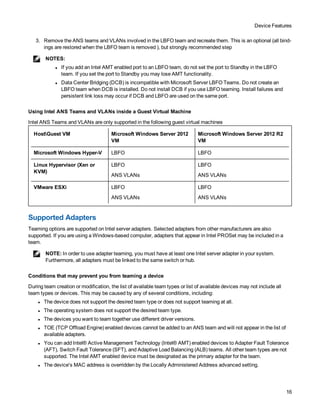
Using Intel ANS Teams and VLANs inside a Guest Virtual Machine
Intel ANS Teams and VLANs are only supported in the following guest virtual machines
HostGuest VM Microsoft Windows Server 2012
VM
Microsoft Windows Server 2012 R2
VM
Microsoft Windows Hyper-V LBFO LBFO
Linux Hypervisor (Xen or
KVM)
LBFO
ANS VLANs
LBFO
ANS VLANs
VMware ESXi LBFO
ANS VLANs
LBFO
ANS VLANs
Supported Adapters
Teaming options are supported on Intel server adapters. Selected adapters from other manufacturers are also
supported. If you are using a Windows-based computer, adapters that appear in Intel PROSet may be included in a
team.
NOTE: In order to use adapter teaming, you must have at least one Intel server adapter in your system.
Furthermore, all adapters must be linked to the same switch or hub.
Conditions that may prevent you from teaming a device
During team creation or modification, the list of available team types or list of available devices may not include all
team types or devices. This may be caused by any of several conditions, including:
l The device does not support the desired team type or does not support teaming at all.
l The operating system does not support the desired team type.
l The devices you want to team together use different driver versions.
l TOE (TCP Offload Engine) enabled devices cannot be added to an ANS team and will not appear in the list of
available adapters.
l You can add Intel® Active Management Technology (Intel® AMT) enabled devices to Adapter Fault Tolerance
(AFT), Switch Fault Tolerance (SFT), and Adaptive Load Balancing (ALB) teams. All other team types are not
supported. The Intel AMT enabled device must be designated as the primary adapter for the team.
l The device's MAC address is overridden by the Locally Administered Address advanced setting.
Device Features
17
l The device has "OS Controlled" or "Enabled" selected on the Data Center tab.
l The device has a virtual NIC bound to it.
l The device is part of a Microsoft* Load Balancing and Failover (LBFO) team.
Phantom Teams and Phantom VLANs
If you physically remove all adapters that are part of a team or VLAN from the system without removing them via the
Device Manager first, a phantom team or phantom VLAN will appear in Device Manager.
Preventing the Creation of Phantom Devices
Make sure you perform these steps before physically removing an adapter from the system:
1. Remove the adapter from any teams using the Settings tab on the team properties dialog box.
2. Remove any VLANs from the adapter using the VLANs tab on the adapter properties dialog box.
3. Uninstall the adapter from Device Manager.
You do not need to follow these steps in hot-replace scenarios.
Configuring Teams with Intel PROSet for Windows Device Manager
Creating a Team
1. Launch Windows Device Manager
2. Expand Network Adapters.
3. Double-click on one of the adapters that will be a member of the team.
The adapter properties dialog box appears.
4. Click the Teaming tab.
5. Click Team with other adapters.
6. Click New Team.
7. Type a name for the team, then click Next.
8. Click the checkbox of any adapter you want to include in the team, then click Next.
9. Select a teaming mode, then click Next.
10. Click Finish.
The Team Properties window appears, showing team properties and settings.
Once a team has been created, it appears in the Network Adapters category in the Computer Management window as
a virtual adapter. The team name also precedes the adapter name of any adapter that is a member of the team.
Changing Which Adapters Are In a Team
1. Launch Windows Device Manager.
2. Open the Team Properties dialog box by double-clicking on a team listing in the Computer Management win-
dow.
3. Click the Settings tab.
4. Click Modify Team, then click the Adapters tab.
Device Features
18
5. Select the adapters that will be members of the team.
l Click the checkbox of any adapter that you want to add to the team.
l Clear the checkbox of any adapter that you want to remove from the team.
6. Click OK.
Renaming a Team
1. Open the Team Properties dialog box by double-clicking on a team listing in the Computer Management win-
dow.
2. Click the Settings tab.
3. Click Modify Team, then click the Name tab.
4. Type a new team name, then click OK.
Removing a Team
1. Open the Team Properties dialog box by double-clicking on a team listing in the Computer Management win-
dow.
2. Click the Settings tab.
3. Select the team you want to remove, then click Remove Team.
4. Click Yes when prompted.
NOTE: If you defined a VLAN or QoS Prioritization on an adapter joining a team, you may have to redefine it
when it is returned to a stand-alone mode.
Specifying a Preferred Primary or Secondary Adapter
You must specify a primary adapter before you can specify a secondary adapter.
1. In the Team Properties dialog box's Settings tab, click Modify Team.
2. On the Adapters tab, select an adapter.
3. Click Set Primary or Set Secondary.
4. Click OK.
The adapter's preferred setting appears in the Priority column on Intel PROSet's Team Configuration tab. A "1"
indicates a preferred primary adapter, and a "2" indicates a preferred secondary adapter.
Configuring Teams with Windows PowerShell
Creating a Team
Use the New-IntelNetTeam cmdlet. For example:
New-IntelNetTeam -TeamMemberNames "<adapter1_name>", "<adapter2_name>" -TeamMode
AdapterFaultTolerance -TeamName "<team_name>"
Changing Which Adapters Are In a Team
Use the Add-IntelNetTeamMember or Remove-IntelNetTeamMember cmdlet. For example:
Add-IntelNetTeamMember -TeamName "<team_name>" -Name "<adapter_name>"
Device Features
19
Renaming a Team
Use the Set-IntelNetTeam cmdlet. For example
Set-IntelNetTeam -TeamName "<team_name>" -NewTeamName "<new_team_name>"
Removing a Team
Use the Remove-IntelNetTeam cmdlet. For example
Remove-IntelNetTeamMember -Name "<adapter_name>"
NOTE: If you defined a VLAN or QoS Prioritization on an adapter joining a team, you may have to redefine it
when it is returned to a stand-alone mode.
Specifying a Preferred Primary or Secondary Adapter
Use the Set-IntelNetTeam cmdlet. For example
Set-IntelNetTeam -TeamName "Team 1" -PrimaryAdapterName "<adapter1_name>" -Sec-
ondaryAdapterName "<adapter2_name>"
Configuring Teams with Intel PROSet ACU
Creating a Team with Intel PROSet ACU
1. Launch the Intel PROSet ACU.
2. Select an adapter to start the team.
3. Click the Teaming/VLANs tab.
4. In the Teaming panel, click Create Team.
5. Select the adapters to include in the team, then click Next.
6. Type a name for the team.
7. Select the teaming mode, then click Next.
8. [Optional] Designate Primary and Secondary adapters for the team.
9. Click Finish.
Changing Which Adapters Are In a Team
1. Launch the Intel PROSet ACU.
2. Select the team you wish to modify.
3. In the Team Members panel, click Modify Members.
4. Select the adapters that will be members of the team
5. Click Apply Changes.
Renaming a Team
1. Launch the Intel PROSet ACU.
2. Select the team you wish to modify.
3. In the Team Information panel, type a new team name..
4. Click Apply Changes.
Device Features
20
Removing a Team
1. Launch the Intel PROSet ACU.
2. Select the team you wish to remove.
3. Click Remove Team.
NOTE: If you defined a VLAN or QoS Prioritization on an adapter joining a team, you may have to redefine it
when it is returned to a stand-alone mode.
Specifying a Preferred Primary or Secondary Adapter
You must specify a primary adapter before you can specify a secondary adapter.
1. Launch the Intel PROSet ACU.
2. Select the team you wish to modify.
3. Select your preferred Primary Adapter.
4. Select your preferred Secondary Adapter.
5. Click Apply Changes.
Teaming Modes
l Adapter Fault Tolerance (AFT) - provides automatic redundancy for a server's network connection. If the
primary adapter fails, the secondary adapter takes over. Adapter Fault Tolerance supports two to eight adapters
per team. This teaming type works with any hub or switch. All team members must be connected to the same
subnet.
l Switch Fault Tolerance (SFT) - provides failover between two adapters connected to separate switches.
Switch Fault Tolerance supports two adapters per team. Spanning Tree Protocol (STP) must be enabled on the
switch when you create an SFT team.  When SFT teams are created, the Activation Delay is automatically set
to 60 seconds.  This teaming type works with any switch or hub. All team members must be connected to the
same subnet.
l Adaptive Load Balancing (ALB) - provides load balancing of transmit traffic and adapter fault tolerance. In
Microsoft* Windows* operating systems, you can also enable or disable receive load balancing (RLB) in ALB
teams (by default, RLB is enabled).
l Virtual Machine Load Balancing (VMLB) - provides transmit and receive traffic load balancing across Virtual
Machines bound to the team interface, as well as fault tolerance in the event of switch port, cable, or adapter
failure. This teaming type works with any switch.
l Static Link Aggregation (SLA) - provides increased transmission and reception throughput in a team of two to
eight adapters. This team type replaces the following team types from prior software releases: Fast Ether-
Channel*/Link Aggregation (FEC) and Gigabit EtherChannel*/Link Aggregation (GEC). This type also includes
adapter fault tolerance and load balancing (only routed protocols). This teaming type requires a switch with Intel
Link Aggregation, Cisco* FEC or GEC, or IEEE 802.3ad Static Link Aggregation capability.
All adapters in a Link Aggregation team running in static mode must run at the same speed and must be
connected to a Static Link Aggregation capable switch. If the speed capability of adapters in a Static Link
Aggregation team are different, the speed of the team is dependent on the lowest common denominator.
l IEEE 802.3ad Dynamic Link Aggregation - creates one or more teams using Dynamic Link Aggregation with
mixed-speed adapters. Like the Static Link Aggregation teams, Dynamic 802.3ad teams increase transmission
and reception throughput and provide fault tolerance. This teaming type requires a switch that fully supports the
IEEE 802.3ad standard. 
Device Features
21
l Multi-Vendor Teaming (MVT) - adds the capability to include adapters from selected other vendors in a team. If
you are using a Windows-based computer, you can team adapters that appear in the Intel PROSet teaming wiz-
ard.
IMPORTANT:
l Be sure to use the latest available drivers on all adapters.
l Before creating a team, adding or removing team members, or changing advanced settings of a
team member, make sure each team member has been configured similarly. Settings to check
include VLANs and QoS Packet Tagging, Jumbo Frames, and the various offloads. These settings
are available in Intel PROSet's Advanced tab. Pay particular attention when using different adapter
models or adapter versions, as adapter capabilities vary.
l If team members implement Advanced features differently, failover and team functionality will be
affected. To avoid team implementation issues:
l Create teams that use similar adapter types and models.
l Reload the team after adding an adapter or changing any Advanced features. One way to
reload the team is to select a new preferred primary adapter. Although there will be a tem-
porary loss of network connectivity as the team reconfigures, the team will maintain its net-
work addressing schema.
NOTES:
l Hot Plug operations for an adapter that is part of a team are only available in Windows Server.
l For SLA teams, all team members must be connected to the same switch. For AFT, ALB, and RLB
teams, all team members must belong to the same subnet. The members of an SFT team must be
connected to a different switch.
l Teaming only one adapter port is possible, but provides no benefit.
Primary and Secondary Adapters
Teaming modes that do not require a switch with the same capabilities (AFT, SFT, ALB (with RLB)) use a primary
adapter. In all of these modes except RLB, the primary is the only adapter that receives traffic. RLB is enabled by
default on an ALB team.
If the primary adapter fails, another adapter will take over its duties. If you are using more than two adapters, and you
want a specific adapter to take over if the primary fails, you must specify a secondary adapter. If an Intel AMT enabled
device is part of a team, it must be designated as the primary adapter for the team.
There are two types of primary and secondary adapters:
l Default primary adapter: If you do not specify a preferred primary adapter, the software will choose an adapter
of the highest capability (model and speed) to act as the default primary. If a failover occurs, another adapter
becomes the primary. Once the problem with the original primary is resolved, the traffic will not automatically
restore to the default (original) primary adapter in most modes. The adapter will, however, rejoin the team as a
non-primary.
l Preferred Primary/Secondary adapters: You can specify a preferred adapter. Under normal conditions, the
Primary adapter handles all traffic. The Secondary adapter will receive traffic if the primary fails. If the Preferred
Primary adapter fails, but is later restored to an active status, control is automatically switched back to the Pre-
ferred Primary adapter. Specifying primary and secondary adapters adds no benefit to SLA and IEEE 802.3ad
dynamic teams, but doing so forces the team to use the primary adapter's MAC address.
Device Features
22
Failover and Failback
When a link fails, either because of port or cable failure, team types that provide fault tolerance will continue to send
and receive traffic. Failover is the initial transfer of traffic from the failed link to a good link. Failback occurs when the
original adapter regains link. You can use the Activation Delay setting (located on the Advanced tab of the team's
properties in Device Manager) to specify a how long the failover adapter waits before becoming active. If you don't
want your team to failback when the original adapter gets link back, you can set the Allow Failback setting to disabled
(located on the Advanced tab of the team's properties in Device Manager).
Adapter Fault Tolerance (AFT)
Adapter Fault Tolerance (AFT) provides automatic recovery from a link failure caused from a failure in an adapter,
cable, switch, or port by redistributing the traffic load across a backup adapter.
Failures are detected automatically, and traffic rerouting takes place as soon as the failure is detected. The goal of
AFT is to ensure that load redistribution takes place fast enough to prevent user sessions from being disconnected.
AFT supports two to eight adapters per team. Only one active team member transmits and receives traffic. If this
primary connection (cable, adapter, or port) fails, a secondary, or backup, adapter takes over. After a failover, if the
connection to the user-specified primary adapter is restored, control passes automatically back to that primary
adapter.
AFT is the default mode when a team is created. This mode does not provide load balancing.
NOTES
l AFT teaming requires that the switch not be set up for teaming and that spanning tree protocol is
turned off for the switch port connected to the NIC or LOM on the server.
l All members of an AFT team must be connected to the same subnet.
Switch Fault Tolerance (SFT)
Switch Fault Tolerance (SFT) supports only two NICs in a team connected to two different switches. In SFT, one
adapter is the primary adapter and one adapter is the secondary adapter. During normal operation, the secondary
adapter is in standby mode. In standby, the adapter is inactive and waiting for failover to occur. It does not transmit or
receive network traffic. If the primary adapter loses connectivity, the secondary adapter automatically takes over.
When SFT teams are created, the Activation Delay is automatically set to 60 seconds.
In SFT mode, the two adapters creating the team can operate at different speeds.
NOTE: SFT teaming requires that the switch not be set up for teaming and that spanning tree protocol is
turned on.
Configuration Monitoring
You can set up monitoring between an SFT team and up to five IP addresses. This allows you to detect link failure
beyond the switch. You can ensure connection availability for several clients that you consider critical. If the
connection between the primary adapter and all of the monitored IP addresses is lost, the team will failover to the
secondary adapter.
Device Features
23
Adaptive/Receive Load Balancing (ALB/RLB)
Adaptive Load Balancing (ALB) is a method for dynamic distribution of data traffic load among multiple physical
channels. The purpose of ALB is to improve overall bandwidth and end station performance. In ALB, multiple links are
provided from the server to the switch, and the intermediate driver running on the server performs the load balancing
function. The ALB architecture utilizes knowledge of Layer 3 information to achieve optimum distribution of the server
transmission load.
ALB is implemented by assigning one of the physical channels as Primary and all other physical channels as
Secondary. Packets leaving the server can use any one of the physical channels, but incoming packets can only use
the Primary Channel. With Receive Load Balancing (RLB) enabled, it balances IP receive traffic. The intermediate
driver analyzes the send and transmit loading on each adapter and balances the rate across the adapters based on
destination address. Adapter teams configured for ALB and RLB also provide the benefits of fault tolerance.
NOTES:
l ALB teaming requires that the switch not be set up for teaming and that spanning tree protocol is
turned off for the switch port connected to the network adapter in the server.
l ALB does not balance traffic when protocols such as NetBEUI and IPX* are used.
l You may create an ALB team with mixed speed adapters. The load is balanced according to the
adapter's capabilities and bandwidth of the channel.
l All members of ALB and RLB teams must be connected to the same subnet.
l Virtual NICs cannot be created on a team with Receive Load Balancing enabled. Receive Load
Balancing is automatically disabled if you create a virtual NIC on a team.
Virtual Machine Load Balancing
Virtual Machine Load Balancing (VMLB) provides transmit and receive traffic load balancing across Virtual Machines
bound to the team interface, as well as fault tolerance in the event of switch port, cable, or adapter failure.
The driver analyzes the transmit and receive load on each member adapter and balances the traffic across member
adapters. In a VMLB team, each Virtual Machine is associated with one team member for its TX and RX traffic.
If only one virtual NIC is bound to the team, or if Hyper-V is removed, then the VMLB team will act like an AFT team.
NOTES:
l VMLB does not load balance non-routed protocols such as NetBEUI and some IPX* traffic.
l VMLB supports from two to eight adapter ports per team.
l You can create a VMLB team with mixed speed adapters. The load is balanced according to the
lowest common denominator of adapter capabilities and the bandwidth of the channel.
l You cannot use and Intel AMT enabled adapter a VMLB team.
Static Link Aggregation
Static Link Aggregation (SLA) is very similar to ALB, taking several physical channels and combining them into a
single logical channel.
This mode works with:
Device Features
24
l Cisco EtherChannel capable switches with channeling mode set to "on"
l Intel switches capable of Link Aggregation
l Other switches capable of static 802.3ad
NOTES:
l All adapters in a Static Link Aggregation team must run at the same speed and must be connected to
a Static Link Aggregation-capable switch. If the speed capabilities of adapters in a Static Link
Aggregation team are different, the speed of the team is dependent on the switch.
l Static Link Aggregation teaming requires that the switch be set up for Static Link Aggregation
teaming and that spanning tree protocol is turned off.
l An Intel AMT enabled adapter cannot be used in an SLA team.
IEEE 802.3ad: Dynamic Link Aggregation
IEEE 802.3ad is the IEEE standard. Teams can contain two to eight adapters. You must use 802.3ad switches (in
dynamic mode, aggregation can go across switches). Adapter teams configured for IEEE 802.3ad also provide the
benefits of fault tolerance and load balancing. Under 802.3ad, all protocols can be load balanced.
Dynamic mode supports multiple aggregators. Aggregators are formed by port speed connected to a switch. For
example, a team can contain adapters running at 1 Gbps and 10 Gbps, but two aggregators will be formed, one for
each speed. Also, if a team contains 1 Gbps ports connected to one switch, and a combination of 1 Gbps and 10 Gbps
ports connected to a second switch, three aggregators would be formed. One containing all the ports connected to the
first switch, one containing the 1 Gbps ports connected to the second switch, and the third containing the 10Gbps
ports connected to the second switch.
NOTES:
l IEEE 802.3ad teaming requires that the switch be set up for IEEE 802.3ad (link aggregation) teaming
and that spanning tree protocol is turned off.
l Once you choose an aggregator, it remains in force until all adapters in that aggregation team lose
link.
l In some switches, copper and fiber adapters cannot belong to the same aggregator in an IEEE
802.3ad configuration. If there are copper and fiber adapters installed in a system, the switch might
configure the copper adapters in one aggregator and the fiber-based adapters in another. If you
experience this behavior, for best performance you should use either only copper-based or only fiber-
based adapters in a system.
l An Intel AMT enabled adapter cannot be used in a DLA team.
Before you begin
l Verify that the switch fully supports the IEEE 802.3ad standard.
l Check your switch documentation for port dependencies. Some switches require pairing to start on a primary
port.
l Check your speed and duplex settings to ensure the adapter and switch are running at full duplex, either forced
or set to auto-negotiate. Both the adapter and the switch must have the same speed and duplex configuration.
The full-duplex requirement is part of the IEEE 802.3ad specification: http://standards.ieee.org/. If needed,
change your speed or duplex setting before you link the adapter to the switch. Although you can change speed
Device Features
25
and duplex settings after the team is created, Intel recommends you disconnect the cables until settings are in
effect. In some cases, switches or servers might not appropriately recognize modified speed or duplex settings
if settings are changed when there is an active link to the network.
l If you are configuring a VLAN, check your switch documentation for VLAN compatibility notes. Not all switches
support simultaneous dynamic 802.3ad teams and VLANs. If you do choose to set up VLANs, configure team-
ing and VLAN settings on the adapter before you link the adapter to the switch. Setting up VLANs after the
switch has created an active aggregator affects VLAN functionality.
Multi-Vendor Teaming
Multi-Vendor Teaming (MVT) allows teaming with a combination of Intel and non-Intel adapters.
If you are using a Windows-based computer, adapters that appear in the Intel PROSet teaming wizard can be included
in a team.
MVT Design Considerations
l In order to activate MVT, you must have at least one Intel adapter or integrated connection in the team, which
must be designated as the primary adapter.
l A multi-vendor team can be created for any team type.
l All members in an MVT must operate on a common feature set (lowest common denominator).
l Manually verify that the frame setting for the non-Intel adapter is the same as the frame settings for the Intel
adapters.
l If a non-Intel adapter is added to a team, its RSS settings must match the Intel adapters in the team.
Adaptive Inter-Frame Spacing
Compensates for excessive Ethernet packet collisions on the network.
The default setting works best for most computers and networks. By enabling this feature, the network adapter
dynamically adapts to the network traffic conditions. However, in some rare cases you might obtain better
performance by disabling this feature. This setting forces a static gap between packets.
Range l Enabled
l Disabled
This setting is found on the Advanced tab of the device's Device Manager property sheet or in the Adapter Settings
panel in Intel PROSet Adapter Configuration Utility.
To change this setting in Windows PowerShell, use the Set-IntelNetAdapterSetting cmdlet. For example:
Set-IntelNetAdapterSetting -Name "<adapter_name>" -DisplayName "Adaptive Inter-Frame
Spacing" -DisplayValue "Enabled"
Data Center Bridging (DCB)
Data Center Bridging provides a lossless data center transport layer for using LANs and SANs in a single unified
fabric.
Data Center Bridging includes the following capabilities:
Device Features
26
l Priority-based flow control (PFC; IEEE 802.1Qbb)
l Enhanced transmission selection (ETS; IEEE 802.1Qaz)
l Congestion notification (CN)
l Extensions to the Link Layer Discovery Protocol (LLDP) standard (IEEE 802.1AB) that enable Data Center
Bridging Capability Exchange Protocol (DCBX)
There are two supported versions of DCBX.
CEE Version: The specification can be found as a link within the following document:
http://www.ieee802.org/1/files/public/docs2008/dcb-baseline-contributions-1108-v1.01.pdf
IEEE Version: The specification can be found as a link within the following document:
https://standards.ieee.org/findstds/standard/802.1Qaz-2011.html
NOTE: The OS DCBX stack defaults to the CEE version of DCBX, and if a peer is transmitting IEEE TLVs,
it will automatically transition to the IEEE version.
For more information on DCB, including the DCB Capability Exchange Protocol Specification, go to
http://www.ieee802.org/1/pages/dcbridges.html
DCB for Windows Configuration
NOTES:
l On systems running a Microsoft Windows Server operating system, enabling *QoS/priority flow con-
trol will disable link level flow control.
l If *QOS/DCB is not available, it may be for one of the following reasons:
l The Firmware LLDP (FW-LLDP) agent was disabled from a pre-boot environment (typically
UEFI).
l This device is based on the Intel® Ethernet Controller X710 and the current link speed is 2.5
Gbps or 5 Gbps.
This setting is found on the Data Center tab of the device's Device Manager property sheet or in the Data Center panel
in Intel PROSet Adapter Configuration Utility.
You can use the Intel® PROSet to perform the following tasks:
l Display Status:
l Enhanced Transmission Selection
l Priority Flow Control
Non-operational status: If the Status indicator shows that DCB is non-operational, there may be a
number of possible reasons:
l DCB is not enabled - select the checkbox to enable DCB.
l One or more of the DCB features is in a non-operational state.
A non-operational status is most likely to occur when Use Switch Settings is selected or Using
Advanced Settings is active. This is generally a result of one or more of the DCB features not getting
successfully exchanged with the switch. Possible problems include:
Device Features
27
l One of the features is not supported by the switch.
l The switch is not advertising the feature.
l The switch or host has disabled the feature (this would be an advanced setting for the host).
l Disable/enable DCB
l Troubleshooting information
Hyper-V (DCB and VMQ)
NOTE: Configuring a device in the VMQ + DCB mode reduces the number of VMQs available for guest
OSes.
DCB for Linux
Intel Ethernet drivers support firmware-based or software-based DCBX in Linux, depending on the underlying
PF device. The following table summarizes DCBX support by driver.
Linux Driver Firmware-Based DCBX Software-Based DCBX
ice Supported Supported
i40e Supported Supported
ixgbe Not supported Supported
In firmware-based mode, firmware intercepts all LLDP traffic and handles DCBX negotiation transparently for the
user. In this mode, the adapter operates in "willing" DCBX mode, receiving DCB settings from the link partner
(typically a switch). The local user can only query the negotiated DCB configuration.
In software-based mode, LLDP traffic is forwarded to the network stack and user space, where a software agent can
handle it. In this mode, the adapter can operate in either "willing" or "nonwilling" DCBX mode and DCB configuration
can be both queried and set locally. Software-based mode requires the FW-based LLDP Agent to be disabled, if
supported.
NOTES:
l Only one LLDP/DCBX agent can be active on a single interface at a time.
l Software-based and firmware-based DCBX modes are mutually exclusive.
l When the firmware DCBX agent is active, software agents will not be able to receive or transmit
LLDP frames. See "Firmware Link Layer Discovery Protocol (FW-LLDP)" on page 30, as well as the
Linux driver readme in your installation, for information on enabling or disabling the FW-LLDP agent.
l In software-based DCBX mode, you can configure DCB parameters using software LLDP/DCBX
agents that interface with the Linux kernel's DCB Netlink API. We recommend using OpenLLDP as
the DCBX agent when running in software mode. For more information, see the OpenLLDP man
pages and https://github.com/intel/openlldp.
l For information on configuring DCBX parameters on a switch, please consult the switch man-
ufacturer's documentation.
Device Features
28
iSCSI Over DCB
Intel® Ethernet adapters support iSCSI software initiators that are native to the underlying operating system. Data
Center Bridging is most often configured at the switch. If the switch is not DCB capable, the DCB handshake will fail
but the iSCSI connection will not be lost.
NOTE: DCB does not install in a VM. iSCSI over DCB is only supported in the base OS. An iSCSI initiator
running in a VM will not benefit from DCB ethernet enhancements.
Microsoft Windows Configuration
iSCSI installation includes the installation of the iSCSI DCB Agent (iscsidcb.exe) user mode service. The Microsoft
iSCSI Software Initiator enables the connection of a Windows host to an external iSCSI storage array using an Intel
Ethernet adapter. Please consult your operating system documentation for configuration details.
Enable DCB on the adapter by the following:
This setting is found on the Data Center tab of the device's Device Manager property sheet or in the Data Center panel
in Intel PROSet Adapter Configuration Utility.
This setting provides feedback as to the DCB state, operational or non- operational, as well as providing additional
details should it be non-operational.
NOTE: On Microsoft Windows Server operating systems, if you configure Priority using IEEE, the iSCSI
policy may not be created automatically. To create the iSCSI policy manually, use Powershell and type:
New-NetQosPolicy -Name "UP4" -PriorityValue 8021 Action 4 –iSCSI
Using iSCSI over DCB with ANS Teaming
The Intel® iSCSI Agent is responsible for maintaining all packet filters for the purpose of priority tagging iSCSI traffic
flowing over DCB-enabled adapters. The iSCSI Agent will create and maintain a traffic filter for an ANS Team if at
least one member of the team has an "Operational" DCB status. However, if any adapter on the team does not have
an "Operational" DCB status, the iSCSI Agent will log an error in the Windows Event Log for that adapter. These error
messages are to notify the administrator of configuration issues that need to be addressed, but do not affect the
tagging or flow of iSCSI traffic for that team, unless it explicitly states that the TC Filter has been removed.
Linux Configuration
In the case of Open Source distributions, virtually all distributions include support for an Open iSCSI Software Initiator
and Intel® Ethernet adapters will support them. Please consult your distribution documentation for additional
configuration details on their particular Open iSCSI initiator.
Intel® 82599 and X540-based adapters support iSCSI within a Data Center Bridging cloud. Used in conjunction with
switches and targets that support the iSCSI/DCB application TLV, this solution can provide guaranteed minimum
bandwidth for iSCSI traffic between the host and target. This solution enables storage administrators to segment
iSCSI traffic from LAN traffic. Previously, iSCSI traffic within a DCB supported environment was treated as LAN
traffic by switch vendors. Please consult your switch and target vendors to ensure that they support the iSCSI/DCB
application TLV.
Direct Memory Access (DMA) Coalescing
DMA (Direct Memory Access) allows the network device to move packet data directly to the system's memory,
reducing CPU utilization. However, the frequency and random intervals at which packets arrive do not allow the
system to enter a lower power state. DMA Coalescing allows the NIC to collect packets before it initiates a DMA
Device Features
29
event. This may increase network latency but also increases the chances that the system will consume less energy.
Adapters and network devices based on the Intel® Ethernet Controller I350 (and later controllers) support DMA
Coalescing.
Higher DMA Coalescing values result in more energy saved but may increase your system's network latency. If you
enable DMA Coalescing, you should also set the Interrupt Moderation Rate to 'Minimal'. This minimizes the latency
impact imposed by DMA Coalescing and results in better peak network throughput performance. You must enable
DMA Coalescing on all active ports in the system. You may not gain any energy savings if it is enabled only on some
of the ports in your system. There are also several BIOS, platform, and application settings that will affect your
potential energy savings. A white paper containing information on how to best configure your platform is available on
the Intel website.
This setting is found on the Advanced tab of the device's Device Manager property sheet or in the Adapter Settings
panel in Intel PROSet Adapter Configuration Utility.
To change this setting in Windows PowerShell, use the Set-IntelNetAdapterSetting cmdlet. For example:
Set-IntelNetAdapterSetting -Name "<adapter_name>" -DisplayName "DMA Coalescing" -
DisplayValue "Enabled"
Dynamic Device Personalization (DDP)
Adapters based on the Intel® Ethernet 800 Series require a Dynamic Device Personalization (DDP) package file to
enable advanced features (such as dynamic tunneling, Intel Ethernet Flow Director, RSS, and ADQ). DDP allows you
to change the packet processing pipeline of a device by applying a profile package to the device at runtime. Profiles
can be used to, for example, add support for new protocols, change existing protocols, or change default settings.
DDP profiles can also be rolled back without rebooting the system.
The DDP package loads during device initialization. The driver checks to see if the DDP package is present and
compatible. If this file exists, the driver will load it into the device. If not, the driver will go into Safe Mode where it will
use the configuration contained in the device's NVM.
Safe Mode disables advanced and performance features, and supports only basic traffic and minimal functionality,
such as updating the NVM or downloading a new driver or DDP package. For more information, see Safe Mode.
Microsoft Windows and ESX drivers embed the DDP package in the driver itself. Linux and FreeBSD load the
package from an external file:
l Linux: Loads the intel/ice/ddp/ice.pkg from your firmware root (typically /lib/firmware/ or /lib/firmware/updates/).
l FreeBSD: Loads the DDP package from the ice_ddp firmware module.
NOTES:
l You cannot update the DDP package if any PF drivers are already loaded. To overwrite a package,
unload all PFs and then reload the driver with the new package.
l Except for Linux, you can only use one DDP package per driver, even if you have more than one
device installed that uses the driver.
l Only the first loaded PF per device can download a package for that device.
l If you are using DPDK, see the DPDK documentation for installation instructions and more inform-
ation.
Device Features
30
Firmware Link Layer Discovery Protocol (FW-LLDP)
Devices based on the Intel® Ethernet 800 and 700 Series use a Link Layer Discovery Protocol (LLDP) agent that runs
in the firmware. When it is running, it prevents the operating system and applications from receiving LLDP traffic from
the network adapter.
l The FW-LLDP setting is per port and persists across reboots.
l The FW-LLDP Agent is required for DCB to function.
Adapters Based on the Intel® Ethernet 800 Series
FW-LLDP is disabled in NVM by default. To enable/disable the FW-LLDP Agent:
l Linux: Use ethtool to persistently set or show the fw-lldp-agent private flag.
l FreeBSD: Use sysctl to persistently set or show the fw_lldp_agent flag.
l ESX: Use the esxcli command to persistently set or get the fw-lldp-agent setting.
l Microsoft Windows: The base driver does not persistently change FW-LLDP. Use the LLDP Agent attribute in
UEFI HII to persistently change the FW-LLDP setting. If you enable DCB when FW-LLDP is disabled, the base
driver temporarily starts the LLDP Agent while DCB functionality is enabled.
Adapters Based on the Intel® Ethernet 700 Series
FW-LLDP is enabled in NVM by default. To enable/disable the FW-LLDP Agent:
l Linux: Use ethtool to set or show the disable-fw-lldp private flag.
l FreeBSD: Use sysctl to set or show the fw_lldp flag.
l ESX: Use the esxcfg-module command to set or get the LLDP module parameter.
l Microsoft Windows: Use the LLDP Agent attribute in UEFI HII to change the FW-LLDP setting. Note: You
must enable the UEFI HII "LLDP AGENT" attribute for the FW-LLDP setting to take effect. If "LLDP AGENT"
is set to disabled in UEFI HII, you cannot enable FW-LLDP from the OS.
l You must enable the LLDP Agent from UEFI HII to use DCB.
Firmware Logging
Intel® Ethernet 800 Series devices allow you to generate firmware logs for supported categories of events, to help
debug issues with Customer Support. Firmware logs are generated in a binary format and have to be decoded by
Customer Support. Information collected is related only to firmware and hardware for debug purposes.
You can change the verbosity level of the logs for different categories of events (called "modules"). You can set only
one log level per module.
NOTE:
l Both the device and the driver need to support firmware logging for the functionality to work. If you are
not able to set the configuration and the problem persists, reinstall the driver.
l You must have the latest base driver and NVM installed.
l Firmware logging events and levels are device-wide settings. Changing the log configuration on one
port will apply it to all ports on a device.
Linux and FreeBSD
Refer to the driver README in the tarball for more information on configuring firmware logs.
Device Features
31
NOTE: In FreeBSD, the driver can register/unregister to receive events per PF.
Windows
In Windows, you use PowerShell and Ethernet adapter cmdlets to set the configuration for firmware logs and generate
the logs.
To install these cmdlets:
1. Download the zip file with the adapter cmdlets from the Intel Download Center.
2. Save the zip file to the system you're trying to debug.
3. Extract files from the zip file.
4. In the extracted files, double-click on PROSet_Driver_Cmdlets.exe. The cmdlets will automatically install to
the current user's PowerShell module directory (for example, to C:User-
sAdministratorDocumentsWindowsPowerShellModulesIntelNetCmdlets).
Refer to the README in the zip file for more detailed information.
Forward Error Correction (FEC) Mode
Allows you to set the Forward Error Correction (FEC) mode. FEC improves link stability, but increases latency. Many
high quality optics, direct attach cables, and backplane channels provide a stable link without FEC.
The driver allows you to set the following FEC Modes:
l Auto FEC - Sets the FEC Mode based on the capabilities of the attached cable.
l CL108 RS-FEC - Selects only RS-FEC ability and request capabilities.
l CL74 FC-FEC/BASE-R - Selects only BASE-R ability and request capabilities.
l No FEC - Disables FEC.
NOTES:
l For devices to benefit from this feature, link partners must have FEC enabled.
l Intel® Ethernet 800 Series devices only enable Forward Error Correction (FEC) configurations that
are supported by the connected media and which are expected to yield healthy Bit Error Rate (BER)
connections.
l If you are having link issues (including no link) at link speeds faster than 10 Gbps, check your switch
configuration and/or specifications. Many optical connections and direct attach cables require RS-
FEC for connection speeds faster than 10 Gbps. One of the following may resolve the issue:
l Configure your switch to use RS-FEC mode.
l Specify a 10 Gbps, or slower, link speed connection.
l If you are attempting to connect at 25 Gbps, try using an SFP28 CA-S or CS-N Direct Attach
cable. These cables do not require RS-FEC.
l If your switch does not support RS-FEC mode, check with your switch vendor for the avail-
ability of a SW or FW upgrade.
This setting is found on the Advanced tab of the device's Device Manager property sheet or in the Adapter Settings
panel in Intel PROSet Adapter Configuration Utility.
To change this setting in Windows PowerShell, use the Set-IntelNetAdapterSetting cmdlet. For example:
Device Features
32
Set-IntelNetAdapterSetting -Name "<adapter_name>" -DisplayName "FEC Mode" -
DisplayValue "Auto FEC"
Flow Control
Enables adapters to more effectively regulate traffic. Adapters generate flow control frames when their receive queues
reach a pre-defined limit. Generating flow control frames signals the transmitter to slow transmission. Adapters
respond to flow control frames by pausing packet transmission for the time specified in the flow control frame.
By enabling adapters to adjust packet transmission, flow control helps prevent dropped packets. You may improve
RDMA performance by enabling flow control on all nodes and on the switch they are connected to.
NOTE:
l For adapters to benefit from this feature, link partners must support flow control frames.
l On systems running a Microsoft Windows Server operating system, enabling *QoS/priority flow con-
trol will disable link level flow control.
l Some devices support Auto Negotiation. Selecting this will cause the device to advertise the value
stored in its NVM (usually "Disabled").
Range l Disabled
l RX Enabled
l TX Enabled
l RX & TX Enabled
l Auto Negotiation (only available on some
adapters)
This setting is found on the Advanced tab of the device's Device Manager property sheet or in the Adapter Settings
panel in Intel PROSet Adapter Configuration Utility.
To change this setting in Windows PowerShell, use the Set-IntelNetAdapterSetting cmdlet. For example:
Set-IntelNetAdapterSetting -Name "<adapter_name>" -DisplayName "Flow Control" -
DisplayValue "Rx Enabled"
IEEE 802.3 (Clause 40) Gigabit PHY Mode
NOTE: Intel is committed to removing offensive and noninclusive language from our documentation.
However, some terms come from international standards documents. We are working with the appropriate
bodies to promote changes to the language in industry specifications. In the interim, it may be necessary to
use these terms to avoid technical ambiguity.
Determines whether the adapter or link partner is designated as the primary (called "master"). The other device is
designated as the secondary (called "slave" in the specification). By default, the IEEE 802.3ab specification defines
how conflicts are handled. Multi-port devices such as switches have higher priority over single port devices and are
assigned as the primary. If both devices are multi-port devices, the one with higher seed bits becomes the primary.
This default setting is called "Hardware Default."
Device Features
33
NOTE: In most scenarios, it is recommended to keep the default value of this feature.
Setting this to any value other than "Auto Detect" overrides the hardware default.
Range l Force Master Mode
l Force Slave Mode
l Auto Detect
NOTE: Some multi-port devices may be forced to be primary. If the adapter is connected to such a device
and is configured to "Force Master Mode," link is not established.
This setting is found on the Advanced tab of the device's Device Manager property sheet or in the Adapter Settings
panel in Intel PROSet Adapter Configuration Utility.
To change this setting in Windows PowerShell, use the Set-IntelNetAdapterSetting cmdlet. For example:
Set-IntelNetAdapterSetting -Name "<adapter_name>" -DisplayName "Gigabit Master Slave
Mode" -DisplayValue "Auto Detect"
Interrupt Moderation Rate
Sets the Interrupt Throttle Rate (ITR). This setting moderates the rate at which Transmit and Receive interrupts are
generated.
When an event such as packet receiving occurs, the adapter generates an interrupt. The interrupt interrupts the CPU
and any application running at the time, and calls on the driver to handle the packet. At greater link speeds, more
interrupts are created, and CPU rates also increase. This results in poor system performance. When you use a higher
ITR setting, the interrupt rate is lower and the result is better CPU performance.
NOTE: A higher ITR rate also means that the driver has more latency in handling packets. If the adapter is
handling many small packets, it is better to lower the ITR so that the driver can be more responsive to
incoming and outgoing packets.
Altering this setting may improve traffic throughput for certain network and system configurations, however the default
setting is optimal for common network and system configurations. Do not change this setting without verifying that the
desired change will have a positive effect on network performance.
Range l Adaptive
l Extreme
l High
l Medium
l Low
l Minimal
l Off
This setting is found on the Advanced tab of the device's Device Manager property sheet or in the Adapter Settings
panel in Intel PROSet Adapter Configuration Utility.
Device Features
34
To change this setting in Windows PowerShell, use the Set-IntelNetAdapterSetting cmdlet. For example:
Set-IntelNetAdapterSetting -Name "<adapter_name>" -DisplayName "Interrupt Moderation
Rate" -DisplayValue "Adaptive"
IPv4 Checksum Offload
This allows the adapter to compute the IPv4 checksum of incoming and outgoing packets. This feature enhances IPv4
receive and transmit performance and reduces CPU utilization.
With Offloading off, the operating system verifies the IPv4 checksum.
With Offloading on, the adapter completes the verification (on RX) and computation (on TX) for the operating system.
Range l Disabled
l RX Enabled
l TX Enabled
l RX & TX Enabled
This setting is found on the Advanced tab of the device's Device Manager property sheet or in the Adapter Settings
panel in Intel PROSet Adapter Configuration Utility.
To change this setting in Windows PowerShell, use the Set-IntelNetAdapterSetting cmdlet. For example:
Set-IntelNetAdapterSetting -Name "<adapter_name>" -DisplayName "IPv4 Checksum
Offload" -DisplayValue "Tx Enabled"
Jumbo Frames
Enables or disables Jumbo Packet capability. The standard Ethernet frame size is about 1514 bytes, while Jumbo
Packets are larger than this. Jumbo Packets can increase throughput and decrease CPU utilization. However,
additional latency may be introduced.
Enable Jumbo Packets only if ALL devices across the network support them and are configured to use the same frame
size. When setting up Jumbo Packets on other network devices, be aware that network devices calculate Jumbo
Packet sizes differently. Some devices include the frame size in the header information while others do not. Intel
adapters do not include frame size in the header information.
Jumbo Packets can be implemented simultaneously with VLANs and teaming. If a team contains one or more non-
Intel adapters, the Jumbo Packets feature for the team is not supported. Before adding a non-Intel adapter to a team,
make sure that you disable Jumbo Packets for all non-Intel adapters using the software shipped with the adapter.
Restrictions
l Jumbo frames are not supported in multi-vendor team configurations.
l Supported protocols are limited to IP (TCP, UDP).
l Jumbo frames require compatible switch connections that forward Jumbo Frames. Contact your switch vendor
for more information.
l When standard-sized Ethernet frames (64 to 1518 bytes) are used, there is no benefit to configuring Jumbo
Frames.
Device Features
35
l The Jumbo Packets setting on the switch must be set to at least 8 bytes larger than the adapter setting for
Microsoft Windows operating systems, and at least 22 bytes larger for all other operating systems.
l Jumbo Frames are not supported over Intel ANS VLANs under Microsoft Windows 10. The only Microsoft oper-
ating systems that support Jumbo Frames over Intel ANS VLANs are Microsoft Windows Server 2012 and Win-
dows Server 2012 R2.
Range Disabled (1514), 4088, or 9014 bytes. (Set the switch 4 bytes higher for CRC, plus 4 bytes if using
VLANs.)
NOTES:
l End-to-end hardware must support this capability; otherwise, packets will be dropped.
l Intel adapters that support Jumbo Packets have a frame size limit of 9238 bytes, with a
corresponding MTU size limit of 9216 bytes.
This setting is found on the Advanced tab of the device's Device Manager property sheet or in the Adapter Settings
panel in Intel PROSet Adapter Configuration Utility.
To change this setting in Windows PowerShell, use the Set-IntelNetAdapterSetting cmdlet. For example:
Set-IntelNetAdapterSetting -Name "<adapter_name>" -DisplayName "Jumbo Packet" -
DisplayValue "4088 Bytes"
Large Send Offload (IPv4 and IPv6)
Sets the adapter to offload the task of segmenting TCP messages into valid Ethernet frames. The maximum frame
size limit for large send offload is set to 64,000 bytes.
Since the adapter hardware is able to complete data segmentation much faster than operating system software, this
feature may improve transmission performance. In addition, the adapter uses fewer CPU resources.
Range l Enabled
l Disabled
This setting is found on the Advanced tab of the device's Device Manager property sheet or in the Adapter Settings
panel in Intel PROSet Adapter Configuration Utility.
To change this setting in Windows PowerShell, use the Set-IntelNetAdapterSetting cmdlet. For example:
Set-IntelNetAdapterSetting -Name "<adapter_name>" -DisplayName "Large Send Offload
V2 (IPv4)" -DisplayValue "Enabled"
Link State on Interface Down
Sets if link is enabled or disabled when the interface is brought down. If this is set to Disabled and you bring an
interface down (using an administrative tool, or in another way), then the port will lose link. This allows an attached
switch to detect that the interface is no longer up. However, if Wake on LAN or manageability is enabled on this port,
link will remain up.
Range l Enabled
Device Features
36
l Disabled
This setting is found on the Advanced tab of the device's Device Manager property sheet or in the Adapter Settings
panel in Intel PROSet Adapter Configuration Utility.
To change this setting in Windows PowerShell, use the Set-IntelNetAdapterSetting cmdlet. For example:
Set-IntelNetAdapterSetting -Name "<adapter_name>" -DisplayName "Link State on
Interface Down" -DisplayValue "Enabled"
Locally Administered Address
Overrides the initial MAC address with a user-assigned MAC address. To enter a new network address, type a 12-digit
hexadecimal number in this box.
Range 0000 0000 0001 - FFFF FFFF FFFD
Exceptions:
l Do not use a multicast address (Least Significant Bit of the high byte = 1). For example, in the
address 0Y123456789A, "Y" cannot be an odd number. (Y must be 0, 2, 4, 6, 8, A, C, or E.)
l Do not use all zeros or all Fs.
If you do not enter an address, the address is the original network address of the adapter.
For example,
Multicast: 0123 4567 8999 Broadcast: FFFF FFFF FFFF
Unicast (legal): 0070 4567 8999
NOTE: In a team, Intel PROSet uses either:
l The primary adapter's permanent MAC address if the team does not have an LAA configured, or
l The team's LAA if the team has an LAA configured.
Intel PROSet does not use an adapter's LAA if the adapter is the primary adapter in a team and the team has
an LAA.
This setting is found on the Advanced tab of the device's Device Manager property sheet or in the Adapter Settings
panel in Intel PROSet Adapter Configuration Utility.
To change this setting in Windows PowerShell, use the Set-IntelNetAdapterSetting cmdlet. For example:
Set-IntelNetAdapterSetting -Name "<adapter_name>" -DisplayName "Locally Administered
Address" -DisplayValue "<desired address>"
Log Link State Event
This setting is used to enable/disable the logging of link state changes. If enabled, a link up change event or a link
down change event generates a message that is displayed in the system event logger. This message contains the
link's speed and duplex. Administrators view the event message from the system event log.
The following events are logged.
Device Features
37
l The link is up.
l The link is down.
l Mismatch in duplex.
l Spanning Tree Protocol detected.
Range Enabled, Disabled
This setting is found on the Advanced tab of the device's Device Manager property sheet or in the Adapter Settings
panel in Intel PROSet Adapter Configuration Utility.
To change this setting in Windows PowerShell, use the Set-IntelNetAdapterSetting cmdlet. For example:
Set-IntelNetAdapterSetting -Name "<adapter_name>" -DisplayName "Log Link State
Event" -DisplayValue "Enabled"
Low Latency Interrupts
LLI enables the network device to bypass the configured interrupt moderation scheme based on the type of data being
received. It configures which arriving TCP packets trigger an immediate interrupt, enabling the system to handle the
packet more quickly. Reduced data latency enables some applications to gain faster access to network data.
NOTE: When LLI is enabled, system CPU utilization may increase.
LLI can be used for data packets containing a TCP PSH flag in the header or for specified TCP ports.
l Packets with TCP PSH Flag - Any incoming packet with the TCP PSH flag will trigger an immediate interrupt.
The PSH flag is set by the sending device.
l TCP Ports - Every packet received on the specified ports will trigger an immediate interrupt. Up to eight ports
may be specified.
Range l Disabled
l PSH Flag-Based
l Port-Based
This setting is found on the Advanced tab of the device's Device Manager property sheet or in the Adapter Settings
panel in Intel PROSet Adapter Configuration Utility.
To change this setting in Windows PowerShell, use the Set-IntelNetAdapterSetting cmdlet. For example:
Set-IntelNetAdapterSetting -Name "<adapter_name>" -DisplayName "Low Latency
Interrupts" -DisplayValue "Port-Based"
Malicious Driver Detection (MDD) for VFs
Some Intel Ethernet devices use Malicious Driver Detection (MDD) to detect malicious traffic from the VF and disable
Tx/Rx queues or drop the offending packet until a VF driver reset occurs. You can view MDD messages in the PF's
event log.
l If the device supports automatic VF resets and the driver detects an MDD event on the receive path, the PF will
automatically reset the VF and reenable queues. If automatic VF resets are disabled, the PF will not auto-
matically reset the VF when it detects MDD events. See the table below for supported MDD features.
Device Features
38
l If the PF driver logs MDD events from the VF, confirm that the correct VF driver is installed.
l To restore functionality, you can manually reload the VF or VM or, if supported by the device, enable automatic
VF resets.
Feature Intel Eth-
ernet
800 Series
Intel Eth-
ernet
700 Series
Intel Eth-
ernet
500 Series
Intel® I350 Gigabit
Network Connection
Automatically resets the VF and
reenables queues after MDD events
If enabled Yes Yes Yes
Can disable automatic VF reset after
MDD events
Yes No No No
MDD Auto Reset VFs
Automatically resets the virtual machine immediately after the adapter detects a Malicious Driver Detection (MDD)
event on the receive path.
Range l Disabled
l Enabled
This setting is found on the Advanced tab of the device's Device Manager property sheet or in the Adapter Settings
panel in Intel PROSet Adapter Configuration Utility.
To change this setting in Windows PowerShell, use the Set-IntelNetAdapterSetting cmdlet. For example:
Set-IntelNetAdapterSetting -Name "<adapter_name>" -DisplayName "MDD Auto Reset VFs"
-DisplayValue "Enabled"
Max Number of RSS Queues Per Vport
Sets the maximum number of Receive Side Scaling (RSS) queue pairs per VF.
Range l 2 Queues
l 4 Queues
l 8 Queues
l 16 Queues
This setting is found on the Advanced tab of the device's Device Manager property sheet or in the Adapter Settings
panel in Intel PROSet Adapter Configuration Utility.
To change this setting in Windows PowerShell, use the Set-IntelNetAdapterSetting cmdlet. For example:
Set-IntelNetAdapterSetting -Name "<adapter_name>" -DisplayName "Max Number of RSS
Queues Per Vport" -DisplayValue "4 Queues"
Device Features
39
NVGRE Encapsulated Task Offload
Network Virtualization using Generic Routing Encapsulation (NVGRE) increases the efficient routing of network traffic
within a virtualized or cloud environment. Some Intel® Ethernet Network devices perform NVGRE processing,
offloading it from the operating system. This reduces CPU utilization.
Range l Enabled
l Disabled
This setting is found in the Adapter Settings panel in Intel PROSet Adapter Configuration Utility. On the device's
Device Manager property sheet, it is found on the Advanced tab, under the Offloading Options > Encapsulated Task
Offload setting.
To change this setting in Windows PowerShell, use the Set-IntelNetAdapterSetting cmdlet. For example:
Set-IntelNetAdapterSetting -Name "<adapter_name>" -DisplayName "NVGRE Encapsulated
Task Offload" -DisplayValue "Enabled"
Performance Options
Optimizing Performance
You can configure Intel network adapter advanced settings to help optimize server performance.
Below the General Optimization section are sections that provide guidance for three server usage models:
l Optimized for quick response and low latency – useful for video, audio, and High Performance Computing
Cluster (HPCC) servers
l Optimized for throughput – useful for data backup/retrieval and file servers
l Optimized for CPU utilization – useful for application, web, mail, and database servers
NOTES:
l Linux users, see the README file in the Linux driver package for Linux-specific performance
enhancement details.
l The recommendations below are guidelines and should be treated as such. Additional factors such as
installed applications, bus type, network topology, and operating system also affect system per-
formance.
l These adjustments should be performed by a highly skilled network administrator. They are not guar-
anteed to improve performance. Not all settings shown here may be available through network driver
configuration, operating system or system BIOS.
l When using performance test software, refer to the documentation of the application for optimal res-
ults.
Device Features
40
General Optimization
l Install the adapter in an appropriate slot.
NOTE: Some PCIe x8 slots are actually configured as x4 slots. These slots have insufficient band-
width for full line rate with some dual port devices. The driver can detect this situation and will write
the following message in the system log: “PCI-Express bandwidth available for this card is not suf-
ficient for optimal performance. For optimal performance a x8 PCI-Express slot is required.” If this
error occurs, moving your adapter to a true x8 slot will resolve the issue.
l For an Intel® Ethernet 700 Series adapter to reach its full potential, you must install it in a PCIe Gen3 x8 slot.
Installing it in a shorter slot, or a Gen2 or Gen1 slot, will impact the throughput the adapter can attain.
l Use the proper cabling for your device.
l Increase the number of TCP and Socket resources from the default value. For Windows based systems, we
have not identified system parameters other than the TCP Window Size which significantly impact per-
formance.
l Increase the allocation size of Driver Resources (transmit/receive buffers). However, most TCP traffic patterns
work best with the transmit buffer set to its default value, and the receive buffer set to its minimum value.
Jumbo Frames
Enabling jumbo frames may increase throughput. You must enable jumbo frames on all of your network components to
get any benefit.
RSS Queues
If you have multiple 10 Gbps (or faster) ports installed in a system, the RSS queues of each adapter port can be
adjusted to use non-overlapping sets of processors within the adapter's local NUMA Node/Socket. Change the RSS
Base Processor Number for each adapter port so that the combination of the base processor and the max number of
RSS processors settings ensure non-overlapping cores. For Microsoft Windows systems, do the following:
1. Identify the adapter ports to be adjusted and inspect at their RssProcessorArray using the Get-NetAdapterRSS
PowerShell cmdlet.
2. Identify the processors with NUMA distance 0. These are the cores in the adapter's local NUMA Node/Socket
and will provide the best performance.
3. Adjust the RSS Base processor on each port to use a non-overlapping set of processors within the local set of
processors. You can do this manually or using the following PowerShell command:
Set-NetAdapterAdvancedProperty -Name <Adapter Name> -DisplayName "RSS Base
Processor Number" -DisplayValue <RSS Base Proc Value>
4. Use the Get-NetAdapterAdvancedproperty cmdlet to check that the right values have been set:
Get-NetAdapterAdvancedproperty -Name <Adapter Name>
For Example: For a 4 port adapter with Local processors 0, 2, 4, 6, 8, 10, 12, 14, 16, 18, 20, 22, 24, 26, 28, 30, and
'Max RSS processor' of 8, set the RSS base processors to 0, 8, 16 and 24.
CPU Affinity
When passing traffic on multiple network ports using an I/O application that runs on most or all of the cores in your
system, consider setting the CPU Affinity for that application to fewer cores. This should reduce CPU utilization and in
some cases may increase throughput for the device. The cores selected for CPU Affinity must be local to the affected
network device's Processor Node/Group. You can use the PowerShell command Get-NetAdapterRSS to list the cores
that are local to a device. You may need to increase the number of cores assigned to the application to maximize
throughput. Refer to your operating system documentation for more details on setting the CPU Affinity.
Device Features
41
Optimized for quick response and low latency
l Minimize or disable Interrupt Moderation Rate.
l Disable Offload TCP Segmentation.
l Disable Jumbo Packets.
l Increase Transmit Descriptors.
l Increase Receive Descriptors.
l Increase RSS Queues.
Optimized for throughput
l Enable Jumbo Packets.
l Increase Transmit Descriptors.
l Increase Receive Descriptors.
l On systems that support NUMA, set the Preferred NUMA Node on each adapter to achieve better scaling
across NUMA nodes.
Optimized for CPU utilization
l Maximize Interrupt Moderation Rate.
l Keep the default setting for the number of Receive Descriptors; avoid setting large numbers of Receive
Descriptors.
l Decrease RSS Queues.
l In Hyper-V environments, decrease the Max number of RSS CPUs.
Performance Profile
Performance Profiles are supported on Intel® 10GbE adapters and allow you to quickly optimize the performance of
your Intel® Ethernet Adapter. Selecting a performance profile will automatically adjust some Advanced Settings to
their optimum setting for the selected application. For example, a standard server has optimal performance with only
two RSS (Receive-Side Scaling) queues, but a web server requires more RSS queues for better scalability.
You must install Intel® PROSet to use Performance profiles.
Profiles l Standard Server – This profile is optimized for typical servers.
l Web Server – This profile is optimized for IIS and HTTP-based web servers.
l Virtualization Server – This profile is optimized for Microsoft’s Hyper-V virtualization envir-
onment.
l Storage Server – This profile is optimized for Fibre Channel over Ethernet or for iSCSI over
DCB performance. Selecting this profile will disable SR-IOV and VMQ.
l Storage + Virtualization – This profile is optimized for a combination of storage and vir-
tualization requirements.
l Low Latency – This profile is optimized to minimize network latency.
Device Features
42
NOTES:
l Not all options are available on all adapter/operating system combinations.
l If you have selected the Virtualization Server profile or the Storage + Virtualization profile, and you
uninstall the Hyper-V role, you should select a new profile.
This setting is found on the Advanced tab of the device's Device Manager property sheet or in the Adapter Settings
panel in Intel PROSet Adapter Configuration Utility.
To change this setting in Windows PowerShell, use the Set-IntelNetAdapterSetting cmdlet. For example:
Set-IntelNetAdapterSetting -Name "<adapter_name>" -DisplayName "Profile" -
DisplayValue "Standard Server"
Teaming Considerations
When you create a team with all members of the team supporting Performance Profiles, you will be asked which
profile to use at the time of team creation. The profile will be synchronized across the team. If there is not a profile that
is supported by all team members then the only option will be Use Current Settings. The team will be created normally.
Adding an adapter to an existing team works in much the same way.
If you attempt to team an adapter that supports performance profiles with an adapter that doesn't, the profile on the
supporting adapter will be set to Custom Settings and the team will be created normally.
This feature is not configurable through Intel PROSet ACU. On Microsoft Windows Server 2019, Microsoft Windows*
10 Version 1809, and later, use Windows PowerShell.
Power Options
The Power Management tab in the device's Device Manager property sheet or the Adapter Settings panel in Intel
PROSet ACU includes several settings that control the adapter's power consumption. For example, you can set the
adapter to reduce its power consumption if the cable is disconnected.
This setting is found on the Power Management tab of the device's Device Manager property sheet or in the Adapter
Settings panel in Intel PROSet Adapter Configuration Utility.
To change this setting in Windows PowerShell, use the Set-IntelNetAdapterSetting cmdlet. For example:
Set-IntelNetAdapterSetting -Name "<adapter_name>" -DisplayName "Wake on Link
Settings" -DisplayValue "Enabled"
Reduce Power if Cable Disconnected & Reduce Link Speed During Standby
Enables the adapter to reduce power consumption when the LAN cable is disconnected from the adapter and there is
no link. When the adapter regains a valid link, adapter power usage returns to its normal state (full power usage).
The Hardware Default option is available on some adapters. If this option is selected, the feature is disabled or enabled
based on the system hardware.
Range The range varies with the operating system and adapter.
Ultra Low Power Mode When Cable is Disconnected
Enabling Ultra Low Power (ULP) mode significantly reduces power consumption when the network cable is
disconnected from the device.
Device Features
43
NOTE: If you experience link issues when two ULP-capable devices are connected back to back, disable
ULP mode on one of the devices.
Selective Suspend
Enables the device to enter a low power state when the network is idle.
Range Disabled
Enabled
Selective Suspend Idle Timeout
Sets the length of time that the network is idle before the device enters a low power state. You must enable Selective
Suspend for this setting to take effect.
Range 1 - 60 in seconds
Energy Efficient Ethernet
The Energy Efficient Ethernet (EEE) feature allows a capable device to enter Low-Power Idle between bursts of
network traffic. Both ends of a link must have EEE enabled for any power to be saved. Both ends of the link will
resume full power when data needs to be transmitted. This transition may introduce a small amount of network
latency.
NOTES:
l Both ends of the EEE link must automatically negotiate link
speed.
l EEE is not supported on every adapter.
Wake on LAN Options
The ability to remotely wake computers is an important development in computer management. This feature has
evolved over the last few years from a simple remote power-on capability to a complex system interacting with a
variety of device and operating system power states.
Microsoft Windows Server is ACPI-capable. Windows does not support waking from a power-off (S5) state, only from
standby (S3) or hibernate (S4). When shutting down the system, these states shut down ACPI devices, including Intel
adapters. This disarms the adapter's remote wake-up capability. However, in some ACPI-capable computers, the
BIOS may have a setting that allows you to override the operating system and wake from an S5 state anyway. If there
is no support for wake from S5 state in your BIOS settings, you are limited to Wake From Standby when using these
operating systems in ACPI computers.
The Intel PROSet Power Management tab or the Adapter Settings panel in Intel PROSet ACU includes Wake on
Magic Packet and Wake on directed packet settings. These control the type of packets that wake up the system
from standby.
For some adapters, the Power Management tab in Intel PROSet or the Adapter Settings panel in Intel PROSet ACU
includes a setting called Wake on Magic Packet from power off state. Enable this setting to explicitly allow wake-
up with a Magic Packet* from shutdown under APM power management mode.
Device Features
44
NOTES:
l To use the Wake on Directed Packet feature, WoL must first be enabled in the EEPROM using
BootUtil.
l If Reduce speed during standby is enabled, then Wake on Magic Packet and/or Wake on dir-
ected packet must be enabled. If both of these options are disabled, power is removed from the
adapter during standby.
l Wake on Magic Packet from power off state has no effect on this option.
WoL Supported Devices
The following adapters support WoL only on Port A:
l Intel® Ethernet Server Adapter I350-T2
l Intel® Ethernet Server Adapter I350-T4
l Intel® Ethernet Server Adapter I340-T2
l Intel® Ethernet Server Adapter I340-T4
l Intel® Ethernet Server Adapter I340-F4
l Intel® Gigabit ET2 Quad Port Server Adapter
l Intel® PRO/1000 PF Quad Port Server Adapter
l Intel® PRO/1000 PT Quad Port LP Server Adapter
l Intel® PRO/1000 PT Quad Port Server Adapter
l Intel® PRO/1000 PT Dual Port Network Connection
l Intel® PRO/1000 PT Dual Port Server Connection
l Intel® PRO/1000 PT Dual Port Server Adapter
l Intel® PRO/1000 PF Dual Port Server Adapter
l Intel® Gigabit PT Quad Port Server ExpressModule
The following adapters do not support WoL:
l Intel® Ethernet Network Adapter E810-2C-Q2
l Intel® Ethernet Network Adapter E810-C-Q2
l Intel® Ethernet Network Adapter E810-XXV-4
l Intel® Ethernet Network Adapter E810-XXV-2
l Intel® Ethernet Converged Network Adapter X710-2
l Intel® Ethernet Converged Network Adapter X710-4
l Intel® Ethernet Converged Network Adapter X710-T4
l Intel® Ethernet Converged Network Adapter X710
l Intel® Ethernet Converged Network Adapter XL710-Q1
l Intel® Ethernet Converged Network Adapter XL710-Q2
l Intel® Ethernet Network Adapter X710-T2L
l Intel® Ethernet Network Adapter X710-T4L
l Intel® Ethernet Network Adapter X710-TL
Device Features
45
l Intel® Ethernet Server Adapter X520-2
l Intel® Ethernet Server Adapter X520-1
l Intel® Ethernet Server Adapter X540-T1
l Intel® Ethernet Converged Network Adapter X540-T2
l Intel® Ethernet Converged Network Adapter X540-T1
l Intel® PRO/1000 MT Quad Port Server adapter
l Intel® Gigabit VT Quad Port Server Adapter
Most Intel 10GbE Network Adapters do not support Wake on LAN on any port.
The following 10GbE Network Adapters support Wake on LAN on all ports:
l Intel® Ethernet Server Adapter X550-T2 for OCP
l Intel® Ethernet Server Adapter X550-T1 for OCP
Wake from S0ix on Magic Packet
Enables this device to bring the system out of an S0ix power state when the device receives a Magic Packet.
Range Disabled
Enabled
Priority & VLAN Tagging
Enables the adapter to offload the insertion and removal of priority and VLAN tags for transmit and receive.
Range l Priority & VLAN Disabled
l Priority Enabled
l VLAN Enabled
l Priority & VLAN Enabled
This setting is found on the Advanced tab of the device's Device Manager property sheet or in the Adapter Settings
panel in Intel PROSet Adapter Configuration Utility.
To set this in Windows Powershell, first disable DCB, then set priority and VLAN tagging. For example:
Set-IntelNetAdapterSetting -Name "<adapter_name>" -DisplayName "DCB" -DisplayValue
"Disabled"
Set-IntelNetAdapterSetting -Name "<adapter_name>" -DisplayName "Packet Priority &
VLAN" -DisplayValue "VLAN Enabled"
PTP Hardware Timestamp
Allows applications that use PTPv2 (Precision Time Protocol) to use hardware generated timestamps to synchronize
clocks throughout your network. If this setting is enabled, it takes precedence over the Software Timestamp setting.
Range l Enabled
l Disabled
Device Features
46
This setting is found on the Advanced tab of the device's Device Manager property sheet or in the Adapter Settings
panel in Intel PROSet Adapter Configuration Utility.
To change this setting in Windows PowerShell, use the Set-IntelNetAdapterSetting cmdlet. For example:
Set-IntelNetAdapterSetting -Name "<adapter_name>" -DisplayName "PTP Hardware
Timestamp" -DisplayValue "Enabled"
Quality of Service
Quality of Service (QoS) allows the adapter to send and receive IEEE 802.3ac tagged frames. 802.3ac tagged frames
include 802.1p priority-tagged frames and 802.1Q VLAN-tagged frames. In order to implement QoS, the adapter must
be connected to a switch that supports and is configured for QoS. Priority-tagged frames allow programs that deal with
real-time events to make the most efficient use of network bandwidth. High priority packets are processed before
lower priority packets.
Tagging is enabled and disabled using the following fields:
l Windows Server: Use the "QoS Packet Tagging" field in the Advanced tab in Intel PROSet or in the Adapter
Settings panel in Intel PROSet ACU
l Other versions of Windows: Use the "Priority/VLAN Tagging" setting on the Advanced tab in Intel PROSet or
in the Adapter Settings panel in Intel PROSet ACU
To set this in Windows Powershell, first disable DCB, then set QoS using the Priority and VLAN tagging DisplayName
in the cmdlet. For example:
Set-IntelNetAdapterSetting -Name "<adapter_name>" -DisplayName "DCB" -DisplayValue
"Disabled"
Set-IntelNetAdapterSetting -Name "<adapter_name>" -DisplayName "Packet Priority &
VLAN" -DisplayValue "VLAN Enabled"
Once QoS is enabled, you can specify levels of priority based on IEEE 802.1p/802.1Q frame tagging.
The supported operating systems, including Windows Server, have a utility for 802.1p packet prioritization. For more
information, see the Windows system help and Microsoft's knowledge base.
NOTE: The first generation Intel® PRO/1000 Gigabit Server Adapter (PWLA 8490) does not support
QoS frame tagging.
Receive Buffers
Defines the number of Receive Buffers, which are data segments. They are allocated in the host memory and used to
store the received packets. Each received packet requires at least one Receive Buffer, and each buffer uses 2KB of
memory.
You might choose to increase the number of Receive Buffers if you notice a significant decrease in the performance of
received traffic. If receive performance is not an issue, use the default setting appropriate to the adapter.
Range 128-4096, in intervals of 64, for all adapters.
Recommended Value Teamed adapter: 256
Using IPSec and/or multiple features: 352
Device Features
47
This setting is found on the Advanced tab of the device's Device Manager property sheet or in the Adapter Settings
panel in Intel PROSet Adapter Configuration Utility.
To change this setting in Windows PowerShell, use the Set-IntelNetAdapterSetting cmdlet. For example:
Set-IntelNetAdapterSetting -Name "<adapter_name>" -DisplayName "Receive Buffers" -
DisplayValue "256"
Receive Side Scaling
When Receive Side Scaling (RSS) is enabled, all of the receive data processing for a particular TCP connection is
shared across multiple processors or processor cores. Without RSS all of the processing is performed by a single
processor, resulting in less efficient system cache utilization.
LAN RSS
LAN RSS applies to a particular TCP connection.
NOTE: This setting has no effect if your system has only one processing unit.
LAN RSS Configuration
If your adapter does not support RSS, or if the SNP or SP2 is not installed, the RSS setting will not be displayed. If
RSS is supported in your system environment, the following will be displayed:
l Port NUMA Node. This is the NUMA node number of a device.
l Starting RSS CPU. This setting allows you to set the preferred starting RSS processor. Change this setting if
the current processor is dedicated to other processes. The setting range is from 0 to the number of logical
CPUs - 1.
l Max number of RSS CPU. This setting allows you to set the maximum number of CPUs assigned to an
adapter and is primarily used in a Hyper-V environment. By decreasing this setting in a Hyper-V environment,
the total number of interrupts is reduced which lowers CPU utilization. The default is 8 for Gigabit adapters and
16 for 10 Gigabit, or faster, adapters.
l Preferred NUMA Node. This setting allows you to choose the preferred NUMA (Non-Uniform Memory
Access) node to be used for memory allocations made by the network adapter. In addition, the system will
attempt to use the CPUs from the preferred NUMA node first for the purposes of RSS. On NUMA platforms,
memory access latency is dependent on the memory location. Allocation of memory from the closest node
helps improve performance. The Windows Task Manager shows the NUMA Node ID for each processor.
NOTES:
l This setting only affects NUMA systems. It will have no effect on non-NUMA systems.
l Choosing a value greater than the number of NUMA nodes present in the system selects the
NUMA node closest to the device.
l Receive Side Scaling Queues. This setting configures the number of RSS queues, which determine the
space to buffer transactions between the network adapter and CPU(s).
Range l 1 queue is used when low CPU utilization is required.
l 2 queues are used when good throughput and low CPU utilization are required.
Device Features
48
l 4 or more queues are used for applications that demand maximum throughput and trans-
actions per second.
NOTES:
l Not all settings are available on all adapters.
l 8, or more, queues are only available when Intel PROSet for Windows
Device Manager or Intel PROSet ACU is installed. If Intel PROSet is not
installed, only 4 queues are available.
l Using 8 or more queues requires the system to reboot.
This setting is found on the Advanced tab of the device's Device Manager property sheet or in the Adapter
Settings panel in Intel PROSet Adapter Configuration Utility.
To change this setting in Windows PowerShell, use the Set-IntelNetAdapterSetting cmdlet. For example:
Set-IntelNetAdapterSetting -Name "<adapter_name>" -DisplayName "Receive Side
Scaling" -DisplayValue "Enabled"
LAN RSS and Teaming
l If RSS is not enabled for all adapters in a team, RSS will be disabled for the team.
l If an adapter that does not support RSS is added to a team, RSS will be disabled for the team.
l If you create a multi-vendor team, you must manually verify that the RSS settings for all adapters in the team
are the same.
Remote Direct Memory Access (RDMA)
Remote Direct Memory Access, or RDMA, allows a network device to transfer data directly to and from application
memory on another system, increasing throughput and lowering latency in certain networking environments.
l Intel® Ethernet 800 Series devices support both iWARP and RoCEv2.
l Intel® Ethernet X722 Series devices only support iWARP.
The major difference is that iWARP performs RDMA over TCP, while RoCEv2 uses UDP.
To avoid performance degradation from dropped packets, enable link level flow control or priority flow control on all
network interfaces and switches.
NOTES:
l On systems running a Microsoft Windows Server operating system, enabling *QoS/priority flow con-
trol will disable link level flow control.
l Devices based on the Intel® Ethernet 800 Series do not support RDMA when operating in multiport
mode with more than 4 ports.
l On Linux systems, RDMA and bonding are not compatible. If RDMA is enabled, bonding will not be
functional.
RDMA on Linux
These basic Linux RDMA installation instructions apply for the following devices:
Device Features
49
l Intel® Ethernet 800 Series
l Intel® Ethernet X722 Series
For detailed installation and configuration information, see the Linux RDMA driver README file in the driver tarball for
Intel Ethernet devices that support RDMA.
This example is specific to Red Hat Enterprise Linux. Your operating system specifics may be different.
1. Untar the RDMA driver tarball. For example:
# tar zxf irdma-<x.x.x>.tar.gz
2. Install the RDMA PF driver. For example:
# cd irdma-<x.x.x>
# ./build.sh
# modprobe irdma
NOTE: By default, the irdma driver is loaded in iWARP mode. It uses the devlink interface to enable
RoCEv2 per port. To load all irdma ports in RoCEv2 mode, use the following:
# modprobe irdma roce_ena=1
3. Uninstall any previously installed version of rdma-core.
# yum erase rdma-core
4. Download the rdma-core library tarball from GitHub. For example:
# wget https://github.com/linux-rdma/rdma-core/releases/download/v27.0/rdma-
core-27.0.tar.gz
NOTE: Download the rdma-core version that matches the version of the libirdma patch file included
with the driver. For example, libirdma-27.0.patch requires rdma-core-27.0.tar.gz.
5. Untar the rdma-core tarball, apply the patch, and change group for the spec file. For example:
# tar -xzvf rdma-core-<version>.tar.gz
# cd rdma-core-<version>
# patch -p2 <<path-to-component-build>/libirdma-<version>.patch
# cd ..
# chgrp -R root <path-to-rdma-core>/redhat
# tar -zcvf rdma-core-<version>.tgz rdma-core-<version>
6. Install rdma-core-intel user space libraries. For example:
# mkdir -p ~/rpmbuild/SOURCES
# mkdir -p ~/rpmbuild/SPECS
# cp rdma-core-<version>.tgz ~/rpmbuild/SOURCES/
# cd ~/rpmbuild/SOURCES
# tar -xzvf rdma-core-<version>.tgz
# cp ~/rpmbuild/SOURCES/rdma-core-<version>/redhat/rdma-core.spec ~/rpm-
build/SPECS/
# cd ~/rpmbuild/SPECS/
# rpmbuild -ba rdma-core.spec
# cd ~/rpmbuild/RPMS/x86_64
# yum install *<version>*.rpm
7. Enable flow control on your adapter. You can enable link-level or priority flow control; we recommend using pri-
ority flow control. See the Linux RDMA driver README for more information on flow control.
8. Enable flow control on the switch your system is connected to. See your switch documentation for details.
Device Features
50
RDMA on FreeBSD
FreeBSD RDMA drivers are available for the following device series:
Device Base Driver
Name
RDMA Driver
Name
Supported Pro-
tocols
Intel® Ethernet 800
Series
ice irdma RoCEv21, iWARP
Intel® Ethernet X722
Series
ixl iw_ixl iWARP
1Limited support; for functional test only. DCB and Priority Flow Control (PFC) are not currently supported.
The following instructions describe basic FreeBSD RDMA installation for each device series. For detailed installation
and configuration information, refer to the README file in the FreeBSD RDMA driver tarball.
Intel® Ethernet 800 Series:
1. Untar the base driver and the RDMA driver. For example:
# tar -xf ice-<version>.tar.gz
# tar -xf irdma-<version>.tar.gz
2. Install the base driver. For example:
# cd ice-<version>/ directory
# make
# make install
3. Install the RDMA driver. For example:
# cd irdma-<version>/src
# make clean
# make ICE_DIR=$PATH_TO_ICE/ice-<version>/
# make install
NOTE: By default, the irdma driver loads in iWARP mode. To load irdma ports in RoCEv2 mode, add
the following line to /boot/loader.conf, where <port> is the interface on which to enable
RoCEv2 mode, and then reboot:
dev.irdma<port>.roce_enable=1
For example, to enable RoCEv2 mode on ice1:
dev.irdma1.roce_enable=1
4. Enable flow control.
# sysctl dev.ice.<interface_num>.fc=3
5. Enable flow control on the switch your system is connected to. See your switch documentation for details.
Intel® Ethernet X722 Series:
1. Untar the base driver and the RDMA driver. For example:
# tar -xf ixl-<version>.tar.gz
# tar -xf iw_ixl-<version>.tar.gz
Device Features
51
2. Install the base driver. For example:
# cd ixl-<version>/src directory
# make
# make install
3. Install the RDMA driver. For example:
# cd iw_ixl-<version>/src
# make clean
# make IXL_DIR=$PATH_TO_IXL/ixl-<version>/src
# make install
4. Enable flow control.
# sysctl dev.ixl.<interface_num>.fc=3
5. Enable flow control on the switch your system is connected to. See your switch documentation for details.
RDMA on Microsoft Windows
RDMA for Network Direct (ND) User-Mode Applications
Network Direct (ND) allows user-mode applications to use RDMA features.
NOTE: User mode applications may have prerequisites such as Microsoft HPC Pack or Intel MPI Library,
refer to your application documentation for more details.
RDMA User Mode Installation
The Intel® Ethernet User Mode RDMA Provider is supported on Microsoft Windows Server 2012 R2 and later.
Follow the steps below to install user-mode Network Direct features.
1. From the installation media, run Autorun.exe to launch the installer, then choose "Install Drivers and Software"
and accept the license agreement.
2. On the Setup Options screen, select "Intel® Ethernet User Mode RDMA Provider".
3. On the RDMA Configuration Options screen, select "Enable RDMA routing across IP Subnets" if desired. Note
that this option is displayed during base driver installation even if user mode RDMA was not selected, as this
option is applicable to Network Direct Kernel functionality as well.
4. If Windows Firewall is installed and active, select "Create an Intel® Ethernet RDMA Port Mapping Service rule
in Windows Firewall" and the networks to which to apply the rule.
NOTE: If Windows Firewall is disabled or you are using a third party firewall, you will need to add this
rule manually.
5. Continue with driver and software installation.
RDMA Network Direct Kernel (NDK)
RDMA Network Direct Kernel (NDK) functionality is included in the Intel base networking drivers and requires no
additional features to be installed.
RDMA Routing Across IP Subnets
If you want to allow NDK's RDMA functionality across subnets, you will need to select "Enable RDMA routing across
IP Subnets" on the RDMA Configuration Options screen during base driver installation.
Device Features
52
Enabling Priority Flow Control (PFC) on a Microsoft Windows Server Operating System
To avoid performance degradation from dropped packets, enable priority flow control (PFC) or link level flow control on
all network interfaces and switches.
NOTE:On systems running a Microsoft Windows Server operating system, enabling *QoS/priority flow
control will disable link level flow control.
Use the following PowerShell commands to enable PFC on Microsoft Windows Server:
Install-WindowsFeature -Name Data-Center-Bridging -IncludeManagementTools
New-NetQoSPolicy "SMB" -NetDirectPortMatchCondition 445 -PriorityValue8021Action 3
Enable-NetQosFlowControl -Priority 3
Disable-NetQosFlowControl -Priority 0,1,2,4,5,6,7
New-NetQosTrafficClass -Name "SMB" -Priority 3 -BandwidthPercentage 60 -Algorithm
ETS
Set-NetQosDcbxSetting -Willing $FALSE
Enable-NetAdapterQos -Name "Slot1 4 2 Port 1"
Verifying RDMA Operation with Microsoft PowerShell
You can check that RDMA is enabled on the network interfaces using the following Microsoft PowerShell command:
Get-NetAdapterRDMA
Use the following PowerShell command to check if the network interfaces are RDMA capable and multichannel is
enabled:
Get-SmbClientNetworkInterface
Use the following PowerShell command to check if Network Direct is enabled in the operating system:
Get-NetOffloadGlobalSetting | Select NetworkDirect
Use netstat to make sure each RDMA-capable network interface has a listener at port 445 (Windows Client OSs that
support RDMA may not post listeners). For example:
netstat.exe -xan | ? {$_ -match "445"}
RDMA for Virtualized Environments
To enable RDMA functionality on virtual adapter(s) connected to a VMSwitch, the SRIOV (Single Root IO
Virtualization) and VMQ (Virtual Machine Queues) advanced properties must be enabled on each port. Under certain
circumstances, these settings may be disabled by default. These options can be set manually in the Adapter Settings
panel of Intel PROSet ACU, in the Advanced tab of the adapter properties dialog box, or with the following PowerShell
commands:
Set-NetAdapterAdvancedProperty -Name <nic_name> -RegistryKeyword *SRIOV -
RegistryValue 1
Set-NetAdapterAdvancedProperty -Name <nic_name> -RegistryKeyword *VMQ -RegistryValue
1
Configuring RDMA Guest Support (NDK Mode 3)
NDK Mode 3 allows kernel mode Windows components to use RDMA features inside Hyper-V guest partitions. To
enable NDK mode 3 on an Intel Ethernet device, do the following:
Device Features
53
1. Enable SR-IOV in your system's BIOS or uEFI.
2. Enable the SR-IOV advanced setting on the device.
3. Enable SR-IOV on the VMSwitch bound to the device by performing the following for all physical functions on
the same device:
New-VMSwitch -Name <switch_name> -NetAdapterName <device_name>
-EnableIov $true
4. Configure the number of RDMA virtual functions (VFs) on the device by setting the "RdmaMaxVfsEnabled"
advanced setting. All physical functions must be set to the same value. The value is the maximum number of
VFs that can be capable of RDMA at one time for the entire device. Enabling more VFs will restrict RDMA
resources from physical functions (PFs) and other VFs.
Set-NetAdapterAdvancedProperty -Name <device_name> -RegistryKeyword RdmaMaxVf-
sEnabled -RegistryValue <Value: 0 - 32>
5. Disable all PF adapters on the host and re-enable them. This is required when the registry keyword
"RdmaMaxVfsEnabled" is changed or when creating or destroying a VMSwitch.
Get-NetAdapterRdma | Disable-NetAdapter
Get-NetAdapterRdma | Enable-NetAdapter
6. Create VM Network Adapters for VMs that require RDMA VF support.
Add-VMNetworkAdapter -VMName <vm_name> -VMNetworkAdapterName <device_name> -
SwitchName <switch_name>
7. If you plan to use Microsoft Windows 10 Creators Update (RS2) or later on a guest partition, set the RDMA
weight on the VM Network Adapter by entering the following command on the host:
Set-VMNetworkAdapterRdma -VMName <vm_name> -VMNetworkAdapterName <device_name>
-RdmaWeight 100
8. Set SR-IOV weight on the VM Network Adapter (Note: SR-IOV weight must be set to 0 before setting the
RdmaWeight to 0):
Set-VMNetworkAdapter -VMName <vm_name> -VMNetworkAdapterName <device_name> -
IovWeight 100
9. Install the VF network adapter with the PROSET Installer in the VM.
10. Enable RDMA on the VF driver and Hyper-V Network Adapter using PowerShell in the VM:
Set-NetAdapterAdvancedProperty -Name <device_name> -RegistryKeyword RdmaVfEn-
abled -RegistryValue 1
Get-NetAdapterRdma | Enable-NetAdapterRdma
RDMA for NDK Features such as SMB Direct (Server Message Block)
NDK allows Windows components (such as SMB Direct storage) to use RDMA features.
Testing NDK: Microsoft Windows SMB Direct with DiskSPD
This section outlines the recommended way to test RDMA for Intel Ethernet functionality and performance on
Microsoft Windows operating systems.
Note that since SMB Direct is a storage workload, the performance of the benchmark may be limited to the speed of
the storage device rather than the network interface being tested. Intel recommends using the fastest storage possible
in order to test the true capabilities of the network device(s) under test.
Test instructions:
Device Features
54
1. Set up and connect at least two servers running a supported Microsoft Windows Server operating system, with
at least one RDMA-capable Intel® Ethernet device per server.
2. On the system designated as the SMB server, set up an SMB share. Note that the performance of the bench-
mark may be limited to the speed of the storage device rather than the network interface being tested. Storage
setup is outside of the scope of this document. You can use the following PowerShell command:
New-SmbShare -Name <SMBsharename> -Path <SMBsharefilepath> -FullAccess <domain-
name>Administrator,Everyone
For Example:
New-SmbShare -Name RAMDISKShare -Path R:RAMDISK -FullAccess groupAd-
ministrator,Everyone
3. Download and install the Diskspd Microsoft utility from here: https://gallery.technet.microsoft.com/DiskSpd-a-
robust-storage-6cd2f223
4. Using CMD or Powershell, cd to the DiskSpd folder and run tests. (Refer to Diskspd documentation for more
details on parameters)
For Example: Set the block size to 4K, run the test for 60 seconds, disable all hardware and software caching,
measure and display latency statistics, leverage 16 overlapped IOs and 16 threads per target, random 0%
writes and 100% reads and create a 10GB test file at "<SMBserverTestIP><SMBsharename>test.dat" :
.diskspd.exe -b4K -d60 -h -L -o16 -t16 -r -w0 -c10G <SMBserver-
TestIP><SMBsharename>test.dat
5. Verify that RDMA traffic is running using perfmon counters such as "RDMA Activity" and "SMB Direct Con-
nection". Refer to Microsoft documentation for more details.
Accessing Remote NVM Express* Drives Using RDMA
RDMA provides a high throughput, low latency means to directly access NVM Express* (NVMe*) drives on a remote
server.
Refer to the following for details on supported operating systems and how to set up and configure your server and
client systems:
l NVM Express over TCP for Intel® Ethernet Products Configuration Guide
l NVM Express over Fabrics for Intel® Ethernet Products with RDMA Configuration Guide
Both guides are available on the Intel Technical Library.
Setting Speed and Duplex
Overview
The Link Speed and Duplex setting lets you choose how the adapter sends and receives data packets over the
network.
In the default mode, an Intel network adapter using copper connections will attempt to auto-negotiate with its link
partner to determine the best setting. If the adapter cannot establish link with the link partner using auto-negotiation,
you may need to manually configure the adapter and link partner to the identical setting to establish link and pass
packets. This should only be needed when attempting to link with an older switch that does not support auto-
negotiation or one that has been forced to a specific speed or duplex mode.
Device Features
55
Auto-negotiation is disabled by selecting a discrete speed and duplex mode in the adapter properties sheet. The
settings available when auto-negotiation is disabled are dependent on your device. Not all speeds are available on all
devices. Your link partner must match the setting you choose.
NOTES:
l Only experienced network administrators should force speed and duplex manually.
l Fiber-based adapters operate only in full duplex at their native speed. You cannot change the speed
or duplex of Intel adapters that use fiber cabling.
l Some devices may list 10 Mbps and 100 Mbps in full or half duplex as options. These settings are not
recommended.
l Link speed information in Intel PROSet may display a blue informational icon with a mouse-over mes-
sage "This device is not linked at its maximum capable speed". In that case, if your device is set to
auto-negotiate, you can adjust the speed of the device's link partner to the device's maximum speed.
If the device is not set to auto-negotiate, you can adjust the device's speed manually, but you must
ensure the link partner is set at the same speed.
l Auto-negotiation and Auto-Try are not supported on devices based on the Intel® Ethernet Connection
X552 and Intel® Ethernet Connection X553.
Manually Configuring Duplex and Speed Settings
CAUTION: The settings at the switch must always match the adapter settings. Adapter per-
formance may suffer, or your adapter might not operate correctly if you configure the adapter dif-
ferently from your switch.
The default setting is for auto-negotiation to be enabled. Only change this setting to match your link partner's speed
and duplex setting if you are having trouble connecting.
In Intel PROSet for Windows Device Manager:
1. In Windows Device Manager, double-click the adapter you want to configure.
2. On the Link Speed tab, select a speed and duplex option from the Speed and Duplex drop-down menu.
3. Click OK.
In Intel PROSet ACU, link speed is reported on the Adapter Information panel. Change speed and duplex in the
Adapter Settings panel.
To change this setting in Windows PowerShell, use the Set-IntelNetAdapterSetting cmdlet. For example:
Set-IntelNetAdapterSetting -Name "<adapter_name>" -DisplayName "Speed & Duplex" -
DisplayValue "Auto Negotiation"
Software Timestamp
Allows applications that use PTPv2 (Precision Time Protocol) to use software generated timestamps to synchronize
clocks throughout your network. If the PTP Hardware Timestamp setting is enabled, it takes precedence over this
setting.
Range l Disabled
l RxAll
Device Features
56
l TxAll
l RxAll & TxAll
l TaggedTx
l RxAll & TaggedTx
This setting is found on the Advanced tab of the device's Device Manager property sheet or in the Adapter Settings
panel in Intel PROSet Adapter Configuration Utility.
To change this setting in Windows PowerShell, use the Set-IntelNetAdapterSetting cmdlet. For example:
Set-IntelNetAdapterSetting -Name "<adapter_name>" -DisplayName "Software Timestamp"
-DisplayValue "RxAll"
SR-IOV (Single Root I/O Virtualization)
SR-IOV lets a single network port appear to be several virtual functions in a virtualized environment. If you have an
SR-IOV capable NIC, each port on that NIC can assign a virtual function to several guest partitions. The virtual
functions bypass the Virtual Machine Manager (VMM), allowing packet data to move directly to a guest partition's
memory, resulting in higher throughput and lower CPU utilization. SR-IOV also allows you to move packet data
directly to a guest partition's memory. See your operating system documentation for system requirements.
For devices that support it, SR-IOV is enabled in the host partition. Some devices may need to have SR-IOV enabled
in a preboot environment.
NOTES:
l Configuring SR-IOV for improved network security: In a virtualized environment, on Intel®
Server Adapters that support SR-IOV, the virtual function (VF) may be subject to malicious behavior.
Software-generated layer two frames, like IEEE 802.3x (link flow control), IEEE 802.1Qbb (priority
based flow-control), and others of this type, are not expected and can throttle traffic between the host
and the virtual switch, reducing performance. To resolve this issue, and to ensure isolation from unin-
tended traffic streams, configure all SR-IOV enabled ports for VLAN tagging from the administrative
interface on the PF. This configuration allows unexpected, and potentially malicious, frames to be
dropped.
l SR-IOV must be enabled in the BIOS.
l You must enable VMQ for SR-IOV to function.
l For best performance, on the host use 'Set-VMNetworkAdapter -IovQueuePairsRequested 4' on the
VF to allow the virtual network to use 4 queues (maximum supported value) and assign 4 or more vir-
tual CPUs to the connected VM. In the VM, set 'Maximum number of Receive Queues" in the VF's
adapter properties to 4.
l Binding more than two virtual functions (VFs) to a virtual machine (VM) is not recommended. Binding
more VFs to a VM may cause system instability.
l SR-IOV is not supported with ANS teams.
l VMWare ESXi does not support SR-IOV on 1GbE ports.
This setting is found on the Advanced tab of the device's Device Manager property sheet or in the Adapter Settings
panel in Intel PROSet Adapter Configuration Utility.
To change this setting in Windows PowerShell, use the Set-IntelNetAdapterSetting cmdlet. For example:
Device Features
57
Set-IntelNetAdapterSetting -Name "<adapter_name>" -DisplayName "SR-IOV" -
DisplayValue "Enabled"
TCP Checksum Offload (IPv4 and IPv6)
Allows the adapter to verify the TCP checksum of incoming packets and compute the TCP checksum of outgoing
packets. This feature enhances receive and transmit performance and reduces CPU utilization.
With Offloading off, the operating system verifies the TCP checksum.
With Offloading on, the adapter completes the verification for the operating system.
Range l Disabled
l RX Enabled
l TX Enabled
l RX & TX Enabled
This setting is found on the Advanced tab of the device's Device Manager property sheet or in the Adapter Settings
panel in Intel PROSet Adapter Configuration Utility.
To change this setting in Windows PowerShell, use the Set-IntelNetAdapterSetting cmdlet. For example:
Set-IntelNetAdapterSetting -Name "<adapter_name>" -DisplayName "TCP Checksum Offload
(IPv4)" -DisplayValue "Tx Enabled"
Thermal Monitoring
Adapters and network controllers based on the Intel® Ethernet Controller I350 (and later controllers) can display
temperature data and automatically reduce the link speed if the controller temperature gets too hot.
NOTE: This feature is enabled and configured by the equipment manufacturer. It is not available on all
adapters and network controllers. There are no user configurable settings.
Monitoring and Reporting
Temperature information is displayed on the Link tab in Intel PROSet for Windows Device Manager or in the Adapter
Information panel in Intel PROSet ACU. There are three possible conditions:
l Temperature: Normal
Indicates normal operation.
l Temperature: Overheated, Link Reduced
Indicates that the device has reduced link speed to lower power consumption and heat.
l Temperature: Overheated, Adapter Stopped
Indicates that the device is too hot and has stopped passing traffic so it is not damaged.
If either of the overheated events occur, the device driver writes a message to the system event log.
Device Features
58
Transmit Buffers
Defines the number of Transmit Buffers, which are data segments that enable the adapter to track transmit packets in
the system memory. Depending on the size of the packet, each transmit packet requires one or more Transmit
Buffers.
You might choose to increase the number of Transmit Buffers if you notice a possible problem with transmit
performance. Although increasing the number of Transmit Buffers can enhance transmit performance, Transmit
Buffers do consume system memory. If transmit performance is not an issue, use the default setting. This default
setting varies with the type of adapter.
View the Adapter Specifications topic for help identifying your adapter.
Range 128-16384, in intervals of 64, for 10 Gigabit Server Adapters.
128-4096, in intervals of 64, for all other adapters.
This setting is found on the Advanced tab of the device's Device Manager property sheet or in the Adapter Settings
panel in Intel PROSet Adapter Configuration Utility.
To change this setting in Windows PowerShell, use the Set-IntelNetAdapterSetting cmdlet. For example:
Set-IntelNetAdapterSetting -Name "<adapter_name>" -DisplayName "Transmit Buffers" -
DisplayValue "128"
UDP Checksum Offload (IPv4 and IPv6)
Allows the adapter to verify the UDP checksum of incoming packets and compute the UDP checksum of outgoing
packets. This feature enhances receive and transmit performance and reduces CPU utilization.
With Offloading off, the operating system verifies the UDP checksum.
With Offloading on, the adapter completes the verification for the operating system.
Range l Disabled
l RX Enabled
l TX Enabled
l RX & TX Enabled
This setting is found on the Advanced tab of the device's Device Manager property sheet or in the Adapter Settings
panel in Intel PROSet Adapter Configuration Utility.
To change this setting in Windows PowerShell, use the Set-IntelNetAdapterSetting cmdlet. For example:
Set-IntelNetAdapterSetting -Name "<adapter_name>" -DisplayName "UDP Checksum Offload
(IPv4)" -DisplayValue "Tx Enabled"
UDP Segmentation Offload (IPv4 and IPv6)
Allows the adapter to segmenting UDP packets with payloads up to 64K into valid Ethernet frames. Because the
adapter hardware is able to complete data segmentation much faster than operating system software, this feature may
improve transmission performance. In addition, the adapter may use fewer CPU resources.
Device Features
59
With Offloading off, the operating system segments UDP packets into valid Ethernet frames.
With Offloading on, the adapter segments UDP packets for the operating system.
NOTE: UDP Segmentation Offload requires:
l Microsoft* Windows Server* 2019, Version 1903,
or later
l Linux* kernel 4.18, or later
Range l Disabled
l Enabled
To change this setting in Windows PowerShell, use the Set_IntelNetAdapterSetting cmdlet. For example:
Set_IntelNetAdapterSetting -Name "<adapter_name>" -DisplayName "UDP Segmentation
Offload (IPv4)" -DisplayValue "Enabled"
Virtual LANs
Overview
NOTES:
l Microsoft* Windows Server* 2012 R2 is the last Windows Server operating system version that
supports Inte®l Advanced Networking Services (Intel® ANS). Intel ANS is not supported on
Microsoft Windows Server 2016 and later.
l You must install the latest Microsoft* Windows* 10 updates before you can create Intel ANS Teams
or VLANs on Windows 10 systems. Any Intel ANS Teams or VLANs created with a previous soft-
ware/driver release on a Windows 10 system will be corrupted and cannot be upgraded. The installer
will remove these existing teams and VLANs.
l If you are running Windows 10 Anniversary edition (RS1) you will need to install Intel LAN soft-
ware v22.1 or newer.
l If you are running Windows 10 Creators Update (RS2) you will need to install Intel LAN soft-
ware v22.3 or newer.
NOTE: If you are running Windows 10 Creators Update (RS2) and are using Intel
LAN software release v22.1 or v22.2, then Intel ANS will not function until you
update to the Intel LAN software v22.3 or newer.
l Intel ANS VLANs are not compatible with Microsoft's Load Balancing and Failover (LBFO) teams.
Intel® PROSet will block a member of an LBFO team from being added to an Intel ANS VLAN. You
should not add a port that is already part of an Intel ANS VLAN to an LBFO team, as this may cause
system instability.
The term VLAN (Virtual Local Area Network) refers to a collection of devices that communicate as if they were on the
same physical LAN. Any set of ports (including all ports on the switch) can be considered a VLAN. LAN segments are
not restricted by the hardware that physically connects them.
Device Features
60
VLANs offer the ability to group computers together into
logical workgroups. This can simplify network administration
when connecting clients to servers that are geographically
dispersed across the building, campus, or enterprise
network.
Typically, VLANs consist of co-workers within the same
department but in different locations, groups of users running
the same network protocol, or a cross-functional team
working on a joint project.
By using VLANs on your network, you can:
l Improve network performance
l Limit broadcast storms
l Improve LAN configuration updates (adds, moves, and changes)
l Minimize security problems
l Ease your management task
Other Considerations
l Configuring SR-IOV for improved network security: In a virtualized environment, on Intel® Server
Adapters that support SR-IOV, the virtual function (VF) may be subject to malicious behavior. Software-gen-
erated layer two frames, like IEEE 802.3x (link flow control), IEEE 802.1Qbb (priority based flow-control), and
others of this type, are not expected and can throttle traffic between the host and the virtual switch, reducing
performance. To resolve this issue, and to ensure isolation from unintended traffic streams, configure all SR-
IOV enabled ports for VLAN tagging from the administrative interface on the PF. This configuration allows unex-
pected, and potentially malicious, frames to be dropped.
l The VF is not aware of the VLAN configuration if you use LBFO to configure VLANs in a Windows guest.
VLANs configured using LBFO on a VF driver may result in failure to pass traffic. You must use Windows
Hyper-V on the host to configure VLANs on a Windows guest.
l Intel ANS VLANs are not compatible with the Microsoft Hyper-V virtual machine switch. If you want to bind the
virtual machine switch to a VLAN, you must create the VLAN from within the Virtual Switch Manager.
l To set up IEEE VLAN membership (multiple VLANs), the adapter must be attached to a switch with IEEE
802.1Q VLAN capability.
l A maximum of 64 VLANs per network port or team are supported by Intel software.
l Intel ANS VLANs can co-exist with Intel ANS teams (if the adapter supports both). If you do this, the team
must be defined first, then you can set up your VLAN.
l You can set up only one untagged VLAN per adapter or team. You must have at least one tagged VLAN before
you can set up an untagged VLAN.
l Jumbo Frames are not supported over Intel ANS VLANs under Microsoft Windows 10. The only Microsoft oper-
ating systems that support Jumbo Frames over Intel ANS VLANs are Microsoft Windows Server 2012 and Win-
dows Server 2012 R2.
CAUTION: When using IEEE 802 VLANs, settings must match between the switch and those adapters
using the VLANs.
Device Features
61
Configuring VLANs in Microsoft Windows
Using Intel PROSet for Windows Device Manager
This setting is found on the VLANs tab of the device's Device Manager property sheet or in the VLANs panel in Intel
PROSet Adapter Configuration Utility.
CAUTION: Do not use the Network Connections dialog box to enable or disable VLANs.
Otherwise, the VLAN driver may not be correctly enabled or disabled.
NOTES:
l The VLAN ID keyword is supported. The VLAN ID must match the VLAN ID configured on the
switch. Adapters with VLANs must be connected to network devices that support IEEE 802.1Q.
l In most environments, a maximum of 64 VLANs per network port or team are supported by Intel
ANS.
l Intel ANS VLANs are not supported on adapters and teams that have VMQ enabled. However,
VLAN filtering with VMQ is supported via the Microsoft Hyper-V VLAN interface. For more inform-
ation see Using Intel® Network Adapters in a Microsoft* Hyper-V* Environment.
l You can have different VLAN tags on a child partition and its parent. Those settings are separate
from one another, and can be different or the same. The only instance where the VLAN tag on the
parent and child MUST be the same is if you want the parent and child partitions to be able to com-
municate with each other through that VLAN. For more information see Using Intel® Network
Adapters in a Microsoft* Hyper-V* Environment.
Using Windows PowerShell
To add a VLAN use the Add-IntelNetVLAN cmdlet. For example
Add-IntelNetVLAN -ParentName "Name" -VLANID "1"
To remove a VLAN use the Remove-IntelNetVLAN cmdlet. For example:
Remove-IntelNetVLAN -ParentName "Name" -VLANID "1"
Using Intel PROSet ACU
On the Teaming/VLANs tab, use the VLANs panel.
VXLAN Encapsulated Task Offload
Virtual Extensible LAN (VXLAN) allows you to extend an L2 network over an L3 network, which may be useful in a
virtualized or cloud environment. Some Intel Ethernet devices perform VXLAN processing, offloading it from the
operating system. This reduces CPU utilization.
VXLAN may be useful in multi-tenant environments such as cloud service providers where the number of VLANs
exceeds the 4094 limit imposed by the 12-bit VLAN ID used in Ethernet data frames.
Range l Enabled
l Disabled
Device Features
62
This setting is found in the Adapter Settings panel in Intel PROSet Adapter Configuration Utility. On the device's
Device Manager property sheet, it is found on the Advanced tab, under the Offloading Options > Encapsulated Task
Offload setting.
To change this setting in Windows PowerShell, use the Set-IntelNetAdapterSetting cmdlet. For example:
Set-IntelNetAdapterSetting -Name "<adapter_name>" -DisplayName "VXLAN Encapsulated
Task Offload" -DisplayValue "Enabled"
Wait for Link
Determines whether the driver waits for auto-negotiation to be successful before reporting the link state. If this feature
is off, the driver does not wait for auto-negotiation. If the feature is on, the driver does wait for auto-negotiation.
If this feature is on and the speed is not set to auto-negotiation, the driver will wait for a short time for link to be
established before reporting the link state.
If the feature is set to Auto Detect, this feature is automatically set to On or Off depending on speed and adapter type
when the driver is installed. The setting is:
l Off for copper Intel gigabit adapters with a speed of "Auto"
l On for copper Intel gigabit adapters with a forced speed and duplex
l On for fiber Intel gigabit adapters with a speed of "Auto"
Range l On
l Off
l Auto Detect
This setting is found on the Advanced tab of the device's Device Manager property sheet or in the Adapter Settings
panel in Intel PROSet Adapter Configuration Utility.
To change this setting in Windows PowerShell, use the Set-IntelNetAdapterSetting cmdlet. For example:
Set-IntelNetAdapterSetting -Name "<adapter_name>" -DisplayName "Wait for Link" -
DisplayValue "Off"
63
Microsoft* Windows* Driver and Software Installation and
Configuration
Installing Windows Drivers and Software
NOTE: To successfully install or uninstall the drivers or software, you must have administrative privileges
on the computer completing installation.
Install the Drivers
NOTES:
l This will update the drivers for all supported Intel® network adapters in your system.
l The Roll Back Driver feature of Windows Server (available on the Adapter Properties dialog's Driver
tab) will not work correctly if an adapter team or Intel PROSet are present on the system. Before you
use the Roll Back Driver feature, remove any teams. Then remove Intel PROSet using Programs
and Features from the Control Panel of Windows. See "Installing Intel PROSet" below for details
regarding Intel PROSet.
l Using Microsoft Windows Update to upgrade or downgrade your Ethernet network drivers is not sup-
ported. Please download the latest driver package from the support website.
Before installing or updating the drivers, insert your adapter(s) in the computer and plug in the network cable. When
Windows discovers the new adapter, it attempts to find an acceptable Windows driver already installed with the
operating system. 
If found, the driver is installed without any user intervention. If Windows cannot find the driver, the Found New
Hardware Wizard window is displayed.
Regardless of whether Windows finds the driver, it is recommended that you follow the procedure below to install the
driver. Drivers for all Intel adapters supported by this software release are installed.
1. Download the latest drivers from the support website and transfer them to the system.
2. If the Found New Hardware Wizard screen is displayed, click Cancel.
3. Start the autorun located in the downloaded software package. The autorun may automatically start after you
have extracted the files.
4. Click Install Drivers and Software.
5. Follow the instructions in the install wizard.
NOTE: Intel® PROSet is selected for installation by default when you install the device drivers. See
Installing Intel PROSet for details regarding Intel PROSet.
Installing Intel PROSet
Intel® PROSet software includes the following:
Microsoft* Windows* Driver and Software Installation and Configuration
64
l Intel® PROSet for Windows* Device Manager: An extension to the Windows Device Manager. When you
install Intel PROSet for Windows Device Manager, additional tabs are automatically added to Device Manager.
l Intel® PROSet Adapter Configuration Utility (Intel® PROSet ACU): A graphical user interface that allows
you to configure and manage supported Intel Ethernet adapters.
l Intel® PROSet for Windows PowerShell* software: Software that contains several cmdlets that allow you
to configure and manage the Intel Ethernet adapters and devices present in your system.
NOTES:
l Intel PROSet is no longer installed by default when you install the device drivers. You must have
installed device drivers before installing Intel PROSet.
l Intel PROSet ACU is only supported on Microsoft Windows Server 2019, Microsoft Windows 10 Ver-
sion 1809, and later. If the installer detects that you are running either of these operating systems,
Intel PROSet ACU will be installed instead of Intel PROSet for Windows Device Manager.
l Intel PROSet is not supported on Microsoft Azure Stack HCI.
l You must have administrator rights to install or use Intel PROSet.
l You must install Intel PROSet if you want to use Intel® ANS teams or VLANs.
l Intel PROSet requires the latest driver and software package for your Intel Ethernet devices. Please
download the most recent driver and software package for your operating system from www.in-
tel.com.
l On recent operating systems, older hardware may not support Intel PROSet. In this case, the Intel
PROSet tabs may not be displayed in the Windows Device Manager user interface, and the Win-
dows PowerShell cmdlets may display an error message stating that the device does not have an
Intel driver installed.
1. On the autorun, click Install Drivers and Software.
NOTE: You can also run DxSetup.exe from the files downloaded from Customer Support.
2. Proceed with the installation wizard until the Setup Options page appears.
3. Select the features to install.
4. Follow the instructions to complete the installation.
If Intel PROSet was installed without ANS support, you can install support by clicking Install Drivers and Software
on the autorun, or running DxSetup.exe, and then selecting the Modify option when prompted. From the Setup Options
window, select Advanced Network Services then click Next to continue with the installation wizard.
Command Line Installation for Base Drivers and Intel® PROSet
Driver Installation
The driver install utility DxSetup.exe allows unattended installation of drivers from a command line.
Microsoft* Windows* Driver and Software Installation and Configuration
65
NOTES:
l Intel PROSet cannot be installed with msiexec.exe. You must use DxSetup.exe.
l If the operating system and installed adapters do not support a given feature, that feature will not be
installed even if the command line option specifies it for installation.
DxSetup.exe can be used to install the base driver, intermediate driver, and all management applications for supported
devices.
DxSetup.exe Command Line Options
By setting the parameters in the command line, you can enable and disable management applications. If drivers and
software are already installed and parameters are not specified, only existing components are updated.
DxSetup.exe supports the following command line parameters:
Parameter Definition
BD Base Driver
"0", do not install the base driver.
"1", install the base driver.
PROSET Intel PROSet for Windows Device Manager or Intel PROSet ACU depending on operating
system.
"0", do not install Intel PROSet feature. If the Intel PROSet feature is already installed, it will
be uninstalled.
"1", install Intel PROSet feature. The PROSET property requires BD=1.
NOTE: If PROSET=0, ANS will not be installed. If PROSET=0 and Intel PROSet
and ANS are already installed, Intel PROSet and ANS will be uninstalled.
ANS Advanced Network Services
"0", do not install ANS. If ANS is already installed, it will be uninstalled.
"1", install ANS. The ANS property requires PROSET=1.
NOTE: If the ANS parameter is set to ANS=1, both Intel PROSet and ANS will be
installed.
ISCSI iSCSI
"0", do not install iSCSI. If iSCSI is already installed, it will be uninstalled.
"1", install iSCSI. The iSCSI property requires PROSET=1.
PROSet_ACU_
Shortcut
If Intel PROSet ACU is installed, create or update the "Intel® PROSet Adapter Configuration
Utility" desktop shortcut.
"0", do not create or update the "Intel® PROSet Adapter Configuration Utility" desktop
shortcut.
Microsoft* Windows* Driver and Software Installation and Configuration
66
Parameter Definition
"1", create or update the "Intel® PROSet Adapter Configuration Utility" desktop shortcut.
If this parameter is not specified, the shortcut will only be created or updated if it was created
by a previous software installation.
RDMA_
ROUTING
RDMA routing
"0", do not install RDMA routing.
"1", install RDMA routing.
IWARP_
FIREWALL
Installs the iWARP firewall rule. For more information see iWARP (Internet Wide Area
RDMA Protocol) section.
"0", do not install iWARP firewall rule.
"1", install iWARP firewall rule. If "1" is selected, the following parameters are allowed in
addition to IWARP_FIREWALL.
l IWARP_FIREWALL_DOMAIN [0|1] - Applies firewall rule to corporate domains.
l IWARP_FIREWALL_PUBLIC [0|1] - Applies firewall rule to public networks
l IWARP_FIREWALL_PRIVATE [0|1] - Applies firewall rule to private networks
FORCE "0", check that the installed device supports a feature (iSCSI) and only install the feature if
such a device is found.
"1", install the specified features regardless of the presence of supporting devices.
/q[r|n] /q --- silent install options
r Reduced GUI Install (only displays critical warning messages)
n Silent install
/l[i|w|e|a] /l --- log file option for PROSet installation. Following are log switches:
i log status messages.
w log non-fatal warnings.
e log error messages.
a log the start of all actions.
/uninstall
/x
Uninstall Intel PROSet and drivers.
Microsoft* Windows* Driver and Software Installation and Configuration
67
NOTES:
l You must include a space between parameters.
l If you specify a path for the log file, the path must exist. If you do not specify a complete path, the
install log will be created in the current directory.
l You do not need to specify default values. To install the base drivers, Intel ANS, and Intel PROSet,
the following examples are equivalent:
DxSetup.exe
DxSetup.exe BD=1 PROSET=1 ANS=1
l The ANS property should only be set to ANS=1 if PROSET=1 is set. If PROSET=0 and ANS=1, the
ANS=1 is ignored and only the base driver will be installed.
l Even if ISCSI=1 is passed, iSCSI using DCB will not be installed if the operating system and
installed adapters do not support it. If FORCE=1 is also passed, iSCSI will be installed if the oper-
ating system supports it.
l Public properties are not case sensitive. No white space is allowed between characters. For
example:
DxSetup.exe /qn PROSET=1
Any white space in "PROSET=1" makes the setting invalid.
Command line install examples
Assume that DxSetup.exe is in the root directory of the installation media.
1. How to install the base driver:
D:DxSetup.exe PROSET=0 ANS=0
2. How to install the base driver using the logging option:
D:DxSetup.exe /l C:installBD.log PROSET=0 ANS=0
3. How to install Intel PROSet and ANS silently:
D:DxSetup.exe PROSET=1 ANS=1 /qn
4. How to install Intel PROSet without ANS silently:
D:DxSetup.exe PROSET=1 ANS=0 /qn
5. How to install components but deselect ANS:
D:DxSetup.exe PROSET=1 ANS=0 /qn /liew C:install.log
The /liew log option provides a log file for the Intel PROSet installation.
NOTE: To install teaming and VLAN support on a system that has adapter base drivers and Intel PROSet
installed, type the command line D:DxSetup.exe ANS=1.
Modify and Upgrade
You can use DxSetup.exe to modify or upgrade your drivers and software. If a feature is already installed, the public
property for that feature will default to 1 and if a feature is not installed, the public property for that feature will default to
Microsoft* Windows* Driver and Software Installation and Configuration
68
0. Running DxSetup.exe without specifying properties will upgrade all installed software. You can remove installed
software (except for base drivers) by setting the property to 0. If you uninstall PROSet (PROSET=0), all features that
rely on PROSet will also be removed.
Windows Server Core
Command Line Options
SetupBD.exe supports the following command line switches. 
NOTE: You must include a space between switches.
Switch Description
/s silent install
/r force reboot (must be used with the /s switch)
/nr no reboot (must be used with the /s switch. This switch is ignored if it is included with the /r switch)
Examples:
Option Description
SetupBD Installs and/or updates the driver(s) and displays the GUI.
SetupBD /s Installs and/or updates the driver(s) silently.
SetupBD /s /r Installs and/or updates the driver(s) silently and forces a reboot.
SetupBD /s /r /nr Installs and/or updates the driver(s) silently and forces a reboot (/nr is ignored).
Other information
You can use the /r and /nr switches only with a silent install (i.e. with the "/s" option).
Saving and Restoring an Adapter's Configuration Settings
The Save and Restore Command Line Tool allows you to copy the current adapter and team settings into a standalone
file (such as on a USB drive) as a backup measure. In the event of a hard drive failure, you can reinstate most of your
former settings.
The system on which you restore network configuration settings must have the same configuration as the one on
which the save was performed. A saved configuration file can be used to restore adapter settings after an operating
system upgrade. However, all adapter configuration settings may not be restored depending on the features supported
by the new operating system or adapter configuration software.
Microsoft* Windows* Driver and Software Installation and Configuration
69
NOTES:
l You must have Administrator privileges to run scripts. If you do not have Administrator privileges, you
will not receive an error, the script just will not run.
l Only adapter settings are saved (these include Intel ANS teaming and VLANs). The adapter's driver
is not saved.
l Restore using the script only once. Restoring multiple times may result in unstable configuration.
l Intel® PROSet must be installed for the SaveRestore.ps1 script to run.
l For systems running a 64-bit OS, be sure to run the 64-bit version of Windows PowerShell, not the
32-bit (x86) version, when running the SaveRestore.ps1 script.
Command Line Syntax
SaveRestore.ps1 –Action save|restore [-ConfigPath] [-BDF]
SaveRestore.ps1 has the following command line options:
Option Description
-Action Required. Valid values: save | restore.
The save option saves adapter and team settings that have been changed from the default
settings. When you restore with the resulting file, any settings not contained in the file are
assumed to be the default.
The restore option restores the settings.
-ConfigPath Optional. Specifies the path and filename of the main configuration save file. If not specified, it is
the script path and default filename (saved_config.txt).
-BDF Optional. Default configuration file names are saved_config.txt and Saved_StaticIP.txt.
If you specify -BDF during a restore, the script attempts to restore the configuration based on the
PCI Bus:Device:Function:Segment values of the saved configuration. If you removed, added, or
moved a NIC to a different slot, this may result in the script applying the saved settings to a
different device.
NOTES:
l If the restore system is not identical to the saved system, the script may not restore any set-
tings when the -BDF option is specified.
l Virtual Function devices do not support the -BDF option.
Examples
Save Example
To save the adapter settings to a file on a removable media device, do the following.
1. Open a Windows PowerShell Prompt.
2. Navigate to the directory where SaveRestore.ps1 is located (generally c:Program FilesIntelWired Net-
workingPROSET).
3. Type the following:
SaveRestore.ps1 –Action Save –ConfigPath e:settings.txt
Microsoft* Windows* Driver and Software Installation and Configuration
70
Restore Example
To restore the adapter settings from a file on removable media, do the following:
1. Open a Windows PowerShell Prompt.
2. Navigate to the directory where SaveRestore.ps1 is located (generally c:Program FilesIntelWired Net-
workingPROSET).
3. Type the following:
SaveRestore.ps1 –Action Restore –ConfigPath e:settings.txt
Configuring Device Features
Configuring with Intel PROSet for Windows Device Manager
Use the additional Windows Device Manager tabs described below to configure Intel Ethernet adapter features.
NOTE: Intel PROSet for Windows Device Manager is not available on Microsoft Windows Server 2019,
Microsoft Windows 10 Version 1809, and later.
Compatibility Notes
The following devices do not support Intel PROSet for Windows Device Manager.
l Intel® 82567V-3 Gigabit Network Connection
l Intel® X552 10G Ethernet devices
l Intel® X553 10G Ethernet devices
l Any platform with a System on a Chip (SoC) processor that includes either a server controller (designated by an
initial X, such as X552) or both a server and client controller (designated by an initial I, such as I218)
l Devices based on the Intel® Ethernet Controller X722
Link Speed tab
The Link Speed tab allows you to change the adapter's speed and duplex setting, run diagnostics, and use the
identify adapter feature.
Advanced Tab
The settings listed on Intel PROSet for Windows Device Manager's Advanced tab allow you to customize how the
adapter handles QoS packet tagging, Jumbo Packets, Offloading, and other capabilities. Some of the following
features might not be available depending on the operating system you are running, the specific adapters installed, and
the specific platform you are using.
VLANs Tab
The VLANs tab allows you to create, modify, and delete VLANs. You must install Advanced Network Services in
order to see this tab and use the feature.
Teaming Tab
The Teaming tab allows you to create, modify, and delete adapter teams. You must install Advanced Network
Services in order to see this tab and use the feature.
Microsoft* Windows* Driver and Software Installation and Configuration
71
Power Management Tab
The Intel® PROSet Power Management tab replaces the standard Microsoft* Windows* Power Management tab in
Device Manager. The standard Windows power management functionality is included on the Intel PROSet tab.
NOTES:
l The options available on the Power Management tab are adapter and system dependent. Not all
adapters will display all options. There may be BIOS or operating system settings that need to be
enabled for your system to wake up. In particular, this is true for Wake from S5 (also referred to as
Wake from power off).
l The Intel® 10 Gigabit Network Adapters do not support power management.
l If your system has a Manageability Engine, the Link LED may stay lit even if WoL is disabled.
Configuring with Intel PROSet Adapter Configuration Utility
The Intel PROSet Adapter Configuration Utility (Intel PROSet ACU) is a graphical user interface that allows you to
configure and manage supported Intel Ethernet Adapters (see Compatibility Notes below).
NOTE: Intel PROSet ACU is available for Microsoft Windows Server 2019, Microsoft Windows* 10 Version
1809, and later.
The general configuration steps are as follows:
1. Select an adapter in the Adapter Selection panel.
2. Select a setting to configure from the Adapter Settings panel.
3. Select or enter the desired value(s) for the selected setting.
4. Click the "Apply Changes" button.
Compatibility Notes
The following devices do not support Intel PROSet ACU.
l Intel® 82567V-3 Gigabit Network Connection
l Intel® X552 10G Ethernet devices
l Intel® X553 10G Ethernet devices
l Any platform with a System on a Chip (SoC) processor that includes either a server controller (designated by an
initial X, such as X552) or both a server and client controller (designated by an initial I, such as I218)
l Devices based on the Intel® Ethernet Controller X722
Configuring with Intel PROSet for Windows PowerShell software
The Intel PROSet for Windows PowerShell software contains several cmdlets that allow you to configure and manage
the Intel Ethernet Adapters and devices present in your system. For a complete list of these cmdlets and their
descriptions, type get-help IntelNetCmdlets at the Windows PowerShell prompt. For detailed usage information for
each cmdlet, type get-help <cmdlet_name> at the Windows PowerShell prompt.
Microsoft* Windows* Driver and Software Installation and Configuration
72
NOTES:
l IntelNetCmdlets are digitally signed. Microsoft* Windows* operating systems check digital sig-
natures online. Depending on your internet connection, this may result in a delay before any cmdlet
operation (including get-help). If you have not already done so, make sure you use Import-Module to
import the IntelNetCmdlets.
l Online help (get-help -online) is not supported.
l To use the Minihelp property for any cmdlet in the module, append "| Select Minihelp" to the full cmd-
let syntax. For example:
Get-IntelNetAdapterSetting -Name "<adapter_name>" -RegistryKeyword *RSS
| Select Minihelp
The Intel PROSet for Windows PowerShell software is installed by default when you install Intel PROSet. After
installation, use the Import-Module cmdlet to import the new cmdlets. You may need to restart Windows PowerShell to
access the newly installed cmdlets.
To use the Import-Module cmdlet, you must specify the path. For example:
PS c:> Import-Module -Name "C:Program FilesIntelWired
NetworkingIntelNetCmdlets"
NOTE: If you include a trailing backslash ("") at the end of the Import-Module command, the import
operation will fail. In Microsoft Windows 10 and Windows Server 2016, the auto-complete function appends
a trailing backslash. If you use auto-complete when entering the Import-Module command, delete the trailing
backslash from the path before pressing Return to execute the command.
See Microsoft TechNet for more information about the Import-Module cmdlet.
System requirements
l Microsoft Windows PowerShell version 2.0
l .NET version 2.0
Configuring SR-IOV for improved network security
In a virtualized environment, on Intel® Server Adapters that support SR-IOV, the virtual function (VF) may be subject
to malicious behavior. Software-generated layer two frames, like IEEE 802.3x (link flow control), IEEE 802.1Qbb
(priority based flow-control), and others of this type, are not expected and can throttle traffic between the host and the
virtual switch, reducing performance. To resolve this issue, and to ensure isolation from unintended traffic streams,
configure all SR-IOV enabled ports for VLAN tagging from the administrative interface on the PF. This configuration
allows unexpected, and potentially malicious, frames to be dropped.
Changing Intel PROSet Settings via Microsoft Windows PowerShell
You can use the Intel PROSet for Windows PowerShell software to change most Intel PROSet settings.
Microsoft* Windows* Driver and Software Installation and Configuration
73
NOTES:
l If an adapter is bound to an ANS team, do not change settings using the Set–NetAd-
apterAdvanceProperty cmdlet from Windows PowerShell, or any other cmdlet not provided by Intel.
Doing so may cause the team to stop using that adapter to pass traffic. You may see this as reduced
performance or the adapter being disabled in the ANS team. You can resolve this issue by changing
the setting back to its previous state, or by removing the adapter from the ANS team and then adding
it back.
l The Get-IntelNetAdapterStatus -Status General cmdlet may report the status "Link Up - This device
is not linked at its maximum capable speed". In that case, if your device is set to auto-negotiate, you
can adjust the speed of the device's link partner to the device's maximum speed. If the device is not
set to auto-negotiate, you can adjust the device's speed manually, but you must ensure the link part-
ner is set at the same speed.
Changing Intel PROSet Settings Under Windows Server Core
You can use the Intel PROSet for Windows PowerShell software to change most Intel PROSet settings under
Windows Server Core. Please refer to the aboutIntelNetCmdlets.hlp.txt help file.
For iSCSI Crash Dump configuration, use the Intel PROSet for Windows PowerShell software and refer to the
aboutIntelNetCmdlets.help.txt help file.
NOTE:Support for the Intel PROSet command line utilities (prosetcl.exe and crashdmp.exe) has been
removed, and is no longer installed. This functionality has been replaced by the Intel PROSet for Windows
PowerShell software. Please transition all of your scripts and processes to use the Intel PROSet for
Windows PowerShell software.
74
Remote Boot
Remote Boot allows you to boot a system using only an Ethernet adapter. You connect to a server that contains an
operating system image and use that to boot your local system.
Flash Images
"Flash" is a generic term for nonvolatile RAM (NVRAM), firmware, and option ROM (OROM). Depending on the
device, it can be on the NIC or on the system board.
NOTE: You cannot update the flash of a device in the "Pending Reboot" state. Reboot your system before
attempting to update the device's flash.
Updating the Flash in Microsoft Windows
Intel PROSet for Windows Device Manager can update the flash on an Intel Ethernet network adapter. However, if
you need to enable or disable the Boot ROM use BootUtil.
Intel PROSet for Windows Device Manager can only be used to program add-in Intel Ethernet network adapters. LOM
(LAN On Motherboard) network connections cannot be programmed with the UEFI network driver option ROM.
Using Intel PROSet to flash the UEFI Network Driver Option ROM
Intel PROSet for Windows Device Manager can install the UEFI network driver on an Intel network adapter's option
ROM. The UEFI network driver will load automatically during system UEFI boot when installed in the option ROM.
UEFI specific *.FLB images are included in the downloaded release media. The "Boot Options" tab in Intel PROSet for
Windows Device Manager will allow the UEFI *.FLB image to be installed on the network adapter.
Updating the Flash from Linux
The BootUtil command line utility can update the flash on an Intel Ethernet network adapter. Run BootUtil with the
following command line options to update the flash on all supported Intel network adapters. For example, enter the
following command line:
bootutil64e –up=efi –all
BootUtil can only be used to program add-in Intel network adapters. LOM (LAN On Motherboard) network connections
cannot be programmed with the UEFI network driver option ROM.
See the bootutil.txt file for details on using BootUtil.
Installing the UEFI Network Driver Option ROM from the UEFI Shell
The BootUtil command line utility can install the UEFI network driver on an Intel network adapter's option ROM. The
UEFI network driver will load automatically during system UEFI boot when installed into the option ROM. For
example, run BootUtil with the following command line options to install the UEFI network driver on all supported Intel
network adapters:
FS0:>bootutil64e –up=efi –all
BootUtil can only be used to program add-in Intel Ethernet network adapters. LOM (LAN On Motherboard) network
connections cannot be programmed with the UEFI network driver option ROM.
Remote Boot
75
See the bootutil.txt file for details on using BootUtil.
Enable Remote Boot
If you have an Intel Desktop Adapter installed in your client computer, the flash ROM device is already available in
your adapter, and no further installation steps are necessary. For Intel Server Adapters, the flash ROM can be enabled
using the BootUtil utility. For example, from the command line type:
BOOTUTIL -E
BOOTUTIL -NIC=1 -FLASHENABLE
The first line will enumerate the ports available in your system. Choose a port. Then type the second line, selecting the
port you wish to enable. For more details, see the bootutil.txt file.
UEFI Network Device Driver for Intel® Ethernet Network Con-
nections
UEFI Network Stack
As of UEFI 2.1 there are two network stack configurations under UEFI. The most common configuration is the PXE
based network stack. The alternate network stack provides IPv4 TCP, UDP, and MTFTP network protocol support.
As of UEFI 2.1 the PXE and IP-based network stacks cannot be loaded or operate simultaneously. The following two
sections describe each UEFI network stack configuration.
Reference implementations of the PXE and IP based network stack source code are available for download at
www.tianocore.org.
Loading the UEFI Network Driver
The network driver can be loaded using the UEFI shell "load" command:
load e3040e2.efi
Configuring UEFI Network Stack for PXE
The PXE (Preboot eXecution Environment) based UEFI network stack provides support for UEFI network boot
loaders downloaded from a WFM compliant PXE server. Services which can be enabled include Windows
Deployment Services (WDS), Linux network installation (Elilo), and TFTP file transfers. To enable UEFI PXE services
the following network protocol drivers must be loaded with: snp.efi, bc.efi, and pxedhcp4.efi. These drivers can be
loaded from the UEFI "load" shell command, but are often included as part of the UEFI system firmware. The UEFI
shell command "drivers" can be used to determine if the UEFI PXE drivers are included in the UEFI implementation.
The drivers command will output a table listing drivers loaded in the system. The following entries must be present in
order to network boot a UEFI system over PXE:
DRV VERSION TYPE CFG DIAG #D #C DRIVER NAME IMAGE NAME
F5 00000010 D - - 2 - Simple Network Protocol Driver SNP
F7 00000010 D - - 2 - PXE Base Code Driver BC
F9 00000010 D - - 2 - PXE DHCPv4 Driver PxeDhcp4
Remote Boot
76
FA 03004000 B X X 2 2 Intel(R) Network Connection
3.0.00
/e3000e2.efi
A network boot option will appear in the boot options menu when the UEFI PXE network stack and Intel UEFI network
driver have been loaded. Selecting this
boot option will initiate a PXE network boot.
Configuring UEFI Network Stack for TCP/UDP/MTFTP
An IP-based network stack is available to applications requiring IP-based network protocols such as TCP, UDP, or
MTFTP. The following UEFI network drivers must be built into the UEFI platform implementation to enable this stack:
SNP (Simple Network Protocol), MNP (Managed Network Protocol), ARP, DHCP4, IPv4, ip4config, TCPv4, UDPv4,
and MTFTPv4. These drivers will show up in the UEFI "drivers" command output if they are included in the platform
UEFI implementation:
DRV VERSION TYPE CFG DIAG #D #C DRIVER NAME IMAGE
NAME
F5 00000010 D - - 2 - IP4 CONFIG Network Service
Driver
Ip4Config
F7 00000010 D - - 2 - Simple Network Protocol Driver SNP
F8 00000010 D - - 2 - ARP Network Service Driver Arp
F9 00000010 D - - 2 - Tcp Network Service Driver Tcp4
FA 00000010 D - - 2 - IP4 Network Service Driver Ip4
FB 00000010 D - - 2 - DHCP Protocol Driver Dhcp4
FC 00000010 D - - 6 - UDP Network Service Driver Udp4
FD 00000010 D - - 2 - MTFTP4 Network Service Mtftp4
FE 00000010 B - - 2 6 MNP Network Service Driver /mnp.efi
FF 03099900 B X X 2 2 Intel(R) Network Connection
3.0.00
/e3000e2.efi
The ifconfig UEFI shell command must be used to configure each network interface. Running "ifconfig -?" from the
UEFI shell will display usage instructions for ifconfig.
Unloading the UEFI Network Driver
To unload a network driver from memory the UEFI "unload" command is used. The syntax for using the unload
command is as follows: "unload [driver handle]", where driver handle is the number assigned to the driver in the far left
column of the "drivers" output screen.
Remote Boot
77
Force Speed and Duplex
The UEFI network driver supports forced speed and duplex capability. The force speed and duplex menu can be
accessed with UEFI shell command "drvcfg":
drvcfg -s [driver handle] [control handle]
The following speed and duplex configurations can be selected:
l Autonegotiate (recommended)
l 100 Mbps, full duplex
l 100 Mbps, half duplex
l 10 Mbps, full duplex
l 10 Mbps, half duplex
The speed and duplex setting selected must match the speed and duplex setting of the connecting network port. A
speed and duplex mismatch between ports will result in dropped packets and poor network performance. It is
recommended to set all ports on a network to autonegotiate. Connected ports must be set to autonegotiate in order to
establish a 1 gigabit per second connection.
Fiber-optic and 10 gigabit ethernet adapters do not support forced speed and duplex.
Diagnostic Capability
The UEFI network driver features built in hardware diagnostic tests. The diagnostic tests are called with the UEFI
shell drvdiag command.
drvdiag -s -Performs a basic hardware register test.
drvdiag -e -Performs an internal loopback transmit and receive test.
UEFI Known Issues
Long Initialization Times
Long initialization times observed with Intel’s UEFI driver are caused when the UNDI.Initialize command is called with
the PXE_OPFLAGS_INITIALIZE_CABLE_DETECT flag set. In this case, UNDI.Initialize will try to detect the link
state.
If the port is connected and link is up, initialize will generally finish in about 3.5 seconds (the time needed to establish
link, dependent on link conditions, link speed and controller type) and returns PXE_STATFLAGS_COMMAND_
COMPLETE. If the port is disconnected (link is down), initialize will complete in about 5 seconds and return PXE_
STATFLAGS_INIIALIZED_NO_MEDIA (driver initializes hardware then waits for link and timeouts when link is not
establish in 5 seconds).
When UNDI.Initialize is called with PXE_OPFLAGS_INITIALIZE_DO_NOT_DETECT_CABLE the function will not
try to detect link status and will take less than 1 second to complete.
The behavior of UNDI.Initialize is described in UEFI specs 2.3.1: Initializing the network device will take up to four
seconds for most network devices and in some extreme cases (usually poor cables) up to twenty seconds. Control
will not be returned to the caller and the COMMAND_COMPLETE status flag will not be set until the adapter is ready
to transmit.
Remote Boot
78
Intel® Boot Agent Configuration
Boot Agent Client Configuration
The Intel® Boot Agent software provides configuration options that allow you to customize the behavior of the Intel
Boot Agent software. You can configure the Intel Boot Agent in any of the following environments:
l A Microsoft* Windows* Environment
l A pre-boot environment (before operating system is loaded)
The Intel Boot Agent supports PXE in pre-boot and Microsoft Windows* environments. In each of these environments,
a single user interface allows you to configure PXE protocols on Intel® Ethernet Adapters.
CAUTION: If spanning tree protocol is enabled on a switch port through which a port is trying to
use PXE, the delay before the port starts forwarding can cause a DHCP timeout. Either disable
spanning tree or turn on the feature that allows the port to begin forwarding of packets imme-
diately ('port fast learning' for Cisco switches), rather than wait until the spanning tree discovery
is complete.
Configuring the Intel® Boot Agent in a Microsoft Windows Environment
If you use the Windows operating system on your client computer, you can use Intel® PROSet for Windows* Device
Manager to configure and update the Intel Boot Agent software. Intel PROSet is available through the device manager.
Intel PROSet provides a special tab, called the Boot Options tab, used for configuring and updating the Intel Boot
Agent software.
To access the Boot Options tab:
1. Open Intel PROSet for Windows Device Manager by opening the System Control Panel. On the Hardware tab,
click Device Manager.
2. Select the appropriate adapter and click the Boot Options tab. If the tab does not appear, update your network
driver.
3. The Boot Options tab shows a list of current configuration parameters and their corresponding values.
Corresponding configuration values appear for the selected setting in a drop-down box.
4. Select a setting you want to change from the Settings selection box.
5. Select a value for that setting from the Value drop-down list.
6. Repeat the preceding two steps to change any additional settings.
7. Once you have completed your changes, click Apply Changes to update the adapter with the new values.
Configuring the Intel® Boot Agent in a Pre-Boot PXE Environment
NOTE: Intel Boot Agent may be disabled in the BIOS.
You can customize the behavior of the Intel Boot Agent software through a pre-boot (operating system independent)
configuration setup program contained within the adapter's flash ROM. You can access this pre-boot configuration
setup program each time the client computer cycles through the boot process.
Remote Boot
79
When the boot process begins, the screen clears and the computer begins its Power On Self Test (POST) sequence.
Shortly after completion of the POST, the Intel Boot Agent software stored in flash ROM executes. The Intel Boot
Agent then displays an initialization message, similar to the one below, indicating that it is active:
Initializing Intel(R) Boot Agent Version X.X.XX
PXE 2.0 Build 083
NOTE: This display may be hidden by the manufacturer's splash screen. Consult your manufacturer's doc-
umentation for details.
The configuration setup menu shows a list of configuration settings on the left and their corresponding values on the
right. Key descriptions near the bottom of the menu indicate how to change values for the configuration settings. For
each selected setting, a brief "mini-Help" description of its function appears just above the key descriptions.
1. Highlight the setting you need to change by using the arrow keys.
2. Once you have accessed the setting you want to change, press the spacebar until the desired value appears.
3. Once you have completed your changes, press F4 to update the adapter with the new values. Any changed con-
figuration values are applied as the boot process resumes.
The table below provides a list of configuration settings, their possible values, and their detailed descriptions:
Configuration
Setting
Possible
Values
Description
Network Boot
Protocol
PXE
(Preboot
eXecution
Environment)
Select PXE for use with Network management programs, such as
LANDesk* Management Suite.
NOTE: Depending on the configuration of the Intel Boot Agent, this
parameter may not be changeable.
Boot Order Use BIOS
Setup Boot
Order
Try network
first, then
local drives
Try local
drives first,
then network
Try network
only
Try local
drives only
Sets the boot order in which devices are selected during boot up if the
computer does not have its own control method.
If your client computer's BIOS supports the BIOS Boot Specification (BBS),
or allows PnP-compliant selection of the boot order in the BIOS setup
program, then this setting will always be Use BIOS Setup Boot Order and
cannot be changed. In this case, refer to the BIOS setup manual specific to
your client computer to set up boot options.
If your client computer does not have a BBS- or PnP-compliant BIOS, you
can select any one of the other possible values listed for this setting except
for Use BIOS Setup Boot Order.
Legacy OS
Wakeup
Support. (For
82559-based
0 = Disabled
(Default
Value)
If set to 1, the Intel Boot Agent will enable PME in the adapter’s PCI
configuration space during initialization. This allows remote wakeup under
legacy operating systems that don’t normally support it. Note that enabling
this makes the adapter technically non-compliant with the ACPI
Remote Boot
80
adapters
only)
1 = Enabled specification, which is why the default is disabled.
NOTE: If, during PXE boot, more than one adapter is installed in a computer and you want to boot from the
boot ROM located on a specific adapter, you can do so by moving the adapter to the top of the BIOS Boot
Order or by disabling the flash on the other adapters.
While the configuration setup menu is displayed, diagnostics information is also displayed in the lower half of the
screen. This information can be helpful during interaction with Intel Customer Support personnel or your IT team
members. For more information about how to interpret the information displayed, refer to Diagnostics Information for
Pre-boot PXE Environments.
Intel Boot Agent Target/Server Setup
Overview
For the Intel® Boot Agent software to perform its intended job, there must be a server set up on the same network as
the client computer. That server must recognize and respond to the PXE or BOOTP boot protocols that are used by the
Intel Boot Agent software.
NOTE: When the Intel Boot Agent software is installed as an upgrade for an earlier version boot ROM, the
associated server-side software may not be compatible with the updated Intel Boot Agent. Contact your sys-
tem administrator to determine if any server updates are necessary.
Linux* Server Setup
Consult your Linux* vendor for information about setting up the Linux Server.
Windows* Deployment Services
Nothing is needed beyond the standard driver files supplied on the media. Microsoft* owns the process and associated
instructions for Windows Deployment Services. For more information on Windows Deployment Services perform a
search of Microsoft articles at: http://technet.microsoft.com/en-us/library/default.aspx
Intel® Boot Agent Messages
Message
Text
Cause
Invalid PMM func-
tion number.
PMM is not installed or is not working correctly. Try updating the BIOS.
PMM allocation
error.
PMM could not or did not allocate the requested amount of memory for driver usage.
Option ROM ini- This may be caused by the system BIOS assigning a 64-bit BAR (Base Address Register)
Remote Boot
81
tialization error.
64-bit PCI BAR
addresses not
supported, AX=
to the network port. Running the BootUtil utility with the -64d command line option may
resolve this issue.
PXE-E00: This
system does not
have enough free
conventional
memory. The
Intel Boot Agent
cannot continue.
System does not have enough free memory to run PXE image. The Intel Boot Agent was
unable to find enough free base memory (below 640K) to install the PXE client software.
The system cannot boot via PXE in its current configuration. The error returns control to the
BIOS and the system does not attempt to remote boot. If this error persists, try updating
your system's BIOS to the most-recent version. Contact your system administrator or your
computer vendor's customer support to resolve the problem.
PXE-E01: PCI
Vendor and
Device IDs do
not match!
Image vendor and device ID do not match those located on the card. Make sure the correct
flash image is installed on the adapter.
PXE-E04: Error
reading PCI con-
figuration space.
The Intel Boot
Agent cannot con-
tinue.
PCI configuration space could not be read. Machine is probably not PCI compliant. The
Intel Boot Agent was unable to read one or more of the adapter's PCI configuration
registers. The adapter may be mis-configured, or the wrong Intel Boot Agent image may be
installed on the adapter. The Intel Boot Agent will return control to the BIOSand not attempt
to remote boot. Try to update the flash image. If this does not solve the problem, contact
your system administrator or Intel Customer Support.
PXE-E05: The
LAN adapter's
configuration is
corrupted or has
not been
initialized.  The
Intel Boot Agent
cannot continue.
The adapter's EEPROM is corrupted. The Intel Boot Agent determined that the adapter
EEPROM checksum is incorrect. The agent will return control to the BIOS and not attempt
to remote boot. Try to update the flash image. If this does not solve the problem, contact
your system administrator or Intel Customer Support.
PXE-E06: Option
ROM requires
DDIM support.
The system BIOS does not support DDIM. The BIOS does not support the mapping of the
PCI expansion ROMs into upper memory as required by the PCI specification. The Intel
Boot Agent cannot function in this system. The Intel Boot Agent returns control to the
BIOS and does not attempt to remote boot. You may be able to resolve the problem by
updating the BIOS on your system. If updating your system's BIOS does not fix the prob-
lem, contact your system administrator or your computer vendor's customer support to
resolve the problem.
PXE-E07: PCI
BIOS calls not
supported.
BIOS-level PCI services not available. Machine is probably not PCI compliant.
PXE-E09: Unex- The UNDI loader returned an unknown error status. xx is the status returned.
Remote Boot
82
pected UNDI
loader error.
Status == xx
PXE-E0C: Firm-
ware recovery
mode detected.
Initialization
failed.
The adapter is in firmware recovery mode. Refer to the “Firmware Recovery Mode” section
of this document for details.
PXE-E20: BIOS
extended
memory copy
error.
BIOS could not move the image into extended memory.
PXE-E20: BIOS
extended
memory copy
error. AH == xx
Error occurred while trying to copy the image into extended memory. xx is the BIOS failure
code.
PXE-E51: No
DHCP or
BOOTP offers
received.
The Intel Boot Agent did not receive any DHCP or BOOTP responses to its initial request.
Please make sure that your DHCP server (and/or proxyDHCP server, if one is in use) is
properly configured and has sufficient IP addresses available for lease. If you are using
BOOTP instead, make sure that the BOOTP service is running and is properly configured.
PXE-E53: No
boot filename
received.
The Intel Boot Agent received a DHCP or BOOTP offer,  but has not received a valid file-
name to download. If you are using PXE, please check your PXE and BINL configuration.
If using BOOTP, be sure that the service is running and that the specific path and filename
are correct.
PXE-E61: Media
test failure.
The adapter does not detect link. Please make sure that the cable is good and is attached
to a working hub or switch. The link light visible from the back of the adapter should be lit.
PXE-EC1: Base-
code ROM ID
structure was not
found.
No base code could be located. An incorrect flash image is installed or the image has
become corrupted. Try to update the flash image.
PXE-EC3: BC
ROM ID struc-
ture is invalid.
Base code could not be installed. An incorrect flash image is installed or the image has
become corrupted. Try to update the flash image.
PXE-EC4: UNDI
ID structure was
not found.
UNDI ROM ID structure signature is incorrect. An incorrect flash image is installed or the
image has become corrupted. Try to update the flash image.
Remote Boot
83
PXE-EC5: UNDI
ROM ID struc-
ture is invalid.
The structure length is incorrect. An incorrect flash image is installed or the image has
become corrupted. Try to update the flash image.
PXE-EC6: UNDI
driver image is
invalid.
The UNDI driver image signature was invalid. An incorrect flash image is installed or the
image has become corrupted. Try to update the flash image.
PXE-EC8: !PXE
structure was not
found in UNDI
driver code seg-
ment.
The Intel Boot Agent could not locate the needed !PXE structure resource. An incorrect
flash image is installed or the image has become corrupted. Try to update the flash image.
This may also be caused by the system BIOS assigning a 64-bit BAR (Base Address
Register) to the network port. Running the BootUtil utility with the -64d command line
option may resolve this issue.
PXE-EC9:
PXENV + struc-
ture was not
found in UNDI
driver code seg-
ment.
The Intel Boot Agent could not locate the needed PXENV+ structure. An incorrect flash
image is installed or the image has become corrupted. Try to update the flash image.
PXE-M0F: Exit-
ing Intel Boot
Agent.
Ending execution of the ROM image.
This option has
been locked and
cannot be
changed.
You attempted to change a configuration setting that has been locked by your system
administrator. This message can appear either from within Intel® PROSet's Boot Options
tab when operating under Windows* or from the Configuration Setup Menu when operating
in a stand-alone environment. If you think you should be able to change the configuration
setting, consult your system administrator.
PXE-M0E: Retry-
ing network boot;
press ESC to can-
cel.
The Intel Boot Agent did not successfully complete a network boot due to a network error
(such as not receiving a DHCP offer). The Intel Boot Agent will continue to attempt to boot
from the network until successful  or until canceled by the user. This feature is disabled by
default. For information on how to enable this feature, contact Intel Customer Support.
Intel Boot Agent Troubleshooting Procedures
Common Issues
The following list of problems and associated solutions covers a representative set of problems that you might
encounter while using the Intel Boot Agent.
After booting, my computer experiences problems
After the Intel® Boot Agent product has finished its sole task (remote booting), it no longer has any effect on the client
computer operation. Thus, any issues that arise after the boot process is complete are most likely not related to the
Intel Boot Agent product.
Remote Boot
84
If you are having problems with the local (client) or network operating system, contact the operating system
manufacturer for assistance. If you are having problems with some application program, contact the application
manufacturer for assistance. If you are having problems with any of your computer's hardware or with the BIOS,
contact your computer system manufacturer for assistance.
Cannot change boot order
If you are accustomed to redefining your computer's boot order using the motherboard BIOS setup program, the default
settings of the Intel Boot Agent setup program can override that setup. To change the boot sequence, you must first
override the Intel Boot Agent setup program defaults. A configuration setup menu appears allowing you to set
configuration values for the Intel Boot Agent. To change your computer's boot order setting, see Configuring the Boot
Agent in a Pre-boot PXE Environment.
My computer does not complete POST
If your computer fails to boot with an adapter installed, but does boot when you remove the adapter, try moving the
adapter to another computer and using BootUtil to disable the Flash ROM.
If this does not work, the problem may be occurring before the Intel Boot Agent software even begins operating. In this
case, there may be a BIOS problem with your computer. Contact your computer manufacturer's customer support
group for help in correcting your problem.
There are configuration/operation problems with the boot process
If your PXE client receives a DHCP address, but then fails to boot, you know the PXE client is working correctly.
Check your network or PXE server configuration to troubleshoot the problem. Contact Intel Customer Support if you
need further assistance.
POST hang may occur if two or more ports on Quad Port Server Adapters are configured for PXE
If you have an Intel® Gigabit VT Quad Port Server Adapter, Intel® PRO/1000 PT Quad Port LP Server Adapter, or an
Intel® PRO/1000 PF Quad Port Server Adapter with two or more ports configured for PXE, you may experience POST
hangs on some server systems. If this occurs the suggested workaround is move the adapter to another system and
disable PXE on all but one port of the Adapter. You may also be able to prevent this problem by disabling any on-board
SCSI or SAS controllers in your system BIOS.
PXE option ROM does not follow the PXE specification with respect to the final "discover" cycle
In order to avoid long wait periods, the option ROM no longer includes the final 32-second discover cycle. (If there was
no response in the prior 16-second cycle, it is almost certain that there will be none in the final 32-second cycle.
Diagnostics Information for Pre-boot PXE Environments
Anytime the configuration setup menu is displayed (see Configuring the Boot Agent in a Pre-boot PXE Environment),
diagnostics information is also displayed on the lower portion of the screen. The information displayed appears similar
to that shown in the lower half of the screen image below. This information can be helpful during interaction with Intel
Customer Support personnel or your IT team members.
NOTE: Actual diagnostics information may vary, depending upon the adapter(s) installed in your computer.
Remote Boot
85
Diagnostics information may include the following items:
Item Description
PWA
Number
The Printed Wire Assembly number identifies the adapter's model and version.
MAC
Address
The unique Ethernet address assigned to the device.
Memory The memory address assigned by the BIOS for memory-mapped adapter access.
I/O The I/O port address assigned by the BIOS for I/O-mapped adapter access.
IRQ The hardware interrupt assigned by the system BIOS.
UNB The address in upper memory where the Boot Agent is installed by the BIOS.
PCI ID The set of PCI identification values from the adapter in the form:
VendorID/DeviceID/SubvendorID/SubdeviceID/Revision
Slot The PCI bus address (slot number)reported by the BIOS.
NOTE: The number displayed is the BIOS version of the PCI slot number. Therefore, actual
positions of NICs within physical slots may not be displayed as expected. Slots are not always
enumerated in an obvious manner, and this will only report what is indicated by the BIOS.
Flags A set of miscellaneous data either read from the adapter EEPROM or calculated by the Boot Agent
Remote Boot
86
initialization code. This information varies from one adapter to the next and is only intended for use
by Intel customer support.
Known Issues
Incorrect port numbering in the Boot Options Menu
On certain platforms, some device entries in the legacy PXE option ROM Boot Option Menu are pre-pended with
identical port number information (first part of the string that comes from BIOS). This is not an option ROM issue. The
first device option ROM to be initialized on a platform exposes all boot options for the device. This is misinterpreted by
BIOS. The second part of the string from the option ROM indicates the correct slot (port) numbers.
iSCSI Boot Configuration
iSCSI Initiator Setup
Configuring Intel® Ethernet iSCSI Boot on a Microsoft* Windows* Client Initiator
Requirements
1. Make sure the iSCSI initiator system starts the iSCSI Boot firmware. The firmware should be configured prop-
erly, be able to connect to iSCSI target, and detect the boot disk.
2. You will need Microsoft* iSCSI Software Initiator with integrated software boot support. This boot version of the
initiator is available here.
3. To enable crash dump support, follow the steps in Crash Dump Support.
Configuring Intel® Ethernet iSCSI Boot on a Linux* Client Initiator
1. Install the Open-iSCSI initiator utilities. 
#yum -y install iscsi-inititator-utils
2. Refer to the README file found at https://github.com/mikechristie/open-iscsi.
3. Configure your iSCSI array to allow access.
a. Examine /etc/iscsi/initiatorname.iscsi for the Linux host initiator name.
b. Update your volume manager with this host initiator name.
4. Set iscsi to start on boot.
#chkconfig iscscd on
#chkconfig iscsi on
5. Start iSCSI service (192.168.x.x is the IP Address of your target).
#iscsiadm -n discovery -t s -p 192.168.x.x
Observe the target names returned by iscsi discovery.
6. Log onto the target (-m XXX -T is XXX -l XXX -).
iscsiadm -m node -T iqn.2123-01.com:yada:yada: -p 192.168.2.124 -l
Remote Boot
87
iSCSI Boot POST Setup
Intel® Ethernet iSCSI Boot features a setup menu which allows two network ports in one system to be enabled as
iSCSI Boot devices. To configure Intel® iSCSI Boot, power-on or reset the system and press the Ctrl-D key when the
message "Press <Ctrl-D> to run setup..." is displayed. After pressing the Ctrl-D key, you will be taken to
the Intel® iSCSI Boot Port Selection Setup Menu.
NOTE: When booting an operating system from a local disk, Intel® Ethernet iSCSI Boot should be disabled
for all network ports.
Intel® Ethernet iSCSI Boot Port Selection Menu
The first screen of the Intel® iSCSI Boot Setup Menu displays a list of Intel® iSCSI Boot-capable adapters. For each
adapter port the associated PCI device ID, PCI bus/device/function location, and a field indicating Intel® Ethernet
iSCSI Boot status is displayed. Up to 10 iSCSI Boot-capable ports are displayed within the Port Selection Menu. If
there are more Intel® iSCSI Boot-capable adapters, these are not listed in the setup menu.
The usage of this menu is described below:
l One network port in the system can be selected as the primary boot port by pressing the 'P' key when high-
lighted. The primary boot port will be the first port used by Intel® Ethernet iSCSI Boot to connect to the iSCSI
target. Only one port may be selected as a primary boot port.
l One network port in the system can be selected as the secondary boot port by pressing the 'S' key when high-
lighted. The secondary boot port will only be used to connect to the iSCSI target disk if the primary boot port
fails to establish a connection. Only one port may be selected as a secondary boot port.
l Pressing the 'D' key with a network port highlighted will disable Intel® Ethernet iSCSI Boot on that port.
l Pressing the 'B' key with a network port highlighted will blink an LED on that port.
l Press the Esc key to leave the screen.
Remote Boot
88
Intel® Ethernet iSCSI Boot Port Specific Setup Menu
The port specific iSCSI setup menu has four options:
l Intel® iSCSI Boot Configuration - Selecting this option will take you to the iSCSI Boot Configuration Setup
Menu. The iSCSI Boot Configuration Menu is described in detail in the section below and will allow you to con-
figure the iSCSI parameters for the selected network port.
l CHAP Configuration - Selecting this option will take you to the CHAP configuration screen. The CHAP Con-
figuration Menu is described in detail in the section below.
l Discard Changes and Exit - Selecting this option will discard all changes made in the iSCSI Boot Con-
figuration and CHAP Configuration setup screens, and return back to the iSCSI Boot Port Selection Menu.
l Save Changes and Exit - Selecting this option will save all changes made in the iSCSI Boot Configuration and
CHAP Configuration setup screens. After selecting this option, you will return to the iSCSI Boot Port Selection
Menu.
Intel® iSCSI Boot Configuration Menu
The Intel® iSCSI Boot Configuration Menu allows you to configure the iSCSI Boot and Internet Protocol (IP)
parameters for a specific port. The iSCSI settings can be configured manually or retrieved dynamically from a DHCP
server.
Remote Boot
89
Listed below are the options in the Intel® iSCSI Boot Configuration Menu:
l Use Dynamic IP Configuration (DHCP) - Selecting this checkbox will cause iSCSI Boot to attempt to get
the client IP address, subnet mask, and gateway IP address from a DHCP server. If this checkbox is enabled,
these fields will not be visible.
l Initiator Name - Enter the iSCSI initiator name to be used by Intel® iSCSI Boot when connecting to an iSCSI
target. The value entered in this field is global and used by all iSCSI Boot-enabled ports in the system. This field
may be left blank if the "Use DHCP For Target Configuration" checkbox is enabled. For information
on how to retrieve the iSCSI initiator name dynamically from a DHCP server see the section DHCP Server Con-
figuration.
l Initiator IP - Enter the client IP address to be used for this port as static IP configuration in this field. This IP
address will be used by the port during the entire iSCSI session. This option is visible if DHCP is not enabled.
l Subnet Mask - Enter the IP subnet-mask in this field. This should be the IP subnet mask used on the network
which the selected port will be connecting to for iSCSI. This option is visible if DHCP is not enabled.
l Gateway IP - Enter the IP address of the network gateway in this field. This field is necessary if the iSCSI tar-
get is located on a different sub-network than the selected Intel® iSCSI Boot port. This option is visible if
DHCP is not enabled.
l Use DHCP for iSCSI Target Information - Selecting this checkbox will cause Intel® iSCSI Boot to attempt
to gather the iSCSI target's IP address, IP port number, iSCSI target name, and SCSI LUN ID from a DHCP
server on the network. For information on how to configure the iSCSI target parameters using DHCP see the
section DHCP Server Configuration. When this checkbox is enabled, these fields will not be visible.
l Target Name - Enter the IQN name of the iSCSI target in this field. This option is visible if DHCP for iSCSI tar-
get is not enabled.
l Target IP - Enter the target IP address of the iSCSI target in this field. This option is visible if DHCP for iSCSI
target is not enabled.
Remote Boot
90
l Target Port - TCP Port Number.
l Boot LUN - Enter the LUN ID of the boot disk on the iSCSI target in this field. This option is visible if DHCP for
iSCSI target is not enabled.
iSCSI CHAP Configuration
Intel® iSCSI Boot supports Mutual CHAP MD5 authentication with an iSCSI target. Intel® iSCSI Boot uses the "MD5
Message Digest Algorithm" developed by RSA Data Security, Inc.
The iSCSI CHAP Configuration menu has the following options to enable CHAP authentication:
l Use CHAP - Selecting this checkbox will enable CHAP authentication for this port. CHAP allows the target to
authenticate the initiator. After enabling CHAP authentication, a user name and target password must be
entered.
l User Name - Enter the CHAP user name in this field. This must be the same as the CHAP user name con-
figured on the iSCSI target.
l Target Secret - Enter the CHAP password in this field. This must be the same as the CHAP password con-
figured on the iSCSI target and must be between 12 and 16 characters in length. This password can not be the
same as the Initiator Secret.
l Use Mutual CHAP – Selecting this checkbox will enable Mutual CHAP authentication for this port. Mutual
CHAP allows the initiator to authenticate the target. After enabling Mutual CHAP authentication, an initiator
password must be entered. Mutual CHAP can only be selected if Use CHAP is selected.
l Initiator Secret - Enter the Mutual CHAP password in this field. This password must also be configured on the
iSCSI target and must be between 12 and 16 characters in length. This password can not be the same as the
Target Secret.
The CHAP Authentication feature of this product requires the following acknowledgments:
Remote Boot
91
This product includes cryptographic software written by Eric Young (eay@cryptsoft.com). This product includes
software written by Tim Hudson (tjh@cryptsoft.com).
This product includes software developed by the OpenSSL Project for use in the OpenSSL Toolkit.
(http://www.openssl.org/).
Intel® PROSet
Many of the functions of the Intel® iSCSI Boot Port Selection Setup Menu can also be configured or revised from
Windows Device Manager. Open the adapter's property sheet and select the Data Options tab. You must install the
latest Intel Ethernet Adapter drivers and software to access this.
iSCSI Boot Target Configuration
For specific information on configuring your iSCSI target system and disk volume, refer to instructions provided by
your system or operating system vendor. Listed below are the basic steps necessary to set up Intel® Ethernet iSCSI
Boot to work with most iSCSI target systems. The specific steps will vary from one vendor to another.
NOTES:
l To support iSCSI Boot, the target needs to support multiple sessions from the same initiator. Both
the iSCSI Boot firmware initiator and the OS High Initiator need to establish an iSCSI session at the
same time. Both these initiators use the same Initiator Name and IP Address to connect and access
the OS disk but these two initiators will establish different iSCSI sessions. In order for the target to
support iSCSI Boot, the target must be capable of supporting multiple sessions and client logins.
l If you set your client to BIOS boot mode, and your target boot server is a Linux target, your client may
fail to boot with the error "Fail to find a suitable stage 1 device." Either set your client to UEFI boot
mode or add the following to the iSCSI target server kernel command line:
rd.net.timeout.carrier=15
1. Configure a disk volume on your iSCSI target system. Note the LUN ID of this volume for use when configuring
in Intel® Ethernet iSCSI Boot firmware setup.
2. Note the iSCSI Qualified Name (IQN) of the iSCSI target, which will likely look like:
iqn.1986-03.com.intel:target1
This value is used as the iSCSI target name when configuring your initiator system's Intel® Ethernet iSCSI
Boot firmware.
3. Configure the iSCSI target system to accept the iSCSI connection from the iSCSI initiator. This usually
requires listing the initiator's IQN name or MAC address for permitting the initiator to access to the disk volume.
See the Firmware Setup section for information on how to set the iSCSI initiator name.
4. One-way authentication protocol can optionally be enabled for secure communications. Challenge-Handshake
Authentication Protocol (CHAP) is enabled by configuring username/password on iSCSI target system. For
setting up CHAP on the iSCSI initiator, refer to the section Firmware Setup for information.
Booting from Targets Larger than 2TB
You can connect and boot from a target LUN that is larger than 2 Terabytes with the following restrictions:
l The block size on the target must be 512 bytes.
l Your operating system is one of the supported versions of VMware ESXi, Red Hat Enterprise Linux, SUSE
Enterprise Linux, or Microsoft Windows Server.
l You may be able to access data only within the first 2 TB.
Remote Boot
92
NOTE: The Crash Dump driver does not support target LUNs larger than 2TB.
DHCP Server Configuration
If you are using Dynamic Host Configuration Protocol (DHCP), the DHCP server needs to be configured to provide the
iSCSI Boot configurations to the iSCSI initiator. You must set up the DHCP server to specify Root Path option 17 and
Host Name option 12 to respond iSCSI target information back to the iSCSI initiator. DHCP option 3, Router List may
be necessary, depending on the network configuration.
DHCP Root Path Option 17:
The iSCSI root path option configuration string uses the following format:
iscsi:<server name or IP address>:<protocol>:<port>:<LUN>:<targetname>
l Server name: DHCP server name or valid IPv4 address literal.
Example: 192.168.0.20.
l Protocol: Transportation protocol used by ISCSI. Default is tcp (6).
No other protocols are currently supported.
l Port: Port number of the iSCSI. A default value of 3260 will be used if this field is
left blank.
l LUN: LUN ID configured on iSCSI target system. Default is zero.
l Target name: iSCSI target name to uniquely identify an iSCSI target in IQN
format.
Example: iqn.1986-03.com.intel:target1
DHCP Host Name Option 12:
Configure option 12 with the hostname of the iSCSI initiator.
DHCP Option 3, Router List:
Configure option 3 with the gateway or Router IP address, if the iSCSI initiator and iSCSI target
are on different subnets.
Creating a Bootable Image for an iSCSI Target
There are two ways to create a bootable image on an iSCSI target:
l Install directly to a hard drive in an iSCSI storage array (Remote Install).
l Install to a local disk drive and then transfer this disk drive or OS image to an iSCSI Target (Local Install).
Native support for iSCSI Booting and installing is available in supported versions of Microsoft Windows Server,
SUSE Linux Enterprise Server, and Red Hat Enterprise Linux. This means that there are no additional steps outside of
the installer that are necessary to install to an iSCSI target using an Intel Ethernet adapter. Please refer to your
operating system documentation for instructions.
Microsoft Windows Server iSCSI Crash Dump Support
Crash dump file generation is supported for iSCSI-booted Windows Server x64 by the Intel iSCSI Crash Dump Driver.
To ensure a full memory dump is created:
1. Set the page file size equal to or greater than the amount of RAM installed on your system is necessary for a full
memory dump.
2. Ensure that the amount of free space on your hard disk is able to handle the amount of RAM installed on your
system.
Remote Boot
93
To setup crash dump support follow these steps:
1. Setup Windows iSCSI Boot.
2. If you have not already done so, install the latest Intel Ethernet Adapter drivers and Intel PROSet.
3. Open Intel PROSet for Windows Device Manager and select the Boot Options tab.
4. From Settings, select iSCSI Boot Crash Dump and the value Enabled and click OK.
iSCSI Troubleshooting
The table below lists problems that can possibly occur when using Intel® Ethernet iSCSI Boot. For each problem a
possible cause and resolution are provided.
Problem Resolution
Intel® Ethernet iSCSI
Boot does not load on
system startup and the
sign-on banner is not
displayed.
l While the system logon screen may display for a longer time during system
startup, Intel Ethernet iSCSI Boot may not be displayed during POST. It
may be necessary to disable a system BIOS feature in order to display
messages from Intel iSCSI Remote Boot. From the system BIOS Menu,
disable any quiet boot or quick boot options. Also disable any BIOS splash
screens. These options may be suppressing output from Intel iSCSI
Remote Boot.
l Intel Ethernet iSCSI Remote Boot has not been installed on the adapter or
the adapter's flash ROM is disabled. Update the network adapter using the
latest version of BootUtil as described in the Flash Images section of this
document. If BootUtil reports the flash ROM is disabled, use the
"BOOTUTIL -flashenable" command to enable the flash ROM and
update the adapter.
l The system BIOS may be suppressing output from Intel Ethernet iSCSI
Boot.
l Sufficient system BIOS memory may not be available to load Intel Eth-
ernet iSCSI Boot. Attempt to disable unused disk controllers and devices
in the system BIOS setup menu. SCSI controllers, RAID controller, PXE
enabled network connections, and shadowing of system BIOS all reduce
the memory area available to Intel Ethernet iSCSI Boot. Disable these
devices and reboot the system to see if Intel iSCSI Boot is able to ini-
tialize. If disabling the devices in the system BIOS menu does not resolve
the problem, then attempt to remove unused disk devices or disk con-
trollers from the system. Some system manufacturers allow unused
devices to be disabled by jumper settings.
After installing Intel
Ethernet iSCSI Boot, the
system will not boot to a
local disk or network boot
device. The system
becomes unresponsive
after Intel Ethernet iSCSI
l A critical system error has occurred during iSCSI Remote Boot
initialization. Power on the system and press the 's' key or 'ESC' key
before Intel iSCSI Remote Boot initializes. This will bypass the Intel
Ethernet iSCSI Boot initialization process and allow the system to boot to
a local drive. Use the BootUtil utility to update to the latest version of Intel
Ethernet iSCSI Remote Boot.
l Updating the system BIOS may also resolve the issue.
Remote Boot
94
Boot displays the sign-on
banner or after connecting
to the iSCSI target.
"Intel® iSCSI
Remote Boot" does not
show up as a boot device
in the system BIOS boot
device menu.
l The system BIOS may not support Intel Ethernet iSCSI Boot. Update the
system BIOS with the most recent version available from the system
vendor.
l A conflict may exist with another installed device. Attempt to disable
unused disk and network controllers. Some SCSI and RAID controllers are
known to cause compatibility problems with Intel iSCSI Remote Boot.
Error message displayed:
"Failed to detect link"
l Intel Ethernet iSCSI Boot was unable to detect link on the network port.
Check the link detection light on the back of the network connection. The
link light should illuminate green when link is established with the link
partner. If the link light is illuminated but the error message still displays
then attempt to run the Intel link and cable diagnostics tests using
diags64e.efi for UEFI or Intel PROSet for Windows.
Error message displayed:
"DHCP Server not
found!"
iSCSI was configured to retrieve an IP address from DHCP but no DHCP server
responded to the DHCP discovery request. This issue can have multiple causes:
l The DHCP server may have used up all available IP address reservations.
l The client iSCSI system may require static IP address assignment on the
connected network.
l There may not be a DHCP server present on the network.
l Spanning Tree Protocol (STP) on the network switch may be preventing
the Intel iSCSI Remote Boot port from contacting the DHCP server. Refer
to your network switch documentation on how to disable Spanning Tree
Protocol.
Error message displayed:
"PnP Check Structure is
invalid!"
l Intel Ethernet iSCSI Boot was not able to detect a valid PnP PCI BIOS. If
this message displays Intel Ethernet iSCSI Boot cannot run on the system
in question. A fully PnP compliant PCI BIOS is required to run Intel iSCSI
Remote Boot.
Error message displayed:
"Invalid iSCSI connection
information"
l The iSCSI configuration information received from DHCP or statically
configured in the setup menu is incomplete and an attempt to login to the
iSCSI target system could not be made. Verify that the iSCSI initiator
name, iSCSI target name, target IP address, and target port number are
configured properly in the iSCSI setup menu (for static configuration) or on
the DHCP server (for dynamic BOOTP configuration).
Error message displayed:
"Unsupported SCSI disk
block size!"
l The iSCSI target system is configured to use a disk block size that is not
supported by Intel Ethernet iSCSI Boot. Configure the iSCSI target system
to use a disk block size of 512 bytes.
Remote Boot
95
Error message displayed:
"ERROR: Could not
establish TCP/IP
connection with iSCSI
target system."
l Intel Ethernet iSCSI Boot was unable to establish a TCP/IP connection
with the iSCSI target system. Verify that the initiator and target IP address,
subnet mask, port and gateway settings are configured properly. Verify the
settings on the DHCP server if applicable. Check that the iSCSI target
system is connected to a network accessible to the Intel iSCSI Remote
Boot initiator. Verify that the connection is not being blocked by a firewall.
Error message displayed:
"ERROR: CHAP
authentication with target
failed."
l The CHAP user name or secret does not match the CHAP configuration on
the iSCSI target system. Verify the CHAP configuration on the Intel iSCSI
Remote Boot port matches the iSCSI target system CHAP configuration.
Disable CHAP in the iSCSI Remote Boot setup menu if it is not enabled on
the target.
Error message displayed:
"ERROR: Login request
rejected by iSCSI target
system."
l A login request was sent to the iSCSI target system but the login request
was rejected. Verify the iSCSI initiator name, target name, LUN number,
and CHAP authentication settings match the settings on the iSCSI target
system. Verify that the target is configured to allow the Intel iSCSI Remote
Boot initiator access to a LUN.
When installing Linux to
NetApp Filer, after a
successful target disk
discovery, error
messages may be seen
similar to those listed
below.
Iscsi-sfnet:hostx:
Connect failed with rc -
113: No route to host
Iscsi-sfnet:hostx:
establish_session failed.
Could not connect to
target
l If these error messages are seen, unused iscsi interfaces on NetApp Filer
should be disabled.
l Continuous=no should be added to the iscsi.conf file
Error message displayed.
"ERROR: iSCSI target
not found."
l A TCP/IP connection was successfully made to the target IP address,
however an iSCSI target with the specified iSCSI target name could not be
found on the target system. Verify that the configured iSCSI target name
and initiator name match the settings on the iSCSI target.
Error message displayed.
"ERROR: iSCSI target
can not accept any more
connections."
l The iSCSI target cannot accept any new connections. This error could be
caused by a configured limit on the iSCSI target or a limitation of resources
(no disks available).
Error message displayed.
"ERROR: iSCSI target
l An error has occurred on the iSCSI target. Inspect the iSCSI target to
determine the source of the error and ensure it is configured properly.
Remote Boot
96
has reported an error."
Error message displayed.
ERROR: There is an IP
address conflict with
another system on the
network.
l A system on the network was found using the same IP address as the
iSCSI Option ROM client.
l If using a static IP address assignment, attempt to change the IP address
to something which is not being used by another client on the network.
l If using an IP address assigned by a DHCP server, make sure there are no
clients on the network which are using an IP address which conflicts with
the IP address range used by the DHCP server.
iSCSI Known Issues
A device cannot be uninstalled if it is configured as an iSCSI primary or secondary port.
Disabling the iSCSI primary port also disables the secondary port. To boot from the secondary port, change it to be the
primary port.
iSCSI Remote Boot: Connecting back-to-back to a target with a Broadcom LOM
Connecting an iSCSI boot host to a target through a Broadcom LOM may occasionally cause the connection to fail.
Use a switch between the host and target to avoid this.
iSCSI Remote Boot Firmware may show 0.0.0.0 in DHCP server IP address field
In a Linux base DHCP server, the iSCSI Remote Boot firmware shows 0.0.0.0 in the DHCP server IP address field.
The iSCSI Remote Boot firmware looks at the DHCP server IP address from the Next-Server field in the DHCP
response packet. However, the Linux base DHCP server may not set the field by default. Add "Next-Server <IP
Address>;" in dhcpd.conf to show the correct DHCP server IP address.
iSCSI traffic stops after disabling RSC
To prevent a lost connection, Receive Segment Coalescing (RSC) must be disabled prior to configuring a VLAN
bound to a port that will be used for connecting to an iSCSI target. Workaround this issue by disabling Receive
Segment Coalescing before setting up the VLAN. This will avoid this traffic stop.
Microsoft Windows iSCSI Boot Issues
During OS install, injecting drivers from a DUP can cause a blue screen
During installation of Microsoft Windows Server 2012 on an iSCSI LUN, if you inject drivers from a DUP during the
installation, you may experience a blue screen. Please install the hotfix described in kb2782676 to resolve the issue.
Microsoft Initiator does not boot without link on boot port:
After setting up the system for Intel® Ethernet iSCSI Boot with two ports connected to a target and successfully
booting the system, if you later try to boot the system with only the secondary boot port connected to the target,
Microsoft Initiator will continuously reboot the system.
To work around this limitation follow these steps:
1. Using Registry Editor, expand the following registry key:
SystemCurrentControlSetServicesTcpipParameters
2. Create a DWORD value called DisableDHCPMediaSense and set the value to 0.
Remote Boot
97
Support for Platforms Booted by UEFI iSCSI Native Initiator
Starting with version 2.2.0.0, the iSCSI crash dump driver gained the ability to support platforms booted using the
native UEFI iSCSI initiator over supported Intel Network Adapters. This support is available on Microsoft Windows
Server operating systems.
Since network adapters on UEFI platforms may not provide legacy iSCSI option ROM, the Boot Options tab in Intel
PROSet for Windows Device Manager may not provide the setting to enable the iSCSI crash dump driver. If this is the
case, the following registry entry has to be created:
HKLMSYSTEMCurrentControlSetControlClass{4D36E97B-E325-11CE-BFC1-
08002BE10318}<InstanceID>Parameters
DumpMiniport    REG_SZ    iscsdump.sys 
Moving iSCSI adapter to a different slot:
In a Windows* installation, if you move the iSCSI adapter to a PCI slot other than the one that it occupied when the
drivers and MS iSCSI Remote Boot Initiator were installed, then a System Error may occur during the middle of the
Windows Splash Screen. This issue goes away if you return the adapter to its original PCI slot. We recommend not
moving the adapter used for iSCSI boot installation. This is a known OS issue.
If you have to move the adapter to another slot, then perform the following:
1. Boot the operating system and remove the old adapter
2. Install a new adapter into another slot
3. Setup the new adapter for iSCSI Boot
4. Perform iSCSI boot to the OS via the original adapter
5. Make the new adapter iSCSI-bootable to the OS
6. Reboot
7. Move the old adapter into another slot
8. Repeat steps 2 - 5 for the old adapter you have just moved
Uninstalling Driver can cause blue screen
If the driver for the device in use for iSCSI Boot is uninstalled via Device Manager, Windows will blue screen on reboot
and the OS will have to be re-installed. This is a known Windows issue.
Adapters flashed with iSCSI image are not removed from the Device Manager during uninstall
During uninstallation all other Intel Network Connection Software is removed, but drivers for iSCSI Boot adapters that
have boot priority.
I/OAT Offload may stop with Intel® Ethernet iSCSI Boot or with Microsoft Initiator installed
A workaround for this issue is to change the following registry value to "0":
HKEY_LOCAL_MACHINESYSTEMCurrentControlSetServicesIOATDMAStart
Only change the registry value if iSCSI Boot is enabled and if you want I/OAT offloading. A blue screen will occur if
this setting is changed to "0" when iSCSI Boot is not enabled. It must be set back to "3" if iSCSI Boot is disabled or a
blue screen will occur on reboot.
NDIS Driver May Not Load During iSCSI Boot F6 Install With Intel® PRO/1000 PT Server Adapter
If you are using two Intel® PRO/1000 PT Server Adapters in two PCI Express x8 slots of a rack mounted Xeon
system, Windows installation can be done only via a local HDD procedure.
Remote Boot
98
F6 Driver Does Not Support Standby Mode.
If you are performing an F6 Windows without a Local Disk installation, do not use Standby Mode.
iSCSI Boot and Teaming in Windows
Intel ANS Teaming is not supported with iSCSI Boot. Creating a team using the primary and secondary iSCSI
adapters and selecting that team during the Microsoft initiator installation may fail with constant reboots. Do not select
a team for iSCSI Boot, even if it is available for selection during initiator installation.
For load balancing and failover support, you can use MSFT MPIO instead. Check the Microsoft Initiator User Guide on
how to setup MPIO.
Setting LAA (Locally Administered Address) on an iSCSI Boot-Enabled Port Will Cause System Failure on Next Reboot
Do not set LAA on ports with iSCSI Boot enabled.
Intel® Ethernet iSCSI Boot version does not match between displayed versions in Intel PROSet and the scrolling text during boot
If a device is not set to primary but is enumerated first, the BIOS will still use that device's version of iSCSI Boot.
Therefore, the user may end up using an earlier version of Intel® Ethernet iSCSI Boot than expected. The solution is
that all devices in the system must have the same version of iSCSI Boot. To do this, the user should go to the Boot
Options tab in Device Manager and update the devices' flash to the latest version.
IPv6 iSCSI login to Dell EqualLogic arrays using jumbo frames
To establish an iSCSI session using IPv6 and jumbo frames with Dell EqualLogic arrays, TCP/UDP checksum
offloads on the Intel iSCSI adapter should be disabled.
Microsoft Windows iSCSI/DCB Known Issues
iSCSI over DCB using Microsoft* Windows Server* 2012
iSCSI over DCB (priority tagging) is not possible on the port on which VMSwitch is created. This is by design in
Microsoft* Windows Server* 2012.
Automatic creation of iSCSI traffic filters for DCB is only supported on networks which make use of IPv4 addressing
The iSCSI for Data Center Bridging (DCB) feature uses Quality of Service (QOS) traffic filters to tag outgoing packets
with a priority. The Intel iSCSI Agent dynamically creates these traffic filters as needed on networks using IPv4
addressing.
IPv6 iSCSI login to Dell EqualLogic arrays using jumbo frames
To establish an iSCSI session using IPv6 and jumbo frames with Dell EqualLogic arrays, TCP/UDP checksum
offloads on the Intel iSCSI adapter should be disabled.
Linux Known Issues
Channel Bonding
Linux Channel Bonding has basic compatibility issues with iSCSI Boot and should not be used.
Firmware
99
Firmware
Firmware is a layer of software that is programmed into a device's memory. It provides low level functionality for the
device. In most cases you will not notice the firmware on your device at all. Firmware error states usually occur
because of an unsuccessful update.
Firmware Logs
Some devices support the ability to generate firmware logs, to debug issues with Customer Support. Refer to
"Firmware Logging" on page 30 for more information.
Firmware Security
Intel or your equipment manufacturer will occasionally release a firmware security patch. We recommend that you
update your firmware to the latest version available for your device to take advantage of these security patches.
Firmware updates for Intel Ethernet devices will have a Security Revision number (SRev).
Minimum Security Revision Enforcement
Firmware security updates can be undone if you install a previous version of the firmware onto your device. Intel
firmware releases include a Minimum Security Revision (MinSRev) enforcement feature. This means you can block
someone from installing a lower revision of the firmware onto your device. This will limit the rollback capabilities of
your device. The firmware update process will block the update if the supplied firmware has a lower security revision
(SRev) than the MinSRev value of the firmware currently loaded on the device. Only update the MinSRev value if you
are certain you will not need to roll the firmware back to an earlier version.
You can update the MinSRev value during the firmware update process, locking the current security version in as the
new MinSRev baseline, by using the -optinminsrev command line option.
CAUTION: The MinSRev value on a device can never be decreased. Once the MinSRev is
increased, NVM downgrades attempting to install a lower Security revision (SRev) than the current
MinSRev will be rejected by the device. Users who want to downgrade firmware without regard to
security revisions should not use this feature.
Examples
View your device's current SRev and MinSRev
You can use the nvmupdate tool's inventory mode to view your device's current SRev and MinSRev values as
follows:
Windows: nvmupdatew64e -i -l update.log -o results.xml -c nvmupdate.cfg -optinminsrev
Linux: nvmupdate64e -i -l update.log -o results.xml -c nvmupdate.cfg
Where:
-i -- Sets nvmupdate to inventory mode.
-l update.log -- Specifies the name of the log file.
-o results.xml -- Specifies the name of the results file. This is an XML file that contains the
inventory/update results.
Firmware
100
-c nvmupdate.cfg -- Specifies the name of the configuration file. This is a text file that
contains descriptions of networking devices and firmware versions for those devices.
-optinminsrev -- Specifies that the MinSRev and SRev values are included in the
results.xml file.
Examine the results.xml file for the SRev and MinSRev values.
NOTE: Make sure you specify -i for inventory mode. If you specify -u, the tool will update the MinSRev
value, rather than simply disclose it. You can achieve the same results by specifying MINSREV:TRUE in
the configuration file.
Update your device's MinSRev
Download and extract the NVM Update Package for your device. Use the command line to update your device's
MinSRev:
Windows: nvmupdatew64e -u -optinminsrev -l update.log -o results.xml -c nvmupdate.cfg
Linux: nvmupdate64e -u -optinminsrev -l update.log -o results.xml -c nvmupdate.cfg
Where:
-u -- Sets nvmupdate to update mode.
-optinminsrev -- Tells the tool to update the MinSRev value.
-l update.log -- Specifies the name of the log file.
-o results.xml -- Specifies the name of the results file. This is an XML file that contains the
inventory/update results.
-c nvmupdate.cfg -- Specifies the name of the configuration file. This is a text file that
contains descriptions of networking devices and firmware versions for those devices.
Firmware Rollback Mode
When a port is in firmware rollback mode it may have reduced functionality. Usually a device enters firmware rollback
mode when a firmware update does not complete correctly. Rebooting or power cycling the system may allow the port
to use the previous firmware. You may need to reapply the firmware update to regain full functionality on the device.
Use the appropriate NVM Update Package to update the device's firmware. Download the latest NVM Update
Package from your vendor's support website and follow the instructions in it. After restoring the NVM image, you may
need to perform an A/C power cycle of the system.
Firmware Recovery Mode
A device will enter Firmware Recovery mode if it detects a problem that requires the firmware to be reprogrammed.
When a device is in Firmware Recovery mode it will not pass traffic or allow any configuration; you can only attempt to
recover the device's firmware.
Recovery Mode Detection
During initialization, a device can enter recovery mode if the device firmware detects a problem with the LAN device,
mandating NVM reprogramming to restore normal operation. After thorough internal testing of the NVM (typically less
than 10 minutes, but in some cases longer), the NIC enters Recovery Mode.
Firmware
101
Firmware Recovery Mode Errors and Messages
When a device is in Firmware Recovery mode, the device drivers, preboot software, and utilities may log or display
messages such as the following:
l Firmware recovery mode detected. Limiting functionality. Refer to the Intel® Ethernet Adapters and
Devices User Guide for details on firmware recovery mode.
l Firmware recovery mode detected. The underlying hardware has been deactivated. Refer to the Intel®
Ethernet Adapters and Devices User Guide for details on firmware recovery mode.
l Firmware recovery mode detected. Initialization failed.
l Firmware recovery mode detected. Limiting functionality.
l Initialization failure due to repeated FW resets. This message is usually an indication that the device is
about to enter Recovery Mode. The device may be able to return to normal functionality without intervention.
This may take several minutes. No action is required unless the device does enter Recovery Mode.
Resolving Firmware Recovery Mode Issues
If your device is in Firmware Recovery mode, you can restore it to factory defaults using the latest NVM Update
Package. Download the latest NVM Update Package from your vendor's support website and follow the instructions in
it.
The process for resolution of Firmware Recovery Mode Issues is outlined in the sub-sections below.
NVM Self Check
The process begins after power-on or reboot. At this time, the firmware will perform tests to assess whether there is
damage or corruption of the device NVM image.
Actions:
l If NVM image damage or corruption is not detected, the device will initialize and operate normally. No further
action is required.
l If NVM image damage or corruption is detected, the device will not initialize. Proceed with the additional recov-
ery steps listed under Recovery Mode below.
Recovery Mode
The device NVM image has exhibited damage or corruption.
Actions:
1. Wait 10 minutes for the NVM self-check process to complete. If during this period normal operation is achieved,
the device will initialize and operate normally. No further action is required.
2. If after 10 minutes normal operation is not achieved:
a. Check the System Event log for Windows OSs or driver message and kernel logs for Linux and ESXi
based distributions. Recovery Mode is confirmed by presence of message/log entries as listed in the
Firmware Recovery Mode Errors and Messages section above.
b. Reboot the system and proceed with the additional recovery steps listed under NVM Image Restoration
below.
Firmware
102
NOTES:
l While in Recovery Mode, for Windows OSs, clicking on the adapter in device manager may present a
dialog box indicating that Firmware Recovery Mode is active.
l Once the dialog is dismissed, while the device appears to be functioning normally, it is in fact
limited to only enable NVM image recovery.
l If the system is rebooted (versus power cycled), the driver status may not show a Code 10/yellow
bang status as expected. Refer to events logged in System Event log for Windows OSs or driver mes-
sage and kernel logs for Linux and ESXi based distributions to accurately assess the adapter status.
l When the adapter is in recovery mode, the link LED will not be lit and the adapter will not appear in the
following locations:
l F2 System Setup > Device Settings
l System BIOS as a NIC for PXE Boot in UEFI boot mode
NVM Image Restoration
At this point, the device is in Firmware Recovery mode and its functionality is limited to only supporting restoration of
the NVM image.
Actions:
1. Before initiating device recovery, the integrity of the host operating system, device drivers and firmware utilities
must be verified and reinstalled if necessary. Fully functional operating system, device drivers and tools are
required for device recovery. Please consult your operating system specific instructions on how to scan and
repair potentially damaged system files.
2. If your device is in Firmware Recovery mode, you can restore it to factory defaults using the latest NVM
Update Package. Download the latest NVM Update Package from your vendor's support website and follow
the instructions in it.
3. After restoring the NVM image, perform an A/C power cycle of the system. Details for this are in the Other Gen-
eral Notes section below.
NOTES:
l User configured settings (i.e. iSCSI target information, user defined port/alternate MAC addresses)
will not be restored to pre-recovery mode values.
Other General Notes
NOTES:
l To perform an AC power cycle, do the following:
l Shut down the system if its is powered up.
l Unplug all AC power cords from the system.
l Leave the AC power cords unplugged for 15 seconds to allow the system power supply to dis-
charge completely.
l Plug in AC power cords to the system.
Firmware
103
Using Devlink to Update a Device's NVM
On a Linux system, when you update the NVM on some devices, the update may use the devlink interface, rather than
the ethtool interface. This will happen if the following are true:
l You are updating an Intel Ethernet 800 Series device.
l Your system is running a distro that supports the "devlink dev flash" command.
l The firmware currently installed on the device supports it.
l The new NVM conforms to the correct PLDM format.
Most of the functionality and commands are the same with the following exceptions:
l You cannot update a device in Recovery Mode. (To update a device in recovery mode, you must download and
install the Intel Ethernet driver set.)
l You cannot update the OROM or Netlist as a separate update, only as part of a full NVM update.
l If you specified a preservation level of PRESERVE_ALL, the system will immediately perform an EMPR reset
after the NVM update.
On devices that support it, you can also use the devlink command line directly to update the device NVM. However,
we recommend that you use NVMUpdate.
# devlink dev flash pci/0000:3b:00.0 file filename.bin
Where :
l pci/0000:3b:00.0 – The device you wish to update. You can get a list of devices with the "devlink dev info" com-
mand.
l filename.bin – The file that contains the new NVM image.
104
Troubleshooting
Common Problems and Solutions
There are many simple, easy-to-fix problems related to network problems. Review each one of these before going
further.
l Check for recent changes to hardware, software, or the network that may have disrupted communications.
l Check the driver software.
l Make sure you are using the latest appropriate drivers for your adapter from the Intel support website.
l Disable (or unload), then re-enable (reload) the driver or adapter.
l Check for conflicting settings. Disable advanced settings such as teaming or VLANs to see if it corrects
the problem.
l Re-install the drivers.
l Check the cable. Use the best available cabling for the intended data rate.
l Check that the cable is securely attached at both points.
l Make sure the cable length does not exceed specifications.
l Perform a cable test.
l Replace the cable.
l Check the link partner (switch, hub, etc.).
l Make sure the link partner is active and can send and receive traffic.
l Make sure the adapter and link partner settings match one another, or are set to auto-negotiate.
l Make sure the port is enabled.
l Re-connect to another available port or another link partner.
l Look for adapter hardware problems.
l Re-seat the adapter.
l Insert the adapter in another slot.
l Check for conflicting or incompatible hardware devices and settings.
l Replace the adapter.
l Check the Intel support website for possible documented issues.
l Select your adapter from the adapter family list.
l Check the Frequently Asked questions section.
l Check the Knowledge Base.
l Check your process monitor and other system monitors.
l Check to see that there is sufficient processor and memory capacity to perform networking activity.
l Look for any unusual activity (or lack of activity).
l Use network testing programs to check for basic connectivity.
l Check your BIOS version and settings.
l Use the latest appropriate BIOS for your computer.
l Make sure the settings are appropriate for your computer.
Troubleshooting
105
The following troubleshooting table assumes that you have already reviewed the common problems and solutions.
Problem Solution
Your computer cannot find the adapter Make sure your adapter slots are compatible for the type of adapter
you are using.
Diagnostics pass but the connection fails Make sure the cable is securely attached, is the proper type and
does not exceed the recommended lengths.
Make sure the duplex mode and speed setting on the adapter
matches the setting on the switch.
Adapter unable to connect to switch at cor-
rect speed. Gigabit adapter connects at
100 Mbps and 10 gigabit adapter connects
at 1000 Mbps.
This is applicable only to copper-based connections.
Make sure the adapter and the link partner are set to auto-
negotiate.
Verify that you are running the latest operating system revision for
your switch and that the switch is compliant with the proper IEEE
standard:
l IEEE 802.3ad-compliant (gigabit over copper) 
l IEEE 802.3an-compliant (10 gigabit over copper)
The device does not connect at the expec-
ted speed.
When Gigabit Master/Slave mode is forced to "master" mode on
both the Intel adapter and its link partner, the link speed obtained by
the Intel adapter may be lower than expected.
The adapter stops working without
apparent cause
Run the adapter and network tests described under "Test the
Adapter".
The Link indicator light is off Run the adapter and network tests described under "Test the
Adapter".
Make sure the proper (and latest) driver is loaded.
Make sure that the link partner is configured to auto-negotiate (or
forced to match adapter)
Verify that the switch is IEEE 802.3ad-compliant.
The link light is on, but communications are
not properly established
Make sure the proper (and latest) driver is loaded. 
Both the adapter and its link partner must be set to either auto-
detect or manually set to the same speed and duplex settings.  
Troubleshooting
106
Problem Solution
NOTE: The adapter's link indicator light may be on even
if communications between the adapter and its link
partner have not been properly established. Technically,
the link indicator light represents the presence of a carrier
signal but not necessarily the ability to properly
communicate with a link partner.  This is expected
behavior and is consistent with IEEE's specification for
physical layer operation.
RX or TX light is off Network may be idle; try creating traffic while monitoring the lights.
The diagnostic utility reports the adapter is
"Not enabled by BIOS"
The PCI BIOS isn't configuring the adapter correctly. See PCI /
PCI-X / PCI Express Configuration.
The computer hangs when the drivers are
loaded
Try changing the PCI BIOS interrupt settings. See PCI / PCI-X /
PCI Express Configuration.
The Fan Fail LED of the 10 Gigabit AT
Server Adapter is on (red)
The fan cooling solution is not functioning properly. Contact cus-
tomer support for further instructions.
PCI / PCI-X / PCI Express Configuration If the adapter is not recognized by your OS or if it does not work
you may need to change some BIOS settings. Try the following
only if you are having problems with the adapter and are familiar
with BIOS settings. 
l Check to see that the "Plug-and-Play" setting is compatible
with the operating system you are using.
l Make sure the slot is enabled.
l Install the adapter in a bus-master slot.
l Configure interrupts for level-triggering, as opposed to edge-
triggering.
l Reserve interrupts and/or memory addresses. This pre-
vents multiple buses or bus slots from using the same inter-
rupts. Check the BIOS for IRQ options for PCI / PCI-X /
PCIe.
Driver message: "Rx/Tx is disabled on this
device because an unsupported SFP+ mod-
ule type was detected."
You installed an unsupported module in the device. See Supported
SFP+ and QSFP+ Modules for a list of supported modules.
Multiple Adapters
When configuring a multi-adapter environment, you must upgrade all Intel adapters in the computer to the latest
software.
If the computer has trouble detecting all adapters, consider the following:
Troubleshooting
107
l If you enable Wake on LAN* (WoL) on more than two adapters, the Wake on LAN feature may overdraw your
system’s auxiliary power supply, resulting in the inability to boot the system and other unpredictable problems.
For multiple desktop/management adapters, it is recommended that you install one adapter at a time and use
the IBAUtil utility (ibautil.exe in APPSBOOTAGNT) to disable the WoL feature on adapters that do not require
WoL capabilities. On server adapters, the WoL feature is disabled by default.
l Adapters with Intel Boot Agent enabled will require a portion of the limited start up memory for each adapter
enabled. Disable the service on adapters that do not need to boot Pre-Boot Execution Environment (PXE).
Safe Mode
Adapters based on the Intel® Ethernet 800 Series require a Dynamic Device Personalization (DDP) package file to
enable advanced and performance features. If the driver detects a missing or incompatible DDP package file, the
driver will go into Safe Mode. Safe Mode supports only basic traffic and minimal functionality, such as updating the
NVM or downloading a new driver or DDP package.
NOTES:
l Safe Mode only applies to the affected physical function and does not impact any
other PFs.
l Firmware Recovery Mode takes precedence over Safe Mode.
Safe Mode Errors and Messages
When the driver is in Safe Mode, the device drivers and utilities may log or display messages to help with
troubleshooting. The following conditions may cause the driver to enter Safe Mode:
l The DDP package file was not found or couldn't be read.
l The DDP package file's version number, signature, or other metadata aren't valid or aren't supported by the
driver.
l An unknown error occurred when loading the DDP package.
l The driver couldn't load the DDP package file because a compatible DDP package is already present on the
device.
l The device has a DDP package that isn't supported by the driver.
Resolving Safe Mode Issues
The device drivers and utilities may display the action to take to get out of Safe Mode, depending on the underlying
cause. Possible actions could include the following:
l Wait for the device to reset.
l Install the latest driver.
l Download a new DDP package.
l Restart the adapter. If the problem persists, install the latest driver.
l Reboot the system. If the problem persists, update the NVM.
You can download the latest drivers and DDP packages from the Intel support website.
Troubleshooting
108
PF Message Queue Overflow
The device driver can detect some types of anomalous behavior. When it does, it will log the VF MAC address and
associated PF MAC address. Using this information, you can check the virtual machine (VM) that is using the VF
MAC address to ensure that the VM is operating correctly.
Possible Misconfiguration of the Ethernet Port
You may see an informational message stating that a potential misconfiguration of the Ethernet port was detected.
This is to alert you that your device is being underutilized. If this was intentional, you may ignore this message. For
example, setting your Intel® Ethernet Network Adapter E810-C-Q2 adapter to 2x2x25 is valid, but it does not use the
full capabilities of the device. If you see this message, and the configuration was not intentional, you may use the
Ethernet Port Configuration Tool (EPCT) to correct the configuration.
Other Performance Issues
Attaining the best speed requires that many components are operating at peak efficiency. Among them are the
following:
l Cable quality and length - Do not exceed the maximum recommended length for your cable type. Shorter
lengths often provide better results. Check for loose or damaged connectors. Check the cable for kinked or dam-
aged sections. 
l Bus speed and traffic - The PCI bus speed accommodates the slowest PCI card installed. Check to see if
you have a card that is slowing down your system.
l Processor and Memory - Check your performance monitoring programs to see if traffic is being affected by
your processor speed, available memory or other processes.
l Transmission frame size - Your network performance may be enhanced by adjusting or maximizing the trans-
mission frame size. Operating systems, switches and adapters will impose varying limits on maximum frame
size. See the discussion on Jumbo Frames for your OS.
l Operating System - Networking feature implementation will vary by operating system version, such as off-
loading and multiprocessor threading.
Testing the Adapter
Intel's diagnostic software lets you test the adapter to see if there are problems with the adapter hardware, the cabling,
or the network connection.
Testing from Windows
Intel PROSet allows you to run three types of diagnostic tests:
Troubleshooting
109
l Connection Test: Verifies network connectivity by pinging the DHCP server, WINS server, and gateway.
l Cable Tests: Provides information about cable properties.
NOTE: The Cable Test is not supported on all adapters and will not
run on Direct Attached Cables (DAC) or Fiber. The Cable Test will
only be available on adapters that support it.
l Hardware Tests: Determines if the adapter is functioning properly.
NOTE: Hardware tests will fail if the adapter is configured for iSCSI Boot.
To access these tests, select the adapter in Windows Device Manager, click the Link tab, and click Diagnostics. A
Diagnostics window displays tabs for each type of test. Click the appropriate tab and run the test.
In Intel PROSet ACU, use the Diagnostics panel.
The availability of these tests is dependent on the adapter and operating system. Tests may be disabled if:
l iSCSI Boot is enabled on the port.
l The port is used as a manageability port.
l The tests are being run from a virtual machine.
NOTE: At this time, Windows diagnostics are not supported on ports based on an Intel Ethernet Controller
I225 and will fail.
Testing from Windows PowerShell
Intel provides two PowerShell cmdlets for testing your adapter.
l Test-IntelNetDiagnostics runs the specified test suite on the specified device. See the Test-IntelNetDia-
gnostics help inside PowerShell for more information.
l Test-IntelNetIdentifyAdapter blinks the LED on the specified device.
Linux Diagnostics
Linux drivers use the ethtool interface for driver configuration and diagnostics, as well as displaying statistical
information. Download the latest version of ethtool from https://kernel.org/pub/software/network/ethtool/.
Troubleshooting
110
Indicator Lights
The Intel Server and Desktop network adapters feature indicator lights on the adapter backplate that serve to indicate
activity and the status of the adapter board. The following tables define the meaning for the possible states of the
indicator lights for each adapter board.
Single Port QSFP28 Adapters
Label Indication Meaning
ACT/LNK
Green Linked at 40 Gb
Yellow Linked at 1/10 Gb
Blinking On/OFF Actively transmitting or receiving data
Off No link.
The Intel® Ethernet Network Adapter E810-C-Q1 has the following indicator lights:
Label Indication Meaning
LNK
Green Operating at maximum port speed
Yellow Linked at less than maximum port speed
ACT
Green flashing Data activity
Off No activity
The Intel® Ethernet Network Adapter E810-C-Q1 for OCP and Intel® Ethernet Network Adapter E810-C-Q1 for
OCP 3.0 have the following indicator lights:
Troubleshooting
111
Single Port QSFP+ Adapters
Label Indication Meaning
ACT/LNK
Green Linked at 40 Gb
Yellow Linked at 1/10 Gb
Blinking On/OFF Actively transmitting or receiving data
Off No link.
The Intel® Ethernet Converged Network Adapter XL710-Q1 has the following indicator lights:
Label Indication Meaning
 ACT/LNK
Green Linked at 10 Gb
Yellow Linked at 1 Gb
Blinking On/OFF Actively transmitting or receiving data
Off No link.
The Intel® Ethernet Converged Network Adapter X520-Q1 has the following indicator lights:
Troubleshooting
112
Dual Port QSFP28 Adapters
Label Indication Meaning
GRN 100G
Green Linked at maximum port speed
Yellow Linked at less than maximum port speed
ACTIVITY
Blinking On/OFF Actively transmitting or receiving data
Off No link
The Intel® Ethernet Network Adapter E810-2C-Q2 has the following indicator lights:
Label Indication Meaning
ACT/LNK
Green Linked at maximum port speed
Yellow Linked at less than maximum port speed
Blinking On/OFF Actively transmitting or receiving data
Off No link
The Intel® Ethernet Network Adapter E810-C-Q2 has the following indicator lights:
Troubleshooting
113
Label Indication Meaning
LNK
Green Operating at maximum port speed
Yellow Linked at less than maximum port speed
ACT
Green flashing Data activity
Off No activity
The Intel® Ethernet Network Adapter E810-C-Q2 for OCP 3.0 and Intel® Ethernet Network Adapter E810-L-Q2
for OCP 3.0 have the following indicator lights:
Dual Port QSFP+ Adapters
Label Indication Meaning
 ACT/LNK
Green Linked at 40 Gb
Yellow Linked at 1/10 Gb
Blinking On/OFF Actively transmitting or receiving data
Off No link.
The Intel® Ethernet Converged Network Adapter XL710-Q2 has the following indicator lights:
Troubleshooting
114
Dual Port SFP28 Adapters
Label Indication Meaning
GRN 25G
Green
Linked at maximum
port speed
Yellow
Linked at less than
maximum port
speed
ACTIVITY
Blinking On/OFF
Actively trans-
mitting or receiving
data
Off No link
The Intel® Ethernet Network Adapter E810-XXV-2 has the following indicator lights:
Label Indication Meaning
LNK
Green Operating at maximum port speed
Yellow
Linked at less than maximum port
speed
ACT
Green flashing Data activity
Off No activity
The Intel® Ethernet Network Adapter E810-XXV-2 for OCP 3.0 and Intel® Ethernet Network Adapter E810-
XXV-2 for OCP 2.0 have the following indicator lights:
Troubleshooting
115
Dual Port SFP/SFP+ Adapters
Label Indication Meaning
LNK
Green Operating at maximum port speed
Yellow Linked at less than maximum port speed
ACT
Green flashing Data activity
Off No activity
The Intel® Ethernet Network Adapter X710-2 for OCP NIC 3.0 has the following indicator lights:
Label Indication Meaning
LNK
Green Linked at 10 Gb
Yellow Linked at 1 Gb
ACT
Blinking On/OFF Actively transmitting or receiving data
Off No link
The Intel® Ethernet Converged Network Adapter X710-2 has the following indicator lights:
Troubleshooting
116
Label Indication Meaning
GRN 10G
(A or B): Green
On Linked to the LAN
Off Not linked to the LAN
ACT/LNK
(A or B): Green
Blinking On/Off Actively transmitting or receiving data
Off No link
The Intel® 10 Gigabit AF DA Dual Port Server Adapter, Intel® Ethernet Server Adapter X520 series of
adapters, and the Intel® Ethernet Network Adapter X722-2 have the following indicator lights:
Quad Port SFP28 Adapters
Label Indication Meaning
GRN 25G
Green Linked at 25 Gb
Yellow Linked at 10 Gb or 1 Gb
ACTIVITY
Blinking On/OFF Actively transmitting or receiving data
Off No link.
The Intel® Ethernet Network Adapter E810-XXV-4 has the following indicator lights:
Troubleshooting
117
Label Indication Meaning
Link
Green Linked at maximum port speed
Yellow Linked at less than maximum port speed
ACTIVITY
Blinking On/OFF Actively transmitting or receiving data
Off No link.
The Intel® Ethernet Network Adapter E810-XXV-4 for OCP 3.0 has the following indicator lights:
Quad Port SFP/SFP+ Adapters
Label Indication Meaning
Link
Green Linked at maximum port speed
Yellow Linked at less than maximum port speed
ACTIVITY
Blinking On/OFF Actively transmitting or receiving data
Off No link.
The Intel® Ethernet Network Adapter X710-4 for OCP NIC 3.0 has the following indicator lights:
Troubleshooting
118
Label Indication Meaning
LNK
Green Linked at 10 Gb
Yellow Linked at 1 Gb
ACT
Blinking On/OFF Actively transmitting or receiving data
Off No link.
The Intel® Ethernet Converged Network Adapter X710-4 has the following indicator lights:
Label Indication Meaning
 ACT/L NK
Green Linked at 10 Gb
Yellow Linked at 1 Gb
Blinking On/OFF Actively transmitting or receiving data
Off No link.
The Intel® Ethernet Converged Network Adapter X520-4and Intel® Ethernet Network Adapter X722-4 have the
following indicator lights:
Troubleshooting
119
Single Port Copper Adapters
Label Indication Meaning
 Link
Green Linked at 10 Gb.
Yellow Linked at 1 Gb.
Off Linked at 100 Mbps.
Activity
Off No link.
Blinking On/Off Actively transmitting or receiving data.
The Intel® Ethernet Converged Network Adapter X550-T1 has the following indicator lights:
Troubleshooting
120
Label Indication Meaning
 Link
Off No link.
Green Linked at 10 Gb
Yellow Linked at 1 Gb
Activity
Off No link.
Blinking On/Off Actively transmitting or receiving data.
The Intel® Ethernet Converged Network Adapter X540-T1 has the following indicator lights:
Label Indication Meaning
ACT/LNK
Green on The adapter is connected to a valid link partner.
Green
blinking
Data activity
Off No link
Green
blinking
Identity. Use the "Identify Adapter" button in Intel PROSet or
the BLINK command in IBAUtil to control blinking. See Intel
PROSet Help for more information.
1Gig/10Gig
Off No link
Green 10 Gbps
Yellow 1 Gbps
FAN FAIL Red
Over temperature event occurred. The adapter will be shut
down to avoid damage.
The Intel® 10 Gigabit AT Server Adapter has the following indicator lights:
Troubleshooting
121
Label Indication Meaning
Link Speed
Green Linked at 2.5 Gbps
Amber Linked at 1 Gbps
Off Linked at 100 Mbps or 10 Mbps
Activity
Green Linked
Green flash-
ing
Actively transmitting or receiving data
Off No link
The Intel® Ethernet Network Adapter I225-T1 has the following indicator lights:
Label Indication Meaning
 ACT/LNK
Green on The adapter is connected to a valid link partner.
Green
flashing
Data activity
Off No link.
10=OFF
100=GRN
1000=ORG
Off 10 Mbps
Green 100 Mbps
Orange 1000 Mbps
Orange
flashing
Identity. Use the "Identify Adapter" button in Intel® PROSet
to control blinking. See Intel PROSet Help for more inform-
ation.
The Intel® PRO/1000 PT Server Adapter has the following indicator lights:
Troubleshooting
122
Label Indication Meaning
ACT/LNK
Green on The adapter is connected to a valid link partner.
Green
flashing
Data activity
Off No link.
Yellow
flashing
Identity. Use the "Identify Adapter" button in Intel
PROSet to control blinking. See Intel PROSet Help for
more information.
10=OFF
100=GRN
1000=ORG
Off 10 Mbps
Green 100 Mbps
Orange 1000 Mbps
The Intel® PRO/1000 MT Server Adapter has the following indicator lights:
Label Indication Meaning
 ACT/LNK
Green on The adapter is connected to a valid link partner.
Green
flashing
Data activity
Off No link.
Yellow
flashing
Identity. Use the "Identify Adapter" button in Intel®
PROSet to control blinking. See Intel PROSet Help for
more information.
10/100/
1000
Off 10 Mbps
Green 100 Mbps
Yellow 1000 Mbps
The Intel® Gigabit CT2, Gigabit CT, PRO/1000 T, and PRO/1000 MT Desktop Adapters have the following indic-
ator lights:
Troubleshooting
123
Label Indication Meaning
ACT/LNK
Green on The adapter is connected to a valid link partner.
Green
flashing
Data activity
Off No link.
Yellow
flashing
Identity. Use the "Identify Adapter" button in Intel
PROSet to control blinking. See Intel PROSet Help for
more information.
10/100/
1000
Off 10 Mbps
Green 100 Mbps
Yellow 1000 Mbps
The Intel® PRO/1000 XT Server Adapter has the following indicator lights:
Label Indication Meaning
not labeled Flashing
Identity. Use the "Identify Adapter" button in Intel
PROSet to control blinking. See Intel PROSet Help for
more information.
LNK
On The adapter is connected to a valid link partner.
Off No link.
ACT
On Data is being transmitted or received.
Off No data activity.
10/100/1000
Off 10 Mbps
Green 100 Mbps
Yellow 1000 Mbps
The Intel® PRO/1000 T Server Adapter has the following indicator lights:
Troubleshooting
124
Dual Port Copper Adapters
Label Indication Meaning
 Link
Green Linked at 10 Gbps.
Yellow Linked at slower than 10 Gbps.
Off No link.
Activity
Blinking On/Off Actively transmitting or receiving data.
Off No link.
The Intel® Ethernet Network Adapter X710-T2L for OCP 3.0 has the following indicator lights:
Troubleshooting
125
Label Indication Meaning
 Link
Green Linked at 10 Gbps.
Yellow Linked at slower than 10 Gbps.
Off No link.
Activity
Blinking On/Off Actively transmitting or receiving data.
Off No link.
The Intel® Ethernet Network Adapter X710-T2L has the following indicator lights:
Troubleshooting
126
Label Indication Meaning
 Link
Green Linked at 10 Gbps.
Yellow Linked at less than 10 Gbps.
Off No link.
Activity
Blinking On/Off Actively transmitting or receiving data.
Off No link.
The Intel® Ethernet Converged Network Adapter X550-T2 has the following indicator lights:
Troubleshooting
127
Label Indication Meaning
Link
Green Linked at 10 Gb.
Yellow Linked at less than 10 Gb.
Off No link.
Activity
Blinking On/Off Actively transmitting or receiving data.
Off No link.
The Intel® Ethernet Server Adapter X520-T2 has the following indicator lights:
Troubleshooting
128
Label Indication Meaning
 ACT/LNK
Green on The adapter is connected to a valid link partner.
Green
flashing
Data activity
Off No link.
10/100/
1000
Off 10 Mbps
Green 100 Mbps
Yellow 1000 Mbps
Orange
flashing
Identity. Use the "Identify Adapter" button in Intel PROSet
to control blinking. See Intel PROSet Help for more inform-
ation.
The Intel® Ethernet Server Adapter I350-T2, I340-T2, PRO/1000 P, PT Dual Port, and Gigabit ET Dual Port
Server Adapters have the following indicator lights:
Label Indication Meaning
 ACT/LNK
Green on The port is connected to a valid link partner.
Green
flashing
Data activity
Yellow
flashing
Identity. Use the "Identify Adapter" button in Intel
PROSet to control blinking. See Intel PROSet Help for
more information.
Off No link.
10=OFF
100=GRN
1000=ORG
Orange 1000 Mbps
Green 100 Mbps
Off 10 Mbps
The Intel® PRO/1000 MT and GT Dual Port Server Adapters have the following indicator lights for each port:
Troubleshooting
129
Quad Port Copper Adapters
Label Indication Meaning
 Link
Green Linked at 1 Gbps.
Yellow Linked at slower than 1 Gbps.
Off No link.
Activity
Blinking On/Off Actively transmitting or receiving data.
Off No link.
The Intel® Ethernet Network Adapter I350-T4 for OCP NIC 3.0 has the following indicator lights:
Label Indication Meaning
 Link
Green Linked at 10 Gbps.
Yellow Linked at slower than 1 Gbps.
Off No link.
Activity
Blinking On/Off Actively transmitting or receiving data.
Off No link.
The Intel® Ethernet Network Adapter X710-T4L for OCP 3.0 has the following indicator lights:
Troubleshooting
130
Label Indication Meaning
 Link
Green Linked at 10 Gbps.
Yellow Linked at slower than 10 Gbps.
Off No link.
Activity
Blinking On/Off Actively transmitting or receiving data.
Off No link.
The Intel® Ethernet Converged Network Adapter X710-T4L has the following indicator lights:
Label Indication Meaning
ACT
Green on The adapter is connected to a valid link partner.
Green flashing Data activity
Off No link.
LNK
Green 10 Gbps
Yellow 1 Gbps
Off 100 Mbps
The Intel® Ethernet Converged Network Adapter X710-T4 has the following indicator lights:
Troubleshooting
131
Label Indication Meaning
 ACT/LNK
Green on The adapter is connected to a valid link partner.
Green
flashing
Data activity
Off No link.
10/100/
1000
Green 100 Mbps
Yellow 1000 Mbps
Orange
flashing
Identity. Use the "Identify Adapter" button in Intel® PROSet
to control blinking. See Intel PROSet Help for more inform-
ation.
Off 10 Mbps
The Intel® Ethernet Server Adapter I350-T4, I340-T4, Gigabit ET and PRO/1000 PT Quad Port LP Server
Adapters have the following indicator lights:
Label Indication Meaning
Top LED
ACT/LNK
Green on The port is connected to a valid link partner.
Green
flashing
Data activity
Orange
flashing
Identity. Use the "Identify Adapter" button in Intel PROSet to
control blinking. See Intel PROSet Help for more information.
Off No link.
Bottom
LED
10/100/
1000
Orange 1000 Mbps
Green 100 Mbps
Off 10 Mbps
The Intel® PRO/1000 MT, GT and PT Quad Port Server Adapters have the following indicator lights for each port:
Troubleshooting
132
Single Port Fiber Adapters
Label Indication Meaning
 ACT/LNK
On The adapter is connected to a valid link partner.
Blinking
Adapter is actively passing traffic.
Identity. Use the "Identify Adapter" button in Intel PROSet
to control blinking. See Intel PROSet Help for more
information.
Off No link.
The Intel® 10 Gigabit XF SR and LR Server Adapters has the following indicator lights:
Label Indication Meaning
 ACT/LNK
On The adapter is connected to a valid link partner.
Blinking
Adapter is actively passing traffic.
Identity. Use the "Identify Adapter" button in Intel
PROSet to control blinking. See Intel PROSet Help for
more information.
Off No link.
The Intel® PRO/1000 MF and PF Server Adapters have the following indicator lights:
Troubleshooting
133
Label Indication Meaning
LNK
On The adapter is connected to a valid link partner.
Off No link.
ACT
On Data is being transmitted or received.
Off No data activity.
not
labeled
Flashing
Identity. Use the "Identify Adapter" button in Intel PROSet to
control blinking. See Intel PROSet Help for more inform-
ation.
The Intel® PRO/1000 XF Server Adapter has the following indicator lights:
Label Indication Meaning
 TX On The adapter is sending data.
 RX On The adapter is receiving data.
 LNK
On
The adapter is connected to a valid link partner and is receiv-
ing link pulses.
Off No link.
not
labeled
Flashing
Identity. Use the "Identify Adapter" button in Intel PROSet to
control blinking. See Intel PROSet Help for more inform-
ation.
The Intel® PRO/1000F Server adapter has the following indicator lights:
Troubleshooting
134
Dual Port Fiber Adapters
Label Indication Meaning
 ACT/LNK
On The adapter is connected to a valid link partner.
Blinking
Adapter is actively passing traffic.
Identity. Use the "Identify Adapter" button in Intel PROSet
to control blinking. See Intel PROSet Help for more
information.
Off No link.
The Intel® 10 Gigabit XF SR Dual Port Server Adapters has the following indicator lights:
Label Indication Meaning
ACT/LNK
On The adapter is connected to a valid link partner.
Blinking
Adapter is actively passing traffic.
Identity. Use the "Identify Adapter" button in Intel
PROSet to control blinking. See Intel PROSet Help for
more information.
Off No link.
The Intel® PRO/1000 MF, PF, and Gigabit EF Dual Port Server Adapters have the following indicator lights for
each port:
Troubleshooting
135
Quad Port Fiber Adapters
Label Indication Meaning
 GRN=1G
Green on The adapter is connected to a valid link partner.
Green flashing Data activity
Off No link.
The Intel® Ethernet Server Adapter I340-F4 has the following indicator lights:
Troubleshooting
136
Label Indication Meaning
 ACT/LNK
Green on The adapter is connected to a valid link partner.
Green flashing Data activity
Off No link.
The Intel® PRO/1000 PF Quad Port Server Adapter has the following indicator lights:
137
Known Issues
NOTE: iSCSI Known Issues are located in their own section of this manual.
Fiber optics and auto-negotiation
Modules based on 100GBASE-SR4, 40GBASE-SR4, 25GBASE-SR, active optical cable (AOC), and active copper
cable (ACC) do not support auto-negotiation per the IEEE specification. To obtain link with these modules, you must
turn off auto-negotiation on the link partner's switch ports.
Link issues at speeds faster than 10 Gbps
If you are having link issues (including no link) at link speeds faster than 10 Gbps, check your switch configuration
and/or specifications. Many optical connections and direct attach cables require RS-FEC for connection speeds faster
than 10 Gbps. One of the following may resolve the issue:
l Configure your switch to use RS-FEC mode.
l Specify a 10 Gbps, or slower, link speed connection.
l If you are attempting to connect at 25 Gbps, try using an SFP28 CA-S or CS-N Direct Attach cable. These
cables do not require RS-FEC.
l If your switch does not support RS-FEC mode, check with your switch vendor for the availability of a SW or
FW upgrade.
Lost Data Packets caused by Frequent LLDP Packets on an Inactive Port
When ports are teamed or bonded together in an active/passive configuration (for example, in a switch fault tolerance
team, or a mode 1 bond), the inactive port may send out frequent LLDP packets, which results in lost data packets.
This may occur with Intel ANS teaming on Microsoft Windows operating systems or with channel bonding on Linux
systems. To resolve the issue, set one of the ports to be the Primary port.
Code 10 yellow bang errors on a Virtual Machine in Windows Device Manager
On a system running Microsoft Windows Server 2016, inside a Virtual Machine running Microsoft Windows Server
2016 or Windows Server 2012 R2, Intel Ethernet connections may have a code 10 yellow bang in Windows Device
Manager. Installing a cumulative updated that contains Microsoft KB3192366 and KB3176936 will resolve the issue.
Dropped Receive Packets on Half-Duplex 10/100 Networks
If you have an Intel PCI Express adapter installed, running at 10 or 100 Mbps, half-duplex, with TCP Segment Offload
(TSO) enabled, you may observe occasional dropped receive packets. To work around this problem, disable TSO or
update the network to operate in full-duplex or 1 Gbps.
Throughput Reduction After Hot-Replace
If an Intel gigabit adapter is under extreme stress and is hot-swapped, throughput may significantly drop. This may be
due to the PCI property configuration by the Hot-Plug software. If this occurs, throughput can be restored by restarting
the system.
CPU Utilization Higher Than Expected
Setting RSS Queues to a value greater than 4 is only advisable for large servers with several processors. Values
greater than 4 may increase CPU utilization to unacceptable levels and have other negative impacts on system
performance.
Known Issues
138
Supported SFP or SFP+ Module Not Recognized by the System
If you try to install an unsupported module, the port may no longer install any subsequent modules, regardless of
whether the module is supported or not. The port will show a yellow bang under Windows Device Manager and an
event id 49 (unsupported module) will be added to the system log when this issue occurs. To resolve this issue, the
system must be completely powered off.
Windows Known Issues
Unable to shutdown virtual machine
Multiple VF failover events may leave a VM in an unstable state. You may not be able to shutdown the VM. Rebooting
the host will resolve the issue.
Traffic does not transmit through VXLAN tunnel
On a system running Microsoft Windows Server 2016, traffic may fail to transmit through a VXLAN tunnel. Enabling
Transmit Checksum Offloads for the appropriate traffic type will resolve the issue. For example, set "TCP Checksum
Offload (IPv4)" to "TX Enabled" or "RX & TX Enabled"
hv_vmbus probe error on a Linux guest in a Windows Server system
On a system running Microsoft Windows Server 2019 or Windows Server 2016 on the host and Linux in the VF, you
may see an "hv_vmbus: probe failed for device X" error in dmesg after you change a vSwitch from VMQ to SRIOV.
This is due to a known timing issue in the operating system. There is no functionality loss, and the VF will successfully
start after a few failed probes.
Incomplete branding string displayed in the event log
Some branding strings are too long to be displayed fully in the event log. In these cases, the branding string will be
truncated and the port's PCI Bus/Device/Function are appended to the string. For example: Intel(R) Ethernet
Converged Network Ad... [129,0,1].
PcieLinkSpeed is Unknown
When you install an Intel® Ethernet 800 Series device in a PCI Gen 4 slot, the operating system may report
PcieLinkSpeed as Unknown. This does not affect the operation of the device.
Windows guest OSs on a Linux host may not pass traffic across VLANs
The VF is not aware of the VLAN configuration if you use LBFO to configure VLANs in a Windows guest. VLANs
configured using LBFO on a VF driver may result in failure to pass traffic. You must use Windows Hyper-V on the host
to configure VLANs on a Windows guest.
Intermittent Link Loss and Degraded Performance at High Stress Can Occur on Windows Server 2012 Sys-
tems
In a Windows Server 2012-based system with multi-core processors, possible intermittent link loss and degraded
performance at high stress may occur due to incorrect RSS processor assignments. More information and a Microsoft
hotfix are available at: http://support.microsoft.com/kb/2846837.
Virtual machine loses link on a Microsoft Windows Server 2012 R2 system
On a Microsoft Windows Server 2012 R2 system with VMQ enabled, if you change the BaseRssProcessor setting,
then install Microsoft Hyper-V and create one or more virtual machines, the virtual machines may lose link. Installing
the April 2014 update rollup for Windows RT 8.1, Windows 8.1, and Windows Server 2012 R2 (2919355) and hotfix
3031598 will resolve the issue. See http://support2.microsoft.com/kb/2919355 and
http://support2.microsoft.com/kb/3031598 for details.
Known Issues
139
DCB QoS and Priority Flow Control do not act as expected
If you use Microsoft’s Data Center Bridging (DCB) implementation configure Quality of Service (QoS) and Priority
Flow Control (PFC), the actual traffic flow segregation per traffic class may not match your configuration and PFC
may not pause traffic as expected. If you mapped more than one priority to a Traffic Class, enabling only one of the
priorities and disabling the others will work around the issue. Installing Intel’s DCB implementation will also resolve
this issue. This issue affects Microsoft Windows Server 2012 and Server 2012 R2.
Link loss after changing the Jumbo Frames setting
Inside a guest partition on a Microsoft Windows Server 2012 R2 Hyper-V virtual machine, if you change the jumbo
frame Advanced setting on an Intel® X540 based Ethernet Device or associated Hyper-V NetAdapter, you may lose
link. Changing any other Advanced Setting will resolve the issue.
Virtual Machine Queues are not allocated until reboot
On a Microsoft Windows Server 2012 R2 system with Intel® Ethernet Gigabit Server adapters installed, if you install
Hyper-V and create a VM switch, Virtual Machine Queues (VMQ) are not allocated until you reboot the system. Virtual
machines can send and receive traffic on the default queue, but no VMQs will be used until after a system reboot.
Application Error Event IDs 789 and 790 in the Event Log
If Data Center Bridging (DCB) is enabled, and the enabled port loses link, the following three events may be logged in
the event log:
l Event ID 789: Enhanced Transmission Selection feature on a device has changed to non-operational
l Event ID 790: Priority Flow Control feature on a device has changed to non-operational
This is the expected behavior when a DCB enabled port loses link. DCB will begin working again as soon as link is
reestablished. A port will lose link if the cable is disconnected, the driver or software package is updated, if the link
partner goes down, or for other reasons.
"Malicious script detected" Warning from Norton AntiVirus During PROSet Uninstall
The Intel PROSet uninstall process uses a Visual Basic script as part of the process. Norton AntiVirus and other virus
scanning software may mistakenly flag this as a malicious or dangerous script. Letting the script run allows the
uninstall process to complete normally.
Unexpected Connectivity Loss
If you uncheck the "Allow the computer to turn off this device to save power" box on the Power Management tab and
then put the system to sleep, you may lose connectivity when you exit sleep. You must disable and enable the NIC to
resolve the issue. Installing Intel® PROSet for Windows Device Manager will also resolve the issue.
VLAN Creation Fails on a Team that Includes a Non-Intel Phantom Adapter
If you are unable to create a VLAN on a team that includes a non-Intel phantom adapter, use Device Manager to
remove the team, then recreate the team without the phantom adapter, and add the team to the VLAN.
Receive Side Scaling value is blank
Changing the Receive Side Scaling setting of an adapter in a team may cause the value for that setting to appear blank
when you next check it. It may also appear blank for the other adapters in the team. The adapter may be unbound from
the team in this situation. Disabling and enabling the team will resolve the issue.
A VLAN Created on an Intel Adapter Must be Removed Before a Multi-Vendor Team Can be Created.
In order to create the team, the VLAN must first be removed.
RSS Load Balancing Profile Advanced Setting
Setting the "RSS load balancing profile" Advanced Setting to "ClosestProcessor" may significantly reduce CPU
utilization. However, in some system configurations (such as a system with more Ethernet ports than processor
cores), the "ClosestProcessor" setting may cause transmit and receive failures. Changing the setting to
Known Issues
140
"NUMAScalingStatic" will resolve the issue.
Opening Windows Device Manager property sheet takes longer than expected
The Windows Device Manager property sheet may take 60 seconds or longer to open. The driver must discover all
Intel Ethernet devices and initialize them before it can open the property sheet. This data is cached, so subsequent
openings of the property sheet are generally quicker.
Power Management Known Issues
System does not wake when expected
Under Microsoft Windows Server 2012, the system may not wake even though Wake on LAN settings are enabled.
Disabling Fast Startup in the operating system should resolve the issue.
Intel® Ethernet Controller X710 devices do not support Wake on LAN in multicast mode
Devices based on the Intel Ethernet Controller X710 do not support Wake on LAN in multicast mode.
System does not wake on link
On a driver-only installation, if you change 'Wake on Link Settings' to Forced and change 'Wake on Magic Packet' and
'Wake on Pattern Match' to Disabled, the system may not wake up when expected. In order to "Wake on Link"
successfully, check the Power Management tab of the device's Device Manager property sheet or the Adapter
Settings panel in Intel PROSet ACU and make sure that “Allow this device to wake the computer” is checked. You
may also need to change 'Wake on Magic Packet' or 'Wake on Pattern Match' to Enabled.
Directed Packets may not wake the system
On some systems, quad port server adapters may not wake when configured to wake on directed packet. If you
experience problems waking on directed packets, you must configure the adapter to use Magic Packets*.
Power Management options are unavailable or missing
If you install only the base drivers, later install Intel® PROSet for Windows Device Manager, then remove Intel
PROSet, the settings on the Power Management tab on the Adapter Property Sheet may be unavailable or missing
altogether. You must reinstall Intel PROSet to resolve the issue.
System Wakes-Up from a Removed VLAN
If a system goes into standby mode, and a directed packet is sent to the IP address of the removed VLAN, the system
will wake-up. This occurs because a directed packet bypasses VLAN filtering.
Intel Adapters ignore consecutive Wake Up signals while transitioning into standby mode
While sending a system into standby, occasionally a wake up packet arrives before the system completes the
transition into standby mode. When this happens, the system ignores consecutive wake up signals and remains in
standby mode until manually powered up using the mouse, keyboard, or power button.
Other Intel 10GbE Network Adapter Known Issues
ETS Bandwidth Allocations Don't Match Settings
When Jumbo Frames is set to 9K with a 10GbE adapter, a 90%/10% ETS traffic split will not actually be attained on
any particular port, despite settings being made on the DCB switch. When ETS is set to a 90%/10% split, an actual
observed split of 70%/30% is more likely.
Link Loss on 10GbE Devices with Jumbo Frames Enabled
You must not lower Receive_Buffers or Transmit_Buffers below 256 if jumbo frames are enabled on an Intel® 10GbE
Device. Doing so will cause loss of link.
Known Issues
141
Failed connection and possible system instability
If you have non-Intel networking devices capable of Receive Side Scaling installed in your system, the Microsoft
Windows registry keyword “RSSBaseCPU” may have been changed from the default value of 0x0 to point to a logical
processor. If this keyword has been changed, then devices based on Intel® 82598 or 82599 10 Gigabit Ethernet
Controllers might not pass traffic. Attempting to make driver changes in this state may cause system instability. Set
the value of RSSBaseCpu to 0x0, or to a value corresponding to a physical processor, and reboot the system to
resolve the issue.
Unexpected NMI with 82599-based NICs
If you set the PCIe Maximum Payload Size to 256 bytes in your system BIOS and install an 82599-based NIC, you
may receive an NMI when the NIC attains link. This happens when the physical slot does not support a payload size
of 256 Bytes even if the BIOS does. Moving the adapter to a slot that supports 256 bytes will resolve the issue.
Consult your system documentation for information on supported payload values.
Continuous PFC pause frames sent from Intel® Ethernet X520 based devices
If you have an Intel® Ethernet X520 based device connected to a switch port and modify the DCB bandwidth settings
on the switch port, the Intel® Ethernet X520 device may perpetually send pause frames, causing a storm, and fail to
transfer data to and from the storage targets it was using. To recover from this issue, disable the X520 ports, re-enable
them, and then reconnect to the iSCSI target volumes. To avoid the issue, if the DCB bandwidth settings need to be
changed, do one of the following:
l Power down the server that contains the Intel® Ethernet X520 device prior to modifying the DCB bandwidth set-
tings.
l Disable the switch ports connected to Intel X520 based device.
l Have no traffic running on the Intel X520 based device.
Intel® Ethernet 700 Series Devices Known Issues
Some devices based on the Intel® Ethernet Controller X710 report a subdevice ID of 0x0000 and may display a
generic branding string. Port 0 reports the correct subvendor ID and displays the correct branding string.
Intel X710 based devices may maintain link on any and all ports as long as power is provided to the device, regardless
of the device's or system’s power state.
Intel X710/XL710 based devices do not support Microsoft Windows Server 2012 as an SR-IOV Guest operating
system or the SR-IOV Host operating system.
Driver Buffer Overflow Fix
The fix to resolve CVE-2016-8105, referenced in Intel SA-00069 https://security-
center.intel.com/advisory.aspx?intelid=INTEL-SA-00069&languageid=en-fr, is included in this and future versions of
the driver.
Intel ANS VLANs adversely affect performance
Intel ANS VLANs adversely affect the performance of X710 based devices. Use the networking features built into
Microsoft Windows Server 2012, or other server management software, to assign VLANs.
Diagnostic button disabled
When part of an Intel® ANS team, X710 based devices do not support diagnostics. Support will be added in a future
release.
Known Issues
142
Unexpected IntelDCB errors in the Windows Application Event Log
After upgrading your X710 drivers, you may see several IntelDCB errors in the Windows Application Event Log. These
errors are erroneous and can be ignored.
Lower than expected throughput on X710/XL710 based devices
If you have an X710 or XL710 based device installed in a four CPU socket system. Receive and transmit traffic may
be significantly lower than expected. Setting your interrupt rate to High may mitigate the issue.
Quad Port Server Adapter Known Issues
Downshifting
When connecting to any Gigabit switch via a faulty CAT 5 cable where one pair is broken, the adapter does not
downshift from 1 Gig to 100Mbps. For the adapter to downshift, it must identify two broken pairs in the cable.
System does not boot
Your system may run out of I/O resources and fail to boot if you install more than four quad port server adapters.
Moving the adapters to different slots or rebalancing resources in the system BIOS may resolve the issue. This issue
affects the following Adapters:
l Intel® Gigabit 4P I350-t Adapter
143
Regulatory Compliance Statements
FCC Class A Products
l Intel® Ethernet Network Adapter E810-2C-Q2
l Intel® Ethernet Network Adapter E810-C-Q1
l Intel® Ethernet Network Adapter E810-C-Q1 for OCP
l Intel® Ethernet Network Adapter E810-C-Q1 for OCP 3.0
l Intel® Ethernet Network Adapter E810-C-Q2 for OCP 3.0
l Intel® Ethernet Network Adapter E810-L-Q2 for OCP 3.0
l Intel® Ethernet Network Adapter E810-XXV-2 for OCP 2.0
l Intel® Ethernet Network Adapter E810-XXV-2 for OCP 3.0
l Intel® Ethernet Network Adapter E810-XXV-4 for OCP 3.0
l Intel® Ethernet Network Adapter X710-T2L for OCP 3.0
l Intel® Ethernet Network Adapter X710-T4L for OCP 3.0
l Intel® Ethernet Network Adapter XXV710
l Intel® Ethernet Network Adapter XXV710-1
l Intel® Ethernet Network Adapter XXV710-2
l Intel® Ethernet Network Adapter X722-2
l Intel® Ethernet Network Adapter X722-4
l Intel® Ethernet Server Adapter XL710-Q1OCP
l Intel® Ethernet Server Adapter XL710-Q2OCP
l Intel® Ethernet Network Adapter X710-2 for OCP NIC 3.0
l Intel® Ethernet Network Adapter X710-4 for OCP NIC 3.0
l Intel® Ethernet Converged Network Adapter X710
l Intel® Ethernet I/O Module XL710-Q1
l Intel® Ethernet I/O Module XL710-Q2
l Intel® Ethernet Server Adapter X550-T2 for OCP
l Intel® Ethernet Server Adapter X550-T1 for OCP
l Intel® Ethernet Server Bypass Adapter X540-T2
l Intel® Ethernet Converged Network Adapter X540-T2
l Intel® Ethernet Converged Network Adapter X540-T1
l Intel® Ethernet OCP Server Adapter X520-1
l Intel® Ethernet OCP Server Adapter X520-2
l Intel® Ethernet Server Bypass Adapter X520-SR2
l Intel® Ethernet Server Adapter X520-T2
l Intel® Ethernet X520 10GbE Dual Port KX4 Mezz
l Intel® 10 Gigabit AT2 Server Adapter
l Intel® 10 Gigabit SR Dual Port Express Module
Regulatory Compliance Statements
144
l Intel® 10 Gigabit AT Server Adapter
l Intel® Ethernet Network Adapter I350-T4 for OCP NIC 3.0
l Intel® Gigabit ET Quad Port Mezzanine Card
l Intel® PRO/1000 MT Quad Port Server Adapter
FCC Class B Products
l Intel® Ethernet Network Adapter E810-C-Q2
l Intel® Ethernet Network Adapter E810-XXV-4
l Intel® Ethernet Network Adapter E810-XXV-2
l Intel® Ethernet Network Adapter X710-T2L
l Intel® Ethernet Network Adapter X710-T4L
l Intel® Ethernet Network Adapter X710-TL
l Intel® Ethernet Converged Network Adapter X710-2
l Intel® Ethernet Converged Network Adapter X710-4
l Intel® Ethernet Converged Network Adapter X710-T4
l Intel® Ethernet Converged Network Adapter XL710-Q1
l Intel® Ethernet Converged Network Adapter XL710-Q2
l Intel® Ethernet Converged Network Adapter X550-T1
l Intel® Ethernet Converged Network Adapter X550-T2
l Intel® Ethernet Server Adapter X520-1
l Intel® Ethernet Server Adapter X520-2
l Intel® Ethernet SFP+ LR Optics RMN FTLX1471
l Intel® Ethernet Converged Network Adapter X520-4
l Intel® Ethernet Converged Network Adapter X520-Q1
l Intel® 10 Gigabit AF DA Dual Port Server Adapter
l Intel® 10 Gigabit CX4 Dual Port Server Adapter
l Intel® 10 Gigabit XF SR Dual Port Server Adapter
l Intel® 10 Gigabit XF SR Server Adapter
l Intel® 10 Gigabit XF LR Server Adapter
l Intel® Ethernet Network Adapter I225-T1
l Intel® Ethernet Server Adapter I340-T2
l Intel® Ethernet Server Adapter I340-T4
l Intel® Ethernet Server Adapter I350-T2
l Intel® Ethernet Server Adapter I350-T4
l Intel® Ethernet Server Adapter I210-T1
l Intel® Ethernet Server Adapter I340-F4
l Intel® Gigabit ET Dual Port Server Adapter
l Intel® Gigabit ET Quad Port Server Adapter
l Intel® Gigabit EF Dual Port Server Adapter
Regulatory Compliance Statements
145
l Intel® Gigabit CT Desktop Adapter
l Intel® PRO/1000 MT Server Adapter
l Intel® PRO/1000 MT Dual Port Server Adapter
l Intel® PRO/1000 GT Dual Port Server Adapter
l Intel® PRO/1000 PT Server Adapter
l Intel® PRO/1000 PT Dual Port Server Adapter
l Intel® PRO/1000 GT Quad Port Server Adapter
l Intel® PRO/1000 PT Quad Port Server Adapter
l Intel® PRO/1000 PT Quad Port LP Server Adapter
l Intel® PRO/1000 GT Desktop Adapter
l Intel® PRO/1000 PT Desktop Adapter
l Intel® PRO/1000 MF Server Adapter
l Intel® PRO/1000 MF Dual Port Server Adapter
l Intel® PRO/1000 PF Server Adapter
l Intel® PRO/1000 PF Dual Port Server Adapter
l Intel® PRO/1000 PF Quad Port Server Adapter
Safety Compliance
The following safety standards apply to all products listed above:
l UL 60950-1, 2nd Edition, 2011-12-19 (Information Technology Equipment - Safety - Part 1: General Require-
ments)
l UL 62368-1 2nd Edition (Information Technology Equipment - Safety requirements)
l CSA C22.2 No. 60950-1-07, 2nd Edition, 2011-12 (Information Technology Equipment - Safety - Part 1: General
Requirements)
l CAN/CSA C22.2 European Group Differences and National Differences according to 62368-1-14 - Audio/video,
information and communication technology equipment - Part 1: Safety requirements
l EN 60950-1:2006/A11:2009/A1:2010/A12:2011 (European Union)
l IEC 60950-1:2005 (2nd Edition); Am 1:2009 (International)
l EU LVD Directive 2006/95/EC
EMC Compliance
The following standards may apply.
Class A Products
l FCC Part 15 – Radiated & Conducted Emissions (USA)
l CAN ICES-3(A)/NMB-3(A) – Radiated & Conducted Emissions (Canada)
l CISPR 22 – Radiated & Conducted Emissions (International)
l EN55022: 2010 – Radiated & Conducted Emissions (European Union)
l EN55024: 2010 +A1:2001+A2:2003 – Immunity (European Union)
l EN55032: 2015 Class A Radiated and Conducted Emissions requirements (European Union)
Regulatory Compliance Statements
146
l EMC Directive 2004/108/EC (European Union)
l VCCI (Class A)– Radiated & Conducted Emissions (Japan)
l CNS13438 – Radiated & Conducted Emissions (Taiwan)
l AS/NZS CISPR 22:2009 + A1:2010 Class A and CISPR 32:2015 for Radiated and Conducted Emissions
requirements (Australia/New Zealand)
l NRRA No. 2012-13 (2012.06.28), NRRA Notice No. 2012-14 (2012.06.28) (Korea)
Class B Products
l FCC Part 15 (Class B) – Radiated & Conducted Emissions (USA)
l CAN ICES-3(B)/NMB-3(B) – Radiated & Conducted Emissions (Canada)
l CISPR 22 – Radiated & Conducted Emissions (International)
l EN55022: 2010 – Radiated & Conducted Emissions (European Union)
l EN55024: 2010 – Immunity (European Union)
l EN55032: 2015 Class B Radiated and Conducted Emissions requirements (European Union)
l EMC Directive 2004/108/EC (European Union)
l VCCI (Class B)– Radiated & Conducted Emissions (Japan) (excluding optics)
l CNS13438 (Class B)-2006 – Radiated & Conducted Emissions (Taiwan) (excluding optics)
l AS/NZS CISPR 22:2009 + A1:2010 Class B and CISPR 32:2015 for Radiated and Conducted Emissions
requirements (Australia/New Zealand)
l KN22; KN24 – Korean emissions and immunity
l NRRA No. 2012-13 (2012.06.28), NRRA Notice No. 2012-14 (2012.06.28) (Korea)
Hazardous Substances Compliance
The following standards may apply:
l EU REACH directive
l EU WEEE directive
l EU RoHS directive
l China RoHS directive
l BSMI CNS15663: Taiwan RoHS
Regulatory Compliance Markings
When required, these products are provided with the following Product Certification Markings:
l UL Recognition Mark for USA and Canada
l CE Mark
l EU WEEE Logo
l FCC markings 
l VCCI marking
l Australian C-Tick Mark
Regulatory Compliance Statements
147
l Korea MSIP mark
l Taiwan BSMI mark
l People's Republic of China "EFUP" mark
FCC Class A User Information
The Class A products listed above comply with Part 15 of the FCC Rules. Operation is subject to the following two
conditions:
1. This device may not cause harmful interference.
2. This device must accept any interference received, including interference that may cause undesired operation.
NOTE: This equipment has been tested and found to comply with the limits for a Class A digital device,
pursuant to Part 15 of the FCC rules. These limits are designed to provide reasonable protection against
harmful interference when the equipment is operated in a commercial environment. This equipment gen-
erates, uses and can radiate radio frequency energy and, if not installed and used in accordance with the
instructions, may cause harmful interference to radio communications. Operation of this equipment in a
residential area is likely to cause harmful interference in which case the user will be required to correct the
interference at his own expense.
CAUTION: If the device is changed or modified without permission from Intel, the user may void his or her
authority to operate the equipment.
Canadian Compliance (Industry Canada)
CAN ICES-3(A)/NMB-3(A)
VCCI Class A Statement
BSMI Class A Statement
Regulatory Compliance Statements
148
KCC Notice Class A (Republic of Korea Only)
BSMI Class A Notice (Taiwan)
FCC Class B User Information
This equipment has been tested and found to comply with the limits for a Class B digital device pursuant to Part 15 of
the FCC rules. These limits are designed to provide reasonable protection against harmful interference in a residential
installation. This equipment generates, uses and can radiate radio frequency energy and, if not installed and used in
accordance with the instructions, may cause harmful interference to radio communications. However, there is no
guarantee that interference will not occur in a particular installation.
If this equipment does cause harmful interference to radio or television reception, which can be determined by turning
the equipment off and on, the user is encouraged to try to correct the interference by one or more of the following
measures:
l Reorient or relocate the receiving antenna.
l Increase the separation between the equipment and receiver.
l Connect the equipment into an outlet on a circuit different from that to which the receiver is connected.
l Consult the dealer or an experienced radio/TV technician for help.
CAUTION: If the device is changed or modified without permission from Intel, the user may void his or her
authority to operate the equipment.
Regulatory Compliance Statements
149
NOTE: This device complies with Part 15 of the FCC Rules. Operation is subject to the following two
conditions: (1) this device may not cause harmful interference, and (2) this device must accept any
interference received, including interference that may cause undesired operation.
Electromagnetic Compatibility Notices
FCC Declaration of Conformity Statement
The following products have been tested to Comply with FCC Standards for Home or Office Use:
PRO/1000 PT, PRO/1000 GT, Gigabit PT, Gigabit ET, I210-T1, I340-T2/T4, and I350-T2/T4.
Canadian Compliance (Industry Canada)
CAN ICES-3 (B)/NMB-3 (B)
VCCI Class B Statement (Japan)
KCC Notice Class B (Republic of Korea Only)
Regulatory Compliance Statements
150
EU WEEE Logo
Manufacturer Declaration European Community
Manufacturer Declaration
Intel Corporation declares that the equipment described in this document is in conformance with the requirements of
the European Council Directive listed below:
l Low Voltage Directive 2006/95/EC
l EMC Directive2004/108/EC
l RoHS Directive 2011/65/EU
These products follow the provisions of the European Directive 1999/5/EC.
Dette produkt er i overensstemmelse med det europæiske direktiv 1999/5/EC.
Dit product is in navolging van de bepalingen van Europees Directief 1999/5/EC.
Tämä tuote noudattaa EU-direktiivin 1999/5/EC määräyksiä.
Ce produit est conforme aux exigences de la Directive Européenne 1999/5/EC.
Dieses Produkt entspricht den Bestimmungen der Europäischen Richtlinie 1999/5/EC.
Þessi vara stenst reglugerð Evrópska Efnahags Bandalagsins númer 1999/5/EC.
Questo prodotto è conforme alla Direttiva Europea 1999/5/EC.
Dette produktet er i henhold til bestemmelsene i det europeiske direktivet 1999/5/EC.
Este produto cumpre com as normas da Diretiva Européia 1999/5/EC.
Este producto cumple con las normas del Directivo Europeo 1999/5/EC.
Denna produkt har tillverkats i enlighet med EG-direktiv 1999/5/EC.
This declaration is based upon compliance of the Class A products listed above to the following standards:
EN 55022:2010 (CISPR 22 Class A) RF Emissions Control.
EN 55024:2010 (CISPR 24) Immunity to Electromagnetic Disturbance.
EN 60950-1:2006/A11:2009A1:2010/A12:2011 Information Technology Equipment- Safety-Part 1: General
Requirements.
EN 50581:2012 - Technical documentation for the assessment of electrical and electronic products with respect to the
restriction of hazardous substances.
This declaration is based upon compliance of the Class B products listed above to the following standards:
EN 55022:2010 (CISPR 22 Class B) RF Emissions Control.
EN 55024:2010 (CISPR 24) Immunity to Electromagnetic Disturbance.
Regulatory Compliance Statements
151
EN 60950-1:2006/A11:2009/A1:2010/A12:2011 Information Technology Equipment- Safety-Part 1: General
Requirements.
EN 50581:2012 - Technical documentation for the assessment of electrical and electronic products with respect to the
restriction of hazardous substances.
WARNING: In a domestic environment, Class A products may cause radio interference, in which case
the user may be required to take adequate measures.
Responsible Party
Intel Corporation, Mailstop JF3-446
5200 N.E. Elam Young Parkway
Hillsboro, OR 97124-6497
Phone 1-800-628-8686
China RoHS Declaration
Class 1 Laser Products
Server adapters listed above may contain laser devices for communication use. These devices are compliant with the
requirements for Class 1 Laser Products and are safe in the intended use. In normal operation the output of these laser
devices does not exceed the exposure limit of the eye and cannot cause harm.
For continued safe operation in case of an abnormal circumstance, always have the provided laser connector cover in
place or a compatible fiber optics cable properly connected when power is available to the product.
Regulatory Compliance Statements
152
The Laser device must be factory serviced ONLY by the responsible manufacturer! NO adjustments, service or
maintenance is to be performed otherwise.
CAUTION: Use of controls or adjustments or performance of procedures other than those specified herein
may result in hazardous radiation exposure.
These Class 1 Laser devices:
Comply with FDA/CDRH per CFR21, subchapter J.
Comply with IEC 60825-1:2007
End-of-Life / Product Recycling
Product recycling and end-of-life take-back systems and requirements vary by country.
Contact the retailer or distributor of this product for information about product recycling and/or take-back.
153
Customer Support
Intel support is available on the web or by phone. Support offers the most up-to-date information about Intel products,
including installation instructions, troubleshooting tips, and general product information.
Web and Internet Sites
Support: http://www.intel.com/support
Corporate Site for Network Products: http://www.intel.com/products/ethernet/overview.htm
154
Legal Disclaimers
INTEL SOFTWARE LICENSE AGREEMENT
IMPORTANT - READ BEFORE COPYING, INSTALLING OR USING.
Do not copy, install, or use this software and any associated materials (collectively, the "Software")
provided under this license agreement ("Agreement") until you have carefully read the following terms and
conditions.
By copying, installing, or otherwise using the Software, you agree to be bound by the terms of this
Agreement. If you do not agree to the terms of this Agreement, do not copy, install, or use the Software.
LICENSES
Please Note:
l If you are a network or system administrator, the "Site License" below shall apply to you.
l If you are an end user, the "Single User License" shall apply to you.
l If you are an original equipment manufacturer (OEM), the "OEM License" shall apply to you.
SITE LICENSE: You may copy the Software onto your organization's computers for your organization's use, and you
may make a reasonable number of back-up copies of the Software, subject to these conditions:
1. This Software is licensed for use only in conjunction with (a) physical Intel component products, and
(b) virtual ("emulated") devices designed to appear as Intel component products to a Guest operating
system running within the context of a virtual machine. Any other use of the Software, including but
not limited to use with non-Intel component products, is not licensed hereunder.
2. Subject to all of the terms and conditions of this Agreement, Intel Corporation ("Intel") grants to you a non-
exclusive, non-assignable, copyright license to use the Software.
3. You may not copy, modify, rent, sell, distribute, or transfer any part of the Software except as provided in this
Agreement, and you agree to prevent unauthorized copying of the Software.
4. You may not reverse engineer, decompile, or disassemble the Software.
5. The Software may include portions offered on terms differing from those set out here, as set out in a license
accompanying those portions.
SINGLE USER LICENSE: You may copy the Software onto a single computer for your personal use, and you may
make one back-up copy of the Software, subject to these conditions:
1. This Software is licensed for use only in conjunction with (a) physical Intel component products, and
(b) virtual ("emulated") devices designed to appear as Intel component products to a Guest operating
system running within the context of a virtual machine. Any other use of the Software, including but
not limited to use with non-Intel component products, is not licensed hereunder.
2. Subject to all of the terms and conditions of this Agreement, Intel Corporation ("Intel") grants to you a non-
exclusive, non-assignable, copyright license to use the Software.
3. You may not copy, modify, rent, sell, distribute, or transfer any part of the Software except as provided in this
Agreement, and you agree to prevent unauthorized copying of the Software.
4. You may not reverse engineer, decompile, or disassemble the Software.
5. The Software may include portions offered on terms differing from those set out here, as set out in a license
accompanying those portions.
Legal Disclaimers
155
OEM LICENSE: You may reproduce and distribute the Software only as an integral part of or incorporated in your
product, as a standalone Software maintenance update for existing end users of your products, excluding any other
standalone products, or as a component of a larger Software distribution, including but not limited to the distribution of
an installation image or a Guest Virtual Machine image, subject to these conditions:
1. This Software is licensed for use only in conjunction with (a) physical Intel component products, and
(b) virtual ("emulated") devices designed to appear as Intel component products to a Guest operating
system running within the context of a virtual machine. Any other use of the Software, including but
not limited to use with non-Intel component products, is not licensed hereunder.
2. Subject to all of the terms and conditions of this Agreement, Intel Corporation ("Intel") grants to you a non-
exclusive, non-assignable, copyright license to use the Software.
3. You may not copy, modify, rent, sell, distribute or transfer any part of the Software except as provided in this
Agreement, and you agree to prevent unauthorized copying of the Software.
4. You may not reverse engineer, decompile, or disassemble the Software.
5. You may only distribute the Software to your customers pursuant to a written license agreement. Such license
agreement may be a "break-the-seal" license agreement. At a minimum such license shall safeguard Intel's
ownership rights to the Software.
6. You may not distribute, sublicense or transfer the Source Code form of any components of the Software and
derivatives thereof to any third party without the express written consent of Intel.
7. The Software may include portions offered on terms differing from those set out here, as set out in a license
accompanying those portions.
LICENSE RESTRICTIONS. You may NOT: (i) use or copy the Software except as provided in this Agreement; (ii)
rent or lease the Software to any third party; (iii) assign this Agreement or transfer the Software without the express
written consent of Intel; (iv) modify, adapt, or translate the Software in whole or in part except as provided in this
Agreement; (v) reverse engineer, decompile, or disassemble the Software; (vi) attempt to modify or tamper with the
normal function of a license manager that regulates usage of the Software; (vii) distribute, sublicense or transfer the
Source Code form of any components of the Software and derivatives thereof to any third party without the express
written consent of Intel; (viii) permit, authorize, license or sublicense any third party to view or use the Source Code;
(ix) modify or distribute the Source Code or Software so that any part of it becomes subject to an Excluded License.
(An "Excluded License" is one that requires, as a condition of use, modification, or distribution, that (a) the code be
disclosed or distributed in source code form; or (b) others have the right to modify it.); (x) use or include the Source
Code or Software in deceptive, malicious or unlawful programs.
NO OTHER RIGHTS. No rights or licenses are granted by Intel to you, expressly or by implication, with respect to
any proprietary information or patent, copyright, mask work, trademark, trade secret, or other intellectual property right
owned or controlled by Intel, except as expressly provided in this Agreement. Except as expressly provided herein, no
license or right is granted to you directly or by implication, inducement, estoppel, or otherwise. Specifically, Intel
grants no express or implied right to you under Intel patents, copyrights, trademarks, or other intellectual property
rights.
OWNERSHIP OF SOFTWARE AND COPYRIGHTS. The Software is licensed, not sold. Title to all copies of the
Software remains with Intel. The Software is copyrighted and protected by the laws of the United States and other
countries and international treaty provisions. You may not remove any copyright notices from the Software. You agree
to prevent any unauthorized copying of the Software. Intel may make changes to the Software, or to items referenced
therein, at any time without notice, but is not obligated to support or update the Software.
Legal Disclaimers
156
ADDITIONAL TERMS FOR PRE-RELEASE SOFTWARE. If the Software you are installing or using under this
Agreement is pre-commercial release or is labeled or otherwise represented as "alpha-" or "beta-" versions of the
Software ("pre-release Software"), then the following terms apply. To the extent that any provision in this Section
conflicts with any other term(s) or condition(s) in this Agreement with respect to pre-release Software, this Section
shall supersede the other term(s) or condition(s), but only to the extent necessary to resolve the conflict. You
understand and acknowledge that the Software is pre-release Software, does not represent the final Software from
Intel, and may contain errors and other problems that could cause data loss, system failures, or other errors. The pre-
release Software is provided to you "as-is" and Intel disclaims any warranty or liability to you for any damages that
arise out of the use of the pre-release Software. You acknowledge that Intel has not promised that pre-release
Software will be released in the future, that Intel has no express or implied obligation to you to release the pre-release
Software and that Intel may not introduce Software that is compatible with the pre-release Software. You acknowledge
that the entirety of any research or development you perform that is related to the pre-release Software or to any
product making use of or associated with the pre-release Software is done at your own risk. If Intel has provided you
with pre-release Software pursuant to a separate written agreement, your use of the pre-release Software is also
governed by such agreement.
LIMITED MEDIA WARRANTY. If the Software has been delivered by Intel on physical media, Intel warrants the
media to be free from material physical defects for a period of ninety days after delivery by Intel. If such a defect is
found, return the media to Intel for replacement or alternate delivery of the Software as Intel may select.
EXCLUSION OF OTHER WARRANTIES. EXCEPT AS PROVIDED ABOVE, THE SOFTWARE IS
PROVIDED "AS IS" WITHOUT ANY EXPRESS OR IMPLIED WARRANTY OF ANY KIND INCLUDING
WARRANTIES OF MERCHANTABILITY, NONINFRINGEMENT, OR FITNESS FOR A PARTICULAR
PURPOSE. Intel does not warrant or assume responsibility for the accuracy or completeness of any information, text,
graphics, links, or other items contained within the Software.
LIMITATION OF LIABILITY. IN NO EVENT SHALL INTEL OR ITS SUPPLIERS BE LIABLE FOR ANY
DAMAGES WHATSOEVER (INCLUDING, WITHOUT LIMITATION, LOST PROFITS, BUSINESS
INTERRUPTION, OR LOST INFORMATION) ARISING OUT OF THE USE OF OR INABILITY TO USE THE
SOFTWARE, EVEN IF INTEL HAS BEEN ADVISED OF THE POSSIBILITY OF SUCH DAMAGES. SOME
JURISDICTIONS PROHIBIT EXCLUSION OR LIMITATION OF LIABILITY FOR IMPLIED WARRANTIES OR
CONSEQUENTIAL OR INCIDENTAL DAMAGES, SO THE ABOVE LIMITATION MAY NOT APPLY TO YOU.
YOU MAY ALSO HAVE OTHER LEGAL RIGHTS THAT VARY FROM JURISDICTION TO JURISDICTION. In
the event that you use the Software in conjunction with a virtual ("emulated") device designed to appear as an Intel
component product, you acknowledge that Intel is neither the author nor the creator of the virtual ("emulated") device.
You understand and acknowledge that Intel makes no representations about the correct operation of the Software
when used with a virtual ("emulated") device, that Intel did not design the Software to operate in conjunction with the
virtual ("emulated") device, and that the Software may not be capable of correct operation in conjunction with the
virtual ("emulated") device. You agree to assume the risk that the Software may not operate properly in conjunction
with the virtual ("emulated") device. You agree to indemnify and hold Intel and its officers, subsidiaries and affiliates
harmless against all claims, costs, damages, and expenses, and reasonable attorney fees arising out of, directly or
indirectly, any claim of product liability, personal injury or death associated with the use of the Software in conjunction
with the virtual ("emulated") device, even if such claim alleges that Intel was negligent regarding the design or
manufacture of the Software.
UNAUTHORIZED USE.THE SOFTWARE IS NOT DESIGNED, INTENDED, OR AUTHORIZED FOR USE IN
ANY TYPE OF SYSTEM OR APPLICATION IN WHICH THE FAILURE OF THE SOFTWARE COULD
CREATE A SITUATION WHERE PERSONAL INJURY OR DEATH MAY OCCUR (E.G MEDICAL SYSTEMS,
LIFE SUSTAINING OR LIFE SAVING SYSTEMS). If you use the Software for any such unintended or unauthorized
use, you shall indemnify and hold Intel and its officers, subsidiaries and affiliates harmless against all claims, costs,
Legal Disclaimers
157
damages, and expenses, and reasonable attorney fees arising out of, directly or indirectly, any claim of product
liability, personal injury or death associated with such unintended or unauthorized use, even if such claim alleges that
Intel was negligent regarding the design or manufacture of the part.
TERMINATION OF THIS AGREEMENT. Intel may terminate this Agreement at any time if you violate its terms.
Upon termination, you will immediately destroy the Software or return all copies of the Software to Intel.
APPLICABLE LAWS. Claims arising under this Agreement shall be governed by the laws of the State of California,
without regard to principles of conflict of laws. You agree that the terms of the United Nations Convention on
Contracts for the Sale of Goods do not apply to this Agreement. You may not export the Software in violation of
applicable export laws and regulations. Intel is not obligated under any other agreements unless they are in writing and
signed by an authorized representative of Intel.
GOVERNMENT RESTRICTED RIGHTS. The enclosed Software and documentation were developed at private
expense, and are provided with "RESTRICTED RIGHTS." Use, duplication, or disclosure by the Government is
subject to restrictions as set forth in FAR 52.227-14 and DFARS 252.227-7013 et seq. or its successor. The use of
this product by the Government constitutes acknowledgment of Intel’s proprietary rights in the Software. Contractor or
Manufacturer is Intel.
LANGUAGE; TRANSLATIONS. In the event that the English language version of this Agreement is accompanied by
any other version translated into any other language, such translated version is provided for convenience purposes
only and the English language version shall control.
Third-party Licenses
Portions of this release may include software distributed under the following licenses.
Open Toolkit Library (OpenTK)
The Open Toolkit library license
Copyright (c) 2006 - 2009 The Open Toolkit library.
Permission is hereby granted, free of charge, to any person obtaining a copy of this software and associated
documentation files (the "Software"), to deal in the Software without restriction, including without limitation the rights
to use, copy, modify, merge, publish, distribute, sublicense, and/or sell copies of the Software, and to permit persons
to whom the Software is furnished to do so, subject to the following conditions
The above copyright notice and this permission notice shall be included in all copies or substantial portions of the
Software.
THE SOFTWARE IS PROVIDED "AS IS", WITHOUT WARRANTY OF ANY KIND, EXPRESS OR IMPLIED,
INCLUDING BUT NOT LIMITED TO THE WARRANTIES OF MERCHANTABILITY, FITNESS FOR A
PARTICULAR PURPOSE AND NONINFRINGEMENT. IN NO EVENT SHALL THE AUTHORS OR COPYRIGHT
HOLDERS BE LIABLE FOR ANY CLAIM, DAMAGES OR OTHER LIABILITY, WHETHER IN AN ACTION OF
CONTRACT, TORT OR OTHERWISE, ARISING FROM, OUT OF OR IN CONNECTION WITH THE SOFTWARE
OR THE USE OR OTHER DEALINGS IN THE SOFTWARE.
Third parties
* The Open Toolkit library includes portions of the Mono class library, which are covered by the following license:
Copyright (c) 2004 Novell, Inc.
Legal Disclaimers
158
Permission is hereby granted, free of charge, to any person obtaining a copy of this software and associated
documentation files (the "Software"), to deal in the Software without restriction, including without limitation the rights
to use, copy, modify, merge, publish, distribute, sublicense, and/or sell copies of the Software, and to permit persons
to whom the Software is furnished to do so, subject to the following conditions:
The above copyright notice and this permission notice shall be included in all copies or substantial portions of the
Software.
THE SOFTWARE IS PROVIDED "AS IS", WITHOUT WARRANTY OF ANY KIND, EXPRESS OR IMPLIED,
INCLUDING BUT NOT LIMITED TO THE WARRANTIES OF MERCHANTABILITY, FITNESS FOR A
PARTICULAR PURPOSE AND NONINFRINGEMENT. IN NO EVENT SHALL THE AUTHORS OR COPYRIGHT
HOLDERS BE LIABLE FOR ANY CLAIM, DAMAGES OR OTHER LIABILITY, WHETHER IN AN ACTION OF
CONTRACT, TORT OR OTHERWISE, ARISING FROM, OUT OF OR IN CONNECTION WITH THE SOFTWARE
OR THE USE OR OTHER DEALINGS IN THE SOFTWARE.
* Half-to-Single and Single-to-Half conversions are covered by the following license:
Copyright (c) 2002, Industrial Light & Magic, a division of Lucas Digital Ltd. LLC. All rights reserved.
Redistribution and use in source and binary forms, with or without modification, are permitted provided that the
following conditions are met:
l Redistributions of source code must retain the above copyright notice, this list of conditions and the following
disclaimer.
l Redistributions in binary form must reproduce the above copyright notice, this list of conditions and the fol-
lowing disclaimer in the documentation and/or other materials provided with the distribution.
l Neither the name of Industrial Light & Magic nor the names of its contributors may be used to endorse or pro-
mote products derived from this software without specific prior written permission.
THIS SOFTWARE IS PROVIDED BY THE COPYRIGHT HOLDERS AND CONTRIBUTORS "AS IS" AND ANY
EXPRESS OR IMPLIED WARRANTIES, INCLUDING, BUT NOT LIMITED TO, THE IMPLIED WARRANTIES OF
MERCHANTABILITY AND FITNESS FOR A PARTICULAR PURPOSE ARE DISCLAIMED. IN NO EVENT
SHALL THE COPYRIGHT OWNER OR CONTRIBUTORS BE LIABLE FOR ANY DIRECT, INDIRECT,
INCIDENTAL, SPECIAL, EXEMPLARY, OR CONSEQUENTIAL DAMAGES (INCLUDING, BUT NOT LIMITED
TO, PROCUREMENT OF SUBSTITUTE GOODS OR SERVICES; LOSS OF USE, DATA, OR PROFITS; OR
BUSINESS INTERRUPTION) HOWEVER CAUSED AND ON ANY THEORY OF LIABILITY, WHETHER IN
CONTRACT, STRICT LIABILITY, OR TORT (INCLUDING NEGLIGENCE OR OTHERWISE) ARISING IN ANY
WAY OUT OF THE USE OF THIS SOFTWARE, EVEN IF ADVISED OF THE POSSIBILITY OF SUCH DAMAGE.
RSA Data Security-MD5 Message
RSA Data Security
Copyright (C) 1991-2, RSA Data Security, Inc. Created 1991. All rights reserved.
License to copy and use this software is granted provided that it is identified as the "RSA Data Security, Inc. MD5
Message-Digest Algorithm" in all material mentioning or referencing this software or this function.
License is also granted to make and use derivative works provided that such works are identified as "derived from the
RSA Data Security, Inc. MD5 Message-Digest Algorithm" in all material mentioning or referencing the derived work.
RSA Data Security, Inc. makes no representations concerning either the merchantability of this software or the
suitability of this software for any particular purpose. It is provided "as is" without express or implied warranty of any
kind.
These notices must be retained in any copies of any part of this documentation and/or software.
Legal Disclaimers
159
Copyright and Legal Disclaimers
Copyright © 2002-2021 Intel Corporation. All rights reserved.
Intel Corporation, 5200 N.E. Elam Young Parkway, Hillsboro, OR 97124-6497 USA
Intel Corporation assumes no responsibility for errors or omissions in this document. Nor does Intel make any
commitment to update the information contained herein.
Intel and the Intel logo are trademarks of Intel Corporation or its subsidiaries in the U.S. and/or other countries.
*Other names and brands may be claimed as the property of others.
Limited Lifetime Hardware Warranty for Retail Intel® Ethernet
Adapters
Warranty Change Effective January 1, 2018
Intel Adapters that are discontinued will adhere to a 5-year warranty period from the date of Intel’s announcement of
end of life or discontinuance. Discontinued adapters that currently fall outside the 5-year period are no longer under
Warranty. This change will be retroactive for all Intel Adapters.
Follow this link to view a full list of discontinued Intel Adapters that fall outside the 5-year warranty period and are no
longer under Warranty: List of Discontinued Retail Intel® Ethernet Adapters
Intel Adapters that are still active and shipping will continue to adhere to the Limited Lifetime Warranty policy.
NOTE: If you are a consumer under the Australian Consumer Law, this warranty does not apply to you.
Visit Australian Limited Lifetime Hardware Warranty to view the limited warranty applicable to Australian
consumers.
INTEL® TERMS AND CONDITIONS OF WARRANTY, SUPPORT AND
SERVICES
These Intel® Terms and Conditions of Warranty, Support and Services (“Terms and Conditions of Service”) govern the
warranty and support services provided by Intel to the original end-user (“Customer”) that has purchased Intel®
Adapter Products (“Products”) directly from Intel Corporation (“Intel”) or indirectly from an authorized reseller or
distributor of Intel (“Authorized Seller”). Unless otherwise agreed in writing by Intel, any request by Customer for
warranty and support services for Products will be accepted only on the terms and conditions herein, notwithstanding
any terms or conditions contained in or referenced on any pre-printed Customer purchase order or similar order
documentation. Except to the extent set forth in these Terms and Conditions of Service, the Authorized Reseller’s
purchase agreement or terms and conditions of sale, or in the absence of such documents, Intel’s Terms and
Conditions of Sale located at Terms of Use shall govern the warranty and support services for Products. Intel reserves
the right to change the terms of Intel’s Terms and Conditions of Sale and these Terms and Conditions of Service,
including without limitation, the right to discontinue offering warranty and support services for the Product, at any time
without notice and without incurring any liability. These Terms and Conditions of Service do not apply to custom
products purchased directly or indirectly from Intel.
Legal Disclaimers
160
Limited Lifetime Hardware Warranty for Retail Intel® Ethernet Adapters
Intel warranty is limited to 5 years from the date of Intel’s announcement of end of life or discontinuance of
the adapter products.
Intel warrants to the original owner that the adapter product delivered in this package will be free from defects in
material and workmanship. This warranty does not cover the adapter product if it is damaged in the process of being
installed or improperly used.
THE WARRANTY IS IN LIEU OF ANY OTHER WARRANTY, WHETHER EXPRESS, IMPLIED OR STATUTORY,
INCLUDING BUT NOT LIMITED TO ANY WARRANTY OF NONINFRINGEMENT OF INTELLECTUAL
PROPERTY, MERCHANTABILITY, FITNESS FOR A PARTICULAR PURPOSE ARISING OUT OF ANY
PROPOSAL, SPECIFICATION, OR SAMPLE.
This warranty does not cover replacement of adapter products damaged by abuse, accident, misuse, neglect,
alteration, repair, disaster, improper installation, or improper testing. If the adapter product is found to be defective,
Intel, at its option, will replace or repair the hardware product at no charge except as set forth below, or refund your
purchase price provided that you deliver the adapter product along with a Return Material Authorization (RMA) number
(see below), along with proof of purchase (if not registered), either to the dealer from whom you purchased it or to Intel
with an explanation of any deficiency. If you ship the adapter product, you must assume the risk of damage or loss in
transit. You must use the original container (or the equivalent) and pay the shipping charge.
Intel may replace or repair the adapter product with either new or reconditioned parts, and any adapter product, or part
thereof replaced by Intel becomes Intel's property. Repaired or replaced adapter products will be returned to you at the
same revision level as received or higher, at Intel's option. Intel reserves the right to replace discontinued adapter
products with an equivalent current generation adapter product.
Intel® Adapter money-back guarantee (North America only)
Intel wants you to be completely satisfied with the Intel adapter product that you have purchased. Any time within
ninety (90) days of purchase, you may return your Intel adapter to the original place of purchase for a full refund of the
purchase price from your dealer. Resellers and distributors, respectively, accepting returns and refunding money back
to their customers may return Intel adapters to their original place of purchase. Intel guarantees that it will accept
returns under this policy and refund the original purchase price to customers purchasing directly from Intel.
Limitation of liability and remedies
INTEL'S SOLE LIABILITY HEREUNDER SHALL BE LIMITED TO DIRECT, OBJECTIVELY MEASURABLE
DAMAGES. IN NO EVENT SHALL INTEL HAVE ANY LIABILITY FOR ANY INDIRECT OR SPECULATIVE
DAMAGES (INCLUDING, WITHOUT LIMITING THE FOREGOING, CONSEQUENTIAL, INCIDENTAL, AND
SPECIAL DAMAGES) INCLUDING, BUT NOT LIMITED TO, INFRINGEMENT OF INTELLECTUAL PROPERTY,
REPROCUREMENT COSTS, LOSS OF USE, BUSINESS INTERRUPTIONS, LOSS OF GOODWILL, AND LOSS
OF PROFITS, WHETHER ANY SUCH DAMAGES ARISE OUT OF CONTRACT NEGLIGENCE, TORT, OR
UNDER ANY WARRANTY, IRRESPECTIVE OF WHETHER INTEL HAS ADVANCE NOTICE OF THE
POSSIBILITY OF ANY SUCH DAMAGES. NOTWITHSTANDING THE FOREGOING, INTEL'S TOTAL LIABILITY
FOR ALL CLAIMS UNDER THIS AGREEMENT SHALL NOT EXCEED THE PRICE PAID FOR THE PRODUCT.
THESE LIMITATIONS ON POTENTIAL LIABILITIES WERE AN ESSENTIAL ELEMENT IN SETTING THE
PRODUCT PRICE. INTEL NEITHER ASSUMES NOR AUTHORIZES ANYONE TO ASSUME FOR IT ANY
OTHER LIABILITIES.
Some states do not allow the exclusion or limitation of incidental or consequential damages, so the above limitations
may not apply to you.
Legal Disclaimers
161
Critical control applications
Intel specifically disclaims liability for use of the adapter product in critical control applications (including, for example
only, safety or health care control systems, nuclear energy control systems, or air or ground traffic control systems) by
Licensee or Sublicensees, and such use is entirely at the user's risk. Licensee agrees to defend, indemnify, and hold
Intel harmless from and against any and all claims arising out of use of the adapter product in such applications by
Licensee or Sublicensees.
Software
Software provided with the adapter product is not covered under the hardware warranty described above. See the
applicable software license agreement which shipped with the adapter product for details on any software warranty.
Submit an RMA request
Contact Intel Customer Support.

adapter_user_guide_26.4.pdf

  • 1.
    Intel® Ethernet Adaptersand Devices User Guide Release 26.4 July 12, 2021
  • 2.
    2 Overview Welcome to theUser Guide for Intel® Ethernet Adapters and devices. This guide covers hardware and software installation, setup procedures, and troubleshooting tips for Intel network adapters, connections, and other devices. Intended Audience This document is intended for information technology professionals with a high level of knowledge, experience, and competency in Ethernet networking technology. Related Documentation Document Description Location readme.txt Release-specific information, important notes, and known issues. Root folder of software download package license.pdf Licenses pertaining to this software release. Root folder of software download package Autorun.exe Executable that launches the software package installer, which also provides links to the user guide and release notes. Root folder of software download package Supported Devices For help identifying your network device and finding supported devices, click the link below: http://www.intel.com/support Compatibility Notes Devices based on the Intel® Ethernet Controller E810-C have an expected total throughput for the entire device of 100 Gb/s in each direction if one 100G cable is connected or if two 100G cables are connected. Devices based on the Intel® Ethernet Controller XL710 (4x10 GbE, 1x40 GbE, and 2x40 GbE) have an expected total throughput for the entire device of 40 Gb/s in each direction. The first port of Intel® Ethernet 700 Series adapters will display the correct branding string. All other ports on the same device will display a generic branding string. For an Intel® Ethernet 700 Series adapter to reach its full potential, you must install it in a PCIe Gen3 x8 slot. Installing it in a shorter slot, or a Gen2 or Gen1 slot, will limit the throughput of the adapter. Some older Intel® Ethernet Adapters do not have full software support for the most recent versions of Microsoft Windows*. Many older Intel Ethernet Adapters have base drivers supplied by Microsoft Windows. Lists of supported devices per OS are available at http://www.intel.com/support/go/network/adapter/nicoscomp.htm Supported Operating Systems The drivers in this release have been tested with the following operating systems. Additional OSs may function with our drivers but are not tested.
  • 3.
    Overview 3 l Microsoft WindowsServer, version 2004 l Microsoft Windows Server 2019, Version 1903 l Microsoft Windows Server 2016 l Microsoft Windows Server 2012 R2 l Microsoft Windows Server 2012 l Microsoft Azure Stack HCI l Microsoft* Windows* 10, version 2004 l Microsoft Windows 10, Version 1809 l Microsoft Windows 8.1 l VMWare* ESXi* 7.0 l VMWare ESXi 6.7 l VMWare ESXi 6.5 l VMWare ESXi 6.0 l Linux*, v2.4 kernel or higher l Red Hat* Enterprise Linux* (RHEL) 8.4 l Red Hat Enterprise Linux 7.9 l SUSE* Linux Enterprise Server (SLES) 15 SP2 l SUSE Linux Enterprise Server 12 SP5 l FreeBSD* 13.0 l FreeBSD 12.2 NOTES: l Microsoft Windows 32-bit operating systems are only supported on Intel 1GbE Ethernet Adapters. All adapters support 32-bit versions of Linux and FreeBSD. l Release 26.3 is the last release that supports Microsoft Windows 10, Version 1803 and Microsoft Windows 10, Version 1903. l Release 26.3 is the last release that supports Red Hat Enterprise Linux 6. l Release 25.0 is the last release that supports Microsoft Windows 7 and Microsoft Windows Server 2008 R2. l Some older Intel® Ethernet Adapters do not have full software support for the most recent versions of Microsoft Windows*. Many older Intel Ethernet Adapters have base drivers supplied by Microsoft Windows. Lists of supported devices per OS are available at http://www.in- tel.com/support/go/network/adapter/nicoscomp.htm l Basic software and drivers are supported on Oracle* Solaris*. Drivers and support are provided by the operating system vendor.
  • 4.
    Installation 4 Installation This chapter covershow to install Intel® Ethernet adapters, drivers, and other software. At a high level, installation involves the following steps, which are covered in more detail later in this chapter. If you are installing a network adapter, follow this procedure from step 1. If you are upgrading the driver software, start with step 5. NOTE: If you update the firmware, you must update the driver software to the same family version. 1. Make sure that you are installing the latest driver software for your adapter. Visit Intel's support website to download the latest drivers. 2. Review system requirements. 3. Insert the adapter(s) in the computer. 4. Attach the copper or fiber network cable(s). 5. Install the driver. 6. For Windows systems, install the Intel® PROSet software. If you have any problems with basic installation, see Troubleshooting. You can now set up advanced features, if necessary. The available features and the configuration process varies with the adapter and your operating system. Hardware Compatibility Before installing the adapter, check your system for the following: l The latest BIOS for your system l One open PCI Express slot NOTE: l For devices that support bifurcation, make sure PCI slot bifurcation is enabled in your system's BIOS. l The Intel® 10 Gigabit AT Server Adapter will only fit into x8 or larger PCI Express slots. Some sys- tems have physical x8 PCI Express slots that actually support lower speeds. Please check your sys- tem manual to identify the slot. Installing the Adapter Select the Correct Slot One open PCI-Express slot, x4, x8, or x16, depending on your adapter. NOTE: Some systems have physical x8 PCI Express slots that actually only support lower speeds. Please check your system manual to identify the slot.
  • 5.
    Installation 5 Insert the Adapterinto the Computer 1. If your computer supports PCI Hot Plug, see your computer documentation for special installation instructions. 2. Turn off and unplug your computer. Then remove the cover. CAUTION: Turn off and unplug the power before removing the computer's cover. Failure to do so could endanger you and may damage the adapter or computer. 3. Remove the cover bracket from an available slot. 4. Insert the adapter, pushing it into the slot until the adapter is firmly seated. You can install a smaller PCI Express adapter in a larger PCI Express slot. CAUTION: Some PCI Express adapters may have a short connector, making them more fra- gile than PCI adapters. Excessive force could break the connector. Use caution when press- ing the board in the slot. 5. Secure the adapter bracket with a screw, if required. 6. Replace the computer cover and plug in the power cord. 7. Power on the computer. PCI Hot Plug Support Most Intel® Ethernet Server Adapters are enabled for use in selected servers equipped with Hot Plug support. Exceptions: Intel Gigabit Quad Port Server adapters do not support Hot Plug operations. If you replace an adapter in a Hot Plug slot, do not place the removed adapter back into the same network until the server has rebooted (unless you return it to the same slot and same team as before). This prevents a conflict in having two of the same Ethernet addresses on the same network. The system will require a reboot if you l Change the primary adapter designator. l Add a new adapter to an existing team and make the new adapter the primary adapter. l Remove the primary adapter from the system and replace it with a different type of adapter.
  • 6.
    Installation 6 NOTE: To replacean existing SLA-teamed adapter in a Hot Plug slot, first unplug the adapter cable. When the adapter is replaced, reconnect the cable. PCI Hot Plug Support for Microsoft* Windows* Operating Systems Intel® network adapters are enabled for use in selected servers equipped with PCI Hot Plug support and running Microsoft* Windows* operating systems. For more information on setting up and using PCI Hot Plug support in your server, see your hardware and/or Hot Plug support documentation for details. PCI Hot Plug only works when you hot plug an identical Intel network adapter. NOTES: l The MAC address and driver from the removed adapter will be used by the replacement adapter unless you remove the adapter from the team and add it back in. If you do not remove and restore the replacement adapter from the team, and the original adapter is used elsewhere on your network, a MAC address conflict will occur. l For SLA teams, ensure that the replacement NIC is a member of the team before connecting it to the switch. Connecting Network Cables Connect the appropriate network cable, as described in the following sections. Connect the RJ-45 Network Cable Connect the RJ-45 network cable as shown: The following table shows the maximum lengths for each cable type at a given transmission speed. Category 5 Category 6 Category 6a Category 7 1 Gbps 100m 100m 100m 100m 10 Gbps NA 55m 100m 100m
  • 7.
    Installation 7 25 Gbps NANA NA 50m 40 Gbps NA NA NA 50m CAUTION: If using less than 4-pair cabling, you must manually configure the speed and duplex setting of the adapter and the link partner. In addition, with 2- and 3-pair cabling the adapter can only achieve speeds of up to 100Mbps. NOTE: For the Intel® 10 Gigabit AT Server Adapter, to ensure compliance with CISPR 24 and the EU’s EN55024, this product should be used only with Category 6a shielded cables that are properly terminated according to the recommendations in EN50174-2. In all cases: l The adapter must be connected to a compatible link partner, preferably set to auto-negotiate speed and duplex for Intel gigabit adapters. l Intel Gigabit and 10 Gigabit Server Adapters using copper connections automatically accommodate either MDI or MDI-X connections. The auto-MDI-X feature of Intel gigabit copper adapters allows you to directly connect two adapters without using a cross-over cable. Connect the Fiber Optic Network Cable CAUTION: The fiber optic ports contain a Class 1 laser device. When the ports are disconnected, always cover them with the provided plug. If an abnormal fault occurs, skin or eye damage may result if in close proximity to the exposed ports. Remove and save the fiber optic connector cover. Insert a fiber optic cable into the ports on the network adapter bracket as shown below. Most connectors and ports are keyed for proper orientation. If the cable you are using is not keyed, check to be sure the connector is oriented properly (transmit port connected to receive port on the link partner, and vice versa). The adapter must be connected to a compatible link partner operating at the same laser wavelength as the adapter. Conversion cables to other connector types (such as SC-to-LC) may be used if the cabling matches the optical specifications of the adapter, including length limitations. Insert the fiber optic cable as shown below.
  • 8.
    Installation 8 Connection requirements Intel EthernetLR Server Adapters Laser wavelength: 1310 nanometer (not visible) Connector type: LC Cable type: Single-mode fiber with 9.0µm core diameter l Maximum cable length: 10 kilometers Intel Ethernet 10 Gigabit SR Server Adapters Laser wavelength: 850 nanometer (not visible) Connector type: LC or SC Cable type: Multi-mode fiber with 62.5µm core diameter l Maximum cable length: 33 meters Cable type: Multi-mode fiber with 50µm core diameter l Maximum cable length: 300 meters Intel Ethernet Gigabit SR Server Adapters Laser wavelength: 850 nanometer (not visible) Connector type: LC or SC Cable type: Multi-mode fiber with 62.5µm core diameter l Maximum cable length: 275 meters Cable type: Multi-mode fiber with 50µm core diameter l Maximum cable length: 550 meters Supported SFP+, SFP28, QSFP+, and QSFP28 Modules Adapters Based on the Intel Ethernet 700 Series of Controllers and Intel Ethernet 800 Series of Controllers For information on supported media, see the following link:
  • 9.
    Installation 9 http://www.intel.com/content/dam/www/public/us/en/documents/release-notes/xl710-ethernet-controller-feature- matrix.pdf NOTES: l Some Intelbranded network adapters based on the X710/XL710 controller only support Intel branded modules. On these adapters, other modules are not supported and will not function. l For connections based on the 710 series of controllers, support is dependent on your system board. Please see your vendor for details. l In all cases Intel recommends using Intel optics; other modules may function but are not validated by Intel. Contact Intel for supported media types. l In systems that do not have adequate airflow to cool the adapter and optical modules, you must use high temperature optical modules. l For XXV710 based SFP+ adapters, Intel recommends using Intel optics and cables. Other modules may function but are not validated by Intel. Contact Intel for supported media types. 82599-Based Adapters NOTES: l If your 82599-based Intel® Network Adapter came with Intel optics, or is an Intel® Ethernet Server Adapter X520-2, then it only supports Intel optics and/or the direct attach cables listed below. l 82599-Based adapters support all passive and active limiting direct attach cables that comply with SFF-8431 v4.1 and SFF-8472 v10.4 specifications. Supplier Type Part Numbers SR Modules Intel DUAL RATE 1G/10G SFP+ SR (bailed) AFBR-703SDZ-IN2 Intel DUAL RATE 1G/10G SFP+ SR (bailed) FTLX8571D3BCV- IT Intel DUAL RATE 1G/10G SFP+ SR (bailed) AFBR-703SDDZ- IN1 LR Modules Intel DUAL RATE 1G/10G SFP+ LR (bailed) FTLX1471D3BCV- IT Intel DUAL RATE 1G/10G SFP+ LR (bailed) AFCT-701SDZ-IN2 Intel DUAL RATE 1G/10G SFP+ LR (bailed) AFCT-701SDDZ- IN1 QSFP Mod-
  • 10.
    Installation 10 ules Intel TRIPLE RATE1G/10G/40G QSFP+ SR (bailed) (40G not supported on 82599) E40GQSFPSR The following is a list of 3rd party SFP+ modules that have received some testing. Not all modules are applicable to all devices. Supplier Type Part Numbers Finisar SFP+ SR bailed, 10G single rate FTLX8571D3BCL Avago SFP+ SR bailed, 10G single rate AFBR-700SDZ Finisar SFP+ LR bailed, 10G single rate FTLX1471D3BCL Finisar DUAL RATE 1G/10G SFP+ SR (No Bail) FTLX8571D3QCV-IT Avago DUAL RATE 1G/10G SFP+ SR (No Bail) AFBR-703SDZ-IN1 Finisar DUAL RATE 1G/10G SFP+ LR (No Bail) FTLX1471D3QCV-IT Avago DUAL RATE 1G/10G SFP+ LR (No Bail) AFCT-701SDZ-IN1 Finisar 1000BASE-T SFP FCLF8522P2BTL Avago 1000BASE-T SFP ABCU-5710RZ HP 1000BASE-SX SFP 453153-001
  • 11.
    Installation 11 82598-Based Adapters NOTES: l Intel®Network Adapters that support removable optical modules only support their original module type (i.e., the Intel® 10 Gigabit SR Dual Port Express Module only supports SR optical modules). If you plug in a different type of module, the driver will not load. l 82598-Based adapters support all passive direct attach cables that comply with SFF-8431 v4.1 and SFF-8472 v10.4 specifications. Active direct attach cables are not supported. l Hot Swapping/hot plugging optical modules is not supported. l Only single speed, 10 Gigabit modules are supported. l LAN on Motherboard (LOMs) may support DA, SR, or LR modules. Other module types are not sup- ported. Please see your system documentation for details. The following is a list of SFP+ modules and direct attach cables that have received some testing. Not all modules are applicable to all devices. Supplier Type Part Numbers Finisar SFP+ SR bailed, 10G single rate FTLX8571D3BCL Avago SFP+ SR bailed, 10G single rate AFBR-700SDZ Finisar SFP+ LR bailed, 10G single rate FTLX1471D3BCL Molex 1m - Twin-ax cable 74752-1101 Molex 3m - Twin-ax cable 74752-2301 Molex 5m - Twin-ax cable 74752-3501 Molex 10m - Twin-ax cable 74752-9004 Tyco 1m - Twin-ax cable 2032237-2 Tyco 3m - Twin-ax cable 2032237-4 Tyco 5m - Twin-ax cable 2032237-6 Tyco 10m - Twin-ax cable 1-2032237-1 THIRD PARTY OPTIC MODULES AND CABLES REFERRED TO ABOVE ARE LISTED ONLY FOR THE PURPOSE OF HIGHLIGHTING THIRD PARTY SPECIFICATIONS AND POTENTIAL COMPATIBILITY, AND ARE NOT RECOMMENDATIONS OR ENDORSEMENT OR SPONSORSHIP OF ANY THIRD PARTY'S PRODUCT BY INTEL. INTEL IS NOT ENDORSING OR PROMOTING PRODUCTS MADE BY ANY THIRD PARTY AND THE THIRD PARTY REFERENCE IS PROVIDED ONLY TO SHARE INFORMATION REGARDING CERTAIN OPTIC MODULES AND CABLES WITH THE ABOVE SPECIFICATIONS. THERE MAY BE OTHER MANUFACTURERS OR SUPPLIERS, PRODUCING OR SUPPLYING OPTIC MODULES AND CABLES WITH SIMILAR OR MATCHING DESCRIPTIONS. CUSTOMERS MUST USE THEIR OWN DISCRETION AND DILIGENCE TO PURCHASE OPTIC MODULES AND CABLES FROM ANY THIRD PARTY OF THEIR CHOICE. CUSTOMERS ARE SOLELY RESPONSIBLE FOR ASSESSING THE SUITABILITY OF THE PRODUCT AND/OR DEVICES AND
  • 12.
    Installation 12 FOR THE SELECTIONOF THE VENDOR FOR PURCHASING ANY PRODUCT. THE OPTIC MODULES AND CABLES REFERRED TO ABOVE ARE NOT WARRANTED OR SUPPORTED BY INTEL. INTEL ASSUMES NO LIABILITY WHATSOEVER, AND INTEL DISCLAIMS ANY EXPRESS OR IMPLIED WARRANTY, RELATING TO SALE AND/OR USE OF SUCH THIRD PARTY PRODUCTS OR SELECTION OF VENDOR BY CUSTOMERS. Connect the Direct Attach Cable Insert the Direct Attach network cable as shown below. Type of cabling: l 40 Gigabit Ethernet over SFP+ Direct Attached Cable (Twinaxial) l Length is 7 meters max. l 25 Gigabit Ethernet over SFP28 Direct Attached Cable (Twinaxial) l Length is 5 meters max. l For optimal performance, must use CA-25G-L with RS-FEC and 25GBASE-CR l 10 Gigabit Ethernet over SFP+ Direct Attached Cable (Twinaxial) l Length is 10 meters max. Install Drivers and Software Windows Operating Systems You must have administrative rights to the operating system to install the drivers. 1. Download the latest drivers from the support website and transfer them to the system. 2. If the Found New Hardware Wizard screen is displayed, click Cancel. 3. Start the autorun located in the downloaded software package. The autorun may automatically start after you have extracted the files. 4. Click Install Drivers and Software. 5. Follow the instructions in the install wizard. Refer to "Microsoft* Windows* Driver and Software Installation and Configuration" on page 63 for more specific information.
  • 13.
    Installation 13 Installing Linux* Driversfrom Source Code 1. Download and expand the driver tar file. 2. Compile the driver module. 3. Install the module using the modprobe command. 4. Assign an IP address using the ifconfig command. Installing Linux Drivers from RPMs 1. Download and expand the driver tar file. 2. Install the driver using the rpm command or another software management tool appropriate for your distribution.
  • 14.
    Device Features 14 Device Features Thischapter describes the features available on Intel Ethernet devices. Major features are organized alphabetically. NOTE: l Available settings are dependent on your device and operating system. Not all settings are available on every device/OS combination. l Some features in this section refer to Intel® PROSet, Intel PROSet for Windows Device Manager, Intel PROSet Adapter Configuration Utility (Intel PROSet ACU), or Intel PROSet for Windows Power- Shell* software. Refer to "Microsoft* Windows* Driver and Software Installation and Configuration" on page 63 for more information on installing Intel PROSet software or using it to configure device fea- tures. Adapter Teaming Intel® Advanced Network Services (Intel® ANS) Teaming lets you take advantage of multiple adapters in a system by grouping them together. Intel ANS teaming can use features like fault tolerance and load balancing to increase throughput and reliability. Before creating a team or adding team members, make sure each team member has been configured similarly. Settings to check include VLANs and QoS Packet Tagging, Jumbo Packets, and the various offloads. Pay particular attention when using different adapter models or adapter versions, as adapter capabilities vary. Configuration Notes l You must install the latest Microsoft* Windows* 10 updates before you can create Intel ANS Teams or VLANs on Windows 10 systems. Any Intel ANS Teams or VLANs created with a previous software/driver release on a Windows 10 system will be corrupted and cannot be upgraded. The installer will remove these existing teams and VLANs. l If you are running Microsoft Windows 10 Anniversary edition (RS1) you will need to install Intel LAN soft- ware v22.1 or newer. l If you are running Microsoft Windows 10 Creators Update (RS2) you will need to install Intel LAN soft- ware v22.3 or newer. NOTE: If you are running Windows 10 Creators Update (RS2) and are using Intel LAN software release v22.1 or v22.2, then ANS will not function until you update to the Intel LAN software v22.3 or newer. l If you are running Microsoft Windows 10 Version 1809 (and later), you must use the Intel® PROSet Adapter Configuration Utility to configure Intel ANS teams. l Microsoft* Windows Server* 2012 R2 is the last Windows Server operating system version that supports Intel Advanced Networking Services (Intel ANS). Intel ANS is not supported on Microsoft Windows Server 2016 and later. l To configure teams in Linux, use Channel Bonding, available in supported Linux kernels. For more information see the channel bonding documentation within the kernel source. l Not all team types are available on all operating systems. l Be sure to use the latest available drivers on all adapters. l Not all Intel devices support Intel ANS. Intel adapters that do not support Intel ANS may still be included in a
  • 15.
    Device Features 15 team. However,they are restricted in the same way non-Intel adapters are. See Multi-Vendor Teaming for more information. l You cannot create a team that includes both Intel X710/XL710-based devices and Intel® I350-based devices. These devices are incompatible together in a team and will be blocked during team setup. l NDIS 6.2 introduced new RSS data structures and interfaces. Because of this, you cannot enable RSS on teams that contain a mix of adapters that support NDIS 6.2 RSS and adapters that do not. l If a team is bound to a Hyper-V virtual NIC, you cannot change the Primary or Secondary adapter. l To assure a common feature set, some advanced features, including hardware offloading, are automatically dis- abled when an adapter that does not support the feature is added to a team. l Hot Plug operations in a Multi-Vendor Team may cause system instability. We recommended that you restart the system or reload the team after performing Hot Plug operations with a Multi-Vendor Team. l Spanning tree protocol (STP) should be disabled on switch ports connected to teamed adapters in order to pre- vent data loss when the primary adapter is returned to service (failback). Alternatively, an activation delay may be configured on the adapters to prevent data loss when spanning tree is used. l Data Center Bridging will be automatically disabled when an adapter is added to a team with non-DCB capable adapters. l NLB will not work when Receive Load Balancing (RLB) is enabled. This occurs because NLB and iANS both attempt to set the server's multicast MAC address, resulting in an ARP table mismatch. l Teaming with the Intel® 10 Gigabit AF DA Dual Port Server Adapter is only supported with similar adapter types and models or with switches using a Direct Attach connection. l If you want to set up VLANs on a team, you must first create the team. Teaming and VLAN Considerations When Replacing Adapters After installing an adapter in a specific slot, Windows treats any other adapter of the same type as a new adapter. Also, if you remove the installed adapter and insert it into a different slot, Windows recognizes it as a new adapter. Make sure that you follow the instructions below carefully. 1. If the adapter is part of a team remove the adapter from the team. 2. Shut down the system and unplug the power cable. 3. Disconnect the network cable from the adapter. 4. Open the case and remove the adapter. 5. Insert the replacement adapter. (Use the same slot, otherwise Windows assumes that there is a new adapter.) 6. Reconnect the network cable. 7. Close the case, reattach the power cable, and power-up the server. Microsoft* Load Balancing and Failover (LBFO) teams Intel ANS teaming and VLANs are not compatible with Microsoft's LBFO teams. Intel® PROSet will block a member of an LBFO team from being added to an Intel ANS team or VLAN. You should not add a port that is already part of an Intel ANS team or VLAN to an LBFO team, as this may cause system instability. If you use an ANS team member or VLAN in an LBFO team, perform the following procedure to restore your configuration: 1. Reboot the machine 2. Remove LBFO team. Even though LBFO team creation failed, after a reboot Server Manager will report that LBFO is Enabled, and the LBFO interface is present in the 'NIC Teaming' GUI.
  • 16.
    Device Features 16 3. Removethe ANS teams and VLANs involved in the LBFO team and recreate them. This is an optional (all bind- ings are restored when the LBFO team is removed ), but strongly recommended step NOTES: l If you add an Intel AMT enabled port to an LBFO team, do not set the port to Standby in the LBFO team. If you set the port to Standby you may lose AMT functionality. l Data Center Bridging (DCB) is incompatible with Microsoft Server LBFO Teams. Do not create an LBFO team when DCB is installed. Do not install DCB if you use LBFO teaming. Install failures and persistent link loss may occur if DCB and LBFO are used on the same port. Using Intel ANS Teams and VLANs inside a Guest Virtual Machine Intel ANS Teams and VLANs are only supported in the following guest virtual machines HostGuest VM Microsoft Windows Server 2012 VM Microsoft Windows Server 2012 R2 VM Microsoft Windows Hyper-V LBFO LBFO Linux Hypervisor (Xen or KVM) LBFO ANS VLANs LBFO ANS VLANs VMware ESXi LBFO ANS VLANs LBFO ANS VLANs Supported Adapters Teaming options are supported on Intel server adapters. Selected adapters from other manufacturers are also supported. If you are using a Windows-based computer, adapters that appear in Intel PROSet may be included in a team. NOTE: In order to use adapter teaming, you must have at least one Intel server adapter in your system. Furthermore, all adapters must be linked to the same switch or hub. Conditions that may prevent you from teaming a device During team creation or modification, the list of available team types or list of available devices may not include all team types or devices. This may be caused by any of several conditions, including: l The device does not support the desired team type or does not support teaming at all. l The operating system does not support the desired team type. l The devices you want to team together use different driver versions. l TOE (TCP Offload Engine) enabled devices cannot be added to an ANS team and will not appear in the list of available adapters. l You can add Intel® Active Management Technology (Intel® AMT) enabled devices to Adapter Fault Tolerance (AFT), Switch Fault Tolerance (SFT), and Adaptive Load Balancing (ALB) teams. All other team types are not supported. The Intel AMT enabled device must be designated as the primary adapter for the team. l The device's MAC address is overridden by the Locally Administered Address advanced setting.
  • 17.
    Device Features 17 l Thedevice has "OS Controlled" or "Enabled" selected on the Data Center tab. l The device has a virtual NIC bound to it. l The device is part of a Microsoft* Load Balancing and Failover (LBFO) team. Phantom Teams and Phantom VLANs If you physically remove all adapters that are part of a team or VLAN from the system without removing them via the Device Manager first, a phantom team or phantom VLAN will appear in Device Manager. Preventing the Creation of Phantom Devices Make sure you perform these steps before physically removing an adapter from the system: 1. Remove the adapter from any teams using the Settings tab on the team properties dialog box. 2. Remove any VLANs from the adapter using the VLANs tab on the adapter properties dialog box. 3. Uninstall the adapter from Device Manager. You do not need to follow these steps in hot-replace scenarios. Configuring Teams with Intel PROSet for Windows Device Manager Creating a Team 1. Launch Windows Device Manager 2. Expand Network Adapters. 3. Double-click on one of the adapters that will be a member of the team. The adapter properties dialog box appears. 4. Click the Teaming tab. 5. Click Team with other adapters. 6. Click New Team. 7. Type a name for the team, then click Next. 8. Click the checkbox of any adapter you want to include in the team, then click Next. 9. Select a teaming mode, then click Next. 10. Click Finish. The Team Properties window appears, showing team properties and settings. Once a team has been created, it appears in the Network Adapters category in the Computer Management window as a virtual adapter. The team name also precedes the adapter name of any adapter that is a member of the team. Changing Which Adapters Are In a Team 1. Launch Windows Device Manager. 2. Open the Team Properties dialog box by double-clicking on a team listing in the Computer Management win- dow. 3. Click the Settings tab. 4. Click Modify Team, then click the Adapters tab.
  • 18.
    Device Features 18 5. Selectthe adapters that will be members of the team. l Click the checkbox of any adapter that you want to add to the team. l Clear the checkbox of any adapter that you want to remove from the team. 6. Click OK. Renaming a Team 1. Open the Team Properties dialog box by double-clicking on a team listing in the Computer Management win- dow. 2. Click the Settings tab. 3. Click Modify Team, then click the Name tab. 4. Type a new team name, then click OK. Removing a Team 1. Open the Team Properties dialog box by double-clicking on a team listing in the Computer Management win- dow. 2. Click the Settings tab. 3. Select the team you want to remove, then click Remove Team. 4. Click Yes when prompted. NOTE: If you defined a VLAN or QoS Prioritization on an adapter joining a team, you may have to redefine it when it is returned to a stand-alone mode. Specifying a Preferred Primary or Secondary Adapter You must specify a primary adapter before you can specify a secondary adapter. 1. In the Team Properties dialog box's Settings tab, click Modify Team. 2. On the Adapters tab, select an adapter. 3. Click Set Primary or Set Secondary. 4. Click OK. The adapter's preferred setting appears in the Priority column on Intel PROSet's Team Configuration tab. A "1" indicates a preferred primary adapter, and a "2" indicates a preferred secondary adapter. Configuring Teams with Windows PowerShell Creating a Team Use the New-IntelNetTeam cmdlet. For example: New-IntelNetTeam -TeamMemberNames "<adapter1_name>", "<adapter2_name>" -TeamMode AdapterFaultTolerance -TeamName "<team_name>" Changing Which Adapters Are In a Team Use the Add-IntelNetTeamMember or Remove-IntelNetTeamMember cmdlet. For example: Add-IntelNetTeamMember -TeamName "<team_name>" -Name "<adapter_name>"
  • 19.
    Device Features 19 Renaming aTeam Use the Set-IntelNetTeam cmdlet. For example Set-IntelNetTeam -TeamName "<team_name>" -NewTeamName "<new_team_name>" Removing a Team Use the Remove-IntelNetTeam cmdlet. For example Remove-IntelNetTeamMember -Name "<adapter_name>" NOTE: If you defined a VLAN or QoS Prioritization on an adapter joining a team, you may have to redefine it when it is returned to a stand-alone mode. Specifying a Preferred Primary or Secondary Adapter Use the Set-IntelNetTeam cmdlet. For example Set-IntelNetTeam -TeamName "Team 1" -PrimaryAdapterName "<adapter1_name>" -Sec- ondaryAdapterName "<adapter2_name>" Configuring Teams with Intel PROSet ACU Creating a Team with Intel PROSet ACU 1. Launch the Intel PROSet ACU. 2. Select an adapter to start the team. 3. Click the Teaming/VLANs tab. 4. In the Teaming panel, click Create Team. 5. Select the adapters to include in the team, then click Next. 6. Type a name for the team. 7. Select the teaming mode, then click Next. 8. [Optional] Designate Primary and Secondary adapters for the team. 9. Click Finish. Changing Which Adapters Are In a Team 1. Launch the Intel PROSet ACU. 2. Select the team you wish to modify. 3. In the Team Members panel, click Modify Members. 4. Select the adapters that will be members of the team 5. Click Apply Changes. Renaming a Team 1. Launch the Intel PROSet ACU. 2. Select the team you wish to modify. 3. In the Team Information panel, type a new team name.. 4. Click Apply Changes.
  • 20.
    Device Features 20 Removing aTeam 1. Launch the Intel PROSet ACU. 2. Select the team you wish to remove. 3. Click Remove Team. NOTE: If you defined a VLAN or QoS Prioritization on an adapter joining a team, you may have to redefine it when it is returned to a stand-alone mode. Specifying a Preferred Primary or Secondary Adapter You must specify a primary adapter before you can specify a secondary adapter. 1. Launch the Intel PROSet ACU. 2. Select the team you wish to modify. 3. Select your preferred Primary Adapter. 4. Select your preferred Secondary Adapter. 5. Click Apply Changes. Teaming Modes l Adapter Fault Tolerance (AFT) - provides automatic redundancy for a server's network connection. If the primary adapter fails, the secondary adapter takes over. Adapter Fault Tolerance supports two to eight adapters per team. This teaming type works with any hub or switch. All team members must be connected to the same subnet. l Switch Fault Tolerance (SFT) - provides failover between two adapters connected to separate switches. Switch Fault Tolerance supports two adapters per team. Spanning Tree Protocol (STP) must be enabled on the switch when you create an SFT team.  When SFT teams are created, the Activation Delay is automatically set to 60 seconds.  This teaming type works with any switch or hub. All team members must be connected to the same subnet. l Adaptive Load Balancing (ALB) - provides load balancing of transmit traffic and adapter fault tolerance. In Microsoft* Windows* operating systems, you can also enable or disable receive load balancing (RLB) in ALB teams (by default, RLB is enabled). l Virtual Machine Load Balancing (VMLB) - provides transmit and receive traffic load balancing across Virtual Machines bound to the team interface, as well as fault tolerance in the event of switch port, cable, or adapter failure. This teaming type works with any switch. l Static Link Aggregation (SLA) - provides increased transmission and reception throughput in a team of two to eight adapters. This team type replaces the following team types from prior software releases: Fast Ether- Channel*/Link Aggregation (FEC) and Gigabit EtherChannel*/Link Aggregation (GEC). This type also includes adapter fault tolerance and load balancing (only routed protocols). This teaming type requires a switch with Intel Link Aggregation, Cisco* FEC or GEC, or IEEE 802.3ad Static Link Aggregation capability. All adapters in a Link Aggregation team running in static mode must run at the same speed and must be connected to a Static Link Aggregation capable switch. If the speed capability of adapters in a Static Link Aggregation team are different, the speed of the team is dependent on the lowest common denominator. l IEEE 802.3ad Dynamic Link Aggregation - creates one or more teams using Dynamic Link Aggregation with mixed-speed adapters. Like the Static Link Aggregation teams, Dynamic 802.3ad teams increase transmission and reception throughput and provide fault tolerance. This teaming type requires a switch that fully supports the IEEE 802.3ad standard. 
  • 21.
    Device Features 21 l Multi-VendorTeaming (MVT) - adds the capability to include adapters from selected other vendors in a team. If you are using a Windows-based computer, you can team adapters that appear in the Intel PROSet teaming wiz- ard. IMPORTANT: l Be sure to use the latest available drivers on all adapters. l Before creating a team, adding or removing team members, or changing advanced settings of a team member, make sure each team member has been configured similarly. Settings to check include VLANs and QoS Packet Tagging, Jumbo Frames, and the various offloads. These settings are available in Intel PROSet's Advanced tab. Pay particular attention when using different adapter models or adapter versions, as adapter capabilities vary. l If team members implement Advanced features differently, failover and team functionality will be affected. To avoid team implementation issues: l Create teams that use similar adapter types and models. l Reload the team after adding an adapter or changing any Advanced features. One way to reload the team is to select a new preferred primary adapter. Although there will be a tem- porary loss of network connectivity as the team reconfigures, the team will maintain its net- work addressing schema. NOTES: l Hot Plug operations for an adapter that is part of a team are only available in Windows Server. l For SLA teams, all team members must be connected to the same switch. For AFT, ALB, and RLB teams, all team members must belong to the same subnet. The members of an SFT team must be connected to a different switch. l Teaming only one adapter port is possible, but provides no benefit. Primary and Secondary Adapters Teaming modes that do not require a switch with the same capabilities (AFT, SFT, ALB (with RLB)) use a primary adapter. In all of these modes except RLB, the primary is the only adapter that receives traffic. RLB is enabled by default on an ALB team. If the primary adapter fails, another adapter will take over its duties. If you are using more than two adapters, and you want a specific adapter to take over if the primary fails, you must specify a secondary adapter. If an Intel AMT enabled device is part of a team, it must be designated as the primary adapter for the team. There are two types of primary and secondary adapters: l Default primary adapter: If you do not specify a preferred primary adapter, the software will choose an adapter of the highest capability (model and speed) to act as the default primary. If a failover occurs, another adapter becomes the primary. Once the problem with the original primary is resolved, the traffic will not automatically restore to the default (original) primary adapter in most modes. The adapter will, however, rejoin the team as a non-primary. l Preferred Primary/Secondary adapters: You can specify a preferred adapter. Under normal conditions, the Primary adapter handles all traffic. The Secondary adapter will receive traffic if the primary fails. If the Preferred Primary adapter fails, but is later restored to an active status, control is automatically switched back to the Pre- ferred Primary adapter. Specifying primary and secondary adapters adds no benefit to SLA and IEEE 802.3ad dynamic teams, but doing so forces the team to use the primary adapter's MAC address.
  • 22.
    Device Features 22 Failover andFailback When a link fails, either because of port or cable failure, team types that provide fault tolerance will continue to send and receive traffic. Failover is the initial transfer of traffic from the failed link to a good link. Failback occurs when the original adapter regains link. You can use the Activation Delay setting (located on the Advanced tab of the team's properties in Device Manager) to specify a how long the failover adapter waits before becoming active. If you don't want your team to failback when the original adapter gets link back, you can set the Allow Failback setting to disabled (located on the Advanced tab of the team's properties in Device Manager). Adapter Fault Tolerance (AFT) Adapter Fault Tolerance (AFT) provides automatic recovery from a link failure caused from a failure in an adapter, cable, switch, or port by redistributing the traffic load across a backup adapter. Failures are detected automatically, and traffic rerouting takes place as soon as the failure is detected. The goal of AFT is to ensure that load redistribution takes place fast enough to prevent user sessions from being disconnected. AFT supports two to eight adapters per team. Only one active team member transmits and receives traffic. If this primary connection (cable, adapter, or port) fails, a secondary, or backup, adapter takes over. After a failover, if the connection to the user-specified primary adapter is restored, control passes automatically back to that primary adapter. AFT is the default mode when a team is created. This mode does not provide load balancing. NOTES l AFT teaming requires that the switch not be set up for teaming and that spanning tree protocol is turned off for the switch port connected to the NIC or LOM on the server. l All members of an AFT team must be connected to the same subnet. Switch Fault Tolerance (SFT) Switch Fault Tolerance (SFT) supports only two NICs in a team connected to two different switches. In SFT, one adapter is the primary adapter and one adapter is the secondary adapter. During normal operation, the secondary adapter is in standby mode. In standby, the adapter is inactive and waiting for failover to occur. It does not transmit or receive network traffic. If the primary adapter loses connectivity, the secondary adapter automatically takes over. When SFT teams are created, the Activation Delay is automatically set to 60 seconds. In SFT mode, the two adapters creating the team can operate at different speeds. NOTE: SFT teaming requires that the switch not be set up for teaming and that spanning tree protocol is turned on. Configuration Monitoring You can set up monitoring between an SFT team and up to five IP addresses. This allows you to detect link failure beyond the switch. You can ensure connection availability for several clients that you consider critical. If the connection between the primary adapter and all of the monitored IP addresses is lost, the team will failover to the secondary adapter.
  • 23.
    Device Features 23 Adaptive/Receive LoadBalancing (ALB/RLB) Adaptive Load Balancing (ALB) is a method for dynamic distribution of data traffic load among multiple physical channels. The purpose of ALB is to improve overall bandwidth and end station performance. In ALB, multiple links are provided from the server to the switch, and the intermediate driver running on the server performs the load balancing function. The ALB architecture utilizes knowledge of Layer 3 information to achieve optimum distribution of the server transmission load. ALB is implemented by assigning one of the physical channels as Primary and all other physical channels as Secondary. Packets leaving the server can use any one of the physical channels, but incoming packets can only use the Primary Channel. With Receive Load Balancing (RLB) enabled, it balances IP receive traffic. The intermediate driver analyzes the send and transmit loading on each adapter and balances the rate across the adapters based on destination address. Adapter teams configured for ALB and RLB also provide the benefits of fault tolerance. NOTES: l ALB teaming requires that the switch not be set up for teaming and that spanning tree protocol is turned off for the switch port connected to the network adapter in the server. l ALB does not balance traffic when protocols such as NetBEUI and IPX* are used. l You may create an ALB team with mixed speed adapters. The load is balanced according to the adapter's capabilities and bandwidth of the channel. l All members of ALB and RLB teams must be connected to the same subnet. l Virtual NICs cannot be created on a team with Receive Load Balancing enabled. Receive Load Balancing is automatically disabled if you create a virtual NIC on a team. Virtual Machine Load Balancing Virtual Machine Load Balancing (VMLB) provides transmit and receive traffic load balancing across Virtual Machines bound to the team interface, as well as fault tolerance in the event of switch port, cable, or adapter failure. The driver analyzes the transmit and receive load on each member adapter and balances the traffic across member adapters. In a VMLB team, each Virtual Machine is associated with one team member for its TX and RX traffic. If only one virtual NIC is bound to the team, or if Hyper-V is removed, then the VMLB team will act like an AFT team. NOTES: l VMLB does not load balance non-routed protocols such as NetBEUI and some IPX* traffic. l VMLB supports from two to eight adapter ports per team. l You can create a VMLB team with mixed speed adapters. The load is balanced according to the lowest common denominator of adapter capabilities and the bandwidth of the channel. l You cannot use and Intel AMT enabled adapter a VMLB team. Static Link Aggregation Static Link Aggregation (SLA) is very similar to ALB, taking several physical channels and combining them into a single logical channel. This mode works with:
  • 24.
    Device Features 24 l CiscoEtherChannel capable switches with channeling mode set to "on" l Intel switches capable of Link Aggregation l Other switches capable of static 802.3ad NOTES: l All adapters in a Static Link Aggregation team must run at the same speed and must be connected to a Static Link Aggregation-capable switch. If the speed capabilities of adapters in a Static Link Aggregation team are different, the speed of the team is dependent on the switch. l Static Link Aggregation teaming requires that the switch be set up for Static Link Aggregation teaming and that spanning tree protocol is turned off. l An Intel AMT enabled adapter cannot be used in an SLA team. IEEE 802.3ad: Dynamic Link Aggregation IEEE 802.3ad is the IEEE standard. Teams can contain two to eight adapters. You must use 802.3ad switches (in dynamic mode, aggregation can go across switches). Adapter teams configured for IEEE 802.3ad also provide the benefits of fault tolerance and load balancing. Under 802.3ad, all protocols can be load balanced. Dynamic mode supports multiple aggregators. Aggregators are formed by port speed connected to a switch. For example, a team can contain adapters running at 1 Gbps and 10 Gbps, but two aggregators will be formed, one for each speed. Also, if a team contains 1 Gbps ports connected to one switch, and a combination of 1 Gbps and 10 Gbps ports connected to a second switch, three aggregators would be formed. One containing all the ports connected to the first switch, one containing the 1 Gbps ports connected to the second switch, and the third containing the 10Gbps ports connected to the second switch. NOTES: l IEEE 802.3ad teaming requires that the switch be set up for IEEE 802.3ad (link aggregation) teaming and that spanning tree protocol is turned off. l Once you choose an aggregator, it remains in force until all adapters in that aggregation team lose link. l In some switches, copper and fiber adapters cannot belong to the same aggregator in an IEEE 802.3ad configuration. If there are copper and fiber adapters installed in a system, the switch might configure the copper adapters in one aggregator and the fiber-based adapters in another. If you experience this behavior, for best performance you should use either only copper-based or only fiber- based adapters in a system. l An Intel AMT enabled adapter cannot be used in a DLA team. Before you begin l Verify that the switch fully supports the IEEE 802.3ad standard. l Check your switch documentation for port dependencies. Some switches require pairing to start on a primary port. l Check your speed and duplex settings to ensure the adapter and switch are running at full duplex, either forced or set to auto-negotiate. Both the adapter and the switch must have the same speed and duplex configuration. The full-duplex requirement is part of the IEEE 802.3ad specification: http://standards.ieee.org/. If needed, change your speed or duplex setting before you link the adapter to the switch. Although you can change speed
  • 25.
    Device Features 25 and duplexsettings after the team is created, Intel recommends you disconnect the cables until settings are in effect. In some cases, switches or servers might not appropriately recognize modified speed or duplex settings if settings are changed when there is an active link to the network. l If you are configuring a VLAN, check your switch documentation for VLAN compatibility notes. Not all switches support simultaneous dynamic 802.3ad teams and VLANs. If you do choose to set up VLANs, configure team- ing and VLAN settings on the adapter before you link the adapter to the switch. Setting up VLANs after the switch has created an active aggregator affects VLAN functionality. Multi-Vendor Teaming Multi-Vendor Teaming (MVT) allows teaming with a combination of Intel and non-Intel adapters. If you are using a Windows-based computer, adapters that appear in the Intel PROSet teaming wizard can be included in a team. MVT Design Considerations l In order to activate MVT, you must have at least one Intel adapter or integrated connection in the team, which must be designated as the primary adapter. l A multi-vendor team can be created for any team type. l All members in an MVT must operate on a common feature set (lowest common denominator). l Manually verify that the frame setting for the non-Intel adapter is the same as the frame settings for the Intel adapters. l If a non-Intel adapter is added to a team, its RSS settings must match the Intel adapters in the team. Adaptive Inter-Frame Spacing Compensates for excessive Ethernet packet collisions on the network. The default setting works best for most computers and networks. By enabling this feature, the network adapter dynamically adapts to the network traffic conditions. However, in some rare cases you might obtain better performance by disabling this feature. This setting forces a static gap between packets. Range l Enabled l Disabled This setting is found on the Advanced tab of the device's Device Manager property sheet or in the Adapter Settings panel in Intel PROSet Adapter Configuration Utility. To change this setting in Windows PowerShell, use the Set-IntelNetAdapterSetting cmdlet. For example: Set-IntelNetAdapterSetting -Name "<adapter_name>" -DisplayName "Adaptive Inter-Frame Spacing" -DisplayValue "Enabled" Data Center Bridging (DCB) Data Center Bridging provides a lossless data center transport layer for using LANs and SANs in a single unified fabric. Data Center Bridging includes the following capabilities:
  • 26.
    Device Features 26 l Priority-basedflow control (PFC; IEEE 802.1Qbb) l Enhanced transmission selection (ETS; IEEE 802.1Qaz) l Congestion notification (CN) l Extensions to the Link Layer Discovery Protocol (LLDP) standard (IEEE 802.1AB) that enable Data Center Bridging Capability Exchange Protocol (DCBX) There are two supported versions of DCBX. CEE Version: The specification can be found as a link within the following document: http://www.ieee802.org/1/files/public/docs2008/dcb-baseline-contributions-1108-v1.01.pdf IEEE Version: The specification can be found as a link within the following document: https://standards.ieee.org/findstds/standard/802.1Qaz-2011.html NOTE: The OS DCBX stack defaults to the CEE version of DCBX, and if a peer is transmitting IEEE TLVs, it will automatically transition to the IEEE version. For more information on DCB, including the DCB Capability Exchange Protocol Specification, go to http://www.ieee802.org/1/pages/dcbridges.html DCB for Windows Configuration NOTES: l On systems running a Microsoft Windows Server operating system, enabling *QoS/priority flow con- trol will disable link level flow control. l If *QOS/DCB is not available, it may be for one of the following reasons: l The Firmware LLDP (FW-LLDP) agent was disabled from a pre-boot environment (typically UEFI). l This device is based on the Intel® Ethernet Controller X710 and the current link speed is 2.5 Gbps or 5 Gbps. This setting is found on the Data Center tab of the device's Device Manager property sheet or in the Data Center panel in Intel PROSet Adapter Configuration Utility. You can use the Intel® PROSet to perform the following tasks: l Display Status: l Enhanced Transmission Selection l Priority Flow Control Non-operational status: If the Status indicator shows that DCB is non-operational, there may be a number of possible reasons: l DCB is not enabled - select the checkbox to enable DCB. l One or more of the DCB features is in a non-operational state. A non-operational status is most likely to occur when Use Switch Settings is selected or Using Advanced Settings is active. This is generally a result of one or more of the DCB features not getting successfully exchanged with the switch. Possible problems include:
  • 27.
    Device Features 27 l Oneof the features is not supported by the switch. l The switch is not advertising the feature. l The switch or host has disabled the feature (this would be an advanced setting for the host). l Disable/enable DCB l Troubleshooting information Hyper-V (DCB and VMQ) NOTE: Configuring a device in the VMQ + DCB mode reduces the number of VMQs available for guest OSes. DCB for Linux Intel Ethernet drivers support firmware-based or software-based DCBX in Linux, depending on the underlying PF device. The following table summarizes DCBX support by driver. Linux Driver Firmware-Based DCBX Software-Based DCBX ice Supported Supported i40e Supported Supported ixgbe Not supported Supported In firmware-based mode, firmware intercepts all LLDP traffic and handles DCBX negotiation transparently for the user. In this mode, the adapter operates in "willing" DCBX mode, receiving DCB settings from the link partner (typically a switch). The local user can only query the negotiated DCB configuration. In software-based mode, LLDP traffic is forwarded to the network stack and user space, where a software agent can handle it. In this mode, the adapter can operate in either "willing" or "nonwilling" DCBX mode and DCB configuration can be both queried and set locally. Software-based mode requires the FW-based LLDP Agent to be disabled, if supported. NOTES: l Only one LLDP/DCBX agent can be active on a single interface at a time. l Software-based and firmware-based DCBX modes are mutually exclusive. l When the firmware DCBX agent is active, software agents will not be able to receive or transmit LLDP frames. See "Firmware Link Layer Discovery Protocol (FW-LLDP)" on page 30, as well as the Linux driver readme in your installation, for information on enabling or disabling the FW-LLDP agent. l In software-based DCBX mode, you can configure DCB parameters using software LLDP/DCBX agents that interface with the Linux kernel's DCB Netlink API. We recommend using OpenLLDP as the DCBX agent when running in software mode. For more information, see the OpenLLDP man pages and https://github.com/intel/openlldp. l For information on configuring DCBX parameters on a switch, please consult the switch man- ufacturer's documentation.
  • 28.
    Device Features 28 iSCSI OverDCB Intel® Ethernet adapters support iSCSI software initiators that are native to the underlying operating system. Data Center Bridging is most often configured at the switch. If the switch is not DCB capable, the DCB handshake will fail but the iSCSI connection will not be lost. NOTE: DCB does not install in a VM. iSCSI over DCB is only supported in the base OS. An iSCSI initiator running in a VM will not benefit from DCB ethernet enhancements. Microsoft Windows Configuration iSCSI installation includes the installation of the iSCSI DCB Agent (iscsidcb.exe) user mode service. The Microsoft iSCSI Software Initiator enables the connection of a Windows host to an external iSCSI storage array using an Intel Ethernet adapter. Please consult your operating system documentation for configuration details. Enable DCB on the adapter by the following: This setting is found on the Data Center tab of the device's Device Manager property sheet or in the Data Center panel in Intel PROSet Adapter Configuration Utility. This setting provides feedback as to the DCB state, operational or non- operational, as well as providing additional details should it be non-operational. NOTE: On Microsoft Windows Server operating systems, if you configure Priority using IEEE, the iSCSI policy may not be created automatically. To create the iSCSI policy manually, use Powershell and type: New-NetQosPolicy -Name "UP4" -PriorityValue 8021 Action 4 –iSCSI Using iSCSI over DCB with ANS Teaming The Intel® iSCSI Agent is responsible for maintaining all packet filters for the purpose of priority tagging iSCSI traffic flowing over DCB-enabled adapters. The iSCSI Agent will create and maintain a traffic filter for an ANS Team if at least one member of the team has an "Operational" DCB status. However, if any adapter on the team does not have an "Operational" DCB status, the iSCSI Agent will log an error in the Windows Event Log for that adapter. These error messages are to notify the administrator of configuration issues that need to be addressed, but do not affect the tagging or flow of iSCSI traffic for that team, unless it explicitly states that the TC Filter has been removed. Linux Configuration In the case of Open Source distributions, virtually all distributions include support for an Open iSCSI Software Initiator and Intel® Ethernet adapters will support them. Please consult your distribution documentation for additional configuration details on their particular Open iSCSI initiator. Intel® 82599 and X540-based adapters support iSCSI within a Data Center Bridging cloud. Used in conjunction with switches and targets that support the iSCSI/DCB application TLV, this solution can provide guaranteed minimum bandwidth for iSCSI traffic between the host and target. This solution enables storage administrators to segment iSCSI traffic from LAN traffic. Previously, iSCSI traffic within a DCB supported environment was treated as LAN traffic by switch vendors. Please consult your switch and target vendors to ensure that they support the iSCSI/DCB application TLV. Direct Memory Access (DMA) Coalescing DMA (Direct Memory Access) allows the network device to move packet data directly to the system's memory, reducing CPU utilization. However, the frequency and random intervals at which packets arrive do not allow the system to enter a lower power state. DMA Coalescing allows the NIC to collect packets before it initiates a DMA
  • 29.
    Device Features 29 event. Thismay increase network latency but also increases the chances that the system will consume less energy. Adapters and network devices based on the Intel® Ethernet Controller I350 (and later controllers) support DMA Coalescing. Higher DMA Coalescing values result in more energy saved but may increase your system's network latency. If you enable DMA Coalescing, you should also set the Interrupt Moderation Rate to 'Minimal'. This minimizes the latency impact imposed by DMA Coalescing and results in better peak network throughput performance. You must enable DMA Coalescing on all active ports in the system. You may not gain any energy savings if it is enabled only on some of the ports in your system. There are also several BIOS, platform, and application settings that will affect your potential energy savings. A white paper containing information on how to best configure your platform is available on the Intel website. This setting is found on the Advanced tab of the device's Device Manager property sheet or in the Adapter Settings panel in Intel PROSet Adapter Configuration Utility. To change this setting in Windows PowerShell, use the Set-IntelNetAdapterSetting cmdlet. For example: Set-IntelNetAdapterSetting -Name "<adapter_name>" -DisplayName "DMA Coalescing" - DisplayValue "Enabled" Dynamic Device Personalization (DDP) Adapters based on the Intel® Ethernet 800 Series require a Dynamic Device Personalization (DDP) package file to enable advanced features (such as dynamic tunneling, Intel Ethernet Flow Director, RSS, and ADQ). DDP allows you to change the packet processing pipeline of a device by applying a profile package to the device at runtime. Profiles can be used to, for example, add support for new protocols, change existing protocols, or change default settings. DDP profiles can also be rolled back without rebooting the system. The DDP package loads during device initialization. The driver checks to see if the DDP package is present and compatible. If this file exists, the driver will load it into the device. If not, the driver will go into Safe Mode where it will use the configuration contained in the device's NVM. Safe Mode disables advanced and performance features, and supports only basic traffic and minimal functionality, such as updating the NVM or downloading a new driver or DDP package. For more information, see Safe Mode. Microsoft Windows and ESX drivers embed the DDP package in the driver itself. Linux and FreeBSD load the package from an external file: l Linux: Loads the intel/ice/ddp/ice.pkg from your firmware root (typically /lib/firmware/ or /lib/firmware/updates/). l FreeBSD: Loads the DDP package from the ice_ddp firmware module. NOTES: l You cannot update the DDP package if any PF drivers are already loaded. To overwrite a package, unload all PFs and then reload the driver with the new package. l Except for Linux, you can only use one DDP package per driver, even if you have more than one device installed that uses the driver. l Only the first loaded PF per device can download a package for that device. l If you are using DPDK, see the DPDK documentation for installation instructions and more inform- ation.
  • 30.
    Device Features 30 Firmware LinkLayer Discovery Protocol (FW-LLDP) Devices based on the Intel® Ethernet 800 and 700 Series use a Link Layer Discovery Protocol (LLDP) agent that runs in the firmware. When it is running, it prevents the operating system and applications from receiving LLDP traffic from the network adapter. l The FW-LLDP setting is per port and persists across reboots. l The FW-LLDP Agent is required for DCB to function. Adapters Based on the Intel® Ethernet 800 Series FW-LLDP is disabled in NVM by default. To enable/disable the FW-LLDP Agent: l Linux: Use ethtool to persistently set or show the fw-lldp-agent private flag. l FreeBSD: Use sysctl to persistently set or show the fw_lldp_agent flag. l ESX: Use the esxcli command to persistently set or get the fw-lldp-agent setting. l Microsoft Windows: The base driver does not persistently change FW-LLDP. Use the LLDP Agent attribute in UEFI HII to persistently change the FW-LLDP setting. If you enable DCB when FW-LLDP is disabled, the base driver temporarily starts the LLDP Agent while DCB functionality is enabled. Adapters Based on the Intel® Ethernet 700 Series FW-LLDP is enabled in NVM by default. To enable/disable the FW-LLDP Agent: l Linux: Use ethtool to set or show the disable-fw-lldp private flag. l FreeBSD: Use sysctl to set or show the fw_lldp flag. l ESX: Use the esxcfg-module command to set or get the LLDP module parameter. l Microsoft Windows: Use the LLDP Agent attribute in UEFI HII to change the FW-LLDP setting. Note: You must enable the UEFI HII "LLDP AGENT" attribute for the FW-LLDP setting to take effect. If "LLDP AGENT" is set to disabled in UEFI HII, you cannot enable FW-LLDP from the OS. l You must enable the LLDP Agent from UEFI HII to use DCB. Firmware Logging Intel® Ethernet 800 Series devices allow you to generate firmware logs for supported categories of events, to help debug issues with Customer Support. Firmware logs are generated in a binary format and have to be decoded by Customer Support. Information collected is related only to firmware and hardware for debug purposes. You can change the verbosity level of the logs for different categories of events (called "modules"). You can set only one log level per module. NOTE: l Both the device and the driver need to support firmware logging for the functionality to work. If you are not able to set the configuration and the problem persists, reinstall the driver. l You must have the latest base driver and NVM installed. l Firmware logging events and levels are device-wide settings. Changing the log configuration on one port will apply it to all ports on a device. Linux and FreeBSD Refer to the driver README in the tarball for more information on configuring firmware logs.
  • 31.
    Device Features 31 NOTE: InFreeBSD, the driver can register/unregister to receive events per PF. Windows In Windows, you use PowerShell and Ethernet adapter cmdlets to set the configuration for firmware logs and generate the logs. To install these cmdlets: 1. Download the zip file with the adapter cmdlets from the Intel Download Center. 2. Save the zip file to the system you're trying to debug. 3. Extract files from the zip file. 4. In the extracted files, double-click on PROSet_Driver_Cmdlets.exe. The cmdlets will automatically install to the current user's PowerShell module directory (for example, to C:User- sAdministratorDocumentsWindowsPowerShellModulesIntelNetCmdlets). Refer to the README in the zip file for more detailed information. Forward Error Correction (FEC) Mode Allows you to set the Forward Error Correction (FEC) mode. FEC improves link stability, but increases latency. Many high quality optics, direct attach cables, and backplane channels provide a stable link without FEC. The driver allows you to set the following FEC Modes: l Auto FEC - Sets the FEC Mode based on the capabilities of the attached cable. l CL108 RS-FEC - Selects only RS-FEC ability and request capabilities. l CL74 FC-FEC/BASE-R - Selects only BASE-R ability and request capabilities. l No FEC - Disables FEC. NOTES: l For devices to benefit from this feature, link partners must have FEC enabled. l Intel® Ethernet 800 Series devices only enable Forward Error Correction (FEC) configurations that are supported by the connected media and which are expected to yield healthy Bit Error Rate (BER) connections. l If you are having link issues (including no link) at link speeds faster than 10 Gbps, check your switch configuration and/or specifications. Many optical connections and direct attach cables require RS- FEC for connection speeds faster than 10 Gbps. One of the following may resolve the issue: l Configure your switch to use RS-FEC mode. l Specify a 10 Gbps, or slower, link speed connection. l If you are attempting to connect at 25 Gbps, try using an SFP28 CA-S or CS-N Direct Attach cable. These cables do not require RS-FEC. l If your switch does not support RS-FEC mode, check with your switch vendor for the avail- ability of a SW or FW upgrade. This setting is found on the Advanced tab of the device's Device Manager property sheet or in the Adapter Settings panel in Intel PROSet Adapter Configuration Utility. To change this setting in Windows PowerShell, use the Set-IntelNetAdapterSetting cmdlet. For example:
  • 32.
    Device Features 32 Set-IntelNetAdapterSetting -Name"<adapter_name>" -DisplayName "FEC Mode" - DisplayValue "Auto FEC" Flow Control Enables adapters to more effectively regulate traffic. Adapters generate flow control frames when their receive queues reach a pre-defined limit. Generating flow control frames signals the transmitter to slow transmission. Adapters respond to flow control frames by pausing packet transmission for the time specified in the flow control frame. By enabling adapters to adjust packet transmission, flow control helps prevent dropped packets. You may improve RDMA performance by enabling flow control on all nodes and on the switch they are connected to. NOTE: l For adapters to benefit from this feature, link partners must support flow control frames. l On systems running a Microsoft Windows Server operating system, enabling *QoS/priority flow con- trol will disable link level flow control. l Some devices support Auto Negotiation. Selecting this will cause the device to advertise the value stored in its NVM (usually "Disabled"). Range l Disabled l RX Enabled l TX Enabled l RX & TX Enabled l Auto Negotiation (only available on some adapters) This setting is found on the Advanced tab of the device's Device Manager property sheet or in the Adapter Settings panel in Intel PROSet Adapter Configuration Utility. To change this setting in Windows PowerShell, use the Set-IntelNetAdapterSetting cmdlet. For example: Set-IntelNetAdapterSetting -Name "<adapter_name>" -DisplayName "Flow Control" - DisplayValue "Rx Enabled" IEEE 802.3 (Clause 40) Gigabit PHY Mode NOTE: Intel is committed to removing offensive and noninclusive language from our documentation. However, some terms come from international standards documents. We are working with the appropriate bodies to promote changes to the language in industry specifications. In the interim, it may be necessary to use these terms to avoid technical ambiguity. Determines whether the adapter or link partner is designated as the primary (called "master"). The other device is designated as the secondary (called "slave" in the specification). By default, the IEEE 802.3ab specification defines how conflicts are handled. Multi-port devices such as switches have higher priority over single port devices and are assigned as the primary. If both devices are multi-port devices, the one with higher seed bits becomes the primary. This default setting is called "Hardware Default."
  • 33.
    Device Features 33 NOTE: Inmost scenarios, it is recommended to keep the default value of this feature. Setting this to any value other than "Auto Detect" overrides the hardware default. Range l Force Master Mode l Force Slave Mode l Auto Detect NOTE: Some multi-port devices may be forced to be primary. If the adapter is connected to such a device and is configured to "Force Master Mode," link is not established. This setting is found on the Advanced tab of the device's Device Manager property sheet or in the Adapter Settings panel in Intel PROSet Adapter Configuration Utility. To change this setting in Windows PowerShell, use the Set-IntelNetAdapterSetting cmdlet. For example: Set-IntelNetAdapterSetting -Name "<adapter_name>" -DisplayName "Gigabit Master Slave Mode" -DisplayValue "Auto Detect" Interrupt Moderation Rate Sets the Interrupt Throttle Rate (ITR). This setting moderates the rate at which Transmit and Receive interrupts are generated. When an event such as packet receiving occurs, the adapter generates an interrupt. The interrupt interrupts the CPU and any application running at the time, and calls on the driver to handle the packet. At greater link speeds, more interrupts are created, and CPU rates also increase. This results in poor system performance. When you use a higher ITR setting, the interrupt rate is lower and the result is better CPU performance. NOTE: A higher ITR rate also means that the driver has more latency in handling packets. If the adapter is handling many small packets, it is better to lower the ITR so that the driver can be more responsive to incoming and outgoing packets. Altering this setting may improve traffic throughput for certain network and system configurations, however the default setting is optimal for common network and system configurations. Do not change this setting without verifying that the desired change will have a positive effect on network performance. Range l Adaptive l Extreme l High l Medium l Low l Minimal l Off This setting is found on the Advanced tab of the device's Device Manager property sheet or in the Adapter Settings panel in Intel PROSet Adapter Configuration Utility.
  • 34.
    Device Features 34 To changethis setting in Windows PowerShell, use the Set-IntelNetAdapterSetting cmdlet. For example: Set-IntelNetAdapterSetting -Name "<adapter_name>" -DisplayName "Interrupt Moderation Rate" -DisplayValue "Adaptive" IPv4 Checksum Offload This allows the adapter to compute the IPv4 checksum of incoming and outgoing packets. This feature enhances IPv4 receive and transmit performance and reduces CPU utilization. With Offloading off, the operating system verifies the IPv4 checksum. With Offloading on, the adapter completes the verification (on RX) and computation (on TX) for the operating system. Range l Disabled l RX Enabled l TX Enabled l RX & TX Enabled This setting is found on the Advanced tab of the device's Device Manager property sheet or in the Adapter Settings panel in Intel PROSet Adapter Configuration Utility. To change this setting in Windows PowerShell, use the Set-IntelNetAdapterSetting cmdlet. For example: Set-IntelNetAdapterSetting -Name "<adapter_name>" -DisplayName "IPv4 Checksum Offload" -DisplayValue "Tx Enabled" Jumbo Frames Enables or disables Jumbo Packet capability. The standard Ethernet frame size is about 1514 bytes, while Jumbo Packets are larger than this. Jumbo Packets can increase throughput and decrease CPU utilization. However, additional latency may be introduced. Enable Jumbo Packets only if ALL devices across the network support them and are configured to use the same frame size. When setting up Jumbo Packets on other network devices, be aware that network devices calculate Jumbo Packet sizes differently. Some devices include the frame size in the header information while others do not. Intel adapters do not include frame size in the header information. Jumbo Packets can be implemented simultaneously with VLANs and teaming. If a team contains one or more non- Intel adapters, the Jumbo Packets feature for the team is not supported. Before adding a non-Intel adapter to a team, make sure that you disable Jumbo Packets for all non-Intel adapters using the software shipped with the adapter. Restrictions l Jumbo frames are not supported in multi-vendor team configurations. l Supported protocols are limited to IP (TCP, UDP). l Jumbo frames require compatible switch connections that forward Jumbo Frames. Contact your switch vendor for more information. l When standard-sized Ethernet frames (64 to 1518 bytes) are used, there is no benefit to configuring Jumbo Frames.
  • 35.
    Device Features 35 l TheJumbo Packets setting on the switch must be set to at least 8 bytes larger than the adapter setting for Microsoft Windows operating systems, and at least 22 bytes larger for all other operating systems. l Jumbo Frames are not supported over Intel ANS VLANs under Microsoft Windows 10. The only Microsoft oper- ating systems that support Jumbo Frames over Intel ANS VLANs are Microsoft Windows Server 2012 and Win- dows Server 2012 R2. Range Disabled (1514), 4088, or 9014 bytes. (Set the switch 4 bytes higher for CRC, plus 4 bytes if using VLANs.) NOTES: l End-to-end hardware must support this capability; otherwise, packets will be dropped. l Intel adapters that support Jumbo Packets have a frame size limit of 9238 bytes, with a corresponding MTU size limit of 9216 bytes. This setting is found on the Advanced tab of the device's Device Manager property sheet or in the Adapter Settings panel in Intel PROSet Adapter Configuration Utility. To change this setting in Windows PowerShell, use the Set-IntelNetAdapterSetting cmdlet. For example: Set-IntelNetAdapterSetting -Name "<adapter_name>" -DisplayName "Jumbo Packet" - DisplayValue "4088 Bytes" Large Send Offload (IPv4 and IPv6) Sets the adapter to offload the task of segmenting TCP messages into valid Ethernet frames. The maximum frame size limit for large send offload is set to 64,000 bytes. Since the adapter hardware is able to complete data segmentation much faster than operating system software, this feature may improve transmission performance. In addition, the adapter uses fewer CPU resources. Range l Enabled l Disabled This setting is found on the Advanced tab of the device's Device Manager property sheet or in the Adapter Settings panel in Intel PROSet Adapter Configuration Utility. To change this setting in Windows PowerShell, use the Set-IntelNetAdapterSetting cmdlet. For example: Set-IntelNetAdapterSetting -Name "<adapter_name>" -DisplayName "Large Send Offload V2 (IPv4)" -DisplayValue "Enabled" Link State on Interface Down Sets if link is enabled or disabled when the interface is brought down. If this is set to Disabled and you bring an interface down (using an administrative tool, or in another way), then the port will lose link. This allows an attached switch to detect that the interface is no longer up. However, if Wake on LAN or manageability is enabled on this port, link will remain up. Range l Enabled
  • 36.
    Device Features 36 l Disabled Thissetting is found on the Advanced tab of the device's Device Manager property sheet or in the Adapter Settings panel in Intel PROSet Adapter Configuration Utility. To change this setting in Windows PowerShell, use the Set-IntelNetAdapterSetting cmdlet. For example: Set-IntelNetAdapterSetting -Name "<adapter_name>" -DisplayName "Link State on Interface Down" -DisplayValue "Enabled" Locally Administered Address Overrides the initial MAC address with a user-assigned MAC address. To enter a new network address, type a 12-digit hexadecimal number in this box. Range 0000 0000 0001 - FFFF FFFF FFFD Exceptions: l Do not use a multicast address (Least Significant Bit of the high byte = 1). For example, in the address 0Y123456789A, "Y" cannot be an odd number. (Y must be 0, 2, 4, 6, 8, A, C, or E.) l Do not use all zeros or all Fs. If you do not enter an address, the address is the original network address of the adapter. For example, Multicast: 0123 4567 8999 Broadcast: FFFF FFFF FFFF Unicast (legal): 0070 4567 8999 NOTE: In a team, Intel PROSet uses either: l The primary adapter's permanent MAC address if the team does not have an LAA configured, or l The team's LAA if the team has an LAA configured. Intel PROSet does not use an adapter's LAA if the adapter is the primary adapter in a team and the team has an LAA. This setting is found on the Advanced tab of the device's Device Manager property sheet or in the Adapter Settings panel in Intel PROSet Adapter Configuration Utility. To change this setting in Windows PowerShell, use the Set-IntelNetAdapterSetting cmdlet. For example: Set-IntelNetAdapterSetting -Name "<adapter_name>" -DisplayName "Locally Administered Address" -DisplayValue "<desired address>" Log Link State Event This setting is used to enable/disable the logging of link state changes. If enabled, a link up change event or a link down change event generates a message that is displayed in the system event logger. This message contains the link's speed and duplex. Administrators view the event message from the system event log. The following events are logged.
  • 37.
    Device Features 37 l Thelink is up. l The link is down. l Mismatch in duplex. l Spanning Tree Protocol detected. Range Enabled, Disabled This setting is found on the Advanced tab of the device's Device Manager property sheet or in the Adapter Settings panel in Intel PROSet Adapter Configuration Utility. To change this setting in Windows PowerShell, use the Set-IntelNetAdapterSetting cmdlet. For example: Set-IntelNetAdapterSetting -Name "<adapter_name>" -DisplayName "Log Link State Event" -DisplayValue "Enabled" Low Latency Interrupts LLI enables the network device to bypass the configured interrupt moderation scheme based on the type of data being received. It configures which arriving TCP packets trigger an immediate interrupt, enabling the system to handle the packet more quickly. Reduced data latency enables some applications to gain faster access to network data. NOTE: When LLI is enabled, system CPU utilization may increase. LLI can be used for data packets containing a TCP PSH flag in the header or for specified TCP ports. l Packets with TCP PSH Flag - Any incoming packet with the TCP PSH flag will trigger an immediate interrupt. The PSH flag is set by the sending device. l TCP Ports - Every packet received on the specified ports will trigger an immediate interrupt. Up to eight ports may be specified. Range l Disabled l PSH Flag-Based l Port-Based This setting is found on the Advanced tab of the device's Device Manager property sheet or in the Adapter Settings panel in Intel PROSet Adapter Configuration Utility. To change this setting in Windows PowerShell, use the Set-IntelNetAdapterSetting cmdlet. For example: Set-IntelNetAdapterSetting -Name "<adapter_name>" -DisplayName "Low Latency Interrupts" -DisplayValue "Port-Based" Malicious Driver Detection (MDD) for VFs Some Intel Ethernet devices use Malicious Driver Detection (MDD) to detect malicious traffic from the VF and disable Tx/Rx queues or drop the offending packet until a VF driver reset occurs. You can view MDD messages in the PF's event log. l If the device supports automatic VF resets and the driver detects an MDD event on the receive path, the PF will automatically reset the VF and reenable queues. If automatic VF resets are disabled, the PF will not auto- matically reset the VF when it detects MDD events. See the table below for supported MDD features.
  • 38.
    Device Features 38 l Ifthe PF driver logs MDD events from the VF, confirm that the correct VF driver is installed. l To restore functionality, you can manually reload the VF or VM or, if supported by the device, enable automatic VF resets. Feature Intel Eth- ernet 800 Series Intel Eth- ernet 700 Series Intel Eth- ernet 500 Series Intel® I350 Gigabit Network Connection Automatically resets the VF and reenables queues after MDD events If enabled Yes Yes Yes Can disable automatic VF reset after MDD events Yes No No No MDD Auto Reset VFs Automatically resets the virtual machine immediately after the adapter detects a Malicious Driver Detection (MDD) event on the receive path. Range l Disabled l Enabled This setting is found on the Advanced tab of the device's Device Manager property sheet or in the Adapter Settings panel in Intel PROSet Adapter Configuration Utility. To change this setting in Windows PowerShell, use the Set-IntelNetAdapterSetting cmdlet. For example: Set-IntelNetAdapterSetting -Name "<adapter_name>" -DisplayName "MDD Auto Reset VFs" -DisplayValue "Enabled" Max Number of RSS Queues Per Vport Sets the maximum number of Receive Side Scaling (RSS) queue pairs per VF. Range l 2 Queues l 4 Queues l 8 Queues l 16 Queues This setting is found on the Advanced tab of the device's Device Manager property sheet or in the Adapter Settings panel in Intel PROSet Adapter Configuration Utility. To change this setting in Windows PowerShell, use the Set-IntelNetAdapterSetting cmdlet. For example: Set-IntelNetAdapterSetting -Name "<adapter_name>" -DisplayName "Max Number of RSS Queues Per Vport" -DisplayValue "4 Queues"
  • 39.
    Device Features 39 NVGRE EncapsulatedTask Offload Network Virtualization using Generic Routing Encapsulation (NVGRE) increases the efficient routing of network traffic within a virtualized or cloud environment. Some Intel® Ethernet Network devices perform NVGRE processing, offloading it from the operating system. This reduces CPU utilization. Range l Enabled l Disabled This setting is found in the Adapter Settings panel in Intel PROSet Adapter Configuration Utility. On the device's Device Manager property sheet, it is found on the Advanced tab, under the Offloading Options > Encapsulated Task Offload setting. To change this setting in Windows PowerShell, use the Set-IntelNetAdapterSetting cmdlet. For example: Set-IntelNetAdapterSetting -Name "<adapter_name>" -DisplayName "NVGRE Encapsulated Task Offload" -DisplayValue "Enabled" Performance Options Optimizing Performance You can configure Intel network adapter advanced settings to help optimize server performance. Below the General Optimization section are sections that provide guidance for three server usage models: l Optimized for quick response and low latency – useful for video, audio, and High Performance Computing Cluster (HPCC) servers l Optimized for throughput – useful for data backup/retrieval and file servers l Optimized for CPU utilization – useful for application, web, mail, and database servers NOTES: l Linux users, see the README file in the Linux driver package for Linux-specific performance enhancement details. l The recommendations below are guidelines and should be treated as such. Additional factors such as installed applications, bus type, network topology, and operating system also affect system per- formance. l These adjustments should be performed by a highly skilled network administrator. They are not guar- anteed to improve performance. Not all settings shown here may be available through network driver configuration, operating system or system BIOS. l When using performance test software, refer to the documentation of the application for optimal res- ults.
  • 40.
    Device Features 40 General Optimization lInstall the adapter in an appropriate slot. NOTE: Some PCIe x8 slots are actually configured as x4 slots. These slots have insufficient band- width for full line rate with some dual port devices. The driver can detect this situation and will write the following message in the system log: “PCI-Express bandwidth available for this card is not suf- ficient for optimal performance. For optimal performance a x8 PCI-Express slot is required.” If this error occurs, moving your adapter to a true x8 slot will resolve the issue. l For an Intel® Ethernet 700 Series adapter to reach its full potential, you must install it in a PCIe Gen3 x8 slot. Installing it in a shorter slot, or a Gen2 or Gen1 slot, will impact the throughput the adapter can attain. l Use the proper cabling for your device. l Increase the number of TCP and Socket resources from the default value. For Windows based systems, we have not identified system parameters other than the TCP Window Size which significantly impact per- formance. l Increase the allocation size of Driver Resources (transmit/receive buffers). However, most TCP traffic patterns work best with the transmit buffer set to its default value, and the receive buffer set to its minimum value. Jumbo Frames Enabling jumbo frames may increase throughput. You must enable jumbo frames on all of your network components to get any benefit. RSS Queues If you have multiple 10 Gbps (or faster) ports installed in a system, the RSS queues of each adapter port can be adjusted to use non-overlapping sets of processors within the adapter's local NUMA Node/Socket. Change the RSS Base Processor Number for each adapter port so that the combination of the base processor and the max number of RSS processors settings ensure non-overlapping cores. For Microsoft Windows systems, do the following: 1. Identify the adapter ports to be adjusted and inspect at their RssProcessorArray using the Get-NetAdapterRSS PowerShell cmdlet. 2. Identify the processors with NUMA distance 0. These are the cores in the adapter's local NUMA Node/Socket and will provide the best performance. 3. Adjust the RSS Base processor on each port to use a non-overlapping set of processors within the local set of processors. You can do this manually or using the following PowerShell command: Set-NetAdapterAdvancedProperty -Name <Adapter Name> -DisplayName "RSS Base Processor Number" -DisplayValue <RSS Base Proc Value> 4. Use the Get-NetAdapterAdvancedproperty cmdlet to check that the right values have been set: Get-NetAdapterAdvancedproperty -Name <Adapter Name> For Example: For a 4 port adapter with Local processors 0, 2, 4, 6, 8, 10, 12, 14, 16, 18, 20, 22, 24, 26, 28, 30, and 'Max RSS processor' of 8, set the RSS base processors to 0, 8, 16 and 24. CPU Affinity When passing traffic on multiple network ports using an I/O application that runs on most or all of the cores in your system, consider setting the CPU Affinity for that application to fewer cores. This should reduce CPU utilization and in some cases may increase throughput for the device. The cores selected for CPU Affinity must be local to the affected network device's Processor Node/Group. You can use the PowerShell command Get-NetAdapterRSS to list the cores that are local to a device. You may need to increase the number of cores assigned to the application to maximize throughput. Refer to your operating system documentation for more details on setting the CPU Affinity.
  • 41.
    Device Features 41 Optimized forquick response and low latency l Minimize or disable Interrupt Moderation Rate. l Disable Offload TCP Segmentation. l Disable Jumbo Packets. l Increase Transmit Descriptors. l Increase Receive Descriptors. l Increase RSS Queues. Optimized for throughput l Enable Jumbo Packets. l Increase Transmit Descriptors. l Increase Receive Descriptors. l On systems that support NUMA, set the Preferred NUMA Node on each adapter to achieve better scaling across NUMA nodes. Optimized for CPU utilization l Maximize Interrupt Moderation Rate. l Keep the default setting for the number of Receive Descriptors; avoid setting large numbers of Receive Descriptors. l Decrease RSS Queues. l In Hyper-V environments, decrease the Max number of RSS CPUs. Performance Profile Performance Profiles are supported on Intel® 10GbE adapters and allow you to quickly optimize the performance of your Intel® Ethernet Adapter. Selecting a performance profile will automatically adjust some Advanced Settings to their optimum setting for the selected application. For example, a standard server has optimal performance with only two RSS (Receive-Side Scaling) queues, but a web server requires more RSS queues for better scalability. You must install Intel® PROSet to use Performance profiles. Profiles l Standard Server – This profile is optimized for typical servers. l Web Server – This profile is optimized for IIS and HTTP-based web servers. l Virtualization Server – This profile is optimized for Microsoft’s Hyper-V virtualization envir- onment. l Storage Server – This profile is optimized for Fibre Channel over Ethernet or for iSCSI over DCB performance. Selecting this profile will disable SR-IOV and VMQ. l Storage + Virtualization – This profile is optimized for a combination of storage and vir- tualization requirements. l Low Latency – This profile is optimized to minimize network latency.
  • 42.
    Device Features 42 NOTES: l Notall options are available on all adapter/operating system combinations. l If you have selected the Virtualization Server profile or the Storage + Virtualization profile, and you uninstall the Hyper-V role, you should select a new profile. This setting is found on the Advanced tab of the device's Device Manager property sheet or in the Adapter Settings panel in Intel PROSet Adapter Configuration Utility. To change this setting in Windows PowerShell, use the Set-IntelNetAdapterSetting cmdlet. For example: Set-IntelNetAdapterSetting -Name "<adapter_name>" -DisplayName "Profile" - DisplayValue "Standard Server" Teaming Considerations When you create a team with all members of the team supporting Performance Profiles, you will be asked which profile to use at the time of team creation. The profile will be synchronized across the team. If there is not a profile that is supported by all team members then the only option will be Use Current Settings. The team will be created normally. Adding an adapter to an existing team works in much the same way. If you attempt to team an adapter that supports performance profiles with an adapter that doesn't, the profile on the supporting adapter will be set to Custom Settings and the team will be created normally. This feature is not configurable through Intel PROSet ACU. On Microsoft Windows Server 2019, Microsoft Windows* 10 Version 1809, and later, use Windows PowerShell. Power Options The Power Management tab in the device's Device Manager property sheet or the Adapter Settings panel in Intel PROSet ACU includes several settings that control the adapter's power consumption. For example, you can set the adapter to reduce its power consumption if the cable is disconnected. This setting is found on the Power Management tab of the device's Device Manager property sheet or in the Adapter Settings panel in Intel PROSet Adapter Configuration Utility. To change this setting in Windows PowerShell, use the Set-IntelNetAdapterSetting cmdlet. For example: Set-IntelNetAdapterSetting -Name "<adapter_name>" -DisplayName "Wake on Link Settings" -DisplayValue "Enabled" Reduce Power if Cable Disconnected & Reduce Link Speed During Standby Enables the adapter to reduce power consumption when the LAN cable is disconnected from the adapter and there is no link. When the adapter regains a valid link, adapter power usage returns to its normal state (full power usage). The Hardware Default option is available on some adapters. If this option is selected, the feature is disabled or enabled based on the system hardware. Range The range varies with the operating system and adapter. Ultra Low Power Mode When Cable is Disconnected Enabling Ultra Low Power (ULP) mode significantly reduces power consumption when the network cable is disconnected from the device.
  • 43.
    Device Features 43 NOTE: Ifyou experience link issues when two ULP-capable devices are connected back to back, disable ULP mode on one of the devices. Selective Suspend Enables the device to enter a low power state when the network is idle. Range Disabled Enabled Selective Suspend Idle Timeout Sets the length of time that the network is idle before the device enters a low power state. You must enable Selective Suspend for this setting to take effect. Range 1 - 60 in seconds Energy Efficient Ethernet The Energy Efficient Ethernet (EEE) feature allows a capable device to enter Low-Power Idle between bursts of network traffic. Both ends of a link must have EEE enabled for any power to be saved. Both ends of the link will resume full power when data needs to be transmitted. This transition may introduce a small amount of network latency. NOTES: l Both ends of the EEE link must automatically negotiate link speed. l EEE is not supported on every adapter. Wake on LAN Options The ability to remotely wake computers is an important development in computer management. This feature has evolved over the last few years from a simple remote power-on capability to a complex system interacting with a variety of device and operating system power states. Microsoft Windows Server is ACPI-capable. Windows does not support waking from a power-off (S5) state, only from standby (S3) or hibernate (S4). When shutting down the system, these states shut down ACPI devices, including Intel adapters. This disarms the adapter's remote wake-up capability. However, in some ACPI-capable computers, the BIOS may have a setting that allows you to override the operating system and wake from an S5 state anyway. If there is no support for wake from S5 state in your BIOS settings, you are limited to Wake From Standby when using these operating systems in ACPI computers. The Intel PROSet Power Management tab or the Adapter Settings panel in Intel PROSet ACU includes Wake on Magic Packet and Wake on directed packet settings. These control the type of packets that wake up the system from standby. For some adapters, the Power Management tab in Intel PROSet or the Adapter Settings panel in Intel PROSet ACU includes a setting called Wake on Magic Packet from power off state. Enable this setting to explicitly allow wake- up with a Magic Packet* from shutdown under APM power management mode.
  • 44.
    Device Features 44 NOTES: l Touse the Wake on Directed Packet feature, WoL must first be enabled in the EEPROM using BootUtil. l If Reduce speed during standby is enabled, then Wake on Magic Packet and/or Wake on dir- ected packet must be enabled. If both of these options are disabled, power is removed from the adapter during standby. l Wake on Magic Packet from power off state has no effect on this option. WoL Supported Devices The following adapters support WoL only on Port A: l Intel® Ethernet Server Adapter I350-T2 l Intel® Ethernet Server Adapter I350-T4 l Intel® Ethernet Server Adapter I340-T2 l Intel® Ethernet Server Adapter I340-T4 l Intel® Ethernet Server Adapter I340-F4 l Intel® Gigabit ET2 Quad Port Server Adapter l Intel® PRO/1000 PF Quad Port Server Adapter l Intel® PRO/1000 PT Quad Port LP Server Adapter l Intel® PRO/1000 PT Quad Port Server Adapter l Intel® PRO/1000 PT Dual Port Network Connection l Intel® PRO/1000 PT Dual Port Server Connection l Intel® PRO/1000 PT Dual Port Server Adapter l Intel® PRO/1000 PF Dual Port Server Adapter l Intel® Gigabit PT Quad Port Server ExpressModule The following adapters do not support WoL: l Intel® Ethernet Network Adapter E810-2C-Q2 l Intel® Ethernet Network Adapter E810-C-Q2 l Intel® Ethernet Network Adapter E810-XXV-4 l Intel® Ethernet Network Adapter E810-XXV-2 l Intel® Ethernet Converged Network Adapter X710-2 l Intel® Ethernet Converged Network Adapter X710-4 l Intel® Ethernet Converged Network Adapter X710-T4 l Intel® Ethernet Converged Network Adapter X710 l Intel® Ethernet Converged Network Adapter XL710-Q1 l Intel® Ethernet Converged Network Adapter XL710-Q2 l Intel® Ethernet Network Adapter X710-T2L l Intel® Ethernet Network Adapter X710-T4L l Intel® Ethernet Network Adapter X710-TL
  • 45.
    Device Features 45 l Intel®Ethernet Server Adapter X520-2 l Intel® Ethernet Server Adapter X520-1 l Intel® Ethernet Server Adapter X540-T1 l Intel® Ethernet Converged Network Adapter X540-T2 l Intel® Ethernet Converged Network Adapter X540-T1 l Intel® PRO/1000 MT Quad Port Server adapter l Intel® Gigabit VT Quad Port Server Adapter Most Intel 10GbE Network Adapters do not support Wake on LAN on any port. The following 10GbE Network Adapters support Wake on LAN on all ports: l Intel® Ethernet Server Adapter X550-T2 for OCP l Intel® Ethernet Server Adapter X550-T1 for OCP Wake from S0ix on Magic Packet Enables this device to bring the system out of an S0ix power state when the device receives a Magic Packet. Range Disabled Enabled Priority & VLAN Tagging Enables the adapter to offload the insertion and removal of priority and VLAN tags for transmit and receive. Range l Priority & VLAN Disabled l Priority Enabled l VLAN Enabled l Priority & VLAN Enabled This setting is found on the Advanced tab of the device's Device Manager property sheet or in the Adapter Settings panel in Intel PROSet Adapter Configuration Utility. To set this in Windows Powershell, first disable DCB, then set priority and VLAN tagging. For example: Set-IntelNetAdapterSetting -Name "<adapter_name>" -DisplayName "DCB" -DisplayValue "Disabled" Set-IntelNetAdapterSetting -Name "<adapter_name>" -DisplayName "Packet Priority & VLAN" -DisplayValue "VLAN Enabled" PTP Hardware Timestamp Allows applications that use PTPv2 (Precision Time Protocol) to use hardware generated timestamps to synchronize clocks throughout your network. If this setting is enabled, it takes precedence over the Software Timestamp setting. Range l Enabled l Disabled
  • 46.
    Device Features 46 This settingis found on the Advanced tab of the device's Device Manager property sheet or in the Adapter Settings panel in Intel PROSet Adapter Configuration Utility. To change this setting in Windows PowerShell, use the Set-IntelNetAdapterSetting cmdlet. For example: Set-IntelNetAdapterSetting -Name "<adapter_name>" -DisplayName "PTP Hardware Timestamp" -DisplayValue "Enabled" Quality of Service Quality of Service (QoS) allows the adapter to send and receive IEEE 802.3ac tagged frames. 802.3ac tagged frames include 802.1p priority-tagged frames and 802.1Q VLAN-tagged frames. In order to implement QoS, the adapter must be connected to a switch that supports and is configured for QoS. Priority-tagged frames allow programs that deal with real-time events to make the most efficient use of network bandwidth. High priority packets are processed before lower priority packets. Tagging is enabled and disabled using the following fields: l Windows Server: Use the "QoS Packet Tagging" field in the Advanced tab in Intel PROSet or in the Adapter Settings panel in Intel PROSet ACU l Other versions of Windows: Use the "Priority/VLAN Tagging" setting on the Advanced tab in Intel PROSet or in the Adapter Settings panel in Intel PROSet ACU To set this in Windows Powershell, first disable DCB, then set QoS using the Priority and VLAN tagging DisplayName in the cmdlet. For example: Set-IntelNetAdapterSetting -Name "<adapter_name>" -DisplayName "DCB" -DisplayValue "Disabled" Set-IntelNetAdapterSetting -Name "<adapter_name>" -DisplayName "Packet Priority & VLAN" -DisplayValue "VLAN Enabled" Once QoS is enabled, you can specify levels of priority based on IEEE 802.1p/802.1Q frame tagging. The supported operating systems, including Windows Server, have a utility for 802.1p packet prioritization. For more information, see the Windows system help and Microsoft's knowledge base. NOTE: The first generation Intel® PRO/1000 Gigabit Server Adapter (PWLA 8490) does not support QoS frame tagging. Receive Buffers Defines the number of Receive Buffers, which are data segments. They are allocated in the host memory and used to store the received packets. Each received packet requires at least one Receive Buffer, and each buffer uses 2KB of memory. You might choose to increase the number of Receive Buffers if you notice a significant decrease in the performance of received traffic. If receive performance is not an issue, use the default setting appropriate to the adapter. Range 128-4096, in intervals of 64, for all adapters. Recommended Value Teamed adapter: 256 Using IPSec and/or multiple features: 352
  • 47.
    Device Features 47 This settingis found on the Advanced tab of the device's Device Manager property sheet or in the Adapter Settings panel in Intel PROSet Adapter Configuration Utility. To change this setting in Windows PowerShell, use the Set-IntelNetAdapterSetting cmdlet. For example: Set-IntelNetAdapterSetting -Name "<adapter_name>" -DisplayName "Receive Buffers" - DisplayValue "256" Receive Side Scaling When Receive Side Scaling (RSS) is enabled, all of the receive data processing for a particular TCP connection is shared across multiple processors or processor cores. Without RSS all of the processing is performed by a single processor, resulting in less efficient system cache utilization. LAN RSS LAN RSS applies to a particular TCP connection. NOTE: This setting has no effect if your system has only one processing unit. LAN RSS Configuration If your adapter does not support RSS, or if the SNP or SP2 is not installed, the RSS setting will not be displayed. If RSS is supported in your system environment, the following will be displayed: l Port NUMA Node. This is the NUMA node number of a device. l Starting RSS CPU. This setting allows you to set the preferred starting RSS processor. Change this setting if the current processor is dedicated to other processes. The setting range is from 0 to the number of logical CPUs - 1. l Max number of RSS CPU. This setting allows you to set the maximum number of CPUs assigned to an adapter and is primarily used in a Hyper-V environment. By decreasing this setting in a Hyper-V environment, the total number of interrupts is reduced which lowers CPU utilization. The default is 8 for Gigabit adapters and 16 for 10 Gigabit, or faster, adapters. l Preferred NUMA Node. This setting allows you to choose the preferred NUMA (Non-Uniform Memory Access) node to be used for memory allocations made by the network adapter. In addition, the system will attempt to use the CPUs from the preferred NUMA node first for the purposes of RSS. On NUMA platforms, memory access latency is dependent on the memory location. Allocation of memory from the closest node helps improve performance. The Windows Task Manager shows the NUMA Node ID for each processor. NOTES: l This setting only affects NUMA systems. It will have no effect on non-NUMA systems. l Choosing a value greater than the number of NUMA nodes present in the system selects the NUMA node closest to the device. l Receive Side Scaling Queues. This setting configures the number of RSS queues, which determine the space to buffer transactions between the network adapter and CPU(s). Range l 1 queue is used when low CPU utilization is required. l 2 queues are used when good throughput and low CPU utilization are required.
  • 48.
    Device Features 48 l 4or more queues are used for applications that demand maximum throughput and trans- actions per second. NOTES: l Not all settings are available on all adapters. l 8, or more, queues are only available when Intel PROSet for Windows Device Manager or Intel PROSet ACU is installed. If Intel PROSet is not installed, only 4 queues are available. l Using 8 or more queues requires the system to reboot. This setting is found on the Advanced tab of the device's Device Manager property sheet or in the Adapter Settings panel in Intel PROSet Adapter Configuration Utility. To change this setting in Windows PowerShell, use the Set-IntelNetAdapterSetting cmdlet. For example: Set-IntelNetAdapterSetting -Name "<adapter_name>" -DisplayName "Receive Side Scaling" -DisplayValue "Enabled" LAN RSS and Teaming l If RSS is not enabled for all adapters in a team, RSS will be disabled for the team. l If an adapter that does not support RSS is added to a team, RSS will be disabled for the team. l If you create a multi-vendor team, you must manually verify that the RSS settings for all adapters in the team are the same. Remote Direct Memory Access (RDMA) Remote Direct Memory Access, or RDMA, allows a network device to transfer data directly to and from application memory on another system, increasing throughput and lowering latency in certain networking environments. l Intel® Ethernet 800 Series devices support both iWARP and RoCEv2. l Intel® Ethernet X722 Series devices only support iWARP. The major difference is that iWARP performs RDMA over TCP, while RoCEv2 uses UDP. To avoid performance degradation from dropped packets, enable link level flow control or priority flow control on all network interfaces and switches. NOTES: l On systems running a Microsoft Windows Server operating system, enabling *QoS/priority flow con- trol will disable link level flow control. l Devices based on the Intel® Ethernet 800 Series do not support RDMA when operating in multiport mode with more than 4 ports. l On Linux systems, RDMA and bonding are not compatible. If RDMA is enabled, bonding will not be functional. RDMA on Linux These basic Linux RDMA installation instructions apply for the following devices:
  • 49.
    Device Features 49 l Intel®Ethernet 800 Series l Intel® Ethernet X722 Series For detailed installation and configuration information, see the Linux RDMA driver README file in the driver tarball for Intel Ethernet devices that support RDMA. This example is specific to Red Hat Enterprise Linux. Your operating system specifics may be different. 1. Untar the RDMA driver tarball. For example: # tar zxf irdma-<x.x.x>.tar.gz 2. Install the RDMA PF driver. For example: # cd irdma-<x.x.x> # ./build.sh # modprobe irdma NOTE: By default, the irdma driver is loaded in iWARP mode. It uses the devlink interface to enable RoCEv2 per port. To load all irdma ports in RoCEv2 mode, use the following: # modprobe irdma roce_ena=1 3. Uninstall any previously installed version of rdma-core. # yum erase rdma-core 4. Download the rdma-core library tarball from GitHub. For example: # wget https://github.com/linux-rdma/rdma-core/releases/download/v27.0/rdma- core-27.0.tar.gz NOTE: Download the rdma-core version that matches the version of the libirdma patch file included with the driver. For example, libirdma-27.0.patch requires rdma-core-27.0.tar.gz. 5. Untar the rdma-core tarball, apply the patch, and change group for the spec file. For example: # tar -xzvf rdma-core-<version>.tar.gz # cd rdma-core-<version> # patch -p2 <<path-to-component-build>/libirdma-<version>.patch # cd .. # chgrp -R root <path-to-rdma-core>/redhat # tar -zcvf rdma-core-<version>.tgz rdma-core-<version> 6. Install rdma-core-intel user space libraries. For example: # mkdir -p ~/rpmbuild/SOURCES # mkdir -p ~/rpmbuild/SPECS # cp rdma-core-<version>.tgz ~/rpmbuild/SOURCES/ # cd ~/rpmbuild/SOURCES # tar -xzvf rdma-core-<version>.tgz # cp ~/rpmbuild/SOURCES/rdma-core-<version>/redhat/rdma-core.spec ~/rpm- build/SPECS/ # cd ~/rpmbuild/SPECS/ # rpmbuild -ba rdma-core.spec # cd ~/rpmbuild/RPMS/x86_64 # yum install *<version>*.rpm 7. Enable flow control on your adapter. You can enable link-level or priority flow control; we recommend using pri- ority flow control. See the Linux RDMA driver README for more information on flow control. 8. Enable flow control on the switch your system is connected to. See your switch documentation for details.
  • 50.
    Device Features 50 RDMA onFreeBSD FreeBSD RDMA drivers are available for the following device series: Device Base Driver Name RDMA Driver Name Supported Pro- tocols Intel® Ethernet 800 Series ice irdma RoCEv21, iWARP Intel® Ethernet X722 Series ixl iw_ixl iWARP 1Limited support; for functional test only. DCB and Priority Flow Control (PFC) are not currently supported. The following instructions describe basic FreeBSD RDMA installation for each device series. For detailed installation and configuration information, refer to the README file in the FreeBSD RDMA driver tarball. Intel® Ethernet 800 Series: 1. Untar the base driver and the RDMA driver. For example: # tar -xf ice-<version>.tar.gz # tar -xf irdma-<version>.tar.gz 2. Install the base driver. For example: # cd ice-<version>/ directory # make # make install 3. Install the RDMA driver. For example: # cd irdma-<version>/src # make clean # make ICE_DIR=$PATH_TO_ICE/ice-<version>/ # make install NOTE: By default, the irdma driver loads in iWARP mode. To load irdma ports in RoCEv2 mode, add the following line to /boot/loader.conf, where <port> is the interface on which to enable RoCEv2 mode, and then reboot: dev.irdma<port>.roce_enable=1 For example, to enable RoCEv2 mode on ice1: dev.irdma1.roce_enable=1 4. Enable flow control. # sysctl dev.ice.<interface_num>.fc=3 5. Enable flow control on the switch your system is connected to. See your switch documentation for details. Intel® Ethernet X722 Series: 1. Untar the base driver and the RDMA driver. For example: # tar -xf ixl-<version>.tar.gz # tar -xf iw_ixl-<version>.tar.gz
  • 51.
    Device Features 51 2. Installthe base driver. For example: # cd ixl-<version>/src directory # make # make install 3. Install the RDMA driver. For example: # cd iw_ixl-<version>/src # make clean # make IXL_DIR=$PATH_TO_IXL/ixl-<version>/src # make install 4. Enable flow control. # sysctl dev.ixl.<interface_num>.fc=3 5. Enable flow control on the switch your system is connected to. See your switch documentation for details. RDMA on Microsoft Windows RDMA for Network Direct (ND) User-Mode Applications Network Direct (ND) allows user-mode applications to use RDMA features. NOTE: User mode applications may have prerequisites such as Microsoft HPC Pack or Intel MPI Library, refer to your application documentation for more details. RDMA User Mode Installation The Intel® Ethernet User Mode RDMA Provider is supported on Microsoft Windows Server 2012 R2 and later. Follow the steps below to install user-mode Network Direct features. 1. From the installation media, run Autorun.exe to launch the installer, then choose "Install Drivers and Software" and accept the license agreement. 2. On the Setup Options screen, select "Intel® Ethernet User Mode RDMA Provider". 3. On the RDMA Configuration Options screen, select "Enable RDMA routing across IP Subnets" if desired. Note that this option is displayed during base driver installation even if user mode RDMA was not selected, as this option is applicable to Network Direct Kernel functionality as well. 4. If Windows Firewall is installed and active, select "Create an Intel® Ethernet RDMA Port Mapping Service rule in Windows Firewall" and the networks to which to apply the rule. NOTE: If Windows Firewall is disabled or you are using a third party firewall, you will need to add this rule manually. 5. Continue with driver and software installation. RDMA Network Direct Kernel (NDK) RDMA Network Direct Kernel (NDK) functionality is included in the Intel base networking drivers and requires no additional features to be installed. RDMA Routing Across IP Subnets If you want to allow NDK's RDMA functionality across subnets, you will need to select "Enable RDMA routing across IP Subnets" on the RDMA Configuration Options screen during base driver installation.
  • 52.
    Device Features 52 Enabling PriorityFlow Control (PFC) on a Microsoft Windows Server Operating System To avoid performance degradation from dropped packets, enable priority flow control (PFC) or link level flow control on all network interfaces and switches. NOTE:On systems running a Microsoft Windows Server operating system, enabling *QoS/priority flow control will disable link level flow control. Use the following PowerShell commands to enable PFC on Microsoft Windows Server: Install-WindowsFeature -Name Data-Center-Bridging -IncludeManagementTools New-NetQoSPolicy "SMB" -NetDirectPortMatchCondition 445 -PriorityValue8021Action 3 Enable-NetQosFlowControl -Priority 3 Disable-NetQosFlowControl -Priority 0,1,2,4,5,6,7 New-NetQosTrafficClass -Name "SMB" -Priority 3 -BandwidthPercentage 60 -Algorithm ETS Set-NetQosDcbxSetting -Willing $FALSE Enable-NetAdapterQos -Name "Slot1 4 2 Port 1" Verifying RDMA Operation with Microsoft PowerShell You can check that RDMA is enabled on the network interfaces using the following Microsoft PowerShell command: Get-NetAdapterRDMA Use the following PowerShell command to check if the network interfaces are RDMA capable and multichannel is enabled: Get-SmbClientNetworkInterface Use the following PowerShell command to check if Network Direct is enabled in the operating system: Get-NetOffloadGlobalSetting | Select NetworkDirect Use netstat to make sure each RDMA-capable network interface has a listener at port 445 (Windows Client OSs that support RDMA may not post listeners). For example: netstat.exe -xan | ? {$_ -match "445"} RDMA for Virtualized Environments To enable RDMA functionality on virtual adapter(s) connected to a VMSwitch, the SRIOV (Single Root IO Virtualization) and VMQ (Virtual Machine Queues) advanced properties must be enabled on each port. Under certain circumstances, these settings may be disabled by default. These options can be set manually in the Adapter Settings panel of Intel PROSet ACU, in the Advanced tab of the adapter properties dialog box, or with the following PowerShell commands: Set-NetAdapterAdvancedProperty -Name <nic_name> -RegistryKeyword *SRIOV - RegistryValue 1 Set-NetAdapterAdvancedProperty -Name <nic_name> -RegistryKeyword *VMQ -RegistryValue 1 Configuring RDMA Guest Support (NDK Mode 3) NDK Mode 3 allows kernel mode Windows components to use RDMA features inside Hyper-V guest partitions. To enable NDK mode 3 on an Intel Ethernet device, do the following:
  • 53.
    Device Features 53 1. EnableSR-IOV in your system's BIOS or uEFI. 2. Enable the SR-IOV advanced setting on the device. 3. Enable SR-IOV on the VMSwitch bound to the device by performing the following for all physical functions on the same device: New-VMSwitch -Name <switch_name> -NetAdapterName <device_name> -EnableIov $true 4. Configure the number of RDMA virtual functions (VFs) on the device by setting the "RdmaMaxVfsEnabled" advanced setting. All physical functions must be set to the same value. The value is the maximum number of VFs that can be capable of RDMA at one time for the entire device. Enabling more VFs will restrict RDMA resources from physical functions (PFs) and other VFs. Set-NetAdapterAdvancedProperty -Name <device_name> -RegistryKeyword RdmaMaxVf- sEnabled -RegistryValue <Value: 0 - 32> 5. Disable all PF adapters on the host and re-enable them. This is required when the registry keyword "RdmaMaxVfsEnabled" is changed or when creating or destroying a VMSwitch. Get-NetAdapterRdma | Disable-NetAdapter Get-NetAdapterRdma | Enable-NetAdapter 6. Create VM Network Adapters for VMs that require RDMA VF support. Add-VMNetworkAdapter -VMName <vm_name> -VMNetworkAdapterName <device_name> - SwitchName <switch_name> 7. If you plan to use Microsoft Windows 10 Creators Update (RS2) or later on a guest partition, set the RDMA weight on the VM Network Adapter by entering the following command on the host: Set-VMNetworkAdapterRdma -VMName <vm_name> -VMNetworkAdapterName <device_name> -RdmaWeight 100 8. Set SR-IOV weight on the VM Network Adapter (Note: SR-IOV weight must be set to 0 before setting the RdmaWeight to 0): Set-VMNetworkAdapter -VMName <vm_name> -VMNetworkAdapterName <device_name> - IovWeight 100 9. Install the VF network adapter with the PROSET Installer in the VM. 10. Enable RDMA on the VF driver and Hyper-V Network Adapter using PowerShell in the VM: Set-NetAdapterAdvancedProperty -Name <device_name> -RegistryKeyword RdmaVfEn- abled -RegistryValue 1 Get-NetAdapterRdma | Enable-NetAdapterRdma RDMA for NDK Features such as SMB Direct (Server Message Block) NDK allows Windows components (such as SMB Direct storage) to use RDMA features. Testing NDK: Microsoft Windows SMB Direct with DiskSPD This section outlines the recommended way to test RDMA for Intel Ethernet functionality and performance on Microsoft Windows operating systems. Note that since SMB Direct is a storage workload, the performance of the benchmark may be limited to the speed of the storage device rather than the network interface being tested. Intel recommends using the fastest storage possible in order to test the true capabilities of the network device(s) under test. Test instructions:
  • 54.
    Device Features 54 1. Setup and connect at least two servers running a supported Microsoft Windows Server operating system, with at least one RDMA-capable Intel® Ethernet device per server. 2. On the system designated as the SMB server, set up an SMB share. Note that the performance of the bench- mark may be limited to the speed of the storage device rather than the network interface being tested. Storage setup is outside of the scope of this document. You can use the following PowerShell command: New-SmbShare -Name <SMBsharename> -Path <SMBsharefilepath> -FullAccess <domain- name>Administrator,Everyone For Example: New-SmbShare -Name RAMDISKShare -Path R:RAMDISK -FullAccess groupAd- ministrator,Everyone 3. Download and install the Diskspd Microsoft utility from here: https://gallery.technet.microsoft.com/DiskSpd-a- robust-storage-6cd2f223 4. Using CMD or Powershell, cd to the DiskSpd folder and run tests. (Refer to Diskspd documentation for more details on parameters) For Example: Set the block size to 4K, run the test for 60 seconds, disable all hardware and software caching, measure and display latency statistics, leverage 16 overlapped IOs and 16 threads per target, random 0% writes and 100% reads and create a 10GB test file at "<SMBserverTestIP><SMBsharename>test.dat" : .diskspd.exe -b4K -d60 -h -L -o16 -t16 -r -w0 -c10G <SMBserver- TestIP><SMBsharename>test.dat 5. Verify that RDMA traffic is running using perfmon counters such as "RDMA Activity" and "SMB Direct Con- nection". Refer to Microsoft documentation for more details. Accessing Remote NVM Express* Drives Using RDMA RDMA provides a high throughput, low latency means to directly access NVM Express* (NVMe*) drives on a remote server. Refer to the following for details on supported operating systems and how to set up and configure your server and client systems: l NVM Express over TCP for Intel® Ethernet Products Configuration Guide l NVM Express over Fabrics for Intel® Ethernet Products with RDMA Configuration Guide Both guides are available on the Intel Technical Library. Setting Speed and Duplex Overview The Link Speed and Duplex setting lets you choose how the adapter sends and receives data packets over the network. In the default mode, an Intel network adapter using copper connections will attempt to auto-negotiate with its link partner to determine the best setting. If the adapter cannot establish link with the link partner using auto-negotiation, you may need to manually configure the adapter and link partner to the identical setting to establish link and pass packets. This should only be needed when attempting to link with an older switch that does not support auto- negotiation or one that has been forced to a specific speed or duplex mode.
  • 55.
    Device Features 55 Auto-negotiation isdisabled by selecting a discrete speed and duplex mode in the adapter properties sheet. The settings available when auto-negotiation is disabled are dependent on your device. Not all speeds are available on all devices. Your link partner must match the setting you choose. NOTES: l Only experienced network administrators should force speed and duplex manually. l Fiber-based adapters operate only in full duplex at their native speed. You cannot change the speed or duplex of Intel adapters that use fiber cabling. l Some devices may list 10 Mbps and 100 Mbps in full or half duplex as options. These settings are not recommended. l Link speed information in Intel PROSet may display a blue informational icon with a mouse-over mes- sage "This device is not linked at its maximum capable speed". In that case, if your device is set to auto-negotiate, you can adjust the speed of the device's link partner to the device's maximum speed. If the device is not set to auto-negotiate, you can adjust the device's speed manually, but you must ensure the link partner is set at the same speed. l Auto-negotiation and Auto-Try are not supported on devices based on the Intel® Ethernet Connection X552 and Intel® Ethernet Connection X553. Manually Configuring Duplex and Speed Settings CAUTION: The settings at the switch must always match the adapter settings. Adapter per- formance may suffer, or your adapter might not operate correctly if you configure the adapter dif- ferently from your switch. The default setting is for auto-negotiation to be enabled. Only change this setting to match your link partner's speed and duplex setting if you are having trouble connecting. In Intel PROSet for Windows Device Manager: 1. In Windows Device Manager, double-click the adapter you want to configure. 2. On the Link Speed tab, select a speed and duplex option from the Speed and Duplex drop-down menu. 3. Click OK. In Intel PROSet ACU, link speed is reported on the Adapter Information panel. Change speed and duplex in the Adapter Settings panel. To change this setting in Windows PowerShell, use the Set-IntelNetAdapterSetting cmdlet. For example: Set-IntelNetAdapterSetting -Name "<adapter_name>" -DisplayName "Speed & Duplex" - DisplayValue "Auto Negotiation" Software Timestamp Allows applications that use PTPv2 (Precision Time Protocol) to use software generated timestamps to synchronize clocks throughout your network. If the PTP Hardware Timestamp setting is enabled, it takes precedence over this setting. Range l Disabled l RxAll
  • 56.
    Device Features 56 l TxAll lRxAll & TxAll l TaggedTx l RxAll & TaggedTx This setting is found on the Advanced tab of the device's Device Manager property sheet or in the Adapter Settings panel in Intel PROSet Adapter Configuration Utility. To change this setting in Windows PowerShell, use the Set-IntelNetAdapterSetting cmdlet. For example: Set-IntelNetAdapterSetting -Name "<adapter_name>" -DisplayName "Software Timestamp" -DisplayValue "RxAll" SR-IOV (Single Root I/O Virtualization) SR-IOV lets a single network port appear to be several virtual functions in a virtualized environment. If you have an SR-IOV capable NIC, each port on that NIC can assign a virtual function to several guest partitions. The virtual functions bypass the Virtual Machine Manager (VMM), allowing packet data to move directly to a guest partition's memory, resulting in higher throughput and lower CPU utilization. SR-IOV also allows you to move packet data directly to a guest partition's memory. See your operating system documentation for system requirements. For devices that support it, SR-IOV is enabled in the host partition. Some devices may need to have SR-IOV enabled in a preboot environment. NOTES: l Configuring SR-IOV for improved network security: In a virtualized environment, on Intel® Server Adapters that support SR-IOV, the virtual function (VF) may be subject to malicious behavior. Software-generated layer two frames, like IEEE 802.3x (link flow control), IEEE 802.1Qbb (priority based flow-control), and others of this type, are not expected and can throttle traffic between the host and the virtual switch, reducing performance. To resolve this issue, and to ensure isolation from unin- tended traffic streams, configure all SR-IOV enabled ports for VLAN tagging from the administrative interface on the PF. This configuration allows unexpected, and potentially malicious, frames to be dropped. l SR-IOV must be enabled in the BIOS. l You must enable VMQ for SR-IOV to function. l For best performance, on the host use 'Set-VMNetworkAdapter -IovQueuePairsRequested 4' on the VF to allow the virtual network to use 4 queues (maximum supported value) and assign 4 or more vir- tual CPUs to the connected VM. In the VM, set 'Maximum number of Receive Queues" in the VF's adapter properties to 4. l Binding more than two virtual functions (VFs) to a virtual machine (VM) is not recommended. Binding more VFs to a VM may cause system instability. l SR-IOV is not supported with ANS teams. l VMWare ESXi does not support SR-IOV on 1GbE ports. This setting is found on the Advanced tab of the device's Device Manager property sheet or in the Adapter Settings panel in Intel PROSet Adapter Configuration Utility. To change this setting in Windows PowerShell, use the Set-IntelNetAdapterSetting cmdlet. For example:
  • 57.
    Device Features 57 Set-IntelNetAdapterSetting -Name"<adapter_name>" -DisplayName "SR-IOV" - DisplayValue "Enabled" TCP Checksum Offload (IPv4 and IPv6) Allows the adapter to verify the TCP checksum of incoming packets and compute the TCP checksum of outgoing packets. This feature enhances receive and transmit performance and reduces CPU utilization. With Offloading off, the operating system verifies the TCP checksum. With Offloading on, the adapter completes the verification for the operating system. Range l Disabled l RX Enabled l TX Enabled l RX & TX Enabled This setting is found on the Advanced tab of the device's Device Manager property sheet or in the Adapter Settings panel in Intel PROSet Adapter Configuration Utility. To change this setting in Windows PowerShell, use the Set-IntelNetAdapterSetting cmdlet. For example: Set-IntelNetAdapterSetting -Name "<adapter_name>" -DisplayName "TCP Checksum Offload (IPv4)" -DisplayValue "Tx Enabled" Thermal Monitoring Adapters and network controllers based on the Intel® Ethernet Controller I350 (and later controllers) can display temperature data and automatically reduce the link speed if the controller temperature gets too hot. NOTE: This feature is enabled and configured by the equipment manufacturer. It is not available on all adapters and network controllers. There are no user configurable settings. Monitoring and Reporting Temperature information is displayed on the Link tab in Intel PROSet for Windows Device Manager or in the Adapter Information panel in Intel PROSet ACU. There are three possible conditions: l Temperature: Normal Indicates normal operation. l Temperature: Overheated, Link Reduced Indicates that the device has reduced link speed to lower power consumption and heat. l Temperature: Overheated, Adapter Stopped Indicates that the device is too hot and has stopped passing traffic so it is not damaged. If either of the overheated events occur, the device driver writes a message to the system event log.
  • 58.
    Device Features 58 Transmit Buffers Definesthe number of Transmit Buffers, which are data segments that enable the adapter to track transmit packets in the system memory. Depending on the size of the packet, each transmit packet requires one or more Transmit Buffers. You might choose to increase the number of Transmit Buffers if you notice a possible problem with transmit performance. Although increasing the number of Transmit Buffers can enhance transmit performance, Transmit Buffers do consume system memory. If transmit performance is not an issue, use the default setting. This default setting varies with the type of adapter. View the Adapter Specifications topic for help identifying your adapter. Range 128-16384, in intervals of 64, for 10 Gigabit Server Adapters. 128-4096, in intervals of 64, for all other adapters. This setting is found on the Advanced tab of the device's Device Manager property sheet or in the Adapter Settings panel in Intel PROSet Adapter Configuration Utility. To change this setting in Windows PowerShell, use the Set-IntelNetAdapterSetting cmdlet. For example: Set-IntelNetAdapterSetting -Name "<adapter_name>" -DisplayName "Transmit Buffers" - DisplayValue "128" UDP Checksum Offload (IPv4 and IPv6) Allows the adapter to verify the UDP checksum of incoming packets and compute the UDP checksum of outgoing packets. This feature enhances receive and transmit performance and reduces CPU utilization. With Offloading off, the operating system verifies the UDP checksum. With Offloading on, the adapter completes the verification for the operating system. Range l Disabled l RX Enabled l TX Enabled l RX & TX Enabled This setting is found on the Advanced tab of the device's Device Manager property sheet or in the Adapter Settings panel in Intel PROSet Adapter Configuration Utility. To change this setting in Windows PowerShell, use the Set-IntelNetAdapterSetting cmdlet. For example: Set-IntelNetAdapterSetting -Name "<adapter_name>" -DisplayName "UDP Checksum Offload (IPv4)" -DisplayValue "Tx Enabled" UDP Segmentation Offload (IPv4 and IPv6) Allows the adapter to segmenting UDP packets with payloads up to 64K into valid Ethernet frames. Because the adapter hardware is able to complete data segmentation much faster than operating system software, this feature may improve transmission performance. In addition, the adapter may use fewer CPU resources.
  • 59.
    Device Features 59 With Offloadingoff, the operating system segments UDP packets into valid Ethernet frames. With Offloading on, the adapter segments UDP packets for the operating system. NOTE: UDP Segmentation Offload requires: l Microsoft* Windows Server* 2019, Version 1903, or later l Linux* kernel 4.18, or later Range l Disabled l Enabled To change this setting in Windows PowerShell, use the Set_IntelNetAdapterSetting cmdlet. For example: Set_IntelNetAdapterSetting -Name "<adapter_name>" -DisplayName "UDP Segmentation Offload (IPv4)" -DisplayValue "Enabled" Virtual LANs Overview NOTES: l Microsoft* Windows Server* 2012 R2 is the last Windows Server operating system version that supports Inte®l Advanced Networking Services (Intel® ANS). Intel ANS is not supported on Microsoft Windows Server 2016 and later. l You must install the latest Microsoft* Windows* 10 updates before you can create Intel ANS Teams or VLANs on Windows 10 systems. Any Intel ANS Teams or VLANs created with a previous soft- ware/driver release on a Windows 10 system will be corrupted and cannot be upgraded. The installer will remove these existing teams and VLANs. l If you are running Windows 10 Anniversary edition (RS1) you will need to install Intel LAN soft- ware v22.1 or newer. l If you are running Windows 10 Creators Update (RS2) you will need to install Intel LAN soft- ware v22.3 or newer. NOTE: If you are running Windows 10 Creators Update (RS2) and are using Intel LAN software release v22.1 or v22.2, then Intel ANS will not function until you update to the Intel LAN software v22.3 or newer. l Intel ANS VLANs are not compatible with Microsoft's Load Balancing and Failover (LBFO) teams. Intel® PROSet will block a member of an LBFO team from being added to an Intel ANS VLAN. You should not add a port that is already part of an Intel ANS VLAN to an LBFO team, as this may cause system instability. The term VLAN (Virtual Local Area Network) refers to a collection of devices that communicate as if they were on the same physical LAN. Any set of ports (including all ports on the switch) can be considered a VLAN. LAN segments are not restricted by the hardware that physically connects them.
  • 60.
    Device Features 60 VLANs offerthe ability to group computers together into logical workgroups. This can simplify network administration when connecting clients to servers that are geographically dispersed across the building, campus, or enterprise network. Typically, VLANs consist of co-workers within the same department but in different locations, groups of users running the same network protocol, or a cross-functional team working on a joint project. By using VLANs on your network, you can: l Improve network performance l Limit broadcast storms l Improve LAN configuration updates (adds, moves, and changes) l Minimize security problems l Ease your management task Other Considerations l Configuring SR-IOV for improved network security: In a virtualized environment, on Intel® Server Adapters that support SR-IOV, the virtual function (VF) may be subject to malicious behavior. Software-gen- erated layer two frames, like IEEE 802.3x (link flow control), IEEE 802.1Qbb (priority based flow-control), and others of this type, are not expected and can throttle traffic between the host and the virtual switch, reducing performance. To resolve this issue, and to ensure isolation from unintended traffic streams, configure all SR- IOV enabled ports for VLAN tagging from the administrative interface on the PF. This configuration allows unex- pected, and potentially malicious, frames to be dropped. l The VF is not aware of the VLAN configuration if you use LBFO to configure VLANs in a Windows guest. VLANs configured using LBFO on a VF driver may result in failure to pass traffic. You must use Windows Hyper-V on the host to configure VLANs on a Windows guest. l Intel ANS VLANs are not compatible with the Microsoft Hyper-V virtual machine switch. If you want to bind the virtual machine switch to a VLAN, you must create the VLAN from within the Virtual Switch Manager. l To set up IEEE VLAN membership (multiple VLANs), the adapter must be attached to a switch with IEEE 802.1Q VLAN capability. l A maximum of 64 VLANs per network port or team are supported by Intel software. l Intel ANS VLANs can co-exist with Intel ANS teams (if the adapter supports both). If you do this, the team must be defined first, then you can set up your VLAN. l You can set up only one untagged VLAN per adapter or team. You must have at least one tagged VLAN before you can set up an untagged VLAN. l Jumbo Frames are not supported over Intel ANS VLANs under Microsoft Windows 10. The only Microsoft oper- ating systems that support Jumbo Frames over Intel ANS VLANs are Microsoft Windows Server 2012 and Win- dows Server 2012 R2. CAUTION: When using IEEE 802 VLANs, settings must match between the switch and those adapters using the VLANs.
  • 61.
    Device Features 61 Configuring VLANsin Microsoft Windows Using Intel PROSet for Windows Device Manager This setting is found on the VLANs tab of the device's Device Manager property sheet or in the VLANs panel in Intel PROSet Adapter Configuration Utility. CAUTION: Do not use the Network Connections dialog box to enable or disable VLANs. Otherwise, the VLAN driver may not be correctly enabled or disabled. NOTES: l The VLAN ID keyword is supported. The VLAN ID must match the VLAN ID configured on the switch. Adapters with VLANs must be connected to network devices that support IEEE 802.1Q. l In most environments, a maximum of 64 VLANs per network port or team are supported by Intel ANS. l Intel ANS VLANs are not supported on adapters and teams that have VMQ enabled. However, VLAN filtering with VMQ is supported via the Microsoft Hyper-V VLAN interface. For more inform- ation see Using Intel® Network Adapters in a Microsoft* Hyper-V* Environment. l You can have different VLAN tags on a child partition and its parent. Those settings are separate from one another, and can be different or the same. The only instance where the VLAN tag on the parent and child MUST be the same is if you want the parent and child partitions to be able to com- municate with each other through that VLAN. For more information see Using Intel® Network Adapters in a Microsoft* Hyper-V* Environment. Using Windows PowerShell To add a VLAN use the Add-IntelNetVLAN cmdlet. For example Add-IntelNetVLAN -ParentName "Name" -VLANID "1" To remove a VLAN use the Remove-IntelNetVLAN cmdlet. For example: Remove-IntelNetVLAN -ParentName "Name" -VLANID "1" Using Intel PROSet ACU On the Teaming/VLANs tab, use the VLANs panel. VXLAN Encapsulated Task Offload Virtual Extensible LAN (VXLAN) allows you to extend an L2 network over an L3 network, which may be useful in a virtualized or cloud environment. Some Intel Ethernet devices perform VXLAN processing, offloading it from the operating system. This reduces CPU utilization. VXLAN may be useful in multi-tenant environments such as cloud service providers where the number of VLANs exceeds the 4094 limit imposed by the 12-bit VLAN ID used in Ethernet data frames. Range l Enabled l Disabled
  • 62.
    Device Features 62 This settingis found in the Adapter Settings panel in Intel PROSet Adapter Configuration Utility. On the device's Device Manager property sheet, it is found on the Advanced tab, under the Offloading Options > Encapsulated Task Offload setting. To change this setting in Windows PowerShell, use the Set-IntelNetAdapterSetting cmdlet. For example: Set-IntelNetAdapterSetting -Name "<adapter_name>" -DisplayName "VXLAN Encapsulated Task Offload" -DisplayValue "Enabled" Wait for Link Determines whether the driver waits for auto-negotiation to be successful before reporting the link state. If this feature is off, the driver does not wait for auto-negotiation. If the feature is on, the driver does wait for auto-negotiation. If this feature is on and the speed is not set to auto-negotiation, the driver will wait for a short time for link to be established before reporting the link state. If the feature is set to Auto Detect, this feature is automatically set to On or Off depending on speed and adapter type when the driver is installed. The setting is: l Off for copper Intel gigabit adapters with a speed of "Auto" l On for copper Intel gigabit adapters with a forced speed and duplex l On for fiber Intel gigabit adapters with a speed of "Auto" Range l On l Off l Auto Detect This setting is found on the Advanced tab of the device's Device Manager property sheet or in the Adapter Settings panel in Intel PROSet Adapter Configuration Utility. To change this setting in Windows PowerShell, use the Set-IntelNetAdapterSetting cmdlet. For example: Set-IntelNetAdapterSetting -Name "<adapter_name>" -DisplayName "Wait for Link" - DisplayValue "Off"
  • 63.
    63 Microsoft* Windows* Driverand Software Installation and Configuration Installing Windows Drivers and Software NOTE: To successfully install or uninstall the drivers or software, you must have administrative privileges on the computer completing installation. Install the Drivers NOTES: l This will update the drivers for all supported Intel® network adapters in your system. l The Roll Back Driver feature of Windows Server (available on the Adapter Properties dialog's Driver tab) will not work correctly if an adapter team or Intel PROSet are present on the system. Before you use the Roll Back Driver feature, remove any teams. Then remove Intel PROSet using Programs and Features from the Control Panel of Windows. See "Installing Intel PROSet" below for details regarding Intel PROSet. l Using Microsoft Windows Update to upgrade or downgrade your Ethernet network drivers is not sup- ported. Please download the latest driver package from the support website. Before installing or updating the drivers, insert your adapter(s) in the computer and plug in the network cable. When Windows discovers the new adapter, it attempts to find an acceptable Windows driver already installed with the operating system.  If found, the driver is installed without any user intervention. If Windows cannot find the driver, the Found New Hardware Wizard window is displayed. Regardless of whether Windows finds the driver, it is recommended that you follow the procedure below to install the driver. Drivers for all Intel adapters supported by this software release are installed. 1. Download the latest drivers from the support website and transfer them to the system. 2. If the Found New Hardware Wizard screen is displayed, click Cancel. 3. Start the autorun located in the downloaded software package. The autorun may automatically start after you have extracted the files. 4. Click Install Drivers and Software. 5. Follow the instructions in the install wizard. NOTE: Intel® PROSet is selected for installation by default when you install the device drivers. See Installing Intel PROSet for details regarding Intel PROSet. Installing Intel PROSet Intel® PROSet software includes the following:
  • 64.
    Microsoft* Windows* Driverand Software Installation and Configuration 64 l Intel® PROSet for Windows* Device Manager: An extension to the Windows Device Manager. When you install Intel PROSet for Windows Device Manager, additional tabs are automatically added to Device Manager. l Intel® PROSet Adapter Configuration Utility (Intel® PROSet ACU): A graphical user interface that allows you to configure and manage supported Intel Ethernet adapters. l Intel® PROSet for Windows PowerShell* software: Software that contains several cmdlets that allow you to configure and manage the Intel Ethernet adapters and devices present in your system. NOTES: l Intel PROSet is no longer installed by default when you install the device drivers. You must have installed device drivers before installing Intel PROSet. l Intel PROSet ACU is only supported on Microsoft Windows Server 2019, Microsoft Windows 10 Ver- sion 1809, and later. If the installer detects that you are running either of these operating systems, Intel PROSet ACU will be installed instead of Intel PROSet for Windows Device Manager. l Intel PROSet is not supported on Microsoft Azure Stack HCI. l You must have administrator rights to install or use Intel PROSet. l You must install Intel PROSet if you want to use Intel® ANS teams or VLANs. l Intel PROSet requires the latest driver and software package for your Intel Ethernet devices. Please download the most recent driver and software package for your operating system from www.in- tel.com. l On recent operating systems, older hardware may not support Intel PROSet. In this case, the Intel PROSet tabs may not be displayed in the Windows Device Manager user interface, and the Win- dows PowerShell cmdlets may display an error message stating that the device does not have an Intel driver installed. 1. On the autorun, click Install Drivers and Software. NOTE: You can also run DxSetup.exe from the files downloaded from Customer Support. 2. Proceed with the installation wizard until the Setup Options page appears. 3. Select the features to install. 4. Follow the instructions to complete the installation. If Intel PROSet was installed without ANS support, you can install support by clicking Install Drivers and Software on the autorun, or running DxSetup.exe, and then selecting the Modify option when prompted. From the Setup Options window, select Advanced Network Services then click Next to continue with the installation wizard. Command Line Installation for Base Drivers and Intel® PROSet Driver Installation The driver install utility DxSetup.exe allows unattended installation of drivers from a command line.
  • 65.
    Microsoft* Windows* Driverand Software Installation and Configuration 65 NOTES: l Intel PROSet cannot be installed with msiexec.exe. You must use DxSetup.exe. l If the operating system and installed adapters do not support a given feature, that feature will not be installed even if the command line option specifies it for installation. DxSetup.exe can be used to install the base driver, intermediate driver, and all management applications for supported devices. DxSetup.exe Command Line Options By setting the parameters in the command line, you can enable and disable management applications. If drivers and software are already installed and parameters are not specified, only existing components are updated. DxSetup.exe supports the following command line parameters: Parameter Definition BD Base Driver "0", do not install the base driver. "1", install the base driver. PROSET Intel PROSet for Windows Device Manager or Intel PROSet ACU depending on operating system. "0", do not install Intel PROSet feature. If the Intel PROSet feature is already installed, it will be uninstalled. "1", install Intel PROSet feature. The PROSET property requires BD=1. NOTE: If PROSET=0, ANS will not be installed. If PROSET=0 and Intel PROSet and ANS are already installed, Intel PROSet and ANS will be uninstalled. ANS Advanced Network Services "0", do not install ANS. If ANS is already installed, it will be uninstalled. "1", install ANS. The ANS property requires PROSET=1. NOTE: If the ANS parameter is set to ANS=1, both Intel PROSet and ANS will be installed. ISCSI iSCSI "0", do not install iSCSI. If iSCSI is already installed, it will be uninstalled. "1", install iSCSI. The iSCSI property requires PROSET=1. PROSet_ACU_ Shortcut If Intel PROSet ACU is installed, create or update the "Intel® PROSet Adapter Configuration Utility" desktop shortcut. "0", do not create or update the "Intel® PROSet Adapter Configuration Utility" desktop shortcut.
  • 66.
    Microsoft* Windows* Driverand Software Installation and Configuration 66 Parameter Definition "1", create or update the "Intel® PROSet Adapter Configuration Utility" desktop shortcut. If this parameter is not specified, the shortcut will only be created or updated if it was created by a previous software installation. RDMA_ ROUTING RDMA routing "0", do not install RDMA routing. "1", install RDMA routing. IWARP_ FIREWALL Installs the iWARP firewall rule. For more information see iWARP (Internet Wide Area RDMA Protocol) section. "0", do not install iWARP firewall rule. "1", install iWARP firewall rule. If "1" is selected, the following parameters are allowed in addition to IWARP_FIREWALL. l IWARP_FIREWALL_DOMAIN [0|1] - Applies firewall rule to corporate domains. l IWARP_FIREWALL_PUBLIC [0|1] - Applies firewall rule to public networks l IWARP_FIREWALL_PRIVATE [0|1] - Applies firewall rule to private networks FORCE "0", check that the installed device supports a feature (iSCSI) and only install the feature if such a device is found. "1", install the specified features regardless of the presence of supporting devices. /q[r|n] /q --- silent install options r Reduced GUI Install (only displays critical warning messages) n Silent install /l[i|w|e|a] /l --- log file option for PROSet installation. Following are log switches: i log status messages. w log non-fatal warnings. e log error messages. a log the start of all actions. /uninstall /x Uninstall Intel PROSet and drivers.
  • 67.
    Microsoft* Windows* Driverand Software Installation and Configuration 67 NOTES: l You must include a space between parameters. l If you specify a path for the log file, the path must exist. If you do not specify a complete path, the install log will be created in the current directory. l You do not need to specify default values. To install the base drivers, Intel ANS, and Intel PROSet, the following examples are equivalent: DxSetup.exe DxSetup.exe BD=1 PROSET=1 ANS=1 l The ANS property should only be set to ANS=1 if PROSET=1 is set. If PROSET=0 and ANS=1, the ANS=1 is ignored and only the base driver will be installed. l Even if ISCSI=1 is passed, iSCSI using DCB will not be installed if the operating system and installed adapters do not support it. If FORCE=1 is also passed, iSCSI will be installed if the oper- ating system supports it. l Public properties are not case sensitive. No white space is allowed between characters. For example: DxSetup.exe /qn PROSET=1 Any white space in "PROSET=1" makes the setting invalid. Command line install examples Assume that DxSetup.exe is in the root directory of the installation media. 1. How to install the base driver: D:DxSetup.exe PROSET=0 ANS=0 2. How to install the base driver using the logging option: D:DxSetup.exe /l C:installBD.log PROSET=0 ANS=0 3. How to install Intel PROSet and ANS silently: D:DxSetup.exe PROSET=1 ANS=1 /qn 4. How to install Intel PROSet without ANS silently: D:DxSetup.exe PROSET=1 ANS=0 /qn 5. How to install components but deselect ANS: D:DxSetup.exe PROSET=1 ANS=0 /qn /liew C:install.log The /liew log option provides a log file for the Intel PROSet installation. NOTE: To install teaming and VLAN support on a system that has adapter base drivers and Intel PROSet installed, type the command line D:DxSetup.exe ANS=1. Modify and Upgrade You can use DxSetup.exe to modify or upgrade your drivers and software. If a feature is already installed, the public property for that feature will default to 1 and if a feature is not installed, the public property for that feature will default to
  • 68.
    Microsoft* Windows* Driverand Software Installation and Configuration 68 0. Running DxSetup.exe without specifying properties will upgrade all installed software. You can remove installed software (except for base drivers) by setting the property to 0. If you uninstall PROSet (PROSET=0), all features that rely on PROSet will also be removed. Windows Server Core Command Line Options SetupBD.exe supports the following command line switches.  NOTE: You must include a space between switches. Switch Description /s silent install /r force reboot (must be used with the /s switch) /nr no reboot (must be used with the /s switch. This switch is ignored if it is included with the /r switch) Examples: Option Description SetupBD Installs and/or updates the driver(s) and displays the GUI. SetupBD /s Installs and/or updates the driver(s) silently. SetupBD /s /r Installs and/or updates the driver(s) silently and forces a reboot. SetupBD /s /r /nr Installs and/or updates the driver(s) silently and forces a reboot (/nr is ignored). Other information You can use the /r and /nr switches only with a silent install (i.e. with the "/s" option). Saving and Restoring an Adapter's Configuration Settings The Save and Restore Command Line Tool allows you to copy the current adapter and team settings into a standalone file (such as on a USB drive) as a backup measure. In the event of a hard drive failure, you can reinstate most of your former settings. The system on which you restore network configuration settings must have the same configuration as the one on which the save was performed. A saved configuration file can be used to restore adapter settings after an operating system upgrade. However, all adapter configuration settings may not be restored depending on the features supported by the new operating system or adapter configuration software.
  • 69.
    Microsoft* Windows* Driverand Software Installation and Configuration 69 NOTES: l You must have Administrator privileges to run scripts. If you do not have Administrator privileges, you will not receive an error, the script just will not run. l Only adapter settings are saved (these include Intel ANS teaming and VLANs). The adapter's driver is not saved. l Restore using the script only once. Restoring multiple times may result in unstable configuration. l Intel® PROSet must be installed for the SaveRestore.ps1 script to run. l For systems running a 64-bit OS, be sure to run the 64-bit version of Windows PowerShell, not the 32-bit (x86) version, when running the SaveRestore.ps1 script. Command Line Syntax SaveRestore.ps1 –Action save|restore [-ConfigPath] [-BDF] SaveRestore.ps1 has the following command line options: Option Description -Action Required. Valid values: save | restore. The save option saves adapter and team settings that have been changed from the default settings. When you restore with the resulting file, any settings not contained in the file are assumed to be the default. The restore option restores the settings. -ConfigPath Optional. Specifies the path and filename of the main configuration save file. If not specified, it is the script path and default filename (saved_config.txt). -BDF Optional. Default configuration file names are saved_config.txt and Saved_StaticIP.txt. If you specify -BDF during a restore, the script attempts to restore the configuration based on the PCI Bus:Device:Function:Segment values of the saved configuration. If you removed, added, or moved a NIC to a different slot, this may result in the script applying the saved settings to a different device. NOTES: l If the restore system is not identical to the saved system, the script may not restore any set- tings when the -BDF option is specified. l Virtual Function devices do not support the -BDF option. Examples Save Example To save the adapter settings to a file on a removable media device, do the following. 1. Open a Windows PowerShell Prompt. 2. Navigate to the directory where SaveRestore.ps1 is located (generally c:Program FilesIntelWired Net- workingPROSET). 3. Type the following: SaveRestore.ps1 –Action Save –ConfigPath e:settings.txt
  • 70.
    Microsoft* Windows* Driverand Software Installation and Configuration 70 Restore Example To restore the adapter settings from a file on removable media, do the following: 1. Open a Windows PowerShell Prompt. 2. Navigate to the directory where SaveRestore.ps1 is located (generally c:Program FilesIntelWired Net- workingPROSET). 3. Type the following: SaveRestore.ps1 –Action Restore –ConfigPath e:settings.txt Configuring Device Features Configuring with Intel PROSet for Windows Device Manager Use the additional Windows Device Manager tabs described below to configure Intel Ethernet adapter features. NOTE: Intel PROSet for Windows Device Manager is not available on Microsoft Windows Server 2019, Microsoft Windows 10 Version 1809, and later. Compatibility Notes The following devices do not support Intel PROSet for Windows Device Manager. l Intel® 82567V-3 Gigabit Network Connection l Intel® X552 10G Ethernet devices l Intel® X553 10G Ethernet devices l Any platform with a System on a Chip (SoC) processor that includes either a server controller (designated by an initial X, such as X552) or both a server and client controller (designated by an initial I, such as I218) l Devices based on the Intel® Ethernet Controller X722 Link Speed tab The Link Speed tab allows you to change the adapter's speed and duplex setting, run diagnostics, and use the identify adapter feature. Advanced Tab The settings listed on Intel PROSet for Windows Device Manager's Advanced tab allow you to customize how the adapter handles QoS packet tagging, Jumbo Packets, Offloading, and other capabilities. Some of the following features might not be available depending on the operating system you are running, the specific adapters installed, and the specific platform you are using. VLANs Tab The VLANs tab allows you to create, modify, and delete VLANs. You must install Advanced Network Services in order to see this tab and use the feature. Teaming Tab The Teaming tab allows you to create, modify, and delete adapter teams. You must install Advanced Network Services in order to see this tab and use the feature.
  • 71.
    Microsoft* Windows* Driverand Software Installation and Configuration 71 Power Management Tab The Intel® PROSet Power Management tab replaces the standard Microsoft* Windows* Power Management tab in Device Manager. The standard Windows power management functionality is included on the Intel PROSet tab. NOTES: l The options available on the Power Management tab are adapter and system dependent. Not all adapters will display all options. There may be BIOS or operating system settings that need to be enabled for your system to wake up. In particular, this is true for Wake from S5 (also referred to as Wake from power off). l The Intel® 10 Gigabit Network Adapters do not support power management. l If your system has a Manageability Engine, the Link LED may stay lit even if WoL is disabled. Configuring with Intel PROSet Adapter Configuration Utility The Intel PROSet Adapter Configuration Utility (Intel PROSet ACU) is a graphical user interface that allows you to configure and manage supported Intel Ethernet Adapters (see Compatibility Notes below). NOTE: Intel PROSet ACU is available for Microsoft Windows Server 2019, Microsoft Windows* 10 Version 1809, and later. The general configuration steps are as follows: 1. Select an adapter in the Adapter Selection panel. 2. Select a setting to configure from the Adapter Settings panel. 3. Select or enter the desired value(s) for the selected setting. 4. Click the "Apply Changes" button. Compatibility Notes The following devices do not support Intel PROSet ACU. l Intel® 82567V-3 Gigabit Network Connection l Intel® X552 10G Ethernet devices l Intel® X553 10G Ethernet devices l Any platform with a System on a Chip (SoC) processor that includes either a server controller (designated by an initial X, such as X552) or both a server and client controller (designated by an initial I, such as I218) l Devices based on the Intel® Ethernet Controller X722 Configuring with Intel PROSet for Windows PowerShell software The Intel PROSet for Windows PowerShell software contains several cmdlets that allow you to configure and manage the Intel Ethernet Adapters and devices present in your system. For a complete list of these cmdlets and their descriptions, type get-help IntelNetCmdlets at the Windows PowerShell prompt. For detailed usage information for each cmdlet, type get-help <cmdlet_name> at the Windows PowerShell prompt.
  • 72.
    Microsoft* Windows* Driverand Software Installation and Configuration 72 NOTES: l IntelNetCmdlets are digitally signed. Microsoft* Windows* operating systems check digital sig- natures online. Depending on your internet connection, this may result in a delay before any cmdlet operation (including get-help). If you have not already done so, make sure you use Import-Module to import the IntelNetCmdlets. l Online help (get-help -online) is not supported. l To use the Minihelp property for any cmdlet in the module, append "| Select Minihelp" to the full cmd- let syntax. For example: Get-IntelNetAdapterSetting -Name "<adapter_name>" -RegistryKeyword *RSS | Select Minihelp The Intel PROSet for Windows PowerShell software is installed by default when you install Intel PROSet. After installation, use the Import-Module cmdlet to import the new cmdlets. You may need to restart Windows PowerShell to access the newly installed cmdlets. To use the Import-Module cmdlet, you must specify the path. For example: PS c:> Import-Module -Name "C:Program FilesIntelWired NetworkingIntelNetCmdlets" NOTE: If you include a trailing backslash ("") at the end of the Import-Module command, the import operation will fail. In Microsoft Windows 10 and Windows Server 2016, the auto-complete function appends a trailing backslash. If you use auto-complete when entering the Import-Module command, delete the trailing backslash from the path before pressing Return to execute the command. See Microsoft TechNet for more information about the Import-Module cmdlet. System requirements l Microsoft Windows PowerShell version 2.0 l .NET version 2.0 Configuring SR-IOV for improved network security In a virtualized environment, on Intel® Server Adapters that support SR-IOV, the virtual function (VF) may be subject to malicious behavior. Software-generated layer two frames, like IEEE 802.3x (link flow control), IEEE 802.1Qbb (priority based flow-control), and others of this type, are not expected and can throttle traffic between the host and the virtual switch, reducing performance. To resolve this issue, and to ensure isolation from unintended traffic streams, configure all SR-IOV enabled ports for VLAN tagging from the administrative interface on the PF. This configuration allows unexpected, and potentially malicious, frames to be dropped. Changing Intel PROSet Settings via Microsoft Windows PowerShell You can use the Intel PROSet for Windows PowerShell software to change most Intel PROSet settings.
  • 73.
    Microsoft* Windows* Driverand Software Installation and Configuration 73 NOTES: l If an adapter is bound to an ANS team, do not change settings using the Set–NetAd- apterAdvanceProperty cmdlet from Windows PowerShell, or any other cmdlet not provided by Intel. Doing so may cause the team to stop using that adapter to pass traffic. You may see this as reduced performance or the adapter being disabled in the ANS team. You can resolve this issue by changing the setting back to its previous state, or by removing the adapter from the ANS team and then adding it back. l The Get-IntelNetAdapterStatus -Status General cmdlet may report the status "Link Up - This device is not linked at its maximum capable speed". In that case, if your device is set to auto-negotiate, you can adjust the speed of the device's link partner to the device's maximum speed. If the device is not set to auto-negotiate, you can adjust the device's speed manually, but you must ensure the link part- ner is set at the same speed. Changing Intel PROSet Settings Under Windows Server Core You can use the Intel PROSet for Windows PowerShell software to change most Intel PROSet settings under Windows Server Core. Please refer to the aboutIntelNetCmdlets.hlp.txt help file. For iSCSI Crash Dump configuration, use the Intel PROSet for Windows PowerShell software and refer to the aboutIntelNetCmdlets.help.txt help file. NOTE:Support for the Intel PROSet command line utilities (prosetcl.exe and crashdmp.exe) has been removed, and is no longer installed. This functionality has been replaced by the Intel PROSet for Windows PowerShell software. Please transition all of your scripts and processes to use the Intel PROSet for Windows PowerShell software.
  • 74.
    74 Remote Boot Remote Bootallows you to boot a system using only an Ethernet adapter. You connect to a server that contains an operating system image and use that to boot your local system. Flash Images "Flash" is a generic term for nonvolatile RAM (NVRAM), firmware, and option ROM (OROM). Depending on the device, it can be on the NIC or on the system board. NOTE: You cannot update the flash of a device in the "Pending Reboot" state. Reboot your system before attempting to update the device's flash. Updating the Flash in Microsoft Windows Intel PROSet for Windows Device Manager can update the flash on an Intel Ethernet network adapter. However, if you need to enable or disable the Boot ROM use BootUtil. Intel PROSet for Windows Device Manager can only be used to program add-in Intel Ethernet network adapters. LOM (LAN On Motherboard) network connections cannot be programmed with the UEFI network driver option ROM. Using Intel PROSet to flash the UEFI Network Driver Option ROM Intel PROSet for Windows Device Manager can install the UEFI network driver on an Intel network adapter's option ROM. The UEFI network driver will load automatically during system UEFI boot when installed in the option ROM. UEFI specific *.FLB images are included in the downloaded release media. The "Boot Options" tab in Intel PROSet for Windows Device Manager will allow the UEFI *.FLB image to be installed on the network adapter. Updating the Flash from Linux The BootUtil command line utility can update the flash on an Intel Ethernet network adapter. Run BootUtil with the following command line options to update the flash on all supported Intel network adapters. For example, enter the following command line: bootutil64e –up=efi –all BootUtil can only be used to program add-in Intel network adapters. LOM (LAN On Motherboard) network connections cannot be programmed with the UEFI network driver option ROM. See the bootutil.txt file for details on using BootUtil. Installing the UEFI Network Driver Option ROM from the UEFI Shell The BootUtil command line utility can install the UEFI network driver on an Intel network adapter's option ROM. The UEFI network driver will load automatically during system UEFI boot when installed into the option ROM. For example, run BootUtil with the following command line options to install the UEFI network driver on all supported Intel network adapters: FS0:>bootutil64e –up=efi –all BootUtil can only be used to program add-in Intel Ethernet network adapters. LOM (LAN On Motherboard) network connections cannot be programmed with the UEFI network driver option ROM.
  • 75.
    Remote Boot 75 See thebootutil.txt file for details on using BootUtil. Enable Remote Boot If you have an Intel Desktop Adapter installed in your client computer, the flash ROM device is already available in your adapter, and no further installation steps are necessary. For Intel Server Adapters, the flash ROM can be enabled using the BootUtil utility. For example, from the command line type: BOOTUTIL -E BOOTUTIL -NIC=1 -FLASHENABLE The first line will enumerate the ports available in your system. Choose a port. Then type the second line, selecting the port you wish to enable. For more details, see the bootutil.txt file. UEFI Network Device Driver for Intel® Ethernet Network Con- nections UEFI Network Stack As of UEFI 2.1 there are two network stack configurations under UEFI. The most common configuration is the PXE based network stack. The alternate network stack provides IPv4 TCP, UDP, and MTFTP network protocol support. As of UEFI 2.1 the PXE and IP-based network stacks cannot be loaded or operate simultaneously. The following two sections describe each UEFI network stack configuration. Reference implementations of the PXE and IP based network stack source code are available for download at www.tianocore.org. Loading the UEFI Network Driver The network driver can be loaded using the UEFI shell "load" command: load e3040e2.efi Configuring UEFI Network Stack for PXE The PXE (Preboot eXecution Environment) based UEFI network stack provides support for UEFI network boot loaders downloaded from a WFM compliant PXE server. Services which can be enabled include Windows Deployment Services (WDS), Linux network installation (Elilo), and TFTP file transfers. To enable UEFI PXE services the following network protocol drivers must be loaded with: snp.efi, bc.efi, and pxedhcp4.efi. These drivers can be loaded from the UEFI "load" shell command, but are often included as part of the UEFI system firmware. The UEFI shell command "drivers" can be used to determine if the UEFI PXE drivers are included in the UEFI implementation. The drivers command will output a table listing drivers loaded in the system. The following entries must be present in order to network boot a UEFI system over PXE: DRV VERSION TYPE CFG DIAG #D #C DRIVER NAME IMAGE NAME F5 00000010 D - - 2 - Simple Network Protocol Driver SNP F7 00000010 D - - 2 - PXE Base Code Driver BC F9 00000010 D - - 2 - PXE DHCPv4 Driver PxeDhcp4
  • 76.
    Remote Boot 76 FA 03004000B X X 2 2 Intel(R) Network Connection 3.0.00 /e3000e2.efi A network boot option will appear in the boot options menu when the UEFI PXE network stack and Intel UEFI network driver have been loaded. Selecting this boot option will initiate a PXE network boot. Configuring UEFI Network Stack for TCP/UDP/MTFTP An IP-based network stack is available to applications requiring IP-based network protocols such as TCP, UDP, or MTFTP. The following UEFI network drivers must be built into the UEFI platform implementation to enable this stack: SNP (Simple Network Protocol), MNP (Managed Network Protocol), ARP, DHCP4, IPv4, ip4config, TCPv4, UDPv4, and MTFTPv4. These drivers will show up in the UEFI "drivers" command output if they are included in the platform UEFI implementation: DRV VERSION TYPE CFG DIAG #D #C DRIVER NAME IMAGE NAME F5 00000010 D - - 2 - IP4 CONFIG Network Service Driver Ip4Config F7 00000010 D - - 2 - Simple Network Protocol Driver SNP F8 00000010 D - - 2 - ARP Network Service Driver Arp F9 00000010 D - - 2 - Tcp Network Service Driver Tcp4 FA 00000010 D - - 2 - IP4 Network Service Driver Ip4 FB 00000010 D - - 2 - DHCP Protocol Driver Dhcp4 FC 00000010 D - - 6 - UDP Network Service Driver Udp4 FD 00000010 D - - 2 - MTFTP4 Network Service Mtftp4 FE 00000010 B - - 2 6 MNP Network Service Driver /mnp.efi FF 03099900 B X X 2 2 Intel(R) Network Connection 3.0.00 /e3000e2.efi The ifconfig UEFI shell command must be used to configure each network interface. Running "ifconfig -?" from the UEFI shell will display usage instructions for ifconfig. Unloading the UEFI Network Driver To unload a network driver from memory the UEFI "unload" command is used. The syntax for using the unload command is as follows: "unload [driver handle]", where driver handle is the number assigned to the driver in the far left column of the "drivers" output screen.
  • 77.
    Remote Boot 77 Force Speedand Duplex The UEFI network driver supports forced speed and duplex capability. The force speed and duplex menu can be accessed with UEFI shell command "drvcfg": drvcfg -s [driver handle] [control handle] The following speed and duplex configurations can be selected: l Autonegotiate (recommended) l 100 Mbps, full duplex l 100 Mbps, half duplex l 10 Mbps, full duplex l 10 Mbps, half duplex The speed and duplex setting selected must match the speed and duplex setting of the connecting network port. A speed and duplex mismatch between ports will result in dropped packets and poor network performance. It is recommended to set all ports on a network to autonegotiate. Connected ports must be set to autonegotiate in order to establish a 1 gigabit per second connection. Fiber-optic and 10 gigabit ethernet adapters do not support forced speed and duplex. Diagnostic Capability The UEFI network driver features built in hardware diagnostic tests. The diagnostic tests are called with the UEFI shell drvdiag command. drvdiag -s -Performs a basic hardware register test. drvdiag -e -Performs an internal loopback transmit and receive test. UEFI Known Issues Long Initialization Times Long initialization times observed with Intel’s UEFI driver are caused when the UNDI.Initialize command is called with the PXE_OPFLAGS_INITIALIZE_CABLE_DETECT flag set. In this case, UNDI.Initialize will try to detect the link state. If the port is connected and link is up, initialize will generally finish in about 3.5 seconds (the time needed to establish link, dependent on link conditions, link speed and controller type) and returns PXE_STATFLAGS_COMMAND_ COMPLETE. If the port is disconnected (link is down), initialize will complete in about 5 seconds and return PXE_ STATFLAGS_INIIALIZED_NO_MEDIA (driver initializes hardware then waits for link and timeouts when link is not establish in 5 seconds). When UNDI.Initialize is called with PXE_OPFLAGS_INITIALIZE_DO_NOT_DETECT_CABLE the function will not try to detect link status and will take less than 1 second to complete. The behavior of UNDI.Initialize is described in UEFI specs 2.3.1: Initializing the network device will take up to four seconds for most network devices and in some extreme cases (usually poor cables) up to twenty seconds. Control will not be returned to the caller and the COMMAND_COMPLETE status flag will not be set until the adapter is ready to transmit.
  • 78.
    Remote Boot 78 Intel® BootAgent Configuration Boot Agent Client Configuration The Intel® Boot Agent software provides configuration options that allow you to customize the behavior of the Intel Boot Agent software. You can configure the Intel Boot Agent in any of the following environments: l A Microsoft* Windows* Environment l A pre-boot environment (before operating system is loaded) The Intel Boot Agent supports PXE in pre-boot and Microsoft Windows* environments. In each of these environments, a single user interface allows you to configure PXE protocols on Intel® Ethernet Adapters. CAUTION: If spanning tree protocol is enabled on a switch port through which a port is trying to use PXE, the delay before the port starts forwarding can cause a DHCP timeout. Either disable spanning tree or turn on the feature that allows the port to begin forwarding of packets imme- diately ('port fast learning' for Cisco switches), rather than wait until the spanning tree discovery is complete. Configuring the Intel® Boot Agent in a Microsoft Windows Environment If you use the Windows operating system on your client computer, you can use Intel® PROSet for Windows* Device Manager to configure and update the Intel Boot Agent software. Intel PROSet is available through the device manager. Intel PROSet provides a special tab, called the Boot Options tab, used for configuring and updating the Intel Boot Agent software. To access the Boot Options tab: 1. Open Intel PROSet for Windows Device Manager by opening the System Control Panel. On the Hardware tab, click Device Manager. 2. Select the appropriate adapter and click the Boot Options tab. If the tab does not appear, update your network driver. 3. The Boot Options tab shows a list of current configuration parameters and their corresponding values. Corresponding configuration values appear for the selected setting in a drop-down box. 4. Select a setting you want to change from the Settings selection box. 5. Select a value for that setting from the Value drop-down list. 6. Repeat the preceding two steps to change any additional settings. 7. Once you have completed your changes, click Apply Changes to update the adapter with the new values. Configuring the Intel® Boot Agent in a Pre-Boot PXE Environment NOTE: Intel Boot Agent may be disabled in the BIOS. You can customize the behavior of the Intel Boot Agent software through a pre-boot (operating system independent) configuration setup program contained within the adapter's flash ROM. You can access this pre-boot configuration setup program each time the client computer cycles through the boot process.
  • 79.
    Remote Boot 79 When theboot process begins, the screen clears and the computer begins its Power On Self Test (POST) sequence. Shortly after completion of the POST, the Intel Boot Agent software stored in flash ROM executes. The Intel Boot Agent then displays an initialization message, similar to the one below, indicating that it is active: Initializing Intel(R) Boot Agent Version X.X.XX PXE 2.0 Build 083 NOTE: This display may be hidden by the manufacturer's splash screen. Consult your manufacturer's doc- umentation for details. The configuration setup menu shows a list of configuration settings on the left and their corresponding values on the right. Key descriptions near the bottom of the menu indicate how to change values for the configuration settings. For each selected setting, a brief "mini-Help" description of its function appears just above the key descriptions. 1. Highlight the setting you need to change by using the arrow keys. 2. Once you have accessed the setting you want to change, press the spacebar until the desired value appears. 3. Once you have completed your changes, press F4 to update the adapter with the new values. Any changed con- figuration values are applied as the boot process resumes. The table below provides a list of configuration settings, their possible values, and their detailed descriptions: Configuration Setting Possible Values Description Network Boot Protocol PXE (Preboot eXecution Environment) Select PXE for use with Network management programs, such as LANDesk* Management Suite. NOTE: Depending on the configuration of the Intel Boot Agent, this parameter may not be changeable. Boot Order Use BIOS Setup Boot Order Try network first, then local drives Try local drives first, then network Try network only Try local drives only Sets the boot order in which devices are selected during boot up if the computer does not have its own control method. If your client computer's BIOS supports the BIOS Boot Specification (BBS), or allows PnP-compliant selection of the boot order in the BIOS setup program, then this setting will always be Use BIOS Setup Boot Order and cannot be changed. In this case, refer to the BIOS setup manual specific to your client computer to set up boot options. If your client computer does not have a BBS- or PnP-compliant BIOS, you can select any one of the other possible values listed for this setting except for Use BIOS Setup Boot Order. Legacy OS Wakeup Support. (For 82559-based 0 = Disabled (Default Value) If set to 1, the Intel Boot Agent will enable PME in the adapter’s PCI configuration space during initialization. This allows remote wakeup under legacy operating systems that don’t normally support it. Note that enabling this makes the adapter technically non-compliant with the ACPI
  • 80.
    Remote Boot 80 adapters only) 1 =Enabled specification, which is why the default is disabled. NOTE: If, during PXE boot, more than one adapter is installed in a computer and you want to boot from the boot ROM located on a specific adapter, you can do so by moving the adapter to the top of the BIOS Boot Order or by disabling the flash on the other adapters. While the configuration setup menu is displayed, diagnostics information is also displayed in the lower half of the screen. This information can be helpful during interaction with Intel Customer Support personnel or your IT team members. For more information about how to interpret the information displayed, refer to Diagnostics Information for Pre-boot PXE Environments. Intel Boot Agent Target/Server Setup Overview For the Intel® Boot Agent software to perform its intended job, there must be a server set up on the same network as the client computer. That server must recognize and respond to the PXE or BOOTP boot protocols that are used by the Intel Boot Agent software. NOTE: When the Intel Boot Agent software is installed as an upgrade for an earlier version boot ROM, the associated server-side software may not be compatible with the updated Intel Boot Agent. Contact your sys- tem administrator to determine if any server updates are necessary. Linux* Server Setup Consult your Linux* vendor for information about setting up the Linux Server. Windows* Deployment Services Nothing is needed beyond the standard driver files supplied on the media. Microsoft* owns the process and associated instructions for Windows Deployment Services. For more information on Windows Deployment Services perform a search of Microsoft articles at: http://technet.microsoft.com/en-us/library/default.aspx Intel® Boot Agent Messages Message Text Cause Invalid PMM func- tion number. PMM is not installed or is not working correctly. Try updating the BIOS. PMM allocation error. PMM could not or did not allocate the requested amount of memory for driver usage. Option ROM ini- This may be caused by the system BIOS assigning a 64-bit BAR (Base Address Register)
  • 81.
    Remote Boot 81 tialization error. 64-bitPCI BAR addresses not supported, AX= to the network port. Running the BootUtil utility with the -64d command line option may resolve this issue. PXE-E00: This system does not have enough free conventional memory. The Intel Boot Agent cannot continue. System does not have enough free memory to run PXE image. The Intel Boot Agent was unable to find enough free base memory (below 640K) to install the PXE client software. The system cannot boot via PXE in its current configuration. The error returns control to the BIOS and the system does not attempt to remote boot. If this error persists, try updating your system's BIOS to the most-recent version. Contact your system administrator or your computer vendor's customer support to resolve the problem. PXE-E01: PCI Vendor and Device IDs do not match! Image vendor and device ID do not match those located on the card. Make sure the correct flash image is installed on the adapter. PXE-E04: Error reading PCI con- figuration space. The Intel Boot Agent cannot con- tinue. PCI configuration space could not be read. Machine is probably not PCI compliant. The Intel Boot Agent was unable to read one or more of the adapter's PCI configuration registers. The adapter may be mis-configured, or the wrong Intel Boot Agent image may be installed on the adapter. The Intel Boot Agent will return control to the BIOSand not attempt to remote boot. Try to update the flash image. If this does not solve the problem, contact your system administrator or Intel Customer Support. PXE-E05: The LAN adapter's configuration is corrupted or has not been initialized.  The Intel Boot Agent cannot continue. The adapter's EEPROM is corrupted. The Intel Boot Agent determined that the adapter EEPROM checksum is incorrect. The agent will return control to the BIOS and not attempt to remote boot. Try to update the flash image. If this does not solve the problem, contact your system administrator or Intel Customer Support. PXE-E06: Option ROM requires DDIM support. The system BIOS does not support DDIM. The BIOS does not support the mapping of the PCI expansion ROMs into upper memory as required by the PCI specification. The Intel Boot Agent cannot function in this system. The Intel Boot Agent returns control to the BIOS and does not attempt to remote boot. You may be able to resolve the problem by updating the BIOS on your system. If updating your system's BIOS does not fix the prob- lem, contact your system administrator or your computer vendor's customer support to resolve the problem. PXE-E07: PCI BIOS calls not supported. BIOS-level PCI services not available. Machine is probably not PCI compliant. PXE-E09: Unex- The UNDI loader returned an unknown error status. xx is the status returned.
  • 82.
    Remote Boot 82 pected UNDI loadererror. Status == xx PXE-E0C: Firm- ware recovery mode detected. Initialization failed. The adapter is in firmware recovery mode. Refer to the “Firmware Recovery Mode” section of this document for details. PXE-E20: BIOS extended memory copy error. BIOS could not move the image into extended memory. PXE-E20: BIOS extended memory copy error. AH == xx Error occurred while trying to copy the image into extended memory. xx is the BIOS failure code. PXE-E51: No DHCP or BOOTP offers received. The Intel Boot Agent did not receive any DHCP or BOOTP responses to its initial request. Please make sure that your DHCP server (and/or proxyDHCP server, if one is in use) is properly configured and has sufficient IP addresses available for lease. If you are using BOOTP instead, make sure that the BOOTP service is running and is properly configured. PXE-E53: No boot filename received. The Intel Boot Agent received a DHCP or BOOTP offer,  but has not received a valid file- name to download. If you are using PXE, please check your PXE and BINL configuration. If using BOOTP, be sure that the service is running and that the specific path and filename are correct. PXE-E61: Media test failure. The adapter does not detect link. Please make sure that the cable is good and is attached to a working hub or switch. The link light visible from the back of the adapter should be lit. PXE-EC1: Base- code ROM ID structure was not found. No base code could be located. An incorrect flash image is installed or the image has become corrupted. Try to update the flash image. PXE-EC3: BC ROM ID struc- ture is invalid. Base code could not be installed. An incorrect flash image is installed or the image has become corrupted. Try to update the flash image. PXE-EC4: UNDI ID structure was not found. UNDI ROM ID structure signature is incorrect. An incorrect flash image is installed or the image has become corrupted. Try to update the flash image.
  • 83.
    Remote Boot 83 PXE-EC5: UNDI ROMID struc- ture is invalid. The structure length is incorrect. An incorrect flash image is installed or the image has become corrupted. Try to update the flash image. PXE-EC6: UNDI driver image is invalid. The UNDI driver image signature was invalid. An incorrect flash image is installed or the image has become corrupted. Try to update the flash image. PXE-EC8: !PXE structure was not found in UNDI driver code seg- ment. The Intel Boot Agent could not locate the needed !PXE structure resource. An incorrect flash image is installed or the image has become corrupted. Try to update the flash image. This may also be caused by the system BIOS assigning a 64-bit BAR (Base Address Register) to the network port. Running the BootUtil utility with the -64d command line option may resolve this issue. PXE-EC9: PXENV + struc- ture was not found in UNDI driver code seg- ment. The Intel Boot Agent could not locate the needed PXENV+ structure. An incorrect flash image is installed or the image has become corrupted. Try to update the flash image. PXE-M0F: Exit- ing Intel Boot Agent. Ending execution of the ROM image. This option has been locked and cannot be changed. You attempted to change a configuration setting that has been locked by your system administrator. This message can appear either from within Intel® PROSet's Boot Options tab when operating under Windows* or from the Configuration Setup Menu when operating in a stand-alone environment. If you think you should be able to change the configuration setting, consult your system administrator. PXE-M0E: Retry- ing network boot; press ESC to can- cel. The Intel Boot Agent did not successfully complete a network boot due to a network error (such as not receiving a DHCP offer). The Intel Boot Agent will continue to attempt to boot from the network until successful  or until canceled by the user. This feature is disabled by default. For information on how to enable this feature, contact Intel Customer Support. Intel Boot Agent Troubleshooting Procedures Common Issues The following list of problems and associated solutions covers a representative set of problems that you might encounter while using the Intel Boot Agent. After booting, my computer experiences problems After the Intel® Boot Agent product has finished its sole task (remote booting), it no longer has any effect on the client computer operation. Thus, any issues that arise after the boot process is complete are most likely not related to the Intel Boot Agent product.
  • 84.
    Remote Boot 84 If youare having problems with the local (client) or network operating system, contact the operating system manufacturer for assistance. If you are having problems with some application program, contact the application manufacturer for assistance. If you are having problems with any of your computer's hardware or with the BIOS, contact your computer system manufacturer for assistance. Cannot change boot order If you are accustomed to redefining your computer's boot order using the motherboard BIOS setup program, the default settings of the Intel Boot Agent setup program can override that setup. To change the boot sequence, you must first override the Intel Boot Agent setup program defaults. A configuration setup menu appears allowing you to set configuration values for the Intel Boot Agent. To change your computer's boot order setting, see Configuring the Boot Agent in a Pre-boot PXE Environment. My computer does not complete POST If your computer fails to boot with an adapter installed, but does boot when you remove the adapter, try moving the adapter to another computer and using BootUtil to disable the Flash ROM. If this does not work, the problem may be occurring before the Intel Boot Agent software even begins operating. In this case, there may be a BIOS problem with your computer. Contact your computer manufacturer's customer support group for help in correcting your problem. There are configuration/operation problems with the boot process If your PXE client receives a DHCP address, but then fails to boot, you know the PXE client is working correctly. Check your network or PXE server configuration to troubleshoot the problem. Contact Intel Customer Support if you need further assistance. POST hang may occur if two or more ports on Quad Port Server Adapters are configured for PXE If you have an Intel® Gigabit VT Quad Port Server Adapter, Intel® PRO/1000 PT Quad Port LP Server Adapter, or an Intel® PRO/1000 PF Quad Port Server Adapter with two or more ports configured for PXE, you may experience POST hangs on some server systems. If this occurs the suggested workaround is move the adapter to another system and disable PXE on all but one port of the Adapter. You may also be able to prevent this problem by disabling any on-board SCSI or SAS controllers in your system BIOS. PXE option ROM does not follow the PXE specification with respect to the final "discover" cycle In order to avoid long wait periods, the option ROM no longer includes the final 32-second discover cycle. (If there was no response in the prior 16-second cycle, it is almost certain that there will be none in the final 32-second cycle. Diagnostics Information for Pre-boot PXE Environments Anytime the configuration setup menu is displayed (see Configuring the Boot Agent in a Pre-boot PXE Environment), diagnostics information is also displayed on the lower portion of the screen. The information displayed appears similar to that shown in the lower half of the screen image below. This information can be helpful during interaction with Intel Customer Support personnel or your IT team members. NOTE: Actual diagnostics information may vary, depending upon the adapter(s) installed in your computer.
  • 85.
    Remote Boot 85 Diagnostics informationmay include the following items: Item Description PWA Number The Printed Wire Assembly number identifies the adapter's model and version. MAC Address The unique Ethernet address assigned to the device. Memory The memory address assigned by the BIOS for memory-mapped adapter access. I/O The I/O port address assigned by the BIOS for I/O-mapped adapter access. IRQ The hardware interrupt assigned by the system BIOS. UNB The address in upper memory where the Boot Agent is installed by the BIOS. PCI ID The set of PCI identification values from the adapter in the form: VendorID/DeviceID/SubvendorID/SubdeviceID/Revision Slot The PCI bus address (slot number)reported by the BIOS. NOTE: The number displayed is the BIOS version of the PCI slot number. Therefore, actual positions of NICs within physical slots may not be displayed as expected. Slots are not always enumerated in an obvious manner, and this will only report what is indicated by the BIOS. Flags A set of miscellaneous data either read from the adapter EEPROM or calculated by the Boot Agent
  • 86.
    Remote Boot 86 initialization code.This information varies from one adapter to the next and is only intended for use by Intel customer support. Known Issues Incorrect port numbering in the Boot Options Menu On certain platforms, some device entries in the legacy PXE option ROM Boot Option Menu are pre-pended with identical port number information (first part of the string that comes from BIOS). This is not an option ROM issue. The first device option ROM to be initialized on a platform exposes all boot options for the device. This is misinterpreted by BIOS. The second part of the string from the option ROM indicates the correct slot (port) numbers. iSCSI Boot Configuration iSCSI Initiator Setup Configuring Intel® Ethernet iSCSI Boot on a Microsoft* Windows* Client Initiator Requirements 1. Make sure the iSCSI initiator system starts the iSCSI Boot firmware. The firmware should be configured prop- erly, be able to connect to iSCSI target, and detect the boot disk. 2. You will need Microsoft* iSCSI Software Initiator with integrated software boot support. This boot version of the initiator is available here. 3. To enable crash dump support, follow the steps in Crash Dump Support. Configuring Intel® Ethernet iSCSI Boot on a Linux* Client Initiator 1. Install the Open-iSCSI initiator utilities.  #yum -y install iscsi-inititator-utils 2. Refer to the README file found at https://github.com/mikechristie/open-iscsi. 3. Configure your iSCSI array to allow access. a. Examine /etc/iscsi/initiatorname.iscsi for the Linux host initiator name. b. Update your volume manager with this host initiator name. 4. Set iscsi to start on boot. #chkconfig iscscd on #chkconfig iscsi on 5. Start iSCSI service (192.168.x.x is the IP Address of your target). #iscsiadm -n discovery -t s -p 192.168.x.x Observe the target names returned by iscsi discovery. 6. Log onto the target (-m XXX -T is XXX -l XXX -). iscsiadm -m node -T iqn.2123-01.com:yada:yada: -p 192.168.2.124 -l
  • 87.
    Remote Boot 87 iSCSI BootPOST Setup Intel® Ethernet iSCSI Boot features a setup menu which allows two network ports in one system to be enabled as iSCSI Boot devices. To configure Intel® iSCSI Boot, power-on or reset the system and press the Ctrl-D key when the message "Press <Ctrl-D> to run setup..." is displayed. After pressing the Ctrl-D key, you will be taken to the Intel® iSCSI Boot Port Selection Setup Menu. NOTE: When booting an operating system from a local disk, Intel® Ethernet iSCSI Boot should be disabled for all network ports. Intel® Ethernet iSCSI Boot Port Selection Menu The first screen of the Intel® iSCSI Boot Setup Menu displays a list of Intel® iSCSI Boot-capable adapters. For each adapter port the associated PCI device ID, PCI bus/device/function location, and a field indicating Intel® Ethernet iSCSI Boot status is displayed. Up to 10 iSCSI Boot-capable ports are displayed within the Port Selection Menu. If there are more Intel® iSCSI Boot-capable adapters, these are not listed in the setup menu. The usage of this menu is described below: l One network port in the system can be selected as the primary boot port by pressing the 'P' key when high- lighted. The primary boot port will be the first port used by Intel® Ethernet iSCSI Boot to connect to the iSCSI target. Only one port may be selected as a primary boot port. l One network port in the system can be selected as the secondary boot port by pressing the 'S' key when high- lighted. The secondary boot port will only be used to connect to the iSCSI target disk if the primary boot port fails to establish a connection. Only one port may be selected as a secondary boot port. l Pressing the 'D' key with a network port highlighted will disable Intel® Ethernet iSCSI Boot on that port. l Pressing the 'B' key with a network port highlighted will blink an LED on that port. l Press the Esc key to leave the screen.
  • 88.
    Remote Boot 88 Intel® EthernetiSCSI Boot Port Specific Setup Menu The port specific iSCSI setup menu has four options: l Intel® iSCSI Boot Configuration - Selecting this option will take you to the iSCSI Boot Configuration Setup Menu. The iSCSI Boot Configuration Menu is described in detail in the section below and will allow you to con- figure the iSCSI parameters for the selected network port. l CHAP Configuration - Selecting this option will take you to the CHAP configuration screen. The CHAP Con- figuration Menu is described in detail in the section below. l Discard Changes and Exit - Selecting this option will discard all changes made in the iSCSI Boot Con- figuration and CHAP Configuration setup screens, and return back to the iSCSI Boot Port Selection Menu. l Save Changes and Exit - Selecting this option will save all changes made in the iSCSI Boot Configuration and CHAP Configuration setup screens. After selecting this option, you will return to the iSCSI Boot Port Selection Menu. Intel® iSCSI Boot Configuration Menu The Intel® iSCSI Boot Configuration Menu allows you to configure the iSCSI Boot and Internet Protocol (IP) parameters for a specific port. The iSCSI settings can be configured manually or retrieved dynamically from a DHCP server.
  • 89.
    Remote Boot 89 Listed beloware the options in the Intel® iSCSI Boot Configuration Menu: l Use Dynamic IP Configuration (DHCP) - Selecting this checkbox will cause iSCSI Boot to attempt to get the client IP address, subnet mask, and gateway IP address from a DHCP server. If this checkbox is enabled, these fields will not be visible. l Initiator Name - Enter the iSCSI initiator name to be used by Intel® iSCSI Boot when connecting to an iSCSI target. The value entered in this field is global and used by all iSCSI Boot-enabled ports in the system. This field may be left blank if the "Use DHCP For Target Configuration" checkbox is enabled. For information on how to retrieve the iSCSI initiator name dynamically from a DHCP server see the section DHCP Server Con- figuration. l Initiator IP - Enter the client IP address to be used for this port as static IP configuration in this field. This IP address will be used by the port during the entire iSCSI session. This option is visible if DHCP is not enabled. l Subnet Mask - Enter the IP subnet-mask in this field. This should be the IP subnet mask used on the network which the selected port will be connecting to for iSCSI. This option is visible if DHCP is not enabled. l Gateway IP - Enter the IP address of the network gateway in this field. This field is necessary if the iSCSI tar- get is located on a different sub-network than the selected Intel® iSCSI Boot port. This option is visible if DHCP is not enabled. l Use DHCP for iSCSI Target Information - Selecting this checkbox will cause Intel® iSCSI Boot to attempt to gather the iSCSI target's IP address, IP port number, iSCSI target name, and SCSI LUN ID from a DHCP server on the network. For information on how to configure the iSCSI target parameters using DHCP see the section DHCP Server Configuration. When this checkbox is enabled, these fields will not be visible. l Target Name - Enter the IQN name of the iSCSI target in this field. This option is visible if DHCP for iSCSI tar- get is not enabled. l Target IP - Enter the target IP address of the iSCSI target in this field. This option is visible if DHCP for iSCSI target is not enabled.
  • 90.
    Remote Boot 90 l TargetPort - TCP Port Number. l Boot LUN - Enter the LUN ID of the boot disk on the iSCSI target in this field. This option is visible if DHCP for iSCSI target is not enabled. iSCSI CHAP Configuration Intel® iSCSI Boot supports Mutual CHAP MD5 authentication with an iSCSI target. Intel® iSCSI Boot uses the "MD5 Message Digest Algorithm" developed by RSA Data Security, Inc. The iSCSI CHAP Configuration menu has the following options to enable CHAP authentication: l Use CHAP - Selecting this checkbox will enable CHAP authentication for this port. CHAP allows the target to authenticate the initiator. After enabling CHAP authentication, a user name and target password must be entered. l User Name - Enter the CHAP user name in this field. This must be the same as the CHAP user name con- figured on the iSCSI target. l Target Secret - Enter the CHAP password in this field. This must be the same as the CHAP password con- figured on the iSCSI target and must be between 12 and 16 characters in length. This password can not be the same as the Initiator Secret. l Use Mutual CHAP – Selecting this checkbox will enable Mutual CHAP authentication for this port. Mutual CHAP allows the initiator to authenticate the target. After enabling Mutual CHAP authentication, an initiator password must be entered. Mutual CHAP can only be selected if Use CHAP is selected. l Initiator Secret - Enter the Mutual CHAP password in this field. This password must also be configured on the iSCSI target and must be between 12 and 16 characters in length. This password can not be the same as the Target Secret. The CHAP Authentication feature of this product requires the following acknowledgments:
  • 91.
    Remote Boot 91 This productincludes cryptographic software written by Eric Young (eay@cryptsoft.com). This product includes software written by Tim Hudson (tjh@cryptsoft.com). This product includes software developed by the OpenSSL Project for use in the OpenSSL Toolkit. (http://www.openssl.org/). Intel® PROSet Many of the functions of the Intel® iSCSI Boot Port Selection Setup Menu can also be configured or revised from Windows Device Manager. Open the adapter's property sheet and select the Data Options tab. You must install the latest Intel Ethernet Adapter drivers and software to access this. iSCSI Boot Target Configuration For specific information on configuring your iSCSI target system and disk volume, refer to instructions provided by your system or operating system vendor. Listed below are the basic steps necessary to set up Intel® Ethernet iSCSI Boot to work with most iSCSI target systems. The specific steps will vary from one vendor to another. NOTES: l To support iSCSI Boot, the target needs to support multiple sessions from the same initiator. Both the iSCSI Boot firmware initiator and the OS High Initiator need to establish an iSCSI session at the same time. Both these initiators use the same Initiator Name and IP Address to connect and access the OS disk but these two initiators will establish different iSCSI sessions. In order for the target to support iSCSI Boot, the target must be capable of supporting multiple sessions and client logins. l If you set your client to BIOS boot mode, and your target boot server is a Linux target, your client may fail to boot with the error "Fail to find a suitable stage 1 device." Either set your client to UEFI boot mode or add the following to the iSCSI target server kernel command line: rd.net.timeout.carrier=15 1. Configure a disk volume on your iSCSI target system. Note the LUN ID of this volume for use when configuring in Intel® Ethernet iSCSI Boot firmware setup. 2. Note the iSCSI Qualified Name (IQN) of the iSCSI target, which will likely look like: iqn.1986-03.com.intel:target1 This value is used as the iSCSI target name when configuring your initiator system's Intel® Ethernet iSCSI Boot firmware. 3. Configure the iSCSI target system to accept the iSCSI connection from the iSCSI initiator. This usually requires listing the initiator's IQN name or MAC address for permitting the initiator to access to the disk volume. See the Firmware Setup section for information on how to set the iSCSI initiator name. 4. One-way authentication protocol can optionally be enabled for secure communications. Challenge-Handshake Authentication Protocol (CHAP) is enabled by configuring username/password on iSCSI target system. For setting up CHAP on the iSCSI initiator, refer to the section Firmware Setup for information. Booting from Targets Larger than 2TB You can connect and boot from a target LUN that is larger than 2 Terabytes with the following restrictions: l The block size on the target must be 512 bytes. l Your operating system is one of the supported versions of VMware ESXi, Red Hat Enterprise Linux, SUSE Enterprise Linux, or Microsoft Windows Server. l You may be able to access data only within the first 2 TB.
  • 92.
    Remote Boot 92 NOTE: TheCrash Dump driver does not support target LUNs larger than 2TB. DHCP Server Configuration If you are using Dynamic Host Configuration Protocol (DHCP), the DHCP server needs to be configured to provide the iSCSI Boot configurations to the iSCSI initiator. You must set up the DHCP server to specify Root Path option 17 and Host Name option 12 to respond iSCSI target information back to the iSCSI initiator. DHCP option 3, Router List may be necessary, depending on the network configuration. DHCP Root Path Option 17: The iSCSI root path option configuration string uses the following format: iscsi:<server name or IP address>:<protocol>:<port>:<LUN>:<targetname> l Server name: DHCP server name or valid IPv4 address literal. Example: 192.168.0.20. l Protocol: Transportation protocol used by ISCSI. Default is tcp (6). No other protocols are currently supported. l Port: Port number of the iSCSI. A default value of 3260 will be used if this field is left blank. l LUN: LUN ID configured on iSCSI target system. Default is zero. l Target name: iSCSI target name to uniquely identify an iSCSI target in IQN format. Example: iqn.1986-03.com.intel:target1 DHCP Host Name Option 12: Configure option 12 with the hostname of the iSCSI initiator. DHCP Option 3, Router List: Configure option 3 with the gateway or Router IP address, if the iSCSI initiator and iSCSI target are on different subnets. Creating a Bootable Image for an iSCSI Target There are two ways to create a bootable image on an iSCSI target: l Install directly to a hard drive in an iSCSI storage array (Remote Install). l Install to a local disk drive and then transfer this disk drive or OS image to an iSCSI Target (Local Install). Native support for iSCSI Booting and installing is available in supported versions of Microsoft Windows Server, SUSE Linux Enterprise Server, and Red Hat Enterprise Linux. This means that there are no additional steps outside of the installer that are necessary to install to an iSCSI target using an Intel Ethernet adapter. Please refer to your operating system documentation for instructions. Microsoft Windows Server iSCSI Crash Dump Support Crash dump file generation is supported for iSCSI-booted Windows Server x64 by the Intel iSCSI Crash Dump Driver. To ensure a full memory dump is created: 1. Set the page file size equal to or greater than the amount of RAM installed on your system is necessary for a full memory dump. 2. Ensure that the amount of free space on your hard disk is able to handle the amount of RAM installed on your system.
  • 93.
    Remote Boot 93 To setupcrash dump support follow these steps: 1. Setup Windows iSCSI Boot. 2. If you have not already done so, install the latest Intel Ethernet Adapter drivers and Intel PROSet. 3. Open Intel PROSet for Windows Device Manager and select the Boot Options tab. 4. From Settings, select iSCSI Boot Crash Dump and the value Enabled and click OK. iSCSI Troubleshooting The table below lists problems that can possibly occur when using Intel® Ethernet iSCSI Boot. For each problem a possible cause and resolution are provided. Problem Resolution Intel® Ethernet iSCSI Boot does not load on system startup and the sign-on banner is not displayed. l While the system logon screen may display for a longer time during system startup, Intel Ethernet iSCSI Boot may not be displayed during POST. It may be necessary to disable a system BIOS feature in order to display messages from Intel iSCSI Remote Boot. From the system BIOS Menu, disable any quiet boot or quick boot options. Also disable any BIOS splash screens. These options may be suppressing output from Intel iSCSI Remote Boot. l Intel Ethernet iSCSI Remote Boot has not been installed on the adapter or the adapter's flash ROM is disabled. Update the network adapter using the latest version of BootUtil as described in the Flash Images section of this document. If BootUtil reports the flash ROM is disabled, use the "BOOTUTIL -flashenable" command to enable the flash ROM and update the adapter. l The system BIOS may be suppressing output from Intel Ethernet iSCSI Boot. l Sufficient system BIOS memory may not be available to load Intel Eth- ernet iSCSI Boot. Attempt to disable unused disk controllers and devices in the system BIOS setup menu. SCSI controllers, RAID controller, PXE enabled network connections, and shadowing of system BIOS all reduce the memory area available to Intel Ethernet iSCSI Boot. Disable these devices and reboot the system to see if Intel iSCSI Boot is able to ini- tialize. If disabling the devices in the system BIOS menu does not resolve the problem, then attempt to remove unused disk devices or disk con- trollers from the system. Some system manufacturers allow unused devices to be disabled by jumper settings. After installing Intel Ethernet iSCSI Boot, the system will not boot to a local disk or network boot device. The system becomes unresponsive after Intel Ethernet iSCSI l A critical system error has occurred during iSCSI Remote Boot initialization. Power on the system and press the 's' key or 'ESC' key before Intel iSCSI Remote Boot initializes. This will bypass the Intel Ethernet iSCSI Boot initialization process and allow the system to boot to a local drive. Use the BootUtil utility to update to the latest version of Intel Ethernet iSCSI Remote Boot. l Updating the system BIOS may also resolve the issue.
  • 94.
    Remote Boot 94 Boot displaysthe sign-on banner or after connecting to the iSCSI target. "Intel® iSCSI Remote Boot" does not show up as a boot device in the system BIOS boot device menu. l The system BIOS may not support Intel Ethernet iSCSI Boot. Update the system BIOS with the most recent version available from the system vendor. l A conflict may exist with another installed device. Attempt to disable unused disk and network controllers. Some SCSI and RAID controllers are known to cause compatibility problems with Intel iSCSI Remote Boot. Error message displayed: "Failed to detect link" l Intel Ethernet iSCSI Boot was unable to detect link on the network port. Check the link detection light on the back of the network connection. The link light should illuminate green when link is established with the link partner. If the link light is illuminated but the error message still displays then attempt to run the Intel link and cable diagnostics tests using diags64e.efi for UEFI or Intel PROSet for Windows. Error message displayed: "DHCP Server not found!" iSCSI was configured to retrieve an IP address from DHCP but no DHCP server responded to the DHCP discovery request. This issue can have multiple causes: l The DHCP server may have used up all available IP address reservations. l The client iSCSI system may require static IP address assignment on the connected network. l There may not be a DHCP server present on the network. l Spanning Tree Protocol (STP) on the network switch may be preventing the Intel iSCSI Remote Boot port from contacting the DHCP server. Refer to your network switch documentation on how to disable Spanning Tree Protocol. Error message displayed: "PnP Check Structure is invalid!" l Intel Ethernet iSCSI Boot was not able to detect a valid PnP PCI BIOS. If this message displays Intel Ethernet iSCSI Boot cannot run on the system in question. A fully PnP compliant PCI BIOS is required to run Intel iSCSI Remote Boot. Error message displayed: "Invalid iSCSI connection information" l The iSCSI configuration information received from DHCP or statically configured in the setup menu is incomplete and an attempt to login to the iSCSI target system could not be made. Verify that the iSCSI initiator name, iSCSI target name, target IP address, and target port number are configured properly in the iSCSI setup menu (for static configuration) or on the DHCP server (for dynamic BOOTP configuration). Error message displayed: "Unsupported SCSI disk block size!" l The iSCSI target system is configured to use a disk block size that is not supported by Intel Ethernet iSCSI Boot. Configure the iSCSI target system to use a disk block size of 512 bytes.
  • 95.
    Remote Boot 95 Error messagedisplayed: "ERROR: Could not establish TCP/IP connection with iSCSI target system." l Intel Ethernet iSCSI Boot was unable to establish a TCP/IP connection with the iSCSI target system. Verify that the initiator and target IP address, subnet mask, port and gateway settings are configured properly. Verify the settings on the DHCP server if applicable. Check that the iSCSI target system is connected to a network accessible to the Intel iSCSI Remote Boot initiator. Verify that the connection is not being blocked by a firewall. Error message displayed: "ERROR: CHAP authentication with target failed." l The CHAP user name or secret does not match the CHAP configuration on the iSCSI target system. Verify the CHAP configuration on the Intel iSCSI Remote Boot port matches the iSCSI target system CHAP configuration. Disable CHAP in the iSCSI Remote Boot setup menu if it is not enabled on the target. Error message displayed: "ERROR: Login request rejected by iSCSI target system." l A login request was sent to the iSCSI target system but the login request was rejected. Verify the iSCSI initiator name, target name, LUN number, and CHAP authentication settings match the settings on the iSCSI target system. Verify that the target is configured to allow the Intel iSCSI Remote Boot initiator access to a LUN. When installing Linux to NetApp Filer, after a successful target disk discovery, error messages may be seen similar to those listed below. Iscsi-sfnet:hostx: Connect failed with rc - 113: No route to host Iscsi-sfnet:hostx: establish_session failed. Could not connect to target l If these error messages are seen, unused iscsi interfaces on NetApp Filer should be disabled. l Continuous=no should be added to the iscsi.conf file Error message displayed. "ERROR: iSCSI target not found." l A TCP/IP connection was successfully made to the target IP address, however an iSCSI target with the specified iSCSI target name could not be found on the target system. Verify that the configured iSCSI target name and initiator name match the settings on the iSCSI target. Error message displayed. "ERROR: iSCSI target can not accept any more connections." l The iSCSI target cannot accept any new connections. This error could be caused by a configured limit on the iSCSI target or a limitation of resources (no disks available). Error message displayed. "ERROR: iSCSI target l An error has occurred on the iSCSI target. Inspect the iSCSI target to determine the source of the error and ensure it is configured properly.
  • 96.
    Remote Boot 96 has reportedan error." Error message displayed. ERROR: There is an IP address conflict with another system on the network. l A system on the network was found using the same IP address as the iSCSI Option ROM client. l If using a static IP address assignment, attempt to change the IP address to something which is not being used by another client on the network. l If using an IP address assigned by a DHCP server, make sure there are no clients on the network which are using an IP address which conflicts with the IP address range used by the DHCP server. iSCSI Known Issues A device cannot be uninstalled if it is configured as an iSCSI primary or secondary port. Disabling the iSCSI primary port also disables the secondary port. To boot from the secondary port, change it to be the primary port. iSCSI Remote Boot: Connecting back-to-back to a target with a Broadcom LOM Connecting an iSCSI boot host to a target through a Broadcom LOM may occasionally cause the connection to fail. Use a switch between the host and target to avoid this. iSCSI Remote Boot Firmware may show 0.0.0.0 in DHCP server IP address field In a Linux base DHCP server, the iSCSI Remote Boot firmware shows 0.0.0.0 in the DHCP server IP address field. The iSCSI Remote Boot firmware looks at the DHCP server IP address from the Next-Server field in the DHCP response packet. However, the Linux base DHCP server may not set the field by default. Add "Next-Server <IP Address>;" in dhcpd.conf to show the correct DHCP server IP address. iSCSI traffic stops after disabling RSC To prevent a lost connection, Receive Segment Coalescing (RSC) must be disabled prior to configuring a VLAN bound to a port that will be used for connecting to an iSCSI target. Workaround this issue by disabling Receive Segment Coalescing before setting up the VLAN. This will avoid this traffic stop. Microsoft Windows iSCSI Boot Issues During OS install, injecting drivers from a DUP can cause a blue screen During installation of Microsoft Windows Server 2012 on an iSCSI LUN, if you inject drivers from a DUP during the installation, you may experience a blue screen. Please install the hotfix described in kb2782676 to resolve the issue. Microsoft Initiator does not boot without link on boot port: After setting up the system for Intel® Ethernet iSCSI Boot with two ports connected to a target and successfully booting the system, if you later try to boot the system with only the secondary boot port connected to the target, Microsoft Initiator will continuously reboot the system. To work around this limitation follow these steps: 1. Using Registry Editor, expand the following registry key: SystemCurrentControlSetServicesTcpipParameters 2. Create a DWORD value called DisableDHCPMediaSense and set the value to 0.
  • 97.
    Remote Boot 97 Support forPlatforms Booted by UEFI iSCSI Native Initiator Starting with version 2.2.0.0, the iSCSI crash dump driver gained the ability to support platforms booted using the native UEFI iSCSI initiator over supported Intel Network Adapters. This support is available on Microsoft Windows Server operating systems. Since network adapters on UEFI platforms may not provide legacy iSCSI option ROM, the Boot Options tab in Intel PROSet for Windows Device Manager may not provide the setting to enable the iSCSI crash dump driver. If this is the case, the following registry entry has to be created: HKLMSYSTEMCurrentControlSetControlClass{4D36E97B-E325-11CE-BFC1- 08002BE10318}<InstanceID>Parameters DumpMiniport    REG_SZ    iscsdump.sys  Moving iSCSI adapter to a different slot: In a Windows* installation, if you move the iSCSI adapter to a PCI slot other than the one that it occupied when the drivers and MS iSCSI Remote Boot Initiator were installed, then a System Error may occur during the middle of the Windows Splash Screen. This issue goes away if you return the adapter to its original PCI slot. We recommend not moving the adapter used for iSCSI boot installation. This is a known OS issue. If you have to move the adapter to another slot, then perform the following: 1. Boot the operating system and remove the old adapter 2. Install a new adapter into another slot 3. Setup the new adapter for iSCSI Boot 4. Perform iSCSI boot to the OS via the original adapter 5. Make the new adapter iSCSI-bootable to the OS 6. Reboot 7. Move the old adapter into another slot 8. Repeat steps 2 - 5 for the old adapter you have just moved Uninstalling Driver can cause blue screen If the driver for the device in use for iSCSI Boot is uninstalled via Device Manager, Windows will blue screen on reboot and the OS will have to be re-installed. This is a known Windows issue. Adapters flashed with iSCSI image are not removed from the Device Manager during uninstall During uninstallation all other Intel Network Connection Software is removed, but drivers for iSCSI Boot adapters that have boot priority. I/OAT Offload may stop with Intel® Ethernet iSCSI Boot or with Microsoft Initiator installed A workaround for this issue is to change the following registry value to "0": HKEY_LOCAL_MACHINESYSTEMCurrentControlSetServicesIOATDMAStart Only change the registry value if iSCSI Boot is enabled and if you want I/OAT offloading. A blue screen will occur if this setting is changed to "0" when iSCSI Boot is not enabled. It must be set back to "3" if iSCSI Boot is disabled or a blue screen will occur on reboot. NDIS Driver May Not Load During iSCSI Boot F6 Install With Intel® PRO/1000 PT Server Adapter If you are using two Intel® PRO/1000 PT Server Adapters in two PCI Express x8 slots of a rack mounted Xeon system, Windows installation can be done only via a local HDD procedure.
  • 98.
    Remote Boot 98 F6 DriverDoes Not Support Standby Mode. If you are performing an F6 Windows without a Local Disk installation, do not use Standby Mode. iSCSI Boot and Teaming in Windows Intel ANS Teaming is not supported with iSCSI Boot. Creating a team using the primary and secondary iSCSI adapters and selecting that team during the Microsoft initiator installation may fail with constant reboots. Do not select a team for iSCSI Boot, even if it is available for selection during initiator installation. For load balancing and failover support, you can use MSFT MPIO instead. Check the Microsoft Initiator User Guide on how to setup MPIO. Setting LAA (Locally Administered Address) on an iSCSI Boot-Enabled Port Will Cause System Failure on Next Reboot Do not set LAA on ports with iSCSI Boot enabled. Intel® Ethernet iSCSI Boot version does not match between displayed versions in Intel PROSet and the scrolling text during boot If a device is not set to primary but is enumerated first, the BIOS will still use that device's version of iSCSI Boot. Therefore, the user may end up using an earlier version of Intel® Ethernet iSCSI Boot than expected. The solution is that all devices in the system must have the same version of iSCSI Boot. To do this, the user should go to the Boot Options tab in Device Manager and update the devices' flash to the latest version. IPv6 iSCSI login to Dell EqualLogic arrays using jumbo frames To establish an iSCSI session using IPv6 and jumbo frames with Dell EqualLogic arrays, TCP/UDP checksum offloads on the Intel iSCSI adapter should be disabled. Microsoft Windows iSCSI/DCB Known Issues iSCSI over DCB using Microsoft* Windows Server* 2012 iSCSI over DCB (priority tagging) is not possible on the port on which VMSwitch is created. This is by design in Microsoft* Windows Server* 2012. Automatic creation of iSCSI traffic filters for DCB is only supported on networks which make use of IPv4 addressing The iSCSI for Data Center Bridging (DCB) feature uses Quality of Service (QOS) traffic filters to tag outgoing packets with a priority. The Intel iSCSI Agent dynamically creates these traffic filters as needed on networks using IPv4 addressing. IPv6 iSCSI login to Dell EqualLogic arrays using jumbo frames To establish an iSCSI session using IPv6 and jumbo frames with Dell EqualLogic arrays, TCP/UDP checksum offloads on the Intel iSCSI adapter should be disabled. Linux Known Issues Channel Bonding Linux Channel Bonding has basic compatibility issues with iSCSI Boot and should not be used.
  • 99.
    Firmware 99 Firmware Firmware is alayer of software that is programmed into a device's memory. It provides low level functionality for the device. In most cases you will not notice the firmware on your device at all. Firmware error states usually occur because of an unsuccessful update. Firmware Logs Some devices support the ability to generate firmware logs, to debug issues with Customer Support. Refer to "Firmware Logging" on page 30 for more information. Firmware Security Intel or your equipment manufacturer will occasionally release a firmware security patch. We recommend that you update your firmware to the latest version available for your device to take advantage of these security patches. Firmware updates for Intel Ethernet devices will have a Security Revision number (SRev). Minimum Security Revision Enforcement Firmware security updates can be undone if you install a previous version of the firmware onto your device. Intel firmware releases include a Minimum Security Revision (MinSRev) enforcement feature. This means you can block someone from installing a lower revision of the firmware onto your device. This will limit the rollback capabilities of your device. The firmware update process will block the update if the supplied firmware has a lower security revision (SRev) than the MinSRev value of the firmware currently loaded on the device. Only update the MinSRev value if you are certain you will not need to roll the firmware back to an earlier version. You can update the MinSRev value during the firmware update process, locking the current security version in as the new MinSRev baseline, by using the -optinminsrev command line option. CAUTION: The MinSRev value on a device can never be decreased. Once the MinSRev is increased, NVM downgrades attempting to install a lower Security revision (SRev) than the current MinSRev will be rejected by the device. Users who want to downgrade firmware without regard to security revisions should not use this feature. Examples View your device's current SRev and MinSRev You can use the nvmupdate tool's inventory mode to view your device's current SRev and MinSRev values as follows: Windows: nvmupdatew64e -i -l update.log -o results.xml -c nvmupdate.cfg -optinminsrev Linux: nvmupdate64e -i -l update.log -o results.xml -c nvmupdate.cfg Where: -i -- Sets nvmupdate to inventory mode. -l update.log -- Specifies the name of the log file. -o results.xml -- Specifies the name of the results file. This is an XML file that contains the inventory/update results.
  • 100.
    Firmware 100 -c nvmupdate.cfg --Specifies the name of the configuration file. This is a text file that contains descriptions of networking devices and firmware versions for those devices. -optinminsrev -- Specifies that the MinSRev and SRev values are included in the results.xml file. Examine the results.xml file for the SRev and MinSRev values. NOTE: Make sure you specify -i for inventory mode. If you specify -u, the tool will update the MinSRev value, rather than simply disclose it. You can achieve the same results by specifying MINSREV:TRUE in the configuration file. Update your device's MinSRev Download and extract the NVM Update Package for your device. Use the command line to update your device's MinSRev: Windows: nvmupdatew64e -u -optinminsrev -l update.log -o results.xml -c nvmupdate.cfg Linux: nvmupdate64e -u -optinminsrev -l update.log -o results.xml -c nvmupdate.cfg Where: -u -- Sets nvmupdate to update mode. -optinminsrev -- Tells the tool to update the MinSRev value. -l update.log -- Specifies the name of the log file. -o results.xml -- Specifies the name of the results file. This is an XML file that contains the inventory/update results. -c nvmupdate.cfg -- Specifies the name of the configuration file. This is a text file that contains descriptions of networking devices and firmware versions for those devices. Firmware Rollback Mode When a port is in firmware rollback mode it may have reduced functionality. Usually a device enters firmware rollback mode when a firmware update does not complete correctly. Rebooting or power cycling the system may allow the port to use the previous firmware. You may need to reapply the firmware update to regain full functionality on the device. Use the appropriate NVM Update Package to update the device's firmware. Download the latest NVM Update Package from your vendor's support website and follow the instructions in it. After restoring the NVM image, you may need to perform an A/C power cycle of the system. Firmware Recovery Mode A device will enter Firmware Recovery mode if it detects a problem that requires the firmware to be reprogrammed. When a device is in Firmware Recovery mode it will not pass traffic or allow any configuration; you can only attempt to recover the device's firmware. Recovery Mode Detection During initialization, a device can enter recovery mode if the device firmware detects a problem with the LAN device, mandating NVM reprogramming to restore normal operation. After thorough internal testing of the NVM (typically less than 10 minutes, but in some cases longer), the NIC enters Recovery Mode.
  • 101.
    Firmware 101 Firmware Recovery ModeErrors and Messages When a device is in Firmware Recovery mode, the device drivers, preboot software, and utilities may log or display messages such as the following: l Firmware recovery mode detected. Limiting functionality. Refer to the Intel® Ethernet Adapters and Devices User Guide for details on firmware recovery mode. l Firmware recovery mode detected. The underlying hardware has been deactivated. Refer to the Intel® Ethernet Adapters and Devices User Guide for details on firmware recovery mode. l Firmware recovery mode detected. Initialization failed. l Firmware recovery mode detected. Limiting functionality. l Initialization failure due to repeated FW resets. This message is usually an indication that the device is about to enter Recovery Mode. The device may be able to return to normal functionality without intervention. This may take several minutes. No action is required unless the device does enter Recovery Mode. Resolving Firmware Recovery Mode Issues If your device is in Firmware Recovery mode, you can restore it to factory defaults using the latest NVM Update Package. Download the latest NVM Update Package from your vendor's support website and follow the instructions in it. The process for resolution of Firmware Recovery Mode Issues is outlined in the sub-sections below. NVM Self Check The process begins after power-on or reboot. At this time, the firmware will perform tests to assess whether there is damage or corruption of the device NVM image. Actions: l If NVM image damage or corruption is not detected, the device will initialize and operate normally. No further action is required. l If NVM image damage or corruption is detected, the device will not initialize. Proceed with the additional recov- ery steps listed under Recovery Mode below. Recovery Mode The device NVM image has exhibited damage or corruption. Actions: 1. Wait 10 minutes for the NVM self-check process to complete. If during this period normal operation is achieved, the device will initialize and operate normally. No further action is required. 2. If after 10 minutes normal operation is not achieved: a. Check the System Event log for Windows OSs or driver message and kernel logs for Linux and ESXi based distributions. Recovery Mode is confirmed by presence of message/log entries as listed in the Firmware Recovery Mode Errors and Messages section above. b. Reboot the system and proceed with the additional recovery steps listed under NVM Image Restoration below.
  • 102.
    Firmware 102 NOTES: l While inRecovery Mode, for Windows OSs, clicking on the adapter in device manager may present a dialog box indicating that Firmware Recovery Mode is active. l Once the dialog is dismissed, while the device appears to be functioning normally, it is in fact limited to only enable NVM image recovery. l If the system is rebooted (versus power cycled), the driver status may not show a Code 10/yellow bang status as expected. Refer to events logged in System Event log for Windows OSs or driver mes- sage and kernel logs for Linux and ESXi based distributions to accurately assess the adapter status. l When the adapter is in recovery mode, the link LED will not be lit and the adapter will not appear in the following locations: l F2 System Setup > Device Settings l System BIOS as a NIC for PXE Boot in UEFI boot mode NVM Image Restoration At this point, the device is in Firmware Recovery mode and its functionality is limited to only supporting restoration of the NVM image. Actions: 1. Before initiating device recovery, the integrity of the host operating system, device drivers and firmware utilities must be verified and reinstalled if necessary. Fully functional operating system, device drivers and tools are required for device recovery. Please consult your operating system specific instructions on how to scan and repair potentially damaged system files. 2. If your device is in Firmware Recovery mode, you can restore it to factory defaults using the latest NVM Update Package. Download the latest NVM Update Package from your vendor's support website and follow the instructions in it. 3. After restoring the NVM image, perform an A/C power cycle of the system. Details for this are in the Other Gen- eral Notes section below. NOTES: l User configured settings (i.e. iSCSI target information, user defined port/alternate MAC addresses) will not be restored to pre-recovery mode values. Other General Notes NOTES: l To perform an AC power cycle, do the following: l Shut down the system if its is powered up. l Unplug all AC power cords from the system. l Leave the AC power cords unplugged for 15 seconds to allow the system power supply to dis- charge completely. l Plug in AC power cords to the system.
  • 103.
    Firmware 103 Using Devlink toUpdate a Device's NVM On a Linux system, when you update the NVM on some devices, the update may use the devlink interface, rather than the ethtool interface. This will happen if the following are true: l You are updating an Intel Ethernet 800 Series device. l Your system is running a distro that supports the "devlink dev flash" command. l The firmware currently installed on the device supports it. l The new NVM conforms to the correct PLDM format. Most of the functionality and commands are the same with the following exceptions: l You cannot update a device in Recovery Mode. (To update a device in recovery mode, you must download and install the Intel Ethernet driver set.) l You cannot update the OROM or Netlist as a separate update, only as part of a full NVM update. l If you specified a preservation level of PRESERVE_ALL, the system will immediately perform an EMPR reset after the NVM update. On devices that support it, you can also use the devlink command line directly to update the device NVM. However, we recommend that you use NVMUpdate. # devlink dev flash pci/0000:3b:00.0 file filename.bin Where : l pci/0000:3b:00.0 – The device you wish to update. You can get a list of devices with the "devlink dev info" com- mand. l filename.bin – The file that contains the new NVM image.
  • 104.
    104 Troubleshooting Common Problems andSolutions There are many simple, easy-to-fix problems related to network problems. Review each one of these before going further. l Check for recent changes to hardware, software, or the network that may have disrupted communications. l Check the driver software. l Make sure you are using the latest appropriate drivers for your adapter from the Intel support website. l Disable (or unload), then re-enable (reload) the driver or adapter. l Check for conflicting settings. Disable advanced settings such as teaming or VLANs to see if it corrects the problem. l Re-install the drivers. l Check the cable. Use the best available cabling for the intended data rate. l Check that the cable is securely attached at both points. l Make sure the cable length does not exceed specifications. l Perform a cable test. l Replace the cable. l Check the link partner (switch, hub, etc.). l Make sure the link partner is active and can send and receive traffic. l Make sure the adapter and link partner settings match one another, or are set to auto-negotiate. l Make sure the port is enabled. l Re-connect to another available port or another link partner. l Look for adapter hardware problems. l Re-seat the adapter. l Insert the adapter in another slot. l Check for conflicting or incompatible hardware devices and settings. l Replace the adapter. l Check the Intel support website for possible documented issues. l Select your adapter from the adapter family list. l Check the Frequently Asked questions section. l Check the Knowledge Base. l Check your process monitor and other system monitors. l Check to see that there is sufficient processor and memory capacity to perform networking activity. l Look for any unusual activity (or lack of activity). l Use network testing programs to check for basic connectivity. l Check your BIOS version and settings. l Use the latest appropriate BIOS for your computer. l Make sure the settings are appropriate for your computer.
  • 105.
    Troubleshooting 105 The following troubleshootingtable assumes that you have already reviewed the common problems and solutions. Problem Solution Your computer cannot find the adapter Make sure your adapter slots are compatible for the type of adapter you are using. Diagnostics pass but the connection fails Make sure the cable is securely attached, is the proper type and does not exceed the recommended lengths. Make sure the duplex mode and speed setting on the adapter matches the setting on the switch. Adapter unable to connect to switch at cor- rect speed. Gigabit adapter connects at 100 Mbps and 10 gigabit adapter connects at 1000 Mbps. This is applicable only to copper-based connections. Make sure the adapter and the link partner are set to auto- negotiate. Verify that you are running the latest operating system revision for your switch and that the switch is compliant with the proper IEEE standard: l IEEE 802.3ad-compliant (gigabit over copper)  l IEEE 802.3an-compliant (10 gigabit over copper) The device does not connect at the expec- ted speed. When Gigabit Master/Slave mode is forced to "master" mode on both the Intel adapter and its link partner, the link speed obtained by the Intel adapter may be lower than expected. The adapter stops working without apparent cause Run the adapter and network tests described under "Test the Adapter". The Link indicator light is off Run the adapter and network tests described under "Test the Adapter". Make sure the proper (and latest) driver is loaded. Make sure that the link partner is configured to auto-negotiate (or forced to match adapter) Verify that the switch is IEEE 802.3ad-compliant. The link light is on, but communications are not properly established Make sure the proper (and latest) driver is loaded.  Both the adapter and its link partner must be set to either auto- detect or manually set to the same speed and duplex settings.  
  • 106.
    Troubleshooting 106 Problem Solution NOTE: Theadapter's link indicator light may be on even if communications between the adapter and its link partner have not been properly established. Technically, the link indicator light represents the presence of a carrier signal but not necessarily the ability to properly communicate with a link partner.  This is expected behavior and is consistent with IEEE's specification for physical layer operation. RX or TX light is off Network may be idle; try creating traffic while monitoring the lights. The diagnostic utility reports the adapter is "Not enabled by BIOS" The PCI BIOS isn't configuring the adapter correctly. See PCI / PCI-X / PCI Express Configuration. The computer hangs when the drivers are loaded Try changing the PCI BIOS interrupt settings. See PCI / PCI-X / PCI Express Configuration. The Fan Fail LED of the 10 Gigabit AT Server Adapter is on (red) The fan cooling solution is not functioning properly. Contact cus- tomer support for further instructions. PCI / PCI-X / PCI Express Configuration If the adapter is not recognized by your OS or if it does not work you may need to change some BIOS settings. Try the following only if you are having problems with the adapter and are familiar with BIOS settings.  l Check to see that the "Plug-and-Play" setting is compatible with the operating system you are using. l Make sure the slot is enabled. l Install the adapter in a bus-master slot. l Configure interrupts for level-triggering, as opposed to edge- triggering. l Reserve interrupts and/or memory addresses. This pre- vents multiple buses or bus slots from using the same inter- rupts. Check the BIOS for IRQ options for PCI / PCI-X / PCIe. Driver message: "Rx/Tx is disabled on this device because an unsupported SFP+ mod- ule type was detected." You installed an unsupported module in the device. See Supported SFP+ and QSFP+ Modules for a list of supported modules. Multiple Adapters When configuring a multi-adapter environment, you must upgrade all Intel adapters in the computer to the latest software. If the computer has trouble detecting all adapters, consider the following:
  • 107.
    Troubleshooting 107 l If youenable Wake on LAN* (WoL) on more than two adapters, the Wake on LAN feature may overdraw your system’s auxiliary power supply, resulting in the inability to boot the system and other unpredictable problems. For multiple desktop/management adapters, it is recommended that you install one adapter at a time and use the IBAUtil utility (ibautil.exe in APPSBOOTAGNT) to disable the WoL feature on adapters that do not require WoL capabilities. On server adapters, the WoL feature is disabled by default. l Adapters with Intel Boot Agent enabled will require a portion of the limited start up memory for each adapter enabled. Disable the service on adapters that do not need to boot Pre-Boot Execution Environment (PXE). Safe Mode Adapters based on the Intel® Ethernet 800 Series require a Dynamic Device Personalization (DDP) package file to enable advanced and performance features. If the driver detects a missing or incompatible DDP package file, the driver will go into Safe Mode. Safe Mode supports only basic traffic and minimal functionality, such as updating the NVM or downloading a new driver or DDP package. NOTES: l Safe Mode only applies to the affected physical function and does not impact any other PFs. l Firmware Recovery Mode takes precedence over Safe Mode. Safe Mode Errors and Messages When the driver is in Safe Mode, the device drivers and utilities may log or display messages to help with troubleshooting. The following conditions may cause the driver to enter Safe Mode: l The DDP package file was not found or couldn't be read. l The DDP package file's version number, signature, or other metadata aren't valid or aren't supported by the driver. l An unknown error occurred when loading the DDP package. l The driver couldn't load the DDP package file because a compatible DDP package is already present on the device. l The device has a DDP package that isn't supported by the driver. Resolving Safe Mode Issues The device drivers and utilities may display the action to take to get out of Safe Mode, depending on the underlying cause. Possible actions could include the following: l Wait for the device to reset. l Install the latest driver. l Download a new DDP package. l Restart the adapter. If the problem persists, install the latest driver. l Reboot the system. If the problem persists, update the NVM. You can download the latest drivers and DDP packages from the Intel support website.
  • 108.
    Troubleshooting 108 PF Message QueueOverflow The device driver can detect some types of anomalous behavior. When it does, it will log the VF MAC address and associated PF MAC address. Using this information, you can check the virtual machine (VM) that is using the VF MAC address to ensure that the VM is operating correctly. Possible Misconfiguration of the Ethernet Port You may see an informational message stating that a potential misconfiguration of the Ethernet port was detected. This is to alert you that your device is being underutilized. If this was intentional, you may ignore this message. For example, setting your Intel® Ethernet Network Adapter E810-C-Q2 adapter to 2x2x25 is valid, but it does not use the full capabilities of the device. If you see this message, and the configuration was not intentional, you may use the Ethernet Port Configuration Tool (EPCT) to correct the configuration. Other Performance Issues Attaining the best speed requires that many components are operating at peak efficiency. Among them are the following: l Cable quality and length - Do not exceed the maximum recommended length for your cable type. Shorter lengths often provide better results. Check for loose or damaged connectors. Check the cable for kinked or dam- aged sections.  l Bus speed and traffic - The PCI bus speed accommodates the slowest PCI card installed. Check to see if you have a card that is slowing down your system. l Processor and Memory - Check your performance monitoring programs to see if traffic is being affected by your processor speed, available memory or other processes. l Transmission frame size - Your network performance may be enhanced by adjusting or maximizing the trans- mission frame size. Operating systems, switches and adapters will impose varying limits on maximum frame size. See the discussion on Jumbo Frames for your OS. l Operating System - Networking feature implementation will vary by operating system version, such as off- loading and multiprocessor threading. Testing the Adapter Intel's diagnostic software lets you test the adapter to see if there are problems with the adapter hardware, the cabling, or the network connection. Testing from Windows Intel PROSet allows you to run three types of diagnostic tests:
  • 109.
    Troubleshooting 109 l Connection Test:Verifies network connectivity by pinging the DHCP server, WINS server, and gateway. l Cable Tests: Provides information about cable properties. NOTE: The Cable Test is not supported on all adapters and will not run on Direct Attached Cables (DAC) or Fiber. The Cable Test will only be available on adapters that support it. l Hardware Tests: Determines if the adapter is functioning properly. NOTE: Hardware tests will fail if the adapter is configured for iSCSI Boot. To access these tests, select the adapter in Windows Device Manager, click the Link tab, and click Diagnostics. A Diagnostics window displays tabs for each type of test. Click the appropriate tab and run the test. In Intel PROSet ACU, use the Diagnostics panel. The availability of these tests is dependent on the adapter and operating system. Tests may be disabled if: l iSCSI Boot is enabled on the port. l The port is used as a manageability port. l The tests are being run from a virtual machine. NOTE: At this time, Windows diagnostics are not supported on ports based on an Intel Ethernet Controller I225 and will fail. Testing from Windows PowerShell Intel provides two PowerShell cmdlets for testing your adapter. l Test-IntelNetDiagnostics runs the specified test suite on the specified device. See the Test-IntelNetDia- gnostics help inside PowerShell for more information. l Test-IntelNetIdentifyAdapter blinks the LED on the specified device. Linux Diagnostics Linux drivers use the ethtool interface for driver configuration and diagnostics, as well as displaying statistical information. Download the latest version of ethtool from https://kernel.org/pub/software/network/ethtool/.
  • 110.
    Troubleshooting 110 Indicator Lights The IntelServer and Desktop network adapters feature indicator lights on the adapter backplate that serve to indicate activity and the status of the adapter board. The following tables define the meaning for the possible states of the indicator lights for each adapter board. Single Port QSFP28 Adapters Label Indication Meaning ACT/LNK Green Linked at 40 Gb Yellow Linked at 1/10 Gb Blinking On/OFF Actively transmitting or receiving data Off No link. The Intel® Ethernet Network Adapter E810-C-Q1 has the following indicator lights: Label Indication Meaning LNK Green Operating at maximum port speed Yellow Linked at less than maximum port speed ACT Green flashing Data activity Off No activity The Intel® Ethernet Network Adapter E810-C-Q1 for OCP and Intel® Ethernet Network Adapter E810-C-Q1 for OCP 3.0 have the following indicator lights:
  • 111.
    Troubleshooting 111 Single Port QSFP+Adapters Label Indication Meaning ACT/LNK Green Linked at 40 Gb Yellow Linked at 1/10 Gb Blinking On/OFF Actively transmitting or receiving data Off No link. The Intel® Ethernet Converged Network Adapter XL710-Q1 has the following indicator lights: Label Indication Meaning  ACT/LNK Green Linked at 10 Gb Yellow Linked at 1 Gb Blinking On/OFF Actively transmitting or receiving data Off No link. The Intel® Ethernet Converged Network Adapter X520-Q1 has the following indicator lights:
  • 112.
    Troubleshooting 112 Dual Port QSFP28Adapters Label Indication Meaning GRN 100G Green Linked at maximum port speed Yellow Linked at less than maximum port speed ACTIVITY Blinking On/OFF Actively transmitting or receiving data Off No link The Intel® Ethernet Network Adapter E810-2C-Q2 has the following indicator lights: Label Indication Meaning ACT/LNK Green Linked at maximum port speed Yellow Linked at less than maximum port speed Blinking On/OFF Actively transmitting or receiving data Off No link The Intel® Ethernet Network Adapter E810-C-Q2 has the following indicator lights:
  • 113.
    Troubleshooting 113 Label Indication Meaning LNK GreenOperating at maximum port speed Yellow Linked at less than maximum port speed ACT Green flashing Data activity Off No activity The Intel® Ethernet Network Adapter E810-C-Q2 for OCP 3.0 and Intel® Ethernet Network Adapter E810-L-Q2 for OCP 3.0 have the following indicator lights: Dual Port QSFP+ Adapters Label Indication Meaning  ACT/LNK Green Linked at 40 Gb Yellow Linked at 1/10 Gb Blinking On/OFF Actively transmitting or receiving data Off No link. The Intel® Ethernet Converged Network Adapter XL710-Q2 has the following indicator lights:
  • 114.
    Troubleshooting 114 Dual Port SFP28Adapters Label Indication Meaning GRN 25G Green Linked at maximum port speed Yellow Linked at less than maximum port speed ACTIVITY Blinking On/OFF Actively trans- mitting or receiving data Off No link The Intel® Ethernet Network Adapter E810-XXV-2 has the following indicator lights: Label Indication Meaning LNK Green Operating at maximum port speed Yellow Linked at less than maximum port speed ACT Green flashing Data activity Off No activity The Intel® Ethernet Network Adapter E810-XXV-2 for OCP 3.0 and Intel® Ethernet Network Adapter E810- XXV-2 for OCP 2.0 have the following indicator lights:
  • 115.
    Troubleshooting 115 Dual Port SFP/SFP+Adapters Label Indication Meaning LNK Green Operating at maximum port speed Yellow Linked at less than maximum port speed ACT Green flashing Data activity Off No activity The Intel® Ethernet Network Adapter X710-2 for OCP NIC 3.0 has the following indicator lights: Label Indication Meaning LNK Green Linked at 10 Gb Yellow Linked at 1 Gb ACT Blinking On/OFF Actively transmitting or receiving data Off No link The Intel® Ethernet Converged Network Adapter X710-2 has the following indicator lights:
  • 116.
    Troubleshooting 116 Label Indication Meaning GRN10G (A or B): Green On Linked to the LAN Off Not linked to the LAN ACT/LNK (A or B): Green Blinking On/Off Actively transmitting or receiving data Off No link The Intel® 10 Gigabit AF DA Dual Port Server Adapter, Intel® Ethernet Server Adapter X520 series of adapters, and the Intel® Ethernet Network Adapter X722-2 have the following indicator lights: Quad Port SFP28 Adapters Label Indication Meaning GRN 25G Green Linked at 25 Gb Yellow Linked at 10 Gb or 1 Gb ACTIVITY Blinking On/OFF Actively transmitting or receiving data Off No link. The Intel® Ethernet Network Adapter E810-XXV-4 has the following indicator lights:
  • 117.
    Troubleshooting 117 Label Indication Meaning Link GreenLinked at maximum port speed Yellow Linked at less than maximum port speed ACTIVITY Blinking On/OFF Actively transmitting or receiving data Off No link. The Intel® Ethernet Network Adapter E810-XXV-4 for OCP 3.0 has the following indicator lights: Quad Port SFP/SFP+ Adapters Label Indication Meaning Link Green Linked at maximum port speed Yellow Linked at less than maximum port speed ACTIVITY Blinking On/OFF Actively transmitting or receiving data Off No link. The Intel® Ethernet Network Adapter X710-4 for OCP NIC 3.0 has the following indicator lights:
  • 118.
    Troubleshooting 118 Label Indication Meaning LNK GreenLinked at 10 Gb Yellow Linked at 1 Gb ACT Blinking On/OFF Actively transmitting or receiving data Off No link. The Intel® Ethernet Converged Network Adapter X710-4 has the following indicator lights: Label Indication Meaning  ACT/L NK Green Linked at 10 Gb Yellow Linked at 1 Gb Blinking On/OFF Actively transmitting or receiving data Off No link. The Intel® Ethernet Converged Network Adapter X520-4and Intel® Ethernet Network Adapter X722-4 have the following indicator lights:
  • 119.
    Troubleshooting 119 Single Port CopperAdapters Label Indication Meaning  Link Green Linked at 10 Gb. Yellow Linked at 1 Gb. Off Linked at 100 Mbps. Activity Off No link. Blinking On/Off Actively transmitting or receiving data. The Intel® Ethernet Converged Network Adapter X550-T1 has the following indicator lights:
  • 120.
    Troubleshooting 120 Label Indication Meaning  Link OffNo link. Green Linked at 10 Gb Yellow Linked at 1 Gb Activity Off No link. Blinking On/Off Actively transmitting or receiving data. The Intel® Ethernet Converged Network Adapter X540-T1 has the following indicator lights: Label Indication Meaning ACT/LNK Green on The adapter is connected to a valid link partner. Green blinking Data activity Off No link Green blinking Identity. Use the "Identify Adapter" button in Intel PROSet or the BLINK command in IBAUtil to control blinking. See Intel PROSet Help for more information. 1Gig/10Gig Off No link Green 10 Gbps Yellow 1 Gbps FAN FAIL Red Over temperature event occurred. The adapter will be shut down to avoid damage. The Intel® 10 Gigabit AT Server Adapter has the following indicator lights:
  • 121.
    Troubleshooting 121 Label Indication Meaning LinkSpeed Green Linked at 2.5 Gbps Amber Linked at 1 Gbps Off Linked at 100 Mbps or 10 Mbps Activity Green Linked Green flash- ing Actively transmitting or receiving data Off No link The Intel® Ethernet Network Adapter I225-T1 has the following indicator lights: Label Indication Meaning  ACT/LNK Green on The adapter is connected to a valid link partner. Green flashing Data activity Off No link. 10=OFF 100=GRN 1000=ORG Off 10 Mbps Green 100 Mbps Orange 1000 Mbps Orange flashing Identity. Use the "Identify Adapter" button in Intel® PROSet to control blinking. See Intel PROSet Help for more inform- ation. The Intel® PRO/1000 PT Server Adapter has the following indicator lights:
  • 122.
    Troubleshooting 122 Label Indication Meaning ACT/LNK Greenon The adapter is connected to a valid link partner. Green flashing Data activity Off No link. Yellow flashing Identity. Use the "Identify Adapter" button in Intel PROSet to control blinking. See Intel PROSet Help for more information. 10=OFF 100=GRN 1000=ORG Off 10 Mbps Green 100 Mbps Orange 1000 Mbps The Intel® PRO/1000 MT Server Adapter has the following indicator lights: Label Indication Meaning  ACT/LNK Green on The adapter is connected to a valid link partner. Green flashing Data activity Off No link. Yellow flashing Identity. Use the "Identify Adapter" button in Intel® PROSet to control blinking. See Intel PROSet Help for more information. 10/100/ 1000 Off 10 Mbps Green 100 Mbps Yellow 1000 Mbps The Intel® Gigabit CT2, Gigabit CT, PRO/1000 T, and PRO/1000 MT Desktop Adapters have the following indic- ator lights:
  • 123.
    Troubleshooting 123 Label Indication Meaning ACT/LNK Greenon The adapter is connected to a valid link partner. Green flashing Data activity Off No link. Yellow flashing Identity. Use the "Identify Adapter" button in Intel PROSet to control blinking. See Intel PROSet Help for more information. 10/100/ 1000 Off 10 Mbps Green 100 Mbps Yellow 1000 Mbps The Intel® PRO/1000 XT Server Adapter has the following indicator lights: Label Indication Meaning not labeled Flashing Identity. Use the "Identify Adapter" button in Intel PROSet to control blinking. See Intel PROSet Help for more information. LNK On The adapter is connected to a valid link partner. Off No link. ACT On Data is being transmitted or received. Off No data activity. 10/100/1000 Off 10 Mbps Green 100 Mbps Yellow 1000 Mbps The Intel® PRO/1000 T Server Adapter has the following indicator lights:
  • 124.
    Troubleshooting 124 Dual Port CopperAdapters Label Indication Meaning  Link Green Linked at 10 Gbps. Yellow Linked at slower than 10 Gbps. Off No link. Activity Blinking On/Off Actively transmitting or receiving data. Off No link. The Intel® Ethernet Network Adapter X710-T2L for OCP 3.0 has the following indicator lights:
  • 125.
    Troubleshooting 125 Label Indication Meaning  Link GreenLinked at 10 Gbps. Yellow Linked at slower than 10 Gbps. Off No link. Activity Blinking On/Off Actively transmitting or receiving data. Off No link. The Intel® Ethernet Network Adapter X710-T2L has the following indicator lights:
  • 126.
    Troubleshooting 126 Label Indication Meaning  Link GreenLinked at 10 Gbps. Yellow Linked at less than 10 Gbps. Off No link. Activity Blinking On/Off Actively transmitting or receiving data. Off No link. The Intel® Ethernet Converged Network Adapter X550-T2 has the following indicator lights:
  • 127.
    Troubleshooting 127 Label Indication Meaning Link GreenLinked at 10 Gb. Yellow Linked at less than 10 Gb. Off No link. Activity Blinking On/Off Actively transmitting or receiving data. Off No link. The Intel® Ethernet Server Adapter X520-T2 has the following indicator lights:
  • 128.
    Troubleshooting 128 Label Indication Meaning  ACT/LNK Greenon The adapter is connected to a valid link partner. Green flashing Data activity Off No link. 10/100/ 1000 Off 10 Mbps Green 100 Mbps Yellow 1000 Mbps Orange flashing Identity. Use the "Identify Adapter" button in Intel PROSet to control blinking. See Intel PROSet Help for more inform- ation. The Intel® Ethernet Server Adapter I350-T2, I340-T2, PRO/1000 P, PT Dual Port, and Gigabit ET Dual Port Server Adapters have the following indicator lights: Label Indication Meaning  ACT/LNK Green on The port is connected to a valid link partner. Green flashing Data activity Yellow flashing Identity. Use the "Identify Adapter" button in Intel PROSet to control blinking. See Intel PROSet Help for more information. Off No link. 10=OFF 100=GRN 1000=ORG Orange 1000 Mbps Green 100 Mbps Off 10 Mbps The Intel® PRO/1000 MT and GT Dual Port Server Adapters have the following indicator lights for each port:
  • 129.
    Troubleshooting 129 Quad Port CopperAdapters Label Indication Meaning  Link Green Linked at 1 Gbps. Yellow Linked at slower than 1 Gbps. Off No link. Activity Blinking On/Off Actively transmitting or receiving data. Off No link. The Intel® Ethernet Network Adapter I350-T4 for OCP NIC 3.0 has the following indicator lights: Label Indication Meaning  Link Green Linked at 10 Gbps. Yellow Linked at slower than 1 Gbps. Off No link. Activity Blinking On/Off Actively transmitting or receiving data. Off No link. The Intel® Ethernet Network Adapter X710-T4L for OCP 3.0 has the following indicator lights:
  • 130.
    Troubleshooting 130 Label Indication Meaning  Link GreenLinked at 10 Gbps. Yellow Linked at slower than 10 Gbps. Off No link. Activity Blinking On/Off Actively transmitting or receiving data. Off No link. The Intel® Ethernet Converged Network Adapter X710-T4L has the following indicator lights: Label Indication Meaning ACT Green on The adapter is connected to a valid link partner. Green flashing Data activity Off No link. LNK Green 10 Gbps Yellow 1 Gbps Off 100 Mbps The Intel® Ethernet Converged Network Adapter X710-T4 has the following indicator lights:
  • 131.
    Troubleshooting 131 Label Indication Meaning  ACT/LNK Greenon The adapter is connected to a valid link partner. Green flashing Data activity Off No link. 10/100/ 1000 Green 100 Mbps Yellow 1000 Mbps Orange flashing Identity. Use the "Identify Adapter" button in Intel® PROSet to control blinking. See Intel PROSet Help for more inform- ation. Off 10 Mbps The Intel® Ethernet Server Adapter I350-T4, I340-T4, Gigabit ET and PRO/1000 PT Quad Port LP Server Adapters have the following indicator lights: Label Indication Meaning Top LED ACT/LNK Green on The port is connected to a valid link partner. Green flashing Data activity Orange flashing Identity. Use the "Identify Adapter" button in Intel PROSet to control blinking. See Intel PROSet Help for more information. Off No link. Bottom LED 10/100/ 1000 Orange 1000 Mbps Green 100 Mbps Off 10 Mbps The Intel® PRO/1000 MT, GT and PT Quad Port Server Adapters have the following indicator lights for each port:
  • 132.
    Troubleshooting 132 Single Port FiberAdapters Label Indication Meaning  ACT/LNK On The adapter is connected to a valid link partner. Blinking Adapter is actively passing traffic. Identity. Use the "Identify Adapter" button in Intel PROSet to control blinking. See Intel PROSet Help for more information. Off No link. The Intel® 10 Gigabit XF SR and LR Server Adapters has the following indicator lights: Label Indication Meaning  ACT/LNK On The adapter is connected to a valid link partner. Blinking Adapter is actively passing traffic. Identity. Use the "Identify Adapter" button in Intel PROSet to control blinking. See Intel PROSet Help for more information. Off No link. The Intel® PRO/1000 MF and PF Server Adapters have the following indicator lights:
  • 133.
    Troubleshooting 133 Label Indication Meaning LNK OnThe adapter is connected to a valid link partner. Off No link. ACT On Data is being transmitted or received. Off No data activity. not labeled Flashing Identity. Use the "Identify Adapter" button in Intel PROSet to control blinking. See Intel PROSet Help for more inform- ation. The Intel® PRO/1000 XF Server Adapter has the following indicator lights: Label Indication Meaning  TX On The adapter is sending data.  RX On The adapter is receiving data.  LNK On The adapter is connected to a valid link partner and is receiv- ing link pulses. Off No link. not labeled Flashing Identity. Use the "Identify Adapter" button in Intel PROSet to control blinking. See Intel PROSet Help for more inform- ation. The Intel® PRO/1000F Server adapter has the following indicator lights:
  • 134.
    Troubleshooting 134 Dual Port FiberAdapters Label Indication Meaning  ACT/LNK On The adapter is connected to a valid link partner. Blinking Adapter is actively passing traffic. Identity. Use the "Identify Adapter" button in Intel PROSet to control blinking. See Intel PROSet Help for more information. Off No link. The Intel® 10 Gigabit XF SR Dual Port Server Adapters has the following indicator lights: Label Indication Meaning ACT/LNK On The adapter is connected to a valid link partner. Blinking Adapter is actively passing traffic. Identity. Use the "Identify Adapter" button in Intel PROSet to control blinking. See Intel PROSet Help for more information. Off No link. The Intel® PRO/1000 MF, PF, and Gigabit EF Dual Port Server Adapters have the following indicator lights for each port:
  • 135.
    Troubleshooting 135 Quad Port FiberAdapters Label Indication Meaning  GRN=1G Green on The adapter is connected to a valid link partner. Green flashing Data activity Off No link. The Intel® Ethernet Server Adapter I340-F4 has the following indicator lights:
  • 136.
    Troubleshooting 136 Label Indication Meaning  ACT/LNK Greenon The adapter is connected to a valid link partner. Green flashing Data activity Off No link. The Intel® PRO/1000 PF Quad Port Server Adapter has the following indicator lights:
  • 137.
    137 Known Issues NOTE: iSCSIKnown Issues are located in their own section of this manual. Fiber optics and auto-negotiation Modules based on 100GBASE-SR4, 40GBASE-SR4, 25GBASE-SR, active optical cable (AOC), and active copper cable (ACC) do not support auto-negotiation per the IEEE specification. To obtain link with these modules, you must turn off auto-negotiation on the link partner's switch ports. Link issues at speeds faster than 10 Gbps If you are having link issues (including no link) at link speeds faster than 10 Gbps, check your switch configuration and/or specifications. Many optical connections and direct attach cables require RS-FEC for connection speeds faster than 10 Gbps. One of the following may resolve the issue: l Configure your switch to use RS-FEC mode. l Specify a 10 Gbps, or slower, link speed connection. l If you are attempting to connect at 25 Gbps, try using an SFP28 CA-S or CS-N Direct Attach cable. These cables do not require RS-FEC. l If your switch does not support RS-FEC mode, check with your switch vendor for the availability of a SW or FW upgrade. Lost Data Packets caused by Frequent LLDP Packets on an Inactive Port When ports are teamed or bonded together in an active/passive configuration (for example, in a switch fault tolerance team, or a mode 1 bond), the inactive port may send out frequent LLDP packets, which results in lost data packets. This may occur with Intel ANS teaming on Microsoft Windows operating systems or with channel bonding on Linux systems. To resolve the issue, set one of the ports to be the Primary port. Code 10 yellow bang errors on a Virtual Machine in Windows Device Manager On a system running Microsoft Windows Server 2016, inside a Virtual Machine running Microsoft Windows Server 2016 or Windows Server 2012 R2, Intel Ethernet connections may have a code 10 yellow bang in Windows Device Manager. Installing a cumulative updated that contains Microsoft KB3192366 and KB3176936 will resolve the issue. Dropped Receive Packets on Half-Duplex 10/100 Networks If you have an Intel PCI Express adapter installed, running at 10 or 100 Mbps, half-duplex, with TCP Segment Offload (TSO) enabled, you may observe occasional dropped receive packets. To work around this problem, disable TSO or update the network to operate in full-duplex or 1 Gbps. Throughput Reduction After Hot-Replace If an Intel gigabit adapter is under extreme stress and is hot-swapped, throughput may significantly drop. This may be due to the PCI property configuration by the Hot-Plug software. If this occurs, throughput can be restored by restarting the system. CPU Utilization Higher Than Expected Setting RSS Queues to a value greater than 4 is only advisable for large servers with several processors. Values greater than 4 may increase CPU utilization to unacceptable levels and have other negative impacts on system performance.
  • 138.
    Known Issues 138 Supported SFPor SFP+ Module Not Recognized by the System If you try to install an unsupported module, the port may no longer install any subsequent modules, regardless of whether the module is supported or not. The port will show a yellow bang under Windows Device Manager and an event id 49 (unsupported module) will be added to the system log when this issue occurs. To resolve this issue, the system must be completely powered off. Windows Known Issues Unable to shutdown virtual machine Multiple VF failover events may leave a VM in an unstable state. You may not be able to shutdown the VM. Rebooting the host will resolve the issue. Traffic does not transmit through VXLAN tunnel On a system running Microsoft Windows Server 2016, traffic may fail to transmit through a VXLAN tunnel. Enabling Transmit Checksum Offloads for the appropriate traffic type will resolve the issue. For example, set "TCP Checksum Offload (IPv4)" to "TX Enabled" or "RX & TX Enabled" hv_vmbus probe error on a Linux guest in a Windows Server system On a system running Microsoft Windows Server 2019 or Windows Server 2016 on the host and Linux in the VF, you may see an "hv_vmbus: probe failed for device X" error in dmesg after you change a vSwitch from VMQ to SRIOV. This is due to a known timing issue in the operating system. There is no functionality loss, and the VF will successfully start after a few failed probes. Incomplete branding string displayed in the event log Some branding strings are too long to be displayed fully in the event log. In these cases, the branding string will be truncated and the port's PCI Bus/Device/Function are appended to the string. For example: Intel(R) Ethernet Converged Network Ad... [129,0,1]. PcieLinkSpeed is Unknown When you install an Intel® Ethernet 800 Series device in a PCI Gen 4 slot, the operating system may report PcieLinkSpeed as Unknown. This does not affect the operation of the device. Windows guest OSs on a Linux host may not pass traffic across VLANs The VF is not aware of the VLAN configuration if you use LBFO to configure VLANs in a Windows guest. VLANs configured using LBFO on a VF driver may result in failure to pass traffic. You must use Windows Hyper-V on the host to configure VLANs on a Windows guest. Intermittent Link Loss and Degraded Performance at High Stress Can Occur on Windows Server 2012 Sys- tems In a Windows Server 2012-based system with multi-core processors, possible intermittent link loss and degraded performance at high stress may occur due to incorrect RSS processor assignments. More information and a Microsoft hotfix are available at: http://support.microsoft.com/kb/2846837. Virtual machine loses link on a Microsoft Windows Server 2012 R2 system On a Microsoft Windows Server 2012 R2 system with VMQ enabled, if you change the BaseRssProcessor setting, then install Microsoft Hyper-V and create one or more virtual machines, the virtual machines may lose link. Installing the April 2014 update rollup for Windows RT 8.1, Windows 8.1, and Windows Server 2012 R2 (2919355) and hotfix 3031598 will resolve the issue. See http://support2.microsoft.com/kb/2919355 and http://support2.microsoft.com/kb/3031598 for details.
  • 139.
    Known Issues 139 DCB QoSand Priority Flow Control do not act as expected If you use Microsoft’s Data Center Bridging (DCB) implementation configure Quality of Service (QoS) and Priority Flow Control (PFC), the actual traffic flow segregation per traffic class may not match your configuration and PFC may not pause traffic as expected. If you mapped more than one priority to a Traffic Class, enabling only one of the priorities and disabling the others will work around the issue. Installing Intel’s DCB implementation will also resolve this issue. This issue affects Microsoft Windows Server 2012 and Server 2012 R2. Link loss after changing the Jumbo Frames setting Inside a guest partition on a Microsoft Windows Server 2012 R2 Hyper-V virtual machine, if you change the jumbo frame Advanced setting on an Intel® X540 based Ethernet Device or associated Hyper-V NetAdapter, you may lose link. Changing any other Advanced Setting will resolve the issue. Virtual Machine Queues are not allocated until reboot On a Microsoft Windows Server 2012 R2 system with Intel® Ethernet Gigabit Server adapters installed, if you install Hyper-V and create a VM switch, Virtual Machine Queues (VMQ) are not allocated until you reboot the system. Virtual machines can send and receive traffic on the default queue, but no VMQs will be used until after a system reboot. Application Error Event IDs 789 and 790 in the Event Log If Data Center Bridging (DCB) is enabled, and the enabled port loses link, the following three events may be logged in the event log: l Event ID 789: Enhanced Transmission Selection feature on a device has changed to non-operational l Event ID 790: Priority Flow Control feature on a device has changed to non-operational This is the expected behavior when a DCB enabled port loses link. DCB will begin working again as soon as link is reestablished. A port will lose link if the cable is disconnected, the driver or software package is updated, if the link partner goes down, or for other reasons. "Malicious script detected" Warning from Norton AntiVirus During PROSet Uninstall The Intel PROSet uninstall process uses a Visual Basic script as part of the process. Norton AntiVirus and other virus scanning software may mistakenly flag this as a malicious or dangerous script. Letting the script run allows the uninstall process to complete normally. Unexpected Connectivity Loss If you uncheck the "Allow the computer to turn off this device to save power" box on the Power Management tab and then put the system to sleep, you may lose connectivity when you exit sleep. You must disable and enable the NIC to resolve the issue. Installing Intel® PROSet for Windows Device Manager will also resolve the issue. VLAN Creation Fails on a Team that Includes a Non-Intel Phantom Adapter If you are unable to create a VLAN on a team that includes a non-Intel phantom adapter, use Device Manager to remove the team, then recreate the team without the phantom adapter, and add the team to the VLAN. Receive Side Scaling value is blank Changing the Receive Side Scaling setting of an adapter in a team may cause the value for that setting to appear blank when you next check it. It may also appear blank for the other adapters in the team. The adapter may be unbound from the team in this situation. Disabling and enabling the team will resolve the issue. A VLAN Created on an Intel Adapter Must be Removed Before a Multi-Vendor Team Can be Created. In order to create the team, the VLAN must first be removed. RSS Load Balancing Profile Advanced Setting Setting the "RSS load balancing profile" Advanced Setting to "ClosestProcessor" may significantly reduce CPU utilization. However, in some system configurations (such as a system with more Ethernet ports than processor cores), the "ClosestProcessor" setting may cause transmit and receive failures. Changing the setting to
  • 140.
    Known Issues 140 "NUMAScalingStatic" willresolve the issue. Opening Windows Device Manager property sheet takes longer than expected The Windows Device Manager property sheet may take 60 seconds or longer to open. The driver must discover all Intel Ethernet devices and initialize them before it can open the property sheet. This data is cached, so subsequent openings of the property sheet are generally quicker. Power Management Known Issues System does not wake when expected Under Microsoft Windows Server 2012, the system may not wake even though Wake on LAN settings are enabled. Disabling Fast Startup in the operating system should resolve the issue. Intel® Ethernet Controller X710 devices do not support Wake on LAN in multicast mode Devices based on the Intel Ethernet Controller X710 do not support Wake on LAN in multicast mode. System does not wake on link On a driver-only installation, if you change 'Wake on Link Settings' to Forced and change 'Wake on Magic Packet' and 'Wake on Pattern Match' to Disabled, the system may not wake up when expected. In order to "Wake on Link" successfully, check the Power Management tab of the device's Device Manager property sheet or the Adapter Settings panel in Intel PROSet ACU and make sure that “Allow this device to wake the computer” is checked. You may also need to change 'Wake on Magic Packet' or 'Wake on Pattern Match' to Enabled. Directed Packets may not wake the system On some systems, quad port server adapters may not wake when configured to wake on directed packet. If you experience problems waking on directed packets, you must configure the adapter to use Magic Packets*. Power Management options are unavailable or missing If you install only the base drivers, later install Intel® PROSet for Windows Device Manager, then remove Intel PROSet, the settings on the Power Management tab on the Adapter Property Sheet may be unavailable or missing altogether. You must reinstall Intel PROSet to resolve the issue. System Wakes-Up from a Removed VLAN If a system goes into standby mode, and a directed packet is sent to the IP address of the removed VLAN, the system will wake-up. This occurs because a directed packet bypasses VLAN filtering. Intel Adapters ignore consecutive Wake Up signals while transitioning into standby mode While sending a system into standby, occasionally a wake up packet arrives before the system completes the transition into standby mode. When this happens, the system ignores consecutive wake up signals and remains in standby mode until manually powered up using the mouse, keyboard, or power button. Other Intel 10GbE Network Adapter Known Issues ETS Bandwidth Allocations Don't Match Settings When Jumbo Frames is set to 9K with a 10GbE adapter, a 90%/10% ETS traffic split will not actually be attained on any particular port, despite settings being made on the DCB switch. When ETS is set to a 90%/10% split, an actual observed split of 70%/30% is more likely. Link Loss on 10GbE Devices with Jumbo Frames Enabled You must not lower Receive_Buffers or Transmit_Buffers below 256 if jumbo frames are enabled on an Intel® 10GbE Device. Doing so will cause loss of link.
  • 141.
    Known Issues 141 Failed connectionand possible system instability If you have non-Intel networking devices capable of Receive Side Scaling installed in your system, the Microsoft Windows registry keyword “RSSBaseCPU” may have been changed from the default value of 0x0 to point to a logical processor. If this keyword has been changed, then devices based on Intel® 82598 or 82599 10 Gigabit Ethernet Controllers might not pass traffic. Attempting to make driver changes in this state may cause system instability. Set the value of RSSBaseCpu to 0x0, or to a value corresponding to a physical processor, and reboot the system to resolve the issue. Unexpected NMI with 82599-based NICs If you set the PCIe Maximum Payload Size to 256 bytes in your system BIOS and install an 82599-based NIC, you may receive an NMI when the NIC attains link. This happens when the physical slot does not support a payload size of 256 Bytes even if the BIOS does. Moving the adapter to a slot that supports 256 bytes will resolve the issue. Consult your system documentation for information on supported payload values. Continuous PFC pause frames sent from Intel® Ethernet X520 based devices If you have an Intel® Ethernet X520 based device connected to a switch port and modify the DCB bandwidth settings on the switch port, the Intel® Ethernet X520 device may perpetually send pause frames, causing a storm, and fail to transfer data to and from the storage targets it was using. To recover from this issue, disable the X520 ports, re-enable them, and then reconnect to the iSCSI target volumes. To avoid the issue, if the DCB bandwidth settings need to be changed, do one of the following: l Power down the server that contains the Intel® Ethernet X520 device prior to modifying the DCB bandwidth set- tings. l Disable the switch ports connected to Intel X520 based device. l Have no traffic running on the Intel X520 based device. Intel® Ethernet 700 Series Devices Known Issues Some devices based on the Intel® Ethernet Controller X710 report a subdevice ID of 0x0000 and may display a generic branding string. Port 0 reports the correct subvendor ID and displays the correct branding string. Intel X710 based devices may maintain link on any and all ports as long as power is provided to the device, regardless of the device's or system’s power state. Intel X710/XL710 based devices do not support Microsoft Windows Server 2012 as an SR-IOV Guest operating system or the SR-IOV Host operating system. Driver Buffer Overflow Fix The fix to resolve CVE-2016-8105, referenced in Intel SA-00069 https://security- center.intel.com/advisory.aspx?intelid=INTEL-SA-00069&languageid=en-fr, is included in this and future versions of the driver. Intel ANS VLANs adversely affect performance Intel ANS VLANs adversely affect the performance of X710 based devices. Use the networking features built into Microsoft Windows Server 2012, or other server management software, to assign VLANs. Diagnostic button disabled When part of an Intel® ANS team, X710 based devices do not support diagnostics. Support will be added in a future release.
  • 142.
    Known Issues 142 Unexpected IntelDCBerrors in the Windows Application Event Log After upgrading your X710 drivers, you may see several IntelDCB errors in the Windows Application Event Log. These errors are erroneous and can be ignored. Lower than expected throughput on X710/XL710 based devices If you have an X710 or XL710 based device installed in a four CPU socket system. Receive and transmit traffic may be significantly lower than expected. Setting your interrupt rate to High may mitigate the issue. Quad Port Server Adapter Known Issues Downshifting When connecting to any Gigabit switch via a faulty CAT 5 cable where one pair is broken, the adapter does not downshift from 1 Gig to 100Mbps. For the adapter to downshift, it must identify two broken pairs in the cable. System does not boot Your system may run out of I/O resources and fail to boot if you install more than four quad port server adapters. Moving the adapters to different slots or rebalancing resources in the system BIOS may resolve the issue. This issue affects the following Adapters: l Intel® Gigabit 4P I350-t Adapter
  • 143.
    143 Regulatory Compliance Statements FCCClass A Products l Intel® Ethernet Network Adapter E810-2C-Q2 l Intel® Ethernet Network Adapter E810-C-Q1 l Intel® Ethernet Network Adapter E810-C-Q1 for OCP l Intel® Ethernet Network Adapter E810-C-Q1 for OCP 3.0 l Intel® Ethernet Network Adapter E810-C-Q2 for OCP 3.0 l Intel® Ethernet Network Adapter E810-L-Q2 for OCP 3.0 l Intel® Ethernet Network Adapter E810-XXV-2 for OCP 2.0 l Intel® Ethernet Network Adapter E810-XXV-2 for OCP 3.0 l Intel® Ethernet Network Adapter E810-XXV-4 for OCP 3.0 l Intel® Ethernet Network Adapter X710-T2L for OCP 3.0 l Intel® Ethernet Network Adapter X710-T4L for OCP 3.0 l Intel® Ethernet Network Adapter XXV710 l Intel® Ethernet Network Adapter XXV710-1 l Intel® Ethernet Network Adapter XXV710-2 l Intel® Ethernet Network Adapter X722-2 l Intel® Ethernet Network Adapter X722-4 l Intel® Ethernet Server Adapter XL710-Q1OCP l Intel® Ethernet Server Adapter XL710-Q2OCP l Intel® Ethernet Network Adapter X710-2 for OCP NIC 3.0 l Intel® Ethernet Network Adapter X710-4 for OCP NIC 3.0 l Intel® Ethernet Converged Network Adapter X710 l Intel® Ethernet I/O Module XL710-Q1 l Intel® Ethernet I/O Module XL710-Q2 l Intel® Ethernet Server Adapter X550-T2 for OCP l Intel® Ethernet Server Adapter X550-T1 for OCP l Intel® Ethernet Server Bypass Adapter X540-T2 l Intel® Ethernet Converged Network Adapter X540-T2 l Intel® Ethernet Converged Network Adapter X540-T1 l Intel® Ethernet OCP Server Adapter X520-1 l Intel® Ethernet OCP Server Adapter X520-2 l Intel® Ethernet Server Bypass Adapter X520-SR2 l Intel® Ethernet Server Adapter X520-T2 l Intel® Ethernet X520 10GbE Dual Port KX4 Mezz l Intel® 10 Gigabit AT2 Server Adapter l Intel® 10 Gigabit SR Dual Port Express Module
  • 144.
    Regulatory Compliance Statements 144 lIntel® 10 Gigabit AT Server Adapter l Intel® Ethernet Network Adapter I350-T4 for OCP NIC 3.0 l Intel® Gigabit ET Quad Port Mezzanine Card l Intel® PRO/1000 MT Quad Port Server Adapter FCC Class B Products l Intel® Ethernet Network Adapter E810-C-Q2 l Intel® Ethernet Network Adapter E810-XXV-4 l Intel® Ethernet Network Adapter E810-XXV-2 l Intel® Ethernet Network Adapter X710-T2L l Intel® Ethernet Network Adapter X710-T4L l Intel® Ethernet Network Adapter X710-TL l Intel® Ethernet Converged Network Adapter X710-2 l Intel® Ethernet Converged Network Adapter X710-4 l Intel® Ethernet Converged Network Adapter X710-T4 l Intel® Ethernet Converged Network Adapter XL710-Q1 l Intel® Ethernet Converged Network Adapter XL710-Q2 l Intel® Ethernet Converged Network Adapter X550-T1 l Intel® Ethernet Converged Network Adapter X550-T2 l Intel® Ethernet Server Adapter X520-1 l Intel® Ethernet Server Adapter X520-2 l Intel® Ethernet SFP+ LR Optics RMN FTLX1471 l Intel® Ethernet Converged Network Adapter X520-4 l Intel® Ethernet Converged Network Adapter X520-Q1 l Intel® 10 Gigabit AF DA Dual Port Server Adapter l Intel® 10 Gigabit CX4 Dual Port Server Adapter l Intel® 10 Gigabit XF SR Dual Port Server Adapter l Intel® 10 Gigabit XF SR Server Adapter l Intel® 10 Gigabit XF LR Server Adapter l Intel® Ethernet Network Adapter I225-T1 l Intel® Ethernet Server Adapter I340-T2 l Intel® Ethernet Server Adapter I340-T4 l Intel® Ethernet Server Adapter I350-T2 l Intel® Ethernet Server Adapter I350-T4 l Intel® Ethernet Server Adapter I210-T1 l Intel® Ethernet Server Adapter I340-F4 l Intel® Gigabit ET Dual Port Server Adapter l Intel® Gigabit ET Quad Port Server Adapter l Intel® Gigabit EF Dual Port Server Adapter
  • 145.
    Regulatory Compliance Statements 145 lIntel® Gigabit CT Desktop Adapter l Intel® PRO/1000 MT Server Adapter l Intel® PRO/1000 MT Dual Port Server Adapter l Intel® PRO/1000 GT Dual Port Server Adapter l Intel® PRO/1000 PT Server Adapter l Intel® PRO/1000 PT Dual Port Server Adapter l Intel® PRO/1000 GT Quad Port Server Adapter l Intel® PRO/1000 PT Quad Port Server Adapter l Intel® PRO/1000 PT Quad Port LP Server Adapter l Intel® PRO/1000 GT Desktop Adapter l Intel® PRO/1000 PT Desktop Adapter l Intel® PRO/1000 MF Server Adapter l Intel® PRO/1000 MF Dual Port Server Adapter l Intel® PRO/1000 PF Server Adapter l Intel® PRO/1000 PF Dual Port Server Adapter l Intel® PRO/1000 PF Quad Port Server Adapter Safety Compliance The following safety standards apply to all products listed above: l UL 60950-1, 2nd Edition, 2011-12-19 (Information Technology Equipment - Safety - Part 1: General Require- ments) l UL 62368-1 2nd Edition (Information Technology Equipment - Safety requirements) l CSA C22.2 No. 60950-1-07, 2nd Edition, 2011-12 (Information Technology Equipment - Safety - Part 1: General Requirements) l CAN/CSA C22.2 European Group Differences and National Differences according to 62368-1-14 - Audio/video, information and communication technology equipment - Part 1: Safety requirements l EN 60950-1:2006/A11:2009/A1:2010/A12:2011 (European Union) l IEC 60950-1:2005 (2nd Edition); Am 1:2009 (International) l EU LVD Directive 2006/95/EC EMC Compliance The following standards may apply. Class A Products l FCC Part 15 – Radiated & Conducted Emissions (USA) l CAN ICES-3(A)/NMB-3(A) – Radiated & Conducted Emissions (Canada) l CISPR 22 – Radiated & Conducted Emissions (International) l EN55022: 2010 – Radiated & Conducted Emissions (European Union) l EN55024: 2010 +A1:2001+A2:2003 – Immunity (European Union) l EN55032: 2015 Class A Radiated and Conducted Emissions requirements (European Union)
  • 146.
    Regulatory Compliance Statements 146 lEMC Directive 2004/108/EC (European Union) l VCCI (Class A)– Radiated & Conducted Emissions (Japan) l CNS13438 – Radiated & Conducted Emissions (Taiwan) l AS/NZS CISPR 22:2009 + A1:2010 Class A and CISPR 32:2015 for Radiated and Conducted Emissions requirements (Australia/New Zealand) l NRRA No. 2012-13 (2012.06.28), NRRA Notice No. 2012-14 (2012.06.28) (Korea) Class B Products l FCC Part 15 (Class B) – Radiated & Conducted Emissions (USA) l CAN ICES-3(B)/NMB-3(B) – Radiated & Conducted Emissions (Canada) l CISPR 22 – Radiated & Conducted Emissions (International) l EN55022: 2010 – Radiated & Conducted Emissions (European Union) l EN55024: 2010 – Immunity (European Union) l EN55032: 2015 Class B Radiated and Conducted Emissions requirements (European Union) l EMC Directive 2004/108/EC (European Union) l VCCI (Class B)– Radiated & Conducted Emissions (Japan) (excluding optics) l CNS13438 (Class B)-2006 – Radiated & Conducted Emissions (Taiwan) (excluding optics) l AS/NZS CISPR 22:2009 + A1:2010 Class B and CISPR 32:2015 for Radiated and Conducted Emissions requirements (Australia/New Zealand) l KN22; KN24 – Korean emissions and immunity l NRRA No. 2012-13 (2012.06.28), NRRA Notice No. 2012-14 (2012.06.28) (Korea) Hazardous Substances Compliance The following standards may apply: l EU REACH directive l EU WEEE directive l EU RoHS directive l China RoHS directive l BSMI CNS15663: Taiwan RoHS Regulatory Compliance Markings When required, these products are provided with the following Product Certification Markings: l UL Recognition Mark for USA and Canada l CE Mark l EU WEEE Logo l FCC markings  l VCCI marking l Australian C-Tick Mark
  • 147.
    Regulatory Compliance Statements 147 lKorea MSIP mark l Taiwan BSMI mark l People's Republic of China "EFUP" mark FCC Class A User Information The Class A products listed above comply with Part 15 of the FCC Rules. Operation is subject to the following two conditions: 1. This device may not cause harmful interference. 2. This device must accept any interference received, including interference that may cause undesired operation. NOTE: This equipment has been tested and found to comply with the limits for a Class A digital device, pursuant to Part 15 of the FCC rules. These limits are designed to provide reasonable protection against harmful interference when the equipment is operated in a commercial environment. This equipment gen- erates, uses and can radiate radio frequency energy and, if not installed and used in accordance with the instructions, may cause harmful interference to radio communications. Operation of this equipment in a residential area is likely to cause harmful interference in which case the user will be required to correct the interference at his own expense. CAUTION: If the device is changed or modified without permission from Intel, the user may void his or her authority to operate the equipment. Canadian Compliance (Industry Canada) CAN ICES-3(A)/NMB-3(A) VCCI Class A Statement BSMI Class A Statement
  • 148.
    Regulatory Compliance Statements 148 KCCNotice Class A (Republic of Korea Only) BSMI Class A Notice (Taiwan) FCC Class B User Information This equipment has been tested and found to comply with the limits for a Class B digital device pursuant to Part 15 of the FCC rules. These limits are designed to provide reasonable protection against harmful interference in a residential installation. This equipment generates, uses and can radiate radio frequency energy and, if not installed and used in accordance with the instructions, may cause harmful interference to radio communications. However, there is no guarantee that interference will not occur in a particular installation. If this equipment does cause harmful interference to radio or television reception, which can be determined by turning the equipment off and on, the user is encouraged to try to correct the interference by one or more of the following measures: l Reorient or relocate the receiving antenna. l Increase the separation between the equipment and receiver. l Connect the equipment into an outlet on a circuit different from that to which the receiver is connected. l Consult the dealer or an experienced radio/TV technician for help. CAUTION: If the device is changed or modified without permission from Intel, the user may void his or her authority to operate the equipment.
  • 149.
    Regulatory Compliance Statements 149 NOTE:This device complies with Part 15 of the FCC Rules. Operation is subject to the following two conditions: (1) this device may not cause harmful interference, and (2) this device must accept any interference received, including interference that may cause undesired operation. Electromagnetic Compatibility Notices FCC Declaration of Conformity Statement The following products have been tested to Comply with FCC Standards for Home or Office Use: PRO/1000 PT, PRO/1000 GT, Gigabit PT, Gigabit ET, I210-T1, I340-T2/T4, and I350-T2/T4. Canadian Compliance (Industry Canada) CAN ICES-3 (B)/NMB-3 (B) VCCI Class B Statement (Japan) KCC Notice Class B (Republic of Korea Only)
  • 150.
    Regulatory Compliance Statements 150 EUWEEE Logo Manufacturer Declaration European Community Manufacturer Declaration Intel Corporation declares that the equipment described in this document is in conformance with the requirements of the European Council Directive listed below: l Low Voltage Directive 2006/95/EC l EMC Directive2004/108/EC l RoHS Directive 2011/65/EU These products follow the provisions of the European Directive 1999/5/EC. Dette produkt er i overensstemmelse med det europæiske direktiv 1999/5/EC. Dit product is in navolging van de bepalingen van Europees Directief 1999/5/EC. Tämä tuote noudattaa EU-direktiivin 1999/5/EC määräyksiä. Ce produit est conforme aux exigences de la Directive Européenne 1999/5/EC. Dieses Produkt entspricht den Bestimmungen der Europäischen Richtlinie 1999/5/EC. Þessi vara stenst reglugerð Evrópska Efnahags Bandalagsins númer 1999/5/EC. Questo prodotto è conforme alla Direttiva Europea 1999/5/EC. Dette produktet er i henhold til bestemmelsene i det europeiske direktivet 1999/5/EC. Este produto cumpre com as normas da Diretiva Européia 1999/5/EC. Este producto cumple con las normas del Directivo Europeo 1999/5/EC. Denna produkt har tillverkats i enlighet med EG-direktiv 1999/5/EC. This declaration is based upon compliance of the Class A products listed above to the following standards: EN 55022:2010 (CISPR 22 Class A) RF Emissions Control. EN 55024:2010 (CISPR 24) Immunity to Electromagnetic Disturbance. EN 60950-1:2006/A11:2009A1:2010/A12:2011 Information Technology Equipment- Safety-Part 1: General Requirements. EN 50581:2012 - Technical documentation for the assessment of electrical and electronic products with respect to the restriction of hazardous substances. This declaration is based upon compliance of the Class B products listed above to the following standards: EN 55022:2010 (CISPR 22 Class B) RF Emissions Control. EN 55024:2010 (CISPR 24) Immunity to Electromagnetic Disturbance.
  • 151.
    Regulatory Compliance Statements 151 EN60950-1:2006/A11:2009/A1:2010/A12:2011 Information Technology Equipment- Safety-Part 1: General Requirements. EN 50581:2012 - Technical documentation for the assessment of electrical and electronic products with respect to the restriction of hazardous substances. WARNING: In a domestic environment, Class A products may cause radio interference, in which case the user may be required to take adequate measures. Responsible Party Intel Corporation, Mailstop JF3-446 5200 N.E. Elam Young Parkway Hillsboro, OR 97124-6497 Phone 1-800-628-8686 China RoHS Declaration Class 1 Laser Products Server adapters listed above may contain laser devices for communication use. These devices are compliant with the requirements for Class 1 Laser Products and are safe in the intended use. In normal operation the output of these laser devices does not exceed the exposure limit of the eye and cannot cause harm. For continued safe operation in case of an abnormal circumstance, always have the provided laser connector cover in place or a compatible fiber optics cable properly connected when power is available to the product.
  • 152.
    Regulatory Compliance Statements 152 TheLaser device must be factory serviced ONLY by the responsible manufacturer! NO adjustments, service or maintenance is to be performed otherwise. CAUTION: Use of controls or adjustments or performance of procedures other than those specified herein may result in hazardous radiation exposure. These Class 1 Laser devices: Comply with FDA/CDRH per CFR21, subchapter J. Comply with IEC 60825-1:2007 End-of-Life / Product Recycling Product recycling and end-of-life take-back systems and requirements vary by country. Contact the retailer or distributor of this product for information about product recycling and/or take-back.
  • 153.
    153 Customer Support Intel supportis available on the web or by phone. Support offers the most up-to-date information about Intel products, including installation instructions, troubleshooting tips, and general product information. Web and Internet Sites Support: http://www.intel.com/support Corporate Site for Network Products: http://www.intel.com/products/ethernet/overview.htm
  • 154.
    154 Legal Disclaimers INTEL SOFTWARELICENSE AGREEMENT IMPORTANT - READ BEFORE COPYING, INSTALLING OR USING. Do not copy, install, or use this software and any associated materials (collectively, the "Software") provided under this license agreement ("Agreement") until you have carefully read the following terms and conditions. By copying, installing, or otherwise using the Software, you agree to be bound by the terms of this Agreement. If you do not agree to the terms of this Agreement, do not copy, install, or use the Software. LICENSES Please Note: l If you are a network or system administrator, the "Site License" below shall apply to you. l If you are an end user, the "Single User License" shall apply to you. l If you are an original equipment manufacturer (OEM), the "OEM License" shall apply to you. SITE LICENSE: You may copy the Software onto your organization's computers for your organization's use, and you may make a reasonable number of back-up copies of the Software, subject to these conditions: 1. This Software is licensed for use only in conjunction with (a) physical Intel component products, and (b) virtual ("emulated") devices designed to appear as Intel component products to a Guest operating system running within the context of a virtual machine. Any other use of the Software, including but not limited to use with non-Intel component products, is not licensed hereunder. 2. Subject to all of the terms and conditions of this Agreement, Intel Corporation ("Intel") grants to you a non- exclusive, non-assignable, copyright license to use the Software. 3. You may not copy, modify, rent, sell, distribute, or transfer any part of the Software except as provided in this Agreement, and you agree to prevent unauthorized copying of the Software. 4. You may not reverse engineer, decompile, or disassemble the Software. 5. The Software may include portions offered on terms differing from those set out here, as set out in a license accompanying those portions. SINGLE USER LICENSE: You may copy the Software onto a single computer for your personal use, and you may make one back-up copy of the Software, subject to these conditions: 1. This Software is licensed for use only in conjunction with (a) physical Intel component products, and (b) virtual ("emulated") devices designed to appear as Intel component products to a Guest operating system running within the context of a virtual machine. Any other use of the Software, including but not limited to use with non-Intel component products, is not licensed hereunder. 2. Subject to all of the terms and conditions of this Agreement, Intel Corporation ("Intel") grants to you a non- exclusive, non-assignable, copyright license to use the Software. 3. You may not copy, modify, rent, sell, distribute, or transfer any part of the Software except as provided in this Agreement, and you agree to prevent unauthorized copying of the Software. 4. You may not reverse engineer, decompile, or disassemble the Software. 5. The Software may include portions offered on terms differing from those set out here, as set out in a license accompanying those portions.
  • 155.
    Legal Disclaimers 155 OEM LICENSE:You may reproduce and distribute the Software only as an integral part of or incorporated in your product, as a standalone Software maintenance update for existing end users of your products, excluding any other standalone products, or as a component of a larger Software distribution, including but not limited to the distribution of an installation image or a Guest Virtual Machine image, subject to these conditions: 1. This Software is licensed for use only in conjunction with (a) physical Intel component products, and (b) virtual ("emulated") devices designed to appear as Intel component products to a Guest operating system running within the context of a virtual machine. Any other use of the Software, including but not limited to use with non-Intel component products, is not licensed hereunder. 2. Subject to all of the terms and conditions of this Agreement, Intel Corporation ("Intel") grants to you a non- exclusive, non-assignable, copyright license to use the Software. 3. You may not copy, modify, rent, sell, distribute or transfer any part of the Software except as provided in this Agreement, and you agree to prevent unauthorized copying of the Software. 4. You may not reverse engineer, decompile, or disassemble the Software. 5. You may only distribute the Software to your customers pursuant to a written license agreement. Such license agreement may be a "break-the-seal" license agreement. At a minimum such license shall safeguard Intel's ownership rights to the Software. 6. You may not distribute, sublicense or transfer the Source Code form of any components of the Software and derivatives thereof to any third party without the express written consent of Intel. 7. The Software may include portions offered on terms differing from those set out here, as set out in a license accompanying those portions. LICENSE RESTRICTIONS. You may NOT: (i) use or copy the Software except as provided in this Agreement; (ii) rent or lease the Software to any third party; (iii) assign this Agreement or transfer the Software without the express written consent of Intel; (iv) modify, adapt, or translate the Software in whole or in part except as provided in this Agreement; (v) reverse engineer, decompile, or disassemble the Software; (vi) attempt to modify or tamper with the normal function of a license manager that regulates usage of the Software; (vii) distribute, sublicense or transfer the Source Code form of any components of the Software and derivatives thereof to any third party without the express written consent of Intel; (viii) permit, authorize, license or sublicense any third party to view or use the Source Code; (ix) modify or distribute the Source Code or Software so that any part of it becomes subject to an Excluded License. (An "Excluded License" is one that requires, as a condition of use, modification, or distribution, that (a) the code be disclosed or distributed in source code form; or (b) others have the right to modify it.); (x) use or include the Source Code or Software in deceptive, malicious or unlawful programs. NO OTHER RIGHTS. No rights or licenses are granted by Intel to you, expressly or by implication, with respect to any proprietary information or patent, copyright, mask work, trademark, trade secret, or other intellectual property right owned or controlled by Intel, except as expressly provided in this Agreement. Except as expressly provided herein, no license or right is granted to you directly or by implication, inducement, estoppel, or otherwise. Specifically, Intel grants no express or implied right to you under Intel patents, copyrights, trademarks, or other intellectual property rights. OWNERSHIP OF SOFTWARE AND COPYRIGHTS. The Software is licensed, not sold. Title to all copies of the Software remains with Intel. The Software is copyrighted and protected by the laws of the United States and other countries and international treaty provisions. You may not remove any copyright notices from the Software. You agree to prevent any unauthorized copying of the Software. Intel may make changes to the Software, or to items referenced therein, at any time without notice, but is not obligated to support or update the Software.
  • 156.
    Legal Disclaimers 156 ADDITIONAL TERMSFOR PRE-RELEASE SOFTWARE. If the Software you are installing or using under this Agreement is pre-commercial release or is labeled or otherwise represented as "alpha-" or "beta-" versions of the Software ("pre-release Software"), then the following terms apply. To the extent that any provision in this Section conflicts with any other term(s) or condition(s) in this Agreement with respect to pre-release Software, this Section shall supersede the other term(s) or condition(s), but only to the extent necessary to resolve the conflict. You understand and acknowledge that the Software is pre-release Software, does not represent the final Software from Intel, and may contain errors and other problems that could cause data loss, system failures, or other errors. The pre- release Software is provided to you "as-is" and Intel disclaims any warranty or liability to you for any damages that arise out of the use of the pre-release Software. You acknowledge that Intel has not promised that pre-release Software will be released in the future, that Intel has no express or implied obligation to you to release the pre-release Software and that Intel may not introduce Software that is compatible with the pre-release Software. You acknowledge that the entirety of any research or development you perform that is related to the pre-release Software or to any product making use of or associated with the pre-release Software is done at your own risk. If Intel has provided you with pre-release Software pursuant to a separate written agreement, your use of the pre-release Software is also governed by such agreement. LIMITED MEDIA WARRANTY. If the Software has been delivered by Intel on physical media, Intel warrants the media to be free from material physical defects for a period of ninety days after delivery by Intel. If such a defect is found, return the media to Intel for replacement or alternate delivery of the Software as Intel may select. EXCLUSION OF OTHER WARRANTIES. EXCEPT AS PROVIDED ABOVE, THE SOFTWARE IS PROVIDED "AS IS" WITHOUT ANY EXPRESS OR IMPLIED WARRANTY OF ANY KIND INCLUDING WARRANTIES OF MERCHANTABILITY, NONINFRINGEMENT, OR FITNESS FOR A PARTICULAR PURPOSE. Intel does not warrant or assume responsibility for the accuracy or completeness of any information, text, graphics, links, or other items contained within the Software. LIMITATION OF LIABILITY. IN NO EVENT SHALL INTEL OR ITS SUPPLIERS BE LIABLE FOR ANY DAMAGES WHATSOEVER (INCLUDING, WITHOUT LIMITATION, LOST PROFITS, BUSINESS INTERRUPTION, OR LOST INFORMATION) ARISING OUT OF THE USE OF OR INABILITY TO USE THE SOFTWARE, EVEN IF INTEL HAS BEEN ADVISED OF THE POSSIBILITY OF SUCH DAMAGES. SOME JURISDICTIONS PROHIBIT EXCLUSION OR LIMITATION OF LIABILITY FOR IMPLIED WARRANTIES OR CONSEQUENTIAL OR INCIDENTAL DAMAGES, SO THE ABOVE LIMITATION MAY NOT APPLY TO YOU. YOU MAY ALSO HAVE OTHER LEGAL RIGHTS THAT VARY FROM JURISDICTION TO JURISDICTION. In the event that you use the Software in conjunction with a virtual ("emulated") device designed to appear as an Intel component product, you acknowledge that Intel is neither the author nor the creator of the virtual ("emulated") device. You understand and acknowledge that Intel makes no representations about the correct operation of the Software when used with a virtual ("emulated") device, that Intel did not design the Software to operate in conjunction with the virtual ("emulated") device, and that the Software may not be capable of correct operation in conjunction with the virtual ("emulated") device. You agree to assume the risk that the Software may not operate properly in conjunction with the virtual ("emulated") device. You agree to indemnify and hold Intel and its officers, subsidiaries and affiliates harmless against all claims, costs, damages, and expenses, and reasonable attorney fees arising out of, directly or indirectly, any claim of product liability, personal injury or death associated with the use of the Software in conjunction with the virtual ("emulated") device, even if such claim alleges that Intel was negligent regarding the design or manufacture of the Software. UNAUTHORIZED USE.THE SOFTWARE IS NOT DESIGNED, INTENDED, OR AUTHORIZED FOR USE IN ANY TYPE OF SYSTEM OR APPLICATION IN WHICH THE FAILURE OF THE SOFTWARE COULD CREATE A SITUATION WHERE PERSONAL INJURY OR DEATH MAY OCCUR (E.G MEDICAL SYSTEMS, LIFE SUSTAINING OR LIFE SAVING SYSTEMS). If you use the Software for any such unintended or unauthorized use, you shall indemnify and hold Intel and its officers, subsidiaries and affiliates harmless against all claims, costs,
  • 157.
    Legal Disclaimers 157 damages, andexpenses, and reasonable attorney fees arising out of, directly or indirectly, any claim of product liability, personal injury or death associated with such unintended or unauthorized use, even if such claim alleges that Intel was negligent regarding the design or manufacture of the part. TERMINATION OF THIS AGREEMENT. Intel may terminate this Agreement at any time if you violate its terms. Upon termination, you will immediately destroy the Software or return all copies of the Software to Intel. APPLICABLE LAWS. Claims arising under this Agreement shall be governed by the laws of the State of California, without regard to principles of conflict of laws. You agree that the terms of the United Nations Convention on Contracts for the Sale of Goods do not apply to this Agreement. You may not export the Software in violation of applicable export laws and regulations. Intel is not obligated under any other agreements unless they are in writing and signed by an authorized representative of Intel. GOVERNMENT RESTRICTED RIGHTS. The enclosed Software and documentation were developed at private expense, and are provided with "RESTRICTED RIGHTS." Use, duplication, or disclosure by the Government is subject to restrictions as set forth in FAR 52.227-14 and DFARS 252.227-7013 et seq. or its successor. The use of this product by the Government constitutes acknowledgment of Intel’s proprietary rights in the Software. Contractor or Manufacturer is Intel. LANGUAGE; TRANSLATIONS. In the event that the English language version of this Agreement is accompanied by any other version translated into any other language, such translated version is provided for convenience purposes only and the English language version shall control. Third-party Licenses Portions of this release may include software distributed under the following licenses. Open Toolkit Library (OpenTK) The Open Toolkit library license Copyright (c) 2006 - 2009 The Open Toolkit library. Permission is hereby granted, free of charge, to any person obtaining a copy of this software and associated documentation files (the "Software"), to deal in the Software without restriction, including without limitation the rights to use, copy, modify, merge, publish, distribute, sublicense, and/or sell copies of the Software, and to permit persons to whom the Software is furnished to do so, subject to the following conditions The above copyright notice and this permission notice shall be included in all copies or substantial portions of the Software. THE SOFTWARE IS PROVIDED "AS IS", WITHOUT WARRANTY OF ANY KIND, EXPRESS OR IMPLIED, INCLUDING BUT NOT LIMITED TO THE WARRANTIES OF MERCHANTABILITY, FITNESS FOR A PARTICULAR PURPOSE AND NONINFRINGEMENT. IN NO EVENT SHALL THE AUTHORS OR COPYRIGHT HOLDERS BE LIABLE FOR ANY CLAIM, DAMAGES OR OTHER LIABILITY, WHETHER IN AN ACTION OF CONTRACT, TORT OR OTHERWISE, ARISING FROM, OUT OF OR IN CONNECTION WITH THE SOFTWARE OR THE USE OR OTHER DEALINGS IN THE SOFTWARE. Third parties * The Open Toolkit library includes portions of the Mono class library, which are covered by the following license: Copyright (c) 2004 Novell, Inc.
  • 158.
    Legal Disclaimers 158 Permission ishereby granted, free of charge, to any person obtaining a copy of this software and associated documentation files (the "Software"), to deal in the Software without restriction, including without limitation the rights to use, copy, modify, merge, publish, distribute, sublicense, and/or sell copies of the Software, and to permit persons to whom the Software is furnished to do so, subject to the following conditions: The above copyright notice and this permission notice shall be included in all copies or substantial portions of the Software. THE SOFTWARE IS PROVIDED "AS IS", WITHOUT WARRANTY OF ANY KIND, EXPRESS OR IMPLIED, INCLUDING BUT NOT LIMITED TO THE WARRANTIES OF MERCHANTABILITY, FITNESS FOR A PARTICULAR PURPOSE AND NONINFRINGEMENT. IN NO EVENT SHALL THE AUTHORS OR COPYRIGHT HOLDERS BE LIABLE FOR ANY CLAIM, DAMAGES OR OTHER LIABILITY, WHETHER IN AN ACTION OF CONTRACT, TORT OR OTHERWISE, ARISING FROM, OUT OF OR IN CONNECTION WITH THE SOFTWARE OR THE USE OR OTHER DEALINGS IN THE SOFTWARE. * Half-to-Single and Single-to-Half conversions are covered by the following license: Copyright (c) 2002, Industrial Light & Magic, a division of Lucas Digital Ltd. LLC. All rights reserved. Redistribution and use in source and binary forms, with or without modification, are permitted provided that the following conditions are met: l Redistributions of source code must retain the above copyright notice, this list of conditions and the following disclaimer. l Redistributions in binary form must reproduce the above copyright notice, this list of conditions and the fol- lowing disclaimer in the documentation and/or other materials provided with the distribution. l Neither the name of Industrial Light & Magic nor the names of its contributors may be used to endorse or pro- mote products derived from this software without specific prior written permission. THIS SOFTWARE IS PROVIDED BY THE COPYRIGHT HOLDERS AND CONTRIBUTORS "AS IS" AND ANY EXPRESS OR IMPLIED WARRANTIES, INCLUDING, BUT NOT LIMITED TO, THE IMPLIED WARRANTIES OF MERCHANTABILITY AND FITNESS FOR A PARTICULAR PURPOSE ARE DISCLAIMED. IN NO EVENT SHALL THE COPYRIGHT OWNER OR CONTRIBUTORS BE LIABLE FOR ANY DIRECT, INDIRECT, INCIDENTAL, SPECIAL, EXEMPLARY, OR CONSEQUENTIAL DAMAGES (INCLUDING, BUT NOT LIMITED TO, PROCUREMENT OF SUBSTITUTE GOODS OR SERVICES; LOSS OF USE, DATA, OR PROFITS; OR BUSINESS INTERRUPTION) HOWEVER CAUSED AND ON ANY THEORY OF LIABILITY, WHETHER IN CONTRACT, STRICT LIABILITY, OR TORT (INCLUDING NEGLIGENCE OR OTHERWISE) ARISING IN ANY WAY OUT OF THE USE OF THIS SOFTWARE, EVEN IF ADVISED OF THE POSSIBILITY OF SUCH DAMAGE. RSA Data Security-MD5 Message RSA Data Security Copyright (C) 1991-2, RSA Data Security, Inc. Created 1991. All rights reserved. License to copy and use this software is granted provided that it is identified as the "RSA Data Security, Inc. MD5 Message-Digest Algorithm" in all material mentioning or referencing this software or this function. License is also granted to make and use derivative works provided that such works are identified as "derived from the RSA Data Security, Inc. MD5 Message-Digest Algorithm" in all material mentioning or referencing the derived work. RSA Data Security, Inc. makes no representations concerning either the merchantability of this software or the suitability of this software for any particular purpose. It is provided "as is" without express or implied warranty of any kind. These notices must be retained in any copies of any part of this documentation and/or software.
  • 159.
    Legal Disclaimers 159 Copyright andLegal Disclaimers Copyright © 2002-2021 Intel Corporation. All rights reserved. Intel Corporation, 5200 N.E. Elam Young Parkway, Hillsboro, OR 97124-6497 USA Intel Corporation assumes no responsibility for errors or omissions in this document. Nor does Intel make any commitment to update the information contained herein. Intel and the Intel logo are trademarks of Intel Corporation or its subsidiaries in the U.S. and/or other countries. *Other names and brands may be claimed as the property of others. Limited Lifetime Hardware Warranty for Retail Intel® Ethernet Adapters Warranty Change Effective January 1, 2018 Intel Adapters that are discontinued will adhere to a 5-year warranty period from the date of Intel’s announcement of end of life or discontinuance. Discontinued adapters that currently fall outside the 5-year period are no longer under Warranty. This change will be retroactive for all Intel Adapters. Follow this link to view a full list of discontinued Intel Adapters that fall outside the 5-year warranty period and are no longer under Warranty: List of Discontinued Retail Intel® Ethernet Adapters Intel Adapters that are still active and shipping will continue to adhere to the Limited Lifetime Warranty policy. NOTE: If you are a consumer under the Australian Consumer Law, this warranty does not apply to you. Visit Australian Limited Lifetime Hardware Warranty to view the limited warranty applicable to Australian consumers. INTEL® TERMS AND CONDITIONS OF WARRANTY, SUPPORT AND SERVICES These Intel® Terms and Conditions of Warranty, Support and Services (“Terms and Conditions of Service”) govern the warranty and support services provided by Intel to the original end-user (“Customer”) that has purchased Intel® Adapter Products (“Products”) directly from Intel Corporation (“Intel”) or indirectly from an authorized reseller or distributor of Intel (“Authorized Seller”). Unless otherwise agreed in writing by Intel, any request by Customer for warranty and support services for Products will be accepted only on the terms and conditions herein, notwithstanding any terms or conditions contained in or referenced on any pre-printed Customer purchase order or similar order documentation. Except to the extent set forth in these Terms and Conditions of Service, the Authorized Reseller’s purchase agreement or terms and conditions of sale, or in the absence of such documents, Intel’s Terms and Conditions of Sale located at Terms of Use shall govern the warranty and support services for Products. Intel reserves the right to change the terms of Intel’s Terms and Conditions of Sale and these Terms and Conditions of Service, including without limitation, the right to discontinue offering warranty and support services for the Product, at any time without notice and without incurring any liability. These Terms and Conditions of Service do not apply to custom products purchased directly or indirectly from Intel.
  • 160.
    Legal Disclaimers 160 Limited LifetimeHardware Warranty for Retail Intel® Ethernet Adapters Intel warranty is limited to 5 years from the date of Intel’s announcement of end of life or discontinuance of the adapter products. Intel warrants to the original owner that the adapter product delivered in this package will be free from defects in material and workmanship. This warranty does not cover the adapter product if it is damaged in the process of being installed or improperly used. THE WARRANTY IS IN LIEU OF ANY OTHER WARRANTY, WHETHER EXPRESS, IMPLIED OR STATUTORY, INCLUDING BUT NOT LIMITED TO ANY WARRANTY OF NONINFRINGEMENT OF INTELLECTUAL PROPERTY, MERCHANTABILITY, FITNESS FOR A PARTICULAR PURPOSE ARISING OUT OF ANY PROPOSAL, SPECIFICATION, OR SAMPLE. This warranty does not cover replacement of adapter products damaged by abuse, accident, misuse, neglect, alteration, repair, disaster, improper installation, or improper testing. If the adapter product is found to be defective, Intel, at its option, will replace or repair the hardware product at no charge except as set forth below, or refund your purchase price provided that you deliver the adapter product along with a Return Material Authorization (RMA) number (see below), along with proof of purchase (if not registered), either to the dealer from whom you purchased it or to Intel with an explanation of any deficiency. If you ship the adapter product, you must assume the risk of damage or loss in transit. You must use the original container (or the equivalent) and pay the shipping charge. Intel may replace or repair the adapter product with either new or reconditioned parts, and any adapter product, or part thereof replaced by Intel becomes Intel's property. Repaired or replaced adapter products will be returned to you at the same revision level as received or higher, at Intel's option. Intel reserves the right to replace discontinued adapter products with an equivalent current generation adapter product. Intel® Adapter money-back guarantee (North America only) Intel wants you to be completely satisfied with the Intel adapter product that you have purchased. Any time within ninety (90) days of purchase, you may return your Intel adapter to the original place of purchase for a full refund of the purchase price from your dealer. Resellers and distributors, respectively, accepting returns and refunding money back to their customers may return Intel adapters to their original place of purchase. Intel guarantees that it will accept returns under this policy and refund the original purchase price to customers purchasing directly from Intel. Limitation of liability and remedies INTEL'S SOLE LIABILITY HEREUNDER SHALL BE LIMITED TO DIRECT, OBJECTIVELY MEASURABLE DAMAGES. IN NO EVENT SHALL INTEL HAVE ANY LIABILITY FOR ANY INDIRECT OR SPECULATIVE DAMAGES (INCLUDING, WITHOUT LIMITING THE FOREGOING, CONSEQUENTIAL, INCIDENTAL, AND SPECIAL DAMAGES) INCLUDING, BUT NOT LIMITED TO, INFRINGEMENT OF INTELLECTUAL PROPERTY, REPROCUREMENT COSTS, LOSS OF USE, BUSINESS INTERRUPTIONS, LOSS OF GOODWILL, AND LOSS OF PROFITS, WHETHER ANY SUCH DAMAGES ARISE OUT OF CONTRACT NEGLIGENCE, TORT, OR UNDER ANY WARRANTY, IRRESPECTIVE OF WHETHER INTEL HAS ADVANCE NOTICE OF THE POSSIBILITY OF ANY SUCH DAMAGES. NOTWITHSTANDING THE FOREGOING, INTEL'S TOTAL LIABILITY FOR ALL CLAIMS UNDER THIS AGREEMENT SHALL NOT EXCEED THE PRICE PAID FOR THE PRODUCT. THESE LIMITATIONS ON POTENTIAL LIABILITIES WERE AN ESSENTIAL ELEMENT IN SETTING THE PRODUCT PRICE. INTEL NEITHER ASSUMES NOR AUTHORIZES ANYONE TO ASSUME FOR IT ANY OTHER LIABILITIES. Some states do not allow the exclusion or limitation of incidental or consequential damages, so the above limitations may not apply to you.
  • 161.
    Legal Disclaimers 161 Critical controlapplications Intel specifically disclaims liability for use of the adapter product in critical control applications (including, for example only, safety or health care control systems, nuclear energy control systems, or air or ground traffic control systems) by Licensee or Sublicensees, and such use is entirely at the user's risk. Licensee agrees to defend, indemnify, and hold Intel harmless from and against any and all claims arising out of use of the adapter product in such applications by Licensee or Sublicensees. Software Software provided with the adapter product is not covered under the hardware warranty described above. See the applicable software license agreement which shipped with the adapter product for details on any software warranty. Submit an RMA request Contact Intel Customer Support.