
A Step Toward Creating ADA Compliant Course
Sites:
Instructional Design tips for the visually impaired
and hard of hearing student in your online course.
Presented by: Dana Gullo
One fifth (20%) of the population has some kind of
disability.
Not all of these people have disabilities that make it
difficult for them to access the internet, but it is still a
significant portion of the population.
Businesses would be unwise to purposely exclude 20,
10, or even 5 percent of their potential customers
from their web sites. For schools, universities, and
government entities it would not only be unwise, but
in many cases, it would also violate the law.
Are our courses Accessible?
Section 508:
An amendment to the
United States Workforce
Rehabilitation Act of 1973,
is a federal law mandating
that all electronic and
information technology
developed, procured,
maintained, or used by the
federal government be
accessible to people with
disabilities.
ADA Compliance:
The Department of Justice
(DOJ) published the
Americans with Disabilities
Act (ADA) Standards for
Accessible Design in
September 2010. These
standards state that all
electronic and information
technology must be
accessible to people with
disabilities.
The major categories of disability types are:
Visual
Hearing
Motor
Cognitive
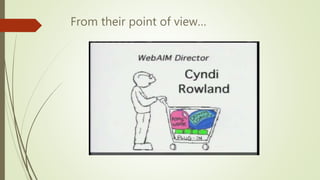
From their point of view…
Check List for your courses
Type Formatting
Word, Power Point, and PDF documents
Links
Images
Audio and Video
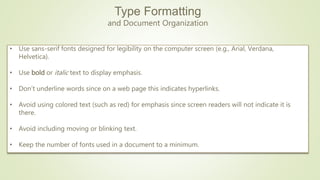
Type Formatting
and Document Organization
• Use sans-serif fonts designed for legibility on the computer screen (e.g., Arial, Verdana,
Helvetica).
• Use bold or italic text to display emphasis.
• Don’t underline words since on a web page this indicates hyperlinks.
• Avoid using colored text (such as red) for emphasis since screen readers will not indicate it is
there.
• Avoid including moving or blinking text.
• Keep the number of fonts used in a document to a minimum.
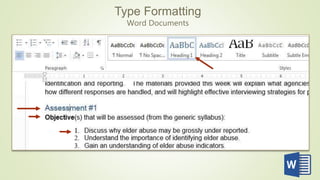
Type Formatting
Word Documents
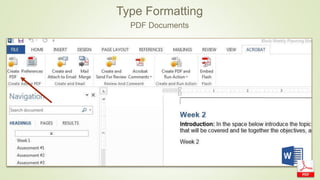
Type Formatting
PDF Documents
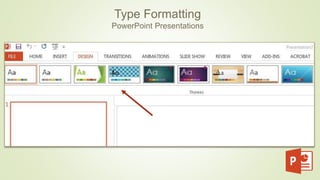
Type Formatting
PowerPoint Presentations
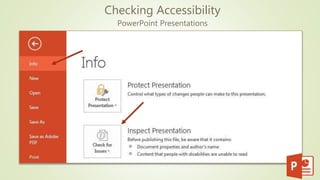
Checking Accessibility
PowerPoint Presentations
Links
Links are more useful when they make sense
out of context.
Avoid non-informative link phrases such as:
•click here
•here
•more
•read more
•link to [some link destination]
•info
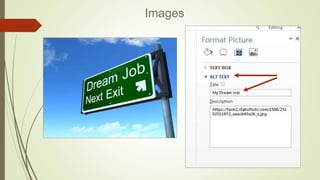
Images
Consider the Color Blind
Color Blind
Simulator
Normal Color Red-Blind/Protanopia
Audio and Video
Add Closed
Captioning or a
Transcript for the
video.
Additional Resources
ADA Standards for Accessible Design
University of Central Florida Accessible Content
Formatting Guidelines
Web AIM
Northeastern University Instructor Resource Center:
Best Practices for Online Course Accessibility
National Center on Universal Design for Learning:
Postsecondary Education and UDL

A Step Toward Creating ADA Compliant Course Sites, presented by Wilmington University's Instructional Design Team

  • 1.
    A Step TowardCreating ADA Compliant Course Sites: Instructional Design tips for the visually impaired and hard of hearing student in your online course. Presented by: Dana Gullo
  • 4.
    One fifth (20%)of the population has some kind of disability. Not all of these people have disabilities that make it difficult for them to access the internet, but it is still a significant portion of the population. Businesses would be unwise to purposely exclude 20, 10, or even 5 percent of their potential customers from their web sites. For schools, universities, and government entities it would not only be unwise, but in many cases, it would also violate the law.
  • 5.
    Are our coursesAccessible? Section 508: An amendment to the United States Workforce Rehabilitation Act of 1973, is a federal law mandating that all electronic and information technology developed, procured, maintained, or used by the federal government be accessible to people with disabilities. ADA Compliance: The Department of Justice (DOJ) published the Americans with Disabilities Act (ADA) Standards for Accessible Design in September 2010. These standards state that all electronic and information technology must be accessible to people with disabilities.
  • 6.
    The major categoriesof disability types are: Visual Hearing Motor Cognitive
  • 7.
    From their pointof view…
  • 8.
    Check List foryour courses Type Formatting Word, Power Point, and PDF documents Links Images Audio and Video
  • 9.
    Type Formatting and DocumentOrganization • Use sans-serif fonts designed for legibility on the computer screen (e.g., Arial, Verdana, Helvetica). • Use bold or italic text to display emphasis. • Don’t underline words since on a web page this indicates hyperlinks. • Avoid using colored text (such as red) for emphasis since screen readers will not indicate it is there. • Avoid including moving or blinking text. • Keep the number of fonts used in a document to a minimum.
  • 10.
  • 11.
  • 12.
  • 13.
  • 14.
    Links Links are moreuseful when they make sense out of context. Avoid non-informative link phrases such as: •click here •here •more •read more •link to [some link destination] •info
  • 15.
  • 16.
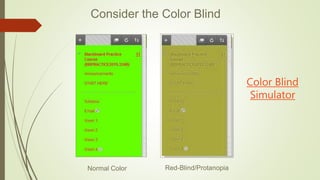
    Consider the ColorBlind Color Blind Simulator Normal Color Red-Blind/Protanopia
  • 17.
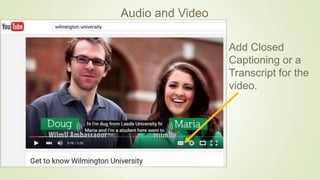
    Audio and Video AddClosed Captioning or a Transcript for the video.
  • 18.
    Additional Resources ADA Standardsfor Accessible Design University of Central Florida Accessible Content Formatting Guidelines Web AIM Northeastern University Instructor Resource Center: Best Practices for Online Course Accessibility National Center on Universal Design for Learning: Postsecondary Education and UDL

Editor's Notes

  • #7 Blindness, low vision, color-blindness, Deafness and hard-of-hearing, Inability to use a mouse, slow response time, limited fine motor control, Learning disabilities, distractibility, inability to remember or focus on large amounts of information. Each of the categories of disabilities requires some type of adaptation to the online content. The adaptations benefit nearly everyone, not just people with disabilities. Illustrations, chunking content, and clear navigation. Captioning or transcripts also help others than just the Deaf community. Health care environments especially.
  • #10 Apply heading styles to your document. Headings are required for screen readers to be able to read the document. For more than one column of text, create a table with column or row headings. Apply the appropriate list style to bulleted and/or numbered lists. Use bold or italic text to display emphasis. (Please do not use underlined words. Underlined text on a web page indicates hyperlinks.) To ensure accessibility, please do not use colors to indicate meaning (e.g., colored text or highlighted table rows and columns)- Color blind individuals will have a problem distinguishing differences.
  • #11 Apply heading styles to your document. Headings are required for screen readers to be able to read the document. For more than one column of text, create a table with column or row headings. Apply the appropriate list style to bulleted and/or numbered lists. Use bold or italic text to display emphasis. (Please do not use underlined words. Underlined text on a web page indicates hyperlinks.) To ensure accessibility, please do not use colors to indicate meaning (e.g., colored text or highlighted table rows and columns)- Color blind individuals will have a problem distinguishing differences.
  • #12 If you cannot highlight text in a PDF document, it is not accessible. A screen reader will interpret an inaccessible PDF as an image, not text. Start with a Word document and convert this document to PDF PDF documents may be appropriate to use in your online course if the document is a form, historical document, or if the document is has a complex layout. PDF documents can be created to be accessible, however, they are not as navigable with a screen reader.
  • #13 Working with Microsoft PowerPoint (PPT) Use slide layout templates whenever possible. Write presenter’s notes in the provided area. Apply alternative test (ALT text) to images. Add captions to the slide or presenter’s notes for complicated images (e.g. diagrams or maps) If embedding video, be sure that the video is appropriately captioned and the player controls are accessible. If embedding audio, include a transcript. Use built-in accessibility checker: File>info>check for issues>check for accessibility
  • #14 Working with Microsoft PowerPoint (PPT) Use slide layout templates whenever possible. Write presenter’s notes in the provided area. Apply alternative test (ALT text) to images. Add captions to the slide or presenter’s notes for complicated images (e.g. diagrams or maps) If embedding video, be sure that the video is appropriately captioned and the player controls are accessible. If embedding audio, include a transcript. Use built-in accessibility checker: File>info>check for issues>check for accessibility
  • #15 Links are more useful when they make sense out of context. Avoid non-informative link phrases such as: click here here more read more link to [some link destination] info
  • #16 Alternative text provides a textual alternative to non-text content in web pages. Alternative text serves several functions: It is read by screen readers in place of images allowing the content and function of the image to be accessible to those with visual or certain cognitive disabilities. It is displayed in place of the image in browsers if the image file is not loaded or when the user has chosen not to view images.
  • #17 Avoid the following color combinations, which are especially hard on color blind people: Green & Red; Green & Brown; Blue & Purple; Green & Blue; Light Green & Yellow; Blue & Grey; Green & Grey; Green & Black Use high contrast: Color blind people can still perceive contrast, as well as differences in hue, saturation and brightness. Use these to your advantage (Hint: many color blind individuals report being able to better distinguish between bright colors rather than dim ones, which tend to blur into one another) Don’t assume colors will signal emotions in and of themselves: If you’re using red to signal “bad,” “warning,” or “watch out,” consider adding another symbolic element to get the point across to color blind viewers.
  • #18 Audio and videos need to incorporate features that make them accessible to everyone. Providing transcripts that can be downloaded and/or closed captions with audio and video are two of the main ways of making audio/video accessible to hearing and/or vision impaired users. More and more, closed captioning is becoming a preferred method.