Principles of Web Design
5th Edition
Chapter Five
Web Typography
Objectives
When you complete this chapter, you will be able to:
• Understand type design principles
• Understand Cascading Style Sheets (CSS)
measurement units
• Use the CSS font properties
• Use the CSS text-spacing properties
• Build a font and text properties style sheet
• Customize bulleted and numbered lists
2
Understanding Type Design
Principles
• Choose fewer fonts and sizes
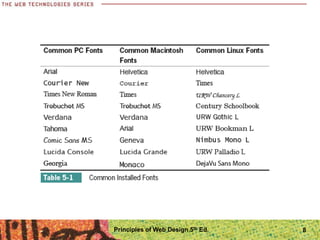
• Choose available fonts
• Design for legibility
• Avoid using text as graphics
Principles of Web Design 5th Ed. 3
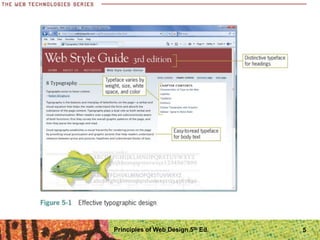
Choose Fewer Fonts and Sizes
• Your pages will look cleaner when you choose fewer
fonts and sizes of type
• Decide on a font for each different level of topic
importance, such as page headings, section headings,
and body text
• Communicate the hierarchy of information with changes
in the size, weight, or color of the typeface
Principles of Web Design 5th Ed. 4
Principles of Web Design 5th Ed. 5
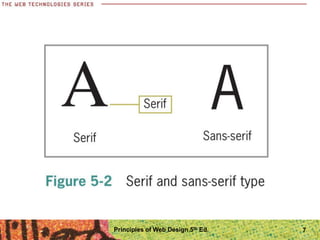
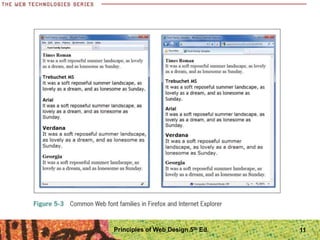
Use Common Web Fonts
• The user’s browser and operating system
determine how a font is displayed
• To control more effectively how text appears on
your pages, think in terms of font families, such as
serif and sans-serif typefaces
Principles of Web Design 5th Ed. 6
Principles of Web Design 5th Ed. 7
Principles of Web Design 5th Ed. 8
Specifying Proprietary Web Fonts
• The CSS3 font-face property lets you link to a font,
download it, and use it in style rules
• The common browsers support the font-face
property, though they each implement it differently
• The font-face property opens a new range of fonts
to make Web pages more attractive and legible
• Web designers or the clients they work with must
be prepared to pay licensing fees
Principles of Web Design 5th Ed. 9
Design for Legibility
• Browser version, operating system, and video
capabilities can produce variations in the weight,
spacing, and rendering of the font families to
individual users
Principles of Web Design 5th Ed. 10
Principles of Web Design 5th Ed. 11
Avoid Creating Text as Graphics
• New font options means less text as graphics
• Most Web sites use text graphics in one form or
another whether for a main logo, banner, or
advertisement
• Because you add download overhead with every
additional graphic, save text graphics for important
purposes
• Whenever possible, use HTML-styled text on your
pages, including creating HTML and CSS-based
navigation
Principles of Web Design 5th Ed. 12
Understanding CSS
Measurement Units
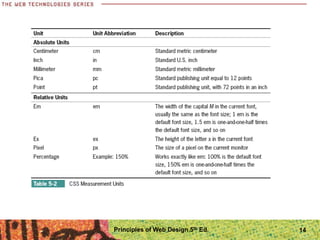
• CSS offers a variety of measurement units
• The measurement values you choose depends on
the destination medium
• For print media, use absolute units of
measurement
• For the Web, use relative units of measurement
Principles of Web Design 5th Ed. 13
Principles of Web Design 5th Ed. 14
Absolute Units
• Specify a fixed value
P {margin: 1.25in;}
• Cannot be scaled to client display
• Should only be used when exact measurements of
destination medium are known
Principles of Web Design 5th Ed. 15
Relative Units
• Enables scalable Web pages that adapt to different
display types and sizes
• Recommended method for Web page design
• Relative measurement values such as em and px are
designed to let you build scalable Web pages that
adapt to different display types and sizes
• The W3C recommends that you always use relative
values
Principles of Web Design 5th Ed. 16
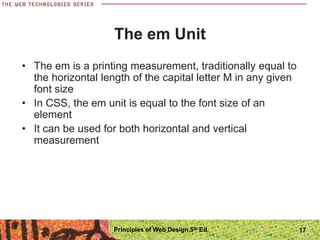
The em Unit
• The em is a printing measurement, traditionally equal to
the horizontal length of the capital letter M in any given
font size
• In CSS, the em unit is equal to the font size of an
element
• It can be used for both horizontal and vertical
measurement
Principles of Web Design 5th Ed. 17
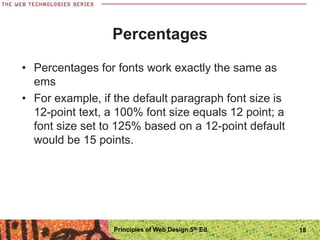
Percentages
• Percentages for fonts work exactly the same as
ems
• For example, if the default paragraph font size is
12-point text, a 100% font size equals 12 point; a
font size set to 125% based on a 12-point default
would be 15 points.
Principles of Web Design 5th Ed. 18
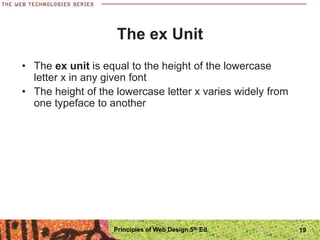
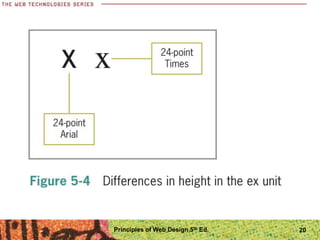
The ex Unit
• The ex unit is equal to the height of the lowercase
letter x in any given font
• The height of the lowercase letter x varies widely from
one typeface to another
Principles of Web Design 5th Ed. 19
Principles of Web Design 5th Ed. 20
The px Unit
• Pixels are the basic picture element of a computer
display
• The size of the pixel is determined by the display
resolution
• Pixel measurements work well for computer displays,
but they are not so well suited to other media, such as
printing
• Pixels are not a good choice for font sizing
Principles of Web Design 5th Ed. 21
Using the CSS Font Properties
• font-family
• font-face
• font-size
• font-style
• font-variant
• font-weight
• font-stretch
• font-size-adjust
• font (shorthand property)
Principles of Web Design 5th Ed. 22
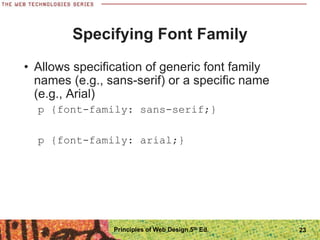
Specifying Font Family
• Allows specification of generic font family
names (e.g., sans-serif) or a specific name
(e.g., Arial)
p {font-family: sans-serif;}
p {font-family: arial;}
Principles of Web Design 5th Ed. 23
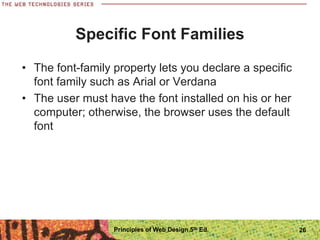
Generic Font Families
• Serif
• Sans serif
• Monospace
• Cursive
• Fantasy
Principles of Web Design 5th Ed. 24
Principles of Web Design 5th Ed. 25
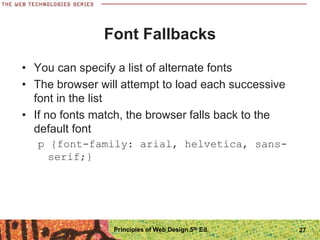
Specific Font Families
• The font-family property lets you declare a specific
font family such as Arial or Verdana
• The user must have the font installed on his or her
computer; otherwise, the browser uses the default
font
Principles of Web Design 5th Ed. 26
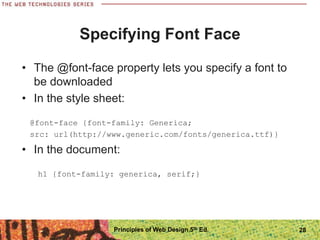
Font Fallbacks
• You can specify a list of alternate fonts
• The browser will attempt to load each successive
font in the list
• If no fonts match, the browser falls back to the
default font
p {font-family: arial, helvetica, sans-
serif;}
Principles of Web Design 5th Ed. 27
Specifying Font Face
• The @font-face property lets you specify a font to
be downloaded
• In the style sheet:
@font-face {font-family: Generica;
src: url(http://www.generic.com/fonts/generica.ttf)}
• In the document:
h1 {font-family: generica, serif;}
Principles of Web Design 5th Ed. 28
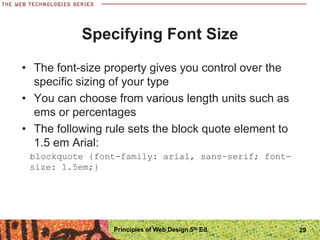
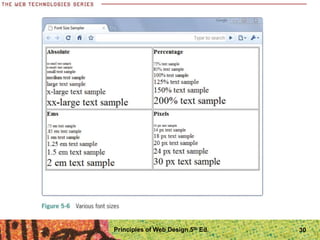
Specifying Font Size
• The font-size property gives you control over the
specific sizing of your type
• You can choose from various length units such as
ems or percentages
• The following rule sets the block quote element to
1.5 em Arial:
blockquote {font-family: arial, sans-serif; font-
size: 1.5em;}
Principles of Web Design 5th Ed. 29
Principles of Web Design 5th Ed. 30
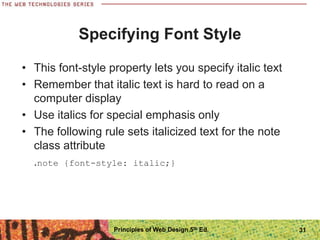
Specifying Font Style
• This font-style property lets you specify italic text
• Remember that italic text is hard to read on a
computer display
• Use italics for special emphasis only
• The following rule sets italicized text for the note
class attribute
.note {font-style: italic;}
Principles of Web Design 5th Ed. 31
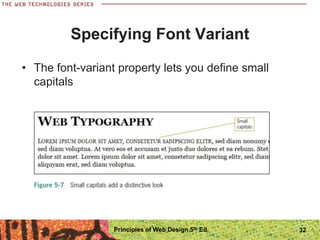
Specifying Font Variant
• The font-variant property lets you define small
capitals
Principles of Web Design 5th Ed. 32
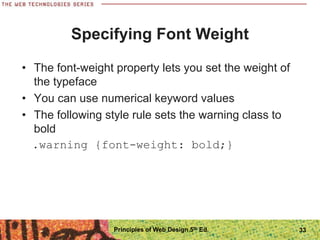
Specifying Font Weight
• The font-weight property lets you set the weight of
the typeface
• You can use numerical keyword values
• The following style rule sets the warning class to
bold
.warning {font-weight: bold;}
Principles of Web Design 5th Ed. 33
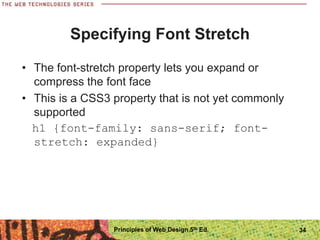
Specifying Font Stretch
• The font-stretch property lets you expand or
compress the font face
• This is a CSS3 property that is not yet commonly
supported
h1 {font-family: sans-serif; font-
stretch: expanded}
Principles of Web Design 5th Ed. 34
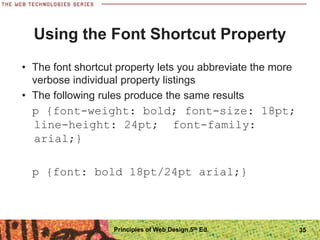
Using the Font Shortcut Property
• The font shortcut property lets you abbreviate the more
verbose individual property listings
• The following rules produce the same results
p {font-weight: bold; font-size: 18pt;
line-height: 24pt; font-family:
arial;}
p {font: bold 18pt/24pt arial;}
Principles of Web Design 5th Ed. 35
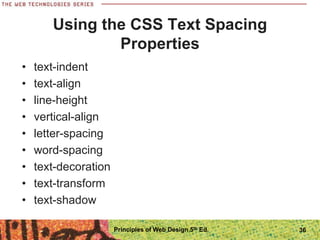
Using the CSS Text Spacing
Properties
• text-indent
• text-align
• line-height
• vertical-align
• letter-spacing
• word-spacing
• text-decoration
• text-transform
• text-shadow
Principles of Web Design 5th Ed. 36
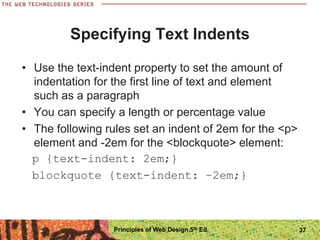
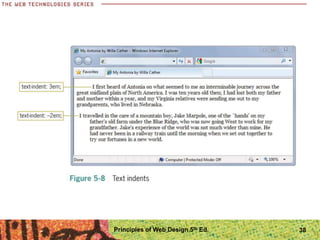
Specifying Text Indents
• Use the text-indent property to set the amount of
indentation for the first line of text and element
such as a paragraph
• You can specify a length or percentage value
• The following rules set an indent of 2em for the <p>
element and -2em for the <blockquote> element:
p {text-indent: 2em;}
blockquote {text-indent: −2em;}
Principles of Web Design 5th Ed. 37
Principles of Web Design 5th Ed. 38
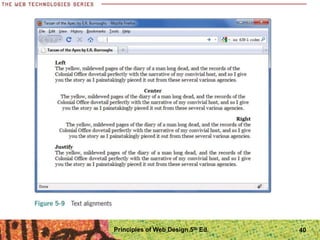
Specifying Text Alignment
• Use the text-align property to set a horizontal
alignment for the lines of text and element
• You can specify for alignment values
– Left
– Center
– Right
– Justify
• The following style rule sets the P element to
justified alignment
p {text-align: justify;}
Principles of Web Design 5th Ed. 39
Principles of Web Design 5th Ed. 40
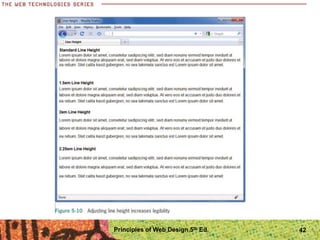
Specifying Line Height
• You can specify either a length or percentage value
for the line height
• Line height is also known as leading the white
space between lines of text
• The following rule sets the line height to 150%
p {line-height: 150%;}
Principles of Web Design 5th Ed. 41
Principles of Web Design 5th Ed. 42
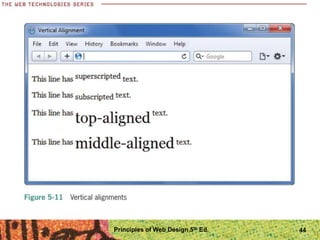
Specifying Vertical Alignment
• The vertical-align property lets you adjust the
vertical line of text within the line box
• Vertical line works only on in-line elements
• You can use this property to superscript or
subscript characters
• The baseline sub and super values are the most
evenly supported
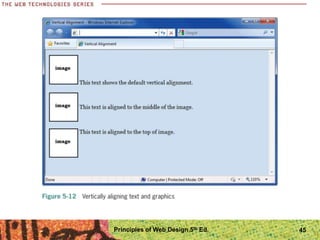
• You can also use vertical alignment to align text
with graphics
Principles of Web Design 5th Ed. 43
Principles of Web Design 5th Ed. 44
Principles of Web Design 5th Ed. 45
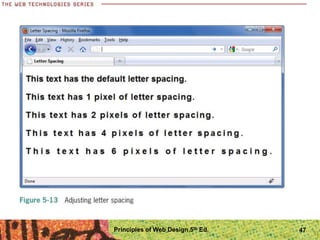
Specifying Letter Spacing
• The letter-spacing property lets you adjust the
white space between letters, often called kerning
• Length you specify is added to the default letter
spacing
• The following rule sets the letter spacing to four
pixels:
h1 {letter-spacing: 4px;}
Principles of Web Design 5th Ed. 46
Principles of Web Design 5th Ed. 47
Specifying Word Spacing
• The word-spacing property lets you adjust the
white space between words in the text
• The length you specify is added to the default
spacing
• The following rule sets the word spacing to 2 em
h1 {word-spacing: 2em;}
Principles of Web Design 5th Ed. 48
Specifying Text Decoration
• The text-decoration property lets you apply line
effects to your text
• Underlining should not be used except for
hypertext links
• Some sites choose to remove the underlining from
the hypertext links with this property
Principles of Web Design 5th Ed. 49
Specifying Capitalization
• The text-transform property lets you change the
capitalization of text
• Useful for headings
• Lets you change text formatting without actually
editing the text
h1 {text-transform: uppercase;}
Principles of Web Design 5th Ed. 50
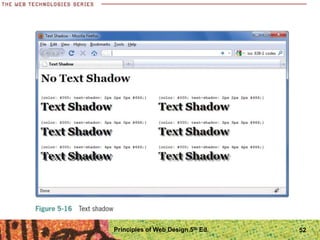
Specifying Text Shadow
• The text shadow property lets you define a shadow
that is displayed behind text
• You can specify the horizontal and vertical offset as
well as the blur value
• The first two length values indicate the horizontal
and vertical offset
• The third length value specifies the blur amount
h1 {text-shadow: 2px 2px 2px #666;}
Principles of Web Design 5th Ed. 51
Principles of Web Design 5th Ed. 52
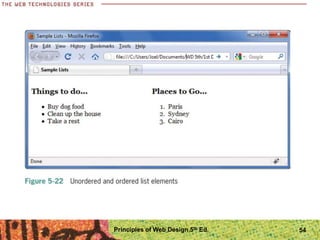
Customizing Bulleted and
Numbered Lists
• The list-style properties let you control the visual
characteristics of bulleted and numbered lists
Principles of Web Design 5th Ed. 53
Principles of Web Design 5th Ed. 54
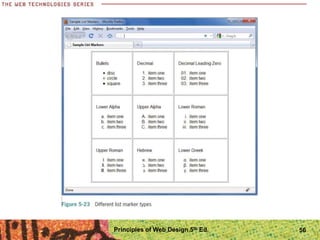
Specifying the list-style-type
Property
• The list-style-type property lets you specify one of
three types of markers for a list
• You can choose a symbol, a numbering system, or
an alphabetical system
Principles of Web Design 5th Ed. 55
Principles of Web Design 5th Ed. 56
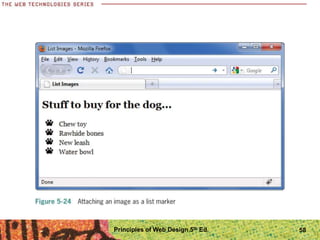
Specifying the list-style-image
Property
• The list-style-image property lets you easily attach
an image to a list and have it repeated as the list
symbol
• The following code shows the style rule that
attaches an image to a bulleted list:
ul {list-style-image: url(pawprint.gif);}
Principles of Web Design 5th Ed. 57
Principles of Web Design 5th Ed. 58
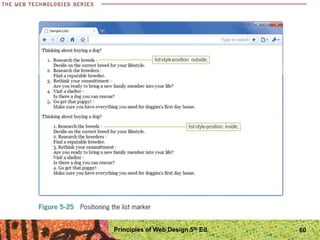
Specifying the list-style-position
Property
• The list-style-position property lets you determine
the placement of the list marker
Principles of Web Design 5th Ed. 59
Principles of Web Design 5th Ed. 60
Summary
• Use type to communicate information structure
• HTML text downloads faster than graphics-based
text
• Use fonts that appear consistently across operating
systems
• Standardize your styles
• Use external style sheets
• Test your work
• Design for legibility
Principles of Web Design 5th Ed. 61
Summary
• Choose the correct measurement unit based on the
destination medium
• Use font properties to control the look of your letter
forms
• Use text spacing properties to create more visually
interesting and legible text
Principles of Web Design 5th Ed. 62

9781111528705_PPT_ch05.ppt

  • 1.
    Principles of WebDesign 5th Edition Chapter Five Web Typography
  • 2.
    Objectives When you completethis chapter, you will be able to: • Understand type design principles • Understand Cascading Style Sheets (CSS) measurement units • Use the CSS font properties • Use the CSS text-spacing properties • Build a font and text properties style sheet • Customize bulleted and numbered lists 2
  • 3.
    Understanding Type Design Principles •Choose fewer fonts and sizes • Choose available fonts • Design for legibility • Avoid using text as graphics Principles of Web Design 5th Ed. 3
  • 4.
    Choose Fewer Fontsand Sizes • Your pages will look cleaner when you choose fewer fonts and sizes of type • Decide on a font for each different level of topic importance, such as page headings, section headings, and body text • Communicate the hierarchy of information with changes in the size, weight, or color of the typeface Principles of Web Design 5th Ed. 4
  • 5.
    Principles of WebDesign 5th Ed. 5
  • 6.
    Use Common WebFonts • The user’s browser and operating system determine how a font is displayed • To control more effectively how text appears on your pages, think in terms of font families, such as serif and sans-serif typefaces Principles of Web Design 5th Ed. 6
  • 7.
    Principles of WebDesign 5th Ed. 7
  • 8.
    Principles of WebDesign 5th Ed. 8
  • 9.
    Specifying Proprietary WebFonts • The CSS3 font-face property lets you link to a font, download it, and use it in style rules • The common browsers support the font-face property, though they each implement it differently • The font-face property opens a new range of fonts to make Web pages more attractive and legible • Web designers or the clients they work with must be prepared to pay licensing fees Principles of Web Design 5th Ed. 9
  • 10.
    Design for Legibility •Browser version, operating system, and video capabilities can produce variations in the weight, spacing, and rendering of the font families to individual users Principles of Web Design 5th Ed. 10
  • 11.
    Principles of WebDesign 5th Ed. 11
  • 12.
    Avoid Creating Textas Graphics • New font options means less text as graphics • Most Web sites use text graphics in one form or another whether for a main logo, banner, or advertisement • Because you add download overhead with every additional graphic, save text graphics for important purposes • Whenever possible, use HTML-styled text on your pages, including creating HTML and CSS-based navigation Principles of Web Design 5th Ed. 12
  • 13.
    Understanding CSS Measurement Units •CSS offers a variety of measurement units • The measurement values you choose depends on the destination medium • For print media, use absolute units of measurement • For the Web, use relative units of measurement Principles of Web Design 5th Ed. 13
  • 14.
    Principles of WebDesign 5th Ed. 14
  • 15.
    Absolute Units • Specifya fixed value P {margin: 1.25in;} • Cannot be scaled to client display • Should only be used when exact measurements of destination medium are known Principles of Web Design 5th Ed. 15
  • 16.
    Relative Units • Enablesscalable Web pages that adapt to different display types and sizes • Recommended method for Web page design • Relative measurement values such as em and px are designed to let you build scalable Web pages that adapt to different display types and sizes • The W3C recommends that you always use relative values Principles of Web Design 5th Ed. 16
  • 17.
    The em Unit •The em is a printing measurement, traditionally equal to the horizontal length of the capital letter M in any given font size • In CSS, the em unit is equal to the font size of an element • It can be used for both horizontal and vertical measurement Principles of Web Design 5th Ed. 17
  • 18.
    Percentages • Percentages forfonts work exactly the same as ems • For example, if the default paragraph font size is 12-point text, a 100% font size equals 12 point; a font size set to 125% based on a 12-point default would be 15 points. Principles of Web Design 5th Ed. 18
  • 19.
    The ex Unit •The ex unit is equal to the height of the lowercase letter x in any given font • The height of the lowercase letter x varies widely from one typeface to another Principles of Web Design 5th Ed. 19
  • 20.
    Principles of WebDesign 5th Ed. 20
  • 21.
    The px Unit •Pixels are the basic picture element of a computer display • The size of the pixel is determined by the display resolution • Pixel measurements work well for computer displays, but they are not so well suited to other media, such as printing • Pixels are not a good choice for font sizing Principles of Web Design 5th Ed. 21
  • 22.
    Using the CSSFont Properties • font-family • font-face • font-size • font-style • font-variant • font-weight • font-stretch • font-size-adjust • font (shorthand property) Principles of Web Design 5th Ed. 22
  • 23.
    Specifying Font Family •Allows specification of generic font family names (e.g., sans-serif) or a specific name (e.g., Arial) p {font-family: sans-serif;} p {font-family: arial;} Principles of Web Design 5th Ed. 23
  • 24.
    Generic Font Families •Serif • Sans serif • Monospace • Cursive • Fantasy Principles of Web Design 5th Ed. 24
  • 25.
    Principles of WebDesign 5th Ed. 25
  • 26.
    Specific Font Families •The font-family property lets you declare a specific font family such as Arial or Verdana • The user must have the font installed on his or her computer; otherwise, the browser uses the default font Principles of Web Design 5th Ed. 26
  • 27.
    Font Fallbacks • Youcan specify a list of alternate fonts • The browser will attempt to load each successive font in the list • If no fonts match, the browser falls back to the default font p {font-family: arial, helvetica, sans- serif;} Principles of Web Design 5th Ed. 27
  • 28.
    Specifying Font Face •The @font-face property lets you specify a font to be downloaded • In the style sheet: @font-face {font-family: Generica; src: url(http://www.generic.com/fonts/generica.ttf)} • In the document: h1 {font-family: generica, serif;} Principles of Web Design 5th Ed. 28
  • 29.
    Specifying Font Size •The font-size property gives you control over the specific sizing of your type • You can choose from various length units such as ems or percentages • The following rule sets the block quote element to 1.5 em Arial: blockquote {font-family: arial, sans-serif; font- size: 1.5em;} Principles of Web Design 5th Ed. 29
  • 30.
    Principles of WebDesign 5th Ed. 30
  • 31.
    Specifying Font Style •This font-style property lets you specify italic text • Remember that italic text is hard to read on a computer display • Use italics for special emphasis only • The following rule sets italicized text for the note class attribute .note {font-style: italic;} Principles of Web Design 5th Ed. 31
  • 32.
    Specifying Font Variant •The font-variant property lets you define small capitals Principles of Web Design 5th Ed. 32
  • 33.
    Specifying Font Weight •The font-weight property lets you set the weight of the typeface • You can use numerical keyword values • The following style rule sets the warning class to bold .warning {font-weight: bold;} Principles of Web Design 5th Ed. 33
  • 34.
    Specifying Font Stretch •The font-stretch property lets you expand or compress the font face • This is a CSS3 property that is not yet commonly supported h1 {font-family: sans-serif; font- stretch: expanded} Principles of Web Design 5th Ed. 34
  • 35.
    Using the FontShortcut Property • The font shortcut property lets you abbreviate the more verbose individual property listings • The following rules produce the same results p {font-weight: bold; font-size: 18pt; line-height: 24pt; font-family: arial;} p {font: bold 18pt/24pt arial;} Principles of Web Design 5th Ed. 35
  • 36.
    Using the CSSText Spacing Properties • text-indent • text-align • line-height • vertical-align • letter-spacing • word-spacing • text-decoration • text-transform • text-shadow Principles of Web Design 5th Ed. 36
  • 37.
    Specifying Text Indents •Use the text-indent property to set the amount of indentation for the first line of text and element such as a paragraph • You can specify a length or percentage value • The following rules set an indent of 2em for the <p> element and -2em for the <blockquote> element: p {text-indent: 2em;} blockquote {text-indent: −2em;} Principles of Web Design 5th Ed. 37
  • 38.
    Principles of WebDesign 5th Ed. 38
  • 39.
    Specifying Text Alignment •Use the text-align property to set a horizontal alignment for the lines of text and element • You can specify for alignment values – Left – Center – Right – Justify • The following style rule sets the P element to justified alignment p {text-align: justify;} Principles of Web Design 5th Ed. 39
  • 40.
    Principles of WebDesign 5th Ed. 40
  • 41.
    Specifying Line Height •You can specify either a length or percentage value for the line height • Line height is also known as leading the white space between lines of text • The following rule sets the line height to 150% p {line-height: 150%;} Principles of Web Design 5th Ed. 41
  • 42.
    Principles of WebDesign 5th Ed. 42
  • 43.
    Specifying Vertical Alignment •The vertical-align property lets you adjust the vertical line of text within the line box • Vertical line works only on in-line elements • You can use this property to superscript or subscript characters • The baseline sub and super values are the most evenly supported • You can also use vertical alignment to align text with graphics Principles of Web Design 5th Ed. 43
  • 44.
    Principles of WebDesign 5th Ed. 44
  • 45.
    Principles of WebDesign 5th Ed. 45
  • 46.
    Specifying Letter Spacing •The letter-spacing property lets you adjust the white space between letters, often called kerning • Length you specify is added to the default letter spacing • The following rule sets the letter spacing to four pixels: h1 {letter-spacing: 4px;} Principles of Web Design 5th Ed. 46
  • 47.
    Principles of WebDesign 5th Ed. 47
  • 48.
    Specifying Word Spacing •The word-spacing property lets you adjust the white space between words in the text • The length you specify is added to the default spacing • The following rule sets the word spacing to 2 em h1 {word-spacing: 2em;} Principles of Web Design 5th Ed. 48
  • 49.
    Specifying Text Decoration •The text-decoration property lets you apply line effects to your text • Underlining should not be used except for hypertext links • Some sites choose to remove the underlining from the hypertext links with this property Principles of Web Design 5th Ed. 49
  • 50.
    Specifying Capitalization • Thetext-transform property lets you change the capitalization of text • Useful for headings • Lets you change text formatting without actually editing the text h1 {text-transform: uppercase;} Principles of Web Design 5th Ed. 50
  • 51.
    Specifying Text Shadow •The text shadow property lets you define a shadow that is displayed behind text • You can specify the horizontal and vertical offset as well as the blur value • The first two length values indicate the horizontal and vertical offset • The third length value specifies the blur amount h1 {text-shadow: 2px 2px 2px #666;} Principles of Web Design 5th Ed. 51
  • 52.
    Principles of WebDesign 5th Ed. 52
  • 53.
    Customizing Bulleted and NumberedLists • The list-style properties let you control the visual characteristics of bulleted and numbered lists Principles of Web Design 5th Ed. 53
  • 54.
    Principles of WebDesign 5th Ed. 54
  • 55.
    Specifying the list-style-type Property •The list-style-type property lets you specify one of three types of markers for a list • You can choose a symbol, a numbering system, or an alphabetical system Principles of Web Design 5th Ed. 55
  • 56.
    Principles of WebDesign 5th Ed. 56
  • 57.
    Specifying the list-style-image Property •The list-style-image property lets you easily attach an image to a list and have it repeated as the list symbol • The following code shows the style rule that attaches an image to a bulleted list: ul {list-style-image: url(pawprint.gif);} Principles of Web Design 5th Ed. 57
  • 58.
    Principles of WebDesign 5th Ed. 58
  • 59.
    Specifying the list-style-position Property •The list-style-position property lets you determine the placement of the list marker Principles of Web Design 5th Ed. 59
  • 60.
    Principles of WebDesign 5th Ed. 60
  • 61.
    Summary • Use typeto communicate information structure • HTML text downloads faster than graphics-based text • Use fonts that appear consistently across operating systems • Standardize your styles • Use external style sheets • Test your work • Design for legibility Principles of Web Design 5th Ed. 61
  • 62.
    Summary • Choose thecorrect measurement unit based on the destination medium • Use font properties to control the look of your letter forms • Use text spacing properties to create more visually interesting and legible text Principles of Web Design 5th Ed. 62