BC - SAP Printing Guide


                     HELP.BCCCMPRN


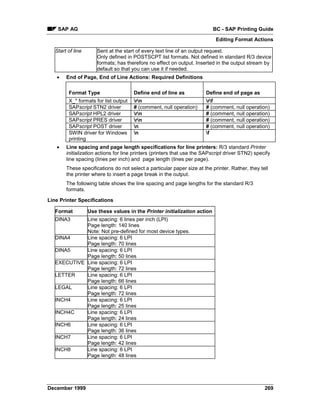
      Release 4.6B


               ™
BC - SAP Printing Guide                                                                                SAP AG


Copyright
©
    Copyright 2000 SAP AG. All rights reserved.

No part of this brochure may be reproduced or transmitted in any form or for any purpose without
the express permission of SAP AG. The information contained herein may be changed without
prior notice.

Some software products marketed by SAP AG and its distributors contain proprietary software
components of other software vendors.
              ®                   ®       ®           ®       ®             ®
Microsoft , WINDOWS , NT , EXCEL , Word and SQL Server are registered trademarks of
Microsoft Corporation.
      ®           ®           ®               ®                   ®    ®             ®     ®       ®
IBM , DB2 , OS/2 , DB2/6000 , Parallel Sysplex , MVS/ESA , RS/6000 , AIX , S/390 ,
       ®       ®            ®
AS/400 , OS/390 , and OS/400 are registered trademarks of IBM Corporation.
              ®
ORACLE is a registered trademark of ORACLE Corporation, California, USA.

                  ®                                       ®           TM
INFORMIX -OnLine for SAP and Informix Dynamic Server                       are registered trademarks of
Informix Software Incorporated.
          ®               ®           ®           ®
UNIX , X/Open , OSF/1 , and Motif are registered trademarks of The Open Group.
                                                                                           ®
HTML, DHTML, XML, XHTML are trademarks or registered trademarks of W3C , World Wide
Web Consortium, Laboratory for Computer Science NE43-358, Massachusetts Institute of
Technology, 545 Technology Square, Cambridge, MA 02139.
          ®
JAVA is a registered trademark of Sun Microsystems, Inc. , 901 San Antonio Road, Palo Alto,
CA 94303 USA.
                      ®
JAVASCRIPT is a registered trademark of Sun Microsystems, Inc., used under license for
technology invented and implemented by Netscape.

SAP, SAP Logo, mySAP.com, mySAP.com Marketplace, mySAP.com Workplace, mySAP.com
Business Scenarios, mySAP.com Application Hosting, WebFlow, R/2, R/3, RIVA, ABAP, SAP
Business Workflow, SAP EarlyWatch, SAP ArchiveLink, BAPI, SAPPHIRE, Management
Cockpit, SEM, are trademarks or registered trademarks of SAP AG in Germany and in several
other countries all over the world. All other products mentioned are trademarks or registered
trademarks of their respective companies.


2                                                                                              December 1999
SAP AG                    BC - SAP Printing Guide


Icons

  Icon      Meaning
            Caution

            Example


            Note

            Recommendation

            Syntax


            Tip


December 1999                                     3
BC - SAP Printing Guide                                                                                                              SAP AG


Contents

BC - SAP Printing Guide.....................................................................................9
From Print File to Printout .......................................................................................................... 10
Managing Spool Requests Using the Output Controller ......................................................... 12
   Selecting Spool and Output Requests ..................................................................................... 13
   List of Spool Requests.............................................................................................................. 14
   Status of Spool Requests ......................................................................................................... 15
   Displaying the Contents of a Spool Request............................................................................ 16
   Displaying and Changing Spool Request Information.............................................................. 17
   Outputting Spool Requests ...................................................................................................... 19
   List of Output Requests ............................................................................................................ 20
   Status of Output Requests ....................................................................................................... 21
   Reading Error Logs .................................................................................................................. 23
Frontend Printing on Local Printers .......................................................................................... 24
Executing Frontend Printing ...................................................................................................... 25
Deleting Multiple Spool Requests Simultaneously.................................................................. 27
Checking the Consistency of the Spool Database................................................................... 28
Administering the TemSe Database .......................................................................................... 29
Problem Analysis: Print-Out Missing or Incorrect ................................................................... 30
Problem Analysis 1: Output Request Printed?......................................................................... 32
Problem Analysis 2: Minor/Severe Output Problems? ............................................................ 33
   Correcting Minor Output Problems........................................................................................... 34
   Correcting Severe Output Problems ........................................................................................ 35
Problem Analysis 3: Spool Request Generated? ..................................................................... 37
   Determining Why Output Request Was Not Processed........................................................... 38
   No Spool Request Generated: Analyzing a Spool Dump......................................................... 39
Problem Analysis 4: Status of a Spool Request? .................................................................... 40
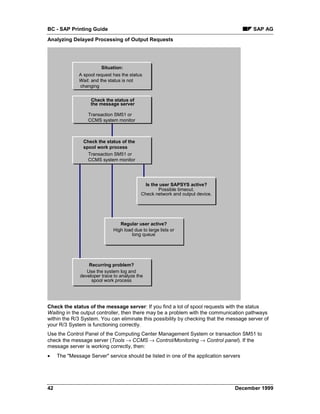
   Analyzing Delayed Processing of Output Requests................................................................. 41
   Analyzing .................................................................................................................................. 46
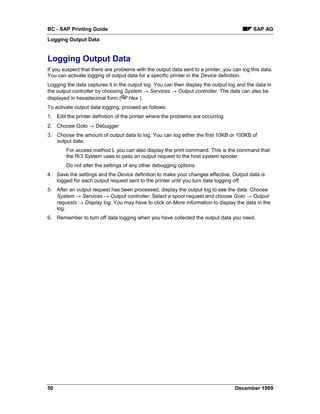
Logging Output Data ................................................................................................................... 50
Output Devices in the SAP Spool System ................................................................................ 51
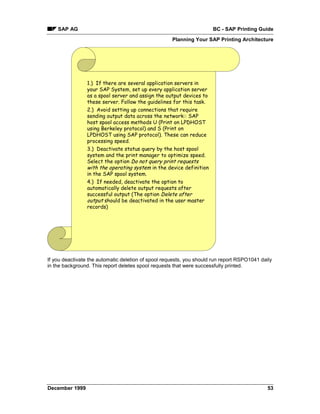
Planning Your SAP Printing Architecture ................................................................................. 52
   Planning the SAP Printing Architecture.................................................................................... 54
   Implementing PC Printing in the R/3 System ........................................................................... 57
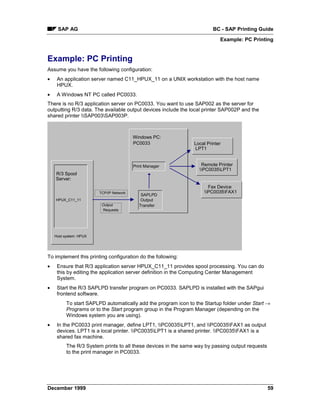
       Example: PC Printing .......................................................................................................... 59
   Implementing Local Printing in the R/3 System ....................................................................... 61
       Example: Local Printing....................................................................................................... 63
   Implementing R/3 Remote Printing (UNIX Printers)................................................................. 64
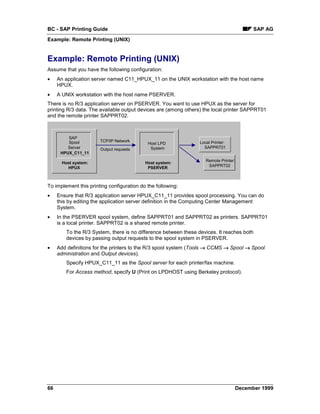
       Example: Remote Printing (UNIX) ...................................................................................... 66
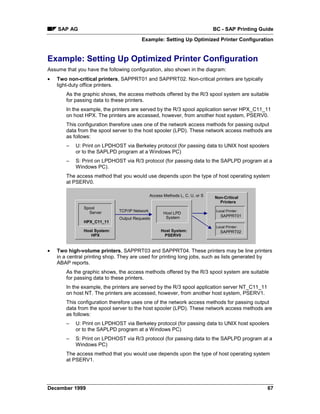
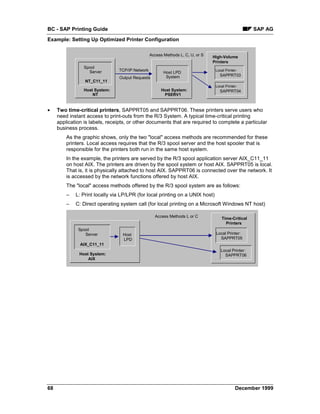
   Example: Setting Up Optimized Printer Configuration ............................................................. 67
Connecting Output Devices to a Windows System ................................................................ 69
   PC Connections to a Windows Printer ..................................................................................... 70
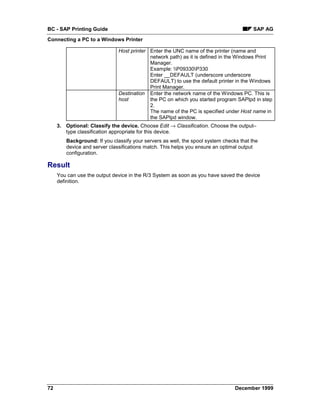
       Connecting a PC to a Windows Printer............................................................................... 71
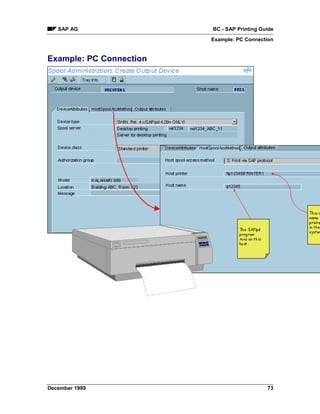
       Example: PC Connection .................................................................................................... 73
   Local Connection to a Windows NT Printer.............................................................................. 74
       Creating Local Connections to Windows NT Printers ......................................................... 75


4                                                                                                                        December 1999
SAP AG                                                                                                   BC - SAP Printing Guide


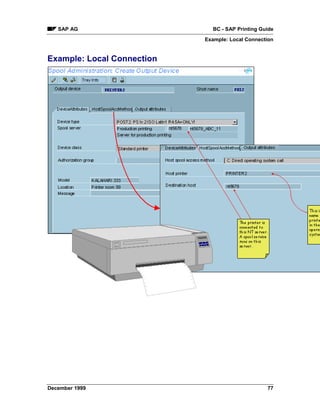
          Example: Local Connection ................................................................................................ 77
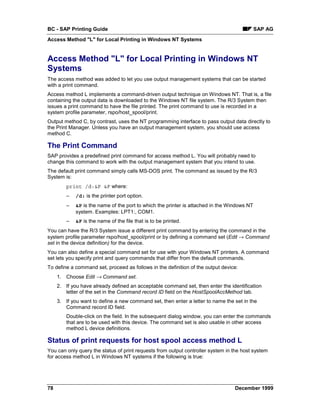
          Access Method.................................................................................................................... 78
     Which Device Type: SWIN, Printer-Specific or Both?.............................................................. 80
          When to Use SWIN ............................................................................................................. 81
          Restrictions on SWIN Output .............................................................................................. 82
          Optimizing SWIN Output ..................................................................................................... 83
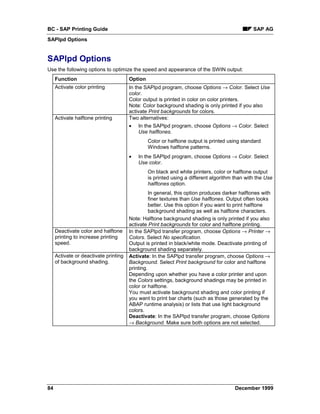
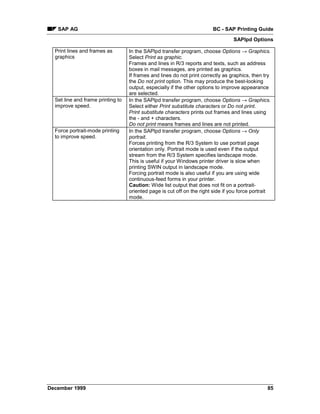
          SAPlpd Options ................................................................................................................... 84
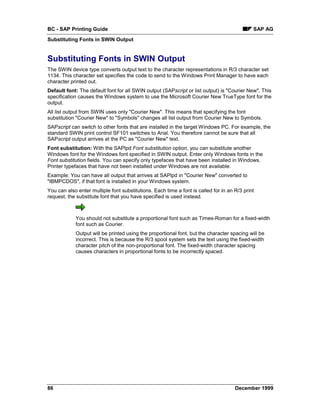
          Substituting Fonts in SWIN Output ..................................................................................... 86
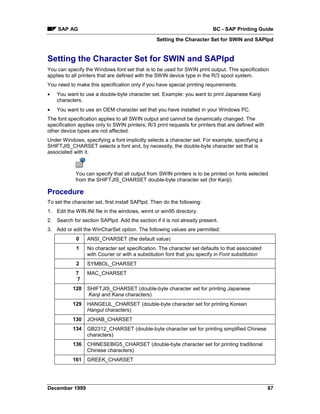
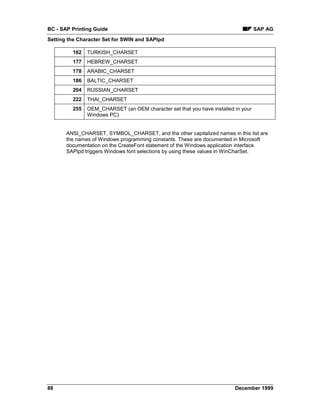
          Setting the Character Set for SWIN and SAPlpd ................................................................ 87
          Checking SWIN’s Performance........................................................................................... 89
          Connecting Fax Devices ..................................................................................................... 90
     Setting Up SAPlpd for Printers and Fax Devices ..................................................................... 93
          When Should I Use SAPlpd? .............................................................................................. 94
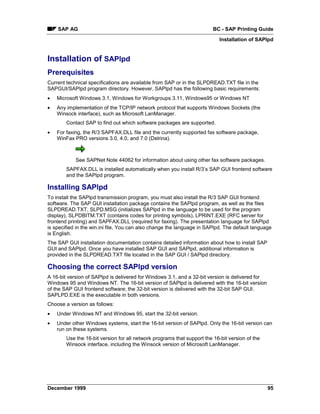
          Installation of SAPlpd .......................................................................................................... 95
          Starting SAPlpd ................................................................................................................... 97
          SAPlpd Work Directory and Work Files .............................................................................. 98
          Using SAPlpd Menu Functions ........................................................................................... 99
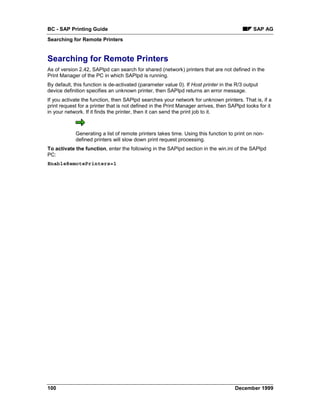
          Searching for Remote Printers .......................................................................................... 100
-.................................................................................................................................................... 101
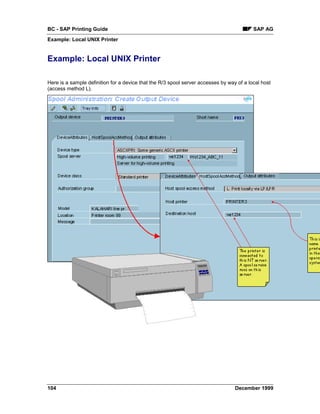
     Example: Local UNIX Printer.................................................................................................. 104
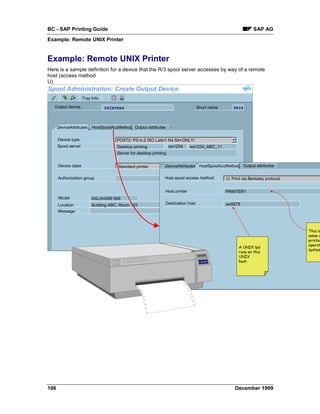
     Example: Remote UNIX Printer.............................................................................................. 106
     R/3 Print Files: Location and Naming Convention ................................................................. 107
     Testing a Printer Installation under UNIX ............................................................................... 108
AS/400 Printing: General Information...................................................................................... 109
     AS/400 Printing: AS/400 Printer Commands ......................................................................... 110
     AS/400 Printing: Installing a Printer on AS/400...................................................................... 111
          AS/400 Printing: Connecting a Printer using TCP/IP ........................................................ 112
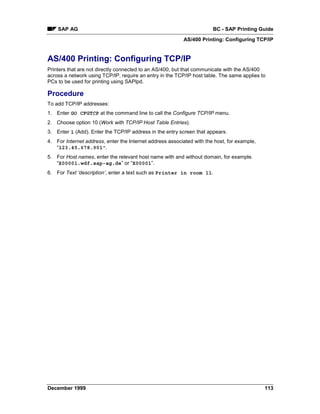
               AS/400 Printing: Configuring TCP/IP ........................................................................... 113
          AS/400 Printing: Printer Directly Attached ........................................................................ 114
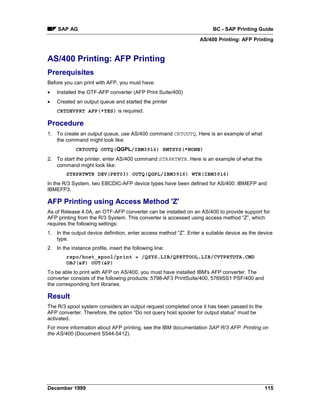
          AS/400 Printing: AFP Printing ........................................................................................... 115
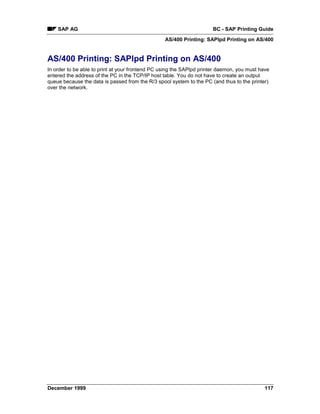
          AS/400 Printing: SAPlpd Printing on AS/400 .................................................................... 117
     AS/400 Printing: Printer Shared Among AS/400 systems...................................................... 118
          AS/400 Printing: Creating a Line Description.................................................................... 120
          AS/400 Printing: Creating a Controller .............................................................................. 121
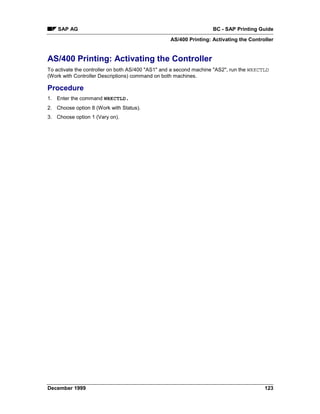
          AS/400 Printing: Activating the Controller ......................................................................... 123
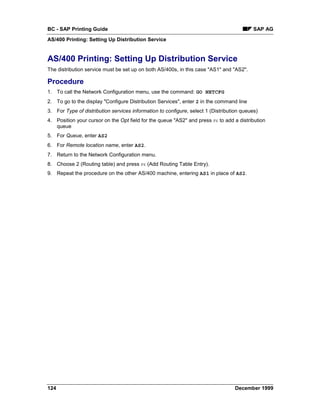
          AS/400 Printing: Setting Up Distribution Service .............................................................. 124
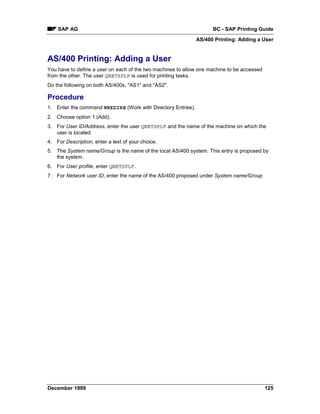
          AS/400 Printing: Adding a User ........................................................................................ 125
          AS/400 Printing: Setting Up Output Queues ..................................................................... 126
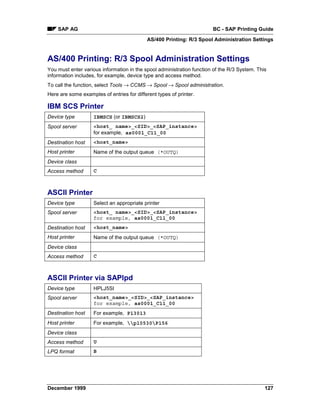
     AS/400 Printing: R/3 Spool Administration Settings............................................................... 127
Definition of Frontend Printers................................................................................................. 129
     Defining Devices for Frontend Printing................................................................................... 130
Definition of PostScript Printers .............................................................................................. 133
Printer Pools .............................................................................................................................. 134
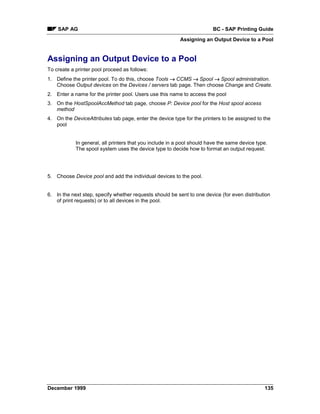
     Assigning an Output Device to a Pool.................................................................................... 135
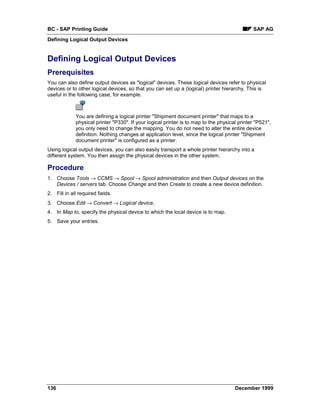
Defining Logical Output Devices ............................................................................................. 136
Special Printing Functions ....................................................................................................... 137
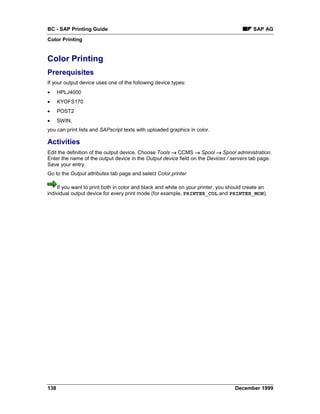
     Color Printing.......................................................................................................................... 138


December 1999                                                                                                                                          5
BC - SAP Printing Guide                                                                                                          SAP AG


   Duplex Printing ....................................................................................................................... 139
   Printing from Multiple Paper Trays ......................................................................................... 141
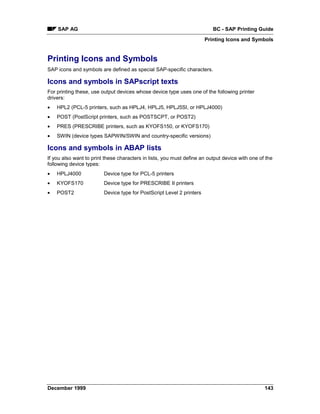
   Printing Icons and Symbols .................................................................................................... 143
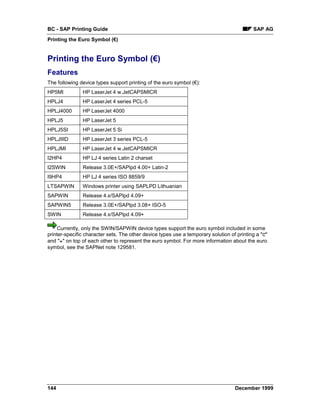
   Printing the Euro Symbol (€) .................................................................................................. 144
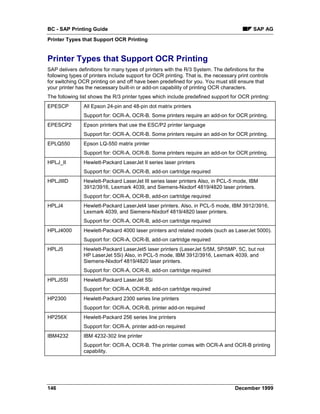
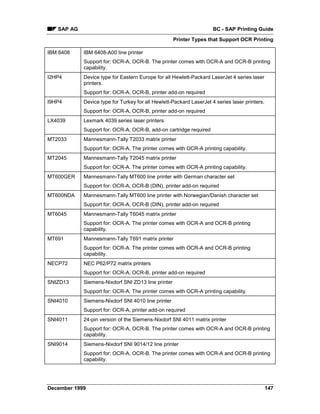
   Printing OCR Characters........................................................................................................ 145
      Printer Types that Support OCR Printing .......................................................................... 146
      Adding OCR Support......................................................................................................... 149
      OCR Printing Using SWIN ................................................................................................ 152
   Printing MICR Characters....................................................................................................... 153
   Outputting Bar Codes ............................................................................................................. 154
      Hardware/Software Req.for Bar Code Printing ................................................................. 155
      Predefined Bar Codes ....................................................................................................... 156
      Testing Bar Code Printing ................................................................................................. 160
      Adding Your Own Bar Code Definitions ............................................................................ 161
          Creating System Bar Codes ........................................................................................ 163
          Defining Printer Bar Codes .......................................................................................... 164
      Adapting Bar Code Print Controls ..................................................................................... 165
      Bar Codes and SWIN........................................................................................................ 166
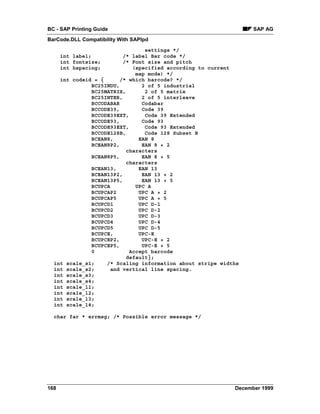
      BarCode.DLL Compatibility With SAPlpd.......................................................................... 167
   Printing Labels........................................................................................................................ 170
      Printing Labels With Avery TTX 450 ................................................................................. 171
      Printing Labels With CAB Apollo 2.................................................................................... 173
      Printing Labels With Printronix T 3204.............................................................................. 175
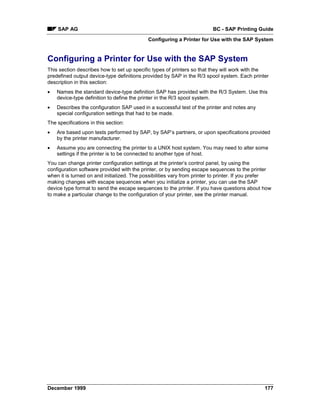
Configuring a Printer for Use with the SAP System .............................................................. 177
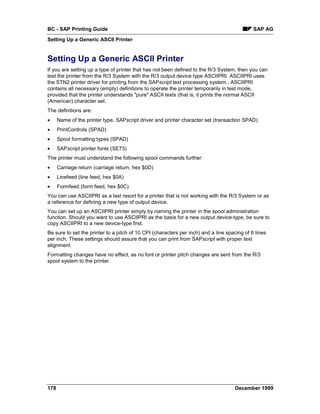
   Setting Up a Generic ASCII Printer ........................................................................................ 178
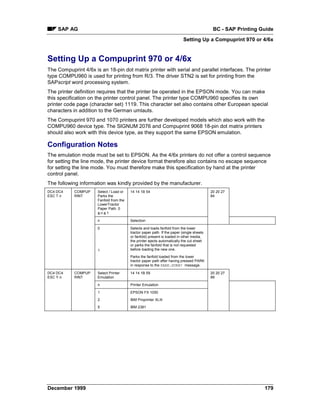
   Setting Up a Compuprint 970 or 4/6x ..................................................................................... 179
   Setting Up a C.ITOH CI-1000/CI-500 Printer ......................................................................... 181
   Setting Up a Digital Equipment LN07, DEClaser1100, or DEClaser22 ................................. 182
   Setting Up a Digital Equipment LA75Plus .............................................................................. 184
   Setting Up a Hewlett-Packard HP256x Printer....................................................................... 185
   Setting Up a Hewlett-Packard HP2930, HP2934 ................................................................... 186
   Setting Up a Hewlett-Packard Laserjet II ............................................................................... 187
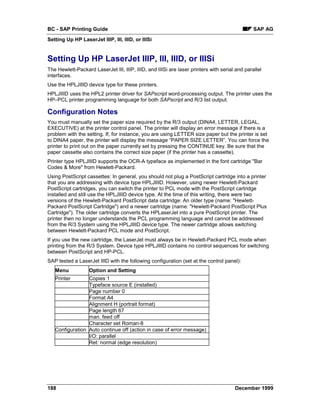
   Setting Up HP LaserJet IIIP, III, IIID, or IIISi .......................................................................... 188
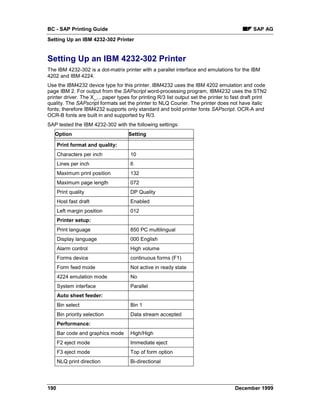
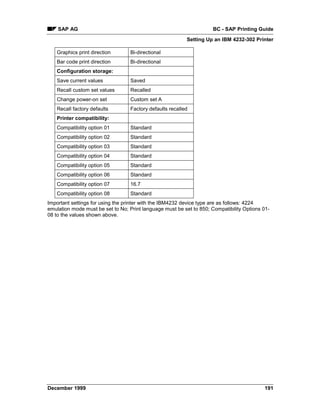
   Setting Up an IBM 4232-302 Printer ...................................................................................... 190
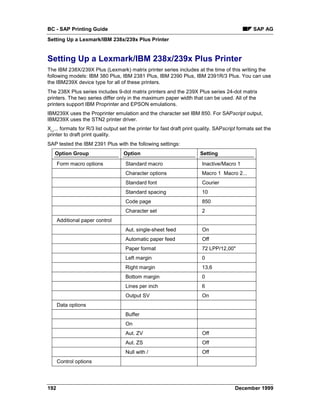
   Setting Up a Lexmark/IBM 238x/239x Plus Printer ................................................................ 192
   Setting Up a Lexmark/IBM 4226 Printer................................................................................. 194
   Setting Up a Kyocera F-1000 ................................................................................................. 195
   Setting Up a Kyocera F-1200 or F-1200S .............................................................................. 196
   Setting Up a Mannesmann Tally MT 600 Printer ................................................................... 197
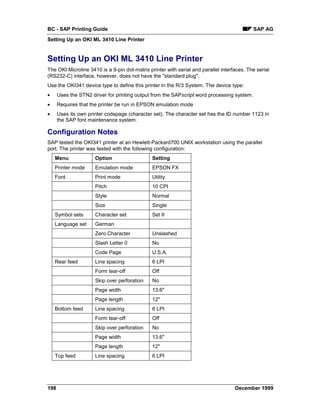
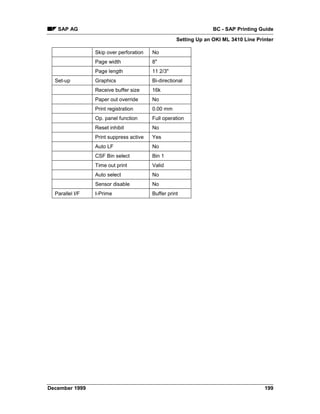
   Setting Up an OKI ML 3410 Line Printer ................................................................................ 198
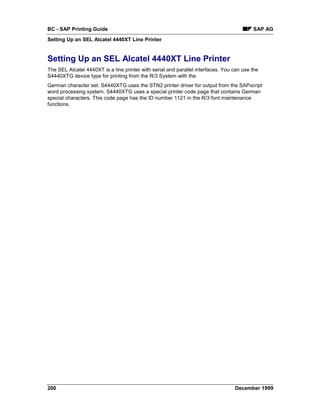
   Setting Up an SEL Alcatel 4440XT Line Printer ..................................................................... 200
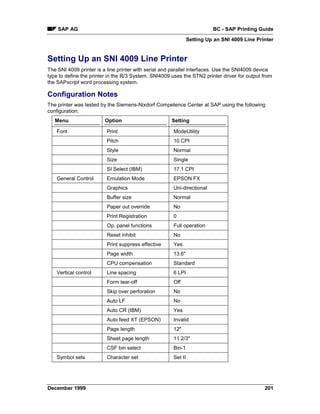
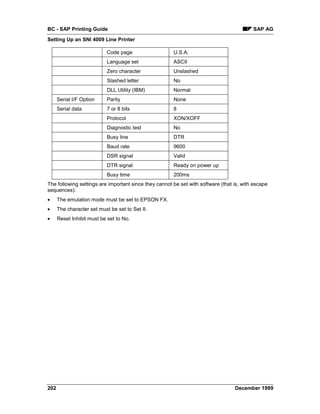
   Setting Up an SNI 4009 Line Printer ...................................................................................... 201
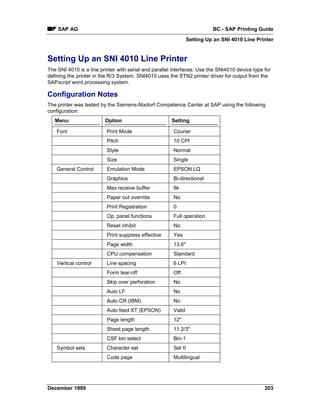
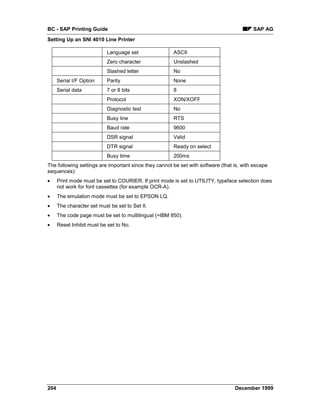
   Setting Up an SNI 4010 Line Printer ...................................................................................... 203
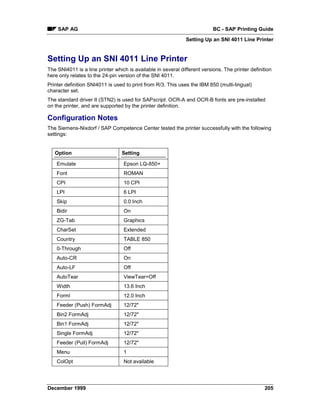
   Setting Up an SNI 4011 Line Printer ...................................................................................... 205
   Setting Up an SNI 9014-12 Line Printer ................................................................................. 207
Monitoring the Spool System ................................................................................................... 209
Using Security Functions for Printers..................................................................................... 211
Managing Output Devices: General Functions....................................................................... 212
Managing Connection and Communication Timeouts and Retries...................................... 213


6                                                                                                                    December 1999
SAP AG                                                                                             BC - SAP Printing Guide


   How a Network Connection is Made ...................................................................................... 214
      Setting Connection Timeout Length.................................................................................. 216
      Setting Read-Write Timeouts ............................................................................................ 217
      Setting the Retry Count and Delay.................................................................................... 218
Testing Output Devices............................................................................................................. 219
Authorizations to Access the Spool System .......................................................................... 220
Authorizations for Printing ....................................................................................................... 221
   Authorization Groups for Output Devices............................................................................... 222
Authorizations for the Output Controller ................................................................................ 223
Authorizations for Device Administration............................................................................... 224
Connecting the Spool System to an External OMS ............................................................... 225
Creating a Real Output Management System......................................................................... 227
Organizing OMS Output Devices in Logical OMSs ................................................................ 228
   Creating a Logical Output Management System ................................................................... 229
   Defining OMS Command Sets for LOMS............................................................................... 231
Triggering OMS Reconfiguration ............................................................................................. 236
Importing OMS Definitions ....................................................................................................... 237
Exporting OMS Definitions ....................................................................................................... 238
Transporting OMS Definitions Between Systems.................................................................. 239
Connecting a Printer to an External Output Management System....................................... 240
Editing Cover Pages for Output Requests.............................................................................. 242
Variables for Printing Data on Cover Pages ........................................................................... 244
Working with the........................................................................................................................ 248
Suppressing The Output of a Cover Page .............................................................................. 250
Device Types for SAP Output Devices .................................................................................... 251
Defining a New Device Type ..................................................................................................... 252
   Copying Device Types............................................................................................................ 256
   Editing Device Types.............................................................................................................. 257
   Creating Formats.................................................................................................................... 259
      Creating List Formats ........................................................................................................ 260
      Creating Formats for SAPscript ........................................................................................ 262
   Editing Device Type Formats ................................................................................................. 264
      Implementing Formats for Device Types .......................................................................... 266
      Editing Format Actions ...................................................................................................... 267
   Print Controls .......................................................................................................................... 272
      Adding Print Controls to Standard Print Controls.............................................................. 273
      Adding Print Controls to a Device Type Definition ............................................................ 274
      Print Controls for List Output ............................................................................................. 276
      SAPscript Print Controls.................................................................................................... 281
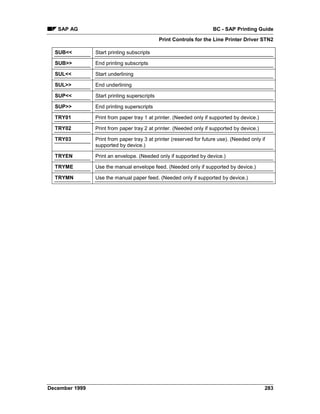
          Print Controls for the Line Printer Driver STN2............................................................ 282
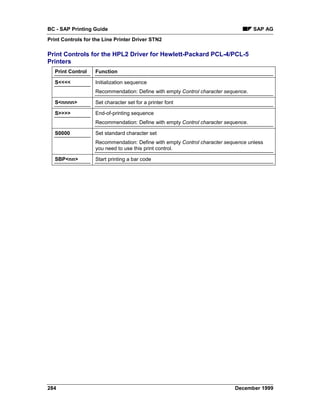
          Print Controls for the HPL2 Driver for Hewlett-Packard PCL-4/PCL-5 Printers........... 284
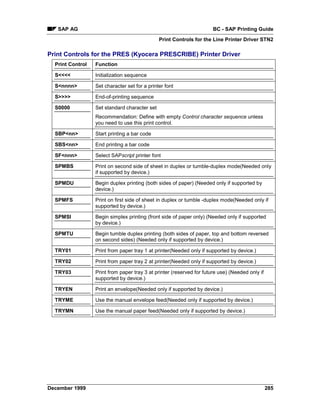
          Print Controls for the PRES (Kyocera PRESCRIBE) Printer Driver ............................ 285
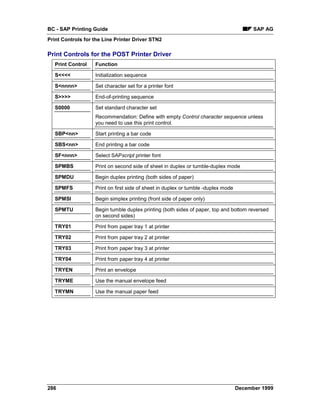
          Print Controls for the POST Printer Driver ................................................................... 286
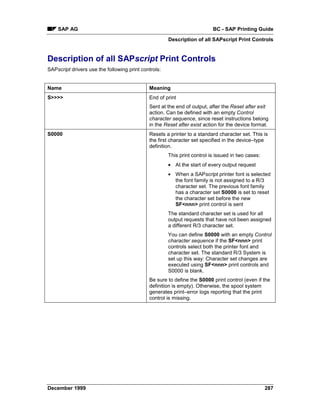
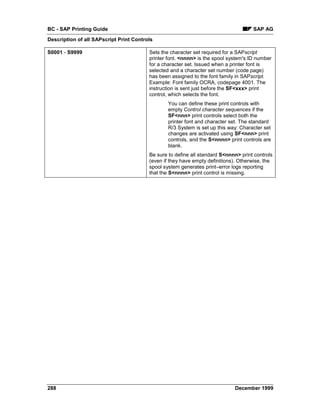
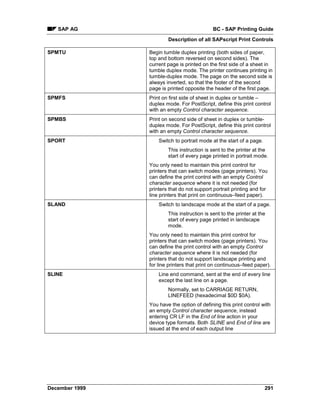
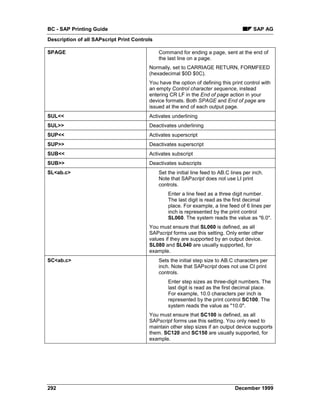
          Description of all SAPscript Print Controls................................................................... 287
   Creating Page Formats .......................................................................................................... 294
Modifying the SWIN (SAPWIN) Device Type ........................................................................... 295


December 1999                                                                                                                                 7
BC - SAP Printing Guide                                                                                                          SAP AG


Frequently Made Changes to Device Types ........................................................................... 297
Transporting Device Types....................................................................................................... 299
Transporting Printers (Device Definitions) ............................................................................. 301
Maintaining Character Sets ...................................................................................................... 302
Displaying Characters............................................................................................................... 303
Defining a Manufacturer............................................................................................................ 304
Defining Character Sets ............................................................................................................ 305
Displaying and Printing Character Sets .................................................................................. 308
Uploading Font Metrics Data for SAPscript............................................................................ 309
   SAPscript Load AFM File Function ........................................................................................ 310
   SAPlpd / RSTXLMET Methods .............................................................................................. 312
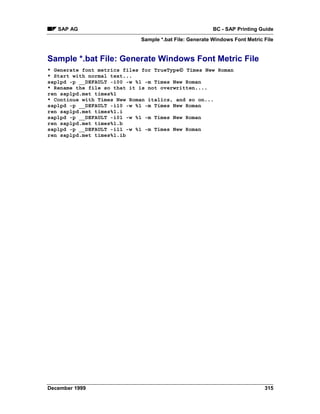
   Sample *.bat File: Generate Windows Font Metric File ......................................................... 315
Spool Servers............................................................................................................................. 316
Defining Spool Servers ............................................................................................................. 317
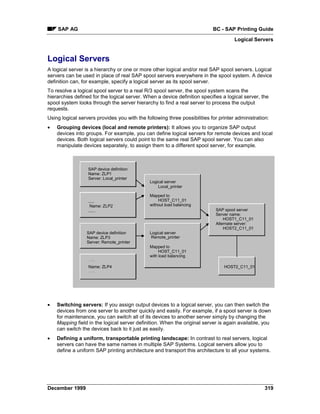
Logical Servers .......................................................................................................................... 319
Alternate Servers ....................................................................................................................... 321
Interpreting the Spool Server Display ..................................................................................... 324
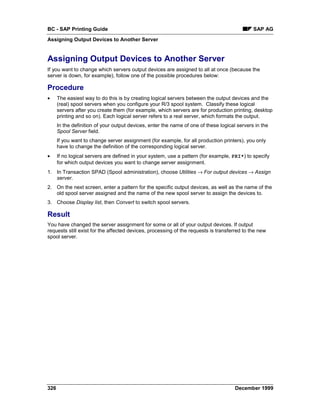
Assigning Output Devices to Another Server ........................................................................ 326
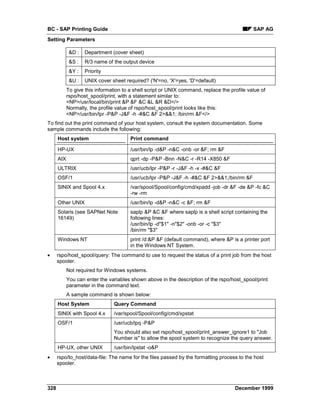
Setting Parameters .................................................................................................................... 327
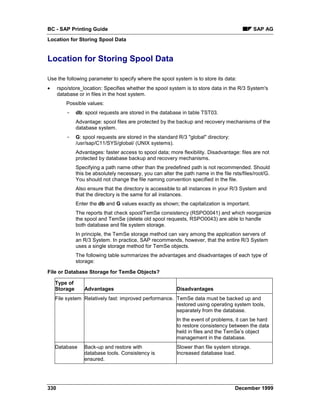
Location for Storing Spool Data .............................................................................................. 330
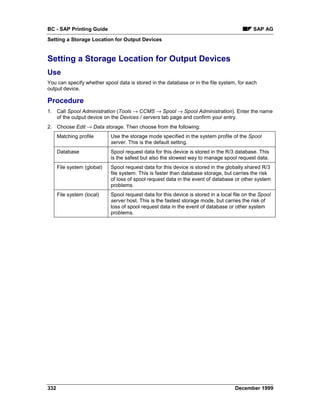
Setting a Storage Location for Output Devices...................................................................... 332
Customer Enhancement for Spool Accounting ..................................................................... 333
Customer Enhancement for Spool Authorization Check ...................................................... 334


8                                                                                                                    December 1999
SAP AG                                                            BC - SAP Printing Guide
                                                                      BC - SAP Printing Guide


BC - SAP Printing Guide


The SAP Printing Guide describes the functions of the SAP spool system. This cross-platform
component outputs forms and documents, which are formatted and passed to a host spool
system. You can control all output from the SAP System and do not need to handle any
processing in the host spool system.
The main tasks of the SAP spool system are the processing and administration of print requests
as well as the administration of output devices and their mapping in the SAP System.


December 1999                                                                                    9
BC - SAP Printing Guide                                                                            SAP AG
From Print File to Printout


From Print File to Printout
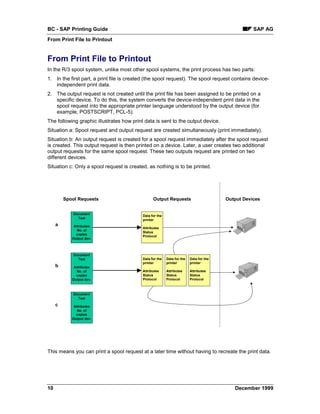
In the R/3 spool system, unlike most other spool systems, the print process has two parts:
1. In the first part, a print file is created (the spool request). The spool request contains device-
   independent print data.
2. The output request is not created until the print file has been assigned to be printed on a
   specific device. To do this, the system converts the device-independent print data in the
   spool request into the appropriate printer language understood by the output device (for
   example, POSTSCRIPT, PCL-5).
The following graphic illustrates how print data is sent to the output device.
Situation a: Spool request and output request are created simultaneously (print immediately).
Situation b: An output request is created for a spool request immediately after the spool request
is created. This output request is then printed on a device. Later, a user creates two additional
output requests for the same spool request. These two outputs request are printed on two
different devices.
Situation c: Only a spool request is created, as nothing is to be printed.


         Spool Requests                          Output Requests                        Output Devices


             Document
                                           Data for the
               Text
                                           printer
     a       Attributes
                                           Attributes
               No. of
                                           Status
              copies
                                           Protocol
            Output dev.


             Document
               Text                        Data for the   Data for the   Data for the
                                           printer        printer        printer
     b       Attributes
               No. of                      Attributes     Attributes     Attributes
              copies                       Status         Status         Status
            Output dev.                    Protocol       Protocol       Protocol


             Document
               Text
     c       Attributes
               No. of
              copies
            Output dev.


This means you can print a spool request at a later time without having to recreate the print data.


10                                                                                         December 1999
SAP AG                                                            BC - SAP Printing Guide
                                                                    From Print File to Printout

Administer spool requests and output requests using the Output Controller [Page 12] (transaction
SP01).


December 1999                                                                                 11
BC - SAP Printing Guide                                                                      SAP AG
Managing Spool Requests Using the Output Controller


Managing Spool Requests Using the Output Controller
Output Controller: Overview
To manage spool requests, choose Tools → CCMS → Spool → Output controller. You can also
access the output controller by selecting System → Services → Output controller.
If you only want to view the status of your own spool requests, choose System → Own spool
requests.
Using the output controller, you can:
•    Output spool requests (send them to the host spooler, for printing or output on other devices)
•    Display detailed information about a spool request and change certain attributes such as
     destination printer, number of copies, and priority
•    Display the data to be printed and download the data to a pure ASCII file
•    Display output requests and track the status of a job being printed
         An output request is generated:
•    When a spool request is submitted with the attribute Print immediately
•    Each time a spool request is sent from the output controller to a printer, fax device, or other
     output device
•    Delete spool requests.
         In the output controller, you can delete individual spool requests. Note that deletion does
         not affect requests that have already been passed by the R/3 spool system to the host
         spool system.


12                                                                                   December 1999
SAP AG                                                               BC - SAP Printing Guide
                                                          Selecting Spool and Output Requests


Selecting Spool and Output Requests
To select spool and output requests, use the selection screen of the output controller (Tools →
CCMS → Spool → Output controller). You can switch between the selection screens Spool
requests and Output requests.
You can specify which selection fields you want to display. To select fields, choose Further
selection criteria... Choose from Minimum, Standard, Extended or All or select specific fields to
add to your selection screen.
Users with administration authorizations are offered more selection fields than users who are
only authorized to change their own requests.
Select requests by entering any combination of criteria (for example, a user, a spool request
number, an output device, the date of the requests and so on). If you leave a field blank, the
system displays all possible values.
For more information, such as how to enter value ranges or exclude specific values from the
selection, see Entering Selection Criteria [Ext.].

                You want to display all spool requests created between 01.01.1999 and
            01.02.1999 for the output device PRINTER1. On the Spool request selection
            screen, enter the date range in the Date created field and the name of the output
            device in the Output device field. Then choose Execute.

Result
The List of Spool Requests [Page 14] includes the spool requests that match your selection
criteria.


December 1999                                                                                       13
BC - SAP Printing Guide                                                                 SAP AG
List of Spool Requests


List of Spool Requests
Definition
This displays a list of requests matching the criteria you specified (see Selecting Spool and
Output Requests [Page 13]). This includes details of the individual requests, such as date and
time created, user who created the request, Processing Status [Page 15], number of pages, and
so on.
You can tailor how this list is displayed according to your needs. You can hide or display
columns, sort columns, and create variants. For more information, see ABAP List Viewer [Ext.].

Use
The following functions are available to edit the displayed spool requests:
•      Print request [Page 19]
•       Display and Change Spool Request Information [Page 17] (for example, number of pages,
     or output device)
•      Delete request
•      Display Contents of Request [Page 16]
•      Display Output Requests for a Spool Request [Page 21]
•    Forward Contents of Request [Page 16] (send using SAPoffice or export as text)


14                                                                              December 1999
SAP AG                                                                BC - SAP Printing Guide
                                                                        Status of Spool Requests


Status of Spool Requests
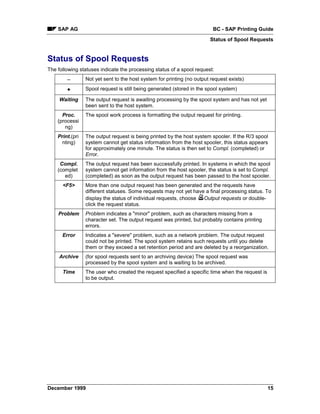
The following statuses indicate the processing status of a spool request:
        −        Not yet sent to the host system for printing (no output request exists)

        +        Spool request is still being generated (stored in the spool system)

     Waiting     The output request is awaiting processing by the spool system and has not yet
                 been sent to the host system.
      Proc.      The spool work process is formatting the output request for printing.
    (processi
       ng)
    Print.(pri   The output request is being printed by the host system spooler. If the R/3 spool
      nting)     system cannot get status information from the host spooler, this status appears
                 for approximately one minute. The status is then set to Compl. (completed) or
                 Error.
     Compl.      The output request has been successfully printed. In systems in which the spool
    (complet     system cannot get information from the host spooler, the status is set to Compl.
       ed)       (completed) as soon as the output request has been passed to the host spooler.
      <F5>       More than one output request has been generated and the requests have
                 different statuses. Some requests may not yet have a final processing status. To
                 display the status of individual requests, choose Output requests or double-
                 click the request status.
    Problem      Problem indicates a "minor" problem, such as characters missing from a
                 character set. The output request was printed, but probably contains printing
                 errors.
      Error      Indicates a "severe" problem, such as a network problem. The output request
                 could not be printed. The spool system retains such requests until you delete
                 them or they exceed a set retention period and are deleted by a reorganization.
     Archive     (for spool requests sent to an archiving device) The spool request was
                 processed by the spool system and is waiting to be archived.
      Time       The user who created the request specified a specific time when the request is
                 to be output.


December 1999                                                                                     15
BC - SAP Printing Guide                                                                  SAP AG
Displaying the Contents of a Spool Request


Displaying the Contents of a Spool Request
If you want to display the contents of a spool request, choose    Display contents.

Adjusting display format
For technical reasons, such as for troubleshooting, it may be necessary to display the print data
in either raw form (ABAP list format or OTF format for SAPscript texts) or in hexadecimal format.
To set the display, choose Goto → Display requests → Settings from the spool request list
screen.


Setting display area
In order to prevent a reduction in performance, the system only displays the first ten pages of a
request by default. To set the display area, choose Goto → Display requests → Settings. For a
very large document, you can change the settings to only display the last few pages. A maximum
of 9,999,999 pages can be displayed. Note however, that a display area that is too large could
lead to memory overflow.

Sending spool request using SAPoffice
You can also email or fax the contents of a spool request. To do this, choose Spool request →
Forward → Send using SAPoffice.

Exporting a spool request
You can also export the contents of a spool request as follows:
•    Spool request → Forward → Export as text: The entire text is stored in ASCII format in your
     SAP GUI work directory. The name of this file is composed according to the pattern, <SAP
     System name><spool number>.txt. Example: Look for the file ABC0000004327.txt in your
     SAP GUI work directory.
•    Select an entry and display the contents. For SAPscript texts, choose Spool request →
     Forward → Save to local file Then save the file in one of the possible formats. This
     procedure only saves the display portion of the document, however.


16                                                                               December 1999
SAP AG                                                                 BC - SAP Printing Guide
                                           Displaying and Changing Spool Request Information


Displaying and Changing Spool Request Information
To display the header information for a spool request, select the spool request from the List of
Spool Requests [Page 14] and choose       . You can select multiple requests.
You can change the following attributes, among others:
•   Output device: If possible, only divert the output to an output device that uses the same
    device type as the output device where the request was originally sent. Usually, SAPscript
    texts cannot be sent to a printer that has a different device type. For ABAP lists, make sure
    the selected format is included in the device type of the output device to which you want to
    divert the output of the request.
•   Delete date: After the spool request has passed the expiration date, it is marked for deletion.
    The request is deleted the next time the spool database is reorganized. For more
    information, see Deleting Multiple Spool Requests Simultaneously [Page 27].
        To retain a spool request in the database, change the date specified in the Delete date
        field. You can also do this past the expiration date as long as the database has not yet
        been reorganized.
•   Completed, no longer possible to add to: If this field is blank, the spool system
    automatically adds additional spool requests that have the same attributes (user, title, output
    device, client from which the request was issued, number of copies, priority, cover page
    setting, archiving mode, and SAP GUI session number).
        For example, if a user repeatedly uses a transaction that generates a spool request, the
        spool system combines the requests into a single spool request. This request can then
        be handled as a single job for purposes of printing and spool administration.
        A request is "completed" and cannot have additional jobs added to it when it has been
        sent to the host spooler for printing. No other spool requests can be added to a spool
        request you generated with the Print immediately option set or that you sent to the printer
        from the output controller.
        You can also close a spool request before it is printed by marking this field. The system
        creates a separate spool request for subsequent requests that would have been added
        to this request.
        If you are combining requests, note the following two rules:
•   If the expiration dates of combined spool requests are not the same, the spool system uses
    the latest date for the entire spool request.
•   To print out a "combined" spool request, set the Print immediately option on the last of the
    spool requests that is to be added. The spool system adds the last spool request and then
    sends the entire "combined" spool request to the output device.
•   Delete after printing if no errors: If this field is selected, the spool request, output request,
    and print data are deleted automatically after the request has been successfully printed.
        The spool system retains spool requests that contain errors. You must manually delete
        such requests or allow them to expire and be deleted when the spool database is
        reorganized.
        The delete option is set in a user's master record and can be changed:
•   When a user submits a spool request


December 1999                                                                                       17
BC - SAP Printing Guide                                   SAP AG
Displaying and Changing Spool Request Information

•    On this screen


18                                                  December 1999
SAP AG                                                                  BC - SAP Printing Guide
                                                                       Outputting Spool Requests


Outputting Spool Requests
A spool request created without the attribute Print immediately set is only output after being
explicitly released in the Output controller (transaction SP01). To release such a request for
printing, or to print additional copies of any spool request, select the request and select   Print
directly. You can also select multiple requests for printing.
For example, if you want to send the request to a different printer or change the number of copies
to print, choose Print with changed parameters....

Print with changed parameters
You can change the following settings, among others, before printing:
•   Output device: If possible, only divert the output to an output device that uses the same
    device type as the output device where the request was originally sent. Usually, SAPscript
    texts cannot be sent to a printer that has a different device type For ABAP lists, make sure
    the selected format is included in the device type of the output device to which you want to
    divert the output of the request.
•   Start time: To set a later time for printing, choose this pushbutton.
After changing the parameters, choose Print to print the request or Print All (if you have selected
multiple requests).


            If problems occur printing extremely large output requests, such as lists larger than
            10 MB, see SAPNet Note 7140.


December 1999                                                                                       19
BC - SAP Printing Guide                                                                  SAP AG
List of Output Requests


List of Output Requests
Definition
There are two ways of displaying a list of output requests:
•    From the Selection Screen of the Output Controller [Page 13]
•    From the list of spool requests: Select the spool requests whose output requests you want to
     display and choose Output requests.

Working with the list
You can tailor how the list is displayed according to your needs. You can hide or display
columns, sort columns, and create variants. For more information, see ABAP List Viewer [Ext.].


20                                                                               December 1999
SAP AG                                                                BC - SAP Printing Guide
                                                                         Status of Output Requests


Status of Output Requests
You can display:
•   Output requests for an individual spool request. Choose a request from the display and then
    choose Output requests.
•   Using the device definition of an output device (in Spool Administration), you can display all
    output requests for a particular output device (Choose Output requests).
These displays provide more details about the status of output requests than are available in the
spool request display. The system displays one of the following statuses for requests for which
this information is available:
Waiting          The output request is waiting for or is being processed by a spool work process or
                 spooler.
                 If this status is displayed for a request for an extended period of time (more than
                 one minute), then the spool work process that is responsible for the request may
                 have terminated, or there may be a problem establishing a connection to a
                 remote output device.
                 The spool work process automatically reprints the output request affected by the
                 problem.
Proc.            Print data is being processed by the R/3 spool work process or by the host
(processing)     spooler.
Print.           The request has been passed to the host spooler or to an output device and a
(printing)       final status has not yet been returned to the spool system.
Compl.           In host systems which the R/3 spool system can query, this means that the
(completed)      request has been successfully printed, as reported to the R/3 spool system by the
                 host system or by the output device.
                 If the spool system cannot obtain status information from the host system, then
                 the status of a output request is set to Compl. as soon as the request has been
                 passed to the host spooler.
Problem          A minor error occurred while printing the request.
Error            A severe error occurred. The output request could not be printed.
                 Use the error log to determine the cause of the error. For more information, see
                 Reading an Error Log [Page 23] .
Scheduled        The user who created the request has set a start time for printing the request
(+ Start
time)


              If you want to view a log of the events of an output request, double-click the status of
              a request.


December 1999                                                                                       21
BC - SAP Printing Guide           SAP AG
Status of Output Requests


22                          December 1999
SAP AG                                                               BC - SAP Printing Guide
                                                                              Reading Error Logs


Reading Error Logs
Any errors that occur during the processing of an output request are reported in an error log.
In the output request overview, the    icon displays which requests have a log. To call the log,
choose .
The log reports messages from the R/3 spool work process or formatting process and messages
returned from the host spooler, if any. A log also summarizes the attributes of the output request.
The first screen of an error log presents summary information. You can also display more
detailed log information by choosing All info.

                 That a log exists, does not necessarily mean an error occurred. When defining a
            printer, you can specify whether print data should always be logged (for test
            purposes, for example). For more information, see Logging Output Data [Page 50].


December 1999                                                                                      23
BC - SAP Printing Guide                                                                       SAP AG
Frontend Printing on Local Printers


Frontend Printing on Local Printers
You want to print from your R/3 System to the same printer you print to from your Windows PC,
Apple Macintosh, or UNIX workstation. You can print to these printers using frontend printing,
even if the printers themselves are not defined in the R/3 spool system.
Before you can use frontend printing in your R/3 System, you must create "generic“ frontend
output devices for the various operating system platforms. For more information, see Definition of
Frontend Printers [Page 129].


             Frontend printing only works as long as there is an active connection to the frontend.
             This means that frontend printing cannot be used in background processing.
             Frontend printing should not be used for production or high-volume printing. For
             more information, see Planning Procedure [Page 54].

Setting Up Frontend Printing in the SAP System
Frontend print requests are processed, as for other output methods, by the spool work process.
This may cause conflicts between regular print requests and frontend print requests in your R/3
spool system. Even if you have classified spool servers and output devices according to the type
of output (for example, production printing or mass printing), as we recommend, frontend printing
may still cause server load problems.
The following describes how to configure your system to avoid these problems.
•    Set up a spool service on every application server, if possible. Add the profile parameter
     rsdisp/wp_no_spo to the instance profile of each server.
•    Set the maximum number of spool work processes to be used for frontend printing. The
     default setting is a maximum of one spool work process for frontend printing for each server.
     If you need to use more work processes for frontend printing, add the profile parameter
     rsdisp/wp_no_Fro_max to the instance profile and increase the value for work processes.
•    To ensure that your R/3 spool system can process requests as effectively as before, you
     should increase the number of spool work processes by at least one, as one of the spool
     work processes is always used for frontend printing in the standard system.
         Example: In the instance profile of the application server mn1234_YXZ_99, the number
         of spool work processes is set to 1 using the profile parameter rsdisp/wp_no_spo.
         Increase this number to 2.
•    Specify a spool server to be used for all frontend print requests in your R/3 System. To do
     this, use the profile parameter rspo/local_print/server. In spool administration (transaction
     SPAD), specify an alternate server for this server to ensure printing can continue if the first
     server is down.

     For information about how to execute frontend printing, click Here [Page 25].


24                                                                                   December 1999
SAP AG                                                                BC - SAP Printing Guide
                                                                     Executing Frontend Printing


Executing Frontend Printing
Use
Using frontend printing, you can print to your local printer from the SAP System, even if this
printer is not directly defined in your SAP System. This is particularly useful for employees that
often log on to the SAP System at several workstations, or those often on the road.

Prerequisites
A frontend output device must be defined as a “representative” for every operating system
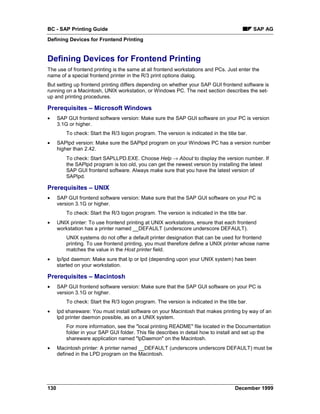
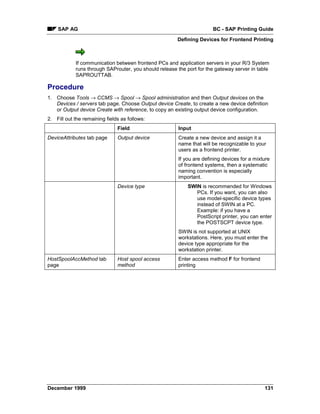
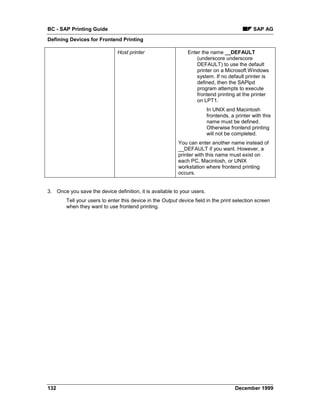
platform. For more information, see Defining Frontend Printers [Page 129].

Procedure
1. When you choose Print anywhere in the system, the print parameters screen appears.
    −   For a Windows PC, in the Output device field, enter the name of the printer your system
        administrator defined for frontend printing under Windows. After you confirm your entry,
        you can select one of the Windows printers defined on your frontend. Then choose
          Print.
    −   For a Macintosh, in the Output device field, enter the name of the printer your system
        administrator defined for frontend printing on Macintosh computers. Then choose
          Print.
    −   For a UNIX workstation, you must know the printer type of the printer you want to use
        (whether it is a POSTSCRIPT or a PCL printer). Then choose the printer your system
        administrator defined for the corresponding printer type. Then choose Print.
2. On a Windows PC the R/3 System starts the SAPlpd transfer program, if it is not already
   running. Your document is sent through SAPlpd to the Windows printer.
    On a UNIX workstation or Macintosh, the system outputs the document on the lpd printer.
    This printer must already be defined on your UNIX workstation, or in the lpd program on your
    Macintosh.
        The lp/lpd program must already be running on UNIX and Macintosh systems when you
        start frontend printing.


            Note the following:
•   For frontend printing, a spool request (and possibly an output request) is created as for other
    types of R/3 System printing. This means that you can view this frontend spool request,
    create additional printouts, and so on, in the output controller (transaction SP01).
•   The status of a frontend output request is set to Compl., as soon as the output request is
    transferred to the target workstation or PC. The system is therefore only able to log problems
    with communication with the PC or workstation in the output request log. Other error
    messages are lost.


December 1999                                                                                        25
BC - SAP Printing Guide                                                                      SAP AG
Executing Frontend Printing

Restarting frontend printing
The user receives an error message when creating a frontend printout in the following cases:
•    When the user already has six open sessions in one R/3 System
•    When the user specifies a frontend printer as the output device for a background job.
To output these requests, go to the list of spool requests and choose Utilities → Restart frontend
printing. The requests are then printed on the printer defined for frontend printing at the terminal
where the user is logged on.


26                                                                                 December 1999
SAP AG                                                               BC - SAP Printing Guide
                                             Deleting Multiple Spool Requests Simultaneously


Deleting Multiple Spool Requests Simultaneously
You can delete several spool requests at once by selecting them in the Output controller.
However, if you want to delete a large number of spool requests, choose Spool → Spool
administration → Administration → Delete old spool requests.
You can delete:
•   All spool requests whose expiration date has been reached
•   All spool requests older than a certain date
•   All requests successfully printed
•   All spool requests
When you delete a spool request you delete:
•   The spool request itself (the record of the spool request in the spool database)
•   The print file
        The data in a print file is stored separately from the spool request, in the temporary
        sequential object database (TemSe).
•   All output requests generated for the spool request.
•   Any error logs
        Error logs are stored separately from the spool request, in the temporary sequential
        object database (TemSe).

Background Deletion
You want to delete old spool requests from the database at regular intervals. Choose Tools →
CCMS → Spool → Spool administration. On the tab page Administr. (administration), choose
Settings. On the tab page Administr., choose Automatically delete old spool requests and specify
an interval at which the old requests are to be deleted.
To change deletion criteria, you can also run report RSPO1041 in the background. This report
also maintains the TemSe database and deletes any spool data that has errors or is superfluous.
For more information about the TemSe database, see Administering the TemSe Database [Page
29].

    If you:
•   Send faxes and/or telexes using the SAPoffice functions; and
•   Use the SAP communication server to send these faxes and telexes,
schedule a second reorganization report to run after RSPO0041. This report is RSKREORG. It
removes orphaned fax and telex messages; messages canceled by the user in the output
controller before they were sent.


December 1999                                                                                    27
BC - SAP Printing Guide                                                                  SAP AG
Checking the Consistency of the Spool Database


Checking the Consistency of the Spool Database
You can check that the tables that hold spool requests, output requests, and data are consistent
with one another.
Inconsistencies should never occur. In the event of serious system problems, such as a disk
failure, you can ensure that the spool system is consistent by selecting Spool → Spool
administration → Administration → Consistency check of spool database.
Should inconsistencies be found, the function displays a list of database records and/or request
components that are "orphaned" or which have invalid control values.
To clean up the database, mark and delete the records and components that you want to
remove. The spool requests that you delete must be re-submitted to the spool system.

Consistency Check in the Background
You can also regularly check the consistency of your spool system using a background job. To
do this, schedule the report RSPO1043 as a background job (Transaction SM36).

               For more information about the consistency check of the spool system, see
            SAPNet Notes 48400 and 98065.


28                                                                               December 1999
SAP AG                                                             BC - SAP Printing Guide
                                                           Administering the TemSe Database


Administering the TemSe Database
The spool system uses the TemSe (temporary sequential objects) database to store output data.
The TemSe database is also used for storing background processing job logs and other
sequential objects that are temporary in nature (such as application data from FI and HR).
You can display and administer the database objects using the functions provided in Spool →
TemSe contents and Spool → TemSe administration. The TemSe administration function also
lets you administer the character set buffer used by the spool system (though not the buffer used
by SAPscript).
Retaining too many spool requests in the TemSe database may lead to capacity problems in the
database in the SAP System. The best way to avoid space problems is to run the spool system
reorganization report RSPO0041 daily as a background processing job. RSPO0041 deletes old
spool requests according to the criteria that you specify. By deleting such requests, the report
also deletes the corresponding print data in the TemSe database.
You should also ensure, to the maximum extent possible, that users have the Delete after output
option set in their user master records. This is especially important for users who have
authorizations to execute background processing jobs and batch input sessions.


            The TemSe functions in Spool → TemSe contents and Spool →=TemSe
            administration are intended only for "emergency" use, for example for analyzing print
            problems by displaying output data.
            Do not delete objects using these functions if you can avoid doing so. Remove old
            job logs and spool request output data using the delete functions provided in the
            spool and background processing systems. Deleting objects using the TemSe
            functions can result in error messages in the system log from the affected
            components. For example, the background processing system registers missing job
            logs in the system log.
For more information about spool delete functions, see Deleting Multiple Spool Requests
Simultaneously [Page 27].


December 1999                                                                                  29
BC - SAP Printing Guide                                                                SAP AG
Problem Analysis: Print-Out Missing or Incorrect


Problem Analysis: Print-Out Missing or Incorrect
The following describes the procedure that we recommend for analyzing printing problems. This
includes:
•    The decisions that you must make at each step in the procedure
•    The actions that you should take to correct a problem.
Identifying the problem and finding the correct analysis procedure


                                     Question 1:
                            Was the output request printed?


                          Yes                             No


                Question 2:                               Question 3:
     Printed with slight errors                   Was a spool request actually
     (e.g. missing characters) or is the          generated?
     output a mess (severe errors)?


            Minor          Severe                      Yes            No


        Goto:                Goto:                  Goto:              Goto:
     Correcting          Correcting              Why has           Analyze
     minor output        severe output           request not       Spool Dump
     problems            problems                been              in ABAP
                                                 processed?


Problem Analysis 1: Output Request Printed? [Page 32]
Problem Analysis 2: Minor or Severe Printing Errors? [Page 33]
Problem Analysis 3: Spool Request Generated? [Page 37]


30                                                                               December 1999
SAP AG                               BC - SAP Printing Guide
                Problem Analysis: Print-Out Missing or Incorrect


December 1999                                                31
BC - SAP Printing Guide                                                                        SAP AG
Problem Analysis 1: Output Request Printed?


Problem Analysis 1: Output Request Printed?
Question 1: Has the output request been printed?
In addition to physically checking whether output has appeared, you can use the spool output
controller to check on the status of a job.
Do the following:
1. Choose Tools → CCMS → Spool → Output controller.
2. Enter all available information that you have on the spool request in the selection screen.
3. If the spool request has the status:
        -- (no status), then the spool request has not yet been sent to the printer. Print it to see if
        it is output normally.
        Process, then the job is still being formatted and/or transmitted to the host system
        spooler. You can wait to see if processing finishes normally. Or you can go to analysis
        procedure Determining Why Output Request Was Not Processed [Page 38] to check
        whether processing is proceeding normally.
        Waiting or Compl. and still has not appeared at the printer, you can go directly to the
        analysis procedure Determining Why Output Request Was Not Processed [Page 38].
        If the status is Compl., also check the request information. Select the spool request and
        choose       on the Output information tab page. This screen shows the status of
        completed output requests. If Processed but not printed is marked, then this confirms
        that the output request has not been printed. Go to the error analysis procedure shown
        above.


32                                                                                    December 1999
SAP AG                                                              BC - SAP Printing Guide
                                         Problem Analysis 2: Minor/Severe Output Problems?


Problem Analysis 2: Minor/Severe Output Problems?
Question 2: The output request has been printed, but it contains errors. Are these minor
or severe printing problems?
It is important to distinguish between minor and major problems with the appearance of output
that has actually been printed.
A minor problem has occurred when the print out is legible and generally correct. However,
there are problems with individual characters, with alignment of text and graphic elements, and
the like. Go to the analysis procedure Correcting Minor Output Problems [Page 34].
A severe problem has occurred when a print request has been printed but is not readable.
Examples: the output is in the incorrect character set (for example, Dingbats) and is not readable;
line breaks and formatting are incorrect. See Correcting Severe Output Problems [Page 35]


December 1999                                                                                     33
BC - SAP Printing Guide                                                                  SAP AG
Correcting Minor Output Problems


Correcting Minor Output Problems
Minor output problems occur when a document generally has been correctly printed and is
legible. However, problems have occurred such as the following:
•    Characters are missing or are represented by the # character.
         Reason: The characters are not contained in the character set of the output device.
•    Graphic elements are missing, have been incorrectly printed, or are present but unwanted.
     R/3 graphic elements include color, background shading, symbols and lines, and frames.
For solutions to many minor output problems, see SAP Notes Database in SAPNet.


34                                                                               December 1999
SAP AG                                                              BC - SAP Printing Guide
                                                            Correcting Severe Output Problems


Correcting Severe Output Problems
A severe output problem means your output device printed something, but the result is illegible.
The wrong character set may have been used (for example, Dingbats was printed instead of
alphanumeric characters). Line breaks, page breaks, or the text layout may be incorrect.
Uninterpreted printer command language statements may have been printed. Or the printer may
print blank pages.
If a severe problem occurs, check for the following settings:
•   Was the correct device type specified in the output device definition?
        Choose Tools → CCMS → Spool → Spool administration. On the Devices / servers tab
        page, enter the name of the output device in the Output devices field.


            The device definition for a Kyocera printer incorrectly specifies device type HPLJIIID
            (which is for a Hewlett-Packard LaserJet printer).
•   Does the emulation specified at the printer match the emulation specified in the device
    definition?
        Many printers support multiple emulations; these printers are able to understand multiple
        printer languages. Emulations are switched either by an incoming print job or by way of
        the printer control panel. Example: a correctly-configured Hewlett-Packard LaserJet 4M
        printer can be switched between PostScript and PCL-5 emulations.
        Do the following:
1. Check the emulation at the printer as well as in the R/3 System. You may be able to use the
   printer control panel to determine the emulation that is active at the printer. Or you may need
   to print a test sheet to see what the emulation setting is.
2. Once you have determined which emulation is active at the printer, check whether the
   emulation in the defined device type is the same.
            Choose Tools → CCMS → Spool → Spool administration. On the Devices / servers
            tab page, enter the name of the output device in the Output devices field. Then
            choose Device types.
3. If the emulations do not match, try to determine why. Is the default emulation at the printer
   set incorrectly? Can the printer default be changed without causing problems for other output
   requests? Did output requests from other users change the emulation at the printer?
            If the printer default cannot be changed, can you change the R/3 output device
            definition to match the printer default?
            You can specify that the R/3 System sets the printer to the correct emulation at the
            start of each output request. To do this, copy the R/3 device type. Then, in the INIT
            (printer initialization) action, enter the required print command to switch the
            emulation. Look in your printer manual for the command to enter. The R/3 System
            automatically restores the default emulation at the end of a print request.
            For more information, see Editing Device Type Formats [Page 264].


December 1999                                                                                       35
BC - SAP Printing Guide                                                                       SAP AG
Correcting Severe Output Problems


             You specify that your Hewlett-Packard printer starts in PCL-4 emulation mode
             (Hewlett-Packard LaserJet printer command language). However, the printer
             definition in the R/3 System specifies the device type POSTSCPT for the printer.
             This results in the following: The R/3 System sends PostScript code to a printer that
             is expecting commands in the PCL-4 language.
             You can solve the problem in any of the following ways:
•    Change the default emulation setting at the printer so that it starts in the correct emulation
     mode.
•    Specify a compatible device type in the R/3 device definition.
•    Edit the R/3 device type format so that the printer automatically switches to the correct
     emulation at the start of an R/3 print request.
•    Is the correct character set specified in the WIN.INI file (WinCharSet parameter) for the
     Windows printer with device type SWIN (SAPWIN)?
         Using the WinCharSet parameter, you can specify the character set and font to be used
         with SWIN (device type) printers. Generally, the WinCharSet parameter should not be
         included in the WIN.INI file or, if included, it should be set to 0.
         If all SWIN output requests are printed using the wrong character set (Dingbats, for
         example), check the WIN.INI file. If the parameter WinCharSet is included, remove it
         from the file.
         For more information, see Setting the Character Set for SWIN and SAPlpd [Page 87].


36                                                                                   December 1999
SAP AG                                                               BC - SAP Printing Guide
                                               Problem Analysis 3: Spool Request Generated?


Problem Analysis 3: Spool Request Generated?
Question 3:
If your output request has not yet been printed, then you must first find out whether a spool
request was generated.
Do the following:
1. Choose Tools → CCMS → Spool → Output controller.
2. Enter all available information that you have on the spool request in the selection screen.
   Especially useful: enter the name of the user who generated the spool request and R/3
   printer name (Output device).
3. If you find the spool request, then go to the analysis procedure Determining Why an Output
   Request Has Not Been Processed [Page 38].
4. If you do not find a spool request, then go to the analysis procedure No Spool Request
   Generated: Analyzing a Spool Dump [Page 39].


            The spool request you are looking for may also have been deleted if it was
            processed to completion by the spool system and the user had the Delete after
            printing option set.
            If you do not find an ABAP dump from the spool system, then this situation has
            probably occurred. You should then have the user print again with the Delete after
            printing option not set.


December 1999                                                                                    37
BC - SAP Printing Guide                                                                    SAP AG
Determining Why Output Request Was Not Processed


Determining Why Output Request Was Not Processed
Troubleshooting when no output appears at the printer


                                      Question 4:
                          What is the status of the spool request
                          In the SAP spool Output controller?


                  Wait       No Status                          Error/Compl.


      See:                           See:                                See:
     Analyzing                  Status --                                No
     delayed                    Spool request not                        output --
     processing                 sent to output                           trouble-
                                device                                   shooting


Problem Analysis 4: Status of a Spool Request? [Page 40]
Analyzing Delayed Processing of Output Requests [Page 41]
Analyzing "Missing-Output" Problems [Page 46]


38                                                                                   December 1999
SAP AG                                                             BC - SAP Printing Guide
                                      No Spool Request Generated: Analyzing a Spool Dump


No Spool Request Generated: Analyzing a Spool Dump
If the spool system is unable to generate a spool request when a user selects Print, then the
spool program logic terminates the program. All the details about the abnormal termination are
recorded in an ABAP short dump.
To analyze the abnormal termination or to prepare information for the R/3 hotline, choose Tools
→ ABAP Workbench → Test → Dump analysis [Ext.]. The short dump includes the name of the
affected user, the time and date, and a description of the error.


December 1999                                                                                    39
BC - SAP Printing Guide                                                                      SAP AG
Problem Analysis 4: Status of a Spool Request?


Problem Analysis 4: Status of a Spool Request?
The first step in finding out what has happened to a spool request that was not printed out is to
check on the status of the spool request and any print requests associated with it.
To check the status of the spool request, choose Tools → CCMS → Spool → Output controller.
Enter as much information about the spool request as you have and display the request.
You will see one of the following statuses for the spool request:
•    (no status): The spool request has not yet been sent to a printer. Use the Print function to
     print out the spool request.
         A spool request is sent to a printer automatically only if a user has the Print immediately
         option marked when he or she requests a print. Otherwise, the spool request waits in the
         spool until it is explicitly sent to the printer or deleted.
•    Wait: The spool request has been sent to a printer, but it has not yet been processed.
     Generally, an output request should be processed and sent on by the spool system within at
     most a couple of seconds.
         When a spool request is sent to a printer, then the spool system formats the output data
         for the printer. It then passes the resulting output request to a host spool system or print
         manager for output.
         In this case, the output request is still waiting in the R/3 spool system and has not yet
         been passed on to a host spool system and output device.
         See Analyzing Delayed Processing of Output Requests [Page 41].
•    Complete or Problem: The spool request has been sent to a printer and has been
     processed by the R/3 spool system.
         If no output appears at the printer, then see Analyzing "Missing-Output" Problems [Page
         46].
•    <F5>: The spool request has been sent to a printer more than once. The resulting output
     requests have different statuses.
•    Time: The owner of the request set a specific time for printing the document.
         Press the F5 key or Output requests to display the statuses of the output requests. Use
         the statuses of the requests to decide how to analyze the error. Example: If you see the
         statuses Waiting and Problem, you should go to Analyzing "Missing-Output" Problems
         [Page 46] to determine what happened to the output request.


40                                                                                   December 1999
SAP AG                                                          BC - SAP Printing Guide
                                         Analyzing Delayed Processing of Output Requests


Analyzing Delayed Processing of Output Requests

Use the following procedure to determine why an output request has not been processed by the
R/3 spool system. Generally, an output request should be processed and sent on by the spool
system within at most a couple of seconds.
Analyzing delayed processing


December 1999                                                                              41
BC - SAP Printing Guide                                                                  SAP AG
Analyzing Delayed Processing of Output Requests


                        Situation:
              A spool request has the status
              Wait. and the status is not
              changing

                   Check the status of
                   the message server

                  Transaction SM51 or
                  CCMS system monitor


                Check the status of the
                spool work process
                  Transaction SM51 or
                  CCMS system monitor


                                              Is the user SAPSYS active?
                                                    Possible timeout.
                                            Check network and output device.


                                 Regular user active?
                              High load due to large lists or
                                       long queue


                  Recurring problem?
                 Use the system log and
              developer trace to analyze the
                   spool work process


Check the status of the message server: If you find a lot of spool requests with the status
Waiting in the output controller, then there may be a problem with the communication pathways
within the R/3 System. You can eliminate this possibility by checking that the message server of
your R/3 System is functioning correctly.
Use the Control Panel of the Computing Center Management System or transaction SM51 to
check the message server (Tools → CCMS → Control/Monitoring → Control panel). If the
message server is working correctly, then:
•    The "Message Server" service should be listed in one of the application servers


42                                                                               December 1999
SAP AG                                                                 BC - SAP Printing Guide
                                             Analyzing Delayed Processing of Output Requests

•   You should be able to display detail information about any of the servers in your R/3 System.
Check the status of the spool work process: Status Waiting may also indicate that there is a
problem with the spool work process that is assigned to a printer.
Do the following:
1. Find out which printer an output request has been sent to.
        In the output controller, select the relevant request in the output controller and choose
           . You can find the printer name in the Output device field.
2. Find out which spool work process is responsible for the printer.
        Choose Tools → CCMS → Spool → Spool administration. On the Devices / servers tab
        page, enter the name of the printer in the Output devices field to which the present
        output request has been sent. Display the definition and note the R/3 application server
        name that appears in the Print server field.
        If you have only a single spool server in your R/3 System, then you can omit this step.
3. Use the CCMS System Monitor or in transaction SM51 to display the application
   servers in your R/3 System.
        Check that the application server that you noted from the Print server field is running and
        that the server offers the service Spool. If the server is not running or if the Spool service
        is not active, then you have found the source of the problem.
        Restart the server if necessary. Use the CCMS functions for defining R/3 servers
        (instances) and for setting up operation modes to ensure that the spool service is always
        active at this server.
4. If the print server is running and the spool service is active, then check the activity in
   the spool work process.
        In transaction SM51, mark the print server in question and click on Processes. In the
        process display, look for the spool work process (Type SPO) and note the name of the
        active user.
    –   User SAPSYS is active: This indicates that the spool work process is busy with internal
        spool activities or is requesting the status of a print request from a host spool system.
            Use the CPU function to check the spool work processes’ use of the CPU. If you see
            no change in the CPU time after repeated use of the CPU function, then it is likely
            that the spool work process is waiting for a status query to time out. It is likely that
            you have then found the reason for the delay in output request processing.
            If the spool work process requests status and the target host system does not reply
            immediately, then the spool work process must wait for the query to time out.
            Depending upon the spool query settings in your R/3 system profile, the spool work
            process may wait 1 minute or more for the time-out error message from the network
            software. During this time, the spool work process cannot work on any other output
            requests.
            If the spool work process waits more than 15 seconds for a reply, then it records the
            problem in the R/3 system log. You can therefore check in the system log for devices
            that have chronic communication problems.
            If the spool work process must wait more than 30 seconds, then it locks the output
            device for five minutes and goes on to other output requests. At the end of this lock


December 1999                                                                                       43
BC - SAP Printing Guide                                                                      SAP AG
Analyzing Delayed Processing of Output Requests

             period, the spool work process attempts to establish communication again. The
             same rules are used to limit waiting.
             If the print server is a UNIX system and the Access method to the printer is type L,
             then you can find out which printer is being queried. Log on to the UNIX system and
             check with the ps command to see whether the spool work process has forked an
             LPQ or LPSTAT for the query. The ps display for the daughter process will show you
             the target system and printer of the query. You can find the PID (process ID) of the
             spool work process in the SM51 Processes display.
             The spool work process also records long-running printer queries in the R/3 system
             log. If you are unable to determine the target system and printer of a query with host-
             system commands, then check in the R/3 system log for a time-out message. The
             message includes the target host and printer.
             If you are able to determine which host and printer are causing the time-out problem,
             then you should check the status of the target host system and of the network link to
             the host system. The time-out wait suggests that either the host system is not active
             or the network link to the host system is not working.
             If this problem occurs frequently, then you should turn off status querying for this
             output device. You can do this in the Printer names definition of the output device.
     –   A "real user" (a normal user in your system) is active. This indicates that the spool
         work process is processing an output request for a user. Any of three scenarios could
         account for delayed processing of other output requests:
         1. The spool work process is processing a large output request and/or is sending the
            output to a slow communication partner. A slow communication partner could
            include, for example, a host system connected by a slow WAN link or a printer that
            has a network card to which the spool process is directly connected (not by way of
            an external print server).
                 You can check on these possibilities in the output controller. Select all jobs for
                 today’s date and then choose Edit → Sort → Status. The spool system sorts
                 spool requests by their status. If there are many spool requests with the status
                 "Waiting", then this may indicate that the spool work process currently has too
                 much to do and has developed a backlog. You can also check for the output
                 request that is currently running. If it is very large (many pages in the Pages
                 column of the output controller display), then this output request may have
                 caused a temporary slowdown in printing.
         2. Multiple output requests are queued up for processing in the spool work process. If
            this situation occurs often and you have multiple R/3 application servers, then you
            should set up another spool work process at another server. Distribute the workload
            by printer between the two spool work processes.
         3. The spool work process is waiting for a time-out after trying to send an output
            request to a host system. For a description of this problem, see the explanations
            above under "User SAPSYS is active".
     –   The spool work process is idle (status Wait in the Processes display), then the spool
         work process may have finished processing the output request while you were starting
         transaction SM51.


44                                                                                   December 1999
SAP AG                                                              BC - SAP Printing Guide
                                           Analyzing Delayed Processing of Output Requests


           You may also sometimes notice that the spool work process is working on the
           RSPOWP00 program. This indicates that the work process is busy with internal
           spool processing. You should not interrupt processing of this program.
5. If you are having frequent problems with delayed processing of spool requests and/or
   spool work processes waiting for communications time-outs, then you may want to run your
   spool work processes with the R/3 developer trace switched on.
       You can switch on the developer trace by adding the TRACE option to the command line
       with which an R/3 application server is started. These command lines are held in R/3
       start-up profiles. You can also start the developer trace by setting the rdisp/TRACE
       option in the system profile. For more information, see "Using Developer Traces" in the
       System Services [Ext.] guide and the profile maintenance sections in the Computing
       Center Management Guide.
       The information in the developer traces is highly technical. However, the trace
       information should let you or a consultant at least identify the host system and printer
       that are causing problems.


December 1999                                                                                     45
BC - SAP Printing Guide                                                                      SAP AG
Analyzing "Missing Output" Problems


Analyzing "Missing Output" Problems
If the status of a spool request has been set to Compl. or Problem but no output is printed, then:
•    The R/3 spool system finished processing the spool request and is working normally
•    A problem with the data in the spool request, with the printer definition in the R/3 System, or
     with the host system spooler or printer prevented any output from appearing. You can log
     output data to help you analyze the problem. For information about activating this logging,
     see Logging Print Output Data [Page 50].
The following graphic provides an overview of the problem analysis procedure.
Analyzing "missing-output" problems


46                                                                                  December 1999
SAP AG                                                              BC - SAP Printing Guide
                                                         Analyzing "Missing Output" Problems


                                       Question 5:
                         Is the status of the output
                         request Complete or Problem?


                       Complete                      Problem


       Output request is still in              Check the output request log
       host spool system (problem              for error messages from
       with the host system)?                  the SAP spooler,
                                               the host system spooler or
                                               SAPLPD.


                         No                    Fix the problem or check for
                                               further information.


      Host print command
      correct?


                        Yes


      Repeat the output
      and activate output data
      logging.


Question 5: Is the status of the output request Complete or Problem?
To check the status, do the following:
1. Choose Tools → CCMS → Spool → Output controller.
2. Enter all available information that you have on the spool request in the selection screen.
   Especially useful: enter the name of the user who generated the spool request and R/3
   printer name (Output device).
3. In the spool request list, check the Output status column. You should see either Problem or
   Complete.


December 1999                                                                                    47
BC - SAP Printing Guide                                                                     SAP AG
Analyzing "Missing Output" Problems

        If you see <F5>, then there are multiple output requests with varying statuses. Press
        Output requests to display the status information.
Output request status Complete:
If the output request has the status Problem, then you can do the following to analyze the
problem:
1. Check to see if the output request is in your host system spooler or print manager. If
   the output request is there, then it is likely that the printing problem is somewhere in the host
   system. Check the status of the print request in the host spooler for possible information. You
   should also check the printer and the local or remote connection from the host to the printer.
        After you have found and corrected the problem, print the spool request again.
2. If you did not find the output request in the host system spooler, then check that the
   print command you are using is correct.
        In UNIX systems, you can find this command in the system profile of an application
        server. Choose Tools → CCMS → Configuration → Profile maintenance. Find the profile
        used by the application server from which the unprinted output request was sent. Then
        use Extended maintenance to check the value of the rspo/host_spool/print parameter.
        You may find this parameter set globally for your R/3 System in the DEFAULT.PFL
        default profile.
        For help in interpreting the variables in the parameter value, see Setting Spool System
        Parameters [Page 327].
        Once you have found the command, try it out directly at the host system command line. If
        you are not able to print successfully using the command, check your host system
        documentation to find out what is incorrect in the command. When you have corrected
        the command in the R/3 system profile and have restarted the system, you should be
        able to print output requests successfully.
        If you can, try to use the command to print the host system file generated by the R/3
        spool system. The R/3 spool system passes this file to the host spool system or print
        manager for printing. For help in finding print files in UNIX systems, see Spool Data
        Storage Location [Page 330]. For help in finding print files in Windows and Windows for
        Workgroups systems, see Setting Up SAPlpd for Printers and Fax Machines [Page 93].
        No print file is created on Windows NT systems where you have specified Access
        method C for the connection between the R/3 spool work process and the NT print
        manager.
3. If the host print command is correct, then you should collect additional information
   about the output request that could not be printed. You can use this information to
   identify problems with the output data itself. For information about activating this logging, see
   Logging Print Output Data [Page 50].
        If you are using the SAPlpd transfer program on a Windows or Windows NT PC, then
        you should also try stopping and restarting the program. For information about analyzing
        problems in SAPlpd, see Setting Up SAPlpd for Printers and Fax Devices [Page 93].
        Possible problems in the output data can include:
        –            Problems in the printer command language in the output data. If you have
                     modified the device type formatting, make sure any printer commands you
                     have added or altered are correct.


48                                                                                 December 1999
SAP AG                                                              BC - SAP Printing Guide
                                                         Analyzing "Missing Output" Problems

        –           Incorrect emulation activated at the printer. Example: The output request is
                    formatted for PostScript, but the printer is set to LaserJet emulation.
Output request status is Problem:
If the output request has the status Problem, then you can do the following to analyze the
problem:
1. Start the Output controller and display the spool request that has an error.
        Choose the Output requests function to display the output requests generated from the
        spool request. Mark the most recent "problem" output request and choose the error log
        function.
        The log may contain errors issued from the following sources:
    –   The spool work process. If you see messages about severe errors, then the data in the
        spool request may be corrupt or incorrect. Corrupt or incorrect data can be caused by a
        problem in your host system or database system or by an incorrectly programmed ABAP
        report.
    –   The SAPlpd transfer program. If the printer is attached to a Windows, Windows for
        Workgroups, or Windows NT PC and you are using the SAPlpd program to pass data to
        the Windows Print Manager, you may find error messages from SAPlpd in the log.
    –   The host spool system or print manager. If querying of the host spool system or print
        manager is activated, then you may see error messages from the host spooler. If you are
        using SAPlpd on a Windows PC, SAPlpd passes error messages from the Windows print
        manager back to the R/3 spool system for inclusion in the output request log.
        If you find error messages and can correct the problems, you should then be able to print
        successfully.
2. If you cannot isolate and resolve the printing problem on the basis of the output request log,
   repeat the print request with logging of output data switched on. For information about
   activating this logging, see Logging Output Data [Page 50].
        You can also use the ABAP debugging and trace functions to analyze how the output
        request was processed.


December 1999                                                                                      49
BC - SAP Printing Guide                                                                     SAP AG
Logging Output Data


Logging Output Data
If you suspect that there are problems with the output data sent to a printer, you can log this data.
You can activate logging of output data for a specific printer in the Device definition.
Logging the data captures it in the output log. You can then display the output log and the data in
the output controller by choosing System → Services → Output controller. The data can also be
displayed in hexadecimal form ( Hex.).
To activate output data logging, proceed as follows:
1. Edit the printer definition of the printer where the problems are occurring
2. Choose Goto → Debugger
3. Choose the amount of output data to log. You can log either the first 10KB or 100KB of
   output data.
        For access method L you can also display the print command. This is the command that
        the R/3 System uses to pass an output request to the host system spooler.
        Do not alter the settings of any other debugging options.
4. Save the settings and the Device definition to make your changes effective. Output data is
   logged for each output request sent to the printer until you turn data logging off.
5. After an output request has been processed, display the output log to see the data. Choose
   System → Services → Output controller. Select a spool request and choose Goto → Output
   requests → Display log. You may have to click on More information to display the data in the
   log.
6. Remember to turn off data logging when you have collected the output data you need.


50                                                                                  December 1999
SAP AG                                                             BC - SAP Printing Guide
                                                     Output Devices in the SAP Spool System


Output Devices in the SAP Spool System
Definition
The SAP System manages its own output devices. This includes mostly printers, but also fax and
archiving devices. In order for you to use output devices defined in your operating system from
the SAP System, you must define these devices in the SAP spool system.

Use
Before you start defining your output devices, you should plan the architecture of your SAP spool
system. See Planning Your SAP Printing Architecture [Page 52] and other sections for
information about:
•   Which strategy we recommend to optimize your printing architecture
•   Which methods the SAP spool system offers for setting up your printers and fax machines

Defining output devices
After you have planned your SAP spool system, go to the following sections to learn how to:
•   Connect Output Devices to a Windows System [Page 69]
•   Connect UNIX Printers to the R/3 System [Page 101]
•   Connecting AS/400 Printers [Page 109]
•   Defining Devices for Frontend Printing [Page 129]
•   Use Special Printing Functions [Page 137] (for example, barcode and OCR printing).


December 1999                                                                                  51
BC - SAP Printing Guide                                                                         SAP AG
Planning Your SAP Printing Architecture


Planning Your SAP Printing Architecture

This section explains the guidelines that you should follow as you plan and implement the print
output configuration of your SAP System.
Plan your printing architecture very carefully, particularly if the following printing tasks will be
required in your R/3 System:
•    Printing of time-critical documents, such as shipping documents. The shipping documents
     must always be available on time to the employees in your shipping department when
     needed.
•    High-volume printing. Your enterprise prints a large number of print requests, such as long
     lists and/or the total number of print requests is very high.

General Guidelines: Optimizing Printing
The following general guidelines will help you to optimize printing in your R/3 System. Planning
[Page 54] includes a description of how you determine your printing requirements and plan the
correct printing architecture.


52                                                                                      December 1999
SAP AG                                                            BC - SAP Printing Guide
                                                     Planning Your SAP Printing Architecture


                1.) If there are several application servers in
                your SAP System, set up every application server
                as a spool server and assign the output devices to
                these server. Follow the guidelines for this task.
                2.) Avoid setting up connections that require
                sending output data across the network:: SAP
                host spool access methods U (Print on LPDHOST
                using Berkeley protocol) and S (Print on
                LPDHOST using SAP protocol). These can reduce
                processing speed.
                3.) Deactivate status query by the host spool
                system and the print manager to optimize speed.
                Select the option Do not query print requests
                with the operating system in the device definition
                in the SAP spool system.
                4.) If needed, deactivate the option to
                automatically delete output requests after
                successful output (The option Delete after
                output should be deactivated in the user master
                records)


If you deactivate the automatic deletion of spool requests, you should run report RSPO1041 daily
in the background. This report deletes spool requests that were successfully printed.


December 1999                                                                                 53
BC - SAP Printing Guide                                                                       SAP AG
Planning the SAP Printing Architecture


Planning the SAP Printing Architecture
1. Identify critical printing requirements:
•    Determine which users in your R/3 System have time-critical printing requirements, such as
     shipping departments
•    Identify users who regularly need to print long documents, such as long lists from ABAP
     reports (for cost center reports, for example).
•    Estimate the total volume of output requests your R/3 System will generate.
2. Based on your printing requirements, identify the critical printers in your company.
         Critical printers can be printers that are used for time-critical printing, for example.
         Evaluate whether your existing printers can meet your estimated printing requirements
         and/or plan the acquisition of new equipment.
         Consider whether a faster line printer might be able to speed up printing of long lists yet
         provide the print quality you require. Think about whether a central printing shop might
         be more cost-effective than small line printers in each department.
         Your hardware supplier, SAP consultant, and/or the SAP Competence Centers can help
         you select the printers that best meet your requirements.
3. Assign your printers to one of the following three groups:
•    Time-critical printers, such as those that print shipping labels.
•    High-volume printers that must print large documents, such as long lists.
•    Non-critical printers, those that do not have to meet any special printing requirements, such
     as small laser printers for light-duty printing in individual departments.
4. If you have defined three or more Spool servers [Page 316] in your R/3 System, then assign
   each group of printers to one or more of your spool servers.
         No spool server should serve more than one group of printers. Example: A spool server
         for printers in the time-critical group should serve only printers from this group.
         You can assign a printer to a particular spool server in the Output device definition in the
         R/3 spool system (Tools → Administration → Spool → Spool administration).
         Assign printer groups to spool servers according to these guidelines:
•    Time-critical printers should generally be set up for R/3 "local printing". That is, the printers
     should be defined in the R/3 spool system with access method E (OMS printing), access
     method C (direct operating system call – Windows NT systems) or access method L (print
     locally via LP/LPR – Windows NT and UNIX systems).
             This means that you should only print to time–critical printers from host systems
             (UNIX or Windows NT computers) that also have R/3 spool servers.
             Avoid connecting time–critical printers with the "remote printing" access methods.
             These are access methods U (Print on LPDHOST via Berkeley protocol) and S (Print
             on LPDHOST via R/3 protocol). These "remote printing" access methods are
             generally slower than R/3 "local" printing. The only exception to this guideline is
             when the host system meets the high reliability and high throughput requirements
             described in Implementing R/3 “Remote Printing“ [Page 64]. A UNIX workstation
             within a reliable LAN network generally meets these requirements. Printers accessed


54                                                                                   December 1999
SAP AG                                                                BC - SAP Printing Guide
                                                          Planning the SAP Printing Architecture

            from this workstation would be defined with access method U in the R/3 spool
            system.
            Note: Problems with a printer defined with access method U or S tend to reduce
            performance for other printers serviced by the same spool server. Example: Assume
            a U or S printer cannot be accessed because its host system is not running or the
            network link to the host is down. When the spool server attempts to send an output
            request to the printer, it must wait for network time-outs to cancel the communication
            attempt before it can process other output requests.
            With Release 4.0, you can reduce this problem by defining multiple spool work
            processes on your servers.
•   High–volume printers can use any of the R/3 access methods. A high-volume printer can
    be accessed by the designated R/3 spool server "locally", "remotely", or as a PC printer.
            High-volume printers should be serviced by their own spool server so that processing
            of long lists does not affect other output requests.
•   Non-critical printers can use any of the R/3 access methods. A non-critical printer can be
    accessed by the designated R/3 spool server "locally", "remotely", or as a PC printer.
            Non-critical printers should be serviced by their own spool server so that they do not
            affect and are not affected by other print requests. If non-critical and high-volume
            printers are serviced by the same spool server, then large output requests may
            cause delays in processing smaller requests for office users printing on non-critical
            printers.
            Non-critical printers should never be serviced by a spool server that services time-
            critical printers. Non-critical output requests may block the processing of time-critical
            output requests. If a non-critical printer that uses access method U or S cannot be
            accessed, time-critical printing may be seriously delayed.
5. When you have completed your print configuration planning, you can set up the printers in
   your R/3 spool system.
        The following topics provide explanations and examples of each of the printer access
        methods the R/3 spool system supports:
•   Implementing R/3 Local Printing [Page 61]
•   Implementing R/3 Remote Printing [Page 64]
•   Implementing R/3 “PC Printing” [Page 57]
        For details about setting up printers, see:
•   Connecting Output Devices to a Windows System [Page 69]
•   Connecting UNIX Printers to the R/3 System [Page 101]
•   AS/400 Printing: Installing a Printer on AS/400 [Page 111]
•   Defining Devices for Frontend Printing [Page 129]
•   Managing Output Devices: General Functions [Page 212]


December 1999                                                                                      55
BC - SAP Printing Guide                        SAP AG
Planning the SAP Printing Architecture


56                                       December 1999
SAP AG                                                              BC - SAP Printing Guide
                                                      Implementing PC Printing in the R/3 System


Implementing PC Printing in the R/3 System
Local printing as described in Implementing R/3 Local Printing [Page 61] is not possible with
most printers connected to Windows and IBM OS/2 PC’s and Apple Macintosh computers.
Only Windows NT, of available Windows systems, can support the R/3 application server with
spool work process required for local printing. R/3 application servers also cannot run on IBM
OS/2 PCs and Apple Macintosh computers.
SAP therefore provides its own remote-printing solution for printing from Windows PCs. This
solution uses the R/3 SAPlpd program to transfer output requests from the R/3 spool server to
the Windows print manager. SAPlpd can run on all systems.


                                      Windows PC

                                                                Local printers

                                      Print manager                  Remote
                                                                     printers
    SAP
    application                                                       Fax devices
    server with
    spool work       TCP/IP network      SAPLPD
    process                              output
                       Output           transfer
                       requests


      Host system


Prerequisites: To implement remote printing on Windows PCs, do the following:
•    Install and start the SAPlpd program on a Windows PC. SAPlpd is installed with the SAP GUI
     frontend software.
•    In the Windows print manager, define the printers and fax devices you want to use. You can
     use both local as well as shared devices.
•    In each printer definition in the R/3 spool system, specify the host system on which the spool
     server is running as the Spool server for the output device.
         For Access method, select S (Print on LPDHOST via R/3 protocol) or U (Print on
         LPDHOST via Berkeley protocol).
            For an example, see Example: PC Printing [Page 59]
For more information:
•    Setting up a printer under Windows: Connecting Output Devices to a Windows System [Page
     69]
•    Setting up fax devices under Windows: Connecting Fax Devices [Page 90]


December 1999                                                                                    57
BC - SAP Printing Guide                                               SAP AG
Implementing PC Printing in the R/3 System

•    Setting Up SAPlpd for Printers and Fax Devices [Page 93]
•    Managing Output Devices: General Functions [Page 212]


58                                                              December 1999
SAP AG                                                              BC - SAP Printing Guide
                                                                            Example: PC Printing


Example: PC Printing
Assume you have the following configuration:
•    An application server named C11_HPUX_11 on a UNIX workstation with the host name
     HPUX.
•    A Windows NT PC called PC0033.
There is no R/3 application server on PC0033. You want to use SAP002 as the server for
outputting R/3 data. The available output devices include the local printer SAP002P and the
shared printer SAP003SAP003P.


                                         Windows PC:
                                         PC0033                 Local Printer
                                                                LPT1


                                         Print Manager             Remote Printer
                                                                  PC0035LPT1
    R/3 Spool
    Server:
                                                                      Fax Device
                        TCP/IP Network                              PC0035FAX1
                                            SAPLPD
    HPUX_C11_11                             Output
                         Output            Transfer
                         Requests


    Host system: HPUX


To implement this printing configuration do the following:
•    Ensure that R/3 application server HPUX_C11_11 provides spool processing. You can do
     this by editing the application server definition in the Computing Center Management
     System.
•    Start the R/3 SAPLPD transfer program on PC0033. SAPLPD is installed with the SAPgui
     frontend software.
          To start SAPLPD automatically add the program icon to the Startup folder under Start →
          Programs or to the Start program group in the Program Manager (depending on the
          Windows system you are using).
•    In the PC0033 print manager, define LPT1, PC0035LPT1, and PC0035FAX1 as output
     devices. LPT1 is a local printer. PC0035LPT1 is a shared printer. PC0035FAX1 is a
     shared fax machine.
          The R/3 System prints to all these devices in the same way by passing output requests
          to the print manager in PC0033.


December 1999                                                                                     59
BC - SAP Printing Guide                                                                 SAP AG
Example: PC Printing

•    Add definitions for the printers to the R/3 spool system (Tools → CCMS → Spool → Spool
     administration and Output devices).
         Specify HPUX_C11_11 as the Spool server for each printer and fax device.
         For Access method, specify S (Print on LPDHOST using R/3 protocol) if the output
         device is defined with the SWIN device type. Otherwise, you can specify either Access
         method U (Print on LPDHOST via Berkeley protocol) or S.
•    In the definition of PC0035FAX1, you need to specify the following:
         –   Specify SWIN as the Device type
         –   Specify S (Print on LPDHOST via R/3 protocol) as the Access method.


60                                                                              December 1999
SAP AG                                                                BC - SAP Printing Guide
                                                  Implementing Local Printing in the R/3 System


Implementing Local Printing in the R/3 System
The most reliable and often the fastest method to transfer data from the R/3 spool system to the
host spool system is "local printing". In this connection type, the R/3 spool server passes output
requests to the host spool system in the same host. The spool server can then print on any local
or remote printer defined in the host spool system.


    SAP                          Host Spool
    Application                  System                     Local Devices
    Server with
    Spool Work
    Process         Output
                    Requests


                                                                 Remote Devices


                        Host System


Set Up Requirements: To implement local printing, you must do the following:
•   Run an R/3 spool server [Ext.] on a host system from which you can conveniently drive your
    printers. You can set up as many spool servers (application servers that offer the spool
    service) in your R/3 System as you want.
        Define connections in the spool system or print manager of the host to each of the
        printers that the R/3 spool server is to use.
•   In each printer definition in the R/3 spool system, fill in the Spool server field with the name of
    the host system where the spool server is running.
        For Access method, specify L for a UNIX host, C for a Microsoft Windows NT host.
    For an example, see Example: Local Printing [Page 63].
For more information, see:
•   Setting up a printer under Windows: Connecting a Printer or Fax to a Microsoft Windows
    System [Page 69]
•   Setting up a fax machine under Windows: Connecting Fax Devices [Page 90]
•   Connecting UNIX Printers to the R/3 System [Page 101]
•   AS/400 Printing: Installing a Printer on AS/400 [Page 111]
•   Managing Output Devices: General Functions [Page 212].


December 1999                                                                                       61
BC - SAP Printing Guide                               SAP AG
Implementing Local Printing in the R/3 System


62                                              December 1999
SAP AG                                                              BC - SAP Printing Guide
                                                                         Example: Local Printing


Example: Local Printing
Assume that you have a Windows NT PC named SAP002. You want to use SAP002 as the
server for printing R/3 output. The available output devices include the local printer SAP002P and
the shared network printer SAP003SAP003P.


    SAP Spool
                                                        Local Printer:
    Server:                    Print                    SAP002P
    SAP002_C11_11              Manager

                    Output
                    Requests
                                                               Remote Printer:
                                                               SAP003SAP003P


                      Host System: SAP002


To implement this printing configuration you would need to do the following:
•   Ensure that R/3 application server SAP002_C11_11 offers the spool service. You can do this
    by editing the application server definition in the Computing Center Management System.
•   In the SAP002 print manager, define SAP002P and SAP003SAP003P as printers.
    SAP002P is a local printer. SAP003P is a shared remote printer.
        To the R/3 System, there is no difference between the printers. It reaches both printers
        by passing output requests to the print manager in SAP002.
•   Create definitions for the printers to the R/3 spool system (Tools → CCMS → Spool → Spool
    administration and Output devices).
        The local printer is named SAP002P. The remote printer is defined as SAP003P.
        SAP002_ C11_11 is the spool server for both printers.
        For the NT host system in this example, enter C (direct operating system call) as the host
        spool access method. If the host were a UNIX system, then the access method would be
        L (Print locally via LP/LPR with signal).


December 1999                                                                                      63
BC - SAP Printing Guide                                                                       SAP AG
Implementing R/3 Remote Printing (UNIX Printers)


Implementing R/3 Remote Printing (UNIX Printers)
The spool system offers a third access method for passing output data to the host spool system,
"remote printing". In this access method, the R/3 spool work process passes output data by way
of a network link to the host spooler in a UNIX system.
You can use any printer that is accessible from the host spool system, whether it is locally
attached to the host or is accessed by means of host remote-printing facilities.


                                            Host system:
                                            - All UNIX
                                              systems
                                              except OSF/1
         SAP                                - IBM OS/2
     application
       server with
      spool work
        process                                                          Local printers
                      TCP/IP network           Host spool
                                               system or                    Remote printers
                      Output requests         print manager
                                                                                   Fax devices
      Host system


Important implementation considerations:
•    Supported host systems: This access method can be used with all LPD implementations
     (all UNIX implementations and the IBM OS/2 LPD implementation). However, only local
     printing is possible with OSF/1 systems. The OSF/1 spool system requires that the data
     sender run as the root account. However, the R/3 System does not run as the root account.


•    High reliability required: This access method can lead to printing performance problems if
     the UNIX communication partner is not active when an output request is sent. The UNIX
     partner should always be available. The access method is therefore suitable only in
     companies that have the organization and staffing necessary to monitor their systems closely
     and ensure high availability.
         If the UNIX partner is not active when an output request is sent to it, the spool server
         must wait for network time-outs to terminate the attempted communication. The spool
         server cannot process other output requests while it is waiting.
•    Network printers: You should not use this access method to print directly to a printer that is
     equipped with its own Ethernet or Token Ring card. The problem with this configuration is
     that the R/3 spool server must restrict its transmission speed to that acceptable to the printer.
     If the printer does not have its own hard disk and you are not accessing it by way of a printer
     server, then data transmission to the printer can tie up the R/3 spool server for considerable
     amounts of time.
Set Up Requirements: To implement remote printing, you must:


64                                                                                   December 1999
SAP AG                                                              BC - SAP Printing Guide
                                             Implementing R/3 Remote Printing (UNIX Printers)

•   Set up the printers on host systems meeting the high reliability requirements of this access
    method. (See the preceding notes.)
•   Run an R/3 application server with the spool service on a host system of your choice. You
    can set up as many spool servers (application servers that offer the spool service) in your
    R/3 System as you want.
•   In each printer definition in the R/3 spool system, specify the host system in which the spool
    server is running as the Spool server of the printer.
        For the Access method, specify U (Print on LPDHOST via Berkeley protocol).
    For an example, see Example: Remote Printing (UNIX) [Page 66]


More information:
•   Connecting UNIX Printers [Page 101]
•   Managing Output Devices: General Functions [Page 212]


December 1999                                                                                      65
BC - SAP Printing Guide                                                                      SAP AG
Example: Remote Printing (UNIX)


Example: Remote Printing (UNIX)
Assume that you have the following configuration:
•    An application server named C11_HPUX_11 on the UNIX workstation with the host name
     HPUX.
•    A UNIX workstation with the host name PSERVER.
There is no R/3 application server on PSERVER. You want to use HPUX as the server for
printing R/3 data. The available output devices are (among others) the local printer SAPPRT01
and the remote printer SAPPRT02.


         SAP
         Spool         TCP/IP Network                             Local Printer:
                                            Host LPD
         Server        Output requests       System                 SAPPRT01
      HPUX_C11_11
                                                                     Remote Printer:
       Host system:                        Host system:
         HPUX                               PSERVER                   SAPPRT02


To implement this printing configuration do the following:
•    Ensure that R/3 application server HPUX_C11_11 provides spool processing. You can do
     this by editing the application server definition in the Computing Center Management
     System.
•    In the PSERVER spool system, define SAPPRT01 and SAPPRT02 as printers. SAPPRT01
     is a local printer. SAPPRT02 is a shared remote printer.
         To the R/3 System, there is no difference between these devices. It reaches both
         devices by passing output requests to the spool system in PSERVER.
•    Add definitions for the printers to the R/3 spool system (Tools → CCMS → Spool → Spool
     administration and Output devices).
         Specify HPUX_C11_11 as the Spool server for each printer/fax machine.
         For Access method, specify U (Print on LPDHOST using Berkeley protocol).


66                                                                                     December 1999
SAP AG                                                                    BC - SAP Printing Guide
                                        Example: Setting Up Optimized Printer Configuration


Example: Setting Up Optimized Printer Configuration
Assume that you have the following configuration, also shown in the diagram:
•   Two non-critical printers, SAPPRT01 and SAPPRT02. Non-critical printers are typically
    light-duty office printers.
        As the graphic shows, the access methods offered by the R/3 spool system are suitable
        for passing data to these printers.
        In the example, the printers are served by the R/3 spool application server HPX_C11_11
        on host HPX. The printers are accessed, however, from another host system, PSERV0.
        This configuration therefore uses one of the network access methods for passing output
        data from the spool server to the host spooler (LPD). These network access methods are
        as follows:
        –   U: Print on LPDHOST via Berkeley protocol (for passing data to UNIX host spoolers
            or to the SAPLPD program at a Windows PC)
        –   S: Print on LPDHOST via R/3 protocol (for passing data to the SAPLPD program at a
            Windows PC).
        The access method that you would use depends upon the type of host operating system
        at PSERV0.

                                               Access Methods L, C, U, or S   Non-Critical
                                                                                Printers
               Spool
                 Server       TCP/IP Network                                   Local Printer:
                                                      Host LPD
                                                       System                    SAPPRT01
                              Output Requests
               HPX_C11_11
                                                                               Local Printer:
               Host System:                         Host System:                 SAPPRT02
                  HPX                                PSERV0


•   Two high-volume printers, SAPPRT03 and SAPPRT04. These printers may be line printers
    in a central printing shop. They are used for printing long jobs, such as lists generated by
    ABAP reports.
        As the graphic shows, the access methods offered by the R/3 spool system are suitable
        for passing data to these printers.
        In the example, the printers are served by the R/3 spool application server NT_C11_11
        on host NT. The printers are accessed, however, from another host system, PSERV1.
        This configuration therefore uses one of the network access methods for passing output
        data from the spool server to the host spooler (LPD). These network access methods are
        as follows:
        –   U: Print on LPDHOST via Berkeley protocol (for passing data to UNIX host spoolers
            or to the SAPLPD program at a Windows PC)
        –   S: Print on LPDHOST via R/3 protocol (for passing data to the SAPLPD program at a
            Windows PC)
        The access method that you would use depends upon the type of host operating system
        at PSERV1.


December 1999                                                                                     67
BC - SAP Printing Guide                                                                              SAP AG
Example: Setting Up Optimized Printer Configuration

                                                 Access Methods L, C, U, or S   High-Volume
                                                                                Printers
                 Spool
                   Server       TCP/IP Network                                   Local Printer:
                                                        Host LPD
                                                         System                    SAPPRT03
                                Output Requests
                 NT_C11_11
                                                                                 Local Printer:
                 Host System:                         Host System:                 SAPPRT04
                     NT                                PSERV1


•    Two time-critical printers, SAPPRT05 and SAPPRT06. These printers serve users who
     need instant access to print-outs from the R/3 System. A typical time-critical printing
     application is labels, receipts, or other documents that are required to complete a particular
     business process.
         As the graphic shows, only the two "local" access methods are recommended for these
         printers. Local access requires that the R/3 spool server and the host spooler that is
         responsible for the printers both run in the same host system.
         In the example, the printers are served by the R/3 spool application server AIX_C11_11
         on host AIX. The printers are driven by the spool system or host AIX. SAPPRT05 is local.
         That is, it is physically attached to host AIX. SAPPRT06 is connected over the network. It
         is accessed by the network functions offered by host AIX.
         The "local" access methods offered by the R/3 spool system are as follows:
         –   L: Print locally via LP/LPR (for local printing on a UNIX host)
         –   C: Direct operating system call (for local printing on a Microsoft Windows NT host)

                                                   Access Methods L or C             Time-Critical
                                                                                       Printers
              Spool
                 Server           Host                                           Local Printer:
                                  LPD                                              SAPPRT05
               AIX_C11_11
                                                                                    Local Printer:
               Host System:                                                           SAPPRT06
                   AIX


68                                                                                           December 1999
SAP AG                                                              BC - SAP Printing Guide
                                         Example: Setting Up Optimized Printer Configuration


Connecting Output Devices to a Windows System
Which Type of Connection?
You can connect an output device (PC printer or fax machine) locally or remotely to the R/3
System. Answer the questions below to decide which procedure to use.
•   Local connection: Is the printer accessible from a Windows NT Server on which an R/3
    spool application server is running?
        In this case, you can create a local connection to the printer. In each case, the Windows
        NT Print Manager will take care of R/3 print requests.
        Usually, you want to make a local connection to the printer. This is the fastest and most
        reliable type of connection.
        Creating a Local Connection to a Windows NT Printer [Page 74]
•   Remote or PC connection: Is the printer to be run by the Print Manager at a normal
    workplace PC or at a printer server PC (no R/3 application server is running on the PC)?
        In this case, you can make a remote or "PC" connection to the printer.
        Remote or "PC" Connections to a Windows Printer [Page 70]
For help with planning your print and fax output system, also see Planning and Implementing
Your R/3 Printing Architecture [Page 52].


December 1999                                                                                   69
BC - SAP Printing Guide                                                                 SAP AG
PC Connections to a Windows Printer


PC Connections to a Windows Printer
The standard connection to a PC printer is a remote or "PC" connection. This connection is for
PCs that do not have an R/3 spool application server running on them.
In a PC connection, the R/3 System passes print data to the transfer program running on the PC.
This program, SAPlpd, passes the data on to the Windows Print Manager for printing.
For information about how to set up a PC connection to a Windows printer, click here [Page 71].
See also:
Deciding Whether to Use SWIN, the Printer-Specific Device Type, or Both [Page 80]
Checking SWIN's Performance [Page 89]
Setting Up the SAPlpd Transfer Program for Printers and Fax Machines [Page 93]
For additional background information, see Implementing R/3 PC Printing [Page 57].


70                                                                               December 1999
SAP AG                                                               BC - SAP Printing Guide
                                                         Connecting a PC to a Windows Printer


Connecting a PC to a Windows Printer
Prerequisites
   1. Can you already print on the printer from your PC? If not, install the printer on your
      Windows PC. You can find details about this in your Windows documentation.
       You must be able to print on the printer from your PC before you can use it from the R/3
       System.
   2. Is the SAPlpd transfer program running on your Windows PC? This program
      transfers print output from the R/3 System to the Windows output controller.
       For more information about SAPlpd and its options, see Setting Up SAPlpd for Printers
       and Fax Devices [Page 93].

Procedure
   1. Define the printer in the R/3 System.
       Choose Tools → CCMS → Spool → Spool administration and then choose Output
       devices on the Devices / servers tab. Choose Change and then Create to create a
       new device definition. If you want to copy the definition of an output device, select an
       output device from the list of output devices and choose Create with reference.

   2. Fill out the device definition screen.
       The graphic [Page 73] shows an example of a remote PC connection. The following table
       will help you fill out the individual fields correctly.
                              Field         Value
       DeviceAttributes       Device        Enter the device type defined in the R/3 System for
       tab                    type          your printer model.
                                            For printing under Windows, use the generic SWIN
                                            Device Type [Page 80]. This lets you use any device
                                            supported by Windows, even if the device type is not
                                            defined in R/3.
                                            For a list of the device types delivered with R/3, see
                                            SAPNet Note 8928.
                              Spool         Select the name of the R/3 spool server [Page 316]
                              server        to use for processing output for this device..
                              Authorizati   To assign the output device to an authorization
                              on group      group, enter the name here. For more information,
                                            see Authorization Groups for Output Devices [Page
                                            222].
       HostSpoolAccMeth       Access        Enter S for printing under Windows using the
       od tab                 method        generic SWIN device type
                                            Even though access method U is also supported for
                                            PC printing, access method S provides more
                                            possibilities (such as reporting of error messages).


December 1999                                                                                     71
BC - SAP Printing Guide                                                                 SAP AG
Connecting a PC to a Windows Printer

                              Host printer Enter the UNC name of the printer (name and
                                           network path) as it is defined in the Windows Print
                                           Manager.
                                           Example: P09330P330
                                           Enter __DEFAULT (underscore underscore
                                           DEFAULT) to use the default printer in the Windows
                                           Print Manager.
                              Destination Enter the network name of the Windows PC. This is
                              host         the PC on which you started program SAPlpd in step
                                           2.
                                           The name of the PC is specified under Host name in
                                           the SAPlpd window.
     3. Optional: Classify the device. Choose Edit → Classification. Choose the output–
        type classification appropriate for this device.
        Background: If you classify your servers as well, the spool system checks that the
        device and server classifications match. This helps you ensure an optimal output
        configuration.

Result
     You can use the output device in the R/3 System as soon as you have saved the device
     definition.


72                                                                              December 1999
SAP AG                BC - SAP Printing Guide
                         Example: PC Connection


Example: PC Connection


December 1999                                73
BC - SAP Printing Guide                                                                   SAP AG
Local Connection to a Windows NT Printer


Local Connection to a Windows NT Printer

A printer is local when the R/3 spool server can pass output requests to the Windows spool
system directly without having to send the data across a network. That is, the R/3 spool server is
running on the Windows PC to which the printer is attached.
Prerequisite: An R/3 application server that offers the spool service must be running on the
Windows NT system.
If you want to set up a local printer in a Windows NT system, see Creating Local Connections to
a Windows NT Printer [Page 75].
Local printing is the fastest and most reliable way to output R/3 documents. You can also set up
the NT printers using the SAPlpd transfer program and PC Connections to a Windows Printer
[Page 70]. You can do this even if the spool server for the printer is running on the NT system.
See also:
Access Method “L” for Local Printing on Windows-NT-System [Page 78]
For additional background information, see Implementing R/3 Local Printing [Page 61].


74                                                                                December 1999
SAP AG                                                              BC - SAP Printing Guide
                                          Creating Local Connections to Windows NT Printers


Creating Local Connections to Windows NT Printers
Prerequisites
1. Can you already print on the printer from your PC? If not, then you must install the printer
   on your Windows NT PC. You can find information about this in your Windows NT
   documentation.
        You must be able to print on the printer from your PC before you can print to it from the
        R/3 System.
2. Make sure that the prerequisites are satisfied. To set up a local printer for a Windows NT
   PC, you will need to do the following:
•   Ensure that an R/3 spool server is running on the NT PC.
            A local connection to a Windows printer is possible only using Windows NT.
            A spool server is an R/3 server that has a spool work process and therefore offers
            the spool service. The list of SAP Servers [Ext.] shows you which servers in your
            system are spool servers.


        Note that shared (network) printers that you access from the Windows NT PC are
        considered local for purposes of R/3 printing. Example: An R/3 spool server is running on
        an NT PC. You can define any printer the NT PC accesses as a local printer, regardless
        of whether the printer is directly attached to the PC or not.

Procedure
    1. Define the printer in the R/3 System. Choose Tools → CCMS → Spool → Spool
       administration and then choose Output devices on the Devices / servers tab. Then
       choose Create to create a new device definition. If you want to copy the definition of
       an output device, select it in the list of output devices and choose Create with
       reference.
    2. Fill out the definition screen.
        The graphic [Page 77] displays an example of a local Windows NT connection. The
        following table helps you to fill out the individual fields correctly.
                         Field            Value

        DeviceAttributes Device type      Enter the device type defined in the R/3 System for
        tab                               your printer model.
                                          For printer under Windows, you can also use the
                                          generic SWIN Device Type [Page 80]. Use this type to
                                          print to any device supported by windows, even the
                                          device type itself is not defined in the R/3 System.
                                          For a list of device types delivered, see SAPNet Note
                                          8928.


December 1999                                                                                       75
BC - SAP Printing Guide                                                                    SAP AG
Creating Local Connections to Windows NT Printers

                         Spool server     Enter the name of the R/3 spool server running on the
                                          Windows NT system. For a local connection, the R/3
                                          spool server and the Windows NT Print Manager must
                                          be running on the same system.
                                          For more information, see Spool Server [Page 316]
                         Authorization-   To assign the output device to an authorization group,
                         group            enter the name here. For more information, see
                                          Authorization Groups for Output Devices [Page 222].
                         Host spool    Enter C, for local printing by way of the Windows NT
                         access method print application interface. This is the recommended
                                       access method.
                                          Or, enter L for LPD-style local printing. For additional
                                          information, see Access Method "L" for Local Printing
                                          at Windows NT [Page 78].
                         Host printer     Enter the UNC name of the printer (name and network
                                          path) as defined in the Windows Print Manager.
                                          Example: P09330P330
     3. Optional: Classify the device.
        Choose Edit → Classification. Choose the output type classification appropriate for this
        device.
        Background: If you classify your servers as well, the spool system checks that the
        device and server classifications match. This helps you enforce an optimal output
        configuration.

Result
     You can use the printer in the R/3 System as soon as you save your new device
     definitions.


            Status information about output requests is not available from Windows NT systems
            if you use access method C.


76                                                                                 December 1999
SAP AG                     BC - SAP Printing Guide
                            Example: Local Connection


Example: Local Connection


December 1999                                     77
BC - SAP Printing Guide                                                                      SAP AG
Access Method "L" for Local Printing in Windows NT Systems


Access Method "L" for Local Printing in Windows NT
Systems
The access method was added to let you use output management systems that can be started
with a print command.
Access method L implements a command-driven output technique on Windows NT. That is, a file
containing the output data is downloaded to the Windows NT file system. The R/3 System then
issues a print command to have the file printed. The print command to use is recorded in a
system profile parameter, rspo/host_spool/print.
Output method C, by contrast, uses the NT programming interface to pass output data directly to
the Print Manager. Unless you have an output management system, you should use access
method C.

The Print Command
SAP provides a predefined print command for access method L. You will probably need to
change this command to work with the output management system that you intend to use.
The default print command simply calls MS-DOS print. The command as issued by the R/3
System is:
         print /d:&P &F where:
         –   /d: is the printer port option.
         –   &P is the name of the port to which the printer is attached in the Windows NT
             system. Examples: LPT1:, COM1.
         –   &F is the name of the file that is to be printed.
You can have the R/3 System issue a different print command by entering the command in the
system profile parameter rspo/host_spool/print or by defining a command set (Edit → Command
set in the device definition) for the device.
You can also define a special command set for use with your Windows NT printers. A command
set lets you specify print and query commands that differ from the default commands.
To define a command set, proceed as follows in the definition of the output device:
     1. Choose Edit → Command set.
     2. If you have already defined an acceptable command set, then enter the identification
        letter of the set in the Command record ID field on the HostSpoolAccMethod tab.
     3. If you want to define a new command set, then enter a letter to name the set in the
        Command record ID field.
         Double-click on the field. In the subsequent dialog window, you can enter the commands
         that are to be used with this device. The command set is also usable in other access
         method L device definitions.

Status of print requests for host spool access method L
You can only query the status of print requests from output controller system in the host system
for access method L in Windows NT systems if the following is true:


78                                                                                December 1999
SAP AG                                                                BC - SAP Printing Guide
                                Access Method "L" for Local Printing in Windows NT Systems

1. The print command reports a job number in the UNIX format lpq/lpstat
2. The query command reports a status message in the UNIX format lpq/lpstat or the Siemens-
   Nixdorf xpstat.
If the output controller used does not fulfill these prerequisites, you must select the Do not query
host spooler for output status field in the R/3 output device definition.
If the output controller does fulfill these prerequisites, you can enter the query command to use in
the R/3 System profile. Enter the command in the parameter rspo/host_spool/query and the
format of the status message in the parameter rspo/host_spool/answer_format.
Set these parameters in the profile of the application server in the Windows NT system.


December 1999                                                                                      79
BC - SAP Printing Guide                                                                      SAP AG
Which Device Type: SWIN, Printer-Specific or Both?


Which Device Type: SWIN, Printer-Specific or Both?
When you add a Windows printer, you can specify either a printer-specific device type (example:
HPLJIIID, KYOF1212) or the generic Windows device type, SWIN.
You can specify SWIN as the device type for all printers for which a driver is installed in the
Windows system).
With SWIN, you can also use Windows printer support to access an output device even if the
device type is not supported by the R/3 System (that is, no print controls, formats or device-type
formats have been specified for the device type).

    Your R/3 System does not contain the definition for your Kalahari 1202 laser printer.
However, you have installed the printer under Windows and you have no problems printing to it.
This means you will not have to create a full printer definition in the R/3 spool system for the
Kalahari 1202. Instead, you only have to define the printer as a SWIN device in the Output device
definition. After creating the definition, you can print from the R/3 System to the Kalahari 1202
without any other preparations.
SWIN also offers some functions (such as color printer support) that are not available for all
printer-specific device types.
You may want to define two definitions for a printer, one with SWIN as the device type, the other
with the printer-specific device type. In that way, you can take advantage of the features of both
device types. You can then select the device type according to the printing features you require.

When to Use SWIN [Page 81]

Restrictions on SWIN Output [Page 82]

See also:
Modifying the SWIN (SAPWIN) Device Type [Page 295]


80                                                                                  December 1999
SAP AG                                                                BC - SAP Printing Guide
                                                                                When to Use SWIN


When to Use SWIN
You should use SWIN as the type for a fax or printer at a Windows system if any of the following
are true:
•   The SWIN restrictions (see Restrictions on SWIN Output [Page 82]) are acceptable and you
    want to take advantage of the special features and simplified printer set-up and maintenance
    that SWIN offers.
        You can use SWIN to print on a printer whose device type was not defined in the R/3
        Spool System, but for which you have Windows drivers.
•   You want to print R/3 list output on a color printer. SWIN replicates the predefined R/3 list
    color schemes on any color printer supported by Windows.
        From Release 4.5A, color printing is supported by SWIN as well as by device types
        HPLJ4000, KYOFS170 and POST2. Other device types cannot send color output to
        printers.
•   You want to print R/3 list output in halftone (gray scale, with gray background shading).
        From Release 4.5A, SWIN and device types HPLJ4000, KYOFS170 and POST2 offer
        halftone conversion of R/3 list colors. Other device types cannot convert list colors to
        halftone.
•   You are having trouble getting a Windows printer to work correctly with its printer-specific R/3
    device type (such as HPLJIIID).
        If the printer is a shared network printer and if you encounter network or other problems
        using the printer with the printer-specific R/3 device type, then using SWIN is likely to
        resolve the problem. SWIN uses the Windows API for printing. Using the Windows API
        leaves the work of communicating with the printer to Windows.
        Printing with a printer-specific device type makes use of the network functions
        OpenSpool, WriteSpool, and CloseSpool. Not all network packages offer correctly
        functioning support for these functions.
•   You want to send faxes from the R/3 System using a Windows fax program and a fax
    machine that is attached to a Windows system.
        You must use SWIN as the device type for faxing with WinFax PRO from Delrina or other
        supported products.


December 1999                                                                                       81
BC - SAP Printing Guide                                                                     SAP AG
Restrictions on SWIN Output


Restrictions on SWIN Output
You can print or fax any type of R/3 output (list and SAPscript output) on a SWIN printer or fax
machine. However, the following restrictions apply:
•    Output using the device type SWIN usually takes longer than printing using a printer-specific
     device type, as the output is processed by the Windows printer driver.
•    Bar code printing is possible only if an appropriate dynamically linked bar code library (.DLL)
     file is available in the Microsoft Windows system. This restriction applies even if the printer
     has a bar code cartridge, because Microsoft Windows cannot pass the required print
     commands to the printer.
•    SWIN cannot print all of the graphical objects used by the R/3 System.
         It can print R/3 Symbols (the SAPDings font). Likewise, SAPLPD can print TIFF- and
         Windows/OS2.BMP bitmap graphics that have been uploaded into SAPscript. TIFF
         graphics are converted into Windows.BMP bitmaps for printing.
         It cannot print the following:
         –   PostScript, Prescribe, or PCL-5 printer macros that have been uploaded into
             SAPscript. To print such macros, you must use the printer-specific device type.
         –   R/3 presentation graphics. These graphics require that the printer be defined with
             one of the graphics drivers delivered with the R/3 System.


82                                                                                  December 1999
SAP AG                                                              BC - SAP Printing Guide
                                                                        Optimizing SWIN Output


Optimizing SWIN Output

SWIN and the SAPlpd program offer Options [Page 84] with which you can optimize printing
speed and quality:
•   To improve print quality, you can activate:
    •   Color or halftone printing
    •   Printing of lines and boxes as graphics in R/3 output
    •   Background shading in list output


        You should activate all of these options for normal SWIN printing.


•   To speed up printing from your SWIN printer, you can do the following:
    •   Deactivate color and halftone printing
    •   Print lines and boxes as replacement characters or do not print them at all
    •   Deactivate background shading
    •   Force portrait-mode printing


            Downloading of graphics is another important factor in SAPlpd and PC print
            performance. In SAPscript, you can incorporate bitmap graphics and printer macros
            in forms (for form printing). Downloading and processing these graphics takes extra
            time. If you set all SAPlpd options for speed and still have performance problems,
            check for graphics in your SAPscript print requests. You may need to eliminate these
            as well, or substitute smaller graphics for company logos and so on.
For information about optimizing SWIN output for speed or print quality, see SAPlpd Options
[Page 84].


December 1999                                                                                 83
BC - SAP Printing Guide                                                                        SAP AG
SAPlpd Options


SAPlpd Options
Use the following options to optimize the speed and appearance of the SWIN output:
     Function                          Option
     Activate color printing           In the SAPlpd program, choose Options → Color. Select Use
                                       color.
                                       Color output is printed in color on color printers.
                                       Note: Color background shading is only printed if you also
                                       activate Print backgrounds for colors.
     Activate halftone printing        Two alternatives:
                                       •   In the SAPlpd program, choose Options → Color. Select
                                           Use halftones.
                                                Color or halftone output is printed using standard
                                                Windows halftone patterns.
                                       •   In the SAPlpd program, choose Options → Color. Select
                                           Use color.
                                                On black and white printers, color or halftone output
                                                is printed using a different algorithm than with the Use
                                                halftones option.
                                                 In general, this option produces darker halftones with
                                                 finer textures than Use halftones. Output often looks
                                                 better. Use this option if you want to print halftone
                                                 background shading as well as halftone characters.
                                       Note: Halftone background shading is only printed if you also
                                       activate Print backgrounds for color and halftone printing.
     Deactivate color and halftone     In the SAPlpd transfer program, choose Options → Printer →
     printing to increase printing     Colors. Select No specification.
     speed.                            Output is printed in black/white mode. Deactivate printing of
                                       background shading separately.
     Activate or deactivate printing   Activate: In the SAPlpd transfer program, choose Options →
     of background shading.            Background. Select Print background for color and halftone
                                       printing.
                                       Depending upon whether you have a color printer and upon
                                       the Colors settings, background shadings may be printed in
                                       color or halftone.
                                       You must activate background shading and color printing if
                                       you want to print bar charts (such as those generated by the
                                       ABAP runtime analysis) or lists that use light background
                                       colors.
                                       Deactivate: In the SAPlpd transfer program, choose Options
                                       → Background. Make sure both options are not selected.


84                                                                                     December 1999
SAP AG                                                               BC - SAP Printing Guide
                                                                                  SAPlpd Options

  Print lines and frames as        In the SAPlpd transfer program, choose Options → Graphics.
  graphics                         Select Print as graphic.
                                   Frames and lines in R/3 reports and texts, such as address
                                   boxes in mail messages, are printed as graphics.
                                   If frames and lines do not print correctly as graphics, then try
                                   the Do not print option. This may produce the best-looking
                                   output, especially if the other options to improve appearance
                                   are selected.
  Set line and frame printing to   In the SAPlpd transfer program, choose Options → Graphics.
  improve speed.                   Select either Print substitute characters or Do not print.
                                   Print substitute characters prints out frames and lines using
                                   the - and + characters.
                                   Do not print means frames and lines are not printed.
  Force portrait-mode printing     In the SAPlpd transfer program, choose Options → Only
  to improve speed.                portrait.
                                   Forces printing from the R/3 System to use portrait page
                                   orientation only. Portrait mode is used even if the output
                                   stream from the R/3 System specifies landscape mode.
                                   This is useful if your Windows printer driver is slow when
                                   printing SWIN output in landscape mode.
                                   Forcing portrait mode is also useful if you are using wide
                                   continuous-feed forms in your printer.
                                   Caution: Wide list output that does not fit on a portrait-
                                   oriented page is cut off on the right side if you force portrait
                                   mode.


December 1999                                                                                    85
BC - SAP Printing Guide                                                                      SAP AG
Substituting Fonts in SWIN Output


Substituting Fonts in SWIN Output
The SWIN device type converts output text to the character representations in R/3 character set
1134. This character set specifies the code to send to the Windows Print Manager to have each
character printed out.
Default font: The default font for all SWIN output (SAPscript or list output) is "Courier New". This
specification causes the Windows system to use the Microsoft Courier New TrueType font for the
output.
All list output from SWIN uses only "Courier New". This means that specifying the font
substitution "Courier New" to "Symbols" changes all list output from Courier New to Symbols.
SAPscript can switch to other fonts that are installed in the target Windows PC. For example, the
standard SWIN print control SF101 switches to Arial. You therefore cannot be sure that all
SAPscript output arrives at the PC as "Courier New" text.
Font substitution: With the SAPlpd Font substitution option, you can substitute another
Windows font for the Windows font specified in SWIN output. Enter only Windows fonts in the
Font substitution fields. You can specify only typefaces that have been installed in Windows.
Printer typefaces that have not been installed under Windows are not available.
Example: You can have all output that arrives at SAPlpd in "Courier New" converted to
"IBMPCDOS", if that font is installed in your Windows system.
You can also enter multiple font substitutions. Each time a font is called for in an R/3 print
request, the substitute font that you have specified is used instead.


            You should not substitute a proportional font such as Times-Roman for a fixed-width
            font such as Courier.
            Output will be printed using the proportional font, but the character spacing will be
            incorrect. This is because the R/3 spool system sets the text using the fixed-width
            character pitch of the non-proportional font. The fixed-width character spacing
            causes characters in proportional fonts to be incorrectly spaced.


86                                                                                   December 1999
SAP AG                                                                BC - SAP Printing Guide
                                                 Setting the Character Set for SWIN and SAPlpd


Setting the Character Set for SWIN and SAPlpd
You can specify the Windows font set that is to be used for SWIN print output. This specification
applies to all printers that are defined with the SWIN device type in the R/3 spool system.
You need to make this specification only if you have special printing requirements:
•   You want to use a double-byte character set. Example: you want to print Japanese Kanji
    characters.
•   You want to use an OEM character set that you have installed in your Windows PC.
The font specification applies to all SWIN output and cannot be dynamically changed. The
specification applies only to SWIN printers; R/3 print requests for printers that are defined with
other device types are not affected.
Under Windows, specifying a font implicitly selects a character set. For example, specifying a
SHIFTJIS_CHARSET selects a font and, by necessity, the double-byte character set that is
associated with it.


            You can specify that all output from SWIN printers is to be printed on fonts selected
            from the SHIFTJIS_CHARSET double-byte character set (for Kanji).

Procedure
To set the character set, first install SAPlpd. Then do the following:
1. Edit the WIN.INI file in the windows, winnt or win95 directory.
2. Search for section SAPlpd. Add the section if it is not already present.
3. Add or edit the WinCharSet option. The following values are permitted:
             0    ANSI_CHARSET (the default value)
             1    No character set specification. The character set defaults to that associated
                  with Courier or with a substitution font that you specify in Font substitution
             2    SYMBOL_CHARSET
            7     MAC_CHARSET
            7
           128    SHIFTJIS_CHARSET (double-byte character set for printing Japanese
                  Kanji and Kana characters)
           129    HANGEUL_CHARSET (double-byte character set for printing Korean
                  Hangul characters)
           130    JOHAB_CHARSET
           134    GB2312_CHARSET (double-byte character set for printing simplified Chinese
                  characters)
           136    CHINESEBIG5_CHARSET (double-byte character set for printing traditional
                  Chinese characters)
           161    GREEK_CHARSET


December 1999                                                                                        87
BC - SAP Printing Guide                                                            SAP AG
Setting the Character Set for SWIN and SAPlpd

         162   TURKISH_CHARSET
         177   HEBREW_CHARSET
         178   ARABIC_CHARSET
         186   BALTIC_CHARSET
         204   RUSSIAN_CHARSET
         222   THAI_CHARSET
         255   OEM_CHARSET (an OEM character set that you have installed in your
               Windows PC)


       ANSI_CHARSET, SYMBOL_CHARSET, and the other capitalized names in this list are
       the names of Windows programming constants. These are documented in Microsoft
       documentation on the CreateFont statement of the Windows application interface.
       SAPlpd triggers Windows font selections by using these values in WinCharSet.


88                                                                       December 1999
SAP AG                                                                     BC - SAP Printing Guide
                                                                     Checking SWIN’s Performance


Checking SWIN’s Performance
SWIN is the generic R/3 device type for Windows printers. SWIN print requests may print more
slowly on a PC than print requests that use another R/3 device type, such as POSTSCPT or
HPLJ4.
Windows takes over the print formatting when you use SWIN. With printer-specific device types,
the R/3 System does the formatting. Further, the S access method, which you should choose
when using SWIN, transmits output data in blocks. In slow WAN connections and overburdened
networks, this block transmission can be slower than file transmission with access method U
Usually, the difference in performance is slight. If, however, you find that printing is too slow, then
you can switch to one of the printer-specific output device types, such as POSTSCPT, for
PostScript printers.
For more information, see Device type in Making a Remote or PC Connection to a Windows
Printer [Page 70].

Procedure
1. Find the SAPlpd window on the PC in question.
2. Choose Test helps → Settings in the SAPlpd menu. Set the value in the SAPlpd box to 1.
        This switches on the first level of tracing in SAPlpd.
3. Send some test print requests to the PC printer that is printing too slowly.
4. As the jobs arrive and are processed, look for the following message at the end of each
   request:
        Elapsed time <seconds> sec. (<seconds> sec. used by Windows)
        The first figure is the total processing time for the print request.
        The second figure is the amount of time that Windows spent formatting the print request.
        Usually, this value is very small. However, in a few combinations of Windows driver and
        printer, the processing time can be many seconds for a typical small print request.
        If the Windows processing time is too long, then you should try switching to the printer-
        specific R/3 device type for this printer. Change the device type in the R/3 definition of
        the printer: Making a Remote or "PC" Connection to a Windows Printer [Page 70].
5. Remember to reset the Test helps →= Settings value for SAPlpd back to 0. This turns tracing
   back off again.


December 1999                                                                                        89
BC - SAP Printing Guide                                                                    SAP AG
Connecting Fax Devices


Connecting Fax Devices

This topic explains how to set up and use a fax device connected to a Windows or Windows NT
PC.

Fax Software Compatibility
Currently, Delrina WinFax PRO versions 3.0, 4.0, and 7.0 are known to be compatible with
SAPlpd. WinFax PRO supports automatic transfer of the destination phone number. That is, a
destination fax number entered in the R/3 System is automatically passed to the WinFax PRO
software.
All other fax software packages that run as drivers under Windows should be able to send faxes
from the R/3 System. WinFax is the only product that currently supports automatic transfer of the
destination fax number. If you use another fax software package, you have to test the fax
software to be sure that it prompts for a fax number at the Windows PC when a R/3 fax is sent.
You must also establish a procedure for entering the required fax number at the Windows PC.
If you want to enter the fax number manually at the PC, add the following to the SAPlpd section
of the win.ini file on the Windows PC:
AbortOnManualDial=0
This parameter is set to 1 by default. This setting causes any fax request to be canceled if the
destination fax number cannot be transmitted automatically to the fax software by way of
SAPFAX.DLL.


            SAPNet Note 44062 provides information about how to use Windows fax packages
            other than WinFax PRO.


Set-Up Procedure
To set up a fax device, do the following:
1. Can you already fax from your Windows PC? If not, then you must first install the fax device
   and fax software on the Windows, Windows for Workgroups, or Windows NT PC. You must
   be able to fax successfully from Windows before you can send faxes from the R/3 System.
2. Set up SAPlpd on the Windows PC where the fax device is attached.
        For more information about this step, see Setting Up the SAPlpd Transfer Program for
        Printers and Fax Devices [Page 93].
        In addition to the SAPlpd executable you also need the SAPFAX.DLL that creates the
        interface between the SAPlpd transfer program and the Windows fax software. SAPFAX
        is installed with your SAP GUI frontend software, just as SAPlpd is. SAPFAX.DLL should
        be in the same directory as SAPlpd.EXE and must remain there.
3. Define the fax device in the R/3 spool system. Defining the fax in the R/3 spool system
   makes it available for faxing from within the R/3 System.


90                                                                                 December 1999
SAP AG                                                                  BC - SAP Printing Guide
                                                                            Connecting Fax Devices

        Choose Tools → CCMS → Spool → Spool administration and then choose Output
        devices on the Devices / servers tab page.. Then choose Create to create a new device
        definition.
4. Specify the following in the Output device definition:
                               Field                        What to enter
DeviceAttributes tab page      Output device                Enter a name for the fax device. R/3
                                                            users use this name to access the
                                                            device.
                                                            The name can have up to 30 characters
                                                            and is case-sensitive.
                               Device type                  Choose SWIN. SWIN is required for fax
                                                            devices connected to Windows PCs.
                               Spool server                 Enter the name of the spool server. This
                                                            is the spool server that formats the
                                                            output for the device.
                               Authorization group          If you want to assign the fax device to
                                                            an authorization group, enter the name
                                                            of the group here. For more information
                                                            see Authorization Groups for Output
                                                            Devices [Page 222]
HostSpoolAccMethod tab         Host spool access            Enter S (for SWIN). The SWIN protocol
page                           method                       is required to send data to Windows fax
                                                            devices.
                               Host printer                 Enter the name of the fax device in the
                                                            Windows system.
                                                            Example: If the name is pn122fax1,
                                                            enter fax1 in the R/3 Output device
                                                            definition.
                               Destination host             Enter the network name of the Windows
                                                            PC. This is the PC where the SAPlpd
                                                            transfer program is started from.
                                                            The name of the PC is displayed in the
                                                            SAPlpd window under Server name.


5. Start the fax software and SAPlpd on the Windows PC. You should now be able to send
   faxes from the R/3 System using the fax device.
        Be sure to start the fax software before starting SAPlpd or the R/3 SAP GUI frontend
        software. In some cases, the fax software may not respond correctly if SAPlpd or SAP
        GUI are started first.


            The R/3 communications server offers a second way to use fax devices as well as
            other communication media, such as x.400 communications, from your R/3 System.


December 1999                                                                                       91
BC - SAP Printing Guide                                                                   SAP AG
Connecting Fax Devices

            SAPcomm runs on Unix and OS/2 systems and can both send and receive faxes.
            For more information, see the SAP Communications Server manual.


            You can only send faxes under Windows. Faxes that are received at your Windows
            PC are not automatically transmitted to the R/3 System. Instead, you must manually
            transfer these faxes from your Windows PC.

Sending Faxes: Entering the Destination Fax Number
        Users can fax any type of R/3 text. A user can enter the destination fax number either:
        –           When sending a spool request to the fax machine from the spool output
                    controller (Tools → CCMS → Spool → Output controller).
            The user will need to leave the Print immediately option blank when printing the fax,
            so that the spool request is held in the spool system. When printing from the output
            controller, users can then enter the destination fax number.
        –           When faxing a SAPscript document.
If no fax number is supplied with a fax output request, WinFax PRO displays a dialog box at the
Windows PC requesting the number.


92                                                                                December 1999
SAP AG                                                            BC - SAP Printing Guide
                                             Setting Up SAPlpd for Printers and Fax Devices


Setting Up SAPlpd for Printers and Fax Devices
To reach the spool system and printers on a remote Windows system, the R/3 spool system must
work with a process that runs externally to the R/3 System. This process is the R/3 transfer (or
SAPlpd) program.
This section explains how to set up the SAPlpd program on a Windows PC. For an explanation of
how SAPlpd works on your network, see Implementing R/3 PC Printing [Page 57] .


            SAPlpd.EXE and associated files may be updated between R/3 Releases. You can
            obtain the newest version from the SAPNet servers (SAPSERV4 for the USA, for
            example) by FTP from directory /general/frontend/saplpd. You can find out about the
            newest features of SAPlpd by choosing Help → Display README-file in SAPlpd.


            You can also use the TCP/IP print server under Windows NT instead of SAPlpd, but
            only for access method U and not for device type SWIN.


December 1999                                                                                93
BC - SAP Printing Guide                                                               SAP AG
When Should I Use SAPlpd?


When Should I Use SAPlpd?
SAPlpd is required for printing in the following cases:
•    When you want to use printers or fax machines from the Print Manager at any Windows PC
•    When you want to use printers or fax machines from the Print Manager at a Windows NT PC
     and no R/3 application server is running on the NT PC.
        If an application server is running on the NT PC, then you can set up a spool work
        process at the server. You can then pass print requests directly to the PC from the
        application server. The SAPlpd transfer process is not needed unless you have defined
        the printers/fax machines with device type SWIN. For more information, see Deciding
        Whether to Use SWIN, the Printer-Specific Device Type, or Both [Page 80].


94                                                                             December 1999
SAP AG                                                               BC - SAP Printing Guide
                                                                            Installation of SAPlpd


Installation of SAPlpd
Prerequisites
Current technical specifications are available from SAP or in the SLPDREAD.TXT file in the
SAPGUI/SAPlpd program directory. However, SAPlpd has the following basic requirements:
•   Microsoft Windows 3.1, Windows for Workgroups 3.11, Windows95 or Windows NT
•   Any implementation of the TCP/IP network protocol that supports Windows Sockets (the
    Winsock interface), such as Microsoft LanManager.
        Contact SAP to find out which software packages are supported.
•   For faxing, the R/3 SAPFAX.DLL file and the currently supported fax software package,
    WinFax PRO versions 3.0, 4.0, and 7.0 (Delrina).


            See SAPNet Note 44062 for information about using other fax software packages.
        SAPFAX.DLL is installed automatically when you install R/3’s SAP GUI frontend software
        and the SAPlpd program.

Installing SAPlpd
To install the SAPlpd transmission program, you must also install the R/3 SAP GUI frontend
software. The SAP GUI installation package contains the SAPlpd program, as well as the files
SLPDREAD.TXT, SLPD.MSG (initializes SAPlpd in the language to be used for the program
display), SLPDBITM.TXT (contains codes for printing symbols), LPRINT.EXE (RFC server for
frontend printing) and SAPFAX.DLL (required for faxing). The presentation language for SAPlpd
is specified in the win.ini file. You can also change the language in SAPlpd. The default language
is English.
The SAP GUI installation documentation contains detailed information about how to install SAP
GUI and SAPlpd. Once you have installed SAP GUI and SAPlpd, additional information is
provided in the SLPDREAD.TXT file located in the SAP GUI / SAPlpd directory.

Choosing the correct SAPlpd version
A 16-bit version of SAPlpd is delivered for Windows 3.1, and a 32-bit version is delivered for
Windows 95 and Windows NT. The 16-bit version of SAPlpd is delivered with the 16-bit version
of the SAP GUI frontend software; the 32-bit version is delivered with the 32-bit SAP GUI.
SAPLPD.EXE is the executable in both versions.
Choose a version as follows:
•   Under Windows NT and Windows 95, start the 32-bit version.
•   Under other Windows systems, start the 16-bit version of SAPlpd. Only the 16-bit version can
    run on these systems.
        Use the 16-bit version for all network programs that support the 16-bit version of the
        Winsock interface, including the Winsock version of Microsoft LanManager.


December 1999                                                                                    95
BC - SAP Printing Guide         SAP AG
Installation of SAPlpd


96                        December 1999
SAP AG                                                               BC - SAP Printing Guide
                                                                                  Starting SAPlpd


Starting SAPlpd
To start SAPlpd, you can either click on the icon in the SAP GUI window or copy the program
icon to the Startup window, so that the program is started automatically when you start Windows.
You can start a shared version of the program over the network instead of installing the program
locally on each of your PCs. If you do so, make sure that SAPlpd has a local, writable working
directory on the PC. You can specify the location of the working directory in the Windows
program properties for SAPlpd.
You need to start only a single instance of SAPlpd on a Windows PC. This instance of SAPlpd
can accept output from any of your R/3 Systems, should the Windows printers be defined in more
than one system. For example, you can use a single SAPlpd to accept print or fax output from
both your production and test R/3 Systems.


            If you are using SAPlpd to send faxes from your Windows PC, then you may need to
            start the fax software before you start SAPlpd. SAP has noted that certain fax
            software packages run correctly only if they are started before SAPlpd.
            SAP recommends testing your fax software with SAPlpd to ensure that faxes from
            the R/3 System are correctly received and faxed. If you have problems, then ensure
            that the fax software is started first.
            If you are starting SAPlpd automatically from the start-up window, then move the fax
            software icon to the first position in Startup window. This ensures that the fax
            program is started first. You may, however, need to remove SAPlpd from the start-up
            window and start it by hand if the fax program does not initialize itself quickly enough
            before SAPlpd is automatically started.


            You can also operate SAPlpd as a service under Windows NT. SAPlpd then also
            runs on your PC if no user is logged on. For further information about this, see
            SAPNet Note 42268.


December 1999                                                                                     97
BC - SAP Printing Guide                                                                       SAP AG
SAPlpd Work Directory and Work Files


SAPlpd Work Directory and Work Files
Work Directory
SAPlpd can be installed on each Microsoft Windows system to be used for printing. You can also
start SAPlpd on each Windows system from a central shared copy of the executable. In each
case, SAPlpd must change (cd) to a writable working directory when it is started. It uses this
directory for temporary storage of print requests. You can specify this working directory in the
Properties you specify for SAPlpd in the Microsoft NT Explorer.
For performance reasons this working directory should be local, on the system on which SAPlpd
is running.

Work Files
SAPlpd temporarily stores all incoming output requests as files in the working directory of the
program.
The SAPlpd working files are automatically deleted when a print request is passed off to the
Windows print controller. Should a print request be received but never printed, the file remains in
storage. After any sort of printer failure, you should therefore check your working directory for the
following files:
•    For access method U: dfA* files
•    For access method S: <number combination >_<number combination>
You should either print or delete these files. If you want to print the files, call SAPlpd from the
command line, as in this example:
SAPlpd -f dfA136c1.1xx -p p330


98                                                                                    December 1999
SAP AG                                                               BC - SAP Printing Guide
                                                                 Using SAPlpd Menu Functions


Using SAPlpd Menu Functions
The menus offered in the SAPlpd program interface allow you to control the following SAPlpd
functions:

SAPlpd Menu Functions

   Menu and Function Purpose
   File → Save as       Lets you save the current SAPlpd activity log as a file. The activity log is
                        the information that SAPlpd writes on its program window as it receives
                        print jobs.
   Log → Delete         Erases the current SAPlpd activity log from the program window.
   Options              Lets you customize the appearance of certain R/3 print requests. The
                        customizing options work only on requests for devices that are defined
                        with device type SWIN in the R/3 Spool System.
                        For more information, see Making Use of Special Features of SWIN
                        Printing.
   Debug                You can use SAPlpd to monitor when output requests are being
                        processed, and Network to monitor network communication. Normally,
                        you can leave the default values Debug level 0, Trace level 1 set.
                        SAPlpd logs only the arrival and end of processing of print requests.
                        You can set values up to 9 for the SAPlpd option, or 3 for Network, to
                        track SAPlpd’s activity.
                        All debug and trace messages (those that have to do with the reception
                        and processing of jobs) are displayed right in the SAPlpd window. You
                        can save these debugs and traces by saving the window in SAPlpd.
                        You can also use the start options -d or -g. See SAPNet Note 41913.
                        It is best to leave the default settings in place unless technical support
                        requests trace information from you.
   Language             Select the language for SAPlpd menus and messages.


December 1999                                                                                        99
BC - SAP Printing Guide                                                                      SAP AG
Searching for Remote Printers


Searching for Remote Printers
As of version 2.42, SAPlpd can search for shared (network) printers that are not defined in the
Print Manager of the PC in which SAPlpd is running.
By default, this function is de-activated (parameter value 0). If Host printer in the R/3 output
device definition specifies an unknown printer, then SAPlpd returns an error message.
If you activate the function, then SAPlpd searches your network for unknown printers. That is, if a
print request for a printer that is not defined in the Print Manager arrives, then SAPlpd looks for it
in your network. If it finds the printer, then it can send the print job to it.


            Generating a list of remote printers takes time. Using this function to print on non-
            defined printers will slow down print request processing.
To activate the function, enter the following in the SAPlpd section in the win.ini of the SAPlpd
PC:
EnableRemotePrinters=1


100                                                                                  December 1999
SAP AG                                                              BC - SAP Printing Guide


 Connecting UNIX Printers to the R/3 System
To use a UNIX output device from the R/3 System, you must first inform the R/3 System of its
name and type. To do this, choose Tools → CCMS →=Spool → Spool administration. Then select
Output devices on the Devices / servers tab page. Choose Create to create a new device
definition. If you want to copy the configuration of an existing output device, choose Create with
reference.

Procedure
    1. Fill out the definition screen. The graphic [Page 104] shows a completed definition.
       The following table will help you fill out the individual fields correctly.
                          Field           Value
         DeviceAttribute Device type      Enter the device type defined in the R/3 System for
         s tab page                       your printer model.
                                          Examples: HPLJ4 for Hewlett-Packard LaserJet 4
                                          printers, POSTSCPT for any PostScript printer.
                                          You cannot specify the generic SWIN device type.
                          Spool server    Select the R/3 application server [Page 316] to use as
                                          the spool server. The spool work process responsible
                                          for the output device runs on the spool server.
                                          If possible, you should choose a spool server running
                                          on the host system the output device is attached to
                                          (Access method L). This means the R/3 spool server
                                          can pass output requests directly to the host spooler in
                                          the same system. This configuration is the most reliable
                                          way of connecting a UNIX output device.
                                          If the target host system has a compatible LPD
                                          configuration, the spool work process can also send
                                          output data through a network connection (access
                                          method U). (This pertains to all UNIX systems except
                                          OSF/1. OSF/1 requires that spool requests come from
                                          the “root” user, but the R/3 System does not run as the
                                          “root”).
                          Authorization To assign the output device to an authorization group,
                          group         enter the name here. For more information, see
                                        Authorization Groups for Output Devices [Page 222].


December 1999                                                                                 101
BC - SAP Printing Guide                                                                     SAP AG
Connecting UNIX Printers to the R/3 System

          HostSpoolAcc     Access          Specify how the spool work process or formatting
          Method tab       method          program is to pass data to the host spooler.
          page                             "Local" output device: If you are using a spool work
                                           process and the printer is local – served by the spooler
                                           of the host that you entered in Host name – choose
                                           access method L.
                                           The output device can be physically or remotely
                                           attached to the host. Regardless of where it is located,
                                           the output device is "local" with respect to the R/3
                                           System if it is served by the spool system of the host
                                           you specified under Host name.
                                           “Remote” Output Device [Page 106]: If the output
                                           device is attached to a different host system than you
                                           entered in Host name, then enter access method U.
                                           If you enter access method U, the system displays an
                                           additional host system field. Enter the name of the host
                                           system to which the output data is to be sent. This is
                                           the name of the host system to which the printer is
                                           attached (locally or remotely).


                                                       Output requests can only be sent to a
                                                       remote output device using access method
                                                       U if the remote host system is either a
                                                       Hewlett-Packard HP-UX or an IBM AIX
                                                       system.
                           Host printer    Enter the name of the output device as it is specified in
                                           the UNIX system. Pay attention to capitalization.
      2. Optional: Classify the device.
         Choose Edit → Classification. Choose the output-type classification appropriate for this
         device.
         Background: If you classify your servers as well, the spool system checks that the
         device and server classifications match. This helps to ensure an optimal output
         configuration.
      3. Optional: Define or select a command set for this device (local printers, access
         method L only).
         If this device requires print and query commands that differ from the default commands,
         you can specify a command set for use with this device.
         To do so, do the following:
         Choose Edit → Command set.
         If you have already defined an acceptable command set, then enter the identification
         letter of the set in the Command record ID field.
         If you want to define a new command set, then enter a letter to name the set in the
         Command record ID field.
         Double-click the field. In the next dialog box, enter the commands that are to be used
         with this device. The command set can also be used in other access method L device
         definitions.


102                                                                                 December 1999
SAP AG                                                        BC - SAP Printing Guide
                                              Connecting UNIX Printers to the R/3 System

   4. Save the new device definition to be able to begin using the output device in the
      R/3 System


December 1999                                                                         103
BC - SAP Printing Guide                                                                   SAP AG
Example: Local UNIX Printer


Example: Local UNIX Printer

Here is a sample definition for a device that the R/3 spool server accesses by way of a local host
(access method L).


104                                                                               December 1999
SAP AG          BC - SAP Printing Guide
                Example: Local UNIX Printer


December 1999                          105
BC - SAP Printing Guide                                                                                        SAP AG
Example: Remote UNIX Printer


Example: Remote UNIX Printer
Here is a sample definition for a device that the R/3 spool server accesses by way of a remote
host (access method
U)
Spool Administration: Create Output Device
                     Tray Info

   Output device                 PRINTER4                                          Short name       PRI4


      DeviceAttributes    HostSpoolAccMethod Output attributes

      Device type                     POST2: PS lv.2 ISO Latin1 R4.5A+ONLY!
      Spool server                    Desktop printing          ws1234   ws1234_ABC_11
                                      Server for desktop printing


      Device class                    Standard printer          DeviceAttributes HostSpoolAccMethod Output attributes

      Authorization group                                       Host spool access method        U: Print via Berkeley protocol


                                                                Host printer                    PRINTER1
      Model               KALAHARI 999
      Location            Building ABC, Room 123                Destination host                ws5678
      Message


                                                                                                                                 This is
                                                                                                                                 name o
                                                                                                                                 printer
                                                                                                                                 operat
                                                                                                      A UNIX lpd
                                                                                                                                 system
                                                                                                      runs on this
                                                                                                      UNIX
                                                                                                      host.


106                                                                                                 December 1999
SAP AG                                                           BC - SAP Printing Guide
                                             R/3 Print Files: Location and Naming Convention


R/3 Print Files: Location and Naming Convention
The print files created by a formatting program are stored in the R/3 data directory. The path
name of the data directory is specified in the system profile parameter DIR_DATA. By default,
this is the instance data directory, /usr/sap/C11/<Instance name>/data in UNIX systems.
With the rspo/to_host/data_file system profile parameter, you can specify a standard name for
the print files generated by a formatting program. In all cases, you should include a string of
seven + signs in the name. For the + signs, the spool system substitutes a unique seven-
character string, which is generated by the formatting program according to the convention
shown below.

Print File Identifier

   Character position Meaning

   1                    Additional character for specifying the number of the output request.
                        Initially set to "P" (See character 7, below).
   2-6                  The number of the spool request.
   7                    The number of the output request, expressed as a letter of the alphabet:
                        A = 1, B = 2, etc.
                         If more than 26 output requests have been generated, then character 1
                        is used as well to form a two-character identification code, starting with
                        the letter "Q": QA, QB, QC,... QZ, RA, RB, etc.


December 1999                                                                                     107
BC - SAP Printing Guide                                                                   SAP AG
Testing a Printer Installation under UNIX


Testing a Printer Installation under UNIX
There is no perfect test for printing under UNIX. You can test for most problems by sending a text
file that has the following properties to the printer:
•     The text should be more than two pages long. This tests the page break between the first
      and the second page and between a page in the middle of a text and the following page.
•     The text should contain long lines.
•     You may find that the text must contain a RETURN character before every LINEFEED
      character.
•     The print command should be identical to the one that you have specified in the R/3 System
      profile parameter rspo/host_spool/print for printing from the R/3 System.
In general, you must be able to print successfully on a printer from the UNIX host system in order
to print successfully from the R/3 System.


108                                                                               December 1999
SAP AG                                                              BC - SAP Printing Guide
                                                          AS/400 Printing: General Information


AS/400 Printing: General Information
Data to be printed from the R/3 System is first formatted by the spool work process of the R/3
System. The formatted data is then passed to the host spool system.
For more information on spool administration, see the non-platform-specific sections of this
documentation and the IBM documentation OS/400 Printer Device Programming (document
number SC41-4713).


December 1999                                                                                    109
BC - SAP Printing Guide                                                                  SAP AG
AS/400 Printing: AS/400 Printer Commands


AS/400 Printing: AS/400 Printer Commands
Here is a brief description of some commands that are frequently used for printer administration
on AS/400.
                                                  Use this command to create an AS/400 device
                                                  description. The device description contains
      CRTDEVPRT (Create a Printer Device          the printer type, information about how the
      Description)                                printer is connected to the AS/400, and a
                                                  number of other parameters.
                                                  Before being passed to the printer, spool files
                                                  are stored in an output queue. The definition
      CRTOUTQ (Create Output Queue)               of an output queue contains information such
                                                  as the name of the output queue and the type
                                                  of printer connection.
                                                  This command assigns a local printer to an
                                                  output queue. When you run this command,
      STRPRTWTR (Start a Printer Writer)          spool files stored in an output queue are
                                                  passed to the printer.
                                                  This command assigns a remote (network)
                                                  printer to an output queue. Spool requests are
      STRRMTWTR (Start a Remote Writer)           then passed to the specified host (to which the
                                                  printer is connected).
                                                  The options provided by this command allow
      WRKWTR (Work with Writers)                  you to work with printers and spool requests.
                                                  This command allows you to manipulate the
      WRKOUTQ (Work with Output Queue)            contents, status and other parameters of an
                                                  output queue.


110                                                                              December 1999
SAP AG                                                             BC - SAP Printing Guide
                                                AS/400 Printing: Installing a Printer on AS/400


AS/400 Printing: Installing a Printer on AS/400
Process Flow
Spool requests are passed to an output queue, which passes the data on to the connected
printer.
This method utilizes the spool request administration functions provided by the AS/400.
For more information about what you have to enter in the R/3 spool administration function, see
AS/400 Printing: R/3 Spool Administration Settings [Page 127]


December 1999                                                                                111
BC - SAP Printing Guide                                                                    SAP AG
AS/400 Printing: Connecting a Printer using TCP/IP


AS/400 Printing: Connecting a Printer using TCP/IP
If your printer is connected to the AS/400 across a network using TCP/IP, the formatted print
requests are passed from the R/3 System to an AS/400 output queue. Subsequently, they are
passed from the output queue to the connected printer. Before you can print using a network
printer, you must have created an output queue and started the printer.

Procedure
1. Enter the TCP/IP address for the printer in the host table using the functions provided by the
   CFGTCP menu. For details of the procedure, see AS/400 Printing: Configuring TCP/IP [Page
   113].
2. To create the output queue, use AS/400 command CRTOUTQ


            CRTOUTQ OUTQ(QGPL/PRT1) RMTSYS('P100') RMTPRTQ('P100')
               CNNTYPE(*IP) DESTTYPE(*OTHER) MFRTYPMDL(*HP4)
            In this example, output queue PRT1 is created in the library QGPL. PRT1 passes the
            spool requests to the printer P100. The printer, in this case, is a printer of type HP4.
3. To start the printer, enter the command STRRMTWTR (Start Remote Writer), specifying the
   name of the output queue as a parameter:
        STRRMTWTR OUTQ(<output_queue_name>)


112                                                                                December 1999
SAP AG                                                             BC - SAP Printing Guide
                                                          AS/400 Printing: Configuring TCP/IP


AS/400 Printing: Configuring TCP/IP
Printers that are not directly connected to an AS/400, but that communicate with the AS/400
across a network using TCP/IP, require an entry in the TCP/IP host table. The same applies to
PCs to be used for printing using SAPlpd.

Procedure
To add TCP/IP addresses:
1. Enter GO CFGTCP at the command line to call the Configure TCP/IP menu.
2. Choose option 10 (Work with TCP/IP Host Table Entries).
3. Enter 1 (Add). Enter the TCP/IP address in the entry screen that appears.
4. For Internet address, enter the Internet address associated with the host, for example,
   “123.45.678.901“.
5. For Host names, enter the relevant host name with and without domain, for example.
   “X00001.wdf.sap-ag.de” or “X00001”.
6. For Text ‘description’, enter a text such as Printer in room 11.


December 1999                                                                                113
BC - SAP Printing Guide                                                               SAP AG
AS/400 Printing: Printer Directly Attached


AS/400 Printing: Printer Directly Attached
The connection procedure is similar to that for a network printer (see AS/400 Printing:
Connecting a Printer via TCP/IP [Page 112]). However, since this time the connection between
the printer and the AS/400 is of type *SNA, instead of type *IP, you do not need to make an
entry in the TCP/IP table.
1. To create the output queue, use AS/400 command CRTOUTQ.


           CRTOUTQ OUTQ(QGPL/IBM3916) RMTSYS(*NONE)
Create a DEVD using CRTDEVPRT; this creates an output queue with the same name as well.
2. To start the printer, enter AS/400 command STRPRTWTR


           STRPRTWTR DEV(PRT03) OUTQ(QGPL/IBM3916) WTR(IBM3916)


114                                                                           December 1999
SAP AG                                                              BC - SAP Printing Guide
                                                                  AS/400 Printing: AFP Printing


AS/400 Printing: AFP Printing
Prerequisites
Before you can print with AFP, you must have:
•   Installed the OTF-AFP converter (AFP Print Suite/400)
•   Created an output queue and started the printer
    CRTDEVPRT AFP(*YES) is required.

Procedure
1. To create an output queue, use AS/400 command CRTOUTQ. Here is an example of what
   the command might look like:
             CRTOUTQ OUTQ(QGPL/IBM3916) RMTSYS(*NONE)
2. To start the printer, enter AS/400 command STRPRTWTR. Here is an example of what the
   command might look like:
        STRPRTWTR DEV(PRT03) OUTQ(QGPL/IBM3916) WTR(IBM3916)
In the R/3 System, two EBCDIC-AFP device types have been defined for AS/400: IBMEFP and
IBMEFP3.

AFP Printing using Access Method 'Z'
As of Release 4.0A, an OTF-AFP converter can be installed on an AS/400 to provide support for
AFP printing from the R/3 System. This converter is accessed using access method “Z”, which
requires the following settings:
1. In the output device definition, enter access method “Z”. Enter a suitable device as the device
   type.
2. In the instance profile, insert the following line:
        rspo/host_spool/print = /QSYS.LIB/QPRTTOOL.LIB/CVTPRTDTA.CMD
        OBJ(&F) OUT(&P)
To be able to print with AFP on AS/400, you must have installed IBM's AFP converter. The
converter consists of the following products: 5798-AF3 PrintSuite/400, 5769SS1 PSF/400 and
the corresponding font libraries.

Result
The R/3 spool system considers an output request completed once it has been passed to the
AFP converter. Therefore, the option “Do not query host spooler for output status” must be
activated.
For more information about AFP printing, see the IBM documentation SAP R/3 AFP: Printing on
the AS/400 (Document S544-5412).


December 1999                                                                                 115
BC - SAP Printing Guide               SAP AG
AS/400 Printing: AFP Printing


116                             December 1999
SAP AG                                                            BC - SAP Printing Guide
                                                  AS/400 Printing: SAPlpd Printing on AS/400


AS/400 Printing: SAPlpd Printing on AS/400
In order to be able to print at your frontend PC using the SAPlpd printer daemon, you must have
entered the address of the PC in the TCP/IP host table. You do not have to create an output
queue because the data is passed from the R/3 spool system to the PC (and thus to the printer)
over the network.


December 1999                                                                                117
BC - SAP Printing Guide                                                               SAP AG
AS/400 Printing: Printer Shared Among AS/400 systems


AS/400 Printing: Printer Shared Among AS/400 systems
If you are working on an AS/400 application server and want to use a printer connected to a
different AS/400, you have to begin by setting up a network or APPC connection between the two
AS/400 systems.
The process of setting up an Advanced Program-to-Program Communication (APPC) connection
is explained here with the help of a simple example. For technical details and a precise
explanation of the various parameters involved, see the IBM documentation OS/400 Printer
Device Programming (document number SC41-4713).
For the purposes of the example, let us assume that there is an R/3 System running on an
AS/400 "AS1". Print requests are to be passed from this system to another AS/400 "AS2", which
is connected to a printer. Before this can be done, an APPC connection must be established
between the two AS/400 machines.


                                                                       Printer


          A S /4 0 0                      A S /4 0 0
                           AP P C

            AS 1                            AS2


      The APPCConnection


Process Flow
1. Create a Line Description [Page 120]
2. Generate a Controller [Page 121]
3. Activate the Controller [Page 123]
4. Set Up the Distribution Service [Page 124]
5. Add Users [Page 125]
6. Set Up Output Queues [Page 126]


118                                                                           December 1999
SAP AG                                                       BC - SAP Printing Guide
                               AS/400 Printing: Printer Shared Among AS/400 systems


      AS1                              AS2


      Network Card                     Network Card


      Line Description                 Line Description


              AS2 Controller                   AS1 Controller


     Components of APPC Connection


December 1999                                                                      119
BC - SAP Printing Guide                                                                  SAP AG
AS/400 Printing: Creating a Line Description


AS/400 Printing: Creating a Line Description
Procedure
Before starting an R/3 System, a line description must be created. Usually a description already
exists.
The line description establishes the connection between the network card and the software
controller.
The line description must be created on both AS/400 machines, in our example "AS1" and "AS2".
For more information, see the section "Configuring TCP/IP" in the guide Installing on R/3 on IBM
AS/400.


1. Execute AS/400 command WRKHDWRSC (Work with Hardware Resources) to determine the
   name of the Ethernet adapter:
                WRKHDWRSC TYPE(*CMN)
2. Create the line description using the command CRTLIN*
            For a line description "ETHLINE", the command would be as follows:
            CRTLINETH LIND(ETHLINE) RSRCNAME(LIN02) EXCHID(056A0001)
            For the parameter RSRCNAME, enter the name of the Ethernet adapter you found with
            the command: WRKHDWRSC TYPE(*CMN).
            The parameter EXCHID must start with 056. The remainder of the name is arbitrary.
            The command entries may be different on the two AS/400 machines, in our example
            "AS1" and "AS2".


120                                                                              December 1999
SAP AG                                                            BC - SAP Printing Guide
                                                       AS/400 Printing: Creating a Controller


AS/400 Printing: Creating a Controller
To enable communication from AS/400 system "AS1" to a second AS/400 system "AS2", a
controller must be generated on AS1. To enable communications in the other direction (from AS2
to AS1), a controller must be generated on AS2.
To set up the controller on AS1, proceed as described below. Use the same procedure to set up
the controller on AS2.

Procedure
1. Enter AS/400 command CRTCTLAPPC (Create Ctl Desc (APPC):


           CRTCTLAPPC          CTLD(AS2)
                                               LINKTYPE(*LAN)
                                               SWTLINLST(ETHLINE)
                                               RMTCPNAME(AS2)
                                               EXCHID(056A0002)
                                               ADPTADR(000203535F222)
           For the sake of clarity, the controller for communications from AS1 to AS2 has been
           given the name "AS2". It would make sense to name the controller on AS2 (for
           communications from AS2 to AS1) "AS1".
2. For the parameter SWTLINLST (Switched line list), enter the name of the line
   description
3. To find the correct entry for the parameter RMTCPNAME (Remote control point), enter the
   command DSPNETA on the other AS/400 machine (that is, the one where you are not
   currently activating the controller).
   4. To find the entries for the parameters EXCHID and ADPTADR, enter the command
      WRKLIND on the other AS/400 machine, and choose option 5 on the appropriate line to
      display the line description for "ETHLINE".


December 1999                                                                                121
BC - SAP Printing Guide                                         SAP AG
AS/400 Printing: Creating a Controller


      AS1                                      AS2


      LIND                                     LIND
      X-ID                                     X-ID


      CTLD AS2                                 CTLD AS1
      X-ID                                     X-ID


 Relationship Between Exchange ID and Line Description


122                                                       December 1999
SAP AG                                                          BC - SAP Printing Guide
                                                  AS/400 Printing: Activating the Controller


AS/400 Printing: Activating the Controller
To activate the controller on both AS/400 "AS1" and a second machine "AS2", run the WRKCTLD
(Work with Controller Descriptions) command on both machines.

Procedure
1. Enter the command WRKCTLD.
2. Choose option 8 (Work with Status).
3. Choose option 1 (Vary on).


December 1999                                                                            123
BC - SAP Printing Guide                                                                    SAP AG
AS/400 Printing: Setting Up Distribution Service


AS/400 Printing: Setting Up Distribution Service
The distribution service must be set up on both AS/400s, in this case "AS1" and "AS2".

Procedure
1. To call the Network Configuration menu, use the command: GO NETCFG
2. To go to the display "Configure Distribution Services", enter 2 in the command line
3. For Type of distribution services information to configure, select 1 (Distribution queues)
4. Position your cursor on the Opt field for the queue "AS2" and press F6 to add a distribution
   queue
5. For Queue, enter AS2
6. For Remote location name, enter AS2.
7. Return to the Network Configuration menu.
8. Choose 2 (Routing table) and press F6 (Add Routing Table Entry).
9. Repeat the procedure on the other AS/400 machine, entering AS1 in place of AS2.


124                                                                               December 1999
SAP AG                                                          BC - SAP Printing Guide
                                                              AS/400 Printing: Adding a User


AS/400 Printing: Adding a User
You have to define a user on each of the two machines to allow one machine to be accessed
from the other. The user QNETSPLF is used for printing tasks.
Do the following on both AS/400s, "AS1" and "AS2".

Procedure
1. Enter the command WRKDIRE (Work with Directory Entries).
2. Choose option 1 (Add).
3. For User ID/Address, enter the user QNETSPLF and the name of the machine on which the
   user is located.
4. For Description, enter a text of your choice.
5. The System name/Group is the name of the local AS/400 system. This entry is proposed by
   the system.
6. For User profile, enter QNETSPLF.
7. For Network user ID, enter the name of the AS/400 proposed under System name/Group


December 1999                                                                               125
BC - SAP Printing Guide                                                               SAP AG
AS/400 Printing: Setting Up Output Queues


AS/400 Printing: Setting Up Output Queues
Prerequisites
Once the printer and output queue have been configured on one AS/400 (in our example, AS2),
the necessary settings have to be made on the other AS/400 (AS1).

Procedure
1. Set up an output queue on the first AS/400 (in our example, AS1) For the procedure, see
   AS/400 Printing: Printer Directly Attached [Page 114]


           The parameter CNNTYPE from the CRTOUTQ command must be set to the value
           *SNA.
2. To start the printer, enter the command STRRMTWTR


126                                                                           December 1999
SAP AG                                                             BC - SAP Printing Guide
                                            AS/400 Printing: R/3 Spool Administration Settings


AS/400 Printing: R/3 Spool Administration Settings
You must enter various information in the spool administration function of the R/3 System. This
information includes, for example, device type and access method.
To call the function, select Tools → CCMS → Spool → Spool administration.
Here are some examples of entries for different types of printer.

IBM SCS Printer
Device type         IBMSCS (or IBMSCS2)
Spool server        <host_ name>_<SID>_<SAP_instance>
                    for example, as0001_C11_00
Destination host    <host_name>
Host printer        Name of the output queue (*OUTQ)
Device class
Access method       C


ASCII Printer
Device type         Select an appropriate printer
Spool server        <host_ name>_<SID>_<SAP_instance>
                    for example, as0001_C11_00
Destination host    <host_name>
Host printer        Name of the output queue (*OUTQ)
Device class
Access method       C


ASCII Printer via SAPlpd
Device type         HPLJ5SI
Spool server        <host_name>_<SID>_<SAP_instance>
                    for example, as0001_C11_00
Destination host    For example, P13013
Host printer        For example, p10530P156
Device class
Access method       U
LPQ format          B


December 1999                                                                                 127
BC - SAP Printing Guide                                                            SAP AG
AS/400 Printing: R/3 Spool Administration Settings

AFP Printer
Device type           IBMEFP (or IBMEFP3)
Spool server          <host_name>_<SID>_<SAP_instance>
                      for example, as0001_C11_00
Destination host      <host_name>
Host printer          Name of the output queue (*OUTQ)
Device class
Access method         Z
LPQ format            B


               See also AS/400 Printing: AFP Printing [Page 115]

Access Method "L"
Device type
Spool server          <host_name>_<SID>_<SAP_instance>
                      for example, as0001_C11_00
Destination host      <host_name>
Host printer          Name of the output queue (*OUTQ)
Device class
Access method         L
LPQ format            B


For access method "Z" you also have to specify a suitable command for parameter
rspo/host_spool/print in the instance profile.


128                                                                          December 1999
SAP AG                                                                  BC - SAP Printing Guide
                                                                     Definition of Frontend Printers


Definition of Frontend Printers
Frontend (or local) printing lets your users print on their local printers. These local printers do not
have to be defined individually in the R/3 System. You have to create a “representative” output
device for each operating system platform. For more information about frontend printing, see
Help → Application help or Frontend Printing on Undefined Printers [Page 24].

How Frontend Printing Works
Frontend printing works on Microsoft Windows PCs, Apple Macintosh computers, and on UNIX
workstations. Frontend printing is intended for a limited number of users in an R/3 System who
want to print out their screen display quickly.
If a user requests immediate printing, then the output data is downloaded directly to SAPLPD on
a Windows PC or to the lpd/lpr on a UNIX workstation.
Under Windows, the output is sent to the default printer.
Under UNIX and Macintosh, there is no default printer. The output is therefore sent to the printer
whose name corresponds to the host printer you specify in the frontend printing device definition.


For more information, see Defining Devices for Frontend Printing [Page 130].

    In order for users to print to their local printers, you must enter the device name of the
frontend printer and %LOC in the authorization object S_SPO_DEV.


December 1999                                                                                       129
BC - SAP Printing Guide                                                                       SAP AG
Defining Devices for Frontend Printing


Defining Devices for Frontend Printing
The use of frontend printing is the same at all frontend workstations and PCs. Just enter the
name of a special frontend printer in the R/3 print options dialog.
But setting up frontend printing differs depending on whether your SAP GUI frontend software is
running on a Macintosh, UNIX workstation, or Windows PC. The next section describes the set-
up and printing procedures.

Prerequisites – Microsoft Windows
•     SAP GUI frontend software version: Make sure the SAP GUI software on your PC is version
      3.1G or higher.
          To check: Start the R/3 logon program. The version is indicated in the title bar.
•     SAPlpd version: Make sure the SAPlpd program on your Windows PC has a version number
      higher than 2.42.
          To check: Start SAPLLPD.EXE. Choose Help → About to display the version number. If
          the SAPlpd program is too old, you can get the newest version by installing the latest
          SAP GUI frontend software. Always make sure that you have the latest version of
          SAPlpd.

Prerequisites – UNIX
•     SAP GUI frontend software version: Make sure that the SAP GUI software on your PC is
      version 3.1G or higher.
          To check: Start the R/3 logon program. The version is indicated in the title bar.
•     UNIX printer: To use frontend printing at UNIX workstations, ensure that each frontend
      workstation has a printer named __DEFAULT (underscore underscore DEFAULT).
          UNIX systems do not offer a default printer designation that can be used for frontend
          printing. To use frontend printing, you must therefore define a UNIX printer whose name
          matches the value in the Host printer field.
•     lp/lpd daemon: Make sure that lp or lpd (depending upon your UNIX system) has been
      started on your workstation.

Prerequisites – Macintosh
•     SAP GUI frontend software version: Make sure that the SAP GUI software on your PC is
      version 3.1G or higher.
          To check: Start the R/3 logon program. The version is indicated in the title bar.
•     lpd shareware: You must install software on your Macintosh that makes printing by way of an
      lpd printer daemon possible, as on a UNIX system.
          For more information, see the "local printing README" file located in the Documentation
          folder in your SAP GUI folder. This file describes in detail how to install and set up the
          shareware application named "lpDaemon" on the Macintosh.
•     Macintosh printer: A printer named __DEFAULT (underscore underscore DEFAULT) must be
      defined in the LPD program on the Macintosh.


130                                                                                  December 1999
SAP AG                                                             BC - SAP Printing Guide
                                                       Defining Devices for Frontend Printing


            If communication between frontend PCs and application servers in your R/3 System
            runs through SAProuter, you should release the port for the gateway server in table
            SAPROUTTAB.

Procedure
1. Choose Tools → CCMS → Spool → Spool administration and then Output devices on the
   Devices / servers tab page. Choose Output device Create, to create a new device definition
   or Output device Create with reference, to copy an existing output device configuration.
2. Fill out the remaining fields as follows:
                               Field                    Input
DeviceAttributes tab page      Output device            Create a new device and assign it a
                                                        name that will be recognizable to your
                                                        users as a frontend printer.
                                                        If you are defining devices for a mixture
                                                        of frontend systems, then a systematic
                                                        naming convention is especially
                                                        important.
                               Device type                  SWIN is recommended for Windows
                                                               PCs. If you want, you can also
                                                               use model-specific device types
                                                               instead of SWIN at a PC.
                                                               Example: if you have a
                                                               PostScript printer, you can enter
                                                               the POSTSCPT device type.
                                                        SWIN is not supported at UNIX
                                                        workstations. Here, you must enter the
                                                        device type appropriate for the
                                                        workstation printer.
HostSpoolAccMethod tab         Host spool access        Enter access method F for frontend
page                           method                   printing


December 1999                                                                                 131
BC - SAP Printing Guide                                                                       SAP AG
Defining Devices for Frontend Printing

                               Host printer                    Enter the name __DEFAULT
                                                                   (underscore underscore
                                                                   DEFAULT) to use the default
                                                                   printer on a Microsoft Windows
                                                                   system. If no default printer is
                                                                   defined, then the SAPlpd
                                                                   program attempts to execute
                                                                   frontend printing at the printer
                                                                   on LPT1.
                                                                         In UNIX and Macintosh
                                                                         frontends, a printer with this
                                                                         name must be defined.
                                                                         Otherwise frontend printing
                                                                         will not be completed.
                                                           You can enter another name instead of
                                                           __DEFAULT if you want. However, a
                                                           printer with this name must exist on
                                                           each PC, Macintosh, or UNIX
                                                           workstation where frontend printing
                                                           occurs.


3. Once you save the device definition, it is available to your users.
        Tell your users to enter this device in the Output device field in the print selection screen
        when they want to use frontend printing.


132                                                                                   December 1999
SAP AG                                                                  BC - SAP Printing Guide
                                                                   Definition of PostScript Printers


Definition of PostScript Printers
You can use generic settings for several of the fields in the identification of a PostScript printer to
the R/3 spool system. The table below shows the settings for PostScript printers.

Defining PostScript Printers

   Component of Definition Field                     Value
   Output device                Device type          POST2
   Device type                  Driver (SAPscript) POST
   Device type                  Driver (lists)       POST (or specify in individual device type
                                                     formats)
   Device type                  PostScript format Marked


The POST2 device type is generic; use it for defining all PostScript printers. Likewise, the two
SAPscript POST printer drivers are suitable for device type definitions for all PostScript printers.
The table also shows the setting that is required for the PostScript format field in the device-type
formats used for PostScript printers. Should you add device-type formats of your own to the
POST2 device type, then you should select this field.
Selecting this field makes the spool system "escape" any PostScript meta characters that occur
in the text, such as parentheses. Escaping these characters prevents them from being
interpreted as parts of PostScript commands.


December 1999                                                                                       133
BC - SAP Printing Guide                                                                     SAP AG
Printer Pools


Printer Pools
Printer pools allow you to group multiple printers for the following purposes:
•     Print on more than one device at a time.
         You can have an output request printed on all of the printers in a pool.
         Example: Assume that a type of output document is routinely needed at more than one
         location in your company. You can set up a printer pool that includes the printers at each
         of the locations where the document is needed.
         When this type of document is to be printed, your users can specify the printer pool at
         the destination printer. The document is printed out on each printer in the pool.
•     Alternate printing between the printers in a pool.
         You can distribute output requests to the different devices in a pool.
         Example: For a critical printing application, you have set up two printers, side-by-side. By
         setting up a pool for the printers, you can have the spool system issue print requests to
         the pooled printers.
Assigning a printer to a pool does not prevent you from addressing the printer individually as well.
To print on a pool printer without addressing the other printers, just specify the printer’s name
instead of the pool name when you print.
For information about assigning output devices to a pool, see here [Page 135].

Using Device Pools as Logical Devices
In some situations, it is useful to use device pools as "logical devices." That is, you define a pool
and assign a single printer to it. You then use the pool name -- which never changes -- to identify
the printer for such special purposes as customizing. If you need to, you can then substitute a
different printer simply by entering a new printer name in the pool definition. The logical name
remains the same and does not have to be changed.


             For some functions in the R/3 Customizing System, you must identify a particular
             printer for certain kinds of output. In the Inventory Management System, for example,
             you must specify the printer for system output by plant or location.
             If you use pools to define logical printer names, you can enter these names
             permanently in the Customizing system. If output needs to be diverted to another
             printer (due to a hardware problem, for example), you only need to change the pool
             definition. You do not need to change any of the system Customizing.


134                                                                                 December 1999
SAP AG                                                              BC - SAP Printing Guide
                                                          Assigning an Output Device to a Pool


Assigning an Output Device to a Pool
To create a printer pool proceed as follows:
1. Define the printer pool. To do this, choose Tools → CCMS →=Spool → Spool administration.
   Choose Output devices on the Devices / servers tab page. Then choose Change and Create.
2. Enter a name for the printer pool. Users use this name to access the pool
3. On the HostSpoolAccMethod tab page, choose P: Device pool for the Host spool access
   method
4. On the DeviceAttributes tab page, enter the device type for the printers to be assigned to the
   pool


            In general, all printers that you include in a pool should have the same device type.
            The spool system uses the device type to decide how to format an output request.


5. Choose Device pool and add the individual devices to the pool.


6. In the next step, specify whether requests should be sent to one device (for even distribution
   of print requests) or to all devices in the pool.


December 1999                                                                                  135
BC - SAP Printing Guide                                                                       SAP AG
Defining Logical Output Devices


Defining Logical Output Devices
Prerequisites
You can also define output devices as "logical" devices. These logical devices refer to physical
devices or to other logical devices, so that you can set up a (logical) printer hierarchy. This is
useful in the following case, for example.


             You are defining a logical printer "Shipment document printer" that maps to a
             physical printer "P330". If your logical printer is to map to the physical printer "P521",
             you only need to change the mapping. You do not need to alter the entire device
             definition. Nothing changes at application level, since the logical printer "Shipment
             document printer" is configured as a printer.
Using logical output devices, you can also easily transport a whole printer hierarchy into a
different system. You then assign the physical devices in the other system.

Procedure
1. Choose Tools → CCMS → Spool → Spool administration and then Output devices on the
   Devices / servers tab. Choose Change and then Create to create a new device definition.
2. Fill in all required fields.
3. Choose Edit → Convert → Logical device.
4. In Map to, specify the physical device to which the local device is to map.
5. Save your entries.


136                                                                                   December 1999
SAP AG                                                               BC - SAP Printing Guide
                                                                       Special Printing Functions


Special Printing Functions
Use
You can use the following special printing functions with the R/3 spool system:
•   Color Printing [Page 138]: Color printing of SAPscript texts and ABAP lists on color printers
•   Duplex Printing [Page 139]: DUPLEX and TUMBLE printing on printers that support these
    functions
•   Paper Tray Selection [Page 141]
•   Printing Icons [Page 143]
•   Printing the Euro Symbol € [Page 144]
•   OCR Printing [Page 145]: Printing Optical Character Recognition (OCR) characters
•   Outputting Bar Codes [Page 154] in SAPscript texts
•   Printing Labels [Page 170]: Printing labels on special printers using utility programs

Prerequisites
Go to the documents named in the links above for information about the prerequisites for using
the individual functions.


December 1999                                                                                  137
BC - SAP Printing Guide                                                                   SAP AG
Color Printing


Color Printing
Prerequisites
If your output device uses one of the following device types:
•     HPLJ4000
•     KYOFS170
•     POST2
•     SWIN,
you can print lists and SAPscript texts with uploaded graphics in color.

Activities
Edit the definition of the output device. Choose Tools → CCMS → Spool → Spool administration.
Enter the name of the output device in the Output device field on the Devices / servers tab page.
Save your entry.
Go to the Output attributes tab page and select Color printer

    If you want to print both in color and black and white on your printer, you should create an
individual output device for every print mode (for example, PRINTER_COL and PRINTER_MON).


138                                                                               December 1999
SAP AG                                                                BC - SAP Printing Guide
                                                                                   Duplex Printing


Duplex Printing
Duplex printing of SAPscript texts
Information about whether output is on one page, duplex, or tumble, is specified in the SAPscript
text form. For more information see the section Print Mode in Pages in SAPscript Forms [Ext.] as
well as the SAPNet note 96102.
The following print controls are used to control duplex printing:
SPMBS       Selects reverse side of page for duplex printing (DUPLEX/TUMBLE DUPLEX)
SPMBU       Begin DUPLEX mode (that is, print on both sides of the page starting with this page)
SPMSI       Begin SIMPLEX mode (that is, print on only one side of the page starting with this
            page)
SPMTU       Start TUMBLE DUPLEX mode (that is, print on both sides inverted)

Device definition for duplex printing of SAPscript texts
If the SAP device definition for your printer does not contain the print controls described above,
do the following:
1. Copy [Page 256] the device type
2. Add the required Print Controls [Page 274] and the printer-specific escape sequences Look
   in your printer manual for information about what to enter.
3. Create an Output Device [Page 51] with the new device type

                To test duplex printing, use the standard text SAPSCRIPT-PRINTMODETEST. To
            do this, choose Utilities → For device types → Test data(SAPscript).

Duplex printing of ABAP lists
You can print ABAP lists in duplex, if your printer supports duplex printing and uses one of the
following device types:
•   HPLJ4000             Device type for PCL-5 printers
•   KYOFS170             Device type for PRESCRIBE II printers
•   POST2                Device type for PostScript Level 2 printers

Device definition for duplex list printing
To be able to use both the simplex and duplex mode of your printer, you should create two
different device definitions. For information about the procedure for doing this, see Creating
Output Devices [Page 51].
On the Output attributes tab page for the device definition, specify the desired Print mode.


December 1999                                                                                      139
BC - SAP Printing Guide         SAP AG
Duplex Printing


140                       December 1999
SAP AG                                                                BC - SAP Printing Guide
                                                                Printing from Multiple Paper Trays


Printing from Multiple Paper Trays
Use
If your printer has multiple paper trays, you can control which one is used from the SAP System.

Tray selection for SAPscript texts
Information about which paper tray to use is specified in the SAPscript form for SAPscript texts.
For more information, see the section Print Mode in Pages in SAPscript Forms [Ext.].
The following Print Controls [Page 274] are used to control tray selection:
      TRY01       Paper tray 1
      TRY02       Paper tray 2
      TRY03       Paper tray 3
      TRYEN       Paper tray for envelopes
      TRYME       Manual envelope feed
      TRYMN       Manual paper feed

Device Definition
If the SAP device definition for your printer does not contain the print controls described above,
do the following:
4. Copy [Page 256] the device type.
5. Add the required Print Controls [Page 274] and the printer-specific escape sequences. Look
   in your printer manual for information about what to enter.
6. For list printing: Create a format type and add this to the device type definition. For the
   initialization action, enter the command for selection of the desired tray. For information
   about the procedure, see Defining a New Device Type [Page 252].
7. Create an Output Device [Page 51] with the new device type
8. Choose Tray info in the device definition and enter the available paper formats
        Background: The R/3 spool system cannot use this information to switch paper trays
        according to the output. But it does use this information to detect potential
        incompatibilities between the output format and the available paper types. It then
        chooses the best available format for printing at this device.

               To test tray selection, use the standard text SAPSCRIPT-TRAYTEST. To do this,
            choose Utilities → For device types → Test data(SAPscript).

Device definition (with list printer drivers)
If your output device uses one of the following device types:
•   HPLJ4000             Device type for PCL-5 printers
•   KYOFS170             Device type for PRESCRIBE II printers


December 1999                                                                                    141
BC - SAP Printing Guide                                                                         SAP AG
Printing from Multiple Paper Trays

•     POST2               Device type for PostScript Level 2 printers
go to the Output attribute tab page in the device definition. Under Paper tray, specify the default
tray to use for printing lists. For Tray info, enter the page formats available at the printer. If Tray
info is not available, the system prints using an intersection of the DINA4 and LETTER page
formats.
If you want to use several of your printer’s trays, you must create an output device for each paper
tray, for example, P99_TRAY1, P99_TRAY2, and so on.

     If your printer does not use any of the specified device types, you must add a command to
activate a particular paper tray to a format. For more information, see Creating Formats [Page
259]


142                                                                                    December 1999
SAP AG                                                                BC - SAP Printing Guide
                                                                       Printing Icons and Symbols


Printing Icons and Symbols
SAP icons and symbols are defined as special SAP-specific characters.

Icons and symbols in SAPscript texts
For printing these, use output devices whose device type uses one of the following printer
drivers:
•   HPL2 (PCL-5 printers, such as HPLJ4, HPLJ5, HPLJ5SI, or HPLJ4000)
•   POST (PostScript printers, such as POSTSCPT, or POST2)
•   PRES (PRESCRIBE printers, such as KYOFS150, or KYOFS170)
•   SWIN (device types SAPWIN/SWIN and country-specific versions)

Icons and symbols in ABAP lists
If you also want to print these characters in lists, you must define an output device with one of the
following device types:
•   HPLJ4000             Device type for PCL-5 printers
•   KYOFS170             Device type for PRESCRIBE II printers
•   POST2                Device type for PostScript Level 2 printers


December 1999                                                                                    143
BC - SAP Printing Guide                                                                    SAP AG
Printing the Euro Symbol (€)


Printing the Euro Symbol (€)
Features
The following device types support printing of the euro symbol (€):
HP5MI          HP LaserJet 4 w.JetCAPSMICR
HPLJ4          HP LaserJet 4 series PCL-5
HPLJ4000       HP LaserJet 4000
HPLJ5          HP LaserJet 5
HPLJ5SI        HP LaserJet 5 Si
HPLJIIID       HP LaserJet 3 series PCL-5
HPLJMI         HP LaserJet 4 w.JetCAPSMICR
I2HP4          HP LJ 4 series Latin 2 charset
I2SWIN         Release 3.0E+/SAPlpd 4.00+ Latin-2
I9HP4          HP LJ 4 series ISO 8859/9
LTSAPWIN       Windows printer using SAPLPD Lithuanian
SAPWIN         Release 4.x/SAPlpd 4.09+
SAPWIN5        Release 3.0E+/SAPlpd 3.08+ ISO-5
SWIN           Release 4.x/SAPlpd 4.09+

     Currently, only the SWIN/SAPWIN device types support the euro symbol included in some
printer-specific character sets. The other device types use a temporary solution of printing a "C"
and "=" on top of each other to represent the euro symbol. For more information about the euro
symbol, see the SAPNet note 129581.


144                                                                                December 1999
SAP AG                                                                BC - SAP Printing Guide
                                                                         Printing OCR Characters


Printing OCR Characters

Optical character recognition (OCR) fonts are machine-readable character sets widely used in
financial documents. The OCR-A character set, for example, is used for printing routing
information about checks.
See the following links, for information about:
•   Which types of printers SAP has defined to support OCR Printing [Page 146]
•   The procedure for Setting Up OCR Printing [Page 149] for other printer types.

Hardware/Software Requirements
To print OCR fonts, a printer requires either special built-in character sets or additional hardware
or software. Some printers cannot print OCR characters at all. Be sure to check that this feature
is available before you purchase a printer.

Testing OCR Printing
You can test OCR printing using the test procedure described in Testing Output Device [Page
219].


December 1999                                                                                    145
BC - SAP Printing Guide                                                                     SAP AG
Printer Types that Support OCR Printing


Printer Types that Support OCR Printing
SAP delivers definitions for many types of printers with the R/3 System. The definitions for the
following types of printers include support for OCR printing. That is, the necessary print controls
for switching OCR printing on and off have been predefined for you. You must still ensure that
your printer has the necessary built-in or add-on capability of printing OCR characters.
The following list shows the R/3 printer types which include predefined support for OCR printing:
EPESCP          All Epson 24-pin and 48-pin dot matrix printers
                Support for: OCR-A, OCR-B. Some printers require an add-on for OCR printing.
EPESCP2         Epson printers that use the ESC/P2 printer language
                Support for: OCR-A, OCR-B. Some printers require an add-on for OCR printing.
EPLQ550         Epson LQ-550 matrix printer
                Support for: OCR-A, OCR-B. Some printers require an add-on for OCR printing.
HPLJ_II         Hewlett-Packard LaserJet II series laser printers
                Support for: OCR-A, OCR-B, add-on cartridge required
HPLJIIID        Hewlett-Packard LaserJet III series laser printers Also, in PCL-5 mode, IBM
                3912/3916, Lexmark 4039, and Siemens-Nixdorf 4819/4820 laser printers.
                Support for: OCR-A, OCR-B, add-on cartridge required
HPLJ4           Hewlett-Packard LaserJet4 laser printers. Also, in PCL-5 mode, IBM 3912/3916,
                Lexmark 4039, and Siemens-Nixdorf 4819/4820 laser printers.
                Support for: OCR-A, OCR-B, add-on cartridge required
HPLJ4000        Hewlett-Packard 4000 laser printers and related models (such as LaserJet 5000).
                Support for: OCR-A, OCR-B, add-on cartridge required
HPLJ5           Hewlett-Packard LaserJet5 laser printers (LaserJet 5/5M, 5P/5MP, 5C, but not
                HP LaserJet 5Si) Also, in PCL-5 mode, IBM 3912/3916, Lexmark 4039, and
                Siemens-Nixdorf 4819/4820 laser printers.
                Support for: OCR-A, OCR-B, add-on cartridge required
HPLJ5SI         Hewlett-Packard LaserJet 5Si
                Support for: OCR-A, OCR-B, add-on cartridge required
HP2300          Hewlett-Packard 2300 series line printers
                Support for: OCR-A, OCR-B, printer add-on required
HP256X          Hewlett-Packard 256 series line printers
                Support for: OCR-A, printer add-on required
IBM4232         IBM 4232-302 line printer
                Support for: OCR-A, OCR-B. The printer comes with OCR-A and OCR-B printing
                capability.


146                                                                                 December 1999
SAP AG                                                            BC - SAP Printing Guide
                                                    Printer Types that Support OCR Printing

IBM 6408    IBM 6408-A00 line printer
            Support for: OCR-A, OCR-B. The printer comes with OCR-A and OCR-B printing
            capability.
I2HP4       Device type for Eastern Europe for all Hewlett-Packard LaserJet 4 series laser
            printers.
            Support for: OCR-A, OCR-B, printer add-on required
I9HP4       Device type for Turkey for all Hewlett-Packard LaserJet 4 series laser printers.
            Support for: OCR-A, OCR-B, printer add-on required
LX4039      Lexmark 4039 series laser printers
            Support for: OCR-A, OCR-B, add-on cartridge required
MT2033      Mannesmann-Tally T2033 matrix printer
            Support for: OCR-A. The printer comes with OCR-A printing capability.
MT2045      Mannesmann-Tally T2045 matrix printer
            Support for: OCR-A. The printer comes with OCR-A printing capability.
MT600GER    Mannesmann-Tally MT600 line printer with German character set
            Support for: OCR-A, OCR-B (DIN), printer add-on required
MT600NDA    Mannesmann-Tally MT600 line printer with Norwegian/Danish character set
            Support for: OCR-A, OCR-B (DIN), printer add-on required
MT6045      Mannesmann-Tally T6045 matrix printer
            Support for: OCR-A. The printer comes with OCR-A and OCR-B printing
            capability.
MT691       Mannesmann-Tally T691 matrix printer
            Support for: OCR-A. The printer comes with OCR-A and OCR-B printing
            capability.
NECP72      NEC P62/P72 matrix printers
            Support for: OCR-A, OCR-B, printer add-on required
SNIZD13     Siemens-Nixdorf SNI ZD13 line printer
            Support for: OCR-A. The printer comes with OCR-A printing capability.
SNI4010     Siemens-Nixdorf SNI 4010 line printer
            Support for: OCR-A, printer add-on required
SNI4011     24-pin version of the Siemens-Nixdorf SNI 4011 matrix printer
            Support for: OCR-A, OCR-B. The printer comes with OCR-A and OCR-B printing
            capability.
SNI9014     Siemens-Nixdorf SNI 9014/12 line printer
            Support for: OCR-A, OCR-B. The printer comes with OCR-A and OCR-B printing
            capability.


December 1999                                                                                  147
BC - SAP Printing Guide                                                           SAP AG
Printer Types that Support OCR Printing


          For the most up-to-date information about predefined OCR support, see SAPNet
          note 8928.


148                                                                        December 1999
SAP AG                                                              BC - SAP Printing Guide
                                                                               Adding OCR Support


Adding OCR Support

If you want to enable OCR printing:
•   On a new type of printer
•   For a printer which SAP did not predefine with OCR support
You must add OCR support to the printer definition in the R/3 spool system and SAPscript. Do
the following:
•   Check whether the character set specified for the printer contains the correct hexadecimal
    codes for OCR special characters. This step is only required for OCR-A printing as only the
    OCR-A character set contains special characters.
•   Define the print controls that switch OCR printing on and off at the printer.
To add OCR printing support, do the following:
1. Copy the device type definition of the printer [Page 256] with which you are working. You can
   skip this step if you are adding a new type of printer to the R/3 System.
         Use the new device type in all the printer definitions you set up for OCR printing.
2. Copy the R/3 character set used by the printer. You can skip this step if you are defining a
   new character set for the printer.
         To determine which character set a printer uses, check the device type definition.
         Choose Tools → Spool → Spool administration and then Full administration and then
         Device types. Double-click a device type. The first character set in the definition is the
         standard character set.
         To copy the character set, start by selecting Tools → CCMS → Spool → Spool
         administration, Full administration and then Character sets on the Char. sets tab.
         Find the R/3 character set identified in the device type definition with which you are
         working. Mark the character set with the cursor, choose Change and then Create with
         reference.
         On the following screen, enter a new ID number for the new character set. The number
         must begin with the number 9. This naming convention protects your character set from
         conflicting with the standard R/3 character set. You can leave the other specifications on
         the screen unchanged.
3. Check whether your new character set uses the correct hexadecimal values for OCR-A
   printing on your printer. In particular, check the hexadecimal values for the following OCR-A
   separation characters (for information about how to do this, see Defining Character Sets
   [Page 305])
Hook      R/3 character ID 7.

Fork      R/3 character ID 8.

Chair     R/3 character ID 9.


December 1999                                                                                         149
BC - SAP Printing Guide                                                                       SAP AG
Adding OCR Support

          To maintain these special characters, choose Edit character set on the character set
          maintenance screen. Using the information in your printer manual, enter the correct
          hexadecimal codes. SAPscript requires these characters for OCR-A printing.
          Note: The character set must be suitable for all printing that you want to do with printers
          of this type:
      It must contain the required OCR-A special characters.
      The hexadecimal codes for other characters must be compatible with both the standard and
      OCR printer fonts.
              In general, printer OCR character sets are identical to normal character sets except
              for the special OCR characters.
4. Maintain the SAPscript Printer font specification for the SAPscript OCR–A or OCR–B font
   family, as appropriate. The printer font identifies the print control SAPscript is to use to switch
   the printer to the OCR character set.
          On the Spool Administration: Initial Screen, choose Environment → Font administration
          and then Printer fonts. Find the device type for your printer and then define entries for
          Family OCRA and, if required, for OCRB.
•     For both OCRA and OCRB, specify a Size of 120 and a CPI of 10.
•     In PrtCtl.1. and PrtCtl.2. enter the print control names you want to use to activate OCR
      printing in portrait and landscape mode, respectively. The print control name must be of the
      form SF<nnn>. <nnn> can be any ID number you choose. Each print control name must be
      unique among those defined for the device type.
5. Specify values for the OCR print controls you have just selected. The print controls activate
   the OCR character set. Choose Tools → Spool → Spool administration and then Full
   administration and then Device types. Select a device type, choose Display and then Print
   controls.
          In the SF<nnn> print control, enter the printer command required to switch to the OCR
          character set or activate OCR printing. You can find these commands in your printer's
          OCR guide.
          You must also maintain:
•     Any other SF<nnn> print controls defined for the device type. These print controls are issued
      when OCR printing comes to an end and additional text is to be printed. Check each print
      control to ensure that it contains the correct printer command to reset the character set and
      font at the printer. Use the SAPscript printer font maintenance functions to determine which
      font is associated with which "SF" print control. The character set specification in the "SF"
      print controls must match the default character set in the device-type definition.
•     Print controls S4001, S4004, and S0000. Save each of these print controls with an empty
      Replacement text field. (These print controls provide an alternate way to switch OCR printing
      on and off.)


150                                                                                  December 1999
SAP AG       BC - SAP Printing Guide
                  Adding OCR Support


December 1999                      151
BC - SAP Printing Guide                                                                    SAP AG
OCR Printing Using SWIN


OCR Printing Using SWIN

The SWIN device type uses Windows formatting and Windows fonts for printing. To print OCR
characters with SWIN, you therefore need to install an OCR-A font in Windows.
The R/3 System provides an internal OCR font definition. To have this font printed out in the
Windows font, you will need to set up a Font Substitution [Page 86] in the SAPlpd program. The
substitution should convert the R/3 OCR font to the name of the Windows OCR font.
With device types other than OCR, you will probably need a font cartridge of soft fonts to print
OCR characters.
For additional information, see Printing OCR Characters [Page 145].


152                                                                                December 1999
SAP AG                                                              BC - SAP Printing Guide
                                                                       Printing MICR Characters


Printing MICR Characters
Magnetic ink character recognition (MICR) is a method used mainly by the banking industry to
identify checks, for example, by account number and bank number. MICR characters are printed
using a magnetic ink, which can be read by special devices.

Fonts
The following fonts are available for printing MICR characters in SAPscript forms:
•   MICR_C for MICR CMC 7 font


•   MICR_E for MICR E 13B font


Specify the font for the form with font size 100 (= 10.0 point).

Prerequisites
To print an MICR font, you must add special hardware and firmware (MICR SIMM module and
magnetic toner along with toner sensor) to your printer. For information about what you need for
this, contact printer and MICR supply manufacturers.

Device Types
For information about the current device types that support MICR fonts, see SAPNet Notes
94233 (HP printers) and 133660 (IBM printers).

Testing MICR support
To test the MICR function, use the SAPscript text SAPSCRIPT-MICRTEST.


December 1999                                                                                 153
BC - SAP Printing Guide                                                                    SAP AG
Outputting Bar Codes


Outputting Bar Codes
With SAPscript, you can format data to print out as bar codes. Bar codes are often printed on
labels to allow machine-reading of data for such purposes as inventory of stock, transport,
purchase, and so on.


Bar codes code data as a series of lines of varying thickness and/or distance from one another.
Sometimes they include a check number, which can be used for detecting and analyzing errors.
Sometimes the bar code data is also repeated in human-readable numeric form.
Choose the following links for information about:
•     The Bar Codes [Page 156] that have been predefined by SAP and which are ready for use
•     The procedures for Adding New Bar Codes [Page 161] add enabling bar code printing on
      printers not predefined for bar code printing
•     How to use the transfer program SAPLPD on Windows Printers [Page 166]
See also these useful SAPNet notes on bar code printing:
    SAPNet Note Number Topic
    45643                   Bar code control sequences for the Hewlett-Packard LaserJet 4
                            JetCAPS Intelligent Bar code SIMM
    35386                   Printing bar codes under Windows NT
    14561                   BARCODE.DLL for SAPLPD bar code printing not found
    5196                    Printing bar codes with SAPscript (contents included in this
                            documentation)


154                                                                               December 1999
SAP AG                                                              BC - SAP Printing Guide
                                                 Hardware/Software Req.for Bar Code Printing


Hardware/Software Req.for Bar Code Printing
Generally, printers need extra hardware or software to print bar codes. Many printers cannot print
bar codes at all. Be sure to check that this feature is available before you acquire a printer.
Some printers are able to generate check numbers from the bar code data. For other models,
you must provide the check numbers in the data that you send to the printer. If your printer
cannot generate check numbers, then check the documentation of your R/3 applications to
determine how to send the check number as part of the bar code data.


            For information about the barcode.DLL for use in Microsoft Windows PCs, see Bar
            Codes and SAPWIN [Page 166] .


December 1999                                                                                  155
BC - SAP Printing Guide                                                                  SAP AG
Predefined Bar Codes


Predefined Bar Codes
SAP has predefined the following bar codes on the following types of printers for you:
System Bar Code                  Supported Device Types in         Technical Bar Code Type
                                 the R/3 Spool System
ARTNR: Article number            Kyocera device types              Code 128
                                 KYOF1000, KYOF1200,
                                 KYOFS150; the Hewlett-
                                 Packard LaserJet 4 device
                                 type HPLJ4
AUFNR: Request number            Kyocera device types              Code 128
                                 KYOF1000, KYOF1200,
                                 KYOFS150; the Hewlett-
                                 Packard LaserJet 4 device
                                 type HPLJ4
BARCLVS: Test bar code in        Kyocera device types              Code 39, no check digit
LVS                              KYOF1000, KYOF1200,
                                 KYOFS150; the Hewlett-
                                 Packard LaserJet 4 device
                                 type HPLJ4
BC_93                            KYOFF150, KYOFS170,               Code 93 (height: 13 mm, no
                                 HPLJ4, HPLJ5, HPLJ5SI,            plain text)
                                 HPLJ4000
BC_C128B                         Kyocera device types              Code 128B (height: 13 mm, no
                                 KYOF1000, KYOF1200,               text)
                                 KYOFS150; the Hewlett-
                                 Packard LaserJet 4 device
                                 type HPLJ4
BC_CD39                          Kyocera device types              Code 39 (height: 1.3 mm, no
                                 KYOF1000, KYOF1200,               text, no check digit)
                                 KYOFS150; the Hewlett-
                                 Packard LaserJet 4 device
                                 type HPLJ4
BC_CD39C                         Kyocera device types              Code 39 (height: 1.3 mm, no
                                 KYOF1000, KYOF1200,               text, with check digit)
                                 KYOFS150; the Hewlett-
                                 Packard LaserJet 4 device
                                 type HPLJ4
BC_EAN8                          Kyocera device types              EAN 8 (height: 13 mm, no
                                 KYOF1000, KYOF1200,               text)
                                 KYOFS150; the Hewlett-
                                 Packard LaserJet 4 device
                                 type HPLJ4


156                                                                              December 1999
SAP AG                                        BC - SAP Printing Guide
                                                   Predefined Bar Codes

BC_EAN13        Kyocera device types        EAN 13 (height: 13 mm, no
                KYOF1000, KYOF1200,         text)
                KYOFS150; the Hewlett-
                Packard LaserJet 4 device
                type HPLJ4
BC_EANH         Kyocera device types        For the Kyocera KYO* device
                KYOF1000, KYOF1200,         types, Code 128. For the
                KYOFS150; the Hewlett-      HPLJ4 device type, EAN 128.
                Packard LaserJet 4 device   (height: 13 mm, no text)
                type HPLJ4
BC_I25          Kyocera device types        Interleaved 2of5 without
                KYOF1000, KYOF1200,         checksum, (height: 13 mm, no
                KYOFS150; the Hewlett-      text)
                Packard LaserJet 4 device
                type HPLJ4
BC_I25C         Kyocera device types        Interleaved 2of5 with
                KYOF1000, KYOF1200,         checksum, (height: 13 mm, no
                KYOFS150; the Hewlett-      text)
                Packard LaserJet 4 device
                type HPLJ4
BC_MSI          Kyocera device types        MSI without checksum,
                KYOF1000, KYOF1200,         (height: 13 mm, no text)
                KYOFS150; the Hewlett-
                Packard LaserJet 4 device
                type HPLJ4
BC_MSIC         Kyocera device types        MSI with single mod-10
                KYOF1000, KYOF1200,         checksum, (height: 13 mm, no
                KYOFS150; the Hewlett-      text)
                Packard LaserJet 4 device
                type HPLJ4
BC_MSIC1        Kyocera device types        MSI mod-10 with mod-10
                KYOF1000, KYOF1200,         checksum, (height: 13 mm, no
                KYOFS150; the Hewlett-      text)
                Packard LaserJet 4 device
                type HPLJ4
BC_MSIC2        Kyocera device types        MSI mod-11 with mod-10
                KYOF1000, KYOF1200,         checksum, (height: 13 mm, no
                KYOFS150; the Hewlett-      text)
                Packard LaserJet 4 device
                type HPLJ4
BC_PSN5         Kyocera device types        For the Kyocera KYO* device
                KYOF1000, KYOF1200,         types, USPS (U.S. Postal
                KYOFS150; the Hewlett-      Service) Postnet. For the
                Packard LaserJet 4 device   HPLJ4 device type, ZIP+4
                type HPLJ4                  POSTNET 5. (height: 3 mm,
                                            no text


December 1999                                                           157
BC - SAP Printing Guide                                                           SAP AG
Predefined Bar Codes

BC_PSN9                      Kyocera device types          For the Kyocera KYO* device
                             KYOF1000, KYOF1200,           types, USPS (U.S. Postal
                             KYOFS150; the Hewlett-        Service) Postnet. For the
                             Packard LaserJet 4 device     HPLJ4 device type, ZIP+4
                             type HPLJ4                    POSTNET 9. (height: 3 mm,
                                                           no text
C128A_00                     Kyocera device types          Code 128, character set A
                             KYOFS150, 170; Hewlett-       (height: 5 mm, no plain text)
                             Packard device types HPLJ4,
                             HPLJ5, HPLJ5SI, HPLJ4000
C128A_01                     KYOFS150, 170; HPLJ4,         Code 128, character set A
                             HPLJ5, HPLJ5SI, HPLJ4000      (height: 5 mm, no plain text)
C128B_00                     KYOFS150, 170; HPLJ4,         Code 128, character set B
                             HPLJ5, HPLJ5SI, HPLJ4000      (height: 5 mm, no plain text)
C128B_01                     KYOFS150, 170; HPLJ4,         Code 128, character set B
                             HPLJ5, HPLJ5SI, HPLJ4000      (height: 5 mm, no plain text)
CD39C_00                     KYOFS150, 170; HPLJ4,         Code 39 with checksum
                             HPLJ5, HPLJ5SI, HPLJ4000      (height: 5 mm, no plain text)
CD39C_01                     KYOFS150, 170; HPLJ4,         Code 39 with checksum
                             HPLJ5, HPLJ5SI, HPLJ4000      (height: 5 mm, no plain text)
CD39_00                      KYOFS150, 170; HPLJ4,         Code 39 without checksum
                             HPLJ5, HPLJ5SI, HPLJ4000
CD39_01                      KYOFS150, 170; HPLJ4,         Code 39 with checksum
                             HPLJ5, HPLJ5SI, HPLJ4000      (height: 5 mm, no plain text)
KUNAUNR (sales order         Kyocera device types          Code 128
number)                      KYOF1000, KYOF1200,
                             KYOFS150; the Hewlett-
                             Packard LaserJet 4 device
                             type HPLJ4
KUNAUPS (sales order item)   Kyocera device types          Code 128
                             KYOF1000, KYOF1200,
                             KYOFS150; the Hewlett-
                             Packard LaserJet 4 device
                             type HPLJ4
MBBARC (test barcode -       Kyocera device types          Code 128
inventory management)        KYOF1000, KYOF1200,
                             KYOFS150; the Hewlett-
                             Packard LaserJet 4 device
                             type HPLJ4
MBBARC1 (test barcode 1 -    Kyocera device types          EAN 8
inventory management)        KYOF1000, KYOF1200,
                             KYOFS150; the Hewlett-
                             Packard LaserJet 4 device
                             type HPLJ4


158                                                                       December 1999
SAP AG                                                             BC - SAP Printing Guide
                                                                          Predefined Bar Codes

RSNUM (reservation number)      Kyocera device types              Code 128
                                KYOF1000, KYOF1200,
                                KYOFS150; the Hewlett-
                                Packard LaserJet 4 device
                                type HPLJ4
RSNUM (reservation item)        Kyocera device types              Code 128
                                KYOF1000, KYOF1200,
                                KYOFS150; the Hewlett-
                                Packard LaserJet 4 device
                                type HPLJ4
RSNUM (confirmation             Kyocera device types              Code 128
number)                         KYOF1000, KYOF1200,
                                KYOFS150; the Hewlett-
                                Packard LaserJet 4 device
                                type HPLJ4


If you want to print with these bar codes on another type of printer or if you want to define
another bar code, then you must add your own bar code definitions. See Adding Your Own Bar
Code Definitions [Page 161] for additional information.


           For current information about predefined bar codes and supported printers, see
           SAPNet Note 5196.


           For bar code printing on device type HPLJ4 (Hewlett-Packard LaserJet 4 (PCL-4/5
           printer language), you must have the JetCAPS Intelligent Bar code SIMM board for
           your printer. You can obtain this SIMM card from Hewlett-Packard. R/3 supports only
           this bar code SIMM module for HPLJ4 printers. See also SAPNet Note 5196 for
           supplier information. Note that the HPL2 printer driver automatically restores the font
           in use before the bar code printing occurred. To do this, the driver issues the
           appropriate SF<nnn> print control.


December 1999                                                                                 159
BC - SAP Printing Guide                                                                 SAP AG
Testing Bar Code Printing


Testing Bar Code Printing
To test bar code printing, do the following:
1. On the Spool Administration: Initial Screen choose Utilities → For device types → Test data
   (SAPscript)..
2. Print the predefined document SAPSCRIPT-BARCODETEST, specifying ST as the
   document ID and D or E as the language.
        If you want to test rotated bar code printing, choose SAPSCRIPT-BARCODETEST2.
        The document prints the most important bar codes predefined by SAP (see Predefined
        Bar Codes [Page 156] for additional information). The document is usually available only
        in client 000.


160                                                                             December 1999
SAP AG                                                                 BC - SAP Printing Guide
                                                          Adding Your Own Bar Code Definitions


Adding Your Own Bar Code Definitions
If you want to:
•   Add a new bar code
•   Use a predefined bar code on a printer other than those listed in Predefined Bar Codes
    [Page 156]
you must define the bar code in the R/3 spool system and in SAPscript. Specifically, you must
define the following:
•   The bar code in SAPscript, if it is not one of the standard, predefined R/3 bar codes. This is
    the system bar code definition.
•   The names of the print controls for turning bar code printing on and off. This is the printer bar
    code definition.
•   The printer escape sequences with which bar codes are turned on and off. These are the
    values for the print controls for turning a bar code on and off.
To define a bar code and activate bar code printing, do the following:
1. Define the Bar Codes in SAPscript [Page 163], if not already defined.
2. Copy the device type definition of the printer [Page 256] with which you are working. You can
   skip this step if you are adding a new type of printer to the R/3 System.
        Use the new device type in all of the printer definitions that you set up for printing with
        bar codes.


             You want to print bar codes on a Hewlett-Packard LaserJet 4 printer. This printer is
             predefined by SAP with device type HPLJ4. However, the standard printer definition
             does not include support for printing bar codes.
             You need to create a copy of the device type, such as ZHPLJ4.
             You need to add the print controls for turning off bar code printing to printer type
             ZHPLJ4, not to the standard HPLJ4 definition. You also need to use ZHPLJ4 as the
             device type in all of the Hewlett-Packard LaserJet 4 printers you define for printing
             bar codes in the R/3 System.
3. Define the printer bar codes [Page 164] for the system bar codes you intend to use.
4. Enter the escape sequences (printer commands) for bar code printing in the print controls
   you have defined.
        Choose Tools → CCMS → Spool → Spool administration and then Full administration.
        Choose the DeviceTypes tab page, enter the name of the device type and confirm your
        entry.
        Choose      Print controls and enter the required printer commands to start and stop bar
        code printing. For information about which commands to enter, see the documentation
        provided with your bar code printing system.
        Using the manual provided with your bar code equipment, enter the printer commands
        required for starting and stopping bar code printing.


December 1999                                                                                         161
BC - SAP Printing Guide                                                                  SAP AG
Adding Your Own Bar Code Definitions

       Example: For SBP25 (from step 2), you would enter the escape sequence that switches
       the printer into bar code mode. For SBS25, you would enter the sequence that switches
       off bar code mode.


          See Adapting Bar Code Print Controls [Page 165] before you define your bar code
          print controls. The R/3 printer drivers handle the marking of bar code data differently,
          and this affects the escape sequences you must enter in your print controls.


162                                                                              December 1999
SAP AG                                                              BC - SAP Printing Guide
                                                                     Creating System Bar Codes


Creating System Bar Codes
To add a bar code in SAPscript, do the following.

Procedure
1. Choose Utilities → SAPscript → Administration →=Font.
2. Select System bar codes and then Change.
3. Choose Create to define a new bar code. Note the following information:
-   Bar code: Enter the name of your new bar code. The name must begin with a Z to avoid
    conflicts between your bar codes and the R/3 System bar codes.
-   Bar code type: Choose one of the bar code types listed. This is currently for information
    purposes only.
-   Rotation at output: Enter how many degrees your bar code should be rotated at output.

Result
Once you have created a system bar code, continue with step 2, Copying Device Types [Page
256] .


December 1999                                                                                   163
BC - SAP Printing Guide                                                                    SAP AG
Defining Printer Bar Codes


Defining Printer Bar Codes
Use
A Printer bar code specifies the name of the print controls that are used to turn bar code printing
on and off. You must define bar code print controls for each printer type that you want to use for
bar code printing.

Prerequisites
Ensure that the system bar code for your printer bar code already exists, or create a new system
bar code, see Creating System Bar Codes [Page 163] . Define the new printer bar code only for
the copy of an original device type.

Procedure
1. Choose Tools → SAPscript → Administration → Font.
2. Flag Printer bar codes and choose Change.
3. Choose your new device type.
4. Choose Create to define a new printer bar code.
   Enter the following information:
        -            Bar code: The name of the system bar code that you want to print.
        -            Prefix: The name of a print control in the form SBP<nn>. <nn> is an ID
                     number.
            You can select any identification number you want. The print control name must be
            unique among the print controls that have been defined for the device type.
            Example: SBP25
        -            Suffix: The name of a print control in the form SBP<nn>. <nn> is an ID
                     number.
            You can select any identification number you want. The print control name must be
            unique among the print controls that have been defined for the device type. You
            should use the same identification number for both Prefix and Suffix.
            Example: SBS25

Result
Once you have created a printer bar code, you can continue with step 4, Specifying printer
commands in the print controls [Page 161] .


164                                                                                December 1999
SAP AG                                                               BC - SAP Printing Guide
                                                               Adapting Bar Code Print Controls


Adapting Bar Code Print Controls
The printer drivers provided by SAPscript format bar code data for printing in different ways.
Check the following notes to be sure that you have defined your bar code print controls correctly:
•   The PRES printer driver for Kyocera laser printers with the programming language
    PRESCRIBE automatically puts single quotes ' around the data string of a bar code. You
    should therefore not include single quotes in the SBS<nn>/SBP<nn> print control for a
    Kyocera printer.


            For a Kyocera F1200 printer, the bar code print control definitions could be as
            follows:
            SBP01 (bar code prefix): BARC 15,N,
            SBS01 (bar code suffix): ;
            After print control SBP01 appears in the text, the PRES driver automatically places
            single quotation marks around the text that follows, as required for the BARC
            command in the PRESCRIBE printer language. If the bar code data is 123456789,
            then PRES sends the following output stream to the printer:
            BARC 15,N,'0123456789';
•   The POST driver for PostScript printers (for example, device type POST2) automatically puts
    the data for a bar code in parentheses. You should therefore not enter parentheses in your
    definitions of the bar code print controls. (The parentheses mark the data as a PostScript
    string.)
•   The drivers STND, STN2, HPL2 send the bar code data "as is" to the printer. You must
    therefore provide for any formatting conventions required for bar code printing in your print
    control definitions.


December 1999                                                                                   165
BC - SAP Printing Guide                                                                     SAP AG
Bar Codes and SWIN


Bar Codes and SWIN
You can print bar codes on any Windows printer if you do the following:
1. Define the printer in the R/3 spool system with device type SWIN
2. Specify Access method S in the printer definition in the spool system
3. Install a .DLL file on your Windows PC.
          SAP does not market a bar code.DLL. You must obtain the.DLL from another vendor.
          Typically, such .DLLs convert bar codes to graphics. Any printer that can print graphics
          can therefore print the bar codes, and no font cartridge is required.
The bar code.DLL must meet the following requirements:
•     It must be compatible with your Windows printers and with the R/3 SAPLPD transfer program
      that is running on the Windows PC.
          To be compatible with SAPLPD, the bar code.DLL must offer a programming interface
          that meets SAPLPD’s requirements. These interface requirements and known
          compatible products are documented in Note 25344 in the SAP online information
          system. You can view the interface requirements as of the time of this writing in Bar
          Code.DLL Compatibility With SAPLPD [Page 167].
•     The.DLL must be named BARCODE.DLL.
•     The.DLL must be located in one of these directories:
          –   The winnt directory
          –   The directory in which SAPLPD.EXE resides.
          SAPLPD does not use the PATH variable to find the BARCODE.DLL.


166                                                                                 December 1999
SAP AG                                                            BC - SAP Printing Guide
                                                          BarCode.DLL Compatibility With SAPlpd


BarCode.DLL Compatibility With SAPlpd
To assure compatibility with the R/3 SAPlpd program, the barcode.DLL vendor must verify that
the following are true:
•     The bar code functionality is implemented as a.DLL
•     The bar code can be configured by means of specifications in the data record (see the
      interface requirements below)
•     The barcode.DLL can calculate check digits and legends
•     Both bar code width and total size can be scaled.
Any barcode.DLL that offers the following two functions should be compatible with SAPlpd (also
see SAPNet Note 25344 for descriptions of the parameters in the function calls):
bool BarcodeInit(far char * buff, int bufflen)

    /* SAPlpd calls this function when SAPlpd starts. The
     parameter buff points to a buffer in SAPlpd of length
     bufflen. The barcode.DLL puts a string in this buffer which
     is output by SAPlpd in its log window.
       The string identifies
     thebar code.DLL: name, manufacturer, version.
       Return TRUE if OK. */

int Bar codePrint( HDC * hPr, bar code * bc_ptr)

    /* This function is called by SAPlpd to print a bar code. The
     hPr parameter contains the GDI device context for the output
     device. The parameter bc_ptr points to a control block which
     contains the information about the bar code.

       Return code 0:     execution successful
     Return code <> 0: An error occurred. In this case, the
     pointer errmsg in the control block must be set accordingly.

       The control block must contain the following fields: */

     short protovers    /* Log version used. Set to 3 by
                 SAPlpd. */
     int xpos;       /* Start position. Set to the current
     int ypos;        cursor of SAPlpd.
                                Output of the
                 barcode begins here.*/
     int hsize;      /* Required size of barcode. -1 sets
     int vsize;        to standard size. */
     char far * str;    /* Data */
     int strlength;
     int check;      /* Compute checksum:
                                0: no checksum
                 1: with checksum
                -1: Accept standard barcode


December 1999                                                                                 167
BC - SAP Printing Guide                                          SAP AG
BarCode.DLL Compatibility With SAPlpd

                                settings */
      int label;         /* label Bar code */
      int fontsize;      /* Font size and pitch
      int hspacing;         (specified according to current
                             map mode) */
    int codeid = {      /* which barcode? */
              BC25INDU,        2 of 5 industrial
              BC25MATRIX,       2 of 5 matrix
              BC25INTER,       2 of 5 interleave
              BCCODABAR        Codabar
              BCCODE39,        Code 39
              BCCODE39EXT,      Code 39 Extended
              BCCODE93,        Code 93
              BCCODE93EXT,      Code 93 Extended
              BCCODE128B,       Code 128 Subset B
              BCEAN8,         EAN 8
              BCEAN8P2,        EAN 8 + 2
                          characters
              BCEAN8P5,        EAN 8 + 5
                          characters
              BCEAN13,        EAN 13
              BCEAN13P2,       EAN 13 + 2
              BCEAN13P5,       EAN 13 + 5
              BCUPCA         UPC A
              BCUPCAP2        UPC A + 2
              BCUPCAP5        UPC A + 5
              BCUPCD1         UPC D-1
              BCUPCD2         UPC D-2
              BCUPCD3         UPC D-3
              BCUPCD4         UPC D-4
              BCUPCD5         UPC D-5
              BCUPCE,         UPC-E
              BCUPCEP2,        UPC-E + 2
              BCUPCEP5,        UPC-E + 5
              0            Accept barcode
                          default};
  int scale_s1;    /* Scaling information about stripe widths
  int scale_s2;      and vertical line spacing.
  int scale_s3;
  int scale_s4;
  int scale_l1;
  int scale_l2;
  int scale_l3;
  int scale_l4;

  char far * errmsg; /* Possible error message */


168                                                        December 1999
SAP AG                     BC - SAP Printing Guide
                BarCode.DLL Compatibility With SAPlpd


December 1999                                    169
BC - SAP Printing Guide                                                                      SAP AG
Printing Labels


Printing Labels
Use
You want to print labels (for example, shipping labels or barcode labels) on a special printer.
Release 4.6A allows you to create labels using an external design program and to print them
from within a SAPscript form.

Prerequisites
Nearly all special label printers on the market use individual control languages, for which no
printer drivers exist in the SAP Standard. To be able to address these label printers from within
the R/3 system nevertheless, you use an external program to define the entire layout.

Activities
1. Create the label using a design program: Define the entire layout of the label, including the
   fields you later want to fill from within the R/3 system.
2. Download the print file: Export the data using the printer commands of the design program.
   The printer commands must be in ASCII format, that is, you can use only printable characters
   plus carriage return, line feed, and, maybe, form feed. In addition, the file must not comprise
   more than 80 characters per line; otherwise unwanted line feeds may occur during upload.
   There must be no binary control characters (for example, escape).
3. Upload the print file into the SAPscript form: Upload the print file into a SAPscript
   standard text. However, you use this standard text as "intermediate storage" only. Then copy
   the text into a SAPscript form. In the form, enter variables of the print program (program
   symbols) in those places where you want variable data to appear in the label. At runtime, the
   system fills these variables with the current field values from the application program.
4. Adapt the form: For most label printers you must adapt the form; for example, you must
   enlarge the MAIN window to maximum page size and delete all other windows. In addition,
   the MAIN window should contain only one single text element: the imported print file.
5. Create an output device: Define an output device for label printing. As device type use
   either ASCIIPRI or one of the special device types for label printers.

                  The subsequent topics tell you how to create labels for the individual printer
              types and how to print them from within SAPscript.
          •   Printing Labels With Avery TTX 450 [Page 171]
          •   Printing Labels With CAB Apollo 2 [Page 173]
•     Printing Labels With Intermec Easycoder 501 XP [Ext.]
•     Printing Labels With Printronix T 3204 [Page 175]


170                                                                                  December 1999
SAP AG                                                                 BC - SAP Printing Guide
                                                              Printing Labels With Avery TTX 450


Printing Labels With Avery TTX 450
Use
This topic tells you how to use the method described under Printing Labels [Page 170] to create
and print labels with the TTX 450 of Avery-Dennison.

Procedure
1. Create the label: Use the design program Jetmark 32 of Avery Dennison to create the label
   layout. This program runs under Windows 95/98 and under Windows NT. As printer select
   the Avery printer TTX 450 12 dpmm in Jetmark 32.
2. Define the R/3 form fields: In Jetmark 32, define all those fields as "normal" input fields with
   constant text (not as database variables) that will later be filled with variable data from the
   R/3 system. Into each field enter the field name that will later be used in R/3 (for example,
   VBAK-KUNNR) as plein text; this allows you to easily find the field in the print file created by
   the download. To "simulate" the size the field will have later, you can extend the field name to
   the desired size by adding any characters (for example, VBAK-KUNNRXXXXX).
        In some barcode fields, you cannot enter field names but only characters corresponding
        to the barcode type (for example, only digits). In this case, use a text constant that
        corresponds to the input data (for example, 01234567 for an 8-digit numeric barcode
        field).
3. Select fonts for text fields: For text fields with variable contents you can use only printer-
   internal fonts. For text fields with constant contents you can use either printer-internal fonts or
   TrueType fonts. During download, constant texts with TrueType fonts are transformed into bit
   patterns and stored in the print file, which enlarges them.
4. Insert bitmap graphics: You can include bitmap graphics (for example, company logos) into
   the label definition; during download, they are inserted into the print file. However, transform
   any colored bitmaps into black-and-white bitmaps before importing them into Jetmark 32.
5. Download the label definition into the print file: In Jetmark 32 choose File → Print to
   transfer the printer commands into a print file. Select the field Print in file and enter path and
   file names for the file to be created. You can use Settings to set options such as "cutting the
   label at the end of the job" or "Blank label and cutting at the end of the job".
6. Upload the print file into SAPscript and insert the variables: Start the SAPscript standard
   text editor (Utilities → SAPscript → Standard text). Create a new standard text. Upload the
   label file using function Text → Upload. As format choose ASCII. Save the file.
        In the text, search for the variable fields you defined under 2.). Replace the constant text
        you entered there (for example, VBAK-KUNNR) with the name of the actual variable as it
        is used by the print program of the application (for example, &VBAK-KUNNR&). In the
        editor choose Edit → Command → Insert command to insert SAPscript variables
        (program symbols).
7. Adapt the SAPscript form: To print the label, adapt the SAPscript form you want to use.
   Choose Utilities → SAPscript → Form:
        •   Copy the standard text that contains the print file into a text element of the MAIN
            window. The name of this text element depends on the R/3 application program you
            use.


December 1999                                                                                      171
BC - SAP Printing Guide                                                                      SAP AG
Printing Labels With Avery TTX 450

       •   The first page of the form should point to itself as next page, since the label file in the
           MAIN window may be very large, especially if graphics are included.

               Since Avery printers ignore any unknown commands in the print data stream, it
           is not necessary to execute the actions described below. However, they make the
           form clearer and easier to use:
       •   Delete all windows except MAIN. If you keep any windows, they must not contain
           any data you want to print (you may mark texts as comments).
       •   The MAIN window should contain only one text element, which contains the label file
           you just created.
       •   If there are any other text elements defined in MAIN that are called from within the
           print program, mark their contents as comments.
8. Create an output device: Define the Avery printer as Output Device in the SAP System
   [Page 51].
       The easiest way is to connect the printer to a Windows PC, install any Windows printer
       driver there, and start the output program SAPlpd. Then define the printer in the spool
       administration (transaction SPAD) using coupling type "S" or "U".
       As device type select LB_AVE.


172                                                                                 December 1999
SAP AG                                                                 BC - SAP Printing Guide
                                                               Printing Labels With CAB Apollo 2


Printing Labels With CAB Apollo 2
This topic tells you how to use the method described under Printing Labels [Page 170] to create
and print labels with the printer Apollo 2 of the manufacturer CAB GmbH. According to CAB, you
can use the same procedure for the printer models Apollo 1, Apollo 3, Apollo 4, and for the fully
automatic labelling system "CAB Hermes 4" as well.

Procedure
1. Create the label: To design the label layout, use the design program Easylabel of the
   manufacturer Tharo Systems, Inc. This program runs under Windows 3.1, Windows 95, and
   Windows NT. As printer in Easylabel select CAB Apollo 2

                For technical reasons, you can use the CAB printer from within SAPscript only if
            you previously store the label definition in the printer (on memory card) and then
            transfer from within SAPscript only the field contents of the variable label fields. To
            be able to use this method, each printer must be equipped with a memory card.
2. Define the R/3 form fields: In Easylabel define all those fields as type FIX (not as database
   fields) that will later be filled with variable data from the R/3 system. As field contents select
   sample data that allows you to estimate the space needed for the field contents. To load the
   label definition onto the memory card of the printer at a later time, each variable field must
   have a field name in Easylabel. The field names in Easylabel can be up to 10 characters long
   and alphanumeric. Therefore, you cannot use R/3 field names directly. Instead, use neutral
   field names such as T1 for the first, T2 for the second text field, B1 for the first barcode field,
   and so on.
3. Select fonts for the text fields: For text fields, you can use either printer-internal or
   TrueType fonts. Since the label definition is stored together with the fonts on a memory card
   in the printer, the font selected does not influence the size of the print file created by R/3.
4. Insert bitmap graphics: Bitmap graphics are also stored on the memory card.
5. Transfer the label definition to the memory card: To transfer the label definition to the
   memory card installed in the printer, choose Print a batch of formats, load the stored label,
   and execute the function Download format to memory card. Enter the name of the label,
   which may be up to eight characters long. This name is used later to identify the label
   definition.

             Set the parameter Quantity to the value Printer prompts for quantity, otherwise the
        printer will always print one label with the current data and, additionally, one original
        label.
        Besides the label definition downloaded to the printer, Easylabel creates a file of type
        "[Dateiname].rpl" on the PC. Usually, you find this file in the installation directory of
        Easylabel on the PC. This RPL file is the basis for the print file to be sent from R/3, which
        passes values for the variable fields of the label and finally prints the label.
6. Upload the RPL file into SAPscript and insert the variables: Start the SAPscript standard
   text editor (Utilities → SAPscript → Standard text). Create a new standard text. Upload the
   RPL file using function Text → Upload. As format select ASCII. Save the file.
        For each variable field to which you assigned a field name in Easylabel under 2.), the file
        contains a line R XX, where XX is the field name (for example, R T1;). After the


December 1999                                                                                     173
BC - SAP Printing Guide                                                                         SAP AG
Printing Labels With CAB Apollo 2

          semicolon enter the program variable from the print program of the application, whose
          value you want to print in this field (for example, R T1;&VBAK-KUNNR&). In the editor
          choose Edit → Command → Insert command to insert SAPscript variables (program
          symbols).
7. Adapt the SAPscript form: To print the label, adapt the SAPscript form you want to use for
   printing. Choose Utilities → SAPscript → Form:
      −   The MAIN window must cover the entire page format (for example, DINA4), which means
          that there may not be an upper or left margin between MAIN and the page margin.
      −   The MAIN window should contain only one text element which contains the newly
          created RPL file. The name of the text element depends on the R/3 application program
          you use. Insert the RPL file into this text element by copying the entire text from SO10
          into the form window.
      −   If there are any other text elements defined in MAIN that are called from within the print
          program, mark their contents as comments.
      −   Delete all windows except MAIN. If you keep any windows, they must not contain any
          data you want to print (you may mark texts as comments).
      −   The first page of the form should point to itself as next page, since the label file in the
          MAIN window may be very large.
8. Create an output device: Define the CAB printer as Output Device in the SAP System
   [Page 51].
          The easiest way is to connect the printer to a Windows PC, install any Windows printer
          driver there, and start the output program SAPlpd. Then define the printer in the spool
          administration (transaction SPAD) using coupling type "S" or "U".
          As device type select LB_CAB.


174                                                                                     December 1999
SAP AG                                                                    BC - SAP Printing Guide
                                                              Printing Labels With Printronix T 3204


Printing Labels With Printronix T 3204
This section explains the procedure described in Printing Labels [Page 170] to create and print
labels using the printer Printronix T3204.

Procedure
1. Creating the label: Use the design program Codesoft Pro 4.20 by Techniques Avancées to
   create the label layout. You can run this program under Windows 3.1, Windows 95, and
   Windows NT. As printer choose within Codesoft: Printronix T 3204 (PGL).

                 Define the printer within Codesoft with output port FILE to be able to load the
            print data into a file at a later time.
            When defining the output format, deactivate the option Automatically adapt size. To
            do this, choose File → Format → Page.
2. Defining the R/3 form fields: Define all fields, which R/3 later fills with variable data, as
   fields with constant values, not as database fields. As field contents, use the R/3 field name.
   If this is not possible – for example, for certain barcodes – enter a combination of numbers
   which you can easily find in the print file.

             If the field contents exceeds the printable area of the defined output format, the
        printer T 3204 shows an error message and does not print the label. Therefore, make
        sure that the contents of a completely filled output field still fits into the defined label. If
        necessary, enhance the R/3 field names (for example, VBAK-KUNNR) with additional
        characters to ensure output of a variable in its maximum length.
3. Selecting the fonts for text fields: For text fields, use only printer-internal fonts of the
   Printronix printer, no TrueType fonts.
4. Inserting bitmap graphics: You cannot include bitmap graphics into the label definition.
   During download they are converted into binary data which cannot be interpreted by
   SAPscript.
5. Downloading the label definition into the file: To transfer the printer commands to a file,
   choose File → Print. Select the printer with output port FILE and choose Print. Enter a name
   for the print file.
6. Uploading the label file into SAPscript and inserting the variables: Start the SAPscript
   standard text editor (Utilities → SAPscript → Standard text). Create a new standard text.
   Choose Text → Upload to upload the print file. As format select ASCII. Save the file.
        Search for the variable fields and replace the constant text there (for example, VBAK-
        KUNNR) with the variable actually used in the print program (for example, &VBAK-
        KUNNR&). To do this, choose Edit → Command → Insert command and specify the
        variable in the field Symbols.
7. Adapting the SAPscript form: To print the label, adapt the desired SAPscript form. Choose
   Utilities → SAPscript → Form:
        •   Define the first page of the form as its own next page, since the label file in the MAIN
            window may be very large.


December 1999                                                                                          175
BC - SAP Printing Guide                                                                    SAP AG
Printing Labels With Printronix T 3204

       •   The MAIN window should contain only one text element which contains the label file.
           The name of this text element depends on the R/3 application program used. To
           insert the label file into this text element, copy the entire text from the standard text
           editor into the form window.
       The modifications described below are not mandatory, since the printer language
       Printronix PGL ignores any unknown commands and leading blanks or blank lines are no
       problem. However, for better readability, you should make the following changes to the
       form:
       •   Delete all windows except MAIN, or make sure that these windows don not contain
           any data to be printed (make them comments).
       •   If the print program calls any other text elements in MAIN, change their contents to
           comments.
8. Creating an output device: Define the Printronix printer as Output Device in the SAP
   System [Page 51].
       The easiest way is to connect the printer to a Windows PC, install any Windows printer
       driver there and start the output program SAPlpd. The define the printer in the spool
       administration (transaction SPAD) using coupling type "S" or "U".
       As device type choose LB_PRI.


176                                                                                December 1999
SAP AG                                                               BC - SAP Printing Guide
                                            Configuring a Printer for Use with the SAP System


Configuring a Printer for Use with the SAP System
This section describes how to set up specific types of printers so that they will work with the
predefined output device-type definitions provided by SAP in the R/3 spool system. Each printer
description in this section:
•   Names the standard device-type definition SAP has provided with the R/3 System. Use this
    device-type definition to define the printer in the R/3 spool system.
•   Describes the configuration SAP used in a successful test of the printer and notes any
    special configuration settings that had to be made.
The specifications in this section:
•   Are based upon tests performed by SAP, by SAP’s partners, or upon specifications provided
    by the printer manufacturer.
•   Assume you are connecting the printer to a UNIX host system. You may need to alter some
    settings if the printer is to be connected to another type of host.
You can change printer configuration settings at the printer’s control panel, by using the
configuration software provided with the printer, or by sending escape sequences to the printer
when it is turned on and initialized. The possibilities vary from printer to printer. If you prefer
making changes with escape sequences when you initialize a printer, you can use the SAP
device type format to send the escape sequences to the printer. If you have questions about how
to make a particular change to the configuration of your printer, see the printer manual.


December 1999                                                                                   177
BC - SAP Printing Guide                                                                      SAP AG
Setting Up a Generic ASCII Printer


Setting Up a Generic ASCII Printer
If you are setting up a type of printer that has not been defined to the R/3 System, then you can
test the printer from the R/3 System with the R/3 output device type ASCIIPRI. ASCIIPRI uses
the STN2 printer driver for printing from the SAPscript text processing system.. ASCIIPRI
contains all necessary (empty) definitions to operate the printer temporarily in test mode,
provided that the printer understands "pure" ASCII texts (that is, it prints the normal ASCII
(American) character set.
The definitions are:
•     Name of the printer type, SAPscript driver and printer character set (transaction SPAD)
•     PrintControls (SPAD)
•     Spool formatting types (SPAD)
•     SAPscript printer fonts (SE73)
The printer must understand the following spool commands further:
•     Carriage return (carriage return, hex $0D)
•     Linefeed (line feed, hex $0A)
•     Formfeed (form feed, hex $0C)
You can use ASCIIPRI as a last resort for a printer that is not working with the R/3 System or as
a reference for defining a new type of output device.
You can set up an ASCIIPRI printer simply by naming the printer in the spool administration
function. Should you want to use ASCIIPRI as the basis for a new output device-type, be sure to
copy ASCIIPRI to a new device-type first.
Be sure to set the printer to a pitch of 10 CPI (characters per inch) and a line spacing of 6 lines
per inch. These settings should assure that you can print from SAPscript with proper text
alignment.
Formatting changes have no effect, as no font or printer pitch changes are sent from the R/3
spool system to the printer.


178                                                                                 December 1999
SAP AG                                                                                  BC - SAP Printing Guide
                                                                           Setting Up a Compuprint 970 or 4/6x


Setting Up a Compuprint 970 or 4/6x
The Compuprint 4/6x is an 18-pin dot matrix printer with serial and parallel interfaces. The printer
type COMPU960 is used for printing from R/3. The driver STN2 is set for printing from the
SAPscript word processing system.
The printer definition requires that the printer be operated in the EPSON mode. You can make
this specification on the printer control panel. The printer type COMPU960 specifies its own
printer code page (character set) 1119. This character set also contains other European special
characters in addition to the German umlauts.
The Compuprint 970 and 1070 printers are further developed models which also work with the
COMPU960 device type. The SIGNUM 2076 and Compuprint 9068 18-pin dot matrix printers
should also work with this device type, as they support the same EPSON emulation.

Configuration Notes
The emulation mode must be set to EPSON. As the 4/6x printers do not offer a control sequence
for setting the line mode, the printer device format therefore also contains no escape sequence
for setting the line mode. You must therefore make this specification by hand at the printer
control panel.
The following information was kindly provided by the manufacturer.
DC4 DC4     COMPUP    Select / Load or   14 14 1B 54                                       20 20 27
ESC T n     RINT      Parks the                                                            84
                      Fanfold from the
                      LowerTractor
                      Paper Path. 0
                      ≤=n ≤=1

                      n                  Selection

                      0                  Selects and loads fanfold from the lower
                                         tractor paper path. If the paper (single sheets
                                         or fanfold) present is loaded in other media,
                                         the printer ejects automatically the cut sheet
                                         or parks the fanfold that is not requested
                      1                  before loading the new one.

                                         Parks the fanfold loaded from the lower
                                         tractor paper path after having pressed PARK
                                         in response to the PARK:SURE? message.

DC4 DC4     COMPUP    Select Printer     14 14 1B 59                                       20 20 27
ESC Y n     RINT      Emulation                                                            89

                      n                  Printer Emulation

                      1                  EPSON FX 1050

                      2                  IBM Proprinter XLIII

                      5                  IBM 2381


December 1999                                                                                                  179
BC - SAP Printing Guide                                                       SAP AG
Setting Up a Compuprint 970 or 4/6x

DC4 DC4   COMPUP   Make AGA in        14 14 1B 5A            20 20 27
ESC Z n   RINT     column.                                   90

                   Selects the
                   column at 10
                   cpiwhere the
                   Automatic Gap
                   Adjustment
                   (AGA) will be
                   made. The n
                   parameter is the
                   column number
                   Select the user
                   macros 0 ≤=n ≤=4

DC4 DC4   COMPUP   select the user    14 14 1B 75            20 20 27
ESC u n   RINT     macros 0 ≤=n ≤=4                          117

                   n

                   1                  Selects User Macro 1

                   2                  Selects User Macro 2

                   3                  Selects User Macro 3

                   4                  Selects User Macro 4


180                                                                     December 1999
SAP AG                                                               BC - SAP Printing Guide
                                                     Setting Up a C.ITOH CI-1000/CI-500 Printer


Setting Up a C.ITOH CI-1000/CI-500 Printer
The C.ITOH CI-1000 printer is a line printer with serial and parallel interfaces. It offers the
emulations CI-DLP, IBM Proprinter II/XL and Printronix P6000-P/P6000-S. The CIP1000 output
device type is used for printing from the R/3 System. CIP1000 uses the IBM Proprinter II/XL
emulation with the IBM 2 character set.
For printing from SAPscript, the standard driver II (STN2) is used. Because printing is much
slower when the spacing within a line is changed, only one font size and CPI size is maintained
for printing from SAPscript (COURIER 12 pt., 10 CPI). For printing R/3 list output, different CPI
sizes are used depending upon the print format.

Compatible Printer Models
You can use the CPI1000 device type with the following C.ITOH printers: CI-500, CI-300/CI600
and CI-400/CI-800. According to the manufacturer, these are compatible with CI-1000.

Printer Configuration Settings for CIP1000
You should make the following configuration changes to the CI-1000 to work with device type
CIP1000:
   Option                                      Setting

    001 EMULATION MODE                         IBM PRO
    002 SETTING MEMORY CONTROL                 ENABLE
    016 PRINT WIDTH                            136 COL
    019 WRAPAROUND                             TRUNCATE
    035 CHANGE TOF BY FORM LENGTH              CHANGE
    040 RESPONSE TO ESC SEQUENCE               ALL ESC
    041 CODE SYSTEM                            CI STD


December 1999                                                                                  181
BC - SAP Printing Guide                                                                     SAP AG
Setting Up a Digital Equipment LN07, DEClaser1100, or DEClaser22


Setting Up a Digital Equipment LN07, DEClaser1100, or
DEClaser22
The Digital Equipment LN07, DEClaser 1100 and DEClaser 2200 are laser printers with serial
and parallel interfaces. For printing from the R/3 System, you can use the device type DECLN07
for all of these printers, since the printers are generally compatible to one another. DECLN07
uses the STN2 driver for printing from the SAPscript word processing system.

Configuration Notes
All of the printers can be equipped with a PostScript data cartridge. You can switch between
Digital Equipment PPL2 mode and PostScript manually at the control panel (see the
documentation on the PostScript cartridge). The printer displays the current mode with "DEC" for
Digital Equipment PPL2 and "Pscript" or a similar string for PostScript mode.


             The printer type DECLN07 only controls the printer in DEC mode, not in PostScript
             mode. Printing from R/3 with the printer type DECLN07 works with plugged-in
             PostScript cartridge thus only, if the printer is in the DEC mode.
The default settings for a printer that is connected by way of the serial interface are shown in the
table below. You can display these settings by printing out the status sheet of the printer (press
TEST/FONT once with the printer offline). The first column displays the English names of the
configuration menus. You can choose among these menus at the printer control panel.
   Menu           Option and Setting

   FEEDER         feeder=Tray
   LAYOUT         autoNL=ON
   COPY           copy=01
   COMMAND message=English
   INITIAL        macro=000
                  paint=partial
                  paper=A4
   INTERFACE i/f=RS232C
                  baud=4800
                  rsmode=8S
                  dtr=Fix-H
                  xon/xoff=ON
                  etx/ack=OFF


The INTERFACE settings are especially important for the correct functioning of your printer.
These options have the following meanings:


182                                                                                 December 1999
SAP AG                                                                BC - SAP Printing Guide
                          Setting Up a Digital Equipment LN07, DEClaser1100, or DEClaser22

•   The parameter "i/f" selects parallel or serial interface.
•   The parameter "baud" selects the baud rate (only for the serial interface).
•   The parameter "rsmode" selects 7/8 bits, parity, stop bits (Only for the serial interface. Also
    see your printer manual.).
•   According to the printer manual, the parameter "dtr" must always be set to Fix-H when
    connecting to Digital Equipment machines (only with the serial interface – check this setting
    yourself to be sure that this information is current).
•   The parameter "xon/xoff" switches on and off the XON/XOFF handshaking protocol.
•   According to the printer manual the parameter "etc/ack" must always be set to OFF when
    connecting to Digital Equipment machines (only with the serial interface – check this setting
    yourself to be sure that this information is current).


December 1999                                                                                     183
BC - SAP Printing Guide                                                                     SAP AG
Setting Up a Digital Equipment LA75Plus


Setting Up a Digital Equipment LA75Plus
The Digital Equipment LA75Plus is a 24 pin-dot-matrix printer with serial and parallel interface.
Use device type DECLA75P to print on the printer from the R/3 System. DECLA75P uses the
STN2 driver for printing from SAPscript word processing.

Configuration Notes
You can print out the configuration settings of the printer by pressing SETUP when you turn on
the printer. Use this print out to check your configuration changes.
The LA75P can run under several protocols including IBM Proprinter emulation and the Digital
Equipment PPL2 mode. You can switch between protocols with the PROTOCOL button on the
printer control panel. If you select Digital Equipment, the LED labeled "DEC" lights up.
DECLA75P uses the printer only in Digital Equipment mode and includes an escape sequence
for switching the printer from IBM Proprinter to Digital Equipment mode.
The following printer parameters are especially important for the correct functioning of your
printer:
•     Generic 6: Port Selection: Selects parallel/serial interface or automatic switching between
      both.
•     Generic 7: Baud Rate (only with the serial interface).
•     Generic 8: Data bits and Parity: (only with the serial interface).
•     Generic 9: Buffer Control: XON/XOFF (handshake, only with the serial interface).


184                                                                                 December 1999
SAP AG                                                               BC - SAP Printing Guide
                                                   Setting Up a Hewlett-Packard HP256x Printer


Setting Up a Hewlett-Packard HP256x Printer
The Hewlett-Packard HP256... series (for example, HP2564B) are high capacity line printers.
The SAP System uses the HP256X device type for these printers. HP256X is based upon the
printer documentation and supports only character pitch and line-spacing settings that are
available on all of the printers. Pitch settings 10 CPI and 16.7 CPI are supported; 12 CPI is not
available on all models and has not been implemented in the device-type definition.
HP256X uses the STN2 driver for printing from SAPscript word processing. Only one font could
be implemented for SAPscript output. Boldface printing in list output from the SAP System is also
not supported in the device type (print controls SABLD and SAOFF contain no escape
sequences).


December 1999                                                                                   185
BC - SAP Printing Guide                                                                    SAP AG
Setting Up a Hewlett-Packard HP2930, HP2934


Setting Up a Hewlett-Packard HP2930, HP2934
The Hewlett-Packard HP2930 (or HP2934, a similar model) is a high capacity line printer.
The R/3 System uses device type HP2930 for these printers. HP2930 uses the STN2 for output
from the SAPscript word processing system. Only one font could be implemented for SAPscript
output. Boldface printing in list output from the R/3 System is also not supported (print controls
SABLD and SAOFF contain no escape sequences).


186                                                                                December 1999
SAP AG                                                               BC - SAP Printing Guide
                                                         Setting Up a Hewlett-Packard Laserjet II


Setting Up a Hewlett-Packard Laserjet II
The LaserJet II is a laser printer with serial and parallel interfaces. Use the HPLJ_II device type
for this printer. HPLJ_II uses the HPL2 printer driver for output from SAPscript word processing.
The printer is driven using the printer programming language HP-PCL for both SAPscript and R/3
list output.

Configuration Notes
You must manually set the printer at the control panel to the paper size required by the R/3
output (DINA4, LETTER, LEGAL, EXECUTIVE). If the setting is not correct, the printer displays a
message, such as "PAPER SIZE LETTER" if LETTER output is coming from the R/3 System but
the printer is set to DINA4. You can force the printer to print out on the paper currently set by
pressing the CONTINUE key.
HPLJ_II uses only the built-in typefaces of the LaserJet II series.
You can use HPLJ_II with LaserJet III printers. In this case, proportional typefaces (HELVE,
TIMES) are not available, because only the III series has built-in proportional typefaces.


December 1999                                                                                  187
BC - SAP Printing Guide                                                                        SAP AG
Setting Up HP LaserJet IIIP, III, IIID, or IIISi


Setting Up HP LaserJet IIIP, III, IIID, or IIISi
The Hewlett-Packard LaserJet III, IIIP, IIID, and IIISi are laser printers with serial and parallel
interfaces.
Use the HPLJIIID device type for these printers.
HPLJIIID uses the HPL2 printer driver for SAPscript word-processing output. The printer uses the
HP–PCL printer programming language for both SAPscript and R/3 list output.

Configuration Notes
You must manually set the paper size required by the R/3 output (DINA4, LETTER, LEGAL,
EXECUTIVE) at the printer control panel. The printer will display an error message if there is a
problem with the setting. If, for instance, you are using LETTER size paper but the printer is set
to DINA4 paper, the printer will display the message “PAPER SIZE LETTER”. You can force the
printer to print out on the paper currently set by pressing the CONTINUE key. Be sure that the
paper cassette also contains the correct size paper (if the printer has a cassette).
Printer type HPLJIIID supports the OCR-A typeface as implemented in the font cartridge "Bar
Codes & More" from Hewlett-Packard.
Using PostScript cassettes: In general, you should not plug a PostScript cartridge into a printer
that you are addressing with device type HPLJIIID. However, using newer Hewlett-Packard
PostScript cartridges, you can switch the printer to PCL mode with the PostScript cartridge
installed and still use the HPLJIIID device type. At the time of this writing, there were two
versions of the Hewlett-Packard PostScript data cartridge: An older type (name: "Hewlett-
Packard PostScript Cartridge") and a newer cartridge (name: "Hewlett-Packard PostScript Plus
Cartridge"). The older cartridge converts the HPLaserJet into a pure PostScript printer. The
printer then no longer understands the PCL programming language and cannot be addressed
from the R/3 System using the HPLJIIID device type. The newer cartridge allows switching
between Hewlett-Packard PCL mode and PostScript.
If you use the new cartridge, the LaserJet must always be in Hewlett-Packard PCL mode when
printing from the R/3 System. Device type HPLJIIID contains no control sequences for switching
between PostScript and HP-PCL.
SAP tested a LaserJet IIID with the following configuration (set at the control panel):
   Menu            Option and Setting
   Printer       Copies 1
                 Typeface source E (installed)
                 Page number 0
                 Format A4
                 Alignment H (portrait format)
                 Page length 67
                 man. feed off
                 Character set Roman-8
   Configuration Auto continue off (action in case of error message)
                 I/O: parallel
                 Ret: normal (edge resolution)


188                                                                                   December 1999
SAP AG                           BC - SAP Printing Guide
                Setting Up HP LaserJet IIIP, III, IIID, or IIISi


December 1999                                               189
BC - SAP Printing Guide                                                                        SAP AG
Setting Up an IBM 4232-302 Printer


Setting Up an IBM 4232-302 Printer
The IBM 4232-302 is a dot-matrix printer with a parallel interface and emulations for the IBM
4202 and IBM 4224.
Use the IBM4232 device type for this printer. IBM4232 uses the IBM 4202 emulation and code
page IBM 2. For output from the SAPscript word-processing program, IBM4232 uses the STN2
printer driver. The X_... paper types for printing R/3 list output set the printer to fast draft print
quality. The SAPscript formats set the printer to NLQ Courier. The printer does not have italic
fonts; therefore IBM4232 supports only standard and bold printer fonts SAPscript. OCR-A and
OCR-B fonts are built in and supported by R/3.
SAP tested the IBM 4232-302 with the following settings:
   Option                            Setting

      Print format and quality:
      Characters per inch             10
      Lines per inch                  6
      Maximum print position          132
      Maximum page length             072
      Print quality                   DP Quality
      Host fast draft                 Enabled
      Left margin position            012
      Printer setup:
      Print language                  850 PC multilingual
      Display language                000 English
      Alarm control                   High volume
      Forms device                    continuous forms (F1)
      Form feed mode                  Not active in ready state
      4224 emulation mode             No
      System interface                Parallel
      Auto sheet feeder:
      Bin select                      Bin 1
      Bin priority selection          Data stream accepted
      Performance:
      Bar code and graphics mode      High/High
      F2 eject mode                   Immediate eject
      F3 eject mode                   Top of form option
      NLQ print direction             Bi-directional


190                                                                                    December 1999
SAP AG                                                            BC - SAP Printing Guide
                                                           Setting Up an IBM 4232-302 Printer

   Graphics print direction        Bi-directional
   Bar code print direction        Bi-directional
   Configuration storage:
   Save current values             Saved
   Recall custom set values        Recalled
   Change power-on set             Custom set A
   Recall factory defaults         Factory defaults recalled
   Printer compatibility:
   Compatibility option 01         Standard
   Compatibility option 02         Standard
   Compatibility option 03         Standard
   Compatibility option 04         Standard
   Compatibility option 05         Standard
   Compatibility option 06         Standard
   Compatibility option 07         16.7
   Compatibility option 08         Standard
Important settings for using the printer with the IBM4232 device type are as follows: 4224
emulation mode must be set to No; Print language must be set to 850; Compatibility Options 01-
08 to the values shown above.


December 1999                                                                              191
BC - SAP Printing Guide                                                                         SAP AG
Setting Up a Lexmark/IBM 238x/239x Plus Printer


Setting Up a Lexmark/IBM 238x/239x Plus Printer
The IBM 238X/239X Plus (Lexmark) matrix printer series includes at the time of this writing the
following models: IBM 380 Plus, IBM 2381 Plus, IBM 2390 Plus, IBM 2391R/3 Plus. You can use
the IBM239X device type for all of these printers.
The 238X Plus series includes 9-dot matrix printers and the 239X Plus series 24-dot matrix
printers. The two series differ only in the maximum paper width that can be used. All of the
printers support IBM Proprinter and EPSON emulations.
IBM239X uses the Proprinter emulation and the character set IBM 850. For SAPscript output,
IBM239X uses the STN2 printer driver.
X_... formats for R/3 list output set the printer for fast draft print quality. SAPscript formats set the
printer to draft print quality.
SAP tested the IBM 2391 Plus with the following settings:
   Option Group                    Option                              Setting
      Form macro options            Standard macro                      Inactive/Macro 1
                                    Character options                   Macro 1 Macro 2...
                                    Standard font                       Courier
                                    Standard spacing                    10
                                    Code page                           850
                                    Character set                       2
      Additional paper control
                                    Aut. single-sheet feed              On
                                    Automatic paper feed                Off
                                    Paper format                        72 LPP/12,00"
                                    Left margin                         0
                                    Right margin                        13,6
                                    Bottom margin                       0
                                    Lines per inch                      6
                                    Output SV                           On
      Data options
                                    Buffer
                                    On
                                    Aut. ZV                             Off
                                    Aut. ZS                             Off
                                    Null with /                         Off
      Control options


192                                                                                     December 1999
SAP AG                                                             BC - SAP Printing Guide
                                              Setting Up a Lexmark/IBM 238x/239x Plus Printer

                                1 direction                      Off
                                EBZ automatically available      On
                                Top of page                      Permanent
                                End-of-paper signal              Active
                                Bi-directional
                                Demo printing                    Active
                                Menu language                    German
   Emulation options
                                Emulation selection              IBM
                                AGM                              Off
You must set the Emulation selection option to IBM for device type IBM239X.


December 1999                                                                             193
BC - SAP Printing Guide                                                                         SAP AG
Setting Up a Lexmark/IBM 4226 Printer


Setting Up a Lexmark/IBM 4226 Printer
The IBM4226 printer (Lexmark) is a 9-pin dot-matrix printer with a parallel interface. The printer
supports IBM and EPSON emulations.
Use the IBM4226 device type for this printer. IBM4226 sets the printer to IBM emulation and
character set IBM 850. For SAPscript output, IBM4226 uses the STN2 printer driver.
X_... formats for printing R/3 list output set the printer to fast draft print quality. SAPscript formats
set the printer to draft print quality.
SAP tested the IBM 4226 with the following settings:
   Option                  Setting
   EPSON emulation         off
   Font type               Draft
   Spacing                 10 CPI
   Line length             13.6 inches
   Lines per inch          6
   Paper format            72 Lines per page/12.00"
   Emphasized              off
   Character size          normal
   Character set           2
   Code page               850
   Loaded code page        850
   Text quality            bidirectional
   Beginning of line       off
   Line feed               on
   Null with /             on
   Acust.signal            on
   Buffer size             maximum
   Interface               parallel
For the IBM4226 device type, you should set the EPSON emulation to off, character set to 2,
codepage to 850, and loaded code page to 850.


194                                                                                     December 1999
SAP AG                                                                   BC - SAP Printing Guide
                                                                        Setting Up a Kyocera F-1000


Setting Up a Kyocera F-1000

The Kyocera F-1000 is a laser printer that uses the PRESCRIBE printing language and emulates
many other printer types.
Use the KYOF1000 device type for this printer. The printer is often driven using PCL4 emulation,
the most powerful of the emulations other than the native PRESCRIBE. The entire configuration
can be changed using software without having to change the settings manually at the printer
control panel. The F-1000 is largely compatible with the Kyocera F-1200, but with fewer
typefaces, less storage, no display, and so on.
As of 1989, the F-1000 printer was outfitted with extra fonts and other capabilities. If your F-1000
has these features you can use the device type for the Kyocera F-1200 for your F-1000. The F-
1200 device type uses extra fonts and other features (for more information, see Setting Up a
Kyocera F-1200 or F-1200S [Page 196]).
To check the printer status and number of available fonts, run the following short report from the
ABAP programming environment. Substitute the name of your Kyocera F-1000 as defined in the
SAP System for ‘printer name’.
REPORT KYOSTAT;
NEW-PAGE PRINT ON
DESTINATION 'printer_name'
NEW LIST IDENTIFICATION 'X'
IMMEDIATELY 'X'
NO DIALOG.
WRITE '!R! RES; STAT; FLST; RES; EXIT, E;'.
NEW-PAGE PRINT OFF.
The report causes the printer to print a status sheet and a list of the resident fonts. If the printer
has more than 36 fonts you can run the printer as a Kyocera F-1200 for printing from the SAP
System.

Using OCR-A Typeface Cassettes
Kyocera offers no OCR-A typeface cassette for the Kyocera F-1000 laser printer. OCR-A
typeface cassettes for this printer are available from independent software companies in
Germany. SAP tested an F-1000 with an OCR-A cassette from LaserPrint. The R/3 device type
for the F-1000 is designed for this board (that is, the printer character set and the font command
for the selection of the OCR-A typeface are board-specific).
As there is no standard board for OCR-A printing with the F-1000, you will probably need to
create your own device type definition for OCR-A printing if you use a different board than SAP
did. This is because the character set used by an OCR-A board differs even among the boards
offered by LaserPrint. For example, the three boards offered by LaserPrint use character sets
with different hex code assignments for the OCR-A special characters.


December 1999                                                                                        195
BC - SAP Printing Guide                                                                  SAP AG
Setting Up a Kyocera F-1200 or F-1200S


Setting Up a Kyocera F-1200 or F-1200S

The Kyocera F-1200 and F-1200S are laser printers with parallel and serial interfaces. You can
use the KYOF1200 device type for both printers. KYOF1200 uses the OTF_PRES driver (for
Kyocera’s Prescribe printer language) for output from SAPscript word processing.

Configuration Notes
SAP tested an F-1200S using the following configuration settings:
   Option               Setting
   MSG language         ENGLISH
   I/F Mode             RS-232C
   RS-232C/baud rate    9600
   RS-232C/data bits    8
   RS-232C/stop bits    1
   RS-232C/parity       None
   LF action            LF only
   CR action            CR only
   FF timeout           15 sec
   Font                 1
   Emulation            HP LaserJet Ser2
   Country              U.S.A.

Using OCR-A Font Cartridges
Kyocera offers no OCR-A font cartridge for the Kyocera F-1200 and F-1200S laser printers.
OCR-A font cartridges for this printer are available from independent software companies in
Germany. SAP tested an F-1200s with an OCR-A cartridge from LaserPrint. The R/3 device type
for the F-1200 is designed for this cartridge (that is, the printer character set and the font
command for the selection of the OCR-A typeface are cartridge–specific).
You will probably need to create your own device type definition for OCR-A printing if you use a
different cartridge than SAP did. This is because the character set used by an OCR-A cartridge
differs (different hexadecimal assignments) even among the three cartridges offered by
LaserPrint.


196                                                                              December 1999
SAP AG                                                                  BC - SAP Printing Guide
                                                  Setting Up a Mannesmann Tally MT 600 Printer


Setting Up a Mannesmann Tally MT 600 Printer
The Mannesmann Tally MT600 is a line printer with parallel and serial interfaces.
Define an MT600 printer with one of the following device types, depending upon the language
that you require:
•   Device type MT600: USASCII (American ASCII character set)
•   MT600GER: GERMAN (German character set)
•   MT600NDA: NORWEGIAN/DANISH (Norwegian/Danish character set)
At the time of this writing, the MT600 printer supports only 7-bit country-specific character sets. It
therefore cannot print all European special characters in a single character set configuration. The
multiple device types, which differ only in the selection of the printer character set, offer a solution
to this problem.
The device types use the STN2 driver for printing output from the SAPscript text processing
system.
The following sources were used to maintain the MT600 printer definitions:
•   Mannesmann Tally MT600 Line Printer - Basic Serial I/O Applications Manual, Manual
    Number 244-3
•   Mannesmann Tally MT600 Line Printer - Fonts Manual, Manual Number 245-2


December 1999                                                                                       197
BC - SAP Printing Guide                                                                     SAP AG
Setting Up an OKI ML 3410 Line Printer


Setting Up an OKI ML 3410 Line Printer
The OKI Microline 3410 is a 9-pin dot-matrix printer with serial and parallel interfaces. The serial
(RS232-C) interface, however, does not have the "standard plug".
Use the OKI341 device type to define this printer in the R/3 System. The device type:
•     Uses the STN2 driver for printing output from the SAPscript word processing system.
•     Requires that the printer be run in EPSON emulation mode
•     Uses its own printer codepage (character set). The character set has the ID number 1123 in
      the SAP font maintenance system.

Configuration Notes
SAP tested the OKI341 printer at an Hewlett-Packard700 UNIX workstation using the parallel
port. The printer was tested with the following configuration:
    Menu              Option                   Setting
    Printer mode      Emulation mode           EPSON FX
    Font              Print mode               Utility
                      Pitch                    10 CPI
                      Style                    Normal
                      Size                     Single
    Symbol sets       Character set            Set II
    Language set      German
                      Zero Character           Unslashed
                      Slash Letter 0           No
                      Code Page                U.S.A.
    Rear feed         Line spacing             6 LPI
                      Form tear-off            Off
                      Skip over perforation    No
                      Page width               13.6"
                      Page length              12"
    Bottom feed       Line spacing             6 LPI
                      Form tear-off            Off
                      Skip over perforation    No
                      Page width               13.6"
                      Page length              12"
    Top feed          Line spacing             6 LPI


198                                                                                 December 1999
SAP AG                                                         BC - SAP Printing Guide
                                                    Setting Up an OKI ML 3410 Line Printer

                 Skip over perforation   No
                 Page width              8"
                 Page length             11 2/3"
  Set-up         Graphics                Bi-directional
                 Receive buffer size     16k
                 Paper out override      No
                 Print registration      0.00 mm
                 Op. panel function      Full operation
                 Reset inhibit           No
                 Print suppress active   Yes
                 Auto LF                 No
                 CSF Bin select          Bin 1
                 Time out print          Valid
                 Auto select             No
                 Sensor disable          No
  Parallel I/F   I-Prime                 Buffer print


December 1999                                                                         199
BC - SAP Printing Guide                                                                   SAP AG
Setting Up an SEL Alcatel 4440XT Line Printer


Setting Up an SEL Alcatel 4440XT Line Printer
The SEL Alcatel 4440XT is a line printer with serial and parallel interfaces. You can use the
S4440XTG device type for printing from the R/3 System with the
German character set. S4440XTG uses the STN2 printer driver for output from the SAPscript
word processing system. S4440XTG uses a special printer code page that contains German
special characters. This code page has the ID number 1121 in the R/3 font maintenance
functions.


200                                                                               December 1999
SAP AG                                                                BC - SAP Printing Guide
                                                                Setting Up an SNI 4009 Line Printer


Setting Up an SNI 4009 Line Printer
The SNI 4009 printer is a line printer with serial and parallel interfaces. Use the SNI4009 device
type to define the printer in the R/3 System. SNI4009 uses the STN2 printer driver for output from
the SAPscript word processing system.

Configuration Notes
The printer was tested by the Siemens-Nixdorf Competence Center at SAP using the following
configuration:
   Menu                  Option                       Setting

    Font                 Print                         ModeUtility
                         Pitch                         10 CPI
                         Style                         Normal
                         Size                          Single
                         SI Select (IBM)               17.1 CPI
    General Control      Emulation Mode                EPSON FX
                         Graphics                      Uni-directional
                         Buffer size                   Normal
                         Paper out override            No
                         Print Registration            0
                         Op. panel functions           Full operation
                         Reset inhibit                 No
                         Print suppress effective      Yes
                         Page width                    13.6"
                         CPU compensation              Standard
    Vertical control     Line spacing                  6 LPI
                         Form tear-off                 Off
                         Skip over perforation         No
                         Auto LF                       No
                         Auto CR (IBM)                 Yes
                         Auto feed XT (EPSON)          Invalid
                         Page length                   12"
                         Sheet page length             11 2/3"
                         CSF bin select                Bin-1
    Symbol sets          Character set                 Set II


December 1999                                                                                  201
BC - SAP Printing Guide                                                                   SAP AG
Setting Up an SNI 4009 Line Printer

                            Code page                  U.S.A.
                            Language set               ASCII
                            Zero character             Unslashed
                            Slashed letter             No
                            DLL Utility (IBM)          Normal
      Serial I/F Option     Parity                     None
      Serial data           7 or 8 bits                8
                            Protocol                   XON/XOFF
                            Diagnostic test            No
                            Busy line                  DTR
                            Baud rate                  9600
                            DSR signal                 Valid
                            DTR signal                 Ready on power up
                            Busy time                  200ms
The following settings are important since they cannot be set with software (that is, with escape
sequences):
•     The emulation mode must be set to EPSON FX.
•     The character set must be set to Set II.
•     Reset Inhibit must be set to No.


202                                                                               December 1999
SAP AG                                                                BC - SAP Printing Guide
                                                                Setting Up an SNI 4010 Line Printer


Setting Up an SNI 4010 Line Printer
The SNI 4010 is a line printer with serial and parallel interfaces. Use the SNI4010 device type for
defining the printer in the R/3 System. SNI4010 uses the STN2 printer driver for output from the
SAPscript word processing system.

Configuration Notes
The printer was tested by the Siemens-Nixdorf Competence Center at SAP using the following
configuration:
   Menu                  Option                        Setting

    Font                  Print Mode                   Courier
                          Pitch                        10 CPI
                          Style                        Normal
                          Size                         Single
    General Control       Emulation Mode               EPSON LQ
                          Graphics                     Bi-directional
                          Max receive buffer           8k
                          Paper out override           No
                          Print Registration           0
                          Op. panel functions          Full operation
                          Reset inhibit                No
                          Print suppress effective     Yes
                          Page width                   13.6"
                          CPU compensation             Standard
    Vertical control      Line spacing                 6 LPI
                          Form tear-off                Off
                          Skip over perforation        No
                          Auto LF                      No
                          Auto CR (IBM)                No
                          Auto feed XT (EPSON)         Valid
                          Page length                  12"
                          Sheet page length            11 2/3"
                          CSF bin select               Bin-1
    Symbol sets           Character set                Set II
                          Code page                    Multilingual


December 1999                                                                                   203
BC - SAP Printing Guide                                                                   SAP AG
Setting Up an SNI 4010 Line Printer

                            Language set               ASCII
                            Zero character             Unslashed
                            Slashed letter             No
      Serial I/F Option     Parity                     None
      Serial data           7 or 8 bits                8
                            Protocol                   XON/XOFF
                            Diagnostic test            No
                            Busy line                  RTS
                            Baud rate                  9600
                            DSR signal                 Valid
                            DTR signal                 Ready on select
                            Busy time                  200ms
The following settings are important since they cannot be set with software (that is, with escape
sequences):
•     Print mode must be set to COURIER. If print mode is set to UTILITY, typeface selection does
      not work for font cassettes (for example OCR-A).
•     The emulation mode must be set to EPSON LQ.
•     The character set must be set to Set II.
•     The code page must be set to multilingual (=IBM 850).
•     Reset Inhibit must be set to No.


204                                                                               December 1999
SAP AG                                                                 BC - SAP Printing Guide
                                                               Setting Up an SNI 4011 Line Printer


Setting Up an SNI 4011 Line Printer
The SNI4011 is a line printer which is available in several different versions. The printer definition
here only relates to the 24-pin version of the SNI 4011.
Printer definition SNI4011 is used to print from R/3. This uses the IBM 850 (multi-lingual)
character set.
The standard driver II (STN2) is used for SAPscript. OCR-A and OCR-B fonts are pre-installed
on the printer, and are supported by the printer definition.

Configuration Notes
The Siemens-Nixdorf / SAP Competence Center tested the printer successfully with the following
settings:


   Option                        Setting

    Emulate                       Epson LQ-850+
    Font                          ROMAN
    CPI                           10 CPI
    LPI                           6 LPI
    Skip                          0.0 Inch
    Bidir                         On
    ZG-Tab                        Graphics
    CharSet                       Extended
    Country                       TABLE 850
    0-Through                     Off
    Auto-CR                       On
    Auto-LF                       Off
    AutoTear                      ViewTear=Off
    Width                         13.6 Inch
    Forml                         12.0 Inch
    Feeder (Push) FormAdj         12/72"
    Bin2 FormAdj                  12/72"
    Bin1 FormAdj                  12/72"
    Single FormAdj                12/72"
    Feeder (Pull) FormAdj         12/72"
    Menu                          1
    ColOpt                        Not available


December 1999                                                                                     205
BC - SAP Printing Guide                                                              SAP AG
Setting Up an SNI 4011 Line Printer

      PapOpt                   None
      Phys.Adju.               0/72"
      Buffer                   1.7 KB
      Interf.                  Serial
      Serial Baud              9600
      Format                   8 Bit No 1 Stop
      Protocol                 XON/XOFF
      DevAttr                  On
      AFI                      On


If you want to use the SNI4011 device type definition, then you must set the EMULAT, FONT,
ZG-TAB, CHARSET, and COUNTRY parameters to the values shown in the table above.


206                                                                           December 1999
SAP AG                                                                 BC - SAP Printing Guide
                                                             Setting Up an SNI 9014-12 Line Printer


Setting Up an SNI 9014-12 Line Printer
The SNI 9014/12 is a line printer with serial and parallel interfaces. It also offers OCR-A and
OCR-B in addition to "normal" typefaces.
Use the device type SNI9014 to define the printer in the R/3 spool system. The device type
definition specifies the STN2 standard driver II for printing SAPscript output.


                The 9014 printer is available in several interface configurations. This documentation
                applies only to the 9014/12, which offers an Epson and an IBM Proprinter emulation.

Notes for Configuring a Printer
The printer was tested with the following option settings:
   Option                              Value

    Buffer size                         8 KB
    AGC position                        24
    Character length                    8 bits
    Header interval                     0
    Interface type                      both active
    Paper-in just.                      0
    Baud rate                           9600 bits/second
    Uni-direct. Bef.                    Yes
    Protocol                            XON/XOFF
    Menu access                         All functions
    Font                                Courier
    Print quality                       LQ
    Half line                           Positioning
    Line spacing                        6 LPI
    Form length                         72 lines
    Vert.Pos.Just.                      0
    Beginning of line                   1 position
    End of line                         136 position
    First line                          first line
    Last line                           first line up from bottom
    Spacing before perforation          Yes
    Paper source                        Tractor


December 1999                                                                                     207
BC - SAP Printing Guide                                                                         SAP AG
Setting Up an SNI 9014-12 Line Printer

      Paper output                        File
      Emulation                           EPSON LQ
      Character set                       IBM code page 850
      Line mode                           LF=LF+CR
      $$ commands                         No
      Tear off                            No
      Sing.pages                          No


                 The following defaults are important since they are not set by software (that is,
                 escape sequence):
•     The font must be set on COURIER. If the font is set to DATA, then the built-in OCR-A
      typeface does not work.
•     The emulation mode must be set to EPSON.
•     The character set must be set to IBM 2 code page 850.
•     First line must be set to 1 (default is 4).
•     Last line must be set to first line from bottom (default is 4).


208                                                                                     December 1999
SAP AG                                                                  BC - SAP Printing Guide
                                                                      Monitoring the Spool System


Monitoring the Spool System
Use
Within the R/3 monitoring architecture you can monitor the performance of your R/3 spool
system. The spool monitor is a tool which provides you an overview of the system status allowing
you to react quickly to alert messages.
You can access the spool monitor by choosing Tools → CCMS → Control/Monitoring → Alert
monitor. Open the monitor set SAP CCMS Overview Monitors. Double–click Spool. The system
displays a monitoring tree you can expand to display the information you require.
You can use this monitor template as is, or you can copy it into your own monitor set and modify
it.

Features
The spool monitoring tree is divided into a overview of the system and an overview of the
individual spool servers. The table below the graphic explains the individual components
(Monitoring Tree Elements, MTE) in the system-wide overview. Threshold values are set for the
individual attributes. Each attribute has a color indicating whether the current attribute value falls
below or exceeds the threshold value. The tree can display the attributes from several points of
view. You can select the view level by choosing Extras → Display options and then Dsply tree.


    Object              Attribute          Meaning
    SpoolNumbers        UsedNumbers        Percentage of numbers in a spool number range
                                           occupied by spool requests
    SystemWide          MaxWaitTime        Maximum wait time of the system spool service
    Frontend            WaitTime           Wait time to set up connection to the frontend printers
    [Server_name]       Status             Spool server status
                        WaitTime           Spool server wait time
    SAPcomm             WaitTime           Wait time during transfer of output requests for fax
                                           devices (access method X) to the SAP communication
                                           server
    The lower part of the tree contains the spool server nodes. The table below the graphic
    explains the individual components (Monitoring Tree Elements, MTE) and their attributes.


    Object            Attribute                                 Meaning
    SpoolService      Utilization                               Spool server load
                      QueueLength                               Length of the dispatcher queue
                      ServiceQueue                              Length of the spool service queue
                      ServiceQueuePriv (not in the              Length of the spool service queue
                      overview view)                            for processing requests sequentially
                      DeviceCacheUsed (not in overview          Size of the used cache area
                      and analysis views)
                      DeviceCacheFixed (not in the              Size of used fixable cache entries
                      overview view)


December 1999                                                                                      209
BC - SAP Printing Guide                                                                  SAP AG
Monitoring the Spool System

                     HostspoolListUsed (not in the          Used host spool list area
                     overview view)
      Devices                                               Job processing as well as host spool
                                                            queries from specific devices
                                                            When defining an output device, you
                                                            can specify that it is to be monitored
                                                            (tab).
                     LPQ_Time                               Time an output request spends in
                                                            the output device queue
                     Pages/Min.                             Number of pages the device outputs
                                                            per minute
                     Messages                               Last message delivered by the LPQ

Activities
The monitoring architecture of the R/3 System provides you with various options for monitoring
your system and analyzing any errors. For a detailed description, see Using the Release 4 Alert
Monitor [Ext.].


210                                                                              December 1999
SAP AG                                                                  BC - SAP Printing Guide
                                                             Using Security Functions for Printers


Using Security Functions for Printers
Use
If you implement Secure Network Communications (SNC), you can activate security functions for
your output devices.

Activities
Activate security functions for an output device (available only if you are using access method S).
In the device definition, choose Edit → Security. On the Security tab page, select the functions
you want to activate for communications between the R/3 System and this device:
•   No security: Output data is transmitted from the spool server to the PC across the network
    without any encoding or encryption. No SNC authentication is used.
    This is the default setting.
•   Encode: The spool server and the SAPlpd program use a converted output data stream.
    Output data is protected from “accidental” viewing, but the conversion encoding is relatively
    easy to decode.
    You do not have to implement R/3 Secure Network Communications (SNC) to use this
    security option.
•   Authentication of the partner
    Authentication and signing
    Authentication, integrity and privacy: These options activate functions in R/3 Secure Network
    Communication (SNC). Both the R/3 server and the target PC (SAPlpd program) must be
    SNC–enabled. See the R/3 security documentation (restricted access) or contact SAP for
    assistance.
    Authentication requires the host printer to verify its identify. Integrity and privacy activates
    secure encryption of output data.
•   Security mode: Specify whether the PC (SAPlpd program) must meet your security
    requirement or not. Mark Optional to allow printing even if the PC cannot comply. Mark
    Required to terminate printing immediately if the PC cannot comply.
    Background: The options above specify how the R/3 spool server should behave. This option
    lets you specify what the server should do if the target PC (SAPlpd program) is not able to
    respond with the same level of security. This can cover, for example, a situation when a
    server demands authentication, but a PC is not SNC-enabled.


December 1999                                                                                          211
BC - SAP Printing Guide                                                       SAP AG
Managing Output Devices: General Functions


Managing Output Devices: General Functions
This section provides information about managing output requests
Managing Connection and Communication Timeouts and Retries [Page 213]
Testing Output Devices [Page 219]


212                                                                     December 1999
SAP AG                                                                BC - SAP Printing Guide
                             Managing Connection and Communication Timeouts and Retries


Managing Connection and Communication Timeouts
and Retries
If an output request is sent to a remote output device, the R/3 System verifies that it can reach
this output device.
If the spool work process waits more than 15 seconds for a reply, then it records the problem
in the R/3 system log. You can therefore check in the system log for devices that have chronic
communication problems.
          If the spool work process must wait more than 30 seconds, then it locks the output
          device for five minutes and goes on to other output requests. The output request
          keeps the status Waiting. At the end of this lock period, the spool work process
          attempts to establish communication again.
The output requests are only reactivated once the host spool system is available.
The connection test is repeated three times every five minutes. If the remote host spool service
cannot be reached, the output requests still have the status Waiting.
The connection test is restarted (three times every five minutes) if
•   a new output request is generated for the host spool system concerned
•   an output device in this host spool system is reactivated
•   the R/3 application server is restarted.
The output requests are reactivated once the host spool system can be reached. This operation
can be repeated up to three times. If the output requests could still not be output, they are given
the status Error.


            You can set timeouts both centrally in the system profile as well as individually in the
            individual output device definitions.
For additional information, see:
Setting Connection Timeout Length [Page 216]
Setting Read-Write Timeouts [Page 217]
Setting the Retry Count and Delay [Page 218]


December 1999                                                                                    213
BC - SAP Printing Guide                                                                       SAP AG
How a Network Connection is Made


How a Network Connection is Made
This topic describes how the R/3 spool system uses connection timeouts, read-write timeouts,
and automatic retries to:
•     Terminate an attempt to establish communication with a host spooler or print manager when
      a network connection is not working
•     Automatically try to establish a network connection after a connection or read-write failure

Connection Timeouts
The R/3 spool system uses its own internal timeouts to determine how long to wait for a network
connection to a remote output device. If the spool system has not been able to establish a
network link within the time limit specified in the timeout, then it breaks off the attempt to set up
the connection.
The network software in your host system also imposes a timeout on the connection to a remote
printer. The length of the timeout varies depending on the host operating system and network
software. However, the timeout is usually set to 60 seconds.
The spool system’s attempt to reach an output device is terminated by whichever timeout occurs
first: the network software timeout or the R/3 spool timeout.
The other partner in setting up a connection to a remote output device can be either of the
following:
•     The host system responsible for the target device
•     The R/3 SAPLPD process responsible for the output device
A timeout can therefore mean that the network connection to the remote system is down or that
the host system or R/3 SAPLPD program is not running.

Automatic Retry
If a timeout occurs, the spool system retries the connection. By default, it repeats the connection
attempt 3 times, with a two-minute pause between each attempt.
If the R/3 System is not able to establish a connection after retries, then all jobs that are waiting
for the output device are placed in a special waiting status, Hold: Communication problem.
If the output device is local (attached to the host system on which the R/3 spool work process is
running or accessible from the host system by way of host remote printing facilities), then these
mechanisms do not need to be used. Passing an output request to the local host spool system
requires only the execution of a print command.
The spool system keeps retrying the network connection as long as there are jobs with the status
Hold: Communication problem waiting for the output device.

Read and Write Timeouts
In addition to connection timeouts, the R/3 System uses read and write timeouts to prevent
unrestricted waiting for read or writes to remote output devices. If a read or write timeout occurs,
the R/3 System retries the operation. The number of retries and pause between retries is
determined by the same system profile parameters used for the connection timeout.


214                                                                                   December 1999
SAP AG                                                                BC - SAP Printing Guide
                                                              How a Network Connection is Made

The system profile value for read and write timeouts is valid for all output devices. You can also
specify a read or write timeout for a single output device.

Wide-Area Network (WAN) Connections
If you are using a wide-area network connection to an R/3 transfer process, then timeouts can
pose special problems. If data transmission across the WAN link is too slow, then the read-write
timeout of the R/3 spool system or of your host network software may be triggered while
transmitting data across the connection. The minimum throughput for successful data transfer to
an SAPLPD process is 1 kilobyte/minute.
Should this problem occur, a faster WAN link is the best solution to the problem. If this is not
possible, then one of the following measures should help:
•   If the host spooler supports remote printers, use the host’s remote printing facilities to access
    the printer. You then no longer need the WAN link to the R/3 SAPLPD transfer process. Data
    transmission may be more successful under the host’s remote printing facility than by way of
    SAPLPD.
•   If the remote SAPLPD is running under Microsoft Windows, you can reset the SAPLPD
    packet size to a smaller value, as of SAPLPD version 2.19. The default packet size is 1000
    bytes and is set in the WIN.INI file, section SAPLPD, parameter s_packet_size.
For more information, see Setting Read-Write Timeouts [Page 217].


December 1999                                                                                      215
BC - SAP Printing Guide                                                                       SAP AG
Setting Connection Timeout Length


Setting Connection Timeout Length
The default length of the connection time-out is set in the system profile in the parameter
rspo/tcp/timeout/connect.
Do not set the timeout to a value that is shorter than the default value.

Setting the timeout for an individual output device
You can set an individual timeout value for output devices that use host spool access methods S
and U:
1. Call Spool administration. (Tools → CCMS → Spool → Spool administration).On the Devices
   / servers tab page, enter the name of the output device and confirm your entry.
2. Choose       Connection options on the HostSpoolAccMethod tab page
3. In the Connection time field, enter the timeout value in minutes
4. Save your entries


216                                                                                December 1999
SAP AG                                                             BC - SAP Printing Guide
                                                                  Setting Read-Write Timeouts


Setting Read-Write Timeouts
You can set the read-write timeout for R/3 spool network communications with the system profile
parameter rspo/tcp/timeout/read.
The system profile value applies to network communications with all printers. You cannot set a
different, device-specific timeout value.

Setting the timeout for an individual output device
You can set an individual timeout value for output devices that use host spool access methods S
and U:
5. Call Spool administration. (Tools → CCMS → Spool → Spool administration).On the Devices
   / servers tab page, enter the name of the output device and confirm your entry.
6. Choose      Connection options on the HostSpoolAccMethod tab page
7. In the Response time field, enter the timeout value for reads and writes in minutes
8. Save your entries


December 1999                                                                                217
BC - SAP Printing Guide                                                                 SAP AG
Setting the Retry Count and Delay


Setting the Retry Count and Delay
You can set the number of retries of a failed connect or read/write operation with the system
profile parameter rspo/tcp/retries. You can specify how long the system should wait between
retries with the parameter rspo/tcp/retrytime.


218                                                                             December 1999
SAP AG                                                               BC - SAP Printing Guide
                                                                          Testing Output Devices


Testing Output Devices
Three functions are available for testing new printers. To access the functions, choose Tools →
CCMS →=Spool → Spool administration. Then select Utilities →=For test data. These utilities test
printing from an ABAP report and from SAPscript and print out the character sets specified in the
output device type.
For the SAPscript test, enter the text name sapscript-druckertest and language DE or EN in the
SAPscript text processing screen displayed. Print the text with the form S_TEST_P to test portrait
printing and with form S_TEST_L to test landscape printing. The text is printed in the S_TEST
style.
Additional tests can be executed using the other entries in the Utilities menu.

Alternative Printer Names for Testing
For testing printers, you can define more than one name for a printer. Users can continue using
the printer as usual under one name while you test different attribute settings using a different
name.


December 1999                                                                                  219
BC - SAP Printing Guide                                                                    SAP AG
Authorizations to Access the Spool System


Authorizations to Access the Spool System
To access the spool system, there are separate authorizations (R/3 authorizations) for:
•     Printing [Page 221]
•     The Output Controller [Page 223] (for managing spool requests and output requests)
•     The Spool Administration transaction [Page 224] (for defining printers and managing device
      definitions.


              For details about authorizations, see the authorization object documentation in the
              R/3 System. Enter transaction SU21 and choose the BC_A (Basis: Administration)
              object class. The names of most spool authorization objects begin with "S_SPO_".
              The spool system also uses the S_ADMI_FCD object.

                  For more information about spool system authorizations, see SAPNet Note
              119147.


220                                                                                December 1999
SAP AG                                                              BC - SAP Printing Guide
                                                                      Authorizations for Printing


Authorizations for Printing

By default, as R/3 is delivered to you, all users may print any amount of output on any R/3 output
device.
The spool system provides authorizations so that you can limit these privileges. You can do the
following:
•   Limit printer access: Allow access only to specific printers by name.
        Authorization object: S_SPO_DEV (Spooler: Devices)
        Use: Limit a user’s access to R/3 output devices by name. Example: An authorization for
        FI_PR* with S_SPO_DEV would allow a user to print only on devices whose names
        begin with this string.
        You can also assign authorizations for authorization groups, instead of for explicitly
        specified output devices. To do this, read Authorization Groups for Output Devices [Page
        222].
        Sample profiles: None.

            In order for users to be able to use Frontend Printing [Page 24], they must have the
        authorization for the frontend printer as well as the authorization for the output device
        %LOC.
•   Limit amount printed: Permit users to submit output requests only up to a specified number
    of pages.
        Authorization object: S_SPO_PAGE
        Use: Specify the maximum number of pages permitted in a user’s output requests. To
        use this authorization, you must set the rspo/auth/pagelimit parameter in the
        system profile to the value 1. All users must have an authorization for S_SPO_PAGE
        when the changed profile becomes active; otherwise no user will be able to print.
Sample profiles: None.


December 1999                                                                                  221
BC - SAP Printing Guide                                                                    SAP AG
Authorization Groups for Output Devices


Authorization Groups for Output Devices

Using the Authorization group configuration field, you can group output devices according to
particular functions, for example. Users may print on all output devices in such a group, provided
that they have authorization to do so.
When defining output devices [Page 51], you can enter an authorization group. The group names
are in the same namespace as the names of the output devices. You can also use the same
names.
Instead of entering an output device explicitly in a user authorization, you can now specify an
authorization group. During the authorization check the system uses authorization object
S_SPO_DEV for the output devices as well as the authorization groups. This checks
authorization for the output device concerned as well as the authorization group.


            If you use the name of an existing output device as the group name, usage
            authorization for this device can no longer be assigned separately. The authorization
            still applies for all devices in this group.


222                                                                                December 1999
SAP AG                                                               BC - SAP Printing Guide
                                                        Authorizations for the Output Controller


Authorizations for the Output Controller
There are two classes of users in the Output Controller [Page 12] (transaction SP01, Tools →
CCMS → Spool → Output controller), where users can manage spool requests, generate output
requests, and check output logs. These user classes are as follows:
•   End users are allowed unlimited access to their own spool and output requests in the output
    controller.
        No special authorization is required.
•   System administrators are users, that can access spool and output requests from other
    users. They may also have access to these requests in the current client as well as other R/3
    System clients.
        Authorization objects: To access spool requests and output requests other than your
        own, you need an authorization for the S_SPO_ACT (Spooler: Actions) authorization
        object.
        For Output controller functions in clients other than the one you are logged onto, you
        need authorization for the S_ADMI_FCD (System Administration Functions)
        authorization object.
        Sample profiles: S_ADMI_SPO_J
        This profile lets a user manage spool and output requests in the output controller in all
        clients and for all users. By client, the profile allows the following:
•   In the user’s current client: The user must have an additional authorization for S_SPO_ACT
    (Spooler: actions).
•   In other clients: Full spool request control.

Authorizations to download and send spool requests
As of Release 4.6A, the following authorizations are required in object S_SPO_ACT, in order to
download spool requests as text from the output controller or send spool requests using
SAPoffice:
•   To download: authorization value DOWN
•   To send: authorization value SEND
Create the corresponding authorizations and add these to the authorization profiles.


December 1999                                                                                    223
BC - SAP Printing Guide                                                                     SAP AG
Authorizations for Device Administration


Authorizations for Device Administration
Spool system administrators are users who define output devices and maintain and manage
other spool system objects.
All administrators need a basic authorization. Otherwise, a user cannot access the spool
administration functions (transaction SPAD, Tools → CCMS → Spool → Spool administration) at
all.
With additional authorizations, you can allow administrators separate access to each of these
spool administration functions:
•     Defining and managing output devices (making printers and fax machines available to users
      within R/3); defining and managing spool servers (attributes for spool servers, such as
      alternate servers)
•     Defining and managing output management systems (OMSs) for devices that use access
      method E
•     Defining and managing device types, formats, and other associated lower-level objects in the
      spool system.
Authorization object: S_ADMI_FCD (System Administration Functions)
Sample profiles:
•     S_ADMI_SPO_A
          Unrestricted spool system maintenance authorization. Allows all operations in Spool →
          Spool administration, including defining printers, modifying device types, and so on.
•     S_ADMI_SPO_D
          Spool maintenance restricted to defining and editing devices (printers). Device definitions
          identify a printer in your system to the R/3 System.
•     S_ADMI_SPO_E
          Spool maintenance restricted to managing external output management systems (OMSs)
          in the spool system. Allows a user to define or edit the R/3 spools physical and logical
          OMS definitions. These definitions enable communication between the R/3 System and
          an external OMS.
•     S_ADMI_SPO_T
          Spool maintenance restricted to maintaining device types and associated components. A
          user can define or edit a device type, work with R/3 formats, work with R/3 character
          sets, and so on.
          Add one or more of the end-user authorization profiles listed above to an administrator
          profile to specify the access that an administrator has to spool requests in the spool
          output controller.


224                                                                                 December 1999
SAP AG                                                               BC - SAP Printing Guide
                                             Connecting the Spool System to an External OMS


Connecting the Spool System to an External OMS
This procedure shows how to integrate the R/3 spool system with an external output
management system (OMS) using the OMS interface.

Prerequisites
Compatible OMS: You must have an OMS that is compatible with R/3 or you must implement
the OMS interface yourself.
If you already have an OMS installed, then you must upgrade it so that it supports the R/3 OMS
interface.
If you are buying an OMS, it should be one certified for the OMS interface.
Local access: An OMS and all of the devices it serves must be "local" to all R/3 spool servers.
That is, the OMS commands issued by R/3 spool servers must be executable on the host system
on which each corresponding R/3 spool server is running.
An R/3 spool server stores output data for an OMS device in a file on the host where the server is
running. This file is referenced in the OMS Submit command issued by the server, and the file
must be accessible to the OMS.
More information about certified OMS products and implementing and certifying the OMS
interface is available from the SAP Complementary Software Program (CSP). Internet address:
http://www.sap.com/csp (Email: csp-europe@sap-ag.de)

Procedure
Follow this procedure for each OMS you want to integrate into R/3 output:
1. Define the real OMS (ROMS).
        See: Defining a Real OMS [Page 227]
2. Optional: Organize your OMS output devices by designing a set of logical OMSs (LOMS).
   You can use a single OMS to access all of the devices in the OMS.
        See: Organizing OMS Output Devices in Logical OMSs [Page 228]
3. Define one or more logical OMSs (LOMS). Only one is required.
        See: Defining a Logical OMS [Page 229]
4. Define one or more sets of operating system specific commands. Only one of these sets is
   required.
        See: Defining OMS Command Sets for LOMS [Page 231]
5. Make one or more of the OMS output devices available for use in R/3 printing and faxing.
        See: Connecting a Printer to an External OMS [Page 240]
6. If you are working in a test system, replicate your OMS definitions in other R/3 Systems.
        See: Transporting OMS Definitions Between Systems [Page 239]
7. During production use of your OMS: If you are using RFC callback for reporting of OMS job
   and device status, you can force reconfiguration of the callback client.
        This is an optional step. Usually the OMS callback client reconfigures itself.


December 1999                                                                                  225
BC - SAP Printing Guide                                                    SAP AG
Connecting the Spool System to an External OMS

       See: Triggering OMS Reconfiguration [Page 236]

Result
You can now use OMS devices for printing and faxing R/3 documents.


226                                                                  December 1999
SAP AG                                                                BC - SAP Printing Guide
                                                   Creating a Real Output Management System


Creating a Real Output Management System
To integrate the spool system into an external OMS, you must first create the OMS as a real
OMS (ROMS) in the spool system. The ROMS specifies the characteristics of the external OMS.
Not every OMS offers all of the operations that the OMS interface allows. Therefore, when you
create the real OMS in the R/3 System, you should specify the options that are supported by the
OMS you are using.

Prerequisites
•   Your external OMS system should be installed and ready to run before you define it in R/3.
•   OMS manufacturers have the option of delivering a configuration file to you. If such a file is
    available, then uploading it into the spool system creates the ROMS and operating system
    specific commands for you.
        Before proceeding, check to see if such a file is available for your OMS.

Procedure
1. Is an OMS configuration file available? If so, then perform the following procedure to
   upload the file: Importing OMS Definitions [Page 237].
2. Start the ROMS maintenance tool. Choose Tools → CCMS → Spool → Spool
   administration. Choose Extended admin, and then Real output management systems on the
   Output management systems tab .
        Choose Change and then Create. You can also copy the settings and configuration of an
        existing ROMS. To do this, select it and then choose Create with copy.
3. Use the OMS documentation to fill out or edit the OMS attributes fields.
4. Save the ROMS definition and exit the function.
5. If you are using callback: Define the R/3 user and password for the callback client. The
   user name and password are used to log onto the R/3 System if you are using callbacks. To
   define user names and passwords, choose Tools → Administration → User maintenance →
   Users. Note that the values entered in the OMS are the same. For additional information, see
   the User Maintenance Manual [Ext.].
        Create the user in the logon client of the callback client. The user needs the following
        authorization to log into the CCMS system management XOM API:
•   An authorization for S_XMI_PROD (Auth. for external management interfaces (XMI)) with the
    value XOM for field Interface ID.
            Sample R/3 authorization: S_XMI_ADMIN or S_XMI_XOM_A.

Result
Your ROMS definition for identifying an external OMS is finished. You can now create logical
output management systems [Page 229] and OMS printers [Page 240] that reference the ROMS.


December 1999                                                                                      227
BC - SAP Printing Guide                                                                  SAP AG
Organizing OMS Output Devices in Logical OMSs


Organizing OMS Output Devices in Logical OMSs

The logical OMS (LOMS) concept lets you group output devices according to how they use the
external output management system. This section explains how this concept can be useful to
you.
You can assign all of your R/3 OMS output devices to a single LOMS. Only a single LOMS is
required.
However, it can be useful to group R/3 OMS devices into separate LOMSs for these reasons:
•     Using separate sets of operating system specific commands: If your OMS is running on
      several platforms, you can define a different set of OMS commands for each operating
      system.
         Example: You have special printers that require extra SUBMIT command options. You
         can meet this requirement by assigning these printers to their own LOMS. You can then
         define a special command set that uses the special options for the LOMS.
         If you want to change commands that apply to several LOMSs, you do not have to
         change each LOMS individually. You can organize your LOMS into command groups. If
         you change the commands for an LOMS in a command group, these changes also apply
         to all other LOMSs in the group.
•     Using different OMS services: You can use LOMSs to allow different sets of OMS services
      to be used, according to the printer.
         Example: You want to use RFC callback to track the status of critical printers in the
         shipping department. Less important printers should be tracked only by polling. You can
         meet this requirement by defining an LOMS for each group. In the critical LOMS,
         callback is activated. In the other LOMS, only polling is activated.
•     Distributing callback workload: Should you want to distribute the workload of processing
      status reports from an OMS callback client, you can do so by defining separate LOMSs. For
      each LOMS, you can specify a different R/3 server as the callback target.
If any of these requirements apply to you, then you may want to design a set of LOMS definitions
that meet your requirements before proceeding [Page 229].


228                                                                              December 1999
SAP AG                                                           BC - SAP Printing Guide
                                               Creating a Logical Output Management System


Creating a Logical Output Management System
The second step in integrating the R/3 spool system with an external output management system
(OMS) is to define one or more logical OMS (LOMS) definitions.
A LOMS specifies how a particular group of R/3 OMS output devices is to use the external OMS.
(See Organizing OMS Output Devices in Logical OMSs [Page 228] for additional information
about the LOMS concept and its uses.)
If a configuration file was supplied with your OMS or you have imported your own configuration
file, then at least one LOMS has probably already been defined for you.

Prerequisites
You have defined the real OMS (ROMS) [Page 227] to which your LOMS definitions will refer.

Procedure
1. Start the LOMS maintenance tool. Choose Tools → CCMS → Spool → Spool
   administration. Choose Extended admin. and then Logical OMS on the Output management
   systems tab.
         If the LOMS you want to edit has already been created, select the LOMS name and
         choose Change. Otherwise choose Change and then Create. You can also copy the
         settings and configuration of an existing LOMS. To do this, mark it and then choose
         Create with reference.
2. If you are creating a new LOMS, enter the basic attributes of the LOMS:
   •    Enter a name and description for the LOMS.
   •    Choose the ROMS which this LOMS uses.
   •    Choose an R/3 server as the Tasking target.


3. Choose        to copy all the settings of the selected ROMS. You can then edit these settings.
4. Select a command group, if any have been defined. Otherwise, enter a character to define
   the command group.
         Local commands: If you want to define commands only for this LOMS, then select Local
         as the command group. When you define a command group, the commands will be used
         only for this LOMS. The command group cannot be selected from other LOMSs.
3. (If you are using RFC callback), Specify other options and parameters on the OMS
   configuration tab. If you want to adjust message filtering, choose .
4. Save the LOMS and exit.

Result
Your LOMS definition for specifying how R/3 OMS devices are to access an external OMS is
complete. You can now define additional LOMSs or define the commands [Page 231] that are
required by LOMSs.


December 1999                                                                                  229
BC - SAP Printing Guide                             SAP AG
Creating a Logical Output Management System


230                                           December 1999
SAP AG                                                           BC - SAP Printing Guide
                                                    Defining OMS Command Sets for LOMS


Defining OMS Command Sets for LOMS

You can define a set of OMS commands to be used by a particular LOMS on a particular
platform. When an output request is sent to this LOMS, the SUBMIT, QUERY, POLLING and
other commands in this set are used to submit the output request to the OMS and query its
status.
You need at least one command set for each operating system on which your R/3 servers are
running. For more information, see Organizing OMS Output Devices in Logical OMSs [Page
228].

Prerequisites
You have created at least one logical OMS [Page 229] (LOMS).

Procedure
1. Start the LOMS maintenance tool, if you are not already in the LOMS definition for which
   you want to define a command. Choose Tools → CCMS → Spool → Spool administration.
   Choose Extended admin. and then Logical output management systems on the Output
   management systems tab.
       Select the LOMS for which you want to define commands and choose Change. Then
       choose Commands
2. Choose the operating system for this variant of the OMS commands.
       If you have a heterogeneous system environment, you will need a variant for each host
       operating system on which your R/3 servers are running.
       If you have a homogenous operating system environment, define only a single variant,
       for your operating system.
       Background: If the R/3 System uses a defined OMS command, it chooses the correct
       variant according to the local host operating system. Example: If a SUBMIT command is
       to be issued by an R/3 spool server running on Windows NT, then the Windows NT
       SUBMIT command is used.
       Here are the operating system names you can enter:
        Value to Enter
                           Operating System
        AIX                IBM UNIX
        BOS/X              Honeywell-Bull UNIX
        HP-UX              Hewlett-Packard UNIX
        OSF/1              Digital Equipment UNIX
        OSF1               Digital Equipment UNIX
        SINIX              Siemens-Nixdorf UNIX
        SunOS              Sun UNIX
        Windows NT         Microsoft Windows NT


1. Enter the Command path. This is the full path name for the OMS commands. In this variant,
   the path name has a prefix for each of the OMS commands.


December 1999                                                                               231
BC - SAP Printing Guide                                                                     SAP AG
Defining OMS Command Sets for LOMS

         Ideally, the path name is the same regardless of the R/3 server from which a command
         is issued. However, you can define server-specific path names if required.
2. Enter definitions for each of the commands required by the LOMS.
         These commands are described in the OMS documentation. The manufacturer should
         generally specify these so that you do not have to deal with different parameters. The
         commands are as follows:
         •   Submit: Passes an R/3 output request to the external OMS for printing.
             Definition is always required.
         •   Polling: R/3 spool servers issue this command periodically to query the status of
             output requests that they processed.
             Definition required only if you selected Polling in the LOMS definition.
         •   Queue query: This is an R/3 user query of the status and queue of an OMS output
             device.
             Definition required only if you selected Queue query in the LOMS definition.
         •   Job cancel: R/3 user command for canceling an output request sent to the OMS.
             Definition required only if you selected Deletable in the LOMS definition.
         •   Job query: R/3 user command query of the status of an R/3 output request in the
             OMS.
             Definition required only if you selected Query in the LOMS definition.
         For lists of the options available for each command, see the tables below.

Submit Command Options
This table includes the options you can use when defining a Submit command.


      Attribute,                                             Submit
      Required/Optional                                      Paramete Meaning
                                                             r Name
      SAP spool ID                                           &EI         Internal spool ID.
      Required                                                           Required by R/3 with RFC
                                                                         callback as the return
                                                                         parameter for identifying
                                                                         an R/3 output request.
      Reply message group                                    &EG         ID of an RMG This
      Required                                                           information is required
                                                                         during polling or callback
                                                                         for classification of the
                                                                         information to be returned.
      Destination                                            &P          Name of the target output
      Required                                               or          device in the OMS
                                                                         (including path)
                                                             &p          Name of the target output
                                                                         device in the OMS
                                                                         (without path)


232                                                                                   December 1999
SAP AG                                                    BC - SAP Printing Guide
                                                Defining OMS Command Sets for LOMS

   Document                                         &F      Name of the file containing
   Required                                                 the print data (including
                                                            path)
                                                    &f      Name of the target output
                                                            device in the OMS
                                                            (without path)
   Attributes required if RFC callback control is
   implemented through the Submit command (see
   the OMS documentation to determine if this is
   the case)
   SAP instance                                     &ES     SAP instance name for
                                                            callback format
                                                            <hostname>_<system
                                                            ID>_<system number>
                                                            ‘-‘ if callback not required.
   Interval                                         &ET     Maximum interval for
                                                            collecting RMG-specific
                                                            events before forced
                                                            initiation of callback.
                                                            Should fewer than
                                                            Number of events occur,
                                                            the callback client reports
                                                            events after this interval
                                                            elapses.
   Number                                           &EA     Number of RMG-specific
                                                            events to collect before
                                                            initiating callback
   Optional attributes
   Number of copies                                 &C      Number of copies
   Department                                       &D      Addressee’s department
   R3LOMS flags                                     &E1     LOMS option settings for
                                                            OMS services.

   LOMS flags                                       &E2     OMS flags of the LOMS
                                                            This option inserts the
                                                            contents of the OMS
                                                            Configuration field from
                                                            the LOMS definition into
                                                            the Submit command.
                                                            This field can be used to
                                                            insert any desired OMS
                                                            options or OMS
                                                            arguments into the
                                                            command.
                                                            See also: Defining a
                                                            Logical OMS [Page 229]


December 1999                                                                         233
BC - SAP Printing Guide                                                    SAP AG
Defining OMS Command Sets for LOMS

      R3 ROMS flags                           &E3       ROMS option settings for
                                                        OMS services.
                                                        Currently, these are:
                                                        • Job query supported
                                                        • Job callback
                                                             supported
                                                        • Device callback
                                                             supported
                                                        • Fax supported
                                                        For the field structure, see
                                                        table TSPROMS in the
                                                        ABAP Dictionary. The
                                                        options are inserted in the
                                                        Submit command as a 60-
                                                        character string.
      ROMS flags                              &E4       OMS flags of the ROMS
                                                        This option inserts the
                                                        contents of the OMS
                                                        Configuration field from
                                                        the ROMS definition into
                                                        the Submit command.
                                                        This field can be used to
                                                        insert any desired OMS
                                                        options or OMS
                                                        arguments into the
                                                        command.
                                                        See also: Defining a Real
                                                        OMS [Page 227]
      Fax recipient                           &EP       Name of FAX recipient
                                                        (future enhancement)
      Cover page                              &H/x/y/   Cover page wanted
                                                        (alternative 2)? X = yes, Y
                                                        = no.
      Output request name                     &I        Output request name
                                                        (name in R/3) without the
                                                        R/3 System name
                                                        (database ID)
      Output request name                     &J        Output request name
                                                        (name in R/3) including
                                                        the R/3 System name
                                                        (database ID)
      Layout                                  &L        R/3 format of the output
                                                        request
      R/3 client – spool request owner        &M        Client of R/3 owner of the
                                                        spool request (user who
                                                        created the spool request)
      R/3 client – output request generator   &m        Client of the R/3 user who
                                                        created the output request
      R/3 user – spool request owner          &O        R/3 user ID of the owner
                                                        of the spool request
      R/3 user – output request generator     &o        R/3 user ID of the owner
                                                        of the output request


234                                                                December 1999
SAP AG                                                         BC - SAP Printing Guide
                                                      Defining OMS Command Sets for LOMS

    R/3 user                                            &R        R/3 user ID of the
                                                                  addressee (intended
                                                                  recipient) of the output (for
                                                                  delivery of print output)
    R/3 printer                                         &S        Name of the printer in the
                                                                  R/3 spool system
    Title                                               &T        R/3 title user gave to the
                                                                  output request (if any)
    Fax number                                          &t        Telephone number of the
                                                                  target fax device
    Cover page                                          &U        Cover page wanted
                                                                  (alternative 1)? (X = yes,
                                                                  N = no)
    Priority                                            &Y        R/3 priority (1-99), where
                                                                  1 is the highest priority


Result
You have defined commands for use in an LOMS. You can now:
•   Define additional commands for other LOMSs
•   Connect a Printer to an External OMS [Page 240]


December 1999                                                                              235
BC - SAP Printing Guide                                                                        SAP AG
Triggering OMS Reconfiguration


Triggering OMS Reconfiguration
If you are using RFC callback status reporting, the OMS callback client must always be aware of
the current configuration of your R/3 spool system: The defined devices(if device callback is
active); and the defined LOMS
Every time you make changes to the spool system, the callback client is automatically told to
reconfigure itself. This occurs the next time the callback client contacts the R/3 System.
You can determine when a reconfiguration is supposed to occur: If changes have been made to
the LOMS, the Reconfiguration required flag is switched on in the ROMS definition. If a device–
list reconfiguration is required, the reconfiguration flag in the affected LOMS definition is switched
on.
After the callback client reconfigures itself, it switches off these flags. This can tell you when a
reconfiguration has taken place.

Procedure
You can require the callback client to reconfigure itself even when you have not made changes to
the spool system configuration.
To do so, do the following:
1. Choose Tools → CCMS → Spool → Spool administration. Choose Extended admin. and
   then Real output management systems on the Output management systems tab.
2. To have the callback client update its device information, choose         Devices.
        The reconfiguration flags are activated in all of the LOMS that reference the ROMS. The
        callback client will refresh its device information the next time it contacts the R/3 System.
3. To have the callback client update its LOMS callback information (such as the target R/3
   server for callbacks), choose Callback.
        The reconfiguration flags are activated in the ROMS definition. The callback client will
        refresh its LOMS information the next time it contacts the R/3 System.


236                                                                                     December 1999
SAP AG                                                                 BC - SAP Printing Guide
                                                                        Importing OMS Definitions


Importing OMS Definitions
Use this procedure to import an R/3 OMS definition from a configuration file:
•   Provided by your OMS supplier
•   You have exported yourself from a test or other R/3 System.

Prerequisites
You have copied the configuration file either a directory at your frontend PC or workstation.
Or, you have copied the file to a directory that is accessible from the servers of the target R/3
System, the system into which you want to import. Example: You can copy the file to the tmp
directory of the R/3 server at which you are logged on or to the global work directory of the R/3
System.

Procedure
1. Log on to the R/3 System into which the file is to be imported.
2. Choose Tools → ABAP Workbench → ABAP Editor. Alternative: Enter Transaction SE38.
3. Enter RSPOXOMS in the Program field and choose Execute.
4. In the selection screen, do the following:
•   In Export/Import file name, enter the full path name of the configuration file.
•   Select Server or Frontend computer depending upon where you have copied the
    configuration file.
•   Select Import, Execute import, and Generate log.
5. Run the report.
        The report displays a list showing the ROMS and LOMS definitions that have been
        imported into the R/3 System.

Result
You have imported ROMS and LOMS definitions into the R/3 spool system.
•   If you have imported a configuration file that was provided by an OMS maker, then your R/3
    System now has the starter set of definitions provided by the manufacturer.
•   If you have imported a file that you created yourself, then the OMS definitions that you
    exported have been replicated in your current R/3 System.
You can now make any changes necessary (such as altered server names) to the definitions.


December 1999                                                                                   237
BC - SAP Printing Guide                                                                       SAP AG
Exporting OMS Definitions


Exporting OMS Definitions
You can use report RSPOXOMS not only to import OMS definitions [Page 237] but also to export
them from your R/3 System.
Exporting from one R/3 System and importing into another is one way to move your R/3 OMS
definitions between R/3 Systems. However, you should use this procedure only in exceptional
circumstances (a quick move between test systems, for example). The reason: it is easier to
keep track of where you copy OMS definitions if you use the recommended "official" transport
mechanism. See Moving OMS Definitions Between Systems [Page 239].
You can also use the export mechanism as a way to save your OMS definitions.

Prerequisites
You would like to move all or some of the objects that make up an R/3 OMS definition between
R/3 Systems.

Procedure
1. Log on to the R/3 System from which the OMS definition is to be exported.
2. Choose Tools → ABAP Workbench → ABAP Editor. Alternative: Enter Transaction SE38.
3. Enter RSPOXOMS in the Program field and choose Execute.
4. In the selection screen, do the following:
•     In Export/Import file name, enter the full path name of the configuration file.
•     Select Server or Frontend computer depending upon where you want to export the
      configuration file.
•     Select Export, Execute export, and Generate log.
•     Enter a logical OMS and/or a real OMS. You can also export all LOMS definitions to a real
      OMS.
5. Run the report.
          The report displays a list showing the ROMS and LOMS definitions that have been
          exported from the R/3 System in a host-system file.

Result
You have exported all or part of an OMS definition to a file. You can save the file as an informal
means of backing up the OMS definition. Or you can import the file into another system. See
Importing OMS Definitions [Page 237].


238                                                                                     December 1999
SAP AG                                                               BC - SAP Printing Guide
                                               Transporting OMS Definitions Between Systems


Transporting OMS Definitions Between Systems

You can transfer your OMS definitions into other R/3 Systems. This means, for example, that you
only need to maintain OMS definitions in a single system. If you need to make changes, you can
then transport the OMS objects from the maintenance system to your other systems.
If you want to use this maintenance model, only use logical spool servers in the definitions of:
•   OMS: ROMSs and LOMSs
•   Output devices that belong to the OMS
Using logical servers means you will not have to adjust the server names in the OMS definitions
after you have transported them. If you specify real servers in the definitions, you will have to
change the server names to reflect the servers present in the other systems.

Procedure
There are two ways to transport OMS definitions between R/3 Systems. Here, we describe only
the recommended method using the R/3 software logistics (transport) system. An alternate
method is to download and upload definitions: See Importing OMS Definitions [Page 237] and
Exporting OMS Definitions [Page 238].

Transport either a ROMS definition or a ROMS definition with all LOMS definitions that
reference it:
1. Choose Tools → CCMS → Spool → Spool administration. Choose Extended admin. and
   then Real output management systems on the Output management systems tab.
2. Switch to Change mode in the ROMS list and choose the ROMS definition you want to
   transport.
3. Choose the appropriate transport function:
•   To transport only the ROMS definition, choose      .
•   To transport both the ROMS definition and all LOMS definitions that reference it, choose
    All.
        In both cases, a transport request is created with which you can transport the OMS
        definition objects to other R/3 Systems.
Switch to the Workbench Organizer [Ext.] (Transaction SE09) to transport your OMS definitions.

Result
You have created and transported OMS definitions between R/3 Systems. You can track your
OMS copy activity in the transport requests you created using this procedure.


December 1999                                                                                      239
BC - SAP Printing Guide                                                                       SAP AG
Connecting a Printer to an External Output Management System


Connecting a Printer to an External Output Management
System
Use this procedure to make a printer that is served by an external output management system
(OMS) accessible for R/3 printing and (optionally) faxing.

Prerequisites
1. You must have already defined the external OMS in the R/3 spool system. Real OMS
   (ROMS) and logical OMS (LOMS) definitions must already exist. For more information, see
   Connecting the Spool System to an External OMS [Page 225].
2. Can you already print on your OMS printer from your host systems? If not, then you
   must first install the printer or fax in the OMS.

Procedure
      1. Start the device definition. Choose Tools → CCMS → Spool → Spool
         administration → Output devices on the Devices / servers tab page. Choose Change
         and then Create to create a new device definition. If you want to copy the definition of
         an output device, select this in the list of output devices and choose Create with
         reference.
      2. Fill in the fields.
          For help filling in the fields, see the following table.
                                Field            Input
          DeviceAttributes      Device type      Enter the device type that has been defined in the
          tab page                               R/3 System for the printer model that you have

                                                 You can also use the generic Device Type SWIN
                                                 [Page 80]
                                                 here. This means you can use any device supported
                                                 by Windows, even if the device type is not defined in
                                                 the R/3 System.
                                Spool server     Enter the name of the R/3 Spool Server [Page 316]
                                                 that is to prepare the output for this device.
                                Authorization    To assign the output device to an authorization
                                group            group, enter the name here. For more information,
                                                 see Authorization Groups for Output Devices [Page
                                                 222].
                                Host printer     Enter the name of the output device in the external
                                                 OMS.
                                                 Example: OMS_PRINTER_NAME
          HostSpoolAccMet Host spool             Enter E, for printing by way of an external output
          hod tab page    access                 management system.
                          method
                          Host printer           Enter the name of the output device in the external
                                                 OMS


240                                                                                   December 1999
SAP AG                                                              BC - SAP Printing Guide
                            Connecting a Printer to an External Output Management System

                            Logical OMS     Choose the LOMS to which this device should be
                                            assigned. A LOMS specifies how the device is to be
                                            accessed in the external output management system
                                            (OMS).
                                            For more information, see Organizing OMS Output
                                            Devices in Logical OMSs [Page 228].
    3. Optional: Classify the device.
        Choose Edit → Classification. Choose the output-type classification that is appropriate
        for this device.
        Background: If you classify your servers as well, the spool system checks that the
        device and server classifications match thus ensuring optimal output configuration.
    4. Save the device definition and exit.

Result
Your OMS printer or fax machine is immediately available to R/3 users and programs for printing
R/3 lists and SAPscript forms and documents.


December 1999                                                                                 241
BC - SAP Printing Guide                                                                      SAP AG
Editing Cover Pages for Output Requests


Editing Cover Pages for Output Requests
In all standard R/3 device definitions, the cover page used for output requests is defined in the
X_PAPER format of the device type definition. The X_PAPER cover page is the default, used if
no cover page has been defined for the page format of an output request that is being output.
If the default X_PAPER cover page for a particular type of device is not suitable for use at your
site, then you can replace or modify it in either of these ways:
•     You can change the definition of the default X_PAPER cover page.
•     You can override the default cover page by defining special cover pages for particular
      formats. If a format has its own cover page action, then the spool system uses this instead of
      the X_PAPER cover page.
If you have multiple types of printers at your site, you must define a separate cover page for each
device type.

Procedure: Defining or Editing a Cover page
To define or edit a cover page for output requests, do the following:
1. Copy the device type: If the cover page is for a standard R/3 device type, then copy the
   device type to a name that begins with Y or Z (the namespace reserved for customers).
          To copy the device type, choose Tools →=CCMS → Spool →=Spool administration →=Full
          administration and then=Utilities →=For device types →=Copy device type. In the first field
          on the next screen, enter the name of the device type you want to copy. In the second
          field, enter a name for the new device type. This name should begin with a Z to avoid
          any conflict between your device type definition and the standard R/3 definition.
          If you only want to change the cover page, select Use references. This adds to your copy
          a reference to device format actions in the standard R/3 device type. Modify the cover
          page action; the other actions remain concurrent with the R/3 standard even after a
          system upgrade.
          Do not change cover pages in the original standard device type. If you do so, your
          changes may be lost when the next R/3 System upgrade or release is installed.
2. Edit the new device type: Return to the initial spool administration screen and select the
   Device Types tab page. Enter the name of the new device type and confirm your entry.
   Choose Formats.
      Choose the format for which you want to create or edit a cover page. Enter X_PAPER as the
      format if you want to modify the default cover page. Enter the name of another format to
      create a cover page specifically for that format.
3. Edit the Cover page action. The next two sections explain what to enter in a cover page
   action and which variables and symbols you can use to output information on the cover page.
   The default cover page action is one of the X_PAPER actions. X_PAPER is used for all
   formats if the format does not have its own cover page action.
      –   Start by setting up the printer: A cover page action should first issue any printer
          commands necessary for setting up the printer. The cover page action is issued before
          the initialization action in which the device is set up for the coming output request. This
          means that the cover page action must make all printer adjustments necessary so that
          the cover page prints correctly. (The cover page must come before initialization because


242                                                                                  December 1999
SAP AG                                                                 BC - SAP Printing Guide
                                                       Editing Cover Pages for Output Requests

        by default the spool system uses the X_PAPER cover page. X_PAPER can not make the
        required settings as the subsequent print request may use any one of many formats. If
        the cover page followed initialization, its settings might alter settings made during the
        initialization. The initialization for the print job therefore comes after the cover page.)
        If you are editing a copy of a standard R/3 cover page action, you do not need to change
        the initialization commands. If you are creating a new cover page action, then use,
        whenever possible, a standard R/3 cover page as a guide to the commands to be issued
        to a given type of printer.
        For example, you may need to set all of the following printer attributes at the start of a
        cover page action:
        • The printer font and/or character set
        • The printer emulation mode
        • The page format (or page length for the SAPscript STND and STN2 line printer
          drivers)
        • The leading (lines per inch)
        • The page orientation (portrait or landscape)
   –    Then print the cover page: For the cover page text, you can use two types of variables
       to add information such as user name, recipient address and so on.
        For a list of the variables, see Variables for Printing Data on Cover pages [Page 244].


December 1999                                                                                        243
BC - SAP Printing Guide                                                                     SAP AG
Variables for Printing Data on Cover Pages


Variables for Printing Data on Cover Pages
There are two types of texts on cover pages:
•     Static texts. These are texts that structure the cover page, such as field names like User
      name and User address and so on.
          R/3 cover page actions use the "TP_" variables of the spool system to print out these
          texts. TP_ variables are translatable and are output in the language specified in the
          output device definition in the R/3 spool system.
      •   Dynamic texts. These are texts that output variable information such as the user’s name,
          number of pages, and so on.
          R/3 cover page actions use three types of variable to output dynamic texts. These are
          spool, user address, and profile variables.

"TP_" Translatable Variables for Static Texts
The TP_ variables let you insert static texts, such as field names, in a cover page.
The standard set of TP_ variables with their default English translations is shown in the table
below. However, you can add your own TP_ variables and your own translations of these
variables. For more information, see Working with the “TP_” Cover Page Variables [Page 248].

"TP_" Variables: Static Texts on Cover Pages

      Predefined TP_ Variable Name
                                           Default Value
                                           (English)

      TP_CLIENT                            Client
      TP_COUNT                             Number
      TP_CREATE                            Created
      TP_DEPART                            Department
      TP_DEVICE                            Device
      TP_DEVTYP                            Device type
      TP_DTABSE                            Database
      TP_FORM                              Format type
      TP_FROM                              From
      TP_HOST                              Host
      TP_OUTREQ                            Output request
      TP_OWNER                             Owner


Dynamic Variables: Spool, User Address, and Profile Variables
You can use any of the variables shown in the following tables on your cover page.


244                                                                                 December 1999
SAP AG                                                               BC - SAP Printing Guide
                                                     Variables for Printing Data on Cover Pages

Enter the variables in the following format: $(<variable>).
Each set of dynamic variables derives its values from a different source:
•   The "User" variables are replaced with the User address information in the user master
    record. These variables are listed in the "User variables" table below.
        To see what is recorded in the user address variables, choose:
        –      System → User profile → User address (display your own address information)
        –      Tools → CCMS →User maintenance → Users and Goto → Address (display
               information for any user).
        If you have maintained the user addresses in your user master records, then you can
        output these values on cover pages by using the "User address" variables. For example,
        you can print a user’s name, room number, and telephone number as they are recorded
        in the user master record on a cover page.
•   The "Spool system" variables shown in the second table below are provided with values by
    the spool system when a spool request is generated.
•   The "Profile" variable in the third table is replaced with the value of the rspo/layout parameter
    in the system profile. The profile of the R/3 server where the spool request was generated
    provides the value.

User Variables: Cover Page Values Supplied from the User Address Data

    Variable            Meaning

    $(USR_SALUT)        Salutation or form of address from the Form of address field
    $(USR_NAME1) First line of Name field
    $(USR_NAME2) Second line of Name field
    $(USR_NAME3) Third line of Name field
    $(USR_NAME4) Fourth line of Name field
    $(USR_ABTLG)        Department field
    $(USR_KOSTL)        Cost center field
    $(USR_BUINR)        Building number field
    $(USR_ROONR) Room number field
    $(USR_STRAS) Street field
    $(USR_PFACH) PO Box field
    $(USR_PSTLZ)        Postal code field
    $(USR_PSTL2)        Postal code extension field (neighborhood-level codes)
    $(USR_ORT01)        First Location field
    $(USR_ORT02)        Second Location field
    $(USR_REGIO)        Region field
    $(USR_LAND1)        Country key field


December 1999                                                                                    245
BC - SAP Printing Guide                                                                 SAP AG
Variables for Printing Data on Cover Pages

  $(USR_TELNR)     Telephone no. field
  $(USR_TEL01)     Extension field (first part)
  $(USR_TEL02)     Extension field (second part)
  $(USR_TELPR)     Private telephone number (No data entry field in the user address screen.
                   Value provided only if users’ private numbers are inserted directly in the
                   USR03 table with an ABAP program.)
  $(USR_TELX1)     Telex number field
  $(USR_TELFX)     Telefax number field
  $(USR_TELTX)     Teletex number field


Spool System Variables: Cover Page Values Supplied by Spool System

  Variable                Meaning

  $(ANZAHL)               Number of copies to be printed.
  $(ABTEILUNG)            Department of the user who created the spool request.
  $(ANGELEGT)             Date and time when the spool request was created.
  $(BENUTZER)             User who requested the print out.
  $(DB)                   Storage location of the output request.
  $(DRUCKAUFTRAG) ID number of the output request (sequential number starting with 1 and
                  referring only to the output requests generated from a particular spool
                  request.
  $(DRUCKER)           Name of the destination output device, as defined in the R/3 spool
                       system.
  $(DRUCKERTYP)        Type of output device, as defined in the R/3 spool system.
  $(DSN)                  First part of the three-part name generated by the R/3 System for a
                          spool request. (See also the SUFFIX1, SUFFIX2, and TITLE
                          variables.)
  $(ERZEUGT)              Date and time when the output request was generated.
  $(EIGNER)               User who generated the spool request. (This may be a different user
                          than the creator of the output request in the BENUTZER variable).
  $(EMPFAENGER)           The user to whom the print out should be delivered.
  $(FORMULAR)          The spool format used for an output request. If the document is a
                       SAPscript document, then this is also the name of the SAPscript form
                       used to format the document.
  $(GEDRUCKT)          Date and time when an output request was processed by the R/3 spool
                       system.
  $(MANDANT)              Client in which an output request was generated.
  $(PRIO)                 Priority within the R/3 spool system.


246                                                                               December 1999
SAP AG                                                            BC - SAP Printing Guide
                                                   Variables for Printing Data on Cover Pages

   $(RECHNER)             The name of the host system in which an output was processed.
   $(SPOOLID)             ID number of the spool request in the R/3 spool system.
   $(SUFFIX1)             Second part of the three-part name generated by the R/3 System for a
                          spool request. (See also the DSN, SUFFIX2, and TITLE variables.)
   $(SUFFIX2)             Third part of the three-part name generated by the R/3 System for a
                          spool request. (See also the DSN, SUFFIX1, and TITLE variables.)
   $(TITEL)               Name given to a spool request by a user. Shown instead of the spool
                          name (variables DSN, SUFFIX1, and SUFFIX2) if defined.

Profile variable: Values supplied by the system profile

   Variable     Meaning

   $(PARAM_) The value of the system profile parameter rspo/layout.


December 1999                                                                                   247
BC - SAP Printing Guide                                                                     SAP AG
Working with the “TP_” Cover Page Variables:


Working with the “TP_” Cover Page Variables:
The "TP_" cover page variables are designed to give you flexibility in working with static texts on
cover pages.
Here is what you can do with the "TP_" variables:
•     Add your own "TP_" variables.
          To add a variable, you need only add an entry to the "TP_" table. The variable is then
          ready to use in cover pages in all of the languages that you maintain.
•     Change the R/3 default values for the predefined "TP_" variables.
          The "TP_" variables can have both an R/3 default value and a customer-specific value. If
          you specify your own value for a "TP_" variable in a particular language, then this value
          is used instead of the R/3 default value.
          At upgrades, your values are preserved even if the upgrade reloads the R/3 default
          "TP_" values.
•     Add new translations for "TP_" variables.
          You can add translations for a language not supported by the standard system by simply
          adding a new language key to the "TP_" table.

Procedure
Here is how to work with the "TP_" variables:
      1. Choose Tools → CCMS → Spool → Spool administration.
      2. Then choose Configuration → Device types, or Definitions and then Cover page texts on
         the DeviceTypes tab..
      3. Now you can specify the language with which you want to work and either display or
         change the "TP_" variables.
          Standard (Std.) and local texts: Standard texts are the default values for "TP_"
          variables. They are provided by R/3 in the standard set of variables. Do not change the
          standard texts; your changes may be overwritten at the next system upgrade.
          If you want to override an R/3 standard text, then choose Local texts and Change. Any
          texts you enter override the R/3 standard texts. You can override the standard English
          text "C l i e n t" for TP_CLIENT with a local text such as "Client".
          Adding new variables: To add an entry, type in a name up to six characters long. Leave
          off the TP_ prefix. The prefix is automatically added. (When you use the new variable in
          a cover page action, be sure to type in the TP_ prefix.)
          Then enter the text for the variable. If more than one language is in use in your system,
          be sure to maintain the variable in the other language(s) as well.
          The new variable will not be affected by new releases.
          New languages and checking for completeness: If you want, you can translate the
          "TP_" variables to a language that is not already maintained. Do the following:
          a) Enter the Language key that you want to use and then choose the Change function.


248                                                                                 December 1999
SAP AG                                                             BC - SAP Printing Guide
                                              Working with the “TP_” Cover Page Variables:

      b) Choose Edit →      Compare.
          Then specify the language of your reference set of "TP_" variables. This is E or D if
          you are working only with the standard set of variables.
          The Compare function copies the reference set of variables into your new language.
          You can then modify them as you want.
      You can use Compare as well to bring different languages up to date with the reference
      language. If you have added three variables to English, you can use Compare to add the
      three variables to the German "TP_" variables.
   4. You can use new or altered variables in Cover page actions (or other Actions) as soon
      as you have entered them.


December 1999                                                                                249
BC - SAP Printing Guide                                                                 SAP AG
Suppressing The Output of a Cover Page


Suppressing The Output of a Cover Page
Formats for continuous forms printing (such as INCH11, INCH8, and so on) generally should not
print cover pages. Standard R/3 formats for continuous forms printing are defined so that the
cover page is suppressed.
To suppress a cover page, enter a comment line in the Cover page action for each of the
affected formats. A comment overrides the default use of the X_PAPER cover page but produces
a NOP, null operation, when the format that contains the action is used.


           The Cover page action for the standard R/3 HPLJ4 (Hewlett-Packard LaserJet 4 and
           compatibles) INCH8 format is defined as follows:
           # No cover page
           The # character at the start of a line produces a comment line in actions.


250                                                                              December 1999
SAP AG                                                              BC - SAP Printing Guide
                                                         Device Types for SAP Output Devices


Device Types for SAP Output Devices
The device type information is used to convert a document from an internal format (OTF or text
format) into a device-specific, print-ready data stream. A device type specifies attributes that
apply to all devices of a particular model, and can therefore be used by multiple device
definitions. For example, all Hewlett-Packard LaserJet IIID-compatible devices use the device
type HPLJIIID in the R/3 spool system.
The device type specifies which SAPscript printer driver the system should use for output
formatting for devices of this type, as well as which printer character sets are required.
We deliver a set of pre-defined device types with the standard system. We are continually adding
to this set, so that the newest printers are always included; for more information, see SAPNet
Note 8928). If necessary, you can define your own device types. For more information about this,
see Defining a New Device Type [Page 252].
The standard device types are completely defined and do not need to be changed or added to
before being used in device definitions.


December 1999                                                                                  251
BC - SAP Printing Guide                                                                      SAP AG
Defining a New Device Type


Defining a New Device Type
A device type is the R/3 spool system’s container for storing information about a particular type of
output device such as a PostScript printer. Basically, the device type stores the same type of
information as a printer driver in a Windows PC: the information needed to generate a device-
specific, output-ready data stream.
You can modify any part of a device type as required. For example, you may want to add support
for a SAPscript printer font that is not part of the R/3 standard font set. This change would require
adding new print controls to the device type to enable it to switch to the font. Only make changes
to an R/3 standard device type using your own copy of the device type. Otherwise your changes
may be overwritten when you upgrade your R/3 System.
In this section, we review how to define a device type from start to finish. If you want to extend an
existing device type, see the relevant step in the procedure for more information.
1. Copy the device type.
          If you are modifying an R/3 standard device type, only work on a copy of the device type.
          Otherwise, your changes may be lost when you upgrade your system.
          If you are creating a new device type, working from a copy of a similar device type is
          easier than starting from scratch. The print controls and device type formatting actions
          required are, for example, already present.
          Procedure: See Copying Device Types [Page 256].
2. Edit the device type.
          Use: The device type identifies a particular printer or fax machine model.
          When to edit: You are defining a completely new device type.
          Where to edit: Using a copy of a R/3 standard device type.
          Contents: You can specify:
      –   The R/3 character set that should be used for formatting device output. The character set
          specifies the character codes to send to the device for printing specific characters.
      –   The driver to use for formatting SAPscript documents
          Procedure: Editing Device Types [Page 257]
3. Add a new character set or enhance an existing character set, if required.
          Use: An R/3 character set is used to convert output from the internal R/3 representation
          into the codes required by the output device to print the output correctly.
          When to edit: You are defining a new device type and none of the standard R/3 character
          sets are suitable for the device. You can then add a new character set or enhance a
          copy of an existing character set by adding characters to it.
          Where to edit: Using a copy of a R/3 standard device type. The number for a new
          character set must begin with "9"; to places the character set in the customer
          namespace.
          Contents: A character set contains the set of R/3 characters that can be output at a
          device that uses that character set. R/3 characters specify the code to send to a device
          in order to produce the corresponding character.


252                                                                                    December 1999
SAP AG                                                               BC - SAP Printing Guide
                                                                     Defining a New Device Type

       For more information: Maintaining Character Sets [Page 302]
4. Add page formats.
       Use: A page format specifies the physical size and orientation of an output page. From
       Release 4.5A, both SAPscript and list printing uses page formats. The physical page
       dimensions determine and specify the printable area on a page. This information, in turn,
       determines how the page is filled with text.
       When to edit: You need to add new page formats for paper sizes or output layouts not
       included in the standard system.
       Page formats are used together with formats and device formats to determine how text
       should be printed on a particular paper size or in a particular layout format. To define a
       new paper size, you need to add all three of these objects.
       Where to edit: Under Page formats Name must begin with Y or Z. Do not alter existing
       page formats as otherwise R/3’s SAPscript forms or ABAP lists may not print correctly.
       Contents: Dimensions and orientation of physical paper (SAPscript and lists) or lines and
       columns in page layout (lists text).
       Procedure: Creating Page Formats [Page 294]
5. Add formats.
       Use: Formats specify the paper sizes or output formats that can be used with R/3 device
       types. Example: Standard R/3 device types support formats such s DINA4, LETTER, and
       X_65_80.
       When to edit: You need to add new formats for paper sizes or output layouts not included
       in the standard system. Do not alter or delete existing formats as otherwise R/3
       documents may not print correctly.
       Formats are used together with page formats and device formats to determine how text
       should be printed on a particular paper size or in a particular layout format. To define a
       new paper size, you need to add all three of these objects.
       Where to edit: Under Formats. Name must begin with Y or Z. Do not alter existing
       formats, as otherwise R/3’s SAPscript forms may not print correctly.
       Contents: Name of corresponding page format (same as format name for SAPscript
       formats, page format ANY for list text formats).
       Procedure: Creating Formats [Page 259]
6. Define or edit device formats.
       Use: A device format specifies a format for a particular device type. That is, it associates
       sets of device–specific commands, called actions, with a format. The R/3 spool system
       uses device type formatting actions to output printer commands during printing. These
       actions specify printer operations. Examples of actions: configure printer for the incoming
       output request, or specify line end, page end and printer reset after the output request
       has completed. Printer initialization is especially important, as this sets critical format
       information, such as lines per page.


           The device format for the X_65_80 format (ABAP list and editor output) for the
           HPLJ4 device type (Hewlett-Packard LaserJet 4 printer) contains the following
           actions: Printer initialization, Reset, End of page, End of line. Each action contains


December 1999                                                                                   253
BC - SAP Printing Guide                                                                       SAP AG
Defining a New Device Type

              the appropriate printer commands for carrying out the indicated operation. Printer
              initialization, for example, sets the line spacing to 65 lines specified by the format.
              The End of line action issues carriage return and line feed commands to the printer.
          Device type formats are device–specific. They are copied with a device type.
          When to edit: In the following situations:
      –   You need to add a device type format for a new format (a new type of paper or layout).
      –   You need to customize a copy of an R/3 standard device format. Normally, you should
          only customize the cover page for output requests in the Title page action. Other
          changes may have adverse effects on list and SAPscript printing. For information about
          customizing the cover page, see Maintaining Cover Pages for Output Requests [Page
          242].
          Where to edit: Always using a copy of the R/3 device type.
          Contents: Printer/fax commands for the standard R/3 actions -- Printer initialization, Title
          page (optional), Reset after exit, device–specific combination of Start of line, Start of
          page, End of line, End of page (see similar standard R/3 device type).
          Procedure: Editing Device Type Formats [Page 264]
7. Define or edit print controls.
          Use: The R/3 System provides a set of standard formatting tags known as "print
          controls." Print controls are used in all types of R/3 documents (SAPscript forms, ABAP
          list output). Print controls are used mostly for character formatting, but also overlap in
          function with device type format actions in some cases (SLAND, SPORT, SLINE, and
          SPAGE print controls). Print controls are usually inserted in documents under program
          control (by one of the SAPscript printer drivers or by an ABAP program or report), though
          users can also enter them in SAPscript documents directly.
          When an output request is generated, print controls are converted into printer–specific
          escape sequences to control how text output. For example, print controls change fonts,
          print bar codes, and perform other character formatting operations.
          When to edit: When you are defining a new device type or extending or customizing the
          formatting capabilities of an existing device type.
          Where to edit: Using a copy of the R/3 device type. Print controls are specific to a device
          type and are copied with the device type. You can therefore change standard R/3 print
          controls under their original names in a copied device type. New print controls should
          have names that start with Y or Z (customer namespace).
          Contents: The printer or fax commands required for the operation as specified by the
          print control.
          Procedure: Editing Print Controls [Page 272]
8. Implement OCR or bar code printing, if required.
          If you want to print OCR characters or bar codes with the printer, you must first enable
          these printing functions. For more information, see Bar Code Printing [Page 154].
9. Activate your device type changes in the R/3 System.


          Component              Procedure for activating your changes


254                                                                                   December 1999
SAP AG                                                           BC - SAP Printing Guide
                                                                Defining a New Device Type

      New/copied device   Enter as a device type under device definitions in the R/3 spool
      type                system. Required for changes to formats (page formats, formats,
                          device formats), character sets, and print controls.
      New character set   Enter in a copied device type. Automatically takes effect when the
                          new device type is used.
                          Must be in accordance with character set specification, if any, in
                          the Device format Printer initialization (list printing) and with the
                          character sets that may implicitly be selected at the printer using
                          SAPscript SF<xxx> font print controls. For help with testing, see
                          Testing Output Devices [Page 219].
      New page format     Enter in the SAPscript forms that should use the new format
                          (SAPscript Form Painter).
      New format          For SAPscript: Activated with new device type when new page
                          format is activated.
                          For list printing: Add to affected reports with NEW-PAGE PRINT
                          ON LAYOUT/ SUBMIT... TO SAP-SPOOL LAYOUT (print at list
                          generation). For printing from list display, adjust REPORT width
                          specification to force selection of the format and move format to
                          R/3 namespace (name "X....").
      New device type     Automatically activated when the device type, page format, and
      format              format are activated.
      Print Controls      List printing: List print controls edited under their standard R/3
                          names are automatically activated when the new device type is
                          activated.
                          New print control names: Enter in affected reports with PRINT-
                          CONTROL FUNCTION. Effective only if a list is printed as it is
                          generated.
                          SAPscript printing: SF (font) and SBP/SBS (bar code) print controls
                          require:
                          • New SAPscript fonts for the fonts/bar codes (SAPscript Font
                               Maintenance)
                          • Use of the new fonts in affected SAPscript forms (SAPscript
                               Form Painter).
                          To define other print controls, you need to use the SAPscript /:
                          PRINT-CONTROL statement to add print controls to the affected
                          SAPscript texts.


December 1999                                                                              255
BC - SAP Printing Guide                                                                     SAP AG
Copying Device Types


Copying Device Types
Modify only a copy of an R/3 standard device type, not the original version. Otherwise, your
changes may be overwritten by the R/3 standard when you upgrade your system.
To copy a device type, do the following:
1. Start the spool administration function by choosing Tools → CCMS → Spool → Spool
   administration.
2. Choose Utilities → For print control → Copy device type to copy the definition of an output
   device.
            Enter a name of your choosing that begins with a Y or a Z.
   •   Use references: Leave blank to have device format actions copied directly into the new
       device type. Do this when you are defining a completely new device type on the basis of a
       similar device, or when you plan large-scale changes to the actions in the device format.
            Mark this option to have device format actions included by reference from the original
            device type. Do this when you plan only limited changes or extensions to an existing
            device type. Advantage: the device format actions remain up-to-date with changes
            made in the R/3 standard device type.

                 You want to customize the cover page but plan to leave other actions as they
            are. You can completely replace the cover page action(s). Other actions reference
            the actions in the R/3 standard. Any updates by SAP are automatically reflected in
            the referenced actions.


3. The R/3 System copies all of the following when you copy a device type:
   •   The device type definition.
   •   The print controls defined for a particular device type. (You can add to the list of standard
       print controls, however, without restriction.)
   •   The device format
   •   SAPscript printer fonts and printer bar codes defined for the device type.


256                                                                                 December 1999
SAP AG                                                                 BC - SAP Printing Guide
                                                                               Editing Device Types


Editing Device Types
The device type consists of several components, all of which are linked by a header, which is the
device type definition itself. This topic explains what you can specify directly in the device type
definition.
To create or edit a device type, choose Tools → CCMS → Spool → Spool administration and
then Full administration. Then choose Device types to display a list of device types. If you have
already copied the device type (see Copying Device Types [Page 256]), then just double–click
your device type. Otherwise, use Create or Create with reference to set up a new device type.
You can then edit the following fields:
•   SAPscript Driver: Enter the name of the SAPscript printer driver to use with this device type.
    The drivers convert output from the SAPscript OTF format into Postscript or PRESCRIBE
    format, for example.
        The following table describes SAPscript drivers in more detail.

SAPscript OTF Drivers

        Drivers Printers
        POST      PostScript printers
        PRES      Kyocera printers that use the formatting language PRESCRIBE
        HPL2      Hewlett-Packard or compatible printers that use the PCL-4 (LaserJet II) or PCL-
                  5 (LaserJet III, 4, 5, and 6) printing language
        STN2      Line printers. This is a generic driver for printers that cannot be driven by one of
                  the other OTF drivers. Proportional fonts are not supported, but character
                  attributes such as boldface, italic, and so forth are supported.
                  Note: The STN2 line printer driver requires that a printer can be driven in true
                  line-mode. That is, the printer can correctly print a file that contains only
                  printable characters and NEWLINE, CARRIAGE RETURN, and FORM FEED
                  commands. A PostScript printer is, for example, not a line printer.
        SWIN      Windows printers by way of the SAPlpd transfer program. This driver is for use
                  only with the SAPWIN/SWIN device type. SWIN converts SAPscript OTF format
                  to an internal R/3 protocol that SAPlpd understands and converts to Windows
                  GDI commands.
                  By way of SAPWIN/SWIN, you can use any type of Windows printer, regardless
                  of whether it has a device type definition in R/3.
        TELE      Default driver for fax and telex traffic from the SAPcomm communications
                  server. Used only in the standard device types predefined for SAPcomm
                  (TOPCALL, for example).
                  Produces an ASCII-only output stream. The driver ignores font changes,
                  superscripts and subscripts, underlining and other changes in font attributes.
        Other drivers you may notice are either for SAP internal use or are not used.
    You can only use the following functions if you are using (or copying) device types
    HPLJ4000, KYOFS170, POST2 and SWIN:
•   Drivers for list printing: Enter the name of the list printer driver for this device type. The
    drivers convert output from the internal list format to one of the following formats: PCL-5,
    PostScript (Level 2) or PRESCRIBE II.
        The following table describes the R/3 System drivers for list printing in more detail:


December 1999                                                                                        257
BC - SAP Printing Guide                                                                        SAP AG
Editing Device Types

              Drivers       Printers
              HPL2          Hewlett-Packard or compatible printers, that use printing language
                            PCL-5 (LaserJet III, 4, 5 and 6).
              POST          PostScript printers (PostScript Level 2)
              PRES          Kyocera printers that use the PRESCRIBE II printing language.
              SWIN          Windows printer, by way of the SAPlpd transfer process
              [No entry]    Leave the field empty if your device type should not use the list printing
                            drivers.
                            However, when implementing formats for your device type, you can
                            specify that individual formats should use a driver for list printing. For
                            information about this, see Editing Device Type Formats [Page 264].
•     Printer character set: Enter the ID number of the R/3 character set compatible with the
      printer model you are defining. This character set is used to convert output characters from
      their R/3-internal representation to the codes needed for outputting the characters at the
      printer. The character set must be defined in the R/3 spool system (Spool administration).
          Enter the same ID number in all three character set fields. The first character set is used
          for all output requests sent to printers of this type. The second and third character sets
          are reserved for future use.
          To select an R/3 character set for a printer, use the character set specified for a similar
          device type, if possible. Otherwise, check that the character set identification on the
          printer status sheet or in the printer manual is similar to that in the R/3 character set. If
          you are still not sure which character set to use, compare the character codes in the R/3
          character set with those in the technical guide to your printer, or do a test print with a
          character set. (See Testing Output Devices [Page 219] for more information).


              If you cannot find an R/3 character set that meets this requirement, then you can
              define an additional character set. (See Maintaining Character Sets [Page 302] for
              help.)


              OCR-A or OCR-B (optical character recognition) printing: If your device type is
              among those supported by R/3 for OCR, then you only need to enter the standard
              R/3 character set for the device type. This character set includes the special OCR-A
              characters hook, chair, and fork. The character set can be used for both normal and
              OCR output. See Printer Types that Support OCR Printing [Page 146] for supported
              printer types. OCR printing is not supported for Eastern European and Asian
              character sets.


258                                                                                    December 1999
SAP AG                                                              BC - SAP Printing Guide
                                                                                Creating Formats


Creating Formats
Formats specify how the text is to appear on paper printouts. As the format names indicate, the
formats indicate mainly what paper size to use.
The R/3 System describes three different types of formats:
•   Formats used by SAPscript. The standard formats are named after the page format used
•   Formats used by the spool system. The names of the standard formats begin with the letter
    X.
•   Format names beginning with G are reserved for R/3 business graphics.
To create a new format for SAPscript form printing, see Creating Formats for SAPscript [Page
262].
To create a new format for list output, see Creating List Formats [Page 260].


December 1999                                                                                  259
BC - SAP Printing Guide                                                                        SAP AG
Creating List Formats


Creating List Formats
Use
The names of the R/3 standard formats for list printing indicate how many characters per line and
how many lines per page. Examples: X_65_80 (print 65 lines 80 characters wide per page);
X_65_120 (print 65 lines 120 characters wide per page).
All list formats use a non-proportional font (except for device types that use HPL2 or PRES
drivers for list output). For line printers, all formats assume that a printer uses a 12-inch paper
length. For page printers, all assume LETTER or DINA4 paper size.

Procedure
      1. Choose Tools → CCMS → Spool → Spool administration, Full administration and
         then Formats on the DeviceTypes tab.
      2. To create your new format, on the next screen choose Change and then Create or
         Create with reference.
          Give the format a name starting with Y or Z (for customers the reserved namespace.)
          This avoids conflicts with standard R/3 formats. If you are modifying a list format, then
          follow R/3’s naming convention: Y or Z_<LL>_<CC> where <LL> is the number of lines
          to print on a page, and <CC> is the number of characters to print on a line.
      3. Enter L in the field Type (Format for ABAP lists). Choose Enter.
      4. Enter ANY as the page format if you do not want to specify the page format. Before
         Release 4.5A, with the "X formats" used by the spool system for printing ABAP lists
         the paper size and alignment are specified but the page format is not required.
          From Release 4.5A, list printer drivers interpret the page format and alignment
          specifications. You adapt the list size to the paper tray information in the output device.
      5. Enter the line and column number of the area to be printed.
      6. Optional: Select List driver if your format is to be used for device types using one of
         the list printing drivers (copies of device types HPLJ4000, KYOFS170, POST2 and
         SWIN). Choose Enter.
      7. Choose Edit →    List driver atts to determine the layout attributes. On the next
         screen you can determine the orientation of the output and define the margins.
          Note that the page format you select also exists with the orientation (Landscape or
          Portrait) you set for the format. If this is not the case, the system displays an error
          message.
      8. Save your entries.

Result
To implement the format, you need to define a device type format for the new format (for
information about this, see Implementing Device Type Formats [Page 266].)


260                                                                                    December 1999
SAP AG       BC - SAP Printing Guide
                  Creating List Formats


December 1999                      261
BC - SAP Printing Guide                                                                     SAP AG
Creating Formats for SAPscript


Creating Formats for SAPscript


Use
A device type must have a format to match every page format that is used in a SAPscript form.

Prerequisite
You must have created a page format [Page 294] that your format references.

Procedure
1. Choose Tools → CCMS → Spool → Spool administration, Full administration and then
   Format types on the DeviceTypes tab page.
2. To create your new format, on the next screen choose Change and then Create or Create
   with reference.
3. Give the format a name starting with Y or Z (the reserved namespace for customers). This
   avoids conflicts with R/3 standard formats. The format and page format names should be
   identical. Example: If, for example, the page format name is ZDINA3, the corresponding
   format must also be called ZDINA3.
4. In the field Type, enter S (Format for SAPscript).
5. Select a page format.
6. Select the fields Portrait and Landscape. These fields are purely documentary and have no
   effect on processing.
7. Save your entries.

Result
To implement the format, you must implement the format in one or more device types (for more
information about this, see Implementing Formats for Device Types [Page 266].)
SAPscript uses the standard formats listed below. If you add a new device type, then you should
define at least these formats.
Since the format has a purely documentary role, you will need to add commands to the Printer
initialization action in the Device type → Formats to set the paper type at the printer for some of
these formats, as indicated in the table. For information about the commands to enter in the
Printer initialization action, see Editing Device Type Formats [Page 264].
         DINA3             Format for the European DIN A3 (297 x 420 mm)paper format
         DINA4             Format for the European DIN A4 (210 x 297 mm) paper format
         DINA5             Format for the European DIN A5 (148 x 210 mm) paper format
         EXECUTIVE         Format for the American EXECUTIVE (7 ¼ x 10 ½ in.) paper format
         LEGAL             Format for the American LEGAL (8 ½ x 14 in.) paper format.
         LETTER            Format for the American LETTER (8 ½ x 11 in.) paper format.


262                                                                                 December 1999
SAP AG                                                     BC - SAP Printing Guide
                                                       Creating Formats for SAPscript

       INCH2     Format for 2–inch continuous–feed forms (labels, for example)
       INCH4     Format for 4 1/16–inch continuous–feed forms (bank transfers, for
                 example).
       INCH4C    Format for 4–inch continuous–feed forms
       INCH5     Format for 5–inch continuous–feed forms
       INCH6     Format for 6–inch continuous–feed forms
       INCH7     Format for 7–inch continuous–feed forms
       INCH8     Format for 8–inch continuous–feed forms
       INCH11    Format for 11–inch continuous–feed forms
       INCH12    Format for 12–inch continuous–feed forms (check forms, for example).
       LINE_21   Format for 21–line continuous–feed forms (3 1/2 inches at 6 lines per
                 inch).
       LINE_22   Format for 22–line continuous–feed forms (3 2/3 inches at 6 lines per
                 inch).


December 1999                                                                        263
BC - SAP Printing Guide                                                                          SAP AG
Editing Device Type Formats


Editing Device Type Formats
To define a device format, do the following:
1. Select Tools → CCMS → Spool → Spool administration → Full administration and then
   Device types.
2. In the Device types field, enter the device type whose device formats you want to alter.
   Usually, this will be a device type you have copied. Confirm your entry and choose
      Formats.
3. On the next screen, choose the device format you want to edit.
4. You see a list of the actions that may be defined in a device format. Those that are already
   defined are marked in color. From this screen, you can edit the actions and the attributes of
   the format for your device type.
          With formats for ABAP lists, you can edit the following attributes:
          Attributes: If you are working with any type of PostScript printer, make sure that
          PostScript format type is selected for formats for ABAP lists. Do this for every PostScript
          device format by choosing Attributes from this screen and selecting the appropriate
          field.


              With PostScript formats that use the printer for list printing, do not select the field
              PostScript format type.
          Editing actions: You can make changes to actions by double-clicking an action. When
          you do so, the system opens a programming editor in which you can make your
          changes. Your source for the device-specific commands that you need to enter should of
          course be the technical guide or programming manual supplied with your printer or fax
          machine.
          Before you edit any actions, read important notes [Page 267].
          You can include actions from other device formats with the I command. You can find
          more information in the special characters note.

Driver for List Formats
From Release 4.5A, special drivers in the R/3 kernel now control the format of lists (this is no
longer handled by formatting actions). The drivers can now interpret page formats and paper tray
information. You can also print icons, symbols, lines and colors in lists using these drivers. You
can change the attributes of the formats that are passed onto the driver, such as margins and
font sizes.
The new drivers can also interpret paper tray specifications in the printer definition and adapt the
selected format to an existing paper format.
If you copy one of the device types HPLJ4000, KYOFS170 or POST2, you can specify in the
device type definition that the list printing driver should use all the list formats.
However you can also choose to assign the suitable list printing driver only for specific device
type formats (for device types HPLJ4000, KYOFS170 or POST2). To do this, proceed as follows:
      1. Choose a list format from the list of device type formats.


264                                                                                     December 1999
SAP AG                                                                BC - SAP Printing Guide
                                                                    Editing Device Type Formats

   2. Choose      Attributes. On the subsequent screen, choose        List driver attributes.
   3. On the next screen, choose the driver for list printing.
   4. Let the system determine the font width and height automatically or enter the values
      yourself. To do this, choose Explicit increment.


           If you specify the values yourself, each character is set individually during print
           formatting. This reduces printer performance considerably.
   5. Define the attributes of the font for the list format. You can find the information you need
      to do this in your printer manual.
   6. Choose Enter and save your input.


December 1999                                                                                    265
BC - SAP Printing Guide                                                                    SAP AG
Implementing Formats for Device Types


Implementing Formats for Device Types


Prerequisites


            Make the following changes only to copies of SAP original device types.
To be able to implement a new device type format, you must Create the corresponding format
type [Page 259]. In addition, a page format must exist for this format type.

Procedure
1. Choose Tools → CCMS → Spool → Spool administration, Full administration
2. In the Device types field under the DeviceTypes tab page, enter the name of the copied
   device type (Zxxx) and confirm your entry.
3. Choose       Formats. Then choose Change and Create.
4. Enter the name of the format type that you want to use for your device type. Choose Enter.
5. Select the new format.
6. Copy the format of a device type for which this format is already in use. Then choose
     Copy format, enter the required data and then choose Copy. This copies all the
   template's actions and attributes into your new format.
        You can also copy individual actions from a format. To do this, select the desired action
        (printer initialization, for example) and choose Copy action, enter the required data
        and choose Copy.
7. Save your device type format.

Result
Enter the copied device type in the definition of the output devices that are to use the new format.
For information about how to edit actions and attributes of a device type, see Editing Device Type
Formats [Page 264].


266                                                                                December 1999
SAP AG                                                               BC - SAP Printing Guide
                                                                            Editing Format Actions


Editing Format Actions

             For device types that use one of the drivers HPL2, POST, PRES, or SWIN for
             formatting lists, formatting does not take place in the actions but is executed by the
             drivers. You can edit the attributes of the formats so that you no longer have to enter
             control sequences in the individual actions. For more information, see Editing Device
             Type Formats [Page 264] .
The following is a description of how you edit the actions of formats that do not use any of the list
printer drivers:
•   Sample device type formats: You can use the X_65_80 (list output) and DINA4 (SAPscript)
    device type formats as templates for your own device type formats. If you are adding a new
    format to an existing device type, then these device type formats can help you to identify the
    actions and commands that the new device type format should contain.
•   Which actions are required? Only the actions listed below are used by the R/3 System.
    You can leave all other actions empty. They are reserved for future use.

Device Type Format Actions Used by R/3

    Action            Usage and Notes
    Cover page        Inserted as the first element in the output data stream, before the printer
                      initialization action.
                      Use: Prints an identification sheet at the start of an output request.


                                       •   The Cover page action is sent only if activated by
                                           default (per printer in the Output device definition) or by
                                           the user in the print selection screen.
                                       • By default, the Cover page action of the X_PAPER
                                         format is used. Standard R/3 device types define only
                                         the X_PAPER cover page. You can override the
                                         default for particular formats by defining a Cover page
                                         action for the format.
                      For more information, see Maintaining Cover Pages for Output Requests
                      [Page 242] .


December 1999                                                                                       267
BC - SAP Printing Guide                                                                    SAP AG
Editing Format Actions

  Printer            Sent at the start of an output request after the cover page action (if any)
  initialization     has been sent to the printer.
                     Use: Configures the printer as required by the format of an output request.


                                     •    For List Formats [Page 260], see the X_65_80 device
                                          format of a similar device type for the printer
                                          commands that you should issue. Printer initializations
                                          often specify the character set, page length, line feed,
                                          character spacing, and font. Printer initializations vary
                                          greatly, however, depending on device type.
                                     •    For SAPscript Formats [Page 262], see the DINA4
                                          device format of a similar device type for the printer
                                          commands that you should issue. Printer initializations
                                          often specify the printer emulation and character set,
                                          and possibly the perforation skip mode. You do not
                                          need to specify the font, character pitch, line feed, or
                                          paper type. The SAPscript printer drivers make these
                                          specifications themselves via print controls. Printer
                                          initializations vary greatly, however, depending on
                                          device type and OTF driver.
                                     •    Add a # (no operation) for SWIN and related device
                                          types.
  Reset after exit   Sent at the end of a print request.
                     Use: Reset a printer to a particular state, such as a particular emulation.


                                     •    Leave the action undefined or enter a comment if you
                                          do not want to reset the printer.
                                     •    Ensure that the escape sequences you enter do not
                                          cause a line feed or otherwise change the print
                                          position.
                                     •    Add # (no operation) for SWIN and related device
                                          types.
  End of page      Sent at the end of every page of an output request.
                   Use: Used in printing lists to generate a form feed (new page).
                   See the table below for a summary of the requirements for the end-of-page
                   and end-of-line actions.
  End of line      Sent at the end of each line in an output request.
                   Use: Used for list output and for most SAPscript output to generate a new
                   line (carriage return and line feed).
                   See the table below for a summary of the requirements for the end-of-page
                   and end-of-line actions.
  Start a new page Sent at the start of every page of an output request.
                   Only defined in POSTSCPT list formats. Not defined in standard R/3 device
                   formats; has therefore no effect on output. Inserted in the output stream by
                   default so that you can use it if needed.


268                                                                                December 1999
SAP AG                                                                 BC - SAP Printing Guide
                                                                             Editing Format Actions

   Start of line       Sent at the start of every text line of an output request.
                       Only defined in POSTSCPT list formats. Not defined in standard R/3 device
                       formats; has therefore no effect on output. Inserted in the output stream by
                       default so that you can use it if needed.
   •    End of Page, End of Line Actions: Required Definitions

         Format Type                   Define end of line as            Define end of page as
         X_* formats for list output   rn                             rf
         SAPscript STN2 driver         # (comment, null operation)      # (comment, null operation)
         SAPscript HPL2 driver         rn                             # (comment, null operation)
         SAPscript PRES driver         rn                             # (comment, null operation)
         SAPscript POST driver         n                               # (comment, null operation)
         SWIN driver for Windows       n                               f
         printing
   •    Line spacing and page length specifications for line printers: R/3 standard Printer
        initialization actions for line printers (printers that use the SAPscript driver STN2) specify
        line spacing (lines per inch) and page length (lines per page).
        These specifications do not select a particular paper size at the printer. Rather, they tell
        the printer where to insert a page break in the output.
        The following table shows the line spacing and page lengths for the standard R/3
        formats.

Line Printer Specifications

   Format          Use these values in the Printer initialization action
   DINA3     Line spacing: 6 lines per inch (LPI)
             Page length: 140 lines
             Note: Not pre-defined for most device types.
   DINA4     Line spacing: 6 LPI
             Page length: 70 lines
   DINA5     Line spacing: 6 LPI
             Page length: 50 lines
   EXECUTIVE Line spacing: 6 LPI
             Page length: 72 lines
   LETTER    Line spacing: 6 LPI
             Page length: 66 lines
   LEGAL     Line spacing: 6 LPI
             Page length: 72 lines
   INCH4     Line spacing: 6 LPI
             Page length: 25 lines
   INCH4C    Line spacing: 6 LPI
             Page length: 24 lines
   INCH6     Line spacing: 6 LPI
             Page length: 36 lines
   INCH7     Line spacing: 6 LPI
             Page length: 42 lines
   INCH8     Line spacing: 6 LPI
             Page length: 48 lines


December 1999                                                                                      269
BC - SAP Printing Guide                                                                         SAP AG
Editing Format Actions

  INCH11              Line spacing: 6 LPI
                      Page length: 66 lines
  INCH12              Line spacing: 6 LPI
                      Page length: 72 lines
  LINE_21             Line spacing: 6 LPI
                      Page length: 21 lines
  LINE_22             Line spacing: 6 LPI
                      Page length: 22 lines


          If you are defining device type formats for a page printer (SAPscript drivers POST,
          PRES, HPL2), then refer to the corresponding device type format in a similar device type
          for the line spacing and page length specifications required.
      •   Printer initialization action: Ensure that the escape sequences that you define match
          the page dimensions and orientation specified in the format and page format associated
          with a device type format.
          Also, ensure that any character set specified in escape sequences matches the
          character set specified in the device-type definition. The character set must also be
          compatible with any implicit character set changes made at the printer by SAPscript font
          changes. The spool system cannot test to ensure that these specifications match. To test
          printing, see Testing Output Devices [Page 219] .
      •   The actions editor and special characters in printer initializations and print
          controls: The system uses the R/3 programming editor for editing device escape
          sequences. In the editor, you can use the special characters shown in the table below to
          simplify entering escape sequences. You can also use a set of variables for defining
          cover pages, such as $(BENUTZER) (user) and $(SPOOLID) (spool number).
          (See Maintaining Cover Pages for Output Requests [Page 242] )


           Character        Meaning
           e               ESC (escape) symbol used by many printer manufacturers. It has the
                            hexadecimal value 1B and the decimal value 27.
           0x              Marks the following two characters as a hexadecimal number (one byte).
                            Example: 0xF0
           #                Marks an entire line as a comment at the beginning of the line The line is
                            not sent to the output device.
           n               Line feed (hexadecimal 0A)
           r               Carriage return (hexadecimal 0D)
           f               Form feed (hexadecimal 0C)
           s               Space character (when required at the end of a line) (Hexadecimal 20)


                 Line breaks: Note that the line ends on the printer escape screen are not sent to the
                 printer. To start a new line in the printer output stream, you must enter n or rn in
                 the device escape sequence.


270                                                                                     December 1999
SAP AG                                                               BC - SAP Printing Guide
                                                                          Editing Format Actions


•   Default Actions: If a format does not contain a definition for the cover page (in the device
    type format), then the X_PAPER cover page is printed as a default.
        The spool system uses default actions if two other actions -- end of page or end of line --
        are undefined. The default actions may result in printing of empty lines or pages in
        SAPscript print requests that use the STND or STN2 drivers.
        To prevent the spool system from using defaults for undefined actions, define each of
        these actions with at least one comment line in each device type format that you define.
        SAP has defined these actions in all standard SAPscript formats.


December 1999                                                                                      271
BC - SAP Printing Guide                                                                     SAP AG
Print Controls


Print Controls

Print Controls
Print controls are generic format indicators for print operations, such as for activating bold,
changing the font size and so on. During formatting, the generic indicators are replaced by the
printer commands required by the specific device type. The print controls, together with the
Device Type Formats [Page 264], make up the language for the R/3 formatting of an available
printer or other output device.
To be able to use a new print control in a document, either the task of the print control must be
programmed in an ABAP report or ABAP program, or the print control must be added to
SAPscript documents. A print control can be either added directly to SAPscript or to the definition
of a SAPscript form.

Creating a new print control
If you are defining a completely new print control, you need to do the following:
1. Add it to the Standard print controls.
        Procedure: Entering a Print Control in Standard Print Control [Page 273]
2. Implement it in the device types in which it is needed. Implementing a print control requires
   simply that you specify the print command(s) that are to be triggered by the print control.
        Procedure: Adding Print Controls to a Device Type Definition [Page 274]
3. Put the new print control into effect in the R/3 System by adding it to the ABAP reports (with
   the PRINT-CONTROL statement) and SAPscript layout sets (in window texts with /: PRINT
   CONTROL <name>) or standard texts in which it is to be used.

Changing print controls
Changing the definitions of existing print controls (for a new device type, for example) is simpler
than adding a new print control. You need only edit the print controls in the device type in which
they are required.
Do not change print controls in a standard R/3 device type. Do this only in a new device type or a
copy of an R/3 standard device type.
Procedure: Specifying Escape Sequences for Print Controls [Page 274]


272                                                                                 December 1999
SAP AG                                                                 BC - SAP Printing Guide
                                                Adding Print Controls to Standard Print Controls


Adding Print Controls to Standard Print Controls
If you want to create a new print control, you must first add it to the standard R/3 print controls.
1. Choose Tools → CCMS →=Spool → Spool administration.
2. Then choose Full administration. Choose Print controls on the DeviceTypes tab to display a
   list of the standard print controls.
3. Choose       Change and      Create or     Create with reference.
4. Enter a name and description for the print control. The name should start with Y or Z (the
   namespace reserved for customers).


            SAP maintains the print control status fields as information for customers.


December 1999                                                                                      273
BC - SAP Printing Guide                                                                     SAP AG
Adding Print Controls to a Device Type Definition


Adding Print Controls to a Device Type Definition
To add new print controls to a copy of a device type, proceed as follows:
1. Select Tools → CCMS → Spool → Spool administration, Full administration. Enter the name
   of the device type in the Device types field and confirm your input.
2. Choose        Print controls.
3. Choose Std print controls to select the print control you want to add to the device type
   definition.

Specifying escape sequences for print controls
Enter the attributes and control character sequence of the new print control.
•     Control character sequence: Enter the appropriate printer command found in your printer
      manual.
          You can enter the command either as:
•     A hexadecimal string. In this case, be sure to select the Hex field.
              If you work in a heterogeneous environment (ASCII hosts that use EBCDIC printers,
              or EBCDIC hosts that use ASCII printers), enter the control character sequence in
              hex, not as plain text. Hex values are not sent through the character set conversion,
              but are passed directly as entered to the target output device.
              For an ASCII printer, enter the hex values for the ASCII string to be sent to the
              printer. For an EBCDIC printer, enter the hex values for the EBCDIC command
              string. For more information, see the note on maintaining print controls in mixed
              environments, below.
•     Plain text. In this case, you can use the special characters (such as e for escape) shown at
      the end of Editing Device Types [Page 257].
          Be sure that the escape sequence you enter matches the meaning encoded in the print
          control name. For example, if you define CI010, then the escape sequence that you
          enter should configure the printer for character pitch 10.
          If the escape sequence contains trailing spaces (spaces at the end of the string), then
          enter the escape in single quotation marks:

Notes
You can reach all of the utilities described in the following notes by choosing Tools → CCMS →
Spool → Spool administration, Full administration and then Print controls (DeviceTypes tab) and
Change.
•     Which print controls do I need? Are you defining the print controls for a new device type
      from scratch? If this is the case, see Print Controls for List Output [Page 276] and SAPscript
      Print Controls [Page 281] for lists of the print controls used by the R/3 System.
          You can also use a similar device type as a guide to the print controls needed. The set of
          print controls actually required by different devices varies considerably, so following an
          example from the R/3 standard can save you extra work and/or help you ensure that all
          required print controls are defined.


274                                                                                 December 1999
SAP AG                                                                  BC - SAP Printing Guide
                                               Adding Print Controls to a Device Type Definition

        You do not need to define the complete set of standard print controls for a device type.
        Print controls that are not defined for a particular device type or which are defined with
        an empty Control character sequence field are ignored.
•   Copying: You can copy the print controls from one device type to another. On the spool
    administration initial screen, choose Utilities → For device types → Copy device type.
•   Testing: Test print controls by marking the device type you want to test from the list and
    choosing Print controls =and Test. In the following screen, type in the names of the print
    control(s) that you would like to test along with a test text. (The control character sequences
    are inserted in the test screen when you choose Enter.)
        Choose Print to run the test Print controls and texts are sent to the printer in the order
        in which they appear on the screen: <print control> <test text>.... You can therefore test
        sequences of print controls.
•   Printing print controls with definitions: With Utilities → For device types → Print PrCtls,
    you can print out the list of print controls defined for a device type. The list includes both the
    hexadecimal Control character sequence of each print control and the character
    representation of the control sequence. Enter the name of the device type in Device type; in
    Print control enter the name of the print control.
•   Print controls for printer fonts and bar codes: Printer fonts and bar codes are defined in
    SAPscript. To make use of a printer font or bar code, you must also define a print control that
    selects the printer font or bar code. The name of each print control is determined in the
    SAPscript printer font/bar code definition.


December 1999                                                                                       275
BC - SAP Printing Guide                                                                     SAP AG
Print Controls for List Output


Print Controls for List Output
The list below shows the print control keywords that have been are used in the R/3 System in list
printing.
Print controls are inserted in list output with the ABAP FORMAT and PRINT-CONTROL
statements. List output is handled differently by the System depending upon whether a list is
printed as it is being generated or directly from the display screen. If printed upon generation,
then both PRINT-CONTROL and FORMAT print controls are used. If from the display, then only
FORMAT print controls are used.
FORMAT and PRINT-CONTROL both use a variety of "built-in" print controls, print controls which
are accessed by way of FORMAT or PRINT-CONTROL arguments. PRINT-CONTROL also
offers the FUNCTION argument, with which any print control defined in the R/3 spool system can
be inserted into the output data.
Note that SAPscript uses its own private set of print controls when it formats text for output.
These print controls are listed separately: SAPscript Print Controls [Page 281].

Standard ABAP Print Controls for List Printing

   ABAP Statement              Print Controls Used by this Statement


276                                                                                 December 1999
SAP AG                                                              BC - SAP Printing Guide
                                                                Print Controls for List Output

  FORMAT                  COL<xx>: Set list colors for color and halftone printing (SWIN
                          driver and Microsoft Windows printers).
  For more information, see
  the ABAP User’s Guide     The FORMAT statement and associated COL<xx> print controls
  [Ext.]                    supersede color setting with PRINT-CONTROL and CO00<n>.
                          The R/3 standard includes these COL<xx> print controls:
                              •   COL0H: Color off, font intensified
                              •   COL0N: Color off, normal font
                              •   COL0V: Color off, inverse font
                              •   COL1H: Title color, font intensified
                              •   COL1N: Title color, normal font
                              •   COL1V: Title color, inverse font
                              •   COL2H: Standard color, font intensified
                              •   COL2N: Standard color, normal font
                              •   COL2V: Standard color, inverse font
                              •   COL3H: Total color, font intensified
                          •   COL3N: Total color, normal font
                          •   COL3V: Total color, inverse font
                          •   COL4H: Key color, font intensified
                          •   COL4N: Key color, normal font
                          •   COL4V: Key color, inverse font
                          •   COL5H: Positive color, intensified font
                          •   COL5N: Positive color, normal font
                          •   COL5V: Positive color, inverse font
                          •   COL6H: Negative color, font intensified
                          •   COL6N: Negative color, normal font
                          •   COL6V: Negative color, inverse font
                          •   COL7H: Group color, font intensified
                          •   COL7N: Group color, normal font
                          •   COL7V: Group color, inverse font


December 1999                                                                              277
BC - SAP Printing Guide                                                                   SAP AG
Print Controls for List Output

   PRINT-CONTROL For         CI<cpi>: Character pitch (characters per inch)
   more information, see the
                             The character pitches in existing CI print controls are three digit
   ABAP-User's Guide
                             numbers that are read without a decimal place. For example,
                             character pitch 10 is represented by the control code CI010. The
                             system reads the value as "10".
                              The R/3 standard includes these CI print controls:
                              •   CI005: 5 characters per inch (CPI)
                              •   CI008: 8 CPI
                              •   CI010: 10 CPI
                              •   CI012: 12 CPI
                              •   CI015 15 CPI
                              •   CI016: 16 CPI
                              •   CI024: 24 CPI
   PRINT-CONTROL              CO00<n>: Obsolete. Replaced by the COL<xx> print controls of
                              the FORMAT instruction.
                              When used, sets the color of text to one of the following supported
                              colors:
                              •   CO001: Black
                              •   CO002: Red
                              •   CO003: Blue
                              •   CO004: Green
                              •   CO005: Yellow
                              •   CO006: Pink
   PRINT-CONTROL              LI<lpi>: Leading (lines per inch) The leadings in existing LI print
                              controls are three digit numbers that are read without a decimal
                              place. For example, a leading of six lines to the inch is represented
                              by the control code LI006. The system reads the value as "6".
                              The R/3 standard includes the following LI instructions:
                              •   LI006: Six lines per inch leading. This leading is used for
                                  defining page lengths in R/3 standard device formats for line
                                  printers.
                              •   LI008: Eight lines per inch leading.
   PRINT-CONTROL              LM<nnn>: Left margin
                              The value is in characters. Example: LM005 sets the left margin to
                              five characters.


278                                                                                December 1999
SAP AG                                                   BC - SAP Printing Guide
                                                      Print Controls for List Output

  PRINT-CONTROL   FO<nnn>: Select a font or typeface. As implemented in the
                  standard FO print controls, the command sets the following:
                  •   the character set (such as ISO 10 Swedish),
                  •   the typeface (Courier or other fixed-width typeface)
                  •   the character pitch (characters per inch)
                  •   the character thickness (for example thin / bold)
                  The value of <nnn> in the name of an FO print control must
                  correspond to the argument <nnn> given in the PRINT-CONTROL
                  that uses the font.


December 1999                                                                   279
BC - SAP Printing Guide                                                                      SAP AG
Print Controls for List Output

   PRINT-CONTROL              Since any print control can be invoked with PRINT CONTROL
   FUNCTION argument          FUNCTION <pcname>, there is no comprehensive list of print
                              controls that are invoked in this way in the standard R/3 System.
   (direct entry of a print
   control by name)           The following lists show R/3 standard print controls. If you are
                              creating a new device type, use a related device type or one with
                              similar capabilities, if possible, as a guide as to the print controls
                              you will actually need to define.
                              Bar codes: Used only in certain device types (such as those for
                              Kyocera printers). Most bar code printing in R/3 is done in
                              SAPscript using separate bar code print controls.
                              •   BAROF: Ends bar code printing.
                              •   BARON: Starts bar code printing.
                              •   BC<nnn>: Prints a bar code. <nnn> must correspond to the
                                  actual name of the print control. Obsolete, should no longer be
                                  used.
                              Other print controls:
                              •   RESET: Reset sequence for returning a printer to its standard
                                  settings. By preference, leave this print control empty and
                                  enter the required commands in the RESET AFTER EXIT
                                  action in your device formats.
                              •   SABLD: Starts boldface printing. Superseded by the COL<xx>
                                  print controls that are used with the ABAP FORMAT
                                  statement. You should still define the print control, however, to
                                  support older reports.
                              •   SAULN: Starts underlining. Superseded by the COL<xx> print
                                  controls that are used with the ABAP FORMAT statement. You
                                  should still define the print control, however, to support older
                                  reports.
                              •   SAOFF: Stops boldface printing and underlining. Superseded
                                  by the COL<xx> print controls that are used with the ABAP
                                  FORMAT statement. You should still define the print control,
                                  however, to support older reports.
                              •   SI<nnn>: Font size. The font sizes in existing SI print controls
                                  are three digit numbers which are read without a decimal
                                  place. There is no convention for entering font sizes at this
                                  time. Select SI001 for a normal font size, SI002 for a larger
                                  font.


280                                                                                 December 1999
SAP AG                                                                BC - SAP Printing Guide
                                                                         SAPscript Print Controls


SAPscript Print Controls
Some of the print controls are reserved for SAPscript.
The print controls that must be defined for a device type depend on the SAPscript printer driver
that is to be used with the device type. The following objects display information about the print
controls used by each driver.
Print Controls for the Line Printer Driver STN2 [Page 282]
Print Controls for the HPL2 Driver for Hewlett Packard Printers PCL-4/PCL-5 [Page 284]
Print Controls for the Printer Driver PRES (Kyocera PRESCRIBE) [Page 285]
Print Controls for the Printer Driver POST [Page 286]
Description of all SAPscript Print Controls [Page 287]


            For information about using print controls in SAPscript, see Adding Print Controls:
            PRINT CONTROL [Ext.]


December 1999                                                                                     281
BC - SAP Printing Guide                                                                  SAP AG
Print Controls for the Line Printer Driver STN2


Print Controls for the Line Printer Driver STN2
   Print Control   Function

   S<nnnn>         Sets character set for a printer font. <nnnn> is the ID number of a code page
                   defined in the R/3 System. Example: 1100 is the ID number for the IS0 8859
                   Latin 1 code page.


   S0000           Sets standard character set
                   Recommendation: Define with empty Control character sequence unless
                   you need to use this print control.

   SBP<nn>         Bar code prefix; starts printing a bar code

   SBS<nn>         Bar code suffix; ends printing of a bar code

   SC<nnn>         Sets characters per inch (for example SC120 = 12.0 cpi)

   SF<nnn>         Selects SAPscript printer font

   SL<nnn>         Sets lines per inch (for example, SL080 = 8.9 lpi)

   SLAND           Selects landscape printing mode

   SLINE           Escape sequence for ending a line
                   Recommended practice: Define SLINE with empty Control character
                   sequence and put line-end processing in the End of line action in each
                   device format.

   SPAGE           Escape sequence for ending a page
                   Recommended practice: Define SPAGE with empty Control character
                   sequence and put page-end processing in the End of page action in each
                   device format.

   SPMSI           Starts simplex printing (front side of paper only). (Needed only if supported
                   by device.)

   SPMDU           Starts duplex printing (both sides of paper). (Needed only if supported by
                   device.)

   SPMTU           Begin tumble duplex printing (both sides of paper, top and bottom reversed
                   on second sides). (Needed only if supported by device.)

   SPMBS           Print on second side of sheet in duplex or tumble-duplex mode. (Needed
                   only if supported by device.)

   SPMFS           Print on first side of sheet in duplex or tumble-duplex mode. (Needed only if
                   supported by device.)

   SPORT           Select portrait printing mode


282                                                                              December 1999
SAP AG                                                            BC - SAP Printing Guide
                                              Print Controls for the Line Printer Driver STN2

  SUB<<         Start printing subscripts

  SUB>>         End printing subscripts

  SUL<<         Start underlining

  SUL>>         End underlining

  SUP<<         Start printing superscripts

  SUP>>         End printing superscripts

  TRY01         Print from paper tray 1 at printer. (Needed only if supported by device.)

  TRY02         Print from paper tray 2 at printer. (Needed only if supported by device.)

  TRY03         Print from paper tray 3 at printer (reserved for future use). (Needed only if
                supported by device.)

  TRYEN         Print an envelope. (Needed only if supported by device.)

  TRYME         Use the manual envelope feed. (Needed only if supported by device.)

  TRYMN         Use the manual paper feed. (Needed only if supported by device.)


December 1999                                                                               283
BC - SAP Printing Guide                                                            SAP AG
Print Controls for the Line Printer Driver STN2

Print Controls for the HPL2 Driver for Hewlett-Packard PCL-4/PCL-5
Printers
   Print Control   Function

   S<<<<           Initialization sequence
                   Recommendation: Define with empty Control character sequence.

   S<nnnn>         Set character set for a printer font

   S>>>>           End-of-printing sequence
                   Recommendation: Define with empty Control character sequence.

   S0000           Set standard character set
                   Recommendation: Define with empty Control character sequence unless
                   you need to use this print control.

   SBP<nn>         Start printing a bar code


284                                                                       December 1999
SAP AG                                                              BC - SAP Printing Guide
                                               Print Controls for the Line Printer Driver STN2

Print Controls for the PRES (Kyocera PRESCRIBE) Printer Driver
  Print Control   Function

  S<<<<           Initialization sequence

  S<nnnn>         Set character set for a printer font

  S>>>>           End-of-printing sequence

  S0000           Set standard character set
                  Recommendation: Define with empty Control character sequence unless
                  you need to use this print control.

  SBP<nn>         Start printing a bar code

  SBS<nn>         End printing a bar code

  SF<nnn>         Select SAPscript printer font

  SPMBS           Print on second side of sheet in duplex or tumble-duplex mode(Needed only
                  if supported by device.)

  SPMDU           Begin duplex printing (both sides of paper) (Needed only if supported by
                  device.)

  SPMFS           Print on first side of sheet in duplex or tumble -duplex mode(Needed only if
                  supported by device.)

  SPMSI           Begin simplex printing (front side of paper only) (Needed only if supported
                  by device.)

  SPMTU           Begin tumble duplex printing (both sides of paper, top and bottom reversed
                  on second sides) (Needed only if supported by device.)

  TRY01           Print from paper tray 1 at printer(Needed only if supported by device.)

  TRY02           Print from paper tray 2 at printer(Needed only if supported by device.)

  TRY03           Print from paper tray 3 at printer (reserved for future use) (Needed only if
                  supported by device.)

  TRYEN           Print an envelope(Needed only if supported by device.)

  TRYME           Use the manual envelope feed(Needed only if supported by device.)

  TRYMN           Use the manual paper feed(Needed only if supported by device.)


December 1999                                                                                    285
BC - SAP Printing Guide                                                                  SAP AG
Print Controls for the Line Printer Driver STN2

Print Controls for the POST Printer Driver
   Print Control   Function

   S<<<<           Initialization sequence

   S<nnnn>         Set character set for a printer font

   S>>>>           End-of-printing sequence

   S0000           Set standard character set
                   Recommendation: Define with empty Control character sequence unless
                   you need to use this print control.

   SBP<nn>         Start printing a bar code

   SBS<nn>         End printing a bar code

   SF<nnn>         Select SAPscript printer font

   SPMBS           Print on second side of sheet in duplex or tumble-duplex mode

   SPMDU           Begin duplex printing (both sides of paper)

   SPMFS           Print on first side of sheet in duplex or tumble -duplex mode

   SPMSI           Begin simplex printing (front side of paper only)

   SPMTU           Begin tumble duplex printing (both sides of paper, top and bottom reversed
                   on second sides)

   TRY01           Print from paper tray 1 at printer

   TRY02           Print from paper tray 2 at printer

   TRY03           Print from paper tray 3 at printer

   TRY04           Print from paper tray 4 at printer

   TRYEN           Print an envelope

   TRYME           Use the manual envelope feed

   TRYMN           Use the manual paper feed


286                                                                                December 1999
SAP AG                                                                BC - SAP Printing Guide
                                                      Description of all SAPscript Print Controls


Description of all SAPscript Print Controls
SAPscript drivers use the following print controls:


Name                                         Meaning
S>>>>                                        End of print
                                             Sent at the end of output, after the Reset after exit
                                             action. Can be defined with an empty Control
                                             character sequence, since reset instructions belong
                                             in the Reset after exist action for the device format.
S0000                                        Resets a printer to a standard character set. This is
                                             the first character set specified in the device–type
                                             definition.
                                                      This print control is issued in two cases:
                                                      • At the start of every output request
                                                      • When a SAPscript printer font is selected
                                                        the font family is not assigned to a R/3
                                                        character set. The previous font family
                                                        has a character set S0000 is set to reset
                                                        the character set before the new
                                                        SF<nnn> print control is sent
                                                      The standard character set is used for all
                                                      output requests that have not been assigned
                                                      a different R/3 character set.
                                                      You can define S0000 with an empty Control
                                                      character sequence if the SF<nnn> print
                                                      controls select both the printer font and
                                                      character set. The standard R/3 System is
                                                      set up this way: Character set changes are
                                                      executed using SF<nnn> print controls and
                                                      S0000 is blank.
                                             Be sure to define the S0000 print control (even if the
                                             definition is empty). Otherwise, the spool system
                                             generates print–error logs reporting that the print
                                             control is missing.


December 1999                                                                                      287
BC - SAP Printing Guide                                                              SAP AG
Description of all SAPscript Print Controls

S0001 - S9999                            Sets the character set required for a SAPscript
                                         printer font. <nnnn> is the spool system's ID number
                                         for a character set. Issued when a printer font is
                                         selected and a character set number (code page)
                                         has been assigned to the font family in SAPscript.
                                         Example: Font family OCRA, codepage 4001. The
                                         instruction is sent just before the SF<xxx> print
                                         control, which selects the font.
                                                 You can define these print controls with
                                                 empty Control character sequences if the
                                                 SF<nnn> print controls select both the
                                                 printer font and character set. The standard
                                                 R/3 System is set up this way: Character set
                                                 changes are activated using SF<nnn> print
                                                 controls, and the S<nnnn> print controls are
                                                 blank.
                                         Be sure to define all standard S<nnnn> print controls
                                         (even if they have empty definitions). Otherwise, the
                                         spool system generates print–error logs reporting
                                         that the S<nnnn> print control is missing.


288                                                                          December 1999
SAP AG                                   BC - SAP Printing Guide
                        Description of all SAPscript Print Controls

SF<nnn>         Use the SAPscript printer font designated by the ID
                number <nnn>. Sent whenever the font is changed.
                Use these print controls to set both the printer font
                and printer character set as required. You can then
                leave the S<nnnn> print controls empty. This
                simplifies maintenance of your device types.
                        The SAPscript OTF drivers use these print
                        controls to set the printer to the printer-
                        specific font corresponding to the SAPscript
                        font.
                        To make an SF<nnn> instruction available
                        to SAPscript, enter it for the corresponding
                        font in the SAPscript font maintenance
                        function: Tools →=CCMS → Spool → Font
                        maintenance.
                        Non–proportional fonts: Note that the step
                        size specified in SAPscript font maintenance
                        must match the actual step size setting at
                        the printer. Example: Font LNPRINT 85 is
                        defined with CPI 15.00. The printer must
                        therefore be set to 15 characters per inch.
                        You should make it a practice to set the
                        printer step size along with the font in the SF
                        print control.
                        Proportional fonts: Note that the step sizes
                        at the printer must match the Adobe Font
                        Metrics (AFM) data entered in SAPscript's
                        definition of the font used. Only the
                        SAPscript HPL2, PRES, and POST drivers
                        support proportional fonts.
                        You can use a test print to determine if the
                        printer step sizes and are compatible with
                        the AFM-metrics. Character spacing in the
                        print out should be correct, neither too wide
                        nor too tight nor uneven.
                OCR-A and OCR-B fonts: SAP has maintained SF
                print controls for switching to OCR printing for the
                device types shown in the following topic: Printer
                Types that Support OCR Printing [Page 146].


December 1999                                                       289
BC - SAP Printing Guide                                                                  SAP AG
Description of all SAPscript Print Controls

SBP<nn>                                  Bar code prefix, the escape sequence that must be
                                         sent before printing bar codes in a SAPscript form.
                                                 <nn> is an arbitrary number used to
                                                 distinguish different types of bar codes.
                                                 This bar code is maintained for all standard
                                                 R/3 device types that support bar code
                                                 printing. For a list of predefined bar codes,
                                                 see Predefined Bar Codes [Page 156].
                                                 Used by: All SAPscript printer drivers.

                                                     The PRES printer driver encloses the
                                                 data marked by the SBP and SBS escape
                                                 sequences in single quotation marks.
                                                 The POST driver encloses the data marked
                                                 by the SBP and SBS escape sequences in
                                                 parentheses. This marks the data as a
                                                 PostScript constant.
                                         The other printer drivers pass the bar code data
                                         without modification at the printer. If quotes or other
                                         markings are required for bar code data, then you
                                         must enter these as part of the SBP and SBS print
                                         control definitions.
SBS<nn>                                       Bar code suffix, the escape sequence that must
                                              be sent after printing a bar code.
                                                 <nn> is an arbitrary number used to
                                                 distinguish different types of bar codes.
                                         This bar code is maintained for all standard R/3
                                         device types that support bar code printing. For a list
                                         of predefined bar codes, see Predefined Bar Codes
                                         [Page 156]
Duplex mode print controls
SPMSI                                    Begin simplex printing (front side of paper only) with
                                         the current page. If another mode was previously
                                         active, then the printer is switched to simplex mode
                                         at the start of the page and continues in this mode.
SPMDU                                    Begin duplex printing (both sides of paper). The
                                         current page is printed on the first side of a sheet in
                                         duplex mode. If another mode was previously active,
                                         then the printer is switched to duplex mode at the
                                         start of the page and then continues in this mode.


290                                                                             December 1999
SAP AG                                    BC - SAP Printing Guide
                        Description of all SAPscript Print Controls

SPMTU           Begin tumble duplex printing (both sides of paper,
                top and bottom reversed on second sides). The
                current page is printed on the first side of a sheet in
                tumble duplex mode. The printer continues printing in
                tumble-duplex mode. The page on the second side is
                always inverted, so that the footer of the second
                page is printed opposite the header of the first page.
SPMFS           Print on first side of sheet in duplex or tumble –
                duplex mode. For PostScript, define this print control
                with an empty Control character sequence.
SPMBS           Print on second side of sheet in duplex or tumble-
                duplex mode. For PostScript, define this print control
                with an empty Control character sequence.
SPORT               Switch to portrait mode at the start of a page.
                        This instruction is sent to the printer at the
                        start of every page printed in portrait mode.
                You only need to maintain this print control for
                printers that can switch modes (page printers). You
                can define the print control with an empty Control
                character sequence where it is not needed (for
                printers that do not support portrait printing and for
                line printers that print on continuous–feed paper).
SLAND               Switch to landscape mode at the start of a page.
                        This instruction is sent to the printer at the
                        start of every page printed in landscape
                        mode.
                You only need to maintain this print control for
                printers that can switch modes (page printers). You
                can define the print control with an empty Control
                character sequence where it is not needed (for
                printers that do not support landscape printing and
                for line printers that print on continuous–feed paper).
SLINE               Line end command, sent at the end of every line
                    except the last line on a page.
                        Normally, set to CARRIAGE RETURN,
                        LINEFEED (hexadecimal $0D $0A).
                You have the option of defining this print control with
                an empty Control character sequence, instead
                entering CR LF in the End of line action in your
                device type formats. Both SLINE and End of line are
                issued at the end of each output line


December 1999                                                         291
BC - SAP Printing Guide                                                                   SAP AG
Description of all SAPscript Print Controls

SPAGE                                         Command for ending a page, sent at the end of
                                              the last line on a page.
                                         Normally, set to CARRIAGE RETURN, FORMFEED
                                         (hexadecimal $0D $0C).
                                         You have the option of defining this print control with
                                         an empty Control character sequence, instead
                                         entering CR LF in the End of page action in your
                                         device formats. Both SPAGE and End of page are
                                         issued at the end of each output page.
SUL<<                                    Activates underlining
SUL>>                                    Deactivates underlining
SUP<<                                    Activates superscript
SUP>>                                    Deactivates superscript
SUB<<                                    Activates subscript
SUB>>                                    Deactivates subscripts
SL<ab.c>                                      Set the initial line feed to AB.C lines per inch.
                                              Note that SAPscript does not use LI print
                                              controls.
                                                  Enter a line feed as a three digit number.
                                                  The last digit is read as the first decimal
                                                  place. For example, a line feed of 6 lines per
                                                  inch is represented by the print control
                                                  SL060. The system reads the value as "6.0".
                                         You must ensure that SL060 is defined, as all
                                         SAPscript forms use this setting. Only enter other
                                         values if they are supported by an output device.
                                         SL080 and SL040 are usually supported, for
                                         example.
SC<ab.c>                                      Sets the initial step size to AB.C characters per
                                              inch. Note that SAPscript does not use CI print
                                              controls.
                                                  Enter step sizes as three-digit numbers. The
                                                  last digit is read as the first decimal place.
                                                  For example, 10.0 characters per inch is
                                                  represented by the print control SC100. The
                                                  system reads the value as "10.0".
                                         You must ensure that SC100 is defined, as all
                                         SAPscript forms use this setting. You only need to
                                         maintain other step sizes if an output device supports
                                         them. SC120 and SC150 are usually supported, for
                                         example.


292                                                                              December 1999
SAP AG                                                             BC - SAP Printing Guide
                                                  Description of all SAPscript Print Controls

Print controls for paper tray selection   You should define all of these print controls in a new
                                          device type, as the SAPscript OTF drivers may call
                                          any of them. If one is missing, then the driver puts an
                                          error message in the output request log. Define
                                          those TRY print controls that your printer cannot
                                          support with an empty Control character sequence.
                                          They will then be ignored.
TRY01, TRY02, and TRY03...                Switch to a particular paper tray at a printer
TRYEN                                     Print an envelope
TRYME                                     Switch to manual envelope feed
TRYMN                                     Switch to manual paper feed


December 1999                                                                                293
BC - SAP Printing Guide                                                                      SAP AG
Creating Page Formats


Creating Page Formats
To define a new page format, choose Tools → CCMS → Spool → Spool administration. Then
choose Full administration and then Page formats on the DeviceTypes tab page. On the next
screen choose Change and Create or Create with reference. Fill in the fields on the next
screen.

Activating a New Page Format
Before using a new page format, you must specify it as a page format in a SAPscript form. Be
careful when replacing a page format in a standard SAPscript form as the form may not
necessarily fit on the new page format.
You also have to define a format [Page 259] and device type format [Page 264] for the new page
format before you can use it.

Notes
•     Every page format used by SAPscript must be defined using this function. In addition, note
      the following two requirements:
          –           A R/3 spool system format must exist for every page format used by
                      SAPscript.
          –           The name of the page format must be identical to the name of the format.
          SAP supplies predefined page formats and formats for all standard SAPscript forms.
•     Do not change the dimensions or orientation in existing standard R/3 page formats. This may
      cause errors during printing of SAPscript forms.
•     The page dimensions and orientation you specify in a page format do not directly affect a
      printer. That is, neither SAPscript nor the spool system automatically translates the
      specifications into escape sequences for initializing the printer.
          Therefore, ensure that the orientation and dimensions you specify here agree with the
          orientation, margin settings, and other characteristics (if any) specified in the escape
          sequences for each device type format with which the page format is used.


294                                                                                 December 1999
SAP AG                                                               BC - SAP Printing Guide
                                                    Modifying the SWIN (SAPWIN) Device Type


Modifying the SWIN (SAPWIN) Device Type
The SWIN device type allows you to use any printer or fax that the Microsoft Windows Print
Manager can use, regardless of whether or not a device type for the printer/fax has been defined
in the R/3 System. In this case, it is actually the Microsoft Windows Print Manager and Windows
driver that format a document producing an output-ready data stream.
Modifying SWIN is a little bit different than working on other device types because SWIN does
not deliver an output-ready data stream. Rather, it converts the R/3 internal document format into
a special R/3 formatting language. The SAPlpd transfer program understands this formatting
language. SAPlpd, in turn, converts the R/3 formatting commands into Windows GDI commands,
which the Print Manager and the Windows device driver can use for preparing print-ready output
data.
This means that rather than modifying printer commands in actions and print controls, you use
R/3 formatting commands. The SWIN/SAPlpd formatting language is documented in this section.

SWIN Device Format Actions
With SAPscript formats, SWIN does not use the Printer initialization or Reset actions. Enter a
comment line -- # Not used -- in these two actions in the SAPscript device formats of your copy
of SWIN. This ensures that the actions will be ignored when they are called during output. SWIN
list formats do use the Printer initialization and Reset actions.
In your copy of SWIN, insert commands only in the device format actions that the R/3 standard
SWIN uses.

Changes Frequently Made to SWIN
•   Adjusting the position of output on the paper.
        In a SAPscript form definition, positioning information refers to the absolute dimensions
        of the paper to be used for outputting the form. At run time, however, the positioning
        information in SAPscript forms is added to the coordinate system of the target output
        device to determine where on the output page the objects in the form are actually to
        appear.
        Since output devices use different origins for their coordinate systems, SAPscript and the
        spool system must offer a way to adjust form positioning to reflect the coordinate system
        used by an output device.
        You can adapt your forms to the differing coordinate systems of output devices in the
        device definition, which provides the R/3 spool system with information about individual
        printers and fax devices.
        To set the fields: Choose Tools → CCMS → Spool → Spool administration, change the
        appropriate output device, and go to the Output attributes tab page. There, you can set
        the horizontal positioning in Horizontal move, the vertical positioning in Vertical shift.
        Positive values (> 0) move the output down or to the right. Negative values in the format
        xxx move the output up or to the left. No decimal values are permitted. For exact
        positioning, use MM (millimeters) or PT (points, 10 points / inch).


            If a window in a form definition is to appear 1 cm from the left edge of the paper, then
            on a Hewlett-Packard LaserJet printer, the window will actually be printed 1.5 cm


December 1999                                                                                   295
BC - SAP Printing Guide                                                                     SAP AG
Modifying the SWIN (SAPWIN) Device Type

              from the left edge of the paper. The LaserJet starts its X-axis coordinate system 0.5
              cm from the left edge of the paper. On a PostScript printer, by contrast, the window
              will actually appear 1 cm from the left edge of the paper, because PostScript uses
              the physical boundaries of the paper for its coordinate system.
              You can adjust the positioning of the output on the HPLJ4 (LaserJet) printer by
              entering -5 mm in the Horizontal move field in the second screen of the device
              definition of each HPLJ4 printer.
•     Setting basic list-printing characteristics: Character pitch, line leading, type size.
          To make these adjustments, you need to change the Printer initialization action in the X_
          formats in your copy of the SWIN device type.
          There, you can adjust the character pitch (character spacing), leading (line spacing), and
          type size using the following commands:


          Characteristic SWIN Formatting Command to Use
          Character pitch ec<nn.n> where <nn.n> is the number of characters per inch.
                          Example: ec100 sets the pitch to 10 characters per inch.
          Leading         el<nn.n> where <nn.n> is the number of lines per inch.
                          Example: el060 sets the leading to 6 lines per inch.
          Type size       eS<nnn>X where <nnn> is the type size in twips (20 twips = 1 point).
                          Example: eS200X sets the type size to 10 points (200 twips / 20 = 10
                          points).


              The SWIN data stream protocol is an internal R/3 format that may change without
              prior notice. SAP intends to make only upwardly compatible changes to the SWIN
              protocol. That means that you should always be able to use the newest version of
              SAPlpd, even if you have not upgraded your R/3 System itself.
              SAP guarantees, however, only that the SWIN device type will function correctly with
              the development level of the SAPlpd transfer program specified for a particular R/3
              Release.
              You can find more information about the SWIN protocol in the SAPNet system.


296                                                                                 December 1999
SAP AG                                                              BC - SAP Printing Guide
                                                     Frequently Made Changes to Device Types


Frequently Made Changes to Device Types
Customizing the cover page. Do the following:
1. Copy the device type [Page 256]. Flag Use references so that the device format actions
   reference the R/3 standard device type.
2. Do your customizing in the Cover page action in the X_PAPER device format of the copied
   device type. If you want, you can override the default X_PAPER cover page by defining
   Cover page actions for other formats. More information: Maintaining Cover Pages for Output
   Requests [Page 242].
3. Use your new device type in place of the R/3 standard in Output device definitions in your
   R/3 System. See for example Connecting a Printer or Fax to a Microsoft Windows System
   [Page 69].
Adding a format for a new paper size or list output format. Do the following:
1. Copy the device type [Page 256]. Flag Use references so that the device format actions
   reference the R/3 standard device type.
2. Define a new Page format [Page 294], Format [Page 259], and Device format [Page 264] to
   implement the new paper size or list output format. Use the copied device format actions
   from a similar device format to save work in defining the actions.
3. Make the new paper size available in the System by entering it in the appropriate SAPscript
   forms (SAPscript Form Painter) and ABAP reports (REPORT specifications or NEW PAGE
   PRINT ON LAYOUT statements).
Modifying SWIN printing. Do the following:
1. Copy the device type [Page 256]. Flag Use references so that the device format actions
   reference the R/3 standard device types.
2.   Modify the SWIN Device Type [Page 295]
•    Maintaining print controls in mixed EBCDIC-ASCII environments: R/3 Systems on the
     IBM AS/400 (EBCDIC) platform often use ASCII printers at PCs. It is also possible that an
     ASCII-based R/3 System may print on EBCDIC printers at an EBCDIC host. To ensure
     problem-free output in such mixed environments, Control character sequences in print
     controls should be defined in hexadecimal format using the character set (ASCII or EBCDIC)
     required by the printer. Hex format data in print controls ("X" hex column marked in the print
     control definition) is passed to the output device without going through a character set
     conversion. A command in hex format therefore always reaches the target output device in
     form that is comprehensible to the device.
         Avoid defining print controls with commands in character format, as this can lead to
         problems caused by the R/3 spool system’s character set conversion.
         Example: The command e&f2 for an ASCII printer should be represented as 1B266632
         in a print control. This representation uses the ASCII hexadecimal representations of the
         characters in the command.


December 1999                                                                                   297
BC - SAP Printing Guide                         SAP AG
Frequently Made Changes to Device Types


298                                       December 1999
SAP AG                                                               BC - SAP Printing Guide
                                                                      Transporting Device Types


Transporting Device Types
You can transport a device type definition using the R/3 organizer or spool administration (report
RSTXSCRP).
In the latter method, the R/3 System downloads an R/3 device type in ASCII file format to the file
system of the host system on which the report is run. To complete the transport, you then use the
report to upload any such file into another R/3 System.
Transporting a device type from one R/3 System to another copies all of the following
components:
•   The device type
•   All components belonging to the device type, such as print control definitions, device formats,
    and SAPscript fonts. Only device type definitions and not definitions of individual printers are
    transported. To transport a printer name definition, or printer identification, see Transporting
    Printers (Device Definitions) [Page 301].

Procedure
    1. Download the definition from the "source" R/3 System.
        a) Choose Tools → CCMS → Spool → Spool administration and then Utilities → For
           device types → Export.
        b) Select Device type and then enter the following:
            Object name: <device type name>
            Mode: Export
            Dataset name: <path name>
                Path and file name for the download file. Omit the file name extension. The
                download file is automatically given the extension .pri. The R/3 System must
                have write access to the directory you specify.
    2. Upload the definition into the "destination" R/3 System. If the "destination" application
       server is on another host system than the "source" server, the download directory must
       be accessible from the host system of the "destination" server.
        a) Choose Tools → CCMS → Spool → Spool administration and then Utilities → For
           device types → Import.
        b) Select Device type and then enter the following:
            Object name: <device type name>
            Mode: Export
            Dataset name: <Path_name>
                Path and file name of the file that is to be uploaded. Do not use any path
                extensions, the file automatically contains the extension .pri. The R/3 System
                must have write access to the directory you specify.


December 1999                                                                                    299
BC - SAP Printing Guide                                                                    SAP AG
Transporting Device Types


          RSTXSCRP in IMPORT mode overwrites existing device type definitions. Data loss
          (overwriting an R/3 standard printer definition or a definition of your own) is possible.


300                                                                               December 1999
SAP AG                                                                  BC - SAP Printing Guide
                                                        Transporting Printers (Device Definitions)


Transporting Printers (Device Definitions)
You can transport a printer name definition by choosing Edit →         Transport.
Transporting a printer name definition transports only the identification of a particular printer, fax,
or other device. It does not transport the device type. For help in transporting a device type, see
Transporting Device Types [Page 299].


December 1999                                                                                       301
BC - SAP Printing Guide                                                                      SAP AG
Maintaining Character Sets


Maintaining Character Sets
The R/3 System manages its own character sets. These characters sets specify:
•     Which characters a particular printer or screen display routine can output
•     The hexadecimal code to use to send a character to a printer or display routine.
The following topics describe how to maintain character sets in spool administration.
In general, you only need to maintain character sets when you add a new device type to the R/3
System. To maintain character sets, do the following:
•     Identify the manufacturer of the character set using Character Set Manufacturers [Page 304].
          You only need to perform this step if the manufacturer of the character set is not already
          identified in the spool system.
•     Define the character set required by the printer using Character Sets [Page 305].
          To do this, you must:
          –           Identify which characters are in the character set using their R/3 ID numbers
          –           Enter the binary code for each character, as required by the printer or
                      display routine.
          The easiest method for defining a character set is to copy the existing character set that
          most closely matches the new character set. Then add or delete characters as
          necessary to customize the character set.


302                                                                                 December 1999
SAP AG                                                                 BC - SAP Printing Guide
                                                                             Displaying Characters


Displaying Characters
If you are not sure which character a definition describes, display the character in SAPscript
using its character ID.

Procedure
Choose Utilities → SAPscript → Standard text. Enter any text name and choose Create. In the
text editor, choose Edit →=Insert command. Select SAP characters and enter the number of the
SAP character you want to display, in the field. Then choose Print preview.


      Entering <164> and printing or displaying the text displays the character, if any, specified for
character ID 164. You will see the pound sign '#' if the character is not defined in the system or in
the output character set.


December 1999                                                                                     303
BC - SAP Printing Guide                                                                 SAP AG
Defining a Manufacturer


Defining a Manufacturer
The spool system uses the name of the manufacturer of a character set for documentary
purposes to help identify the character set.
You need to define a manufacturer only if it has not been already been defined.
To define a character set manufacturer, choose Character set manufacturers on the Char. sets
tab page. Enter a freely selectable name for the manufacturer. You can add a descriptive text as
well, if desired.


304                                                                               December 1999
SAP AG                                                                 BC - SAP Printing Guide
                                                                           Defining Character Sets


Defining Character Sets
Defining a character set makes the character set available for use in the spool system. You link a
character set to printers or online display routines by:
•   Entering the character set name in a device-type definition The spool system uses the
    character set to generate an output stream for the output device.
•   Selecting the character set in an SAPscript SF<nnn> print control SAPscript can then select
    the character set. You must also define the font and specify its font metrics in SAPscript. The
    SF<nnn> print control is associated with the SAPscript font definition. In addition, you must
    also adjust the form to use the new font.
You only need to define a character set when you add a new output device to your system, and
the output device requires a character set that is not yet supported by the R/3 System.
To define a character set, choose Tools →=CCMS →=Spool →=Spool administration → Full
administration → Character sets on the Char. sets tab page. Defining a character set is a two-
step process:
1. First, define the character set by choosing Create or Create with reference.
2. Then, assign characters to the character set using their R/3 ID numbers. Choose Character
   set → Edit character set.
3. If the character set is required on more than one instance (a distributed system), you must
   update the character set cache on the other instances (those that you are not currently
   working on).

Entering a Character Set Definition
To define a character set, you must fill in the following fields. For information about what to enter,
see your printer or character set documentation.
•   Character set: A four-digit number for the character set. Enter a 9xxx number; numbers
    beginning with 9 are reserved for customer use.
        The complete naming convention is as follows:
        -            First number: Code
            0 EBCDIC character sets
            1 ASCII character sets
            2 Mixed single-byte / double-byte character sets
            4 Double-byte character sets
            6 Mixed character sets
            8 Double and multi-byte character sets
            9 Reserved for code pages that you define.
        -            Second number: Country
            1-3 Countries that use the Latin alphabet (Western Europe, North and South
            America, Australia, Africa)


December 1999                                                                                      305
BC - SAP Printing Guide                                                                           SAP AG
Defining Character Sets

              4-6 Countries that use non-Latin alphabets and font systems (Eastern Europe, Asia,
              Arabic Africa)
              7-9 reserved for special languages.
          -           Third and fourth numbers: a sequential number
Examples:
              0100 IBM 00697/00273 (Latin-1 German / Austria)
              0401 SNI BS2000 8859-5 EHCLC (Cyrillic Multilingual)


          Edit the remaining fields as described in the field help. The system updates a Version
          counter each time you save a character set.

Specifying Characters For a Character Set
Specify the characters for a character set by entering the R/3 ID number of each character in the
ChrNo field of the Edit character set screen.
For each character, you must also enter the value with which the character is to be represented
in an output stream. Enter the value as one or more hexadecimal bytes in the X1-X4 fields. You
can find the hexadecimal values for characters in your printer or character documentation. Print a
character set by choosing Utilities → For character sets → Print character set.


              Required characters: You must define these characters in any new character set:


                1     R/3 print controls (identification character for print controls, internal
                      hexadecimal value 1C)
                32    Space (for SAPscript printer drivers)
                35    Number sign

Activating a Character Set
Character sets are held in a cache in shared memory. When you add or change a character set,
this cache is refreshed only on the instance (application server) on which you made the change
and on any instances where a spool work process or spool formatting program is active.
To refresh the character set on other instances, use any of the following methods:
•     Invalidate the character set cache by selecting Spool → TemSe administration. Then select
      Character sets →=Conv. buffer (CCC) → Invalidate CCC.
•     Invalidate the character set cache on each instance on which the character set is required
      using the R/3 command rstsmain ict.
•     Restart each instance.
You must also update the separate character set cache used by SAPscript. To do this, run report
RSTXDELL once for each client in your system.


306                                                                                     December 1999
SAP AG       BC - SAP Printing Guide
                Defining Character Sets


December 1999                      307
BC - SAP Printing Guide                                                                     SAP AG
Displaying and Printing Character Sets


Displaying and Printing Character Sets
The spool system offers the following tools for displaying and printing character sets:
•     To display a character set as it is defined in the R/3 System, choose Tools → CCMS
      →=Spool → Spool administration →=Utilities → For character sets → Output character set.
      The character set is displayed in list format on the screen.
          When the system displays a character set upon the screen:
          • Several characters cannot be displayed on the screen These are: the space, the R/3
            print control prefix character, and the special OCR characters "hook", "chair," and
            "fork".
              The locations of these characters in the character set are indicated using footnotes.
          • Characters not in the system character set cannot be displayed
              These characters are displayed using the pound sign "#". You can determine which
              characters these are using the description displayed.
              Example: Double-byte characters such as line-draw characters or certain language-
              specific characters are not included in the standard system character set. These
              characters are displayed using the pound sign #.
•     To print out the character set defined for a particular output device, choose Tools → CCMS
      → Spool → Spool administration → Utilities → For character sets → Test data (chars).
          The function displays the R/3 device type of the output device and the ID of the R/3
          character set used by the device. The characters included in the printer character set are
          stored as a spool request. To print the character set, send the spool request to the
          printer.


308                                                                                 December 1999
SAP AG                                                                 BC - SAP Printing Guide
                                                     Uploading Font Metrics Data for SAPscript


Uploading Font Metrics Data for SAPscript
The R/3 System is delivered with the font metrics data that is required for all standard SAPscript
forms. You will only need to upload font metrics data if the following are true:
•   You want to use a typeface that is not included in the R/3 standard.
•   You alter a SAPscript form or create your own form and printing program to use your special
    typeface.
Uploading font metrics makes them available to SAPscript for filling text during output.

Prerequisites
There are two ways to upload font metrics. The method to use is determined by the type of font
metrics information available to you.
If you have the following:
•   An .afm font metrics files in Adobe Font Metrics ASCII format, then use the SAPscript Load
    AFM File [Page 310] function to upload the font metrics.
        An ASCII-format.afm file is not usually delivered with a special font that you purchase.
        However, the manufacturer of your font should be able to supply you with such files on
        request. Usually, you will receive a set of four .afm files, one for each combination of the
        attributes bold/non-bold, italics/normal.
•   Any font that is installed in Microsoft Windows (for example, any TrueType font, any printer
    font that you have installed in Windows), then use the SAPlpd/RSTXLMET method [Page
    312] for uploading font metrics.
        You can use this method to make a Windows font available for R/3 printing.
        For correct printing results, you will probably have to use a Windows PC to print output
        that uses the uploaded font. Even if the font is available elsewhere – in a UNIX
        workstation for example – the Windows font metrics may not be exactly right for the other
        environment.


December 1999                                                                                    309
BC - SAP Printing Guide                                                                      SAP AG
SAPscript Load AFM File Function


SAPscript Load AFM File Function
1. Copy the *.afm file(s) (ASCII format) to a directory that is accessible from the frontend
   computer you are working on.
2. Create a SAPscript font family for the font, if one does not already exist. Choose Tools
   →=CCMS → Spool →=Font maintenance, then Font families and Change. Choose Create to
   add a new font family. You can use any name you want for the font family.
        Leave Substitute family fields blank unless there is an alternative R/3 font family to this
        one. The substitute family is used in the event that this font is not defined in the target
        device type of an output request.
        For Character set, enter the number of the R/3 character set to use for printing this font.
        This should be the character set that is used by the target output device. Example: Enter
        1705 for a printer that outputs Greek characters.
3. Then return to the initial font maintenance screen. Choose Printer fonts/AFM metrics and
   Change.
4. Position the cursor on the device type (printer) for which the font metrics are intended. (Fonts
   and font-metrics are device-specific.) Do not change the original SAP device types, but
   create your own by making a copy.
5. Choose Load AFM File, enter the path name of the .afm file in the upload dialog window, and
   choose Transfer to upload the file.
        The system asks you to create a transport request. Use this request to transport the new
        font to other R/3 Systems
        When the file upload is complete, the system displays a dialog window: SAPscript Font
        Maintenance: AFM file uploaded.
6. Acknowledge the message. Fill out the fields in the dialog box displayed. Mark the attributes
   (bold and italic) as appropriate for the file that you have uploaded.
        For the font size, enter 000 if the font is to be used with the POST, SWIN, or HPL2 OTF
        drivers. 000 means that this font is scaleable and these printers are all capable of using
        the AFM data to scale the font to any required size. For devices that use other OTF
        drivers (STN2 and so on), upload the AFM files separately for each font size that you
        need. For this, specify the actual font size.
        Finally, enter a unique name(s) for the print controls that are to be used to switch to this
        font in portrait and landscape mode. The names must have the format SF<xxx> and
        must be unique among the print controls for the current device type. For information
        about defining and using these print controls, see the F1 field help.
        If you entered font size 000, select Scaleable font.
7. Choose the device type (F2) to open the list of printer fonts. The new font that you have
   uploaded should appear in the list.
8. Generate the font. Choose Edit → Generate font.
        If the system displays the message PostScript character xxxx is unknown, this means
        the uploaded information included a character R/3 could not identify. Either delete this
        character from the uploaded font or substitute the character name that SAP uses for the
        character.


310                                                                                 December 1999
SAP AG                                                                BC - SAP Printing Guide
                                                               SAPscript Load AFM File Function

        Try to find the character among the characters supported by SAP. To display the SAP
        character definitions, create a new R/3 session and choose Tools → CCMS → Spool →
        Spool administration. Then choose Full administration and SAP Characters.
        If you find an equivalent SAP character, then choose Edit metrics in the Change printer
        fonts screen. Replace the unknown original name of the character with the R/3 name.
        The character can now be printed from the R/3 System.
        If you do not find an equivalent character, delete the unknown character from the
        uploaded font metrics. The character cannot be printed from R/3. Choose Edit metrics
        from the Change printer fonts screen. Then delete the line that defines the character.
        Also reduce the number of characters that appears at the beginning of the AFM file.
        Repeat this step until all unknown characters have been substituted or deleted and the
        font has been successfully generated.
9. Repeat the upload procedure until you have added all of your *.afm files. You only need to
   create the font family once.
10. Specify the print controls for switching to this font in portrait and landscape mode.
        For more information about the printer commands the print controls should contain, see
        the F1 field help for the print controls. For general help in defining print controls, see
        Specifying Escape Sequences for Print Controls [Page 274].
11. Your font is now ready for use.


December 1999                                                                                    311
BC - SAP Printing Guide                                                                        SAP AG
SAPlpd / RSTXLMET Methods


SAPlpd / RSTXLMET Methods
1. Start or log onto the PC where the font is installed. (The font is only printed correctly on the
   PC where it is installed.)
2. Start the print manager. Then open the Properties window of the printer where the font
   metrics are to be produced. (Font metrics are device-specific, even for TrueType fonts.
   Variations in standard fonts between device types are usually minimal.)
          Set the printer to the highest supported resolution (for example, 600 DPI). Higher
          resolutions increase the accuracy of the font metrics that SAPlpd generates.
3. Open a DOS command prompt window.
4. Generate the font metrics file. In the DOS window, enter the command:
          saplpd -i<italics bold> -p<Printer name in Windows Print Manager>
          - m<Windows font name>
          The options are as follows:
      •   -i<italics bold>: Specify the attributes of the font using the value 0 for normal,
          and 1 for attribute on. Example: -i00 for normal characters, -i01 for bold
          characters, -i10 for italics, -i11 for bold italics.
      •   -p<printername>: Enter the name of the printer where the font is to be used. Find the
          name in the Windows Print Manager.
      •   -w<WinCharSet>: The value for the Windows character set you want to display (for
          example, 0 for ANSI characters). You can upload single-byte and double-byte fonts with
          set character widths. See also, Setting the Character Set for SWIN and SAPlpd [Page
          87].
      •   -m<font name>: The name of the font exactly as it appears in the Windows font
          manager.
          Search for SAPlpd if you cannot find it. It is located in the directory of the SAP GUI
          frontend software.
          The command generates an ASCII-format font metrics file called SAPlpd.MET.
          Repeat this step until you have created four files, one for each of the -i variants.


              For an example of a Windows *.bat file used to automate this step, see Sample *.bat
              File for Generating Windows Font Metrics Files [Page 315].
5. Log on to the R/3 System where the font metrics are to be uploaded.
6. Create a SAPscript font family for the font, if one does not already exist. Tools →=CCMS →
   Spool →=Font maintenance, then Font families and Change. Choose Create to add a new
   font family. You can use any name you want for the font family.
          Leave Substitute family fields blank unless there is an alternative R/3 font family to this
          one. The substitute family is used in the event that this font is not defined in the target
          device type of an output request.


312                                                                                   December 1999
SAP AG                                                                   BC - SAP Printing Guide
                                                                      SAPlpd / RSTXLMET Methods

        For Character set, enter the number of the character set to use for printing this font. This
        should be the character set that is used by the output device. Example: Enter 1704 for a
        printer that outputs Greek characters.
7. Create a SAPscript printer font for the font you are uploading. Return to the initial font
   maintenance screen. From there, choose Printer fonts/AFM metrics and Change. (Choose
   Tools →=CCMS → Spool →=Font maintenance. Then choose Printer fonts/AFM metrics and
   Change).
8. Position the cursor on the device type (printer) for which the font metrics are intended. (Fonts
   and font-metrics are device-specific.)
9. Choose the device type (F2) to open the list of printer fonts. Choose Create to define the new
   font you are uploading.
        Fill out the fields in the dialog box displayed. Select the attributes (bold and italic)
        appropriate for the file you uploaded.
        For the font size, enter 000. 000 means that this font is scaleable. Leave the Characters
        per inch setting at the default 10.00.
        Finally, enter a unique name(s) for the print controls to be used to switch to this font in
        portrait and landscape mode. The names must have the format SF<xxx> and must be
        unique among the print controls for the current device type. See the F1 field help for
        details on the definition and usage of these print controls.
        If you entered font size 000, select the Scaleable font box.
        Save the font and return to the initial R/3 System screen.
10. Choose Tools → ABAP Workbench → ABAP Editor. In Program, enter RSTXLMET. Then
    choose Execute.
        In the selection screen, enter the R/3 device type for which the font is intended in the
        Printer field. The device type you enter must use the SWIN OTF printer driver.
        Enter the name and character set of the font family you created in step 6. Only enter the
        codepage if you could not specify a corresponding WinCharSet value for your font in step
        4.
        Select LISTAFM to list the result of the upload. Also select UPDATE.
        In the dialog box displayed, confirm you want to save the font.
        Exit the report and return to the initial R/3 screen.
11. Choose Tools → CCMS → Spool → Font maintenance and then Printer fonts/=AFM metrics
    →=Change. Choose the device type (F2) to open the list of printer fonts. Place the cursor on
    your new font, and choose Edit → Generate font.
        If the system displays the message Character xxxx is unknown, this means that the
        uploaded information included a character that R/3 could not identify. Either delete this
        character from the uploaded font or substitute the character name that SAP uses for the
        character.
        Try to find the character among the characters supported by SAP. To display the SAP
        character definitions, create a new R/3 session and choose Tools → CCMS → Spool →
        Spool administration. Then choose Full administration and SAP character set on the
        Char. sets tab.


December 1999                                                                                      313
BC - SAP Printing Guide                                                                     SAP AG
SAPlpd / RSTXLMET Methods

        If you find an equivalent SAP character, then choose Edit metrics in the Change printer
        fonts screen. Replace the unknown original name of the character with the R/3 name.
        The character can now be printed from the R/3 System.
        If you do not find an equivalent character, delete the unknown character from the
        uploaded font metrics. The character cannot be printed from R/3. Choose Edit metrics
        from the Change printer fonts screen. Delete the line containing the definition of that
        character. Also reduce the number of characters that appear at the beginning of the AFM
        file.
        Repeat this step until all unknown characters have been substituted or deleted and the
        font has been successfully generated.
12. Repeat steps 7 through 11 until all of the SAPlpd files have been uploaded.
13. Specify the print controls for switching to this font in portrait and landscape mode.
        For more information about the printer commands the print controls should contain, see
        the F1 field help for the print controls. For general help in defining print controls, see
        Specifying Escape Sequences for Print Controls [Page 274].

Result
The new font you have added to the R/3 System is now available for printing SAPscript
documents.


314                                                                                 December 1999
SAP AG                                                BC - SAP Printing Guide
                             Sample *.bat File: Generate Windows Font Metric File


Sample *.bat File: Generate Windows Font Metric File
                                          
* Generate font metrics files for TrueType Times New Roman
* Start with normal text...
saplpd -p __DEFAULT -i00 -w %1 -m Times New Roman
* Rename the file so that it is not overwritten....
ren saplpd.met times%1
* Continue with Times New Roman italics, and so on...
saplpd -p __DEFAULT -i10 -w %1 -m Times New Roman
ren saplpd.met times%1.i
saplpd -p __DEFAULT -i01 -w %1 -m Times New Roman
ren saplpd.met times%1.b
saplpd -p __DEFAULT -i11 -w %1 -m Times New Roman
ren saplpd.met times%1.ib


December 1999                                                                315
BC - SAP Printing Guide                                                                       SAP AG
Spool Servers


Spool Servers
A spool server is a R/3 application server on which one or more spool work processes are
running. Add the profile parameter rdisp/wp no spo to the instance profile of the relevant
server (Tools → CCMS → Configuration → Profile maintenance) and enter the desired number of
spool work processes.

    For information about setting up frontend printing, see Frontend Printing on Local Printers
[Page 24]

Classifying Servers, Using Logical and Alternate Servers
Choosing Tools → CCMS → Spool → Spool administration → Spool servers on the Devices /
servers tab page, you can specify the following attributes and management information for spool
servers:
•     Server classification: You can classify the spool server according to its intended use:
      Production printing, test printing, high–volume printing and so. These classifications
      correspond to our recommendation for organizing the output architecture for optimum
      performance. The classification helps you to enforce your organization of printers as you
      define new printers.
•     Alternate servers: You can specify a "substitute" server for a spool server. The alternate
      server takes over the processing of output requests if the original server is down or
      unavailable. For more information, see Alternate Servers [Page 321].
•     Logical servers: To help you organize your printing architecture and manage printers, you
      can define logical servers. These let you, for example, define a spool server structure as the
      standard in one R/3 System and transport the structure with only minimal changes to other
      R/3 Systems. For more information, see Logical Servers [Page 319]
•     Load balancing: You can specify whether the output processing workload of a server may
      be distributed among its alternate servers. By default, load balancing is inactive. Instead, the
      spool system assures that output requests are printed in the order that they are generated.
Procedure: Defining Spool Servers [Page 317].


316                                                                                   December 1999
SAP AG                                                                 BC - SAP Printing Guide
                                                                            Defining Spool Servers


Defining Spool Servers
Procedure
1. Start the function. Choose Tools → CCMS → Spool → Spool administration, Full
   administration and then Spool servers on the Devices / servers tab page.
2. Select a server. In the list, choose Change and then choose the spool server for which you
   want to specify or change management information.
        The list shows all real spool servers in your R/3 System as well as any logical servers
        you have defined. The color-coding in the list indicates the status of each server and
        whether the server is available for output–processing. For an explanation of the colors,
        see Interpreting the Spool Server Display [Page 324].
        To create a new definition for a logical server, choose Change and then Create or select
        a new server and choose Create with reference.
3. Name the server, if this is a new entry. In the shorter System name field, enter a name for
   the new logical server you are creating.
4. Define the server’s attributes. In the Attributes field, specify the options you want to use. All
   attributes are optional.
    –   To classify a server: Choose the appropriate value from Possible entries for the Server
        class field.
            The system will test this value against the classification of devices you assign to this
            server. It will warn you if the classifications do not match. For example, you will be
            warned if you try to assign a high–volume printer to a production–printing server.
    –   To specify an alternate server: Enter the name of a logical or real server in the Alt
        server field.
            Should the server you are defining be inactive or not have a spool work process,
            then the R/3 System uses this specification to find another spool server to carry out
            output processing.
    –   To define a logical server: Select Logical server. Then choose Enter.
            In the Mapping field, specify the real or logical server to which this logical server
            should refer.
            The spool system "maps" the logical server name to the server in Mapping. Because
            this "mapping" is recursive, you can specify either a real server or another logical
            server.
    – To activate load balancing: Select Allow load balancing. Load balancing makes the
most sense if you set up logical servers and order your servers in Mapping and/or Alternate
server hierarchies.
5. Save the spool server definition and choose Back to return to the server display. Here, you
   can use the server display functions to see how your servers are linked to one another
   through the Mapping and Alternate server fields.
        For help interpreting and manipulating the display, see Interpreting the Spool Server
        Display [Page 324].


December 1999                                                                                       317
BC - SAP Printing Guide                                                                   SAP AG
Defining Spool Servers

Result
If you have defined a logical server, you now can enter it as a spool server anywhere in the spool
system, for example, in device definitions. Using logical servers in place or in addition to real
servers offers benefits such as load balancing and use of a standardized printing architecture
across R/3 Systems.
If you have defined a real server, you have assigned attributes to one of your R/3 servers. These
attributes, such as a classification or an alternate server, can help you manage your printing
architecture and improve reliability.


318                                                                               December 1999
SAP AG                                                                 BC - SAP Printing Guide
                                                                                     Logical Servers


Logical Servers
A logical server is a hierarchy or one or more other logical and/or real SAP spool servers. Logical
servers can be used in place of real SAP spool servers everywhere in the spool system. A device
definition can, for example, specify a logical server as its spool server.
To resolve a logical spool server to a real R/3 spool server, the spool system scans the
hierarchies defined for the logical server. When a device definition specifies a logical server, the
spool system looks through the server hierarchy to find a real server to process the output
requests.
Using logical servers provides you with the following three possibilities for printer administration:
•   Grouping devices (local and remote printers): It allows you to organize SAP output
    devices into groups. For example, you can define logical servers for remote devices and local
    devices. Both logical servers could point to the same real SAP spool server. You can also
    manipulate devices separately, to assign them to a different spool server, for example.


                  SAP device definition
                  Name: ZLP1
                  Server: Local_printer
                                              Logical server
                                                  Local_printer

                                              Mapped to
                  .....                           HOST_C11_01
                   Name: ZLP2                 without load balancing
                  ......                                                    SAP spool server
                                                                            Server name:
                                                                                HOST1_C11_01
                                                                            Alternate server:
                                                                                HOST2_C11_01
                 SAP device definition        Logical server
                 Name: ZLP3                    Remote_printer
                 Server: Remote_printer
                                              Mapped to
                                                   HOST_C11_01
                                              with load balancing

                  Name: ZLP4                                                    HOST2_C11_01


•   Switching servers: If you assign output devices to a logical server, you can then switch the
    devices from one server to another quickly and easily. For example, if a spool server is down
    for maintenance, you can switch all of its devices to another server simply by changing the
    Mapping field in the logical server definition. When the original server is again available, you
    can switch the devices back to it just as easily.
•   Defining a uniform, transportable printing landscape: In contrast to real servers, logical
    servers can have the same names in multiple SAP Systems. Logical servers allow you to
    define a uniform SAP printing architecture and transport this architecture to all your systems.


December 1999                                                                                      319
BC - SAP Printing Guide                                                                     SAP AG
Logical Servers

      This type of output architecture – device definitions and server definitions – can be
      transported in its entirety from one SAP System to another. After transport, all you have to
      do is specify the real spool servers found in the relevant systems.


320                                                                                 December 1999
SAP AG                                                               BC - SAP Printing Guide
                                                                                 Alternate Servers


Alternate Servers
Definition
When you define a spool server, you can specify an alternate server. This alternate server is
used when the actual spool server is down or overloaded.

Use
When creating an SAP output device, enter a server that has a defined alternate server in the
Spool server field. This ensures the requests for this output device will be processed.

Use of alternate server when spool server is unavailable
If you specified an alternate server when defining a spool server, the system will use this
alternate server to process output requests when the actual spool server is unavailable.


December 1999                                                                                   321
BC - SAP Printing Guide                                                                   SAP AG
Alternate Servers


                              Output request


                             SAP output device
                                PRINTER1

                              Spool server:
                             ws1234_ABC_01


            Not available


                                    Requests are
                                      diverted
           Spool server
         ws1234_ABC_01                                  Spool server
         Alternate server:                             ws5678_ABC_11
         ws5678_ABC_11


                                                 1
                                              ER
                                          IN T
                                        PR


Use of alternate server when spool server is overloaded
The load on a spool server is calculated using the number of spool work processes, the number
of requests to be processed, and the number of pages. If a server is overloaded, processing of
output requests may be delayed. If an alternate server is defined for this spool server, and load
balancing is activated, the requests can be distributed among the servers.


            If you activated load balancing for a server, there is no longer a guarantee that this
            server will process the requests in the order in which they were generated. Requests
            created later than others may be processed first, if they are processed by an
            alternate server that is not under high load.


322                                                                               December 1999
SAP AG       BC - SAP Printing Guide
                      Alternate Servers


December 1999                      323
BC - SAP Printing Guide                                                                          SAP AG
Interpreting the Spool Server Display


Interpreting the Spool Server Display
To display the relationship of real, logical, and alternative servers in your SAP System, choose
Tools → CCMS → Spool → Spool administration → Spool servers (Devices / servers tab page).
Choose Complete hierarchy to display the relationships of all spool servers.

Color Coding
The color coding in the spool server list has the following meaning:
•     Active server with spool work process: This is a "real" spool server. It is active (that is,
      running), has at least one spool work process, and can process output requests.
•     Active server with assigned spool service: This is an R/3 spool server that is running. It does
      not, however, currently have any spool work processes. It does have an alternate spool
      server that is able to substitute for it. Output requests assigned to this server are therefore
      processed by an alternate server.
•     Logical server with assigned spool service: This is a logical server (a name representing a
      hierarchy of one or more servers). In its logical server and/or alternate server hierarchies (the
      Mapping and Alt. server fields, respectively), there is a real spool server that can process its
      output requests. Output requests assigned to this server are therefore processed by another
      server.
•     Inactive server with assigned spool service: This is a "real" R/3 spool server that is currently
      down, but which has a substitute spool server in its Alt. server hierarchy. Output requests
      assigned to this server are therefore processed by an alternate server.
•     Server without assigned spool service: This is a logical or real R/3 spool server whose output
      requests cannot currently be processed. If it is a logical server, then there is no active server
      in its server hierarchies. If it is a real server, then neither the server nor any alternate server
      is available for processing output requests.
•     Server already represented: This designation shows that a "wraparound" reference is being
      made to a real or logical spool server. The server is actually located higher in the same
      server hierarchy. The "wraparound" reference serves to close a loop in a server hierarchy,
      whereby a lower node refers back to a higher node. For example, the bottom node in a
      hierarchy might refer to the next higher node as its alternate server.

Display Functions
The spool server list shows relationships between servers as follows:
•     "Mapping" relationships, those from a logical server to another logical or real server, are
      shown with horizontal lines. The spool system follows these lines when it resolves a logical
      server into a real server that it can use for processing output requests.
•     Alternate server relationships, those from a real or logical server to a substitute or
      replacement server, are shown with vertical lines. The spool system follows these lines when
      it searches for an alternate server. This search can take place either when a server has
      become unavailable for processing output requests, or when load balancing is active.
You can display various views of the spool server hierarchy by putting the cursor on a particular
server and choosing the following functions:


324                                                                                     December 1999
SAP AG                                                                BC - SAP Printing Guide
                                                           Interpreting the Spool Server Display

•   Complete hierarchy: Use this function to display all server hierarchies that share any nodes
    (server references).
        Shows the logical-server and alternate-server hierarchies that proceed from the server
        you mark. It also shows all other spool server hierarchies that share one or more nodes
        (server references) with the server you mark.
        For example, assume that you have displayed the complete hierarchy for logical server
        LogServ1. It maps to real server host1_c11_01. If any other logical server or real server
        also references either of these servers -- host1_c11_01 or LogServ1 -- in its Mapping or
        Alternate server fields, then the Complete hierarchy display will also show you these
        hierarchies.
•   Mapping relationship: Use this function to show only the logical-server and alternate-server
    hierarchies that proceed from the server that you mark. In effect, you look "down" the server
    hierarchies from the point of view of the server you mark.
•   Usage relationship: Use this function to display all logical-server and alternate-server
    hierarchies that lead to the server that you mark. In effect, you look "up" the server
    hierarchies from the point of view of the server you mark.


December 1999                                                                                  325
BC - SAP Printing Guide                                                                       SAP AG
Assigning Output Devices to Another Server


Assigning Output Devices to Another Server
If you want to change which servers output devices are assigned to all at once (because the
server is down, for example), follow one of the possible procedures below:

Procedure
•     The easiest way to do this is by creating logical servers between the output devices and the
      (real) spool servers when you configure your R/3 spool system. Classify these logical
      servers after you create them (for example, which servers are for production printing, desktop
      printing and so on). Each logical server refers to a real server, which formats the output.
      In the definition of your output devices, enter the name of one of these logical servers in the
      Spool Server field.
      If you want to change server assignment (for example, for all production printers), you only
      have to change the definition of the corresponding logical server.
•     If no logical servers are defined in your system, use a pattern (for example, PRI*) to specify
      for which output devices you want to change server assignment.
1. In Transaction SPAD (Spool administration), choose Utilities →=For output devices →=Assign
   server.
2. On the next screen, enter a pattern for the specific output devices, as well as the name of the
   old spool server assigned and the name of the new spool server to assign the devices to.
3. Choose Display list, then Convert to switch spool servers.

Result
You have changed the server assignment for some or all of your output devices. If output
requests still exist for the affected devices, processing of the requests is transferred to the new
spool server.


326                                                                                   December 1999
SAP AG                                                              BC - SAP Printing Guide
                                                                              Setting Parameters


Setting Parameters
This section provides summaries of profile parameters used by the spool system for access
method L, local printing. See the profile parameter documentation, available online in transaction
RZ11, for more information. Note that you need no longer set commands for access mode L in
system profile parameters. Instead, you can define command sets in device definitions that use
access method L.
You can configure the R/3 formatting programs with the system profile parameters shown in the
list below. You may have to change default values in some UNIX systems in order to
accommodate manufacturer-specific print commands. In other operating systems, no change
from the default values of these parameters is necessary.
In Windows systems, the R/3 spool system uses the Windows application interface for printing.
You therefore do not need to set any spool parameter that specifies a print command or
response format. No harm is done if the parameters are set, however.
The spool system itself is internally configured.
For more information, see the Computing Center Management System [Ext.] documentation.
•   rspo/host_spool/print: The command which a printer program should use to have a host
    spooler perform an output request.
        Not required for Windows systems.
        To have the formatting program pass spool request attributes to the host spooler, you
        can enter the following variables in the command text:
         &P     The host-system name of the output device
         &F     The name of the file to be printed. The name is supplied in the
                rspo/to_host/data_file parameter, described below.
         &C     The number of copies to print.
         && :   A single '&'
         &I :   Job name of the R/3 spool
         &J :   Job name of the R/3 spool, with database name
         &L:    Format (layout)
         &M     Client of the owner
         :
         &O     Owner
         :
         &m      Client of the user printing
         :
         &o :   User printing
         &t :   Telephone number (FAX)
         &T :   Title
         &R :   Recipient (cover sheet)


December 1999                                                                                   327
BC - SAP Printing Guide                                                                       SAP AG
Setting Parameters

             &D :   Department (cover sheet)
             &S :   R/3 name of the output device
             &Y :   Priority
             &U :   UNIX cover sheet required? ('N'=no, 'X'=yes, 'D'=default)
            To give this information to a shell script or UNIX command, replace the profile value of
            rspo/host_spool/print, with a statement similar to:
            <NP>/usr/local/bin/print &P &F &C &L &R &D</>
            Normally, the profile value of rspo/host_spool/print looks like this:
            <NP>/usr/bin/lpr -P&P -J&F -h -#&C &F 2>&&1; /bin/rm &F</>
To find out the print command of your host system, consult the system documentation. Some
sample commands include the following:
      Host system                       Print command

      HP-UX                             /usr/bin/lp -d&P -n&C -onb -or &F; rm &F
      AIX                               qprt -dp -P&P -Bnn -N&C -r -R14 -X850 &F
      ULTRIX                            /usr/ucb/lpr -P&P -r -J&F -h -x -#&C &F
      OSF/1                             /usr/ucb/lpr -P&P -J&F -h -#&C &F 2>&&1;/bin/rm &F
      SINIX and Spool 4.x               /var/spool/Spool/config/cmd/xpadd -job -dr &F -de &P -fc &C
                                        -rw -rm
      Other UNIX                        /usr/bin/lp -d&P -n&C -c &F; rm &F
      Solaris (see SAPNet Note          saplp &P &C &F where saplp is a shell script containing the
      16149)                            following lines:
                                        /usr/bin/lp -d"$1" -n"$2" -onb -or -c "$3"
                                        /bin/rm "$3"
      Windows NT                        print /d:&P &F (default command), where &P is a printer port
                                        in the Windows NT System.
•     rspo/host_spool/query: The command to use to request the status of a print job from the host
      spooler.
            Not required for Windows systems.
            You can enter the variables shown above in the description of the rspo/host_spool/print
            parameter in the command text.
            A sample command is shown below:
      Host System                Query Command
      SINIX with Spool 4.x       /var/spool/Spool/config/cmd/xpstat
      OSF/1                      /usr/ucb/lpq -P&P
                                 You should also set rspo/host_spool/print_answer_ignore1 to "Job
                                 Number is" to allow the spool system to recognize the query answer.
      HP-UX, other UNIX          /usr/bin/lpstat -o&P
•     rspo/to_host/data-file: The name for the files passed by the formatting process to the host
      spooler.


328                                                                                   December 1999
SAP AG                                                               BC - SAP Printing Guide
                                                                               Setting Parameters

        The name that you select must meet the following requirements:
•   It must contain a string of eight + characters.
            The formatting program replaces these characters to create a unique file name.
•   It must not exceed any length limitations imposed by the host spooler.
            In normal operation, these files are deleted almost immediately. Should you want to
            check the contents of these files, change the print command in rspo/host_spool/print
            so that the files are not deleted.
•   rspo/rspoget2_daemon/tcp_block_size: The block size for TCP/IP communications between
    the formatting program and the transfer program.
        Default: 1K blocks. In some network environments, larger block sizes, such as 8K, cause
        communications problems.
•   rsts/ccc/cachesize: The size of the shared-memory area that is created for translation tables
    for character codes.
        Default: 60K. If it overflows, the buffer is automatically reorganized. The buffer is also
        reorganized if any character set is invalidated. Creation and reorganization of the buffer
        result in system log messages with the reference "Buffer RSTSCCC".
        You should enlarge the buffer if automatic reorganizations occur repeatedly. Before
        enlarging the buffer, you must invalidate all entries as described under "Activating a
        Character Set" in Defining a Character Set [Page 305].


December 1999                                                                                    329
BC - SAP Printing Guide                                                                       SAP AG
Location for Storing Spool Data


Location for Storing Spool Data

Use the following parameter to specify where the spool system is to store its data:
•     rspo/store_location: Specifies whether the spool system is to store data in the R/3 System's
      database or in files in the host system.
          Possible values:
          - db: spool requests are stored in the database in table TST03.
              Advantage: spool files are protected by the backup and recovery mechanisms of the
              database system.
          - G: spool requests are stored in the standard R/3 "global" directory:
              /usr/sap/C11/SYS/global/ (UNIX systems).
              Advantages: faster access to spool data; more flexibility. Disadvantage: files are not
              protected by database backup and recovery mechanisms.
              Specifying a path name other than the predefined path is not recommended. Should
              this be absolutely necessary, you can alter the path name in the file rsts/files/root/G.
              You should not change the file naming convention specified in the file.
              Also ensure that the directory is accessible to all instances in your R/3 System and
              that the directory is the same for all instances.
              Enter the db and G values exactly as shown; the capitalization is important.
              The reports that check spool/TemSe consistency (RSPO0041) and which reorganize
              the spool and TemSe (delete old spool requests, RSPO0043) are able to handle
              both database and file system storage.
              In principle, the TemSe storage method can vary among the application servers of
              an R/3 System. In practice, SAP recommends, however, that the entire R/3 System
              uses a single storage method for TemSe objects.
              The following table summarizes the advantages and disadvantages of each type of
              storage:

File or Database Storage for TemSe Objects?

    Type of
    Storage      Advantages                                Disadvantages
    File system Relatively fast: improved performance. TemSe data must be backed up and
                                                       restored using operating system tools,
                                                       separately from the database.
                                                           In the event of problems, it can be hard
                                                           to restore consistency between the data
                                                           held in files and the TemSe’s object
                                                           management in the database.
    Database     Back-up and restore with                  Slower than file system storage.
                 database tools. Consistency is            Increased database load.
                 ensured.


330                                                                                   December 1999
SAP AG                                                            BC - SAP Printing Guide
                                                             Location for Storing Spool Data

         Disk storage requirements: In some cases, spool data may occupy several
         hundred megabytes of disk storage. If you use the G option, you must ensure that
         enough free disk space is available for spool data.
         Naming convention: the naming convention used for spool files, as well as all other
         TemSe objects (background processing job logs, at this time), is as follows:
         Files are stored by type and client of origin in a subdirectory with the name
         <client><first five characters of object name>. The object name is specified in table
         TST07.
         Examples: 001SPOOL (spool requests directory, client 1), 001BCTLG (background
         processing job logs, client 1).
         Within these directories, the data belonging to a TemSe object is held as a individual
         file. Spool data, for example, is held in files that are named with the ID numbers of
         the spool requests.

             You can also set the storage location individually for each output device [Page
         332].


December 1999                                                                               331
BC - SAP Printing Guide                                                                       SAP AG
Setting a Storage Location for Output Devices


Setting a Storage Location for Output Devices
Use
You can specify whether spool data is stored in the database or in the file system, for each
output device.

Procedure
1. Call Spool Administration (Tools → CCMS → Spool → Spool Administration). Enter the name
   of the output device on the Devices / servers tab page and confirm your entry.
2. Choose Edit → Data storage. Then choose from the following:
      Matching profile       Use the storage mode specified in the system profile of the Spool
                             server. This is the default setting.
      Database               Spool request data for this device is stored in the R/3 database. This
                             is the safest but also the slowest way to manage spool request data.
      File system (global)   Spool request data for this device is stored in the globally shared R/3
                             file system. This is faster than database storage, but carries the risk
                             of loss of spool request data in the event of database or other system
                             problems.
      File system (local)    Spool request data for this device is stored in a local file on the Spool
                             server host. This is the fastest storage mode, but carries the risk of
                             loss of spool request data in the event of database or other system
                             problems.


332                                                                                  December 1999
SAP AG                                                               BC - SAP Printing Guide
                                                 Customer Enhancement for Spool Accounting


Customer Enhancement for Spool Accounting
Use
For accounting purposes, the spool system collects detailed use statistics. The spool system
does not provide an accounting tool, but makes the data available through the spool accounting
user exit. You can access the exit using the enhancement SPOOACC.

Features
The exit is designed to analyze and store the accounting information, before all the information is
deleted.
The exit is called when the report RSPO1041 is run to delete spool requests. An internal table of
type TSPJSTAT is transferred. This table contains the information about all print requests to be
deleted.
Only those records not processed elsewhere are transferred (see documentation for TSPJSTAT).

Activities
To activate spool accounting, use the following profile parameters:
•   rspo/stat/jobs: An entry is written to the table TSPJSTAT for each output request.
•   rspo/stat/query: Every time a printer is queried, data about the queue is written to table
    TSPQSTAT.

                  For an example of the analysis of spool data statistics, see report RSPOSTAT.

                For general information about R/3 function exists, see The R/3 Enhancement
            Concept [Ext.] and transaction CMOD.


December 1999                                                                                   333
BC - SAP Printing Guide                                                                    SAP AG
Customer Enhancement for Spool Authorization Check


Customer Enhancement for Spool Authorization Check
Use
You can add your own authorization checks to those already implemented in the authorization
object S_SPO_ACT [Page 221] (Spool: Actions). An exit is provided for this purpose through the
enhancement SPOOAUTH. Once the enhancement is activated, the function module
EXIT_SAPLSPOR_001 is used for the check.

Features
When this function module is called, the general authorizations SP01 and SP0R are checked
centrally. You can use this function to tailor additional checks (for example, the check of the
authorization field of a spool request) to your own needs
The parameters that are passed are the type of access (ACCESS) and the header information for
a spool request (SPOOLREQ)

Activities
This enhancement mechanism is only used if the spool authorization check is set for the new
procedure using the CUSTOM option. To do this, set the parameter AUTHORITY to the value
CUSTOM in the TSPOPTIONS table.

                For general information about R/3 function exists, see The R/3 Enhancement
            Concept [Ext.] and transaction CMOD.


334                                                                                December 1999

46 b printing

  • 1.
    BC - SAPPrinting Guide HELP.BCCCMPRN Release 4.6B ™
  • 2.
    BC - SAPPrinting Guide SAP AG Copyright © Copyright 2000 SAP AG. All rights reserved. No part of this brochure may be reproduced or transmitted in any form or for any purpose without the express permission of SAP AG. The information contained herein may be changed without prior notice. Some software products marketed by SAP AG and its distributors contain proprietary software components of other software vendors. ® ® ® ® ® ® Microsoft , WINDOWS , NT , EXCEL , Word and SQL Server are registered trademarks of Microsoft Corporation. ® ® ® ® ® ® ® ® ® IBM , DB2 , OS/2 , DB2/6000 , Parallel Sysplex , MVS/ESA , RS/6000 , AIX , S/390 , ® ® ® AS/400 , OS/390 , and OS/400 are registered trademarks of IBM Corporation. ® ORACLE is a registered trademark of ORACLE Corporation, California, USA. ® ® TM INFORMIX -OnLine for SAP and Informix Dynamic Server are registered trademarks of Informix Software Incorporated. ® ® ® ® UNIX , X/Open , OSF/1 , and Motif are registered trademarks of The Open Group. ® HTML, DHTML, XML, XHTML are trademarks or registered trademarks of W3C , World Wide Web Consortium, Laboratory for Computer Science NE43-358, Massachusetts Institute of Technology, 545 Technology Square, Cambridge, MA 02139. ® JAVA is a registered trademark of Sun Microsystems, Inc. , 901 San Antonio Road, Palo Alto, CA 94303 USA. ® JAVASCRIPT is a registered trademark of Sun Microsystems, Inc., used under license for technology invented and implemented by Netscape. SAP, SAP Logo, mySAP.com, mySAP.com Marketplace, mySAP.com Workplace, mySAP.com Business Scenarios, mySAP.com Application Hosting, WebFlow, R/2, R/3, RIVA, ABAP, SAP Business Workflow, SAP EarlyWatch, SAP ArchiveLink, BAPI, SAPPHIRE, Management Cockpit, SEM, are trademarks or registered trademarks of SAP AG in Germany and in several other countries all over the world. All other products mentioned are trademarks or registered trademarks of their respective companies. 2 December 1999
  • 3.
    SAP AG BC - SAP Printing Guide Icons Icon Meaning Caution Example Note Recommendation Syntax Tip December 1999 3
  • 4.
    BC - SAPPrinting Guide SAP AG Contents BC - SAP Printing Guide.....................................................................................9 From Print File to Printout .......................................................................................................... 10 Managing Spool Requests Using the Output Controller ......................................................... 12 Selecting Spool and Output Requests ..................................................................................... 13 List of Spool Requests.............................................................................................................. 14 Status of Spool Requests ......................................................................................................... 15 Displaying the Contents of a Spool Request............................................................................ 16 Displaying and Changing Spool Request Information.............................................................. 17 Outputting Spool Requests ...................................................................................................... 19 List of Output Requests ............................................................................................................ 20 Status of Output Requests ....................................................................................................... 21 Reading Error Logs .................................................................................................................. 23 Frontend Printing on Local Printers .......................................................................................... 24 Executing Frontend Printing ...................................................................................................... 25 Deleting Multiple Spool Requests Simultaneously.................................................................. 27 Checking the Consistency of the Spool Database................................................................... 28 Administering the TemSe Database .......................................................................................... 29 Problem Analysis: Print-Out Missing or Incorrect ................................................................... 30 Problem Analysis 1: Output Request Printed?......................................................................... 32 Problem Analysis 2: Minor/Severe Output Problems? ............................................................ 33 Correcting Minor Output Problems........................................................................................... 34 Correcting Severe Output Problems ........................................................................................ 35 Problem Analysis 3: Spool Request Generated? ..................................................................... 37 Determining Why Output Request Was Not Processed........................................................... 38 No Spool Request Generated: Analyzing a Spool Dump......................................................... 39 Problem Analysis 4: Status of a Spool Request? .................................................................... 40 Analyzing Delayed Processing of Output Requests................................................................. 41 Analyzing .................................................................................................................................. 46 Logging Output Data ................................................................................................................... 50 Output Devices in the SAP Spool System ................................................................................ 51 Planning Your SAP Printing Architecture ................................................................................. 52 Planning the SAP Printing Architecture.................................................................................... 54 Implementing PC Printing in the R/3 System ........................................................................... 57 Example: PC Printing .......................................................................................................... 59 Implementing Local Printing in the R/3 System ....................................................................... 61 Example: Local Printing....................................................................................................... 63 Implementing R/3 Remote Printing (UNIX Printers)................................................................. 64 Example: Remote Printing (UNIX) ...................................................................................... 66 Example: Setting Up Optimized Printer Configuration ............................................................. 67 Connecting Output Devices to a Windows System ................................................................ 69 PC Connections to a Windows Printer ..................................................................................... 70 Connecting a PC to a Windows Printer............................................................................... 71 Example: PC Connection .................................................................................................... 73 Local Connection to a Windows NT Printer.............................................................................. 74 Creating Local Connections to Windows NT Printers ......................................................... 75 4 December 1999
  • 5.
    SAP AG BC - SAP Printing Guide Example: Local Connection ................................................................................................ 77 Access Method.................................................................................................................... 78 Which Device Type: SWIN, Printer-Specific or Both?.............................................................. 80 When to Use SWIN ............................................................................................................. 81 Restrictions on SWIN Output .............................................................................................. 82 Optimizing SWIN Output ..................................................................................................... 83 SAPlpd Options ................................................................................................................... 84 Substituting Fonts in SWIN Output ..................................................................................... 86 Setting the Character Set for SWIN and SAPlpd ................................................................ 87 Checking SWIN’s Performance........................................................................................... 89 Connecting Fax Devices ..................................................................................................... 90 Setting Up SAPlpd for Printers and Fax Devices ..................................................................... 93 When Should I Use SAPlpd? .............................................................................................. 94 Installation of SAPlpd .......................................................................................................... 95 Starting SAPlpd ................................................................................................................... 97 SAPlpd Work Directory and Work Files .............................................................................. 98 Using SAPlpd Menu Functions ........................................................................................... 99 Searching for Remote Printers .......................................................................................... 100 -.................................................................................................................................................... 101 Example: Local UNIX Printer.................................................................................................. 104 Example: Remote UNIX Printer.............................................................................................. 106 R/3 Print Files: Location and Naming Convention ................................................................. 107 Testing a Printer Installation under UNIX ............................................................................... 108 AS/400 Printing: General Information...................................................................................... 109 AS/400 Printing: AS/400 Printer Commands ......................................................................... 110 AS/400 Printing: Installing a Printer on AS/400...................................................................... 111 AS/400 Printing: Connecting a Printer using TCP/IP ........................................................ 112 AS/400 Printing: Configuring TCP/IP ........................................................................... 113 AS/400 Printing: Printer Directly Attached ........................................................................ 114 AS/400 Printing: AFP Printing ........................................................................................... 115 AS/400 Printing: SAPlpd Printing on AS/400 .................................................................... 117 AS/400 Printing: Printer Shared Among AS/400 systems...................................................... 118 AS/400 Printing: Creating a Line Description.................................................................... 120 AS/400 Printing: Creating a Controller .............................................................................. 121 AS/400 Printing: Activating the Controller ......................................................................... 123 AS/400 Printing: Setting Up Distribution Service .............................................................. 124 AS/400 Printing: Adding a User ........................................................................................ 125 AS/400 Printing: Setting Up Output Queues ..................................................................... 126 AS/400 Printing: R/3 Spool Administration Settings............................................................... 127 Definition of Frontend Printers................................................................................................. 129 Defining Devices for Frontend Printing................................................................................... 130 Definition of PostScript Printers .............................................................................................. 133 Printer Pools .............................................................................................................................. 134 Assigning an Output Device to a Pool.................................................................................... 135 Defining Logical Output Devices ............................................................................................. 136 Special Printing Functions ....................................................................................................... 137 Color Printing.......................................................................................................................... 138 December 1999 5
  • 6.
    BC - SAPPrinting Guide SAP AG Duplex Printing ....................................................................................................................... 139 Printing from Multiple Paper Trays ......................................................................................... 141 Printing Icons and Symbols .................................................................................................... 143 Printing the Euro Symbol (€) .................................................................................................. 144 Printing OCR Characters........................................................................................................ 145 Printer Types that Support OCR Printing .......................................................................... 146 Adding OCR Support......................................................................................................... 149 OCR Printing Using SWIN ................................................................................................ 152 Printing MICR Characters....................................................................................................... 153 Outputting Bar Codes ............................................................................................................. 154 Hardware/Software Req.for Bar Code Printing ................................................................. 155 Predefined Bar Codes ....................................................................................................... 156 Testing Bar Code Printing ................................................................................................. 160 Adding Your Own Bar Code Definitions ............................................................................ 161 Creating System Bar Codes ........................................................................................ 163 Defining Printer Bar Codes .......................................................................................... 164 Adapting Bar Code Print Controls ..................................................................................... 165 Bar Codes and SWIN........................................................................................................ 166 BarCode.DLL Compatibility With SAPlpd.......................................................................... 167 Printing Labels........................................................................................................................ 170 Printing Labels With Avery TTX 450 ................................................................................. 171 Printing Labels With CAB Apollo 2.................................................................................... 173 Printing Labels With Printronix T 3204.............................................................................. 175 Configuring a Printer for Use with the SAP System .............................................................. 177 Setting Up a Generic ASCII Printer ........................................................................................ 178 Setting Up a Compuprint 970 or 4/6x ..................................................................................... 179 Setting Up a C.ITOH CI-1000/CI-500 Printer ......................................................................... 181 Setting Up a Digital Equipment LN07, DEClaser1100, or DEClaser22 ................................. 182 Setting Up a Digital Equipment LA75Plus .............................................................................. 184 Setting Up a Hewlett-Packard HP256x Printer....................................................................... 185 Setting Up a Hewlett-Packard HP2930, HP2934 ................................................................... 186 Setting Up a Hewlett-Packard Laserjet II ............................................................................... 187 Setting Up HP LaserJet IIIP, III, IIID, or IIISi .......................................................................... 188 Setting Up an IBM 4232-302 Printer ...................................................................................... 190 Setting Up a Lexmark/IBM 238x/239x Plus Printer ................................................................ 192 Setting Up a Lexmark/IBM 4226 Printer................................................................................. 194 Setting Up a Kyocera F-1000 ................................................................................................. 195 Setting Up a Kyocera F-1200 or F-1200S .............................................................................. 196 Setting Up a Mannesmann Tally MT 600 Printer ................................................................... 197 Setting Up an OKI ML 3410 Line Printer ................................................................................ 198 Setting Up an SEL Alcatel 4440XT Line Printer ..................................................................... 200 Setting Up an SNI 4009 Line Printer ...................................................................................... 201 Setting Up an SNI 4010 Line Printer ...................................................................................... 203 Setting Up an SNI 4011 Line Printer ...................................................................................... 205 Setting Up an SNI 9014-12 Line Printer ................................................................................. 207 Monitoring the Spool System ................................................................................................... 209 Using Security Functions for Printers..................................................................................... 211 Managing Output Devices: General Functions....................................................................... 212 Managing Connection and Communication Timeouts and Retries...................................... 213 6 December 1999
  • 7.
    SAP AG BC - SAP Printing Guide How a Network Connection is Made ...................................................................................... 214 Setting Connection Timeout Length.................................................................................. 216 Setting Read-Write Timeouts ............................................................................................ 217 Setting the Retry Count and Delay.................................................................................... 218 Testing Output Devices............................................................................................................. 219 Authorizations to Access the Spool System .......................................................................... 220 Authorizations for Printing ....................................................................................................... 221 Authorization Groups for Output Devices............................................................................... 222 Authorizations for the Output Controller ................................................................................ 223 Authorizations for Device Administration............................................................................... 224 Connecting the Spool System to an External OMS ............................................................... 225 Creating a Real Output Management System......................................................................... 227 Organizing OMS Output Devices in Logical OMSs ................................................................ 228 Creating a Logical Output Management System ................................................................... 229 Defining OMS Command Sets for LOMS............................................................................... 231 Triggering OMS Reconfiguration ............................................................................................. 236 Importing OMS Definitions ....................................................................................................... 237 Exporting OMS Definitions ....................................................................................................... 238 Transporting OMS Definitions Between Systems.................................................................. 239 Connecting a Printer to an External Output Management System....................................... 240 Editing Cover Pages for Output Requests.............................................................................. 242 Variables for Printing Data on Cover Pages ........................................................................... 244 Working with the........................................................................................................................ 248 Suppressing The Output of a Cover Page .............................................................................. 250 Device Types for SAP Output Devices .................................................................................... 251 Defining a New Device Type ..................................................................................................... 252 Copying Device Types............................................................................................................ 256 Editing Device Types.............................................................................................................. 257 Creating Formats.................................................................................................................... 259 Creating List Formats ........................................................................................................ 260 Creating Formats for SAPscript ........................................................................................ 262 Editing Device Type Formats ................................................................................................. 264 Implementing Formats for Device Types .......................................................................... 266 Editing Format Actions ...................................................................................................... 267 Print Controls .......................................................................................................................... 272 Adding Print Controls to Standard Print Controls.............................................................. 273 Adding Print Controls to a Device Type Definition ............................................................ 274 Print Controls for List Output ............................................................................................. 276 SAPscript Print Controls.................................................................................................... 281 Print Controls for the Line Printer Driver STN2............................................................ 282 Print Controls for the HPL2 Driver for Hewlett-Packard PCL-4/PCL-5 Printers........... 284 Print Controls for the PRES (Kyocera PRESCRIBE) Printer Driver ............................ 285 Print Controls for the POST Printer Driver ................................................................... 286 Description of all SAPscript Print Controls................................................................... 287 Creating Page Formats .......................................................................................................... 294 Modifying the SWIN (SAPWIN) Device Type ........................................................................... 295 December 1999 7
  • 8.
    BC - SAPPrinting Guide SAP AG Frequently Made Changes to Device Types ........................................................................... 297 Transporting Device Types....................................................................................................... 299 Transporting Printers (Device Definitions) ............................................................................. 301 Maintaining Character Sets ...................................................................................................... 302 Displaying Characters............................................................................................................... 303 Defining a Manufacturer............................................................................................................ 304 Defining Character Sets ............................................................................................................ 305 Displaying and Printing Character Sets .................................................................................. 308 Uploading Font Metrics Data for SAPscript............................................................................ 309 SAPscript Load AFM File Function ........................................................................................ 310 SAPlpd / RSTXLMET Methods .............................................................................................. 312 Sample *.bat File: Generate Windows Font Metric File ......................................................... 315 Spool Servers............................................................................................................................. 316 Defining Spool Servers ............................................................................................................. 317 Logical Servers .......................................................................................................................... 319 Alternate Servers ....................................................................................................................... 321 Interpreting the Spool Server Display ..................................................................................... 324 Assigning Output Devices to Another Server ........................................................................ 326 Setting Parameters .................................................................................................................... 327 Location for Storing Spool Data .............................................................................................. 330 Setting a Storage Location for Output Devices...................................................................... 332 Customer Enhancement for Spool Accounting ..................................................................... 333 Customer Enhancement for Spool Authorization Check ...................................................... 334 8 December 1999
  • 9.
    SAP AG BC - SAP Printing Guide BC - SAP Printing Guide BC - SAP Printing Guide The SAP Printing Guide describes the functions of the SAP spool system. This cross-platform component outputs forms and documents, which are formatted and passed to a host spool system. You can control all output from the SAP System and do not need to handle any processing in the host spool system. The main tasks of the SAP spool system are the processing and administration of print requests as well as the administration of output devices and their mapping in the SAP System. December 1999 9
  • 10.
    BC - SAPPrinting Guide SAP AG From Print File to Printout From Print File to Printout In the R/3 spool system, unlike most other spool systems, the print process has two parts: 1. In the first part, a print file is created (the spool request). The spool request contains device- independent print data. 2. The output request is not created until the print file has been assigned to be printed on a specific device. To do this, the system converts the device-independent print data in the spool request into the appropriate printer language understood by the output device (for example, POSTSCRIPT, PCL-5). The following graphic illustrates how print data is sent to the output device. Situation a: Spool request and output request are created simultaneously (print immediately). Situation b: An output request is created for a spool request immediately after the spool request is created. This output request is then printed on a device. Later, a user creates two additional output requests for the same spool request. These two outputs request are printed on two different devices. Situation c: Only a spool request is created, as nothing is to be printed. Spool Requests Output Requests Output Devices Document Data for the Text printer a Attributes Attributes No. of Status copies Protocol Output dev. Document Text Data for the Data for the Data for the printer printer printer b Attributes No. of Attributes Attributes Attributes copies Status Status Status Output dev. Protocol Protocol Protocol Document Text c Attributes No. of copies Output dev. This means you can print a spool request at a later time without having to recreate the print data. 10 December 1999
  • 11.
    SAP AG BC - SAP Printing Guide From Print File to Printout Administer spool requests and output requests using the Output Controller [Page 12] (transaction SP01). December 1999 11
  • 12.
    BC - SAPPrinting Guide SAP AG Managing Spool Requests Using the Output Controller Managing Spool Requests Using the Output Controller Output Controller: Overview To manage spool requests, choose Tools → CCMS → Spool → Output controller. You can also access the output controller by selecting System → Services → Output controller. If you only want to view the status of your own spool requests, choose System → Own spool requests. Using the output controller, you can: • Output spool requests (send them to the host spooler, for printing or output on other devices) • Display detailed information about a spool request and change certain attributes such as destination printer, number of copies, and priority • Display the data to be printed and download the data to a pure ASCII file • Display output requests and track the status of a job being printed An output request is generated: • When a spool request is submitted with the attribute Print immediately • Each time a spool request is sent from the output controller to a printer, fax device, or other output device • Delete spool requests. In the output controller, you can delete individual spool requests. Note that deletion does not affect requests that have already been passed by the R/3 spool system to the host spool system. 12 December 1999
  • 13.
    SAP AG BC - SAP Printing Guide Selecting Spool and Output Requests Selecting Spool and Output Requests To select spool and output requests, use the selection screen of the output controller (Tools → CCMS → Spool → Output controller). You can switch between the selection screens Spool requests and Output requests. You can specify which selection fields you want to display. To select fields, choose Further selection criteria... Choose from Minimum, Standard, Extended or All or select specific fields to add to your selection screen. Users with administration authorizations are offered more selection fields than users who are only authorized to change their own requests. Select requests by entering any combination of criteria (for example, a user, a spool request number, an output device, the date of the requests and so on). If you leave a field blank, the system displays all possible values. For more information, such as how to enter value ranges or exclude specific values from the selection, see Entering Selection Criteria [Ext.]. You want to display all spool requests created between 01.01.1999 and 01.02.1999 for the output device PRINTER1. On the Spool request selection screen, enter the date range in the Date created field and the name of the output device in the Output device field. Then choose Execute. Result The List of Spool Requests [Page 14] includes the spool requests that match your selection criteria. December 1999 13
  • 14.
    BC - SAPPrinting Guide SAP AG List of Spool Requests List of Spool Requests Definition This displays a list of requests matching the criteria you specified (see Selecting Spool and Output Requests [Page 13]). This includes details of the individual requests, such as date and time created, user who created the request, Processing Status [Page 15], number of pages, and so on. You can tailor how this list is displayed according to your needs. You can hide or display columns, sort columns, and create variants. For more information, see ABAP List Viewer [Ext.]. Use The following functions are available to edit the displayed spool requests: • Print request [Page 19] • Display and Change Spool Request Information [Page 17] (for example, number of pages, or output device) • Delete request • Display Contents of Request [Page 16] • Display Output Requests for a Spool Request [Page 21] • Forward Contents of Request [Page 16] (send using SAPoffice or export as text) 14 December 1999
  • 15.
    SAP AG BC - SAP Printing Guide Status of Spool Requests Status of Spool Requests The following statuses indicate the processing status of a spool request: − Not yet sent to the host system for printing (no output request exists) + Spool request is still being generated (stored in the spool system) Waiting The output request is awaiting processing by the spool system and has not yet been sent to the host system. Proc. The spool work process is formatting the output request for printing. (processi ng) Print.(pri The output request is being printed by the host system spooler. If the R/3 spool nting) system cannot get status information from the host spooler, this status appears for approximately one minute. The status is then set to Compl. (completed) or Error. Compl. The output request has been successfully printed. In systems in which the spool (complet system cannot get information from the host spooler, the status is set to Compl. ed) (completed) as soon as the output request has been passed to the host spooler. <F5> More than one output request has been generated and the requests have different statuses. Some requests may not yet have a final processing status. To display the status of individual requests, choose Output requests or double- click the request status. Problem Problem indicates a "minor" problem, such as characters missing from a character set. The output request was printed, but probably contains printing errors. Error Indicates a "severe" problem, such as a network problem. The output request could not be printed. The spool system retains such requests until you delete them or they exceed a set retention period and are deleted by a reorganization. Archive (for spool requests sent to an archiving device) The spool request was processed by the spool system and is waiting to be archived. Time The user who created the request specified a specific time when the request is to be output. December 1999 15
  • 16.
    BC - SAPPrinting Guide SAP AG Displaying the Contents of a Spool Request Displaying the Contents of a Spool Request If you want to display the contents of a spool request, choose Display contents. Adjusting display format For technical reasons, such as for troubleshooting, it may be necessary to display the print data in either raw form (ABAP list format or OTF format for SAPscript texts) or in hexadecimal format. To set the display, choose Goto → Display requests → Settings from the spool request list screen. Setting display area In order to prevent a reduction in performance, the system only displays the first ten pages of a request by default. To set the display area, choose Goto → Display requests → Settings. For a very large document, you can change the settings to only display the last few pages. A maximum of 9,999,999 pages can be displayed. Note however, that a display area that is too large could lead to memory overflow. Sending spool request using SAPoffice You can also email or fax the contents of a spool request. To do this, choose Spool request → Forward → Send using SAPoffice. Exporting a spool request You can also export the contents of a spool request as follows: • Spool request → Forward → Export as text: The entire text is stored in ASCII format in your SAP GUI work directory. The name of this file is composed according to the pattern, <SAP System name><spool number>.txt. Example: Look for the file ABC0000004327.txt in your SAP GUI work directory. • Select an entry and display the contents. For SAPscript texts, choose Spool request → Forward → Save to local file Then save the file in one of the possible formats. This procedure only saves the display portion of the document, however. 16 December 1999
  • 17.
    SAP AG BC - SAP Printing Guide Displaying and Changing Spool Request Information Displaying and Changing Spool Request Information To display the header information for a spool request, select the spool request from the List of Spool Requests [Page 14] and choose . You can select multiple requests. You can change the following attributes, among others: • Output device: If possible, only divert the output to an output device that uses the same device type as the output device where the request was originally sent. Usually, SAPscript texts cannot be sent to a printer that has a different device type. For ABAP lists, make sure the selected format is included in the device type of the output device to which you want to divert the output of the request. • Delete date: After the spool request has passed the expiration date, it is marked for deletion. The request is deleted the next time the spool database is reorganized. For more information, see Deleting Multiple Spool Requests Simultaneously [Page 27]. To retain a spool request in the database, change the date specified in the Delete date field. You can also do this past the expiration date as long as the database has not yet been reorganized. • Completed, no longer possible to add to: If this field is blank, the spool system automatically adds additional spool requests that have the same attributes (user, title, output device, client from which the request was issued, number of copies, priority, cover page setting, archiving mode, and SAP GUI session number). For example, if a user repeatedly uses a transaction that generates a spool request, the spool system combines the requests into a single spool request. This request can then be handled as a single job for purposes of printing and spool administration. A request is "completed" and cannot have additional jobs added to it when it has been sent to the host spooler for printing. No other spool requests can be added to a spool request you generated with the Print immediately option set or that you sent to the printer from the output controller. You can also close a spool request before it is printed by marking this field. The system creates a separate spool request for subsequent requests that would have been added to this request. If you are combining requests, note the following two rules: • If the expiration dates of combined spool requests are not the same, the spool system uses the latest date for the entire spool request. • To print out a "combined" spool request, set the Print immediately option on the last of the spool requests that is to be added. The spool system adds the last spool request and then sends the entire "combined" spool request to the output device. • Delete after printing if no errors: If this field is selected, the spool request, output request, and print data are deleted automatically after the request has been successfully printed. The spool system retains spool requests that contain errors. You must manually delete such requests or allow them to expire and be deleted when the spool database is reorganized. The delete option is set in a user's master record and can be changed: • When a user submits a spool request December 1999 17
  • 18.
    BC - SAPPrinting Guide SAP AG Displaying and Changing Spool Request Information • On this screen 18 December 1999
  • 19.
    SAP AG BC - SAP Printing Guide Outputting Spool Requests Outputting Spool Requests A spool request created without the attribute Print immediately set is only output after being explicitly released in the Output controller (transaction SP01). To release such a request for printing, or to print additional copies of any spool request, select the request and select Print directly. You can also select multiple requests for printing. For example, if you want to send the request to a different printer or change the number of copies to print, choose Print with changed parameters.... Print with changed parameters You can change the following settings, among others, before printing: • Output device: If possible, only divert the output to an output device that uses the same device type as the output device where the request was originally sent. Usually, SAPscript texts cannot be sent to a printer that has a different device type For ABAP lists, make sure the selected format is included in the device type of the output device to which you want to divert the output of the request. • Start time: To set a later time for printing, choose this pushbutton. After changing the parameters, choose Print to print the request or Print All (if you have selected multiple requests). If problems occur printing extremely large output requests, such as lists larger than 10 MB, see SAPNet Note 7140. December 1999 19
  • 20.
    BC - SAPPrinting Guide SAP AG List of Output Requests List of Output Requests Definition There are two ways of displaying a list of output requests: • From the Selection Screen of the Output Controller [Page 13] • From the list of spool requests: Select the spool requests whose output requests you want to display and choose Output requests. Working with the list You can tailor how the list is displayed according to your needs. You can hide or display columns, sort columns, and create variants. For more information, see ABAP List Viewer [Ext.]. 20 December 1999
  • 21.
    SAP AG BC - SAP Printing Guide Status of Output Requests Status of Output Requests You can display: • Output requests for an individual spool request. Choose a request from the display and then choose Output requests. • Using the device definition of an output device (in Spool Administration), you can display all output requests for a particular output device (Choose Output requests). These displays provide more details about the status of output requests than are available in the spool request display. The system displays one of the following statuses for requests for which this information is available: Waiting The output request is waiting for or is being processed by a spool work process or spooler. If this status is displayed for a request for an extended period of time (more than one minute), then the spool work process that is responsible for the request may have terminated, or there may be a problem establishing a connection to a remote output device. The spool work process automatically reprints the output request affected by the problem. Proc. Print data is being processed by the R/3 spool work process or by the host (processing) spooler. Print. The request has been passed to the host spooler or to an output device and a (printing) final status has not yet been returned to the spool system. Compl. In host systems which the R/3 spool system can query, this means that the (completed) request has been successfully printed, as reported to the R/3 spool system by the host system or by the output device. If the spool system cannot obtain status information from the host system, then the status of a output request is set to Compl. as soon as the request has been passed to the host spooler. Problem A minor error occurred while printing the request. Error A severe error occurred. The output request could not be printed. Use the error log to determine the cause of the error. For more information, see Reading an Error Log [Page 23] . Scheduled The user who created the request has set a start time for printing the request (+ Start time) If you want to view a log of the events of an output request, double-click the status of a request. December 1999 21
  • 22.
    BC - SAPPrinting Guide SAP AG Status of Output Requests 22 December 1999
  • 23.
    SAP AG BC - SAP Printing Guide Reading Error Logs Reading Error Logs Any errors that occur during the processing of an output request are reported in an error log. In the output request overview, the icon displays which requests have a log. To call the log, choose . The log reports messages from the R/3 spool work process or formatting process and messages returned from the host spooler, if any. A log also summarizes the attributes of the output request. The first screen of an error log presents summary information. You can also display more detailed log information by choosing All info. That a log exists, does not necessarily mean an error occurred. When defining a printer, you can specify whether print data should always be logged (for test purposes, for example). For more information, see Logging Output Data [Page 50]. December 1999 23
  • 24.
    BC - SAPPrinting Guide SAP AG Frontend Printing on Local Printers Frontend Printing on Local Printers You want to print from your R/3 System to the same printer you print to from your Windows PC, Apple Macintosh, or UNIX workstation. You can print to these printers using frontend printing, even if the printers themselves are not defined in the R/3 spool system. Before you can use frontend printing in your R/3 System, you must create "generic“ frontend output devices for the various operating system platforms. For more information, see Definition of Frontend Printers [Page 129]. Frontend printing only works as long as there is an active connection to the frontend. This means that frontend printing cannot be used in background processing. Frontend printing should not be used for production or high-volume printing. For more information, see Planning Procedure [Page 54]. Setting Up Frontend Printing in the SAP System Frontend print requests are processed, as for other output methods, by the spool work process. This may cause conflicts between regular print requests and frontend print requests in your R/3 spool system. Even if you have classified spool servers and output devices according to the type of output (for example, production printing or mass printing), as we recommend, frontend printing may still cause server load problems. The following describes how to configure your system to avoid these problems. • Set up a spool service on every application server, if possible. Add the profile parameter rsdisp/wp_no_spo to the instance profile of each server. • Set the maximum number of spool work processes to be used for frontend printing. The default setting is a maximum of one spool work process for frontend printing for each server. If you need to use more work processes for frontend printing, add the profile parameter rsdisp/wp_no_Fro_max to the instance profile and increase the value for work processes. • To ensure that your R/3 spool system can process requests as effectively as before, you should increase the number of spool work processes by at least one, as one of the spool work processes is always used for frontend printing in the standard system. Example: In the instance profile of the application server mn1234_YXZ_99, the number of spool work processes is set to 1 using the profile parameter rsdisp/wp_no_spo. Increase this number to 2. • Specify a spool server to be used for all frontend print requests in your R/3 System. To do this, use the profile parameter rspo/local_print/server. In spool administration (transaction SPAD), specify an alternate server for this server to ensure printing can continue if the first server is down. For information about how to execute frontend printing, click Here [Page 25]. 24 December 1999
  • 25.
    SAP AG BC - SAP Printing Guide Executing Frontend Printing Executing Frontend Printing Use Using frontend printing, you can print to your local printer from the SAP System, even if this printer is not directly defined in your SAP System. This is particularly useful for employees that often log on to the SAP System at several workstations, or those often on the road. Prerequisites A frontend output device must be defined as a “representative” for every operating system platform. For more information, see Defining Frontend Printers [Page 129]. Procedure 1. When you choose Print anywhere in the system, the print parameters screen appears. − For a Windows PC, in the Output device field, enter the name of the printer your system administrator defined for frontend printing under Windows. After you confirm your entry, you can select one of the Windows printers defined on your frontend. Then choose Print. − For a Macintosh, in the Output device field, enter the name of the printer your system administrator defined for frontend printing on Macintosh computers. Then choose Print. − For a UNIX workstation, you must know the printer type of the printer you want to use (whether it is a POSTSCRIPT or a PCL printer). Then choose the printer your system administrator defined for the corresponding printer type. Then choose Print. 2. On a Windows PC the R/3 System starts the SAPlpd transfer program, if it is not already running. Your document is sent through SAPlpd to the Windows printer. On a UNIX workstation or Macintosh, the system outputs the document on the lpd printer. This printer must already be defined on your UNIX workstation, or in the lpd program on your Macintosh. The lp/lpd program must already be running on UNIX and Macintosh systems when you start frontend printing. Note the following: • For frontend printing, a spool request (and possibly an output request) is created as for other types of R/3 System printing. This means that you can view this frontend spool request, create additional printouts, and so on, in the output controller (transaction SP01). • The status of a frontend output request is set to Compl., as soon as the output request is transferred to the target workstation or PC. The system is therefore only able to log problems with communication with the PC or workstation in the output request log. Other error messages are lost. December 1999 25
  • 26.
    BC - SAPPrinting Guide SAP AG Executing Frontend Printing Restarting frontend printing The user receives an error message when creating a frontend printout in the following cases: • When the user already has six open sessions in one R/3 System • When the user specifies a frontend printer as the output device for a background job. To output these requests, go to the list of spool requests and choose Utilities → Restart frontend printing. The requests are then printed on the printer defined for frontend printing at the terminal where the user is logged on. 26 December 1999
  • 27.
    SAP AG BC - SAP Printing Guide Deleting Multiple Spool Requests Simultaneously Deleting Multiple Spool Requests Simultaneously You can delete several spool requests at once by selecting them in the Output controller. However, if you want to delete a large number of spool requests, choose Spool → Spool administration → Administration → Delete old spool requests. You can delete: • All spool requests whose expiration date has been reached • All spool requests older than a certain date • All requests successfully printed • All spool requests When you delete a spool request you delete: • The spool request itself (the record of the spool request in the spool database) • The print file The data in a print file is stored separately from the spool request, in the temporary sequential object database (TemSe). • All output requests generated for the spool request. • Any error logs Error logs are stored separately from the spool request, in the temporary sequential object database (TemSe). Background Deletion You want to delete old spool requests from the database at regular intervals. Choose Tools → CCMS → Spool → Spool administration. On the tab page Administr. (administration), choose Settings. On the tab page Administr., choose Automatically delete old spool requests and specify an interval at which the old requests are to be deleted. To change deletion criteria, you can also run report RSPO1041 in the background. This report also maintains the TemSe database and deletes any spool data that has errors or is superfluous. For more information about the TemSe database, see Administering the TemSe Database [Page 29]. If you: • Send faxes and/or telexes using the SAPoffice functions; and • Use the SAP communication server to send these faxes and telexes, schedule a second reorganization report to run after RSPO0041. This report is RSKREORG. It removes orphaned fax and telex messages; messages canceled by the user in the output controller before they were sent. December 1999 27
  • 28.
    BC - SAPPrinting Guide SAP AG Checking the Consistency of the Spool Database Checking the Consistency of the Spool Database You can check that the tables that hold spool requests, output requests, and data are consistent with one another. Inconsistencies should never occur. In the event of serious system problems, such as a disk failure, you can ensure that the spool system is consistent by selecting Spool → Spool administration → Administration → Consistency check of spool database. Should inconsistencies be found, the function displays a list of database records and/or request components that are "orphaned" or which have invalid control values. To clean up the database, mark and delete the records and components that you want to remove. The spool requests that you delete must be re-submitted to the spool system. Consistency Check in the Background You can also regularly check the consistency of your spool system using a background job. To do this, schedule the report RSPO1043 as a background job (Transaction SM36). For more information about the consistency check of the spool system, see SAPNet Notes 48400 and 98065. 28 December 1999
  • 29.
    SAP AG BC - SAP Printing Guide Administering the TemSe Database Administering the TemSe Database The spool system uses the TemSe (temporary sequential objects) database to store output data. The TemSe database is also used for storing background processing job logs and other sequential objects that are temporary in nature (such as application data from FI and HR). You can display and administer the database objects using the functions provided in Spool → TemSe contents and Spool → TemSe administration. The TemSe administration function also lets you administer the character set buffer used by the spool system (though not the buffer used by SAPscript). Retaining too many spool requests in the TemSe database may lead to capacity problems in the database in the SAP System. The best way to avoid space problems is to run the spool system reorganization report RSPO0041 daily as a background processing job. RSPO0041 deletes old spool requests according to the criteria that you specify. By deleting such requests, the report also deletes the corresponding print data in the TemSe database. You should also ensure, to the maximum extent possible, that users have the Delete after output option set in their user master records. This is especially important for users who have authorizations to execute background processing jobs and batch input sessions. The TemSe functions in Spool → TemSe contents and Spool →=TemSe administration are intended only for "emergency" use, for example for analyzing print problems by displaying output data. Do not delete objects using these functions if you can avoid doing so. Remove old job logs and spool request output data using the delete functions provided in the spool and background processing systems. Deleting objects using the TemSe functions can result in error messages in the system log from the affected components. For example, the background processing system registers missing job logs in the system log. For more information about spool delete functions, see Deleting Multiple Spool Requests Simultaneously [Page 27]. December 1999 29
  • 30.
    BC - SAPPrinting Guide SAP AG Problem Analysis: Print-Out Missing or Incorrect Problem Analysis: Print-Out Missing or Incorrect The following describes the procedure that we recommend for analyzing printing problems. This includes: • The decisions that you must make at each step in the procedure • The actions that you should take to correct a problem. Identifying the problem and finding the correct analysis procedure Question 1: Was the output request printed? Yes No Question 2: Question 3: Printed with slight errors Was a spool request actually (e.g. missing characters) or is the generated? output a mess (severe errors)? Minor Severe Yes No Goto: Goto: Goto: Goto: Correcting Correcting Why has Analyze minor output severe output request not Spool Dump problems problems been in ABAP processed? Problem Analysis 1: Output Request Printed? [Page 32] Problem Analysis 2: Minor or Severe Printing Errors? [Page 33] Problem Analysis 3: Spool Request Generated? [Page 37] 30 December 1999
  • 31.
    SAP AG BC - SAP Printing Guide Problem Analysis: Print-Out Missing or Incorrect December 1999 31
  • 32.
    BC - SAPPrinting Guide SAP AG Problem Analysis 1: Output Request Printed? Problem Analysis 1: Output Request Printed? Question 1: Has the output request been printed? In addition to physically checking whether output has appeared, you can use the spool output controller to check on the status of a job. Do the following: 1. Choose Tools → CCMS → Spool → Output controller. 2. Enter all available information that you have on the spool request in the selection screen. 3. If the spool request has the status: -- (no status), then the spool request has not yet been sent to the printer. Print it to see if it is output normally. Process, then the job is still being formatted and/or transmitted to the host system spooler. You can wait to see if processing finishes normally. Or you can go to analysis procedure Determining Why Output Request Was Not Processed [Page 38] to check whether processing is proceeding normally. Waiting or Compl. and still has not appeared at the printer, you can go directly to the analysis procedure Determining Why Output Request Was Not Processed [Page 38]. If the status is Compl., also check the request information. Select the spool request and choose on the Output information tab page. This screen shows the status of completed output requests. If Processed but not printed is marked, then this confirms that the output request has not been printed. Go to the error analysis procedure shown above. 32 December 1999
  • 33.
    SAP AG BC - SAP Printing Guide Problem Analysis 2: Minor/Severe Output Problems? Problem Analysis 2: Minor/Severe Output Problems? Question 2: The output request has been printed, but it contains errors. Are these minor or severe printing problems? It is important to distinguish between minor and major problems with the appearance of output that has actually been printed. A minor problem has occurred when the print out is legible and generally correct. However, there are problems with individual characters, with alignment of text and graphic elements, and the like. Go to the analysis procedure Correcting Minor Output Problems [Page 34]. A severe problem has occurred when a print request has been printed but is not readable. Examples: the output is in the incorrect character set (for example, Dingbats) and is not readable; line breaks and formatting are incorrect. See Correcting Severe Output Problems [Page 35] December 1999 33
  • 34.
    BC - SAPPrinting Guide SAP AG Correcting Minor Output Problems Correcting Minor Output Problems Minor output problems occur when a document generally has been correctly printed and is legible. However, problems have occurred such as the following: • Characters are missing or are represented by the # character. Reason: The characters are not contained in the character set of the output device. • Graphic elements are missing, have been incorrectly printed, or are present but unwanted. R/3 graphic elements include color, background shading, symbols and lines, and frames. For solutions to many minor output problems, see SAP Notes Database in SAPNet. 34 December 1999
  • 35.
    SAP AG BC - SAP Printing Guide Correcting Severe Output Problems Correcting Severe Output Problems A severe output problem means your output device printed something, but the result is illegible. The wrong character set may have been used (for example, Dingbats was printed instead of alphanumeric characters). Line breaks, page breaks, or the text layout may be incorrect. Uninterpreted printer command language statements may have been printed. Or the printer may print blank pages. If a severe problem occurs, check for the following settings: • Was the correct device type specified in the output device definition? Choose Tools → CCMS → Spool → Spool administration. On the Devices / servers tab page, enter the name of the output device in the Output devices field. The device definition for a Kyocera printer incorrectly specifies device type HPLJIIID (which is for a Hewlett-Packard LaserJet printer). • Does the emulation specified at the printer match the emulation specified in the device definition? Many printers support multiple emulations; these printers are able to understand multiple printer languages. Emulations are switched either by an incoming print job or by way of the printer control panel. Example: a correctly-configured Hewlett-Packard LaserJet 4M printer can be switched between PostScript and PCL-5 emulations. Do the following: 1. Check the emulation at the printer as well as in the R/3 System. You may be able to use the printer control panel to determine the emulation that is active at the printer. Or you may need to print a test sheet to see what the emulation setting is. 2. Once you have determined which emulation is active at the printer, check whether the emulation in the defined device type is the same. Choose Tools → CCMS → Spool → Spool administration. On the Devices / servers tab page, enter the name of the output device in the Output devices field. Then choose Device types. 3. If the emulations do not match, try to determine why. Is the default emulation at the printer set incorrectly? Can the printer default be changed without causing problems for other output requests? Did output requests from other users change the emulation at the printer? If the printer default cannot be changed, can you change the R/3 output device definition to match the printer default? You can specify that the R/3 System sets the printer to the correct emulation at the start of each output request. To do this, copy the R/3 device type. Then, in the INIT (printer initialization) action, enter the required print command to switch the emulation. Look in your printer manual for the command to enter. The R/3 System automatically restores the default emulation at the end of a print request. For more information, see Editing Device Type Formats [Page 264]. December 1999 35
  • 36.
    BC - SAPPrinting Guide SAP AG Correcting Severe Output Problems You specify that your Hewlett-Packard printer starts in PCL-4 emulation mode (Hewlett-Packard LaserJet printer command language). However, the printer definition in the R/3 System specifies the device type POSTSCPT for the printer. This results in the following: The R/3 System sends PostScript code to a printer that is expecting commands in the PCL-4 language. You can solve the problem in any of the following ways: • Change the default emulation setting at the printer so that it starts in the correct emulation mode. • Specify a compatible device type in the R/3 device definition. • Edit the R/3 device type format so that the printer automatically switches to the correct emulation at the start of an R/3 print request. • Is the correct character set specified in the WIN.INI file (WinCharSet parameter) for the Windows printer with device type SWIN (SAPWIN)? Using the WinCharSet parameter, you can specify the character set and font to be used with SWIN (device type) printers. Generally, the WinCharSet parameter should not be included in the WIN.INI file or, if included, it should be set to 0. If all SWIN output requests are printed using the wrong character set (Dingbats, for example), check the WIN.INI file. If the parameter WinCharSet is included, remove it from the file. For more information, see Setting the Character Set for SWIN and SAPlpd [Page 87]. 36 December 1999
  • 37.
    SAP AG BC - SAP Printing Guide Problem Analysis 3: Spool Request Generated? Problem Analysis 3: Spool Request Generated? Question 3: If your output request has not yet been printed, then you must first find out whether a spool request was generated. Do the following: 1. Choose Tools → CCMS → Spool → Output controller. 2. Enter all available information that you have on the spool request in the selection screen. Especially useful: enter the name of the user who generated the spool request and R/3 printer name (Output device). 3. If you find the spool request, then go to the analysis procedure Determining Why an Output Request Has Not Been Processed [Page 38]. 4. If you do not find a spool request, then go to the analysis procedure No Spool Request Generated: Analyzing a Spool Dump [Page 39]. The spool request you are looking for may also have been deleted if it was processed to completion by the spool system and the user had the Delete after printing option set. If you do not find an ABAP dump from the spool system, then this situation has probably occurred. You should then have the user print again with the Delete after printing option not set. December 1999 37
  • 38.
    BC - SAPPrinting Guide SAP AG Determining Why Output Request Was Not Processed Determining Why Output Request Was Not Processed Troubleshooting when no output appears at the printer Question 4: What is the status of the spool request In the SAP spool Output controller? Wait No Status Error/Compl. See: See: See: Analyzing Status -- No delayed Spool request not output -- processing sent to output trouble- device shooting Problem Analysis 4: Status of a Spool Request? [Page 40] Analyzing Delayed Processing of Output Requests [Page 41] Analyzing "Missing-Output" Problems [Page 46] 38 December 1999
  • 39.
    SAP AG BC - SAP Printing Guide No Spool Request Generated: Analyzing a Spool Dump No Spool Request Generated: Analyzing a Spool Dump If the spool system is unable to generate a spool request when a user selects Print, then the spool program logic terminates the program. All the details about the abnormal termination are recorded in an ABAP short dump. To analyze the abnormal termination or to prepare information for the R/3 hotline, choose Tools → ABAP Workbench → Test → Dump analysis [Ext.]. The short dump includes the name of the affected user, the time and date, and a description of the error. December 1999 39
  • 40.
    BC - SAPPrinting Guide SAP AG Problem Analysis 4: Status of a Spool Request? Problem Analysis 4: Status of a Spool Request? The first step in finding out what has happened to a spool request that was not printed out is to check on the status of the spool request and any print requests associated with it. To check the status of the spool request, choose Tools → CCMS → Spool → Output controller. Enter as much information about the spool request as you have and display the request. You will see one of the following statuses for the spool request: • (no status): The spool request has not yet been sent to a printer. Use the Print function to print out the spool request. A spool request is sent to a printer automatically only if a user has the Print immediately option marked when he or she requests a print. Otherwise, the spool request waits in the spool until it is explicitly sent to the printer or deleted. • Wait: The spool request has been sent to a printer, but it has not yet been processed. Generally, an output request should be processed and sent on by the spool system within at most a couple of seconds. When a spool request is sent to a printer, then the spool system formats the output data for the printer. It then passes the resulting output request to a host spool system or print manager for output. In this case, the output request is still waiting in the R/3 spool system and has not yet been passed on to a host spool system and output device. See Analyzing Delayed Processing of Output Requests [Page 41]. • Complete or Problem: The spool request has been sent to a printer and has been processed by the R/3 spool system. If no output appears at the printer, then see Analyzing "Missing-Output" Problems [Page 46]. • <F5>: The spool request has been sent to a printer more than once. The resulting output requests have different statuses. • Time: The owner of the request set a specific time for printing the document. Press the F5 key or Output requests to display the statuses of the output requests. Use the statuses of the requests to decide how to analyze the error. Example: If you see the statuses Waiting and Problem, you should go to Analyzing "Missing-Output" Problems [Page 46] to determine what happened to the output request. 40 December 1999
  • 41.
    SAP AG BC - SAP Printing Guide Analyzing Delayed Processing of Output Requests Analyzing Delayed Processing of Output Requests Use the following procedure to determine why an output request has not been processed by the R/3 spool system. Generally, an output request should be processed and sent on by the spool system within at most a couple of seconds. Analyzing delayed processing December 1999 41
  • 42.
    BC - SAPPrinting Guide SAP AG Analyzing Delayed Processing of Output Requests Situation: A spool request has the status Wait. and the status is not changing Check the status of the message server Transaction SM51 or CCMS system monitor Check the status of the spool work process Transaction SM51 or CCMS system monitor Is the user SAPSYS active? Possible timeout. Check network and output device. Regular user active? High load due to large lists or long queue Recurring problem? Use the system log and developer trace to analyze the spool work process Check the status of the message server: If you find a lot of spool requests with the status Waiting in the output controller, then there may be a problem with the communication pathways within the R/3 System. You can eliminate this possibility by checking that the message server of your R/3 System is functioning correctly. Use the Control Panel of the Computing Center Management System or transaction SM51 to check the message server (Tools → CCMS → Control/Monitoring → Control panel). If the message server is working correctly, then: • The "Message Server" service should be listed in one of the application servers 42 December 1999
  • 43.
    SAP AG BC - SAP Printing Guide Analyzing Delayed Processing of Output Requests • You should be able to display detail information about any of the servers in your R/3 System. Check the status of the spool work process: Status Waiting may also indicate that there is a problem with the spool work process that is assigned to a printer. Do the following: 1. Find out which printer an output request has been sent to. In the output controller, select the relevant request in the output controller and choose . You can find the printer name in the Output device field. 2. Find out which spool work process is responsible for the printer. Choose Tools → CCMS → Spool → Spool administration. On the Devices / servers tab page, enter the name of the printer in the Output devices field to which the present output request has been sent. Display the definition and note the R/3 application server name that appears in the Print server field. If you have only a single spool server in your R/3 System, then you can omit this step. 3. Use the CCMS System Monitor or in transaction SM51 to display the application servers in your R/3 System. Check that the application server that you noted from the Print server field is running and that the server offers the service Spool. If the server is not running or if the Spool service is not active, then you have found the source of the problem. Restart the server if necessary. Use the CCMS functions for defining R/3 servers (instances) and for setting up operation modes to ensure that the spool service is always active at this server. 4. If the print server is running and the spool service is active, then check the activity in the spool work process. In transaction SM51, mark the print server in question and click on Processes. In the process display, look for the spool work process (Type SPO) and note the name of the active user. – User SAPSYS is active: This indicates that the spool work process is busy with internal spool activities or is requesting the status of a print request from a host spool system. Use the CPU function to check the spool work processes’ use of the CPU. If you see no change in the CPU time after repeated use of the CPU function, then it is likely that the spool work process is waiting for a status query to time out. It is likely that you have then found the reason for the delay in output request processing. If the spool work process requests status and the target host system does not reply immediately, then the spool work process must wait for the query to time out. Depending upon the spool query settings in your R/3 system profile, the spool work process may wait 1 minute or more for the time-out error message from the network software. During this time, the spool work process cannot work on any other output requests. If the spool work process waits more than 15 seconds for a reply, then it records the problem in the R/3 system log. You can therefore check in the system log for devices that have chronic communication problems. If the spool work process must wait more than 30 seconds, then it locks the output device for five minutes and goes on to other output requests. At the end of this lock December 1999 43
  • 44.
    BC - SAPPrinting Guide SAP AG Analyzing Delayed Processing of Output Requests period, the spool work process attempts to establish communication again. The same rules are used to limit waiting. If the print server is a UNIX system and the Access method to the printer is type L, then you can find out which printer is being queried. Log on to the UNIX system and check with the ps command to see whether the spool work process has forked an LPQ or LPSTAT for the query. The ps display for the daughter process will show you the target system and printer of the query. You can find the PID (process ID) of the spool work process in the SM51 Processes display. The spool work process also records long-running printer queries in the R/3 system log. If you are unable to determine the target system and printer of a query with host- system commands, then check in the R/3 system log for a time-out message. The message includes the target host and printer. If you are able to determine which host and printer are causing the time-out problem, then you should check the status of the target host system and of the network link to the host system. The time-out wait suggests that either the host system is not active or the network link to the host system is not working. If this problem occurs frequently, then you should turn off status querying for this output device. You can do this in the Printer names definition of the output device. – A "real user" (a normal user in your system) is active. This indicates that the spool work process is processing an output request for a user. Any of three scenarios could account for delayed processing of other output requests: 1. The spool work process is processing a large output request and/or is sending the output to a slow communication partner. A slow communication partner could include, for example, a host system connected by a slow WAN link or a printer that has a network card to which the spool process is directly connected (not by way of an external print server). You can check on these possibilities in the output controller. Select all jobs for today’s date and then choose Edit → Sort → Status. The spool system sorts spool requests by their status. If there are many spool requests with the status "Waiting", then this may indicate that the spool work process currently has too much to do and has developed a backlog. You can also check for the output request that is currently running. If it is very large (many pages in the Pages column of the output controller display), then this output request may have caused a temporary slowdown in printing. 2. Multiple output requests are queued up for processing in the spool work process. If this situation occurs often and you have multiple R/3 application servers, then you should set up another spool work process at another server. Distribute the workload by printer between the two spool work processes. 3. The spool work process is waiting for a time-out after trying to send an output request to a host system. For a description of this problem, see the explanations above under "User SAPSYS is active". – The spool work process is idle (status Wait in the Processes display), then the spool work process may have finished processing the output request while you were starting transaction SM51. 44 December 1999
  • 45.
    SAP AG BC - SAP Printing Guide Analyzing Delayed Processing of Output Requests You may also sometimes notice that the spool work process is working on the RSPOWP00 program. This indicates that the work process is busy with internal spool processing. You should not interrupt processing of this program. 5. If you are having frequent problems with delayed processing of spool requests and/or spool work processes waiting for communications time-outs, then you may want to run your spool work processes with the R/3 developer trace switched on. You can switch on the developer trace by adding the TRACE option to the command line with which an R/3 application server is started. These command lines are held in R/3 start-up profiles. You can also start the developer trace by setting the rdisp/TRACE option in the system profile. For more information, see "Using Developer Traces" in the System Services [Ext.] guide and the profile maintenance sections in the Computing Center Management Guide. The information in the developer traces is highly technical. However, the trace information should let you or a consultant at least identify the host system and printer that are causing problems. December 1999 45
  • 46.
    BC - SAPPrinting Guide SAP AG Analyzing "Missing Output" Problems Analyzing "Missing Output" Problems If the status of a spool request has been set to Compl. or Problem but no output is printed, then: • The R/3 spool system finished processing the spool request and is working normally • A problem with the data in the spool request, with the printer definition in the R/3 System, or with the host system spooler or printer prevented any output from appearing. You can log output data to help you analyze the problem. For information about activating this logging, see Logging Print Output Data [Page 50]. The following graphic provides an overview of the problem analysis procedure. Analyzing "missing-output" problems 46 December 1999
  • 47.
    SAP AG BC - SAP Printing Guide Analyzing "Missing Output" Problems Question 5: Is the status of the output request Complete or Problem? Complete Problem Output request is still in Check the output request log host spool system (problem for error messages from with the host system)? the SAP spooler, the host system spooler or SAPLPD. No Fix the problem or check for further information. Host print command correct? Yes Repeat the output and activate output data logging. Question 5: Is the status of the output request Complete or Problem? To check the status, do the following: 1. Choose Tools → CCMS → Spool → Output controller. 2. Enter all available information that you have on the spool request in the selection screen. Especially useful: enter the name of the user who generated the spool request and R/3 printer name (Output device). 3. In the spool request list, check the Output status column. You should see either Problem or Complete. December 1999 47
  • 48.
    BC - SAPPrinting Guide SAP AG Analyzing "Missing Output" Problems If you see <F5>, then there are multiple output requests with varying statuses. Press Output requests to display the status information. Output request status Complete: If the output request has the status Problem, then you can do the following to analyze the problem: 1. Check to see if the output request is in your host system spooler or print manager. If the output request is there, then it is likely that the printing problem is somewhere in the host system. Check the status of the print request in the host spooler for possible information. You should also check the printer and the local or remote connection from the host to the printer. After you have found and corrected the problem, print the spool request again. 2. If you did not find the output request in the host system spooler, then check that the print command you are using is correct. In UNIX systems, you can find this command in the system profile of an application server. Choose Tools → CCMS → Configuration → Profile maintenance. Find the profile used by the application server from which the unprinted output request was sent. Then use Extended maintenance to check the value of the rspo/host_spool/print parameter. You may find this parameter set globally for your R/3 System in the DEFAULT.PFL default profile. For help in interpreting the variables in the parameter value, see Setting Spool System Parameters [Page 327]. Once you have found the command, try it out directly at the host system command line. If you are not able to print successfully using the command, check your host system documentation to find out what is incorrect in the command. When you have corrected the command in the R/3 system profile and have restarted the system, you should be able to print output requests successfully. If you can, try to use the command to print the host system file generated by the R/3 spool system. The R/3 spool system passes this file to the host spool system or print manager for printing. For help in finding print files in UNIX systems, see Spool Data Storage Location [Page 330]. For help in finding print files in Windows and Windows for Workgroups systems, see Setting Up SAPlpd for Printers and Fax Machines [Page 93]. No print file is created on Windows NT systems where you have specified Access method C for the connection between the R/3 spool work process and the NT print manager. 3. If the host print command is correct, then you should collect additional information about the output request that could not be printed. You can use this information to identify problems with the output data itself. For information about activating this logging, see Logging Print Output Data [Page 50]. If you are using the SAPlpd transfer program on a Windows or Windows NT PC, then you should also try stopping and restarting the program. For information about analyzing problems in SAPlpd, see Setting Up SAPlpd for Printers and Fax Devices [Page 93]. Possible problems in the output data can include: – Problems in the printer command language in the output data. If you have modified the device type formatting, make sure any printer commands you have added or altered are correct. 48 December 1999
  • 49.
    SAP AG BC - SAP Printing Guide Analyzing "Missing Output" Problems – Incorrect emulation activated at the printer. Example: The output request is formatted for PostScript, but the printer is set to LaserJet emulation. Output request status is Problem: If the output request has the status Problem, then you can do the following to analyze the problem: 1. Start the Output controller and display the spool request that has an error. Choose the Output requests function to display the output requests generated from the spool request. Mark the most recent "problem" output request and choose the error log function. The log may contain errors issued from the following sources: – The spool work process. If you see messages about severe errors, then the data in the spool request may be corrupt or incorrect. Corrupt or incorrect data can be caused by a problem in your host system or database system or by an incorrectly programmed ABAP report. – The SAPlpd transfer program. If the printer is attached to a Windows, Windows for Workgroups, or Windows NT PC and you are using the SAPlpd program to pass data to the Windows Print Manager, you may find error messages from SAPlpd in the log. – The host spool system or print manager. If querying of the host spool system or print manager is activated, then you may see error messages from the host spooler. If you are using SAPlpd on a Windows PC, SAPlpd passes error messages from the Windows print manager back to the R/3 spool system for inclusion in the output request log. If you find error messages and can correct the problems, you should then be able to print successfully. 2. If you cannot isolate and resolve the printing problem on the basis of the output request log, repeat the print request with logging of output data switched on. For information about activating this logging, see Logging Output Data [Page 50]. You can also use the ABAP debugging and trace functions to analyze how the output request was processed. December 1999 49
  • 50.
    BC - SAPPrinting Guide SAP AG Logging Output Data Logging Output Data If you suspect that there are problems with the output data sent to a printer, you can log this data. You can activate logging of output data for a specific printer in the Device definition. Logging the data captures it in the output log. You can then display the output log and the data in the output controller by choosing System → Services → Output controller. The data can also be displayed in hexadecimal form ( Hex.). To activate output data logging, proceed as follows: 1. Edit the printer definition of the printer where the problems are occurring 2. Choose Goto → Debugger 3. Choose the amount of output data to log. You can log either the first 10KB or 100KB of output data. For access method L you can also display the print command. This is the command that the R/3 System uses to pass an output request to the host system spooler. Do not alter the settings of any other debugging options. 4. Save the settings and the Device definition to make your changes effective. Output data is logged for each output request sent to the printer until you turn data logging off. 5. After an output request has been processed, display the output log to see the data. Choose System → Services → Output controller. Select a spool request and choose Goto → Output requests → Display log. You may have to click on More information to display the data in the log. 6. Remember to turn off data logging when you have collected the output data you need. 50 December 1999
  • 51.
    SAP AG BC - SAP Printing Guide Output Devices in the SAP Spool System Output Devices in the SAP Spool System Definition The SAP System manages its own output devices. This includes mostly printers, but also fax and archiving devices. In order for you to use output devices defined in your operating system from the SAP System, you must define these devices in the SAP spool system. Use Before you start defining your output devices, you should plan the architecture of your SAP spool system. See Planning Your SAP Printing Architecture [Page 52] and other sections for information about: • Which strategy we recommend to optimize your printing architecture • Which methods the SAP spool system offers for setting up your printers and fax machines Defining output devices After you have planned your SAP spool system, go to the following sections to learn how to: • Connect Output Devices to a Windows System [Page 69] • Connect UNIX Printers to the R/3 System [Page 101] • Connecting AS/400 Printers [Page 109] • Defining Devices for Frontend Printing [Page 129] • Use Special Printing Functions [Page 137] (for example, barcode and OCR printing). December 1999 51
  • 52.
    BC - SAPPrinting Guide SAP AG Planning Your SAP Printing Architecture Planning Your SAP Printing Architecture This section explains the guidelines that you should follow as you plan and implement the print output configuration of your SAP System. Plan your printing architecture very carefully, particularly if the following printing tasks will be required in your R/3 System: • Printing of time-critical documents, such as shipping documents. The shipping documents must always be available on time to the employees in your shipping department when needed. • High-volume printing. Your enterprise prints a large number of print requests, such as long lists and/or the total number of print requests is very high. General Guidelines: Optimizing Printing The following general guidelines will help you to optimize printing in your R/3 System. Planning [Page 54] includes a description of how you determine your printing requirements and plan the correct printing architecture. 52 December 1999
  • 53.
    SAP AG BC - SAP Printing Guide Planning Your SAP Printing Architecture 1.) If there are several application servers in your SAP System, set up every application server as a spool server and assign the output devices to these server. Follow the guidelines for this task. 2.) Avoid setting up connections that require sending output data across the network:: SAP host spool access methods U (Print on LPDHOST using Berkeley protocol) and S (Print on LPDHOST using SAP protocol). These can reduce processing speed. 3.) Deactivate status query by the host spool system and the print manager to optimize speed. Select the option Do not query print requests with the operating system in the device definition in the SAP spool system. 4.) If needed, deactivate the option to automatically delete output requests after successful output (The option Delete after output should be deactivated in the user master records) If you deactivate the automatic deletion of spool requests, you should run report RSPO1041 daily in the background. This report deletes spool requests that were successfully printed. December 1999 53
  • 54.
    BC - SAPPrinting Guide SAP AG Planning the SAP Printing Architecture Planning the SAP Printing Architecture 1. Identify critical printing requirements: • Determine which users in your R/3 System have time-critical printing requirements, such as shipping departments • Identify users who regularly need to print long documents, such as long lists from ABAP reports (for cost center reports, for example). • Estimate the total volume of output requests your R/3 System will generate. 2. Based on your printing requirements, identify the critical printers in your company. Critical printers can be printers that are used for time-critical printing, for example. Evaluate whether your existing printers can meet your estimated printing requirements and/or plan the acquisition of new equipment. Consider whether a faster line printer might be able to speed up printing of long lists yet provide the print quality you require. Think about whether a central printing shop might be more cost-effective than small line printers in each department. Your hardware supplier, SAP consultant, and/or the SAP Competence Centers can help you select the printers that best meet your requirements. 3. Assign your printers to one of the following three groups: • Time-critical printers, such as those that print shipping labels. • High-volume printers that must print large documents, such as long lists. • Non-critical printers, those that do not have to meet any special printing requirements, such as small laser printers for light-duty printing in individual departments. 4. If you have defined three or more Spool servers [Page 316] in your R/3 System, then assign each group of printers to one or more of your spool servers. No spool server should serve more than one group of printers. Example: A spool server for printers in the time-critical group should serve only printers from this group. You can assign a printer to a particular spool server in the Output device definition in the R/3 spool system (Tools → Administration → Spool → Spool administration). Assign printer groups to spool servers according to these guidelines: • Time-critical printers should generally be set up for R/3 "local printing". That is, the printers should be defined in the R/3 spool system with access method E (OMS printing), access method C (direct operating system call – Windows NT systems) or access method L (print locally via LP/LPR – Windows NT and UNIX systems). This means that you should only print to time–critical printers from host systems (UNIX or Windows NT computers) that also have R/3 spool servers. Avoid connecting time–critical printers with the "remote printing" access methods. These are access methods U (Print on LPDHOST via Berkeley protocol) and S (Print on LPDHOST via R/3 protocol). These "remote printing" access methods are generally slower than R/3 "local" printing. The only exception to this guideline is when the host system meets the high reliability and high throughput requirements described in Implementing R/3 “Remote Printing“ [Page 64]. A UNIX workstation within a reliable LAN network generally meets these requirements. Printers accessed 54 December 1999
  • 55.
    SAP AG BC - SAP Printing Guide Planning the SAP Printing Architecture from this workstation would be defined with access method U in the R/3 spool system. Note: Problems with a printer defined with access method U or S tend to reduce performance for other printers serviced by the same spool server. Example: Assume a U or S printer cannot be accessed because its host system is not running or the network link to the host is down. When the spool server attempts to send an output request to the printer, it must wait for network time-outs to cancel the communication attempt before it can process other output requests. With Release 4.0, you can reduce this problem by defining multiple spool work processes on your servers. • High–volume printers can use any of the R/3 access methods. A high-volume printer can be accessed by the designated R/3 spool server "locally", "remotely", or as a PC printer. High-volume printers should be serviced by their own spool server so that processing of long lists does not affect other output requests. • Non-critical printers can use any of the R/3 access methods. A non-critical printer can be accessed by the designated R/3 spool server "locally", "remotely", or as a PC printer. Non-critical printers should be serviced by their own spool server so that they do not affect and are not affected by other print requests. If non-critical and high-volume printers are serviced by the same spool server, then large output requests may cause delays in processing smaller requests for office users printing on non-critical printers. Non-critical printers should never be serviced by a spool server that services time- critical printers. Non-critical output requests may block the processing of time-critical output requests. If a non-critical printer that uses access method U or S cannot be accessed, time-critical printing may be seriously delayed. 5. When you have completed your print configuration planning, you can set up the printers in your R/3 spool system. The following topics provide explanations and examples of each of the printer access methods the R/3 spool system supports: • Implementing R/3 Local Printing [Page 61] • Implementing R/3 Remote Printing [Page 64] • Implementing R/3 “PC Printing” [Page 57] For details about setting up printers, see: • Connecting Output Devices to a Windows System [Page 69] • Connecting UNIX Printers to the R/3 System [Page 101] • AS/400 Printing: Installing a Printer on AS/400 [Page 111] • Defining Devices for Frontend Printing [Page 129] • Managing Output Devices: General Functions [Page 212] December 1999 55
  • 56.
    BC - SAPPrinting Guide SAP AG Planning the SAP Printing Architecture 56 December 1999
  • 57.
    SAP AG BC - SAP Printing Guide Implementing PC Printing in the R/3 System Implementing PC Printing in the R/3 System Local printing as described in Implementing R/3 Local Printing [Page 61] is not possible with most printers connected to Windows and IBM OS/2 PC’s and Apple Macintosh computers. Only Windows NT, of available Windows systems, can support the R/3 application server with spool work process required for local printing. R/3 application servers also cannot run on IBM OS/2 PCs and Apple Macintosh computers. SAP therefore provides its own remote-printing solution for printing from Windows PCs. This solution uses the R/3 SAPlpd program to transfer output requests from the R/3 spool server to the Windows print manager. SAPlpd can run on all systems. Windows PC Local printers Print manager Remote printers SAP application Fax devices server with spool work TCP/IP network SAPLPD process output Output transfer requests Host system Prerequisites: To implement remote printing on Windows PCs, do the following: • Install and start the SAPlpd program on a Windows PC. SAPlpd is installed with the SAP GUI frontend software. • In the Windows print manager, define the printers and fax devices you want to use. You can use both local as well as shared devices. • In each printer definition in the R/3 spool system, specify the host system on which the spool server is running as the Spool server for the output device. For Access method, select S (Print on LPDHOST via R/3 protocol) or U (Print on LPDHOST via Berkeley protocol). For an example, see Example: PC Printing [Page 59] For more information: • Setting up a printer under Windows: Connecting Output Devices to a Windows System [Page 69] • Setting up fax devices under Windows: Connecting Fax Devices [Page 90] December 1999 57
  • 58.
    BC - SAPPrinting Guide SAP AG Implementing PC Printing in the R/3 System • Setting Up SAPlpd for Printers and Fax Devices [Page 93] • Managing Output Devices: General Functions [Page 212] 58 December 1999
  • 59.
    SAP AG BC - SAP Printing Guide Example: PC Printing Example: PC Printing Assume you have the following configuration: • An application server named C11_HPUX_11 on a UNIX workstation with the host name HPUX. • A Windows NT PC called PC0033. There is no R/3 application server on PC0033. You want to use SAP002 as the server for outputting R/3 data. The available output devices include the local printer SAP002P and the shared printer SAP003SAP003P. Windows PC: PC0033 Local Printer LPT1 Print Manager Remote Printer PC0035LPT1 R/3 Spool Server: Fax Device TCP/IP Network PC0035FAX1 SAPLPD HPUX_C11_11 Output Output Transfer Requests Host system: HPUX To implement this printing configuration do the following: • Ensure that R/3 application server HPUX_C11_11 provides spool processing. You can do this by editing the application server definition in the Computing Center Management System. • Start the R/3 SAPLPD transfer program on PC0033. SAPLPD is installed with the SAPgui frontend software. To start SAPLPD automatically add the program icon to the Startup folder under Start → Programs or to the Start program group in the Program Manager (depending on the Windows system you are using). • In the PC0033 print manager, define LPT1, PC0035LPT1, and PC0035FAX1 as output devices. LPT1 is a local printer. PC0035LPT1 is a shared printer. PC0035FAX1 is a shared fax machine. The R/3 System prints to all these devices in the same way by passing output requests to the print manager in PC0033. December 1999 59
  • 60.
    BC - SAPPrinting Guide SAP AG Example: PC Printing • Add definitions for the printers to the R/3 spool system (Tools → CCMS → Spool → Spool administration and Output devices). Specify HPUX_C11_11 as the Spool server for each printer and fax device. For Access method, specify S (Print on LPDHOST using R/3 protocol) if the output device is defined with the SWIN device type. Otherwise, you can specify either Access method U (Print on LPDHOST via Berkeley protocol) or S. • In the definition of PC0035FAX1, you need to specify the following: – Specify SWIN as the Device type – Specify S (Print on LPDHOST via R/3 protocol) as the Access method. 60 December 1999
  • 61.
    SAP AG BC - SAP Printing Guide Implementing Local Printing in the R/3 System Implementing Local Printing in the R/3 System The most reliable and often the fastest method to transfer data from the R/3 spool system to the host spool system is "local printing". In this connection type, the R/3 spool server passes output requests to the host spool system in the same host. The spool server can then print on any local or remote printer defined in the host spool system. SAP Host Spool Application System Local Devices Server with Spool Work Process Output Requests Remote Devices Host System Set Up Requirements: To implement local printing, you must do the following: • Run an R/3 spool server [Ext.] on a host system from which you can conveniently drive your printers. You can set up as many spool servers (application servers that offer the spool service) in your R/3 System as you want. Define connections in the spool system or print manager of the host to each of the printers that the R/3 spool server is to use. • In each printer definition in the R/3 spool system, fill in the Spool server field with the name of the host system where the spool server is running. For Access method, specify L for a UNIX host, C for a Microsoft Windows NT host. For an example, see Example: Local Printing [Page 63]. For more information, see: • Setting up a printer under Windows: Connecting a Printer or Fax to a Microsoft Windows System [Page 69] • Setting up a fax machine under Windows: Connecting Fax Devices [Page 90] • Connecting UNIX Printers to the R/3 System [Page 101] • AS/400 Printing: Installing a Printer on AS/400 [Page 111] • Managing Output Devices: General Functions [Page 212]. December 1999 61
  • 62.
    BC - SAPPrinting Guide SAP AG Implementing Local Printing in the R/3 System 62 December 1999
  • 63.
    SAP AG BC - SAP Printing Guide Example: Local Printing Example: Local Printing Assume that you have a Windows NT PC named SAP002. You want to use SAP002 as the server for printing R/3 output. The available output devices include the local printer SAP002P and the shared network printer SAP003SAP003P. SAP Spool Local Printer: Server: Print SAP002P SAP002_C11_11 Manager Output Requests Remote Printer: SAP003SAP003P Host System: SAP002 To implement this printing configuration you would need to do the following: • Ensure that R/3 application server SAP002_C11_11 offers the spool service. You can do this by editing the application server definition in the Computing Center Management System. • In the SAP002 print manager, define SAP002P and SAP003SAP003P as printers. SAP002P is a local printer. SAP003P is a shared remote printer. To the R/3 System, there is no difference between the printers. It reaches both printers by passing output requests to the print manager in SAP002. • Create definitions for the printers to the R/3 spool system (Tools → CCMS → Spool → Spool administration and Output devices). The local printer is named SAP002P. The remote printer is defined as SAP003P. SAP002_ C11_11 is the spool server for both printers. For the NT host system in this example, enter C (direct operating system call) as the host spool access method. If the host were a UNIX system, then the access method would be L (Print locally via LP/LPR with signal). December 1999 63
  • 64.
    BC - SAPPrinting Guide SAP AG Implementing R/3 Remote Printing (UNIX Printers) Implementing R/3 Remote Printing (UNIX Printers) The spool system offers a third access method for passing output data to the host spool system, "remote printing". In this access method, the R/3 spool work process passes output data by way of a network link to the host spooler in a UNIX system. You can use any printer that is accessible from the host spool system, whether it is locally attached to the host or is accessed by means of host remote-printing facilities. Host system: - All UNIX systems except OSF/1 SAP - IBM OS/2 application server with spool work process Local printers TCP/IP network Host spool system or Remote printers Output requests print manager Fax devices Host system Important implementation considerations: • Supported host systems: This access method can be used with all LPD implementations (all UNIX implementations and the IBM OS/2 LPD implementation). However, only local printing is possible with OSF/1 systems. The OSF/1 spool system requires that the data sender run as the root account. However, the R/3 System does not run as the root account. • High reliability required: This access method can lead to printing performance problems if the UNIX communication partner is not active when an output request is sent. The UNIX partner should always be available. The access method is therefore suitable only in companies that have the organization and staffing necessary to monitor their systems closely and ensure high availability. If the UNIX partner is not active when an output request is sent to it, the spool server must wait for network time-outs to terminate the attempted communication. The spool server cannot process other output requests while it is waiting. • Network printers: You should not use this access method to print directly to a printer that is equipped with its own Ethernet or Token Ring card. The problem with this configuration is that the R/3 spool server must restrict its transmission speed to that acceptable to the printer. If the printer does not have its own hard disk and you are not accessing it by way of a printer server, then data transmission to the printer can tie up the R/3 spool server for considerable amounts of time. Set Up Requirements: To implement remote printing, you must: 64 December 1999
  • 65.
    SAP AG BC - SAP Printing Guide Implementing R/3 Remote Printing (UNIX Printers) • Set up the printers on host systems meeting the high reliability requirements of this access method. (See the preceding notes.) • Run an R/3 application server with the spool service on a host system of your choice. You can set up as many spool servers (application servers that offer the spool service) in your R/3 System as you want. • In each printer definition in the R/3 spool system, specify the host system in which the spool server is running as the Spool server of the printer. For the Access method, specify U (Print on LPDHOST via Berkeley protocol). For an example, see Example: Remote Printing (UNIX) [Page 66] More information: • Connecting UNIX Printers [Page 101] • Managing Output Devices: General Functions [Page 212] December 1999 65
  • 66.
    BC - SAPPrinting Guide SAP AG Example: Remote Printing (UNIX) Example: Remote Printing (UNIX) Assume that you have the following configuration: • An application server named C11_HPUX_11 on the UNIX workstation with the host name HPUX. • A UNIX workstation with the host name PSERVER. There is no R/3 application server on PSERVER. You want to use HPUX as the server for printing R/3 data. The available output devices are (among others) the local printer SAPPRT01 and the remote printer SAPPRT02. SAP Spool TCP/IP Network Local Printer: Host LPD Server Output requests System SAPPRT01 HPUX_C11_11 Remote Printer: Host system: Host system: HPUX PSERVER SAPPRT02 To implement this printing configuration do the following: • Ensure that R/3 application server HPUX_C11_11 provides spool processing. You can do this by editing the application server definition in the Computing Center Management System. • In the PSERVER spool system, define SAPPRT01 and SAPPRT02 as printers. SAPPRT01 is a local printer. SAPPRT02 is a shared remote printer. To the R/3 System, there is no difference between these devices. It reaches both devices by passing output requests to the spool system in PSERVER. • Add definitions for the printers to the R/3 spool system (Tools → CCMS → Spool → Spool administration and Output devices). Specify HPUX_C11_11 as the Spool server for each printer/fax machine. For Access method, specify U (Print on LPDHOST using Berkeley protocol). 66 December 1999
  • 67.
    SAP AG BC - SAP Printing Guide Example: Setting Up Optimized Printer Configuration Example: Setting Up Optimized Printer Configuration Assume that you have the following configuration, also shown in the diagram: • Two non-critical printers, SAPPRT01 and SAPPRT02. Non-critical printers are typically light-duty office printers. As the graphic shows, the access methods offered by the R/3 spool system are suitable for passing data to these printers. In the example, the printers are served by the R/3 spool application server HPX_C11_11 on host HPX. The printers are accessed, however, from another host system, PSERV0. This configuration therefore uses one of the network access methods for passing output data from the spool server to the host spooler (LPD). These network access methods are as follows: – U: Print on LPDHOST via Berkeley protocol (for passing data to UNIX host spoolers or to the SAPLPD program at a Windows PC) – S: Print on LPDHOST via R/3 protocol (for passing data to the SAPLPD program at a Windows PC). The access method that you would use depends upon the type of host operating system at PSERV0. Access Methods L, C, U, or S Non-Critical Printers Spool Server TCP/IP Network Local Printer: Host LPD System SAPPRT01 Output Requests HPX_C11_11 Local Printer: Host System: Host System: SAPPRT02 HPX PSERV0 • Two high-volume printers, SAPPRT03 and SAPPRT04. These printers may be line printers in a central printing shop. They are used for printing long jobs, such as lists generated by ABAP reports. As the graphic shows, the access methods offered by the R/3 spool system are suitable for passing data to these printers. In the example, the printers are served by the R/3 spool application server NT_C11_11 on host NT. The printers are accessed, however, from another host system, PSERV1. This configuration therefore uses one of the network access methods for passing output data from the spool server to the host spooler (LPD). These network access methods are as follows: – U: Print on LPDHOST via Berkeley protocol (for passing data to UNIX host spoolers or to the SAPLPD program at a Windows PC) – S: Print on LPDHOST via R/3 protocol (for passing data to the SAPLPD program at a Windows PC) The access method that you would use depends upon the type of host operating system at PSERV1. December 1999 67
  • 68.
    BC - SAPPrinting Guide SAP AG Example: Setting Up Optimized Printer Configuration Access Methods L, C, U, or S High-Volume Printers Spool Server TCP/IP Network Local Printer: Host LPD System SAPPRT03 Output Requests NT_C11_11 Local Printer: Host System: Host System: SAPPRT04 NT PSERV1 • Two time-critical printers, SAPPRT05 and SAPPRT06. These printers serve users who need instant access to print-outs from the R/3 System. A typical time-critical printing application is labels, receipts, or other documents that are required to complete a particular business process. As the graphic shows, only the two "local" access methods are recommended for these printers. Local access requires that the R/3 spool server and the host spooler that is responsible for the printers both run in the same host system. In the example, the printers are served by the R/3 spool application server AIX_C11_11 on host AIX. The printers are driven by the spool system or host AIX. SAPPRT05 is local. That is, it is physically attached to host AIX. SAPPRT06 is connected over the network. It is accessed by the network functions offered by host AIX. The "local" access methods offered by the R/3 spool system are as follows: – L: Print locally via LP/LPR (for local printing on a UNIX host) – C: Direct operating system call (for local printing on a Microsoft Windows NT host) Access Methods L or C Time-Critical Printers Spool Server Host Local Printer: LPD SAPPRT05 AIX_C11_11 Local Printer: Host System: SAPPRT06 AIX 68 December 1999
  • 69.
    SAP AG BC - SAP Printing Guide Example: Setting Up Optimized Printer Configuration Connecting Output Devices to a Windows System Which Type of Connection? You can connect an output device (PC printer or fax machine) locally or remotely to the R/3 System. Answer the questions below to decide which procedure to use. • Local connection: Is the printer accessible from a Windows NT Server on which an R/3 spool application server is running? In this case, you can create a local connection to the printer. In each case, the Windows NT Print Manager will take care of R/3 print requests. Usually, you want to make a local connection to the printer. This is the fastest and most reliable type of connection. Creating a Local Connection to a Windows NT Printer [Page 74] • Remote or PC connection: Is the printer to be run by the Print Manager at a normal workplace PC or at a printer server PC (no R/3 application server is running on the PC)? In this case, you can make a remote or "PC" connection to the printer. Remote or "PC" Connections to a Windows Printer [Page 70] For help with planning your print and fax output system, also see Planning and Implementing Your R/3 Printing Architecture [Page 52]. December 1999 69
  • 70.
    BC - SAPPrinting Guide SAP AG PC Connections to a Windows Printer PC Connections to a Windows Printer The standard connection to a PC printer is a remote or "PC" connection. This connection is for PCs that do not have an R/3 spool application server running on them. In a PC connection, the R/3 System passes print data to the transfer program running on the PC. This program, SAPlpd, passes the data on to the Windows Print Manager for printing. For information about how to set up a PC connection to a Windows printer, click here [Page 71]. See also: Deciding Whether to Use SWIN, the Printer-Specific Device Type, or Both [Page 80] Checking SWIN's Performance [Page 89] Setting Up the SAPlpd Transfer Program for Printers and Fax Machines [Page 93] For additional background information, see Implementing R/3 PC Printing [Page 57]. 70 December 1999
  • 71.
    SAP AG BC - SAP Printing Guide Connecting a PC to a Windows Printer Connecting a PC to a Windows Printer Prerequisites 1. Can you already print on the printer from your PC? If not, install the printer on your Windows PC. You can find details about this in your Windows documentation. You must be able to print on the printer from your PC before you can use it from the R/3 System. 2. Is the SAPlpd transfer program running on your Windows PC? This program transfers print output from the R/3 System to the Windows output controller. For more information about SAPlpd and its options, see Setting Up SAPlpd for Printers and Fax Devices [Page 93]. Procedure 1. Define the printer in the R/3 System. Choose Tools → CCMS → Spool → Spool administration and then choose Output devices on the Devices / servers tab. Choose Change and then Create to create a new device definition. If you want to copy the definition of an output device, select an output device from the list of output devices and choose Create with reference. 2. Fill out the device definition screen. The graphic [Page 73] shows an example of a remote PC connection. The following table will help you fill out the individual fields correctly. Field Value DeviceAttributes Device Enter the device type defined in the R/3 System for tab type your printer model. For printing under Windows, use the generic SWIN Device Type [Page 80]. This lets you use any device supported by Windows, even if the device type is not defined in R/3. For a list of the device types delivered with R/3, see SAPNet Note 8928. Spool Select the name of the R/3 spool server [Page 316] server to use for processing output for this device.. Authorizati To assign the output device to an authorization on group group, enter the name here. For more information, see Authorization Groups for Output Devices [Page 222]. HostSpoolAccMeth Access Enter S for printing under Windows using the od tab method generic SWIN device type Even though access method U is also supported for PC printing, access method S provides more possibilities (such as reporting of error messages). December 1999 71
  • 72.
    BC - SAPPrinting Guide SAP AG Connecting a PC to a Windows Printer Host printer Enter the UNC name of the printer (name and network path) as it is defined in the Windows Print Manager. Example: P09330P330 Enter __DEFAULT (underscore underscore DEFAULT) to use the default printer in the Windows Print Manager. Destination Enter the network name of the Windows PC. This is host the PC on which you started program SAPlpd in step 2. The name of the PC is specified under Host name in the SAPlpd window. 3. Optional: Classify the device. Choose Edit → Classification. Choose the output– type classification appropriate for this device. Background: If you classify your servers as well, the spool system checks that the device and server classifications match. This helps you ensure an optimal output configuration. Result You can use the output device in the R/3 System as soon as you have saved the device definition. 72 December 1999
  • 73.
    SAP AG BC - SAP Printing Guide Example: PC Connection Example: PC Connection December 1999 73
  • 74.
    BC - SAPPrinting Guide SAP AG Local Connection to a Windows NT Printer Local Connection to a Windows NT Printer A printer is local when the R/3 spool server can pass output requests to the Windows spool system directly without having to send the data across a network. That is, the R/3 spool server is running on the Windows PC to which the printer is attached. Prerequisite: An R/3 application server that offers the spool service must be running on the Windows NT system. If you want to set up a local printer in a Windows NT system, see Creating Local Connections to a Windows NT Printer [Page 75]. Local printing is the fastest and most reliable way to output R/3 documents. You can also set up the NT printers using the SAPlpd transfer program and PC Connections to a Windows Printer [Page 70]. You can do this even if the spool server for the printer is running on the NT system. See also: Access Method “L” for Local Printing on Windows-NT-System [Page 78] For additional background information, see Implementing R/3 Local Printing [Page 61]. 74 December 1999
  • 75.
    SAP AG BC - SAP Printing Guide Creating Local Connections to Windows NT Printers Creating Local Connections to Windows NT Printers Prerequisites 1. Can you already print on the printer from your PC? If not, then you must install the printer on your Windows NT PC. You can find information about this in your Windows NT documentation. You must be able to print on the printer from your PC before you can print to it from the R/3 System. 2. Make sure that the prerequisites are satisfied. To set up a local printer for a Windows NT PC, you will need to do the following: • Ensure that an R/3 spool server is running on the NT PC. A local connection to a Windows printer is possible only using Windows NT. A spool server is an R/3 server that has a spool work process and therefore offers the spool service. The list of SAP Servers [Ext.] shows you which servers in your system are spool servers. Note that shared (network) printers that you access from the Windows NT PC are considered local for purposes of R/3 printing. Example: An R/3 spool server is running on an NT PC. You can define any printer the NT PC accesses as a local printer, regardless of whether the printer is directly attached to the PC or not. Procedure 1. Define the printer in the R/3 System. Choose Tools → CCMS → Spool → Spool administration and then choose Output devices on the Devices / servers tab. Then choose Create to create a new device definition. If you want to copy the definition of an output device, select it in the list of output devices and choose Create with reference. 2. Fill out the definition screen. The graphic [Page 77] displays an example of a local Windows NT connection. The following table helps you to fill out the individual fields correctly. Field Value DeviceAttributes Device type Enter the device type defined in the R/3 System for tab your printer model. For printer under Windows, you can also use the generic SWIN Device Type [Page 80]. Use this type to print to any device supported by windows, even the device type itself is not defined in the R/3 System. For a list of device types delivered, see SAPNet Note 8928. December 1999 75
  • 76.
    BC - SAPPrinting Guide SAP AG Creating Local Connections to Windows NT Printers Spool server Enter the name of the R/3 spool server running on the Windows NT system. For a local connection, the R/3 spool server and the Windows NT Print Manager must be running on the same system. For more information, see Spool Server [Page 316] Authorization- To assign the output device to an authorization group, group enter the name here. For more information, see Authorization Groups for Output Devices [Page 222]. Host spool Enter C, for local printing by way of the Windows NT access method print application interface. This is the recommended access method. Or, enter L for LPD-style local printing. For additional information, see Access Method "L" for Local Printing at Windows NT [Page 78]. Host printer Enter the UNC name of the printer (name and network path) as defined in the Windows Print Manager. Example: P09330P330 3. Optional: Classify the device. Choose Edit → Classification. Choose the output type classification appropriate for this device. Background: If you classify your servers as well, the spool system checks that the device and server classifications match. This helps you enforce an optimal output configuration. Result You can use the printer in the R/3 System as soon as you save your new device definitions. Status information about output requests is not available from Windows NT systems if you use access method C. 76 December 1999
  • 77.
    SAP AG BC - SAP Printing Guide Example: Local Connection Example: Local Connection December 1999 77
  • 78.
    BC - SAPPrinting Guide SAP AG Access Method "L" for Local Printing in Windows NT Systems Access Method "L" for Local Printing in Windows NT Systems The access method was added to let you use output management systems that can be started with a print command. Access method L implements a command-driven output technique on Windows NT. That is, a file containing the output data is downloaded to the Windows NT file system. The R/3 System then issues a print command to have the file printed. The print command to use is recorded in a system profile parameter, rspo/host_spool/print. Output method C, by contrast, uses the NT programming interface to pass output data directly to the Print Manager. Unless you have an output management system, you should use access method C. The Print Command SAP provides a predefined print command for access method L. You will probably need to change this command to work with the output management system that you intend to use. The default print command simply calls MS-DOS print. The command as issued by the R/3 System is: print /d:&P &F where: – /d: is the printer port option. – &P is the name of the port to which the printer is attached in the Windows NT system. Examples: LPT1:, COM1. – &F is the name of the file that is to be printed. You can have the R/3 System issue a different print command by entering the command in the system profile parameter rspo/host_spool/print or by defining a command set (Edit → Command set in the device definition) for the device. You can also define a special command set for use with your Windows NT printers. A command set lets you specify print and query commands that differ from the default commands. To define a command set, proceed as follows in the definition of the output device: 1. Choose Edit → Command set. 2. If you have already defined an acceptable command set, then enter the identification letter of the set in the Command record ID field on the HostSpoolAccMethod tab. 3. If you want to define a new command set, then enter a letter to name the set in the Command record ID field. Double-click on the field. In the subsequent dialog window, you can enter the commands that are to be used with this device. The command set is also usable in other access method L device definitions. Status of print requests for host spool access method L You can only query the status of print requests from output controller system in the host system for access method L in Windows NT systems if the following is true: 78 December 1999
  • 79.
    SAP AG BC - SAP Printing Guide Access Method "L" for Local Printing in Windows NT Systems 1. The print command reports a job number in the UNIX format lpq/lpstat 2. The query command reports a status message in the UNIX format lpq/lpstat or the Siemens- Nixdorf xpstat. If the output controller used does not fulfill these prerequisites, you must select the Do not query host spooler for output status field in the R/3 output device definition. If the output controller does fulfill these prerequisites, you can enter the query command to use in the R/3 System profile. Enter the command in the parameter rspo/host_spool/query and the format of the status message in the parameter rspo/host_spool/answer_format. Set these parameters in the profile of the application server in the Windows NT system. December 1999 79
  • 80.
    BC - SAPPrinting Guide SAP AG Which Device Type: SWIN, Printer-Specific or Both? Which Device Type: SWIN, Printer-Specific or Both? When you add a Windows printer, you can specify either a printer-specific device type (example: HPLJIIID, KYOF1212) or the generic Windows device type, SWIN. You can specify SWIN as the device type for all printers for which a driver is installed in the Windows system). With SWIN, you can also use Windows printer support to access an output device even if the device type is not supported by the R/3 System (that is, no print controls, formats or device-type formats have been specified for the device type). Your R/3 System does not contain the definition for your Kalahari 1202 laser printer. However, you have installed the printer under Windows and you have no problems printing to it. This means you will not have to create a full printer definition in the R/3 spool system for the Kalahari 1202. Instead, you only have to define the printer as a SWIN device in the Output device definition. After creating the definition, you can print from the R/3 System to the Kalahari 1202 without any other preparations. SWIN also offers some functions (such as color printer support) that are not available for all printer-specific device types. You may want to define two definitions for a printer, one with SWIN as the device type, the other with the printer-specific device type. In that way, you can take advantage of the features of both device types. You can then select the device type according to the printing features you require. When to Use SWIN [Page 81] Restrictions on SWIN Output [Page 82] See also: Modifying the SWIN (SAPWIN) Device Type [Page 295] 80 December 1999
  • 81.
    SAP AG BC - SAP Printing Guide When to Use SWIN When to Use SWIN You should use SWIN as the type for a fax or printer at a Windows system if any of the following are true: • The SWIN restrictions (see Restrictions on SWIN Output [Page 82]) are acceptable and you want to take advantage of the special features and simplified printer set-up and maintenance that SWIN offers. You can use SWIN to print on a printer whose device type was not defined in the R/3 Spool System, but for which you have Windows drivers. • You want to print R/3 list output on a color printer. SWIN replicates the predefined R/3 list color schemes on any color printer supported by Windows. From Release 4.5A, color printing is supported by SWIN as well as by device types HPLJ4000, KYOFS170 and POST2. Other device types cannot send color output to printers. • You want to print R/3 list output in halftone (gray scale, with gray background shading). From Release 4.5A, SWIN and device types HPLJ4000, KYOFS170 and POST2 offer halftone conversion of R/3 list colors. Other device types cannot convert list colors to halftone. • You are having trouble getting a Windows printer to work correctly with its printer-specific R/3 device type (such as HPLJIIID). If the printer is a shared network printer and if you encounter network or other problems using the printer with the printer-specific R/3 device type, then using SWIN is likely to resolve the problem. SWIN uses the Windows API for printing. Using the Windows API leaves the work of communicating with the printer to Windows. Printing with a printer-specific device type makes use of the network functions OpenSpool, WriteSpool, and CloseSpool. Not all network packages offer correctly functioning support for these functions. • You want to send faxes from the R/3 System using a Windows fax program and a fax machine that is attached to a Windows system. You must use SWIN as the device type for faxing with WinFax PRO from Delrina or other supported products. December 1999 81
  • 82.
    BC - SAPPrinting Guide SAP AG Restrictions on SWIN Output Restrictions on SWIN Output You can print or fax any type of R/3 output (list and SAPscript output) on a SWIN printer or fax machine. However, the following restrictions apply: • Output using the device type SWIN usually takes longer than printing using a printer-specific device type, as the output is processed by the Windows printer driver. • Bar code printing is possible only if an appropriate dynamically linked bar code library (.DLL) file is available in the Microsoft Windows system. This restriction applies even if the printer has a bar code cartridge, because Microsoft Windows cannot pass the required print commands to the printer. • SWIN cannot print all of the graphical objects used by the R/3 System. It can print R/3 Symbols (the SAPDings font). Likewise, SAPLPD can print TIFF- and Windows/OS2.BMP bitmap graphics that have been uploaded into SAPscript. TIFF graphics are converted into Windows.BMP bitmaps for printing. It cannot print the following: – PostScript, Prescribe, or PCL-5 printer macros that have been uploaded into SAPscript. To print such macros, you must use the printer-specific device type. – R/3 presentation graphics. These graphics require that the printer be defined with one of the graphics drivers delivered with the R/3 System. 82 December 1999
  • 83.
    SAP AG BC - SAP Printing Guide Optimizing SWIN Output Optimizing SWIN Output SWIN and the SAPlpd program offer Options [Page 84] with which you can optimize printing speed and quality: • To improve print quality, you can activate: • Color or halftone printing • Printing of lines and boxes as graphics in R/3 output • Background shading in list output You should activate all of these options for normal SWIN printing. • To speed up printing from your SWIN printer, you can do the following: • Deactivate color and halftone printing • Print lines and boxes as replacement characters or do not print them at all • Deactivate background shading • Force portrait-mode printing Downloading of graphics is another important factor in SAPlpd and PC print performance. In SAPscript, you can incorporate bitmap graphics and printer macros in forms (for form printing). Downloading and processing these graphics takes extra time. If you set all SAPlpd options for speed and still have performance problems, check for graphics in your SAPscript print requests. You may need to eliminate these as well, or substitute smaller graphics for company logos and so on. For information about optimizing SWIN output for speed or print quality, see SAPlpd Options [Page 84]. December 1999 83
  • 84.
    BC - SAPPrinting Guide SAP AG SAPlpd Options SAPlpd Options Use the following options to optimize the speed and appearance of the SWIN output: Function Option Activate color printing In the SAPlpd program, choose Options → Color. Select Use color. Color output is printed in color on color printers. Note: Color background shading is only printed if you also activate Print backgrounds for colors. Activate halftone printing Two alternatives: • In the SAPlpd program, choose Options → Color. Select Use halftones. Color or halftone output is printed using standard Windows halftone patterns. • In the SAPlpd program, choose Options → Color. Select Use color. On black and white printers, color or halftone output is printed using a different algorithm than with the Use halftones option. In general, this option produces darker halftones with finer textures than Use halftones. Output often looks better. Use this option if you want to print halftone background shading as well as halftone characters. Note: Halftone background shading is only printed if you also activate Print backgrounds for color and halftone printing. Deactivate color and halftone In the SAPlpd transfer program, choose Options → Printer → printing to increase printing Colors. Select No specification. speed. Output is printed in black/white mode. Deactivate printing of background shading separately. Activate or deactivate printing Activate: In the SAPlpd transfer program, choose Options → of background shading. Background. Select Print background for color and halftone printing. Depending upon whether you have a color printer and upon the Colors settings, background shadings may be printed in color or halftone. You must activate background shading and color printing if you want to print bar charts (such as those generated by the ABAP runtime analysis) or lists that use light background colors. Deactivate: In the SAPlpd transfer program, choose Options → Background. Make sure both options are not selected. 84 December 1999
  • 85.
    SAP AG BC - SAP Printing Guide SAPlpd Options Print lines and frames as In the SAPlpd transfer program, choose Options → Graphics. graphics Select Print as graphic. Frames and lines in R/3 reports and texts, such as address boxes in mail messages, are printed as graphics. If frames and lines do not print correctly as graphics, then try the Do not print option. This may produce the best-looking output, especially if the other options to improve appearance are selected. Set line and frame printing to In the SAPlpd transfer program, choose Options → Graphics. improve speed. Select either Print substitute characters or Do not print. Print substitute characters prints out frames and lines using the - and + characters. Do not print means frames and lines are not printed. Force portrait-mode printing In the SAPlpd transfer program, choose Options → Only to improve speed. portrait. Forces printing from the R/3 System to use portrait page orientation only. Portrait mode is used even if the output stream from the R/3 System specifies landscape mode. This is useful if your Windows printer driver is slow when printing SWIN output in landscape mode. Forcing portrait mode is also useful if you are using wide continuous-feed forms in your printer. Caution: Wide list output that does not fit on a portrait- oriented page is cut off on the right side if you force portrait mode. December 1999 85
  • 86.
    BC - SAPPrinting Guide SAP AG Substituting Fonts in SWIN Output Substituting Fonts in SWIN Output The SWIN device type converts output text to the character representations in R/3 character set 1134. This character set specifies the code to send to the Windows Print Manager to have each character printed out. Default font: The default font for all SWIN output (SAPscript or list output) is "Courier New". This specification causes the Windows system to use the Microsoft Courier New TrueType font for the output. All list output from SWIN uses only "Courier New". This means that specifying the font substitution "Courier New" to "Symbols" changes all list output from Courier New to Symbols. SAPscript can switch to other fonts that are installed in the target Windows PC. For example, the standard SWIN print control SF101 switches to Arial. You therefore cannot be sure that all SAPscript output arrives at the PC as "Courier New" text. Font substitution: With the SAPlpd Font substitution option, you can substitute another Windows font for the Windows font specified in SWIN output. Enter only Windows fonts in the Font substitution fields. You can specify only typefaces that have been installed in Windows. Printer typefaces that have not been installed under Windows are not available. Example: You can have all output that arrives at SAPlpd in "Courier New" converted to "IBMPCDOS", if that font is installed in your Windows system. You can also enter multiple font substitutions. Each time a font is called for in an R/3 print request, the substitute font that you have specified is used instead. You should not substitute a proportional font such as Times-Roman for a fixed-width font such as Courier. Output will be printed using the proportional font, but the character spacing will be incorrect. This is because the R/3 spool system sets the text using the fixed-width character pitch of the non-proportional font. The fixed-width character spacing causes characters in proportional fonts to be incorrectly spaced. 86 December 1999
  • 87.
    SAP AG BC - SAP Printing Guide Setting the Character Set for SWIN and SAPlpd Setting the Character Set for SWIN and SAPlpd You can specify the Windows font set that is to be used for SWIN print output. This specification applies to all printers that are defined with the SWIN device type in the R/3 spool system. You need to make this specification only if you have special printing requirements: • You want to use a double-byte character set. Example: you want to print Japanese Kanji characters. • You want to use an OEM character set that you have installed in your Windows PC. The font specification applies to all SWIN output and cannot be dynamically changed. The specification applies only to SWIN printers; R/3 print requests for printers that are defined with other device types are not affected. Under Windows, specifying a font implicitly selects a character set. For example, specifying a SHIFTJIS_CHARSET selects a font and, by necessity, the double-byte character set that is associated with it. You can specify that all output from SWIN printers is to be printed on fonts selected from the SHIFTJIS_CHARSET double-byte character set (for Kanji). Procedure To set the character set, first install SAPlpd. Then do the following: 1. Edit the WIN.INI file in the windows, winnt or win95 directory. 2. Search for section SAPlpd. Add the section if it is not already present. 3. Add or edit the WinCharSet option. The following values are permitted: 0 ANSI_CHARSET (the default value) 1 No character set specification. The character set defaults to that associated with Courier or with a substitution font that you specify in Font substitution 2 SYMBOL_CHARSET 7 MAC_CHARSET 7 128 SHIFTJIS_CHARSET (double-byte character set for printing Japanese Kanji and Kana characters) 129 HANGEUL_CHARSET (double-byte character set for printing Korean Hangul characters) 130 JOHAB_CHARSET 134 GB2312_CHARSET (double-byte character set for printing simplified Chinese characters) 136 CHINESEBIG5_CHARSET (double-byte character set for printing traditional Chinese characters) 161 GREEK_CHARSET December 1999 87
  • 88.
    BC - SAPPrinting Guide SAP AG Setting the Character Set for SWIN and SAPlpd 162 TURKISH_CHARSET 177 HEBREW_CHARSET 178 ARABIC_CHARSET 186 BALTIC_CHARSET 204 RUSSIAN_CHARSET 222 THAI_CHARSET 255 OEM_CHARSET (an OEM character set that you have installed in your Windows PC) ANSI_CHARSET, SYMBOL_CHARSET, and the other capitalized names in this list are the names of Windows programming constants. These are documented in Microsoft documentation on the CreateFont statement of the Windows application interface. SAPlpd triggers Windows font selections by using these values in WinCharSet. 88 December 1999
  • 89.
    SAP AG BC - SAP Printing Guide Checking SWIN’s Performance Checking SWIN’s Performance SWIN is the generic R/3 device type for Windows printers. SWIN print requests may print more slowly on a PC than print requests that use another R/3 device type, such as POSTSCPT or HPLJ4. Windows takes over the print formatting when you use SWIN. With printer-specific device types, the R/3 System does the formatting. Further, the S access method, which you should choose when using SWIN, transmits output data in blocks. In slow WAN connections and overburdened networks, this block transmission can be slower than file transmission with access method U Usually, the difference in performance is slight. If, however, you find that printing is too slow, then you can switch to one of the printer-specific output device types, such as POSTSCPT, for PostScript printers. For more information, see Device type in Making a Remote or PC Connection to a Windows Printer [Page 70]. Procedure 1. Find the SAPlpd window on the PC in question. 2. Choose Test helps → Settings in the SAPlpd menu. Set the value in the SAPlpd box to 1. This switches on the first level of tracing in SAPlpd. 3. Send some test print requests to the PC printer that is printing too slowly. 4. As the jobs arrive and are processed, look for the following message at the end of each request: Elapsed time <seconds> sec. (<seconds> sec. used by Windows) The first figure is the total processing time for the print request. The second figure is the amount of time that Windows spent formatting the print request. Usually, this value is very small. However, in a few combinations of Windows driver and printer, the processing time can be many seconds for a typical small print request. If the Windows processing time is too long, then you should try switching to the printer- specific R/3 device type for this printer. Change the device type in the R/3 definition of the printer: Making a Remote or "PC" Connection to a Windows Printer [Page 70]. 5. Remember to reset the Test helps →= Settings value for SAPlpd back to 0. This turns tracing back off again. December 1999 89
  • 90.
    BC - SAPPrinting Guide SAP AG Connecting Fax Devices Connecting Fax Devices This topic explains how to set up and use a fax device connected to a Windows or Windows NT PC. Fax Software Compatibility Currently, Delrina WinFax PRO versions 3.0, 4.0, and 7.0 are known to be compatible with SAPlpd. WinFax PRO supports automatic transfer of the destination phone number. That is, a destination fax number entered in the R/3 System is automatically passed to the WinFax PRO software. All other fax software packages that run as drivers under Windows should be able to send faxes from the R/3 System. WinFax is the only product that currently supports automatic transfer of the destination fax number. If you use another fax software package, you have to test the fax software to be sure that it prompts for a fax number at the Windows PC when a R/3 fax is sent. You must also establish a procedure for entering the required fax number at the Windows PC. If you want to enter the fax number manually at the PC, add the following to the SAPlpd section of the win.ini file on the Windows PC: AbortOnManualDial=0 This parameter is set to 1 by default. This setting causes any fax request to be canceled if the destination fax number cannot be transmitted automatically to the fax software by way of SAPFAX.DLL. SAPNet Note 44062 provides information about how to use Windows fax packages other than WinFax PRO. Set-Up Procedure To set up a fax device, do the following: 1. Can you already fax from your Windows PC? If not, then you must first install the fax device and fax software on the Windows, Windows for Workgroups, or Windows NT PC. You must be able to fax successfully from Windows before you can send faxes from the R/3 System. 2. Set up SAPlpd on the Windows PC where the fax device is attached. For more information about this step, see Setting Up the SAPlpd Transfer Program for Printers and Fax Devices [Page 93]. In addition to the SAPlpd executable you also need the SAPFAX.DLL that creates the interface between the SAPlpd transfer program and the Windows fax software. SAPFAX is installed with your SAP GUI frontend software, just as SAPlpd is. SAPFAX.DLL should be in the same directory as SAPlpd.EXE and must remain there. 3. Define the fax device in the R/3 spool system. Defining the fax in the R/3 spool system makes it available for faxing from within the R/3 System. 90 December 1999
  • 91.
    SAP AG BC - SAP Printing Guide Connecting Fax Devices Choose Tools → CCMS → Spool → Spool administration and then choose Output devices on the Devices / servers tab page.. Then choose Create to create a new device definition. 4. Specify the following in the Output device definition: Field What to enter DeviceAttributes tab page Output device Enter a name for the fax device. R/3 users use this name to access the device. The name can have up to 30 characters and is case-sensitive. Device type Choose SWIN. SWIN is required for fax devices connected to Windows PCs. Spool server Enter the name of the spool server. This is the spool server that formats the output for the device. Authorization group If you want to assign the fax device to an authorization group, enter the name of the group here. For more information see Authorization Groups for Output Devices [Page 222] HostSpoolAccMethod tab Host spool access Enter S (for SWIN). The SWIN protocol page method is required to send data to Windows fax devices. Host printer Enter the name of the fax device in the Windows system. Example: If the name is pn122fax1, enter fax1 in the R/3 Output device definition. Destination host Enter the network name of the Windows PC. This is the PC where the SAPlpd transfer program is started from. The name of the PC is displayed in the SAPlpd window under Server name. 5. Start the fax software and SAPlpd on the Windows PC. You should now be able to send faxes from the R/3 System using the fax device. Be sure to start the fax software before starting SAPlpd or the R/3 SAP GUI frontend software. In some cases, the fax software may not respond correctly if SAPlpd or SAP GUI are started first. The R/3 communications server offers a second way to use fax devices as well as other communication media, such as x.400 communications, from your R/3 System. December 1999 91
  • 92.
    BC - SAPPrinting Guide SAP AG Connecting Fax Devices SAPcomm runs on Unix and OS/2 systems and can both send and receive faxes. For more information, see the SAP Communications Server manual. You can only send faxes under Windows. Faxes that are received at your Windows PC are not automatically transmitted to the R/3 System. Instead, you must manually transfer these faxes from your Windows PC. Sending Faxes: Entering the Destination Fax Number Users can fax any type of R/3 text. A user can enter the destination fax number either: – When sending a spool request to the fax machine from the spool output controller (Tools → CCMS → Spool → Output controller). The user will need to leave the Print immediately option blank when printing the fax, so that the spool request is held in the spool system. When printing from the output controller, users can then enter the destination fax number. – When faxing a SAPscript document. If no fax number is supplied with a fax output request, WinFax PRO displays a dialog box at the Windows PC requesting the number. 92 December 1999
  • 93.
    SAP AG BC - SAP Printing Guide Setting Up SAPlpd for Printers and Fax Devices Setting Up SAPlpd for Printers and Fax Devices To reach the spool system and printers on a remote Windows system, the R/3 spool system must work with a process that runs externally to the R/3 System. This process is the R/3 transfer (or SAPlpd) program. This section explains how to set up the SAPlpd program on a Windows PC. For an explanation of how SAPlpd works on your network, see Implementing R/3 PC Printing [Page 57] . SAPlpd.EXE and associated files may be updated between R/3 Releases. You can obtain the newest version from the SAPNet servers (SAPSERV4 for the USA, for example) by FTP from directory /general/frontend/saplpd. You can find out about the newest features of SAPlpd by choosing Help → Display README-file in SAPlpd. You can also use the TCP/IP print server under Windows NT instead of SAPlpd, but only for access method U and not for device type SWIN. December 1999 93
  • 94.
    BC - SAPPrinting Guide SAP AG When Should I Use SAPlpd? When Should I Use SAPlpd? SAPlpd is required for printing in the following cases: • When you want to use printers or fax machines from the Print Manager at any Windows PC • When you want to use printers or fax machines from the Print Manager at a Windows NT PC and no R/3 application server is running on the NT PC. If an application server is running on the NT PC, then you can set up a spool work process at the server. You can then pass print requests directly to the PC from the application server. The SAPlpd transfer process is not needed unless you have defined the printers/fax machines with device type SWIN. For more information, see Deciding Whether to Use SWIN, the Printer-Specific Device Type, or Both [Page 80]. 94 December 1999
  • 95.
    SAP AG BC - SAP Printing Guide Installation of SAPlpd Installation of SAPlpd Prerequisites Current technical specifications are available from SAP or in the SLPDREAD.TXT file in the SAPGUI/SAPlpd program directory. However, SAPlpd has the following basic requirements: • Microsoft Windows 3.1, Windows for Workgroups 3.11, Windows95 or Windows NT • Any implementation of the TCP/IP network protocol that supports Windows Sockets (the Winsock interface), such as Microsoft LanManager. Contact SAP to find out which software packages are supported. • For faxing, the R/3 SAPFAX.DLL file and the currently supported fax software package, WinFax PRO versions 3.0, 4.0, and 7.0 (Delrina). See SAPNet Note 44062 for information about using other fax software packages. SAPFAX.DLL is installed automatically when you install R/3’s SAP GUI frontend software and the SAPlpd program. Installing SAPlpd To install the SAPlpd transmission program, you must also install the R/3 SAP GUI frontend software. The SAP GUI installation package contains the SAPlpd program, as well as the files SLPDREAD.TXT, SLPD.MSG (initializes SAPlpd in the language to be used for the program display), SLPDBITM.TXT (contains codes for printing symbols), LPRINT.EXE (RFC server for frontend printing) and SAPFAX.DLL (required for faxing). The presentation language for SAPlpd is specified in the win.ini file. You can also change the language in SAPlpd. The default language is English. The SAP GUI installation documentation contains detailed information about how to install SAP GUI and SAPlpd. Once you have installed SAP GUI and SAPlpd, additional information is provided in the SLPDREAD.TXT file located in the SAP GUI / SAPlpd directory. Choosing the correct SAPlpd version A 16-bit version of SAPlpd is delivered for Windows 3.1, and a 32-bit version is delivered for Windows 95 and Windows NT. The 16-bit version of SAPlpd is delivered with the 16-bit version of the SAP GUI frontend software; the 32-bit version is delivered with the 32-bit SAP GUI. SAPLPD.EXE is the executable in both versions. Choose a version as follows: • Under Windows NT and Windows 95, start the 32-bit version. • Under other Windows systems, start the 16-bit version of SAPlpd. Only the 16-bit version can run on these systems. Use the 16-bit version for all network programs that support the 16-bit version of the Winsock interface, including the Winsock version of Microsoft LanManager. December 1999 95
  • 96.
    BC - SAPPrinting Guide SAP AG Installation of SAPlpd 96 December 1999
  • 97.
    SAP AG BC - SAP Printing Guide Starting SAPlpd Starting SAPlpd To start SAPlpd, you can either click on the icon in the SAP GUI window or copy the program icon to the Startup window, so that the program is started automatically when you start Windows. You can start a shared version of the program over the network instead of installing the program locally on each of your PCs. If you do so, make sure that SAPlpd has a local, writable working directory on the PC. You can specify the location of the working directory in the Windows program properties for SAPlpd. You need to start only a single instance of SAPlpd on a Windows PC. This instance of SAPlpd can accept output from any of your R/3 Systems, should the Windows printers be defined in more than one system. For example, you can use a single SAPlpd to accept print or fax output from both your production and test R/3 Systems. If you are using SAPlpd to send faxes from your Windows PC, then you may need to start the fax software before you start SAPlpd. SAP has noted that certain fax software packages run correctly only if they are started before SAPlpd. SAP recommends testing your fax software with SAPlpd to ensure that faxes from the R/3 System are correctly received and faxed. If you have problems, then ensure that the fax software is started first. If you are starting SAPlpd automatically from the start-up window, then move the fax software icon to the first position in Startup window. This ensures that the fax program is started first. You may, however, need to remove SAPlpd from the start-up window and start it by hand if the fax program does not initialize itself quickly enough before SAPlpd is automatically started. You can also operate SAPlpd as a service under Windows NT. SAPlpd then also runs on your PC if no user is logged on. For further information about this, see SAPNet Note 42268. December 1999 97
  • 98.
    BC - SAPPrinting Guide SAP AG SAPlpd Work Directory and Work Files SAPlpd Work Directory and Work Files Work Directory SAPlpd can be installed on each Microsoft Windows system to be used for printing. You can also start SAPlpd on each Windows system from a central shared copy of the executable. In each case, SAPlpd must change (cd) to a writable working directory when it is started. It uses this directory for temporary storage of print requests. You can specify this working directory in the Properties you specify for SAPlpd in the Microsoft NT Explorer. For performance reasons this working directory should be local, on the system on which SAPlpd is running. Work Files SAPlpd temporarily stores all incoming output requests as files in the working directory of the program. The SAPlpd working files are automatically deleted when a print request is passed off to the Windows print controller. Should a print request be received but never printed, the file remains in storage. After any sort of printer failure, you should therefore check your working directory for the following files: • For access method U: dfA* files • For access method S: <number combination >_<number combination> You should either print or delete these files. If you want to print the files, call SAPlpd from the command line, as in this example: SAPlpd -f dfA136c1.1xx -p p330 98 December 1999
  • 99.
    SAP AG BC - SAP Printing Guide Using SAPlpd Menu Functions Using SAPlpd Menu Functions The menus offered in the SAPlpd program interface allow you to control the following SAPlpd functions: SAPlpd Menu Functions Menu and Function Purpose File → Save as Lets you save the current SAPlpd activity log as a file. The activity log is the information that SAPlpd writes on its program window as it receives print jobs. Log → Delete Erases the current SAPlpd activity log from the program window. Options Lets you customize the appearance of certain R/3 print requests. The customizing options work only on requests for devices that are defined with device type SWIN in the R/3 Spool System. For more information, see Making Use of Special Features of SWIN Printing. Debug You can use SAPlpd to monitor when output requests are being processed, and Network to monitor network communication. Normally, you can leave the default values Debug level 0, Trace level 1 set. SAPlpd logs only the arrival and end of processing of print requests. You can set values up to 9 for the SAPlpd option, or 3 for Network, to track SAPlpd’s activity. All debug and trace messages (those that have to do with the reception and processing of jobs) are displayed right in the SAPlpd window. You can save these debugs and traces by saving the window in SAPlpd. You can also use the start options -d or -g. See SAPNet Note 41913. It is best to leave the default settings in place unless technical support requests trace information from you. Language Select the language for SAPlpd menus and messages. December 1999 99
  • 100.
    BC - SAPPrinting Guide SAP AG Searching for Remote Printers Searching for Remote Printers As of version 2.42, SAPlpd can search for shared (network) printers that are not defined in the Print Manager of the PC in which SAPlpd is running. By default, this function is de-activated (parameter value 0). If Host printer in the R/3 output device definition specifies an unknown printer, then SAPlpd returns an error message. If you activate the function, then SAPlpd searches your network for unknown printers. That is, if a print request for a printer that is not defined in the Print Manager arrives, then SAPlpd looks for it in your network. If it finds the printer, then it can send the print job to it. Generating a list of remote printers takes time. Using this function to print on non- defined printers will slow down print request processing. To activate the function, enter the following in the SAPlpd section in the win.ini of the SAPlpd PC: EnableRemotePrinters=1 100 December 1999
  • 101.
    SAP AG BC - SAP Printing Guide Connecting UNIX Printers to the R/3 System To use a UNIX output device from the R/3 System, you must first inform the R/3 System of its name and type. To do this, choose Tools → CCMS →=Spool → Spool administration. Then select Output devices on the Devices / servers tab page. Choose Create to create a new device definition. If you want to copy the configuration of an existing output device, choose Create with reference. Procedure 1. Fill out the definition screen. The graphic [Page 104] shows a completed definition. The following table will help you fill out the individual fields correctly. Field Value DeviceAttribute Device type Enter the device type defined in the R/3 System for s tab page your printer model. Examples: HPLJ4 for Hewlett-Packard LaserJet 4 printers, POSTSCPT for any PostScript printer. You cannot specify the generic SWIN device type. Spool server Select the R/3 application server [Page 316] to use as the spool server. The spool work process responsible for the output device runs on the spool server. If possible, you should choose a spool server running on the host system the output device is attached to (Access method L). This means the R/3 spool server can pass output requests directly to the host spooler in the same system. This configuration is the most reliable way of connecting a UNIX output device. If the target host system has a compatible LPD configuration, the spool work process can also send output data through a network connection (access method U). (This pertains to all UNIX systems except OSF/1. OSF/1 requires that spool requests come from the “root” user, but the R/3 System does not run as the “root”). Authorization To assign the output device to an authorization group, group enter the name here. For more information, see Authorization Groups for Output Devices [Page 222]. December 1999 101
  • 102.
    BC - SAPPrinting Guide SAP AG Connecting UNIX Printers to the R/3 System HostSpoolAcc Access Specify how the spool work process or formatting Method tab method program is to pass data to the host spooler. page "Local" output device: If you are using a spool work process and the printer is local – served by the spooler of the host that you entered in Host name – choose access method L. The output device can be physically or remotely attached to the host. Regardless of where it is located, the output device is "local" with respect to the R/3 System if it is served by the spool system of the host you specified under Host name. “Remote” Output Device [Page 106]: If the output device is attached to a different host system than you entered in Host name, then enter access method U. If you enter access method U, the system displays an additional host system field. Enter the name of the host system to which the output data is to be sent. This is the name of the host system to which the printer is attached (locally or remotely). Output requests can only be sent to a remote output device using access method U if the remote host system is either a Hewlett-Packard HP-UX or an IBM AIX system. Host printer Enter the name of the output device as it is specified in the UNIX system. Pay attention to capitalization. 2. Optional: Classify the device. Choose Edit → Classification. Choose the output-type classification appropriate for this device. Background: If you classify your servers as well, the spool system checks that the device and server classifications match. This helps to ensure an optimal output configuration. 3. Optional: Define or select a command set for this device (local printers, access method L only). If this device requires print and query commands that differ from the default commands, you can specify a command set for use with this device. To do so, do the following: Choose Edit → Command set. If you have already defined an acceptable command set, then enter the identification letter of the set in the Command record ID field. If you want to define a new command set, then enter a letter to name the set in the Command record ID field. Double-click the field. In the next dialog box, enter the commands that are to be used with this device. The command set can also be used in other access method L device definitions. 102 December 1999
  • 103.
    SAP AG BC - SAP Printing Guide Connecting UNIX Printers to the R/3 System 4. Save the new device definition to be able to begin using the output device in the R/3 System December 1999 103
  • 104.
    BC - SAPPrinting Guide SAP AG Example: Local UNIX Printer Example: Local UNIX Printer Here is a sample definition for a device that the R/3 spool server accesses by way of a local host (access method L). 104 December 1999
  • 105.
    SAP AG BC - SAP Printing Guide Example: Local UNIX Printer December 1999 105
  • 106.
    BC - SAPPrinting Guide SAP AG Example: Remote UNIX Printer Example: Remote UNIX Printer Here is a sample definition for a device that the R/3 spool server accesses by way of a remote host (access method U) Spool Administration: Create Output Device Tray Info Output device PRINTER4 Short name PRI4 DeviceAttributes HostSpoolAccMethod Output attributes Device type POST2: PS lv.2 ISO Latin1 R4.5A+ONLY! Spool server Desktop printing ws1234 ws1234_ABC_11 Server for desktop printing Device class Standard printer DeviceAttributes HostSpoolAccMethod Output attributes Authorization group Host spool access method U: Print via Berkeley protocol Host printer PRINTER1 Model KALAHARI 999 Location Building ABC, Room 123 Destination host ws5678 Message This is name o printer operat A UNIX lpd system runs on this UNIX host. 106 December 1999
  • 107.
    SAP AG BC - SAP Printing Guide R/3 Print Files: Location and Naming Convention R/3 Print Files: Location and Naming Convention The print files created by a formatting program are stored in the R/3 data directory. The path name of the data directory is specified in the system profile parameter DIR_DATA. By default, this is the instance data directory, /usr/sap/C11/<Instance name>/data in UNIX systems. With the rspo/to_host/data_file system profile parameter, you can specify a standard name for the print files generated by a formatting program. In all cases, you should include a string of seven + signs in the name. For the + signs, the spool system substitutes a unique seven- character string, which is generated by the formatting program according to the convention shown below. Print File Identifier Character position Meaning 1 Additional character for specifying the number of the output request. Initially set to "P" (See character 7, below). 2-6 The number of the spool request. 7 The number of the output request, expressed as a letter of the alphabet: A = 1, B = 2, etc. If more than 26 output requests have been generated, then character 1 is used as well to form a two-character identification code, starting with the letter "Q": QA, QB, QC,... QZ, RA, RB, etc. December 1999 107
  • 108.
    BC - SAPPrinting Guide SAP AG Testing a Printer Installation under UNIX Testing a Printer Installation under UNIX There is no perfect test for printing under UNIX. You can test for most problems by sending a text file that has the following properties to the printer: • The text should be more than two pages long. This tests the page break between the first and the second page and between a page in the middle of a text and the following page. • The text should contain long lines. • You may find that the text must contain a RETURN character before every LINEFEED character. • The print command should be identical to the one that you have specified in the R/3 System profile parameter rspo/host_spool/print for printing from the R/3 System. In general, you must be able to print successfully on a printer from the UNIX host system in order to print successfully from the R/3 System. 108 December 1999
  • 109.
    SAP AG BC - SAP Printing Guide AS/400 Printing: General Information AS/400 Printing: General Information Data to be printed from the R/3 System is first formatted by the spool work process of the R/3 System. The formatted data is then passed to the host spool system. For more information on spool administration, see the non-platform-specific sections of this documentation and the IBM documentation OS/400 Printer Device Programming (document number SC41-4713). December 1999 109
  • 110.
    BC - SAPPrinting Guide SAP AG AS/400 Printing: AS/400 Printer Commands AS/400 Printing: AS/400 Printer Commands Here is a brief description of some commands that are frequently used for printer administration on AS/400. Use this command to create an AS/400 device description. The device description contains CRTDEVPRT (Create a Printer Device the printer type, information about how the Description) printer is connected to the AS/400, and a number of other parameters. Before being passed to the printer, spool files are stored in an output queue. The definition CRTOUTQ (Create Output Queue) of an output queue contains information such as the name of the output queue and the type of printer connection. This command assigns a local printer to an output queue. When you run this command, STRPRTWTR (Start a Printer Writer) spool files stored in an output queue are passed to the printer. This command assigns a remote (network) printer to an output queue. Spool requests are STRRMTWTR (Start a Remote Writer) then passed to the specified host (to which the printer is connected). The options provided by this command allow WRKWTR (Work with Writers) you to work with printers and spool requests. This command allows you to manipulate the WRKOUTQ (Work with Output Queue) contents, status and other parameters of an output queue. 110 December 1999
  • 111.
    SAP AG BC - SAP Printing Guide AS/400 Printing: Installing a Printer on AS/400 AS/400 Printing: Installing a Printer on AS/400 Process Flow Spool requests are passed to an output queue, which passes the data on to the connected printer. This method utilizes the spool request administration functions provided by the AS/400. For more information about what you have to enter in the R/3 spool administration function, see AS/400 Printing: R/3 Spool Administration Settings [Page 127] December 1999 111
  • 112.
    BC - SAPPrinting Guide SAP AG AS/400 Printing: Connecting a Printer using TCP/IP AS/400 Printing: Connecting a Printer using TCP/IP If your printer is connected to the AS/400 across a network using TCP/IP, the formatted print requests are passed from the R/3 System to an AS/400 output queue. Subsequently, they are passed from the output queue to the connected printer. Before you can print using a network printer, you must have created an output queue and started the printer. Procedure 1. Enter the TCP/IP address for the printer in the host table using the functions provided by the CFGTCP menu. For details of the procedure, see AS/400 Printing: Configuring TCP/IP [Page 113]. 2. To create the output queue, use AS/400 command CRTOUTQ CRTOUTQ OUTQ(QGPL/PRT1) RMTSYS('P100') RMTPRTQ('P100') CNNTYPE(*IP) DESTTYPE(*OTHER) MFRTYPMDL(*HP4) In this example, output queue PRT1 is created in the library QGPL. PRT1 passes the spool requests to the printer P100. The printer, in this case, is a printer of type HP4. 3. To start the printer, enter the command STRRMTWTR (Start Remote Writer), specifying the name of the output queue as a parameter: STRRMTWTR OUTQ(<output_queue_name>) 112 December 1999
  • 113.
    SAP AG BC - SAP Printing Guide AS/400 Printing: Configuring TCP/IP AS/400 Printing: Configuring TCP/IP Printers that are not directly connected to an AS/400, but that communicate with the AS/400 across a network using TCP/IP, require an entry in the TCP/IP host table. The same applies to PCs to be used for printing using SAPlpd. Procedure To add TCP/IP addresses: 1. Enter GO CFGTCP at the command line to call the Configure TCP/IP menu. 2. Choose option 10 (Work with TCP/IP Host Table Entries). 3. Enter 1 (Add). Enter the TCP/IP address in the entry screen that appears. 4. For Internet address, enter the Internet address associated with the host, for example, “123.45.678.901“. 5. For Host names, enter the relevant host name with and without domain, for example. “X00001.wdf.sap-ag.de” or “X00001”. 6. For Text ‘description’, enter a text such as Printer in room 11. December 1999 113
  • 114.
    BC - SAPPrinting Guide SAP AG AS/400 Printing: Printer Directly Attached AS/400 Printing: Printer Directly Attached The connection procedure is similar to that for a network printer (see AS/400 Printing: Connecting a Printer via TCP/IP [Page 112]). However, since this time the connection between the printer and the AS/400 is of type *SNA, instead of type *IP, you do not need to make an entry in the TCP/IP table. 1. To create the output queue, use AS/400 command CRTOUTQ. CRTOUTQ OUTQ(QGPL/IBM3916) RMTSYS(*NONE) Create a DEVD using CRTDEVPRT; this creates an output queue with the same name as well. 2. To start the printer, enter AS/400 command STRPRTWTR STRPRTWTR DEV(PRT03) OUTQ(QGPL/IBM3916) WTR(IBM3916) 114 December 1999
  • 115.
    SAP AG BC - SAP Printing Guide AS/400 Printing: AFP Printing AS/400 Printing: AFP Printing Prerequisites Before you can print with AFP, you must have: • Installed the OTF-AFP converter (AFP Print Suite/400) • Created an output queue and started the printer CRTDEVPRT AFP(*YES) is required. Procedure 1. To create an output queue, use AS/400 command CRTOUTQ. Here is an example of what the command might look like: CRTOUTQ OUTQ(QGPL/IBM3916) RMTSYS(*NONE) 2. To start the printer, enter AS/400 command STRPRTWTR. Here is an example of what the command might look like: STRPRTWTR DEV(PRT03) OUTQ(QGPL/IBM3916) WTR(IBM3916) In the R/3 System, two EBCDIC-AFP device types have been defined for AS/400: IBMEFP and IBMEFP3. AFP Printing using Access Method 'Z' As of Release 4.0A, an OTF-AFP converter can be installed on an AS/400 to provide support for AFP printing from the R/3 System. This converter is accessed using access method “Z”, which requires the following settings: 1. In the output device definition, enter access method “Z”. Enter a suitable device as the device type. 2. In the instance profile, insert the following line: rspo/host_spool/print = /QSYS.LIB/QPRTTOOL.LIB/CVTPRTDTA.CMD OBJ(&F) OUT(&P) To be able to print with AFP on AS/400, you must have installed IBM's AFP converter. The converter consists of the following products: 5798-AF3 PrintSuite/400, 5769SS1 PSF/400 and the corresponding font libraries. Result The R/3 spool system considers an output request completed once it has been passed to the AFP converter. Therefore, the option “Do not query host spooler for output status” must be activated. For more information about AFP printing, see the IBM documentation SAP R/3 AFP: Printing on the AS/400 (Document S544-5412). December 1999 115
  • 116.
    BC - SAPPrinting Guide SAP AG AS/400 Printing: AFP Printing 116 December 1999
  • 117.
    SAP AG BC - SAP Printing Guide AS/400 Printing: SAPlpd Printing on AS/400 AS/400 Printing: SAPlpd Printing on AS/400 In order to be able to print at your frontend PC using the SAPlpd printer daemon, you must have entered the address of the PC in the TCP/IP host table. You do not have to create an output queue because the data is passed from the R/3 spool system to the PC (and thus to the printer) over the network. December 1999 117
  • 118.
    BC - SAPPrinting Guide SAP AG AS/400 Printing: Printer Shared Among AS/400 systems AS/400 Printing: Printer Shared Among AS/400 systems If you are working on an AS/400 application server and want to use a printer connected to a different AS/400, you have to begin by setting up a network or APPC connection between the two AS/400 systems. The process of setting up an Advanced Program-to-Program Communication (APPC) connection is explained here with the help of a simple example. For technical details and a precise explanation of the various parameters involved, see the IBM documentation OS/400 Printer Device Programming (document number SC41-4713). For the purposes of the example, let us assume that there is an R/3 System running on an AS/400 "AS1". Print requests are to be passed from this system to another AS/400 "AS2", which is connected to a printer. Before this can be done, an APPC connection must be established between the two AS/400 machines. Printer A S /4 0 0 A S /4 0 0 AP P C AS 1 AS2 The APPCConnection Process Flow 1. Create a Line Description [Page 120] 2. Generate a Controller [Page 121] 3. Activate the Controller [Page 123] 4. Set Up the Distribution Service [Page 124] 5. Add Users [Page 125] 6. Set Up Output Queues [Page 126] 118 December 1999
  • 119.
    SAP AG BC - SAP Printing Guide AS/400 Printing: Printer Shared Among AS/400 systems AS1 AS2 Network Card Network Card Line Description Line Description AS2 Controller AS1 Controller Components of APPC Connection December 1999 119
  • 120.
    BC - SAPPrinting Guide SAP AG AS/400 Printing: Creating a Line Description AS/400 Printing: Creating a Line Description Procedure Before starting an R/3 System, a line description must be created. Usually a description already exists. The line description establishes the connection between the network card and the software controller. The line description must be created on both AS/400 machines, in our example "AS1" and "AS2". For more information, see the section "Configuring TCP/IP" in the guide Installing on R/3 on IBM AS/400. 1. Execute AS/400 command WRKHDWRSC (Work with Hardware Resources) to determine the name of the Ethernet adapter: WRKHDWRSC TYPE(*CMN) 2. Create the line description using the command CRTLIN* For a line description "ETHLINE", the command would be as follows: CRTLINETH LIND(ETHLINE) RSRCNAME(LIN02) EXCHID(056A0001) For the parameter RSRCNAME, enter the name of the Ethernet adapter you found with the command: WRKHDWRSC TYPE(*CMN). The parameter EXCHID must start with 056. The remainder of the name is arbitrary. The command entries may be different on the two AS/400 machines, in our example "AS1" and "AS2". 120 December 1999
  • 121.
    SAP AG BC - SAP Printing Guide AS/400 Printing: Creating a Controller AS/400 Printing: Creating a Controller To enable communication from AS/400 system "AS1" to a second AS/400 system "AS2", a controller must be generated on AS1. To enable communications in the other direction (from AS2 to AS1), a controller must be generated on AS2. To set up the controller on AS1, proceed as described below. Use the same procedure to set up the controller on AS2. Procedure 1. Enter AS/400 command CRTCTLAPPC (Create Ctl Desc (APPC): CRTCTLAPPC CTLD(AS2) LINKTYPE(*LAN) SWTLINLST(ETHLINE) RMTCPNAME(AS2) EXCHID(056A0002) ADPTADR(000203535F222) For the sake of clarity, the controller for communications from AS1 to AS2 has been given the name "AS2". It would make sense to name the controller on AS2 (for communications from AS2 to AS1) "AS1". 2. For the parameter SWTLINLST (Switched line list), enter the name of the line description 3. To find the correct entry for the parameter RMTCPNAME (Remote control point), enter the command DSPNETA on the other AS/400 machine (that is, the one where you are not currently activating the controller). 4. To find the entries for the parameters EXCHID and ADPTADR, enter the command WRKLIND on the other AS/400 machine, and choose option 5 on the appropriate line to display the line description for "ETHLINE". December 1999 121
  • 122.
    BC - SAPPrinting Guide SAP AG AS/400 Printing: Creating a Controller AS1 AS2 LIND LIND X-ID X-ID CTLD AS2 CTLD AS1 X-ID X-ID Relationship Between Exchange ID and Line Description 122 December 1999
  • 123.
    SAP AG BC - SAP Printing Guide AS/400 Printing: Activating the Controller AS/400 Printing: Activating the Controller To activate the controller on both AS/400 "AS1" and a second machine "AS2", run the WRKCTLD (Work with Controller Descriptions) command on both machines. Procedure 1. Enter the command WRKCTLD. 2. Choose option 8 (Work with Status). 3. Choose option 1 (Vary on). December 1999 123
  • 124.
    BC - SAPPrinting Guide SAP AG AS/400 Printing: Setting Up Distribution Service AS/400 Printing: Setting Up Distribution Service The distribution service must be set up on both AS/400s, in this case "AS1" and "AS2". Procedure 1. To call the Network Configuration menu, use the command: GO NETCFG 2. To go to the display "Configure Distribution Services", enter 2 in the command line 3. For Type of distribution services information to configure, select 1 (Distribution queues) 4. Position your cursor on the Opt field for the queue "AS2" and press F6 to add a distribution queue 5. For Queue, enter AS2 6. For Remote location name, enter AS2. 7. Return to the Network Configuration menu. 8. Choose 2 (Routing table) and press F6 (Add Routing Table Entry). 9. Repeat the procedure on the other AS/400 machine, entering AS1 in place of AS2. 124 December 1999
  • 125.
    SAP AG BC - SAP Printing Guide AS/400 Printing: Adding a User AS/400 Printing: Adding a User You have to define a user on each of the two machines to allow one machine to be accessed from the other. The user QNETSPLF is used for printing tasks. Do the following on both AS/400s, "AS1" and "AS2". Procedure 1. Enter the command WRKDIRE (Work with Directory Entries). 2. Choose option 1 (Add). 3. For User ID/Address, enter the user QNETSPLF and the name of the machine on which the user is located. 4. For Description, enter a text of your choice. 5. The System name/Group is the name of the local AS/400 system. This entry is proposed by the system. 6. For User profile, enter QNETSPLF. 7. For Network user ID, enter the name of the AS/400 proposed under System name/Group December 1999 125
  • 126.
    BC - SAPPrinting Guide SAP AG AS/400 Printing: Setting Up Output Queues AS/400 Printing: Setting Up Output Queues Prerequisites Once the printer and output queue have been configured on one AS/400 (in our example, AS2), the necessary settings have to be made on the other AS/400 (AS1). Procedure 1. Set up an output queue on the first AS/400 (in our example, AS1) For the procedure, see AS/400 Printing: Printer Directly Attached [Page 114] The parameter CNNTYPE from the CRTOUTQ command must be set to the value *SNA. 2. To start the printer, enter the command STRRMTWTR 126 December 1999
  • 127.
    SAP AG BC - SAP Printing Guide AS/400 Printing: R/3 Spool Administration Settings AS/400 Printing: R/3 Spool Administration Settings You must enter various information in the spool administration function of the R/3 System. This information includes, for example, device type and access method. To call the function, select Tools → CCMS → Spool → Spool administration. Here are some examples of entries for different types of printer. IBM SCS Printer Device type IBMSCS (or IBMSCS2) Spool server <host_ name>_<SID>_<SAP_instance> for example, as0001_C11_00 Destination host <host_name> Host printer Name of the output queue (*OUTQ) Device class Access method C ASCII Printer Device type Select an appropriate printer Spool server <host_ name>_<SID>_<SAP_instance> for example, as0001_C11_00 Destination host <host_name> Host printer Name of the output queue (*OUTQ) Device class Access method C ASCII Printer via SAPlpd Device type HPLJ5SI Spool server <host_name>_<SID>_<SAP_instance> for example, as0001_C11_00 Destination host For example, P13013 Host printer For example, p10530P156 Device class Access method U LPQ format B December 1999 127
  • 128.
    BC - SAPPrinting Guide SAP AG AS/400 Printing: R/3 Spool Administration Settings AFP Printer Device type IBMEFP (or IBMEFP3) Spool server <host_name>_<SID>_<SAP_instance> for example, as0001_C11_00 Destination host <host_name> Host printer Name of the output queue (*OUTQ) Device class Access method Z LPQ format B See also AS/400 Printing: AFP Printing [Page 115] Access Method "L" Device type Spool server <host_name>_<SID>_<SAP_instance> for example, as0001_C11_00 Destination host <host_name> Host printer Name of the output queue (*OUTQ) Device class Access method L LPQ format B For access method "Z" you also have to specify a suitable command for parameter rspo/host_spool/print in the instance profile. 128 December 1999
  • 129.
    SAP AG BC - SAP Printing Guide Definition of Frontend Printers Definition of Frontend Printers Frontend (or local) printing lets your users print on their local printers. These local printers do not have to be defined individually in the R/3 System. You have to create a “representative” output device for each operating system platform. For more information about frontend printing, see Help → Application help or Frontend Printing on Undefined Printers [Page 24]. How Frontend Printing Works Frontend printing works on Microsoft Windows PCs, Apple Macintosh computers, and on UNIX workstations. Frontend printing is intended for a limited number of users in an R/3 System who want to print out their screen display quickly. If a user requests immediate printing, then the output data is downloaded directly to SAPLPD on a Windows PC or to the lpd/lpr on a UNIX workstation. Under Windows, the output is sent to the default printer. Under UNIX and Macintosh, there is no default printer. The output is therefore sent to the printer whose name corresponds to the host printer you specify in the frontend printing device definition. For more information, see Defining Devices for Frontend Printing [Page 130]. In order for users to print to their local printers, you must enter the device name of the frontend printer and %LOC in the authorization object S_SPO_DEV. December 1999 129
  • 130.
    BC - SAPPrinting Guide SAP AG Defining Devices for Frontend Printing Defining Devices for Frontend Printing The use of frontend printing is the same at all frontend workstations and PCs. Just enter the name of a special frontend printer in the R/3 print options dialog. But setting up frontend printing differs depending on whether your SAP GUI frontend software is running on a Macintosh, UNIX workstation, or Windows PC. The next section describes the set- up and printing procedures. Prerequisites – Microsoft Windows • SAP GUI frontend software version: Make sure the SAP GUI software on your PC is version 3.1G or higher. To check: Start the R/3 logon program. The version is indicated in the title bar. • SAPlpd version: Make sure the SAPlpd program on your Windows PC has a version number higher than 2.42. To check: Start SAPLLPD.EXE. Choose Help → About to display the version number. If the SAPlpd program is too old, you can get the newest version by installing the latest SAP GUI frontend software. Always make sure that you have the latest version of SAPlpd. Prerequisites – UNIX • SAP GUI frontend software version: Make sure that the SAP GUI software on your PC is version 3.1G or higher. To check: Start the R/3 logon program. The version is indicated in the title bar. • UNIX printer: To use frontend printing at UNIX workstations, ensure that each frontend workstation has a printer named __DEFAULT (underscore underscore DEFAULT). UNIX systems do not offer a default printer designation that can be used for frontend printing. To use frontend printing, you must therefore define a UNIX printer whose name matches the value in the Host printer field. • lp/lpd daemon: Make sure that lp or lpd (depending upon your UNIX system) has been started on your workstation. Prerequisites – Macintosh • SAP GUI frontend software version: Make sure that the SAP GUI software on your PC is version 3.1G or higher. To check: Start the R/3 logon program. The version is indicated in the title bar. • lpd shareware: You must install software on your Macintosh that makes printing by way of an lpd printer daemon possible, as on a UNIX system. For more information, see the "local printing README" file located in the Documentation folder in your SAP GUI folder. This file describes in detail how to install and set up the shareware application named "lpDaemon" on the Macintosh. • Macintosh printer: A printer named __DEFAULT (underscore underscore DEFAULT) must be defined in the LPD program on the Macintosh. 130 December 1999
  • 131.
    SAP AG BC - SAP Printing Guide Defining Devices for Frontend Printing If communication between frontend PCs and application servers in your R/3 System runs through SAProuter, you should release the port for the gateway server in table SAPROUTTAB. Procedure 1. Choose Tools → CCMS → Spool → Spool administration and then Output devices on the Devices / servers tab page. Choose Output device Create, to create a new device definition or Output device Create with reference, to copy an existing output device configuration. 2. Fill out the remaining fields as follows: Field Input DeviceAttributes tab page Output device Create a new device and assign it a name that will be recognizable to your users as a frontend printer. If you are defining devices for a mixture of frontend systems, then a systematic naming convention is especially important. Device type SWIN is recommended for Windows PCs. If you want, you can also use model-specific device types instead of SWIN at a PC. Example: if you have a PostScript printer, you can enter the POSTSCPT device type. SWIN is not supported at UNIX workstations. Here, you must enter the device type appropriate for the workstation printer. HostSpoolAccMethod tab Host spool access Enter access method F for frontend page method printing December 1999 131
  • 132.
    BC - SAPPrinting Guide SAP AG Defining Devices for Frontend Printing Host printer Enter the name __DEFAULT (underscore underscore DEFAULT) to use the default printer on a Microsoft Windows system. If no default printer is defined, then the SAPlpd program attempts to execute frontend printing at the printer on LPT1. In UNIX and Macintosh frontends, a printer with this name must be defined. Otherwise frontend printing will not be completed. You can enter another name instead of __DEFAULT if you want. However, a printer with this name must exist on each PC, Macintosh, or UNIX workstation where frontend printing occurs. 3. Once you save the device definition, it is available to your users. Tell your users to enter this device in the Output device field in the print selection screen when they want to use frontend printing. 132 December 1999
  • 133.
    SAP AG BC - SAP Printing Guide Definition of PostScript Printers Definition of PostScript Printers You can use generic settings for several of the fields in the identification of a PostScript printer to the R/3 spool system. The table below shows the settings for PostScript printers. Defining PostScript Printers Component of Definition Field Value Output device Device type POST2 Device type Driver (SAPscript) POST Device type Driver (lists) POST (or specify in individual device type formats) Device type PostScript format Marked The POST2 device type is generic; use it for defining all PostScript printers. Likewise, the two SAPscript POST printer drivers are suitable for device type definitions for all PostScript printers. The table also shows the setting that is required for the PostScript format field in the device-type formats used for PostScript printers. Should you add device-type formats of your own to the POST2 device type, then you should select this field. Selecting this field makes the spool system "escape" any PostScript meta characters that occur in the text, such as parentheses. Escaping these characters prevents them from being interpreted as parts of PostScript commands. December 1999 133
  • 134.
    BC - SAPPrinting Guide SAP AG Printer Pools Printer Pools Printer pools allow you to group multiple printers for the following purposes: • Print on more than one device at a time. You can have an output request printed on all of the printers in a pool. Example: Assume that a type of output document is routinely needed at more than one location in your company. You can set up a printer pool that includes the printers at each of the locations where the document is needed. When this type of document is to be printed, your users can specify the printer pool at the destination printer. The document is printed out on each printer in the pool. • Alternate printing between the printers in a pool. You can distribute output requests to the different devices in a pool. Example: For a critical printing application, you have set up two printers, side-by-side. By setting up a pool for the printers, you can have the spool system issue print requests to the pooled printers. Assigning a printer to a pool does not prevent you from addressing the printer individually as well. To print on a pool printer without addressing the other printers, just specify the printer’s name instead of the pool name when you print. For information about assigning output devices to a pool, see here [Page 135]. Using Device Pools as Logical Devices In some situations, it is useful to use device pools as "logical devices." That is, you define a pool and assign a single printer to it. You then use the pool name -- which never changes -- to identify the printer for such special purposes as customizing. If you need to, you can then substitute a different printer simply by entering a new printer name in the pool definition. The logical name remains the same and does not have to be changed. For some functions in the R/3 Customizing System, you must identify a particular printer for certain kinds of output. In the Inventory Management System, for example, you must specify the printer for system output by plant or location. If you use pools to define logical printer names, you can enter these names permanently in the Customizing system. If output needs to be diverted to another printer (due to a hardware problem, for example), you only need to change the pool definition. You do not need to change any of the system Customizing. 134 December 1999
  • 135.
    SAP AG BC - SAP Printing Guide Assigning an Output Device to a Pool Assigning an Output Device to a Pool To create a printer pool proceed as follows: 1. Define the printer pool. To do this, choose Tools → CCMS →=Spool → Spool administration. Choose Output devices on the Devices / servers tab page. Then choose Change and Create. 2. Enter a name for the printer pool. Users use this name to access the pool 3. On the HostSpoolAccMethod tab page, choose P: Device pool for the Host spool access method 4. On the DeviceAttributes tab page, enter the device type for the printers to be assigned to the pool In general, all printers that you include in a pool should have the same device type. The spool system uses the device type to decide how to format an output request. 5. Choose Device pool and add the individual devices to the pool. 6. In the next step, specify whether requests should be sent to one device (for even distribution of print requests) or to all devices in the pool. December 1999 135
  • 136.
    BC - SAPPrinting Guide SAP AG Defining Logical Output Devices Defining Logical Output Devices Prerequisites You can also define output devices as "logical" devices. These logical devices refer to physical devices or to other logical devices, so that you can set up a (logical) printer hierarchy. This is useful in the following case, for example. You are defining a logical printer "Shipment document printer" that maps to a physical printer "P330". If your logical printer is to map to the physical printer "P521", you only need to change the mapping. You do not need to alter the entire device definition. Nothing changes at application level, since the logical printer "Shipment document printer" is configured as a printer. Using logical output devices, you can also easily transport a whole printer hierarchy into a different system. You then assign the physical devices in the other system. Procedure 1. Choose Tools → CCMS → Spool → Spool administration and then Output devices on the Devices / servers tab. Choose Change and then Create to create a new device definition. 2. Fill in all required fields. 3. Choose Edit → Convert → Logical device. 4. In Map to, specify the physical device to which the local device is to map. 5. Save your entries. 136 December 1999
  • 137.
    SAP AG BC - SAP Printing Guide Special Printing Functions Special Printing Functions Use You can use the following special printing functions with the R/3 spool system: • Color Printing [Page 138]: Color printing of SAPscript texts and ABAP lists on color printers • Duplex Printing [Page 139]: DUPLEX and TUMBLE printing on printers that support these functions • Paper Tray Selection [Page 141] • Printing Icons [Page 143] • Printing the Euro Symbol € [Page 144] • OCR Printing [Page 145]: Printing Optical Character Recognition (OCR) characters • Outputting Bar Codes [Page 154] in SAPscript texts • Printing Labels [Page 170]: Printing labels on special printers using utility programs Prerequisites Go to the documents named in the links above for information about the prerequisites for using the individual functions. December 1999 137
  • 138.
    BC - SAPPrinting Guide SAP AG Color Printing Color Printing Prerequisites If your output device uses one of the following device types: • HPLJ4000 • KYOFS170 • POST2 • SWIN, you can print lists and SAPscript texts with uploaded graphics in color. Activities Edit the definition of the output device. Choose Tools → CCMS → Spool → Spool administration. Enter the name of the output device in the Output device field on the Devices / servers tab page. Save your entry. Go to the Output attributes tab page and select Color printer If you want to print both in color and black and white on your printer, you should create an individual output device for every print mode (for example, PRINTER_COL and PRINTER_MON). 138 December 1999
  • 139.
    SAP AG BC - SAP Printing Guide Duplex Printing Duplex Printing Duplex printing of SAPscript texts Information about whether output is on one page, duplex, or tumble, is specified in the SAPscript text form. For more information see the section Print Mode in Pages in SAPscript Forms [Ext.] as well as the SAPNet note 96102. The following print controls are used to control duplex printing: SPMBS Selects reverse side of page for duplex printing (DUPLEX/TUMBLE DUPLEX) SPMBU Begin DUPLEX mode (that is, print on both sides of the page starting with this page) SPMSI Begin SIMPLEX mode (that is, print on only one side of the page starting with this page) SPMTU Start TUMBLE DUPLEX mode (that is, print on both sides inverted) Device definition for duplex printing of SAPscript texts If the SAP device definition for your printer does not contain the print controls described above, do the following: 1. Copy [Page 256] the device type 2. Add the required Print Controls [Page 274] and the printer-specific escape sequences Look in your printer manual for information about what to enter. 3. Create an Output Device [Page 51] with the new device type To test duplex printing, use the standard text SAPSCRIPT-PRINTMODETEST. To do this, choose Utilities → For device types → Test data(SAPscript). Duplex printing of ABAP lists You can print ABAP lists in duplex, if your printer supports duplex printing and uses one of the following device types: • HPLJ4000 Device type for PCL-5 printers • KYOFS170 Device type for PRESCRIBE II printers • POST2 Device type for PostScript Level 2 printers Device definition for duplex list printing To be able to use both the simplex and duplex mode of your printer, you should create two different device definitions. For information about the procedure for doing this, see Creating Output Devices [Page 51]. On the Output attributes tab page for the device definition, specify the desired Print mode. December 1999 139
  • 140.
    BC - SAPPrinting Guide SAP AG Duplex Printing 140 December 1999
  • 141.
    SAP AG BC - SAP Printing Guide Printing from Multiple Paper Trays Printing from Multiple Paper Trays Use If your printer has multiple paper trays, you can control which one is used from the SAP System. Tray selection for SAPscript texts Information about which paper tray to use is specified in the SAPscript form for SAPscript texts. For more information, see the section Print Mode in Pages in SAPscript Forms [Ext.]. The following Print Controls [Page 274] are used to control tray selection: TRY01 Paper tray 1 TRY02 Paper tray 2 TRY03 Paper tray 3 TRYEN Paper tray for envelopes TRYME Manual envelope feed TRYMN Manual paper feed Device Definition If the SAP device definition for your printer does not contain the print controls described above, do the following: 4. Copy [Page 256] the device type. 5. Add the required Print Controls [Page 274] and the printer-specific escape sequences. Look in your printer manual for information about what to enter. 6. For list printing: Create a format type and add this to the device type definition. For the initialization action, enter the command for selection of the desired tray. For information about the procedure, see Defining a New Device Type [Page 252]. 7. Create an Output Device [Page 51] with the new device type 8. Choose Tray info in the device definition and enter the available paper formats Background: The R/3 spool system cannot use this information to switch paper trays according to the output. But it does use this information to detect potential incompatibilities between the output format and the available paper types. It then chooses the best available format for printing at this device. To test tray selection, use the standard text SAPSCRIPT-TRAYTEST. To do this, choose Utilities → For device types → Test data(SAPscript). Device definition (with list printer drivers) If your output device uses one of the following device types: • HPLJ4000 Device type for PCL-5 printers • KYOFS170 Device type for PRESCRIBE II printers December 1999 141
  • 142.
    BC - SAPPrinting Guide SAP AG Printing from Multiple Paper Trays • POST2 Device type for PostScript Level 2 printers go to the Output attribute tab page in the device definition. Under Paper tray, specify the default tray to use for printing lists. For Tray info, enter the page formats available at the printer. If Tray info is not available, the system prints using an intersection of the DINA4 and LETTER page formats. If you want to use several of your printer’s trays, you must create an output device for each paper tray, for example, P99_TRAY1, P99_TRAY2, and so on. If your printer does not use any of the specified device types, you must add a command to activate a particular paper tray to a format. For more information, see Creating Formats [Page 259] 142 December 1999
  • 143.
    SAP AG BC - SAP Printing Guide Printing Icons and Symbols Printing Icons and Symbols SAP icons and symbols are defined as special SAP-specific characters. Icons and symbols in SAPscript texts For printing these, use output devices whose device type uses one of the following printer drivers: • HPL2 (PCL-5 printers, such as HPLJ4, HPLJ5, HPLJ5SI, or HPLJ4000) • POST (PostScript printers, such as POSTSCPT, or POST2) • PRES (PRESCRIBE printers, such as KYOFS150, or KYOFS170) • SWIN (device types SAPWIN/SWIN and country-specific versions) Icons and symbols in ABAP lists If you also want to print these characters in lists, you must define an output device with one of the following device types: • HPLJ4000 Device type for PCL-5 printers • KYOFS170 Device type for PRESCRIBE II printers • POST2 Device type for PostScript Level 2 printers December 1999 143
  • 144.
    BC - SAPPrinting Guide SAP AG Printing the Euro Symbol (€) Printing the Euro Symbol (€) Features The following device types support printing of the euro symbol (€): HP5MI HP LaserJet 4 w.JetCAPSMICR HPLJ4 HP LaserJet 4 series PCL-5 HPLJ4000 HP LaserJet 4000 HPLJ5 HP LaserJet 5 HPLJ5SI HP LaserJet 5 Si HPLJIIID HP LaserJet 3 series PCL-5 HPLJMI HP LaserJet 4 w.JetCAPSMICR I2HP4 HP LJ 4 series Latin 2 charset I2SWIN Release 3.0E+/SAPlpd 4.00+ Latin-2 I9HP4 HP LJ 4 series ISO 8859/9 LTSAPWIN Windows printer using SAPLPD Lithuanian SAPWIN Release 4.x/SAPlpd 4.09+ SAPWIN5 Release 3.0E+/SAPlpd 3.08+ ISO-5 SWIN Release 4.x/SAPlpd 4.09+ Currently, only the SWIN/SAPWIN device types support the euro symbol included in some printer-specific character sets. The other device types use a temporary solution of printing a "C" and "=" on top of each other to represent the euro symbol. For more information about the euro symbol, see the SAPNet note 129581. 144 December 1999
  • 145.
    SAP AG BC - SAP Printing Guide Printing OCR Characters Printing OCR Characters Optical character recognition (OCR) fonts are machine-readable character sets widely used in financial documents. The OCR-A character set, for example, is used for printing routing information about checks. See the following links, for information about: • Which types of printers SAP has defined to support OCR Printing [Page 146] • The procedure for Setting Up OCR Printing [Page 149] for other printer types. Hardware/Software Requirements To print OCR fonts, a printer requires either special built-in character sets or additional hardware or software. Some printers cannot print OCR characters at all. Be sure to check that this feature is available before you purchase a printer. Testing OCR Printing You can test OCR printing using the test procedure described in Testing Output Device [Page 219]. December 1999 145
  • 146.
    BC - SAPPrinting Guide SAP AG Printer Types that Support OCR Printing Printer Types that Support OCR Printing SAP delivers definitions for many types of printers with the R/3 System. The definitions for the following types of printers include support for OCR printing. That is, the necessary print controls for switching OCR printing on and off have been predefined for you. You must still ensure that your printer has the necessary built-in or add-on capability of printing OCR characters. The following list shows the R/3 printer types which include predefined support for OCR printing: EPESCP All Epson 24-pin and 48-pin dot matrix printers Support for: OCR-A, OCR-B. Some printers require an add-on for OCR printing. EPESCP2 Epson printers that use the ESC/P2 printer language Support for: OCR-A, OCR-B. Some printers require an add-on for OCR printing. EPLQ550 Epson LQ-550 matrix printer Support for: OCR-A, OCR-B. Some printers require an add-on for OCR printing. HPLJ_II Hewlett-Packard LaserJet II series laser printers Support for: OCR-A, OCR-B, add-on cartridge required HPLJIIID Hewlett-Packard LaserJet III series laser printers Also, in PCL-5 mode, IBM 3912/3916, Lexmark 4039, and Siemens-Nixdorf 4819/4820 laser printers. Support for: OCR-A, OCR-B, add-on cartridge required HPLJ4 Hewlett-Packard LaserJet4 laser printers. Also, in PCL-5 mode, IBM 3912/3916, Lexmark 4039, and Siemens-Nixdorf 4819/4820 laser printers. Support for: OCR-A, OCR-B, add-on cartridge required HPLJ4000 Hewlett-Packard 4000 laser printers and related models (such as LaserJet 5000). Support for: OCR-A, OCR-B, add-on cartridge required HPLJ5 Hewlett-Packard LaserJet5 laser printers (LaserJet 5/5M, 5P/5MP, 5C, but not HP LaserJet 5Si) Also, in PCL-5 mode, IBM 3912/3916, Lexmark 4039, and Siemens-Nixdorf 4819/4820 laser printers. Support for: OCR-A, OCR-B, add-on cartridge required HPLJ5SI Hewlett-Packard LaserJet 5Si Support for: OCR-A, OCR-B, add-on cartridge required HP2300 Hewlett-Packard 2300 series line printers Support for: OCR-A, OCR-B, printer add-on required HP256X Hewlett-Packard 256 series line printers Support for: OCR-A, printer add-on required IBM4232 IBM 4232-302 line printer Support for: OCR-A, OCR-B. The printer comes with OCR-A and OCR-B printing capability. 146 December 1999
  • 147.
    SAP AG BC - SAP Printing Guide Printer Types that Support OCR Printing IBM 6408 IBM 6408-A00 line printer Support for: OCR-A, OCR-B. The printer comes with OCR-A and OCR-B printing capability. I2HP4 Device type for Eastern Europe for all Hewlett-Packard LaserJet 4 series laser printers. Support for: OCR-A, OCR-B, printer add-on required I9HP4 Device type for Turkey for all Hewlett-Packard LaserJet 4 series laser printers. Support for: OCR-A, OCR-B, printer add-on required LX4039 Lexmark 4039 series laser printers Support for: OCR-A, OCR-B, add-on cartridge required MT2033 Mannesmann-Tally T2033 matrix printer Support for: OCR-A. The printer comes with OCR-A printing capability. MT2045 Mannesmann-Tally T2045 matrix printer Support for: OCR-A. The printer comes with OCR-A printing capability. MT600GER Mannesmann-Tally MT600 line printer with German character set Support for: OCR-A, OCR-B (DIN), printer add-on required MT600NDA Mannesmann-Tally MT600 line printer with Norwegian/Danish character set Support for: OCR-A, OCR-B (DIN), printer add-on required MT6045 Mannesmann-Tally T6045 matrix printer Support for: OCR-A. The printer comes with OCR-A and OCR-B printing capability. MT691 Mannesmann-Tally T691 matrix printer Support for: OCR-A. The printer comes with OCR-A and OCR-B printing capability. NECP72 NEC P62/P72 matrix printers Support for: OCR-A, OCR-B, printer add-on required SNIZD13 Siemens-Nixdorf SNI ZD13 line printer Support for: OCR-A. The printer comes with OCR-A printing capability. SNI4010 Siemens-Nixdorf SNI 4010 line printer Support for: OCR-A, printer add-on required SNI4011 24-pin version of the Siemens-Nixdorf SNI 4011 matrix printer Support for: OCR-A, OCR-B. The printer comes with OCR-A and OCR-B printing capability. SNI9014 Siemens-Nixdorf SNI 9014/12 line printer Support for: OCR-A, OCR-B. The printer comes with OCR-A and OCR-B printing capability. December 1999 147
  • 148.
    BC - SAPPrinting Guide SAP AG Printer Types that Support OCR Printing For the most up-to-date information about predefined OCR support, see SAPNet note 8928. 148 December 1999
  • 149.
    SAP AG BC - SAP Printing Guide Adding OCR Support Adding OCR Support If you want to enable OCR printing: • On a new type of printer • For a printer which SAP did not predefine with OCR support You must add OCR support to the printer definition in the R/3 spool system and SAPscript. Do the following: • Check whether the character set specified for the printer contains the correct hexadecimal codes for OCR special characters. This step is only required for OCR-A printing as only the OCR-A character set contains special characters. • Define the print controls that switch OCR printing on and off at the printer. To add OCR printing support, do the following: 1. Copy the device type definition of the printer [Page 256] with which you are working. You can skip this step if you are adding a new type of printer to the R/3 System. Use the new device type in all the printer definitions you set up for OCR printing. 2. Copy the R/3 character set used by the printer. You can skip this step if you are defining a new character set for the printer. To determine which character set a printer uses, check the device type definition. Choose Tools → Spool → Spool administration and then Full administration and then Device types. Double-click a device type. The first character set in the definition is the standard character set. To copy the character set, start by selecting Tools → CCMS → Spool → Spool administration, Full administration and then Character sets on the Char. sets tab. Find the R/3 character set identified in the device type definition with which you are working. Mark the character set with the cursor, choose Change and then Create with reference. On the following screen, enter a new ID number for the new character set. The number must begin with the number 9. This naming convention protects your character set from conflicting with the standard R/3 character set. You can leave the other specifications on the screen unchanged. 3. Check whether your new character set uses the correct hexadecimal values for OCR-A printing on your printer. In particular, check the hexadecimal values for the following OCR-A separation characters (for information about how to do this, see Defining Character Sets [Page 305]) Hook R/3 character ID 7. Fork R/3 character ID 8. Chair R/3 character ID 9. December 1999 149
  • 150.
    BC - SAPPrinting Guide SAP AG Adding OCR Support To maintain these special characters, choose Edit character set on the character set maintenance screen. Using the information in your printer manual, enter the correct hexadecimal codes. SAPscript requires these characters for OCR-A printing. Note: The character set must be suitable for all printing that you want to do with printers of this type: It must contain the required OCR-A special characters. The hexadecimal codes for other characters must be compatible with both the standard and OCR printer fonts. In general, printer OCR character sets are identical to normal character sets except for the special OCR characters. 4. Maintain the SAPscript Printer font specification for the SAPscript OCR–A or OCR–B font family, as appropriate. The printer font identifies the print control SAPscript is to use to switch the printer to the OCR character set. On the Spool Administration: Initial Screen, choose Environment → Font administration and then Printer fonts. Find the device type for your printer and then define entries for Family OCRA and, if required, for OCRB. • For both OCRA and OCRB, specify a Size of 120 and a CPI of 10. • In PrtCtl.1. and PrtCtl.2. enter the print control names you want to use to activate OCR printing in portrait and landscape mode, respectively. The print control name must be of the form SF<nnn>. <nnn> can be any ID number you choose. Each print control name must be unique among those defined for the device type. 5. Specify values for the OCR print controls you have just selected. The print controls activate the OCR character set. Choose Tools → Spool → Spool administration and then Full administration and then Device types. Select a device type, choose Display and then Print controls. In the SF<nnn> print control, enter the printer command required to switch to the OCR character set or activate OCR printing. You can find these commands in your printer's OCR guide. You must also maintain: • Any other SF<nnn> print controls defined for the device type. These print controls are issued when OCR printing comes to an end and additional text is to be printed. Check each print control to ensure that it contains the correct printer command to reset the character set and font at the printer. Use the SAPscript printer font maintenance functions to determine which font is associated with which "SF" print control. The character set specification in the "SF" print controls must match the default character set in the device-type definition. • Print controls S4001, S4004, and S0000. Save each of these print controls with an empty Replacement text field. (These print controls provide an alternate way to switch OCR printing on and off.) 150 December 1999
  • 151.
    SAP AG BC - SAP Printing Guide Adding OCR Support December 1999 151
  • 152.
    BC - SAPPrinting Guide SAP AG OCR Printing Using SWIN OCR Printing Using SWIN The SWIN device type uses Windows formatting and Windows fonts for printing. To print OCR characters with SWIN, you therefore need to install an OCR-A font in Windows. The R/3 System provides an internal OCR font definition. To have this font printed out in the Windows font, you will need to set up a Font Substitution [Page 86] in the SAPlpd program. The substitution should convert the R/3 OCR font to the name of the Windows OCR font. With device types other than OCR, you will probably need a font cartridge of soft fonts to print OCR characters. For additional information, see Printing OCR Characters [Page 145]. 152 December 1999
  • 153.
    SAP AG BC - SAP Printing Guide Printing MICR Characters Printing MICR Characters Magnetic ink character recognition (MICR) is a method used mainly by the banking industry to identify checks, for example, by account number and bank number. MICR characters are printed using a magnetic ink, which can be read by special devices. Fonts The following fonts are available for printing MICR characters in SAPscript forms: • MICR_C for MICR CMC 7 font • MICR_E for MICR E 13B font Specify the font for the form with font size 100 (= 10.0 point). Prerequisites To print an MICR font, you must add special hardware and firmware (MICR SIMM module and magnetic toner along with toner sensor) to your printer. For information about what you need for this, contact printer and MICR supply manufacturers. Device Types For information about the current device types that support MICR fonts, see SAPNet Notes 94233 (HP printers) and 133660 (IBM printers). Testing MICR support To test the MICR function, use the SAPscript text SAPSCRIPT-MICRTEST. December 1999 153
  • 154.
    BC - SAPPrinting Guide SAP AG Outputting Bar Codes Outputting Bar Codes With SAPscript, you can format data to print out as bar codes. Bar codes are often printed on labels to allow machine-reading of data for such purposes as inventory of stock, transport, purchase, and so on. Bar codes code data as a series of lines of varying thickness and/or distance from one another. Sometimes they include a check number, which can be used for detecting and analyzing errors. Sometimes the bar code data is also repeated in human-readable numeric form. Choose the following links for information about: • The Bar Codes [Page 156] that have been predefined by SAP and which are ready for use • The procedures for Adding New Bar Codes [Page 161] add enabling bar code printing on printers not predefined for bar code printing • How to use the transfer program SAPLPD on Windows Printers [Page 166] See also these useful SAPNet notes on bar code printing: SAPNet Note Number Topic 45643 Bar code control sequences for the Hewlett-Packard LaserJet 4 JetCAPS Intelligent Bar code SIMM 35386 Printing bar codes under Windows NT 14561 BARCODE.DLL for SAPLPD bar code printing not found 5196 Printing bar codes with SAPscript (contents included in this documentation) 154 December 1999
  • 155.
    SAP AG BC - SAP Printing Guide Hardware/Software Req.for Bar Code Printing Hardware/Software Req.for Bar Code Printing Generally, printers need extra hardware or software to print bar codes. Many printers cannot print bar codes at all. Be sure to check that this feature is available before you acquire a printer. Some printers are able to generate check numbers from the bar code data. For other models, you must provide the check numbers in the data that you send to the printer. If your printer cannot generate check numbers, then check the documentation of your R/3 applications to determine how to send the check number as part of the bar code data. For information about the barcode.DLL for use in Microsoft Windows PCs, see Bar Codes and SAPWIN [Page 166] . December 1999 155
  • 156.
    BC - SAPPrinting Guide SAP AG Predefined Bar Codes Predefined Bar Codes SAP has predefined the following bar codes on the following types of printers for you: System Bar Code Supported Device Types in Technical Bar Code Type the R/3 Spool System ARTNR: Article number Kyocera device types Code 128 KYOF1000, KYOF1200, KYOFS150; the Hewlett- Packard LaserJet 4 device type HPLJ4 AUFNR: Request number Kyocera device types Code 128 KYOF1000, KYOF1200, KYOFS150; the Hewlett- Packard LaserJet 4 device type HPLJ4 BARCLVS: Test bar code in Kyocera device types Code 39, no check digit LVS KYOF1000, KYOF1200, KYOFS150; the Hewlett- Packard LaserJet 4 device type HPLJ4 BC_93 KYOFF150, KYOFS170, Code 93 (height: 13 mm, no HPLJ4, HPLJ5, HPLJ5SI, plain text) HPLJ4000 BC_C128B Kyocera device types Code 128B (height: 13 mm, no KYOF1000, KYOF1200, text) KYOFS150; the Hewlett- Packard LaserJet 4 device type HPLJ4 BC_CD39 Kyocera device types Code 39 (height: 1.3 mm, no KYOF1000, KYOF1200, text, no check digit) KYOFS150; the Hewlett- Packard LaserJet 4 device type HPLJ4 BC_CD39C Kyocera device types Code 39 (height: 1.3 mm, no KYOF1000, KYOF1200, text, with check digit) KYOFS150; the Hewlett- Packard LaserJet 4 device type HPLJ4 BC_EAN8 Kyocera device types EAN 8 (height: 13 mm, no KYOF1000, KYOF1200, text) KYOFS150; the Hewlett- Packard LaserJet 4 device type HPLJ4 156 December 1999
  • 157.
    SAP AG BC - SAP Printing Guide Predefined Bar Codes BC_EAN13 Kyocera device types EAN 13 (height: 13 mm, no KYOF1000, KYOF1200, text) KYOFS150; the Hewlett- Packard LaserJet 4 device type HPLJ4 BC_EANH Kyocera device types For the Kyocera KYO* device KYOF1000, KYOF1200, types, Code 128. For the KYOFS150; the Hewlett- HPLJ4 device type, EAN 128. Packard LaserJet 4 device (height: 13 mm, no text) type HPLJ4 BC_I25 Kyocera device types Interleaved 2of5 without KYOF1000, KYOF1200, checksum, (height: 13 mm, no KYOFS150; the Hewlett- text) Packard LaserJet 4 device type HPLJ4 BC_I25C Kyocera device types Interleaved 2of5 with KYOF1000, KYOF1200, checksum, (height: 13 mm, no KYOFS150; the Hewlett- text) Packard LaserJet 4 device type HPLJ4 BC_MSI Kyocera device types MSI without checksum, KYOF1000, KYOF1200, (height: 13 mm, no text) KYOFS150; the Hewlett- Packard LaserJet 4 device type HPLJ4 BC_MSIC Kyocera device types MSI with single mod-10 KYOF1000, KYOF1200, checksum, (height: 13 mm, no KYOFS150; the Hewlett- text) Packard LaserJet 4 device type HPLJ4 BC_MSIC1 Kyocera device types MSI mod-10 with mod-10 KYOF1000, KYOF1200, checksum, (height: 13 mm, no KYOFS150; the Hewlett- text) Packard LaserJet 4 device type HPLJ4 BC_MSIC2 Kyocera device types MSI mod-11 with mod-10 KYOF1000, KYOF1200, checksum, (height: 13 mm, no KYOFS150; the Hewlett- text) Packard LaserJet 4 device type HPLJ4 BC_PSN5 Kyocera device types For the Kyocera KYO* device KYOF1000, KYOF1200, types, USPS (U.S. Postal KYOFS150; the Hewlett- Service) Postnet. For the Packard LaserJet 4 device HPLJ4 device type, ZIP+4 type HPLJ4 POSTNET 5. (height: 3 mm, no text December 1999 157
  • 158.
    BC - SAPPrinting Guide SAP AG Predefined Bar Codes BC_PSN9 Kyocera device types For the Kyocera KYO* device KYOF1000, KYOF1200, types, USPS (U.S. Postal KYOFS150; the Hewlett- Service) Postnet. For the Packard LaserJet 4 device HPLJ4 device type, ZIP+4 type HPLJ4 POSTNET 9. (height: 3 mm, no text C128A_00 Kyocera device types Code 128, character set A KYOFS150, 170; Hewlett- (height: 5 mm, no plain text) Packard device types HPLJ4, HPLJ5, HPLJ5SI, HPLJ4000 C128A_01 KYOFS150, 170; HPLJ4, Code 128, character set A HPLJ5, HPLJ5SI, HPLJ4000 (height: 5 mm, no plain text) C128B_00 KYOFS150, 170; HPLJ4, Code 128, character set B HPLJ5, HPLJ5SI, HPLJ4000 (height: 5 mm, no plain text) C128B_01 KYOFS150, 170; HPLJ4, Code 128, character set B HPLJ5, HPLJ5SI, HPLJ4000 (height: 5 mm, no plain text) CD39C_00 KYOFS150, 170; HPLJ4, Code 39 with checksum HPLJ5, HPLJ5SI, HPLJ4000 (height: 5 mm, no plain text) CD39C_01 KYOFS150, 170; HPLJ4, Code 39 with checksum HPLJ5, HPLJ5SI, HPLJ4000 (height: 5 mm, no plain text) CD39_00 KYOFS150, 170; HPLJ4, Code 39 without checksum HPLJ5, HPLJ5SI, HPLJ4000 CD39_01 KYOFS150, 170; HPLJ4, Code 39 with checksum HPLJ5, HPLJ5SI, HPLJ4000 (height: 5 mm, no plain text) KUNAUNR (sales order Kyocera device types Code 128 number) KYOF1000, KYOF1200, KYOFS150; the Hewlett- Packard LaserJet 4 device type HPLJ4 KUNAUPS (sales order item) Kyocera device types Code 128 KYOF1000, KYOF1200, KYOFS150; the Hewlett- Packard LaserJet 4 device type HPLJ4 MBBARC (test barcode - Kyocera device types Code 128 inventory management) KYOF1000, KYOF1200, KYOFS150; the Hewlett- Packard LaserJet 4 device type HPLJ4 MBBARC1 (test barcode 1 - Kyocera device types EAN 8 inventory management) KYOF1000, KYOF1200, KYOFS150; the Hewlett- Packard LaserJet 4 device type HPLJ4 158 December 1999
  • 159.
    SAP AG BC - SAP Printing Guide Predefined Bar Codes RSNUM (reservation number) Kyocera device types Code 128 KYOF1000, KYOF1200, KYOFS150; the Hewlett- Packard LaserJet 4 device type HPLJ4 RSNUM (reservation item) Kyocera device types Code 128 KYOF1000, KYOF1200, KYOFS150; the Hewlett- Packard LaserJet 4 device type HPLJ4 RSNUM (confirmation Kyocera device types Code 128 number) KYOF1000, KYOF1200, KYOFS150; the Hewlett- Packard LaserJet 4 device type HPLJ4 If you want to print with these bar codes on another type of printer or if you want to define another bar code, then you must add your own bar code definitions. See Adding Your Own Bar Code Definitions [Page 161] for additional information. For current information about predefined bar codes and supported printers, see SAPNet Note 5196. For bar code printing on device type HPLJ4 (Hewlett-Packard LaserJet 4 (PCL-4/5 printer language), you must have the JetCAPS Intelligent Bar code SIMM board for your printer. You can obtain this SIMM card from Hewlett-Packard. R/3 supports only this bar code SIMM module for HPLJ4 printers. See also SAPNet Note 5196 for supplier information. Note that the HPL2 printer driver automatically restores the font in use before the bar code printing occurred. To do this, the driver issues the appropriate SF<nnn> print control. December 1999 159
  • 160.
    BC - SAPPrinting Guide SAP AG Testing Bar Code Printing Testing Bar Code Printing To test bar code printing, do the following: 1. On the Spool Administration: Initial Screen choose Utilities → For device types → Test data (SAPscript).. 2. Print the predefined document SAPSCRIPT-BARCODETEST, specifying ST as the document ID and D or E as the language. If you want to test rotated bar code printing, choose SAPSCRIPT-BARCODETEST2. The document prints the most important bar codes predefined by SAP (see Predefined Bar Codes [Page 156] for additional information). The document is usually available only in client 000. 160 December 1999
  • 161.
    SAP AG BC - SAP Printing Guide Adding Your Own Bar Code Definitions Adding Your Own Bar Code Definitions If you want to: • Add a new bar code • Use a predefined bar code on a printer other than those listed in Predefined Bar Codes [Page 156] you must define the bar code in the R/3 spool system and in SAPscript. Specifically, you must define the following: • The bar code in SAPscript, if it is not one of the standard, predefined R/3 bar codes. This is the system bar code definition. • The names of the print controls for turning bar code printing on and off. This is the printer bar code definition. • The printer escape sequences with which bar codes are turned on and off. These are the values for the print controls for turning a bar code on and off. To define a bar code and activate bar code printing, do the following: 1. Define the Bar Codes in SAPscript [Page 163], if not already defined. 2. Copy the device type definition of the printer [Page 256] with which you are working. You can skip this step if you are adding a new type of printer to the R/3 System. Use the new device type in all of the printer definitions that you set up for printing with bar codes. You want to print bar codes on a Hewlett-Packard LaserJet 4 printer. This printer is predefined by SAP with device type HPLJ4. However, the standard printer definition does not include support for printing bar codes. You need to create a copy of the device type, such as ZHPLJ4. You need to add the print controls for turning off bar code printing to printer type ZHPLJ4, not to the standard HPLJ4 definition. You also need to use ZHPLJ4 as the device type in all of the Hewlett-Packard LaserJet 4 printers you define for printing bar codes in the R/3 System. 3. Define the printer bar codes [Page 164] for the system bar codes you intend to use. 4. Enter the escape sequences (printer commands) for bar code printing in the print controls you have defined. Choose Tools → CCMS → Spool → Spool administration and then Full administration. Choose the DeviceTypes tab page, enter the name of the device type and confirm your entry. Choose Print controls and enter the required printer commands to start and stop bar code printing. For information about which commands to enter, see the documentation provided with your bar code printing system. Using the manual provided with your bar code equipment, enter the printer commands required for starting and stopping bar code printing. December 1999 161
  • 162.
    BC - SAPPrinting Guide SAP AG Adding Your Own Bar Code Definitions Example: For SBP25 (from step 2), you would enter the escape sequence that switches the printer into bar code mode. For SBS25, you would enter the sequence that switches off bar code mode. See Adapting Bar Code Print Controls [Page 165] before you define your bar code print controls. The R/3 printer drivers handle the marking of bar code data differently, and this affects the escape sequences you must enter in your print controls. 162 December 1999
  • 163.
    SAP AG BC - SAP Printing Guide Creating System Bar Codes Creating System Bar Codes To add a bar code in SAPscript, do the following. Procedure 1. Choose Utilities → SAPscript → Administration →=Font. 2. Select System bar codes and then Change. 3. Choose Create to define a new bar code. Note the following information: - Bar code: Enter the name of your new bar code. The name must begin with a Z to avoid conflicts between your bar codes and the R/3 System bar codes. - Bar code type: Choose one of the bar code types listed. This is currently for information purposes only. - Rotation at output: Enter how many degrees your bar code should be rotated at output. Result Once you have created a system bar code, continue with step 2, Copying Device Types [Page 256] . December 1999 163
  • 164.
    BC - SAPPrinting Guide SAP AG Defining Printer Bar Codes Defining Printer Bar Codes Use A Printer bar code specifies the name of the print controls that are used to turn bar code printing on and off. You must define bar code print controls for each printer type that you want to use for bar code printing. Prerequisites Ensure that the system bar code for your printer bar code already exists, or create a new system bar code, see Creating System Bar Codes [Page 163] . Define the new printer bar code only for the copy of an original device type. Procedure 1. Choose Tools → SAPscript → Administration → Font. 2. Flag Printer bar codes and choose Change. 3. Choose your new device type. 4. Choose Create to define a new printer bar code. Enter the following information: - Bar code: The name of the system bar code that you want to print. - Prefix: The name of a print control in the form SBP<nn>. <nn> is an ID number. You can select any identification number you want. The print control name must be unique among the print controls that have been defined for the device type. Example: SBP25 - Suffix: The name of a print control in the form SBP<nn>. <nn> is an ID number. You can select any identification number you want. The print control name must be unique among the print controls that have been defined for the device type. You should use the same identification number for both Prefix and Suffix. Example: SBS25 Result Once you have created a printer bar code, you can continue with step 4, Specifying printer commands in the print controls [Page 161] . 164 December 1999
  • 165.
    SAP AG BC - SAP Printing Guide Adapting Bar Code Print Controls Adapting Bar Code Print Controls The printer drivers provided by SAPscript format bar code data for printing in different ways. Check the following notes to be sure that you have defined your bar code print controls correctly: • The PRES printer driver for Kyocera laser printers with the programming language PRESCRIBE automatically puts single quotes ' around the data string of a bar code. You should therefore not include single quotes in the SBS<nn>/SBP<nn> print control for a Kyocera printer. For a Kyocera F1200 printer, the bar code print control definitions could be as follows: SBP01 (bar code prefix): BARC 15,N, SBS01 (bar code suffix): ; After print control SBP01 appears in the text, the PRES driver automatically places single quotation marks around the text that follows, as required for the BARC command in the PRESCRIBE printer language. If the bar code data is 123456789, then PRES sends the following output stream to the printer: BARC 15,N,'0123456789'; • The POST driver for PostScript printers (for example, device type POST2) automatically puts the data for a bar code in parentheses. You should therefore not enter parentheses in your definitions of the bar code print controls. (The parentheses mark the data as a PostScript string.) • The drivers STND, STN2, HPL2 send the bar code data "as is" to the printer. You must therefore provide for any formatting conventions required for bar code printing in your print control definitions. December 1999 165
  • 166.
    BC - SAPPrinting Guide SAP AG Bar Codes and SWIN Bar Codes and SWIN You can print bar codes on any Windows printer if you do the following: 1. Define the printer in the R/3 spool system with device type SWIN 2. Specify Access method S in the printer definition in the spool system 3. Install a .DLL file on your Windows PC. SAP does not market a bar code.DLL. You must obtain the.DLL from another vendor. Typically, such .DLLs convert bar codes to graphics. Any printer that can print graphics can therefore print the bar codes, and no font cartridge is required. The bar code.DLL must meet the following requirements: • It must be compatible with your Windows printers and with the R/3 SAPLPD transfer program that is running on the Windows PC. To be compatible with SAPLPD, the bar code.DLL must offer a programming interface that meets SAPLPD’s requirements. These interface requirements and known compatible products are documented in Note 25344 in the SAP online information system. You can view the interface requirements as of the time of this writing in Bar Code.DLL Compatibility With SAPLPD [Page 167]. • The.DLL must be named BARCODE.DLL. • The.DLL must be located in one of these directories: – The winnt directory – The directory in which SAPLPD.EXE resides. SAPLPD does not use the PATH variable to find the BARCODE.DLL. 166 December 1999
  • 167.
    SAP AG BC - SAP Printing Guide BarCode.DLL Compatibility With SAPlpd BarCode.DLL Compatibility With SAPlpd To assure compatibility with the R/3 SAPlpd program, the barcode.DLL vendor must verify that the following are true: • The bar code functionality is implemented as a.DLL • The bar code can be configured by means of specifications in the data record (see the interface requirements below) • The barcode.DLL can calculate check digits and legends • Both bar code width and total size can be scaled. Any barcode.DLL that offers the following two functions should be compatible with SAPlpd (also see SAPNet Note 25344 for descriptions of the parameters in the function calls): bool BarcodeInit(far char * buff, int bufflen) /* SAPlpd calls this function when SAPlpd starts. The parameter buff points to a buffer in SAPlpd of length bufflen. The barcode.DLL puts a string in this buffer which is output by SAPlpd in its log window. The string identifies thebar code.DLL: name, manufacturer, version. Return TRUE if OK. */ int Bar codePrint( HDC * hPr, bar code * bc_ptr) /* This function is called by SAPlpd to print a bar code. The hPr parameter contains the GDI device context for the output device. The parameter bc_ptr points to a control block which contains the information about the bar code. Return code 0: execution successful Return code <> 0: An error occurred. In this case, the pointer errmsg in the control block must be set accordingly. The control block must contain the following fields: */ short protovers /* Log version used. Set to 3 by SAPlpd. */ int xpos; /* Start position. Set to the current int ypos; cursor of SAPlpd. Output of the barcode begins here.*/ int hsize; /* Required size of barcode. -1 sets int vsize; to standard size. */ char far * str; /* Data */ int strlength; int check; /* Compute checksum: 0: no checksum 1: with checksum -1: Accept standard barcode December 1999 167
  • 168.
    BC - SAPPrinting Guide SAP AG BarCode.DLL Compatibility With SAPlpd settings */ int label; /* label Bar code */ int fontsize; /* Font size and pitch int hspacing; (specified according to current map mode) */ int codeid = { /* which barcode? */ BC25INDU, 2 of 5 industrial BC25MATRIX, 2 of 5 matrix BC25INTER, 2 of 5 interleave BCCODABAR Codabar BCCODE39, Code 39 BCCODE39EXT, Code 39 Extended BCCODE93, Code 93 BCCODE93EXT, Code 93 Extended BCCODE128B, Code 128 Subset B BCEAN8, EAN 8 BCEAN8P2, EAN 8 + 2 characters BCEAN8P5, EAN 8 + 5 characters BCEAN13, EAN 13 BCEAN13P2, EAN 13 + 2 BCEAN13P5, EAN 13 + 5 BCUPCA UPC A BCUPCAP2 UPC A + 2 BCUPCAP5 UPC A + 5 BCUPCD1 UPC D-1 BCUPCD2 UPC D-2 BCUPCD3 UPC D-3 BCUPCD4 UPC D-4 BCUPCD5 UPC D-5 BCUPCE, UPC-E BCUPCEP2, UPC-E + 2 BCUPCEP5, UPC-E + 5 0 Accept barcode default}; int scale_s1; /* Scaling information about stripe widths int scale_s2; and vertical line spacing. int scale_s3; int scale_s4; int scale_l1; int scale_l2; int scale_l3; int scale_l4; char far * errmsg; /* Possible error message */ 168 December 1999
  • 169.
    SAP AG BC - SAP Printing Guide BarCode.DLL Compatibility With SAPlpd December 1999 169
  • 170.
    BC - SAPPrinting Guide SAP AG Printing Labels Printing Labels Use You want to print labels (for example, shipping labels or barcode labels) on a special printer. Release 4.6A allows you to create labels using an external design program and to print them from within a SAPscript form. Prerequisites Nearly all special label printers on the market use individual control languages, for which no printer drivers exist in the SAP Standard. To be able to address these label printers from within the R/3 system nevertheless, you use an external program to define the entire layout. Activities 1. Create the label using a design program: Define the entire layout of the label, including the fields you later want to fill from within the R/3 system. 2. Download the print file: Export the data using the printer commands of the design program. The printer commands must be in ASCII format, that is, you can use only printable characters plus carriage return, line feed, and, maybe, form feed. In addition, the file must not comprise more than 80 characters per line; otherwise unwanted line feeds may occur during upload. There must be no binary control characters (for example, escape). 3. Upload the print file into the SAPscript form: Upload the print file into a SAPscript standard text. However, you use this standard text as "intermediate storage" only. Then copy the text into a SAPscript form. In the form, enter variables of the print program (program symbols) in those places where you want variable data to appear in the label. At runtime, the system fills these variables with the current field values from the application program. 4. Adapt the form: For most label printers you must adapt the form; for example, you must enlarge the MAIN window to maximum page size and delete all other windows. In addition, the MAIN window should contain only one single text element: the imported print file. 5. Create an output device: Define an output device for label printing. As device type use either ASCIIPRI or one of the special device types for label printers. The subsequent topics tell you how to create labels for the individual printer types and how to print them from within SAPscript. • Printing Labels With Avery TTX 450 [Page 171] • Printing Labels With CAB Apollo 2 [Page 173] • Printing Labels With Intermec Easycoder 501 XP [Ext.] • Printing Labels With Printronix T 3204 [Page 175] 170 December 1999
  • 171.
    SAP AG BC - SAP Printing Guide Printing Labels With Avery TTX 450 Printing Labels With Avery TTX 450 Use This topic tells you how to use the method described under Printing Labels [Page 170] to create and print labels with the TTX 450 of Avery-Dennison. Procedure 1. Create the label: Use the design program Jetmark 32 of Avery Dennison to create the label layout. This program runs under Windows 95/98 and under Windows NT. As printer select the Avery printer TTX 450 12 dpmm in Jetmark 32. 2. Define the R/3 form fields: In Jetmark 32, define all those fields as "normal" input fields with constant text (not as database variables) that will later be filled with variable data from the R/3 system. Into each field enter the field name that will later be used in R/3 (for example, VBAK-KUNNR) as plein text; this allows you to easily find the field in the print file created by the download. To "simulate" the size the field will have later, you can extend the field name to the desired size by adding any characters (for example, VBAK-KUNNRXXXXX). In some barcode fields, you cannot enter field names but only characters corresponding to the barcode type (for example, only digits). In this case, use a text constant that corresponds to the input data (for example, 01234567 for an 8-digit numeric barcode field). 3. Select fonts for text fields: For text fields with variable contents you can use only printer- internal fonts. For text fields with constant contents you can use either printer-internal fonts or TrueType fonts. During download, constant texts with TrueType fonts are transformed into bit patterns and stored in the print file, which enlarges them. 4. Insert bitmap graphics: You can include bitmap graphics (for example, company logos) into the label definition; during download, they are inserted into the print file. However, transform any colored bitmaps into black-and-white bitmaps before importing them into Jetmark 32. 5. Download the label definition into the print file: In Jetmark 32 choose File → Print to transfer the printer commands into a print file. Select the field Print in file and enter path and file names for the file to be created. You can use Settings to set options such as "cutting the label at the end of the job" or "Blank label and cutting at the end of the job". 6. Upload the print file into SAPscript and insert the variables: Start the SAPscript standard text editor (Utilities → SAPscript → Standard text). Create a new standard text. Upload the label file using function Text → Upload. As format choose ASCII. Save the file. In the text, search for the variable fields you defined under 2.). Replace the constant text you entered there (for example, VBAK-KUNNR) with the name of the actual variable as it is used by the print program of the application (for example, &VBAK-KUNNR&). In the editor choose Edit → Command → Insert command to insert SAPscript variables (program symbols). 7. Adapt the SAPscript form: To print the label, adapt the SAPscript form you want to use. Choose Utilities → SAPscript → Form: • Copy the standard text that contains the print file into a text element of the MAIN window. The name of this text element depends on the R/3 application program you use. December 1999 171
  • 172.
    BC - SAPPrinting Guide SAP AG Printing Labels With Avery TTX 450 • The first page of the form should point to itself as next page, since the label file in the MAIN window may be very large, especially if graphics are included. Since Avery printers ignore any unknown commands in the print data stream, it is not necessary to execute the actions described below. However, they make the form clearer and easier to use: • Delete all windows except MAIN. If you keep any windows, they must not contain any data you want to print (you may mark texts as comments). • The MAIN window should contain only one text element, which contains the label file you just created. • If there are any other text elements defined in MAIN that are called from within the print program, mark their contents as comments. 8. Create an output device: Define the Avery printer as Output Device in the SAP System [Page 51]. The easiest way is to connect the printer to a Windows PC, install any Windows printer driver there, and start the output program SAPlpd. Then define the printer in the spool administration (transaction SPAD) using coupling type "S" or "U". As device type select LB_AVE. 172 December 1999
  • 173.
    SAP AG BC - SAP Printing Guide Printing Labels With CAB Apollo 2 Printing Labels With CAB Apollo 2 This topic tells you how to use the method described under Printing Labels [Page 170] to create and print labels with the printer Apollo 2 of the manufacturer CAB GmbH. According to CAB, you can use the same procedure for the printer models Apollo 1, Apollo 3, Apollo 4, and for the fully automatic labelling system "CAB Hermes 4" as well. Procedure 1. Create the label: To design the label layout, use the design program Easylabel of the manufacturer Tharo Systems, Inc. This program runs under Windows 3.1, Windows 95, and Windows NT. As printer in Easylabel select CAB Apollo 2 For technical reasons, you can use the CAB printer from within SAPscript only if you previously store the label definition in the printer (on memory card) and then transfer from within SAPscript only the field contents of the variable label fields. To be able to use this method, each printer must be equipped with a memory card. 2. Define the R/3 form fields: In Easylabel define all those fields as type FIX (not as database fields) that will later be filled with variable data from the R/3 system. As field contents select sample data that allows you to estimate the space needed for the field contents. To load the label definition onto the memory card of the printer at a later time, each variable field must have a field name in Easylabel. The field names in Easylabel can be up to 10 characters long and alphanumeric. Therefore, you cannot use R/3 field names directly. Instead, use neutral field names such as T1 for the first, T2 for the second text field, B1 for the first barcode field, and so on. 3. Select fonts for the text fields: For text fields, you can use either printer-internal or TrueType fonts. Since the label definition is stored together with the fonts on a memory card in the printer, the font selected does not influence the size of the print file created by R/3. 4. Insert bitmap graphics: Bitmap graphics are also stored on the memory card. 5. Transfer the label definition to the memory card: To transfer the label definition to the memory card installed in the printer, choose Print a batch of formats, load the stored label, and execute the function Download format to memory card. Enter the name of the label, which may be up to eight characters long. This name is used later to identify the label definition. Set the parameter Quantity to the value Printer prompts for quantity, otherwise the printer will always print one label with the current data and, additionally, one original label. Besides the label definition downloaded to the printer, Easylabel creates a file of type "[Dateiname].rpl" on the PC. Usually, you find this file in the installation directory of Easylabel on the PC. This RPL file is the basis for the print file to be sent from R/3, which passes values for the variable fields of the label and finally prints the label. 6. Upload the RPL file into SAPscript and insert the variables: Start the SAPscript standard text editor (Utilities → SAPscript → Standard text). Create a new standard text. Upload the RPL file using function Text → Upload. As format select ASCII. Save the file. For each variable field to which you assigned a field name in Easylabel under 2.), the file contains a line R XX, where XX is the field name (for example, R T1;). After the December 1999 173
  • 174.
    BC - SAPPrinting Guide SAP AG Printing Labels With CAB Apollo 2 semicolon enter the program variable from the print program of the application, whose value you want to print in this field (for example, R T1;&VBAK-KUNNR&). In the editor choose Edit → Command → Insert command to insert SAPscript variables (program symbols). 7. Adapt the SAPscript form: To print the label, adapt the SAPscript form you want to use for printing. Choose Utilities → SAPscript → Form: − The MAIN window must cover the entire page format (for example, DINA4), which means that there may not be an upper or left margin between MAIN and the page margin. − The MAIN window should contain only one text element which contains the newly created RPL file. The name of the text element depends on the R/3 application program you use. Insert the RPL file into this text element by copying the entire text from SO10 into the form window. − If there are any other text elements defined in MAIN that are called from within the print program, mark their contents as comments. − Delete all windows except MAIN. If you keep any windows, they must not contain any data you want to print (you may mark texts as comments). − The first page of the form should point to itself as next page, since the label file in the MAIN window may be very large. 8. Create an output device: Define the CAB printer as Output Device in the SAP System [Page 51]. The easiest way is to connect the printer to a Windows PC, install any Windows printer driver there, and start the output program SAPlpd. Then define the printer in the spool administration (transaction SPAD) using coupling type "S" or "U". As device type select LB_CAB. 174 December 1999
  • 175.
    SAP AG BC - SAP Printing Guide Printing Labels With Printronix T 3204 Printing Labels With Printronix T 3204 This section explains the procedure described in Printing Labels [Page 170] to create and print labels using the printer Printronix T3204. Procedure 1. Creating the label: Use the design program Codesoft Pro 4.20 by Techniques Avancées to create the label layout. You can run this program under Windows 3.1, Windows 95, and Windows NT. As printer choose within Codesoft: Printronix T 3204 (PGL). Define the printer within Codesoft with output port FILE to be able to load the print data into a file at a later time. When defining the output format, deactivate the option Automatically adapt size. To do this, choose File → Format → Page. 2. Defining the R/3 form fields: Define all fields, which R/3 later fills with variable data, as fields with constant values, not as database fields. As field contents, use the R/3 field name. If this is not possible – for example, for certain barcodes – enter a combination of numbers which you can easily find in the print file. If the field contents exceeds the printable area of the defined output format, the printer T 3204 shows an error message and does not print the label. Therefore, make sure that the contents of a completely filled output field still fits into the defined label. If necessary, enhance the R/3 field names (for example, VBAK-KUNNR) with additional characters to ensure output of a variable in its maximum length. 3. Selecting the fonts for text fields: For text fields, use only printer-internal fonts of the Printronix printer, no TrueType fonts. 4. Inserting bitmap graphics: You cannot include bitmap graphics into the label definition. During download they are converted into binary data which cannot be interpreted by SAPscript. 5. Downloading the label definition into the file: To transfer the printer commands to a file, choose File → Print. Select the printer with output port FILE and choose Print. Enter a name for the print file. 6. Uploading the label file into SAPscript and inserting the variables: Start the SAPscript standard text editor (Utilities → SAPscript → Standard text). Create a new standard text. Choose Text → Upload to upload the print file. As format select ASCII. Save the file. Search for the variable fields and replace the constant text there (for example, VBAK- KUNNR) with the variable actually used in the print program (for example, &VBAK- KUNNR&). To do this, choose Edit → Command → Insert command and specify the variable in the field Symbols. 7. Adapting the SAPscript form: To print the label, adapt the desired SAPscript form. Choose Utilities → SAPscript → Form: • Define the first page of the form as its own next page, since the label file in the MAIN window may be very large. December 1999 175
  • 176.
    BC - SAPPrinting Guide SAP AG Printing Labels With Printronix T 3204 • The MAIN window should contain only one text element which contains the label file. The name of this text element depends on the R/3 application program used. To insert the label file into this text element, copy the entire text from the standard text editor into the form window. The modifications described below are not mandatory, since the printer language Printronix PGL ignores any unknown commands and leading blanks or blank lines are no problem. However, for better readability, you should make the following changes to the form: • Delete all windows except MAIN, or make sure that these windows don not contain any data to be printed (make them comments). • If the print program calls any other text elements in MAIN, change their contents to comments. 8. Creating an output device: Define the Printronix printer as Output Device in the SAP System [Page 51]. The easiest way is to connect the printer to a Windows PC, install any Windows printer driver there and start the output program SAPlpd. The define the printer in the spool administration (transaction SPAD) using coupling type "S" or "U". As device type choose LB_PRI. 176 December 1999
  • 177.
    SAP AG BC - SAP Printing Guide Configuring a Printer for Use with the SAP System Configuring a Printer for Use with the SAP System This section describes how to set up specific types of printers so that they will work with the predefined output device-type definitions provided by SAP in the R/3 spool system. Each printer description in this section: • Names the standard device-type definition SAP has provided with the R/3 System. Use this device-type definition to define the printer in the R/3 spool system. • Describes the configuration SAP used in a successful test of the printer and notes any special configuration settings that had to be made. The specifications in this section: • Are based upon tests performed by SAP, by SAP’s partners, or upon specifications provided by the printer manufacturer. • Assume you are connecting the printer to a UNIX host system. You may need to alter some settings if the printer is to be connected to another type of host. You can change printer configuration settings at the printer’s control panel, by using the configuration software provided with the printer, or by sending escape sequences to the printer when it is turned on and initialized. The possibilities vary from printer to printer. If you prefer making changes with escape sequences when you initialize a printer, you can use the SAP device type format to send the escape sequences to the printer. If you have questions about how to make a particular change to the configuration of your printer, see the printer manual. December 1999 177
  • 178.
    BC - SAPPrinting Guide SAP AG Setting Up a Generic ASCII Printer Setting Up a Generic ASCII Printer If you are setting up a type of printer that has not been defined to the R/3 System, then you can test the printer from the R/3 System with the R/3 output device type ASCIIPRI. ASCIIPRI uses the STN2 printer driver for printing from the SAPscript text processing system.. ASCIIPRI contains all necessary (empty) definitions to operate the printer temporarily in test mode, provided that the printer understands "pure" ASCII texts (that is, it prints the normal ASCII (American) character set. The definitions are: • Name of the printer type, SAPscript driver and printer character set (transaction SPAD) • PrintControls (SPAD) • Spool formatting types (SPAD) • SAPscript printer fonts (SE73) The printer must understand the following spool commands further: • Carriage return (carriage return, hex $0D) • Linefeed (line feed, hex $0A) • Formfeed (form feed, hex $0C) You can use ASCIIPRI as a last resort for a printer that is not working with the R/3 System or as a reference for defining a new type of output device. You can set up an ASCIIPRI printer simply by naming the printer in the spool administration function. Should you want to use ASCIIPRI as the basis for a new output device-type, be sure to copy ASCIIPRI to a new device-type first. Be sure to set the printer to a pitch of 10 CPI (characters per inch) and a line spacing of 6 lines per inch. These settings should assure that you can print from SAPscript with proper text alignment. Formatting changes have no effect, as no font or printer pitch changes are sent from the R/3 spool system to the printer. 178 December 1999
  • 179.
    SAP AG BC - SAP Printing Guide Setting Up a Compuprint 970 or 4/6x Setting Up a Compuprint 970 or 4/6x The Compuprint 4/6x is an 18-pin dot matrix printer with serial and parallel interfaces. The printer type COMPU960 is used for printing from R/3. The driver STN2 is set for printing from the SAPscript word processing system. The printer definition requires that the printer be operated in the EPSON mode. You can make this specification on the printer control panel. The printer type COMPU960 specifies its own printer code page (character set) 1119. This character set also contains other European special characters in addition to the German umlauts. The Compuprint 970 and 1070 printers are further developed models which also work with the COMPU960 device type. The SIGNUM 2076 and Compuprint 9068 18-pin dot matrix printers should also work with this device type, as they support the same EPSON emulation. Configuration Notes The emulation mode must be set to EPSON. As the 4/6x printers do not offer a control sequence for setting the line mode, the printer device format therefore also contains no escape sequence for setting the line mode. You must therefore make this specification by hand at the printer control panel. The following information was kindly provided by the manufacturer. DC4 DC4 COMPUP Select / Load or 14 14 1B 54 20 20 27 ESC T n RINT Parks the 84 Fanfold from the LowerTractor Paper Path. 0 ≤=n ≤=1 n Selection 0 Selects and loads fanfold from the lower tractor paper path. If the paper (single sheets or fanfold) present is loaded in other media, the printer ejects automatically the cut sheet or parks the fanfold that is not requested 1 before loading the new one. Parks the fanfold loaded from the lower tractor paper path after having pressed PARK in response to the PARK:SURE? message. DC4 DC4 COMPUP Select Printer 14 14 1B 59 20 20 27 ESC Y n RINT Emulation 89 n Printer Emulation 1 EPSON FX 1050 2 IBM Proprinter XLIII 5 IBM 2381 December 1999 179
  • 180.
    BC - SAPPrinting Guide SAP AG Setting Up a Compuprint 970 or 4/6x DC4 DC4 COMPUP Make AGA in 14 14 1B 5A 20 20 27 ESC Z n RINT column. 90 Selects the column at 10 cpiwhere the Automatic Gap Adjustment (AGA) will be made. The n parameter is the column number Select the user macros 0 ≤=n ≤=4 DC4 DC4 COMPUP select the user 14 14 1B 75 20 20 27 ESC u n RINT macros 0 ≤=n ≤=4 117 n 1 Selects User Macro 1 2 Selects User Macro 2 3 Selects User Macro 3 4 Selects User Macro 4 180 December 1999
  • 181.
    SAP AG BC - SAP Printing Guide Setting Up a C.ITOH CI-1000/CI-500 Printer Setting Up a C.ITOH CI-1000/CI-500 Printer The C.ITOH CI-1000 printer is a line printer with serial and parallel interfaces. It offers the emulations CI-DLP, IBM Proprinter II/XL and Printronix P6000-P/P6000-S. The CIP1000 output device type is used for printing from the R/3 System. CIP1000 uses the IBM Proprinter II/XL emulation with the IBM 2 character set. For printing from SAPscript, the standard driver II (STN2) is used. Because printing is much slower when the spacing within a line is changed, only one font size and CPI size is maintained for printing from SAPscript (COURIER 12 pt., 10 CPI). For printing R/3 list output, different CPI sizes are used depending upon the print format. Compatible Printer Models You can use the CPI1000 device type with the following C.ITOH printers: CI-500, CI-300/CI600 and CI-400/CI-800. According to the manufacturer, these are compatible with CI-1000. Printer Configuration Settings for CIP1000 You should make the following configuration changes to the CI-1000 to work with device type CIP1000: Option Setting 001 EMULATION MODE IBM PRO 002 SETTING MEMORY CONTROL ENABLE 016 PRINT WIDTH 136 COL 019 WRAPAROUND TRUNCATE 035 CHANGE TOF BY FORM LENGTH CHANGE 040 RESPONSE TO ESC SEQUENCE ALL ESC 041 CODE SYSTEM CI STD December 1999 181
  • 182.
    BC - SAPPrinting Guide SAP AG Setting Up a Digital Equipment LN07, DEClaser1100, or DEClaser22 Setting Up a Digital Equipment LN07, DEClaser1100, or DEClaser22 The Digital Equipment LN07, DEClaser 1100 and DEClaser 2200 are laser printers with serial and parallel interfaces. For printing from the R/3 System, you can use the device type DECLN07 for all of these printers, since the printers are generally compatible to one another. DECLN07 uses the STN2 driver for printing from the SAPscript word processing system. Configuration Notes All of the printers can be equipped with a PostScript data cartridge. You can switch between Digital Equipment PPL2 mode and PostScript manually at the control panel (see the documentation on the PostScript cartridge). The printer displays the current mode with "DEC" for Digital Equipment PPL2 and "Pscript" or a similar string for PostScript mode. The printer type DECLN07 only controls the printer in DEC mode, not in PostScript mode. Printing from R/3 with the printer type DECLN07 works with plugged-in PostScript cartridge thus only, if the printer is in the DEC mode. The default settings for a printer that is connected by way of the serial interface are shown in the table below. You can display these settings by printing out the status sheet of the printer (press TEST/FONT once with the printer offline). The first column displays the English names of the configuration menus. You can choose among these menus at the printer control panel. Menu Option and Setting FEEDER feeder=Tray LAYOUT autoNL=ON COPY copy=01 COMMAND message=English INITIAL macro=000 paint=partial paper=A4 INTERFACE i/f=RS232C baud=4800 rsmode=8S dtr=Fix-H xon/xoff=ON etx/ack=OFF The INTERFACE settings are especially important for the correct functioning of your printer. These options have the following meanings: 182 December 1999
  • 183.
    SAP AG BC - SAP Printing Guide Setting Up a Digital Equipment LN07, DEClaser1100, or DEClaser22 • The parameter "i/f" selects parallel or serial interface. • The parameter "baud" selects the baud rate (only for the serial interface). • The parameter "rsmode" selects 7/8 bits, parity, stop bits (Only for the serial interface. Also see your printer manual.). • According to the printer manual, the parameter "dtr" must always be set to Fix-H when connecting to Digital Equipment machines (only with the serial interface – check this setting yourself to be sure that this information is current). • The parameter "xon/xoff" switches on and off the XON/XOFF handshaking protocol. • According to the printer manual the parameter "etc/ack" must always be set to OFF when connecting to Digital Equipment machines (only with the serial interface – check this setting yourself to be sure that this information is current). December 1999 183
  • 184.
    BC - SAPPrinting Guide SAP AG Setting Up a Digital Equipment LA75Plus Setting Up a Digital Equipment LA75Plus The Digital Equipment LA75Plus is a 24 pin-dot-matrix printer with serial and parallel interface. Use device type DECLA75P to print on the printer from the R/3 System. DECLA75P uses the STN2 driver for printing from SAPscript word processing. Configuration Notes You can print out the configuration settings of the printer by pressing SETUP when you turn on the printer. Use this print out to check your configuration changes. The LA75P can run under several protocols including IBM Proprinter emulation and the Digital Equipment PPL2 mode. You can switch between protocols with the PROTOCOL button on the printer control panel. If you select Digital Equipment, the LED labeled "DEC" lights up. DECLA75P uses the printer only in Digital Equipment mode and includes an escape sequence for switching the printer from IBM Proprinter to Digital Equipment mode. The following printer parameters are especially important for the correct functioning of your printer: • Generic 6: Port Selection: Selects parallel/serial interface or automatic switching between both. • Generic 7: Baud Rate (only with the serial interface). • Generic 8: Data bits and Parity: (only with the serial interface). • Generic 9: Buffer Control: XON/XOFF (handshake, only with the serial interface). 184 December 1999
  • 185.
    SAP AG BC - SAP Printing Guide Setting Up a Hewlett-Packard HP256x Printer Setting Up a Hewlett-Packard HP256x Printer The Hewlett-Packard HP256... series (for example, HP2564B) are high capacity line printers. The SAP System uses the HP256X device type for these printers. HP256X is based upon the printer documentation and supports only character pitch and line-spacing settings that are available on all of the printers. Pitch settings 10 CPI and 16.7 CPI are supported; 12 CPI is not available on all models and has not been implemented in the device-type definition. HP256X uses the STN2 driver for printing from SAPscript word processing. Only one font could be implemented for SAPscript output. Boldface printing in list output from the SAP System is also not supported in the device type (print controls SABLD and SAOFF contain no escape sequences). December 1999 185
  • 186.
    BC - SAPPrinting Guide SAP AG Setting Up a Hewlett-Packard HP2930, HP2934 Setting Up a Hewlett-Packard HP2930, HP2934 The Hewlett-Packard HP2930 (or HP2934, a similar model) is a high capacity line printer. The R/3 System uses device type HP2930 for these printers. HP2930 uses the STN2 for output from the SAPscript word processing system. Only one font could be implemented for SAPscript output. Boldface printing in list output from the R/3 System is also not supported (print controls SABLD and SAOFF contain no escape sequences). 186 December 1999
  • 187.
    SAP AG BC - SAP Printing Guide Setting Up a Hewlett-Packard Laserjet II Setting Up a Hewlett-Packard Laserjet II The LaserJet II is a laser printer with serial and parallel interfaces. Use the HPLJ_II device type for this printer. HPLJ_II uses the HPL2 printer driver for output from SAPscript word processing. The printer is driven using the printer programming language HP-PCL for both SAPscript and R/3 list output. Configuration Notes You must manually set the printer at the control panel to the paper size required by the R/3 output (DINA4, LETTER, LEGAL, EXECUTIVE). If the setting is not correct, the printer displays a message, such as "PAPER SIZE LETTER" if LETTER output is coming from the R/3 System but the printer is set to DINA4. You can force the printer to print out on the paper currently set by pressing the CONTINUE key. HPLJ_II uses only the built-in typefaces of the LaserJet II series. You can use HPLJ_II with LaserJet III printers. In this case, proportional typefaces (HELVE, TIMES) are not available, because only the III series has built-in proportional typefaces. December 1999 187
  • 188.
    BC - SAPPrinting Guide SAP AG Setting Up HP LaserJet IIIP, III, IIID, or IIISi Setting Up HP LaserJet IIIP, III, IIID, or IIISi The Hewlett-Packard LaserJet III, IIIP, IIID, and IIISi are laser printers with serial and parallel interfaces. Use the HPLJIIID device type for these printers. HPLJIIID uses the HPL2 printer driver for SAPscript word-processing output. The printer uses the HP–PCL printer programming language for both SAPscript and R/3 list output. Configuration Notes You must manually set the paper size required by the R/3 output (DINA4, LETTER, LEGAL, EXECUTIVE) at the printer control panel. The printer will display an error message if there is a problem with the setting. If, for instance, you are using LETTER size paper but the printer is set to DINA4 paper, the printer will display the message “PAPER SIZE LETTER”. You can force the printer to print out on the paper currently set by pressing the CONTINUE key. Be sure that the paper cassette also contains the correct size paper (if the printer has a cassette). Printer type HPLJIIID supports the OCR-A typeface as implemented in the font cartridge "Bar Codes & More" from Hewlett-Packard. Using PostScript cassettes: In general, you should not plug a PostScript cartridge into a printer that you are addressing with device type HPLJIIID. However, using newer Hewlett-Packard PostScript cartridges, you can switch the printer to PCL mode with the PostScript cartridge installed and still use the HPLJIIID device type. At the time of this writing, there were two versions of the Hewlett-Packard PostScript data cartridge: An older type (name: "Hewlett- Packard PostScript Cartridge") and a newer cartridge (name: "Hewlett-Packard PostScript Plus Cartridge"). The older cartridge converts the HPLaserJet into a pure PostScript printer. The printer then no longer understands the PCL programming language and cannot be addressed from the R/3 System using the HPLJIIID device type. The newer cartridge allows switching between Hewlett-Packard PCL mode and PostScript. If you use the new cartridge, the LaserJet must always be in Hewlett-Packard PCL mode when printing from the R/3 System. Device type HPLJIIID contains no control sequences for switching between PostScript and HP-PCL. SAP tested a LaserJet IIID with the following configuration (set at the control panel): Menu Option and Setting Printer Copies 1 Typeface source E (installed) Page number 0 Format A4 Alignment H (portrait format) Page length 67 man. feed off Character set Roman-8 Configuration Auto continue off (action in case of error message) I/O: parallel Ret: normal (edge resolution) 188 December 1999
  • 189.
    SAP AG BC - SAP Printing Guide Setting Up HP LaserJet IIIP, III, IIID, or IIISi December 1999 189
  • 190.
    BC - SAPPrinting Guide SAP AG Setting Up an IBM 4232-302 Printer Setting Up an IBM 4232-302 Printer The IBM 4232-302 is a dot-matrix printer with a parallel interface and emulations for the IBM 4202 and IBM 4224. Use the IBM4232 device type for this printer. IBM4232 uses the IBM 4202 emulation and code page IBM 2. For output from the SAPscript word-processing program, IBM4232 uses the STN2 printer driver. The X_... paper types for printing R/3 list output set the printer to fast draft print quality. The SAPscript formats set the printer to NLQ Courier. The printer does not have italic fonts; therefore IBM4232 supports only standard and bold printer fonts SAPscript. OCR-A and OCR-B fonts are built in and supported by R/3. SAP tested the IBM 4232-302 with the following settings: Option Setting Print format and quality: Characters per inch 10 Lines per inch 6 Maximum print position 132 Maximum page length 072 Print quality DP Quality Host fast draft Enabled Left margin position 012 Printer setup: Print language 850 PC multilingual Display language 000 English Alarm control High volume Forms device continuous forms (F1) Form feed mode Not active in ready state 4224 emulation mode No System interface Parallel Auto sheet feeder: Bin select Bin 1 Bin priority selection Data stream accepted Performance: Bar code and graphics mode High/High F2 eject mode Immediate eject F3 eject mode Top of form option NLQ print direction Bi-directional 190 December 1999
  • 191.
    SAP AG BC - SAP Printing Guide Setting Up an IBM 4232-302 Printer Graphics print direction Bi-directional Bar code print direction Bi-directional Configuration storage: Save current values Saved Recall custom set values Recalled Change power-on set Custom set A Recall factory defaults Factory defaults recalled Printer compatibility: Compatibility option 01 Standard Compatibility option 02 Standard Compatibility option 03 Standard Compatibility option 04 Standard Compatibility option 05 Standard Compatibility option 06 Standard Compatibility option 07 16.7 Compatibility option 08 Standard Important settings for using the printer with the IBM4232 device type are as follows: 4224 emulation mode must be set to No; Print language must be set to 850; Compatibility Options 01- 08 to the values shown above. December 1999 191
  • 192.
    BC - SAPPrinting Guide SAP AG Setting Up a Lexmark/IBM 238x/239x Plus Printer Setting Up a Lexmark/IBM 238x/239x Plus Printer The IBM 238X/239X Plus (Lexmark) matrix printer series includes at the time of this writing the following models: IBM 380 Plus, IBM 2381 Plus, IBM 2390 Plus, IBM 2391R/3 Plus. You can use the IBM239X device type for all of these printers. The 238X Plus series includes 9-dot matrix printers and the 239X Plus series 24-dot matrix printers. The two series differ only in the maximum paper width that can be used. All of the printers support IBM Proprinter and EPSON emulations. IBM239X uses the Proprinter emulation and the character set IBM 850. For SAPscript output, IBM239X uses the STN2 printer driver. X_... formats for R/3 list output set the printer for fast draft print quality. SAPscript formats set the printer to draft print quality. SAP tested the IBM 2391 Plus with the following settings: Option Group Option Setting Form macro options Standard macro Inactive/Macro 1 Character options Macro 1 Macro 2... Standard font Courier Standard spacing 10 Code page 850 Character set 2 Additional paper control Aut. single-sheet feed On Automatic paper feed Off Paper format 72 LPP/12,00" Left margin 0 Right margin 13,6 Bottom margin 0 Lines per inch 6 Output SV On Data options Buffer On Aut. ZV Off Aut. ZS Off Null with / Off Control options 192 December 1999
  • 193.
    SAP AG BC - SAP Printing Guide Setting Up a Lexmark/IBM 238x/239x Plus Printer 1 direction Off EBZ automatically available On Top of page Permanent End-of-paper signal Active Bi-directional Demo printing Active Menu language German Emulation options Emulation selection IBM AGM Off You must set the Emulation selection option to IBM for device type IBM239X. December 1999 193
  • 194.
    BC - SAPPrinting Guide SAP AG Setting Up a Lexmark/IBM 4226 Printer Setting Up a Lexmark/IBM 4226 Printer The IBM4226 printer (Lexmark) is a 9-pin dot-matrix printer with a parallel interface. The printer supports IBM and EPSON emulations. Use the IBM4226 device type for this printer. IBM4226 sets the printer to IBM emulation and character set IBM 850. For SAPscript output, IBM4226 uses the STN2 printer driver. X_... formats for printing R/3 list output set the printer to fast draft print quality. SAPscript formats set the printer to draft print quality. SAP tested the IBM 4226 with the following settings: Option Setting EPSON emulation off Font type Draft Spacing 10 CPI Line length 13.6 inches Lines per inch 6 Paper format 72 Lines per page/12.00" Emphasized off Character size normal Character set 2 Code page 850 Loaded code page 850 Text quality bidirectional Beginning of line off Line feed on Null with / on Acust.signal on Buffer size maximum Interface parallel For the IBM4226 device type, you should set the EPSON emulation to off, character set to 2, codepage to 850, and loaded code page to 850. 194 December 1999
  • 195.
    SAP AG BC - SAP Printing Guide Setting Up a Kyocera F-1000 Setting Up a Kyocera F-1000 The Kyocera F-1000 is a laser printer that uses the PRESCRIBE printing language and emulates many other printer types. Use the KYOF1000 device type for this printer. The printer is often driven using PCL4 emulation, the most powerful of the emulations other than the native PRESCRIBE. The entire configuration can be changed using software without having to change the settings manually at the printer control panel. The F-1000 is largely compatible with the Kyocera F-1200, but with fewer typefaces, less storage, no display, and so on. As of 1989, the F-1000 printer was outfitted with extra fonts and other capabilities. If your F-1000 has these features you can use the device type for the Kyocera F-1200 for your F-1000. The F- 1200 device type uses extra fonts and other features (for more information, see Setting Up a Kyocera F-1200 or F-1200S [Page 196]). To check the printer status and number of available fonts, run the following short report from the ABAP programming environment. Substitute the name of your Kyocera F-1000 as defined in the SAP System for ‘printer name’. REPORT KYOSTAT; NEW-PAGE PRINT ON DESTINATION 'printer_name' NEW LIST IDENTIFICATION 'X' IMMEDIATELY 'X' NO DIALOG. WRITE '!R! RES; STAT; FLST; RES; EXIT, E;'. NEW-PAGE PRINT OFF. The report causes the printer to print a status sheet and a list of the resident fonts. If the printer has more than 36 fonts you can run the printer as a Kyocera F-1200 for printing from the SAP System. Using OCR-A Typeface Cassettes Kyocera offers no OCR-A typeface cassette for the Kyocera F-1000 laser printer. OCR-A typeface cassettes for this printer are available from independent software companies in Germany. SAP tested an F-1000 with an OCR-A cassette from LaserPrint. The R/3 device type for the F-1000 is designed for this board (that is, the printer character set and the font command for the selection of the OCR-A typeface are board-specific). As there is no standard board for OCR-A printing with the F-1000, you will probably need to create your own device type definition for OCR-A printing if you use a different board than SAP did. This is because the character set used by an OCR-A board differs even among the boards offered by LaserPrint. For example, the three boards offered by LaserPrint use character sets with different hex code assignments for the OCR-A special characters. December 1999 195
  • 196.
    BC - SAPPrinting Guide SAP AG Setting Up a Kyocera F-1200 or F-1200S Setting Up a Kyocera F-1200 or F-1200S The Kyocera F-1200 and F-1200S are laser printers with parallel and serial interfaces. You can use the KYOF1200 device type for both printers. KYOF1200 uses the OTF_PRES driver (for Kyocera’s Prescribe printer language) for output from SAPscript word processing. Configuration Notes SAP tested an F-1200S using the following configuration settings: Option Setting MSG language ENGLISH I/F Mode RS-232C RS-232C/baud rate 9600 RS-232C/data bits 8 RS-232C/stop bits 1 RS-232C/parity None LF action LF only CR action CR only FF timeout 15 sec Font 1 Emulation HP LaserJet Ser2 Country U.S.A. Using OCR-A Font Cartridges Kyocera offers no OCR-A font cartridge for the Kyocera F-1200 and F-1200S laser printers. OCR-A font cartridges for this printer are available from independent software companies in Germany. SAP tested an F-1200s with an OCR-A cartridge from LaserPrint. The R/3 device type for the F-1200 is designed for this cartridge (that is, the printer character set and the font command for the selection of the OCR-A typeface are cartridge–specific). You will probably need to create your own device type definition for OCR-A printing if you use a different cartridge than SAP did. This is because the character set used by an OCR-A cartridge differs (different hexadecimal assignments) even among the three cartridges offered by LaserPrint. 196 December 1999
  • 197.
    SAP AG BC - SAP Printing Guide Setting Up a Mannesmann Tally MT 600 Printer Setting Up a Mannesmann Tally MT 600 Printer The Mannesmann Tally MT600 is a line printer with parallel and serial interfaces. Define an MT600 printer with one of the following device types, depending upon the language that you require: • Device type MT600: USASCII (American ASCII character set) • MT600GER: GERMAN (German character set) • MT600NDA: NORWEGIAN/DANISH (Norwegian/Danish character set) At the time of this writing, the MT600 printer supports only 7-bit country-specific character sets. It therefore cannot print all European special characters in a single character set configuration. The multiple device types, which differ only in the selection of the printer character set, offer a solution to this problem. The device types use the STN2 driver for printing output from the SAPscript text processing system. The following sources were used to maintain the MT600 printer definitions: • Mannesmann Tally MT600 Line Printer - Basic Serial I/O Applications Manual, Manual Number 244-3 • Mannesmann Tally MT600 Line Printer - Fonts Manual, Manual Number 245-2 December 1999 197
  • 198.
    BC - SAPPrinting Guide SAP AG Setting Up an OKI ML 3410 Line Printer Setting Up an OKI ML 3410 Line Printer The OKI Microline 3410 is a 9-pin dot-matrix printer with serial and parallel interfaces. The serial (RS232-C) interface, however, does not have the "standard plug". Use the OKI341 device type to define this printer in the R/3 System. The device type: • Uses the STN2 driver for printing output from the SAPscript word processing system. • Requires that the printer be run in EPSON emulation mode • Uses its own printer codepage (character set). The character set has the ID number 1123 in the SAP font maintenance system. Configuration Notes SAP tested the OKI341 printer at an Hewlett-Packard700 UNIX workstation using the parallel port. The printer was tested with the following configuration: Menu Option Setting Printer mode Emulation mode EPSON FX Font Print mode Utility Pitch 10 CPI Style Normal Size Single Symbol sets Character set Set II Language set German Zero Character Unslashed Slash Letter 0 No Code Page U.S.A. Rear feed Line spacing 6 LPI Form tear-off Off Skip over perforation No Page width 13.6" Page length 12" Bottom feed Line spacing 6 LPI Form tear-off Off Skip over perforation No Page width 13.6" Page length 12" Top feed Line spacing 6 LPI 198 December 1999
  • 199.
    SAP AG BC - SAP Printing Guide Setting Up an OKI ML 3410 Line Printer Skip over perforation No Page width 8" Page length 11 2/3" Set-up Graphics Bi-directional Receive buffer size 16k Paper out override No Print registration 0.00 mm Op. panel function Full operation Reset inhibit No Print suppress active Yes Auto LF No CSF Bin select Bin 1 Time out print Valid Auto select No Sensor disable No Parallel I/F I-Prime Buffer print December 1999 199
  • 200.
    BC - SAPPrinting Guide SAP AG Setting Up an SEL Alcatel 4440XT Line Printer Setting Up an SEL Alcatel 4440XT Line Printer The SEL Alcatel 4440XT is a line printer with serial and parallel interfaces. You can use the S4440XTG device type for printing from the R/3 System with the German character set. S4440XTG uses the STN2 printer driver for output from the SAPscript word processing system. S4440XTG uses a special printer code page that contains German special characters. This code page has the ID number 1121 in the R/3 font maintenance functions. 200 December 1999
  • 201.
    SAP AG BC - SAP Printing Guide Setting Up an SNI 4009 Line Printer Setting Up an SNI 4009 Line Printer The SNI 4009 printer is a line printer with serial and parallel interfaces. Use the SNI4009 device type to define the printer in the R/3 System. SNI4009 uses the STN2 printer driver for output from the SAPscript word processing system. Configuration Notes The printer was tested by the Siemens-Nixdorf Competence Center at SAP using the following configuration: Menu Option Setting Font Print ModeUtility Pitch 10 CPI Style Normal Size Single SI Select (IBM) 17.1 CPI General Control Emulation Mode EPSON FX Graphics Uni-directional Buffer size Normal Paper out override No Print Registration 0 Op. panel functions Full operation Reset inhibit No Print suppress effective Yes Page width 13.6" CPU compensation Standard Vertical control Line spacing 6 LPI Form tear-off Off Skip over perforation No Auto LF No Auto CR (IBM) Yes Auto feed XT (EPSON) Invalid Page length 12" Sheet page length 11 2/3" CSF bin select Bin-1 Symbol sets Character set Set II December 1999 201
  • 202.
    BC - SAPPrinting Guide SAP AG Setting Up an SNI 4009 Line Printer Code page U.S.A. Language set ASCII Zero character Unslashed Slashed letter No DLL Utility (IBM) Normal Serial I/F Option Parity None Serial data 7 or 8 bits 8 Protocol XON/XOFF Diagnostic test No Busy line DTR Baud rate 9600 DSR signal Valid DTR signal Ready on power up Busy time 200ms The following settings are important since they cannot be set with software (that is, with escape sequences): • The emulation mode must be set to EPSON FX. • The character set must be set to Set II. • Reset Inhibit must be set to No. 202 December 1999
  • 203.
    SAP AG BC - SAP Printing Guide Setting Up an SNI 4010 Line Printer Setting Up an SNI 4010 Line Printer The SNI 4010 is a line printer with serial and parallel interfaces. Use the SNI4010 device type for defining the printer in the R/3 System. SNI4010 uses the STN2 printer driver for output from the SAPscript word processing system. Configuration Notes The printer was tested by the Siemens-Nixdorf Competence Center at SAP using the following configuration: Menu Option Setting Font Print Mode Courier Pitch 10 CPI Style Normal Size Single General Control Emulation Mode EPSON LQ Graphics Bi-directional Max receive buffer 8k Paper out override No Print Registration 0 Op. panel functions Full operation Reset inhibit No Print suppress effective Yes Page width 13.6" CPU compensation Standard Vertical control Line spacing 6 LPI Form tear-off Off Skip over perforation No Auto LF No Auto CR (IBM) No Auto feed XT (EPSON) Valid Page length 12" Sheet page length 11 2/3" CSF bin select Bin-1 Symbol sets Character set Set II Code page Multilingual December 1999 203
  • 204.
    BC - SAPPrinting Guide SAP AG Setting Up an SNI 4010 Line Printer Language set ASCII Zero character Unslashed Slashed letter No Serial I/F Option Parity None Serial data 7 or 8 bits 8 Protocol XON/XOFF Diagnostic test No Busy line RTS Baud rate 9600 DSR signal Valid DTR signal Ready on select Busy time 200ms The following settings are important since they cannot be set with software (that is, with escape sequences): • Print mode must be set to COURIER. If print mode is set to UTILITY, typeface selection does not work for font cassettes (for example OCR-A). • The emulation mode must be set to EPSON LQ. • The character set must be set to Set II. • The code page must be set to multilingual (=IBM 850). • Reset Inhibit must be set to No. 204 December 1999
  • 205.
    SAP AG BC - SAP Printing Guide Setting Up an SNI 4011 Line Printer Setting Up an SNI 4011 Line Printer The SNI4011 is a line printer which is available in several different versions. The printer definition here only relates to the 24-pin version of the SNI 4011. Printer definition SNI4011 is used to print from R/3. This uses the IBM 850 (multi-lingual) character set. The standard driver II (STN2) is used for SAPscript. OCR-A and OCR-B fonts are pre-installed on the printer, and are supported by the printer definition. Configuration Notes The Siemens-Nixdorf / SAP Competence Center tested the printer successfully with the following settings: Option Setting Emulate Epson LQ-850+ Font ROMAN CPI 10 CPI LPI 6 LPI Skip 0.0 Inch Bidir On ZG-Tab Graphics CharSet Extended Country TABLE 850 0-Through Off Auto-CR On Auto-LF Off AutoTear ViewTear=Off Width 13.6 Inch Forml 12.0 Inch Feeder (Push) FormAdj 12/72" Bin2 FormAdj 12/72" Bin1 FormAdj 12/72" Single FormAdj 12/72" Feeder (Pull) FormAdj 12/72" Menu 1 ColOpt Not available December 1999 205
  • 206.
    BC - SAPPrinting Guide SAP AG Setting Up an SNI 4011 Line Printer PapOpt None Phys.Adju. 0/72" Buffer 1.7 KB Interf. Serial Serial Baud 9600 Format 8 Bit No 1 Stop Protocol XON/XOFF DevAttr On AFI On If you want to use the SNI4011 device type definition, then you must set the EMULAT, FONT, ZG-TAB, CHARSET, and COUNTRY parameters to the values shown in the table above. 206 December 1999
  • 207.
    SAP AG BC - SAP Printing Guide Setting Up an SNI 9014-12 Line Printer Setting Up an SNI 9014-12 Line Printer The SNI 9014/12 is a line printer with serial and parallel interfaces. It also offers OCR-A and OCR-B in addition to "normal" typefaces. Use the device type SNI9014 to define the printer in the R/3 spool system. The device type definition specifies the STN2 standard driver II for printing SAPscript output. The 9014 printer is available in several interface configurations. This documentation applies only to the 9014/12, which offers an Epson and an IBM Proprinter emulation. Notes for Configuring a Printer The printer was tested with the following option settings: Option Value Buffer size 8 KB AGC position 24 Character length 8 bits Header interval 0 Interface type both active Paper-in just. 0 Baud rate 9600 bits/second Uni-direct. Bef. Yes Protocol XON/XOFF Menu access All functions Font Courier Print quality LQ Half line Positioning Line spacing 6 LPI Form length 72 lines Vert.Pos.Just. 0 Beginning of line 1 position End of line 136 position First line first line Last line first line up from bottom Spacing before perforation Yes Paper source Tractor December 1999 207
  • 208.
    BC - SAPPrinting Guide SAP AG Setting Up an SNI 9014-12 Line Printer Paper output File Emulation EPSON LQ Character set IBM code page 850 Line mode LF=LF+CR $$ commands No Tear off No Sing.pages No The following defaults are important since they are not set by software (that is, escape sequence): • The font must be set on COURIER. If the font is set to DATA, then the built-in OCR-A typeface does not work. • The emulation mode must be set to EPSON. • The character set must be set to IBM 2 code page 850. • First line must be set to 1 (default is 4). • Last line must be set to first line from bottom (default is 4). 208 December 1999
  • 209.
    SAP AG BC - SAP Printing Guide Monitoring the Spool System Monitoring the Spool System Use Within the R/3 monitoring architecture you can monitor the performance of your R/3 spool system. The spool monitor is a tool which provides you an overview of the system status allowing you to react quickly to alert messages. You can access the spool monitor by choosing Tools → CCMS → Control/Monitoring → Alert monitor. Open the monitor set SAP CCMS Overview Monitors. Double–click Spool. The system displays a monitoring tree you can expand to display the information you require. You can use this monitor template as is, or you can copy it into your own monitor set and modify it. Features The spool monitoring tree is divided into a overview of the system and an overview of the individual spool servers. The table below the graphic explains the individual components (Monitoring Tree Elements, MTE) in the system-wide overview. Threshold values are set for the individual attributes. Each attribute has a color indicating whether the current attribute value falls below or exceeds the threshold value. The tree can display the attributes from several points of view. You can select the view level by choosing Extras → Display options and then Dsply tree. Object Attribute Meaning SpoolNumbers UsedNumbers Percentage of numbers in a spool number range occupied by spool requests SystemWide MaxWaitTime Maximum wait time of the system spool service Frontend WaitTime Wait time to set up connection to the frontend printers [Server_name] Status Spool server status WaitTime Spool server wait time SAPcomm WaitTime Wait time during transfer of output requests for fax devices (access method X) to the SAP communication server The lower part of the tree contains the spool server nodes. The table below the graphic explains the individual components (Monitoring Tree Elements, MTE) and their attributes. Object Attribute Meaning SpoolService Utilization Spool server load QueueLength Length of the dispatcher queue ServiceQueue Length of the spool service queue ServiceQueuePriv (not in the Length of the spool service queue overview view) for processing requests sequentially DeviceCacheUsed (not in overview Size of the used cache area and analysis views) DeviceCacheFixed (not in the Size of used fixable cache entries overview view) December 1999 209
  • 210.
    BC - SAPPrinting Guide SAP AG Monitoring the Spool System HostspoolListUsed (not in the Used host spool list area overview view) Devices Job processing as well as host spool queries from specific devices When defining an output device, you can specify that it is to be monitored (tab). LPQ_Time Time an output request spends in the output device queue Pages/Min. Number of pages the device outputs per minute Messages Last message delivered by the LPQ Activities The monitoring architecture of the R/3 System provides you with various options for monitoring your system and analyzing any errors. For a detailed description, see Using the Release 4 Alert Monitor [Ext.]. 210 December 1999
  • 211.
    SAP AG BC - SAP Printing Guide Using Security Functions for Printers Using Security Functions for Printers Use If you implement Secure Network Communications (SNC), you can activate security functions for your output devices. Activities Activate security functions for an output device (available only if you are using access method S). In the device definition, choose Edit → Security. On the Security tab page, select the functions you want to activate for communications between the R/3 System and this device: • No security: Output data is transmitted from the spool server to the PC across the network without any encoding or encryption. No SNC authentication is used. This is the default setting. • Encode: The spool server and the SAPlpd program use a converted output data stream. Output data is protected from “accidental” viewing, but the conversion encoding is relatively easy to decode. You do not have to implement R/3 Secure Network Communications (SNC) to use this security option. • Authentication of the partner Authentication and signing Authentication, integrity and privacy: These options activate functions in R/3 Secure Network Communication (SNC). Both the R/3 server and the target PC (SAPlpd program) must be SNC–enabled. See the R/3 security documentation (restricted access) or contact SAP for assistance. Authentication requires the host printer to verify its identify. Integrity and privacy activates secure encryption of output data. • Security mode: Specify whether the PC (SAPlpd program) must meet your security requirement or not. Mark Optional to allow printing even if the PC cannot comply. Mark Required to terminate printing immediately if the PC cannot comply. Background: The options above specify how the R/3 spool server should behave. This option lets you specify what the server should do if the target PC (SAPlpd program) is not able to respond with the same level of security. This can cover, for example, a situation when a server demands authentication, but a PC is not SNC-enabled. December 1999 211
  • 212.
    BC - SAPPrinting Guide SAP AG Managing Output Devices: General Functions Managing Output Devices: General Functions This section provides information about managing output requests Managing Connection and Communication Timeouts and Retries [Page 213] Testing Output Devices [Page 219] 212 December 1999
  • 213.
    SAP AG BC - SAP Printing Guide Managing Connection and Communication Timeouts and Retries Managing Connection and Communication Timeouts and Retries If an output request is sent to a remote output device, the R/3 System verifies that it can reach this output device. If the spool work process waits more than 15 seconds for a reply, then it records the problem in the R/3 system log. You can therefore check in the system log for devices that have chronic communication problems. If the spool work process must wait more than 30 seconds, then it locks the output device for five minutes and goes on to other output requests. The output request keeps the status Waiting. At the end of this lock period, the spool work process attempts to establish communication again. The output requests are only reactivated once the host spool system is available. The connection test is repeated three times every five minutes. If the remote host spool service cannot be reached, the output requests still have the status Waiting. The connection test is restarted (three times every five minutes) if • a new output request is generated for the host spool system concerned • an output device in this host spool system is reactivated • the R/3 application server is restarted. The output requests are reactivated once the host spool system can be reached. This operation can be repeated up to three times. If the output requests could still not be output, they are given the status Error. You can set timeouts both centrally in the system profile as well as individually in the individual output device definitions. For additional information, see: Setting Connection Timeout Length [Page 216] Setting Read-Write Timeouts [Page 217] Setting the Retry Count and Delay [Page 218] December 1999 213
  • 214.
    BC - SAPPrinting Guide SAP AG How a Network Connection is Made How a Network Connection is Made This topic describes how the R/3 spool system uses connection timeouts, read-write timeouts, and automatic retries to: • Terminate an attempt to establish communication with a host spooler or print manager when a network connection is not working • Automatically try to establish a network connection after a connection or read-write failure Connection Timeouts The R/3 spool system uses its own internal timeouts to determine how long to wait for a network connection to a remote output device. If the spool system has not been able to establish a network link within the time limit specified in the timeout, then it breaks off the attempt to set up the connection. The network software in your host system also imposes a timeout on the connection to a remote printer. The length of the timeout varies depending on the host operating system and network software. However, the timeout is usually set to 60 seconds. The spool system’s attempt to reach an output device is terminated by whichever timeout occurs first: the network software timeout or the R/3 spool timeout. The other partner in setting up a connection to a remote output device can be either of the following: • The host system responsible for the target device • The R/3 SAPLPD process responsible for the output device A timeout can therefore mean that the network connection to the remote system is down or that the host system or R/3 SAPLPD program is not running. Automatic Retry If a timeout occurs, the spool system retries the connection. By default, it repeats the connection attempt 3 times, with a two-minute pause between each attempt. If the R/3 System is not able to establish a connection after retries, then all jobs that are waiting for the output device are placed in a special waiting status, Hold: Communication problem. If the output device is local (attached to the host system on which the R/3 spool work process is running or accessible from the host system by way of host remote printing facilities), then these mechanisms do not need to be used. Passing an output request to the local host spool system requires only the execution of a print command. The spool system keeps retrying the network connection as long as there are jobs with the status Hold: Communication problem waiting for the output device. Read and Write Timeouts In addition to connection timeouts, the R/3 System uses read and write timeouts to prevent unrestricted waiting for read or writes to remote output devices. If a read or write timeout occurs, the R/3 System retries the operation. The number of retries and pause between retries is determined by the same system profile parameters used for the connection timeout. 214 December 1999
  • 215.
    SAP AG BC - SAP Printing Guide How a Network Connection is Made The system profile value for read and write timeouts is valid for all output devices. You can also specify a read or write timeout for a single output device. Wide-Area Network (WAN) Connections If you are using a wide-area network connection to an R/3 transfer process, then timeouts can pose special problems. If data transmission across the WAN link is too slow, then the read-write timeout of the R/3 spool system or of your host network software may be triggered while transmitting data across the connection. The minimum throughput for successful data transfer to an SAPLPD process is 1 kilobyte/minute. Should this problem occur, a faster WAN link is the best solution to the problem. If this is not possible, then one of the following measures should help: • If the host spooler supports remote printers, use the host’s remote printing facilities to access the printer. You then no longer need the WAN link to the R/3 SAPLPD transfer process. Data transmission may be more successful under the host’s remote printing facility than by way of SAPLPD. • If the remote SAPLPD is running under Microsoft Windows, you can reset the SAPLPD packet size to a smaller value, as of SAPLPD version 2.19. The default packet size is 1000 bytes and is set in the WIN.INI file, section SAPLPD, parameter s_packet_size. For more information, see Setting Read-Write Timeouts [Page 217]. December 1999 215
  • 216.
    BC - SAPPrinting Guide SAP AG Setting Connection Timeout Length Setting Connection Timeout Length The default length of the connection time-out is set in the system profile in the parameter rspo/tcp/timeout/connect. Do not set the timeout to a value that is shorter than the default value. Setting the timeout for an individual output device You can set an individual timeout value for output devices that use host spool access methods S and U: 1. Call Spool administration. (Tools → CCMS → Spool → Spool administration).On the Devices / servers tab page, enter the name of the output device and confirm your entry. 2. Choose Connection options on the HostSpoolAccMethod tab page 3. In the Connection time field, enter the timeout value in minutes 4. Save your entries 216 December 1999
  • 217.
    SAP AG BC - SAP Printing Guide Setting Read-Write Timeouts Setting Read-Write Timeouts You can set the read-write timeout for R/3 spool network communications with the system profile parameter rspo/tcp/timeout/read. The system profile value applies to network communications with all printers. You cannot set a different, device-specific timeout value. Setting the timeout for an individual output device You can set an individual timeout value for output devices that use host spool access methods S and U: 5. Call Spool administration. (Tools → CCMS → Spool → Spool administration).On the Devices / servers tab page, enter the name of the output device and confirm your entry. 6. Choose Connection options on the HostSpoolAccMethod tab page 7. In the Response time field, enter the timeout value for reads and writes in minutes 8. Save your entries December 1999 217
  • 218.
    BC - SAPPrinting Guide SAP AG Setting the Retry Count and Delay Setting the Retry Count and Delay You can set the number of retries of a failed connect or read/write operation with the system profile parameter rspo/tcp/retries. You can specify how long the system should wait between retries with the parameter rspo/tcp/retrytime. 218 December 1999
  • 219.
    SAP AG BC - SAP Printing Guide Testing Output Devices Testing Output Devices Three functions are available for testing new printers. To access the functions, choose Tools → CCMS →=Spool → Spool administration. Then select Utilities →=For test data. These utilities test printing from an ABAP report and from SAPscript and print out the character sets specified in the output device type. For the SAPscript test, enter the text name sapscript-druckertest and language DE or EN in the SAPscript text processing screen displayed. Print the text with the form S_TEST_P to test portrait printing and with form S_TEST_L to test landscape printing. The text is printed in the S_TEST style. Additional tests can be executed using the other entries in the Utilities menu. Alternative Printer Names for Testing For testing printers, you can define more than one name for a printer. Users can continue using the printer as usual under one name while you test different attribute settings using a different name. December 1999 219
  • 220.
    BC - SAPPrinting Guide SAP AG Authorizations to Access the Spool System Authorizations to Access the Spool System To access the spool system, there are separate authorizations (R/3 authorizations) for: • Printing [Page 221] • The Output Controller [Page 223] (for managing spool requests and output requests) • The Spool Administration transaction [Page 224] (for defining printers and managing device definitions. For details about authorizations, see the authorization object documentation in the R/3 System. Enter transaction SU21 and choose the BC_A (Basis: Administration) object class. The names of most spool authorization objects begin with "S_SPO_". The spool system also uses the S_ADMI_FCD object. For more information about spool system authorizations, see SAPNet Note 119147. 220 December 1999
  • 221.
    SAP AG BC - SAP Printing Guide Authorizations for Printing Authorizations for Printing By default, as R/3 is delivered to you, all users may print any amount of output on any R/3 output device. The spool system provides authorizations so that you can limit these privileges. You can do the following: • Limit printer access: Allow access only to specific printers by name. Authorization object: S_SPO_DEV (Spooler: Devices) Use: Limit a user’s access to R/3 output devices by name. Example: An authorization for FI_PR* with S_SPO_DEV would allow a user to print only on devices whose names begin with this string. You can also assign authorizations for authorization groups, instead of for explicitly specified output devices. To do this, read Authorization Groups for Output Devices [Page 222]. Sample profiles: None. In order for users to be able to use Frontend Printing [Page 24], they must have the authorization for the frontend printer as well as the authorization for the output device %LOC. • Limit amount printed: Permit users to submit output requests only up to a specified number of pages. Authorization object: S_SPO_PAGE Use: Specify the maximum number of pages permitted in a user’s output requests. To use this authorization, you must set the rspo/auth/pagelimit parameter in the system profile to the value 1. All users must have an authorization for S_SPO_PAGE when the changed profile becomes active; otherwise no user will be able to print. Sample profiles: None. December 1999 221
  • 222.
    BC - SAPPrinting Guide SAP AG Authorization Groups for Output Devices Authorization Groups for Output Devices Using the Authorization group configuration field, you can group output devices according to particular functions, for example. Users may print on all output devices in such a group, provided that they have authorization to do so. When defining output devices [Page 51], you can enter an authorization group. The group names are in the same namespace as the names of the output devices. You can also use the same names. Instead of entering an output device explicitly in a user authorization, you can now specify an authorization group. During the authorization check the system uses authorization object S_SPO_DEV for the output devices as well as the authorization groups. This checks authorization for the output device concerned as well as the authorization group. If you use the name of an existing output device as the group name, usage authorization for this device can no longer be assigned separately. The authorization still applies for all devices in this group. 222 December 1999
  • 223.
    SAP AG BC - SAP Printing Guide Authorizations for the Output Controller Authorizations for the Output Controller There are two classes of users in the Output Controller [Page 12] (transaction SP01, Tools → CCMS → Spool → Output controller), where users can manage spool requests, generate output requests, and check output logs. These user classes are as follows: • End users are allowed unlimited access to their own spool and output requests in the output controller. No special authorization is required. • System administrators are users, that can access spool and output requests from other users. They may also have access to these requests in the current client as well as other R/3 System clients. Authorization objects: To access spool requests and output requests other than your own, you need an authorization for the S_SPO_ACT (Spooler: Actions) authorization object. For Output controller functions in clients other than the one you are logged onto, you need authorization for the S_ADMI_FCD (System Administration Functions) authorization object. Sample profiles: S_ADMI_SPO_J This profile lets a user manage spool and output requests in the output controller in all clients and for all users. By client, the profile allows the following: • In the user’s current client: The user must have an additional authorization for S_SPO_ACT (Spooler: actions). • In other clients: Full spool request control. Authorizations to download and send spool requests As of Release 4.6A, the following authorizations are required in object S_SPO_ACT, in order to download spool requests as text from the output controller or send spool requests using SAPoffice: • To download: authorization value DOWN • To send: authorization value SEND Create the corresponding authorizations and add these to the authorization profiles. December 1999 223
  • 224.
    BC - SAPPrinting Guide SAP AG Authorizations for Device Administration Authorizations for Device Administration Spool system administrators are users who define output devices and maintain and manage other spool system objects. All administrators need a basic authorization. Otherwise, a user cannot access the spool administration functions (transaction SPAD, Tools → CCMS → Spool → Spool administration) at all. With additional authorizations, you can allow administrators separate access to each of these spool administration functions: • Defining and managing output devices (making printers and fax machines available to users within R/3); defining and managing spool servers (attributes for spool servers, such as alternate servers) • Defining and managing output management systems (OMSs) for devices that use access method E • Defining and managing device types, formats, and other associated lower-level objects in the spool system. Authorization object: S_ADMI_FCD (System Administration Functions) Sample profiles: • S_ADMI_SPO_A Unrestricted spool system maintenance authorization. Allows all operations in Spool → Spool administration, including defining printers, modifying device types, and so on. • S_ADMI_SPO_D Spool maintenance restricted to defining and editing devices (printers). Device definitions identify a printer in your system to the R/3 System. • S_ADMI_SPO_E Spool maintenance restricted to managing external output management systems (OMSs) in the spool system. Allows a user to define or edit the R/3 spools physical and logical OMS definitions. These definitions enable communication between the R/3 System and an external OMS. • S_ADMI_SPO_T Spool maintenance restricted to maintaining device types and associated components. A user can define or edit a device type, work with R/3 formats, work with R/3 character sets, and so on. Add one or more of the end-user authorization profiles listed above to an administrator profile to specify the access that an administrator has to spool requests in the spool output controller. 224 December 1999
  • 225.
    SAP AG BC - SAP Printing Guide Connecting the Spool System to an External OMS Connecting the Spool System to an External OMS This procedure shows how to integrate the R/3 spool system with an external output management system (OMS) using the OMS interface. Prerequisites Compatible OMS: You must have an OMS that is compatible with R/3 or you must implement the OMS interface yourself. If you already have an OMS installed, then you must upgrade it so that it supports the R/3 OMS interface. If you are buying an OMS, it should be one certified for the OMS interface. Local access: An OMS and all of the devices it serves must be "local" to all R/3 spool servers. That is, the OMS commands issued by R/3 spool servers must be executable on the host system on which each corresponding R/3 spool server is running. An R/3 spool server stores output data for an OMS device in a file on the host where the server is running. This file is referenced in the OMS Submit command issued by the server, and the file must be accessible to the OMS. More information about certified OMS products and implementing and certifying the OMS interface is available from the SAP Complementary Software Program (CSP). Internet address: http://www.sap.com/csp (Email: csp-europe@sap-ag.de) Procedure Follow this procedure for each OMS you want to integrate into R/3 output: 1. Define the real OMS (ROMS). See: Defining a Real OMS [Page 227] 2. Optional: Organize your OMS output devices by designing a set of logical OMSs (LOMS). You can use a single OMS to access all of the devices in the OMS. See: Organizing OMS Output Devices in Logical OMSs [Page 228] 3. Define one or more logical OMSs (LOMS). Only one is required. See: Defining a Logical OMS [Page 229] 4. Define one or more sets of operating system specific commands. Only one of these sets is required. See: Defining OMS Command Sets for LOMS [Page 231] 5. Make one or more of the OMS output devices available for use in R/3 printing and faxing. See: Connecting a Printer to an External OMS [Page 240] 6. If you are working in a test system, replicate your OMS definitions in other R/3 Systems. See: Transporting OMS Definitions Between Systems [Page 239] 7. During production use of your OMS: If you are using RFC callback for reporting of OMS job and device status, you can force reconfiguration of the callback client. This is an optional step. Usually the OMS callback client reconfigures itself. December 1999 225
  • 226.
    BC - SAPPrinting Guide SAP AG Connecting the Spool System to an External OMS See: Triggering OMS Reconfiguration [Page 236] Result You can now use OMS devices for printing and faxing R/3 documents. 226 December 1999
  • 227.
    SAP AG BC - SAP Printing Guide Creating a Real Output Management System Creating a Real Output Management System To integrate the spool system into an external OMS, you must first create the OMS as a real OMS (ROMS) in the spool system. The ROMS specifies the characteristics of the external OMS. Not every OMS offers all of the operations that the OMS interface allows. Therefore, when you create the real OMS in the R/3 System, you should specify the options that are supported by the OMS you are using. Prerequisites • Your external OMS system should be installed and ready to run before you define it in R/3. • OMS manufacturers have the option of delivering a configuration file to you. If such a file is available, then uploading it into the spool system creates the ROMS and operating system specific commands for you. Before proceeding, check to see if such a file is available for your OMS. Procedure 1. Is an OMS configuration file available? If so, then perform the following procedure to upload the file: Importing OMS Definitions [Page 237]. 2. Start the ROMS maintenance tool. Choose Tools → CCMS → Spool → Spool administration. Choose Extended admin, and then Real output management systems on the Output management systems tab . Choose Change and then Create. You can also copy the settings and configuration of an existing ROMS. To do this, select it and then choose Create with copy. 3. Use the OMS documentation to fill out or edit the OMS attributes fields. 4. Save the ROMS definition and exit the function. 5. If you are using callback: Define the R/3 user and password for the callback client. The user name and password are used to log onto the R/3 System if you are using callbacks. To define user names and passwords, choose Tools → Administration → User maintenance → Users. Note that the values entered in the OMS are the same. For additional information, see the User Maintenance Manual [Ext.]. Create the user in the logon client of the callback client. The user needs the following authorization to log into the CCMS system management XOM API: • An authorization for S_XMI_PROD (Auth. for external management interfaces (XMI)) with the value XOM for field Interface ID. Sample R/3 authorization: S_XMI_ADMIN or S_XMI_XOM_A. Result Your ROMS definition for identifying an external OMS is finished. You can now create logical output management systems [Page 229] and OMS printers [Page 240] that reference the ROMS. December 1999 227
  • 228.
    BC - SAPPrinting Guide SAP AG Organizing OMS Output Devices in Logical OMSs Organizing OMS Output Devices in Logical OMSs The logical OMS (LOMS) concept lets you group output devices according to how they use the external output management system. This section explains how this concept can be useful to you. You can assign all of your R/3 OMS output devices to a single LOMS. Only a single LOMS is required. However, it can be useful to group R/3 OMS devices into separate LOMSs for these reasons: • Using separate sets of operating system specific commands: If your OMS is running on several platforms, you can define a different set of OMS commands for each operating system. Example: You have special printers that require extra SUBMIT command options. You can meet this requirement by assigning these printers to their own LOMS. You can then define a special command set that uses the special options for the LOMS. If you want to change commands that apply to several LOMSs, you do not have to change each LOMS individually. You can organize your LOMS into command groups. If you change the commands for an LOMS in a command group, these changes also apply to all other LOMSs in the group. • Using different OMS services: You can use LOMSs to allow different sets of OMS services to be used, according to the printer. Example: You want to use RFC callback to track the status of critical printers in the shipping department. Less important printers should be tracked only by polling. You can meet this requirement by defining an LOMS for each group. In the critical LOMS, callback is activated. In the other LOMS, only polling is activated. • Distributing callback workload: Should you want to distribute the workload of processing status reports from an OMS callback client, you can do so by defining separate LOMSs. For each LOMS, you can specify a different R/3 server as the callback target. If any of these requirements apply to you, then you may want to design a set of LOMS definitions that meet your requirements before proceeding [Page 229]. 228 December 1999
  • 229.
    SAP AG BC - SAP Printing Guide Creating a Logical Output Management System Creating a Logical Output Management System The second step in integrating the R/3 spool system with an external output management system (OMS) is to define one or more logical OMS (LOMS) definitions. A LOMS specifies how a particular group of R/3 OMS output devices is to use the external OMS. (See Organizing OMS Output Devices in Logical OMSs [Page 228] for additional information about the LOMS concept and its uses.) If a configuration file was supplied with your OMS or you have imported your own configuration file, then at least one LOMS has probably already been defined for you. Prerequisites You have defined the real OMS (ROMS) [Page 227] to which your LOMS definitions will refer. Procedure 1. Start the LOMS maintenance tool. Choose Tools → CCMS → Spool → Spool administration. Choose Extended admin. and then Logical OMS on the Output management systems tab. If the LOMS you want to edit has already been created, select the LOMS name and choose Change. Otherwise choose Change and then Create. You can also copy the settings and configuration of an existing LOMS. To do this, mark it and then choose Create with reference. 2. If you are creating a new LOMS, enter the basic attributes of the LOMS: • Enter a name and description for the LOMS. • Choose the ROMS which this LOMS uses. • Choose an R/3 server as the Tasking target. 3. Choose to copy all the settings of the selected ROMS. You can then edit these settings. 4. Select a command group, if any have been defined. Otherwise, enter a character to define the command group. Local commands: If you want to define commands only for this LOMS, then select Local as the command group. When you define a command group, the commands will be used only for this LOMS. The command group cannot be selected from other LOMSs. 3. (If you are using RFC callback), Specify other options and parameters on the OMS configuration tab. If you want to adjust message filtering, choose . 4. Save the LOMS and exit. Result Your LOMS definition for specifying how R/3 OMS devices are to access an external OMS is complete. You can now define additional LOMSs or define the commands [Page 231] that are required by LOMSs. December 1999 229
  • 230.
    BC - SAPPrinting Guide SAP AG Creating a Logical Output Management System 230 December 1999
  • 231.
    SAP AG BC - SAP Printing Guide Defining OMS Command Sets for LOMS Defining OMS Command Sets for LOMS You can define a set of OMS commands to be used by a particular LOMS on a particular platform. When an output request is sent to this LOMS, the SUBMIT, QUERY, POLLING and other commands in this set are used to submit the output request to the OMS and query its status. You need at least one command set for each operating system on which your R/3 servers are running. For more information, see Organizing OMS Output Devices in Logical OMSs [Page 228]. Prerequisites You have created at least one logical OMS [Page 229] (LOMS). Procedure 1. Start the LOMS maintenance tool, if you are not already in the LOMS definition for which you want to define a command. Choose Tools → CCMS → Spool → Spool administration. Choose Extended admin. and then Logical output management systems on the Output management systems tab. Select the LOMS for which you want to define commands and choose Change. Then choose Commands 2. Choose the operating system for this variant of the OMS commands. If you have a heterogeneous system environment, you will need a variant for each host operating system on which your R/3 servers are running. If you have a homogenous operating system environment, define only a single variant, for your operating system. Background: If the R/3 System uses a defined OMS command, it chooses the correct variant according to the local host operating system. Example: If a SUBMIT command is to be issued by an R/3 spool server running on Windows NT, then the Windows NT SUBMIT command is used. Here are the operating system names you can enter: Value to Enter Operating System AIX IBM UNIX BOS/X Honeywell-Bull UNIX HP-UX Hewlett-Packard UNIX OSF/1 Digital Equipment UNIX OSF1 Digital Equipment UNIX SINIX Siemens-Nixdorf UNIX SunOS Sun UNIX Windows NT Microsoft Windows NT 1. Enter the Command path. This is the full path name for the OMS commands. In this variant, the path name has a prefix for each of the OMS commands. December 1999 231
  • 232.
    BC - SAPPrinting Guide SAP AG Defining OMS Command Sets for LOMS Ideally, the path name is the same regardless of the R/3 server from which a command is issued. However, you can define server-specific path names if required. 2. Enter definitions for each of the commands required by the LOMS. These commands are described in the OMS documentation. The manufacturer should generally specify these so that you do not have to deal with different parameters. The commands are as follows: • Submit: Passes an R/3 output request to the external OMS for printing. Definition is always required. • Polling: R/3 spool servers issue this command periodically to query the status of output requests that they processed. Definition required only if you selected Polling in the LOMS definition. • Queue query: This is an R/3 user query of the status and queue of an OMS output device. Definition required only if you selected Queue query in the LOMS definition. • Job cancel: R/3 user command for canceling an output request sent to the OMS. Definition required only if you selected Deletable in the LOMS definition. • Job query: R/3 user command query of the status of an R/3 output request in the OMS. Definition required only if you selected Query in the LOMS definition. For lists of the options available for each command, see the tables below. Submit Command Options This table includes the options you can use when defining a Submit command. Attribute, Submit Required/Optional Paramete Meaning r Name SAP spool ID &EI Internal spool ID. Required Required by R/3 with RFC callback as the return parameter for identifying an R/3 output request. Reply message group &EG ID of an RMG This Required information is required during polling or callback for classification of the information to be returned. Destination &P Name of the target output Required or device in the OMS (including path) &p Name of the target output device in the OMS (without path) 232 December 1999
  • 233.
    SAP AG BC - SAP Printing Guide Defining OMS Command Sets for LOMS Document &F Name of the file containing Required the print data (including path) &f Name of the target output device in the OMS (without path) Attributes required if RFC callback control is implemented through the Submit command (see the OMS documentation to determine if this is the case) SAP instance &ES SAP instance name for callback format <hostname>_<system ID>_<system number> ‘-‘ if callback not required. Interval &ET Maximum interval for collecting RMG-specific events before forced initiation of callback. Should fewer than Number of events occur, the callback client reports events after this interval elapses. Number &EA Number of RMG-specific events to collect before initiating callback Optional attributes Number of copies &C Number of copies Department &D Addressee’s department R3LOMS flags &E1 LOMS option settings for OMS services. LOMS flags &E2 OMS flags of the LOMS This option inserts the contents of the OMS Configuration field from the LOMS definition into the Submit command. This field can be used to insert any desired OMS options or OMS arguments into the command. See also: Defining a Logical OMS [Page 229] December 1999 233
  • 234.
    BC - SAPPrinting Guide SAP AG Defining OMS Command Sets for LOMS R3 ROMS flags &E3 ROMS option settings for OMS services. Currently, these are: • Job query supported • Job callback supported • Device callback supported • Fax supported For the field structure, see table TSPROMS in the ABAP Dictionary. The options are inserted in the Submit command as a 60- character string. ROMS flags &E4 OMS flags of the ROMS This option inserts the contents of the OMS Configuration field from the ROMS definition into the Submit command. This field can be used to insert any desired OMS options or OMS arguments into the command. See also: Defining a Real OMS [Page 227] Fax recipient &EP Name of FAX recipient (future enhancement) Cover page &H/x/y/ Cover page wanted (alternative 2)? X = yes, Y = no. Output request name &I Output request name (name in R/3) without the R/3 System name (database ID) Output request name &J Output request name (name in R/3) including the R/3 System name (database ID) Layout &L R/3 format of the output request R/3 client – spool request owner &M Client of R/3 owner of the spool request (user who created the spool request) R/3 client – output request generator &m Client of the R/3 user who created the output request R/3 user – spool request owner &O R/3 user ID of the owner of the spool request R/3 user – output request generator &o R/3 user ID of the owner of the output request 234 December 1999
  • 235.
    SAP AG BC - SAP Printing Guide Defining OMS Command Sets for LOMS R/3 user &R R/3 user ID of the addressee (intended recipient) of the output (for delivery of print output) R/3 printer &S Name of the printer in the R/3 spool system Title &T R/3 title user gave to the output request (if any) Fax number &t Telephone number of the target fax device Cover page &U Cover page wanted (alternative 1)? (X = yes, N = no) Priority &Y R/3 priority (1-99), where 1 is the highest priority Result You have defined commands for use in an LOMS. You can now: • Define additional commands for other LOMSs • Connect a Printer to an External OMS [Page 240] December 1999 235
  • 236.
    BC - SAPPrinting Guide SAP AG Triggering OMS Reconfiguration Triggering OMS Reconfiguration If you are using RFC callback status reporting, the OMS callback client must always be aware of the current configuration of your R/3 spool system: The defined devices(if device callback is active); and the defined LOMS Every time you make changes to the spool system, the callback client is automatically told to reconfigure itself. This occurs the next time the callback client contacts the R/3 System. You can determine when a reconfiguration is supposed to occur: If changes have been made to the LOMS, the Reconfiguration required flag is switched on in the ROMS definition. If a device– list reconfiguration is required, the reconfiguration flag in the affected LOMS definition is switched on. After the callback client reconfigures itself, it switches off these flags. This can tell you when a reconfiguration has taken place. Procedure You can require the callback client to reconfigure itself even when you have not made changes to the spool system configuration. To do so, do the following: 1. Choose Tools → CCMS → Spool → Spool administration. Choose Extended admin. and then Real output management systems on the Output management systems tab. 2. To have the callback client update its device information, choose Devices. The reconfiguration flags are activated in all of the LOMS that reference the ROMS. The callback client will refresh its device information the next time it contacts the R/3 System. 3. To have the callback client update its LOMS callback information (such as the target R/3 server for callbacks), choose Callback. The reconfiguration flags are activated in the ROMS definition. The callback client will refresh its LOMS information the next time it contacts the R/3 System. 236 December 1999
  • 237.
    SAP AG BC - SAP Printing Guide Importing OMS Definitions Importing OMS Definitions Use this procedure to import an R/3 OMS definition from a configuration file: • Provided by your OMS supplier • You have exported yourself from a test or other R/3 System. Prerequisites You have copied the configuration file either a directory at your frontend PC or workstation. Or, you have copied the file to a directory that is accessible from the servers of the target R/3 System, the system into which you want to import. Example: You can copy the file to the tmp directory of the R/3 server at which you are logged on or to the global work directory of the R/3 System. Procedure 1. Log on to the R/3 System into which the file is to be imported. 2. Choose Tools → ABAP Workbench → ABAP Editor. Alternative: Enter Transaction SE38. 3. Enter RSPOXOMS in the Program field and choose Execute. 4. In the selection screen, do the following: • In Export/Import file name, enter the full path name of the configuration file. • Select Server or Frontend computer depending upon where you have copied the configuration file. • Select Import, Execute import, and Generate log. 5. Run the report. The report displays a list showing the ROMS and LOMS definitions that have been imported into the R/3 System. Result You have imported ROMS and LOMS definitions into the R/3 spool system. • If you have imported a configuration file that was provided by an OMS maker, then your R/3 System now has the starter set of definitions provided by the manufacturer. • If you have imported a file that you created yourself, then the OMS definitions that you exported have been replicated in your current R/3 System. You can now make any changes necessary (such as altered server names) to the definitions. December 1999 237
  • 238.
    BC - SAPPrinting Guide SAP AG Exporting OMS Definitions Exporting OMS Definitions You can use report RSPOXOMS not only to import OMS definitions [Page 237] but also to export them from your R/3 System. Exporting from one R/3 System and importing into another is one way to move your R/3 OMS definitions between R/3 Systems. However, you should use this procedure only in exceptional circumstances (a quick move between test systems, for example). The reason: it is easier to keep track of where you copy OMS definitions if you use the recommended "official" transport mechanism. See Moving OMS Definitions Between Systems [Page 239]. You can also use the export mechanism as a way to save your OMS definitions. Prerequisites You would like to move all or some of the objects that make up an R/3 OMS definition between R/3 Systems. Procedure 1. Log on to the R/3 System from which the OMS definition is to be exported. 2. Choose Tools → ABAP Workbench → ABAP Editor. Alternative: Enter Transaction SE38. 3. Enter RSPOXOMS in the Program field and choose Execute. 4. In the selection screen, do the following: • In Export/Import file name, enter the full path name of the configuration file. • Select Server or Frontend computer depending upon where you want to export the configuration file. • Select Export, Execute export, and Generate log. • Enter a logical OMS and/or a real OMS. You can also export all LOMS definitions to a real OMS. 5. Run the report. The report displays a list showing the ROMS and LOMS definitions that have been exported from the R/3 System in a host-system file. Result You have exported all or part of an OMS definition to a file. You can save the file as an informal means of backing up the OMS definition. Or you can import the file into another system. See Importing OMS Definitions [Page 237]. 238 December 1999
  • 239.
    SAP AG BC - SAP Printing Guide Transporting OMS Definitions Between Systems Transporting OMS Definitions Between Systems You can transfer your OMS definitions into other R/3 Systems. This means, for example, that you only need to maintain OMS definitions in a single system. If you need to make changes, you can then transport the OMS objects from the maintenance system to your other systems. If you want to use this maintenance model, only use logical spool servers in the definitions of: • OMS: ROMSs and LOMSs • Output devices that belong to the OMS Using logical servers means you will not have to adjust the server names in the OMS definitions after you have transported them. If you specify real servers in the definitions, you will have to change the server names to reflect the servers present in the other systems. Procedure There are two ways to transport OMS definitions between R/3 Systems. Here, we describe only the recommended method using the R/3 software logistics (transport) system. An alternate method is to download and upload definitions: See Importing OMS Definitions [Page 237] and Exporting OMS Definitions [Page 238]. Transport either a ROMS definition or a ROMS definition with all LOMS definitions that reference it: 1. Choose Tools → CCMS → Spool → Spool administration. Choose Extended admin. and then Real output management systems on the Output management systems tab. 2. Switch to Change mode in the ROMS list and choose the ROMS definition you want to transport. 3. Choose the appropriate transport function: • To transport only the ROMS definition, choose . • To transport both the ROMS definition and all LOMS definitions that reference it, choose All. In both cases, a transport request is created with which you can transport the OMS definition objects to other R/3 Systems. Switch to the Workbench Organizer [Ext.] (Transaction SE09) to transport your OMS definitions. Result You have created and transported OMS definitions between R/3 Systems. You can track your OMS copy activity in the transport requests you created using this procedure. December 1999 239
  • 240.
    BC - SAPPrinting Guide SAP AG Connecting a Printer to an External Output Management System Connecting a Printer to an External Output Management System Use this procedure to make a printer that is served by an external output management system (OMS) accessible for R/3 printing and (optionally) faxing. Prerequisites 1. You must have already defined the external OMS in the R/3 spool system. Real OMS (ROMS) and logical OMS (LOMS) definitions must already exist. For more information, see Connecting the Spool System to an External OMS [Page 225]. 2. Can you already print on your OMS printer from your host systems? If not, then you must first install the printer or fax in the OMS. Procedure 1. Start the device definition. Choose Tools → CCMS → Spool → Spool administration → Output devices on the Devices / servers tab page. Choose Change and then Create to create a new device definition. If you want to copy the definition of an output device, select this in the list of output devices and choose Create with reference. 2. Fill in the fields. For help filling in the fields, see the following table. Field Input DeviceAttributes Device type Enter the device type that has been defined in the tab page R/3 System for the printer model that you have You can also use the generic Device Type SWIN [Page 80] here. This means you can use any device supported by Windows, even if the device type is not defined in the R/3 System. Spool server Enter the name of the R/3 Spool Server [Page 316] that is to prepare the output for this device. Authorization To assign the output device to an authorization group group, enter the name here. For more information, see Authorization Groups for Output Devices [Page 222]. Host printer Enter the name of the output device in the external OMS. Example: OMS_PRINTER_NAME HostSpoolAccMet Host spool Enter E, for printing by way of an external output hod tab page access management system. method Host printer Enter the name of the output device in the external OMS 240 December 1999
  • 241.
    SAP AG BC - SAP Printing Guide Connecting a Printer to an External Output Management System Logical OMS Choose the LOMS to which this device should be assigned. A LOMS specifies how the device is to be accessed in the external output management system (OMS). For more information, see Organizing OMS Output Devices in Logical OMSs [Page 228]. 3. Optional: Classify the device. Choose Edit → Classification. Choose the output-type classification that is appropriate for this device. Background: If you classify your servers as well, the spool system checks that the device and server classifications match thus ensuring optimal output configuration. 4. Save the device definition and exit. Result Your OMS printer or fax machine is immediately available to R/3 users and programs for printing R/3 lists and SAPscript forms and documents. December 1999 241
  • 242.
    BC - SAPPrinting Guide SAP AG Editing Cover Pages for Output Requests Editing Cover Pages for Output Requests In all standard R/3 device definitions, the cover page used for output requests is defined in the X_PAPER format of the device type definition. The X_PAPER cover page is the default, used if no cover page has been defined for the page format of an output request that is being output. If the default X_PAPER cover page for a particular type of device is not suitable for use at your site, then you can replace or modify it in either of these ways: • You can change the definition of the default X_PAPER cover page. • You can override the default cover page by defining special cover pages for particular formats. If a format has its own cover page action, then the spool system uses this instead of the X_PAPER cover page. If you have multiple types of printers at your site, you must define a separate cover page for each device type. Procedure: Defining or Editing a Cover page To define or edit a cover page for output requests, do the following: 1. Copy the device type: If the cover page is for a standard R/3 device type, then copy the device type to a name that begins with Y or Z (the namespace reserved for customers). To copy the device type, choose Tools →=CCMS → Spool →=Spool administration →=Full administration and then=Utilities →=For device types →=Copy device type. In the first field on the next screen, enter the name of the device type you want to copy. In the second field, enter a name for the new device type. This name should begin with a Z to avoid any conflict between your device type definition and the standard R/3 definition. If you only want to change the cover page, select Use references. This adds to your copy a reference to device format actions in the standard R/3 device type. Modify the cover page action; the other actions remain concurrent with the R/3 standard even after a system upgrade. Do not change cover pages in the original standard device type. If you do so, your changes may be lost when the next R/3 System upgrade or release is installed. 2. Edit the new device type: Return to the initial spool administration screen and select the Device Types tab page. Enter the name of the new device type and confirm your entry. Choose Formats. Choose the format for which you want to create or edit a cover page. Enter X_PAPER as the format if you want to modify the default cover page. Enter the name of another format to create a cover page specifically for that format. 3. Edit the Cover page action. The next two sections explain what to enter in a cover page action and which variables and symbols you can use to output information on the cover page. The default cover page action is one of the X_PAPER actions. X_PAPER is used for all formats if the format does not have its own cover page action. – Start by setting up the printer: A cover page action should first issue any printer commands necessary for setting up the printer. The cover page action is issued before the initialization action in which the device is set up for the coming output request. This means that the cover page action must make all printer adjustments necessary so that the cover page prints correctly. (The cover page must come before initialization because 242 December 1999
  • 243.
    SAP AG BC - SAP Printing Guide Editing Cover Pages for Output Requests by default the spool system uses the X_PAPER cover page. X_PAPER can not make the required settings as the subsequent print request may use any one of many formats. If the cover page followed initialization, its settings might alter settings made during the initialization. The initialization for the print job therefore comes after the cover page.) If you are editing a copy of a standard R/3 cover page action, you do not need to change the initialization commands. If you are creating a new cover page action, then use, whenever possible, a standard R/3 cover page as a guide to the commands to be issued to a given type of printer. For example, you may need to set all of the following printer attributes at the start of a cover page action: • The printer font and/or character set • The printer emulation mode • The page format (or page length for the SAPscript STND and STN2 line printer drivers) • The leading (lines per inch) • The page orientation (portrait or landscape) – Then print the cover page: For the cover page text, you can use two types of variables to add information such as user name, recipient address and so on. For a list of the variables, see Variables for Printing Data on Cover pages [Page 244]. December 1999 243
  • 244.
    BC - SAPPrinting Guide SAP AG Variables for Printing Data on Cover Pages Variables for Printing Data on Cover Pages There are two types of texts on cover pages: • Static texts. These are texts that structure the cover page, such as field names like User name and User address and so on. R/3 cover page actions use the "TP_" variables of the spool system to print out these texts. TP_ variables are translatable and are output in the language specified in the output device definition in the R/3 spool system. • Dynamic texts. These are texts that output variable information such as the user’s name, number of pages, and so on. R/3 cover page actions use three types of variable to output dynamic texts. These are spool, user address, and profile variables. "TP_" Translatable Variables for Static Texts The TP_ variables let you insert static texts, such as field names, in a cover page. The standard set of TP_ variables with their default English translations is shown in the table below. However, you can add your own TP_ variables and your own translations of these variables. For more information, see Working with the “TP_” Cover Page Variables [Page 248]. "TP_" Variables: Static Texts on Cover Pages Predefined TP_ Variable Name Default Value (English) TP_CLIENT Client TP_COUNT Number TP_CREATE Created TP_DEPART Department TP_DEVICE Device TP_DEVTYP Device type TP_DTABSE Database TP_FORM Format type TP_FROM From TP_HOST Host TP_OUTREQ Output request TP_OWNER Owner Dynamic Variables: Spool, User Address, and Profile Variables You can use any of the variables shown in the following tables on your cover page. 244 December 1999
  • 245.
    SAP AG BC - SAP Printing Guide Variables for Printing Data on Cover Pages Enter the variables in the following format: $(<variable>). Each set of dynamic variables derives its values from a different source: • The "User" variables are replaced with the User address information in the user master record. These variables are listed in the "User variables" table below. To see what is recorded in the user address variables, choose: – System → User profile → User address (display your own address information) – Tools → CCMS →User maintenance → Users and Goto → Address (display information for any user). If you have maintained the user addresses in your user master records, then you can output these values on cover pages by using the "User address" variables. For example, you can print a user’s name, room number, and telephone number as they are recorded in the user master record on a cover page. • The "Spool system" variables shown in the second table below are provided with values by the spool system when a spool request is generated. • The "Profile" variable in the third table is replaced with the value of the rspo/layout parameter in the system profile. The profile of the R/3 server where the spool request was generated provides the value. User Variables: Cover Page Values Supplied from the User Address Data Variable Meaning $(USR_SALUT) Salutation or form of address from the Form of address field $(USR_NAME1) First line of Name field $(USR_NAME2) Second line of Name field $(USR_NAME3) Third line of Name field $(USR_NAME4) Fourth line of Name field $(USR_ABTLG) Department field $(USR_KOSTL) Cost center field $(USR_BUINR) Building number field $(USR_ROONR) Room number field $(USR_STRAS) Street field $(USR_PFACH) PO Box field $(USR_PSTLZ) Postal code field $(USR_PSTL2) Postal code extension field (neighborhood-level codes) $(USR_ORT01) First Location field $(USR_ORT02) Second Location field $(USR_REGIO) Region field $(USR_LAND1) Country key field December 1999 245
  • 246.
    BC - SAPPrinting Guide SAP AG Variables for Printing Data on Cover Pages $(USR_TELNR) Telephone no. field $(USR_TEL01) Extension field (first part) $(USR_TEL02) Extension field (second part) $(USR_TELPR) Private telephone number (No data entry field in the user address screen. Value provided only if users’ private numbers are inserted directly in the USR03 table with an ABAP program.) $(USR_TELX1) Telex number field $(USR_TELFX) Telefax number field $(USR_TELTX) Teletex number field Spool System Variables: Cover Page Values Supplied by Spool System Variable Meaning $(ANZAHL) Number of copies to be printed. $(ABTEILUNG) Department of the user who created the spool request. $(ANGELEGT) Date and time when the spool request was created. $(BENUTZER) User who requested the print out. $(DB) Storage location of the output request. $(DRUCKAUFTRAG) ID number of the output request (sequential number starting with 1 and referring only to the output requests generated from a particular spool request. $(DRUCKER) Name of the destination output device, as defined in the R/3 spool system. $(DRUCKERTYP) Type of output device, as defined in the R/3 spool system. $(DSN) First part of the three-part name generated by the R/3 System for a spool request. (See also the SUFFIX1, SUFFIX2, and TITLE variables.) $(ERZEUGT) Date and time when the output request was generated. $(EIGNER) User who generated the spool request. (This may be a different user than the creator of the output request in the BENUTZER variable). $(EMPFAENGER) The user to whom the print out should be delivered. $(FORMULAR) The spool format used for an output request. If the document is a SAPscript document, then this is also the name of the SAPscript form used to format the document. $(GEDRUCKT) Date and time when an output request was processed by the R/3 spool system. $(MANDANT) Client in which an output request was generated. $(PRIO) Priority within the R/3 spool system. 246 December 1999
  • 247.
    SAP AG BC - SAP Printing Guide Variables for Printing Data on Cover Pages $(RECHNER) The name of the host system in which an output was processed. $(SPOOLID) ID number of the spool request in the R/3 spool system. $(SUFFIX1) Second part of the three-part name generated by the R/3 System for a spool request. (See also the DSN, SUFFIX2, and TITLE variables.) $(SUFFIX2) Third part of the three-part name generated by the R/3 System for a spool request. (See also the DSN, SUFFIX1, and TITLE variables.) $(TITEL) Name given to a spool request by a user. Shown instead of the spool name (variables DSN, SUFFIX1, and SUFFIX2) if defined. Profile variable: Values supplied by the system profile Variable Meaning $(PARAM_) The value of the system profile parameter rspo/layout. December 1999 247
  • 248.
    BC - SAPPrinting Guide SAP AG Working with the “TP_” Cover Page Variables: Working with the “TP_” Cover Page Variables: The "TP_" cover page variables are designed to give you flexibility in working with static texts on cover pages. Here is what you can do with the "TP_" variables: • Add your own "TP_" variables. To add a variable, you need only add an entry to the "TP_" table. The variable is then ready to use in cover pages in all of the languages that you maintain. • Change the R/3 default values for the predefined "TP_" variables. The "TP_" variables can have both an R/3 default value and a customer-specific value. If you specify your own value for a "TP_" variable in a particular language, then this value is used instead of the R/3 default value. At upgrades, your values are preserved even if the upgrade reloads the R/3 default "TP_" values. • Add new translations for "TP_" variables. You can add translations for a language not supported by the standard system by simply adding a new language key to the "TP_" table. Procedure Here is how to work with the "TP_" variables: 1. Choose Tools → CCMS → Spool → Spool administration. 2. Then choose Configuration → Device types, or Definitions and then Cover page texts on the DeviceTypes tab.. 3. Now you can specify the language with which you want to work and either display or change the "TP_" variables. Standard (Std.) and local texts: Standard texts are the default values for "TP_" variables. They are provided by R/3 in the standard set of variables. Do not change the standard texts; your changes may be overwritten at the next system upgrade. If you want to override an R/3 standard text, then choose Local texts and Change. Any texts you enter override the R/3 standard texts. You can override the standard English text "C l i e n t" for TP_CLIENT with a local text such as "Client". Adding new variables: To add an entry, type in a name up to six characters long. Leave off the TP_ prefix. The prefix is automatically added. (When you use the new variable in a cover page action, be sure to type in the TP_ prefix.) Then enter the text for the variable. If more than one language is in use in your system, be sure to maintain the variable in the other language(s) as well. The new variable will not be affected by new releases. New languages and checking for completeness: If you want, you can translate the "TP_" variables to a language that is not already maintained. Do the following: a) Enter the Language key that you want to use and then choose the Change function. 248 December 1999
  • 249.
    SAP AG BC - SAP Printing Guide Working with the “TP_” Cover Page Variables: b) Choose Edit → Compare. Then specify the language of your reference set of "TP_" variables. This is E or D if you are working only with the standard set of variables. The Compare function copies the reference set of variables into your new language. You can then modify them as you want. You can use Compare as well to bring different languages up to date with the reference language. If you have added three variables to English, you can use Compare to add the three variables to the German "TP_" variables. 4. You can use new or altered variables in Cover page actions (or other Actions) as soon as you have entered them. December 1999 249
  • 250.
    BC - SAPPrinting Guide SAP AG Suppressing The Output of a Cover Page Suppressing The Output of a Cover Page Formats for continuous forms printing (such as INCH11, INCH8, and so on) generally should not print cover pages. Standard R/3 formats for continuous forms printing are defined so that the cover page is suppressed. To suppress a cover page, enter a comment line in the Cover page action for each of the affected formats. A comment overrides the default use of the X_PAPER cover page but produces a NOP, null operation, when the format that contains the action is used. The Cover page action for the standard R/3 HPLJ4 (Hewlett-Packard LaserJet 4 and compatibles) INCH8 format is defined as follows: # No cover page The # character at the start of a line produces a comment line in actions. 250 December 1999
  • 251.
    SAP AG BC - SAP Printing Guide Device Types for SAP Output Devices Device Types for SAP Output Devices The device type information is used to convert a document from an internal format (OTF or text format) into a device-specific, print-ready data stream. A device type specifies attributes that apply to all devices of a particular model, and can therefore be used by multiple device definitions. For example, all Hewlett-Packard LaserJet IIID-compatible devices use the device type HPLJIIID in the R/3 spool system. The device type specifies which SAPscript printer driver the system should use for output formatting for devices of this type, as well as which printer character sets are required. We deliver a set of pre-defined device types with the standard system. We are continually adding to this set, so that the newest printers are always included; for more information, see SAPNet Note 8928). If necessary, you can define your own device types. For more information about this, see Defining a New Device Type [Page 252]. The standard device types are completely defined and do not need to be changed or added to before being used in device definitions. December 1999 251
  • 252.
    BC - SAPPrinting Guide SAP AG Defining a New Device Type Defining a New Device Type A device type is the R/3 spool system’s container for storing information about a particular type of output device such as a PostScript printer. Basically, the device type stores the same type of information as a printer driver in a Windows PC: the information needed to generate a device- specific, output-ready data stream. You can modify any part of a device type as required. For example, you may want to add support for a SAPscript printer font that is not part of the R/3 standard font set. This change would require adding new print controls to the device type to enable it to switch to the font. Only make changes to an R/3 standard device type using your own copy of the device type. Otherwise your changes may be overwritten when you upgrade your R/3 System. In this section, we review how to define a device type from start to finish. If you want to extend an existing device type, see the relevant step in the procedure for more information. 1. Copy the device type. If you are modifying an R/3 standard device type, only work on a copy of the device type. Otherwise, your changes may be lost when you upgrade your system. If you are creating a new device type, working from a copy of a similar device type is easier than starting from scratch. The print controls and device type formatting actions required are, for example, already present. Procedure: See Copying Device Types [Page 256]. 2. Edit the device type. Use: The device type identifies a particular printer or fax machine model. When to edit: You are defining a completely new device type. Where to edit: Using a copy of a R/3 standard device type. Contents: You can specify: – The R/3 character set that should be used for formatting device output. The character set specifies the character codes to send to the device for printing specific characters. – The driver to use for formatting SAPscript documents Procedure: Editing Device Types [Page 257] 3. Add a new character set or enhance an existing character set, if required. Use: An R/3 character set is used to convert output from the internal R/3 representation into the codes required by the output device to print the output correctly. When to edit: You are defining a new device type and none of the standard R/3 character sets are suitable for the device. You can then add a new character set or enhance a copy of an existing character set by adding characters to it. Where to edit: Using a copy of a R/3 standard device type. The number for a new character set must begin with "9"; to places the character set in the customer namespace. Contents: A character set contains the set of R/3 characters that can be output at a device that uses that character set. R/3 characters specify the code to send to a device in order to produce the corresponding character. 252 December 1999
  • 253.
    SAP AG BC - SAP Printing Guide Defining a New Device Type For more information: Maintaining Character Sets [Page 302] 4. Add page formats. Use: A page format specifies the physical size and orientation of an output page. From Release 4.5A, both SAPscript and list printing uses page formats. The physical page dimensions determine and specify the printable area on a page. This information, in turn, determines how the page is filled with text. When to edit: You need to add new page formats for paper sizes or output layouts not included in the standard system. Page formats are used together with formats and device formats to determine how text should be printed on a particular paper size or in a particular layout format. To define a new paper size, you need to add all three of these objects. Where to edit: Under Page formats Name must begin with Y or Z. Do not alter existing page formats as otherwise R/3’s SAPscript forms or ABAP lists may not print correctly. Contents: Dimensions and orientation of physical paper (SAPscript and lists) or lines and columns in page layout (lists text). Procedure: Creating Page Formats [Page 294] 5. Add formats. Use: Formats specify the paper sizes or output formats that can be used with R/3 device types. Example: Standard R/3 device types support formats such s DINA4, LETTER, and X_65_80. When to edit: You need to add new formats for paper sizes or output layouts not included in the standard system. Do not alter or delete existing formats as otherwise R/3 documents may not print correctly. Formats are used together with page formats and device formats to determine how text should be printed on a particular paper size or in a particular layout format. To define a new paper size, you need to add all three of these objects. Where to edit: Under Formats. Name must begin with Y or Z. Do not alter existing formats, as otherwise R/3’s SAPscript forms may not print correctly. Contents: Name of corresponding page format (same as format name for SAPscript formats, page format ANY for list text formats). Procedure: Creating Formats [Page 259] 6. Define or edit device formats. Use: A device format specifies a format for a particular device type. That is, it associates sets of device–specific commands, called actions, with a format. The R/3 spool system uses device type formatting actions to output printer commands during printing. These actions specify printer operations. Examples of actions: configure printer for the incoming output request, or specify line end, page end and printer reset after the output request has completed. Printer initialization is especially important, as this sets critical format information, such as lines per page. The device format for the X_65_80 format (ABAP list and editor output) for the HPLJ4 device type (Hewlett-Packard LaserJet 4 printer) contains the following actions: Printer initialization, Reset, End of page, End of line. Each action contains December 1999 253
  • 254.
    BC - SAPPrinting Guide SAP AG Defining a New Device Type the appropriate printer commands for carrying out the indicated operation. Printer initialization, for example, sets the line spacing to 65 lines specified by the format. The End of line action issues carriage return and line feed commands to the printer. Device type formats are device–specific. They are copied with a device type. When to edit: In the following situations: – You need to add a device type format for a new format (a new type of paper or layout). – You need to customize a copy of an R/3 standard device format. Normally, you should only customize the cover page for output requests in the Title page action. Other changes may have adverse effects on list and SAPscript printing. For information about customizing the cover page, see Maintaining Cover Pages for Output Requests [Page 242]. Where to edit: Always using a copy of the R/3 device type. Contents: Printer/fax commands for the standard R/3 actions -- Printer initialization, Title page (optional), Reset after exit, device–specific combination of Start of line, Start of page, End of line, End of page (see similar standard R/3 device type). Procedure: Editing Device Type Formats [Page 264] 7. Define or edit print controls. Use: The R/3 System provides a set of standard formatting tags known as "print controls." Print controls are used in all types of R/3 documents (SAPscript forms, ABAP list output). Print controls are used mostly for character formatting, but also overlap in function with device type format actions in some cases (SLAND, SPORT, SLINE, and SPAGE print controls). Print controls are usually inserted in documents under program control (by one of the SAPscript printer drivers or by an ABAP program or report), though users can also enter them in SAPscript documents directly. When an output request is generated, print controls are converted into printer–specific escape sequences to control how text output. For example, print controls change fonts, print bar codes, and perform other character formatting operations. When to edit: When you are defining a new device type or extending or customizing the formatting capabilities of an existing device type. Where to edit: Using a copy of the R/3 device type. Print controls are specific to a device type and are copied with the device type. You can therefore change standard R/3 print controls under their original names in a copied device type. New print controls should have names that start with Y or Z (customer namespace). Contents: The printer or fax commands required for the operation as specified by the print control. Procedure: Editing Print Controls [Page 272] 8. Implement OCR or bar code printing, if required. If you want to print OCR characters or bar codes with the printer, you must first enable these printing functions. For more information, see Bar Code Printing [Page 154]. 9. Activate your device type changes in the R/3 System. Component Procedure for activating your changes 254 December 1999
  • 255.
    SAP AG BC - SAP Printing Guide Defining a New Device Type New/copied device Enter as a device type under device definitions in the R/3 spool type system. Required for changes to formats (page formats, formats, device formats), character sets, and print controls. New character set Enter in a copied device type. Automatically takes effect when the new device type is used. Must be in accordance with character set specification, if any, in the Device format Printer initialization (list printing) and with the character sets that may implicitly be selected at the printer using SAPscript SF<xxx> font print controls. For help with testing, see Testing Output Devices [Page 219]. New page format Enter in the SAPscript forms that should use the new format (SAPscript Form Painter). New format For SAPscript: Activated with new device type when new page format is activated. For list printing: Add to affected reports with NEW-PAGE PRINT ON LAYOUT/ SUBMIT... TO SAP-SPOOL LAYOUT (print at list generation). For printing from list display, adjust REPORT width specification to force selection of the format and move format to R/3 namespace (name "X...."). New device type Automatically activated when the device type, page format, and format format are activated. Print Controls List printing: List print controls edited under their standard R/3 names are automatically activated when the new device type is activated. New print control names: Enter in affected reports with PRINT- CONTROL FUNCTION. Effective only if a list is printed as it is generated. SAPscript printing: SF (font) and SBP/SBS (bar code) print controls require: • New SAPscript fonts for the fonts/bar codes (SAPscript Font Maintenance) • Use of the new fonts in affected SAPscript forms (SAPscript Form Painter). To define other print controls, you need to use the SAPscript /: PRINT-CONTROL statement to add print controls to the affected SAPscript texts. December 1999 255
  • 256.
    BC - SAPPrinting Guide SAP AG Copying Device Types Copying Device Types Modify only a copy of an R/3 standard device type, not the original version. Otherwise, your changes may be overwritten by the R/3 standard when you upgrade your system. To copy a device type, do the following: 1. Start the spool administration function by choosing Tools → CCMS → Spool → Spool administration. 2. Choose Utilities → For print control → Copy device type to copy the definition of an output device. Enter a name of your choosing that begins with a Y or a Z. • Use references: Leave blank to have device format actions copied directly into the new device type. Do this when you are defining a completely new device type on the basis of a similar device, or when you plan large-scale changes to the actions in the device format. Mark this option to have device format actions included by reference from the original device type. Do this when you plan only limited changes or extensions to an existing device type. Advantage: the device format actions remain up-to-date with changes made in the R/3 standard device type. You want to customize the cover page but plan to leave other actions as they are. You can completely replace the cover page action(s). Other actions reference the actions in the R/3 standard. Any updates by SAP are automatically reflected in the referenced actions. 3. The R/3 System copies all of the following when you copy a device type: • The device type definition. • The print controls defined for a particular device type. (You can add to the list of standard print controls, however, without restriction.) • The device format • SAPscript printer fonts and printer bar codes defined for the device type. 256 December 1999
  • 257.
    SAP AG BC - SAP Printing Guide Editing Device Types Editing Device Types The device type consists of several components, all of which are linked by a header, which is the device type definition itself. This topic explains what you can specify directly in the device type definition. To create or edit a device type, choose Tools → CCMS → Spool → Spool administration and then Full administration. Then choose Device types to display a list of device types. If you have already copied the device type (see Copying Device Types [Page 256]), then just double–click your device type. Otherwise, use Create or Create with reference to set up a new device type. You can then edit the following fields: • SAPscript Driver: Enter the name of the SAPscript printer driver to use with this device type. The drivers convert output from the SAPscript OTF format into Postscript or PRESCRIBE format, for example. The following table describes SAPscript drivers in more detail. SAPscript OTF Drivers Drivers Printers POST PostScript printers PRES Kyocera printers that use the formatting language PRESCRIBE HPL2 Hewlett-Packard or compatible printers that use the PCL-4 (LaserJet II) or PCL- 5 (LaserJet III, 4, 5, and 6) printing language STN2 Line printers. This is a generic driver for printers that cannot be driven by one of the other OTF drivers. Proportional fonts are not supported, but character attributes such as boldface, italic, and so forth are supported. Note: The STN2 line printer driver requires that a printer can be driven in true line-mode. That is, the printer can correctly print a file that contains only printable characters and NEWLINE, CARRIAGE RETURN, and FORM FEED commands. A PostScript printer is, for example, not a line printer. SWIN Windows printers by way of the SAPlpd transfer program. This driver is for use only with the SAPWIN/SWIN device type. SWIN converts SAPscript OTF format to an internal R/3 protocol that SAPlpd understands and converts to Windows GDI commands. By way of SAPWIN/SWIN, you can use any type of Windows printer, regardless of whether it has a device type definition in R/3. TELE Default driver for fax and telex traffic from the SAPcomm communications server. Used only in the standard device types predefined for SAPcomm (TOPCALL, for example). Produces an ASCII-only output stream. The driver ignores font changes, superscripts and subscripts, underlining and other changes in font attributes. Other drivers you may notice are either for SAP internal use or are not used. You can only use the following functions if you are using (or copying) device types HPLJ4000, KYOFS170, POST2 and SWIN: • Drivers for list printing: Enter the name of the list printer driver for this device type. The drivers convert output from the internal list format to one of the following formats: PCL-5, PostScript (Level 2) or PRESCRIBE II. The following table describes the R/3 System drivers for list printing in more detail: December 1999 257
  • 258.
    BC - SAPPrinting Guide SAP AG Editing Device Types Drivers Printers HPL2 Hewlett-Packard or compatible printers, that use printing language PCL-5 (LaserJet III, 4, 5 and 6). POST PostScript printers (PostScript Level 2) PRES Kyocera printers that use the PRESCRIBE II printing language. SWIN Windows printer, by way of the SAPlpd transfer process [No entry] Leave the field empty if your device type should not use the list printing drivers. However, when implementing formats for your device type, you can specify that individual formats should use a driver for list printing. For information about this, see Editing Device Type Formats [Page 264]. • Printer character set: Enter the ID number of the R/3 character set compatible with the printer model you are defining. This character set is used to convert output characters from their R/3-internal representation to the codes needed for outputting the characters at the printer. The character set must be defined in the R/3 spool system (Spool administration). Enter the same ID number in all three character set fields. The first character set is used for all output requests sent to printers of this type. The second and third character sets are reserved for future use. To select an R/3 character set for a printer, use the character set specified for a similar device type, if possible. Otherwise, check that the character set identification on the printer status sheet or in the printer manual is similar to that in the R/3 character set. If you are still not sure which character set to use, compare the character codes in the R/3 character set with those in the technical guide to your printer, or do a test print with a character set. (See Testing Output Devices [Page 219] for more information). If you cannot find an R/3 character set that meets this requirement, then you can define an additional character set. (See Maintaining Character Sets [Page 302] for help.) OCR-A or OCR-B (optical character recognition) printing: If your device type is among those supported by R/3 for OCR, then you only need to enter the standard R/3 character set for the device type. This character set includes the special OCR-A characters hook, chair, and fork. The character set can be used for both normal and OCR output. See Printer Types that Support OCR Printing [Page 146] for supported printer types. OCR printing is not supported for Eastern European and Asian character sets. 258 December 1999
  • 259.
    SAP AG BC - SAP Printing Guide Creating Formats Creating Formats Formats specify how the text is to appear on paper printouts. As the format names indicate, the formats indicate mainly what paper size to use. The R/3 System describes three different types of formats: • Formats used by SAPscript. The standard formats are named after the page format used • Formats used by the spool system. The names of the standard formats begin with the letter X. • Format names beginning with G are reserved for R/3 business graphics. To create a new format for SAPscript form printing, see Creating Formats for SAPscript [Page 262]. To create a new format for list output, see Creating List Formats [Page 260]. December 1999 259
  • 260.
    BC - SAPPrinting Guide SAP AG Creating List Formats Creating List Formats Use The names of the R/3 standard formats for list printing indicate how many characters per line and how many lines per page. Examples: X_65_80 (print 65 lines 80 characters wide per page); X_65_120 (print 65 lines 120 characters wide per page). All list formats use a non-proportional font (except for device types that use HPL2 or PRES drivers for list output). For line printers, all formats assume that a printer uses a 12-inch paper length. For page printers, all assume LETTER or DINA4 paper size. Procedure 1. Choose Tools → CCMS → Spool → Spool administration, Full administration and then Formats on the DeviceTypes tab. 2. To create your new format, on the next screen choose Change and then Create or Create with reference. Give the format a name starting with Y or Z (for customers the reserved namespace.) This avoids conflicts with standard R/3 formats. If you are modifying a list format, then follow R/3’s naming convention: Y or Z_<LL>_<CC> where <LL> is the number of lines to print on a page, and <CC> is the number of characters to print on a line. 3. Enter L in the field Type (Format for ABAP lists). Choose Enter. 4. Enter ANY as the page format if you do not want to specify the page format. Before Release 4.5A, with the "X formats" used by the spool system for printing ABAP lists the paper size and alignment are specified but the page format is not required. From Release 4.5A, list printer drivers interpret the page format and alignment specifications. You adapt the list size to the paper tray information in the output device. 5. Enter the line and column number of the area to be printed. 6. Optional: Select List driver if your format is to be used for device types using one of the list printing drivers (copies of device types HPLJ4000, KYOFS170, POST2 and SWIN). Choose Enter. 7. Choose Edit → List driver atts to determine the layout attributes. On the next screen you can determine the orientation of the output and define the margins. Note that the page format you select also exists with the orientation (Landscape or Portrait) you set for the format. If this is not the case, the system displays an error message. 8. Save your entries. Result To implement the format, you need to define a device type format for the new format (for information about this, see Implementing Device Type Formats [Page 266].) 260 December 1999
  • 261.
    SAP AG BC - SAP Printing Guide Creating List Formats December 1999 261
  • 262.
    BC - SAPPrinting Guide SAP AG Creating Formats for SAPscript Creating Formats for SAPscript Use A device type must have a format to match every page format that is used in a SAPscript form. Prerequisite You must have created a page format [Page 294] that your format references. Procedure 1. Choose Tools → CCMS → Spool → Spool administration, Full administration and then Format types on the DeviceTypes tab page. 2. To create your new format, on the next screen choose Change and then Create or Create with reference. 3. Give the format a name starting with Y or Z (the reserved namespace for customers). This avoids conflicts with R/3 standard formats. The format and page format names should be identical. Example: If, for example, the page format name is ZDINA3, the corresponding format must also be called ZDINA3. 4. In the field Type, enter S (Format for SAPscript). 5. Select a page format. 6. Select the fields Portrait and Landscape. These fields are purely documentary and have no effect on processing. 7. Save your entries. Result To implement the format, you must implement the format in one or more device types (for more information about this, see Implementing Formats for Device Types [Page 266].) SAPscript uses the standard formats listed below. If you add a new device type, then you should define at least these formats. Since the format has a purely documentary role, you will need to add commands to the Printer initialization action in the Device type → Formats to set the paper type at the printer for some of these formats, as indicated in the table. For information about the commands to enter in the Printer initialization action, see Editing Device Type Formats [Page 264]. DINA3 Format for the European DIN A3 (297 x 420 mm)paper format DINA4 Format for the European DIN A4 (210 x 297 mm) paper format DINA5 Format for the European DIN A5 (148 x 210 mm) paper format EXECUTIVE Format for the American EXECUTIVE (7 ¼ x 10 ½ in.) paper format LEGAL Format for the American LEGAL (8 ½ x 14 in.) paper format. LETTER Format for the American LETTER (8 ½ x 11 in.) paper format. 262 December 1999
  • 263.
    SAP AG BC - SAP Printing Guide Creating Formats for SAPscript INCH2 Format for 2–inch continuous–feed forms (labels, for example) INCH4 Format for 4 1/16–inch continuous–feed forms (bank transfers, for example). INCH4C Format for 4–inch continuous–feed forms INCH5 Format for 5–inch continuous–feed forms INCH6 Format for 6–inch continuous–feed forms INCH7 Format for 7–inch continuous–feed forms INCH8 Format for 8–inch continuous–feed forms INCH11 Format for 11–inch continuous–feed forms INCH12 Format for 12–inch continuous–feed forms (check forms, for example). LINE_21 Format for 21–line continuous–feed forms (3 1/2 inches at 6 lines per inch). LINE_22 Format for 22–line continuous–feed forms (3 2/3 inches at 6 lines per inch). December 1999 263
  • 264.
    BC - SAPPrinting Guide SAP AG Editing Device Type Formats Editing Device Type Formats To define a device format, do the following: 1. Select Tools → CCMS → Spool → Spool administration → Full administration and then Device types. 2. In the Device types field, enter the device type whose device formats you want to alter. Usually, this will be a device type you have copied. Confirm your entry and choose Formats. 3. On the next screen, choose the device format you want to edit. 4. You see a list of the actions that may be defined in a device format. Those that are already defined are marked in color. From this screen, you can edit the actions and the attributes of the format for your device type. With formats for ABAP lists, you can edit the following attributes: Attributes: If you are working with any type of PostScript printer, make sure that PostScript format type is selected for formats for ABAP lists. Do this for every PostScript device format by choosing Attributes from this screen and selecting the appropriate field. With PostScript formats that use the printer for list printing, do not select the field PostScript format type. Editing actions: You can make changes to actions by double-clicking an action. When you do so, the system opens a programming editor in which you can make your changes. Your source for the device-specific commands that you need to enter should of course be the technical guide or programming manual supplied with your printer or fax machine. Before you edit any actions, read important notes [Page 267]. You can include actions from other device formats with the I command. You can find more information in the special characters note. Driver for List Formats From Release 4.5A, special drivers in the R/3 kernel now control the format of lists (this is no longer handled by formatting actions). The drivers can now interpret page formats and paper tray information. You can also print icons, symbols, lines and colors in lists using these drivers. You can change the attributes of the formats that are passed onto the driver, such as margins and font sizes. The new drivers can also interpret paper tray specifications in the printer definition and adapt the selected format to an existing paper format. If you copy one of the device types HPLJ4000, KYOFS170 or POST2, you can specify in the device type definition that the list printing driver should use all the list formats. However you can also choose to assign the suitable list printing driver only for specific device type formats (for device types HPLJ4000, KYOFS170 or POST2). To do this, proceed as follows: 1. Choose a list format from the list of device type formats. 264 December 1999
  • 265.
    SAP AG BC - SAP Printing Guide Editing Device Type Formats 2. Choose Attributes. On the subsequent screen, choose List driver attributes. 3. On the next screen, choose the driver for list printing. 4. Let the system determine the font width and height automatically or enter the values yourself. To do this, choose Explicit increment. If you specify the values yourself, each character is set individually during print formatting. This reduces printer performance considerably. 5. Define the attributes of the font for the list format. You can find the information you need to do this in your printer manual. 6. Choose Enter and save your input. December 1999 265
  • 266.
    BC - SAPPrinting Guide SAP AG Implementing Formats for Device Types Implementing Formats for Device Types Prerequisites Make the following changes only to copies of SAP original device types. To be able to implement a new device type format, you must Create the corresponding format type [Page 259]. In addition, a page format must exist for this format type. Procedure 1. Choose Tools → CCMS → Spool → Spool administration, Full administration 2. In the Device types field under the DeviceTypes tab page, enter the name of the copied device type (Zxxx) and confirm your entry. 3. Choose Formats. Then choose Change and Create. 4. Enter the name of the format type that you want to use for your device type. Choose Enter. 5. Select the new format. 6. Copy the format of a device type for which this format is already in use. Then choose Copy format, enter the required data and then choose Copy. This copies all the template's actions and attributes into your new format. You can also copy individual actions from a format. To do this, select the desired action (printer initialization, for example) and choose Copy action, enter the required data and choose Copy. 7. Save your device type format. Result Enter the copied device type in the definition of the output devices that are to use the new format. For information about how to edit actions and attributes of a device type, see Editing Device Type Formats [Page 264]. 266 December 1999
  • 267.
    SAP AG BC - SAP Printing Guide Editing Format Actions Editing Format Actions For device types that use one of the drivers HPL2, POST, PRES, or SWIN for formatting lists, formatting does not take place in the actions but is executed by the drivers. You can edit the attributes of the formats so that you no longer have to enter control sequences in the individual actions. For more information, see Editing Device Type Formats [Page 264] . The following is a description of how you edit the actions of formats that do not use any of the list printer drivers: • Sample device type formats: You can use the X_65_80 (list output) and DINA4 (SAPscript) device type formats as templates for your own device type formats. If you are adding a new format to an existing device type, then these device type formats can help you to identify the actions and commands that the new device type format should contain. • Which actions are required? Only the actions listed below are used by the R/3 System. You can leave all other actions empty. They are reserved for future use. Device Type Format Actions Used by R/3 Action Usage and Notes Cover page Inserted as the first element in the output data stream, before the printer initialization action. Use: Prints an identification sheet at the start of an output request. • The Cover page action is sent only if activated by default (per printer in the Output device definition) or by the user in the print selection screen. • By default, the Cover page action of the X_PAPER format is used. Standard R/3 device types define only the X_PAPER cover page. You can override the default for particular formats by defining a Cover page action for the format. For more information, see Maintaining Cover Pages for Output Requests [Page 242] . December 1999 267
  • 268.
    BC - SAPPrinting Guide SAP AG Editing Format Actions Printer Sent at the start of an output request after the cover page action (if any) initialization has been sent to the printer. Use: Configures the printer as required by the format of an output request. • For List Formats [Page 260], see the X_65_80 device format of a similar device type for the printer commands that you should issue. Printer initializations often specify the character set, page length, line feed, character spacing, and font. Printer initializations vary greatly, however, depending on device type. • For SAPscript Formats [Page 262], see the DINA4 device format of a similar device type for the printer commands that you should issue. Printer initializations often specify the printer emulation and character set, and possibly the perforation skip mode. You do not need to specify the font, character pitch, line feed, or paper type. The SAPscript printer drivers make these specifications themselves via print controls. Printer initializations vary greatly, however, depending on device type and OTF driver. • Add a # (no operation) for SWIN and related device types. Reset after exit Sent at the end of a print request. Use: Reset a printer to a particular state, such as a particular emulation. • Leave the action undefined or enter a comment if you do not want to reset the printer. • Ensure that the escape sequences you enter do not cause a line feed or otherwise change the print position. • Add # (no operation) for SWIN and related device types. End of page Sent at the end of every page of an output request. Use: Used in printing lists to generate a form feed (new page). See the table below for a summary of the requirements for the end-of-page and end-of-line actions. End of line Sent at the end of each line in an output request. Use: Used for list output and for most SAPscript output to generate a new line (carriage return and line feed). See the table below for a summary of the requirements for the end-of-page and end-of-line actions. Start a new page Sent at the start of every page of an output request. Only defined in POSTSCPT list formats. Not defined in standard R/3 device formats; has therefore no effect on output. Inserted in the output stream by default so that you can use it if needed. 268 December 1999
  • 269.
    SAP AG BC - SAP Printing Guide Editing Format Actions Start of line Sent at the start of every text line of an output request. Only defined in POSTSCPT list formats. Not defined in standard R/3 device formats; has therefore no effect on output. Inserted in the output stream by default so that you can use it if needed. • End of Page, End of Line Actions: Required Definitions Format Type Define end of line as Define end of page as X_* formats for list output rn rf SAPscript STN2 driver # (comment, null operation) # (comment, null operation) SAPscript HPL2 driver rn # (comment, null operation) SAPscript PRES driver rn # (comment, null operation) SAPscript POST driver n # (comment, null operation) SWIN driver for Windows n f printing • Line spacing and page length specifications for line printers: R/3 standard Printer initialization actions for line printers (printers that use the SAPscript driver STN2) specify line spacing (lines per inch) and page length (lines per page). These specifications do not select a particular paper size at the printer. Rather, they tell the printer where to insert a page break in the output. The following table shows the line spacing and page lengths for the standard R/3 formats. Line Printer Specifications Format Use these values in the Printer initialization action DINA3 Line spacing: 6 lines per inch (LPI) Page length: 140 lines Note: Not pre-defined for most device types. DINA4 Line spacing: 6 LPI Page length: 70 lines DINA5 Line spacing: 6 LPI Page length: 50 lines EXECUTIVE Line spacing: 6 LPI Page length: 72 lines LETTER Line spacing: 6 LPI Page length: 66 lines LEGAL Line spacing: 6 LPI Page length: 72 lines INCH4 Line spacing: 6 LPI Page length: 25 lines INCH4C Line spacing: 6 LPI Page length: 24 lines INCH6 Line spacing: 6 LPI Page length: 36 lines INCH7 Line spacing: 6 LPI Page length: 42 lines INCH8 Line spacing: 6 LPI Page length: 48 lines December 1999 269
  • 270.
    BC - SAPPrinting Guide SAP AG Editing Format Actions INCH11 Line spacing: 6 LPI Page length: 66 lines INCH12 Line spacing: 6 LPI Page length: 72 lines LINE_21 Line spacing: 6 LPI Page length: 21 lines LINE_22 Line spacing: 6 LPI Page length: 22 lines If you are defining device type formats for a page printer (SAPscript drivers POST, PRES, HPL2), then refer to the corresponding device type format in a similar device type for the line spacing and page length specifications required. • Printer initialization action: Ensure that the escape sequences that you define match the page dimensions and orientation specified in the format and page format associated with a device type format. Also, ensure that any character set specified in escape sequences matches the character set specified in the device-type definition. The character set must also be compatible with any implicit character set changes made at the printer by SAPscript font changes. The spool system cannot test to ensure that these specifications match. To test printing, see Testing Output Devices [Page 219] . • The actions editor and special characters in printer initializations and print controls: The system uses the R/3 programming editor for editing device escape sequences. In the editor, you can use the special characters shown in the table below to simplify entering escape sequences. You can also use a set of variables for defining cover pages, such as $(BENUTZER) (user) and $(SPOOLID) (spool number). (See Maintaining Cover Pages for Output Requests [Page 242] ) Character Meaning e ESC (escape) symbol used by many printer manufacturers. It has the hexadecimal value 1B and the decimal value 27. 0x Marks the following two characters as a hexadecimal number (one byte). Example: 0xF0 # Marks an entire line as a comment at the beginning of the line The line is not sent to the output device. n Line feed (hexadecimal 0A) r Carriage return (hexadecimal 0D) f Form feed (hexadecimal 0C) s Space character (when required at the end of a line) (Hexadecimal 20) Line breaks: Note that the line ends on the printer escape screen are not sent to the printer. To start a new line in the printer output stream, you must enter n or rn in the device escape sequence. 270 December 1999
  • 271.
    SAP AG BC - SAP Printing Guide Editing Format Actions • Default Actions: If a format does not contain a definition for the cover page (in the device type format), then the X_PAPER cover page is printed as a default. The spool system uses default actions if two other actions -- end of page or end of line -- are undefined. The default actions may result in printing of empty lines or pages in SAPscript print requests that use the STND or STN2 drivers. To prevent the spool system from using defaults for undefined actions, define each of these actions with at least one comment line in each device type format that you define. SAP has defined these actions in all standard SAPscript formats. December 1999 271
  • 272.
    BC - SAPPrinting Guide SAP AG Print Controls Print Controls Print Controls Print controls are generic format indicators for print operations, such as for activating bold, changing the font size and so on. During formatting, the generic indicators are replaced by the printer commands required by the specific device type. The print controls, together with the Device Type Formats [Page 264], make up the language for the R/3 formatting of an available printer or other output device. To be able to use a new print control in a document, either the task of the print control must be programmed in an ABAP report or ABAP program, or the print control must be added to SAPscript documents. A print control can be either added directly to SAPscript or to the definition of a SAPscript form. Creating a new print control If you are defining a completely new print control, you need to do the following: 1. Add it to the Standard print controls. Procedure: Entering a Print Control in Standard Print Control [Page 273] 2. Implement it in the device types in which it is needed. Implementing a print control requires simply that you specify the print command(s) that are to be triggered by the print control. Procedure: Adding Print Controls to a Device Type Definition [Page 274] 3. Put the new print control into effect in the R/3 System by adding it to the ABAP reports (with the PRINT-CONTROL statement) and SAPscript layout sets (in window texts with /: PRINT CONTROL <name>) or standard texts in which it is to be used. Changing print controls Changing the definitions of existing print controls (for a new device type, for example) is simpler than adding a new print control. You need only edit the print controls in the device type in which they are required. Do not change print controls in a standard R/3 device type. Do this only in a new device type or a copy of an R/3 standard device type. Procedure: Specifying Escape Sequences for Print Controls [Page 274] 272 December 1999
  • 273.
    SAP AG BC - SAP Printing Guide Adding Print Controls to Standard Print Controls Adding Print Controls to Standard Print Controls If you want to create a new print control, you must first add it to the standard R/3 print controls. 1. Choose Tools → CCMS →=Spool → Spool administration. 2. Then choose Full administration. Choose Print controls on the DeviceTypes tab to display a list of the standard print controls. 3. Choose Change and Create or Create with reference. 4. Enter a name and description for the print control. The name should start with Y or Z (the namespace reserved for customers). SAP maintains the print control status fields as information for customers. December 1999 273
  • 274.
    BC - SAPPrinting Guide SAP AG Adding Print Controls to a Device Type Definition Adding Print Controls to a Device Type Definition To add new print controls to a copy of a device type, proceed as follows: 1. Select Tools → CCMS → Spool → Spool administration, Full administration. Enter the name of the device type in the Device types field and confirm your input. 2. Choose Print controls. 3. Choose Std print controls to select the print control you want to add to the device type definition. Specifying escape sequences for print controls Enter the attributes and control character sequence of the new print control. • Control character sequence: Enter the appropriate printer command found in your printer manual. You can enter the command either as: • A hexadecimal string. In this case, be sure to select the Hex field. If you work in a heterogeneous environment (ASCII hosts that use EBCDIC printers, or EBCDIC hosts that use ASCII printers), enter the control character sequence in hex, not as plain text. Hex values are not sent through the character set conversion, but are passed directly as entered to the target output device. For an ASCII printer, enter the hex values for the ASCII string to be sent to the printer. For an EBCDIC printer, enter the hex values for the EBCDIC command string. For more information, see the note on maintaining print controls in mixed environments, below. • Plain text. In this case, you can use the special characters (such as e for escape) shown at the end of Editing Device Types [Page 257]. Be sure that the escape sequence you enter matches the meaning encoded in the print control name. For example, if you define CI010, then the escape sequence that you enter should configure the printer for character pitch 10. If the escape sequence contains trailing spaces (spaces at the end of the string), then enter the escape in single quotation marks: Notes You can reach all of the utilities described in the following notes by choosing Tools → CCMS → Spool → Spool administration, Full administration and then Print controls (DeviceTypes tab) and Change. • Which print controls do I need? Are you defining the print controls for a new device type from scratch? If this is the case, see Print Controls for List Output [Page 276] and SAPscript Print Controls [Page 281] for lists of the print controls used by the R/3 System. You can also use a similar device type as a guide to the print controls needed. The set of print controls actually required by different devices varies considerably, so following an example from the R/3 standard can save you extra work and/or help you ensure that all required print controls are defined. 274 December 1999
  • 275.
    SAP AG BC - SAP Printing Guide Adding Print Controls to a Device Type Definition You do not need to define the complete set of standard print controls for a device type. Print controls that are not defined for a particular device type or which are defined with an empty Control character sequence field are ignored. • Copying: You can copy the print controls from one device type to another. On the spool administration initial screen, choose Utilities → For device types → Copy device type. • Testing: Test print controls by marking the device type you want to test from the list and choosing Print controls =and Test. In the following screen, type in the names of the print control(s) that you would like to test along with a test text. (The control character sequences are inserted in the test screen when you choose Enter.) Choose Print to run the test Print controls and texts are sent to the printer in the order in which they appear on the screen: <print control> <test text>.... You can therefore test sequences of print controls. • Printing print controls with definitions: With Utilities → For device types → Print PrCtls, you can print out the list of print controls defined for a device type. The list includes both the hexadecimal Control character sequence of each print control and the character representation of the control sequence. Enter the name of the device type in Device type; in Print control enter the name of the print control. • Print controls for printer fonts and bar codes: Printer fonts and bar codes are defined in SAPscript. To make use of a printer font or bar code, you must also define a print control that selects the printer font or bar code. The name of each print control is determined in the SAPscript printer font/bar code definition. December 1999 275
  • 276.
    BC - SAPPrinting Guide SAP AG Print Controls for List Output Print Controls for List Output The list below shows the print control keywords that have been are used in the R/3 System in list printing. Print controls are inserted in list output with the ABAP FORMAT and PRINT-CONTROL statements. List output is handled differently by the System depending upon whether a list is printed as it is being generated or directly from the display screen. If printed upon generation, then both PRINT-CONTROL and FORMAT print controls are used. If from the display, then only FORMAT print controls are used. FORMAT and PRINT-CONTROL both use a variety of "built-in" print controls, print controls which are accessed by way of FORMAT or PRINT-CONTROL arguments. PRINT-CONTROL also offers the FUNCTION argument, with which any print control defined in the R/3 spool system can be inserted into the output data. Note that SAPscript uses its own private set of print controls when it formats text for output. These print controls are listed separately: SAPscript Print Controls [Page 281]. Standard ABAP Print Controls for List Printing ABAP Statement Print Controls Used by this Statement 276 December 1999
  • 277.
    SAP AG BC - SAP Printing Guide Print Controls for List Output FORMAT COL<xx>: Set list colors for color and halftone printing (SWIN driver and Microsoft Windows printers). For more information, see the ABAP User’s Guide The FORMAT statement and associated COL<xx> print controls [Ext.] supersede color setting with PRINT-CONTROL and CO00<n>. The R/3 standard includes these COL<xx> print controls: • COL0H: Color off, font intensified • COL0N: Color off, normal font • COL0V: Color off, inverse font • COL1H: Title color, font intensified • COL1N: Title color, normal font • COL1V: Title color, inverse font • COL2H: Standard color, font intensified • COL2N: Standard color, normal font • COL2V: Standard color, inverse font • COL3H: Total color, font intensified • COL3N: Total color, normal font • COL3V: Total color, inverse font • COL4H: Key color, font intensified • COL4N: Key color, normal font • COL4V: Key color, inverse font • COL5H: Positive color, intensified font • COL5N: Positive color, normal font • COL5V: Positive color, inverse font • COL6H: Negative color, font intensified • COL6N: Negative color, normal font • COL6V: Negative color, inverse font • COL7H: Group color, font intensified • COL7N: Group color, normal font • COL7V: Group color, inverse font December 1999 277
  • 278.
    BC - SAPPrinting Guide SAP AG Print Controls for List Output PRINT-CONTROL For CI<cpi>: Character pitch (characters per inch) more information, see the The character pitches in existing CI print controls are three digit ABAP-User's Guide numbers that are read without a decimal place. For example, character pitch 10 is represented by the control code CI010. The system reads the value as "10". The R/3 standard includes these CI print controls: • CI005: 5 characters per inch (CPI) • CI008: 8 CPI • CI010: 10 CPI • CI012: 12 CPI • CI015 15 CPI • CI016: 16 CPI • CI024: 24 CPI PRINT-CONTROL CO00<n>: Obsolete. Replaced by the COL<xx> print controls of the FORMAT instruction. When used, sets the color of text to one of the following supported colors: • CO001: Black • CO002: Red • CO003: Blue • CO004: Green • CO005: Yellow • CO006: Pink PRINT-CONTROL LI<lpi>: Leading (lines per inch) The leadings in existing LI print controls are three digit numbers that are read without a decimal place. For example, a leading of six lines to the inch is represented by the control code LI006. The system reads the value as "6". The R/3 standard includes the following LI instructions: • LI006: Six lines per inch leading. This leading is used for defining page lengths in R/3 standard device formats for line printers. • LI008: Eight lines per inch leading. PRINT-CONTROL LM<nnn>: Left margin The value is in characters. Example: LM005 sets the left margin to five characters. 278 December 1999
  • 279.
    SAP AG BC - SAP Printing Guide Print Controls for List Output PRINT-CONTROL FO<nnn>: Select a font or typeface. As implemented in the standard FO print controls, the command sets the following: • the character set (such as ISO 10 Swedish), • the typeface (Courier or other fixed-width typeface) • the character pitch (characters per inch) • the character thickness (for example thin / bold) The value of <nnn> in the name of an FO print control must correspond to the argument <nnn> given in the PRINT-CONTROL that uses the font. December 1999 279
  • 280.
    BC - SAPPrinting Guide SAP AG Print Controls for List Output PRINT-CONTROL Since any print control can be invoked with PRINT CONTROL FUNCTION argument FUNCTION <pcname>, there is no comprehensive list of print controls that are invoked in this way in the standard R/3 System. (direct entry of a print control by name) The following lists show R/3 standard print controls. If you are creating a new device type, use a related device type or one with similar capabilities, if possible, as a guide as to the print controls you will actually need to define. Bar codes: Used only in certain device types (such as those for Kyocera printers). Most bar code printing in R/3 is done in SAPscript using separate bar code print controls. • BAROF: Ends bar code printing. • BARON: Starts bar code printing. • BC<nnn>: Prints a bar code. <nnn> must correspond to the actual name of the print control. Obsolete, should no longer be used. Other print controls: • RESET: Reset sequence for returning a printer to its standard settings. By preference, leave this print control empty and enter the required commands in the RESET AFTER EXIT action in your device formats. • SABLD: Starts boldface printing. Superseded by the COL<xx> print controls that are used with the ABAP FORMAT statement. You should still define the print control, however, to support older reports. • SAULN: Starts underlining. Superseded by the COL<xx> print controls that are used with the ABAP FORMAT statement. You should still define the print control, however, to support older reports. • SAOFF: Stops boldface printing and underlining. Superseded by the COL<xx> print controls that are used with the ABAP FORMAT statement. You should still define the print control, however, to support older reports. • SI<nnn>: Font size. The font sizes in existing SI print controls are three digit numbers which are read without a decimal place. There is no convention for entering font sizes at this time. Select SI001 for a normal font size, SI002 for a larger font. 280 December 1999
  • 281.
    SAP AG BC - SAP Printing Guide SAPscript Print Controls SAPscript Print Controls Some of the print controls are reserved for SAPscript. The print controls that must be defined for a device type depend on the SAPscript printer driver that is to be used with the device type. The following objects display information about the print controls used by each driver. Print Controls for the Line Printer Driver STN2 [Page 282] Print Controls for the HPL2 Driver for Hewlett Packard Printers PCL-4/PCL-5 [Page 284] Print Controls for the Printer Driver PRES (Kyocera PRESCRIBE) [Page 285] Print Controls for the Printer Driver POST [Page 286] Description of all SAPscript Print Controls [Page 287] For information about using print controls in SAPscript, see Adding Print Controls: PRINT CONTROL [Ext.] December 1999 281
  • 282.
    BC - SAPPrinting Guide SAP AG Print Controls for the Line Printer Driver STN2 Print Controls for the Line Printer Driver STN2 Print Control Function S<nnnn> Sets character set for a printer font. <nnnn> is the ID number of a code page defined in the R/3 System. Example: 1100 is the ID number for the IS0 8859 Latin 1 code page. S0000 Sets standard character set Recommendation: Define with empty Control character sequence unless you need to use this print control. SBP<nn> Bar code prefix; starts printing a bar code SBS<nn> Bar code suffix; ends printing of a bar code SC<nnn> Sets characters per inch (for example SC120 = 12.0 cpi) SF<nnn> Selects SAPscript printer font SL<nnn> Sets lines per inch (for example, SL080 = 8.9 lpi) SLAND Selects landscape printing mode SLINE Escape sequence for ending a line Recommended practice: Define SLINE with empty Control character sequence and put line-end processing in the End of line action in each device format. SPAGE Escape sequence for ending a page Recommended practice: Define SPAGE with empty Control character sequence and put page-end processing in the End of page action in each device format. SPMSI Starts simplex printing (front side of paper only). (Needed only if supported by device.) SPMDU Starts duplex printing (both sides of paper). (Needed only if supported by device.) SPMTU Begin tumble duplex printing (both sides of paper, top and bottom reversed on second sides). (Needed only if supported by device.) SPMBS Print on second side of sheet in duplex or tumble-duplex mode. (Needed only if supported by device.) SPMFS Print on first side of sheet in duplex or tumble-duplex mode. (Needed only if supported by device.) SPORT Select portrait printing mode 282 December 1999
  • 283.
    SAP AG BC - SAP Printing Guide Print Controls for the Line Printer Driver STN2 SUB<< Start printing subscripts SUB>> End printing subscripts SUL<< Start underlining SUL>> End underlining SUP<< Start printing superscripts SUP>> End printing superscripts TRY01 Print from paper tray 1 at printer. (Needed only if supported by device.) TRY02 Print from paper tray 2 at printer. (Needed only if supported by device.) TRY03 Print from paper tray 3 at printer (reserved for future use). (Needed only if supported by device.) TRYEN Print an envelope. (Needed only if supported by device.) TRYME Use the manual envelope feed. (Needed only if supported by device.) TRYMN Use the manual paper feed. (Needed only if supported by device.) December 1999 283
  • 284.
    BC - SAPPrinting Guide SAP AG Print Controls for the Line Printer Driver STN2 Print Controls for the HPL2 Driver for Hewlett-Packard PCL-4/PCL-5 Printers Print Control Function S<<<< Initialization sequence Recommendation: Define with empty Control character sequence. S<nnnn> Set character set for a printer font S>>>> End-of-printing sequence Recommendation: Define with empty Control character sequence. S0000 Set standard character set Recommendation: Define with empty Control character sequence unless you need to use this print control. SBP<nn> Start printing a bar code 284 December 1999
  • 285.
    SAP AG BC - SAP Printing Guide Print Controls for the Line Printer Driver STN2 Print Controls for the PRES (Kyocera PRESCRIBE) Printer Driver Print Control Function S<<<< Initialization sequence S<nnnn> Set character set for a printer font S>>>> End-of-printing sequence S0000 Set standard character set Recommendation: Define with empty Control character sequence unless you need to use this print control. SBP<nn> Start printing a bar code SBS<nn> End printing a bar code SF<nnn> Select SAPscript printer font SPMBS Print on second side of sheet in duplex or tumble-duplex mode(Needed only if supported by device.) SPMDU Begin duplex printing (both sides of paper) (Needed only if supported by device.) SPMFS Print on first side of sheet in duplex or tumble -duplex mode(Needed only if supported by device.) SPMSI Begin simplex printing (front side of paper only) (Needed only if supported by device.) SPMTU Begin tumble duplex printing (both sides of paper, top and bottom reversed on second sides) (Needed only if supported by device.) TRY01 Print from paper tray 1 at printer(Needed only if supported by device.) TRY02 Print from paper tray 2 at printer(Needed only if supported by device.) TRY03 Print from paper tray 3 at printer (reserved for future use) (Needed only if supported by device.) TRYEN Print an envelope(Needed only if supported by device.) TRYME Use the manual envelope feed(Needed only if supported by device.) TRYMN Use the manual paper feed(Needed only if supported by device.) December 1999 285
  • 286.
    BC - SAPPrinting Guide SAP AG Print Controls for the Line Printer Driver STN2 Print Controls for the POST Printer Driver Print Control Function S<<<< Initialization sequence S<nnnn> Set character set for a printer font S>>>> End-of-printing sequence S0000 Set standard character set Recommendation: Define with empty Control character sequence unless you need to use this print control. SBP<nn> Start printing a bar code SBS<nn> End printing a bar code SF<nnn> Select SAPscript printer font SPMBS Print on second side of sheet in duplex or tumble-duplex mode SPMDU Begin duplex printing (both sides of paper) SPMFS Print on first side of sheet in duplex or tumble -duplex mode SPMSI Begin simplex printing (front side of paper only) SPMTU Begin tumble duplex printing (both sides of paper, top and bottom reversed on second sides) TRY01 Print from paper tray 1 at printer TRY02 Print from paper tray 2 at printer TRY03 Print from paper tray 3 at printer TRY04 Print from paper tray 4 at printer TRYEN Print an envelope TRYME Use the manual envelope feed TRYMN Use the manual paper feed 286 December 1999
  • 287.
    SAP AG BC - SAP Printing Guide Description of all SAPscript Print Controls Description of all SAPscript Print Controls SAPscript drivers use the following print controls: Name Meaning S>>>> End of print Sent at the end of output, after the Reset after exit action. Can be defined with an empty Control character sequence, since reset instructions belong in the Reset after exist action for the device format. S0000 Resets a printer to a standard character set. This is the first character set specified in the device–type definition. This print control is issued in two cases: • At the start of every output request • When a SAPscript printer font is selected the font family is not assigned to a R/3 character set. The previous font family has a character set S0000 is set to reset the character set before the new SF<nnn> print control is sent The standard character set is used for all output requests that have not been assigned a different R/3 character set. You can define S0000 with an empty Control character sequence if the SF<nnn> print controls select both the printer font and character set. The standard R/3 System is set up this way: Character set changes are executed using SF<nnn> print controls and S0000 is blank. Be sure to define the S0000 print control (even if the definition is empty). Otherwise, the spool system generates print–error logs reporting that the print control is missing. December 1999 287
  • 288.
    BC - SAPPrinting Guide SAP AG Description of all SAPscript Print Controls S0001 - S9999 Sets the character set required for a SAPscript printer font. <nnnn> is the spool system's ID number for a character set. Issued when a printer font is selected and a character set number (code page) has been assigned to the font family in SAPscript. Example: Font family OCRA, codepage 4001. The instruction is sent just before the SF<xxx> print control, which selects the font. You can define these print controls with empty Control character sequences if the SF<nnn> print controls select both the printer font and character set. The standard R/3 System is set up this way: Character set changes are activated using SF<nnn> print controls, and the S<nnnn> print controls are blank. Be sure to define all standard S<nnnn> print controls (even if they have empty definitions). Otherwise, the spool system generates print–error logs reporting that the S<nnnn> print control is missing. 288 December 1999
  • 289.
    SAP AG BC - SAP Printing Guide Description of all SAPscript Print Controls SF<nnn> Use the SAPscript printer font designated by the ID number <nnn>. Sent whenever the font is changed. Use these print controls to set both the printer font and printer character set as required. You can then leave the S<nnnn> print controls empty. This simplifies maintenance of your device types. The SAPscript OTF drivers use these print controls to set the printer to the printer- specific font corresponding to the SAPscript font. To make an SF<nnn> instruction available to SAPscript, enter it for the corresponding font in the SAPscript font maintenance function: Tools →=CCMS → Spool → Font maintenance. Non–proportional fonts: Note that the step size specified in SAPscript font maintenance must match the actual step size setting at the printer. Example: Font LNPRINT 85 is defined with CPI 15.00. The printer must therefore be set to 15 characters per inch. You should make it a practice to set the printer step size along with the font in the SF print control. Proportional fonts: Note that the step sizes at the printer must match the Adobe Font Metrics (AFM) data entered in SAPscript's definition of the font used. Only the SAPscript HPL2, PRES, and POST drivers support proportional fonts. You can use a test print to determine if the printer step sizes and are compatible with the AFM-metrics. Character spacing in the print out should be correct, neither too wide nor too tight nor uneven. OCR-A and OCR-B fonts: SAP has maintained SF print controls for switching to OCR printing for the device types shown in the following topic: Printer Types that Support OCR Printing [Page 146]. December 1999 289
  • 290.
    BC - SAPPrinting Guide SAP AG Description of all SAPscript Print Controls SBP<nn> Bar code prefix, the escape sequence that must be sent before printing bar codes in a SAPscript form. <nn> is an arbitrary number used to distinguish different types of bar codes. This bar code is maintained for all standard R/3 device types that support bar code printing. For a list of predefined bar codes, see Predefined Bar Codes [Page 156]. Used by: All SAPscript printer drivers. The PRES printer driver encloses the data marked by the SBP and SBS escape sequences in single quotation marks. The POST driver encloses the data marked by the SBP and SBS escape sequences in parentheses. This marks the data as a PostScript constant. The other printer drivers pass the bar code data without modification at the printer. If quotes or other markings are required for bar code data, then you must enter these as part of the SBP and SBS print control definitions. SBS<nn> Bar code suffix, the escape sequence that must be sent after printing a bar code. <nn> is an arbitrary number used to distinguish different types of bar codes. This bar code is maintained for all standard R/3 device types that support bar code printing. For a list of predefined bar codes, see Predefined Bar Codes [Page 156] Duplex mode print controls SPMSI Begin simplex printing (front side of paper only) with the current page. If another mode was previously active, then the printer is switched to simplex mode at the start of the page and continues in this mode. SPMDU Begin duplex printing (both sides of paper). The current page is printed on the first side of a sheet in duplex mode. If another mode was previously active, then the printer is switched to duplex mode at the start of the page and then continues in this mode. 290 December 1999
  • 291.
    SAP AG BC - SAP Printing Guide Description of all SAPscript Print Controls SPMTU Begin tumble duplex printing (both sides of paper, top and bottom reversed on second sides). The current page is printed on the first side of a sheet in tumble duplex mode. The printer continues printing in tumble-duplex mode. The page on the second side is always inverted, so that the footer of the second page is printed opposite the header of the first page. SPMFS Print on first side of sheet in duplex or tumble – duplex mode. For PostScript, define this print control with an empty Control character sequence. SPMBS Print on second side of sheet in duplex or tumble- duplex mode. For PostScript, define this print control with an empty Control character sequence. SPORT Switch to portrait mode at the start of a page. This instruction is sent to the printer at the start of every page printed in portrait mode. You only need to maintain this print control for printers that can switch modes (page printers). You can define the print control with an empty Control character sequence where it is not needed (for printers that do not support portrait printing and for line printers that print on continuous–feed paper). SLAND Switch to landscape mode at the start of a page. This instruction is sent to the printer at the start of every page printed in landscape mode. You only need to maintain this print control for printers that can switch modes (page printers). You can define the print control with an empty Control character sequence where it is not needed (for printers that do not support landscape printing and for line printers that print on continuous–feed paper). SLINE Line end command, sent at the end of every line except the last line on a page. Normally, set to CARRIAGE RETURN, LINEFEED (hexadecimal $0D $0A). You have the option of defining this print control with an empty Control character sequence, instead entering CR LF in the End of line action in your device type formats. Both SLINE and End of line are issued at the end of each output line December 1999 291
  • 292.
    BC - SAPPrinting Guide SAP AG Description of all SAPscript Print Controls SPAGE Command for ending a page, sent at the end of the last line on a page. Normally, set to CARRIAGE RETURN, FORMFEED (hexadecimal $0D $0C). You have the option of defining this print control with an empty Control character sequence, instead entering CR LF in the End of page action in your device formats. Both SPAGE and End of page are issued at the end of each output page. SUL<< Activates underlining SUL>> Deactivates underlining SUP<< Activates superscript SUP>> Deactivates superscript SUB<< Activates subscript SUB>> Deactivates subscripts SL<ab.c> Set the initial line feed to AB.C lines per inch. Note that SAPscript does not use LI print controls. Enter a line feed as a three digit number. The last digit is read as the first decimal place. For example, a line feed of 6 lines per inch is represented by the print control SL060. The system reads the value as "6.0". You must ensure that SL060 is defined, as all SAPscript forms use this setting. Only enter other values if they are supported by an output device. SL080 and SL040 are usually supported, for example. SC<ab.c> Sets the initial step size to AB.C characters per inch. Note that SAPscript does not use CI print controls. Enter step sizes as three-digit numbers. The last digit is read as the first decimal place. For example, 10.0 characters per inch is represented by the print control SC100. The system reads the value as "10.0". You must ensure that SC100 is defined, as all SAPscript forms use this setting. You only need to maintain other step sizes if an output device supports them. SC120 and SC150 are usually supported, for example. 292 December 1999
  • 293.
    SAP AG BC - SAP Printing Guide Description of all SAPscript Print Controls Print controls for paper tray selection You should define all of these print controls in a new device type, as the SAPscript OTF drivers may call any of them. If one is missing, then the driver puts an error message in the output request log. Define those TRY print controls that your printer cannot support with an empty Control character sequence. They will then be ignored. TRY01, TRY02, and TRY03... Switch to a particular paper tray at a printer TRYEN Print an envelope TRYME Switch to manual envelope feed TRYMN Switch to manual paper feed December 1999 293
  • 294.
    BC - SAPPrinting Guide SAP AG Creating Page Formats Creating Page Formats To define a new page format, choose Tools → CCMS → Spool → Spool administration. Then choose Full administration and then Page formats on the DeviceTypes tab page. On the next screen choose Change and Create or Create with reference. Fill in the fields on the next screen. Activating a New Page Format Before using a new page format, you must specify it as a page format in a SAPscript form. Be careful when replacing a page format in a standard SAPscript form as the form may not necessarily fit on the new page format. You also have to define a format [Page 259] and device type format [Page 264] for the new page format before you can use it. Notes • Every page format used by SAPscript must be defined using this function. In addition, note the following two requirements: – A R/3 spool system format must exist for every page format used by SAPscript. – The name of the page format must be identical to the name of the format. SAP supplies predefined page formats and formats for all standard SAPscript forms. • Do not change the dimensions or orientation in existing standard R/3 page formats. This may cause errors during printing of SAPscript forms. • The page dimensions and orientation you specify in a page format do not directly affect a printer. That is, neither SAPscript nor the spool system automatically translates the specifications into escape sequences for initializing the printer. Therefore, ensure that the orientation and dimensions you specify here agree with the orientation, margin settings, and other characteristics (if any) specified in the escape sequences for each device type format with which the page format is used. 294 December 1999
  • 295.
    SAP AG BC - SAP Printing Guide Modifying the SWIN (SAPWIN) Device Type Modifying the SWIN (SAPWIN) Device Type The SWIN device type allows you to use any printer or fax that the Microsoft Windows Print Manager can use, regardless of whether or not a device type for the printer/fax has been defined in the R/3 System. In this case, it is actually the Microsoft Windows Print Manager and Windows driver that format a document producing an output-ready data stream. Modifying SWIN is a little bit different than working on other device types because SWIN does not deliver an output-ready data stream. Rather, it converts the R/3 internal document format into a special R/3 formatting language. The SAPlpd transfer program understands this formatting language. SAPlpd, in turn, converts the R/3 formatting commands into Windows GDI commands, which the Print Manager and the Windows device driver can use for preparing print-ready output data. This means that rather than modifying printer commands in actions and print controls, you use R/3 formatting commands. The SWIN/SAPlpd formatting language is documented in this section. SWIN Device Format Actions With SAPscript formats, SWIN does not use the Printer initialization or Reset actions. Enter a comment line -- # Not used -- in these two actions in the SAPscript device formats of your copy of SWIN. This ensures that the actions will be ignored when they are called during output. SWIN list formats do use the Printer initialization and Reset actions. In your copy of SWIN, insert commands only in the device format actions that the R/3 standard SWIN uses. Changes Frequently Made to SWIN • Adjusting the position of output on the paper. In a SAPscript form definition, positioning information refers to the absolute dimensions of the paper to be used for outputting the form. At run time, however, the positioning information in SAPscript forms is added to the coordinate system of the target output device to determine where on the output page the objects in the form are actually to appear. Since output devices use different origins for their coordinate systems, SAPscript and the spool system must offer a way to adjust form positioning to reflect the coordinate system used by an output device. You can adapt your forms to the differing coordinate systems of output devices in the device definition, which provides the R/3 spool system with information about individual printers and fax devices. To set the fields: Choose Tools → CCMS → Spool → Spool administration, change the appropriate output device, and go to the Output attributes tab page. There, you can set the horizontal positioning in Horizontal move, the vertical positioning in Vertical shift. Positive values (> 0) move the output down or to the right. Negative values in the format xxx move the output up or to the left. No decimal values are permitted. For exact positioning, use MM (millimeters) or PT (points, 10 points / inch). If a window in a form definition is to appear 1 cm from the left edge of the paper, then on a Hewlett-Packard LaserJet printer, the window will actually be printed 1.5 cm December 1999 295
  • 296.
    BC - SAPPrinting Guide SAP AG Modifying the SWIN (SAPWIN) Device Type from the left edge of the paper. The LaserJet starts its X-axis coordinate system 0.5 cm from the left edge of the paper. On a PostScript printer, by contrast, the window will actually appear 1 cm from the left edge of the paper, because PostScript uses the physical boundaries of the paper for its coordinate system. You can adjust the positioning of the output on the HPLJ4 (LaserJet) printer by entering -5 mm in the Horizontal move field in the second screen of the device definition of each HPLJ4 printer. • Setting basic list-printing characteristics: Character pitch, line leading, type size. To make these adjustments, you need to change the Printer initialization action in the X_ formats in your copy of the SWIN device type. There, you can adjust the character pitch (character spacing), leading (line spacing), and type size using the following commands: Characteristic SWIN Formatting Command to Use Character pitch ec<nn.n> where <nn.n> is the number of characters per inch. Example: ec100 sets the pitch to 10 characters per inch. Leading el<nn.n> where <nn.n> is the number of lines per inch. Example: el060 sets the leading to 6 lines per inch. Type size eS<nnn>X where <nnn> is the type size in twips (20 twips = 1 point). Example: eS200X sets the type size to 10 points (200 twips / 20 = 10 points). The SWIN data stream protocol is an internal R/3 format that may change without prior notice. SAP intends to make only upwardly compatible changes to the SWIN protocol. That means that you should always be able to use the newest version of SAPlpd, even if you have not upgraded your R/3 System itself. SAP guarantees, however, only that the SWIN device type will function correctly with the development level of the SAPlpd transfer program specified for a particular R/3 Release. You can find more information about the SWIN protocol in the SAPNet system. 296 December 1999
  • 297.
    SAP AG BC - SAP Printing Guide Frequently Made Changes to Device Types Frequently Made Changes to Device Types Customizing the cover page. Do the following: 1. Copy the device type [Page 256]. Flag Use references so that the device format actions reference the R/3 standard device type. 2. Do your customizing in the Cover page action in the X_PAPER device format of the copied device type. If you want, you can override the default X_PAPER cover page by defining Cover page actions for other formats. More information: Maintaining Cover Pages for Output Requests [Page 242]. 3. Use your new device type in place of the R/3 standard in Output device definitions in your R/3 System. See for example Connecting a Printer or Fax to a Microsoft Windows System [Page 69]. Adding a format for a new paper size or list output format. Do the following: 1. Copy the device type [Page 256]. Flag Use references so that the device format actions reference the R/3 standard device type. 2. Define a new Page format [Page 294], Format [Page 259], and Device format [Page 264] to implement the new paper size or list output format. Use the copied device format actions from a similar device format to save work in defining the actions. 3. Make the new paper size available in the System by entering it in the appropriate SAPscript forms (SAPscript Form Painter) and ABAP reports (REPORT specifications or NEW PAGE PRINT ON LAYOUT statements). Modifying SWIN printing. Do the following: 1. Copy the device type [Page 256]. Flag Use references so that the device format actions reference the R/3 standard device types. 2. Modify the SWIN Device Type [Page 295] • Maintaining print controls in mixed EBCDIC-ASCII environments: R/3 Systems on the IBM AS/400 (EBCDIC) platform often use ASCII printers at PCs. It is also possible that an ASCII-based R/3 System may print on EBCDIC printers at an EBCDIC host. To ensure problem-free output in such mixed environments, Control character sequences in print controls should be defined in hexadecimal format using the character set (ASCII or EBCDIC) required by the printer. Hex format data in print controls ("X" hex column marked in the print control definition) is passed to the output device without going through a character set conversion. A command in hex format therefore always reaches the target output device in form that is comprehensible to the device. Avoid defining print controls with commands in character format, as this can lead to problems caused by the R/3 spool system’s character set conversion. Example: The command e&f2 for an ASCII printer should be represented as 1B266632 in a print control. This representation uses the ASCII hexadecimal representations of the characters in the command. December 1999 297
  • 298.
    BC - SAPPrinting Guide SAP AG Frequently Made Changes to Device Types 298 December 1999
  • 299.
    SAP AG BC - SAP Printing Guide Transporting Device Types Transporting Device Types You can transport a device type definition using the R/3 organizer or spool administration (report RSTXSCRP). In the latter method, the R/3 System downloads an R/3 device type in ASCII file format to the file system of the host system on which the report is run. To complete the transport, you then use the report to upload any such file into another R/3 System. Transporting a device type from one R/3 System to another copies all of the following components: • The device type • All components belonging to the device type, such as print control definitions, device formats, and SAPscript fonts. Only device type definitions and not definitions of individual printers are transported. To transport a printer name definition, or printer identification, see Transporting Printers (Device Definitions) [Page 301]. Procedure 1. Download the definition from the "source" R/3 System. a) Choose Tools → CCMS → Spool → Spool administration and then Utilities → For device types → Export. b) Select Device type and then enter the following: Object name: <device type name> Mode: Export Dataset name: <path name> Path and file name for the download file. Omit the file name extension. The download file is automatically given the extension .pri. The R/3 System must have write access to the directory you specify. 2. Upload the definition into the "destination" R/3 System. If the "destination" application server is on another host system than the "source" server, the download directory must be accessible from the host system of the "destination" server. a) Choose Tools → CCMS → Spool → Spool administration and then Utilities → For device types → Import. b) Select Device type and then enter the following: Object name: <device type name> Mode: Export Dataset name: <Path_name> Path and file name of the file that is to be uploaded. Do not use any path extensions, the file automatically contains the extension .pri. The R/3 System must have write access to the directory you specify. December 1999 299
  • 300.
    BC - SAPPrinting Guide SAP AG Transporting Device Types RSTXSCRP in IMPORT mode overwrites existing device type definitions. Data loss (overwriting an R/3 standard printer definition or a definition of your own) is possible. 300 December 1999
  • 301.
    SAP AG BC - SAP Printing Guide Transporting Printers (Device Definitions) Transporting Printers (Device Definitions) You can transport a printer name definition by choosing Edit → Transport. Transporting a printer name definition transports only the identification of a particular printer, fax, or other device. It does not transport the device type. For help in transporting a device type, see Transporting Device Types [Page 299]. December 1999 301
  • 302.
    BC - SAPPrinting Guide SAP AG Maintaining Character Sets Maintaining Character Sets The R/3 System manages its own character sets. These characters sets specify: • Which characters a particular printer or screen display routine can output • The hexadecimal code to use to send a character to a printer or display routine. The following topics describe how to maintain character sets in spool administration. In general, you only need to maintain character sets when you add a new device type to the R/3 System. To maintain character sets, do the following: • Identify the manufacturer of the character set using Character Set Manufacturers [Page 304]. You only need to perform this step if the manufacturer of the character set is not already identified in the spool system. • Define the character set required by the printer using Character Sets [Page 305]. To do this, you must: – Identify which characters are in the character set using their R/3 ID numbers – Enter the binary code for each character, as required by the printer or display routine. The easiest method for defining a character set is to copy the existing character set that most closely matches the new character set. Then add or delete characters as necessary to customize the character set. 302 December 1999
  • 303.
    SAP AG BC - SAP Printing Guide Displaying Characters Displaying Characters If you are not sure which character a definition describes, display the character in SAPscript using its character ID. Procedure Choose Utilities → SAPscript → Standard text. Enter any text name and choose Create. In the text editor, choose Edit →=Insert command. Select SAP characters and enter the number of the SAP character you want to display, in the field. Then choose Print preview. Entering <164> and printing or displaying the text displays the character, if any, specified for character ID 164. You will see the pound sign '#' if the character is not defined in the system or in the output character set. December 1999 303
  • 304.
    BC - SAPPrinting Guide SAP AG Defining a Manufacturer Defining a Manufacturer The spool system uses the name of the manufacturer of a character set for documentary purposes to help identify the character set. You need to define a manufacturer only if it has not been already been defined. To define a character set manufacturer, choose Character set manufacturers on the Char. sets tab page. Enter a freely selectable name for the manufacturer. You can add a descriptive text as well, if desired. 304 December 1999
  • 305.
    SAP AG BC - SAP Printing Guide Defining Character Sets Defining Character Sets Defining a character set makes the character set available for use in the spool system. You link a character set to printers or online display routines by: • Entering the character set name in a device-type definition The spool system uses the character set to generate an output stream for the output device. • Selecting the character set in an SAPscript SF<nnn> print control SAPscript can then select the character set. You must also define the font and specify its font metrics in SAPscript. The SF<nnn> print control is associated with the SAPscript font definition. In addition, you must also adjust the form to use the new font. You only need to define a character set when you add a new output device to your system, and the output device requires a character set that is not yet supported by the R/3 System. To define a character set, choose Tools →=CCMS →=Spool →=Spool administration → Full administration → Character sets on the Char. sets tab page. Defining a character set is a two- step process: 1. First, define the character set by choosing Create or Create with reference. 2. Then, assign characters to the character set using their R/3 ID numbers. Choose Character set → Edit character set. 3. If the character set is required on more than one instance (a distributed system), you must update the character set cache on the other instances (those that you are not currently working on). Entering a Character Set Definition To define a character set, you must fill in the following fields. For information about what to enter, see your printer or character set documentation. • Character set: A four-digit number for the character set. Enter a 9xxx number; numbers beginning with 9 are reserved for customer use. The complete naming convention is as follows: - First number: Code 0 EBCDIC character sets 1 ASCII character sets 2 Mixed single-byte / double-byte character sets 4 Double-byte character sets 6 Mixed character sets 8 Double and multi-byte character sets 9 Reserved for code pages that you define. - Second number: Country 1-3 Countries that use the Latin alphabet (Western Europe, North and South America, Australia, Africa) December 1999 305
  • 306.
    BC - SAPPrinting Guide SAP AG Defining Character Sets 4-6 Countries that use non-Latin alphabets and font systems (Eastern Europe, Asia, Arabic Africa) 7-9 reserved for special languages. - Third and fourth numbers: a sequential number Examples: 0100 IBM 00697/00273 (Latin-1 German / Austria) 0401 SNI BS2000 8859-5 EHCLC (Cyrillic Multilingual) Edit the remaining fields as described in the field help. The system updates a Version counter each time you save a character set. Specifying Characters For a Character Set Specify the characters for a character set by entering the R/3 ID number of each character in the ChrNo field of the Edit character set screen. For each character, you must also enter the value with which the character is to be represented in an output stream. Enter the value as one or more hexadecimal bytes in the X1-X4 fields. You can find the hexadecimal values for characters in your printer or character documentation. Print a character set by choosing Utilities → For character sets → Print character set. Required characters: You must define these characters in any new character set: 1 R/3 print controls (identification character for print controls, internal hexadecimal value 1C) 32 Space (for SAPscript printer drivers) 35 Number sign Activating a Character Set Character sets are held in a cache in shared memory. When you add or change a character set, this cache is refreshed only on the instance (application server) on which you made the change and on any instances where a spool work process or spool formatting program is active. To refresh the character set on other instances, use any of the following methods: • Invalidate the character set cache by selecting Spool → TemSe administration. Then select Character sets →=Conv. buffer (CCC) → Invalidate CCC. • Invalidate the character set cache on each instance on which the character set is required using the R/3 command rstsmain ict. • Restart each instance. You must also update the separate character set cache used by SAPscript. To do this, run report RSTXDELL once for each client in your system. 306 December 1999
  • 307.
    SAP AG BC - SAP Printing Guide Defining Character Sets December 1999 307
  • 308.
    BC - SAPPrinting Guide SAP AG Displaying and Printing Character Sets Displaying and Printing Character Sets The spool system offers the following tools for displaying and printing character sets: • To display a character set as it is defined in the R/3 System, choose Tools → CCMS →=Spool → Spool administration →=Utilities → For character sets → Output character set. The character set is displayed in list format on the screen. When the system displays a character set upon the screen: • Several characters cannot be displayed on the screen These are: the space, the R/3 print control prefix character, and the special OCR characters "hook", "chair," and "fork". The locations of these characters in the character set are indicated using footnotes. • Characters not in the system character set cannot be displayed These characters are displayed using the pound sign "#". You can determine which characters these are using the description displayed. Example: Double-byte characters such as line-draw characters or certain language- specific characters are not included in the standard system character set. These characters are displayed using the pound sign #. • To print out the character set defined for a particular output device, choose Tools → CCMS → Spool → Spool administration → Utilities → For character sets → Test data (chars). The function displays the R/3 device type of the output device and the ID of the R/3 character set used by the device. The characters included in the printer character set are stored as a spool request. To print the character set, send the spool request to the printer. 308 December 1999
  • 309.
    SAP AG BC - SAP Printing Guide Uploading Font Metrics Data for SAPscript Uploading Font Metrics Data for SAPscript The R/3 System is delivered with the font metrics data that is required for all standard SAPscript forms. You will only need to upload font metrics data if the following are true: • You want to use a typeface that is not included in the R/3 standard. • You alter a SAPscript form or create your own form and printing program to use your special typeface. Uploading font metrics makes them available to SAPscript for filling text during output. Prerequisites There are two ways to upload font metrics. The method to use is determined by the type of font metrics information available to you. If you have the following: • An .afm font metrics files in Adobe Font Metrics ASCII format, then use the SAPscript Load AFM File [Page 310] function to upload the font metrics. An ASCII-format.afm file is not usually delivered with a special font that you purchase. However, the manufacturer of your font should be able to supply you with such files on request. Usually, you will receive a set of four .afm files, one for each combination of the attributes bold/non-bold, italics/normal. • Any font that is installed in Microsoft Windows (for example, any TrueType font, any printer font that you have installed in Windows), then use the SAPlpd/RSTXLMET method [Page 312] for uploading font metrics. You can use this method to make a Windows font available for R/3 printing. For correct printing results, you will probably have to use a Windows PC to print output that uses the uploaded font. Even if the font is available elsewhere – in a UNIX workstation for example – the Windows font metrics may not be exactly right for the other environment. December 1999 309
  • 310.
    BC - SAPPrinting Guide SAP AG SAPscript Load AFM File Function SAPscript Load AFM File Function 1. Copy the *.afm file(s) (ASCII format) to a directory that is accessible from the frontend computer you are working on. 2. Create a SAPscript font family for the font, if one does not already exist. Choose Tools →=CCMS → Spool →=Font maintenance, then Font families and Change. Choose Create to add a new font family. You can use any name you want for the font family. Leave Substitute family fields blank unless there is an alternative R/3 font family to this one. The substitute family is used in the event that this font is not defined in the target device type of an output request. For Character set, enter the number of the R/3 character set to use for printing this font. This should be the character set that is used by the target output device. Example: Enter 1705 for a printer that outputs Greek characters. 3. Then return to the initial font maintenance screen. Choose Printer fonts/AFM metrics and Change. 4. Position the cursor on the device type (printer) for which the font metrics are intended. (Fonts and font-metrics are device-specific.) Do not change the original SAP device types, but create your own by making a copy. 5. Choose Load AFM File, enter the path name of the .afm file in the upload dialog window, and choose Transfer to upload the file. The system asks you to create a transport request. Use this request to transport the new font to other R/3 Systems When the file upload is complete, the system displays a dialog window: SAPscript Font Maintenance: AFM file uploaded. 6. Acknowledge the message. Fill out the fields in the dialog box displayed. Mark the attributes (bold and italic) as appropriate for the file that you have uploaded. For the font size, enter 000 if the font is to be used with the POST, SWIN, or HPL2 OTF drivers. 000 means that this font is scaleable and these printers are all capable of using the AFM data to scale the font to any required size. For devices that use other OTF drivers (STN2 and so on), upload the AFM files separately for each font size that you need. For this, specify the actual font size. Finally, enter a unique name(s) for the print controls that are to be used to switch to this font in portrait and landscape mode. The names must have the format SF<xxx> and must be unique among the print controls for the current device type. For information about defining and using these print controls, see the F1 field help. If you entered font size 000, select Scaleable font. 7. Choose the device type (F2) to open the list of printer fonts. The new font that you have uploaded should appear in the list. 8. Generate the font. Choose Edit → Generate font. If the system displays the message PostScript character xxxx is unknown, this means the uploaded information included a character R/3 could not identify. Either delete this character from the uploaded font or substitute the character name that SAP uses for the character. 310 December 1999
  • 311.
    SAP AG BC - SAP Printing Guide SAPscript Load AFM File Function Try to find the character among the characters supported by SAP. To display the SAP character definitions, create a new R/3 session and choose Tools → CCMS → Spool → Spool administration. Then choose Full administration and SAP Characters. If you find an equivalent SAP character, then choose Edit metrics in the Change printer fonts screen. Replace the unknown original name of the character with the R/3 name. The character can now be printed from the R/3 System. If you do not find an equivalent character, delete the unknown character from the uploaded font metrics. The character cannot be printed from R/3. Choose Edit metrics from the Change printer fonts screen. Then delete the line that defines the character. Also reduce the number of characters that appears at the beginning of the AFM file. Repeat this step until all unknown characters have been substituted or deleted and the font has been successfully generated. 9. Repeat the upload procedure until you have added all of your *.afm files. You only need to create the font family once. 10. Specify the print controls for switching to this font in portrait and landscape mode. For more information about the printer commands the print controls should contain, see the F1 field help for the print controls. For general help in defining print controls, see Specifying Escape Sequences for Print Controls [Page 274]. 11. Your font is now ready for use. December 1999 311
  • 312.
    BC - SAPPrinting Guide SAP AG SAPlpd / RSTXLMET Methods SAPlpd / RSTXLMET Methods 1. Start or log onto the PC where the font is installed. (The font is only printed correctly on the PC where it is installed.) 2. Start the print manager. Then open the Properties window of the printer where the font metrics are to be produced. (Font metrics are device-specific, even for TrueType fonts. Variations in standard fonts between device types are usually minimal.) Set the printer to the highest supported resolution (for example, 600 DPI). Higher resolutions increase the accuracy of the font metrics that SAPlpd generates. 3. Open a DOS command prompt window. 4. Generate the font metrics file. In the DOS window, enter the command: saplpd -i<italics bold> -p<Printer name in Windows Print Manager> - m<Windows font name> The options are as follows: • -i<italics bold>: Specify the attributes of the font using the value 0 for normal, and 1 for attribute on. Example: -i00 for normal characters, -i01 for bold characters, -i10 for italics, -i11 for bold italics. • -p<printername>: Enter the name of the printer where the font is to be used. Find the name in the Windows Print Manager. • -w<WinCharSet>: The value for the Windows character set you want to display (for example, 0 for ANSI characters). You can upload single-byte and double-byte fonts with set character widths. See also, Setting the Character Set for SWIN and SAPlpd [Page 87]. • -m<font name>: The name of the font exactly as it appears in the Windows font manager. Search for SAPlpd if you cannot find it. It is located in the directory of the SAP GUI frontend software. The command generates an ASCII-format font metrics file called SAPlpd.MET. Repeat this step until you have created four files, one for each of the -i variants. For an example of a Windows *.bat file used to automate this step, see Sample *.bat File for Generating Windows Font Metrics Files [Page 315]. 5. Log on to the R/3 System where the font metrics are to be uploaded. 6. Create a SAPscript font family for the font, if one does not already exist. Tools →=CCMS → Spool →=Font maintenance, then Font families and Change. Choose Create to add a new font family. You can use any name you want for the font family. Leave Substitute family fields blank unless there is an alternative R/3 font family to this one. The substitute family is used in the event that this font is not defined in the target device type of an output request. 312 December 1999
  • 313.
    SAP AG BC - SAP Printing Guide SAPlpd / RSTXLMET Methods For Character set, enter the number of the character set to use for printing this font. This should be the character set that is used by the output device. Example: Enter 1704 for a printer that outputs Greek characters. 7. Create a SAPscript printer font for the font you are uploading. Return to the initial font maintenance screen. From there, choose Printer fonts/AFM metrics and Change. (Choose Tools →=CCMS → Spool →=Font maintenance. Then choose Printer fonts/AFM metrics and Change). 8. Position the cursor on the device type (printer) for which the font metrics are intended. (Fonts and font-metrics are device-specific.) 9. Choose the device type (F2) to open the list of printer fonts. Choose Create to define the new font you are uploading. Fill out the fields in the dialog box displayed. Select the attributes (bold and italic) appropriate for the file you uploaded. For the font size, enter 000. 000 means that this font is scaleable. Leave the Characters per inch setting at the default 10.00. Finally, enter a unique name(s) for the print controls to be used to switch to this font in portrait and landscape mode. The names must have the format SF<xxx> and must be unique among the print controls for the current device type. See the F1 field help for details on the definition and usage of these print controls. If you entered font size 000, select the Scaleable font box. Save the font and return to the initial R/3 System screen. 10. Choose Tools → ABAP Workbench → ABAP Editor. In Program, enter RSTXLMET. Then choose Execute. In the selection screen, enter the R/3 device type for which the font is intended in the Printer field. The device type you enter must use the SWIN OTF printer driver. Enter the name and character set of the font family you created in step 6. Only enter the codepage if you could not specify a corresponding WinCharSet value for your font in step 4. Select LISTAFM to list the result of the upload. Also select UPDATE. In the dialog box displayed, confirm you want to save the font. Exit the report and return to the initial R/3 screen. 11. Choose Tools → CCMS → Spool → Font maintenance and then Printer fonts/=AFM metrics →=Change. Choose the device type (F2) to open the list of printer fonts. Place the cursor on your new font, and choose Edit → Generate font. If the system displays the message Character xxxx is unknown, this means that the uploaded information included a character that R/3 could not identify. Either delete this character from the uploaded font or substitute the character name that SAP uses for the character. Try to find the character among the characters supported by SAP. To display the SAP character definitions, create a new R/3 session and choose Tools → CCMS → Spool → Spool administration. Then choose Full administration and SAP character set on the Char. sets tab. December 1999 313
  • 314.
    BC - SAPPrinting Guide SAP AG SAPlpd / RSTXLMET Methods If you find an equivalent SAP character, then choose Edit metrics in the Change printer fonts screen. Replace the unknown original name of the character with the R/3 name. The character can now be printed from the R/3 System. If you do not find an equivalent character, delete the unknown character from the uploaded font metrics. The character cannot be printed from R/3. Choose Edit metrics from the Change printer fonts screen. Delete the line containing the definition of that character. Also reduce the number of characters that appear at the beginning of the AFM file. Repeat this step until all unknown characters have been substituted or deleted and the font has been successfully generated. 12. Repeat steps 7 through 11 until all of the SAPlpd files have been uploaded. 13. Specify the print controls for switching to this font in portrait and landscape mode. For more information about the printer commands the print controls should contain, see the F1 field help for the print controls. For general help in defining print controls, see Specifying Escape Sequences for Print Controls [Page 274]. Result The new font you have added to the R/3 System is now available for printing SAPscript documents. 314 December 1999
  • 315.
    SAP AG BC - SAP Printing Guide Sample *.bat File: Generate Windows Font Metric File Sample *.bat File: Generate Windows Font Metric File  * Generate font metrics files for TrueType Times New Roman * Start with normal text... saplpd -p __DEFAULT -i00 -w %1 -m Times New Roman * Rename the file so that it is not overwritten.... ren saplpd.met times%1 * Continue with Times New Roman italics, and so on... saplpd -p __DEFAULT -i10 -w %1 -m Times New Roman ren saplpd.met times%1.i saplpd -p __DEFAULT -i01 -w %1 -m Times New Roman ren saplpd.met times%1.b saplpd -p __DEFAULT -i11 -w %1 -m Times New Roman ren saplpd.met times%1.ib December 1999 315
  • 316.
    BC - SAPPrinting Guide SAP AG Spool Servers Spool Servers A spool server is a R/3 application server on which one or more spool work processes are running. Add the profile parameter rdisp/wp no spo to the instance profile of the relevant server (Tools → CCMS → Configuration → Profile maintenance) and enter the desired number of spool work processes. For information about setting up frontend printing, see Frontend Printing on Local Printers [Page 24] Classifying Servers, Using Logical and Alternate Servers Choosing Tools → CCMS → Spool → Spool administration → Spool servers on the Devices / servers tab page, you can specify the following attributes and management information for spool servers: • Server classification: You can classify the spool server according to its intended use: Production printing, test printing, high–volume printing and so. These classifications correspond to our recommendation for organizing the output architecture for optimum performance. The classification helps you to enforce your organization of printers as you define new printers. • Alternate servers: You can specify a "substitute" server for a spool server. The alternate server takes over the processing of output requests if the original server is down or unavailable. For more information, see Alternate Servers [Page 321]. • Logical servers: To help you organize your printing architecture and manage printers, you can define logical servers. These let you, for example, define a spool server structure as the standard in one R/3 System and transport the structure with only minimal changes to other R/3 Systems. For more information, see Logical Servers [Page 319] • Load balancing: You can specify whether the output processing workload of a server may be distributed among its alternate servers. By default, load balancing is inactive. Instead, the spool system assures that output requests are printed in the order that they are generated. Procedure: Defining Spool Servers [Page 317]. 316 December 1999
  • 317.
    SAP AG BC - SAP Printing Guide Defining Spool Servers Defining Spool Servers Procedure 1. Start the function. Choose Tools → CCMS → Spool → Spool administration, Full administration and then Spool servers on the Devices / servers tab page. 2. Select a server. In the list, choose Change and then choose the spool server for which you want to specify or change management information. The list shows all real spool servers in your R/3 System as well as any logical servers you have defined. The color-coding in the list indicates the status of each server and whether the server is available for output–processing. For an explanation of the colors, see Interpreting the Spool Server Display [Page 324]. To create a new definition for a logical server, choose Change and then Create or select a new server and choose Create with reference. 3. Name the server, if this is a new entry. In the shorter System name field, enter a name for the new logical server you are creating. 4. Define the server’s attributes. In the Attributes field, specify the options you want to use. All attributes are optional. – To classify a server: Choose the appropriate value from Possible entries for the Server class field. The system will test this value against the classification of devices you assign to this server. It will warn you if the classifications do not match. For example, you will be warned if you try to assign a high–volume printer to a production–printing server. – To specify an alternate server: Enter the name of a logical or real server in the Alt server field. Should the server you are defining be inactive or not have a spool work process, then the R/3 System uses this specification to find another spool server to carry out output processing. – To define a logical server: Select Logical server. Then choose Enter. In the Mapping field, specify the real or logical server to which this logical server should refer. The spool system "maps" the logical server name to the server in Mapping. Because this "mapping" is recursive, you can specify either a real server or another logical server. – To activate load balancing: Select Allow load balancing. Load balancing makes the most sense if you set up logical servers and order your servers in Mapping and/or Alternate server hierarchies. 5. Save the spool server definition and choose Back to return to the server display. Here, you can use the server display functions to see how your servers are linked to one another through the Mapping and Alternate server fields. For help interpreting and manipulating the display, see Interpreting the Spool Server Display [Page 324]. December 1999 317
  • 318.
    BC - SAPPrinting Guide SAP AG Defining Spool Servers Result If you have defined a logical server, you now can enter it as a spool server anywhere in the spool system, for example, in device definitions. Using logical servers in place or in addition to real servers offers benefits such as load balancing and use of a standardized printing architecture across R/3 Systems. If you have defined a real server, you have assigned attributes to one of your R/3 servers. These attributes, such as a classification or an alternate server, can help you manage your printing architecture and improve reliability. 318 December 1999
  • 319.
    SAP AG BC - SAP Printing Guide Logical Servers Logical Servers A logical server is a hierarchy or one or more other logical and/or real SAP spool servers. Logical servers can be used in place of real SAP spool servers everywhere in the spool system. A device definition can, for example, specify a logical server as its spool server. To resolve a logical spool server to a real R/3 spool server, the spool system scans the hierarchies defined for the logical server. When a device definition specifies a logical server, the spool system looks through the server hierarchy to find a real server to process the output requests. Using logical servers provides you with the following three possibilities for printer administration: • Grouping devices (local and remote printers): It allows you to organize SAP output devices into groups. For example, you can define logical servers for remote devices and local devices. Both logical servers could point to the same real SAP spool server. You can also manipulate devices separately, to assign them to a different spool server, for example. SAP device definition Name: ZLP1 Server: Local_printer Logical server Local_printer Mapped to ..... HOST_C11_01 Name: ZLP2 without load balancing ...... SAP spool server Server name: HOST1_C11_01 Alternate server: HOST2_C11_01 SAP device definition Logical server Name: ZLP3 Remote_printer Server: Remote_printer Mapped to HOST_C11_01 with load balancing Name: ZLP4 HOST2_C11_01 • Switching servers: If you assign output devices to a logical server, you can then switch the devices from one server to another quickly and easily. For example, if a spool server is down for maintenance, you can switch all of its devices to another server simply by changing the Mapping field in the logical server definition. When the original server is again available, you can switch the devices back to it just as easily. • Defining a uniform, transportable printing landscape: In contrast to real servers, logical servers can have the same names in multiple SAP Systems. Logical servers allow you to define a uniform SAP printing architecture and transport this architecture to all your systems. December 1999 319
  • 320.
    BC - SAPPrinting Guide SAP AG Logical Servers This type of output architecture – device definitions and server definitions – can be transported in its entirety from one SAP System to another. After transport, all you have to do is specify the real spool servers found in the relevant systems. 320 December 1999
  • 321.
    SAP AG BC - SAP Printing Guide Alternate Servers Alternate Servers Definition When you define a spool server, you can specify an alternate server. This alternate server is used when the actual spool server is down or overloaded. Use When creating an SAP output device, enter a server that has a defined alternate server in the Spool server field. This ensures the requests for this output device will be processed. Use of alternate server when spool server is unavailable If you specified an alternate server when defining a spool server, the system will use this alternate server to process output requests when the actual spool server is unavailable. December 1999 321
  • 322.
    BC - SAPPrinting Guide SAP AG Alternate Servers Output request SAP output device PRINTER1 Spool server: ws1234_ABC_01 Not available Requests are diverted Spool server ws1234_ABC_01 Spool server Alternate server: ws5678_ABC_11 ws5678_ABC_11 1 ER IN T PR Use of alternate server when spool server is overloaded The load on a spool server is calculated using the number of spool work processes, the number of requests to be processed, and the number of pages. If a server is overloaded, processing of output requests may be delayed. If an alternate server is defined for this spool server, and load balancing is activated, the requests can be distributed among the servers. If you activated load balancing for a server, there is no longer a guarantee that this server will process the requests in the order in which they were generated. Requests created later than others may be processed first, if they are processed by an alternate server that is not under high load. 322 December 1999
  • 323.
    SAP AG BC - SAP Printing Guide Alternate Servers December 1999 323
  • 324.
    BC - SAPPrinting Guide SAP AG Interpreting the Spool Server Display Interpreting the Spool Server Display To display the relationship of real, logical, and alternative servers in your SAP System, choose Tools → CCMS → Spool → Spool administration → Spool servers (Devices / servers tab page). Choose Complete hierarchy to display the relationships of all spool servers. Color Coding The color coding in the spool server list has the following meaning: • Active server with spool work process: This is a "real" spool server. It is active (that is, running), has at least one spool work process, and can process output requests. • Active server with assigned spool service: This is an R/3 spool server that is running. It does not, however, currently have any spool work processes. It does have an alternate spool server that is able to substitute for it. Output requests assigned to this server are therefore processed by an alternate server. • Logical server with assigned spool service: This is a logical server (a name representing a hierarchy of one or more servers). In its logical server and/or alternate server hierarchies (the Mapping and Alt. server fields, respectively), there is a real spool server that can process its output requests. Output requests assigned to this server are therefore processed by another server. • Inactive server with assigned spool service: This is a "real" R/3 spool server that is currently down, but which has a substitute spool server in its Alt. server hierarchy. Output requests assigned to this server are therefore processed by an alternate server. • Server without assigned spool service: This is a logical or real R/3 spool server whose output requests cannot currently be processed. If it is a logical server, then there is no active server in its server hierarchies. If it is a real server, then neither the server nor any alternate server is available for processing output requests. • Server already represented: This designation shows that a "wraparound" reference is being made to a real or logical spool server. The server is actually located higher in the same server hierarchy. The "wraparound" reference serves to close a loop in a server hierarchy, whereby a lower node refers back to a higher node. For example, the bottom node in a hierarchy might refer to the next higher node as its alternate server. Display Functions The spool server list shows relationships between servers as follows: • "Mapping" relationships, those from a logical server to another logical or real server, are shown with horizontal lines. The spool system follows these lines when it resolves a logical server into a real server that it can use for processing output requests. • Alternate server relationships, those from a real or logical server to a substitute or replacement server, are shown with vertical lines. The spool system follows these lines when it searches for an alternate server. This search can take place either when a server has become unavailable for processing output requests, or when load balancing is active. You can display various views of the spool server hierarchy by putting the cursor on a particular server and choosing the following functions: 324 December 1999
  • 325.
    SAP AG BC - SAP Printing Guide Interpreting the Spool Server Display • Complete hierarchy: Use this function to display all server hierarchies that share any nodes (server references). Shows the logical-server and alternate-server hierarchies that proceed from the server you mark. It also shows all other spool server hierarchies that share one or more nodes (server references) with the server you mark. For example, assume that you have displayed the complete hierarchy for logical server LogServ1. It maps to real server host1_c11_01. If any other logical server or real server also references either of these servers -- host1_c11_01 or LogServ1 -- in its Mapping or Alternate server fields, then the Complete hierarchy display will also show you these hierarchies. • Mapping relationship: Use this function to show only the logical-server and alternate-server hierarchies that proceed from the server that you mark. In effect, you look "down" the server hierarchies from the point of view of the server you mark. • Usage relationship: Use this function to display all logical-server and alternate-server hierarchies that lead to the server that you mark. In effect, you look "up" the server hierarchies from the point of view of the server you mark. December 1999 325
  • 326.
    BC - SAPPrinting Guide SAP AG Assigning Output Devices to Another Server Assigning Output Devices to Another Server If you want to change which servers output devices are assigned to all at once (because the server is down, for example), follow one of the possible procedures below: Procedure • The easiest way to do this is by creating logical servers between the output devices and the (real) spool servers when you configure your R/3 spool system. Classify these logical servers after you create them (for example, which servers are for production printing, desktop printing and so on). Each logical server refers to a real server, which formats the output. In the definition of your output devices, enter the name of one of these logical servers in the Spool Server field. If you want to change server assignment (for example, for all production printers), you only have to change the definition of the corresponding logical server. • If no logical servers are defined in your system, use a pattern (for example, PRI*) to specify for which output devices you want to change server assignment. 1. In Transaction SPAD (Spool administration), choose Utilities →=For output devices →=Assign server. 2. On the next screen, enter a pattern for the specific output devices, as well as the name of the old spool server assigned and the name of the new spool server to assign the devices to. 3. Choose Display list, then Convert to switch spool servers. Result You have changed the server assignment for some or all of your output devices. If output requests still exist for the affected devices, processing of the requests is transferred to the new spool server. 326 December 1999
  • 327.
    SAP AG BC - SAP Printing Guide Setting Parameters Setting Parameters This section provides summaries of profile parameters used by the spool system for access method L, local printing. See the profile parameter documentation, available online in transaction RZ11, for more information. Note that you need no longer set commands for access mode L in system profile parameters. Instead, you can define command sets in device definitions that use access method L. You can configure the R/3 formatting programs with the system profile parameters shown in the list below. You may have to change default values in some UNIX systems in order to accommodate manufacturer-specific print commands. In other operating systems, no change from the default values of these parameters is necessary. In Windows systems, the R/3 spool system uses the Windows application interface for printing. You therefore do not need to set any spool parameter that specifies a print command or response format. No harm is done if the parameters are set, however. The spool system itself is internally configured. For more information, see the Computing Center Management System [Ext.] documentation. • rspo/host_spool/print: The command which a printer program should use to have a host spooler perform an output request. Not required for Windows systems. To have the formatting program pass spool request attributes to the host spooler, you can enter the following variables in the command text: &P The host-system name of the output device &F The name of the file to be printed. The name is supplied in the rspo/to_host/data_file parameter, described below. &C The number of copies to print. && : A single '&' &I : Job name of the R/3 spool &J : Job name of the R/3 spool, with database name &L: Format (layout) &M Client of the owner : &O Owner : &m Client of the user printing : &o : User printing &t : Telephone number (FAX) &T : Title &R : Recipient (cover sheet) December 1999 327
  • 328.
    BC - SAPPrinting Guide SAP AG Setting Parameters &D : Department (cover sheet) &S : R/3 name of the output device &Y : Priority &U : UNIX cover sheet required? ('N'=no, 'X'=yes, 'D'=default) To give this information to a shell script or UNIX command, replace the profile value of rspo/host_spool/print, with a statement similar to: <NP>/usr/local/bin/print &P &F &C &L &R &D</> Normally, the profile value of rspo/host_spool/print looks like this: <NP>/usr/bin/lpr -P&P -J&F -h -#&C &F 2>&&1; /bin/rm &F</> To find out the print command of your host system, consult the system documentation. Some sample commands include the following: Host system Print command HP-UX /usr/bin/lp -d&P -n&C -onb -or &F; rm &F AIX qprt -dp -P&P -Bnn -N&C -r -R14 -X850 &F ULTRIX /usr/ucb/lpr -P&P -r -J&F -h -x -#&C &F OSF/1 /usr/ucb/lpr -P&P -J&F -h -#&C &F 2>&&1;/bin/rm &F SINIX and Spool 4.x /var/spool/Spool/config/cmd/xpadd -job -dr &F -de &P -fc &C -rw -rm Other UNIX /usr/bin/lp -d&P -n&C -c &F; rm &F Solaris (see SAPNet Note saplp &P &C &F where saplp is a shell script containing the 16149) following lines: /usr/bin/lp -d"$1" -n"$2" -onb -or -c "$3" /bin/rm "$3" Windows NT print /d:&P &F (default command), where &P is a printer port in the Windows NT System. • rspo/host_spool/query: The command to use to request the status of a print job from the host spooler. Not required for Windows systems. You can enter the variables shown above in the description of the rspo/host_spool/print parameter in the command text. A sample command is shown below: Host System Query Command SINIX with Spool 4.x /var/spool/Spool/config/cmd/xpstat OSF/1 /usr/ucb/lpq -P&P You should also set rspo/host_spool/print_answer_ignore1 to "Job Number is" to allow the spool system to recognize the query answer. HP-UX, other UNIX /usr/bin/lpstat -o&P • rspo/to_host/data-file: The name for the files passed by the formatting process to the host spooler. 328 December 1999
  • 329.
    SAP AG BC - SAP Printing Guide Setting Parameters The name that you select must meet the following requirements: • It must contain a string of eight + characters. The formatting program replaces these characters to create a unique file name. • It must not exceed any length limitations imposed by the host spooler. In normal operation, these files are deleted almost immediately. Should you want to check the contents of these files, change the print command in rspo/host_spool/print so that the files are not deleted. • rspo/rspoget2_daemon/tcp_block_size: The block size for TCP/IP communications between the formatting program and the transfer program. Default: 1K blocks. In some network environments, larger block sizes, such as 8K, cause communications problems. • rsts/ccc/cachesize: The size of the shared-memory area that is created for translation tables for character codes. Default: 60K. If it overflows, the buffer is automatically reorganized. The buffer is also reorganized if any character set is invalidated. Creation and reorganization of the buffer result in system log messages with the reference "Buffer RSTSCCC". You should enlarge the buffer if automatic reorganizations occur repeatedly. Before enlarging the buffer, you must invalidate all entries as described under "Activating a Character Set" in Defining a Character Set [Page 305]. December 1999 329
  • 330.
    BC - SAPPrinting Guide SAP AG Location for Storing Spool Data Location for Storing Spool Data Use the following parameter to specify where the spool system is to store its data: • rspo/store_location: Specifies whether the spool system is to store data in the R/3 System's database or in files in the host system. Possible values: - db: spool requests are stored in the database in table TST03. Advantage: spool files are protected by the backup and recovery mechanisms of the database system. - G: spool requests are stored in the standard R/3 "global" directory: /usr/sap/C11/SYS/global/ (UNIX systems). Advantages: faster access to spool data; more flexibility. Disadvantage: files are not protected by database backup and recovery mechanisms. Specifying a path name other than the predefined path is not recommended. Should this be absolutely necessary, you can alter the path name in the file rsts/files/root/G. You should not change the file naming convention specified in the file. Also ensure that the directory is accessible to all instances in your R/3 System and that the directory is the same for all instances. Enter the db and G values exactly as shown; the capitalization is important. The reports that check spool/TemSe consistency (RSPO0041) and which reorganize the spool and TemSe (delete old spool requests, RSPO0043) are able to handle both database and file system storage. In principle, the TemSe storage method can vary among the application servers of an R/3 System. In practice, SAP recommends, however, that the entire R/3 System uses a single storage method for TemSe objects. The following table summarizes the advantages and disadvantages of each type of storage: File or Database Storage for TemSe Objects? Type of Storage Advantages Disadvantages File system Relatively fast: improved performance. TemSe data must be backed up and restored using operating system tools, separately from the database. In the event of problems, it can be hard to restore consistency between the data held in files and the TemSe’s object management in the database. Database Back-up and restore with Slower than file system storage. database tools. Consistency is Increased database load. ensured. 330 December 1999
  • 331.
    SAP AG BC - SAP Printing Guide Location for Storing Spool Data Disk storage requirements: In some cases, spool data may occupy several hundred megabytes of disk storage. If you use the G option, you must ensure that enough free disk space is available for spool data. Naming convention: the naming convention used for spool files, as well as all other TemSe objects (background processing job logs, at this time), is as follows: Files are stored by type and client of origin in a subdirectory with the name <client><first five characters of object name>. The object name is specified in table TST07. Examples: 001SPOOL (spool requests directory, client 1), 001BCTLG (background processing job logs, client 1). Within these directories, the data belonging to a TemSe object is held as a individual file. Spool data, for example, is held in files that are named with the ID numbers of the spool requests. You can also set the storage location individually for each output device [Page 332]. December 1999 331
  • 332.
    BC - SAPPrinting Guide SAP AG Setting a Storage Location for Output Devices Setting a Storage Location for Output Devices Use You can specify whether spool data is stored in the database or in the file system, for each output device. Procedure 1. Call Spool Administration (Tools → CCMS → Spool → Spool Administration). Enter the name of the output device on the Devices / servers tab page and confirm your entry. 2. Choose Edit → Data storage. Then choose from the following: Matching profile Use the storage mode specified in the system profile of the Spool server. This is the default setting. Database Spool request data for this device is stored in the R/3 database. This is the safest but also the slowest way to manage spool request data. File system (global) Spool request data for this device is stored in the globally shared R/3 file system. This is faster than database storage, but carries the risk of loss of spool request data in the event of database or other system problems. File system (local) Spool request data for this device is stored in a local file on the Spool server host. This is the fastest storage mode, but carries the risk of loss of spool request data in the event of database or other system problems. 332 December 1999
  • 333.
    SAP AG BC - SAP Printing Guide Customer Enhancement for Spool Accounting Customer Enhancement for Spool Accounting Use For accounting purposes, the spool system collects detailed use statistics. The spool system does not provide an accounting tool, but makes the data available through the spool accounting user exit. You can access the exit using the enhancement SPOOACC. Features The exit is designed to analyze and store the accounting information, before all the information is deleted. The exit is called when the report RSPO1041 is run to delete spool requests. An internal table of type TSPJSTAT is transferred. This table contains the information about all print requests to be deleted. Only those records not processed elsewhere are transferred (see documentation for TSPJSTAT). Activities To activate spool accounting, use the following profile parameters: • rspo/stat/jobs: An entry is written to the table TSPJSTAT for each output request. • rspo/stat/query: Every time a printer is queried, data about the queue is written to table TSPQSTAT. For an example of the analysis of spool data statistics, see report RSPOSTAT. For general information about R/3 function exists, see The R/3 Enhancement Concept [Ext.] and transaction CMOD. December 1999 333
  • 334.
    BC - SAPPrinting Guide SAP AG Customer Enhancement for Spool Authorization Check Customer Enhancement for Spool Authorization Check Use You can add your own authorization checks to those already implemented in the authorization object S_SPO_ACT [Page 221] (Spool: Actions). An exit is provided for this purpose through the enhancement SPOOAUTH. Once the enhancement is activated, the function module EXIT_SAPLSPOR_001 is used for the check. Features When this function module is called, the general authorizations SP01 and SP0R are checked centrally. You can use this function to tailor additional checks (for example, the check of the authorization field of a spool request) to your own needs The parameters that are passed are the type of access (ACCESS) and the header information for a spool request (SPOOLREQ) Activities This enhancement mechanism is only used if the spool authorization check is set for the new procedure using the CUSTOM option. To do this, set the parameter AUTHORITY to the value CUSTOM in the TSPOPTIONS table. For general information about R/3 function exists, see The R/3 Enhancement Concept [Ext.] and transaction CMOD. 334 December 1999