1
.
CONRAD RYAN | T00148598
2
Contents
Project Proposal 2013/2014 .......................................................................................................4
Project Title............................................................................................................................4
Project Background:...............................................................................................................4
Research Question(s)/Objectives:..........................................................................................4
New research questions..........................................................................................................4
Software/Hardware Requirements:........................................................................................4
Learning Outcomes................................................................................................................5
Introduction................................................................................................................................6
History of Virtualization............................................................................................................7
Time sharing VS virtualization..............................................................................................7
Hardware virtualization Introduction.....................................................................................7
VMware Hypervisor introduction..........................................................................................8
Competitors............................................................................................................................8
Benefits of Virtualization...........................................................................................................8
Savings and Costs ..................................................................................................................8
Less environmental Impact ....................................................................................................9
Reduce chances of Vendor Lock-In.......................................................................................9
Increase Uptime ...................................................................................................................10
Challenges of virtualization.....................................................................................................10
Security Concerns ................................................................................................................10
Support.................................................................................................................................11
I/O Overload ........................................................................................................................11
Product Comparison.................................................................................................................11
Key Strengths.......................................................................................................................11
VMware...............................................................................................................................11
Microsoft.............................................................................................................................11
VMware ...............................................................................................................................13
..............................................................................................................................................14
Microsoft Virtual server / Hyper-V .....................................................................................14
Project Plan..............................................................................................................................14
Project Design..........................................................................................................................15
New research Questions...........................................................................................................15
Implementation ........................................................................................................................16
ESXI.....................................................................................................................................16
Installation............................................................................................................................17
3
Troubleshooting ...................................................................................................................20
Accessing the server.............................................................................................................20
ESXI Initial Overview .........................................................................................................21
Virtual Machine Setup .............................................................................................................21
Guest Operating System.......................................................................................................24
Linux Operating systems .....................................................................................................28
Benchmarking..........................................................................................................................28
Heavy Load..........................................................................................................................28
SpecVirt ...............................................................................................................................29
Passmark ..............................................................................................................................29
Testing..................................................................................................................................30
ESXI conclusion ......................................................................................................................31
Microsoft Hypervisor –V.........................................................................................................32
Microsoft Server 2012 .............................................................................................................33
Adding the hypervisor role ..................................................................................................33
Microsoft Hyper-V Conclusion ...............................................................................................38
Benchmark Results ..................................................................................................................38
Migration to the cloud..............................................................................................................40
Compatibility .......................................................................................................................40
Performance Levels..............................................................................................................40
Cost ......................................................................................................................................40
Azure Cloud .........................................................................................................................40
Project Conclusion...................................................................................................................41
Bibliography.............................................................................................................................42
4
Project Proposal 2013/2014
Project Title:
Improving network management and resources with Virtualization.
Project Background:
The demand for increased amounts of computing power within large computing centres or
large businesses has increased hugely over the last decade. Businesses or data centres can
hold hundreds if not more servers all of which take not only a large amount of space but also
a large amount of power to run. In this project I will investigate the issues and challenges of a
large scale business migrating to a virtual network, focusing mainly on how virtualization can
be rolled out to improve deployment, efficiency, cost and reliability. I will also be focusing
on virtualization from the user side, such as implementing a Thick or Thin client on local
machines.
Research Question(s)/Objectives:
What is virtualization?
Why would a business want virtualization?
How can virtualization benefit a business?
What are the different types of virtualization?
What kinds of challenges does virtualization present?
What should I look for in a virtualization solution?
How large is the energy saving/cash saving per year?
Are the backups, setups and recoveries more efficient?
Does virtualization simplify management and make better use of
resources?
Can servers be migrated without large downtime and possible data loss?
Is there a high security risk from attackers?
Will user’s data be safe?
New research questions
Over or under allocation of resources to virtualization machines
Software/Hardware Requirements:
I will be researching several virtualization software packages in order to come to a conclusion
on which is the most powerful, cost efficient and most suited to the situation. Some major
virtualization Technology Companies I will be researching are:
5
VMware (world leading virtualization software supplier)
Citrix
Oracle
Microsoft
Testing virtualization software will require a high end PC.
The PC I will be using contains:
Core i5 processor
16GB RAM
1.5TB Disk Storage
Hardware in a business environment requires a much more powerful PC.
The specifications are:
Dual Xeon Processors
32GB RAM
2TB Disk Storage Minimum.
Learning Outcomes
By the end of this project I hope to have evaluated to a substantial depth if implementing a
virtualized network is worthwhile. I will be basing these learning outcomes on several factors
as mentioned earlier:
Cost Effectiveness
Efficiency
Security
I expect that the outcome, through research, will prove to be a positive one. But I also hope to
have some negative outcomes on different points of the implementation to compare with. I
also hope to come to a conclusion on what makes a business eligible or in need of an
overhaul of their network.
6
Introduction
Because As technology grew in the past, businesses and big companies stored their data and
ran their software on individual servers. This method limited your storage and processing
power. In the past 5-10 years data centres have grown exponentially, costing thousands on
power and maintenance.
The aim of my project is to offer companies a new way to store their data and offer a new
cleaner, more efficient method of processing power that won’t cost a fortune.
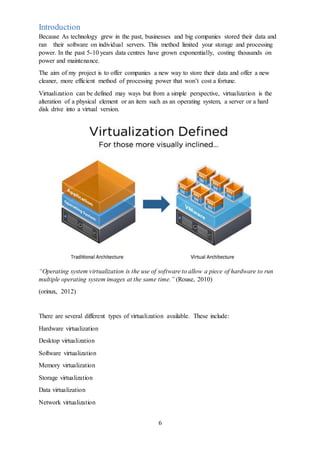
Virtualization can be defined may ways but from a simple perspective, virtualization is the
alteration of a physical element or an item such as an operating system, a server or a hard
disk drive into a virtual version.
“Operating system virtualization is the use of software to allow a piece of hardware to run
multiple operating system images at the same time.” (Rouse, 2010)
(orinux, 2012)
There are several different types of virtualization available. These include:
Hardware virtualization
Desktop virtualization
Software virtualization
Memory virtualization
Storage virtualization
Data virtualization
Network virtualization
7
History of Virtualization
Evolving in the late 1960’s and early 1970’s, virtualization was first sought after by MIT in
Massachusetts, they were given a grant by DARPA to fund research into computer hardware
capable of being accessed by more than one user simultaneously. MIT reached out to the tech
giants at the time, who were IBM and GE. IBM refused to aid MIT as they did not see a
future in their proposal. GE on the other hand were willing to work with MIT on their
proposal. This loss of opportunity drove IBM to realise there was a growing interest in the
idea of virtual machines. (Oracle, 2012)
CP-40
Noticing the demand, IBM were quick to build the CP-40 which was only used in labs at the
time. This hardware was the first major step towards future success as it lead to the first unit
which supported virtualization.
CP-67
The CP-67 was the first commercially available mainframe system released in 1968 which
supported virtualization. The software which ran on the CP-67 was broken into two parts, CP
and CMS. CMS was a small piece of software which the user could interact with, while CP
created and managed virtual machines. The first stable version of CP/CMS was not released
until 1972.
Time sharing VS virtualization
Time sharing computing was developed by IBM in the early 1970’s. “The idea of time
sharing was to divide up the memory and other system resources between users.” (Oracle,
2012). The first operating system to implement time sharing was MultiCS. MultiCS was
created by MIT during a research phase with financial grants from DARPA. MultiCS was in
the future years evolved into UNIX by the company Bell Labs.
The CP (virtualization) approach allowed each user to have their own complete operating
system which effectively gave each user their own computer, and the operating was much
simpler. Virtualization produced much more efficient results vs time share as it was able to
share all the resources to users instead of having the resources split between users.
Virtualization was also more reliable and secure as each user was running in their own
operating environment, which also meant that if one user crashed, their operating system
would go down but the entire mainframe would stay up and running (Saboowala, 2013)
Hardware virtualization Introduction
In 1987, SoftPC was released to the public. SoftPC allowed users to run MS Dos applications
on their UNIX workstations. By 1989 SoftPC was capable of running windows applications
which drew the attention of Apple. Apple soon released their own software named Virtual
PC. Like SoftPC, Virtual PC allowed users to run other instances of an operating system on
their MAC computer. This up rise of virtualization software lead to the founding of VMware,
8
now the world’s largest virtualization software provider with a market share of 65% as of
2012. (shein, 2012)
VMware Hypervisor introduction
VMware released two products in 2001. The first was GSX Server (Type 2 Hypervisor)
which required the user to have a pre-existing operating system installed in order to install a
virtual machine. The second was ESX Server (Type 1 Hypervisor) which did not require the
user to have a pre-existing instance of an OS installed in order to set up a virtual machine.
The ESX type 1 hypervisor was welcomed much more quickly than the GSX as it was easier
to manipulate and required less system resources. (Admin, 2011)
Competitors
Microsoft also released virtualization software in 2003 named Microsoft Virtual PC 2004 and
soon after released a 2005 edition. Citrix entered the virtualization market in 2007 with an
open source software called Xenserver. Other vendors who have released virtualization
software include Oracle, who in 2009 successfully bought out Sun Micro Systems, Red Hat
and Amazon.
Virtual Desktop Infrastructures (VDI) Introduction
Virtual desktops enable the users to have their own operating systems on their own machines.
Each user will be sharing resources without disrupting other users. VMware introduced their
VDI product in 2007 with the addition of virtual machine manager.
Benefits of Virtualization
Savings and Costs
“Virtualization allows multiple applications to run on a single server. Because each
application no longer needs its own server, virtualization significantly decreases the amount
of hardware required thus reducing energy costs” (Bernier, 2011)
Reducing your number of physical servers can save your company thousands on not only
electricity but also licensing and maintenance costs. Removing three severs racks for instance
can allow you to remove a cooling rack, saving you money and the electricity funds it cost to
run it. According to the American uptime institute, removing a single rack server can save a
business up to $500. It can also reduce the cost of licensing fees for operating systems also up
to $500. The major savings that the institute found was in hardware maintenance costs which
totalled $1,500. (energystar, 2012).While researching the energy costs for virtualization I
came across a study undertaken in 2010 which outlined a detailed 3 year cost analysis of a
business which has 35 servers in house without virtualization. The statistics were then
compared to those if they had virtualization installed. The results that were found were
substantial. The business could cut their 35 physical servers down to 4 physical servers
hosting 35 virtual machines. With a total savings of $280,000, which included $150,000 on
direct costs such as server hardware and networking decommissioning and over $130,000 on
power and server provisioning. This is a huge step in the right direction for a company that
9
needs to save on annual costs. The savings would increase tenfold if a company was running
hundreds of servers. (energystar, 2012)
Less environmental Impact
This point ties in quite a bit with energy saving. In both the server and desktop environments,
virtualization presents businesses with the chance to improve their utilization of IT assets,
reduce overall energy consumption and help shrink their carbon footprint. At the desktop
virtualization level there are several facilities that are already aiding a decreased carbon
footprint. The introduction of efficient thin clients has meant that redundant computers can
now be reused as lower function access devices, not forgetting that thin clients are also build
for energy efficiency. (greencube, 2012). The implementation of virtualization has also
allowed users to
Access their virtual environment from devices other than in their office or business such as a
mobile device. This can substantially reduce the amount of active running machines at any
one time in a company thus saving energy and hopefully the environment.
Reduce chances of Vendor Lock-In
Vendor lock in has become a major factor when choosing a vendor for a server environment.
Vendors such as Oracle and Microsoft have been inundated with complaints from companies
who cannot port their secure data to another vendor as their current hardware implementation
is not compatible. Vendors do this in order to keep their company ahead of the competitors
Costs
Direct Costs
Without Virtualization With Virtualization Savings
VendorServices $ --- $ 17,000 $ ---
VendorSoftware $ --- $ 38,938 $ ---
Third party Software $ --- $ --- $ ---
Server Hardware $ 229,500 $ 27,000 $ 202,500
Network Costs $ 49,500 $ 18,000 $ 31,500
SAN Costs $ --- $ 30,000 $ ---
Total DirectCosts
Indirect Costs
$ 279,000 $ 130,938 $ 148,063
Data Centre $ 136,823 $ 16,965 $ 119,858
Server Provisioning $11,745 $ 1,980 $ 9,765
Server Admin $ 50,760 $ 55,080 $ -4,320
Procurement $8,750 $ 750 $ 8,000
Total Indirect Costs $ 208,078 $ 74,775 $ 133,303
TOTAL COSTS $ 487,078 $ 205,712 $281,366
10
and to gain the most subscribers. As virtualization can be ran on any hardware, vendor lock in
is not a problem thus you are not tied down to one provider. (Wallen, 2013)
Increase Uptime
Most virtualization software’s provide many different ways to
keep your servers or devices running smoothly. You are also
provided with features to quickly and safely recover from sudden
outages. These tools include features like live migration, storage
migration, fault tolerance, high availability, and distributed
resource scheduling. “Virtualization also makes it easier to move
a virtual machine from one server to another -- or even move it
across data centres in different locations without experiencing
major downtime.” (Laserfiche, 2013) Picture: (HWS, 2009)
This availability of resources in the virtualization environment means that your server should
have a very high Uptime vs. Downtime which is essential for businesses that are trading in
high stress markets 24 hours a day.
Makes Migrating to the Cloud Simpler
As the world’s data is moving to the cloud it is important to stay ahead of the ever growing
technology that is cloud management. Once your data centre has been virtualized it is a much
simpler task to move to the cloud if the option becomes available.
In summary, the benefits of virtualization can be expressed in the following table:
(ISACA white paper, 2010)
Challenges of virtualization
Security Concerns
As with every IT infrastructure there is an ever-growing security threat evolving which can
cause potential customers to shy away from causing their business to evolve at a slow pace.
In relation to virtualization, there are two potentially crippling security threats which need to
be outlined. Hyperjacking is implemented by placing a false hypervisor under the real
application, which essentially gives control to the attacker over all interactions between the
hardware and the user. Some examples of Hyperjacking are “Blue Pill”, “Vitriol” and
“SubVirt”. The second type of attack is called VM jumping which has a much higher
probability rate. This type of attack is more of a brute force attack, aiming for vulnerable and
weak points in a hypervisor. Initially the attacker can only access low levels of the hyper-v
which does not give them access to potentially valuable data. This low level attack can allow
11
for further attacks and potentially access to other VM’s or possibly the main hypervisor level
itself.
(ISACA white paper, 2010) (Jennings, 2011) (F5 Networks, 2008)
Support
Even though vendors such as VMWare and Microsoft provide a list of compatible software
apps and add-ons, there is a large number of ISV’s (Independent software vendors) that are
not recognising virtualization. This can be down to technical limitations where hardware is
not compatible with virtualization and also it can be in relation to a business strategy where a
software provider only wishes to provide services to one Virtualization Company.
I/O Overload
Another challenge that needs to be considered in server virtualization is how to manage the
high levels of Input and Output (I/O) which multiple VMs running on a single physical host
can produce, all of which are going through one main hypervisor running on the host. A
solution that has been adopted by many companies is to implement a virtualization cache
which can have hundreds of gigabytes of fast solid state memory. (Rubens, 2012)
Product Comparison
The two leading virtualization product providers are Microsoft and VMware. I researched
each product suite thoroughly comparing VMware’s VSphere version 4 against Microsoft’s
Hyper-V R2 and my results included the following finding:
Key Strengths
VMware Microsoft
Big Company Backing Leading Software Vendor
Hypervisor Leader Huge Enterprise Foothold in OS
Huge Adoption Worldwide Enterprise Driven
Innovator Larger Net Worth
Leading Market Share Stock price cheaper vs. VM
12
(Surksum, 2013) (Public, 2013) (virtualiation matrix, 2013)
13
VMware was founded in 1998 and remained dormant for the most part of a year until it was
finally released to the public in 1999. VMware workstation was the first product released
Alongside the GSX and ESX server. Following the great success of the workstation, in 2003,
virtual centre, vmotion and virtual SMp were released followed shortly by 64 bit support for
all packages. In 2004 the company went into receivership and was bought by EMC
Corporation for $625 million. (Public, 2013). After some tough years in the market VMware
announced in September 2008 that it was collaborating with cisco to release the nexus 1000v,
an optional piece of VMware integration software that managed distributed virtualization.
Overall VMware’s software provides a totally virtualized set of hardware to the user via their
operating system. VMware software basically removes the need for a video adapter, a
network adapter, and hard disk as these are all virtually presented to the user. The host
provides drivers for guest USB, serial, and parallel devices. In this way, VMware virtual
machines become highly portable between computers, because every host looks nearly
identical to the guest. A huge positive point in the VM software is that an administrator can
pause processes on a virtual machine and port or move that user to another physical
computer, and continue execution exactly at the point of interruption. Alternatively, for large
scale companies or businesses, “A feature called vmotion allows the migration of operational
guest virtual machines between similar but separate hardware hosts sharing the same
storage.” (Public, 2013) All of these operations are totally invisible to any users on the
virtual machine at the time it is being transferred. In conclusion it is easy to see why VMware
are the leaders in the virtualization market. Their initial range of hypervisors (GSK, ESK)
were what put them on the path to success. Their trusted software has allowed them to
become the go-to company for virtualization solutions.
As of 2012 VMware’s financial standings are as follows:
Revenue : $ 4.61 billion
Operating Income : $ 872 million
Net Income : $ 746 million
Total Assets : $ 8.09 billion
Total Equity : $4.63 billion
Employees : 13,800
(Public, 2013)
14
Microsoft Virtual server / Hyper-V
Virtual server was released by Microsoft as an answer to the virtualization market. The
software allowed users or administrators to create instances of virtual machines on such
operating systems as Windows XP, vista and server 2003. This “windows only” limitation
was a huge negative point in Microsoft’s master plan as many users wished for a Linux based
support system. In 2005 a new version was released known as R2 SP1 or service pack 1. This
version allowed for Linux operating system integration as well as support for 64 bit operating
systems on the host end. In June 11 2007 virtual server was discontinued and replaced by
Hyper-V (Public, 2012)
Hyper-V is a hypervisor that allows virtualization on both 32 and 64 bit systems. Hyper-V
was first publically released in the form of a beta integrated in editions of Windows Server
2008, which was later finalised via windows update on June 2008. In March 2011 Hyper-V
was released as a standalone software along with a service Pack 1 update.
Hyper-V technology is known for being both scalable and upgradable, and for providing
excellent up-time to users. Because of the nature of hypervisor technology, users can choose
to run any OS they wish at a local level, and it will not interfere with others that are kept on
the server. Also, Hyper-V VDS can respond quickly to problems that may arise in a single
VDS and allow for correction to take place before the problem spreads and all VMs on a
machine are suddenly vulnerable to an attack. (Attwood, 2011).
MICROSOFT HYPER-V
LIMITATIONS STRENGTHS
No support for USB virtualization 32 & 64 bit compatible
No support for audio virtualization Large memory support
Virtual Optical drives are read only Secure data encryption
Supports only VGA drivers on the host Live Backup
No support of live migration Integrated Cluster Support
No MS Home edition support New hardware sharing architecture
Project Plan
I will install VMware’s VSphere Hypervisor based on ESXI as a virtual operating system.
This will be installed on an i5 server which will be resources sufficient to create and
maintain up to four virtual servers.
The software that I will install on the various servers will differ. In order to fully test
virtualization, and answer some of my research questions, I will install three different server
operating systems: Microsoft server 2008, Ubuntu 13.1, and Red Hat Server Manager. To
create three or four virtual machines I will share the hardware resources such as CPU, RAM
and hard disk space evenly between them. Once created, I will test the previously outlined
test scenarios that , security threats, backups and recoveries.
15
I will also investigate energy usage calculations using appropriate hardware. I can firstly test
the wattage being used by my server without any virtual servers running and from that
reading, calculate the power consumed. This can then be repeated with the same server
running multiple servers and statistics can be compared. The aim of installing three different
server operating systems is to test several scenarios and compare the results.
I hope to find a suitable stress testing software, suitable for all the Operating systems which
can produce important data that can be compared. I hope to add more points to my project
plan as I begin the implementation stages of my project.
Project Design
As mentioned above I will be using a powerful computer capable of running the software that
I plan to install. It will also have enough hardware to share resources to the virtual servers.
The software that I will use is mostly freeware and is readily available online. Microsoft
server 2008 does require a licence, but I can acquire one from the colleges MSDNAA
service. I planned on using VMware’s free VSphere but I was informed that I could avail of a
full version also, which comes from an academic website linked to the IT Tralee.
New research Questions
Over or under allocation of resources
A major topic that I came across when researching this topic was the importance of correctly
allocating resources to virtual machines.
“Many servers, such as DHCP servers and DNS servers don’t even come close to using the
hardware’s full potential. In fact, often times less than ten percent of a server’s processing
power is actually used on an ongoing basis” (Posey, 2008)
16
This means that the success of a virtual server is greatly dependant on the allocation of
resources you provide it with. If you give it sufficient resources to complete its job then you
will not only save on physical hardware costs but also energy costs. Whereas if you’re virtual
server was provided with twice the resources that it required, it would be an inefficient
system, costing you money.
The main task is to arrange the host operating system and the virtual operating systems to use
resources as efficiently as possible in order to gain the maximum usage out of your hardware.
The problem with this is that some admin’s can spread their resources too thin and end up
with the host server and virtual machines underperforming. It is therefore essential to
calculate the resources that your systems will require. In order to accomplish this you need to
take the following points into consideration:
 Analyse application resources
Analysing the programs and software that will be used on your machines is the first step. This
can help you to accurately calculate how much resources you should implement and where it
is requires the most. When implementing resources it is easier to start with less resources and
add later as needed.
 Work with your vendors
It is also important to work with your software vendors. These vendors can help with first
time resource allocation. Some vendors such as VMware have a built in resource tool called
the Distributed Resource Scheduler. This tool helps:
 Provide highly available resources to your workloads.
 Balance workloads for optimal performance.
 Scale and manage computing resources without service disruption
(McShinsky, 2009) (VMWare, 2013)
Implementation
ESXI
For my project implementation I chose to use VMware ESXI as one of my two server
hypervisors. I then chose to install different operating systems virtually onto the hypervisor
17
for testing. The reason I chose VMware as one my hypervisor’s to test was that it is a leading
company in terms of server virtualization. I also read several reviews from people who had
first-hand experience with using the software and they claim it to be simple and user friendly.
As this was my first time using virtualization on a hardware level, I wanted a straightforward
software that if I was to run into errors, could be easily fixed with the help of online
documentation or user forums. My infrastructure will look something like the diagram below.
Installation
Installing ESXI was accomplished by downloading the V Sphere free Hyper-V ISO file. To
install, I chose a new formatted hard disk and booted it into ESXI setup via a USB bootable
drive. Below are some sample screenshots of the steps taken to install. The screenshots are
not of my setup as I had no way to record the process as it was installing.
Once I had chosen to boot from USB the ESXI loader screen appeared:
I was then prompted to choose whether I wanted a fresh install or to repair an older instance:
18
The next window displayed all available drives and I was prompted to choose one for
installation:
ESXI then installs:
19
Once installed you are prompted with the configuration screen, from here you can configure
some settings and view your network addresses for future use, such as connecting to clients.
Before I could move onto the client software I had to setup an administrator account on the
server so that access to the settings and files would be restricted with a username and
password. This account would also be needed when logging in with the client software.
(Vanover, 2009)
20
Troubleshooting
Some complications that I ran into when installing ESXI was that, at first it was not
recognising my network card on the server, therefore it could not complete installation. I read
several forums and guides online and some suggested that in the newer versions of ESXI
VMware had removed a certain portion of network card drivers. With this in mind I set out to
attain my network drivers. As ESXI is not windows based software, it only accepted tar.gz
Linux based files for drivers. One I had found a suitable pack of drivers I downloaded a
software which integrated tar.gz files into my bootable ISO file. Unfortunately I had to re-
format the HDD and reinstall with the new ISO. Once installed it successfully recognised my
Accessing the server
To access the server I had to download the VMware VSphere Client software. This is an
access portal to the esxi server. It allows you to create, delete and edit your virtual server
instances while using no resources on the computer that it is installed. Once installed you are
prompted with the login screen as seen here  It prompts the user for the host ip address and
the administrator username and password. These credentials were setup when the server was
installed. To find the ip address needed I logged into my server and on the home screen
display there is a line that states “Download tools to manage this host from: 192.168.1.1”.
This is the ip address needed to login. When I started my server the ip address resolution was
set to dhcp which meant that it relied on my router to assign the host an ip address. The dhcp
pool failed to assign an ip address thus my only option was to set a static ip which worked.
Once I rebooted the server the dhcp pool assigned the host and address and network access
was resumed.
21
ESXI Initial Overview
When I first logged in to the client it took me a few minutes to flick through all the tabs to
find out what each functioned as. The layout itself is quite simplistic and resembles a
standard Microsoft operating system window. The layout across the top of the page was
similar to most windows with the usual options like file, edit, help and view. I also came
across the summary tab which gave a very comprehensive overview of the esxi system. This
included disk space both virtual and physical, server specifications, resources available,
number of virtual machines and much more that wasn’t related to my project This layout
made me more confident in using the software without the use of documentation or video
guides. The next step I took was to setup a virtual machine which is one the main tasks of my
project.
Virtual Machine Setup
To test the hypervisor I needed to install one or more virtual machines with guest operating
systems. To do this I navigated to the home page and entered the inventory tab:
22
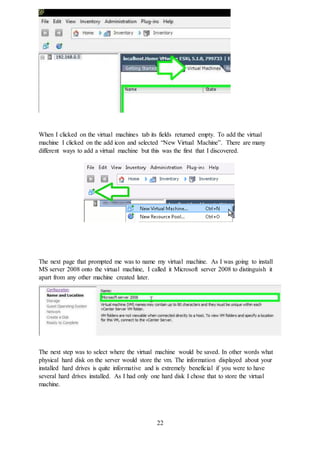
When I clicked on the virtual machines tab its fields returned empty. To add the virtual
machine I clicked on the add icon and selected “New Virtual Machine”. There are many
different ways to add a virtual machine but this was the first that I discovered.
The next page that prompted me was to name my virtual machine. As I was going to install
MS server 2008 onto the virtual machine, I called it Microsoft server 2008 to distinguish it
apart from any other machine created later.
The next step was to select where the virtual machine would be saved. In other words what
physical hard disk on the server would store the vm. The information displayed about your
installed hard drives is quite informative and is extremely beneficial if you were to have
several hard drives installed. As I had only one hard disk I chose that to store the virtual
machine.
23
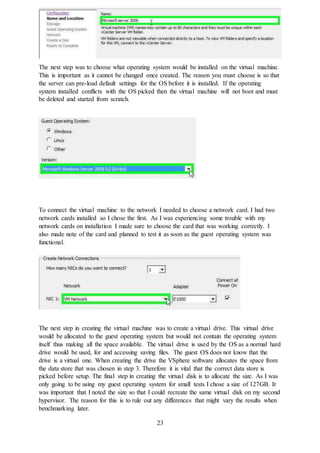
The next step was to choose what operating system would be installed on the virtual machine.
This is important as it cannot be changed once created. The reason you must choose is so that
the server can pre-load default settings for the OS before it is installed. If the operating
system installed conflicts with the OS picked then the virtual machine will not boot and must
be deleted and started from scratch.
To connect the virtual machine to the network I needed to choose a network card. I had two
network cards installed so I chose the first. As I was experiencing some trouble with my
network cards on installation I made sure to choose the card that was working correctly. I
also made note of the card and planned to test it as soon as the guest operating system was
functional.
The next step in creating the virtual machine was to create a virtual drive. This virtual drive
would be allocated to the guest operating system but would not contain the operating system
itself thus making all the space available. The virtual drive is used by the OS as a normal hard
drive would be used, for and accessing saving files. The guest OS does not know that the
drive is a virtual one. When creating the drive the VSphere software allocates the space from
the data store that was chosen in step 3. Therefore it is vital that the correct data store is
picked before setup. The final step in creating the virtual disk is to allocate the size. As I was
only going to be using my guest operating system for small tests I chose a size of 127GB. It
was important that I noted the size so that I could recreate the same virtual disk on my second
hypervisor. The reason for this is to rule out any differences that might vary the results when
benchmarking later.
24
Once created I opened back up the virtual machines tab and found the newly created virtual
machine displayed. It displayed details such as current state, disk drive space, memory
allocated and used space.
Guest Operating System
The next step I took was add an operating system to the virtual machine. I chose to do this by
burning a bootable server 2008 DVD. You can also use a bootable USB or search locally on
the client computer for the ISO. As I was not asked to install any optional features to the
virtual machine on setup, I now have to add a virtual DVD drive to the computer. This can be
done to add many peripherals such as USB ports, network cards and even extra CPU cores.
To add the DVD drive I right clicked on the virtual machine name and selected the edit
settings option:
I was then presented with the virtual machines devices. I could see there was no DVD drive
present as default so I clicked show all devices but the result was the same.
25
I then clicked the add button which displayed a list of all the devices that I could add to the
virtual machine. I added one USB drive for future testing and I added the DVD drive for
operating system installation.
26
The next step is the final step in the installation phase. To install the operating system on the
virtual drive I firstly placed the server 2008 ISO disk in the host DVD drive. To make sure
the virtual machine would boot to the DVD drive I entered the settings tab once more and
navigated to the options tab where I enabled a force BIOS setup, which meant that the next
time the virtual machine would turn on it would automatically enter the bios setup. The
reason for this as seen below in the images is that the bios allows me to set the boot order for
the virtual machine. To set the DVD as boot number one I opened the console and clicked on
the boot tab and moved the DVD to the top order and saved my changes. I then closed the
console and clicked on the virtual machine name and selected the open console option. This
is basically like opening a small pc monitor and turning on a computer. To enable the virtual
machine to boot to the ISO I had to point the DVD drive to the host device as shown below.
27
The next step was to open the console and begin the server installation. Once the virtual
machine has booted you are prompted to press any key to bot from the DVD. You can then
follow the installation as normal.
28
Linux Operating systems
To broaden my testing results and in an aim to vary my guest operating systems, I initially
chose to install two suites, Microsoft server 2008 and Ubuntu server. After a smooth
installation with server 2008 I expected Ubuntu to be the same, however after several
attempts the server could not install it. I attempted to install three different Linux based
servers in an attempt to get it working. SUSE Linux, Ubuntu and Red Hat. I did not want to
spend too much time attempting to salvage the installations so I abandoned the Linux
versions and went with server 2008.
Benchmarking
Virtualization technologies have dramatically changed how businesses run their applications,
but the initial task in choosing the correct hypervisor software can be the most important in
virtualizing your business. For my project I wanted to install two hypervisors and test each of
them with benchmark software. I could then compare and contrast the results from both and
come to a conclusion whether there is a little or large difference in the software’s architecture
and how each deals differently with tasks. For this benchmark to work correctly I had to run
the software on a guest OS that was over the hypervisor. For this I used my server 2008
installation.
Choosing the correct benchmark software was the next task. I was looking for software that
would be able to run CPU executions under load, memory tasks and large read/write
executions on a hard disk. As both of the hypervisors would be installed on the same host
with the same spec hard drives, the test should be very fair. The only difference is the
underlying hypervisor. I researched several benchmark software and came up with three
possibilities:
Heavy Load
Heavy load is a freeware benchmark software that places heavy load on your hardware and
creates a live graph based on the results. The software main testing points are as follows:
 Stress CPU
 Write Test File
 Allocate Memory
 Simulate Disc Accesses
I installed the software and ran some tests. The results were very graphical and easy to read
but the tests were only for CPU load and stress testing. As I was looking for more thorough
results like calculations per second I chose not to use this software. (Jam Software, 2014)
29
SpecVirt
The second benchmark software I tested was SPEC virt™ sc2013. This is a much more
complex software which tests several factors including power consumption and resource
usage. Unfortunately I could not test this software as there was no free version available.
(Spec, 2014)
Passmark
The third piece of software I tested was Passmark. This software came up the most when I
was searching for a good performance tester. Users praised its simple interface and large
range of testing options. The download was free and once installed I was able to run several
test without referring to the online manual. The few tests that I ran returned successful and
were explained in great detail. Taking all the factors into consideration and with a time limit
for the project I chose Passmark as the benchmark I would use. (Passmark, 2014)
30
Testing
Once the software is opened you are shown the following screen. Initially I selected the run
benchmark option which test all the options including the graphics card which is not essential
for my server.
Therefore I needed to perform more precise tests such as CPU only and memory only. After
using the software for longer I found the test tab which allowed me to test each piece of
hardware separately. It also allowed me to choose the test that I would like to run on the
hardware. For example I could choose to run a prime number test on the CPU which would
calculate how many prime numbers per second the CPU could calculate. This customization
is very useful if you do not want to run all the test which can take several minutes. To get the
most accurate test on each piece of hardware I chose to run the full tests and take document
the results.
31
CPU test running:
Once the test has completed Passmark displays your results on a graph. Once your software is
up to date the results will be compared beside hardware that was also tested using Passmark.
The next step I took was to test the rest of the hardware and document the results. I tested
memory and disk calculations. I then saved the results in an aim to create a graph at the end
comparing both hypervisors. (Hwang, et al., 2013)
ESXI conclusion
From my time working with VMware’s ESXI I have found it to be a simple straightforward
virtualization software. If you have never dealt with virtualization software before then it may
be some challenge. The layout of the software is very similar to a windows environment, thus
it was more easily navigable. For my project I had to focus mainly on the virtual machines
and guest operating systems, therefore I did no benefit from the large amount of extra
functions and options that the software has to offer. Based on the installations that I did using
ESXI I can say that I would definitely use it again as a virtualization solution. I can only
speak for a small scale setup as I did not have the resources to test in a larger scale. Once I
test the second hypervisor I will give another comparison and conclusion on each and choose
the one which I feel can benefit a company’s change to virtualization the most.
32
Microsoft Hypervisor –V
The second hypervisor software I chose for my project was Microsoft hyper-V. Like ESXI I
chose to use a barebones hypervisor from Microsoft and access it with a client software or a
web client. The reason I chose hyper-V was because of Microsoft’s history and loyal
following. Microsoft are coming in a close second behind VMware when it comes to user
base and units sold. I also chose hyper-V as most third party software and drivers are
compatible with Microsoft products.
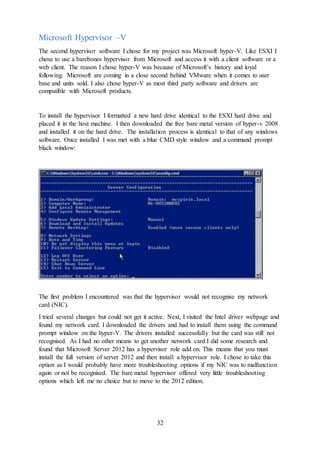
To install the hypervisor I formatted a new hard drive identical to the ESXI hard drive and
placed it in the host machine. I then downloaded the free bare metal version of hyper-v 2008
and installed it on the hard drive. The installation process is identical to that of any windows
software. Once installed I was met with a blue CMD style window and a command prompt
black window:
The first problem I encountered was that the hypervisor would not recognise my network
card (NIC).
I tried several changes but could not get it active. Next, I visited the Intel driver webpage and
found my network card. I downloaded the drivers and had to install them using the command
prompt window on the hyper-V. The drivers installed successfully but the card was still not
recognised. As I had no other means to get another network card I did some research and
found that Microsoft Server 2012 has a hypervisor role add on. This means that you must
install the full version of server 2012 and then install a hypervisor role. I chose to take this
option as I would probably have more troubleshooting options if my NIC was to malfunction
again or not be recognised. The bare metal hypervisor offered very little troubleshooting
options which left me no choice but to move to the 2012 edition.
33
Microsoft Server 2012
The bare metal hypervisor from Microsoft was a free trial but with the help of dreamspark.net
I was able to attain a full licence for the server 2012 copy. Dreamspark is a Microsoft website
which is linked to many academic institutions providing licences for Microsoft software. The
installation process was the exact same as the bare metal version but with a much more
interactive and desktop style interface.
Adding the hypervisor role
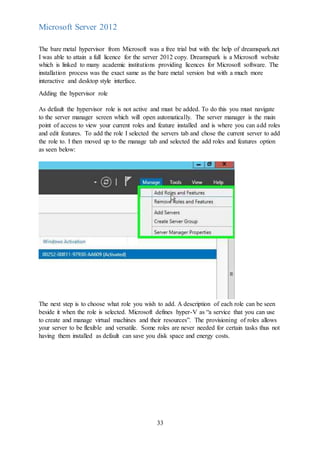
As default the hypervisor role is not active and must be added. To do this you must navigate
to the server manager screen which will open automatically. The server manager is the main
point of access to view your current roles and feature installed and is where you can add roles
and edit features. To add the role I selected the servers tab and chose the current server to add
the role to. I then moved up to the manage tab and selected the add roles and features option
as seen below:
The next step is to choose what role you wish to add. A description of each role can be seen
beside it when the role is selected. Microsoft defines hyper-V as “a service that you can use
to create and manage virtual machines and their resources”. The provisioning of roles allows
your server to be flexible and versatile. Some roles are never needed for certain tasks thus not
having them installed as default can save you disk space and energy costs.
34
Once the role is added you can navigate back to the server manager window and wait a few
minutes for the role to become active. Before you can use the hypervisor role you must first
restart your server. As I am only using one server I can just restart it manually. Once restarted
you can view the hyper-v and its activity status in the server manager window
35
The hyper-V can also be seen on the server dashboard under role and server groups
As windows server has adopted a new metro style environment similar to that of windows 8,
it is much easier to navigate to your path, especially if you are an avid windows user. There
are several ways to access and manage the hyper-V role. The easiest of which is the newly
introduced hyper-V metro tile. The tile can be accessed by pressing the windows button. This
feature allows even the most basic users to easily find their bearings.
36
The hyper-V manager window contains all the tools needed to create, import and edit your
virtual machines. The layout is simple and all the options are located in an actions pane. The
next step I had to take was to begin creating my virtual machine which would contain my
guest operating system.
The setup for the virtual machine is quite like the ESXI steps seen before. The first window
ask to name the virtual machine.
Next I had to allocate memory to the machine. It was important that I chose the same amount
as the VMware virtual machine in order to achieve accurate testing results. In large scale
virtualization setups companies can sometimes over allocate or under allocate their resources
to the vm’s. This can lead to an unbalanced workload and sometimes can lead to
overstressing the under allocated vm’s and cause a failure.
37
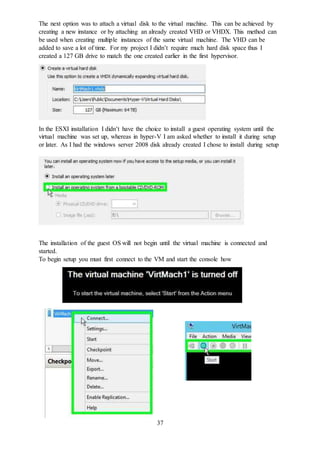
The next option was to attach a virtual disk to the virtual machine. This can be achieved by
creating a new instance or by attaching an already created VHD or VHDX. This method can
be used when creating multiple instances of the same virtual machine. The VHD can be
added to save a lot of time. For my project I didn’t require much hard disk space thus I
created a 127 GB drive to match the one created earlier in the first hypervisor.
In the ESXI installation I didn’t have the choice to install a guest operating system until the
virtual machine was set up, whereas in hyper-V I am asked whether to install it during setup
or later. As I had the windows server 2008 disk already created I chose to install during setup
The installation of the guest OS will not begin until the virtual machine is connected and
started.
To begin setup you must first connect to the VM and start the console how
38
Once the virtual machine was started the guest OS installation began. The installation process
was the same as seen before in the VMware setup. Once installed I restarted the server and
started the VM again. I then installed Passmark as before and began the same test that I
carried out on the ESXI hypervisor. I ran a control test with no programs running and took a
note of the results. I then ran a test with some programs running to see if the results would
change. I noted the results and began to compare them with my other results.
Microsoft Hyper-V Conclusion
Overall I found hyper-v to be the easier of the two hypervisors to manage. I think this is
largely due to the fact that I use Microsoft operating systems every day and have previously
had experience using server 2008 and 2012. After using the software for several weeks I
think that users who are not familiar with Microsoft products will still be able to quickly and
easily navigate through the options. The main service that I was using was the hyper-v
manager which is simple, tidy and user friendly. The process for setting up virtual machines
onto the hypervisor is stepped out in a very simple way and allows for varied customisation
even before the guest OS is installed. There are many benefits to using the native hypervisor
such as troubleshooting. Any errors in hardware or setup files can be fixed immediately as
you are on the hosted hardware instead of the host being in another building or even another
country.
Benchmark Results
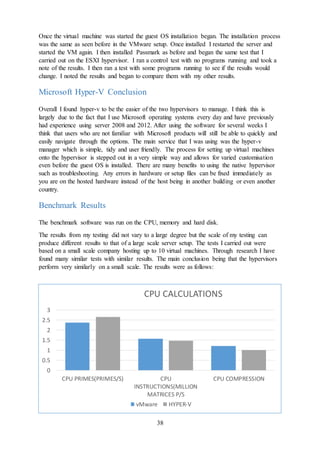
The benchmark software was run on the CPU, memory and hard disk.
The results from my testing did not vary to a large degree but the scale of my testing can
produce different results to that of a large scale server setup. The tests I carried out were
based on a small scale company hosting up to 10 virtual machines. Through research I have
found many similar tests with similar results. The main conclusion being that the hypervisors
perform very similarly on a small scale. The results were as follows:
0
0.5
1
1.5
2
2.5
3
CPU PRIMES(PRIMES/S) CPU
INSTRUCTIONS(MILLION
MATRICES P/S
CPU COMPRESSION
CPU CALCULATIONS
vMware HYPER-V
39
0
20
40
60
80
100
DISK READ(MB/S) DISK WRITE(MB/S) DISK SEEK(MB/S)
DISK RESULTS
vMware HYPER-V
0
2000
4000
6000
8000
10000
READ(MB/S) WRITE(MB/S)
MEMORYRESULTS
vMware HYPER-V
10
10.5
11
11.5
12
THOUSANDS OF OPERATION P/S
MEMORYRESULTS
vMware HYPER-V
40
Migration to the cloud
Moving virtual machines to the cloud is the next step in virtualization for businesses. There
are many benefits of migrating such as lower energy costs, lower hardware costs. A business
can reduce its staff numbers as more and more servers will become idle. The initial setup of a
server can cost company capital which may look like its spread over the lifetime of the
server. Cloud services let someone else take the worries of capital investment. With these
benefits in mind, it is still important to consider the possible negatives and drawbacks of
migration.
Compatibility
Most companies when migrating to the cloud assume automatically that the target cloud will
support their operating system, but a lot of companies tend to have more diverse needs.
Therefore it is important to check with your cloud provider before migrating your machines.
It is also very important to inform your cloud host of any specific network architecture that
you might have on your instances. Like the operating systems, some cloud providers may not
support some of the services your machines rely on.
Performance Levels
Performance levels in the cloud environment can vary compared to on-site servers. Therefore
it is important that you test your resources on the cloud before making them live. The under
allocation of resources can lead the virtual machine failing on the cloud environment. Testing
the resources and accounting for fluctuations is essential to get the best performance levels
possible
Cost
The cost of running in the cloud can sometimes be substantially greater than on-site servers.
A business must first take into consideration all the factors that require them to migrate such
as future expansion, customer demand and hardware and maintenance costs.
Learning Curve
It is important to train your staff and get them up to speed with the new processes. Companies
can expect a gradual learning curve which can cost money and time but is very important to
ensure a smooth transition and a stable future.
Azure Cloud
Moving VM’s from the Hyper-v environment to the Azure cloud environment has been made
as simple as possible by Microsoft. In a few simple steps you can push virtual machines to
the cloud. With some research I found several guides on how to push to Azure and even how
to do the opposite, move VM’s back to the Hyper-V. However, as stated above it is important
to test your virtual machines on the cloud for incompatibility or special services you require
before making them live. The migration from ESXI to Azure can also be accomplished but as
ESXI is not a Microsoft product they have made it a bit more of a hassle. Overall the
portability of virtual machines between Microsoft products is impeccable and requires only a
few simple steps.
(Jennings, 2011), (Preimesberger, 2014), (Bernier, 2014)
41
Project Conclusion
The main goal of this project was to explain and display how virtualization could benefit a
company. I set out to test this by using server virtualization as my platform. Some of the
goals (which ones ) that I had set out for myself were quite difficult and could not be attained
in the small scale or short time frame that I had and may be the subject of future studies . We
relied on freeware products and Microsoft licences from Dreamspark. I did encounter some
minor issues during the implementation such as …. which were a positive learning curve.
I configured two hypervisors on a hosted server, both of which were running guest operating
systems. I then tested them. The testss were hindered by the fact that a lot of benchmarking
software was not free and not made by Microsoft.
The benchmarking software showed clearly that in the scale I was testing, that there was
very little difference, performance wise in the underlying hypervisors and how they assign
resources to the virtual machines. The results were thorough and concluded that neither
hypervisor was better.
Another factor that I focused on was user friendliness and convenience in relation to the
hypervisors interface. Microsoft offer a rich, colourful interface that welcomes windows
users to a familiar environment that is easy to navigate and simple to manage.
VMware offer a client solution that is simple, straightforward and again uncomplicated. The
only difference is that you don’t enjoy using the VSphere client as it is dull and linear
compared to Hyper-V. VMware’s package is there to provide you with a hypervisor service
and nothing else.
In conclusion I feel that I have accomplished some important and difficult goals and have
achieved some interesting results. With some more time and access to more complex
software, the project could have evolved. Overall I am happy with the end result and have
gained valuable knowledge from the process.
42
Bibliography
Admin, 2011. history of virtualisation. [Online]
Available at: http://www.everythingvm.com/content/history-virtualization
Attwood, t., 2011. hyper v explianed. [Online]
Available at: http://myhosting.com/blog/2011/06/hyper-v-explained-microsofts-hypervisor-
based-virtualization/
[Accessed 25 11 2013].
Bernier, C., 2014. Move VM’s between Hyper-V and Windows Azure. [Online]
Available at: http://blogs.technet.com/b/cbernier/archive/2014/01/27/move-vm-s-between-
hyper-v-and-windows-azure.aspx
[Accessed 08 05 2014].
Bernier, P., 2011. the green issue. [Online]
Available at: http://www.tmcnet.com/voip/0310/virtualization-sees-green-but-more-energy-
savings-could-be-realized.htm
energystar, 2012. server virtualization. [Online]
Available at:
http://www.energystar.gov/index.cfm?c=power_mgt.datacenter_efficiency_virtualization
F5 Networks, 2008. virtualization painpoints. [Online]
Available at: http://www.f5.com/pdf/white-papers/virtualization-painpoints-wp.pdf
[Accessed 01 12 2013].
greencube, 2012. virtualiation and cloud computing. [Online]
Available at: http://capgeminigreen.com/greencube/services/virtualization-and-cloud-
computing
Hwang, J., Zeng, S., Wu, F. & Wood, T., 2013. A Component-Based Performance. [Online]
Available at: http://faculty.cs.gwu.edu/~timwood/papers/im2013_tech.pdf
[Accessed 11 05 2014].
HWS, 2009. HWS. [Online]
Available at: http://www.hostingandwebsolutions.com/data-centre/
[Accessed 02 12 2013].
ISACA white paper, 2010. isaca.com. [Online]
Available at: http://www.isaca.org/Knowledge-
Center/Research/Documents/Virtulization_whp_Eng_1010.pdf?id=10328527-405b-4e2d-
9be6-2c3a86b09901
[Accessed 01 12 2013].
Jam Software, 2014. HeavyLoad. [Online]
Available at: http://www.jam-software.com/heavyload/screenshots.shtml
[Accessed 22 04 2014].
43
Jennings, C., 2011. challenges of virtualization. [Online]
Available at: http://www.computerweekly.com/feature/VMware-five-biggest-challenges-of-
server-virtualisation
[Accessed 01 12 2013].
Jennings, R., 2011. 5 Financial Benefits of Moving to the Cloud. [Online]
Available at: http://www.webroot.com/ie/en/business/resources/articles/cloud-
computing/five-financial-benefits-of-moving-to-the-cloud
[Accessed 03 05 2014].
Laserfiche, 2013. 7 Enterprise-Wide Benefits of Virtualized Servers. [Online]
Available at: http://simplicity.laserfiche.com/content/7-enterprise-wide-benefits-virtualized-
servers
McShinsky, R., 2009. Virtualization don'ts: Neglecting VM resource allocation. [Online]
Available at: http://searchservervirtualization.techtarget.com/tip/Virtualization-donts-
Neglecting-VM-resource-allocation
[Accessed 10 12 2013].
Oracle, 2012. history of Virtualization. [Online]
Available at: http://docs.oracle.com/cd/E26996_01/E18549/html/VMUSG1010.html
oracle, 2013. fg. [Online]
Available at: www
[Accessed 02 11 2.13].
orinux, 2012. orinux. [Online]
Available at: http://www.orinux.com/en/solutions/services/44
[Accessed 01 12 2013].
Passmark, 2014. BurnIn Test. [Online]
Available at: https://www.passmark.com/products/bitlinux.htm
[Accessed 05 04 2014].
Posey, B., 2008. Resource allocation. [Online]
Available at: http://www.virtualizationadmin.com/articles-tutorials/microsoft-hyper-v-
articles/load-balancing-high-availability/resource-allocation-hyper-v-part1.html
[Accessed 12 12 2013].
Preimesberger, C., 2014. Moving Virtual Machines to the Cloud. [Online]
Available at: http://www.eweek.com/cloud/slideshows/moving-virtual-machines-to-the-
cloud-10-important-factors-to-consider.html
[Accessed 05 05 2014].
Public, 2012. microsoft virtual server. [Online]
Available at: http://en.wikipedia.org/wiki/Microsoft_Virtual_Server#Version_history
Public, 2013. Comparison of platform virtualization software. [Online]
Available at: http://en.wikipedia.org/wiki/Comparison_of_platform_virtualization_software
Public, 2013. VMware. [Online]
Available at: http://en.wikipedia.org/wiki/VMware#History
Rouse, m., 2010. virtualization. [Online]
Available at: http://searchservervirtualization.techtarget.com/definition/virtualization
44
Rubens, P., 2012. Storage challenges of virtualization. [Online]
Available at: http://www.enterprisestorageforum.com/storage-technology/storage-challenges-
of-virtualization.html
[Accessed 01 12 2013].
Saboowala, H., 2013. Virtualization and the Cloud—A Tutorial—Part I. [Online]
Available at: www.edn.com/design/wireless-networking/4421896/Virtualization-and-the-
Cloud-A-Tutorial-Part-I
shein, e., 2012. virtualiation market. [Online]
Available at: http://www.networkcomputing.com/virtualization/microsoft-others-closing-in-
on-vmware-in/232901383
Spec, 2014. SPEC's Benchmarks. [Online]
Available at: http://www.spec.org/benchmarks.html#virtual
[Accessed 06 04 2014].
Surksum, k. v., 2013. Comparison: VMware, Microsoft, Citrix and Red Hat Virtualization
Matrix. [Online]
Available at: http://virtualization.info/en/news/2013/03/comparison-vmware-microsoft-citrix-
and-red-hat-virtualization-matrix.html
Vanover, R., 2009. Lab Experiment: Hypervisors. [Online]
Available at: http://virtualizationreview.com/Articles/2009/03/02/Lab-Experiment-
Hypervisors.aspx?Page=2
[Accessed 03 03 2014].
virtualiation matrix, 2013. matrix. [Online]
Available at:
http://www.virtualizationmatrix.com/matrix.php?category_search=all&free_based=1
VMWare, 2013. VMWare Products. [Online]
Available at: http://www.vmware.com/products/vsphere-hypervisor/
[Accessed 23 11 2013].
VMWare, 2013. VSphere. [Online]
Available at: http://searchservervirtualization.techtarget.com/tip/Virtualization-donts-
Neglecting-VM-resource-allocation
[Accessed 12 12 2013].
Wallen, j., 2013. 10 benefits of virtualization. [Online]
Available at: http://www.techrepublic.com/blog/10-things/10-benefits-of-virtualization-in-
the-data-center/

3rd Year Final Project

  • 1.
  • 2.
    2 Contents Project Proposal 2013/2014.......................................................................................................4 Project Title............................................................................................................................4 Project Background:...............................................................................................................4 Research Question(s)/Objectives:..........................................................................................4 New research questions..........................................................................................................4 Software/Hardware Requirements:........................................................................................4 Learning Outcomes................................................................................................................5 Introduction................................................................................................................................6 History of Virtualization............................................................................................................7 Time sharing VS virtualization..............................................................................................7 Hardware virtualization Introduction.....................................................................................7 VMware Hypervisor introduction..........................................................................................8 Competitors............................................................................................................................8 Benefits of Virtualization...........................................................................................................8 Savings and Costs ..................................................................................................................8 Less environmental Impact ....................................................................................................9 Reduce chances of Vendor Lock-In.......................................................................................9 Increase Uptime ...................................................................................................................10 Challenges of virtualization.....................................................................................................10 Security Concerns ................................................................................................................10 Support.................................................................................................................................11 I/O Overload ........................................................................................................................11 Product Comparison.................................................................................................................11 Key Strengths.......................................................................................................................11 VMware...............................................................................................................................11 Microsoft.............................................................................................................................11 VMware ...............................................................................................................................13 ..............................................................................................................................................14 Microsoft Virtual server / Hyper-V .....................................................................................14 Project Plan..............................................................................................................................14 Project Design..........................................................................................................................15 New research Questions...........................................................................................................15 Implementation ........................................................................................................................16 ESXI.....................................................................................................................................16 Installation............................................................................................................................17
  • 3.
    3 Troubleshooting ...................................................................................................................20 Accessing theserver.............................................................................................................20 ESXI Initial Overview .........................................................................................................21 Virtual Machine Setup .............................................................................................................21 Guest Operating System.......................................................................................................24 Linux Operating systems .....................................................................................................28 Benchmarking..........................................................................................................................28 Heavy Load..........................................................................................................................28 SpecVirt ...............................................................................................................................29 Passmark ..............................................................................................................................29 Testing..................................................................................................................................30 ESXI conclusion ......................................................................................................................31 Microsoft Hypervisor –V.........................................................................................................32 Microsoft Server 2012 .............................................................................................................33 Adding the hypervisor role ..................................................................................................33 Microsoft Hyper-V Conclusion ...............................................................................................38 Benchmark Results ..................................................................................................................38 Migration to the cloud..............................................................................................................40 Compatibility .......................................................................................................................40 Performance Levels..............................................................................................................40 Cost ......................................................................................................................................40 Azure Cloud .........................................................................................................................40 Project Conclusion...................................................................................................................41 Bibliography.............................................................................................................................42
  • 4.
    4 Project Proposal 2013/2014 ProjectTitle: Improving network management and resources with Virtualization. Project Background: The demand for increased amounts of computing power within large computing centres or large businesses has increased hugely over the last decade. Businesses or data centres can hold hundreds if not more servers all of which take not only a large amount of space but also a large amount of power to run. In this project I will investigate the issues and challenges of a large scale business migrating to a virtual network, focusing mainly on how virtualization can be rolled out to improve deployment, efficiency, cost and reliability. I will also be focusing on virtualization from the user side, such as implementing a Thick or Thin client on local machines. Research Question(s)/Objectives: What is virtualization? Why would a business want virtualization? How can virtualization benefit a business? What are the different types of virtualization? What kinds of challenges does virtualization present? What should I look for in a virtualization solution? How large is the energy saving/cash saving per year? Are the backups, setups and recoveries more efficient? Does virtualization simplify management and make better use of resources? Can servers be migrated without large downtime and possible data loss? Is there a high security risk from attackers? Will user’s data be safe? New research questions Over or under allocation of resources to virtualization machines Software/Hardware Requirements: I will be researching several virtualization software packages in order to come to a conclusion on which is the most powerful, cost efficient and most suited to the situation. Some major virtualization Technology Companies I will be researching are:
  • 5.
    5 VMware (world leadingvirtualization software supplier) Citrix Oracle Microsoft Testing virtualization software will require a high end PC. The PC I will be using contains: Core i5 processor 16GB RAM 1.5TB Disk Storage Hardware in a business environment requires a much more powerful PC. The specifications are: Dual Xeon Processors 32GB RAM 2TB Disk Storage Minimum. Learning Outcomes By the end of this project I hope to have evaluated to a substantial depth if implementing a virtualized network is worthwhile. I will be basing these learning outcomes on several factors as mentioned earlier: Cost Effectiveness Efficiency Security I expect that the outcome, through research, will prove to be a positive one. But I also hope to have some negative outcomes on different points of the implementation to compare with. I also hope to come to a conclusion on what makes a business eligible or in need of an overhaul of their network.
  • 6.
    6 Introduction Because As technologygrew in the past, businesses and big companies stored their data and ran their software on individual servers. This method limited your storage and processing power. In the past 5-10 years data centres have grown exponentially, costing thousands on power and maintenance. The aim of my project is to offer companies a new way to store their data and offer a new cleaner, more efficient method of processing power that won’t cost a fortune. Virtualization can be defined may ways but from a simple perspective, virtualization is the alteration of a physical element or an item such as an operating system, a server or a hard disk drive into a virtual version. “Operating system virtualization is the use of software to allow a piece of hardware to run multiple operating system images at the same time.” (Rouse, 2010) (orinux, 2012) There are several different types of virtualization available. These include: Hardware virtualization Desktop virtualization Software virtualization Memory virtualization Storage virtualization Data virtualization Network virtualization
  • 7.
    7 History of Virtualization Evolvingin the late 1960’s and early 1970’s, virtualization was first sought after by MIT in Massachusetts, they were given a grant by DARPA to fund research into computer hardware capable of being accessed by more than one user simultaneously. MIT reached out to the tech giants at the time, who were IBM and GE. IBM refused to aid MIT as they did not see a future in their proposal. GE on the other hand were willing to work with MIT on their proposal. This loss of opportunity drove IBM to realise there was a growing interest in the idea of virtual machines. (Oracle, 2012) CP-40 Noticing the demand, IBM were quick to build the CP-40 which was only used in labs at the time. This hardware was the first major step towards future success as it lead to the first unit which supported virtualization. CP-67 The CP-67 was the first commercially available mainframe system released in 1968 which supported virtualization. The software which ran on the CP-67 was broken into two parts, CP and CMS. CMS was a small piece of software which the user could interact with, while CP created and managed virtual machines. The first stable version of CP/CMS was not released until 1972. Time sharing VS virtualization Time sharing computing was developed by IBM in the early 1970’s. “The idea of time sharing was to divide up the memory and other system resources between users.” (Oracle, 2012). The first operating system to implement time sharing was MultiCS. MultiCS was created by MIT during a research phase with financial grants from DARPA. MultiCS was in the future years evolved into UNIX by the company Bell Labs. The CP (virtualization) approach allowed each user to have their own complete operating system which effectively gave each user their own computer, and the operating was much simpler. Virtualization produced much more efficient results vs time share as it was able to share all the resources to users instead of having the resources split between users. Virtualization was also more reliable and secure as each user was running in their own operating environment, which also meant that if one user crashed, their operating system would go down but the entire mainframe would stay up and running (Saboowala, 2013) Hardware virtualization Introduction In 1987, SoftPC was released to the public. SoftPC allowed users to run MS Dos applications on their UNIX workstations. By 1989 SoftPC was capable of running windows applications which drew the attention of Apple. Apple soon released their own software named Virtual PC. Like SoftPC, Virtual PC allowed users to run other instances of an operating system on their MAC computer. This up rise of virtualization software lead to the founding of VMware,
  • 8.
    8 now the world’slargest virtualization software provider with a market share of 65% as of 2012. (shein, 2012) VMware Hypervisor introduction VMware released two products in 2001. The first was GSX Server (Type 2 Hypervisor) which required the user to have a pre-existing operating system installed in order to install a virtual machine. The second was ESX Server (Type 1 Hypervisor) which did not require the user to have a pre-existing instance of an OS installed in order to set up a virtual machine. The ESX type 1 hypervisor was welcomed much more quickly than the GSX as it was easier to manipulate and required less system resources. (Admin, 2011) Competitors Microsoft also released virtualization software in 2003 named Microsoft Virtual PC 2004 and soon after released a 2005 edition. Citrix entered the virtualization market in 2007 with an open source software called Xenserver. Other vendors who have released virtualization software include Oracle, who in 2009 successfully bought out Sun Micro Systems, Red Hat and Amazon. Virtual Desktop Infrastructures (VDI) Introduction Virtual desktops enable the users to have their own operating systems on their own machines. Each user will be sharing resources without disrupting other users. VMware introduced their VDI product in 2007 with the addition of virtual machine manager. Benefits of Virtualization Savings and Costs “Virtualization allows multiple applications to run on a single server. Because each application no longer needs its own server, virtualization significantly decreases the amount of hardware required thus reducing energy costs” (Bernier, 2011) Reducing your number of physical servers can save your company thousands on not only electricity but also licensing and maintenance costs. Removing three severs racks for instance can allow you to remove a cooling rack, saving you money and the electricity funds it cost to run it. According to the American uptime institute, removing a single rack server can save a business up to $500. It can also reduce the cost of licensing fees for operating systems also up to $500. The major savings that the institute found was in hardware maintenance costs which totalled $1,500. (energystar, 2012).While researching the energy costs for virtualization I came across a study undertaken in 2010 which outlined a detailed 3 year cost analysis of a business which has 35 servers in house without virtualization. The statistics were then compared to those if they had virtualization installed. The results that were found were substantial. The business could cut their 35 physical servers down to 4 physical servers hosting 35 virtual machines. With a total savings of $280,000, which included $150,000 on direct costs such as server hardware and networking decommissioning and over $130,000 on power and server provisioning. This is a huge step in the right direction for a company that
  • 9.
    9 needs to saveon annual costs. The savings would increase tenfold if a company was running hundreds of servers. (energystar, 2012) Less environmental Impact This point ties in quite a bit with energy saving. In both the server and desktop environments, virtualization presents businesses with the chance to improve their utilization of IT assets, reduce overall energy consumption and help shrink their carbon footprint. At the desktop virtualization level there are several facilities that are already aiding a decreased carbon footprint. The introduction of efficient thin clients has meant that redundant computers can now be reused as lower function access devices, not forgetting that thin clients are also build for energy efficiency. (greencube, 2012). The implementation of virtualization has also allowed users to Access their virtual environment from devices other than in their office or business such as a mobile device. This can substantially reduce the amount of active running machines at any one time in a company thus saving energy and hopefully the environment. Reduce chances of Vendor Lock-In Vendor lock in has become a major factor when choosing a vendor for a server environment. Vendors such as Oracle and Microsoft have been inundated with complaints from companies who cannot port their secure data to another vendor as their current hardware implementation is not compatible. Vendors do this in order to keep their company ahead of the competitors Costs Direct Costs Without Virtualization With Virtualization Savings VendorServices $ --- $ 17,000 $ --- VendorSoftware $ --- $ 38,938 $ --- Third party Software $ --- $ --- $ --- Server Hardware $ 229,500 $ 27,000 $ 202,500 Network Costs $ 49,500 $ 18,000 $ 31,500 SAN Costs $ --- $ 30,000 $ --- Total DirectCosts Indirect Costs $ 279,000 $ 130,938 $ 148,063 Data Centre $ 136,823 $ 16,965 $ 119,858 Server Provisioning $11,745 $ 1,980 $ 9,765 Server Admin $ 50,760 $ 55,080 $ -4,320 Procurement $8,750 $ 750 $ 8,000 Total Indirect Costs $ 208,078 $ 74,775 $ 133,303 TOTAL COSTS $ 487,078 $ 205,712 $281,366
  • 10.
    10 and to gainthe most subscribers. As virtualization can be ran on any hardware, vendor lock in is not a problem thus you are not tied down to one provider. (Wallen, 2013) Increase Uptime Most virtualization software’s provide many different ways to keep your servers or devices running smoothly. You are also provided with features to quickly and safely recover from sudden outages. These tools include features like live migration, storage migration, fault tolerance, high availability, and distributed resource scheduling. “Virtualization also makes it easier to move a virtual machine from one server to another -- or even move it across data centres in different locations without experiencing major downtime.” (Laserfiche, 2013) Picture: (HWS, 2009) This availability of resources in the virtualization environment means that your server should have a very high Uptime vs. Downtime which is essential for businesses that are trading in high stress markets 24 hours a day. Makes Migrating to the Cloud Simpler As the world’s data is moving to the cloud it is important to stay ahead of the ever growing technology that is cloud management. Once your data centre has been virtualized it is a much simpler task to move to the cloud if the option becomes available. In summary, the benefits of virtualization can be expressed in the following table: (ISACA white paper, 2010) Challenges of virtualization Security Concerns As with every IT infrastructure there is an ever-growing security threat evolving which can cause potential customers to shy away from causing their business to evolve at a slow pace. In relation to virtualization, there are two potentially crippling security threats which need to be outlined. Hyperjacking is implemented by placing a false hypervisor under the real application, which essentially gives control to the attacker over all interactions between the hardware and the user. Some examples of Hyperjacking are “Blue Pill”, “Vitriol” and “SubVirt”. The second type of attack is called VM jumping which has a much higher probability rate. This type of attack is more of a brute force attack, aiming for vulnerable and weak points in a hypervisor. Initially the attacker can only access low levels of the hyper-v which does not give them access to potentially valuable data. This low level attack can allow
  • 11.
    11 for further attacksand potentially access to other VM’s or possibly the main hypervisor level itself. (ISACA white paper, 2010) (Jennings, 2011) (F5 Networks, 2008) Support Even though vendors such as VMWare and Microsoft provide a list of compatible software apps and add-ons, there is a large number of ISV’s (Independent software vendors) that are not recognising virtualization. This can be down to technical limitations where hardware is not compatible with virtualization and also it can be in relation to a business strategy where a software provider only wishes to provide services to one Virtualization Company. I/O Overload Another challenge that needs to be considered in server virtualization is how to manage the high levels of Input and Output (I/O) which multiple VMs running on a single physical host can produce, all of which are going through one main hypervisor running on the host. A solution that has been adopted by many companies is to implement a virtualization cache which can have hundreds of gigabytes of fast solid state memory. (Rubens, 2012) Product Comparison The two leading virtualization product providers are Microsoft and VMware. I researched each product suite thoroughly comparing VMware’s VSphere version 4 against Microsoft’s Hyper-V R2 and my results included the following finding: Key Strengths VMware Microsoft Big Company Backing Leading Software Vendor Hypervisor Leader Huge Enterprise Foothold in OS Huge Adoption Worldwide Enterprise Driven Innovator Larger Net Worth Leading Market Share Stock price cheaper vs. VM
  • 12.
    12 (Surksum, 2013) (Public,2013) (virtualiation matrix, 2013)
  • 13.
    13 VMware was foundedin 1998 and remained dormant for the most part of a year until it was finally released to the public in 1999. VMware workstation was the first product released Alongside the GSX and ESX server. Following the great success of the workstation, in 2003, virtual centre, vmotion and virtual SMp were released followed shortly by 64 bit support for all packages. In 2004 the company went into receivership and was bought by EMC Corporation for $625 million. (Public, 2013). After some tough years in the market VMware announced in September 2008 that it was collaborating with cisco to release the nexus 1000v, an optional piece of VMware integration software that managed distributed virtualization. Overall VMware’s software provides a totally virtualized set of hardware to the user via their operating system. VMware software basically removes the need for a video adapter, a network adapter, and hard disk as these are all virtually presented to the user. The host provides drivers for guest USB, serial, and parallel devices. In this way, VMware virtual machines become highly portable between computers, because every host looks nearly identical to the guest. A huge positive point in the VM software is that an administrator can pause processes on a virtual machine and port or move that user to another physical computer, and continue execution exactly at the point of interruption. Alternatively, for large scale companies or businesses, “A feature called vmotion allows the migration of operational guest virtual machines between similar but separate hardware hosts sharing the same storage.” (Public, 2013) All of these operations are totally invisible to any users on the virtual machine at the time it is being transferred. In conclusion it is easy to see why VMware are the leaders in the virtualization market. Their initial range of hypervisors (GSK, ESK) were what put them on the path to success. Their trusted software has allowed them to become the go-to company for virtualization solutions. As of 2012 VMware’s financial standings are as follows: Revenue : $ 4.61 billion Operating Income : $ 872 million Net Income : $ 746 million Total Assets : $ 8.09 billion Total Equity : $4.63 billion Employees : 13,800 (Public, 2013)
  • 14.
    14 Microsoft Virtual server/ Hyper-V Virtual server was released by Microsoft as an answer to the virtualization market. The software allowed users or administrators to create instances of virtual machines on such operating systems as Windows XP, vista and server 2003. This “windows only” limitation was a huge negative point in Microsoft’s master plan as many users wished for a Linux based support system. In 2005 a new version was released known as R2 SP1 or service pack 1. This version allowed for Linux operating system integration as well as support for 64 bit operating systems on the host end. In June 11 2007 virtual server was discontinued and replaced by Hyper-V (Public, 2012) Hyper-V is a hypervisor that allows virtualization on both 32 and 64 bit systems. Hyper-V was first publically released in the form of a beta integrated in editions of Windows Server 2008, which was later finalised via windows update on June 2008. In March 2011 Hyper-V was released as a standalone software along with a service Pack 1 update. Hyper-V technology is known for being both scalable and upgradable, and for providing excellent up-time to users. Because of the nature of hypervisor technology, users can choose to run any OS they wish at a local level, and it will not interfere with others that are kept on the server. Also, Hyper-V VDS can respond quickly to problems that may arise in a single VDS and allow for correction to take place before the problem spreads and all VMs on a machine are suddenly vulnerable to an attack. (Attwood, 2011). MICROSOFT HYPER-V LIMITATIONS STRENGTHS No support for USB virtualization 32 & 64 bit compatible No support for audio virtualization Large memory support Virtual Optical drives are read only Secure data encryption Supports only VGA drivers on the host Live Backup No support of live migration Integrated Cluster Support No MS Home edition support New hardware sharing architecture Project Plan I will install VMware’s VSphere Hypervisor based on ESXI as a virtual operating system. This will be installed on an i5 server which will be resources sufficient to create and maintain up to four virtual servers. The software that I will install on the various servers will differ. In order to fully test virtualization, and answer some of my research questions, I will install three different server operating systems: Microsoft server 2008, Ubuntu 13.1, and Red Hat Server Manager. To create three or four virtual machines I will share the hardware resources such as CPU, RAM and hard disk space evenly between them. Once created, I will test the previously outlined test scenarios that , security threats, backups and recoveries.
  • 15.
    15 I will alsoinvestigate energy usage calculations using appropriate hardware. I can firstly test the wattage being used by my server without any virtual servers running and from that reading, calculate the power consumed. This can then be repeated with the same server running multiple servers and statistics can be compared. The aim of installing three different server operating systems is to test several scenarios and compare the results. I hope to find a suitable stress testing software, suitable for all the Operating systems which can produce important data that can be compared. I hope to add more points to my project plan as I begin the implementation stages of my project. Project Design As mentioned above I will be using a powerful computer capable of running the software that I plan to install. It will also have enough hardware to share resources to the virtual servers. The software that I will use is mostly freeware and is readily available online. Microsoft server 2008 does require a licence, but I can acquire one from the colleges MSDNAA service. I planned on using VMware’s free VSphere but I was informed that I could avail of a full version also, which comes from an academic website linked to the IT Tralee. New research Questions Over or under allocation of resources A major topic that I came across when researching this topic was the importance of correctly allocating resources to virtual machines. “Many servers, such as DHCP servers and DNS servers don’t even come close to using the hardware’s full potential. In fact, often times less than ten percent of a server’s processing power is actually used on an ongoing basis” (Posey, 2008)
  • 16.
    16 This means thatthe success of a virtual server is greatly dependant on the allocation of resources you provide it with. If you give it sufficient resources to complete its job then you will not only save on physical hardware costs but also energy costs. Whereas if you’re virtual server was provided with twice the resources that it required, it would be an inefficient system, costing you money. The main task is to arrange the host operating system and the virtual operating systems to use resources as efficiently as possible in order to gain the maximum usage out of your hardware. The problem with this is that some admin’s can spread their resources too thin and end up with the host server and virtual machines underperforming. It is therefore essential to calculate the resources that your systems will require. In order to accomplish this you need to take the following points into consideration:  Analyse application resources Analysing the programs and software that will be used on your machines is the first step. This can help you to accurately calculate how much resources you should implement and where it is requires the most. When implementing resources it is easier to start with less resources and add later as needed.  Work with your vendors It is also important to work with your software vendors. These vendors can help with first time resource allocation. Some vendors such as VMware have a built in resource tool called the Distributed Resource Scheduler. This tool helps:  Provide highly available resources to your workloads.  Balance workloads for optimal performance.  Scale and manage computing resources without service disruption (McShinsky, 2009) (VMWare, 2013) Implementation ESXI For my project implementation I chose to use VMware ESXI as one of my two server hypervisors. I then chose to install different operating systems virtually onto the hypervisor
  • 17.
    17 for testing. Thereason I chose VMware as one my hypervisor’s to test was that it is a leading company in terms of server virtualization. I also read several reviews from people who had first-hand experience with using the software and they claim it to be simple and user friendly. As this was my first time using virtualization on a hardware level, I wanted a straightforward software that if I was to run into errors, could be easily fixed with the help of online documentation or user forums. My infrastructure will look something like the diagram below. Installation Installing ESXI was accomplished by downloading the V Sphere free Hyper-V ISO file. To install, I chose a new formatted hard disk and booted it into ESXI setup via a USB bootable drive. Below are some sample screenshots of the steps taken to install. The screenshots are not of my setup as I had no way to record the process as it was installing. Once I had chosen to boot from USB the ESXI loader screen appeared: I was then prompted to choose whether I wanted a fresh install or to repair an older instance:
  • 18.
    18 The next windowdisplayed all available drives and I was prompted to choose one for installation: ESXI then installs:
  • 19.
    19 Once installed youare prompted with the configuration screen, from here you can configure some settings and view your network addresses for future use, such as connecting to clients. Before I could move onto the client software I had to setup an administrator account on the server so that access to the settings and files would be restricted with a username and password. This account would also be needed when logging in with the client software. (Vanover, 2009)
  • 20.
    20 Troubleshooting Some complications thatI ran into when installing ESXI was that, at first it was not recognising my network card on the server, therefore it could not complete installation. I read several forums and guides online and some suggested that in the newer versions of ESXI VMware had removed a certain portion of network card drivers. With this in mind I set out to attain my network drivers. As ESXI is not windows based software, it only accepted tar.gz Linux based files for drivers. One I had found a suitable pack of drivers I downloaded a software which integrated tar.gz files into my bootable ISO file. Unfortunately I had to re- format the HDD and reinstall with the new ISO. Once installed it successfully recognised my Accessing the server To access the server I had to download the VMware VSphere Client software. This is an access portal to the esxi server. It allows you to create, delete and edit your virtual server instances while using no resources on the computer that it is installed. Once installed you are prompted with the login screen as seen here  It prompts the user for the host ip address and the administrator username and password. These credentials were setup when the server was installed. To find the ip address needed I logged into my server and on the home screen display there is a line that states “Download tools to manage this host from: 192.168.1.1”. This is the ip address needed to login. When I started my server the ip address resolution was set to dhcp which meant that it relied on my router to assign the host an ip address. The dhcp pool failed to assign an ip address thus my only option was to set a static ip which worked. Once I rebooted the server the dhcp pool assigned the host and address and network access was resumed.
  • 21.
    21 ESXI Initial Overview WhenI first logged in to the client it took me a few minutes to flick through all the tabs to find out what each functioned as. The layout itself is quite simplistic and resembles a standard Microsoft operating system window. The layout across the top of the page was similar to most windows with the usual options like file, edit, help and view. I also came across the summary tab which gave a very comprehensive overview of the esxi system. This included disk space both virtual and physical, server specifications, resources available, number of virtual machines and much more that wasn’t related to my project This layout made me more confident in using the software without the use of documentation or video guides. The next step I took was to setup a virtual machine which is one the main tasks of my project. Virtual Machine Setup To test the hypervisor I needed to install one or more virtual machines with guest operating systems. To do this I navigated to the home page and entered the inventory tab:
  • 22.
    22 When I clickedon the virtual machines tab its fields returned empty. To add the virtual machine I clicked on the add icon and selected “New Virtual Machine”. There are many different ways to add a virtual machine but this was the first that I discovered. The next page that prompted me was to name my virtual machine. As I was going to install MS server 2008 onto the virtual machine, I called it Microsoft server 2008 to distinguish it apart from any other machine created later. The next step was to select where the virtual machine would be saved. In other words what physical hard disk on the server would store the vm. The information displayed about your installed hard drives is quite informative and is extremely beneficial if you were to have several hard drives installed. As I had only one hard disk I chose that to store the virtual machine.
  • 23.
    23 The next stepwas to choose what operating system would be installed on the virtual machine. This is important as it cannot be changed once created. The reason you must choose is so that the server can pre-load default settings for the OS before it is installed. If the operating system installed conflicts with the OS picked then the virtual machine will not boot and must be deleted and started from scratch. To connect the virtual machine to the network I needed to choose a network card. I had two network cards installed so I chose the first. As I was experiencing some trouble with my network cards on installation I made sure to choose the card that was working correctly. I also made note of the card and planned to test it as soon as the guest operating system was functional. The next step in creating the virtual machine was to create a virtual drive. This virtual drive would be allocated to the guest operating system but would not contain the operating system itself thus making all the space available. The virtual drive is used by the OS as a normal hard drive would be used, for and accessing saving files. The guest OS does not know that the drive is a virtual one. When creating the drive the VSphere software allocates the space from the data store that was chosen in step 3. Therefore it is vital that the correct data store is picked before setup. The final step in creating the virtual disk is to allocate the size. As I was only going to be using my guest operating system for small tests I chose a size of 127GB. It was important that I noted the size so that I could recreate the same virtual disk on my second hypervisor. The reason for this is to rule out any differences that might vary the results when benchmarking later.
  • 24.
    24 Once created Iopened back up the virtual machines tab and found the newly created virtual machine displayed. It displayed details such as current state, disk drive space, memory allocated and used space. Guest Operating System The next step I took was add an operating system to the virtual machine. I chose to do this by burning a bootable server 2008 DVD. You can also use a bootable USB or search locally on the client computer for the ISO. As I was not asked to install any optional features to the virtual machine on setup, I now have to add a virtual DVD drive to the computer. This can be done to add many peripherals such as USB ports, network cards and even extra CPU cores. To add the DVD drive I right clicked on the virtual machine name and selected the edit settings option: I was then presented with the virtual machines devices. I could see there was no DVD drive present as default so I clicked show all devices but the result was the same.
  • 25.
    25 I then clickedthe add button which displayed a list of all the devices that I could add to the virtual machine. I added one USB drive for future testing and I added the DVD drive for operating system installation.
  • 26.
    26 The next stepis the final step in the installation phase. To install the operating system on the virtual drive I firstly placed the server 2008 ISO disk in the host DVD drive. To make sure the virtual machine would boot to the DVD drive I entered the settings tab once more and navigated to the options tab where I enabled a force BIOS setup, which meant that the next time the virtual machine would turn on it would automatically enter the bios setup. The reason for this as seen below in the images is that the bios allows me to set the boot order for the virtual machine. To set the DVD as boot number one I opened the console and clicked on the boot tab and moved the DVD to the top order and saved my changes. I then closed the console and clicked on the virtual machine name and selected the open console option. This is basically like opening a small pc monitor and turning on a computer. To enable the virtual machine to boot to the ISO I had to point the DVD drive to the host device as shown below.
  • 27.
    27 The next stepwas to open the console and begin the server installation. Once the virtual machine has booted you are prompted to press any key to bot from the DVD. You can then follow the installation as normal.
  • 28.
    28 Linux Operating systems Tobroaden my testing results and in an aim to vary my guest operating systems, I initially chose to install two suites, Microsoft server 2008 and Ubuntu server. After a smooth installation with server 2008 I expected Ubuntu to be the same, however after several attempts the server could not install it. I attempted to install three different Linux based servers in an attempt to get it working. SUSE Linux, Ubuntu and Red Hat. I did not want to spend too much time attempting to salvage the installations so I abandoned the Linux versions and went with server 2008. Benchmarking Virtualization technologies have dramatically changed how businesses run their applications, but the initial task in choosing the correct hypervisor software can be the most important in virtualizing your business. For my project I wanted to install two hypervisors and test each of them with benchmark software. I could then compare and contrast the results from both and come to a conclusion whether there is a little or large difference in the software’s architecture and how each deals differently with tasks. For this benchmark to work correctly I had to run the software on a guest OS that was over the hypervisor. For this I used my server 2008 installation. Choosing the correct benchmark software was the next task. I was looking for software that would be able to run CPU executions under load, memory tasks and large read/write executions on a hard disk. As both of the hypervisors would be installed on the same host with the same spec hard drives, the test should be very fair. The only difference is the underlying hypervisor. I researched several benchmark software and came up with three possibilities: Heavy Load Heavy load is a freeware benchmark software that places heavy load on your hardware and creates a live graph based on the results. The software main testing points are as follows:  Stress CPU  Write Test File  Allocate Memory  Simulate Disc Accesses I installed the software and ran some tests. The results were very graphical and easy to read but the tests were only for CPU load and stress testing. As I was looking for more thorough results like calculations per second I chose not to use this software. (Jam Software, 2014)
  • 29.
    29 SpecVirt The second benchmarksoftware I tested was SPEC virt™ sc2013. This is a much more complex software which tests several factors including power consumption and resource usage. Unfortunately I could not test this software as there was no free version available. (Spec, 2014) Passmark The third piece of software I tested was Passmark. This software came up the most when I was searching for a good performance tester. Users praised its simple interface and large range of testing options. The download was free and once installed I was able to run several test without referring to the online manual. The few tests that I ran returned successful and were explained in great detail. Taking all the factors into consideration and with a time limit for the project I chose Passmark as the benchmark I would use. (Passmark, 2014)
  • 30.
    30 Testing Once the softwareis opened you are shown the following screen. Initially I selected the run benchmark option which test all the options including the graphics card which is not essential for my server. Therefore I needed to perform more precise tests such as CPU only and memory only. After using the software for longer I found the test tab which allowed me to test each piece of hardware separately. It also allowed me to choose the test that I would like to run on the hardware. For example I could choose to run a prime number test on the CPU which would calculate how many prime numbers per second the CPU could calculate. This customization is very useful if you do not want to run all the test which can take several minutes. To get the most accurate test on each piece of hardware I chose to run the full tests and take document the results.
  • 31.
    31 CPU test running: Oncethe test has completed Passmark displays your results on a graph. Once your software is up to date the results will be compared beside hardware that was also tested using Passmark. The next step I took was to test the rest of the hardware and document the results. I tested memory and disk calculations. I then saved the results in an aim to create a graph at the end comparing both hypervisors. (Hwang, et al., 2013) ESXI conclusion From my time working with VMware’s ESXI I have found it to be a simple straightforward virtualization software. If you have never dealt with virtualization software before then it may be some challenge. The layout of the software is very similar to a windows environment, thus it was more easily navigable. For my project I had to focus mainly on the virtual machines and guest operating systems, therefore I did no benefit from the large amount of extra functions and options that the software has to offer. Based on the installations that I did using ESXI I can say that I would definitely use it again as a virtualization solution. I can only speak for a small scale setup as I did not have the resources to test in a larger scale. Once I test the second hypervisor I will give another comparison and conclusion on each and choose the one which I feel can benefit a company’s change to virtualization the most.
  • 32.
    32 Microsoft Hypervisor –V Thesecond hypervisor software I chose for my project was Microsoft hyper-V. Like ESXI I chose to use a barebones hypervisor from Microsoft and access it with a client software or a web client. The reason I chose hyper-V was because of Microsoft’s history and loyal following. Microsoft are coming in a close second behind VMware when it comes to user base and units sold. I also chose hyper-V as most third party software and drivers are compatible with Microsoft products. To install the hypervisor I formatted a new hard drive identical to the ESXI hard drive and placed it in the host machine. I then downloaded the free bare metal version of hyper-v 2008 and installed it on the hard drive. The installation process is identical to that of any windows software. Once installed I was met with a blue CMD style window and a command prompt black window: The first problem I encountered was that the hypervisor would not recognise my network card (NIC). I tried several changes but could not get it active. Next, I visited the Intel driver webpage and found my network card. I downloaded the drivers and had to install them using the command prompt window on the hyper-V. The drivers installed successfully but the card was still not recognised. As I had no other means to get another network card I did some research and found that Microsoft Server 2012 has a hypervisor role add on. This means that you must install the full version of server 2012 and then install a hypervisor role. I chose to take this option as I would probably have more troubleshooting options if my NIC was to malfunction again or not be recognised. The bare metal hypervisor offered very little troubleshooting options which left me no choice but to move to the 2012 edition.
  • 33.
    33 Microsoft Server 2012 Thebare metal hypervisor from Microsoft was a free trial but with the help of dreamspark.net I was able to attain a full licence for the server 2012 copy. Dreamspark is a Microsoft website which is linked to many academic institutions providing licences for Microsoft software. The installation process was the exact same as the bare metal version but with a much more interactive and desktop style interface. Adding the hypervisor role As default the hypervisor role is not active and must be added. To do this you must navigate to the server manager screen which will open automatically. The server manager is the main point of access to view your current roles and feature installed and is where you can add roles and edit features. To add the role I selected the servers tab and chose the current server to add the role to. I then moved up to the manage tab and selected the add roles and features option as seen below: The next step is to choose what role you wish to add. A description of each role can be seen beside it when the role is selected. Microsoft defines hyper-V as “a service that you can use to create and manage virtual machines and their resources”. The provisioning of roles allows your server to be flexible and versatile. Some roles are never needed for certain tasks thus not having them installed as default can save you disk space and energy costs.
  • 34.
    34 Once the roleis added you can navigate back to the server manager window and wait a few minutes for the role to become active. Before you can use the hypervisor role you must first restart your server. As I am only using one server I can just restart it manually. Once restarted you can view the hyper-v and its activity status in the server manager window
  • 35.
    35 The hyper-V canalso be seen on the server dashboard under role and server groups As windows server has adopted a new metro style environment similar to that of windows 8, it is much easier to navigate to your path, especially if you are an avid windows user. There are several ways to access and manage the hyper-V role. The easiest of which is the newly introduced hyper-V metro tile. The tile can be accessed by pressing the windows button. This feature allows even the most basic users to easily find their bearings.
  • 36.
    36 The hyper-V managerwindow contains all the tools needed to create, import and edit your virtual machines. The layout is simple and all the options are located in an actions pane. The next step I had to take was to begin creating my virtual machine which would contain my guest operating system. The setup for the virtual machine is quite like the ESXI steps seen before. The first window ask to name the virtual machine. Next I had to allocate memory to the machine. It was important that I chose the same amount as the VMware virtual machine in order to achieve accurate testing results. In large scale virtualization setups companies can sometimes over allocate or under allocate their resources to the vm’s. This can lead to an unbalanced workload and sometimes can lead to overstressing the under allocated vm’s and cause a failure.
  • 37.
    37 The next optionwas to attach a virtual disk to the virtual machine. This can be achieved by creating a new instance or by attaching an already created VHD or VHDX. This method can be used when creating multiple instances of the same virtual machine. The VHD can be added to save a lot of time. For my project I didn’t require much hard disk space thus I created a 127 GB drive to match the one created earlier in the first hypervisor. In the ESXI installation I didn’t have the choice to install a guest operating system until the virtual machine was set up, whereas in hyper-V I am asked whether to install it during setup or later. As I had the windows server 2008 disk already created I chose to install during setup The installation of the guest OS will not begin until the virtual machine is connected and started. To begin setup you must first connect to the VM and start the console how
  • 38.
    38 Once the virtualmachine was started the guest OS installation began. The installation process was the same as seen before in the VMware setup. Once installed I restarted the server and started the VM again. I then installed Passmark as before and began the same test that I carried out on the ESXI hypervisor. I ran a control test with no programs running and took a note of the results. I then ran a test with some programs running to see if the results would change. I noted the results and began to compare them with my other results. Microsoft Hyper-V Conclusion Overall I found hyper-v to be the easier of the two hypervisors to manage. I think this is largely due to the fact that I use Microsoft operating systems every day and have previously had experience using server 2008 and 2012. After using the software for several weeks I think that users who are not familiar with Microsoft products will still be able to quickly and easily navigate through the options. The main service that I was using was the hyper-v manager which is simple, tidy and user friendly. The process for setting up virtual machines onto the hypervisor is stepped out in a very simple way and allows for varied customisation even before the guest OS is installed. There are many benefits to using the native hypervisor such as troubleshooting. Any errors in hardware or setup files can be fixed immediately as you are on the hosted hardware instead of the host being in another building or even another country. Benchmark Results The benchmark software was run on the CPU, memory and hard disk. The results from my testing did not vary to a large degree but the scale of my testing can produce different results to that of a large scale server setup. The tests I carried out were based on a small scale company hosting up to 10 virtual machines. Through research I have found many similar tests with similar results. The main conclusion being that the hypervisors perform very similarly on a small scale. The results were as follows: 0 0.5 1 1.5 2 2.5 3 CPU PRIMES(PRIMES/S) CPU INSTRUCTIONS(MILLION MATRICES P/S CPU COMPRESSION CPU CALCULATIONS vMware HYPER-V
  • 39.
    39 0 20 40 60 80 100 DISK READ(MB/S) DISKWRITE(MB/S) DISK SEEK(MB/S) DISK RESULTS vMware HYPER-V 0 2000 4000 6000 8000 10000 READ(MB/S) WRITE(MB/S) MEMORYRESULTS vMware HYPER-V 10 10.5 11 11.5 12 THOUSANDS OF OPERATION P/S MEMORYRESULTS vMware HYPER-V
  • 40.
    40 Migration to thecloud Moving virtual machines to the cloud is the next step in virtualization for businesses. There are many benefits of migrating such as lower energy costs, lower hardware costs. A business can reduce its staff numbers as more and more servers will become idle. The initial setup of a server can cost company capital which may look like its spread over the lifetime of the server. Cloud services let someone else take the worries of capital investment. With these benefits in mind, it is still important to consider the possible negatives and drawbacks of migration. Compatibility Most companies when migrating to the cloud assume automatically that the target cloud will support their operating system, but a lot of companies tend to have more diverse needs. Therefore it is important to check with your cloud provider before migrating your machines. It is also very important to inform your cloud host of any specific network architecture that you might have on your instances. Like the operating systems, some cloud providers may not support some of the services your machines rely on. Performance Levels Performance levels in the cloud environment can vary compared to on-site servers. Therefore it is important that you test your resources on the cloud before making them live. The under allocation of resources can lead the virtual machine failing on the cloud environment. Testing the resources and accounting for fluctuations is essential to get the best performance levels possible Cost The cost of running in the cloud can sometimes be substantially greater than on-site servers. A business must first take into consideration all the factors that require them to migrate such as future expansion, customer demand and hardware and maintenance costs. Learning Curve It is important to train your staff and get them up to speed with the new processes. Companies can expect a gradual learning curve which can cost money and time but is very important to ensure a smooth transition and a stable future. Azure Cloud Moving VM’s from the Hyper-v environment to the Azure cloud environment has been made as simple as possible by Microsoft. In a few simple steps you can push virtual machines to the cloud. With some research I found several guides on how to push to Azure and even how to do the opposite, move VM’s back to the Hyper-V. However, as stated above it is important to test your virtual machines on the cloud for incompatibility or special services you require before making them live. The migration from ESXI to Azure can also be accomplished but as ESXI is not a Microsoft product they have made it a bit more of a hassle. Overall the portability of virtual machines between Microsoft products is impeccable and requires only a few simple steps. (Jennings, 2011), (Preimesberger, 2014), (Bernier, 2014)
  • 41.
    41 Project Conclusion The maingoal of this project was to explain and display how virtualization could benefit a company. I set out to test this by using server virtualization as my platform. Some of the goals (which ones ) that I had set out for myself were quite difficult and could not be attained in the small scale or short time frame that I had and may be the subject of future studies . We relied on freeware products and Microsoft licences from Dreamspark. I did encounter some minor issues during the implementation such as …. which were a positive learning curve. I configured two hypervisors on a hosted server, both of which were running guest operating systems. I then tested them. The testss were hindered by the fact that a lot of benchmarking software was not free and not made by Microsoft. The benchmarking software showed clearly that in the scale I was testing, that there was very little difference, performance wise in the underlying hypervisors and how they assign resources to the virtual machines. The results were thorough and concluded that neither hypervisor was better. Another factor that I focused on was user friendliness and convenience in relation to the hypervisors interface. Microsoft offer a rich, colourful interface that welcomes windows users to a familiar environment that is easy to navigate and simple to manage. VMware offer a client solution that is simple, straightforward and again uncomplicated. The only difference is that you don’t enjoy using the VSphere client as it is dull and linear compared to Hyper-V. VMware’s package is there to provide you with a hypervisor service and nothing else. In conclusion I feel that I have accomplished some important and difficult goals and have achieved some interesting results. With some more time and access to more complex software, the project could have evolved. Overall I am happy with the end result and have gained valuable knowledge from the process.
  • 42.
    42 Bibliography Admin, 2011. historyof virtualisation. [Online] Available at: http://www.everythingvm.com/content/history-virtualization Attwood, t., 2011. hyper v explianed. [Online] Available at: http://myhosting.com/blog/2011/06/hyper-v-explained-microsofts-hypervisor- based-virtualization/ [Accessed 25 11 2013]. Bernier, C., 2014. Move VM’s between Hyper-V and Windows Azure. [Online] Available at: http://blogs.technet.com/b/cbernier/archive/2014/01/27/move-vm-s-between- hyper-v-and-windows-azure.aspx [Accessed 08 05 2014]. Bernier, P., 2011. the green issue. [Online] Available at: http://www.tmcnet.com/voip/0310/virtualization-sees-green-but-more-energy- savings-could-be-realized.htm energystar, 2012. server virtualization. [Online] Available at: http://www.energystar.gov/index.cfm?c=power_mgt.datacenter_efficiency_virtualization F5 Networks, 2008. virtualization painpoints. [Online] Available at: http://www.f5.com/pdf/white-papers/virtualization-painpoints-wp.pdf [Accessed 01 12 2013]. greencube, 2012. virtualiation and cloud computing. [Online] Available at: http://capgeminigreen.com/greencube/services/virtualization-and-cloud- computing Hwang, J., Zeng, S., Wu, F. & Wood, T., 2013. A Component-Based Performance. [Online] Available at: http://faculty.cs.gwu.edu/~timwood/papers/im2013_tech.pdf [Accessed 11 05 2014]. HWS, 2009. HWS. [Online] Available at: http://www.hostingandwebsolutions.com/data-centre/ [Accessed 02 12 2013]. ISACA white paper, 2010. isaca.com. [Online] Available at: http://www.isaca.org/Knowledge- Center/Research/Documents/Virtulization_whp_Eng_1010.pdf?id=10328527-405b-4e2d- 9be6-2c3a86b09901 [Accessed 01 12 2013]. Jam Software, 2014. HeavyLoad. [Online] Available at: http://www.jam-software.com/heavyload/screenshots.shtml [Accessed 22 04 2014].
  • 43.
    43 Jennings, C., 2011.challenges of virtualization. [Online] Available at: http://www.computerweekly.com/feature/VMware-five-biggest-challenges-of- server-virtualisation [Accessed 01 12 2013]. Jennings, R., 2011. 5 Financial Benefits of Moving to the Cloud. [Online] Available at: http://www.webroot.com/ie/en/business/resources/articles/cloud- computing/five-financial-benefits-of-moving-to-the-cloud [Accessed 03 05 2014]. Laserfiche, 2013. 7 Enterprise-Wide Benefits of Virtualized Servers. [Online] Available at: http://simplicity.laserfiche.com/content/7-enterprise-wide-benefits-virtualized- servers McShinsky, R., 2009. Virtualization don'ts: Neglecting VM resource allocation. [Online] Available at: http://searchservervirtualization.techtarget.com/tip/Virtualization-donts- Neglecting-VM-resource-allocation [Accessed 10 12 2013]. Oracle, 2012. history of Virtualization. [Online] Available at: http://docs.oracle.com/cd/E26996_01/E18549/html/VMUSG1010.html oracle, 2013. fg. [Online] Available at: www [Accessed 02 11 2.13]. orinux, 2012. orinux. [Online] Available at: http://www.orinux.com/en/solutions/services/44 [Accessed 01 12 2013]. Passmark, 2014. BurnIn Test. [Online] Available at: https://www.passmark.com/products/bitlinux.htm [Accessed 05 04 2014]. Posey, B., 2008. Resource allocation. [Online] Available at: http://www.virtualizationadmin.com/articles-tutorials/microsoft-hyper-v- articles/load-balancing-high-availability/resource-allocation-hyper-v-part1.html [Accessed 12 12 2013]. Preimesberger, C., 2014. Moving Virtual Machines to the Cloud. [Online] Available at: http://www.eweek.com/cloud/slideshows/moving-virtual-machines-to-the- cloud-10-important-factors-to-consider.html [Accessed 05 05 2014]. Public, 2012. microsoft virtual server. [Online] Available at: http://en.wikipedia.org/wiki/Microsoft_Virtual_Server#Version_history Public, 2013. Comparison of platform virtualization software. [Online] Available at: http://en.wikipedia.org/wiki/Comparison_of_platform_virtualization_software Public, 2013. VMware. [Online] Available at: http://en.wikipedia.org/wiki/VMware#History Rouse, m., 2010. virtualization. [Online] Available at: http://searchservervirtualization.techtarget.com/definition/virtualization
  • 44.
    44 Rubens, P., 2012.Storage challenges of virtualization. [Online] Available at: http://www.enterprisestorageforum.com/storage-technology/storage-challenges- of-virtualization.html [Accessed 01 12 2013]. Saboowala, H., 2013. Virtualization and the Cloud—A Tutorial—Part I. [Online] Available at: www.edn.com/design/wireless-networking/4421896/Virtualization-and-the- Cloud-A-Tutorial-Part-I shein, e., 2012. virtualiation market. [Online] Available at: http://www.networkcomputing.com/virtualization/microsoft-others-closing-in- on-vmware-in/232901383 Spec, 2014. SPEC's Benchmarks. [Online] Available at: http://www.spec.org/benchmarks.html#virtual [Accessed 06 04 2014]. Surksum, k. v., 2013. Comparison: VMware, Microsoft, Citrix and Red Hat Virtualization Matrix. [Online] Available at: http://virtualization.info/en/news/2013/03/comparison-vmware-microsoft-citrix- and-red-hat-virtualization-matrix.html Vanover, R., 2009. Lab Experiment: Hypervisors. [Online] Available at: http://virtualizationreview.com/Articles/2009/03/02/Lab-Experiment- Hypervisors.aspx?Page=2 [Accessed 03 03 2014]. virtualiation matrix, 2013. matrix. [Online] Available at: http://www.virtualizationmatrix.com/matrix.php?category_search=all&free_based=1 VMWare, 2013. VMWare Products. [Online] Available at: http://www.vmware.com/products/vsphere-hypervisor/ [Accessed 23 11 2013]. VMWare, 2013. VSphere. [Online] Available at: http://searchservervirtualization.techtarget.com/tip/Virtualization-donts- Neglecting-VM-resource-allocation [Accessed 12 12 2013]. Wallen, j., 2013. 10 benefits of virtualization. [Online] Available at: http://www.techrepublic.com/blog/10-things/10-benefits-of-virtualization-in- the-data-center/