INDIAN INSTITUTE OF TECHNOLOGY ROORKEE
Lecture 1: Python – Fundamentals
Dr. A. Ramesh
DEPARTMENT OF MANAGEMENT
IIT ROORKEE
2
2
Learning objectives
1. Installing Python
2. Fundamentals of Python
3. Data Visualisation
2
3
3
Python Installation Process
Installation Process –
Step 1: Type https://www.anaconda.com at the address bar of web
browser.
Step 2: Click on download button
Step 3: Download python 3.8 version for windows OS
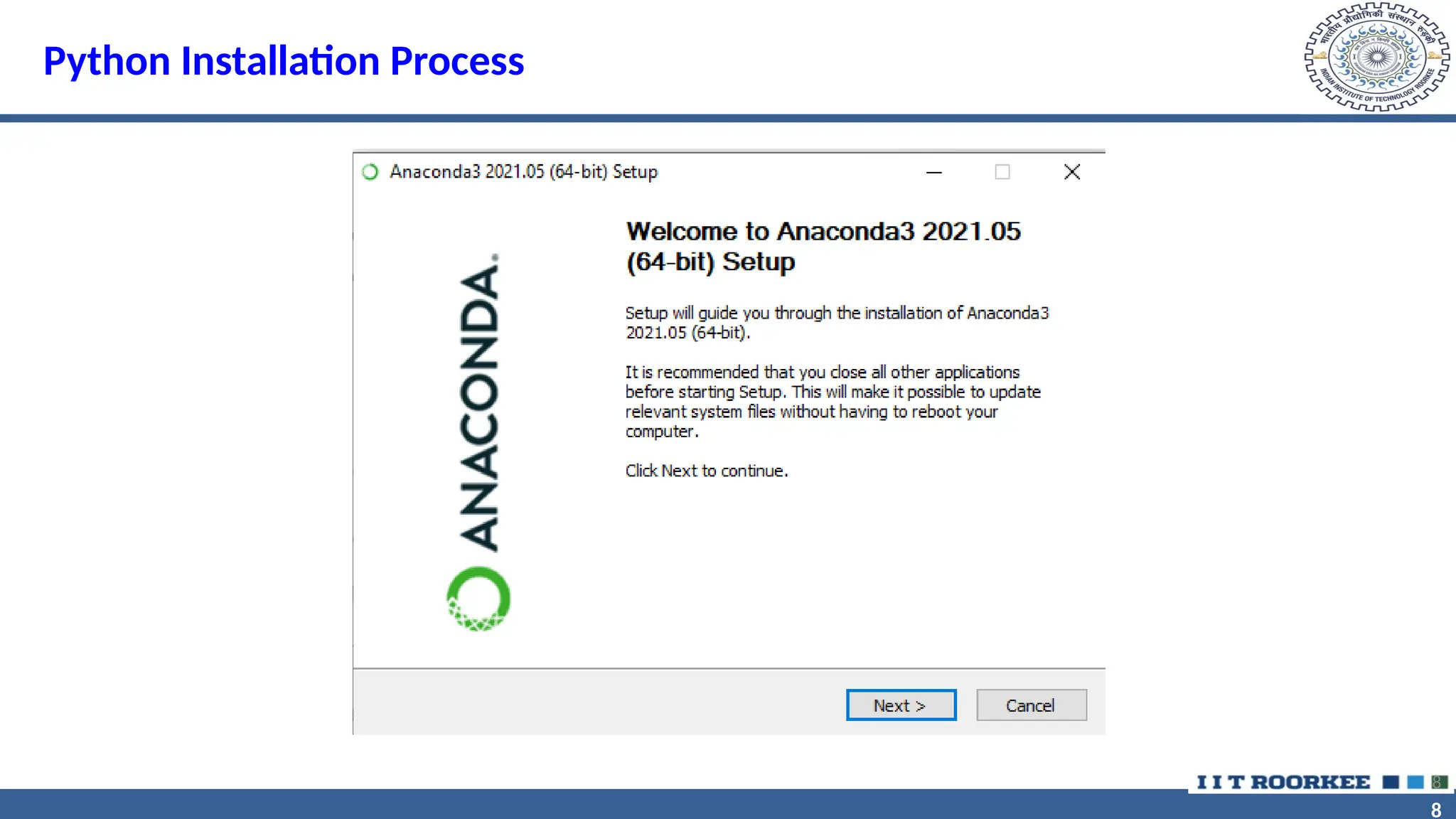
Step 4: Double click on file to run the application
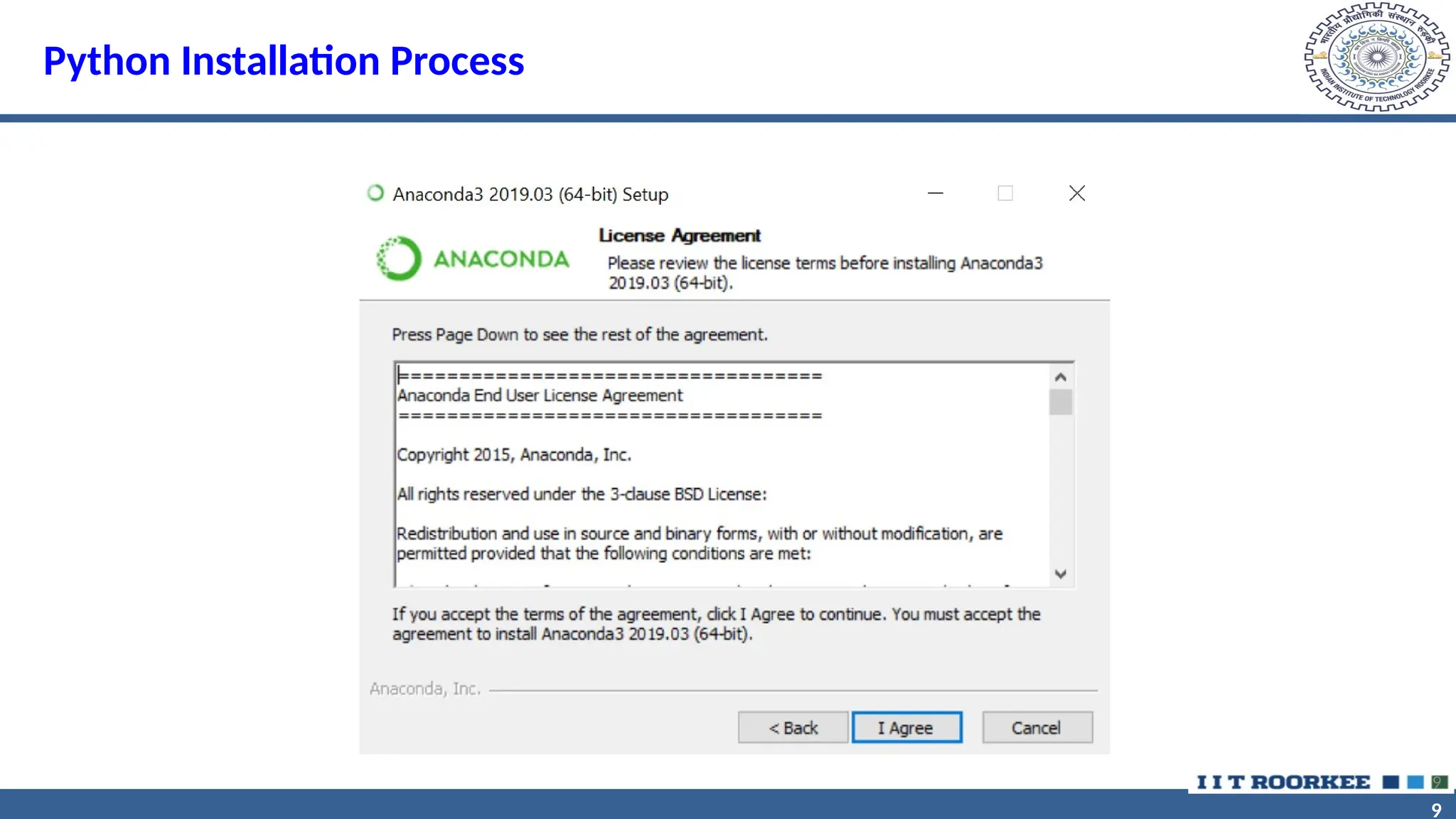
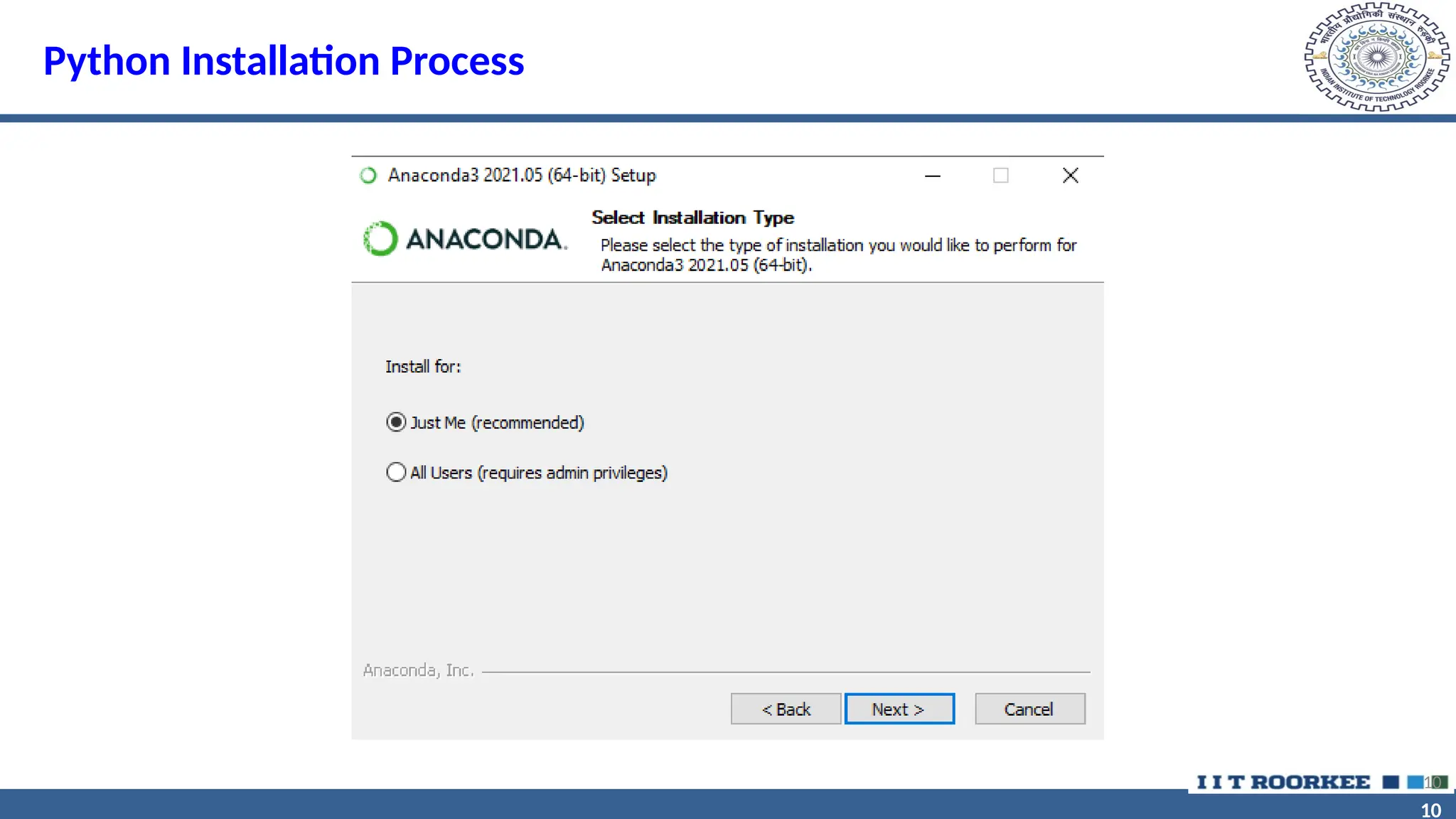
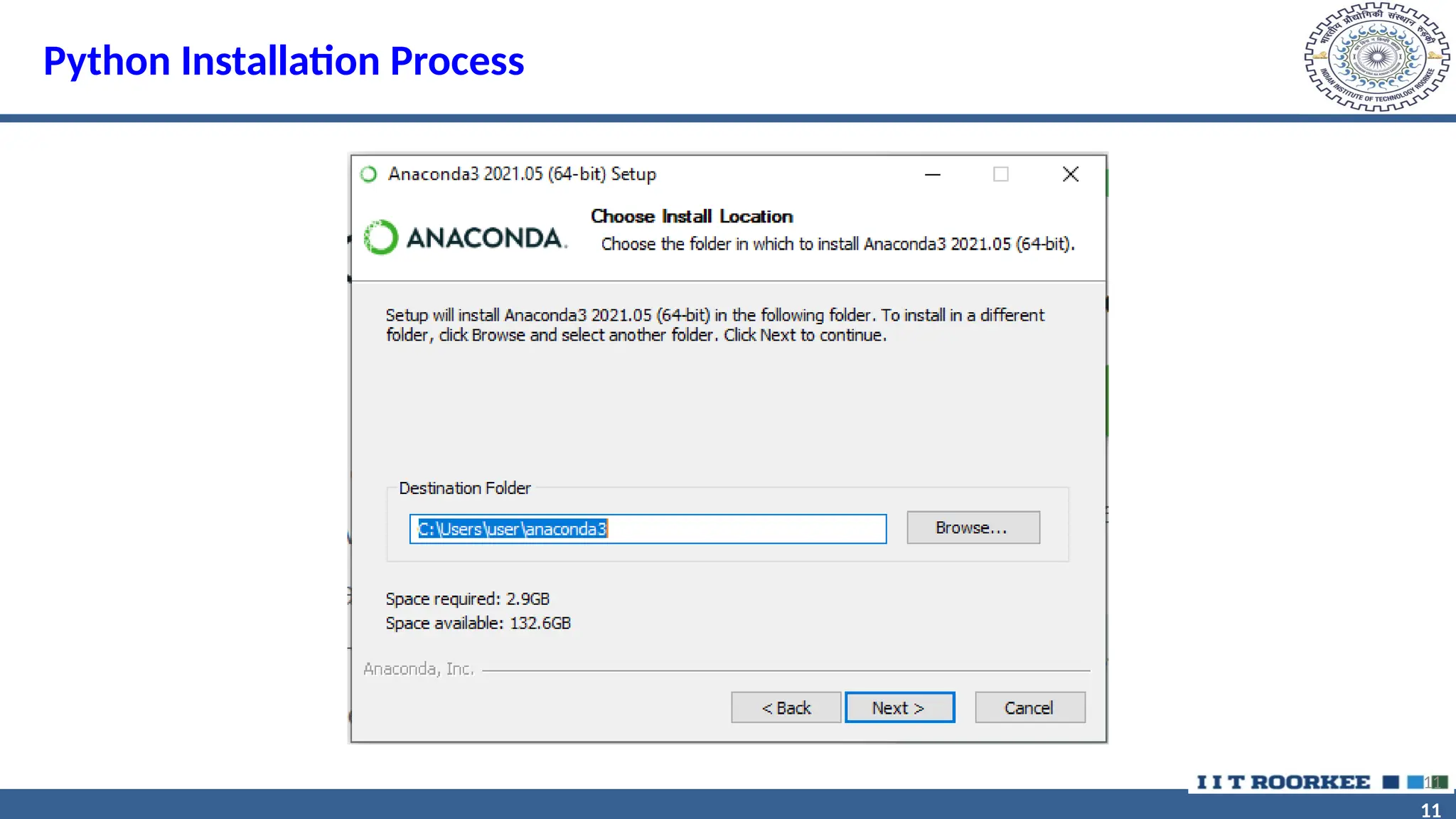
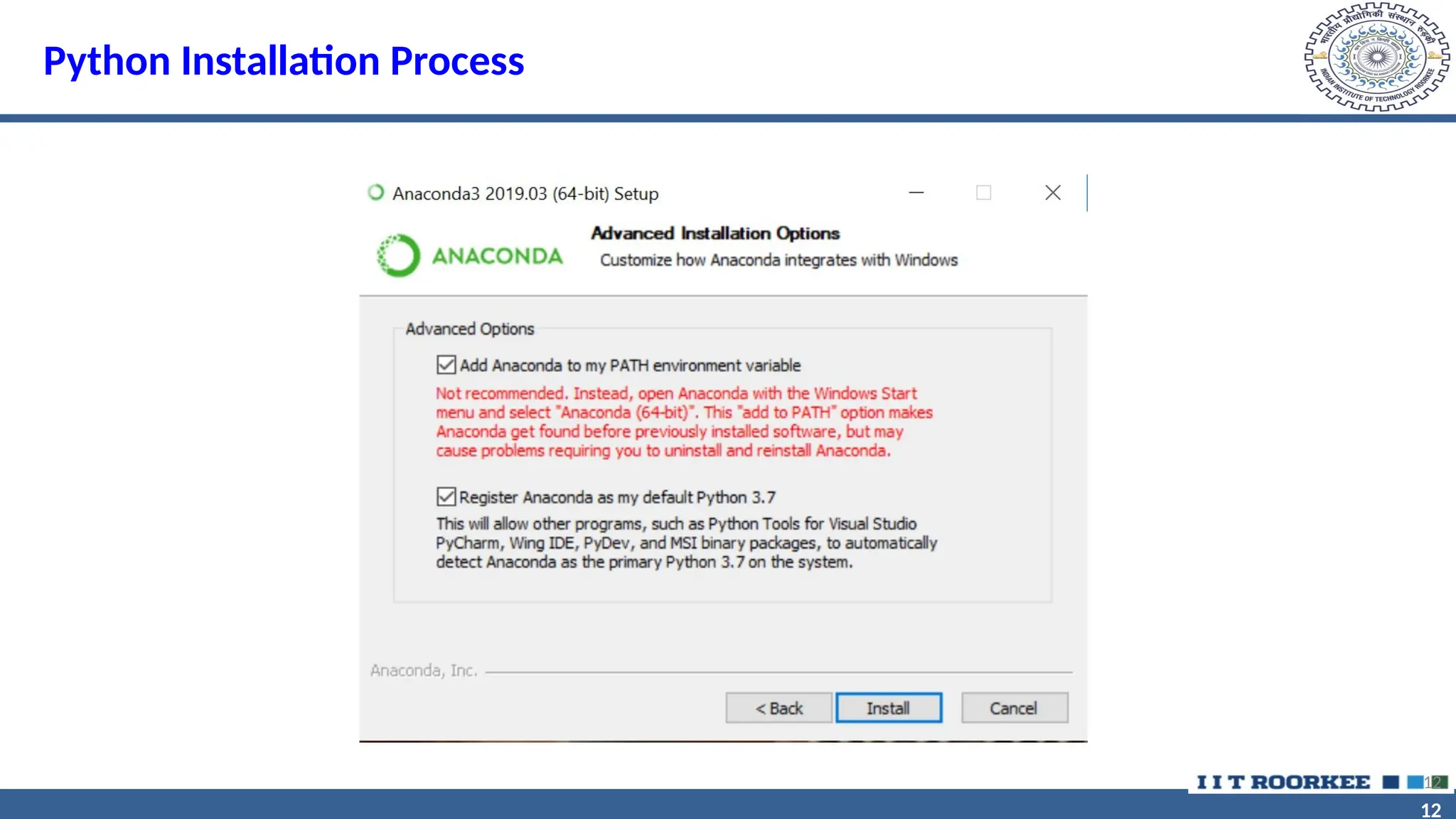
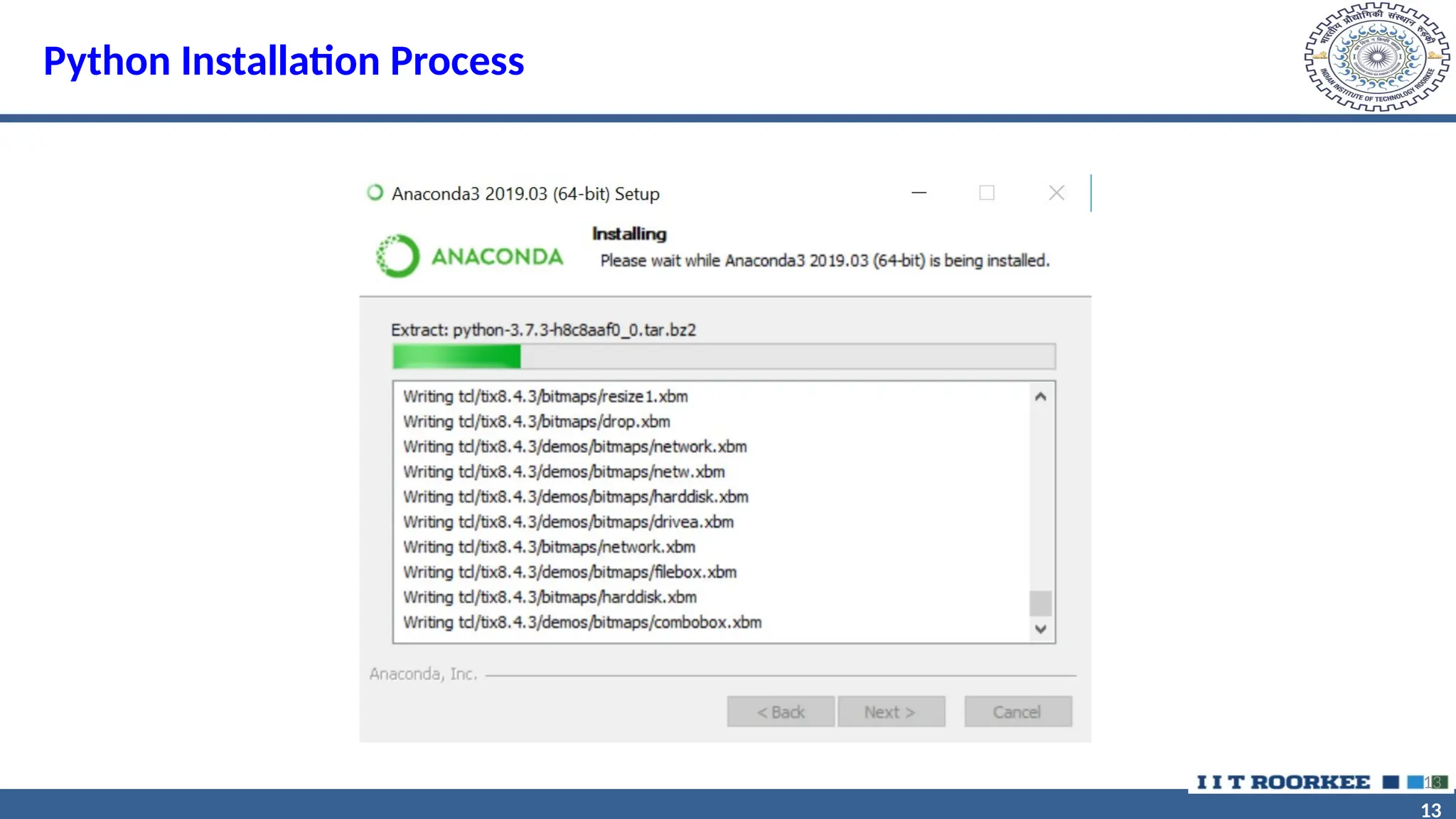
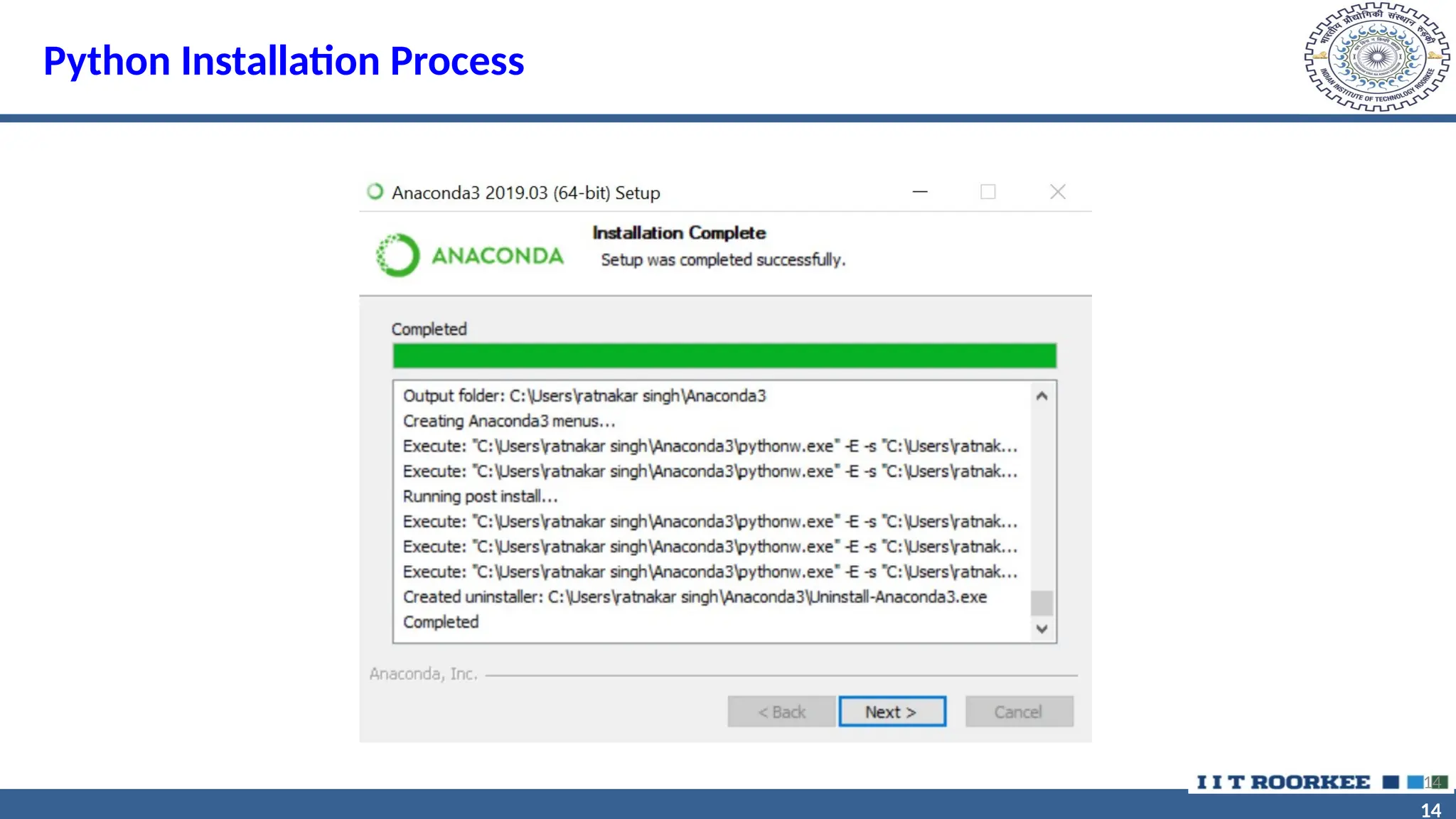
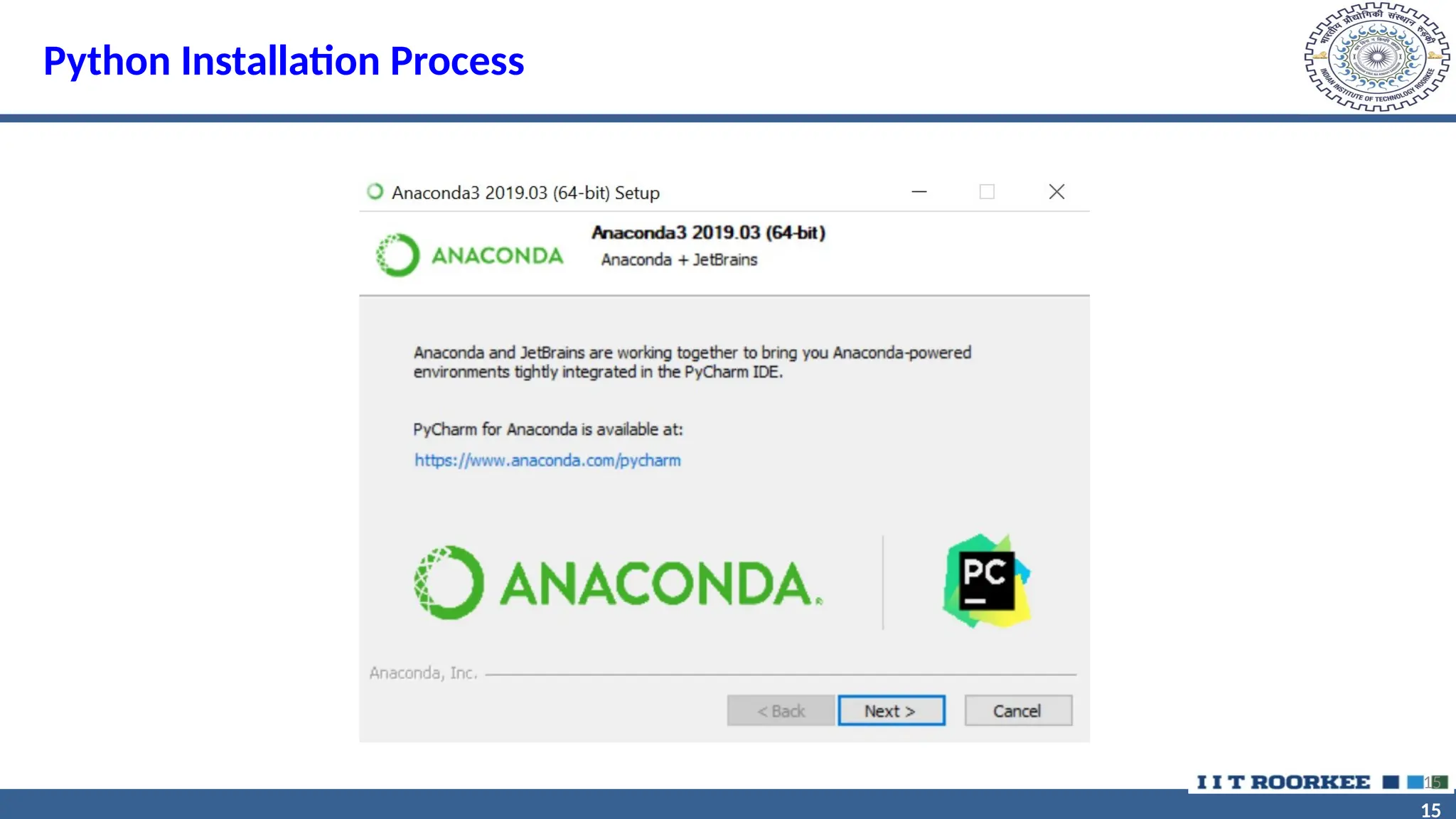
Step 5: Follow the instructions until completion of installation process
3
4
4
Python Installation Process
Installation Process –
Step 1: Type https://www.anaconda.com at the address bar of web browser.
4
5
5
Python Installation Process
Step 2: Click on download button
5
6
6
Python Installation Process
Step 3: Download python 3.8 version for windows OS
6
7
7
Python Installation Process
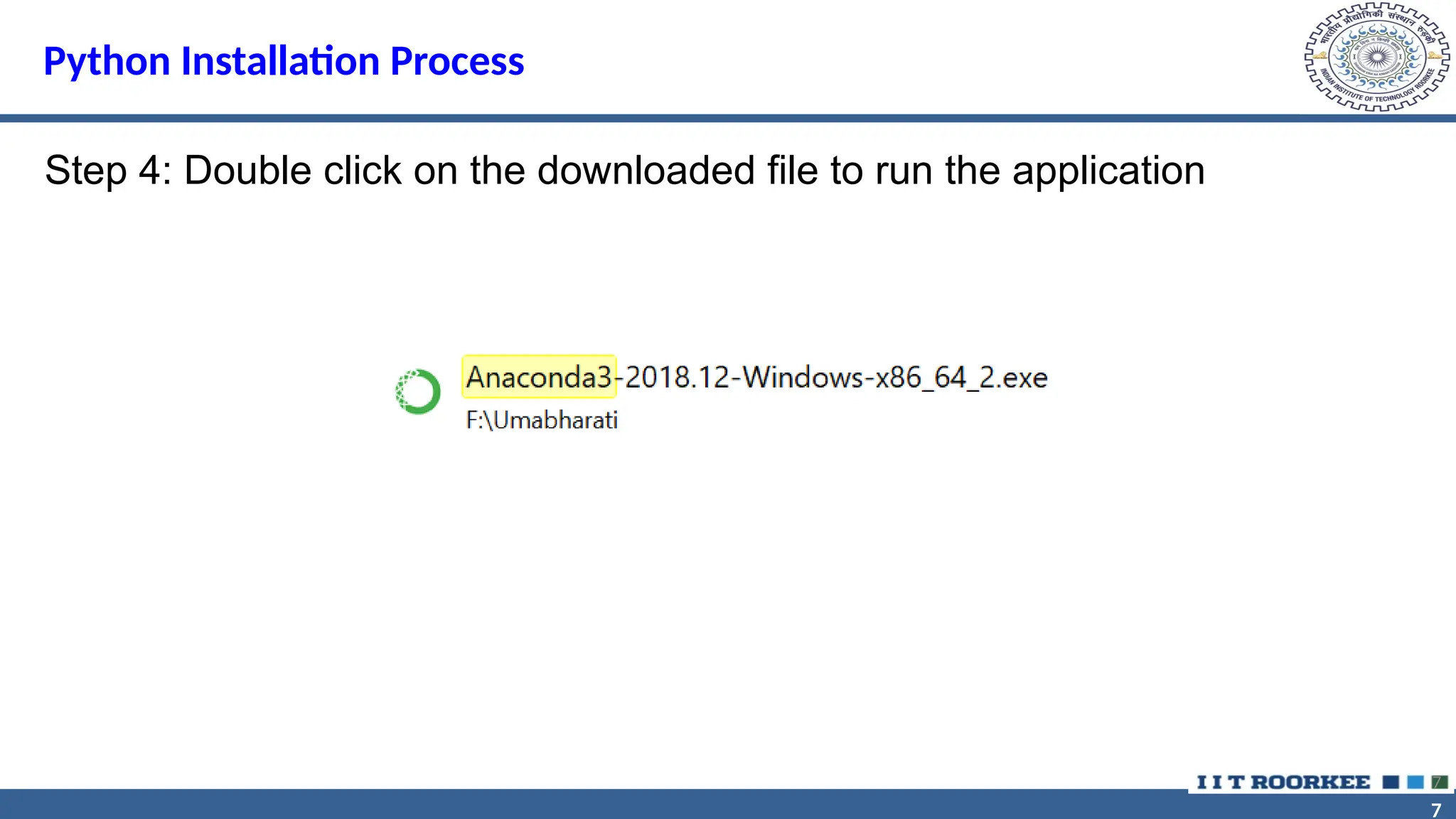
Step 4: Double click on the downloaded file to run the application
7
8
8
Python Installation Process
8
9
9
Python Installation Process
9
10
10
Python Installation Process
10
11
11
Python Installation Process
11
12
12
Python Installation Process
12
13
13
Python Installation Process
13
14
14
Python Installation Process
14
15
15
Python Installation Process
15
16
16
Python Installation Process
16
17
17
Why Jupyter NoteBook?
17
Why?
• Edit code on web browser
• Easy in documentation
• Easy in demonstration
• User- friendly Interface
18
18
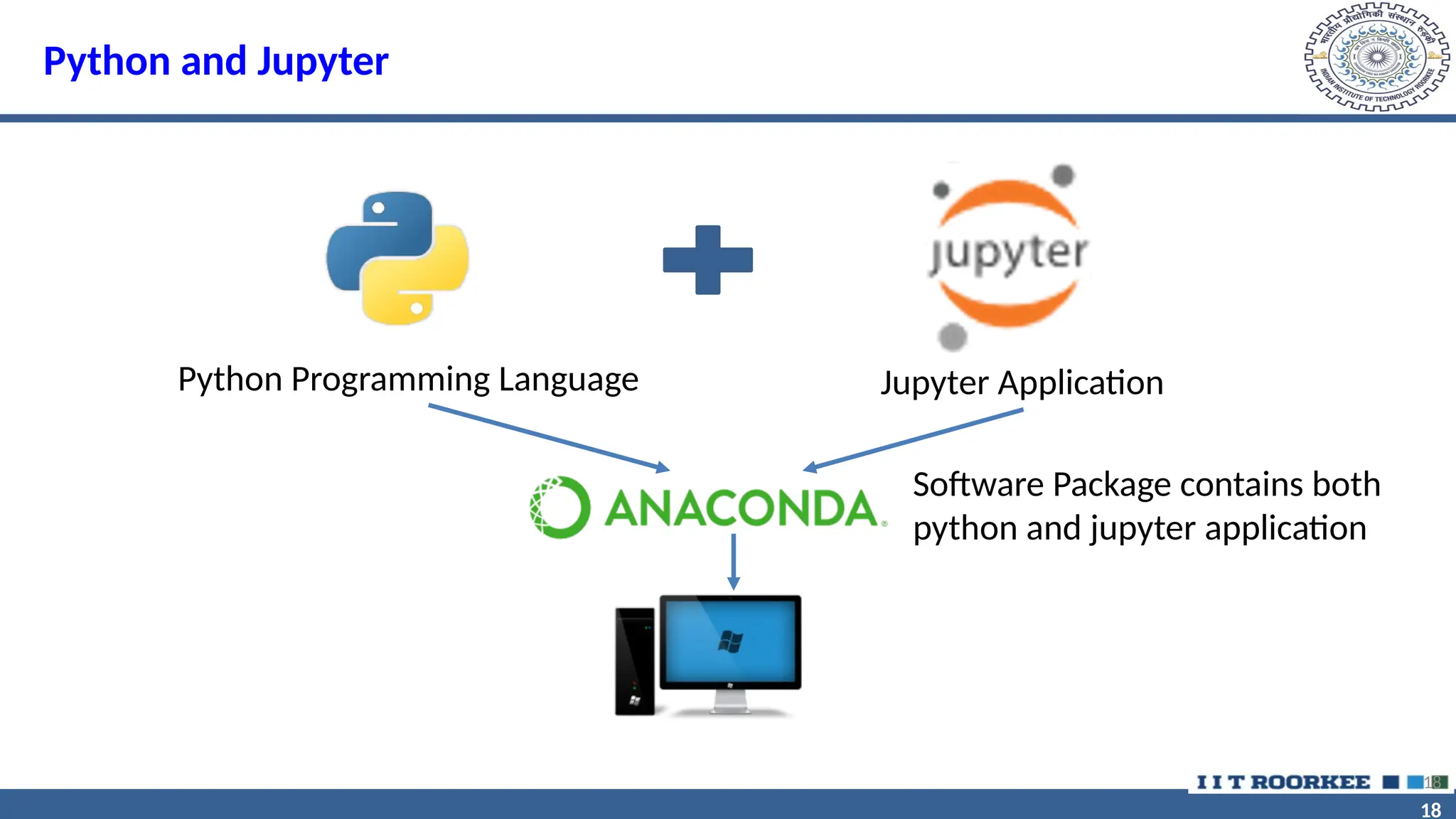
Python and Jupyter
18
Python Programming Language Jupyter Application
Software Package contains both
python and jupyter application
19
19
20
20
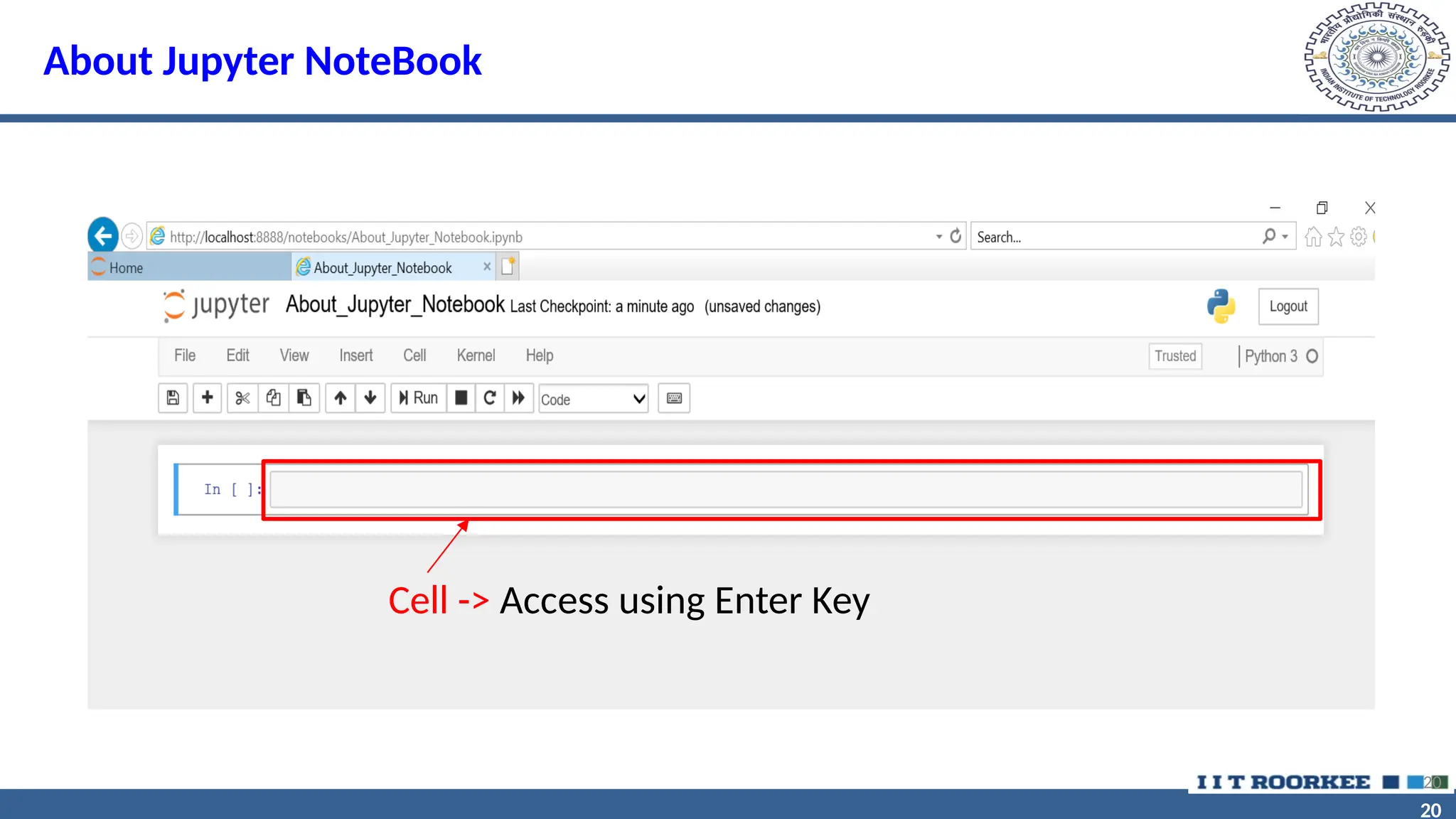
About Jupyter NoteBook
20
Cell -> Access using Enter Key
21
21
About Jupyter NoteBook
21
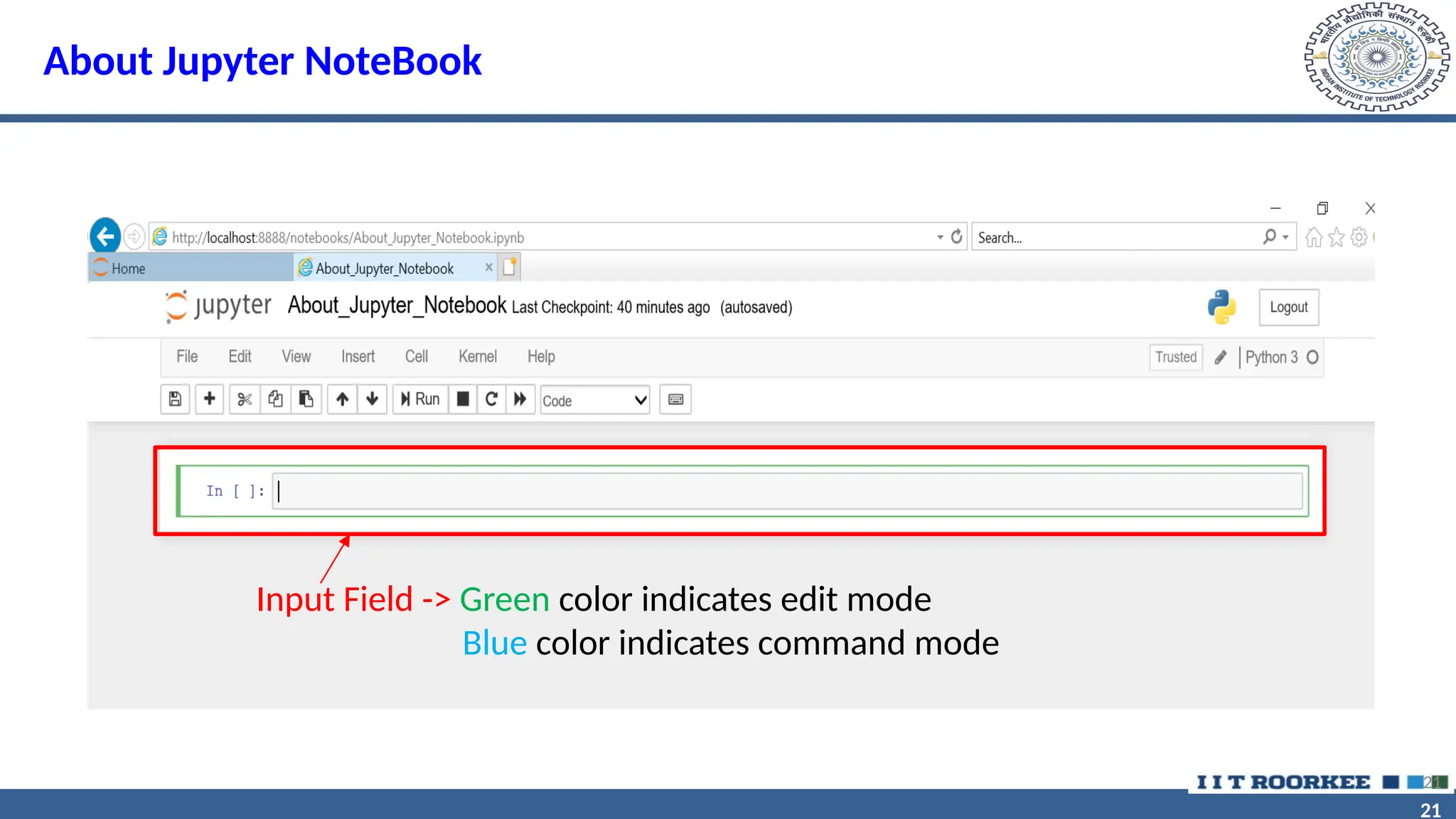
Input Field -> Green color indicates edit mode
Blue color indicates command mode
22
22
About Jupyter NoteBook
22
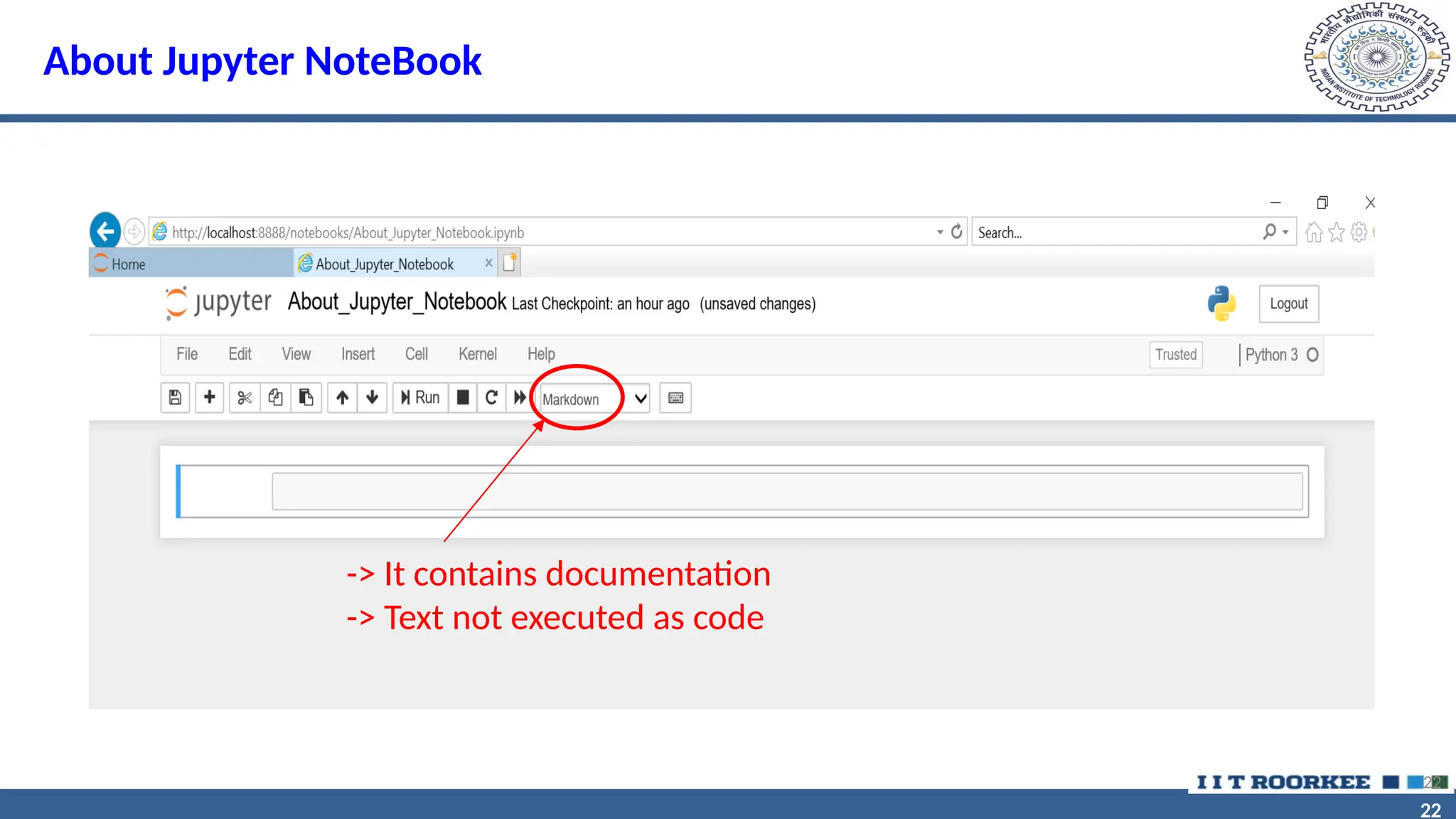
-> It contains documentation
-> Text not executed as code
23
23
About Jupyter Notebook
• Command mode allow to edit notebook as whole
• To close edit mode (Press Escape key)
• Execution (Three ways)
• Comment line is written preceding with # symbol.
23
o Ctrl +Enter (Output field can not be modified)
o Shift +Enter (Output field is modified)
o Run button on Jupyter interface
24
24
About Jupyter Notebook
• Important shortcut keys
24
o A -> To create cell above
o B -> To create cell below
o D + D -> For deleting cell
o M -> For markdown cell
o Y -> For code cell
25
25
Fundamentals of Python
• Loading a simple delimited data file
• Counting how many rows and columns were loaded
• Determining which type of data was loaded
• Looking at different parts of the data by subsetting rows and columns
25
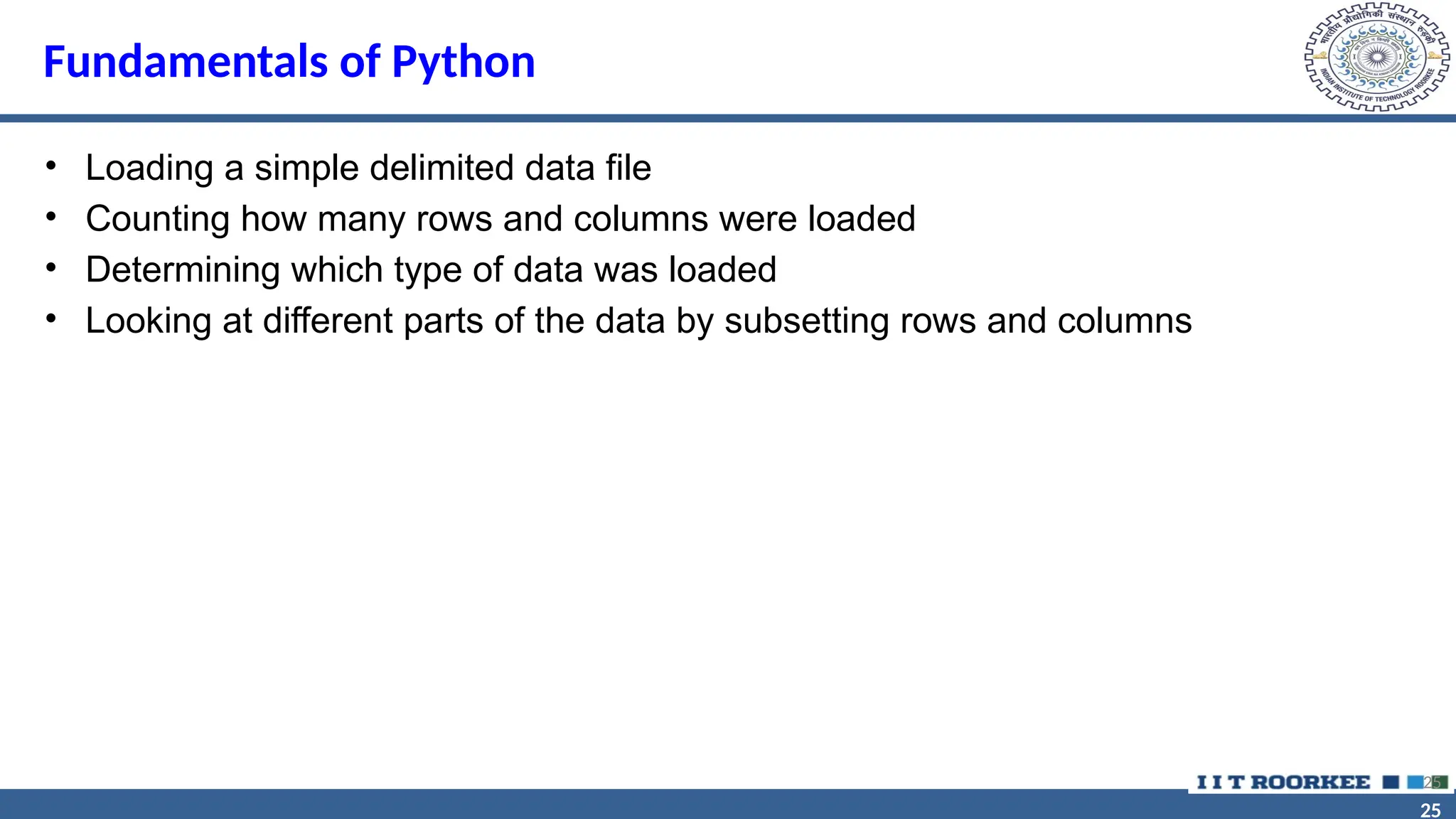
Importing Different Files in Jupyter Notebook
• Importing text file
26
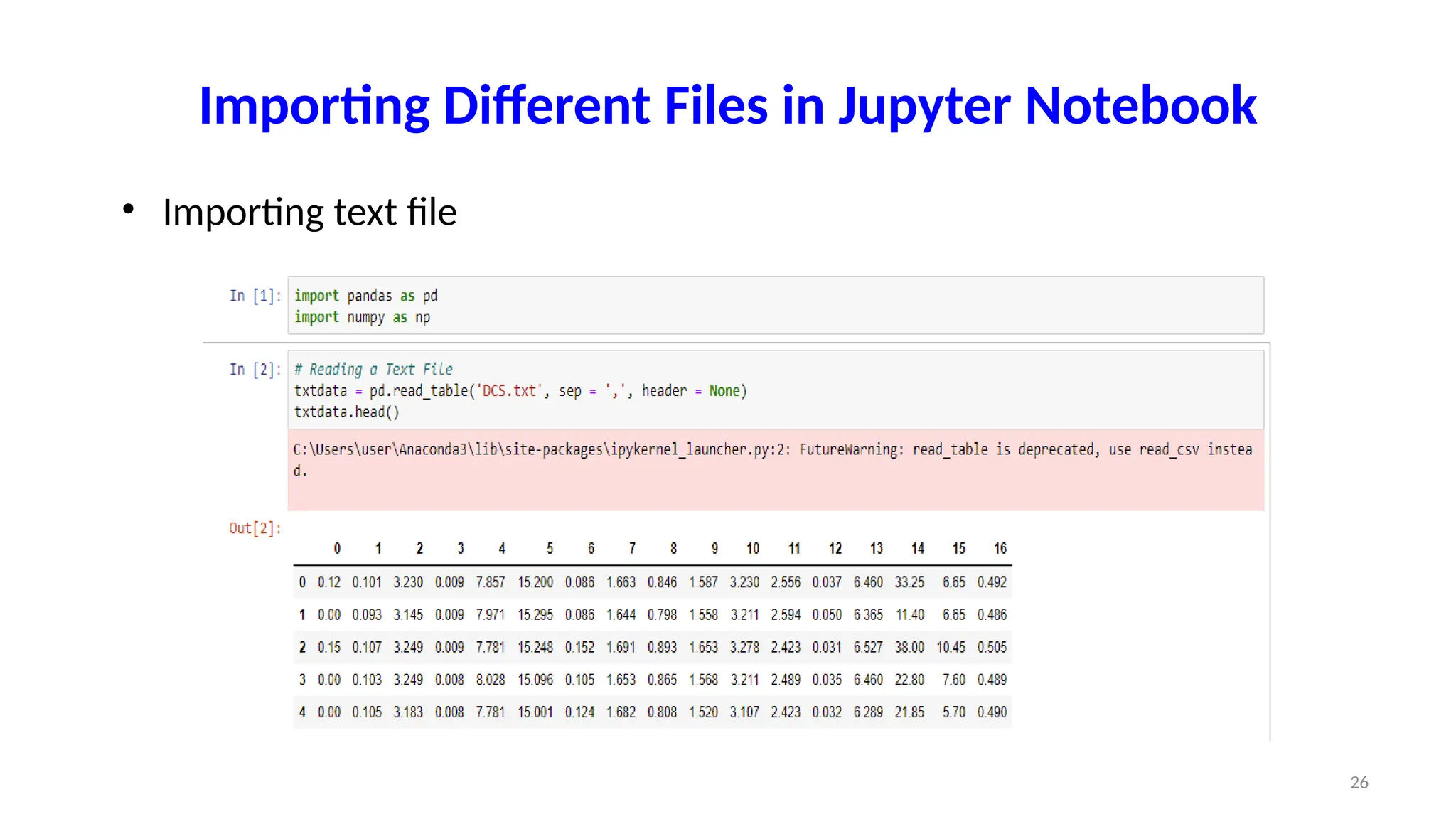
Importing Different Files in Jupyter Notebook
• Importing tablular file
27
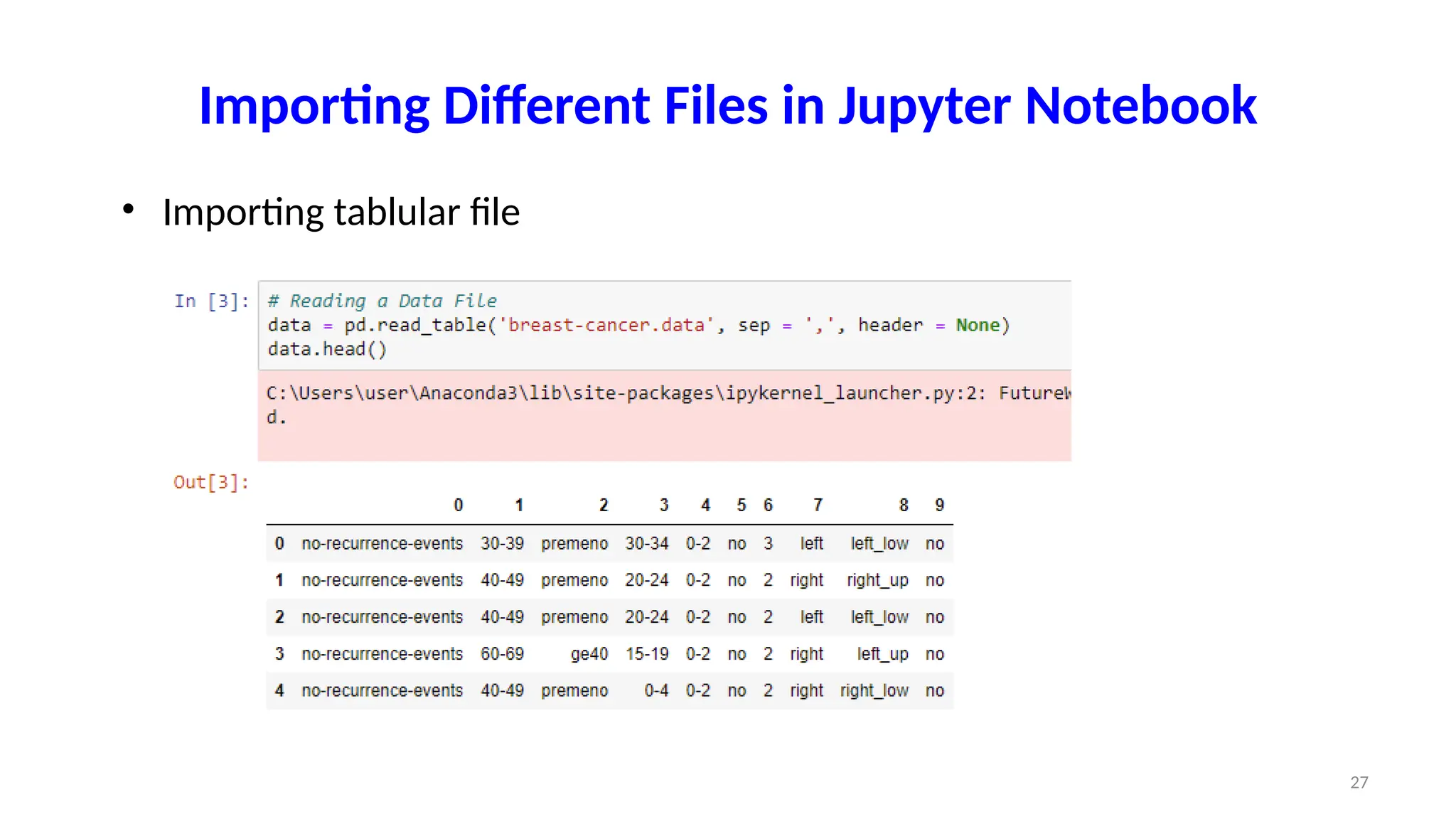
Importing Different Files in Jupyter Notebook
• Importing excel file
28
Importing Different Files in Jupyter Notebook
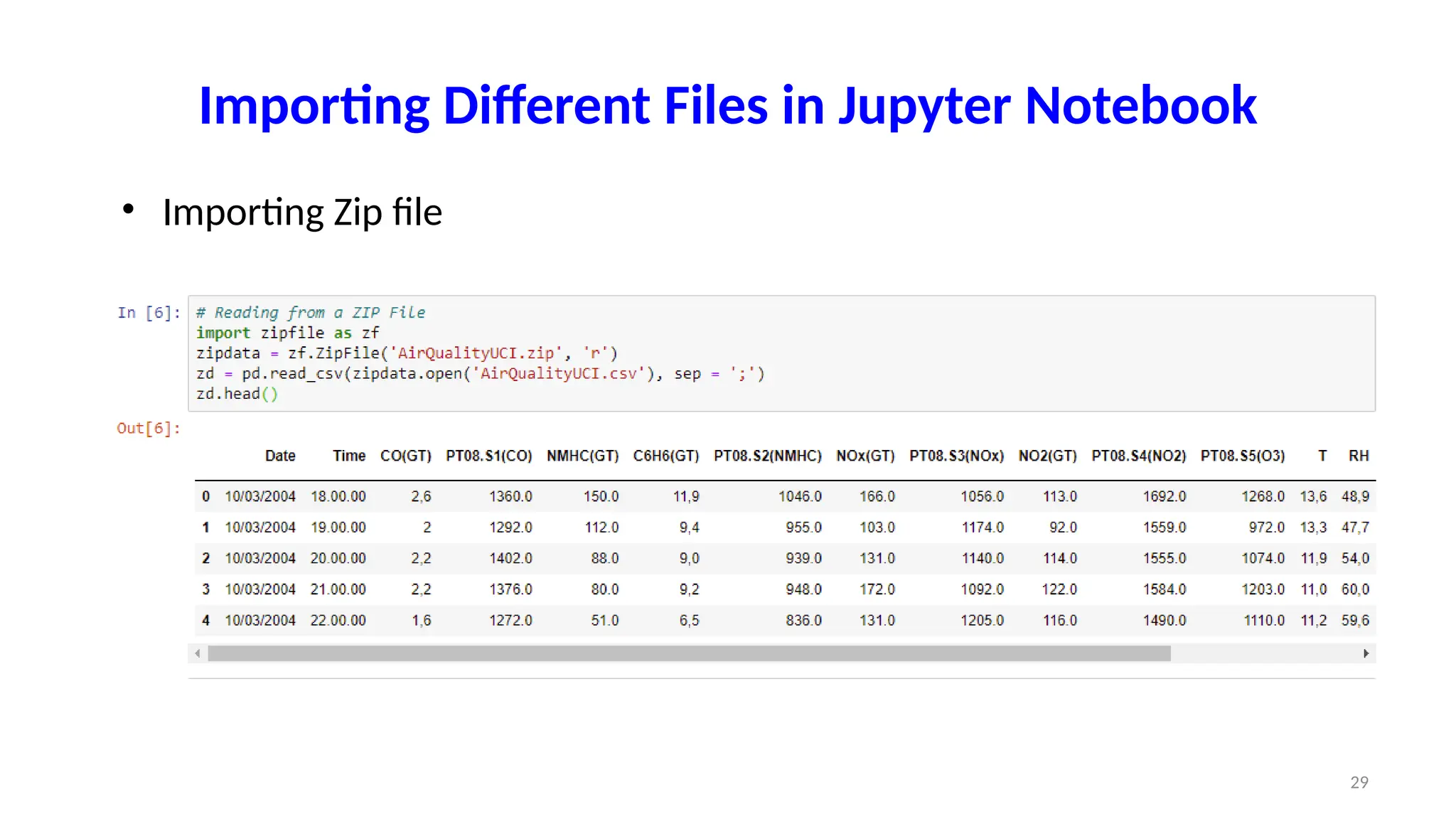
• Importing Zip file
29
Importing Different Files in Jupyter Notebook
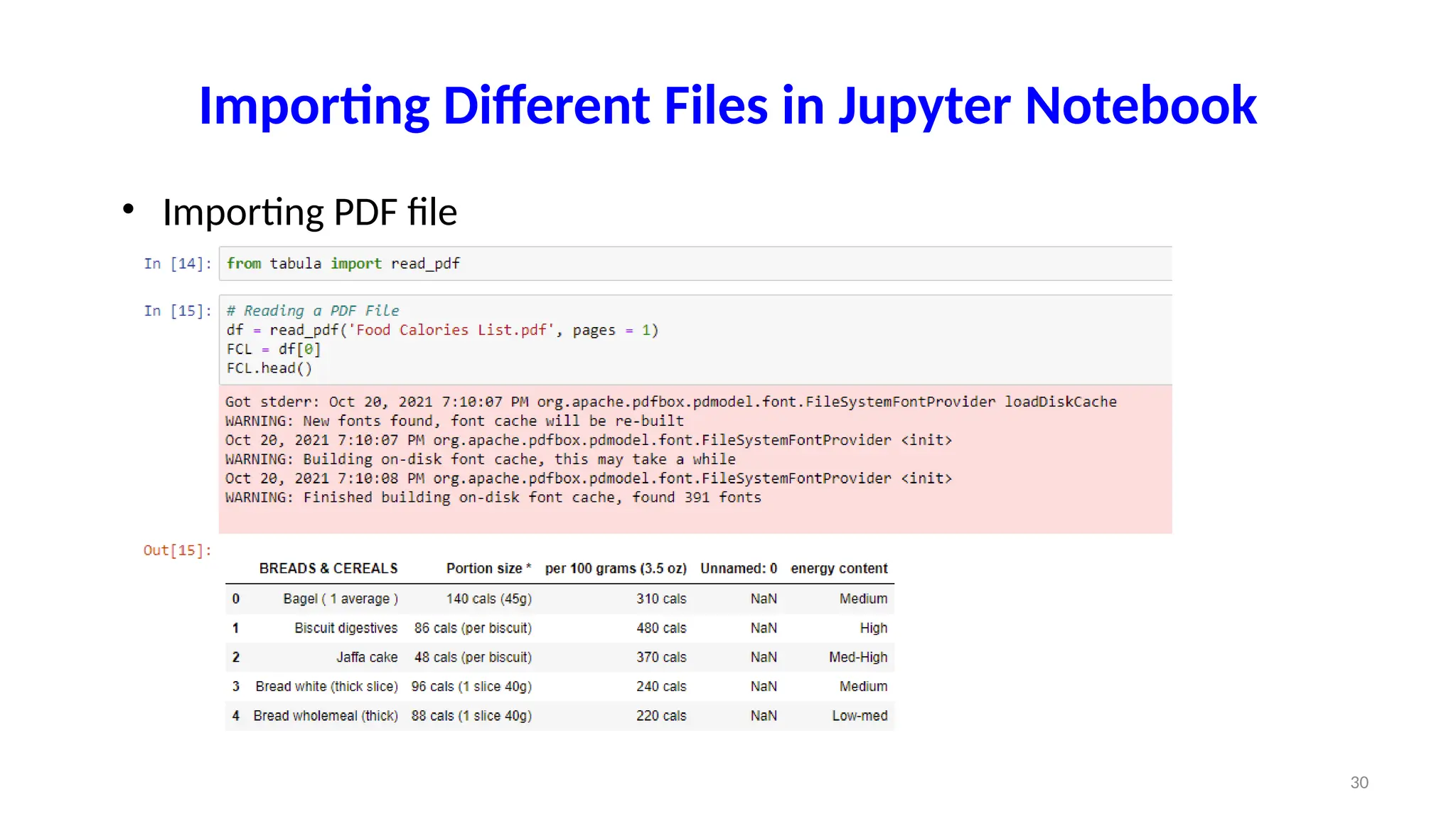
• Importing PDF file
30
31
31
31
32
32
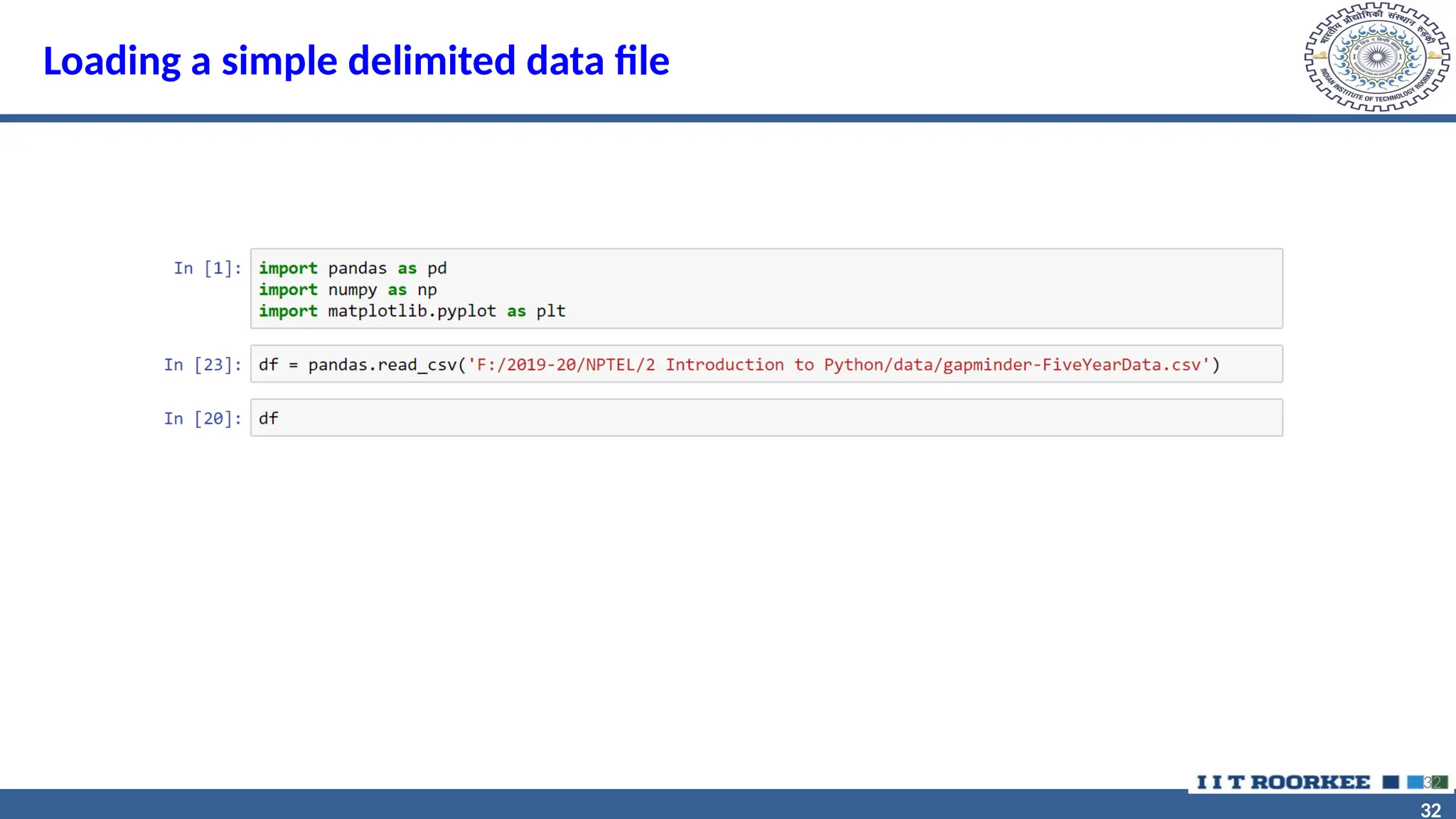
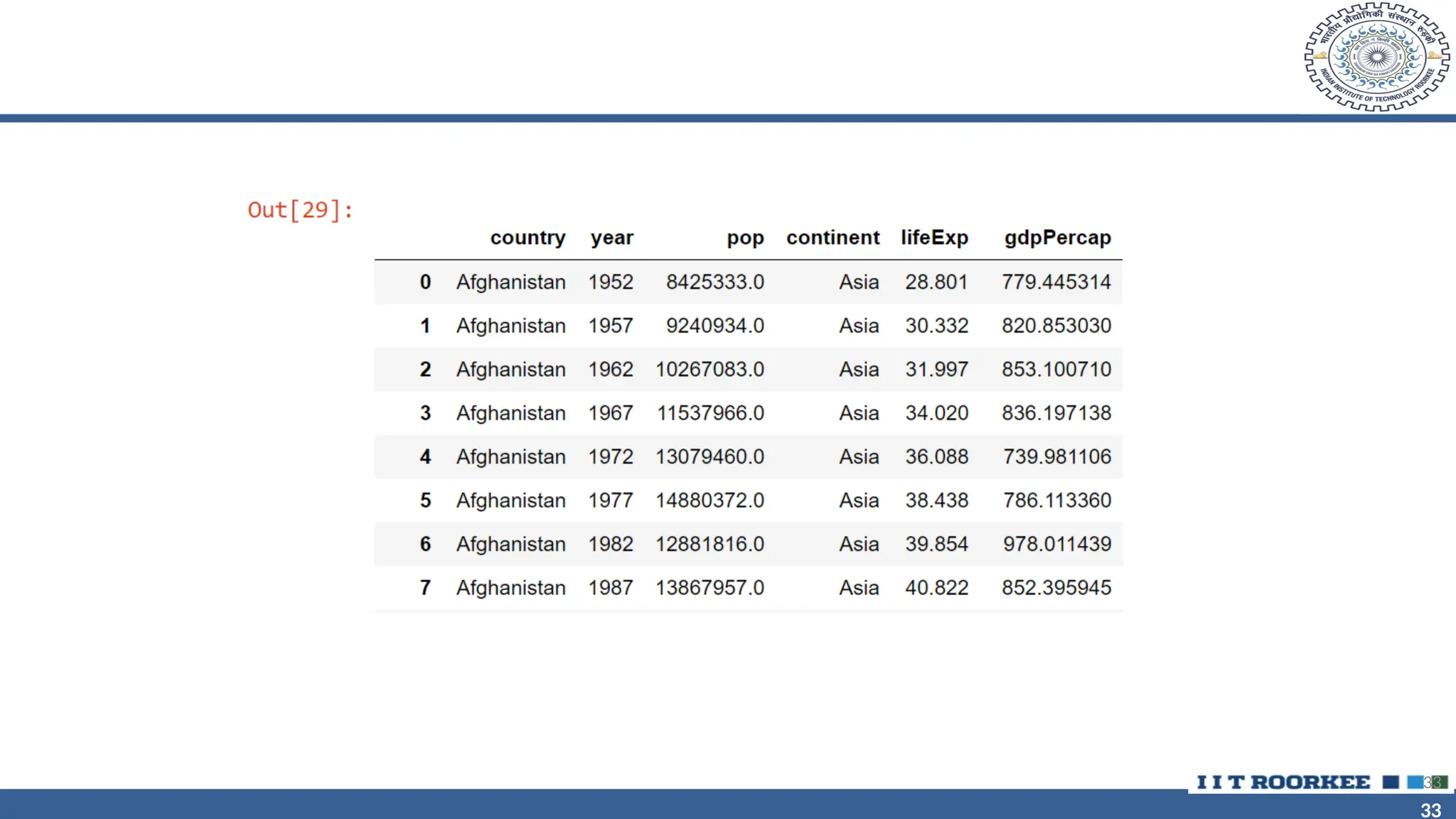
Loading a simple delimited data file
32
33
33
33
34
34
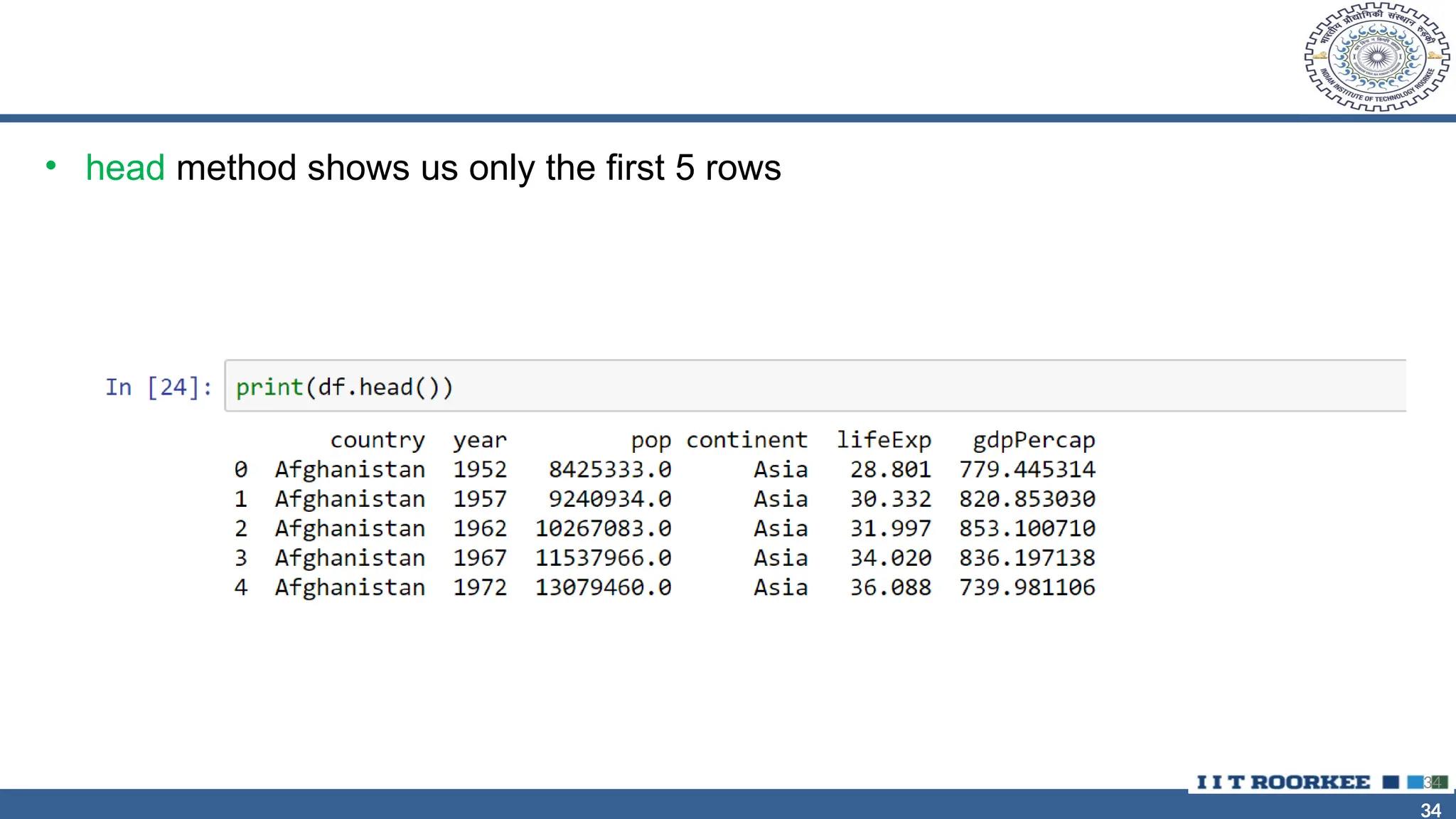
• head method shows us only the first 5 rows
34
35
35
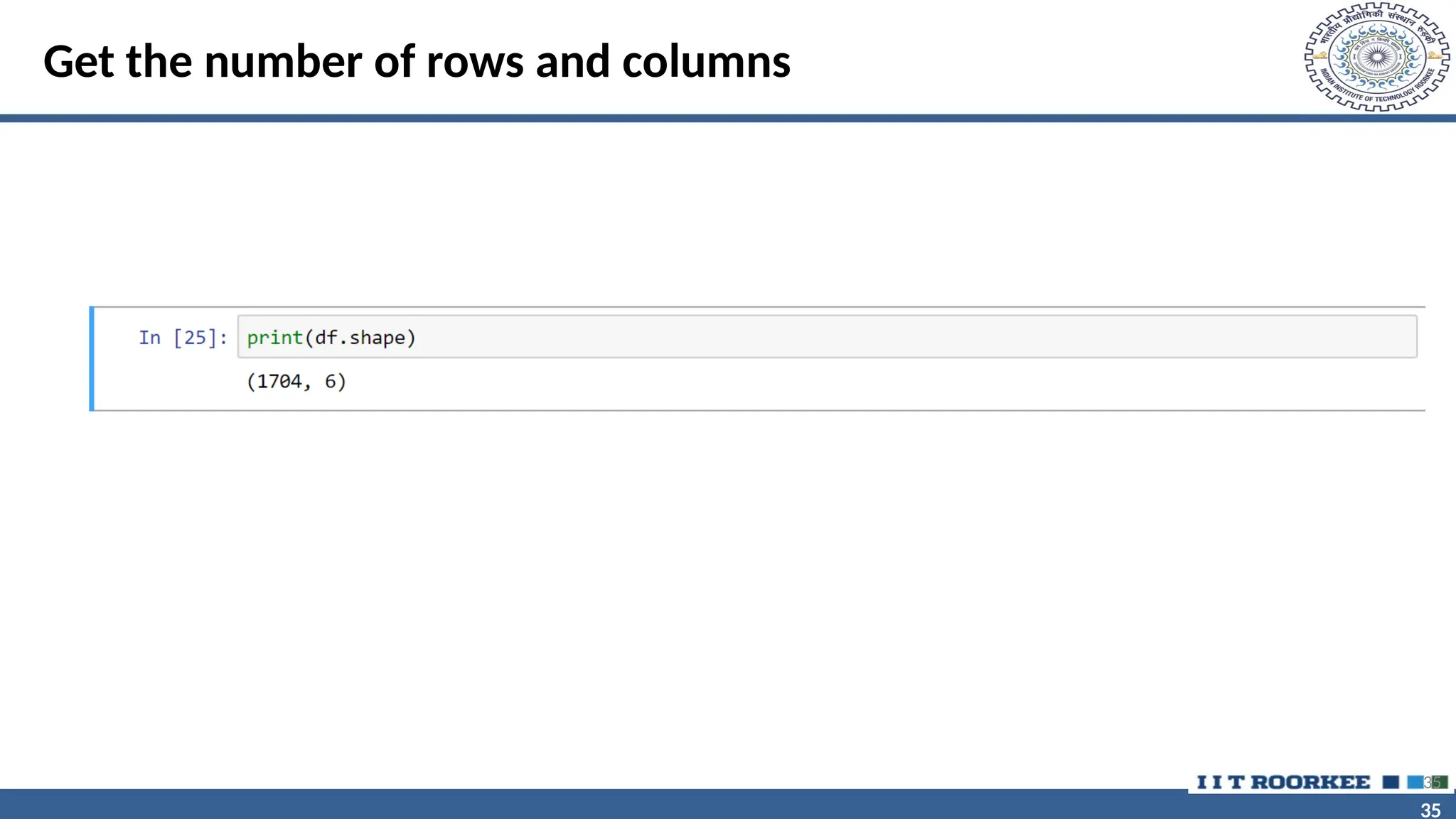
Get the number of rows and columns
35
36
36
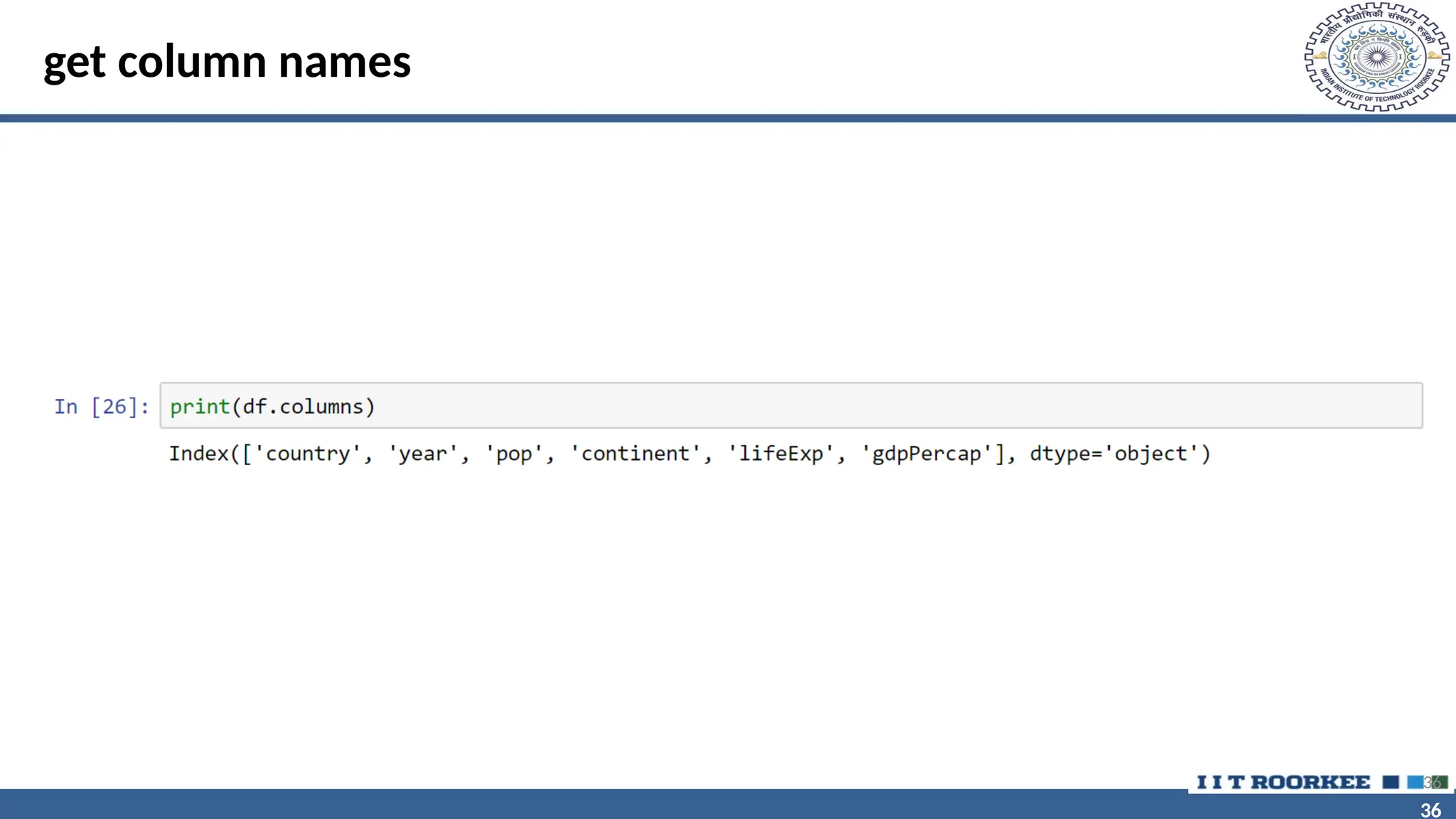
get column names
36
37
37
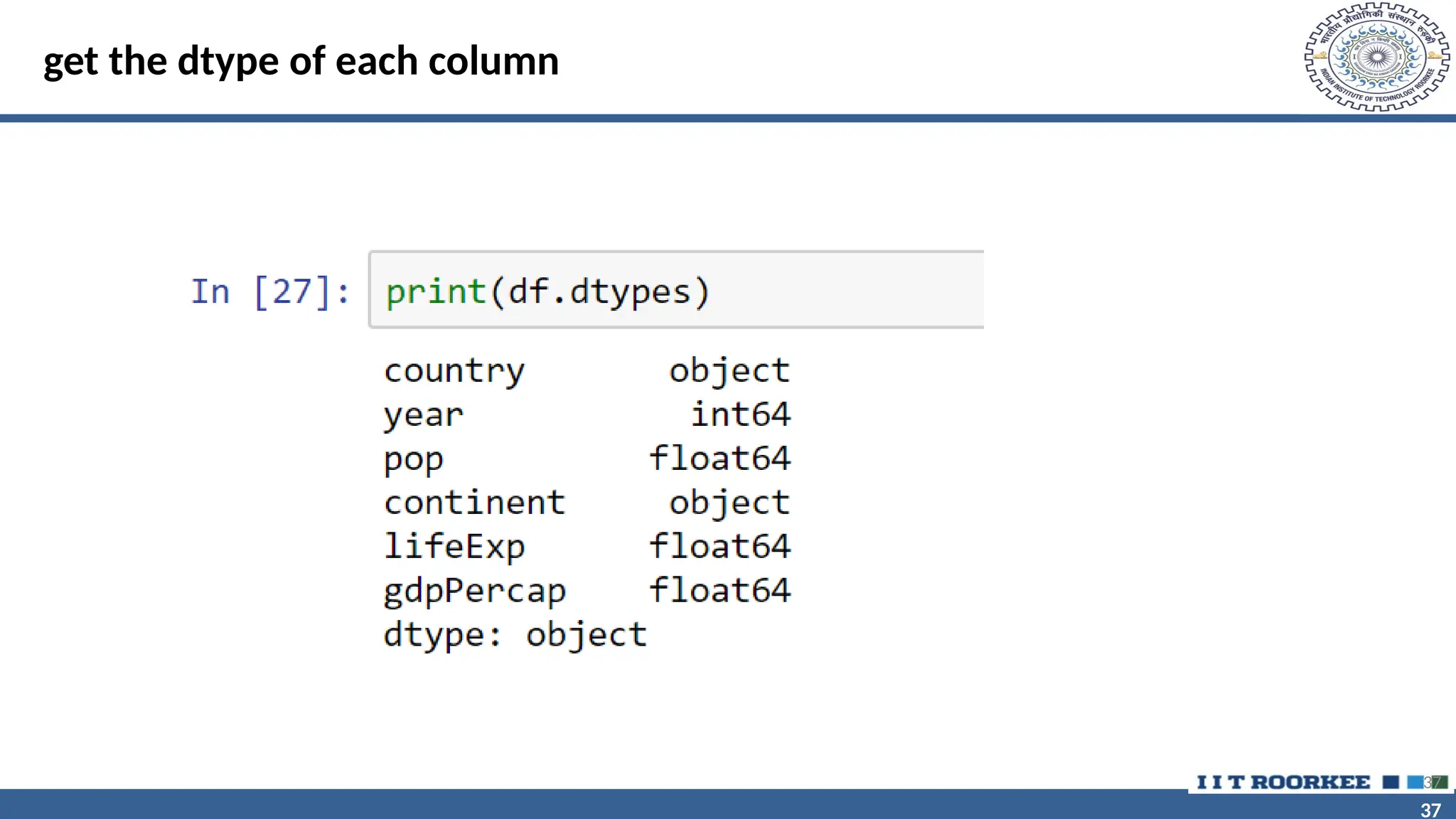
get the dtype of each column
37
38
38
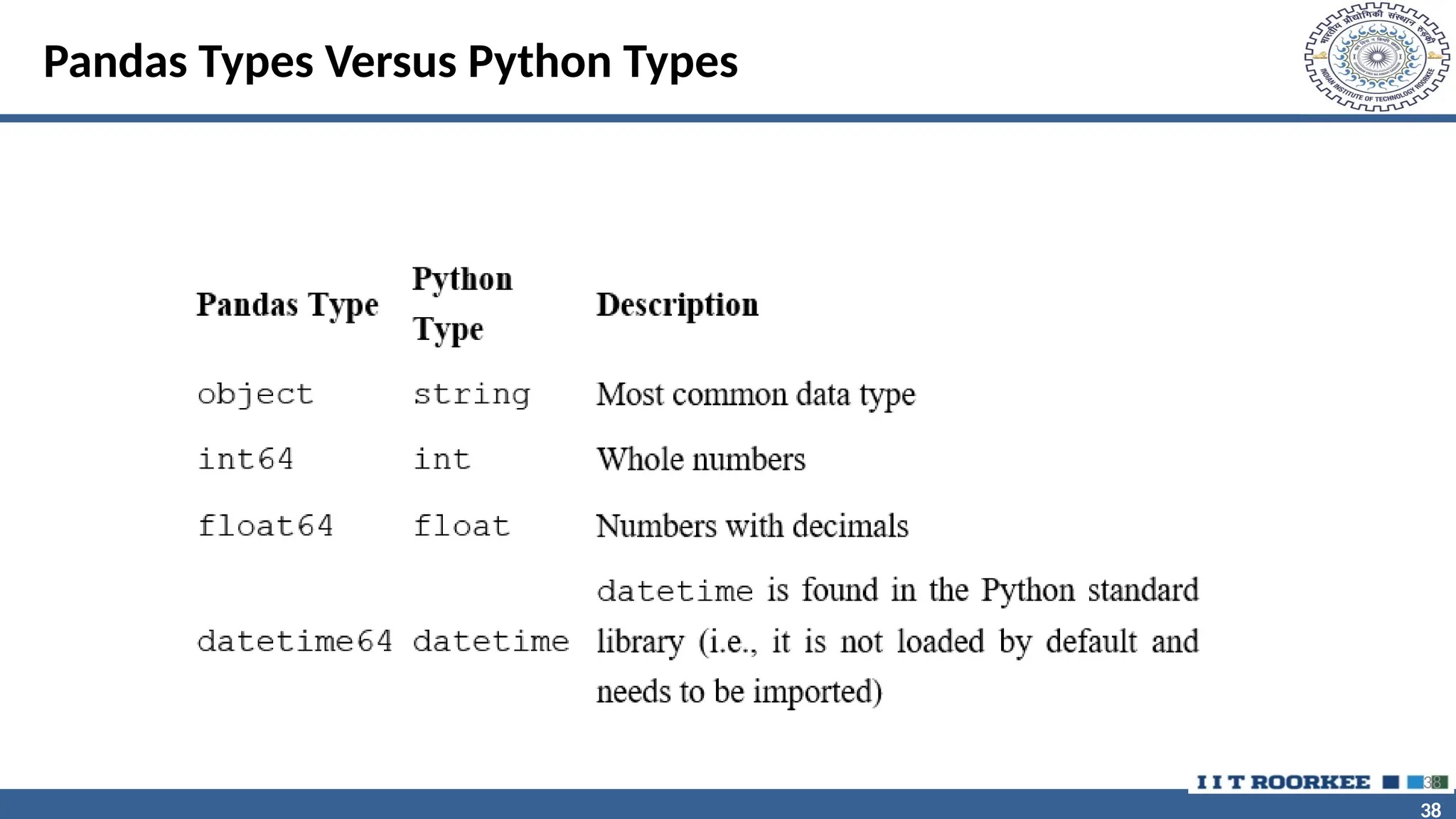
Pandas Types Versus Python Types
38
39
39
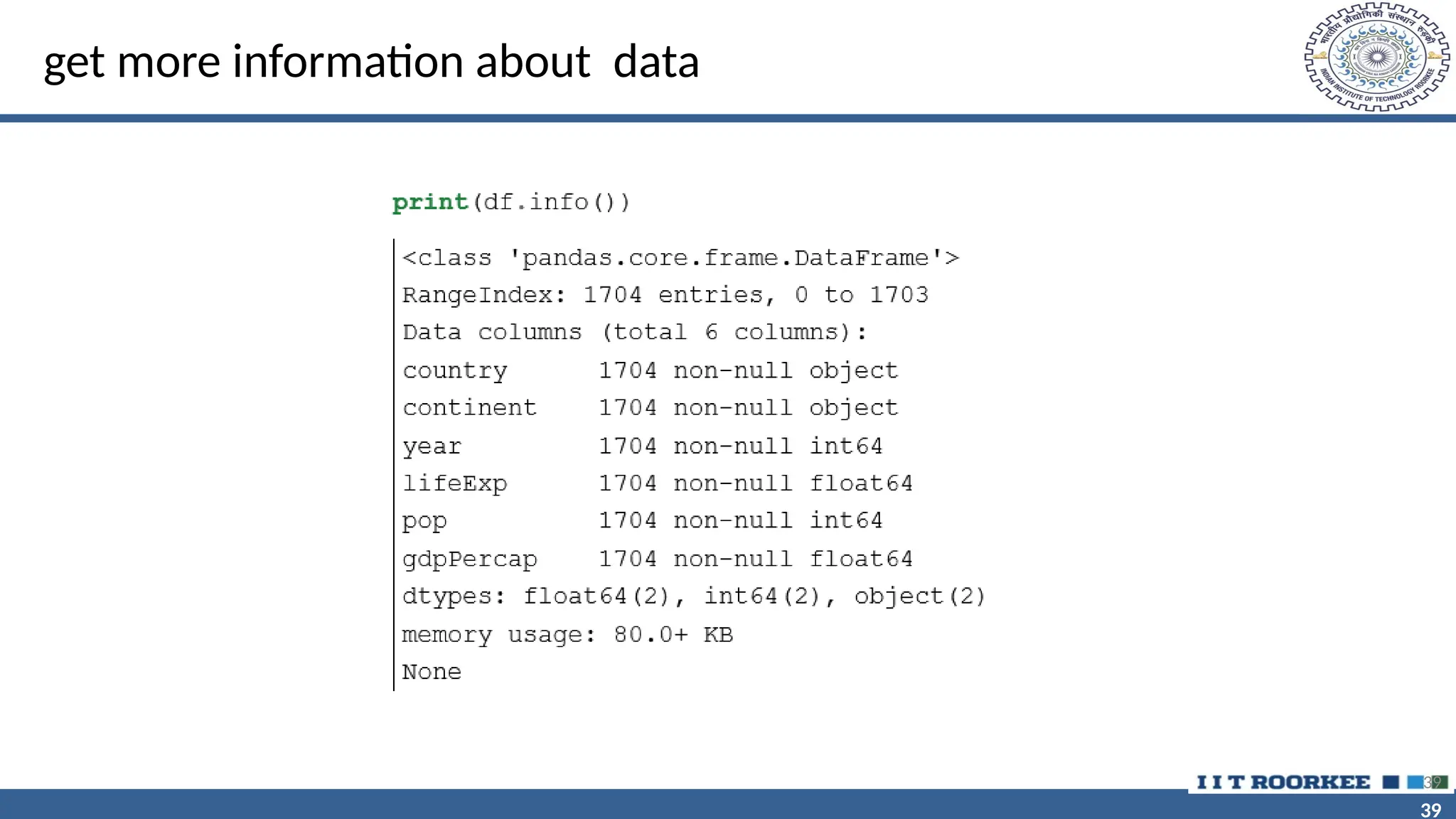
get more information about data
39
40
40
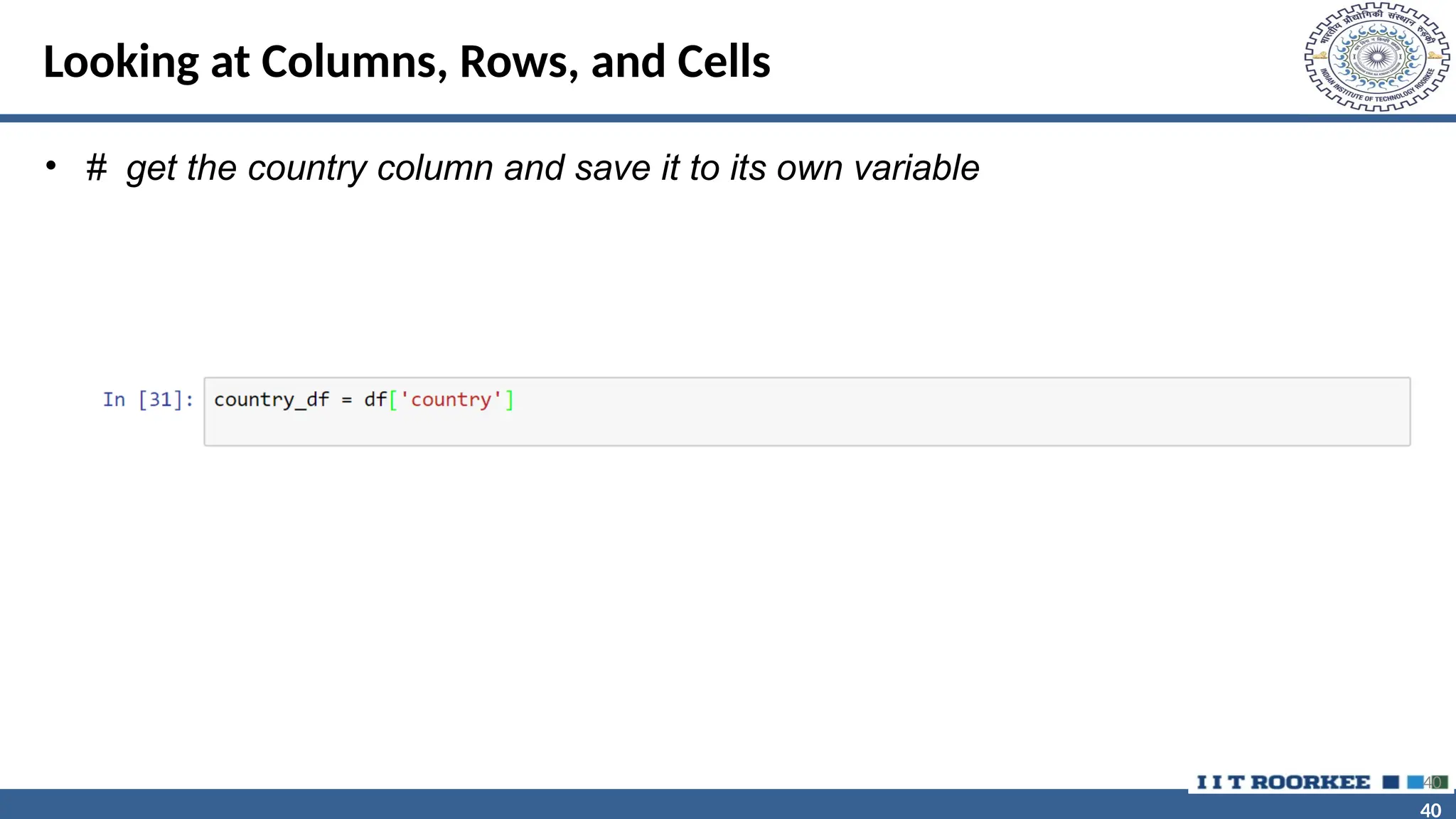
Looking at Columns, Rows, and Cells
• # get the country column and save it to its own variable
40
41
41
# show the first 5 observations
41
42
42
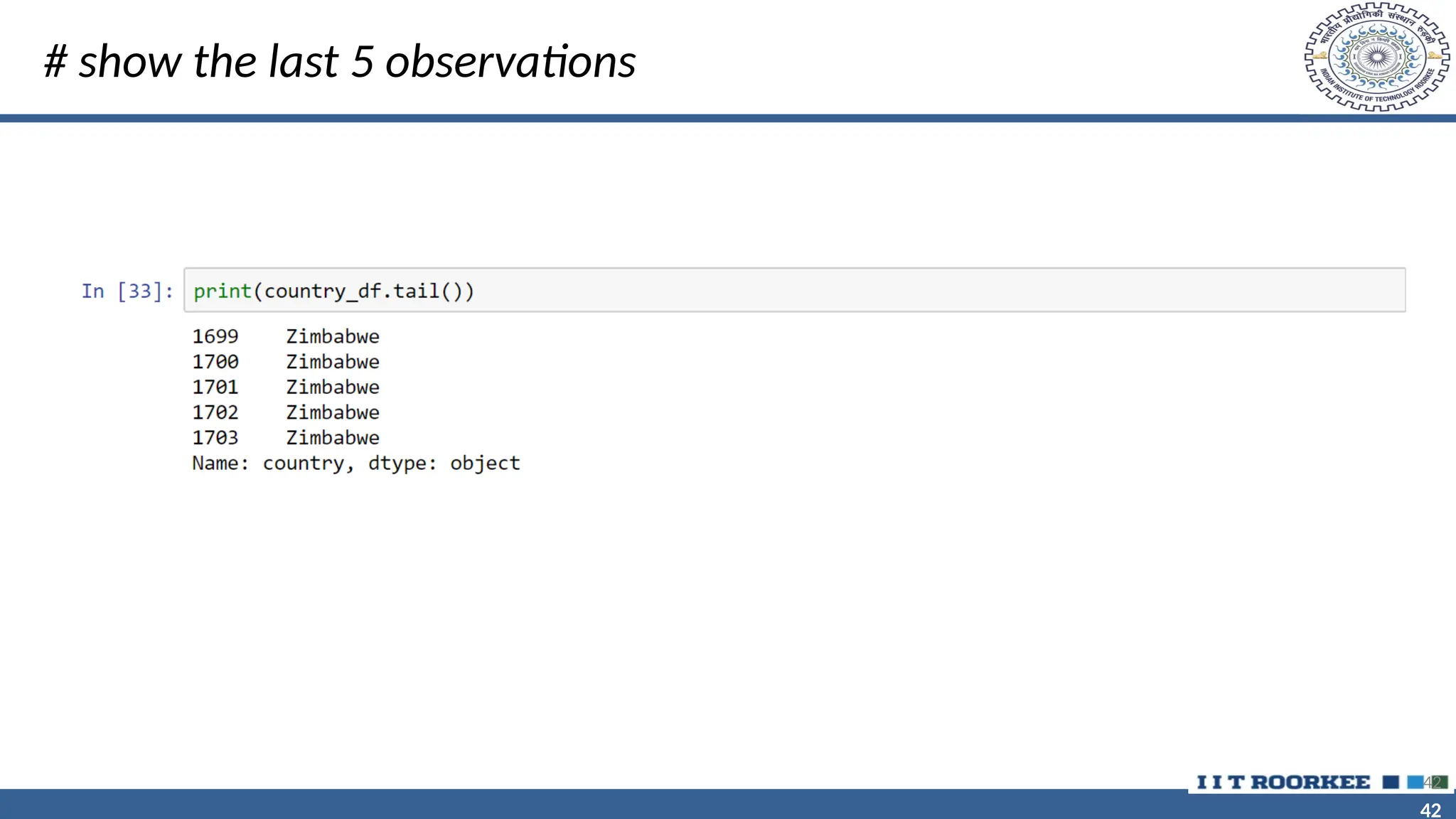
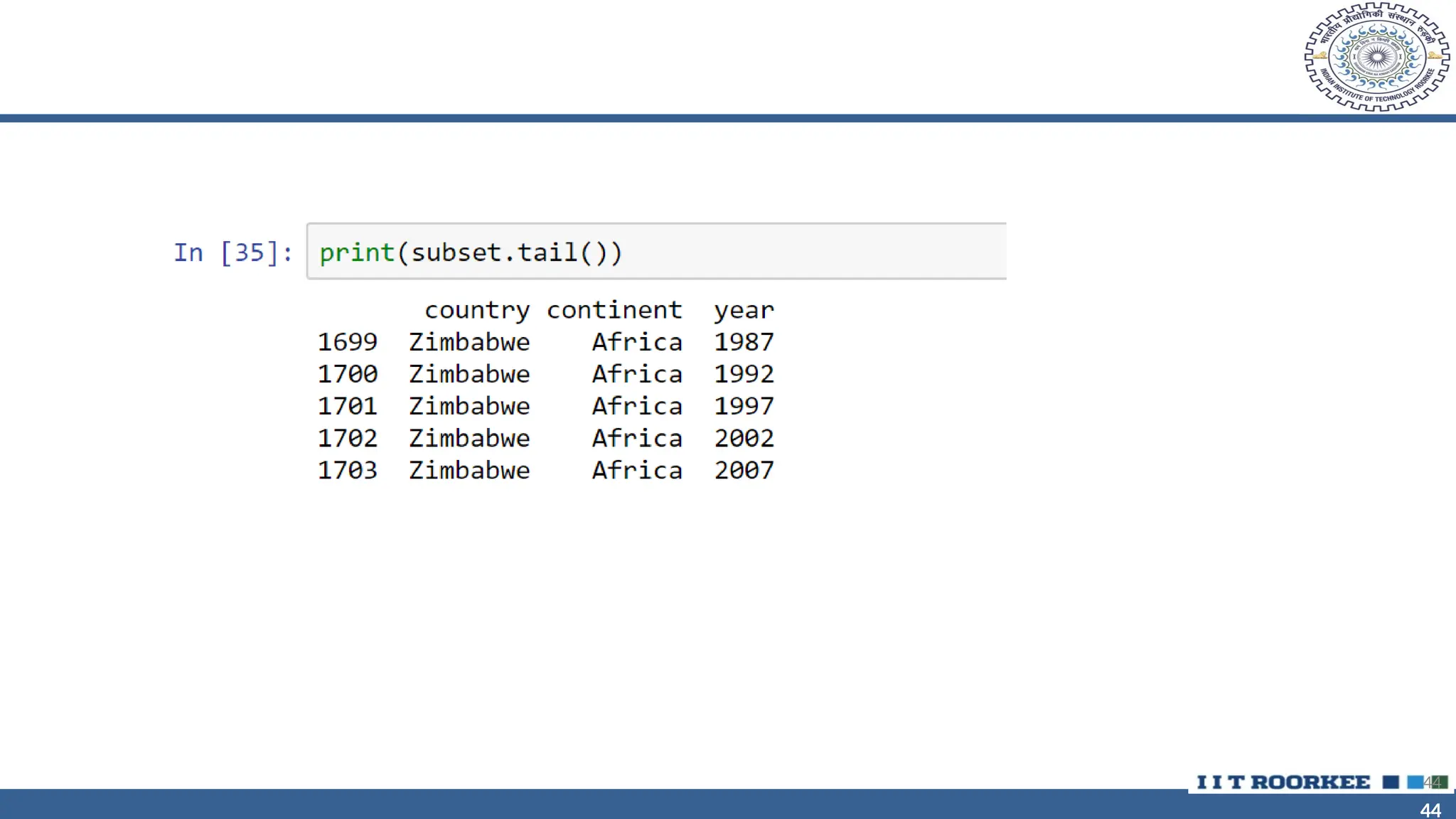
# show the last 5 observations
42
43
43
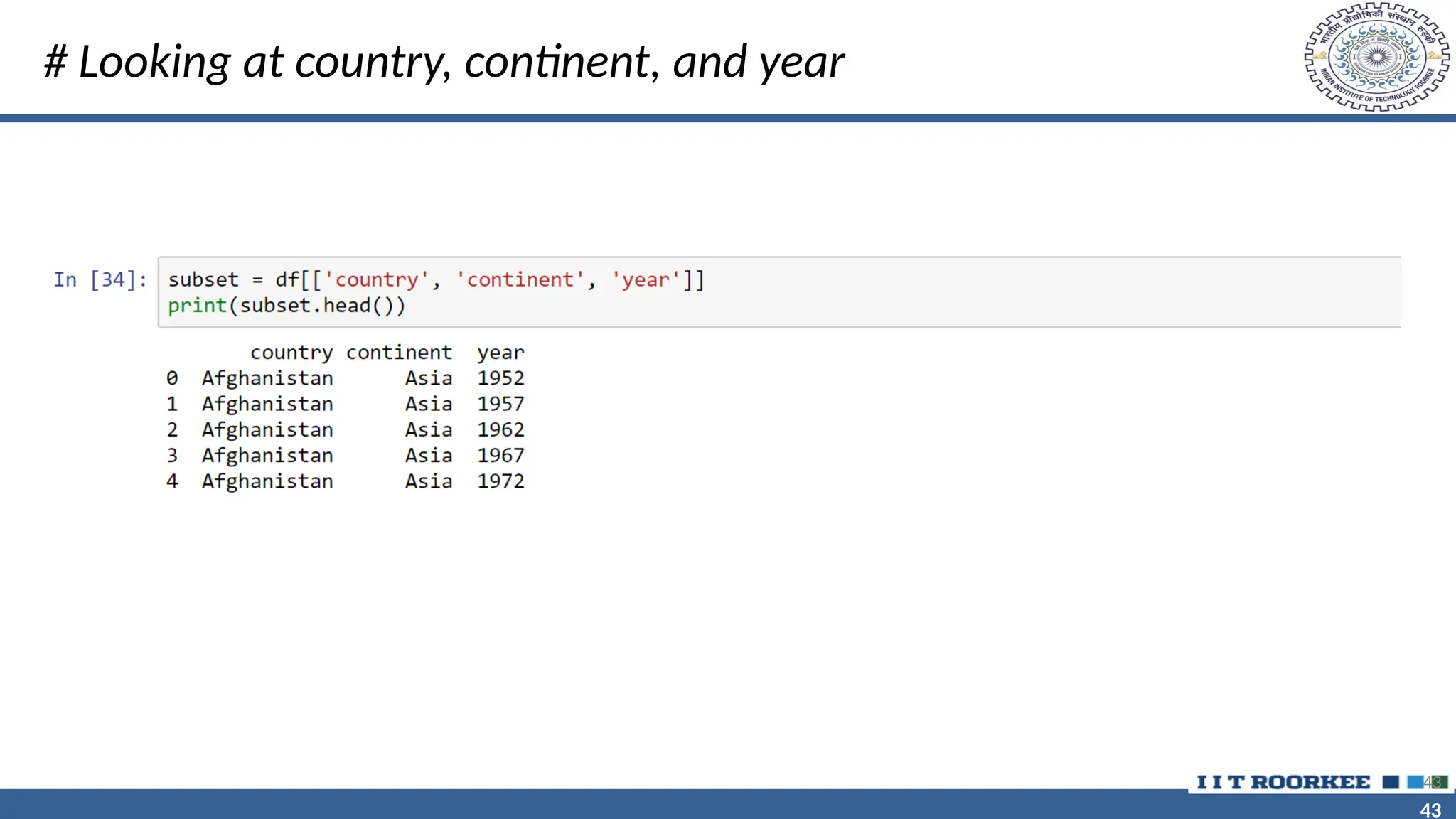
# Looking at country, continent, and year
43
44
44
44
45
45
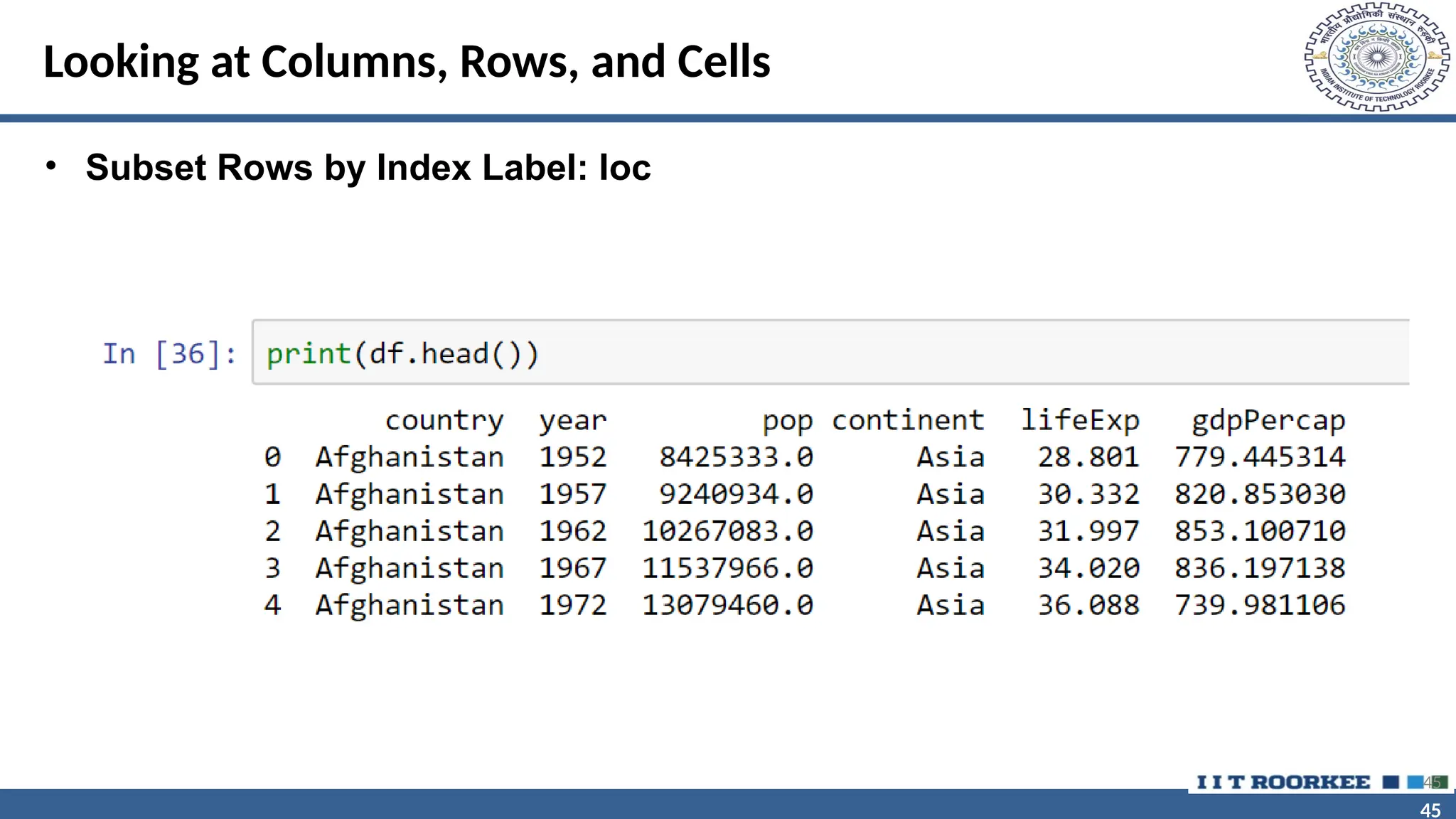
Looking at Columns, Rows, and Cells
• Subset Rows by Index Label: loc
45
46
46
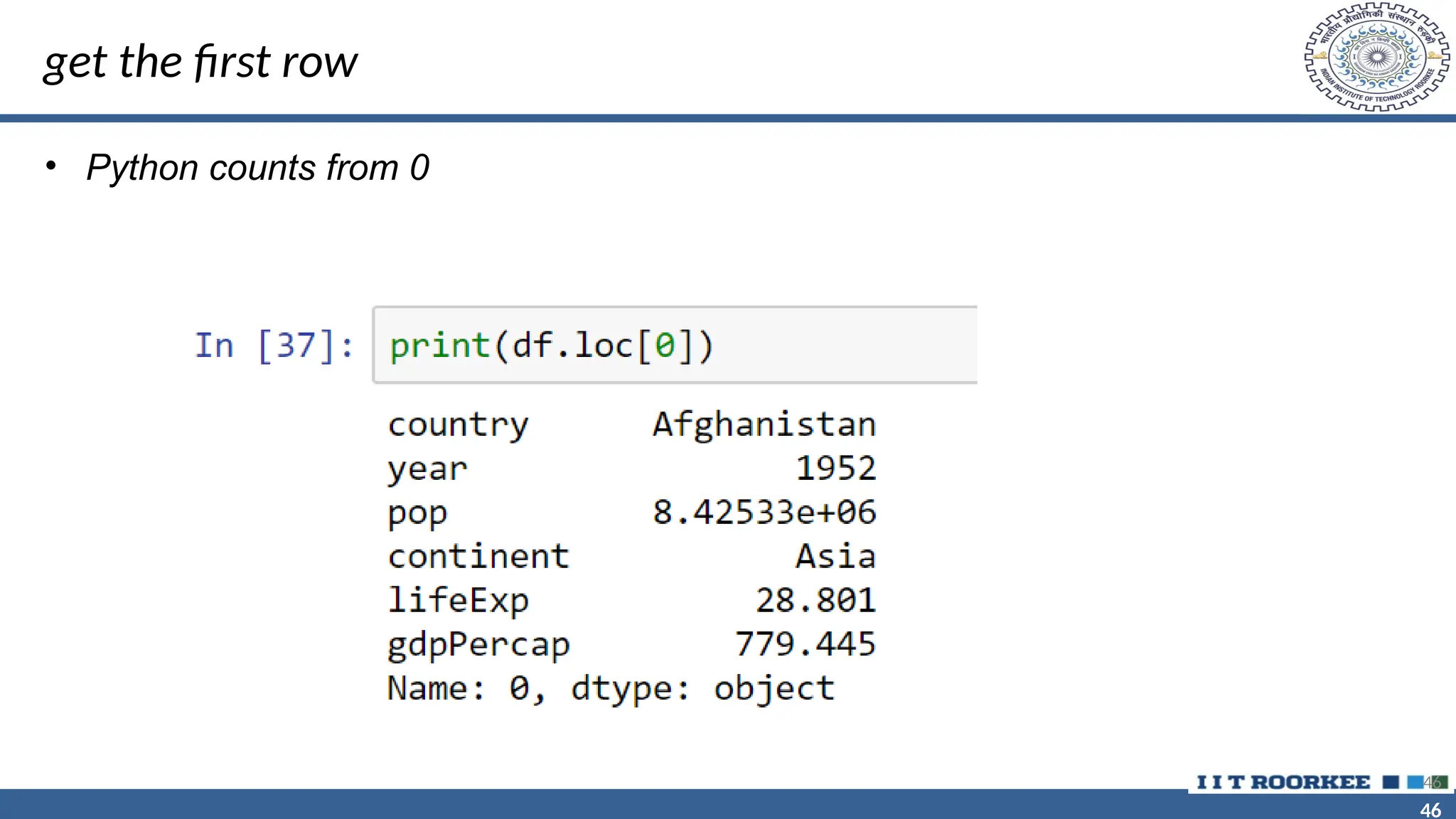
get the first row
• Python counts from 0
46
47
47
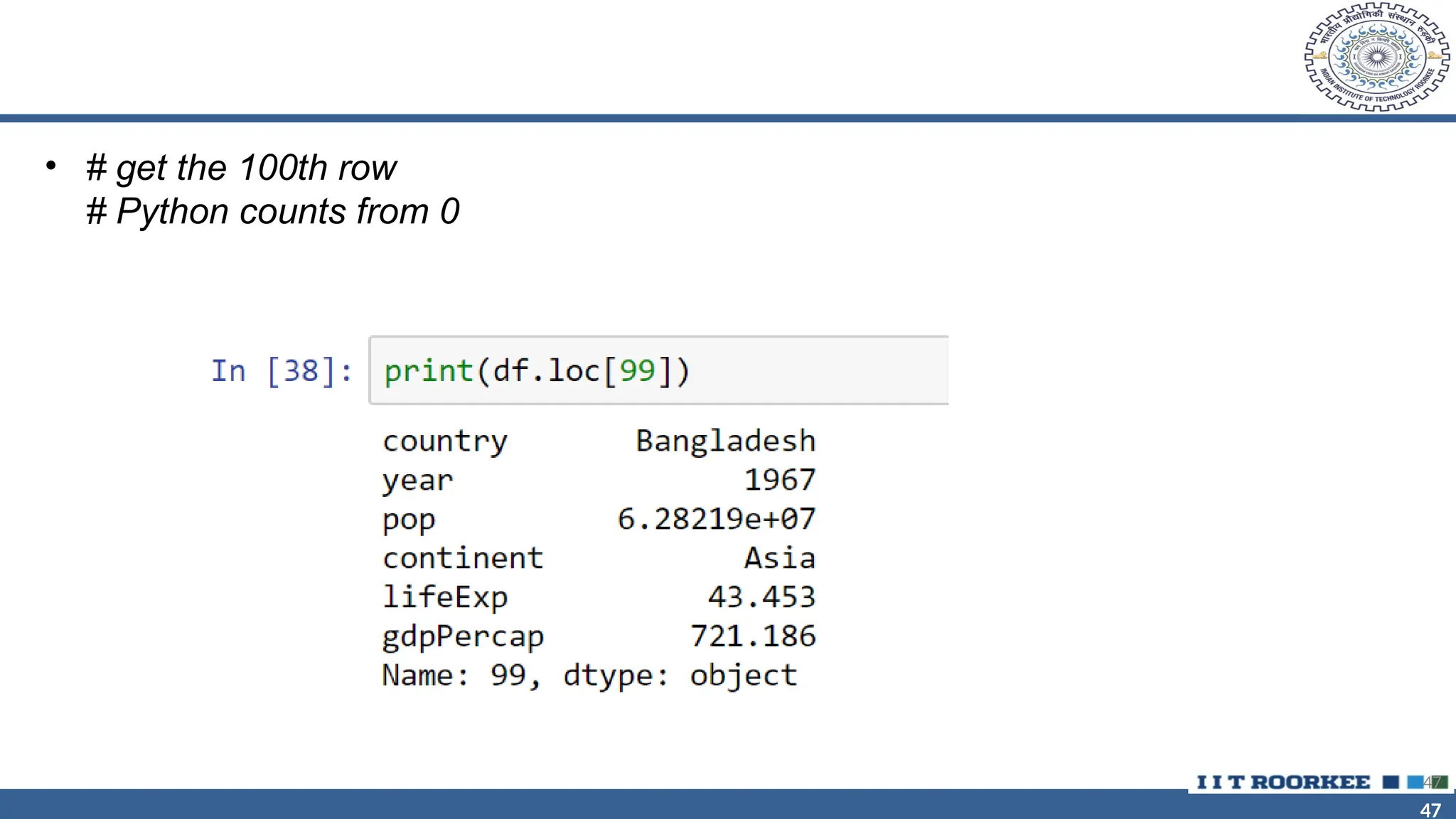
• # get the 100th row
# Python counts from 0
47
48
48
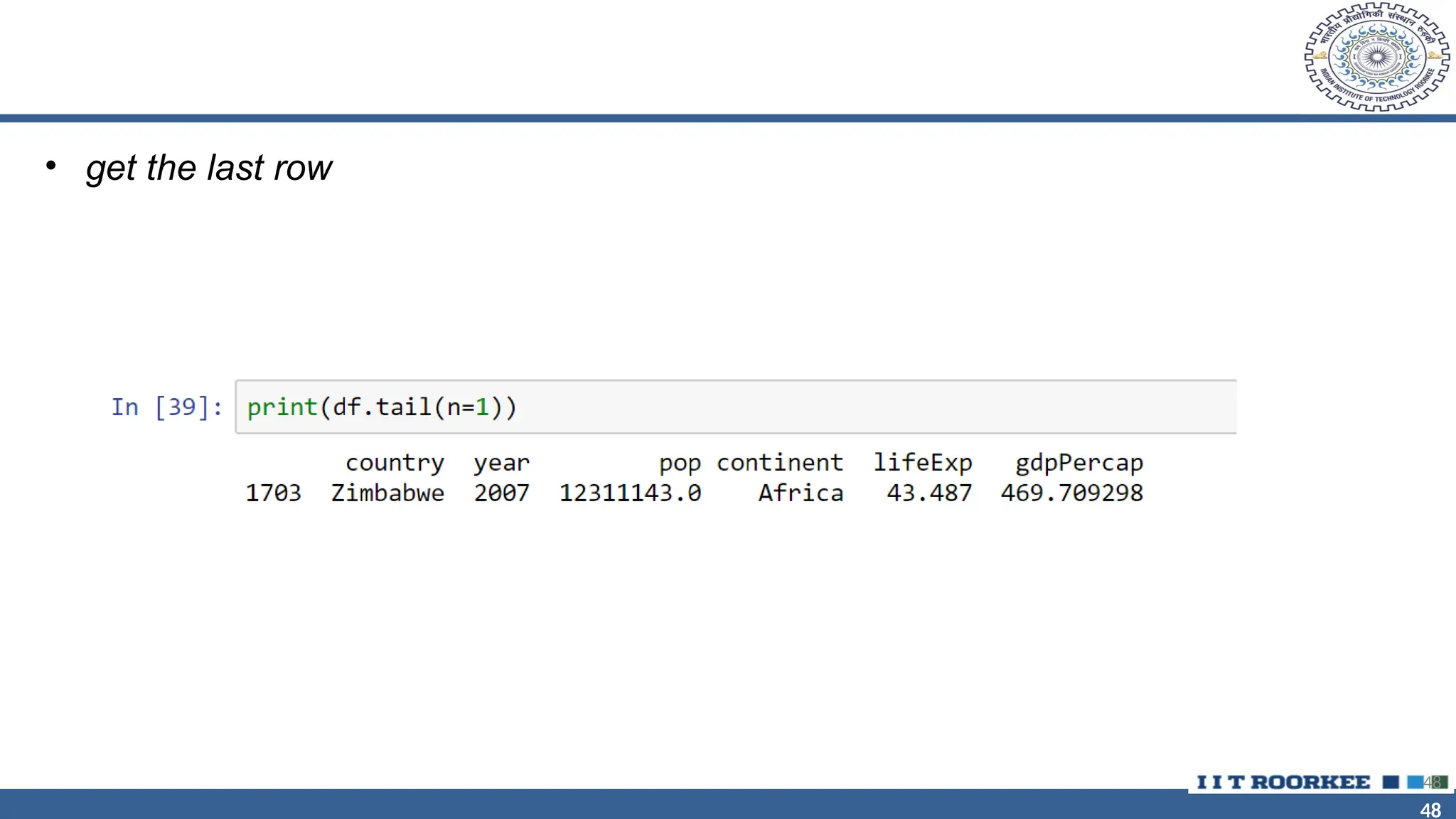
• get the last row
48
49
49
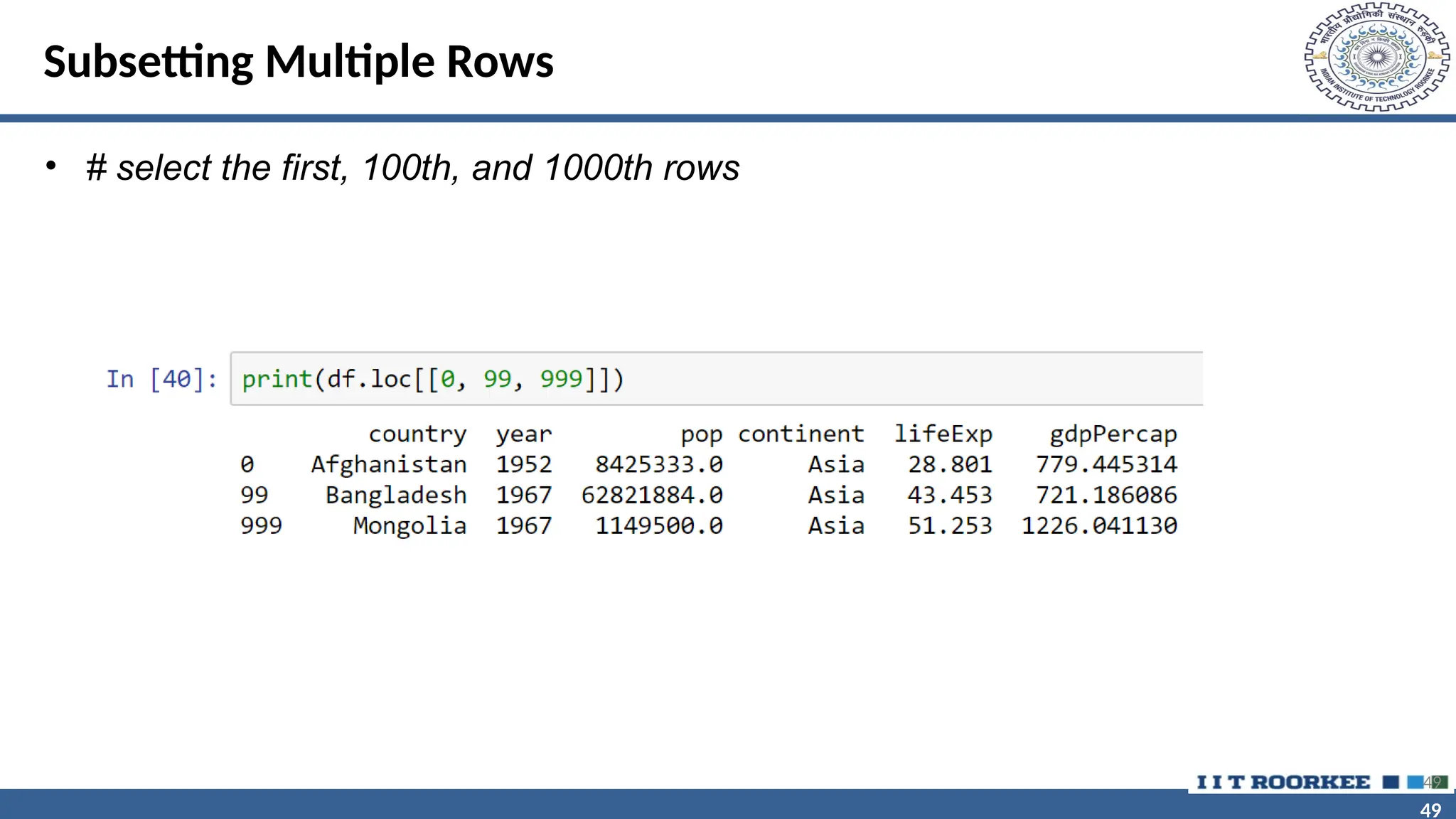
Subsetting Multiple Rows
• # select the first, 100th, and 1000th rows
49
50
50
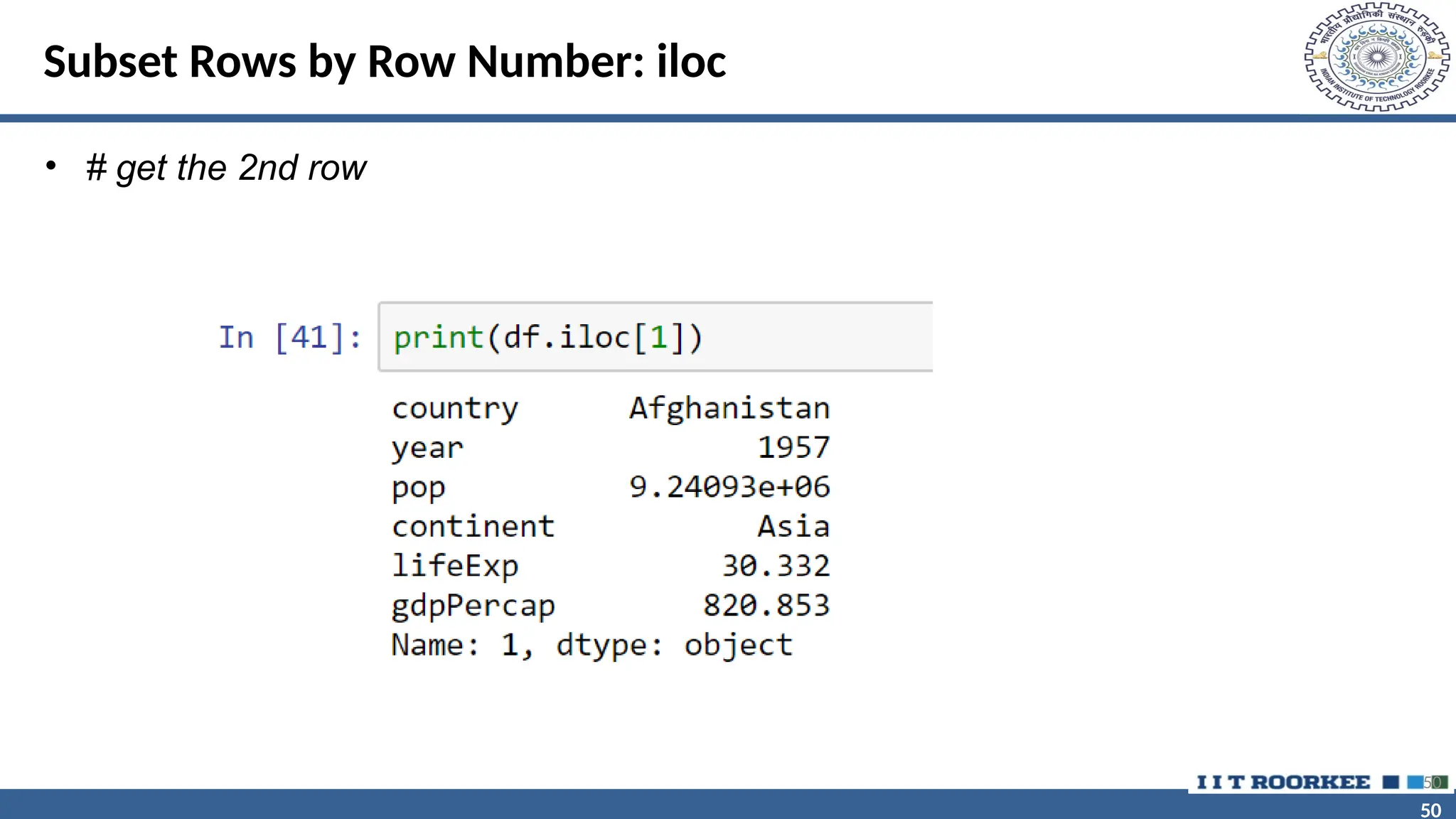
Subset Rows by Row Number: iloc
• # get the 2nd row
50
51
51
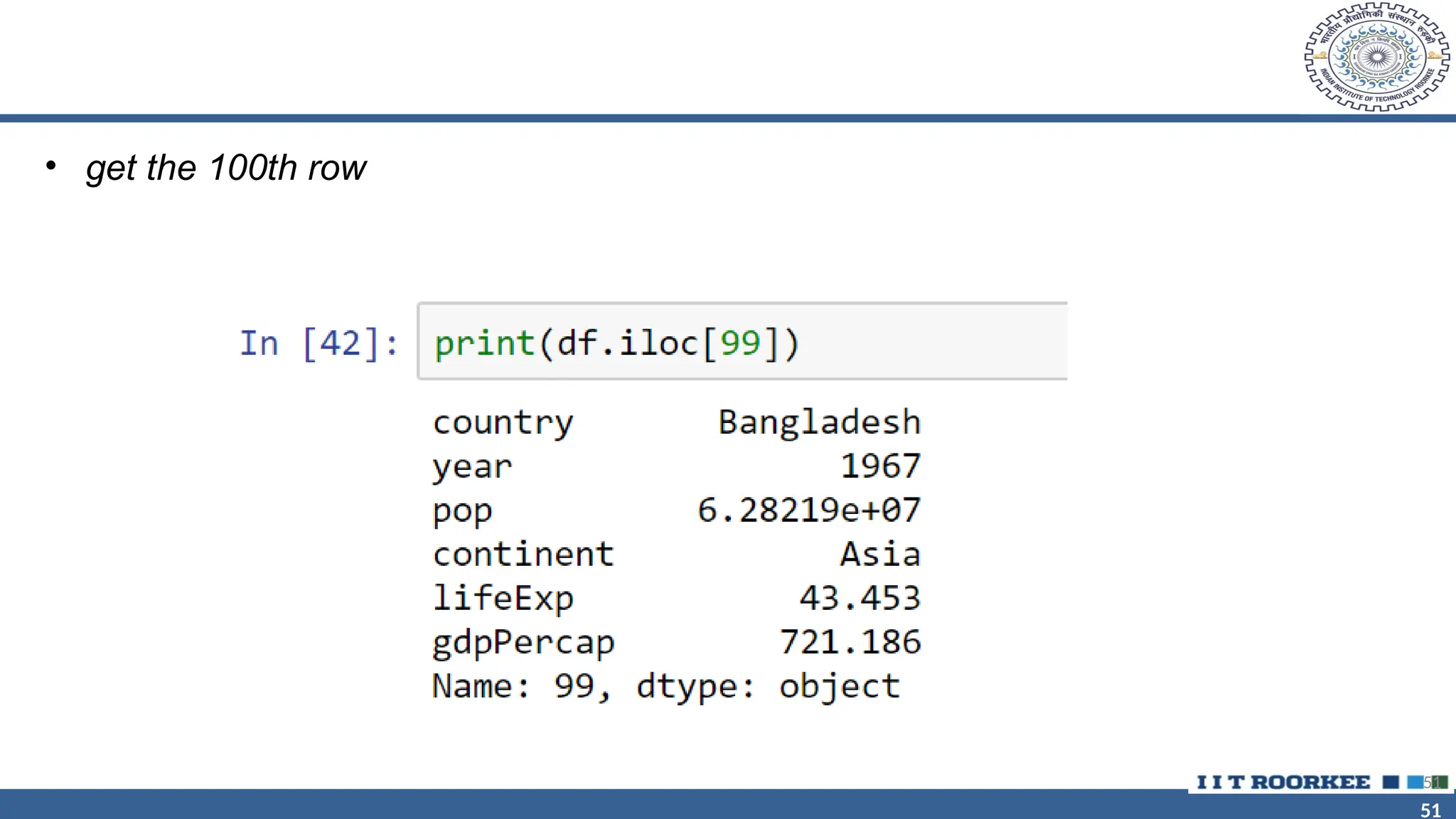
• get the 100th row
51
52
52
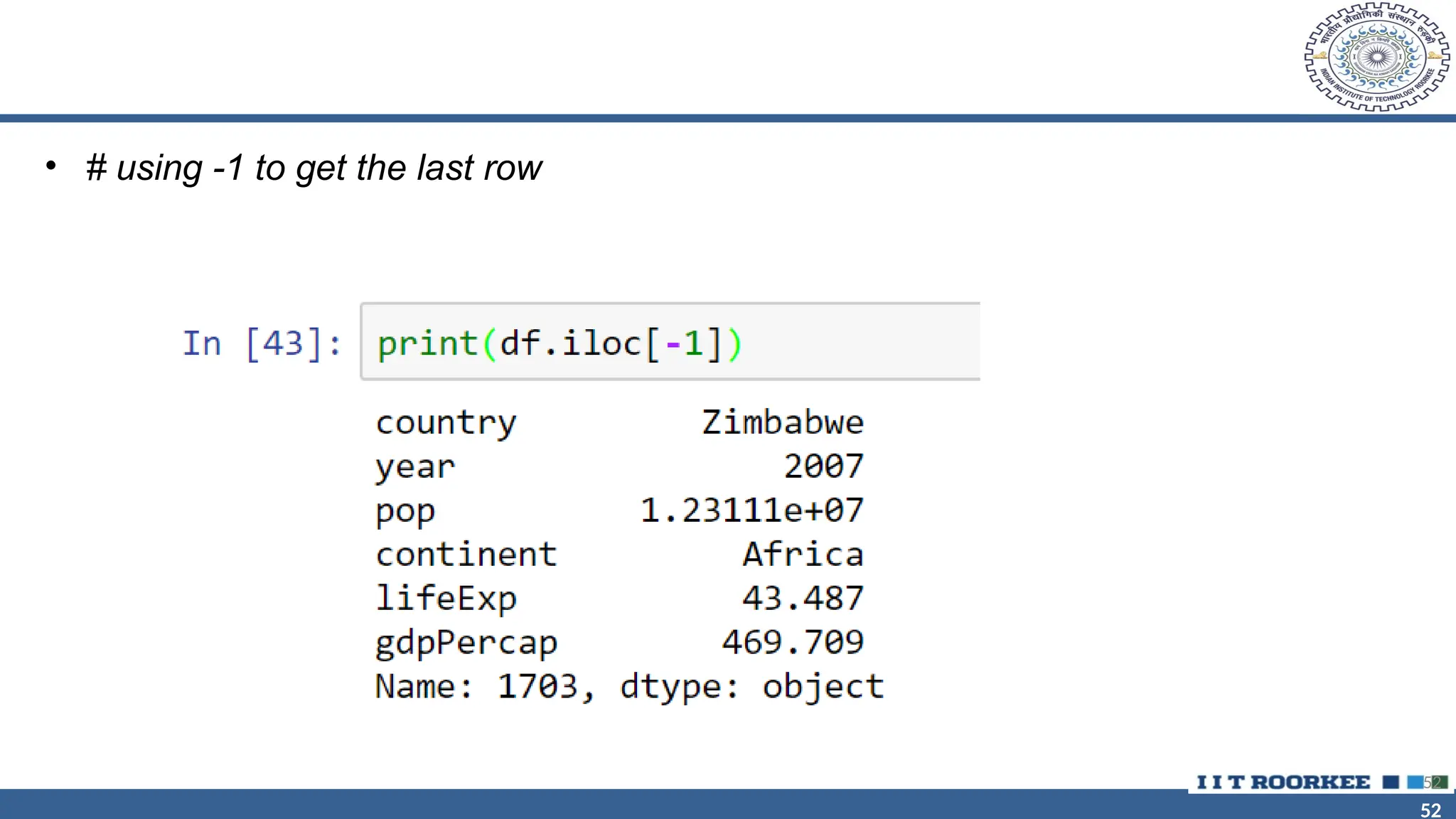
• # using -1 to get the last row
52
53
53
With iloc, we can pass in the -1 to get the last row—something we couldn’t do with loc.
53
54
54
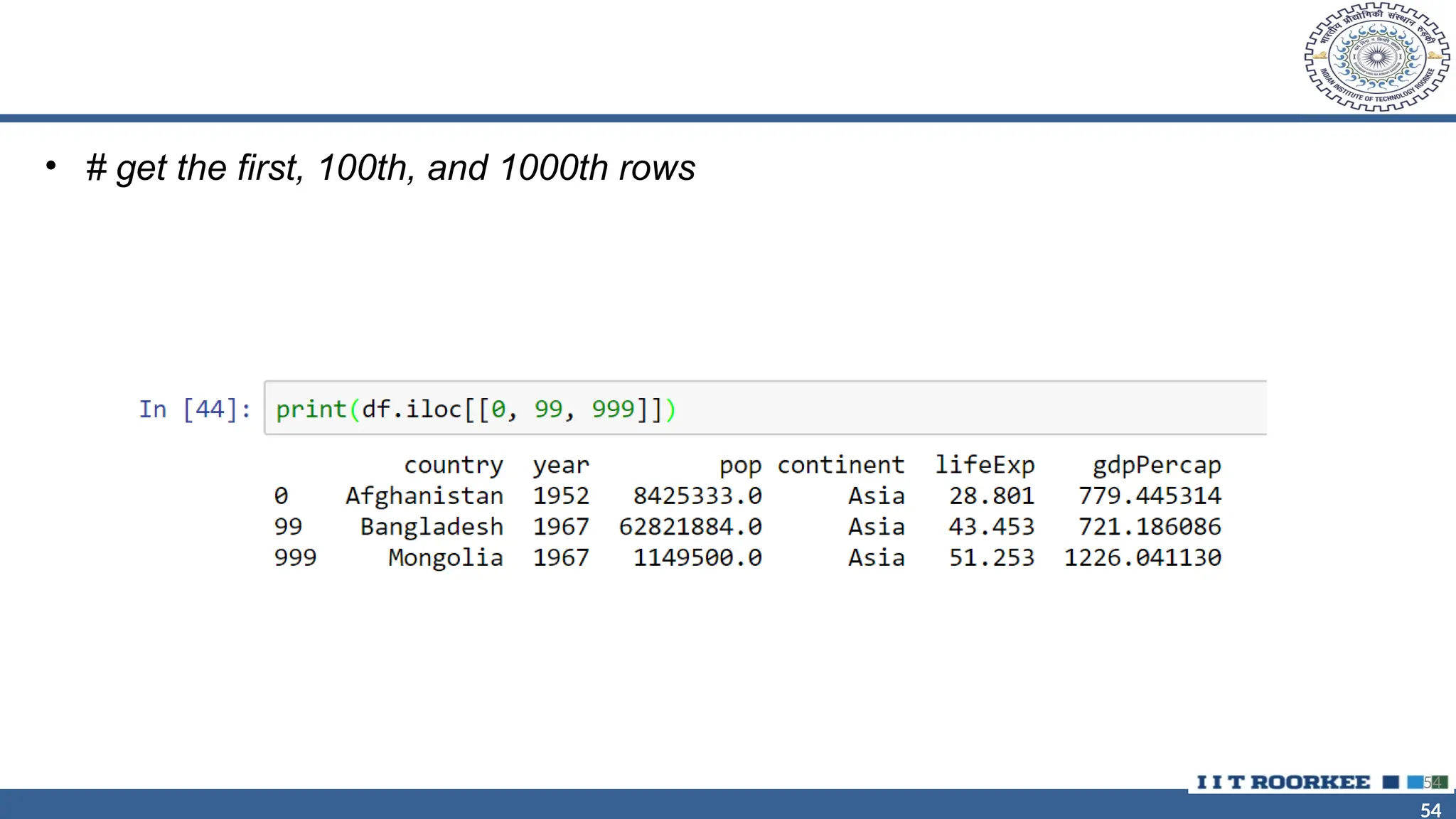
• # get the first, 100th, and 1000th rows
54
55
55
Subsetting Columns
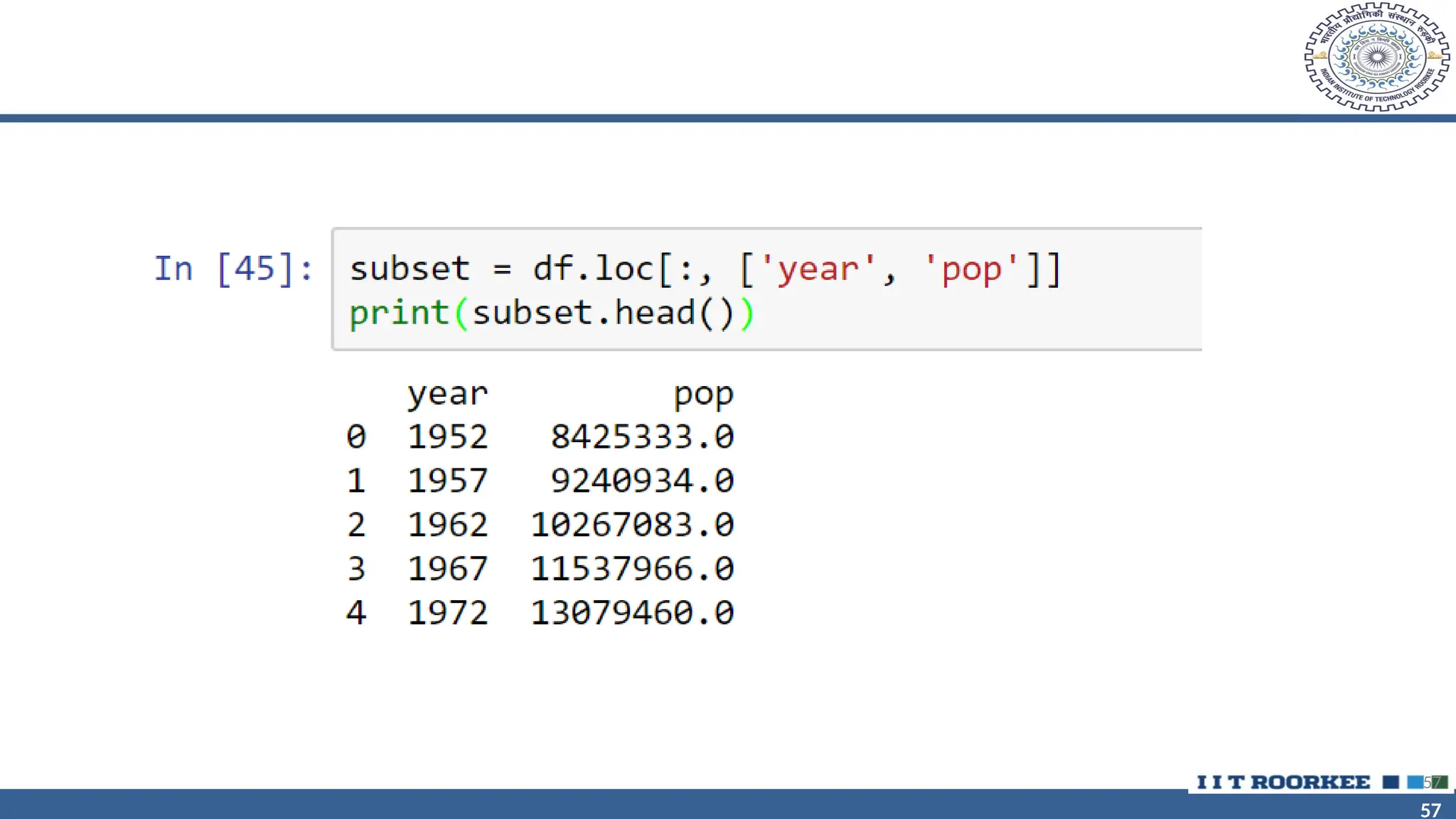
• The Python slicing syntax uses a colon, :
• If we have just a colon, the attribute refers to everything.
• So, if we just want to get the first column using the loc or iloc syntax,
we can write something like df.loc[:, [columns]] to subset the column(s).
55
56
56
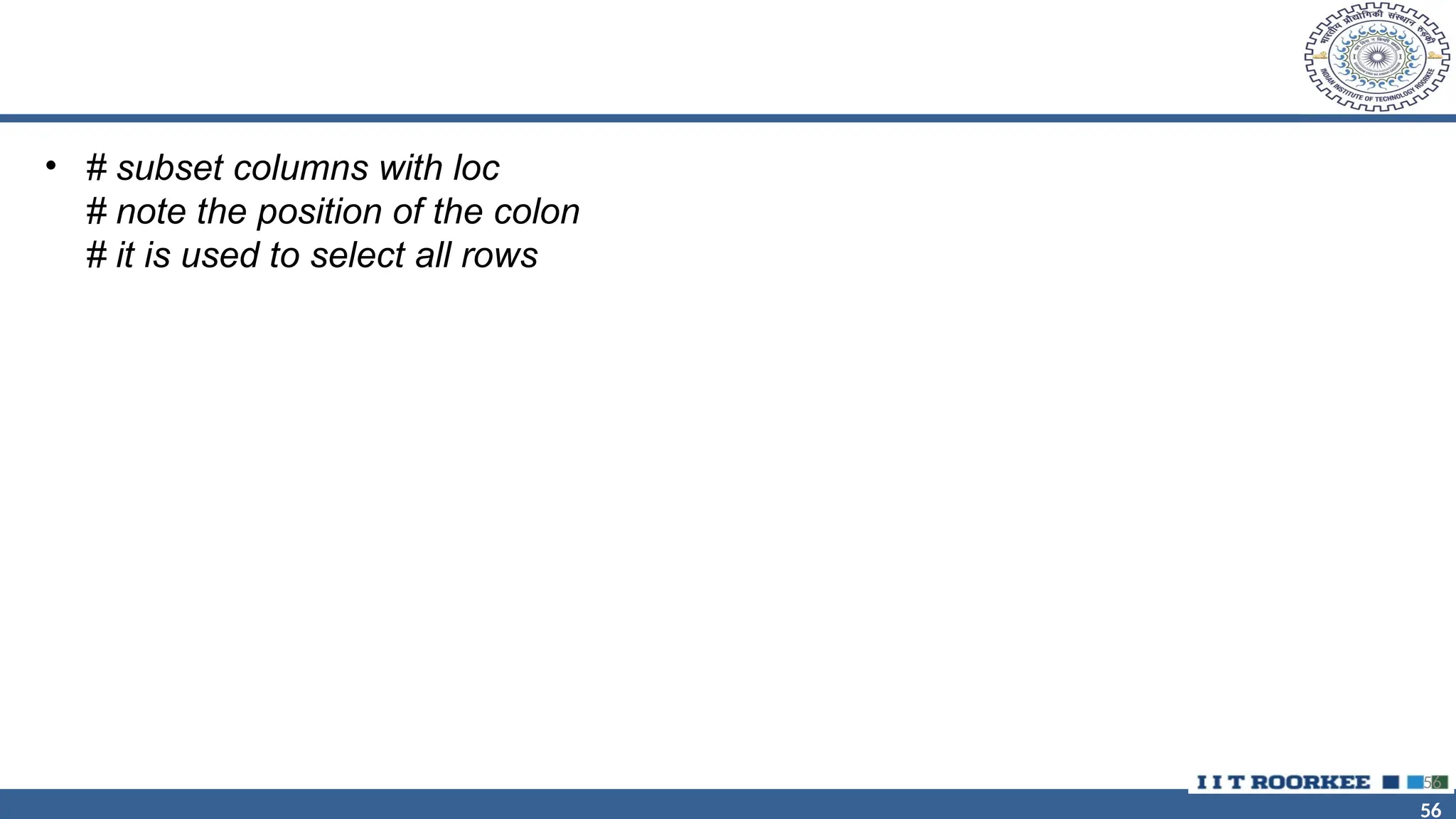
• # subset columns with loc
# note the position of the colon
# it is used to select all rows
56
57
57
57
58
58
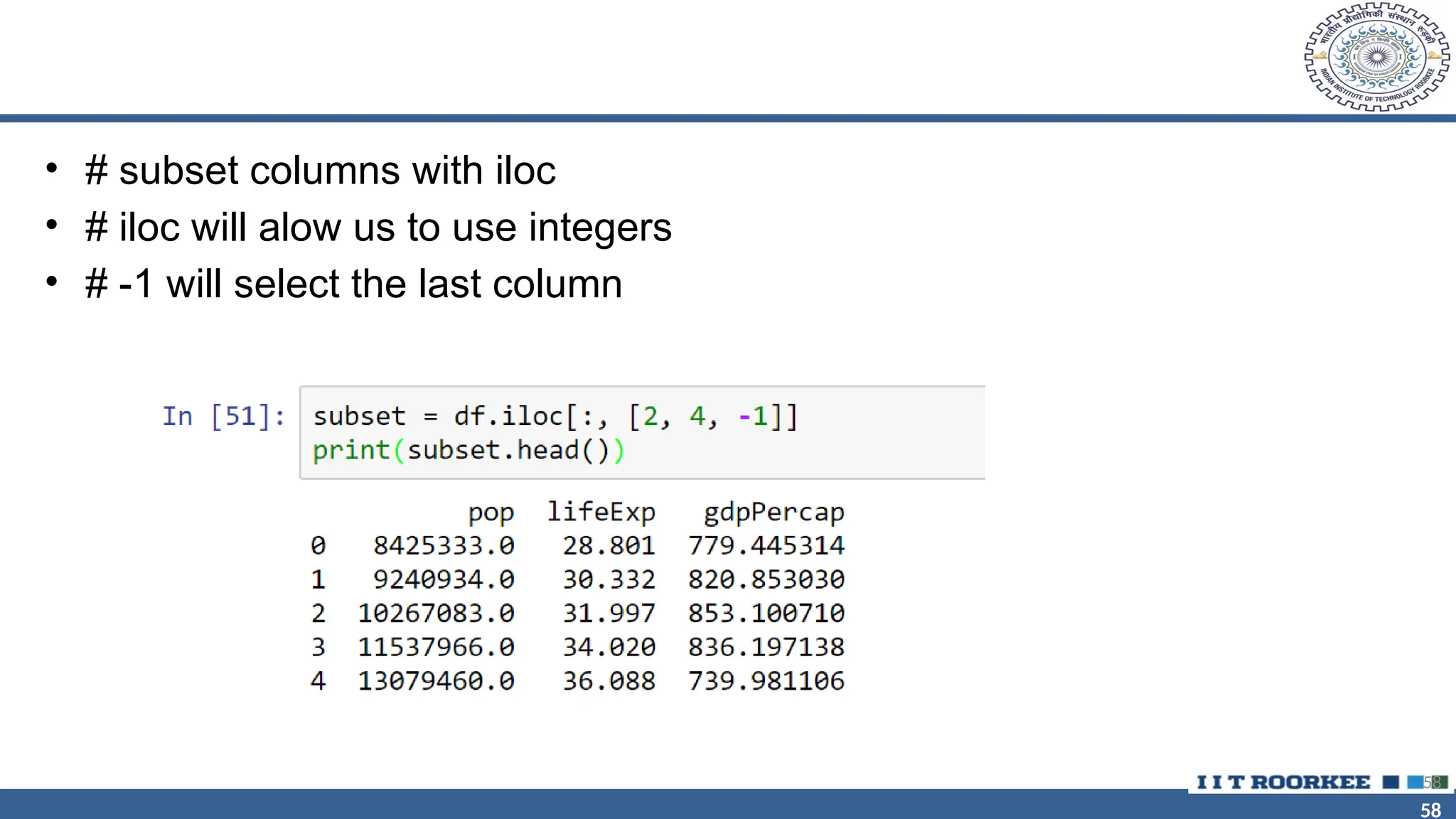
• # subset columns with iloc
• # iloc will alow us to use integers
• # -1 will select the last column
58
59
59
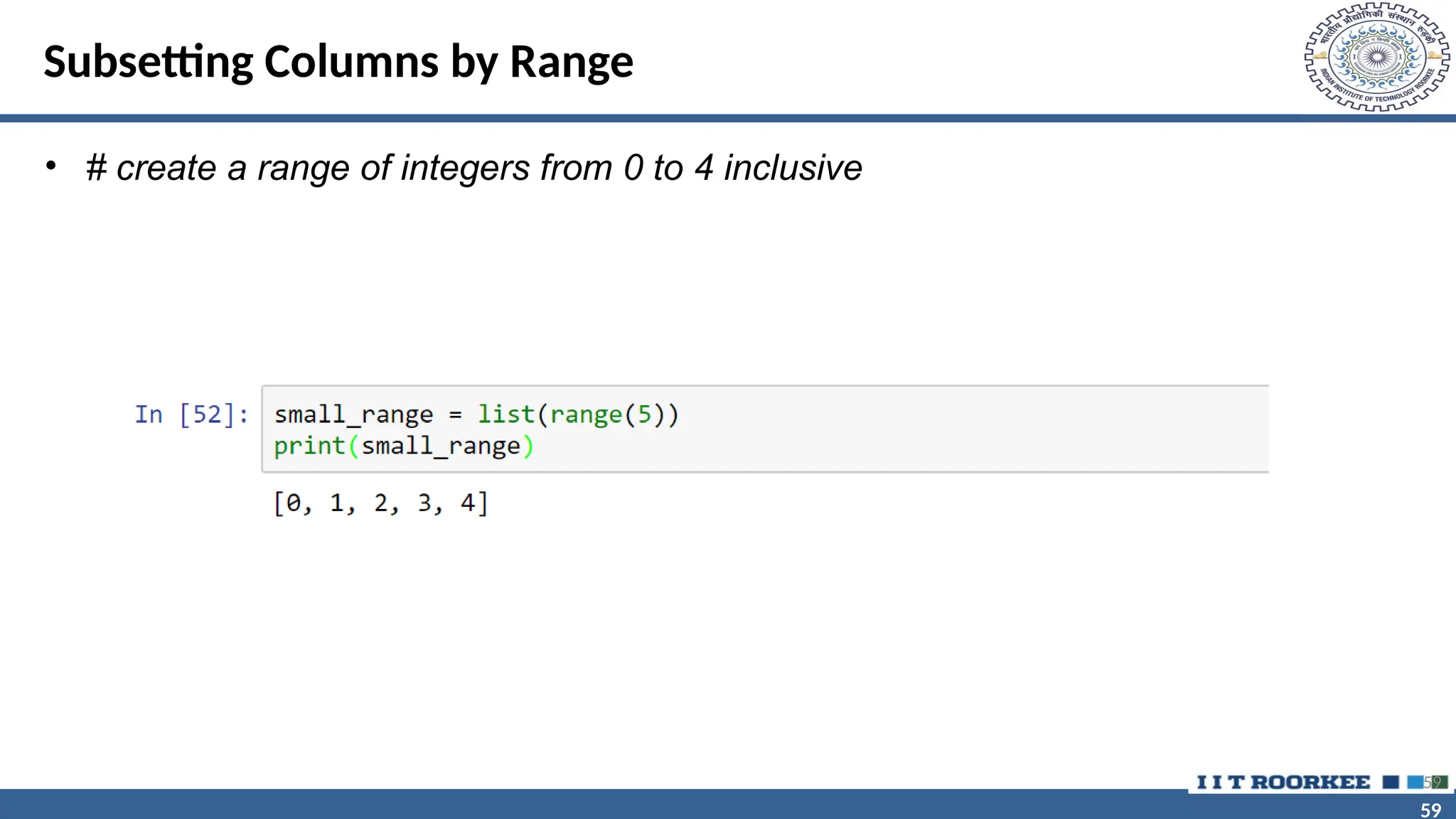
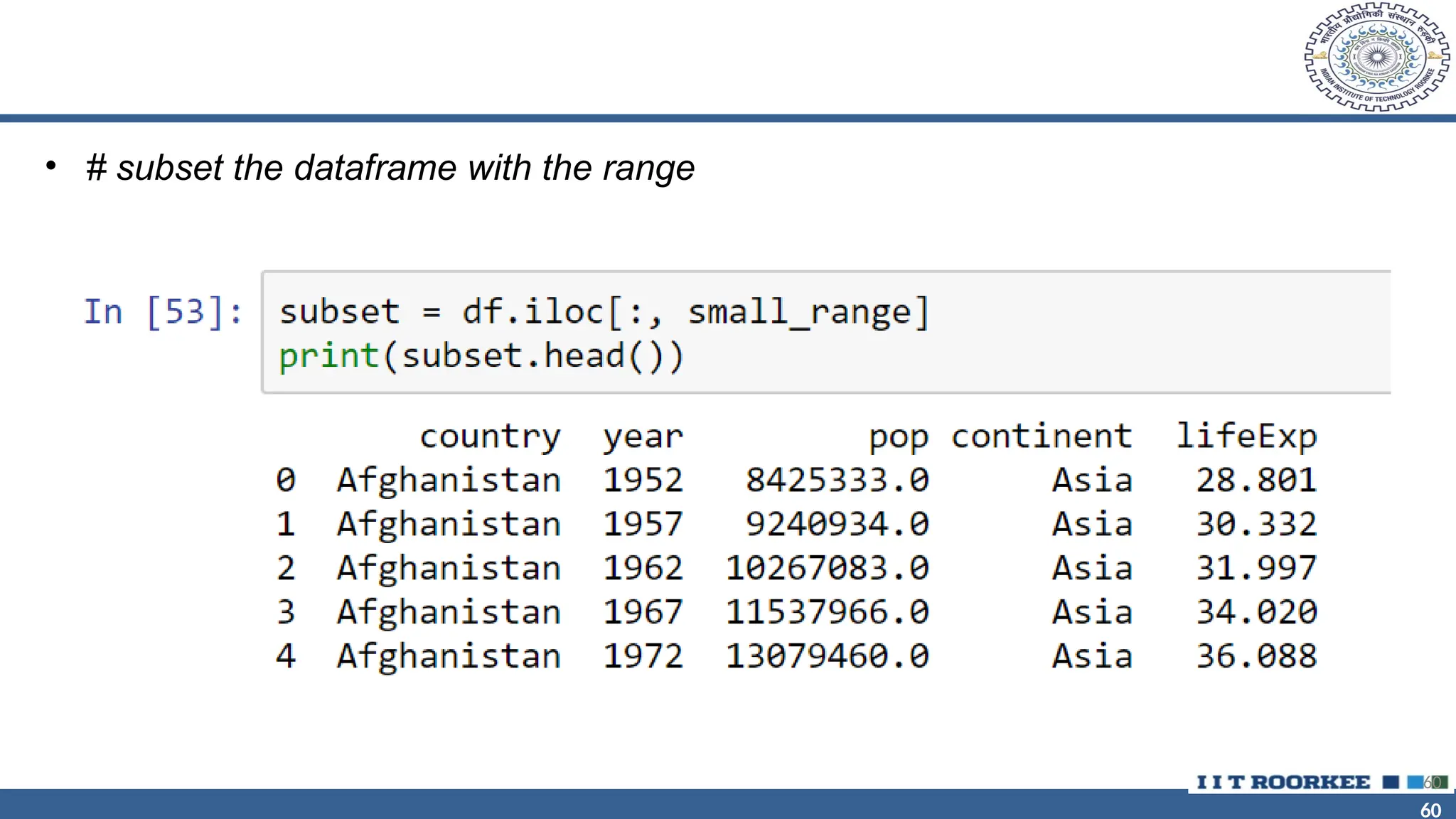
Subsetting Columns by Range
• # create a range of integers from 0 to 4 inclusive
59
60
60
• # subset the dataframe with the range
60
61
61
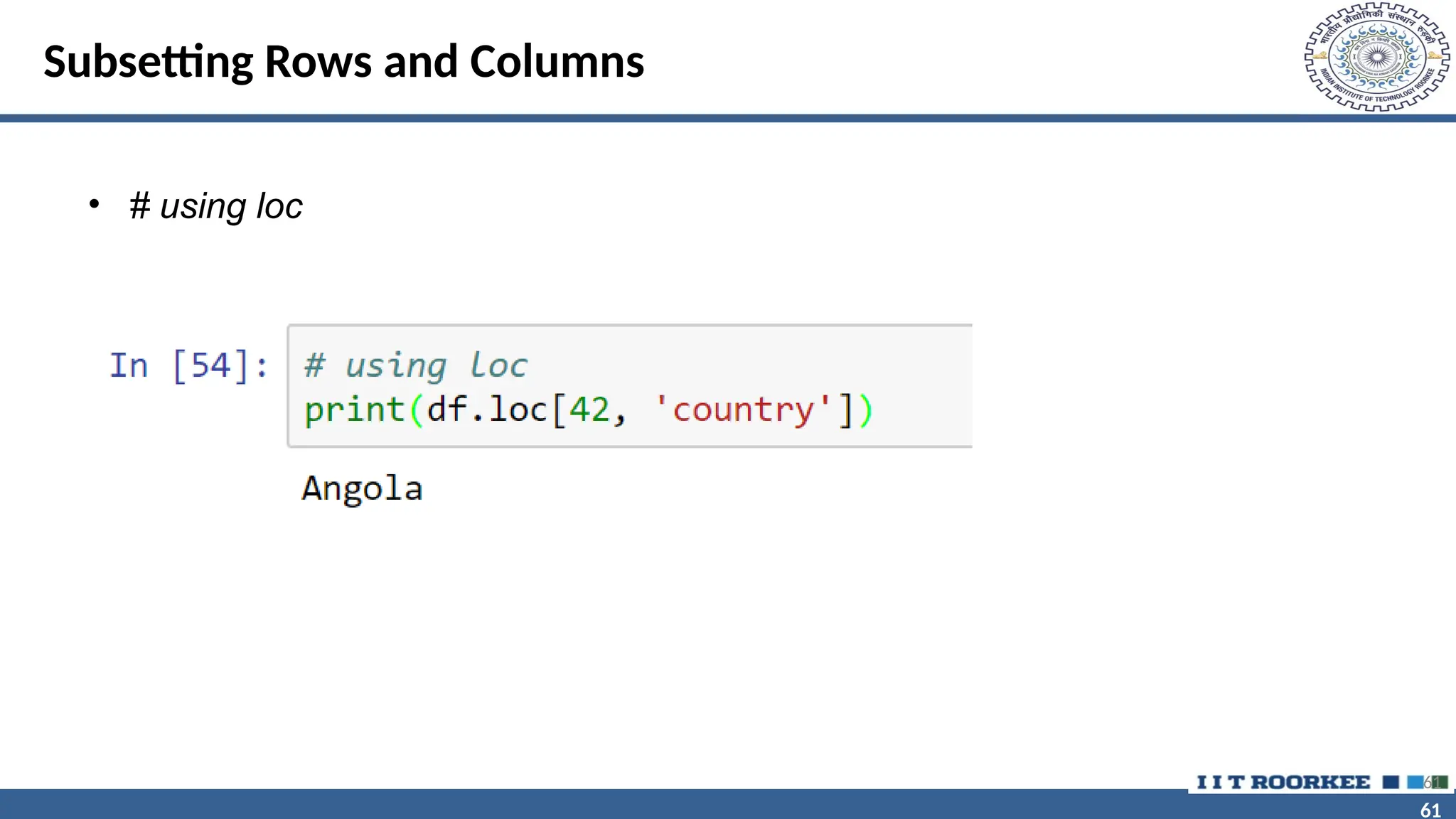
Subsetting Rows and Columns
• # using loc
61
62
62
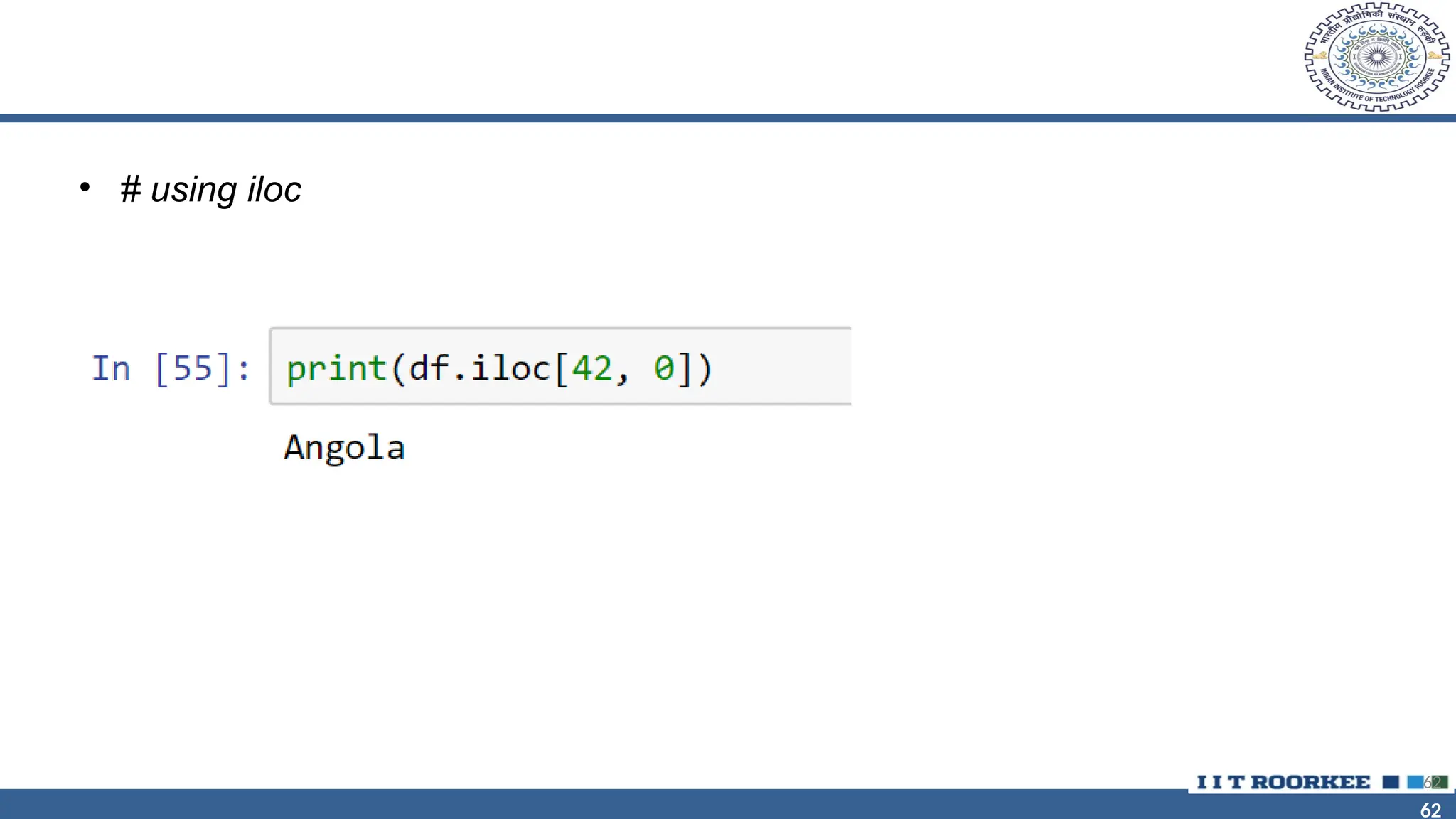
• # using iloc
62
63
63
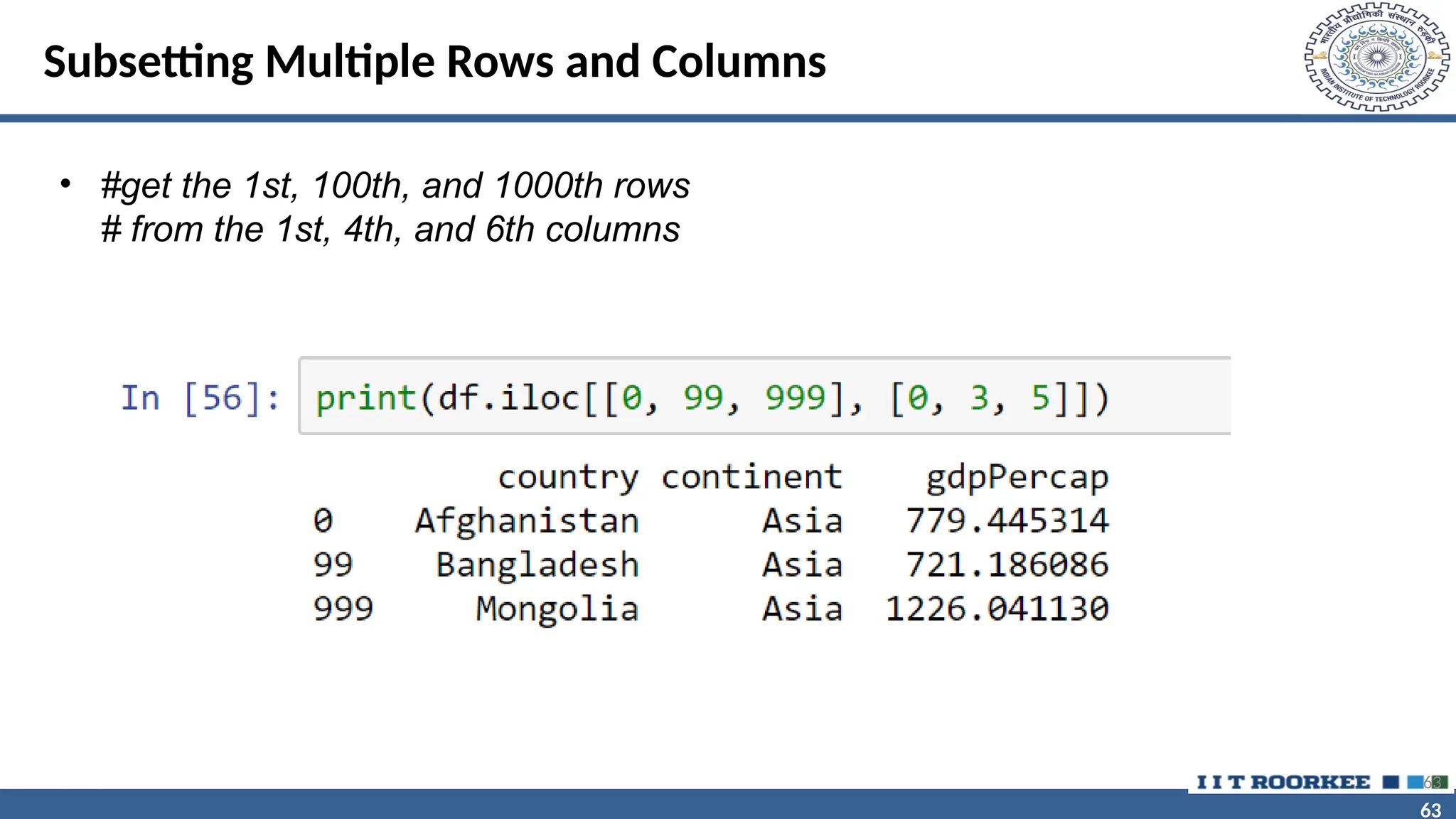
Subsetting Multiple Rows and Columns
• #get the 1st, 100th, and 1000th rows
# from the 1st, 4th, and 6th columns
63
64
64
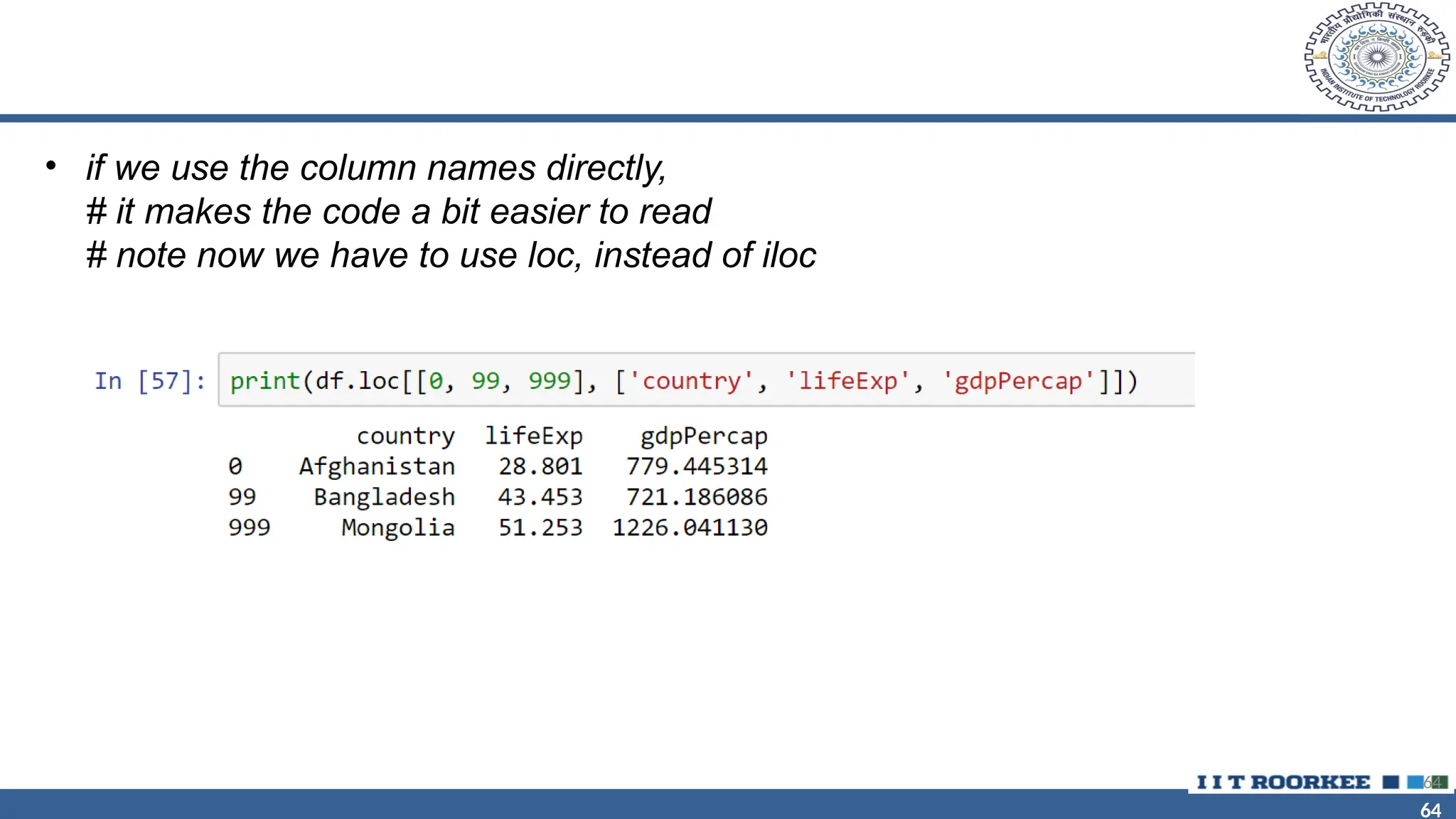
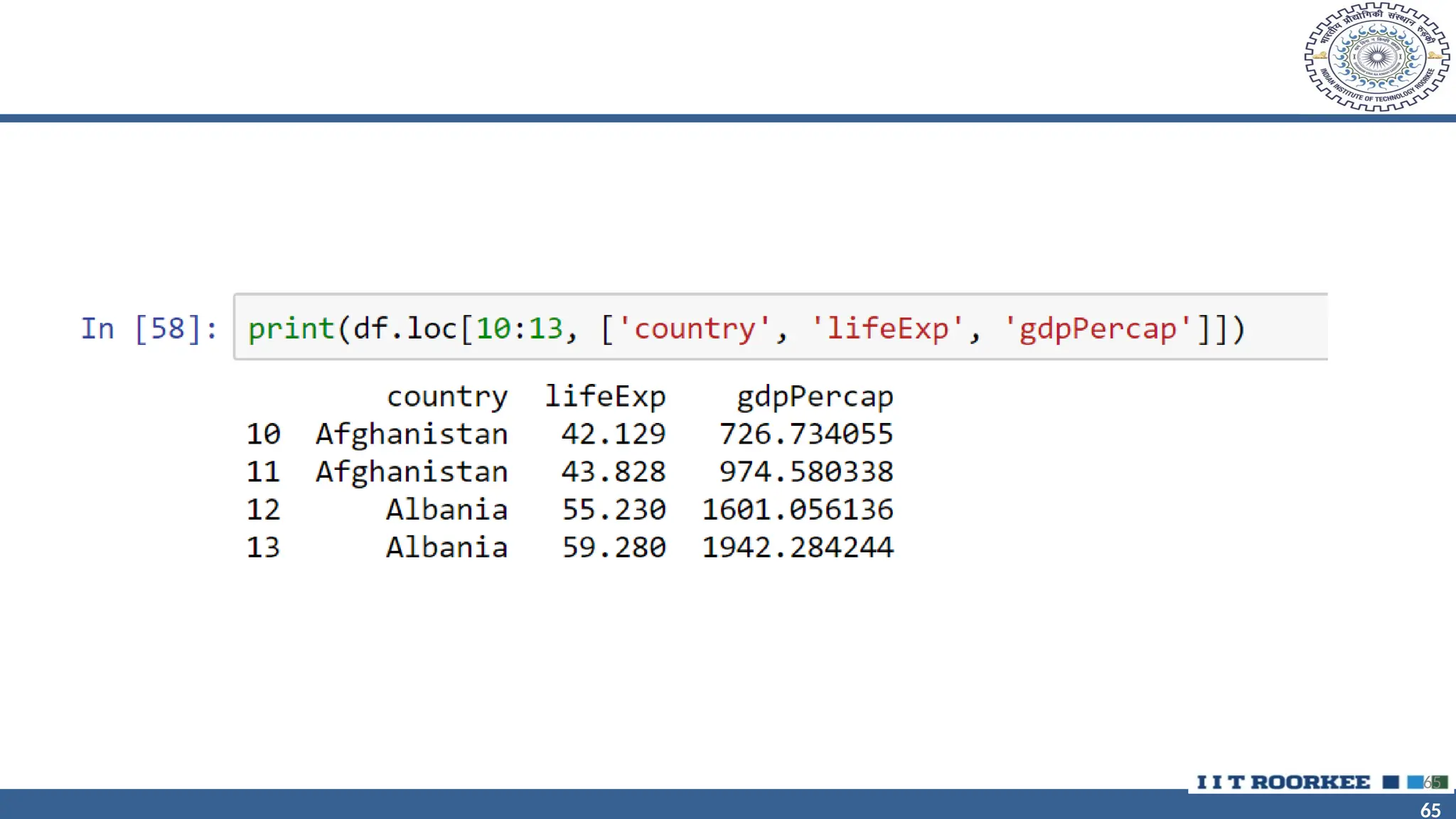
• if we use the column names directly,
# it makes the code a bit easier to read
# note now we have to use loc, instead of iloc
64
65
65
65
66
66
66
67
67
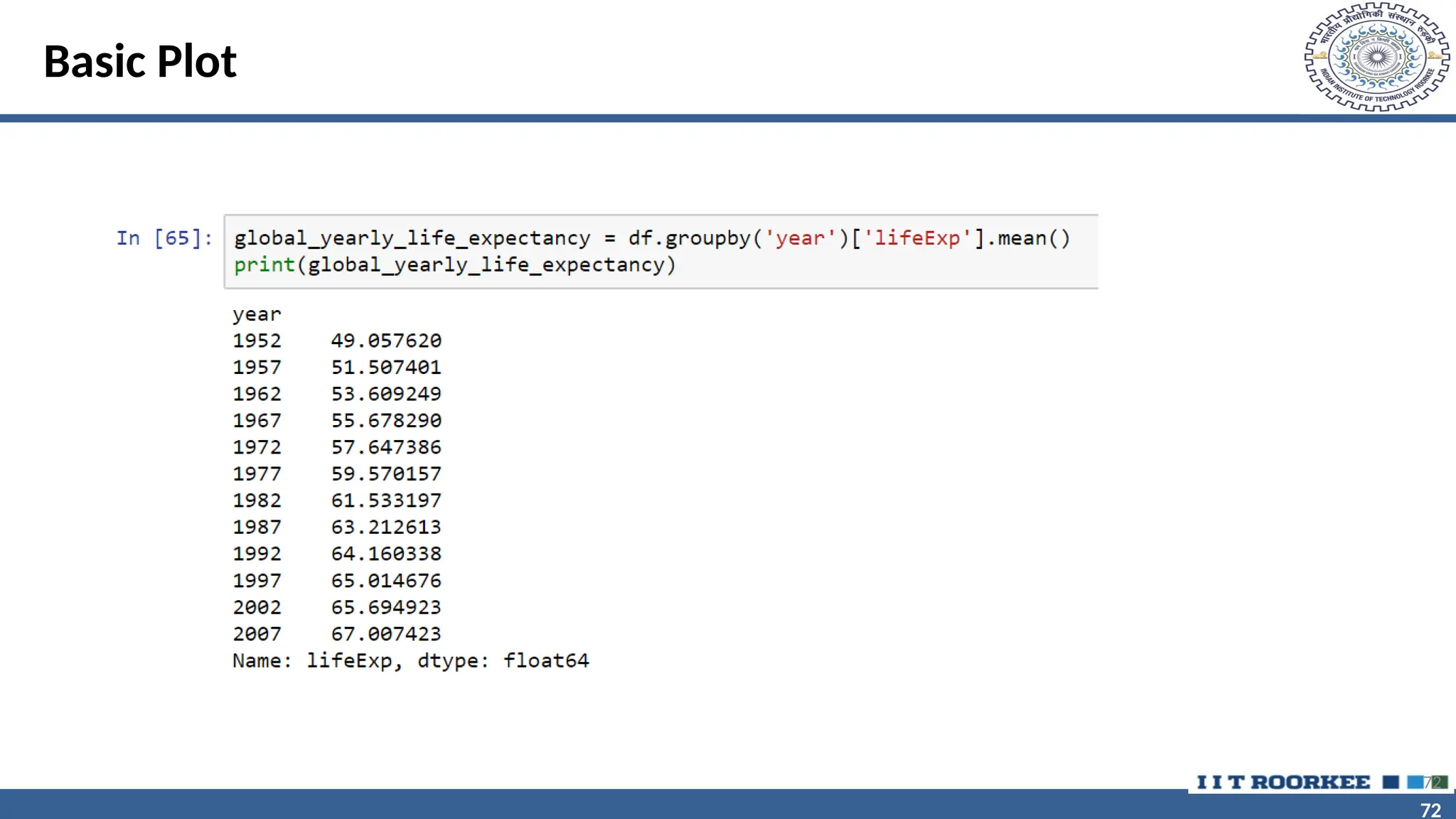
Grouped Means
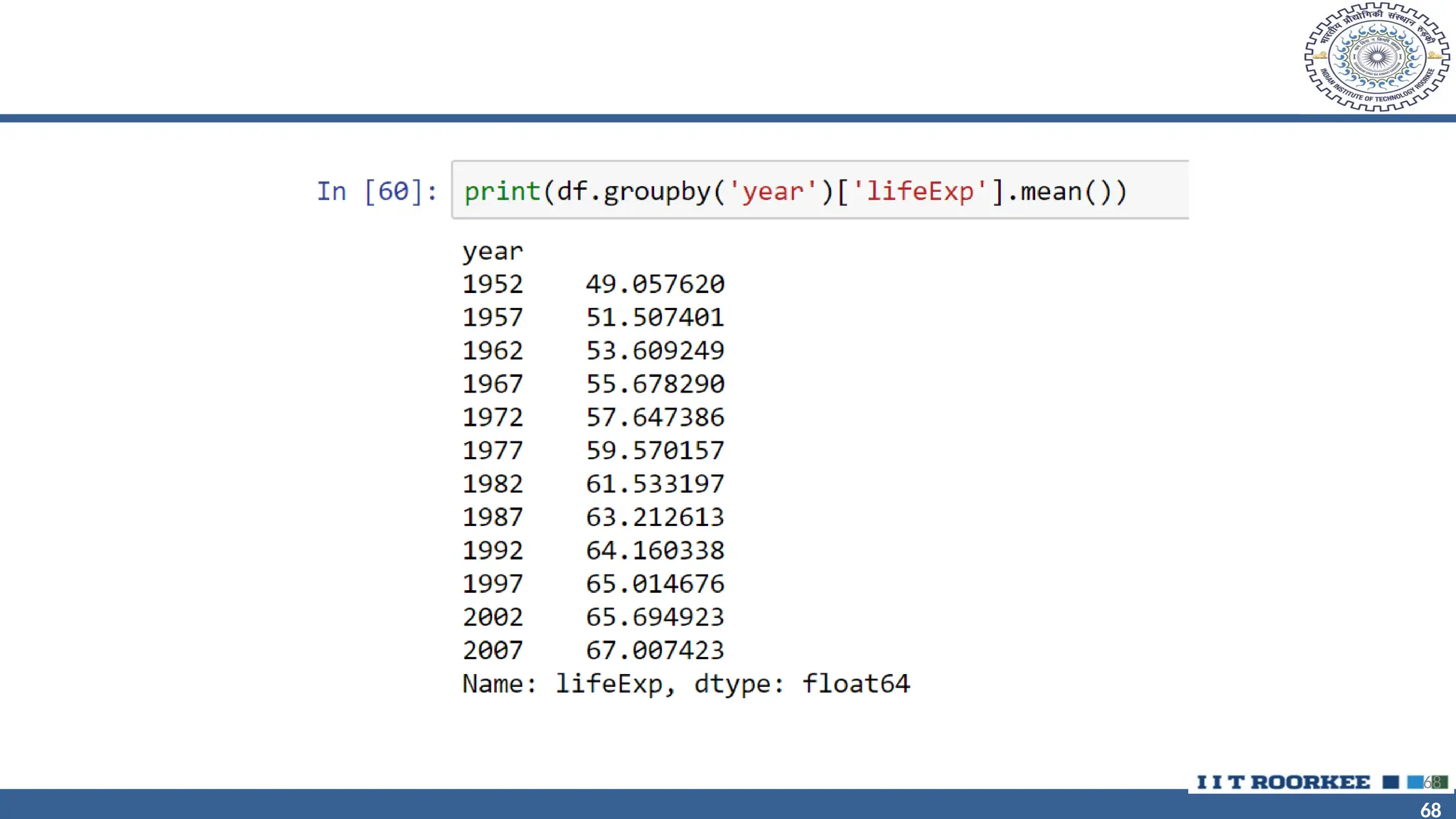
• # For each year in our data, what was the average life expectancy?
# To answer this question,
# we need to split our data into parts by year;
# then we get the 'lifeExp' column and calculate the mean
67
68
68
68
69
69
69
70
70
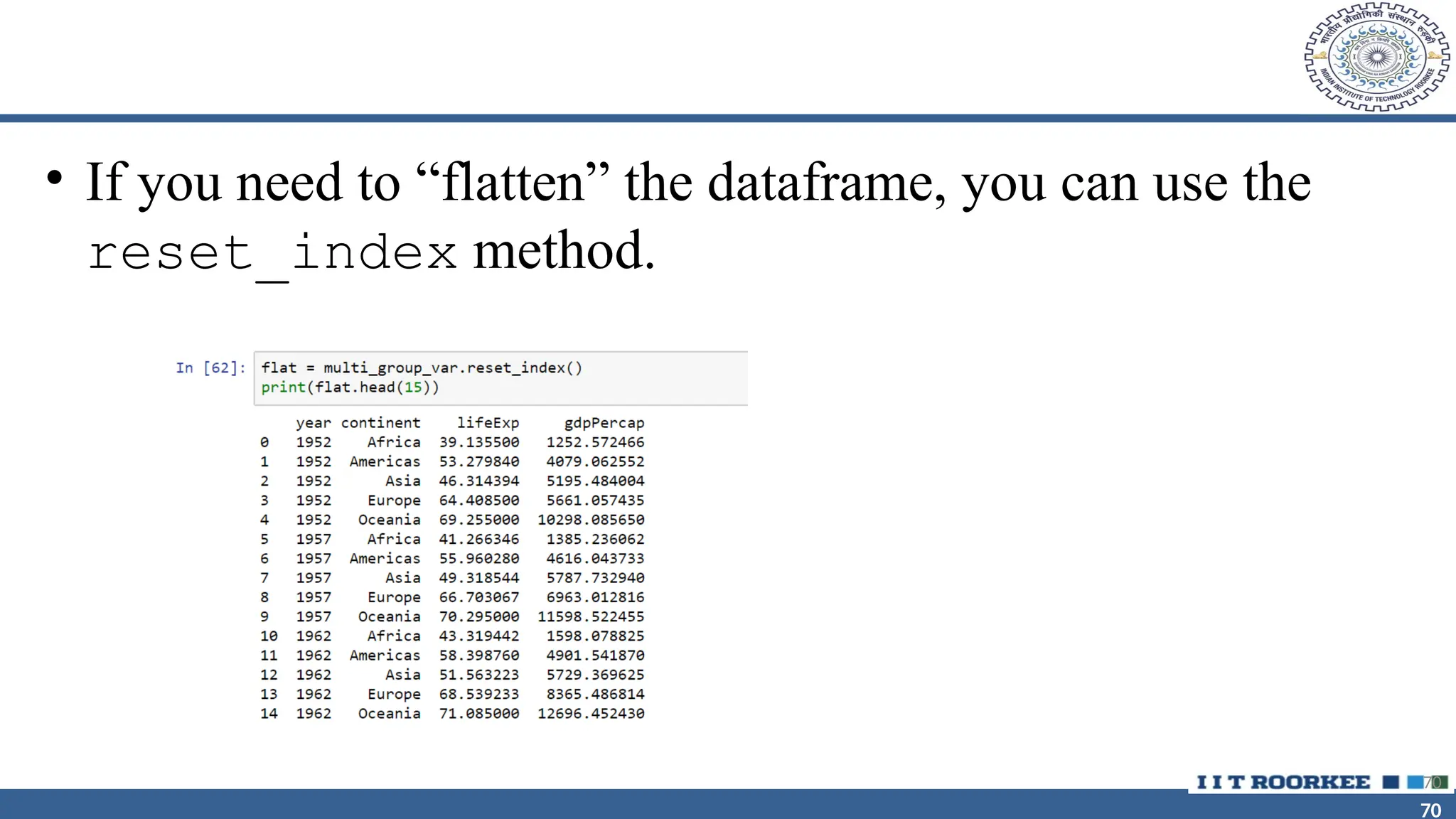
• If you need to “flatten” the dataframe, you can use the
reset_index method.
70
71
71
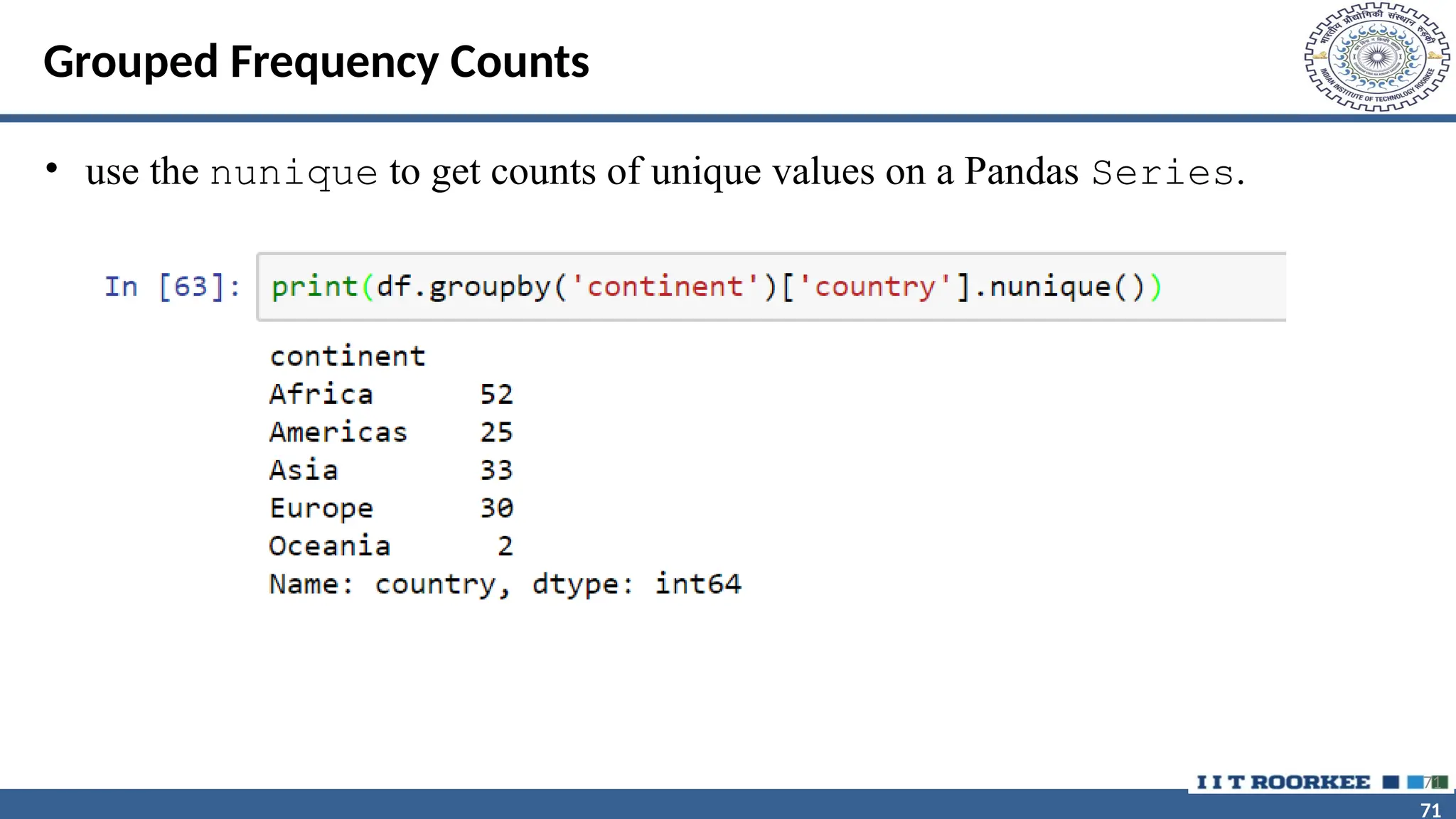
Grouped Frequency Counts
• use the nunique to get counts of unique values on a Pandas Series.
71
72
72
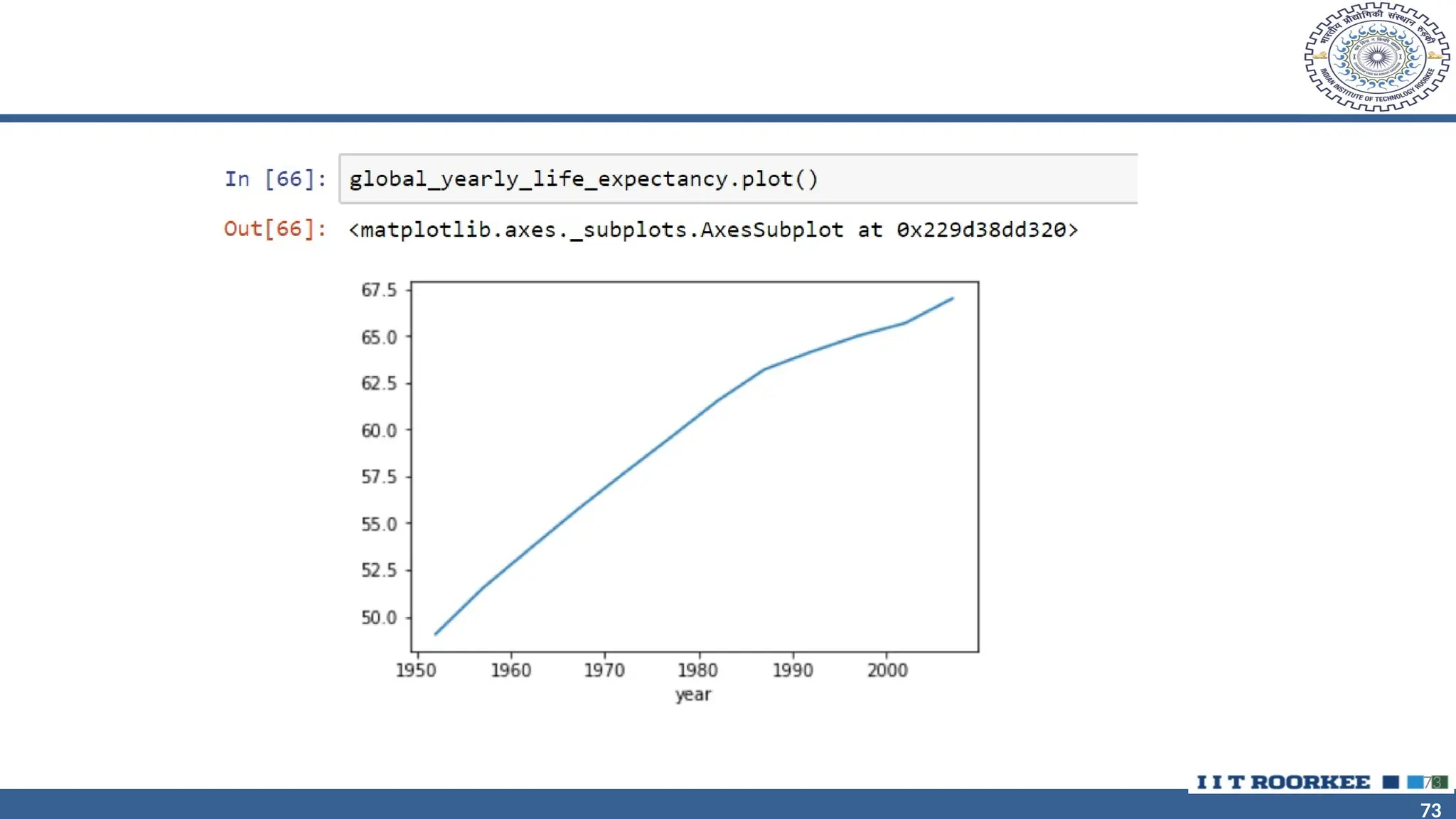
Basic Plot
72
73
73
73
74
74
Visual Representation of the Data
• Histogram -- vertical bar chart of frequencies
• Frequency Polygon -- line graph of frequencies
• Ogive -- line graph of cumulative frequencies
• Pie Chart -- proportional representation for categories of a whole
• Stem and Leaf Plot
• Pareto Chart
• Scatter Plot
74
75
75
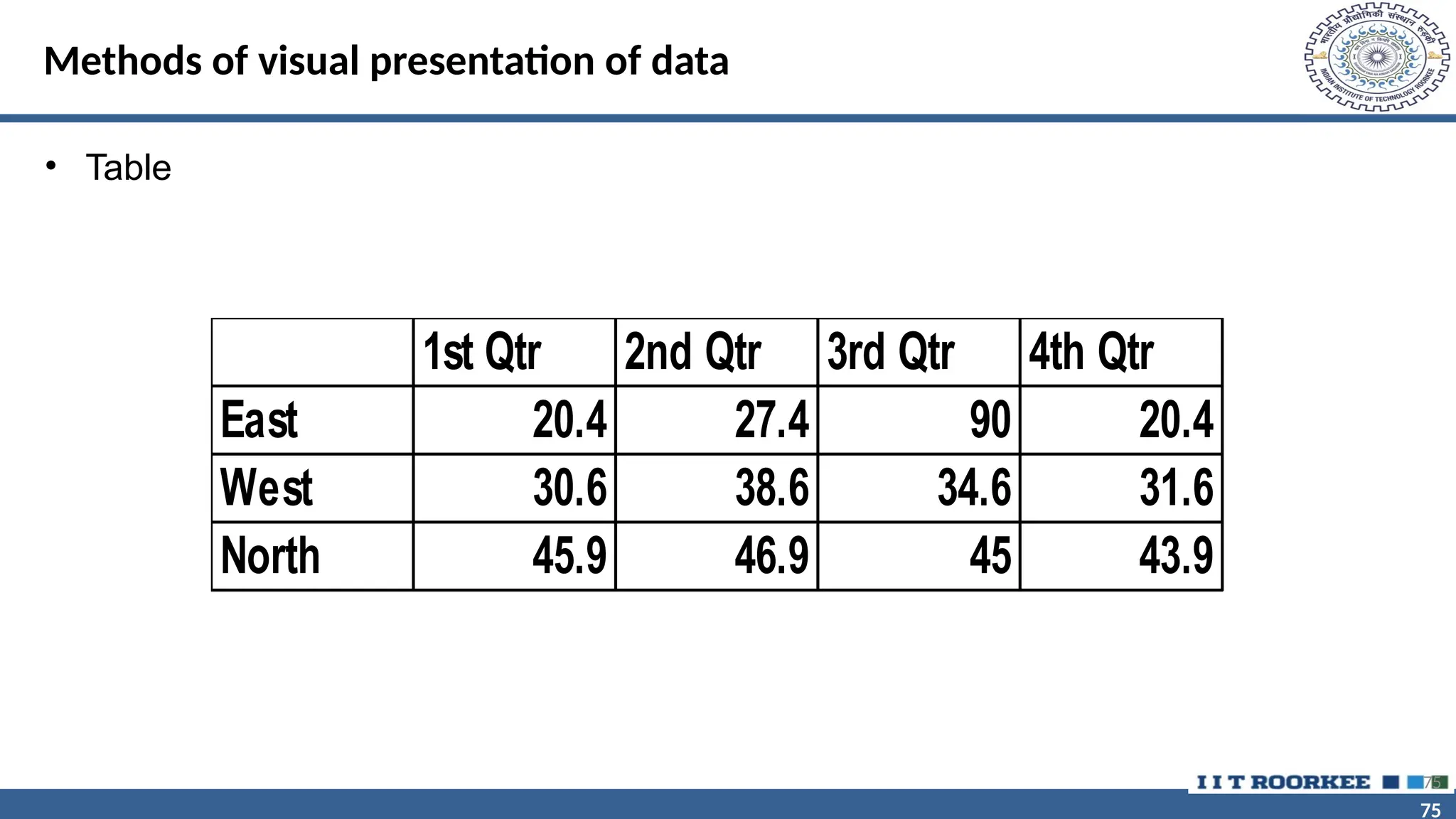
Methods of visual presentation of data
• Table
75
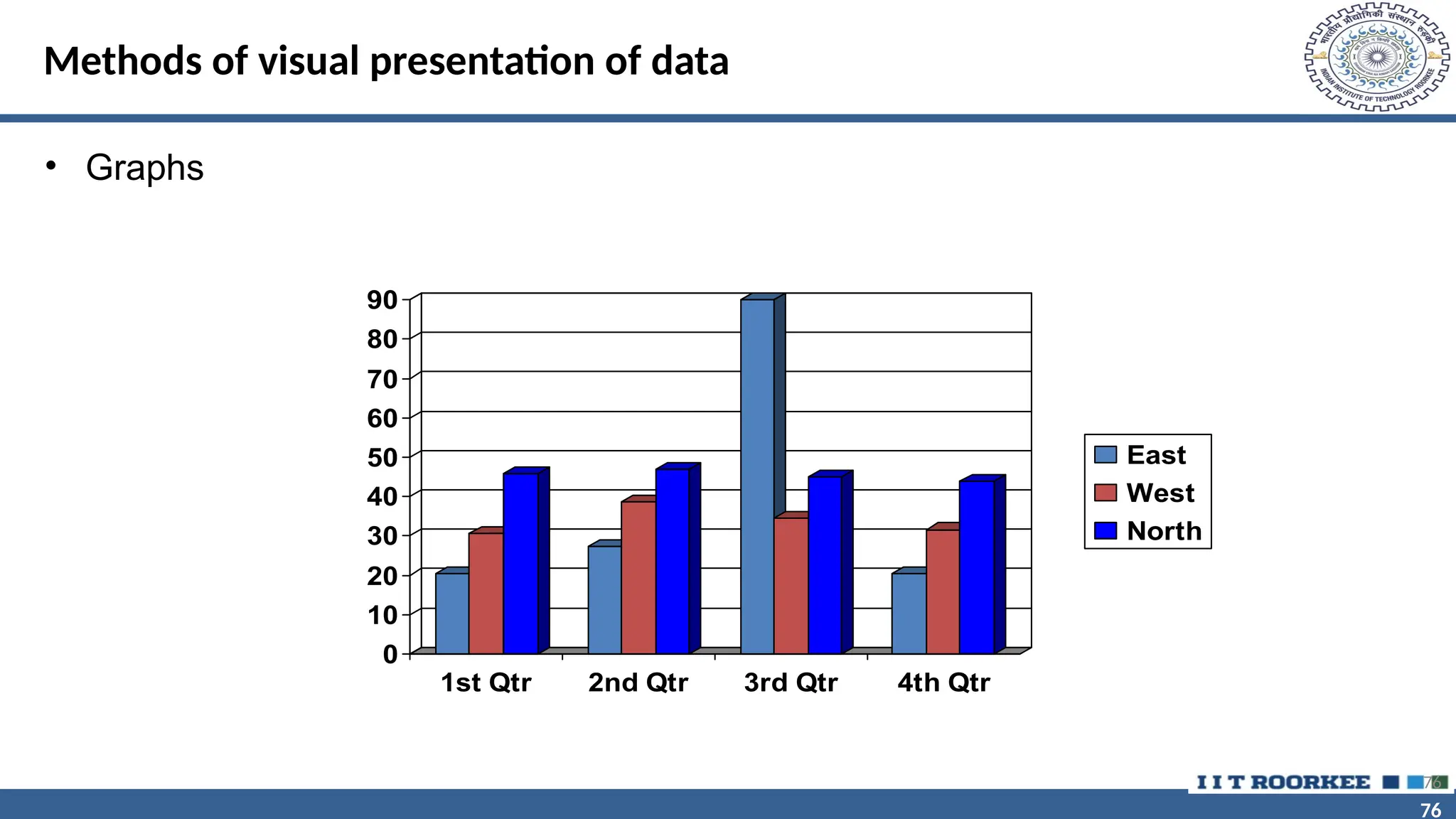
1st Qtr 2nd Qtr 3rd Qtr 4th Qtr
East 20.4 27.4 90 20.4
West 30.6 38.6 34.6 31.6
North 45.9 46.9 45 43.9
76
76
Methods of visual presentation of data
• Graphs
76
0
10
20
30
40
50
60
70
80
90
1st Qtr 2nd Qtr 3rd Qtr 4th Qtr
East
West
North
77
77
Methods of visual presentation of data
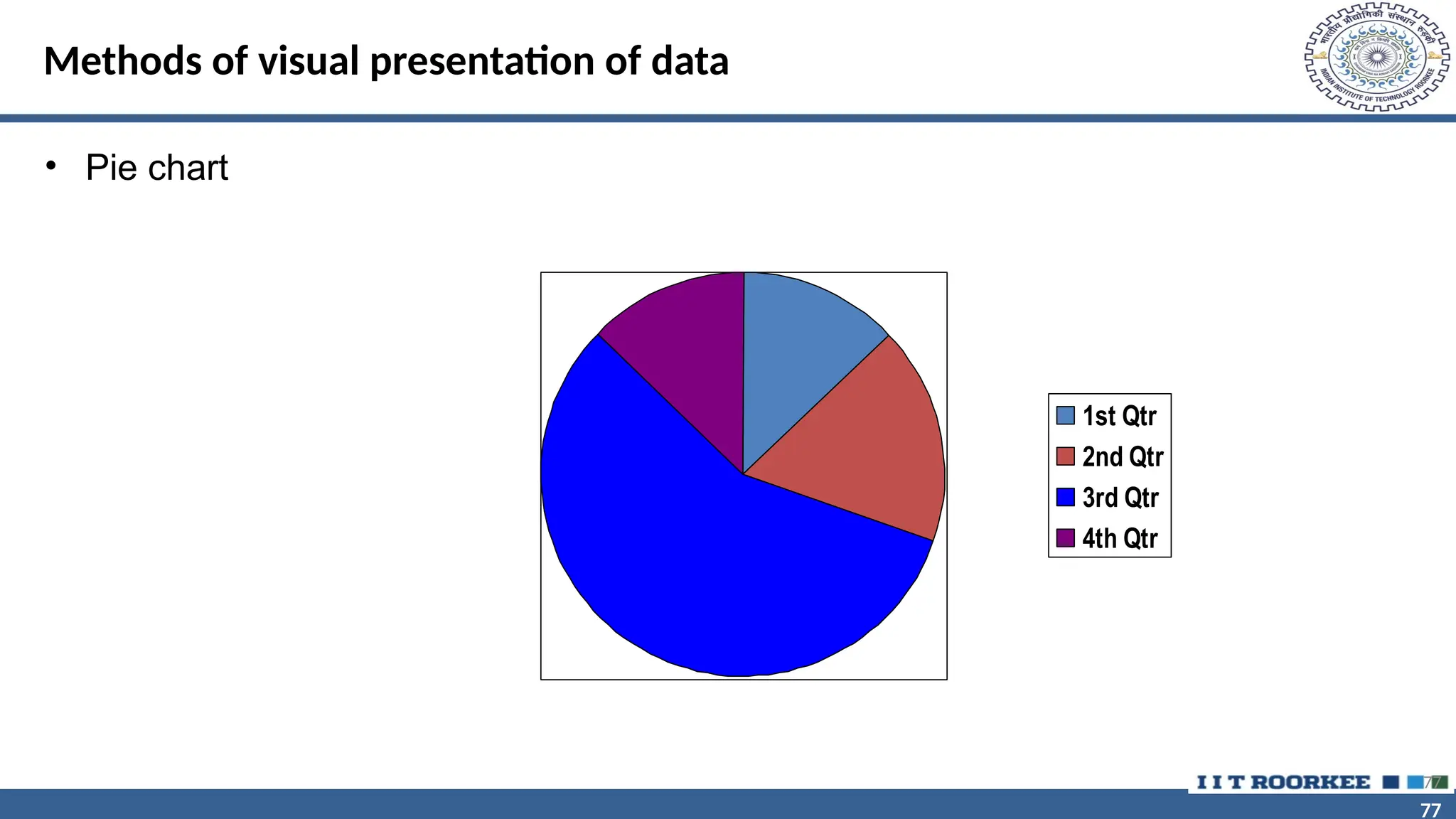
• Pie chart
77
1st Qtr
2nd Qtr
3rd Qtr
4th Qtr
78
78
Methods of visual presentation of data
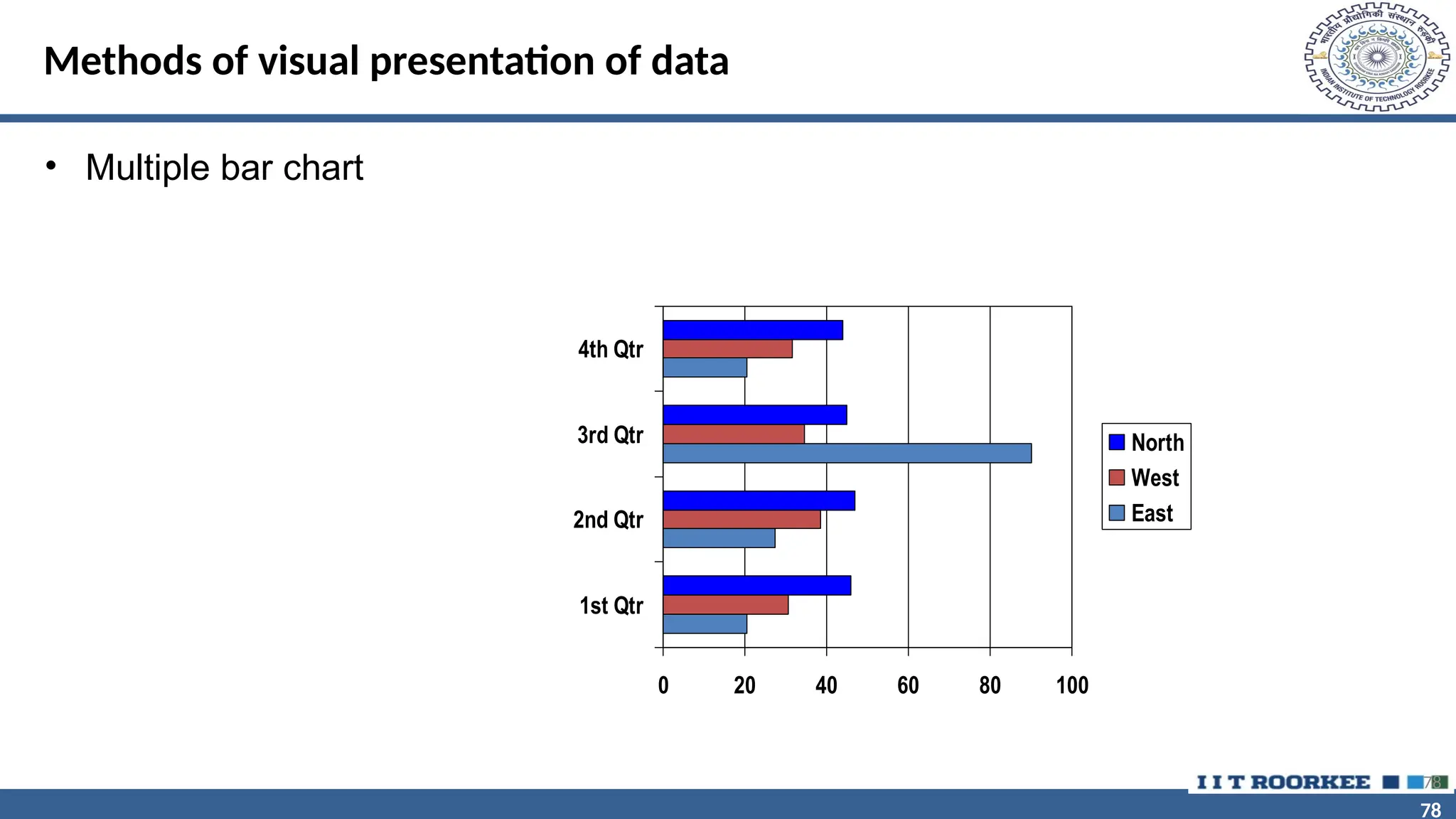
• Multiple bar chart
78
0 20 40 60 80 100
1st Qtr
2nd Qtr
3rd Qtr
4th Qtr
North
West
East
79
79
Methods of visual presentation of data
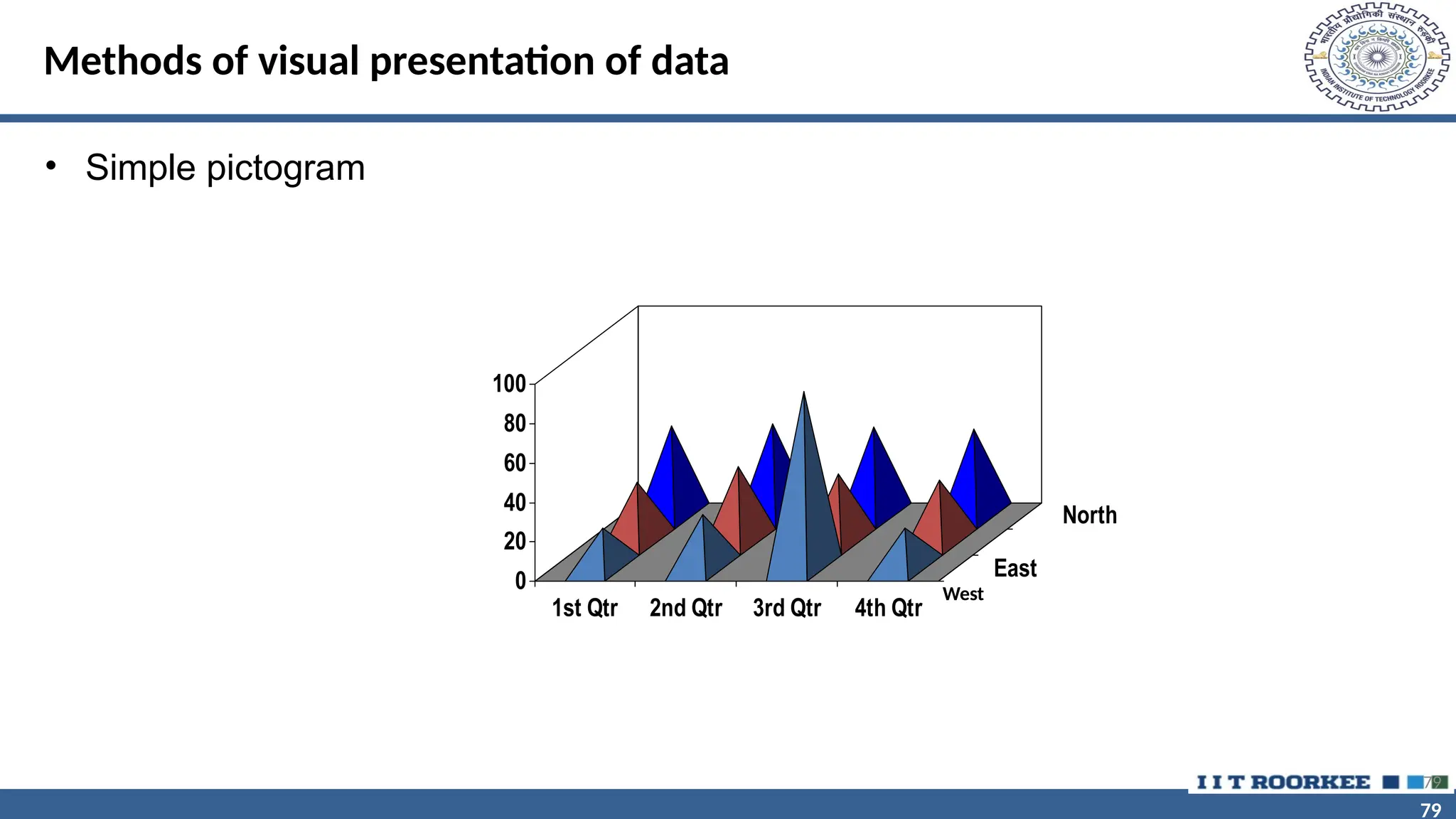
• Simple pictogram
79
0
20
40
60
80
100
1st Qtr 2nd Qtr 3rd Qtr 4th Qtr
East
North
West
80
80
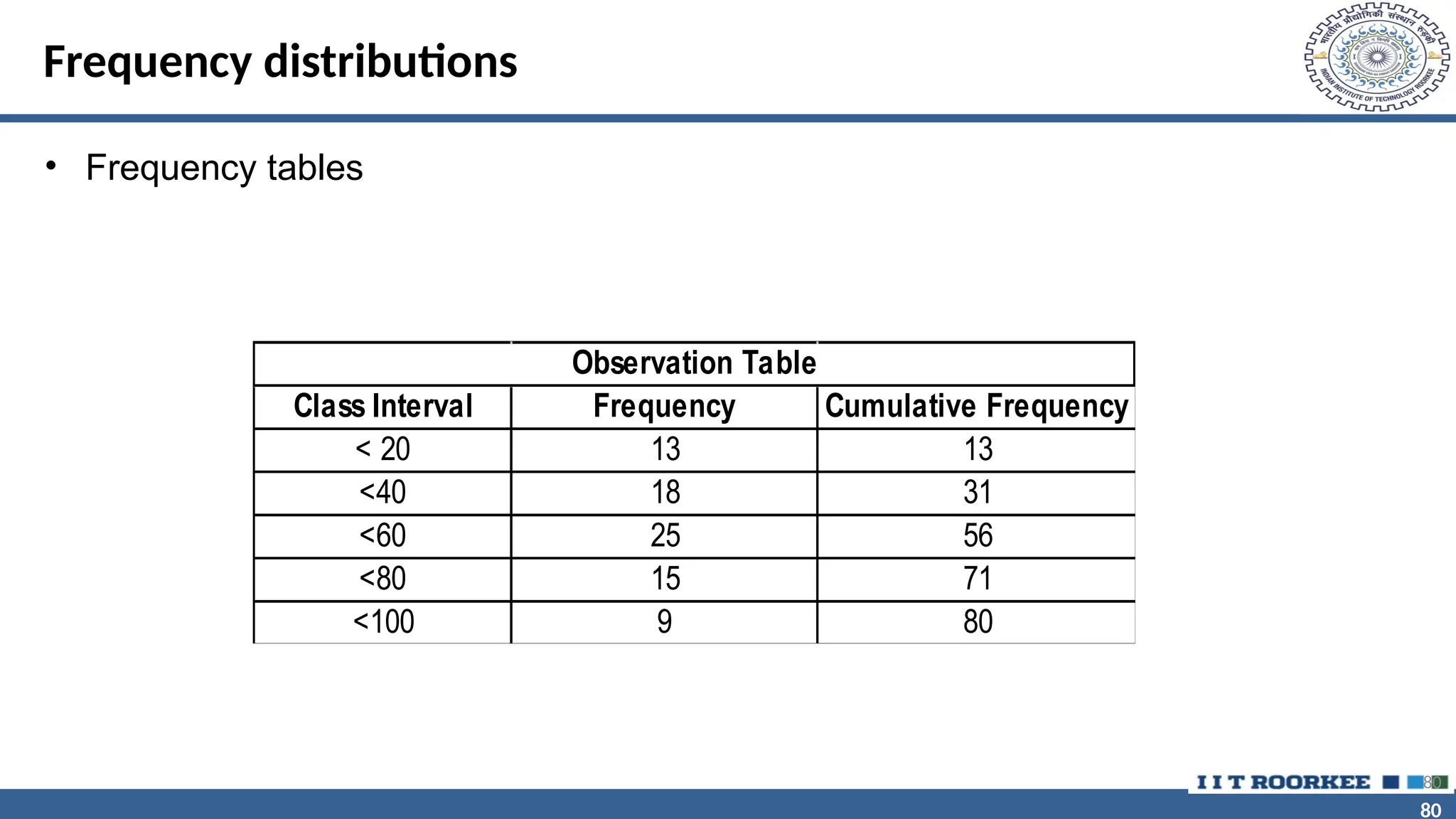
Frequency distributions
• Frequency tables
80
Class Interval Frequency Cumulative Frequency
< 20 13 13
<40 18 31
<60 25 56
<80 15 71
<100 9 80
Observation Table
81
81
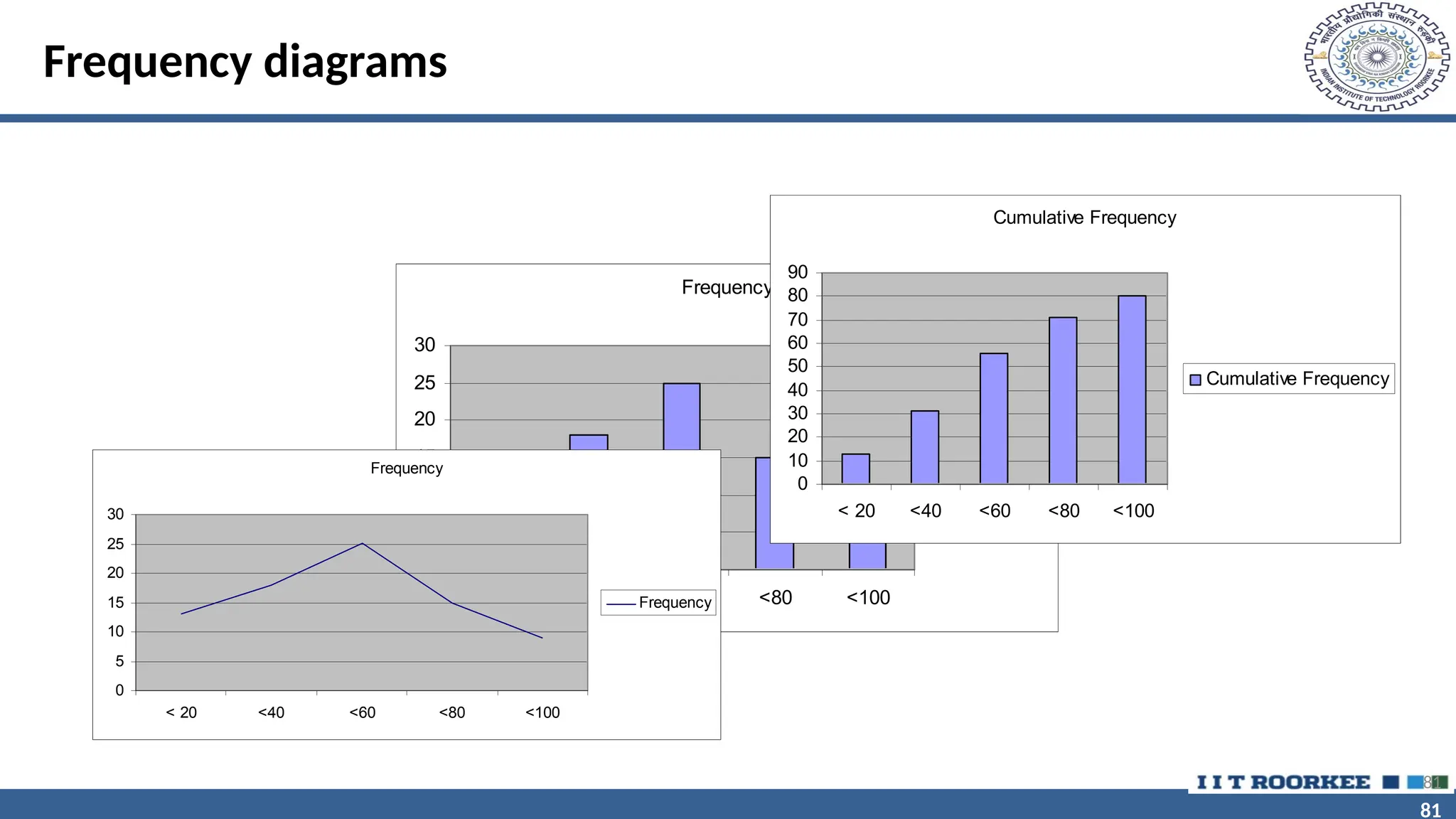
Frequency diagrams
Frequency
0
5
10
15
20
25
30
< 20 <40 <60 <80 <100
Frequency
81
Frequency
0
5
10
15
20
25
30
< 20 <40 <60 <80 <100
Frequency
Cumulative Frequency
0
10
20
30
40
50
60
70
80
90
< 20 <40 <60 <80 <100
Cumulative Frequency
82
82
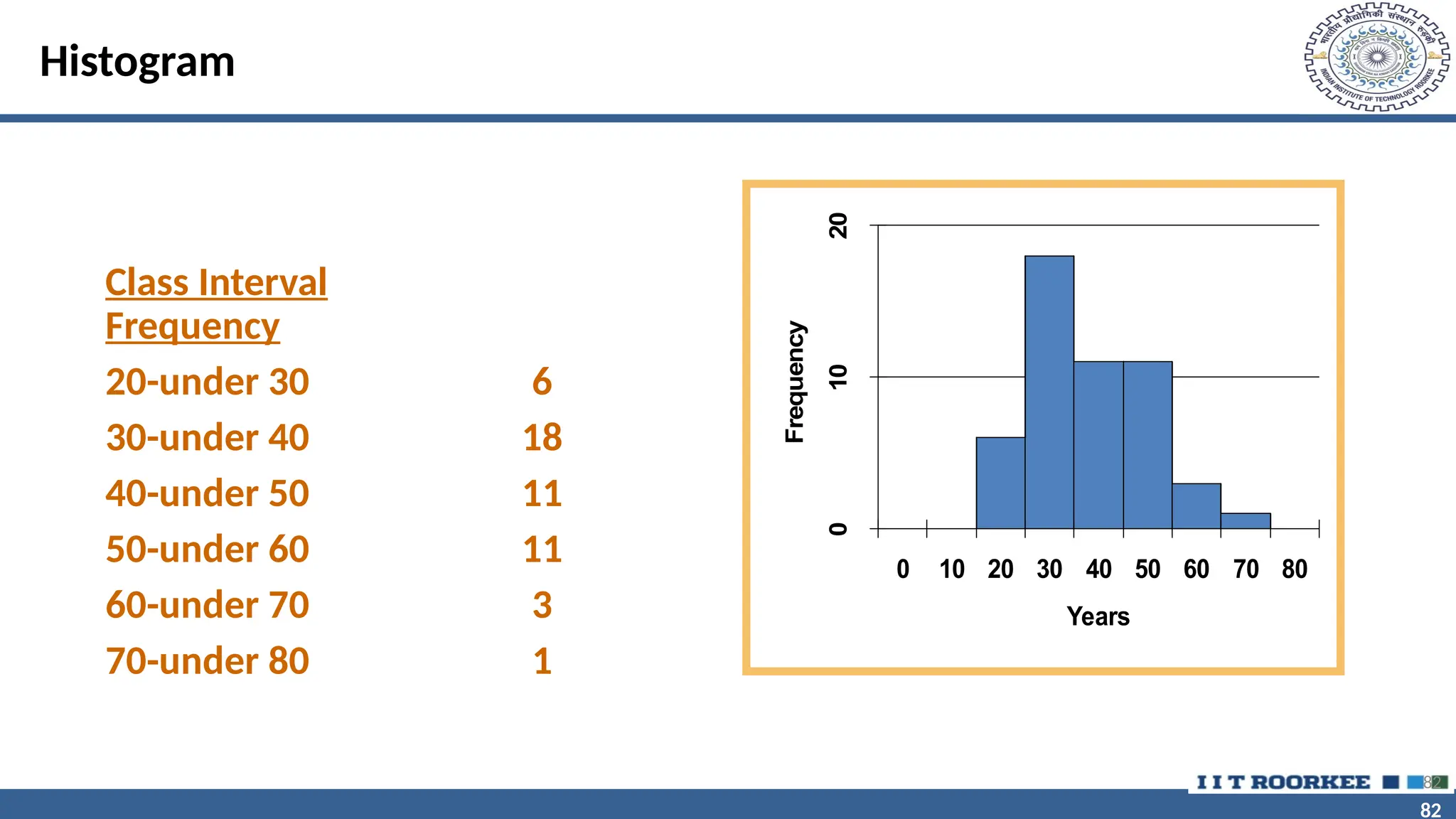
Histogram
82
Class Interval
Frequency
20-under 30 6
30-under 40 18
40-under 50 11
50-under 60 11
60-under 70 3
70-under 80 1
0
10
20
0 10 20 30 40 50 60 70 80
Years
Frequency
83
83
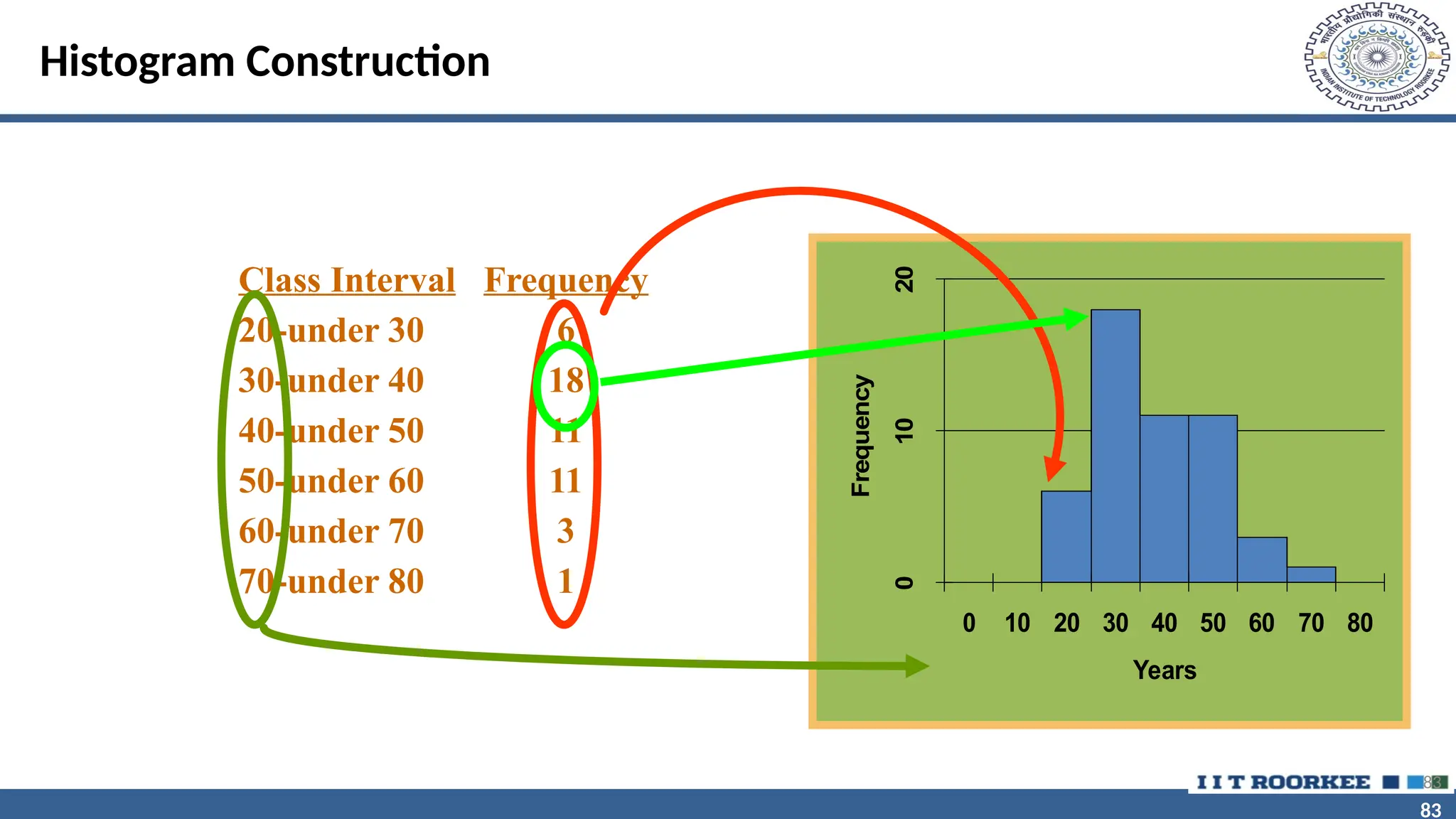
Histogram Construction
83
Class Interval Frequency
20-under 30 6
30-under 40 18
40-under 50 11
50-under 60 11
60-under 70 3
70-under 80 1
0
10
20
0 10 20 30 40 50 60 70 80
Years
Frequency
84
84
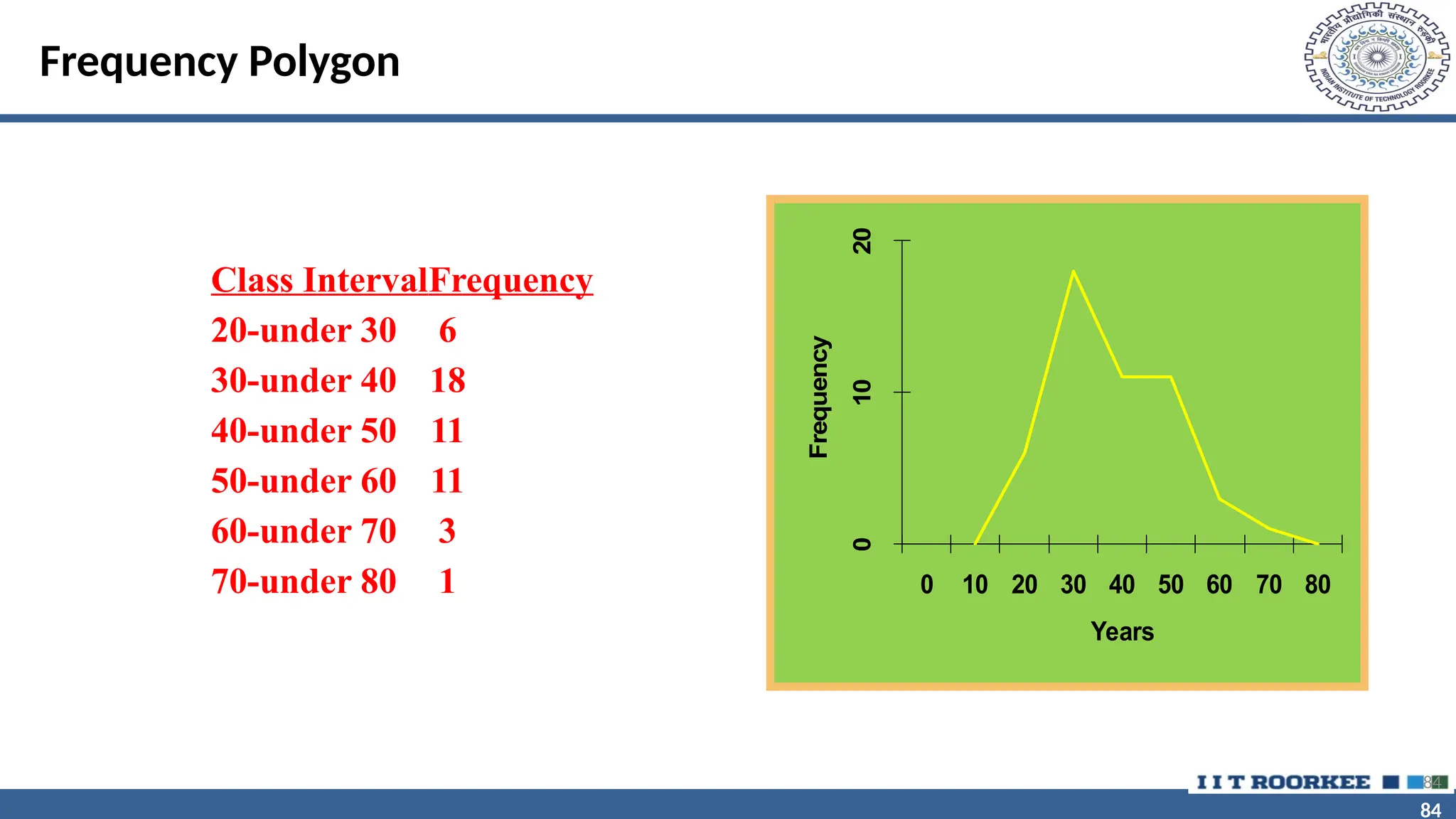
Frequency Polygon
84
Class IntervalFrequency
20-under 30 6
30-under 40 18
40-under 50 11
50-under 60 11
60-under 70 3
70-under 80 1
0
10
20
0 10 20 30 40 50 60 70 80
Years
Frequency
85
85
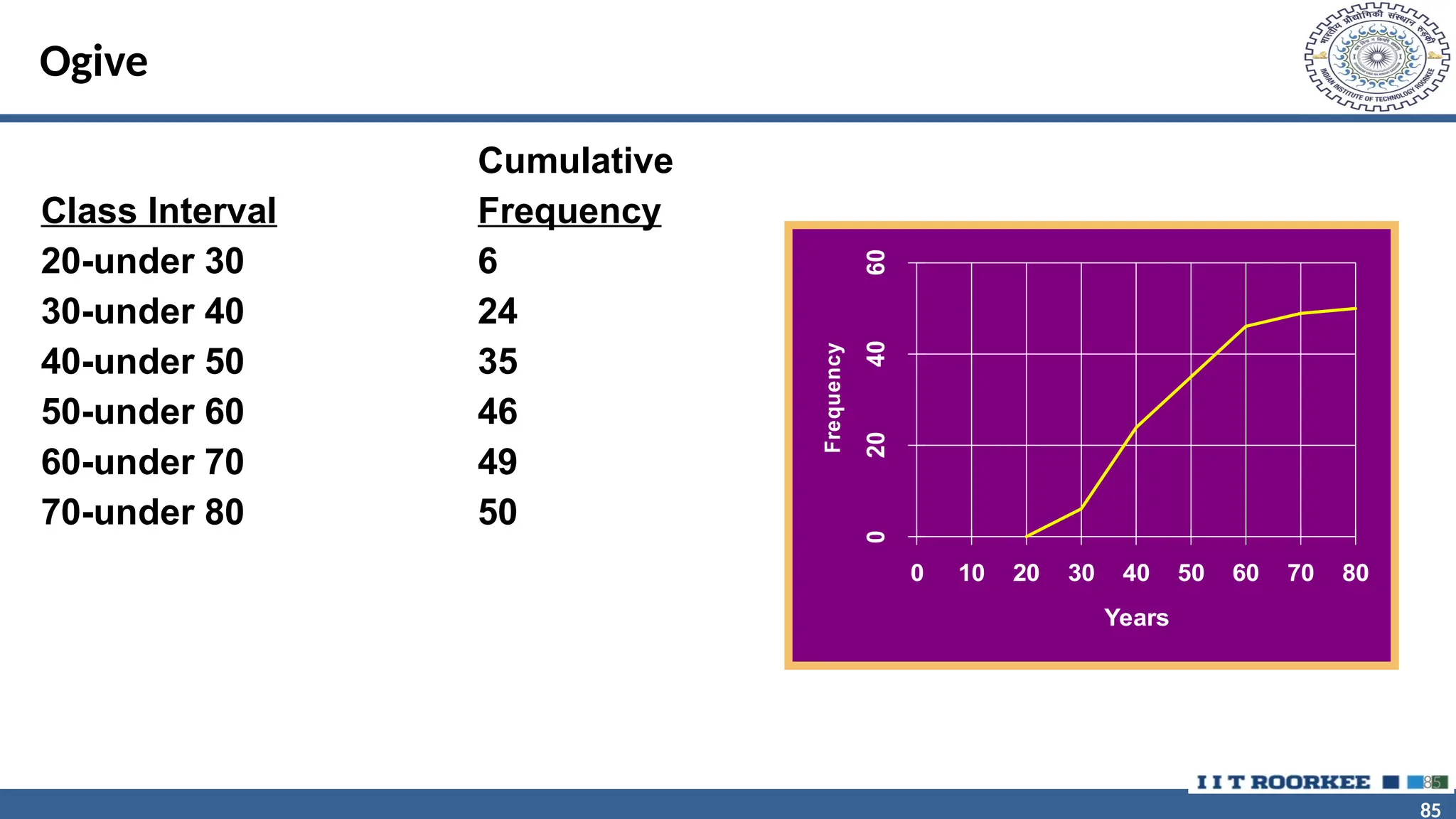
Ogive
Cumulative
Class Interval Frequency
20-under 30 6
30-under 40 24
40-under 50 35
50-under 60 46
60-under 70 49
70-under 80 50
85
0
20
40
60
0 10 20 30 40 50 60 70 80
Years
Frequency
86
86
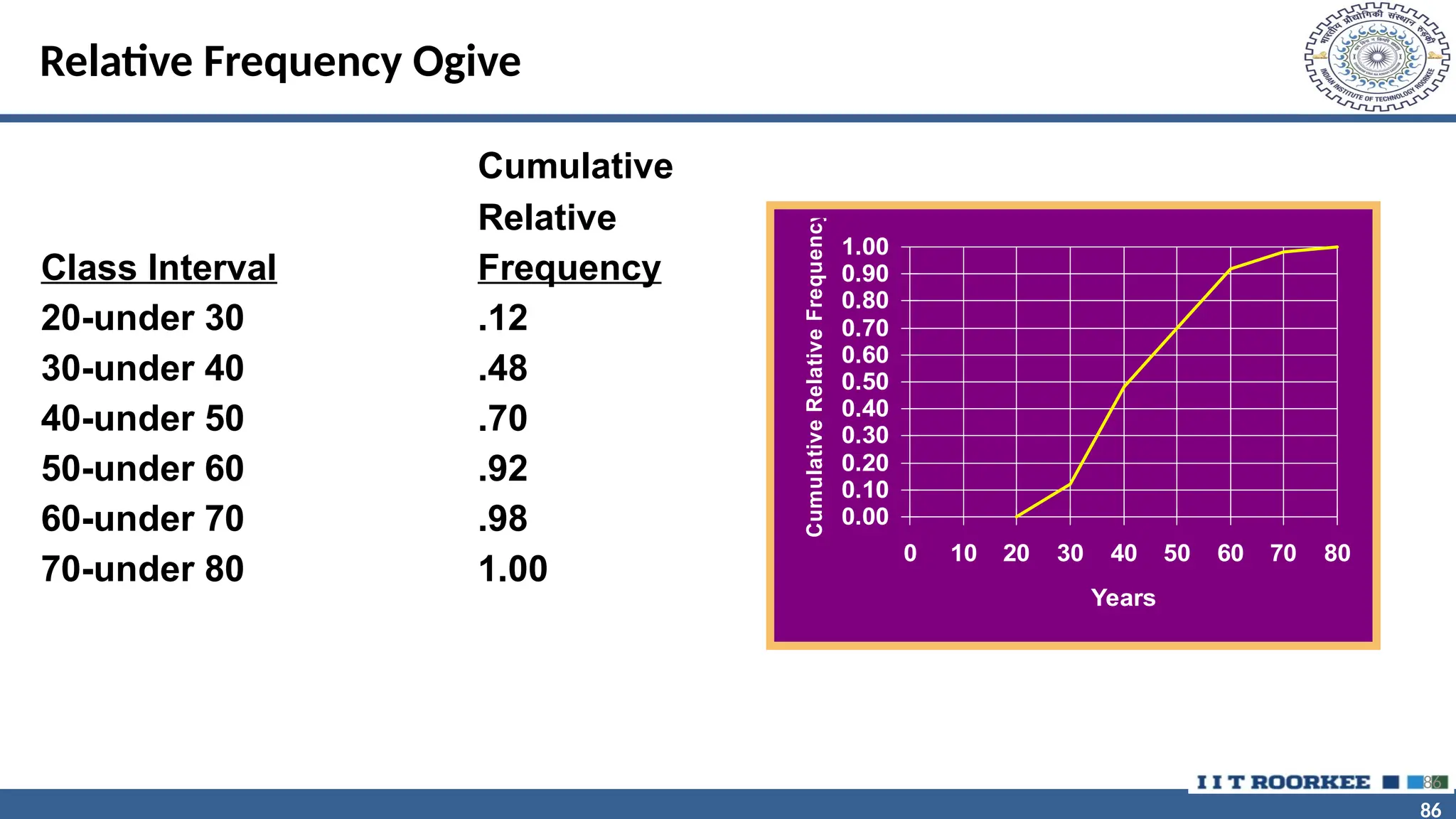
Relative Frequency Ogive
Cumulative
Relative
Class Interval Frequency
20-under 30 .12
30-under 40 .48
40-under 50 .70
50-under 60 .92
60-under 70 .98
70-under 80 1.00
86
0.00
0.10
0.20
0.30
0.40
0.50
0.60
0.70
0.80
0.90
1.00
0 10 20 30 40 50 60 70 80
Years
Cumulative
Relative
Frequency
87
87
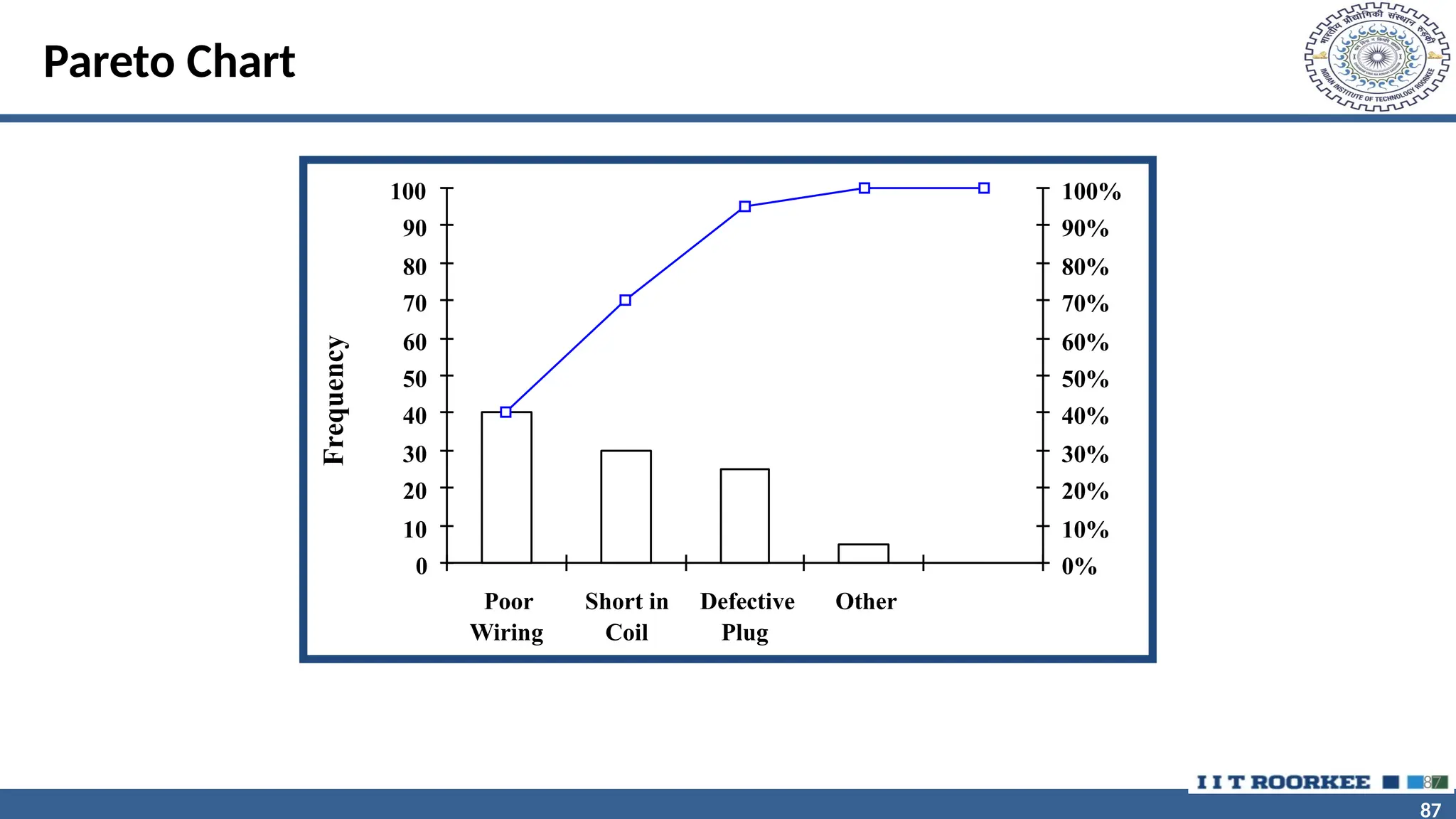
Pareto Chart
87
0
10
20
30
40
50
60
70
80
90
100
Poor
Wiring
Short in
Coil
Defective
Plug
Other
Frequency
0%
10%
20%
30%
40%
50%
60%
70%
80%
90%
100%
88
88
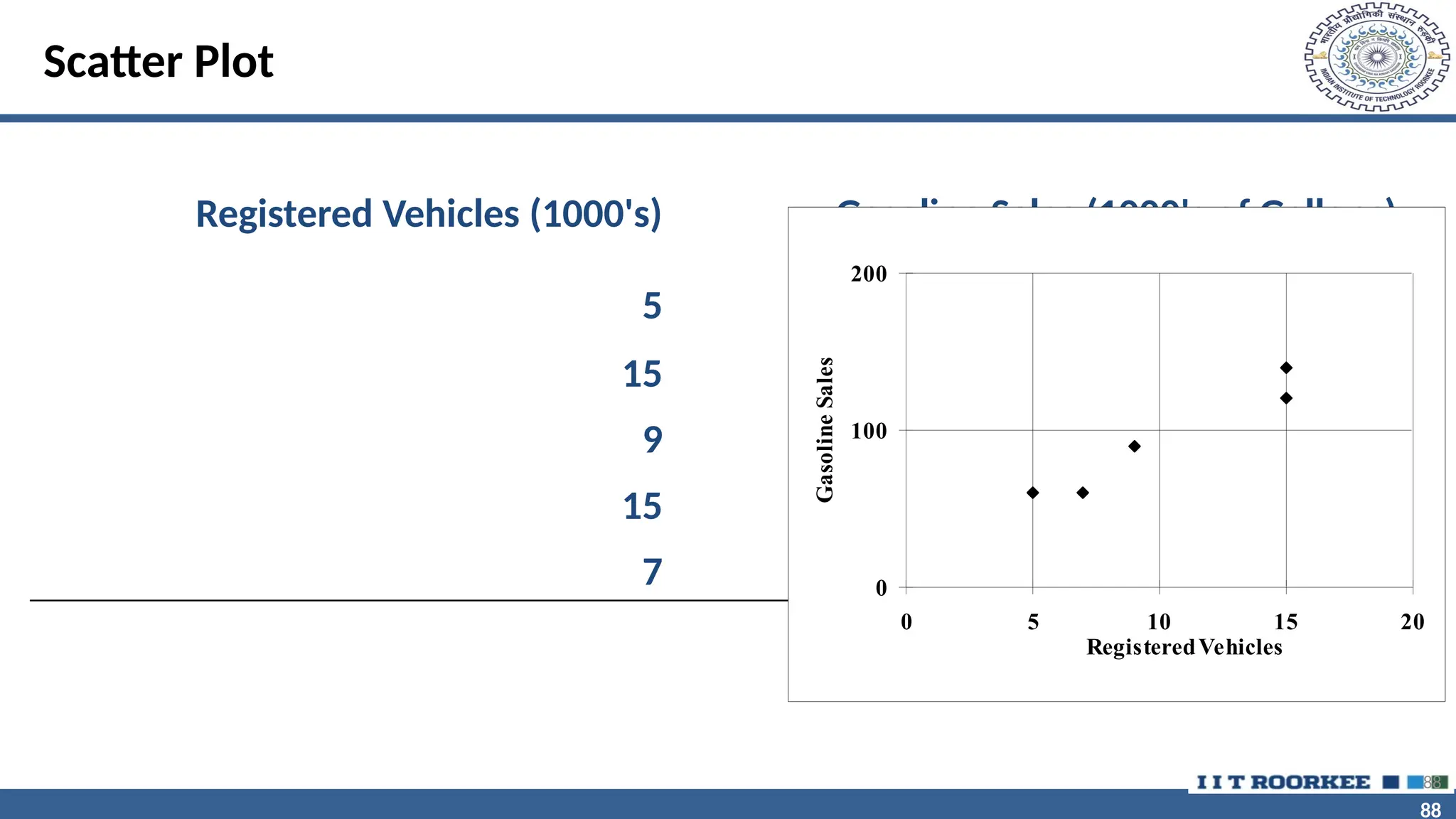
Scatter Plot
Registered Vehicles (1000's) Gasoline Sales (1000's of Gallons)
5 60
15 120
9 90
15 140
7 60
0
100
200
0 5 10 15 20
RegisteredVehicles
Gasoline
Sales
88
89
89
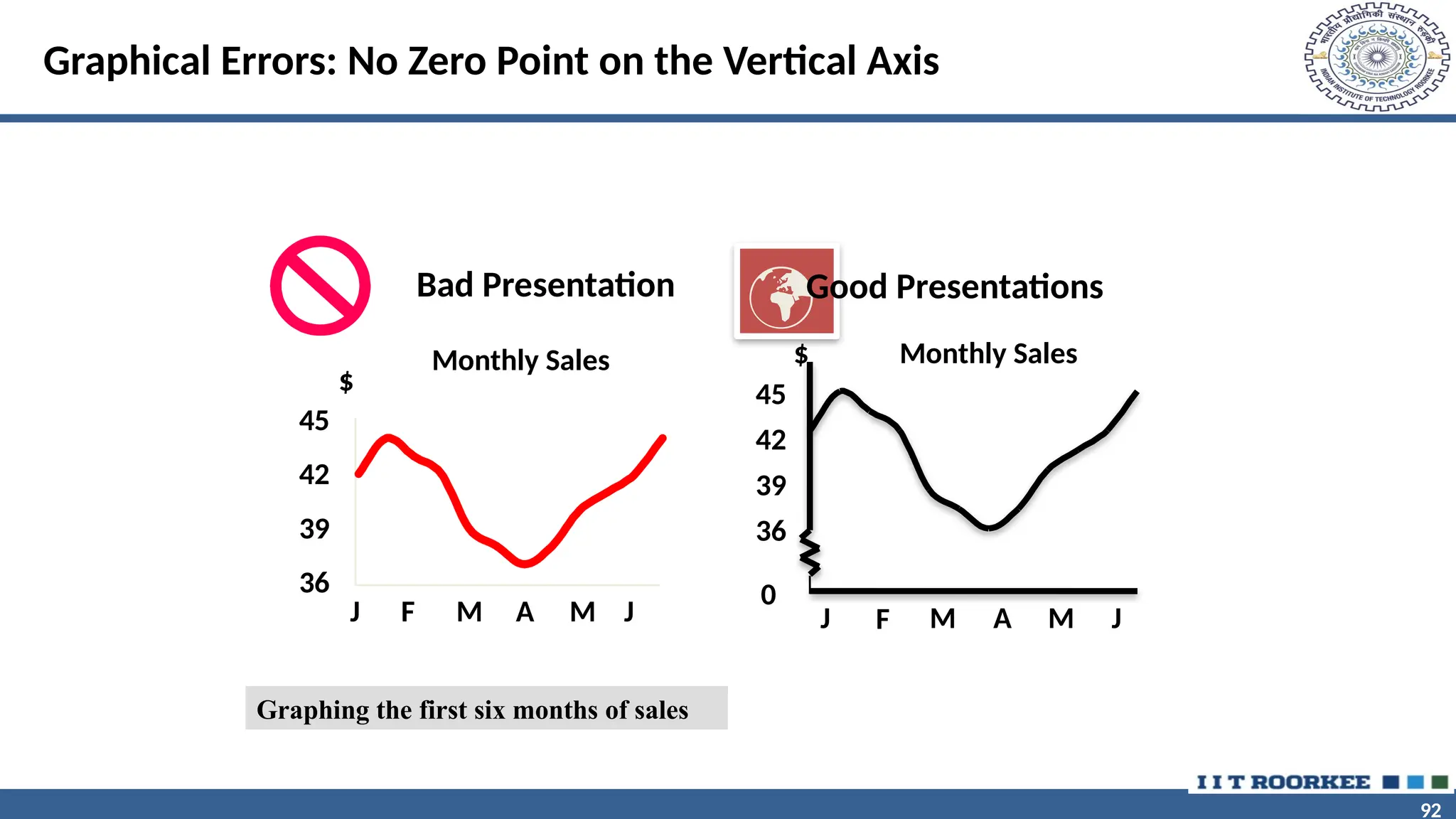
Principles of Excellent Graphs
• The graph should not distort the data
• The graph should not contain unnecessary adornments (sometimes
referred to as chart junk)
• The scale on the vertical axis should begin at zero
• All axes should be properly labeled
• The graph should contain a title
• The simplest possible graph should be used for a given set of data
90
90
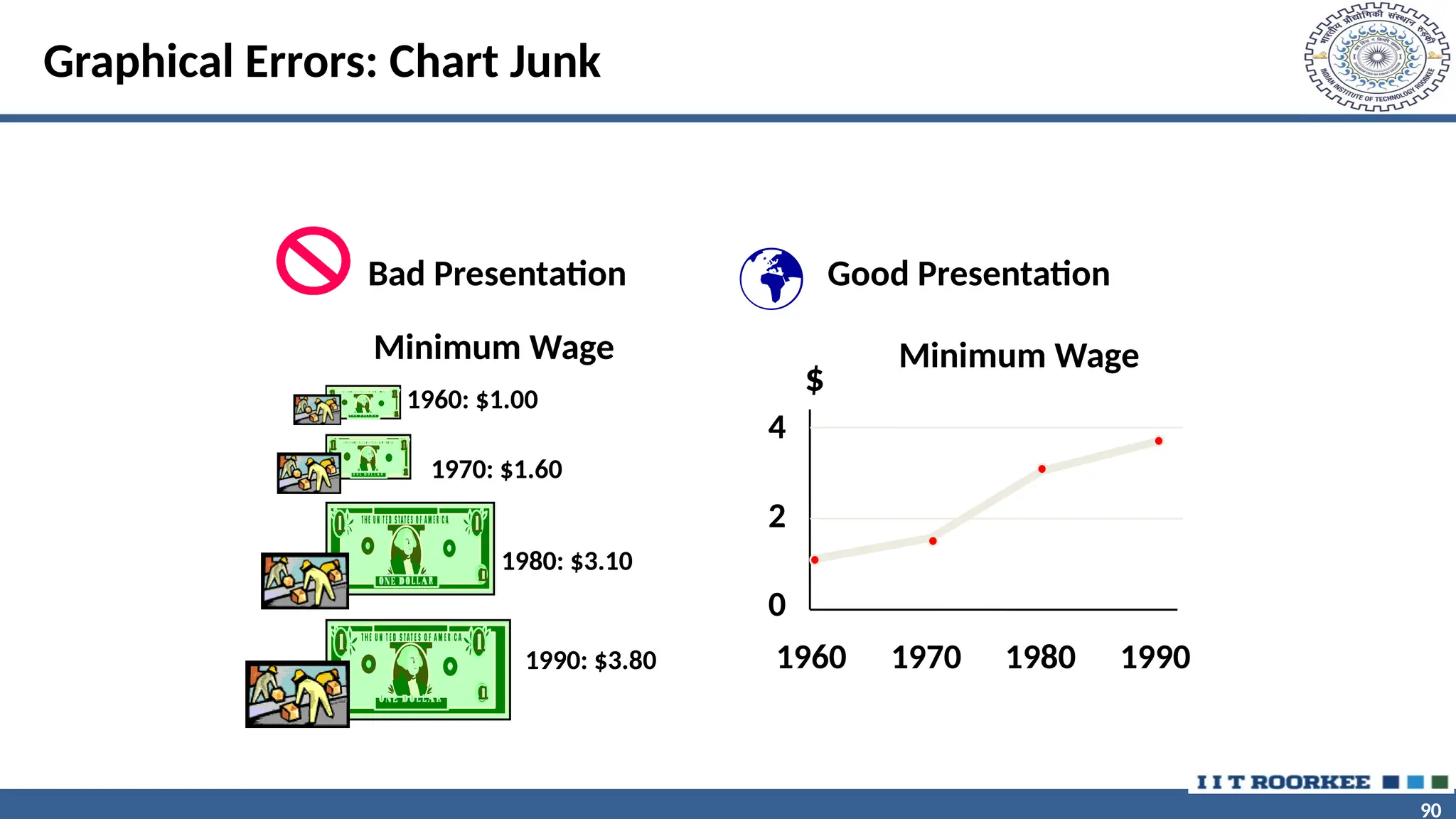
Graphical Errors: Chart Junk
1960: $1.00
1970: $1.60
1980: $3.10
1990: $3.80
Minimum Wage
Bad Presentation
Minimum Wage
0
2
4
1960 1970 1980 1990
$
 Good Presentation
91
91
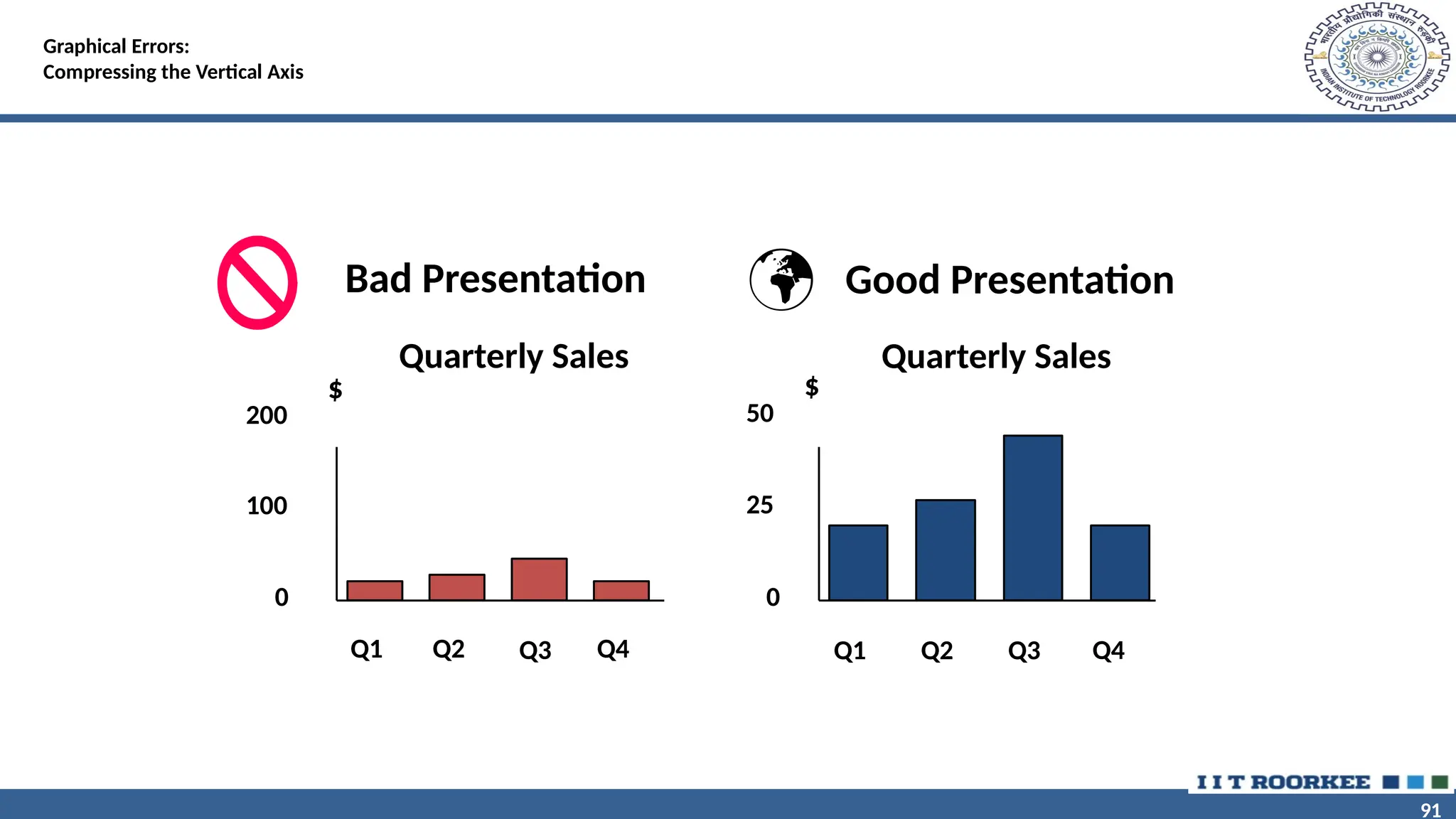
Graphical Errors:
Compressing the Vertical Axis
Good Presentation
Quarterly Sales Quarterly Sales
Bad Presentation
0
25
50
Q1 Q2 Q3 Q4
$
0
100
200
Q1 Q2 Q3 Q4
$

92
92
Graphical Errors: No Zero Point on the Vertical Axis
Monthly Sales
36
39
42
45
J F M A M J
$
Graphing the first six months of sales
Monthly Sales
0
39
42
45
J F M A M J
$
36
Good Presentations
Bad Presentation

1_ Introduction Python.pptx python is a data