Special Station
Loading patron software, plug-ins & fonts
Policies
The software requested to be installed must be for academic purposes
The requested software is not available on other library computers or in other campus
computer labs. EX: Visio is available in the Business School’s lab
The requested software should not be similar to a program that is already available.
EX: GIMP is a graphic creation tool similar to Photoshop or Paint.NET
If the program requires a key, make sure the user is aware that the key can usually only be
used on 1 system
After installing the program fill out the Software Installation Form:
http://www.mu.edu/formassembly/279

If this program is requested again or if the same patron will need it more than 3
days, submit a Software Request at: http://www.mu.edu/formassembly/279
Procedure
1.

Verify
• The software is for academic purposes
• This or a similar program is not already installed within the library or elsewhere on campus
• GIMP is similar to Photoshop
• VISIO is located in the business school computer lab). A full list of library software can be
found at: http://mu.edu/library/services/swhw-software_hardware_list.shtml
• If the program requires a key, make sure the patron is aware that the key can usually only be
used on 1 system
Procedure (cont.)
Have the patron logon if they have not already done so in the past 3 days, then log the patron off.
Staff should log in using the Long Lost User account. Remember the username must be entered as
follows .longlostuser
Username: LongLostUser
Password: Sn00py4Pres!
Download and install any extra fonts, plugins, or application that the patron needs.
Run the application or plugin once under the Long Lost User account to ensure that it is functioning
properly. In the case of browser plugins it will be necessary to have the patron visit the site that was
requesting the plugin.
Procedure (cont.)
Create a shortcut to the application on the patron’s desktop:
• Locate the patron’s profile under: “C:Users<username>” where <username>
is the username of the patron.
• Locate the folder called “Desktop”
• Copy the needed application shortcut from the Long Lost User desktop to the
patron’s desktop folder
• If this application tries to create shortcuts on the desktop, they will not
appear on the patron’s desktop.
Close the program and log out of Long Lost User
Have the patron login with their own account and verify that the application or
plugin is running correctly. If the patron is having problems, see the
Troubleshooting section.
Notify LIT: http://www.mu.edu/formassembly/279
Troubleshooting

Adding permissions to a folder
Log in using the Long Lost User account. Remember the username must be entered as follows

.longlostuser
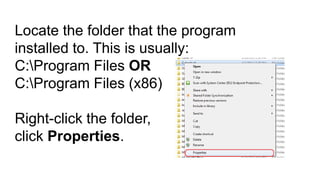
Locate the folder that the program
installed to. This is usually:
C:Program Files OR
C:Program Files (x86)
Right-click the folder,
click Properties.
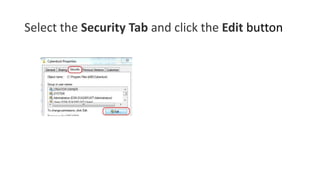
Select the Security Tab and click the Edit button
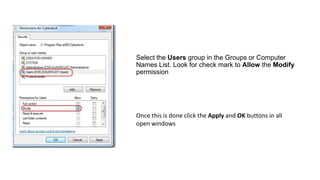
Select the Users group in the Groups or Computer
Names List. Look for check mark to Allow the Modify
permission

Once this is done click the Apply and OK buttons in all
open windows

13 p owerpointtest

  • 1.
    Special Station Loading patronsoftware, plug-ins & fonts
  • 2.
    Policies The software requestedto be installed must be for academic purposes The requested software is not available on other library computers or in other campus computer labs. EX: Visio is available in the Business School’s lab The requested software should not be similar to a program that is already available. EX: GIMP is a graphic creation tool similar to Photoshop or Paint.NET If the program requires a key, make sure the user is aware that the key can usually only be used on 1 system After installing the program fill out the Software Installation Form: http://www.mu.edu/formassembly/279 If this program is requested again or if the same patron will need it more than 3 days, submit a Software Request at: http://www.mu.edu/formassembly/279
  • 3.
    Procedure 1. Verify • The softwareis for academic purposes • This or a similar program is not already installed within the library or elsewhere on campus • GIMP is similar to Photoshop • VISIO is located in the business school computer lab). A full list of library software can be found at: http://mu.edu/library/services/swhw-software_hardware_list.shtml • If the program requires a key, make sure the patron is aware that the key can usually only be used on 1 system
  • 4.
    Procedure (cont.) Have thepatron logon if they have not already done so in the past 3 days, then log the patron off. Staff should log in using the Long Lost User account. Remember the username must be entered as follows .longlostuser Username: LongLostUser Password: Sn00py4Pres! Download and install any extra fonts, plugins, or application that the patron needs. Run the application or plugin once under the Long Lost User account to ensure that it is functioning properly. In the case of browser plugins it will be necessary to have the patron visit the site that was requesting the plugin.
  • 5.
    Procedure (cont.) Create ashortcut to the application on the patron’s desktop: • Locate the patron’s profile under: “C:Users<username>” where <username> is the username of the patron. • Locate the folder called “Desktop” • Copy the needed application shortcut from the Long Lost User desktop to the patron’s desktop folder • If this application tries to create shortcuts on the desktop, they will not appear on the patron’s desktop. Close the program and log out of Long Lost User Have the patron login with their own account and verify that the application or plugin is running correctly. If the patron is having problems, see the Troubleshooting section. Notify LIT: http://www.mu.edu/formassembly/279
  • 6.
    Troubleshooting Adding permissions toa folder Log in using the Long Lost User account. Remember the username must be entered as follows .longlostuser
  • 7.
    Locate the folderthat the program installed to. This is usually: C:Program Files OR C:Program Files (x86) Right-click the folder, click Properties.
  • 8.
    Select the SecurityTab and click the Edit button
  • 9.
    Select the Usersgroup in the Groups or Computer Names List. Look for check mark to Allow the Modify permission Once this is done click the Apply and OK buttons in all open windows