Credit: Duncan C https://www.flickr.com/photos/duncan/537634238
Top
Slide
Tips
Article: Gary
Reynolds
Keep it Simple
Credit: Stephen Bowler https://www.flickr.com/photos/50826080@N00/10932468685
Credit: Thecrazyfilmgirl https://www.flickr.com/photos/thecrazyfilmgirl/3248283617
Limit Effects
Credit: Codin G https://www.flickr.com/photos/coding/5918390994
Limit Transitions
Credit: id-iom https://www.flickr.com/photos/id-iom/19864434678
High Quality Images
Credit: Purnawan Hadi https://www.flickr.com/photos/purnawanhadi/11237484694
Credit: Henry Burrows https://www.flickr.com/photos/foilman/6977796150
Credit: Vecree.com https://www.flickr.com/photos/vecree/15521998248
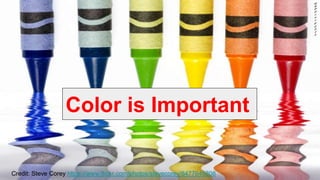
Color is Important
Credit: Steve Corey https://www.flickr.com/photos/stevecorey/8477645808
Font Choice
Credit: Davide Vizzini https://www.flickr.com/photos/limbte/4007115435
Credit: Cristiano Sabbatini https://www.flickr.com/photos/cristianosabbatini/10340760834
Organization
Credit: Rubbermaid Products https://www.flickr.com/photos/rubbermaid/5630536467

10 Slide Tips for a Presentation

Editor's Notes

  • #3 ~Keep your slides simple, Reynolds suggest there should be “plenty of white space” and that your slides should not be cluttered with information ~There should be “visual power” in your slides
  • #4 ~Do not bore your audience with bullet point after bullet point ~Reynolds suggests some of the best slides, may have minimal to no text at all ~Do not overwhelm your audience with mass amounts of details, he suggests a handout to convey important detail
  • #5 ~Limit the amount of animations used on each slide, including bullet points
  • #6 ~Reynolds suggests to only use 2 or 3 transitions throughout a presentation ~You shouldn't have a transition animation between every slide, it can be distracting
  • #7 ~Never stretch small, low resolution images to fit your slide ~Avoid using PowerPoint Clip Art ~Reynolds often uses images of people, he feels it gives the audience more of a connection to the slide
  • #8 ~Avoid using PowerPoint templates, they are too original and most people have already seen them ~Make your own background templates, which will make your presentation more relatable and exciting
  • #9 ~Do not include too much data in your charts ~Use color to show the most important data on in your chart ~Explode Pie charts when certain information needs to be highlighted ~ Use no more than 4-8 charts
  • #10 ~Color can play a huge role in your presentation because it can create emotional attachment to your slides ~Make sure the correct chart type is being used for certain data
  • #11 ~ Use the same font throughout the entire presentation ~ Serif Fonts are NOT made for presentations, as they are smaller and harder to read ~San-Serif fonts are generally the best and easiest to read in a presentation
  • #12 ~Use the video when necessary, make it so you never have to leave the powerpoint ~ Avoid cheesy sound effects
  • #13 ~Present information in small chunks or portions ~Have a logic flow to your presentation