JavaScript Training
Goal Trainers Format
• Lecture
• Exercises
• Ask Questions!
• bitovi/js-training
Styles
HTML
<li>
<a href="#Doberman">
Doberman</a>
</li>
JS
var doberman = $('li')[0];
doberman.style.display
document.defaultView
.getComputedStyle(doberman)
.getPropertyValue('display')
//-> 'inline-block'
doberman.style.display = 'none';
How styles are applied
CSS
li {
display: inline-block;
}
//-> ''
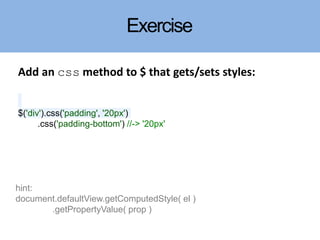
Exercise
Add an css method to $ that gets/sets styles:
$('div').css('padding', '20px')
.css('padding-bottom') //-> '20px'
hint:
document.defaultView.getComputedStyle( el )
.getPropertyValue( prop )
<body>
<div>
Hello World
</div>
</body>
div {
height: 100px;
padding: 10px;
border: 2px;
margin: 10px;
}
=
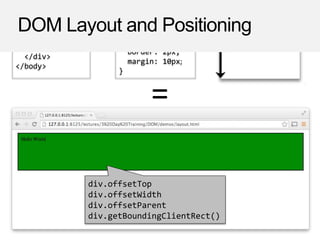
div.offsetTop
div.offsetWidth
div.offsetParent
div.getBoundingClientRect()
DOM Layout and Positioning
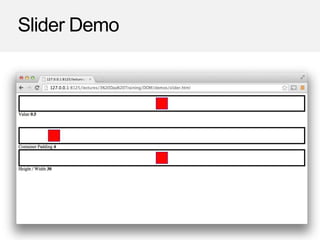
Slider Demo
Layout
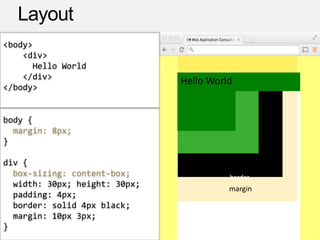
<body>
<div>
Hello World
</div>
</body>
body {
margin: 8px;
}
div {
box-sizing: content-box;
width: 30px; height: 30px;
padding: 4px;
border: solid 4px black;
margin: 10px 3px;
}
Hello WorldHello World
padding
border
margin
Layout
<body>
<div>
Hello World!
I am a sentence.
</div>
</body>
body {
margin: 8px;
}
div {
box-sizing: content-box;
background-color: green;
margin: 20px 10px;
}
Hello World! I am
a sentence.
<body>
<div>
Layout
<body>
<div>
Hello World!
I am a sentence.
</div>
</body>
body {
margin: 8px;
}
div {
box-sizing: content-box;
background-color: green;
margin: 20px 10px;
}
Hello World! I am
a sentence.
Hello World! I
am a sentence.
<div>
<div>
Layout
<body>
<div>
Hello World!
I am a sentence.
</div>
</body>
body {
margin: 8px;
}
div {
box-sizing: content-box;
background-color: green;
margin: 20px 10px;
}
Hello World! I am
a sentence.
Hello World! I
am a sentence.
<div>
<div>
<body>
<body>
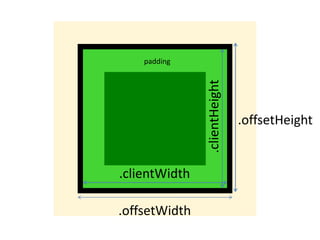
.offsetHeight
.offsetWidth
.clientWidth
.clientHeight
padding
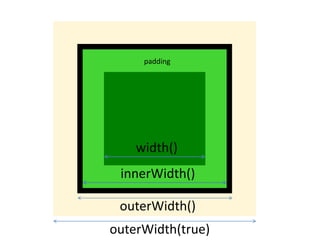
outerWidth()
innerWidth()
width()
padding
outerWidth(true)
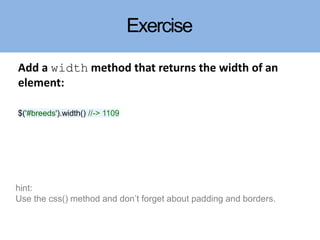
Exercise
Add a width method that returns the width of an
element:
$('#breeds').width() //-> 1109
hint:
Use the css() method and don’t forget about padding and borders.
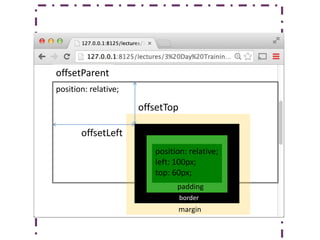
position: relative;
padding
border
margin
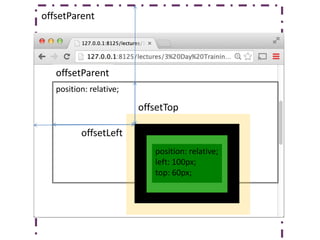
offsetTop
offsetLeft
offsetParent
position: relative;
left: 100px;
top: 60px;
position: relative;
position: relative;
left: 100px;
top: 60px;
offsetTop
offsetLeft
offsetParent
offsetParent
position: relative;
left: 100px;
top: 60px;
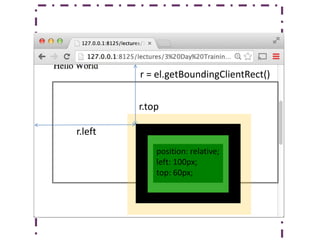
r = el.getBoundingClientRect()
r.top
r.left
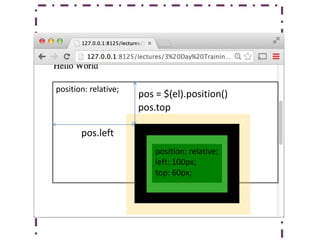
position: relative;
pos.top
pos.left
position: relative;
left: 100px;
top: 60px;
pos = $(el).position()
position: relative;
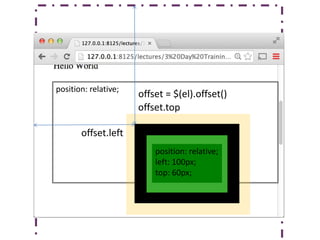
offset.top
offset.left
position: relative;
left: 100px;
top: 60px;
offset = $(el).offset()
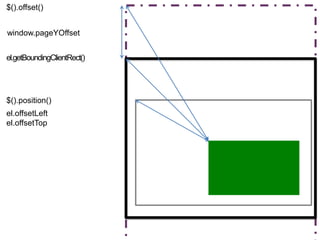
$().offset()
el.getBoundingClientRect()
$().position()
el.offsetLeft
el.offsetTop
window.pageYOffset
offset: function() {
var offset = this[0].getBoundingClientRect();
return {
top: offset.top + window.pageYOffset,
left: offset.left + window.pageXOffset
};
}
offset()
Here we have a offset method that traverses our
offsetParents, calculating our total offset, relative to the
document.
Exercise
Add show and hide methods to $:
$('#breeds').hide();
$('#breeds').show();
hint:
Use your css() method.

Element Styles and Positioning

Editor's Notes

  • #4 The next exercise is going to be implementing jQuery’s `css` method. jQuery’s CSS method is used to read and write the styles applied to an element. Before attempting that, it’s worth reviewing how styles get applied to elements. For example, I have a food’s element And some CSS that adds padding to the food’s element. If I read that div’s paddingTop value with JavaScript, what will it return? It returns an empty string. This is because the style object doesn’t provide the current style value of an element, instead it ONLY provides a way to set the element’s style values. To read the actual, computed value, you use this craziness .. This reads from the CSS in the page and from the element’s style value. The element’s style value acts as an “overwrite”.
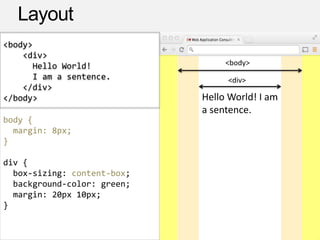
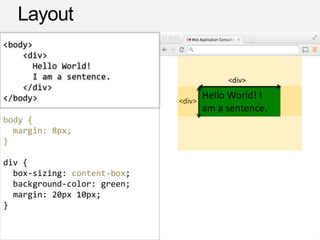
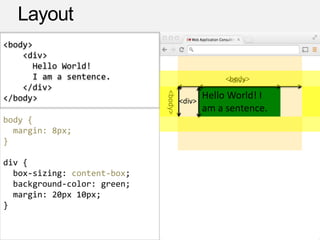
  • #7 So now that we understand CSS, and how those properties are computed, it’s important to understand how the interplay of: the structure of the DOM some of those CSS properties, especially display the window’s dimensions result in the layout of the page. Specifically the positions and dimensions of elements. Once layout has occurred, the DOM allows you to read this information. Understanding is VERY useful in creating JavaScript widgets that behave correctly no matter how they are styled. For example, a slider that can be moved around no matter how big or small it’s container or its containers margin, padding or border gets.
  • #9 https://developer.mozilla.org/en-US/docs/Web/CSS/display https://developer.mozilla.org/en-US/docs/Web/CSS/box-sizing content-box
  • #10 https://developer.mozilla.org/en-US/docs/Web/CSS/display https://developer.mozilla.org/en-US/docs/Web/CSS/box-sizing content-box
  • #11 https://developer.mozilla.org/en-US/docs/Web/CSS/display https://developer.mozilla.org/en-US/docs/Web/CSS/box-sizing content-box
  • #12 https://developer.mozilla.org/en-US/docs/Web/CSS/display https://developer.mozilla.org/en-US/docs/Web/CSS/box-sizing content-box
  • #13  I start with a body element, - W/ FF, the body has an 8px margin. This keeps all content 8px away from the body. Add in a div element. Now lets say I give it a height and a width And some padding And a border
  • #14  I start with a body element, - W/ FF, the body has an 8px margin. This keeps all content 8px away from the body. Add in a div element. Now lets say I give it a height and a width And some padding And a border
  • #22 Old way of doing it