Datalogging using SQL
Server with C#
Windows Forms App
Goal
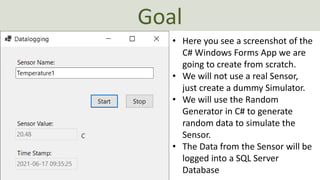
• Here you see a screenshot of the
C# Windows Forms App we are
going to create from scratch.
• We will not use a real Sensor,
just create a dummy Simulator.
• We will use the Random
Generator in C# to generate
random data to simulate the
Sensor.
• The Data from the Sensor will be
logged into a SQL Server
Database
Sensor System with Datalogging
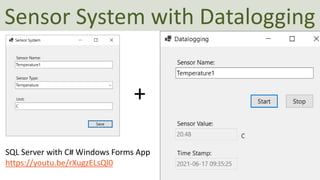
SQL Server with C# Windows Forms App
https://youtu.be/rXugzELsQl0
+
Sensor System with Datalogging
SENSOR_TYPE
SensorType
SENSOR
SensorName
SENSOR_DATA
Value
DateTime
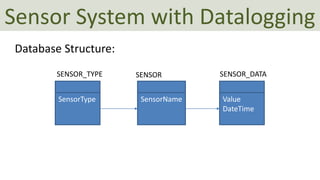
Database Structure:
• SQL Server
• ADO.NET
• C# WinForms Examples
• Structured Query Language (SQL)
• Saving Data
• Retrieving Data
• Timer
Contents
• This Tutorial is made for rookies making
their first basic C# Windows Forms
Database Application
• You don’t need any experience in either
Visual Studio or C#
• No skills in Automation or Control System
is necessary
Audience
• This Tutorial follows the Tutorial “SQL
Server with C# Windows Forms App”
• YouTube Video:
https://youtu.be/rXugzELsQl0
• It is recommended that you watch this
first, but it is not absolute necessary
Background
Note!
• The examples provided can be
considered as a “proof of concept”
• The sample code is very simplified for
clarity and doesn't necessarily
represent best practices.
C# Examples
SQL Server
• SQL Server Express
– Free version of SQL Server that has all we need for the
exercises in this Tutorial
• SQL Server Express consist of 2 parts (separate
installation packages):
– SQL Server Express
– SQL Server Management Studio (SSMS) – This software can
be used to create Databases, create Tables, Insert/Retrieve
or Modify Data, etc.
• SQL Server Express Installation:
https://youtu.be/hhhggAlUYo8
• ADO.NET is the core data access
technology for .NET languages.
• System.Data.SqlClient (or the newer
Micrsoft.Data.SqlClient) is the
provider or namespace you typically
use to connect to an SQL Server
ADO.NET
Sensor System
Windows Forms App #1
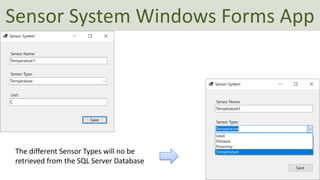
Sensor System Windows Forms App
The different Sensor Types will no be
retrieved from the SQL Server Database
DatabaseCREATE TABLE SENSOR_TYPE
(
SensorTypeId int PRIMARY KEY IDENTITY (1,1),
SensorType varchar(50) NOT NULL UNIQUE
)
GO
CREATE TABLE SENSOR
(
SensorId int PRIMARY KEY IDENTITY (1,1),
SensorName varchar(50) UNIQUE NOT NULL,
SensorTypeId int NOT NULL FOREIGN KEY REFERENCES SENSOR_TYPE(SensorTypeId),
Unit varchar(50) NULL,
)
GO
CREATE TABLE SENSOR_DATA
(
SensorDataId int PRIMARY KEY IDENTITY (1,1),
SensorId int NOT NULL FOREIGN KEY REFERENCES SENSOR(SensorId),
SensorValue float NOT NULL,
SensorDateTime datetime NOT NULL
)
GO
Stored Procedure - SaveSensor
IF EXISTS (SELECT name
FROM sysobjects
WHERE name = 'SaveSensor'
AND type = 'P')
DROP PROCEDURE SaveSensor
GO
CREATE PROCEDURE SaveSensor
@SensorName varchar(50),
@SensorType varchar(50),
@Unit varchar(50)
AS
DECLARE
@SensorTypeId int
SELECT @SensorTypeId=SensorTypeId FROM SENSOR_TYPE WHERE SensorType=@SensorType
INSERT INTO SENSOR (SensorName, SensorTypeId, Unit) VALUES (@SensorName, @SensorTypeId, @Unit)
GO
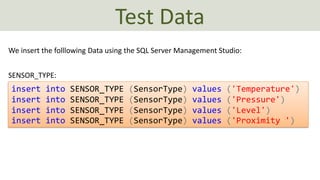
Test Data
insert into SENSOR_TYPE (SensorType) values ('Temperature')
insert into SENSOR_TYPE (SensorType) values ('Pressure')
insert into SENSOR_TYPE (SensorType) values ('Level')
insert into SENSOR_TYPE (SensorType) values ('Proximity ')
SENSOR_TYPE:
We insert the folllowing Data using the SQL Server Management Studio:
using System;
using System.Collections.Generic;
using Microsoft.Data.SqlClient;
using System.Configuration;
namespace SensorSystem.Classes
{
class SensorType
{
string connectionString = ConfigurationManager.ConnectionStrings["DatabaseConnectionString"].ConnectionString;
public int SensorTypeId { get; set; }
public string SensorTypeName { get; set; }
public List<SensorType> GetSensorTypes()
{
List<SensorType> sensorTypeList = new List<SensorType>();
SqlConnection con = new SqlConnection(connectionString);
con.Open();
string sqlQuery = "select SensorTypeId, SensorType from SENSOR_TYPE order by SensorType";
SqlCommand cmd = new SqlCommand(sqlQuery, con);
SqlDataReader dr = cmd.ExecuteReader();
if (dr != null)
{
while (dr.Read())
{
SensorType sensorType = new SensorType();
sensorType.SensorTypeId = Convert.ToInt32(dr["SensorTypeId"]);
sensorType.SensorTypeName = dr["SensorType"].ToString();
sensorTypeList.Add(sensorType);
}
}
con.Close();
return sensorTypeList;
}
}
}
SensorType.cs
using System.Data;
using System.Windows.Forms;
using Microsoft.Data.SqlClient;
using System.Configuration;
namespace SensorSystem.Classes
{
class Sensor
{
string connectionString = ConfigurationManager.ConnectionStrings["DatabaseConnectionString"].ConnectionString;
public void SaveSensorData(string sensorName, string sensorType, string unitName)
{
try
{
SqlConnection con = new SqlConnection(connectionString);
con.Open();
SqlCommand cmd = new SqlCommand("SaveSensor", con);
cmd.CommandType = CommandType.StoredProcedure;
cmd.Parameters.Add(new SqlParameter("@SensorName", sensorName));
cmd.Parameters.Add(new SqlParameter("@SensorType", sensorType));
cmd.Parameters.Add(new SqlParameter("@Unit", unitName));
cmd.ExecuteNonQuery();
con.Close();
}
catch
{
MessageBox.Show("Error Writing Data to Database");
}
}
}
}
Sensor.cs
using System;
using System.Collections.Generic;
using System.Windows.Forms;
using SensorSystem.Classes;
namespace SensorSystem
{
public partial class Form1 : Form
{
public Form1()
{
InitializeComponent();
FillSensorTypeComboBox();
}
private void btnSave_Click(object sender, EventArgs e)
{
SaveData();
}
private void FillSensorTypeComboBox()
{
SensorType sensorType = new SensorType();
List<SensorType> sensorTypeList = new List<SensorType>();
sensorTypeList = sensorType.GetSensorTypes();
foreach (SensorType sensorTypeItem in sensorTypeList)
{
comboSensorType.Items.Add(sensorTypeItem.SensorTypeName);
}
}
private void SaveData()
{
string sensorName = txtSensorName.Text;
string sensorType = comboSensorType.SelectedItem.ToString();
string unitName = txtUnit.Text;
Sensor sensor = new Sensor();
sensor.SaveSensorData(sensorName, sensorType, unitName);
}
}
}
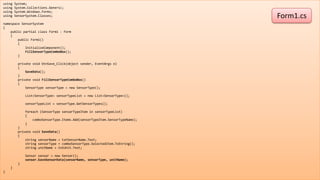
Form1.cs
Datalogging
Windows Forms App #2
Datalogging
So far, we have a simple Windows Forms App for
inserting different types of Sensors into an SQL
Server.
Let's create another Windows Forms App that are
Logging Data based on one of these Sensors
Windows Forms App #2
Windows Forms App #1
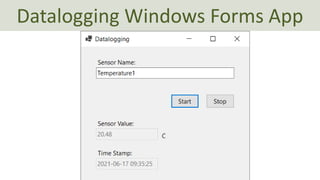
Datalogging Windows Forms App
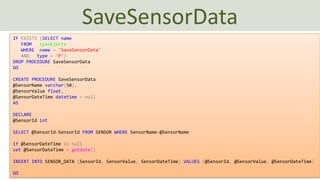
SaveSensorData
IF EXISTS (SELECT name
FROM sysobjects
WHERE name = 'SaveSensorData'
AND type = 'P')
DROP PROCEDURE SaveSensorData
GO
CREATE PROCEDURE SaveSensorData
@SensorName varchar(50),
@SensorValue float,
@SensorDateTime datetime = null
AS
DECLARE
@SensorId int
SELECT @SensorId=SensorId FROM SENSOR WHERE SensorName=@SensorName
if @SensorDateTime is null
set @SensorDateTime = getdate()
INSERT INTO SENSOR_DATA (SensorId, SensorValue, SensorDateTime) VALUES (@SensorId, @SensorValue, @SensorDateTime)
GO
Test Data
insert into SENSOR_TYPE (SensorType) values ('Temperature')
insert into SENSOR_TYPE (SensorType) values ('Pressure')
insert into SENSOR_TYPE (SensorType) values ('Level')
insert into SENSOR_TYPE (SensorType) values ('Proximity ')
SENSOR_TYPE:
insert into SENSOR (SensorName, SensorTypeId, Unit)
values ('Temperature1', (select SensorTypeId from
SENSOR_TYPE where SensorType='Temperature'), 'C')
SENSOR:
using System;
using System.Data;
using System.Windows.Forms;
using Microsoft.Data.SqlClient;
using System.Configuration;
namespace Datalogging.Classes
{
class SensorData
{
string connectionString = ConfigurationManager.ConnectionStrings["DatabaseConnectionString"].ConnectionString;
public string GetUnit(string sensorName)
{
string unitName="";
SqlConnection con = new SqlConnection(connectionString);
con.Open();
string sqlQuery = "select Unit from SENSOR where SensorName=@SensorName";
SqlCommand cmd = new SqlCommand(sqlQuery, con);
cmd.Parameters.Add(new SqlParameter("@SensorName", sensorName));
SqlDataReader dr = cmd.ExecuteReader();
dr.Read();
if (dr != null)
{
unitName = dr["Unit"].ToString();
}
con.Close();
return unitName;
}
public void SaveSensorData(string sensorName, double sensorValue, DateTime sensorDateTime)
{
try
{
SqlConnection con = new SqlConnection(connectionString);
con.Open();
SqlCommand cmd = new SqlCommand("SaveSensorData", con);
cmd.CommandType = CommandType.StoredProcedure;
cmd.Parameters.Add(new SqlParameter("@SensorName", sensorName));
cmd.Parameters.Add(new SqlParameter("@SensorValue", sensorValue));
cmd.Parameters.Add(new SqlParameter("@SensorDateTime", sensorDateTime));
cmd.ExecuteNonQuery();
con.Close();
}
catch
{
MessageBox.Show("Error Writing Data to Database");
}
}
}
}
SensorData.cs
using System;
using System.Windows.Forms;
using Datalogging.Classes;
namespace Datalogging
{
public partial class Form1 : Form
{
public Form1()
{
InitializeComponent();
txtSensorName.Text = "Temperature1";
timer1.Interval = 10000; //milliseconds
}
private void btnStartLogging_Click(object sender, EventArgs e)
{
timer1.Enabled = true;
timer1.Start();
}
private void btnStopLogging_Click(object sender, EventArgs e)
{
timer1.Stop();
timer1.Enabled = false;
}
private void timer1_Tick(object sender, EventArgs e)
{
Datalogging();
}
void Datalogging()
{
string sensorName;
var rand = new Random();
int minValue = 20, maxValue = 30;
double sensorValue;
sensorName = txtSensorName.Text;
// Generate SensorValue
sensorValue = rand.NextDouble() * (maxValue-minValue) + minValue;
txtSensorValue.Text = sensorValue.ToString("#.##");
DateTime sensorDateTime = DateTime.Now;
txtTimeStamp.Text = sensorDateTime.ToString("yyyy-MM-dd HH:mm:ss");
SensorData sensorData = new SensorData();
// Get Unit
lblUnit.Text = sensorData.GetUnit(sensorName);
// Save SensorData to Database
sensorData.SaveSensorData(sensorName, sensorValue, sensorDateTime);
}
}
}
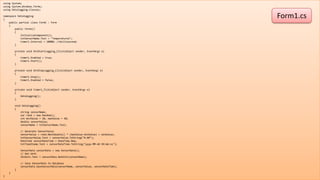
Form1.cs
Datalogging Windows Forms App
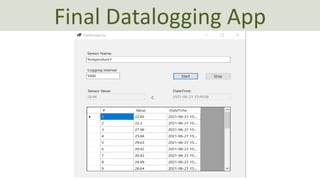
DataGridView
We can use a DataGridView
for showing Historical Data
int loggingIndex = 0;
void Datalogging()
{
string sensorName;
var rand = new Random();
int minValue = 20, maxValue = 30;
double sensorValue;
sensorName = txtSensorName.Text;
// Generate SensorValue
sensorValue = rand.NextDouble() * (maxValue-minValue) + minValue;
txtSensorValue.Text = sensorValue.ToString("#.##");
DateTime sensorDateTime = DateTime.Now;
txtTimeStamp.Text = sensorDateTime.ToString("yyyy-MM-dd HH:mm:ss");
//Update GridView
DataGridViewRow row = new DataGridViewRow();
row.CreateCells(dgvLoggedData);
loggingIndex++;
row.Cells[0].Value = loggingIndex;
row.Cells[1].Value = sensorValue.ToString("#.##");
row.Cells[2].Value = sensorDateTime.ToString("yyyy-MM-dd HH:mm:ss");
dgvLoggedData.Rows.Add(row);
SensorData sensorData = new SensorData();
// Get Unit
lblUnit.Text = sensorData.GetUnit(sensorName);
// Save SensorData to Database
sensorData.SaveSensorData(sensorName, sensorValue, sensorDateTime);
}
Updated Datalogging() Method
Final Datalogging App
• We have made a simple Windows Forms App for
Logging Sensor Data to a SQL Server Database
• The examples provided can be considered as a “proof
of concept”
• The sample code is very simplified for clarity and
doesn't necessarily represent best practices.
• First, I made it work, then I improved the code step
by step
• Still, lots of improvements to make, but I leave that
for you
Discussions

05. Datalogging SQL Server with CSharp WinForms.pdf

  • 1.
    Datalogging using SQL Serverwith C# Windows Forms App
  • 2.
    Goal • Here yousee a screenshot of the C# Windows Forms App we are going to create from scratch. • We will not use a real Sensor, just create a dummy Simulator. • We will use the Random Generator in C# to generate random data to simulate the Sensor. • The Data from the Sensor will be logged into a SQL Server Database
  • 3.
    Sensor System withDatalogging SQL Server with C# Windows Forms App https://youtu.be/rXugzELsQl0 +
  • 4.
    Sensor System withDatalogging SENSOR_TYPE SensorType SENSOR SensorName SENSOR_DATA Value DateTime Database Structure:
  • 5.
    • SQL Server •ADO.NET • C# WinForms Examples • Structured Query Language (SQL) • Saving Data • Retrieving Data • Timer Contents
  • 6.
    • This Tutorialis made for rookies making their first basic C# Windows Forms Database Application • You don’t need any experience in either Visual Studio or C# • No skills in Automation or Control System is necessary Audience
  • 7.
    • This Tutorialfollows the Tutorial “SQL Server with C# Windows Forms App” • YouTube Video: https://youtu.be/rXugzELsQl0 • It is recommended that you watch this first, but it is not absolute necessary Background
  • 8.
    Note! • The examplesprovided can be considered as a “proof of concept” • The sample code is very simplified for clarity and doesn't necessarily represent best practices. C# Examples
  • 9.
    SQL Server • SQLServer Express – Free version of SQL Server that has all we need for the exercises in this Tutorial • SQL Server Express consist of 2 parts (separate installation packages): – SQL Server Express – SQL Server Management Studio (SSMS) – This software can be used to create Databases, create Tables, Insert/Retrieve or Modify Data, etc. • SQL Server Express Installation: https://youtu.be/hhhggAlUYo8
  • 10.
    • ADO.NET isthe core data access technology for .NET languages. • System.Data.SqlClient (or the newer Micrsoft.Data.SqlClient) is the provider or namespace you typically use to connect to an SQL Server ADO.NET
  • 11.
  • 12.
    Sensor System WindowsForms App The different Sensor Types will no be retrieved from the SQL Server Database
  • 13.
    DatabaseCREATE TABLE SENSOR_TYPE ( SensorTypeIdint PRIMARY KEY IDENTITY (1,1), SensorType varchar(50) NOT NULL UNIQUE ) GO CREATE TABLE SENSOR ( SensorId int PRIMARY KEY IDENTITY (1,1), SensorName varchar(50) UNIQUE NOT NULL, SensorTypeId int NOT NULL FOREIGN KEY REFERENCES SENSOR_TYPE(SensorTypeId), Unit varchar(50) NULL, ) GO CREATE TABLE SENSOR_DATA ( SensorDataId int PRIMARY KEY IDENTITY (1,1), SensorId int NOT NULL FOREIGN KEY REFERENCES SENSOR(SensorId), SensorValue float NOT NULL, SensorDateTime datetime NOT NULL ) GO
  • 14.
    Stored Procedure -SaveSensor IF EXISTS (SELECT name FROM sysobjects WHERE name = 'SaveSensor' AND type = 'P') DROP PROCEDURE SaveSensor GO CREATE PROCEDURE SaveSensor @SensorName varchar(50), @SensorType varchar(50), @Unit varchar(50) AS DECLARE @SensorTypeId int SELECT @SensorTypeId=SensorTypeId FROM SENSOR_TYPE WHERE SensorType=@SensorType INSERT INTO SENSOR (SensorName, SensorTypeId, Unit) VALUES (@SensorName, @SensorTypeId, @Unit) GO
  • 15.
    Test Data insert intoSENSOR_TYPE (SensorType) values ('Temperature') insert into SENSOR_TYPE (SensorType) values ('Pressure') insert into SENSOR_TYPE (SensorType) values ('Level') insert into SENSOR_TYPE (SensorType) values ('Proximity ') SENSOR_TYPE: We insert the folllowing Data using the SQL Server Management Studio:
  • 16.
    using System; using System.Collections.Generic; usingMicrosoft.Data.SqlClient; using System.Configuration; namespace SensorSystem.Classes { class SensorType { string connectionString = ConfigurationManager.ConnectionStrings["DatabaseConnectionString"].ConnectionString; public int SensorTypeId { get; set; } public string SensorTypeName { get; set; } public List<SensorType> GetSensorTypes() { List<SensorType> sensorTypeList = new List<SensorType>(); SqlConnection con = new SqlConnection(connectionString); con.Open(); string sqlQuery = "select SensorTypeId, SensorType from SENSOR_TYPE order by SensorType"; SqlCommand cmd = new SqlCommand(sqlQuery, con); SqlDataReader dr = cmd.ExecuteReader(); if (dr != null) { while (dr.Read()) { SensorType sensorType = new SensorType(); sensorType.SensorTypeId = Convert.ToInt32(dr["SensorTypeId"]); sensorType.SensorTypeName = dr["SensorType"].ToString(); sensorTypeList.Add(sensorType); } } con.Close(); return sensorTypeList; } } } SensorType.cs
  • 17.
    using System.Data; using System.Windows.Forms; usingMicrosoft.Data.SqlClient; using System.Configuration; namespace SensorSystem.Classes { class Sensor { string connectionString = ConfigurationManager.ConnectionStrings["DatabaseConnectionString"].ConnectionString; public void SaveSensorData(string sensorName, string sensorType, string unitName) { try { SqlConnection con = new SqlConnection(connectionString); con.Open(); SqlCommand cmd = new SqlCommand("SaveSensor", con); cmd.CommandType = CommandType.StoredProcedure; cmd.Parameters.Add(new SqlParameter("@SensorName", sensorName)); cmd.Parameters.Add(new SqlParameter("@SensorType", sensorType)); cmd.Parameters.Add(new SqlParameter("@Unit", unitName)); cmd.ExecuteNonQuery(); con.Close(); } catch { MessageBox.Show("Error Writing Data to Database"); } } } } Sensor.cs
  • 18.
    using System; using System.Collections.Generic; usingSystem.Windows.Forms; using SensorSystem.Classes; namespace SensorSystem { public partial class Form1 : Form { public Form1() { InitializeComponent(); FillSensorTypeComboBox(); } private void btnSave_Click(object sender, EventArgs e) { SaveData(); } private void FillSensorTypeComboBox() { SensorType sensorType = new SensorType(); List<SensorType> sensorTypeList = new List<SensorType>(); sensorTypeList = sensorType.GetSensorTypes(); foreach (SensorType sensorTypeItem in sensorTypeList) { comboSensorType.Items.Add(sensorTypeItem.SensorTypeName); } } private void SaveData() { string sensorName = txtSensorName.Text; string sensorType = comboSensorType.SelectedItem.ToString(); string unitName = txtUnit.Text; Sensor sensor = new Sensor(); sensor.SaveSensorData(sensorName, sensorType, unitName); } } } Form1.cs
  • 19.
  • 20.
    Datalogging So far, wehave a simple Windows Forms App for inserting different types of Sensors into an SQL Server. Let's create another Windows Forms App that are Logging Data based on one of these Sensors Windows Forms App #2 Windows Forms App #1
  • 21.
  • 22.
    SaveSensorData IF EXISTS (SELECTname FROM sysobjects WHERE name = 'SaveSensorData' AND type = 'P') DROP PROCEDURE SaveSensorData GO CREATE PROCEDURE SaveSensorData @SensorName varchar(50), @SensorValue float, @SensorDateTime datetime = null AS DECLARE @SensorId int SELECT @SensorId=SensorId FROM SENSOR WHERE SensorName=@SensorName if @SensorDateTime is null set @SensorDateTime = getdate() INSERT INTO SENSOR_DATA (SensorId, SensorValue, SensorDateTime) VALUES (@SensorId, @SensorValue, @SensorDateTime) GO
  • 23.
    Test Data insert intoSENSOR_TYPE (SensorType) values ('Temperature') insert into SENSOR_TYPE (SensorType) values ('Pressure') insert into SENSOR_TYPE (SensorType) values ('Level') insert into SENSOR_TYPE (SensorType) values ('Proximity ') SENSOR_TYPE: insert into SENSOR (SensorName, SensorTypeId, Unit) values ('Temperature1', (select SensorTypeId from SENSOR_TYPE where SensorType='Temperature'), 'C') SENSOR:
  • 24.
    using System; using System.Data; usingSystem.Windows.Forms; using Microsoft.Data.SqlClient; using System.Configuration; namespace Datalogging.Classes { class SensorData { string connectionString = ConfigurationManager.ConnectionStrings["DatabaseConnectionString"].ConnectionString; public string GetUnit(string sensorName) { string unitName=""; SqlConnection con = new SqlConnection(connectionString); con.Open(); string sqlQuery = "select Unit from SENSOR where SensorName=@SensorName"; SqlCommand cmd = new SqlCommand(sqlQuery, con); cmd.Parameters.Add(new SqlParameter("@SensorName", sensorName)); SqlDataReader dr = cmd.ExecuteReader(); dr.Read(); if (dr != null) { unitName = dr["Unit"].ToString(); } con.Close(); return unitName; } public void SaveSensorData(string sensorName, double sensorValue, DateTime sensorDateTime) { try { SqlConnection con = new SqlConnection(connectionString); con.Open(); SqlCommand cmd = new SqlCommand("SaveSensorData", con); cmd.CommandType = CommandType.StoredProcedure; cmd.Parameters.Add(new SqlParameter("@SensorName", sensorName)); cmd.Parameters.Add(new SqlParameter("@SensorValue", sensorValue)); cmd.Parameters.Add(new SqlParameter("@SensorDateTime", sensorDateTime)); cmd.ExecuteNonQuery(); con.Close(); } catch { MessageBox.Show("Error Writing Data to Database"); } } } } SensorData.cs
  • 25.
    using System; using System.Windows.Forms; usingDatalogging.Classes; namespace Datalogging { public partial class Form1 : Form { public Form1() { InitializeComponent(); txtSensorName.Text = "Temperature1"; timer1.Interval = 10000; //milliseconds } private void btnStartLogging_Click(object sender, EventArgs e) { timer1.Enabled = true; timer1.Start(); } private void btnStopLogging_Click(object sender, EventArgs e) { timer1.Stop(); timer1.Enabled = false; } private void timer1_Tick(object sender, EventArgs e) { Datalogging(); } void Datalogging() { string sensorName; var rand = new Random(); int minValue = 20, maxValue = 30; double sensorValue; sensorName = txtSensorName.Text; // Generate SensorValue sensorValue = rand.NextDouble() * (maxValue-minValue) + minValue; txtSensorValue.Text = sensorValue.ToString("#.##"); DateTime sensorDateTime = DateTime.Now; txtTimeStamp.Text = sensorDateTime.ToString("yyyy-MM-dd HH:mm:ss"); SensorData sensorData = new SensorData(); // Get Unit lblUnit.Text = sensorData.GetUnit(sensorName); // Save SensorData to Database sensorData.SaveSensorData(sensorName, sensorValue, sensorDateTime); } } } Form1.cs
  • 26.
  • 27.
    DataGridView We can usea DataGridView for showing Historical Data
  • 28.
    int loggingIndex =0; void Datalogging() { string sensorName; var rand = new Random(); int minValue = 20, maxValue = 30; double sensorValue; sensorName = txtSensorName.Text; // Generate SensorValue sensorValue = rand.NextDouble() * (maxValue-minValue) + minValue; txtSensorValue.Text = sensorValue.ToString("#.##"); DateTime sensorDateTime = DateTime.Now; txtTimeStamp.Text = sensorDateTime.ToString("yyyy-MM-dd HH:mm:ss"); //Update GridView DataGridViewRow row = new DataGridViewRow(); row.CreateCells(dgvLoggedData); loggingIndex++; row.Cells[0].Value = loggingIndex; row.Cells[1].Value = sensorValue.ToString("#.##"); row.Cells[2].Value = sensorDateTime.ToString("yyyy-MM-dd HH:mm:ss"); dgvLoggedData.Rows.Add(row); SensorData sensorData = new SensorData(); // Get Unit lblUnit.Text = sensorData.GetUnit(sensorName); // Save SensorData to Database sensorData.SaveSensorData(sensorName, sensorValue, sensorDateTime); } Updated Datalogging() Method
  • 29.
  • 30.
    • We havemade a simple Windows Forms App for Logging Sensor Data to a SQL Server Database • The examples provided can be considered as a “proof of concept” • The sample code is very simplified for clarity and doesn't necessarily represent best practices. • First, I made it work, then I improved the code step by step • Still, lots of improvements to make, but I leave that for you Discussions