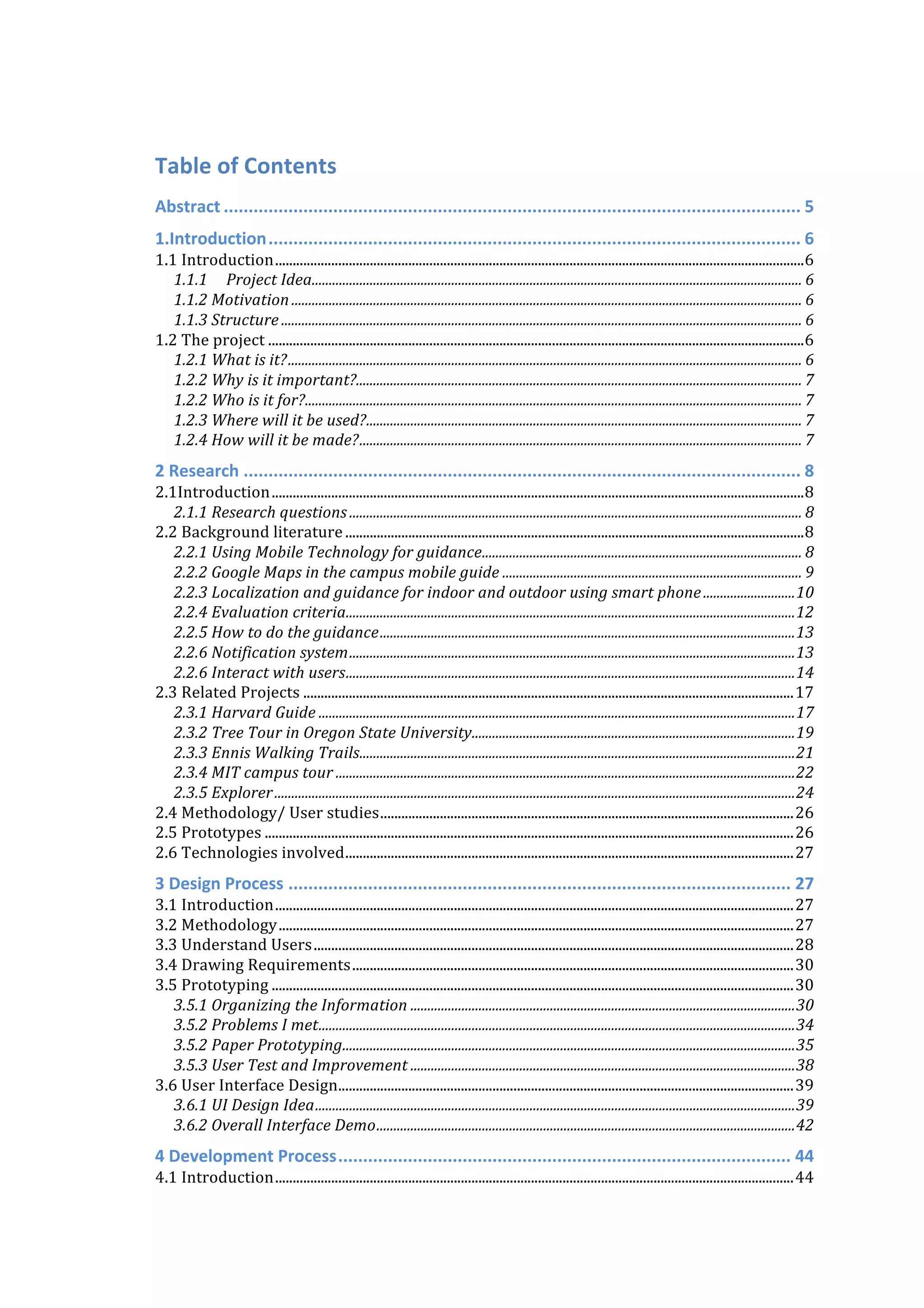
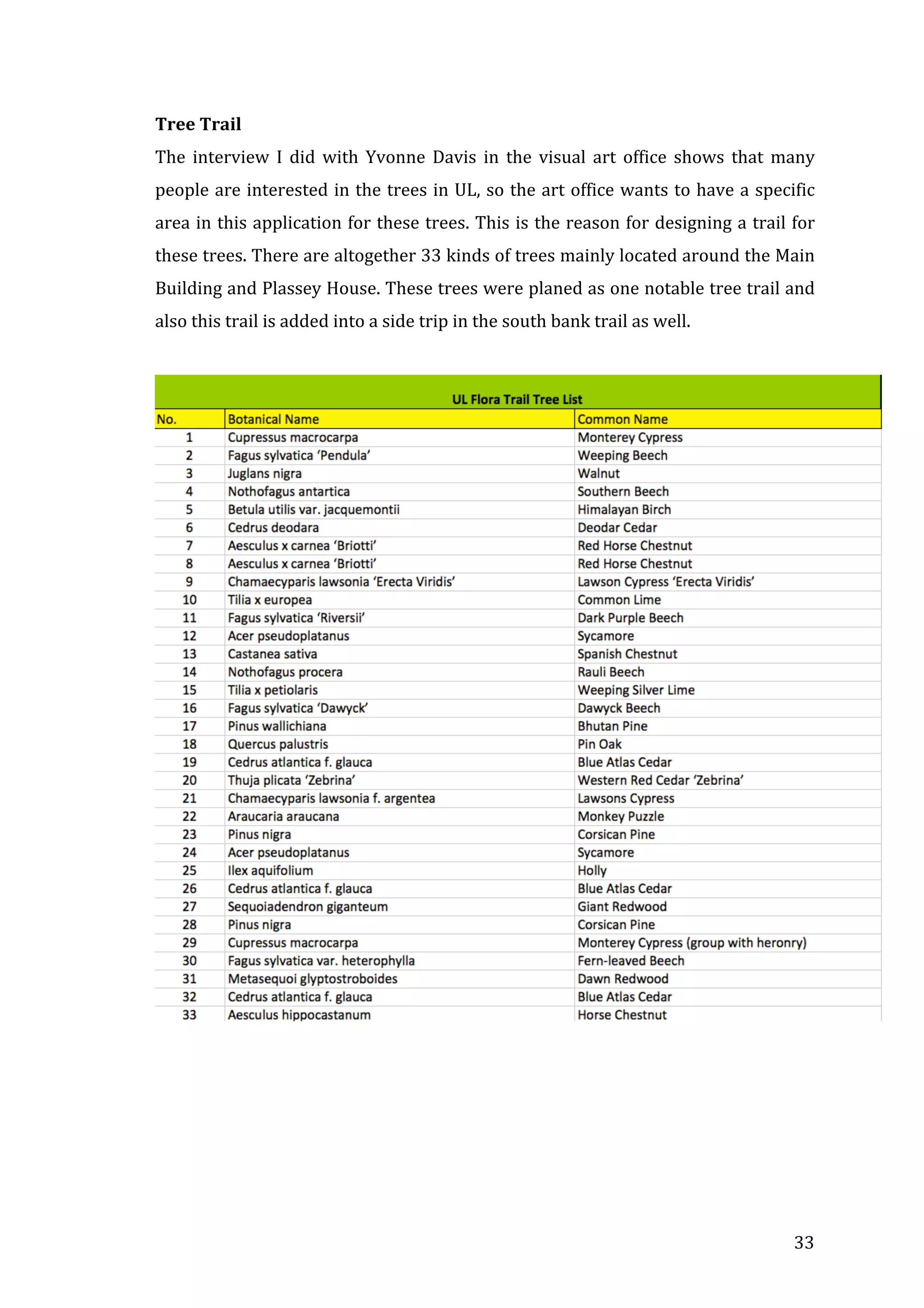


University of Limerick Campus Trails
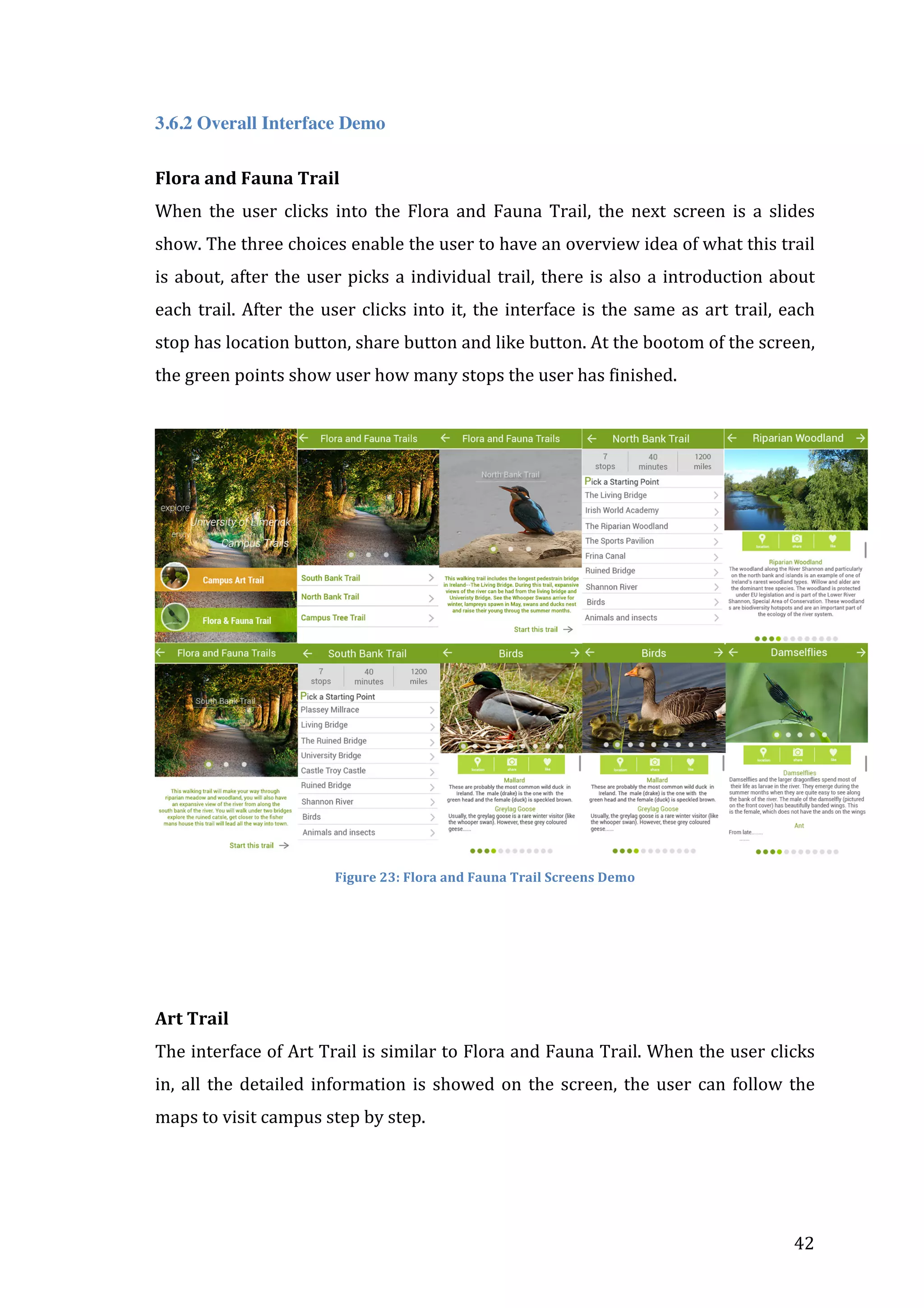
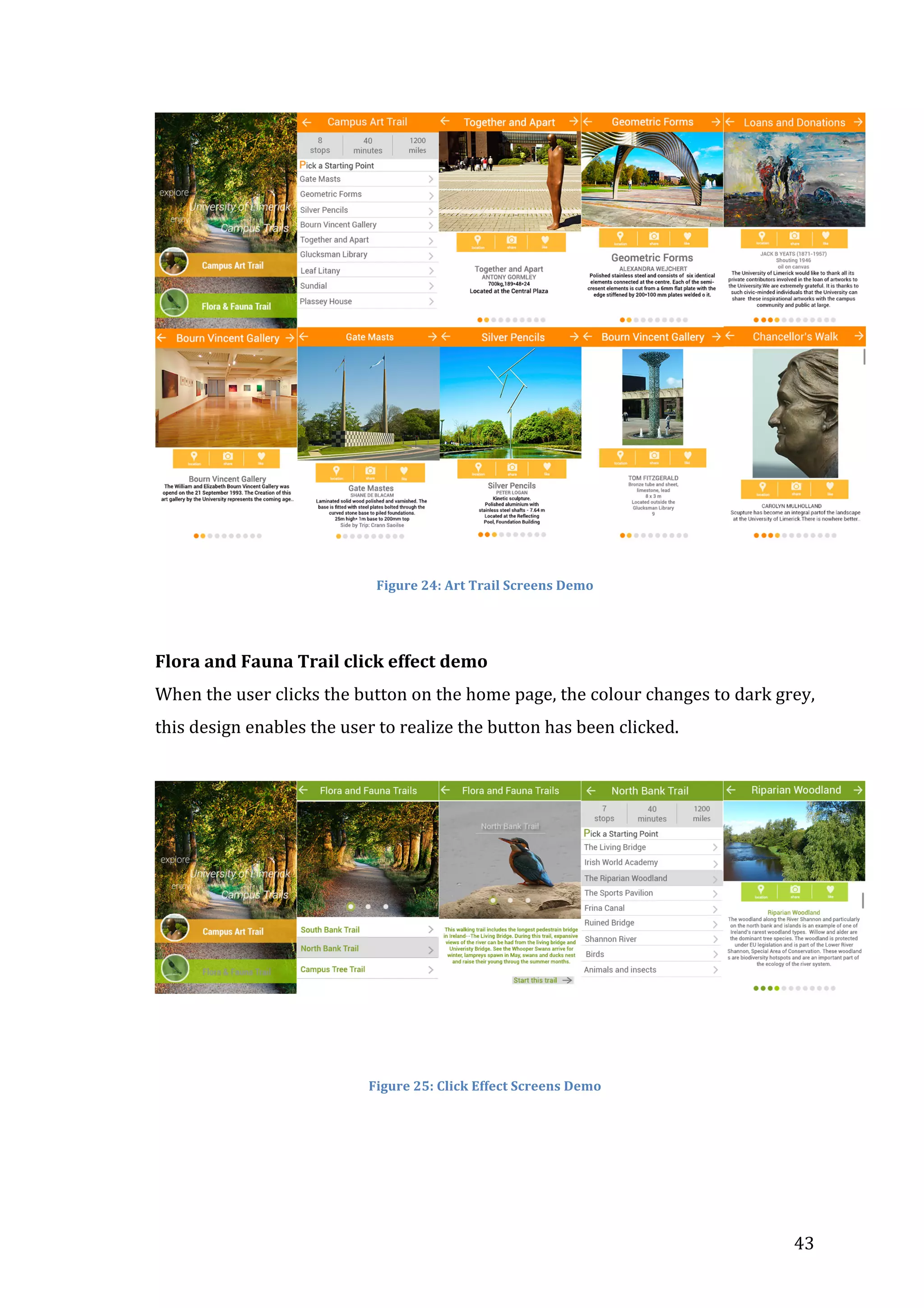
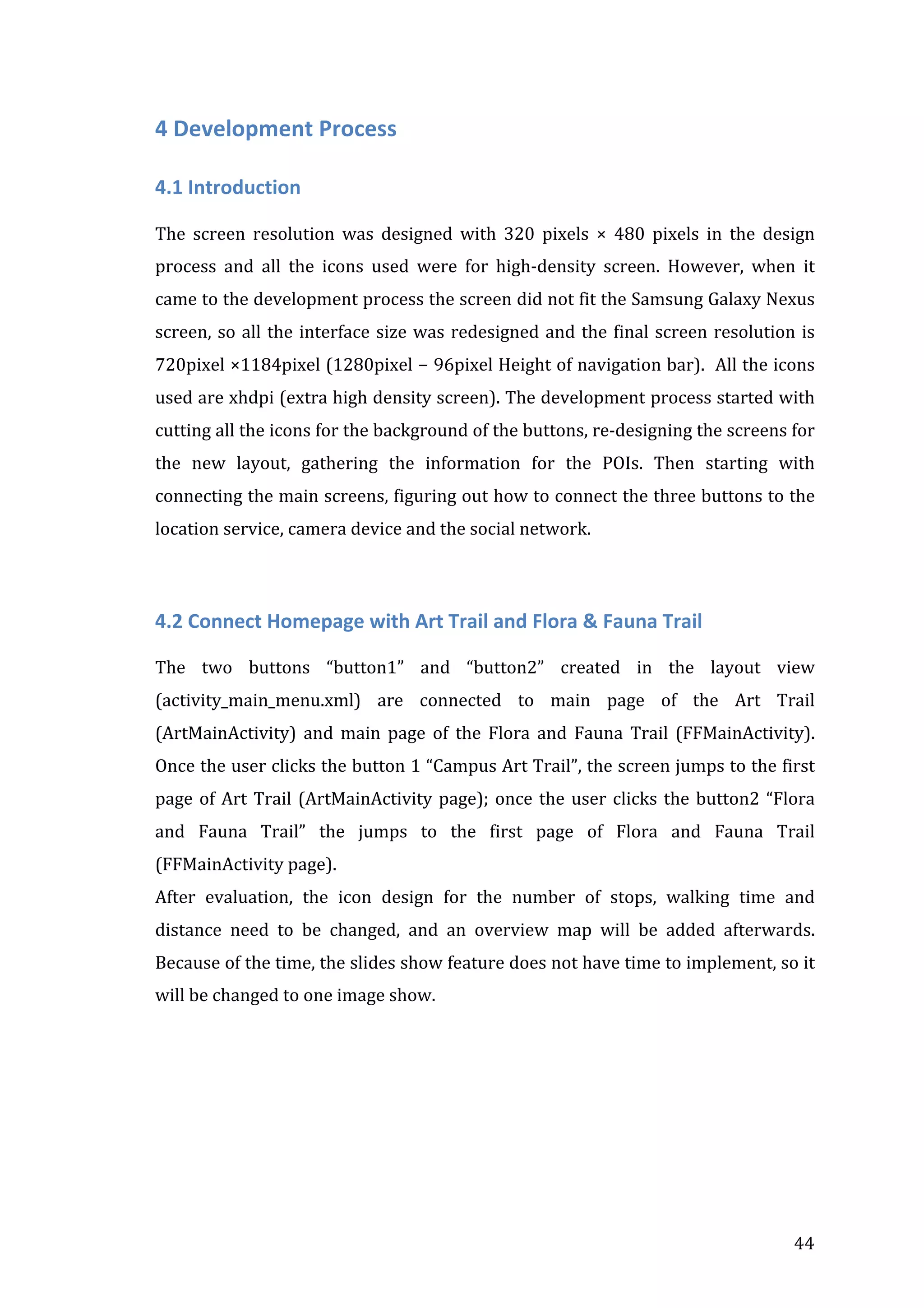
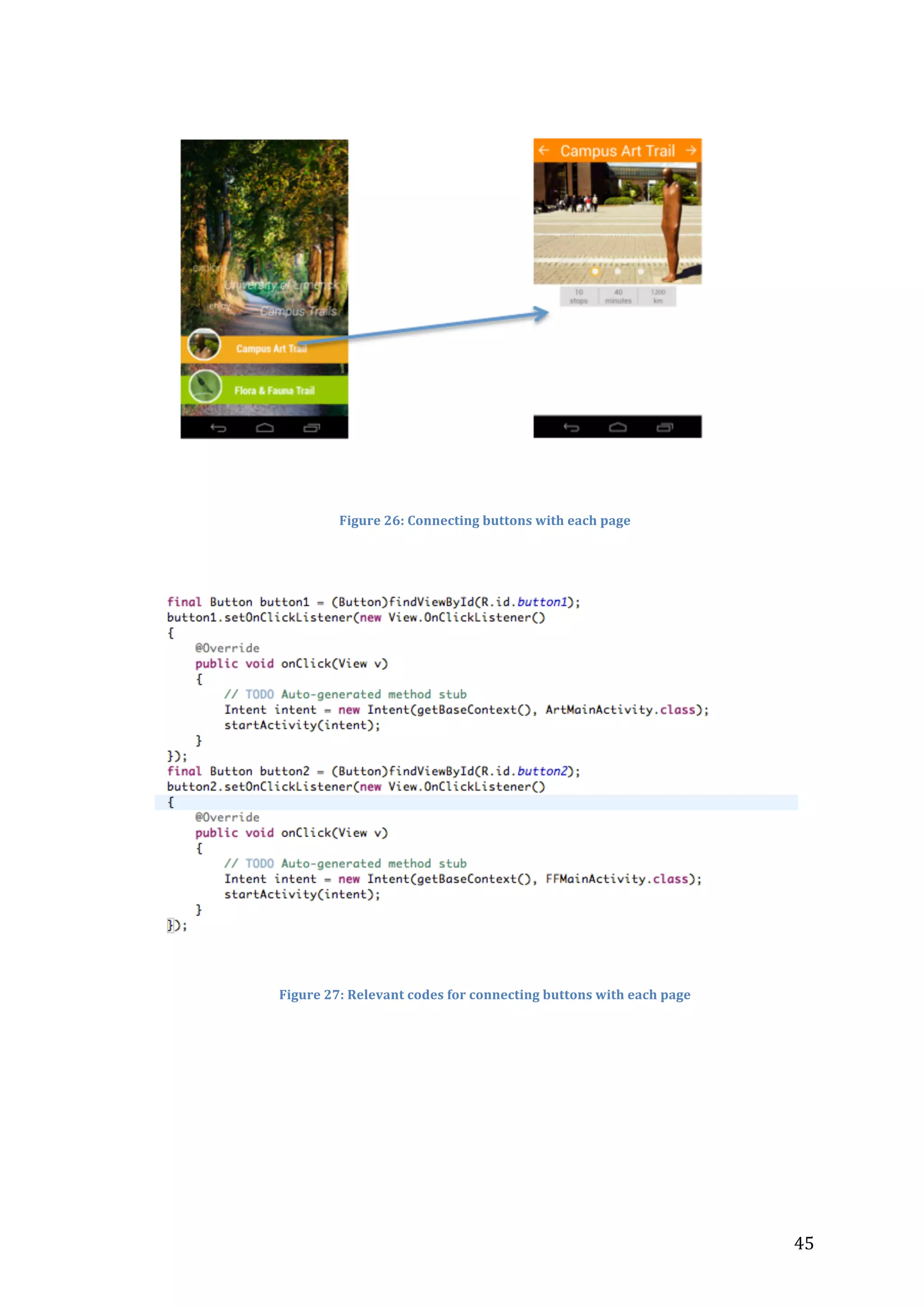
Art Trail and Flora and Fauna Trail

Yuki Jiang


Table	
  of	
  Contents	
  
Abstract	
  ....................................................................................................................	
  5	
  
1.Introduction	
  ...........................................................................................................	
  6	
  
1.1	
  Introduction	
  .......................................................................................................................................................	
  6	
  
1.1.1	
   Project	
  Idea	
  
................................................................................................................................................	
  6	
  
1.1.2	
  Motivation	
  ......................................................................................................................................................	
  6	
  
1.1.3	
  Structure	
  .........................................................................................................................................................	
  6	
  
1.2	
  The	
  project	
  .........................................................................................................................................................	
  6	
  
1.2.1	
  What	
  is	
  it?	
  .......................................................................................................................................................	
  6	
  
1.2.2	
  Why	
  is	
  it	
  important?	
  
...................................................................................................................................	
  7	
  
1.2.2	
  Who	
  is	
  it	
  for?	
  ..................................................................................................................................................	
  7	
  
1.2.3	
  Where	
  will	
  it	
  be	
  used?	
  ................................................................................................................................	
  7	
  
1.2.4	
  How	
  will	
  it	
  be	
  made?	
  ..................................................................................................................................	
  7	
  
2	
  Research	
  ................................................................................................................	
  8	
  
2.1Introduction	
  ........................................................................................................................................................	
  8	
  
2.1.1	
  Research	
  questions	
  .....................................................................................................................................	
  8	
  
2.2	
  Background	
  literature	
  ...................................................................................................................................	
  8	
  
2.2.1	
  Using	
  Mobile	
  Technology	
  for	
  guidance	
  
..............................................................................................	
  8	
  
2.2.2	
  Google	
  Maps	
  in	
  the	
  campus	
  mobile	
  guide	
  ........................................................................................	
  9	
  
2.2.3	
  Localization	
  and	
  guidance	
  for	
  indoor	
  and	
  outdoor	
  using	
  smart	
  phone	
  ...........................	
  10	
  
2.2.4	
  Evaluation	
  criteria	
  
....................................................................................................................................	
  12	
  
2.2.5	
  How	
  to	
  do	
  the	
  guidance	
  ..........................................................................................................................	
  13	
  
2.2.6	
  Notification	
  system	
  ...................................................................................................................................	
  13	
  
2.2.6	
  Interact	
  with	
  users	
  ....................................................................................................................................	
  14	
  
2.3	
  Related	
  Projects	
  ............................................................................................................................................	
  17	
  
2.3.1	
  Harvard	
  Guide	
  ............................................................................................................................................	
  17	
  
2.3.2	
  Tree	
  Tour	
  in	
  Oregon	
  State	
  University	
  
...............................................................................................	
  19	
  
2.3.3	
  Ennis	
  Walking	
  Trails	
  
................................................................................................................................	
  21	
  
2.3.4	
  MIT	
  campus	
  tour	
  .......................................................................................................................................	
  22	
  
2.3.5	
  Explorer	
  .........................................................................................................................................................	
  24	
  
2.4	
  Methodology/	
  User	
  studies	
  ......................................................................................................................	
  26	
  
2.5	
  Prototypes	
  .......................................................................................................................................................	
  26	
  
2.6	
  Technologies	
  involved	
  ................................................................................................................................	
  27	
  
3	
  Design	
  Process	
  .....................................................................................................	
  27	
  
3.1	
  Introduction	
  ....................................................................................................................................................	
  27	
  
3.2	
  Methodology	
  ...................................................................................................................................................	
  27	
  
3.3	
  Understand	
  Users	
  .........................................................................................................................................	
  28	
  
3.4	
  Drawing	
  Requirements	
  ..............................................................................................................................	
  30	
  
3.5	
  Prototyping	
  .....................................................................................................................................................	
  30	
  
3.5.1	
  Organizing	
  the	
  Information	
  .................................................................................................................	
  30	
  
3.5.2	
  Problems	
  I	
  met	
  ............................................................................................................................................	
  34	
  
3.5.2	
  Paper	
  Prototyping	
  
.....................................................................................................................................	
  35	
  
3.5.3	
  User	
  Test	
  and	
  Improvement	
  .................................................................................................................	
  38	
  
3.6	
  User	
  Interface	
  Design	
  
..................................................................................................................................	
  39	
  
3.6.1	
  UI	
  Design	
  Idea	
  .............................................................................................................................................	
  39	
  
3.6.2	
  Overall	
  Interface	
  Demo	
  ...........................................................................................................................	
  42	
  
4	
  Development	
  Process	
  ...........................................................................................	
  44	
  
4.1	
  Introduction	
  ....................................................................................................................................................	
  44	


4.2	
  Connect	
  Homepage	
  with	
  Art	
  Trail	
  and	
  Flora	
  &	
  Fauna	
  Trail	
  ......................................................	
  44	
  
4.3	
  Switch	
  Between	
  Screens	
  ............................................................................................................................	
  46	
  
4.4	
  Connect	
  “Like”	
  Button	
  with	
  Facebook	
  Campus	
  Trails	
  Page	
  .......................................................	
  47	
  
4.4.1	
  Set	
  up	
  Facebook	
  Page	
  for	
  UL	
  campus	
  trails	
  ..................................................................................	
  47	
  
4.4.2	
  Connect	
  “like’’	
  button	
  to	
  the	
  relevant	
  photo	
  on	
  Facebook	
  ......................................................	
  48	
  
4.5	
  Connect	
  “	
  share”	
  Button	
  with	
  Social	
  Network	
  .................................................................................	
  49	
  
4.6	
  Location	
  Service	
  ............................................................................................................................................	
  50	
  
4.6.1	
  Create	
  Art	
  Trail	
  and	
  Flora	
  and	
  Fauna	
  Trail	
  map	
  in	
  Google	
  Maps	
  .......................................	
  51	
  
4.6.2	
  Connect	
  “	
  Location”	
  Button	
  with	
  Google	
  Map	
  ..............................................................................	
  52	
  

5	
  Evaluation	
  ............................................................................................................	
  55	
  
5.1	
  Task	
  List	
  
............................................................................................................................................................	
  55	
  
5.2	
  Conditions	
  of	
  Testing	
  ..................................................................................................................................	
  56	
  
5.3	
  Recruitment	
  of	
  Users	
  ..................................................................................................................................	
  56	
  
5.4	
  Observation	
  Notes	
  ........................................................................................................................................	
  57	
  
5.5	
  Result	
  of	
  Observation	
  .................................................................................................................................	
  63	
  
5.6	
  Improvement	
  after	
  evaluation	
  ................................................................................................................	
  64	
  
6	
  Project	
  Plan	
  Timeline	
  
............................................................................................	
  65	
  
7	
  Conclusion	
  and	
  Future	
  Plans	
  .................................................................................	
  66	
  
References	
  ..............................................................................................................	
  68	
  
Appendix	
  n.	
  1	
  Questions	
  for	
  Interview	
  .......................................................................................................	
  71	
  
Appendix	
  n.	
  2	
  Task	
  List	
  .....................................................................................................................................	
  72	
  
Appendix	
  n.	
  3	
  Key	
  Codes	
  ...................................................................................................................................	
  74	
  
Appendix	
  n.	
  3	
  Project	
  Timeline	
  ......................................................................................................................	
  84	


Table	
  of	
  Figures	
  
Figure	
  1:	
  Evaluation	
  criteria	
  used	
  to	
  review	
  mobile	
  guide	
  projects(Kenteris	
  et	
  al.	
  
2011)	
  ....................................................................................................................................................................	
  12	
  
Figure	
  2:	
  The	
  Babble	
  interface	
  from	
  Book	
  "Interaction	
  Design"	
  ................................................	
  16	
  
Figure	
  3:	
  Harvard	
  University	
  App	
  Screenshot	
  1	
  ................................................................................	
  17	
  
Figure	
  4:	
  Harvard	
  University	
  App	
  Screenshot	
  2	
  ................................................................................	
  18	
  
Figure	
  5:	
  OSU	
  App	
  Screenshot	
  1	
  ...............................................................................................................	
  19	
  
Figure	
  6:	
  OSU	
  App	
  Screenshot	
  2	
  ...............................................................................................................	
  20	
  
Figure	
  7:	
  Ennis	
  App	
  Screenshot	
  1	
  ............................................................................................................	
  21	
  
Figure	
  8:	
  Ennis	
  App	
  Screenshot	
  2	
  ............................................................................................................	
  22	
  
Figure	
  9:	
  MIT	
  App	
  Screenshot	
  1	
  ...............................................................................................................	
  22	
  
Figure	
  10:	
  MIT	
  App	
  Screenshot	
  2	
  .............................................................................................................	
  23	
  
Figure	
  11:	
  Explorer	
  Screenshot	
  1	
  
.............................................................................................................	
  24	
  
Figure	
  12:	
  Explorer	
  Screenshot	
  2	
  
.............................................................................................................	
  25	
  
Figure	
  13:	
  Explorer	
  Screenshot	
  3	
  
.............................................................................................................	
  25	
  
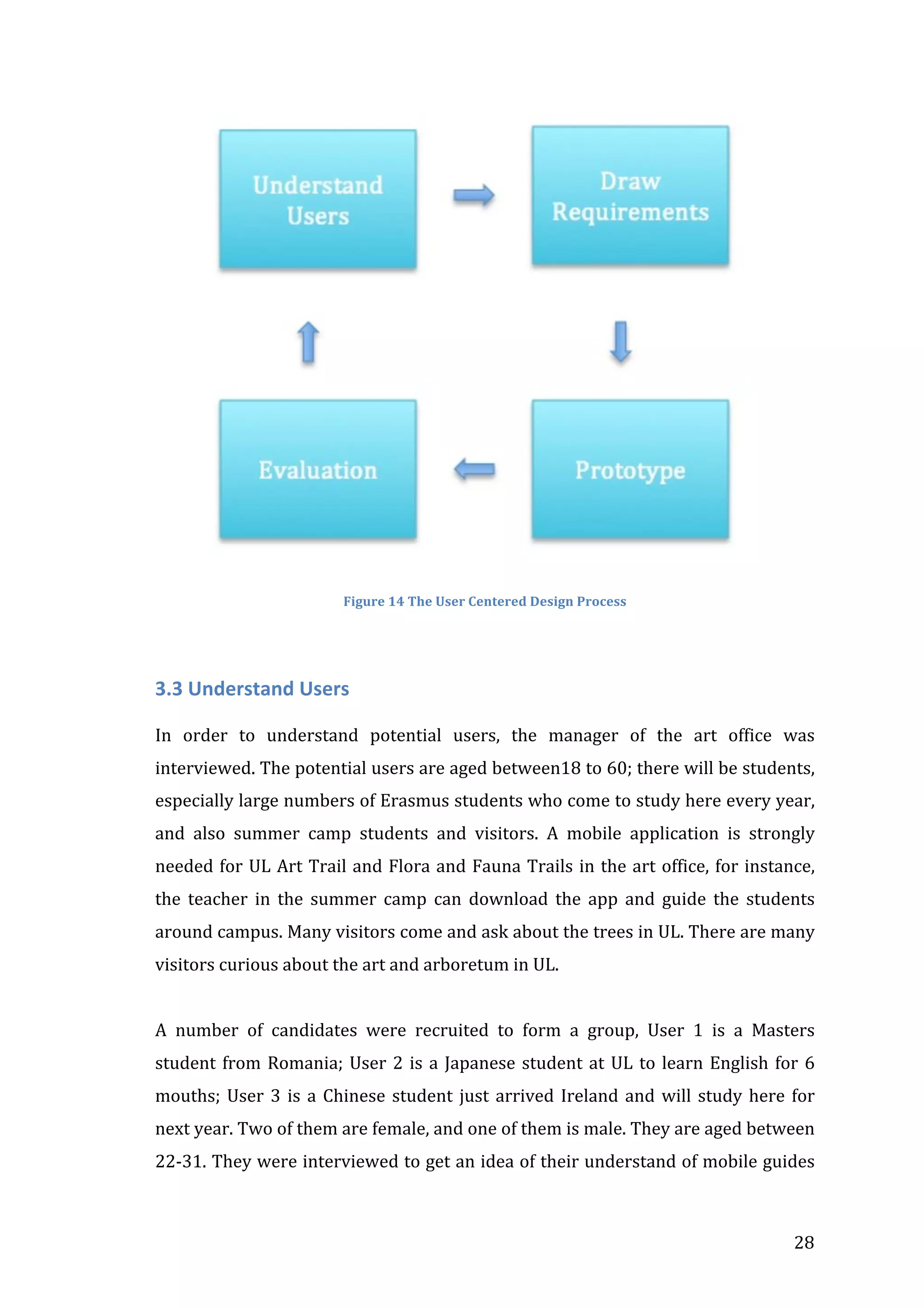
Figure	
  14	
  The	
  User	
  Centered	
  Design	
  Process	
  .....................................................................................	
  28	
  
Figure	
  15:	
  Information	
  for	
  North	
  Bank	
  Trail	
  and	
  for	
  Art	
  Trail	
  ...................................................	
  35	
  
Figure	
  16:	
  	
  Information	
  for	
  South	
  Bank	
  Trail	
  .....................................................................................	
  35	
  
Figure	
  17:	
  Paper	
  prototype	
  screen1	
  and	
  screen2	
  .............................................................................	
  36	
  
Figure	
  18:	
  Paper	
  prototype	
  screen3	
  and	
  screen4	
  .............................................................................	
  36	
  
Figure	
  19:	
  Paper	
  prototype	
  screen5	
  and	
  screen6	
  .............................................................................	
  37	
  
Figure	
  20:	
  User	
  Testing1	
  and	
  User	
  Testing2	
  .......................................................................................	
  38	
  
Figure	
  21:	
  Art	
  Trail	
  Screens	
  ........................................................................................................................	
  39	


3	
  
Figure	
  22:	
  Interface	
  Design	
  Ideas	
  ............................................................................................................	
  41	
  
Figure	
  23:	
  Flora	
  and	
  Fauna	
  Trail	
  Screens	
  Demo	
  ...............................................................................	
  42	
  
Figure	
  24:	
  Art	
  Trail	
  Screens	
  Demo	
  ..........................................................................................................	
  43	
  
Figure	
  25:	
  Click	
  Effect	
  Screens	
  Demo	
  .....................................................................................................	
  43	
  
Figure	
  26:	
  Connecting	
  buttons	
  with	
  each	
  page	
  ..................................................................................	
  45	
  
Figure	
  27:	
  Relevant	
  codes	
  for	
  connecting	
  buttons	
  with	
  each	
  page	
  ...........................................	
  45	
  
Figure	
  28:	
  Switch	
  Between	
  Screens	
  ........................................................................................................	
  46	
  
Figure	
  29:	
  Relevant	
  codes	
  for	
  switching	
  Between	
  Screens	
  ..........................................................	
  47	
  
Figure	
  30:	
  UL	
  campus	
  Trails	
  Facebook	
  Page	
  .......................................................................................	
  47	
  
Figure	
  31:	
  Like	
  Button	
  ..................................................................................................................................	
  48	
  
Figure	
  32:	
  Relevant	
  Codes	
  for	
  Like	
  Button	
  (Stackoverflow	
  Question	
  
4810803(2013))	
  ..............................................................................................................................................	
  49	
  
Figure	
  33:	
  Share	
  Button	
  ...............................................................................................................................	
  49	
  
Figure	
  34:	
  Relevant	
  codes	
  for	
  Share	
  Button	
  ........................................................................................	
  50	
  
Figure	
  35:	
  Create	
  Art	
  Trail	
  Map	
  ................................................................................................................	
  51	
  
Figure	
  36:	
  Create	
  Flora	
  and	
  Fauna	
  Trail	
  Map	
  .....................................................................................	
  51	
  
Figure	
  37:	
  Turn	
  on	
  Google	
  Maps	
  Android	
  API	
  v2	
  service	
  ..............................................................	
  52	
  
Figure	
  38:	
  	
  Creating	
  Android	
  Key	
  for	
  API	
  Project	
  .............................................................................	
  52	
  
Figure	
  39:	
  Android	
  Key	
  for	
  API	
  Project	
  is	
  created	
  ............................................................................	
  53	
  
Figure	
  40:	
  “Location	
  me”	
  button	
  ..............................................................................................................	
  53	
  
Figure	
  41:	
  	
  Relevant	
  code	
  for	
  “Location”	
  button	
  ...............................................................................	
  54	
  
Figure	
  42:	
  User	
  2	
  following	
  the	
  app	
  arriving	
  at	
  the	
  Chancellor’s	
  Walk	
  ...................................	
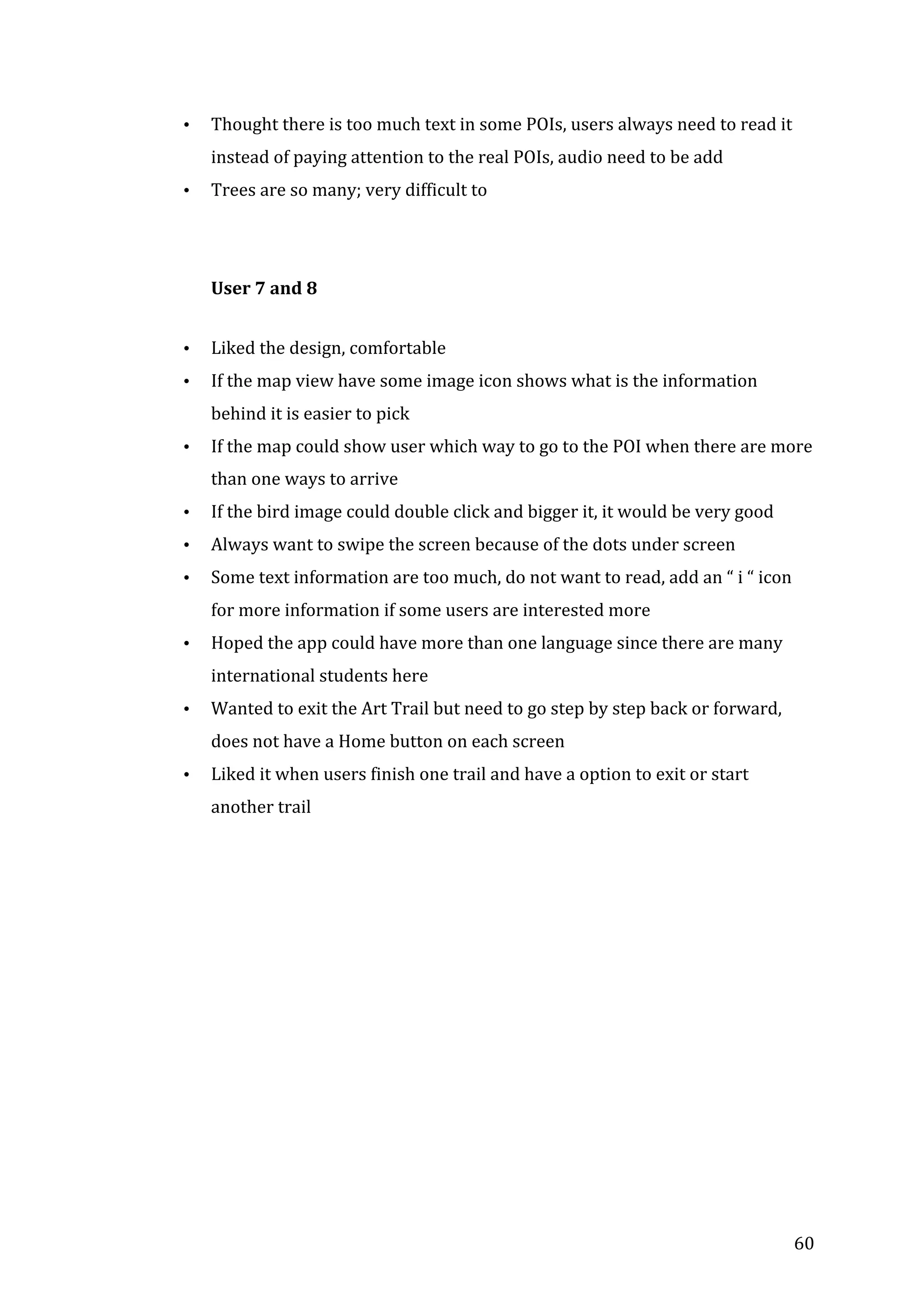
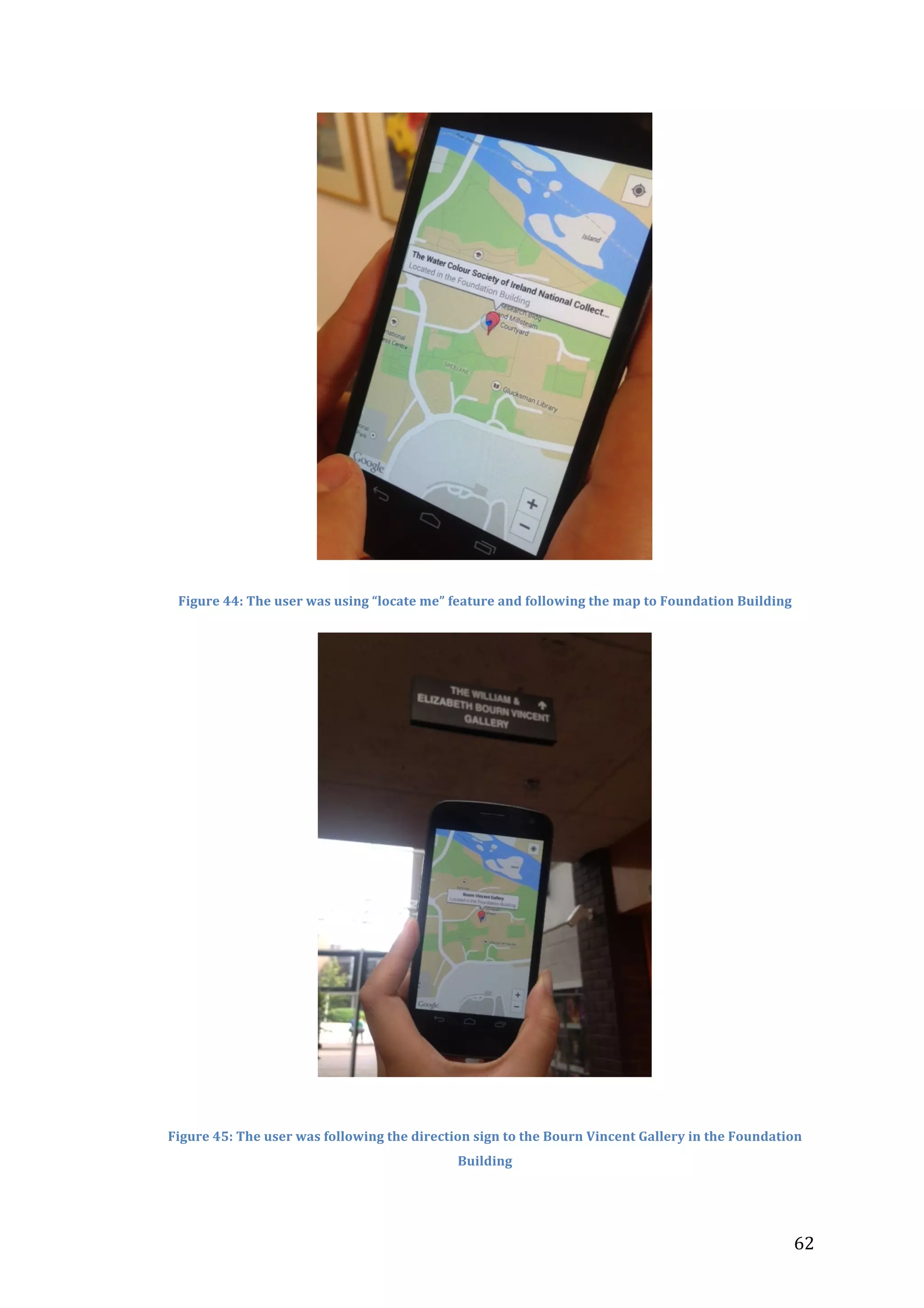
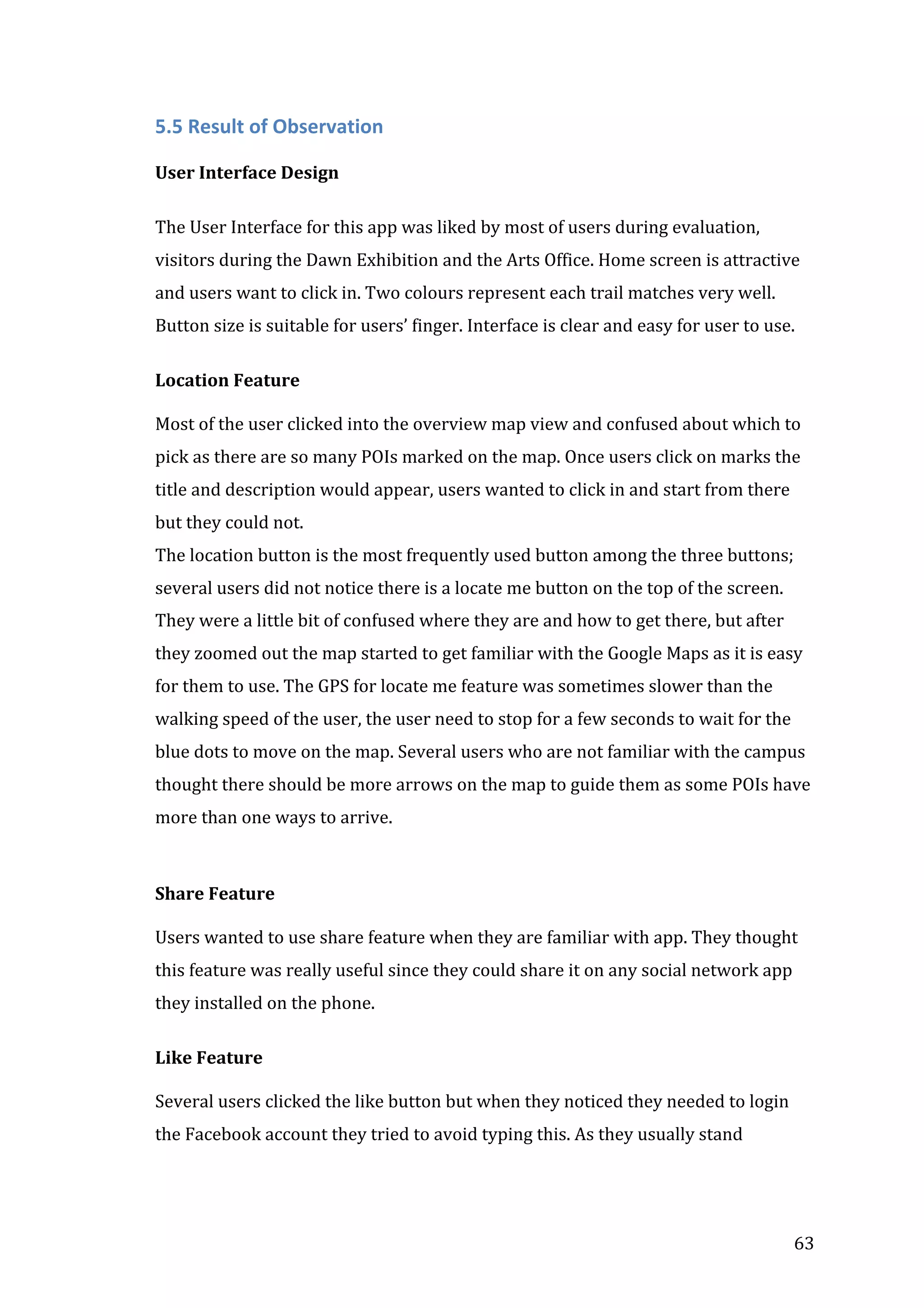
  61	
  
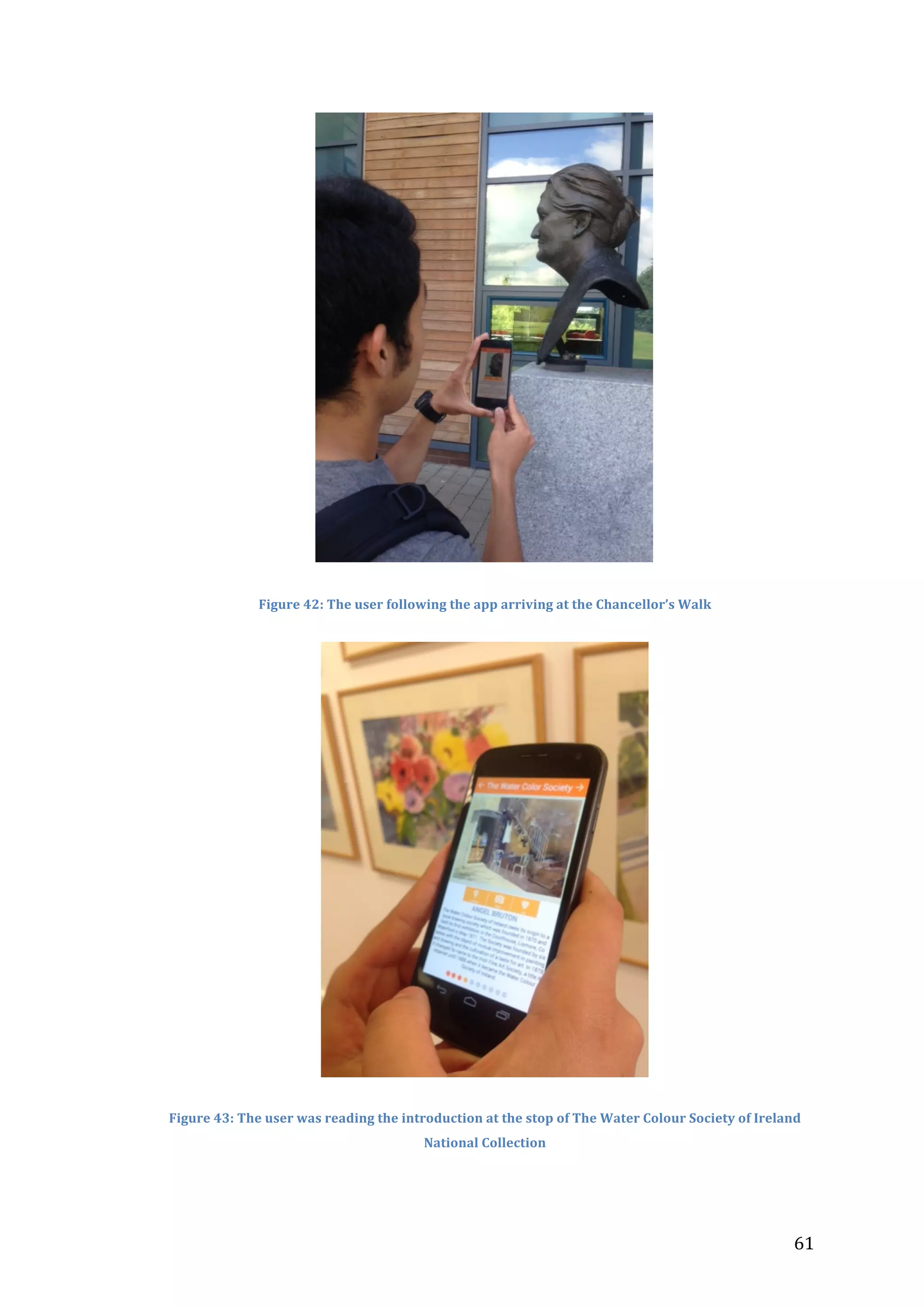
Figure	
  43:	
  User	
  1	
  was	
  reading	
  the	
  introduction	
  at	
  the	
  stop	
  of	
  The	
  Water	
  Colour	
  
Society	
  of	
  Ireland	
  National	
  Collection	
  ....................................................................................................	
  61	
  
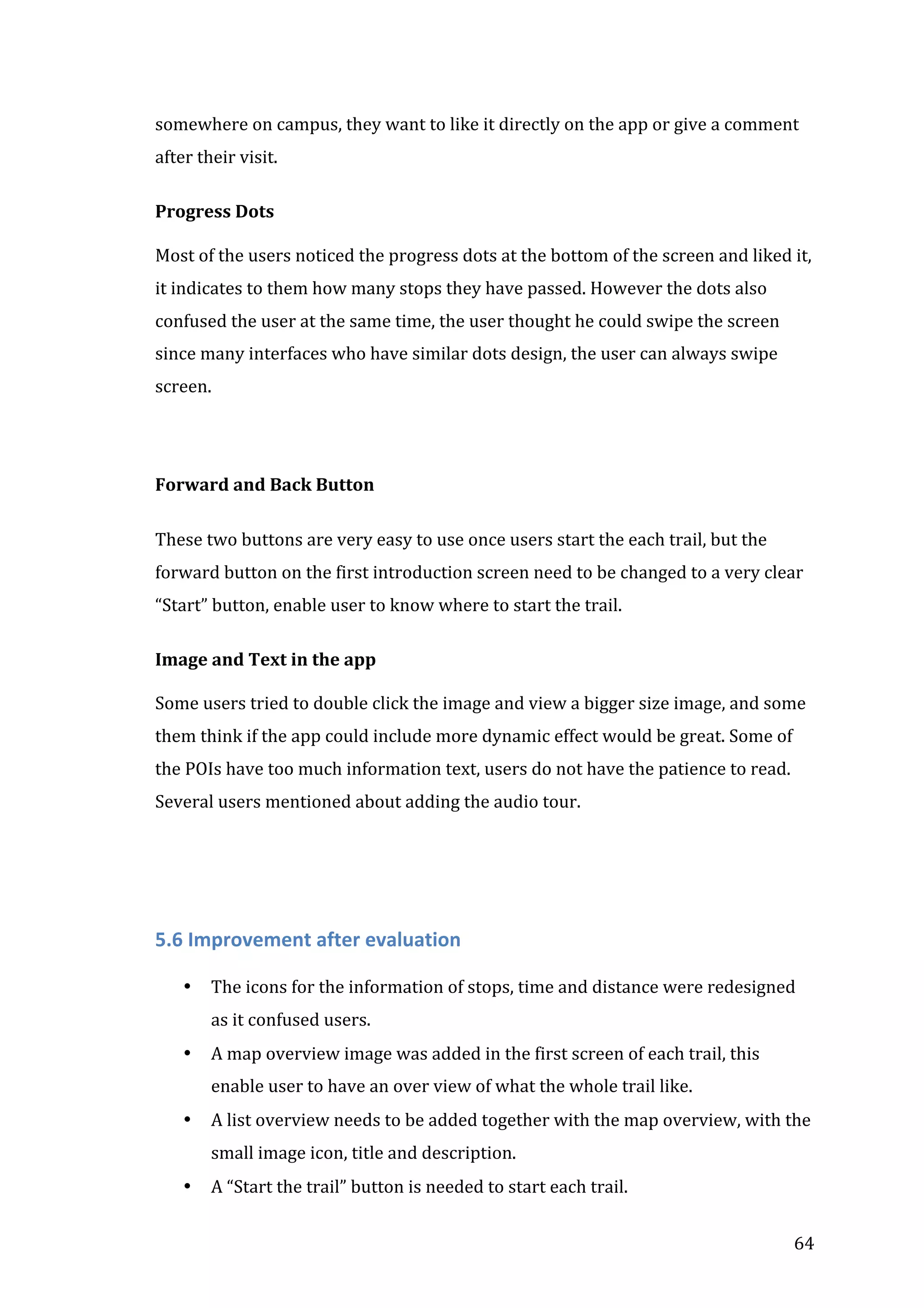
Figure	
  44:	
  User	
  1	
  was	
  using	
  “locate	
  me”	
  feature	
  and	
  following	
  the	
  map	
  to	
  
Foundation	
  Building	
  ......................................................................................................................................	
  62	
  
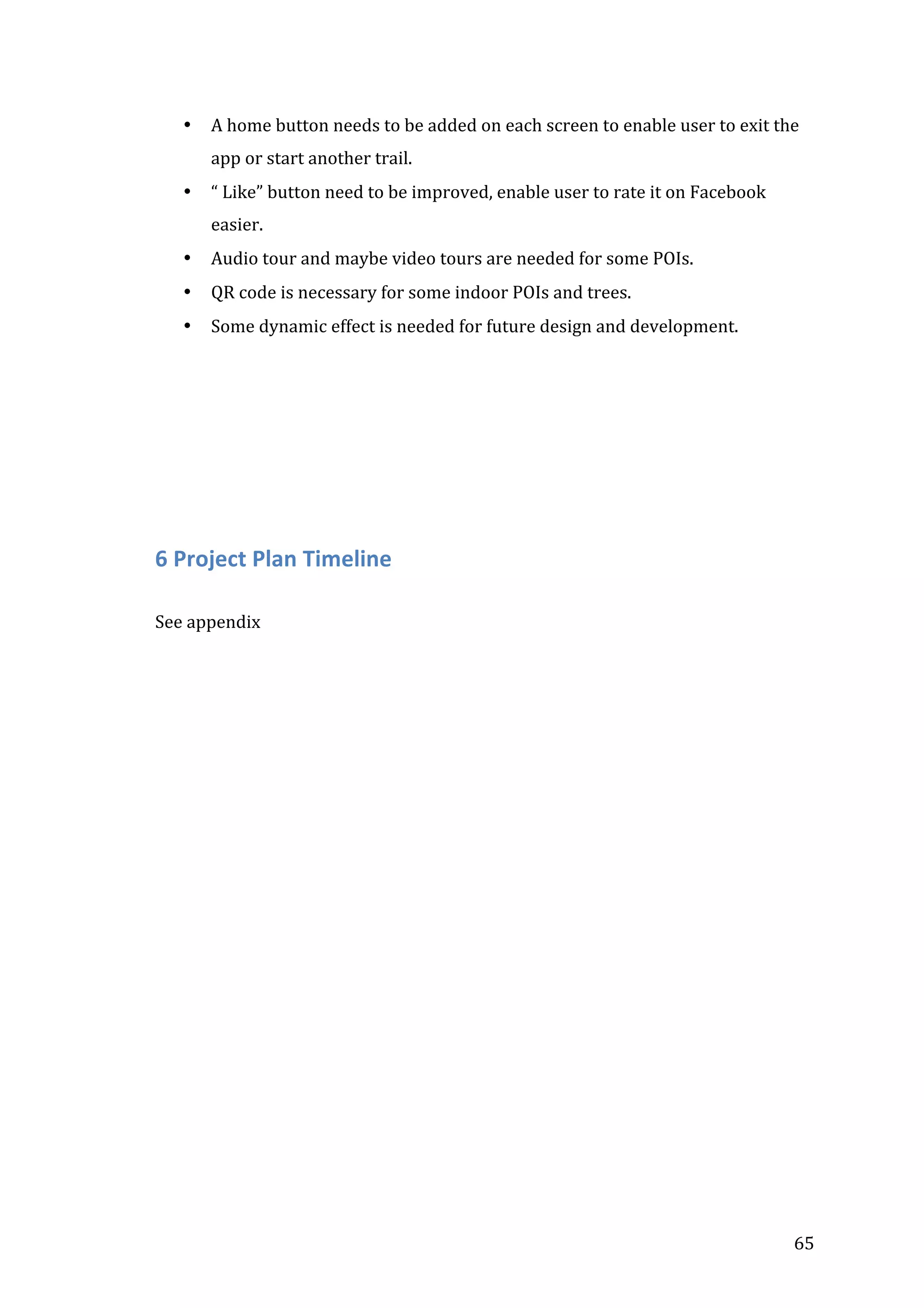
Figure	
  45:	
  User	
  3	
  was	
  following	
  the	
  direction	
  sign	
  to	
  the	
  Bourn	
  Vincent	
  Gallery	
  in	
  
the	
  Foundation	
  Building	
  
...............................................................................................................................	
  62	


4	
  
Abstract	


This	
   thesis	
   is	
   about	
   my	
   final	
   project	
   as	
   a	
   postgraduate	
   of	
   Interactive	
   Media	
   in	
  
University	
   of	
   Limerick.	
   This	
   project	
   documents	
   the	
   design	
   and	
   development	
   of	
  
University	
  of	
  Limerick	
  Campus	
  Trails.	
  The	
  aim	
  of	
  this	
  project	
  is	
  to	
  build	
  a	
  mobile	
  
guide	
   application	
   to	
   guide	
   users	
   on	
   campus;	
   to	
   investigate	
   the	
   information	
  
required	
  by	
  students,	
  staff	
  and	
  visitors;	
  and	
  to	
  explore	
  the	
  technologies	
  involved	
  in	
  
the	
  project.	


5	


1.Introduction	
  
1.1	
  Introduction	
  
This	
   report	
   documents	
   the	
   research	
   and	
   development	
   of	
   my	
   final	
   year	
   project	
  
investigating	
  mobile	
  guides	
  on	
  campus,	
  with	
  the	
  focus	
  on	
  walking	
  and	
  art	
  trails.	


1.1.1

Project Idea

The	
  aim	
  of	
  this	
  project	
  is	
  to	
  build	
  a	
  mobile	
  guide	
  application	
  to	
  guide	
  users	
  for	
  a	
  
walking	
  trail	
  and	
  art	
  trail	
  on	
  campus;	
  to	
  investigate	
  the	
  information	
  required	
  by	
  
students,	
  staff	
  and	
  visitors;	
  and	
  to	
  explore	
  the	
  technologies	
  involved	
  in	
  the	
  project.	
  
1.1.2 Motivation
Because	
   modern	
   lifestyle	
   highly	
   relies	
   on	
   the	
   smart	
   phone,	
   the	
   motivation	
   of	
   the	
  
project	
   is	
   to	
   explore	
   the	
   technology	
   and	
   process	
   of	
   how	
   modern	
   lifestyle	
  
corresponds	
   with	
   personal	
   smart	
   phone	
   device	
   and	
   make	
   good	
   use	
   of	
   the	
  
information	
  on	
  campus,	
  in	
  order	
  to	
  self-­‐guide	
  and	
  educate	
  visitors	
  in	
  both	
  indoor	
  
and	
  outdoor	
  environment	
  for	
  walking	
  trail	
  and	
  art	
  trail.	
  
1.1.3 Structure
The	
   project	
   main	
   consists	
   of	
   two	
   parts:	
   	
   the	
   academic	
   research	
   and	
   the	
   design	
   &	
  
develop	
  process.	


1.2	
  The	
  project	
  
1.2.1 What is it?
This	
  project	
  concerns	
  the	
  design	
  and	
  development	
  of	
  a	
  mobile	
  guide	
  based	
  on	
  the	
  
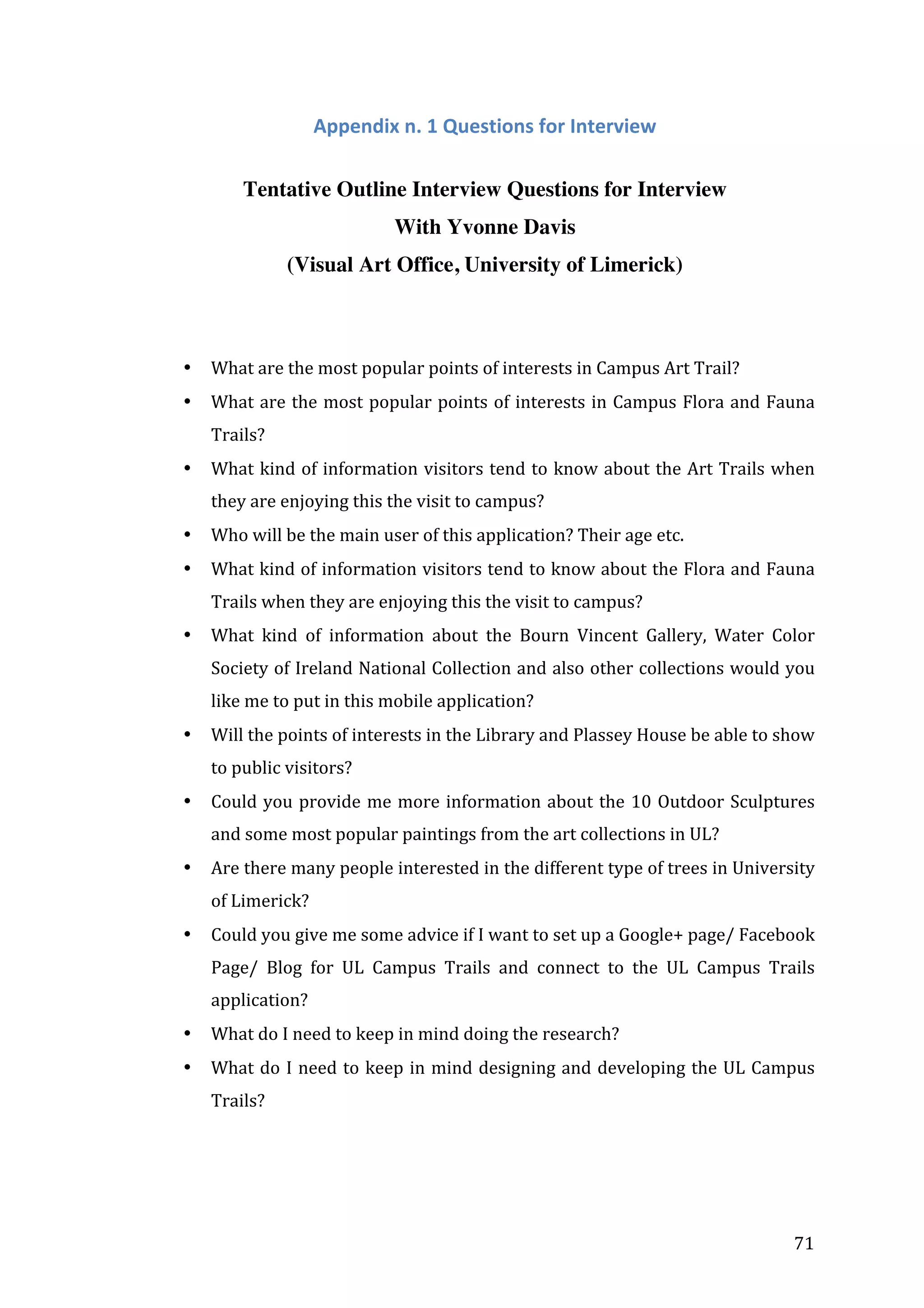
Android	
  system	
  for	
  visitors	
  to	
  explore	
  a	
  self-­‐guided	
  walking	
  trail	
  and	
  art	
  trail	
  in	
  
university.	


6	
  
1.2.2 Why is it important?
This	
   project	
   will	
   investigate	
   and	
   explore	
   relations	
   between	
   modern	
   lifestyle	
   and	
  
popular	
   smart	
   phones	
   (Android	
   platform	
   in	
   this	
   case),	
   and	
   how	
   they	
   correspond	
  
with	
   each	
   other.	
   And	
   apply	
   these	
   techniques	
   and	
   process	
   on	
   mobile	
   guides	
   on	
  
campus	
  to	
  guide	
  visitors.	
  
1.2.2 Who is it for?
This	
   project	
   is	
   mainly	
   designed	
   for	
   student,	
   staff	
   on	
   campus,	
   visitors	
   and	
   alumni	
  
who	
  wish	
  to	
  do	
  a	
  self-­‐guided	
  walking	
  trail	
  or	
  art	
  trail.	
  
1.2.3 Where will it be used?
This	
  application	
  is	
  designed	
  for	
  the	
  university	
  campus;	
  it	
  can	
  be	
  used	
  in	
  a	
  variety	
  of	
  
places	
   on	
   and	
   around	
   campus.	
   For	
   instance	
   it	
   can	
   be	
   used	
   to	
   guide	
   people	
   when	
  
exploring	
  walking	
  trails	
  on	
  campus,	
  show	
  them	
  around	
  the	
  art	
  gallery,	
  visit	
  some	
  
sculptors	
   and	
   arboretum	
   around	
   campus,	
   guide	
   people	
   to	
   different	
   buildings	
  and	
  
also	
  help	
  them	
  learn	
  more	
  about	
  the	
  campus.	
  	
  
1.2.4 How will it be made?
The	
  process	
  of	
  making	
  such	
  an	
  Android	
  mobile	
  application	
  mainly	
  consists	
  of	
  two	
  
parts,	
  the	
  interface	
  design	
  and	
  the	
  implementation	
  (coding).	
  
To	
   design	
   the	
   interface	
   Adobe	
   Photoshop	
   will	
   be	
   used;	
   Axure	
   or	
   other	
   prototype	
  
tools12	
  will	
  be	
  required	
  for	
  prototyping	
  work.	
  	
  
To	
  implement	
  the	
  mobile	
  application,	
  Eclipse	
  platform	
  &	
  Android	
  SDK	
  will	
  be	
  used	
  
with	
  some	
  supplementary	
  APIs	
  (e.g.,	
  Google	
  Map	
  API)	
  as	
  well.	


1	
  http://www.fluidui.com/demos/	
  
2	
  https://proto.io/en/signup/	


7	
  
2	
  Research	
  	
  
2.1Introduction	
  
The	
   literature	
   review	
   addressed	
   two	
   main	
   issues:	
   mobile	
   application	
   design	
  
principles	
  for	
  the	
  mobile	
  guide	
  on	
  campus	
  and	
  related	
  technological	
  choices	
  during	
  
the	
  design	
  process	
  in	
  this	
  area.	


2.1.1 Research questions
•

How	
   to	
   promote	
   multi-­‐dimensional	
   interactions	
   when	
   self-­‐guiding	
   users	
   on	
  
campus?	
  (Millard	
  et	
  al.	
  2008)	
  

•

What	
  problems	
  should	
  be	
  taken	
  into	
  consideration	
  on	
  both	
  the	
  app	
  design	
  
process	
  and	
  develop	
  process?	
  (Kenteris	
  et	
  al.	
  2011)	
  

•

What	
  kind	
  of	
  positioning	
  technologies	
  and	
  map	
  technologies	
  should	
  be	
  used	
  
to	
   apply	
   on	
   indoor	
   and	
   outdoor	
   guidance,	
   and	
   also	
   how	
   to	
   do	
   the	
   self-­‐
guidance?	
  (Hammadi	
  et	
  al.	
  2012)	


2.2	
  Background	
  literature	


In	
  the	
  next	
  few	
  pages	
  I	
  will	
  review	
  some	
  of	
  the	
  key	
  contribution	
  in	
  the	
  area	
  of	
  using	
  
mobile	
  and	
  localization	
  technologies	
  in	
  guidance.	


2.2.1 Using Mobile Technology for guidance
“Mobile	
  technology	
  presents	
  the	
  opportunity	
  to	
  support	
  educational	
  visits	
  by	
  
providing	
  both	
  location-­‐based	
  information	
  and	
  guidance	
  through	
  this	
  information	
  
based	
  on	
  the	
  visitor’s	
  interests	
  and	
  needs.”	
  

(Naismith	
  et	
  al.	
  2005)	
  

In	
   their	
   project,	
   they	
   use	
   a	
   multimedia	
   context	
   to	
   help	
   users	
   read,	
   listen,	
   see	
   and	
  
explore	
  more	
  about	
  the	
  garden	
  tour.	
  They	
  stated	
  that	
  the	
  two	
  ideas	
  of	
  user	
  interests	
  
and	
  user	
  needs	
  are	
  very	
  important	
  in	
  mobile	
  guide	
  design.	
  It	
  is	
  very	
  common	
  that	
  
many	
  of	
  the	
  interesting	
  sites	
  or	
  collections	
  on	
  the	
  campus	
  may	
  not	
  be	
  noticed	
  by	


8	
  
the	
   students,	
   staff	
   or	
   visitors	
   on	
   campus,	
   though	
   there	
   are	
   lots	
   of	
   learning	
  
opportunities	
  within	
  these	
  places.	
  To	
  avoid	
  this,	
  the	
  mobile	
  guide	
  can	
  make	
  a	
  good	
  
use	
  of	
  this	
  information	
  to	
  guide	
  and	
  assist	
  visitors.	
  
Many	
  universities	
  or	
  national	
  galleries	
  have	
  lots	
  of	
  art	
  collections	
  in	
  their	
  own	
  art	
  
gallery.	
  To	
  connect	
  the	
  mobile	
  guide	
  with	
  social	
  media	
  (e.g.,	
  Facebook	
  or	
  Instagram)	
  
will	
   enrich	
   the	
   multi-­‐dimensional	
   interaction(Petrelli	
   and	
   Not	
   2005)	
   between	
  
visitors	
   and	
   information	
   of	
   the	
   on-­‐campus	
   art	
   collections	
   and	
   popular	
   visiting	
  
places	
  through	
  this	
  platform.	


2.2.2 Google Maps in the campus mobile guide
Kenteris(2011)argued	
   in	
   their	
   paper	
   that	
   the	
   map	
   usually	
   is	
   the	
   most	
   basic	
   and	
  
essential	
  part	
  in	
  mobile	
  tour	
  guide.	
  Most	
  of	
  the	
  similar	
  systems	
  use	
  maps	
  as	
  their	
  
central	
  part,	
  and	
  then	
  use	
  navigational	
  services	
  and	
  routing	
  services	
  based	
  on	
  the	
  
map.	
   Among	
   those	
   systems	
   some	
   of	
   the	
   campus	
   maps	
   were	
   designed	
   like	
   an	
  
infographic	
  to	
  show	
  information	
  around	
  campus,	
  this	
  kind	
  of	
  map	
  will	
  not	
  be	
  able	
  
to	
  interact	
  with	
  users;	
  some	
  of	
  the	
  maps	
  were	
  based	
  on	
  Google	
  Maps,	
  which	
  enable	
  
the	
  users	
  to	
  search	
  and	
  explore	
  on	
  it.	
  	
  
Most	
   of	
   the	
   maps	
   that	
   connect	
   to	
   Google	
   maps	
   in	
   the	
   mobile	
   guides	
   provide	
   the	
  
overview	
   and	
   detail	
   zoom	
   levels	
   features.	
   The	
   paper	
   Designing	
   LoL@,	
   a	
   Mobile	
  
Tourist	
  Guide	
  for	
  UMTS	
   presented	
   these	
   two	
   levels	
   by	
   giving	
   the	
   case	
   of	
   a	
   tourist	
  
map	
   guide	
   in	
   the	
   city	
   of	
   Vienna:	
   include	
   an	
   overview	
   map	
   of	
   walking	
   tour	
   in	
   the	
  
city,	
   and	
   related	
   sight-­‐seeing	
   information	
   on	
   some	
   view	
   point.	
   For	
   example,	
   the	
  
tourists	
  would	
  have	
  a	
  prior	
  experience	
  by	
  accessing	
  sightseeing	
  information	
  from	
  
the	
  mobile	
  guide	
  even	
  when	
  they	
  were	
  in	
  the	
  hotel,	
  and	
  during	
  visiting,	
  the	
  voice	
  
routing	
  service	
  will	
  read	
  the	
  step-­‐by-­‐step	
  routing	
  instructions	
  so	
  the	
  tourists	
  can	
  
concentrate	
   on	
   the	
   view/scenery.	
   They	
   are	
   also	
   capable	
   to	
   upload	
   photographs	
  
retrieved	
  from	
  the	
  built-­‐in	
  digital	
  camera	
  on	
  their	
  mobile	
  device	
  (Pospischil	
  et	
  al.	
  
2002).	
  
These	
   kinds	
   of	
   features	
   can	
   be	
   applied	
   on	
   the	
   mobile	
   guide	
   on	
   campus	
   as	
   well,	
   use	
  
Google	
  Maps	
  on	
  campus	
  as	
  the	
  central	
  part,	
  highlighting	
  some	
  popular	
  routes	
  for	


9	
  
visitors	
  to	
  do	
  a	
  pre-­‐visit.	
  	
  Adding	
  those	
  features	
  that	
  can	
  guide	
  users,	
  educate	
  users	
  
and	
  promote	
  interactions	
  between	
  users	
  and	
  POIs.	


2.2.3 Localization and guidance for indoor and outdoor using smart phone
Background	


The	
   positioning	
   technology	
   for	
   localization	
   can	
   roughly	
   be	
   divided	
   into	
   indoor	
   and	
  
outdoor	
  two	
  kinds	
  of	
  technology.	
  	
  
Google	
   Maps	
   is	
   being	
   used	
   in	
   most	
   mobile	
   apps	
   for	
   localization	
   or	
   positioning	
  
along	
   with	
   GPS	
   to	
   improve	
   accuracy,	
   and	
   Bolic	
   and	
   Donko	
   (2012)	
   pointed	
   out	
  
OpenStreetMap	
   as	
   an	
   alternative	
   of	
   Google	
   Maps,	
   OpenStreetMap	
   maps	
   are	
   from	
  
open	
  source	
  community,	
  though	
  it’s	
  not	
  as	
  common	
  as	
  Google	
  Maps,	
  but	
  it	
  allows	
  
offline	
  map	
  cache	
  and	
  customization.	
  	
  
Among	
  all	
  maps	
  in	
  todays’	
  mobile	
  guides,	
  there	
  are	
  raster-­‐based	
  maps,	
  which	
  are	
  
used	
   to	
   display	
   the	
   location	
   of	
   POIs;	
   another	
   one	
   is	
   the	
   GIS-­‐based	
   vector	
   map,	
  
which	
   is	
   used	
   for	
   routing	
   and	
   guidance	
   services.	
   If	
   concerned	
   about	
   the	
   outdoor	
  
positioning	
   and	
   the	
   reliability	
   of	
   the	
   technology,	
   GPS	
   is	
   the	
   better	
   technology.	
  
(Kenteris	
   et	
   al.	
   2011).“With	
   only	
   a	
   few	
   exceptions,	
   GPS	
   has	
   been	
   the	
   standard	
  
choice	
   as	
   outdoor	
   positioning	
   technology.”	
   (Kenteris	
   et	
   al.	
   2011)	
   But	
   sometimes,	
  

GPS	
   cannot	
   work	
   very	
   well	
   in	
   an	
   indoor	
   environment	
   and	
   urban	
   places,	
  
Shang	
  argued	
  in	
  their	
  articles.	
  
Hammadi	
  (2012)	
  gave	
  an	
  introduction	
  about	
  those	
  common	
  technologies	
  that	
  have	
  
been	
   used	
   for	
   nowadays’	
   indoor	
   environment	
   guidance.	
   	
   Most	
   of	
   those	
   are	
   listed	
  
below:	


•

Global	
   Positioning	
   System	
   (GPS):	
   Based	
   on	
   the	
   global	
   satellite	
   positioning	
  
system	
   (it	
   is	
   more	
   suitable	
   for	
   outdoor	
   environment	
   to	
   work	
   with	
   Google	
  
maps	
  or	
  OpenStreetMap	
  (OSM)),	
  suitable	
  for	
  outdoor	
  environment.	


•


Bluetooth:	
   Bluetooth	
   is	
   used	
   as	
   a	
   short-­‐range	
   communication	
   technology,	
  

10	
  
with	
  good	
  accuracy	
  but	
  high	
  cost	
  to	
  deploy;	
  not	
  suitable	
  for	
  campus.	


•

Radio	
  Frequency	
  Identification	
  (RFID):	
  expensive	
  to	
  deploy;	
  not	
  suitable	
  for	
  
campus	
  in	
  this	
  case	
  (Sieck	
  2012).	


•

Ultra	
   Wide	
   Band	
   (UWB):	
   it	
   is	
   accurate;	
   however	
   the	
   cost	
   is	
   so	
   high;	
   Not	
  
suitable	
  for	
  campus	
  in	
  this	
  case	
  (Jianga	
  et	
  al.	
  2011).	


•

Near	
   Field	
   Communication	
   (NFC):	
   Compared	
   to	
   above,	
   may	
   be	
   a	
   suitable	
  
technology	
  to	
  use	
  with	
  its	
  high	
  accuracy	
  and	
  low	
  cost	
  on	
  implement.	


Localization	
  and	
  guidance	
  for	
  indoor	


For	
   indoor	
  environment,	
   Hammadi(2012)	
   also	
   mentioned	
   that	
   most	
   mobile	
   guide	
  
systems	
   utilize	
   NFC	
   (Near	
   Field	
   Communication)	
   technology	
   and	
   QR	
   (Quick	
  
Response)	
   Codes,	
   which	
   are	
   low	
   cost,	
   to	
   determine	
   the	
   location	
   as	
   well	
   as	
   to	
  
provide	
   navigation.	
   Then	
   with	
   the	
   help	
   of	
   the	
   map	
   to	
   determine	
   the	
   destination,	
  
calculate	
   shortest	
   path,	
   store	
   car	
   parking	
   location,	
   give	
   feedback	
   to	
   building	
  
management,	
   enter	
   surveys	
   for	
   restaurants	
   and	
   coffee	
   shops,	
   find	
   nearest	
   toilet	
  
and	
  make	
  donations(Saranyaraj	
  2013).	
  
It	
   is	
   a	
   very	
   common	
   phenomenon	
   that	
   many	
   of	
   the	
   relatively	
   larger	
   national	
  
galleries,	
   and	
   museums	
   may	
   lack	
   tour	
   guides	
   to	
   guide	
   and	
   assist	
   visitors,	
   way	
  
finding	
   is	
   a	
   particular	
   challenge	
   (Tsai	
   and	
   Sung	
   2012).	
   In	
   some	
   of	
   the	
   museums,	
  
“diverse	
   mobile	
   service	
   robots”	
   have	
   been	
   employed	
   as	
   tour	
   guides	
   to	
   show	
   the	
  
visitors	
   around	
   in	
   the	
   exhibition	
   in	
   the	
   museums	
   and	
   galleries	
   (Stricker	
   et	
   al.	
  
2012).	
   It	
   is	
   really	
   interesting	
   and	
   attractive,	
   however	
   they	
   cannot	
   hire	
   many	
  
robots,	
  and	
  visitors	
  sometimes	
  tend	
  to	
  have	
  an	
  individual	
  or	
  self-­‐guided	
  tour.	
  
The	
   example	
   Tsai	
   and	
   Sung	
   gave	
   in	
   their	
   paper	
   that	
   the	
   American	
   Museum	
   of	
  
Natural	
   History	
   designed	
   a	
   mobile	
   guide	
   Explorer	
   and	
   provide	
   the	
   feature	
   “My	
  
Tours”	
  in	
  it.	
  This	
  enables	
  user	
  to	
  pick	
  their	
  own	
  points	
  of	
  interests	
  and	
  add	
  them	
  in	


11	
  
the	
   My	
   Tour,	
   and	
   the	
   app	
   will	
   then	
   show	
   user	
   the	
   direction	
   from	
   one	
   location	
   to	
  
another.	
  	
  
Not	
   only	
   the	
   larger	
   galleries(Fevgas	
   et	
   al.	
   2011),	
   some	
   of	
   the	
   relatively	
   smaller	
  
ones	
   may	
   also	
   need	
   this	
   kind	
   of	
   application	
   to	
   guide	
   visitors,	
   they	
   usually	
   do	
   not	
  
have	
   a	
   tour	
   guide	
   because	
   they	
   don’t	
   have	
   a	
   large	
   number	
   of	
   visitors	
   and	
   also	
  
visitors	
  may	
  come	
  individually	
  and	
  they	
  may	
  visit	
  at	
  an	
  uncertain	
  time.	
  Using	
  the	
  
mobile	
   guides	
   to	
   do	
   a	
   self-­‐guided	
   tour	
   is	
   thus	
   becoming	
   necessary	
   and	
   getting	
  
more	
  and	
  more	
  popular	
  in	
  recent	
  years.	


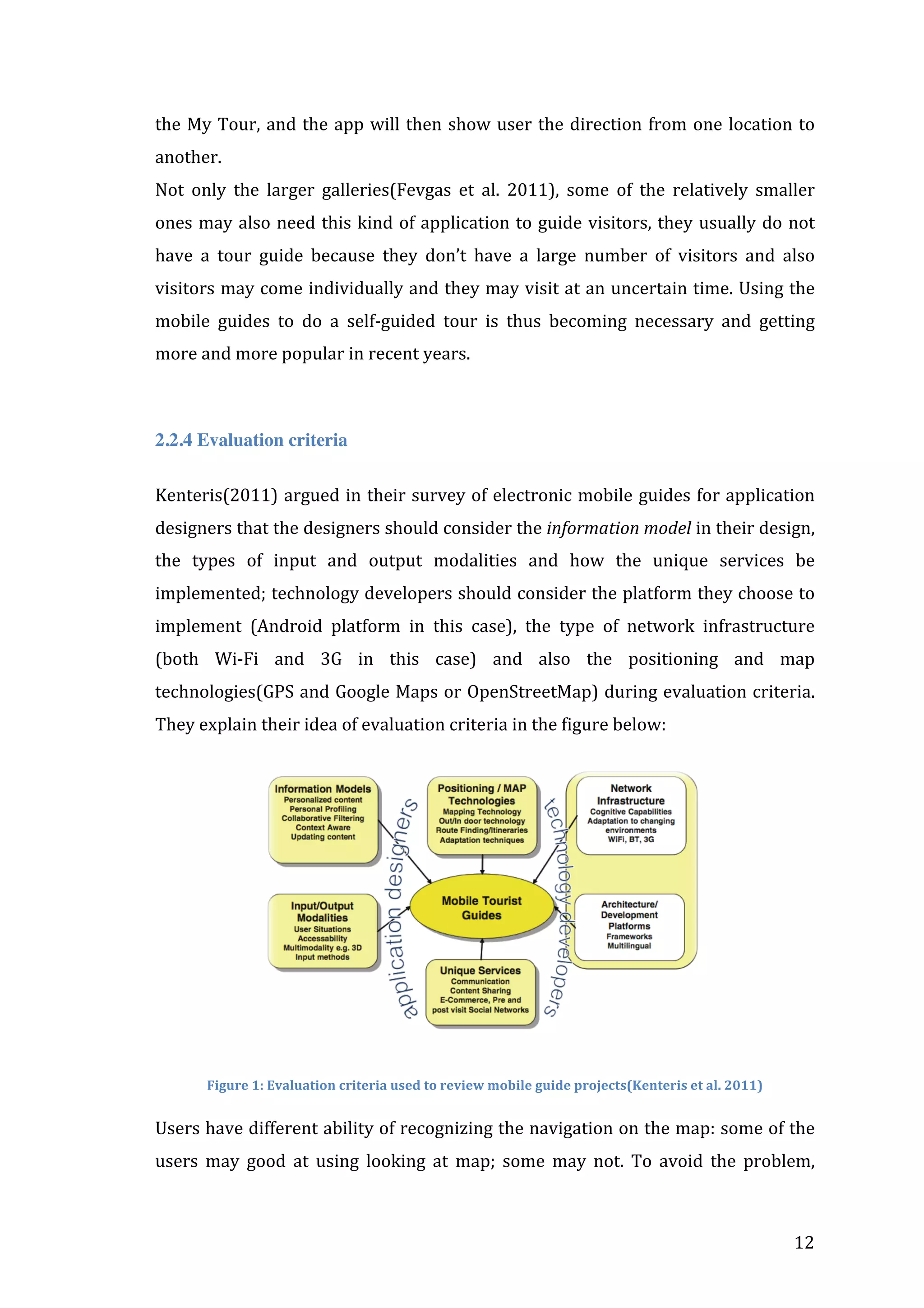
2.2.4 Evaluation criteria
Kenteris(2011)	
  argued	
  in	
  their	
  survey	
  of	
  electronic	
  mobile	
  guides	
  for	
  application	
  
designers	
  that	
  the	
  designers	
  should	
  consider	
  the	
  information	
  model	
  in	
  their	
  design,	
  
the	
   types	
   of	
   input	
   and	
   output	
   modalities	
   and	
   how	
   the	
   unique	
   services	
   be	
  
implemented;	
  technology	
  developers	
  should	
  consider	
  the	
  platform	
  they	
  choose	
  to	
  
implement	
   (Android	
   platform	
   in	
   this	
   case),	
   the	
   type	
   of	
   network	
   infrastructure	
  
(both	
   Wi-­‐Fi	
   and	
   3G	
   in	
   this	
   case)	
   and	
   also	
   the	
   positioning	
   and	
   map	
  
technologies(GPS	
  and	
  Google	
  Maps	
  or	
  OpenStreetMap)	
  during	
  evaluation	
  criteria.	
  
They	
  explain	
  their	
  idea	
  of	
  evaluation	
  criteria	
  in	
  the	
  figure	
  below:	


Figure	
  1:	
  Evaluation	
  criteria	
  used	
  to	
  review	
  mobile	
  guide	
  projects(Kenteris	
  et	
  al.	
  2011)


Users	
  have	
  different	
  ability	
  of	
  recognizing	
  the	
  navigation	
  on	
  the	
  map:	
  some	
  of	
  the	
  
users	
   may	
   good	
   at	
   using	
   looking	
   at	
   map;	
   some	
   may	
   not.	
   To	
   avoid	
   the	
   problem,	


12	
  
additional	
   forms	
   of	
   information	
   should	
   be	
   provided	
   to	
   help	
   users	
   to	
   find	
   their	
   way	
  
when	
  they	
  are	
  unsure	
  about	
  certain	
  trails.	
  
2.2.5 How to do the guidance
Navigation	
  is	
  also	
  very	
  important.	
  Thus	
  design	
  of	
  additional	
  elements	
  for	
  the	
  POIs	
  
on	
   the	
   map	
   may	
   help	
   visitors	
   find	
   the	
   right	
   position,	
   for	
   instance	
   adding	
   audio	
  
notification,	
   when	
   users	
   are	
   getting	
   close	
   to	
   the	
   points	
   of	
   the	
   interests.	
   The	
  
notification	
   will	
   inform	
   and	
   attract	
   a	
   visitor	
   to	
   focus	
   on	
   some	
   certain	
   feature.	
   In	
  
comparison	
  with	
  text	
  or	
  message	
  notification,	
  audio	
  notification	
  may	
  also	
  be	
  very	
  
suitable	
   for	
   outdoor	
   environment,	
   since	
   Naismith	
   (2005)	
   described	
   that	
   one	
   of	
  
their	
   participants	
   complained	
   about	
   the	
   sunshine	
   is	
   so	
   bright	
   in	
   some	
   situations	
  
that	
   the	
   user	
   would	
   not	
   be	
   able	
   to	
   see	
   the	
   screen	
   clearly,	
   in	
   this	
   case	
   audio	
  
notification	
  would	
  help	
  to	
  avoid	
  the	
  problem.	
  	
  
Taher	
   and	
   Cheverst	
   (2011)	
   did	
   the	
   study	
   of	
   user	
   preference	
   for	
   fixed	
   displays.	
  
They	
  added	
  graphical	
  direction	
  arrows	
  on	
  fixed	
  displays	
  along	
  the	
  user’s	
  route,	
  and	
  
most	
   users	
   preferred	
   the	
   way	
   they	
   did	
   this.	
   They	
   considered	
   it	
   was	
   useful	
   because	
  
they	
  needed	
  things	
  on	
  the	
  map	
  to	
  reinforce	
  the	
  fact	
  that	
  they	
  were	
  going	
  the	
  right	
  
way.	
   There	
   are	
   also	
   possibilities	
   to	
   document	
   the	
   traveling	
   experience	
   in	
   a	
   more	
  
convenient	
   way.	
   Abowd	
   (1997)	
   gave	
   an	
   example	
   of	
   a	
   user	
   driving	
   through	
   a	
  
country	
  and	
  result	
  in	
  a	
  trail,	
  the	
  trail	
  will	
  be	
  upload	
  on	
  a	
  map	
  and	
  if	
  the	
  user	
  click	
  
the	
  trail	
  on	
  the	
  map	
  the	
  revealed	
  image	
  will	
  show	
  up	
  to	
  document	
  this	
  driving	
  trail	
  
memory.	
   This	
   is	
   not	
   suitable	
   for	
   this	
   project	
   since	
   most	
   of	
   the	
   POIs	
   are	
   not	
  
reachable	
  by	
  driving	
  but	
  walking.	


2.2.6 Notification system
Guided	
   by	
   the	
   mobile	
   guide,	
   when	
   the	
   visitors	
   arrive	
   at	
   certain	
   points,	
   the	
  
notification	
   system	
   should	
   be	
   able	
   to	
   recognize	
   the	
   place	
   and	
   send	
   a	
   notification	
  
regarding	
   the	
   place;	
   more	
   specific	
   and	
   related	
   information	
   about	
   the	
   interest	
  
should	
   be	
   displayed	
   behind	
   it	
   (the	
   notification	
   may	
   include	
   the	
   building	
   detail,	
  
points	
  of	
  interests	
  in	
  this	
  part	
  and	
  the	
  notes	
  left	
  by	
  other	
  visitors,	
  etc).	
  (Nair	
  et	
  al.	
  
2006)	
   mentioned	
   the	
   idea	
   of	
   putting	
   into	
   the	
   fourth	
   dimension	
   into	
   the	
   location-­‐


13	
  
based	
   notification	
   system	
   (LBNS),	
   so	
   that	
   visitors	
   may	
   see,	
   hear,	
   touch	
   and	
   feel	
  
when	
   they	
   arrived	
   some	
   certain	
   points.	
   Visitors	
   have	
   the	
   option	
   to	
   pick	
   up	
   some	
  
points	
  of	
  interests	
  which	
  they	
  preferred,	
  and	
  then	
  the	
  system	
  will	
  generate	
  a	
  route	
  
for	
  visitor	
  to	
  walk	
  through.	
  The	
  option	
  of	
  clicking	
  certain	
  point	
  of	
  interest	
  enables	
  
user	
  to	
  access	
  those	
  more	
  specific	
  information	
  about	
  the	
  POIs.	


2.2.6 Interact with users
2.2.6.1	
  User	
  Interaction	
  in	
  Museum	
  Learning	
  Scenario	


Bring	
  in	
  high	
  technology	
  to	
  help	
  promote	
  user	
  interaction	
  is	
  also	
  very	
  important.	
  
Binyue	
   and	
   Yokoi	
   (2012)	
   mentioned	
   in	
   their	
   paper	
   about	
   interaction	
   between	
  
visitors	
   and	
   those	
   museum	
   object	
   information	
   via	
   smart	
   devices.	
   The	
   embedded	
  
RFID	
   in	
   collection	
   showcase	
   allows	
   visitors	
   to	
   get	
   information	
   onsite	
   via	
   smart	
  
phone	
   or	
   other	
   mobile	
   devices,	
   which	
   visitors	
   outside	
   will	
   not	
   be	
   able	
   to	
   access.	
  
And	
   by	
   providing	
   Wi-­‐Fi	
   it	
   enables	
   visitors	
   to	
   access	
   more	
   related	
   background	
  
knowledge	
   online	
   while	
   they	
   are	
   interested	
   in	
   some	
   art	
   objects	
   in	
   the	
   museum.	
  
This	
   way	
   of	
   interaction	
   between	
   each	
   other	
   will	
   also	
   enrich	
   the	
   concept	
   of	
   the	
  
objects	
   in	
   the	
   collection	
   and	
   promote	
   interaction	
   between	
   visitors	
   online	
   and	
  
onsite.	
   When	
   onsite	
   visitors	
   visit	
   these	
   objects	
   they	
   are	
   able	
   to	
   share	
   those	
  
information,	
   visual	
   knowledge	
   and	
   the	
   ‘real’	
   experience	
   via	
   their	
   smart	
   devices	
  
(e.g.,	
   smart	
   phones)	
   with	
   visitors	
   who	
   are	
   also	
   curious	
   this	
   about	
   the	
   collections	
  
but	
  will	
  not	
  be	
  able	
  to	
  attend	
  physically.	
  After	
  the	
  visit,	
  the	
  smart	
  device	
  is	
  also	
  a	
  
very	
   good	
   platform	
   for	
   visitors	
   to	
   ask	
   questions,	
   put	
   up	
   ideas,	
   photos	
   and	
  
comments;	
  this	
  is	
  also	
  a	
  way	
  of	
  transfer	
  their	
  onsite	
  visual	
  knowledge	
  into	
  online	
  
knowledge(Cheverst	
  et	
  al.	
  2000).	


2.2.6.2	
  User	
  Interaction	
  in	
  Campus	
  Learning	
  Scenario	


How	
   to	
   meet	
   the	
   requirements	
   of	
   users	
   is	
   always	
   very	
   important.	
   We	
   can	
   regard	
  
the	
   some	
   certain	
   type	
   of	
   group	
   people	
   as	
   a	
   certain	
   type	
   of	
   information	
   model,	


14	
  
(Kenteris	
   et	
   al.	
   2011).	
   The	
   alumnus	
   group	
   is	
   a	
   good	
   example	
   for	
   this:	
   analyzing	
  
their	
  unique	
  requirements,	
  providing	
  certain	
  type	
  of	
  information	
  they	
  really	
  need	
  
during	
   their	
   re-­‐visit	
   to	
   campus.	
   Some	
   applications	
   for	
   campus	
   need	
   to	
   take	
  
information	
   models	
   into	
   consideration,	
   some	
   may	
   not.	
   (Nair	
   et	
   al.	
   2006)	
   also	
  
argued	
  in	
  their	
  paper	
  that	
  they	
  are	
  more	
  focused	
  on	
  the	
  feeling	
  of	
  the	
  visitors,	
  they	
  
put	
   specific	
   information	
   in	
   the	
   application	
   for	
   this	
   group,	
   they	
   may	
   want	
   to	
   see	
  
how	
   the	
   campus	
   has	
   changed	
   compared	
   to	
   before,	
   the	
   building	
   details.	
   Using	
  
multimedia	
  methods	
  to	
  show	
  them	
  may	
  be	
  what	
  they	
  really	
  want.	
  Things	
  like	
  slide	
  
shows	
  to	
  document	
  the	
  changes	
  of	
  a	
  place,	
  video	
  or	
  audio	
  to	
  tell	
  the	
  story	
  at	
  some	
  
place	
  in	
  the	
  history	
  when	
  alumni	
  walk	
  by,	
  they	
  want	
  their	
  memory	
  to	
  be	
  re-­‐called	
  
at	
   that	
   moment.	
   When	
   alumni	
   walk	
   around	
   the	
   campus	
   the	
   system	
   shall	
   be	
   able	
   to	
  
locate	
   the	
   current	
   position.	
   This	
   enables	
   the	
   system	
   to	
   play	
   a	
   slide	
   show	
   of	
   this	
  
place,	
   tell	
   alumni	
   what	
   changes	
   have	
   been	
   made	
   in	
   this	
   place.	
   The	
   system	
   also	
  
enables	
   the	
   alumni	
   to	
   leave	
   a	
   note	
   or	
   comment	
   and	
   review	
   other	
   alumni’s	
   notes	
   as	
  
well.	
  Another	
  attractive	
  function	
  is	
  they	
  can	
  view	
  the	
  slide	
  show	
  of	
  the	
  place.	
  It	
  is	
  
the	
  way	
  of	
  “promoting	
  a	
  sense	
  of	
  time”	
  in	
  the	
  system.	
  Functions	
  like	
  documenting	
  
routes	
  that	
  visitors	
  have	
  already	
  finished,	
  and	
  giving	
  the	
  feedback	
  of	
  the	
  distance	
  
and	
  time	
  on	
  the	
  map	
  may	
  be	
  another	
  feature	
  if	
  there	
  are	
  lots	
  of	
  options	
  for	
  visitors	
  
to	
   choose	
   to	
   walk.	
   Visitors	
   shall	
   also	
   be	
   able	
   to	
   upload	
   images	
   of	
   their	
   interests	
  
during	
   visit	
   or	
   post-­‐visit(Kuflik	
   et	
   al.	
   2011),	
   these	
   can	
   be	
   part	
   of	
   their	
   memory	
  
saved	
  on	
  the	
  system	
  which	
  can	
  be	
  re-­‐accessed	
  by	
  themselves	
  or	
  others	
  who	
  want	
  
to	
  do	
  a	
  pre-­‐visit	
  through	
  the	
  mobile	
  phone.	


2.2.6.3	
  The	
  Babble	
  Interface	


Rogers	
  (2011)3	
  gives	
  an	
  interesting	
  example	
  in	
  the	
  collaborative	
  technologies	
  design	
  
chapter	
   of	
   the	
   book	
   to	
   support	
   awareness.	
   In	
   order	
   to	
   present	
   information	
  
awareness,	
   the	
   book	
   displayed	
   a	
   communication	
   tool	
   called	
   Babble	
  shows	
   as	
   in	
   the	
  
image	
   below.	
   The	
   numbers	
   of	
   the	
   babble	
   represent	
   the	
   number	
   of	
   the	
   participants	
  
in	
   the	
   conversation,	
   the	
   more	
   active	
   a	
   participant	
   is	
   in	
   the	
   conversation,	
   the	
   closer	
  
the	
  babbles	
  towards	
  to	
  the	
  center	
  of	
  the	
  circle.	


3	
  In	
  pp.	
  128	
  of	
  the	
  book	


15	
  
 
Figure	
  2:	
  The	
  Babble	
  interface	
  from	
  Book	
  "Interaction	
  Design"	
  

This	
   idea	
   can	
   be	
   applied	
   on	
   campus	
   guides	
   as	
   well.	
   The	
   points	
   of	
   interest	
   (POIs)	
  
can	
  be	
  shown	
  as	
  many	
  small	
  circles	
  on	
  the	
  overview	
  level	
  of	
  the	
  map.	
  As	
  long	
  as	
  
the	
  features	
  
	
  Like	
   visitors	
   check-­‐in,	
   leave	
   a	
   note,	
   comment,	
   upload	
   photographs	
   are	
   added	
   in	
  
the	
  mobile	
  guide	
  system,	
  the	
  more	
  interaction	
  one	
  place	
  get	
  from	
  the	
  visitors,	
  the	
  
more	
   popular	
   the	
   place	
   will	
   be.	
   The	
   system	
   can	
   use	
   a	
   red	
   circle	
   to	
   represent	
   the	
  
popular	
  POIs,	
  use	
  green	
  or	
  other	
  colors	
  to	
  represent	
  the	
  less	
  popular	
  places.	
  It	
  is	
  
much	
  easier	
  for	
  the	
  future	
  visitors	
  to	
  pick	
  the	
  points	
  of	
  interest	
  especially	
  when	
  the	
  
visitors	
   may	
   only	
   have	
   limited	
   time	
   to	
   visit	
   the	
   campus;	
   they	
   may	
   prefer	
   to	
   pick	
  
those	
  most	
  popular	
  places	
  to	
  go.	


2.2.6.4	
  User	
  Interactions	
  in	
  Indoor	
  Environment	


For	
   indoor	
   environment	
   such	
   as	
   art	
   galleries	
   on	
   campus,	
   some	
   collections	
   and	
  
artifacts	
  may	
  have	
  significant	
  meaning	
  for	
  the	
  university.	
  These	
  collections	
  can	
  be	
  
picked	
   out	
   from	
   many	
   other	
   collections	
   and	
   put	
   in	
   a	
   specific	
   category	
   such	
   as	
  
“Highlight	
  art	
  trail	
  on	
  campus”,	
  multimedia	
  contents	
  can	
  be	
  added	
  into	
  the	
  system	
  
as	
   well.	
   (Proctor	
   and	
   Burton	
   2004)	
   did	
   an	
   initial	
   evaluation	
   of	
   the	
   multimedia	
   tour	
  
in	
   their	
   gallery:	
   “With	
   87	
   percent	
   saying	
   that	
   the	
   tour	
   improved	
   their	
   visit.	
   The	
  
most	
  popular	
  types	
  of	
  content	
  were	
  interviews	
  with	
  artists	
  and	
  videos	
  of	
  the	
   artist	
  
at	
  work,	
  and	
  audio	
  commentaries	
  accompanied	
  by	
  images.”	
  Casual	
  games	
  relevant	
  
to	
   the	
   museum	
   collections	
   are	
   also	
   a	
   popular	
   way	
   for	
   promoting	
   interactions	
  
between	
   art	
   collections	
   and	
   the	
   visitors.	
   It	
   also	
   plays	
   an	
   educational	
   role	
   for	
   the	
  
visitors	
  after	
  visiting	
  the	
  museum.	


16	
  
2.3	
  Related	
  Projects	


The	
  project	
  examples	
  listed	
  below	
  are	
  all	
  about	
  mobile	
  guides.	
  Some	
  of	
  them	
  are	
  
mobile	
   campus	
   guides	
   which	
   is	
   relevant	
   to	
   this	
   project,	
   some	
   of	
   them	
   are	
   more	
  
about	
   mobile	
   guides	
   for	
   exhibitions	
   in	
   museums,	
   mobile	
   guides	
   for	
   the	
   walking	
  
trails	
   in	
   a	
   certain	
   city…	
   However,	
   most	
   of	
   these	
   projects	
   have	
   really	
   good	
   user	
  
interface	
   design	
   and	
   focused	
   on	
   promoting	
   user	
   interaction	
   during	
   the	
   visiting.	
  
Although	
  not	
  all	
  of	
  them	
  have	
  the	
  same	
  idea	
  as	
  this	
  project,	
  their	
  ideas	
  and	
  designs	
  
all	
  inspired	
  this	
  project	
  –mobile	
  guides	
  on	
  campus.	
  
2.3.1 Harvard Guide


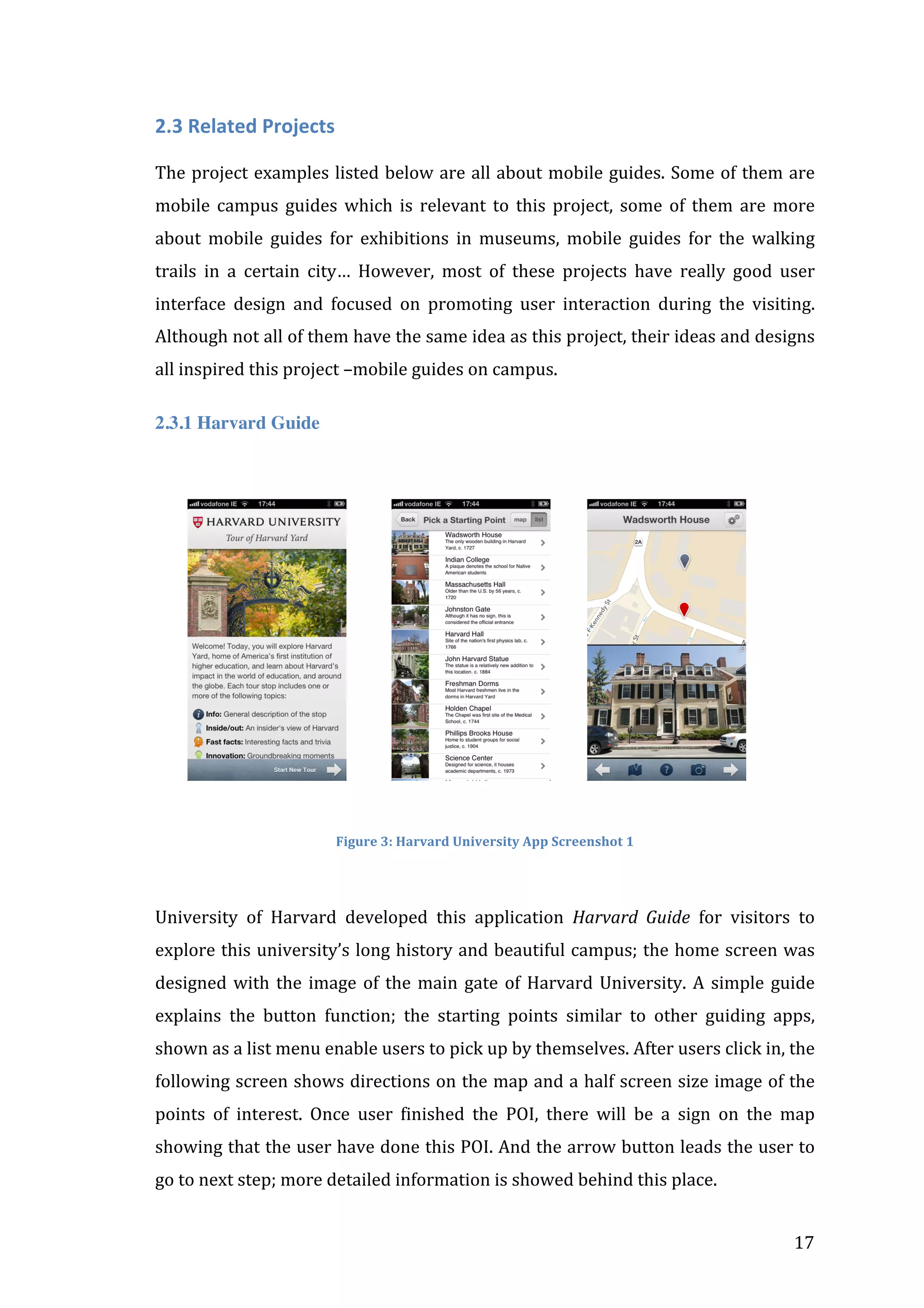
Figure	
  3:	
  Harvard	
  University	
  App	
  Screenshot	
  1	


University	
   of	
   Harvard	
   developed	
   this	
   application	
   Harvard	
   Guide	
   for	
   visitors	
   to	
  
explore	
  this	
  university’s	
  long	
  history	
  and	
  beautiful	
  campus;	
  the	
  home	
  screen	
  was	
  
designed	
   with	
   the	
   image	
   of	
   the	
   main	
   gate	
   of	
   Harvard	
   University.	
   A	
   simple	
   guide	
  
explains	
   the	
   button	
   function;	
   the	
   starting	
   points	
   similar	
   to	
   other	
   guiding	
   apps,	
  
shown	
  as	
  a	
  list	
  menu	
  enable	
  users	
  to	
  pick	
  up	
  by	
  themselves.	
  After	
  users	
  click	
  in,	
  the	
  
following	
  screen	
  shows	
  directions	
  on	
  the	
  map	
  and	
  a	
  half	
  screen	
  size	
  image	
  of	
  the	
  
points	
   of	
   interest.	
   Once	
   user	
   finished	
   the	
   POI,	
   there	
   will	
   be	
   a	
   sign	
   on	
   the	
   map	
  
showing	
  that	
  the	
  user	
  have	
  done	
  this	
  POI.	
  And	
  the	
  arrow	
  button	
  leads	
  the	
  user	
  to	
  
go	
  to	
  next	
  step;	
  more	
  detailed	
  information	
  is	
  showed	
  behind	
  this	
  place.	


17	


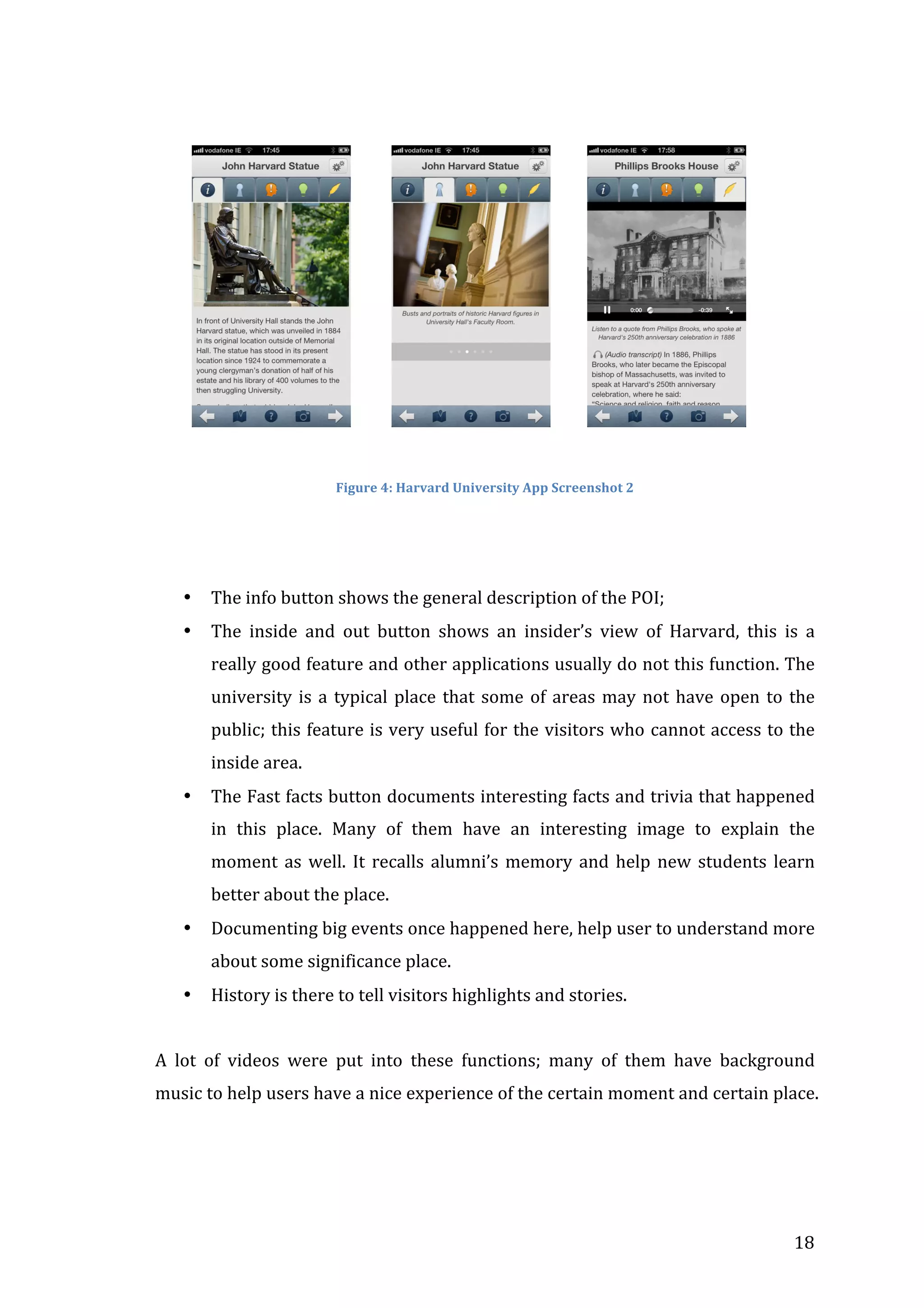
Figure	
  4:	
  Harvard	
  University	
  App	
  Screenshot	
  2	


•

The	
  info	
  button	
  shows	
  the	
  general	
  description	
  of	
  the	
  POI;	


•

The	
   inside	
   and	
   out	
   button	
   shows	
   an	
   insider’s	
   view	
   of	
   Harvard,	
   this	
   is	
   a	
  
really	
  good	
  feature	
  and	
  other	
  applications	
  usually	
  do	
  not	
  this	
  function.	
  The	
  
university	
   is	
   a	
   typical	
   place	
   that	
   some	
   of	
   areas	
   may	
   not	
   have	
   open	
   to	
   the	
  
public;	
  this	
  feature	
  is	
  very	
  useful	
  for	
  the	
  visitors	
  who	
   cannot	
  access	
  to	
  the	
  
inside	
  area.	
  

•

The	
  Fast	
  facts	
  button	
  documents	
  interesting	
  facts	
  and	
  trivia	
  that	
  happened	
  
in	
   this	
   place.	
   Many	
   of	
   them	
   have	
   an	
   interesting	
   image	
   to	
   explain	
   the	
  
moment	
   as	
   well.	
   It	
   recalls	
   alumni’s	
   memory	
   and	
   help	
   new	
   students	
   learn	
  
better	
  about	
  the	
  place.	
  

•

Documenting	
  big	
  events	
  once	
  happened	
  here,	
  help	
  user	
  to	
  understand	
  more	
  
about	
  some	
  significance	
  place.	
  

•

History	
  is	
  there	
  to	
  tell	
  visitors	
  highlights	
  and	
  stories.	


A	
   lot	
   of	
   videos	
   were	
   put	
   into	
   these	
   functions;	
   many	
   of	
   them	
   have	
   background	
  
music	
  to	
  help	
  users	
  have	
  a	
  nice	
  experience	
  of	
  the	
  certain	
  moment	
  and	
  certain	
  place.	


18	
  
2.3.2 Tree Tour in Oregon State University
OSU	
  designed	
  and	
  developed	
  this	
  application	
  to	
  promote	
  awareness	
  of	
  the	
  variety	
  
of	
   trees	
   on	
   campus;	
   the	
   interface	
   is	
   clean	
   and	
   tidy	
   with	
   green,	
   white	
   and	
   grey	
   as	
  
their	
  basic	
  three	
  colors,	
  very	
  close	
  to	
  natural	
  forest	
  color.	


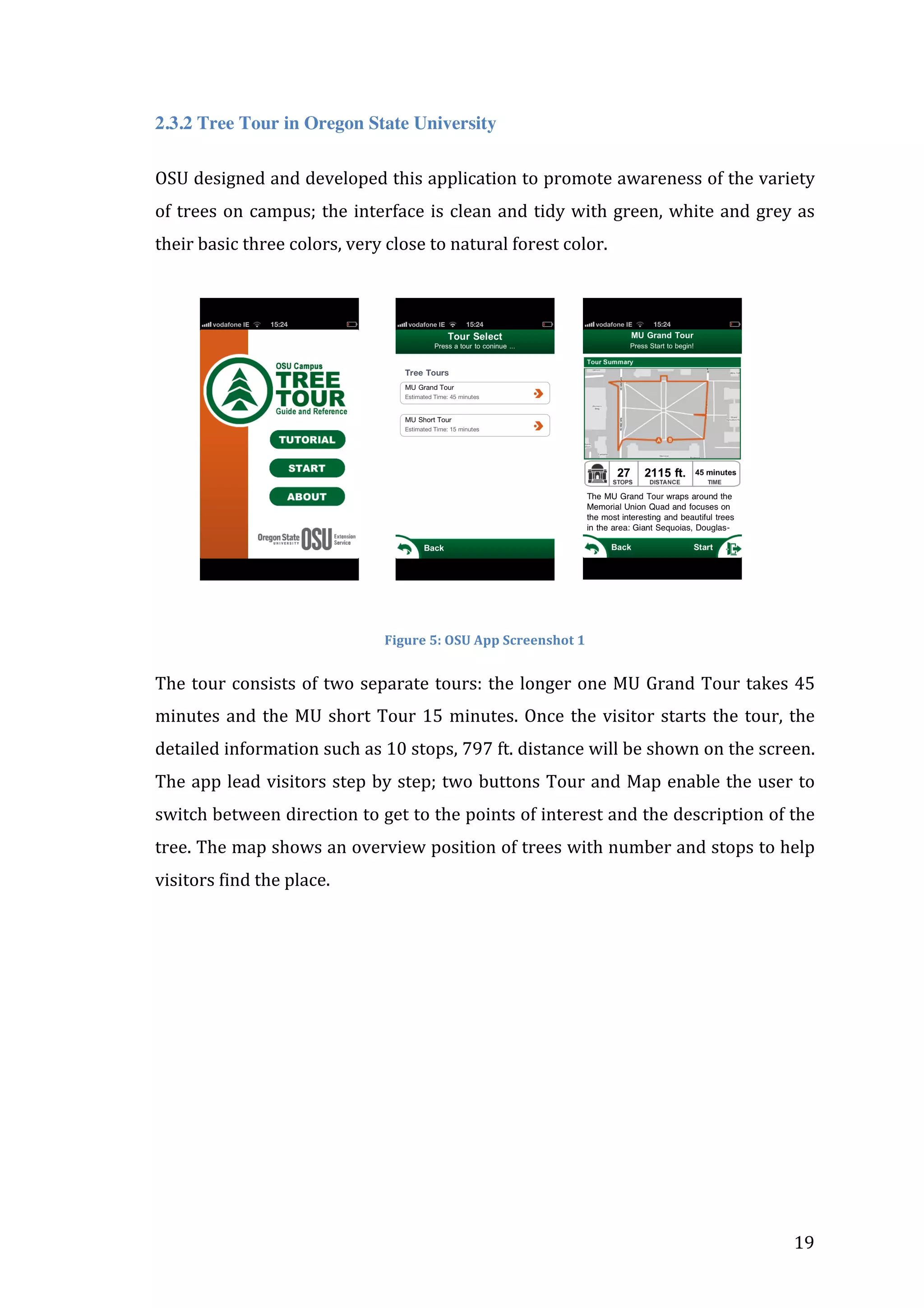
Figure	
  5:	
  OSU	
  App	
  Screenshot	
  1	
  

The	
   tour	
   consists	
   of	
   two	
   separate	
   tours:	
   the	
   longer	
   one	
   MU	
   Grand	
   Tour	
   takes	
   45	
  
minutes	
   and	
   the	
   MU	
   short	
   Tour	
   15	
   minutes.	
   Once	
   the	
   visitor	
   starts	
   the	
   tour,	
   the	
  
detailed	
  information	
  such	
  as	
  10	
  stops,	
  797	
  ft.	
  distance	
  will	
  be	
  shown	
  on	
  the	
  screen.	
  
The	
  app	
  lead	
  visitors	
  step	
  by	
  step;	
  two	
  buttons	
  Tour	
  and	
  Map	
  enable	
  the	
  user	
  to	
  
switch	
   between	
   direction	
   to	
   get	
   to	
   the	
   points	
   of	
   interest	
   and	
   the	
   description	
   of	
   the	
  
tree.	
  The	
  map	
  shows	
  an	
  overview	
  position	
  of	
  trees	
  with	
  number	
  and	
  stops	
  to	
  help	
  
visitors	
  find	
  the	
  place.	


19	


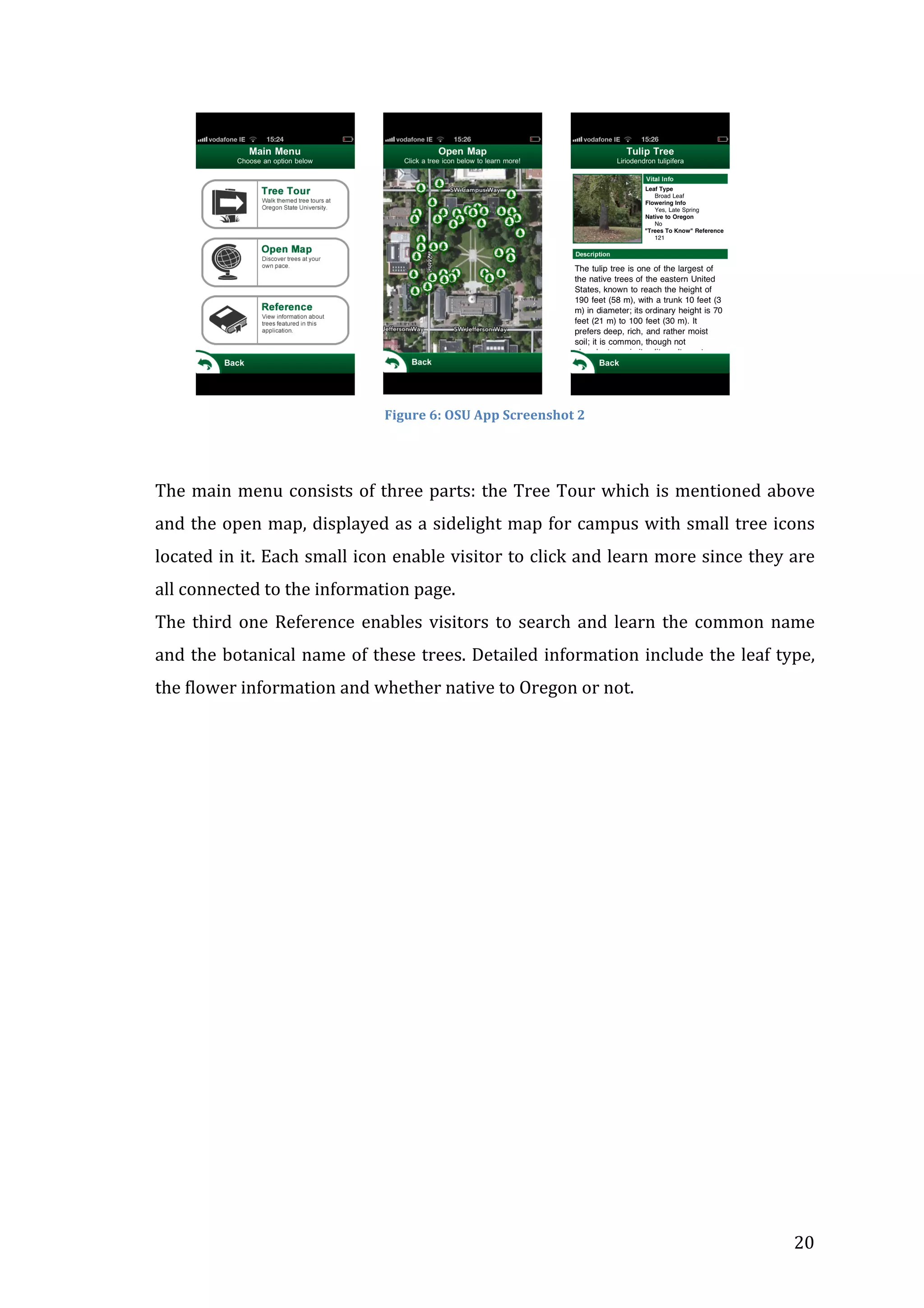
Figure	
  6:	
  OSU	
  App	
  Screenshot	
  2	


The	
   main	
   menu	
   consists	
   of	
   three	
   parts:	
   the	
   Tree	
   Tour	
   which	
   is	
   mentioned	
   above	
  
and	
  the	
  open	
  map,	
  displayed	
  as	
  a	
  sidelight	
  map	
  for	
  campus	
  with	
  small	
  tree	
  icons	
  
located	
  in	
  it.	
  Each	
  small	
  icon	
  enable	
  visitor	
  to	
  click	
  and	
  learn	
  more	
  since	
  they	
  are	
  
all	
  connected	
  to	
  the	
  information	
  page.	
  	
  
The	
   third	
   one	
   Reference	
   enables	
   visitors	
   to	
   search	
   and	
   learn	
   the	
   common	
   name	
  
and	
  the	
  botanical	
  name	
  of	
  these	
  trees.	
  Detailed	
  information	
  include	
  the	
  leaf	
  type,	
  
the	
  flower	
  information	
  and	
  whether	
  native	
  to	
  Oregon	
  or	
  not.	


20	
  
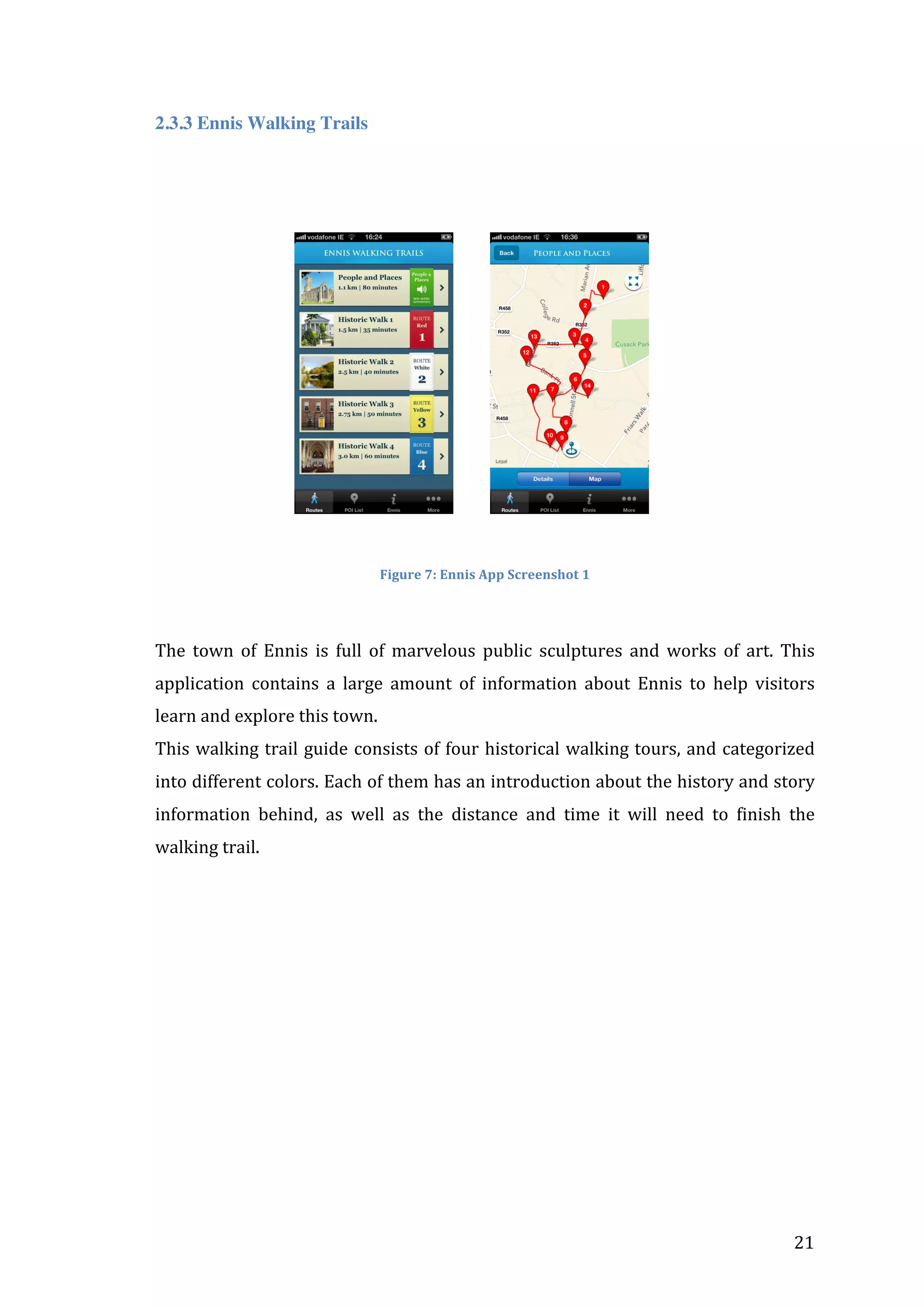
2.3.3 Ennis Walking Trails


Figure	
  7:	
  Ennis	
  App	
  Screenshot	
  1	


The	
   town	
   of	
   Ennis	
   is	
   full	
   of	
   marvelous	
   public	
   sculptures	
   and	
   works	
   of	
   art.	
   This	
  
application	
   contains	
   a	
   large	
   amount	
   of	
   information	
   about	
   Ennis	
   to	
   help	
   visitors	
  
learn	
  and	
  explore	
  this	
  town.	
  	
  
This	
  walking	
  trail	
  guide	
  consists	
  of	
  four	
  historical	
  walking	
  tours,	
  and	
  categorized	
  
into	
  different	
  colors.	
  Each	
  of	
  them	
  has	
  an	
  introduction	
  about	
  the	
  history	
  and	
  story	
  
information	
   behind,	
   as	
   well	
   as	
   the	
   distance	
   and	
   time	
   it	
   will	
   need	
   to	
   finish	
   the	
  
walking	
  trail.	


21	


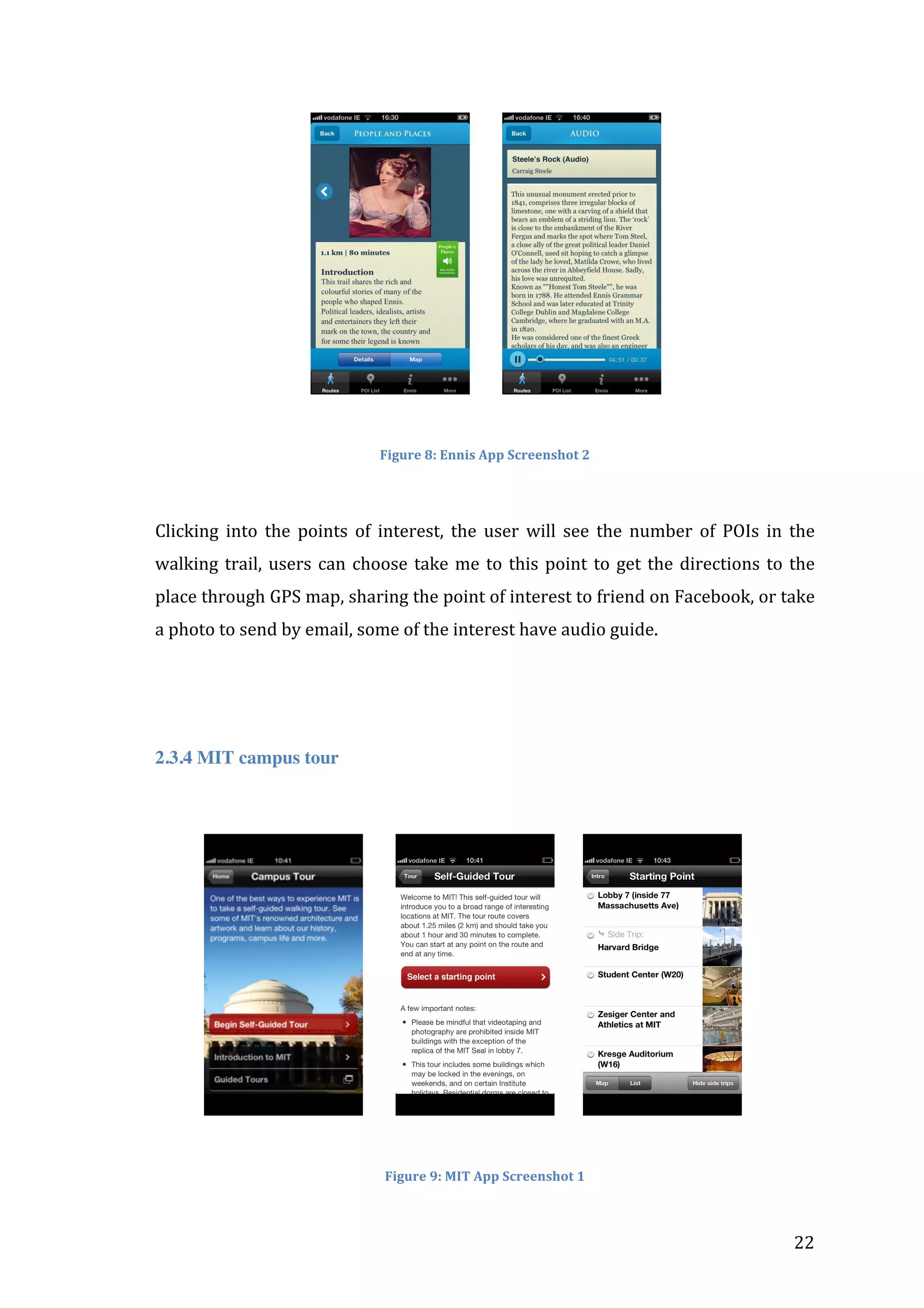
Figure	
  8:	
  Ennis	
  App	
  Screenshot	
  2	


Clicking	
   into	
   the	
   points	
   of	
   interest,	
   the	
   user	
   will	
   see	
   the	
   number	
   of	
   POIs	
   in	
   the	
  
walking	
   trail,	
   users	
   can	
   choose	
   take	
   me	
   to	
   this	
   point	
   to	
   get	
   the	
   directions	
   to	
   the	
  
place	
  through	
  GPS	
  map,	
  sharing	
  the	
  point	
  of	
  interest	
  to	
  friend	
  on	
  Facebook,	
  or	
  take	
  
a	
  photo	
  to	
  send	
  by	
  email,	
  some	
  of	
  the	
  interest	
  have	
  audio	
  guide.	


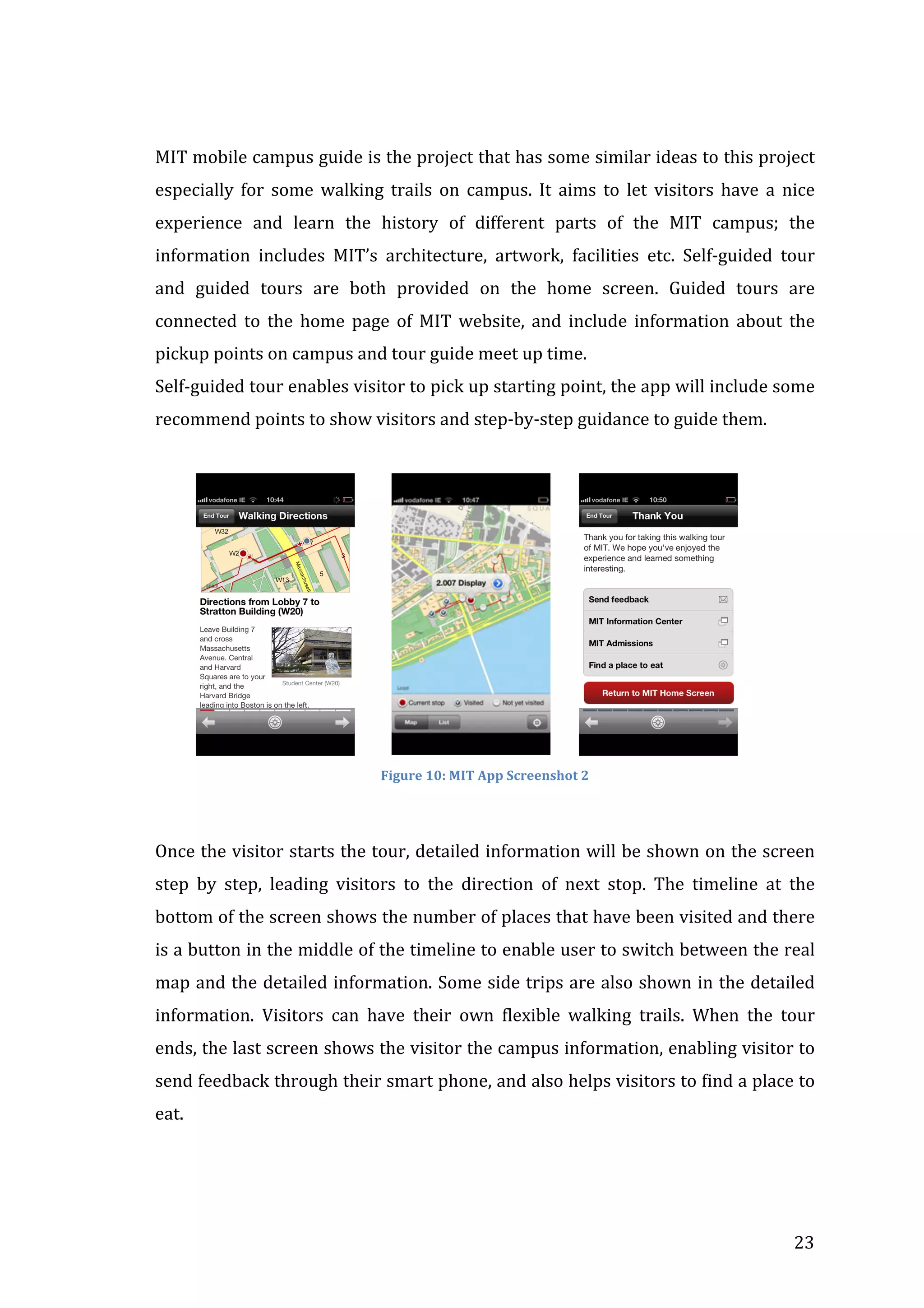
2.3.4 MIT campus tour


Figure	
  9:	
  MIT	
  App	
  Screenshot	
  1	


22	
  
 
MIT	
  mobile	
  campus	
  guide	
  is	
  the	
  project	
  that	
  has	
  some	
  similar	
  ideas	
  to	
  this	
  project	
  
especially	
   for	
   some	
   walking	
   trails	
   on	
   campus.	
   It	
   aims	
   to	
   let	
   visitors	
   have	
   a	
   nice	
  
experience	
   and	
   learn	
   the	
   history	
   of	
   different	
   parts	
   of	
   the	
   MIT	
   campus;	
   the	
  
information	
   includes	
   MIT’s	
   architecture,	
   artwork,	
   facilities	
   etc.	
   Self-­‐guided	
   tour	
  
and	
   guided	
   tours	
   are	
   both	
   provided	
   on	
   the	
   home	
   screen.	
   Guided	
   tours	
   are	
  
connected	
   to	
   the	
   home	
   page	
   of	
   MIT	
   website,	
   and	
   include	
   information	
   about	
   the	
  
pickup	
  points	
  on	
  campus	
  and	
  tour	
  guide	
  meet	
  up	
  time.	
  
Self-­‐guided	
  tour	
  enables	
  visitor	
  to	
  pick	
  up	
  starting	
  point,	
  the	
  app	
  will	
  include	
  some	
  
recommend	
  points	
  to	
  show	
  visitors	
  and	
  step-­‐by-­‐step	
  guidance	
  to	
  guide	
  them.	


Figure	
  10:	
  MIT	
  App	
  Screenshot	
  2	


Once	
  the	
  visitor	
  starts	
  the	
  tour,	
  detailed	
  information	
  will	
  be	
  shown	
  on	
  the	
  screen	
  
step	
   by	
   step,	
   leading	
   visitors	
   to	
   the	
   direction	
   of	
   next	
   stop.	
   The	
   timeline	
   at	
   the	
  
bottom	
   of	
   the	
   screen	
   shows	
   the	
   number	
   of	
   places	
   that	
   have	
   been	
   visited	
   and	
   there	
  
is	
  a	
  button	
  in	
  the	
  middle	
  of	
  the	
  timeline	
  to	
  enable	
  user	
  to	
  switch	
  between	
  the	
  real	
  
map	
  and	
  the	
  detailed	
  information.	
  Some	
  side	
  trips	
  are	
  also	
  shown	
  in	
  the	
  detailed	
  
information.	
   Visitors	
   can	
   have	
   their	
   own	
   flexible	
   walking	
   trails.	
   When	
   the	
   tour	
  
ends,	
  the	
  last	
  screen	
  shows	
  the	
  visitor	
  the	
  campus	
  information,	
  enabling	
  visitor	
  to	
  
send	
   feedback	
   through	
   their	
   smart	
   phone,	
   and	
   also	
   helps	
   visitors	
   to	
   find	
   a	
   place	
   to	
  
eat.	


23	
  
2.3.5 Explorer
Tsai	
   and	
   Sung	
   (2012)	
   argue	
   in	
   their	
   article	
   Mobile	
   Applications	
   and	
   Museum	
  
Visitation	
  that	
  way	
  finding	
  in	
  the	
  large	
  museum	
  is	
  a	
  particularly	
  big	
  challenge	
  for	
  
visitors.	
  Many	
  visitors	
  these	
  years	
  have	
  the	
  tendency	
  to	
  plan	
  their	
  visit	
  before	
  they	
  
arrive.	
   	
   They	
   may	
   pick	
   up	
   some	
   points	
   if	
   those	
   POIs	
   really	
   attract	
   them.	
   But	
   the	
  
problem	
  is	
  imagine	
  if	
  they	
  pick	
  up	
  two	
  points	
  and	
  they	
  are	
  not	
  sure	
   the	
  amount	
  of	
  
time	
  they	
  will	
  spend	
  there,	
  how	
  they	
  will	
  get	
  from	
  one	
  exhibition	
  to	
  another	
  one.	
  
What	
   can	
   they	
   do	
   except	
   ask	
   the	
   staff	
   in	
   the	
   museum	
   or	
   to	
   find	
   the	
   way	
   by	
  
themselves.	
  	
  
They	
   gave	
   an	
   example	
   of	
   American	
   Museum	
   of	
   Natural	
   History.	
   In	
   order	
   to	
   help	
  
visitors	
   solve	
   these	
   problems:	
   they	
   developed	
   a	
   mobile	
   application	
   explorer,	
   and	
  
add	
  the	
  feature	
  “My	
  Tour”.	


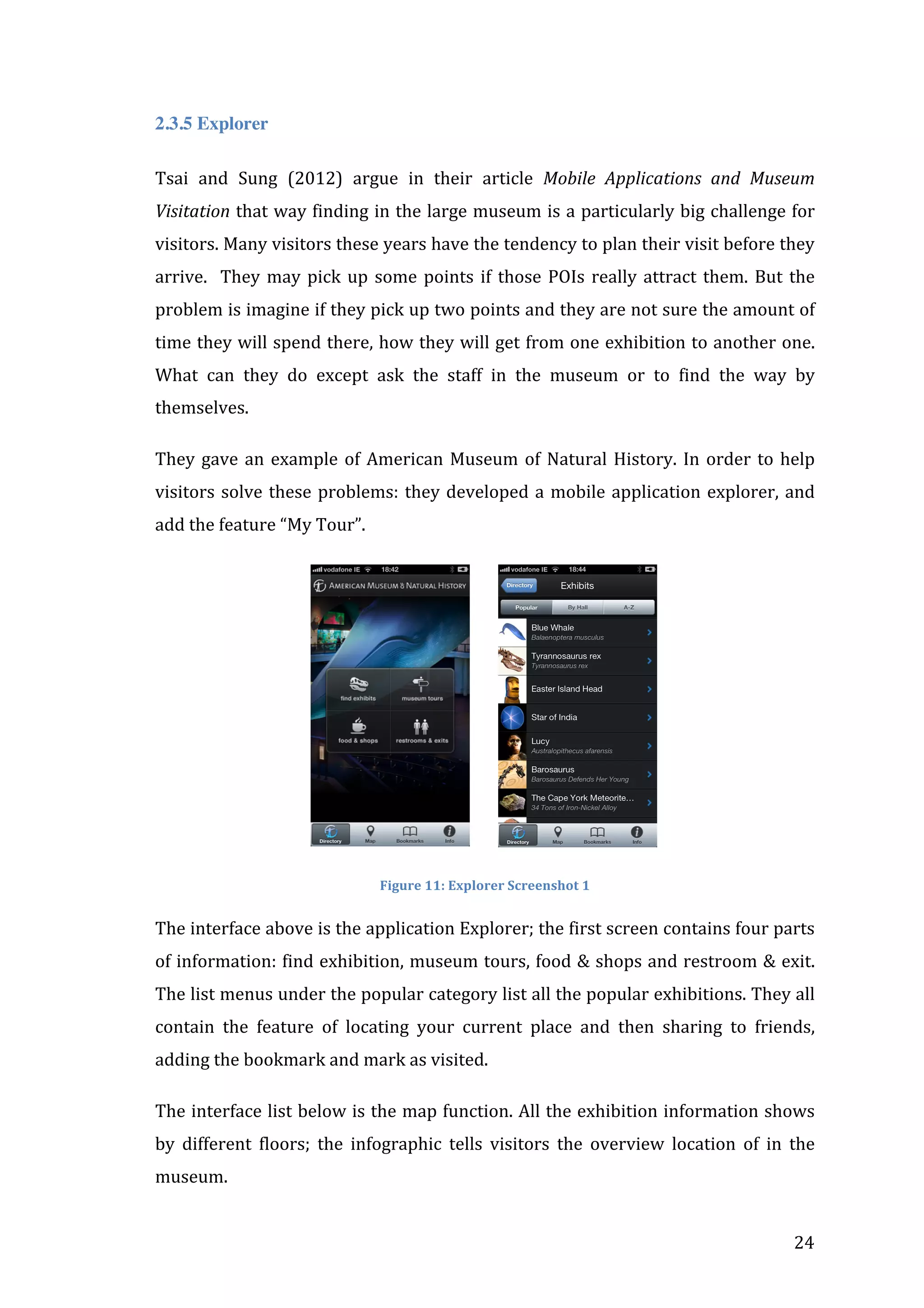
Figure	
  11:	
  Explorer	
  Screenshot	
  1	
  

The	
  interface	
  above	
  is	
  the	
  application	
  Explorer;	
  the	
  first	
  screen	
  contains	
  four	
  parts	
  
of	
  information:	
  find	
  exhibition,	
  museum	
  tours,	
  food	
  &	
  shops	
  and	
  restroom	
  &	
  exit.	
  
The	
   list	
   menus	
   under	
   the	
   popular	
   category	
   list	
   all	
   the	
   popular	
   exhibitions.	
   They	
   all	
  
contain	
   the	
   feature	
   of	
   locating	
   your	
   current	
   place	
   and	
   then	
   sharing	
   to	
   friends,	
  
adding	
  the	
  bookmark	
  and	
  mark	
  as	
  visited.	
  	
  
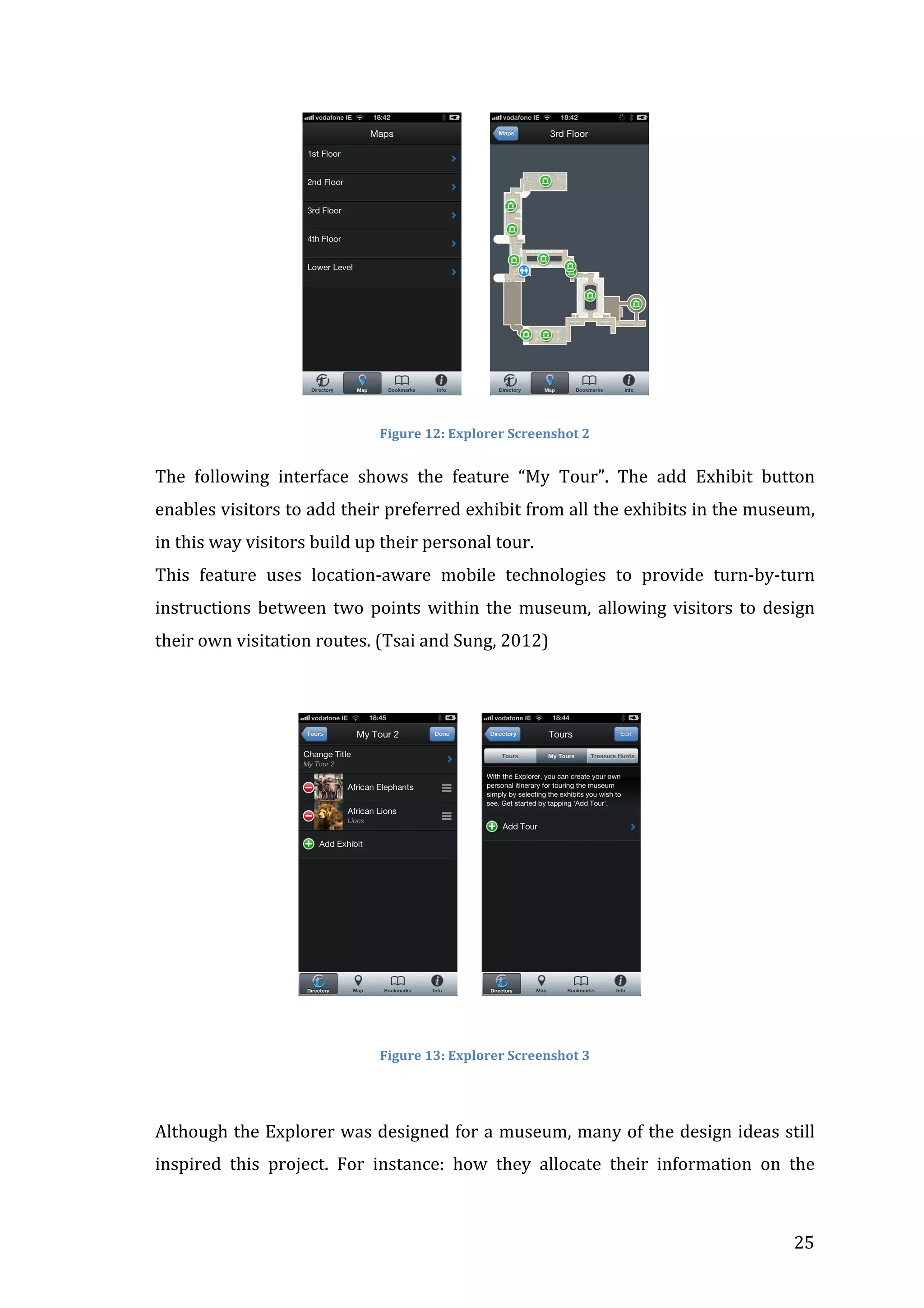
The	
  interface	
  list	
  below	
  is	
  the	
  map	
  function.	
  All	
  the	
  exhibition	
  information	
  shows	
  
by	
   different	
   floors;	
   the	
   infographic	
   tells	
   visitors	
   the	
   overview	
   location	
   of	
   in	
   the	
  
museum.	


24	


Figure	
  12:	
  Explorer	
  Screenshot	
  2	
  

The	
   following	
   interface	
   shows	
   the	
   feature	
   “My	
   Tour”.	
   The	
   add	
   Exhibit	
   button	
  
enables	
   visitors	
   to	
   add	
   their	
   preferred	
   exhibit	
   from	
   all	
   the	
   exhibits	
   in	
   the	
   museum,	
  
in	
  this	
  way	
  visitors	
  build	
  up	
  their	
  personal	
  tour.	
  
This	
   feature	
   uses	
   location-­‐aware	
   mobile	
   technologies	
   to	
   provide	
   turn-­‐by-­‐turn	
  
instructions	
   between	
   two	
   points	
   within	
   the	
   museum,	
   allowing	
   visitors	
   to	
   design	
  
their	
  own	
  visitation	
  routes.	
  (Tsai	
  and	
  Sung,	
  2012)	


Figure	
  13:	
  Explorer	
  Screenshot	
  3	


Although	
  the	
  Explorer	
  was	
  designed	
  for	
  a	
  museum,	
  many	
  of	
  the	
  design	
  ideas	
  still	
  
inspired	
   this	
   project.	
   For	
   instance:	
   how	
   they	
   allocate	
   their	
   information	
   on	
   the	


25	
  
home	
   screen	
   to	
   meet	
   the	
   users’	
   requirement	
   is	
   quite	
   important.	
   They	
   add	
   a	
  
category	
   named	
   ‘popular’	
   to	
   list	
   all	
   the	
   popular	
   exhibits	
   enable	
   visitors	
   to	
   find	
  
them	
  easily,	
  they	
  promoted	
  user	
  interaction	
  very	
  well	
  because	
  they	
  enable	
  visitors	
  
to	
  build	
  their	
  own	
  tours.	


2.4	
  Methodology/	
  User	
  studies	


The	
   design	
   process	
   will	
   include	
   academic	
   research	
   of	
   previous	
   projects	
   and	
  
relevant	
  articles,	
  scenarios,	
  building	
  tasks	
  and	
  the	
  first	
  design	
  prototype.	
  
Many	
   iterations	
   of	
   the	
   design	
   are	
   necessary.	
   It	
   is	
   important	
   to	
   test	
   users	
   with	
   a	
  
low-­‐	
  fidelity	
  prototype	
  and	
  get	
  feedback	
  from	
  them.	
  Try	
  to	
  understand	
  more	
  about	
  
the	
   user,	
   make	
   the	
   design	
   character	
   attractive	
   to	
   users,	
   and	
   at	
   the	
   end	
   build	
   up	
   the	
  
high-­‐fidelity	
  prototype,	
  and	
  finish	
  the	
  final	
  design.	
  
The	
   evaluation	
   methods	
   include	
   analysis,	
   observation,	
   interviews,	
   and	
  
questionnaires;	
   a	
   video	
   camera	
   will	
   be	
   used	
   to	
   record	
   participants	
   so	
   that	
   it	
   is	
  
enable	
   to	
   observe	
   the	
   user	
   reaction	
   when	
   they	
   interact	
   with	
   mobile	
   guide	
   on	
  
campus.	
  

2.5	
  Prototypes	


Prototypes	
   are	
   very	
   important	
   in	
   this	
   project,	
   low-­‐fidelity	
   prototype,	
   mid-­‐fidelity	
  
prototype	
   and	
   high-­‐fidelity	
   prototype	
   are	
   needed	
   during	
   the	
   design	
   process	
   of	
   this	
  
project.	


Low-­‐fidelity	
  prototype—Interface	
  sketch	
  and	
  paper	
  prototype	
  
Sketch	
   the	
   mobile	
   interface	
   after	
   the	
   initial	
   research	
   and	
   analyze,	
   get	
   the	
   user	
  
feedback,	
  keep	
  sketching,	
  evaluate	
  and	
  revise	
  the	
  project.	


High	
  Fidelity—Axure	
  and	
  Eclipse	
  	
  
After	
  user	
  evaluation,	
  the	
  prototype	
  is	
  revised	
  enough	
  for	
  users	
  to	
  use,	
  	
  
The	
  interface	
  of	
  the	
  application	
  will	
  be	
  designed	
  in	
  Adobe	
  Photoshop	
  and	
  mock-­‐up	
  
in	
   Axure.	
   Then	
   continue	
   to	
   do	
   user	
   valuation,	
   testing	
   and	
   iteration	
   until	
   arriving	
   at	
  
a	
  satisfied	
  prototype.	


26	
  
After	
   the	
   prototype	
   is	
   satisfactorily	
   developed,	
   the	
   application	
   can	
   then	
   be	
  
developed	
   in	
   Eclipse	
   with	
   Android	
   SDK	
   platform,	
   to	
   implement	
   the	
   features	
  
implied	
  by	
  the	
  design	
  process.	


2.6	
  Technologies	
  involved	


To	
  design	
  and	
  develop	
  the	
  Android	
  mobile	
  app	
  as	
  described	
  above,	
  the	
  following	
  is	
  
list	
  of	
  the	
  technologies/software	
  involved:	
  	
  
•

Prototype	
  tools:	
  Adobe	
  Photoshop,	
  Axure,	
  etc.	
  

•

Eclipse	
  with	
  Android	
  SDK:	
  Java	
  as	
  the	
  programming	
  language	
  

•

SQLite:	
  store	
  information	
  in	
  mobile	
  phone	
  

•

Google	
  Map	
  APIs:	
  outdoor	
  localization	


•

Web	
  Server:	
  store	
  images	
  etc.	
  to	
  save	
  space	
  in	
  phone	
  

3	
  Design	
  Process	
  
3.1	
  Introduction	


The	
   aim	
   of	
   this	
   chapter	
   is	
   to	
   describe	
   the	
   design	
   process	
   and	
   the	
   research	
  
methodology	
  of	
  this	
  project.	
  

3.2	
  Methodology	


User-­‐centered	
   Design	
   was	
   undertaken	
   in	
   the	
   development	
   of	
   this	
   project.	
   The	
  
manager	
  of	
  art	
  office	
  was	
  involved	
  through	
  interviews	
  and	
  a	
  group	
  of	
  users	
  were	
  
involved	
  through	
  prototype	
  testing	
  and	
  evaluation.	
  The	
  design	
  and	
  development	
  is	
  
iterative,	
  follows	
  the	
  cycle	
  below.	


27	
  
 
Figure	
  14	
  The	
  User	
  Centered	
  Design	
  Process	


3.3	
  Understand	
  Users	


In	
   order	
   to	
   understand	
   potential	
   users,	
   the	
   manager	
   of	
   the	
   art	
   office	
   was	
  
interviewed.	
   The	
  potential	
  users	
  are	
  aged	
  between18	
  to	
   60;	
  there	
  will	
  be	
  students,	
  
especially	
   large	
   numbers	
   of	
   Erasmus	
   students	
   who	
   come	
   to	
   study	
   here	
   every	
   year,	
  
and	
   also	
   summer	
   camp	
   students	
   and	
   visitors.	
   A	
   mobile	
   application	
   is	
   strongly	
  
needed	
   for	
   UL	
   Art	
   Trail	
   and	
   Flora	
   and	
   Fauna	
   Trails	
   in	
   the	
   art	
   office,	
   for	
   instance,	
  
the	
   teacher	
   in	
   the	
   summer	
   camp	
   can	
   download	
   the	
   app	
   and	
   guide	
   the	
   students	
  
around	
  campus.	
  Many	
  visitors	
  come	
  and	
  ask	
  about	
  the	
  trees	
  in	
  UL.	
  There	
  are	
  many	
  
visitors	
  curious	
  about	
  the	
  art	
  and	
  arboretum	
  in	
  UL.	


A	
   number	
   of	
   candidates	
   were	
   recruited	
   to	
   form	
   a	
   group,	
   User	
   1	
   is	
   a	
   Masters	
  
student	
   from	
   Romania;	
   User	
   2	
   is	
   a	
   Japanese	
   student	
   at	
   UL	
   to	
   learn	
   English	
   for	
   6	
  
mouths;	
   User	
   3	
   is	
   a	
   Chinese	
   student	
   just	
   arrived	
   Ireland	
   and	
   will	
   study	
   here	
   for	
  
next	
  year.	
  Two	
  of	
  them	
  are	
  female,	
  and	
  one	
  of	
  them	
  is	
  male.	
  They	
  are	
  aged	
  between	
  
22-­‐31.	
  They	
  were	
  interviewed	
  to	
  get	
  an	
  idea	
  of	
  their	
  understand	
  of	
  mobile	
  guides	


28	
  
and	
   how	
   they	
   would	
   prefer	
   to	
   use	
   mobile	
   app	
   to	
   visit	
   UL	
   campus.	
   User1	
   has	
   a	
  
Samsung	
  mobile	
  phone	
  with	
  Android	
  system,	
  User	
  2	
  has	
  a	
  Japanese	
  AU	
  phone,	
  and	
  
User	
  3	
  has	
  an	
  iPhone.	


User	
  1	
  was	
  very	
  interested	
  in	
  both	
  trails:	
  she	
  noticed	
  that	
  even	
   though	
   she	
  already	
  
stayed	
  here	
  for	
  a	
  year,	
  there	
  are	
  so	
  many	
  nice	
  places	
  she	
  has	
  not	
  been	
  to	
  yet.	
  She	
  
did	
   not	
   get	
   a	
   brochure	
   of	
   the	
   trails	
   and	
   she	
   did	
   not	
   see	
   any	
   information	
   on	
   the	
  
social	
  network	
  about	
  these	
   trials	
  before.	
  She	
  said	
  she	
  would	
  prefer	
  to	
  use	
  it	
  during	
  
the	
   first	
   three	
   weeks	
   to	
   walk	
   around	
   campus	
   and	
   get	
   familiar	
   with	
   it.	
   Both	
   her	
  
mum	
  and	
  her	
  friends	
  came	
  to	
  visit	
  during	
  her	
  study	
  this	
  year.	
  She	
  felt	
  that	
  if	
  she	
  
could	
  download	
  a	
  mobile	
  guide,	
  she	
  would	
  have	
  more	
  ideas	
  of	
  how	
  to	
  show	
  them	
  
around	
   campus.	
   About	
   the	
   question	
   what	
   she	
   would	
   expect	
   the	
   mobile	
   guides	
   like,	
  
she	
   said	
   she	
   would	
   prefer	
   it	
   has	
   a	
   very	
   clear	
   location	
   service	
   instead	
   of	
   a	
   boring	
  
map;	
   she	
   is	
   not	
   good	
   at	
   looking	
   at	
   maps.	
   She	
   thinks	
   if	
   the	
   guided	
   trip	
   can	
   be	
  
finished	
  in	
  30	
  minutes,	
  it	
  would	
  be	
  perfect,	
  and	
  she	
  hope	
  every	
  stop	
  has	
  a	
  rating	
  
feature	
  so	
  that	
  she	
  would	
  know	
  which	
  one	
  is	
  more	
  popular.	
  She	
  also	
  hopes	
  that	
  the	
  
mobile	
   guide	
   will	
   be	
   free	
   and	
   this	
   app	
   should	
   represent	
   the	
   UL	
   campus	
   and	
   be	
  
promoted	
  on	
  the	
  main	
  UL	
  websites	
  so	
  that	
  all	
  the	
  students	
  who	
  will	
  come	
  here	
  can	
  
download	
  and	
  have	
  a	
  prior	
  experience.	


User	
  2	
  thinks	
  he	
  would	
  more	
  interested	
  looking	
  at	
  this	
  information	
  when	
  he	
  just	
  
arrived.	
  He	
  would	
  like	
  to	
  spend	
  1-­‐2hours	
  to	
  walk	
  around	
  with	
  this	
  guide,	
  he	
  thinks	
  
if	
   the	
   app	
   has	
   a	
   location	
   service	
   that	
   will	
   be	
   very	
   good	
   and	
   he	
   hopes	
   every	
   point	
   of	
  
interest	
  on	
  the	
  map	
  has	
  a	
  small	
  image,	
  this	
  made	
  it	
  easier	
  for	
  him	
  to	
  find,	
  and	
  he	
  
wants	
   to	
   see	
   some	
   recommend	
   places,	
   it	
   could	
   save	
   time	
   for	
   him.	
   He	
   mentioned	
  
that	
   if	
   this	
   application	
   would	
   recommend	
   some	
   restaurants	
   around	
   the	
   points	
   of	
  
interests,	
  that	
  will	
  be	
  so	
  helpful,	
  some	
  visitors	
  may	
  feel	
  hungry	
  or	
  want	
  a	
  cup	
  of	
  tea	
  
or	
  coffee	
  during	
  their	
  visit.	


User	
   3	
   feels	
   she	
   really	
   wants	
   to	
   see	
   more	
   on	
   campus,	
   but	
   she	
   mentioned	
   that	
   if	
   the	
  
application	
   could	
   have	
   more	
   than	
   one	
   language	
   it	
   would	
   be	
   better	
   since	
   she	
   just	
  
came	
   to	
   Ireland,	
   and	
   there	
   are	
   many	
   English	
   words	
   she	
   does	
   not	
   know.	
   And	
   she	
  
hopes	
   the	
   mobile	
   guides	
   can	
   show	
   her	
   some	
   very	
   popular	
   places	
   in	
   UL,	
   and	
   she	


29	
  
wants	
  to	
  share	
  these	
  information	
  on	
  social	
  networks	
  and	
  let	
  her	
  friends	
  know	
  what	
  
her	
  university	
  looks	
  like.	


3.4	
  Drawing	
  Requirements	


After	
   interviewing	
   the	
   participants,	
   it	
   became	
   clear	
   what	
   kind	
   of	
   mobile	
   guides	
  
both	
  users	
  and	
  art	
  office	
  were	
  expecting.	
  The	
  lists	
  below	
  are	
  the	
  conclusion	
  of	
  the	
  
features	
  they	
  want	
  to	
  put	
  in	
  the	
  UL	
  Art	
  Trail	
  and	
  Flora	
  and	
  Fauna	
  Trail.	


•

A	
  high-­‐quality	
  location	
  service,	
  telling	
  users	
  their	
  current	
  location	
  and	
  how	
  
to	
  get	
  to	
  the	
  next	
  stop.	


•

A	
  rating	
  feature	
  helping	
  users	
  to	
  say	
  “like”	
  on	
  the	
  app	
  and	
  users	
  could	
  pick	
  
the	
  most	
  popular	
  one	
  to	
  visit.	


•

A	
  social	
  network	
  to	
  connect	
  it,	
  easy	
  to	
  find	
  and	
  free	
  to	
  download.	


•

All	
   the	
   points	
   of	
   interests	
   have	
   an	
   image	
   view;	
   it	
   is	
   easier	
   for	
   users	
   to	
  
recognize	
  the	
  place.	


3.5	
  Prototyping	
  
3.5.1 Organizing the Information
All	
   the	
   listed	
   points	
   of	
   interests	
   listed	
   below	
   are	
   organized	
   on	
   the	
   map,	
   and	
   the	
  
information	
  was	
  planned	
  into	
  one	
  art	
  trail	
  and	
  two	
  flora	
  and	
  fauna	
  trails.	


Art	
  Trail:	


In	
   the	
   Art	
   Trail	
   all	
   these	
   information	
   were	
   re-­‐arranged	
   and	
   allocated	
   by	
   the	
  
location,	
  they	
  are	
  11	
  places,	
  19	
  points	
  of	
  interests	
  in	
  total:	


30	
  
Located	
  at	
  the	
  Main	
  entrance:	
  
Gate	
  Masts	
  
Crann	
  Saoilse	


Located	
  in	
  and	
  outside	
  the	
  Glucksman	
  Library:	
  
Leaf	
  Litany	
  
Helen	
  hooker	
  O’	
  Malley	
  Poelofs	
  Sculpture	
  Trust	
  
The	
  Conlan	
  Collection	
  of	
  the	
  Irish	
  Coins,	
  Tokens	
  and	
  Ring-­‐	
  Money	


Located	
  at	
  the	
  Central	
  Plaza:	
  
Together	
  and	
  Apart	


Located	
  at	
  the	
  Millstream	
  Courtyard:	
  
Chancellor’s	
  Walk	


Located	
  at	
  the	
  Reflecting	
  Pool,	
  Foundation	
  Building:	
  
Silver	
  Pencils	
  
Bourn	
  Vincent	
  Gallery	
  (create	
  a	
  page	
  on	
  Facebook,	
  Google	
  or	
  Microsoft	
  blog	
  to	
  help	
  
update	
  the	
  upcoming	
  event)	
  
The	
  National	
  Self-­‐Portrait	
  Collection	
  of	
  Ireland	
  
The	
  Water	
  Color	
  Society	
  of	
  the	
  National	
  Collection	


Located	
  in	
  and	
  around	
  Plassey	
  House:	
  
The	
  University	
  of	
  Limerick	
  Mace	
  
The	
  National	
  Self-­‐Portrait	
  Collection	
  of	
  Ireland	
  
The	
  Irish	
  American	
  Cultural	
  Institute’s	
  O’	
  Malley	
  Collection	
  
Salmon	
  Fall	


Located	
  at	
  the	
  Main	
  building	
  and	
  throughout	
  the	
  campus:	
  
The	
  University	
  of	
  Limerick	
  Art	
  Collection	
  
Loans	
  and	
  Donations	


Located	
  in	
  the	
  Irish	
  World	
  Academy:	
  
Desmond	
  Kinney	
  Mosaic	


Located	
  to	
  the	
  left	
  of	
  the	
  Schrodinger	
  Building:	
  
Resurgence	


Located	
  between	
  the	
  Stables	
  Courtyard	
  and	
  the	
  main	
  building:	
  
Sundial	
  
Located	
  in	
  the	
  Kilmurry	
  village:	
  	
  
Swimmer


31	
  
These	
  POIs	
  are	
  mainly	
  located	
  through	
  the	
  campus	
  not	
  far	
  from	
  each	
  other.	
  Lots	
  of	
  
places	
  have	
  more	
  than	
  one	
  POI	
  to	
  visit,	
  and	
  visitor	
  can	
  pick	
  their	
  favorite	
  ones	
  to	
  
visit.	
   Some	
   of	
   the	
   POIs	
   like	
   the	
   Swimmer	
   is	
   relatively	
   farther	
   compared	
   to	
   other	
  
POIs,	
  so	
  it	
  is	
  listed	
  into	
  a	
  side	
  trip,	
  in	
  this	
  way	
  the	
  trail	
  is	
  flexible	
  for	
  users	
  to	
  pick	
  
whether	
  to	
  go	
  or	
  not.	


Flora	
  and	
  Fauna	
  Trails:	


This	
  one	
  was	
  divided	
  into	
  2	
  different	
  trails	
  as	
  there	
  are	
  large	
  numbers	
  of	
  POIs	
  to	
  
see,	
  and	
  the	
  distance	
  is	
  relatively	
  longer.	
  
North	
  Bank	
  Trail	
  (7	
  points	
  of	
  interests):	
  
.	
  
•

The	
  Living	
  Bridge	
  (side	
  by	
  view	
  from	
  the	
  bridge	
  is	
  the	
  Plassey	
  House)	
  

•

Irish	
  World	
  Academy	
  (Desmond	
  Kinney	
  Mosaic)	
  

•

The	
  Riparian	
  Woodland	
  

•

The	
  Sports	
  Pavilion	


•

Erina	
  Canal	
  

•

Ruined	
  Bridge	
  

•

Shannon	
  River	
  

•

Birds,	
  Animals	
  and	
  insects	


South	
  Bank	
  Trail	
  (7	
  points	
  of	
  interests)	
  
•

Plassey	
  Millrace	
  

•

Notable	
  Trees	
  (Salmon	
  Fall,	
  Plassey	
  House)	
  

•

Living	
  Bridge	
  

•

The	
  Ruined	
  Bridge	
  

•

University	
  Bridge	
  

•

Castle	
  Troy	
  Castle	
  

•

Swimmers	
  (Located	
  in	
  the	
  Kilmurry	
  student	
  village)	


32	
  
Tree	
  Trail	
  
The	
   interview	
   I	
   did	
   with	
   Yvonne	
   Davis	
   in	
   the	
   visual	
   art	
   office	
   shows	
   that	
   many	
  
people	
  are	
  interested	
  in	
  the	
  trees	
  in	
  UL,	
  so	
  the	
  art	
  office	
  wants	
  to	
  have	
  a	
  specific	
  
area	
  in	
  this	
  application	
  for	
  these	
  trees.	
  This	
  is	
  the	
  reason	
  for	
  designing	
  a	
  trail	
  for	
  
these	
   trees.	
   There	
   are	
   altogether	
   33	
   kinds	
   of	
   trees	
   mainly	
   located	
   around	
   the	
   Main	
  
Building	
  and	
  Plassey	
  House.	
  These	
  trees	
  were	
  planed	
  as	
  one	
  notable	
  tree	
  trail	
  and	
  
also	
  this	
  trail	
  is	
  added	
  into	
  a	
  side	
  trip	
  in	
  the	
  south	
  bank	
  trail	
  as	
  well.	


33	
  
3.5.2 Problems I met
1. Detailed	
  Map	
  of	
  UL	
  campus	
  in	
  PDF	
  and	
  PSD	
  format	
  is	
  needed.	
  
2. Images	
  of	
  all	
  the	
  Art	
  trails	
  and	
  Flora	
  and	
  Fauna	
  Trails	
  are	
  needed.	
  	
  
3. Detailed	
  information	
  for	
  the	
  10	
  outdoor	
  sculptures	
  is	
  needed.	
  
4. The	
  availability	
  of	
  the	
  two	
  POIs	
  in	
  Glucksman	
  Library	
  and	
  two	
  in	
  Plassey	
  
House,	
  the	
  opening	
  hours	
  whether	
  it	
  is	
  available	
  to	
  visit.	
  	
  
5. The	
  location	
  of	
  Armitage	
  Collection,	
  University	
  of	
  Limerick	
  Art	
  Collection,	
  
Loans	
  and	
  Donations	
  (whether	
  need	
  to	
  include	
  in	
  this	
  trip).	
  
6. Sign	
  up	
  a	
  Facebook	
  page,	
  Google+	
  page	
  or	
  Blog	
  to	
  enable	
  visitors	
  share	
  and	
  
comment	
  interact	
  with	
  other	
  visitors.	
  
7. Icon	
  PNG	
  file	
  may	
  needed.	


34	


3.5.2 Paper Prototyping


  Figure	
  15:	
  Information	
  for	
  North	
  Bank	
  Trail	
  and	
  for	
  Art	
  Trail	


Figure	
  16:	
  	
  Information	
  for	
  South	
  Bank	
  Trail	


  37	


Figure	
  17:	
  Paper	
  prototype	
  screen1	
  and	
  screen2	


The	
   home	
   screen	
   displays	
   the	
   information	
   of	
   University	
   of	
   Limerick	
   logo	
   and	
   the	
  
campus	
   trails	
   logo.	
   This	
   enables	
   the	
   user	
   to	
   understand	
   the	
   function	
   of	
   this	
   mobile	
  
application.	
   The	
   second	
   screen	
   displays	
   the	
   information	
   of	
   the	
   campus	
   trails	
  
consisting	
  of	
  two	
  kinds	
  of	
  trails:	
  the	
  Campus	
  Art	
  Trail	
  and	
  Flora	
  &	
  Fauna	
  Trail;	
  this	
  
enable	
  the	
  user	
  to	
  have	
  a	
  brief	
  idea	
  of	
  the	
  information	
  behind	
  these	
  two	
  trails.	


Figure	
  18:	
  Paper	
  prototype	
  screen3	
  and	
  screen4	


36	
  
 
When	
   the	
   user	
   clicks	
   into	
   the	
   art	
   trail,	
   the	
   following	
   screen	
   displays	
   a	
   brief	
   and	
  
useful	
   information	
   about	
   the	
   number	
   of	
   stops,	
   the	
   approximate	
   time	
   and	
   the	
  
distance	
   in	
   this	
   trail.	
   The	
   category	
   view	
   of	
   the	
   trail	
   allows	
   the	
   user	
   to	
   pick	
   a	
  
starting	
   point,	
   which	
   is	
   suitable	
   for	
   them.	
   The	
   navigation	
   back	
   button	
   brings	
   the	
  
user	
   back	
   to	
   the	
   last	
   screen	
   if	
   the	
   user	
   wants	
   to	
   switch	
   to	
   another	
   campus	
   trail	
  
routine.	


Figure	
  19:	
  Paper	
  prototype	
  screen5	
  and	
  screen6	


When	
   the	
   user	
   clicks	
   into	
   each	
   detailed	
   (POI),	
   the	
   four	
   buttons	
   below	
   the	
   POI’s	
  
image/icon	
  allow	
  the	
  user	
  to	
  locate	
  current	
  location	
  and	
  find	
  the	
  direction	
  to	
  the	
  
next	
   POI,	
   share	
   their	
   personal	
   views	
   and	
   comments	
   of	
   a	
   certain	
   sculpture	
   or	
   art	
  
collections,	
   and	
   also	
   clicking	
   “like”	
   button	
   will	
   directly	
   connect	
   to	
   the	
   Campus	
  
Trails	
   Facebook	
   Page.	
   The	
   more	
   information	
   button	
   is	
   mainly	
   designed	
   for	
   some	
  
POIs	
   which	
   have	
   more	
   information	
   to	
   show	
   to	
   the	
   user,	
   for	
   example,	
   the	
   Bourn	
  
Vincent	
  Gallery	
  has	
  a	
  dedicated	
  web	
  page	
  to	
  show	
  the	
  public	
  visitors	
  the	
  up	
  coming	
  
event,	
  this	
  button	
  can	
  bring	
  the	
  user	
  to	
  the	
  link:	
  the	
  information	
  of	
  current	
  show	
  .	


37	
  
 
3.5.3 User Test and Improvement


  Figure	
  20:	
  User	
  Testing1	
  and	
  User	
  Testing2	


All	
   the	
   participants	
   were	
   involved	
   in	
   the	
   user	
   test.	
   Several	
   typical	
   tasks	
   were	
  
measured	
   and	
   all	
   the	
   errors	
   they	
   made	
   are	
   observed	
   and	
   written	
   on	
   the	
   notes.	
  
Several	
   questions	
   were	
   asked	
   after	
   testing.	
   The	
   existing	
   problems	
   and	
   suggestions	
  
are	
  listed	
  below:	


•

The	
  font	
  size	
  is	
  a	
  little	
  bit	
  small:	
  it	
  is	
  different	
  for	
  users	
  to	
  pick	
  a	
  starting	
  point	
  
and	
  press	
  the	
  buttons.	


•

The	
  map	
  view	
  is	
  not	
  clear	
  enough	
  for	
  users	
  to	
  find	
  the	
  location.	


•

The	
   Tree	
   Trail	
   was	
   put	
   in	
   one	
   of	
   the	
   Flora	
   and	
   Fauna	
   Trails,	
   and	
   is	
   not	
   easy	
   for	
  
users	
  to	
  find.	


•

The	
  prototype	
  is	
  the	
  Samsung	
  Galaxy	
  Nexus;	
  one	
  user	
  was	
  confused	
  about	
  the	
  
back	
  button	
  on	
  the	
  navigation	
  bar.	


38	
  
 
•

The	
  distance	
  needs	
  to	
  change	
  from	
  miles	
  to	
  kilometers,	
  it	
  is	
  easier	
  for	
  user	
  to	
  
understand	
  the	
  distance.	


3.6	
  User	
  Interface	
  Design	
  
3.6.1 UI Design Idea
The	
  Interface	
  is	
  mainly	
  designed	
  with	
  two	
  colours:	
  orange	
  and	
  green,	
  representing	
  
Art	
   Trail	
   and	
   Flora	
   and	
   Fauna	
   Trail,	
   these	
   two	
   colours	
   are	
   very	
   easy	
   to	
   be	
  
recognized	
  and	
  the	
  font	
  can	
  stand	
  out	
  from	
  the	
  background	
  colour.	
  White	
  is	
  used	
  
for	
  the	
  titles	
  of	
  each	
  POI;	
  dark	
  grey	
  is	
  used	
  for	
  the	
  titles	
  to	
  describe	
  each	
  POI;	
  the	
  
size	
  of	
  the	
  font	
  and	
  buttons	
  were	
  tested	
  and	
  suitable	
  for	
  the	
  size	
  of	
  the	
  user’s	
  finger.	
  
All	
  the	
  interfaces	
  are	
  designed	
  in	
  Photoshop	
  and	
  Illustrator.	
  Most	
  of	
  the	
  photos	
  in	
  
this	
   application	
   were	
   provided	
   by	
   University	
   of	
   Limerick	
   Arts	
   Office,	
   several	
   of	
   the	
  
photos	
   were	
   downloaded	
   from	
   http://www.all-­‐free-­‐download.com.	
   It	
   allows	
  
public	
   to	
   copy,	
   modify,	
   distribute	
   and	
   perform	
   the	
   work,	
   even	
   for	
   commercial	
  
purposes,	
  all	
  without	
  asking	
  permission.	
  The	
  rest	
  of	
  photos	
  were	
  taken	
  by	
  me.	


Figure	
  21:	
  Art	
  Trail	
  Screens	


39	
  
 
Orange	
   was	
   used	
   for	
   the	
   action	
   bar	
   enable	
   the	
   white	
   title	
   to	
   standout	
   from	
   the	
  
background,	
   easier	
   to	
   be	
   recognized	
   by	
   the	
   user.	
   The	
   light	
   orange	
   was	
   used	
   for	
   the	
  
three	
  icons	
  “location”,	
  “	
  share”	
  and	
  “like”.	
  This	
  colour	
  makes	
  user	
  feel	
  comfortable	
  
and	
   also	
   it	
   is	
   not	
   very	
   bright,	
   so	
   that	
   the	
   user	
   can	
   focus	
   on	
   the	
   photos	
   of	
   POIs.	
  
Green	
  represents	
  for	
  Flora	
  and	
  Fauna	
  Trail,	
  users	
  will	
  immediately	
  think	
  of	
  plants	
  
and	
  insects	
  when	
  they	
  see	
  the	
  colour.	
  When	
  the	
  user	
  clicks	
  into	
  the	
  individual	
  trail,	
  
a	
   slides	
   show	
   of	
   the	
   photos	
   will	
   show	
   users	
   the	
   scenery	
   on	
   this	
   trail	
   and	
   there	
   will	
  
be	
   the	
   number	
   of	
   stops,	
   approximate	
   time,	
   distance	
   and	
   brief	
   information	
   about	
  
this	
  trail.	


40	


Figure	
  22:	
  Interface	
  Design	
  Ideas	


41	
  
 
3.6.2 Overall Interface Demo
Flora	
  and	
  Fauna	
  Trail	
  
When	
   the	
   user	
   clicks	
   into	
   the	
   Flora	
   and	
   Fauna	
   Trail,	
   the	
   next	
   screen	
   is	
   a	
   slides	
  
show.	
  The	
  three	
  choices	
  enable	
  the	
  user	
  to	
  have	
  an	
  overview	
  idea	
  of	
  what	
  this	
  trail	
  
is	
   about,	
   after	
   the	
   user	
   picks	
   a	
   individual	
   trail,	
   there	
   is	
   also	
   a	
   introduction	
   about	
  
each	
   trail.	
   After	
   the	
   user	
   clicks	
   into	
   it,	
   the	
   interface	
   is	
   the	
   same	
   as	
   art	
   trail,	
   each	
  
stop	
  has	
  location	
  button,	
  share	
  button	
  and	
  like	
  button.	
  At	
  the	
  bootom	
  of	
  the	
  screen,	
  
the	
  green	
  points	
  show	
  user	
  how	
  many	
  stops	
  the	
  user	
  has	
  finished.	


Figure	
  23:	
  Flora	
  and	
  Fauna	
  Trail	
  Screens	
  Demo	


Art	
  Trail	
  
The	
  interface	
  of	
  Art	
  Trail	
  is	
  similar	
  to	
  Flora	
  and	
  Fauna	
  Trail.	
  When	
  the	
  user	
  clicks	
  
in,	
   all	
   the	
   detailed	
   information	
   is	
   showed	
   on	
   the	
   screen,	
   the	
   user	
   can	
   follow	
   the	
  
maps	
  to	
  visit	
  campus	
  step	
  by	
  step.	


42	


Figure	
  24:	
  Art	
  Trail	
  Screens	
  Demo	


Flora	
  and	
  Fauna	
  Trail	
  click	
  effect	
  demo	
  
When	
  the	
  user	
  clicks	
  the	
  button	
  on	
  the	
  home	
  page,	
  the	
  colour	
  changes	
  to	
  dark	
  grey,	
  
this	
  design	
  enables	
  the	
  user	
  to	
  realize	
  the	
  button	
  has	
  been	
  clicked.	


Figure	
  25:	
  Click	
  Effect	
  Screens	
  Demo	


43	


4	
  Development	
  Process	
  
4.1	
  Introduction	


The	
   screen	
   resolution	
   was	
   designed	
   with	
   320	
   pixels	
   ×	
   480	
   pixels	
   in	
   the	
   design	
  
process	
   and	
   all	
   the	
   icons	
   used	
   were	
   for	
   high-­‐density	
   screen.	
   However,	
   when	
   it	
  
came	
   to	
   the	
   development	
   process	
   the	
   screen	
   did	
   not	
   fit	
   the	
   Samsung	
   Galaxy	
   Nexus	
  
screen,	
   so	
   all	
   the	
   interface	
   size	
   was	
   redesigned	
   and	
   the	
   final	
   screen	
   resolution	
   is	
  
720pixel	
  ×1184pixel	
  (1280pixel	
  −	
  96pixel	
  Height	
  of	
  navigation	
  bar).	
  	
  All	
  the	
  icons	
  
used	
  are	
  xhdpi	
  (extra	
  high	
  density	
  screen).	
  The	
  development	
  process	
  started	
  with	
  
cutting	
  all	
  the	
  icons	
  for	
  the	
  background	
  of	
  the	
  buttons,	
  re-­‐designing	
  the	
  screens	
  for	
  
the	
   new	
   layout,	
   gathering	
   the	
   information	
   for	
   the	
   POIs.	
   Then	
   starting	
   with	
  
connecting	
  the	
  main	
  screens,	
  figuring	
  out	
  how	
  to	
  connect	
  the	
  three	
  buttons	
  to	
  the	
  
location	
  service,	
  camera	
  device	
  and	
  the	
  social	
  network.	


4.2	
  Connect	
  Homepage	
  with	
  Art	
  Trail	
  and	
  Flora	
  &	
  Fauna	
  Trail	


The	
   two	
   buttons	
   “button1”	
   and	
   “button2”	
   created	
   in	
   the	
   layout	
   view	
  
(activity_main_menu.xml)	
   are	
   connected	
   to	
   main	
   page	
   of	
   the	
   Art	
   Trail	
  
(ArtMainActivity)	
   and	
   main	
   page	
   of	
   the	
   Flora	
   and	
   Fauna	
   Trail	
   (FFMainActivity).	
  
Once	
  the	
  user	
  clicks	
  the	
  button	
  1	
  “Campus	
  Art	
  Trail”,	
  the	
  screen	
  jumps	
  to	
  the	
  first	
  
page	
   of	
   Art	
   Trail	
   (ArtMainActivity	
   page);	
   once	
   the	
   user	
   clicks	
   the	
   button2	
   “Flora	
  
and	
   Fauna	
   Trail”	
   the	
   jumps	
   to	
   the	
   first	
   page	
   of	
   Flora	
   and	
   Fauna	
   Trail	
  
(FFMainActivity	
  page).	
  
After	
   evaluation,	
   the	
   icon	
   design	
   for	
   the	
   number	
   of	
   stops,	
   walking	
   time	
   and	
  
distance	
   need	
   to	
   be	
   changed,	
   and	
   an	
   overview	
   map	
   will	
   be	
   added	
   afterwards.	
  
Because	
  of	
  the	
  time,	
  the	
  slides	
  show	
  feature	
  does	
  not	
  have	
  time	
  to	
  implement,	
  so	
  it	
  
will	
  be	
  changed	
  to	
  one	
  image	
  show.	


44	


Figure	
  26:	
  Connecting	
  buttons	
  with	
  each	
  page	


Figure	
  27:	
  Relevant	
  codes	
  for	
  connecting	
  buttons	
  with	
  each	
  page	


45	


4.3	
  Switch	
  Between	
  Screens	


The	
   button2	
   (forward	
   button)	
   created	
   in	
   the	
   layout	
   view	
   is	
   connected	
   to	
   next	
   stop	
  
in	
   this	
   trail,	
   when	
   the	
   user	
   click	
   this	
   button,	
   it	
   jumps	
   to	
   the	
   next	
   stop’s	
   screen;	
   and	
  
the	
   button1	
   (back	
   button)	
   is	
   connected	
   to	
   the	
   previous	
   stop	
   which	
   has	
   the	
   same	
  
function	
   with	
   the	
   back	
   button	
   on	
   the	
   navigation	
   bar	
   at	
   the	
   bottom	
   left	
   of	
   the	
  
screen,	
  when	
  user	
  click	
  this	
  button,	
  it	
  jumps	
  to	
  the	
  previous	
  stop’s	
  screen.	


Figure	
  28:	
  Switch	
  Between	
  Screens	


46	


Figure	
  29:	
  Relevant	
  codes	
  for	
  switching	
  Between	
  Screens	
  

4.4	
  Connect	
  “Like”	
  Button	
  with	
  Facebook	
  Campus	
  Trails	
  Page	
  
4.4.1 Set up Facebook Page for UL campus trails
As	
   UL	
   art	
   office	
   does	
   not	
   have	
   an	
   website	
   on	
   social	
   network,	
   the	
   University	
   of	
  
Limerick	
  campus	
  trails	
  was	
  set	
  up,	
  the	
  information	
  about	
  these	
  two	
  trails	
  will	
  be	
  
gradually	
   put	
   on	
   this	
   page.	
   This	
   page	
   is	
   also	
   a	
   very	
   important	
   place	
   for	
   users	
   to	
  
interact.	
  

Figure	
  30:	
  UL	
  campus	
  Trails	
  Facebook	
  Page	


47	
  
 
4.4.2 Connect “like’’ button to the relevant photo on Facebook
The	
   “Like”	
   Button	
   in	
   each	
   stop’s	
   screen	
   is	
   connected	
   to	
   the	
   relevant	
   photo	
   of	
   the	
  
stop	
  on	
  Facebook,	
  If	
  Facebook	
  app	
  is	
  already	
  installed	
  in	
  the	
  user’s	
  phone,	
  the	
  user	
  
may	
   be	
   able	
   to	
   click	
   “like”,	
   add	
   comment	
   and	
   view	
   more	
   information	
   about	
   this	
  
stop	
   on	
   the	
   page	
   of	
   the	
   stop	
   from	
   their	
   own	
   Facebook	
   app,	
   if	
   the	
   user	
   has	
   not	
  
installed	
   the	
   Facebook	
   app	
   the	
  user	
   may	
   be	
   able	
   to	
   access	
   the	
   stop’s	
   information	
  
from	
  the	
  Facebook	
  mobile	
  website	
  (m.facebook.com).	


Figure	
  31:	
  Like	
  Button	


48	


  Figure	
  32:	
  Relevant	
  Codes	
  for	
  Like	
  Button	
  (Stackoverflow	
  Question	
  4810803(2013))	


4.5	
  Connect	
  “	
  share”	
  Button	
  with	
  Social	
  Network	


There	
  is	
  a	
  “Share”	
  button	
  isn	
  each	
  stop’s	
  screen,	
  with	
  the	
  “Share”	
  Button	
  the	
  user	
  
can	
  take	
  photos	
  and	
  share	
  it	
  with	
  their	
  friends	
  via	
  any	
  social	
  apps	
  installed	
  in	
  their	
  
phone	
  (i.e.,	
  Email,	
  Facebook,	
  Twitter,	
  Message,	
  etc).	


Figure	
  33:	
  Share	
  Button	


49	


Figure	
  34:	
  Relevant	
  codes	
  for	
  Share	
  Button	


4.6	
  Location	
  Service	


There	
  are	
  11	
  stops	
  and	
  19	
  points	
  of	
  interests	
  in	
  total,	
  The	
  map	
  was	
  created	
  in	
  the	
  
Google	
   Maps	
   Engine	
   Lite,	
   this	
   tool	
   helps	
   users	
   to	
   create	
   custom	
   maps,	
   users	
   can	
  
import	
   locations	
   from	
   a	
   spreadsheet,	
   use	
   layers	
   to	
   visualize	
   different	
   types	
   of	
  
content	
  add	
  places,	
  lines	
  and	
  shapes.	
  There	
  are	
  9	
  types	
  of	
  base	
  maps	
  for	
  users	
  to	
  
choose,	
   150	
   different	
   icons,	
   30	
   different	
   colors	
   can	
   be	
   used	
   to	
   mark	
   the	
   specific	
  
places,	
   and	
   user	
   can	
   add	
   different	
   layers	
   so	
   that	
   some	
   content	
   maybe	
   able	
   to	
   show	
  
and	
  hide.	
  
When	
   Flora	
   and	
   Fauna	
   Trail	
   was	
   created,	
   the	
   locations	
   of	
   POIs	
   were	
   not	
   as	
  
accurate	
  as	
  the	
  locations	
  POIs	
  in	
  the	
  art	
  trail,	
  the	
  locations	
  of	
  animals,	
  insects,	
  and	
  
flowers	
  were	
  given	
  approximate	
  places,	
  and	
  guide	
  users	
  to	
  walk	
  around	
  the	
  area.	


50	
  
 
4.6.1 Create Art Trail and Flora and Fauna Trail map in Google Maps


Figure	
  35:	
  Create	
  Art	
  Trail	
  Map	


Figure	
  36:	
  Create	
  Flora	
  and	
  Fauna	
  Trail	
  Map	


51	
  
 
4.6.2 Connect “ Location” Button with Google Map
Get	
  Google	
  Maps	
  Android	
  v2	
  API	
  Key	
  
After	
  using	
  Google	
  Maps	
  Engine	
  all	
  location	
  data	
  of	
  each	
  POI	
  are	
  get	
  from	
  it,	
  in	
  
order	
  to	
  display	
  these	
  locations	
  via	
  Google	
  Maps,	
  Google	
  Maps	
  Android	
  v2	
  API	
  key	
  
is	
  required.	
  The	
  process	
  of	
  getting	
  Google	
  Map	
  Android	
  v2	
  key	
  is	
  shown	
  as	
  below:	


1.	
  Go	
  to	
  Google	
  API	
  Console,	
  and	
  turn	
  on	
  “Google	
  Maps	
  Android	
  API	
  v2”	
  service.	


Figure	
  37:	
  Turn	
  on	
  Google	
  Maps	
  Android	
  API	
  v2	
  service	


2.	
   In	
   “API	
   Access”	
   Page,	
   select	
   “Create	
   new	
   Android	
   key”,	
   and	
   in	
   the	
   popup	
  
dialogue,	
   provide	
   the	
   SHA1	
   certificate	
   fingerprint	
   (this	
   can	
   be	
   obtained	
   from	
  
debug.keystore	
   file	
   in	
   Android	
   installation	
   folder,	
   /Users/yuki/.android	
   in	
   this	
  
case)	
   and	
   the	
   package	
   name	
   of	
   the	
   Android	
   app(“ie.ul.yuki.ultrails”	
   in	
   this	
   case)	
  
and	
  then	
  click	
  “Create”.	


Figure	
  38:	
  	
  Creating	
  Android	
  Key	
  for	
  API	
  Project	


3.	
  Now	
  the	
  Google	
  Map	
  Android	
  v2	
  API	
  key	
  is	
  created	


52	


Figure	
  39:	
  Android	
  Key	
  for	
  API	
  Project	
  is	
  created	


Connect	
  Google	
  Maps	


Figure	
  40:	
  “Location	
  me”	
  button	


53	


Figure	
  41:	
  	
  Relevant	
  code	
  for	
  “Location”	
  button	


During	
   the	
   implementation	
   of	
   the	
   app,	
   Google	
   Maps	
   Android	
   API	
   v2	
   (2013)	
   is	
  
referred	
   when	
   configuring	
   the	
   Google	
   Maps	
   Android	
   API	
   in	
   Eclipse	
   and	
   writing	
  
codes	
   to	
   draw	
   location	
   markers	
   on	
   Google	
   Maps	
   for	
   the	
   “location”	
   function;	
  
Stackoverflow	
   Question	
   2169649	
  (2013)	
   and	
   Stackoverflow	
   Question	
   5991319	
  
(2013)	
  are	
  referred	
  when	
  writing	
  code	
  to	
  implement	
  the	
  “Share”	
  function	
  in	
  each	
  
stop’s	
   screen;	
   Stackoverflow	
   Question	
   4810803(2013)	
   is	
   referred	
   when	
   writing	
  
the	
  code	
  to	
  implement	
  the	
  “Like”	
  function	
  in	
  each	
  stop’s	
  screen.	


54	


5	
  Evaluation	


As	
   Rogers	
   (2002)	
   mentioned	
   in	
   their	
   book,	
   after	
   the	
   design	
   process	
   and	
  
development	
   process,	
   the	
   designer	
   needs	
   to	
   get	
   feedback	
   from	
   users	
   to	
   confirm	
  
their	
  ideas	
  are	
  in	
  line	
  with	
  users’	
  needs.	
  Evaluation	
  is	
  necessary	
  whether	
  in	
  early	
  
stages	
  or	
  later	
  stages	
  to	
  try	
  out	
  whether	
  the	
  interface	
  is	
  tidy	
  and	
  clear	
  enough	
  for	
  
users,	
   whether	
   a	
   graphic	
   is	
   liked.	
   “The	
   goal	
   of	
   evaluation	
   is	
   to	
   access	
   how	
   well	
   a	
  
design	
   fulfills	
   users’	
   needs	
   and	
   whether	
   users	
   like	
   it”	
   (Rogers,	
   Sharp	
   and	
   Preece	
  
2002,	
   p.318).	
   The	
   approach	
   and	
   methods	
   of	
   evaluation	
   that	
   I	
   used	
   are	
   mostly	
  
introduced	
   in	
   the	
   Cooperative	
   Evaluation:	
   a	
   run-­‐time	
   guide.	
   In	
   this	
   article,	
   Andrew	
  
mentioned	
   about	
   the	
   whole	
   process	
   of	
   the	
   evaluation,	
   and	
   pointed	
   out	
   several	
  
important	
  things:	
  Important	
  functions	
  should	
  be	
  examined	
  twice;	
  The	
  user	
  should	
  
be	
  told	
  that	
  it	
  is	
  the	
  system	
  misleads	
  them	
  rather	
  than	
  in	
  the	
  mistakes	
  they	
  make;	
  
The	
  user	
  need	
  to	
  be	
  asked	
  to	
  think	
  aloud;	
  The	
  evaluation	
  process	
  helped	
  me	
  have	
  a	
  
deeper	
  understanding	
  of	
  my	
  project,	
  furthermore,	
  it	
  helped	
  me	
  come	
  up	
  with	
  the	
  
ideas	
  of	
  the	
  improvement	
  of	
  this	
  project	
  and	
  the	
  future	
  plan	
  on	
  it.	


5.1	
  Task	
  List	


The	
   task	
   questions	
   were	
   divided	
   into	
   two	
   different	
   groups,	
   these	
   enable	
   users	
   to	
  
pick	
  one	
  group	
  of	
  tasks	
  that	
  is	
  suitable	
  for	
  them.	
  	
  Each	
  user	
  spent	
  approximately	
  20	
  
minutes	
  to	
  30	
  minutes	
  on	
  it.	
  The	
  task	
  list	
  is	
  attached	
  in	
  appendix	
  2.	


55	


5.2	
  Conditions	
  of	
  Testing	


Before	
  the	
  evaluation	
  started,	
  the	
  application	
  University	
  of	
  Limerick	
  Campus	
  Trails	
  
was	
   installed	
   on	
   a	
   Samsung	
   Galaxy	
   Nexus	
   phone.	
   The	
   battery	
   was	
   fully	
   charged	
  
and	
  Internet	
  was	
  working	
  fine.	


Place:	
  	
  All	
  the	
  users	
  met	
  up	
  on	
  campus.	
  
Time:	
   16th	
   of	
   August,	
   15th,	
   18th	
   of	
   September	
   (Users	
   arrived	
   campus	
   at	
   different	
  
time	
  according	
  to	
  their	
  schedules)	


Equipment:	
  	
  
•

Samsung	
  Galaxy	
  Nexus	
  phone	
  

•

Notebook	
  and	
  pen	
  for	
  documenting	
  the	
  process	
  

•

Camera	
  take	
  pictures	
  during	
  the	
  evaluation	
  process	
  

5.3	
  Recruitment	
  of	
  Users	
  

Participants	
   Gender	
  

Age	
  

Occupation	
  

Experience	
  

Approxima

of	
  Android	
  

te	
  Time	
  

phone	
  

Spent	
  on	
  
the	
  tasks	
  

1	
  

Female	
  

25	
  

International	
  

Yes	
  

15	
  

Student	
  
2	
  

Female	
  

52	
  

Visitor	
  

No	
  

25	
  

3	
  

Female	
  

24	
  

International	
  

Yes	
  

16	
  

Student	
  
4	
  

25	
  

Irish	
  Student	
  

Yes	
  

22	
  

5	
  

Female	
  

23	
  

International	
  student	
  

No	
  

20	
  

6	
  

Male	
  

19	
  

Visitor	
  

No	
  

20	
  

7	
  

Female	
  

25	
  

Irish	
  student	
  

Yes	
  

18	
  

8	


Male	
  

Male	
  

23	
  

International	
  student	
  

Yes	
  

18	
  

56	


5.4	
  Observation	
  Notes	
  
User	
  1	


•

Liked	
  the	
  home	
  screen	
  design	
  and	
  the	
  button	
  colour	
  for	
  two	
  trails	
  

•

Started	
  the	
  Art	
  Trail	
  and	
  clicked	
  in	
  the	
  “	
  View	
  Trail	
  Map	
  “	


•

Tried	
  to	
  click	
  in	
  the	
  POIs	
  from	
  the	
  map	
  view	
  but	
  could	
  not;	
  thought	
  they	
  
should	
  be	
  clickable	
  

•

Went	
  back	
  to	
  home	
  screen	
  and	
  clicked	
  the	
  forward	
  button	
  started	
  the	
  trail	
  

•

Noticed	
  it	
  is	
  a	
  planned	
  trail	
  and	
  thought	
  it	
  would	
  be	
  better	
  if	
  it	
  can	
  pick	
  
starting	
  point	
  

•

Found	
  the	
  stop	
  of	
  “	
  Together	
  and	
  Apart”	
  and	
  follow	
  the	
  map	
  button;	
  arrived	
  
there	
  

•

The	
  Google	
  Map	
  located	
  the	
  user	
  slower	
  than	
  their	
  walking	
  speed;	
  user	
  
needed	
  to	
  stop	
  for	
  a	
  few	
  seconds	
  and	
  wait	
  for	
  the	
  map	
  to	
  locate	
  the	
  current	
  
location	
  

•

Could	
  not	
  find	
  the	
  Helen	
  Hooker	
  O’	
  Malley	
  Roelofs	
  Sculpture	
  Trust	
  and	
  the	
  
Coins	
  Collection	
  in	
  Library	


•

Successfully	
  found	
  the	
  Sundial,	
  Resurgence	
  and	
  the	
  Swimmer;	
  finished	
  the	
  
Arts	
  Trail	
  

•

Started	
  the	
  Flora	
  and	
  Fauna	
  trail	
  and	
  found	
  the	
  Notable	
  trees;	
  thought	
  the	
  
text	
  is	
  so	
  much	
  to	
  read,	
  wished	
  it	
  can	
  be	
  shorter	


User	
  2	


•

Started	
  the	
  Arts	
  Trail	
  and	
  hesitated	
  for	
  a	
  few	
  seconds;	
  did	
  not	
  know	
  where	
  
to	
  click	
  

•

Clicked	
  the	
  “	
  View	
  Trail	
  Map”	
  and	
  found	
  all	
  the	
  POIs	
  on	
  the	
  map,	
  tried	
  to	
  
click	
  in	


•

Went	
  back	
  to	
  the	
  main	
  menu	
  and	
  started	
  the	
  Art	
  Trail	
  

•

Followed	
  the	
  map	
  and	
  arrived	
  at	
  “Together	
  and	
  Apart”;	
  used	
  the	
  like	
  button	
  
and	
  liked	
  it	
  on	
  Facebook	
  page	
  under	
  the	
  relevant	
  photo	


57	
  
 
•

Clicked	
  share	
  and	
  took	
  a	
  picture;	
  shared	
  it	
  on	
  her	
  own	
  Facebook	
  page	
  

•

Not	
  interested	
  in	
  the	
  POIs	
  in	
  Library	
  and	
  went	
  to	
  the	
  Leaf	
  Litany	
  directly;	
  
noticed	
  the	
  symbol	
  words	
  on	
  the	
  edge	
  of	
  the	
  pool	
  asked	
  me	
  about	
  the	
  
meaning	
  of	
  it	
  and	
  really	
  interested	
  in	
  it,	
  some	
  text	
  information	
  about	
  this	
  
need	
  to	
  be	
  added	
  

•

Liked	
  the	
  Swimmer	
  a	
  lot	
  but	
  thought	
  it	
  is	
  a	
  little	
  bit	
  far	
  from	
  most	
  of	
  the	
  
POIs;	
  some	
  text	
  needs	
  to	
  be	
  added	
  tell	
  users	
  that	
  this	
  points	
  takes	
  how	
  
much	
  time	
  to	
  arrive	
  and	
  is	
  a	
  little	
  bit	
  far	


User	
  3	


•

Really	
  like	
  the	
  interface	
  design	
  for	
  this	
  app;	
  asked	
  where	
  can	
  she	
  download	
  
it	


•

Started	
  the	
  Flora	
  and	
  Fauna	
  Trail	
  first	
  before	
  she	
  follow	
  the	
  tasks;	
  really	
  
interested	
  in	
  all	
  the	
  birds;	
  tried	
  to	
  double	
  click	
  the	
  birds	
  image;	
  wish	
  it	
  can	
  
have	
  a	
  bigger	
  vision	
  of	
  each	
  bird	
  

•

Started	
  the	
  trail	
  from	
  Geometric	
  Forms;	
  read	
  the	
  text;	
  the	
  sunshine	
  was	
  
very	
  bright;	
  the	
  user	
  wanted	
  to	
  avoid	
  reading	
  text	
  

•

Shared	
  one	
  photo	
  on	
  Facebook	
  

•

Found	
  the	
  Silver	
  Pencils	
  but	
  there	
  were	
  several	
  ways	
  to	
  arrive	
  there;	
  the	
  
user	
  confused	
  about	
  which	
  way	
  to	
  go	
  

•

After	
  Silver	
  Pencils	
  there	
  needs	
  to	
  be	
  a	
  sign	
  either	
  on	
  the	
  app	
  or	
  outside	
  the	
  
Foundation	
  Building	
  to	
  tell	
  user	
  there	
  are	
  3	
  POIs	
  inside	
  this	
  building	
  

•

Thought	
  the	
  Water	
  Colour	
  Painting	
  is	
  amazing	
  

•

Wished	
  there	
  are	
  more	
  information	
  written	
  under	
  the	
  painting	
  as	
  there	
  are	
  
only	
  name	
  and	
  year	
  under	
  it;	
  some	
  of	
  it	
  the	
  users	
  can	
  not	
  understand	
  

•

Found	
  the	
  Chancellor’s	
  Walk	
  and	
  Salmon	
  Fall	


•

Plassey	
  House	
  has	
  a	
  tour	
  guide	
  sitting	
  in	
  it	
  to	
  show	
  the	
  user	
  around	
  and	
  tell	
  
all	
  the	
  stories	
  behind	
  it.	
  But	
  the	
  user	
  needed	
  to	
  ask	
  him	
  the	
  POIs	
  in	
  it	
  and	
  he	
  
will	
  guide	
  the	
  user	
  to	
  the	
  place	


58	
  
 
User	
  4	


•

Thought	
  the	
  home	
  screen	
  image	
  should	
  change	
  to	
  an	
  image	
  that	
  can	
  
represent	
  university	
  

•

Interested	
  in	
  arts	
  and	
  painting	
  wanted	
  to	
  go	
  to	
  POIs	
  related	
  to	
  this	
  

•

Found	
  the	
  map	
  view	
  but	
  it	
  was	
  difficult	
  to	
  pick	
  what	
  he	
  want	
  from	
  many	
  
POIs	
  on	
  the	
  map	
  

•

Each	
  trail	
  should	
  have	
  a	
  list	
  view,	
  so	
  that	
  it	
  is	
  easier	
  for	
  users	
  to	
  pick	


•

The	
  Gallery	
  sign	
  in	
  the	
  Foundation	
  building	
  is	
  small;	
  not	
  very	
  easy	
  to	
  be	
  
noticed	
  by	
  public	
  visitors	
  

•

The	
  Bourn	
  Vincent	
  Gallery	
  needed	
  to	
  have	
  a	
  sign	
  on	
  the	
  first	
  floor;	
  the	
  door	
  
is	
  kind	
  of	
  hidden	
  behind	
  the	
  wall	
  

•

Never	
  noticed	
  there	
  is	
  a	
  Gallery	
  in	
  UL	
  and	
  so	
  many	
  amazing	
  paintings;	
  
should	
  find	
  ways	
  to	
  advertise	
  it	
  

•

Noticed	
  there	
  is	
  a	
  like	
  button	
  and	
  clicked	
  in,	
  but	
  it	
  needs	
  to	
  sign	
  in	
  Facebook,	
  
felt	
  lazy	
  and	
  did	
  not	
  want	
  to	
  sign	
  in	
  

•

Share	
  button	
  is	
  very	
  useful,	
  liked	
  it	
  

•

Thought	
  some	
  of	
  the	
  POIs	
  have	
  too	
  much	
  text	


User	
  5	
  and	
  6	


•

Liked	
  the	
  interface	
  design;	
  very	
  attractive	
  want	
  to	
  click	
  in	
  and	
  see	
  more	
  this	
  
app	
  

•

Previewed	
  several	
  POIs	
  in	
  the	
  Arts	
  Trail	
  and	
  picked	
  the	
  National	
  Portrait	
  
Gallery	
  to	
  go;	
  user	
  5	
  confused	
  about	
  the	
  map,	
  user	
  6	
  zoomed	
  out	
  the	
  map	
  
and	
  found	
  the	
  location	
  button	
  and	
  found	
  their	
  current	
  location	
  

•

Found	
  the	
  Bourn	
  Vincent	
  Gallery	
  but	
  did	
  not	
  find	
  the	
  sign	
  of	
  self-­‐portrait	
  
collection	
  

•

Tried	
  to	
  swipe	
  the	
  screen	
  several	
  times,	
  thought	
  the	
  screen	
  should	
  be	
  
swiped	
  

•
•


Found	
  many	
  of	
  the	
  POIs	
  they	
  never	
  saw	
  before	
  
Surprised	
  by	
  the	
  birds	
  on	
  campus,	
  really	
  interested	
  in	
  birds	
  

59	
  
 
•

Thought	
  there	
  is	
  too	
  much	
  text	
  in	
  some	
  POIs,	
  users	
  always	
  need	
  to	
  read	
  it	
  
instead	
  of	
  paying	
  attention	
  to	
  the	
  real	
  POIs,	
  audio	
  need	
  to	
  be	
  add	
  

•

Trees	
  are	
  so	
  many;	
  very	
  difficult	
  to	


User	
  7	
  and	
  8	
  

•

Liked	
  the	
  design,	
  comfortable	
  

•

If	
  the	
  map	
  view	
  have	
  some	
  image	
  icon	
  shows	
  what	
  is	
  the	
  information	
  
behind	
  it	
  is	
  easier	
  to	
  pick	
  

•

If	
  the	
  map	
  could	
  show	
  user	
  which	
  way	
  to	
  go	
  to	
  the	
  POI	
  when	
  there	
  are	
  more	
  
than	
  one	
  ways	
  to	
  arrive	
  

•

If	
  the	
  bird	
  image	
  could	
  double	
  click	
  and	
  bigger	
  it,	
  it	
  would	
  be	
  very	
  good	
  

•

Always	
  want	
  to	
  swipe	
  the	
  screen	
  because	
  of	
  the	
  dots	
  under	
  screen	
  

•

Some	
  text	
  information	
  are	
  too	
  much,	
  do	
  not	
  want	
  to	
  read,	
  add	
  an	
  “	
  i	
  “	
  icon	
  
for	
  more	
  information	
  if	
  some	
  users	
  are	
  interested	
  more	
  

•

Hoped	
  the	
  app	
  could	
  have	
  more	
  than	
  one	
  language	
  since	
  there	
  are	
  many	
  
international	
  students	
  here	
  

•

Wanted	
  to	
  exit	
  the	
  Art	
  Trail	
  but	
  need	
  to	
  go	
  step	
  by	
  step	
  back	
  or	
  forward,	
  
does	
  not	
  have	
  a	
  Home	
  button	
  on	
  each	
  screen	
  

•

Liked	
  it	
  when	
  users	
  finish	
  one	
  trail	
  and	
  have	
  a	
  option	
  to	
  exit	
  or	
  start	
  
another	
  trail	


60	


Figure	
  42:	
  The	
  user	
  following	
  the	
  app	
  arriving	
  at	
  the	
  Chancellor’s	
  Walk	
  

Figure	
  43:	
  The	
  user	
  was	
  reading	
  the	
  introduction	
  at	
  the	
  stop	
  of	
  The	
  Water	
  Colour	
  Society	
  of	
  Ireland	
  
National	
  Collection	


61	


Figure	
  44:	
  The	
  user	
  was	
  using	
  “locate	
  me”	
  feature	
  and	
  following	
  the	
  map	
  to	
  Foundation	
  Building	


Figure	
  45:	
  The	
  user	
  was	
  following	
  the	
  direction	
  sign	
  to	
  the	
  Bourn	
  Vincent	
  Gallery	
  in	
  the	
  Foundation	
  
Building	


62	


5.5	
  Result	
  of	
  Observation	


User	
  Interface	
  Design	


The	
  User	
  Interface	
  for	
  this	
  app	
  was	
  liked	
  by	
  most	
  of	
  users	
  during	
  evaluation,	
  
visitors	
  during	
  the	
  Dawn	
  Exhibition	
  and	
  the	
  Arts	
  Office.	
  Home	
  screen	
  is	
  attractive	
  
and	
  users	
  want	
  to	
  click	
  in.	
  Two	
  colours	
  represent	
  each	
  trail	
  matches	
  very	
  well.	
  
Button	
  size	
  is	
  suitable	
  for	
  users’	
  finger.	
  Interface	
  is	
  clear	
  and	
  easy	
  for	
  user	
  to	
  use.	


Location	
  Feature	


Most	
  of	
  the	
  user	
  clicked	
  into	
  the	
  overview	
  map	
  view	
  and	
  confused	
  about	
  which	
  to	
  
pick	
  as	
  there	
  are	
  so	
  many	
  POIs	
  marked	
  on	
  the	
  map.	
  Once	
  users	
  click	
  on	
  marks	
  the	
  
title	
  and	
  description	
  would	
  appear,	
  users	
  wanted	
  to	
  click	
  in	
  and	
  start	
  from	
  there	
  
but	
  they	
  could	
  not.	
  	
  
The	
  location	
  button	
  is	
  the	
  most	
  frequently	
  used	
  button	
  among	
  the	
  three	
  buttons;	
  
several	
  users	
  did	
  not	
  notice	
  there	
  is	
  a	
  locate	
  me	
  button	
  on	
  the	
  top	
  of	
  the	
  screen.	
  
They	
  were	
  a	
  little	
  bit	
  of	
  confused	
  where	
  they	
  are	
  and	
  how	
  to	
  get	
  there,	
  but	
  after	
  
they	
  zoomed	
  out	
  the	
  map	
  started	
  to	
  get	
  familiar	
  with	
  the	
  Google	
  Maps	
  as	
  it	
  is	
  easy	
  
for	
  them	
  to	
  use.	
  The	
  GPS	
  for	
  locate	
  me	
  feature	
  was	
  sometimes	
  slower	
  than	
  the	
  
walking	
  speed	
  of	
  the	
  user,	
  the	
  user	
  need	
  to	
  stop	
  for	
  a	
  few	
  seconds	
  to	
  wait	
  for	
  the	
  
blue	
  dots	
  to	
  move	
  on	
  the	
  map.	
  Several	
  users	
  who	
  are	
  not	
  familiar	
  with	
  the	
  campus	
  
thought	
  there	
  should	
  be	
  more	
  arrows	
  on	
  the	
  map	
  to	
  guide	
  them	
  as	
  some	
  POIs	
  have	
  
more	
  than	
  one	
  ways	
  to	
  arrive.	


Share	
  Feature	


Users	
  wanted	
  to	
  use	
  share	
  feature	
  when	
  they	
  are	
  familiar	
  with	
  app.	
  They	
  thought	
  
this	
  feature	
  was	
  really	
  useful	
  since	
  they	
  could	
  share	
  it	
  on	
  any	
  social	
  network	
  app	
  
they	
  installed	
  on	
  the	
  phone.	


Like	
  Feature	


Several	
  users	
  clicked	
  the	
  like	
  button	
  but	
  when	
  they	
  noticed	
  they	
  needed	
  to	
  login	
  
the	
  Facebook	
  account	
  they	
  tried	
  to	
  avoid	
  typing	
  this.	
  As	
  they	
  usually	
  stand	


63	
  
 
somewhere	
  on	
  campus,	
  they	
  want	
  to	
  like	
  it	
  directly	
  on	
  the	
  app	
  or	
  give	
  a	
  comment	
  
after	
  their	
  visit.	


Progress	
  Dots	


Most	
  of	
  the	
  users	
  noticed	
  the	
  progress	
  dots	
  at	
  the	
  bottom	
  of	
  the	
  screen	
  and	
  liked	
  it,	
  
it	
  indicates	
  to	
  them	
  how	
  many	
  stops	
  they	
  have	
  passed.	
  However	
  the	
  dots	
  also	
  
confused	
  the	
  user	
  at	
  the	
  same	
  time,	
  the	
  user	
  thought	
  he	
  could	
  swipe	
  the	
  screen	
  
since	
  many	
  interfaces	
  who	
  have	
  similar	
  dots	
  design,	
  the	
  user	
  can	
  always	
  swipe	
  
screen.	


Forward	
  and	
  Back	
  Button	


These	
  two	
  buttons	
  are	
  very	
  easy	
  to	
  use	
  once	
  users	
  start	
  the	
  each	
  trail,	
  but	
  the	
  
forward	
  button	
  on	
  the	
  first	
  introduction	
  screen	
  need	
  to	
  be	
  changed	
  to	
  a	
  very	
  clear	
  
“Start”	
  button,	
  enable	
  user	
  to	
  know	
  where	
  to	
  start	
  the	
  trail.	


Image	
  and	
  Text	
  in	
  the	
  app	


Some	
  users	
  tried	
  to	
  double	
  click	
  the	
  image	
  and	
  view	
  a	
  bigger	
  size	
  image,	
  and	
  some	
  
them	
  think	
  if	
  the	
  app	
  could	
  include	
  more	
  dynamic	
  effect	
  would	
  be	
  great.	
  Some	
  of	
  
the	
  POIs	
  have	
  too	
  much	
  information	
  text,	
  users	
  do	
  not	
  have	
  the	
  patience	
  to	
  read.	
  
Several	
  users	
  mentioned	
  about	
  adding	
  the	
  audio	
  tour.	


5.6	
  Improvement	
  after	
  evaluation	


•

The	
  icons	
  for	
  the	
  information	
  of	
  stops,	
  time	
  and	
  distance	
  were	
  redesigned	
  
as	
  it	
  confused	
  users.	
  

•

A	
  map	
  overview	
  image	
  was	
  added	
  in	
  the	
  first	
  screen	
  of	
  each	
  trail,	
  this	
  
enable	
  user	
  to	
  have	
  an	
  over	
  view	
  of	
  what	
  the	
  whole	
  trail	
  like.	
  

•

A	
  list	
  overview	
  needs	
  to	
  be	
  added	
  together	
  with	
  the	
  map	
  overview,	
  with	
  the	
  
small	
  image	
  icon,	
  title	
  and	
  description.	
  

•


A	
  “Start	
  the	
  trail”	
  button	
  is	
  needed	
  to	
  start	
  each	
  trail.	
  	
  
64	
  
 
•

A	
  home	
  button	
  needs	
  to	
  be	
  added	
  on	
  each	
  screen	
  to	
  enable	
  user	
  to	
  exit	
  the	
  
app	
  or	
  start	
  another	
  trail.	
  

•

“	
  Like”	
  button	
  need	
  to	
  be	
  improved,	
  enable	
  user	
  to	
  rate	
  it	
  on	
  Facebook	
  
easier.	
  

•

Audio	
  tour	
  and	
  maybe	
  video	
  tours	
  are	
  needed	
  for	
  some	
  POIs.	
  

•

QR	
  code	
  is	
  necessary	
  for	
  some	
  indoor	
  POIs	
  and	
  trees.	
  

•

Some	
  dynamic	
  effect	
  is	
  needed	
  for	
  future	
  design	
  and	
  development.	


6	
  Project	
  Plan	
  Timeline	


See	
  appendix	


65	


7	
  Conclusion	
  and	
  Future	
  Plans	


This	
   project	
   documents	
   the	
   research	
   process,	
   design	
   process,	
   and	
   development	
  
process	
   of	
   the	
   University	
   of	
   Limerick	
   Campus	
   Trails.	
   It	
   includes	
   most	
   of	
   the	
  
information	
   required	
   by	
   University	
   of	
   Limerick	
   Arts	
   office	
   and	
   also	
   required	
   by	
  
users.	
  However	
  due	
  to	
  the	
  limited	
  time,	
  there	
  are	
  still	
  some	
  features	
  in	
  this	
  project	
  
need	
   to	
   be	
   added	
   and	
   improved,	
   the	
   list	
   below	
   are	
   all	
   the	
   features	
   that	
   will	
   be	
  
included	
  in	
  the	
  app	
  after	
  finished.	
  
•

All	
  points	
  of	
  interests	
  (POI)	
  are	
  connected	
  to	
  Google	
  Maps.	
  

•

“Slideshow”	
  for	
  each	
  trail	
  gives	
  user	
  overall	
  ideas	
  of	
  Arts	
  Trails	
  and	
  Flora	
  and	
  
Fauna	
  trails.	
  

•

“Pick	
   a	
   starting	
   point”	
   enables	
   users	
   to	
   select	
   their	
   favourite	
   starting	
   points	
  
from	
  the	
  list	
  of	
  POIs.	
  

•

“Overall	
   Map	
   View”	
   enables	
   users	
   to	
   see	
   all	
   POIs	
   in	
   the	
   Google	
   Maps	
   with	
   small	
  
image	
  icons,	
  short	
  descriptions.	


•

“Progress	
   dots”	
   enable	
   users	
   get	
   to	
   know	
   the	
   number	
   of	
   stops	
   they	
   have	
  
passed.	
  

•

“Location”	
  button	
  enable	
  users	
  to	
  locate	
  themselves	
  and	
  find	
  the	
  certain	
  POI.	
  

•

“Share”	
   button	
   enable	
   users	
   to	
   take	
   picture	
   and	
   share	
   it	
   through	
   any	
   social	
  
network	
  apps	
  the	
  user	
  installed	
  on	
  their	
  phones.	
  

•

“Like”	
  button	
  in	
  each	
  POI	
  is	
  connected	
  to	
  relevant	
  photo	
  on	
  Facebook	
  page	
  of	
  
UL	
  Campus	
  Trails,	
  this	
  enables	
  users	
  to	
  like	
  and	
  comment	
  the	
  POI.	
  

•

“QR	
   code”	
   will	
   be	
   used	
   in	
   Tree	
   trails,	
   Bourn	
   Vincent	
   Gallery,	
   Water	
   Color	
  
Society,	
  Self-­‐Portrait	
  Painting,	
  Plassey	
  House,	
  and	
  Arboretum.	
  For	
  these	
  parts,it	
  
is	
   difficult	
   to	
   plan	
   certain	
   routes	
   to	
   cover	
   those	
   information	
   as	
   users	
   tend	
   to	
  
have	
   their	
   own	
   decisions	
   of	
   seeing	
   which	
   item	
   first.	
   In	
   this	
   case,	
   QR	
   code	
   is	
  
needed	
   to	
   install	
   for	
   trees	
   and	
   paintings,	
   this	
   enable	
   users	
   to	
   scan	
   and	
   view	
  
more	
  information.	
  

•

“Audio/Video”	
  is	
  suitable	
  for	
  some	
  POI	
  with	
  long	
  history	
  or	
  interesting	
  stories	
  
behind,	
  for	
  example	
  Plassey	
  House.	


66	
  
 
•

“Push	
  Notification”	
  enables	
  the	
  Arts	
  Office	
  to	
  announce	
  upcoming	
  exhibitions	
  
and	
  events	
  to	
  the	
  users,	
  and	
  also	
  remind	
  the	
  users	
  on	
  the	
  day	
  of	
  the	
  exhibitions	
  
and	
  events.	


67	


References	
  
Abowd,	
  G.	
  D.,	
  Atkeson,	
  C.	
  G.,	
  Hong,	
  J.,	
  Long,	
  S.,	
  Kooper,	
  R.	
  and	
  Pinkerton,	
  M.	
  	
  (1997)	
  
'Cyberguide:	
  a	
  mobile	
  context-­‐aware	
  tour	
  guide',	
  Wirel.	
  Netw.,	
  3(5),	
  421-­‐433.	


Binyue,	
  C.	
  and	
  Yokoi,	
  S.	
  (2012)	
  Promote	
  visitor	
  interactions	
  by	
  smart	
  devices	
  in	
  
museum	
  learning	
  scenario,	
  pp.	
  376-­‐379.	


Bolic,	
  D.	
  and	
  Donko,	
  D.	
  (2012)	
  Model	
  and	
  implementation	
  of	
  mobile	
  interactive	
  
guide,	
  pp.1-­‐4.	


Cheverst,	
  K.,	
  Davies,	
  N.,	
  Mitchell,	
  K.	
  and	
  Friday,	
  A.	
  (2000)	
  'Experiences	
  of	
  
developing	
  and	
  deploying	
  a	
  context-­‐aware	
  tourist	
  guide:	
  the	
  GUIDE	
  project',	
  in	
  
Proceedings	
  of	
  the	
  6th	
  annual	
  international	
  conference	
  on	
  Mobile	
  computing	
  and	
  
networking,	
  Boston,	
  Massachusetts,	
  USA,	
  345916:	
  ACM,	
  20-­‐31.	


Fevgas,	
  A.,	
  Tsompanopoulou,	
  P.	
  and	
  Bozanis,	
  P.	
  (2011)	
  iMuse	
  Mobile	
  Tour:	
  A	
  
personalized	
  multimedia	
  museum	
  guide	
  opens	
  to	
  groups,pp.971-­‐975.	


Hammadi,	
  O.	
  A.,	
  Hebsi,	
  A.	
  A.,	
  Zemerly,	
  M.	
  J.	
  and	
  Ng,	
  J.	
  W.	
  P.	
  (2012)	
  Indoor	
  
Localization	
  and	
  Guidance	
  Using	
  Portable	
  Smartphones,	
  pp.	
  337-­‐341.	


Jianga,	
  S.,	
  Shengsheng,	
  Y.,	
  Fuqiang,	
  G.,	
  Zhanya,	
  X.	
  and	
  Liangfeng,	
  Z.	
  (2011)	
  A	
  mobile	
  
guide	
  system	
  framework	
  for	
  museums	
  based	
  on	
  local	
  location-­‐aware	
  approach,	
  
pp.1935-­‐1940.	


Kenteris,	
  M.,	
  Gavalas,	
  D.	
  and	
  Economou,	
  D.	
  (2011)	
  'Electronic	
  mobile	
  guides:	
  a	
  
survey',	
  Personal	
  Ubiquitous	
  Comput.,	
  15(1),	
  97-­‐111.	


Kuflik,	
  T.,	
  Stock,	
  O.,	
  Zancanaro,	
  M.,	
  Gorfinkel,	
  A.,	
  Jbara,	
  S.,	
  Kats,	
  S.,	
  Sheidin,	
  J.	
  and	
  
Kashtan,	
  N.	
  (2011)	
  'A	
  visitor's	
  guide	
  in	
  an	
  active	
  museum:	
  Presentations,	
  
communications,	
  and	
  reflection',	
  J.	
  Comput.	
  Cult.	
  Herit.,	
  3(3),	
  1-­‐25.	


68	
  
 
Millard,	
  D.	
  E.,	
  Lewis,	
  R.	
  and	
  Howard,	
  Y.	
  (2008)	
  'LBWiki:	
  a	
  location-­‐based	
  Wiki',	
  in	
  
Proceedings	
  of	
  the	
  4th	
  International	
  Symposium	
  on	
  Wikis,	
  Porto,	
  Portugal,	
  1822270:	
  
ACM,	
  1-­‐5.	


Nair,	
  S.,	
  Kumar,	
  A.,	
  Sampat,	
  M.,	
  Lee,	
  J.	
  C.	
  and	
  McCrickard,	
  D.	
  S.	
  (2006)	
  'Alumni	
  
campus	
  tour:	
  capturing	
  the	
  fourth	
  dimension	
  in	
  location	
  based	
  notification	
  
systems',	
  in	
  Proceedings	
  of	
  the	
  44th	
  annual	
  Southeast	
  regional	
  conference,	
  
Melbourne,	
  Florida,	
  1185558:	
  ACM,	
  500-­‐505.	


Naismith,	
  L.,	
  Sharples,	
  M.	
  and	
  Ting,	
  J.	
  (2005)	
  'Evaluation	
  of	
  CAERUS:	
  a	
  context	
  
aware	
  mobile	
  guide',	
  Proceedings	
  of	
  mLearn	
  2005-­‐Mobile	
  technology:	
  The	
  future	
  of	
  
learning	
  in	
  your	
  hands,	
  Cape	
  Town,	
  South	
  Africa.	


Petrelli,	
  D.	
  and	
  Not,	
  E.	
  (2005)	
  'User-­‐Centred	
  Design	
  of	
  Flexible	
  Hypermedia	
  for	
  a	
  
Mobile	
  Guide:	
  Reflections	
  on	
  the	
  HyperAudio	
  Experience',	
  User	
  Modeling	
  and	
  User-­‐
Adapted	
  Interaction,	
  15(3-­‐4),	
  303-­‐338.	


Pospischil,	
  G.,	
  Umlauft,	
  M.	
  and	
  Michlmayr,	
  E.	
  (2002)	
  'Designing	
  LoL@,	
  a	
  Mobile	
  
Tourist	
  Guide	
  for	
  UMTS',	
  in	
  Proceedings	
  of	
  the	
  4th	
  International	
  Symposium	
  on	
  
Mobile	
  Human-­‐Computer	
  Interaction,	
  758125:	
  Springer-­‐Verlag,	
  140-­‐154.	


Proctor,	
  N.	
  and	
  Burton,	
  J.	
  (2004)	
  'Tate	
  modern	
  multimedia	
  tour	
  pilots	
  2002-­‐2003',	
  
Learning	
  with	
  Mobile	
  Devices:	
  Research	
  and	
  Development.’London:	
  Learning	
  and	
  
Skills	
  Development	
  Agency,	
  127-­‐30.	


Saranyaraj,	
  D.	
  (2013)	
  The	
  virtual	
  guide	
  for	
  assisted	
  tours	
  using	
  context	
  aware	
  
system,	
  pp.	
  	
  211-­‐213.	


Sieck,	
  J.	
  (2012)	
  Location	
  Based	
  Services	
  and	
  Museum	
  Information	
  Systems,	
  pp.	
  	
  663-­‐
666.	


69	
  
 
Stricker,	
  R.,	
  Muller,	
  S.,	
  Einhorn,	
  E.,	
  Schroter,	
  C.,	
  Volkhardt,	
  M.,	
  Debes,	
  K.	
  and	
  Gross,	
  
H.	
  (2012)	
  Interactive	
  mobile	
  robots	
  guiding	
  visitors	
  in	
  a	
  university	
  building,	
  pp.	
  	
  695-­‐
700.	


Taher,	
  F.	
  and	
  Cheverst,	
  K.	
  (2011)	
  'Exploring	
  user	
  preferences	
  for	
  indoor	
  navigation	
  
support	
  through	
  a	
  combination	
  of	
  mobile	
  and	
  fixed	
  displays',	
  in	
  Proceedings	
  of	
  the	
  
13th	
  International	
  Conference	
  on	
  Human	
  Computer	
  Interaction	
  with	
  Mobile	
  Devices	
  
and	
  Services,	
  Stockholm,	
  Sweden,	
  2037405:	
  ACM,	
  201-­‐210.	


Tsai,	
  H.	
  and	
  Sung,	
  K.	
  (2012)	
  'Mobile	
  Applications	
  and	
  Museum	
  Visitation',	
  
Computer,	
  45(4),	
  95-­‐98.	


Google	
  Maps	
  Android	
  API	
  v2	
  (2013)	
  Available	
  at:	
  
https://developers.google.com/maps/documentation/android/	
  (Accessed:	
  10	
  
August2013).	


Stackoverflow	
  Question	
  2169649	
  (2013)	
  Available	
  at:	
  
http://stackoverflow.com/questions/2169649	
  (Accessed:	
  10	
  August2013).	


Stackoverflow	
  Question	
  5991319	
  (2013)	
  Available	
  at:	
  
http://stackoverflow.com/questions/5991319	
  (Accessed:	
  10	
  August2013).	


Stackoverflow	
  Question	
  4810803	
  (2013)	
  Available	
  at:	
  
http://stackoverflow.com/questions/4810803/	
  (Accessed:	
  10	
  August	
  2013).	


Rogers,	
  Y.,	
  Sharp,	
  H.	
  and	
  Preece,	
  J.	
  (2002)	
  Interaction	
  design:	
  beyond	
  human-­‐
computer	
  interaction,	
  Wiley,	
  p.318.	


Monk,	
  A.,	
  Wright,	
  P.,	
  Haber,	
  J.,	
  and	
  Davenport,	
  L.	
  (1993)	
  Improving	
  your	
  human	
  
computer	
  interface:	
  a	
  practical	
  technique,	
  Prentice-­‐Hall.	


70	


Appendix	
  n.	
  1	
  Questions	
  for	
  Interview	
  
Tentative Outline Interview Questions for Interview
With Yvonne Davis
(Visual Art Office, University of Limerick)


•

What	
  are	
  the	
  most	
  popular	
  points	
  of	
  interests	
  in	
  Campus	
  Art	
  Trail?	
  

•

What	
  are	
  the	
  most	
  popular	
  points	
  of	
  interests	
  in	
  Campus	
  Flora	
  and	
  Fauna	
  
Trails?	
  

•

What	
  kind	
  of	
  information	
  visitors	
  tend	
  to	
  know	
  about	
  the	
  Art	
  Trails	
  when	
  
they	
  are	
  enjoying	
  this	
  the	
  visit	
  to	
  campus?	
  

•

Who	
  will	
  be	
  the	
  main	
  user	
  of	
  this	
  application?	
  Their	
  age	
  etc.	
  

•

What	
  kind	
  of	
  information	
  visitors	
  tend	
  to	
  know	
  about	
  the	
  Flora	
  and	
  Fauna	
  
Trails	
  when	
  they	
  are	
  enjoying	
  this	
  the	
  visit	
  to	
  campus?	
  

•

What	
   kind	
   of	
   information	
   about	
   the	
   Bourn	
   Vincent	
   Gallery,	
   Water	
   Color	
  
Society	
  of	
  Ireland	
  National	
  Collection	
  and	
  also	
  other	
  collections	
  would	
  you	
  
like	
  me	
  to	
  put	
  in	
  this	
  mobile	
  application?	
  

•

Will	
  the	
  points	
  of	
  interests	
  in	
  the	
  Library	
  and	
  Plassey	
  House	
  be	
  able	
  to	
  show	
  
to	
  public	
  visitors?	
  

•

Could	
   you	
   provide	
   me	
   more	
   information	
   about	
   the	
   10	
   Outdoor	
   Sculptures	
  
and	
  some	
  most	
  popular	
  paintings	
  from	
  the	
  art	
  collections	
  in	
  UL?	
  

•

Are	
  there	
  many	
  people	
  interested	
  in	
  the	
  different	
  type	
  of	
  trees	
  in	
  University	
  
of	
  Limerick?	
  

•

Could	
  you	
  give	
  me	
  some	
  advice	
  if	
  I	
  want	
  to	
  set	
  up	
  a	
  Google+	
  page/	
  Facebook	
  
Page/	
   Blog	
   for	
   UL	
   Campus	
   Trails	
   and	
   connect	
   to	
   the	
   UL	
   Campus	
   Trails	
  
application?	


•

What	
  do	
  I	
  need	
  to	
  keep	
  in	
  mind	
  doing	
  the	
  research?	
  

•

What	
   do	
   I	
   need	
   to	
   keep	
   in	
   mind	
   designing	
   and	
   developing	
   the	
   UL	
   Campus	
  
Trails?	


71	


Appendix	
  n.	
  2	
  Task	
  List	


Welcome to the UL Campus Trails Usability Study
University	
  of	
  Limerick	
  Campus	
  Trails	
  is	
  a	
  mobile	
  guider	
  to	
  guide	
  user	
  walk	
  around	
  
and	
   enjoy	
   UL	
   campus.	
   It	
   is	
   consists	
   of	
   two	
   trails:	
   Art	
   Trail	
   and	
   Flora	
   and	
   Fauna	
  
Trail.	
  
The	
   following	
   pages	
   have	
   tasks	
   for	
   you	
   to	
   complete	
   that	
   will	
   help	
   me	
   achieve	
   a	
  
better	
  understanding	
  the	
  problems	
  people	
  have	
  when	
  using	
  this	
  mobile	
  guide.	
  	
  
While	
  you	
  are	
  completing	
  these	
  tasks,	
  it	
  is	
  important	
  for	
  me	
  to	
  know	
  what	
  is	
  going	
  
on	
   inside	
   your	
   mind.	
   Please	
   let	
   me	
   know	
   if	
   something	
   confused	
   you,	
   you	
   do	
   not	
  
know	
  where	
  to	
  go,	
  and	
  so	
  forth.	


Task#1:	
  All	
  about	
  Location	
  Service	


•

Please	
   start	
   the	
   Art	
   Trail	
   and	
   find	
   the	
   place	
   “Geometric	
   Forms”	
   (It	
   is	
   the	
  
second	
  stop	
  in	
  the	
  Art	
  Trail).	
  

•

After	
   you	
   visited	
   the	
   Geometric	
   Forms,	
   please	
   follow	
   the	
   guide	
   and	
   go	
   to	
  
next	
  stop	
  “Silver	
  Pencil”.	
  

•

After	
  you	
  visited	
  the	
  “Silver	
  Pencil”,	
  please	
  follow	
  the	
  guide	
  and	
  go	
  to	
  next	
  
stop	
  “The	
  Water	
  Colour	
  Society	
  of	
  Ireland	
  National	
  Collection”.	
  

•

After	
  you	
  visited	
  “The	
  Water	
  Colour	
  Society	
  of	
  Ireland	
  National	
  Collection”,	
  
please	
   follow	
   the	
   guide	
   and	
   go	
   to	
   next	
   stop	
   until	
   you	
   arrived	
   “Plassey	
  
House”.	


•

Please	
  start	
  the	
  Art	
  Trail	
  from	
  “	
  Together	
  and	
  Apart”	
  

•

After	
  this	
  please	
  go	
  to	
  “Leaf	
  Litany”	
  

•

After	
  this	
  please	
  follow	
  the	
  guide	
  to	
  go	
  to	
  next	
  stop	
  “	
  Sundial”	
  

•

Please	
  follow	
  the	
  guide	
  to	
  go	
  to	
  Notable	
  Trees	
  on	
  campus	
  

•

Pick	
  some	
  POIs	
  you	
  interested	
  in	
  and	
  go	
  if	
  you	
  want	


Task#2:	
  All	
  about	
  Interact	
  with	
  This	
  App	


72	


•

After	
   you	
   visited	
   the	
   “Plassey	
   House”,	
   please	
   “	
   like”	
   your	
   favorite	
   stop	
   	
   on	
  
the	
  phone	
  and	
  leave	
  a	
  comment	
  on	
  the	
  UL	
  Campus	
  Trails	
  Facebook	
  Page	
  tell	
  
us	
  your	
  experience	
  here.	
  

•

Please	
  follow	
  the	
  guide	
  and	
  go	
  to	
  next	
  stop	
  Together	
  and	
  Apart,	
  If	
  you	
  like	
  it	
  
you	
  can	
  take	
  a	
  photo	
  with	
  him	
  and	
  put	
  on	
  the	
  social	
  network	
  and	
  share	
  to	
  
your	
  friend.	


Task#3:	
  All	
  about	
  switch	
  between	
  two	
  trails	


•

After	
   you	
   visited	
   the	
   “Plassey	
   House”,	
   Please	
   go	
   to	
   Flora	
   and	
   Fauna	
   Trail	
  
and	
  find	
  the	
  “Notable	
  Trees”	
  on	
  campus.	
  

Feedbacks:


73	


Appendix	
  n.	
  3	
  Key	
  Codes	


import	
  com.google.android.gms.maps.GoogleMap;	
  
import	
  com.google.android.gms.maps.SupportMapFragment;	
  
import	
  com.google.android.gms.maps.UiSettings;	
  
import	
  com.google.android.gms.maps.model.LatLng;	
  
import	
  com.google.android.gms.maps.model.MarkerOptions;	


import	
  android.os.Bundle;	
  
import	
  android.support.v4.app.FragmentActivity;	


public	
  class	
  MapActivity	
  extends	
  FragmentActivity	
  {	


  private	
  GoogleMap	
  mMap;	


  private	
  UiSettings	
  mSettings;	


  MapValues	
  mv	
  =	
  new	
  MapValues();	


  @Override	


  protected	
  void	
  onCreate(Bundle	
  savedInstanceState)	
  {	


  super.onCreate(savedInstanceState);	


  setContentView(R.layout.activity_mapview);	


  setupMap();	


  }	


  @Override	


  protected	
  void	
  onResume()	
  {	


  super.onResume();	


  setupMap();	


  }	


  private	
  void	
  setupMap()	
  {	


  if	
  (mMap	
  ==	
  null)	
  {	


  mMap	
  =	
  ((SupportMapFragment)getSupportFragmentManager().	


findFragmentById(R.id.map))	
  .getMap();	


  //	
  whether	
  it’s	
  successful	
  in	
  obtaining	
  the	
  map	


  if	
  (mMap	
  !=	
  null)	
  {	


  mMap.setMyLocationEnabled(true);	


  mSettings	
  =	
  mMap.getUiSettings();	


  mSettings.setZoomControlsEnabled(true);	


  mSettings.setCompassEnabled(true);	


  mSettings.setMyLocationButtonEnabled(true);	


74	


  mSettings.setScrollGesturesEnabled(true);	


  mSettings.setZoomGesturesEnabled(true);	


  mSettings.setTiltGesturesEnabled(true);	


  mSettings.setRotateGesturesEnabled(true);	


  mMap.setMyLocationEnabled(true);	


  }	


  }	


  Bundle	
  bundle	
  =	
  getIntent().getExtras();	


  int	
  loc_id	
  =	
  Integer.parseInt(bundle.getString("ID"));	


  mMap.addMarker(new	
  MarkerOptions()	


  .position(new	
  LatLng(mv.loc[loc_id][1],	
  mv.loc[loc_id][0]))	


  .title(mv.info[loc_id][0])	


  .snippet(mv.info[loc_id][1]));	


  }	
  
}	


75	


Source	
  code	
  of	
  MainMenuActivity.java	
  

package	
  ie.ul.yuki.ultrails;	


import	
  android.os.Bundle;	
  
import	
  android.app.Activity;	
  
import	
  android.content.Intent;	
  
import	
  android.view.Menu;	
  
import	
  android.view.View;	
  
import	
  android.widget.Button;	


public	
  class	
  MainMenuActivity	
  extends	
  Activity	
  {	


  @Override	


  protected	
  void	
  onCreate(Bundle	
  savedInstanceState)	
  {	


  super.onCreate(savedInstanceState);	


  setContentView(R.layout.activity_main_menu);	


  final	
  Button	
  button1	
  =	
  (Button)findViewById(R.id.button1);	


  button1.setOnClickListener(new	
  View.OnClickListener()	


  {	


  @Override	


  public	
  void	
  onClick(View	
  v)	
  {	


  //	
  TODO	
  Auto-­‐generated	
  method	
  stub	


  Intent	
  intent	
  =	
  new	


Intent(getBaseContext(),	
  ArtMainActivity.class);	


  startActivity(intent);	


  }});	


  final	
  Button	
  button2	
  =	
  (Button)findViewById(R.id.button2);	


  button2.setOnClickListener(new	
  View.OnClickListener()	


  {	


  @Override	


  public	
  void	
  onClick(View	
  v)	
  {	


  //	
  TODO	
  Auto-­‐generated	
  method	
  stub	


  Intent	
  intent	
  =	
  new	


  Intent(getBaseContext(),	
  FFMainActivity.class);	


  startActivity(intent);	


}});	


  }	


  @Override	


  public	
  boolean	
  onCreateOptionsMenu(Menu	
  menu)	
  {	


  getMenuInflater().inflate(R.menu.main_menu,	
  menu);	


76	


  return	
  true;	


  }	


}	


Source	
  code	
  of	
  MapValues.java	
  

package	
  ie.ul.yuki.ultrails;	


public	
  class	
  MapValues	
  {	
  
public	
  double	
  loc[][];	
  
public	
  String	
  info[][];	


public	
  MapValues()	
  {	
  
loc	
  =	
  new	
  double[30][2];	
  
info	
  =	
  new	
  String[30][2];	


loc[0][0]	
  =	
  -­‐8.5744509100914;	
  
loc[0][1]	
  =	
  52.66871681247063;	


info[0][0]	
  =	
  "Gate	
  Masts	
  and	
  Crann	
  Saoilse";	
  
info[0][1]	
  =	
  "Located	
  at	
  the	
  Main	
  Entrance";	


loc[1][0]	
  =	
  -­‐8.577146530151367;	
  
loc[1][1]	
  =	
  52.67318797585434;	


info[1][0]	
  =	
  "Geometric	
  Forms";	
  
info[1][1]	
  =	
  "Located	
  at	
  the	
  front	
  of	
  the	
  Robert	
  Schuman	
  Building";	


loc[2][0]	
  =	
  -­‐8.574389219284058;	
  
loc[2][1]	
  =	
  52.67480782610112;	


info[2][0]	
  =	
  "Silver	
  Pencils";	
  
info[2][1]	
  =	
  "Located	
  at	
  the	
  Reflecting	
  Pool,	
  Foundation	
  Building";	


loc[3][0]	
  =	
  -­‐8.573933243751526;	
  
loc[3][1]	
  =	
  52.67436871600413;	


info[3][0]	
  =	
  "The	
  Water	
  Colour	
  Society	
  of	
  Ireland	
  National	
  Collection";	
  
info[3][1]	
  =	
  "Located	
  in	
  the	
  Foundation	
  Building";	


loc[4][0]	
  =	
  -­‐8.573616743087769;	
  
loc[4][1]	
  =	
  52.674219092296255;	


77	
  
 
info[4][0]	
  =	
  "Bourn	
  Vincent	
  Gallery";	
  
info[4][1]	
  =	
  "Located	
  in	
  the	
  Foundation	
  Building";	


loc[5][0]	
  =	
  -­‐8.573884963989258;	
  
loc[5][1]	
  =	
  52.674124764043256;	


info[5][0]	
  =	
  "The	
  National	
  Self-­‐Portrait	
  Collection	
  of	
  Ireland";	
  
info[5][1]	
  =	
  "Located	
  in	
  the	
  Foundation	
  Building";	


loc[6][0]	
  =	
  -­‐8.572887182235718;	
  
loc[6][1]	
  =	
  52.67497371098916;	


info[6][0]	
  =	
  "Chancellor's	
  Walk";	
  
info[6][1]	
  =	
  "Located	
  at	
  the	
  Millstream	
  Courtyard";	


loc[7][0]	
  =	
  -­‐8.571964502334595;	
  
loc[7][1]	
  =	
  52.675477867076744;	


info[7][0]	
  =	
  "Salmon	
  Fall";	
  
info[7][1]	
  =	
  "Located	
  on	
  grounds	
  in	
  front	
  of	
  Plassey	
  House";	


loc[8][0]	
  =	
  -­‐8.570977449417114;	
  
loc[8][1]	
  =	
  52.67436546332029;	


info[8][0]	
  =	
  "The	
  Armitage	
  Collection";	
  
info[8][1]	
  =	
  "Located	
  in	
  Plassey	
  House";	


loc[9][0]	
  =	
  -­‐8.571106195449829;	
  
loc[9][1]	
  =	
  52.67439148478433;	


info[9][0]	
  =	
  "The	
  Irish	
  American	
  Cultural	
  Institute's	
  O'	
  Malley";	
  
info[9][1]	
  =	
  "Located	
  in	
  Plassey	
  House";	


loc[10][0]	
  =	
  -­‐8.570719957351685;	
  
loc[10][1]	
  =	
  52.67447280175955;	


info[10][0]	
  =	
  "The	
  University	
  of	
  Limerick	
  Mace";	
  
info[10][1]	
  =	
  "Located	
  in	
  Plassey	
  House";	


loc[11][0]	
  =	
  -­‐8.570505380630493;	
  
loc[11][1]	
  =	
  52.67437847405424;	


78	
  
 
info[11][0]	
  =	
  "Loans	
  and	
  Donations";	
  
info[11][1]	
  =	
  "Located	
  in	
  Plassey	
  House";	


loc[12][0]	
  =	
  -­‐8.572468757629395;	
  
loc[12][1]	
  =	
  52.67380925082015;	


info[12][0]	
  =	
  "Together	
  and	
  Apart";	
  
info[12][1]	
  =	
  "Located	
  	
  at	
  the	
  Central	
  Plaza";	


loc[13][0]	
  =	
  -­‐8.571943044662476;	
  
loc[13][1]	
  =	
  52.674137774848795;	


info[13][0]	
  =	
  "The	
  University	
  of	
  Limerick	
  Art	
  Collection";	
  
info[13][1]	
  =	
  "Located	
  in	
  the	
  Main	
  Building";	


loc[14][0]	
  =	
  -­‐8.57359528541565;	
  
loc[14][1]	
  =	
  52.67309364537497;	


info[14][0]	
  =	
  "Helen	
  Hooker	
  O'	
  Malley	
  Roelofs	
  Sculpture	
  Trust";	
  
info[14][1]	
  =	
  "Located	
  in	
  the	
  Glucksman	
  Library";	


loc[15][0]	
  =	
  -­‐8.57334852218628;	
  
loc[15][1]	
  =	
  52.673142437027636;	


info[15][0]	
  =	
  "The	
  Conlan	
  Collection	
  of	
  Irish	
  Coins,	
  Tokens	
  and	
  Ring-­‐Money";	
  
info[15][1]	
  =	
  "Located	
  in	
  Special	
  Collections,	
  Glucksman	
  Library";	


loc[16][0]	
  =	
  -­‐8.572801351547241;	
  
loc[16][1]	
  =	
  52.67342217478468;	


info[16][0]	
  =	
  "Leaf	
  Litany";	
  
info[16][1]	
  =	
  "Located	
  outside	
  the	
  Glucksman	
  Library";	


loc[17][0]	
  =	
  -­‐8.571288585662842;	
  
loc[17][1]	
  =	
  52.673500240815805;	


info[17][0]	
  =	
  "Sundial";	
  
info[17][1]	
  =	
  "Located	
  between	
  the	
  Stables	
  Courtyard	
  and	
  the	
  main	
  building";	


loc[18][0]	
  =	
  -­‐8.567866086959839;	
  
loc[18][1]	
  =	
  52.673815756270436;	


info[18][0]	
  =	
  "Resurgence";	


79	
  
 
info[18][1]	
  =	
  "Located	
  to	
  the	
  left	
  of	
  the	
  Schrodinger	
  Building";	


loc[19][0]	
  =	
  -­‐8.56258749961853;	
  
loc[19][1]	
  =	
  52.674908658166935;	


info[19][0]	
  =	
  "Swimmers";	
  
info[19][1]	
  =	
  "Located	
  in	
  Kilmurry	
  Village";	


loc[20][0]	
  =	
  -­‐8.57083261013031;	
  
loc[20][1]	
  =	
  52.6739296014936;	


info[20][0]	
  =	
  "Notable	
  Tress";	
  
info[20][1]	
  =	
  "Located	
  in	
  the	
  close	
  behind	
  Plassey	
  House	
  and	
  to	
  the	
  east	
  of	
  the	
  
Block	
  A";	


loc[21][0]	
  =	
  -­‐8.571133017539978;	
  
loc[21][1]	
  =	
  52.674339441840736;	


info[21][0]	
  =	
  "Lichen";	
  
info[21][1]	
  =	
  "Located	
  round	
  Plassey	
  House	
  and	
  near	
  the	
  drop-­‐down	
  point	
  to	
  the	
  
Glucksman	
  Library";	


loc[22][0]	
  =	
  -­‐8.570285439491272;	
  
loc[22][1]	
  =	
  52.676652040312995;	


info[22][0]	
  =	
  "Birds";	
  
info[22][1]	
  =	
  "Located	
  on	
  the	
  Shannon	
  River";	


loc[23][0]	
  =	
  -­‐8.570226430892944;	
  
loc[23][1]	
  =	
  52.67724724627074;	


info[23][0]	
  =	
  "Riparian	
  Woodland";	
  
info[23][1]	
  =	
  "Located	
  along	
  the	
  Shannon	
  River";	


loc[24][0]	
  =	
  -­‐8.569518327713013;	
  
loc[24][1]	
  =	
  52.67744889890901;	


  info[24][0]	
  =	
  "Animals	
  and	
  Insects";	
  
	
  info[24][1]	
  =	
  "Located	
  along	
  the	
  Shannon	
  River";	


  loc[25][0]	
  =	
  -­‐8.579506874084473;	
  
	
  loc[25][1]	
  =	
  52.677419626809574;	


80	


  info[25][0]	
  =	
  "Wild	
  Flowers	
  and	
  Fungi";	
  
	
  info[25][1]	
  =	
  "Wooded	
  areas	
  along	
  	
  river	
  bank.Woodland	
  along	
  the	
  main	
  avenue	
  
and	
  on	
  the	
  drier	
  ground	
  to	
  the	
  south	
  of	
  the	
  River	
  Shannon";	
  
}}	


Source	
  code	
  of	
  ArtStop1Activity.java	
  

package	
  ie.ul.yuki.ultrails;	


import	
  java.io.File;	
  
import	
  java.util.List;	


import	
  android.net.Uri;	
  
import	
  android.os.Bundle;	
  
import	
  android.os.Environment;	
  
import	
  android.provider.MediaStore;	
  
import	
  android.view.View;	
  
import	
  android.widget.Button;	
  
import	
  android.widget.Toast;	
  
import	
  android.app.Activity;	
  
import	
  android.content.Intent;	
  
import	
  android.content.pm.PackageManager;	
  
import	
  android.content.pm.ResolveInfo;	


public	
  class	
  ArtStop1Activity	
  extends	
  Activity	
  {	
  
Uri	
  tmp;	
  
protected	
  void	
  onActivityResult(int	
  requestCode,	
  int	
  resultCode,	
  Intent	
  data)	
  {	


  super.onActivityResult(requestCode,	
  resultCode,	
  data);	


  if	
  (requestCode	
  ==	
  1){	


  Intent	
  view	
  =	
  new	
  Intent(Intent.ACTION_VIEW);	


  view.setDataAndType(tmp,"image/*");	


  Toast.makeText(getBaseContext(),	
  "Click	
  the	
  Share	
  button	
  in	
  top	
  right	
  to	
  
share",	
  Toast.LENGTH_LONG).show();	


  startActivity(view);	


  }	


  }	


  @Override	


  protected	
  void	
  onCreate(Bundle	
  savedInstanceState)	
  {	


  super.onCreate(savedInstanceState);	


  setContentView(R.layout.activity_art_stop1);	


  final	
  Button	
  button1	
  =	
  (Button)	
  findViewById(R.id.button1);	


  button1.setOnClickListener(new	
  View.OnClickListener()	
  {	


  @Override	


81	


  public	
  void	
  onClick(View	
  v)	
  {	


  //	
  TODO	
  Auto-­‐generated	
  method	
  stub	


  ArtStop1Activity.super.onBackPressed();	


}});	


  final	
  Button	
  button2	
  =	
  (Button)	
  findViewById(R.id.button2);	


  button2.setOnClickListener(new	
  View.OnClickListener()	
  {	


  @Override	


  public	
  void	
  onClick(View	
  v)	
  {	


  //	
  TODO	
  Auto-­‐generated	
  method	
  stub	


  Intent	
  intent	
  =	
  new	
  Intent(getBaseContext(),	
  ArtStop2Activity.class);	


  startActivity(intent);	


}});	


  final	
  Button	
  button3	
  =	
  (Button)	
  findViewById(R.id.button3);	


  button3.setOnClickListener(new	
  View.OnClickListener()	
  {	


  @Override	


  public	
  void	
  onClick(View	
  v)	
  {	


  //	
  TODO	
  Auto-­‐generated	
  method	
  stub	


  Intent	
  intent	
  =	
  new	
  Intent(getBaseContext(),	
  MapActivity.class);	


  intent.putExtra("ID",	
  "0");	


  startActivity(intent);	


}});	


  final	
  Button	
  button4	
  =	
  (Button)	
  findViewById(R.id.button4);	


  button4.setOnClickListener(new	
  View.OnClickListener()	
  {	


  @Override	


  public	
  void	
  onClick(View	
  v)	
  {	


  //	
  TODO	
  Auto-­‐generated	
  method	
  stub	


  File	
  photo	
  =	
  new	


  File(Environment.getExternalStorageDirectory(),	
  	
  "tmp.png");	


  Intent	
  intent	
  =	
  new	
  Intent("android.media.action.IMAGE_CAPTURE");	


  intent.putExtra(MediaStore.EXTRA_OUTPUT,	
  Uri.fromFile(photo));	


  tmp	
  =	
  Uri.fromFile(photo);	


  startActivityForResult(intent,	
  1);	


}});	


  final	
  Button	
  button5	
  =	
  (Button)	
  findViewById(R.id.button5);	


  button5.setOnClickListener(new	
  View.OnClickListener()	
  {	


  @Override	


  public	
  void	
  onClick(View	
  v)	
  {	


  //	
  TODO	
  Auto-­‐generated	
  method	
  stub	


  final	
  String	
  url	
  =	
  "fb://photo/553633601350076";	


  Intent	
  intent	
  =	
  new	
  Intent(Intent.ACTION_VIEW);	


  intent.setData(Uri.parse(url));	


82	


  final	
  PackageManager	
  packageManager	
  =	
  getPackageManager();	


  List<ResolveInfo>	
  list	
  =	


  packageManager.queryIntentActivities(intent,	


  PackageManager.MATCH_DEFAULT_ONLY);	


  if	
  (list.size()	
  ==	
  0)	
  {	


  final	
  String	
  url1	
  =	


  "https://www.facebook.com/553633601350076";	


  intent.setData(Uri.parse(url1));	


  }	


  startActivity(intent);	


}});	


  }}	


Source	
  code	
  of	
  activity_main_menu.xml	


<RelativeLayout
xmlns:android="http://schemas.android.com/apk/res/android"
xmlns:tools="http://schemas.android.com/tools"
android:layout_width="match_parent"
android:layout_height="match_parent"
android:background="@drawable/background"
tools:context=".MainMenuActivity" >
<Button
android:id="@+id/button1"
android:layout_width="wrap_content"
android:layout_height="wrap_content"
android:layout_alignParentBottom="true"
android:layout_alignParentRight="true"
android:layout_marginBottom="114dp"
android:background="@drawable/button1" />
<Button
android:id="@+id/button2"
android:layout_width="wrap_content"
android:layout_height="wrap_content"
android:layout_alignParentBottom="true"
android:layout_alignParentRight="true"
android:layout_marginBottom="26dp"
android:background="@drawable/button2" />
</RelativeLayout>


83	


Appendix	
  n.	
  3	
  Project	
  Timeline	


84	
  

App designprocess(yukijiang)

  • 1.
    University of LimerickCampus Trails Art Trail and Flora and Fauna Trail Yuki Jiang  
  • 2.
    Table  of  Contents   Abstract  ....................................................................................................................  5   1.Introduction  ...........................................................................................................  6   1.1  Introduction  .......................................................................................................................................................  6   1.1.1   Project  Idea   ................................................................................................................................................  6   1.1.2  Motivation  ......................................................................................................................................................  6   1.1.3  Structure  .........................................................................................................................................................  6   1.2  The  project  .........................................................................................................................................................  6   1.2.1  What  is  it?  .......................................................................................................................................................  6   1.2.2  Why  is  it  important?   ...................................................................................................................................  7   1.2.2  Who  is  it  for?  ..................................................................................................................................................  7   1.2.3  Where  will  it  be  used?  ................................................................................................................................  7   1.2.4  How  will  it  be  made?  ..................................................................................................................................  7   2  Research  ................................................................................................................  8   2.1Introduction  ........................................................................................................................................................  8   2.1.1  Research  questions  .....................................................................................................................................  8   2.2  Background  literature  ...................................................................................................................................  8   2.2.1  Using  Mobile  Technology  for  guidance   ..............................................................................................  8   2.2.2  Google  Maps  in  the  campus  mobile  guide  ........................................................................................  9   2.2.3  Localization  and  guidance  for  indoor  and  outdoor  using  smart  phone  ...........................  10   2.2.4  Evaluation  criteria   ....................................................................................................................................  12   2.2.5  How  to  do  the  guidance  ..........................................................................................................................  13   2.2.6  Notification  system  ...................................................................................................................................  13   2.2.6  Interact  with  users  ....................................................................................................................................  14   2.3  Related  Projects  ............................................................................................................................................  17   2.3.1  Harvard  Guide  ............................................................................................................................................  17   2.3.2  Tree  Tour  in  Oregon  State  University   ...............................................................................................  19   2.3.3  Ennis  Walking  Trails   ................................................................................................................................  21   2.3.4  MIT  campus  tour  .......................................................................................................................................  22   2.3.5  Explorer  .........................................................................................................................................................  24   2.4  Methodology/  User  studies  ......................................................................................................................  26   2.5  Prototypes  .......................................................................................................................................................  26   2.6  Technologies  involved  ................................................................................................................................  27   3  Design  Process  .....................................................................................................  27   3.1  Introduction  ....................................................................................................................................................  27   3.2  Methodology  ...................................................................................................................................................  27   3.3  Understand  Users  .........................................................................................................................................  28   3.4  Drawing  Requirements  ..............................................................................................................................  30   3.5  Prototyping  .....................................................................................................................................................  30   3.5.1  Organizing  the  Information  .................................................................................................................  30   3.5.2  Problems  I  met  ............................................................................................................................................  34   3.5.2  Paper  Prototyping   .....................................................................................................................................  35   3.5.3  User  Test  and  Improvement  .................................................................................................................  38   3.6  User  Interface  Design   ..................................................................................................................................  39   3.6.1  UI  Design  Idea  .............................................................................................................................................  39   3.6.2  Overall  Interface  Demo  ...........................................................................................................................  42   4  Development  Process  ...........................................................................................  44   4.1  Introduction  ....................................................................................................................................................  44    
  • 3.
    4.2  Connect  Homepage  with  Art  Trail  and  Flora  &  Fauna  Trail  ......................................................  44   4.3  Switch  Between  Screens  ............................................................................................................................  46   4.4  Connect  “Like”  Button  with  Facebook  Campus  Trails  Page  .......................................................  47   4.4.1  Set  up  Facebook  Page  for  UL  campus  trails  ..................................................................................  47   4.4.2  Connect  “like’’  button  to  the  relevant  photo  on  Facebook  ......................................................  48   4.5  Connect  “  share”  Button  with  Social  Network  .................................................................................  49   4.6  Location  Service  ............................................................................................................................................  50   4.6.1  Create  Art  Trail  and  Flora  and  Fauna  Trail  map  in  Google  Maps  .......................................  51   4.6.2  Connect  “  Location”  Button  with  Google  Map  ..............................................................................  52   5  Evaluation  ............................................................................................................  55   5.1  Task  List   ............................................................................................................................................................  55   5.2  Conditions  of  Testing  ..................................................................................................................................  56   5.3  Recruitment  of  Users  ..................................................................................................................................  56   5.4  Observation  Notes  ........................................................................................................................................  57   5.5  Result  of  Observation  .................................................................................................................................  63   5.6  Improvement  after  evaluation  ................................................................................................................  64   6  Project  Plan  Timeline   ............................................................................................  65   7  Conclusion  and  Future  Plans  .................................................................................  66   References  ..............................................................................................................  68   Appendix  n.  1  Questions  for  Interview  .......................................................................................................  71   Appendix  n.  2  Task  List  .....................................................................................................................................  72   Appendix  n.  3  Key  Codes  ...................................................................................................................................  74   Appendix  n.  3  Project  Timeline  ......................................................................................................................  84     Table  of  Figures   Figure  1:  Evaluation  criteria  used  to  review  mobile  guide  projects(Kenteris  et  al.   2011)  ....................................................................................................................................................................  12   Figure  2:  The  Babble  interface  from  Book  "Interaction  Design"  ................................................  16   Figure  3:  Harvard  University  App  Screenshot  1  ................................................................................  17   Figure  4:  Harvard  University  App  Screenshot  2  ................................................................................  18   Figure  5:  OSU  App  Screenshot  1  ...............................................................................................................  19   Figure  6:  OSU  App  Screenshot  2  ...............................................................................................................  20   Figure  7:  Ennis  App  Screenshot  1  ............................................................................................................  21   Figure  8:  Ennis  App  Screenshot  2  ............................................................................................................  22   Figure  9:  MIT  App  Screenshot  1  ...............................................................................................................  22   Figure  10:  MIT  App  Screenshot  2  .............................................................................................................  23   Figure  11:  Explorer  Screenshot  1   .............................................................................................................  24   Figure  12:  Explorer  Screenshot  2   .............................................................................................................  25   Figure  13:  Explorer  Screenshot  3   .............................................................................................................  25   Figure  14  The  User  Centered  Design  Process  .....................................................................................  28   Figure  15:  Information  for  North  Bank  Trail  and  for  Art  Trail  ...................................................  35   Figure  16:    Information  for  South  Bank  Trail  .....................................................................................  35   Figure  17:  Paper  prototype  screen1  and  screen2  .............................................................................  36   Figure  18:  Paper  prototype  screen3  and  screen4  .............................................................................  36   Figure  19:  Paper  prototype  screen5  and  screen6  .............................................................................  37   Figure  20:  User  Testing1  and  User  Testing2  .......................................................................................  38   Figure  21:  Art  Trail  Screens  ........................................................................................................................  39     3  
  • 4.
    Figure  22:  Interface  Design  Ideas  ............................................................................................................  41   Figure  23:  Flora  and  Fauna  Trail  Screens  Demo  ...............................................................................  42   Figure  24:  Art  Trail  Screens  Demo  ..........................................................................................................  43   Figure  25:  Click  Effect  Screens  Demo  .....................................................................................................  43   Figure  26:  Connecting  buttons  with  each  page  ..................................................................................  45   Figure  27:  Relevant  codes  for  connecting  buttons  with  each  page  ...........................................  45   Figure  28:  Switch  Between  Screens  ........................................................................................................  46   Figure  29:  Relevant  codes  for  switching  Between  Screens  ..........................................................  47   Figure  30:  UL  campus  Trails  Facebook  Page  .......................................................................................  47   Figure  31:  Like  Button  ..................................................................................................................................  48   Figure  32:  Relevant  Codes  for  Like  Button  (Stackoverflow  Question   4810803(2013))  ..............................................................................................................................................  49   Figure  33:  Share  Button  ...............................................................................................................................  49   Figure  34:  Relevant  codes  for  Share  Button  ........................................................................................  50   Figure  35:  Create  Art  Trail  Map  ................................................................................................................  51   Figure  36:  Create  Flora  and  Fauna  Trail  Map  .....................................................................................  51   Figure  37:  Turn  on  Google  Maps  Android  API  v2  service  ..............................................................  52   Figure  38:    Creating  Android  Key  for  API  Project  .............................................................................  52   Figure  39:  Android  Key  for  API  Project  is  created  ............................................................................  53   Figure  40:  “Location  me”  button  ..............................................................................................................  53   Figure  41:    Relevant  code  for  “Location”  button  ...............................................................................  54   Figure  42:  User  2  following  the  app  arriving  at  the  Chancellor’s  Walk  ...................................  61   Figure  43:  User  1  was  reading  the  introduction  at  the  stop  of  The  Water  Colour   Society  of  Ireland  National  Collection  ....................................................................................................  61   Figure  44:  User  1  was  using  “locate  me”  feature  and  following  the  map  to   Foundation  Building  ......................................................................................................................................  62   Figure  45:  User  3  was  following  the  direction  sign  to  the  Bourn  Vincent  Gallery  in   the  Foundation  Building   ...............................................................................................................................  62         4  
  • 5.
    Abstract       This   thesis   is   about   my   final   project   as   a   postgraduate   of   Interactive   Media   in   University   of   Limerick.   This   project   documents   the   design   and   development   of   University  of  Limerick  Campus  Trails.  The  aim  of  this  project  is  to  build  a  mobile   guide   application   to   guide   users   on   campus;   to   investigate   the   information   required  by  students,  staff  and  visitors;  and  to  explore  the  technologies  involved  in   the  project.                                                                         5  
  • 6.
      1.Introduction   1.1  Introduction   This   report   documents   the   research   and   development   of   my   final   year   project   investigating  mobile  guides  on  campus,  with  the  focus  on  walking  and  art  trails.       1.1.1 Project Idea The  aim  of  this  project  is  to  build  a  mobile  guide  application  to  guide  users  for  a   walking  trail  and  art  trail  on  campus;  to  investigate  the  information  required  by   students,  staff  and  visitors;  and  to  explore  the  technologies  involved  in  the  project.   1.1.2 Motivation Because   modern   lifestyle   highly   relies   on   the   smart   phone,   the   motivation   of   the   project   is   to   explore   the   technology   and   process   of   how   modern   lifestyle   corresponds   with   personal   smart   phone   device   and   make   good   use   of   the   information  on  campus,  in  order  to  self-­‐guide  and  educate  visitors  in  both  indoor   and  outdoor  environment  for  walking  trail  and  art  trail.   1.1.3 Structure The   project   main   consists   of   two   parts:     the   academic   research   and   the   design   &   develop  process.     1.2  The  project   1.2.1 What is it? This  project  concerns  the  design  and  development  of  a  mobile  guide  based  on  the   Android  system  for  visitors  to  explore  a  self-­‐guided  walking  trail  and  art  trail  in   university.     6  
  • 7.
    1.2.2 Why isit important? This   project   will   investigate   and   explore   relations   between   modern   lifestyle   and   popular   smart   phones   (Android   platform   in   this   case),   and   how   they   correspond   with   each   other.   And   apply   these   techniques   and   process   on   mobile   guides   on   campus  to  guide  visitors.   1.2.2 Who is it for? This   project   is   mainly   designed   for   student,   staff   on   campus,   visitors   and   alumni   who  wish  to  do  a  self-­‐guided  walking  trail  or  art  trail.   1.2.3 Where will it be used? This  application  is  designed  for  the  university  campus;  it  can  be  used  in  a  variety  of   places   on   and   around   campus.   For   instance   it   can   be   used   to   guide   people   when   exploring  walking  trails  on  campus,  show  them  around  the  art  gallery,  visit  some   sculptors   and   arboretum   around   campus,   guide   people   to   different   buildings  and   also  help  them  learn  more  about  the  campus.     1.2.4 How will it be made? The  process  of  making  such  an  Android  mobile  application  mainly  consists  of  two   parts,  the  interface  design  and  the  implementation  (coding).   To   design   the   interface   Adobe   Photoshop   will   be   used;   Axure   or   other   prototype   tools12  will  be  required  for  prototyping  work.     To  implement  the  mobile  application,  Eclipse  platform  &  Android  SDK  will  be  used   with  some  supplementary  APIs  (e.g.,  Google  Map  API)  as  well.                                                                                                                       1  http://www.fluidui.com/demos/   2  https://proto.io/en/signup/       7  
  • 8.
    2  Research     2.1Introduction   The   literature   review   addressed   two   main   issues:   mobile   application   design   principles  for  the  mobile  guide  on  campus  and  related  technological  choices  during   the  design  process  in  this  area.     2.1.1 Research questions • How   to   promote   multi-­‐dimensional   interactions   when   self-­‐guiding   users   on   campus?  (Millard  et  al.  2008)   • What  problems  should  be  taken  into  consideration  on  both  the  app  design   process  and  develop  process?  (Kenteris  et  al.  2011)   • What  kind  of  positioning  technologies  and  map  technologies  should  be  used   to   apply   on   indoor   and   outdoor   guidance,   and   also   how   to   do   the   self-­‐ guidance?  (Hammadi  et  al.  2012)     2.2  Background  literature     In  the  next  few  pages  I  will  review  some  of  the  key  contribution  in  the  area  of  using   mobile  and  localization  technologies  in  guidance.     2.2.1 Using Mobile Technology for guidance “Mobile  technology  presents  the  opportunity  to  support  educational  visits  by   providing  both  location-­‐based  information  and  guidance  through  this  information   based  on  the  visitor’s  interests  and  needs.”   (Naismith  et  al.  2005)   In   their   project,   they   use   a   multimedia   context   to   help   users   read,   listen,   see   and   explore  more  about  the  garden  tour.  They  stated  that  the  two  ideas  of  user  interests   and  user  needs  are  very  important  in  mobile  guide  design.  It  is  very  common  that   many  of  the  interesting  sites  or  collections  on  the  campus  may  not  be  noticed  by     8  
  • 9.
    the   students,   staff   or   visitors   on   campus,   though   there   are   lots   of   learning   opportunities  within  these  places.  To  avoid  this,  the  mobile  guide  can  make  a  good   use  of  this  information  to  guide  and  assist  visitors.   Many  universities  or  national  galleries  have  lots  of  art  collections  in  their  own  art   gallery.  To  connect  the  mobile  guide  with  social  media  (e.g.,  Facebook  or  Instagram)   will   enrich   the   multi-­‐dimensional   interaction(Petrelli   and   Not   2005)   between   visitors   and   information   of   the   on-­‐campus   art   collections   and   popular   visiting   places  through  this  platform.     2.2.2 Google Maps in the campus mobile guide Kenteris(2011)argued   in   their   paper   that   the   map   usually   is   the   most   basic   and   essential  part  in  mobile  tour  guide.  Most  of  the  similar  systems  use  maps  as  their   central  part,  and  then  use  navigational  services  and  routing  services  based  on  the   map.   Among   those   systems   some   of   the   campus   maps   were   designed   like   an   infographic  to  show  information  around  campus,  this  kind  of  map  will  not  be  able   to  interact  with  users;  some  of  the  maps  were  based  on  Google  Maps,  which  enable   the  users  to  search  and  explore  on  it.     Most   of   the   maps   that   connect   to   Google   maps   in   the   mobile   guides   provide   the   overview   and   detail   zoom   levels   features.   The   paper   Designing   LoL@,   a   Mobile   Tourist  Guide  for  UMTS   presented   these   two   levels   by   giving   the   case   of   a   tourist   map   guide   in   the   city   of   Vienna:   include   an   overview   map   of   walking   tour   in   the   city,   and   related   sight-­‐seeing   information   on   some   view   point.   For   example,   the   tourists  would  have  a  prior  experience  by  accessing  sightseeing  information  from   the  mobile  guide  even  when  they  were  in  the  hotel,  and  during  visiting,  the  voice   routing  service  will  read  the  step-­‐by-­‐step  routing  instructions  so  the  tourists  can   concentrate   on   the   view/scenery.   They   are   also   capable   to   upload   photographs   retrieved  from  the  built-­‐in  digital  camera  on  their  mobile  device  (Pospischil  et  al.   2002).   These   kinds   of   features   can   be   applied   on   the   mobile   guide   on   campus   as   well,   use   Google  Maps  on  campus  as  the  central  part,  highlighting  some  popular  routes  for     9  
  • 10.
    visitors  to  do  a  pre-­‐visit.    Adding  those  features  that  can  guide  users,  educate  users   and  promote  interactions  between  users  and  POIs.       2.2.3 Localization and guidance for indoor and outdoor using smart phone Background     The   positioning   technology   for   localization   can   roughly   be   divided   into   indoor   and   outdoor  two  kinds  of  technology.     Google   Maps   is   being   used   in   most   mobile   apps   for   localization   or   positioning   along   with   GPS   to   improve   accuracy,   and   Bolic   and   Donko   (2012)   pointed   out   OpenStreetMap   as   an   alternative   of   Google   Maps,   OpenStreetMap   maps   are   from   open  source  community,  though  it’s  not  as  common  as  Google  Maps,  but  it  allows   offline  map  cache  and  customization.     Among  all  maps  in  todays’  mobile  guides,  there  are  raster-­‐based  maps,  which  are   used   to   display   the   location   of   POIs;   another   one   is   the   GIS-­‐based   vector   map,   which   is   used   for   routing   and   guidance   services.   If   concerned   about   the   outdoor   positioning   and   the   reliability   of   the   technology,   GPS   is   the   better   technology.   (Kenteris   et   al.   2011).“With   only   a   few   exceptions,   GPS   has   been   the   standard   choice   as   outdoor   positioning   technology.”   (Kenteris   et   al.   2011)   But   sometimes,   GPS   cannot   work   very   well   in   an   indoor   environment   and   urban   places,   Shang  argued  in  their  articles.   Hammadi  (2012)  gave  an  introduction  about  those  common  technologies  that  have   been   used   for   nowadays’   indoor   environment   guidance.     Most   of   those   are   listed   below:       • Global   Positioning   System   (GPS):   Based   on   the   global   satellite   positioning   system   (it   is   more   suitable   for   outdoor   environment   to   work   with   Google   maps  or  OpenStreetMap  (OSM)),  suitable  for  outdoor  environment.     •   Bluetooth:   Bluetooth   is   used   as   a   short-­‐range   communication   technology,   10  
  • 11.
    with  good  accuracy  but  high  cost  to  deploy;  not  suitable  for  campus.       • Radio  Frequency  Identification  (RFID):  expensive  to  deploy;  not  suitable  for   campus  in  this  case  (Sieck  2012).     • Ultra   Wide   Band   (UWB):   it   is   accurate;   however   the   cost   is   so   high;   Not   suitable  for  campus  in  this  case  (Jianga  et  al.  2011).         • Near   Field   Communication   (NFC):   Compared   to   above,   may   be   a   suitable   technology  to  use  with  its  high  accuracy  and  low  cost  on  implement.       Localization  and  guidance  for  indoor     For   indoor  environment,   Hammadi(2012)   also   mentioned   that   most   mobile   guide   systems   utilize   NFC   (Near   Field   Communication)   technology   and   QR   (Quick   Response)   Codes,   which   are   low   cost,   to   determine   the   location   as   well   as   to   provide   navigation.   Then   with   the   help   of   the   map   to   determine   the   destination,   calculate   shortest   path,   store   car   parking   location,   give   feedback   to   building   management,   enter   surveys   for   restaurants   and   coffee   shops,   find   nearest   toilet   and  make  donations(Saranyaraj  2013).   It   is   a   very   common   phenomenon   that   many   of   the   relatively   larger   national   galleries,   and   museums   may   lack   tour   guides   to   guide   and   assist   visitors,   way   finding   is   a   particular   challenge   (Tsai   and   Sung   2012).   In   some   of   the   museums,   “diverse   mobile   service   robots”   have   been   employed   as   tour   guides   to   show   the   visitors   around   in   the   exhibition   in   the   museums   and   galleries   (Stricker   et   al.   2012).   It   is   really   interesting   and   attractive,   however   they   cannot   hire   many   robots,  and  visitors  sometimes  tend  to  have  an  individual  or  self-­‐guided  tour.   The   example   Tsai   and   Sung   gave   in   their   paper   that   the   American   Museum   of   Natural   History   designed   a   mobile   guide   Explorer   and   provide   the   feature   “My   Tours”  in  it.  This  enables  user  to  pick  their  own  points  of  interests  and  add  them  in     11  
  • 12.
    the   My   Tour,   and   the   app   will   then   show   user   the   direction   from   one   location   to   another.     Not   only   the   larger   galleries(Fevgas   et   al.   2011),   some   of   the   relatively   smaller   ones   may   also   need   this   kind   of   application   to   guide   visitors,   they   usually   do   not   have   a   tour   guide   because   they   don’t   have   a   large   number   of   visitors   and   also   visitors  may  come  individually  and  they  may  visit  at  an  uncertain  time.  Using  the   mobile   guides   to   do   a   self-­‐guided   tour   is   thus   becoming   necessary   and   getting   more  and  more  popular  in  recent  years.     2.2.4 Evaluation criteria Kenteris(2011)  argued  in  their  survey  of  electronic  mobile  guides  for  application   designers  that  the  designers  should  consider  the  information  model  in  their  design,   the   types   of   input   and   output   modalities   and   how   the   unique   services   be   implemented;  technology  developers  should  consider  the  platform  they  choose  to   implement   (Android   platform   in   this   case),   the   type   of   network   infrastructure   (both   Wi-­‐Fi   and   3G   in   this   case)   and   also   the   positioning   and   map   technologies(GPS  and  Google  Maps  or  OpenStreetMap)  during  evaluation  criteria.   They  explain  their  idea  of  evaluation  criteria  in  the  figure  below:     Figure  1:  Evaluation  criteria  used  to  review  mobile  guide  projects(Kenteris  et  al.  2011)   Users  have  different  ability  of  recognizing  the  navigation  on  the  map:  some  of  the   users   may   good   at   using   looking   at   map;   some   may   not.   To   avoid   the   problem,     12  
  • 13.
    additional   forms   of   information   should   be   provided   to   help   users   to   find   their   way   when  they  are  unsure  about  certain  trails.   2.2.5 How to do the guidance Navigation  is  also  very  important.  Thus  design  of  additional  elements  for  the  POIs   on   the   map   may   help   visitors   find   the   right   position,   for   instance   adding   audio   notification,   when   users   are   getting   close   to   the   points   of   the   interests.   The   notification   will   inform   and   attract   a   visitor   to   focus   on   some   certain   feature.   In   comparison  with  text  or  message  notification,  audio  notification  may  also  be  very   suitable   for   outdoor   environment,   since   Naismith   (2005)   described   that   one   of   their   participants   complained   about   the   sunshine   is   so   bright   in   some   situations   that   the   user   would   not   be   able   to   see   the   screen   clearly,   in   this   case   audio   notification  would  help  to  avoid  the  problem.     Taher   and   Cheverst   (2011)   did   the   study   of   user   preference   for   fixed   displays.   They  added  graphical  direction  arrows  on  fixed  displays  along  the  user’s  route,  and   most   users   preferred   the   way   they   did   this.   They   considered   it   was   useful   because   they  needed  things  on  the  map  to  reinforce  the  fact  that  they  were  going  the  right   way.   There   are   also   possibilities   to   document   the   traveling   experience   in   a   more   convenient   way.   Abowd   (1997)   gave   an   example   of   a   user   driving   through   a   country  and  result  in  a  trail,  the  trail  will  be  upload  on  a  map  and  if  the  user  click   the  trail  on  the  map  the  revealed  image  will  show  up  to  document  this  driving  trail   memory.   This   is   not   suitable   for   this   project   since   most   of   the   POIs   are   not   reachable  by  driving  but  walking.     2.2.6 Notification system Guided   by   the   mobile   guide,   when   the   visitors   arrive   at   certain   points,   the   notification   system   should   be   able   to   recognize   the   place   and   send   a   notification   regarding   the   place;   more   specific   and   related   information   about   the   interest   should   be   displayed   behind   it   (the   notification   may   include   the   building   detail,   points  of  interests  in  this  part  and  the  notes  left  by  other  visitors,  etc).  (Nair  et  al.   2006)   mentioned   the   idea   of   putting   into   the   fourth   dimension   into   the   location-­‐   13  
  • 14.
    based   notification   system   (LBNS),   so   that   visitors   may   see,   hear,   touch   and   feel   when   they   arrived   some   certain   points.   Visitors   have   the   option   to   pick   up   some   points  of  interests  which  they  preferred,  and  then  the  system  will  generate  a  route   for  visitor  to  walk  through.  The  option  of  clicking  certain  point  of  interest  enables   user  to  access  those  more  specific  information  about  the  POIs.       2.2.6 Interact with users 2.2.6.1  User  Interaction  in  Museum  Learning  Scenario     Bring  in  high  technology  to  help  promote  user  interaction  is  also  very  important.   Binyue   and   Yokoi   (2012)   mentioned   in   their   paper   about   interaction   between   visitors   and   those   museum   object   information   via   smart   devices.   The   embedded   RFID   in   collection   showcase   allows   visitors   to   get   information   onsite   via   smart   phone   or   other   mobile   devices,   which   visitors   outside   will   not   be   able   to   access.   And   by   providing   Wi-­‐Fi   it   enables   visitors   to   access   more   related   background   knowledge   online   while   they   are   interested   in   some   art   objects   in   the   museum.   This   way   of   interaction   between   each   other   will   also   enrich   the   concept   of   the   objects   in   the   collection   and   promote   interaction   between   visitors   online   and   onsite.   When   onsite   visitors   visit   these   objects   they   are   able   to   share   those   information,   visual   knowledge   and   the   ‘real’   experience   via   their   smart   devices   (e.g.,   smart   phones)   with   visitors   who   are   also   curious   this   about   the   collections   but  will  not  be  able  to  attend  physically.  After  the  visit,  the  smart  device  is  also  a   very   good   platform   for   visitors   to   ask   questions,   put   up   ideas,   photos   and   comments;  this  is  also  a  way  of  transfer  their  onsite  visual  knowledge  into  online   knowledge(Cheverst  et  al.  2000).       2.2.6.2  User  Interaction  in  Campus  Learning  Scenario     How   to   meet   the   requirements   of   users   is   always   very   important.   We   can   regard   the   some   certain   type   of   group   people   as   a   certain   type   of   information   model,     14  
  • 15.
    (Kenteris   et   al.   2011).   The   alumnus   group   is   a   good   example   for   this:   analyzing   their  unique  requirements,  providing  certain  type  of  information  they  really  need   during   their   re-­‐visit   to   campus.   Some   applications   for   campus   need   to   take   information   models   into   consideration,   some   may   not.   (Nair   et   al.   2006)   also   argued  in  their  paper  that  they  are  more  focused  on  the  feeling  of  the  visitors,  they   put   specific   information   in   the   application   for   this   group,   they   may   want   to   see   how   the   campus   has   changed   compared   to   before,   the   building   details.   Using   multimedia  methods  to  show  them  may  be  what  they  really  want.  Things  like  slide   shows  to  document  the  changes  of  a  place,  video  or  audio  to  tell  the  story  at  some   place  in  the  history  when  alumni  walk  by,  they  want  their  memory  to  be  re-­‐called   at   that   moment.   When   alumni   walk   around   the   campus   the   system   shall   be   able   to   locate   the   current   position.   This   enables   the   system   to   play   a   slide   show   of   this   place,   tell   alumni   what   changes   have   been   made   in   this   place.   The   system   also   enables   the   alumni   to   leave   a   note   or   comment   and   review   other   alumni’s   notes   as   well.  Another  attractive  function  is  they  can  view  the  slide  show  of  the  place.  It  is   the  way  of  “promoting  a  sense  of  time”  in  the  system.  Functions  like  documenting   routes  that  visitors  have  already  finished,  and  giving  the  feedback  of  the  distance   and  time  on  the  map  may  be  another  feature  if  there  are  lots  of  options  for  visitors   to   choose   to   walk.   Visitors   shall   also   be   able   to   upload   images   of   their   interests   during   visit   or   post-­‐visit(Kuflik   et   al.   2011),   these   can   be   part   of   their   memory   saved  on  the  system  which  can  be  re-­‐accessed  by  themselves  or  others  who  want   to  do  a  pre-­‐visit  through  the  mobile  phone.     2.2.6.3  The  Babble  Interface     Rogers  (2011)3  gives  an  interesting  example  in  the  collaborative  technologies  design   chapter   of   the   book   to   support   awareness.   In   order   to   present   information   awareness,   the   book   displayed   a   communication   tool   called   Babble  shows   as   in   the   image   below.   The   numbers   of   the   babble   represent   the   number   of   the   participants   in   the   conversation,   the   more   active   a   participant   is   in   the   conversation,   the   closer   the  babbles  towards  to  the  center  of  the  circle.                                                                                                                     3  In  pp.  128  of  the  book     15  
  • 16.
      Figure  2:  The  Babble  interface  from  Book  "Interaction  Design"   This   idea   can   be   applied   on   campus   guides   as   well.   The   points   of   interest   (POIs)   can  be  shown  as  many  small  circles  on  the  overview  level  of  the  map.  As  long  as   the  features    Like   visitors   check-­‐in,   leave   a   note,   comment,   upload   photographs   are   added   in   the  mobile  guide  system,  the  more  interaction  one  place  get  from  the  visitors,  the   more   popular   the   place   will   be.   The   system   can   use   a   red   circle   to   represent   the   popular  POIs,  use  green  or  other  colors  to  represent  the  less  popular  places.  It  is   much  easier  for  the  future  visitors  to  pick  the  points  of  interest  especially  when  the   visitors   may   only   have   limited   time   to   visit   the   campus;   they   may   prefer   to   pick   those  most  popular  places  to  go.     2.2.6.4  User  Interactions  in  Indoor  Environment     For   indoor   environment   such   as   art   galleries   on   campus,   some   collections   and   artifacts  may  have  significant  meaning  for  the  university.  These  collections  can  be   picked   out   from   many   other   collections   and   put   in   a   specific   category   such   as   “Highlight  art  trail  on  campus”,  multimedia  contents  can  be  added  into  the  system   as   well.   (Proctor   and   Burton   2004)   did   an   initial   evaluation   of   the   multimedia   tour   in   their   gallery:   “With   87   percent   saying   that   the   tour   improved   their   visit.   The   most  popular  types  of  content  were  interviews  with  artists  and  videos  of  the   artist   at  work,  and  audio  commentaries  accompanied  by  images.”  Casual  games  relevant   to   the   museum   collections   are   also   a   popular   way   for   promoting   interactions   between   art   collections   and   the   visitors.   It   also   plays   an   educational   role   for   the   visitors  after  visiting  the  museum.     16  
  • 17.
    2.3  Related  Projects     The  project  examples  listed  below  are  all  about  mobile  guides.  Some  of  them  are   mobile   campus   guides   which   is   relevant   to   this   project,   some   of   them   are   more   about   mobile   guides   for   exhibitions   in   museums,   mobile   guides   for   the   walking   trails   in   a   certain   city…   However,   most   of   these   projects   have   really   good   user   interface   design   and   focused   on   promoting   user   interaction   during   the   visiting.   Although  not  all  of  them  have  the  same  idea  as  this  project,  their  ideas  and  designs   all  inspired  this  project  –mobile  guides  on  campus.   2.3.1 Harvard Guide                                                               Figure  3:  Harvard  University  App  Screenshot  1                 University   of   Harvard   developed   this   application   Harvard   Guide   for   visitors   to   explore  this  university’s  long  history  and  beautiful  campus;  the  home  screen  was   designed   with   the   image   of   the   main   gate   of   Harvard   University.   A   simple   guide   explains   the   button   function;   the   starting   points   similar   to   other   guiding   apps,   shown  as  a  list  menu  enable  users  to  pick  up  by  themselves.  After  users  click  in,  the   following  screen  shows  directions  on  the  map  and  a  half  screen  size  image  of  the   points   of   interest.   Once   user   finished   the   POI,   there   will   be   a   sign   on   the   map   showing  that  the  user  have  done  this  POI.  And  the  arrow  button  leads  the  user  to   go  to  next  step;  more  detailed  information  is  showed  behind  this  place.     17  
  • 18.
                                                                  Figure  4:  Harvard  University  App  Screenshot  2       • The  info  button  shows  the  general  description  of  the  POI;     • The   inside   and   out   button   shows   an   insider’s   view   of   Harvard,   this   is   a   really  good  feature  and  other  applications  usually  do  not  this  function.  The   university   is   a   typical   place   that   some   of   areas   may   not   have   open   to   the   public;  this  feature  is  very  useful  for  the  visitors  who   cannot  access  to  the   inside  area.   • The  Fast  facts  button  documents  interesting  facts  and  trivia  that  happened   in   this   place.   Many   of   them   have   an   interesting   image   to   explain   the   moment   as   well.   It   recalls   alumni’s   memory   and   help   new   students   learn   better  about  the  place.   • Documenting  big  events  once  happened  here,  help  user  to  understand  more   about  some  significance  place.   • History  is  there  to  tell  visitors  highlights  and  stories.     A   lot   of   videos   were   put   into   these   functions;   many   of   them   have   background   music  to  help  users  have  a  nice  experience  of  the  certain  moment  and  certain  place.     18  
  • 19.
    2.3.2 Tree Tourin Oregon State University OSU  designed  and  developed  this  application  to  promote  awareness  of  the  variety   of   trees   on   campus;   the   interface   is   clean   and   tidy   with   green,   white   and   grey   as   their  basic  three  colors,  very  close  to  natural  forest  color.                                                               Figure  5:  OSU  App  Screenshot  1   The   tour   consists   of   two   separate   tours:   the   longer   one   MU   Grand   Tour   takes   45   minutes   and   the   MU   short   Tour   15   minutes.   Once   the   visitor   starts   the   tour,   the   detailed  information  such  as  10  stops,  797  ft.  distance  will  be  shown  on  the  screen.   The  app  lead  visitors  step  by  step;  two  buttons  Tour  and  Map  enable  the  user  to   switch   between   direction   to   get   to   the   points   of   interest   and   the   description   of   the   tree.  The  map  shows  an  overview  position  of  trees  with  number  and  stops  to  help   visitors  find  the  place.           19  
  • 20.
                                                      Figure  6:  OSU  App  Screenshot  2     The   main   menu   consists   of   three   parts:   the   Tree   Tour   which   is   mentioned   above   and  the  open  map,  displayed  as  a  sidelight  map  for  campus  with  small  tree  icons   located  in  it.  Each  small  icon  enable  visitor  to  click  and  learn  more  since  they  are   all  connected  to  the  information  page.     The   third   one   Reference   enables   visitors   to   search   and   learn   the   common   name   and  the  botanical  name  of  these  trees.  Detailed  information  include  the  leaf  type,   the  flower  information  and  whether  native  to  Oregon  or  not.           20  
  • 21.
    2.3.3 Ennis WalkingTrails                                                                                               Figure  7:  Ennis  App  Screenshot  1       The   town   of   Ennis   is   full   of   marvelous   public   sculptures   and   works   of   art.   This   application   contains   a   large   amount   of   information   about   Ennis   to   help   visitors   learn  and  explore  this  town.     This  walking  trail  guide  consists  of  four  historical  walking  tours,  and  categorized   into  different  colors.  Each  of  them  has  an  introduction  about  the  history  and  story   information   behind,   as   well   as   the   distance   and   time   it   will   need   to   finish   the   walking  trail.           21  
  • 22.
                                                                                                    Figure  8:  Ennis  App  Screenshot  2     Clicking   into   the   points   of   interest,   the   user   will   see   the   number   of   POIs   in   the   walking   trail,   users   can   choose   take   me   to   this   point   to   get   the   directions   to   the   place  through  GPS  map,  sharing  the  point  of  interest  to  friend  on  Facebook,  or  take   a  photo  to  send  by  email,  some  of  the  interest  have  audio  guide.         2.3.4 MIT campus tour                                                             Figure  9:  MIT  App  Screenshot  1     22  
  • 23.
      MIT  mobile  campus  guide  is  the  project  that  has  some  similar  ideas  to  this  project   especially   for   some   walking   trails   on   campus.   It   aims   to   let   visitors   have   a   nice   experience   and   learn   the   history   of   different   parts   of   the   MIT   campus;   the   information   includes   MIT’s   architecture,   artwork,   facilities   etc.   Self-­‐guided   tour   and   guided   tours   are   both   provided   on   the   home   screen.   Guided   tours   are   connected   to   the   home   page   of   MIT   website,   and   include   information   about   the   pickup  points  on  campus  and  tour  guide  meet  up  time.   Self-­‐guided  tour  enables  visitor  to  pick  up  starting  point,  the  app  will  include  some   recommend  points  to  show  visitors  and  step-­‐by-­‐step  guidance  to  guide  them.                                                           Figure  10:  MIT  App  Screenshot  2     Once  the  visitor  starts  the  tour,  detailed  information  will  be  shown  on  the  screen   step   by   step,   leading   visitors   to   the   direction   of   next   stop.   The   timeline   at   the   bottom   of   the   screen   shows   the   number   of   places   that   have   been   visited   and   there   is  a  button  in  the  middle  of  the  timeline  to  enable  user  to  switch  between  the  real   map  and  the  detailed  information.  Some  side  trips  are  also  shown  in  the  detailed   information.   Visitors   can   have   their   own   flexible   walking   trails.   When   the   tour   ends,  the  last  screen  shows  the  visitor  the  campus  information,  enabling  visitor  to   send   feedback   through   their   smart   phone,   and   also   helps   visitors   to   find   a   place   to   eat.       23  
  • 24.
    2.3.5 Explorer Tsai  and   Sung   (2012)   argue   in   their   article   Mobile   Applications   and   Museum   Visitation  that  way  finding  in  the  large  museum  is  a  particularly  big  challenge  for   visitors.  Many  visitors  these  years  have  the  tendency  to  plan  their  visit  before  they   arrive.     They   may   pick   up   some   points   if   those   POIs   really   attract   them.   But   the   problem  is  imagine  if  they  pick  up  two  points  and  they  are  not  sure   the  amount  of   time  they  will  spend  there,  how  they  will  get  from  one  exhibition  to  another  one.   What   can   they   do   except   ask   the   staff   in   the   museum   or   to   find   the   way   by   themselves.     They   gave   an   example   of   American   Museum   of   Natural   History.   In   order   to   help   visitors   solve   these   problems:   they   developed   a   mobile   application   explorer,   and   add  the  feature  “My  Tour”.                                                                                                 Figure  11:  Explorer  Screenshot  1   The  interface  above  is  the  application  Explorer;  the  first  screen  contains  four  parts   of  information:  find  exhibition,  museum  tours,  food  &  shops  and  restroom  &  exit.   The   list   menus   under   the   popular   category   list   all   the   popular   exhibitions.   They   all   contain   the   feature   of   locating   your   current   place   and   then   sharing   to   friends,   adding  the  bookmark  and  mark  as  visited.     The  interface  list  below  is  the  map  function.  All  the  exhibition  information  shows   by   different   floors;   the   infographic   tells   visitors   the   overview   location   of   in   the   museum.     24  
  • 25.
                                                                                            Figure  12:  Explorer  Screenshot  2   The   following   interface   shows   the   feature   “My   Tour”.   The   add   Exhibit   button   enables   visitors   to   add   their   preferred   exhibit   from   all   the   exhibits   in   the   museum,   in  this  way  visitors  build  up  their  personal  tour.   This   feature   uses   location-­‐aware   mobile   technologies   to   provide   turn-­‐by-­‐turn   instructions   between   two   points   within   the   museum,   allowing   visitors   to   design   their  own  visitation  routes.  (Tsai  and  Sung,  2012)                                                                                           Figure  13:  Explorer  Screenshot  3                                                                                                               Although  the  Explorer  was  designed  for  a  museum,  many  of  the  design  ideas  still   inspired   this   project.   For   instance:   how   they   allocate   their   information   on   the     25  
  • 26.
    home   screen   to   meet   the   users’   requirement   is   quite   important.   They   add   a   category   named   ‘popular’   to   list   all   the   popular   exhibits   enable   visitors   to   find   them  easily,  they  promoted  user  interaction  very  well  because  they  enable  visitors   to  build  their  own  tours.       2.4  Methodology/  User  studies       The   design   process   will   include   academic   research   of   previous   projects   and   relevant  articles,  scenarios,  building  tasks  and  the  first  design  prototype.   Many   iterations   of   the   design   are   necessary.   It   is   important   to   test   users   with   a   low-­‐  fidelity  prototype  and  get  feedback  from  them.  Try  to  understand  more  about   the   user,   make   the   design   character   attractive   to   users,   and   at   the   end   build   up   the   high-­‐fidelity  prototype,  and  finish  the  final  design.   The   evaluation   methods   include   analysis,   observation,   interviews,   and   questionnaires;   a   video   camera   will   be   used   to   record   participants   so   that   it   is   enable   to   observe   the   user   reaction   when   they   interact   with   mobile   guide   on   campus.   2.5  Prototypes     Prototypes   are   very   important   in   this   project,   low-­‐fidelity   prototype,   mid-­‐fidelity   prototype   and   high-­‐fidelity   prototype   are   needed   during   the   design   process   of   this   project.     Low-­‐fidelity  prototype—Interface  sketch  and  paper  prototype   Sketch   the   mobile   interface   after   the   initial   research   and   analyze,   get   the   user   feedback,  keep  sketching,  evaluate  and  revise  the  project.     High  Fidelity—Axure  and  Eclipse     After  user  evaluation,  the  prototype  is  revised  enough  for  users  to  use,     The  interface  of  the  application  will  be  designed  in  Adobe  Photoshop  and  mock-­‐up   in   Axure.   Then   continue   to   do   user   valuation,   testing   and   iteration   until   arriving   at   a  satisfied  prototype.     26  
  • 27.
    After   the   prototype   is   satisfactorily   developed,   the   application   can   then   be   developed   in   Eclipse   with   Android   SDK   platform,   to   implement   the   features   implied  by  the  design  process.       2.6  Technologies  involved       To  design  and  develop  the  Android  mobile  app  as  described  above,  the  following  is   list  of  the  technologies/software  involved:     • Prototype  tools:  Adobe  Photoshop,  Axure,  etc.   • Eclipse  with  Android  SDK:  Java  as  the  programming  language   • SQLite:  store  information  in  mobile  phone   • Google  Map  APIs:  outdoor  localization         • Web  Server:  store  images  etc.  to  save  space  in  phone   3  Design  Process   3.1  Introduction     The   aim   of   this   chapter   is   to   describe   the   design   process   and   the   research   methodology  of  this  project.   3.2  Methodology       User-­‐centered   Design   was   undertaken   in   the   development   of   this   project.   The   manager  of  art  office  was  involved  through  interviews  and  a  group  of  users  were   involved  through  prototype  testing  and  evaluation.  The  design  and  development  is   iterative,  follows  the  cycle  below.       27  
  • 28.
      Figure  14  The  User  Centered  Design  Process     3.3  Understand  Users     In   order   to   understand   potential   users,   the   manager   of   the   art   office   was   interviewed.   The  potential  users  are  aged  between18  to   60;  there  will  be  students,   especially   large   numbers   of   Erasmus   students   who   come   to   study   here   every   year,   and   also   summer   camp   students   and   visitors.   A   mobile   application   is   strongly   needed   for   UL   Art   Trail   and   Flora   and   Fauna   Trails   in   the   art   office,   for   instance,   the   teacher   in   the   summer   camp   can   download   the   app   and   guide   the   students   around  campus.  Many  visitors  come  and  ask  about  the  trees  in  UL.  There  are  many   visitors  curious  about  the  art  and  arboretum  in  UL.     A   number   of   candidates   were   recruited   to   form   a   group,   User   1   is   a   Masters   student   from   Romania;   User   2   is   a   Japanese   student   at   UL   to   learn   English   for   6   mouths;   User   3   is   a   Chinese   student   just   arrived   Ireland   and   will   study   here   for   next  year.  Two  of  them  are  female,  and  one  of  them  is  male.  They  are  aged  between   22-­‐31.  They  were  interviewed  to  get  an  idea  of  their  understand  of  mobile  guides     28  
  • 29.
    and   how   they   would   prefer   to   use   mobile   app   to   visit   UL   campus.   User1   has   a   Samsung  mobile  phone  with  Android  system,  User  2  has  a  Japanese  AU  phone,  and   User  3  has  an  iPhone.     User  1  was  very  interested  in  both  trails:  she  noticed  that  even   though   she  already   stayed  here  for  a  year,  there  are  so  many  nice  places  she  has  not  been  to  yet.  She   did   not   get   a   brochure   of   the   trails   and   she   did   not   see   any   information   on   the   social  network  about  these   trials  before.  She  said  she  would  prefer  to  use  it  during   the   first   three   weeks   to   walk   around   campus   and   get   familiar   with   it.   Both   her   mum  and  her  friends  came  to  visit  during  her  study  this  year.  She  felt  that  if  she   could  download  a  mobile  guide,  she  would  have  more  ideas  of  how  to  show  them   around   campus.   About   the   question   what   she   would   expect   the   mobile   guides   like,   she   said   she   would   prefer   it   has   a   very   clear   location   service   instead   of   a   boring   map;   she   is   not   good   at   looking   at   maps.   She   thinks   if   the   guided   trip   can   be   finished  in  30  minutes,  it  would  be  perfect,  and  she  hope  every  stop  has  a  rating   feature  so  that  she  would  know  which  one  is  more  popular.  She  also  hopes  that  the   mobile   guide   will   be   free   and   this   app   should   represent   the   UL   campus   and   be   promoted  on  the  main  UL  websites  so  that  all  the  students  who  will  come  here  can   download  and  have  a  prior  experience.       User  2  thinks  he  would  more  interested  looking  at  this  information  when  he  just   arrived.  He  would  like  to  spend  1-­‐2hours  to  walk  around  with  this  guide,  he  thinks   if   the   app   has   a   location   service   that   will   be   very   good   and   he   hopes   every   point   of   interest  on  the  map  has  a  small  image,  this  made  it  easier  for  him  to  find,  and  he   wants   to   see   some   recommend   places,   it   could   save   time   for   him.   He   mentioned   that   if   this   application   would   recommend   some   restaurants   around   the   points   of   interests,  that  will  be  so  helpful,  some  visitors  may  feel  hungry  or  want  a  cup  of  tea   or  coffee  during  their  visit.       User   3   feels   she   really   wants   to   see   more   on   campus,   but   she   mentioned   that   if   the   application   could   have   more   than   one   language   it   would   be   better   since   she   just   came   to   Ireland,   and   there   are   many   English   words   she   does   not   know.   And   she   hopes   the   mobile   guides   can   show   her   some   very   popular   places   in   UL,   and   she     29  
  • 30.
    wants  to  share  these  information  on  social  networks  and  let  her  friends  know  what   her  university  looks  like.     3.4  Drawing  Requirements     After   interviewing   the   participants,   it   became   clear   what   kind   of   mobile   guides   both  users  and  art  office  were  expecting.  The  lists  below  are  the  conclusion  of  the   features  they  want  to  put  in  the  UL  Art  Trail  and  Flora  and  Fauna  Trail.     • A  high-­‐quality  location  service,  telling  users  their  current  location  and  how   to  get  to  the  next  stop.     • A  rating  feature  helping  users  to  say  “like”  on  the  app  and  users  could  pick   the  most  popular  one  to  visit.     • A  social  network  to  connect  it,  easy  to  find  and  free  to  download.     • All   the   points   of   interests   have   an   image   view;   it   is   easier   for   users   to   recognize  the  place.       3.5  Prototyping   3.5.1 Organizing the Information All   the   listed   points   of   interests   listed   below   are   organized   on   the   map,   and   the   information  was  planned  into  one  art  trail  and  two  flora  and  fauna  trails.     Art  Trail:     In   the   Art   Trail   all   these   information   were   re-­‐arranged   and   allocated   by   the   location,  they  are  11  places,  19  points  of  interests  in  total:       30  
  • 31.
    Located  at  the  Main  entrance:   Gate  Masts   Crann  Saoilse     Located  in  and  outside  the  Glucksman  Library:   Leaf  Litany   Helen  hooker  O’  Malley  Poelofs  Sculpture  Trust   The  Conlan  Collection  of  the  Irish  Coins,  Tokens  and  Ring-­‐  Money     Located  at  the  Central  Plaza:   Together  and  Apart     Located  at  the  Millstream  Courtyard:   Chancellor’s  Walk     Located  at  the  Reflecting  Pool,  Foundation  Building:   Silver  Pencils   Bourn  Vincent  Gallery  (create  a  page  on  Facebook,  Google  or  Microsoft  blog  to  help   update  the  upcoming  event)   The  National  Self-­‐Portrait  Collection  of  Ireland   The  Water  Color  Society  of  the  National  Collection     Located  in  and  around  Plassey  House:   The  University  of  Limerick  Mace   The  National  Self-­‐Portrait  Collection  of  Ireland   The  Irish  American  Cultural  Institute’s  O’  Malley  Collection   Salmon  Fall     Located  at  the  Main  building  and  throughout  the  campus:   The  University  of  Limerick  Art  Collection   Loans  and  Donations     Located  in  the  Irish  World  Academy:   Desmond  Kinney  Mosaic     Located  to  the  left  of  the  Schrodinger  Building:   Resurgence     Located  between  the  Stables  Courtyard  and  the  main  building:   Sundial   Located  in  the  Kilmurry  village:     Swimmer   31  
  • 32.
    These  POIs  are  mainly  located  through  the  campus  not  far  from  each  other.  Lots  of   places  have  more  than  one  POI  to  visit,  and  visitor  can  pick  their  favorite  ones  to   visit.   Some   of   the   POIs   like   the   Swimmer   is   relatively   farther   compared   to   other   POIs,  so  it  is  listed  into  a  side  trip,  in  this  way  the  trail  is  flexible  for  users  to  pick   whether  to  go  or  not.       Flora  and  Fauna  Trails:     This  one  was  divided  into  2  different  trails  as  there  are  large  numbers  of  POIs  to   see,  and  the  distance  is  relatively  longer.   North  Bank  Trail  (7  points  of  interests):   .   • The  Living  Bridge  (side  by  view  from  the  bridge  is  the  Plassey  House)   • Irish  World  Academy  (Desmond  Kinney  Mosaic)   • The  Riparian  Woodland   • The  Sports  Pavilion     • Erina  Canal   • Ruined  Bridge   • Shannon  River   • Birds,  Animals  and  insects     South  Bank  Trail  (7  points  of  interests)   • Plassey  Millrace   • Notable  Trees  (Salmon  Fall,  Plassey  House)   • Living  Bridge   • The  Ruined  Bridge   • University  Bridge   • Castle  Troy  Castle   • Swimmers  (Located  in  the  Kilmurry  student  village)       32  
  • 33.
    Tree  Trail   The   interview   I   did   with   Yvonne   Davis   in   the   visual   art   office   shows   that   many   people  are  interested  in  the  trees  in  UL,  so  the  art  office  wants  to  have  a  specific   area  in  this  application  for  these  trees.  This  is  the  reason  for  designing  a  trail  for   these   trees.   There   are   altogether   33   kinds   of   trees   mainly   located   around   the   Main   Building  and  Plassey  House.  These  trees  were  planed  as  one  notable  tree  trail  and   also  this  trail  is  added  into  a  side  trip  in  the  south  bank  trail  as  well.             33  
  • 34.
    3.5.2 Problems Imet 1. Detailed  Map  of  UL  campus  in  PDF  and  PSD  format  is  needed.   2. Images  of  all  the  Art  trails  and  Flora  and  Fauna  Trails  are  needed.     3. Detailed  information  for  the  10  outdoor  sculptures  is  needed.   4. The  availability  of  the  two  POIs  in  Glucksman  Library  and  two  in  Plassey   House,  the  opening  hours  whether  it  is  available  to  visit.     5. The  location  of  Armitage  Collection,  University  of  Limerick  Art  Collection,   Loans  and  Donations  (whether  need  to  include  in  this  trip).   6. Sign  up  a  Facebook  page,  Google+  page  or  Blog  to  enable  visitors  share  and   comment  interact  with  other  visitors.   7. Icon  PNG  file  may  needed.                       34  
  • 35.
      3.5.2 Paper Prototyping                                            Figure  15:  Information  for  North  Bank  Trail  and  for  Art  Trail         Figure  16:    Information  for  South  Bank  Trail                                                                                                                                                                                                                                                                                                                    37                                                            
  • 36.
                                                                    Figure  17:  Paper  prototype  screen1  and  screen2         The   home   screen   displays   the   information   of   University   of   Limerick   logo   and   the   campus   trails   logo.   This   enables   the   user   to   understand   the   function   of   this   mobile   application.   The   second   screen   displays   the   information   of   the   campus   trails   consisting  of  two  kinds  of  trails:  the  Campus  Art  Trail  and  Flora  &  Fauna  Trail;  this   enable  the  user  to  have  a  brief  idea  of  the  information  behind  these  two  trails.                                                                                 Figure  18:  Paper  prototype  screen3  and  screen4         36  
  • 37.
      When   the   user   clicks   into   the   art   trail,   the   following   screen   displays   a   brief   and   useful   information   about   the   number   of   stops,   the   approximate   time   and   the   distance   in   this   trail.   The   category   view   of   the   trail   allows   the   user   to   pick   a   starting   point,   which   is   suitable   for   them.   The   navigation   back   button   brings   the   user   back   to   the   last   screen   if   the   user   wants   to   switch   to   another   campus   trail   routine.                                                                                             Figure  19:  Paper  prototype  screen5  and  screen6       When   the   user   clicks   into   each   detailed   (POI),   the   four   buttons   below   the   POI’s   image/icon  allow  the  user  to  locate  current  location  and  find  the  direction  to  the   next   POI,   share   their   personal   views   and   comments   of   a   certain   sculpture   or   art   collections,   and   also   clicking   “like”   button   will   directly   connect   to   the   Campus   Trails   Facebook   Page.   The   more   information   button   is   mainly   designed   for   some   POIs   which   have   more   information   to   show   to   the   user,   for   example,   the   Bourn   Vincent  Gallery  has  a  dedicated  web  page  to  show  the  public  visitors  the  up  coming   event,  this  button  can  bring  the  user  to  the  link:  the  information  of  current  show  .             37  
  • 38.
      3.5.3 User Testand Improvement                                        Figure  20:  User  Testing1  and  User  Testing2                                                                       All   the   participants   were   involved   in   the   user   test.   Several   typical   tasks   were   measured   and   all   the   errors   they   made   are   observed   and   written   on   the   notes.   Several   questions   were   asked   after   testing.   The   existing   problems   and   suggestions   are  listed  below:     • The  font  size  is  a  little  bit  small:  it  is  different  for  users  to  pick  a  starting  point   and  press  the  buttons.     • The  map  view  is  not  clear  enough  for  users  to  find  the  location.       • The   Tree   Trail   was   put   in   one   of   the   Flora   and   Fauna   Trails,   and   is   not   easy   for   users  to  find.     • The  prototype  is  the  Samsung  Galaxy  Nexus;  one  user  was  confused  about  the   back  button  on  the  navigation  bar.       38  
  • 39.
      • The  distance  needs  to  change  from  miles  to  kilometers,  it  is  easier  for  user  to   understand  the  distance.         3.6  User  Interface  Design   3.6.1 UI Design Idea The  Interface  is  mainly  designed  with  two  colours:  orange  and  green,  representing   Art   Trail   and   Flora   and   Fauna   Trail,   these   two   colours   are   very   easy   to   be   recognized  and  the  font  can  stand  out  from  the  background  colour.  White  is  used   for  the  titles  of  each  POI;  dark  grey  is  used  for  the  titles  to  describe  each  POI;  the   size  of  the  font  and  buttons  were  tested  and  suitable  for  the  size  of  the  user’s  finger.   All  the  interfaces  are  designed  in  Photoshop  and  Illustrator.  Most  of  the  photos  in   this   application   were   provided   by   University   of   Limerick   Arts   Office,   several   of   the   photos   were   downloaded   from   http://www.all-­‐free-­‐download.com.   It   allows   public   to   copy,   modify,   distribute   and   perform   the   work,   even   for   commercial   purposes,  all  without  asking  permission.  The  rest  of  photos  were  taken  by  me.       Figure  21:  Art  Trail  Screens     39  
  • 40.
      Orange   was   used   for   the   action   bar   enable   the   white   title   to   standout   from   the   background,   easier   to   be   recognized   by   the   user.   The   light   orange   was   used   for   the   three  icons  “location”,  “  share”  and  “like”.  This  colour  makes  user  feel  comfortable   and   also   it   is   not   very   bright,   so   that   the   user   can   focus   on   the   photos   of   POIs.   Green  represents  for  Flora  and  Fauna  Trail,  users  will  immediately  think  of  plants   and  insects  when  they  see  the  colour.  When  the  user  clicks  into  the  individual  trail,   a   slides   show   of   the   photos   will   show   users   the   scenery   on   this   trail   and   there   will   be   the   number   of   stops,   approximate   time,   distance   and   brief   information   about   this  trail.                 40  
  • 41.
        Figure  22:  Interface  Design  Ideas     41  
  • 42.
      3.6.2 Overall InterfaceDemo Flora  and  Fauna  Trail   When   the   user   clicks   into   the   Flora   and   Fauna   Trail,   the   next   screen   is   a   slides   show.  The  three  choices  enable  the  user  to  have  an  overview  idea  of  what  this  trail   is   about,   after   the   user   picks   a   individual   trail,   there   is   also   a   introduction   about   each   trail.   After   the   user   clicks   into   it,   the   interface   is   the   same   as   art   trail,   each   stop  has  location  button,  share  button  and  like  button.  At  the  bootom  of  the  screen,   the  green  points  show  user  how  many  stops  the  user  has  finished.       Figure  23:  Flora  and  Fauna  Trail  Screens  Demo         Art  Trail   The  interface  of  Art  Trail  is  similar  to  Flora  and  Fauna  Trail.  When  the  user  clicks   in,   all   the   detailed   information   is   showed   on   the   screen,   the   user   can   follow   the   maps  to  visit  campus  step  by  step.     42  
  • 43.
          Figure  24:  Art  Trail  Screens  Demo     Flora  and  Fauna  Trail  click  effect  demo   When  the  user  clicks  the  button  on  the  home  page,  the  colour  changes  to  dark  grey,   this  design  enables  the  user  to  realize  the  button  has  been  clicked.             Figure  25:  Click  Effect  Screens  Demo         43  
  • 44.
      4  Development  Process   4.1  Introduction     The   screen   resolution   was   designed   with   320   pixels   ×   480   pixels   in   the   design   process   and   all   the   icons   used   were   for   high-­‐density   screen.   However,   when   it   came   to   the   development   process   the   screen   did   not   fit   the   Samsung   Galaxy   Nexus   screen,   so   all   the   interface   size   was   redesigned   and   the   final   screen   resolution   is   720pixel  ×1184pixel  (1280pixel  −  96pixel  Height  of  navigation  bar).    All  the  icons   used  are  xhdpi  (extra  high  density  screen).  The  development  process  started  with   cutting  all  the  icons  for  the  background  of  the  buttons,  re-­‐designing  the  screens  for   the   new   layout,   gathering   the   information   for   the   POIs.   Then   starting   with   connecting  the  main  screens,  figuring  out  how  to  connect  the  three  buttons  to  the   location  service,  camera  device  and  the  social  network.     4.2  Connect  Homepage  with  Art  Trail  and  Flora  &  Fauna  Trail     The   two   buttons   “button1”   and   “button2”   created   in   the   layout   view   (activity_main_menu.xml)   are   connected   to   main   page   of   the   Art   Trail   (ArtMainActivity)   and   main   page   of   the   Flora   and   Fauna   Trail   (FFMainActivity).   Once  the  user  clicks  the  button  1  “Campus  Art  Trail”,  the  screen  jumps  to  the  first   page   of   Art   Trail   (ArtMainActivity   page);   once   the   user   clicks   the   button2   “Flora   and   Fauna   Trail”   the   jumps   to   the   first   page   of   Flora   and   Fauna   Trail   (FFMainActivity  page).   After   evaluation,   the   icon   design   for   the   number   of   stops,   walking   time   and   distance   need   to   be   changed,   and   an   overview   map   will   be   added   afterwards.   Because  of  the  time,  the  slides  show  feature  does  not  have  time  to  implement,  so  it   will  be  changed  to  one  image  show.           44  
  • 45.
          Figure  26:  Connecting  buttons  with  each  page         Figure  27:  Relevant  codes  for  connecting  buttons  with  each  page             45  
  • 46.
      4.3  Switch  Between  Screens     The   button2   (forward   button)   created   in   the   layout   view   is   connected   to   next   stop   in   this   trail,   when   the   user   click   this   button,   it   jumps   to   the   next   stop’s   screen;   and   the   button1   (back   button)   is   connected   to   the   previous   stop   which   has   the   same   function   with   the   back   button   on   the   navigation   bar   at   the   bottom   left   of   the   screen,  when  user  click  this  button,  it  jumps  to  the  previous  stop’s  screen.                                                                                                                       Figure  28:  Switch  Between  Screens                                                                                                     46  
  • 47.
        Figure  29:  Relevant  codes  for  switching  Between  Screens   4.4  Connect  “Like”  Button  with  Facebook  Campus  Trails  Page   4.4.1 Set up Facebook Page for UL campus trails As   UL   art   office   does   not   have   an   website   on   social   network,   the   University   of   Limerick  campus  trails  was  set  up,  the  information  about  these  two  trails  will  be   gradually   put   on   this   page.   This   page   is   also   a   very   important   place   for   users   to   interact.   Figure  30:  UL  campus  Trails  Facebook  Page     47  
  • 48.
      4.4.2 Connect “like’’button to the relevant photo on Facebook The   “Like”   Button   in   each   stop’s   screen   is   connected   to   the   relevant   photo   of   the   stop  on  Facebook,  If  Facebook  app  is  already  installed  in  the  user’s  phone,  the  user   may   be   able   to   click   “like”,   add   comment   and   view   more   information   about   this   stop   on   the   page   of   the   stop   from   their   own   Facebook   app,   if   the   user   has   not   installed   the   Facebook   app   the  user   may   be   able   to   access   the   stop’s   information   from  the  Facebook  mobile  website  (m.facebook.com).       Figure  31:  Like  Button                                                                               48  
  • 49.
                       Figure  32:  Relevant  Codes  for  Like  Button  (Stackoverflow  Question  4810803(2013))     4.5  Connect  “  share”  Button  with  Social  Network     There  is  a  “Share”  button  isn  each  stop’s  screen,  with  the  “Share”  Button  the  user   can  take  photos  and  share  it  with  their  friends  via  any  social  apps  installed  in  their   phone  (i.e.,  Email,  Facebook,  Twitter,  Message,  etc).                                                                             Figure  33:  Share  Button       49  
  • 50.
        Figure  34:  Relevant  codes  for  Share  Button       4.6  Location  Service     There  are  11  stops  and  19  points  of  interests  in  total,  The  map  was  created  in  the   Google   Maps   Engine   Lite,   this   tool   helps   users   to   create   custom   maps,   users   can   import   locations   from   a   spreadsheet,   use   layers   to   visualize   different   types   of   content  add  places,  lines  and  shapes.  There  are  9  types  of  base  maps  for  users  to   choose,   150   different   icons,   30   different   colors   can   be   used   to   mark   the   specific   places,   and   user   can   add   different   layers   so   that   some   content   maybe   able   to   show   and  hide.   When   Flora   and   Fauna   Trail   was   created,   the   locations   of   POIs   were   not   as   accurate  as  the  locations  POIs  in  the  art  trail,  the  locations  of  animals,  insects,  and   flowers  were  given  approximate  places,  and  guide  users  to  walk  around  the  area.               50  
  • 51.
      4.6.1 Create ArtTrail and Flora and Fauna Trail map in Google Maps       Figure  35:  Create  Art  Trail  Map       Figure  36:  Create  Flora  and  Fauna  Trail  Map       51  
  • 52.
      4.6.2 Connect “Location” Button with Google Map Get  Google  Maps  Android  v2  API  Key   After  using  Google  Maps  Engine  all  location  data  of  each  POI  are  get  from  it,  in   order  to  display  these  locations  via  Google  Maps,  Google  Maps  Android  v2  API  key   is  required.  The  process  of  getting  Google  Map  Android  v2  key  is  shown  as  below:       1.  Go  to  Google  API  Console,  and  turn  on  “Google  Maps  Android  API  v2”  service.         Figure  37:  Turn  on  Google  Maps  Android  API  v2  service       2.   In   “API   Access”   Page,   select   “Create   new   Android   key”,   and   in   the   popup   dialogue,   provide   the   SHA1   certificate   fingerprint   (this   can   be   obtained   from   debug.keystore   file   in   Android   installation   folder,   /Users/yuki/.android   in   this   case)   and   the   package   name   of   the   Android   app(“ie.ul.yuki.ultrails”   in   this   case)   and  then  click  “Create”.         Figure  38:    Creating  Android  Key  for  API  Project     3.  Now  the  Google  Map  Android  v2  API  key  is  created       52  
  • 53.
          Figure  39:  Android  Key  for  API  Project  is  created     Connect  Google  Maps                                                                                   Figure  40:  “Location  me”  button       53  
  • 54.
                Figure  41:    Relevant  code  for  “Location”  button     During   the   implementation   of   the   app,   Google   Maps   Android   API   v2   (2013)   is   referred   when   configuring   the   Google   Maps   Android   API   in   Eclipse   and   writing   codes   to   draw   location   markers   on   Google   Maps   for   the   “location”   function;   Stackoverflow   Question   2169649  (2013)   and   Stackoverflow   Question   5991319   (2013)  are  referred  when  writing  code  to  implement  the  “Share”  function  in  each   stop’s   screen;   Stackoverflow   Question   4810803(2013)   is   referred   when   writing   the  code  to  implement  the  “Like”  function  in  each  stop’s  screen.     54  
  • 55.
      5  Evaluation     As   Rogers   (2002)   mentioned   in   their   book,   after   the   design   process   and   development   process,   the   designer   needs   to   get   feedback   from   users   to   confirm   their  ideas  are  in  line  with  users’  needs.  Evaluation  is  necessary  whether  in  early   stages  or  later  stages  to  try  out  whether  the  interface  is  tidy  and  clear  enough  for   users,   whether   a   graphic   is   liked.   “The   goal   of   evaluation   is   to   access   how   well   a   design   fulfills   users’   needs   and   whether   users   like   it”   (Rogers,   Sharp   and   Preece   2002,   p.318).   The   approach   and   methods   of   evaluation   that   I   used   are   mostly   introduced   in   the   Cooperative   Evaluation:   a   run-­‐time   guide.   In   this   article,   Andrew   mentioned   about   the   whole   process   of   the   evaluation,   and   pointed   out   several   important  things:  Important  functions  should  be  examined  twice;  The  user  should   be  told  that  it  is  the  system  misleads  them  rather  than  in  the  mistakes  they  make;   The  user  need  to  be  asked  to  think  aloud;  The  evaluation  process  helped  me  have  a   deeper  understanding  of  my  project,  furthermore,  it  helped  me  come  up  with  the   ideas  of  the  improvement  of  this  project  and  the  future  plan  on  it.     5.1  Task  List     The   task   questions   were   divided   into   two   different   groups,   these   enable   users   to   pick  one  group  of  tasks  that  is  suitable  for  them.    Each  user  spent  approximately  20   minutes  to  30  minutes  on  it.  The  task  list  is  attached  in  appendix  2.         55  
  • 56.
      5.2  Conditions  of  Testing     Before  the  evaluation  started,  the  application  University  of  Limerick  Campus  Trails   was   installed   on   a   Samsung   Galaxy   Nexus   phone.   The   battery   was   fully   charged   and  Internet  was  working  fine.     Place:    All  the  users  met  up  on  campus.   Time:   16th   of   August,   15th,   18th   of   September   (Users   arrived   campus   at   different   time  according  to  their  schedules)     Equipment:     • Samsung  Galaxy  Nexus  phone   • Notebook  and  pen  for  documenting  the  process   • Camera  take  pictures  during  the  evaluation  process   5.3  Recruitment  of  Users   Participants   Gender   Age   Occupation   Experience   Approxima of  Android   te  Time   phone   Spent  on   the  tasks   1   Female   25   International   Yes   15   Student   2   Female   52   Visitor   No   25   3   Female   24   International   Yes   16   Student   4   25   Irish  Student   Yes   22   5   Female   23   International  student   No   20   6   Male   19   Visitor   No   20   7   Female   25   Irish  student   Yes   18   8     Male   Male   23   International  student   Yes   18   56  
  • 57.
        5.4  Observation  Notes   User  1     • Liked  the  home  screen  design  and  the  button  colour  for  two  trails   • Started  the  Art  Trail  and  clicked  in  the  “  View  Trail  Map  “     • Tried  to  click  in  the  POIs  from  the  map  view  but  could  not;  thought  they   should  be  clickable   • Went  back  to  home  screen  and  clicked  the  forward  button  started  the  trail   • Noticed  it  is  a  planned  trail  and  thought  it  would  be  better  if  it  can  pick   starting  point   • Found  the  stop  of  “  Together  and  Apart”  and  follow  the  map  button;  arrived   there   • The  Google  Map  located  the  user  slower  than  their  walking  speed;  user   needed  to  stop  for  a  few  seconds  and  wait  for  the  map  to  locate  the  current   location   • Could  not  find  the  Helen  Hooker  O’  Malley  Roelofs  Sculpture  Trust  and  the   Coins  Collection  in  Library     • Successfully  found  the  Sundial,  Resurgence  and  the  Swimmer;  finished  the   Arts  Trail   • Started  the  Flora  and  Fauna  trail  and  found  the  Notable  trees;  thought  the   text  is  so  much  to  read,  wished  it  can  be  shorter     User  2     • Started  the  Arts  Trail  and  hesitated  for  a  few  seconds;  did  not  know  where   to  click   • Clicked  the  “  View  Trail  Map”  and  found  all  the  POIs  on  the  map,  tried  to   click  in     • Went  back  to  the  main  menu  and  started  the  Art  Trail   • Followed  the  map  and  arrived  at  “Together  and  Apart”;  used  the  like  button   and  liked  it  on  Facebook  page  under  the  relevant  photo     57  
  • 58.
      • Clicked  share  and  took  a  picture;  shared  it  on  her  own  Facebook  page   • Not  interested  in  the  POIs  in  Library  and  went  to  the  Leaf  Litany  directly;   noticed  the  symbol  words  on  the  edge  of  the  pool  asked  me  about  the   meaning  of  it  and  really  interested  in  it,  some  text  information  about  this   need  to  be  added   • Liked  the  Swimmer  a  lot  but  thought  it  is  a  little  bit  far  from  most  of  the   POIs;  some  text  needs  to  be  added  tell  users  that  this  points  takes  how   much  time  to  arrive  and  is  a  little  bit  far     User  3     • Really  like  the  interface  design  for  this  app;  asked  where  can  she  download   it     • Started  the  Flora  and  Fauna  Trail  first  before  she  follow  the  tasks;  really   interested  in  all  the  birds;  tried  to  double  click  the  birds  image;  wish  it  can   have  a  bigger  vision  of  each  bird   • Started  the  trail  from  Geometric  Forms;  read  the  text;  the  sunshine  was   very  bright;  the  user  wanted  to  avoid  reading  text   • Shared  one  photo  on  Facebook   • Found  the  Silver  Pencils  but  there  were  several  ways  to  arrive  there;  the   user  confused  about  which  way  to  go   • After  Silver  Pencils  there  needs  to  be  a  sign  either  on  the  app  or  outside  the   Foundation  Building  to  tell  user  there  are  3  POIs  inside  this  building   • Thought  the  Water  Colour  Painting  is  amazing   • Wished  there  are  more  information  written  under  the  painting  as  there  are   only  name  and  year  under  it;  some  of  it  the  users  can  not  understand   • Found  the  Chancellor’s  Walk  and  Salmon  Fall     • Plassey  House  has  a  tour  guide  sitting  in  it  to  show  the  user  around  and  tell   all  the  stories  behind  it.  But  the  user  needed  to  ask  him  the  POIs  in  it  and  he   will  guide  the  user  to  the  place           58  
  • 59.
      User  4       • Thought  the  home  screen  image  should  change  to  an  image  that  can   represent  university   • Interested  in  arts  and  painting  wanted  to  go  to  POIs  related  to  this   • Found  the  map  view  but  it  was  difficult  to  pick  what  he  want  from  many   POIs  on  the  map   • Each  trail  should  have  a  list  view,  so  that  it  is  easier  for  users  to  pick     • The  Gallery  sign  in  the  Foundation  building  is  small;  not  very  easy  to  be   noticed  by  public  visitors   • The  Bourn  Vincent  Gallery  needed  to  have  a  sign  on  the  first  floor;  the  door   is  kind  of  hidden  behind  the  wall   • Never  noticed  there  is  a  Gallery  in  UL  and  so  many  amazing  paintings;   should  find  ways  to  advertise  it   • Noticed  there  is  a  like  button  and  clicked  in,  but  it  needs  to  sign  in  Facebook,   felt  lazy  and  did  not  want  to  sign  in   • Share  button  is  very  useful,  liked  it   • Thought  some  of  the  POIs  have  too  much  text       User  5  and  6     • Liked  the  interface  design;  very  attractive  want  to  click  in  and  see  more  this   app   • Previewed  several  POIs  in  the  Arts  Trail  and  picked  the  National  Portrait   Gallery  to  go;  user  5  confused  about  the  map,  user  6  zoomed  out  the  map   and  found  the  location  button  and  found  their  current  location   • Found  the  Bourn  Vincent  Gallery  but  did  not  find  the  sign  of  self-­‐portrait   collection   • Tried  to  swipe  the  screen  several  times,  thought  the  screen  should  be   swiped   • •   Found  many  of  the  POIs  they  never  saw  before   Surprised  by  the  birds  on  campus,  really  interested  in  birds   59  
  • 60.
      • Thought  there  is  too  much  text  in  some  POIs,  users  always  need  to  read  it   instead  of  paying  attention  to  the  real  POIs,  audio  need  to  be  add   • Trees  are  so  many;  very  difficult  to         User  7  and  8   • Liked  the  design,  comfortable   • If  the  map  view  have  some  image  icon  shows  what  is  the  information   behind  it  is  easier  to  pick   • If  the  map  could  show  user  which  way  to  go  to  the  POI  when  there  are  more   than  one  ways  to  arrive   • If  the  bird  image  could  double  click  and  bigger  it,  it  would  be  very  good   • Always  want  to  swipe  the  screen  because  of  the  dots  under  screen   • Some  text  information  are  too  much,  do  not  want  to  read,  add  an  “  i  “  icon   for  more  information  if  some  users  are  interested  more   • Hoped  the  app  could  have  more  than  one  language  since  there  are  many   international  students  here   • Wanted  to  exit  the  Art  Trail  but  need  to  go  step  by  step  back  or  forward,   does  not  have  a  Home  button  on  each  screen   • Liked  it  when  users  finish  one  trail  and  have  a  option  to  exit  or  start   another  trail                   60  
  • 61.
      Figure  42:  The  user  following  the  app  arriving  at  the  Chancellor’s  Walk   Figure  43:  The  user  was  reading  the  introduction  at  the  stop  of  The  Water  Colour  Society  of  Ireland   National  Collection     61  
  • 62.
      Figure  44:  The  user  was  using  “locate  me”  feature  and  following  the  map  to  Foundation  Building       Figure  45:  The  user  was  following  the  direction  sign  to  the  Bourn  Vincent  Gallery  in  the  Foundation   Building     62  
  • 63.
      5.5  Result  of  Observation     User  Interface  Design       The  User  Interface  for  this  app  was  liked  by  most  of  users  during  evaluation,   visitors  during  the  Dawn  Exhibition  and  the  Arts  Office.  Home  screen  is  attractive   and  users  want  to  click  in.  Two  colours  represent  each  trail  matches  very  well.   Button  size  is  suitable  for  users’  finger.  Interface  is  clear  and  easy  for  user  to  use.     Location  Feature     Most  of  the  user  clicked  into  the  overview  map  view  and  confused  about  which  to   pick  as  there  are  so  many  POIs  marked  on  the  map.  Once  users  click  on  marks  the   title  and  description  would  appear,  users  wanted  to  click  in  and  start  from  there   but  they  could  not.     The  location  button  is  the  most  frequently  used  button  among  the  three  buttons;   several  users  did  not  notice  there  is  a  locate  me  button  on  the  top  of  the  screen.   They  were  a  little  bit  of  confused  where  they  are  and  how  to  get  there,  but  after   they  zoomed  out  the  map  started  to  get  familiar  with  the  Google  Maps  as  it  is  easy   for  them  to  use.  The  GPS  for  locate  me  feature  was  sometimes  slower  than  the   walking  speed  of  the  user,  the  user  need  to  stop  for  a  few  seconds  to  wait  for  the   blue  dots  to  move  on  the  map.  Several  users  who  are  not  familiar  with  the  campus   thought  there  should  be  more  arrows  on  the  map  to  guide  them  as  some  POIs  have   more  than  one  ways  to  arrive.       Share  Feature     Users  wanted  to  use  share  feature  when  they  are  familiar  with  app.  They  thought   this  feature  was  really  useful  since  they  could  share  it  on  any  social  network  app   they  installed  on  the  phone.       Like  Feature     Several  users  clicked  the  like  button  but  when  they  noticed  they  needed  to  login   the  Facebook  account  they  tried  to  avoid  typing  this.  As  they  usually  stand     63  
  • 64.
      somewhere  on  campus,  they  want  to  like  it  directly  on  the  app  or  give  a  comment   after  their  visit.     Progress  Dots     Most  of  the  users  noticed  the  progress  dots  at  the  bottom  of  the  screen  and  liked  it,   it  indicates  to  them  how  many  stops  they  have  passed.  However  the  dots  also   confused  the  user  at  the  same  time,  the  user  thought  he  could  swipe  the  screen   since  many  interfaces  who  have  similar  dots  design,  the  user  can  always  swipe   screen.         Forward  and  Back  Button     These  two  buttons  are  very  easy  to  use  once  users  start  the  each  trail,  but  the   forward  button  on  the  first  introduction  screen  need  to  be  changed  to  a  very  clear   “Start”  button,  enable  user  to  know  where  to  start  the  trail.     Image  and  Text  in  the  app     Some  users  tried  to  double  click  the  image  and  view  a  bigger  size  image,  and  some   them  think  if  the  app  could  include  more  dynamic  effect  would  be  great.  Some  of   the  POIs  have  too  much  information  text,  users  do  not  have  the  patience  to  read.   Several  users  mentioned  about  adding  the  audio  tour.           5.6  Improvement  after  evaluation     • The  icons  for  the  information  of  stops,  time  and  distance  were  redesigned   as  it  confused  users.   • A  map  overview  image  was  added  in  the  first  screen  of  each  trail,  this   enable  user  to  have  an  over  view  of  what  the  whole  trail  like.   • A  list  overview  needs  to  be  added  together  with  the  map  overview,  with  the   small  image  icon,  title  and  description.   •   A  “Start  the  trail”  button  is  needed  to  start  each  trail.     64  
  • 65.
      • A  home  button  needs  to  be  added  on  each  screen  to  enable  user  to  exit  the   app  or  start  another  trail.   • “  Like”  button  need  to  be  improved,  enable  user  to  rate  it  on  Facebook   easier.   • Audio  tour  and  maybe  video  tours  are  needed  for  some  POIs.   • QR  code  is  necessary  for  some  indoor  POIs  and  trees.   • Some  dynamic  effect  is  needed  for  future  design  and  development.             6  Project  Plan  Timeline     See  appendix                             65  
  • 66.
      7  Conclusion  and  Future  Plans     This   project   documents   the   research   process,   design   process,   and   development   process   of   the   University   of   Limerick   Campus   Trails.   It   includes   most   of   the   information   required   by   University   of   Limerick   Arts   office   and   also   required   by   users.  However  due  to  the  limited  time,  there  are  still  some  features  in  this  project   need   to   be   added   and   improved,   the   list   below   are   all   the   features   that   will   be   included  in  the  app  after  finished.   • All  points  of  interests  (POI)  are  connected  to  Google  Maps.   • “Slideshow”  for  each  trail  gives  user  overall  ideas  of  Arts  Trails  and  Flora  and   Fauna  trails.   • “Pick   a   starting   point”   enables   users   to   select   their   favourite   starting   points   from  the  list  of  POIs.   • “Overall   Map   View”   enables   users   to   see   all   POIs   in   the   Google   Maps   with   small   image  icons,  short  descriptions.       • “Progress   dots”   enable   users   get   to   know   the   number   of   stops   they   have   passed.   • “Location”  button  enable  users  to  locate  themselves  and  find  the  certain  POI.   • “Share”   button   enable   users   to   take   picture   and   share   it   through   any   social   network  apps  the  user  installed  on  their  phones.   • “Like”  button  in  each  POI  is  connected  to  relevant  photo  on  Facebook  page  of   UL  Campus  Trails,  this  enables  users  to  like  and  comment  the  POI.   • “QR   code”   will   be   used   in   Tree   trails,   Bourn   Vincent   Gallery,   Water   Color   Society,  Self-­‐Portrait  Painting,  Plassey  House,  and  Arboretum.  For  these  parts,it   is   difficult   to   plan   certain   routes   to   cover   those   information   as   users   tend   to   have   their   own   decisions   of   seeing   which   item   first.   In   this   case,   QR   code   is   needed   to   install   for   trees   and   paintings,   this   enable   users   to   scan   and   view   more  information.   • “Audio/Video”  is  suitable  for  some  POI  with  long  history  or  interesting  stories   behind,  for  example  Plassey  House.       66  
  • 67.
      • “Push  Notification”  enables  the  Arts  Office  to  announce  upcoming  exhibitions   and  events  to  the  users,  and  also  remind  the  users  on  the  day  of  the  exhibitions   and  events.                           67  
  • 68.
      References   Abowd,  G.  D.,  Atkeson,  C.  G.,  Hong,  J.,  Long,  S.,  Kooper,  R.  and  Pinkerton,  M.    (1997)   'Cyberguide:  a  mobile  context-­‐aware  tour  guide',  Wirel.  Netw.,  3(5),  421-­‐433.     Binyue,  C.  and  Yokoi,  S.  (2012)  Promote  visitor  interactions  by  smart  devices  in   museum  learning  scenario,  pp.  376-­‐379.     Bolic,  D.  and  Donko,  D.  (2012)  Model  and  implementation  of  mobile  interactive   guide,  pp.1-­‐4.     Cheverst,  K.,  Davies,  N.,  Mitchell,  K.  and  Friday,  A.  (2000)  'Experiences  of   developing  and  deploying  a  context-­‐aware  tourist  guide:  the  GUIDE  project',  in   Proceedings  of  the  6th  annual  international  conference  on  Mobile  computing  and   networking,  Boston,  Massachusetts,  USA,  345916:  ACM,  20-­‐31.     Fevgas,  A.,  Tsompanopoulou,  P.  and  Bozanis,  P.  (2011)  iMuse  Mobile  Tour:  A   personalized  multimedia  museum  guide  opens  to  groups,pp.971-­‐975.     Hammadi,  O.  A.,  Hebsi,  A.  A.,  Zemerly,  M.  J.  and  Ng,  J.  W.  P.  (2012)  Indoor   Localization  and  Guidance  Using  Portable  Smartphones,  pp.  337-­‐341.     Jianga,  S.,  Shengsheng,  Y.,  Fuqiang,  G.,  Zhanya,  X.  and  Liangfeng,  Z.  (2011)  A  mobile   guide  system  framework  for  museums  based  on  local  location-­‐aware  approach,   pp.1935-­‐1940.     Kenteris,  M.,  Gavalas,  D.  and  Economou,  D.  (2011)  'Electronic  mobile  guides:  a   survey',  Personal  Ubiquitous  Comput.,  15(1),  97-­‐111.     Kuflik,  T.,  Stock,  O.,  Zancanaro,  M.,  Gorfinkel,  A.,  Jbara,  S.,  Kats,  S.,  Sheidin,  J.  and   Kashtan,  N.  (2011)  'A  visitor's  guide  in  an  active  museum:  Presentations,   communications,  and  reflection',  J.  Comput.  Cult.  Herit.,  3(3),  1-­‐25.       68  
  • 69.
      Millard,  D.  E.,  Lewis,  R.  and  Howard,  Y.  (2008)  'LBWiki:  a  location-­‐based  Wiki',  in   Proceedings  of  the  4th  International  Symposium  on  Wikis,  Porto,  Portugal,  1822270:   ACM,  1-­‐5.     Nair,  S.,  Kumar,  A.,  Sampat,  M.,  Lee,  J.  C.  and  McCrickard,  D.  S.  (2006)  'Alumni   campus  tour:  capturing  the  fourth  dimension  in  location  based  notification   systems',  in  Proceedings  of  the  44th  annual  Southeast  regional  conference,   Melbourne,  Florida,  1185558:  ACM,  500-­‐505.     Naismith,  L.,  Sharples,  M.  and  Ting,  J.  (2005)  'Evaluation  of  CAERUS:  a  context   aware  mobile  guide',  Proceedings  of  mLearn  2005-­‐Mobile  technology:  The  future  of   learning  in  your  hands,  Cape  Town,  South  Africa.     Petrelli,  D.  and  Not,  E.  (2005)  'User-­‐Centred  Design  of  Flexible  Hypermedia  for  a   Mobile  Guide:  Reflections  on  the  HyperAudio  Experience',  User  Modeling  and  User-­‐ Adapted  Interaction,  15(3-­‐4),  303-­‐338.     Pospischil,  G.,  Umlauft,  M.  and  Michlmayr,  E.  (2002)  'Designing  LoL@,  a  Mobile   Tourist  Guide  for  UMTS',  in  Proceedings  of  the  4th  International  Symposium  on   Mobile  Human-­‐Computer  Interaction,  758125:  Springer-­‐Verlag,  140-­‐154.     Proctor,  N.  and  Burton,  J.  (2004)  'Tate  modern  multimedia  tour  pilots  2002-­‐2003',   Learning  with  Mobile  Devices:  Research  and  Development.’London:  Learning  and   Skills  Development  Agency,  127-­‐30.     Saranyaraj,  D.  (2013)  The  virtual  guide  for  assisted  tours  using  context  aware   system,  pp.    211-­‐213.     Sieck,  J.  (2012)  Location  Based  Services  and  Museum  Information  Systems,  pp.    663-­‐ 666.       69  
  • 70.
      Stricker,  R.,  Muller,  S.,  Einhorn,  E.,  Schroter,  C.,  Volkhardt,  M.,  Debes,  K.  and  Gross,   H.  (2012)  Interactive  mobile  robots  guiding  visitors  in  a  university  building,  pp.    695-­‐ 700.     Taher,  F.  and  Cheverst,  K.  (2011)  'Exploring  user  preferences  for  indoor  navigation   support  through  a  combination  of  mobile  and  fixed  displays',  in  Proceedings  of  the   13th  International  Conference  on  Human  Computer  Interaction  with  Mobile  Devices   and  Services,  Stockholm,  Sweden,  2037405:  ACM,  201-­‐210.     Tsai,  H.  and  Sung,  K.  (2012)  'Mobile  Applications  and  Museum  Visitation',   Computer,  45(4),  95-­‐98.     Google  Maps  Android  API  v2  (2013)  Available  at:   https://developers.google.com/maps/documentation/android/  (Accessed:  10   August2013).       Stackoverflow  Question  2169649  (2013)  Available  at:   http://stackoverflow.com/questions/2169649  (Accessed:  10  August2013).       Stackoverflow  Question  5991319  (2013)  Available  at:   http://stackoverflow.com/questions/5991319  (Accessed:  10  August2013).       Stackoverflow  Question  4810803  (2013)  Available  at:   http://stackoverflow.com/questions/4810803/  (Accessed:  10  August  2013).       Rogers,  Y.,  Sharp,  H.  and  Preece,  J.  (2002)  Interaction  design:  beyond  human-­‐ computer  interaction,  Wiley,  p.318.     Monk,  A.,  Wright,  P.,  Haber,  J.,  and  Davenport,  L.  (1993)  Improving  your  human   computer  interface:  a  practical  technique,  Prentice-­‐Hall.             70  
  • 71.
      Appendix  n.  1  Questions  for  Interview   Tentative Outline Interview Questions for Interview With Yvonne Davis (Visual Art Office, University of Limerick)     • What  are  the  most  popular  points  of  interests  in  Campus  Art  Trail?   • What  are  the  most  popular  points  of  interests  in  Campus  Flora  and  Fauna   Trails?   • What  kind  of  information  visitors  tend  to  know  about  the  Art  Trails  when   they  are  enjoying  this  the  visit  to  campus?   • Who  will  be  the  main  user  of  this  application?  Their  age  etc.   • What  kind  of  information  visitors  tend  to  know  about  the  Flora  and  Fauna   Trails  when  they  are  enjoying  this  the  visit  to  campus?   • What   kind   of   information   about   the   Bourn   Vincent   Gallery,   Water   Color   Society  of  Ireland  National  Collection  and  also  other  collections  would  you   like  me  to  put  in  this  mobile  application?   • Will  the  points  of  interests  in  the  Library  and  Plassey  House  be  able  to  show   to  public  visitors?   • Could   you   provide   me   more   information   about   the   10   Outdoor   Sculptures   and  some  most  popular  paintings  from  the  art  collections  in  UL?   • Are  there  many  people  interested  in  the  different  type  of  trees  in  University   of  Limerick?   • Could  you  give  me  some  advice  if  I  want  to  set  up  a  Google+  page/  Facebook   Page/   Blog   for   UL   Campus   Trails   and   connect   to   the   UL   Campus   Trails   application?     • What  do  I  need  to  keep  in  mind  doing  the  research?   • What   do   I   need   to   keep   in   mind   designing   and   developing   the   UL   Campus   Trails?         71  
  • 72.
      Appendix  n.  2  Task  List     Welcome to the UL Campus Trails Usability Study University  of  Limerick  Campus  Trails  is  a  mobile  guider  to  guide  user  walk  around   and   enjoy   UL   campus.   It   is   consists   of   two   trails:   Art   Trail   and   Flora   and   Fauna   Trail.   The   following   pages   have   tasks   for   you   to   complete   that   will   help   me   achieve   a   better  understanding  the  problems  people  have  when  using  this  mobile  guide.     While  you  are  completing  these  tasks,  it  is  important  for  me  to  know  what  is  going   on   inside   your   mind.   Please   let   me   know   if   something   confused   you,   you   do   not   know  where  to  go,  and  so  forth.     Task#1:  All  about  Location  Service     • Please   start   the   Art   Trail   and   find   the   place   “Geometric   Forms”   (It   is   the   second  stop  in  the  Art  Trail).   • After   you   visited   the   Geometric   Forms,   please   follow   the   guide   and   go   to   next  stop  “Silver  Pencil”.   • After  you  visited  the  “Silver  Pencil”,  please  follow  the  guide  and  go  to  next   stop  “The  Water  Colour  Society  of  Ireland  National  Collection”.   • After  you  visited  “The  Water  Colour  Society  of  Ireland  National  Collection”,   please   follow   the   guide   and   go   to   next   stop   until   you   arrived   “Plassey   House”.       • Please  start  the  Art  Trail  from  “  Together  and  Apart”   • After  this  please  go  to  “Leaf  Litany”   • After  this  please  follow  the  guide  to  go  to  next  stop  “  Sundial”   • Please  follow  the  guide  to  go  to  Notable  Trees  on  campus   • Pick  some  POIs  you  interested  in  and  go  if  you  want     Task#2:  All  about  Interact  with  This  App     72  
  • 73.
        • After  you   visited   the   “Plassey   House”,   please   “   like”   your   favorite   stop     on   the  phone  and  leave  a  comment  on  the  UL  Campus  Trails  Facebook  Page  tell   us  your  experience  here.   • Please  follow  the  guide  and  go  to  next  stop  Together  and  Apart,  If  you  like  it   you  can  take  a  photo  with  him  and  put  on  the  social  network  and  share  to   your  friend.       Task#3:  All  about  switch  between  two  trails     • After   you   visited   the   “Plassey   House”,   Please   go   to   Flora   and   Fauna   Trail   and  find  the  “Notable  Trees”  on  campus.   Feedbacks:               73  
  • 74.
      Appendix  n.  3  Key  Codes     import  com.google.android.gms.maps.GoogleMap;   import  com.google.android.gms.maps.SupportMapFragment;   import  com.google.android.gms.maps.UiSettings;   import  com.google.android.gms.maps.model.LatLng;   import  com.google.android.gms.maps.model.MarkerOptions;     import  android.os.Bundle;   import  android.support.v4.app.FragmentActivity;     public  class  MapActivity  extends  FragmentActivity  {          private  GoogleMap  mMap;          private  UiSettings  mSettings;          MapValues  mv  =  new  MapValues();            @Override          protected  void  onCreate(Bundle  savedInstanceState)  {                  super.onCreate(savedInstanceState);                  setContentView(R.layout.activity_mapview);                    setupMap();          }            @Override          protected  void  onResume()  {                  super.onResume();                  setupMap();          }                  private  void  setupMap()  {                  if  (mMap  ==  null)  {                          mMap  =  ((SupportMapFragment)getSupportFragmentManager().     findFragmentById(R.id.map))  .getMap();                          //  whether  it’s  successful  in  obtaining  the  map                          if  (mMap  !=  null)  {                                  mMap.setMyLocationEnabled(true);                                  mSettings  =  mMap.getUiSettings();                                  mSettings.setZoomControlsEnabled(true);                                  mSettings.setCompassEnabled(true);                                  mSettings.setMyLocationButtonEnabled(true);     74  
  • 75.
                                     mSettings.setScrollGesturesEnabled(true);                                  mSettings.setZoomGesturesEnabled(true);                                  mSettings.setTiltGesturesEnabled(true);                                  mSettings.setRotateGesturesEnabled(true);                                  mMap.setMyLocationEnabled(true);                        }                  }                  Bundle  bundle  =  getIntent().getExtras();                  int  loc_id  =  Integer.parseInt(bundle.getString("ID"));                  mMap.addMarker(new  MarkerOptions()                                                                      .position(new  LatLng(mv.loc[loc_id][1],  mv.loc[loc_id][0]))                                                                      .title(mv.info[loc_id][0])                                                                      .snippet(mv.info[loc_id][1]));          }   }                                                             75  
  • 76.
      Source  code  of  MainMenuActivity.java   package  ie.ul.yuki.ultrails;     import  android.os.Bundle;   import  android.app.Activity;   import  android.content.Intent;   import  android.view.Menu;   import  android.view.View;   import  android.widget.Button;     public  class  MainMenuActivity  extends  Activity  {            @Override          protected  void  onCreate(Bundle  savedInstanceState)  {                  super.onCreate(savedInstanceState);                  setContentView(R.layout.activity_main_menu);                                    final  Button  button1  =  (Button)findViewById(R.id.button1);                  button1.setOnClickListener(new  View.OnClickListener()                    {                                      @Override                                      public  void  onClick(View  v)  {                                                        //  TODO  Auto-­‐generated  method  stub                                                      Intent  intent  =  new       Intent(getBaseContext(),  ArtMainActivity.class);                                                      startActivity(intent);      }});                  final  Button  button2  =  (Button)findViewById(R.id.button2);                  button2.setOnClickListener(new  View.OnClickListener()                    {                                    @Override                                    public  void  onClick(View  v)  {                                              //  TODO  Auto-­‐generated  method  stub                                            Intent  intent  =  new                                                                                                                    Intent(getBaseContext(),  FFMainActivity.class);                                            startActivity(intent);     }});          }              @Override          public  boolean  onCreateOptionsMenu(Menu  menu)  {                  getMenuInflater().inflate(R.menu.main_menu,  menu);     76  
  • 77.
                     return  true;          }       }       Source  code  of  MapValues.java   package  ie.ul.yuki.ultrails;     public  class  MapValues  {   public  double  loc[][];   public  String  info[][];       public  MapValues()  {   loc  =  new  double[30][2];   info  =  new  String[30][2];         loc[0][0]  =  -­‐8.5744509100914;   loc[0][1]  =  52.66871681247063;         info[0][0]  =  "Gate  Masts  and  Crann  Saoilse";   info[0][1]  =  "Located  at  the  Main  Entrance";         loc[1][0]  =  -­‐8.577146530151367;   loc[1][1]  =  52.67318797585434;         info[1][0]  =  "Geometric  Forms";   info[1][1]  =  "Located  at  the  front  of  the  Robert  Schuman  Building";         loc[2][0]  =  -­‐8.574389219284058;   loc[2][1]  =  52.67480782610112;     info[2][0]  =  "Silver  Pencils";   info[2][1]  =  "Located  at  the  Reflecting  Pool,  Foundation  Building";         loc[3][0]  =  -­‐8.573933243751526;   loc[3][1]  =  52.67436871600413;     info[3][0]  =  "The  Water  Colour  Society  of  Ireland  National  Collection";   info[3][1]  =  "Located  in  the  Foundation  Building";                     loc[4][0]  =  -­‐8.573616743087769;   loc[4][1]  =  52.674219092296255;         77  
  • 78.
      info[4][0]  =  "Bourn  Vincent  Gallery";   info[4][1]  =  "Located  in  the  Foundation  Building";               loc[5][0]  =  -­‐8.573884963989258;   loc[5][1]  =  52.674124764043256;       info[5][0]  =  "The  National  Self-­‐Portrait  Collection  of  Ireland";   info[5][1]  =  "Located  in  the  Foundation  Building";             loc[6][0]  =  -­‐8.572887182235718;   loc[6][1]  =  52.67497371098916;     info[6][0]  =  "Chancellor's  Walk";   info[6][1]  =  "Located  at  the  Millstream  Courtyard";         loc[7][0]  =  -­‐8.571964502334595;   loc[7][1]  =  52.675477867076744;     info[7][0]  =  "Salmon  Fall";   info[7][1]  =  "Located  on  grounds  in  front  of  Plassey  House";         loc[8][0]  =  -­‐8.570977449417114;   loc[8][1]  =  52.67436546332029;     info[8][0]  =  "The  Armitage  Collection";   info[8][1]  =  "Located  in  Plassey  House";       loc[9][0]  =  -­‐8.571106195449829;   loc[9][1]  =  52.67439148478433;     info[9][0]  =  "The  Irish  American  Cultural  Institute's  O'  Malley";   info[9][1]  =  "Located  in  Plassey  House";         loc[10][0]  =  -­‐8.570719957351685;   loc[10][1]  =  52.67447280175955;     info[10][0]  =  "The  University  of  Limerick  Mace";   info[10][1]  =  "Located  in  Plassey  House";           loc[11][0]  =  -­‐8.570505380630493;   loc[11][1]  =  52.67437847405424;       78  
  • 79.
      info[11][0]  =  "Loans  and  Donations";   info[11][1]  =  "Located  in  Plassey  House";         loc[12][0]  =  -­‐8.572468757629395;   loc[12][1]  =  52.67380925082015;     info[12][0]  =  "Together  and  Apart";   info[12][1]  =  "Located    at  the  Central  Plaza";         loc[13][0]  =  -­‐8.571943044662476;   loc[13][1]  =  52.674137774848795;     info[13][0]  =  "The  University  of  Limerick  Art  Collection";   info[13][1]  =  "Located  in  the  Main  Building";       loc[14][0]  =  -­‐8.57359528541565;   loc[14][1]  =  52.67309364537497;     info[14][0]  =  "Helen  Hooker  O'  Malley  Roelofs  Sculpture  Trust";   info[14][1]  =  "Located  in  the  Glucksman  Library";     loc[15][0]  =  -­‐8.57334852218628;   loc[15][1]  =  52.673142437027636;     info[15][0]  =  "The  Conlan  Collection  of  Irish  Coins,  Tokens  and  Ring-­‐Money";   info[15][1]  =  "Located  in  Special  Collections,  Glucksman  Library";         loc[16][0]  =  -­‐8.572801351547241;   loc[16][1]  =  52.67342217478468;     info[16][0]  =  "Leaf  Litany";   info[16][1]  =  "Located  outside  the  Glucksman  Library";         loc[17][0]  =  -­‐8.571288585662842;   loc[17][1]  =  52.673500240815805;     info[17][0]  =  "Sundial";   info[17][1]  =  "Located  between  the  Stables  Courtyard  and  the  main  building";         loc[18][0]  =  -­‐8.567866086959839;   loc[18][1]  =  52.673815756270436;     info[18][0]  =  "Resurgence";     79  
  • 80.
      info[18][1]  =  "Located  to  the  left  of  the  Schrodinger  Building";         loc[19][0]  =  -­‐8.56258749961853;   loc[19][1]  =  52.674908658166935;     info[19][0]  =  "Swimmers";   info[19][1]  =  "Located  in  Kilmurry  Village";         loc[20][0]  =  -­‐8.57083261013031;   loc[20][1]  =  52.6739296014936;                                   info[20][0]  =  "Notable  Tress";   info[20][1]  =  "Located  in  the  close  behind  Plassey  House  and  to  the  east  of  the   Block  A";     loc[21][0]  =  -­‐8.571133017539978;   loc[21][1]  =  52.674339441840736;     info[21][0]  =  "Lichen";   info[21][1]  =  "Located  round  Plassey  House  and  near  the  drop-­‐down  point  to  the   Glucksman  Library";       loc[22][0]  =  -­‐8.570285439491272;   loc[22][1]  =  52.676652040312995;     info[22][0]  =  "Birds";   info[22][1]  =  "Located  on  the  Shannon  River";       loc[23][0]  =  -­‐8.570226430892944;   loc[23][1]  =  52.67724724627074;     info[23][0]  =  "Riparian  Woodland";   info[23][1]  =  "Located  along  the  Shannon  River";         loc[24][0]  =  -­‐8.569518327713013;   loc[24][1]  =  52.67744889890901;        info[24][0]  =  "Animals  and  Insects";    info[24][1]  =  "Located  along  the  Shannon  River";        loc[25][0]  =  -­‐8.579506874084473;    loc[25][1]  =  52.677419626809574;         80  
  • 81.
       info[25][0]  =  "Wild  Flowers  and  Fungi";    info[25][1]  =  "Wooded  areas  along    river  bank.Woodland  along  the  main  avenue   and  on  the  drier  ground  to  the  south  of  the  River  Shannon";   }}     Source  code  of  ArtStop1Activity.java   package  ie.ul.yuki.ultrails;     import  java.io.File;   import  java.util.List;     import  android.net.Uri;   import  android.os.Bundle;   import  android.os.Environment;   import  android.provider.MediaStore;   import  android.view.View;   import  android.widget.Button;   import  android.widget.Toast;   import  android.app.Activity;   import  android.content.Intent;   import  android.content.pm.PackageManager;   import  android.content.pm.ResolveInfo;     public  class  ArtStop1Activity  extends  Activity  {   Uri  tmp;   protected  void  onActivityResult(int  requestCode,  int  resultCode,  Intent  data)  {                  super.onActivityResult(requestCode,  resultCode,  data);                  if  (requestCode  ==  1){                  Intent  view  =  new  Intent(Intent.ACTION_VIEW);                  view.setDataAndType(tmp,"image/*");                  Toast.makeText(getBaseContext(),  "Click  the  Share  button  in  top  right  to   share",  Toast.LENGTH_LONG).show();                  startActivity(view);                  }          }          @Override          protected  void  onCreate(Bundle  savedInstanceState)  {                  super.onCreate(savedInstanceState);                  setContentView(R.layout.activity_art_stop1);                                    final  Button  button1  =  (Button)  findViewById(R.id.button1);                  button1.setOnClickListener(new  View.OnClickListener()  {                                @Override     81  
  • 82.
                                   public  void  onClick(View  v)  {                                                //  TODO  Auto-­‐generated  method  stub                                              ArtStop1Activity.super.onBackPressed();         }});                  final  Button  button2  =  (Button)  findViewById(R.id.button2);                  button2.setOnClickListener(new  View.OnClickListener()  {                              @Override                              public  void  onClick(View  v)  {                                                //  TODO  Auto-­‐generated  method  stub                                                Intent  intent  =  new  Intent(getBaseContext(),  ArtStop2Activity.class);                                                startActivity(intent);     }});                  final  Button  button3  =  (Button)  findViewById(R.id.button3);                  button3.setOnClickListener(new  View.OnClickListener()  {                                @Override                                public  void  onClick(View  v)  {                                                  //  TODO  Auto-­‐generated  method  stub                                                  Intent  intent  =  new  Intent(getBaseContext(),  MapActivity.class);                                                  intent.putExtra("ID",  "0");                                                  startActivity(intent);     }});                  final  Button  button4  =  (Button)  findViewById(R.id.button4);                  button4.setOnClickListener(new  View.OnClickListener()  {                                @Override                                public  void  onClick(View  v)  {                                          //  TODO  Auto-­‐generated  method  stub                                        File  photo  =  new                                                                  File(Environment.getExternalStorageDirectory(),    "tmp.png");                                        Intent  intent  =  new  Intent("android.media.action.IMAGE_CAPTURE");                                        intent.putExtra(MediaStore.EXTRA_OUTPUT,  Uri.fromFile(photo));                                        tmp  =  Uri.fromFile(photo);                                      startActivityForResult(intent,  1);         }});                                      final  Button  button5  =  (Button)  findViewById(R.id.button5);                  button5.setOnClickListener(new  View.OnClickListener()  {                              @Override                              public  void  onClick(View  v)  {                                        //  TODO  Auto-­‐generated  method  stub                                        final  String  url  =  "fb://photo/553633601350076";                                        Intent  intent  =  new  Intent(Intent.ACTION_VIEW);                                        intent.setData(Uri.parse(url));     82  
  • 83.
                                           final  PackageManager  packageManager  =  getPackageManager();                                        List<ResolveInfo>  list  =                                                                                                  packageManager.queryIntentActivities(intent,                          PackageManager.MATCH_DEFAULT_ONLY);                                      if  (list.size()  ==  0)  {                                                              final  String  url1  =                                                                                                                  "https://www.facebook.com/553633601350076";                                intent.setData(Uri.parse(url1));                        }                                                                      startActivity(intent);             }});          }}     Source  code  of  activity_main_menu.xml     <RelativeLayout xmlns:android="http://schemas.android.com/apk/res/android" xmlns:tools="http://schemas.android.com/tools" android:layout_width="match_parent" android:layout_height="match_parent" android:background="@drawable/background" tools:context=".MainMenuActivity" > <Button android:id="@+id/button1" android:layout_width="wrap_content" android:layout_height="wrap_content" android:layout_alignParentBottom="true" android:layout_alignParentRight="true" android:layout_marginBottom="114dp" android:background="@drawable/button1" /> <Button android:id="@+id/button2" android:layout_width="wrap_content" android:layout_height="wrap_content" android:layout_alignParentBottom="true" android:layout_alignParentRight="true" android:layout_marginBottom="26dp" android:background="@drawable/button2" /> </RelativeLayout>     83  
  • 84.
      Appendix  n.  3  Project  Timeline               84