#AskMmIT17 @MultiMediaIT
#MmITvideo @MultiMediaIT
https://sheffield.adobeconnect.com/mmit
#AskMmIT17 @MultiMediaIT
Kim Donovan @ces43
@tinalpool @Andy_Tattersall
#MmITvideo @MultiMediaIT
#AskMmIT17 @MultiMediaIT
About MmIT
Cilip Special Interest group focusing on Multimedia and Information Technology (The web, social media)
Yearly AGM and free talks at Cilip
Three workshop/talk events a year (2 online)
Attendance and participation at conference events
Twitter: @MultiMediaIT
Blog: https://mmitblog.wordpress.com/
Journal archive: https://bit.ly/2zT29pT
MmIT Cilip page: http://bit.ly/2C6QQce
#MmITvideo @MultiMediaIT
#AskMmIT17 @MultiMediaIT#MmITvideo @MultiMediaIT
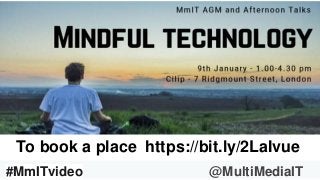
To book a place https://bit.ly/2LaIvue
#AskMmIT17 @MultiMediaIT#MmITvideo @MultiMediaIT
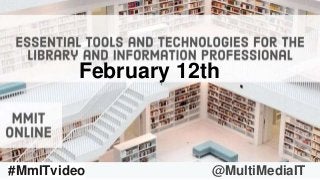
February 12th
#AskMmIT17 @MultiMediaIT
Feedback form link
https://bit.ly/2GnlNAn
#MmITvideo @MultiMediaIT
Using Actionbound create
library induction activities
Kim Donovan
Information Adviser, St Peter’s House Library
Email: K.donovan2@brighton.ac.uk
• Interactive scavenger hunt app, designed for use
on mobile devices.
• Can be used to create activity based games.
• Allows users to take photos, create videos,
complete challenges.
• Licenses for educational use are available.
Actionbound – what is it?
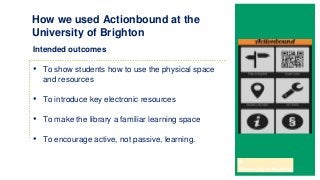
Intended outcomes
• To show students how to use the physical space
and resources
• To introduce key electronic resources
• To make the library a familiar learning space
• To encourage active, not passive, learning.
How we used Actionbound at the
University of Brighton
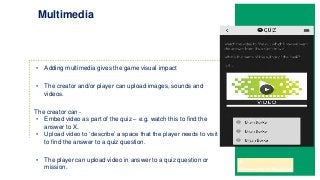
• Adding multimedia gives the game visual impact
• The creator and/or player can upload images, sounds and
videos.
The creator can -
• Embed video as part of the quiz – e.g. watch this to find the
answer to X.
• Upload video to ‘describe’ a space that the player needs to visit
to find the answer to a quiz question.
• The player can upload video in answer to a quiz question or
mission.
Multimedia
• Enabled us to move away from ‘passive’ library inductions to
something more interactive
• Attendance poor at times
• Might need marshals for large groups – think of impact on staffing
• Practicalities – downloading the app – having enough space on
phone for app
• Timing – reluctance to work in groups early on/take photos/videos
on personal phones.
Observations and tips
Test,
Test,
Test!
• Feedback was mixed
• Some preferred the idea of a more ‘passive’
induction.
Feedback from students
‘Fun way to explore the library’
‘Helped me understand and be
aware of where everything was’
‘Helped me to learn about the library’
‘It was a bit boring’‘Great fun!’
“”
Thank you!
Actionbound:
You can try one of our latest orientation/information bounds, here (this
one doesn’t include video):
https://en.actionbound.com/bound/photomirestrail
(download the app, and then scan the QR code to access the bound).
Creating PowToon & iPad Videos
Christina Harbour
Creating Videos
How to video - can include narration and/or explanatory
text, or you can allow animations to do the talking.
Promotional video - can come in many forms, such as
video, cartoon or screencast.
Screencast - a recording of your computer screen output
often containing audio narration and/or subtitles.
Examples:
• How to use a photocopier
• How to borrow a book
• Screencast on using the library catalogue
Examples:
• Tour of the library
• Promotional video
• Footage of events
Examples:
• Show how to use particular software
• Performing tricky tasks/processes
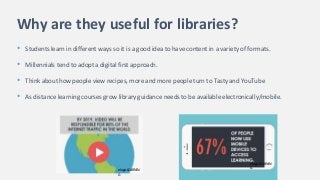
Why are they useful for libraries?
• Students learn in different ways so it is a good idea to have content in a variety of formats.
• Millennials tend to adopt a digital first approach.
• Think about how people view recipes, more and more people turn to Tasty and YouTube
• As distance learning courses grow library guidance needs to be available electronically/mobile.
elogicLEARNIN
G
elogicLEARNIN
G
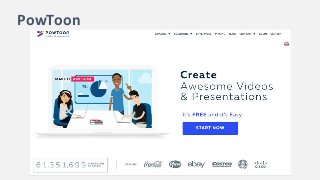
PowToon
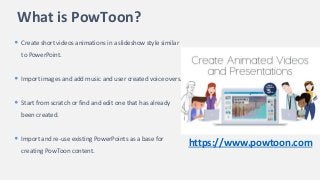
What is PowToon?
• Create short videos animations in a slideshow style similar
to PowerPoint.
• Import images and add music and user created voice overs.
• Start from scratch or find and edit one that has already
been created.
• Import and re-use existing PowerPoints as a base for
creating PowToon content.
https://www.powtoon.com
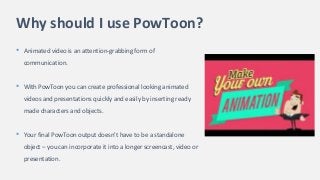
Why should I use PowToon?
• Animated video is an attention-grabbing form of
communication.
• With PowToon you can create professional looking animated
videos and presentations quickly and easily by inserting ready
made characters and objects.
• Your final PowToon output doesn't have to be a standalone
object – you can incorporate it into a longer screencast, video or
presentation.
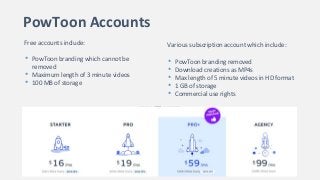
PowToon Accounts
Free accounts include:
• PowToon branding which cannot be
removed
• Maximum length of 3 minute videos
• 100 MB of storage
Various subscription account which include:
• PowToon branding removed
• Download creations as MP4s
• Max length of 5 minute videos in HD format
• 1 GB of storage
• Commercial use rights
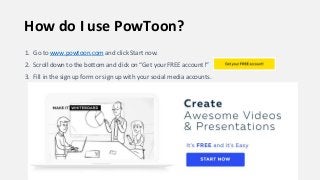
How do I use PowToon?
1. Go to www.powtoon.com and click Start now.
2. Scroll down to the bottom and click on “Get your FREE account!”
3. Fill in the sign up form or sign up with your social media accounts.
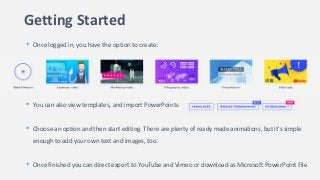
Getting Started
• Once logged in, you have the option to create:
• You can also view templates, and import PowerPoints
• Choose an option and then start editing. There are plenty of ready made animations, but it's simple
enough to add your own text and images, too.
• Once finished you can direct export to YouTube and Vimeo or download as Microsoft PowerPoint File
Useful Links
• PowToon Help Center - https://support.powtoon.com/en/
• PowToon Quick Start Guide - https://www.powtoon.com/tutorials/
• Importing a PowerPoint presentation into PowToon - https://bit.ly/2SzaB4y
• Example PowToon 1 - https://bit.ly/2rkJXAX
• Example PowToon 2 - https://bit.ly/2BU7D5r
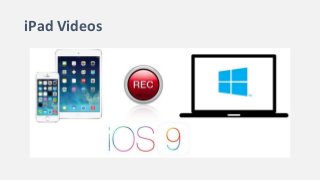
iPad Videos
iPad Videos
Your iPad isn't just a still camera, it is also a video camera
that can produce HD quality videos.
The screen is large and bright and the iPad’s camera
controls are simple, intuitive to use and rich with
features.
iPad Videos
Shooting video with an iPad requires more than the camera itself.
Properly recording video with an iPad requires that the producer knows a few fundamentals
on using mobile devices to record video:
• Keep the camera horizontal and steady.
• Get as close to your subject as possible.
• Have the right light.
• Capture clean audio; it’s probably more important than the video quality.
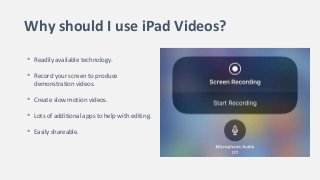
Why should I use iPad Videos?
• Readily available technology.
• Record your screen to produce
demonstration videos.
• Create slow motion videos.
• Lots of additional apps to help with editing.
• Easily shareable.
Getting Started
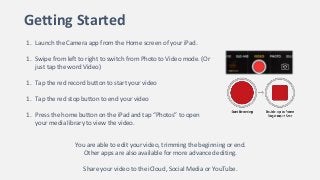
1. Launch the Camera app from the Home screen of your iPad.
1. Swipe from left to right to switch from Photo to Video mode. (Or
just tap the word Video)
1. Tap the red record button to start your video
1. Tap the red stop button to end your video
1. Press the home button on the iPad and tap “Photos” to open
your media library to view the video.
You are able to edit your video, trimming the beginning or end.
Other apps are also available for more advanced editing.
Share your video to the iCloud, Social Media or YouTube.
Useful Links
• Example iPad Video - https://youtu.be/9JMjf79RuE8
• 10 Tricks to make your amateur videos look professional -
https://videotoorder.com/blog/videos-look-professional/
• How to record the screen on your iPhone, iPad or iPod touch - https://support.apple.com/en-
us/HT207935
Useful Apps
• Best Video Editing Apps for iPhone and iPad - https://www.igeeksblog.com/best-video-
editing-apps-for-iphone-ipad/
Contact Me!
Christina.Harbour@anglia.ac.uk@Tinalpool
Claire Sewell
@ces43
CILIP MMIT
December 2018
Tools for making
engaging videos
Lumen5 Screencastify
Turns text-based content into videos
https://lumen5.com/
Records screencasts for sharing
https://www.screencastify.com/
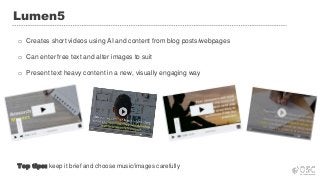
Lumen5
o Creates short videos using AI and content from blog posts/webpages
o Can enter free text and alter images to suit
o Present text heavy content in a new, visually engaging way
Top tips: keep it brief and choose music/images carefully
Advantages Disadvantages
o Quick and easy to put together
o Can be done with no input
o No design skills needed
o Includes free images, videos and music
o Can brand videos
o AI chooses random images/text
o Limited number of slides on free account
o Some features only available on paid plans
o Videos are not instant
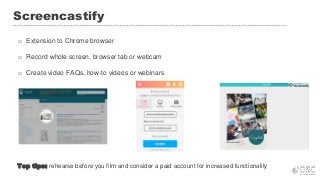
Screencastify
o Extension to Chrome browser
o Record whole screen, browser tab or webcam
o Create video FAQs, how-to videos or webinars
Top tips: rehearse before you film and consider a paid account for increased functionality
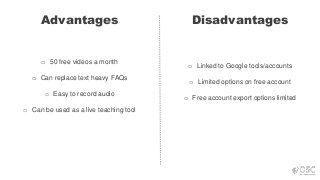
Advantages Disadvantages
o 50 free videos a month
o Can replace text heavy FAQs
o Easy to record audio
o Can be used as a live teaching tool
o Linked to Google tools/accounts
o Limited options on free account
o Free account export options limited
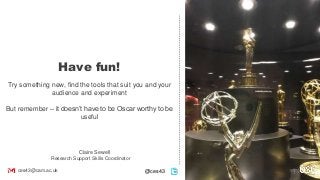
Have fun!
Try something new, find the tools that suit you and your
audience and experiment
But remember – it doesn’t have to be Oscar worthy to be
useful
Claire Sewell
Research Support Skills Coordinator
ces43@cam.ac.uk @ces43
#AskMmIT17 @MultiMediaIT
Feedback form link
https://bit.ly/2GnlNAn
#MmITvideo @MultiMediaIT

Using video in your library and information service

  • 1.
  • 2.
    #AskMmIT17 @MultiMediaIT Kim Donovan@ces43 @tinalpool @Andy_Tattersall #MmITvideo @MultiMediaIT
  • 3.
    #AskMmIT17 @MultiMediaIT About MmIT CilipSpecial Interest group focusing on Multimedia and Information Technology (The web, social media) Yearly AGM and free talks at Cilip Three workshop/talk events a year (2 online) Attendance and participation at conference events Twitter: @MultiMediaIT Blog: https://mmitblog.wordpress.com/ Journal archive: https://bit.ly/2zT29pT MmIT Cilip page: http://bit.ly/2C6QQce #MmITvideo @MultiMediaIT
  • 4.
    #AskMmIT17 @MultiMediaIT#MmITvideo @MultiMediaIT Tobook a place https://bit.ly/2LaIvue
  • 5.
  • 6.
    #AskMmIT17 @MultiMediaIT Feedback formlink https://bit.ly/2GnlNAn #MmITvideo @MultiMediaIT
  • 7.
    Using Actionbound create libraryinduction activities Kim Donovan Information Adviser, St Peter’s House Library Email: K.donovan2@brighton.ac.uk
  • 8.
    • Interactive scavengerhunt app, designed for use on mobile devices. • Can be used to create activity based games. • Allows users to take photos, create videos, complete challenges. • Licenses for educational use are available. Actionbound – what is it?
  • 9.
    Intended outcomes • Toshow students how to use the physical space and resources • To introduce key electronic resources • To make the library a familiar learning space • To encourage active, not passive, learning. How we used Actionbound at the University of Brighton
  • 10.
    • Adding multimediagives the game visual impact • The creator and/or player can upload images, sounds and videos. The creator can - • Embed video as part of the quiz – e.g. watch this to find the answer to X. • Upload video to ‘describe’ a space that the player needs to visit to find the answer to a quiz question. • The player can upload video in answer to a quiz question or mission. Multimedia
  • 11.
    • Enabled usto move away from ‘passive’ library inductions to something more interactive • Attendance poor at times • Might need marshals for large groups – think of impact on staffing • Practicalities – downloading the app – having enough space on phone for app • Timing – reluctance to work in groups early on/take photos/videos on personal phones. Observations and tips Test, Test, Test!
  • 12.
    • Feedback wasmixed • Some preferred the idea of a more ‘passive’ induction. Feedback from students ‘Fun way to explore the library’ ‘Helped me understand and be aware of where everything was’ ‘Helped me to learn about the library’ ‘It was a bit boring’‘Great fun!’ “”
  • 13.
    Thank you! Actionbound: You cantry one of our latest orientation/information bounds, here (this one doesn’t include video): https://en.actionbound.com/bound/photomirestrail (download the app, and then scan the QR code to access the bound).
  • 14.
    Creating PowToon &iPad Videos Christina Harbour
  • 15.
    Creating Videos How tovideo - can include narration and/or explanatory text, or you can allow animations to do the talking. Promotional video - can come in many forms, such as video, cartoon or screencast. Screencast - a recording of your computer screen output often containing audio narration and/or subtitles. Examples: • How to use a photocopier • How to borrow a book • Screencast on using the library catalogue Examples: • Tour of the library • Promotional video • Footage of events Examples: • Show how to use particular software • Performing tricky tasks/processes
  • 16.
    Why are theyuseful for libraries? • Students learn in different ways so it is a good idea to have content in a variety of formats. • Millennials tend to adopt a digital first approach. • Think about how people view recipes, more and more people turn to Tasty and YouTube • As distance learning courses grow library guidance needs to be available electronically/mobile. elogicLEARNIN G elogicLEARNIN G
  • 17.
  • 18.
    What is PowToon? •Create short videos animations in a slideshow style similar to PowerPoint. • Import images and add music and user created voice overs. • Start from scratch or find and edit one that has already been created. • Import and re-use existing PowerPoints as a base for creating PowToon content. https://www.powtoon.com
  • 19.
    Why should Iuse PowToon? • Animated video is an attention-grabbing form of communication. • With PowToon you can create professional looking animated videos and presentations quickly and easily by inserting ready made characters and objects. • Your final PowToon output doesn't have to be a standalone object – you can incorporate it into a longer screencast, video or presentation.
  • 20.
    PowToon Accounts Free accountsinclude: • PowToon branding which cannot be removed • Maximum length of 3 minute videos • 100 MB of storage Various subscription account which include: • PowToon branding removed • Download creations as MP4s • Max length of 5 minute videos in HD format • 1 GB of storage • Commercial use rights
  • 21.
    How do Iuse PowToon? 1. Go to www.powtoon.com and click Start now. 2. Scroll down to the bottom and click on “Get your FREE account!” 3. Fill in the sign up form or sign up with your social media accounts.
  • 22.
    Getting Started • Oncelogged in, you have the option to create: • You can also view templates, and import PowerPoints • Choose an option and then start editing. There are plenty of ready made animations, but it's simple enough to add your own text and images, too. • Once finished you can direct export to YouTube and Vimeo or download as Microsoft PowerPoint File
  • 23.
    Useful Links • PowToonHelp Center - https://support.powtoon.com/en/ • PowToon Quick Start Guide - https://www.powtoon.com/tutorials/ • Importing a PowerPoint presentation into PowToon - https://bit.ly/2SzaB4y • Example PowToon 1 - https://bit.ly/2rkJXAX • Example PowToon 2 - https://bit.ly/2BU7D5r
  • 24.
  • 25.
    iPad Videos Your iPadisn't just a still camera, it is also a video camera that can produce HD quality videos. The screen is large and bright and the iPad’s camera controls are simple, intuitive to use and rich with features.
  • 26.
    iPad Videos Shooting videowith an iPad requires more than the camera itself. Properly recording video with an iPad requires that the producer knows a few fundamentals on using mobile devices to record video: • Keep the camera horizontal and steady. • Get as close to your subject as possible. • Have the right light. • Capture clean audio; it’s probably more important than the video quality.
  • 27.
    Why should Iuse iPad Videos? • Readily available technology. • Record your screen to produce demonstration videos. • Create slow motion videos. • Lots of additional apps to help with editing. • Easily shareable.
  • 28.
    Getting Started 1. Launchthe Camera app from the Home screen of your iPad. 1. Swipe from left to right to switch from Photo to Video mode. (Or just tap the word Video) 1. Tap the red record button to start your video 1. Tap the red stop button to end your video 1. Press the home button on the iPad and tap “Photos” to open your media library to view the video. You are able to edit your video, trimming the beginning or end. Other apps are also available for more advanced editing. Share your video to the iCloud, Social Media or YouTube.
  • 29.
    Useful Links • ExampleiPad Video - https://youtu.be/9JMjf79RuE8 • 10 Tricks to make your amateur videos look professional - https://videotoorder.com/blog/videos-look-professional/ • How to record the screen on your iPhone, iPad or iPod touch - https://support.apple.com/en- us/HT207935 Useful Apps • Best Video Editing Apps for iPhone and iPad - https://www.igeeksblog.com/best-video- editing-apps-for-iphone-ipad/
  • 30.
  • 31.
    Claire Sewell @ces43 CILIP MMIT December2018 Tools for making engaging videos
  • 32.
    Lumen5 Screencastify Turns text-basedcontent into videos https://lumen5.com/ Records screencasts for sharing https://www.screencastify.com/
  • 33.
    Lumen5 o Creates shortvideos using AI and content from blog posts/webpages o Can enter free text and alter images to suit o Present text heavy content in a new, visually engaging way Top tips: keep it brief and choose music/images carefully
  • 34.
    Advantages Disadvantages o Quickand easy to put together o Can be done with no input o No design skills needed o Includes free images, videos and music o Can brand videos o AI chooses random images/text o Limited number of slides on free account o Some features only available on paid plans o Videos are not instant
  • 35.
    Screencastify o Extension toChrome browser o Record whole screen, browser tab or webcam o Create video FAQs, how-to videos or webinars Top tips: rehearse before you film and consider a paid account for increased functionality
  • 36.
    Advantages Disadvantages o 50free videos a month o Can replace text heavy FAQs o Easy to record audio o Can be used as a live teaching tool o Linked to Google tools/accounts o Limited options on free account o Free account export options limited
  • 37.
    Have fun! Try somethingnew, find the tools that suit you and your audience and experiment But remember – it doesn’t have to be Oscar worthy to be useful Claire Sewell Research Support Skills Coordinator ces43@cam.ac.uk @ces43
  • 38.
    #AskMmIT17 @MultiMediaIT Feedback formlink https://bit.ly/2GnlNAn #MmITvideo @MultiMediaIT