Getting Started
It is recommended to first read Tutorial.pdf in the unzipped folder you created.
Get Support and Offer Input
Freenove provides free and responsive product and technical support, including but not limited to:
 Product quality issues
 Product use and build issues
 Questions regarding the technology employed in our products for learning and education
 Your input and opinions are always welcome
 We also encourage your ideas and suggestions for new products and product improvements
For any of the above, you may send us an email to:
support@freenove.com
Safety and Precautions
Please follow the following safety precautions when using or storing this product:
 Keep this product out of the reach of children under 6 years old.
 This product should be used only when there is adult supervision present as young children lack
necessary judgment regarding safety and the consequences of product misuse.
 This product contains small parts and parts, which are sharp. This product contains electrically conductive
parts. Use caution with electrically conductive parts near or around power supplies, batteries and
powered (live) circuits.
 When the product is turned ON, activated or tested, some parts will move or rotate. To avoid injuries
to hands and fingers keep them away from any moving parts!
 It is possible that an improperly connected or shorted circuit may cause overheating. Should this happen,
immediately disconnect the power supply or remove the batteries and do not touch anything until
it cools down! When everything is safe and cool, review the product tutorial to identify the cause.
 Only operate the product in accordance with the instructions and guidelines of this tutorial, otherwise
parts may be damaged or you could be injured.
 Store the product in a cool dry place and avoid exposing the product to direct sunlight.
 After use, always turn the power OFF and remove or unplug the batteries before storing.
About Freenove
Freenove provides open source electronic products and services worldwide.
Freenove is committed to assist customers in their education of robotics, programming and electronic circuits
so that they may transform their creative ideas into prototypes and new and innovative products. To this end,
our services include but are not limited to:
 Educational and Entertaining Project Kits for Robots, Smart Cars and Drones
 Educational Kits to Learn Robotic Software Systems for Arduino, Raspberry Pi and micro:bit
 Electronic Component Assortments, Electronic Modules and Specialized Tools
 Product Development and Customization Services
You can find more about Freenove and get our latest news and updates through our website:
http://www.freenove.com
Copyright
All the files, materials and instructional guides provided are released under Creative Commons Attribution-
NonCommercial-ShareAlike 3.0 Unported License. A copy of this license can be found in the folder containing
the Tutorial and software files associated with this product.
This means you can use these resource in your own derived works, in part or completely but NOT for the
intent or purpose of commercial use.
Freenove brand and logo are copyright of Freenove Creative Technology Co., Ltd. and cannot be used without
written permission.
Free your innovation
Raspberry Pi® is a trademark of Raspberry Pi Foundation (https://www.raspberrypi.org/).
○
R
I
Chapter 0 Processing
█ www.freenove.com
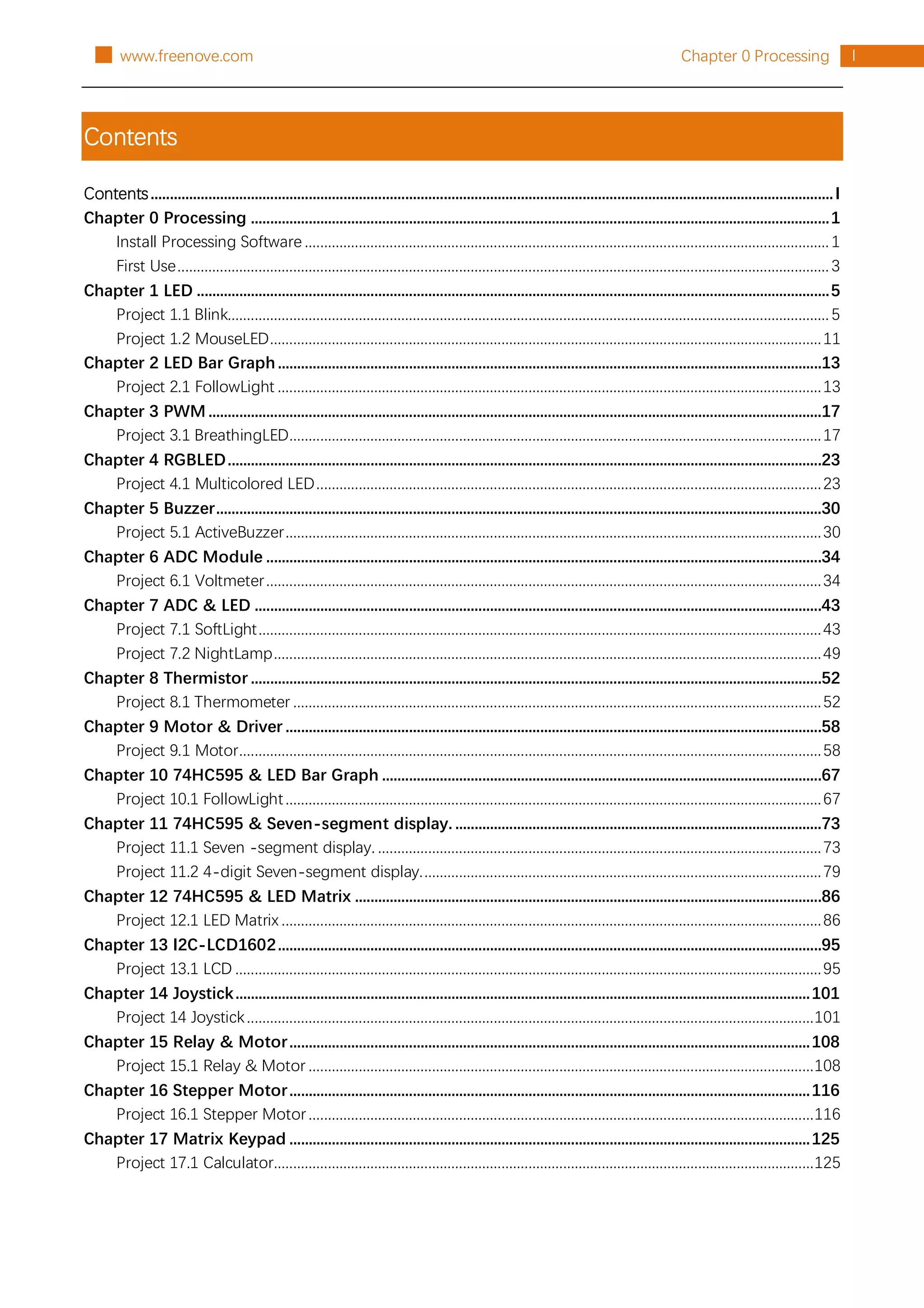
Contents
Contents.................................................................................................................................................................................I
Chapter 0 Processing ......................................................................................................................................................1
Install Processing Software ........................................................................................................................................1
First Use.........................................................................................................................................................................3
Chapter 1 LED ....................................................................................................................................................................5
Project 1.1 Blink............................................................................................................................................................5
Project 1.2 MouseLED...............................................................................................................................................11
Chapter 2 LED Bar Graph.............................................................................................................................................13
Project 2.1 FollowLight .............................................................................................................................................13
Chapter 3 PWM...............................................................................................................................................................17
Project 3.1 BreathingLED..........................................................................................................................................17
Chapter 4 RGBLED..........................................................................................................................................................23
Project 4.1 Multicolored LED...................................................................................................................................23
Chapter 5 Buzzer.............................................................................................................................................................30
Project 5.1 ActiveBuzzer...........................................................................................................................................30
Chapter 6 ADC Module ................................................................................................................................................34
Project 6.1 Voltmeter................................................................................................................................................34
Chapter 7 ADC & LED ...................................................................................................................................................43
Project 7.1 SoftLight..................................................................................................................................................43
Project 7.2 NightLamp..............................................................................................................................................49
Chapter 8 Thermistor ....................................................................................................................................................52
Project 8.1 Thermometer .........................................................................................................................................52
Chapter 9 Motor & Driver ...........................................................................................................................................58
Project 9.1 Motor.......................................................................................................................................................58
Chapter 10 74HC595 & LED Bar Graph ..................................................................................................................67
Project 10.1 FollowLight...........................................................................................................................................67
Chapter 11 74HC595 & Seven-segment display. ...............................................................................................73
Project 11.1 Seven -segment display. ...................................................................................................................73
Project 11.2 4-digit Seven-segment display........................................................................................................79
Chapter 12 74HC595 & LED Matrix .........................................................................................................................86
Project 12.1 LED Matrix ............................................................................................................................................86
Chapter 13 I2C-LCD1602.............................................................................................................................................95
Project 13.1 LCD ........................................................................................................................................................95
Chapter 14 Joystick.....................................................................................................................................................101
Project 14 Joystick...................................................................................................................................................101
Chapter 15 Relay & Motor.......................................................................................................................................108
Project 15.1 Relay & Motor ...................................................................................................................................108
Chapter 16 Stepper Motor.......................................................................................................................................116
Project 16.1 Stepper Motor...................................................................................................................................116
Chapter 17 Matrix Keypad .......................................................................................................................................125
Project 17.1 Calculator............................................................................................................................................125
II Chapter 0 Processing www.freenove.com █
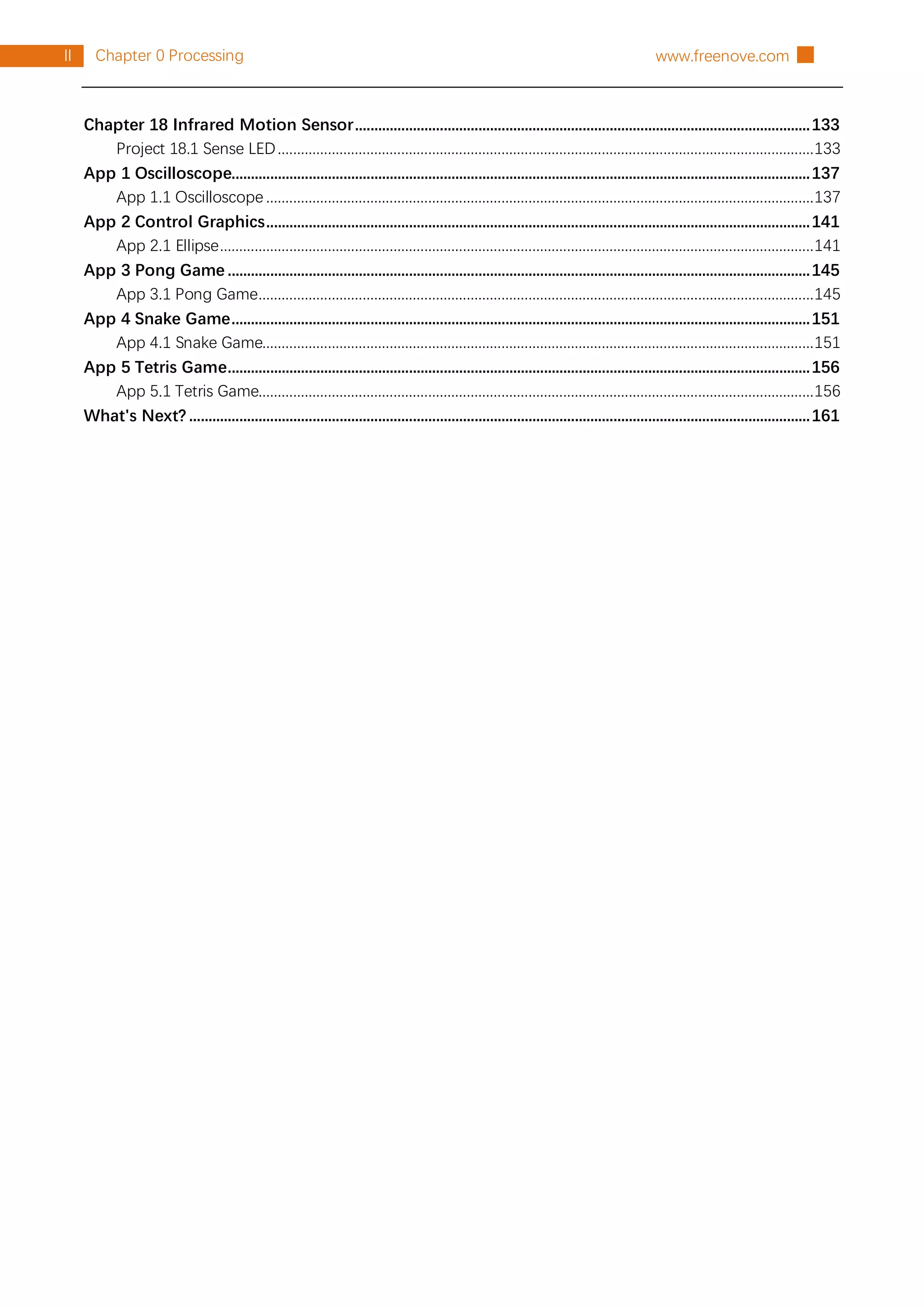
Chapter 18 Infrared Motion Sensor......................................................................................................................133
Project 18.1 Sense LED...........................................................................................................................................133
App 1 Oscilloscope......................................................................................................................................................137
App 1.1 Oscilloscope ..............................................................................................................................................137
App 2 Control Graphics.............................................................................................................................................141
App 2.1 Ellipse..........................................................................................................................................................141
App 3 Pong Game .......................................................................................................................................................145
App 3.1 Pong Game................................................................................................................................................145
App 4 Snake Game......................................................................................................................................................151
App 4.1 Snake Game...............................................................................................................................................151
App 5 Tetris Game.......................................................................................................................................................156
App 5.1 Tetris Game................................................................................................................................................156
What's Next? .................................................................................................................................................................161
support@freenove.com █
1
Chapter 0 Processing
█ www.freenove.com
Chapter 0 Processing
Processing is a software used to write programs that can run on computers. Processing software is free and
open source running on the Mac, Windows, and GNU/Linux platforms, which is the same as Arduino software.
In fact, the development of Arduino software is based on Processing software, and they still have similar
interface.
Programs written with Processing are also called sketches, and Java is the default language. Java language
and C++ language have many similarities, so readers who have learned our basic tutorial are able to
understand and write simple Processing sketches quickly.
This tutorial will introduce how to install and use processing software on Raspberry Pi through some electronic
circuit projects. Chapters and sequence in this tutorial are basically the same as those in the C and python
language tutorial. Our elaborate electronic circuits and interactive project with Processing are attached at the
end, including virtual instruments, games (2D and 3D versions), etc.
Install Processing Software
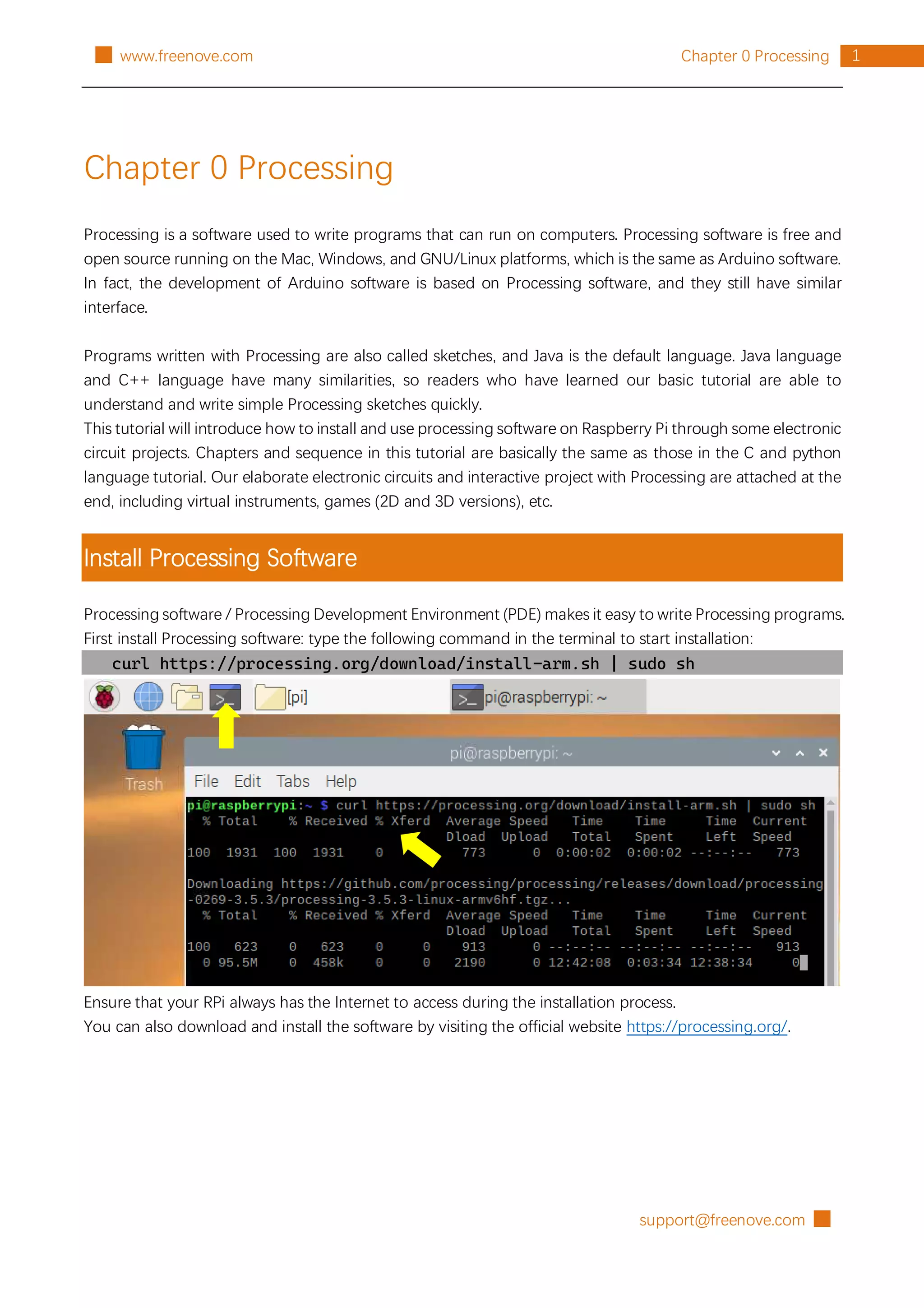
Processing software / Processing Development Environment (PDE) makes it easy to write Processing programs.
First install Processing software: type the following command in the terminal to start installation:
curl https://processing.org/download/install-arm.sh | sudo sh
Ensure that your RPi always has the Internet to access during the installation process.
You can also download and install the software by visiting the official website https://processing.org/.
█ support@freenove.com
2 Chapter 0 Processing www.freenove.com █
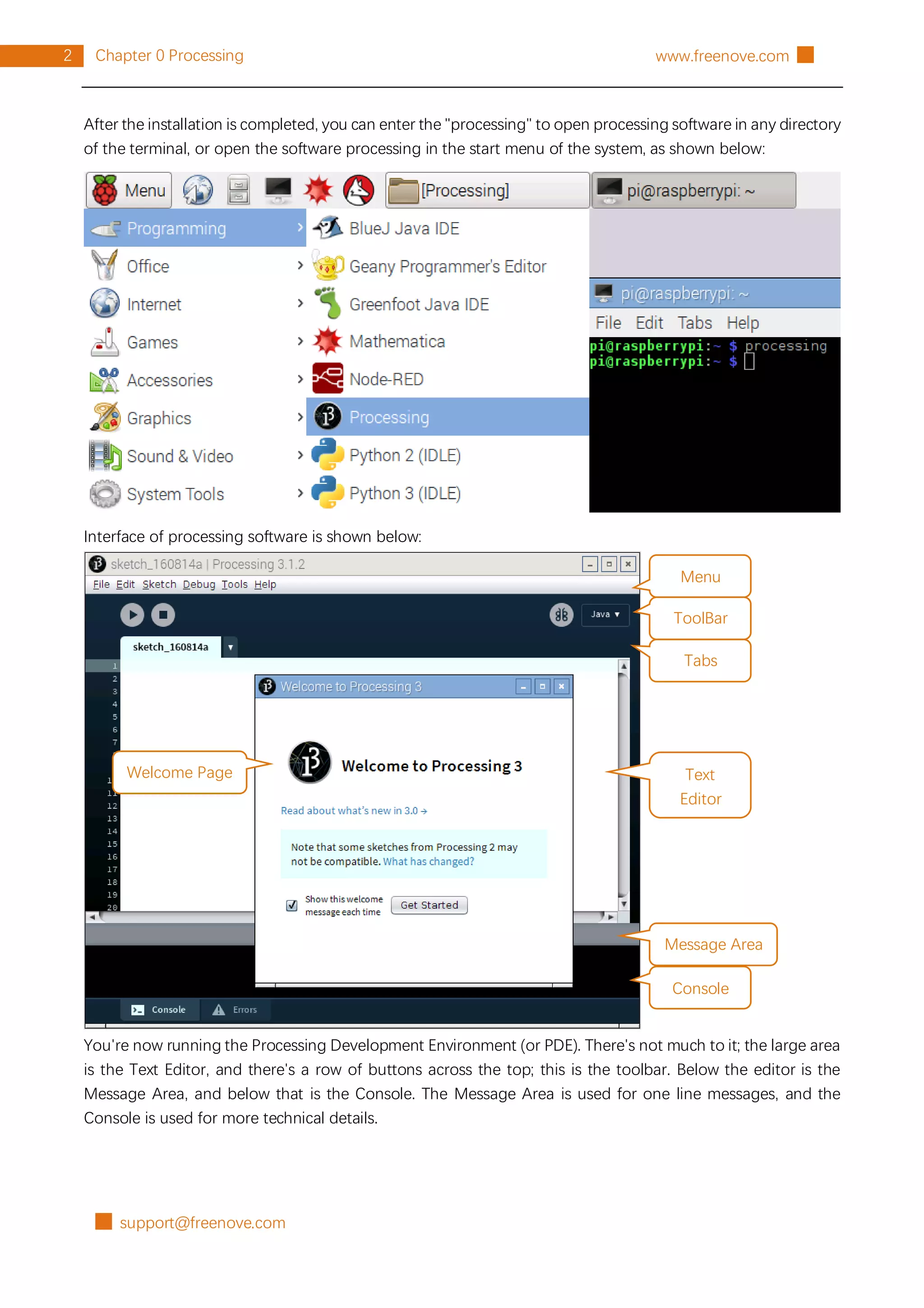
After the installation is completed, you can enter the "processing" to open processing software in any directory
of the terminal, or open the software processing in the start menu of the system, as shown below:
Interface of processing software is shown below:
You're now running the Processing Development Environment (or PDE). There's not much to it; the large area
is the Text Editor, and there's a row of buttons across the top; this is the toolbar. Below the editor is the
Message Area, and below that is the Console. The Message Area is used for one line messages, and the
Console is used for more technical details.
Menu
ToolBar
Tabs
Text
Editor
Message Area
Console
Welcome Page
support@freenove.com █
3
Chapter 0 Processing
█ www.freenove.com
First Use
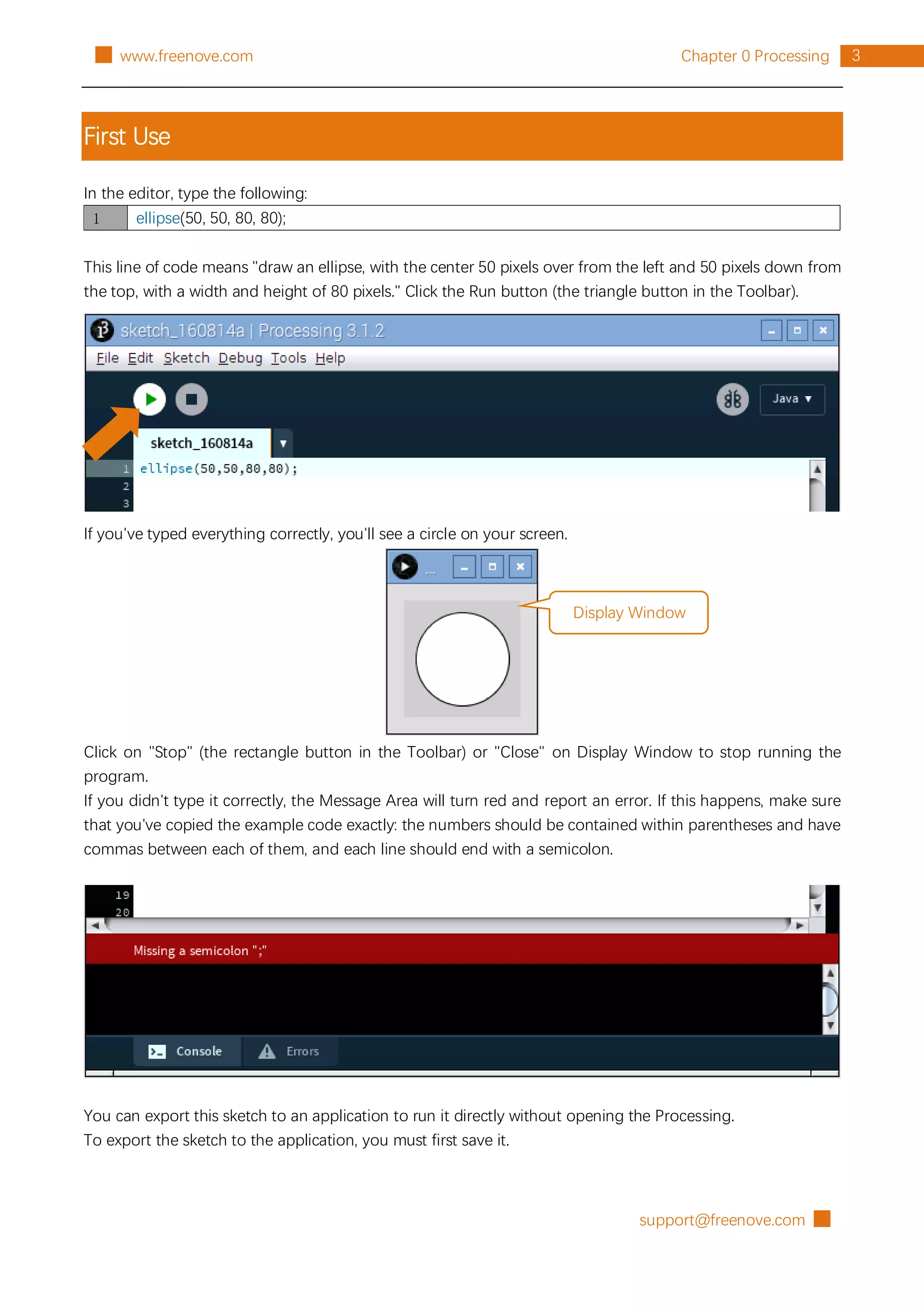
In the editor, type the following:
1 ellipse(50, 50, 80, 80);
This line of code means "draw an ellipse, with the center 50 pixels over from the left and 50 pixels down from
the top, with a width and height of 80 pixels." Click the Run button (the triangle button in the Toolbar).
If you've typed everything correctly, you'll see a circle on your screen.
Click on "Stop" (the rectangle button in the Toolbar) or "Close" on Display Window to stop running the
program.
If you didn't type it correctly, the Message Area will turn red and report an error. If this happens, make sure
that you've copied the example code exactly: the numbers should be contained within parentheses and have
commas between each of them, and each line should end with a semicolon.
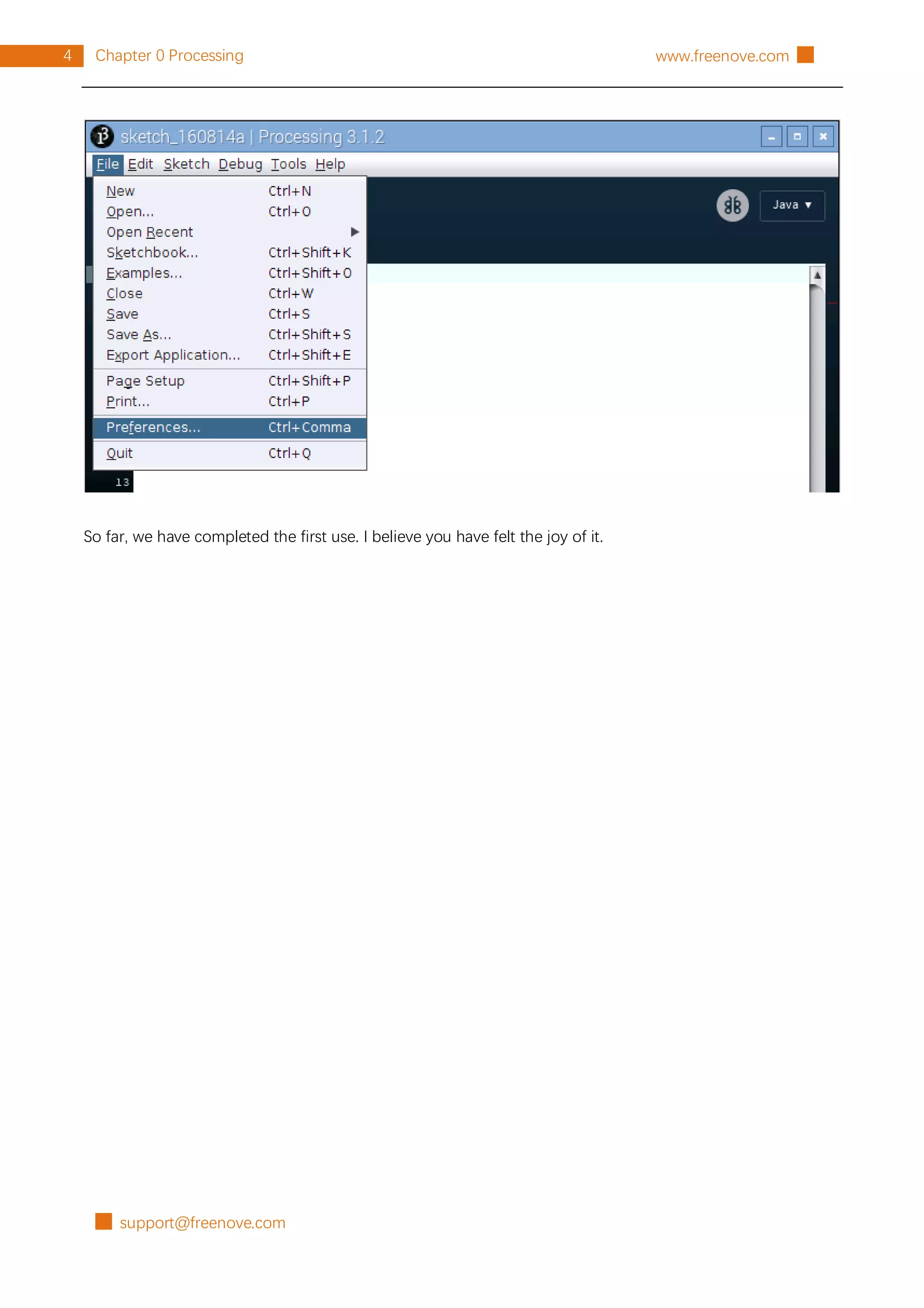
You can export this sketch to an application to run it directly without opening the Processing.
To export the sketch to the application, you must first save it.
Display Window
█ support@freenove.com
4 Chapter 0 Processing www.freenove.com █
So far, we have completed the first use. I believe you have felt the joy of it.
support@freenove.com █
5
Chapter 1 LED
█ www.freenove.com
Chapter 1 LED
We will still start from Blink LED in this chapter, and also learn the usage of some commonly used functions
of Processing Software.
Project 1.1 Blink
In this project, we will make a Blink LED and let Display window of Processing Blink at the same time.
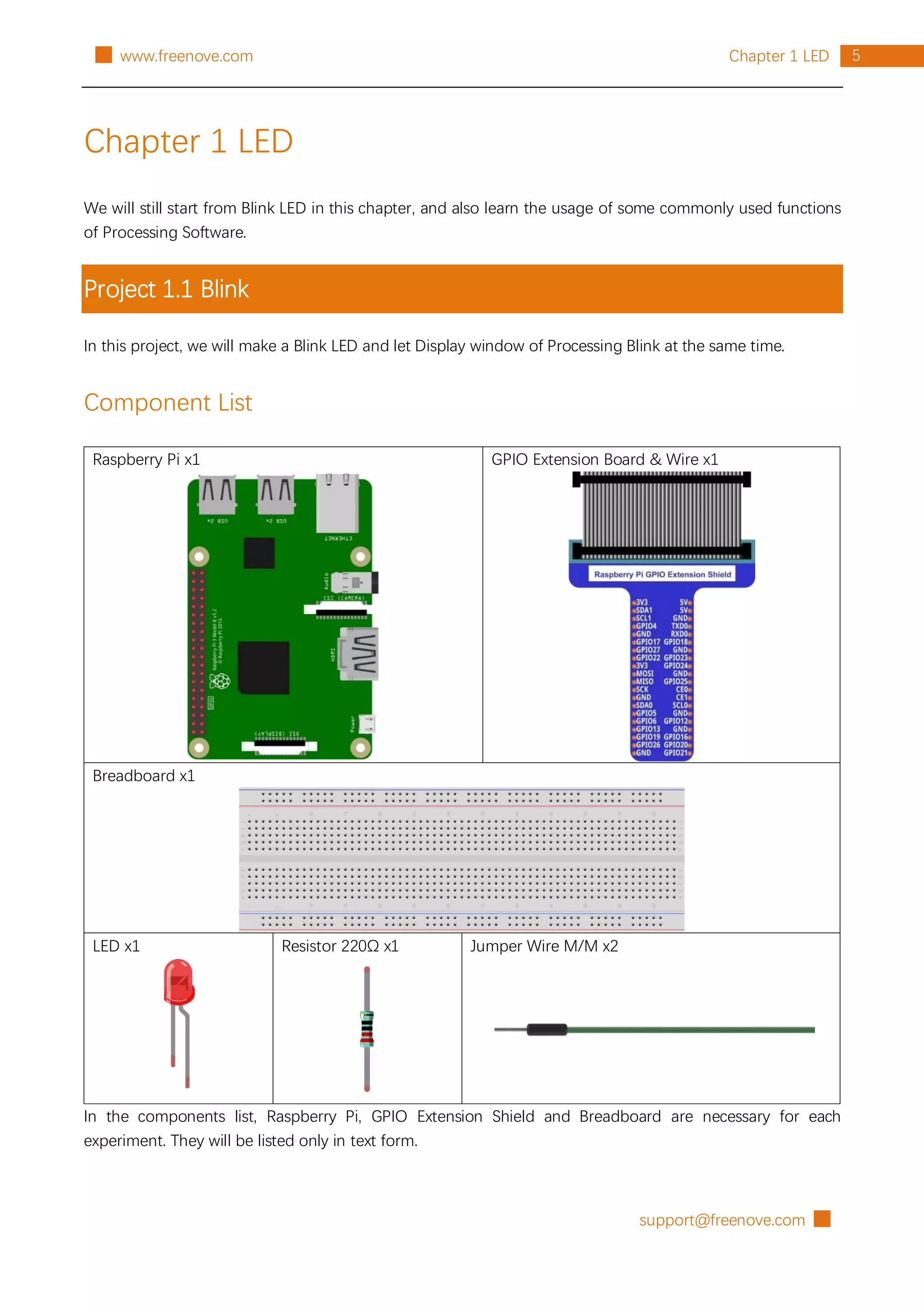
Component List
Raspberry Pi x1 GPIO Extension Board & Wire x1
Breadboard x1
LED x1 Resistor 220Ω x1 Jumper Wire M/M x2
In the components list, Raspberry Pi, GPIO Extension Shield and Breadboard are necessary for each
experiment. They will be listed only in text form.
█ support@freenove.com
6 Chapter 1 LED www.freenove.com █
Circuit
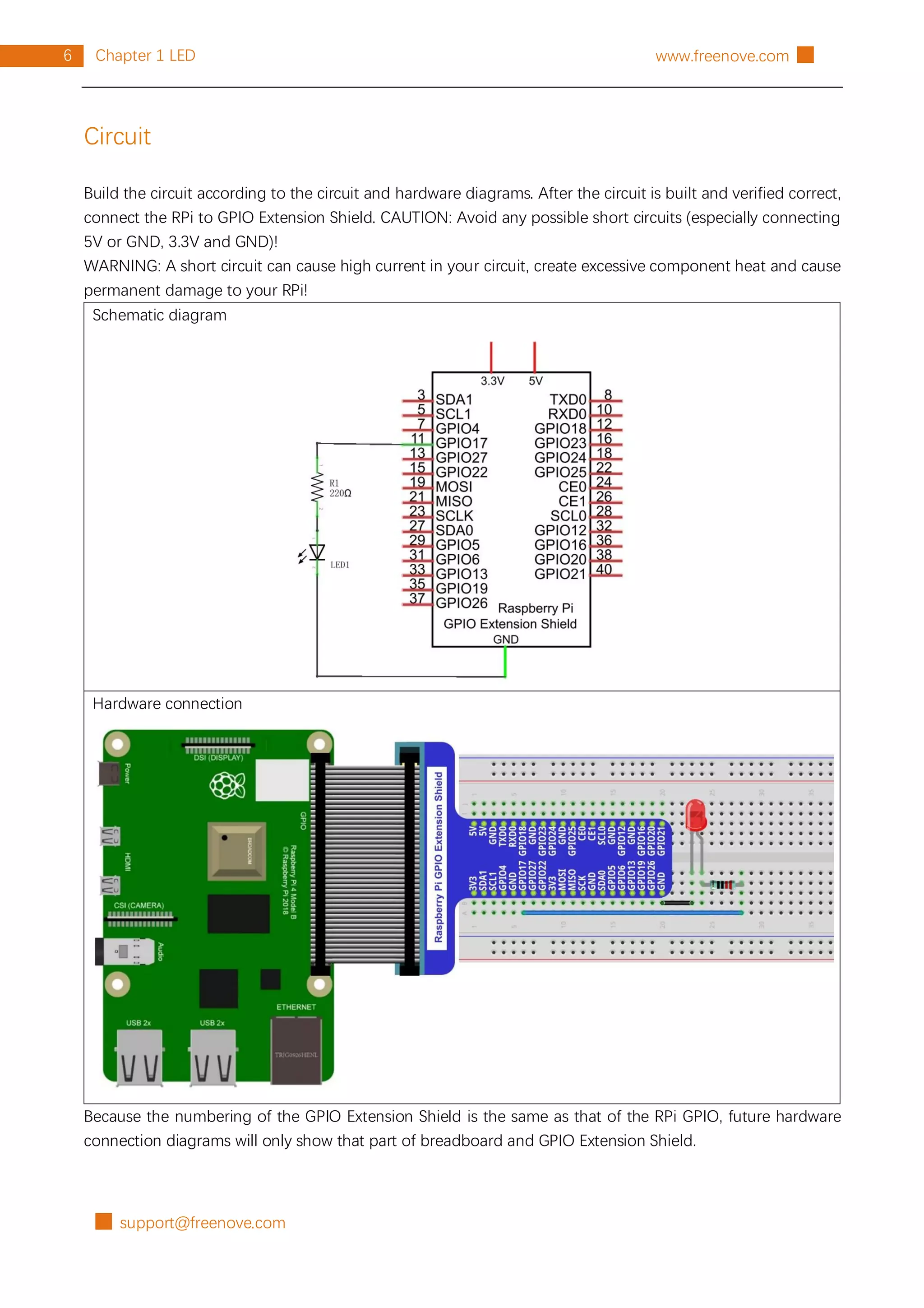
Build the circuit according to the circuit and hardware diagrams. After the circuit is built and verified correct,
connect the RPi to GPIO Extension Shield. CAUTION: Avoid any possible short circuits (especially connecting
5V or GND, 3.3V and GND)!
WARNING: A short circuit can cause high current in your circuit, create excessive component heat and cause
permanent damage to your RPi!
Schematic diagram
Hardware connection
Because the numbering of the GPIO Extension Shield is the same as that of the RPi GPIO, future hardware
connection diagrams will only show that part of breadboard and GPIO Extension Shield.
support@freenove.com █
7
Chapter 1 LED
█ www.freenove.com
Sketch
Sketch 1.1.1 Blink
Because the resource folder name is too long, for convenience, the folder will be named as "Freenove_Kit".
If you have already renamed it, skip this command. Assume the absolute path is "/ home / pi" or "~ /", execute
the following command in the user directory.
mv Freenove_Ultimate_Starter_Kit_for_Raspberry_Pi/ Freenove_Kit/
First, observe the result after running the sketch, and then learn about the code in detail.
1. Use Processing to open the file Sketch_01_1_1_Blink. (The following is only one line of command. There
is a Space after Processing.)
Processing ~/Freenove_Kit/Processing/Sketches/Sketch_01_1_1_Blink/Sketch_01_1_1_Blink.pde
2. Click on "RUN" to run the code.
You can also open it as follows.
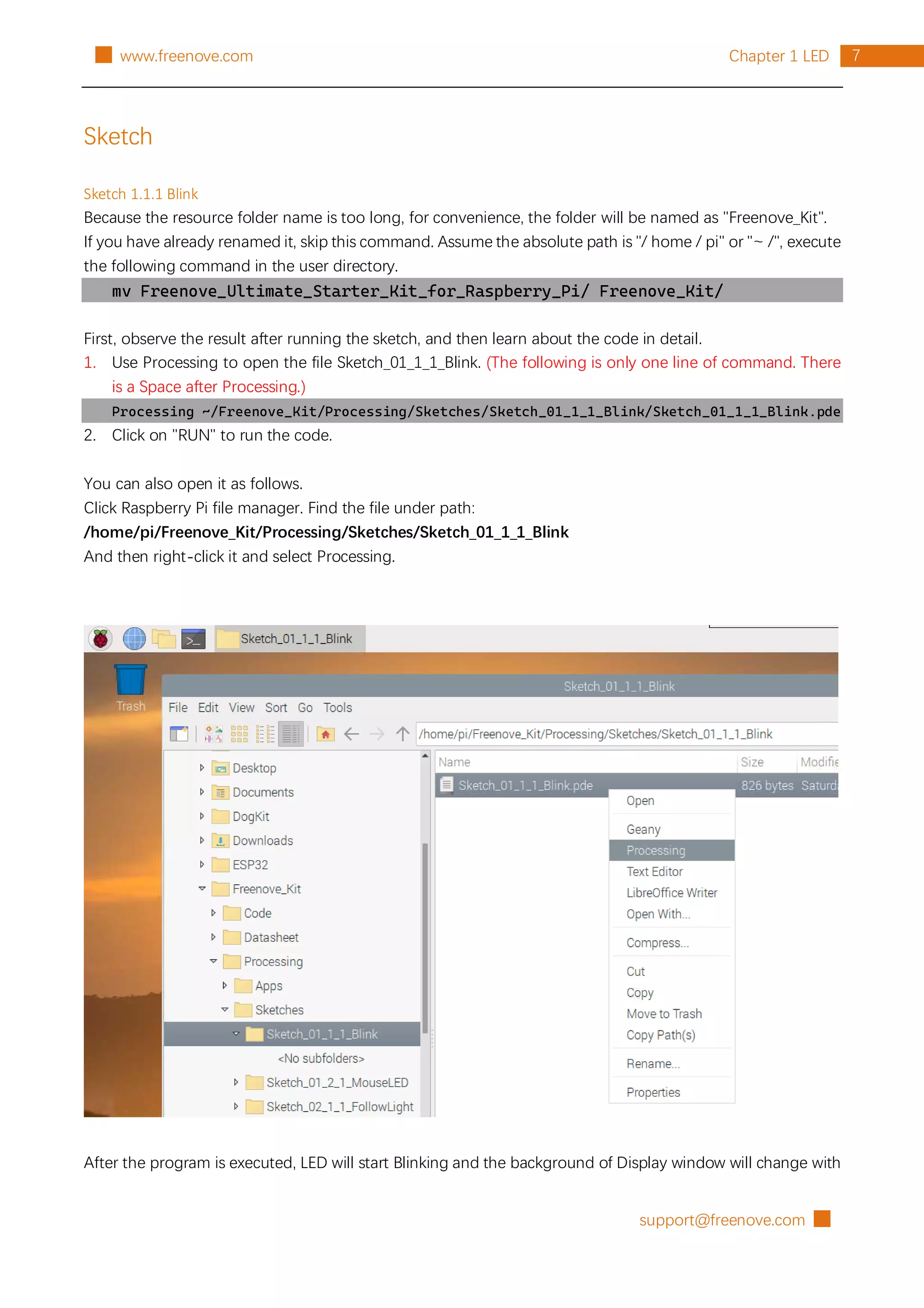
Click Raspberry Pi file manager. Find the file under path:
/home/pi/Freenove_Kit/Processing/Sketches/Sketch_01_1_1_Blink
And then right-click it and select Processing.
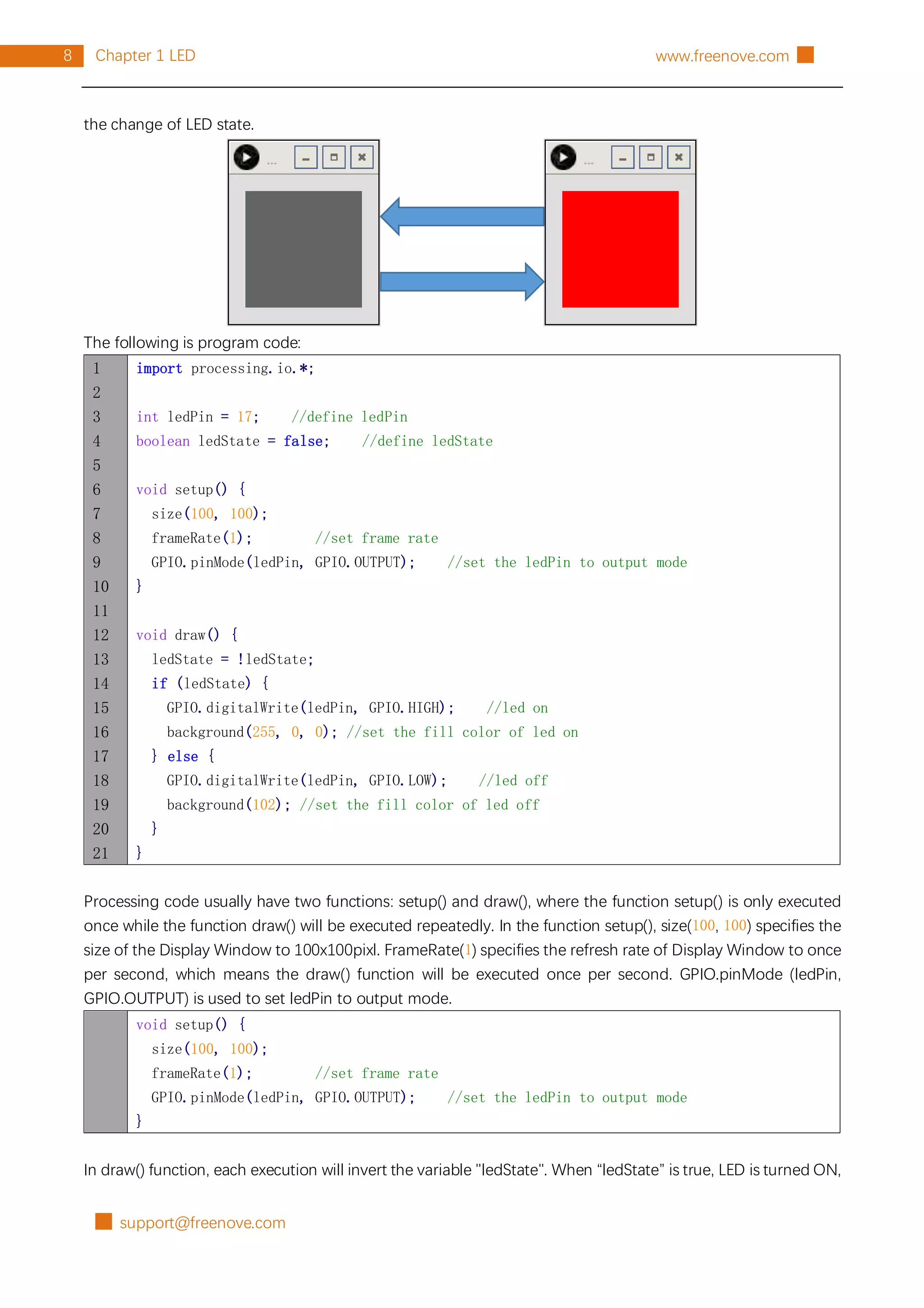
After the program is executed, LED will start Blinking and the background of Display window will change with
█ support@freenove.com
8 Chapter 1 LED www.freenove.com █
the change of LED state.
The following is program code:
1
2
3
4
5
6
7
8
9
10
11
12
13
14
15
16
17
18
19
20
21
import processing.io.*;
int ledPin = 17; //define ledPin
boolean ledState = false; //define ledState
void setup() {
size(100, 100);
frameRate(1); //set frame rate
GPIO.pinMode(ledPin, GPIO.OUTPUT); //set the ledPin to output mode
}
void draw() {
ledState = !ledState;
if (ledState) {
GPIO.digitalWrite(ledPin, GPIO.HIGH); //led on
background(255, 0, 0); //set the fill color of led on
} else {
GPIO.digitalWrite(ledPin, GPIO.LOW); //led off
background(102); //set the fill color of led off
}
}
Processing code usually have two functions: setup() and draw(), where the function setup() is only executed
once while the function draw() will be executed repeatedly. In the function setup(), size(100, 100) specifies the
size of the Display Window to 100x100pixl. FrameRate(1) specifies the refresh rate of Display Window to once
per second, which means the draw() function will be executed once per second. GPIO.pinMode (ledPin,
GPIO.OUTPUT) is used to set ledPin to output mode.
void setup() {
size(100, 100);
frameRate(1); //set frame rate
GPIO.pinMode(ledPin, GPIO.OUTPUT); //set the ledPin to output mode
}
In draw() function, each execution will invert the variable "ledState". When “ledState” is true, LED is turned ON,
support@freenove.com █
9
Chapter 1 LED
█ www.freenove.com
and the background color of display window is set to red. And when the “ledState” is false, the LED is turned
OFF and the background color of display window is set to gray. Since the function draw() is executed once
per second, the background color of Display Window and the state of LED will also change once per second.
This process will repeat in an endless loop to achieve the effect of blinking.
void draw() {
ledState = !ledState;
if (ledState) {
GPIO.digitalWrite(ledPin, GPIO.HIGH); //led on
background(255, 0, 0); //set the fill color of led on
} else {
GPIO.digitalWrite(ledPin, GPIO.LOW); //led off
background(102); //set the fill color of led off
}
}
The following is brief descriptions of some functions:
setup()
The setup() function is run once when the program starts.
draw()
It is called directly after the setup() function. The draw() function continuously executes the lines of code
within its block until the program stops or noLoop() is called. draw() is called automatically and should
never be called explicitly.
size()
Defines width and height of the display window in pixels.
framerate()
Specifies the number of frames to be displayed every second.
background()
Set the color of the background of the display window.
GPIO.pinMode()
Configures a pin to act either as input or output.
GPIO.digitalWrite()
Sets an output pin to be either high or low.
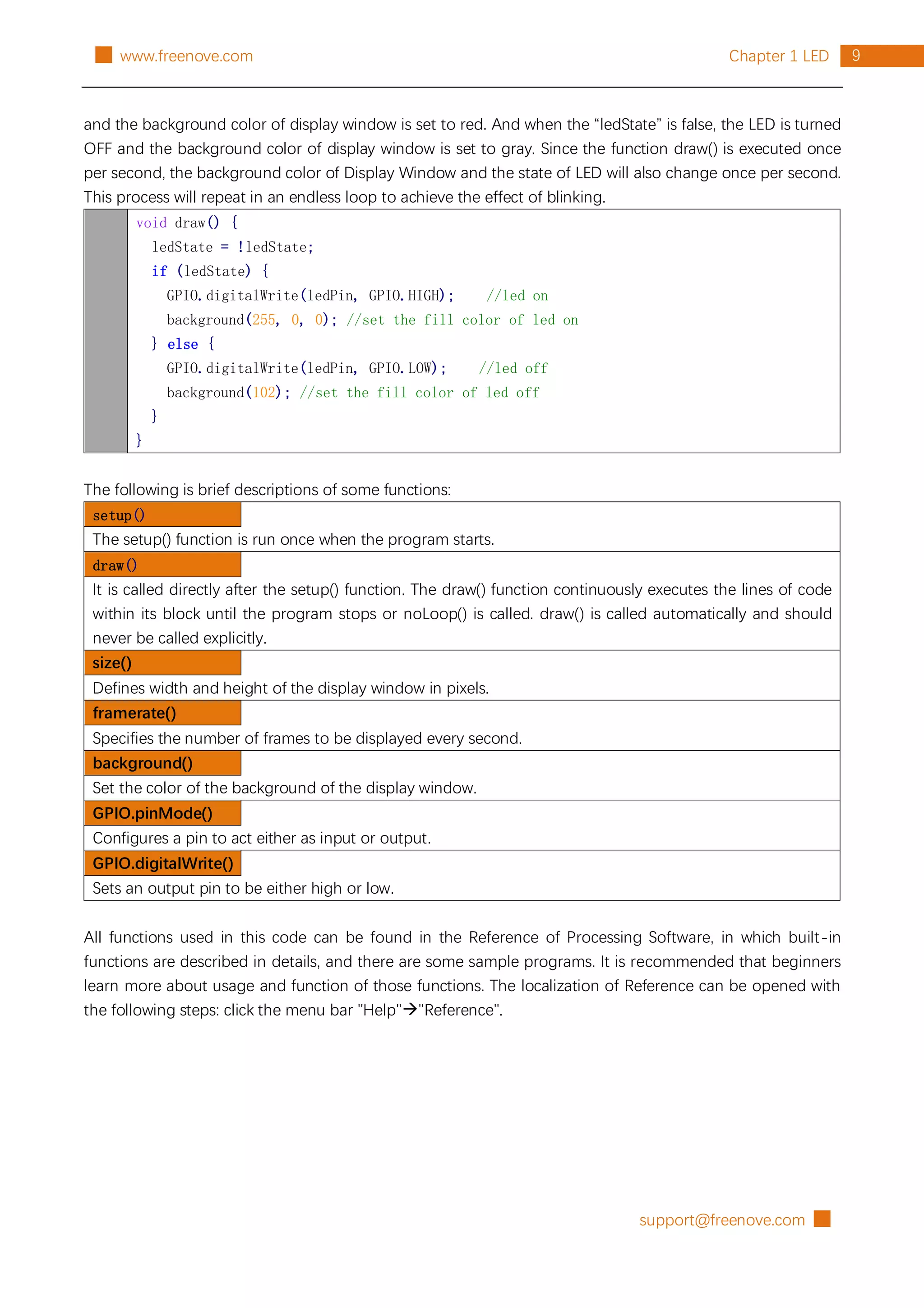
All functions used in this code can be found in the Reference of Processing Software, in which built-in
functions are described in details, and there are some sample programs. It is recommended that beginners
learn more about usage and function of those functions. The localization of Reference can be opened with
the following steps: click the menu bar "Help""Reference".
█ support@freenove.com
10 Chapter 1 LED www.freenove.com █
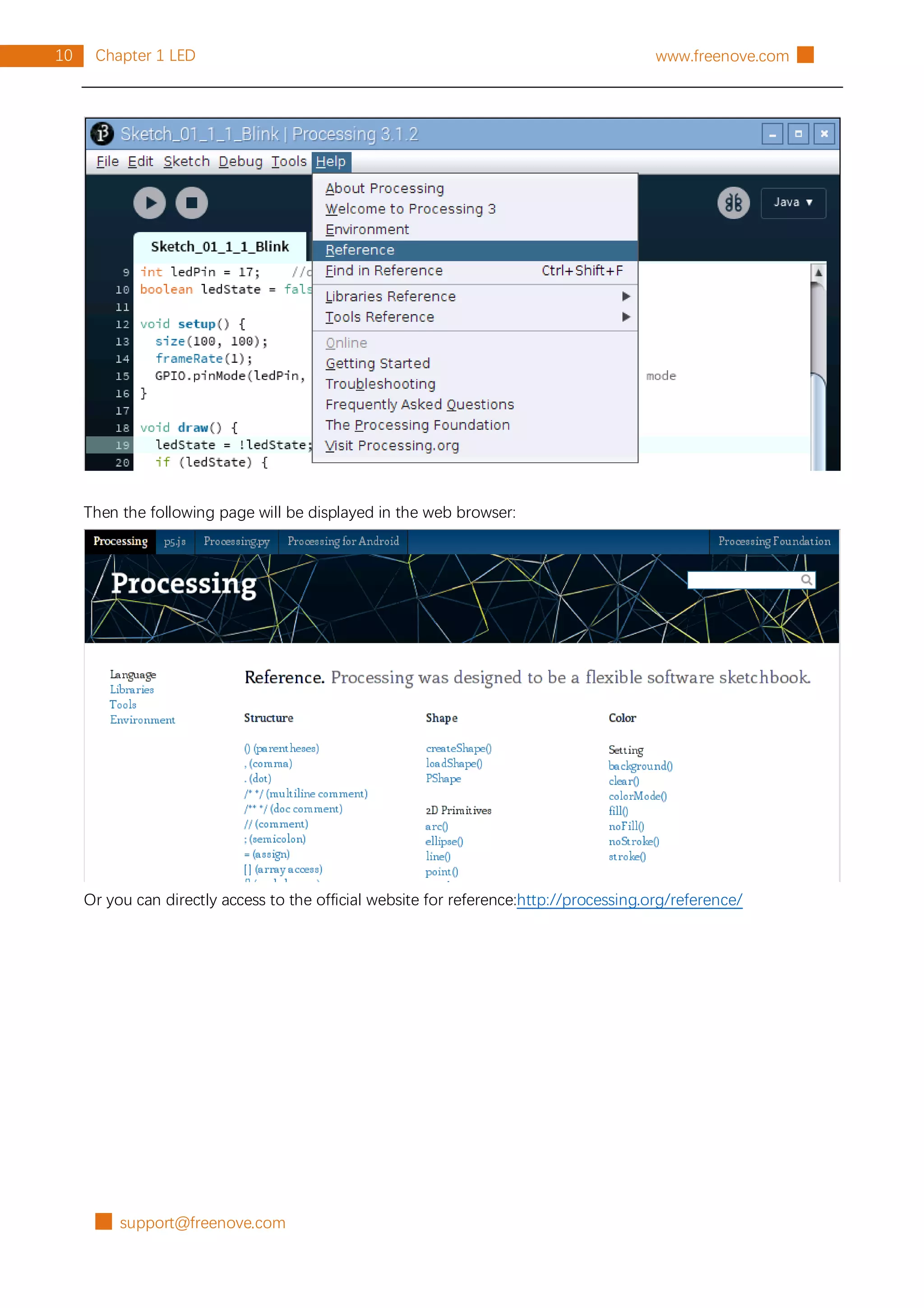
Then the following page will be displayed in the web browser:
Or you can directly access to the official website for reference:http://processing.org/reference/
support@freenove.com █
11
Chapter 1 LED
█ www.freenove.com
Project 1.2 MouseLED
In this project, we will use the mouse to control the state of LED.
The components and circuits of this project are the same as the previous section.
Sketch
Sketch 1.2.1 MouseLED
First, observe the result after running the sketch, and then learn the code in detail.
1. Use Processing to open the file Sketch_01_2_1_MouseLED.
processing
~/Freenove_Kit/Processing/Sketches/Sketch_01_2_1_MouseLED/Sketch_01_2_1_MouseL
ED.pde
2. Click on "RUN" to run the code.
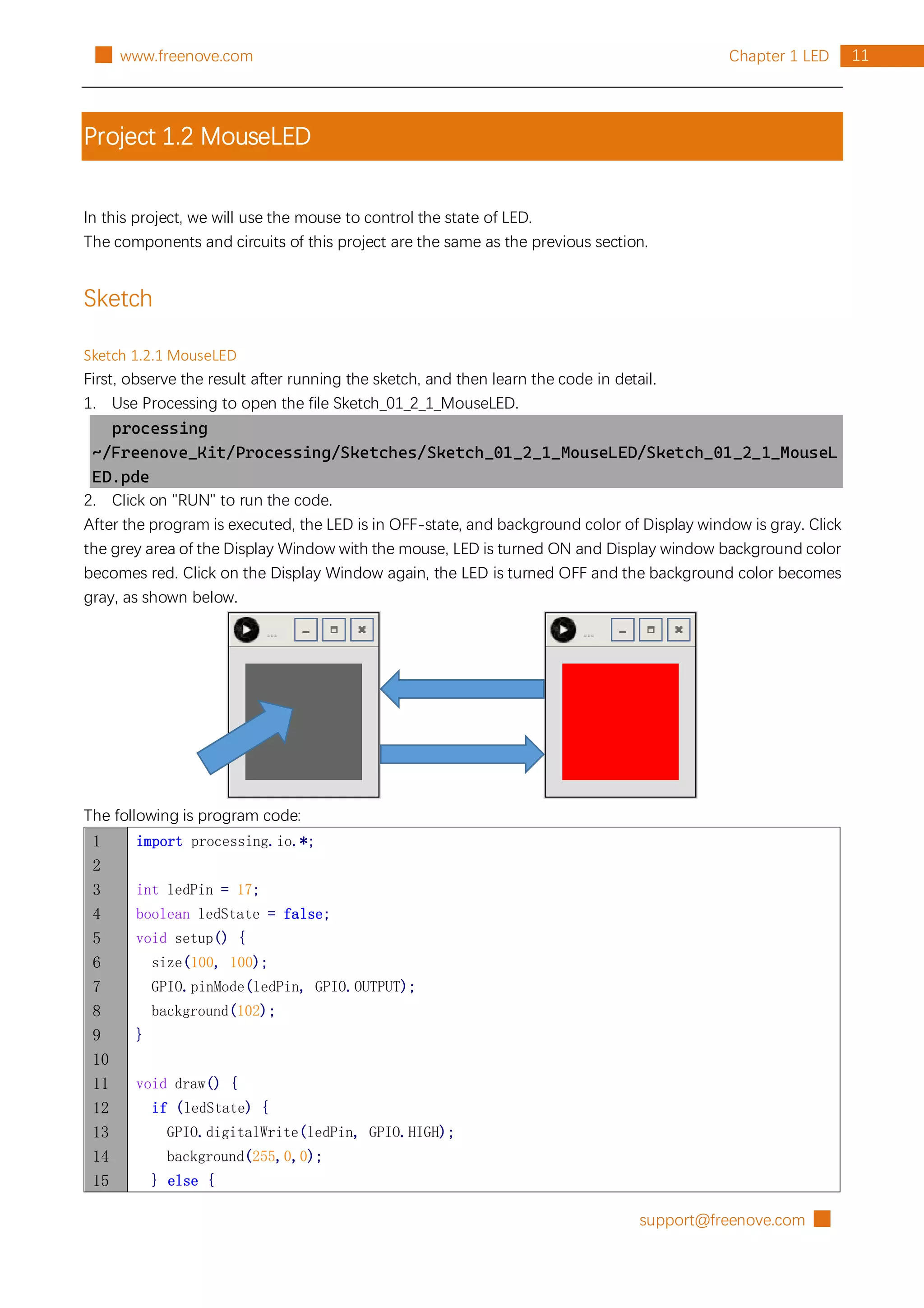
After the program is executed, the LED is in OFF-state, and background color of Display window is gray. Click
the grey area of the Display Window with the mouse, LED is turned ON and Display window background color
becomes red. Click on the Display Window again, the LED is turned OFF and the background color becomes
gray, as shown below.
The following is program code:
1
2
3
4
5
6
7
8
9
10
11
12
13
14
15
import processing.io.*;
int ledPin = 17;
boolean ledState = false;
void setup() {
size(100, 100);
GPIO.pinMode(ledPin, GPIO.OUTPUT);
background(102);
}
void draw() {
if (ledState) {
GPIO.digitalWrite(ledPin, GPIO.HIGH);
background(255,0,0);
} else {
█ support@freenove.com
12 Chapter 1 LED www.freenove.com █
16
17
18
19
20
21
22
23
GPIO.digitalWrite(ledPin, GPIO.LOW);
background(102);
}
}
void mouseClicked() { //if the mouse Clicked
ledState = !ledState; //Change the led State
}
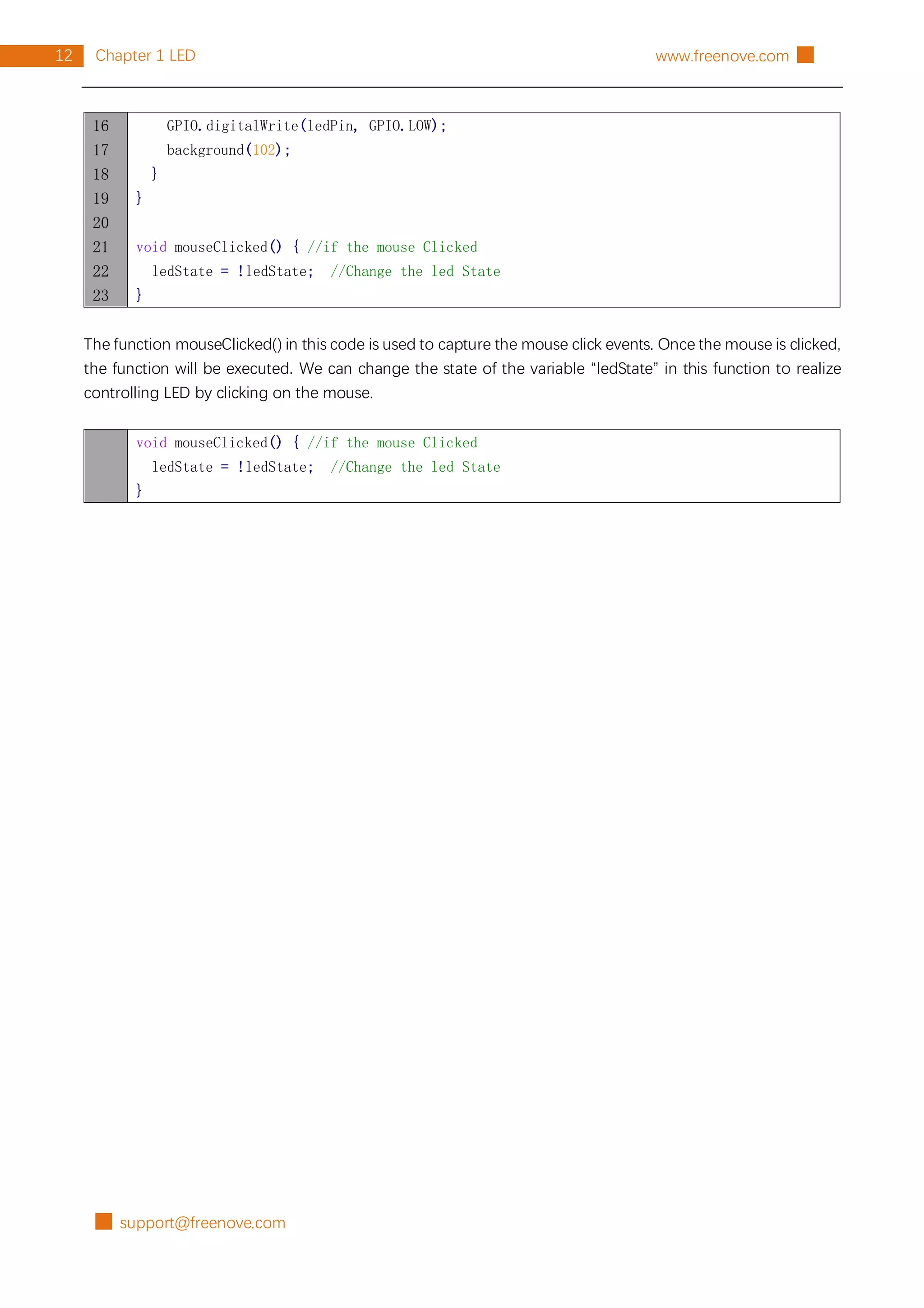
The function mouseClicked() in this code is used to capture the mouse click events. Once the mouse is clicked,
the function will be executed. We can change the state of the variable “ledState” in this function to realize
controlling LED by clicking on the mouse.
void mouseClicked() { //if the mouse Clicked
ledState = !ledState; //Change the led State
}
support@freenove.com █
13
Chapter 2 LED Bar Graph
█ www.freenove.com
Chapter 2 LED Bar Graph
We have learned how to control an LED to blink. Next we will learn how to control a number of LEDs.
Project 2.1 FollowLight
In this project, we will use the mouse to control the LED Bar Graph
Component List
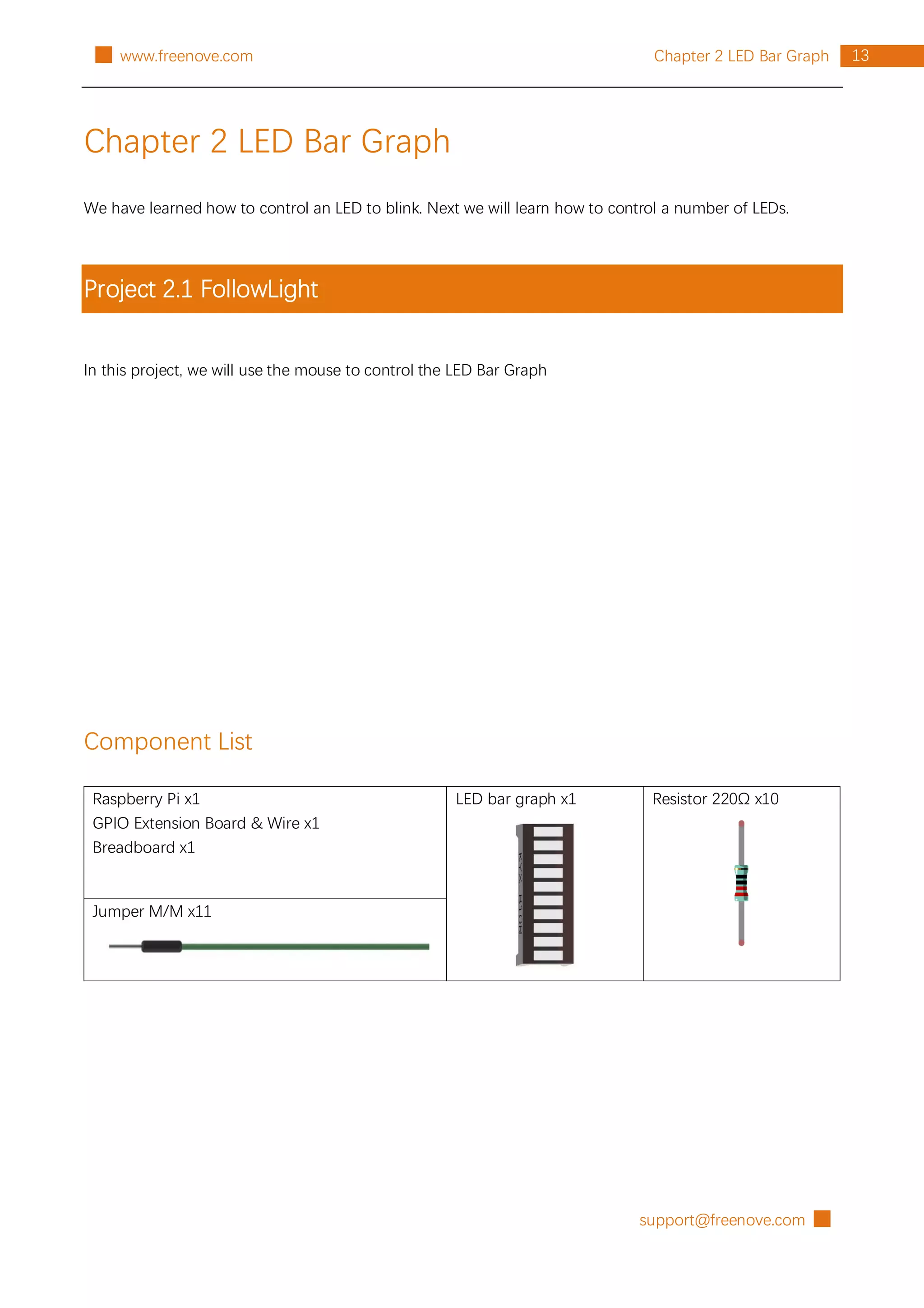
Raspberry Pi x1
GPIO Extension Board & Wire x1
Breadboard x1
LED bar graph x1 Resistor 220Ω x10
Jumper M/M x11
█ support@freenove.com
14 Chapter 2 LED Bar Graph www.freenove.com █
Circuit
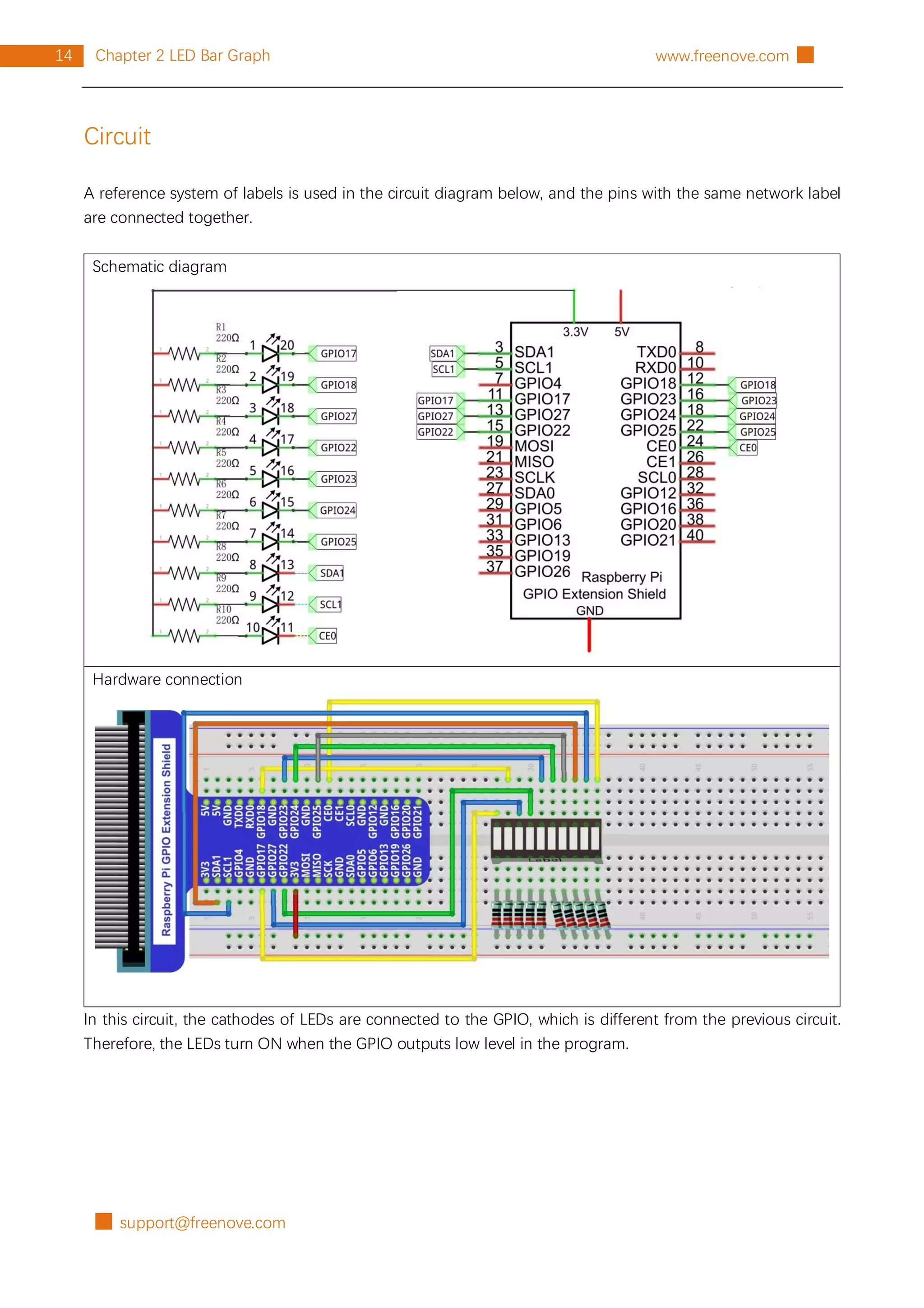
A reference system of labels is used in the circuit diagram below, and the pins with the same network label
are connected together.
Schematic diagram
Hardware connection
In this circuit, the cathodes of LEDs are connected to the GPIO, which is different from the previous circuit.
Therefore, the LEDs turn ON when the GPIO outputs low level in the program.
support@freenove.com █
15
Chapter 2 LED Bar Graph
█ www.freenove.com
Sketch
Sketch 2.1.1 FollowLight
First, observe the result after running the sketch, and then learn about the code in detail.
1. Use Processing to open the file Sketch_02_1_1_FollowLight.
processing
~/Freenove_Kit/Processing/Sketches/Sketch_02_1_1_FollowLight/Sketch_02_1_1_FollowLi
ght.pde
2. Click on "RUN" to run the code.
After the program is executed, slide the mouse in the Display Window, then the state of LED Bar Graph will
be changed, as shown below.
The following is program code:
1
2
3
4
5
6
7
8
9
10
import processing.io.*;
int leds[]={17, 18, 27, 22, 23, 24, 25, 2, 3, 8}; //define ledPins
void setup() {
size(640, 360); //display window size
for (int i=0; i<10; i++) { //set led Pins to output mode
GPIO.pinMode(leds[i], GPIO.OUTPUT);
}
background(102);
█ support@freenove.com
16 Chapter 2 LED Bar Graph www.freenove.com █
11
12
13
14
15
16
17
18
19
20
21
22
23
24
25
26
27
28
29
textAlign(CENTER); //set the text centered
textSize(40); //set text size
text("Follow Light", width / 2, 40); //title
textSize(16);
text("www.freenove.com", width / 2, height - 20); //site
}
void draw() {
for (int i=0; i<10; i++) { //draw 10 rectangular box
if (mouseX>(25+60*i)) { //if the mouse cursor on the right of rectangular box
fill(255, 0, 0); //fill the rectangular box in red color
GPIO.digitalWrite(leds[i], GPIO.LOW); //turn on the corresponding led
} else {
fill(255, 255, 255); //else fill the rectangular box in white color
GPIO.digitalWrite(leds[i], GPIO.HIGH); //and turn off the led
}
rect(25+60*i, 90, 50, 180); //draw a rectangular box
}
}
In the function draw(), we draw 10 rectangles to represent 10 LEDs of LED Bar Graph. We make rectangles on
the left of mouse filled with red, corresponding LEDs turned ON. And make We make rectangles on the right
of mouse filled with red, corresponding LEDs turned OFF. In this way, when slide the mouse to right, the more
LEDs on the left of mouse will be turned ON. When to the left, the reverse is the case.
void draw() {
for (int i=0; i<10; i++) { //draw 10 rectangular box
if (mouseX>(25+60*i)) { //if the mouse cursor on the right of rectangular box
fill (255, 0, 0); //fill the rectangular box in red color
GPIO.digitalWrite(leds[i], GPIO.LOW); //turn on the corresponding led
} else {
fill(255, 255, 255); //else fill the rectangular box in white color
GPIO.digitalWrite(leds[i], GPIO.HIGH); //and turn off the led
}
rect(25+60*i, 90, 50, 180); //draw a rectangular box
}
}
support@freenove.com █
17
Chapter 3 PWM
█ www.freenove.com
Chapter 3 PWM
In this chapter, we will learn how to use PWM.
Project 3.1 BreathingLED
In this project, we will make a breathing LED, which means that an LED that is OFF will then turn ON gradually
and then gradually turn OFF like "breathing". and the Display Window will show a breathing LED pattern and
a progress bar at the same time.
Component List
Raspberry Pi x1
GPIO Extension Board & Wire x1
Breadboard x1
LED x1 Resistor 220Ω x1
Jumper M/M x2
█ support@freenove.com
18 Chapter 3 PWM www.freenove.com █
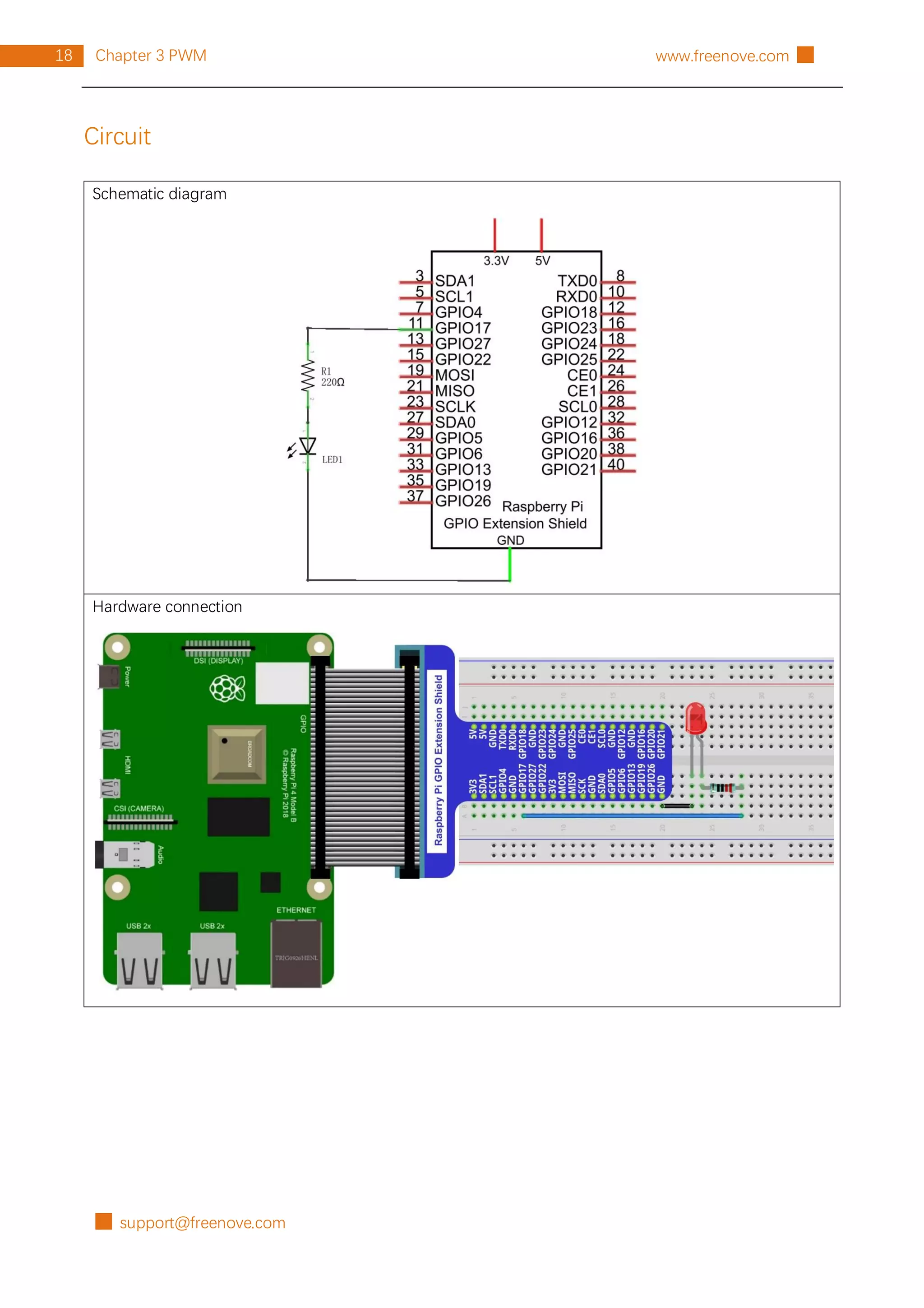
Circuit
Schematic diagram
Hardware connection
support@freenove.com █
19
Chapter 3 PWM
█ www.freenove.com
Sketch
Sketch 3.1.1 BreathingLED
First, observe the result after running the sketch, and then learn about the code in detail.
1. Use Processing to open the file Sketch_03_1_1_BreathingLED.
processing
~/Freenove_Kit/Processing/Sketches/Sketch_03_1_1_BreathingLED/Sketch_03_1_1_Bre
athingLED.pde
2. Click on "RUN" to run the code.
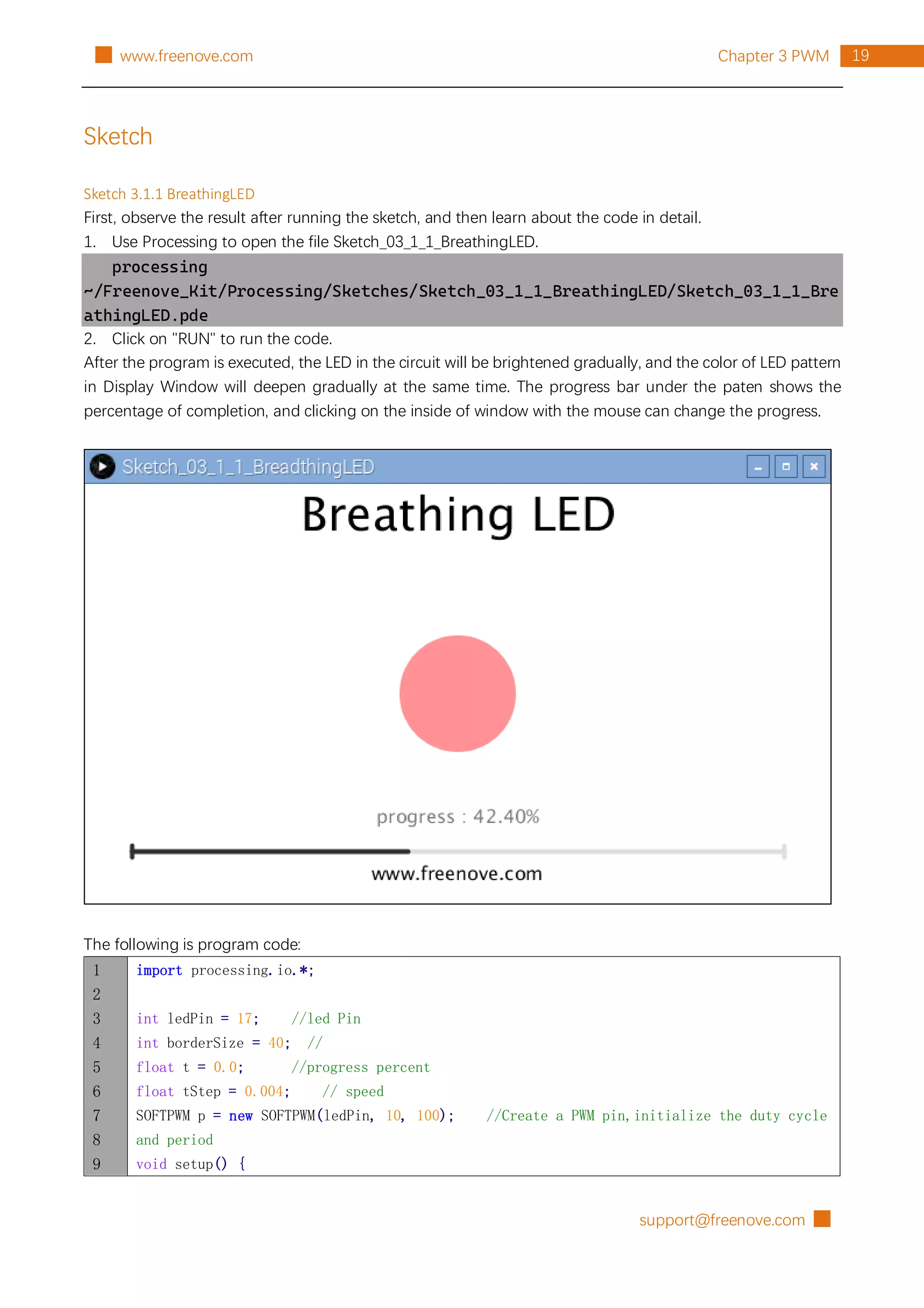
After the program is executed, the LED in the circuit will be brightened gradually, and the color of LED pattern
in Display Window will deepen gradually at the same time. The progress bar under the paten shows the
percentage of completion, and clicking on the inside of window with the mouse can change the progress.
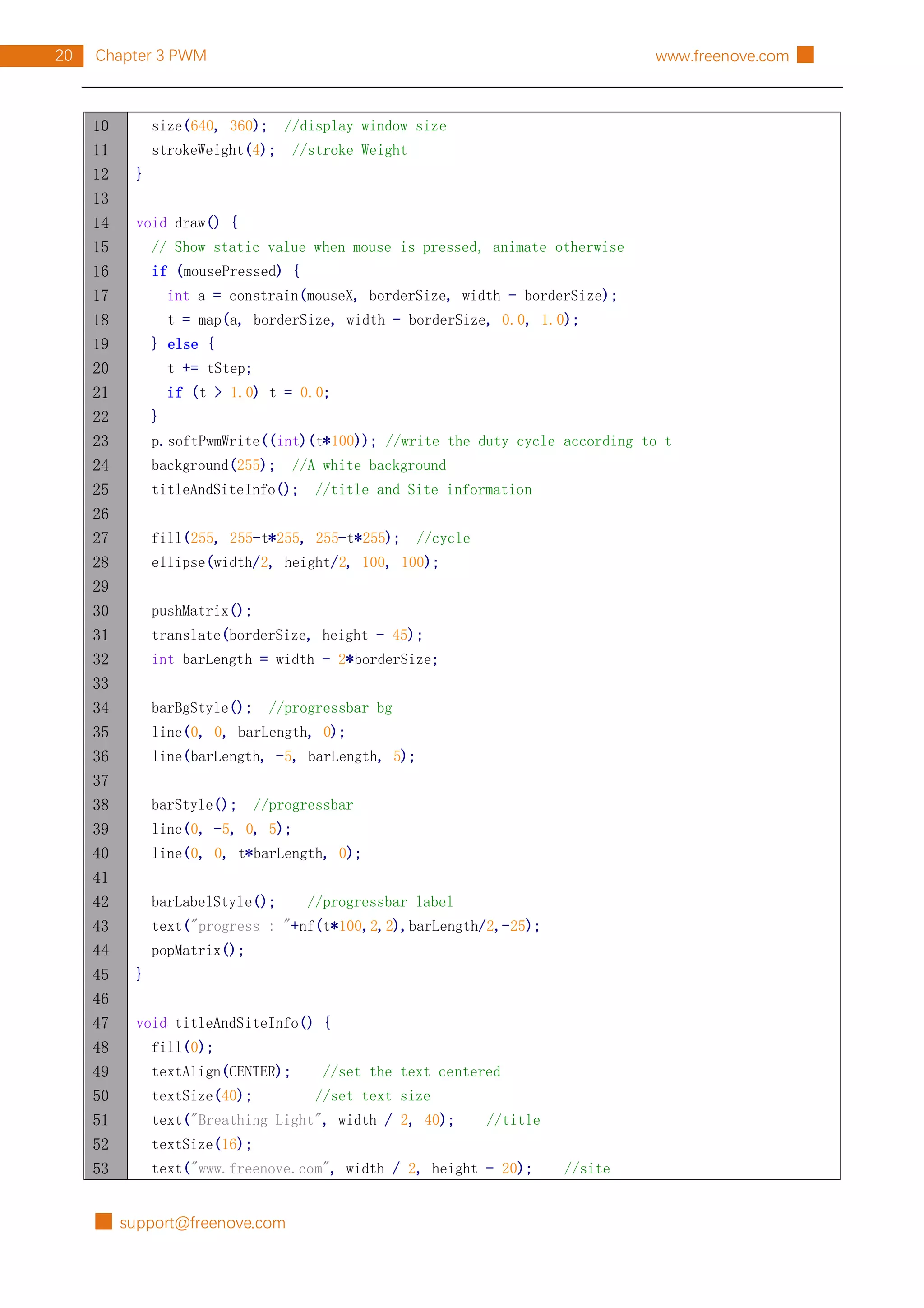
The following is program code:
1
2
3
4
5
6
7
8
9
import processing.io.*;
int ledPin = 17; //led Pin
int borderSize = 40; //
float t = 0.0; //progress percent
float tStep = 0.004; // speed
SOFTPWM p = new SOFTPWM(ledPin, 10, 100); //Create a PWM pin,initialize the duty cycle
and period
void setup() {
█ support@freenove.com
20 Chapter 3 PWM www.freenove.com █
10
11
12
13
14
15
16
17
18
19
20
21
22
23
24
25
26
27
28
29
30
31
32
33
34
35
36
37
38
39
40
41
42
43
44
45
46
47
48
49
50
51
52
53
size(640, 360); //display window size
strokeWeight(4); //stroke Weight
}
void draw() {
// Show static value when mouse is pressed, animate otherwise
if (mousePressed) {
int a = constrain(mouseX, borderSize, width - borderSize);
t = map(a, borderSize, width - borderSize, 0.0, 1.0);
} else {
t += tStep;
if (t > 1.0) t = 0.0;
}
p.softPwmWrite((int)(t*100)); //write the duty cycle according to t
background(255); //A white background
titleAndSiteInfo(); //title and Site information
fill(255, 255-t*255, 255-t*255); //cycle
ellipse(width/2, height/2, 100, 100);
pushMatrix();
translate(borderSize, height - 45);
int barLength = width - 2*borderSize;
barBgStyle(); //progressbar bg
line(0, 0, barLength, 0);
line(barLength, -5, barLength, 5);
barStyle(); //progressbar
line(0, -5, 0, 5);
line(0, 0, t*barLength, 0);
barLabelStyle(); //progressbar label
text("progress : "+nf(t*100,2,2),barLength/2,-25);
popMatrix();
}
void titleAndSiteInfo() {
fill(0);
textAlign(CENTER); //set the text centered
textSize(40); //set text size
text("Breathing Light", width / 2, 40); //title
textSize(16);
text("www.freenove.com", width / 2, height - 20); //site
support@freenove.com █
21
Chapter 3 PWM
█ www.freenove.com
54
55
56
57
58
59
60
61
62
63
64
65
66
67
68
}
void barBgStyle() {
stroke(220);
noFill();
}
void barStyle() {
stroke(50);
noFill();
}
void barLabelStyle() {
noStroke();
fill(120);
}
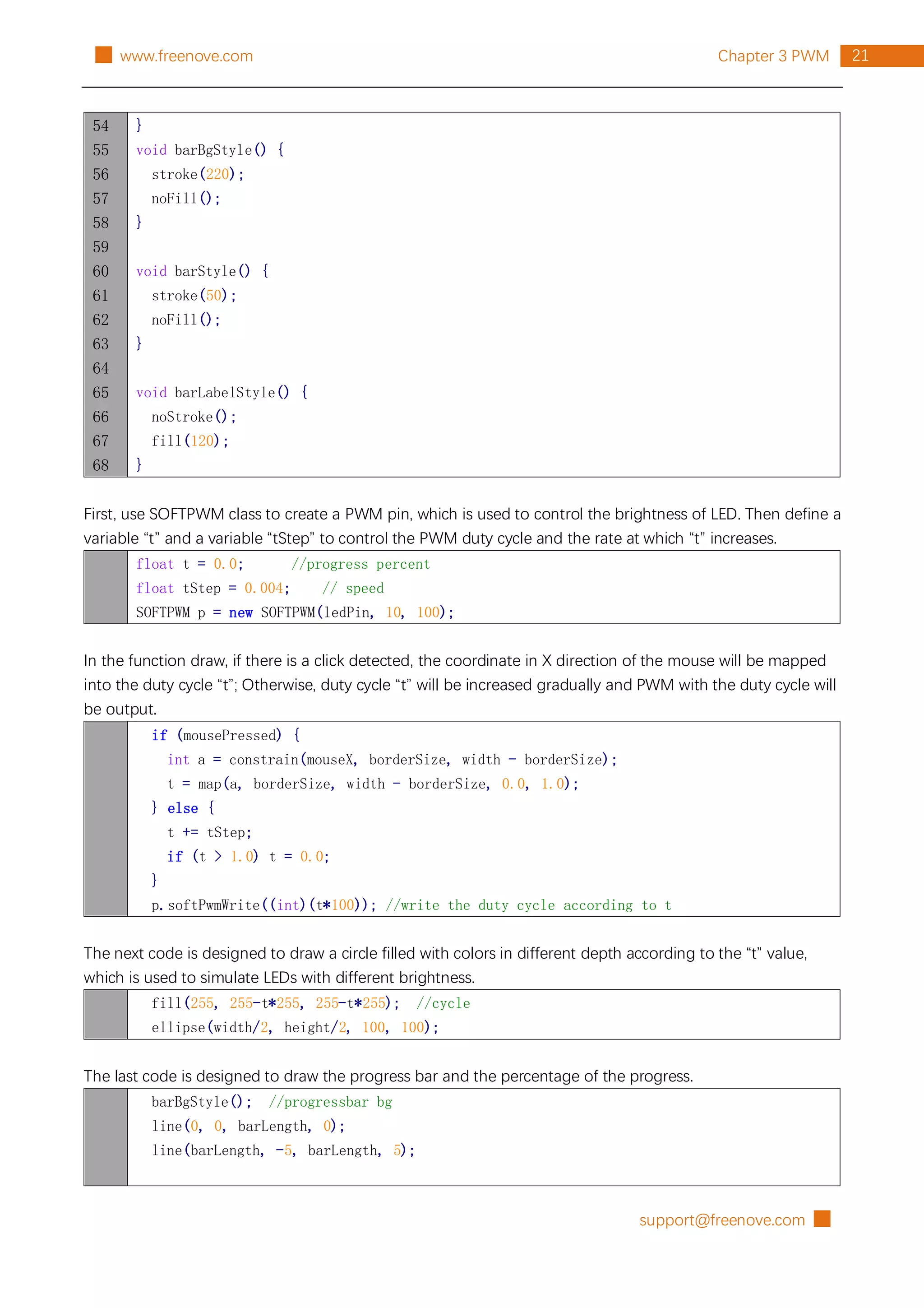
First, use SOFTPWM class to create a PWM pin, which is used to control the brightness of LED. Then define a
variable “t” and a variable “tStep” to control the PWM duty cycle and the rate at which “t” increases.
float t = 0.0; //progress percent
float tStep = 0.004; // speed
SOFTPWM p = new SOFTPWM(ledPin, 10, 100);
In the function draw, if there is a click detected, the coordinate in X direction of the mouse will be mapped
into the duty cycle “t”; Otherwise, duty cycle “t” will be increased gradually and PWM with the duty cycle will
be output.
if (mousePressed) {
int a = constrain(mouseX, borderSize, width - borderSize);
t = map(a, borderSize, width - borderSize, 0.0, 1.0);
} else {
t += tStep;
if (t > 1.0) t = 0.0;
}
p.softPwmWrite((int)(t*100)); //write the duty cycle according to t
The next code is designed to draw a circle filled with colors in different depth according to the “t” value,
which is used to simulate LEDs with different brightness.
fill(255, 255-t*255, 255-t*255); //cycle
ellipse(width/2, height/2, 100, 100);
The last code is designed to draw the progress bar and the percentage of the progress.
barBgStyle(); //progressbar bg
line(0, 0, barLength, 0);
line(barLength, -5, barLength, 5);
█ support@freenove.com
22 Chapter 3 PWM www.freenove.com █
barStyle(); //progressbar
line(0, -5, 0, 5);
line(0, 0, t*barLength, 0);
barLabelStyle(); //progressbar label
text("progress : "+nf(t*100,2,2),barLength/2,-25);
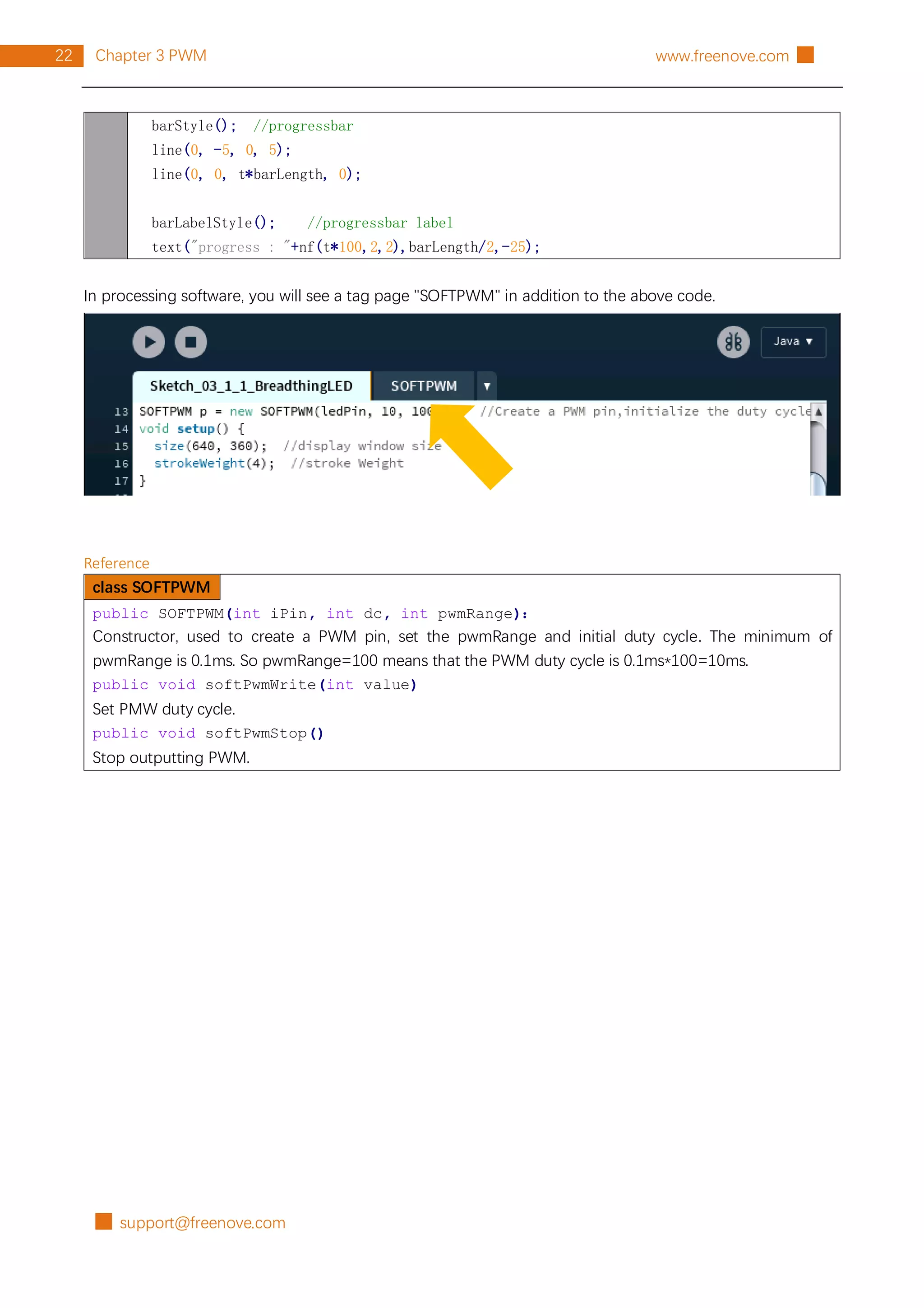
In processing software, you will see a tag page "SOFTPWM" in addition to the above code.
Reference
class SOFTPWM
public SOFTPWM(int iPin, int dc, int pwmRange):
Constructor, used to create a PWM pin, set the pwmRange and initial duty cycle. The minimum of
pwmRange is 0.1ms. So pwmRange=100 means that the PWM duty cycle is 0.1ms*100=10ms.
public void softPwmWrite(int value)
Set PMW duty cycle.
public void softPwmStop()
Stop outputting PWM.
support@freenove.com █
23
Chapter 4 RGBLED
█ www.freenove.com
Chapter 4 RGBLED
In this chapter, we will learn how to use RGBLED.
Project 4.1 Multicolored LED
This project will make a Multicolored LED, namely, use Processing to control the color of RGBLED.
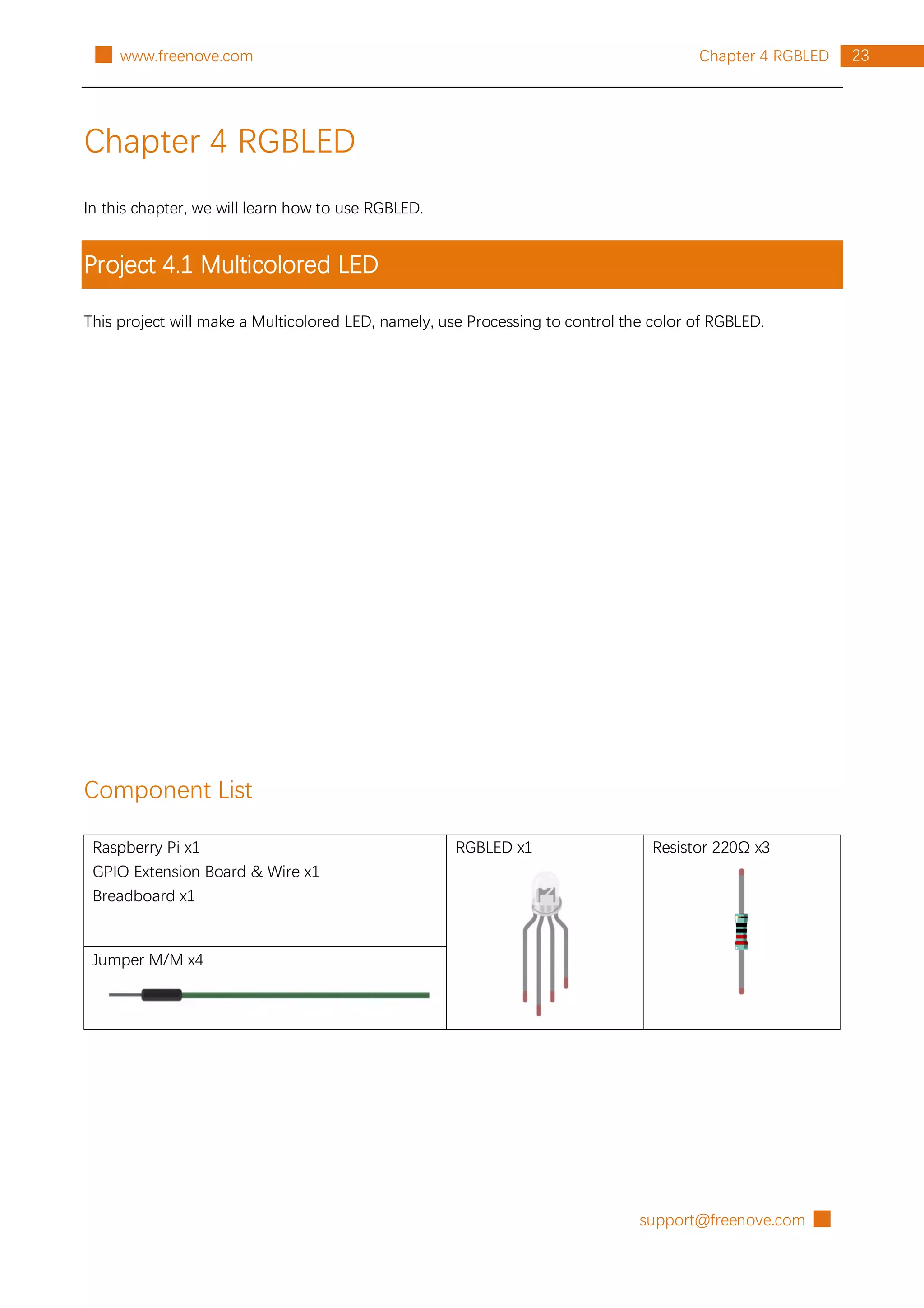
Component List
Raspberry Pi x1
GPIO Extension Board & Wire x1
Breadboard x1
RGBLED x1 Resistor 220Ω x3
Jumper M/M x4
█ support@freenove.com
24 Chapter 4 RGBLED www.freenove.com █
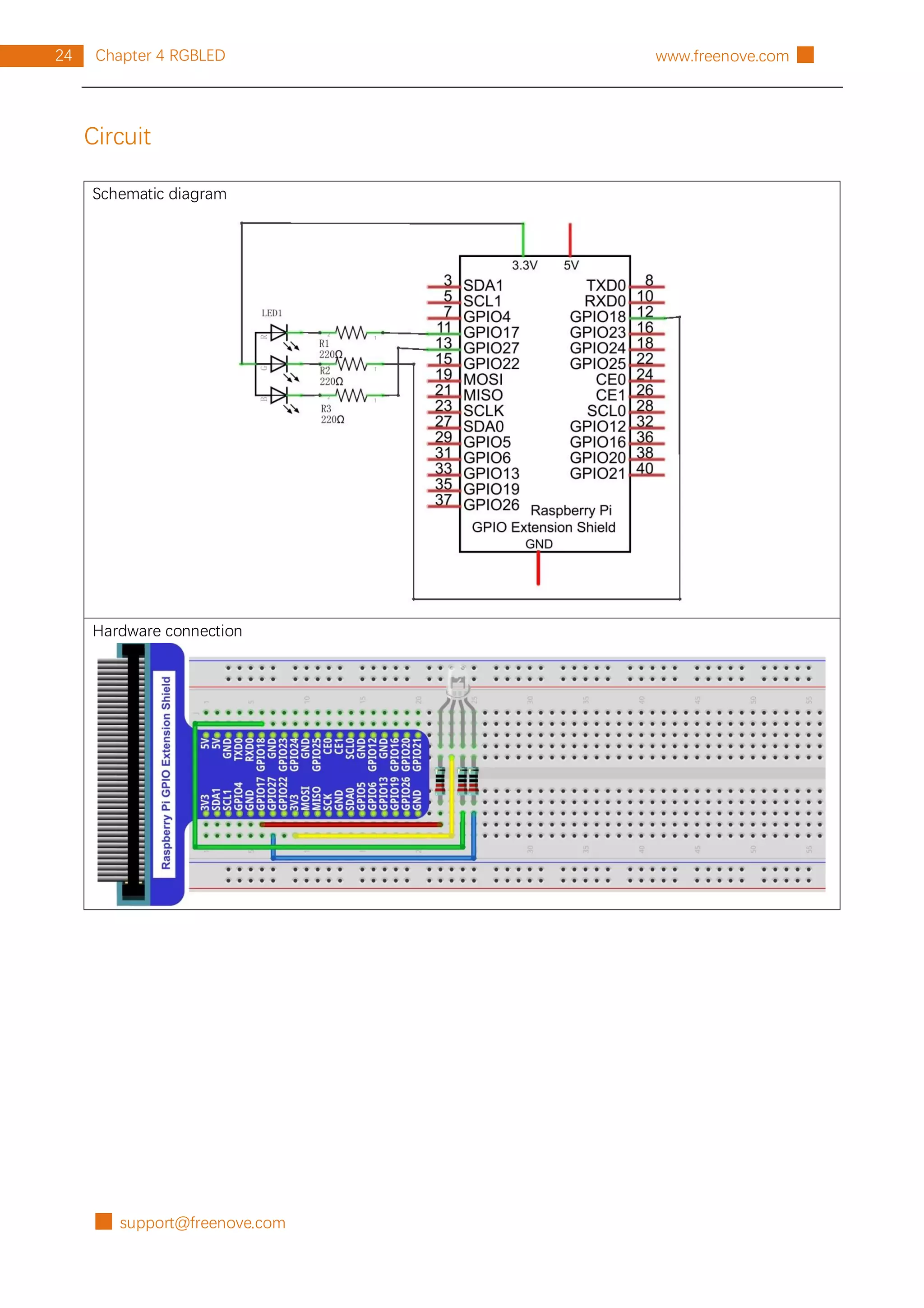
Circuit
Schematic diagram
Hardware connection
support@freenove.com █
25
Chapter 4 RGBLED
█ www.freenove.com
Sketch
Sketch 4.1.1 ColorfulLED
First, observe the result after running the sketch, and then learn about the code in detail.
1. Use Processing to open the file Sketch_04_1_1_ColorfulLED.
processing
~/Freenove_Kit/Processing/Sketches/Sketch_04_1_1_ColorfulLED/Sketch_04_1_1_Colo
rfulLED.pde
2. Click on "RUN" to run the code.
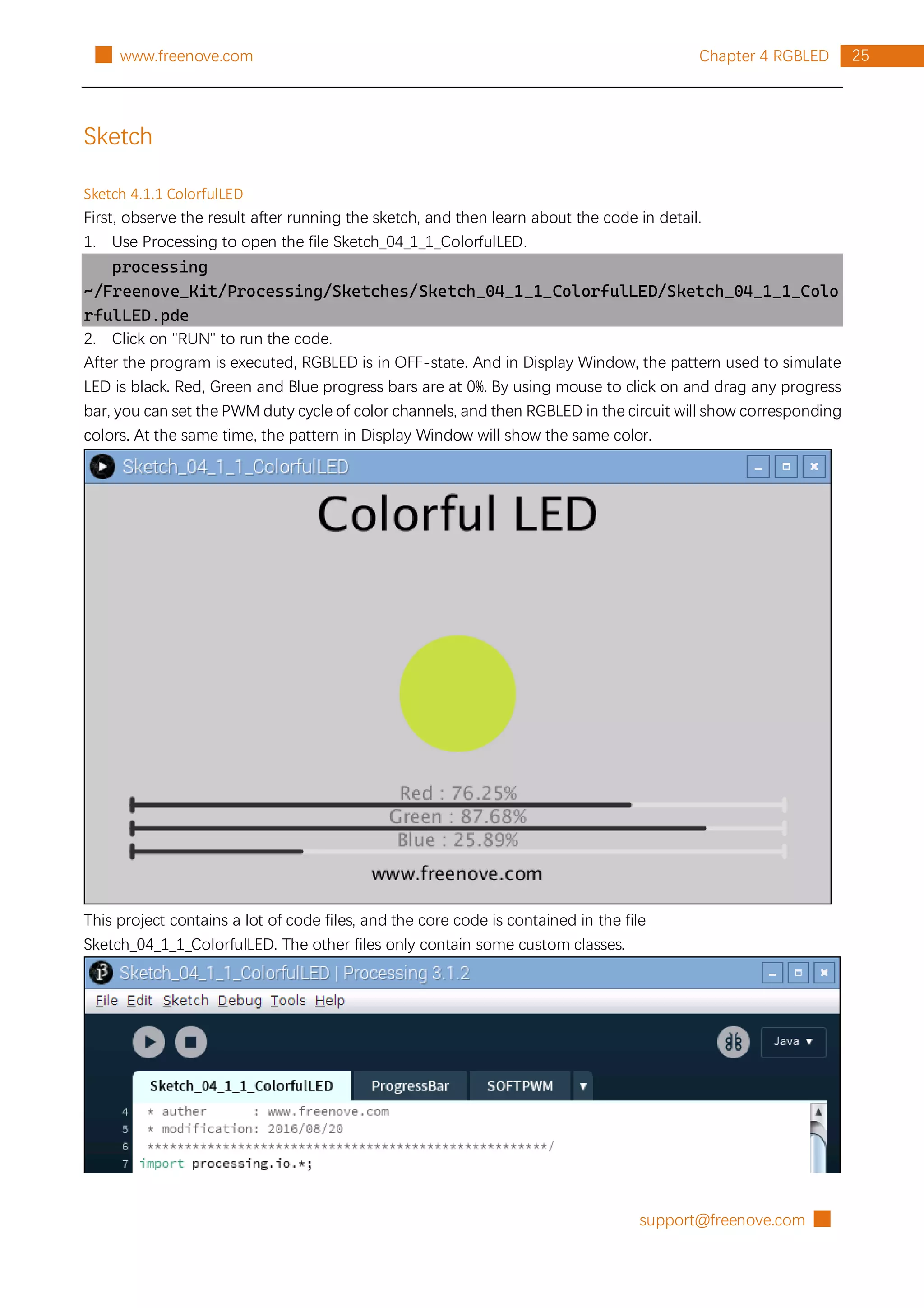
After the program is executed, RGBLED is in OFF-state. And in Display Window, the pattern used to simulate
LED is black. Red, Green and Blue progress bars are at 0%. By using mouse to click on and drag any progress
bar, you can set the PWM duty cycle of color channels, and then RGBLED in the circuit will show corresponding
colors. At the same time, the pattern in Display Window will show the same color.
This project contains a lot of code files, and the core code is contained in the file
Sketch_04_1_1_ColorfulLED. The other files only contain some custom classes.
█ support@freenove.com
26 Chapter 4 RGBLED www.freenove.com █
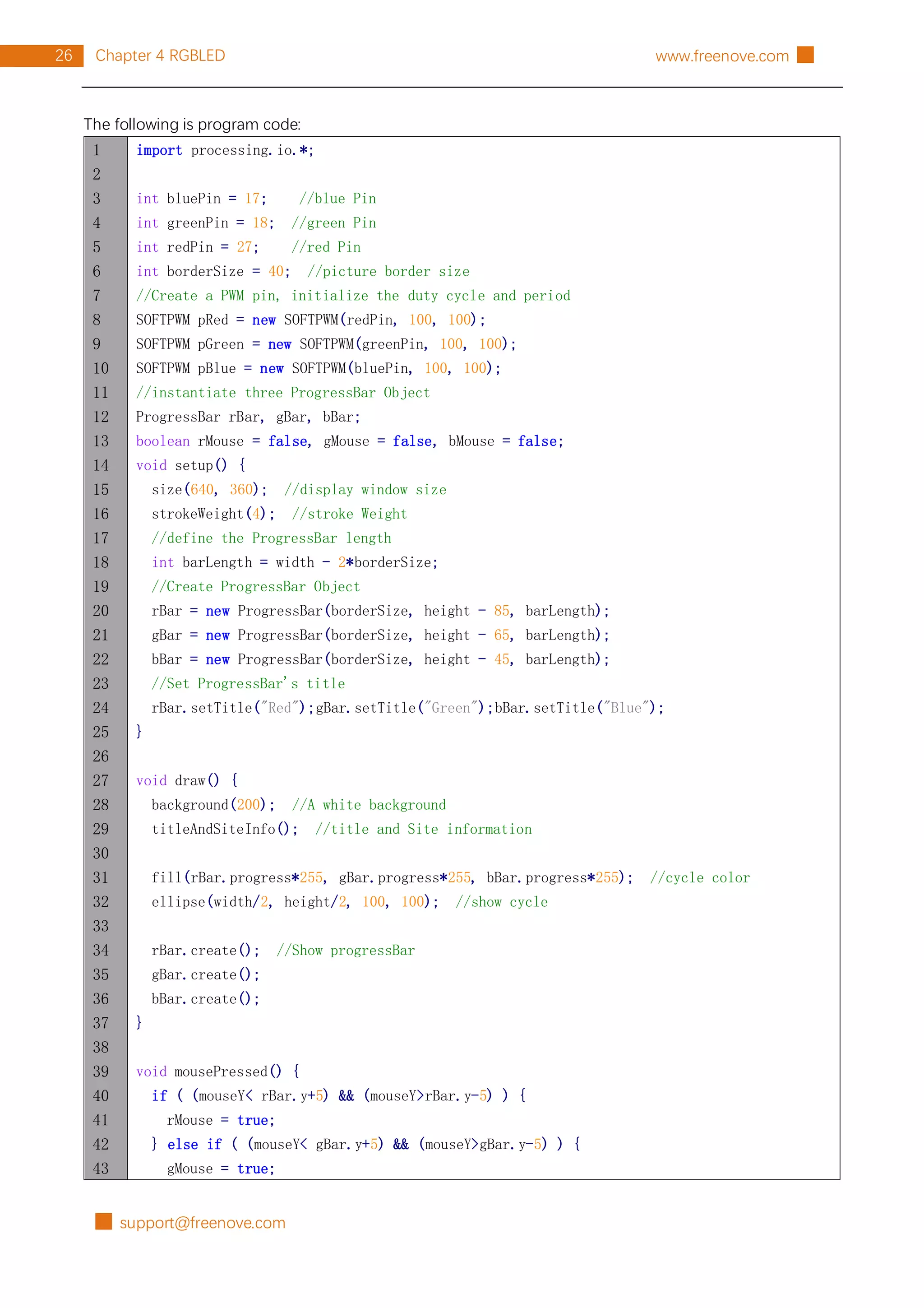
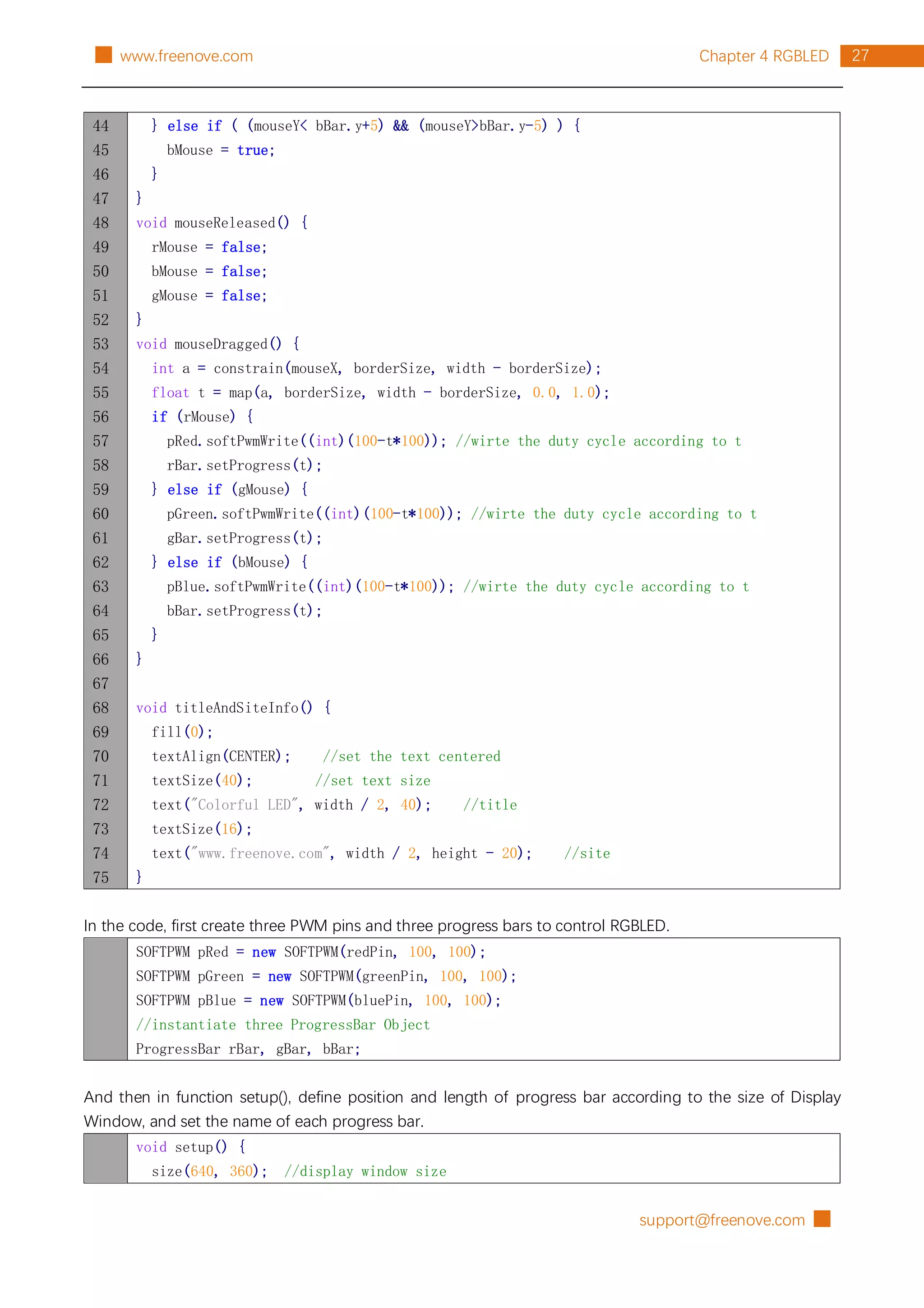
The following is program code:
1
2
3
4
5
6
7
8
9
10
11
12
13
14
15
16
17
18
19
20
21
22
23
24
25
26
27
28
29
30
31
32
33
34
35
36
37
38
39
40
41
42
43
import processing.io.*;
int bluePin = 17; //blue Pin
int greenPin = 18; //green Pin
int redPin = 27; //red Pin
int borderSize = 40; //picture border size
//Create a PWM pin, initialize the duty cycle and period
SOFTPWM pRed = new SOFTPWM(redPin, 100, 100);
SOFTPWM pGreen = new SOFTPWM(greenPin, 100, 100);
SOFTPWM pBlue = new SOFTPWM(bluePin, 100, 100);
//instantiate three ProgressBar Object
ProgressBar rBar, gBar, bBar;
boolean rMouse = false, gMouse = false, bMouse = false;
void setup() {
size(640, 360); //display window size
strokeWeight(4); //stroke Weight
//define the ProgressBar length
int barLength = width - 2*borderSize;
//Create ProgressBar Object
rBar = new ProgressBar(borderSize, height - 85, barLength);
gBar = new ProgressBar(borderSize, height - 65, barLength);
bBar = new ProgressBar(borderSize, height - 45, barLength);
//Set ProgressBar's title
rBar.setTitle("Red");gBar.setTitle("Green");bBar.setTitle("Blue");
}
void draw() {
background(200); //A white background
titleAndSiteInfo(); //title and Site information
fill(rBar.progress*255, gBar.progress*255, bBar.progress*255); //cycle color
ellipse(width/2, height/2, 100, 100); //show cycle
rBar.create(); //Show progressBar
gBar.create();
bBar.create();
}
void mousePressed() {
if ( (mouseY< rBar.y+5) && (mouseY>rBar.y-5) ) {
rMouse = true;
} else if ( (mouseY< gBar.y+5) && (mouseY>gBar.y-5) ) {
gMouse = true;
support@freenove.com █
27
Chapter 4 RGBLED
█ www.freenove.com
44
45
46
47
48
49
50
51
52
53
54
55
56
57
58
59
60
61
62
63
64
65
66
67
68
69
70
71
72
73
74
75
} else if ( (mouseY< bBar.y+5) && (mouseY>bBar.y-5) ) {
bMouse = true;
}
}
void mouseReleased() {
rMouse = false;
bMouse = false;
gMouse = false;
}
void mouseDragged() {
int a = constrain(mouseX, borderSize, width - borderSize);
float t = map(a, borderSize, width - borderSize, 0.0, 1.0);
if (rMouse) {
pRed.softPwmWrite((int)(100-t*100)); //wirte the duty cycle according to t
rBar.setProgress(t);
} else if (gMouse) {
pGreen.softPwmWrite((int)(100-t*100)); //wirte the duty cycle according to t
gBar.setProgress(t);
} else if (bMouse) {
pBlue.softPwmWrite((int)(100-t*100)); //wirte the duty cycle according to t
bBar.setProgress(t);
}
}
void titleAndSiteInfo() {
fill(0);
textAlign(CENTER); //set the text centered
textSize(40); //set text size
text("Colorful LED", width / 2, 40); //title
textSize(16);
text("www.freenove.com", width / 2, height - 20); //site
}
In the code, first create three PWM pins and three progress bars to control RGBLED.
SOFTPWM pRed = new SOFTPWM(redPin, 100, 100);
SOFTPWM pGreen = new SOFTPWM(greenPin, 100, 100);
SOFTPWM pBlue = new SOFTPWM(bluePin, 100, 100);
//instantiate three ProgressBar Object
ProgressBar rBar, gBar, bBar;
And then in function setup(), define position and length of progress bar according to the size of Display
Window, and set the name of each progress bar.
void setup() {
size(640, 360); //display window size
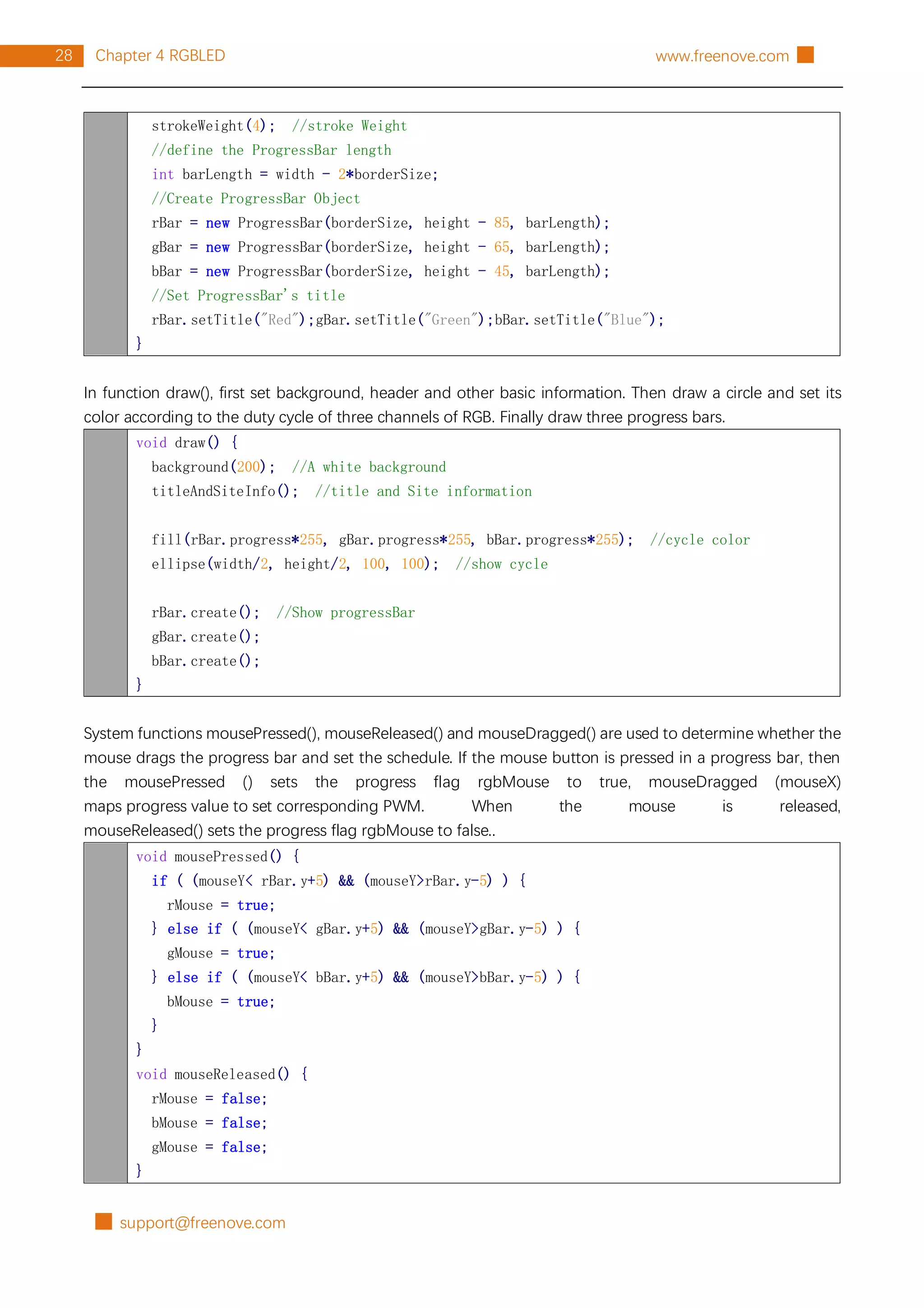
█ support@freenove.com
28 Chapter 4 RGBLED www.freenove.com █
strokeWeight(4); //stroke Weight
//define the ProgressBar length
int barLength = width - 2*borderSize;
//Create ProgressBar Object
rBar = new ProgressBar(borderSize, height - 85, barLength);
gBar = new ProgressBar(borderSize, height - 65, barLength);
bBar = new ProgressBar(borderSize, height - 45, barLength);
//Set ProgressBar's title
rBar.setTitle("Red");gBar.setTitle("Green");bBar.setTitle("Blue");
}
In function draw(), first set background, header and other basic information. Then draw a circle and set its
color according to the duty cycle of three channels of RGB. Finally draw three progress bars.
void draw() {
background(200); //A white background
titleAndSiteInfo(); //title and Site information
fill(rBar.progress*255, gBar.progress*255, bBar.progress*255); //cycle color
ellipse(width/2, height/2, 100, 100); //show cycle
rBar.create(); //Show progressBar
gBar.create();
bBar.create();
}
System functions mousePressed(), mouseReleased() and mouseDragged() are used to determine whether the
mouse drags the progress bar and set the schedule. If the mouse button is pressed in a progress bar, then
the mousePressed () sets the progress flag rgbMouse to true, mouseDragged (mouseX)
maps progress value to set corresponding PWM. When the mouse is released,
mouseReleased() sets the progress flag rgbMouse to false..
void mousePressed() {
if ( (mouseY< rBar.y+5) && (mouseY>rBar.y-5) ) {
rMouse = true;
} else if ( (mouseY< gBar.y+5) && (mouseY>gBar.y-5) ) {
gMouse = true;
} else if ( (mouseY< bBar.y+5) && (mouseY>bBar.y-5) ) {
bMouse = true;
}
}
void mouseReleased() {
rMouse = false;
bMouse = false;
gMouse = false;
}
support@freenove.com █
29
Chapter 4 RGBLED
█ www.freenove.com
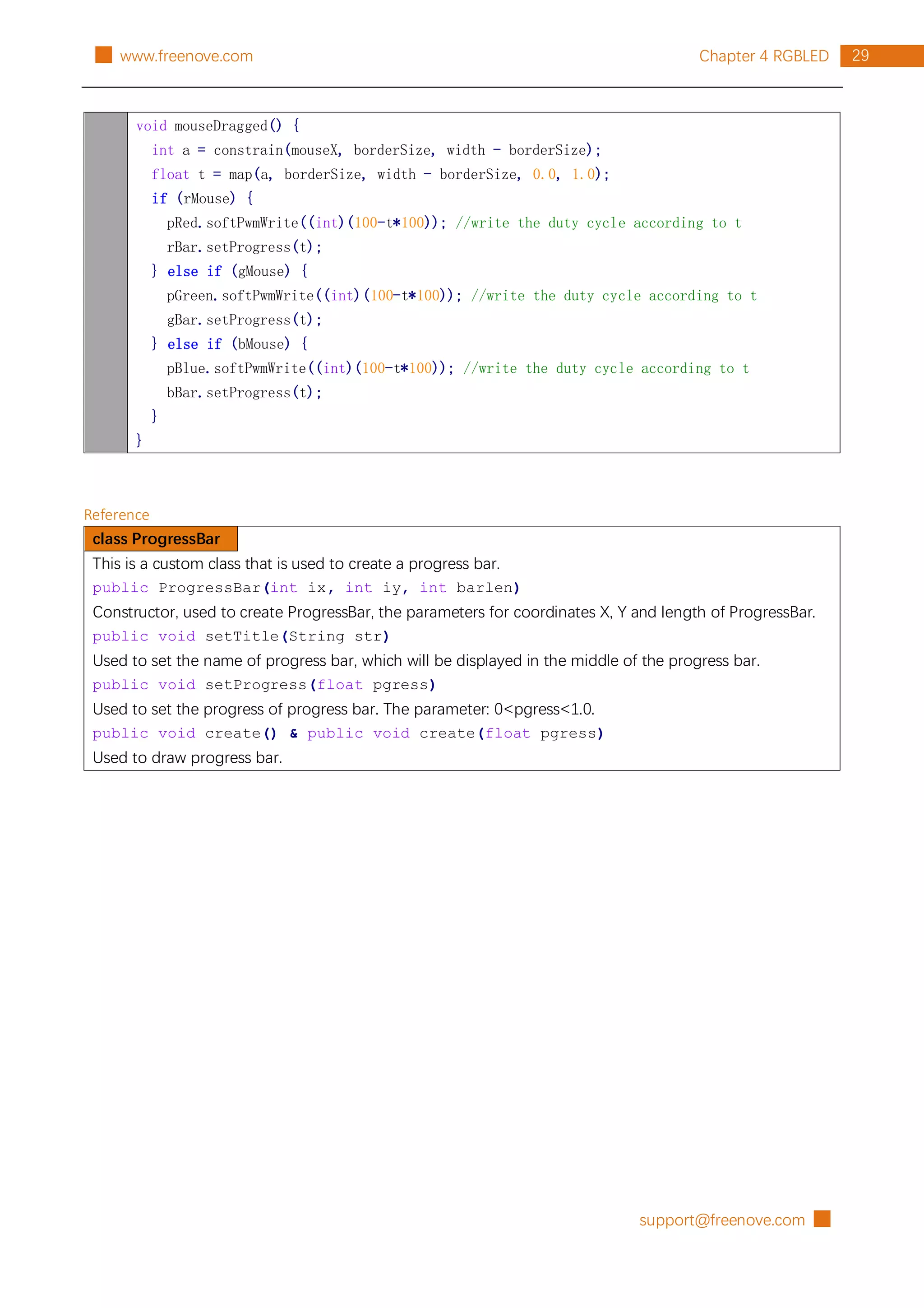
void mouseDragged() {
int a = constrain(mouseX, borderSize, width - borderSize);
float t = map(a, borderSize, width - borderSize, 0.0, 1.0);
if (rMouse) {
pRed.softPwmWrite((int)(100-t*100)); //write the duty cycle according to t
rBar.setProgress(t);
} else if (gMouse) {
pGreen.softPwmWrite((int)(100-t*100)); //write the duty cycle according to t
gBar.setProgress(t);
} else if (bMouse) {
pBlue.softPwmWrite((int)(100-t*100)); //write the duty cycle according to t
bBar.setProgress(t);
}
}
Reference
class ProgressBar
This is a custom class that is used to create a progress bar.
public ProgressBar(int ix, int iy, int barlen)
Constructor, used to create ProgressBar, the parameters for coordinates X, Y and length of ProgressBar.
public void setTitle(String str)
Used to set the name of progress bar, which will be displayed in the middle of the progress bar.
public void setProgress(float pgress)
Used to set the progress of progress bar. The parameter: 0<pgress<1.0.
public void create() & public void create(float pgress)
Used to draw progress bar.
█ support@freenove.com
30 Chapter 5 Buzzer www.freenove.com █
Chapter 5 Buzzer
In this chapter we will learn how to use a buzzer.
Project 5.1 ActiveBuzzer
In this project, we will use the mouse to control an active buzzer.
Component List
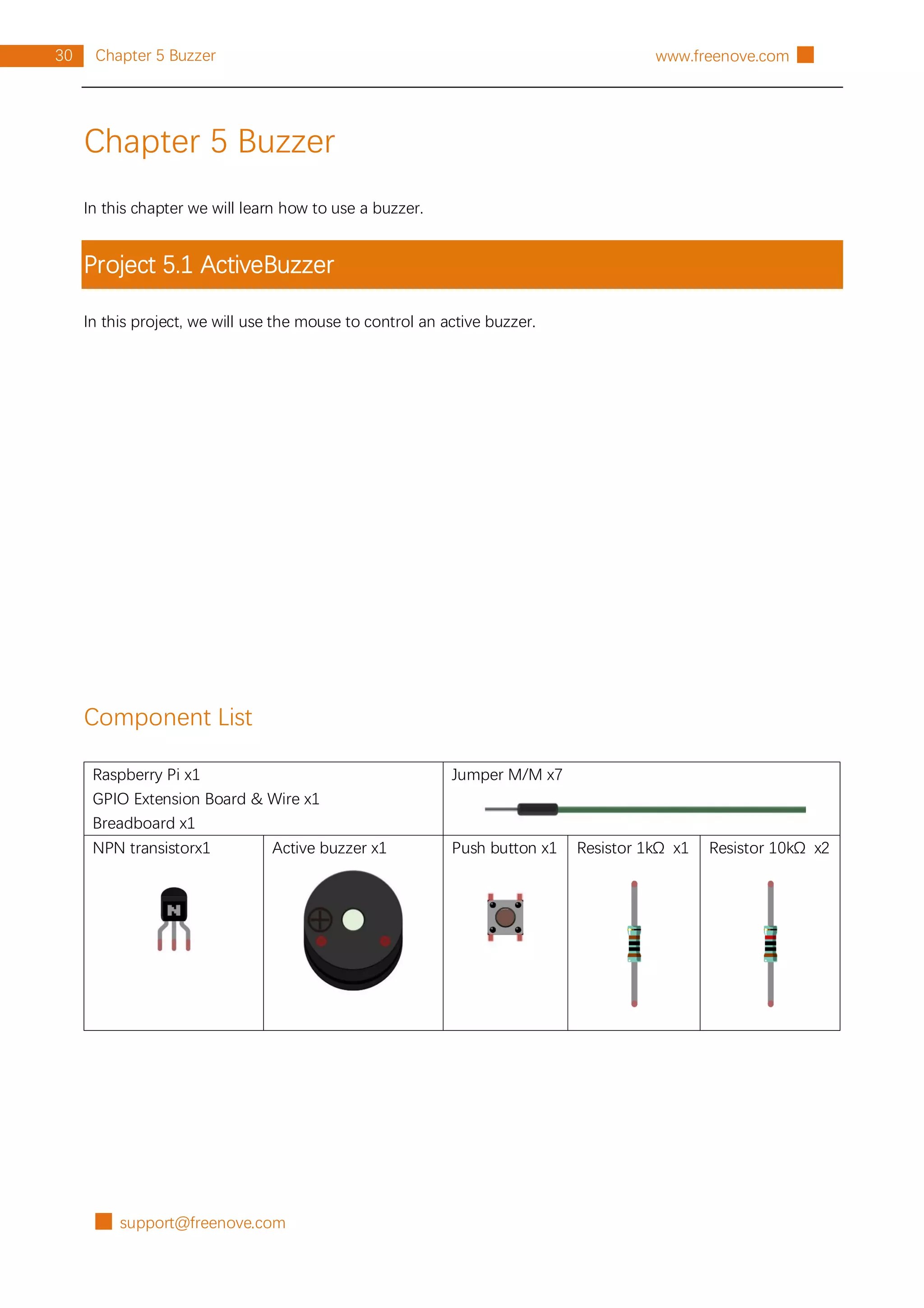
Raspberry Pi x1
GPIO Extension Board & Wire x1
Breadboard x1
Jumper M/M x7
NPN transistorx1 Active buzzer x1 Push button x1 Resistor 1kΩ x1 Resistor 10kΩ x2
support@freenove.com █
31
Chapter 5 Buzzer
█ www.freenove.com
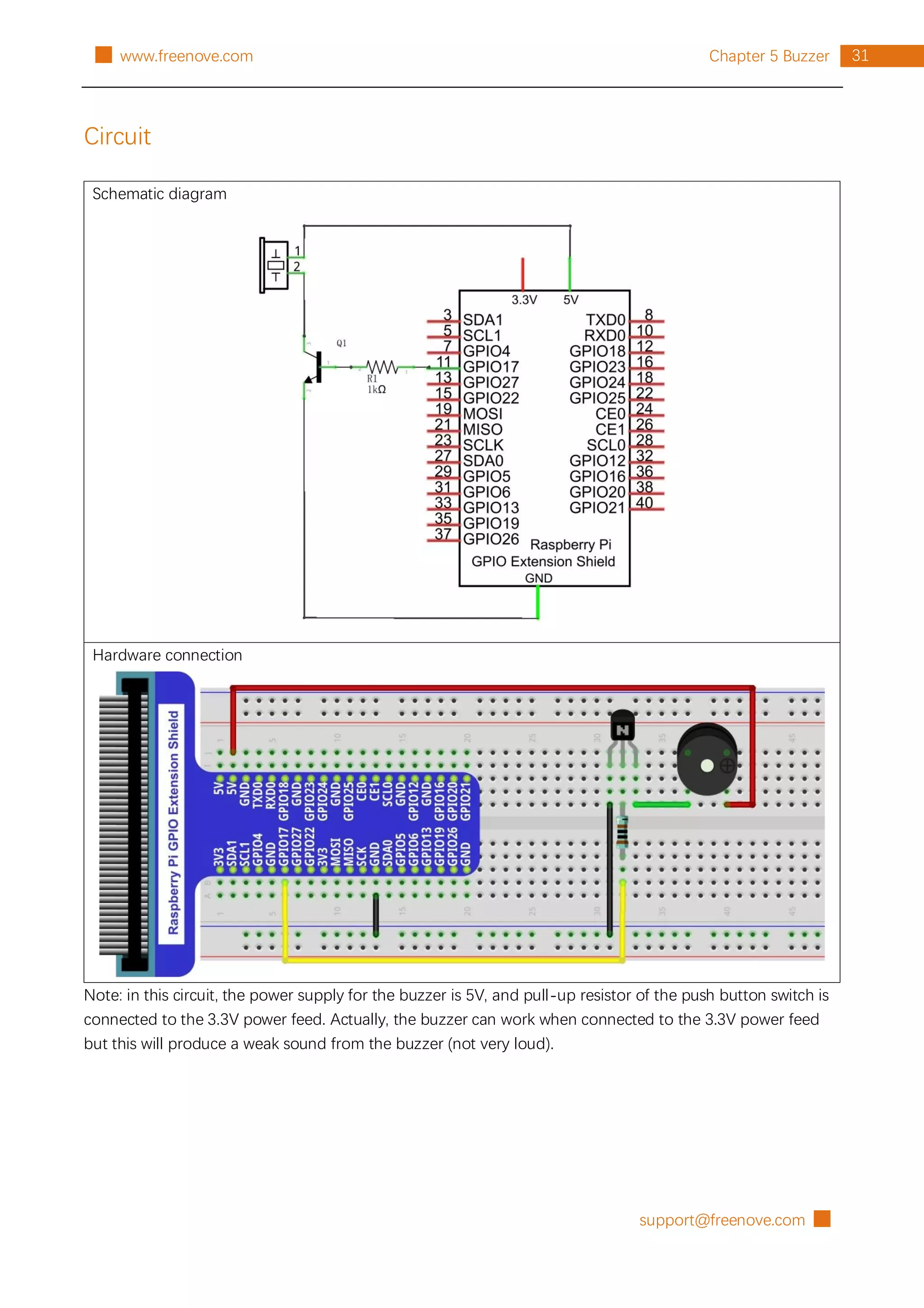
Circuit
Schematic diagram
Hardware connection
Note: in this circuit, the power supply for the buzzer is 5V, and pull-up resistor of the push button switch is
connected to the 3.3V power feed. Actually, the buzzer can work when connected to the 3.3V power feed
but this will produce a weak sound from the buzzer (not very loud).
█ support@freenove.com
32 Chapter 5 Buzzer www.freenove.com █
Sketch
Sketch 5.1.1 ActiveBuzzer
First, observe the result after running the sketch, and then learn about the code in detail.
1. Use Processing to open the file Sketch_05_1_1_ActiveBuzzer.
processing
~/Freenove_Kit/Processing/Sketches/Sketch_05_1_1_ActiveBuzzer/Sketch_05_1_1_Act
iveBuzzer.pde
2. Click on "RUN" to run the code.
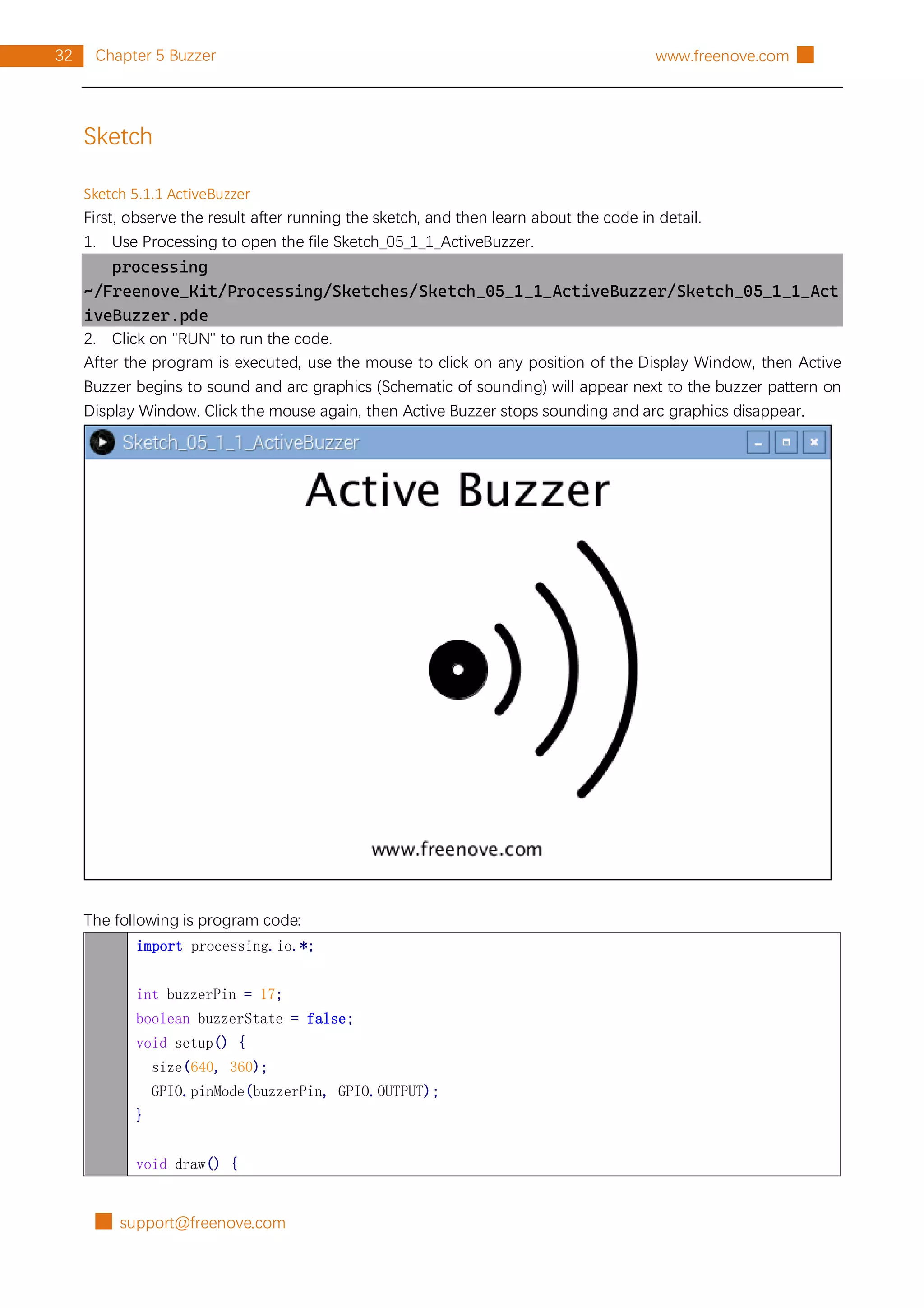
After the program is executed, use the mouse to click on any position of the Display Window, then Active
Buzzer begins to sound and arc graphics (Schematic of sounding) will appear next to the buzzer pattern on
Display Window. Click the mouse again, then Active Buzzer stops sounding and arc graphics disappear.
The following is program code:
import processing.io.*;
int buzzerPin = 17;
boolean buzzerState = false;
void setup() {
size(640, 360);
GPIO.pinMode(buzzerPin, GPIO.OUTPUT);
}
void draw() {
support@freenove.com █
33
Chapter 5 Buzzer
█ www.freenove.com
background(255);
titleAndSiteInfo(); //title and site information
drawBuzzer(); //buzzer img
if (buzzerState) {
GPIO.digitalWrite(buzzerPin, GPIO.HIGH);
drawArc(); //Sounds waves img
} else {
GPIO.digitalWrite(buzzerPin, GPIO.LOW);
}
}
void mouseClicked() { //if the mouse Clicked
buzzerState = !buzzerState; //Change the buzzer State
}
void drawBuzzer() {
strokeWeight(1);
fill(0);
ellipse(width/2, height/2, 50, 50);
fill(255);
ellipse(width/2, height/2, 10, 10);
}
void drawArc() {
noFill();
strokeWeight(8);
for (int i=0; i<3; i++) {
arc(width/2, height/2, 100*(1+i), 100*(1+i), -PI/4, PI/4, OPEN);
}
}
void titleAndSiteInfo() {
fill(0);
textAlign(CENTER); //set the text centered
textSize(40); //set text size
text("Active Buzzer", width / 2, 40); //title
textSize(16);
text("www.freenove.com", width / 2, height - 20); //site
}
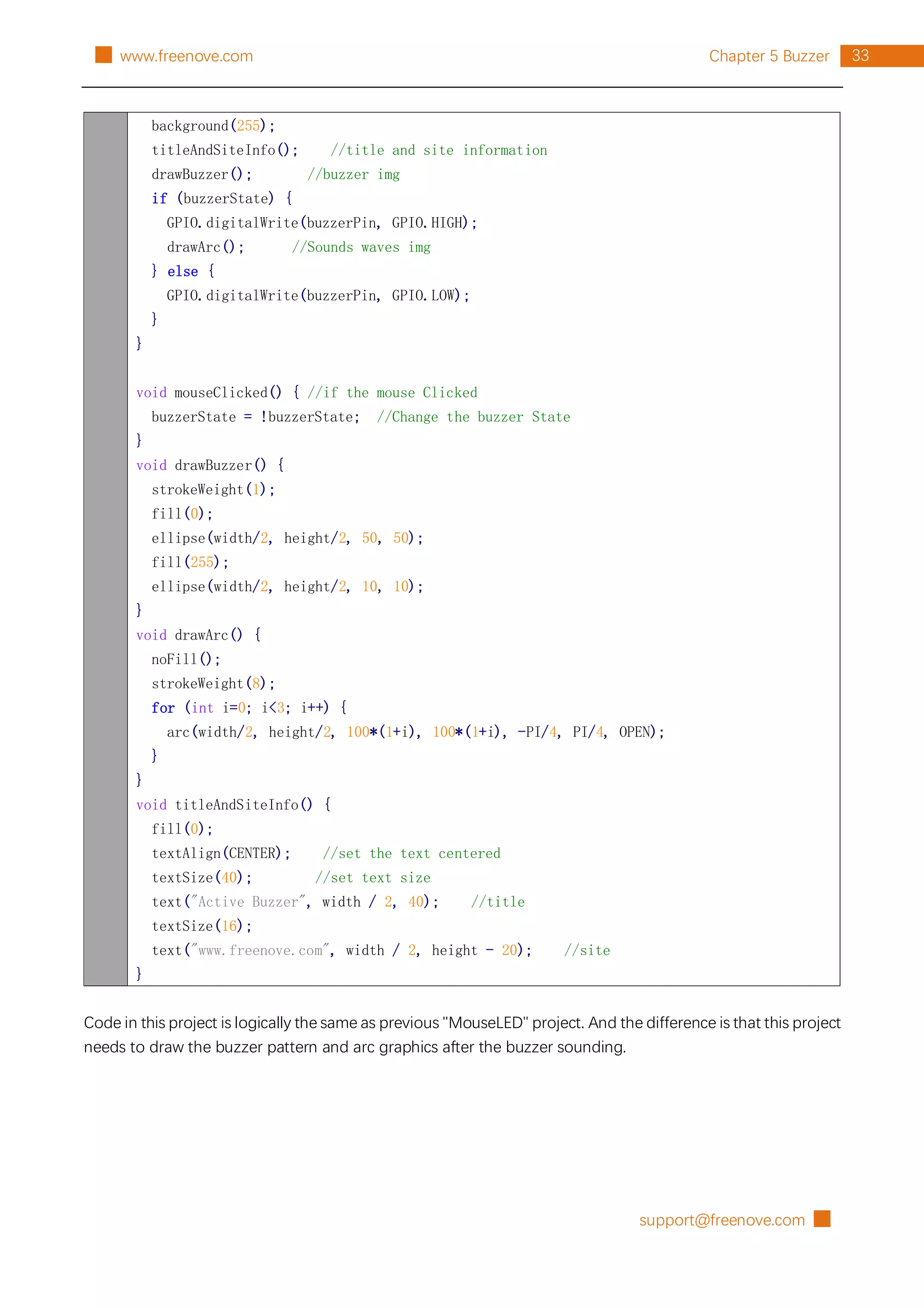
Code in this project is logically the same as previous "MouseLED" project. And the difference is that this project
needs to draw the buzzer pattern and arc graphics after the buzzer sounding.
█ support@freenove.com
34 Chapter 6 ADC Module www.freenove.com █
Chapter 6 ADC Module
In this chapter we will learn how to use an ADC module.
Project 6.1 Voltmeter
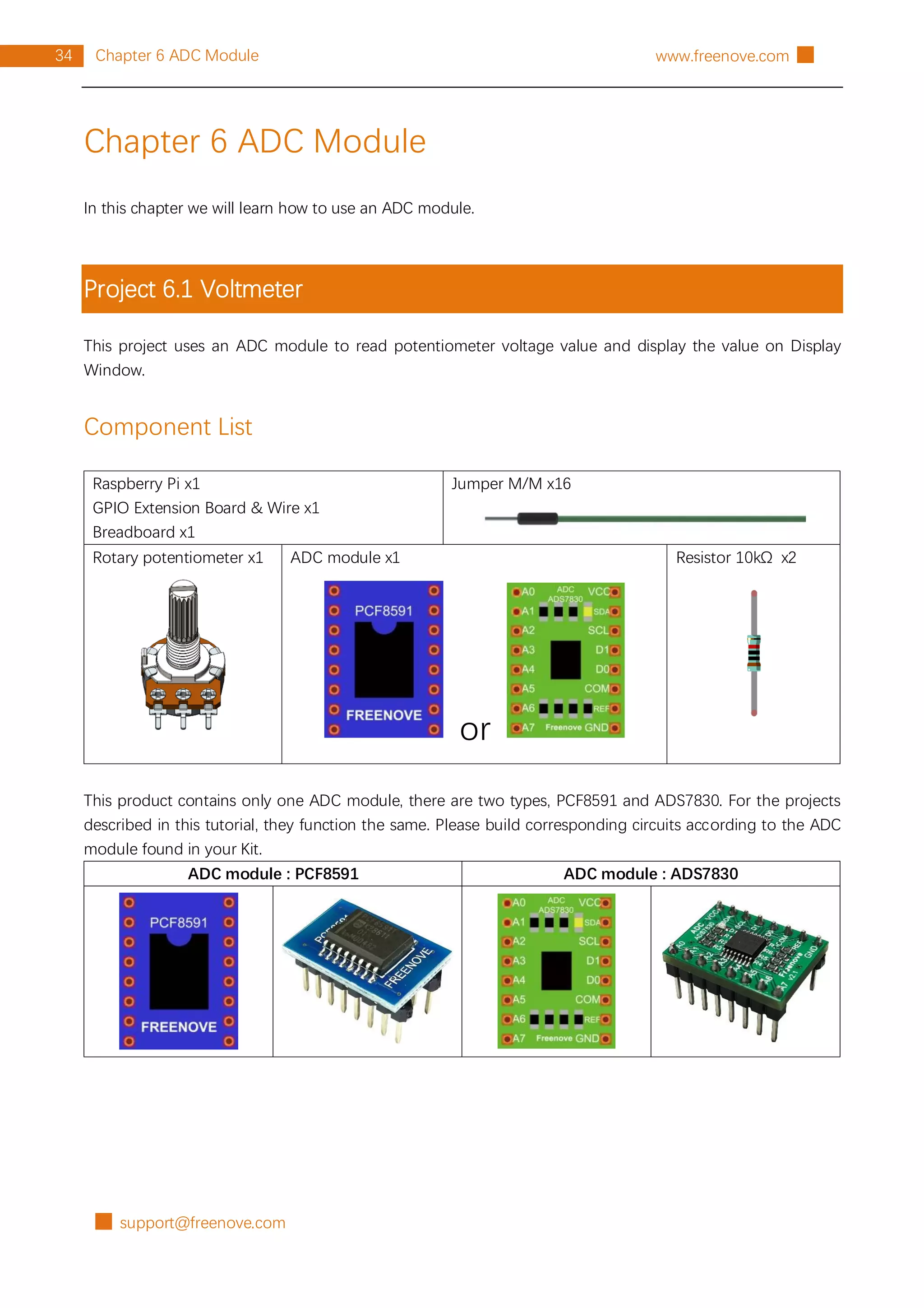
This project uses an ADC module to read potentiometer voltage value and display the value on Display
Window.
Component List
Raspberry Pi x1
GPIO Extension Board & Wire x1
Breadboard x1
Jumper M/M x16
Rotary potentiometer x1 ADC module x1
or
Resistor 10kΩ x2
This product contains only one ADC module, there are two types, PCF8591 and ADS7830. For the projects
described in this tutorial, they function the same. Please build corresponding circuits according to the ADC
module found in your Kit.
ADC module : PCF8591 ADC module : ADS7830
support@freenove.com █
35
Chapter 6 ADC Module
█ www.freenove.com
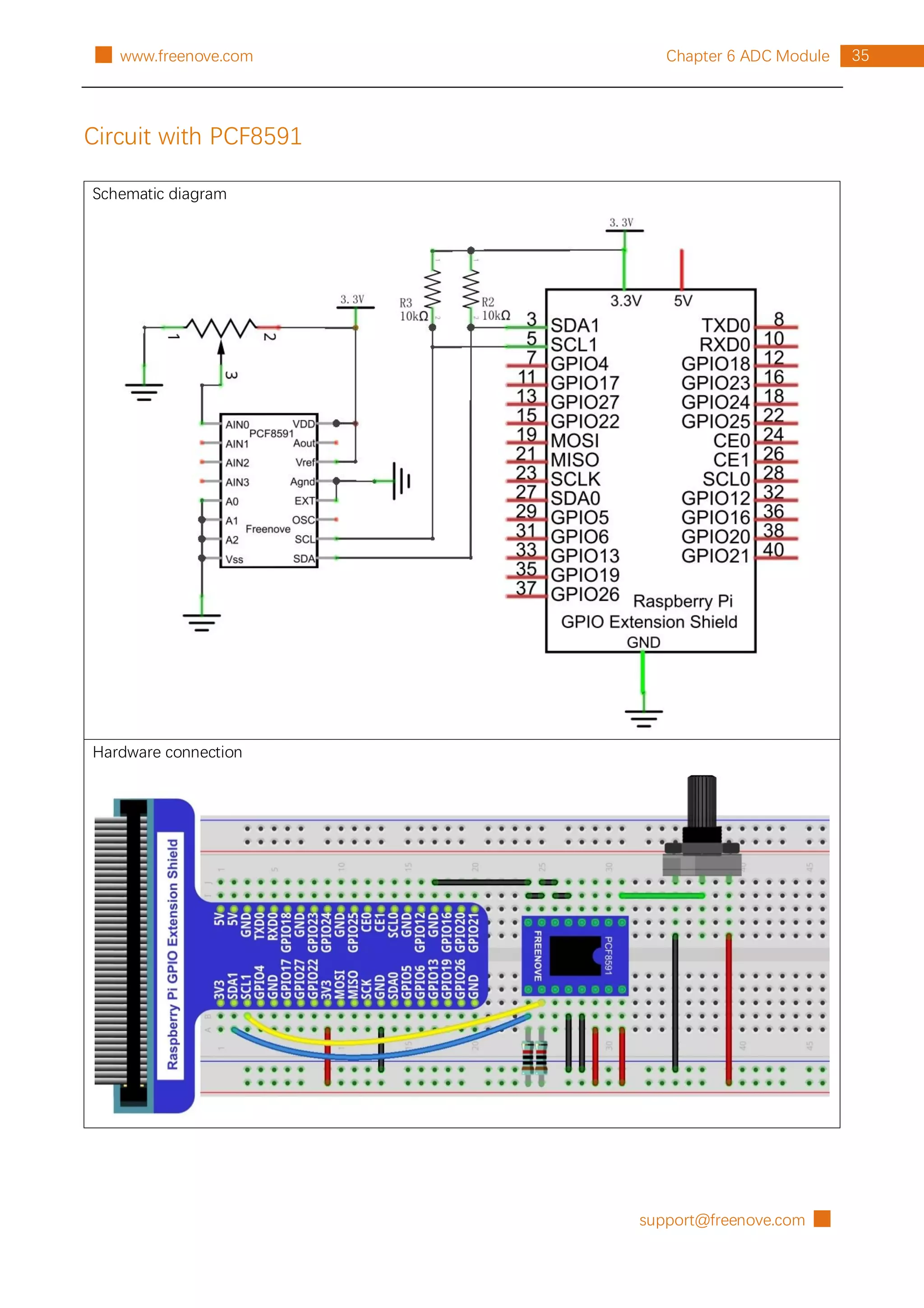
Circuit with PCF8591
Schematic diagram
Hardware connection
█ support@freenove.com
36 Chapter 6 ADC Module www.freenove.com █
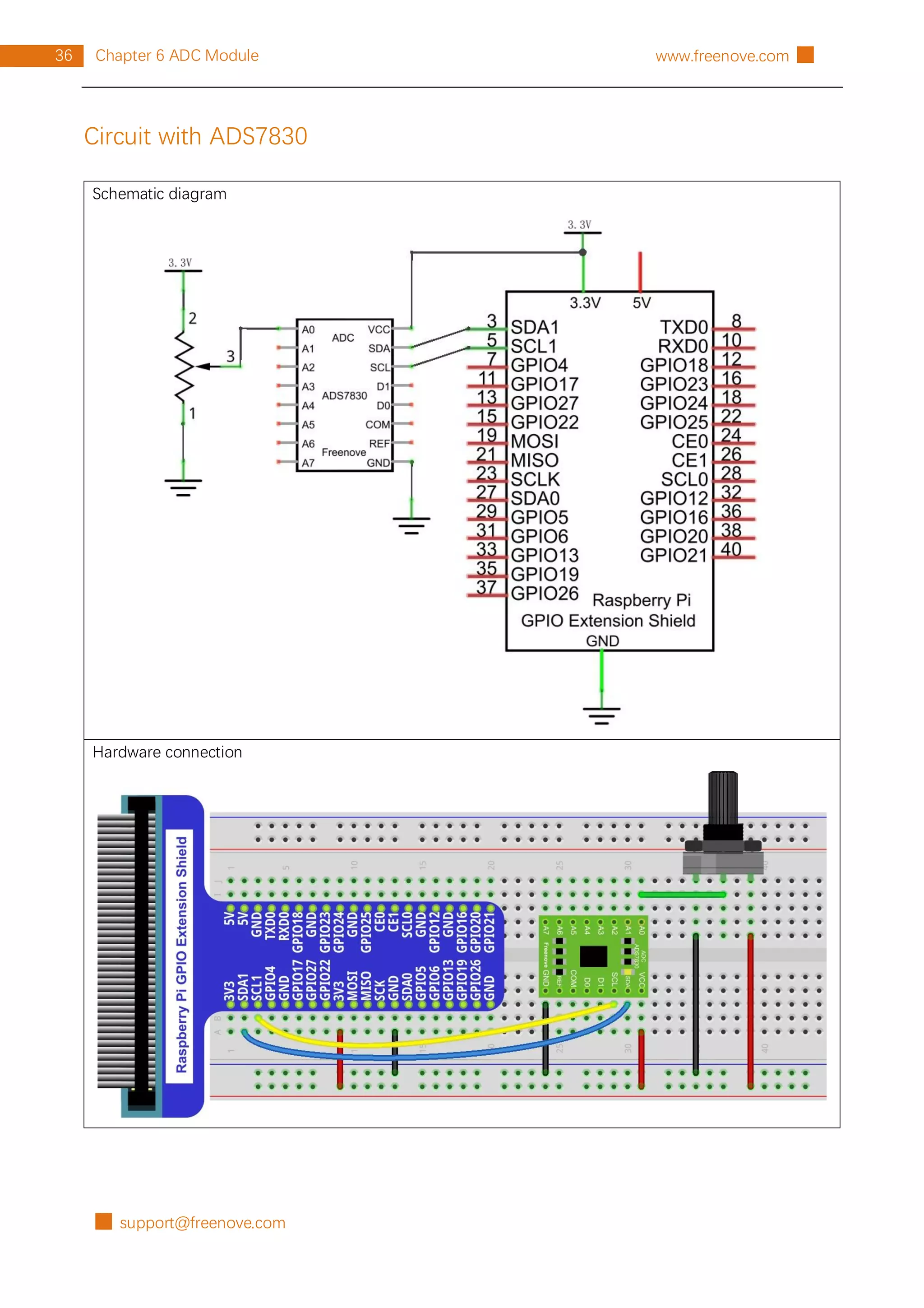
Circuit with ADS7830
Schematic diagram
Hardware connection
support@freenove.com █
37
Chapter 6 ADC Module
█ www.freenove.com
Sketch
Configure I2C (required)
Enable I2C
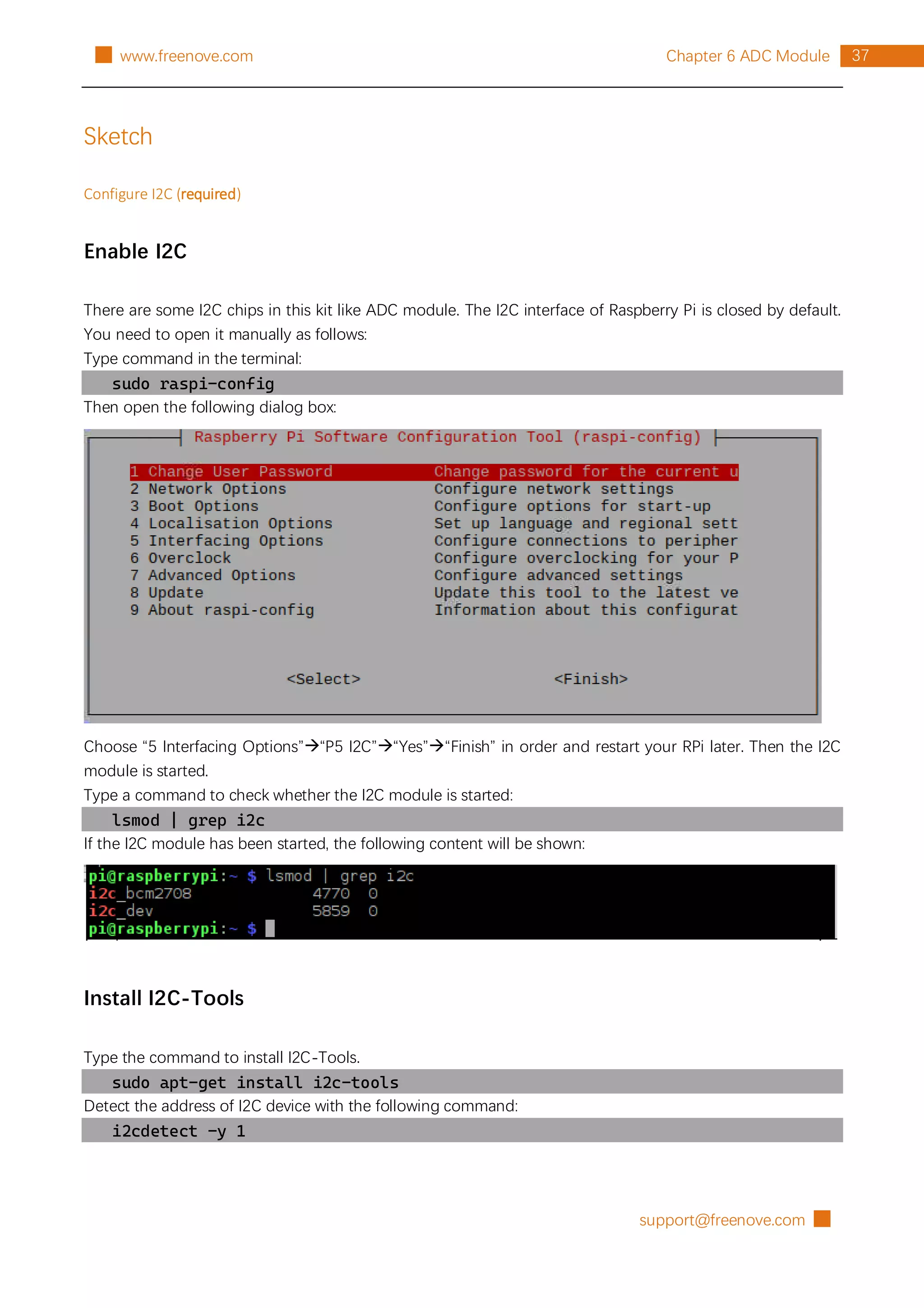
There are some I2C chips in this kit like ADC module. The I2C interface of Raspberry Pi is closed by default.
You need to open it manually as follows:
Type command in the terminal:
sudo raspi-config
Then open the following dialog box:
Choose “5 Interfacing Options”“P5 I2C”“Yes”“Finish” in order and restart your RPi later. Then the I2C
module is started.
Type a command to check whether the I2C module is started:
lsmod | grep i2c
If the I2C module has been started, the following content will be shown:
Install I2C-Tools
Type the command to install I2C-Tools.
sudo apt-get install i2c-tools
Detect the address of I2C device with the following command:
i2cdetect -y 1
█ support@freenove.com
38 Chapter 6 ADC Module www.freenove.com █
support@freenove.com █
39
Chapter 6 ADC Module
█ www.freenove.com
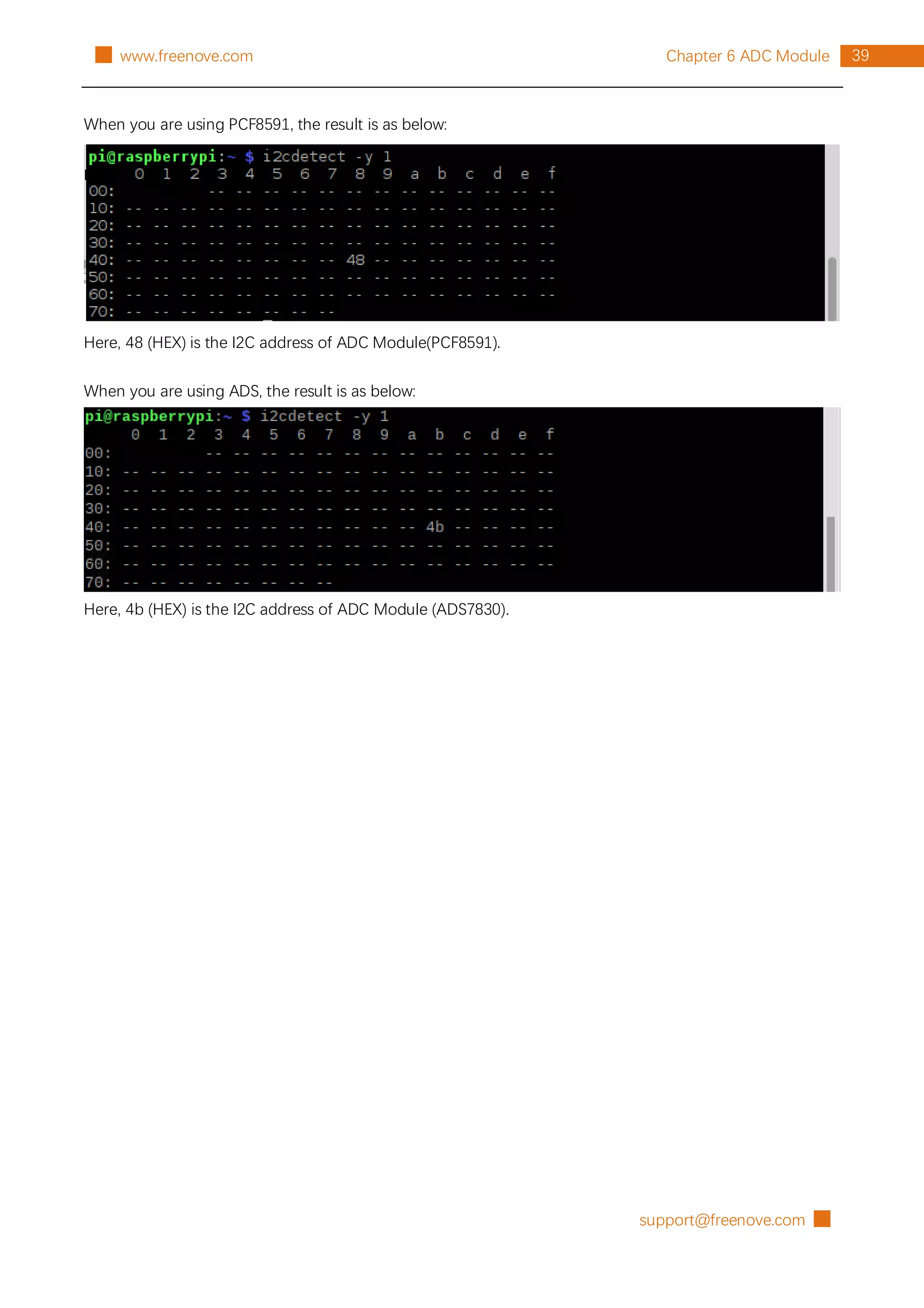
When you are using PCF8591, the result is as below:
Here, 48 (HEX) is the I2C address of ADC Module(PCF8591).
When you are using ADS, the result is as below:
Here, 4b (HEX) is the I2C address of ADC Module (ADS7830).
█ support@freenove.com
40 Chapter 6 ADC Module www.freenove.com █
Sketch 6.1.1 ADC
First, observe the result after running the sketch, and then learn about the code in detail.
1. Use Processing to open the file Sketch_06_1_1_ADC.
processing
~/Freenove_Kit/Processing/Sketches/Sketch_06_1_1_ADC/Sketch_06_1_1_ADC.pde
2. Click on "RUN" to run the code.
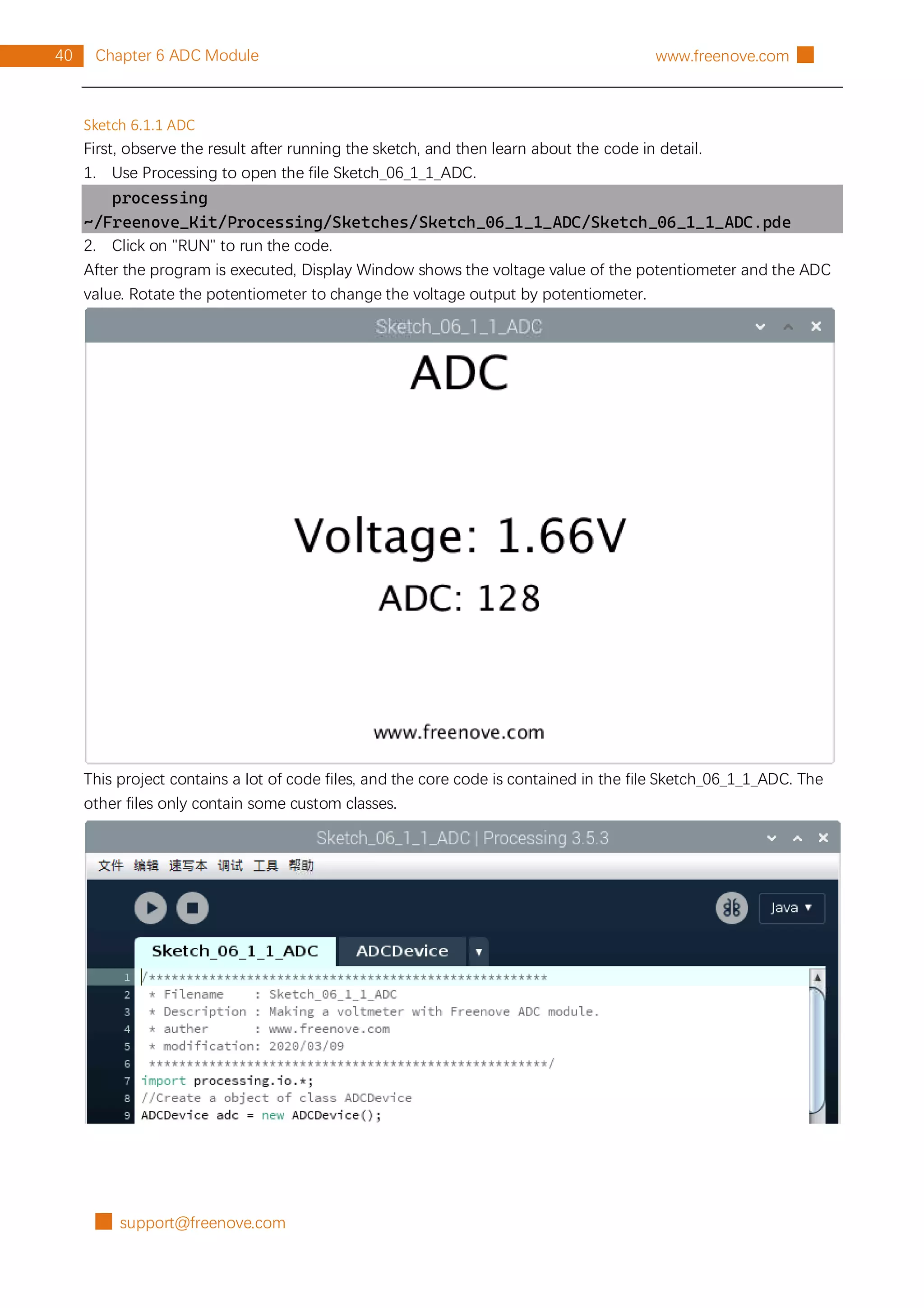
After the program is executed, Display Window shows the voltage value of the potentiometer and the ADC
value. Rotate the potentiometer to change the voltage output by potentiometer.
This project contains a lot of code files, and the core code is contained in the file Sketch_06_1_1_ADC. The
other files only contain some custom classes.
support@freenove.com █
41
Chapter 6 ADC Module
█ www.freenove.com
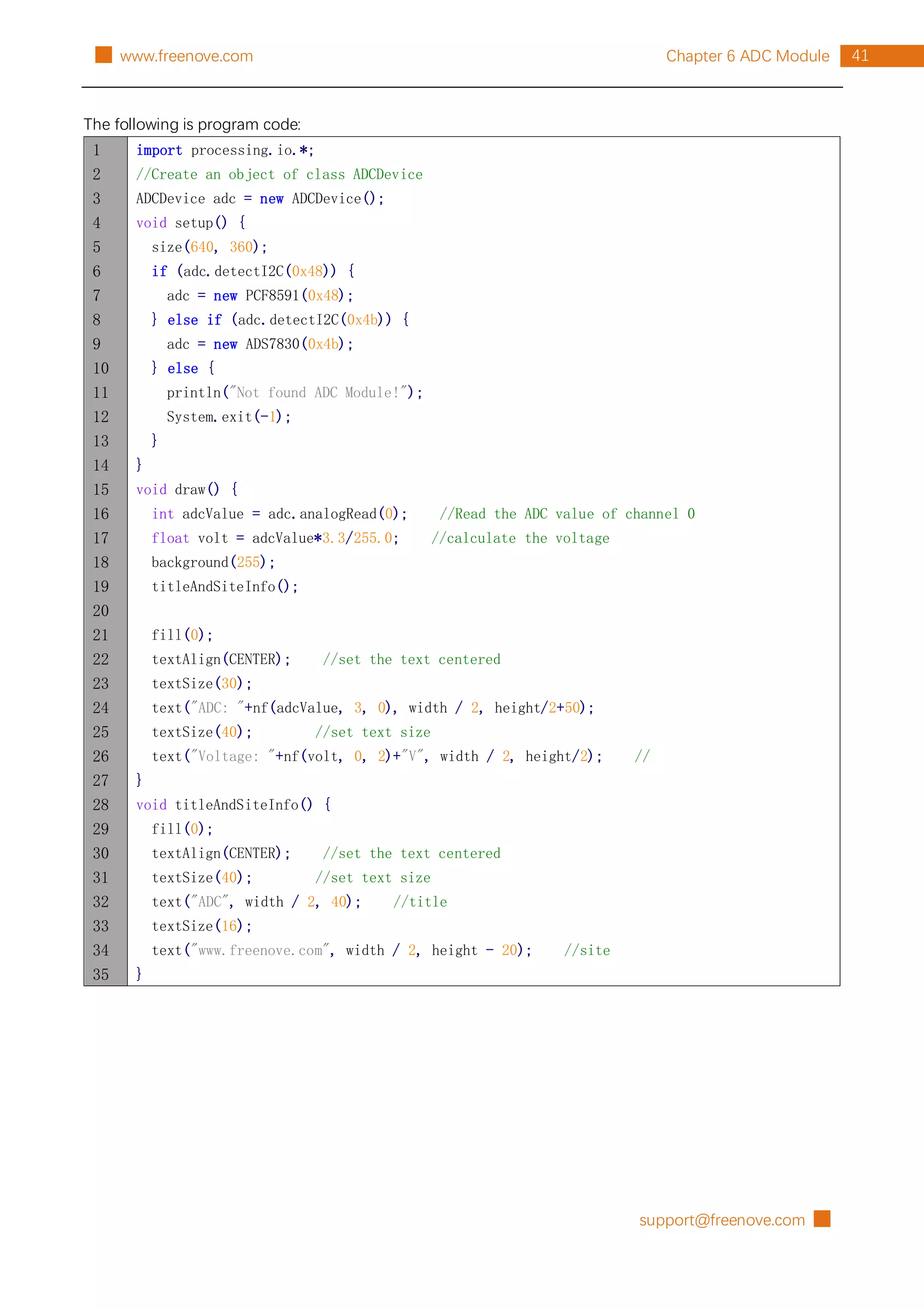
The following is program code:
1
2
3
4
5
6
7
8
9
10
11
12
13
14
15
16
17
18
19
20
21
22
23
24
25
26
27
28
29
30
31
32
33
34
35
import processing.io.*;
//Create an object of class ADCDevice
ADCDevice adc = new ADCDevice();
void setup() {
size(640, 360);
if (adc.detectI2C(0x48)) {
adc = new PCF8591(0x48);
} else if (adc.detectI2C(0x4b)) {
adc = new ADS7830(0x4b);
} else {
println("Not found ADC Module!");
System.exit(-1);
}
}
void draw() {
int adcValue = adc.analogRead(0); //Read the ADC value of channel 0
float volt = adcValue*3.3/255.0; //calculate the voltage
background(255);
titleAndSiteInfo();
fill(0);
textAlign(CENTER); //set the text centered
textSize(30);
text("ADC: "+nf(adcValue, 3, 0), width / 2, height/2+50);
textSize(40); //set text size
text("Voltage: "+nf(volt, 0, 2)+"V", width / 2, height/2); //
}
void titleAndSiteInfo() {
fill(0);
textAlign(CENTER); //set the text centered
textSize(40); //set text size
text("ADC", width / 2, 40); //title
textSize(16);
text("www.freenove.com", width / 2, height - 20); //site
}
█ support@freenove.com
42 Chapter 6 ADC Module www.freenove.com █
The code of this project mainly uses PCF8591 class member function analogRead() to read ADC.
int adcValue = adc.analogRead(0); //Read the ADC value of channel 0
float volt = adcValue*3.3/255.0; //calculate the voltage
About class ADCDevice, PCF8591, ADS7830:
class ADCDevice
This is a base class, and all ADC module classes are subclasses of it. It provides two basic member functions.
public int analogRead(int chn)
This is a unified function name. Different chips have different implement methods. Therefore, specific
method is implemented in subclasses.
public boolean detectI2C(int addr)
Used to detect I2C device with a given address. If it exists, it returns true, otherwise it returns false.
class PCF8591 extends ADCDevice
This is a custom class that is used to operate the ADC and DAC of PCF8591.
public PCF8591(int addr)
Constructor, used to create a PCF8591 class object, parameters for the I2C PCF8591 device address.
public int analogRead(int chn)
Used to read ADC value of one channel of PCF8591, the parameter CHN indicates the channel number:
0,1,2,3.
public byte[] analogRead()
To read ADC values of all channels of PCF8591.
public void analogWrite(int data)
Write a DAC value to PCF8591.
class ADS7830 extends ADCDevice
This is a custom class that is used to operate the ADC of ADS7830.
public ADS7830(int addr)
Constructor, used to create a ADS7830 class object, parameters for the I2C ADS7830 device address.
public int analogRead(int chn)
Used to read ADC value of one channel of ADS7830, the parameter CHN indicates the channel number:
0,1,2,3,4,5,6,7.
support@freenove.com █
43
Chapter 7 ADC & LED
█ www.freenove.com
Chapter 7 ADC & LED
In this chapter, we will combine ADC and PWM to control the brightness of LED.
Project 7.1 SoftLight
In this project, we will make a softlight, which uses a potentiometer to control the brightness of LED.
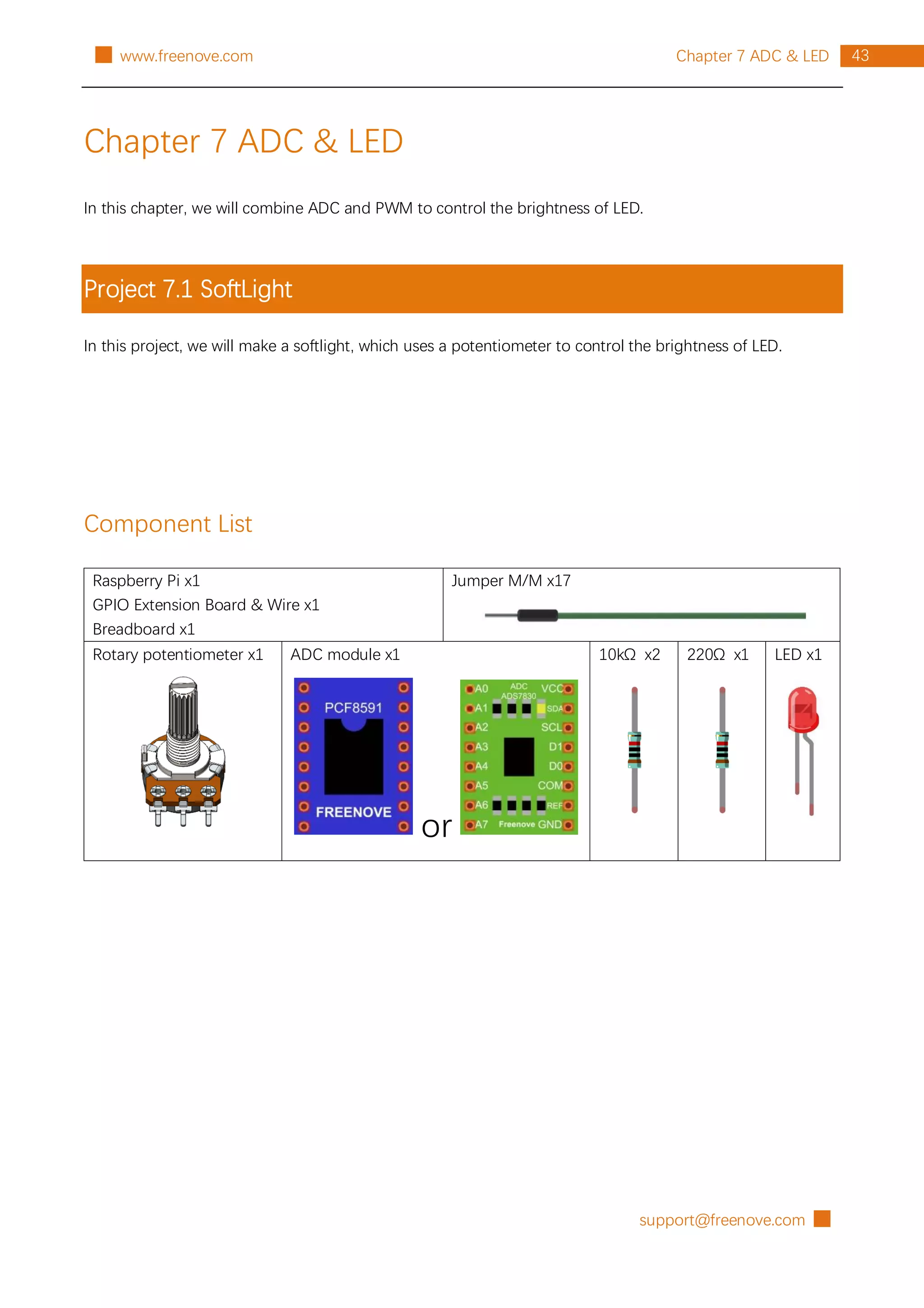
Component List
Raspberry Pi x1
GPIO Extension Board & Wire x1
Breadboard x1
Jumper M/M x17
Rotary potentiometer x1 ADC module x1
or
10kΩ x2 220Ω x1 LED x1
█ support@freenove.com
44 Chapter 7 ADC & LED www.freenove.com █
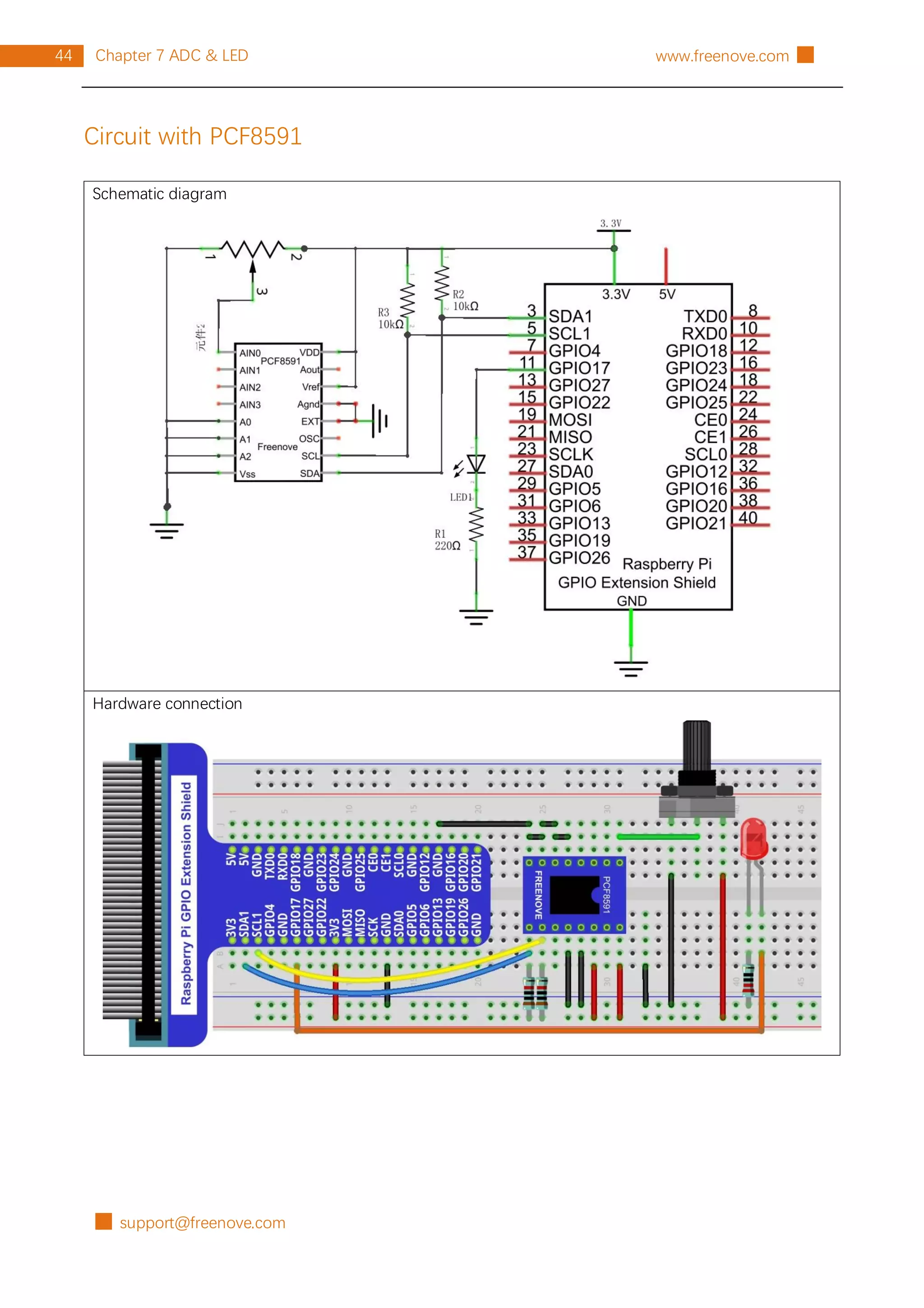
Circuit with PCF8591
Schematic diagram
Hardware connection
support@freenove.com █
45
Chapter 7 ADC & LED
█ www.freenove.com
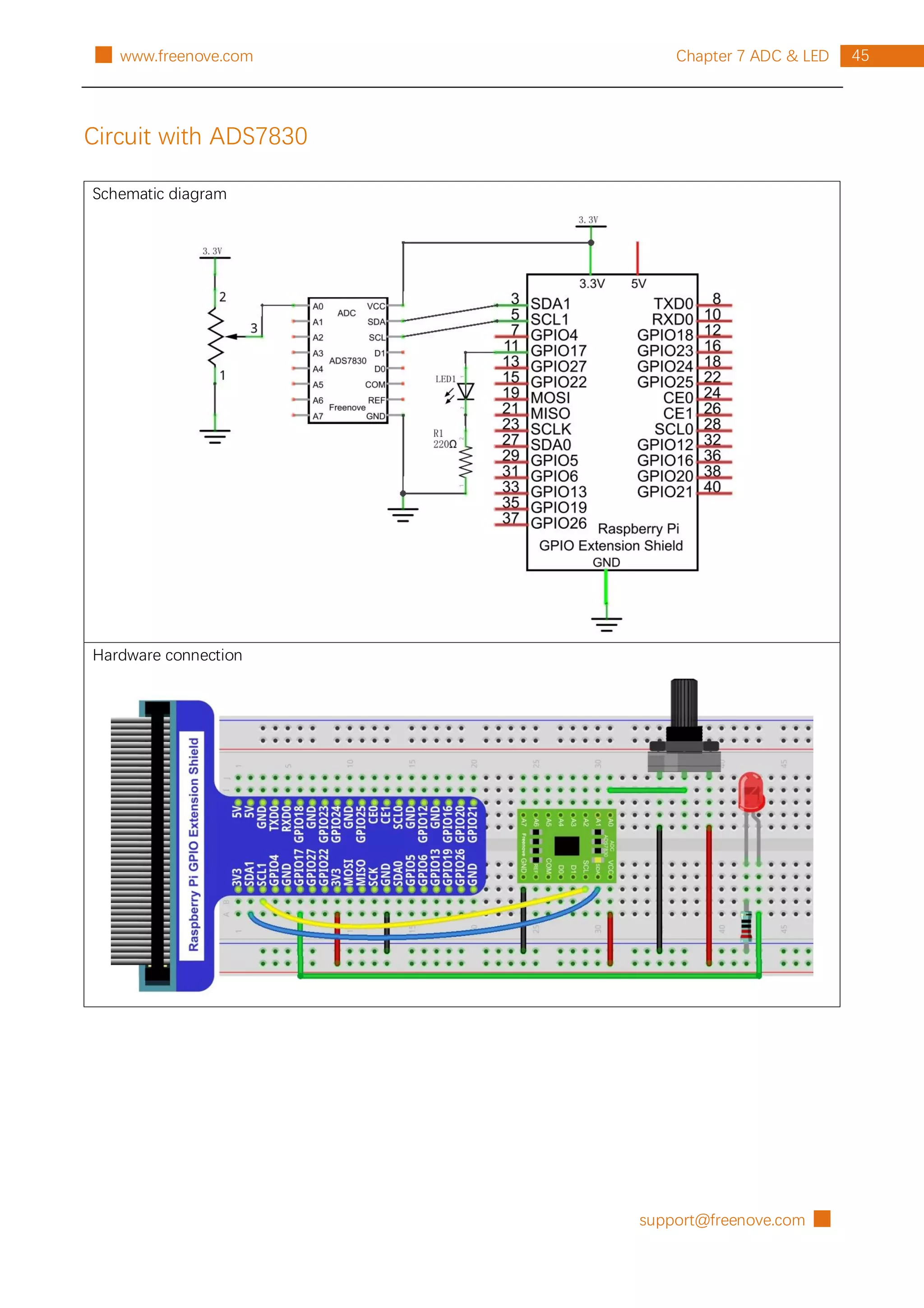
Circuit with ADS7830
Schematic diagram
Hardware connection
█ support@freenove.com
46 Chapter 7 ADC & LED www.freenove.com █
Sketch
If you did not configure I2C, please refer to Chapter 6. If you did, please move on.
Sketch 7.1.1 SoftLight
First, observe the result after running the sketch, and then learn about the code in detail.
1. Use Processing to open the file Sketch_07_1_1_SoftLight.
processing
~/Freenove_Kit/Processing/Sketches/Sketch_07_1_1_SoftLight/Sketch_07_1_1_SoftLi
ght.pde
2. Click on "RUN" to run the code.
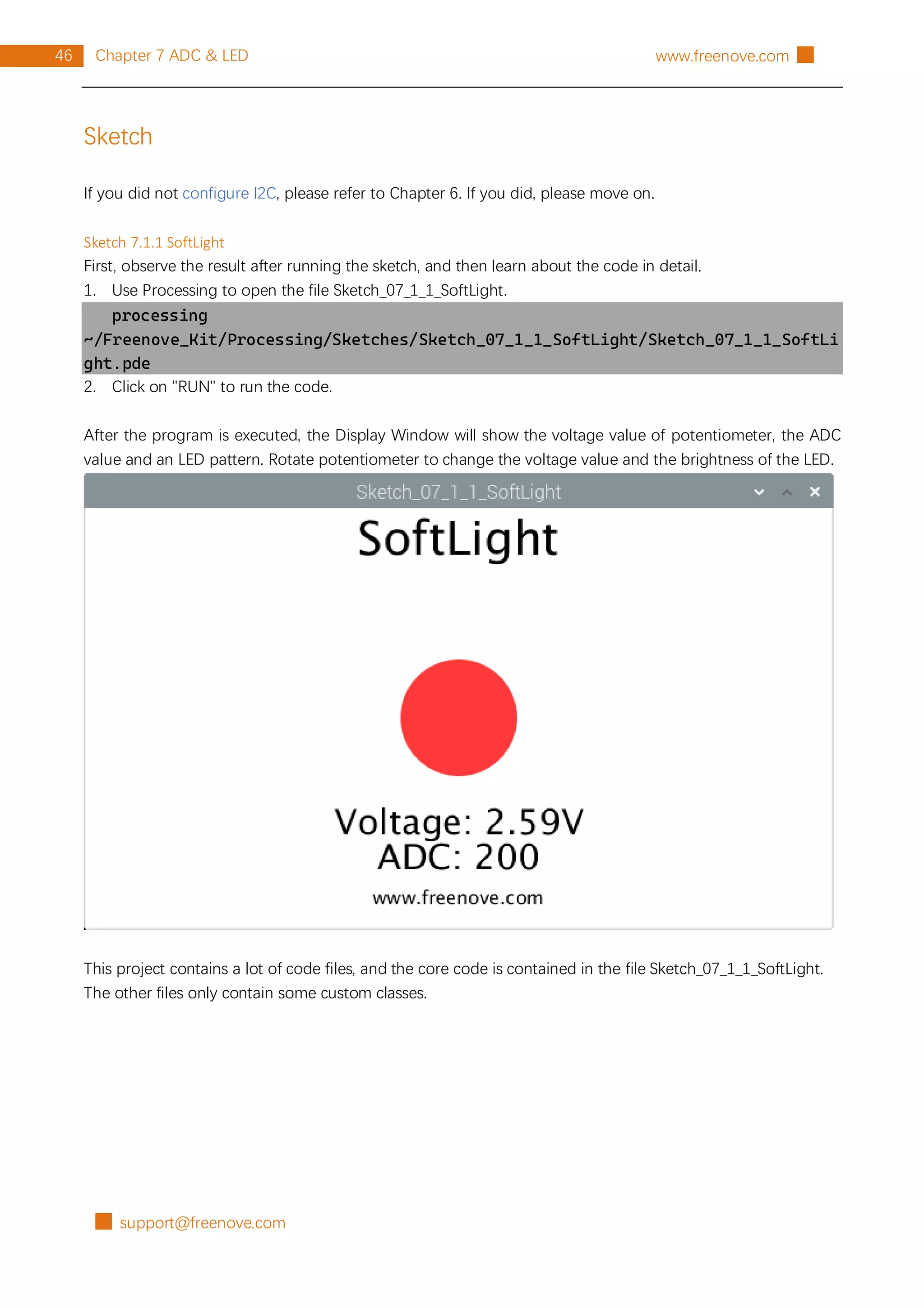
After the program is executed, the Display Window will show the voltage value of potentiometer, the ADC
value and an LED pattern. Rotate potentiometer to change the voltage value and the brightness of the LED.
This project contains a lot of code files, and the core code is contained in the file Sketch_07_1_1_SoftLight.
The other files only contain some custom classes.
support@freenove.com █
47
Chapter 7 ADC & LED
█ www.freenove.com
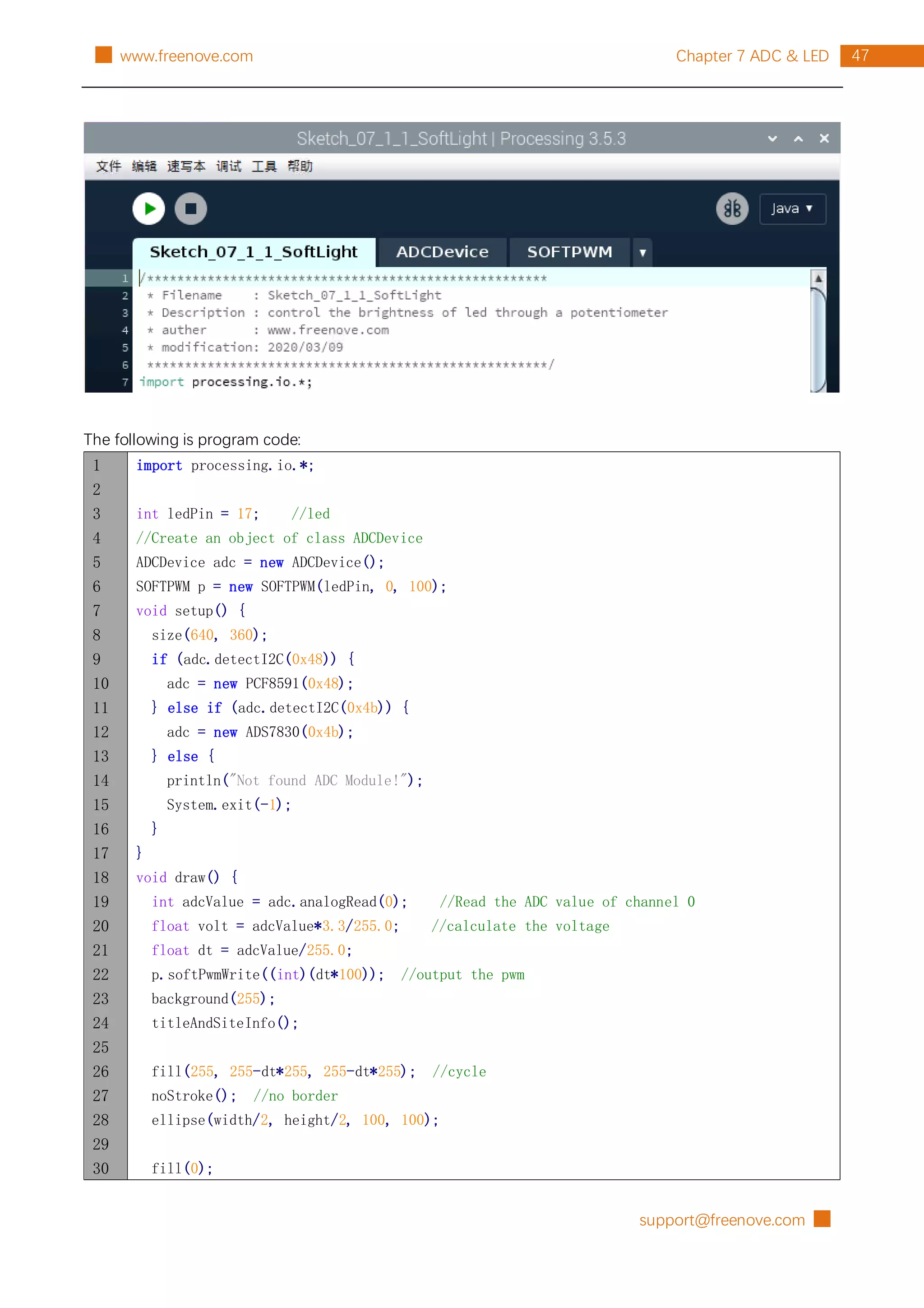
The following is program code:
1
2
3
4
5
6
7
8
9
10
11
12
13
14
15
16
17
18
19
20
21
22
23
24
25
26
27
28
29
30
import processing.io.*;
int ledPin = 17; //led
//Create an object of class ADCDevice
ADCDevice adc = new ADCDevice();
SOFTPWM p = new SOFTPWM(ledPin, 0, 100);
void setup() {
size(640, 360);
if (adc.detectI2C(0x48)) {
adc = new PCF8591(0x48);
} else if (adc.detectI2C(0x4b)) {
adc = new ADS7830(0x4b);
} else {
println("Not found ADC Module!");
System.exit(-1);
}
}
void draw() {
int adcValue = adc.analogRead(0); //Read the ADC value of channel 0
float volt = adcValue*3.3/255.0; //calculate the voltage
float dt = adcValue/255.0;
p.softPwmWrite((int)(dt*100)); //output the pwm
background(255);
titleAndSiteInfo();
fill(255, 255-dt*255, 255-dt*255); //cycle
noStroke(); //no border
ellipse(width/2, height/2, 100, 100);
fill(0);
█ support@freenove.com
48 Chapter 7 ADC & LED www.freenove.com █
31
32
33
34
35
36
37
38
39
40
41
42
43
textAlign(CENTER); //set the text centered
textSize(30);
text("ADC: "+nf(adcValue, 3, 0), width / 2, height/2+130);
text("Voltage: "+nf(volt, 0, 2)+"V", width / 2, height/2+100); //
}
void titleAndSiteInfo() {
fill(0);
textAlign(CENTER); //set the text centered
textSize(40); //set text size
text("SoftLight", width / 2, 40); //title
textSize(16);
text("www.freenove.com", width / 2, height - 20); //site
}
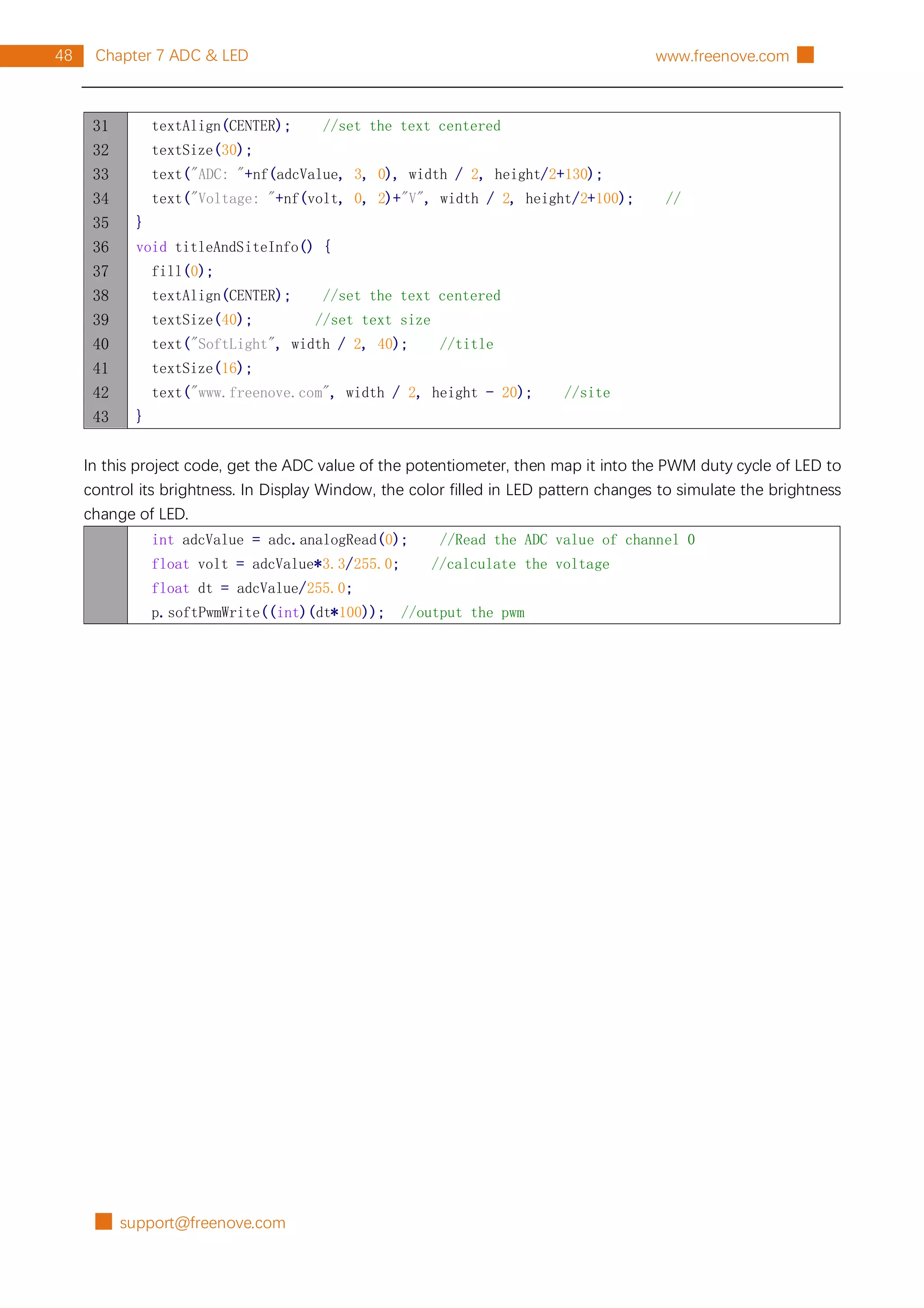
In this project code, get the ADC value of the potentiometer, then map it into the PWM duty cycle of LED to
control its brightness. In Display Window, the color filled in LED pattern changes to simulate the brightness
change of LED.
int adcValue = adc.analogRead(0); //Read the ADC value of channel 0
float volt = adcValue*3.3/255.0; //calculate the voltage
float dt = adcValue/255.0;
p.softPwmWrite((int)(dt*100)); //output the pwm
support@freenove.com █
49
Chapter 7 ADC & LED
█ www.freenove.com
Project 7.2 NightLamp
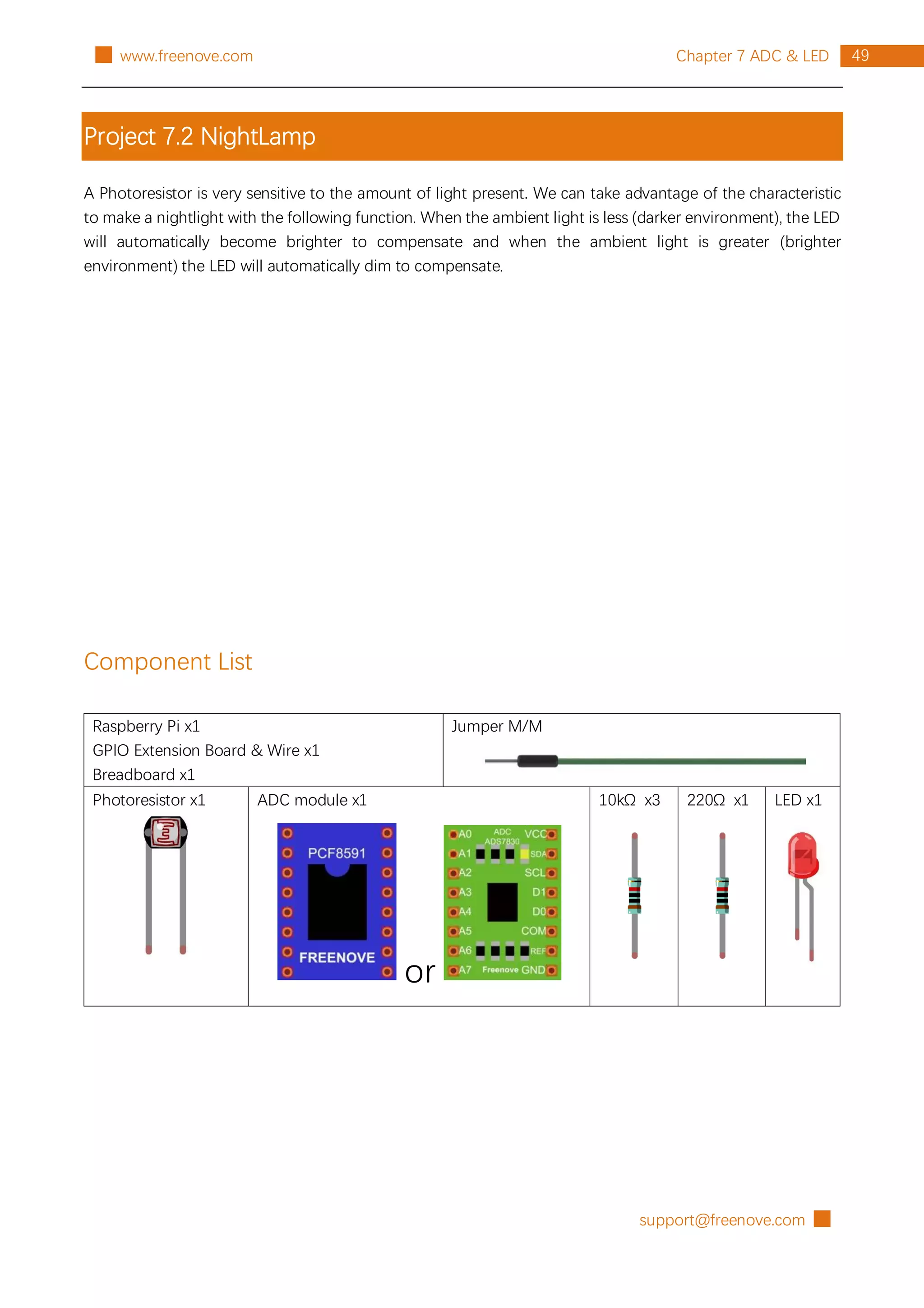
A Photoresistor is very sensitive to the amount of light present. We can take advantage of the characteristic
to make a nightlight with the following function. When the ambient light is less (darker environment), the LED
will automatically become brighter to compensate and when the ambient light is greater (brighter
environment) the LED will automatically dim to compensate.
Component List
Raspberry Pi x1
GPIO Extension Board & Wire x1
Breadboard x1
Jumper M/M
Photoresistor x1 ADC module x1
or
10kΩ x3 220Ω x1 LED x1
█ support@freenove.com
50 Chapter 7 ADC & LED www.freenove.com █
Circuit with PCF8591
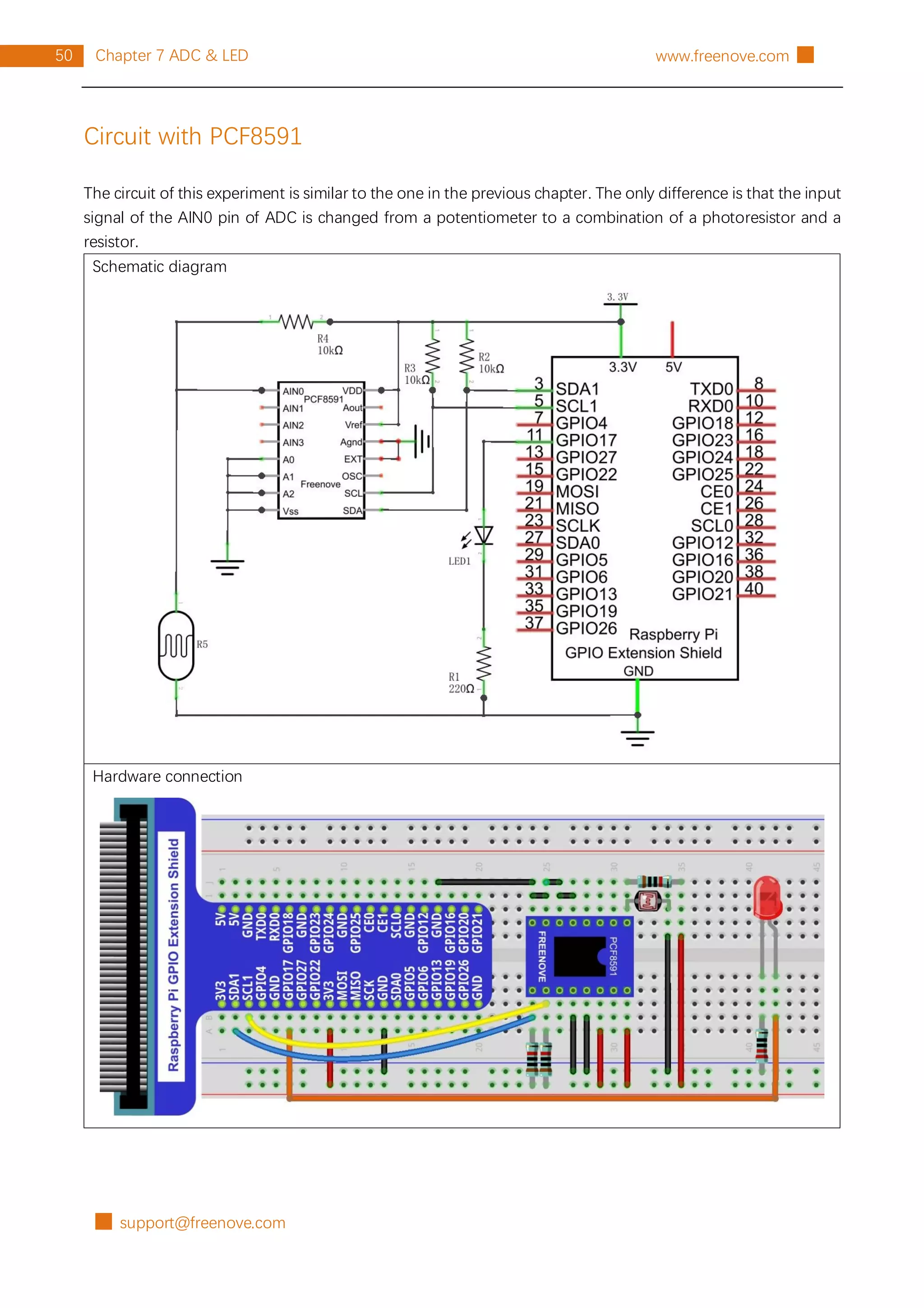
The circuit of this experiment is similar to the one in the previous chapter. The only difference is that the input
signal of the AIN0 pin of ADC is changed from a potentiometer to a combination of a photoresistor and a
resistor.
Schematic diagram
Hardware connection
support@freenove.com █
51
Chapter 7 ADC & LED
█ www.freenove.com
Circuit with ADS7830
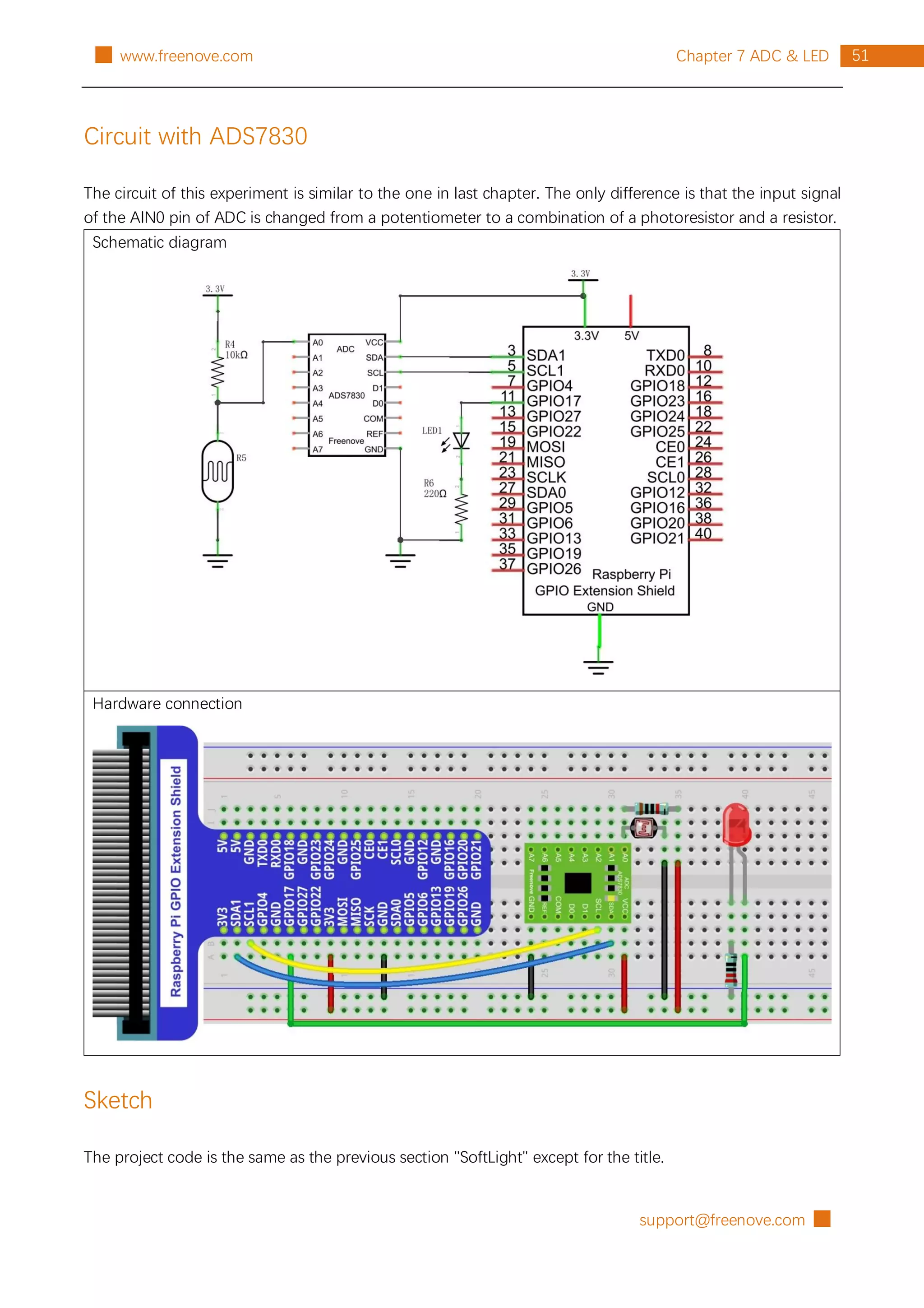
The circuit of this experiment is similar to the one in last chapter. The only difference is that the input signal
of the AIN0 pin of ADC is changed from a potentiometer to a combination of a photoresistor and a resistor.
Schematic diagram
Hardware connection
Sketch
The project code is the same as the previous section "SoftLight" except for the title.
█ support@freenove.com
52 Chapter 8 Thermistor www.freenove.com █
Chapter 8 Thermistor
In this chapter, we will learn how to use a thermistor.
Project 8.1 Thermometer
In this project, we will use a thermistor to make a thermometer.
Component List
Raspberry Pi x1
GPIO Extension Board & Wire x1
Breadboard x1
Jumper M/M
Thermistor x1 ADC module x1
or
Resistor 10kΩ x3
Component knowledge
First Review the knowledge of thermistor. The relationship between resistance value and temperature of
thermistor is:
Rt=R*EXP [B*(1/T2-1/T1)]
Where:
Rt is the thermistor resistance under T2 temperature;
R is in the nominal resistance of thermistor under T1 temperature;
EXP[n] is nth power of e;
B is for thermal index;
T1, T2 is Kelvin temperature (absolute temperature). Kelvin temperature=273.15+celsius temperature.
Parameters of the thermistor we use is: B=3950, R=10k, T1=25.
support@freenove.com █
53
Chapter 8 Thermistor
█ www.freenove.com
Circuit with PCF8591
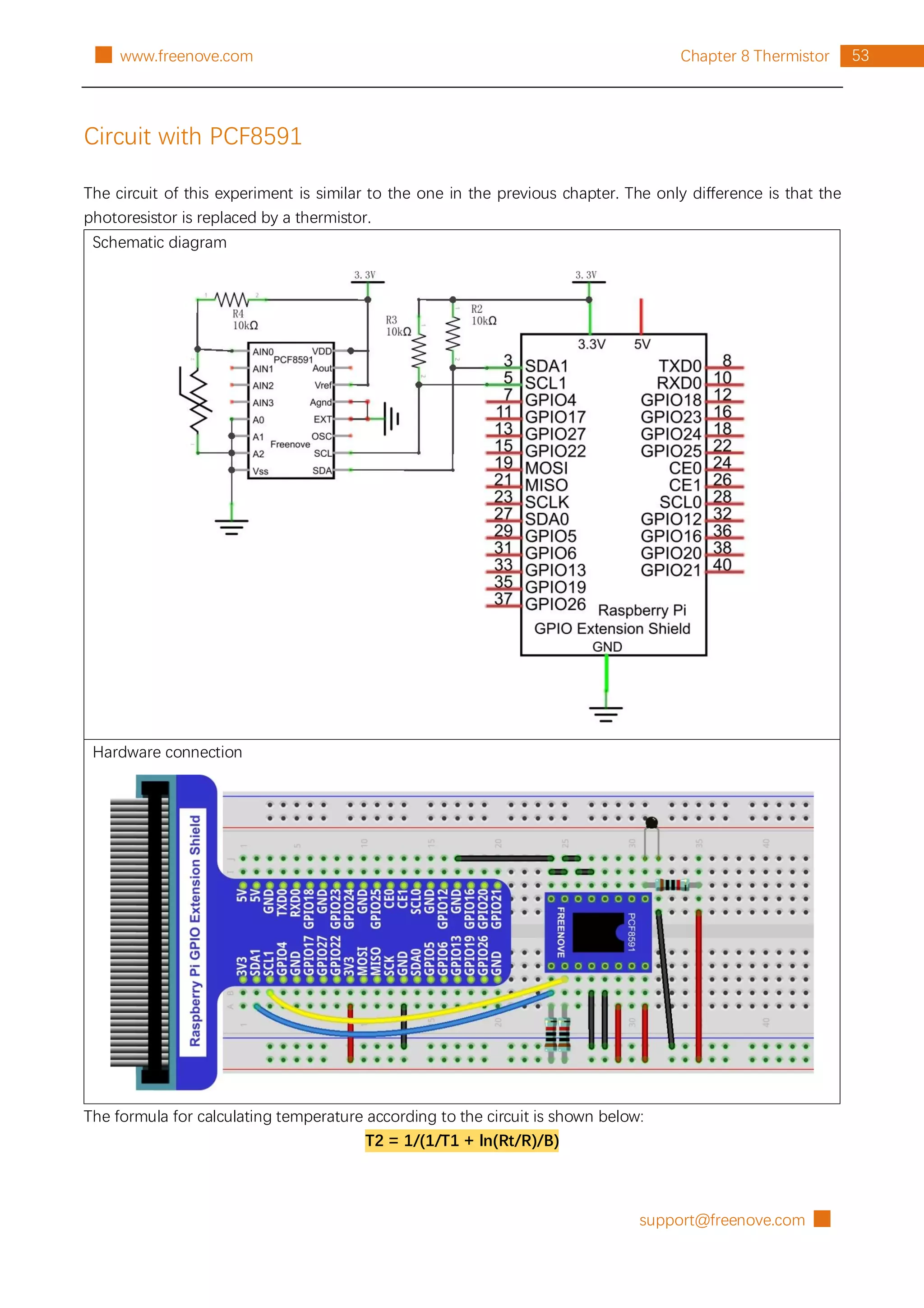
The circuit of this experiment is similar to the one in the previous chapter. The only difference is that the
photoresistor is replaced by a thermistor.
Schematic diagram
Hardware connection
The formula for calculating temperature according to the circuit is shown below:
T2 = 1/(1/T1 + ln(Rt/R)/B)
█ support@freenove.com
54 Chapter 8 Thermistor www.freenove.com █
Circuit with ADS7830
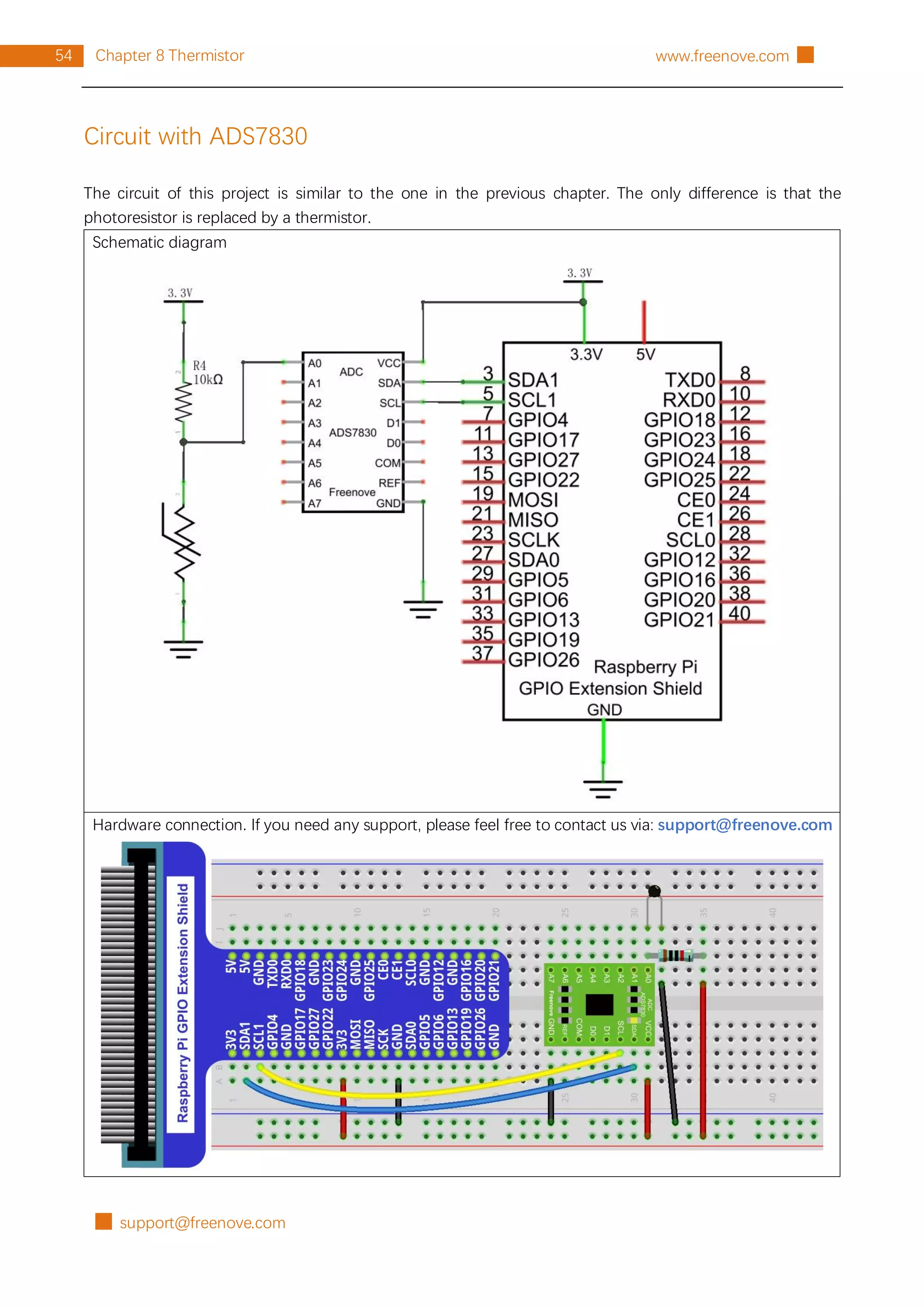
The circuit of this project is similar to the one in the previous chapter. The only difference is that the
photoresistor is replaced by a thermistor.
Schematic diagram
Hardware connection. If you need any support, please feel free to contact us via: support@freenove.com
support@freenove.com █
55
Chapter 8 Thermistor
█ www.freenove.com
Sketch
Sketch 8.1.1 Thermometer
First, observe the result after running the sketch, and then learn about the code in detail.
1. Use Processing to open the file Sketch_08_1_1_Thermometer.
processing
~/Freenove_Kit/Processing/Sketches/Sketch_08_1_1_Thermometer/Sketch_08_1_1_Ther
mometer.pde
2. Click on "RUN" to run the code.
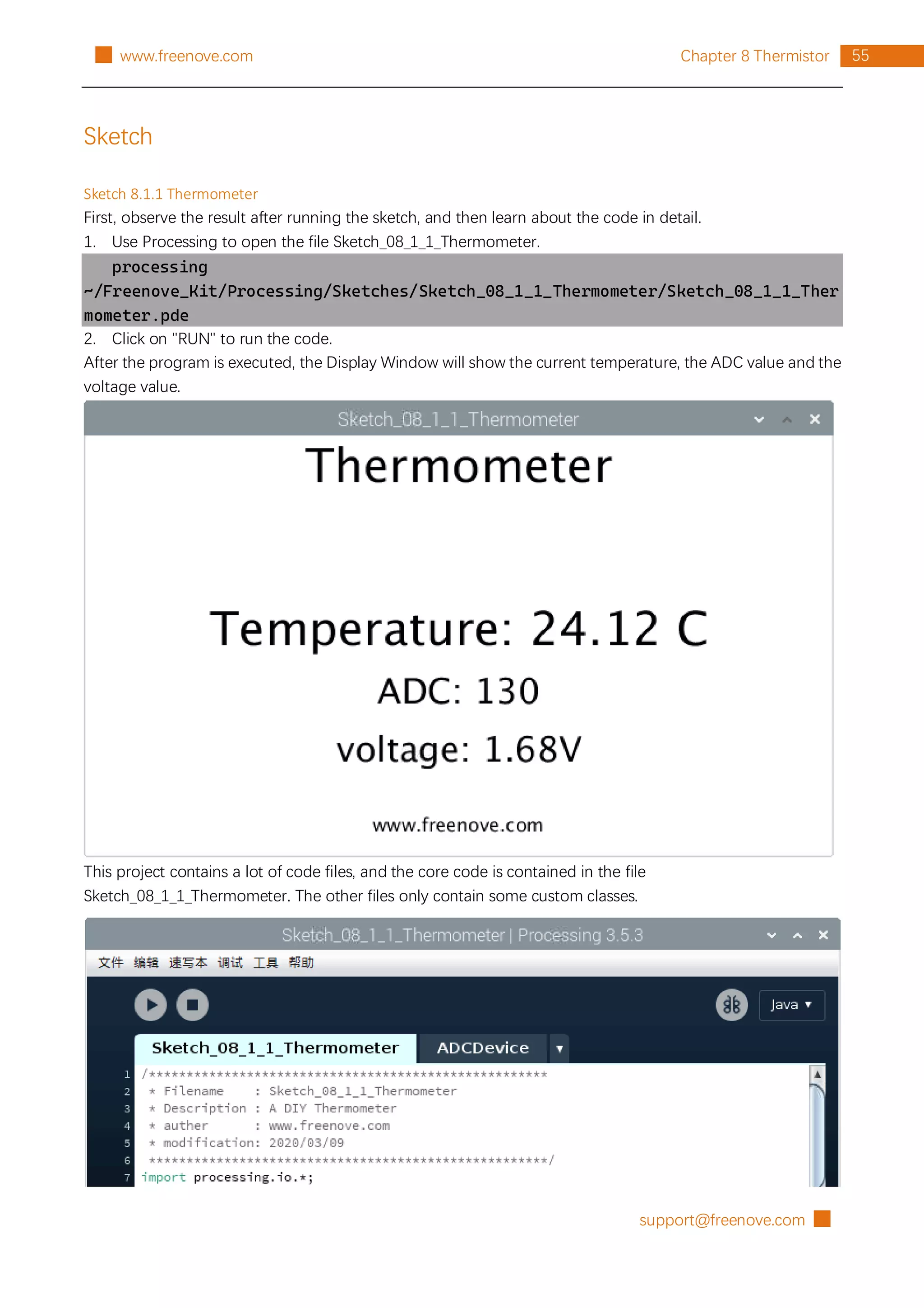
After the program is executed, the Display Window will show the current temperature, the ADC value and the
voltage value.
This project contains a lot of code files, and the core code is contained in the file
Sketch_08_1_1_Thermometer. The other files only contain some custom classes.
█ support@freenove.com
56 Chapter 8 Thermistor www.freenove.com █
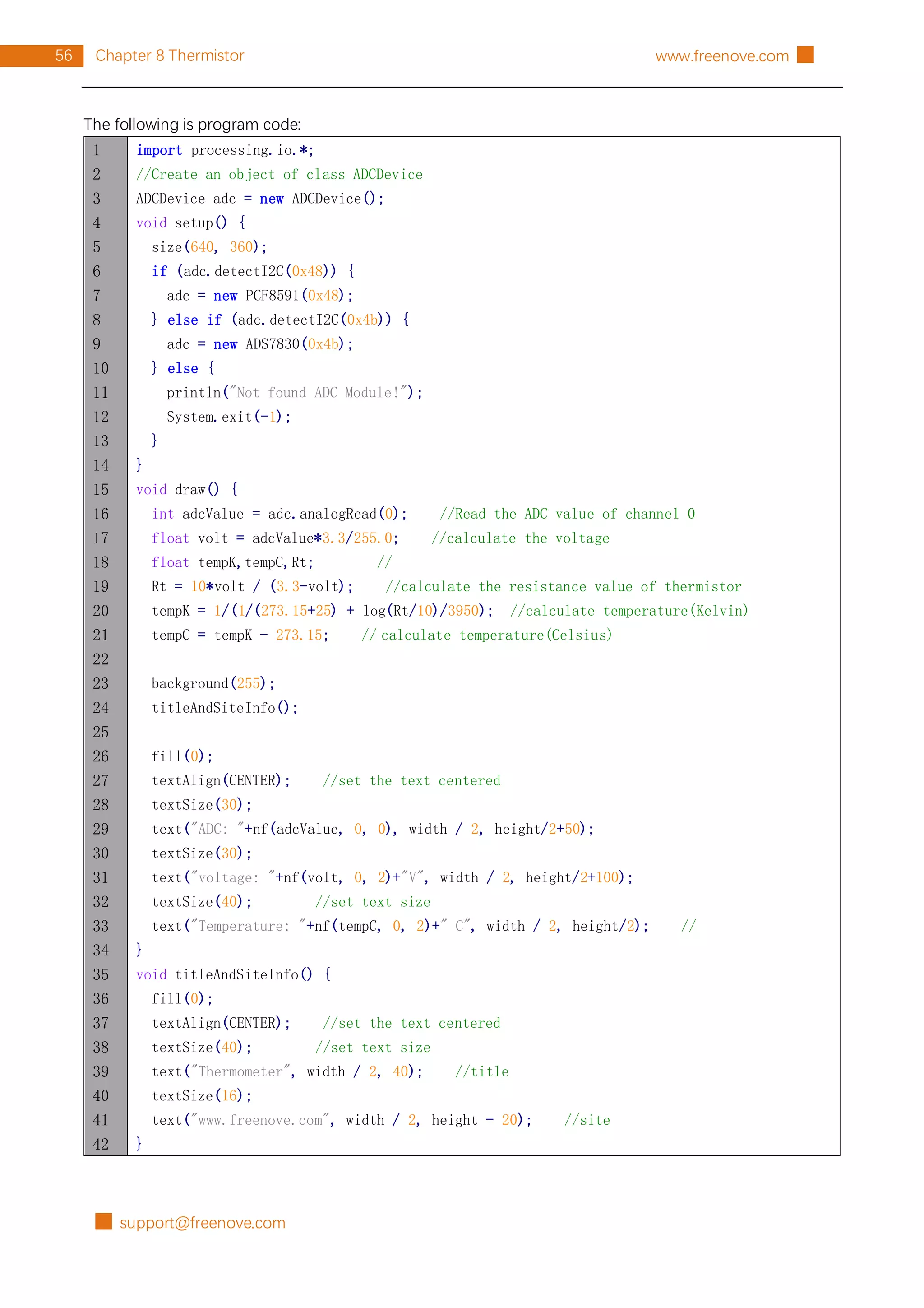
The following is program code:
1
2
3
4
5
6
7
8
9
10
11
12
13
14
15
16
17
18
19
20
21
22
23
24
25
26
27
28
29
30
31
32
33
34
35
36
37
38
39
40
41
42
import processing.io.*;
//Create an object of class ADCDevice
ADCDevice adc = new ADCDevice();
void setup() {
size(640, 360);
if (adc.detectI2C(0x48)) {
adc = new PCF8591(0x48);
} else if (adc.detectI2C(0x4b)) {
adc = new ADS7830(0x4b);
} else {
println("Not found ADC Module!");
System.exit(-1);
}
}
void draw() {
int adcValue = adc.analogRead(0); //Read the ADC value of channel 0
float volt = adcValue*3.3/255.0; //calculate the voltage
float tempK,tempC,Rt; //
Rt = 10*volt / (3.3-volt); //calculate the resistance value of thermistor
tempK = 1/(1/(273.15+25) + log(Rt/10)/3950); //calculate temperature(Kelvin)
tempC = tempK - 273.15; // calculate temperature(Celsius)
background(255);
titleAndSiteInfo();
fill(0);
textAlign(CENTER); //set the text centered
textSize(30);
text("ADC: "+nf(adcValue, 0, 0), width / 2, height/2+50);
textSize(30);
text("voltage: "+nf(volt, 0, 2)+"V", width / 2, height/2+100);
textSize(40); //set text size
text("Temperature: "+nf(tempC, 0, 2)+" C", width / 2, height/2); //
}
void titleAndSiteInfo() {
fill(0);
textAlign(CENTER); //set the text centered
textSize(40); //set text size
text("Thermometer", width / 2, 40); //title
textSize(16);
text("www.freenove.com", width / 2, height - 20); //site
}
support@freenove.com █
57
Chapter 8 Thermistor
█ www.freenove.com
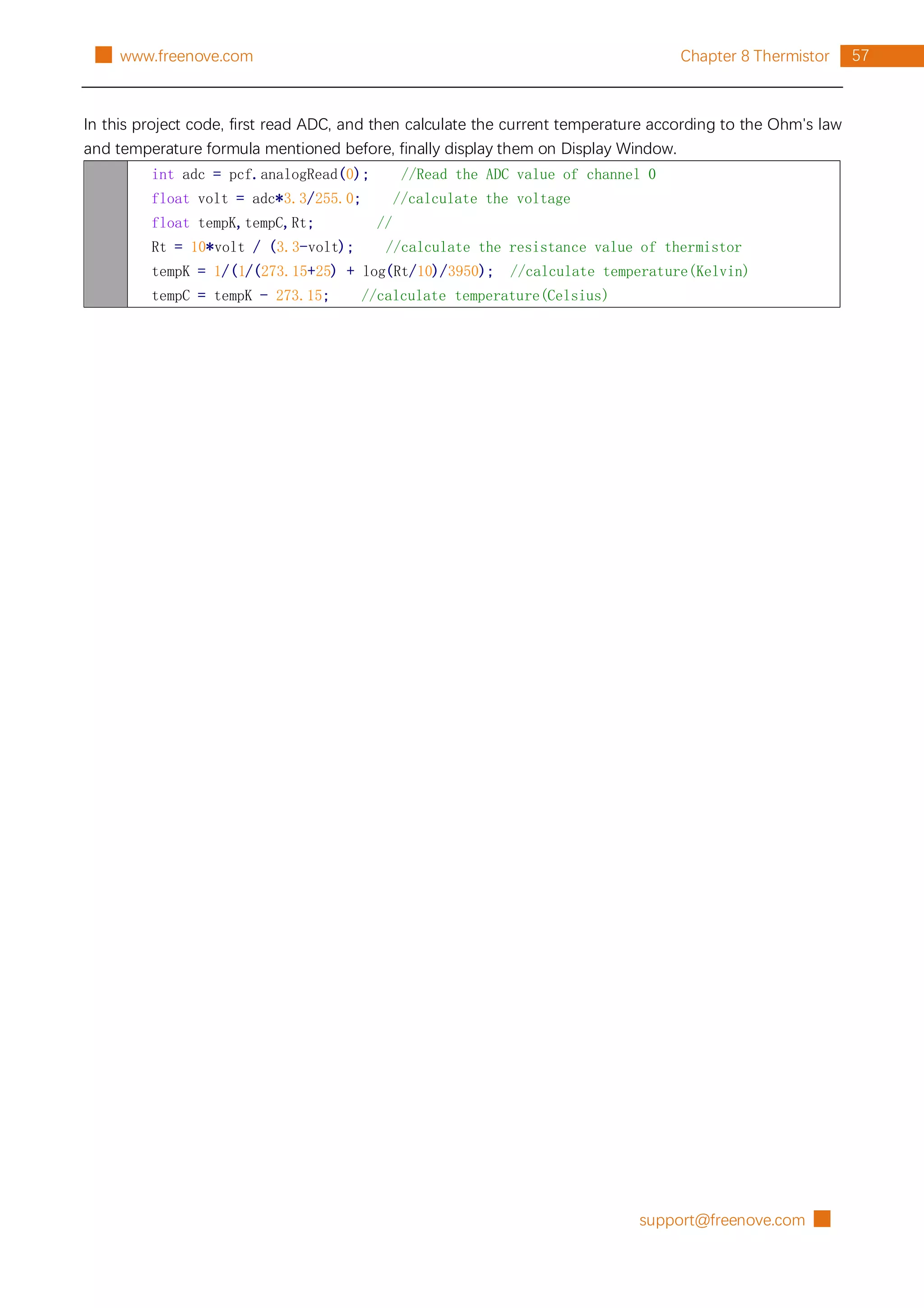
In this project code, first read ADC, and then calculate the current temperature according to the Ohm's law
and temperature formula mentioned before, finally display them on Display Window.
int adc = pcf.analogRead(0); //Read the ADC value of channel 0
float volt = adc*3.3/255.0; //calculate the voltage
float tempK,tempC,Rt; //
Rt = 10*volt / (3.3-volt); //calculate the resistance value of thermistor
tempK = 1/(1/(273.15+25) + log(Rt/10)/3950); //calculate temperature(Kelvin)
tempC = tempK - 273.15; //calculate temperature(Celsius)
█ support@freenove.com
58 Chapter 9 Motor & Driver www.freenove.com █
Chapter 9 Motor & Driver
In this chapter, we will learn how to use a DC motor, including how to control the speed and direction of the
motor.
Project 9.1 Motor
In this project, we use L293D to drive the DC motor. We can click on the button in the Processing Display
Window to control motor direction, and drag the progress bar to control the motor speed.
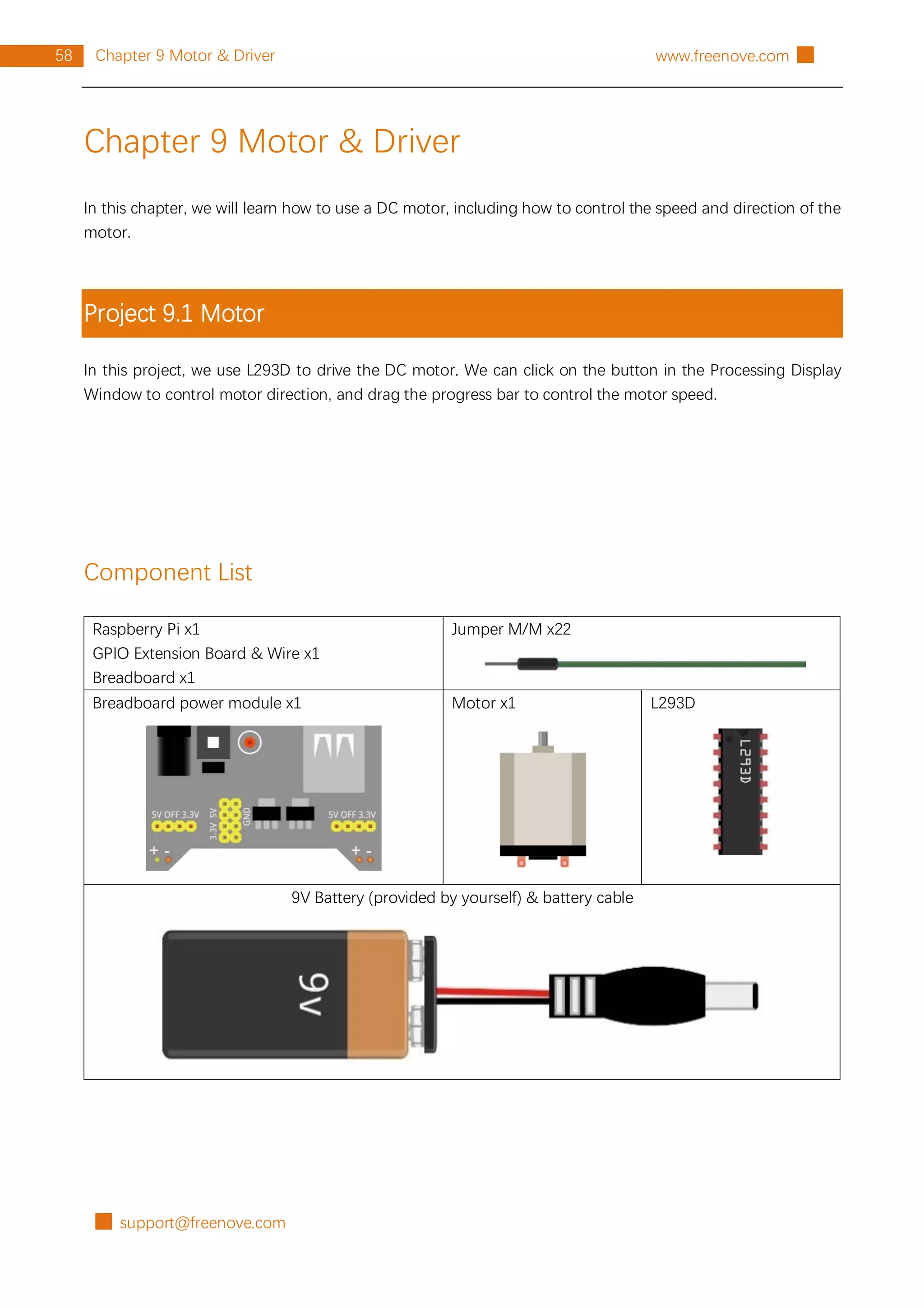
Component List
Raspberry Pi x1
GPIO Extension Board & Wire x1
Breadboard x1
Jumper M/M x22
Breadboard power module x1 Motor x1 L293D
9V Battery (provided by yourself) & battery cable
support@freenove.com █
59
Chapter 9 Motor & Driver
█ www.freenove.com
Circuit
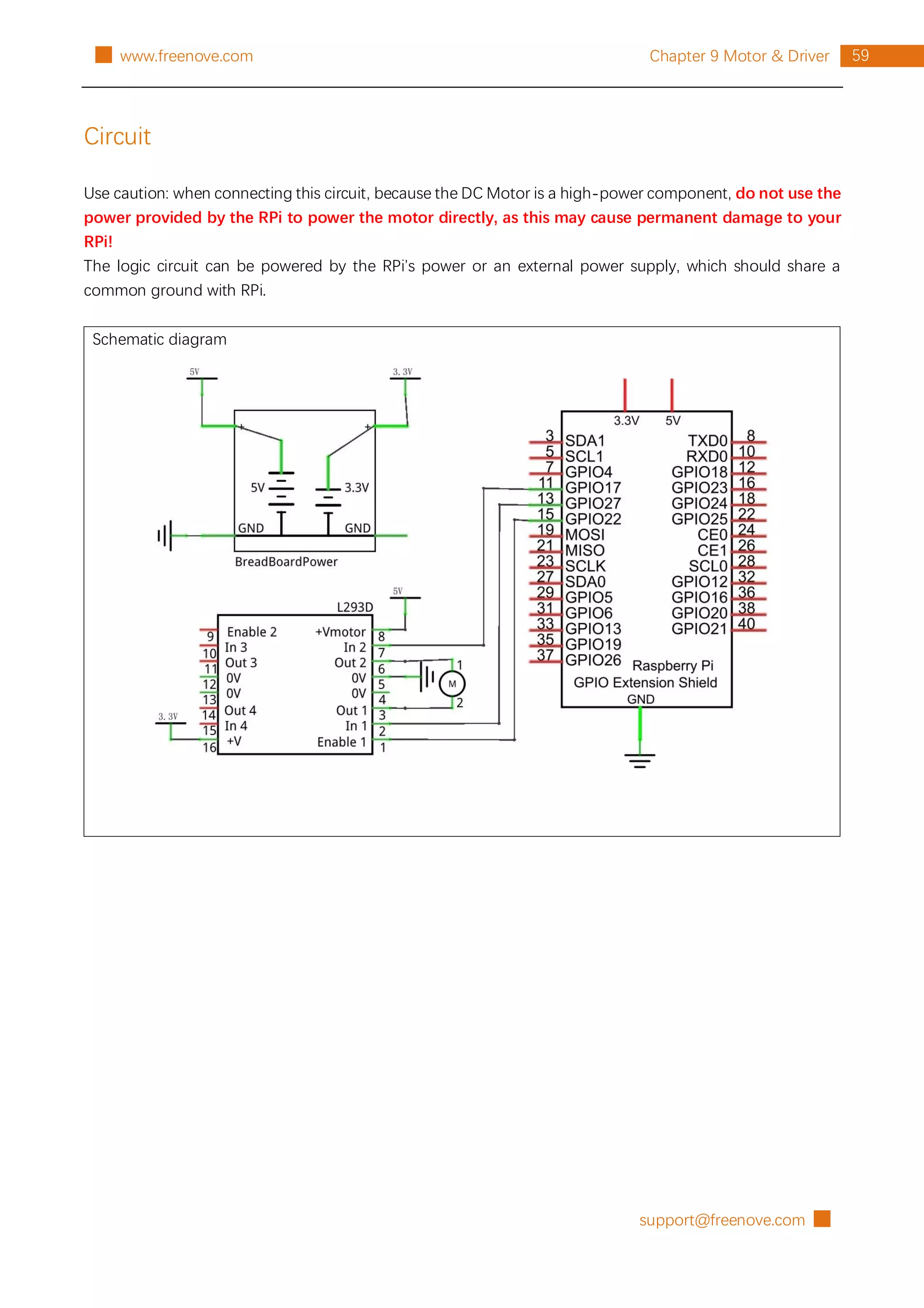
Use caution: when connecting this circuit, because the DC Motor is a high-power component, do not use the
power provided by the RPi to power the motor directly, as this may cause permanent damage to your
RPi!
The logic circuit can be powered by the RPi’s power or an external power supply, which should share a
common ground with RPi.
Schematic diagram
█ support@freenove.com
60 Chapter 9 Motor & Driver www.freenove.com █
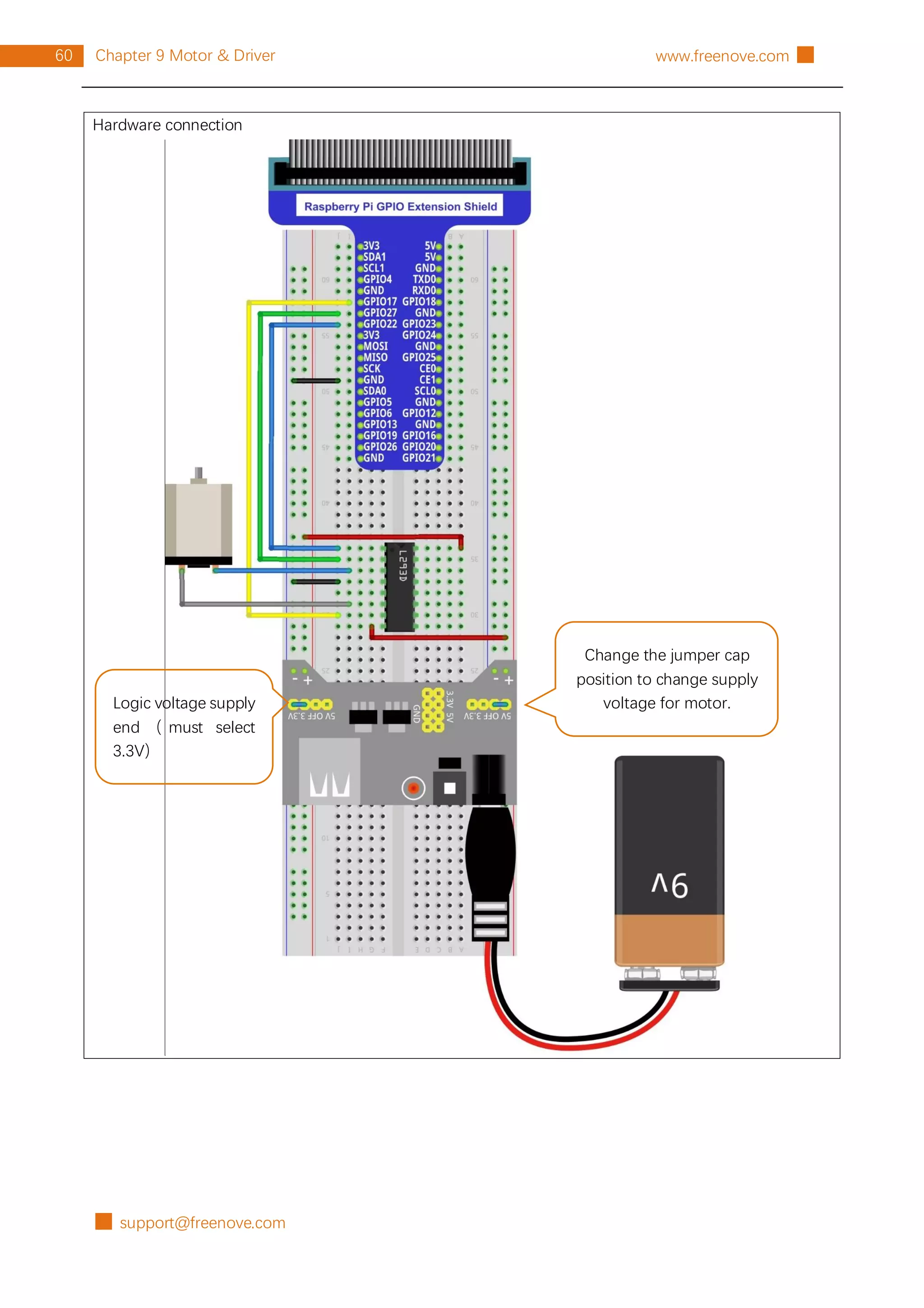
Hardware connection
Change the jumper cap
position to change supply
voltage for motor.
Logic voltage supply
end ( must select
3.3V)
support@freenove.com █
61
Chapter 9 Motor & Driver
█ www.freenove.com
Sketch
Sketch 9.1.1 Motor
First, observe the result after running the sketch, and then learn about the code in detail.
1. Use Processing to open the file Sketch_09_1_1_Motor.
processing
~/Freenove_Kit/Processing/Sketches/Sketch_09_1_1_Motor/Sketch_09_1_1_ Motor.pde
2. Click on "RUN" to run the code.
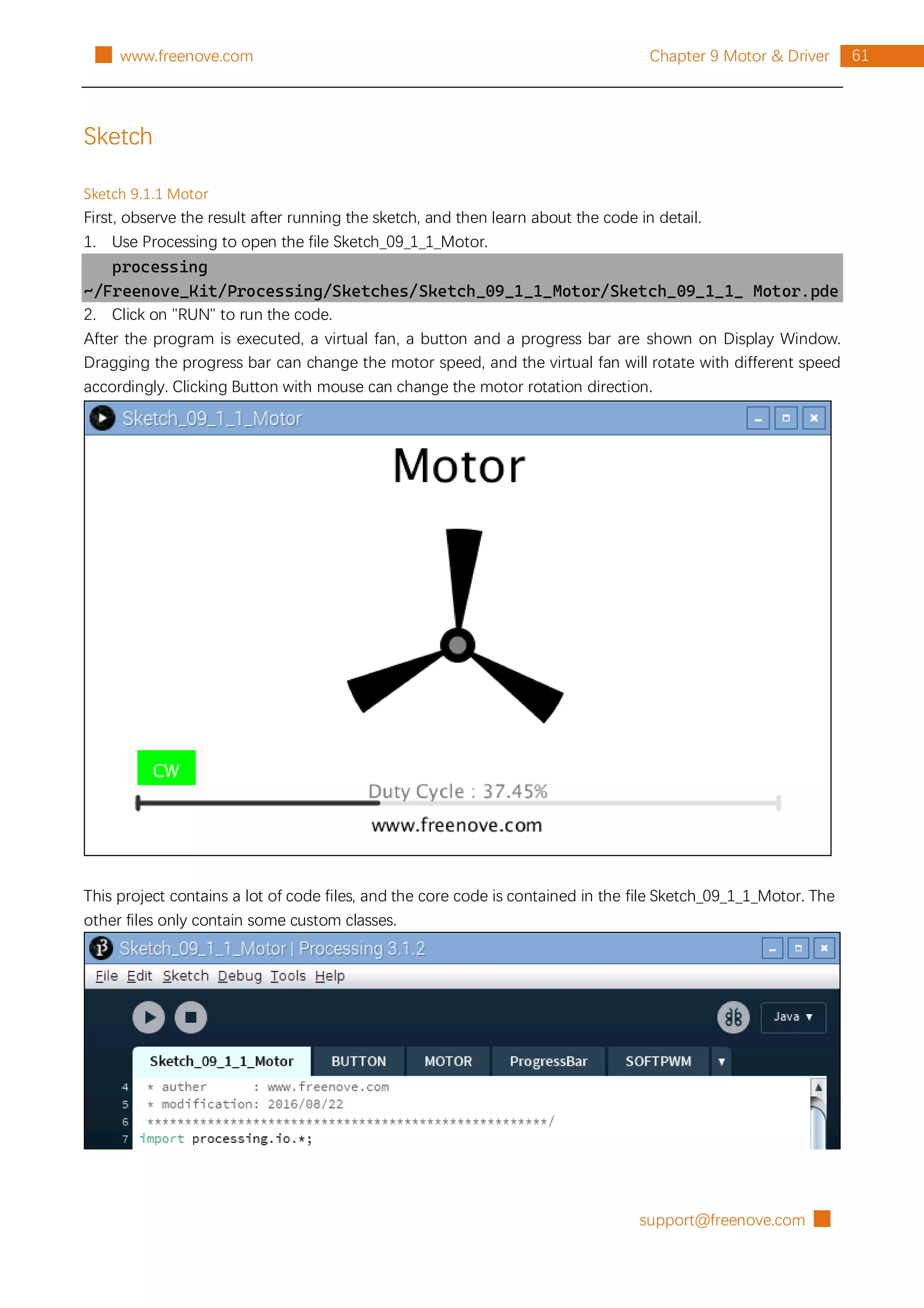
After the program is executed, a virtual fan, a button and a progress bar are shown on Display Window.
Dragging the progress bar can change the motor speed, and the virtual fan will rotate with different speed
accordingly. Clicking Button with mouse can change the motor rotation direction.
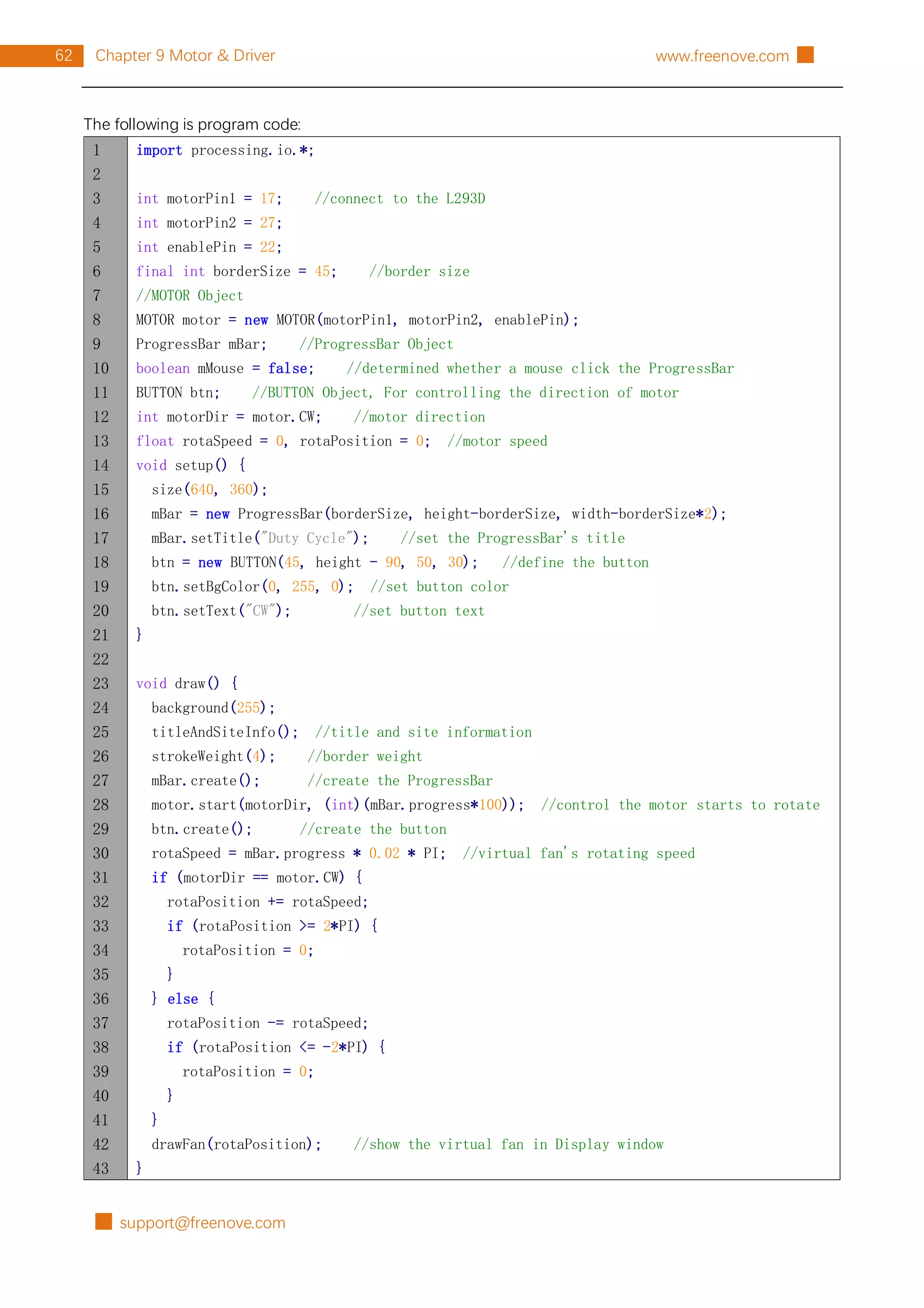
This project contains a lot of code files, and the core code is contained in the file Sketch_09_1_1_Motor. The
other files only contain some custom classes.
█ support@freenove.com
62 Chapter 9 Motor & Driver www.freenove.com █
The following is program code:
1
2
3
4
5
6
7
8
9
10
11
12
13
14
15
16
17
18
19
20
21
22
23
24
25
26
27
28
29
30
31
32
33
34
35
36
37
38
39
40
41
42
43
import processing.io.*;
int motorPin1 = 17; //connect to the L293D
int motorPin2 = 27;
int enablePin = 22;
final int borderSize = 45; //border size
//MOTOR Object
MOTOR motor = new MOTOR(motorPin1, motorPin2, enablePin);
ProgressBar mBar; //ProgressBar Object
boolean mMouse = false; //determined whether a mouse click the ProgressBar
BUTTON btn; //BUTTON Object, For controlling the direction of motor
int motorDir = motor.CW; //motor direction
float rotaSpeed = 0, rotaPosition = 0; //motor speed
void setup() {
size(640, 360);
mBar = new ProgressBar(borderSize, height-borderSize, width-borderSize*2);
mBar.setTitle("Duty Cycle"); //set the ProgressBar's title
btn = new BUTTON(45, height - 90, 50, 30); //define the button
btn.setBgColor(0, 255, 0); //set button color
btn.setText("CW"); //set button text
}
void draw() {
background(255);
titleAndSiteInfo(); //title and site information
strokeWeight(4); //border weight
mBar.create(); //create the ProgressBar
motor.start(motorDir, (int)(mBar.progress*100)); //control the motor starts to rotate
btn.create(); //create the button
rotaSpeed = mBar.progress * 0.02 * PI; //virtual fan's rotating speed
if (motorDir == motor.CW) {
rotaPosition += rotaSpeed;
if (rotaPosition >= 2*PI) {
rotaPosition = 0;
}
} else {
rotaPosition -= rotaSpeed;
if (rotaPosition <= -2*PI) {
rotaPosition = 0;
}
}
drawFan(rotaPosition); //show the virtual fan in Display window
}
support@freenove.com █
63
Chapter 9 Motor & Driver
█ www.freenove.com
44
45
46
47
48
49
50
51
52
53
54
55
56
57
58
59
60
61
62
63
64
65
66
67
68
69
70
71
72
73
74
75
76
77
78
79
80
81
82
83
84
85
86
87
//Draw a clover fan according to the stating angle
void drawFan(float angle) {
constrain(angle, 0, 2*PI);
fill(0);
for (int i=0; i<3; i++) {
arc(width/2, height/2, 200, 200, 2*i*PI/3+angle, (2*i+0.3)*PI/3+angle, PIE);
}
fill(0);
ellipse(width/2, height/2, 30, 30);
fill(128);
ellipse(width/2, height/2, 15, 15);
}
void mousePressed() {
if ( (mouseY< mBar.y+5) && (mouseY>mBar.y-5) ) {
mMouse = true; //the mouse clicks the progressBar
} else if ((mouseY< btn.y+btn.h) && (mouseY>btn.y)
&& (mouseX< btn.x+btn.w) && (mouseX>btn.x)) { // the mouse clicks the button
if (motorDir == motor.CW) { //change the direction of rotation of motor
motorDir = motor.CCW;
btn.setBgColor(255, 0, 0);
btn.setText("CCW");
} else if (motorDir == motor.CCW) {
motorDir = motor.CW;
btn.setBgColor(0, 255, 0);
btn.setText("CW");
}
}
}
void mouseReleased() {
mMouse = false;
}
void mouseDragged() {
int a = constrain(mouseX, borderSize, width - borderSize);
float t = map(a, borderSize, width - borderSize, 0.0, 1.0);
if (mMouse) {
mBar.setProgress(t);
}
}
void titleAndSiteInfo() {
fill(0);
textAlign(CENTER); //set the text centered
textSize(40); //set text size
text("Motor", width / 2, 40); //title
█ support@freenove.com
64 Chapter 9 Motor & Driver www.freenove.com █
88
89
90
textSize(16);
text("www.freenove.com", width / 2, height - 20); //site
}
First define the GPIO pin connected to the Motor, motor class object, the L293D class object, the ProgressBar
class object, the Button class object, and some variables.
int motorPin1 = 17; //connect to the L293D
int motorPin2 = 27;
int enablePin = 22;
final int borderSize = 45; //border size
//MOTOR Object
MOTOR motor = new MOTOR(motorPin1, motorPin2, enablePin);
ProgressBar mBar; //ProgressBar Object
boolean mMouse = false; //determined whether a mouse click the ProgressBar
BUTTON btn; //BUTTON Object, For controlling the direction of motor
int motorDir = motor.CW; //motor direction
float rotaSpeed = 0, rotaPosition = 0; //motor speed
Initialize the ProgressBar and Button in setup().
mBar = new ProgressBar(borderSize, height-borderSize, width-borderSize*2);
mBar.setTitle("Duty Cycle"); //set the ProgressBar's title
btn = new BUTTON(45, height - 90, 50, 30); //define the button
btn.setBgColor(0, 255, 0); //set button color
btn.setText("CW"); //set button text
In function draw(), draw all the contents to be displayed. Then set the motor speed, as well as the speed of
virtual fan according to the progress of progress bar. And set the motor direction according to the button
flag.
void draw() {
background(255);
titleAndSiteInfo(); //title and site information
strokeWeight(4); //border weight
mBar.create(); //create the ProgressBar
motor.start(motorDir, (int)(mBar.progress*100)); //control the motor starts to rotate
btn.create(); //create the button
rotaSpeed = mBar.progress * 0.02 * PI; //virtual fan's rotating speed
if (motorDir == motor.CW) {
rotaPosition += rotaSpeed;
if (rotaPosition >= 2*PI) {
rotaPosition = 0;
}
} else {
rotaPosition -= rotaSpeed;
if (rotaPosition <= -2*PI) {
support@freenove.com █
65
Chapter 9 Motor & Driver
█ www.freenove.com
rotaPosition = 0;
}
}
drawFan(rotaPosition); //show the virtual fan in Display window
}
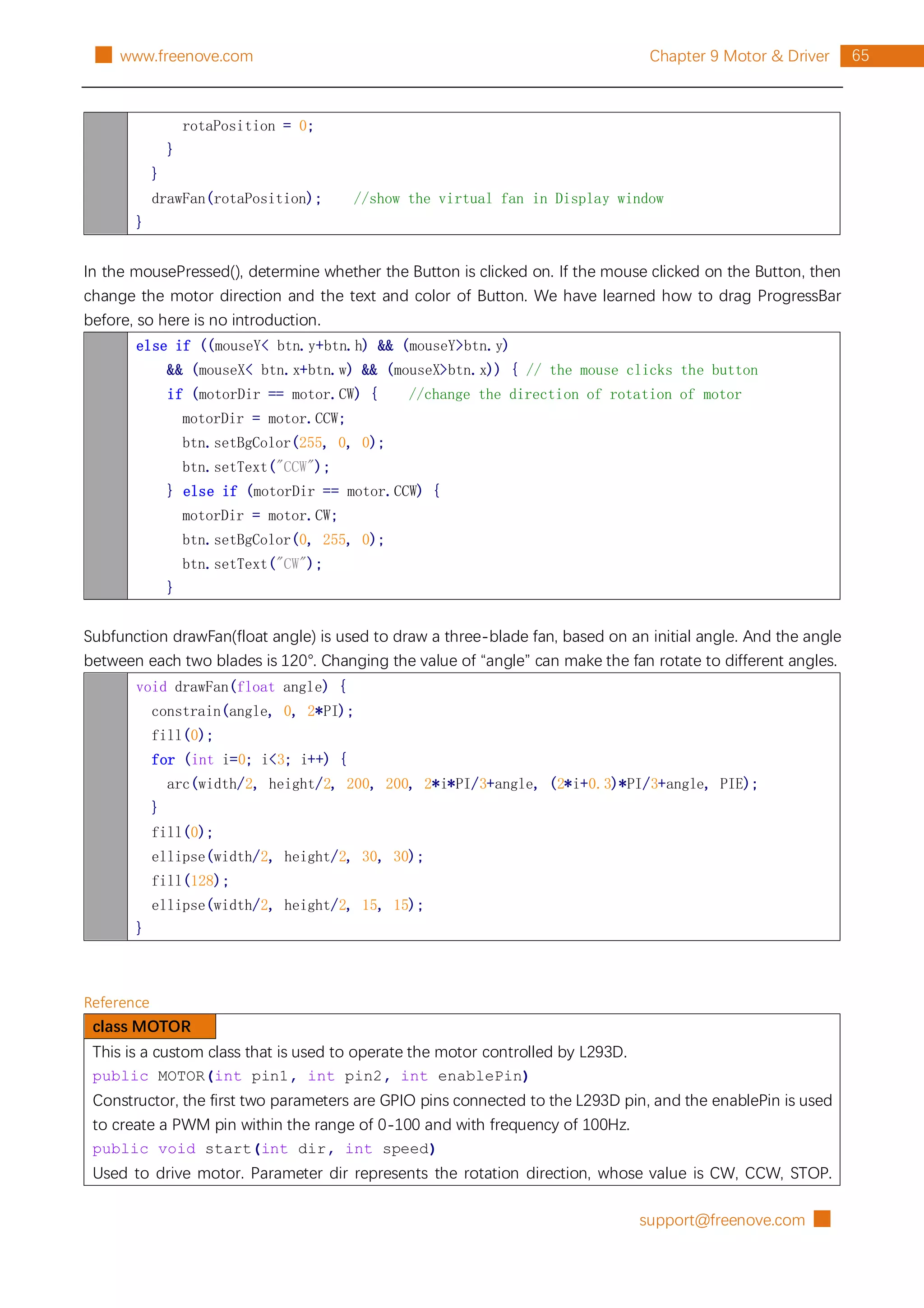
In the mousePressed(), determine whether the Button is clicked on. If the mouse clicked on the Button, then
change the motor direction and the text and color of Button. We have learned how to drag ProgressBar
before, so here is no introduction.
else if ((mouseY< btn.y+btn.h) && (mouseY>btn.y)
&& (mouseX< btn.x+btn.w) && (mouseX>btn.x)) { // the mouse clicks the button
if (motorDir == motor.CW) { //change the direction of rotation of motor
motorDir = motor.CCW;
btn.setBgColor(255, 0, 0);
btn.setText("CCW");
} else if (motorDir == motor.CCW) {
motorDir = motor.CW;
btn.setBgColor(0, 255, 0);
btn.setText("CW");
}
Subfunction drawFan(float angle) is used to draw a three-blade fan, based on an initial angle. And the angle
between each two blades is 120°. Changing the value of “angle” can make the fan rotate to different angles.
void drawFan(float angle) {
constrain(angle, 0, 2*PI);
fill(0);
for (int i=0; i<3; i++) {
arc(width/2, height/2, 200, 200, 2*i*PI/3+angle, (2*i+0.3)*PI/3+angle, PIE);
}
fill(0);
ellipse(width/2, height/2, 30, 30);
fill(128);
ellipse(width/2, height/2, 15, 15);
}
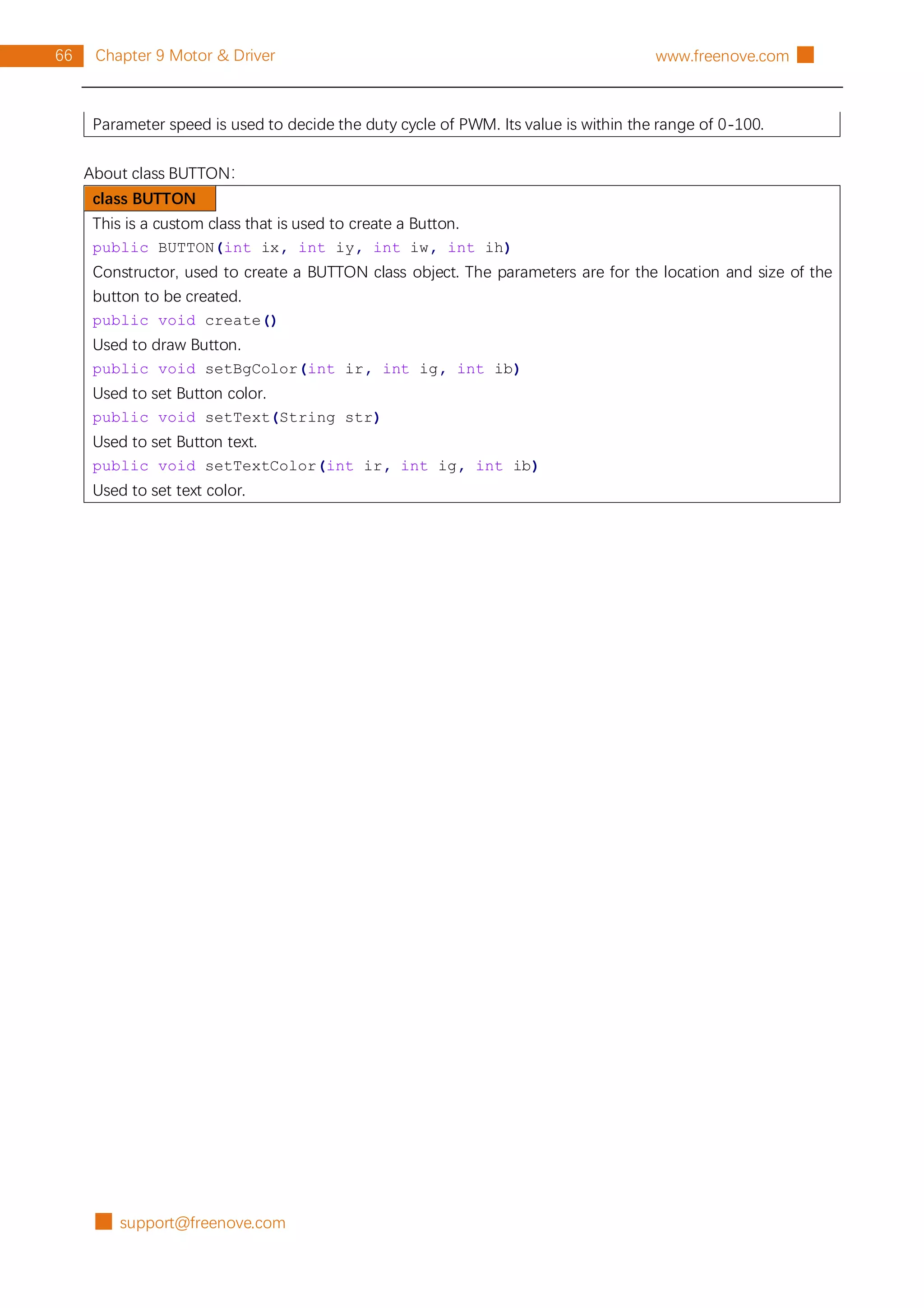
Reference
class MOTOR
This is a custom class that is used to operate the motor controlled by L293D.
public MOTOR(int pin1, int pin2, int enablePin)
Constructor, the first two parameters are GPIO pins connected to the L293D pin, and the enablePin is used
to create a PWM pin within the range of 0-100 and with frequency of 100Hz.
public void start(int dir, int speed)
Used to drive motor. Parameter dir represents the rotation direction, whose value is CW, CCW, STOP.
█ support@freenove.com
66 Chapter 9 Motor & Driver www.freenove.com █
Parameter speed is used to decide the duty cycle of PWM. Its value is within the range of 0-100.
About class BUTTON:
class BUTTON
This is a custom class that is used to create a Button.
public BUTTON(int ix, int iy, int iw, int ih)
Constructor, used to create a BUTTON class object. The parameters are for the location and size of the
button to be created.
public void create()
Used to draw Button.
public void setBgColor(int ir, int ig, int ib)
Used to set Button color.
public void setText(String str)
Used to set Button text.
public void setTextColor(int ir, int ig, int ib)
Used to set text color.
support@freenove.com █
67
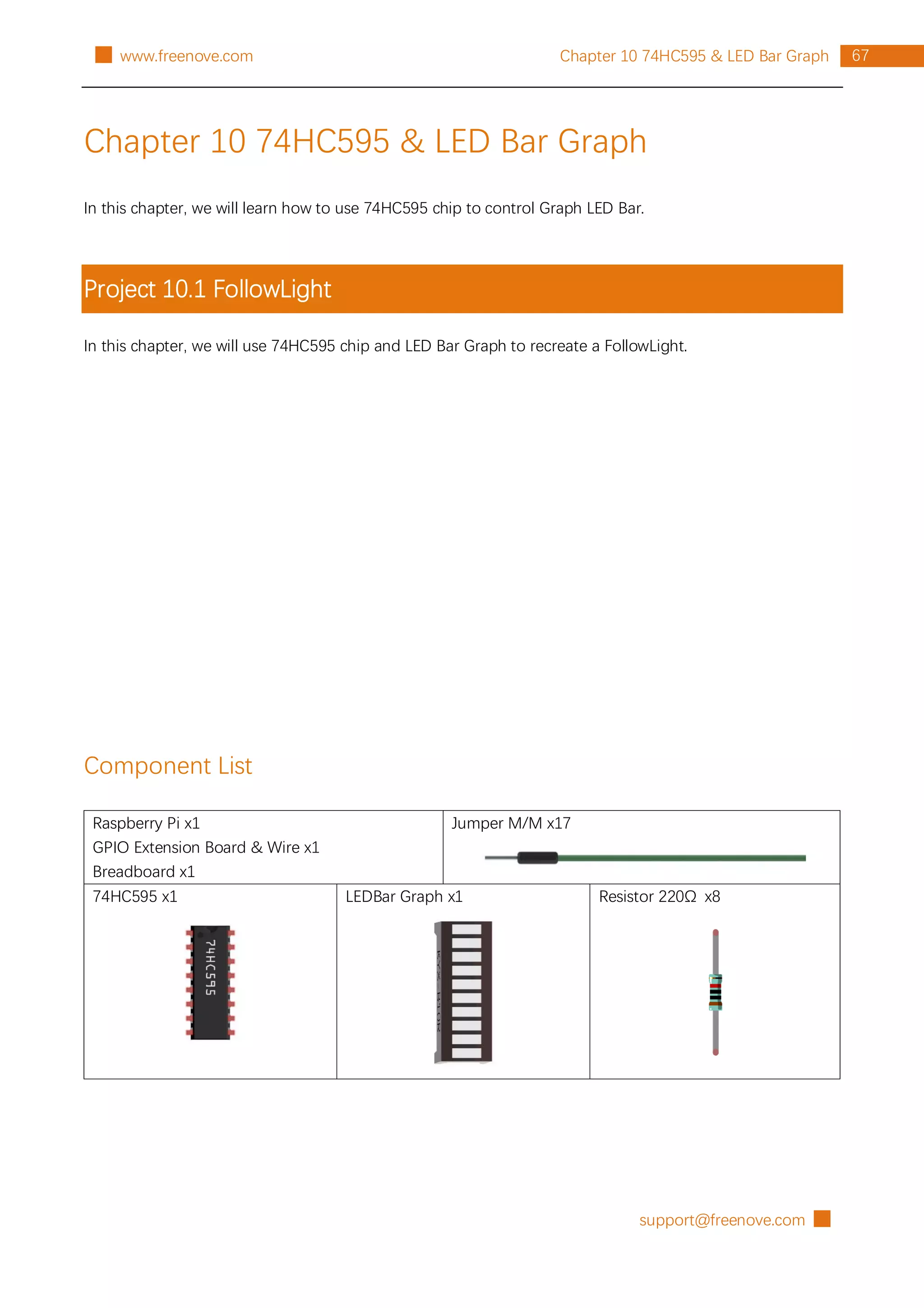
Chapter 10 74HC595 & LED Bar Graph
█ www.freenove.com
Chapter 10 74HC595 & LED Bar Graph
In this chapter, we will learn how to use 74HC595 chip to control Graph LED Bar.
Project 10.1 FollowLight
In this chapter, we will use 74HC595 chip and LED Bar Graph to recreate a FollowLight.
Component List
Raspberry Pi x1
GPIO Extension Board & Wire x1
Breadboard x1
Jumper M/M x17
74HC595 x1 LEDBar Graph x1 Resistor 220Ω x8
█ support@freenove.com
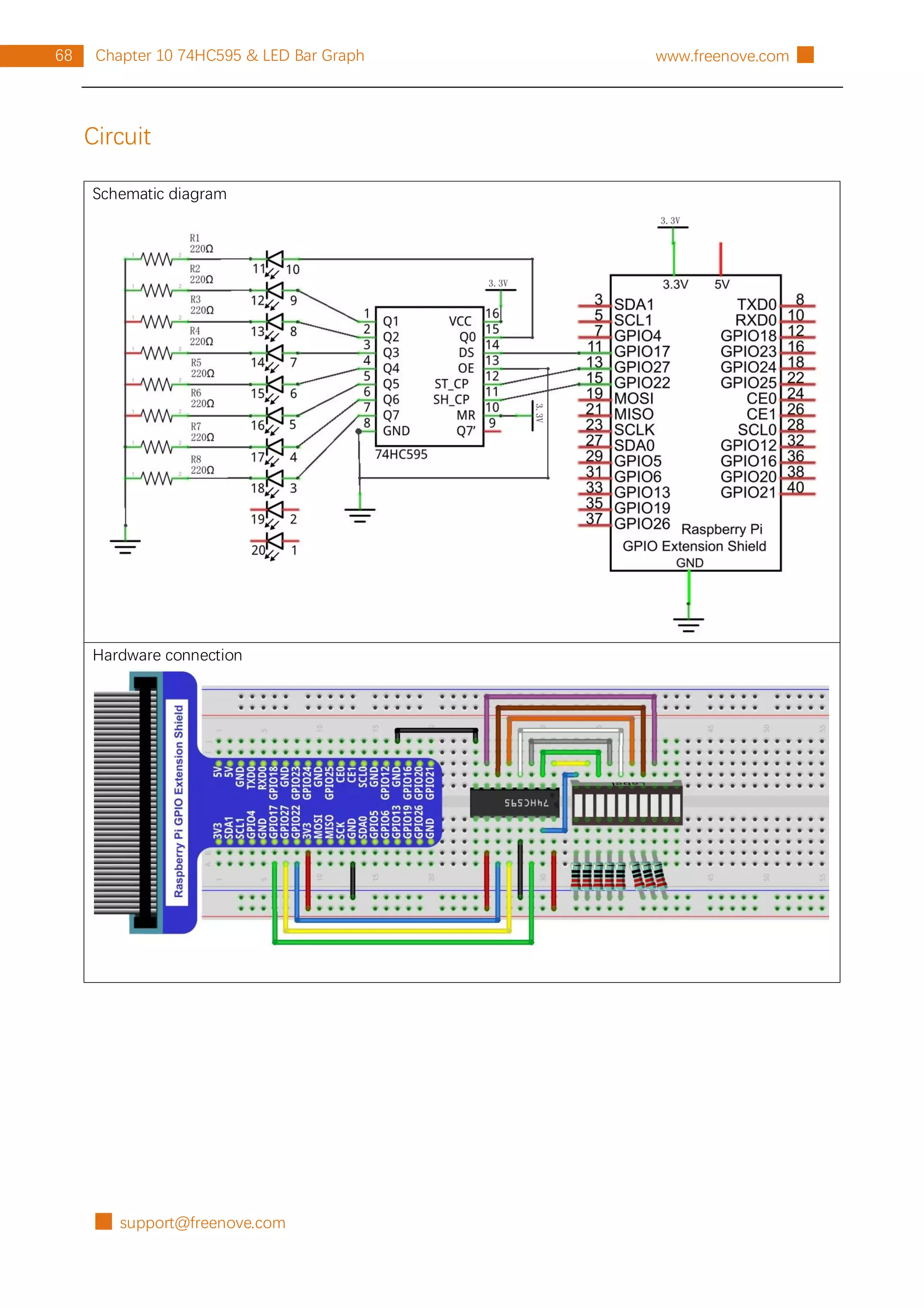
68 Chapter 10 74HC595 & LED Bar Graph www.freenove.com █
Circuit
Schematic diagram
Hardware connection
support@freenove.com █
69
Chapter 10 74HC595 & LED Bar Graph
█ www.freenove.com
Sketch
Sketch 10.1.1 LightWater
First, observe the result after running the sketch, and then learn about the code in detail.
1. Use Processing to open the file Sketch_10_1_1_LightWater.
processing
~/Freenove_Kit/Processing/Sketches/Sketch_10_1_1_LightWater/Sketch_10_1_1_Light
Water.pde
2. Click on "RUN" to run the code.
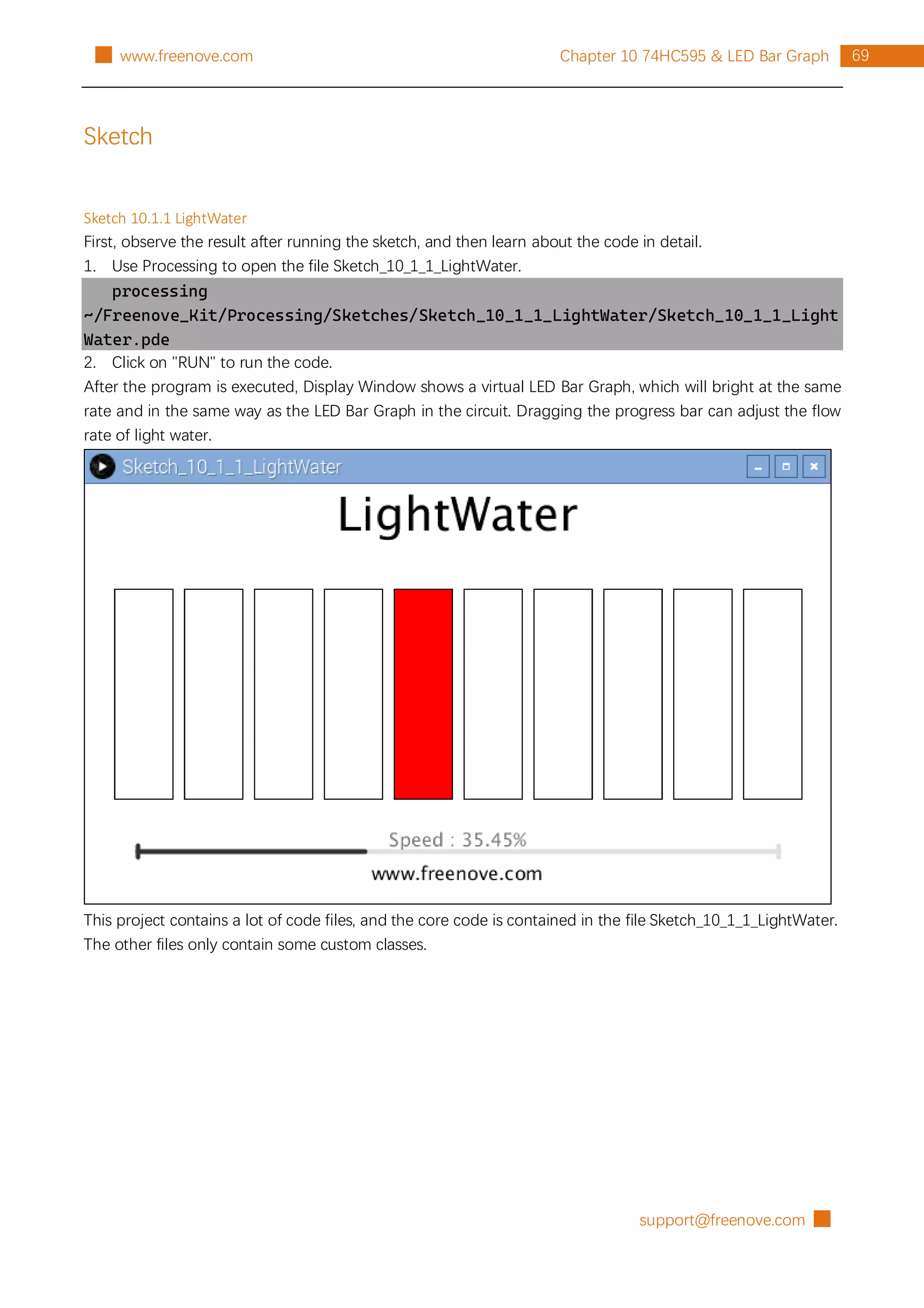
After the program is executed, Display Window shows a virtual LED Bar Graph, which will bright at the same
rate and in the same way as the LED Bar Graph in the circuit. Dragging the progress bar can adjust the flow
rate of light water.
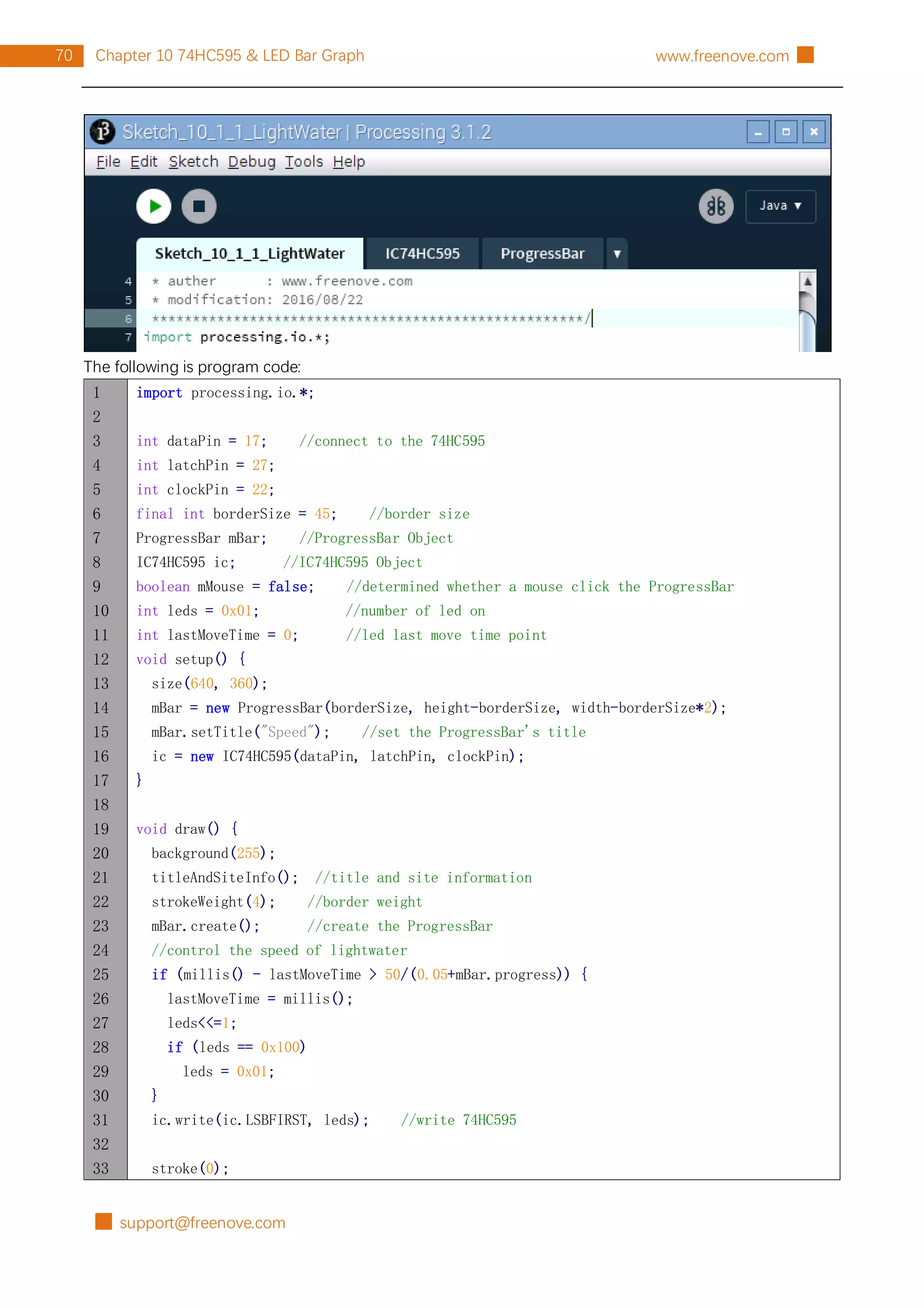
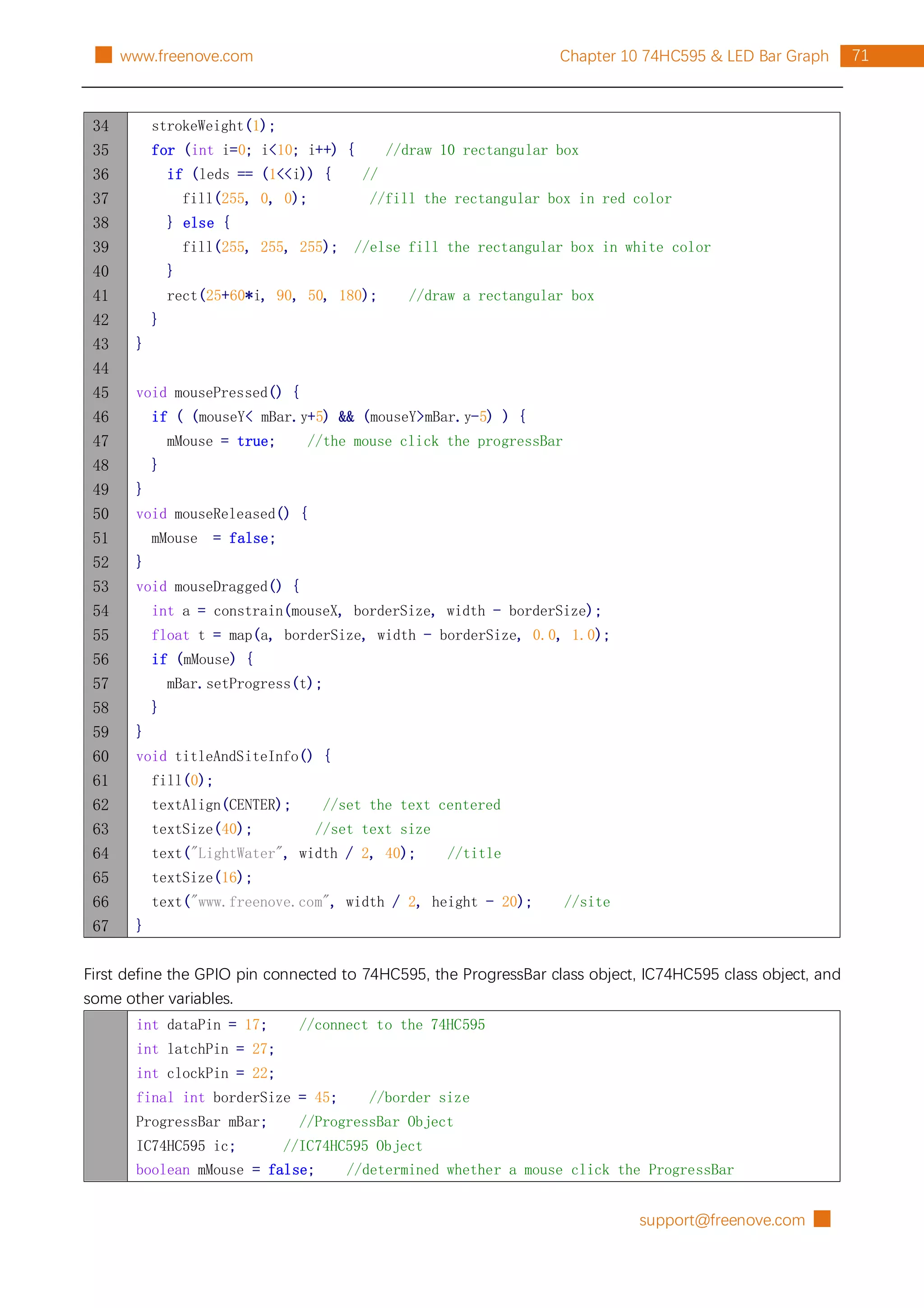
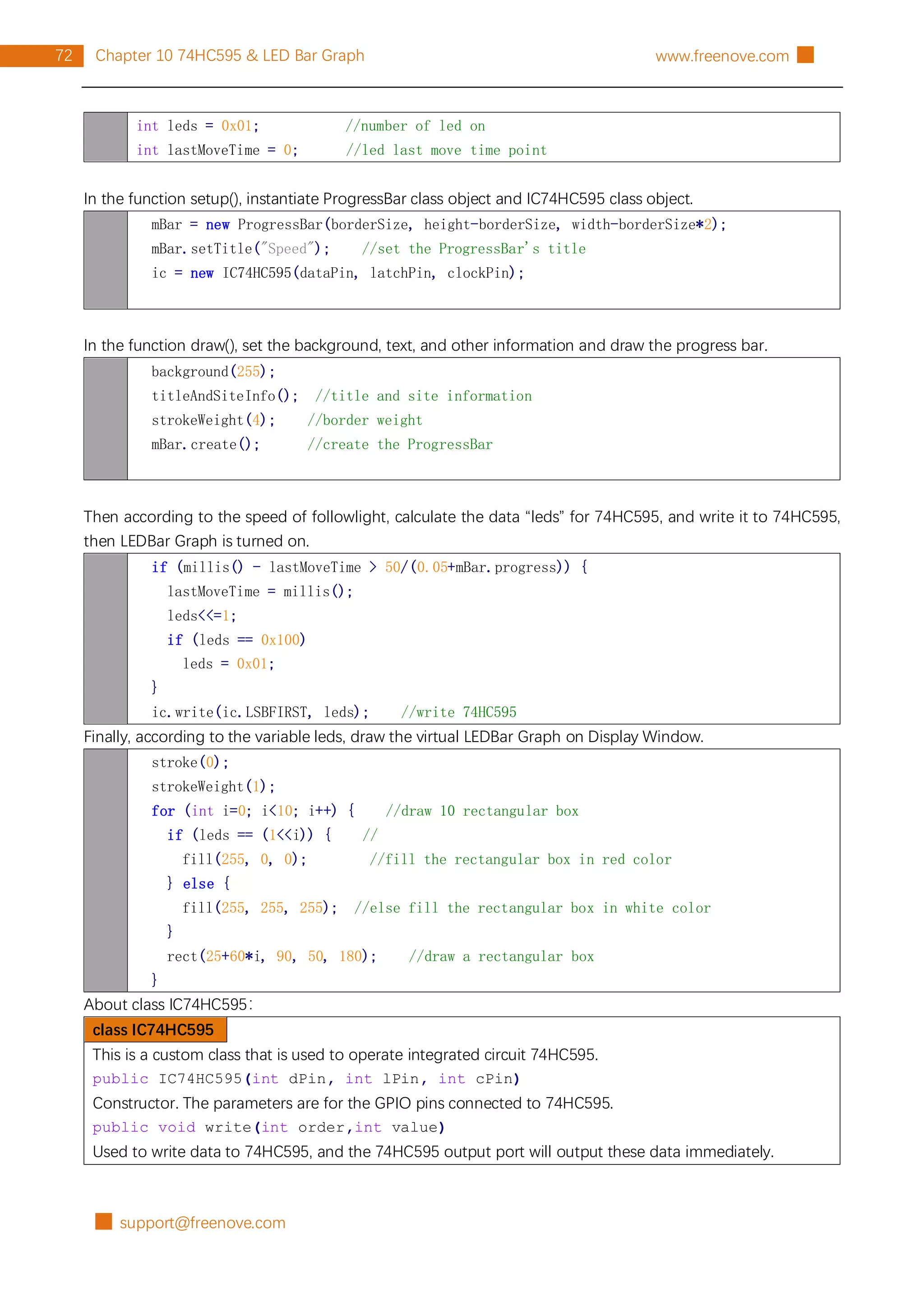
This project contains a lot of code files, and the core code is contained in the file Sketch_10_1_1_LightWater.
The other files only contain some custom classes.
█ support@freenove.com
70 Chapter 10 74HC595 & LED Bar Graph www.freenove.com █
The following is program code:
1
2
3
4
5
6
7
8
9
10
11
12
13
14
15
16
17
18
19
20
21
22
23
24
25
26
27
28
29
30
31
32
33
import processing.io.*;
int dataPin = 17; //connect to the 74HC595
int latchPin = 27;
int clockPin = 22;
final int borderSize = 45; //border size
ProgressBar mBar; //ProgressBar Object
IC74HC595 ic; //IC74HC595 Object
boolean mMouse = false; //determined whether a mouse click the ProgressBar
int leds = 0x01; //number of led on
int lastMoveTime = 0; //led last move time point
void setup() {
size(640, 360);
mBar = new ProgressBar(borderSize, height-borderSize, width-borderSize*2);
mBar.setTitle("Speed"); //set the ProgressBar's title
ic = new IC74HC595(dataPin, latchPin, clockPin);
}
void draw() {
background(255);
titleAndSiteInfo(); //title and site information
strokeWeight(4); //border weight
mBar.create(); //create the ProgressBar
//control the speed of lightwater
if (millis() - lastMoveTime > 50/(0.05+mBar.progress)) {
lastMoveTime = millis();
leds<<=1;
if (leds == 0x100)
leds = 0x01;
}
ic.write(ic.LSBFIRST, leds); //write 74HC595
stroke(0);
support@freenove.com █
71
Chapter 10 74HC595 & LED Bar Graph
█ www.freenove.com
34
35
36
37
38
39
40
41
42
43
44
45
46
47
48
49
50
51
52
53
54
55
56
57
58
59
60
61
62
63
64
65
66
67
strokeWeight(1);
for (int i=0; i<10; i++) { //draw 10 rectangular box
if (leds == (1<<i)) { //
fill(255, 0, 0); //fill the rectangular box in red color
} else {
fill(255, 255, 255); //else fill the rectangular box in white color
}
rect(25+60*i, 90, 50, 180); //draw a rectangular box
}
}
void mousePressed() {
if ( (mouseY< mBar.y+5) && (mouseY>mBar.y-5) ) {
mMouse = true; //the mouse click the progressBar
}
}
void mouseReleased() {
mMouse = false;
}
void mouseDragged() {
int a = constrain(mouseX, borderSize, width - borderSize);
float t = map(a, borderSize, width - borderSize, 0.0, 1.0);
if (mMouse) {
mBar.setProgress(t);
}
}
void titleAndSiteInfo() {
fill(0);
textAlign(CENTER); //set the text centered
textSize(40); //set text size
text("LightWater", width / 2, 40); //title
textSize(16);
text("www.freenove.com", width / 2, height - 20); //site
}
First define the GPIO pin connected to 74HC595, the ProgressBar class object, IC74HC595 class object, and
some other variables.
int dataPin = 17; //connect to the 74HC595
int latchPin = 27;
int clockPin = 22;
final int borderSize = 45; //border size
ProgressBar mBar; //ProgressBar Object
IC74HC595 ic; //IC74HC595 Object
boolean mMouse = false; //determined whether a mouse click the ProgressBar
█ support@freenove.com
72 Chapter 10 74HC595 & LED Bar Graph www.freenove.com █
int leds = 0x01; //number of led on
int lastMoveTime = 0; //led last move time point
In the function setup(), instantiate ProgressBar class object and IC74HC595 class object.
mBar = new ProgressBar(borderSize, height-borderSize, width-borderSize*2);
mBar.setTitle("Speed"); //set the ProgressBar's title
ic = new IC74HC595(dataPin, latchPin, clockPin);
In the function draw(), set the background, text, and other information and draw the progress bar.
background(255);
titleAndSiteInfo(); //title and site information
strokeWeight(4); //border weight
mBar.create(); //create the ProgressBar
Then according to the speed of followlight, calculate the data “leds” for 74HC595, and write it to 74HC595,
then LEDBar Graph is turned on.
if (millis() - lastMoveTime > 50/(0.05+mBar.progress)) {
lastMoveTime = millis();
leds<<=1;
if (leds == 0x100)
leds = 0x01;
}
ic.write(ic.LSBFIRST, leds); //write 74HC595
Finally, according to the variable leds, draw the virtual LEDBar Graph on Display Window.
stroke(0);
strokeWeight(1);
for (int i=0; i<10; i++) { //draw 10 rectangular box
if (leds == (1<<i)) { //
fill(255, 0, 0); //fill the rectangular box in red color
} else {
fill(255, 255, 255); //else fill the rectangular box in white color
}
rect(25+60*i, 90, 50, 180); //draw a rectangular box
}
About class IC74HC595:
class IC74HC595
This is a custom class that is used to operate integrated circuit 74HC595.
public IC74HC595(int dPin, int lPin, int cPin)
Constructor. The parameters are for the GPIO pins connected to 74HC595.
public void write(int order,int value)
Used to write data to 74HC595, and the 74HC595 output port will output these data immediately.
support@freenove.com █
73
Chapter 11 74HC595 & Seven-segment display.
█ www.freenove.com
Chapter 11 74HC595 & Seven-segment display.
In this chapter, we will learn a new component, Seven-segment display (SSD).
Project 11.1 Seven -segment display.
We will use 74HC595 to control Seven-segment display (SSD) and make it display decimal character "0-9".
Component List
Raspberry Pi x1
GPIO Extension Board & Wire x1
Breadboard x1
Jumper M/M x18
74HC595 x1 7-segment display x1 Resistor 220Ω x8
█ support@freenove.com
74 Chapter 11 74HC595 & Seven-segment display. www.freenove.com █
Circuit
Schematic diagram
Hardware connection
support@freenove.com █
75
Chapter 11 74HC595 & Seven-segment display.
█ www.freenove.com
Sketch
Sketch 11.1.1 SSD
First observe the result after running the sketch, and then learn about the code in detail.
1. Use Processing to open the file Sketch_11_1_1_SSD.
processing
~/Freenove_Kit/Processing/Sketches/Sketch_11_1_1_SSD/Sketch_11_1_1_ SSD.pde
2. Click on "RUN" to run the code.
After the program is executed, both Display Window and SSD in the circuit show the same number. And they
have the same rate to display number "0-9" constantly. Dragging the progress bar can adjust the speed it
increases.
This project contains a lot of code files, and the core code is contained in the file Sketch_11_1_1_SSD. The
other files only contain some custom classes.
█ support@freenove.com
76 Chapter 11 74HC595 & Seven-segment display. www.freenove.com █
The following is program code:
1
2
3
4
5
6
7
8
9
10
11
12
13
14
15
16
17
18
19
20
21
22
23
24
25
26
27
28
29
30
31
32
33
34
35
36
37
38
39
40
41
42
43
import processing.io.*;
int dataPin = 17; //connect to the 74HC595
int latchPin = 27;
int clockPin = 22;
final int borderSize = 45; //border size
ProgressBar mBar; //ProgressBar Object
IC74HC595 ic; //IC74HC595 Object
boolean mMouse = false; //determined whether a mouse click the ProgressBar
int index = 0; // index of number
int lastMoveTime = 0; //led last move time point
//encoding for character 0-9 of common anode SevenSegmentDisplay
final int[] numCode = {0xc0, 0xf9, 0xa4, 0xb0, 0x99, 0x92, 0x82, 0xf8, 0x80, 0x90};
PFont mFont;
void setup() {
size(640, 360);
mBar = new ProgressBar(borderSize, height-borderSize, width-borderSize*2);
mBar.setTitle("Speed"); //set the ProgressBar's title
ic = new IC74HC595(dataPin, latchPin, clockPin);
mFont = loadFont("DigifaceWide-100.vlw"); //create DigifaceWide font
}
void draw() {
background(255);
titleAndSiteInfo(); //title and site information
strokeWeight(4); //border weight
mBar.create(); //create the ProgressBar
//control the speed of number change
if (millis() - lastMoveTime > 50/(0.05+mBar.progress)) {
lastMoveTime = millis();
index++;
if (index > 9) {
index = 0;
}
}
ic.write(ic.MSBFIRST, numCode[index]); //write 74HC595
showNum(index); //show the number in display window
}
void showNum(int num) {
fill(0);
textSize(100);
textFont(mFont); //digiface font
support@freenove.com █
77
Chapter 11 74HC595 & Seven-segment display.
█ www.freenove.com
44
45
46
47
48
49
50
51
52
53
54
55
56
57
58
59
60
61
62
63
64
65
66
67
68
69
textAlign(CENTER, CENTER);
text(num, width/2, height/2);
}
void mousePressed() {
if ( (mouseY< mBar.y+5) && (mouseY>mBar.y-5) ) {
mMouse = true; //the mouse clicks the progressBar
}
}
void mouseReleased() {
mMouse = false;
}
void mouseDragged() {
int a = constrain(mouseX, borderSize, width - borderSize);
float t = map(a, borderSize, width - borderSize, 0.0, 1.0);
if (mMouse) {
mBar.setProgress(t);
}
}
void titleAndSiteInfo() {
fill(0);
textAlign(CENTER); //set the text centered
textFont(createFont("", 100)); //default font
textSize(40); //set text size
text("Seven-segment Display", width / 2, 40); //title
textSize(16);
text("www.freenove.com", width / 2, height - 20); //site
}
The project code is similar to the previous chapter. The difference is that in this project the data output by
74HC595 is the fixed coding information of SSD. First, the character "0-9" is defined as code of common
anode SSD.
final int[] numCode = {0xc0, 0xf9, 0xa4, 0xb0, 0x99, 0x92, 0x82, 0xf8, 0x80, 0x90};
In the function draw(), the data is output at a certain speed. At the same time the Display Window outputs
the same character.
if (millis() - lastMoveTime > 50/(0.05+mBar.progress)) {
lastMoveTime = millis();
index++;
if (index > 9) {
index = 0;
}
}
ic.write(ic.MSBFIRST, numCode[index]); //write 74HC595
showNum(index); //show the number in display window
█ support@freenove.com
78 Chapter 11 74HC595 & Seven-segment display. www.freenove.com █
By creating the font "mFont", we change the font of the characters on Display Window. The font ".vlw" file is
created by clicking the "Create Font" on the menu bar, which is saved in the data folder of current Sketch.
PFont mFont;
……
mFont = loadFont("DigifaceWide-100.vlw"); //create DigifaceWide font
For more details about loadFont(), please refer to "HelpReferenceloadFont()" or the official website:
https://processing.org/reference/loadFont_.html
By creating an empty font, you can reset the font to default font.
textFont(createFont("", 100)); //default font
support@freenove.com █
79
Chapter 11 74HC595 & Seven-segment display.
█ www.freenove.com
Project 11.2 4-digit Seven-segment display.
Now, let’s learn to use 4-digit 7-segment display(FDSSD).
Component List
Raspberry Pi x1
GPIO Expansion Board & Wire x1
Breadboard x1
Jumper M/M x27
74HC595 x1 PNP
transistor x4
4-Digit 7-segment display x1 Resistor 220Ω
x8
Resistor 1KΩ
x4
█ support@freenove.com
80 Chapter 11 74HC595 & Seven-segment display. www.freenove.com █
Circuit
Schematic diagram
support@freenove.com █
81
Chapter 11 74HC595 & Seven-segment display.
█ www.freenove.com
Hardware connection
█ support@freenove.com
82 Chapter 11 74HC595 & Seven-segment display. www.freenove.com █
Sketch
In this project, open an independent thread to control the FDSSD. The uncertainty of the system time slice
allocation may lead FDSS to flash on the display, which is a normal phenomenon. For details about display
principle of FDSSD, please refer to our C and Python manual.
Sketch 11.2.1 FDSSD
First observe the result after running the sketch, and then learn about the code in detail.
1. Use Processing to open the file Sketch_11_2_1_FDSSD.
processing
~/Freenove_Kit/Processing/Sketches/Sketch_11_2_1_FDSSD/Sketch_11_2_1_FDSSD.pde
2. Click on "RUN" to run the code.
After the program is executed, Display Window and FDSSD in the circuit will show same figures, and they
have the same add-self rate. They will constantly show the number of "0-9999" circularly. And dragging the
progress bar can change the rate.
This project contains several code files, as shown below:
support@freenove.com █
83
Chapter 11 74HC595 & Seven-segment display.
█ www.freenove.com
The following is program code:
1
2
3
4
5
6
7
8
9
10
11
12
13
14
15
16
17
18
19
20
21
22
23
24
25
26
27
28
29
30
31
32
33
34
35
36
37
38
39
40
41
42
43
import processing.io.*;
int dataPin = 24; //connect to the 74HC595
int latchPin = 23;
int clockPin = 18;
int[] digitPin = {17, 27, 22, 10};//Connected to a common anode SSDthrough the transistor
final int borderSize = 45; //border size
ProgressBar mBar; //ProgressBar Object
IC74HC595 ic; //IC74HC595 Object
boolean mMouse = false; //determined whether a mouse click the ProgressBar
int index = 0; // index of number
int lastMoveTime = 0; //led last move time point
//encoding for character 0-9 of common anode SevenSegmentDisplay
final int[] numCode = {0xc0, 0xf9, 0xa4, 0xb0, 0x99, 0x92, 0x82, 0xf8, 0x80, 0x90};
PFont mFont;
void setup() {
size(640, 360);
for (int i =0; i<4; i++) {
GPIO.pinMode(digitPin[i], GPIO.OUTPUT);
}
mBar = new ProgressBar(borderSize, height-borderSize, width-borderSize*2);
mBar.setTitle("Speed"); //set the ProgressBar's title
ic = new IC74HC595(dataPin, latchPin, clockPin);
mFont = loadFont("DigifaceWide-100.vlw"); //create DigifaceWide font
thread("displaySSD");
}
void draw() {
background(255);
titleAndSiteInfo(); //title and site information
strokeWeight(4); //border weight
mBar.create(); //create the ProgressBar
//control the speed of number change
if (millis() - lastMoveTime > 50/(0.05+mBar.progress)) {
lastMoveTime = millis();
index++;
if (index > 9999) {
index = 0;
}
}
showNum(index); //show the number in display window
}
█ support@freenove.com
84 Chapter 11 74HC595 & Seven-segment display. www.freenove.com █
44
45
46
47
48
49
50
51
52
53
54
55
56
57
58
59
60
61
62
63
64
65
66
67
68
69
70
71
72
73
74
75
76
77
78
79
80
81
82
83
84
85
86
87
void showNum(int num) {
fill(0);
textSize(100);
textFont(mFont); //digiface font
textAlign(CENTER, CENTER);
text(nf(num,4,0), width/2, height/2);
}
void displaySSD() {
while (true) {
display(index);
}
}
void selectDigit(int digit) {
GPIO.digitalWrite(digitPin[0], ((digit&0x08) == 0x08) ? GPIO.LOW : GPIO.HIGH);
GPIO.digitalWrite(digitPin[1], ((digit&0x04) == 0x04) ? GPIO.LOW : GPIO.HIGH);
GPIO.digitalWrite(digitPin[2], ((digit&0x02) == 0x02) ? GPIO.LOW : GPIO.HIGH);
GPIO.digitalWrite(digitPin[3], ((digit&0x01) == 0x01) ? GPIO.LOW : GPIO.HIGH);
}
void display(int dec) {
selectDigit(0x00);
ic.write(ic.MSBFIRST, numCode[dec%10]);
selectDigit(0x01); //select the first, and display the single digit
delay(1); //display duration
selectDigit(0x00);
ic.write(ic.MSBFIRST, numCode[dec%100/10]);
selectDigit(0x02); //select the second, and display the tens digit
delay(1);
selectDigit(0x00);
ic.write(ic.MSBFIRST, numCode[dec%1000/100]);
selectDigit(0x04); //select the third, and display the hundreds digit
delay(1);
selectDigit(0x00);
ic.write(ic.MSBFIRST, numCode[dec%10000/1000]);
selectDigit(0x08); //select the fourth, and display the thousands digit
delay(1);
}
void mousePressed() {
if ( (mouseY< mBar.y+5) && (mouseY>mBar.y-5) ) {
mMouse = true; //the mouse clicks the progressBar
}
}
void mouseReleased() {
mMouse = false;
support@freenove.com █
85
Chapter 11 74HC595 & Seven-segment display.
█ www.freenove.com
88
89
90
91
92
93
94
95
96
97
98
99
100
101
102
103
104
}
void mouseDragged() {
int a = constrain(mouseX, borderSize, width - borderSize);
float t = map(a, borderSize, width - borderSize, 0.0, 1.0);
if (mMouse) {
mBar.setProgress(t);
}
}
void titleAndSiteInfo() {
fill(0);
textAlign(CENTER); //set the text centered
textFont(createFont("", 100)); //default font
textSize(40); //set text size
text("4-Digit 7-Segment Display", width / 2, 40); //title
textSize(16);
text("www.freenove.com", width / 2, height - 20); //site
}
This project code is similar to the previous section "SSD". The difference is that this project needs to control
four SSD. The four coanodes of four SSD is controlled by four GPIO through 4 transistors. First, the four GPIO
should be defined.
int[] digitPin = {17, 27, 22, 10};
In a separate thread, make the FDSSD display numbers in scan mode. Subfunction display() is used to make
FDSSD display a four-digit number.
thread("displaySSD");
……
void displaySSD() {
while (true) {
display(index);
}
}
Other contents of the program are the same as the previous section "SSD".
█ support@freenove.com
86 Chapter 12 74HC595 & LED Matrix www.freenove.com █
Chapter 12 74HC595 & LED Matrix
In this chapter, we will learn how to use 74HC959 to control more LEDs, LED Matrix.
Project 12.1 LED Matrix
In this project, we will use two 74HC595 chips to control a monochrome LEDMatrix (8*8) to make it display
some graphics and characters.
Component List
Raspberry Pi x1
GPIO Extension Board & Wire x1
Breadboard x1
Jumper M/M x41
74HC595 x2 8*8 LEDMatrix x1 Resistor 220Ω x8
support@freenove.com █
87
Chapter 12 74HC595 & LED Matrix
█ www.freenove.com
Circuit
In this experimental circuit, the power pin of 74HC595 is connected to 3.3V. It can also be connected to 5V to
make LEDMatrix brighter.
Schematic diagram
█ support@freenove.com
88 Chapter 12 74HC595 & LED Matrix www.freenove.com █
Hardware connection
Second stage
74HC595:B
First stage
74HC595:A
support@freenove.com █
89
Chapter 12 74HC595 & LED Matrix
█ www.freenove.com
Sketch
Sketch 12.1.1 LEDMatrix
First observe the result after running the sketch, and then learn about the code in detail.
1. Use Processing to open the file Sketch_12_1_1_LEDMatrix.
processing
~/Freenove_Kit/Processing/Sketches/Sketch_12_1_1_LEDMatrix/Sketch_12_1_1_LEDMat
rix.pde
2. Click on "RUN" to run the code.
After the program is executed, LEDMatrix will show a pattern of a smiling face, then start scrolling display of
character "0-F". Display Window will display the characters "0-F" synchronously. Dragging the progress bar
can change the rolling speed of character on LEDMatrix. (The project code in the LEDMatrix is operated with
scanning method in a separate thread. The uncertainty of the CPU time slice may cause LEDMatrix display
flashing.)
This project contains a lot of code files, and the core code is contained in the file Sketch_12_1_1_LEDMatrix.
The other files only contain some custom classes.
█ support@freenove.com
90 Chapter 12 74HC595 & LED Matrix www.freenove.com █
The following is program code:
1
2
3
4
5
6
7
8
9
10
11
12
13
14
15
16
17
18
19
20
21
22
23
24
25
26
27
28
29
30
31
32
33
34
35
36
37
38
39
40
41
42
import processing.io.*;
int dataPin = 17; //connect to the 74HC595
int latchPin = 27;
int clockPin = 22;
final int borderSize = 45; //border size
ProgressBar mBar; //ProgressBar object
IC74HC595 ic; //IC74HC595 object
boolean mMouse = false; //determined whether a mouse clicks the ProgressBar
int index = 0; // index of number
//encoding for smile face
final int[] pic = {0x1c, 0x22, 0x51, 0x45, 0x45, 0x51, 0x22, 0x1c};
//encoding for character 0-9 of ledmatrix
final int[] numCode={
0x00, 0x00, 0x00, 0x00, 0x00, 0x00, 0x00, 0x00, // " "
0x00, 0x00, 0x3E, 0x41, 0x41, 0x3E, 0x00, 0x00, // "0"
0x00, 0x00, 0x21, 0x7F, 0x01, 0x00, 0x00, 0x00, // "1"
0x00, 0x00, 0x23, 0x45, 0x49, 0x31, 0x00, 0x00, // "2"
0x00, 0x00, 0x22, 0x49, 0x49, 0x36, 0x00, 0x00, // "3"
0x00, 0x00, 0x0E, 0x32, 0x7F, 0x02, 0x00, 0x00, // "4"
0x00, 0x00, 0x79, 0x49, 0x49, 0x46, 0x00, 0x00, // "5"
0x00, 0x00, 0x3E, 0x49, 0x49, 0x26, 0x00, 0x00, // "6"
0x00, 0x00, 0x60, 0x47, 0x48, 0x70, 0x00, 0x00, // "7"
0x00, 0x00, 0x36, 0x49, 0x49, 0x36, 0x00, 0x00, // "8"
0x00, 0x00, 0x32, 0x49, 0x49, 0x3E, 0x00, 0x00, // "9"
0x00, 0x00, 0x3F, 0x44, 0x44, 0x3F, 0x00, 0x00, // "A"
0x00, 0x00, 0x7F, 0x49, 0x49, 0x36, 0x00, 0x00, // "B"
0x00, 0x00, 0x3E, 0x41, 0x41, 0x22, 0x00, 0x00, // "C"
0x00, 0x00, 0x7F, 0x41, 0x41, 0x3E, 0x00, 0x00, // "D"
0x00, 0x00, 0x7F, 0x49, 0x49, 0x41, 0x00, 0x00, // "E"
0x00, 0x00, 0x7F, 0x48, 0x48, 0x40, 0x00, 0x00, // "F"
0x00, 0x00, 0x00, 0x00, 0x00, 0x00, 0x00, 0x00, // " "
};
myThread t = new myThread(); //create a new thread for ledmatrix
void setup() {
size(640, 360);
mBar = new ProgressBar(borderSize, height-borderSize, width-borderSize*2);
mBar.setTitle("Speed"); //set the ProgressBar's title
ic = new IC74HC595(dataPin, latchPin, clockPin);
t.start(); //thread start
}
support@freenove.com █
91
Chapter 12 74HC595 & LED Matrix
█ www.freenove.com
43
44
45
46
47
48
49
50
51
52
53
54
55
56
57
58
59
60
61
62
63
64
65
66
67
68
69
70
71
72
73
74
75
76
77
78
79
80
81
82
83
84
85
86
void draw() {
background(255);
titleAndSiteInfo(); //title and site information
strokeWeight(4); //border weight
mBar.create(); //create the ProgressBar
displayNum(hex(index, 1)); //show the number in display window
}
class myThread extends Thread {
public void run() {
while (true) {
showMatrix(); //show smile picture
showNum(); //show the character "0-F"
}
}
}
void showMatrix() {
for (int j=0; j<100; j++) { //picture show time
int x=0x80;
for (int i=0; i<8; i++) { //display a frame picture
GPIO.digitalWrite(latchPin, GPIO.LOW);
ic.shiftOut(ic.MSBFIRST, pic[i]);
ic.shiftOut(ic.MSBFIRST, ~x);
GPIO.digitalWrite(latchPin, GPIO.HIGH);
x>>=1;
}
}
}
void showNum() {
for (int j=0; j<numCode.length-8; j++) { //where to start showing
index = j/8;
for (int k =0; k<10*(1.2-mBar.progress); k++) { //speed
int x=0x80;
for (int i=0; i<8; i++) { //display a frame picture
GPIO.digitalWrite(latchPin, GPIO.LOW);
ic.shiftOut(ic.MSBFIRST, numCode[j+i]);
ic.shiftOut(ic.MSBFIRST, ~x);
GPIO.digitalWrite(latchPin, GPIO.HIGH);
x>>=1;
}
}
}
}
void displayNum(String num) {
fill(0);
█ support@freenove.com
92 Chapter 12 74HC595 & LED Matrix www.freenove.com █
87
88
89
90
91
92
93
94
95
96
97
98
99
100
101
102
103
104
105
106
107
108
109
110
111
112
113
114
textSize(100);
textAlign(CENTER, CENTER);
text(num, width/2, height/2);
}
void mousePressed() {
if ( (mouseY< mBar.y+5) && (mouseY>mBar.y-5) ) {
mMouse = true; //the mouse clicks the progressBar
}
}
void mouseReleased() {
mMouse = false;
}
void mouseDragged() {
int a = constrain(mouseX, borderSize, width - borderSize);
float t = map(a, borderSize, width - borderSize, 0.0, 1.0);
if (mMouse) {
mBar.setProgress(t);
}
}
void titleAndSiteInfo() {
fill(0);
textAlign(CENTER); //set the text centered
textFont(createFont("", 100)); //default font
textSize(40); //set text size
text("LEDMatrix Display", width / 2, 40); //title
textSize(16);
text("www.freenove.com", width / 2, height - 20); //site
}
In the code, first define the data of the smiling face and characters "0-F".
//encoding for smile face
final int[] pic = {0x1c, 0x22, 0x51, 0x45, 0x45, 0x51, 0x22, 0x1c};
//encoding for character 0-9 of ledmatrix
final int[] numCode={
……
};
Then create a new thread t. LEDMatrix scan display code will be executed in run() of this thread.
myThread t = new myThread(); //create a new thread for ledmatrix
……
class myThread extends Thread {
public void run() {
while (true) {
showMatrix(); //show smile picture
support@freenove.com █
93
Chapter 12 74HC595 & LED Matrix
█ www.freenove.com
showNum(); //show the character "0-F"
}
}
}
The function setup(), defines size of Display Window, ProgressBar class objects and IC75HC595 class object,
and starts the thread t.
void setup() {
size(640, 360);
mBar = new ProgressBar(borderSize, height-borderSize, width-borderSize*2);
mBar.setTitle("Speed"); //set the ProgressBar's title
ic = new IC74HC595(dataPin, latchPin, clockPin);
t.start(); //thread start
}
In draw(), draw the relevant information and the current number to display.
void draw() {
background(255);
titleAndSiteInfo(); //title and site information
strokeWeight(4); //border weight
mBar.create(); //create the ProgressBar
displayNum(hex(index, 1)); //show the number in display window
}
Subfunction showMatrix () makes LEDMatrix display a smiling face pattern, which lasts for a period of time.
void showMatrix() {
for (int j=0; j<100; j++) { //picture show time
int x=0x80;
for (int i=0; i<8; i++) { //display a frame picture
GPIO.digitalWrite(latchPin, GPIO.LOW);
ic.shiftOut(ic.MSBFIRST, pic[i]);
ic.shiftOut(ic.MSBFIRST, ~x);
GPIO.digitalWrite(latchPin, GPIO.HIGH);
x>>=1;
}
}
}
█ support@freenove.com
94 Chapter 12 74HC595 & LED Matrix www.freenove.com █
Subfunction showNum() makes LEDMatrix scroll displaying character "0-F", in which the variable k is used to
adjust the scrolling speed.
void showNum() {
for (int j=0; j<numCode.length-8; j++) { //where to start showing
index = j/8;
for (int k =0; k<10*(1.2-mBar.progress); k++) { //speed
int x=0x80;
for (int i=0; i<8; i++) { //display a frame picture
GPIO.digitalWrite(latchPin, GPIO.LOW);
ic.shiftOut(ic.MSBFIRST, numCode[j+i]);
ic.shiftOut(ic.MSBFIRST, ~x);
GPIO.digitalWrite(latchPin, GPIO.HIGH);
x>>=1;
}
}
}
}
If you have more interests in LED matrix, you can download an interesting app to explore.
https://play.google.com/store/apps/details?id=com.vitogusmano.arduinoledmatrixanimator
If you have any concerns about the app, please contact with Vito Gusmano (vigus9000@gmail.com).
support@freenove.com █
95
Chapter 13 I2C-LCD1602
█ www.freenove.com
Chapter 13 I2C-LCD1602
In this chapter, we will learn a display screen, LCD1602.
Project 13.1 LCD
In the project, the current time and date will be displayed on the LCD1602 and Display Window.
Component List
Raspberry Pi x1
GPIO Extension Board & Wire x1
Breadboard x1
Jumper M/M x4
I2C LCD1602 Module x1
█ support@freenove.com
96 Chapter 13 I2C-LCD1602 www.freenove.com █
Circuit
Note that the power supply for I2CLCD1602 in this circuit is 5V.
Schematic diagram
Hardware connection
support@freenove.com █
97
Chapter 13 I2C-LCD1602
█ www.freenove.com
Sketch
Sketch 13.1.1 LCD
First observe the results of the code and the phenomenon, and then learn the code in detail.
1. Use Processing to open the file Sketch_13_1_1_LCD.
processing
~/Freenove_Kit/Processing/Sketches/Sketch_13_1_1_LCD/Sketch_13_1_1_LCD.pde
2. Click on "RUN" to run the code.
After the program is executed, both LCD in the circuit and the Display Window will show the current time and
date.
This project contains a lot of code files, and the core code is contained in the file Sketch_13_1_1_LCD. The
other files only contain some custom classes.
█ support@freenove.com
98 Chapter 13 I2C-LCD1602 www.freenove.com █
The following is program code:
1
2
3
4
5
6
7
8
9
10
11
12
13
14
15
16
17
18
19
20
21
22
23
24
25
26
27
28
29
30
31
32
33
34
35
36
37
38
39
40
import processing.io.*;
//Create a object of class PCF8574
PCF8574 pcf = new PCF8574(0x27);
Freenove_LCD1602 lcd; //Create a lcd object
String time = "";
String date = "";
void setup() {
size(640, 360);
lcd = new Freenove_LCD1602(pcf);
frameRate(2); //set display window frame rate for 2 HZ
}
void draw() {
background(255);
titleAndSiteInfo();
//get current time
time = nf(hour(), 2, 0) + ":" + nf(minute(), 2, 0) + ":" + nf(second(), 2, 0);
//get current date
date = nf(day(), 2, 0)+"/"+nf(month(), 2, 0)+"/"+nf(year(), 2, 0);
lcd.position(4, 0); //show time on the lcd display
lcd.puts(time);
lcd.position(3, 1); //show date on the lcd display
lcd.puts(date);
showTime(time, date); //show time/date on the display window
}
void showTime(String time, String date) {
fill(0);
textAlign(CENTER, CENTER);
textSize(50);
text(time, width/2, height/2);
textSize(30);
text(date, width/2, height/2+50);
}
void titleAndSiteInfo() {
fill(0);
textAlign(CENTER); //set the text centered
textSize(40); //set text size
text("I2C-LCD1602", width / 2, 40); //title
textSize(16);
text("www.freenove.com", width / 2, height - 20); //site
}
support@freenove.com █
99
Chapter 13 I2C-LCD1602
█ www.freenove.com
First create a PCF8574 class object “pcf”, and take “pcf” as a parameter to create an LCD1602 class object.
And then define the variable “time” to store date and time. Display window needs not refresh frequently.
Therefore, the frame rate can be set to 1Hz or 2Hz.
PCF8574 pcf = new PCF8574(0x27);
Freenove_LCD1602 lcd; //Create a lcd object
String time = "";
String date = "";
void setup() {
size(640, 360);
lcd = new Freenove_LCD1602(pcf);
frameRate(2); //set display window frame rate for 2 HZ
}
In the function draw(), get the current time and date, and display them on the LCD1602 and Display Window.
void draw() {
background(255);
titleAndSiteInfo();
//get current time
time = nf(hour(), 2, 0) + ":" + nf(minute(), 2, 0) + ":" + nf(second(), 2, 0);
//get current date
date = nf(day(), 2, 0)+"/"+nf(month(), 2, 0)+"/"+nf(year(), 2, 0);
lcd.position(4, 0); //show time on the lcd display
lcd.puts(time);
lcd.position(3, 1); //show date on the lcd display
lcd.puts(date);
showTime(time, date); //show time/date on the display window
}
Reference
class PCF8574
This is a custom class that is used to control the integrated circuit PCF8574.
public PCF8574(int addr)
Constructor, used to create a PCF8574 class object. The parameter represents the I2C device address of
PCF8574.
public int digitalRead(int pin)
Used to read the value(HIGH/LOW) of one of the ports.
public int readByte()
Used to read values of all ports.
public void digitalWrite(int pin, int val)
Write data(HIGH/LOW) to a port.
public void writeByte(int data)
Write data to all ports.
█ support@freenove.com
100 Chapter 13 I2C-LCD1602 www.freenove.com █
class Freenove_LCD
This is a custom class that is currently only used to control the I2C-LCD1602 connected to PCF8574.
public Freenove_LCD1602(PCF8574 ipcf)
Constructor, used to create Freenove_LCD1602 class object. The parameter is for PCF8574 class object.
public void putChar(char data)
Write a character to the LCD screen.
public void puts(String str)
Write a string to the LCD screen.
public void display(boolean state)
Turn on/off LCD.
public void lcdCursor(boolean state)
Turn on/off Cursor.
public void cursorBlink(boolean state)
Turn on/off Cursor Blink.
public void position(int x, int y)
Set the location of Cursor.
public void home()
Set the Cursor to home.
public void lcdClear()
Clear the screen.
public void backLightON() & public void backLightOFF()
Turn on/off the backlight.
public void scrollDisplayLeft() & public void scrollDisplayRight()
Shift screen of a unit to left/right.
public void leftToRight() & public void rightToLeft()
Set text direction to be from left to right / from right to left.
public void autoScroll() & public void noAutoScroll()
Automatic shifting screen/turn off automatic shifting screen.
support@freenove.com █
101
Chapter 14 Joystick
█ www.freenove.com
Chapter 14 Joystick
In the previous chapter, we have learned how to use a rotary potentiometer. Now, let's learn a new electronic
module Joystick which working on the same principle as the rotary potentiometer.
Project 14 Joystick
In this project, we will read the data of the joystick, and draw its coordinates position and Z axis state on the
Display window.
Component List
Raspberry Pi x1
GPIO Extension Board & Wire x1
Breadboard x1
Jumper
Joystick x1 ADC module x1
or
Resistor 10kΩ x3
█ support@freenove.com
102 Chapter 14 Joystick www.freenove.com █
Circuit with PCF8591
Schematic diagram
Hardware connection. If you need any support, please feel free to contact us via: support@freenove.com
support@freenove.com █
103
Chapter 14 Joystick
█ www.freenove.com
Circuit with ADS7830
Schematic diagram
Hardware connection. If you need any support, please feel free to contact us via: support@freenove.com
█ support@freenove.com
104 Chapter 14 Joystick www.freenove.com █
Sketch
Sketch 14.1.1 Joystick
First observe the result after running the sketch, and then learn about the code in detail.
1. Use Processing to open the file Sketch_14_1_1_Joystick.
processing
~/Freenove_Kit/Processing/Sketches/Sketch_14_1_1_Joystick/Sketch_14_1_1_Joystic
k.pde
2. Click on "RUN" to run the code.
After the program is executed, Display Window shows the current relative position of Joystick. And the upper
left corner shows ADC value of three axes of the Joystick.
When the button of Z axis is pressed, the circle will change its filled color.
support@freenove.com █
105
Chapter 14 Joystick
█ www.freenove.com
This project contains several code files, as shown below:
The following is program code:
1
2
3
4
5
6
7
8
9
10
import processing.io.*;
//Create an object of class ADCDevice
ADCDevice adc = new ADCDevice();
int cx, cy, cd, cr; //define the center point, side length & half.
void setup() {
size(640, 360);
if (adc.detectI2C(0x48)) {
adc = new PCF8591(0x48);
} else if (adc.detectI2C(0x4b)) {
█ support@freenove.com
106 Chapter 14 Joystick www.freenove.com █
11
12
13
14
15
16
17
18
19
20
21
22
23
24
25
26
27
28
29
30
31
32
33
34
35
36
37
38
39
40
41
42
43
44
45
adc = new ADS7830(0x4b);
} else {
println("Not found ADC Module!");
System.exit(-1);
}
cx = width/2; //center of the display window
cy = height/2; //
cd = (int)(height/1.5);
cr = cd /2;
}
void draw() {
int x=0, y=0, z=0;
x = adc.analogRead(0); //read the ADC of joystick
y = adc.analogRead(1); //
z = adc.analogRead(2);
background(102);
titleAndSiteInfo();
fill(0);
textSize(20);
textAlign(LEFT, TOP);
text("X:"+x+"nY:"+y+"nZ:"+z, 10, 10);
fill(255); //wall color
rect(cx-cr, cy-cr, cd, cd);
fill(constrain(z, 255, 0)); //joysitck color
ellipse(map(x, 0, 255, cx-cr, cx+cr), map(y, 0, 255, cy-cr, cy+cr), 50, 50);
}
void titleAndSiteInfo() {
fill(0);
textAlign(CENTER); //set the text centered
textSize(40); //set text size
text("Joystick", width / 2, 40); //title
textSize(16);
text("www.freenove.com", width / 2, height - 20); //site
}
In function draw(), the ADC value of three axes Joystick is read. And the ADC value of X and Y directions are
mapped into the position of the circle, and the ADC value of Z axis is mapped into the filled color of the circle.
void draw() {
int x=0, y=0, z=0;
x = pcf.analogRead(2); //read the ADC of joystick
y = pcf.analogRead(1); //
z = pcf.analogRead(0);
background(102);
support@freenove.com █
107
Chapter 14 Joystick
█ www.freenove.com
titleAndSiteInfo();
fill(0);
textSize(20);
textAlign(LEFT,TOP);
text("X:"+x+"nY:"+y+"nZ:"+z,10,10);
fill(255); //wall color
rect(cx-cr, cy-cr, cd, cd);
fill(constrain(z, 255, 0)); //joysitck color
ellipse(map(x, 0, 255, cx-cr, cx+cr), map(y, 0, 255, cy-cr, cy+cr), 50, 50);
}
█ support@freenove.com
108 Chapter 15 Relay & Motor www.freenove.com █
Chapter 15 Relay & Motor
In this chapter, we will learn how to use a relay.
Project 15.1 Relay & Motor
In the project, the relay is used to control the DC motor.
Component List
Raspberry Pi x1
GPIO Expansion Board & Wire x1
Breadboard x1
Jumper M/M x8
9V battery (prepared by yourself) & battery line
Breadboard extension x1 Resistor 10kΩ x2 Resistor 1kΩ x1 Resistor 220Ω x1
NPN
transistor x1
Relay x1 Motor x1 Push button x1 LED x1 Diode x1
support@freenove.com █
109
Chapter 15 Relay & Motor
█ www.freenove.com
Circuit
Use caution with the power supply voltage needed for the components in this circuit. The Relay requires a
power supply voltage of 5V, and the DC Motor only requires 3.3V. Additionally, there is an LED present, which
acts as an indicator (ON or OFF) for the status of the Relay’s active status.
Schematic diagram
█ support@freenove.com
110 Chapter 15 Relay & Motor www.freenove.com █
Hardware connection
3.3V
support@freenove.com █
111
Chapter 15 Relay & Motor
█ www.freenove.com
Sketch
Sketch 15.1.1 Relay
First observe the result after running the sketch, and then learn about the code in detail.
1. Use Processing to open the file Sketch_15_1_1_Relay.
processing
~/Freenove_Kit/Processing/Sketches/Sketch_15_1_1_Relay/Sketch_15_1_1_Relay.pde
2. Click on "RUN" to run the code.
After the program is executed, Display Window shows the fan pattern used to simulate the motor and a
Button for the controlling of the relay.
█ support@freenove.com
112 Chapter 15 Relay & Motor www.freenove.com █
Click on the button on Display Window or press the button in the circuit, the relay is opened and the motor
is drived. Press the Button again, then the reverse is the case.
This project contains several code files, as shown below:
The following is program code:
1
2
3
4
5
6
7
8
9
import processing.io.*;
int relayPin = 17;
int buttonPin = 18;
SingleKey skey = new SingleKey(buttonPin);
boolean relayState = false;
BUTTON btn;
float rotaSpeed = 0.02 * PI; //virtual fan's rotating speed,
float rotaPosition = 0; //motor position
support@freenove.com █
113
Chapter 15 Relay & Motor
█ www.freenove.com
10
11
12
13
14
15
16
17
18
19
20
21
22
23
24
25
26
27
28
29
30
31
32
33
34
35
36
37
38
39
40
41
42
43
44
45
46
47
48
49
50
51
52
53
void setup() {
size(640, 360);
GPIO.pinMode(relayPin, GPIO.OUTPUT);
btn = new BUTTON(90, height - 90, 50, 30); //define the button
btn.setBgColor(0, 255, 0); //set button color
btn.setText("OFF"); //set button text
}
void draw() {
background(255);
titleAndSiteInfo(); //title and site information
skey.keyScan(); //key scan
if (skey.isPressed) { //key is pressed?
relayAction();
}
textAlign(RIGHT, CENTER);
text("RelayState: ", btn.x, btn.y+btn.h/2);
btn.create(); //create the button
if (relayState) {
rotaPosition += rotaSpeed;
}
if (rotaPosition >= 2*PI) {
rotaPosition = 0;
}
drawFan(rotaPosition); //show the virtual fan in Display window
}
//Draw a clover fan according to the stating angle
void drawFan(float angle) {
constrain(angle, 0, 2*PI);
fill(0);
for (int i=0; i<3; i++) {
arc(width/2, height/2, 200, 200, 2*i*PI/3+angle, (2*i+0.3)*PI/3+angle, PIE);
}
fill(0);
ellipse(width/2, height/2, 30, 30);
fill(128);
ellipse(width/2, height/2, 15, 15);
}
void relayAction() {
if (relayState) {
GPIO.digitalWrite(relayPin, GPIO.LOW);
relayState = false;
btn.setBgColor(255, 0, 0);
█ support@freenove.com
114 Chapter 15 Relay & Motor www.freenove.com █
54
55
56
57
58
59
60
61
62
63
64
65
66
67
68
69
70
71
72
73
74
75
btn.setText("OFF");
} else {
GPIO.digitalWrite(relayPin, GPIO.HIGH);
relayState = true;
btn.setBgColor(0, 255, 0);
btn.setText("ON");
}
}
void mousePressed() {
if ((mouseY< btn.y+btn.h) && (mouseY>btn.y)
&& (mouseX< btn.x+btn.w) && (mouseX>btn.x)) { // the mouse clicks the button
relayAction();
}
}
void titleAndSiteInfo() {
fill(0);
textAlign(CENTER); //set the text centered
textSize(40); //set text size
text("Relay & Motor", width / 2, 40); //title
textSize(16);
text("www.freenove.com", width / 2, height - 20); //site
}
First define pins corresponding to the key and relay.
int relayPin = 17;
int buttonPin = 18;
SingleKey skey = new SingleKey(buttonPin);
boolean relayState = false;
BUTTON btn;
In the function setup(),Display Window and virtual button are initialized.
void setup() {
size(640, 360);
GPIO.pinMode(relayPin, GPIO.OUTPUT);
btn = new BUTTON(90, height - 90, 50, 30); //define the button
btn.setBgColor(0, 255, 0); //set button color
btn.setText("OFF"); //set button text
}
In the function draw(), scan entity buttons. If the button is pressed, then execute the subfunction relayAction(),
in which the state of Relay and virtual buttons will be changed. And then draw the virtual buttons and fan
blades.
void draw() {
background(255);
support@freenove.com █
115
Chapter 15 Relay & Motor
█ www.freenove.com
titleAndSiteInfo(); //title and site information
skey.keyScan(); //key scan
if (skey.isPressed) { //key is pressed?
relayAction();
}
textAlign(RIGHT, CENTER);
text("RelayState: ", btn.x, btn.y+btn.h/2);
btn.create(); //create the button
if (relayState) {
rotaPosition += rotaSpeed;
}
if (rotaPosition >= 2*PI) {
rotaPosition = 0;
}
drawFan(rotaPosition); //show the virtual fan in Display window
}
Reference
class SingleKey
This is a custom class that is used to control the state of an independent single key.
public SingleKey(int Pin)
Constructor, used to create a SingleKey class object. The parameter represents the GPIO pin number
connected to the key.
void keyScan()
Used to detect key state. If the key is pressed, the member variable isPressed will be turned to true, and
corresponding GPIO pin number will be assigned to the global variable keyValue. Otherwise, isPressed is
false, keyValue is -1.
█ support@freenove.com
116 Chapter 16 Stepper Motor www.freenove.com █
Chapter 16 Stepper Motor
In this chapter, we will learn how to use Stepper Motor.
Project 16.1 Stepper Motor
In this project, we will learn to control the speed, turning and step number of Stepper Motor.
Component List
Raspberry Pi x1
GPIO Expansion Board & Wire x1
Breadboard x1
Jumper M/M x1 M/F x6
Stepping Motor x1 ULN2003 Stepper Motor Driver x1
support@freenove.com █
117
Chapter 16 Stepper Motor
█ www.freenove.com
Circuit
When building the circuit, note that rated voltage of the Stepper Motor is 5V, and we need to use the
breadboard power supply independently, (Caution do not use the RPi power supply). Additionally, the
breadboard power supply needs to share Ground with RPi.
Schematic diagram
█ support@freenove.com
118 Chapter 16 Stepper Motor www.freenove.com █
Hardware connection
support@freenove.com █
119
Chapter 16 Stepper Motor
█ www.freenove.com
Sketch
In this project, a separate thread is opened to control the stepper motor. The uncertainty of the system time
slice allocation may lead to the running of the stepper motor not smooth, which is a normal phenomenon.
Sketch 16.1.1 SteppingMotor
First observe the result after running the sketch, and then learn about the code in detail.
1. Use Processing to open the file Sketch_16_1_1_SteppingMotor.
processing
~/Freenove_Kit/Processing/Sketches/Sketch_16_1_1_SteppingMotor/Sketch_16_1_1_St
eppingMotor.pde
2. Click on "RUN" to run the code.
After the program is executed, Display Window shows a pattern used to simulate the motor, and a button
used to control RUN/STOP state of stepper motor. The stepper motor in the circuit and the virtual motor in
the Display Window will start to rotate at the same time.
█ support@freenove.com
120 Chapter 16 Stepper Motor www.freenove.com █
The stepper motor rotates clockwise at a fixed speed for a circle and then rotates counterclockwise for
another circle, which repeats in an endless loop. Clicking on the Button can change the state (start or stop)
of the stepper motor.
This project contains several code files, as shown below:
The following is program code:
1
2
3
4
5
6
7
8
import processing.io.*;
int[] pins = {18, 23, 24, 25}; //connect to motor phase A,B,C,D pins
BUTTON btn; //BUTTON Object, For controlling the direction of motor
SteppingMotor m = new SteppingMotor(pins);
float rotaSpeed = 0, rotaPosition = 0; //motor speed
boolean isMotorRun = true; //motor run/stop flag
support@freenove.com █
121
Chapter 16 Stepper Motor
█ www.freenove.com
9
10
11
12
13
14
15
16
17
18
19
20
21
22
23
24
25
26
27
28
29
30
31
32
33
34
35
36
37
38
39
40
41
42
43
44
45
46
47
48
49
50
51
52
void setup() {
size(640, 360);
btn = new BUTTON(45, height - 90, 50, 30); //define the button
btn.setBgColor(0, 255, 0); //set button color
btn.setText("RUN"); //set button text
m.motorStart(); //start motor thread
rotaSpeed = 0.002 * PI; //virtual fan's rotating speed
}
void draw() {
background(255);
titleAndSiteInfo(); //title and site information
btn.create(); //create the button
if (isMotorRun) { //motor is running
fill(0);
textAlign(LEFT,BOTTOM);
textSize(20);
if (m.dir == m.CW) {
text("CW",btn.x,btn.y); //text "CW "
rotaPosition+=rotaSpeed;
if (rotaPosition>=TWO_PI) {
rotaPosition = 0;
}
} else if (m.dir == m.CCW) {
text("CCW",btn.x,btn.y); //text "CCW"
rotaPosition-=rotaSpeed;
if (rotaPosition<=0) {
rotaPosition = TWO_PI;
}
}
}
if (m.steps<=0) { //if motor has stopped,
if (m.dir == m.CCW) { //change the direction, restart.
m.moveSteps(m.CW, 1, 512);
} else if (m.dir == m.CW) {
m.moveSteps(m.CCW, 1, 512);
}
}
drawFan(rotaPosition); //show the virtual fan in Display window
}
//Draw a clover fan according to the stating angle
void drawFan(float angle) {
constrain(angle, 0, 2*PI);
fill(0);
█ support@freenove.com
122 Chapter 16 Stepper Motor www.freenove.com █
53
54
55
56
57
58
59
60
61
62
63
64
65
66
67
68
69
70
71
72
73
74
75
76
77
78
79
80
81
82
83
84
85
86
87
88
89
90
for (int i=0; i<3; i++) {
arc(width/2, height/2, 200, 200, 2*i*PI/3+angle, (2*i+0.3)*PI/3+angle, PIE);
}
fill(0);
ellipse(width/2, height/2, 30, 30);
fill(128);
ellipse(width/2, height/2, 15, 15);
}
void exit() {
m.motorStop();
println("exit");
System.exit(0);
}
void mousePressed() {
if ((mouseY< btn.y+btn.h) && (mouseY>btn.y)
&& (mouseX< btn.x+btn.w) && (mouseX>btn.x)) { // the mouse clicks the button
if (isMotorRun) {
isMotorRun = false;
btn.setBgColor(255, 0, 0);
btn.setText("STOP");
m.motorStop();
} else {
isMotorRun = true;
btn.setBgColor(0, 255, 0);
btn.setText("RUN");
m.motorRestart();
}
}
}
void titleAndSiteInfo() {
fill(0);
textAlign(CENTER); //set the text centered
textSize(40); //set text size
text("Motor", width / 2, 40); //title
textSize(16);
text("www.freenove.com", width / 2, height - 20); //site
}
First define 4 GPIOs connected to the motor, the BUTTON class object and SteppingMotor class object.
int[] pins = {18, 23, 24, 25}; //connect to motor phase A,B,C,D pins
BUTTON btn; //BUTTON Object, For controlling the direction of motor
SteppingMotor m = new SteppingMotor(pins);
support@freenove.com █
123
Chapter 16 Stepper Motor
█ www.freenove.com
In the function setup(), initialize the Button, start thread of stepping motor, and set the rotating speed of the
virtual motor.
void setup() {
size(640, 360);
btn = new BUTTON(45, height - 90, 50, 30); //define the button
btn.setBgColor(0, 255, 0); //set button color
btn.setText("RUN"); //set button text
m.motorStart(); //start motor thread
rotaSpeed = 0.002 * PI; //virtual fan's rotating speed
}
In the function draw(), first draw the button, and calculate the position of the virtual motor and show the
current rotating direction.
background(255);
titleAndSiteInfo(); //title and site information
btn.create(); //create the button
if (isMotorRun) { //motor is runnig
fill(0);
textAlign(LEFT,BOTTOM);
textSize(20);
if (m.dir == m.CW) {
text("CW",btn.x,btn.y); //text "CW "
rotaPosition+=rotaSpeed;
if (rotaPosition>=TWO_PI) {
rotaPosition = 0;
}
} else if (m.dir == m.CCW) {
text("CCW",btn.x,btn.y); //text "CCW"
rotaPosition-=rotaSpeed;
if (rotaPosition<=0) {
rotaPosition = TWO_PI;
}
}
}
And then determine whether the stepper motor is in stopping state according to the value of “m.steps”. If it
is true, change the rotating direction of motor, and drive the motor to rotate a circle.
if (m.steps<=0) { //if motor has stopped,
if (m.dir == m.CCW) { //change the direction ,restart.
m.moveSteps(m.CW, 1, 512);
} else if (m.dir == m.CW) {
m.moveSteps(m.CCW, 1, 512);
}
█ support@freenove.com
124 Chapter 16 Stepper Motor www.freenove.com █
}
Finally draws the virtual fan.
drawFan(rotaPosition);
Reference
class SteppinMotor
This is a custom class that defines some methods to drive the four-phase stepper motor.
public SteppingMotor(int[] mPins)
Constructor. The parameter represents the GPIO pin connected to the stepper motor.
public void motorStart()
Start a stepper motor thread, then the thread is in the state of waiting, waiting for a notification to wake it
up.
public void moveSteps(int idir, int ims, int isteps)
Used to drive stepper motor to rotate, the parameter “idir” indicates the direction that can be set as
CW/CCW. The parameter “ims” is the delay (with unit ms) between each two steps of stepper motor. The
higher the value of “ims”, the lower the speed of stepper motor. Parameter “isteps” specifies the number
of rotating steps of the stepper motor. As for four-phase stepper motor, four steps make a cycle, if set
isteps=1, which means to specify the stepping motor to rotate four steps.
public void motorStop()
Stop stepper motor.
public void motorRestart()
Restart to drive stepper motor.
support@freenove.com █
125
Chapter 17 Matrix Keypad
█ www.freenove.com
Chapter 17 Matrix Keypad
In this chapter, we will learn how to use matrix keyboard.
Project 17.1 Calculator
In this project, we will use a matrix keyboard to make a calculator.
Component List
Raspberry Pi x1
GPIO Expansion Board & Wire x1
Breadboard x1
4x4 Matrix Keypad x1
Jumper M/M x8
█ support@freenove.com
126 Chapter 17 Matrix Keypad www.freenove.com █
Component knowledge
4x4 Matrix Keypad
First, review the matrix keyboard sequence to facilitate building circuit.
support@freenove.com █
127
Chapter 17 Matrix Keypad
█ www.freenove.com
Circuit
Schematic diagram
█ support@freenove.com
128 Chapter 17 Matrix Keypad www.freenove.com █
Hardware connection
support@freenove.com █
129
Chapter 17 Matrix Keypad
█ www.freenove.com
Sketch
Sketch 17.1.1 Calculator
First observe the result after running the sketch, and then learn about the code in detail.
1. Use Processing to open the file Sketch_17_1_1_Calculator.
processing
~/Freenove_Kit/Processing/Sketches/Sketch_17_1_1_Calculator/Sketch_17_1_1_Calcu
lator.pde
2. Click on "RUN" to run the code.
After the program is executed, Display Window shows the following interface, where the character "A, B, C,
D, *, #" on the real Keypad is replaced by the character "+, -, *, /, C, =” on the virtual Keypad.
█ support@freenove.com
130 Chapter 17 Matrix Keypad www.freenove.com █
Calculator achieves the basic operation of add, subtract, multiply and divide. Button "C" means Clear,
namely, clear the current content. When a button is pressed, the color of the corresponding button on the
virtual keyboard will be turned into green, which indicates that the button is pressed.
This project contains several code files, as shown below:
The following is program code:
1
2
3
4
5
6
7
8
9
10
import processing.io.*;
final static char[] keys = { //key code
'1', '2', '3', '+',
'4', '5', '6', '-',
'7', '8', '9', '*',
'C', '0', '=', '/' };
final int[] rowsPins = {18, 23, 24, 25}; //Connect to the row pinouts of the keypad
final int[] colsPins = {10, 22, 27, 17}; //Connect to the column pinouts of the keypad
Keypad kp = new Keypad(keys, rowsPins, colsPins); //class object
support@freenove.com █
131
Chapter 17 Matrix Keypad
█ www.freenove.com
11
12
13
14
15
16
17
18
19
20
21
22
23
24
25
26
27
28
29
Calculator cc = new Calculator(kp); //class Object
void setup() {
size(640, 360);
}
void draw() {
background(102);
titleAndSiteInfo(); //Tile and site information
cc.process(); //Get key and processing
drawDisplay(cc.contentStr); //Draw display area and content
drawKeypad(width-kpSize, 70); //draw virtual Keypad
}
void titleAndSiteInfo() {
fill(0);
textAlign(CENTER); //set the text centered
textSize(40); //set text size
text("Calculator", width / 4, 200); //title
textSize(20);
text("www.freenove.com", width / 4, height - 20); //site
}
In the code, first define key code of the Keypad, and the GPIO connected to the Keypad. Then create a Keypad
class object based on the information, and finally create a Calculator class object according to the Keypad
class object.
final static char[] keys = { //key code
'1', '2', '3', '+',
'4', '5', '6', '-',
'7', '8', '9', '*',
'C', '0', '=', '/' };
final int[] rowsPins = {18, 23, 24, 25}; //Connect to the row pinouts of the keypad
final int[] colsPins = {10, 22, 27, 17}; //Connect to the column pinouts of the keypad
Keypad kp = new Keypad(keys, rowsPins, colsPins); //class object
Calculator cc = new Calculator(kp); //class object
In draw(), use cc.process() to obtain the key code of Keypad and for processing. And then draw the display
area and virtual Keypad.
void draw() {
background(102);
titleAndSiteInfo(); //Tile and site information
cc.process(); //Get key and processing
drawDisplay(cc.contentStr); //Draw display area and content
drawKeypad(width-kpSize, 70); //draw virtual Keypad
}
█ support@freenove.com
132 Chapter 17 Matrix Keypad www.freenove.com █
Reference
void drawKeypad(int x, int y)
Used to draw a Keypad with (x, y) on the upper left corner.
void drawDisplay(String content)
The function at the top of the window to draw a calculator display area, and in the area of the right
alignment display content.
class Key
This is a custom class that defines the associated attribute owned by a key. There are only some member
variables and a constructor in this class.
class Keypad
This is a custom class that defines the methods to use keypad.
public Keypad(char[] usrKeyMap, int[] row_Pins, int[] col_Pins)
Constructor, the parameters are: key code of keyboard, row pins, column pins.
public char getKey()
Get the key code of the pressed key. If no key is pressed, the return value is '0'.
public void setDebounceTime(int ms)
Set the debounce time. And the default time is 10ms.
public void setHoldTime(int ms)
Set the time when the key holds stable state after pressed.
public boolean isPressed(char keyChar)
Judge wether the key with code "keyChar" is pressed.
public char waitForKey()
Wait for a key to be pressed, and return key code of the pressed key.
public int getState()
Get state of the keys.
boolean keyStateChanged()
Judge whether there is a change of key state, then return True or False.
class Calculator
This is a custom class that defines the rules and calculating methods of the calculator.
String contentStr = "";
Member variable that saves the current processing results of the calculator, which will be directly displayed
in the display area.
public Calculator(Keypad kp)
Constructor. the parameter is for the Keypad class object.
public void process()
Gets the key code of the key, and makes the corresponding judgment and processing. The Processing
results are stored in the member variable “contentStr”.
public double parse(String content)
This is the core of the calculator. It is to parse a string of four fundamental operations and return its double-
precision floating-point number equivalent.. For example, enter a string "1+2-3*4/5", then return value of
0.6.
support@freenove.com █
133
Chapter 18 Infrared Motion Sensor
█ www.freenove.com
Chapter 18 Infrared Motion Sensor
In this chapter, we will learn a widely used sensor, Infrared Motion Sensor.
Project 18.1 Sense LED
In this project, we will make a sense LED.
Component List
Raspberry Pi x1
GPIO Expansion Board & Wire x1
Breadboard x1
Jumper M/M x2 M/F x3
HC SR501 x1 LED x1 Resistor 220Ω x1
█ support@freenove.com
134 Chapter 18 Infrared Motion Sensor www.freenove.com █
Circuit
Schematic diagram
Hardware connection
support@freenove.com █
135
Chapter 18 Infrared Motion Sensor
█ www.freenove.com
Sketch
Sketch 18.1.1 SenseLED
First, observe the result after running the sketch, and then learn about the code in detail.
1. Use Processing to open the file Sketch_18_1_1_SenseLED.
processing
~/Freenove_Kit/Processing/Sketches/Sketch_18_1_1_SenseLED/Sketch_18_1_1_SenseLE
D.pde
2. Click on "RUN" to run the code.
After the program is executed, Display Window shows the following interface, where the middle circle
indicates the LED. Color of the circle is white when LED is off, green when LED is on.
The following is program code:
1
2
3
4
5
6
7
8
9
10
import processing.io.*;
final int sensorPin = 17; //connect to sensor pin
final int ledPin = 18; //connect to led pin
void setup() {
size(640,360); //window size
GPIO.pinMode(sensorPin, GPIO.INPUT);
GPIO.pinMode(ledPin, GPIO.OUTPUT);
}
█ support@freenove.com
136 Chapter 18 Infrared Motion Sensor www.freenove.com █
11
12
13
14
15
16
17
18
19
20
21
22
23
24
25
26
27
28
29
30
31
32
void draw() {
background(102);
titleAndSiteInfo();
//if read sensor for high level
if (GPIO.digitalRead(sensorPin) == GPIO.HIGH) {
GPIO.digitalWrite(ledPin, GPIO.HIGH); //led on
fill(64,255,64); //fill in green
} else {
GPIO.digitalWrite(ledPin, GPIO.LOW); //led off
fill(255); //fill in white
}
ellipse(width/2,height/2,height/2,height/2);
}
void titleAndSiteInfo() {
fill(0);
textAlign(CENTER); //set the text centered
textSize(40); //set text size
text("SENSE LED", width / 2, 40); //title
textSize(16);
text("www.freenove.com", width / 2, height - 20); //site
}
In this project, the code is relatively simple. In the function draw(), read level of sensor pin. When it is a high
level, LED is turned on. At the same time the filled color will be changed to green. When the level is low, LED
turns off and the filled color turns white. Finally, it draws a circle.
void draw() {
background(102);
titleAndSiteInfo();
//if read sensor for high level
if (GPIO.digitalRead(sensorPin) == GPIO.HIGH) {
GPIO.digitalWrite(ledPin, GPIO.HIGH); //led on
fill(64,255,64); //fill in green
} else {
GPIO.digitalWrite(ledPin, GPIO.LOW); //led off
fill(255); //fill in white
}
ellipse(width/2,height/2,height/2,height/2);
}
support@freenove.com █
137
App 1 Oscilloscope
█ www.freenove.com
App 1 Oscilloscope
We have used the ADC module to read the voltage of potentiometer to achieve the function of a voltmeter
before. In this chapter, we will make a more complex virtual instrument, oscilloscope. Oscilloscope is a widely
used electronic measuring instrument. It can get the electrical signals that cannot be observed directly into
visible images to facilitate the analysis and study of various electrical signals changing process.
App 1.1 Oscilloscope
Now, let's make an oscilloscope.
Component List
Raspberry Pi x1
GPIO Extension Board & Wire x1
Breadboard x1
Jumper M/M
Rotary potentiometer x1 ADC module x1
or
Resistor 10kΩ x2
█ support@freenove.com
138 App 1 Oscilloscope www.freenove.com █
Circuit with PCF8591
Note that the power supply voltage of ADC module in this circuit is 5V.
Schematic diagram
Hardware connection
support@freenove.com █
139
App 1 Oscilloscope
█ www.freenove.com
Circuit with ADS7830
Note that the power supply voltage of ADC module in this circuit is 5V.
Schematic diagram
Hardware connection
█ support@freenove.com
140 App 1 Oscilloscope www.freenove.com █
Sketch
Sketch 1.1.1 Oscilloscope
1. Use Processing to open the file Sketch_01_1_1_ Oscilloscope.
processing
~/Freenove_Kit/Processing/Apps/App_01_1_1_Oscilloscope/App_01_1_1_Oscilloscope.
pde
2. Click on "RUN" to run the code.
After the program is executed, Display Window displays as follows. Rotating potentiometer can make the
following waveform.
The left side of the software interface is a voltage scale, which is used to indicate the voltage of the waveform.
The "1000ms" on top left corner is the time of a square, and you can press “↑” and “↓” key on keyboard to
adjust it.
The "0.00V" on top right corner is the voltage value of current signal.
You can press the space bar on keyboard to pause the display of waveform, which is easy to view and analysis.
We believe that with the help of this oscilloscope, you can have a more intuitive understanding of the actual
work of some electronic circuits. It will help you complete the project and facilitate troubleshooting.. You can
export this sketch to an application used as a tool.
support@freenove.com █
141
App 2 Control Graphics
█ www.freenove.com
App 2 Control Graphics
In this chapter, we will use a potentiometer to make the graphics change in Processing.
App 2.1 Ellipse
This project uses two potentiometers to control the size and shape of an ellipse respectively.
Component List
Raspberry Pi x1
GPIO Extension Board & Wire x1
Breadboard x1
Jumper M/M
Rotary potentiometer x2 ADC module x1
or
Resistor 10kΩ x2
█ support@freenove.com
142 App 2 Control Graphics www.freenove.com █
Circuit with PCF8591
Schematic diagram
Hardware connection
support@freenove.com █
143
App 2 Control Graphics
█ www.freenove.com
Circuit with ADS7830
Schematic diagram
Hardware connection
█ support@freenove.com
144 App 2 Control Graphics www.freenove.com █
Sketch
Sketch 2.1.1 Ellipse
1. Use Processing to open the file Sketch_02_1_1_Ellipse.
processing
~/Freenove_Kit/Processing/Apps/App_02_1_1_Ellipse/App_02_1_1_Ellipse.pde
2. Click on "RUN" to run the code.
After the program is executed, Display Window displays as below. Rotating potentiometer can change the
shape and size of the ellipse.
support@freenove.com █
145
App 3 Pong Game
█ www.freenove.com
App 3 Pong Game
In this chapter, we will play a Pong Game.
App 3.1 Pong Game
Now, let’s create and experience our own game.
Component List
Raspberry Pi x1
GPIO Extension Board & Wire x1
Breadboard x1
Jumper M/M
Rotary potentiometer x2 ADC module x1
or
Resistor 10kΩ x2
█ support@freenove.com
146 App 3 Pong Game www.freenove.com █
Circuit with PCF8591
Schematic diagram
Hardware connection
support@freenove.com █
147
App 3 Pong Game
█ www.freenove.com
Circuit with ADS7830
Schematic diagram
Hardware connection
█ support@freenove.com
148 App 3 Pong Game www.freenove.com █
Sketch
Sketch 3.1.1 PongGame
1. Use Processing to open the file Sketch_03_1_1_PongGame.
processing
~/Freenove_Kit/Processing/Apps/App_03_1_1_PongGame/App_03_1_1_PongGame.pde
2. Click on "RUN" to run the code.
After the program is executed, Display Window displays as below.
support@freenove.com █
149
App 3 Pong Game
█ www.freenove.com
Pressing the space bar keyboard can start the game. Then you can try to rotate the potentiometer to control
the movement of paddles:
Use potentiometer to control the movement of paddle to hit back the ball. The rules are the same as the
classic Pong game:
█ support@freenove.com
150 App 3 Pong Game www.freenove.com █
The game will be over when one side gets three points. Pressing the space can restart the game:
You can restart the game by pressing the space bar at any time during the game.
support@freenove.com █
151
App 4 Snake Game
█ www.freenove.com
App 4 Snake Game
In this chapter, we will play a classic game, snake.
App 4.1 Snake Game
Now, let’s create and experience our own game.
Component List
Raspberry Pi x1
GPIO Extension Board & Wire x1
Breadboard x1
Resistor 10KΩ x4 Push button x4
Jumper M/M x12
█ support@freenove.com
152 App 4 Snake Game www.freenove.com █
Circuit
Schematic diagram
Hardware connection
support@freenove.com █
153
App 4 Snake Game
█ www.freenove.com
Sketch
Sketch 4.1.1 SnakeGame
1. Use Processing to open the file Sketch_04_1_1_SnakeGame.
processing
~/Freenove_Kit/Processing/Apps/App_04_1_1_SnakeGame/App_04_1_1_SnakeGame.pde
2. Click on "RUN" to run the code.
After the program is executed, Display Window displays as below.
█ support@freenove.com
154 App 4 Snake Game www.freenove.com █
Pressing the space can start the game:
You can control the movement direction of the snake through the four buttons in circuit or four arrow keys
on the keyboard. The rules are the same as the classic Snake game:
support@freenove.com █
155
App 4 Snake Game
█ www.freenove.com
When game is over, pressing the space can restart the game:
You can restart the game by pressing the space bar at any time during the game.
█ support@freenove.com
156 App 5 Tetris Game www.freenove.com █
App 5 Tetris Game
In this chapter, we will play a game, Tetris game.
App 5.1 Tetris Game
Now, let’s create and experience our own game.
Component List
Raspberry Pi x1
GPIO Extension Board & Wire x1
Breadboard x1
Resistor 10KΩ x4 Push button x4
Jumper M/M x12
support@freenove.com █
157
App 5 Tetris Game
█ www.freenove.com
Circuit
Schematic diagram
Hardware connection
█ support@freenove.com
158 App 5 Tetris Game www.freenove.com █
Sketch
Sketch 5.1.1 TetrisGame
1. Use Processing to open the file Sketch_05_1_1_TetrisGame.
processing
~/Freenove_Kit/Processing/Apps/App_05_1_1_TetrisGame/App_05_1_1_TetrisGame.pde
2. Click on "RUN" to run the code.
After the program is executed, Display Window displays as below.
The left and right button in the circuit can control the movement of the falling block to left or right. And the
button below can accelerate falling of the block. The button above is used for rotating of the block. Four
direction keys on keyboard can also be used to play the game.
support@freenove.com █
159
App 5 Tetris Game
█ www.freenove.com
In the process of game, pressing the space bar on the keyboard can pause the game. The right side of the
Display Window shows the upcoming block, the current game speed and the current score. The more lines
you eliminate once, the higher the scores you will get. If you eliminate one line once, you will get 10 points.
If you eliminate 4 lines once, you will get 70 points.
█ support@freenove.com
160 App 5 Tetris Game www.freenove.com █
When the blocks are beyond the screen, the game is over. After the game is over, press the space bar to start
a new game.
support@freenove.com █
161
What's Next?
█ www.freenove.com
What's Next?
THANK YOU for participating in this learning experience!
We have reached the end of this Tutorial. If you find errors, omissions or you have suggestions and/or
questions about the Tutorial or component contents of this Kit, please feel free to contact us:
support@freenove.com
We will make every effort to make changes and correct errors as soon as feasibly possible and publish a
revised version.
If you want to learn more about Arduino, Raspberry Pi, Smart Cars, Robotics and other interesting products
in science and technology, please continue to visit our website. We will continue to launch fun, cost-effective,
innovative and exciting products.
http://www.freenove.com/
Thank you again for choosing Freenove products.

Processing language

  • 1.
    Getting Started It isrecommended to first read Tutorial.pdf in the unzipped folder you created. Get Support and Offer Input Freenove provides free and responsive product and technical support, including but not limited to:  Product quality issues  Product use and build issues  Questions regarding the technology employed in our products for learning and education  Your input and opinions are always welcome  We also encourage your ideas and suggestions for new products and product improvements For any of the above, you may send us an email to: support@freenove.com Safety and Precautions Please follow the following safety precautions when using or storing this product:  Keep this product out of the reach of children under 6 years old.  This product should be used only when there is adult supervision present as young children lack necessary judgment regarding safety and the consequences of product misuse.  This product contains small parts and parts, which are sharp. This product contains electrically conductive parts. Use caution with electrically conductive parts near or around power supplies, batteries and powered (live) circuits.  When the product is turned ON, activated or tested, some parts will move or rotate. To avoid injuries to hands and fingers keep them away from any moving parts!  It is possible that an improperly connected or shorted circuit may cause overheating. Should this happen, immediately disconnect the power supply or remove the batteries and do not touch anything until it cools down! When everything is safe and cool, review the product tutorial to identify the cause.  Only operate the product in accordance with the instructions and guidelines of this tutorial, otherwise parts may be damaged or you could be injured.  Store the product in a cool dry place and avoid exposing the product to direct sunlight.  After use, always turn the power OFF and remove or unplug the batteries before storing.
  • 2.
    About Freenove Freenove providesopen source electronic products and services worldwide. Freenove is committed to assist customers in their education of robotics, programming and electronic circuits so that they may transform their creative ideas into prototypes and new and innovative products. To this end, our services include but are not limited to:  Educational and Entertaining Project Kits for Robots, Smart Cars and Drones  Educational Kits to Learn Robotic Software Systems for Arduino, Raspberry Pi and micro:bit  Electronic Component Assortments, Electronic Modules and Specialized Tools  Product Development and Customization Services You can find more about Freenove and get our latest news and updates through our website: http://www.freenove.com Copyright All the files, materials and instructional guides provided are released under Creative Commons Attribution- NonCommercial-ShareAlike 3.0 Unported License. A copy of this license can be found in the folder containing the Tutorial and software files associated with this product. This means you can use these resource in your own derived works, in part or completely but NOT for the intent or purpose of commercial use. Freenove brand and logo are copyright of Freenove Creative Technology Co., Ltd. and cannot be used without written permission. Free your innovation Raspberry Pi® is a trademark of Raspberry Pi Foundation (https://www.raspberrypi.org/). ○ R
  • 3.
    I Chapter 0 Processing █www.freenove.com Contents Contents.................................................................................................................................................................................I Chapter 0 Processing ......................................................................................................................................................1 Install Processing Software ........................................................................................................................................1 First Use.........................................................................................................................................................................3 Chapter 1 LED ....................................................................................................................................................................5 Project 1.1 Blink............................................................................................................................................................5 Project 1.2 MouseLED...............................................................................................................................................11 Chapter 2 LED Bar Graph.............................................................................................................................................13 Project 2.1 FollowLight .............................................................................................................................................13 Chapter 3 PWM...............................................................................................................................................................17 Project 3.1 BreathingLED..........................................................................................................................................17 Chapter 4 RGBLED..........................................................................................................................................................23 Project 4.1 Multicolored LED...................................................................................................................................23 Chapter 5 Buzzer.............................................................................................................................................................30 Project 5.1 ActiveBuzzer...........................................................................................................................................30 Chapter 6 ADC Module ................................................................................................................................................34 Project 6.1 Voltmeter................................................................................................................................................34 Chapter 7 ADC & LED ...................................................................................................................................................43 Project 7.1 SoftLight..................................................................................................................................................43 Project 7.2 NightLamp..............................................................................................................................................49 Chapter 8 Thermistor ....................................................................................................................................................52 Project 8.1 Thermometer .........................................................................................................................................52 Chapter 9 Motor & Driver ...........................................................................................................................................58 Project 9.1 Motor.......................................................................................................................................................58 Chapter 10 74HC595 & LED Bar Graph ..................................................................................................................67 Project 10.1 FollowLight...........................................................................................................................................67 Chapter 11 74HC595 & Seven-segment display. ...............................................................................................73 Project 11.1 Seven -segment display. ...................................................................................................................73 Project 11.2 4-digit Seven-segment display........................................................................................................79 Chapter 12 74HC595 & LED Matrix .........................................................................................................................86 Project 12.1 LED Matrix ............................................................................................................................................86 Chapter 13 I2C-LCD1602.............................................................................................................................................95 Project 13.1 LCD ........................................................................................................................................................95 Chapter 14 Joystick.....................................................................................................................................................101 Project 14 Joystick...................................................................................................................................................101 Chapter 15 Relay & Motor.......................................................................................................................................108 Project 15.1 Relay & Motor ...................................................................................................................................108 Chapter 16 Stepper Motor.......................................................................................................................................116 Project 16.1 Stepper Motor...................................................................................................................................116 Chapter 17 Matrix Keypad .......................................................................................................................................125 Project 17.1 Calculator............................................................................................................................................125
  • 4.
    II Chapter 0Processing www.freenove.com █ Chapter 18 Infrared Motion Sensor......................................................................................................................133 Project 18.1 Sense LED...........................................................................................................................................133 App 1 Oscilloscope......................................................................................................................................................137 App 1.1 Oscilloscope ..............................................................................................................................................137 App 2 Control Graphics.............................................................................................................................................141 App 2.1 Ellipse..........................................................................................................................................................141 App 3 Pong Game .......................................................................................................................................................145 App 3.1 Pong Game................................................................................................................................................145 App 4 Snake Game......................................................................................................................................................151 App 4.1 Snake Game...............................................................................................................................................151 App 5 Tetris Game.......................................................................................................................................................156 App 5.1 Tetris Game................................................................................................................................................156 What's Next? .................................................................................................................................................................161
  • 5.
    support@freenove.com █ 1 Chapter 0Processing █ www.freenove.com Chapter 0 Processing Processing is a software used to write programs that can run on computers. Processing software is free and open source running on the Mac, Windows, and GNU/Linux platforms, which is the same as Arduino software. In fact, the development of Arduino software is based on Processing software, and they still have similar interface. Programs written with Processing are also called sketches, and Java is the default language. Java language and C++ language have many similarities, so readers who have learned our basic tutorial are able to understand and write simple Processing sketches quickly. This tutorial will introduce how to install and use processing software on Raspberry Pi through some electronic circuit projects. Chapters and sequence in this tutorial are basically the same as those in the C and python language tutorial. Our elaborate electronic circuits and interactive project with Processing are attached at the end, including virtual instruments, games (2D and 3D versions), etc. Install Processing Software Processing software / Processing Development Environment (PDE) makes it easy to write Processing programs. First install Processing software: type the following command in the terminal to start installation: curl https://processing.org/download/install-arm.sh | sudo sh Ensure that your RPi always has the Internet to access during the installation process. You can also download and install the software by visiting the official website https://processing.org/.
  • 6.
    █ support@freenove.com 2 Chapter0 Processing www.freenove.com █ After the installation is completed, you can enter the "processing" to open processing software in any directory of the terminal, or open the software processing in the start menu of the system, as shown below: Interface of processing software is shown below: You're now running the Processing Development Environment (or PDE). There's not much to it; the large area is the Text Editor, and there's a row of buttons across the top; this is the toolbar. Below the editor is the Message Area, and below that is the Console. The Message Area is used for one line messages, and the Console is used for more technical details. Menu ToolBar Tabs Text Editor Message Area Console Welcome Page
  • 7.
    support@freenove.com █ 3 Chapter 0Processing █ www.freenove.com First Use In the editor, type the following: 1 ellipse(50, 50, 80, 80); This line of code means "draw an ellipse, with the center 50 pixels over from the left and 50 pixels down from the top, with a width and height of 80 pixels." Click the Run button (the triangle button in the Toolbar). If you've typed everything correctly, you'll see a circle on your screen. Click on "Stop" (the rectangle button in the Toolbar) or "Close" on Display Window to stop running the program. If you didn't type it correctly, the Message Area will turn red and report an error. If this happens, make sure that you've copied the example code exactly: the numbers should be contained within parentheses and have commas between each of them, and each line should end with a semicolon. You can export this sketch to an application to run it directly without opening the Processing. To export the sketch to the application, you must first save it. Display Window
  • 8.
    █ support@freenove.com 4 Chapter0 Processing www.freenove.com █ So far, we have completed the first use. I believe you have felt the joy of it.
  • 9.
    support@freenove.com █ 5 Chapter 1LED █ www.freenove.com Chapter 1 LED We will still start from Blink LED in this chapter, and also learn the usage of some commonly used functions of Processing Software. Project 1.1 Blink In this project, we will make a Blink LED and let Display window of Processing Blink at the same time. Component List Raspberry Pi x1 GPIO Extension Board & Wire x1 Breadboard x1 LED x1 Resistor 220Ω x1 Jumper Wire M/M x2 In the components list, Raspberry Pi, GPIO Extension Shield and Breadboard are necessary for each experiment. They will be listed only in text form.
  • 10.
    █ support@freenove.com 6 Chapter1 LED www.freenove.com █ Circuit Build the circuit according to the circuit and hardware diagrams. After the circuit is built and verified correct, connect the RPi to GPIO Extension Shield. CAUTION: Avoid any possible short circuits (especially connecting 5V or GND, 3.3V and GND)! WARNING: A short circuit can cause high current in your circuit, create excessive component heat and cause permanent damage to your RPi! Schematic diagram Hardware connection Because the numbering of the GPIO Extension Shield is the same as that of the RPi GPIO, future hardware connection diagrams will only show that part of breadboard and GPIO Extension Shield.
  • 11.
    support@freenove.com █ 7 Chapter 1LED █ www.freenove.com Sketch Sketch 1.1.1 Blink Because the resource folder name is too long, for convenience, the folder will be named as "Freenove_Kit". If you have already renamed it, skip this command. Assume the absolute path is "/ home / pi" or "~ /", execute the following command in the user directory. mv Freenove_Ultimate_Starter_Kit_for_Raspberry_Pi/ Freenove_Kit/ First, observe the result after running the sketch, and then learn about the code in detail. 1. Use Processing to open the file Sketch_01_1_1_Blink. (The following is only one line of command. There is a Space after Processing.) Processing ~/Freenove_Kit/Processing/Sketches/Sketch_01_1_1_Blink/Sketch_01_1_1_Blink.pde 2. Click on "RUN" to run the code. You can also open it as follows. Click Raspberry Pi file manager. Find the file under path: /home/pi/Freenove_Kit/Processing/Sketches/Sketch_01_1_1_Blink And then right-click it and select Processing. After the program is executed, LED will start Blinking and the background of Display window will change with
  • 12.
    █ support@freenove.com 8 Chapter1 LED www.freenove.com █ the change of LED state. The following is program code: 1 2 3 4 5 6 7 8 9 10 11 12 13 14 15 16 17 18 19 20 21 import processing.io.*; int ledPin = 17; //define ledPin boolean ledState = false; //define ledState void setup() { size(100, 100); frameRate(1); //set frame rate GPIO.pinMode(ledPin, GPIO.OUTPUT); //set the ledPin to output mode } void draw() { ledState = !ledState; if (ledState) { GPIO.digitalWrite(ledPin, GPIO.HIGH); //led on background(255, 0, 0); //set the fill color of led on } else { GPIO.digitalWrite(ledPin, GPIO.LOW); //led off background(102); //set the fill color of led off } } Processing code usually have two functions: setup() and draw(), where the function setup() is only executed once while the function draw() will be executed repeatedly. In the function setup(), size(100, 100) specifies the size of the Display Window to 100x100pixl. FrameRate(1) specifies the refresh rate of Display Window to once per second, which means the draw() function will be executed once per second. GPIO.pinMode (ledPin, GPIO.OUTPUT) is used to set ledPin to output mode. void setup() { size(100, 100); frameRate(1); //set frame rate GPIO.pinMode(ledPin, GPIO.OUTPUT); //set the ledPin to output mode } In draw() function, each execution will invert the variable "ledState". When “ledState” is true, LED is turned ON,
  • 13.
    support@freenove.com █ 9 Chapter 1LED █ www.freenove.com and the background color of display window is set to red. And when the “ledState” is false, the LED is turned OFF and the background color of display window is set to gray. Since the function draw() is executed once per second, the background color of Display Window and the state of LED will also change once per second. This process will repeat in an endless loop to achieve the effect of blinking. void draw() { ledState = !ledState; if (ledState) { GPIO.digitalWrite(ledPin, GPIO.HIGH); //led on background(255, 0, 0); //set the fill color of led on } else { GPIO.digitalWrite(ledPin, GPIO.LOW); //led off background(102); //set the fill color of led off } } The following is brief descriptions of some functions: setup() The setup() function is run once when the program starts. draw() It is called directly after the setup() function. The draw() function continuously executes the lines of code within its block until the program stops or noLoop() is called. draw() is called automatically and should never be called explicitly. size() Defines width and height of the display window in pixels. framerate() Specifies the number of frames to be displayed every second. background() Set the color of the background of the display window. GPIO.pinMode() Configures a pin to act either as input or output. GPIO.digitalWrite() Sets an output pin to be either high or low. All functions used in this code can be found in the Reference of Processing Software, in which built-in functions are described in details, and there are some sample programs. It is recommended that beginners learn more about usage and function of those functions. The localization of Reference can be opened with the following steps: click the menu bar "Help""Reference".
  • 14.
    █ support@freenove.com 10 Chapter1 LED www.freenove.com █ Then the following page will be displayed in the web browser: Or you can directly access to the official website for reference:http://processing.org/reference/
  • 15.
    support@freenove.com █ 11 Chapter 1LED █ www.freenove.com Project 1.2 MouseLED In this project, we will use the mouse to control the state of LED. The components and circuits of this project are the same as the previous section. Sketch Sketch 1.2.1 MouseLED First, observe the result after running the sketch, and then learn the code in detail. 1. Use Processing to open the file Sketch_01_2_1_MouseLED. processing ~/Freenove_Kit/Processing/Sketches/Sketch_01_2_1_MouseLED/Sketch_01_2_1_MouseL ED.pde 2. Click on "RUN" to run the code. After the program is executed, the LED is in OFF-state, and background color of Display window is gray. Click the grey area of the Display Window with the mouse, LED is turned ON and Display window background color becomes red. Click on the Display Window again, the LED is turned OFF and the background color becomes gray, as shown below. The following is program code: 1 2 3 4 5 6 7 8 9 10 11 12 13 14 15 import processing.io.*; int ledPin = 17; boolean ledState = false; void setup() { size(100, 100); GPIO.pinMode(ledPin, GPIO.OUTPUT); background(102); } void draw() { if (ledState) { GPIO.digitalWrite(ledPin, GPIO.HIGH); background(255,0,0); } else {
  • 16.
    █ support@freenove.com 12 Chapter1 LED www.freenove.com █ 16 17 18 19 20 21 22 23 GPIO.digitalWrite(ledPin, GPIO.LOW); background(102); } } void mouseClicked() { //if the mouse Clicked ledState = !ledState; //Change the led State } The function mouseClicked() in this code is used to capture the mouse click events. Once the mouse is clicked, the function will be executed. We can change the state of the variable “ledState” in this function to realize controlling LED by clicking on the mouse. void mouseClicked() { //if the mouse Clicked ledState = !ledState; //Change the led State }
  • 17.
    support@freenove.com █ 13 Chapter 2LED Bar Graph █ www.freenove.com Chapter 2 LED Bar Graph We have learned how to control an LED to blink. Next we will learn how to control a number of LEDs. Project 2.1 FollowLight In this project, we will use the mouse to control the LED Bar Graph Component List Raspberry Pi x1 GPIO Extension Board & Wire x1 Breadboard x1 LED bar graph x1 Resistor 220Ω x10 Jumper M/M x11
  • 18.
    █ support@freenove.com 14 Chapter2 LED Bar Graph www.freenove.com █ Circuit A reference system of labels is used in the circuit diagram below, and the pins with the same network label are connected together. Schematic diagram Hardware connection In this circuit, the cathodes of LEDs are connected to the GPIO, which is different from the previous circuit. Therefore, the LEDs turn ON when the GPIO outputs low level in the program.
  • 19.
    support@freenove.com █ 15 Chapter 2LED Bar Graph █ www.freenove.com Sketch Sketch 2.1.1 FollowLight First, observe the result after running the sketch, and then learn about the code in detail. 1. Use Processing to open the file Sketch_02_1_1_FollowLight. processing ~/Freenove_Kit/Processing/Sketches/Sketch_02_1_1_FollowLight/Sketch_02_1_1_FollowLi ght.pde 2. Click on "RUN" to run the code. After the program is executed, slide the mouse in the Display Window, then the state of LED Bar Graph will be changed, as shown below. The following is program code: 1 2 3 4 5 6 7 8 9 10 import processing.io.*; int leds[]={17, 18, 27, 22, 23, 24, 25, 2, 3, 8}; //define ledPins void setup() { size(640, 360); //display window size for (int i=0; i<10; i++) { //set led Pins to output mode GPIO.pinMode(leds[i], GPIO.OUTPUT); } background(102);
  • 20.
    █ support@freenove.com 16 Chapter2 LED Bar Graph www.freenove.com █ 11 12 13 14 15 16 17 18 19 20 21 22 23 24 25 26 27 28 29 textAlign(CENTER); //set the text centered textSize(40); //set text size text("Follow Light", width / 2, 40); //title textSize(16); text("www.freenove.com", width / 2, height - 20); //site } void draw() { for (int i=0; i<10; i++) { //draw 10 rectangular box if (mouseX>(25+60*i)) { //if the mouse cursor on the right of rectangular box fill(255, 0, 0); //fill the rectangular box in red color GPIO.digitalWrite(leds[i], GPIO.LOW); //turn on the corresponding led } else { fill(255, 255, 255); //else fill the rectangular box in white color GPIO.digitalWrite(leds[i], GPIO.HIGH); //and turn off the led } rect(25+60*i, 90, 50, 180); //draw a rectangular box } } In the function draw(), we draw 10 rectangles to represent 10 LEDs of LED Bar Graph. We make rectangles on the left of mouse filled with red, corresponding LEDs turned ON. And make We make rectangles on the right of mouse filled with red, corresponding LEDs turned OFF. In this way, when slide the mouse to right, the more LEDs on the left of mouse will be turned ON. When to the left, the reverse is the case. void draw() { for (int i=0; i<10; i++) { //draw 10 rectangular box if (mouseX>(25+60*i)) { //if the mouse cursor on the right of rectangular box fill (255, 0, 0); //fill the rectangular box in red color GPIO.digitalWrite(leds[i], GPIO.LOW); //turn on the corresponding led } else { fill(255, 255, 255); //else fill the rectangular box in white color GPIO.digitalWrite(leds[i], GPIO.HIGH); //and turn off the led } rect(25+60*i, 90, 50, 180); //draw a rectangular box } }
  • 21.
    support@freenove.com █ 17 Chapter 3PWM █ www.freenove.com Chapter 3 PWM In this chapter, we will learn how to use PWM. Project 3.1 BreathingLED In this project, we will make a breathing LED, which means that an LED that is OFF will then turn ON gradually and then gradually turn OFF like "breathing". and the Display Window will show a breathing LED pattern and a progress bar at the same time. Component List Raspberry Pi x1 GPIO Extension Board & Wire x1 Breadboard x1 LED x1 Resistor 220Ω x1 Jumper M/M x2
  • 22.
    █ support@freenove.com 18 Chapter3 PWM www.freenove.com █ Circuit Schematic diagram Hardware connection
  • 23.
    support@freenove.com █ 19 Chapter 3PWM █ www.freenove.com Sketch Sketch 3.1.1 BreathingLED First, observe the result after running the sketch, and then learn about the code in detail. 1. Use Processing to open the file Sketch_03_1_1_BreathingLED. processing ~/Freenove_Kit/Processing/Sketches/Sketch_03_1_1_BreathingLED/Sketch_03_1_1_Bre athingLED.pde 2. Click on "RUN" to run the code. After the program is executed, the LED in the circuit will be brightened gradually, and the color of LED pattern in Display Window will deepen gradually at the same time. The progress bar under the paten shows the percentage of completion, and clicking on the inside of window with the mouse can change the progress. The following is program code: 1 2 3 4 5 6 7 8 9 import processing.io.*; int ledPin = 17; //led Pin int borderSize = 40; // float t = 0.0; //progress percent float tStep = 0.004; // speed SOFTPWM p = new SOFTPWM(ledPin, 10, 100); //Create a PWM pin,initialize the duty cycle and period void setup() {
  • 24.
    █ support@freenove.com 20 Chapter3 PWM www.freenove.com █ 10 11 12 13 14 15 16 17 18 19 20 21 22 23 24 25 26 27 28 29 30 31 32 33 34 35 36 37 38 39 40 41 42 43 44 45 46 47 48 49 50 51 52 53 size(640, 360); //display window size strokeWeight(4); //stroke Weight } void draw() { // Show static value when mouse is pressed, animate otherwise if (mousePressed) { int a = constrain(mouseX, borderSize, width - borderSize); t = map(a, borderSize, width - borderSize, 0.0, 1.0); } else { t += tStep; if (t > 1.0) t = 0.0; } p.softPwmWrite((int)(t*100)); //write the duty cycle according to t background(255); //A white background titleAndSiteInfo(); //title and Site information fill(255, 255-t*255, 255-t*255); //cycle ellipse(width/2, height/2, 100, 100); pushMatrix(); translate(borderSize, height - 45); int barLength = width - 2*borderSize; barBgStyle(); //progressbar bg line(0, 0, barLength, 0); line(barLength, -5, barLength, 5); barStyle(); //progressbar line(0, -5, 0, 5); line(0, 0, t*barLength, 0); barLabelStyle(); //progressbar label text("progress : "+nf(t*100,2,2),barLength/2,-25); popMatrix(); } void titleAndSiteInfo() { fill(0); textAlign(CENTER); //set the text centered textSize(40); //set text size text("Breathing Light", width / 2, 40); //title textSize(16); text("www.freenove.com", width / 2, height - 20); //site
  • 25.
    support@freenove.com █ 21 Chapter 3PWM █ www.freenove.com 54 55 56 57 58 59 60 61 62 63 64 65 66 67 68 } void barBgStyle() { stroke(220); noFill(); } void barStyle() { stroke(50); noFill(); } void barLabelStyle() { noStroke(); fill(120); } First, use SOFTPWM class to create a PWM pin, which is used to control the brightness of LED. Then define a variable “t” and a variable “tStep” to control the PWM duty cycle and the rate at which “t” increases. float t = 0.0; //progress percent float tStep = 0.004; // speed SOFTPWM p = new SOFTPWM(ledPin, 10, 100); In the function draw, if there is a click detected, the coordinate in X direction of the mouse will be mapped into the duty cycle “t”; Otherwise, duty cycle “t” will be increased gradually and PWM with the duty cycle will be output. if (mousePressed) { int a = constrain(mouseX, borderSize, width - borderSize); t = map(a, borderSize, width - borderSize, 0.0, 1.0); } else { t += tStep; if (t > 1.0) t = 0.0; } p.softPwmWrite((int)(t*100)); //write the duty cycle according to t The next code is designed to draw a circle filled with colors in different depth according to the “t” value, which is used to simulate LEDs with different brightness. fill(255, 255-t*255, 255-t*255); //cycle ellipse(width/2, height/2, 100, 100); The last code is designed to draw the progress bar and the percentage of the progress. barBgStyle(); //progressbar bg line(0, 0, barLength, 0); line(barLength, -5, barLength, 5);
  • 26.
    █ support@freenove.com 22 Chapter3 PWM www.freenove.com █ barStyle(); //progressbar line(0, -5, 0, 5); line(0, 0, t*barLength, 0); barLabelStyle(); //progressbar label text("progress : "+nf(t*100,2,2),barLength/2,-25); In processing software, you will see a tag page "SOFTPWM" in addition to the above code. Reference class SOFTPWM public SOFTPWM(int iPin, int dc, int pwmRange): Constructor, used to create a PWM pin, set the pwmRange and initial duty cycle. The minimum of pwmRange is 0.1ms. So pwmRange=100 means that the PWM duty cycle is 0.1ms*100=10ms. public void softPwmWrite(int value) Set PMW duty cycle. public void softPwmStop() Stop outputting PWM.
  • 27.
    support@freenove.com █ 23 Chapter 4RGBLED █ www.freenove.com Chapter 4 RGBLED In this chapter, we will learn how to use RGBLED. Project 4.1 Multicolored LED This project will make a Multicolored LED, namely, use Processing to control the color of RGBLED. Component List Raspberry Pi x1 GPIO Extension Board & Wire x1 Breadboard x1 RGBLED x1 Resistor 220Ω x3 Jumper M/M x4
  • 28.
    █ support@freenove.com 24 Chapter4 RGBLED www.freenove.com █ Circuit Schematic diagram Hardware connection
  • 29.
    support@freenove.com █ 25 Chapter 4RGBLED █ www.freenove.com Sketch Sketch 4.1.1 ColorfulLED First, observe the result after running the sketch, and then learn about the code in detail. 1. Use Processing to open the file Sketch_04_1_1_ColorfulLED. processing ~/Freenove_Kit/Processing/Sketches/Sketch_04_1_1_ColorfulLED/Sketch_04_1_1_Colo rfulLED.pde 2. Click on "RUN" to run the code. After the program is executed, RGBLED is in OFF-state. And in Display Window, the pattern used to simulate LED is black. Red, Green and Blue progress bars are at 0%. By using mouse to click on and drag any progress bar, you can set the PWM duty cycle of color channels, and then RGBLED in the circuit will show corresponding colors. At the same time, the pattern in Display Window will show the same color. This project contains a lot of code files, and the core code is contained in the file Sketch_04_1_1_ColorfulLED. The other files only contain some custom classes.
  • 30.
    █ support@freenove.com 26 Chapter4 RGBLED www.freenove.com █ The following is program code: 1 2 3 4 5 6 7 8 9 10 11 12 13 14 15 16 17 18 19 20 21 22 23 24 25 26 27 28 29 30 31 32 33 34 35 36 37 38 39 40 41 42 43 import processing.io.*; int bluePin = 17; //blue Pin int greenPin = 18; //green Pin int redPin = 27; //red Pin int borderSize = 40; //picture border size //Create a PWM pin, initialize the duty cycle and period SOFTPWM pRed = new SOFTPWM(redPin, 100, 100); SOFTPWM pGreen = new SOFTPWM(greenPin, 100, 100); SOFTPWM pBlue = new SOFTPWM(bluePin, 100, 100); //instantiate three ProgressBar Object ProgressBar rBar, gBar, bBar; boolean rMouse = false, gMouse = false, bMouse = false; void setup() { size(640, 360); //display window size strokeWeight(4); //stroke Weight //define the ProgressBar length int barLength = width - 2*borderSize; //Create ProgressBar Object rBar = new ProgressBar(borderSize, height - 85, barLength); gBar = new ProgressBar(borderSize, height - 65, barLength); bBar = new ProgressBar(borderSize, height - 45, barLength); //Set ProgressBar's title rBar.setTitle("Red");gBar.setTitle("Green");bBar.setTitle("Blue"); } void draw() { background(200); //A white background titleAndSiteInfo(); //title and Site information fill(rBar.progress*255, gBar.progress*255, bBar.progress*255); //cycle color ellipse(width/2, height/2, 100, 100); //show cycle rBar.create(); //Show progressBar gBar.create(); bBar.create(); } void mousePressed() { if ( (mouseY< rBar.y+5) && (mouseY>rBar.y-5) ) { rMouse = true; } else if ( (mouseY< gBar.y+5) && (mouseY>gBar.y-5) ) { gMouse = true;
  • 31.
    support@freenove.com █ 27 Chapter 4RGBLED █ www.freenove.com 44 45 46 47 48 49 50 51 52 53 54 55 56 57 58 59 60 61 62 63 64 65 66 67 68 69 70 71 72 73 74 75 } else if ( (mouseY< bBar.y+5) && (mouseY>bBar.y-5) ) { bMouse = true; } } void mouseReleased() { rMouse = false; bMouse = false; gMouse = false; } void mouseDragged() { int a = constrain(mouseX, borderSize, width - borderSize); float t = map(a, borderSize, width - borderSize, 0.0, 1.0); if (rMouse) { pRed.softPwmWrite((int)(100-t*100)); //wirte the duty cycle according to t rBar.setProgress(t); } else if (gMouse) { pGreen.softPwmWrite((int)(100-t*100)); //wirte the duty cycle according to t gBar.setProgress(t); } else if (bMouse) { pBlue.softPwmWrite((int)(100-t*100)); //wirte the duty cycle according to t bBar.setProgress(t); } } void titleAndSiteInfo() { fill(0); textAlign(CENTER); //set the text centered textSize(40); //set text size text("Colorful LED", width / 2, 40); //title textSize(16); text("www.freenove.com", width / 2, height - 20); //site } In the code, first create three PWM pins and three progress bars to control RGBLED. SOFTPWM pRed = new SOFTPWM(redPin, 100, 100); SOFTPWM pGreen = new SOFTPWM(greenPin, 100, 100); SOFTPWM pBlue = new SOFTPWM(bluePin, 100, 100); //instantiate three ProgressBar Object ProgressBar rBar, gBar, bBar; And then in function setup(), define position and length of progress bar according to the size of Display Window, and set the name of each progress bar. void setup() { size(640, 360); //display window size
  • 32.
    █ support@freenove.com 28 Chapter4 RGBLED www.freenove.com █ strokeWeight(4); //stroke Weight //define the ProgressBar length int barLength = width - 2*borderSize; //Create ProgressBar Object rBar = new ProgressBar(borderSize, height - 85, barLength); gBar = new ProgressBar(borderSize, height - 65, barLength); bBar = new ProgressBar(borderSize, height - 45, barLength); //Set ProgressBar's title rBar.setTitle("Red");gBar.setTitle("Green");bBar.setTitle("Blue"); } In function draw(), first set background, header and other basic information. Then draw a circle and set its color according to the duty cycle of three channels of RGB. Finally draw three progress bars. void draw() { background(200); //A white background titleAndSiteInfo(); //title and Site information fill(rBar.progress*255, gBar.progress*255, bBar.progress*255); //cycle color ellipse(width/2, height/2, 100, 100); //show cycle rBar.create(); //Show progressBar gBar.create(); bBar.create(); } System functions mousePressed(), mouseReleased() and mouseDragged() are used to determine whether the mouse drags the progress bar and set the schedule. If the mouse button is pressed in a progress bar, then the mousePressed () sets the progress flag rgbMouse to true, mouseDragged (mouseX) maps progress value to set corresponding PWM. When the mouse is released, mouseReleased() sets the progress flag rgbMouse to false.. void mousePressed() { if ( (mouseY< rBar.y+5) && (mouseY>rBar.y-5) ) { rMouse = true; } else if ( (mouseY< gBar.y+5) && (mouseY>gBar.y-5) ) { gMouse = true; } else if ( (mouseY< bBar.y+5) && (mouseY>bBar.y-5) ) { bMouse = true; } } void mouseReleased() { rMouse = false; bMouse = false; gMouse = false; }
  • 33.
    support@freenove.com █ 29 Chapter 4RGBLED █ www.freenove.com void mouseDragged() { int a = constrain(mouseX, borderSize, width - borderSize); float t = map(a, borderSize, width - borderSize, 0.0, 1.0); if (rMouse) { pRed.softPwmWrite((int)(100-t*100)); //write the duty cycle according to t rBar.setProgress(t); } else if (gMouse) { pGreen.softPwmWrite((int)(100-t*100)); //write the duty cycle according to t gBar.setProgress(t); } else if (bMouse) { pBlue.softPwmWrite((int)(100-t*100)); //write the duty cycle according to t bBar.setProgress(t); } } Reference class ProgressBar This is a custom class that is used to create a progress bar. public ProgressBar(int ix, int iy, int barlen) Constructor, used to create ProgressBar, the parameters for coordinates X, Y and length of ProgressBar. public void setTitle(String str) Used to set the name of progress bar, which will be displayed in the middle of the progress bar. public void setProgress(float pgress) Used to set the progress of progress bar. The parameter: 0<pgress<1.0. public void create() & public void create(float pgress) Used to draw progress bar.
  • 34.
    █ support@freenove.com 30 Chapter5 Buzzer www.freenove.com █ Chapter 5 Buzzer In this chapter we will learn how to use a buzzer. Project 5.1 ActiveBuzzer In this project, we will use the mouse to control an active buzzer. Component List Raspberry Pi x1 GPIO Extension Board & Wire x1 Breadboard x1 Jumper M/M x7 NPN transistorx1 Active buzzer x1 Push button x1 Resistor 1kΩ x1 Resistor 10kΩ x2
  • 35.
    support@freenove.com █ 31 Chapter 5Buzzer █ www.freenove.com Circuit Schematic diagram Hardware connection Note: in this circuit, the power supply for the buzzer is 5V, and pull-up resistor of the push button switch is connected to the 3.3V power feed. Actually, the buzzer can work when connected to the 3.3V power feed but this will produce a weak sound from the buzzer (not very loud).
  • 36.
    █ support@freenove.com 32 Chapter5 Buzzer www.freenove.com █ Sketch Sketch 5.1.1 ActiveBuzzer First, observe the result after running the sketch, and then learn about the code in detail. 1. Use Processing to open the file Sketch_05_1_1_ActiveBuzzer. processing ~/Freenove_Kit/Processing/Sketches/Sketch_05_1_1_ActiveBuzzer/Sketch_05_1_1_Act iveBuzzer.pde 2. Click on "RUN" to run the code. After the program is executed, use the mouse to click on any position of the Display Window, then Active Buzzer begins to sound and arc graphics (Schematic of sounding) will appear next to the buzzer pattern on Display Window. Click the mouse again, then Active Buzzer stops sounding and arc graphics disappear. The following is program code: import processing.io.*; int buzzerPin = 17; boolean buzzerState = false; void setup() { size(640, 360); GPIO.pinMode(buzzerPin, GPIO.OUTPUT); } void draw() {
  • 37.
    support@freenove.com █ 33 Chapter 5Buzzer █ www.freenove.com background(255); titleAndSiteInfo(); //title and site information drawBuzzer(); //buzzer img if (buzzerState) { GPIO.digitalWrite(buzzerPin, GPIO.HIGH); drawArc(); //Sounds waves img } else { GPIO.digitalWrite(buzzerPin, GPIO.LOW); } } void mouseClicked() { //if the mouse Clicked buzzerState = !buzzerState; //Change the buzzer State } void drawBuzzer() { strokeWeight(1); fill(0); ellipse(width/2, height/2, 50, 50); fill(255); ellipse(width/2, height/2, 10, 10); } void drawArc() { noFill(); strokeWeight(8); for (int i=0; i<3; i++) { arc(width/2, height/2, 100*(1+i), 100*(1+i), -PI/4, PI/4, OPEN); } } void titleAndSiteInfo() { fill(0); textAlign(CENTER); //set the text centered textSize(40); //set text size text("Active Buzzer", width / 2, 40); //title textSize(16); text("www.freenove.com", width / 2, height - 20); //site } Code in this project is logically the same as previous "MouseLED" project. And the difference is that this project needs to draw the buzzer pattern and arc graphics after the buzzer sounding.
  • 38.
    █ support@freenove.com 34 Chapter6 ADC Module www.freenove.com █ Chapter 6 ADC Module In this chapter we will learn how to use an ADC module. Project 6.1 Voltmeter This project uses an ADC module to read potentiometer voltage value and display the value on Display Window. Component List Raspberry Pi x1 GPIO Extension Board & Wire x1 Breadboard x1 Jumper M/M x16 Rotary potentiometer x1 ADC module x1 or Resistor 10kΩ x2 This product contains only one ADC module, there are two types, PCF8591 and ADS7830. For the projects described in this tutorial, they function the same. Please build corresponding circuits according to the ADC module found in your Kit. ADC module : PCF8591 ADC module : ADS7830
  • 39.
    support@freenove.com █ 35 Chapter 6ADC Module █ www.freenove.com Circuit with PCF8591 Schematic diagram Hardware connection
  • 40.
    █ support@freenove.com 36 Chapter6 ADC Module www.freenove.com █ Circuit with ADS7830 Schematic diagram Hardware connection
  • 41.
    support@freenove.com █ 37 Chapter 6ADC Module █ www.freenove.com Sketch Configure I2C (required) Enable I2C There are some I2C chips in this kit like ADC module. The I2C interface of Raspberry Pi is closed by default. You need to open it manually as follows: Type command in the terminal: sudo raspi-config Then open the following dialog box: Choose “5 Interfacing Options”“P5 I2C”“Yes”“Finish” in order and restart your RPi later. Then the I2C module is started. Type a command to check whether the I2C module is started: lsmod | grep i2c If the I2C module has been started, the following content will be shown: Install I2C-Tools Type the command to install I2C-Tools. sudo apt-get install i2c-tools Detect the address of I2C device with the following command: i2cdetect -y 1
  • 42.
    █ support@freenove.com 38 Chapter6 ADC Module www.freenove.com █
  • 43.
    support@freenove.com █ 39 Chapter 6ADC Module █ www.freenove.com When you are using PCF8591, the result is as below: Here, 48 (HEX) is the I2C address of ADC Module(PCF8591). When you are using ADS, the result is as below: Here, 4b (HEX) is the I2C address of ADC Module (ADS7830).
  • 44.
    █ support@freenove.com 40 Chapter6 ADC Module www.freenove.com █ Sketch 6.1.1 ADC First, observe the result after running the sketch, and then learn about the code in detail. 1. Use Processing to open the file Sketch_06_1_1_ADC. processing ~/Freenove_Kit/Processing/Sketches/Sketch_06_1_1_ADC/Sketch_06_1_1_ADC.pde 2. Click on "RUN" to run the code. After the program is executed, Display Window shows the voltage value of the potentiometer and the ADC value. Rotate the potentiometer to change the voltage output by potentiometer. This project contains a lot of code files, and the core code is contained in the file Sketch_06_1_1_ADC. The other files only contain some custom classes.
  • 45.
    support@freenove.com █ 41 Chapter 6ADC Module █ www.freenove.com The following is program code: 1 2 3 4 5 6 7 8 9 10 11 12 13 14 15 16 17 18 19 20 21 22 23 24 25 26 27 28 29 30 31 32 33 34 35 import processing.io.*; //Create an object of class ADCDevice ADCDevice adc = new ADCDevice(); void setup() { size(640, 360); if (adc.detectI2C(0x48)) { adc = new PCF8591(0x48); } else if (adc.detectI2C(0x4b)) { adc = new ADS7830(0x4b); } else { println("Not found ADC Module!"); System.exit(-1); } } void draw() { int adcValue = adc.analogRead(0); //Read the ADC value of channel 0 float volt = adcValue*3.3/255.0; //calculate the voltage background(255); titleAndSiteInfo(); fill(0); textAlign(CENTER); //set the text centered textSize(30); text("ADC: "+nf(adcValue, 3, 0), width / 2, height/2+50); textSize(40); //set text size text("Voltage: "+nf(volt, 0, 2)+"V", width / 2, height/2); // } void titleAndSiteInfo() { fill(0); textAlign(CENTER); //set the text centered textSize(40); //set text size text("ADC", width / 2, 40); //title textSize(16); text("www.freenove.com", width / 2, height - 20); //site }
  • 46.
    █ support@freenove.com 42 Chapter6 ADC Module www.freenove.com █ The code of this project mainly uses PCF8591 class member function analogRead() to read ADC. int adcValue = adc.analogRead(0); //Read the ADC value of channel 0 float volt = adcValue*3.3/255.0; //calculate the voltage About class ADCDevice, PCF8591, ADS7830: class ADCDevice This is a base class, and all ADC module classes are subclasses of it. It provides two basic member functions. public int analogRead(int chn) This is a unified function name. Different chips have different implement methods. Therefore, specific method is implemented in subclasses. public boolean detectI2C(int addr) Used to detect I2C device with a given address. If it exists, it returns true, otherwise it returns false. class PCF8591 extends ADCDevice This is a custom class that is used to operate the ADC and DAC of PCF8591. public PCF8591(int addr) Constructor, used to create a PCF8591 class object, parameters for the I2C PCF8591 device address. public int analogRead(int chn) Used to read ADC value of one channel of PCF8591, the parameter CHN indicates the channel number: 0,1,2,3. public byte[] analogRead() To read ADC values of all channels of PCF8591. public void analogWrite(int data) Write a DAC value to PCF8591. class ADS7830 extends ADCDevice This is a custom class that is used to operate the ADC of ADS7830. public ADS7830(int addr) Constructor, used to create a ADS7830 class object, parameters for the I2C ADS7830 device address. public int analogRead(int chn) Used to read ADC value of one channel of ADS7830, the parameter CHN indicates the channel number: 0,1,2,3,4,5,6,7.
  • 47.
    support@freenove.com █ 43 Chapter 7ADC & LED █ www.freenove.com Chapter 7 ADC & LED In this chapter, we will combine ADC and PWM to control the brightness of LED. Project 7.1 SoftLight In this project, we will make a softlight, which uses a potentiometer to control the brightness of LED. Component List Raspberry Pi x1 GPIO Extension Board & Wire x1 Breadboard x1 Jumper M/M x17 Rotary potentiometer x1 ADC module x1 or 10kΩ x2 220Ω x1 LED x1
  • 48.
    █ support@freenove.com 44 Chapter7 ADC & LED www.freenove.com █ Circuit with PCF8591 Schematic diagram Hardware connection
  • 49.
    support@freenove.com █ 45 Chapter 7ADC & LED █ www.freenove.com Circuit with ADS7830 Schematic diagram Hardware connection
  • 50.
    █ support@freenove.com 46 Chapter7 ADC & LED www.freenove.com █ Sketch If you did not configure I2C, please refer to Chapter 6. If you did, please move on. Sketch 7.1.1 SoftLight First, observe the result after running the sketch, and then learn about the code in detail. 1. Use Processing to open the file Sketch_07_1_1_SoftLight. processing ~/Freenove_Kit/Processing/Sketches/Sketch_07_1_1_SoftLight/Sketch_07_1_1_SoftLi ght.pde 2. Click on "RUN" to run the code. After the program is executed, the Display Window will show the voltage value of potentiometer, the ADC value and an LED pattern. Rotate potentiometer to change the voltage value and the brightness of the LED. This project contains a lot of code files, and the core code is contained in the file Sketch_07_1_1_SoftLight. The other files only contain some custom classes.
  • 51.
    support@freenove.com █ 47 Chapter 7ADC & LED █ www.freenove.com The following is program code: 1 2 3 4 5 6 7 8 9 10 11 12 13 14 15 16 17 18 19 20 21 22 23 24 25 26 27 28 29 30 import processing.io.*; int ledPin = 17; //led //Create an object of class ADCDevice ADCDevice adc = new ADCDevice(); SOFTPWM p = new SOFTPWM(ledPin, 0, 100); void setup() { size(640, 360); if (adc.detectI2C(0x48)) { adc = new PCF8591(0x48); } else if (adc.detectI2C(0x4b)) { adc = new ADS7830(0x4b); } else { println("Not found ADC Module!"); System.exit(-1); } } void draw() { int adcValue = adc.analogRead(0); //Read the ADC value of channel 0 float volt = adcValue*3.3/255.0; //calculate the voltage float dt = adcValue/255.0; p.softPwmWrite((int)(dt*100)); //output the pwm background(255); titleAndSiteInfo(); fill(255, 255-dt*255, 255-dt*255); //cycle noStroke(); //no border ellipse(width/2, height/2, 100, 100); fill(0);
  • 52.
    █ support@freenove.com 48 Chapter7 ADC & LED www.freenove.com █ 31 32 33 34 35 36 37 38 39 40 41 42 43 textAlign(CENTER); //set the text centered textSize(30); text("ADC: "+nf(adcValue, 3, 0), width / 2, height/2+130); text("Voltage: "+nf(volt, 0, 2)+"V", width / 2, height/2+100); // } void titleAndSiteInfo() { fill(0); textAlign(CENTER); //set the text centered textSize(40); //set text size text("SoftLight", width / 2, 40); //title textSize(16); text("www.freenove.com", width / 2, height - 20); //site } In this project code, get the ADC value of the potentiometer, then map it into the PWM duty cycle of LED to control its brightness. In Display Window, the color filled in LED pattern changes to simulate the brightness change of LED. int adcValue = adc.analogRead(0); //Read the ADC value of channel 0 float volt = adcValue*3.3/255.0; //calculate the voltage float dt = adcValue/255.0; p.softPwmWrite((int)(dt*100)); //output the pwm
  • 53.
    support@freenove.com █ 49 Chapter 7ADC & LED █ www.freenove.com Project 7.2 NightLamp A Photoresistor is very sensitive to the amount of light present. We can take advantage of the characteristic to make a nightlight with the following function. When the ambient light is less (darker environment), the LED will automatically become brighter to compensate and when the ambient light is greater (brighter environment) the LED will automatically dim to compensate. Component List Raspberry Pi x1 GPIO Extension Board & Wire x1 Breadboard x1 Jumper M/M Photoresistor x1 ADC module x1 or 10kΩ x3 220Ω x1 LED x1
  • 54.
    █ support@freenove.com 50 Chapter7 ADC & LED www.freenove.com █ Circuit with PCF8591 The circuit of this experiment is similar to the one in the previous chapter. The only difference is that the input signal of the AIN0 pin of ADC is changed from a potentiometer to a combination of a photoresistor and a resistor. Schematic diagram Hardware connection
  • 55.
    support@freenove.com █ 51 Chapter 7ADC & LED █ www.freenove.com Circuit with ADS7830 The circuit of this experiment is similar to the one in last chapter. The only difference is that the input signal of the AIN0 pin of ADC is changed from a potentiometer to a combination of a photoresistor and a resistor. Schematic diagram Hardware connection Sketch The project code is the same as the previous section "SoftLight" except for the title.
  • 56.
    █ support@freenove.com 52 Chapter8 Thermistor www.freenove.com █ Chapter 8 Thermistor In this chapter, we will learn how to use a thermistor. Project 8.1 Thermometer In this project, we will use a thermistor to make a thermometer. Component List Raspberry Pi x1 GPIO Extension Board & Wire x1 Breadboard x1 Jumper M/M Thermistor x1 ADC module x1 or Resistor 10kΩ x3 Component knowledge First Review the knowledge of thermistor. The relationship between resistance value and temperature of thermistor is: Rt=R*EXP [B*(1/T2-1/T1)] Where: Rt is the thermistor resistance under T2 temperature; R is in the nominal resistance of thermistor under T1 temperature; EXP[n] is nth power of e; B is for thermal index; T1, T2 is Kelvin temperature (absolute temperature). Kelvin temperature=273.15+celsius temperature. Parameters of the thermistor we use is: B=3950, R=10k, T1=25.
  • 57.
    support@freenove.com █ 53 Chapter 8Thermistor █ www.freenove.com Circuit with PCF8591 The circuit of this experiment is similar to the one in the previous chapter. The only difference is that the photoresistor is replaced by a thermistor. Schematic diagram Hardware connection The formula for calculating temperature according to the circuit is shown below: T2 = 1/(1/T1 + ln(Rt/R)/B)
  • 58.
    █ support@freenove.com 54 Chapter8 Thermistor www.freenove.com █ Circuit with ADS7830 The circuit of this project is similar to the one in the previous chapter. The only difference is that the photoresistor is replaced by a thermistor. Schematic diagram Hardware connection. If you need any support, please feel free to contact us via: support@freenove.com
  • 59.
    support@freenove.com █ 55 Chapter 8Thermistor █ www.freenove.com Sketch Sketch 8.1.1 Thermometer First, observe the result after running the sketch, and then learn about the code in detail. 1. Use Processing to open the file Sketch_08_1_1_Thermometer. processing ~/Freenove_Kit/Processing/Sketches/Sketch_08_1_1_Thermometer/Sketch_08_1_1_Ther mometer.pde 2. Click on "RUN" to run the code. After the program is executed, the Display Window will show the current temperature, the ADC value and the voltage value. This project contains a lot of code files, and the core code is contained in the file Sketch_08_1_1_Thermometer. The other files only contain some custom classes.
  • 60.
    █ support@freenove.com 56 Chapter8 Thermistor www.freenove.com █ The following is program code: 1 2 3 4 5 6 7 8 9 10 11 12 13 14 15 16 17 18 19 20 21 22 23 24 25 26 27 28 29 30 31 32 33 34 35 36 37 38 39 40 41 42 import processing.io.*; //Create an object of class ADCDevice ADCDevice adc = new ADCDevice(); void setup() { size(640, 360); if (adc.detectI2C(0x48)) { adc = new PCF8591(0x48); } else if (adc.detectI2C(0x4b)) { adc = new ADS7830(0x4b); } else { println("Not found ADC Module!"); System.exit(-1); } } void draw() { int adcValue = adc.analogRead(0); //Read the ADC value of channel 0 float volt = adcValue*3.3/255.0; //calculate the voltage float tempK,tempC,Rt; // Rt = 10*volt / (3.3-volt); //calculate the resistance value of thermistor tempK = 1/(1/(273.15+25) + log(Rt/10)/3950); //calculate temperature(Kelvin) tempC = tempK - 273.15; // calculate temperature(Celsius) background(255); titleAndSiteInfo(); fill(0); textAlign(CENTER); //set the text centered textSize(30); text("ADC: "+nf(adcValue, 0, 0), width / 2, height/2+50); textSize(30); text("voltage: "+nf(volt, 0, 2)+"V", width / 2, height/2+100); textSize(40); //set text size text("Temperature: "+nf(tempC, 0, 2)+" C", width / 2, height/2); // } void titleAndSiteInfo() { fill(0); textAlign(CENTER); //set the text centered textSize(40); //set text size text("Thermometer", width / 2, 40); //title textSize(16); text("www.freenove.com", width / 2, height - 20); //site }
  • 61.
    support@freenove.com █ 57 Chapter 8Thermistor █ www.freenove.com In this project code, first read ADC, and then calculate the current temperature according to the Ohm's law and temperature formula mentioned before, finally display them on Display Window. int adc = pcf.analogRead(0); //Read the ADC value of channel 0 float volt = adc*3.3/255.0; //calculate the voltage float tempK,tempC,Rt; // Rt = 10*volt / (3.3-volt); //calculate the resistance value of thermistor tempK = 1/(1/(273.15+25) + log(Rt/10)/3950); //calculate temperature(Kelvin) tempC = tempK - 273.15; //calculate temperature(Celsius)
  • 62.
    █ support@freenove.com 58 Chapter9 Motor & Driver www.freenove.com █ Chapter 9 Motor & Driver In this chapter, we will learn how to use a DC motor, including how to control the speed and direction of the motor. Project 9.1 Motor In this project, we use L293D to drive the DC motor. We can click on the button in the Processing Display Window to control motor direction, and drag the progress bar to control the motor speed. Component List Raspberry Pi x1 GPIO Extension Board & Wire x1 Breadboard x1 Jumper M/M x22 Breadboard power module x1 Motor x1 L293D 9V Battery (provided by yourself) & battery cable
  • 63.
    support@freenove.com █ 59 Chapter 9Motor & Driver █ www.freenove.com Circuit Use caution: when connecting this circuit, because the DC Motor is a high-power component, do not use the power provided by the RPi to power the motor directly, as this may cause permanent damage to your RPi! The logic circuit can be powered by the RPi’s power or an external power supply, which should share a common ground with RPi. Schematic diagram
  • 64.
    █ support@freenove.com 60 Chapter9 Motor & Driver www.freenove.com █ Hardware connection Change the jumper cap position to change supply voltage for motor. Logic voltage supply end ( must select 3.3V)
  • 65.
    support@freenove.com █ 61 Chapter 9Motor & Driver █ www.freenove.com Sketch Sketch 9.1.1 Motor First, observe the result after running the sketch, and then learn about the code in detail. 1. Use Processing to open the file Sketch_09_1_1_Motor. processing ~/Freenove_Kit/Processing/Sketches/Sketch_09_1_1_Motor/Sketch_09_1_1_ Motor.pde 2. Click on "RUN" to run the code. After the program is executed, a virtual fan, a button and a progress bar are shown on Display Window. Dragging the progress bar can change the motor speed, and the virtual fan will rotate with different speed accordingly. Clicking Button with mouse can change the motor rotation direction. This project contains a lot of code files, and the core code is contained in the file Sketch_09_1_1_Motor. The other files only contain some custom classes.
  • 66.
    █ support@freenove.com 62 Chapter9 Motor & Driver www.freenove.com █ The following is program code: 1 2 3 4 5 6 7 8 9 10 11 12 13 14 15 16 17 18 19 20 21 22 23 24 25 26 27 28 29 30 31 32 33 34 35 36 37 38 39 40 41 42 43 import processing.io.*; int motorPin1 = 17; //connect to the L293D int motorPin2 = 27; int enablePin = 22; final int borderSize = 45; //border size //MOTOR Object MOTOR motor = new MOTOR(motorPin1, motorPin2, enablePin); ProgressBar mBar; //ProgressBar Object boolean mMouse = false; //determined whether a mouse click the ProgressBar BUTTON btn; //BUTTON Object, For controlling the direction of motor int motorDir = motor.CW; //motor direction float rotaSpeed = 0, rotaPosition = 0; //motor speed void setup() { size(640, 360); mBar = new ProgressBar(borderSize, height-borderSize, width-borderSize*2); mBar.setTitle("Duty Cycle"); //set the ProgressBar's title btn = new BUTTON(45, height - 90, 50, 30); //define the button btn.setBgColor(0, 255, 0); //set button color btn.setText("CW"); //set button text } void draw() { background(255); titleAndSiteInfo(); //title and site information strokeWeight(4); //border weight mBar.create(); //create the ProgressBar motor.start(motorDir, (int)(mBar.progress*100)); //control the motor starts to rotate btn.create(); //create the button rotaSpeed = mBar.progress * 0.02 * PI; //virtual fan's rotating speed if (motorDir == motor.CW) { rotaPosition += rotaSpeed; if (rotaPosition >= 2*PI) { rotaPosition = 0; } } else { rotaPosition -= rotaSpeed; if (rotaPosition <= -2*PI) { rotaPosition = 0; } } drawFan(rotaPosition); //show the virtual fan in Display window }
  • 67.
    support@freenove.com █ 63 Chapter 9Motor & Driver █ www.freenove.com 44 45 46 47 48 49 50 51 52 53 54 55 56 57 58 59 60 61 62 63 64 65 66 67 68 69 70 71 72 73 74 75 76 77 78 79 80 81 82 83 84 85 86 87 //Draw a clover fan according to the stating angle void drawFan(float angle) { constrain(angle, 0, 2*PI); fill(0); for (int i=0; i<3; i++) { arc(width/2, height/2, 200, 200, 2*i*PI/3+angle, (2*i+0.3)*PI/3+angle, PIE); } fill(0); ellipse(width/2, height/2, 30, 30); fill(128); ellipse(width/2, height/2, 15, 15); } void mousePressed() { if ( (mouseY< mBar.y+5) && (mouseY>mBar.y-5) ) { mMouse = true; //the mouse clicks the progressBar } else if ((mouseY< btn.y+btn.h) && (mouseY>btn.y) && (mouseX< btn.x+btn.w) && (mouseX>btn.x)) { // the mouse clicks the button if (motorDir == motor.CW) { //change the direction of rotation of motor motorDir = motor.CCW; btn.setBgColor(255, 0, 0); btn.setText("CCW"); } else if (motorDir == motor.CCW) { motorDir = motor.CW; btn.setBgColor(0, 255, 0); btn.setText("CW"); } } } void mouseReleased() { mMouse = false; } void mouseDragged() { int a = constrain(mouseX, borderSize, width - borderSize); float t = map(a, borderSize, width - borderSize, 0.0, 1.0); if (mMouse) { mBar.setProgress(t); } } void titleAndSiteInfo() { fill(0); textAlign(CENTER); //set the text centered textSize(40); //set text size text("Motor", width / 2, 40); //title
  • 68.
    █ support@freenove.com 64 Chapter9 Motor & Driver www.freenove.com █ 88 89 90 textSize(16); text("www.freenove.com", width / 2, height - 20); //site } First define the GPIO pin connected to the Motor, motor class object, the L293D class object, the ProgressBar class object, the Button class object, and some variables. int motorPin1 = 17; //connect to the L293D int motorPin2 = 27; int enablePin = 22; final int borderSize = 45; //border size //MOTOR Object MOTOR motor = new MOTOR(motorPin1, motorPin2, enablePin); ProgressBar mBar; //ProgressBar Object boolean mMouse = false; //determined whether a mouse click the ProgressBar BUTTON btn; //BUTTON Object, For controlling the direction of motor int motorDir = motor.CW; //motor direction float rotaSpeed = 0, rotaPosition = 0; //motor speed Initialize the ProgressBar and Button in setup(). mBar = new ProgressBar(borderSize, height-borderSize, width-borderSize*2); mBar.setTitle("Duty Cycle"); //set the ProgressBar's title btn = new BUTTON(45, height - 90, 50, 30); //define the button btn.setBgColor(0, 255, 0); //set button color btn.setText("CW"); //set button text In function draw(), draw all the contents to be displayed. Then set the motor speed, as well as the speed of virtual fan according to the progress of progress bar. And set the motor direction according to the button flag. void draw() { background(255); titleAndSiteInfo(); //title and site information strokeWeight(4); //border weight mBar.create(); //create the ProgressBar motor.start(motorDir, (int)(mBar.progress*100)); //control the motor starts to rotate btn.create(); //create the button rotaSpeed = mBar.progress * 0.02 * PI; //virtual fan's rotating speed if (motorDir == motor.CW) { rotaPosition += rotaSpeed; if (rotaPosition >= 2*PI) { rotaPosition = 0; } } else { rotaPosition -= rotaSpeed; if (rotaPosition <= -2*PI) {
  • 69.
    support@freenove.com █ 65 Chapter 9Motor & Driver █ www.freenove.com rotaPosition = 0; } } drawFan(rotaPosition); //show the virtual fan in Display window } In the mousePressed(), determine whether the Button is clicked on. If the mouse clicked on the Button, then change the motor direction and the text and color of Button. We have learned how to drag ProgressBar before, so here is no introduction. else if ((mouseY< btn.y+btn.h) && (mouseY>btn.y) && (mouseX< btn.x+btn.w) && (mouseX>btn.x)) { // the mouse clicks the button if (motorDir == motor.CW) { //change the direction of rotation of motor motorDir = motor.CCW; btn.setBgColor(255, 0, 0); btn.setText("CCW"); } else if (motorDir == motor.CCW) { motorDir = motor.CW; btn.setBgColor(0, 255, 0); btn.setText("CW"); } Subfunction drawFan(float angle) is used to draw a three-blade fan, based on an initial angle. And the angle between each two blades is 120°. Changing the value of “angle” can make the fan rotate to different angles. void drawFan(float angle) { constrain(angle, 0, 2*PI); fill(0); for (int i=0; i<3; i++) { arc(width/2, height/2, 200, 200, 2*i*PI/3+angle, (2*i+0.3)*PI/3+angle, PIE); } fill(0); ellipse(width/2, height/2, 30, 30); fill(128); ellipse(width/2, height/2, 15, 15); } Reference class MOTOR This is a custom class that is used to operate the motor controlled by L293D. public MOTOR(int pin1, int pin2, int enablePin) Constructor, the first two parameters are GPIO pins connected to the L293D pin, and the enablePin is used to create a PWM pin within the range of 0-100 and with frequency of 100Hz. public void start(int dir, int speed) Used to drive motor. Parameter dir represents the rotation direction, whose value is CW, CCW, STOP.
  • 70.
    █ support@freenove.com 66 Chapter9 Motor & Driver www.freenove.com █ Parameter speed is used to decide the duty cycle of PWM. Its value is within the range of 0-100. About class BUTTON: class BUTTON This is a custom class that is used to create a Button. public BUTTON(int ix, int iy, int iw, int ih) Constructor, used to create a BUTTON class object. The parameters are for the location and size of the button to be created. public void create() Used to draw Button. public void setBgColor(int ir, int ig, int ib) Used to set Button color. public void setText(String str) Used to set Button text. public void setTextColor(int ir, int ig, int ib) Used to set text color.
  • 71.
    support@freenove.com █ 67 Chapter 1074HC595 & LED Bar Graph █ www.freenove.com Chapter 10 74HC595 & LED Bar Graph In this chapter, we will learn how to use 74HC595 chip to control Graph LED Bar. Project 10.1 FollowLight In this chapter, we will use 74HC595 chip and LED Bar Graph to recreate a FollowLight. Component List Raspberry Pi x1 GPIO Extension Board & Wire x1 Breadboard x1 Jumper M/M x17 74HC595 x1 LEDBar Graph x1 Resistor 220Ω x8
  • 72.
    █ support@freenove.com 68 Chapter10 74HC595 & LED Bar Graph www.freenove.com █ Circuit Schematic diagram Hardware connection
  • 73.
    support@freenove.com █ 69 Chapter 1074HC595 & LED Bar Graph █ www.freenove.com Sketch Sketch 10.1.1 LightWater First, observe the result after running the sketch, and then learn about the code in detail. 1. Use Processing to open the file Sketch_10_1_1_LightWater. processing ~/Freenove_Kit/Processing/Sketches/Sketch_10_1_1_LightWater/Sketch_10_1_1_Light Water.pde 2. Click on "RUN" to run the code. After the program is executed, Display Window shows a virtual LED Bar Graph, which will bright at the same rate and in the same way as the LED Bar Graph in the circuit. Dragging the progress bar can adjust the flow rate of light water. This project contains a lot of code files, and the core code is contained in the file Sketch_10_1_1_LightWater. The other files only contain some custom classes.
  • 74.
    █ support@freenove.com 70 Chapter10 74HC595 & LED Bar Graph www.freenove.com █ The following is program code: 1 2 3 4 5 6 7 8 9 10 11 12 13 14 15 16 17 18 19 20 21 22 23 24 25 26 27 28 29 30 31 32 33 import processing.io.*; int dataPin = 17; //connect to the 74HC595 int latchPin = 27; int clockPin = 22; final int borderSize = 45; //border size ProgressBar mBar; //ProgressBar Object IC74HC595 ic; //IC74HC595 Object boolean mMouse = false; //determined whether a mouse click the ProgressBar int leds = 0x01; //number of led on int lastMoveTime = 0; //led last move time point void setup() { size(640, 360); mBar = new ProgressBar(borderSize, height-borderSize, width-borderSize*2); mBar.setTitle("Speed"); //set the ProgressBar's title ic = new IC74HC595(dataPin, latchPin, clockPin); } void draw() { background(255); titleAndSiteInfo(); //title and site information strokeWeight(4); //border weight mBar.create(); //create the ProgressBar //control the speed of lightwater if (millis() - lastMoveTime > 50/(0.05+mBar.progress)) { lastMoveTime = millis(); leds<<=1; if (leds == 0x100) leds = 0x01; } ic.write(ic.LSBFIRST, leds); //write 74HC595 stroke(0);
  • 75.
    support@freenove.com █ 71 Chapter 1074HC595 & LED Bar Graph █ www.freenove.com 34 35 36 37 38 39 40 41 42 43 44 45 46 47 48 49 50 51 52 53 54 55 56 57 58 59 60 61 62 63 64 65 66 67 strokeWeight(1); for (int i=0; i<10; i++) { //draw 10 rectangular box if (leds == (1<<i)) { // fill(255, 0, 0); //fill the rectangular box in red color } else { fill(255, 255, 255); //else fill the rectangular box in white color } rect(25+60*i, 90, 50, 180); //draw a rectangular box } } void mousePressed() { if ( (mouseY< mBar.y+5) && (mouseY>mBar.y-5) ) { mMouse = true; //the mouse click the progressBar } } void mouseReleased() { mMouse = false; } void mouseDragged() { int a = constrain(mouseX, borderSize, width - borderSize); float t = map(a, borderSize, width - borderSize, 0.0, 1.0); if (mMouse) { mBar.setProgress(t); } } void titleAndSiteInfo() { fill(0); textAlign(CENTER); //set the text centered textSize(40); //set text size text("LightWater", width / 2, 40); //title textSize(16); text("www.freenove.com", width / 2, height - 20); //site } First define the GPIO pin connected to 74HC595, the ProgressBar class object, IC74HC595 class object, and some other variables. int dataPin = 17; //connect to the 74HC595 int latchPin = 27; int clockPin = 22; final int borderSize = 45; //border size ProgressBar mBar; //ProgressBar Object IC74HC595 ic; //IC74HC595 Object boolean mMouse = false; //determined whether a mouse click the ProgressBar
  • 76.
    █ support@freenove.com 72 Chapter10 74HC595 & LED Bar Graph www.freenove.com █ int leds = 0x01; //number of led on int lastMoveTime = 0; //led last move time point In the function setup(), instantiate ProgressBar class object and IC74HC595 class object. mBar = new ProgressBar(borderSize, height-borderSize, width-borderSize*2); mBar.setTitle("Speed"); //set the ProgressBar's title ic = new IC74HC595(dataPin, latchPin, clockPin); In the function draw(), set the background, text, and other information and draw the progress bar. background(255); titleAndSiteInfo(); //title and site information strokeWeight(4); //border weight mBar.create(); //create the ProgressBar Then according to the speed of followlight, calculate the data “leds” for 74HC595, and write it to 74HC595, then LEDBar Graph is turned on. if (millis() - lastMoveTime > 50/(0.05+mBar.progress)) { lastMoveTime = millis(); leds<<=1; if (leds == 0x100) leds = 0x01; } ic.write(ic.LSBFIRST, leds); //write 74HC595 Finally, according to the variable leds, draw the virtual LEDBar Graph on Display Window. stroke(0); strokeWeight(1); for (int i=0; i<10; i++) { //draw 10 rectangular box if (leds == (1<<i)) { // fill(255, 0, 0); //fill the rectangular box in red color } else { fill(255, 255, 255); //else fill the rectangular box in white color } rect(25+60*i, 90, 50, 180); //draw a rectangular box } About class IC74HC595: class IC74HC595 This is a custom class that is used to operate integrated circuit 74HC595. public IC74HC595(int dPin, int lPin, int cPin) Constructor. The parameters are for the GPIO pins connected to 74HC595. public void write(int order,int value) Used to write data to 74HC595, and the 74HC595 output port will output these data immediately.
  • 77.
    support@freenove.com █ 73 Chapter 1174HC595 & Seven-segment display. █ www.freenove.com Chapter 11 74HC595 & Seven-segment display. In this chapter, we will learn a new component, Seven-segment display (SSD). Project 11.1 Seven -segment display. We will use 74HC595 to control Seven-segment display (SSD) and make it display decimal character "0-9". Component List Raspberry Pi x1 GPIO Extension Board & Wire x1 Breadboard x1 Jumper M/M x18 74HC595 x1 7-segment display x1 Resistor 220Ω x8
  • 78.
    █ support@freenove.com 74 Chapter11 74HC595 & Seven-segment display. www.freenove.com █ Circuit Schematic diagram Hardware connection
  • 79.
    support@freenove.com █ 75 Chapter 1174HC595 & Seven-segment display. █ www.freenove.com Sketch Sketch 11.1.1 SSD First observe the result after running the sketch, and then learn about the code in detail. 1. Use Processing to open the file Sketch_11_1_1_SSD. processing ~/Freenove_Kit/Processing/Sketches/Sketch_11_1_1_SSD/Sketch_11_1_1_ SSD.pde 2. Click on "RUN" to run the code. After the program is executed, both Display Window and SSD in the circuit show the same number. And they have the same rate to display number "0-9" constantly. Dragging the progress bar can adjust the speed it increases. This project contains a lot of code files, and the core code is contained in the file Sketch_11_1_1_SSD. The other files only contain some custom classes.
  • 80.
    █ support@freenove.com 76 Chapter11 74HC595 & Seven-segment display. www.freenove.com █ The following is program code: 1 2 3 4 5 6 7 8 9 10 11 12 13 14 15 16 17 18 19 20 21 22 23 24 25 26 27 28 29 30 31 32 33 34 35 36 37 38 39 40 41 42 43 import processing.io.*; int dataPin = 17; //connect to the 74HC595 int latchPin = 27; int clockPin = 22; final int borderSize = 45; //border size ProgressBar mBar; //ProgressBar Object IC74HC595 ic; //IC74HC595 Object boolean mMouse = false; //determined whether a mouse click the ProgressBar int index = 0; // index of number int lastMoveTime = 0; //led last move time point //encoding for character 0-9 of common anode SevenSegmentDisplay final int[] numCode = {0xc0, 0xf9, 0xa4, 0xb0, 0x99, 0x92, 0x82, 0xf8, 0x80, 0x90}; PFont mFont; void setup() { size(640, 360); mBar = new ProgressBar(borderSize, height-borderSize, width-borderSize*2); mBar.setTitle("Speed"); //set the ProgressBar's title ic = new IC74HC595(dataPin, latchPin, clockPin); mFont = loadFont("DigifaceWide-100.vlw"); //create DigifaceWide font } void draw() { background(255); titleAndSiteInfo(); //title and site information strokeWeight(4); //border weight mBar.create(); //create the ProgressBar //control the speed of number change if (millis() - lastMoveTime > 50/(0.05+mBar.progress)) { lastMoveTime = millis(); index++; if (index > 9) { index = 0; } } ic.write(ic.MSBFIRST, numCode[index]); //write 74HC595 showNum(index); //show the number in display window } void showNum(int num) { fill(0); textSize(100); textFont(mFont); //digiface font
  • 81.
    support@freenove.com █ 77 Chapter 1174HC595 & Seven-segment display. █ www.freenove.com 44 45 46 47 48 49 50 51 52 53 54 55 56 57 58 59 60 61 62 63 64 65 66 67 68 69 textAlign(CENTER, CENTER); text(num, width/2, height/2); } void mousePressed() { if ( (mouseY< mBar.y+5) && (mouseY>mBar.y-5) ) { mMouse = true; //the mouse clicks the progressBar } } void mouseReleased() { mMouse = false; } void mouseDragged() { int a = constrain(mouseX, borderSize, width - borderSize); float t = map(a, borderSize, width - borderSize, 0.0, 1.0); if (mMouse) { mBar.setProgress(t); } } void titleAndSiteInfo() { fill(0); textAlign(CENTER); //set the text centered textFont(createFont("", 100)); //default font textSize(40); //set text size text("Seven-segment Display", width / 2, 40); //title textSize(16); text("www.freenove.com", width / 2, height - 20); //site } The project code is similar to the previous chapter. The difference is that in this project the data output by 74HC595 is the fixed coding information of SSD. First, the character "0-9" is defined as code of common anode SSD. final int[] numCode = {0xc0, 0xf9, 0xa4, 0xb0, 0x99, 0x92, 0x82, 0xf8, 0x80, 0x90}; In the function draw(), the data is output at a certain speed. At the same time the Display Window outputs the same character. if (millis() - lastMoveTime > 50/(0.05+mBar.progress)) { lastMoveTime = millis(); index++; if (index > 9) { index = 0; } } ic.write(ic.MSBFIRST, numCode[index]); //write 74HC595 showNum(index); //show the number in display window
  • 82.
    █ support@freenove.com 78 Chapter11 74HC595 & Seven-segment display. www.freenove.com █ By creating the font "mFont", we change the font of the characters on Display Window. The font ".vlw" file is created by clicking the "Create Font" on the menu bar, which is saved in the data folder of current Sketch. PFont mFont; …… mFont = loadFont("DigifaceWide-100.vlw"); //create DigifaceWide font For more details about loadFont(), please refer to "HelpReferenceloadFont()" or the official website: https://processing.org/reference/loadFont_.html By creating an empty font, you can reset the font to default font. textFont(createFont("", 100)); //default font
  • 83.
    support@freenove.com █ 79 Chapter 1174HC595 & Seven-segment display. █ www.freenove.com Project 11.2 4-digit Seven-segment display. Now, let’s learn to use 4-digit 7-segment display(FDSSD). Component List Raspberry Pi x1 GPIO Expansion Board & Wire x1 Breadboard x1 Jumper M/M x27 74HC595 x1 PNP transistor x4 4-Digit 7-segment display x1 Resistor 220Ω x8 Resistor 1KΩ x4
  • 84.
    █ support@freenove.com 80 Chapter11 74HC595 & Seven-segment display. www.freenove.com █ Circuit Schematic diagram
  • 85.
    support@freenove.com █ 81 Chapter 1174HC595 & Seven-segment display. █ www.freenove.com Hardware connection
  • 86.
    █ support@freenove.com 82 Chapter11 74HC595 & Seven-segment display. www.freenove.com █ Sketch In this project, open an independent thread to control the FDSSD. The uncertainty of the system time slice allocation may lead FDSS to flash on the display, which is a normal phenomenon. For details about display principle of FDSSD, please refer to our C and Python manual. Sketch 11.2.1 FDSSD First observe the result after running the sketch, and then learn about the code in detail. 1. Use Processing to open the file Sketch_11_2_1_FDSSD. processing ~/Freenove_Kit/Processing/Sketches/Sketch_11_2_1_FDSSD/Sketch_11_2_1_FDSSD.pde 2. Click on "RUN" to run the code. After the program is executed, Display Window and FDSSD in the circuit will show same figures, and they have the same add-self rate. They will constantly show the number of "0-9999" circularly. And dragging the progress bar can change the rate. This project contains several code files, as shown below:
  • 87.
    support@freenove.com █ 83 Chapter 1174HC595 & Seven-segment display. █ www.freenove.com The following is program code: 1 2 3 4 5 6 7 8 9 10 11 12 13 14 15 16 17 18 19 20 21 22 23 24 25 26 27 28 29 30 31 32 33 34 35 36 37 38 39 40 41 42 43 import processing.io.*; int dataPin = 24; //connect to the 74HC595 int latchPin = 23; int clockPin = 18; int[] digitPin = {17, 27, 22, 10};//Connected to a common anode SSDthrough the transistor final int borderSize = 45; //border size ProgressBar mBar; //ProgressBar Object IC74HC595 ic; //IC74HC595 Object boolean mMouse = false; //determined whether a mouse click the ProgressBar int index = 0; // index of number int lastMoveTime = 0; //led last move time point //encoding for character 0-9 of common anode SevenSegmentDisplay final int[] numCode = {0xc0, 0xf9, 0xa4, 0xb0, 0x99, 0x92, 0x82, 0xf8, 0x80, 0x90}; PFont mFont; void setup() { size(640, 360); for (int i =0; i<4; i++) { GPIO.pinMode(digitPin[i], GPIO.OUTPUT); } mBar = new ProgressBar(borderSize, height-borderSize, width-borderSize*2); mBar.setTitle("Speed"); //set the ProgressBar's title ic = new IC74HC595(dataPin, latchPin, clockPin); mFont = loadFont("DigifaceWide-100.vlw"); //create DigifaceWide font thread("displaySSD"); } void draw() { background(255); titleAndSiteInfo(); //title and site information strokeWeight(4); //border weight mBar.create(); //create the ProgressBar //control the speed of number change if (millis() - lastMoveTime > 50/(0.05+mBar.progress)) { lastMoveTime = millis(); index++; if (index > 9999) { index = 0; } } showNum(index); //show the number in display window }
  • 88.
    █ support@freenove.com 84 Chapter11 74HC595 & Seven-segment display. www.freenove.com █ 44 45 46 47 48 49 50 51 52 53 54 55 56 57 58 59 60 61 62 63 64 65 66 67 68 69 70 71 72 73 74 75 76 77 78 79 80 81 82 83 84 85 86 87 void showNum(int num) { fill(0); textSize(100); textFont(mFont); //digiface font textAlign(CENTER, CENTER); text(nf(num,4,0), width/2, height/2); } void displaySSD() { while (true) { display(index); } } void selectDigit(int digit) { GPIO.digitalWrite(digitPin[0], ((digit&0x08) == 0x08) ? GPIO.LOW : GPIO.HIGH); GPIO.digitalWrite(digitPin[1], ((digit&0x04) == 0x04) ? GPIO.LOW : GPIO.HIGH); GPIO.digitalWrite(digitPin[2], ((digit&0x02) == 0x02) ? GPIO.LOW : GPIO.HIGH); GPIO.digitalWrite(digitPin[3], ((digit&0x01) == 0x01) ? GPIO.LOW : GPIO.HIGH); } void display(int dec) { selectDigit(0x00); ic.write(ic.MSBFIRST, numCode[dec%10]); selectDigit(0x01); //select the first, and display the single digit delay(1); //display duration selectDigit(0x00); ic.write(ic.MSBFIRST, numCode[dec%100/10]); selectDigit(0x02); //select the second, and display the tens digit delay(1); selectDigit(0x00); ic.write(ic.MSBFIRST, numCode[dec%1000/100]); selectDigit(0x04); //select the third, and display the hundreds digit delay(1); selectDigit(0x00); ic.write(ic.MSBFIRST, numCode[dec%10000/1000]); selectDigit(0x08); //select the fourth, and display the thousands digit delay(1); } void mousePressed() { if ( (mouseY< mBar.y+5) && (mouseY>mBar.y-5) ) { mMouse = true; //the mouse clicks the progressBar } } void mouseReleased() { mMouse = false;
  • 89.
    support@freenove.com █ 85 Chapter 1174HC595 & Seven-segment display. █ www.freenove.com 88 89 90 91 92 93 94 95 96 97 98 99 100 101 102 103 104 } void mouseDragged() { int a = constrain(mouseX, borderSize, width - borderSize); float t = map(a, borderSize, width - borderSize, 0.0, 1.0); if (mMouse) { mBar.setProgress(t); } } void titleAndSiteInfo() { fill(0); textAlign(CENTER); //set the text centered textFont(createFont("", 100)); //default font textSize(40); //set text size text("4-Digit 7-Segment Display", width / 2, 40); //title textSize(16); text("www.freenove.com", width / 2, height - 20); //site } This project code is similar to the previous section "SSD". The difference is that this project needs to control four SSD. The four coanodes of four SSD is controlled by four GPIO through 4 transistors. First, the four GPIO should be defined. int[] digitPin = {17, 27, 22, 10}; In a separate thread, make the FDSSD display numbers in scan mode. Subfunction display() is used to make FDSSD display a four-digit number. thread("displaySSD"); …… void displaySSD() { while (true) { display(index); } } Other contents of the program are the same as the previous section "SSD".
  • 90.
    █ support@freenove.com 86 Chapter12 74HC595 & LED Matrix www.freenove.com █ Chapter 12 74HC595 & LED Matrix In this chapter, we will learn how to use 74HC959 to control more LEDs, LED Matrix. Project 12.1 LED Matrix In this project, we will use two 74HC595 chips to control a monochrome LEDMatrix (8*8) to make it display some graphics and characters. Component List Raspberry Pi x1 GPIO Extension Board & Wire x1 Breadboard x1 Jumper M/M x41 74HC595 x2 8*8 LEDMatrix x1 Resistor 220Ω x8
  • 91.
    support@freenove.com █ 87 Chapter 1274HC595 & LED Matrix █ www.freenove.com Circuit In this experimental circuit, the power pin of 74HC595 is connected to 3.3V. It can also be connected to 5V to make LEDMatrix brighter. Schematic diagram
  • 92.
    █ support@freenove.com 88 Chapter12 74HC595 & LED Matrix www.freenove.com █ Hardware connection Second stage 74HC595:B First stage 74HC595:A
  • 93.
    support@freenove.com █ 89 Chapter 1274HC595 & LED Matrix █ www.freenove.com Sketch Sketch 12.1.1 LEDMatrix First observe the result after running the sketch, and then learn about the code in detail. 1. Use Processing to open the file Sketch_12_1_1_LEDMatrix. processing ~/Freenove_Kit/Processing/Sketches/Sketch_12_1_1_LEDMatrix/Sketch_12_1_1_LEDMat rix.pde 2. Click on "RUN" to run the code. After the program is executed, LEDMatrix will show a pattern of a smiling face, then start scrolling display of character "0-F". Display Window will display the characters "0-F" synchronously. Dragging the progress bar can change the rolling speed of character on LEDMatrix. (The project code in the LEDMatrix is operated with scanning method in a separate thread. The uncertainty of the CPU time slice may cause LEDMatrix display flashing.) This project contains a lot of code files, and the core code is contained in the file Sketch_12_1_1_LEDMatrix. The other files only contain some custom classes.
  • 94.
    █ support@freenove.com 90 Chapter12 74HC595 & LED Matrix www.freenove.com █ The following is program code: 1 2 3 4 5 6 7 8 9 10 11 12 13 14 15 16 17 18 19 20 21 22 23 24 25 26 27 28 29 30 31 32 33 34 35 36 37 38 39 40 41 42 import processing.io.*; int dataPin = 17; //connect to the 74HC595 int latchPin = 27; int clockPin = 22; final int borderSize = 45; //border size ProgressBar mBar; //ProgressBar object IC74HC595 ic; //IC74HC595 object boolean mMouse = false; //determined whether a mouse clicks the ProgressBar int index = 0; // index of number //encoding for smile face final int[] pic = {0x1c, 0x22, 0x51, 0x45, 0x45, 0x51, 0x22, 0x1c}; //encoding for character 0-9 of ledmatrix final int[] numCode={ 0x00, 0x00, 0x00, 0x00, 0x00, 0x00, 0x00, 0x00, // " " 0x00, 0x00, 0x3E, 0x41, 0x41, 0x3E, 0x00, 0x00, // "0" 0x00, 0x00, 0x21, 0x7F, 0x01, 0x00, 0x00, 0x00, // "1" 0x00, 0x00, 0x23, 0x45, 0x49, 0x31, 0x00, 0x00, // "2" 0x00, 0x00, 0x22, 0x49, 0x49, 0x36, 0x00, 0x00, // "3" 0x00, 0x00, 0x0E, 0x32, 0x7F, 0x02, 0x00, 0x00, // "4" 0x00, 0x00, 0x79, 0x49, 0x49, 0x46, 0x00, 0x00, // "5" 0x00, 0x00, 0x3E, 0x49, 0x49, 0x26, 0x00, 0x00, // "6" 0x00, 0x00, 0x60, 0x47, 0x48, 0x70, 0x00, 0x00, // "7" 0x00, 0x00, 0x36, 0x49, 0x49, 0x36, 0x00, 0x00, // "8" 0x00, 0x00, 0x32, 0x49, 0x49, 0x3E, 0x00, 0x00, // "9" 0x00, 0x00, 0x3F, 0x44, 0x44, 0x3F, 0x00, 0x00, // "A" 0x00, 0x00, 0x7F, 0x49, 0x49, 0x36, 0x00, 0x00, // "B" 0x00, 0x00, 0x3E, 0x41, 0x41, 0x22, 0x00, 0x00, // "C" 0x00, 0x00, 0x7F, 0x41, 0x41, 0x3E, 0x00, 0x00, // "D" 0x00, 0x00, 0x7F, 0x49, 0x49, 0x41, 0x00, 0x00, // "E" 0x00, 0x00, 0x7F, 0x48, 0x48, 0x40, 0x00, 0x00, // "F" 0x00, 0x00, 0x00, 0x00, 0x00, 0x00, 0x00, 0x00, // " " }; myThread t = new myThread(); //create a new thread for ledmatrix void setup() { size(640, 360); mBar = new ProgressBar(borderSize, height-borderSize, width-borderSize*2); mBar.setTitle("Speed"); //set the ProgressBar's title ic = new IC74HC595(dataPin, latchPin, clockPin); t.start(); //thread start }
  • 95.
    support@freenove.com █ 91 Chapter 1274HC595 & LED Matrix █ www.freenove.com 43 44 45 46 47 48 49 50 51 52 53 54 55 56 57 58 59 60 61 62 63 64 65 66 67 68 69 70 71 72 73 74 75 76 77 78 79 80 81 82 83 84 85 86 void draw() { background(255); titleAndSiteInfo(); //title and site information strokeWeight(4); //border weight mBar.create(); //create the ProgressBar displayNum(hex(index, 1)); //show the number in display window } class myThread extends Thread { public void run() { while (true) { showMatrix(); //show smile picture showNum(); //show the character "0-F" } } } void showMatrix() { for (int j=0; j<100; j++) { //picture show time int x=0x80; for (int i=0; i<8; i++) { //display a frame picture GPIO.digitalWrite(latchPin, GPIO.LOW); ic.shiftOut(ic.MSBFIRST, pic[i]); ic.shiftOut(ic.MSBFIRST, ~x); GPIO.digitalWrite(latchPin, GPIO.HIGH); x>>=1; } } } void showNum() { for (int j=0; j<numCode.length-8; j++) { //where to start showing index = j/8; for (int k =0; k<10*(1.2-mBar.progress); k++) { //speed int x=0x80; for (int i=0; i<8; i++) { //display a frame picture GPIO.digitalWrite(latchPin, GPIO.LOW); ic.shiftOut(ic.MSBFIRST, numCode[j+i]); ic.shiftOut(ic.MSBFIRST, ~x); GPIO.digitalWrite(latchPin, GPIO.HIGH); x>>=1; } } } } void displayNum(String num) { fill(0);
  • 96.
    █ support@freenove.com 92 Chapter12 74HC595 & LED Matrix www.freenove.com █ 87 88 89 90 91 92 93 94 95 96 97 98 99 100 101 102 103 104 105 106 107 108 109 110 111 112 113 114 textSize(100); textAlign(CENTER, CENTER); text(num, width/2, height/2); } void mousePressed() { if ( (mouseY< mBar.y+5) && (mouseY>mBar.y-5) ) { mMouse = true; //the mouse clicks the progressBar } } void mouseReleased() { mMouse = false; } void mouseDragged() { int a = constrain(mouseX, borderSize, width - borderSize); float t = map(a, borderSize, width - borderSize, 0.0, 1.0); if (mMouse) { mBar.setProgress(t); } } void titleAndSiteInfo() { fill(0); textAlign(CENTER); //set the text centered textFont(createFont("", 100)); //default font textSize(40); //set text size text("LEDMatrix Display", width / 2, 40); //title textSize(16); text("www.freenove.com", width / 2, height - 20); //site } In the code, first define the data of the smiling face and characters "0-F". //encoding for smile face final int[] pic = {0x1c, 0x22, 0x51, 0x45, 0x45, 0x51, 0x22, 0x1c}; //encoding for character 0-9 of ledmatrix final int[] numCode={ …… }; Then create a new thread t. LEDMatrix scan display code will be executed in run() of this thread. myThread t = new myThread(); //create a new thread for ledmatrix …… class myThread extends Thread { public void run() { while (true) { showMatrix(); //show smile picture
  • 97.
    support@freenove.com █ 93 Chapter 1274HC595 & LED Matrix █ www.freenove.com showNum(); //show the character "0-F" } } } The function setup(), defines size of Display Window, ProgressBar class objects and IC75HC595 class object, and starts the thread t. void setup() { size(640, 360); mBar = new ProgressBar(borderSize, height-borderSize, width-borderSize*2); mBar.setTitle("Speed"); //set the ProgressBar's title ic = new IC74HC595(dataPin, latchPin, clockPin); t.start(); //thread start } In draw(), draw the relevant information and the current number to display. void draw() { background(255); titleAndSiteInfo(); //title and site information strokeWeight(4); //border weight mBar.create(); //create the ProgressBar displayNum(hex(index, 1)); //show the number in display window } Subfunction showMatrix () makes LEDMatrix display a smiling face pattern, which lasts for a period of time. void showMatrix() { for (int j=0; j<100; j++) { //picture show time int x=0x80; for (int i=0; i<8; i++) { //display a frame picture GPIO.digitalWrite(latchPin, GPIO.LOW); ic.shiftOut(ic.MSBFIRST, pic[i]); ic.shiftOut(ic.MSBFIRST, ~x); GPIO.digitalWrite(latchPin, GPIO.HIGH); x>>=1; } } }
  • 98.
    █ support@freenove.com 94 Chapter12 74HC595 & LED Matrix www.freenove.com █ Subfunction showNum() makes LEDMatrix scroll displaying character "0-F", in which the variable k is used to adjust the scrolling speed. void showNum() { for (int j=0; j<numCode.length-8; j++) { //where to start showing index = j/8; for (int k =0; k<10*(1.2-mBar.progress); k++) { //speed int x=0x80; for (int i=0; i<8; i++) { //display a frame picture GPIO.digitalWrite(latchPin, GPIO.LOW); ic.shiftOut(ic.MSBFIRST, numCode[j+i]); ic.shiftOut(ic.MSBFIRST, ~x); GPIO.digitalWrite(latchPin, GPIO.HIGH); x>>=1; } } } } If you have more interests in LED matrix, you can download an interesting app to explore. https://play.google.com/store/apps/details?id=com.vitogusmano.arduinoledmatrixanimator If you have any concerns about the app, please contact with Vito Gusmano (vigus9000@gmail.com).
  • 99.
    support@freenove.com █ 95 Chapter 13I2C-LCD1602 █ www.freenove.com Chapter 13 I2C-LCD1602 In this chapter, we will learn a display screen, LCD1602. Project 13.1 LCD In the project, the current time and date will be displayed on the LCD1602 and Display Window. Component List Raspberry Pi x1 GPIO Extension Board & Wire x1 Breadboard x1 Jumper M/M x4 I2C LCD1602 Module x1
  • 100.
    █ support@freenove.com 96 Chapter13 I2C-LCD1602 www.freenove.com █ Circuit Note that the power supply for I2CLCD1602 in this circuit is 5V. Schematic diagram Hardware connection
  • 101.
    support@freenove.com █ 97 Chapter 13I2C-LCD1602 █ www.freenove.com Sketch Sketch 13.1.1 LCD First observe the results of the code and the phenomenon, and then learn the code in detail. 1. Use Processing to open the file Sketch_13_1_1_LCD. processing ~/Freenove_Kit/Processing/Sketches/Sketch_13_1_1_LCD/Sketch_13_1_1_LCD.pde 2. Click on "RUN" to run the code. After the program is executed, both LCD in the circuit and the Display Window will show the current time and date. This project contains a lot of code files, and the core code is contained in the file Sketch_13_1_1_LCD. The other files only contain some custom classes.
  • 102.
    █ support@freenove.com 98 Chapter13 I2C-LCD1602 www.freenove.com █ The following is program code: 1 2 3 4 5 6 7 8 9 10 11 12 13 14 15 16 17 18 19 20 21 22 23 24 25 26 27 28 29 30 31 32 33 34 35 36 37 38 39 40 import processing.io.*; //Create a object of class PCF8574 PCF8574 pcf = new PCF8574(0x27); Freenove_LCD1602 lcd; //Create a lcd object String time = ""; String date = ""; void setup() { size(640, 360); lcd = new Freenove_LCD1602(pcf); frameRate(2); //set display window frame rate for 2 HZ } void draw() { background(255); titleAndSiteInfo(); //get current time time = nf(hour(), 2, 0) + ":" + nf(minute(), 2, 0) + ":" + nf(second(), 2, 0); //get current date date = nf(day(), 2, 0)+"/"+nf(month(), 2, 0)+"/"+nf(year(), 2, 0); lcd.position(4, 0); //show time on the lcd display lcd.puts(time); lcd.position(3, 1); //show date on the lcd display lcd.puts(date); showTime(time, date); //show time/date on the display window } void showTime(String time, String date) { fill(0); textAlign(CENTER, CENTER); textSize(50); text(time, width/2, height/2); textSize(30); text(date, width/2, height/2+50); } void titleAndSiteInfo() { fill(0); textAlign(CENTER); //set the text centered textSize(40); //set text size text("I2C-LCD1602", width / 2, 40); //title textSize(16); text("www.freenove.com", width / 2, height - 20); //site }
  • 103.
    support@freenove.com █ 99 Chapter 13I2C-LCD1602 █ www.freenove.com First create a PCF8574 class object “pcf”, and take “pcf” as a parameter to create an LCD1602 class object. And then define the variable “time” to store date and time. Display window needs not refresh frequently. Therefore, the frame rate can be set to 1Hz or 2Hz. PCF8574 pcf = new PCF8574(0x27); Freenove_LCD1602 lcd; //Create a lcd object String time = ""; String date = ""; void setup() { size(640, 360); lcd = new Freenove_LCD1602(pcf); frameRate(2); //set display window frame rate for 2 HZ } In the function draw(), get the current time and date, and display them on the LCD1602 and Display Window. void draw() { background(255); titleAndSiteInfo(); //get current time time = nf(hour(), 2, 0) + ":" + nf(minute(), 2, 0) + ":" + nf(second(), 2, 0); //get current date date = nf(day(), 2, 0)+"/"+nf(month(), 2, 0)+"/"+nf(year(), 2, 0); lcd.position(4, 0); //show time on the lcd display lcd.puts(time); lcd.position(3, 1); //show date on the lcd display lcd.puts(date); showTime(time, date); //show time/date on the display window } Reference class PCF8574 This is a custom class that is used to control the integrated circuit PCF8574. public PCF8574(int addr) Constructor, used to create a PCF8574 class object. The parameter represents the I2C device address of PCF8574. public int digitalRead(int pin) Used to read the value(HIGH/LOW) of one of the ports. public int readByte() Used to read values of all ports. public void digitalWrite(int pin, int val) Write data(HIGH/LOW) to a port. public void writeByte(int data) Write data to all ports.
  • 104.
    █ support@freenove.com 100 Chapter13 I2C-LCD1602 www.freenove.com █ class Freenove_LCD This is a custom class that is currently only used to control the I2C-LCD1602 connected to PCF8574. public Freenove_LCD1602(PCF8574 ipcf) Constructor, used to create Freenove_LCD1602 class object. The parameter is for PCF8574 class object. public void putChar(char data) Write a character to the LCD screen. public void puts(String str) Write a string to the LCD screen. public void display(boolean state) Turn on/off LCD. public void lcdCursor(boolean state) Turn on/off Cursor. public void cursorBlink(boolean state) Turn on/off Cursor Blink. public void position(int x, int y) Set the location of Cursor. public void home() Set the Cursor to home. public void lcdClear() Clear the screen. public void backLightON() & public void backLightOFF() Turn on/off the backlight. public void scrollDisplayLeft() & public void scrollDisplayRight() Shift screen of a unit to left/right. public void leftToRight() & public void rightToLeft() Set text direction to be from left to right / from right to left. public void autoScroll() & public void noAutoScroll() Automatic shifting screen/turn off automatic shifting screen.
  • 105.
    support@freenove.com █ 101 Chapter 14Joystick █ www.freenove.com Chapter 14 Joystick In the previous chapter, we have learned how to use a rotary potentiometer. Now, let's learn a new electronic module Joystick which working on the same principle as the rotary potentiometer. Project 14 Joystick In this project, we will read the data of the joystick, and draw its coordinates position and Z axis state on the Display window. Component List Raspberry Pi x1 GPIO Extension Board & Wire x1 Breadboard x1 Jumper Joystick x1 ADC module x1 or Resistor 10kΩ x3
  • 106.
    █ support@freenove.com 102 Chapter14 Joystick www.freenove.com █ Circuit with PCF8591 Schematic diagram Hardware connection. If you need any support, please feel free to contact us via: support@freenove.com
  • 107.
    support@freenove.com █ 103 Chapter 14Joystick █ www.freenove.com Circuit with ADS7830 Schematic diagram Hardware connection. If you need any support, please feel free to contact us via: support@freenove.com
  • 108.
    █ support@freenove.com 104 Chapter14 Joystick www.freenove.com █ Sketch Sketch 14.1.1 Joystick First observe the result after running the sketch, and then learn about the code in detail. 1. Use Processing to open the file Sketch_14_1_1_Joystick. processing ~/Freenove_Kit/Processing/Sketches/Sketch_14_1_1_Joystick/Sketch_14_1_1_Joystic k.pde 2. Click on "RUN" to run the code. After the program is executed, Display Window shows the current relative position of Joystick. And the upper left corner shows ADC value of three axes of the Joystick. When the button of Z axis is pressed, the circle will change its filled color.
  • 109.
    support@freenove.com █ 105 Chapter 14Joystick █ www.freenove.com This project contains several code files, as shown below: The following is program code: 1 2 3 4 5 6 7 8 9 10 import processing.io.*; //Create an object of class ADCDevice ADCDevice adc = new ADCDevice(); int cx, cy, cd, cr; //define the center point, side length & half. void setup() { size(640, 360); if (adc.detectI2C(0x48)) { adc = new PCF8591(0x48); } else if (adc.detectI2C(0x4b)) {
  • 110.
    █ support@freenove.com 106 Chapter14 Joystick www.freenove.com █ 11 12 13 14 15 16 17 18 19 20 21 22 23 24 25 26 27 28 29 30 31 32 33 34 35 36 37 38 39 40 41 42 43 44 45 adc = new ADS7830(0x4b); } else { println("Not found ADC Module!"); System.exit(-1); } cx = width/2; //center of the display window cy = height/2; // cd = (int)(height/1.5); cr = cd /2; } void draw() { int x=0, y=0, z=0; x = adc.analogRead(0); //read the ADC of joystick y = adc.analogRead(1); // z = adc.analogRead(2); background(102); titleAndSiteInfo(); fill(0); textSize(20); textAlign(LEFT, TOP); text("X:"+x+"nY:"+y+"nZ:"+z, 10, 10); fill(255); //wall color rect(cx-cr, cy-cr, cd, cd); fill(constrain(z, 255, 0)); //joysitck color ellipse(map(x, 0, 255, cx-cr, cx+cr), map(y, 0, 255, cy-cr, cy+cr), 50, 50); } void titleAndSiteInfo() { fill(0); textAlign(CENTER); //set the text centered textSize(40); //set text size text("Joystick", width / 2, 40); //title textSize(16); text("www.freenove.com", width / 2, height - 20); //site } In function draw(), the ADC value of three axes Joystick is read. And the ADC value of X and Y directions are mapped into the position of the circle, and the ADC value of Z axis is mapped into the filled color of the circle. void draw() { int x=0, y=0, z=0; x = pcf.analogRead(2); //read the ADC of joystick y = pcf.analogRead(1); // z = pcf.analogRead(0); background(102);
  • 111.
    support@freenove.com █ 107 Chapter 14Joystick █ www.freenove.com titleAndSiteInfo(); fill(0); textSize(20); textAlign(LEFT,TOP); text("X:"+x+"nY:"+y+"nZ:"+z,10,10); fill(255); //wall color rect(cx-cr, cy-cr, cd, cd); fill(constrain(z, 255, 0)); //joysitck color ellipse(map(x, 0, 255, cx-cr, cx+cr), map(y, 0, 255, cy-cr, cy+cr), 50, 50); }
  • 112.
    █ support@freenove.com 108 Chapter15 Relay & Motor www.freenove.com █ Chapter 15 Relay & Motor In this chapter, we will learn how to use a relay. Project 15.1 Relay & Motor In the project, the relay is used to control the DC motor. Component List Raspberry Pi x1 GPIO Expansion Board & Wire x1 Breadboard x1 Jumper M/M x8 9V battery (prepared by yourself) & battery line Breadboard extension x1 Resistor 10kΩ x2 Resistor 1kΩ x1 Resistor 220Ω x1 NPN transistor x1 Relay x1 Motor x1 Push button x1 LED x1 Diode x1
  • 113.
    support@freenove.com █ 109 Chapter 15Relay & Motor █ www.freenove.com Circuit Use caution with the power supply voltage needed for the components in this circuit. The Relay requires a power supply voltage of 5V, and the DC Motor only requires 3.3V. Additionally, there is an LED present, which acts as an indicator (ON or OFF) for the status of the Relay’s active status. Schematic diagram
  • 114.
    █ support@freenove.com 110 Chapter15 Relay & Motor www.freenove.com █ Hardware connection 3.3V
  • 115.
    support@freenove.com █ 111 Chapter 15Relay & Motor █ www.freenove.com Sketch Sketch 15.1.1 Relay First observe the result after running the sketch, and then learn about the code in detail. 1. Use Processing to open the file Sketch_15_1_1_Relay. processing ~/Freenove_Kit/Processing/Sketches/Sketch_15_1_1_Relay/Sketch_15_1_1_Relay.pde 2. Click on "RUN" to run the code. After the program is executed, Display Window shows the fan pattern used to simulate the motor and a Button for the controlling of the relay.
  • 116.
    █ support@freenove.com 112 Chapter15 Relay & Motor www.freenove.com █ Click on the button on Display Window or press the button in the circuit, the relay is opened and the motor is drived. Press the Button again, then the reverse is the case. This project contains several code files, as shown below: The following is program code: 1 2 3 4 5 6 7 8 9 import processing.io.*; int relayPin = 17; int buttonPin = 18; SingleKey skey = new SingleKey(buttonPin); boolean relayState = false; BUTTON btn; float rotaSpeed = 0.02 * PI; //virtual fan's rotating speed, float rotaPosition = 0; //motor position
  • 117.
    support@freenove.com █ 113 Chapter 15Relay & Motor █ www.freenove.com 10 11 12 13 14 15 16 17 18 19 20 21 22 23 24 25 26 27 28 29 30 31 32 33 34 35 36 37 38 39 40 41 42 43 44 45 46 47 48 49 50 51 52 53 void setup() { size(640, 360); GPIO.pinMode(relayPin, GPIO.OUTPUT); btn = new BUTTON(90, height - 90, 50, 30); //define the button btn.setBgColor(0, 255, 0); //set button color btn.setText("OFF"); //set button text } void draw() { background(255); titleAndSiteInfo(); //title and site information skey.keyScan(); //key scan if (skey.isPressed) { //key is pressed? relayAction(); } textAlign(RIGHT, CENTER); text("RelayState: ", btn.x, btn.y+btn.h/2); btn.create(); //create the button if (relayState) { rotaPosition += rotaSpeed; } if (rotaPosition >= 2*PI) { rotaPosition = 0; } drawFan(rotaPosition); //show the virtual fan in Display window } //Draw a clover fan according to the stating angle void drawFan(float angle) { constrain(angle, 0, 2*PI); fill(0); for (int i=0; i<3; i++) { arc(width/2, height/2, 200, 200, 2*i*PI/3+angle, (2*i+0.3)*PI/3+angle, PIE); } fill(0); ellipse(width/2, height/2, 30, 30); fill(128); ellipse(width/2, height/2, 15, 15); } void relayAction() { if (relayState) { GPIO.digitalWrite(relayPin, GPIO.LOW); relayState = false; btn.setBgColor(255, 0, 0);
  • 118.
    █ support@freenove.com 114 Chapter15 Relay & Motor www.freenove.com █ 54 55 56 57 58 59 60 61 62 63 64 65 66 67 68 69 70 71 72 73 74 75 btn.setText("OFF"); } else { GPIO.digitalWrite(relayPin, GPIO.HIGH); relayState = true; btn.setBgColor(0, 255, 0); btn.setText("ON"); } } void mousePressed() { if ((mouseY< btn.y+btn.h) && (mouseY>btn.y) && (mouseX< btn.x+btn.w) && (mouseX>btn.x)) { // the mouse clicks the button relayAction(); } } void titleAndSiteInfo() { fill(0); textAlign(CENTER); //set the text centered textSize(40); //set text size text("Relay & Motor", width / 2, 40); //title textSize(16); text("www.freenove.com", width / 2, height - 20); //site } First define pins corresponding to the key and relay. int relayPin = 17; int buttonPin = 18; SingleKey skey = new SingleKey(buttonPin); boolean relayState = false; BUTTON btn; In the function setup(),Display Window and virtual button are initialized. void setup() { size(640, 360); GPIO.pinMode(relayPin, GPIO.OUTPUT); btn = new BUTTON(90, height - 90, 50, 30); //define the button btn.setBgColor(0, 255, 0); //set button color btn.setText("OFF"); //set button text } In the function draw(), scan entity buttons. If the button is pressed, then execute the subfunction relayAction(), in which the state of Relay and virtual buttons will be changed. And then draw the virtual buttons and fan blades. void draw() { background(255);
  • 119.
    support@freenove.com █ 115 Chapter 15Relay & Motor █ www.freenove.com titleAndSiteInfo(); //title and site information skey.keyScan(); //key scan if (skey.isPressed) { //key is pressed? relayAction(); } textAlign(RIGHT, CENTER); text("RelayState: ", btn.x, btn.y+btn.h/2); btn.create(); //create the button if (relayState) { rotaPosition += rotaSpeed; } if (rotaPosition >= 2*PI) { rotaPosition = 0; } drawFan(rotaPosition); //show the virtual fan in Display window } Reference class SingleKey This is a custom class that is used to control the state of an independent single key. public SingleKey(int Pin) Constructor, used to create a SingleKey class object. The parameter represents the GPIO pin number connected to the key. void keyScan() Used to detect key state. If the key is pressed, the member variable isPressed will be turned to true, and corresponding GPIO pin number will be assigned to the global variable keyValue. Otherwise, isPressed is false, keyValue is -1.
  • 120.
    █ support@freenove.com 116 Chapter16 Stepper Motor www.freenove.com █ Chapter 16 Stepper Motor In this chapter, we will learn how to use Stepper Motor. Project 16.1 Stepper Motor In this project, we will learn to control the speed, turning and step number of Stepper Motor. Component List Raspberry Pi x1 GPIO Expansion Board & Wire x1 Breadboard x1 Jumper M/M x1 M/F x6 Stepping Motor x1 ULN2003 Stepper Motor Driver x1
  • 121.
    support@freenove.com █ 117 Chapter 16Stepper Motor █ www.freenove.com Circuit When building the circuit, note that rated voltage of the Stepper Motor is 5V, and we need to use the breadboard power supply independently, (Caution do not use the RPi power supply). Additionally, the breadboard power supply needs to share Ground with RPi. Schematic diagram
  • 122.
    █ support@freenove.com 118 Chapter16 Stepper Motor www.freenove.com █ Hardware connection
  • 123.
    support@freenove.com █ 119 Chapter 16Stepper Motor █ www.freenove.com Sketch In this project, a separate thread is opened to control the stepper motor. The uncertainty of the system time slice allocation may lead to the running of the stepper motor not smooth, which is a normal phenomenon. Sketch 16.1.1 SteppingMotor First observe the result after running the sketch, and then learn about the code in detail. 1. Use Processing to open the file Sketch_16_1_1_SteppingMotor. processing ~/Freenove_Kit/Processing/Sketches/Sketch_16_1_1_SteppingMotor/Sketch_16_1_1_St eppingMotor.pde 2. Click on "RUN" to run the code. After the program is executed, Display Window shows a pattern used to simulate the motor, and a button used to control RUN/STOP state of stepper motor. The stepper motor in the circuit and the virtual motor in the Display Window will start to rotate at the same time.
  • 124.
    █ support@freenove.com 120 Chapter16 Stepper Motor www.freenove.com █ The stepper motor rotates clockwise at a fixed speed for a circle and then rotates counterclockwise for another circle, which repeats in an endless loop. Clicking on the Button can change the state (start or stop) of the stepper motor. This project contains several code files, as shown below: The following is program code: 1 2 3 4 5 6 7 8 import processing.io.*; int[] pins = {18, 23, 24, 25}; //connect to motor phase A,B,C,D pins BUTTON btn; //BUTTON Object, For controlling the direction of motor SteppingMotor m = new SteppingMotor(pins); float rotaSpeed = 0, rotaPosition = 0; //motor speed boolean isMotorRun = true; //motor run/stop flag
  • 125.
    support@freenove.com █ 121 Chapter 16Stepper Motor █ www.freenove.com 9 10 11 12 13 14 15 16 17 18 19 20 21 22 23 24 25 26 27 28 29 30 31 32 33 34 35 36 37 38 39 40 41 42 43 44 45 46 47 48 49 50 51 52 void setup() { size(640, 360); btn = new BUTTON(45, height - 90, 50, 30); //define the button btn.setBgColor(0, 255, 0); //set button color btn.setText("RUN"); //set button text m.motorStart(); //start motor thread rotaSpeed = 0.002 * PI; //virtual fan's rotating speed } void draw() { background(255); titleAndSiteInfo(); //title and site information btn.create(); //create the button if (isMotorRun) { //motor is running fill(0); textAlign(LEFT,BOTTOM); textSize(20); if (m.dir == m.CW) { text("CW",btn.x,btn.y); //text "CW " rotaPosition+=rotaSpeed; if (rotaPosition>=TWO_PI) { rotaPosition = 0; } } else if (m.dir == m.CCW) { text("CCW",btn.x,btn.y); //text "CCW" rotaPosition-=rotaSpeed; if (rotaPosition<=0) { rotaPosition = TWO_PI; } } } if (m.steps<=0) { //if motor has stopped, if (m.dir == m.CCW) { //change the direction, restart. m.moveSteps(m.CW, 1, 512); } else if (m.dir == m.CW) { m.moveSteps(m.CCW, 1, 512); } } drawFan(rotaPosition); //show the virtual fan in Display window } //Draw a clover fan according to the stating angle void drawFan(float angle) { constrain(angle, 0, 2*PI); fill(0);
  • 126.
    █ support@freenove.com 122 Chapter16 Stepper Motor www.freenove.com █ 53 54 55 56 57 58 59 60 61 62 63 64 65 66 67 68 69 70 71 72 73 74 75 76 77 78 79 80 81 82 83 84 85 86 87 88 89 90 for (int i=0; i<3; i++) { arc(width/2, height/2, 200, 200, 2*i*PI/3+angle, (2*i+0.3)*PI/3+angle, PIE); } fill(0); ellipse(width/2, height/2, 30, 30); fill(128); ellipse(width/2, height/2, 15, 15); } void exit() { m.motorStop(); println("exit"); System.exit(0); } void mousePressed() { if ((mouseY< btn.y+btn.h) && (mouseY>btn.y) && (mouseX< btn.x+btn.w) && (mouseX>btn.x)) { // the mouse clicks the button if (isMotorRun) { isMotorRun = false; btn.setBgColor(255, 0, 0); btn.setText("STOP"); m.motorStop(); } else { isMotorRun = true; btn.setBgColor(0, 255, 0); btn.setText("RUN"); m.motorRestart(); } } } void titleAndSiteInfo() { fill(0); textAlign(CENTER); //set the text centered textSize(40); //set text size text("Motor", width / 2, 40); //title textSize(16); text("www.freenove.com", width / 2, height - 20); //site } First define 4 GPIOs connected to the motor, the BUTTON class object and SteppingMotor class object. int[] pins = {18, 23, 24, 25}; //connect to motor phase A,B,C,D pins BUTTON btn; //BUTTON Object, For controlling the direction of motor SteppingMotor m = new SteppingMotor(pins);
  • 127.
    support@freenove.com █ 123 Chapter 16Stepper Motor █ www.freenove.com In the function setup(), initialize the Button, start thread of stepping motor, and set the rotating speed of the virtual motor. void setup() { size(640, 360); btn = new BUTTON(45, height - 90, 50, 30); //define the button btn.setBgColor(0, 255, 0); //set button color btn.setText("RUN"); //set button text m.motorStart(); //start motor thread rotaSpeed = 0.002 * PI; //virtual fan's rotating speed } In the function draw(), first draw the button, and calculate the position of the virtual motor and show the current rotating direction. background(255); titleAndSiteInfo(); //title and site information btn.create(); //create the button if (isMotorRun) { //motor is runnig fill(0); textAlign(LEFT,BOTTOM); textSize(20); if (m.dir == m.CW) { text("CW",btn.x,btn.y); //text "CW " rotaPosition+=rotaSpeed; if (rotaPosition>=TWO_PI) { rotaPosition = 0; } } else if (m.dir == m.CCW) { text("CCW",btn.x,btn.y); //text "CCW" rotaPosition-=rotaSpeed; if (rotaPosition<=0) { rotaPosition = TWO_PI; } } } And then determine whether the stepper motor is in stopping state according to the value of “m.steps”. If it is true, change the rotating direction of motor, and drive the motor to rotate a circle. if (m.steps<=0) { //if motor has stopped, if (m.dir == m.CCW) { //change the direction ,restart. m.moveSteps(m.CW, 1, 512); } else if (m.dir == m.CW) { m.moveSteps(m.CCW, 1, 512); }
  • 128.
    █ support@freenove.com 124 Chapter16 Stepper Motor www.freenove.com █ } Finally draws the virtual fan. drawFan(rotaPosition); Reference class SteppinMotor This is a custom class that defines some methods to drive the four-phase stepper motor. public SteppingMotor(int[] mPins) Constructor. The parameter represents the GPIO pin connected to the stepper motor. public void motorStart() Start a stepper motor thread, then the thread is in the state of waiting, waiting for a notification to wake it up. public void moveSteps(int idir, int ims, int isteps) Used to drive stepper motor to rotate, the parameter “idir” indicates the direction that can be set as CW/CCW. The parameter “ims” is the delay (with unit ms) between each two steps of stepper motor. The higher the value of “ims”, the lower the speed of stepper motor. Parameter “isteps” specifies the number of rotating steps of the stepper motor. As for four-phase stepper motor, four steps make a cycle, if set isteps=1, which means to specify the stepping motor to rotate four steps. public void motorStop() Stop stepper motor. public void motorRestart() Restart to drive stepper motor.
  • 129.
    support@freenove.com █ 125 Chapter 17Matrix Keypad █ www.freenove.com Chapter 17 Matrix Keypad In this chapter, we will learn how to use matrix keyboard. Project 17.1 Calculator In this project, we will use a matrix keyboard to make a calculator. Component List Raspberry Pi x1 GPIO Expansion Board & Wire x1 Breadboard x1 4x4 Matrix Keypad x1 Jumper M/M x8
  • 130.
    █ support@freenove.com 126 Chapter17 Matrix Keypad www.freenove.com █ Component knowledge 4x4 Matrix Keypad First, review the matrix keyboard sequence to facilitate building circuit.
  • 131.
    support@freenove.com █ 127 Chapter 17Matrix Keypad █ www.freenove.com Circuit Schematic diagram
  • 132.
    █ support@freenove.com 128 Chapter17 Matrix Keypad www.freenove.com █ Hardware connection
  • 133.
    support@freenove.com █ 129 Chapter 17Matrix Keypad █ www.freenove.com Sketch Sketch 17.1.1 Calculator First observe the result after running the sketch, and then learn about the code in detail. 1. Use Processing to open the file Sketch_17_1_1_Calculator. processing ~/Freenove_Kit/Processing/Sketches/Sketch_17_1_1_Calculator/Sketch_17_1_1_Calcu lator.pde 2. Click on "RUN" to run the code. After the program is executed, Display Window shows the following interface, where the character "A, B, C, D, *, #" on the real Keypad is replaced by the character "+, -, *, /, C, =” on the virtual Keypad.
  • 134.
    █ support@freenove.com 130 Chapter17 Matrix Keypad www.freenove.com █ Calculator achieves the basic operation of add, subtract, multiply and divide. Button "C" means Clear, namely, clear the current content. When a button is pressed, the color of the corresponding button on the virtual keyboard will be turned into green, which indicates that the button is pressed. This project contains several code files, as shown below: The following is program code: 1 2 3 4 5 6 7 8 9 10 import processing.io.*; final static char[] keys = { //key code '1', '2', '3', '+', '4', '5', '6', '-', '7', '8', '9', '*', 'C', '0', '=', '/' }; final int[] rowsPins = {18, 23, 24, 25}; //Connect to the row pinouts of the keypad final int[] colsPins = {10, 22, 27, 17}; //Connect to the column pinouts of the keypad Keypad kp = new Keypad(keys, rowsPins, colsPins); //class object
  • 135.
    support@freenove.com █ 131 Chapter 17Matrix Keypad █ www.freenove.com 11 12 13 14 15 16 17 18 19 20 21 22 23 24 25 26 27 28 29 Calculator cc = new Calculator(kp); //class Object void setup() { size(640, 360); } void draw() { background(102); titleAndSiteInfo(); //Tile and site information cc.process(); //Get key and processing drawDisplay(cc.contentStr); //Draw display area and content drawKeypad(width-kpSize, 70); //draw virtual Keypad } void titleAndSiteInfo() { fill(0); textAlign(CENTER); //set the text centered textSize(40); //set text size text("Calculator", width / 4, 200); //title textSize(20); text("www.freenove.com", width / 4, height - 20); //site } In the code, first define key code of the Keypad, and the GPIO connected to the Keypad. Then create a Keypad class object based on the information, and finally create a Calculator class object according to the Keypad class object. final static char[] keys = { //key code '1', '2', '3', '+', '4', '5', '6', '-', '7', '8', '9', '*', 'C', '0', '=', '/' }; final int[] rowsPins = {18, 23, 24, 25}; //Connect to the row pinouts of the keypad final int[] colsPins = {10, 22, 27, 17}; //Connect to the column pinouts of the keypad Keypad kp = new Keypad(keys, rowsPins, colsPins); //class object Calculator cc = new Calculator(kp); //class object In draw(), use cc.process() to obtain the key code of Keypad and for processing. And then draw the display area and virtual Keypad. void draw() { background(102); titleAndSiteInfo(); //Tile and site information cc.process(); //Get key and processing drawDisplay(cc.contentStr); //Draw display area and content drawKeypad(width-kpSize, 70); //draw virtual Keypad }
  • 136.
    █ support@freenove.com 132 Chapter17 Matrix Keypad www.freenove.com █ Reference void drawKeypad(int x, int y) Used to draw a Keypad with (x, y) on the upper left corner. void drawDisplay(String content) The function at the top of the window to draw a calculator display area, and in the area of the right alignment display content. class Key This is a custom class that defines the associated attribute owned by a key. There are only some member variables and a constructor in this class. class Keypad This is a custom class that defines the methods to use keypad. public Keypad(char[] usrKeyMap, int[] row_Pins, int[] col_Pins) Constructor, the parameters are: key code of keyboard, row pins, column pins. public char getKey() Get the key code of the pressed key. If no key is pressed, the return value is '0'. public void setDebounceTime(int ms) Set the debounce time. And the default time is 10ms. public void setHoldTime(int ms) Set the time when the key holds stable state after pressed. public boolean isPressed(char keyChar) Judge wether the key with code "keyChar" is pressed. public char waitForKey() Wait for a key to be pressed, and return key code of the pressed key. public int getState() Get state of the keys. boolean keyStateChanged() Judge whether there is a change of key state, then return True or False. class Calculator This is a custom class that defines the rules and calculating methods of the calculator. String contentStr = ""; Member variable that saves the current processing results of the calculator, which will be directly displayed in the display area. public Calculator(Keypad kp) Constructor. the parameter is for the Keypad class object. public void process() Gets the key code of the key, and makes the corresponding judgment and processing. The Processing results are stored in the member variable “contentStr”. public double parse(String content) This is the core of the calculator. It is to parse a string of four fundamental operations and return its double- precision floating-point number equivalent.. For example, enter a string "1+2-3*4/5", then return value of 0.6.
  • 137.
    support@freenove.com █ 133 Chapter 18Infrared Motion Sensor █ www.freenove.com Chapter 18 Infrared Motion Sensor In this chapter, we will learn a widely used sensor, Infrared Motion Sensor. Project 18.1 Sense LED In this project, we will make a sense LED. Component List Raspberry Pi x1 GPIO Expansion Board & Wire x1 Breadboard x1 Jumper M/M x2 M/F x3 HC SR501 x1 LED x1 Resistor 220Ω x1
  • 138.
    █ support@freenove.com 134 Chapter18 Infrared Motion Sensor www.freenove.com █ Circuit Schematic diagram Hardware connection
  • 139.
    support@freenove.com █ 135 Chapter 18Infrared Motion Sensor █ www.freenove.com Sketch Sketch 18.1.1 SenseLED First, observe the result after running the sketch, and then learn about the code in detail. 1. Use Processing to open the file Sketch_18_1_1_SenseLED. processing ~/Freenove_Kit/Processing/Sketches/Sketch_18_1_1_SenseLED/Sketch_18_1_1_SenseLE D.pde 2. Click on "RUN" to run the code. After the program is executed, Display Window shows the following interface, where the middle circle indicates the LED. Color of the circle is white when LED is off, green when LED is on. The following is program code: 1 2 3 4 5 6 7 8 9 10 import processing.io.*; final int sensorPin = 17; //connect to sensor pin final int ledPin = 18; //connect to led pin void setup() { size(640,360); //window size GPIO.pinMode(sensorPin, GPIO.INPUT); GPIO.pinMode(ledPin, GPIO.OUTPUT); }
  • 140.
    █ support@freenove.com 136 Chapter18 Infrared Motion Sensor www.freenove.com █ 11 12 13 14 15 16 17 18 19 20 21 22 23 24 25 26 27 28 29 30 31 32 void draw() { background(102); titleAndSiteInfo(); //if read sensor for high level if (GPIO.digitalRead(sensorPin) == GPIO.HIGH) { GPIO.digitalWrite(ledPin, GPIO.HIGH); //led on fill(64,255,64); //fill in green } else { GPIO.digitalWrite(ledPin, GPIO.LOW); //led off fill(255); //fill in white } ellipse(width/2,height/2,height/2,height/2); } void titleAndSiteInfo() { fill(0); textAlign(CENTER); //set the text centered textSize(40); //set text size text("SENSE LED", width / 2, 40); //title textSize(16); text("www.freenove.com", width / 2, height - 20); //site } In this project, the code is relatively simple. In the function draw(), read level of sensor pin. When it is a high level, LED is turned on. At the same time the filled color will be changed to green. When the level is low, LED turns off and the filled color turns white. Finally, it draws a circle. void draw() { background(102); titleAndSiteInfo(); //if read sensor for high level if (GPIO.digitalRead(sensorPin) == GPIO.HIGH) { GPIO.digitalWrite(ledPin, GPIO.HIGH); //led on fill(64,255,64); //fill in green } else { GPIO.digitalWrite(ledPin, GPIO.LOW); //led off fill(255); //fill in white } ellipse(width/2,height/2,height/2,height/2); }
  • 141.
    support@freenove.com █ 137 App 1Oscilloscope █ www.freenove.com App 1 Oscilloscope We have used the ADC module to read the voltage of potentiometer to achieve the function of a voltmeter before. In this chapter, we will make a more complex virtual instrument, oscilloscope. Oscilloscope is a widely used electronic measuring instrument. It can get the electrical signals that cannot be observed directly into visible images to facilitate the analysis and study of various electrical signals changing process. App 1.1 Oscilloscope Now, let's make an oscilloscope. Component List Raspberry Pi x1 GPIO Extension Board & Wire x1 Breadboard x1 Jumper M/M Rotary potentiometer x1 ADC module x1 or Resistor 10kΩ x2
  • 142.
    █ support@freenove.com 138 App1 Oscilloscope www.freenove.com █ Circuit with PCF8591 Note that the power supply voltage of ADC module in this circuit is 5V. Schematic diagram Hardware connection
  • 143.
    support@freenove.com █ 139 App 1Oscilloscope █ www.freenove.com Circuit with ADS7830 Note that the power supply voltage of ADC module in this circuit is 5V. Schematic diagram Hardware connection
  • 144.
    █ support@freenove.com 140 App1 Oscilloscope www.freenove.com █ Sketch Sketch 1.1.1 Oscilloscope 1. Use Processing to open the file Sketch_01_1_1_ Oscilloscope. processing ~/Freenove_Kit/Processing/Apps/App_01_1_1_Oscilloscope/App_01_1_1_Oscilloscope. pde 2. Click on "RUN" to run the code. After the program is executed, Display Window displays as follows. Rotating potentiometer can make the following waveform. The left side of the software interface is a voltage scale, which is used to indicate the voltage of the waveform. The "1000ms" on top left corner is the time of a square, and you can press “↑” and “↓” key on keyboard to adjust it. The "0.00V" on top right corner is the voltage value of current signal. You can press the space bar on keyboard to pause the display of waveform, which is easy to view and analysis. We believe that with the help of this oscilloscope, you can have a more intuitive understanding of the actual work of some electronic circuits. It will help you complete the project and facilitate troubleshooting.. You can export this sketch to an application used as a tool.
  • 145.
    support@freenove.com █ 141 App 2Control Graphics █ www.freenove.com App 2 Control Graphics In this chapter, we will use a potentiometer to make the graphics change in Processing. App 2.1 Ellipse This project uses two potentiometers to control the size and shape of an ellipse respectively. Component List Raspberry Pi x1 GPIO Extension Board & Wire x1 Breadboard x1 Jumper M/M Rotary potentiometer x2 ADC module x1 or Resistor 10kΩ x2
  • 146.
    █ support@freenove.com 142 App2 Control Graphics www.freenove.com █ Circuit with PCF8591 Schematic diagram Hardware connection
  • 147.
    support@freenove.com █ 143 App 2Control Graphics █ www.freenove.com Circuit with ADS7830 Schematic diagram Hardware connection
  • 148.
    █ support@freenove.com 144 App2 Control Graphics www.freenove.com █ Sketch Sketch 2.1.1 Ellipse 1. Use Processing to open the file Sketch_02_1_1_Ellipse. processing ~/Freenove_Kit/Processing/Apps/App_02_1_1_Ellipse/App_02_1_1_Ellipse.pde 2. Click on "RUN" to run the code. After the program is executed, Display Window displays as below. Rotating potentiometer can change the shape and size of the ellipse.
  • 149.
    support@freenove.com █ 145 App 3Pong Game █ www.freenove.com App 3 Pong Game In this chapter, we will play a Pong Game. App 3.1 Pong Game Now, let’s create and experience our own game. Component List Raspberry Pi x1 GPIO Extension Board & Wire x1 Breadboard x1 Jumper M/M Rotary potentiometer x2 ADC module x1 or Resistor 10kΩ x2
  • 150.
    █ support@freenove.com 146 App3 Pong Game www.freenove.com █ Circuit with PCF8591 Schematic diagram Hardware connection
  • 151.
    support@freenove.com █ 147 App 3Pong Game █ www.freenove.com Circuit with ADS7830 Schematic diagram Hardware connection
  • 152.
    █ support@freenove.com 148 App3 Pong Game www.freenove.com █ Sketch Sketch 3.1.1 PongGame 1. Use Processing to open the file Sketch_03_1_1_PongGame. processing ~/Freenove_Kit/Processing/Apps/App_03_1_1_PongGame/App_03_1_1_PongGame.pde 2. Click on "RUN" to run the code. After the program is executed, Display Window displays as below.
  • 153.
    support@freenove.com █ 149 App 3Pong Game █ www.freenove.com Pressing the space bar keyboard can start the game. Then you can try to rotate the potentiometer to control the movement of paddles: Use potentiometer to control the movement of paddle to hit back the ball. The rules are the same as the classic Pong game:
  • 154.
    █ support@freenove.com 150 App3 Pong Game www.freenove.com █ The game will be over when one side gets three points. Pressing the space can restart the game: You can restart the game by pressing the space bar at any time during the game.
  • 155.
    support@freenove.com █ 151 App 4Snake Game █ www.freenove.com App 4 Snake Game In this chapter, we will play a classic game, snake. App 4.1 Snake Game Now, let’s create and experience our own game. Component List Raspberry Pi x1 GPIO Extension Board & Wire x1 Breadboard x1 Resistor 10KΩ x4 Push button x4 Jumper M/M x12
  • 156.
    █ support@freenove.com 152 App4 Snake Game www.freenove.com █ Circuit Schematic diagram Hardware connection
  • 157.
    support@freenove.com █ 153 App 4Snake Game █ www.freenove.com Sketch Sketch 4.1.1 SnakeGame 1. Use Processing to open the file Sketch_04_1_1_SnakeGame. processing ~/Freenove_Kit/Processing/Apps/App_04_1_1_SnakeGame/App_04_1_1_SnakeGame.pde 2. Click on "RUN" to run the code. After the program is executed, Display Window displays as below.
  • 158.
    █ support@freenove.com 154 App4 Snake Game www.freenove.com █ Pressing the space can start the game: You can control the movement direction of the snake through the four buttons in circuit or four arrow keys on the keyboard. The rules are the same as the classic Snake game:
  • 159.
    support@freenove.com █ 155 App 4Snake Game █ www.freenove.com When game is over, pressing the space can restart the game: You can restart the game by pressing the space bar at any time during the game.
  • 160.
    █ support@freenove.com 156 App5 Tetris Game www.freenove.com █ App 5 Tetris Game In this chapter, we will play a game, Tetris game. App 5.1 Tetris Game Now, let’s create and experience our own game. Component List Raspberry Pi x1 GPIO Extension Board & Wire x1 Breadboard x1 Resistor 10KΩ x4 Push button x4 Jumper M/M x12
  • 161.
    support@freenove.com █ 157 App 5Tetris Game █ www.freenove.com Circuit Schematic diagram Hardware connection
  • 162.
    █ support@freenove.com 158 App5 Tetris Game www.freenove.com █ Sketch Sketch 5.1.1 TetrisGame 1. Use Processing to open the file Sketch_05_1_1_TetrisGame. processing ~/Freenove_Kit/Processing/Apps/App_05_1_1_TetrisGame/App_05_1_1_TetrisGame.pde 2. Click on "RUN" to run the code. After the program is executed, Display Window displays as below. The left and right button in the circuit can control the movement of the falling block to left or right. And the button below can accelerate falling of the block. The button above is used for rotating of the block. Four direction keys on keyboard can also be used to play the game.
  • 163.
    support@freenove.com █ 159 App 5Tetris Game █ www.freenove.com In the process of game, pressing the space bar on the keyboard can pause the game. The right side of the Display Window shows the upcoming block, the current game speed and the current score. The more lines you eliminate once, the higher the scores you will get. If you eliminate one line once, you will get 10 points. If you eliminate 4 lines once, you will get 70 points.
  • 164.
    █ support@freenove.com 160 App5 Tetris Game www.freenove.com █ When the blocks are beyond the screen, the game is over. After the game is over, press the space bar to start a new game.
  • 165.
    support@freenove.com █ 161 What's Next? █www.freenove.com What's Next? THANK YOU for participating in this learning experience! We have reached the end of this Tutorial. If you find errors, omissions or you have suggestions and/or questions about the Tutorial or component contents of this Kit, please feel free to contact us: support@freenove.com We will make every effort to make changes and correct errors as soon as feasibly possible and publish a revised version. If you want to learn more about Arduino, Raspberry Pi, Smart Cars, Robotics and other interesting products in science and technology, please continue to visit our website. We will continue to launch fun, cost-effective, innovative and exciting products. http://www.freenove.com/ Thank you again for choosing Freenove products.