Visual Studio
DataBase Project
Copyright 2019 Clarion. All Rights Reserved
Overview
Visual studio database project helps you in creating
deployment script(s) in short time and with simpler steps.
Manual Process*
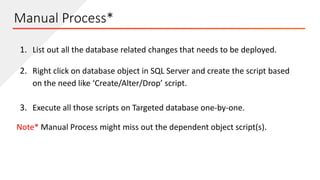
1. List out all the database related changes that needs to be deployed.
2. Right click on database object in SQL Server and create the script based
on the need like ‘Create/Alter/Drop’ script.
3. Execute all those scripts on Targeted database one-by-one.
Note* Manual Process might miss out the dependent object script(s).
Process using Database Project
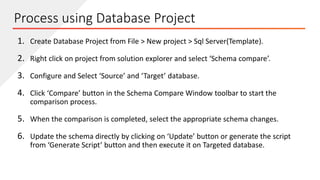
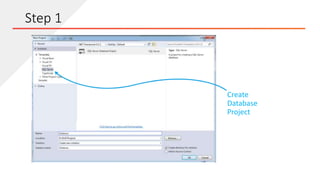
1. Create Database Project from File > New project > Sql Server(Template).
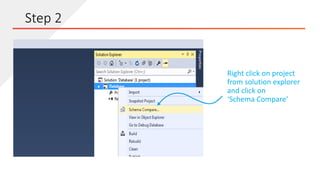
2. Right click on project from solution explorer and select ‘Schema compare’.
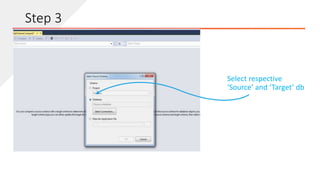
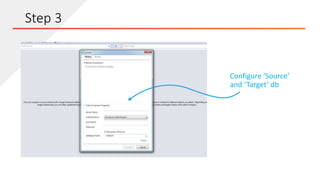
3. Configure and Select ‘Source’ and ‘Target’ database.
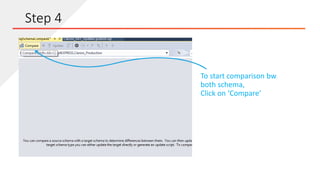
4. Click ‘Compare’ button in the Schema Compare Window toolbar to start the
comparison process.
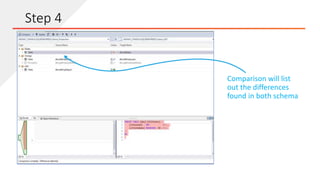
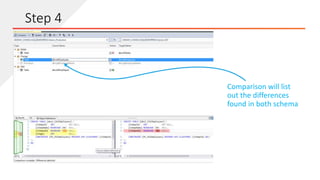
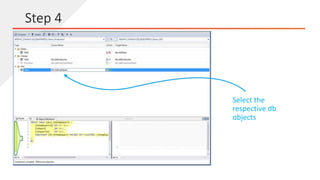
5. When the comparison is completed, select the appropriate schema changes.
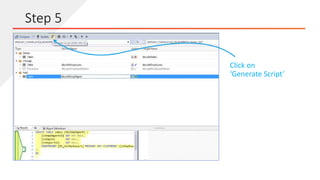
6. Update the schema directly by clicking on ‘Update’ button or generate the script
from ‘Generate Script’ button and then execute it on Targeted database.
Advantages of using Database Project
1. Reduce Manual work
2. Save deployment time
3. Easily deployable in any conditions
4. Helpful in versioning db object / deployment scripts
5. Automatically detects dependent objects
6. It will cover all schema related changes like Table, Column Data type/size
change, Constraints, User defined objects, View, Indexes, properties etc
Disadvantage of using Database Project
1. Can be time consuming due to server traffic/speed
2. Active connection can interrupt schema comparison process
1. Visual studio ( 2015 / 2013 / 2012 / 2010 / 2008 / 2005 )
Prerequisite
Copyright 2019 Clarion. All Rights Reserved
Lets get started
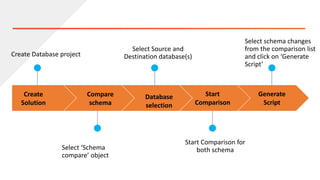
Create
Solution
Create Database project
Select ‘Schema
compare’ object
Select Source and
Destination database(s)
Start
Comparison
Start Comparison for
both schema
Generate
Script
Select schema changes
from the comparison list
and click on ‘Generate
Script’
Compare
schema
Database
selection
Start
Comparison
Generate
Script
Step 1
Create
Database
Project
Right click on project
from solution explorer
and click on
‘Schema Compare’
Step 2
Select respective
‘Source’ and ‘Target’ db
Step 3
Configure ‘Source’
and ‘Target’ db
Step 3
To start comparison bw
both schema,
Click on ‘Compare’
Step 4
Comparison will list
out the differences
found in both schema
Step 4
Comparison will list
out the differences
found in both schema
Step 4
Select the
respective db
objects
Step 4
Click on
‘Generate Script’
Step 5
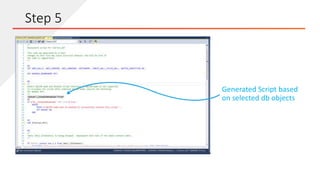
Generated Script based
on selected db objects
Step 5
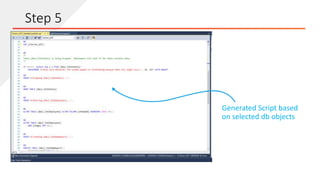
Generated Script based
on selected db objects
Step 5
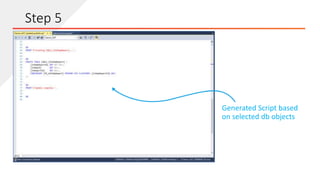
Generated Script based
on selected db objects
Step 5
Thank You
Copyright 2019 Clarion. All Rights Reserved

Visual studio-database-project