Automated Visual
Testing in nsw.gov.au
Sabbir Subhan
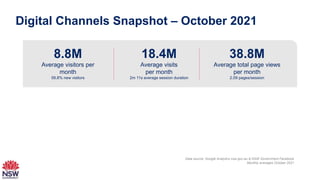
Digital Channels Snapshot – October 2021
Data source: Google Analytics nsw.gov.au & NSW Government Facebook
Monthly averages October 2021
8.8M
Average visitors per
month
58.8% new visitors
18.4M
Average visits
per month
2m 11s average session duration
38.8M
Average total page views
per month
2.09 pages/session
Problem Statement
3
We need ensure that nsw.gov.au looks visually perfect across supported browsers and mobile
devices after each new release into Production.
Insert > Header & Footer > tick Footer box > Apply to all |
What is Visual Testing
4
Visual testing is the manual process of comparing a website under test against a baseline
enviroment (usually Production system).
Manual visual testing is resource intensive and coverage is often low due QA resource
constraint. Again, manual visual testing prone to subjectivity of QA resource and very
repetitive tasks.
Modern approaches of visual testing have incorporated artificial intelligence and
automation, known as Visual AI, to view as a human eye would and avoid false positives.
Insert > Header & Footer > tick Footer box > Apply to all |
Solution Approach
5
We like to automate the manual visual testing so that we can scale up the visual testing
effort, increase the coverage and efficiency.
Key points:
1) We will leverage exiting Testing Infrastructure (AWS Automation Server) to run the
Automated Visual Testing.
2) We will use same automation framework (Java and Selenium) to automate browser
navigation and interactions.
3) We are proposing to use a commercial visual testing platform.
Insert > Header & Footer > tick Footer box > Apply to all |
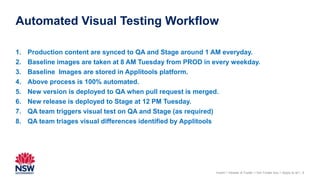
Automated Visual Testing Workflow
6
1. Production content are synced to QA and Stage around 1 AM everyday.
2. Baseline images are taken at 8 AM Tuesday from PROD in every weekday.
3. Baseline Images are stored in Applitools platform.
4. Above process is 100% automated.
5. New version is deployed to QA when pull request is merged.
6. New release is deployed to Stage at 12 PM Tuesday.
7. QA team triggers visual test on QA and Stage (as required)
8. QA team triages visual differences identified by Applitools
Insert > Header & Footer > tick Footer box > Apply to all |
7
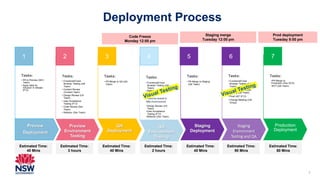
Deployment Process
Preview
Deployment
Tasks:
• PR to Preview (DEV
Team)
• Apply label for
inclusion in release
(P.O)
Preview
Environment
Testing
Tasks:
• Functional/Cross
Browser Testing (QA
Team)
• Content Review
(Content Team)
• Design Review (UX
Team)
• User Acceptance
Testing (P.O)
• Code Review (Dev
Team)
• Refactor (Dev Team)
QA
Deployment
Tasks:
• PR Merge to QA (QA
Team)
QA
Environment
Testing
Tasks:
• Functional/Cross
Browser Testing (QA
Team)
• Refactor Refinement
(Dev Team)
If cant be tested in
M8s Environment
•Design Review (UX
Team)
•User Acceptance
Testing (P.O)
•Refactor (Dev Team)
Staging
Deployment
Tasks:
• PR Merge to Staging
(QA Team)
Staging
Environment
Testing and QA
Tasks:
• Functional/Cross
Browser Testing (QA
Team)
• Business Verification
Testing (QA Team)
• Final UAT (P.O)
• Change Meeting (CM
Group)
Production
Deployment
Tasks:
•PR Merge to
Production (Dev DCS)
•BVT (QA Team)
Code Freeze
Monday 12:00 pm
1 2 3 4 5 6 7
Staging merge
Tuesday 12:00 pm
Prod deployment
Tuesday 8:00 pm
Estimated Time:
40 Mins
Estimated Time:
3 hours
Estimated Time:
40 Mins
Estimated Time:
2 hours
Estimated Time:
40 Mins
Estimated Time:
90 Mins
Estimated Time:
60 Mins
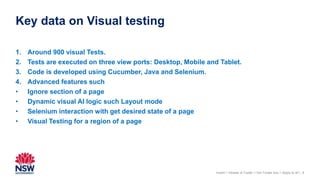
Key data on Visual testing
8
1. Around 900 visual Tests.
2. Tests are executed on three view ports: Desktop, Mobile and Tablet.
3. Code is developed using Cucumber, Java and Selenium.
4. Advanced features such
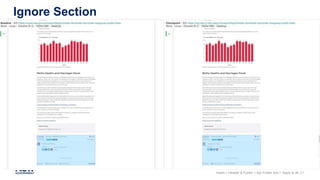
• Ignore section of a page
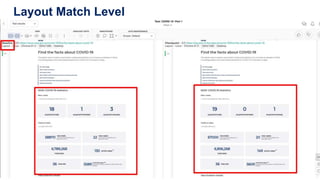
• Dynamic visual AI logic such Layout mode
• Selenium interaction with get desired state of a page
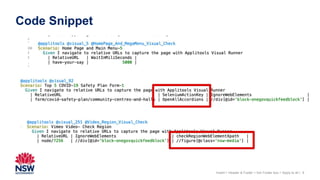
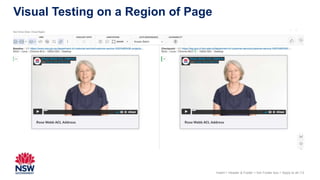
• Visual Testing for a region of a page
Insert > Header & Footer > tick Footer box > Apply to all |
Code Snippet
9
Insert > Header & Footer > tick Footer box > Apply to all |
Layout Match Level
10
Insert > Header & Footer > tick Footer box > Apply to all |
Ignore Section
11
Insert > Header & Footer > tick Footer box > Apply to all |
Visual Testing on a Region of Page
12
Insert > Header & Footer > tick Footer box > Apply to all |
Some real live bug catching
13
Insert > Header & Footer > tick Footer box > Apply to all |
Automated Visual Testing in NSW.Gov.AU

Automated Visual Testing in NSW.Gov.AU

  • 1.
    Automated Visual Testing innsw.gov.au Sabbir Subhan
  • 2.
    Digital Channels Snapshot– October 2021 Data source: Google Analytics nsw.gov.au & NSW Government Facebook Monthly averages October 2021 8.8M Average visitors per month 58.8% new visitors 18.4M Average visits per month 2m 11s average session duration 38.8M Average total page views per month 2.09 pages/session
  • 3.
    Problem Statement 3 We needensure that nsw.gov.au looks visually perfect across supported browsers and mobile devices after each new release into Production. Insert > Header & Footer > tick Footer box > Apply to all |
  • 4.
    What is VisualTesting 4 Visual testing is the manual process of comparing a website under test against a baseline enviroment (usually Production system). Manual visual testing is resource intensive and coverage is often low due QA resource constraint. Again, manual visual testing prone to subjectivity of QA resource and very repetitive tasks. Modern approaches of visual testing have incorporated artificial intelligence and automation, known as Visual AI, to view as a human eye would and avoid false positives. Insert > Header & Footer > tick Footer box > Apply to all |
  • 5.
    Solution Approach 5 We liketo automate the manual visual testing so that we can scale up the visual testing effort, increase the coverage and efficiency. Key points: 1) We will leverage exiting Testing Infrastructure (AWS Automation Server) to run the Automated Visual Testing. 2) We will use same automation framework (Java and Selenium) to automate browser navigation and interactions. 3) We are proposing to use a commercial visual testing platform. Insert > Header & Footer > tick Footer box > Apply to all |
  • 6.
    Automated Visual TestingWorkflow 6 1. Production content are synced to QA and Stage around 1 AM everyday. 2. Baseline images are taken at 8 AM Tuesday from PROD in every weekday. 3. Baseline Images are stored in Applitools platform. 4. Above process is 100% automated. 5. New version is deployed to QA when pull request is merged. 6. New release is deployed to Stage at 12 PM Tuesday. 7. QA team triggers visual test on QA and Stage (as required) 8. QA team triages visual differences identified by Applitools Insert > Header & Footer > tick Footer box > Apply to all |
  • 7.
    7 Deployment Process Preview Deployment Tasks: • PRto Preview (DEV Team) • Apply label for inclusion in release (P.O) Preview Environment Testing Tasks: • Functional/Cross Browser Testing (QA Team) • Content Review (Content Team) • Design Review (UX Team) • User Acceptance Testing (P.O) • Code Review (Dev Team) • Refactor (Dev Team) QA Deployment Tasks: • PR Merge to QA (QA Team) QA Environment Testing Tasks: • Functional/Cross Browser Testing (QA Team) • Refactor Refinement (Dev Team) If cant be tested in M8s Environment •Design Review (UX Team) •User Acceptance Testing (P.O) •Refactor (Dev Team) Staging Deployment Tasks: • PR Merge to Staging (QA Team) Staging Environment Testing and QA Tasks: • Functional/Cross Browser Testing (QA Team) • Business Verification Testing (QA Team) • Final UAT (P.O) • Change Meeting (CM Group) Production Deployment Tasks: •PR Merge to Production (Dev DCS) •BVT (QA Team) Code Freeze Monday 12:00 pm 1 2 3 4 5 6 7 Staging merge Tuesday 12:00 pm Prod deployment Tuesday 8:00 pm Estimated Time: 40 Mins Estimated Time: 3 hours Estimated Time: 40 Mins Estimated Time: 2 hours Estimated Time: 40 Mins Estimated Time: 90 Mins Estimated Time: 60 Mins
  • 8.
    Key data onVisual testing 8 1. Around 900 visual Tests. 2. Tests are executed on three view ports: Desktop, Mobile and Tablet. 3. Code is developed using Cucumber, Java and Selenium. 4. Advanced features such • Ignore section of a page • Dynamic visual AI logic such Layout mode • Selenium interaction with get desired state of a page • Visual Testing for a region of a page Insert > Header & Footer > tick Footer box > Apply to all |
  • 9.
    Code Snippet 9 Insert >Header & Footer > tick Footer box > Apply to all |
  • 10.
    Layout Match Level 10 Insert> Header & Footer > tick Footer box > Apply to all |
  • 11.
    Ignore Section 11 Insert >Header & Footer > tick Footer box > Apply to all |
  • 12.
    Visual Testing ona Region of Page 12 Insert > Header & Footer > tick Footer box > Apply to all |
  • 13.
    Some real livebug catching 13 Insert > Header & Footer > tick Footer box > Apply to all |